
SAP: SM31 - Anschreiben (Mail) für Auftragsbestätigung (AB) ändern (*in Bearbeitung*)
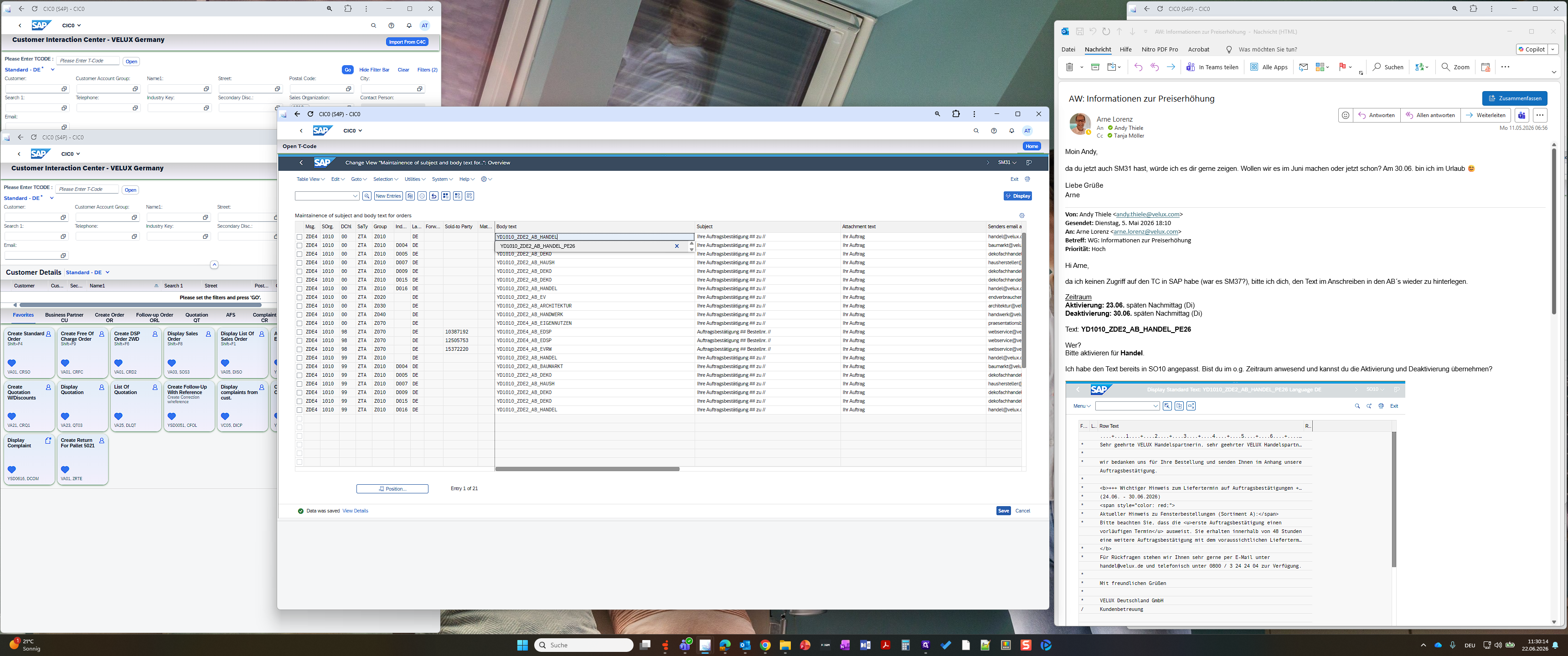
Lerne wie man Mailtexte für das Anschreiben für die Auftragsbestätigungen abändert. Die Texte müssen vorab mit der Transaktion SO10 erstellt werden.
Dieser Leitfaden erläutert, wie automatisierte Betreffzeilen und Nachrichtentexte für auftragsbezogene E-Mails in SAP aktualisiert und gepflegt werden. Durch die Durchführung dieser Schritte wird sichergestellt, dass Kunden präzise und aktuelle Informationen zu ihren Auftragsbestätigungen sowie zu Systemaktualisierungen erhalten.
Dieser Arbeitsablauf richtet sich an Mitarbeiter in den Bereichen Vertriebssteuerung (Sales Operations) und Kundenservice sowie an Systemadministratoren, die Kundenkontaktzentren betreuen. Er kommt immer dann zum Einsatz, wenn Standardvorlagen für die Kommunikation aktualisiert werden müssen – etwa bei der Umsetzung von Preisanpassungen oder der Änderung von Standardtextbausteinen.
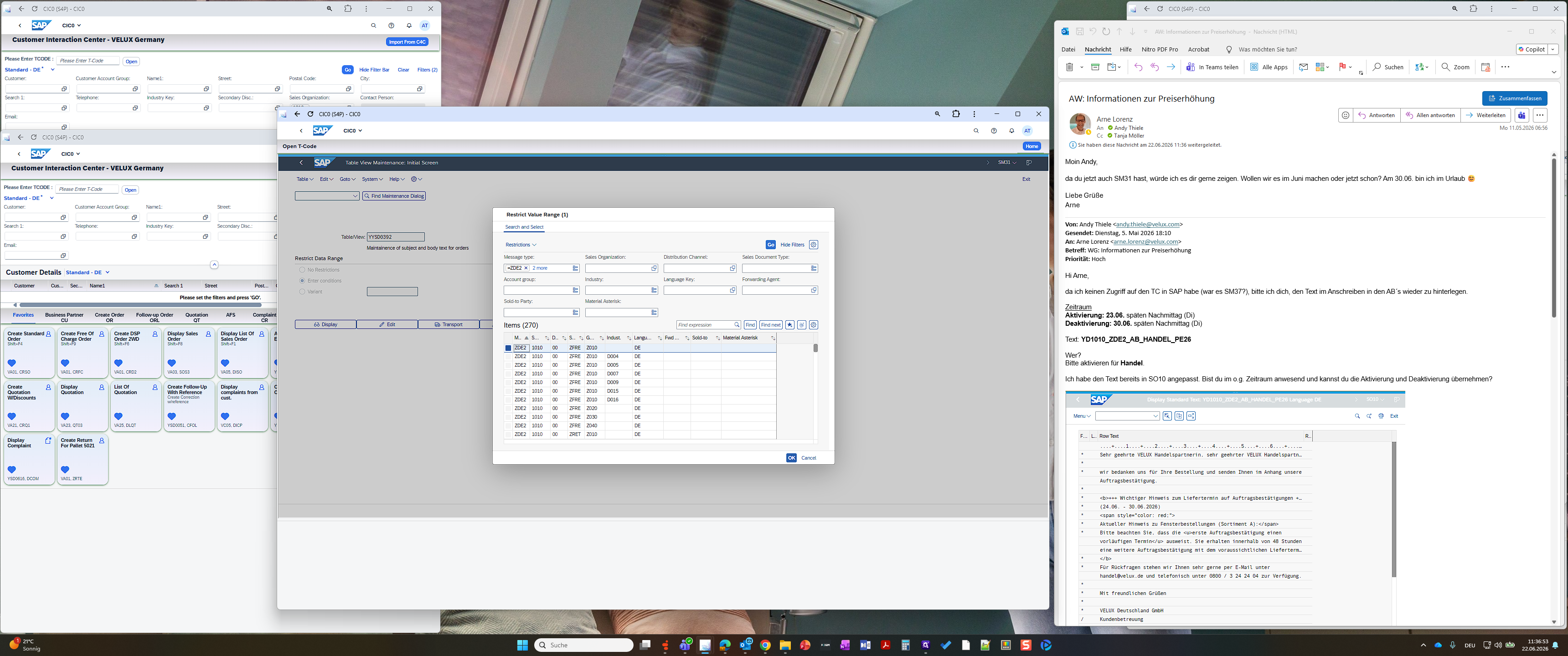
Access Table View Maintenance
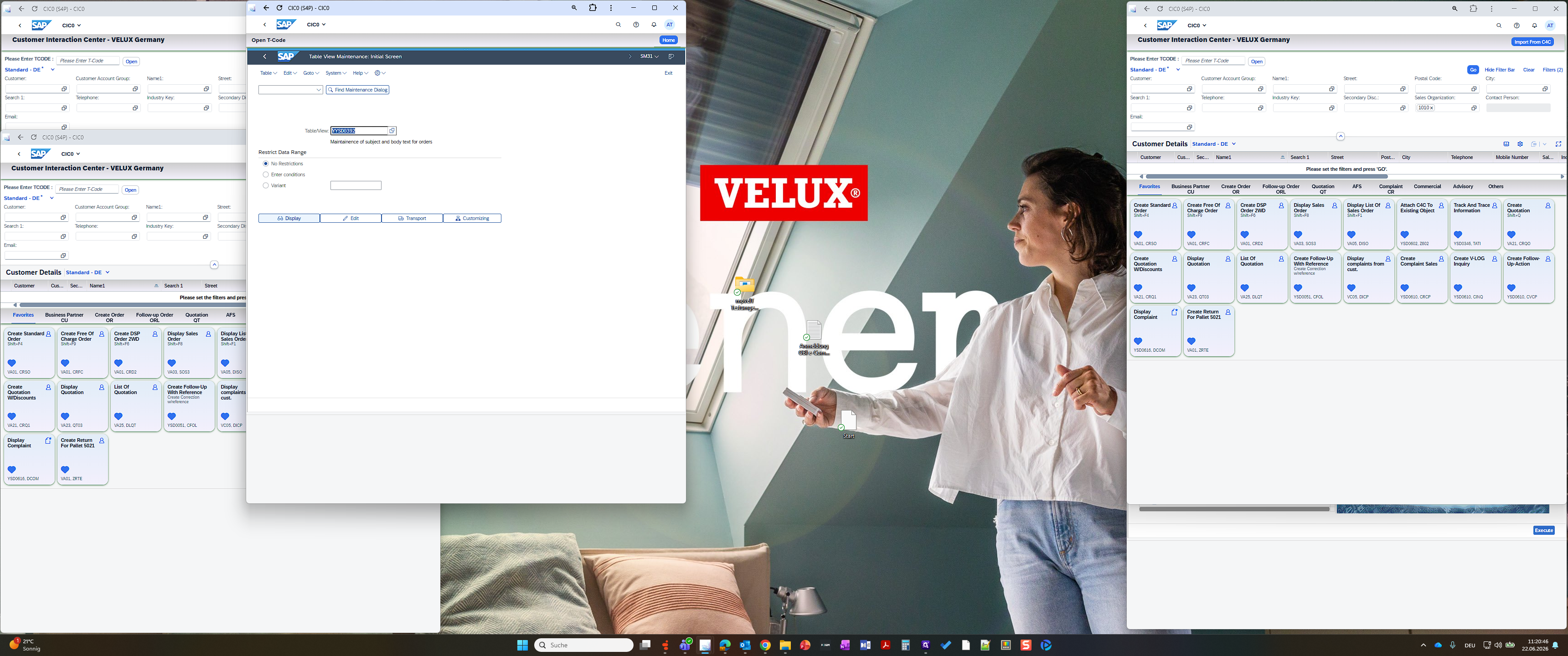
Define Filter Conditions
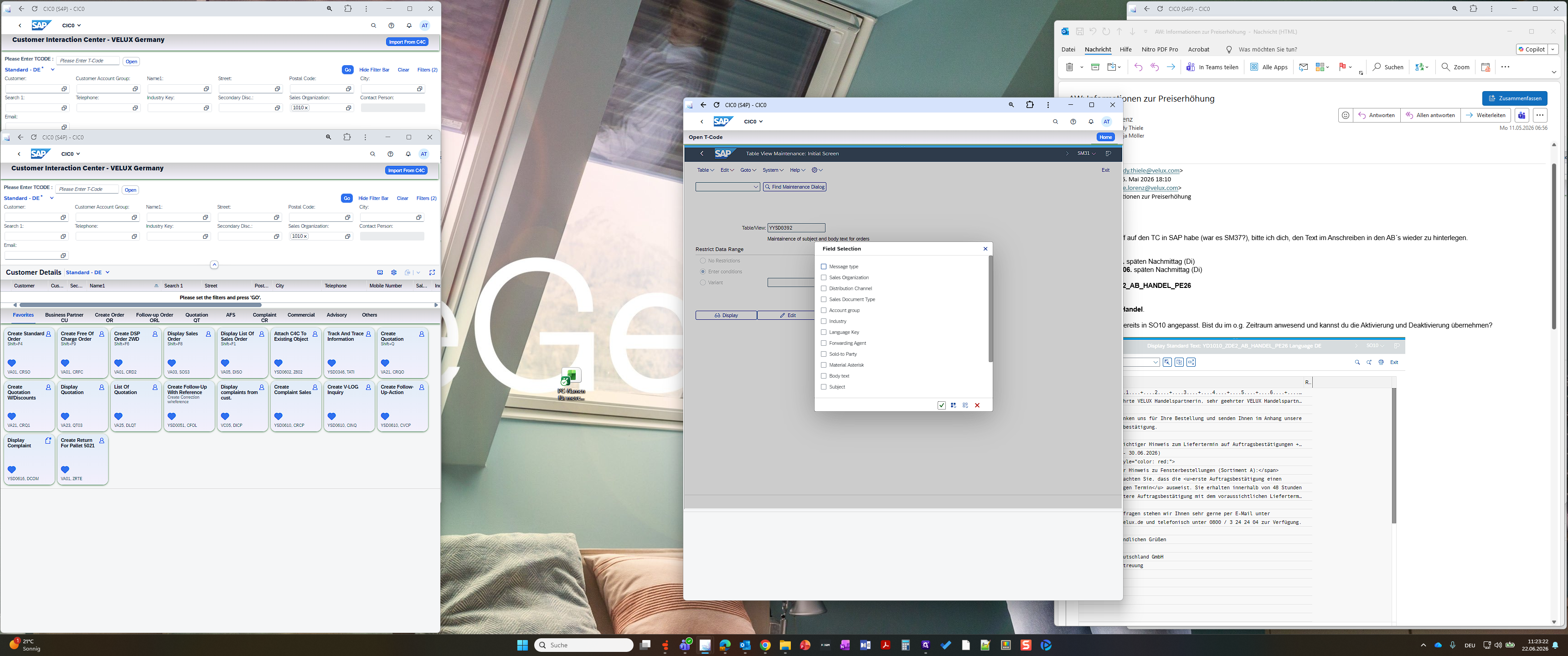
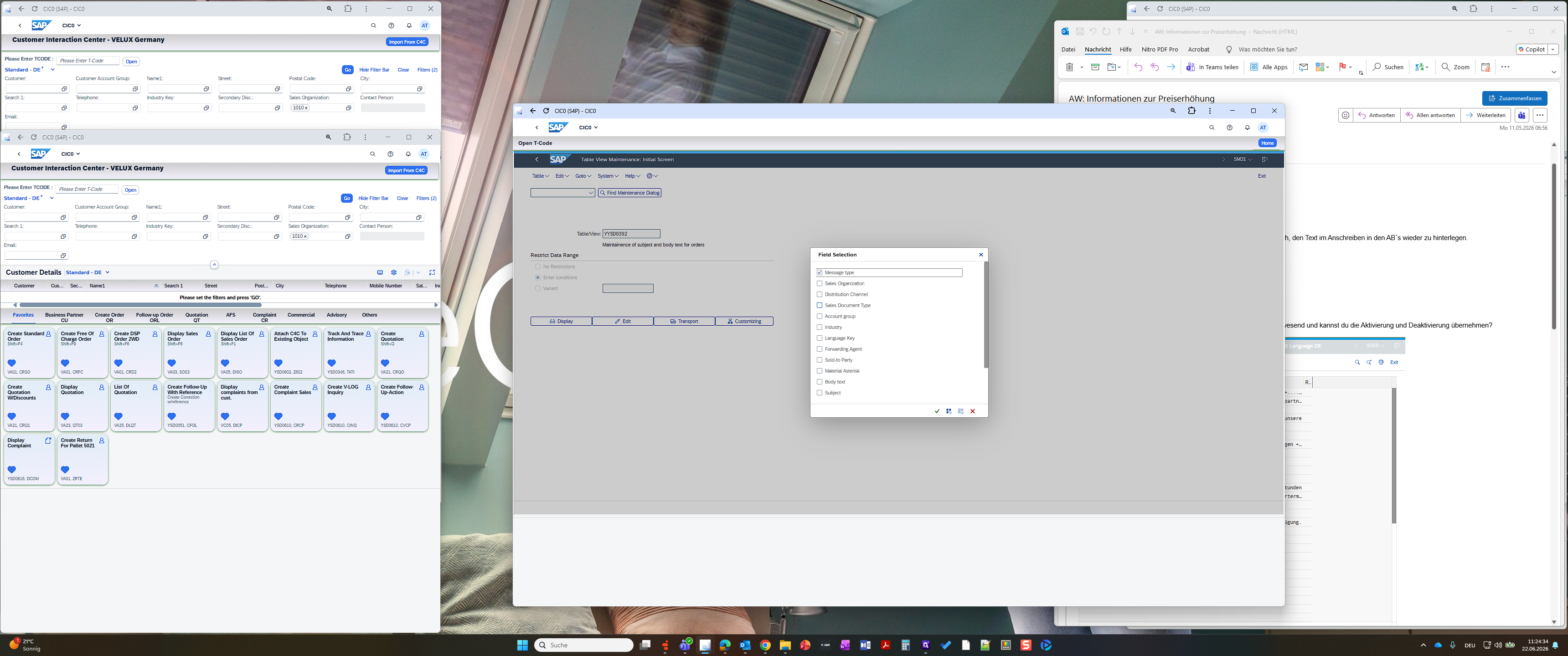
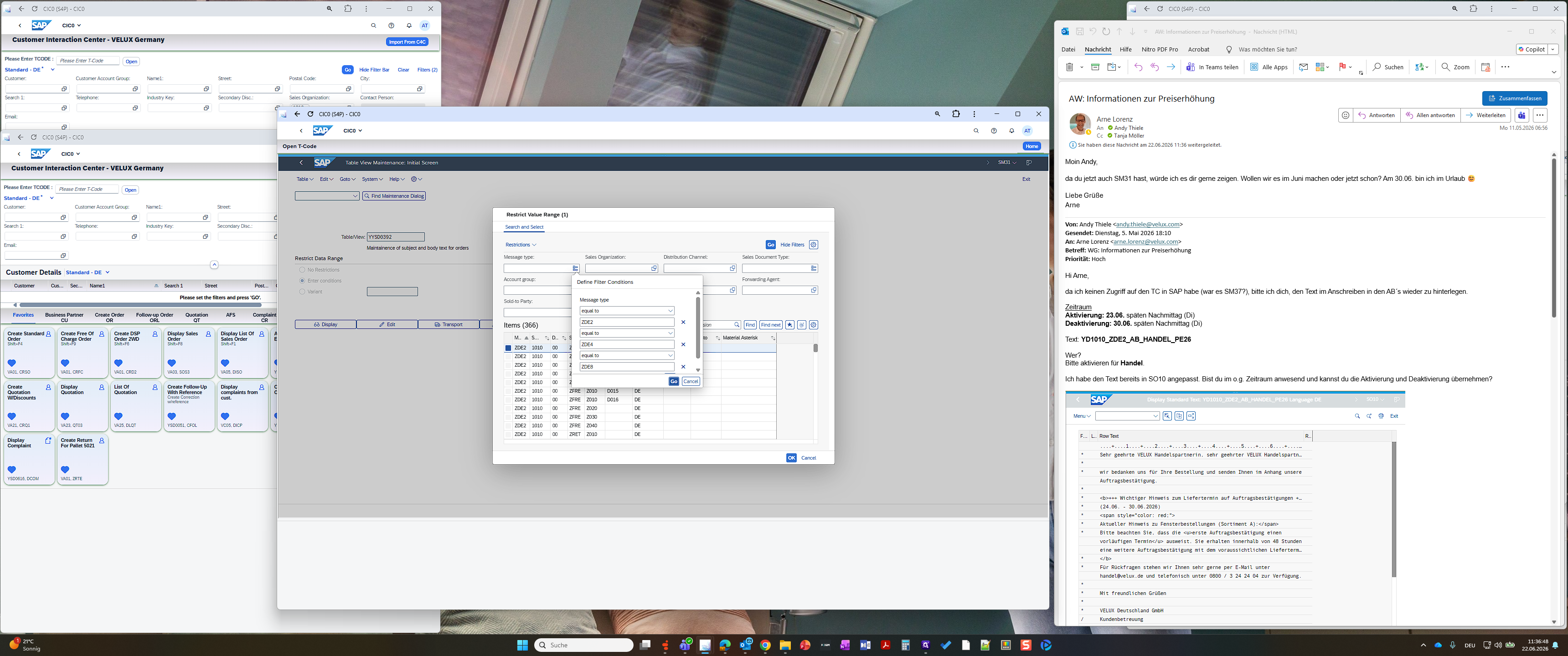
When prompted to add specific message types to the filter query, enter the following values:
Message Type | Action |
|---|---|
ZDE2 | Type ZDE2 and click Add |
ZDE4 | Type ZDE4 and click Add |
ZDE8 | Type ZDE8 and click Add |
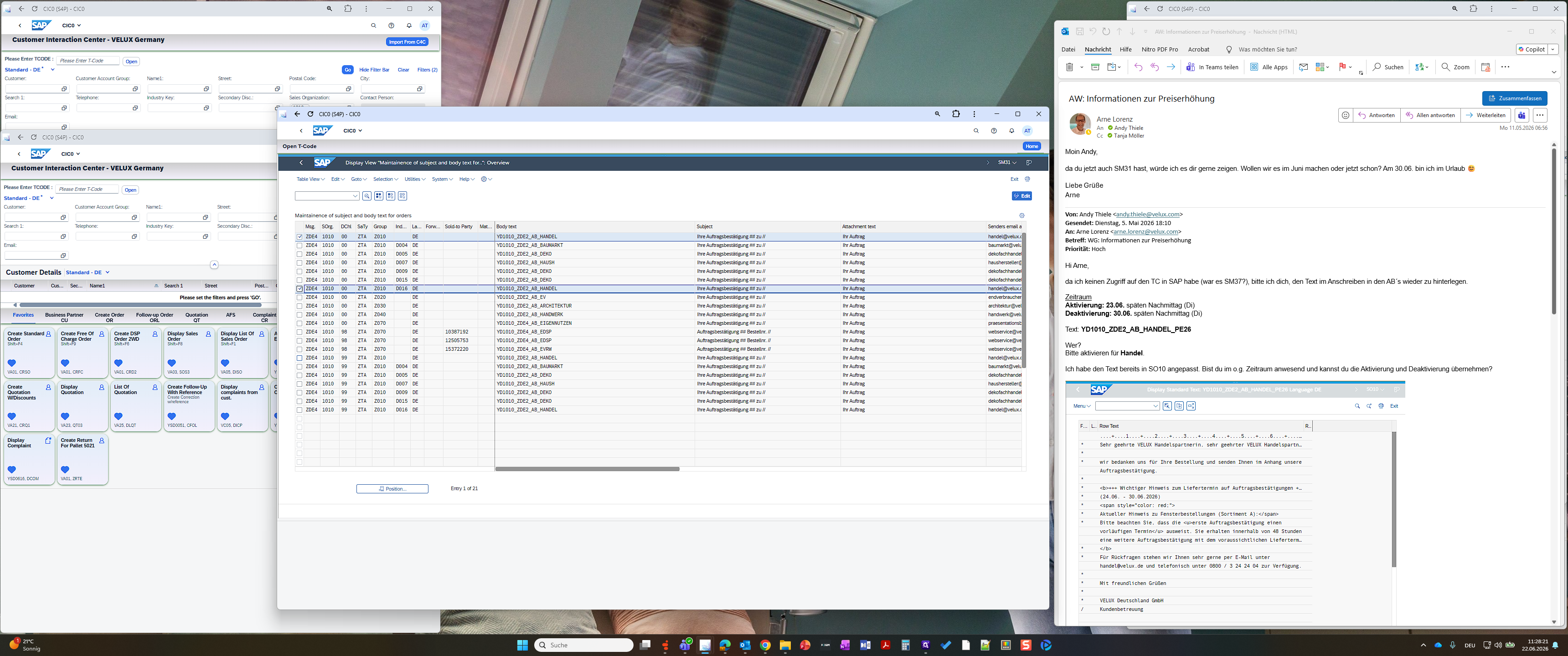
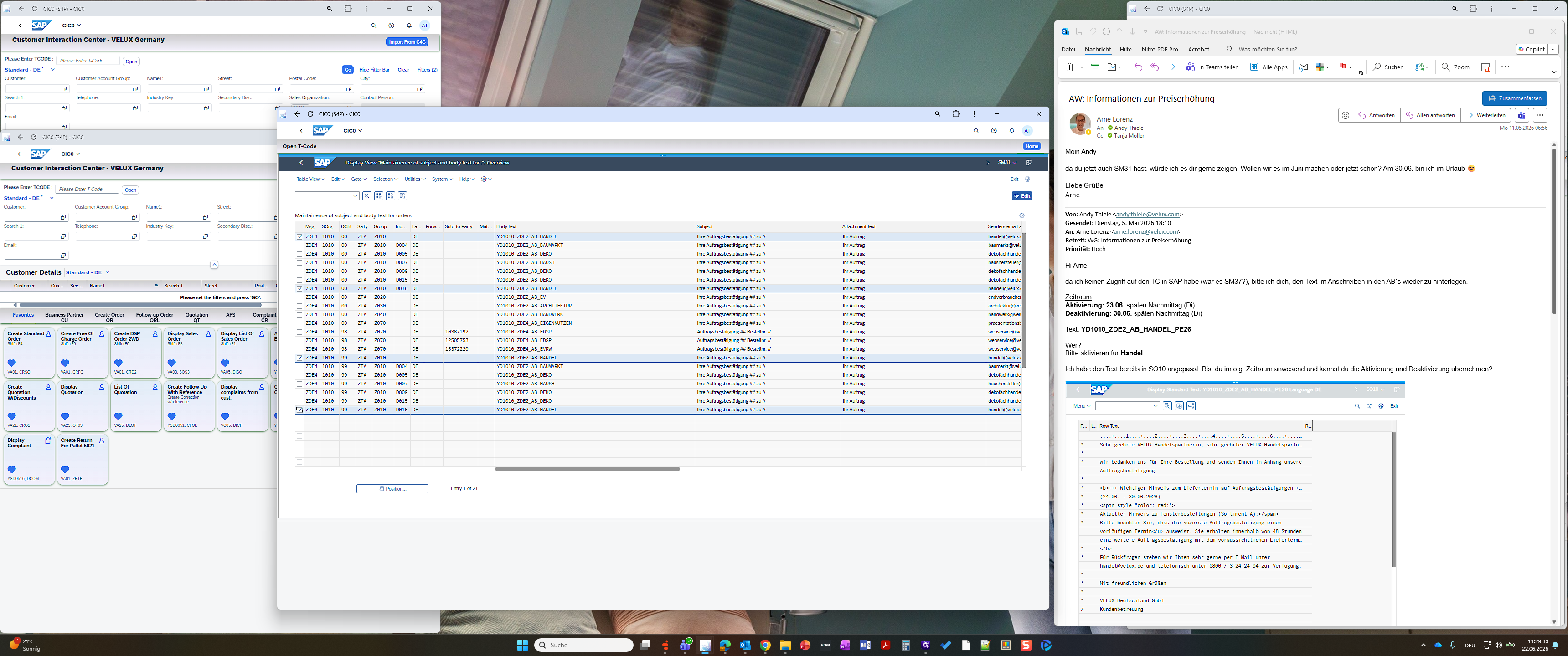
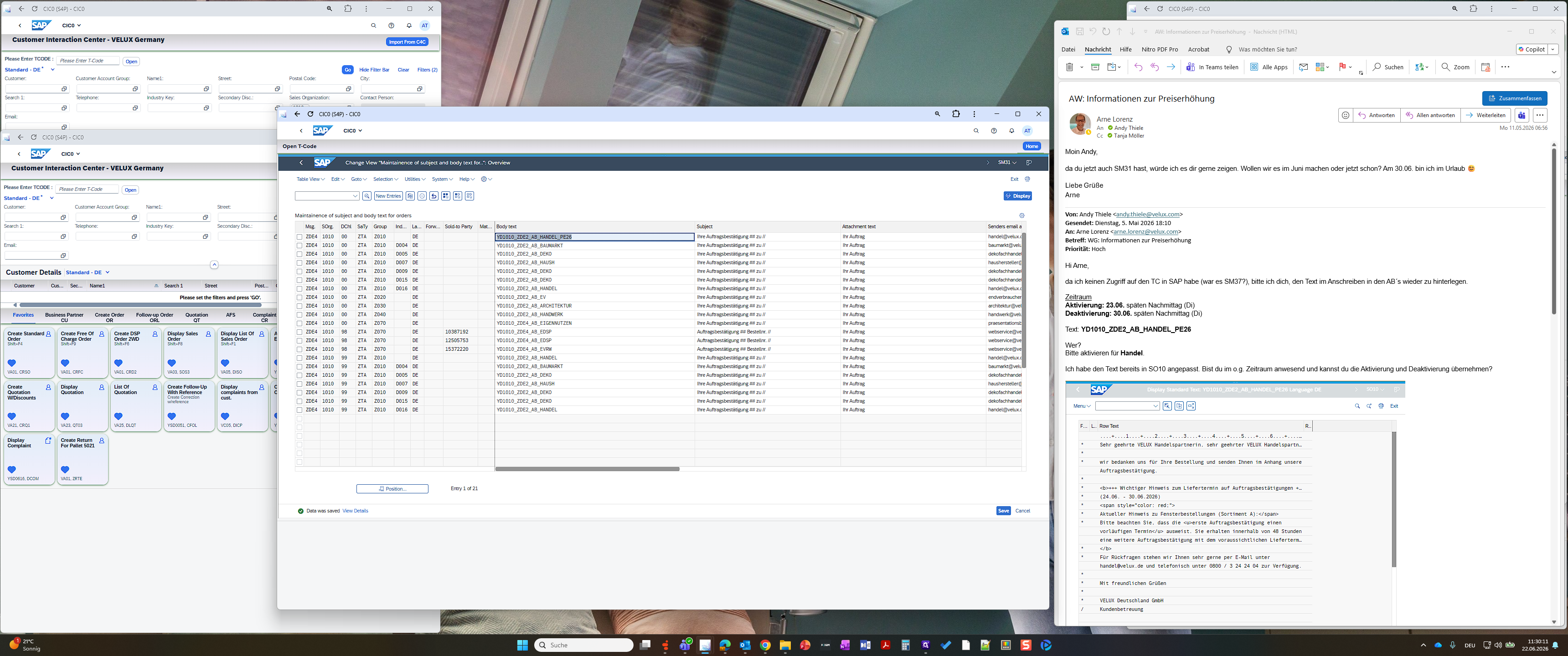
Edit Standard Text References
Term | Definition |
|---|---|
SM31 | An SAP transaction code used to access the Table View Maintenance screen. |
Table View Maintenance | An SAP tool used to display and modify the configuration records of custom or standard database tables. |
Message Type | A classification parameter in SAP indicating the kind of output or communication generated for a sales document. |