
How to Schedule a Live Stream and Share Links in StreamYard
Learn how to schedule a live broadcast in StreamYard, customize your destination settings, and retrieve both guest and public viewing links.
By Emiliano
Scheduling a live stream in StreamYard allows you to prepare your broadcast in advance, customize its appearance on platforms like YouTube, and easily share access links with both your guests and your audience.
Follow this guide to set up your broadcast and organize your essential stream links.
Schedule Your Live Stream
1
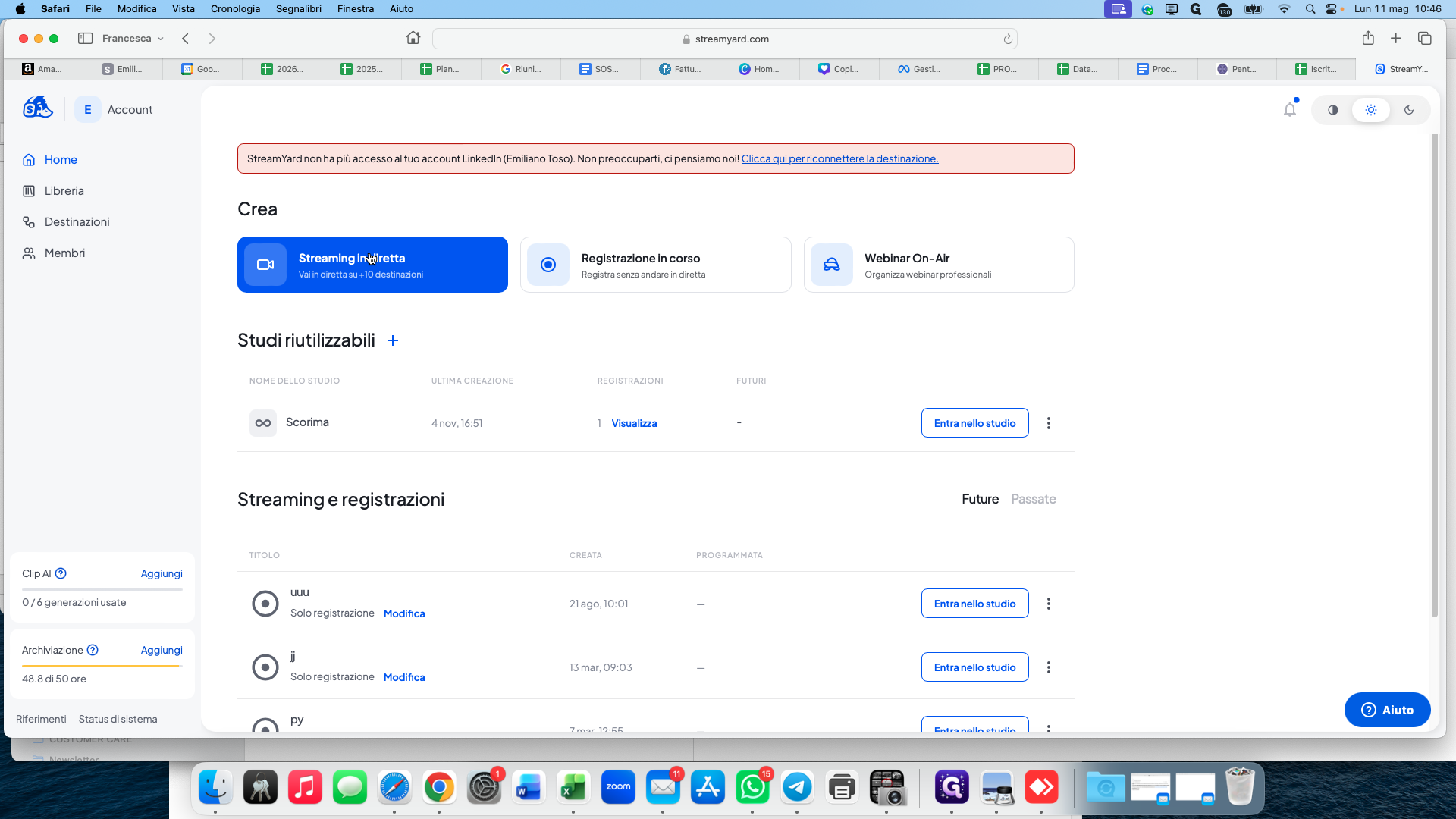
Click Streaming in diretta (Create live stream) from your StreamYard dashboard.
2
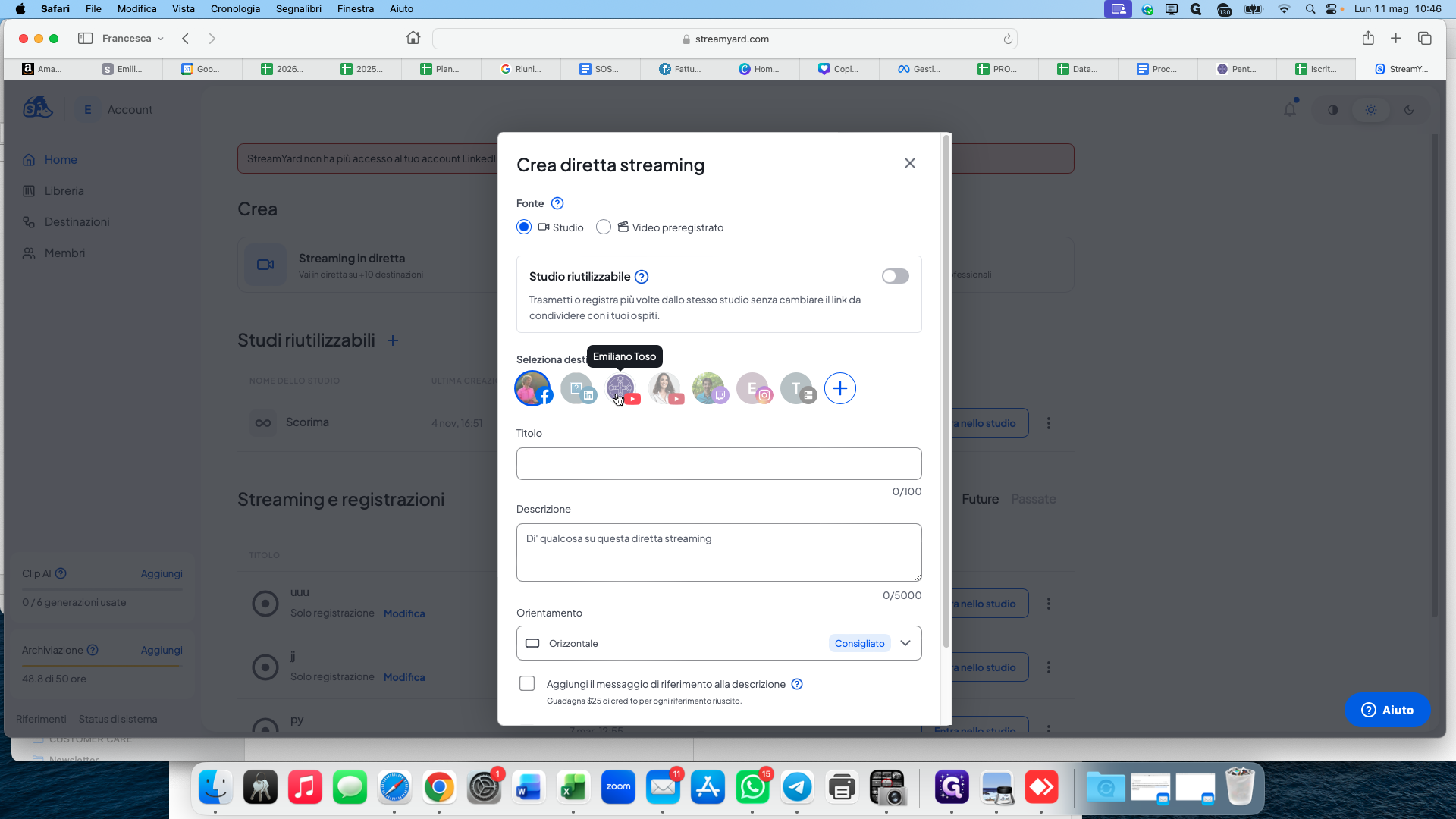
Select the destination channel where you want to broadcast.
3
Enter a title for your live stream.
4
Enter a description.
5
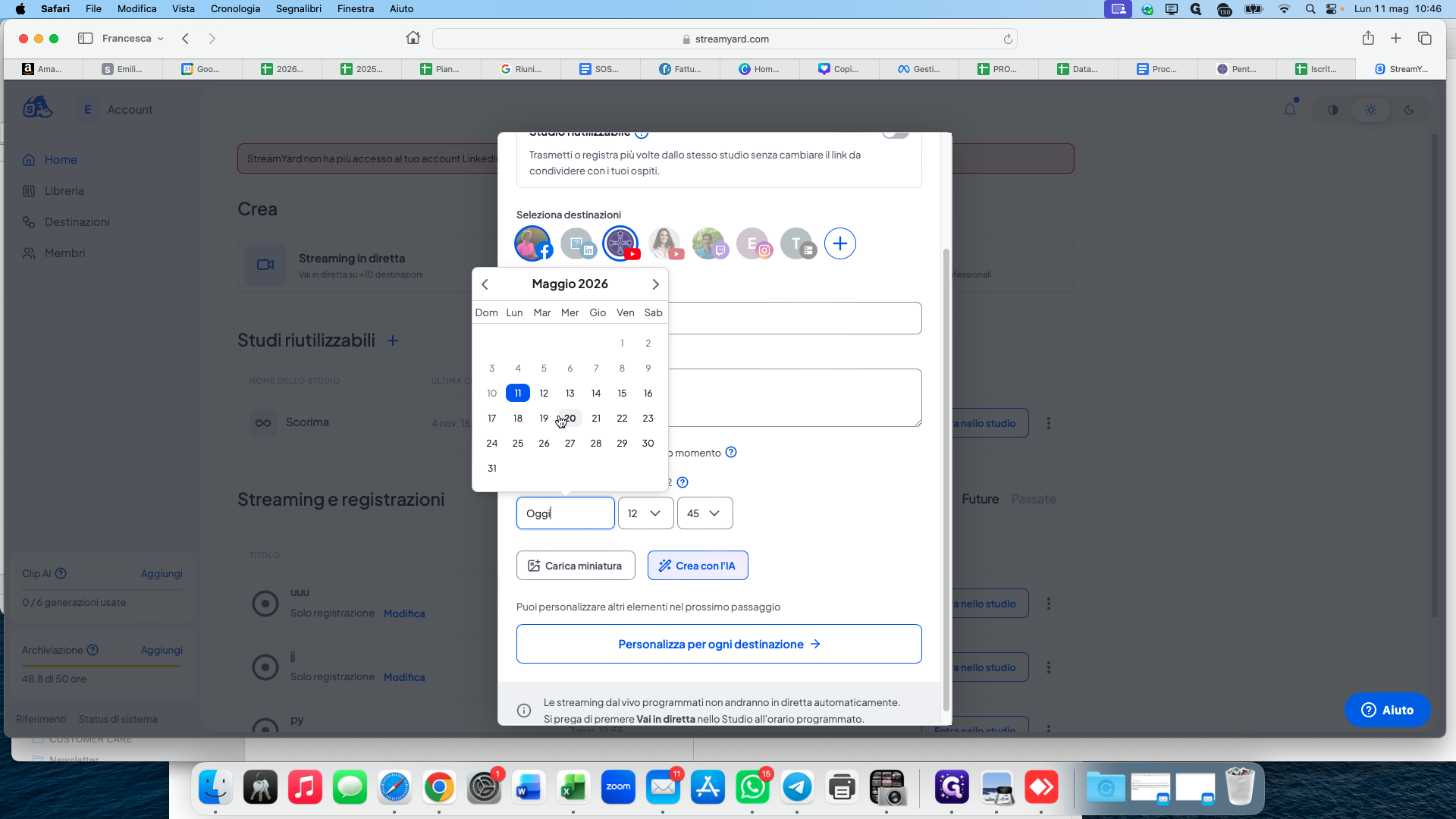
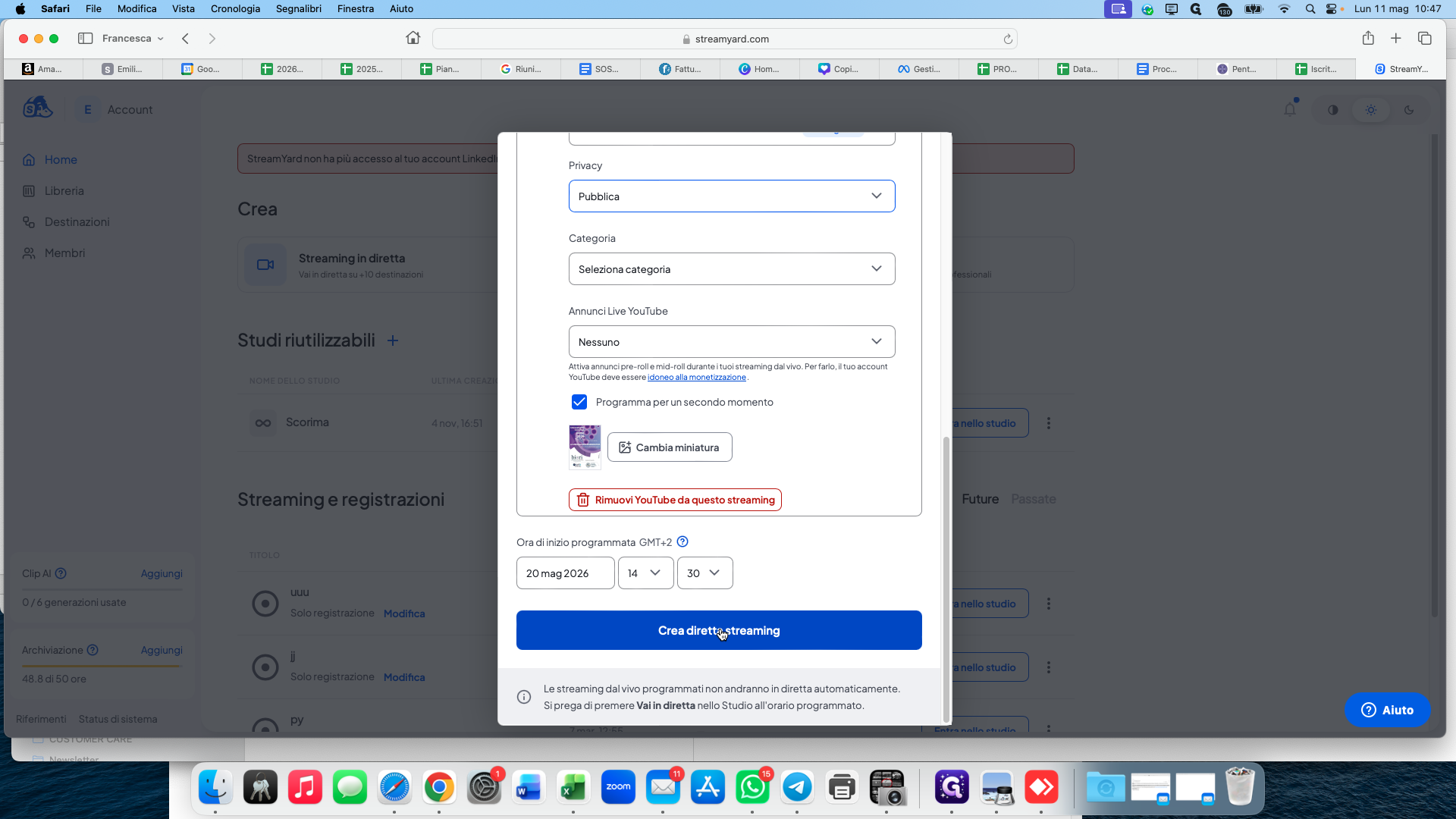
Select the scheduled date for your broadcast.
6
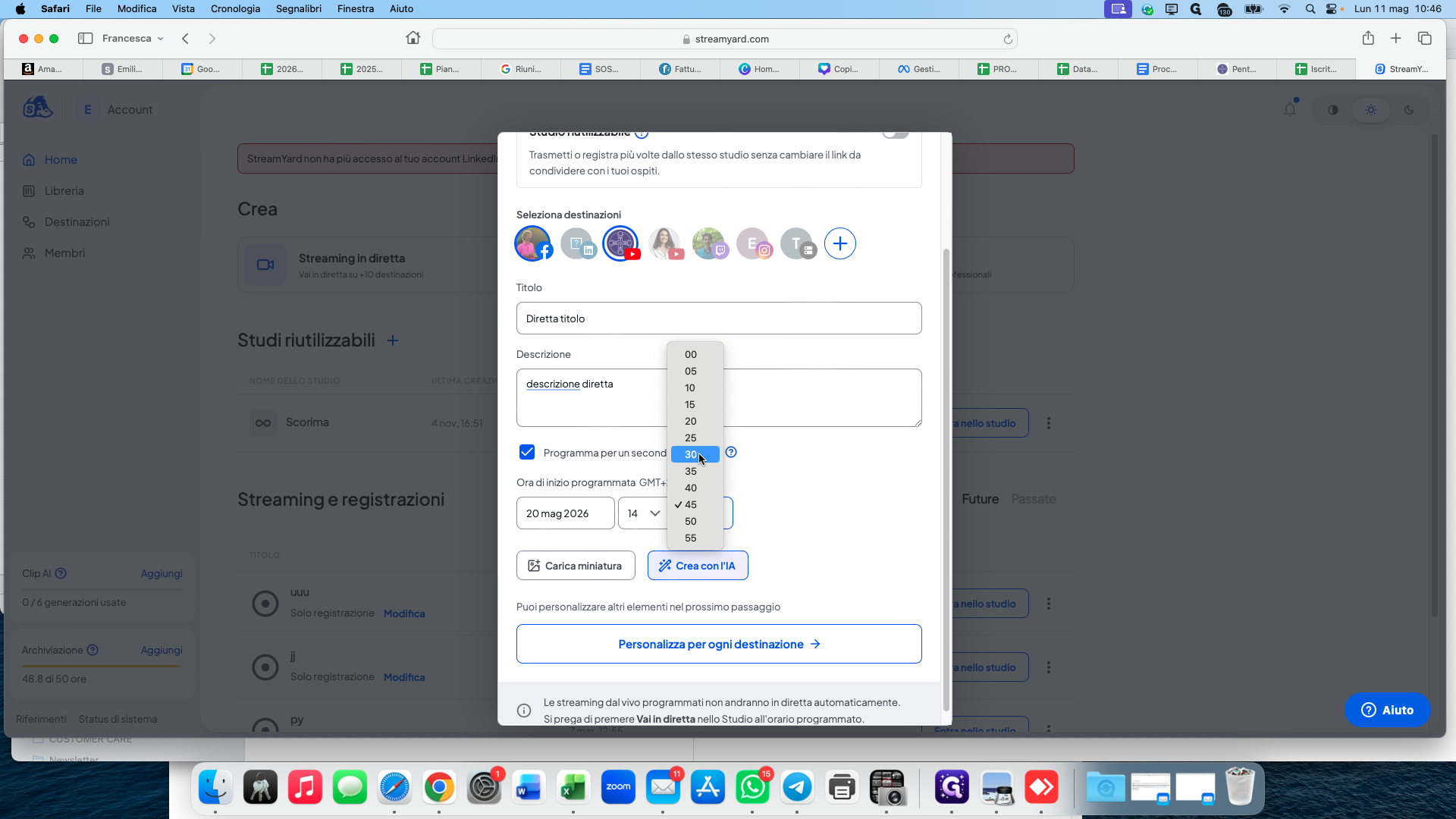
Set the scheduled start time.
7
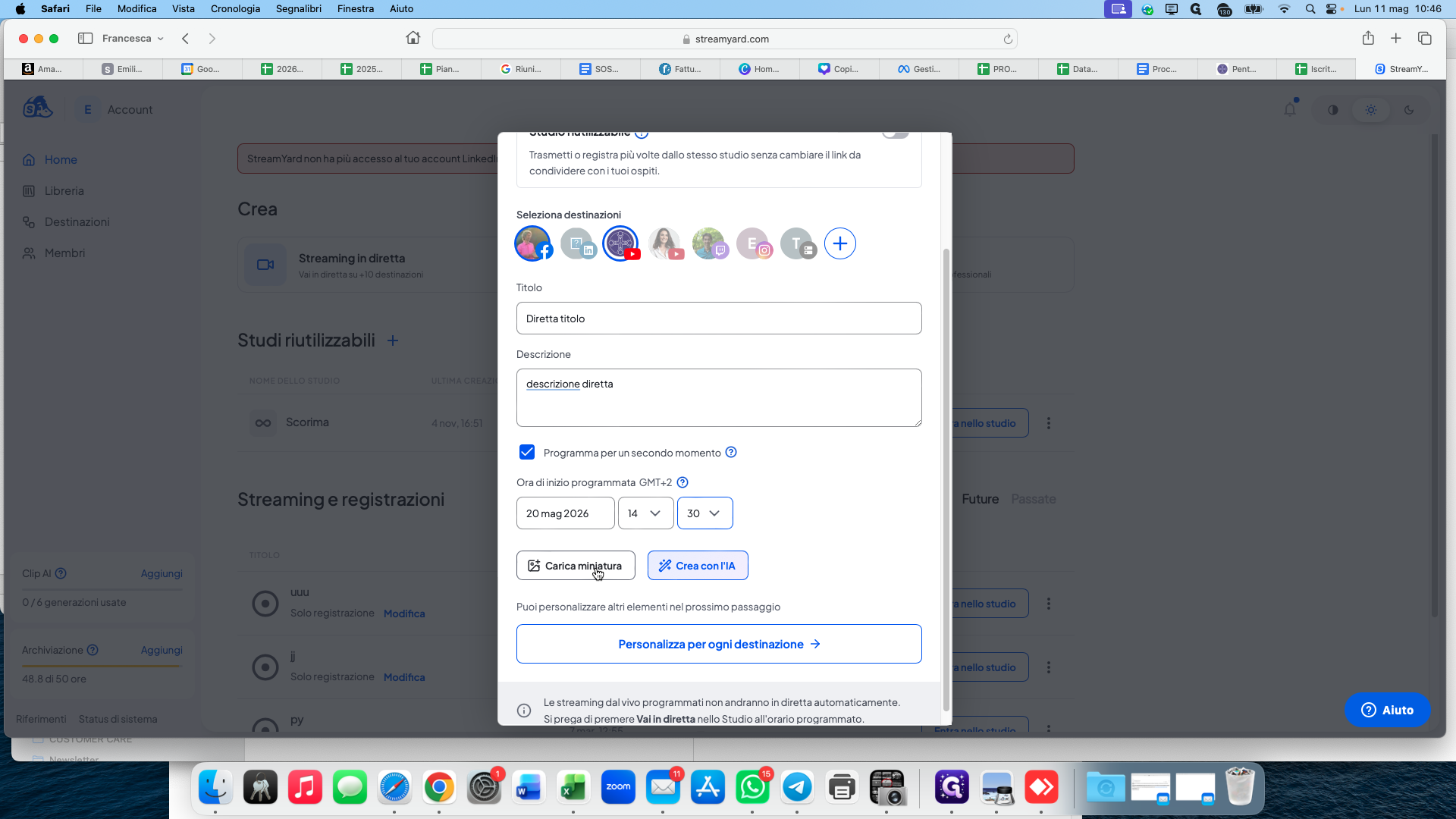
Click Carica miniatura (Upload thumbnail) to add a cover image for the stream.
8
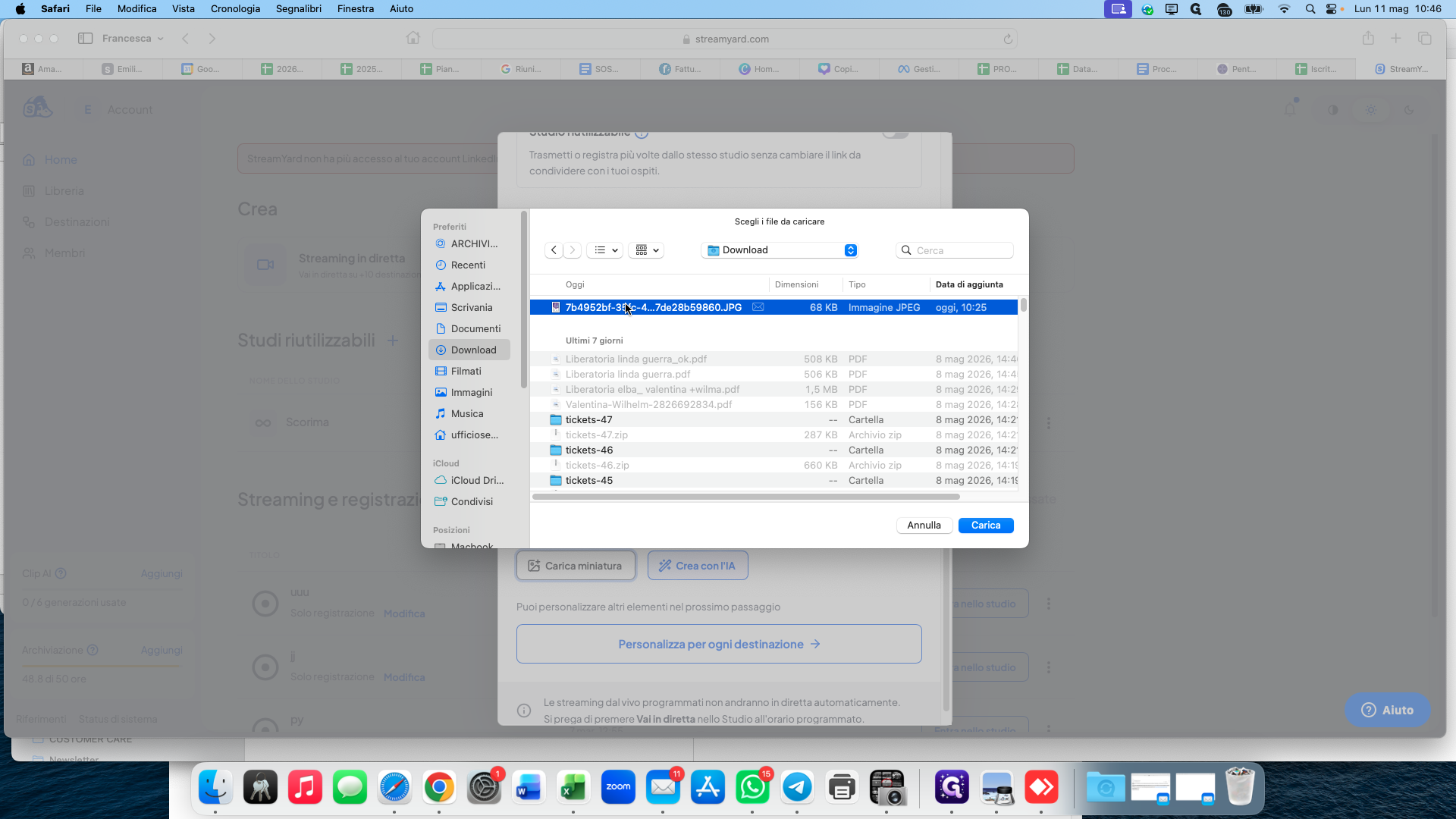
Choose the image file from your computer and upload it.
9
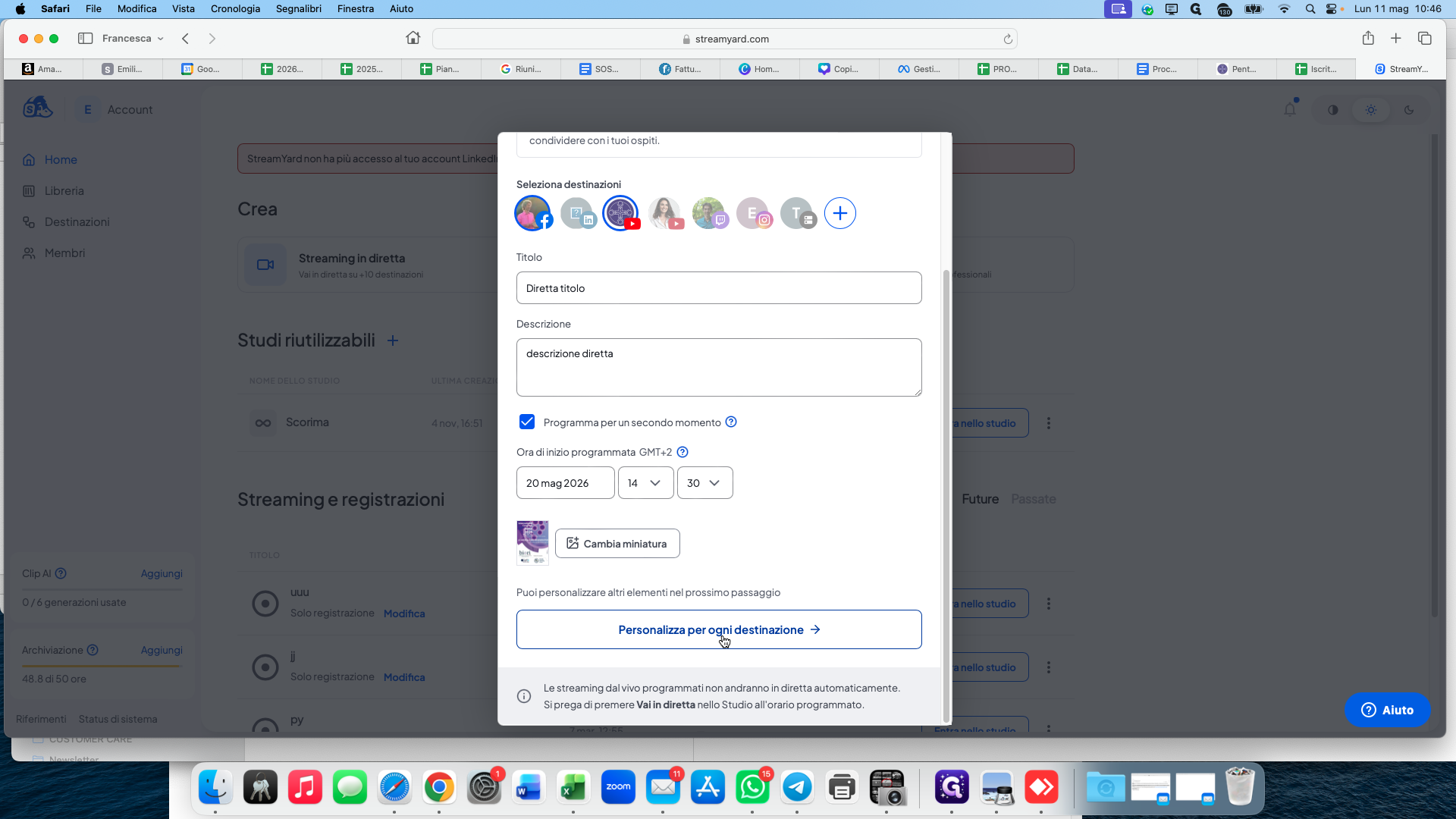
Click Personalizza per ogni destinazione (Customize for each destination) to adjust settings for specific platforms.
10
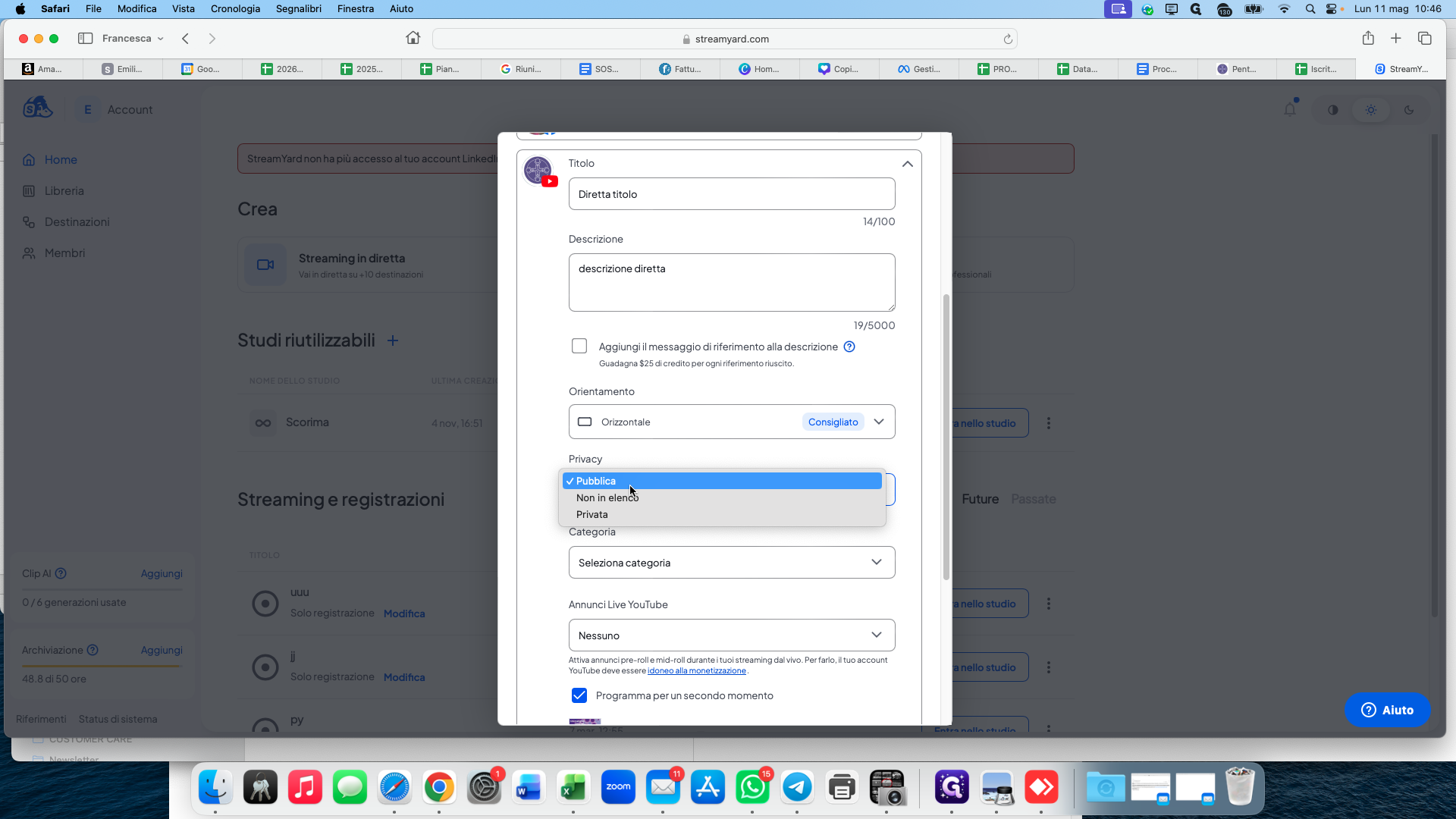
Set the privacy level. Choose Non in elenco (Unlisted) if you want to keep the stream hidden from the public until you are ready.
11
Click Crea diretta streaming (Create live stream) to save your scheduled broadcast.
Get the Guest and Public Links
Once your stream is scheduled, you need to collect two different links: one for your speakers or guests, and one for your audience.
Guest Link
12
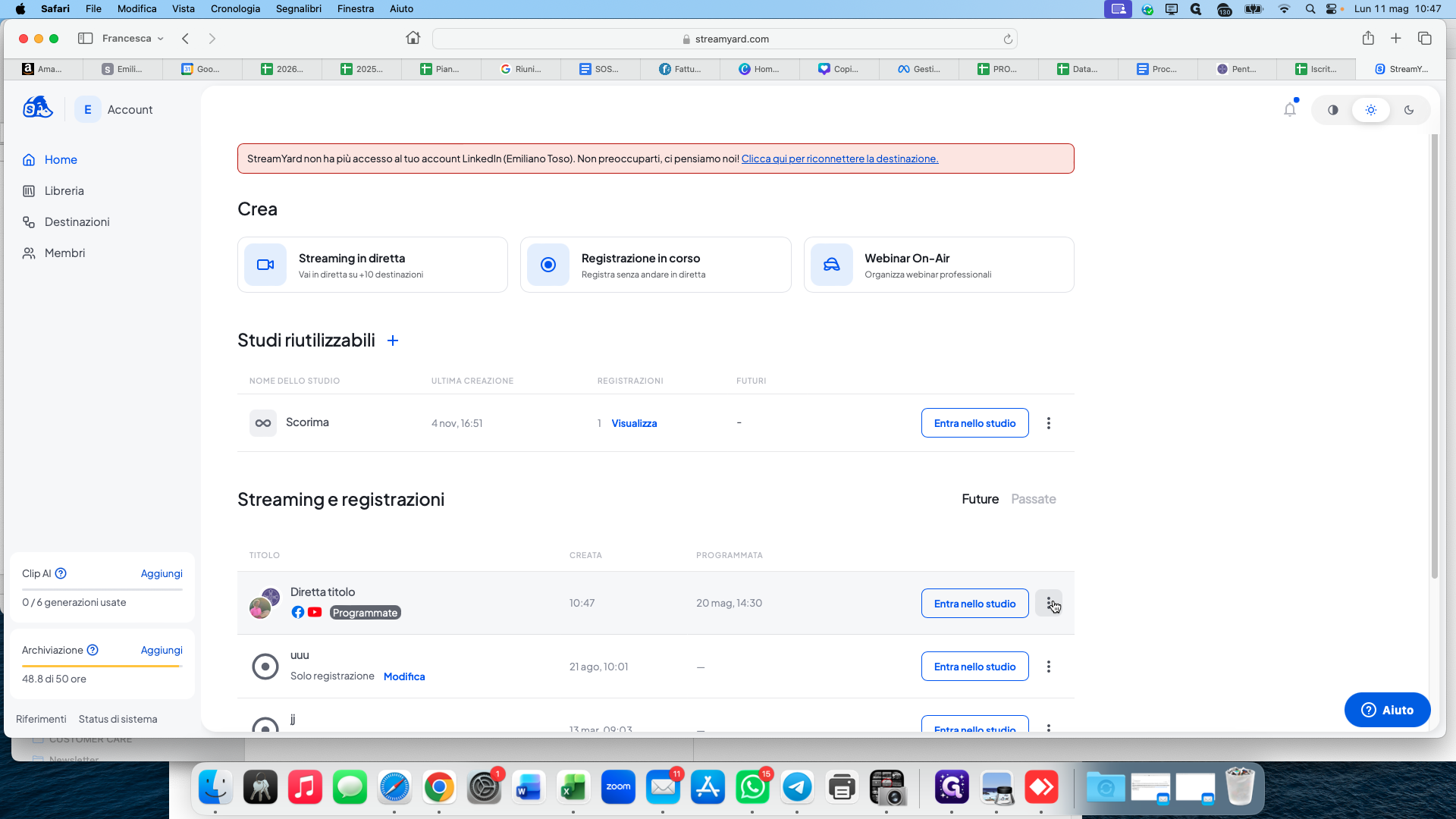
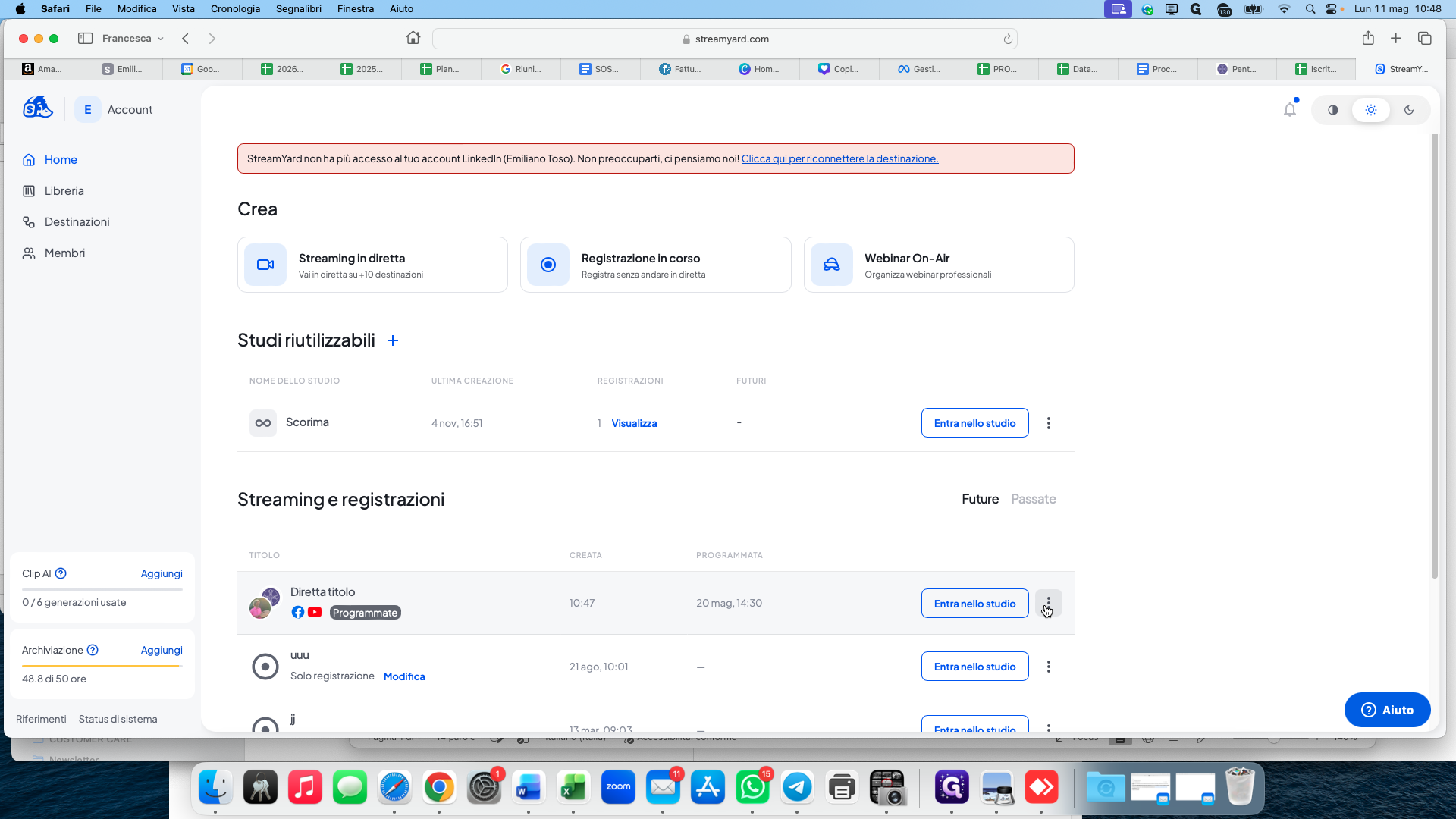
Click the more options menu (three dots) next to your newly scheduled broadcast.
13
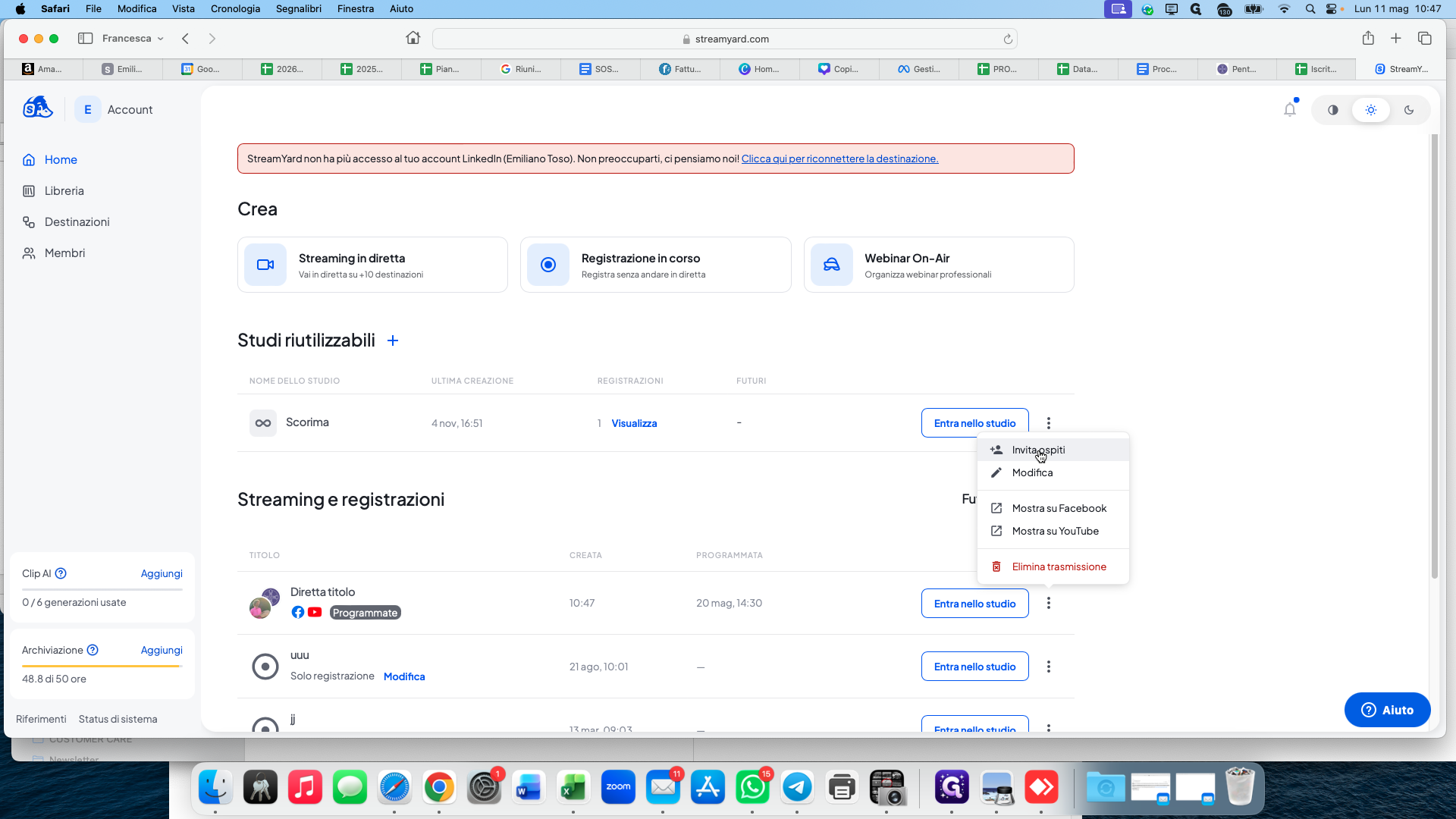
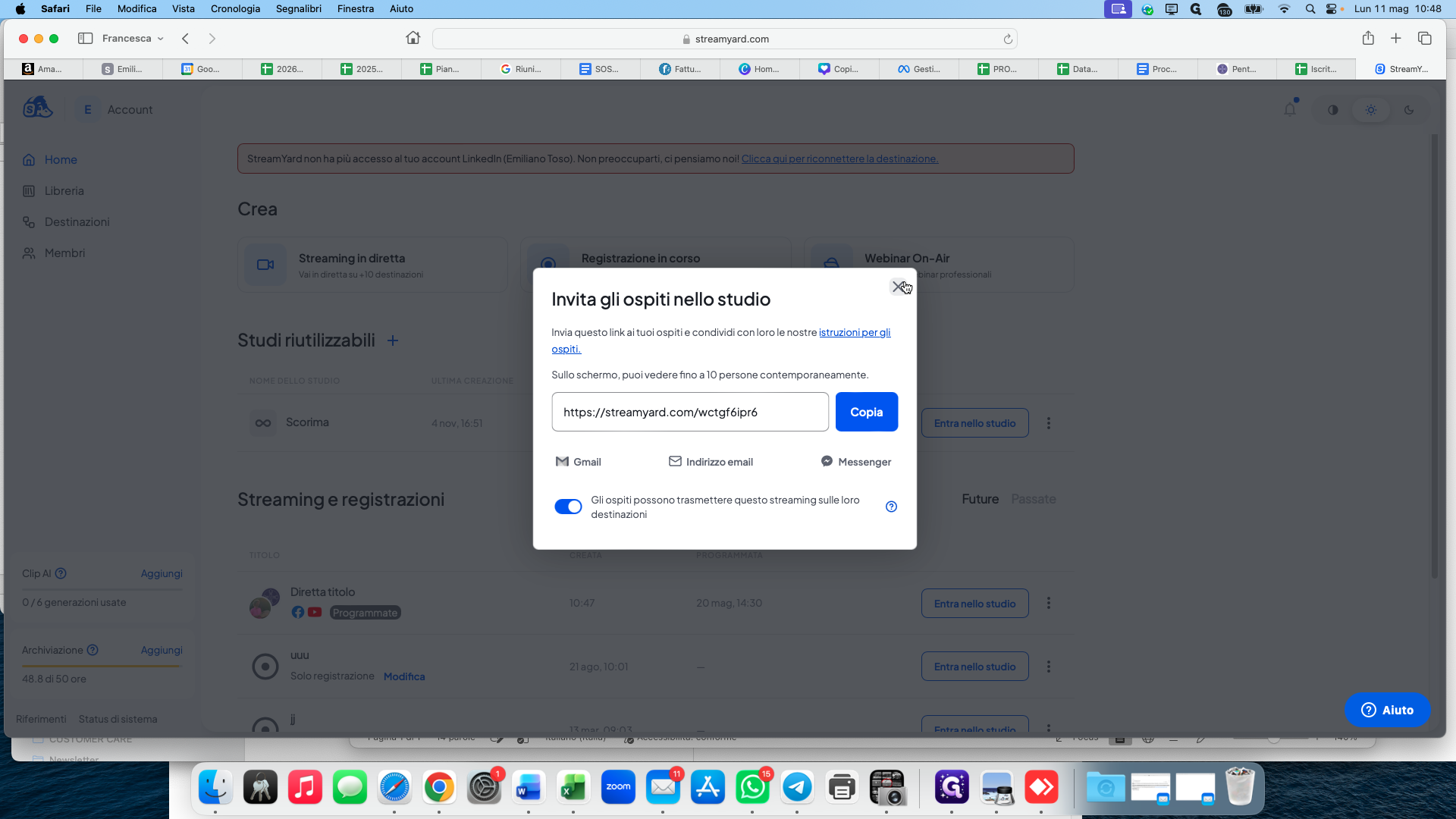
Select Invita ospiti (Invite guests).
14
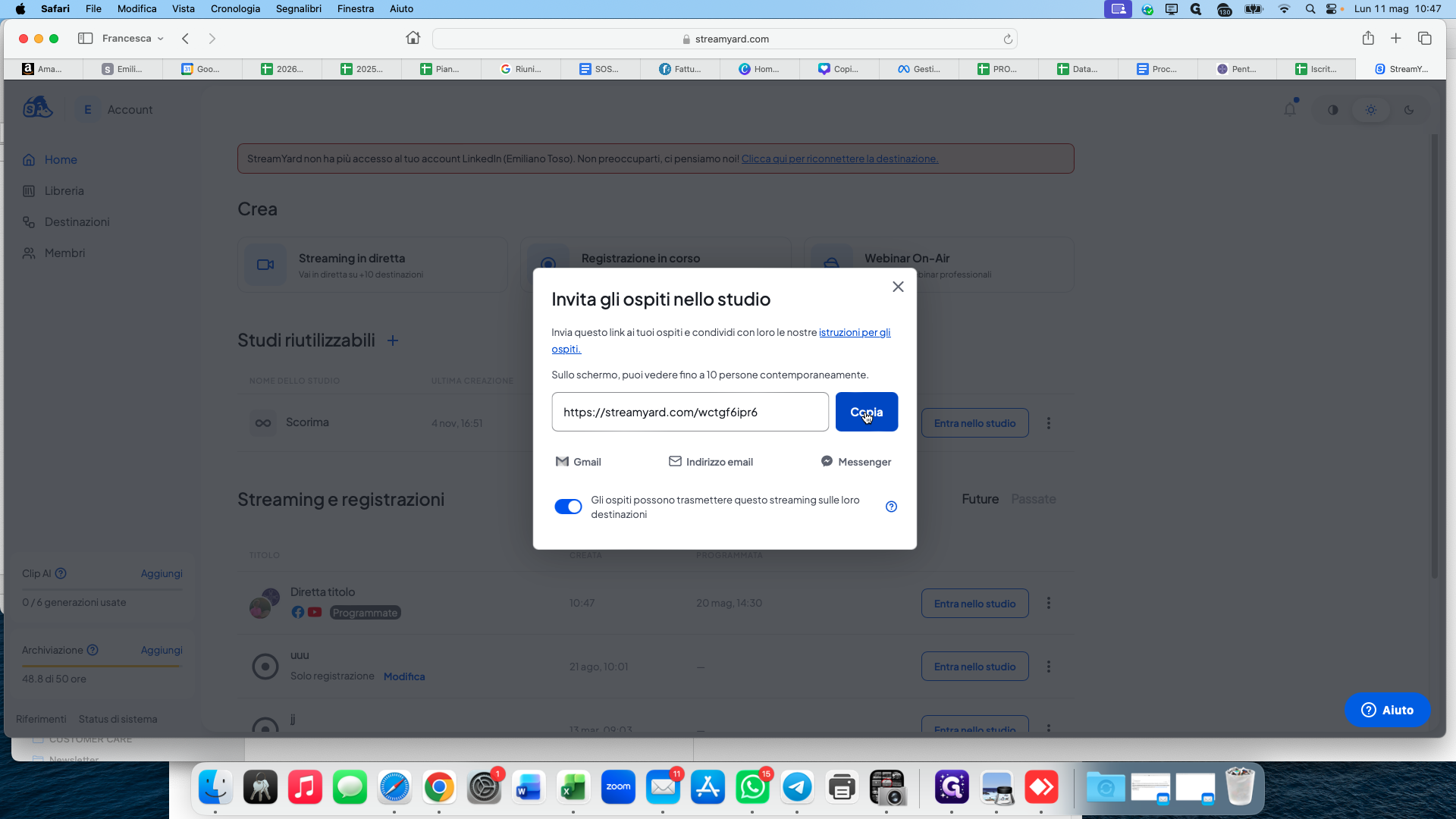
Click Copia (Copy) to save the studio invite link to your clipboard.
15
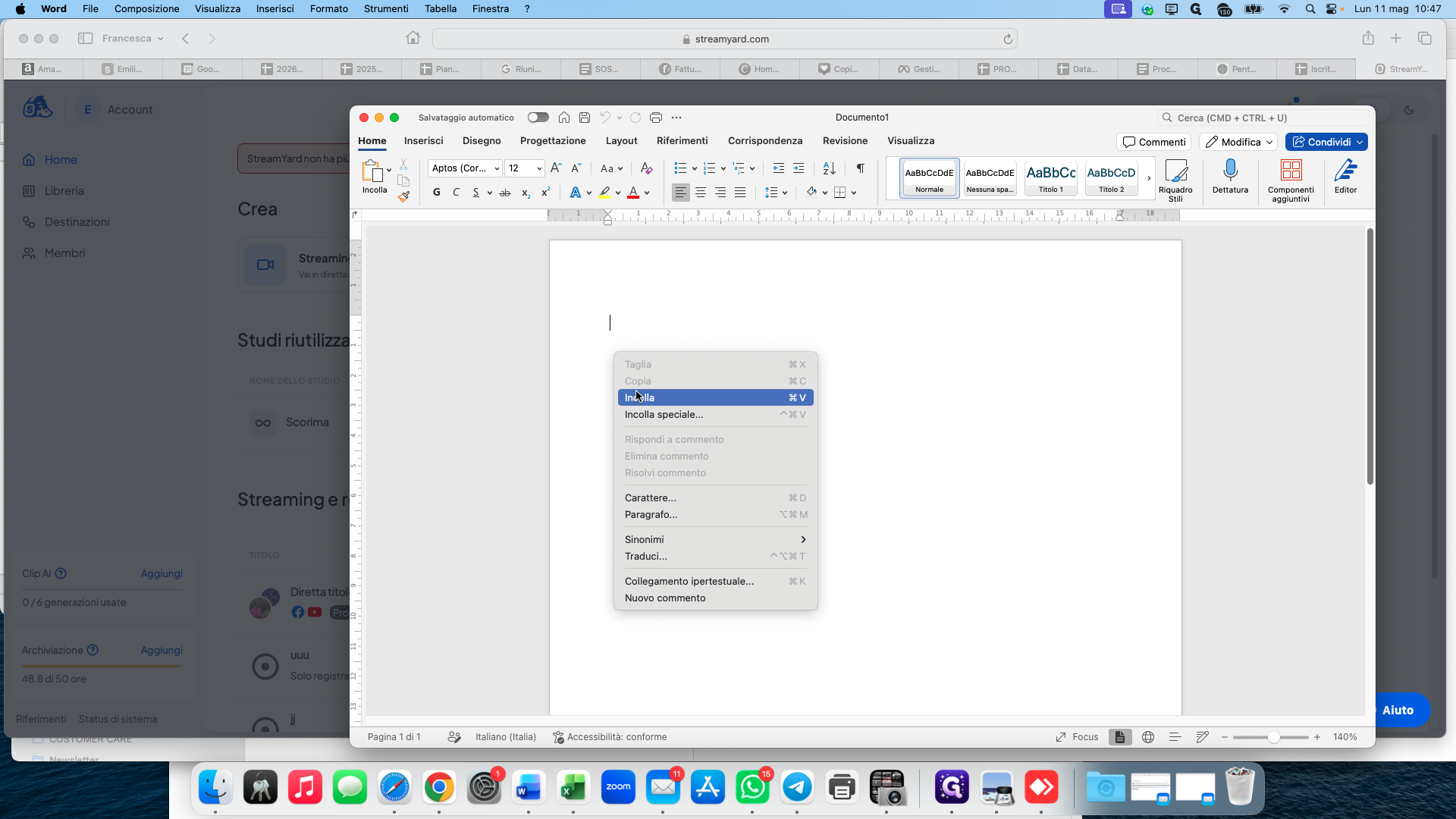
Paste the link into a safe document.
16
Add a note that this is the link to provide only to guests joining the stream.
17
Close the invite modal.
Public Audience Link
18
Click the more options menu on your broadcast again.
19
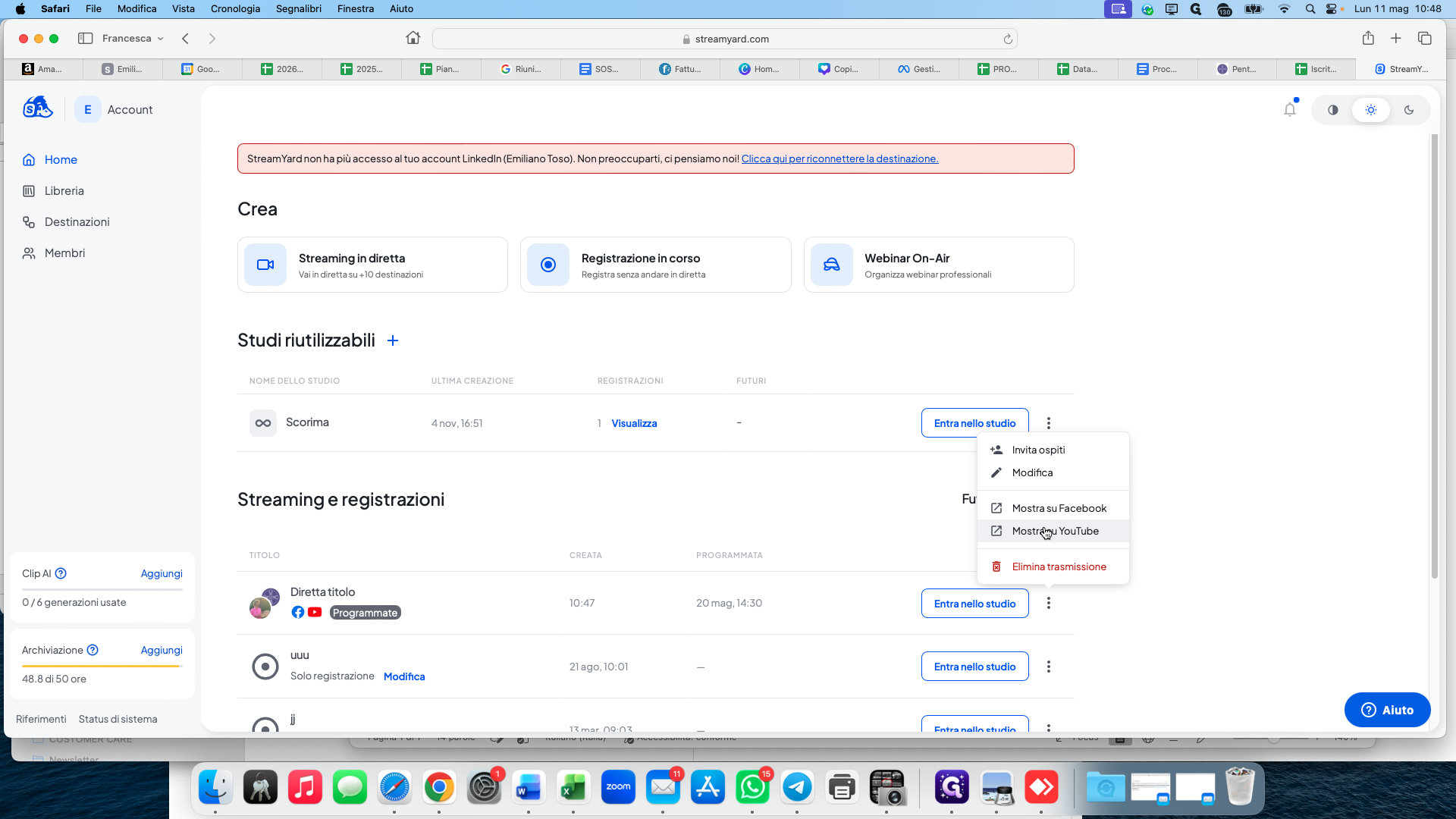
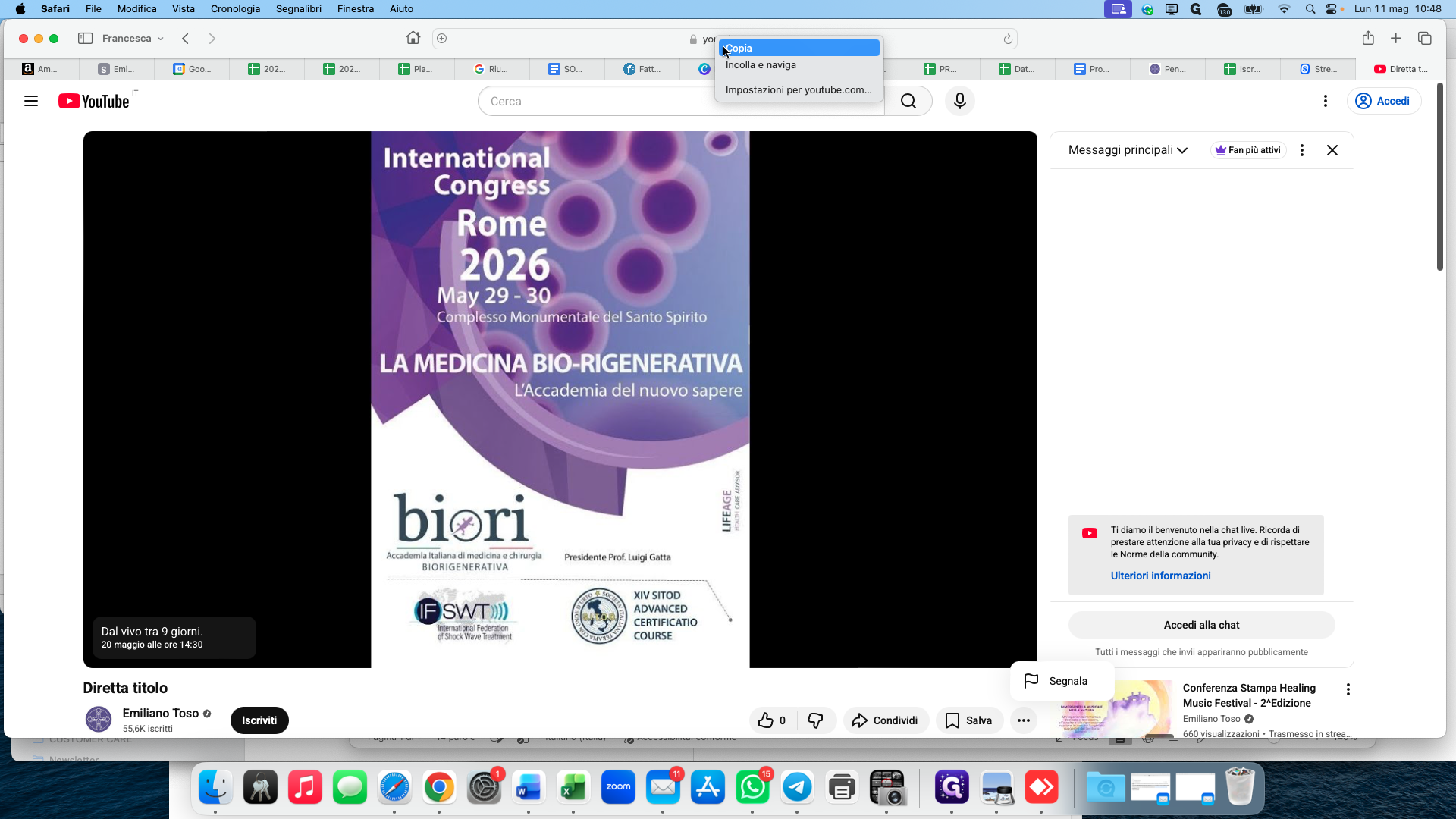
Select Mostra su YouTube (Show on YouTube) to open the public viewing page.
20
Copy the URL directly from your browser's address bar.
21
Paste the public YouTube link into your document.
22
Add a note that this is the link to share with your audience.