Learn how to create a complementary touch-up service visit for an existing customer without triggering new fees or unnecessary notifications.
By Yuliya Polyukhovych
This guide shows how to create a complementary service visit booking for a touch-up detailing job. Completing this ensures the crew receives correct instructions to fix missed spots without double-charging or unnecessarily notifying the customer.
Customer support and dispatch teams use this process to schedule follow-up appointments when a customer reports missed spots after their initial detailing service.
Initialize the Booking
1
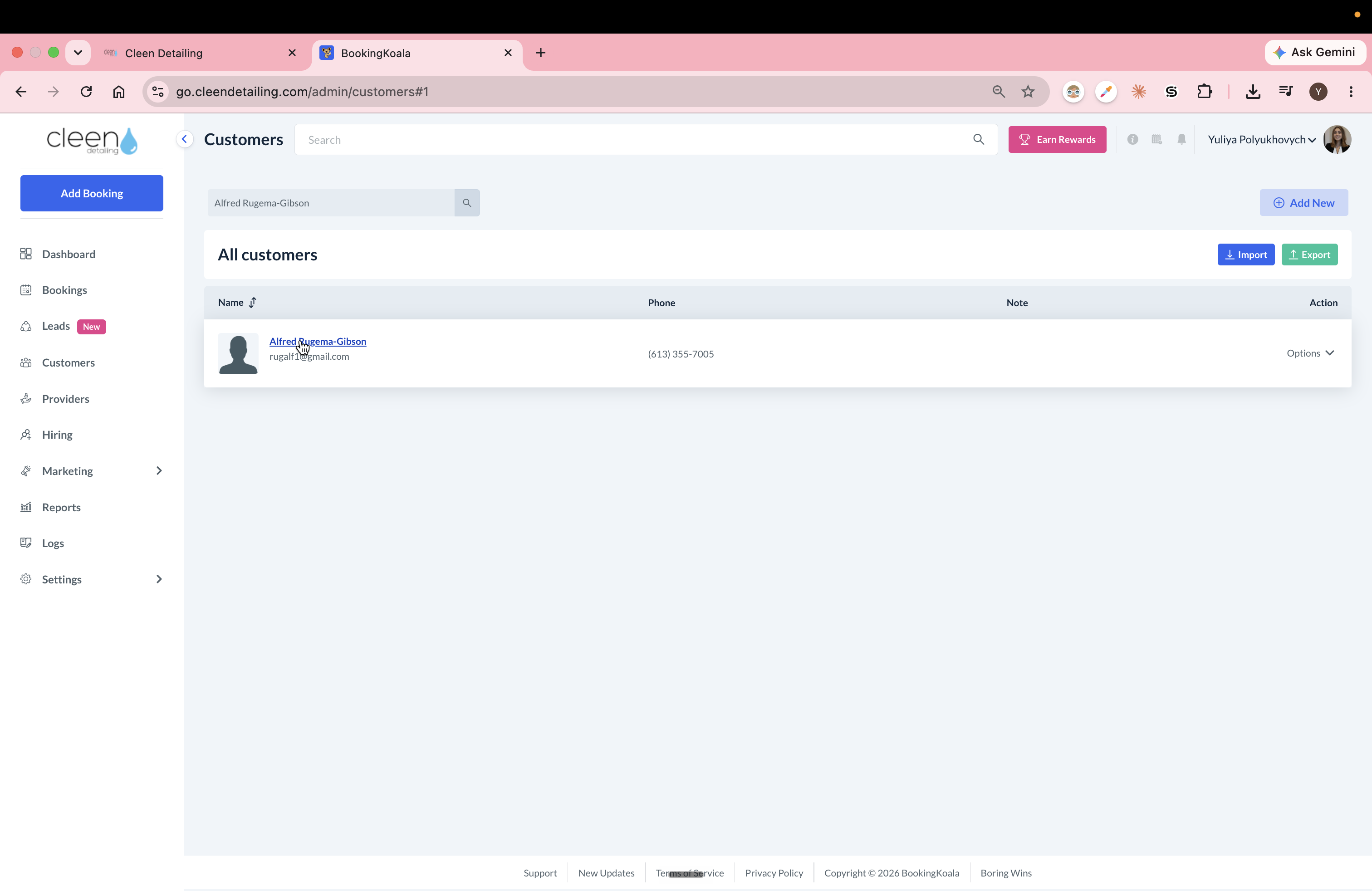
Click the customer's name to open their profile.
2
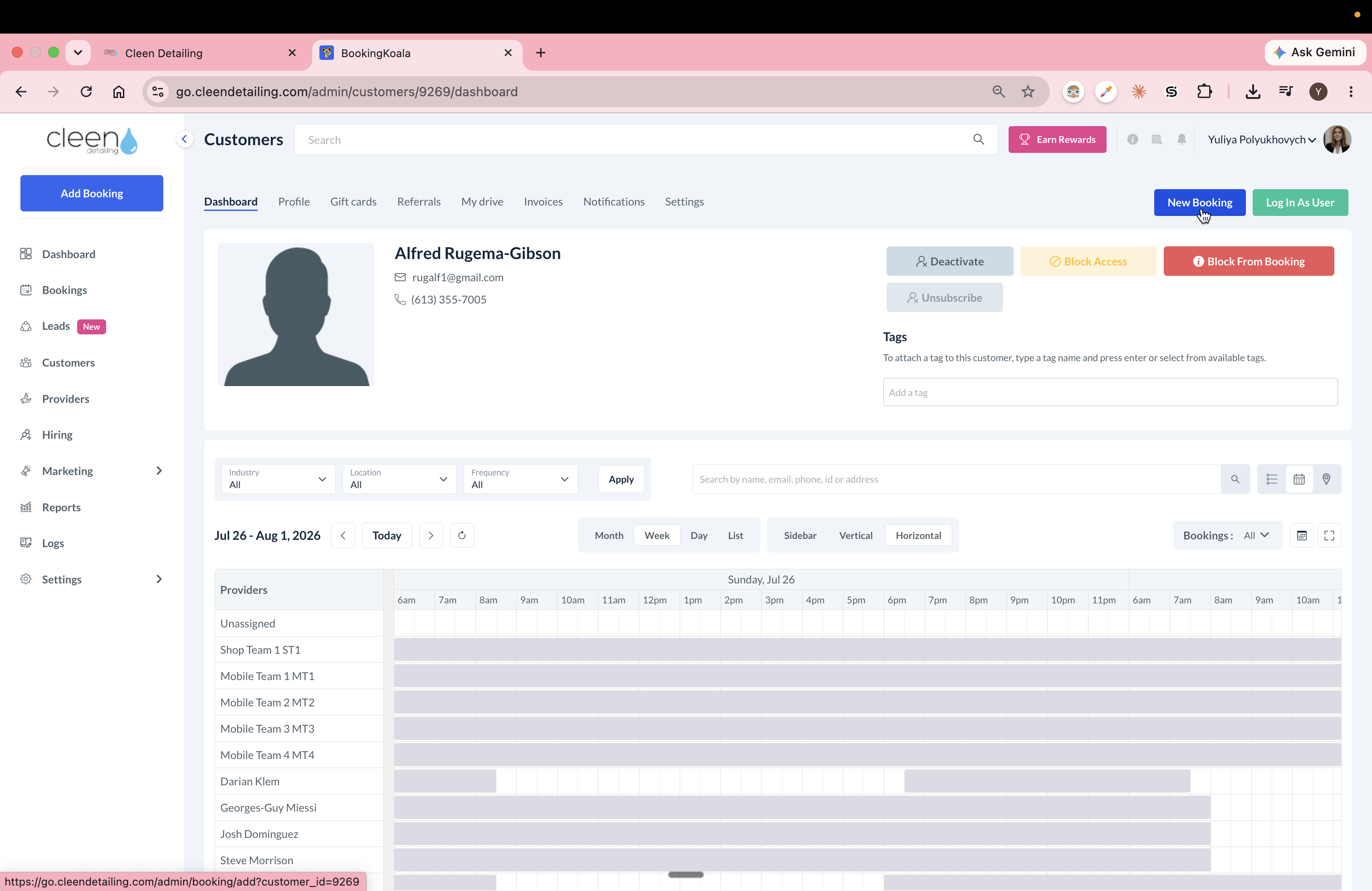
Click New Booking in the upper right corner.
3
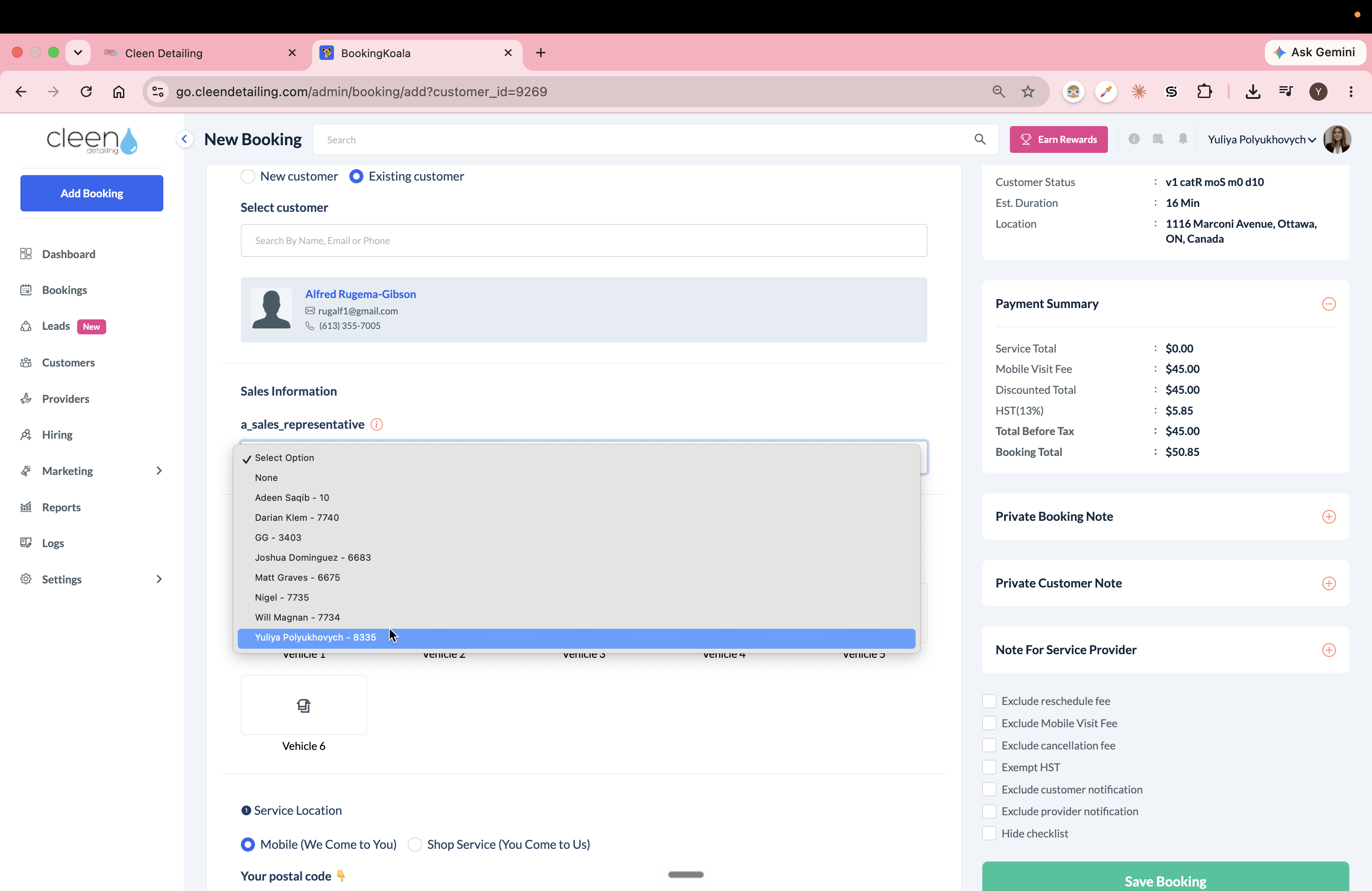
Select the appropriate sales representative from the dropdown menu.
4
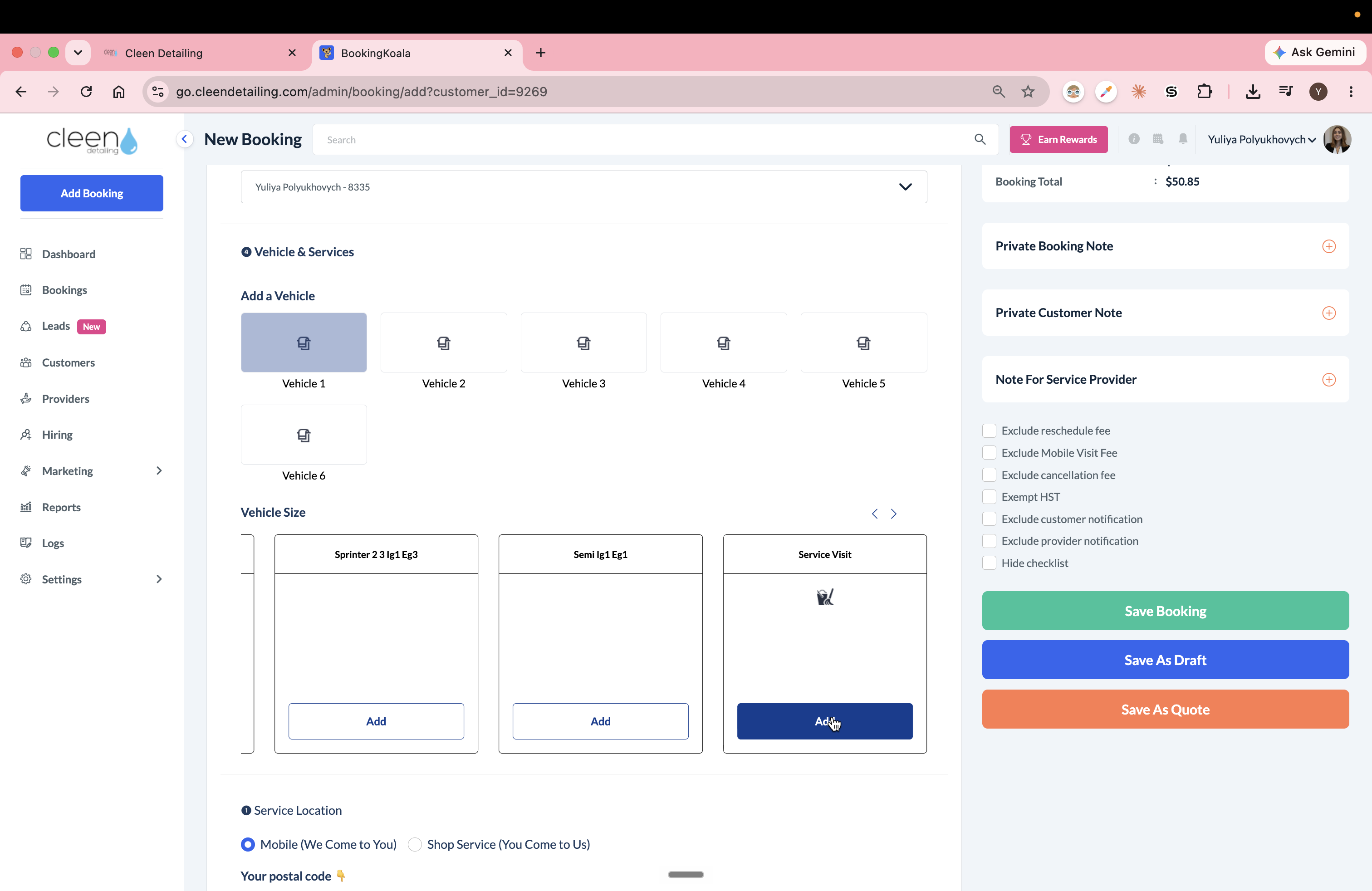
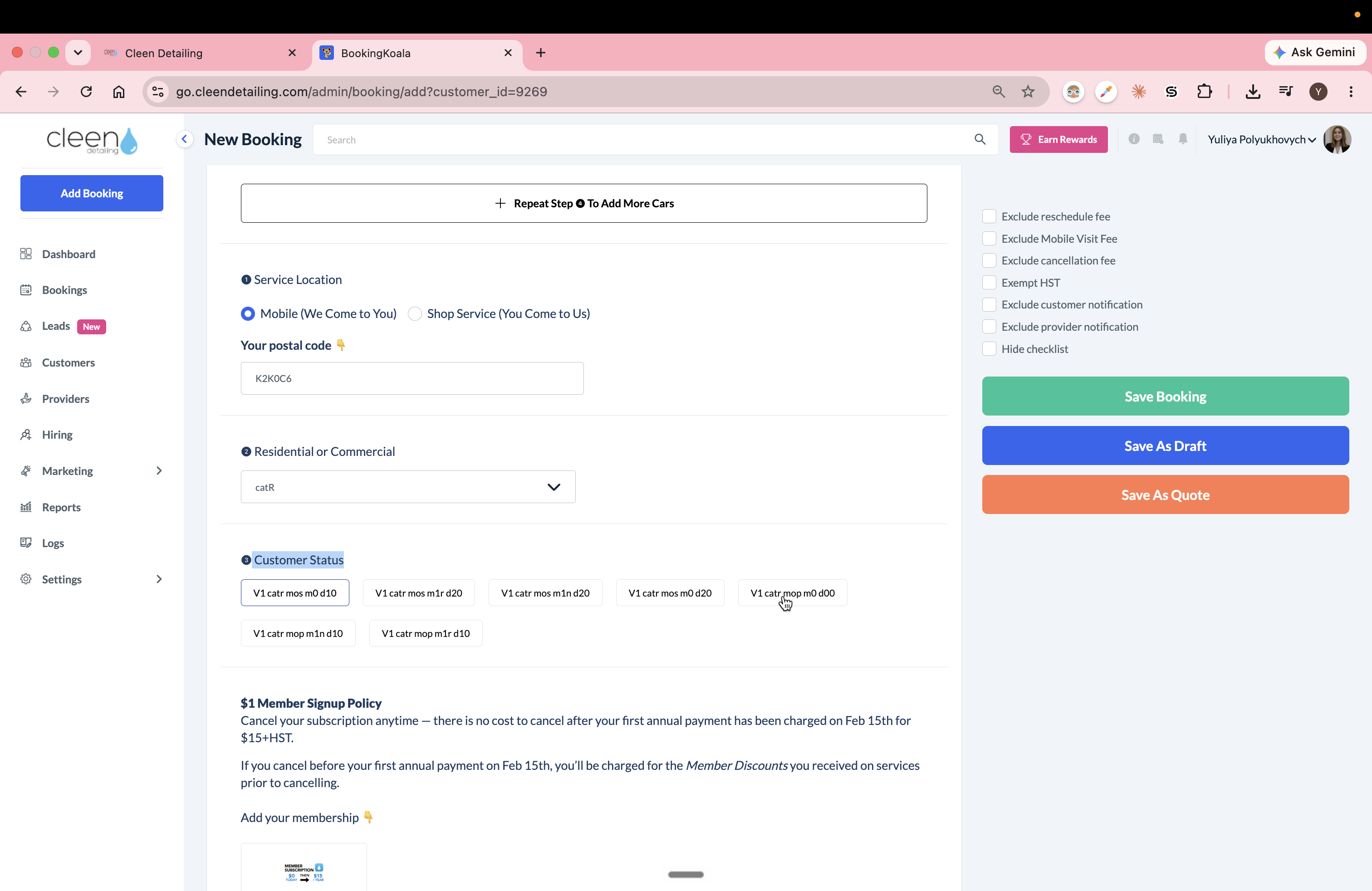
Under the Vehicle Size section, scroll to the far right and click Add on the Service Visit card.
5
Set the Customer Status to exactly match the frequency of their previous booking, avoiding unintended membership sign-ups.
Adjust Time and Provider
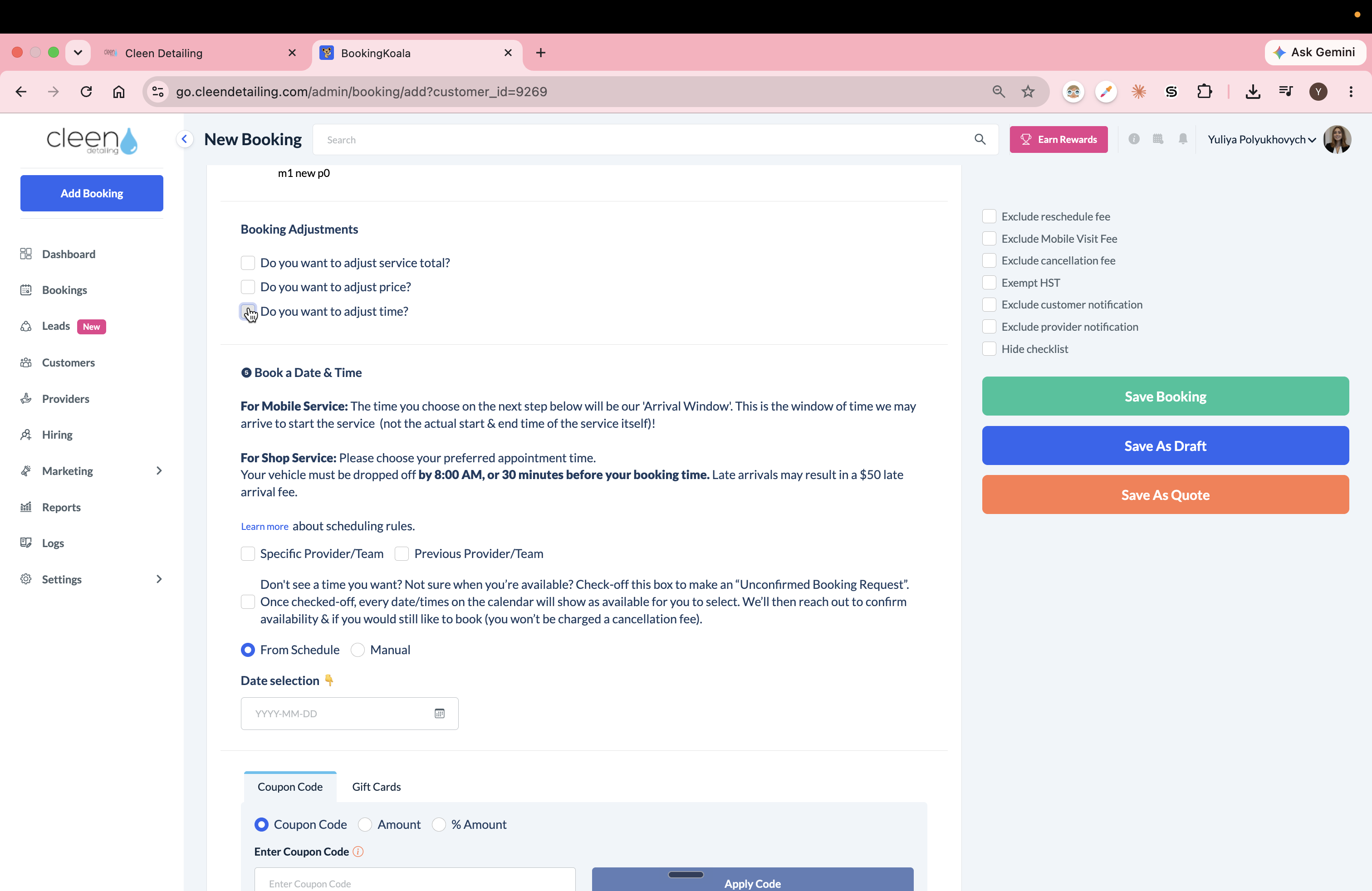
By default, a touch-up service is allocated 56 minutes. You should lower this if the scope of work requires less time.
6
Check the Do you want to adjust time? box.
7
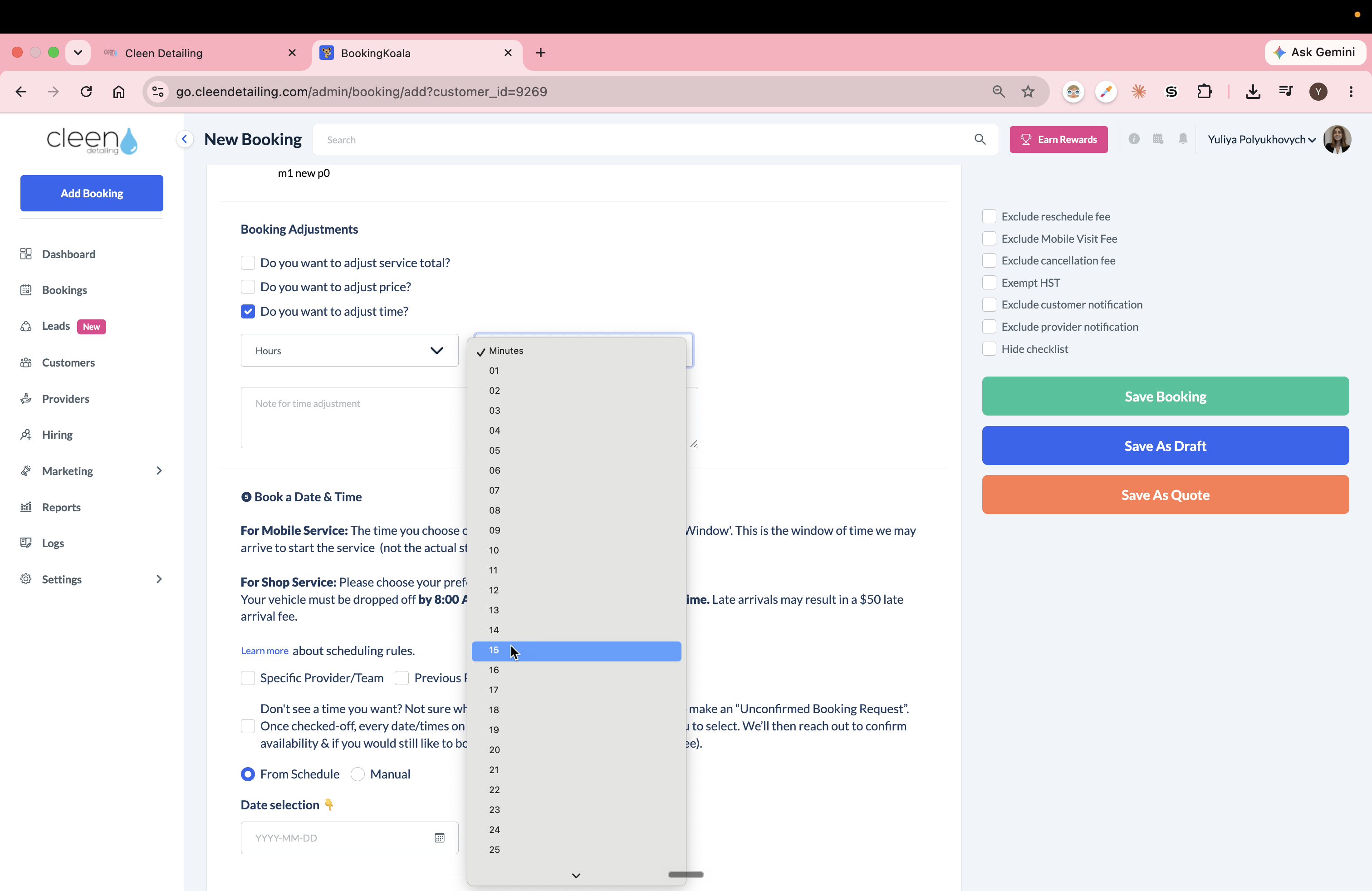
Select the adjusted duration (e.g., 15 minutes) from the dropdown.
8
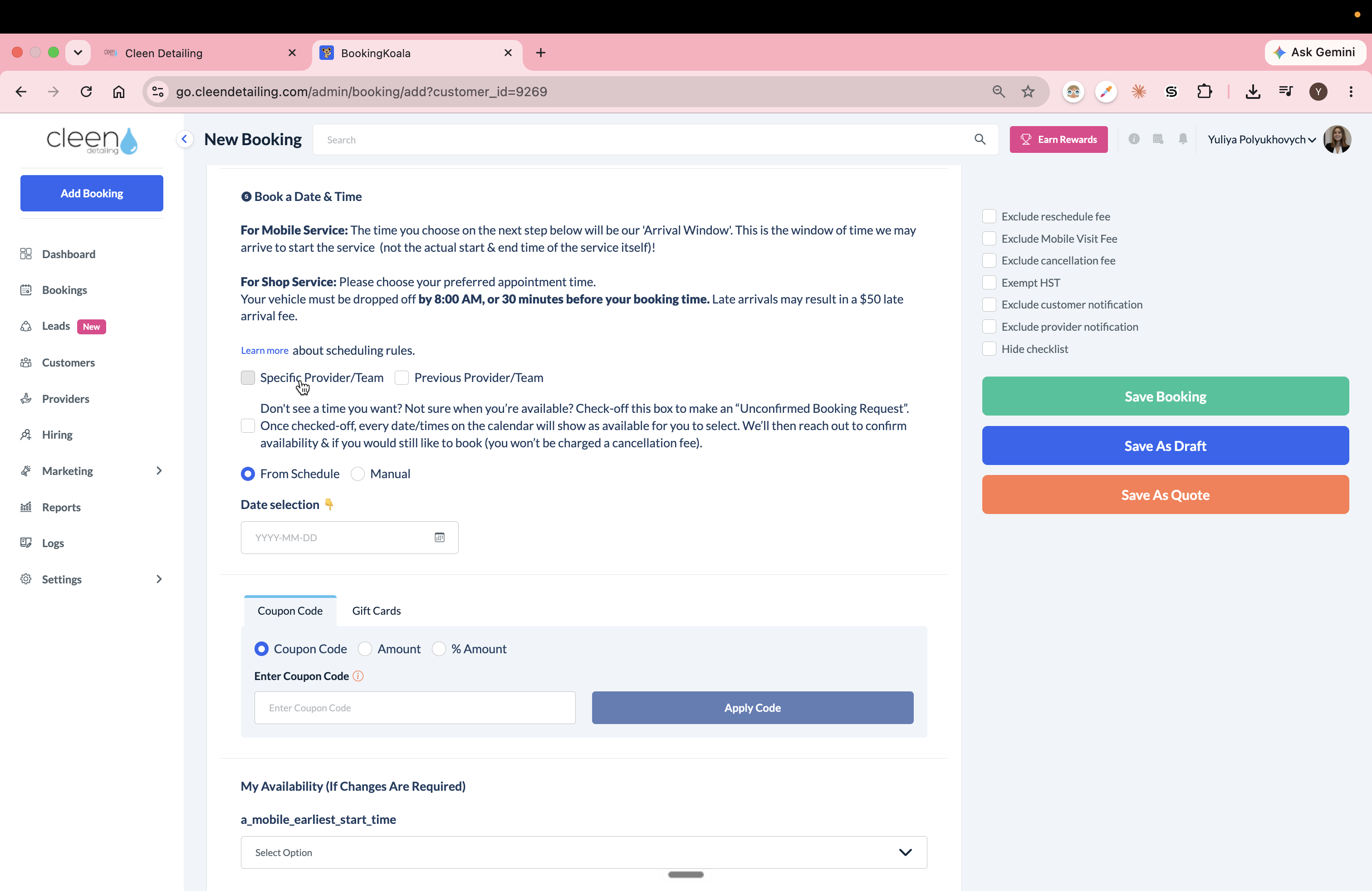
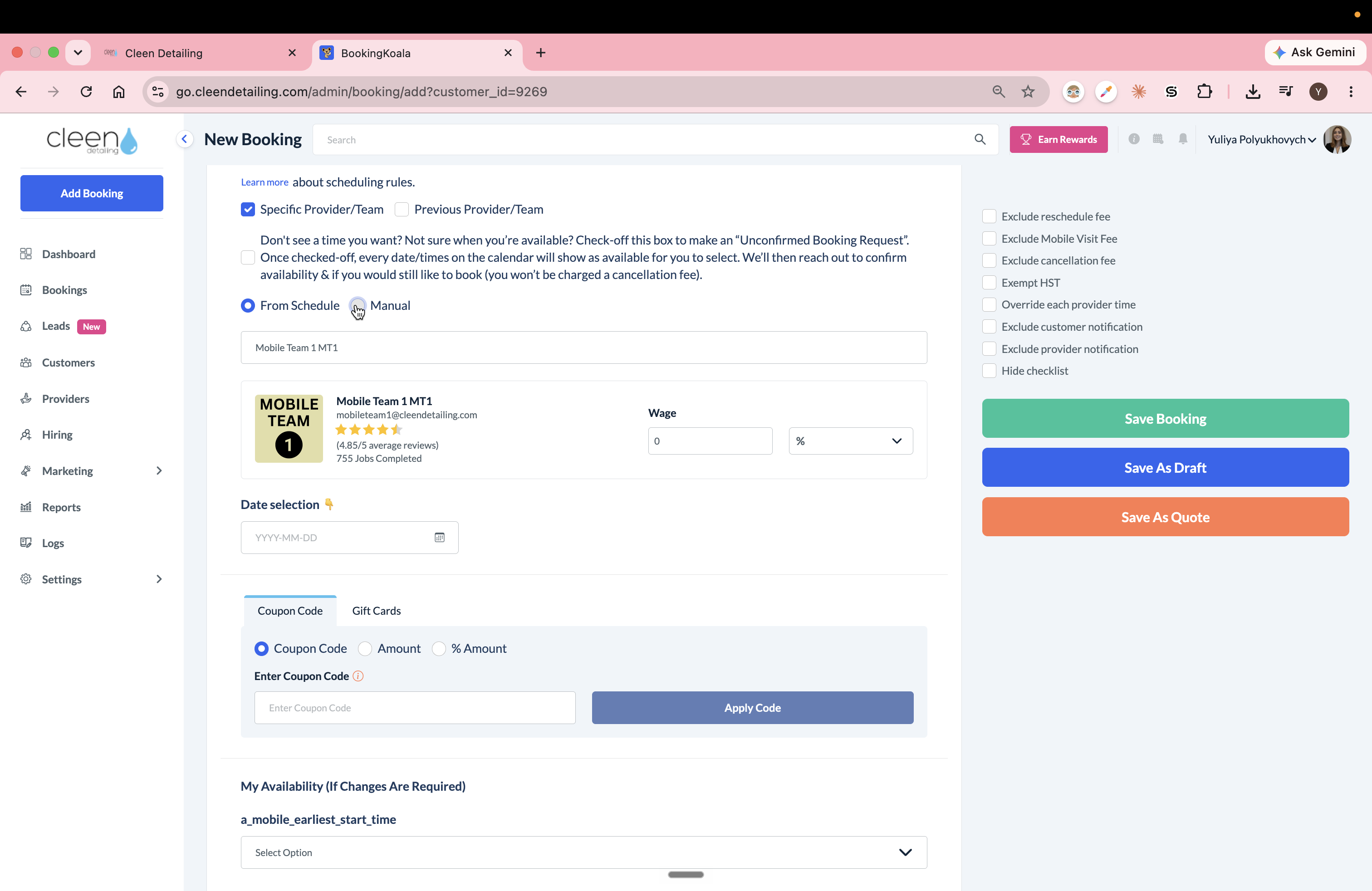
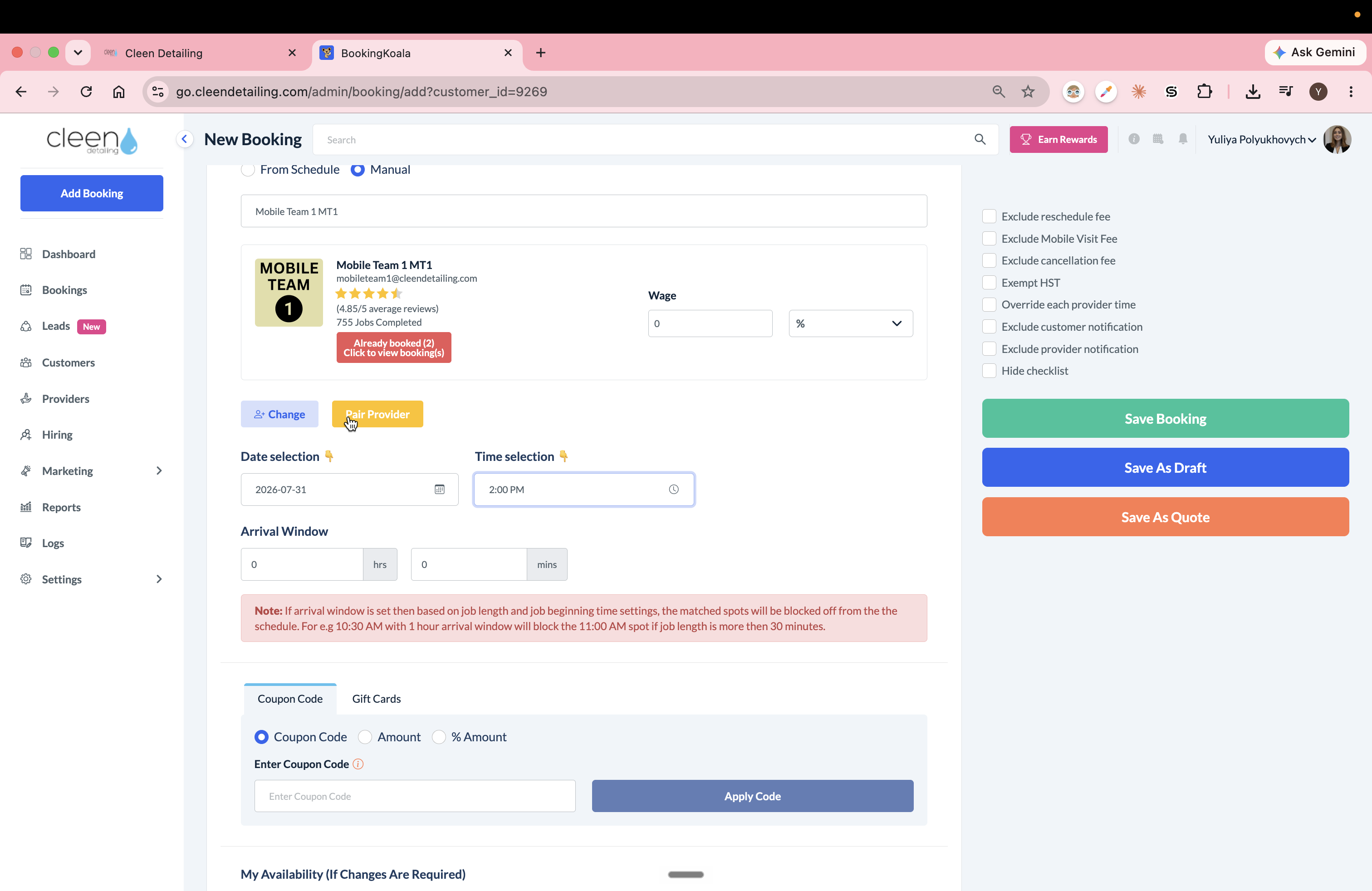
Click Specific Provider / Team.
9
Search for and select the specific team assigned to this touch-up (e.g. MT1 / MT2 / MT3 / MT4 / ST1 (shop))
10
Select the Manual option for scheduling the request.
11
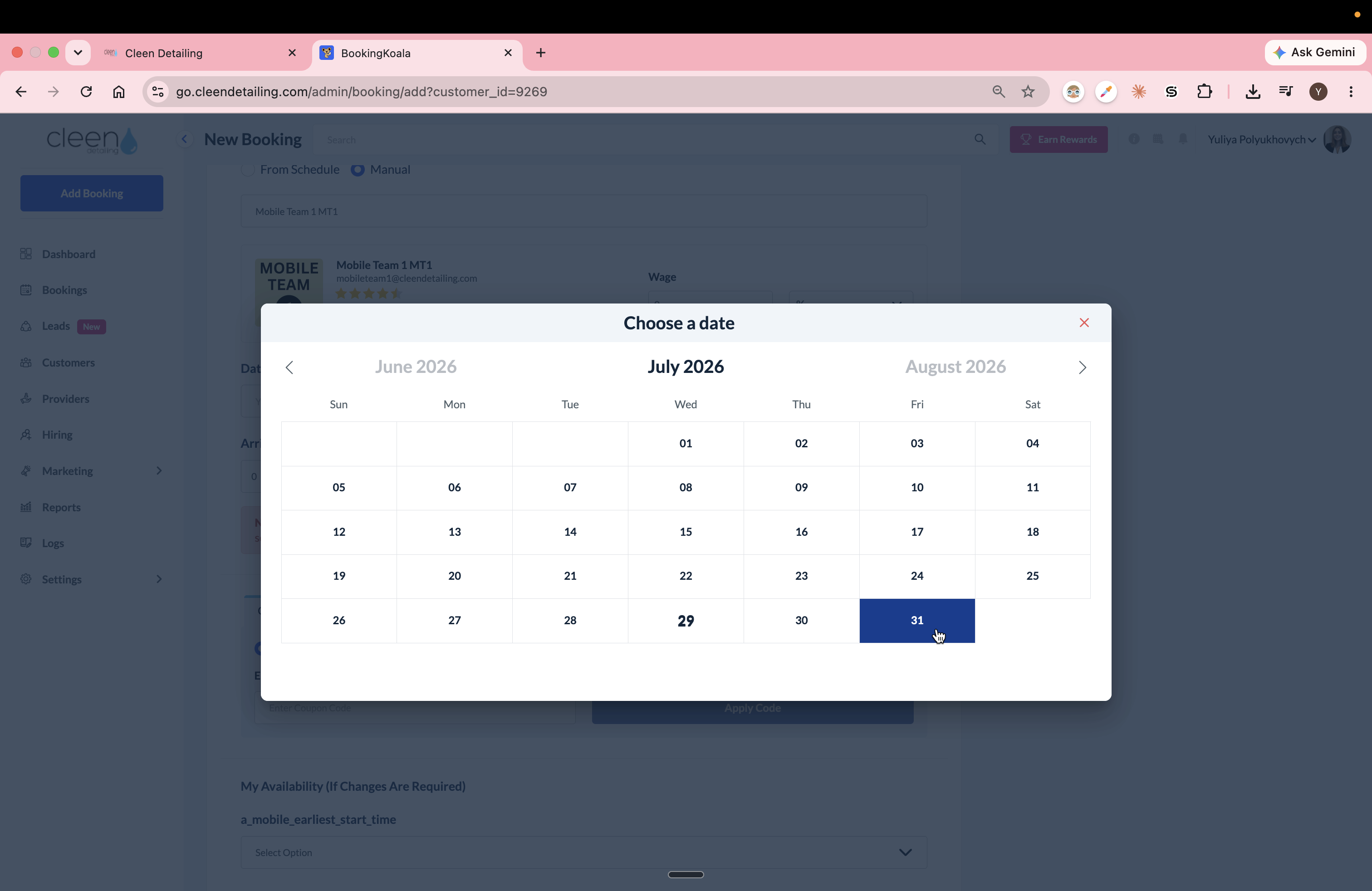
Select the agreed-upon appointment date from the calendar.
12
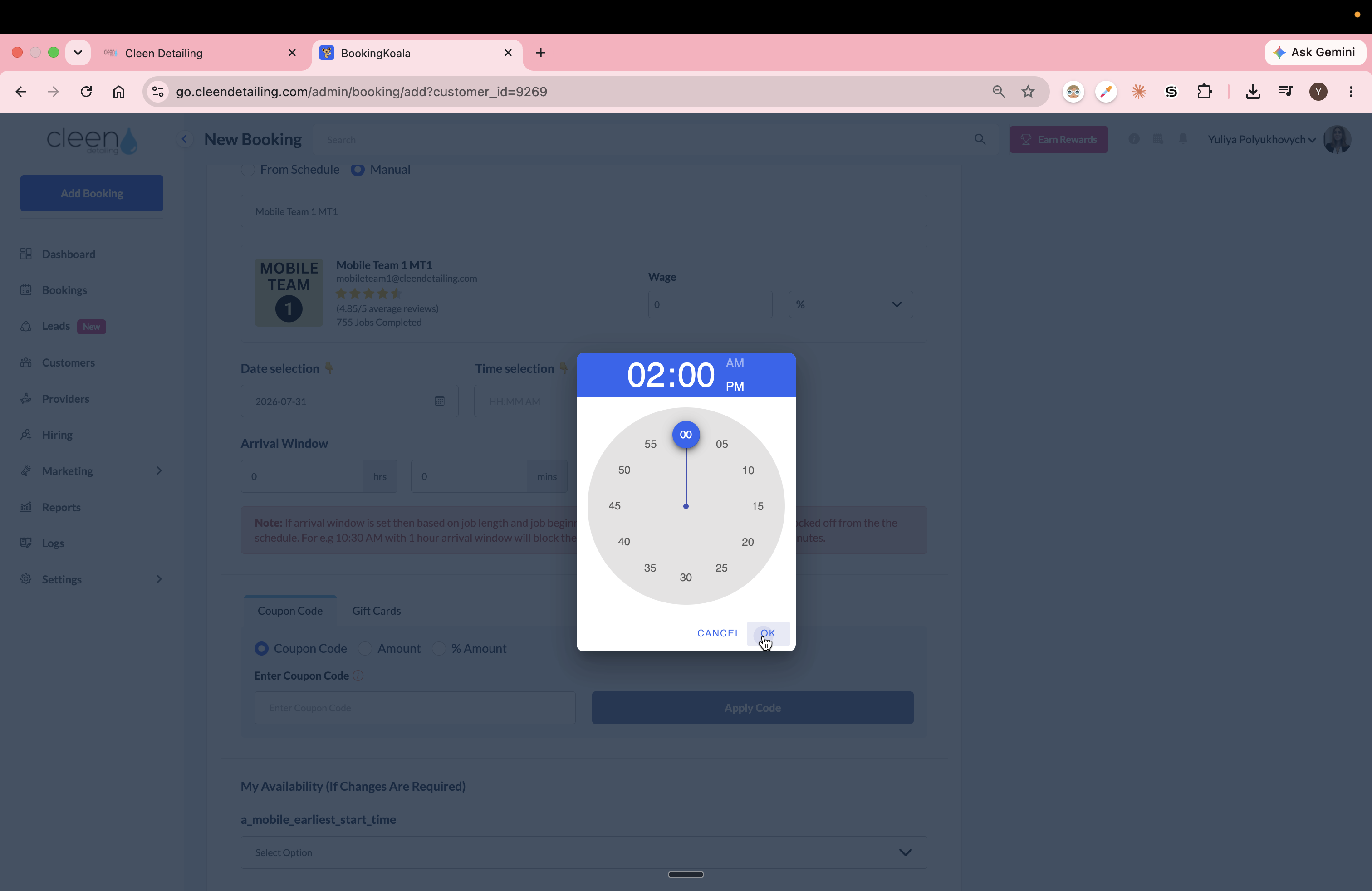
Set the exact arrival time using the time-picker modal and click OK. MAKE SURE THE AM / PM time is set correctly.
13
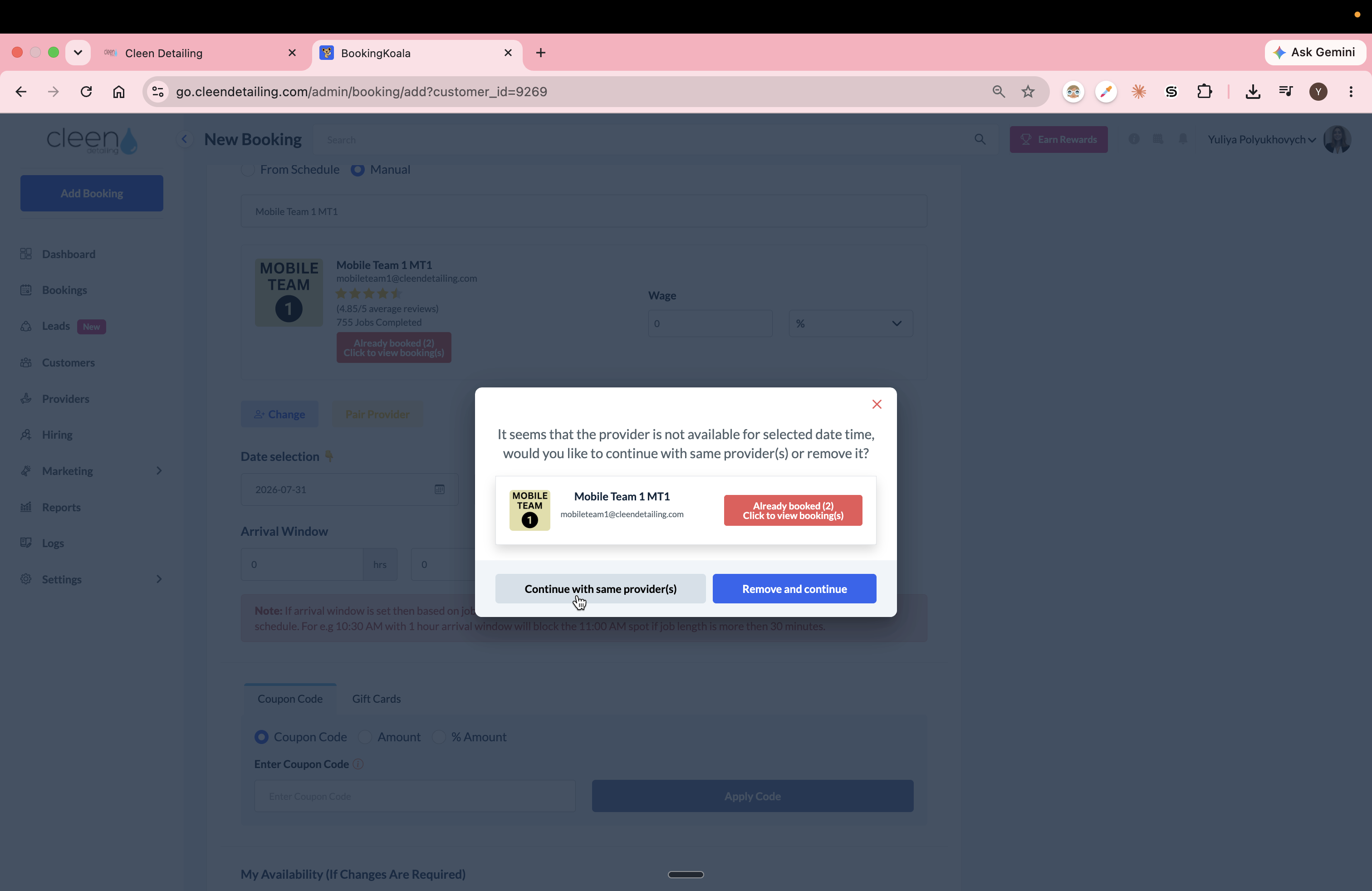
Click Continue with same provider(s).
14
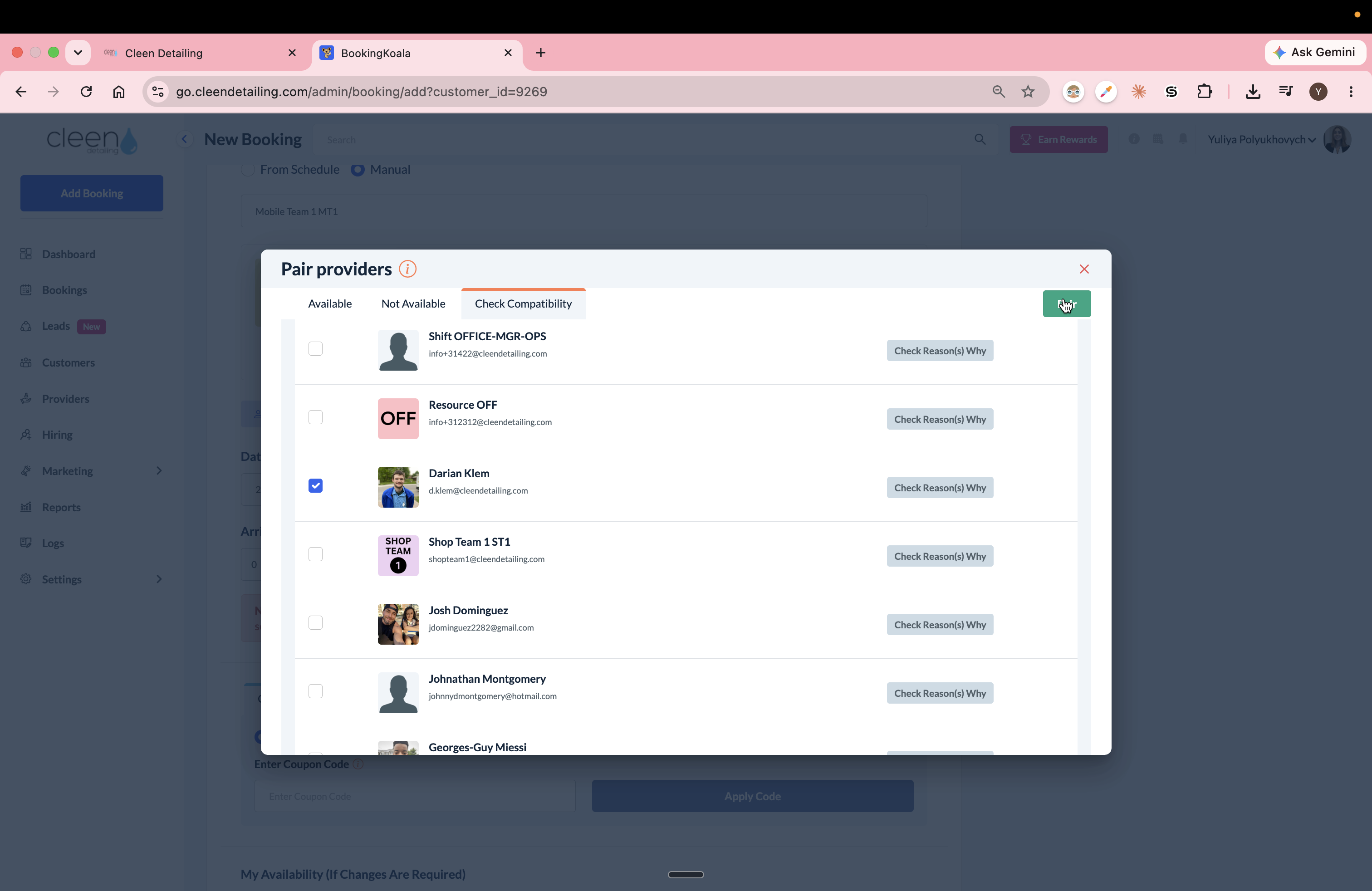
Click Pair Provider on the assigned team's card.
15
In the pairing modal, select the specific technician from the Check Compatibility tab and pair them.
Set Availability and Location
16
Enter the arrival window in hours (e.g., "2").
17
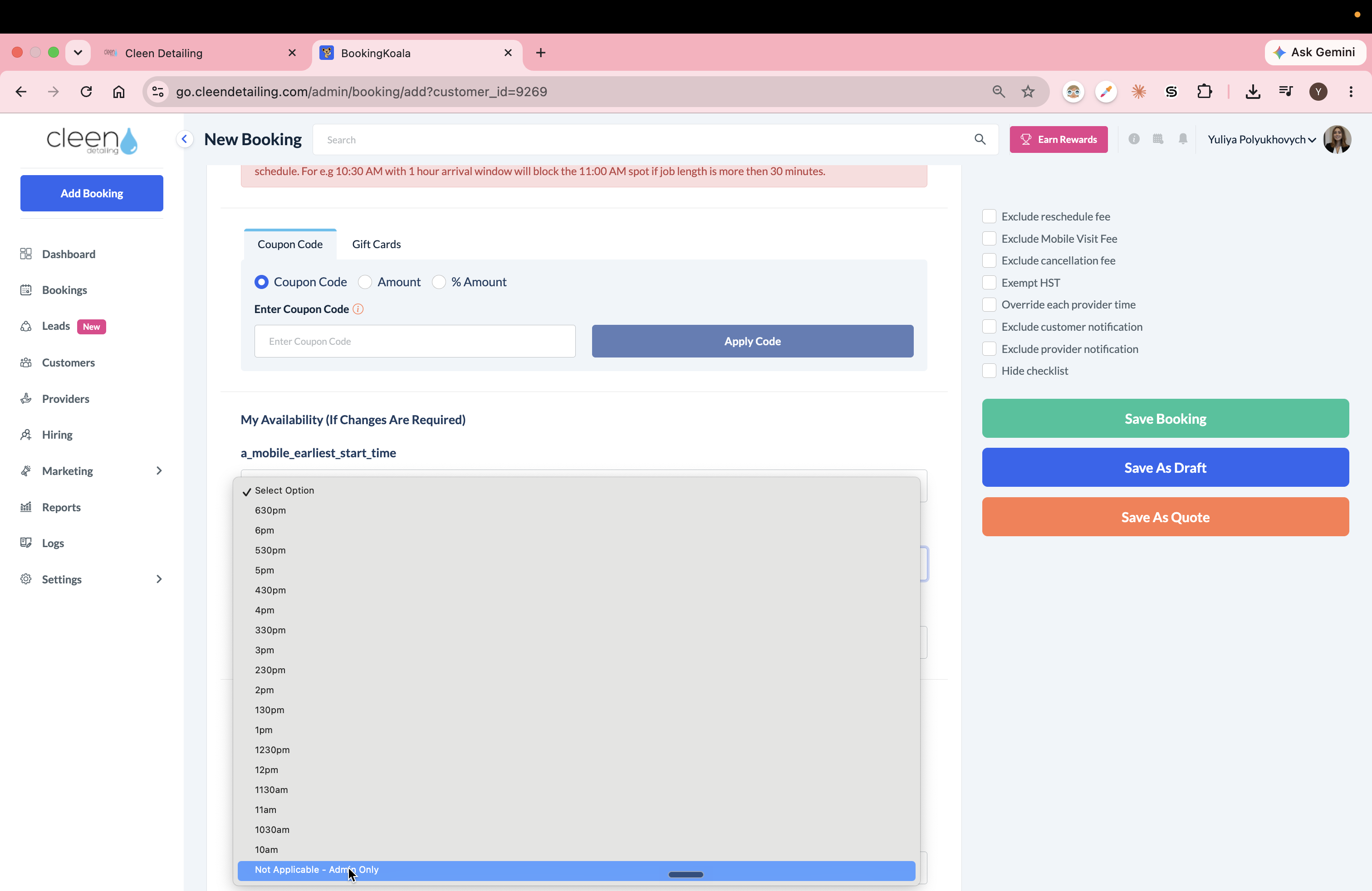
Select the earliest start and latest availability times (if known). Or leave as Not Applicable - Admin Only if UNKNOWN.
18
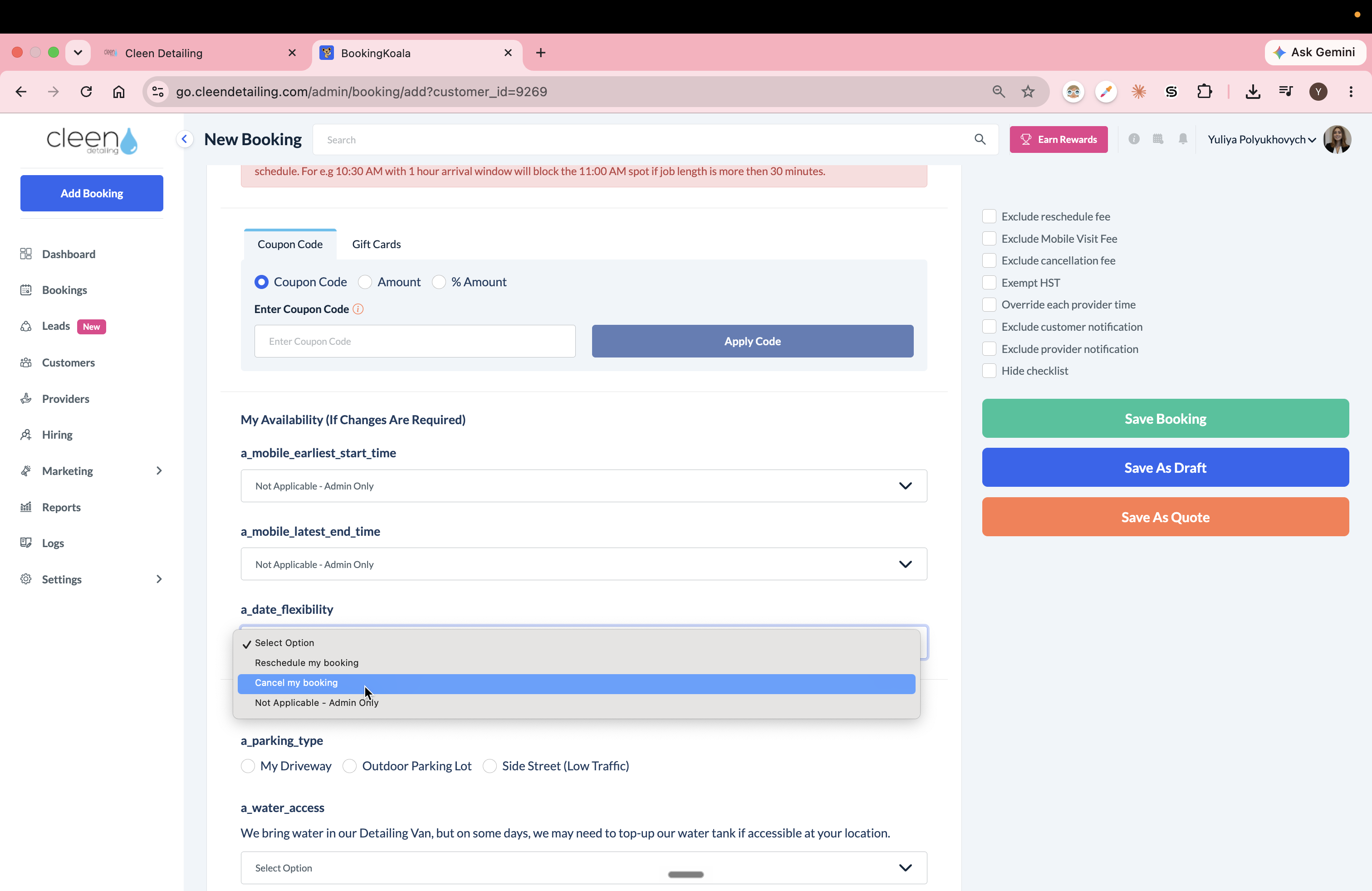
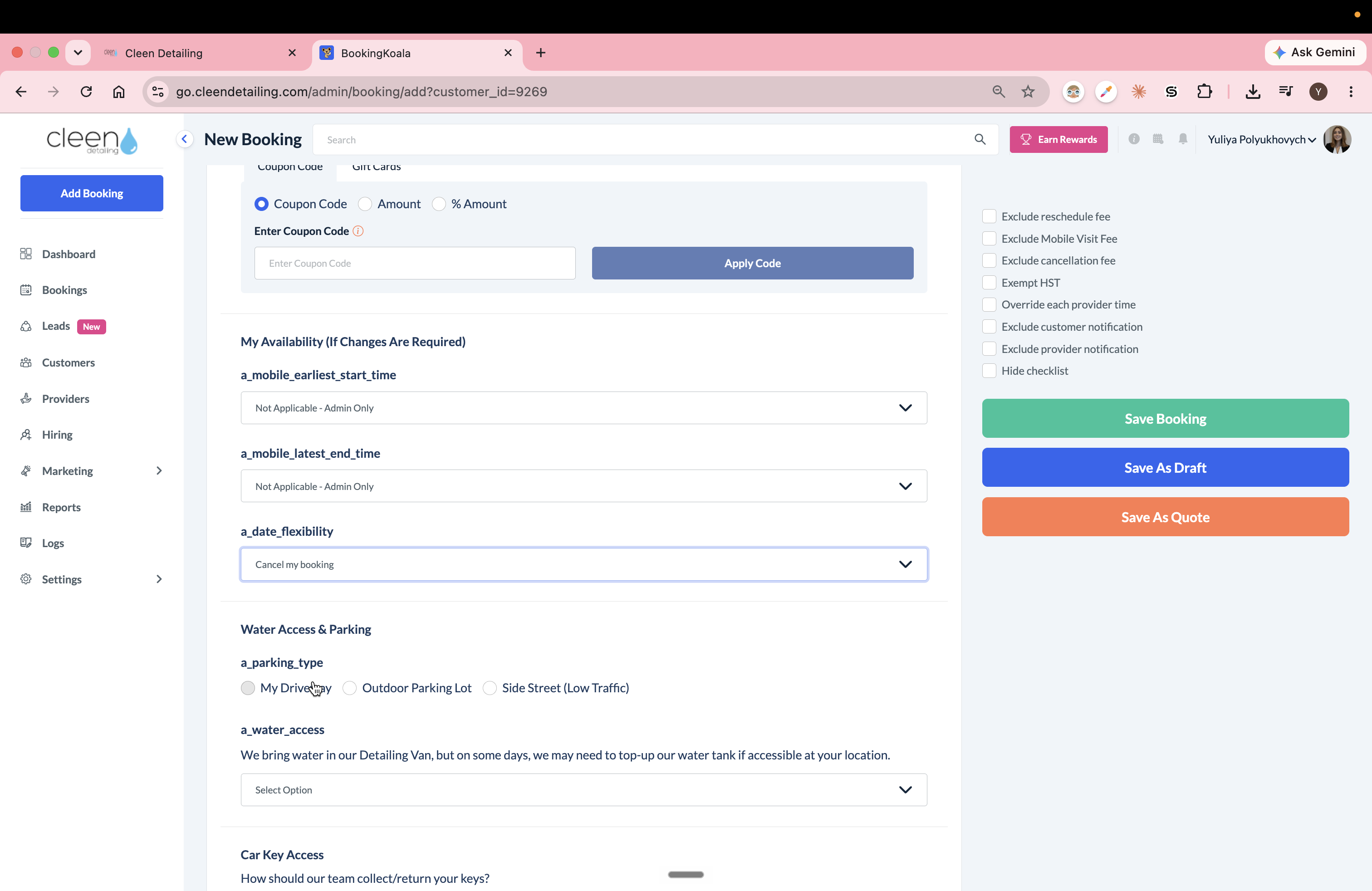
Set the date flexibility to Cancel my booking.
19
Select the parking type as needed.
20
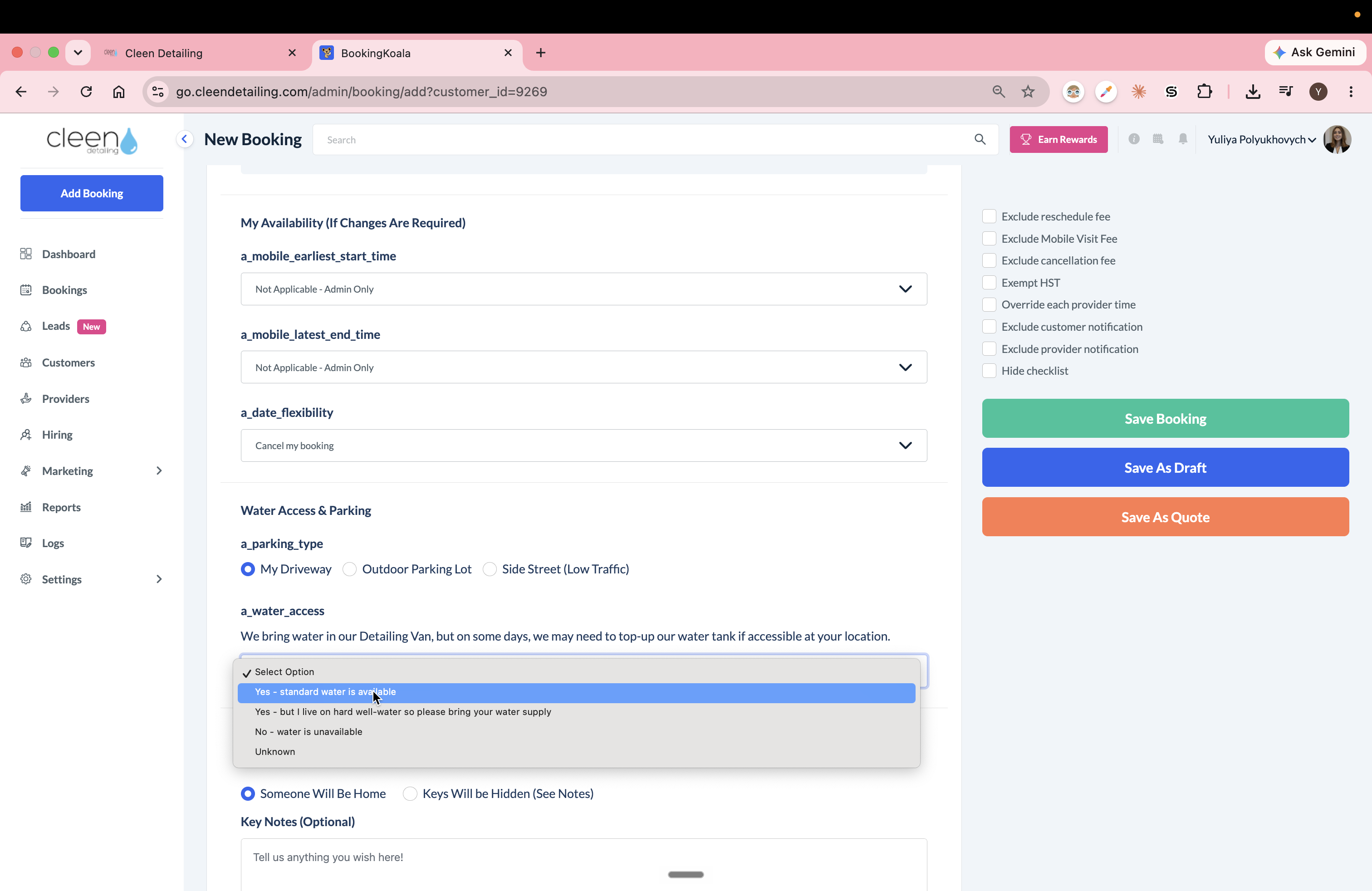
Confirm the water access availability.
Match Vehicle Details and Scope
You must replicate the vehicle details from the customer's original booking. Open the past booking in a separate tab to copy these correctly.
The Vehicle ID (UUID) is completely unique to the customer's car. Do not guess it; copy it exactly from their previous appointment.
21
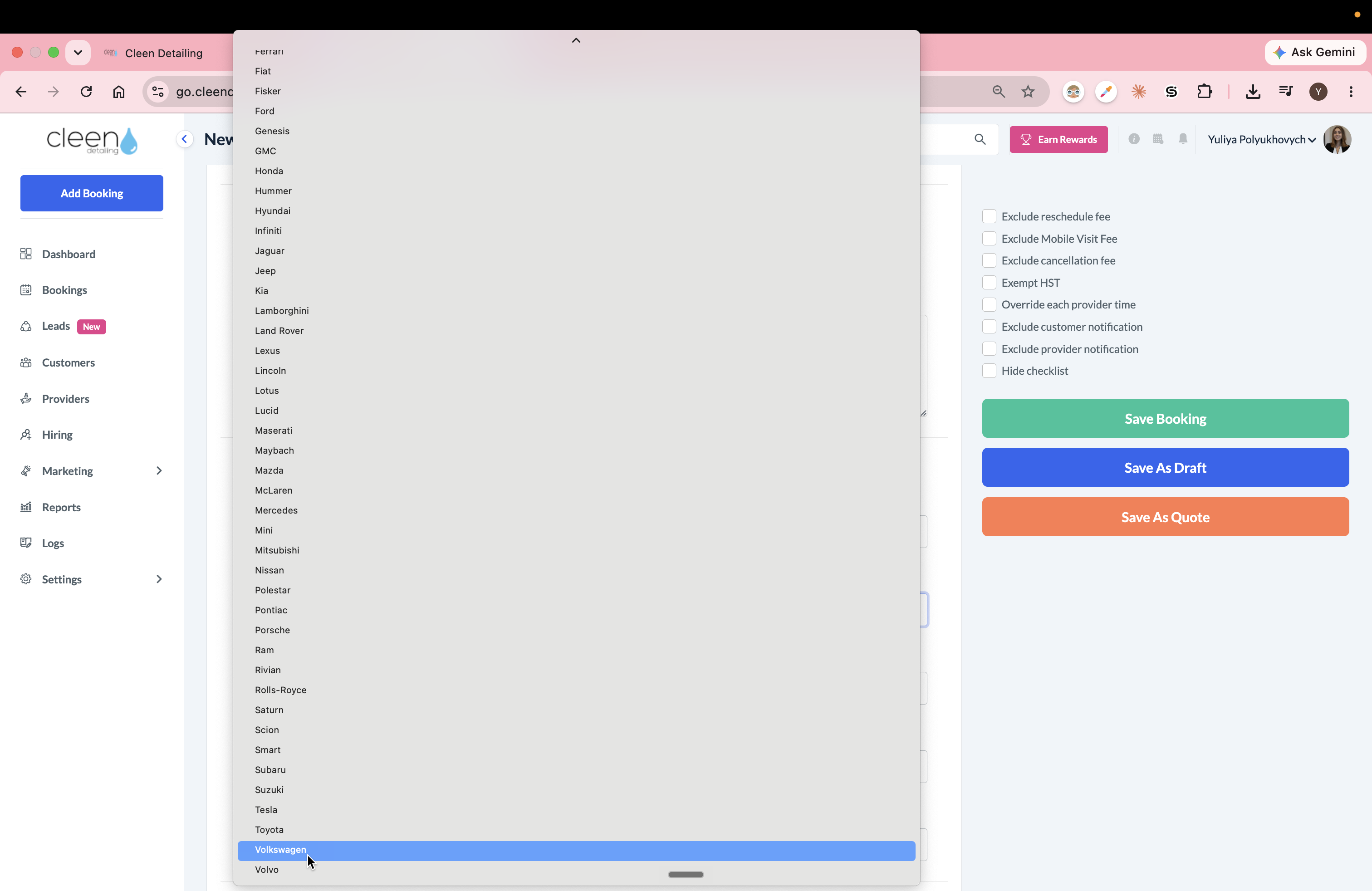
Select the correct vehicle year, make, model, seats type and Vehicle ID (UUID) from their previous appointment.
22
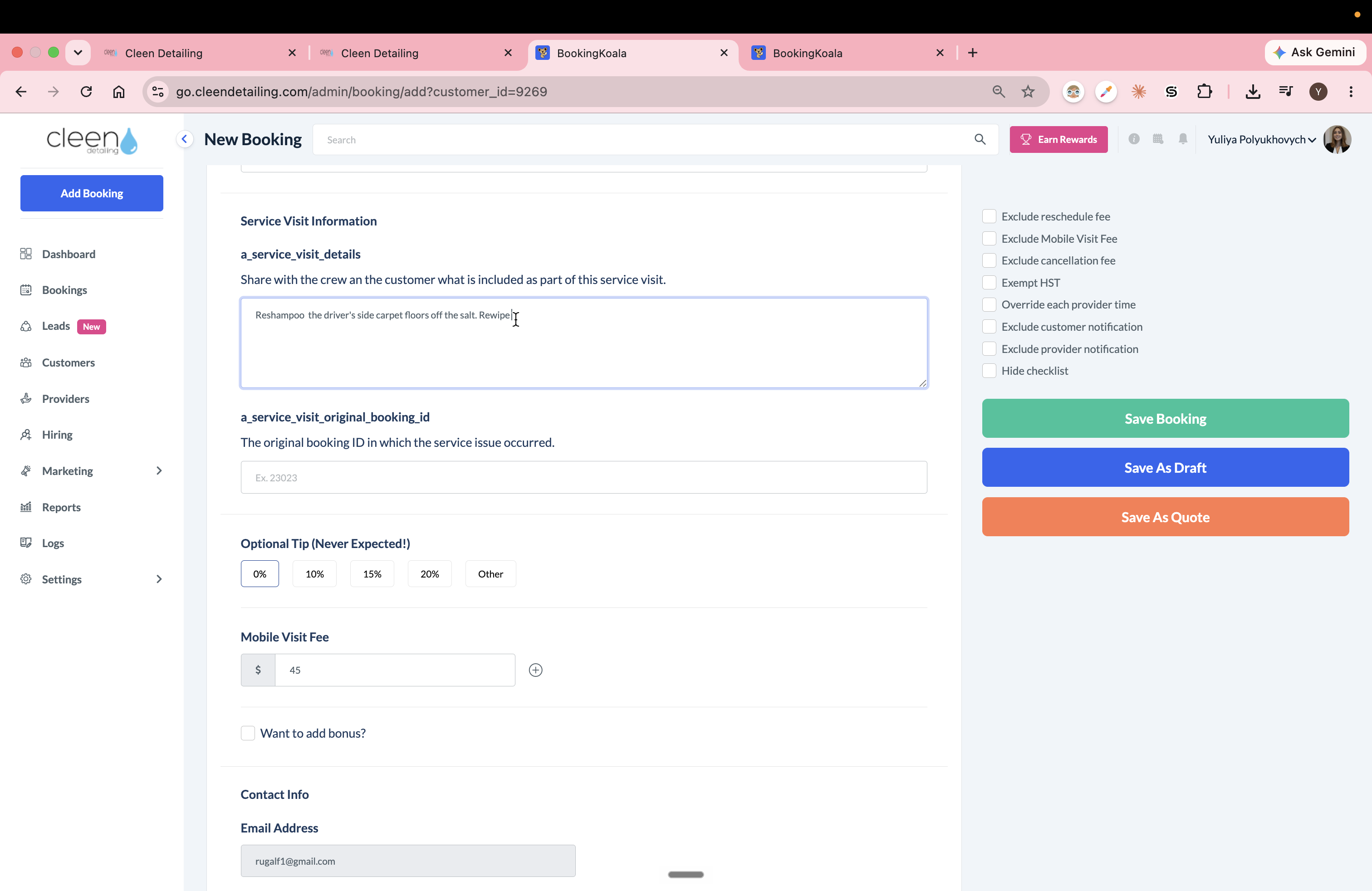
In the a_service_visit_details field, type or paste the exact scope of work for the crew (e.g., detailing instructions from the GHL customer chat).
23
Paste the original booking ID into the a_service_visit_original_booking_id field. This should be the booking ID from the original service that caused the compaint.
Finalize the Booking
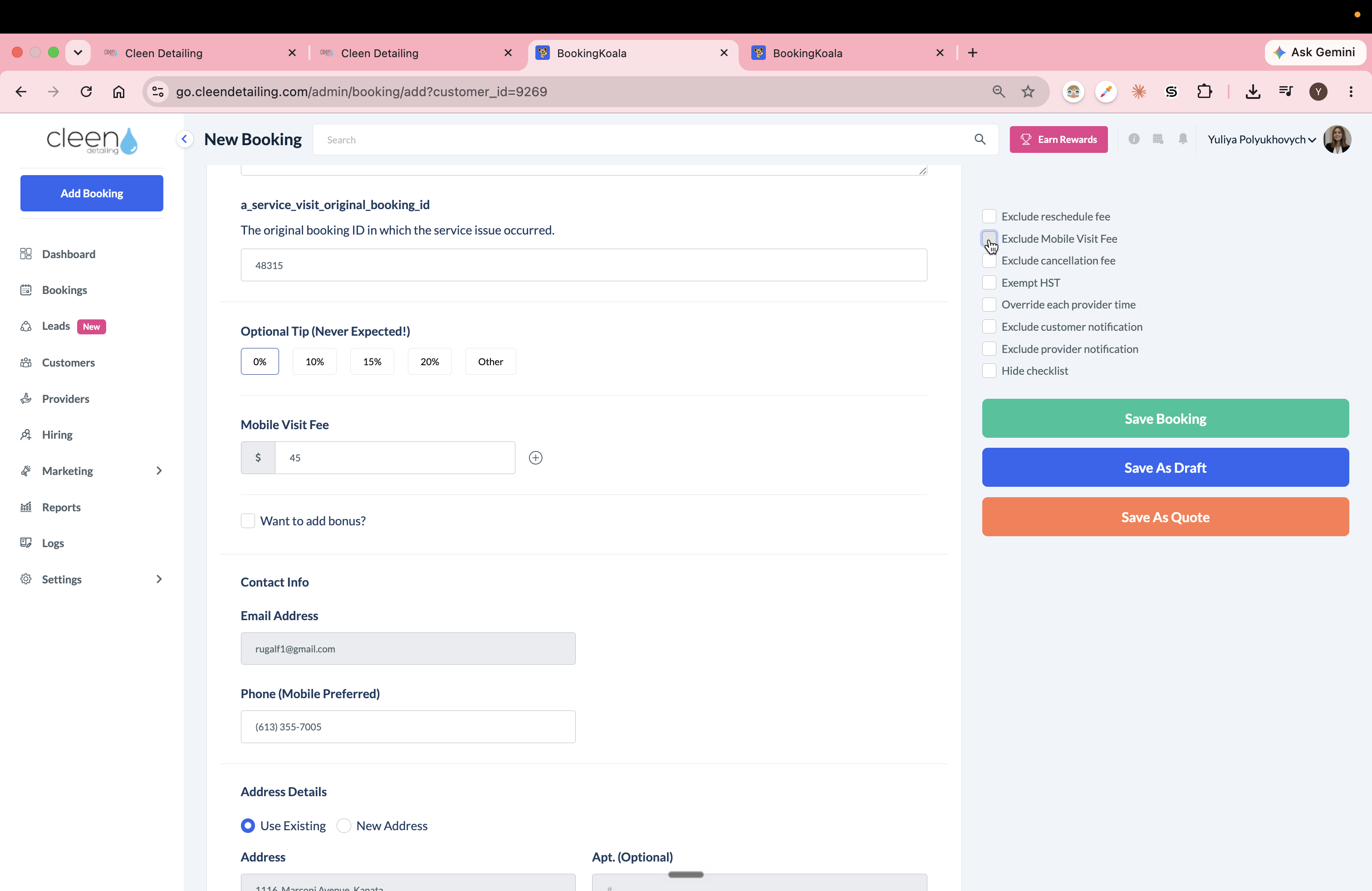
24
Check the Exclude Mobile Visit Fee box to ensure no fees are charged for the touch-up.
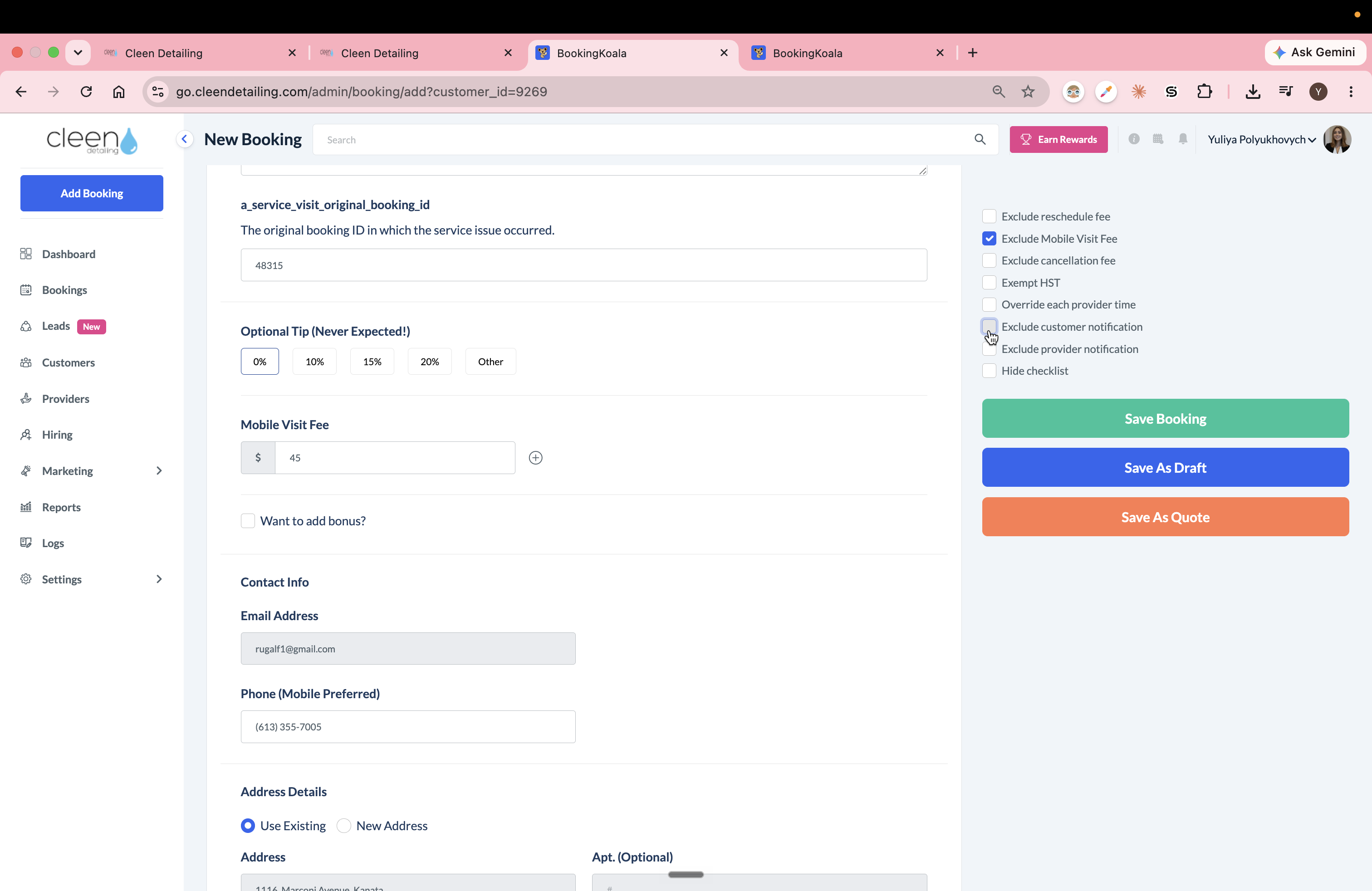
25
Check the Exclude customer notification box.
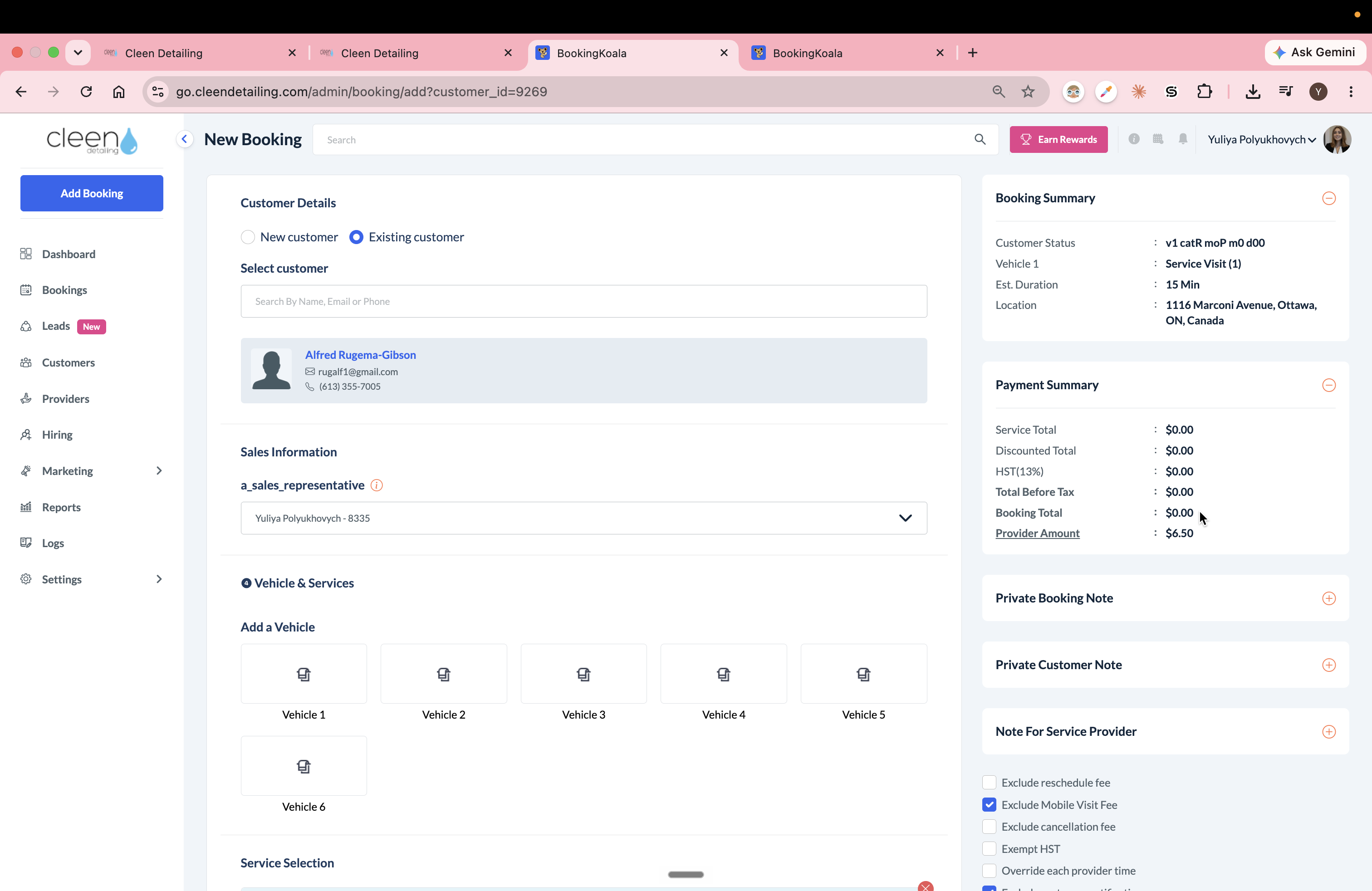
26
Verify that the booking total in the right sidebar is exactly $0.00.
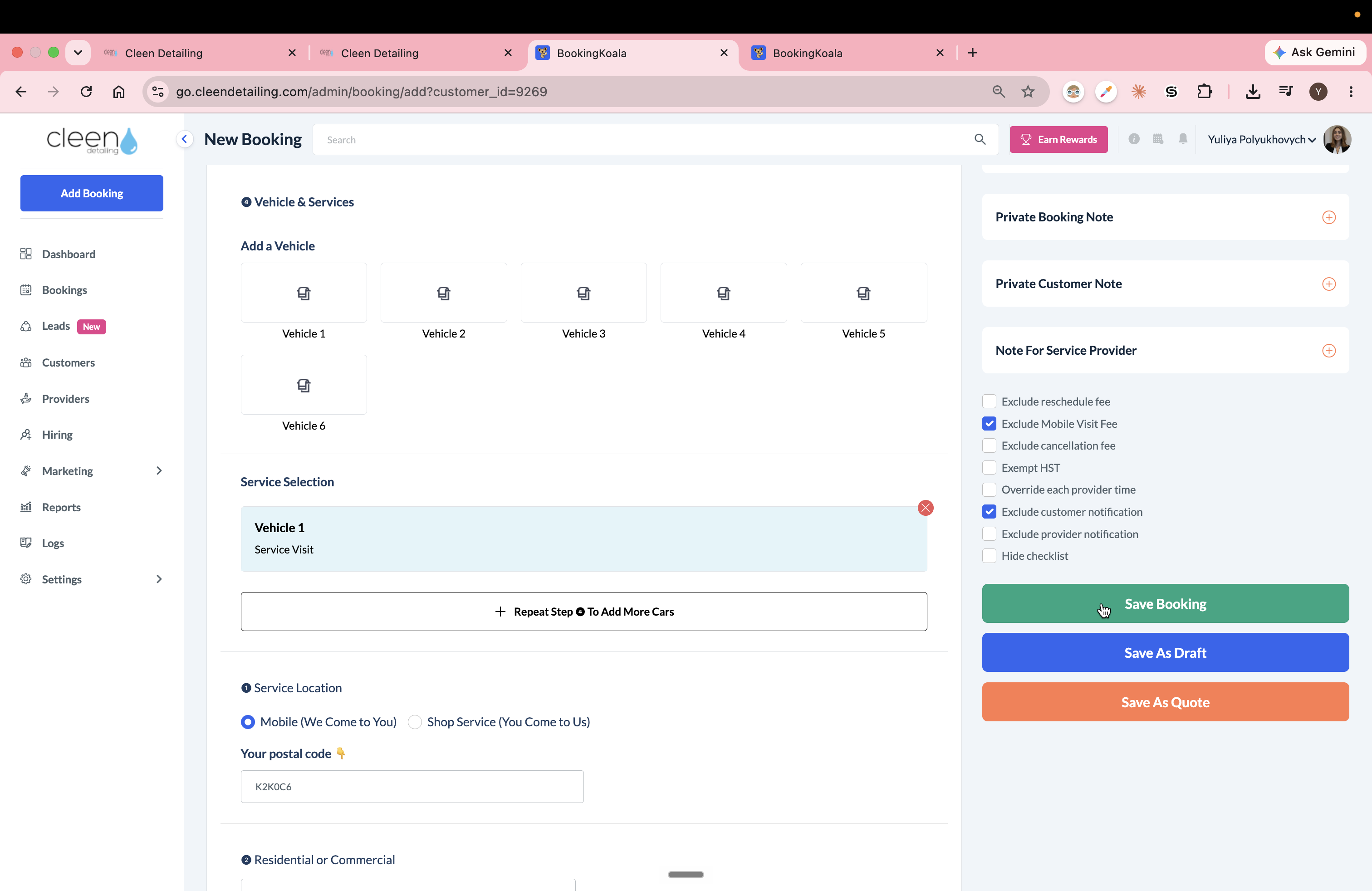
27
Click Save Booking to schedule the visit.
Q: Why do I need to open the customer's past booking?
A: You must reference the previous booking to copy over exact vehicle details, including the unique Vehicle ID (UUID) and the original booking ID.
Q: Should I adjust the default time for a service visit?
A: Yes. The default service visit duration is 56 minutes, but you should manually adjust this down if the required touch-up will take less time.