Icon

Scientific Research #4

Learn how to send a scientific research approval letter for signature, return it to the applicant as a PDF, and archive the communications in Objective.

By Kim

This guide explains how to send a scientific research approval letter to the City Laws team for signature, return it to the applicant as a PDF, and archive the corresponding communications.

This workflow is intended for Natural Areas administration team members processing external research requests and maintaining official records in Objective.

Request Signature from City Laws
1
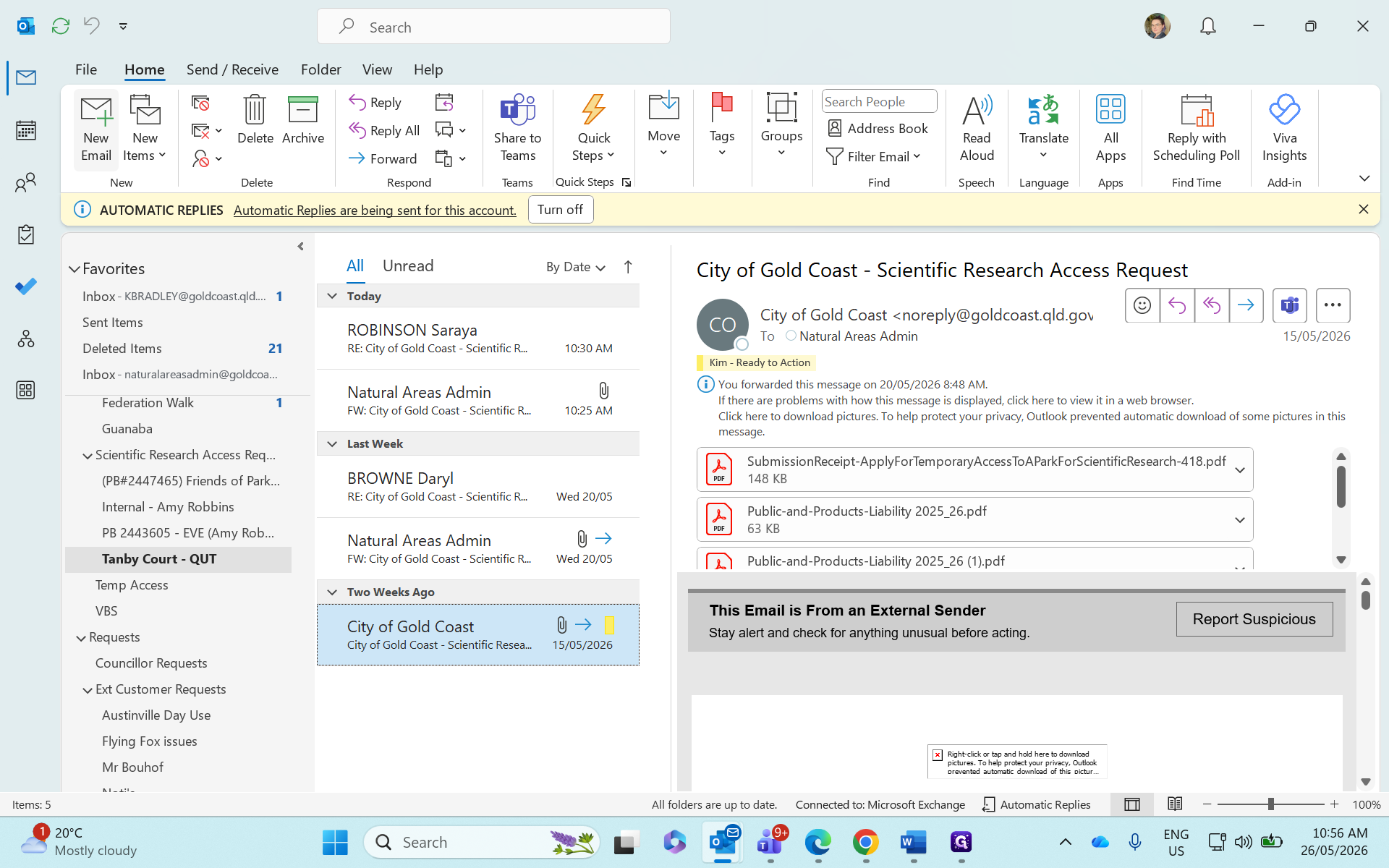
Click New Email to create a message.
Step #1: Click New Email to create a message.
2
Select the INTERNAL - City Laws address from your directory.
Step #2: Select the INTERNAL - City Laws address from your directory.
3
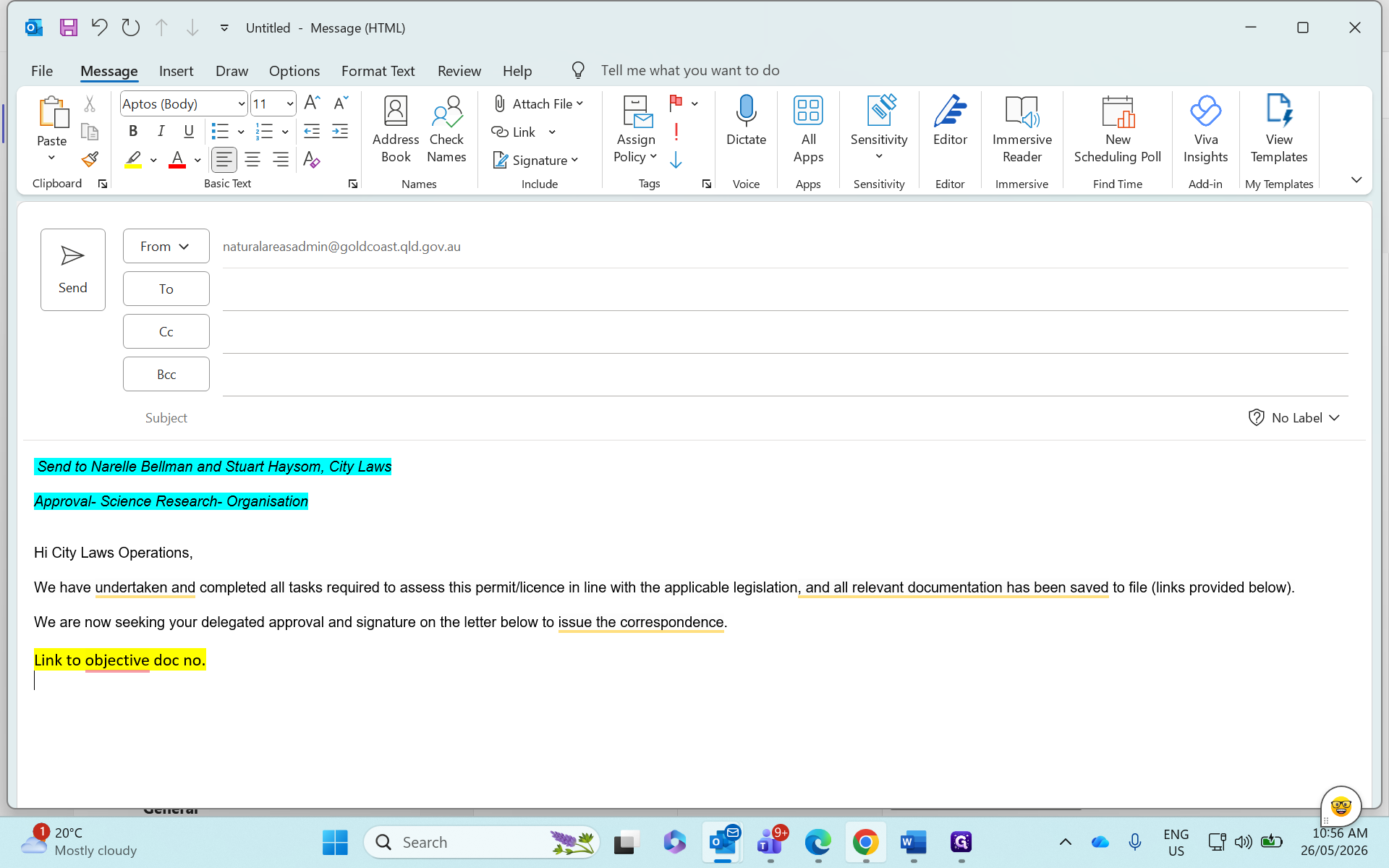
Copy the City Laws request template from your OneNote.
4
Paste the template into the body of the new email.
5
Drag and drop the document link directly from Objective into the email.
Step #5: Drag and drop the document link directly from Objective into the email.
6
Highlight the placeholder text Link to objective doc no and delete it to tidy up the message.
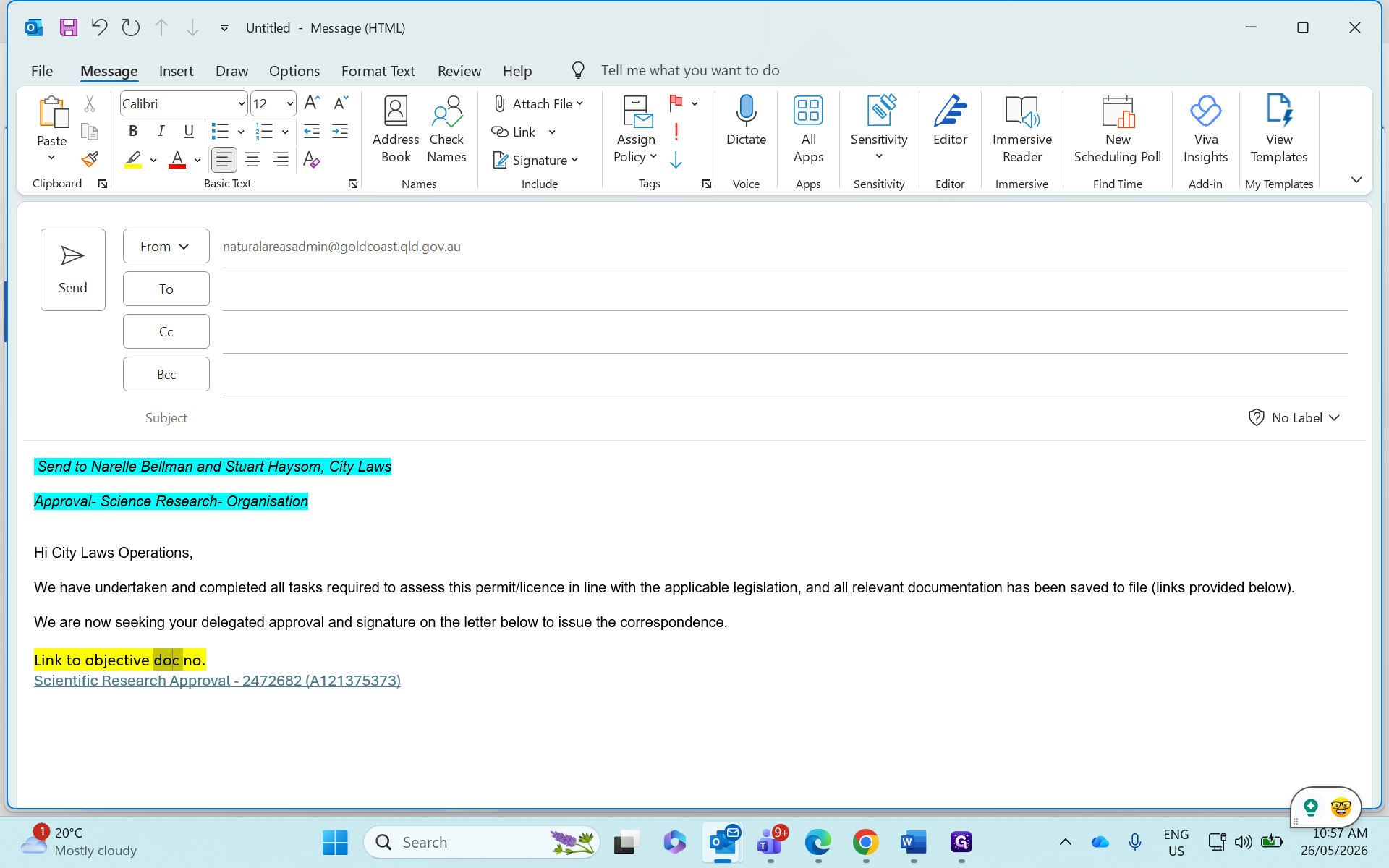
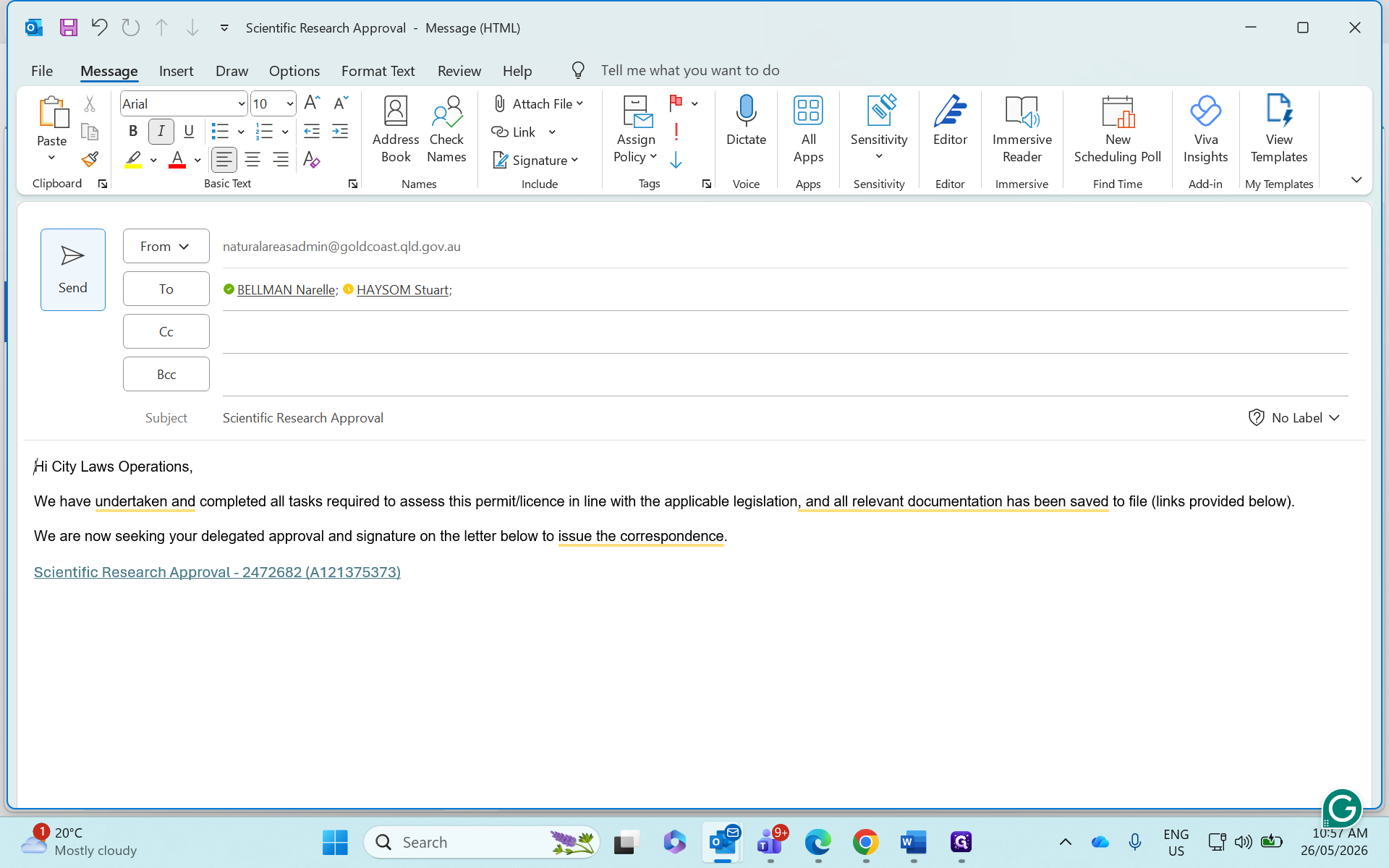
Step #6: Highlight the placeholder text Link to objective doc no and delete it to tidy up the message.
7
Type Scientific Research Approval in the subject line.
8
Search for and add the relevant City Laws contacts, such as BELLMAN Narelle and HAYSOM Stuart, to the recipients list.
9
Click Send to dispatch the email.
Step #9: Click Send to dispatch the email.

Convert the Signed Letter to PDF

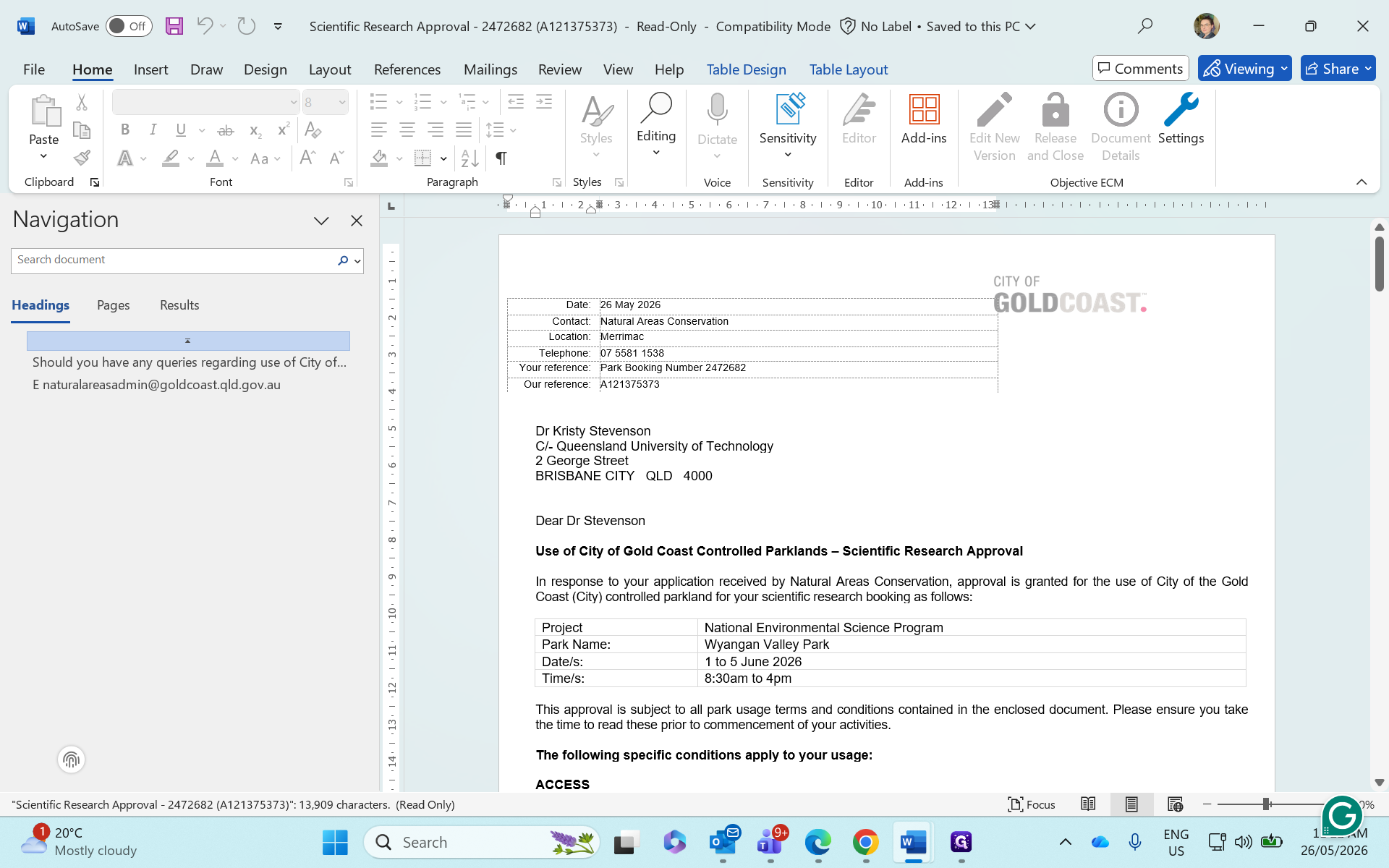
Once the signed approval letter is returned by City Laws, convert it to a PDF before sending it to the applicant.
10
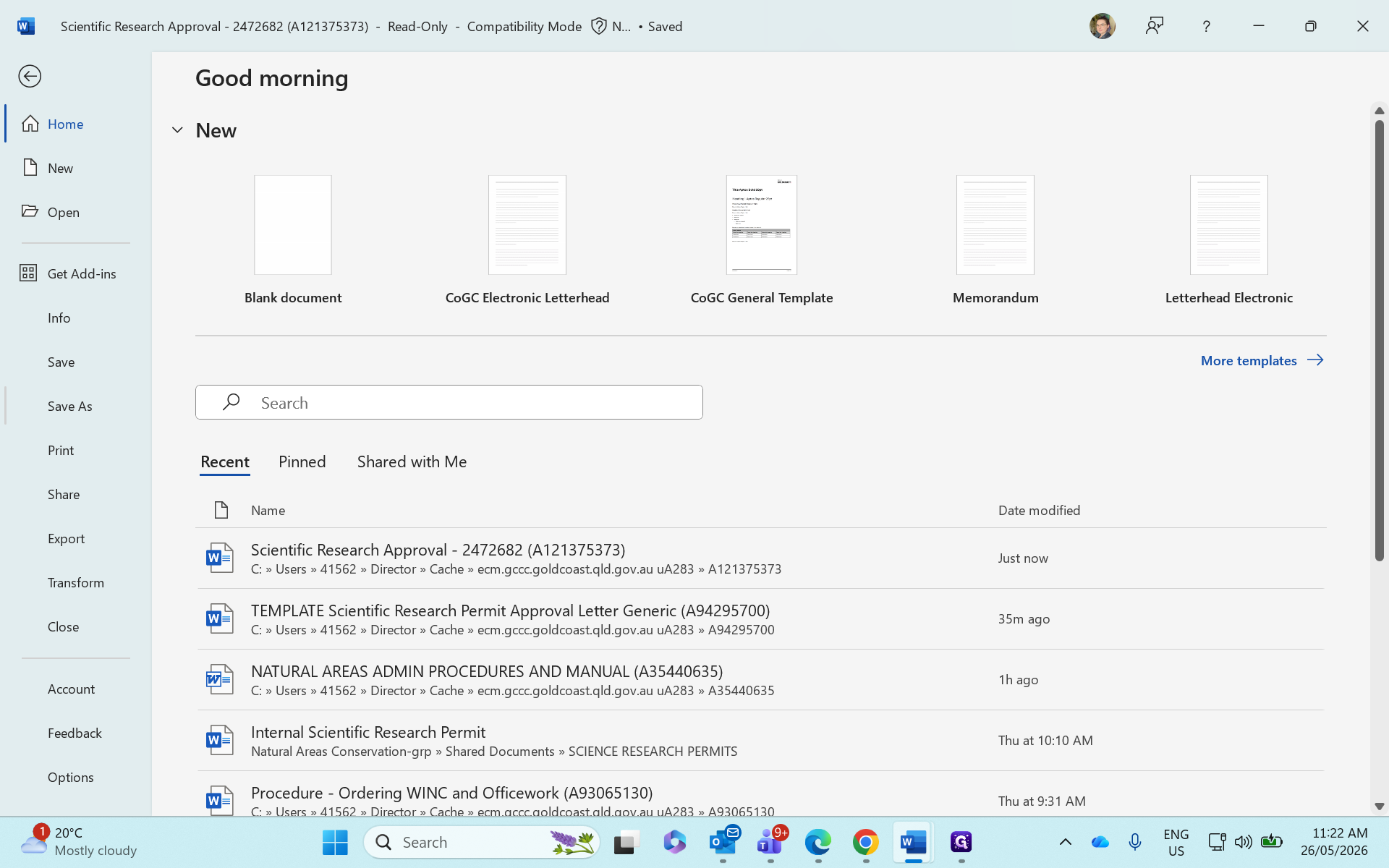
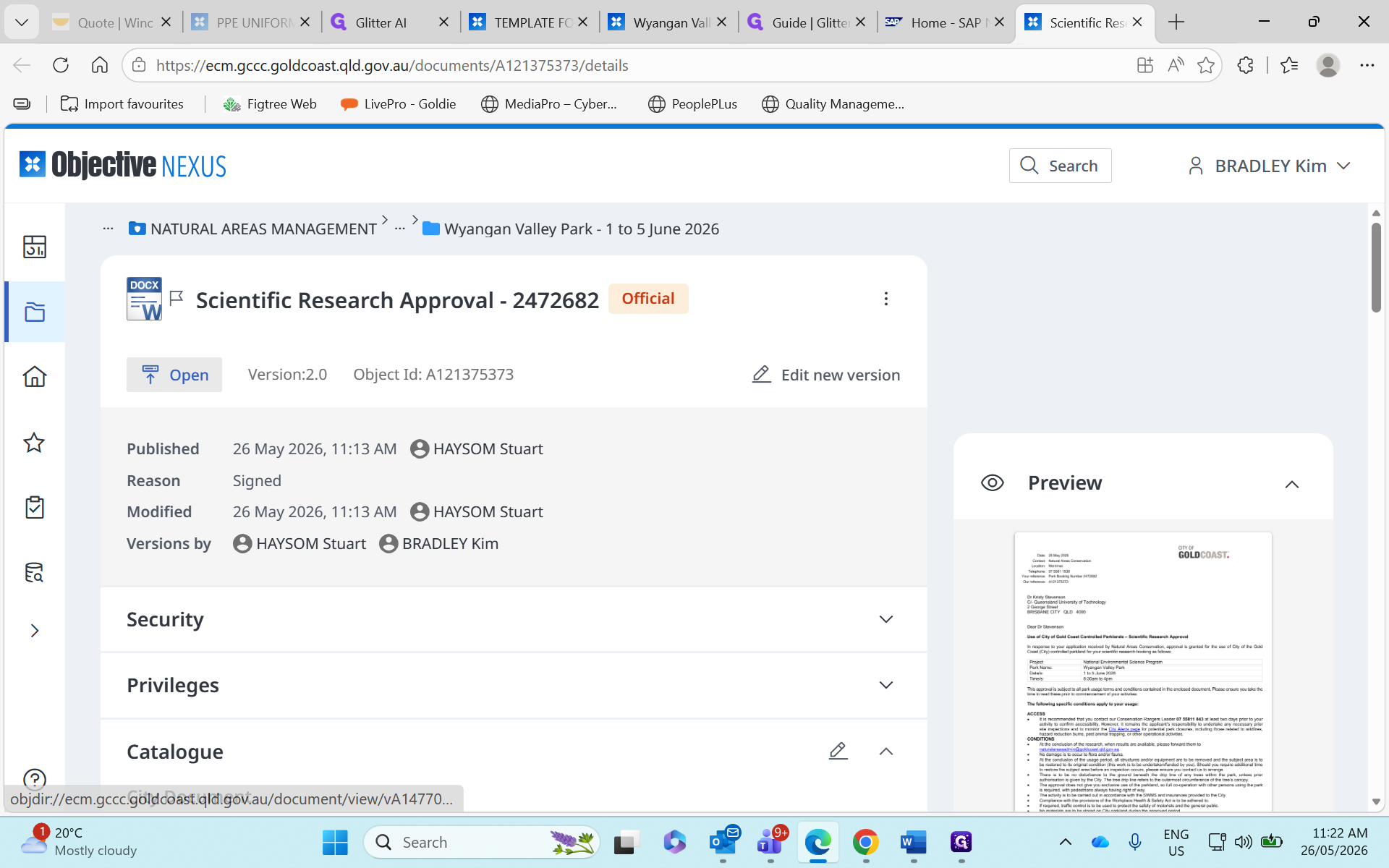
Open the returned signed Word document directly from Objective.
Step #10: Open the returned signed Word document directly from Objective.
11
Click File in the top navigation menu.
Step #11: Click File in the top navigation menu.
12
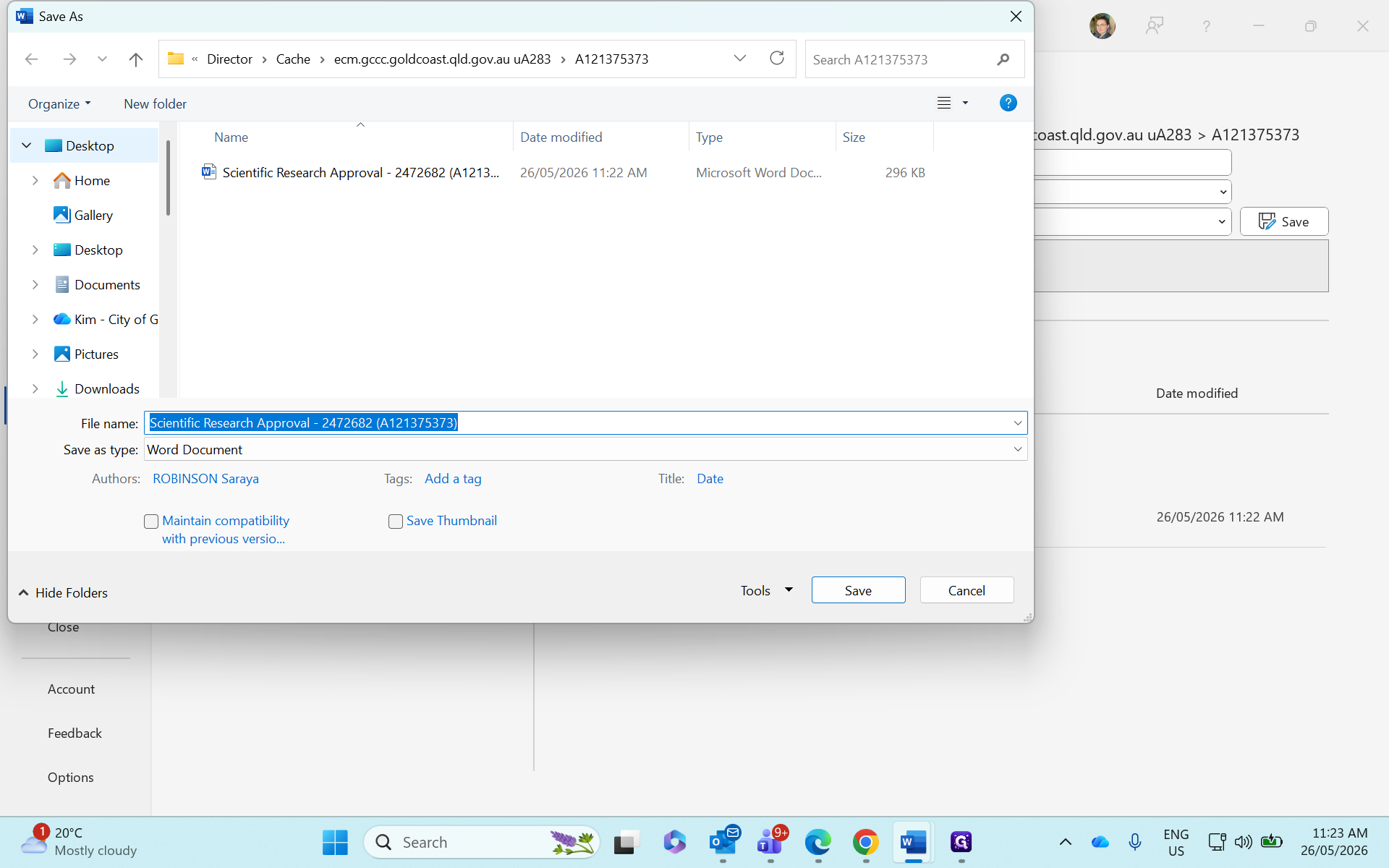
Select Save As.
Step #12: Select Save As.
13
Choose Desktop to save the file where you can easily locate it.
Step #13: Choose Desktop to save the file where you can easily locate it.
14
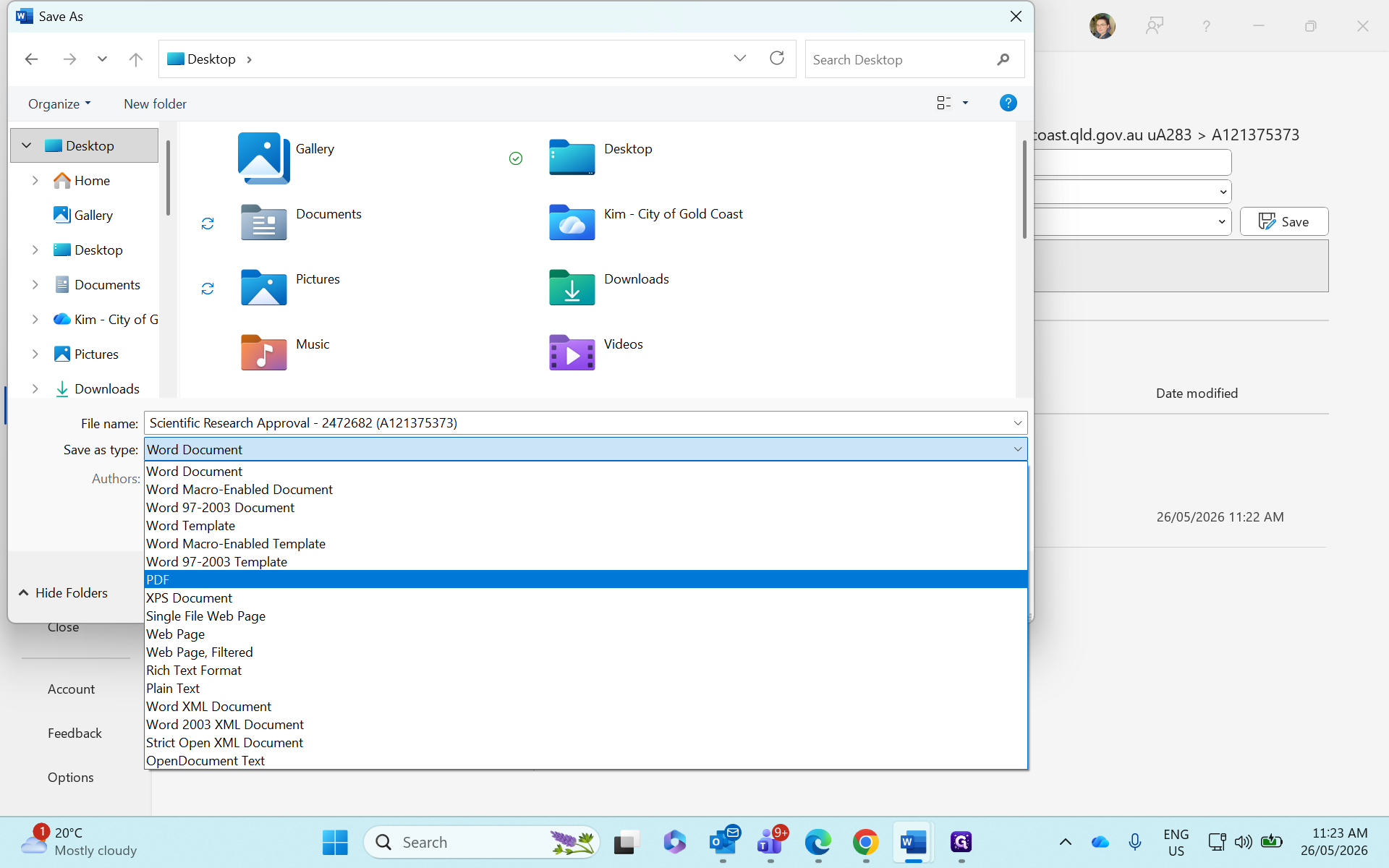
Change the file format dropdown to PDF.
Step #14: Change the file format dropdown to PDF.
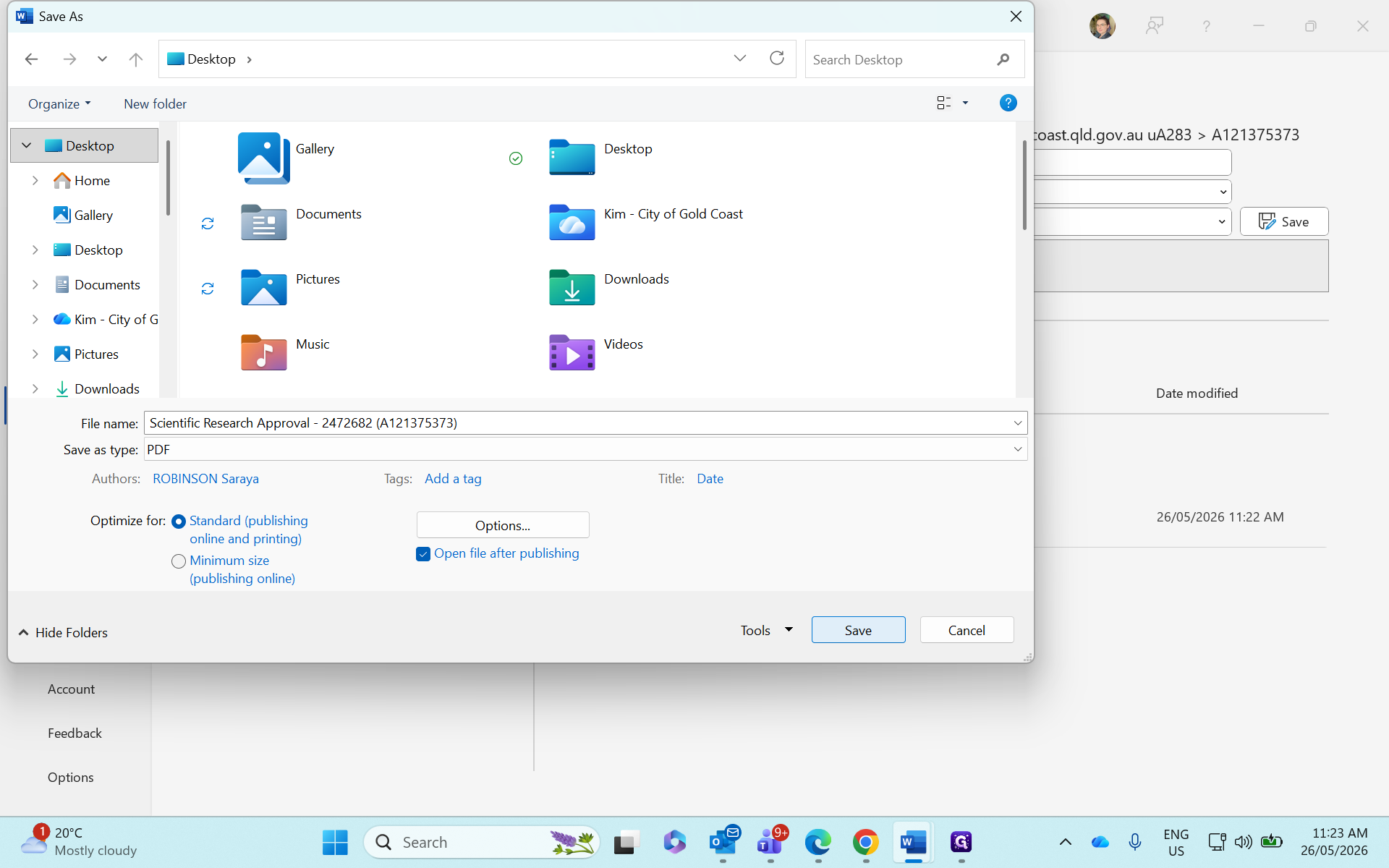
15
Click Save to create the PDF.
Step #15: Click Save to create the PDF.
16
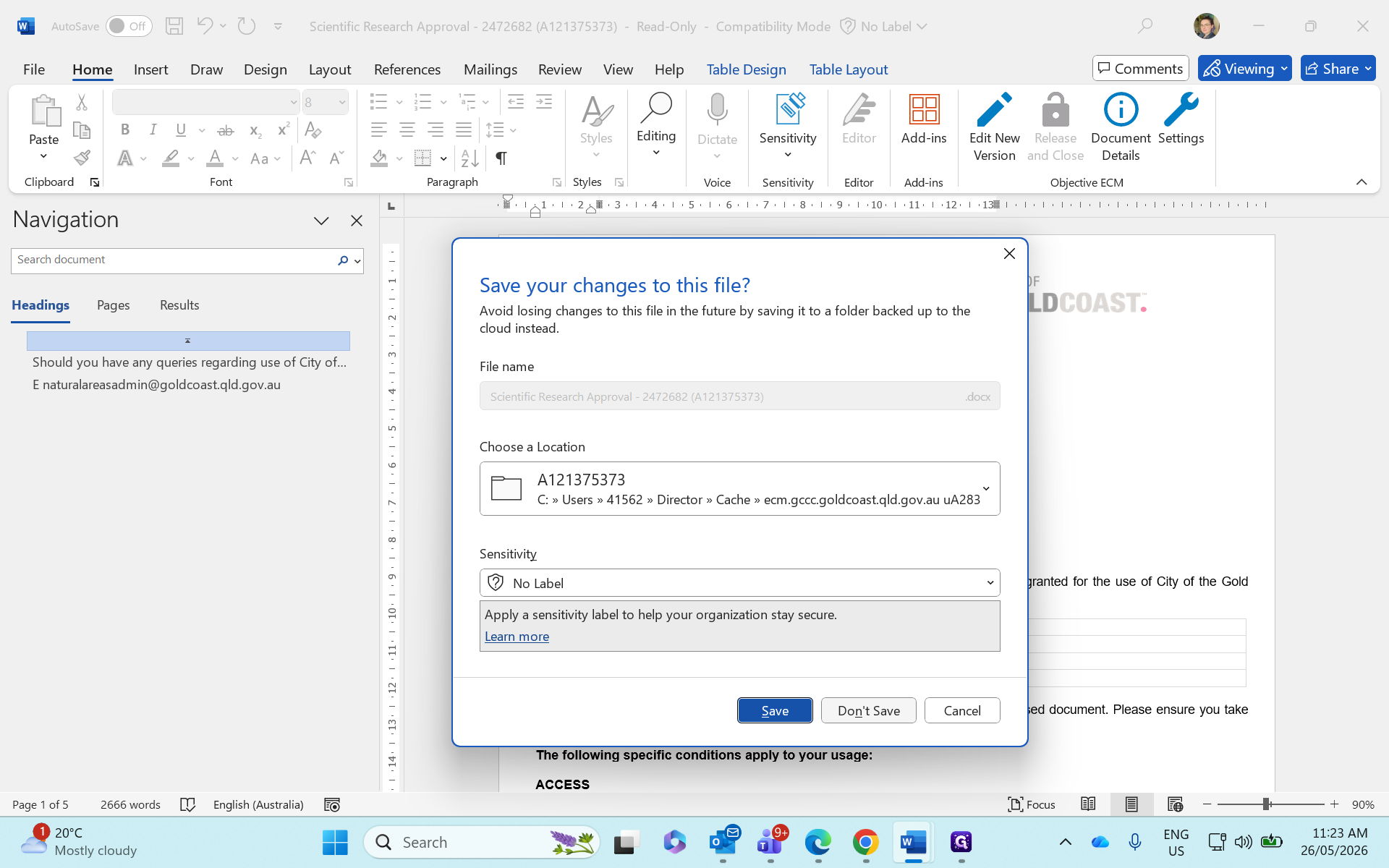
Review the saved PDF. If it looks correct, close the Word document and click Don't Save when prompted.
Step #16: Review the saved PDF. If it looks correct, close the Word document and click Don't Save when prompted.

Send the Approval Letter to the Applicant
17
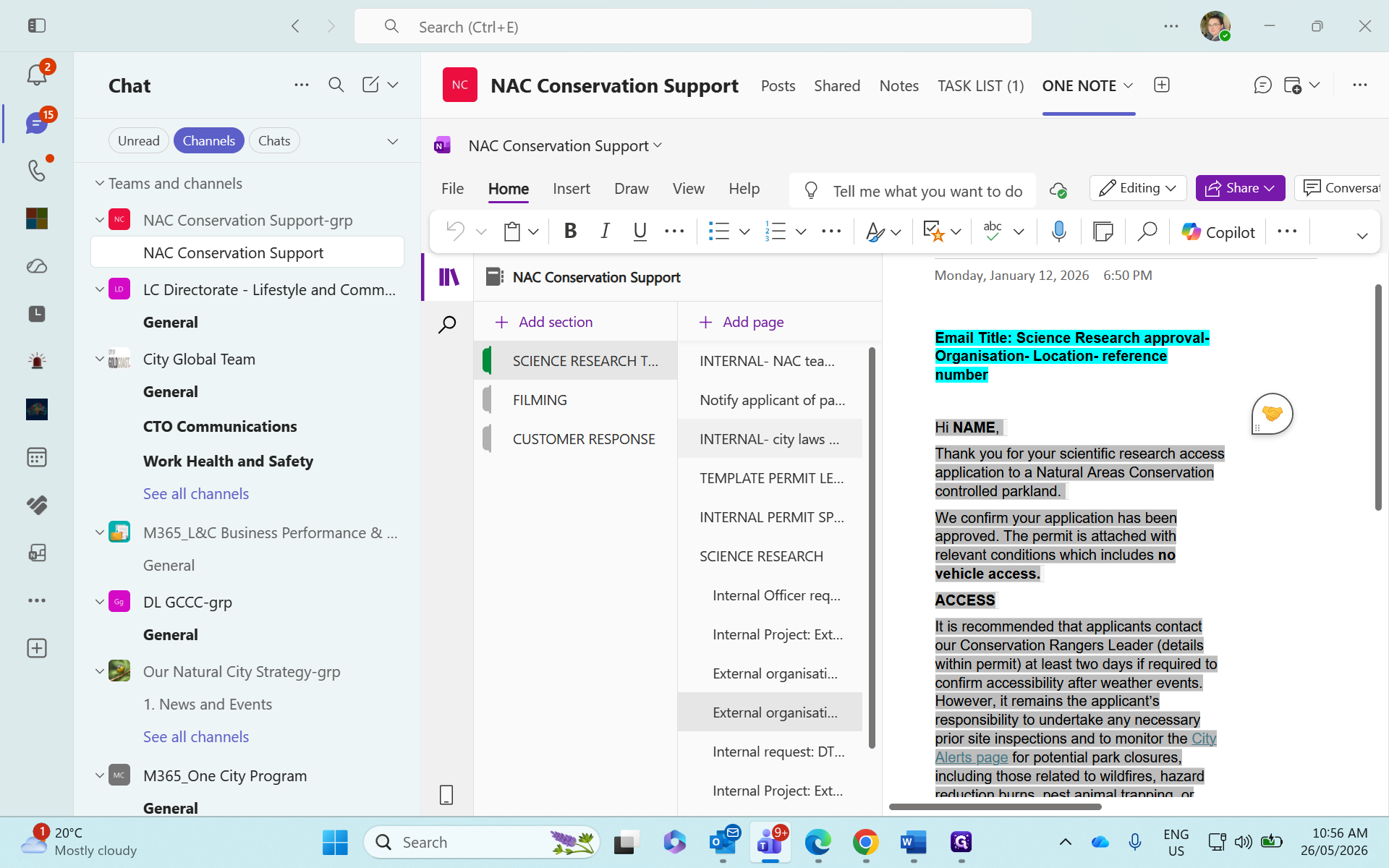
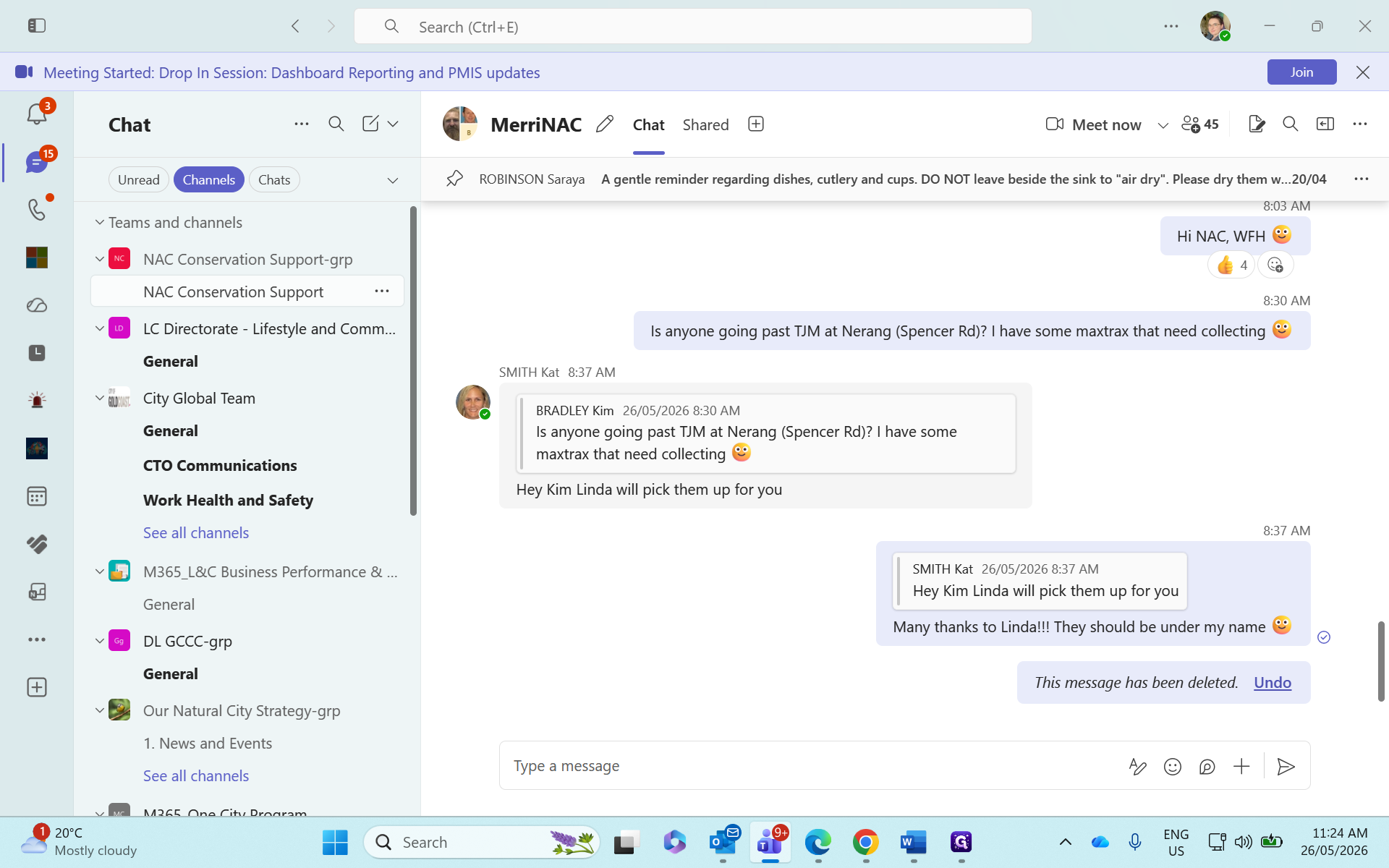
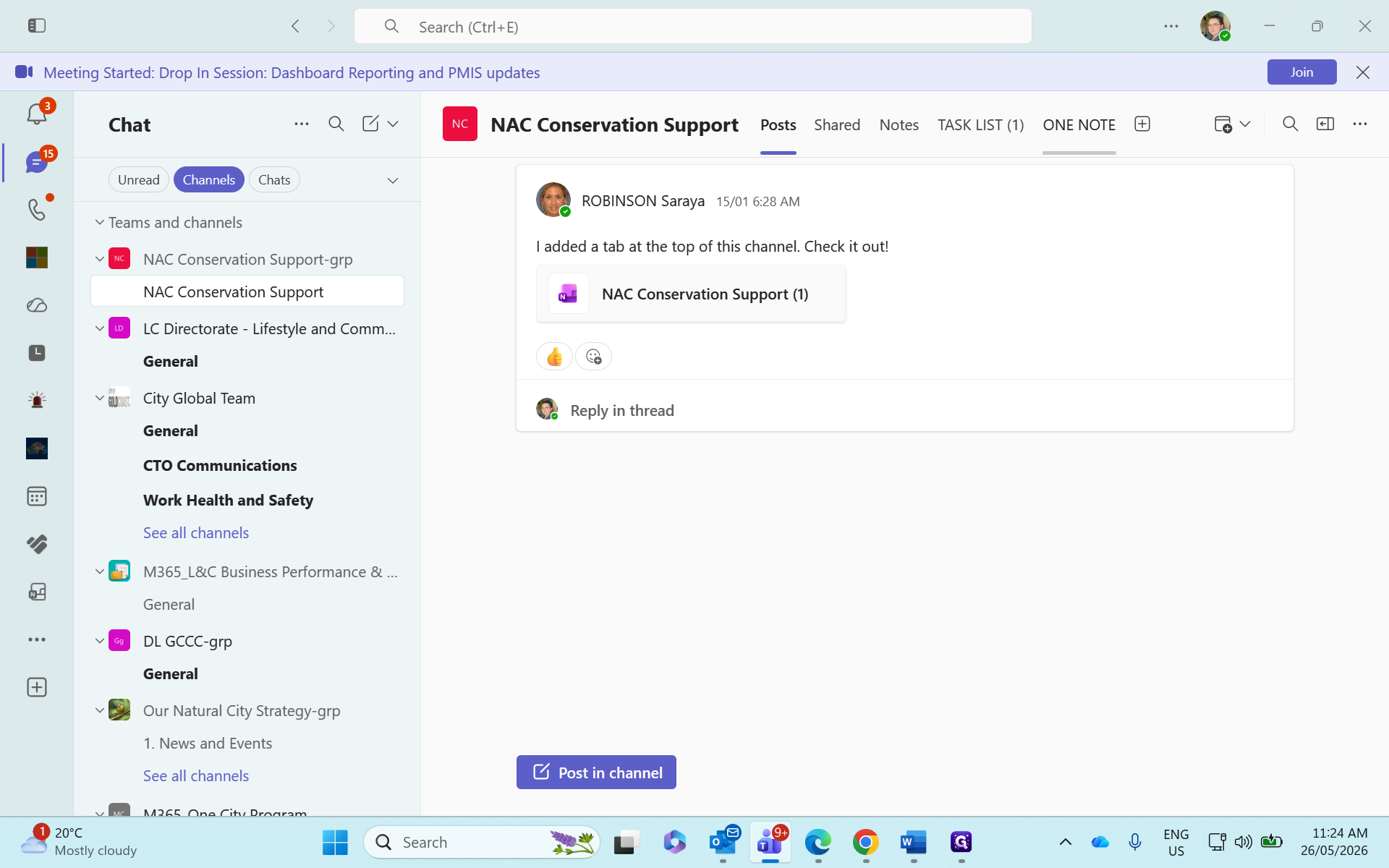
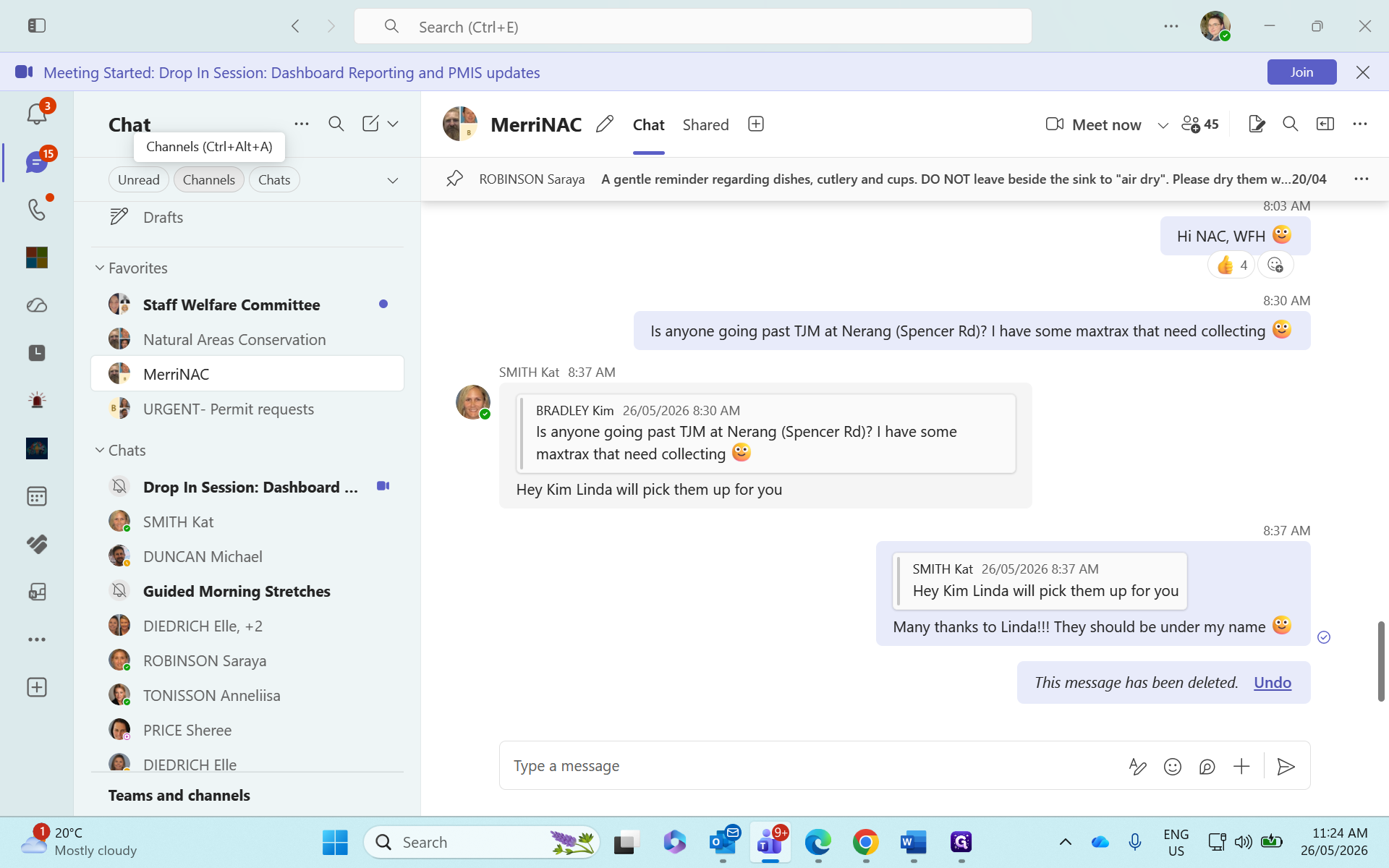
Navigate to your Teams Channels.
Step #17: Navigate to your Teams Channels.
18
Select the NAC Conservation Support - grp channel.
Step #18: Select the NAC Conservation Support - grp channel.
19
Click on the ONE NOTE tab.
Step #19: Click on the ONE NOTE tab.
20
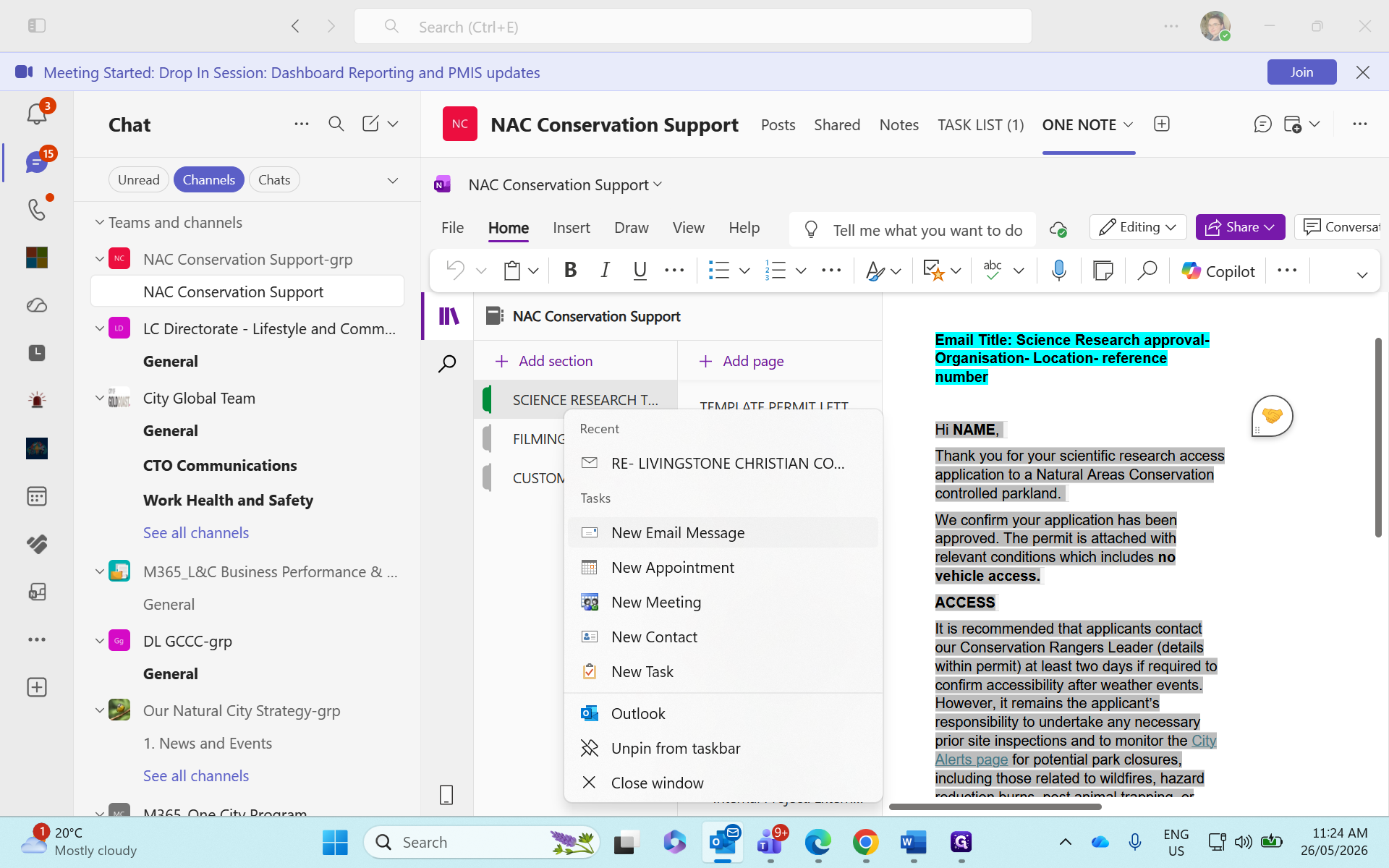
Locate the "External organization, no vehicle" template and copy the content.
21
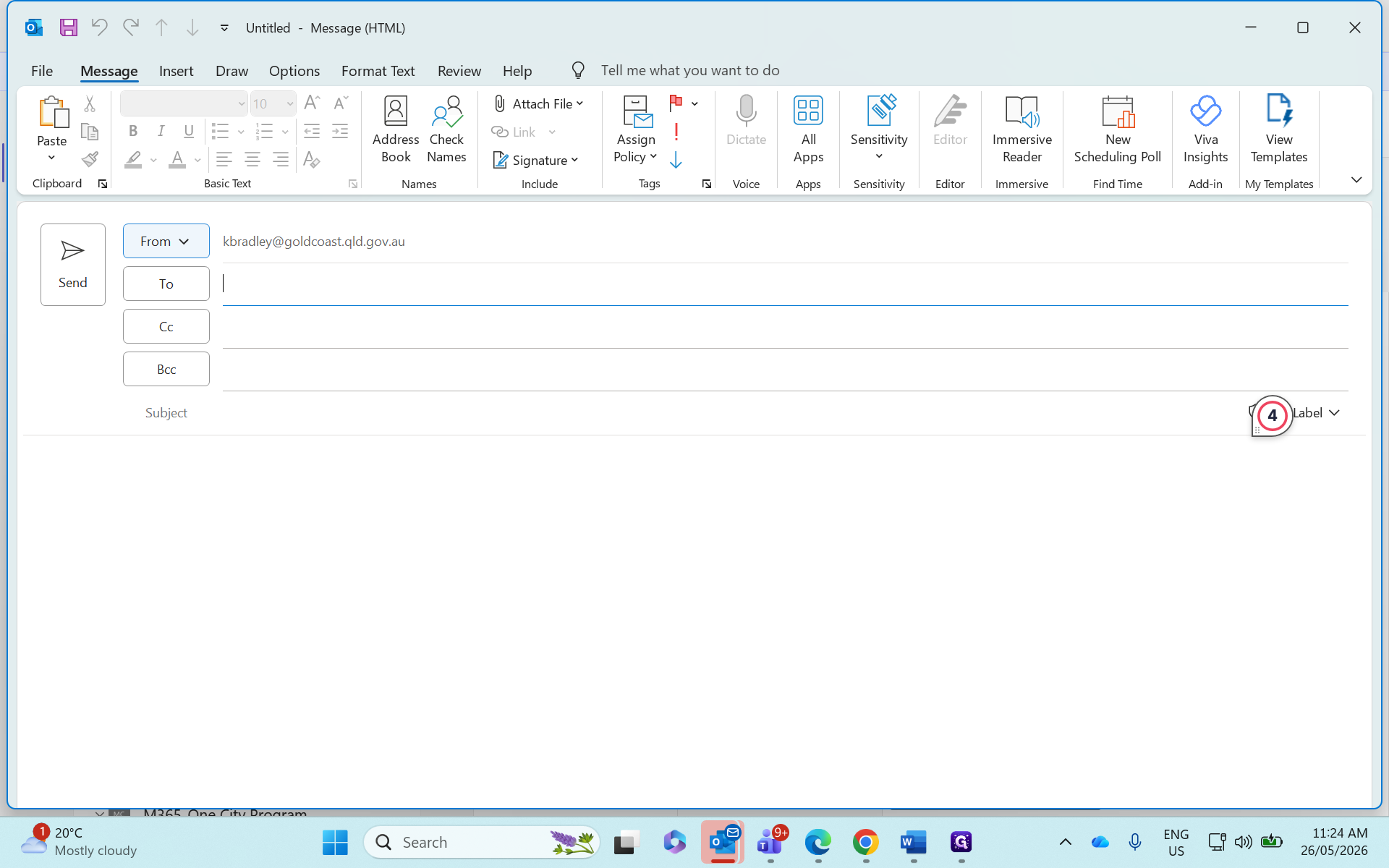
Create a New Email Message.
Step #21: Create a New Email Message.
22
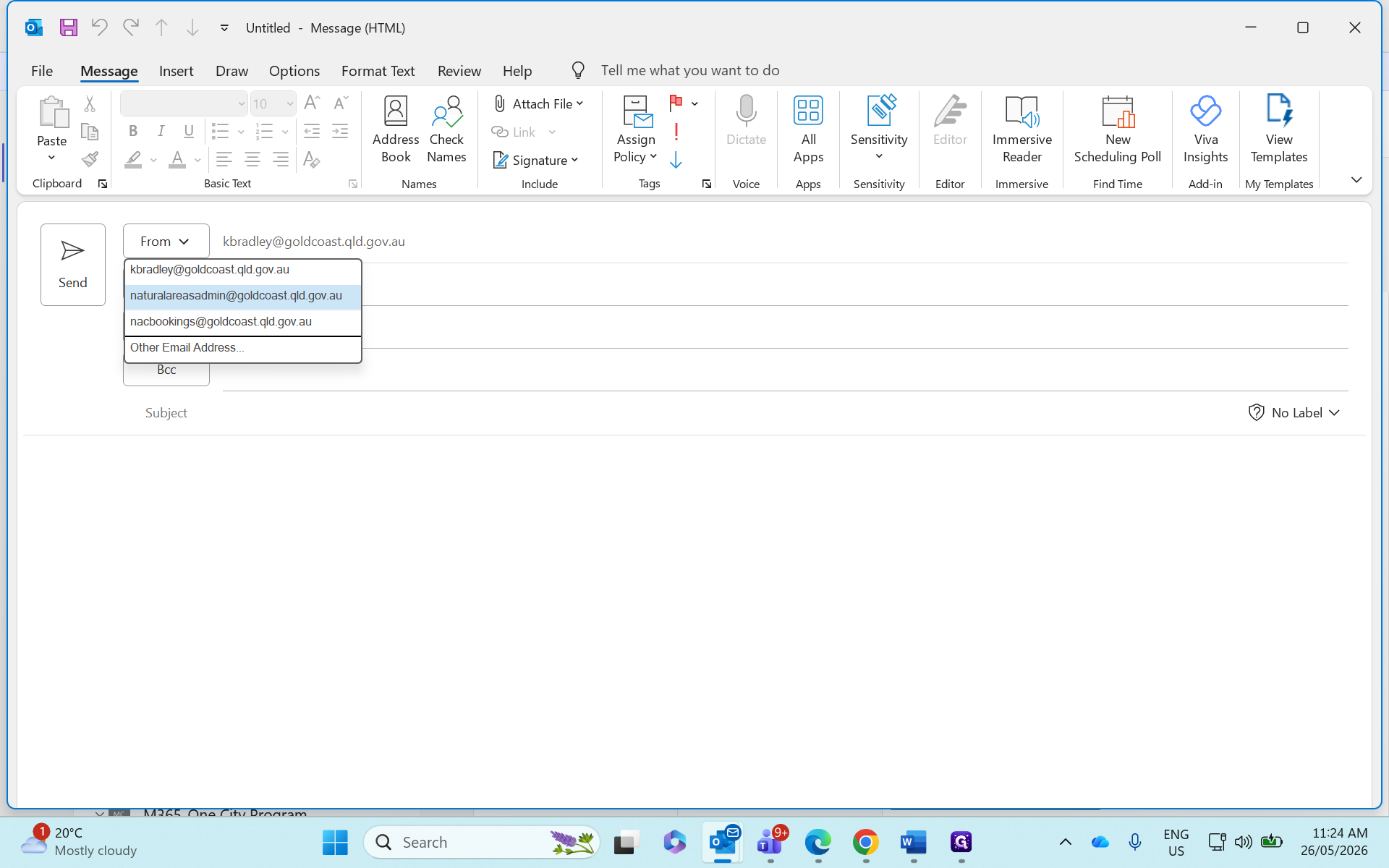
Click From to change the sender address.
Step #22: Click From to change the sender address.
23
Select naturalareasadmin@goldcoast.qld.gov.au.
Step #23: Select naturalareasadmin@goldcoast.qld.gov.au.
24
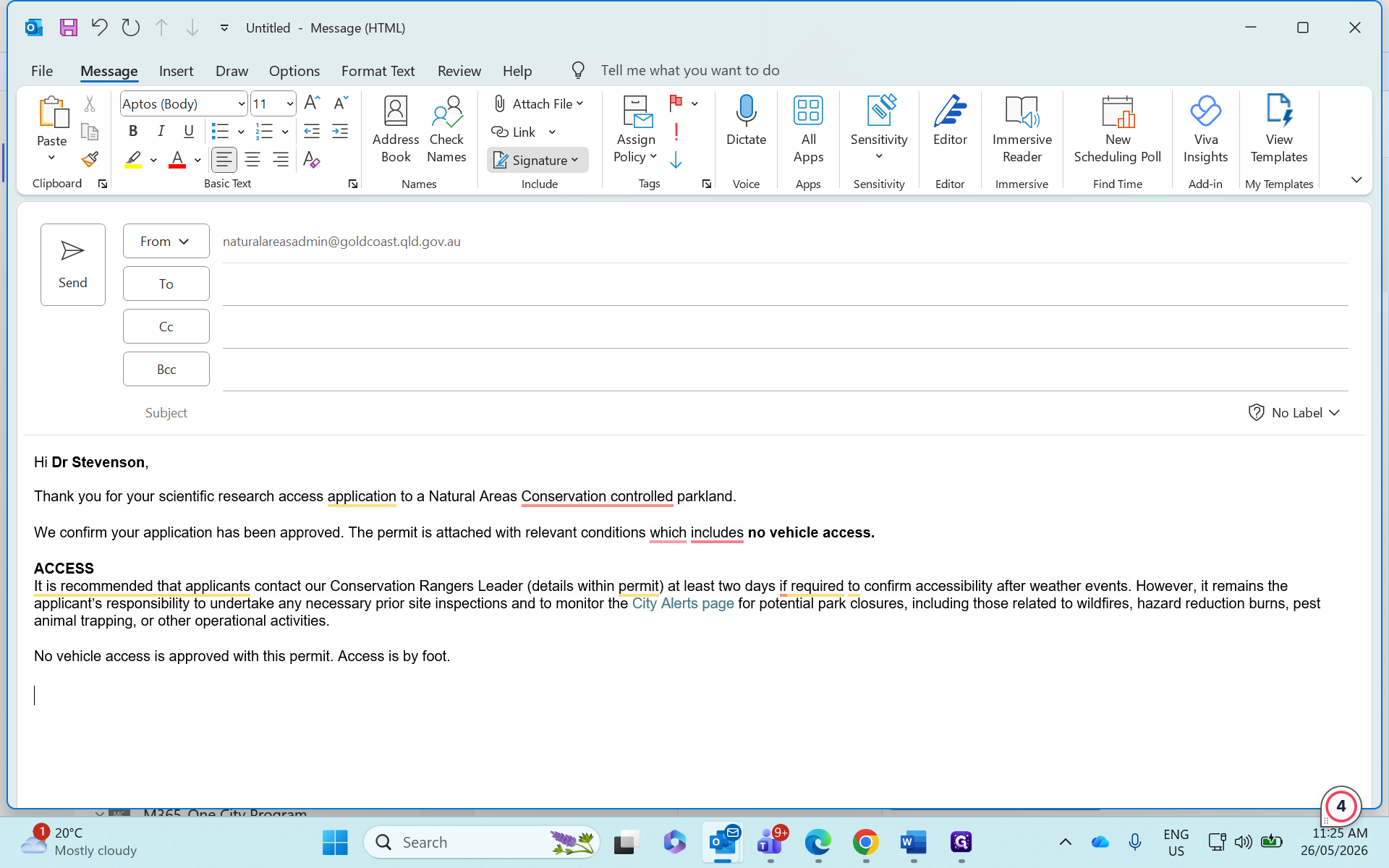
Paste the copied template into the email body and adjust any formatting.
25
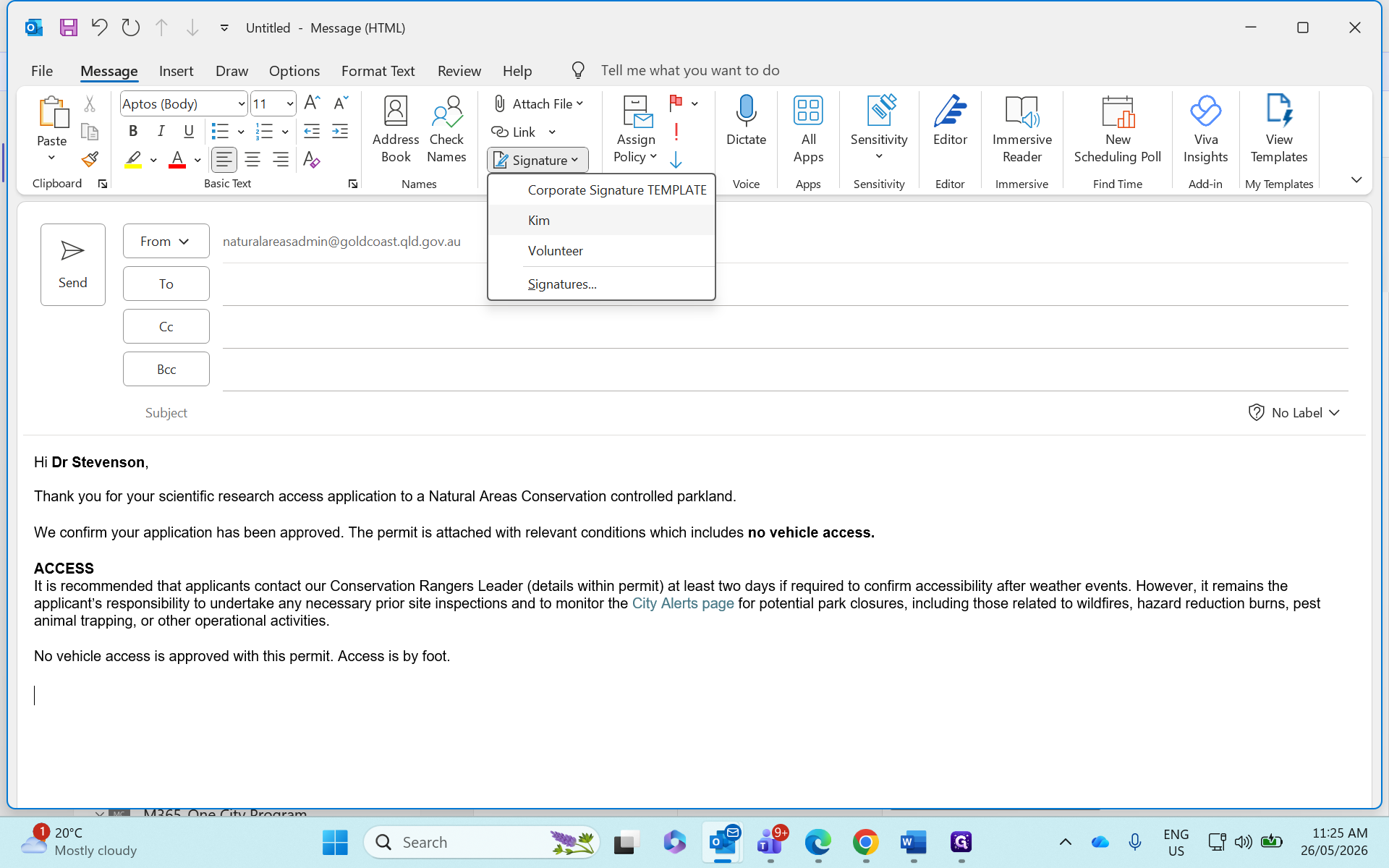
Click Signature.
Step #25: Click Signature.
26
Select your personal signature to insert it.
Step #26: Select your personal signature to insert it.
27
Drag and drop the PDF Scientific Research Approval letter from your desktop into the email.
28
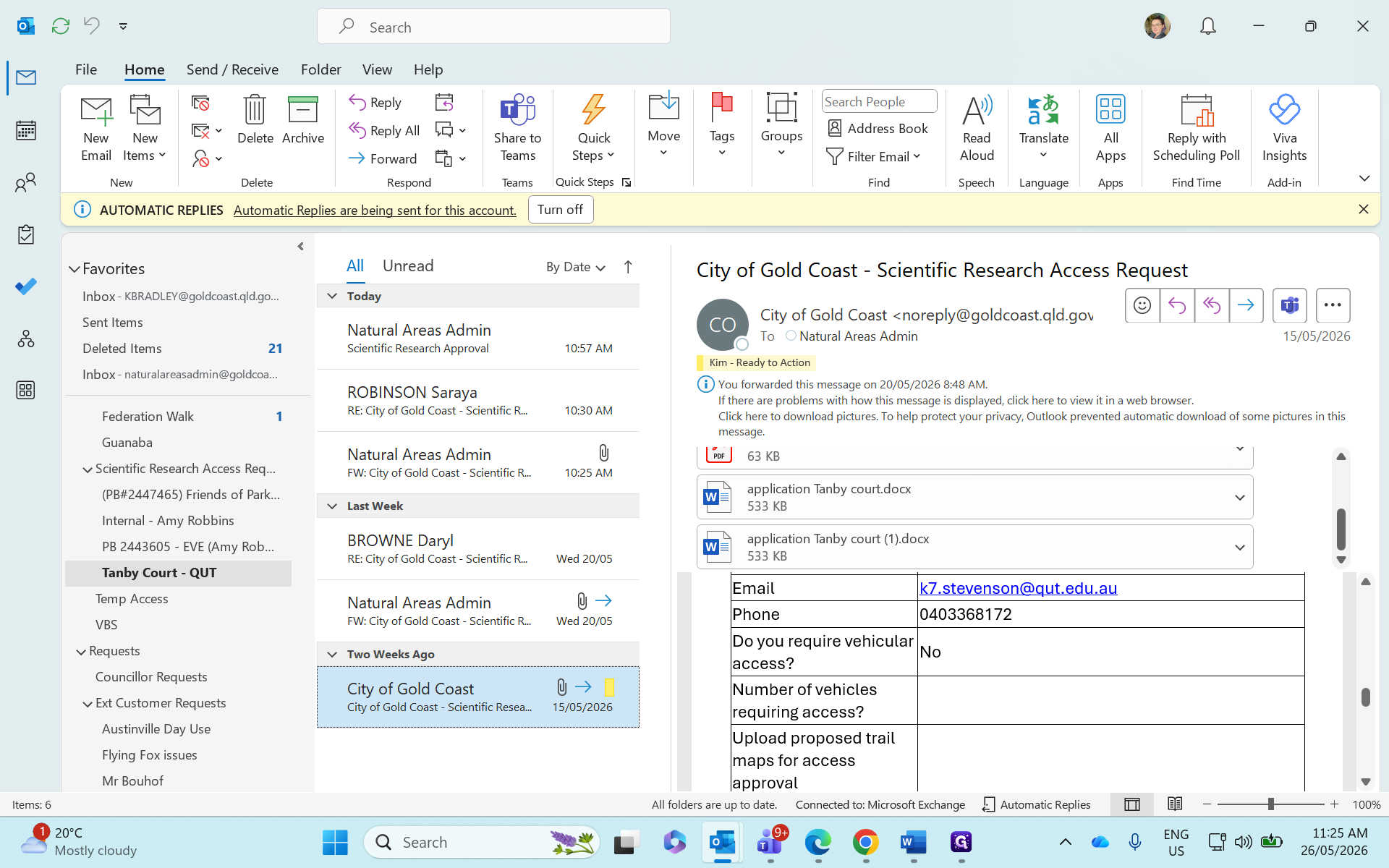
Copy the applicant's email address from their original request.
Step #28: Copy the applicant's email address from their original request.
29
Paste the applicant's email into the "To" field.
30
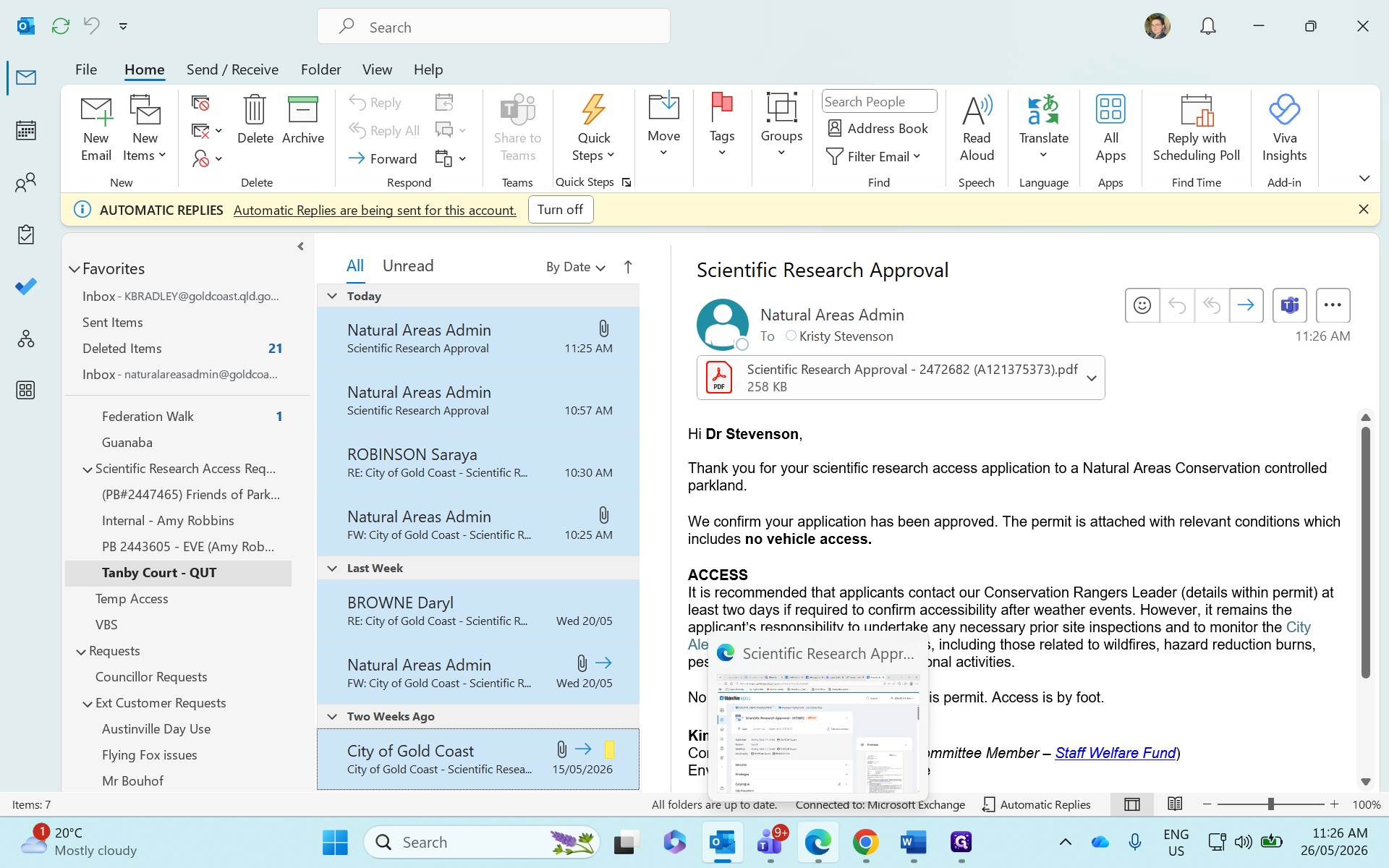
Review the email to ensure everything is correct, then click Send.
Step #30: Review the email to ensure everything is correct, then click Send.

Save Records to Objective

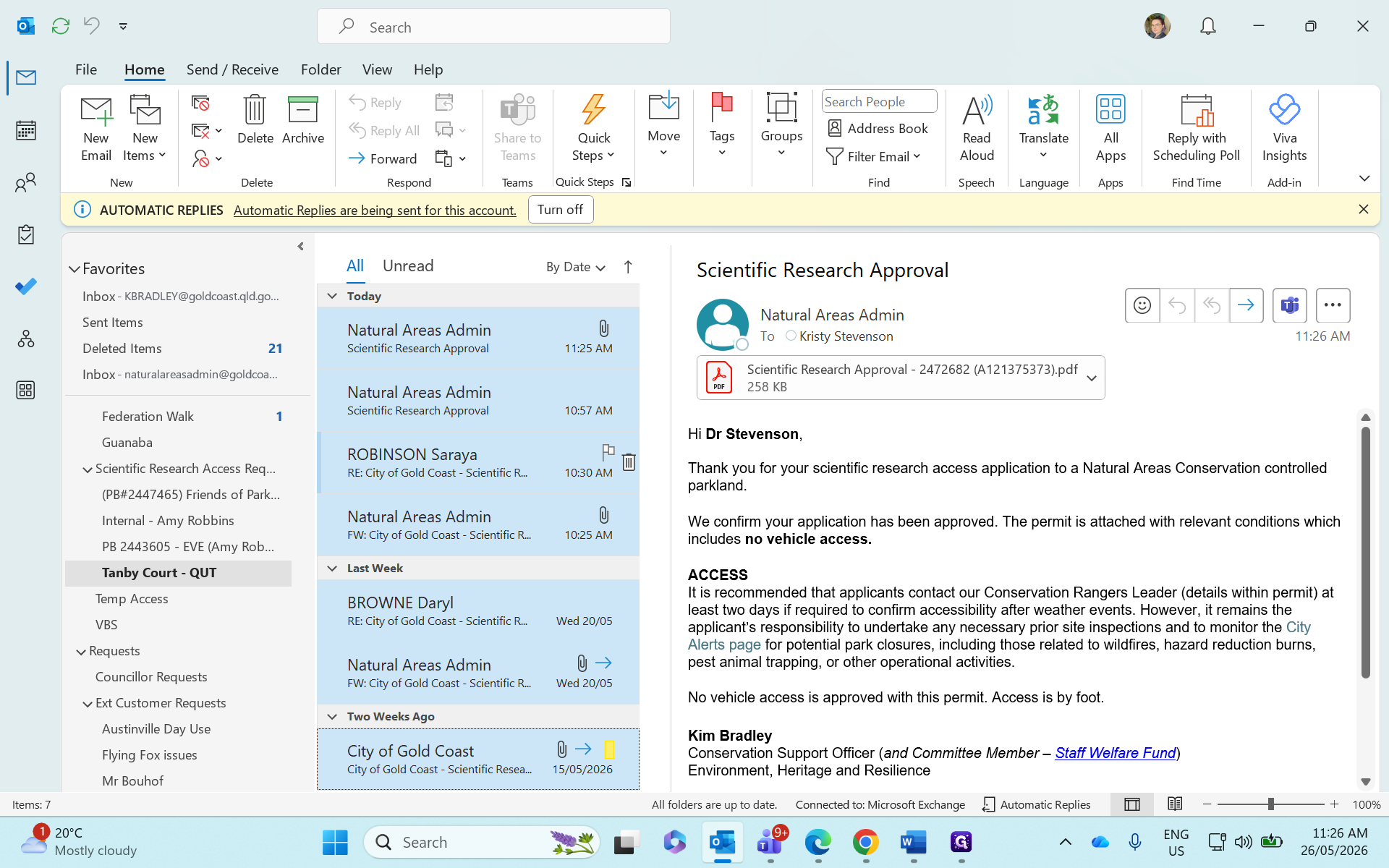
After completing the process, archive all related communications to maintain compliance.
31
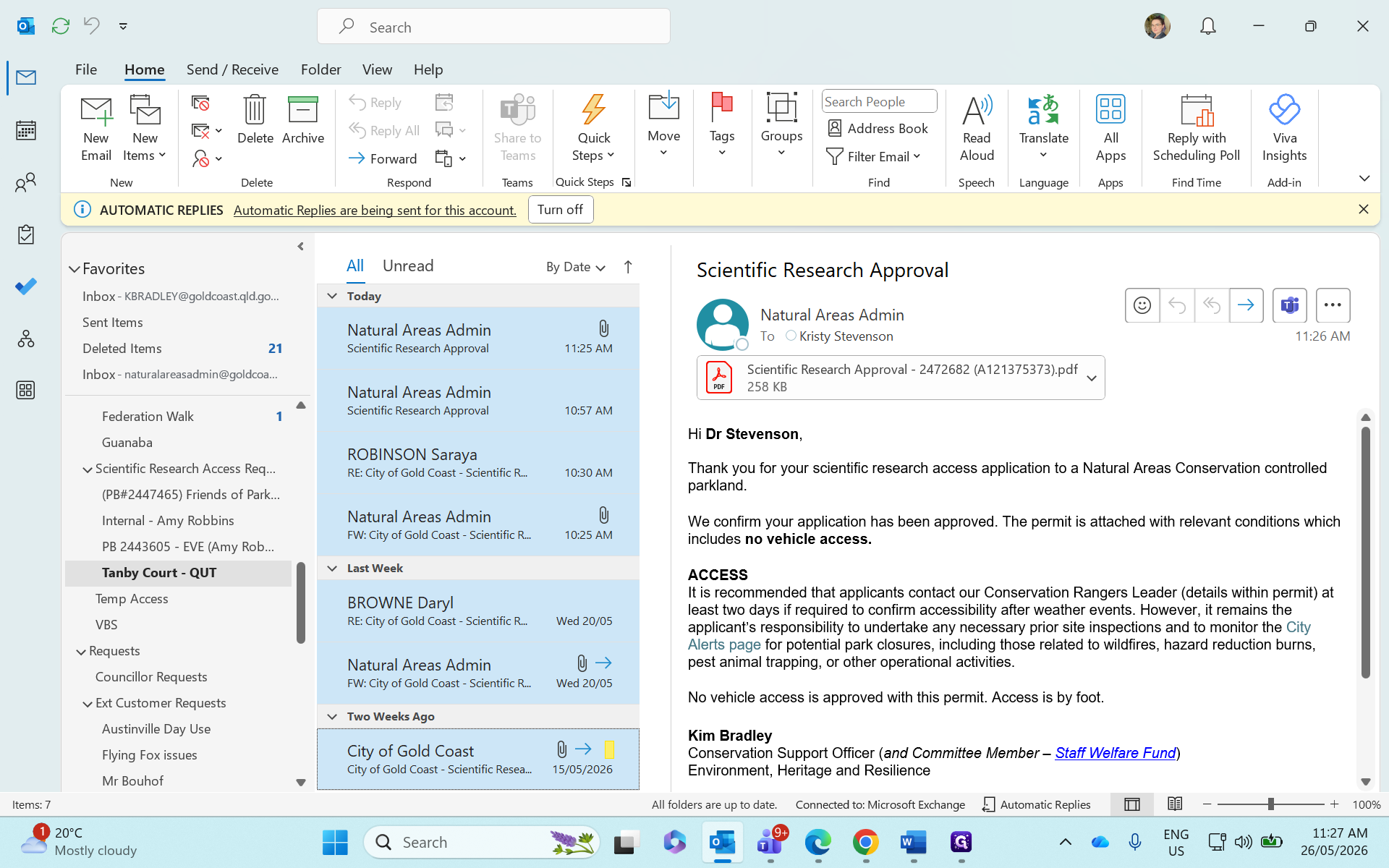
Select all the emails inside your working request folder.
32
Drag the selected emails into the corresponding Objective record folder.
Step #32: Drag the selected emails into the corresponding Objective record folder.
33
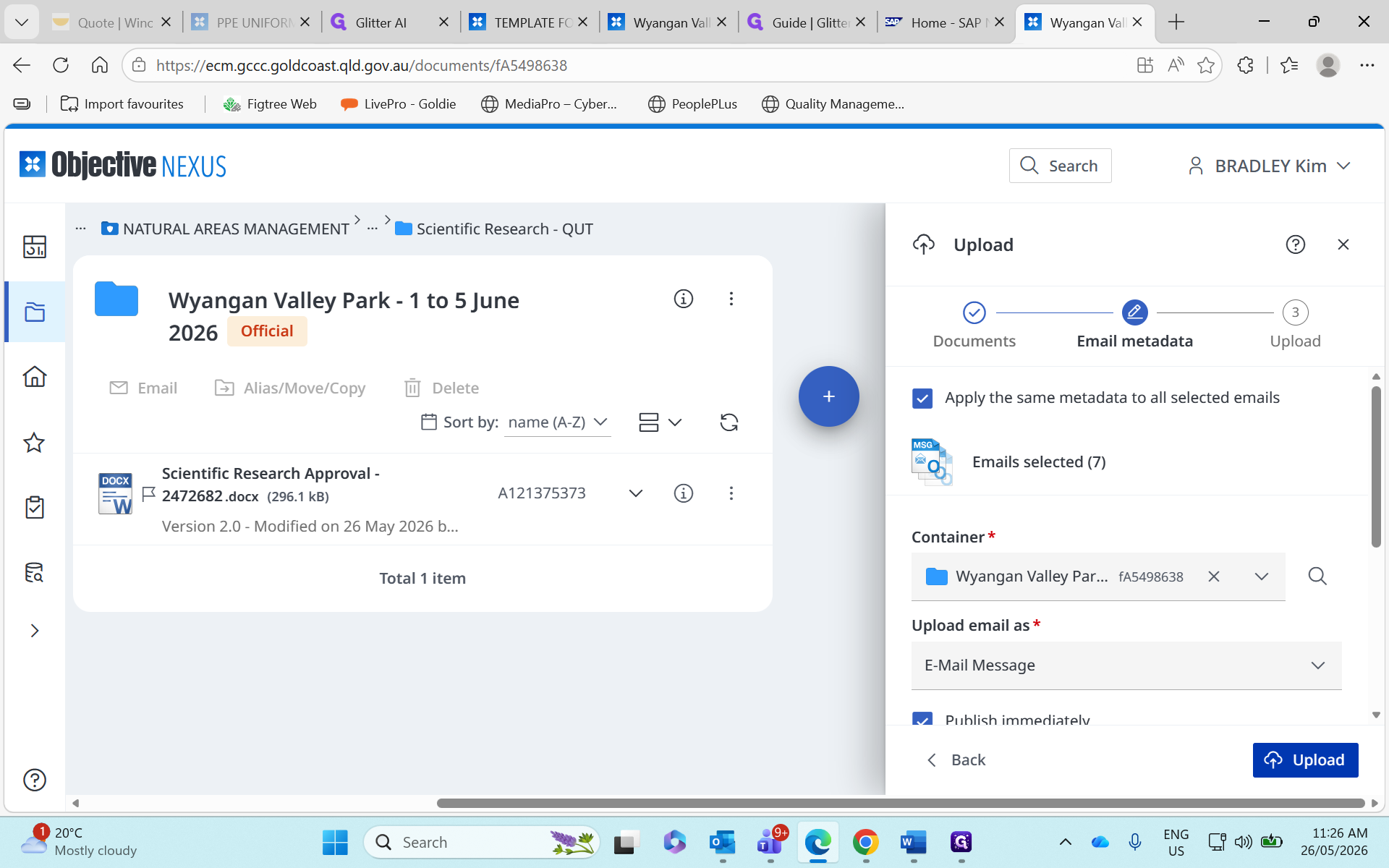
Click Upload to save the records to Objective.
Step #33: Click Upload to save the records to Objective.
34
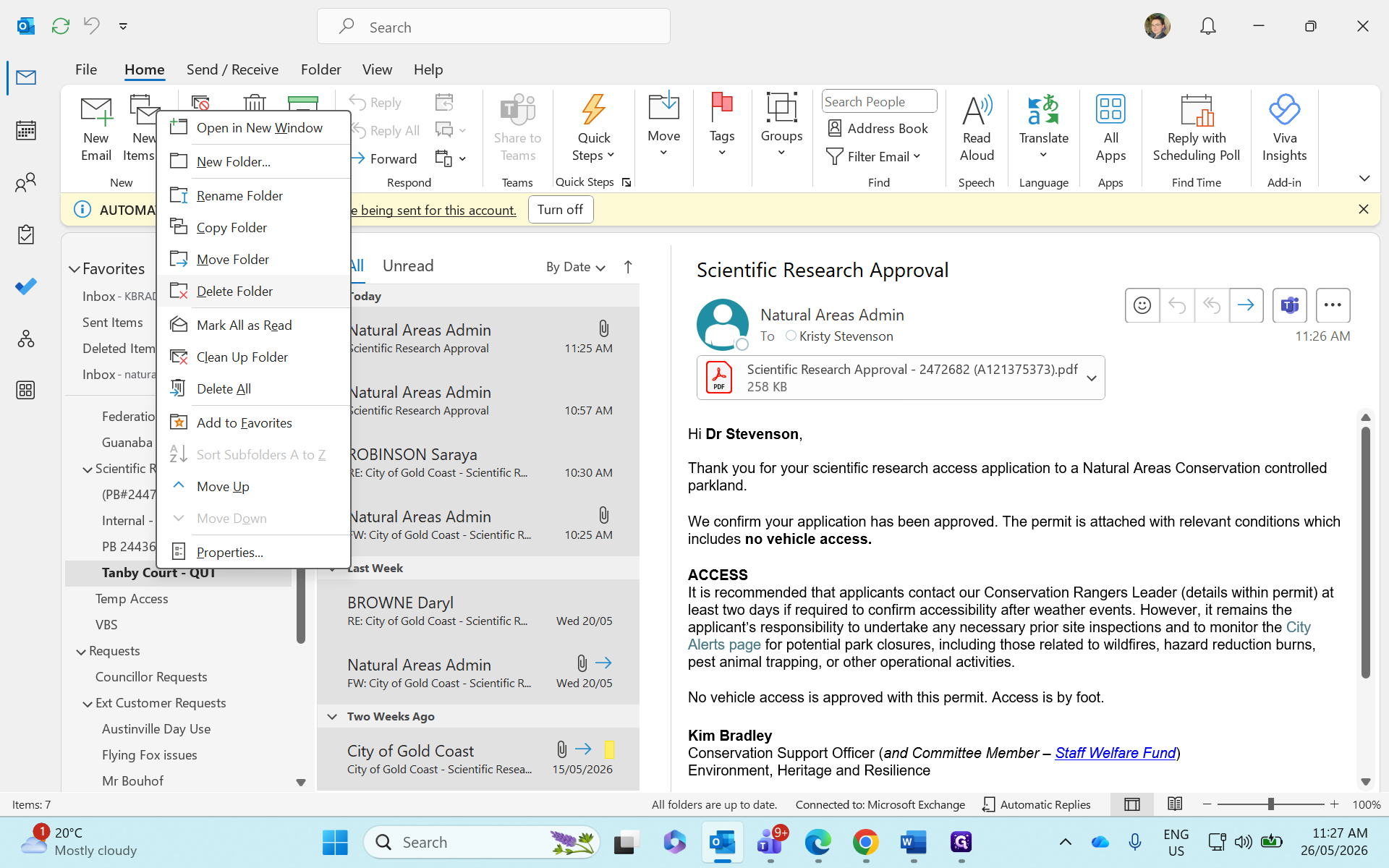
Right-click the working request folder in your email client.
Step #34: Right-click the working request folder in your email client.
35
Click Delete Folder.
Step #35: Click Delete Folder.
36
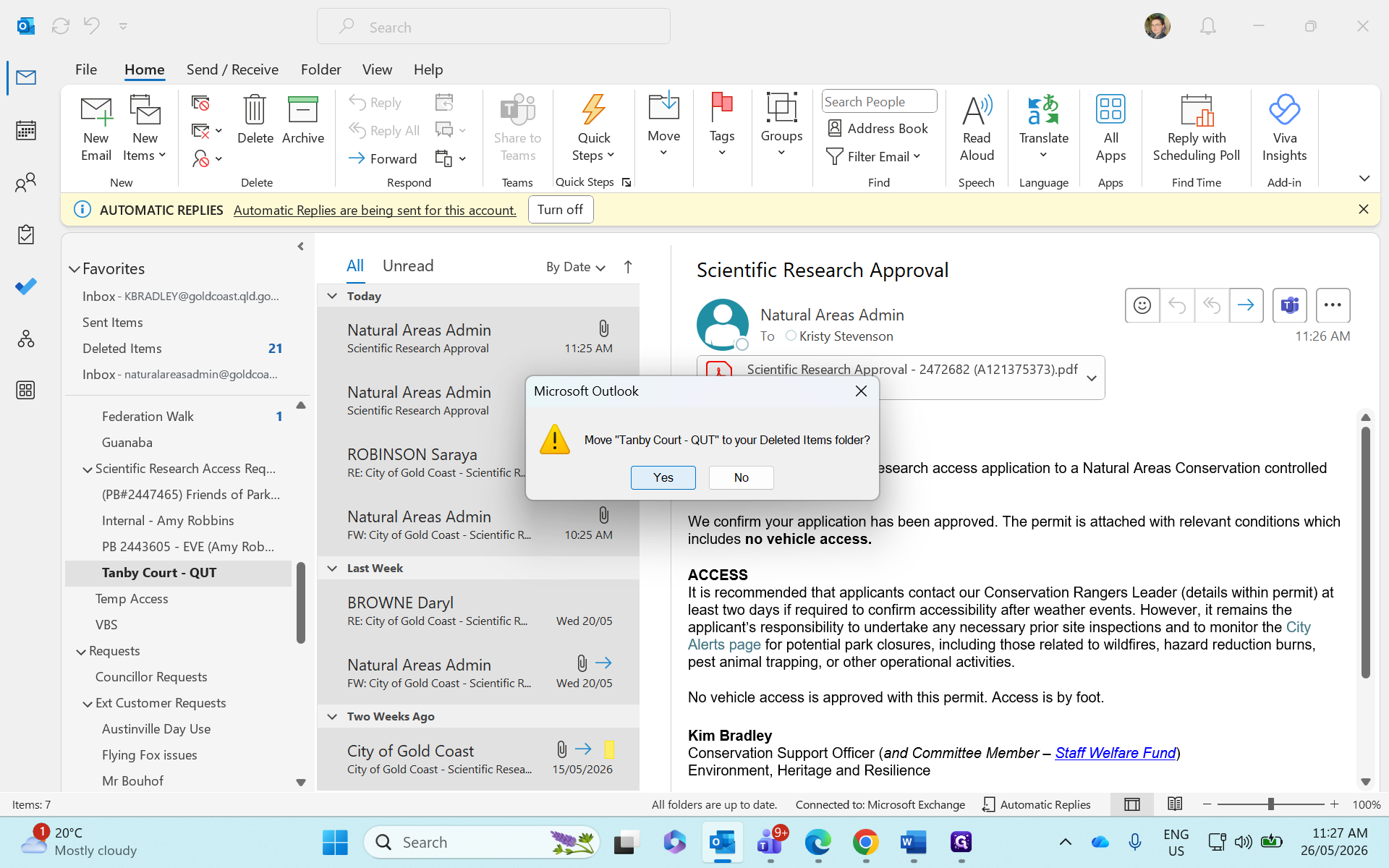
Click Yes to confirm the deletion.
Step #36: Click Yes to confirm the deletion.

Glossary

Term

Definition

Objective

The enterprise document management system used to store and link official records securely.

OneNote

A digital notebook application used by the team to store standard email templates and resources.