
Scientific Research Guide #2
Learn how to enter approved Scientific Research Access Requests into the RMS booking system, including configuring client details, dates, and activity types.
This guide explains how to enter approved Scientific Research Access Requests into the RMS booking system. Completing this process correctly ensures park research activities are properly tracked, scheduled, and documented for organizational reporting.
This workflow applies to Natural Areas administrators and booking staff. You will perform this task after the standard three-day team leader review period concludes and all park access details are confirmed via email.
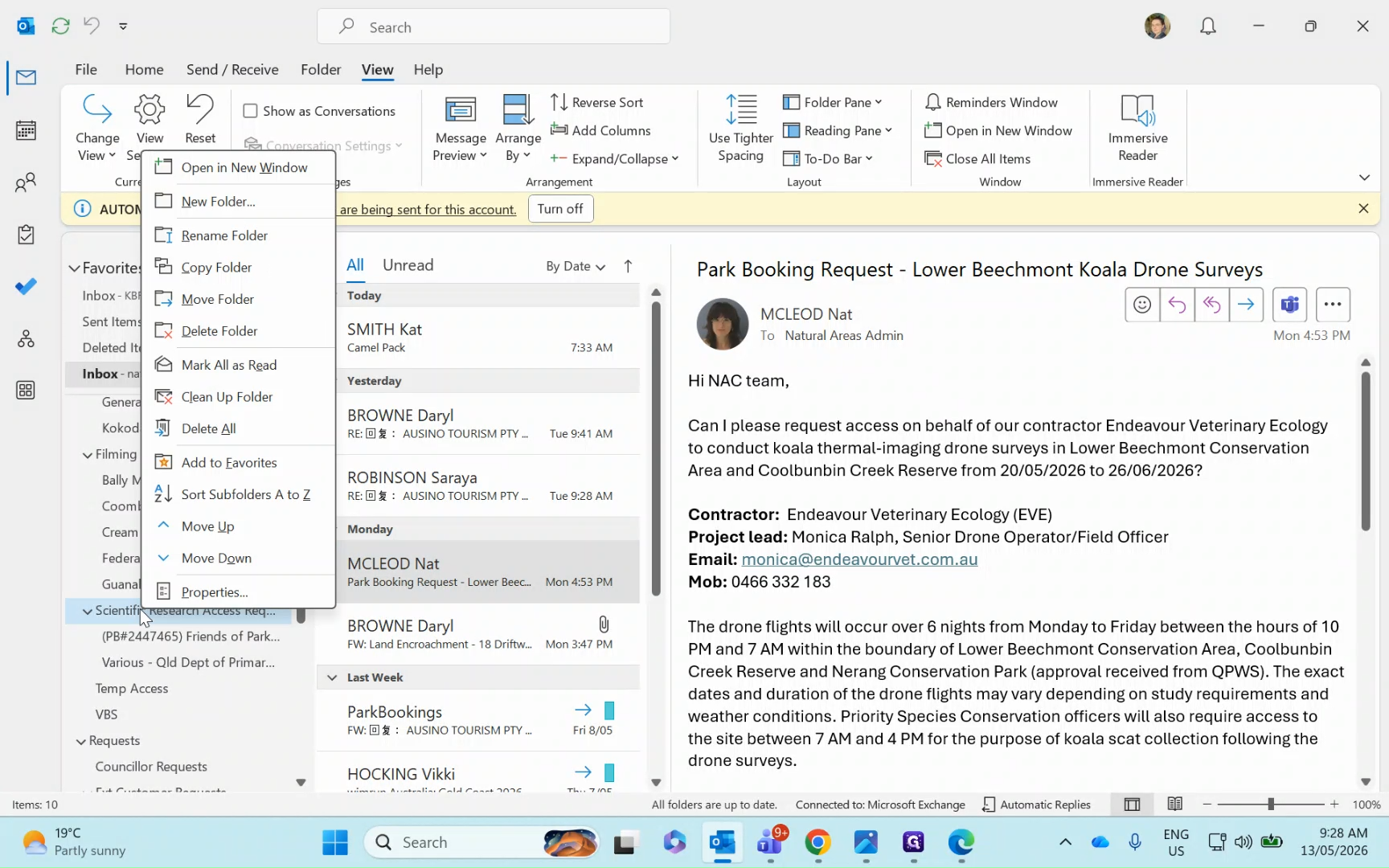
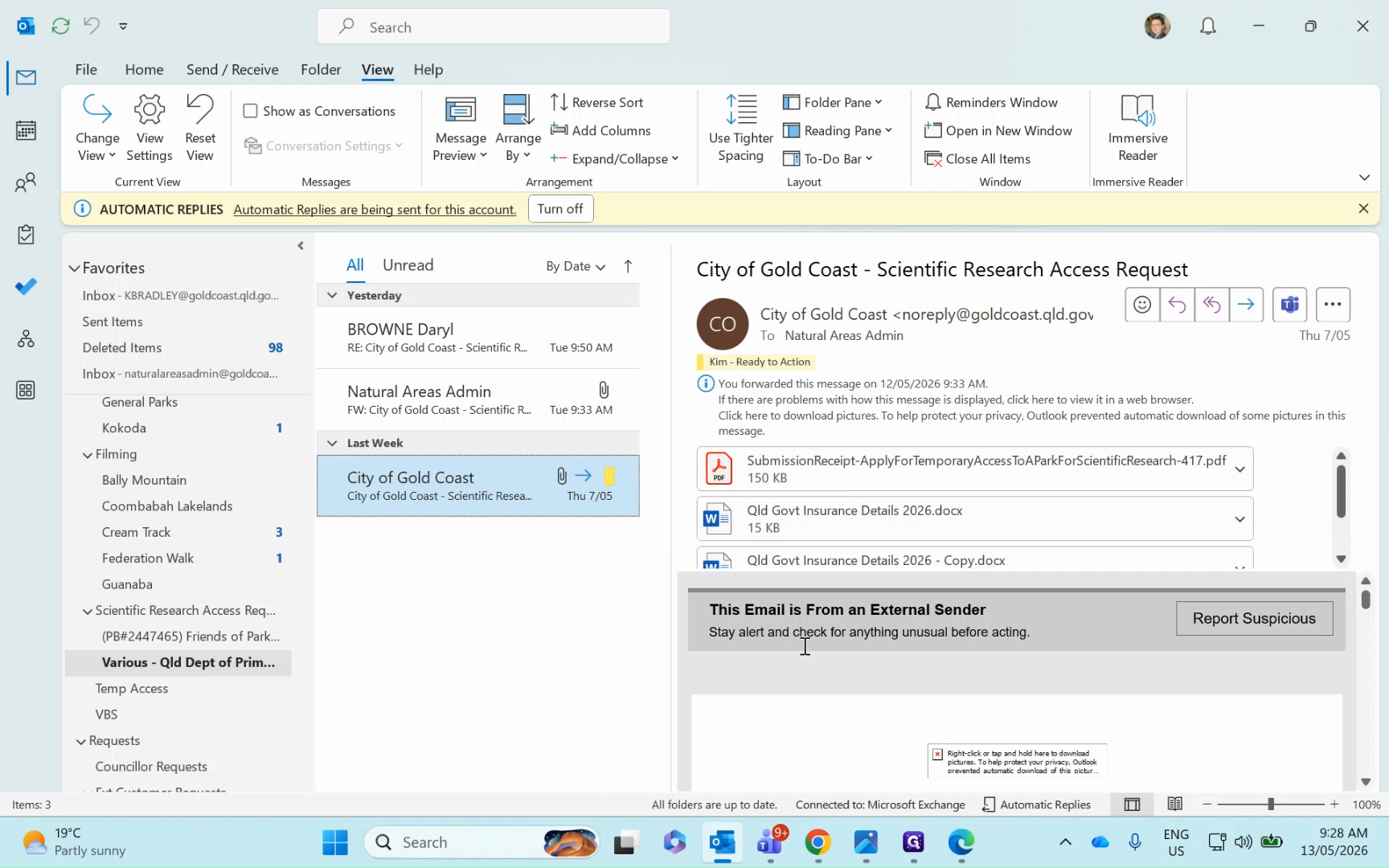
Locate the target park
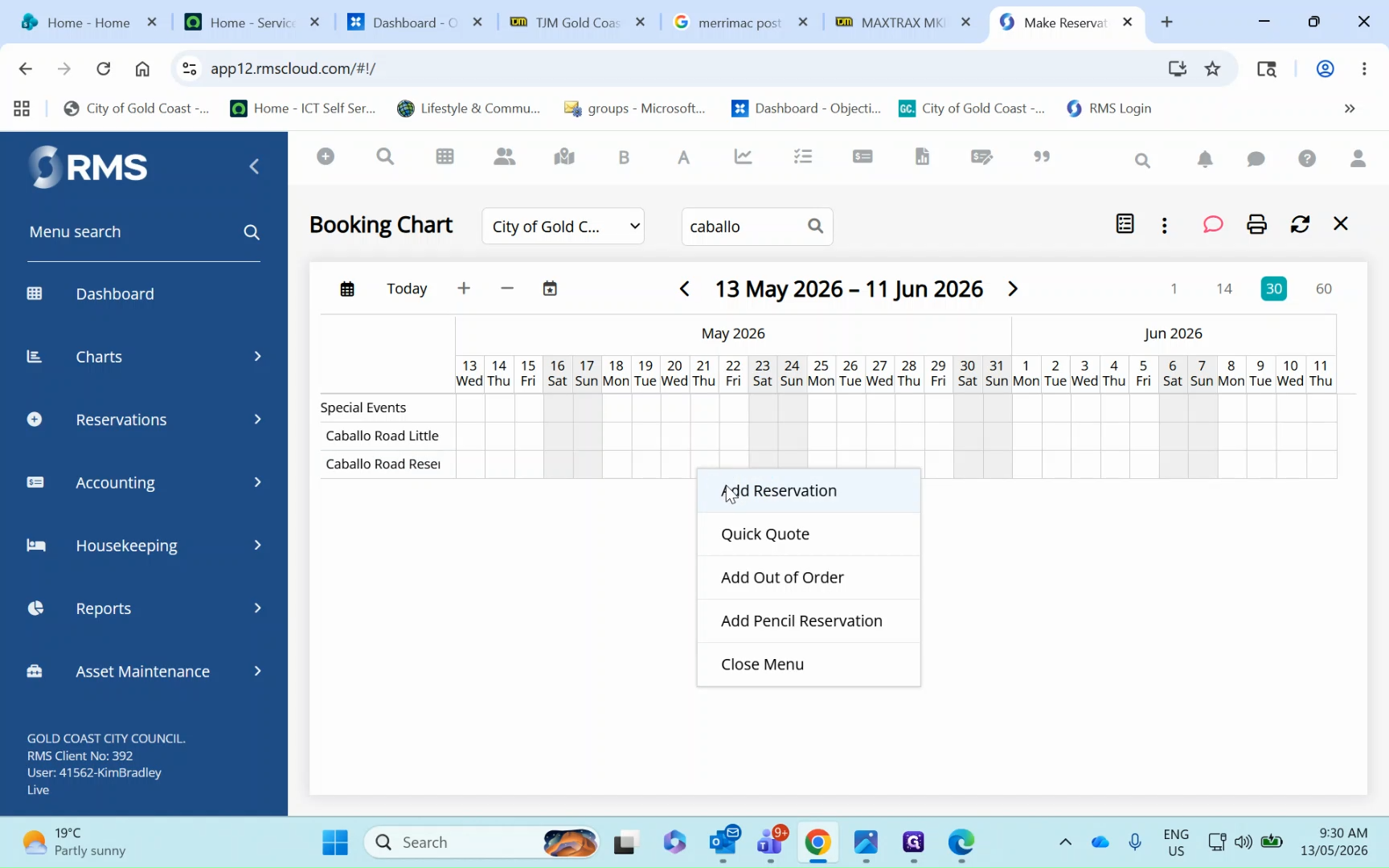
Begin by opening RMS and navigating to the specific park requested in the researcher's application.
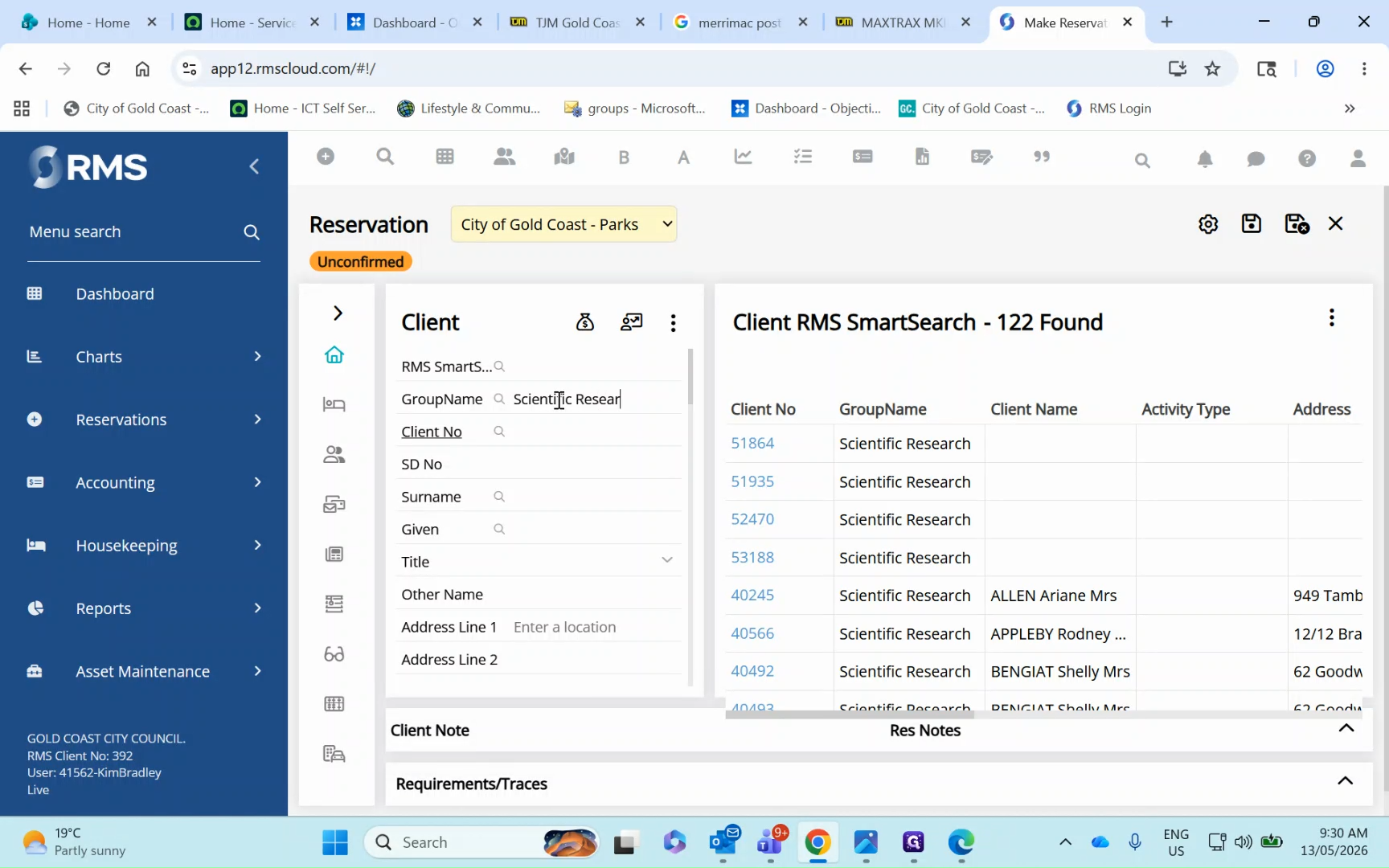
Enter client and research details
You must transfer the applicant's contact details from their email request directly into the RMS reservation panel.
Configure dates and times
Next, set the approved access duration and the daily operational hours permitted for the research team.
Categorize and save
Apply the correct internal classifications to the booking before generating the final reservation number.
Once saved, RMS will generate a reservation number. Keep note of this number, as you will need to include it in the final approval letter sent back to the applicant.
FAQ
Q: Why can't I save the reservation?
A: Check for any empty mandatory fields. In RMS, all compulsory fields are outlined in blue. If any are left blank, the system will prevent you from completing the save action.
Q: What if the research access request covers multiple parks?
A: First, create the initial reservation for one park as outlined in this guide. Once saved, you will use the duplicate area booking function within RMS to add the remaining requested parks to the exact same reservation file.