
How to Search Project PDFs for ERP Part Numbers in Teams
Learn how to navigate Microsoft Teams channels to locate Eplan project files and search for specific ERP part numbers using your browser.
This guide explains how to navigate Microsoft Teams to locate Eplan PDF documentation for the SYM ITC 2025 project and efficiently search for specific ERP part numbers within those files.
This workflow applies to technicians, engineers, and project managers who need to cross-reference equipment tags and bill of materials (BOM) numbers directly from project schematics during procurement or troubleshooting.
Navigating to the Project Directory
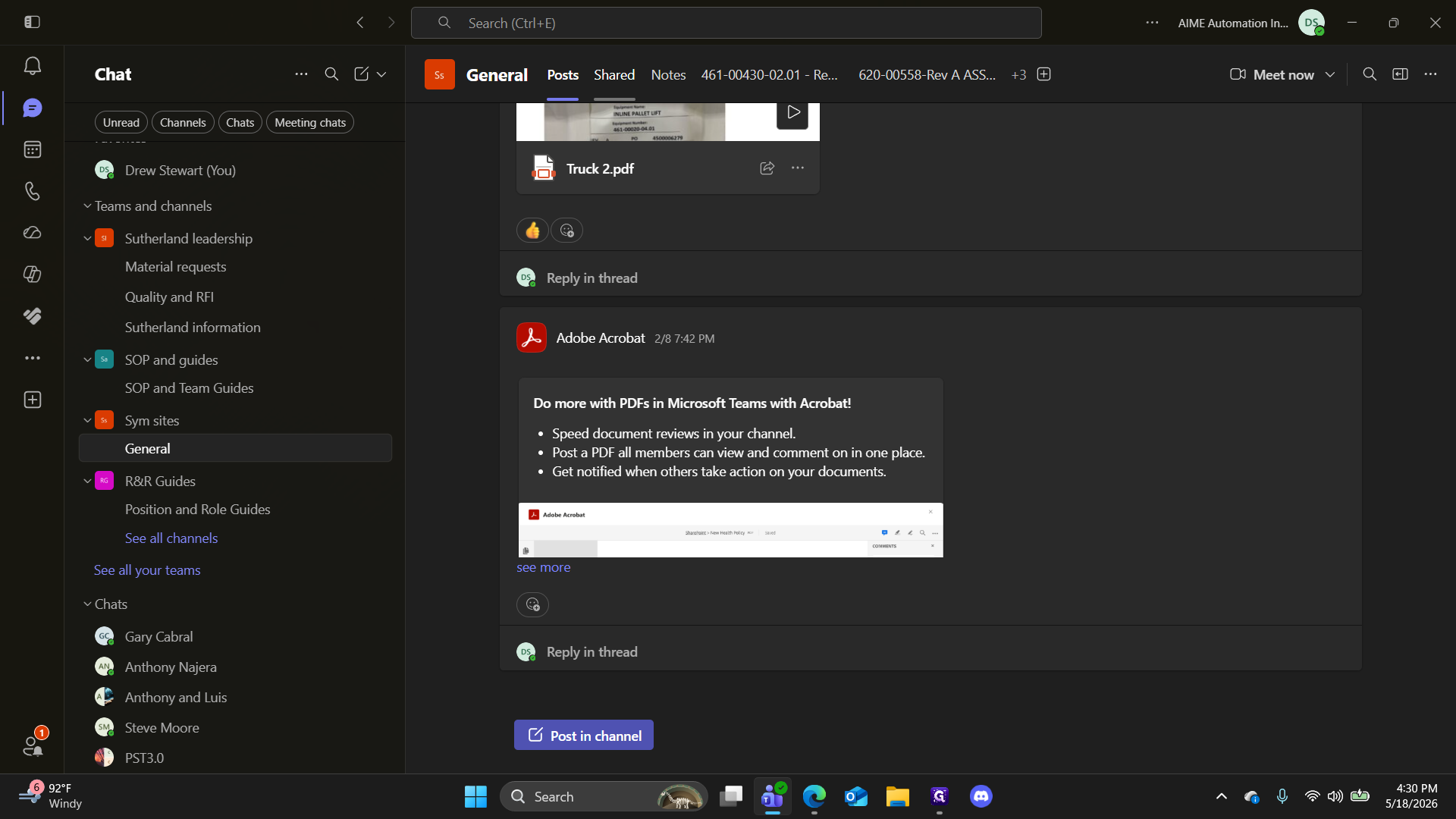
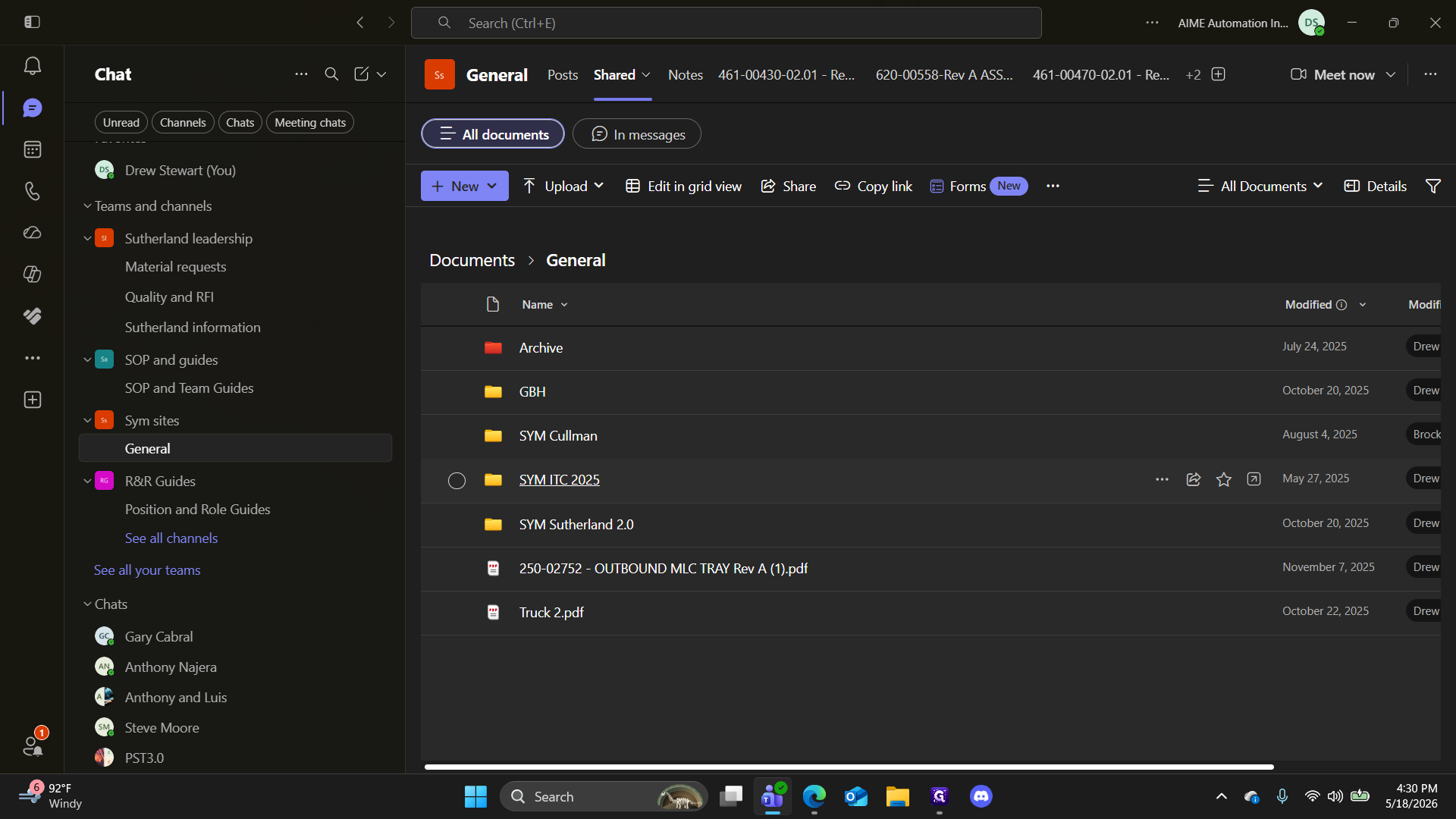
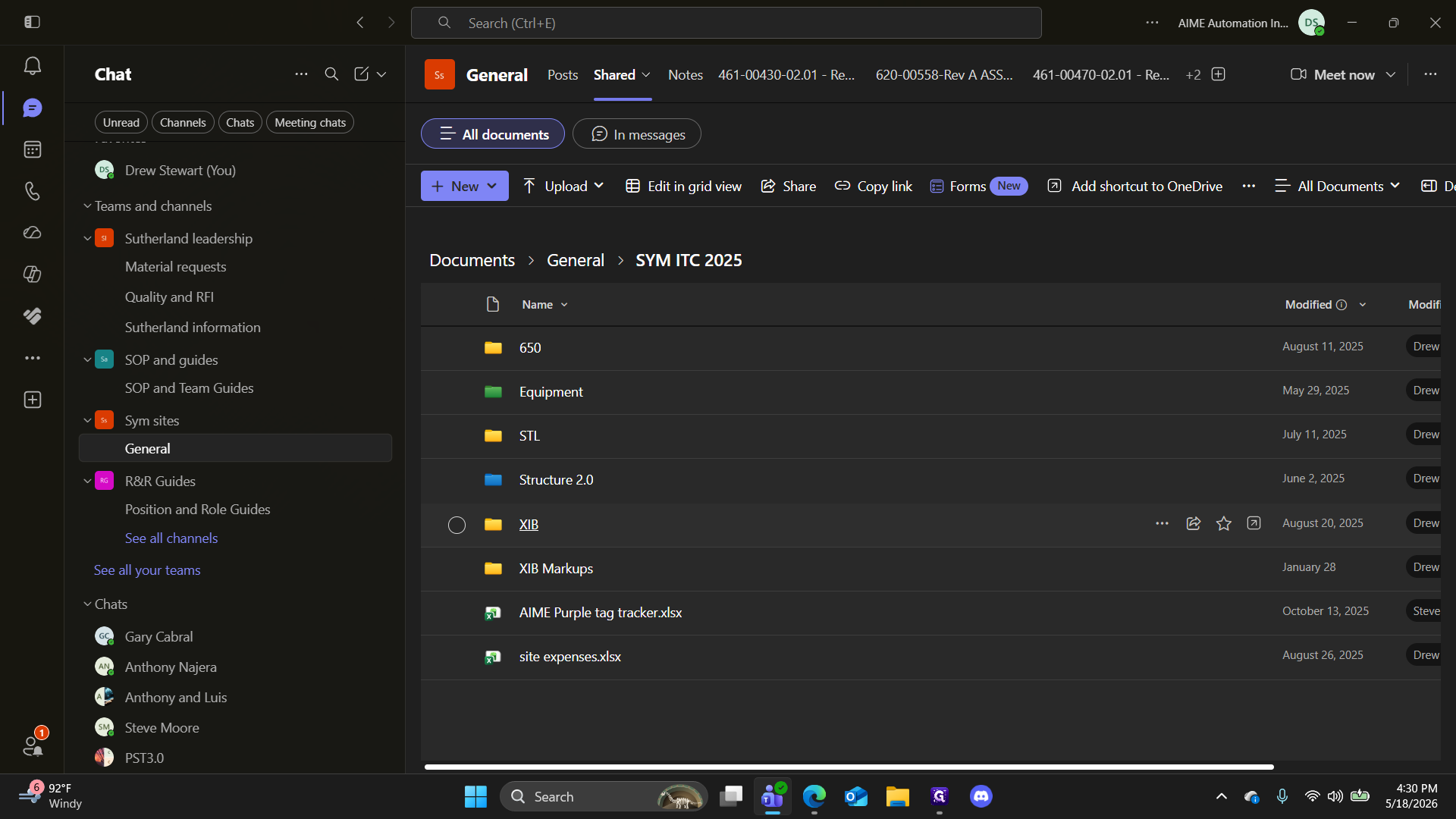
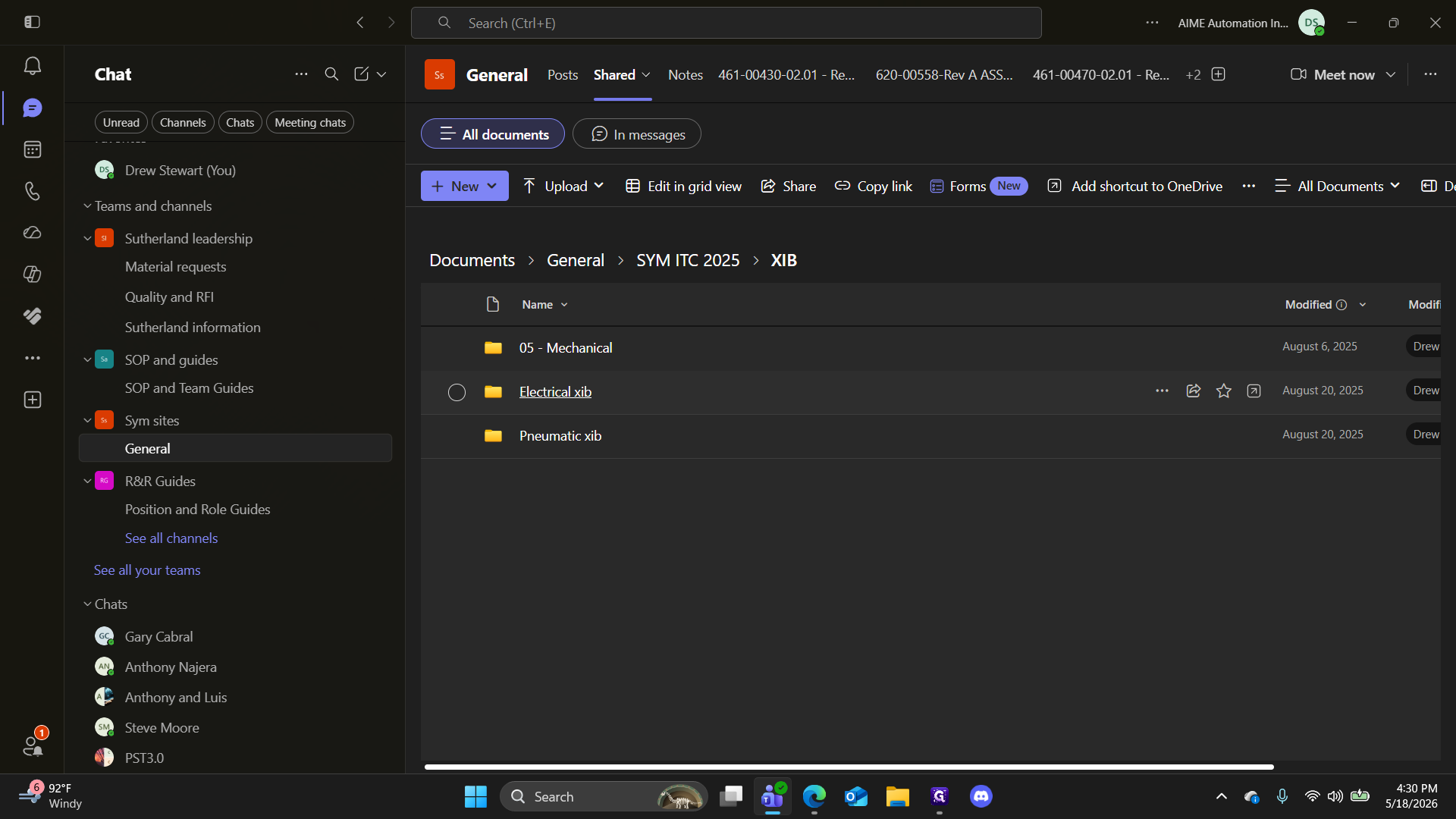
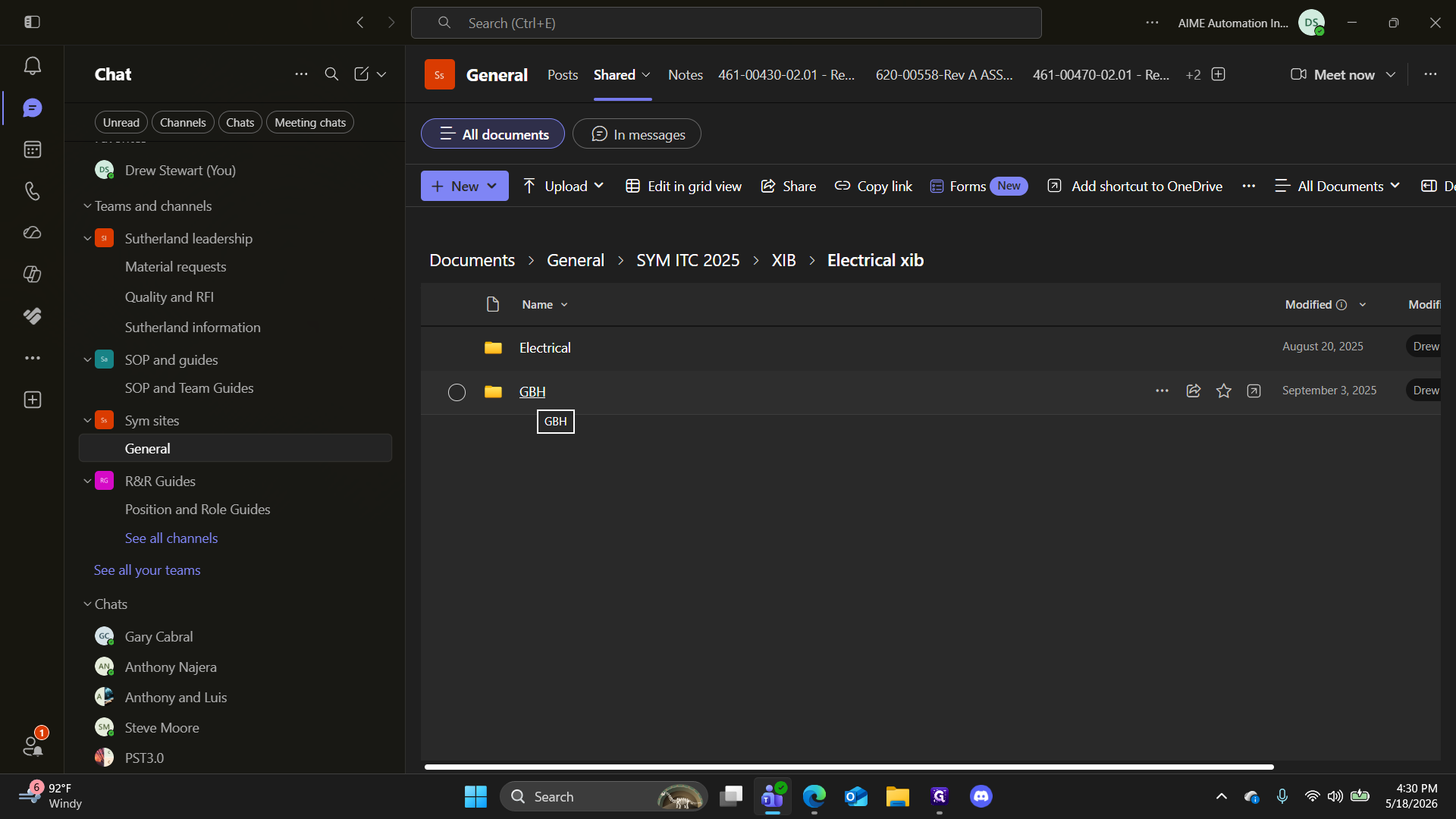
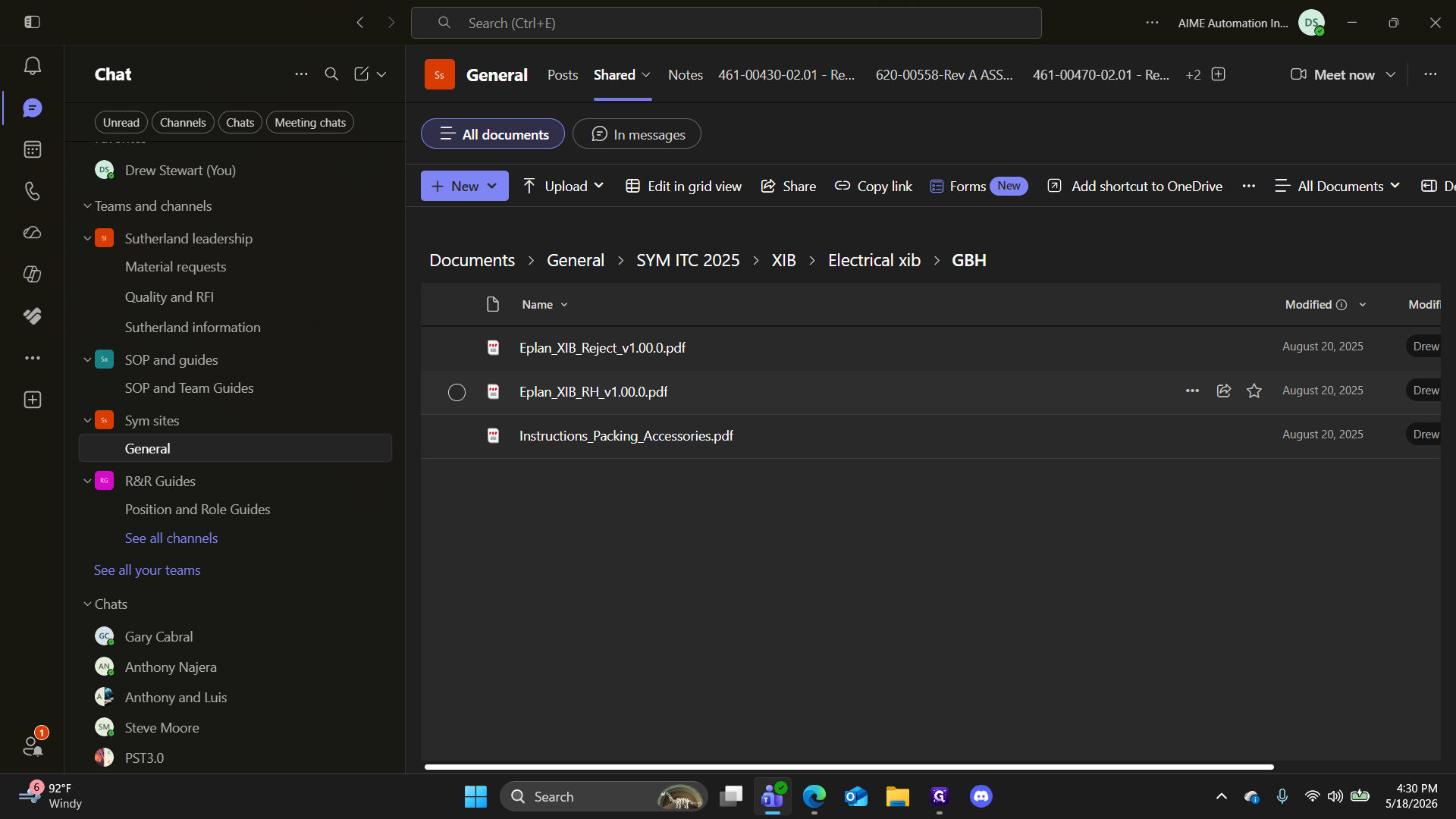
To find the correct engineering documents, you need to drill down into the specific project folders within your Teams workspace.
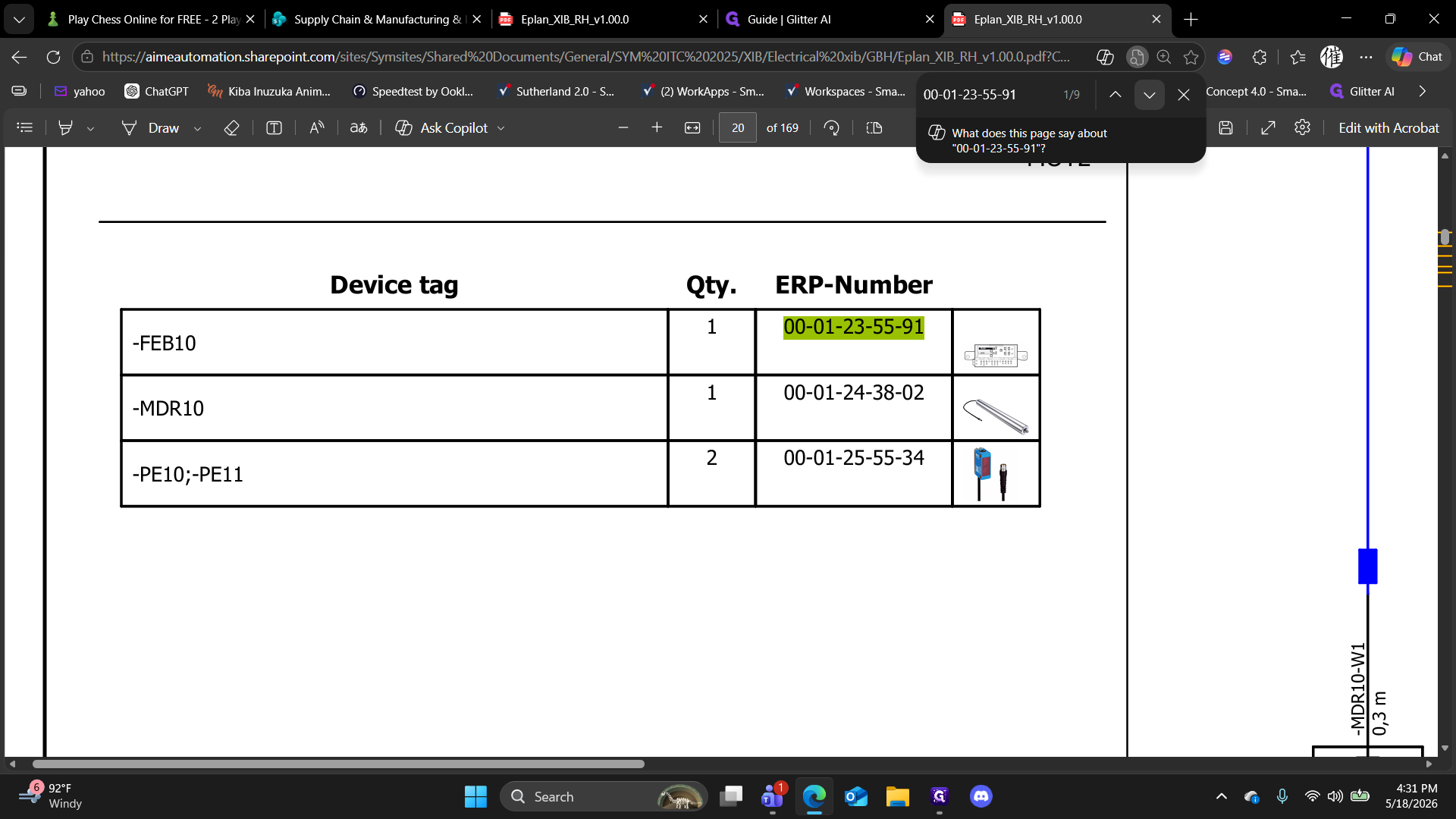
Opening and Searching the PDF
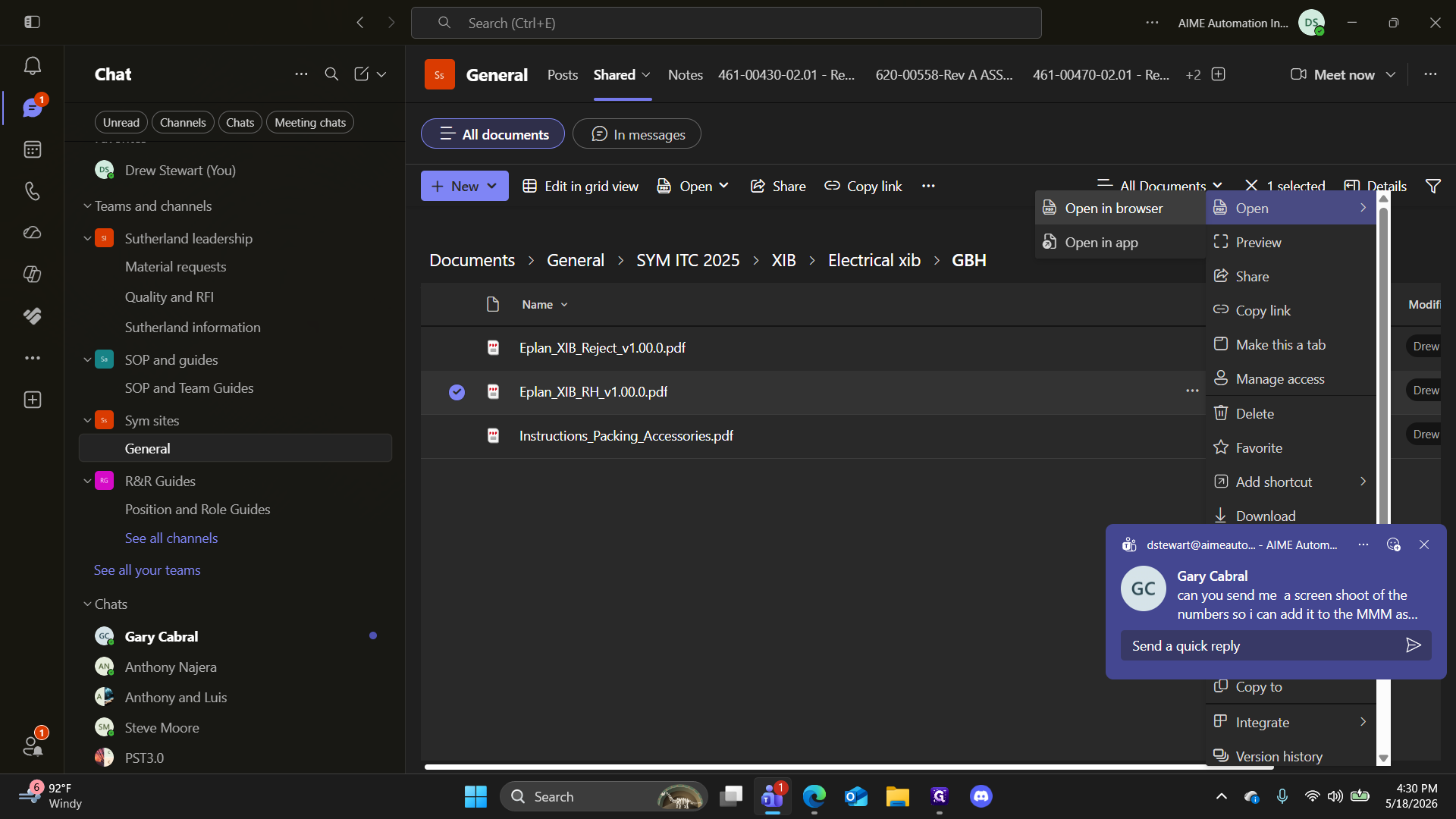
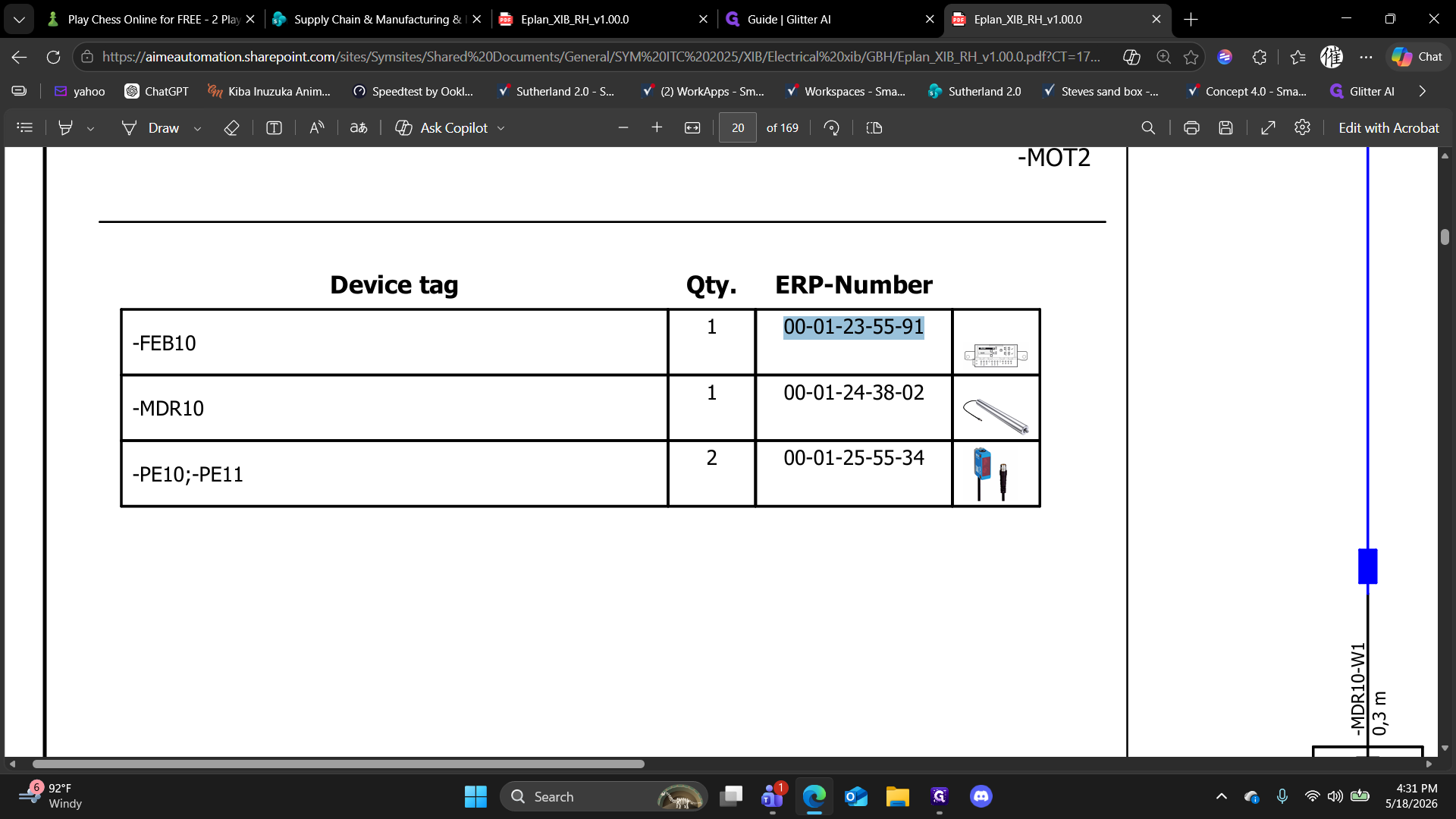
While Microsoft Teams has a built-in PDF viewer, opening large technical schematics in a dedicated web browser provides better search capabilities and performance.
FAQ
Q: Why should I open the PDF in a browser instead of viewing it directly in Teams?
A: Teams' native document viewer can sometimes struggle with large, multi-page Eplan schematics. Using your browser ensures faster rendering, smoother scrolling, and access to robust text-search tools (Ctrl+F) that are essential for finding specific part numbers.
Glossary
Term | Definition |
|---|---|
ERP Number | Enterprise Resource Planning number; a unique identifier used to track specific parts for procurement and inventory. |
Eplan | A specialized software platform used extensively for electrical design, schematics, and fluid engineering documentation. |
BOM | Bill of Materials; a comprehensive list of parts, components, and quantities required to build or repair a system. |