
Send Client Contracts Using DocuSign Pilot Services Agreement Template
Learn how to prepare and send a client contract by attaching a scope of work to a pre-configured template in DocuSign.
This guide explains how to prepare and send a contract using a pre-existing template in DocuSign. By following these steps, you can quickly attach a custom scope of work and configure recipient details to securely gather client signatures.
This process is for sales representatives or account managers who are finalizing deals. Use this workflow whenever a client has approved a proposal and is ready to officially sign the standard services agreement.
Logging In and Selecting the Template
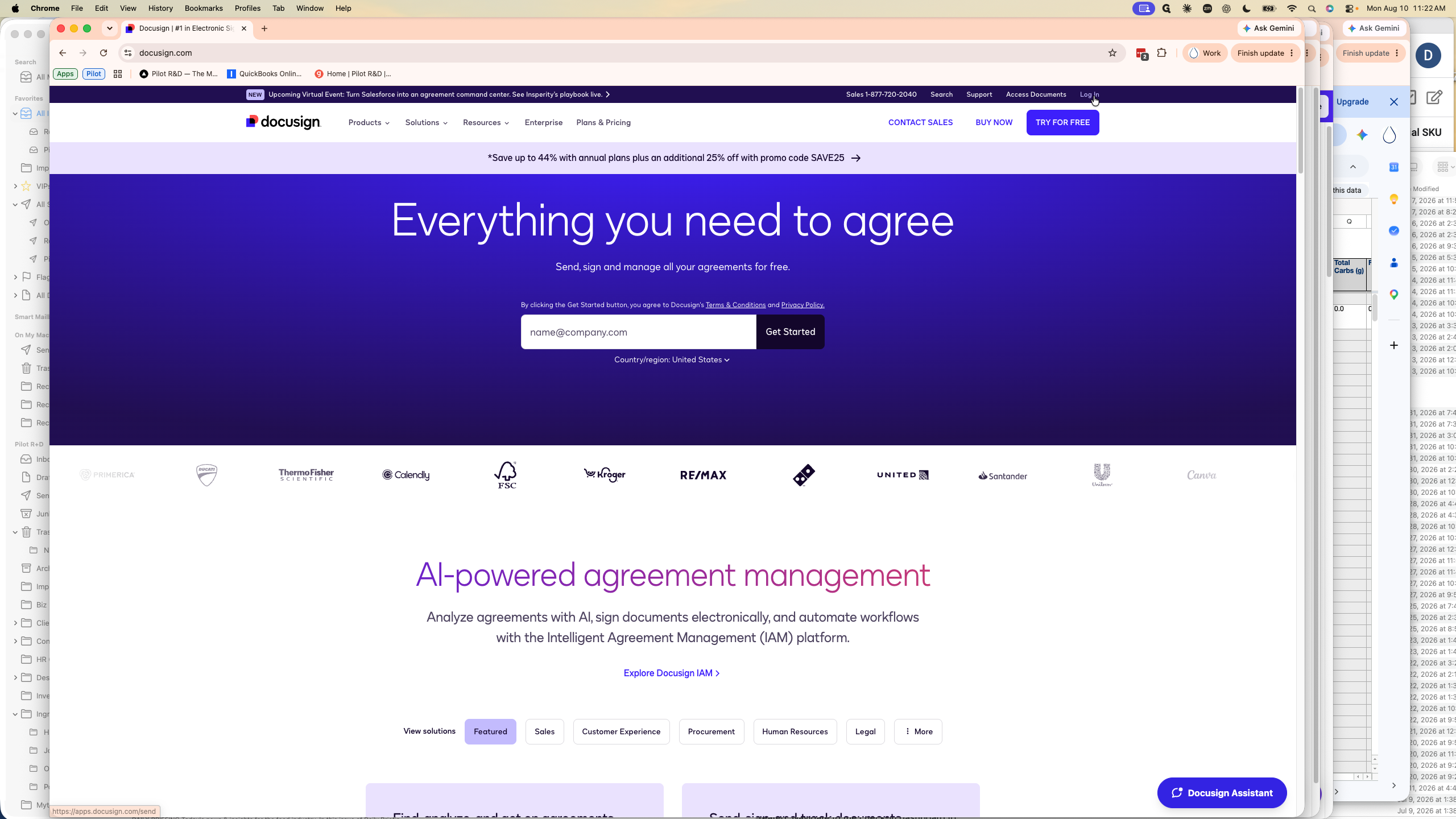
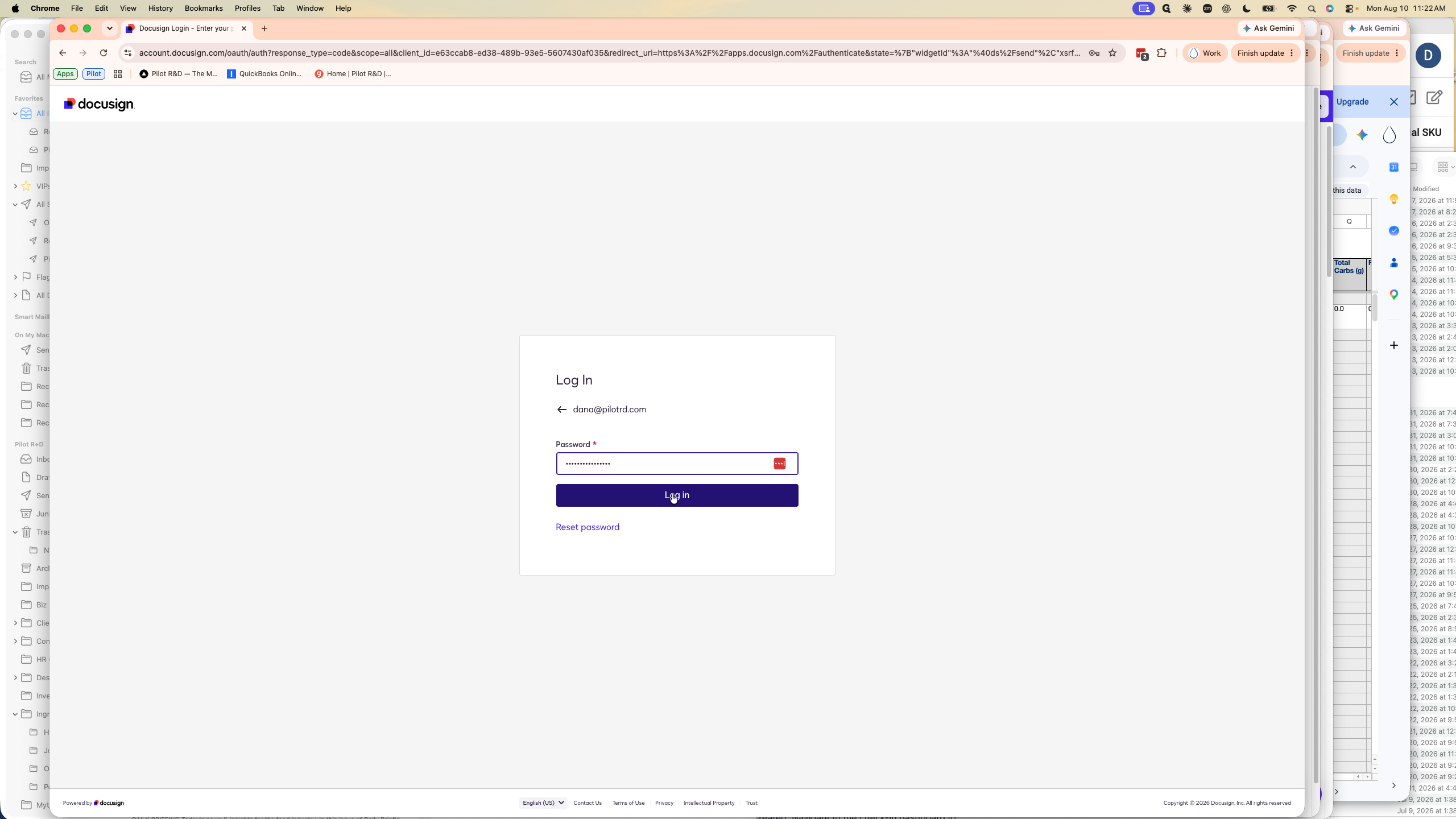
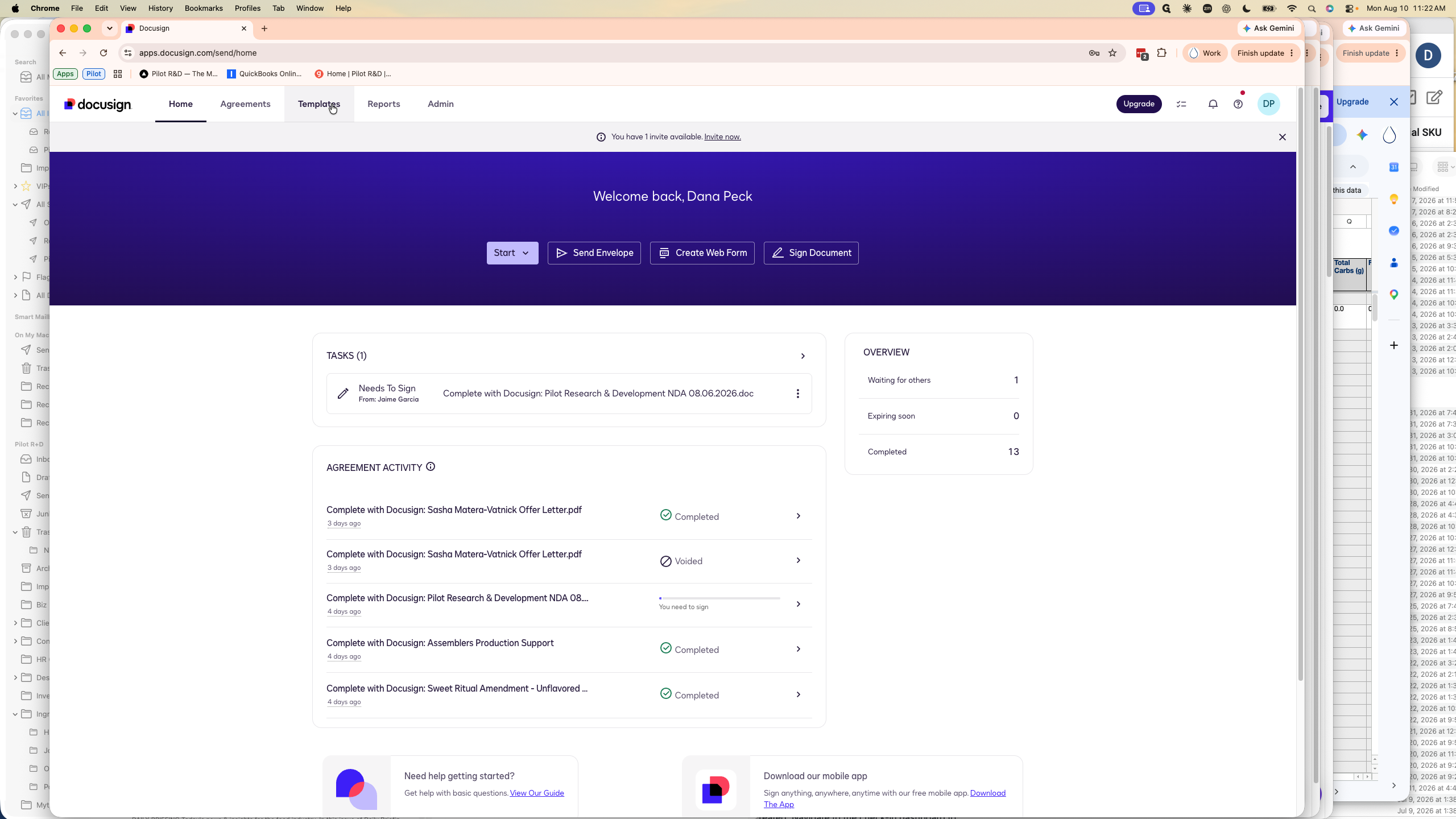
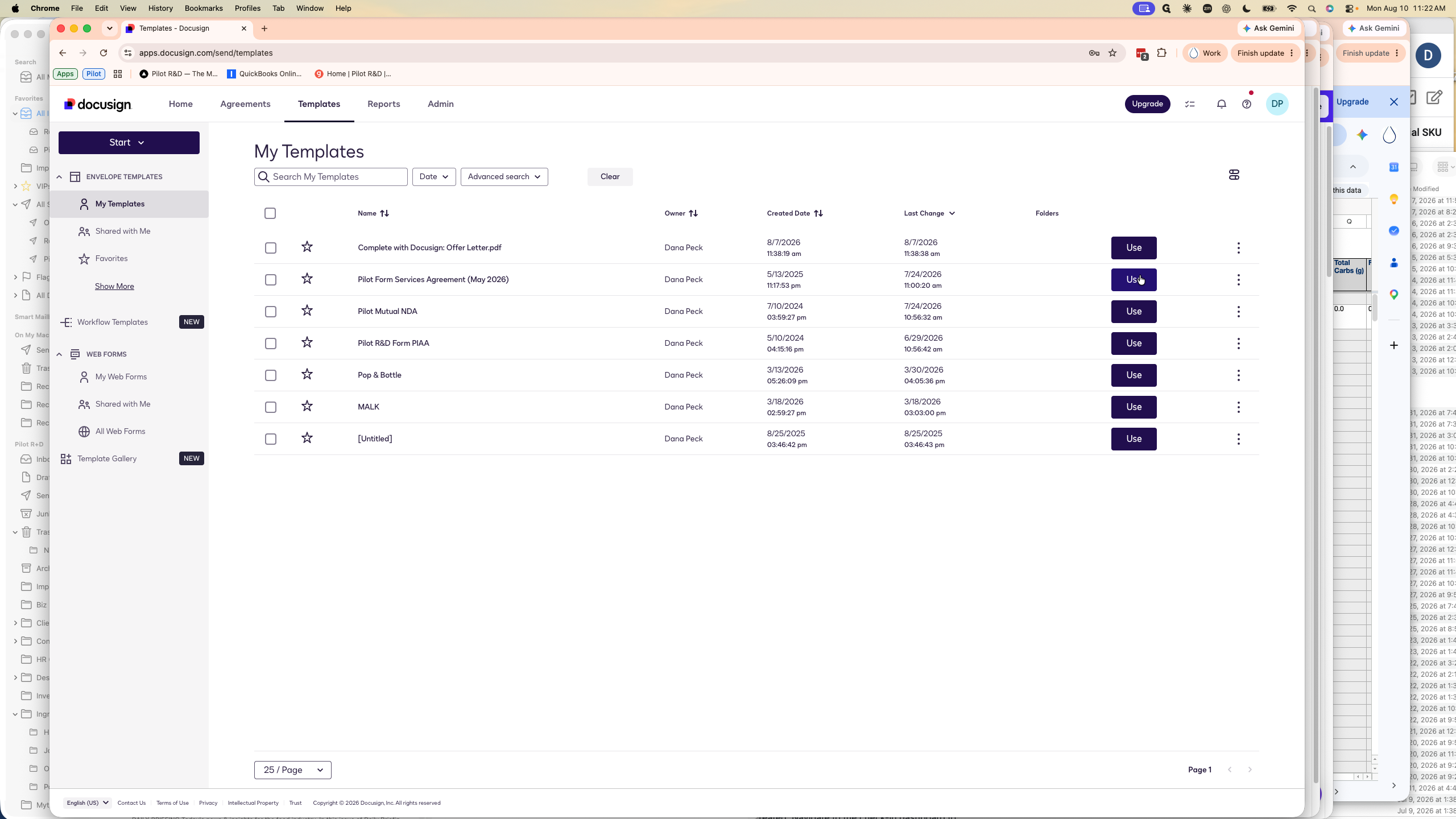
Begin by logging into your DocuSign account to access your organization's standardized agreements.
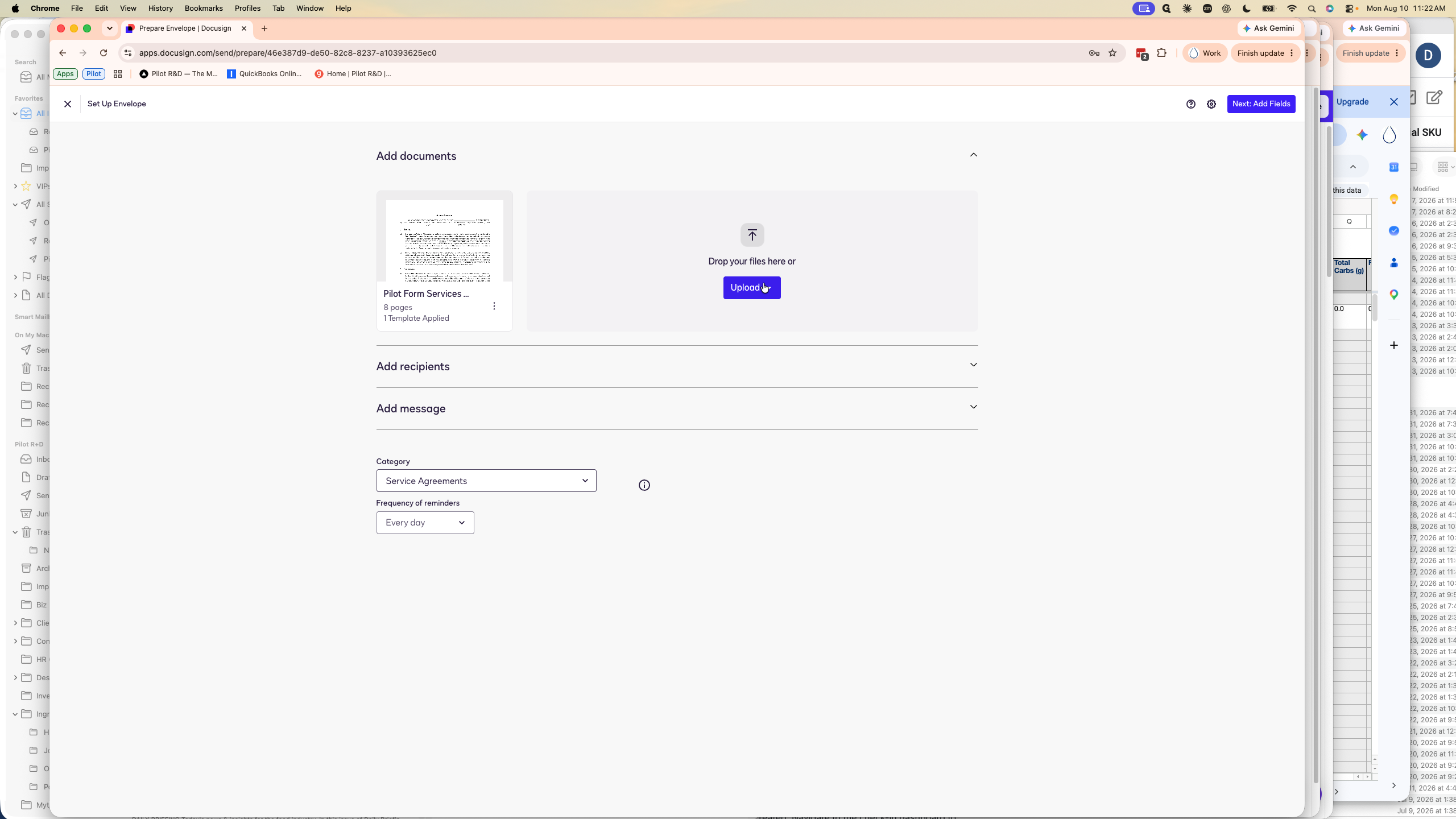
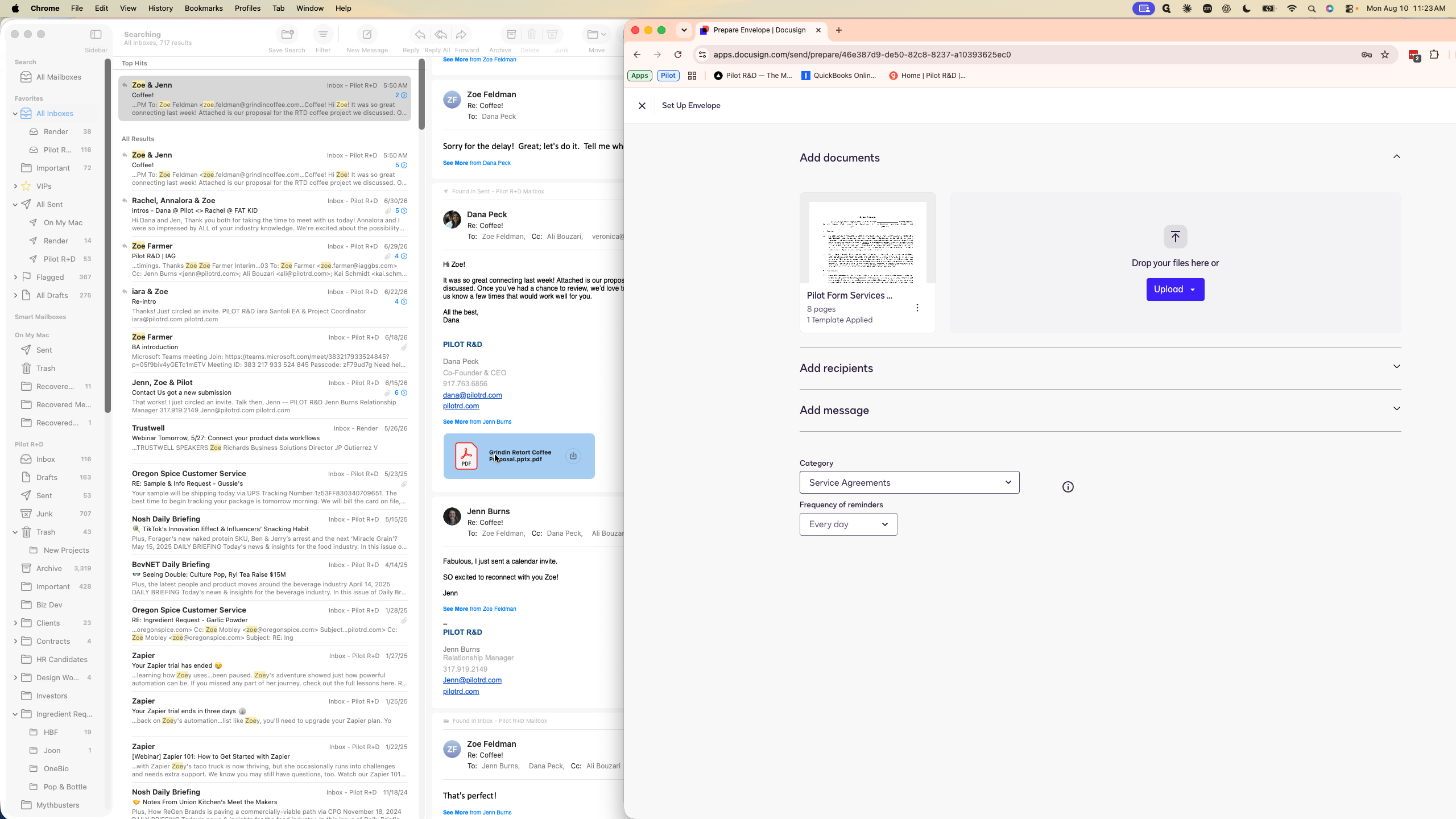
Uploading the Scope of Work
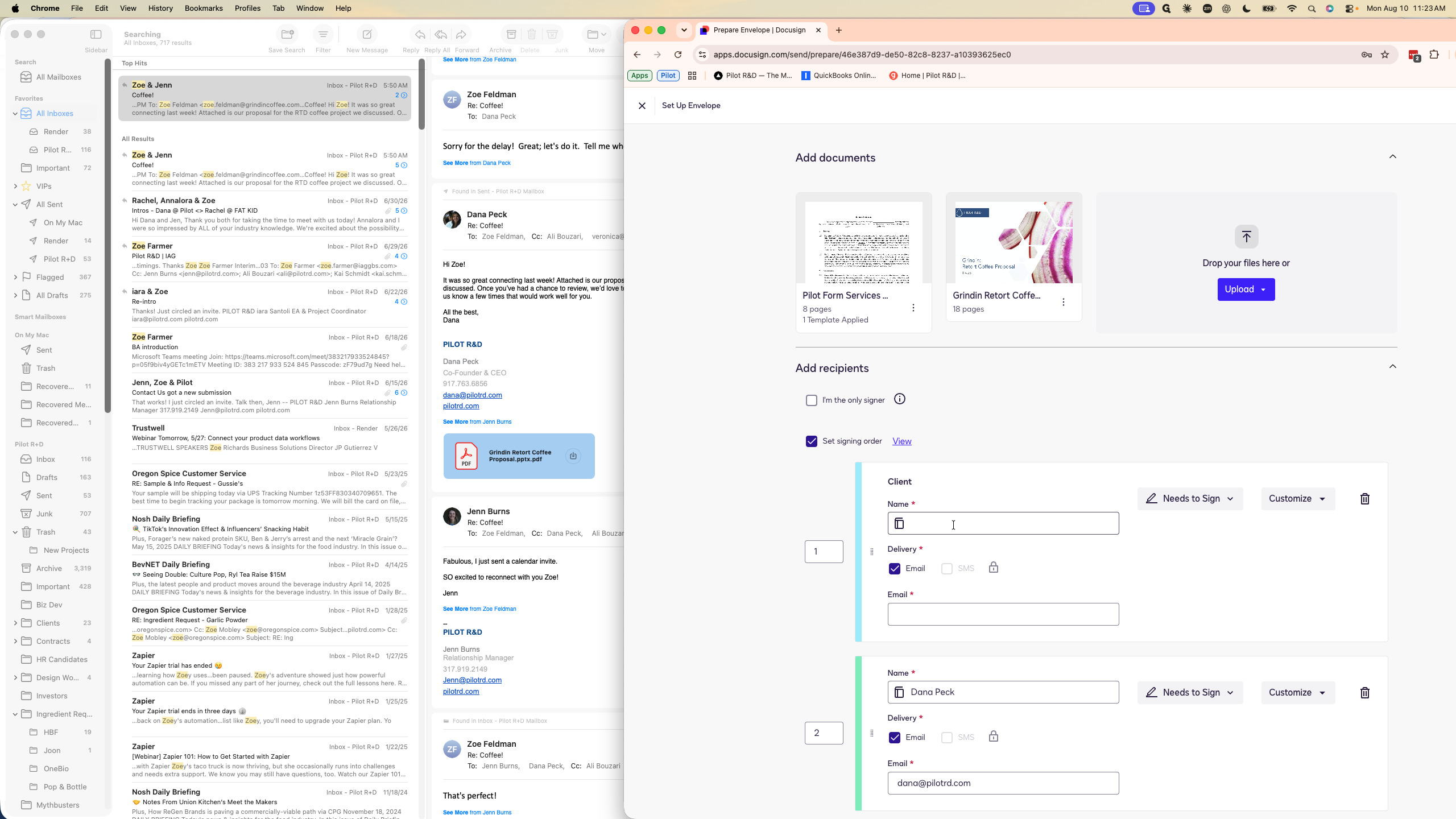
By default, the template only includes the base contract. You must attach the specific Scope of Work (SOW) before you send the envelope.
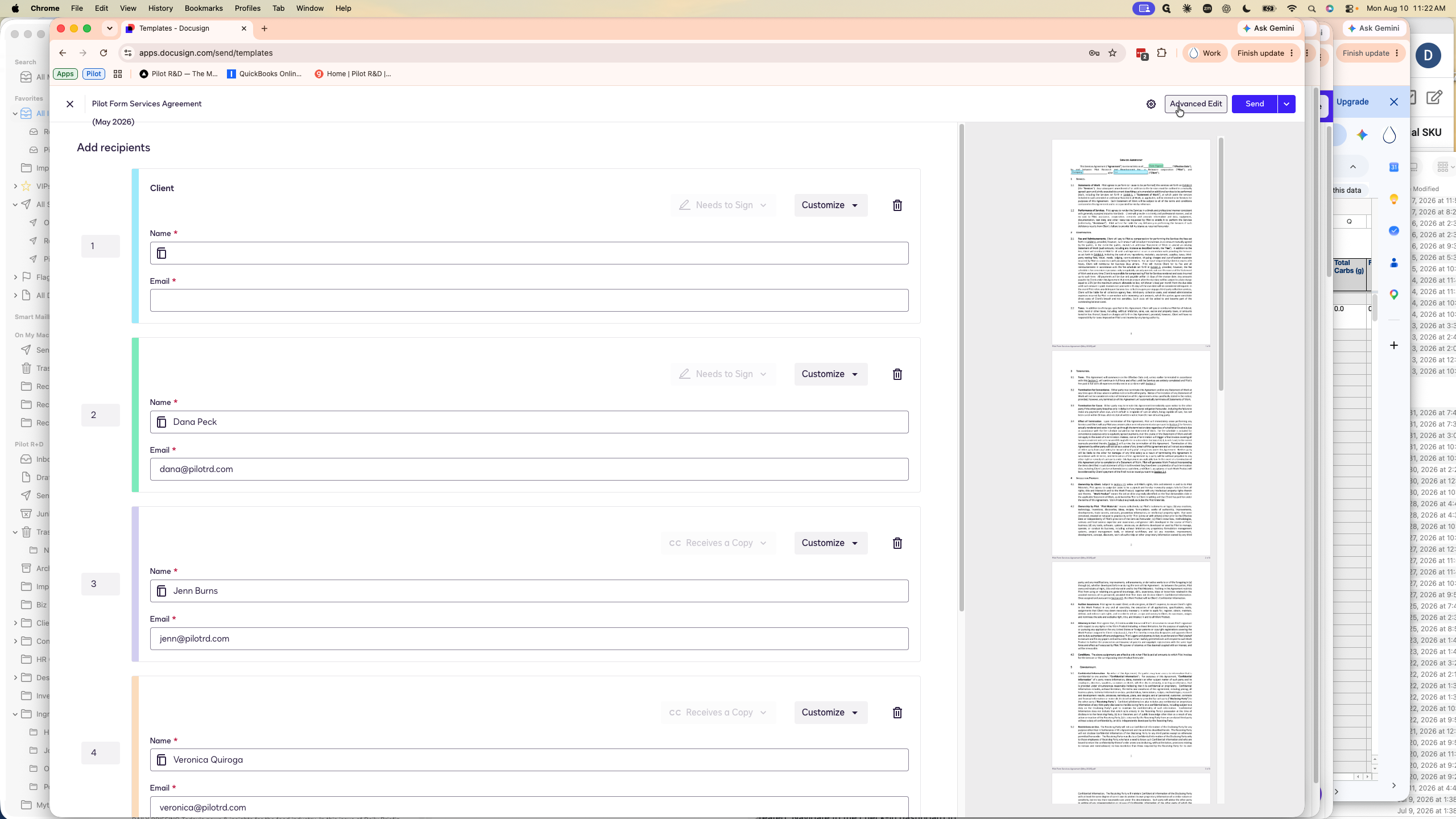
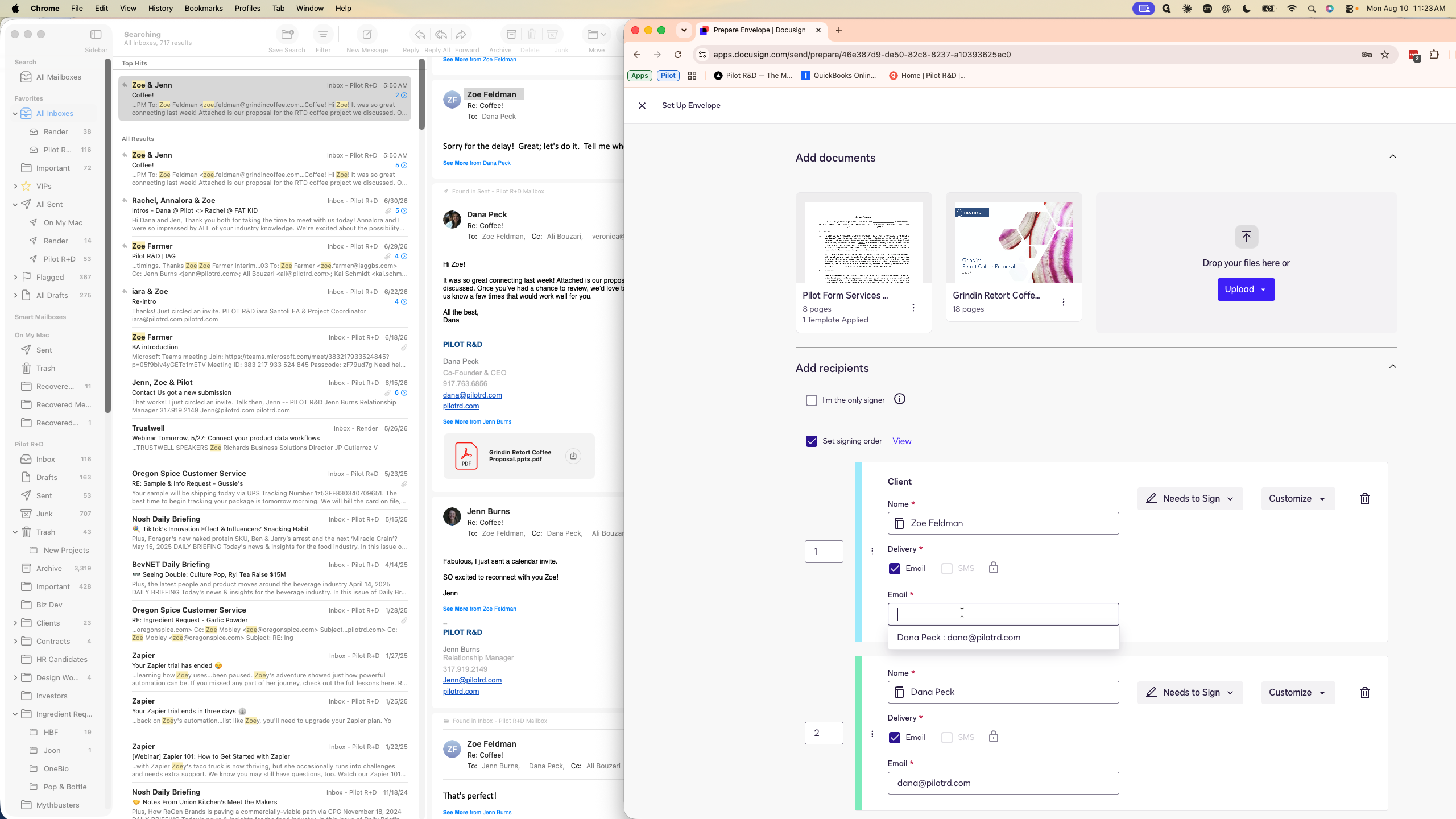
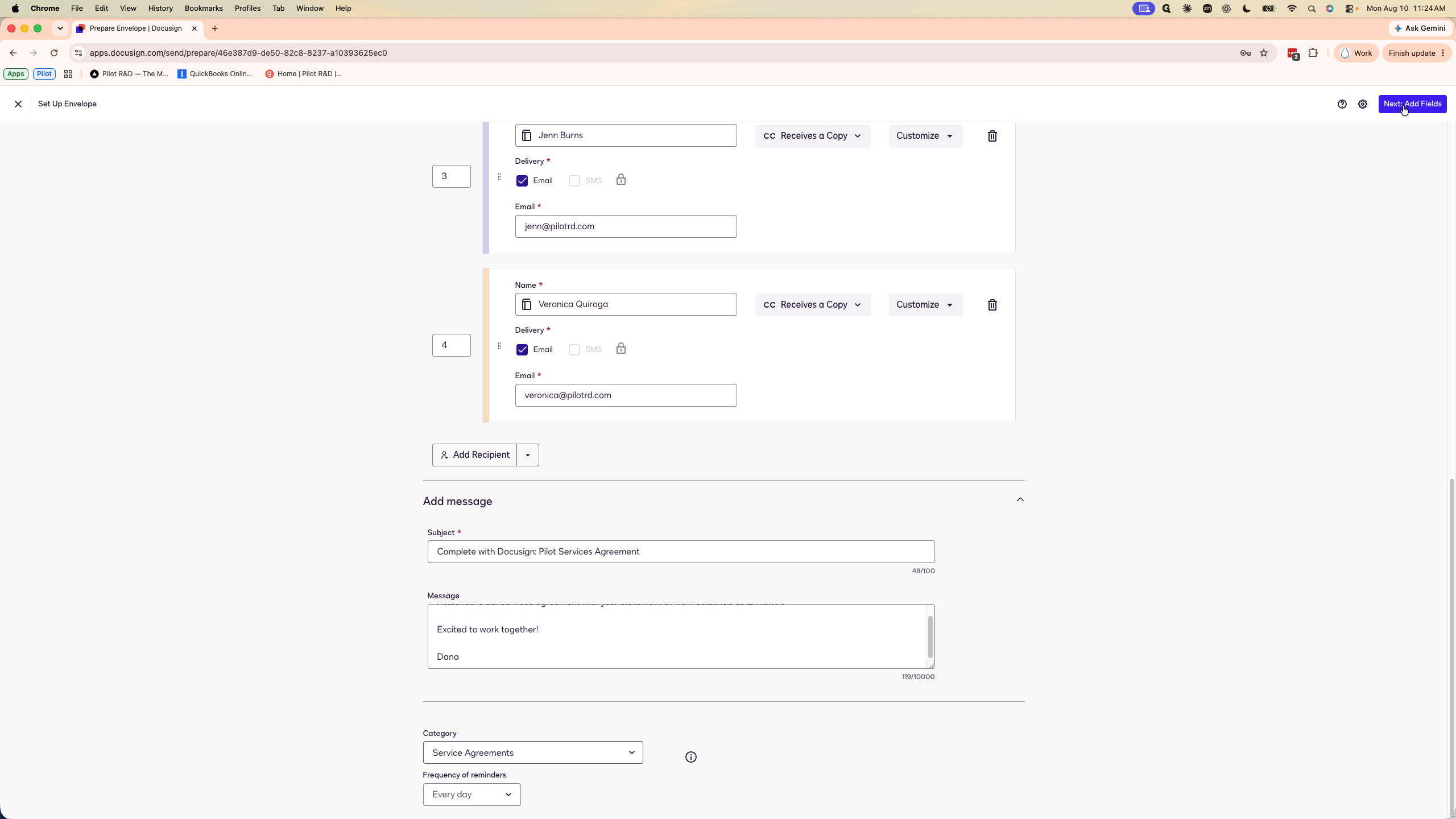
Adding Recipient Details
With both the contract and SOW attached, input the client's contact information so they receive the document.
Reviewing and Sending
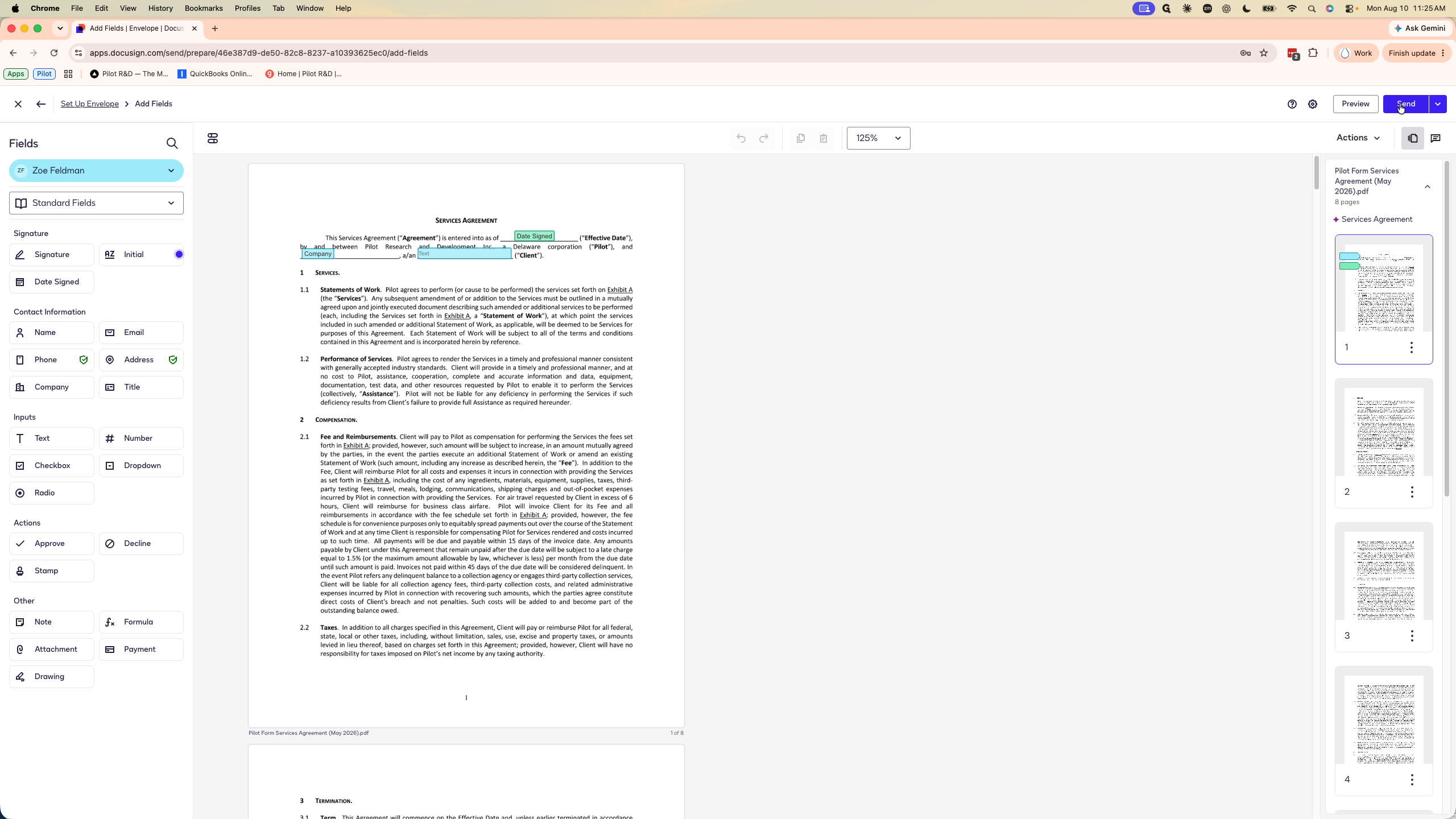
The template automatically populates all required fields, including the client's signature, name, title, address, phone number, company name, entity type, and the date signed.
Scroll through the document briefly to verify all fields are correctly placed and ensure no stray fields were automatically added by DocuSign.
Q: Do I need to manually set the signing order for internal approvals?
A: No, the template is pre-configured so that the client signs first. Once they sign, the contract is automatically routed to you for a signature, and then copies are sent to the rest of the team.
Q: Do I need to manually add signature or date fields to the document?
A: No, all required fields—such as the signature, date signed, company name, and entity type—are pre-populated by the template. You only need to quickly scroll through to confirm there are no extraneous fields.
Q: What if I need to alter the contract text itself?
A: This standard workflow applies to unchanged contracts. If you need to negotiate or make alterations to the contract terms, you must follow a separate procedure for altering agreements.
Term | Definition |
|---|---|
Scope of Work (SOW) | A document outlining the specific tasks, deliverables, and timelines associated with a project or contract. |
Template | A pre-configured document setup in DocuSign that standardizes recipient roles, routing orders, and signature fields for repeated use. |
Envelope | The container used by DocuSign to send one or more documents for signature, complete with recipient routing and field placement. |