Icon

How to Send Remittance Advice to a Supplier

Learn how to generate a Creditor Activity Report, save it to a client matter, and email it to a supplier to confirm payment.

By Easy Law

This guide explains how to provide a supplier with remittance advice confirming that their bill has been paid. By completing these steps, you will generate an activity report, store it securely in the relevant client matter, and attach it to an email back to the supplier.

This process is intended for accounts payable staff, legal assistants, and administrative roles who manage disbursements and handle direct payment inquiries from third-party vendors.

Generate the Creditor Activity Report
1
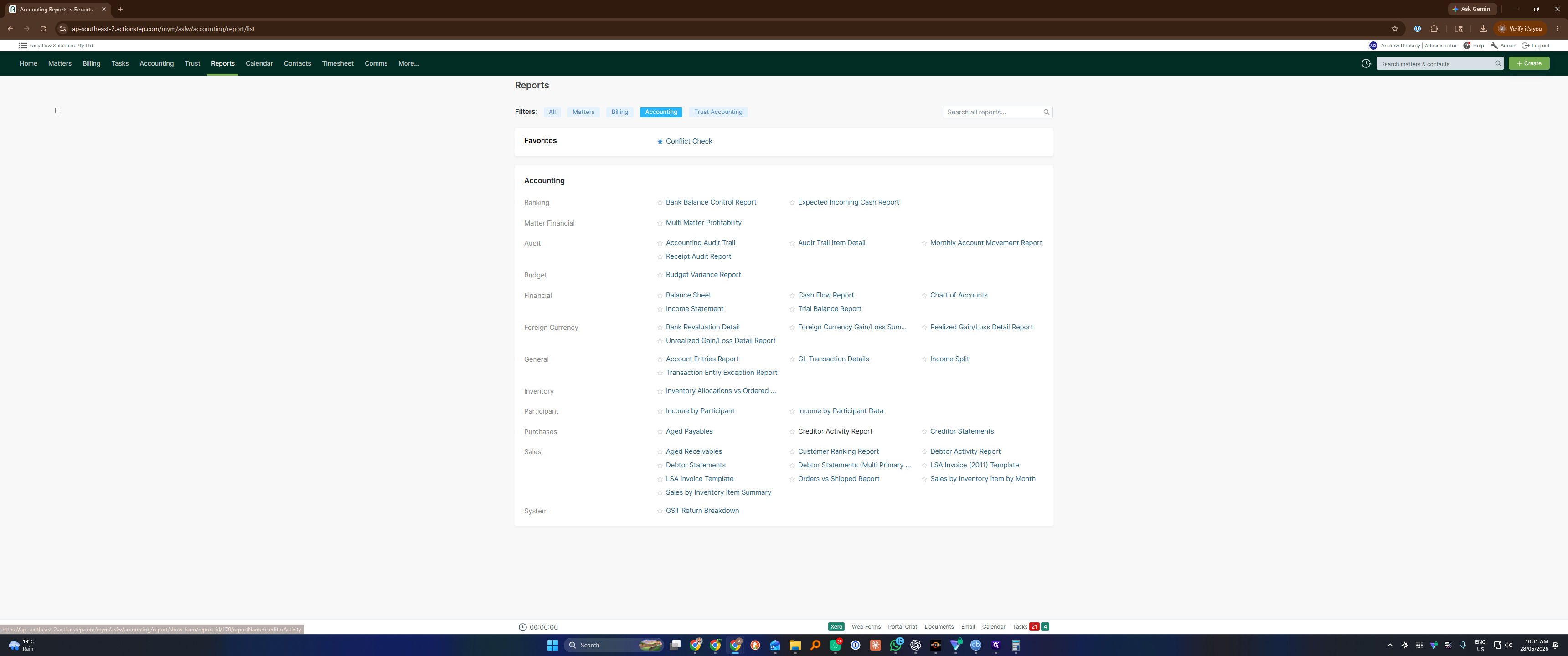
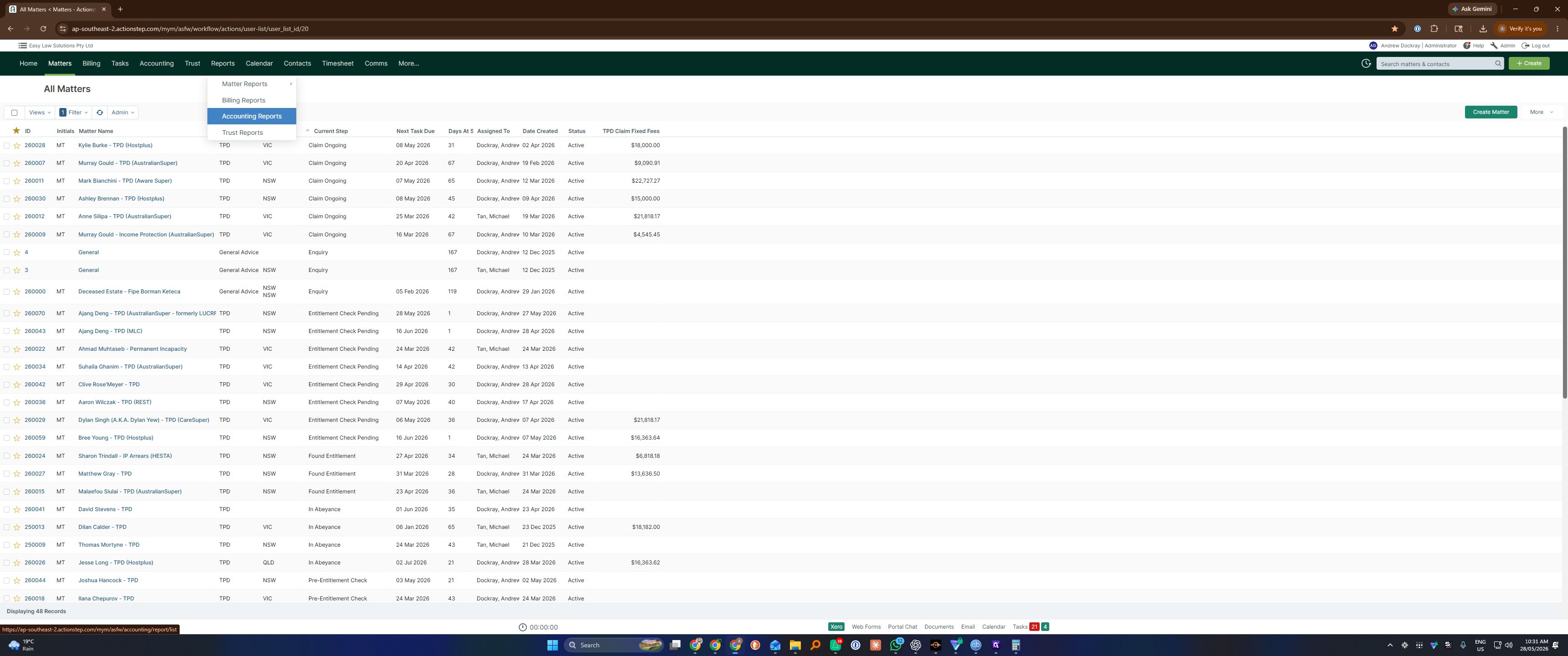
Navigate to the Reports tab and click Accounting Reports.
Step #1: Navigate to the Reports tab and click Accounting Reports.
2
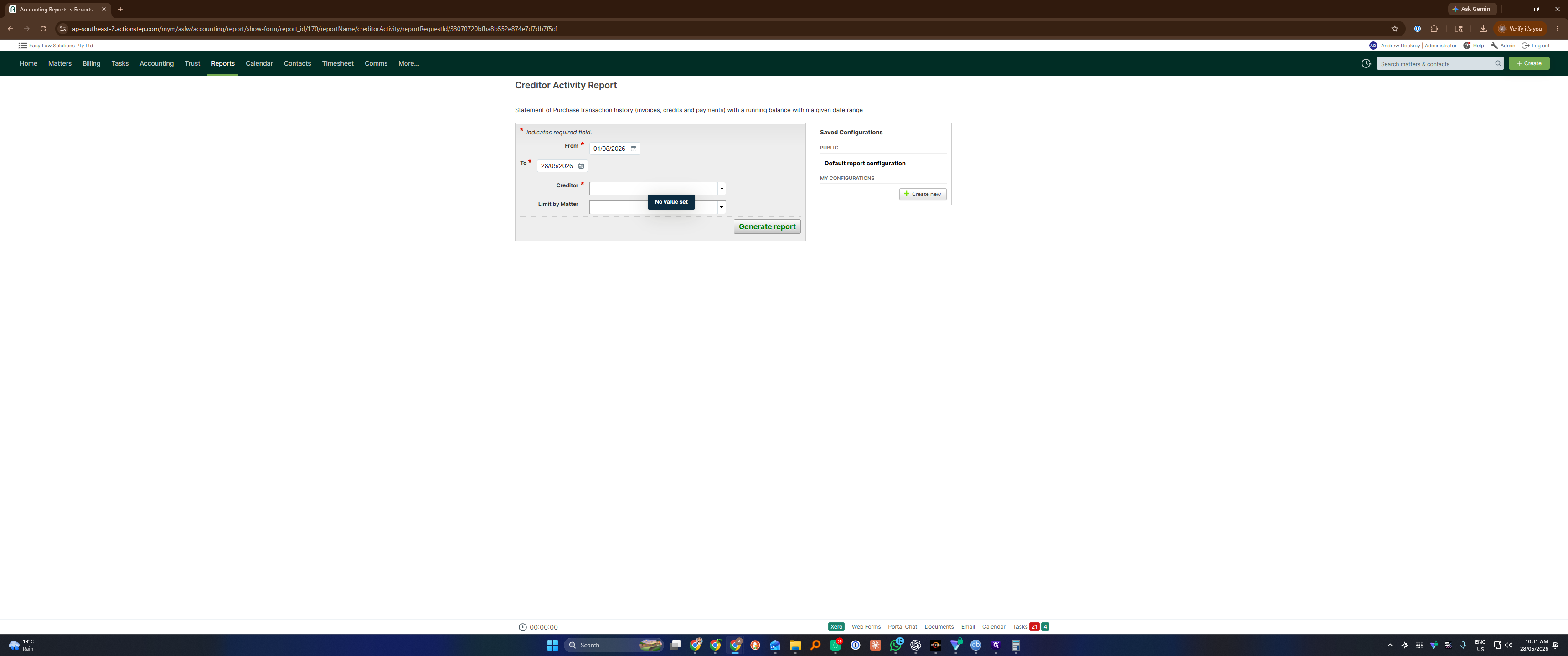
Select Creditor Activity Report.
Step #2: Select Creditor Activity Report.
3
Click the Creditor field.
Step #3: Click the Creditor field.
4
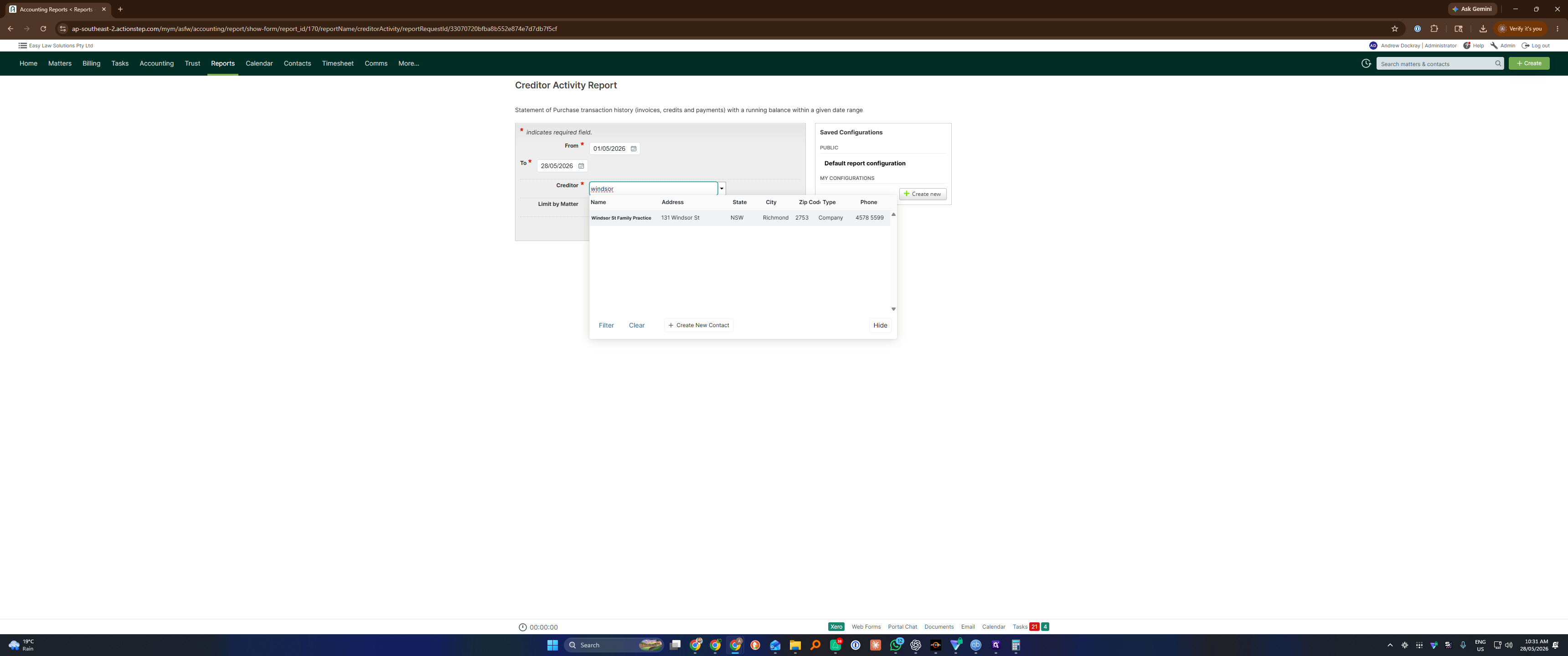
Type the name of the supplier you need to report on.
5
Select the correct supplier, such as Windsor St Family Practice, from the dropdown.
Step #5: Select the correct supplier, such as Windsor St Family Practice, from the dropdown.

Filter Option

Description

Creditor

Search and select the specific supplier you paid.

Limit by Matter

Enter a client or matter name to restrict the report to payments made for a specific case.

Date Range

Specify "From" and "To" dates to isolate a single payment date or accounting period.

6
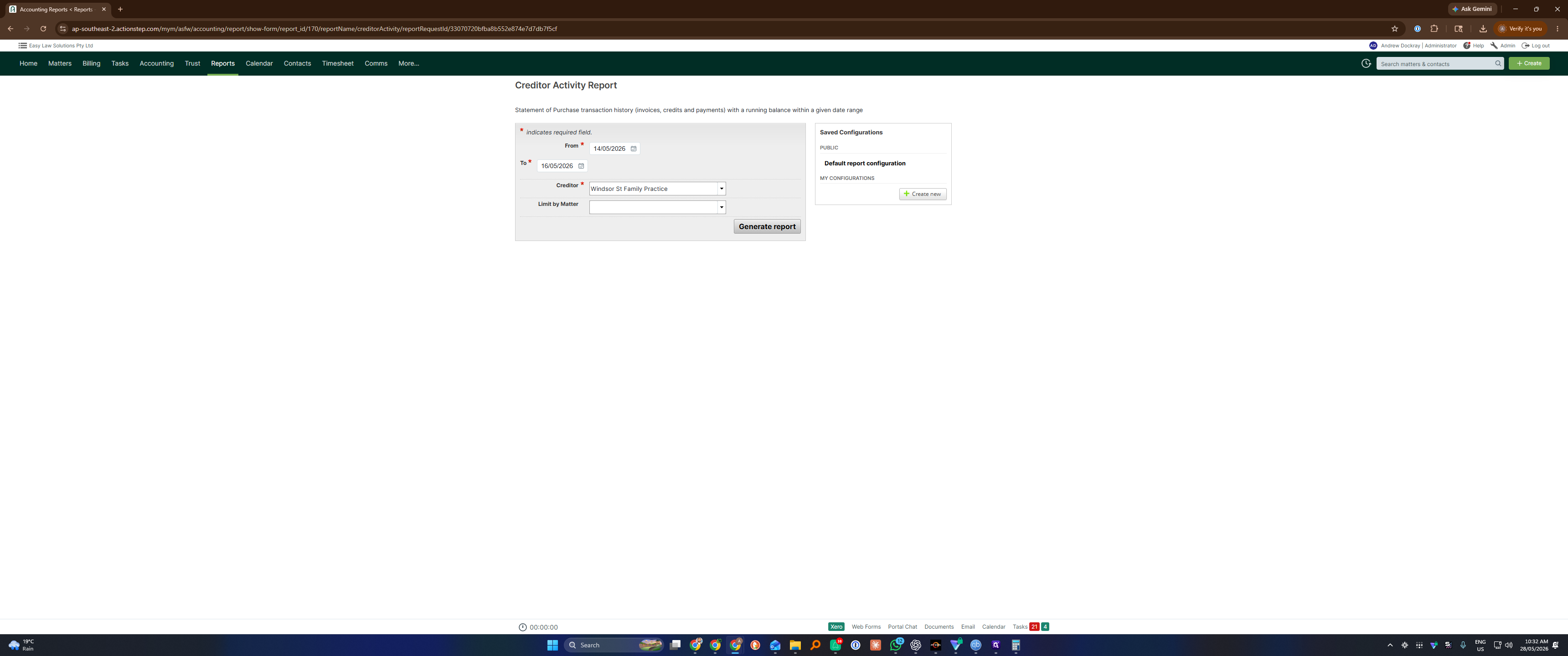
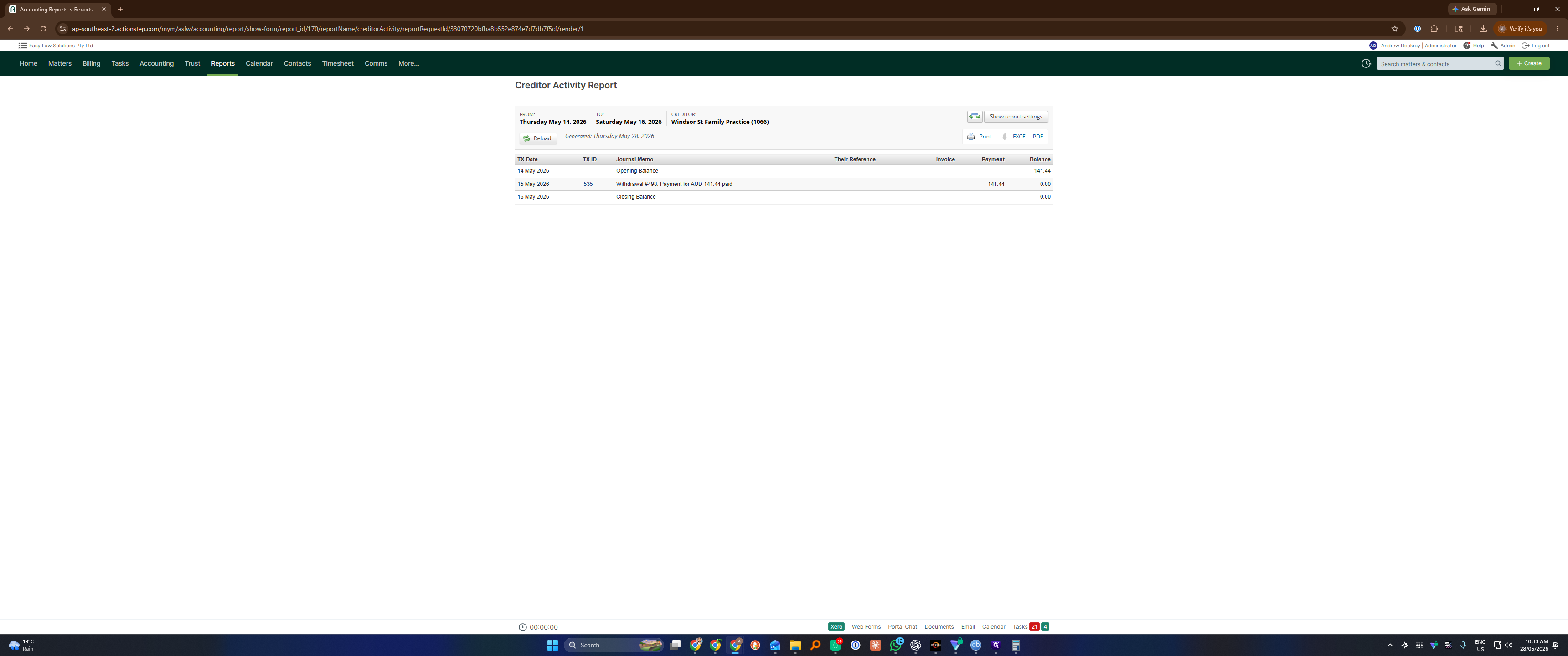
Click Generate report at the bottom of the form.
Step #6: Click Generate report at the bottom of the form.

Download and Save the Report to the Matter
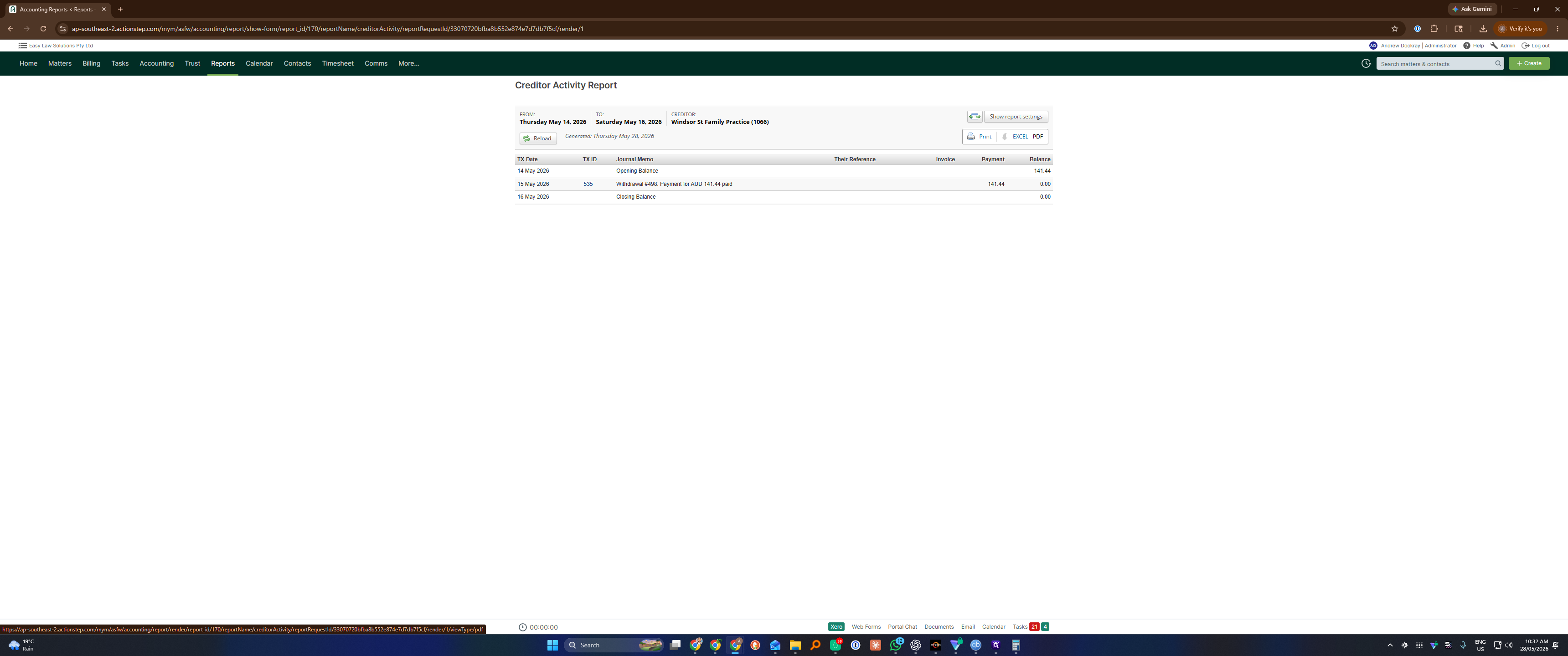
7
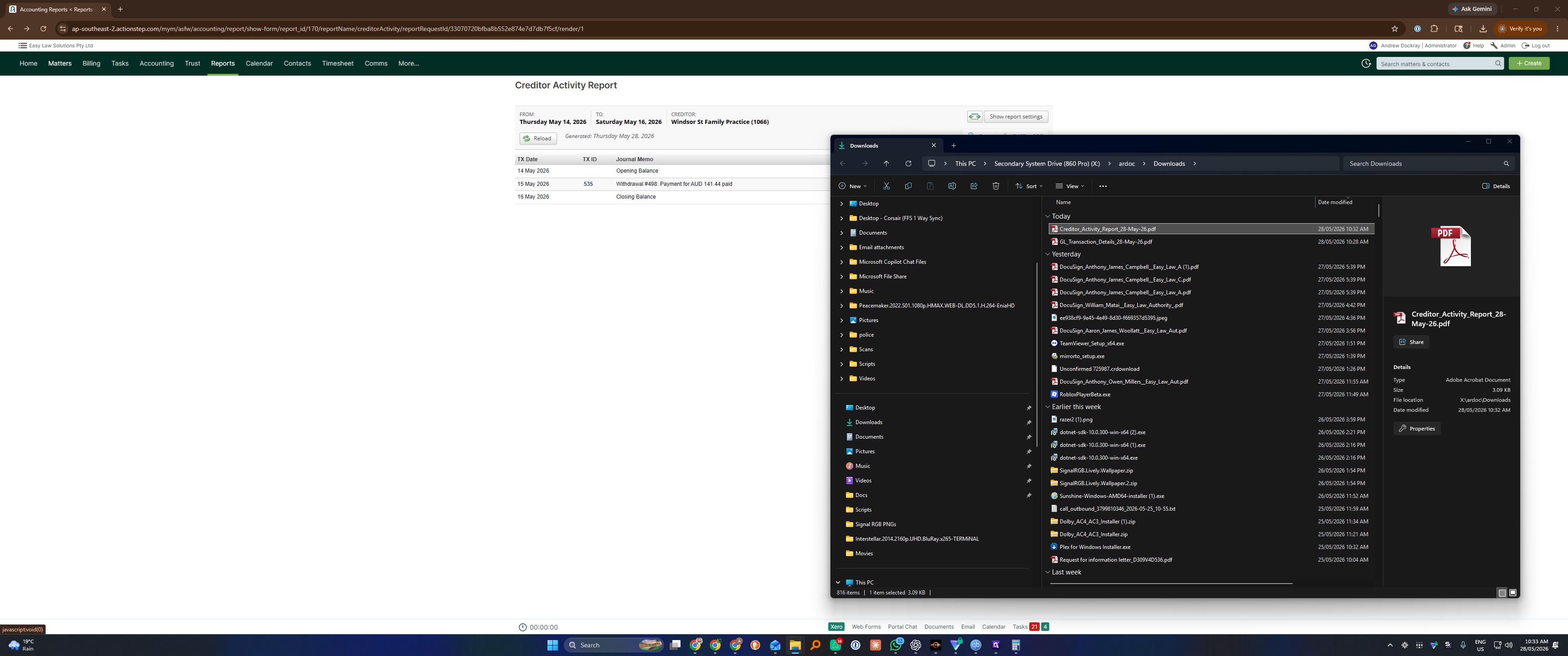
Click PDF to download the generated report to your local machine.
Step #7: Click PDF to download the generated report to your local machine.
8
Navigate to the Matters module in the main navigation.
Step #8: Navigate to the Matters module in the main navigation.
9
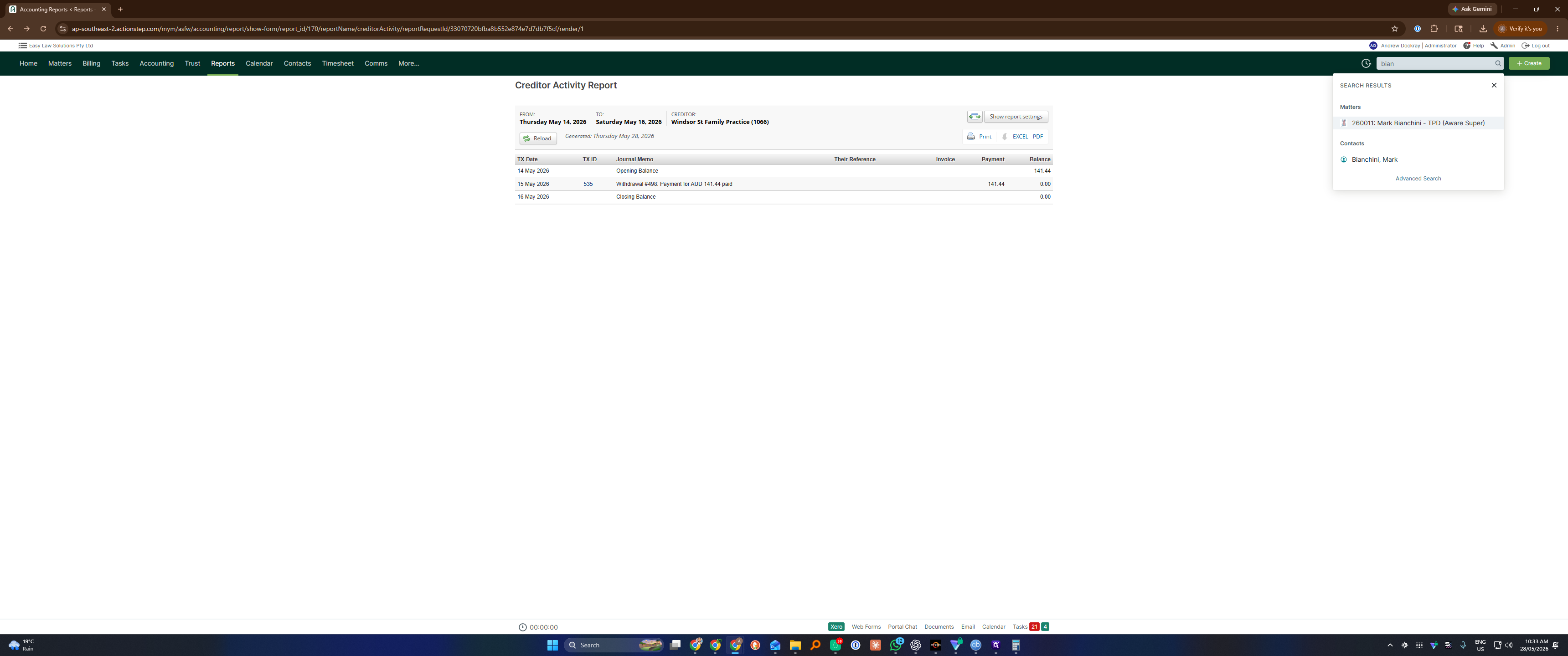
Click Search matters and locate the relevant client file.
Step #9: Click Search matters and locate the relevant client file.
10
Double-click the target matter to open it.
Step #10: Double-click the target matter to open it.
11
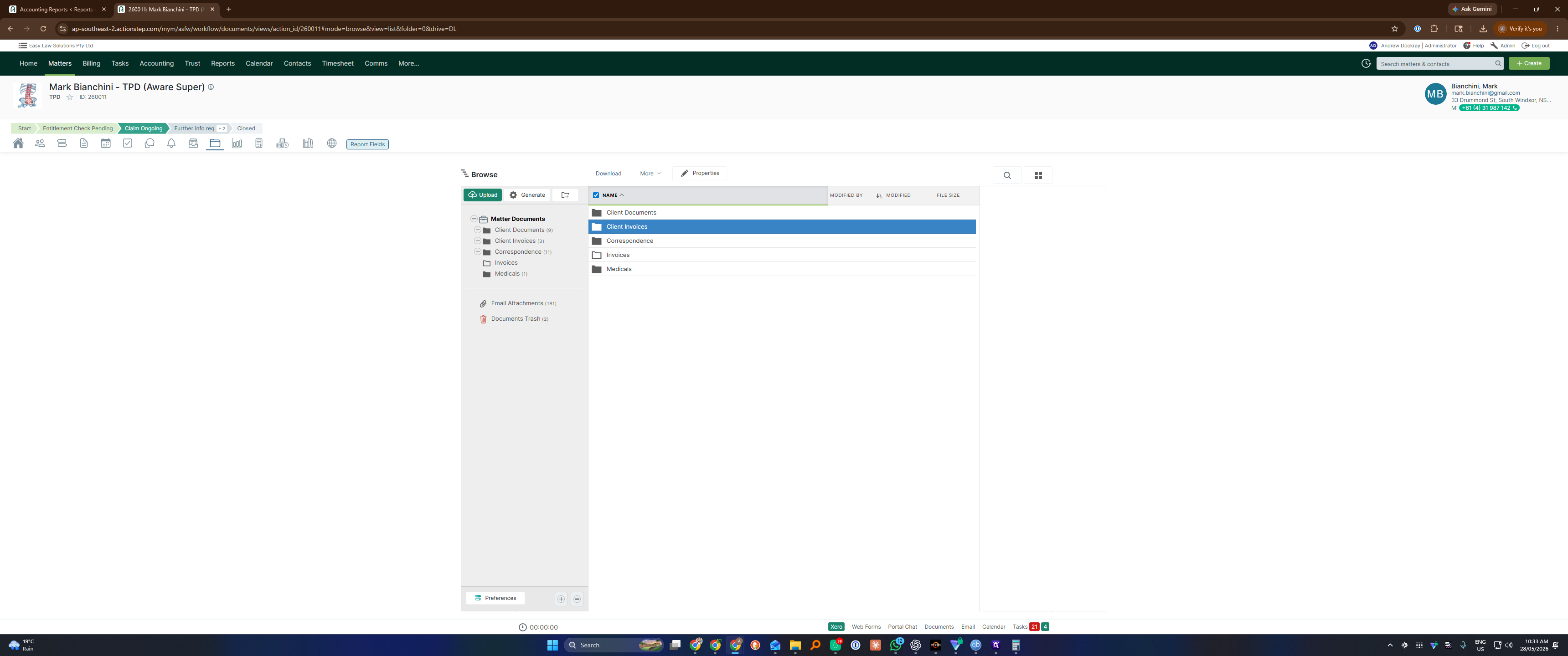
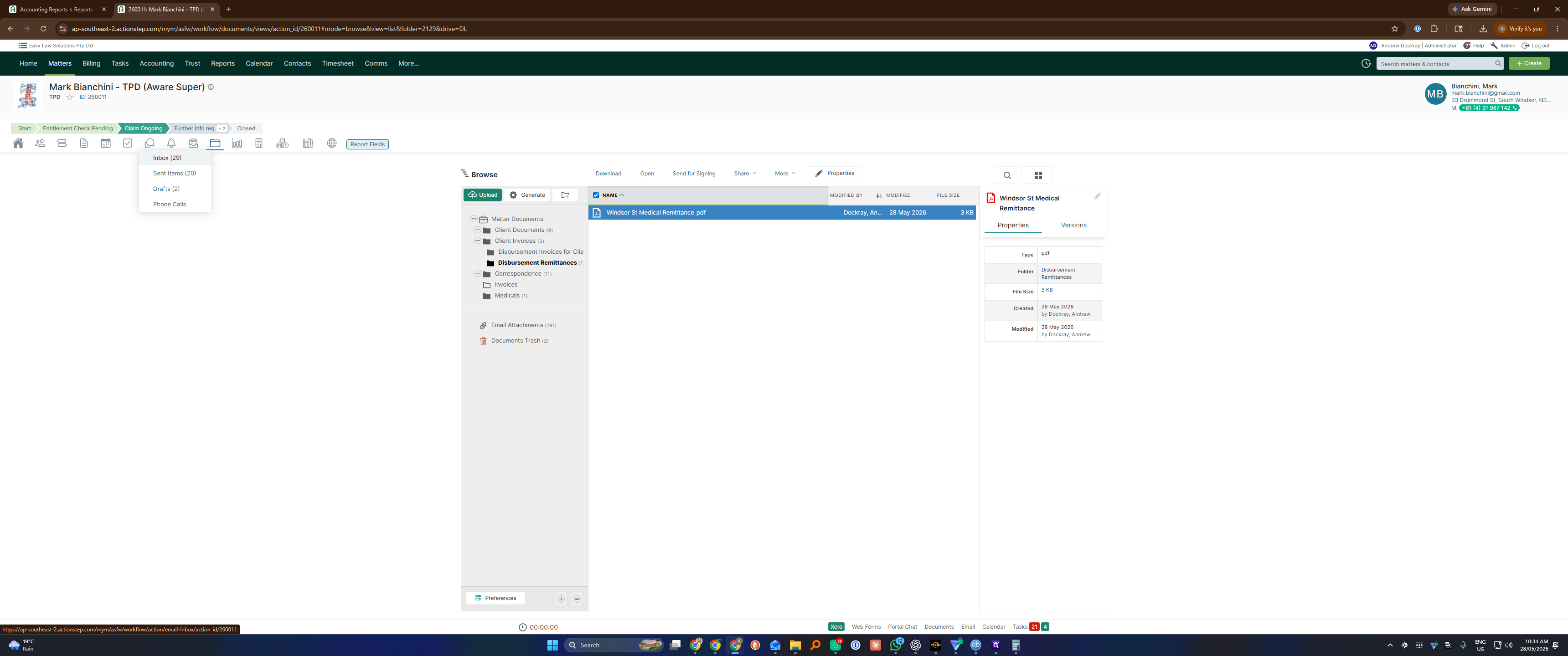
Navigate into your documents folder and double-click Client Invoices.
Step #11: Navigate into your documents folder and double-click Client Invoices.
12
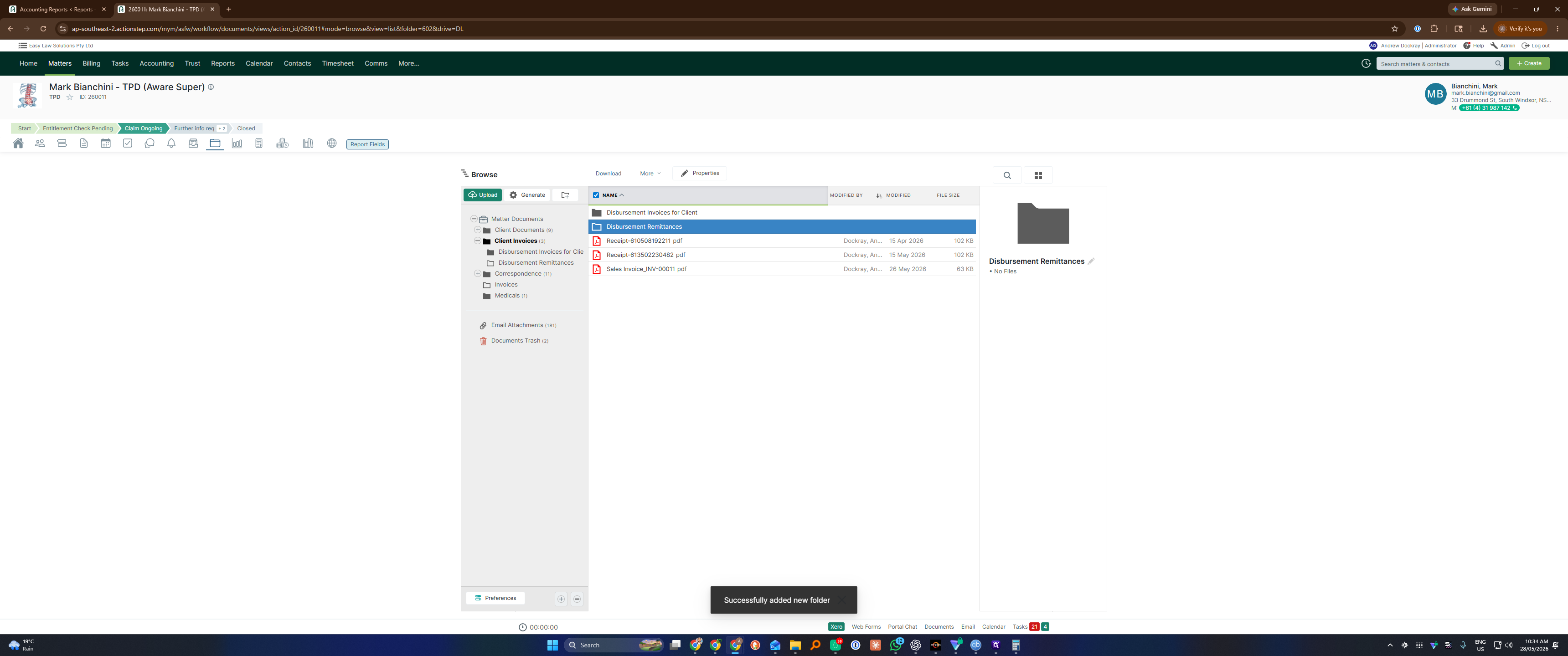
Open the Disbursement Remittances folder. Create this folder first if it does not already exist.
Step #12: Open the Disbursement Remittances folder. Create this folder first if it does not already exist.
13
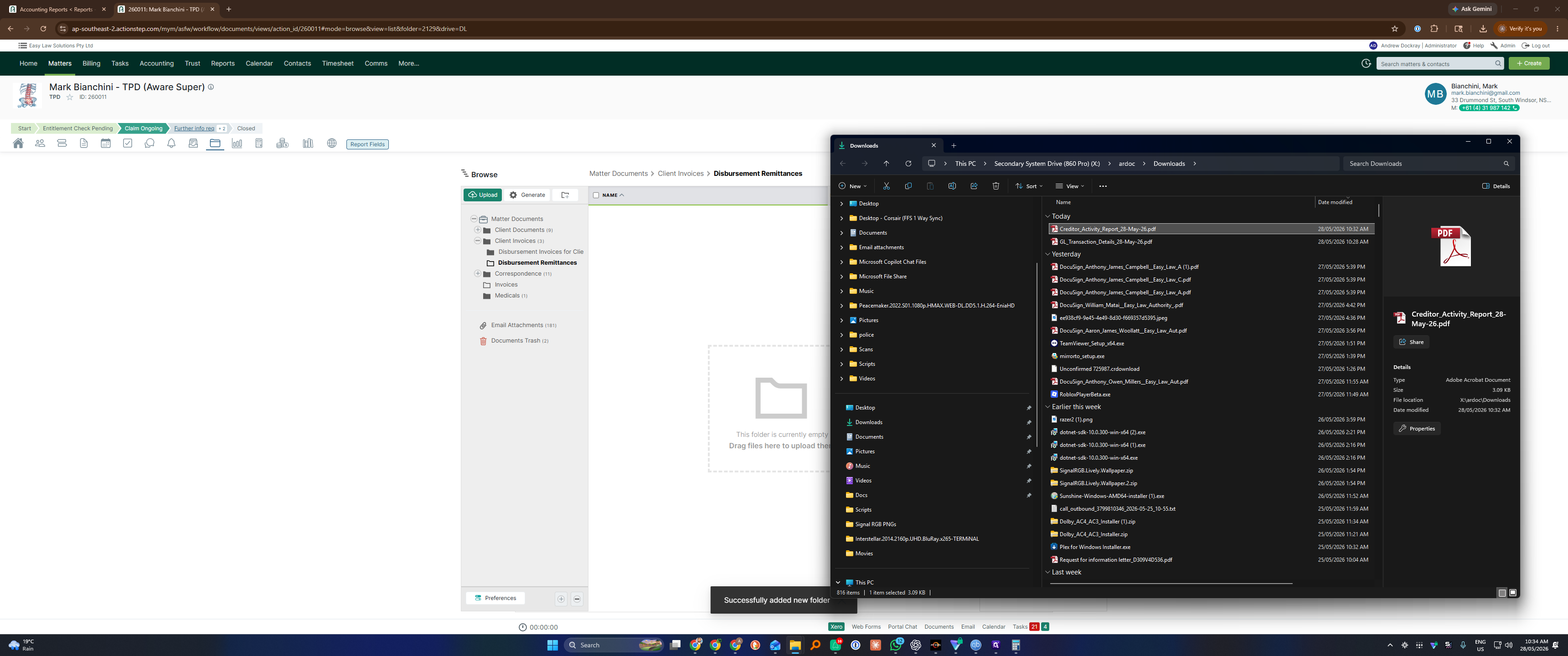
Drag and drop the downloaded Creditor Activity Report PDF into the folder.
Step #13: Drag and drop the downloaded Creditor Activity Report PDF into the folder.
14
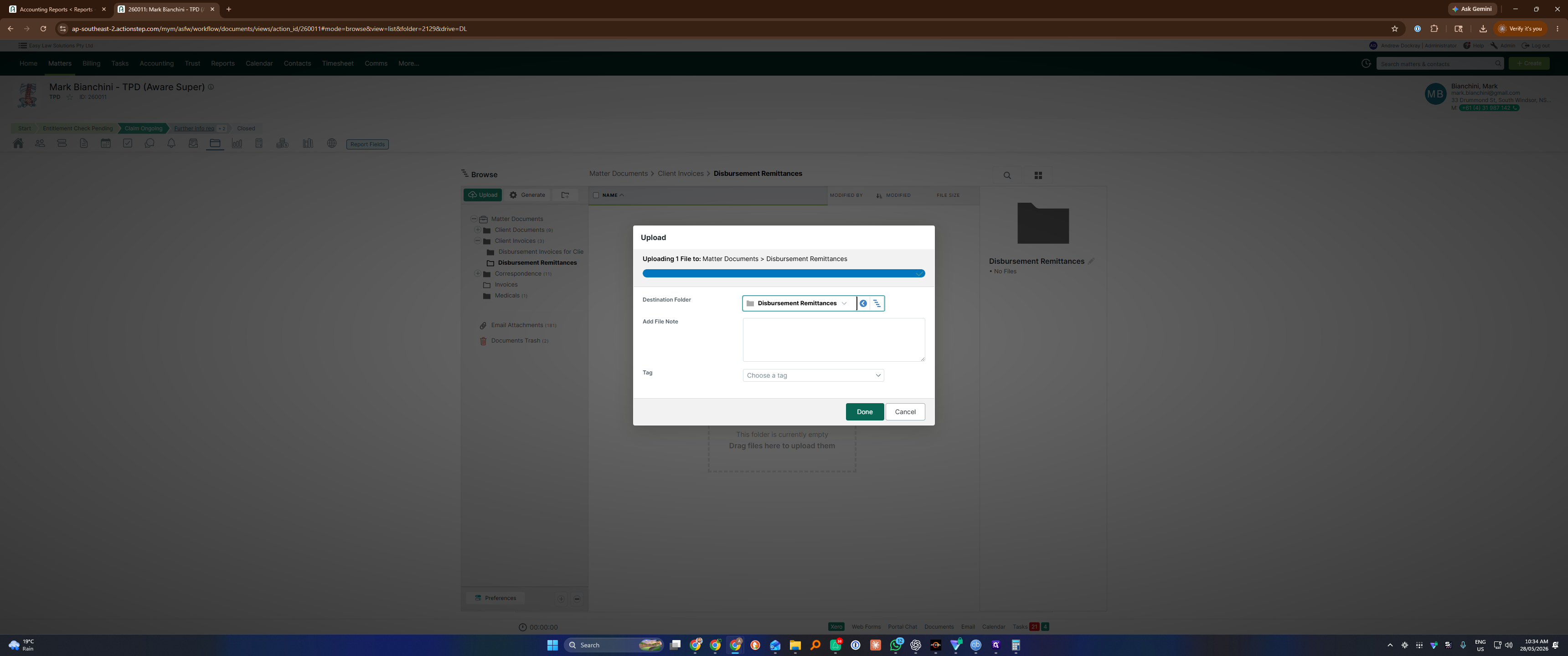
Click Done to confirm the upload.
Step #14: Click Done to confirm the upload.
15
Open the file options menu for the newly uploaded document.
Step #15: Open the file options menu for the newly uploaded document.
16
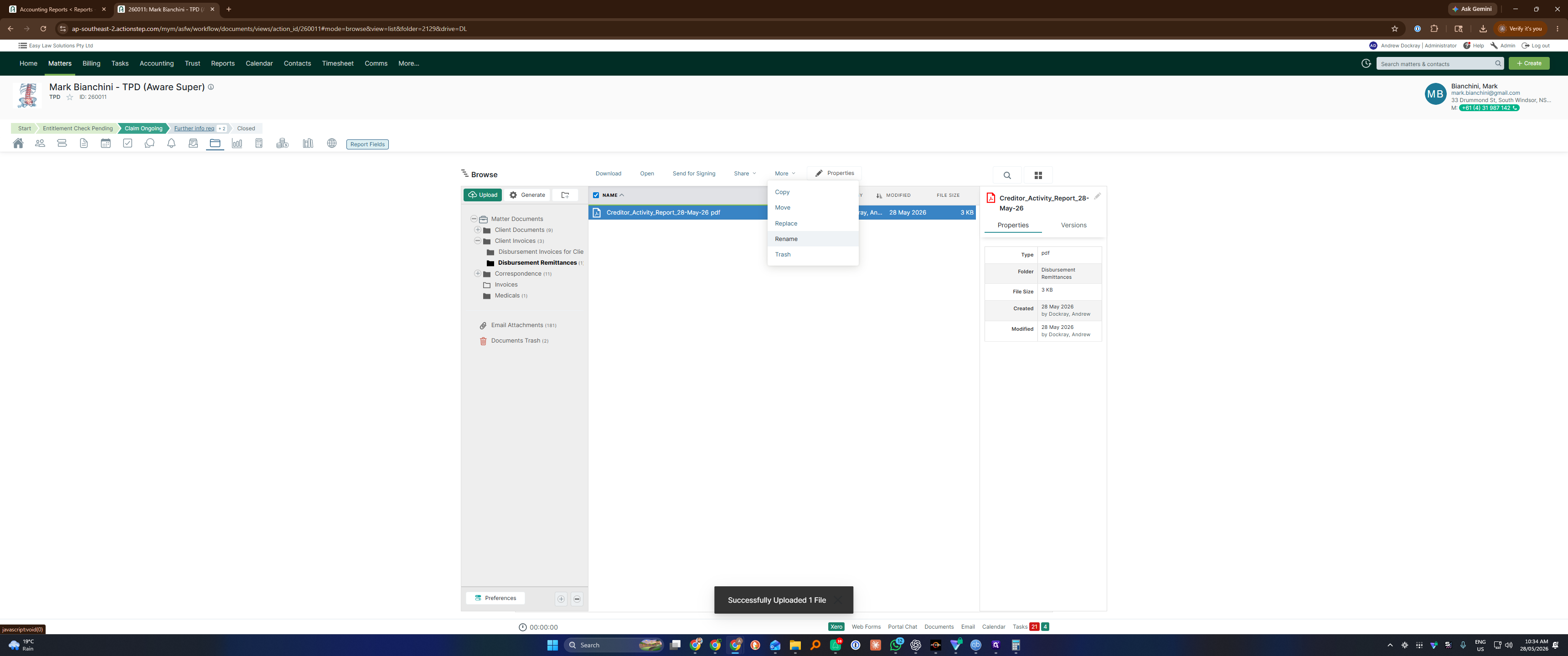
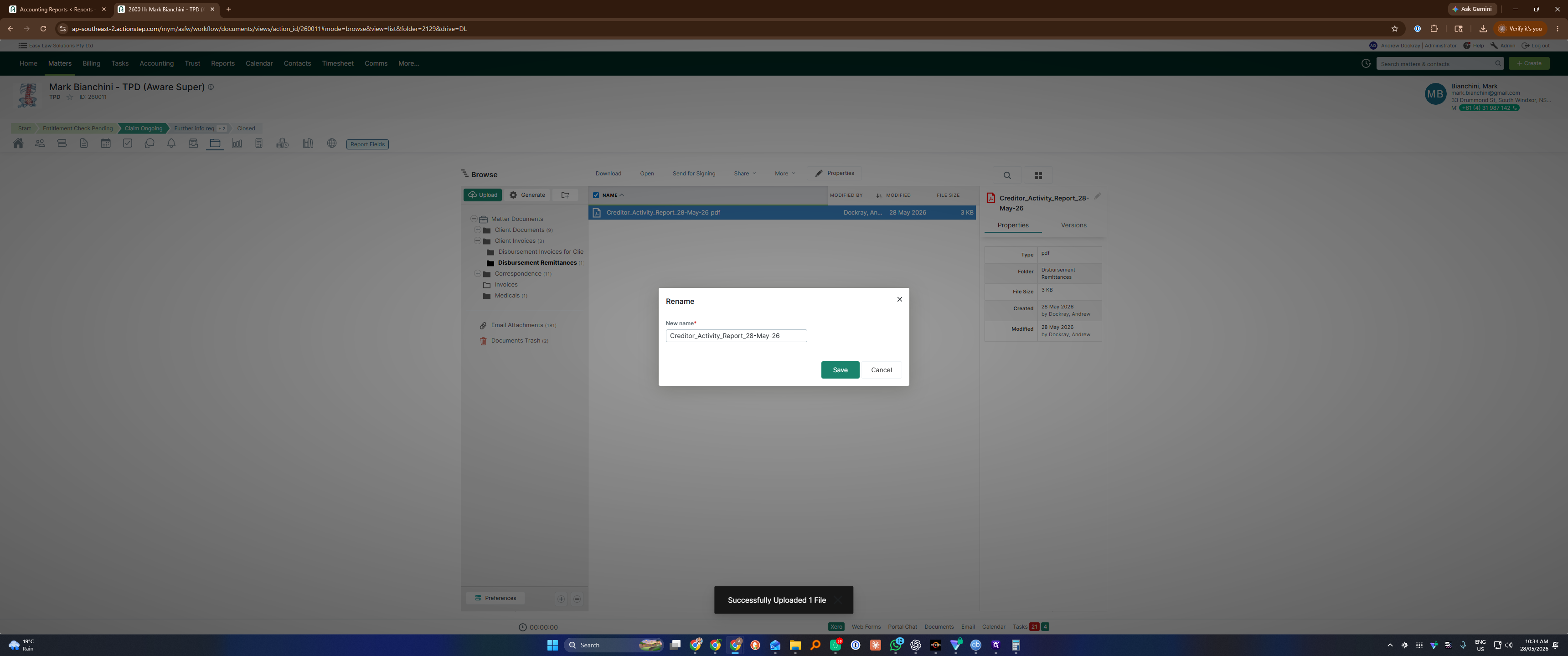
Select the option to rename the file.
Step #16: Select the option to rename the file.
17
Type a clear, identifiable name, such as "Windsor St Medical Remittance," and press Enter to save.

Send the Remittance Email to the Supplier
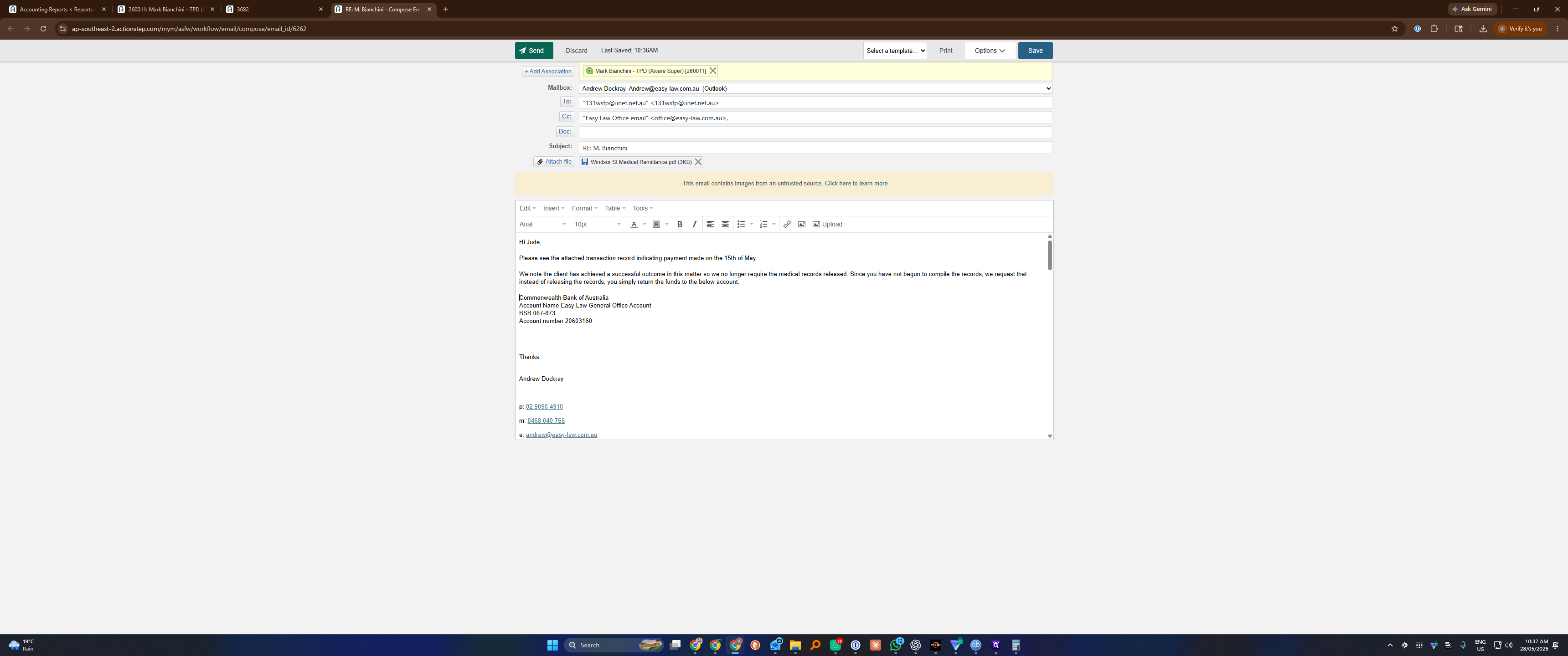
18
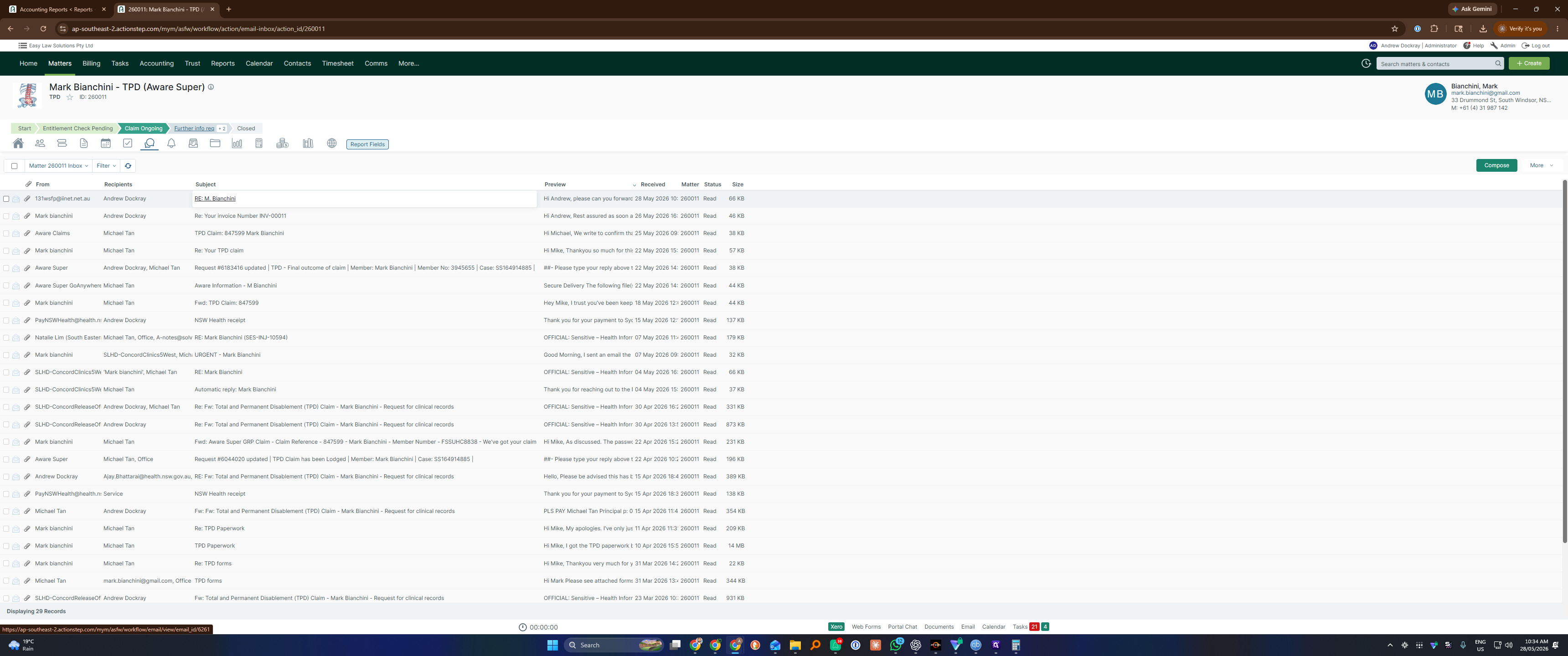
Navigate to the Inbox associated with the matter.
Step #18: Navigate to the Inbox associated with the matter.
19
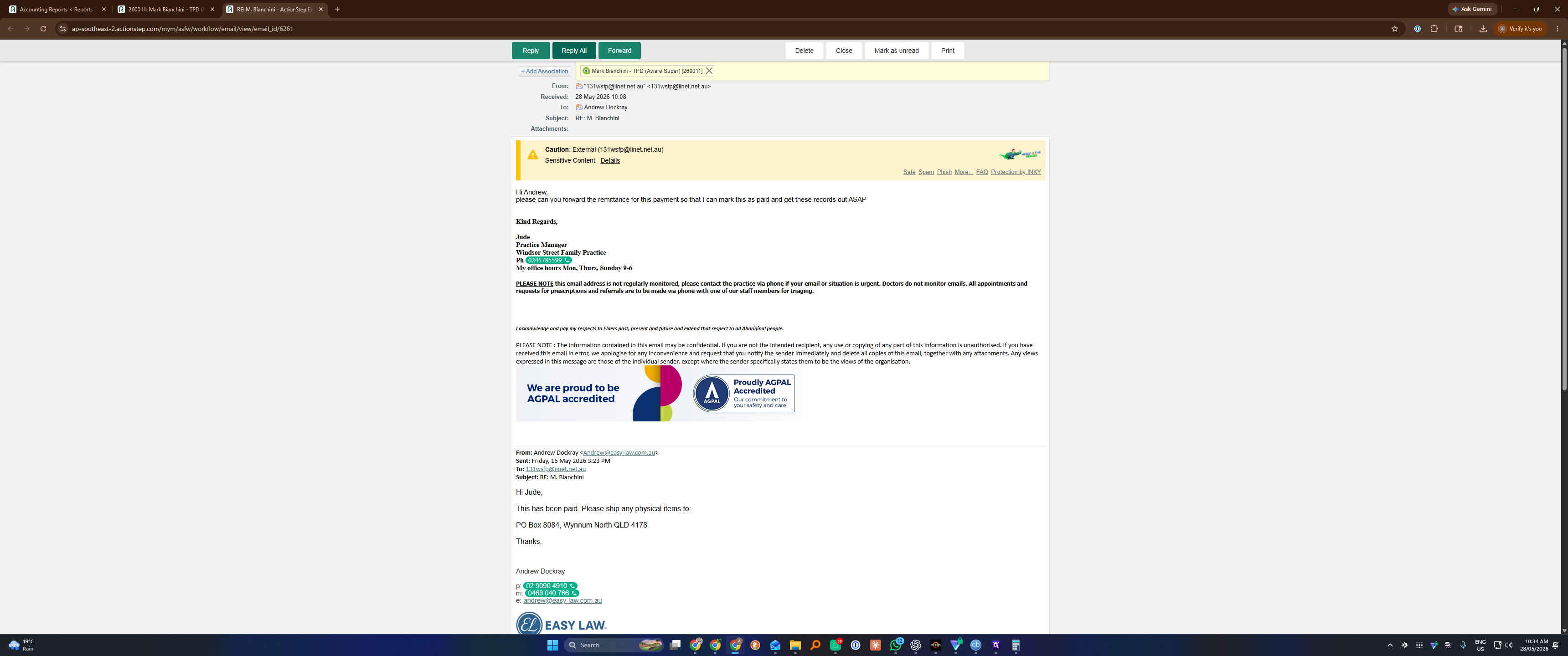
Locate and click on the initial email from the supplier requesting the remittance.
Step #19: Locate and click on the initial email from the supplier requesting the remittance.
20
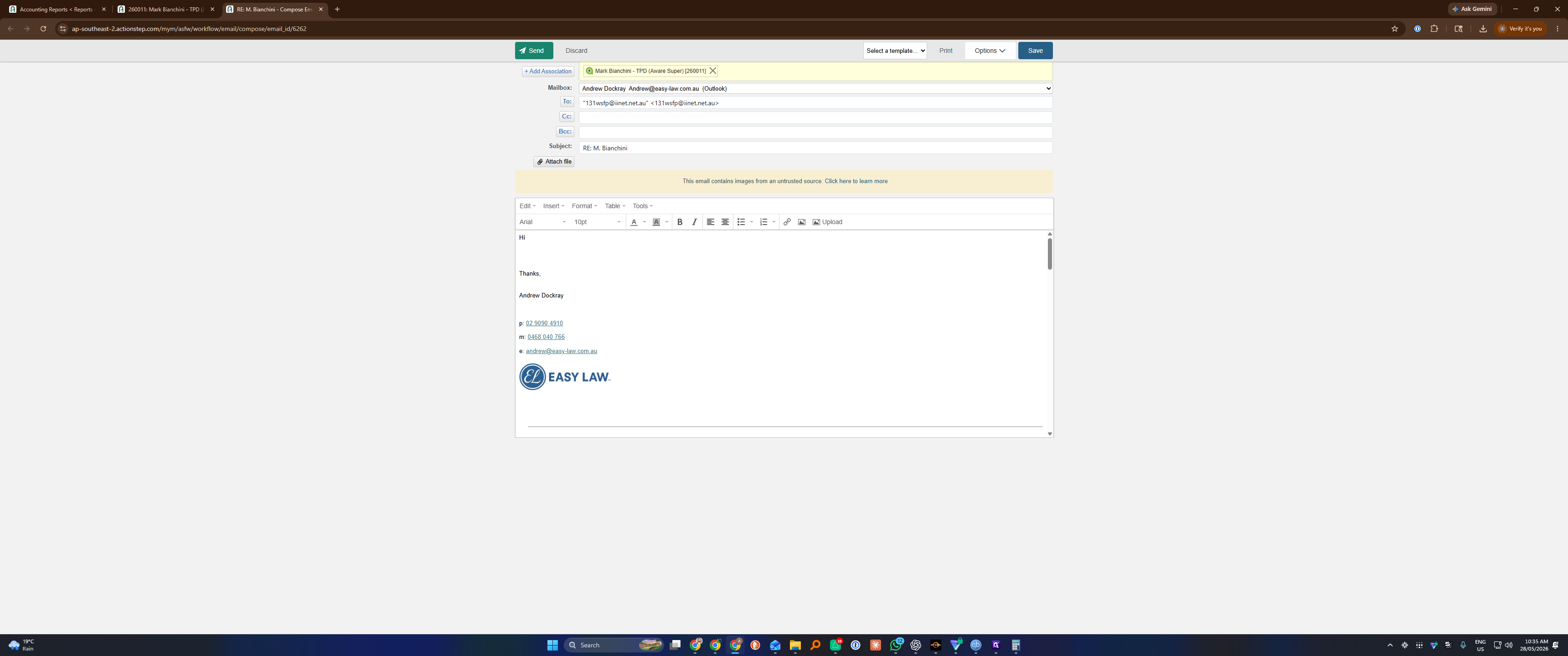
Click Reply or Reply All to open the composition window.
Step #20: Click Reply or Reply All to open the composition window.
21
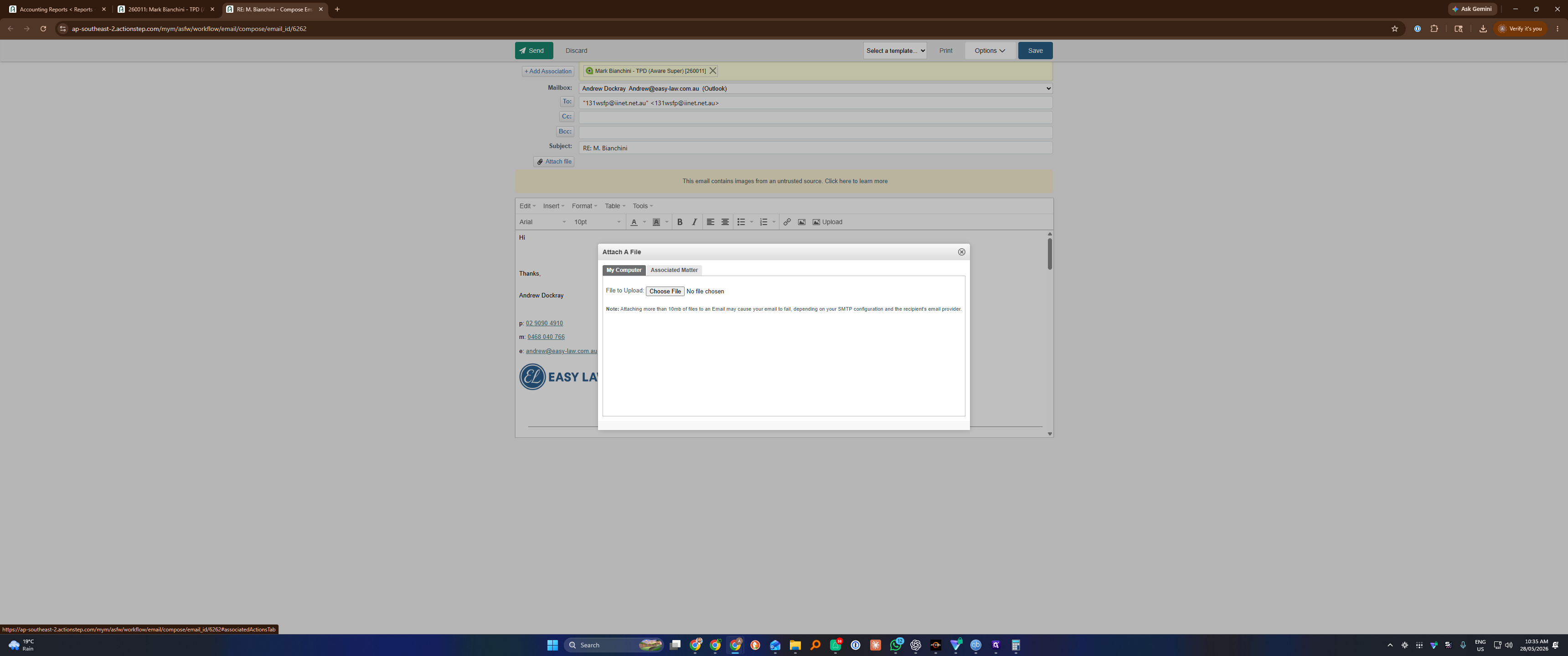
Click Attach file within the email editor toolbar.
Step #21: Click Attach file within the email editor toolbar.
22
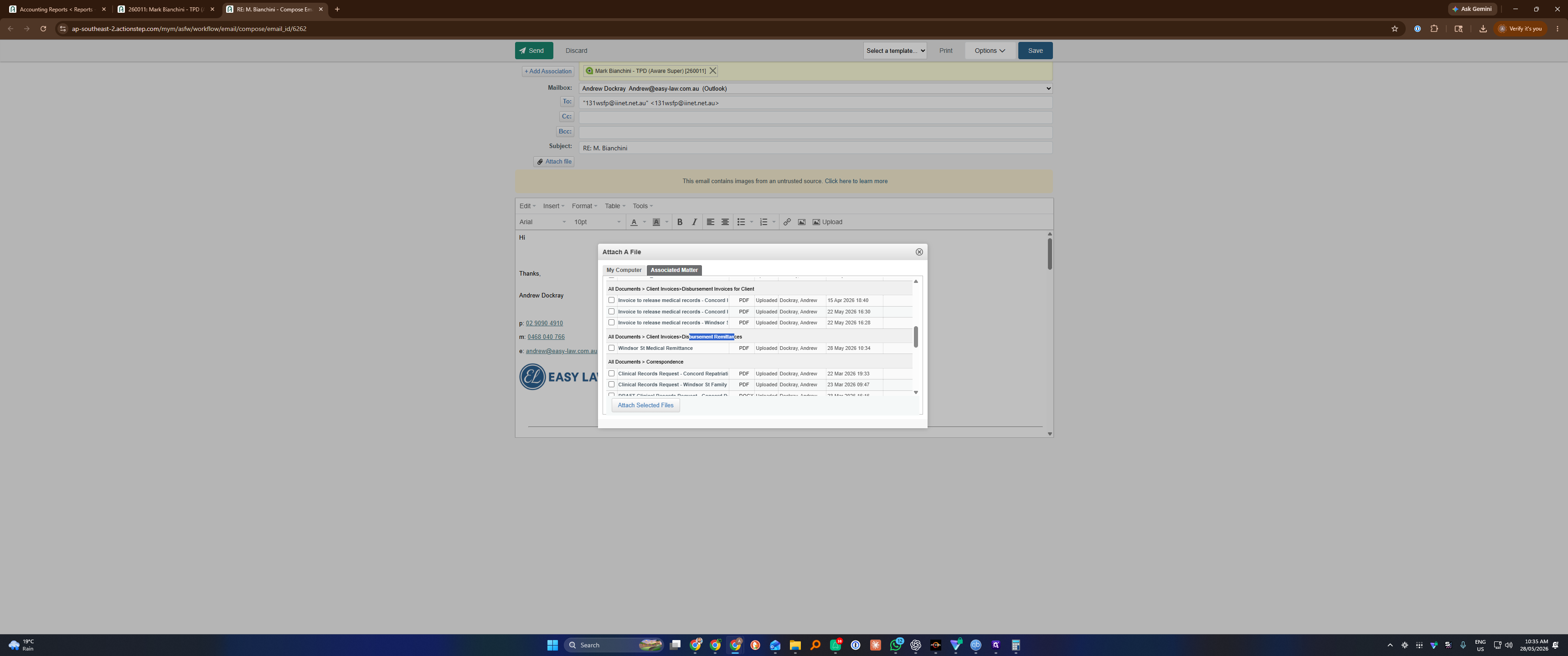
Select Associated Matter from the attachment sources.
Step #22: Select Associated Matter from the attachment sources.
23
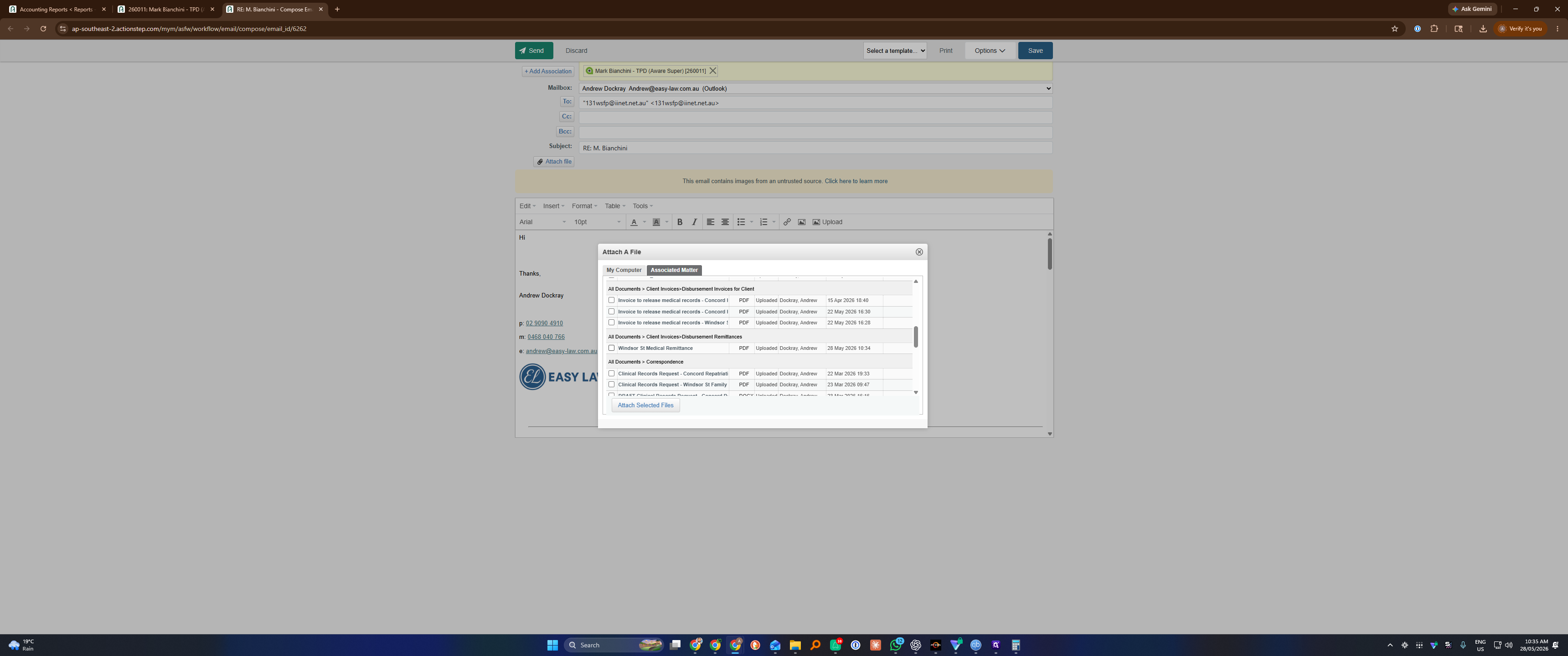
Navigate to All Documents > Client Invoices > Disbursement Remittances.
Step #23: Navigate to All Documents > Client Invoices > Disbursement Remittances.
24
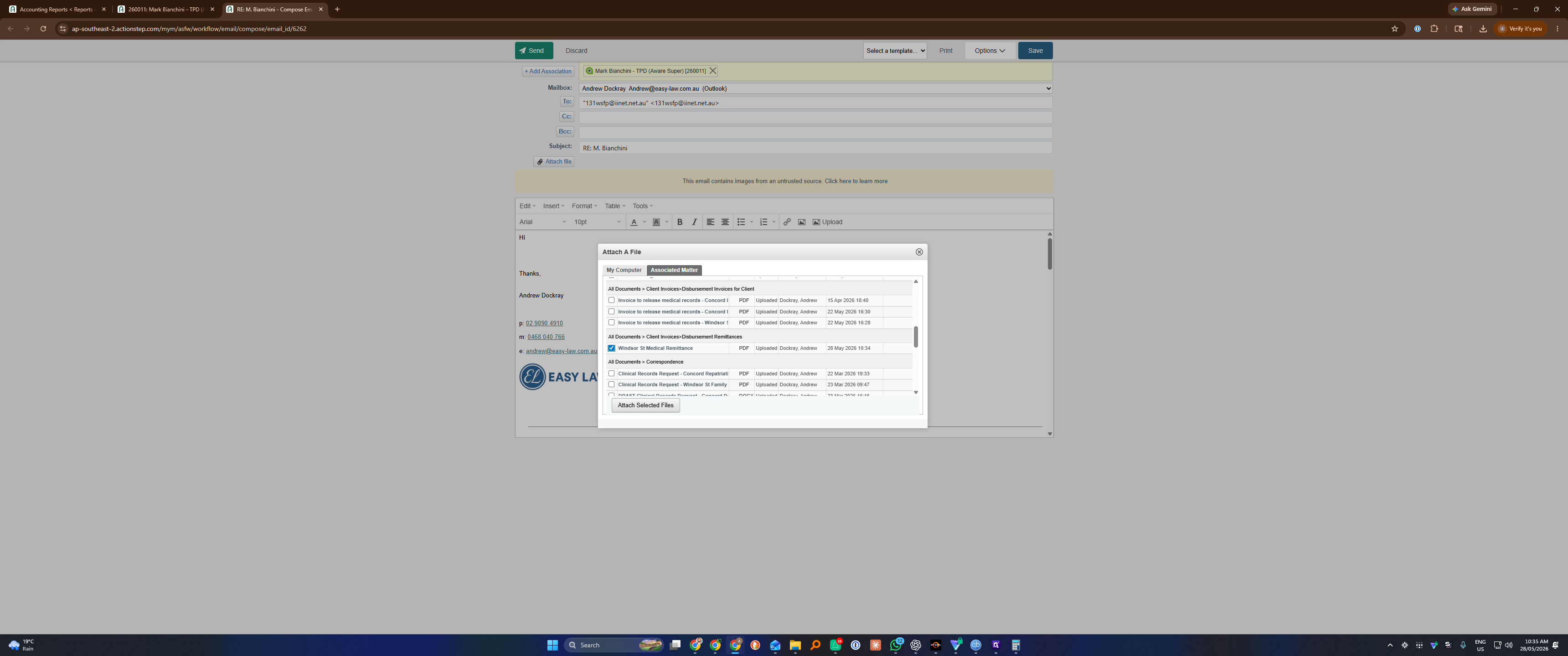
Check the box next to your renamed remittance file.
Step #24: Check the box next to your renamed remittance file.
25
Click Attach Selected Files.
Step #25: Click Attach Selected Files.
26
Draft your email message confirming the payment, then click Send.
Step #26: Draft your email message confirming the payment, then click Send.

Q: Do I need to filter the report by matter and date every time?

A: No. If you have only made a single payment to the practice, pulling the unfiltered report for the creditor is sufficient. However, filtering is good practice when you have multiple transactions for the same supplier across different matters.

Q: What should I do if the standard Creditor Activity Report isn't detailed enough for the supplier?

A: You can click directly on the transaction ID within the Creditor Activity Report to generate a GL Transaction Details Report, which provides deeper accounting context.

Q: Do I have to reply to an existing email to send the remittance?

A: No. Depending on your context, you can either compose a brand new email and attach the document from the matter, or use an existing template to format your message automatically.

Term

Definition

Remittance Advice

A document sent by a customer to a supplier to inform them that an invoice has been paid.

Creditor Activity Report

A financial summary displaying recent billing, payment, and balance activities for a specific supplier.

GL Transaction Details

A granular accounting report showing the specific general ledger entries associated with a payment or invoice.

Disbursement

A payment made on behalf of a client to a third party, such as a medical facility or court system.

Matter

A digital file or record used by legal and professional services to organize client communications, documents, and billing.

How to Send Remittance Advice to a Supplier