
How to Send Revised Contracts in DocuSign
Learn how to manually configure and send revised contracts and Statements of Work in DocuSign when standard templates do not apply.
This guide demonstrates how to send a negotiated, revised contract via DocuSign to collect signatures and finalize an agreement. It ensures you know how to manually set up signature blocks and required fields when standard automated templates do not apply.
This process applies to sales, legal, or operations team members who need to execute non-standard or heavily redlined agreements with clients.
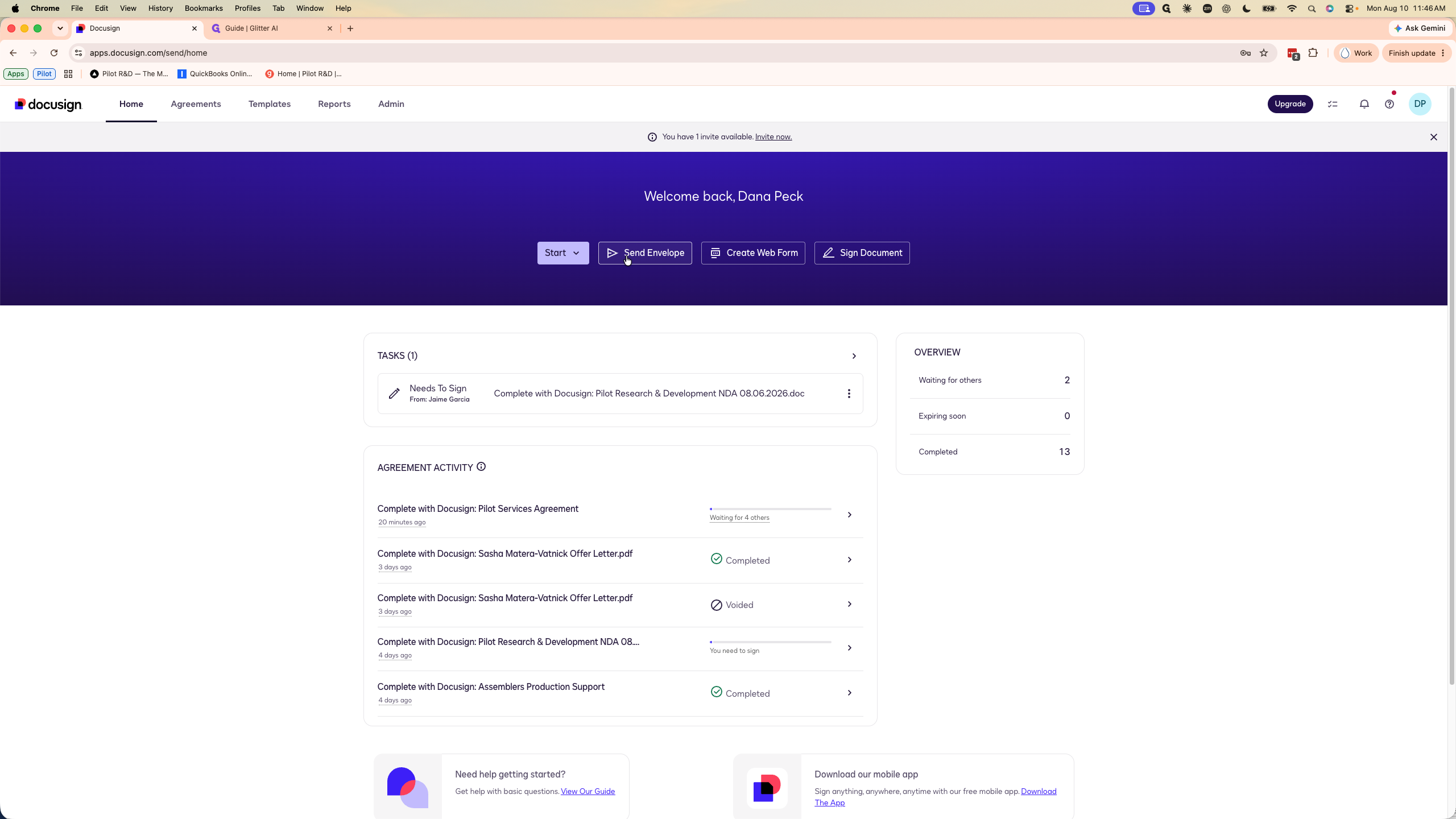
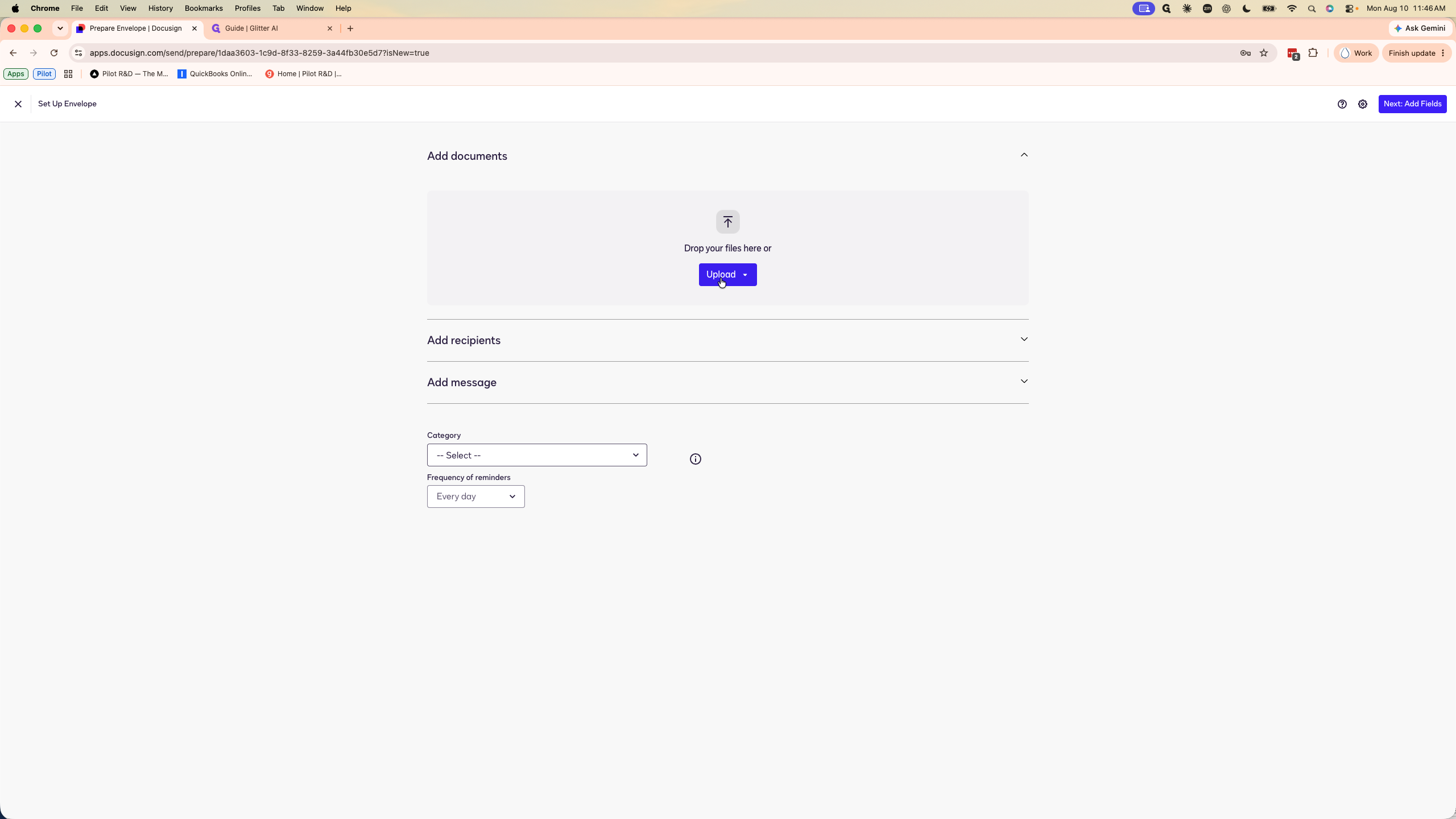
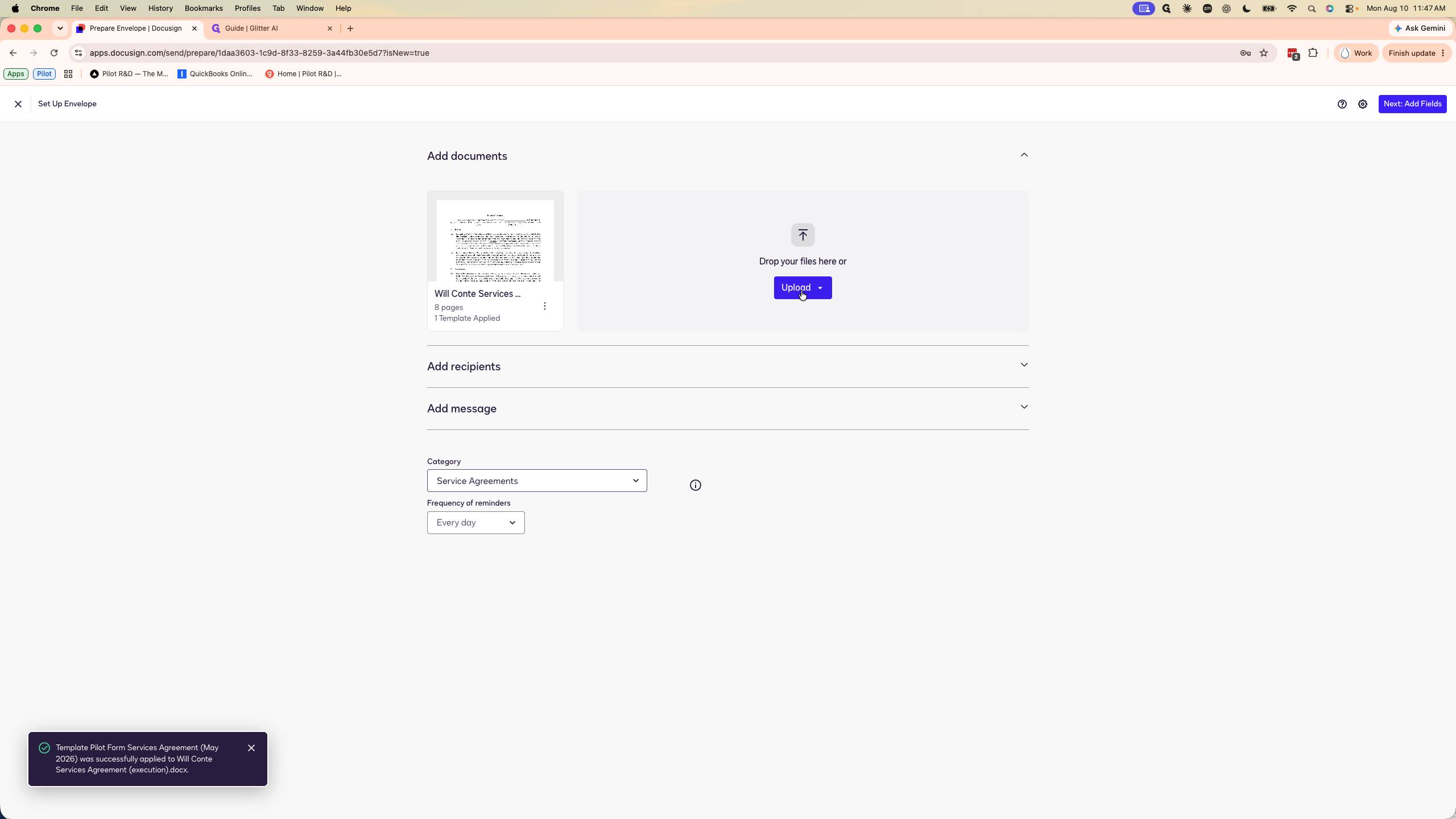
1. Upload Documents
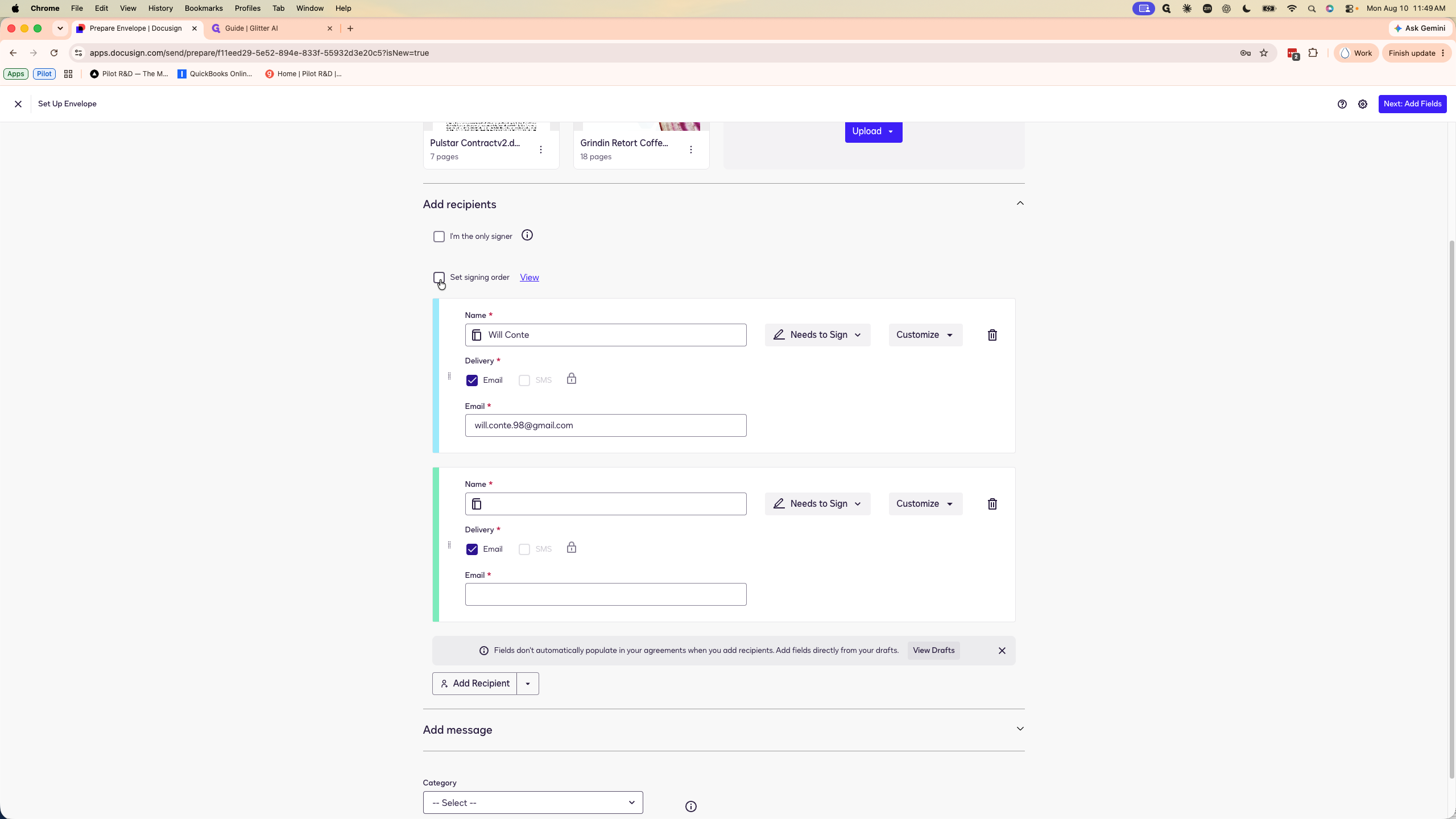
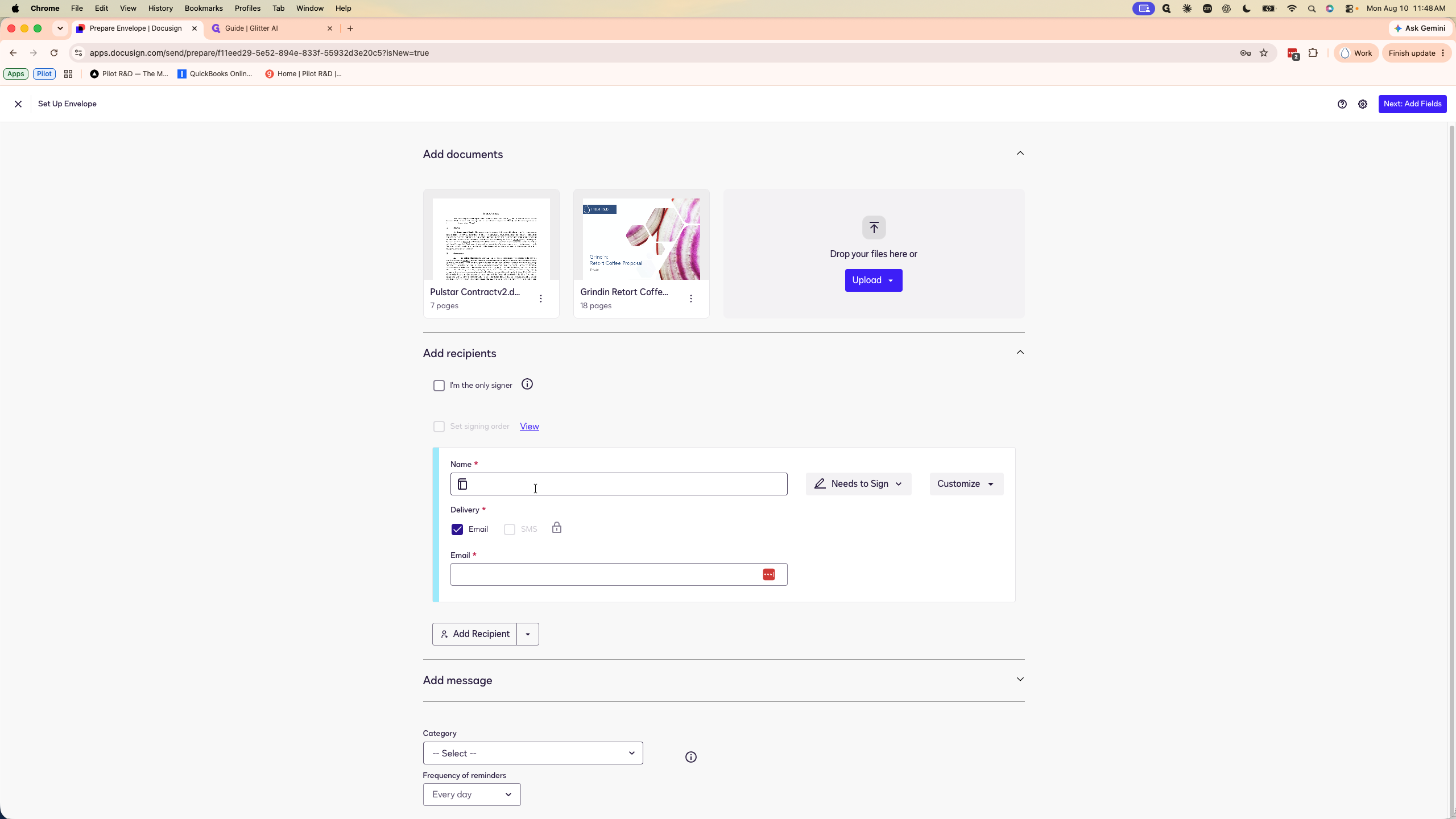
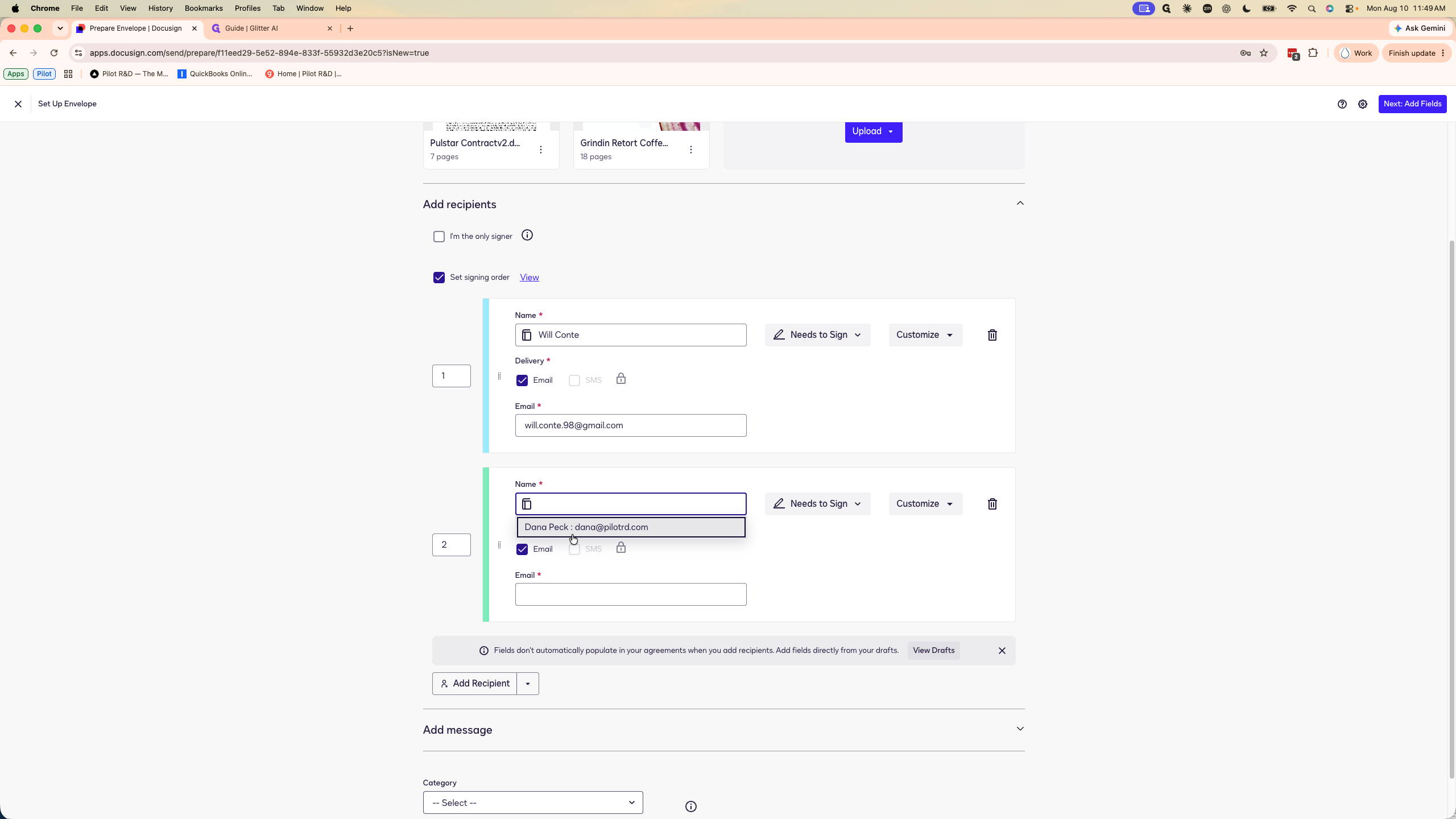
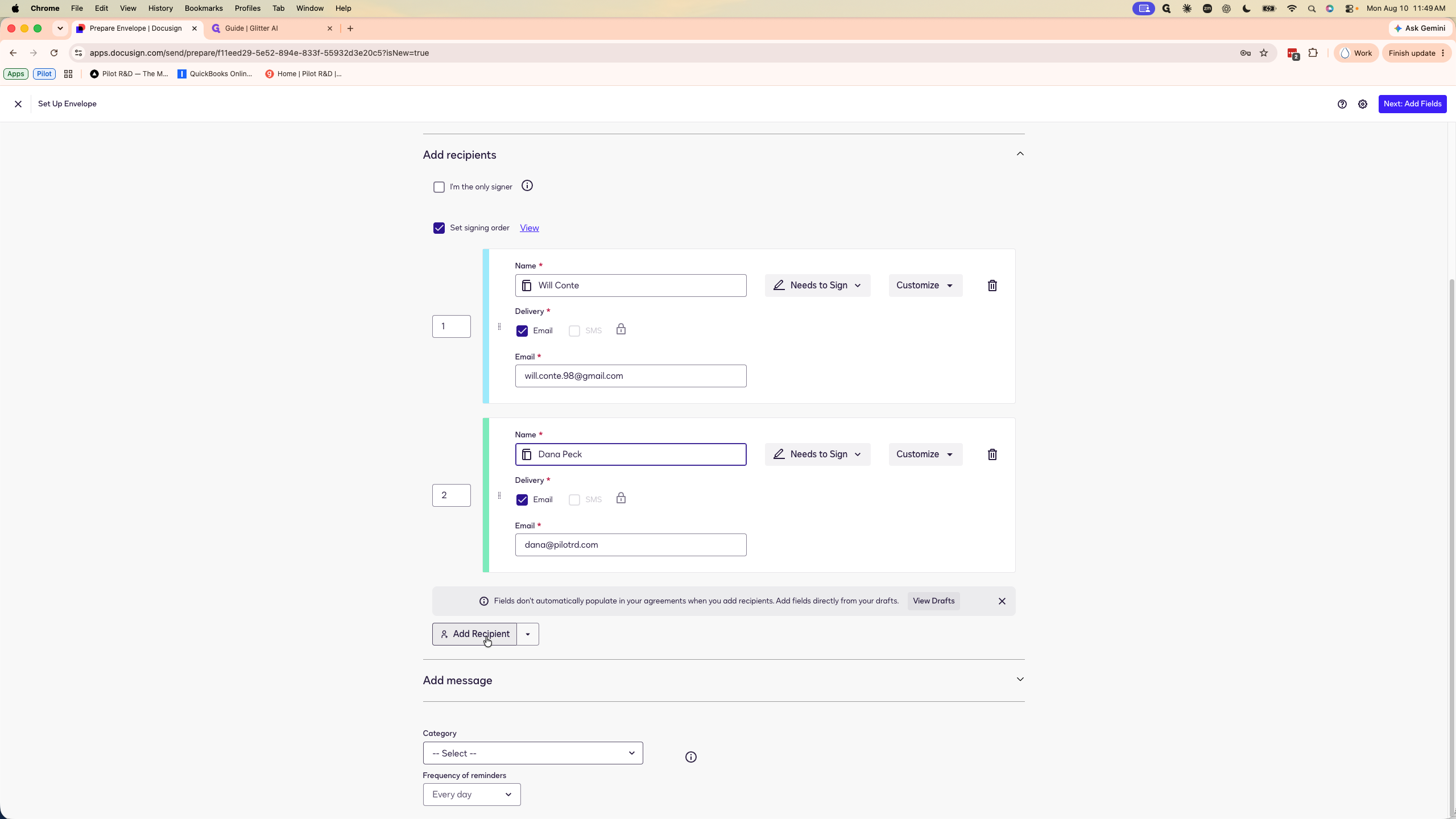
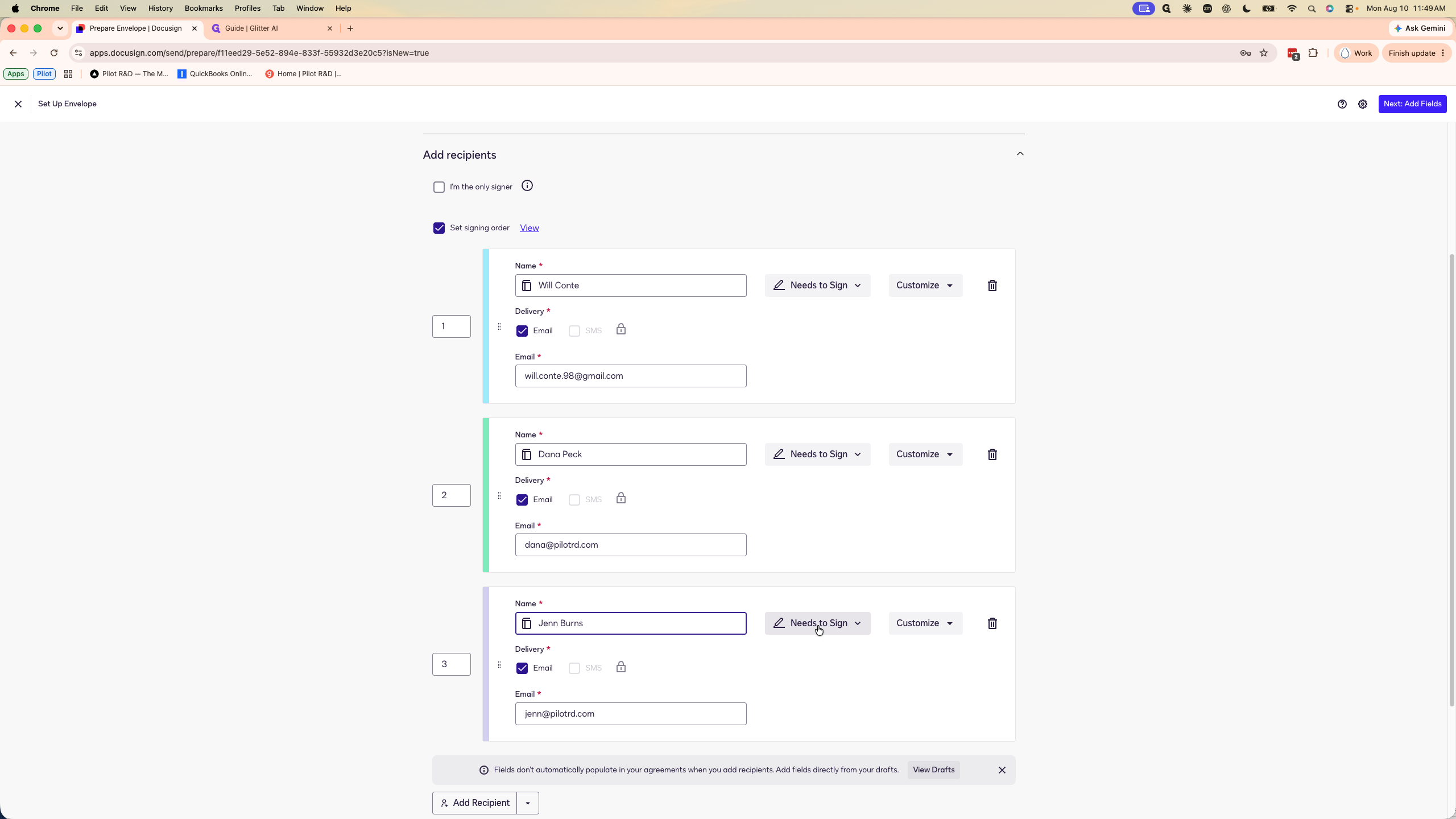
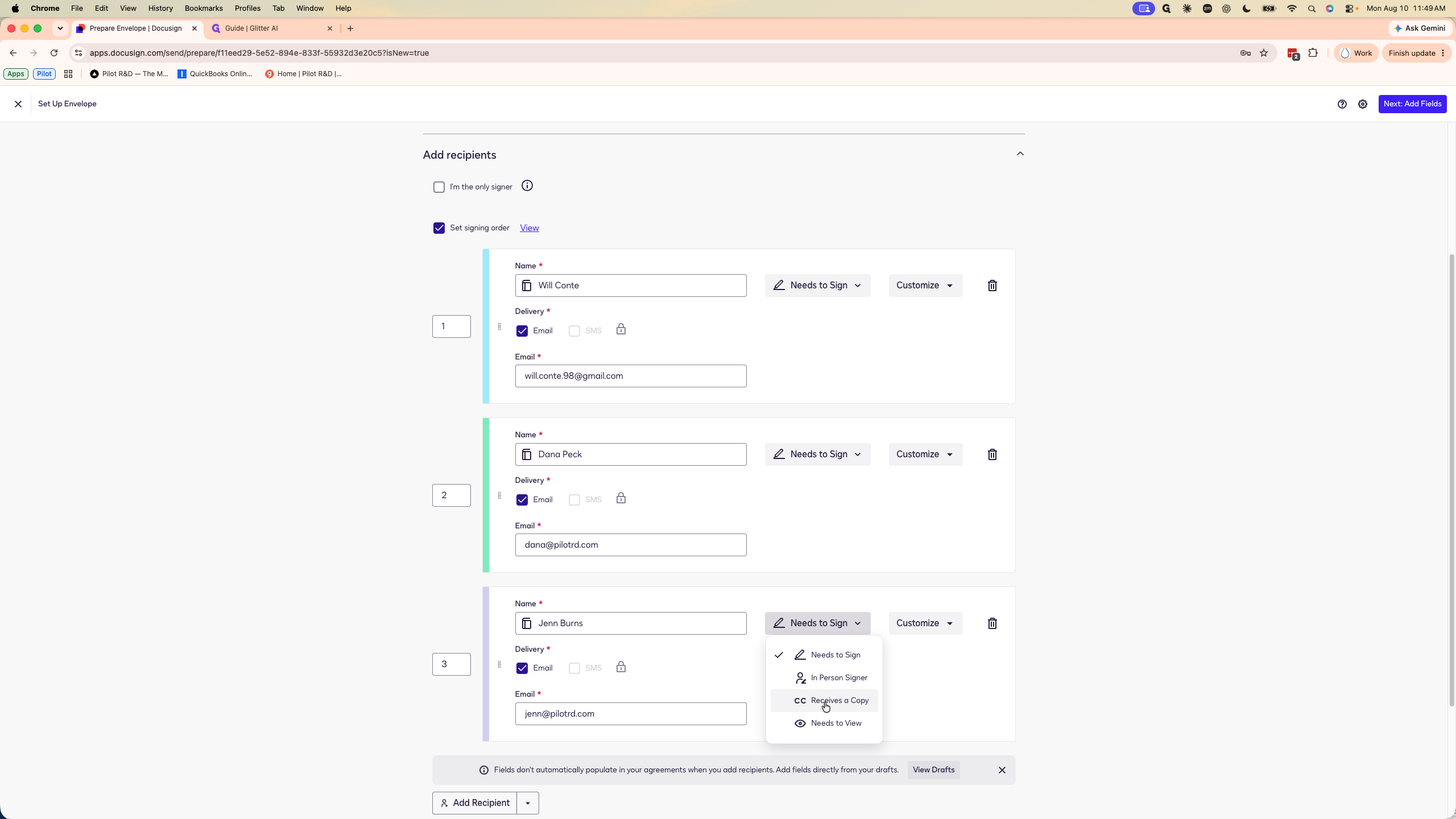
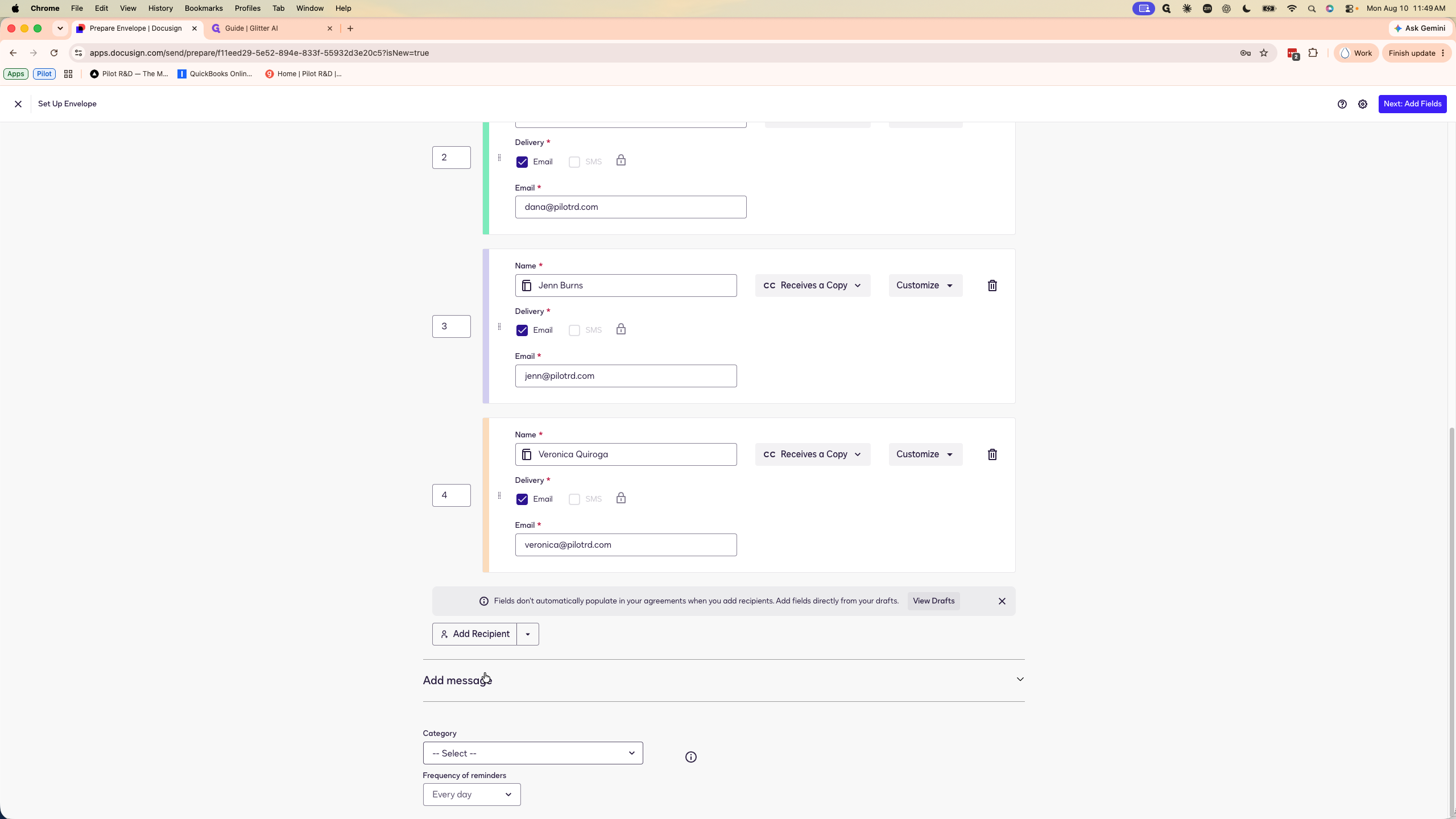
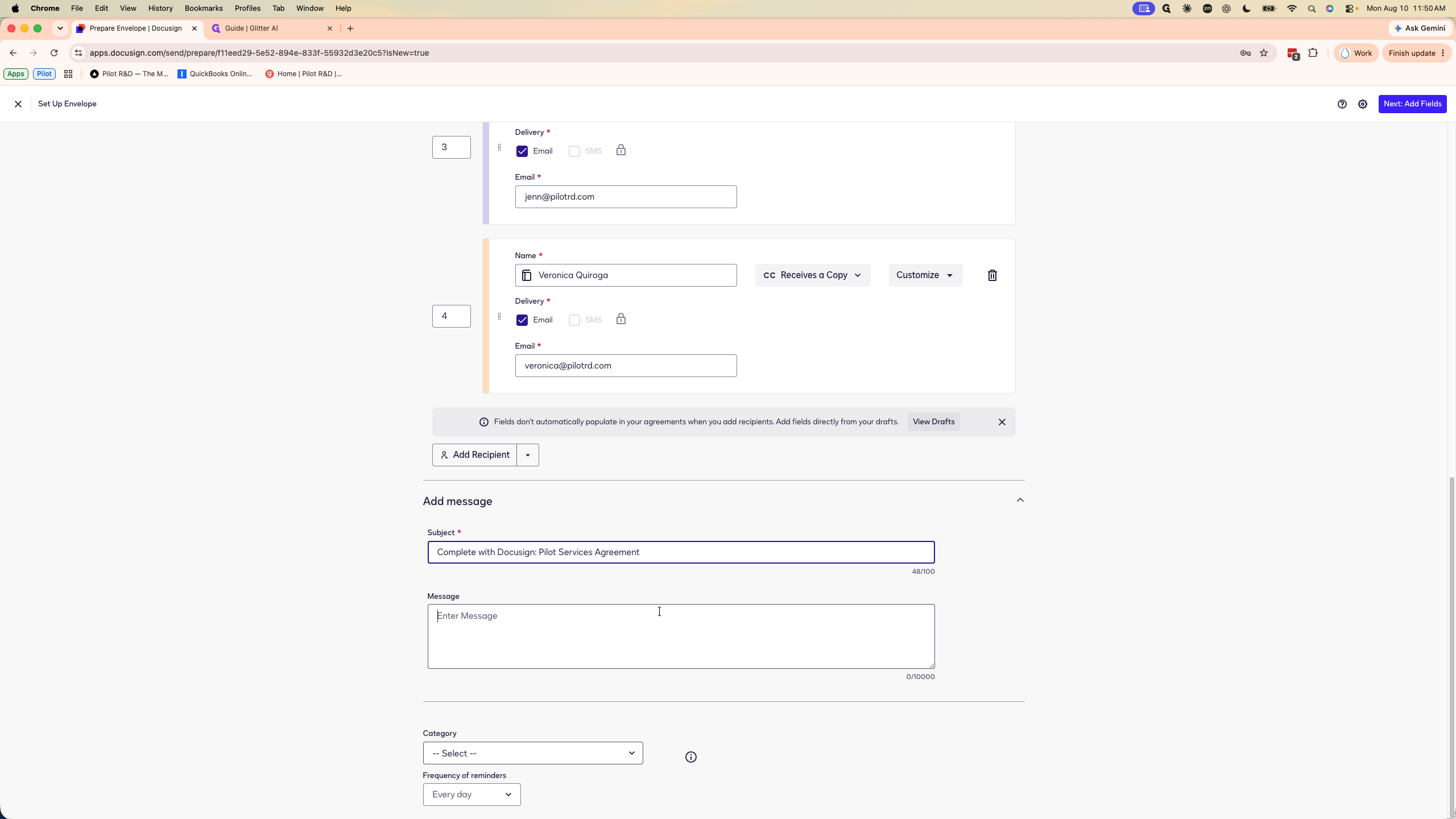
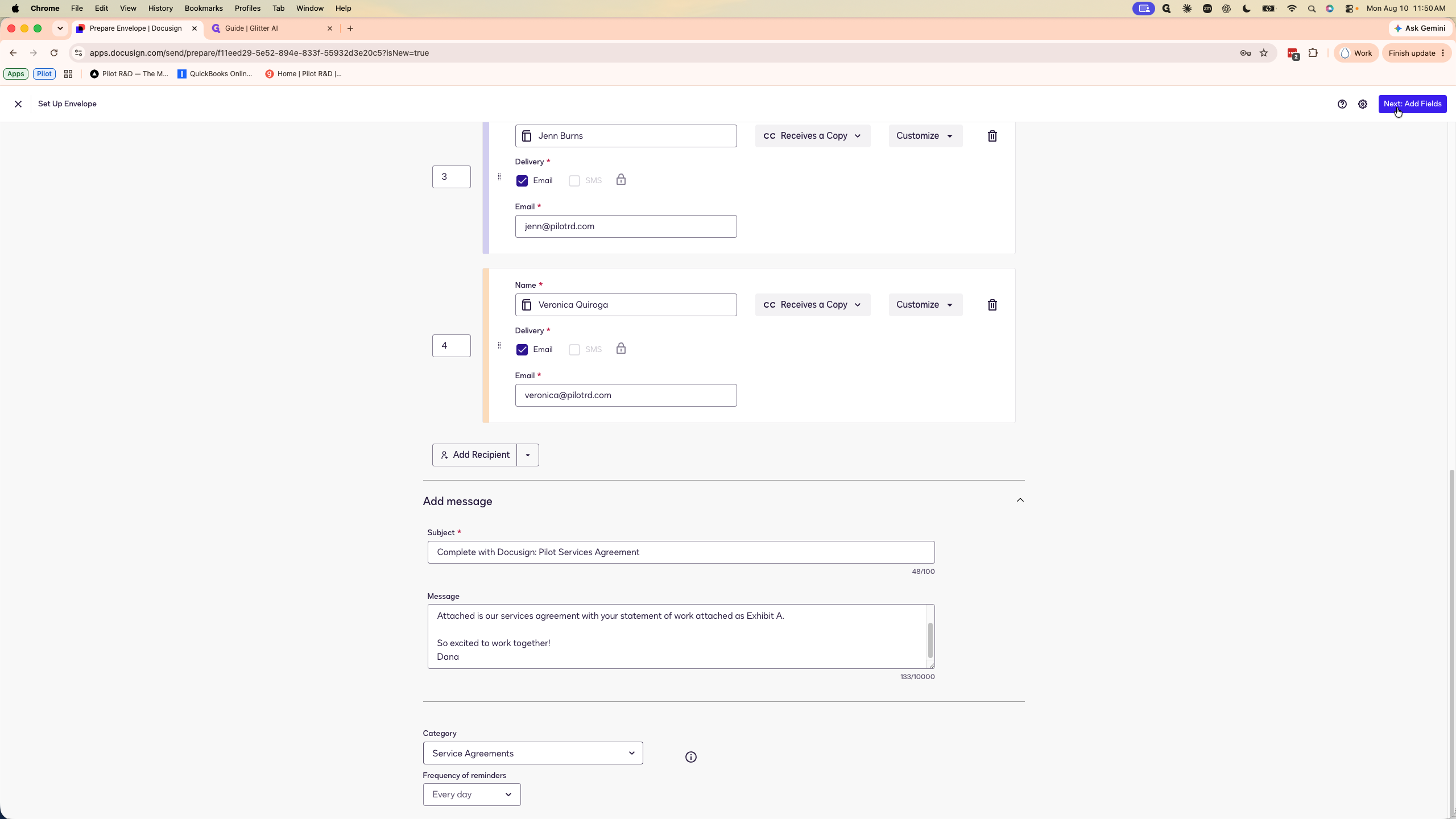
2. Add Recipients and Set Signing Order
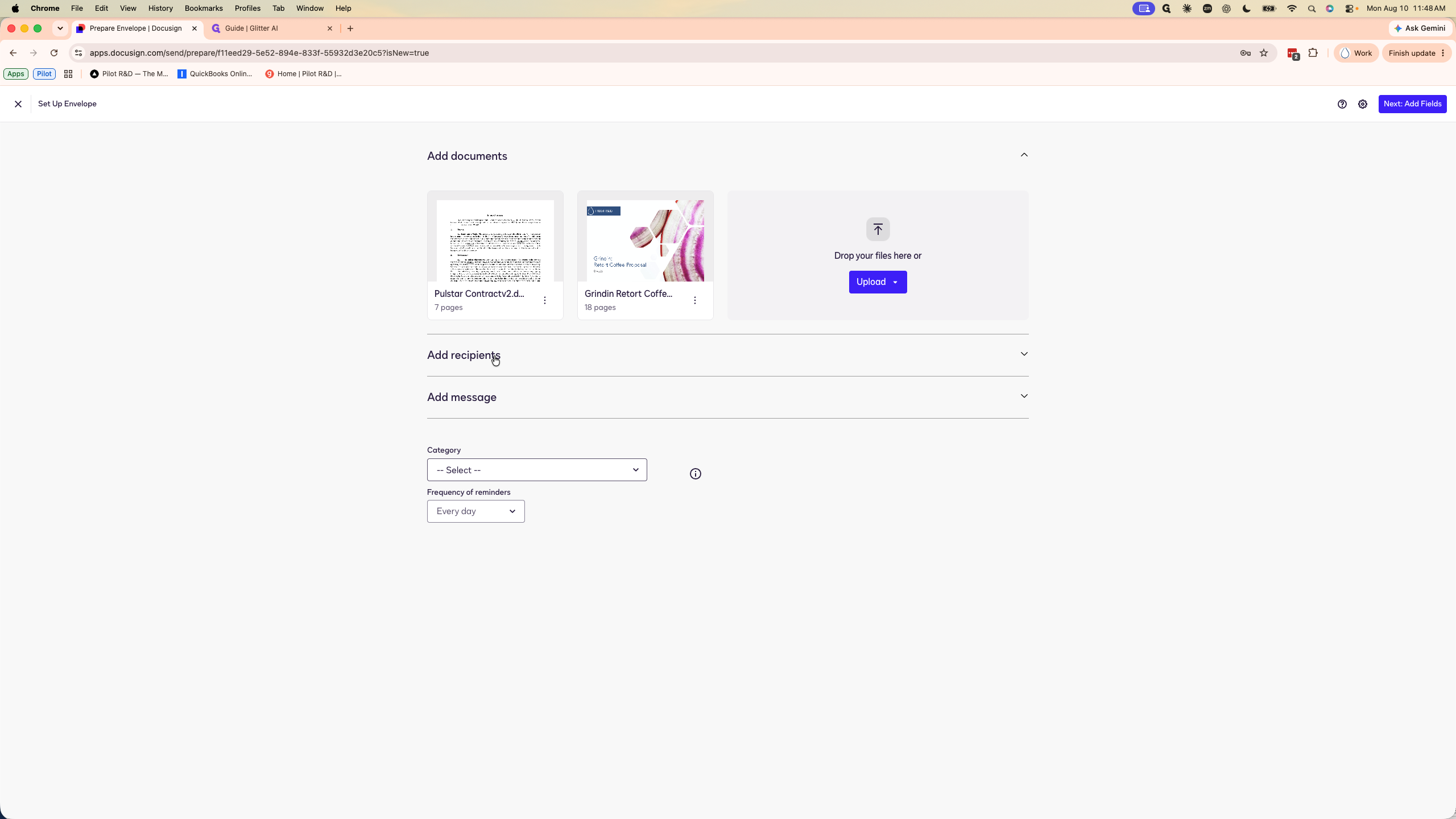
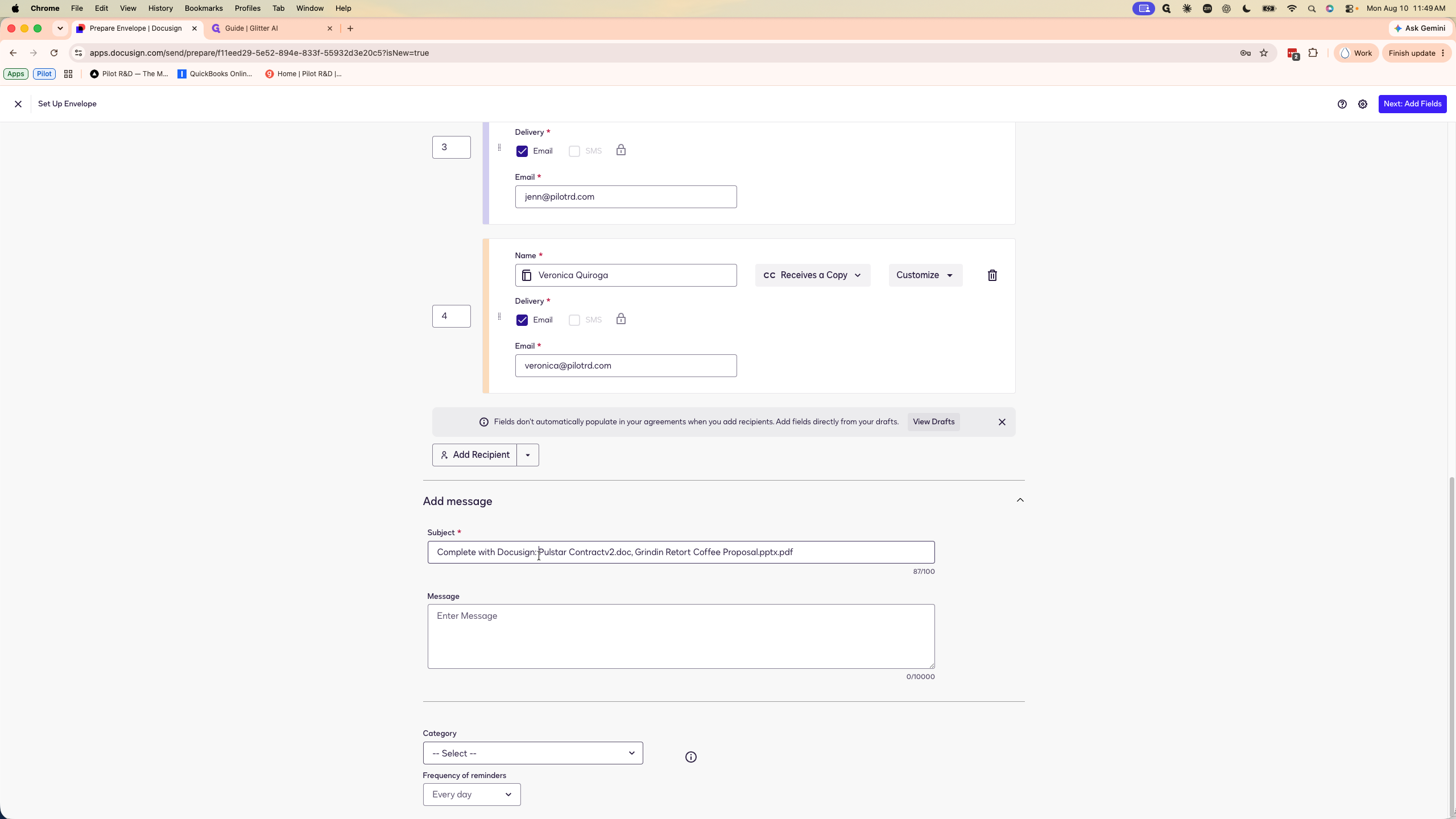
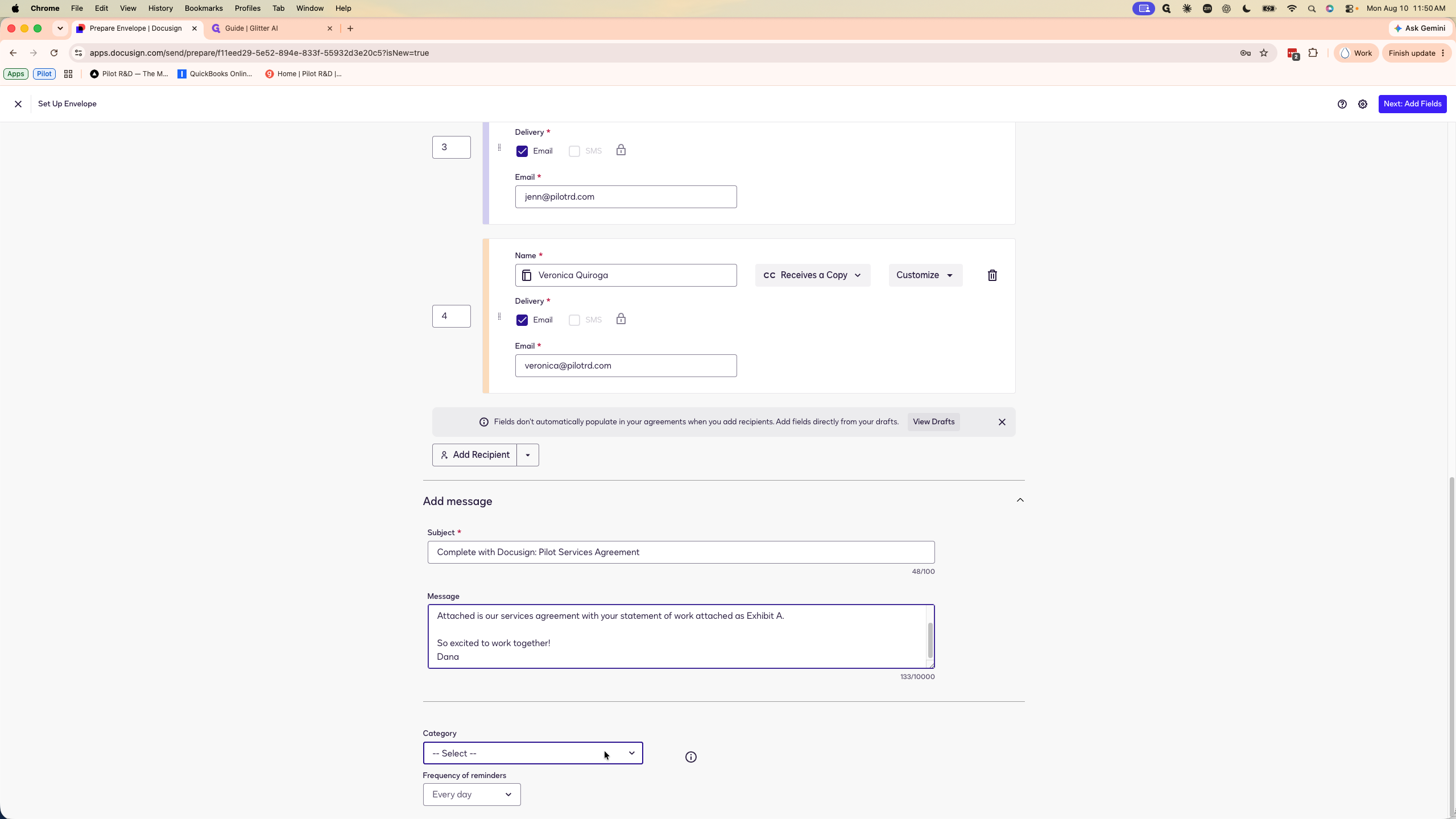
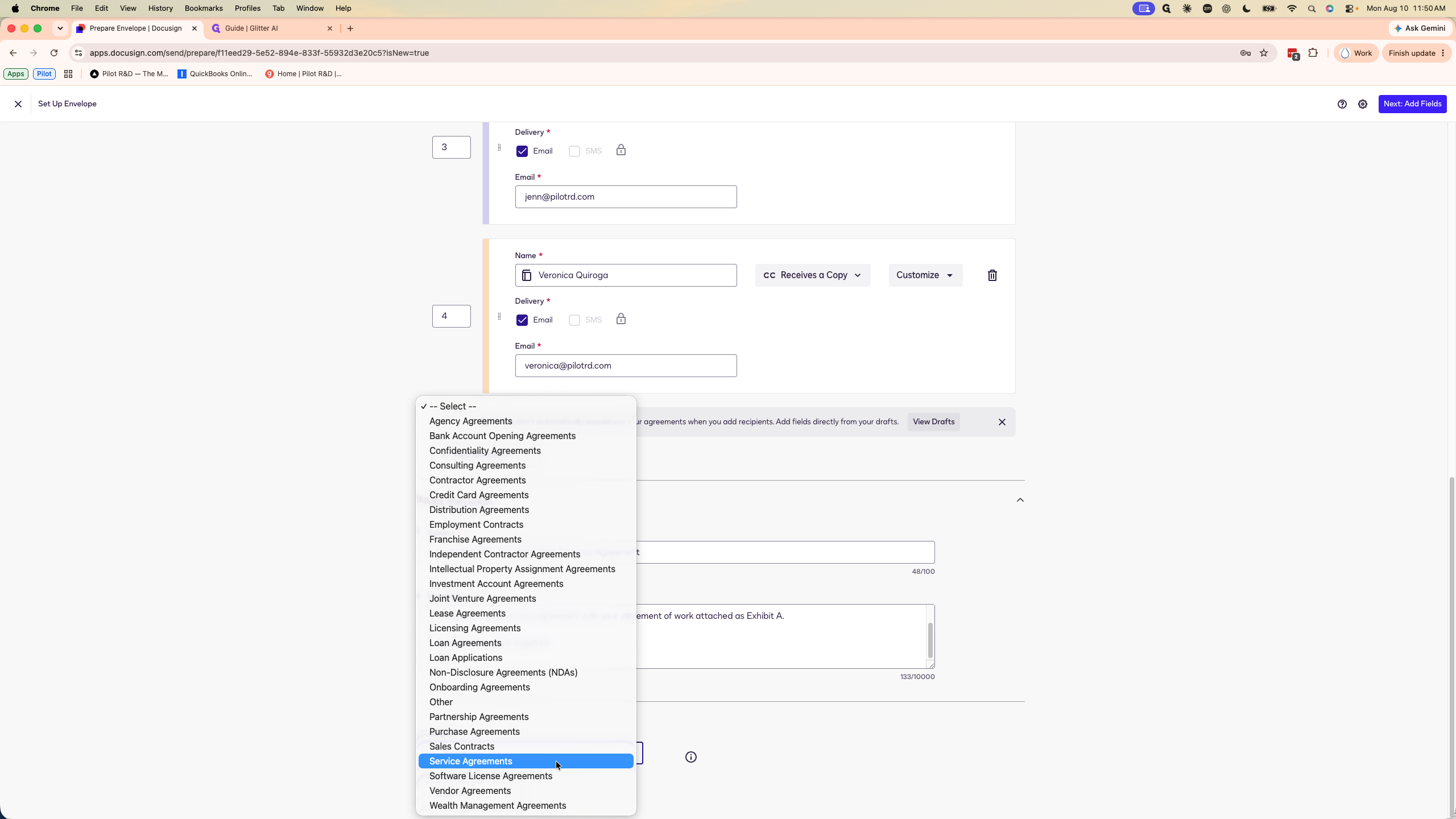
3. Customize the Message
4. Add Fields Manually
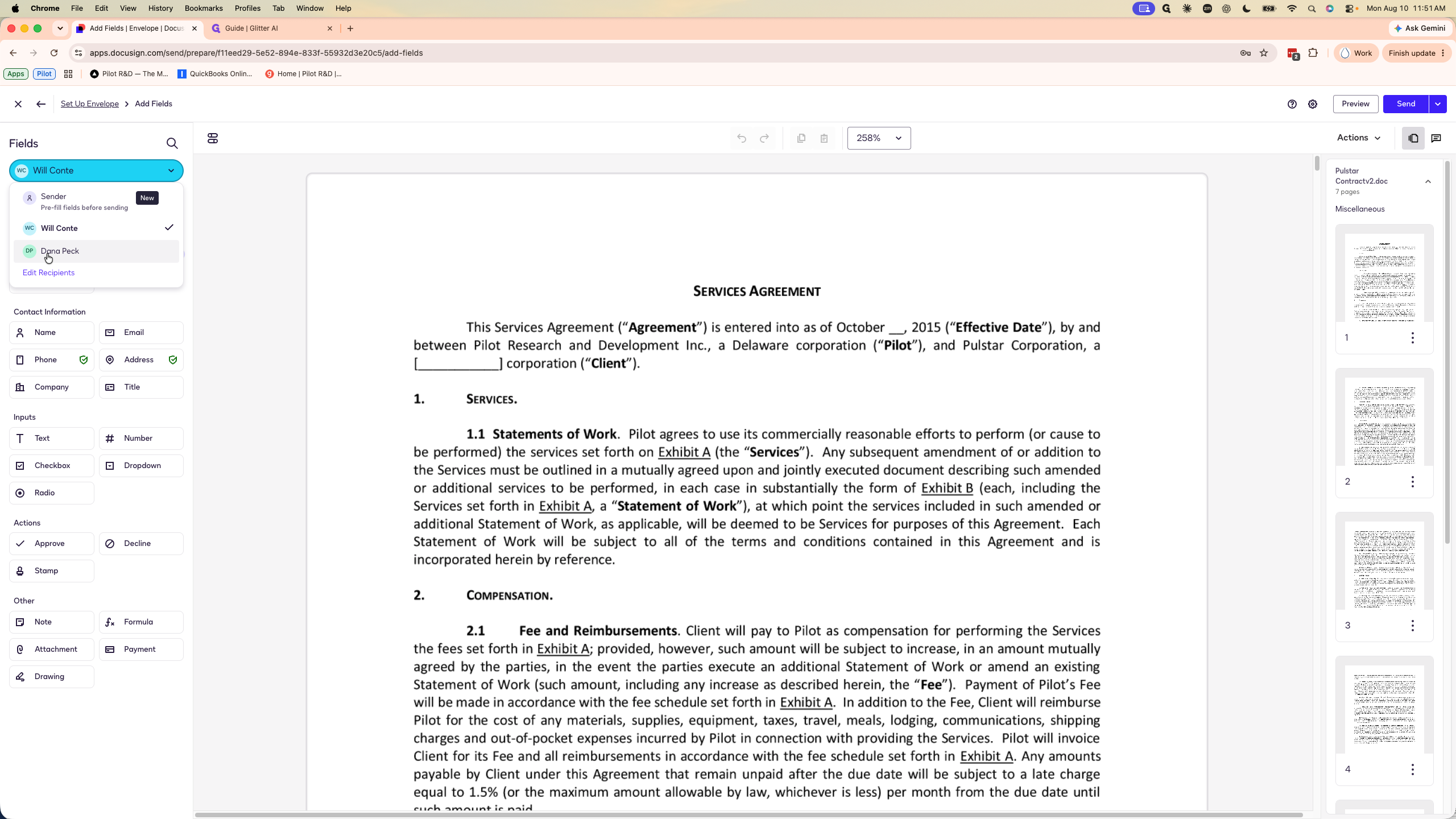
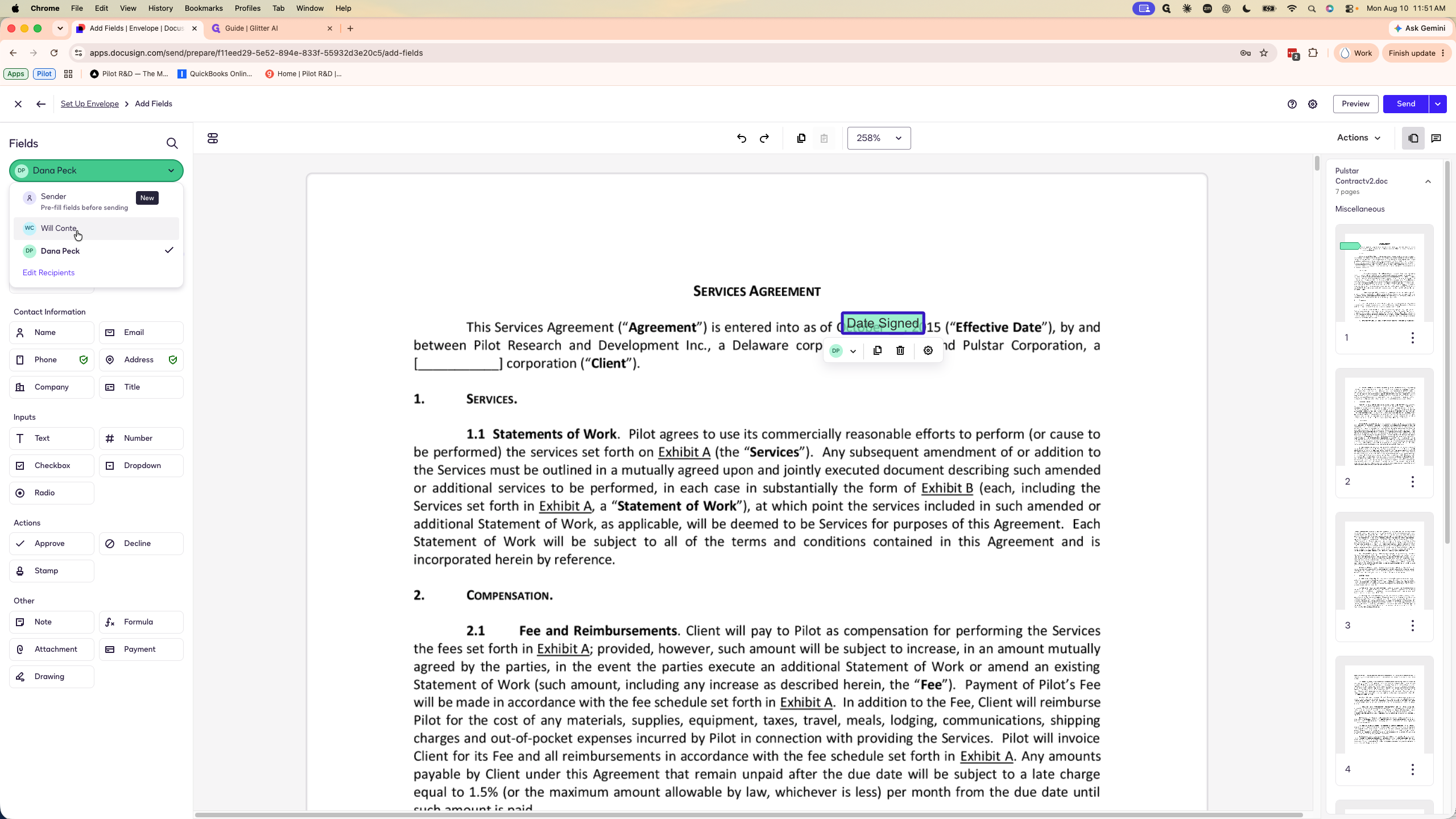
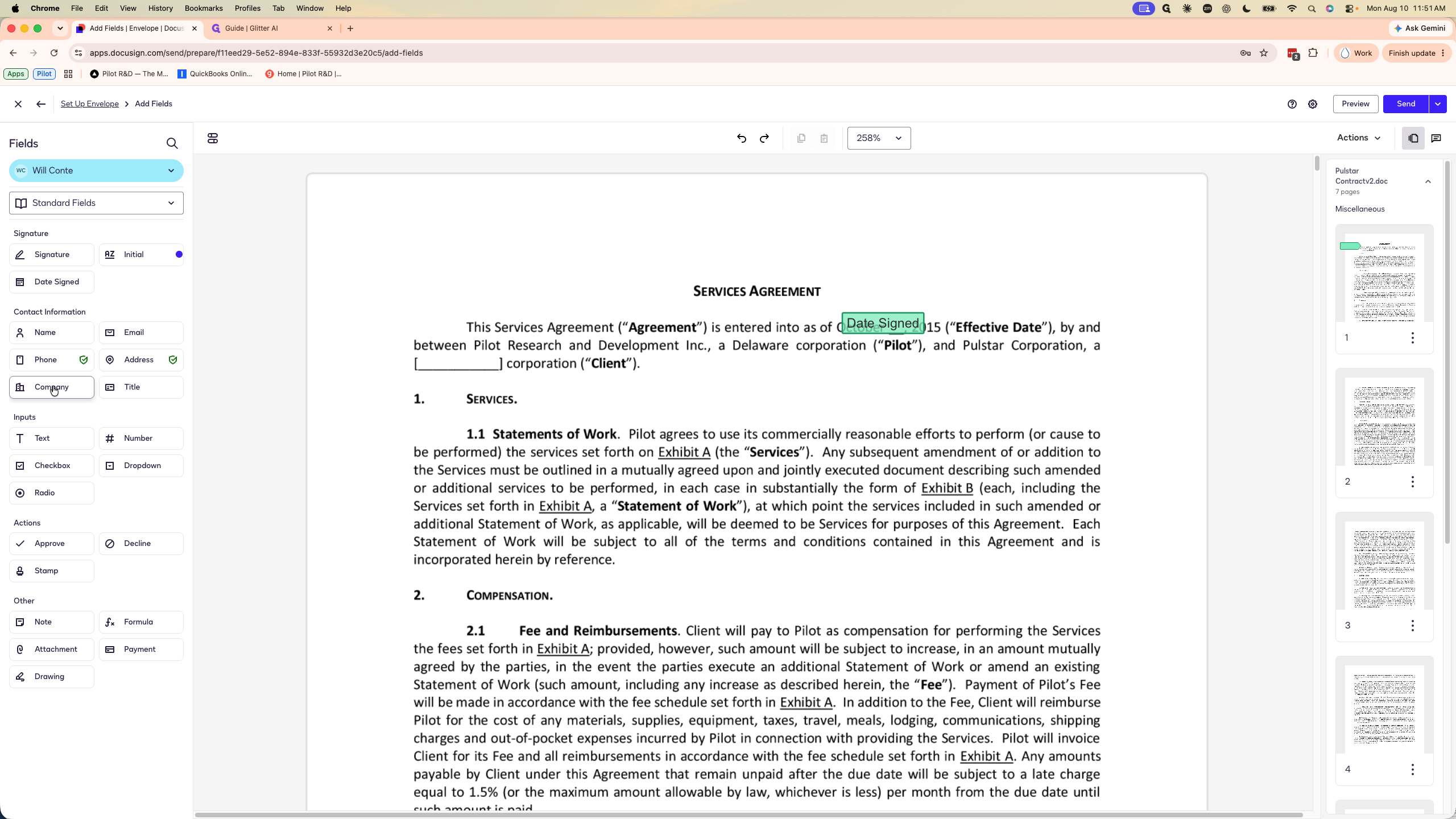
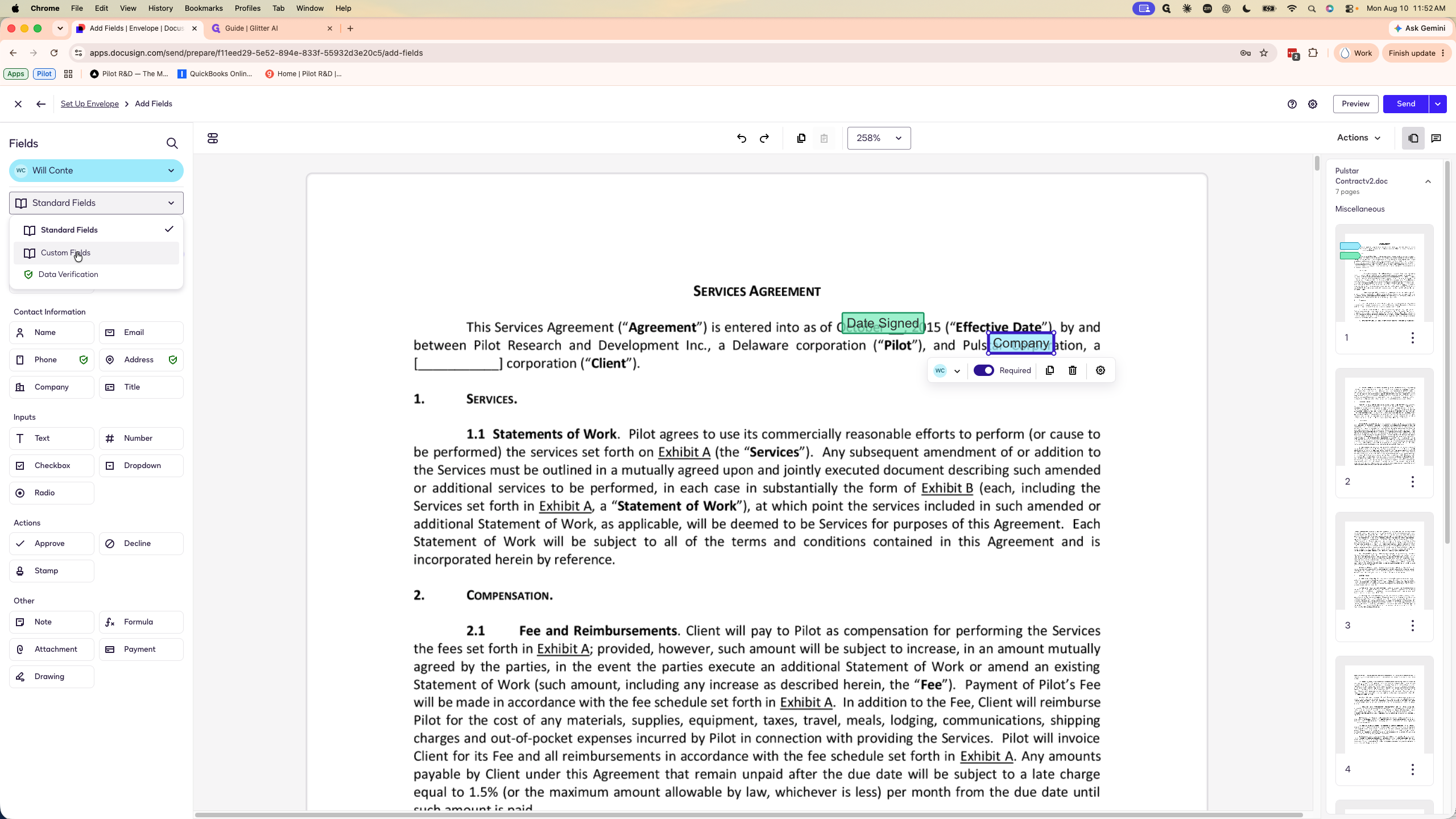
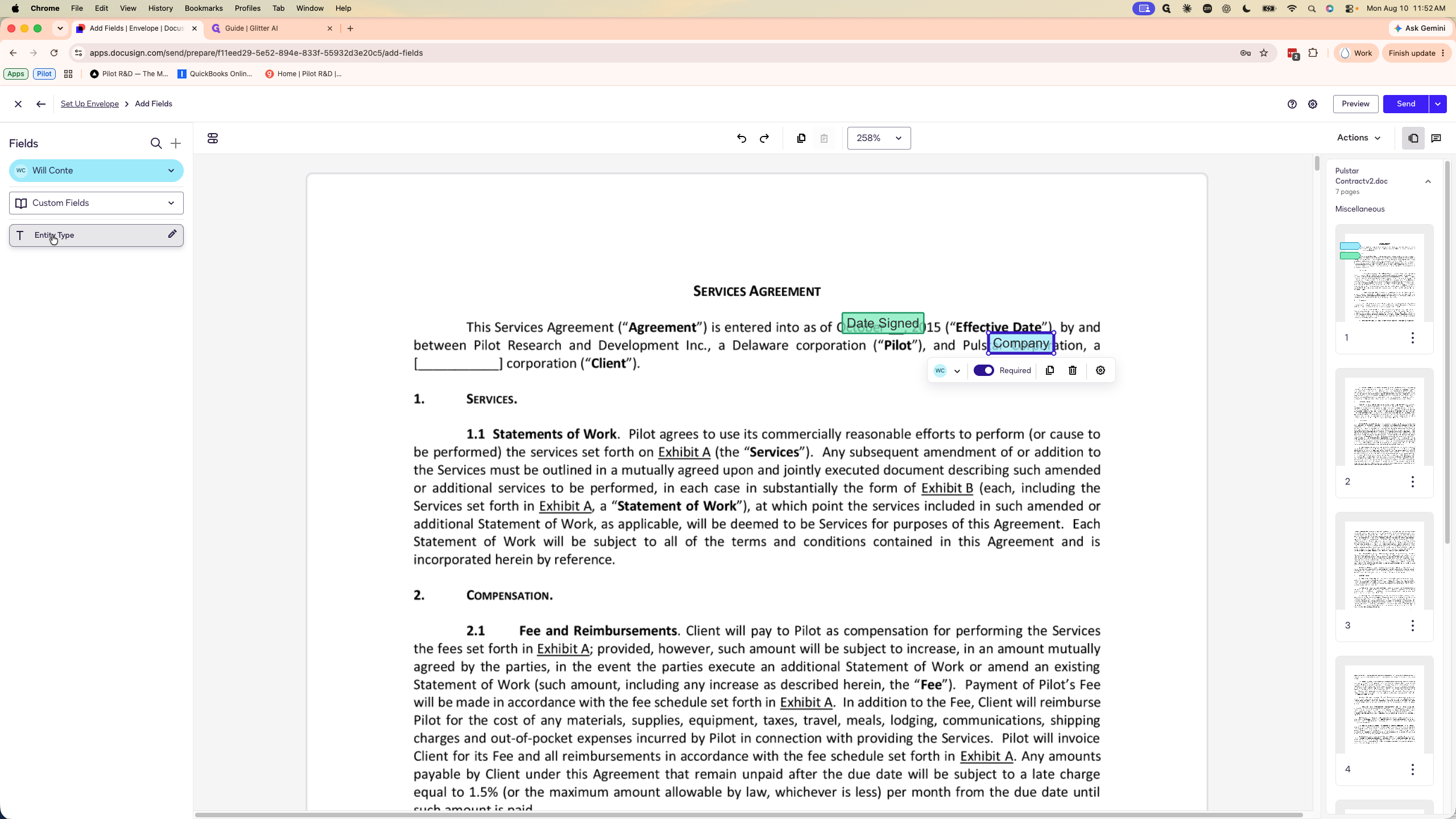
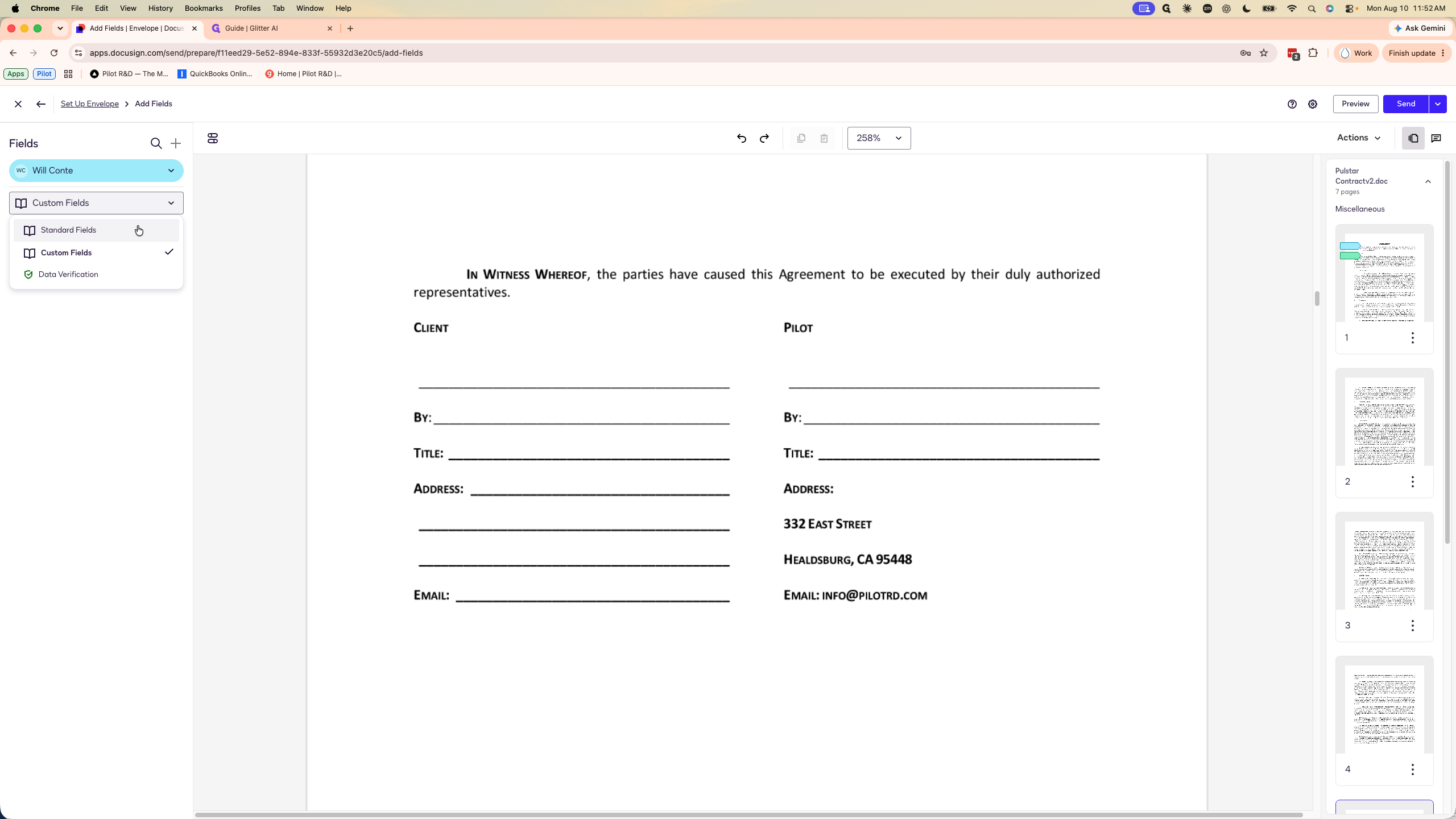
If the template didn't automatically apply, you must map the signature and input fields for both the client and yourself.
Assigning fields to yourself:
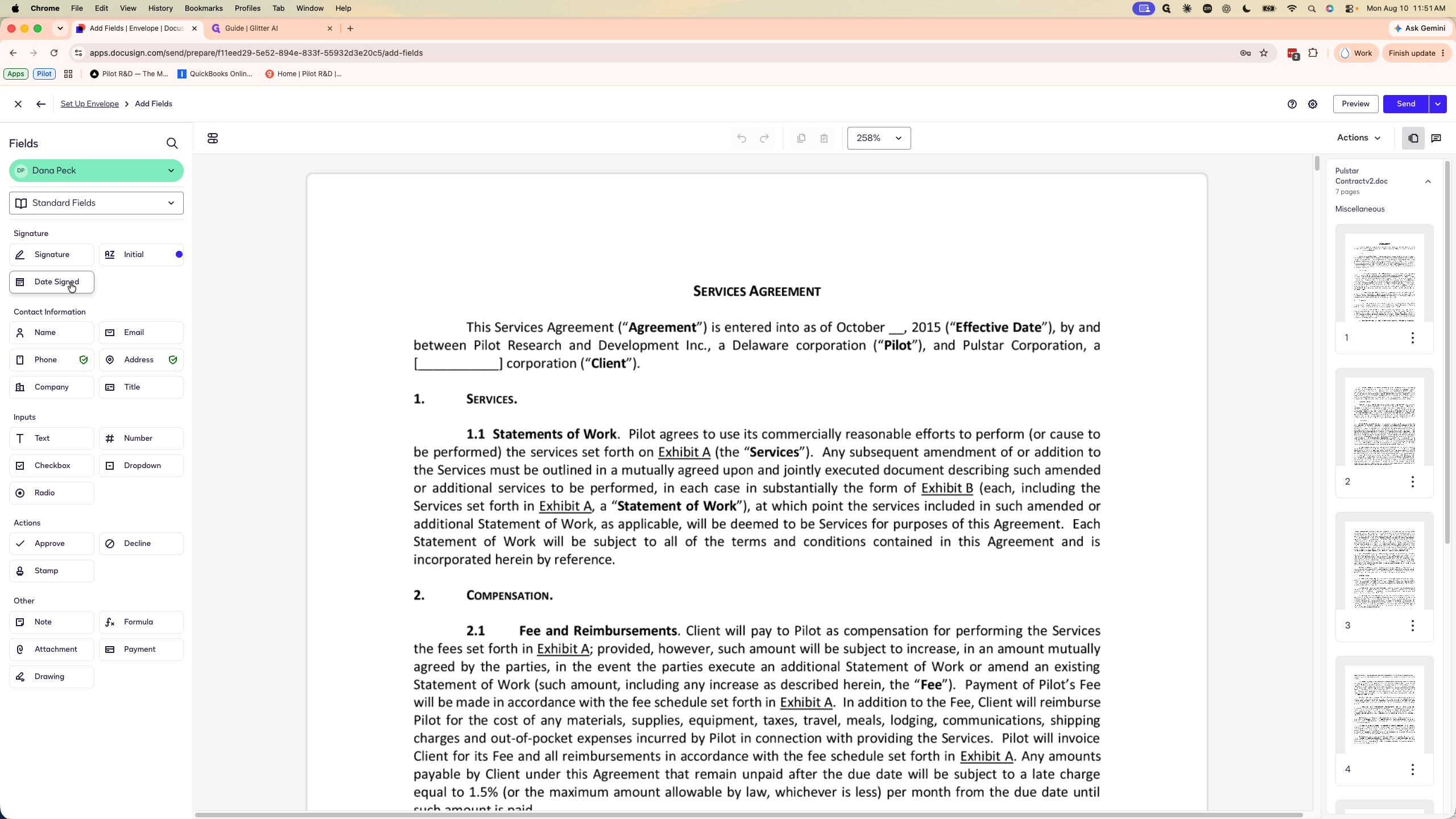
Assigning fields to the client:
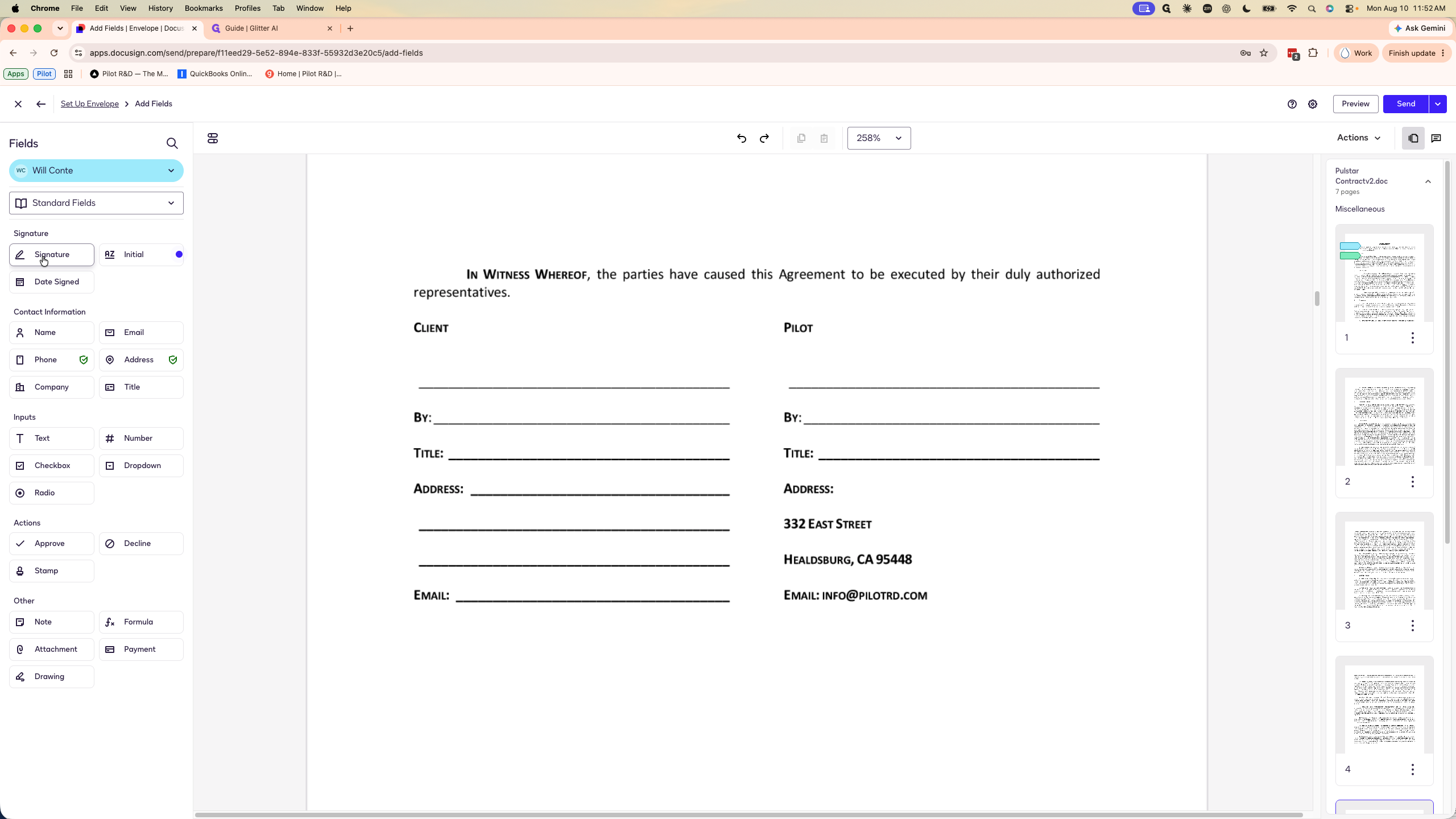
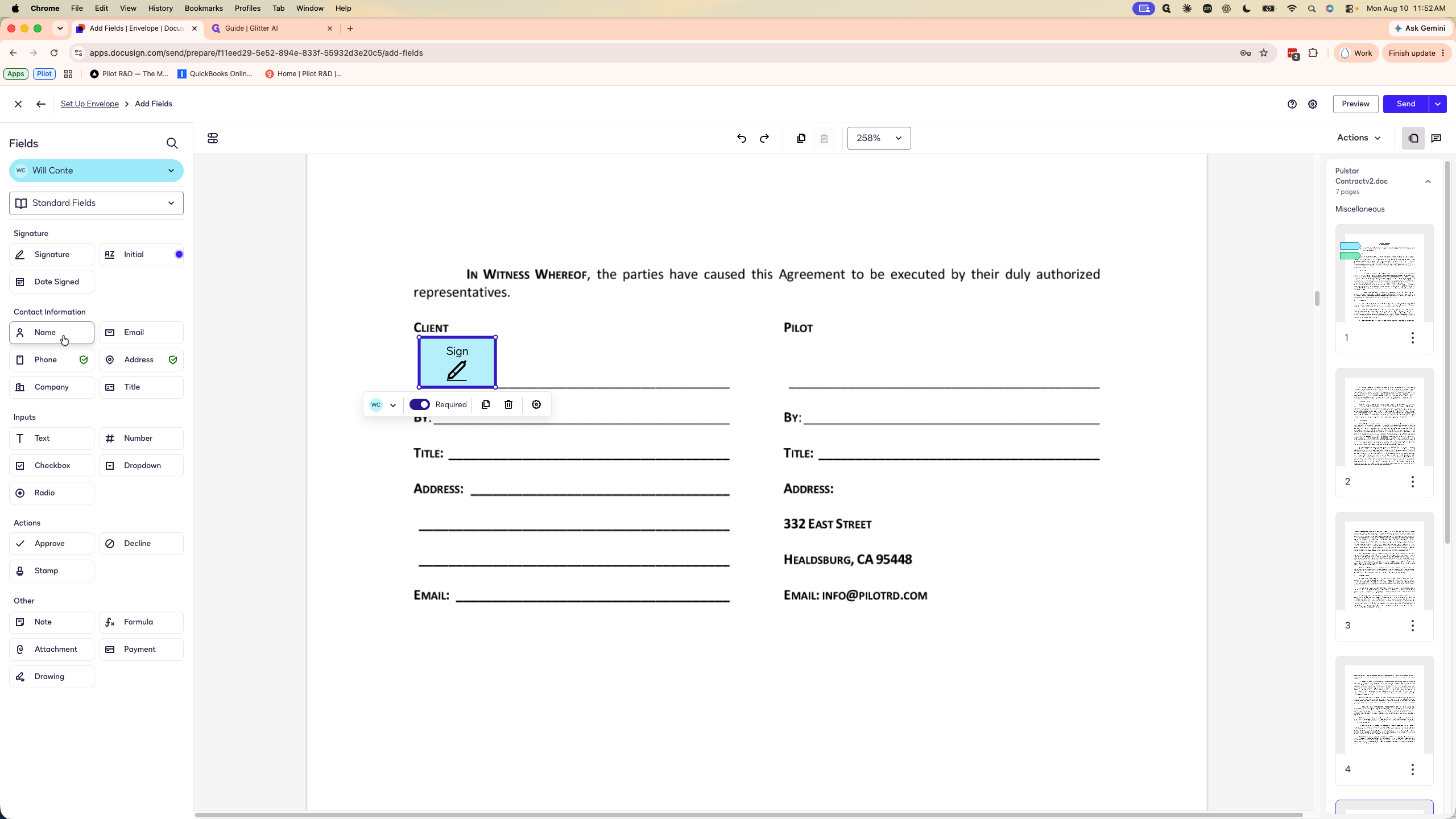
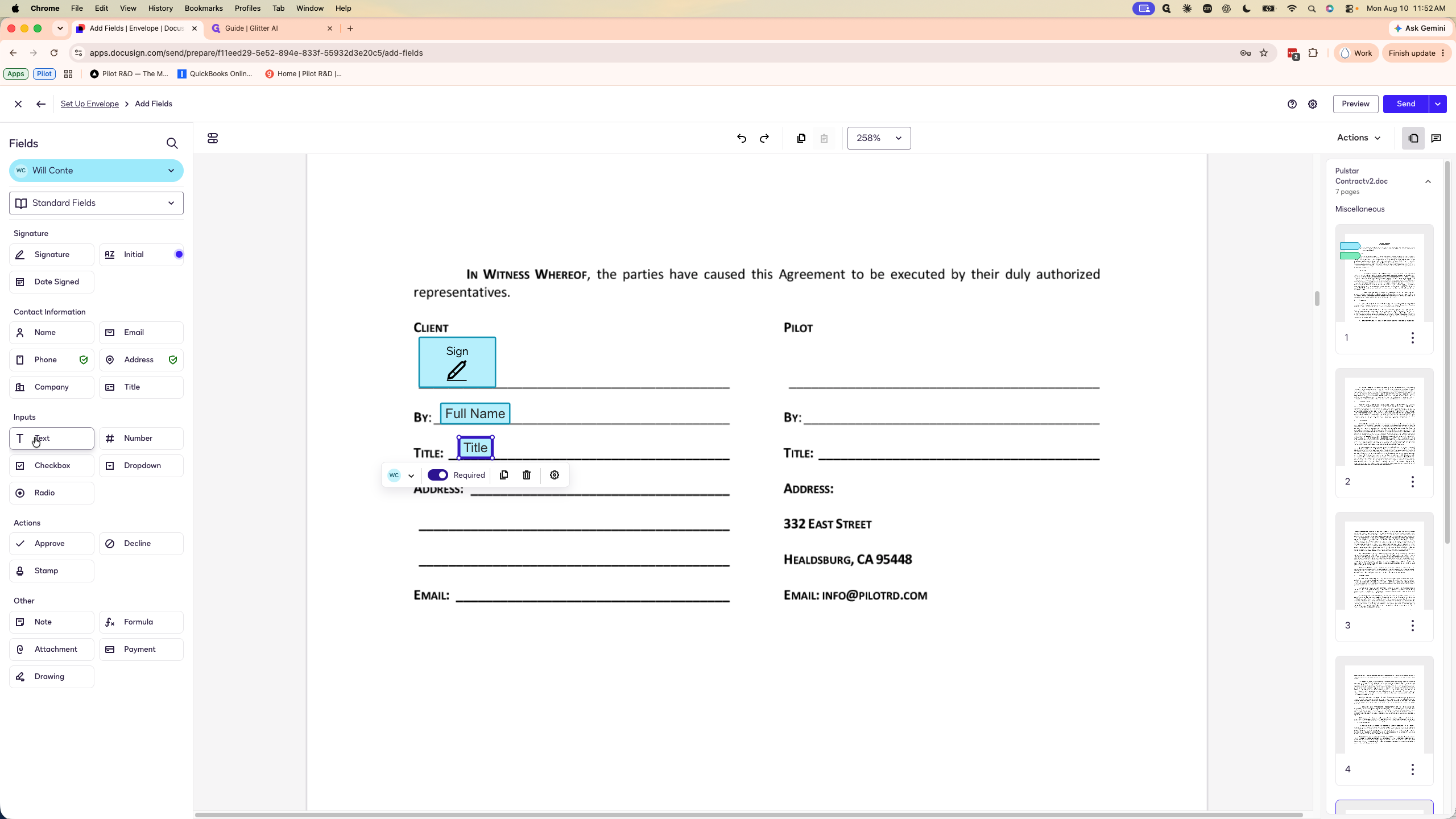
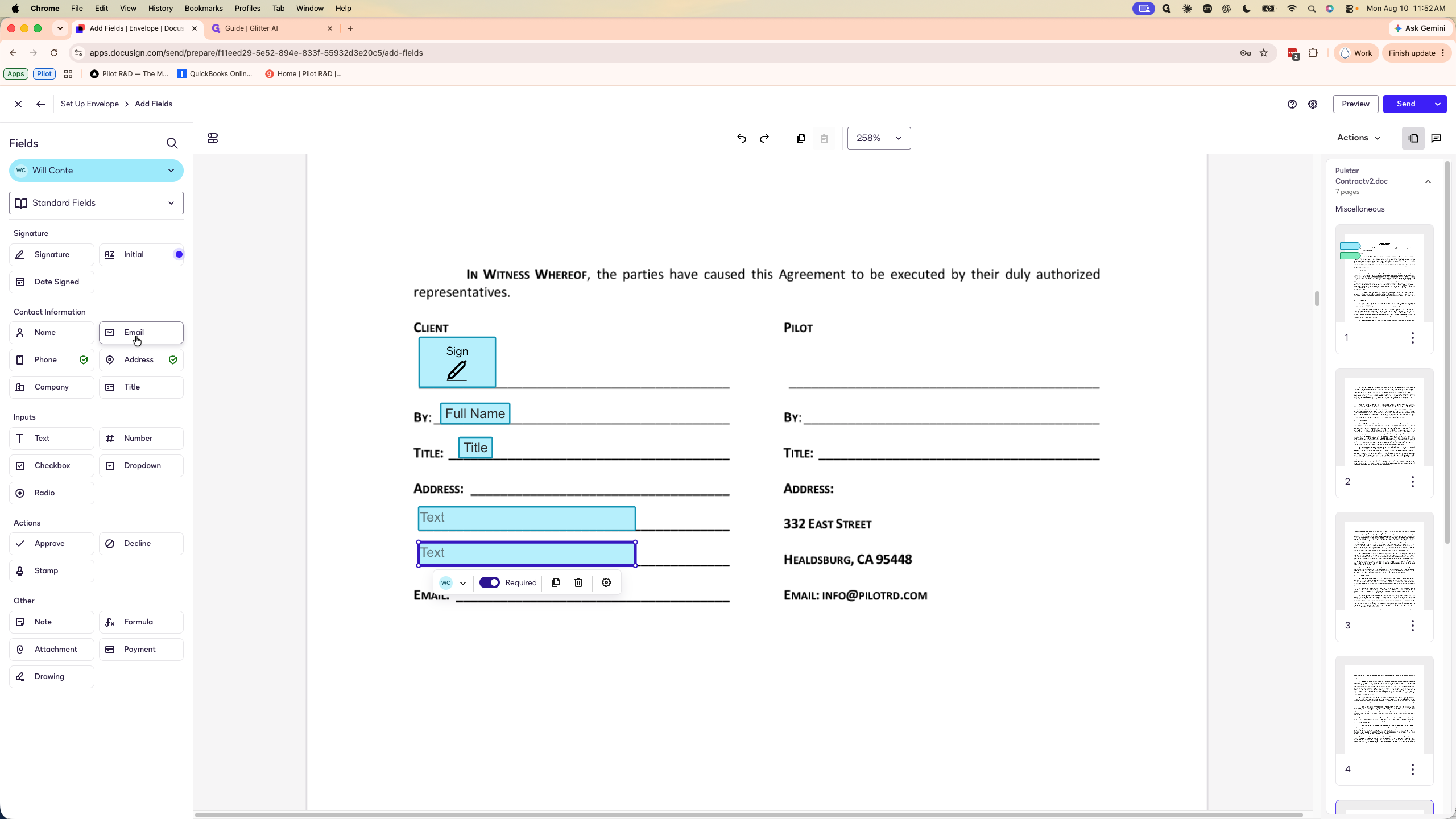
Finalizing the signature block:
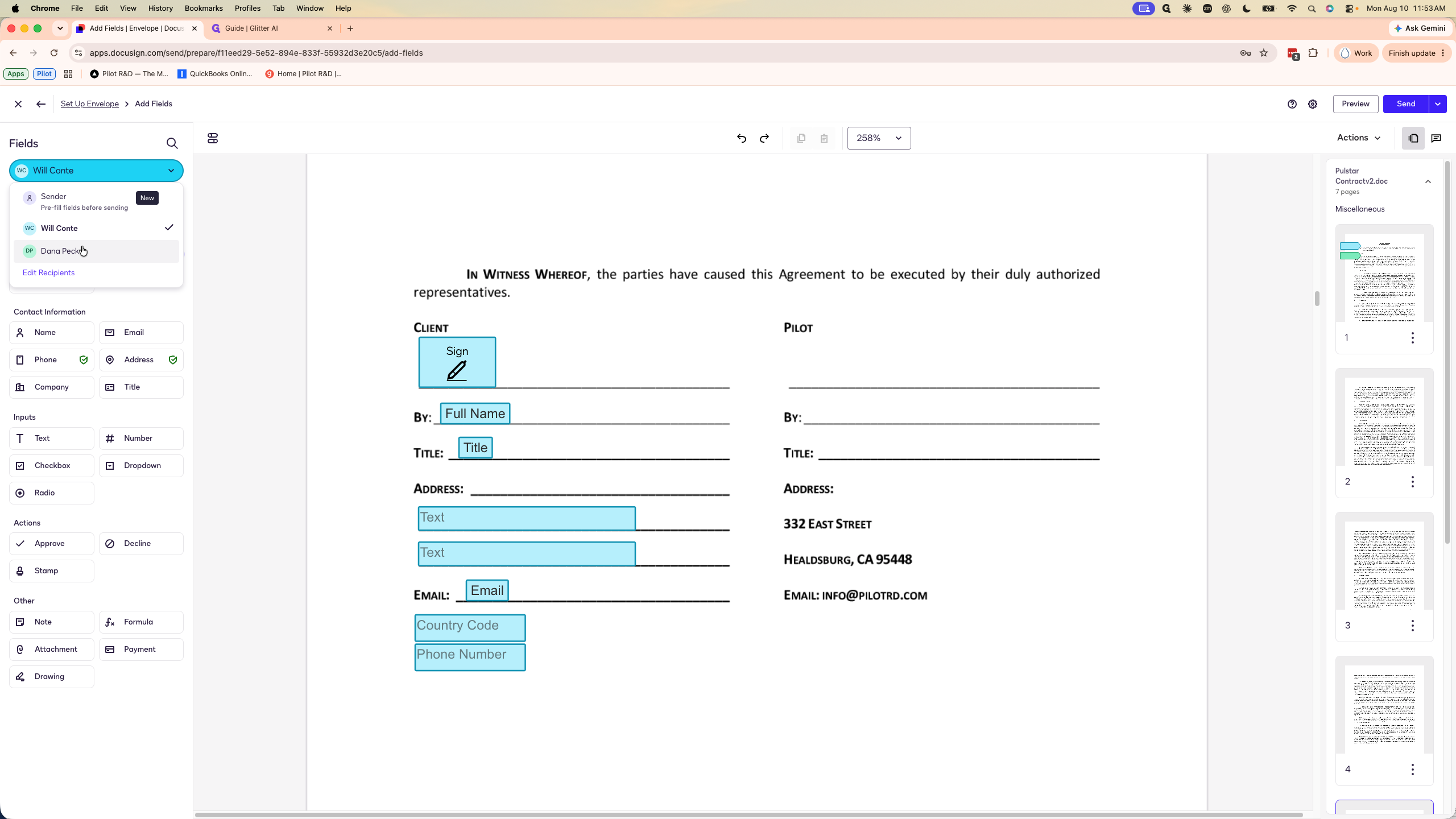
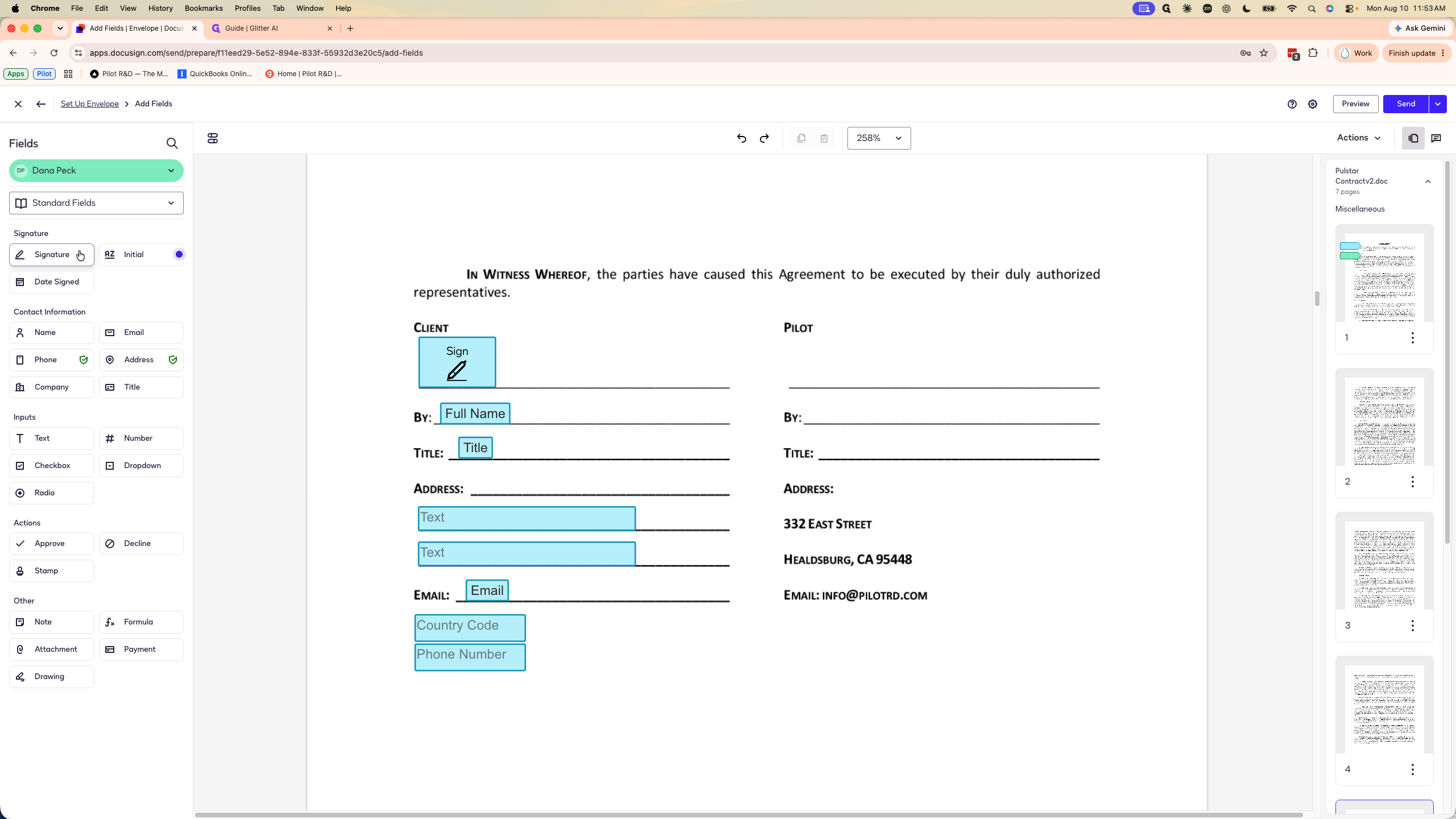
Once all fields are properly assigned and positioned, review the envelope and click Send.
Q: Why do I assign the "Date Signed" field to myself instead of the client?
A: You sign the contract last. Assigning the date field to yourself ensures the contract's effective date reflects the exact day it is fully executed.
Q: Why use basic text fields for address and phone number instead of the pre-formatted ones?
A: DocuSign's specialized address and phone fields force specific formatting (like splitting country codes), which can be annoying for signers. Standard text fields provide a smoother signing experience.
Q: What happens if DocuSign recognizes the revised contract?
A: DocuSign may prompt you to apply a matching template. If you click "Apply", it will automatically pre-fill the signature and data fields, saving you from placing them manually.
Q: How should I order the recipients?
A: Set the signing order so the client signs first, followed by you. Any internal team members who only need visibility should be placed at the end of the order and set to "Receives a Copy".
Term | Definition |
|---|---|
Envelope | A container used in DocuSign to send, sign, and manage one or more documents. |
Statement of Work (SOW) | A formal document that details the specific services, deliverables, and timelines of a project. |
Signing Order | The sequential workflow that dictates the order in which recipients receive and sign a document. |
Custom Fields | User-defined input fields created in DocuSign to capture specific data not covered by standard fields, such as Entity Type. |
Receives a Copy | A recipient role in DocuSign that grants view-only access to the final signed document without requiring a signature. |