
Send Welcome Emails to Existing Staff in Sentrient
Learn how to resend or manually trigger the new staff welcome email for individual employees or groups in Sentrient.
This guide explains how to manually trigger the new staff welcome email to specific recipients in the Sentrient platform. This is useful for inviting users whose email addresses were recently corrected or for sending welcome emails to a group after a bulk upload with notifications turned off.
This process applies to HR administrators or system administrators responsible for onboarding staff and managing employee communications within Sentrient.
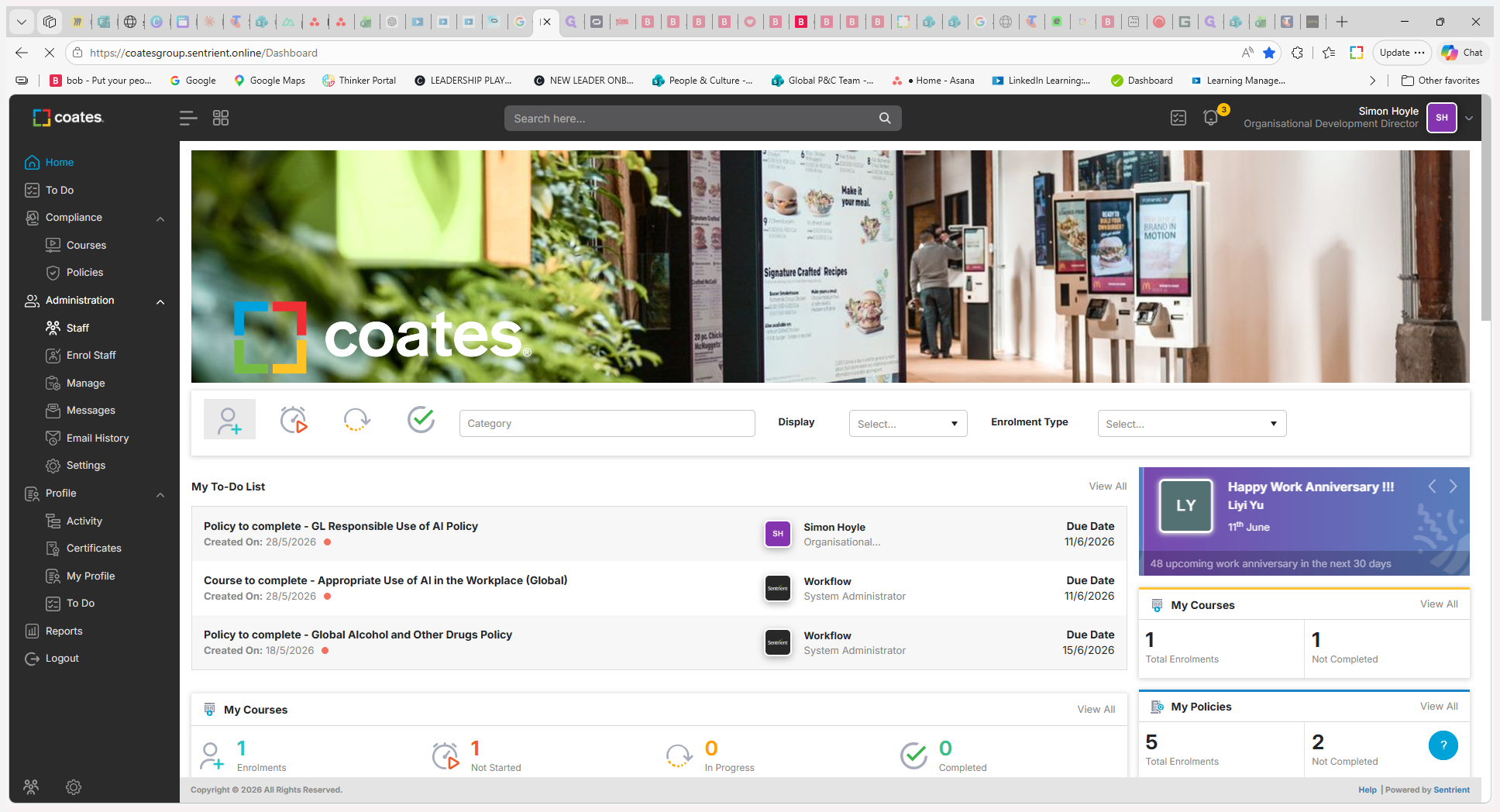
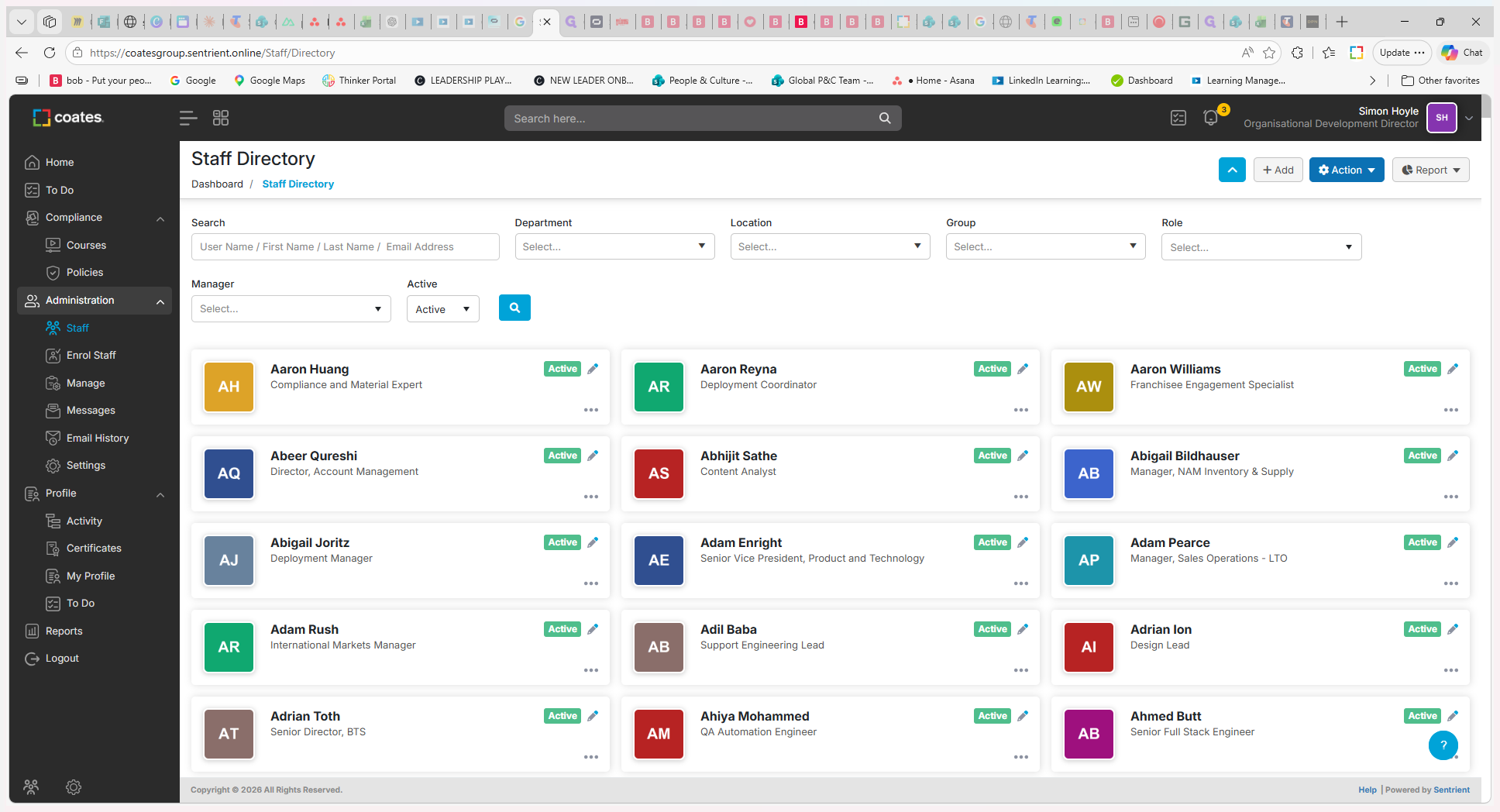
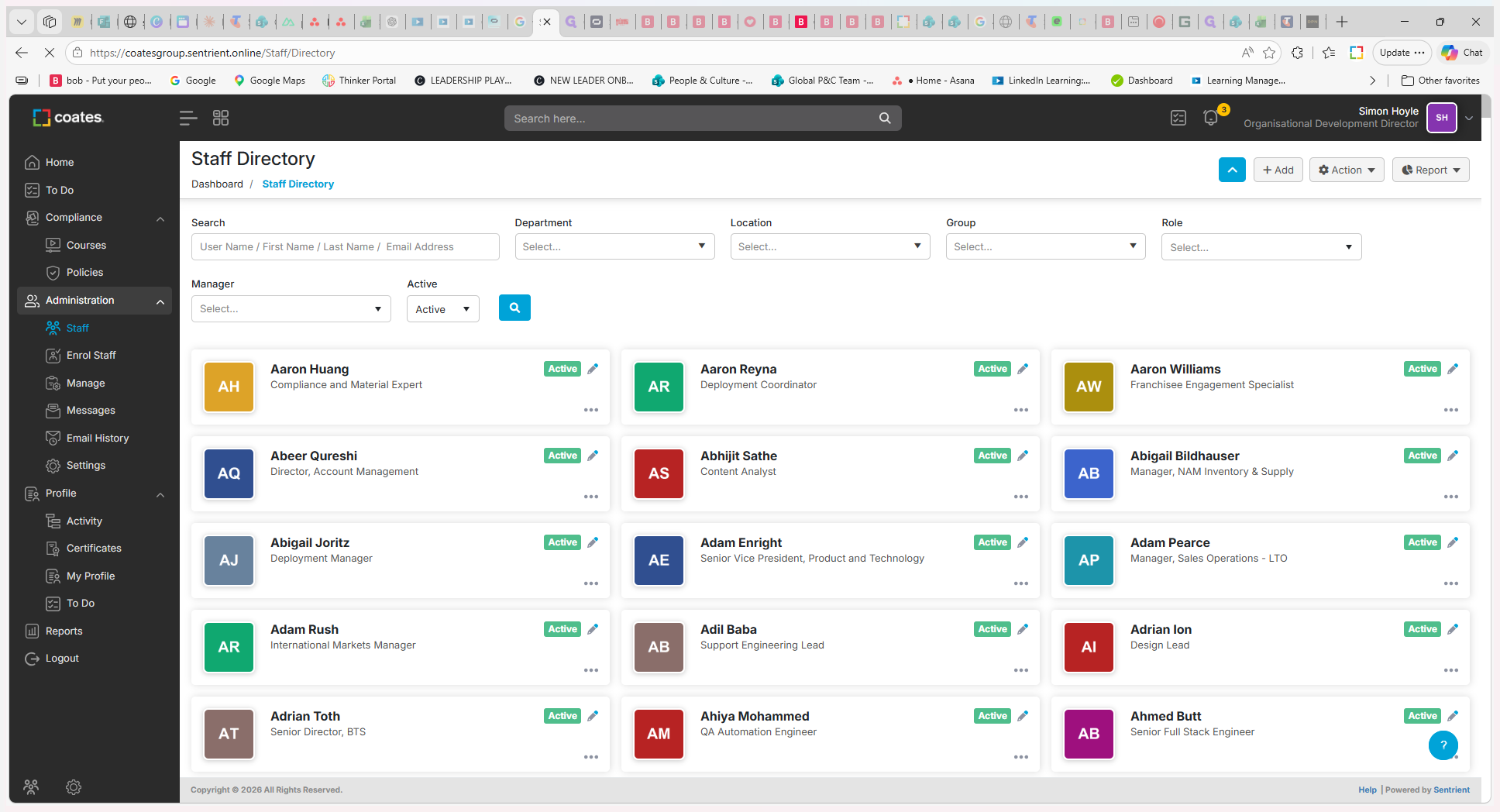
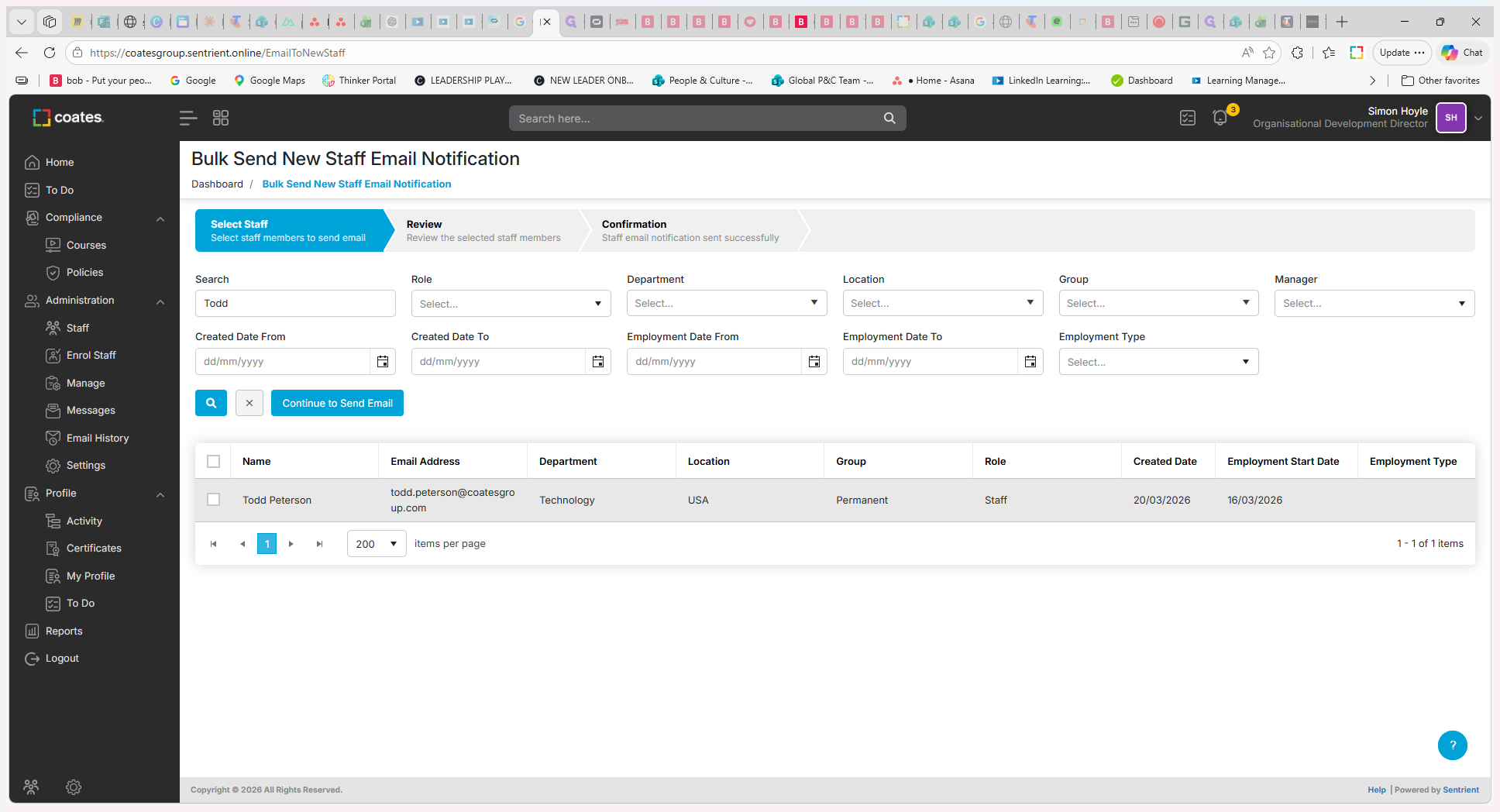
You can filter recipients based on role, department, site, or employee type. For this example, we will search for a specific individual.
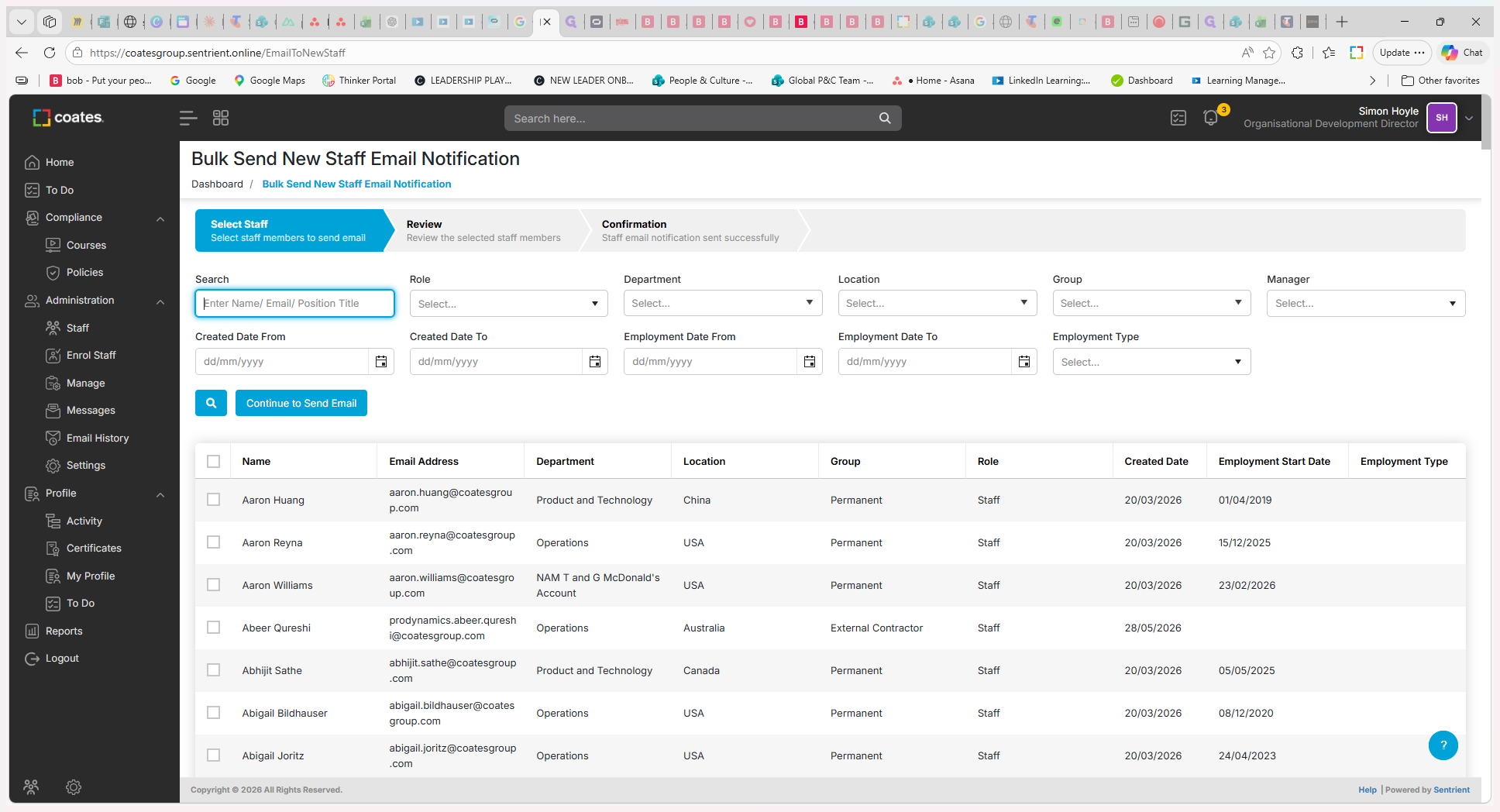
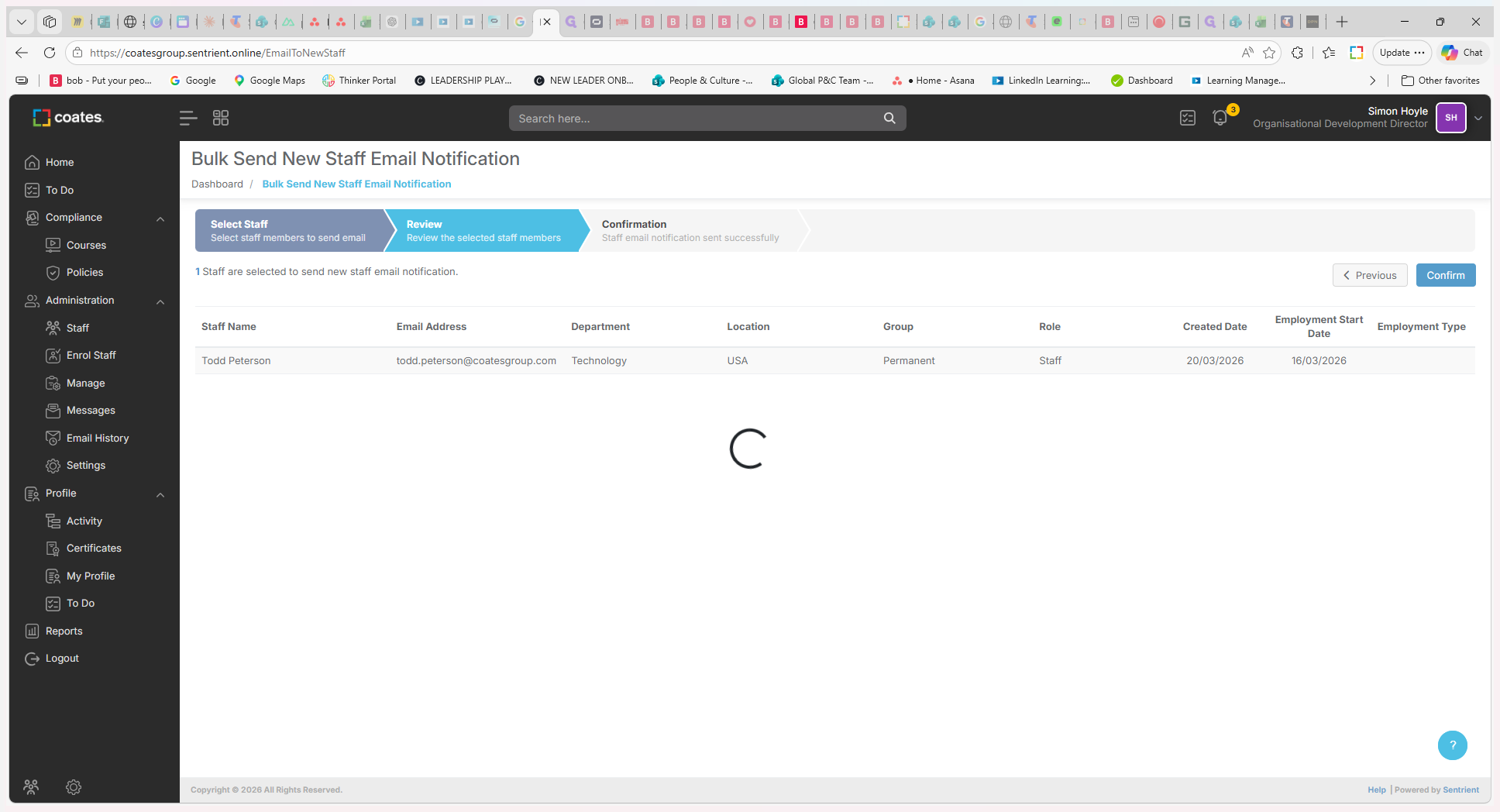
You will be presented with a review screen showing the selected staff members and their original entry dates.
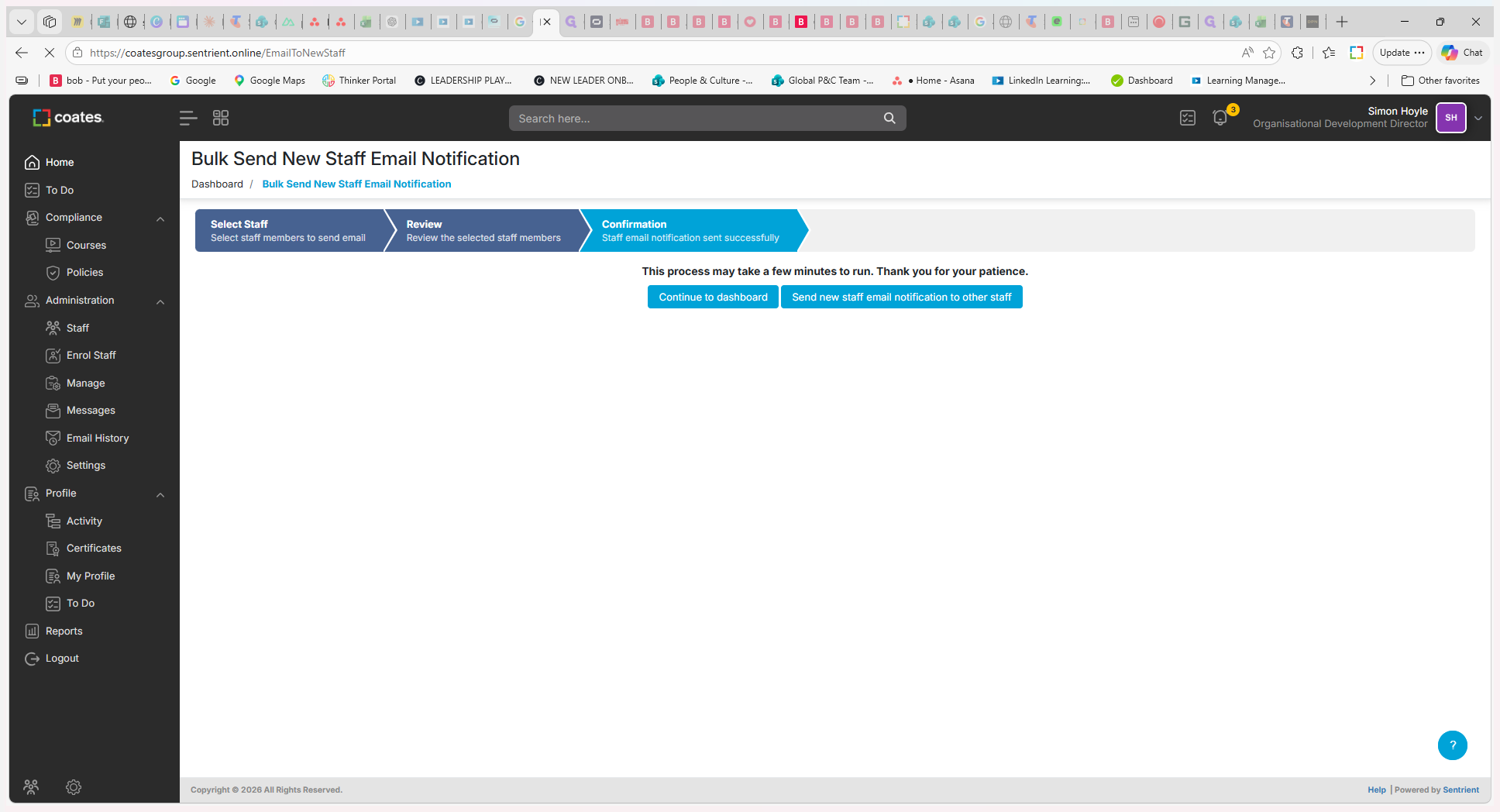
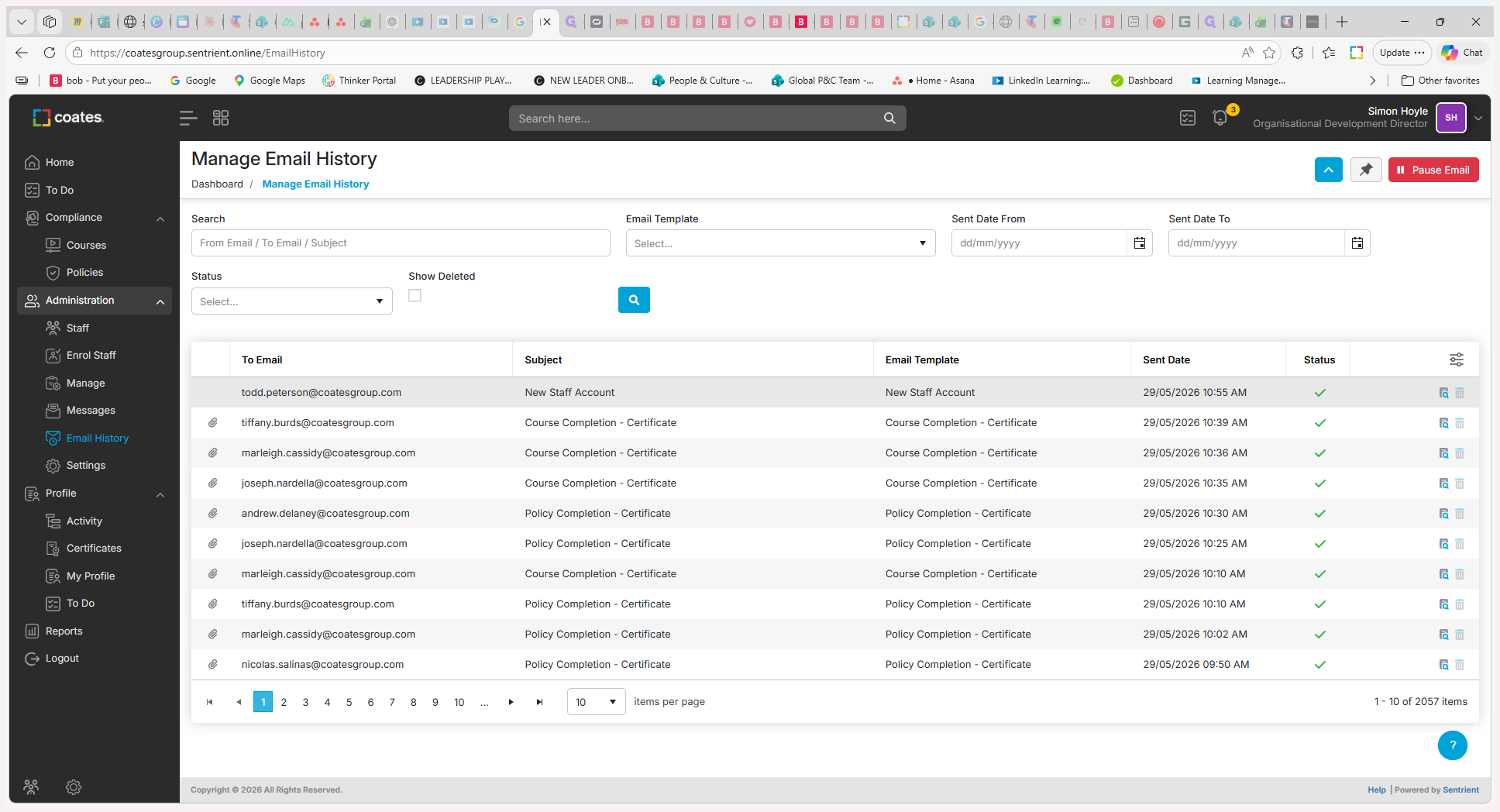
To verify that the email was sent successfully:
Q: When should I manually send a new staff email?
A: You should manually send it if a new hire's initial email address was incorrect and later updated, or if you disabled notifications during a bulk user upload and want to send the welcome emails later.
Q: Can I send the welcome email to multiple people at once?
A: Yes. You can select an entire group by filtering for specific roles, departments, sites, or employment types before continuing to the send step.
Q: How can I verify the welcome email was actually sent?
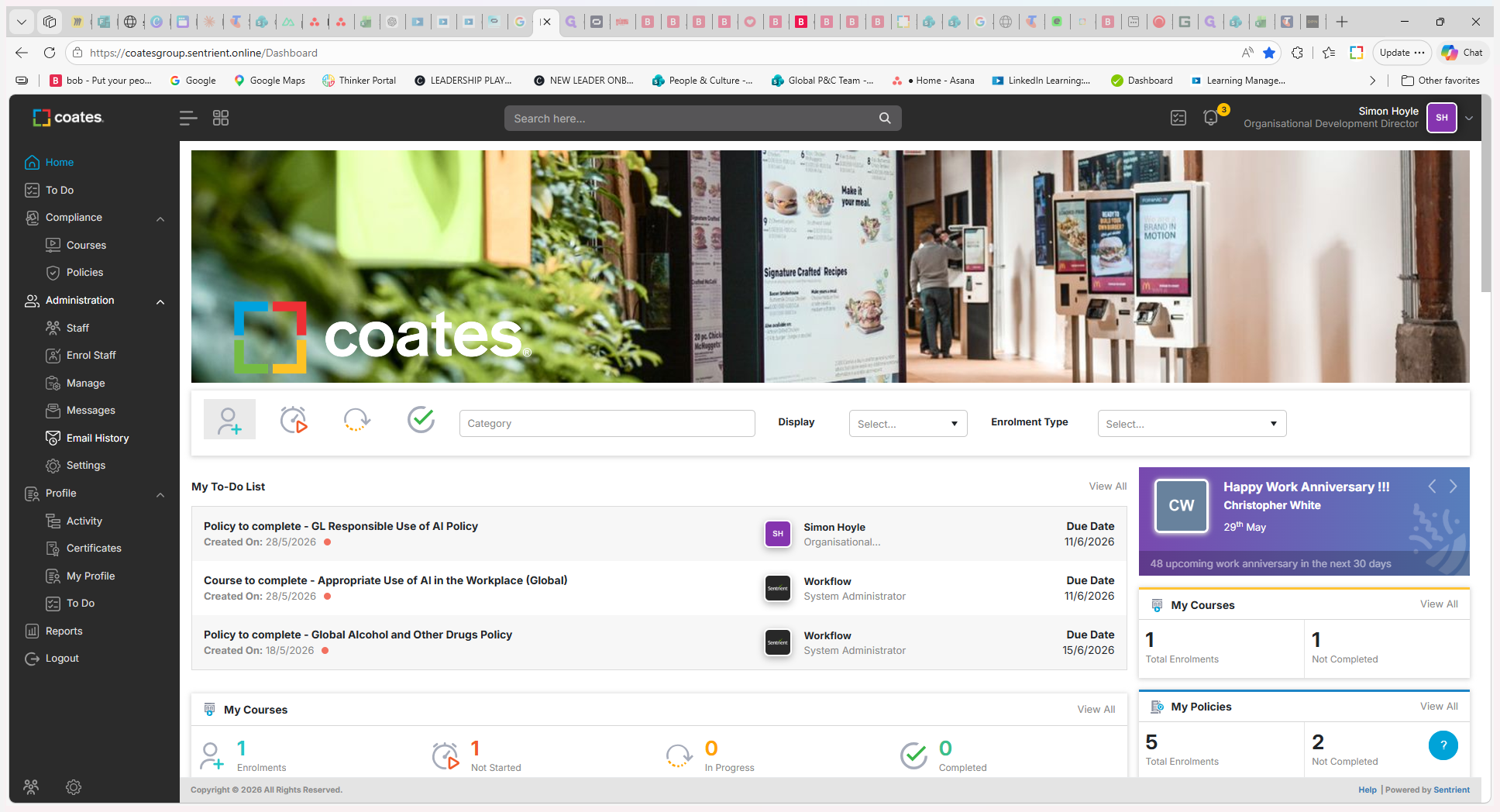
A: You can check the Email History section from your dashboard to view recently dispatched emails and confirm their delivery details.
Term | Definition |
|---|---|
Bulk Upload | The process of adding multiple user accounts to the system simultaneously using a spreadsheet or data file. |
Email History | A system log where administrators can view and verify all automated and manual emails dispatched by the platform. |
Dashboard | The main landing page providing an overview of system activity and quick access to administrative tools. |