Icon

How to Set Up a Performance Review Cycle in HiBob

Learn how to configure and set up a performance review cycle in HiBob, including participant conditions, form selection, timelines, and review settings.

By Simon Hoyle

This guide walks you through setting up a performance review cycle in HiBob. The goal is to successfully configure a structured performance evaluation period by defining who participates, which feedback forms to use, and the schedule for self, peer, and manager reviews.

This guide is intended for HR administrators or performance cycle owners responsible for managing talent development events. You will use this workflow during the preparatory phase of any mid-year or end-of-year performance review before officially launching it to the company.

Creating a New Cycle
1
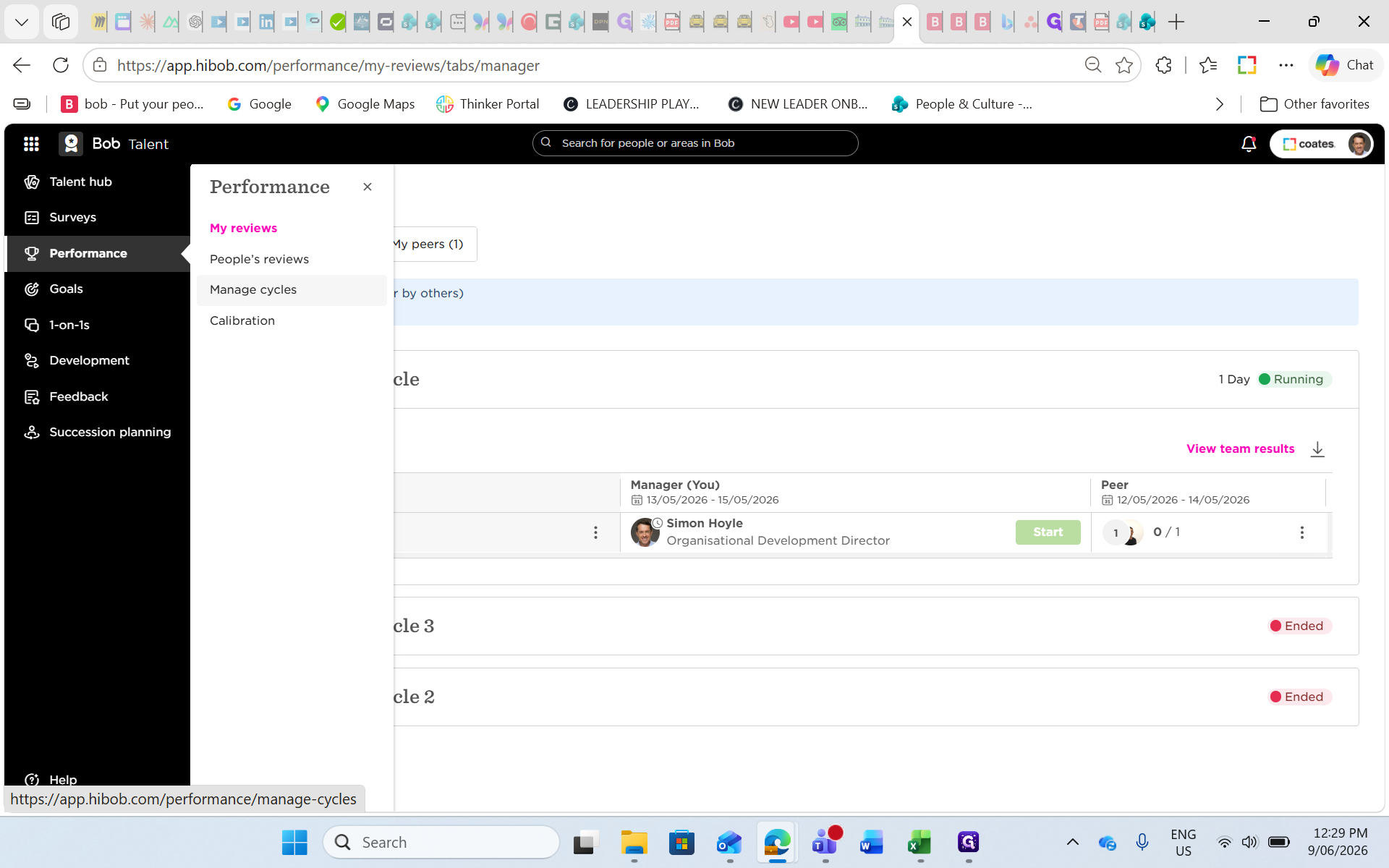
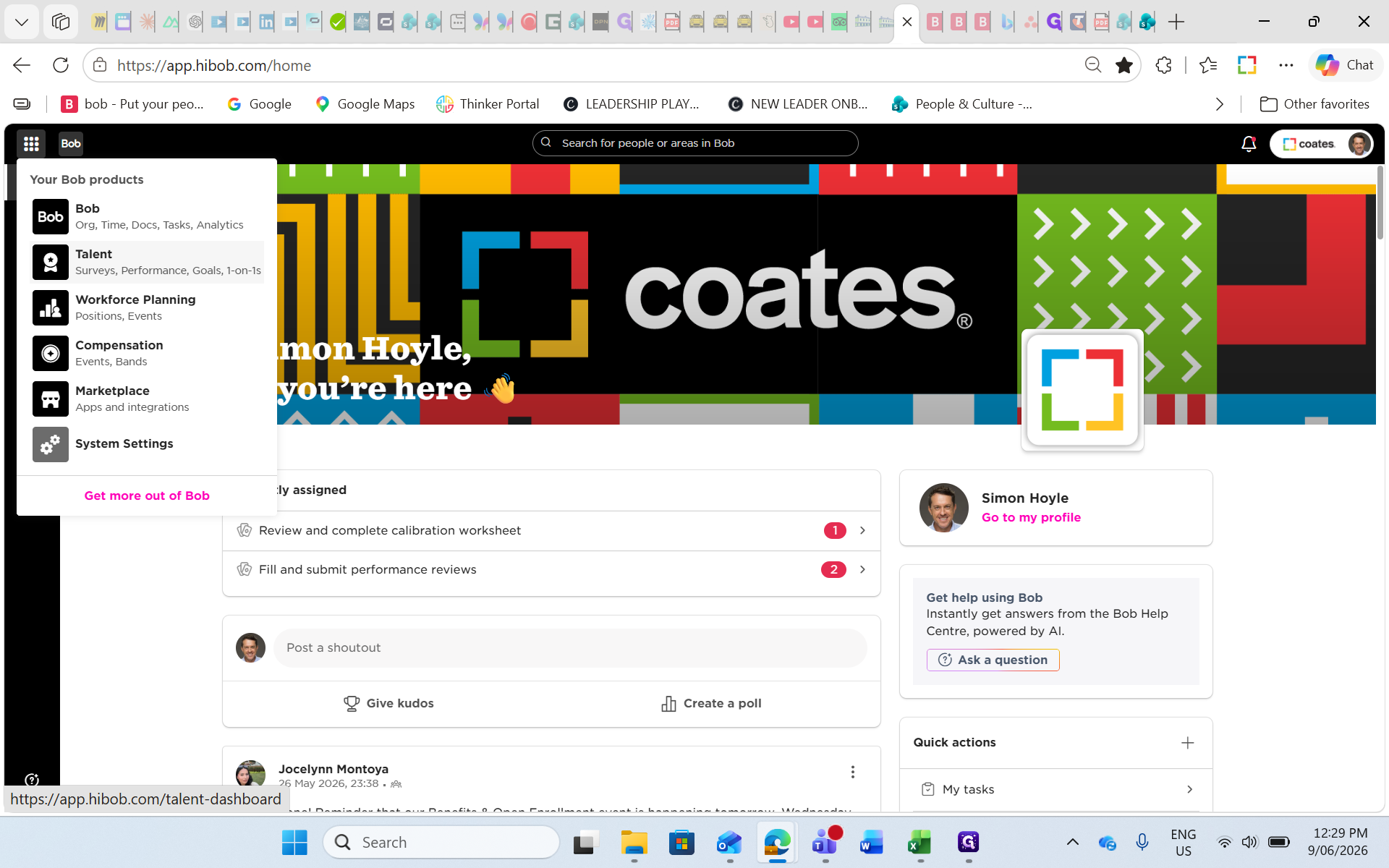
Click Performance within the Talent navigation menu.
Step #1: Click Performance within the Talent navigation menu.
2
Click Manage cycles.
Step #2: Click Manage cycles.
3
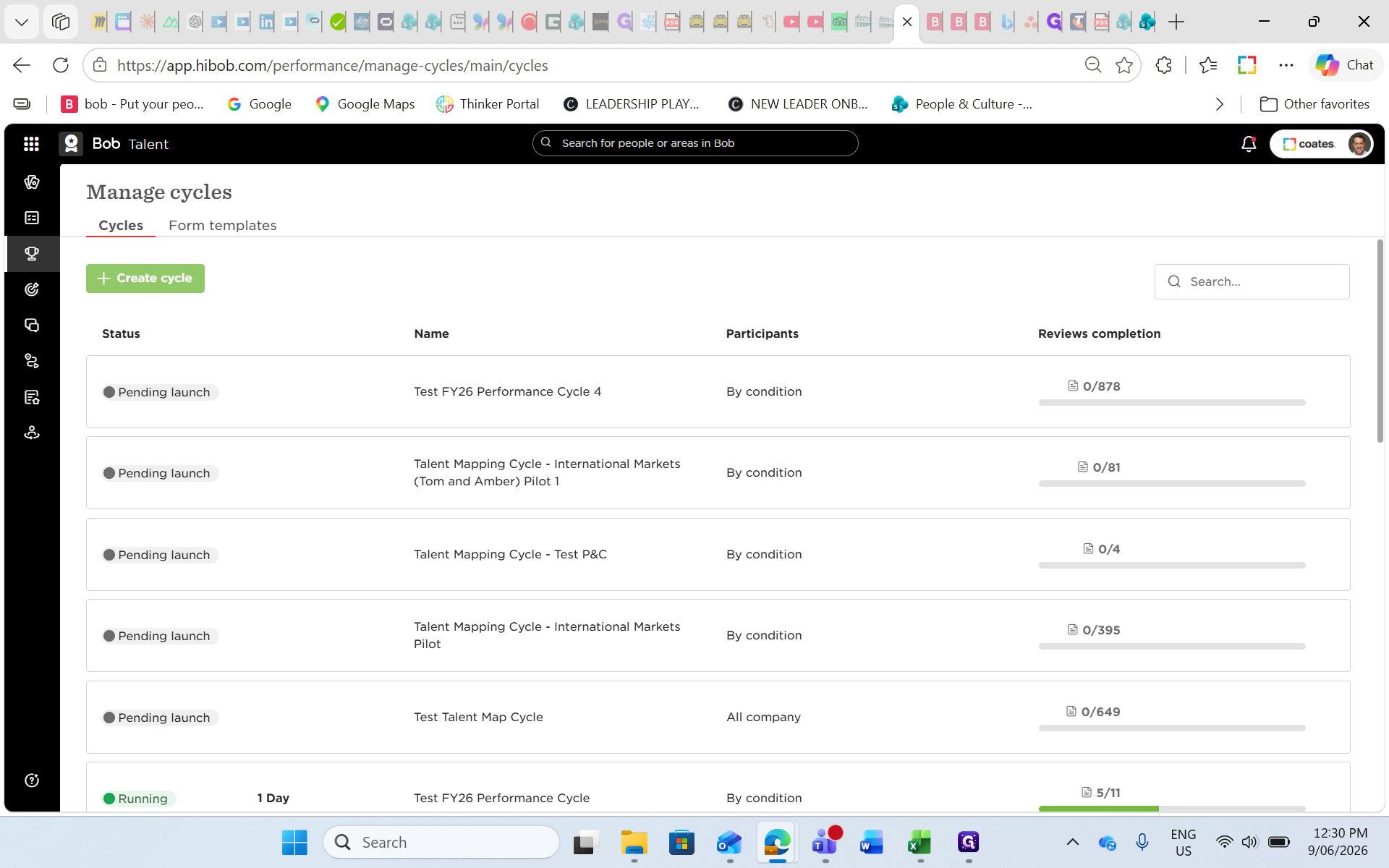
Click + Create cycle.
Step #3: Click + Create cycle.
4
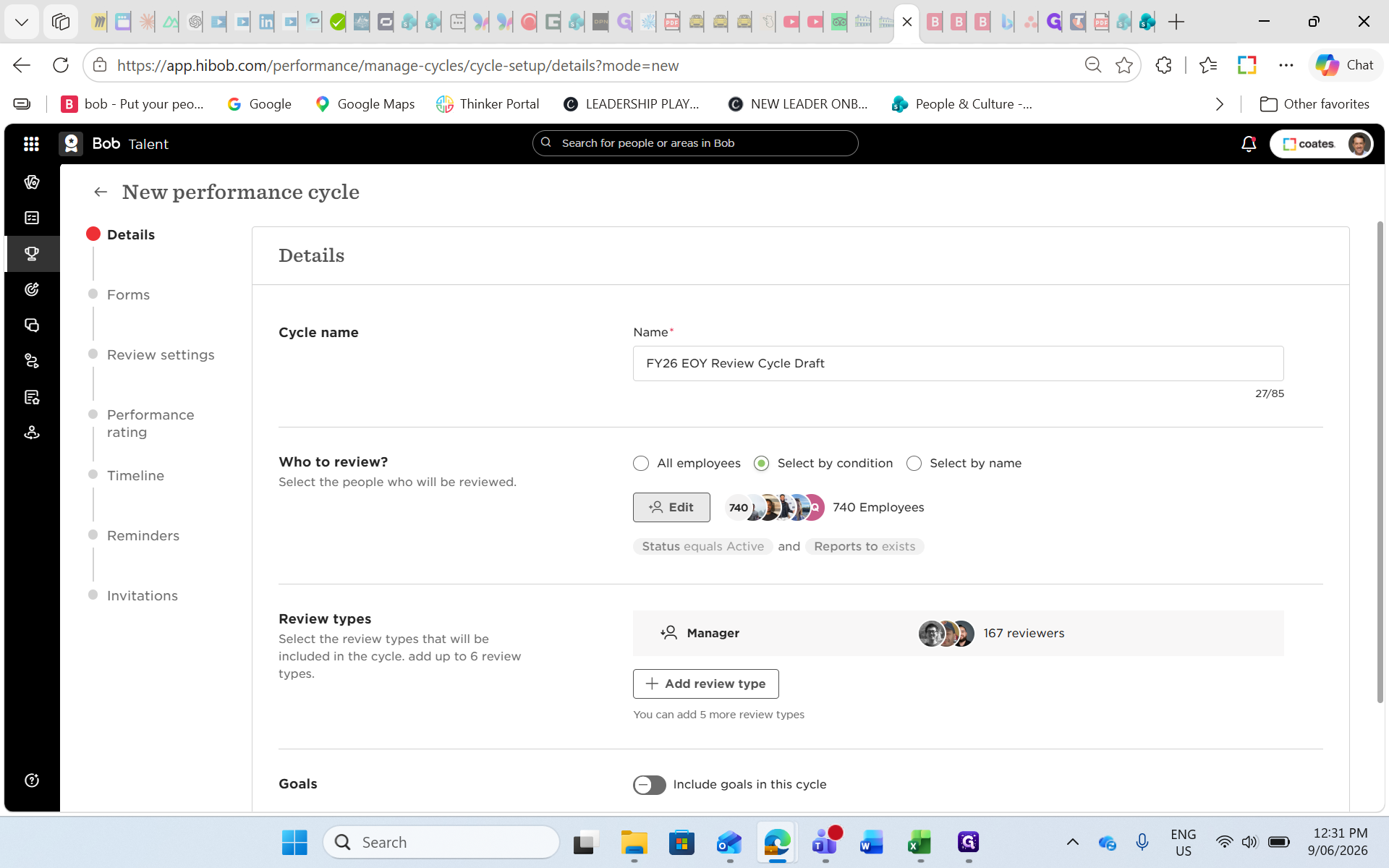
Type a name for your cycle, such as "FY26 EOY Review Cycle Draft".

Defining Participants

5
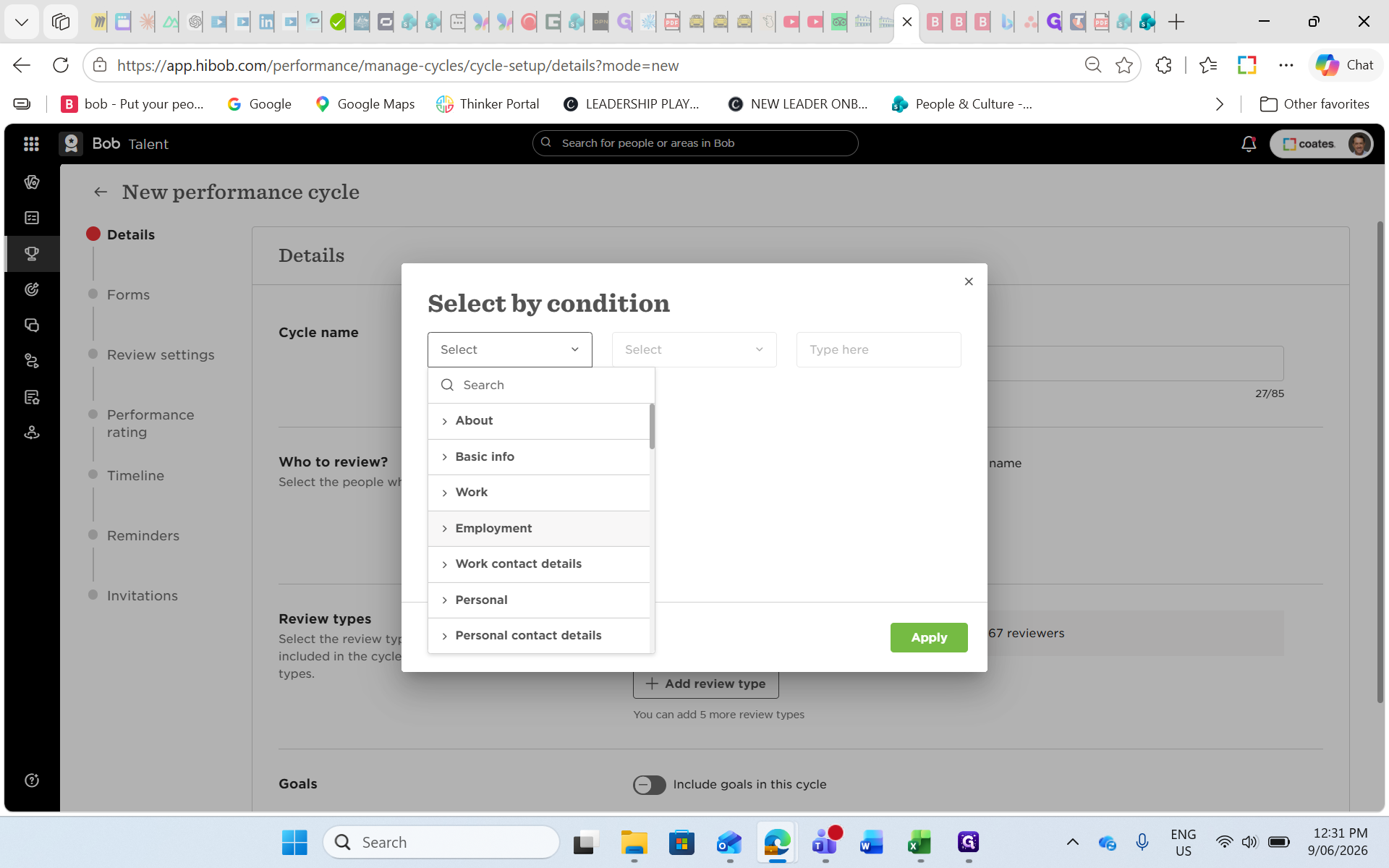
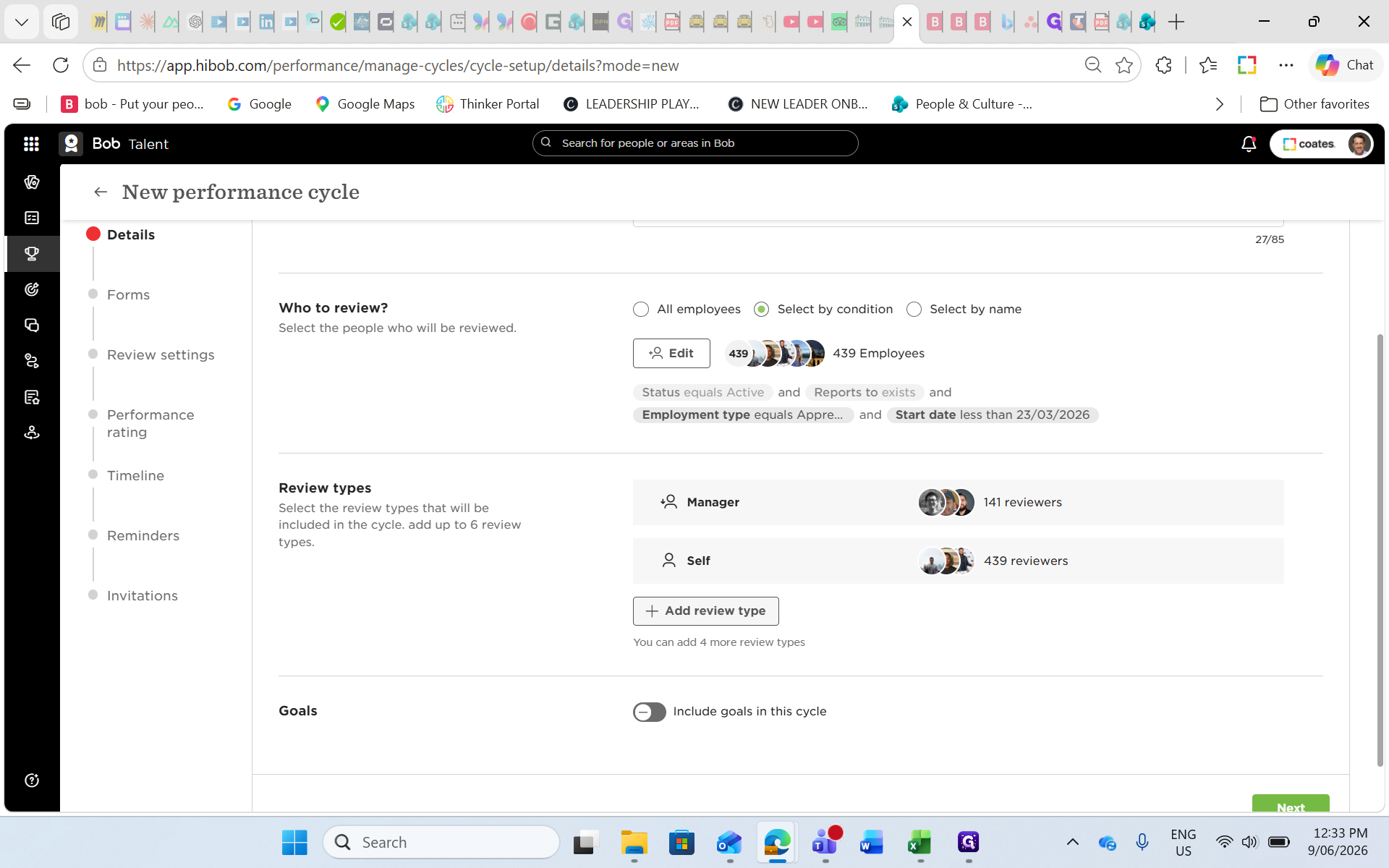
Click Edit next to Select by condition to filter which employees will be included.
Step #5: Click Edit next to Select by condition to filter which employees will be included.
6
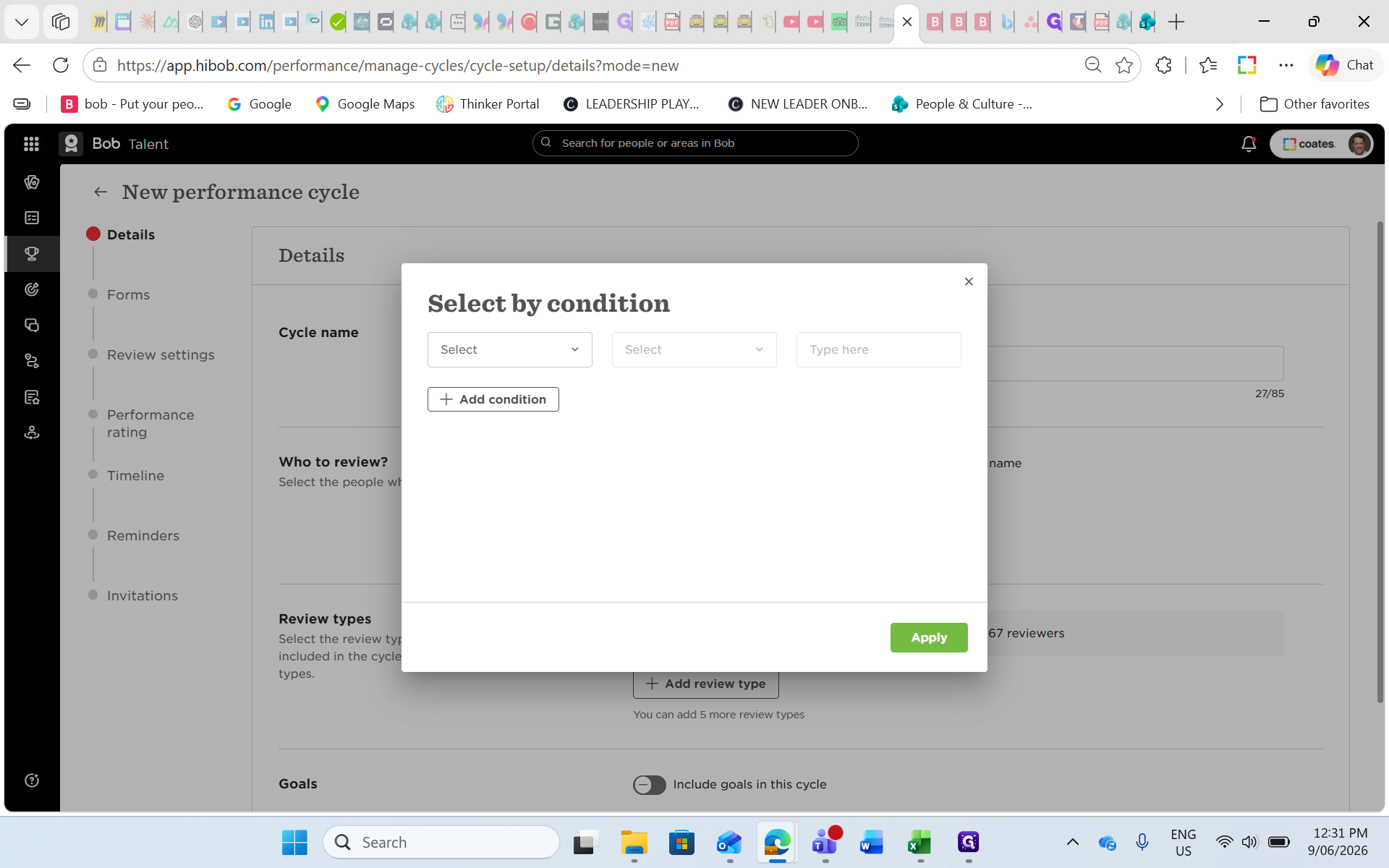
Click the first dropdown menu to select the data field.
Step #6: Click the first dropdown menu to select the data field.
7
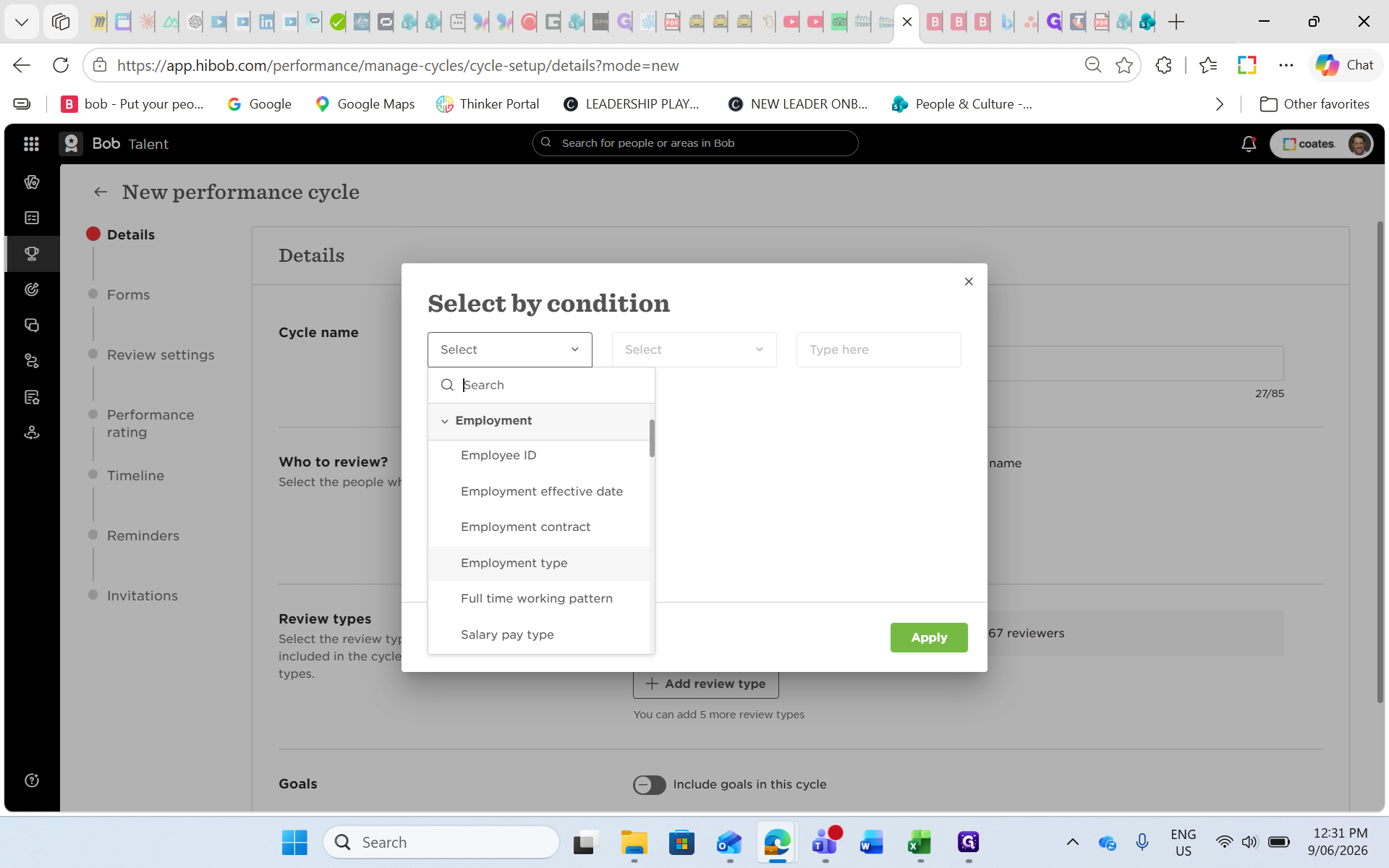
Expand the Employment category.
Step #7: Expand the Employment category.
8
Select Employment type.
Step #8: Select Employment type.
9
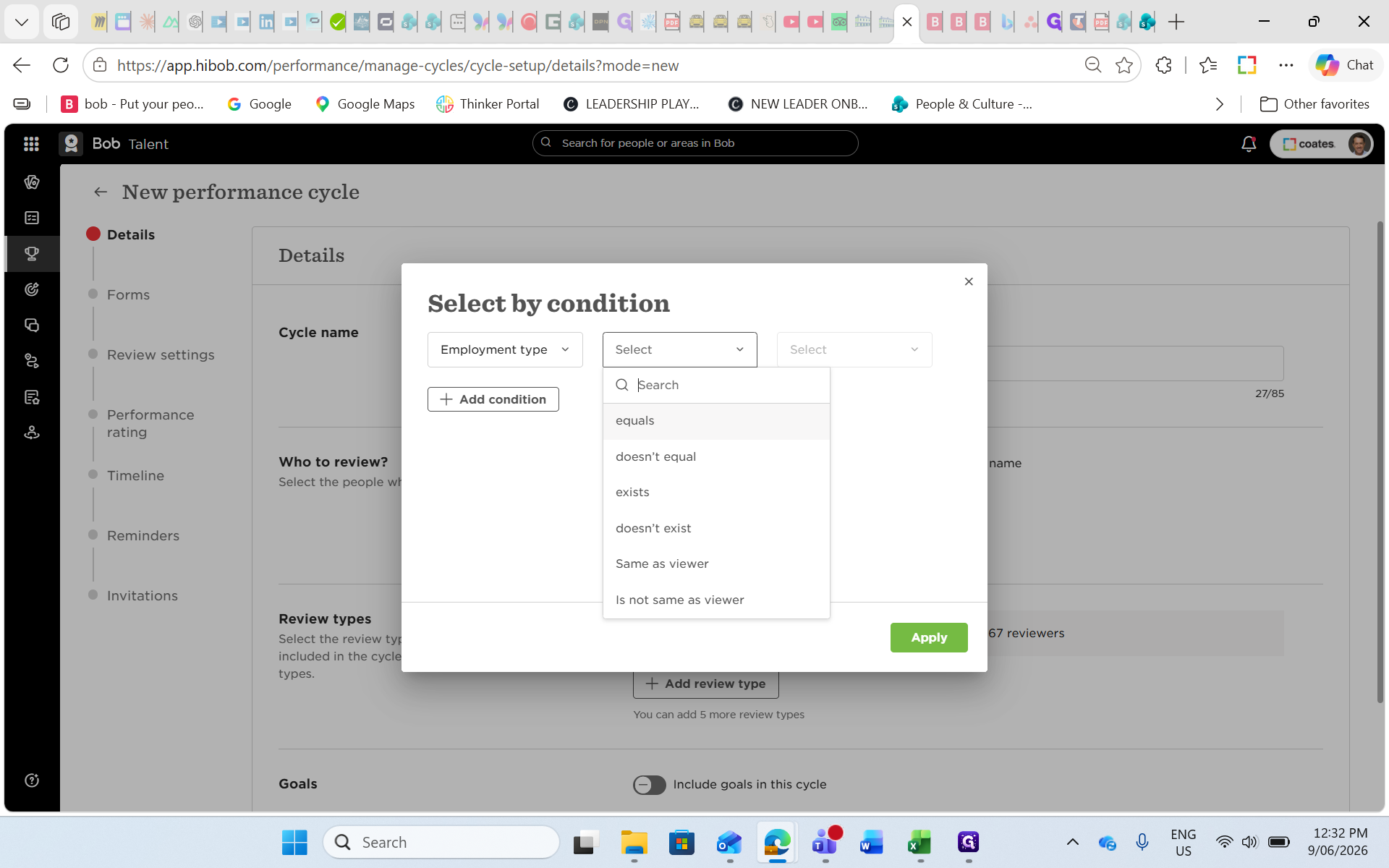
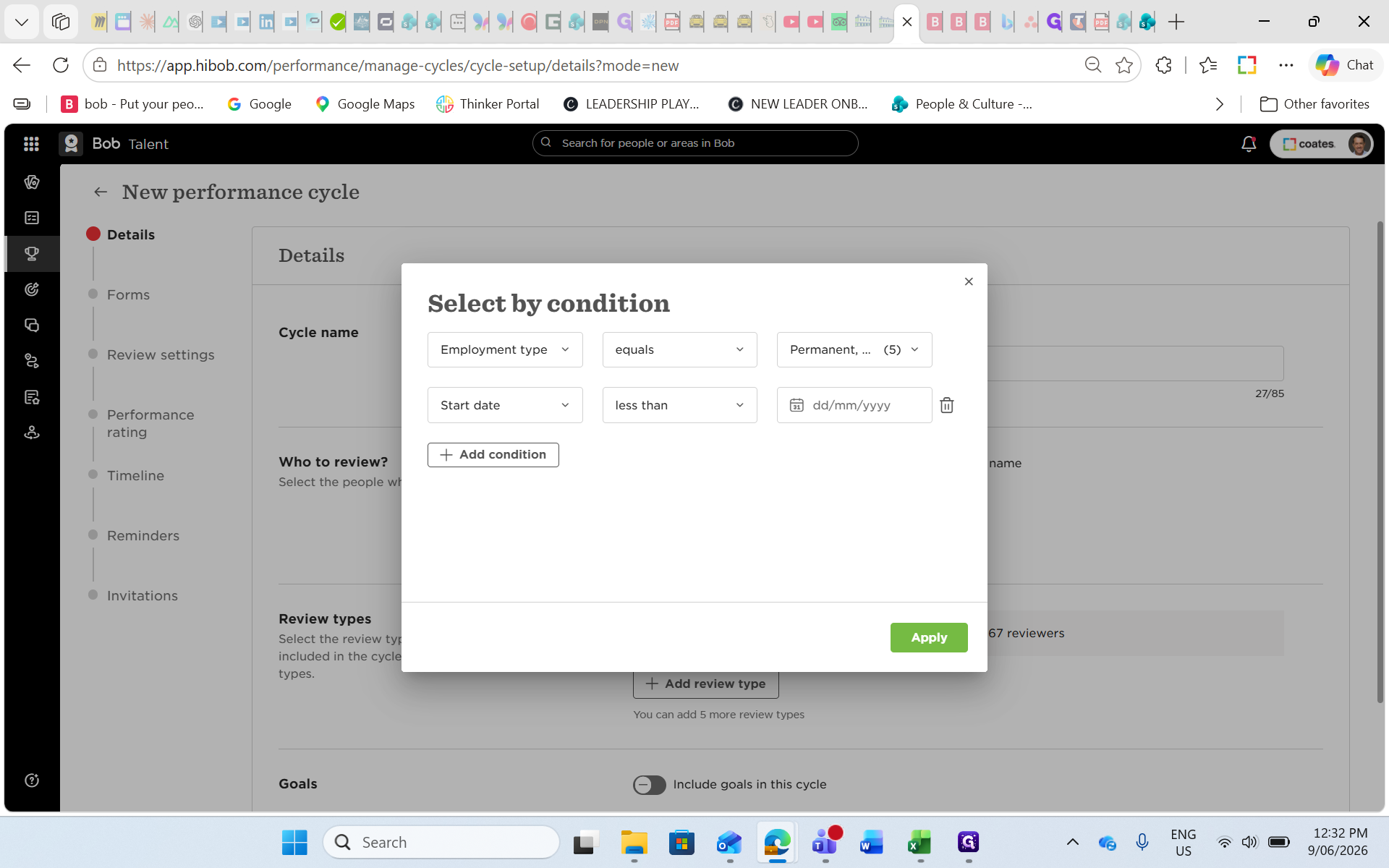
Set the operator to equals.
Step #9: Set the operator to equals.
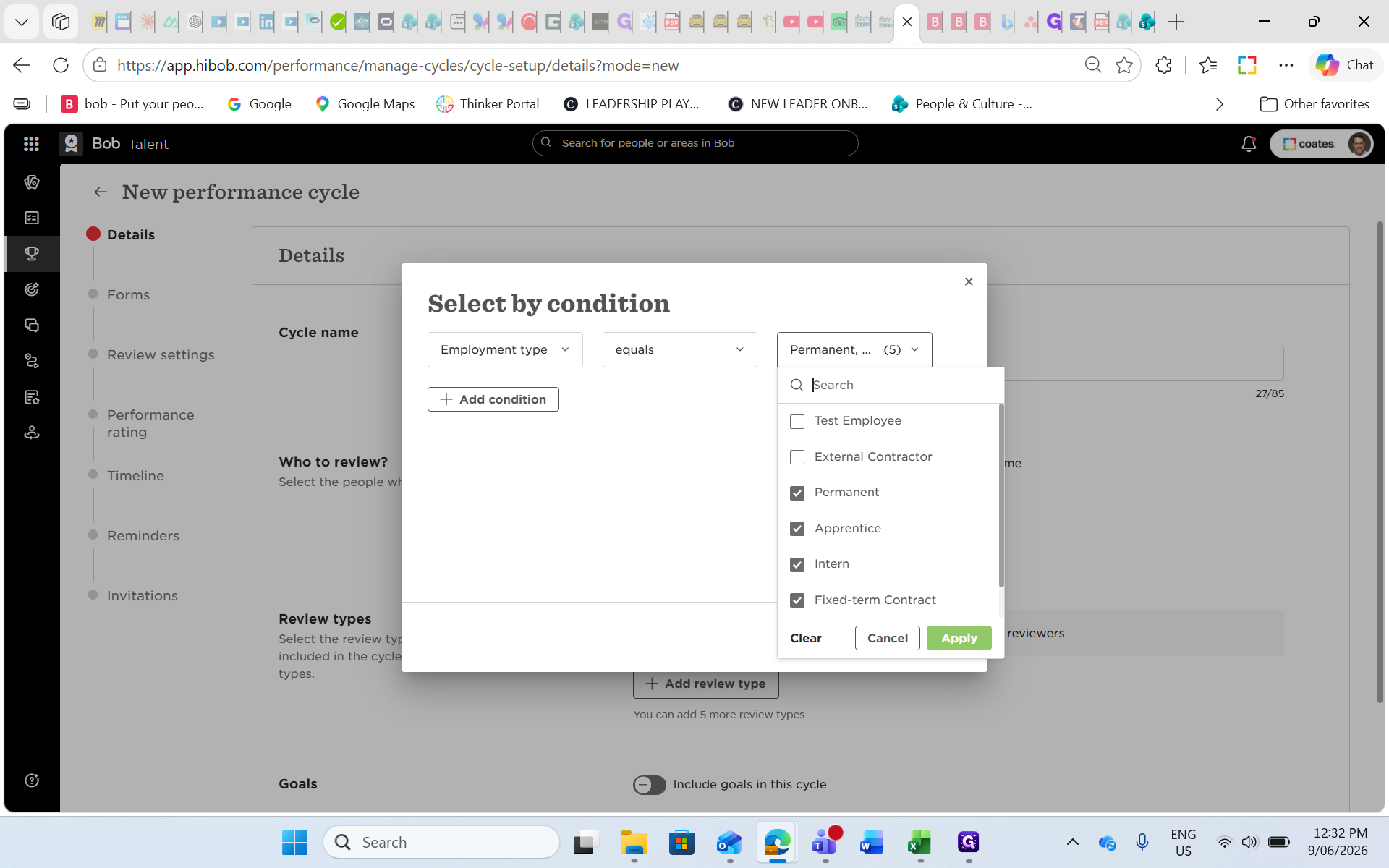
10
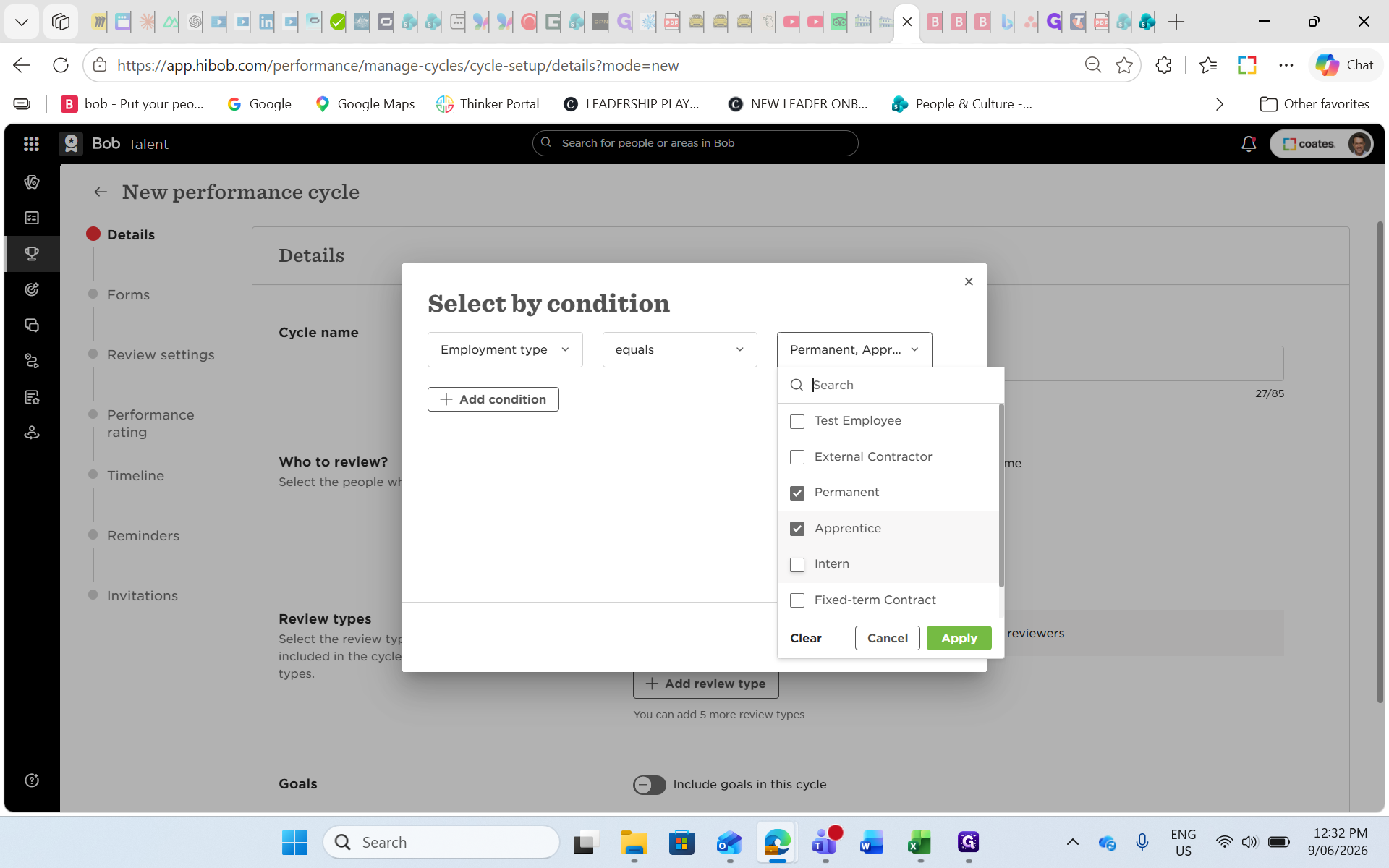
Click the value dropdown and select the relevant employment types (e.g., Permanent, Intern, Fixed-term Contract).
Step #10: Click the value dropdown and select the relevant employment types (e.g., Permanent, Intern, Fixed-term Contract).
11
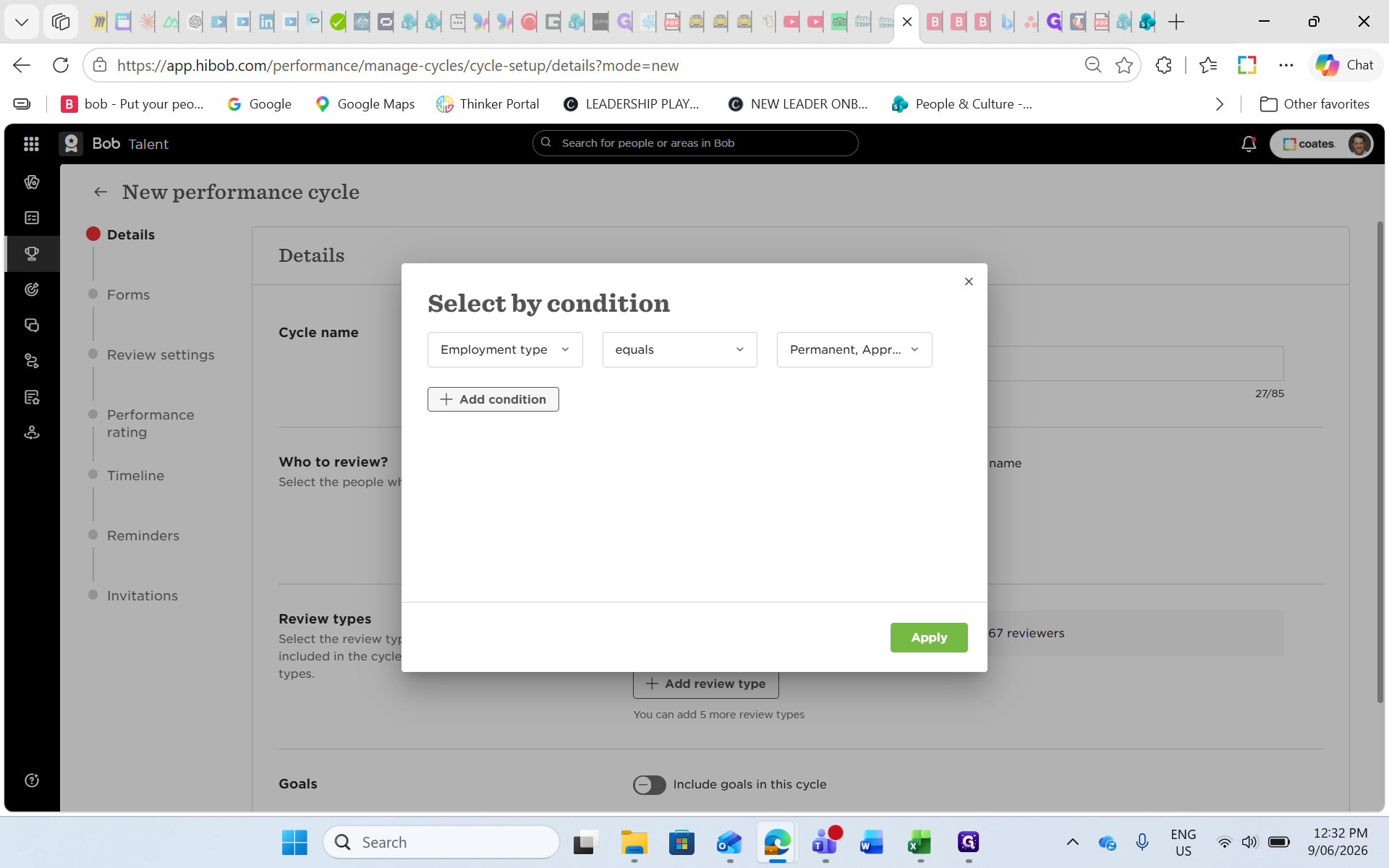
Click Apply.
Step #11: Click Apply.
12
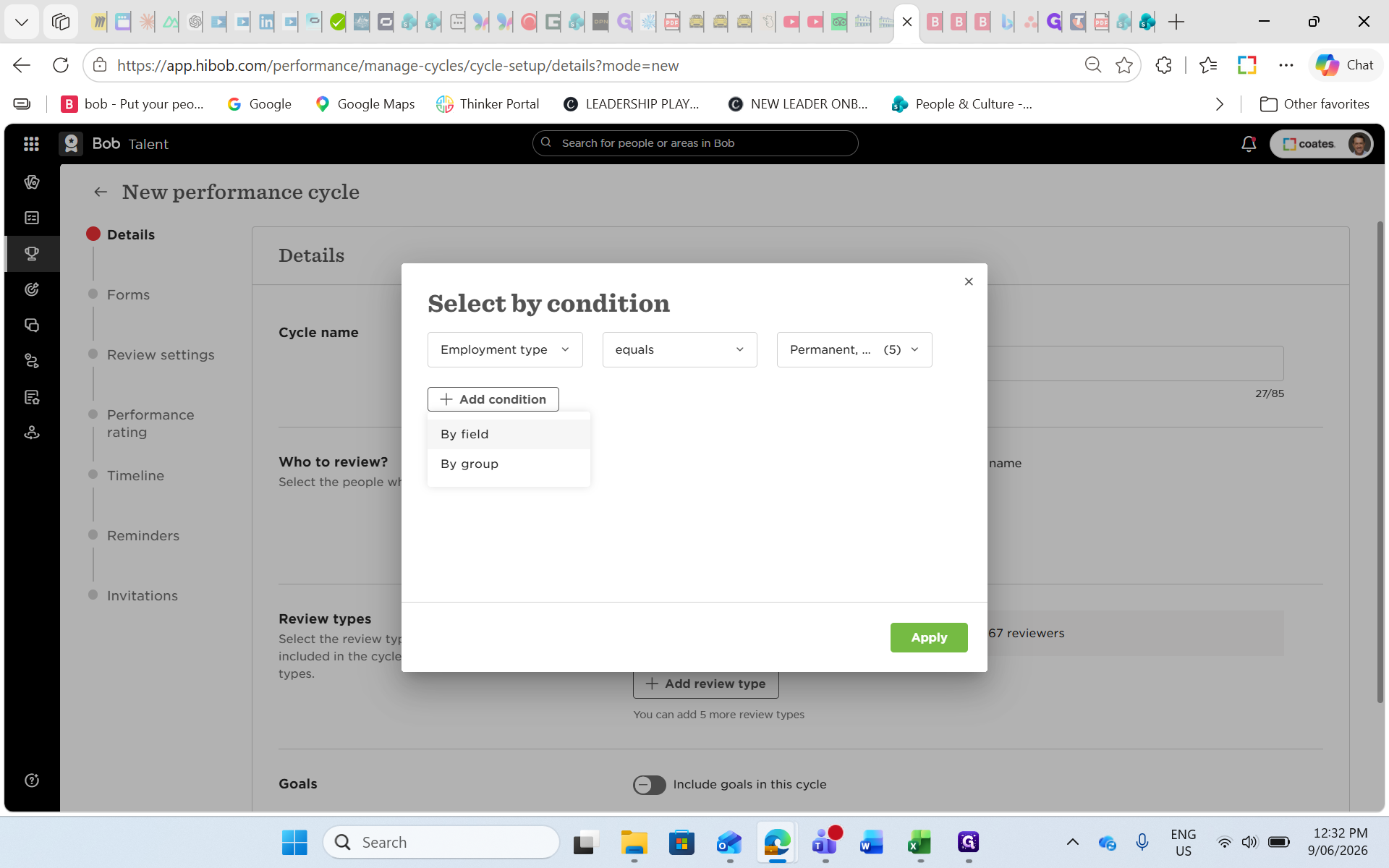
Click + Add condition to filter out employees who haven't worked at the company long enough.
Step #12: Click + Add condition to filter out employees who haven't worked at the company long enough.
13
Click By field.
Step #13: Click By field.
14
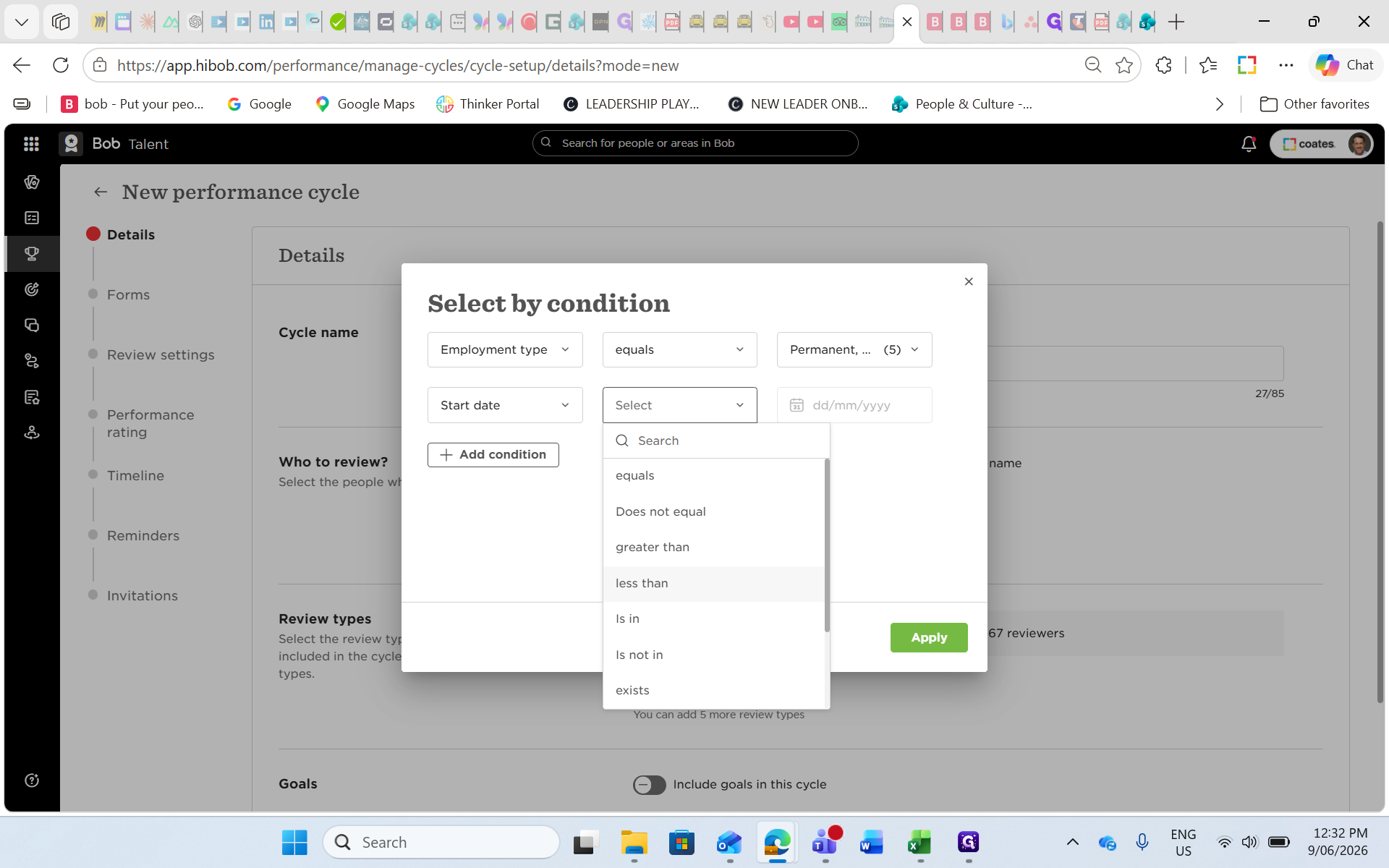
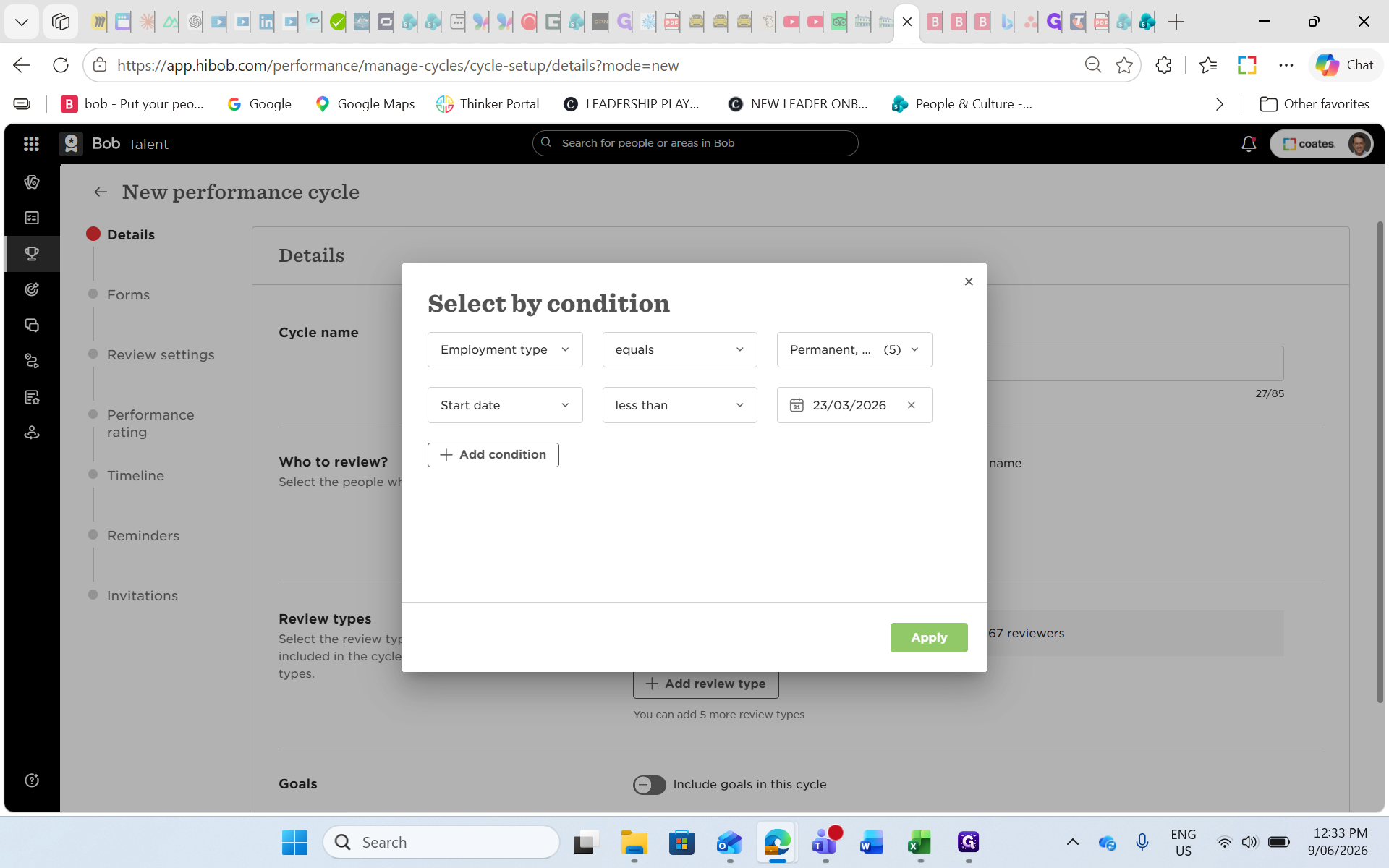
Search for and select Start date.
15
Set the operator to less than.
Step #15: Set the operator to less than.
16
Click the date field and pick your cutoff date (e.g., three months prior to the cycle start).
Step #16: Click the date field and pick your cutoff date (e.g., three months prior to the cycle start).
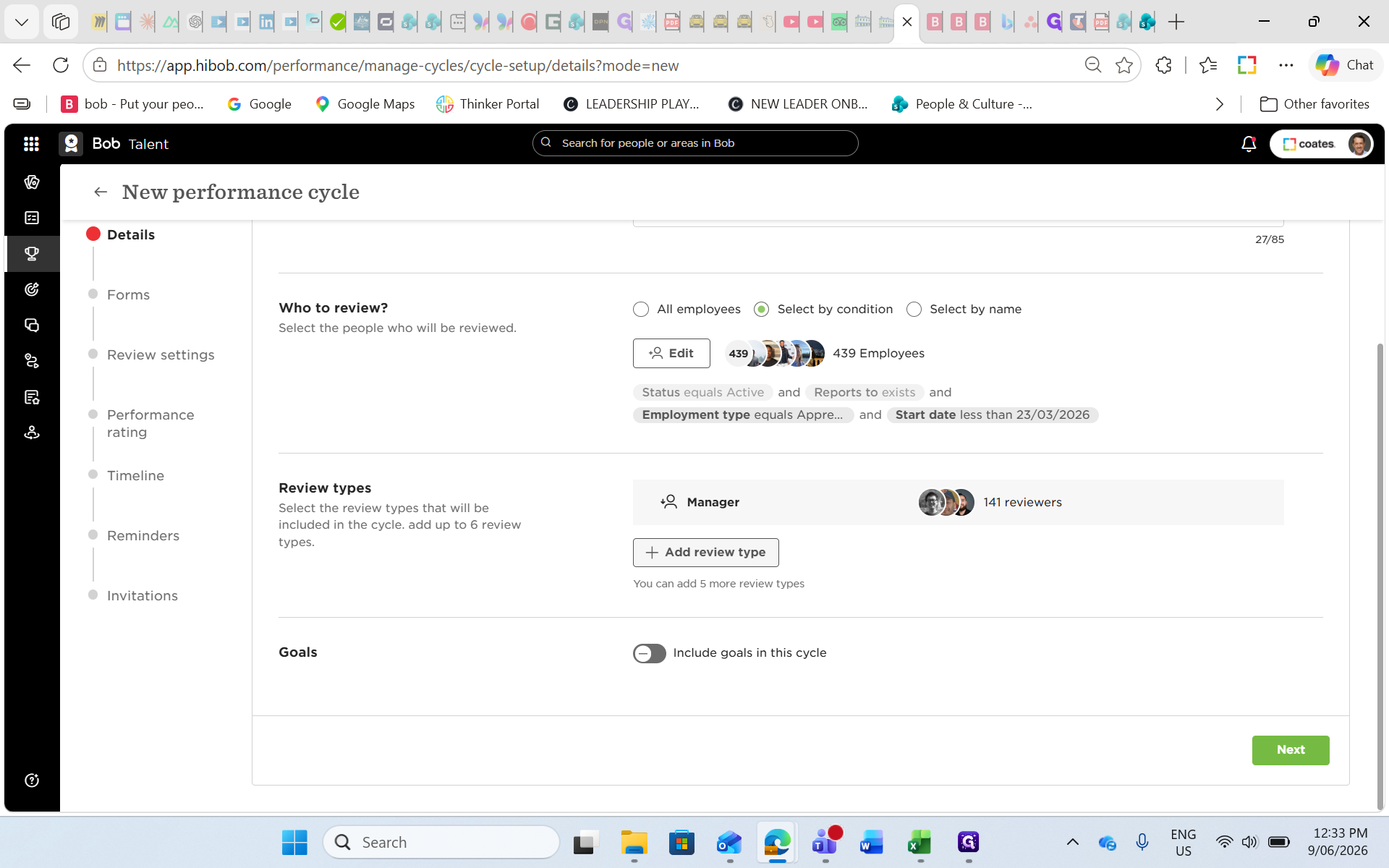
17
Click Apply.
Step #17: Click Apply.

Selecting Review Types
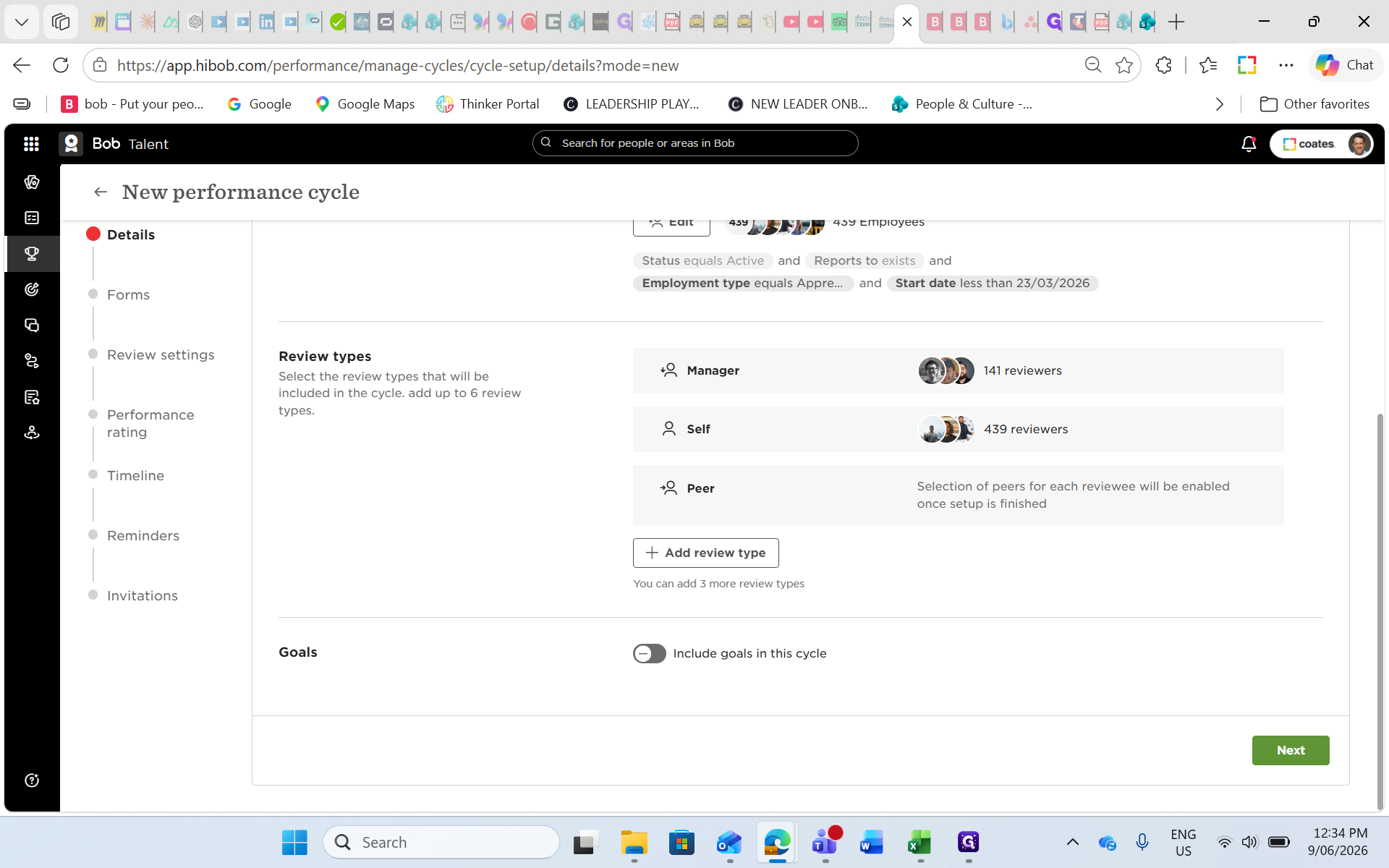
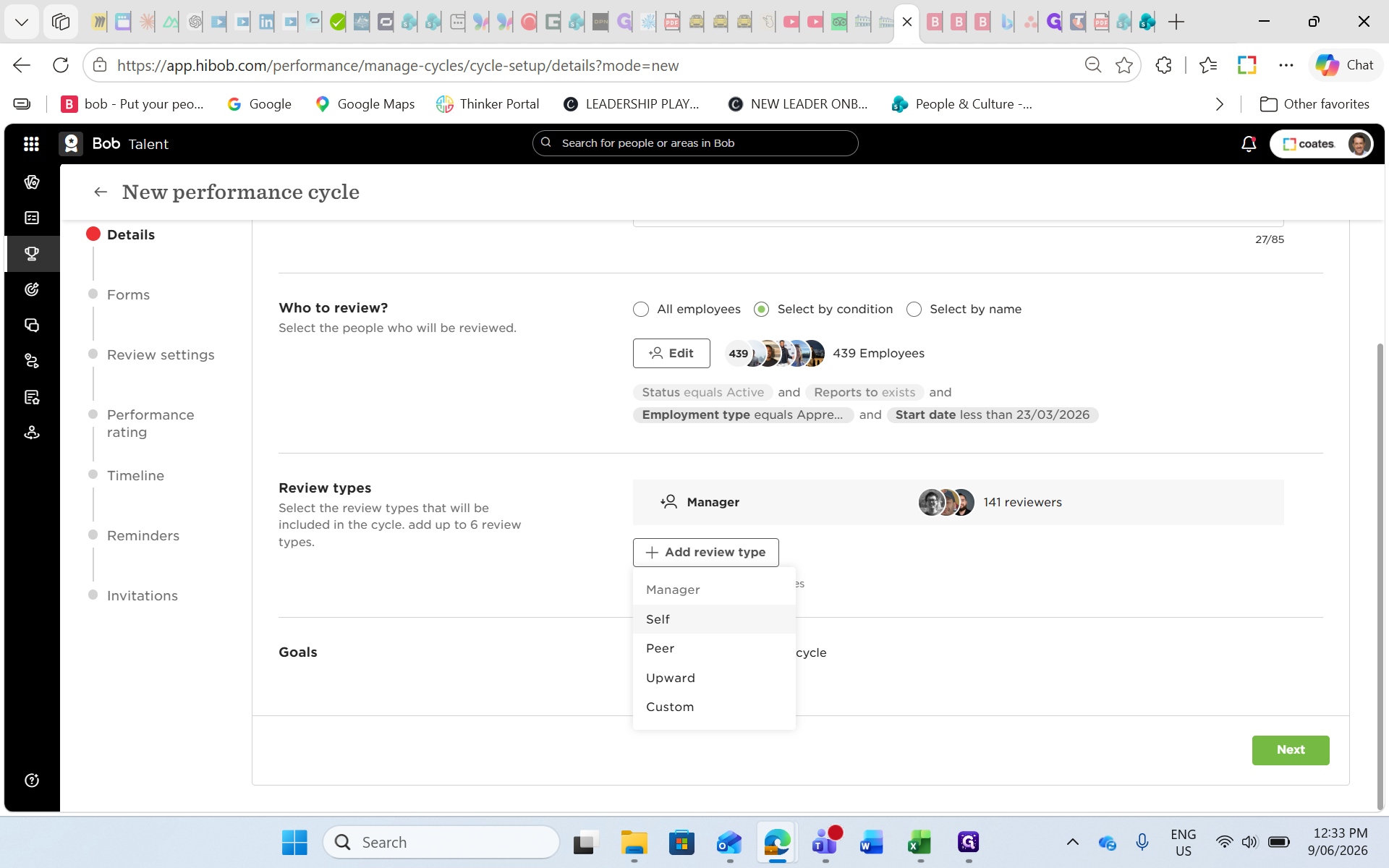
18
Click + Add review type.
Step #18: Click + Add review type.
19
Select Self to include self-reviews.
Step #19: Select Self to include self-reviews.
20
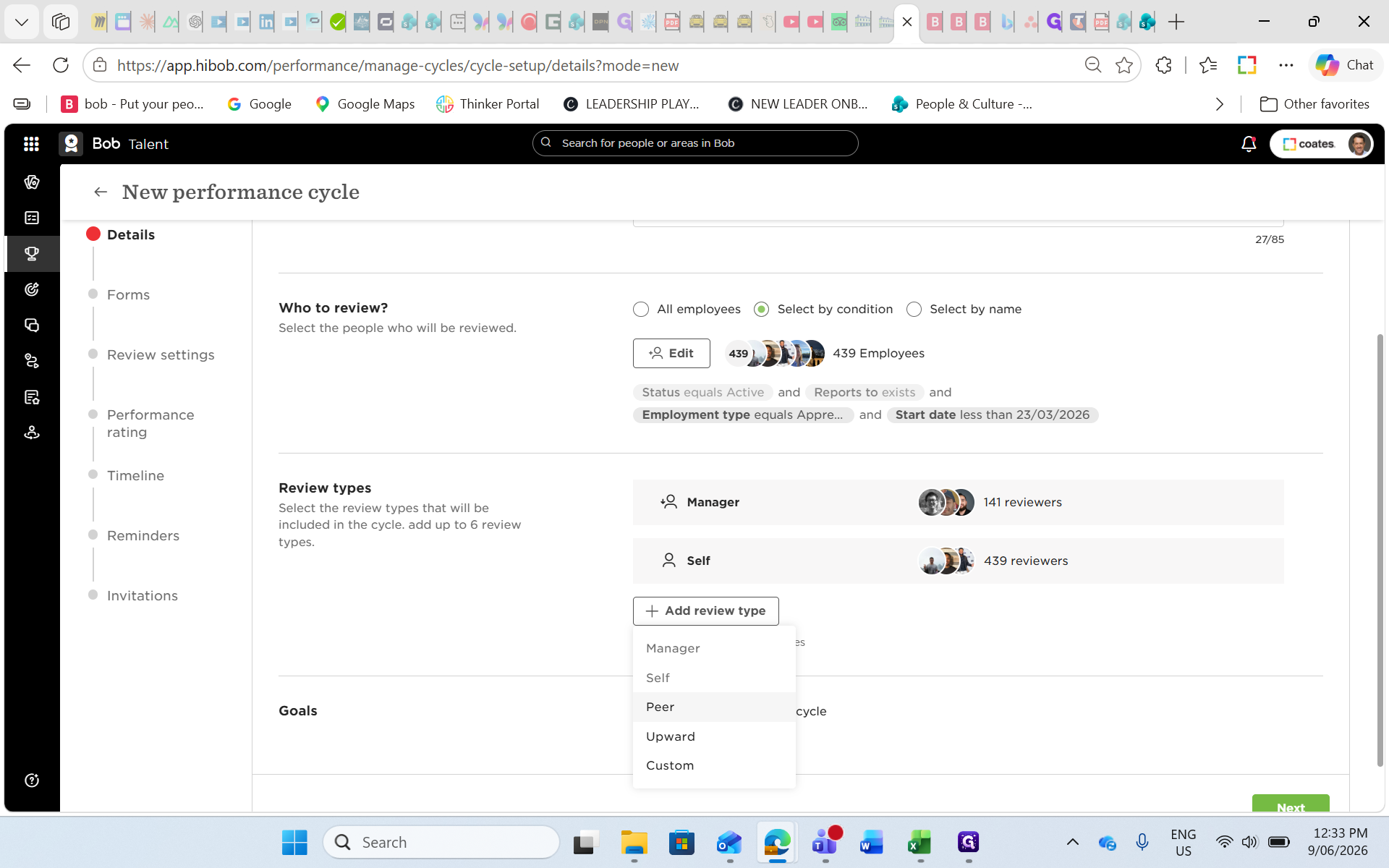
Click + Add review type again.
Step #20: Click + Add review type again.
21
Select Peer to include peer evaluations.
Step #21: Select Peer to include peer evaluations.
22
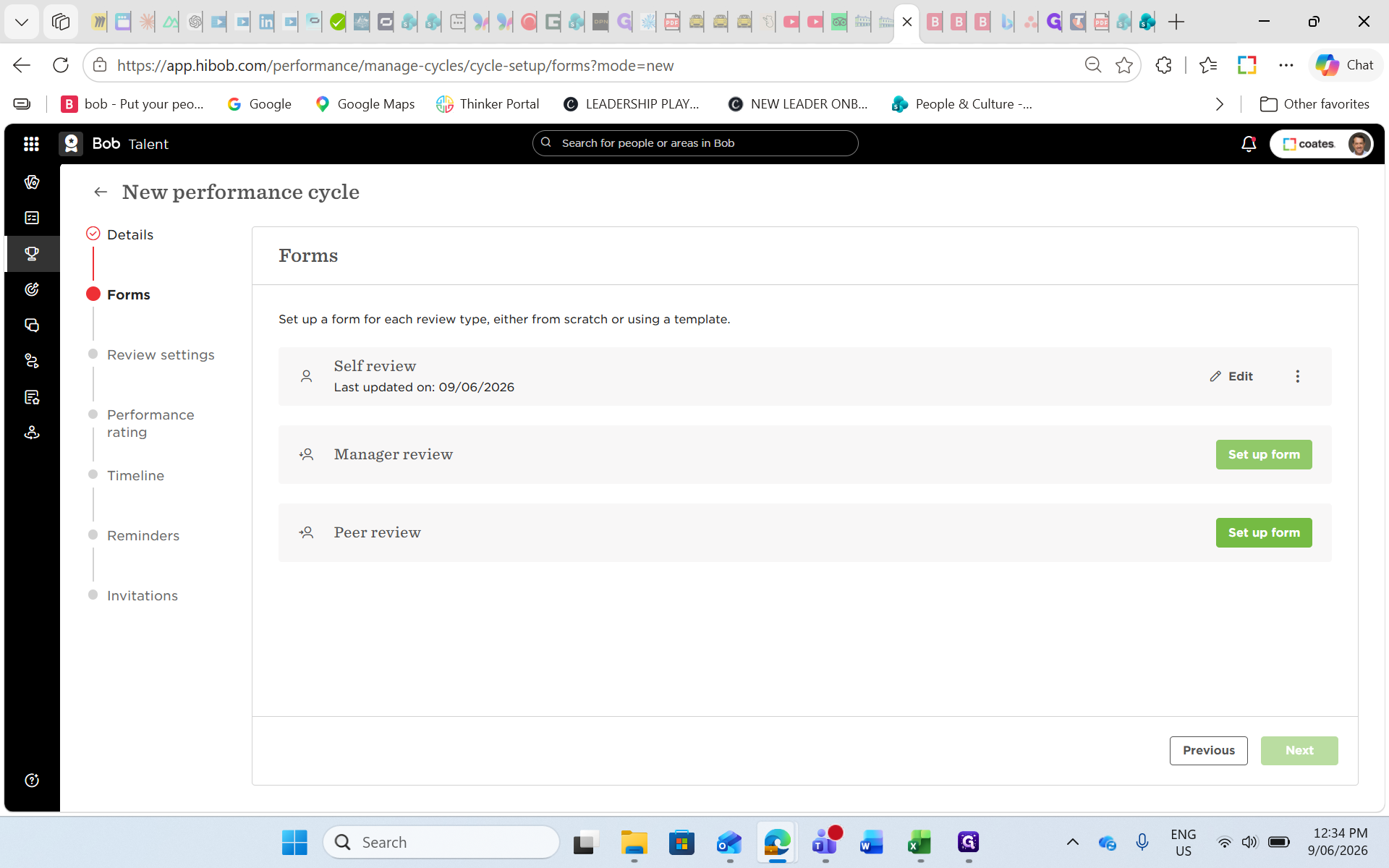
Click Next to proceed to Form Setup.
Step #22: Click Next to proceed to Form Setup.

Assigning Form Templates
23
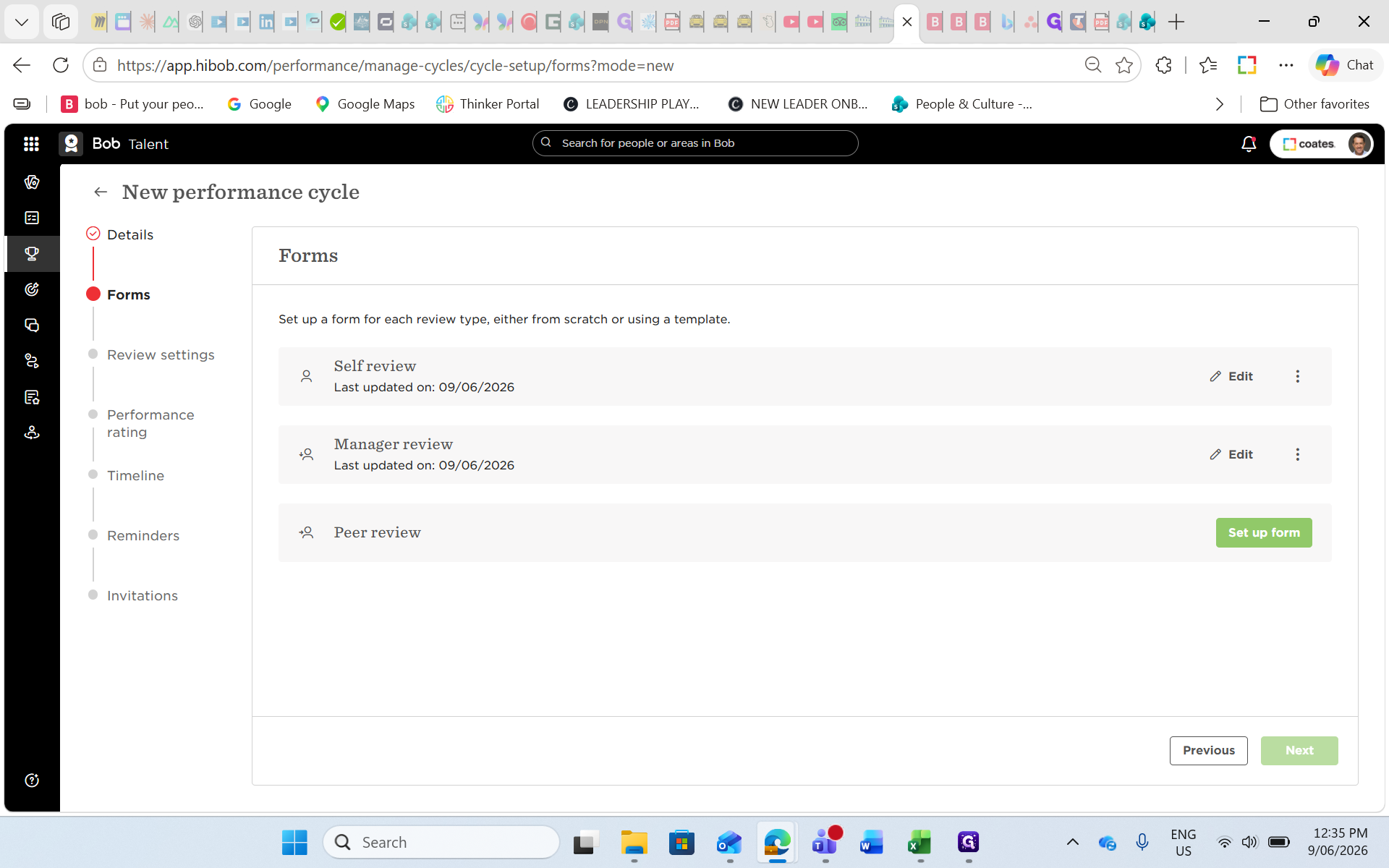
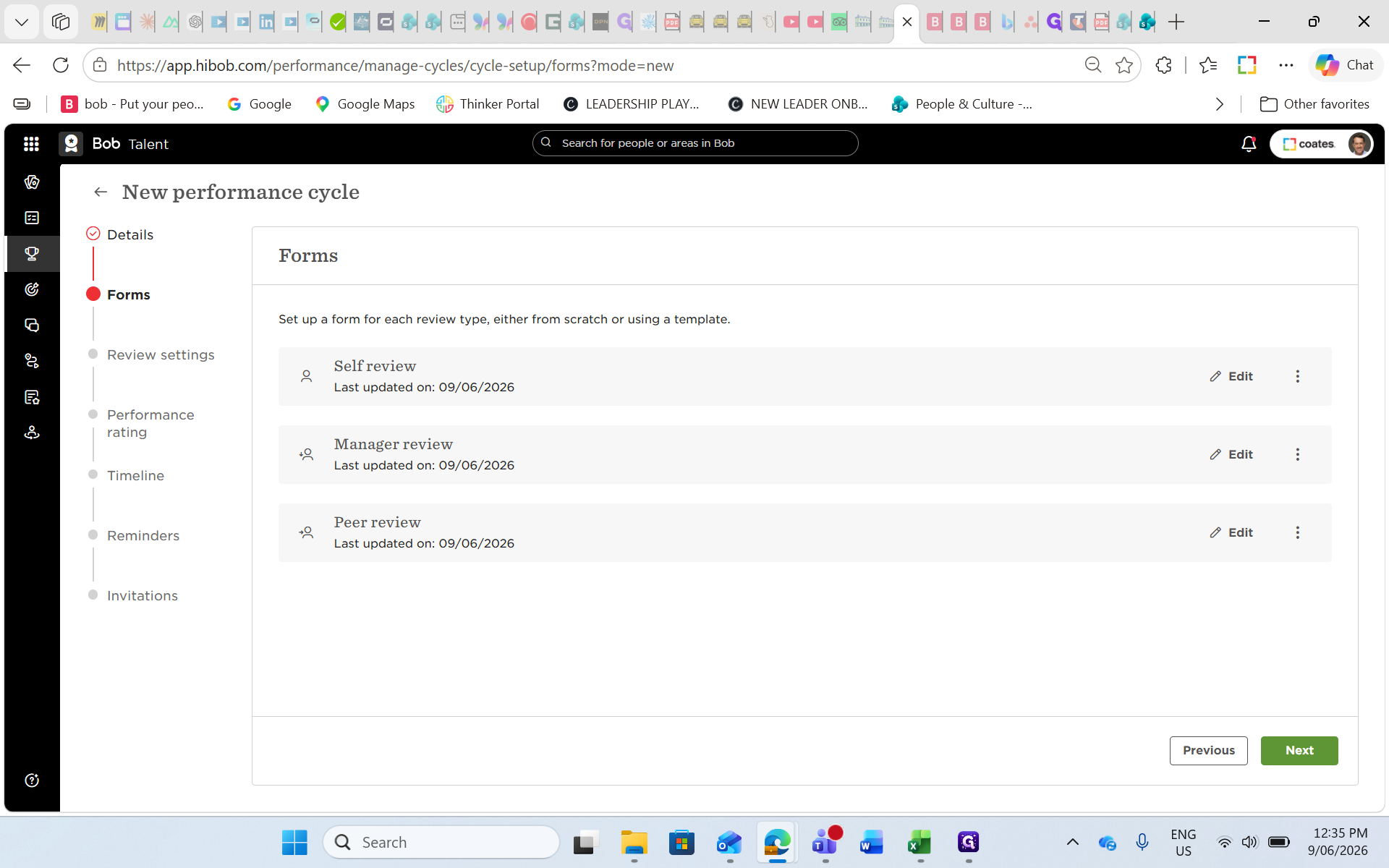
Click Set up form for the Self review.
Step #23: Click Set up form for the Self review.
24
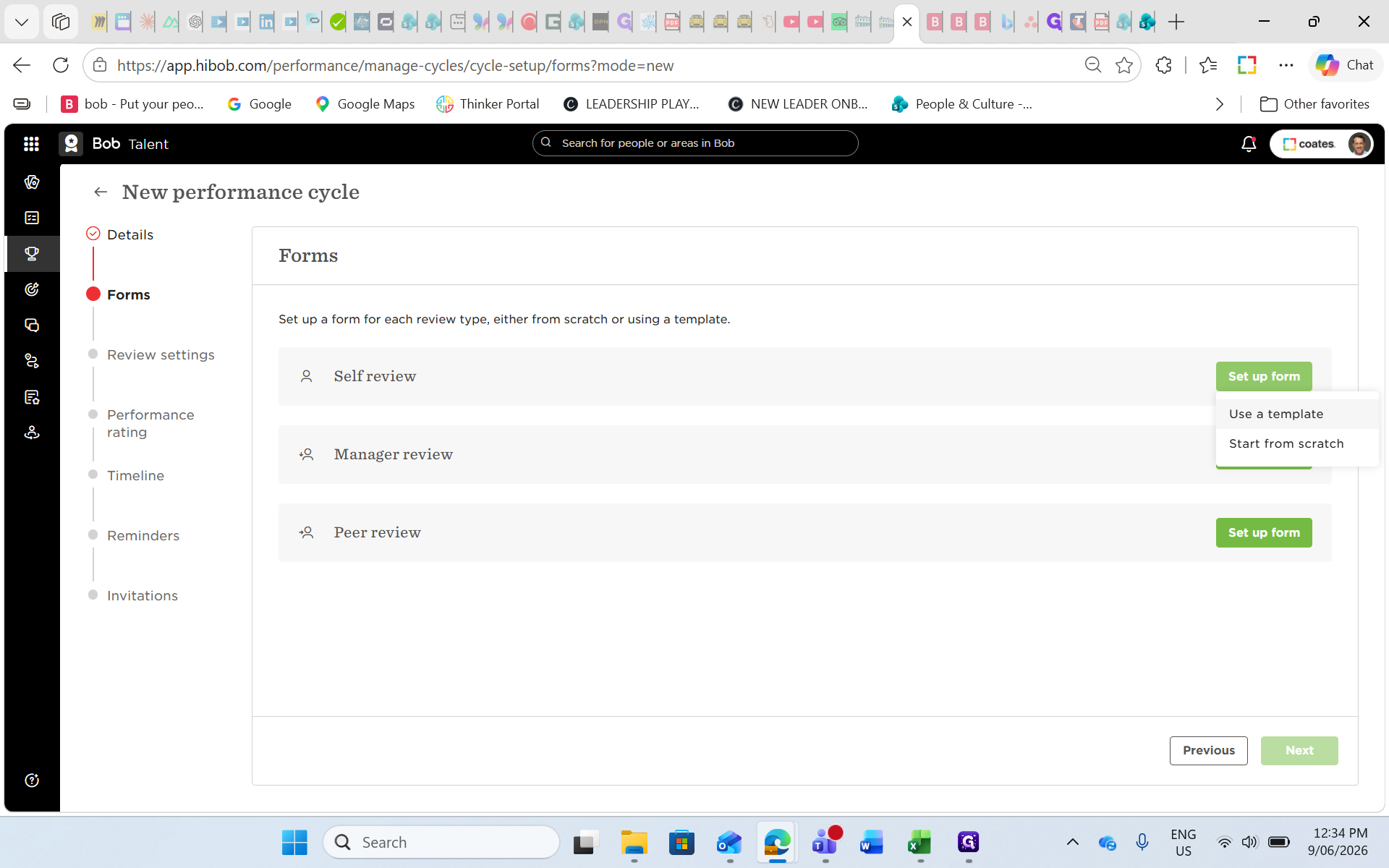
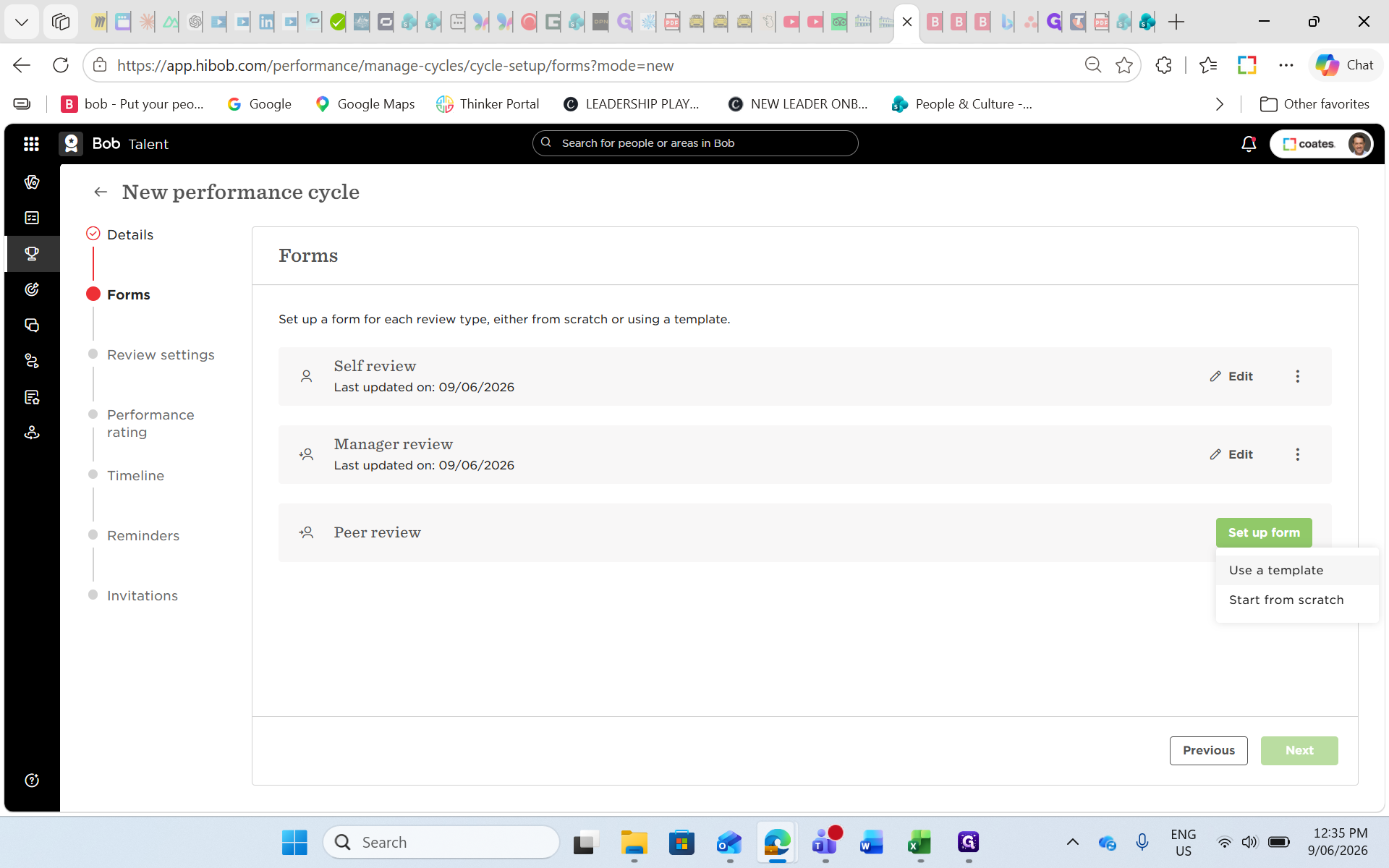
Select Use a template.
Step #24: Select Use a template.
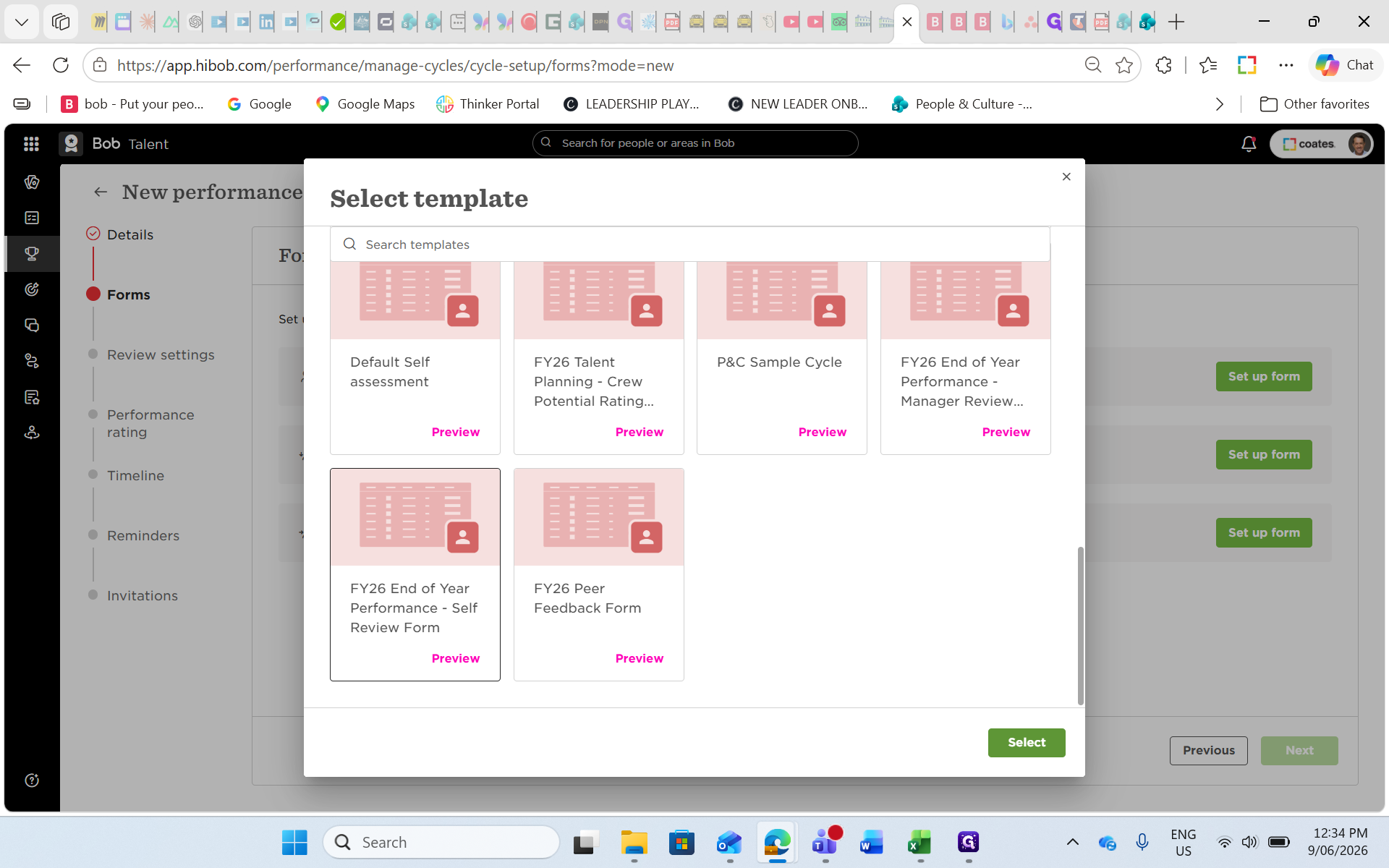
25
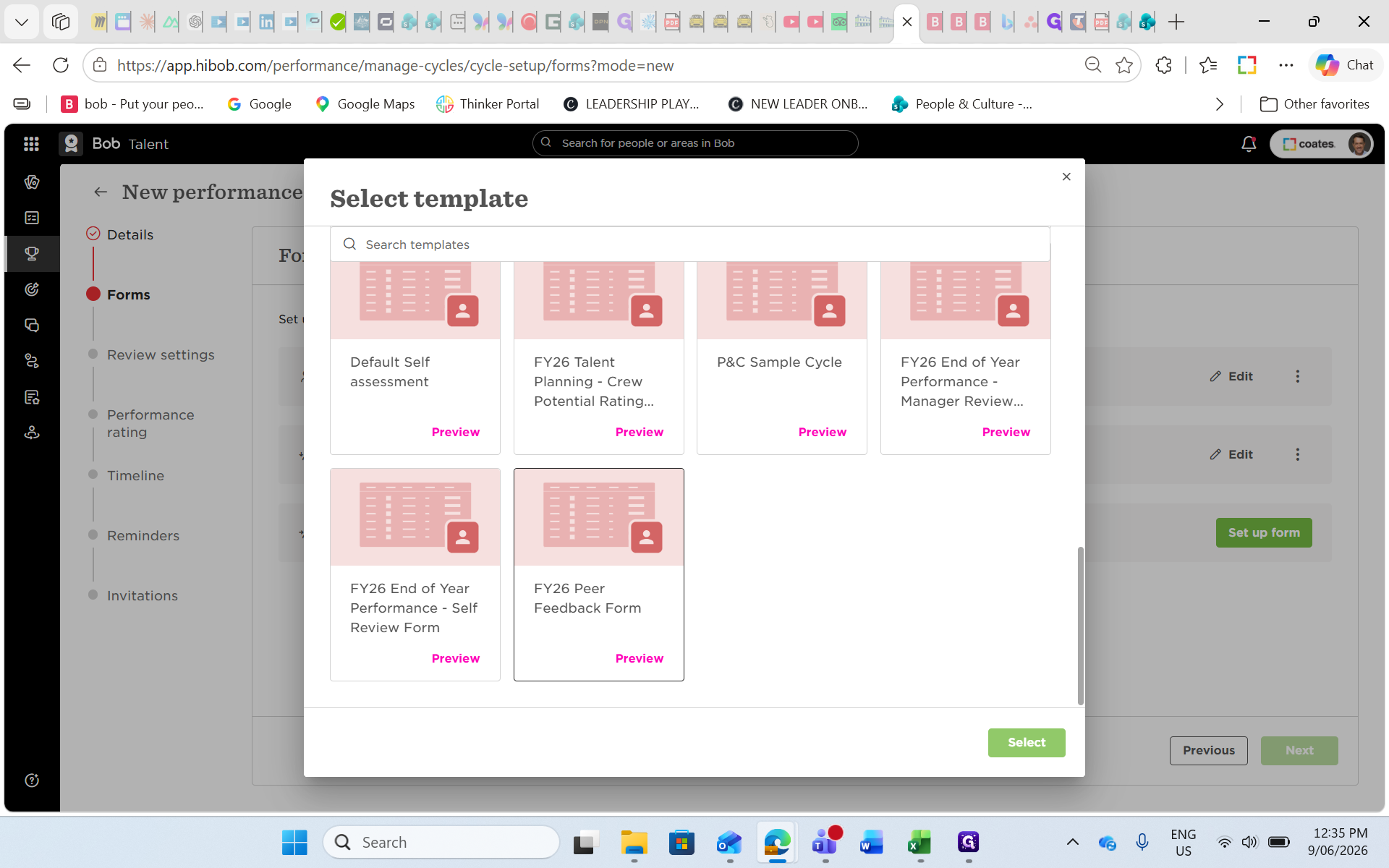
Locate your Self-Review template and click Select.
Step #25: Locate your Self-Review template and click Select.
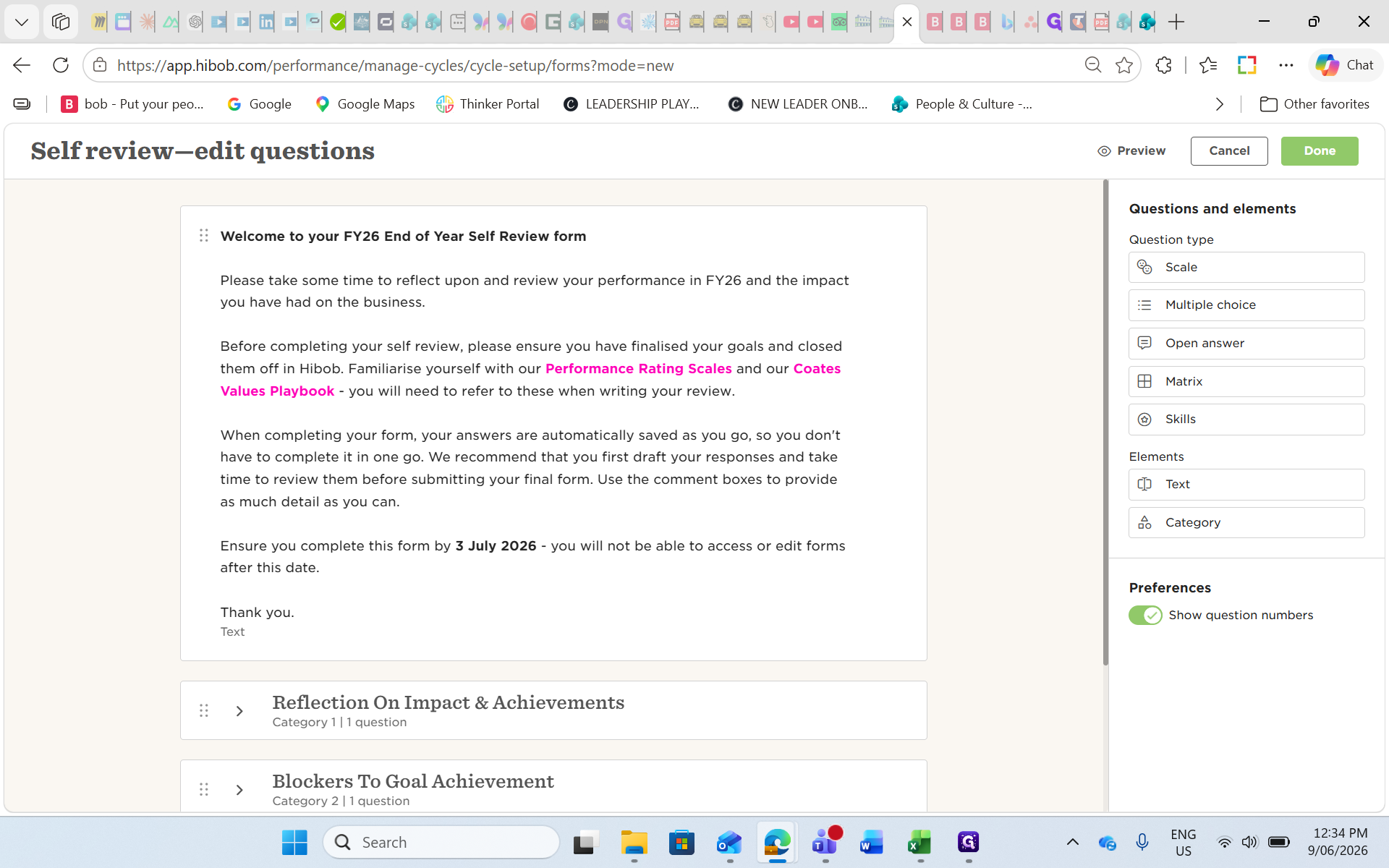
26
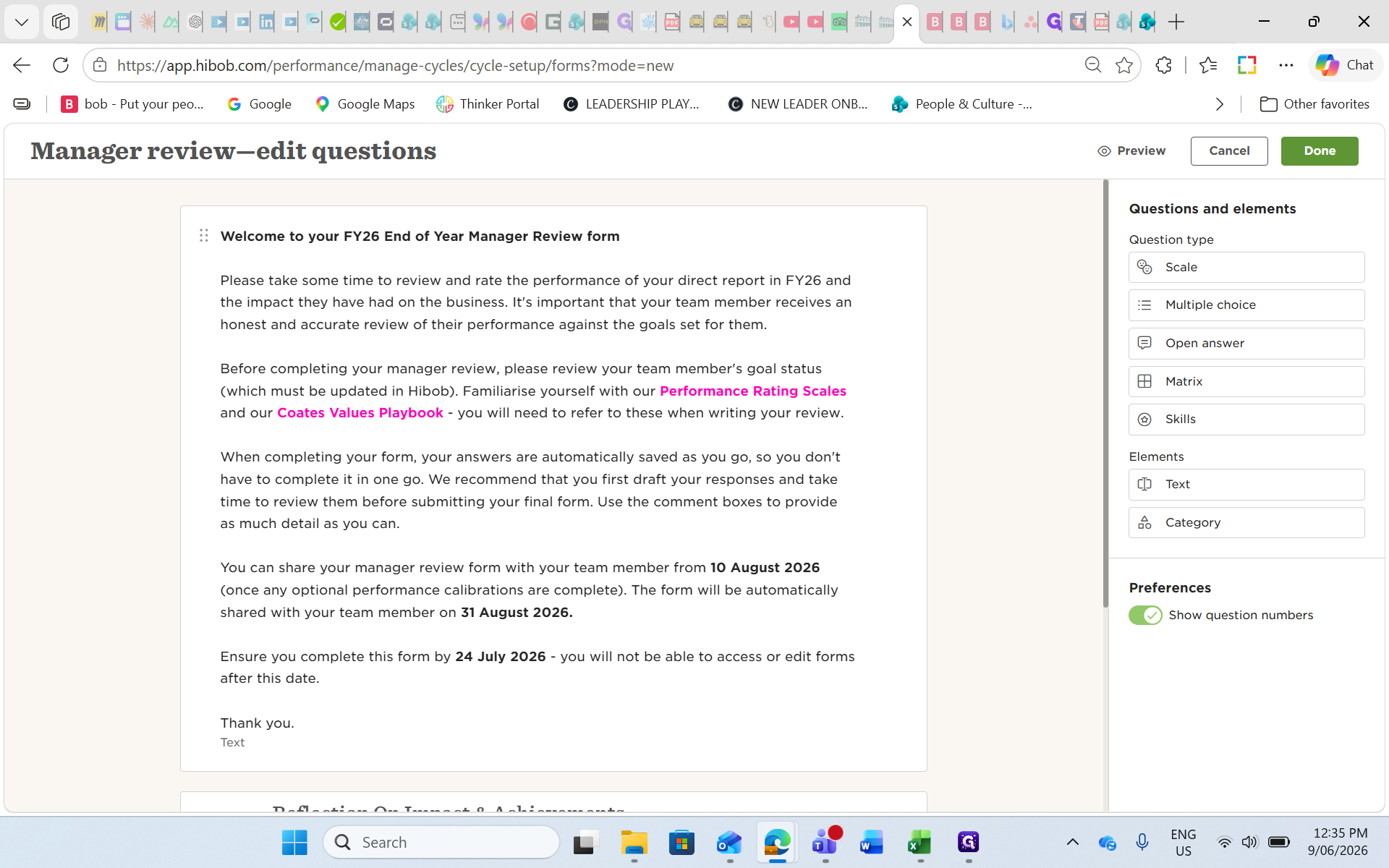
Review the form details to ensure there are no typos, then click Done.
Step #26: Review the form details to ensure there are no typos, then click Done.
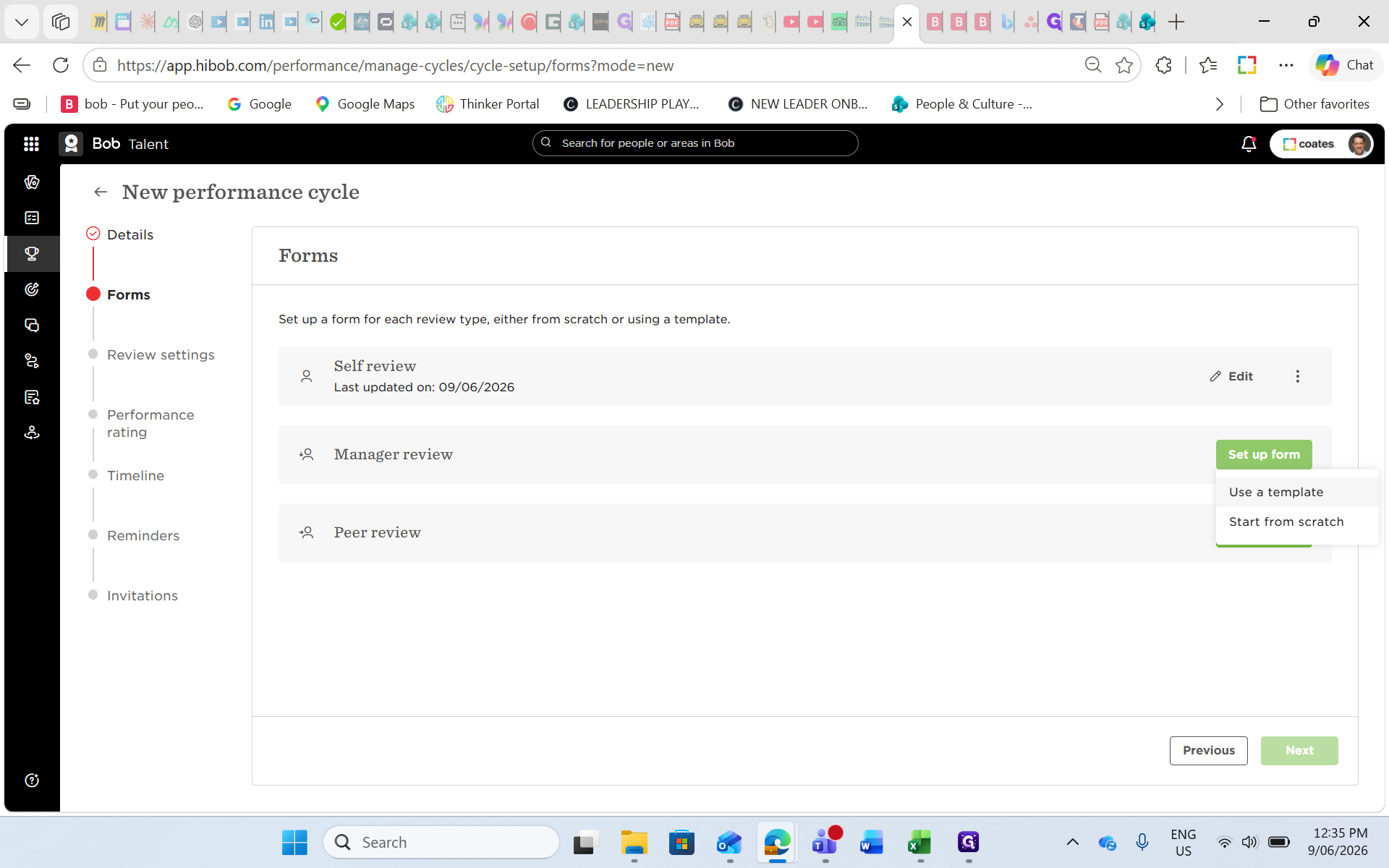
27
Click Use a template under the Manager review section.
Step #27: Click Use a template under the Manager review section.
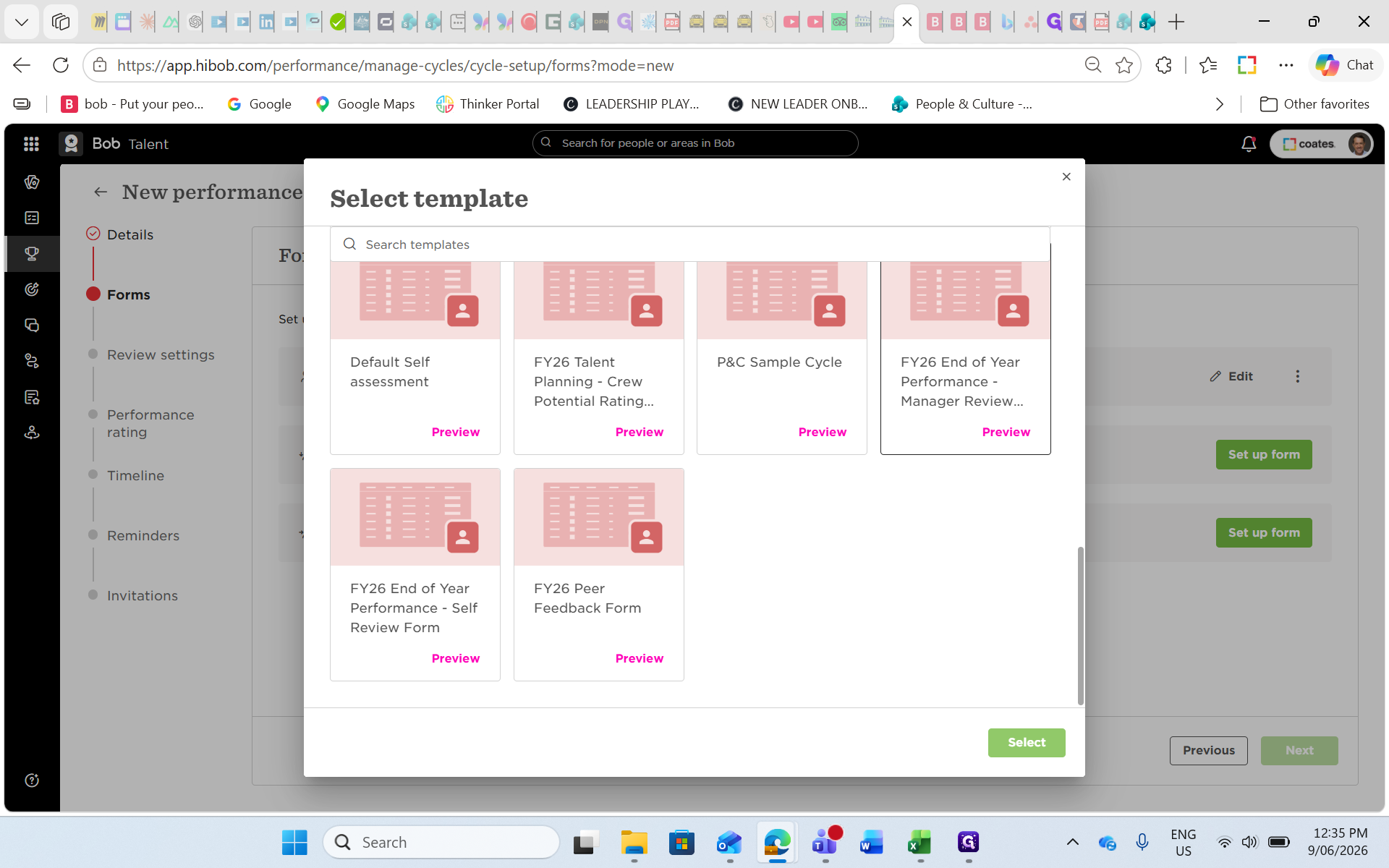
28
Select your Manager Review template and click Select.
Step #28: Select your Manager Review template and click Select.
29
Review the form and click Done.
Step #29: Review the form and click Done.
30
Click Set up form for the Peer review.
Step #30: Click Set up form for the Peer review.
31
Select Use a template.
Step #31: Select Use a template.
32
Choose your Peer Feedback template and click Select.
Step #32: Choose your Peer Feedback template and click Select.
33
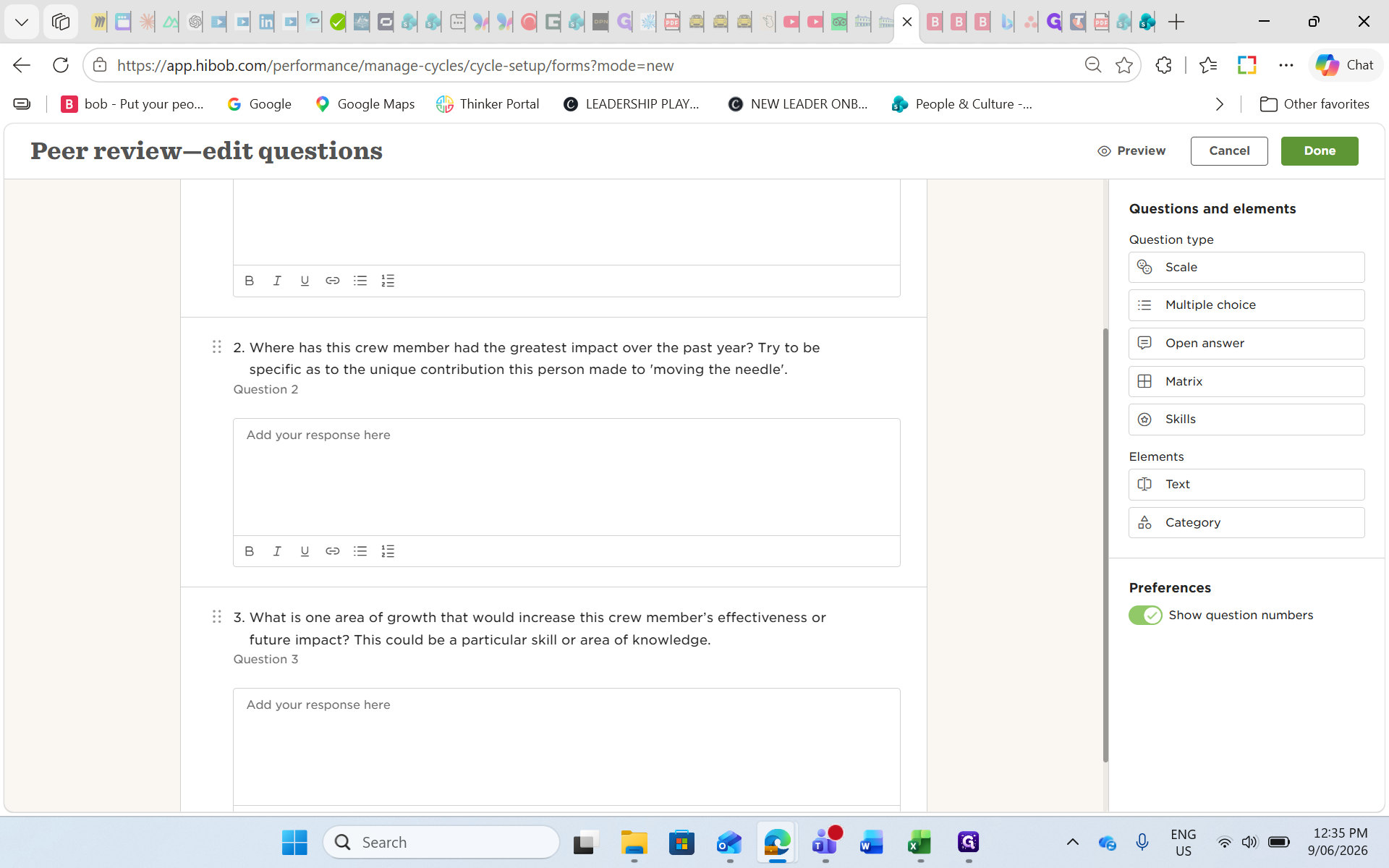
Review the questions and click Done.
Step #33: Review the questions and click Done.
34
Click Next to proceed to Review Settings.
Step #34: Click Next to proceed to Review Settings.

Configuring Review Settings and Ratings
35
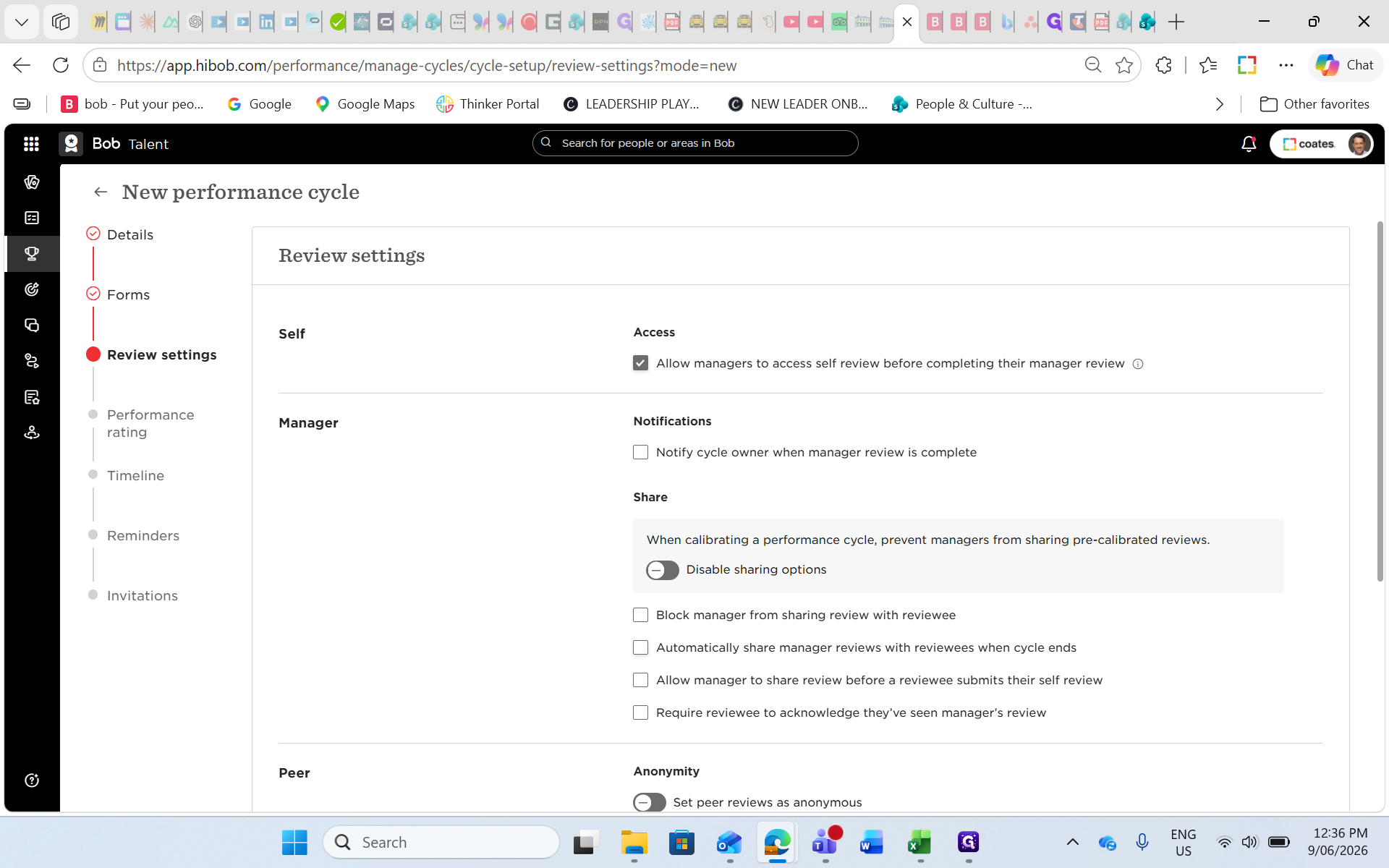
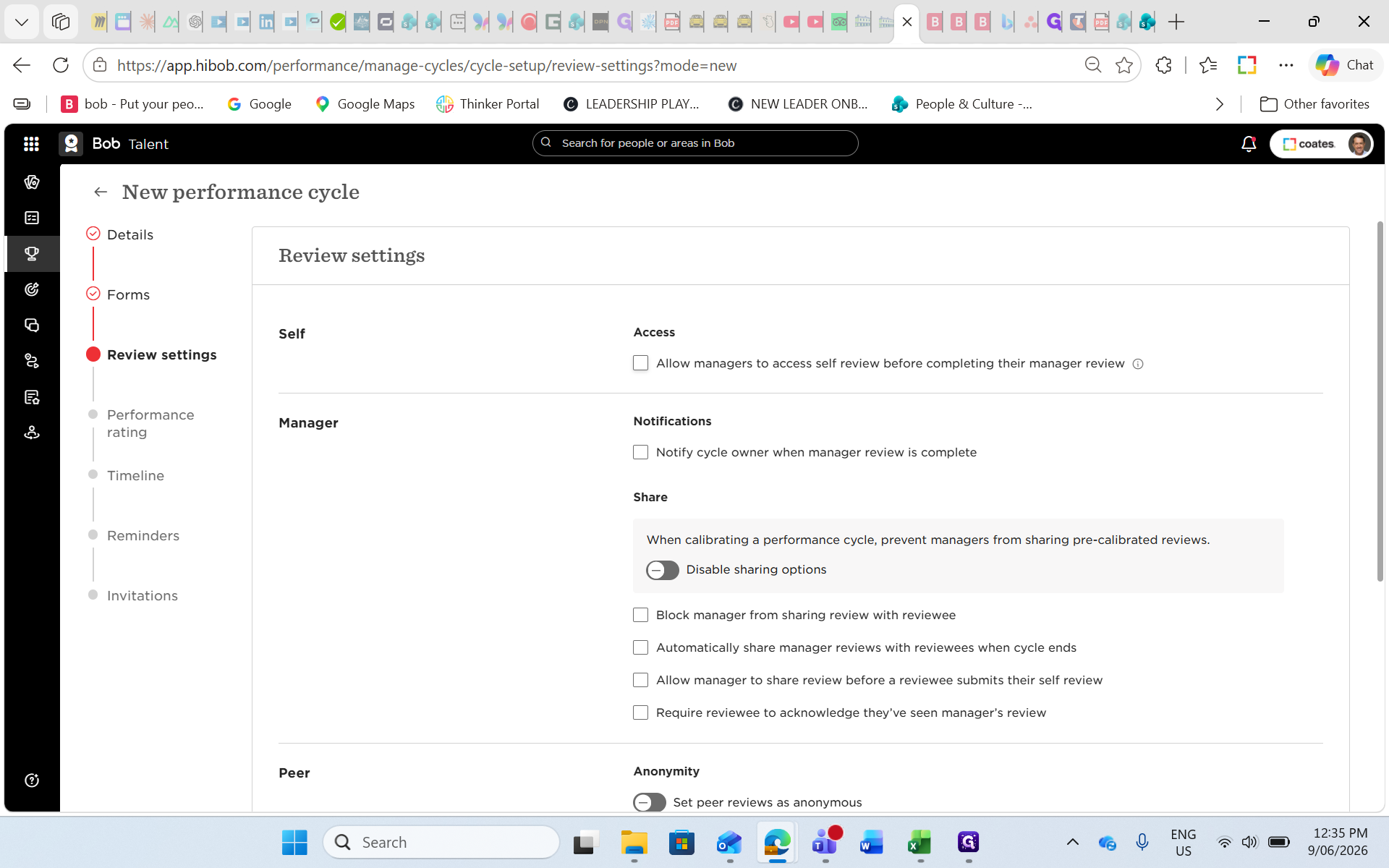
Check Allow managers to access self review before completing so managers have appropriate context.
Step #35: Check Allow managers to access self review before completing so managers have appropriate context.
36
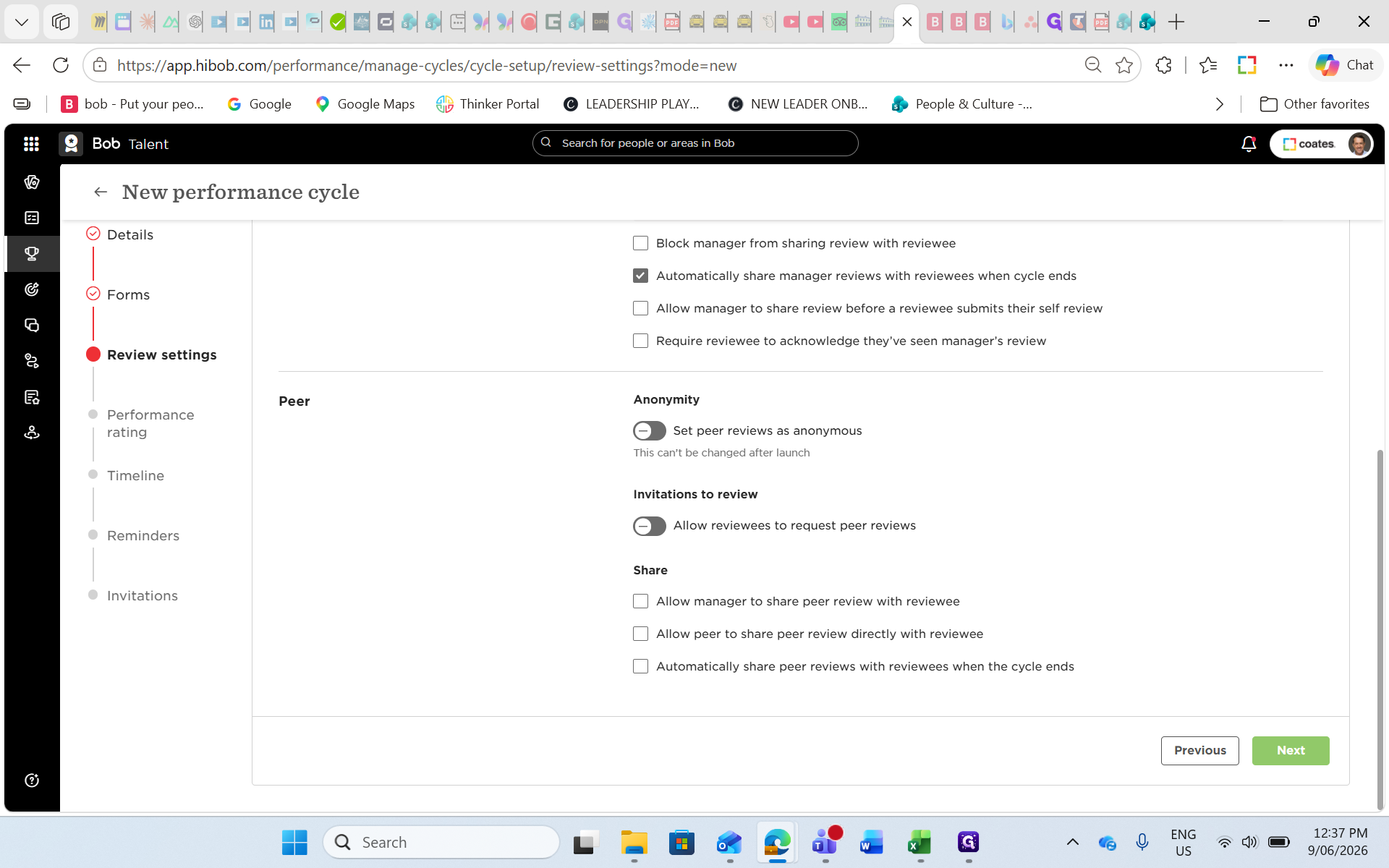
Check Automatically share manager reviews with reviewees when the whole cycle ends to limit visibility until ratings are finalized.
Step #36: Check Automatically share manager reviews with reviewees when the whole cycle ends to limit visibility until ratings are finalized.
37
Click Next.
Step #37: Click Next.
38
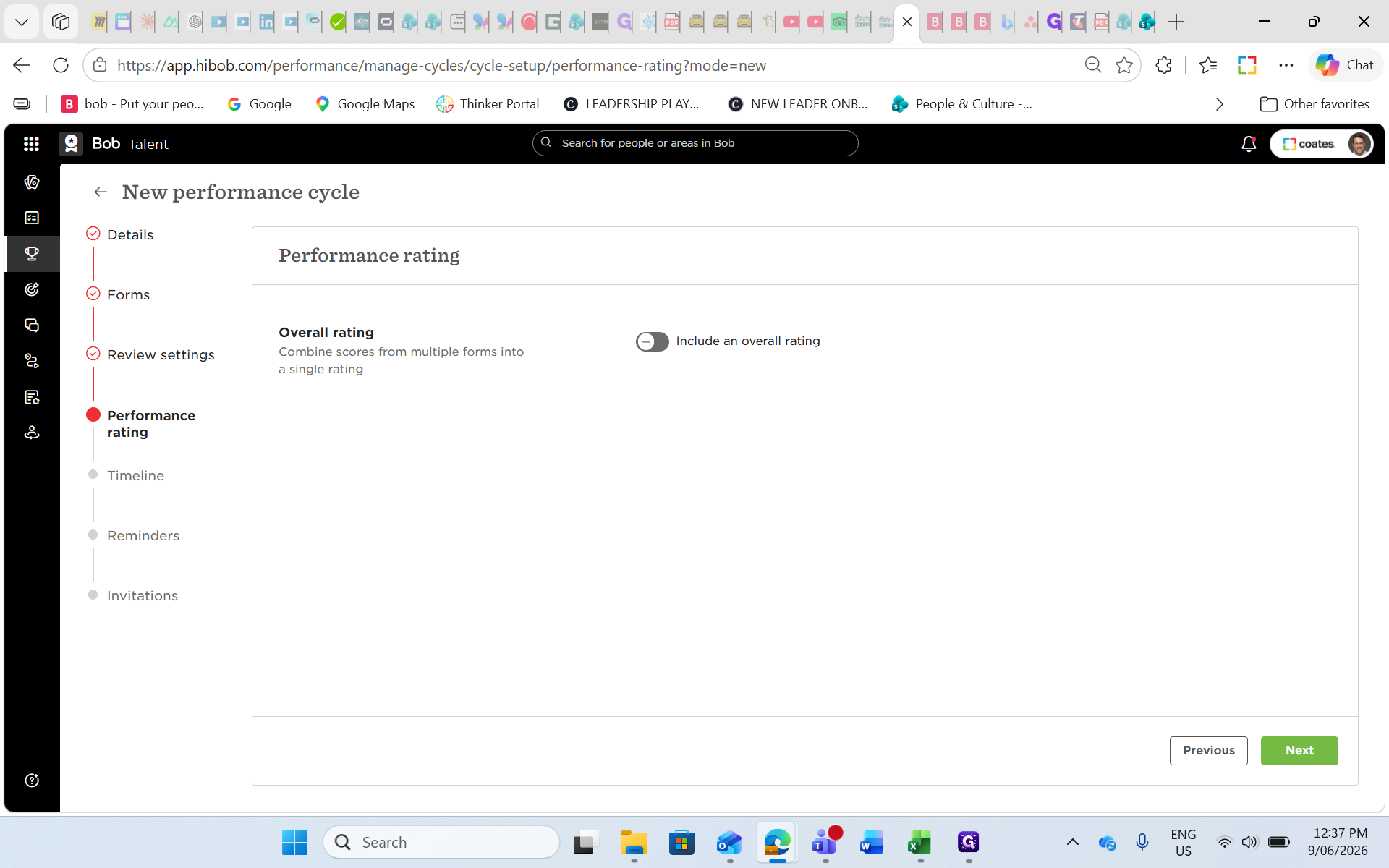
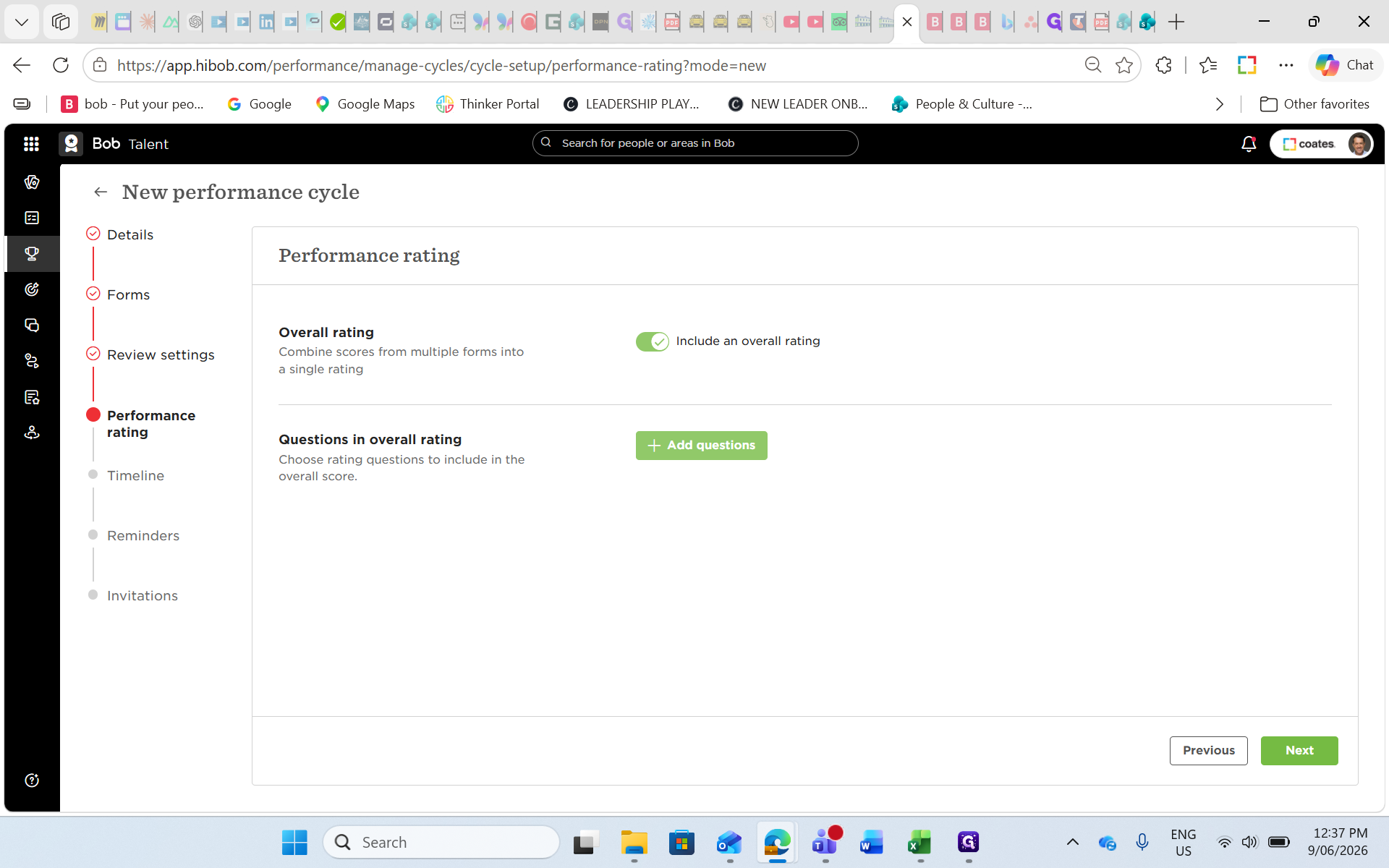
Toggle the switch to combine scores into an overall rating, if your cycle uses combined evaluation scores.
Step #38: Toggle the switch to combine scores into an overall rating, if your cycle uses combined evaluation scores.
39
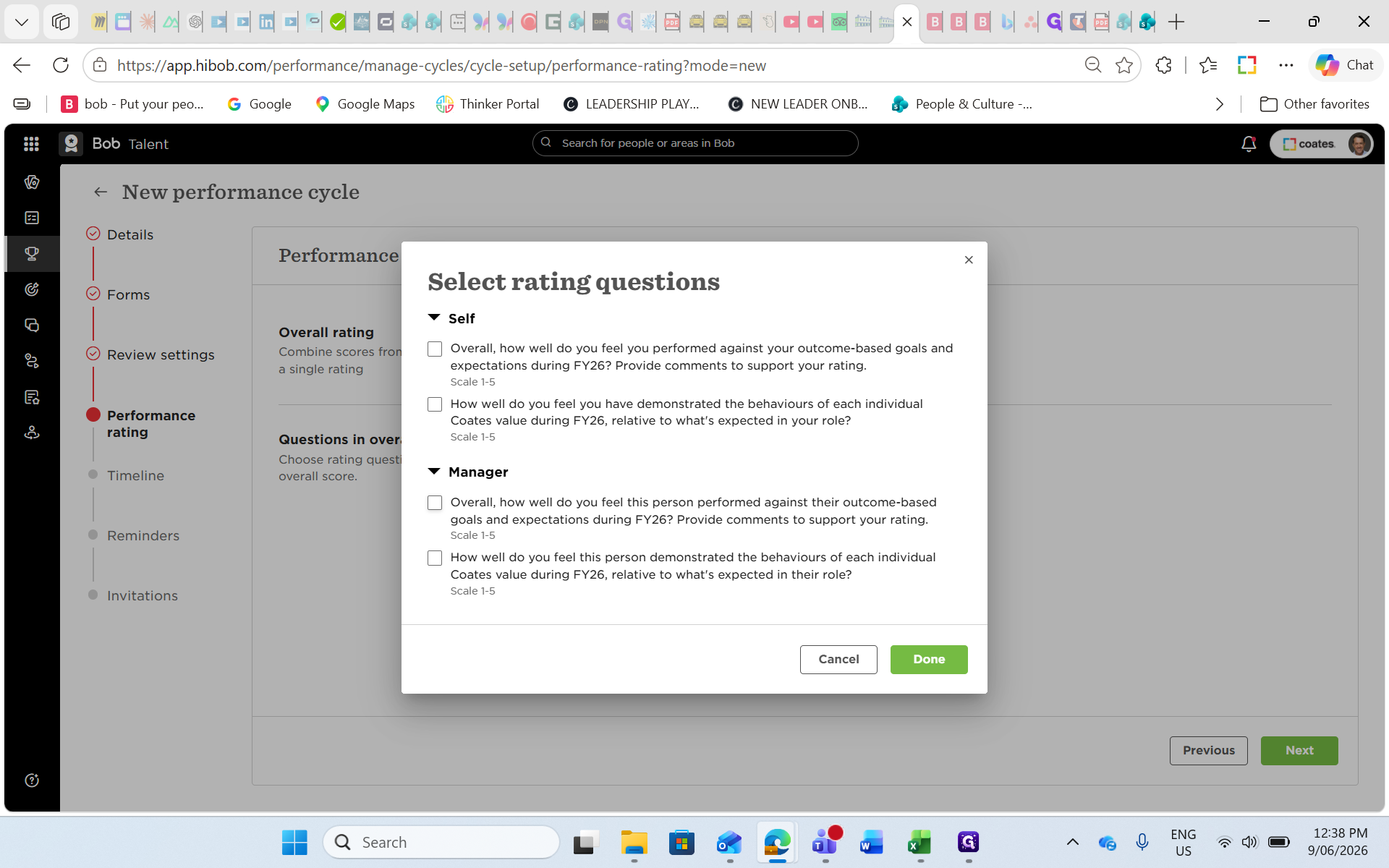
Click + Add questions.
Step #39: Click + Add questions.
40
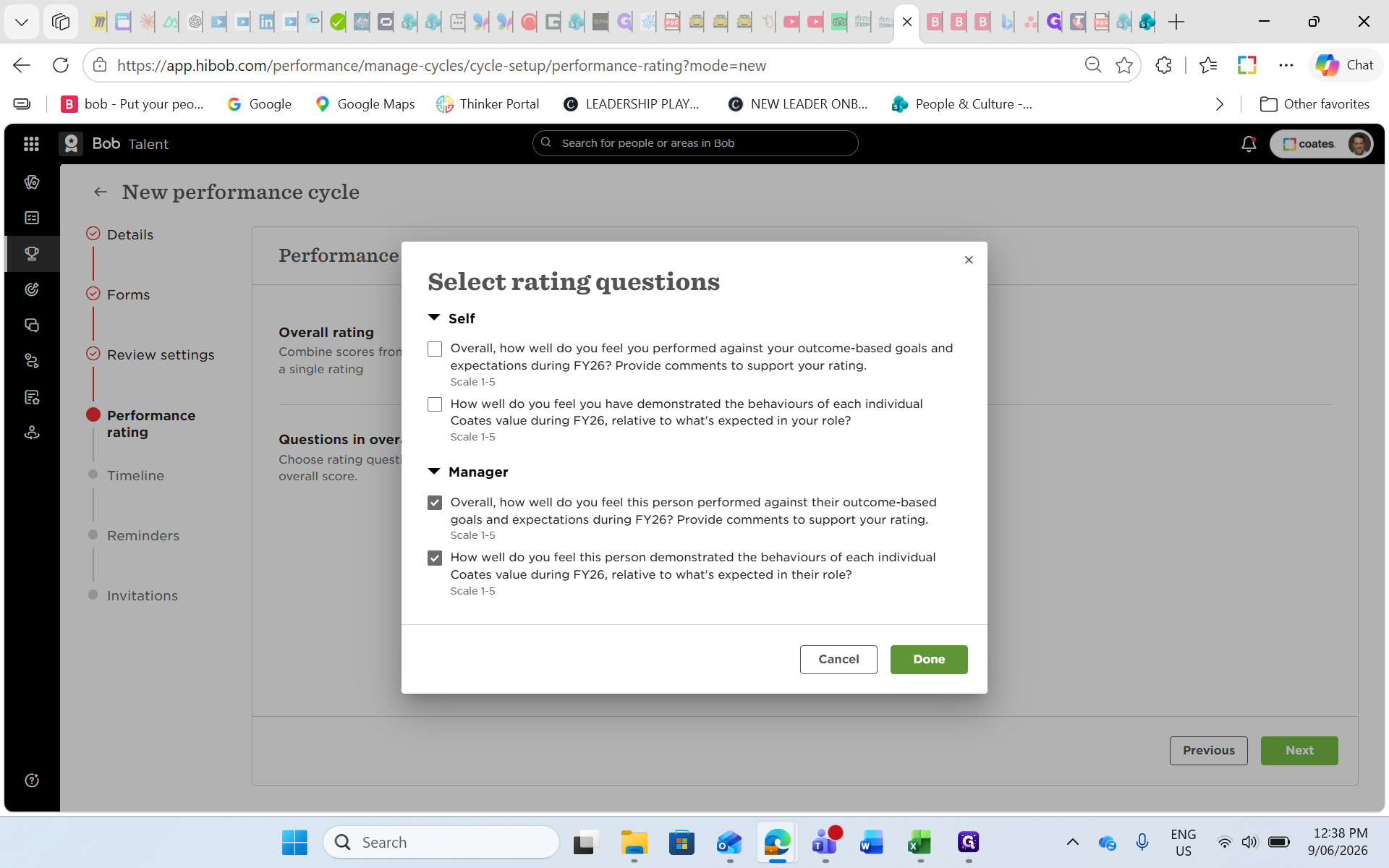
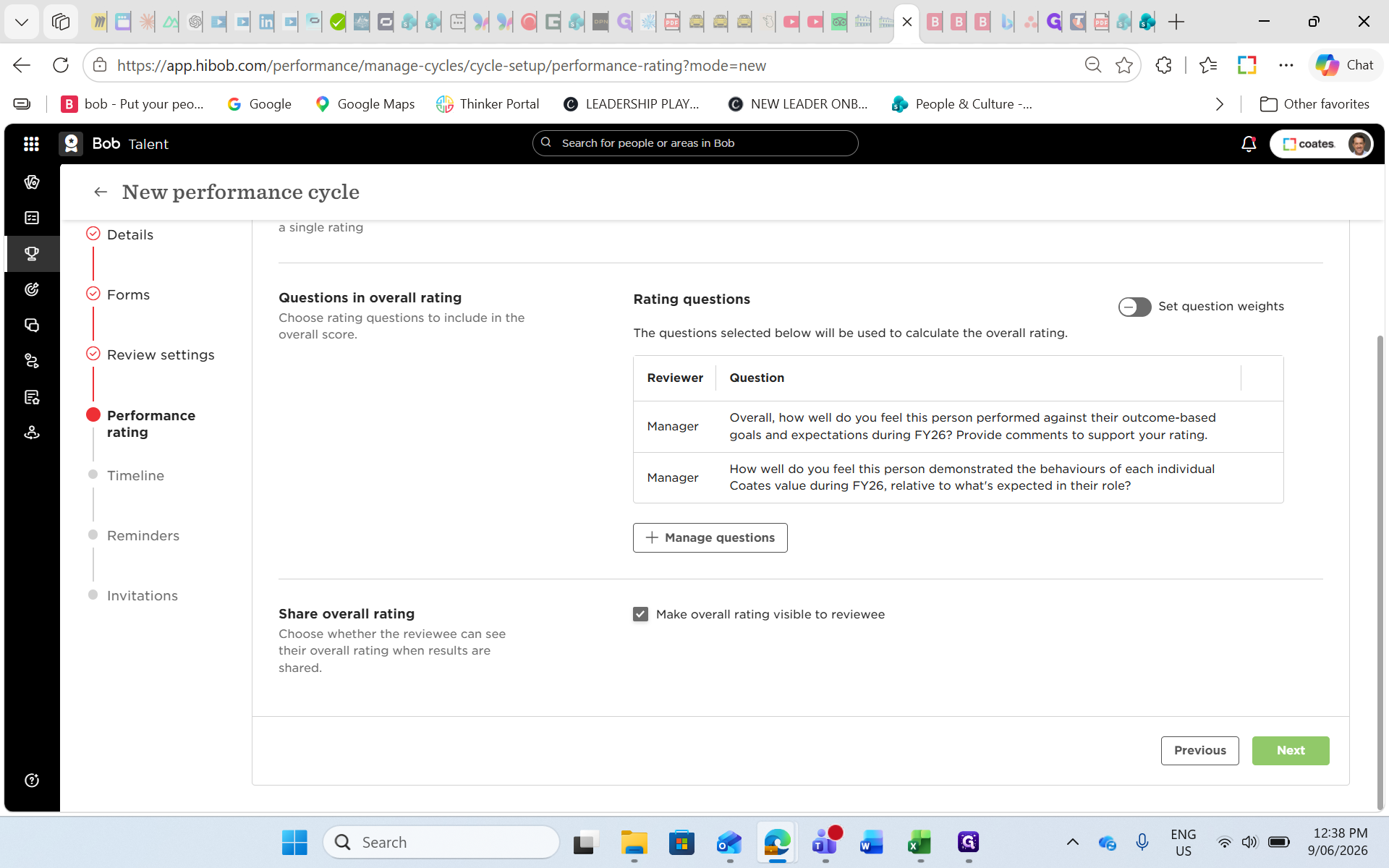
Select the goal and performance rating questions from the manager review you want calculated.
Step #40: Select the goal and performance rating questions from the manager review you want calculated.
41
Click Done.
Step #41: Click Done.
42
Click Next to proceed to the Timeline setup.
Step #42: Click Next to proceed to the Timeline setup.

Establishing Timelines

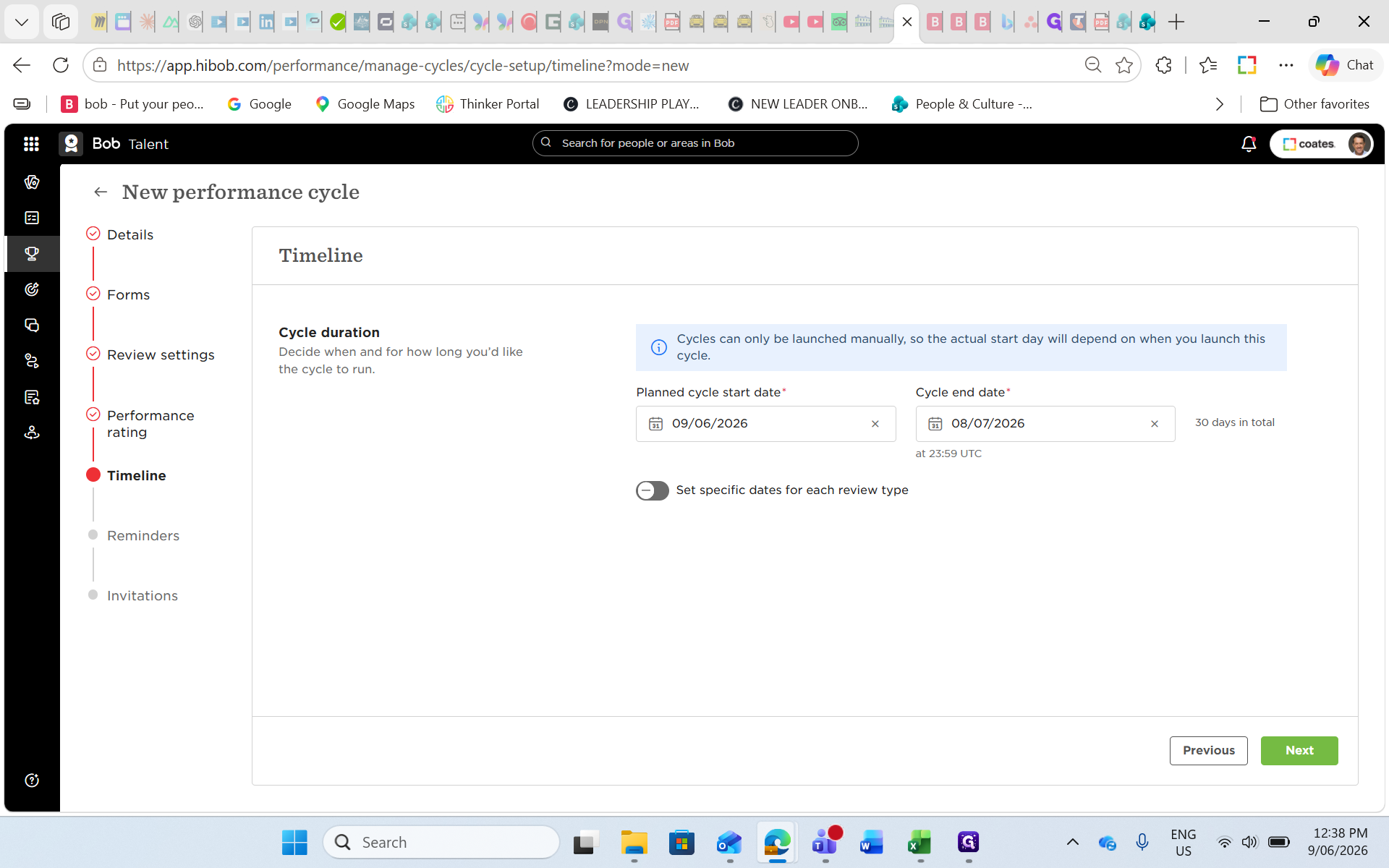
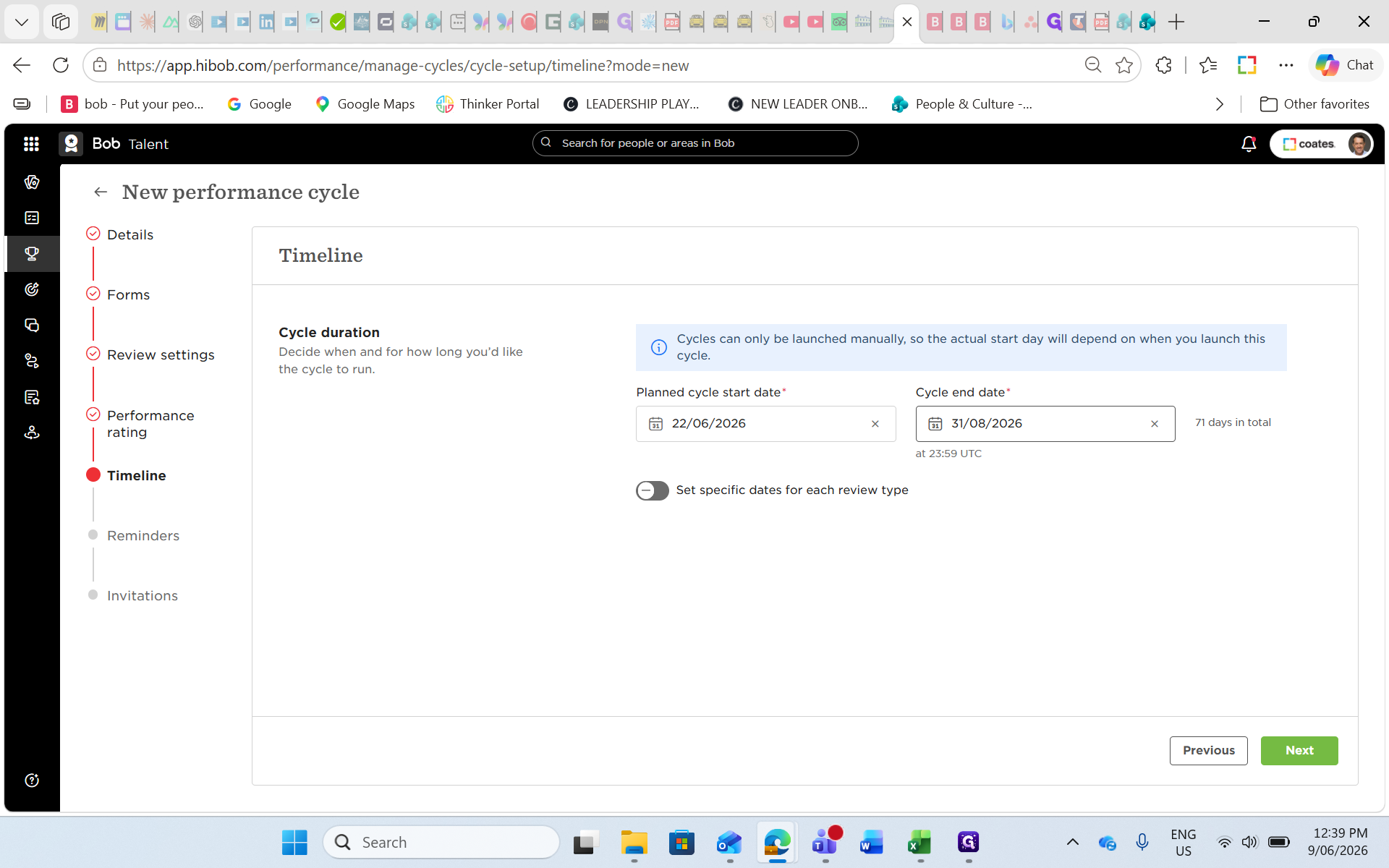
43
Select the primary Planned cycle start date and Cycle end date for the entire review event.
Step #43: Select the primary Planned cycle start date and Cycle end date for the entire review event.
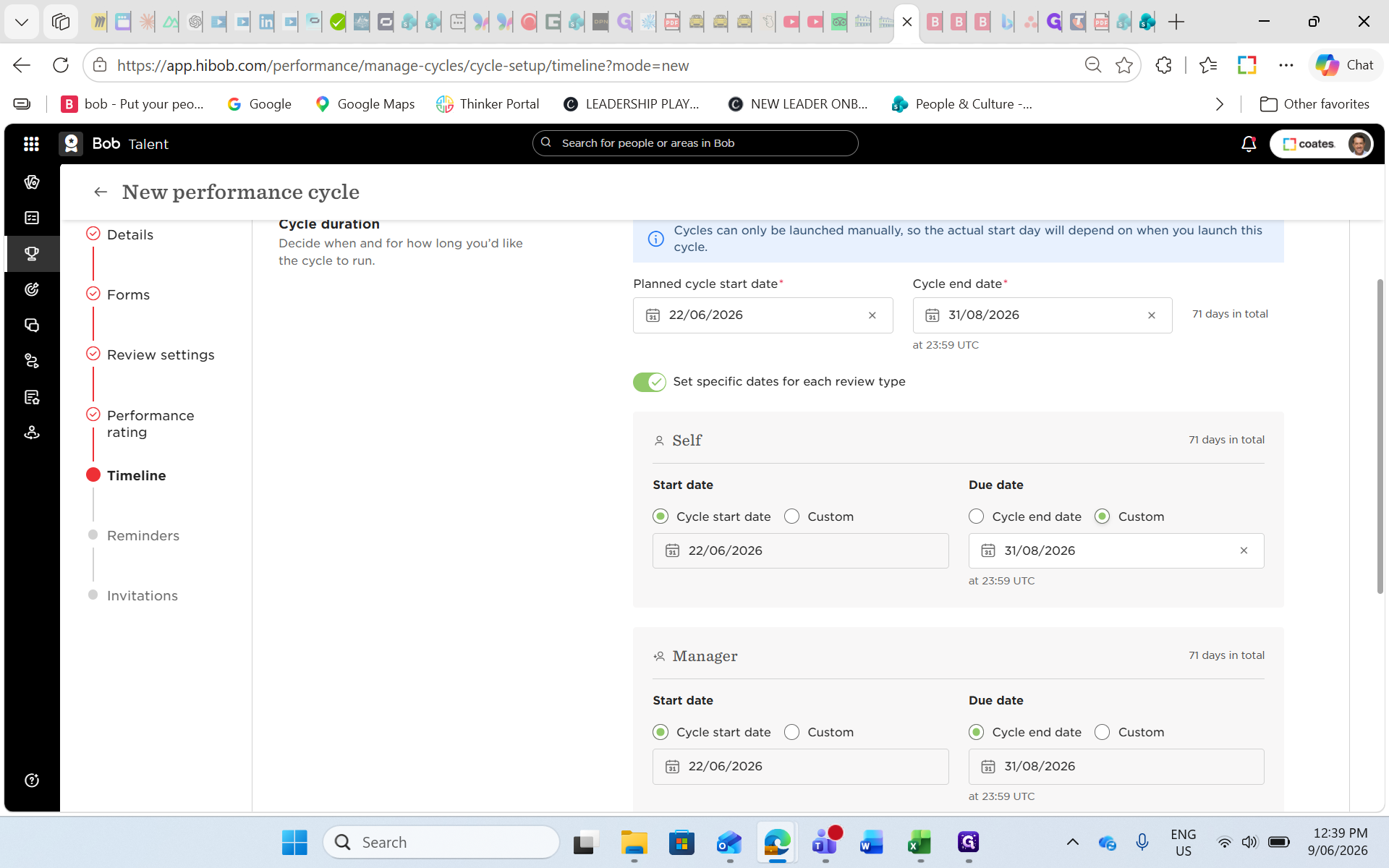
44
Toggle Set specific dates for each review type if you require a staggered timeline.
Step #44: Toggle Set specific dates for each review type if you require a staggered timeline.

Review Type

Start Date

End Date

Self Review

Cycle start date

Custom close date

Peer Review

Cycle start date

Custom close date

Manager Review

Follows Self/Peer close

Custom close date

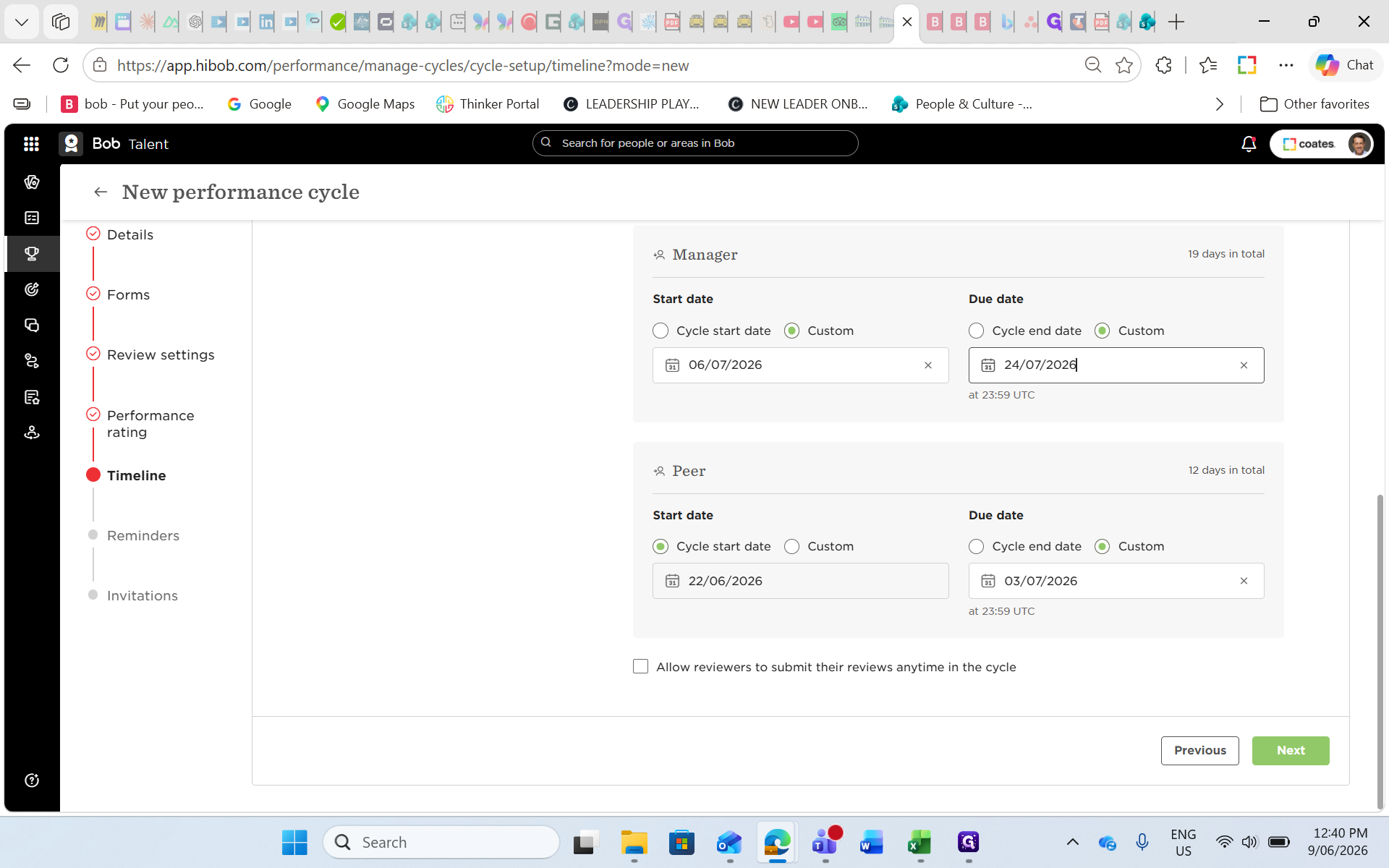
45
Configure the custom dates for each review type using the calendar fields.
Step #45: Configure the custom dates for each review type using the calendar fields.
46
Click Next.
Step #46: Click Next.

Finalizing Setup

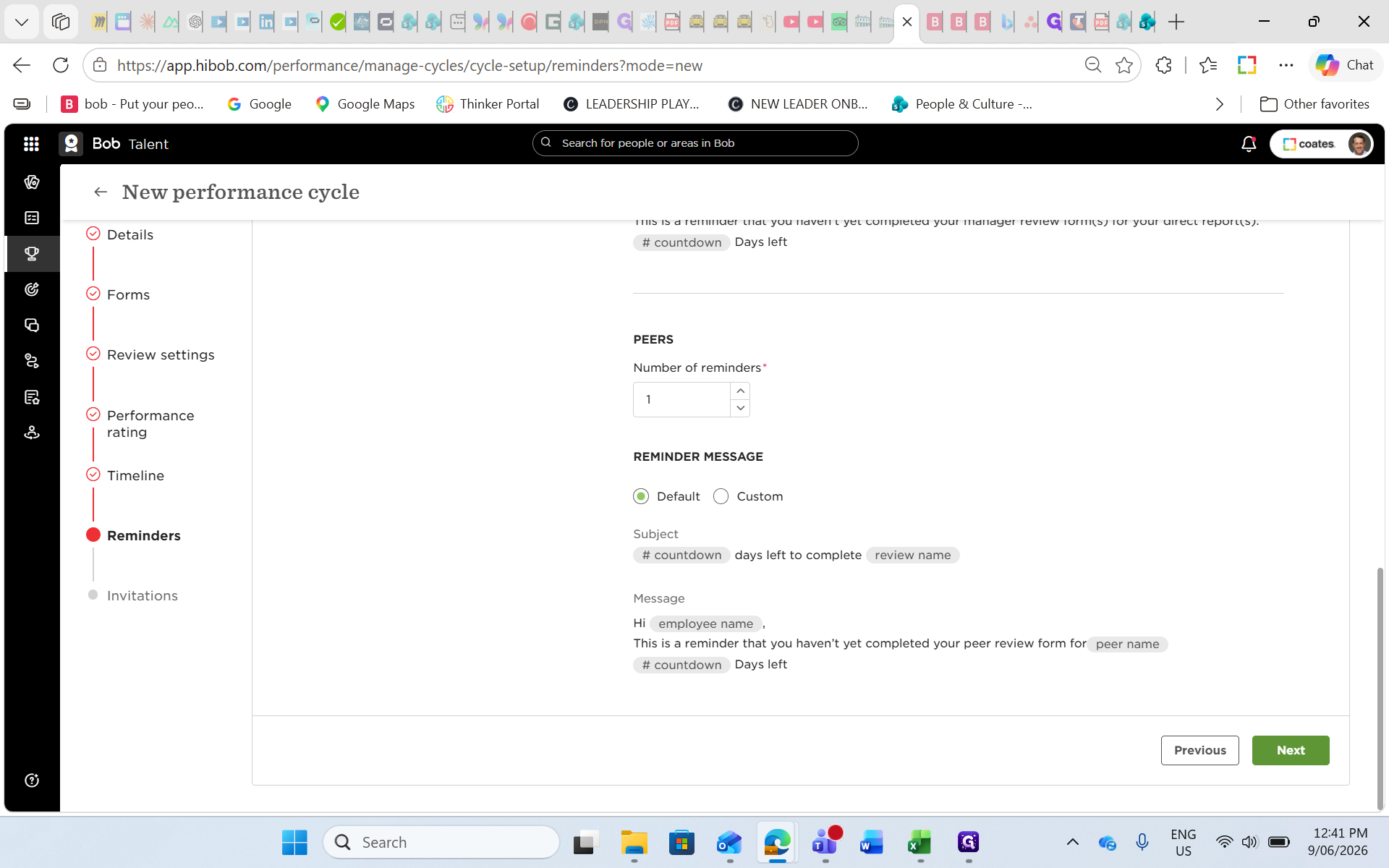
47
Review the default reminder settings and click Next.
Step #47: Review the default reminder settings and click Next.
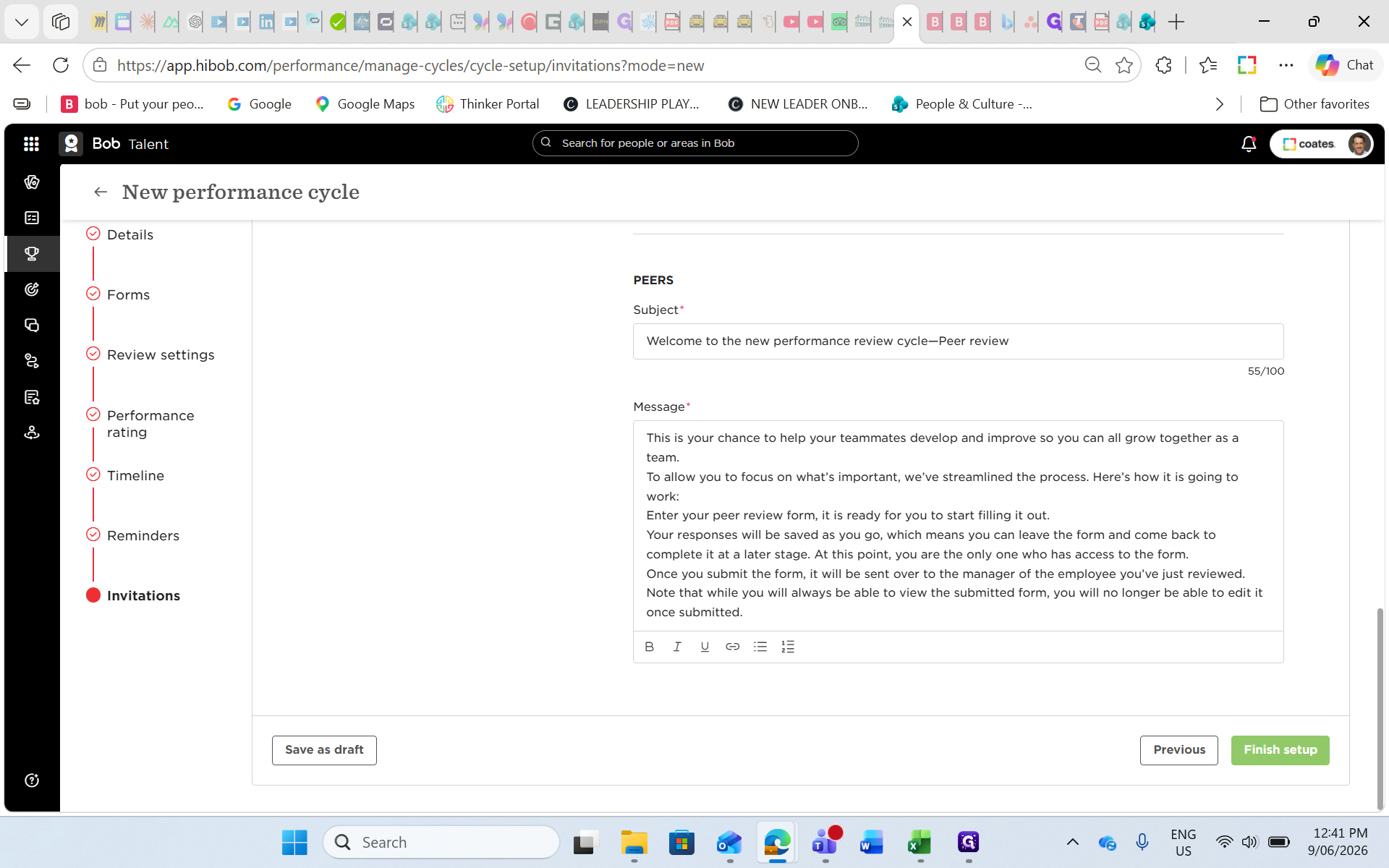
48
Review the invitation emails and click Finish setup.
Step #48: Review the invitation emails and click Finish setup.
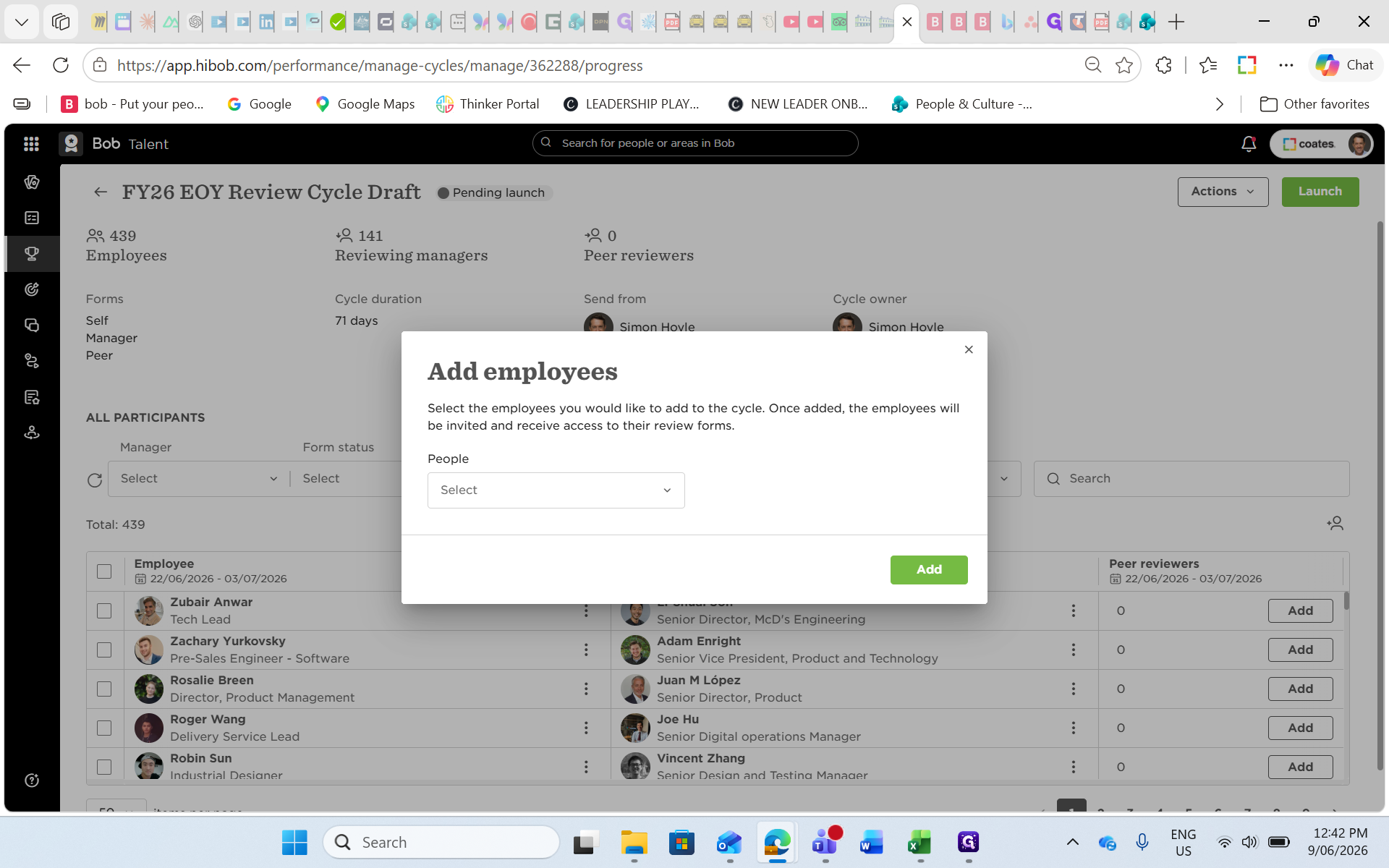
49
To manually add an individual who did not meet your condition filters, click the Add Person icon on the summary page.
Step #49: To manually add an individual who did not meet your condition filters, click the Add Person icon on the summary page.
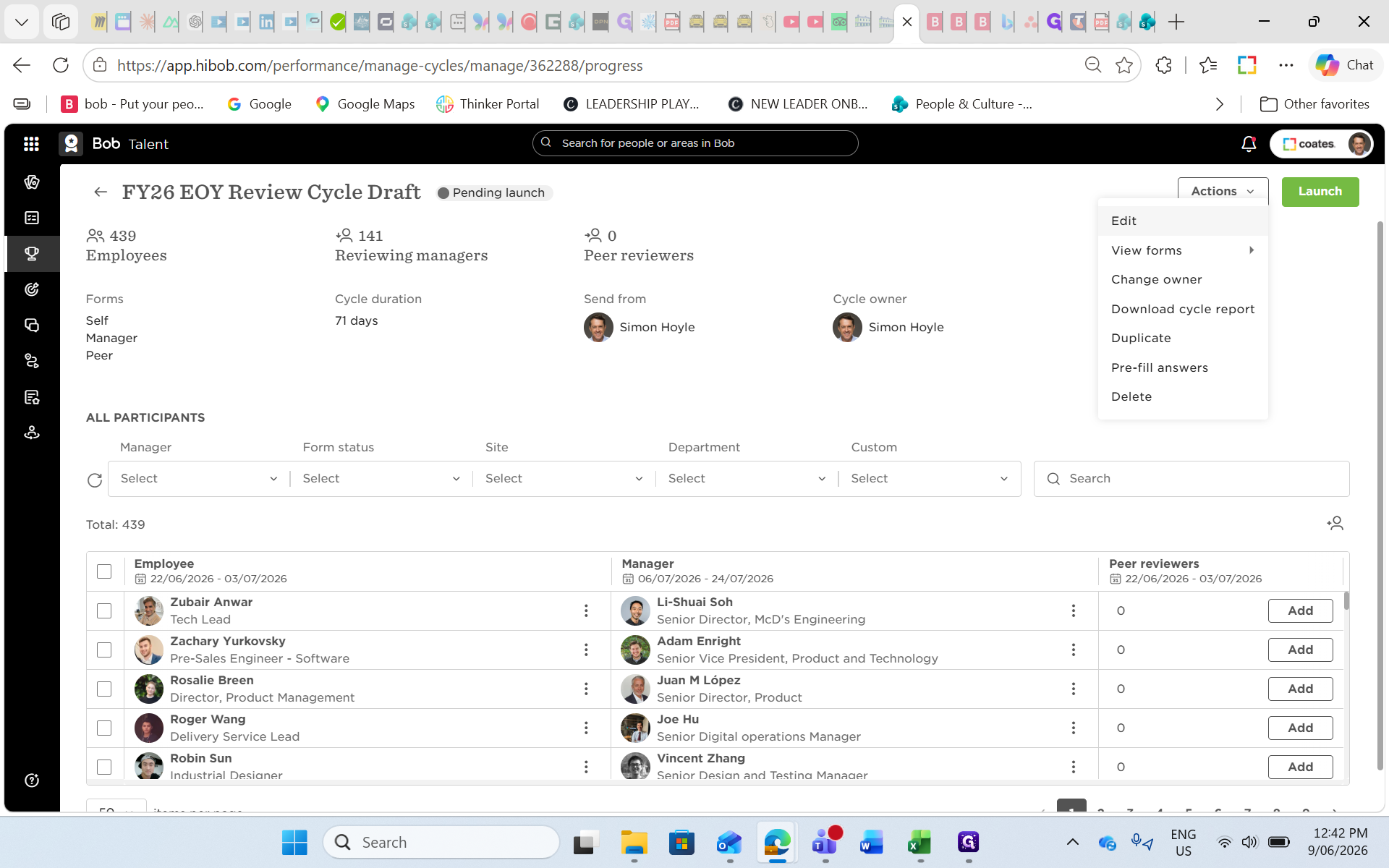
50
To modify the cycle before launch, click Actions and select Edit.
Step #50: To modify the cycle before launch, click Actions and select Edit.

Q: Can I manually add employees to the cycle if they don't match the condition filters?

A: Yes, you can manually add individuals to the cycle using the Add Person icon after finishing the setup, provided they are active employees and have a manager assigned in the system.

Q: Will managers receive an email every time a direct report completes a review?

A: If the notification box under Review Settings is left unticked, the cycle owner will not receive emails for every completion. If enabled, expect a high volume of notifications.

Q: Can reviewers submit their feedback after the specific review period ends?

A: Only if the "Allow reviewers to submit their reviews anytime in the cycle" box is ticked. Otherwise, the cycle strictly closes on the specified end date, though administrators can manually grant individual extensions.

Q: Can I change timeline dates after the cycle has launched?

A: You can extend a specific custom review period (like the self-review) as long as that specific period is still running. Once a custom period closes, you cannot automatically reopen it.

Term

Definition

Performance Cycle

A structured, company-wide event where employees, peers, and managers evaluate performance over a set timeframe.

Cycle Owner

The administrative user responsible for setting up, adjusting, and officially launching the performance cycle within the HR platform.

Calibration Activity

The process where leaders discuss and adjust proposed performance ratings to ensure consistent standards across the business.

Goal Cycle

A set period used to track individual and company objectives, which can be pulled into a performance review to evaluate achievements.