Icon

Set Up GL Codes and Formats for Sage Reporting

Learn how to configure your account for Sage reporting by enabling GL codes, extending payment request forms, and updating payee tax settings.

By Ayomide Adegebo

This guide explains how to format your expense reports for Sage integration. By completing this setup, you ensure all expense categories and payees contain the necessary General Ledger (GL) codes and tax formatting required by Sage.

This guide applies to finance managers and accounting administrators responsible for configuring organizational preferences. Use these steps during your initial accounting setup or when migrating your reporting pipeline to Sage.

Enable Accounting Controls

Navigate to your organization settings to enforce GL code usage.
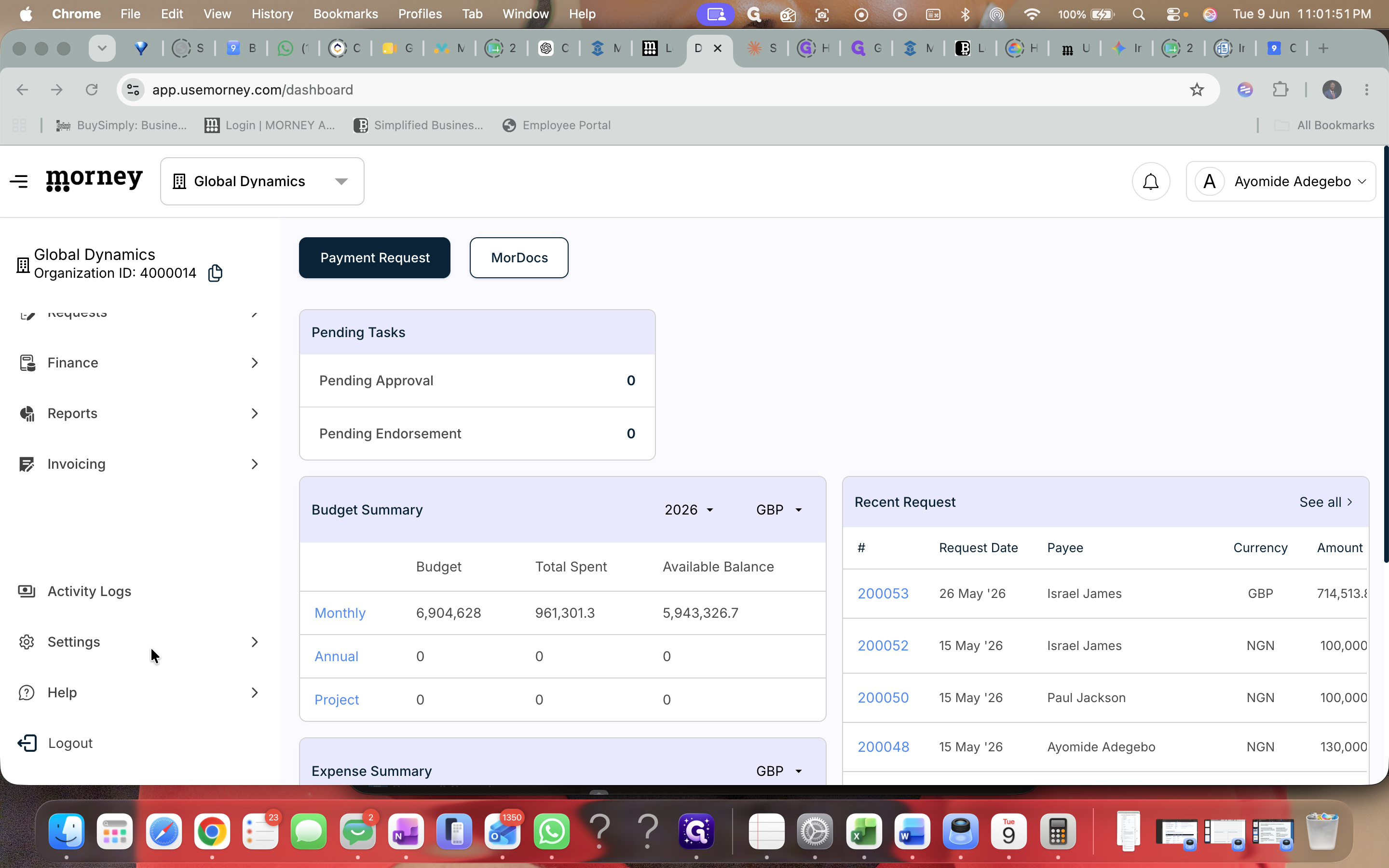
1
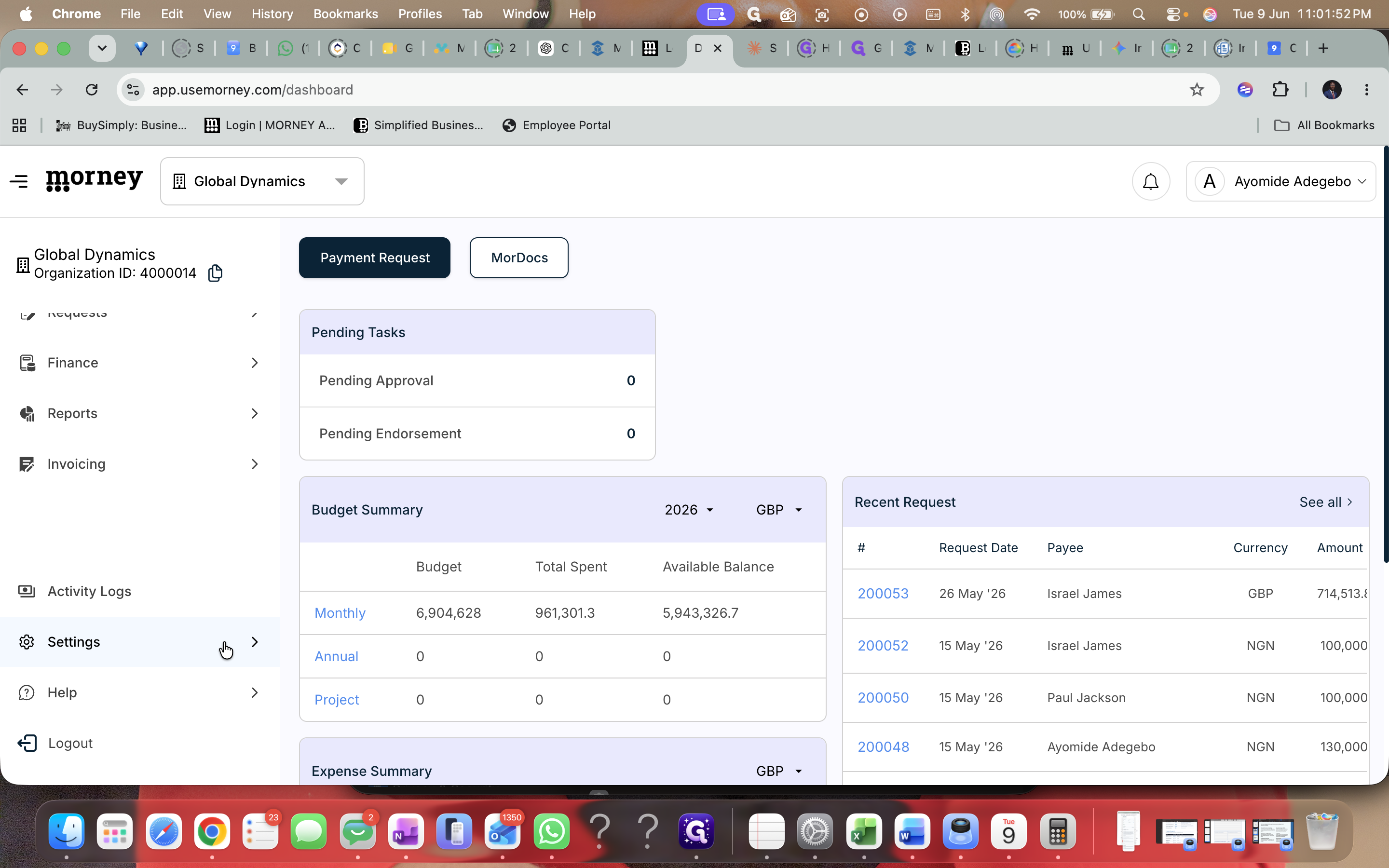
Click Settings in the left navigation sidebar.
Step #1: Click Settings in the left navigation sidebar.
2
Click Organization under the Settings menu.
Step #2: Click Organization under the Settings menu.
3
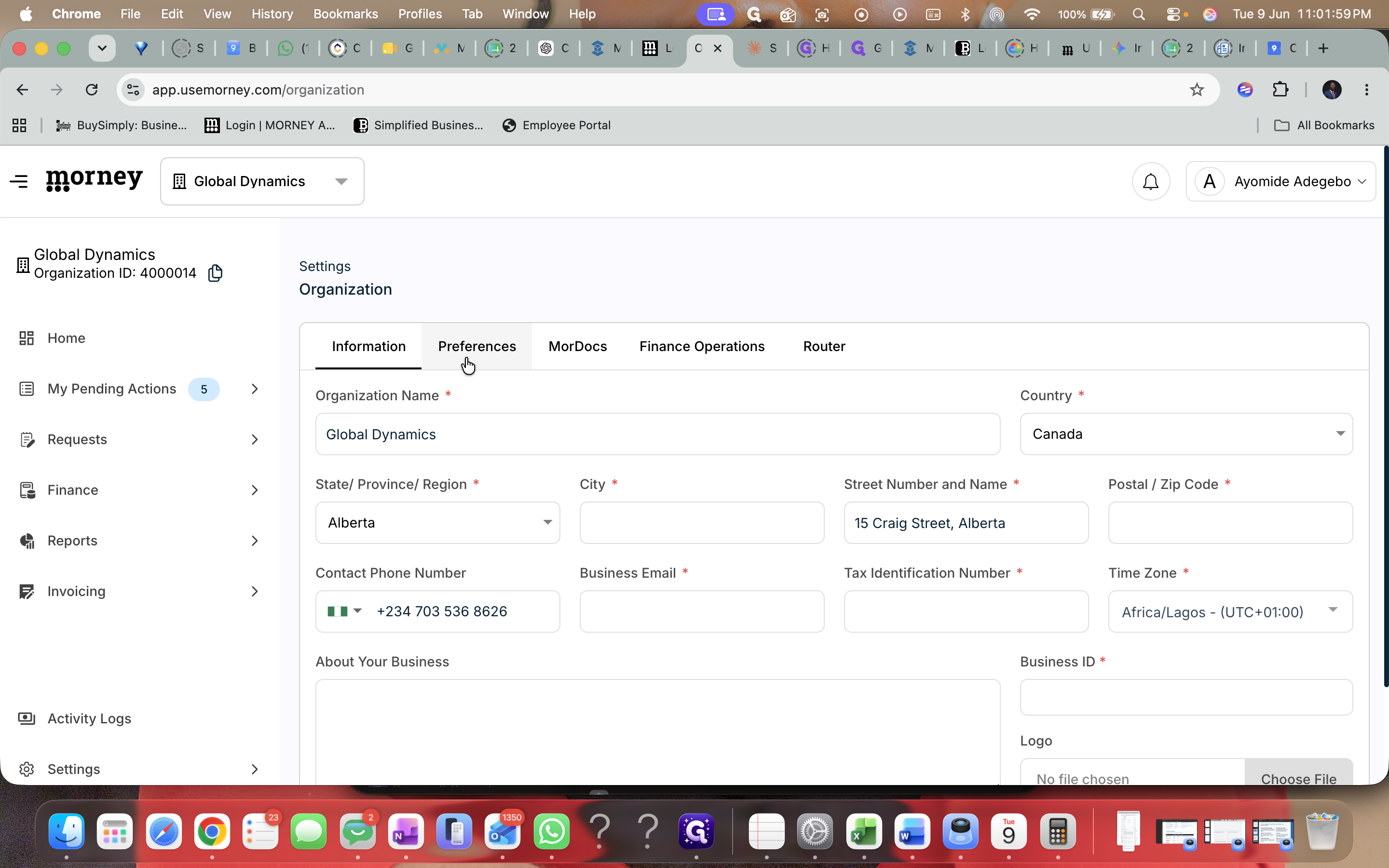
Navigate to the Preferences tab.
Step #3: Navigate to the Preferences tab.
4
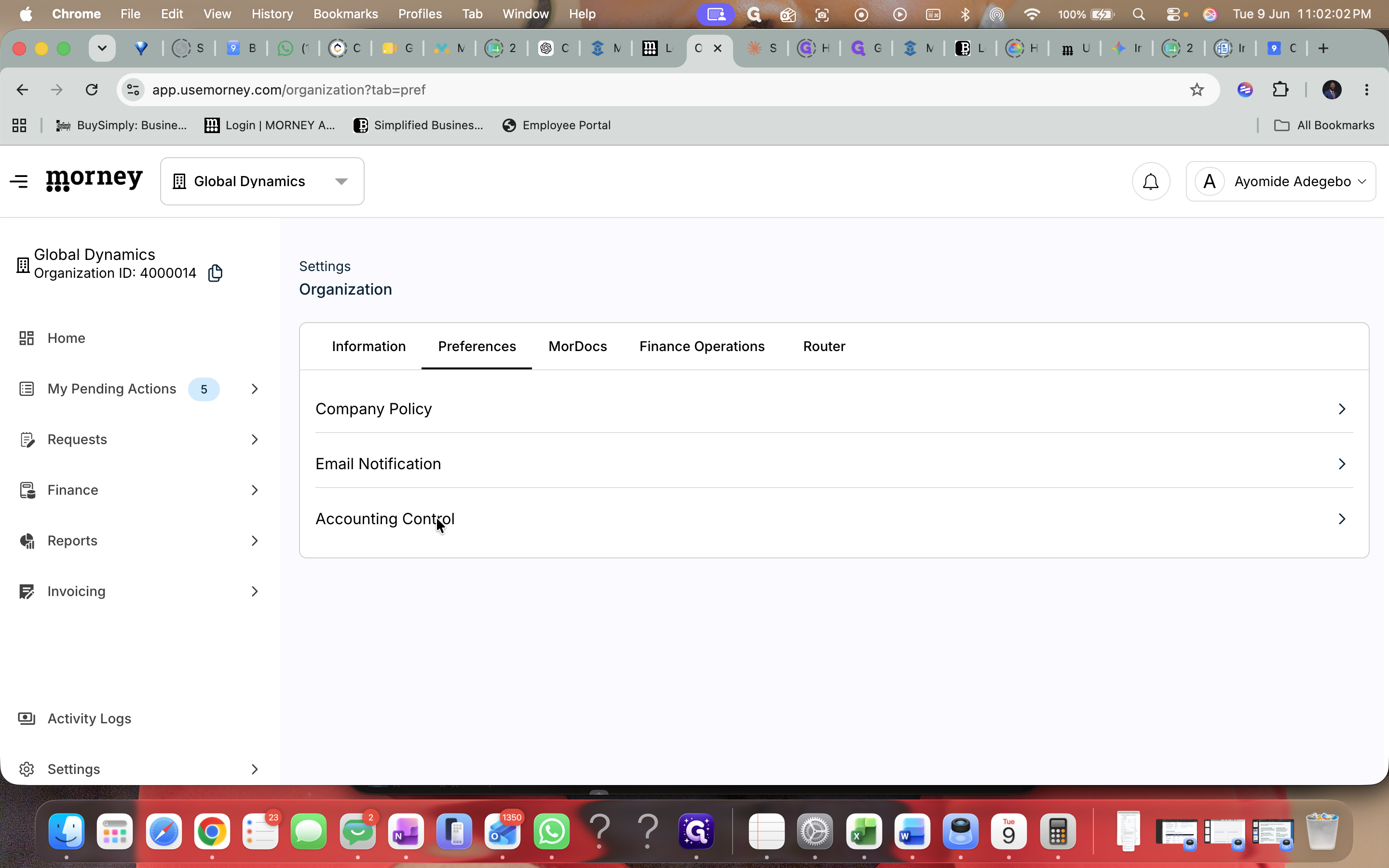
Click Accounting Control.
Step #4: Click Accounting Control.
5
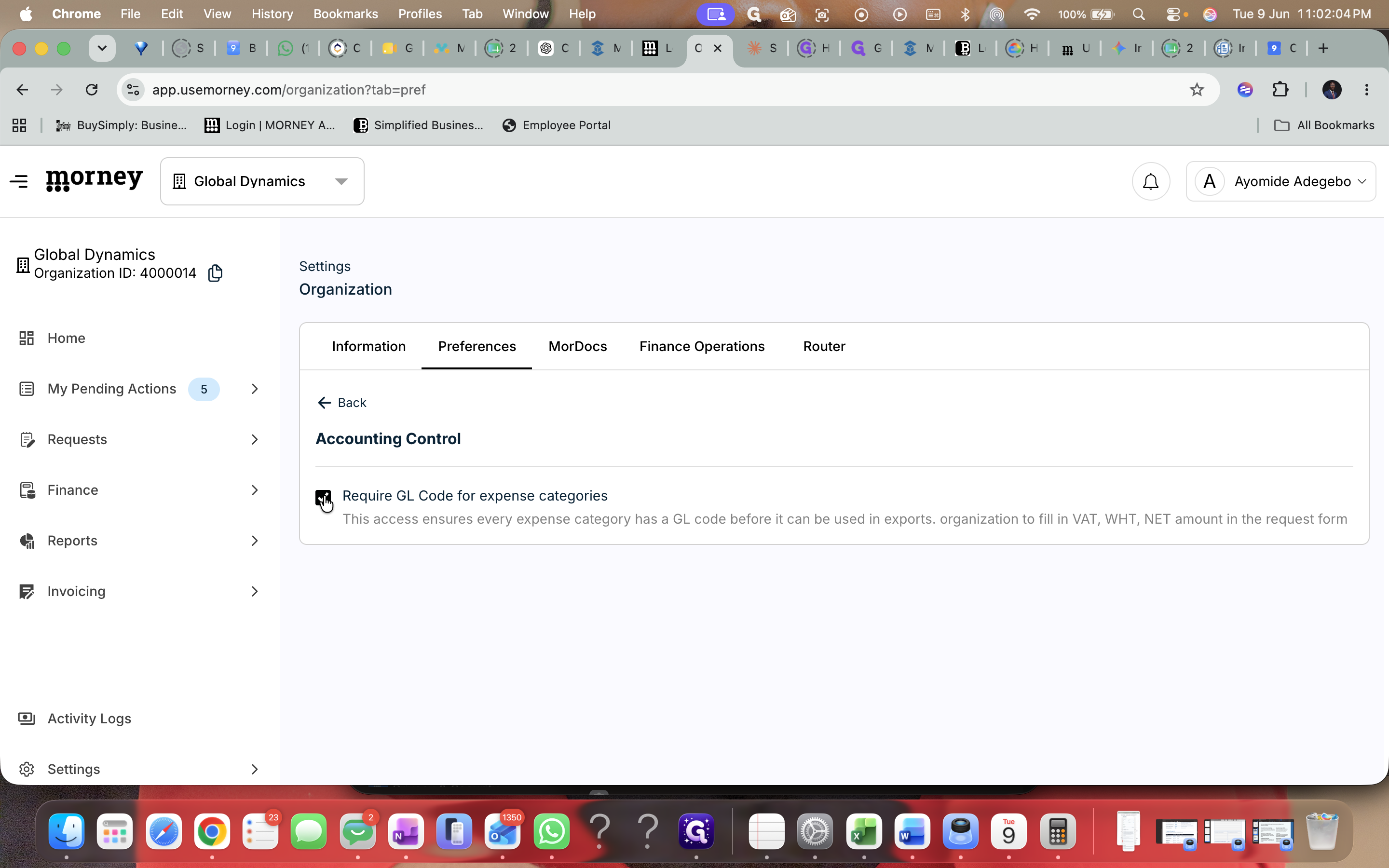
Toggle on Require GL Code for expense categories.
Step #5: Toggle on Require GL Code for expense categories.
6
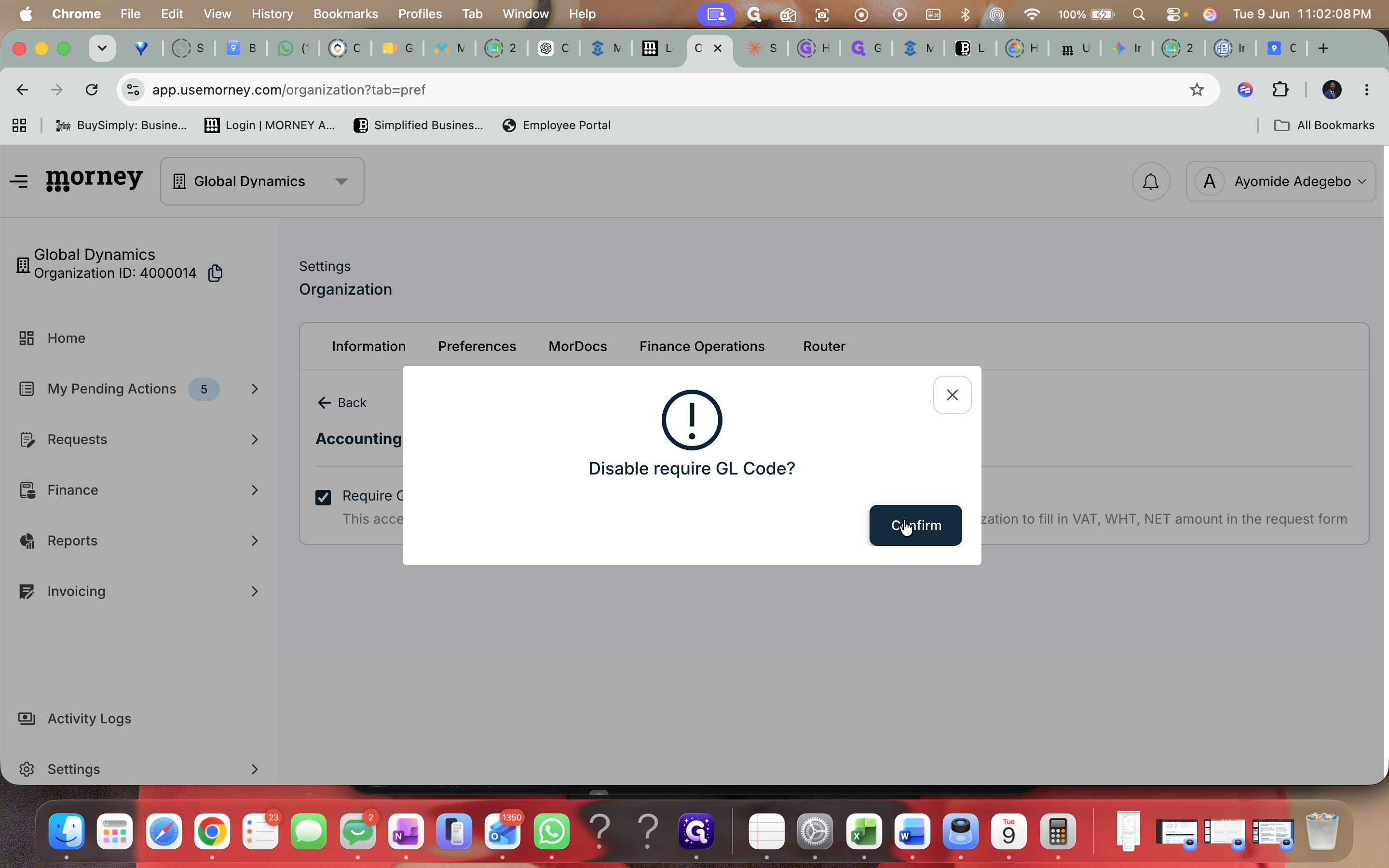
Click Confirm on the modal to enable the requirement.
Step #6: Click Confirm on the modal to enable the requirement.

Update Company Policy

Next, enable the extended payment request form to accurately capture VAT and withholding tax.
7
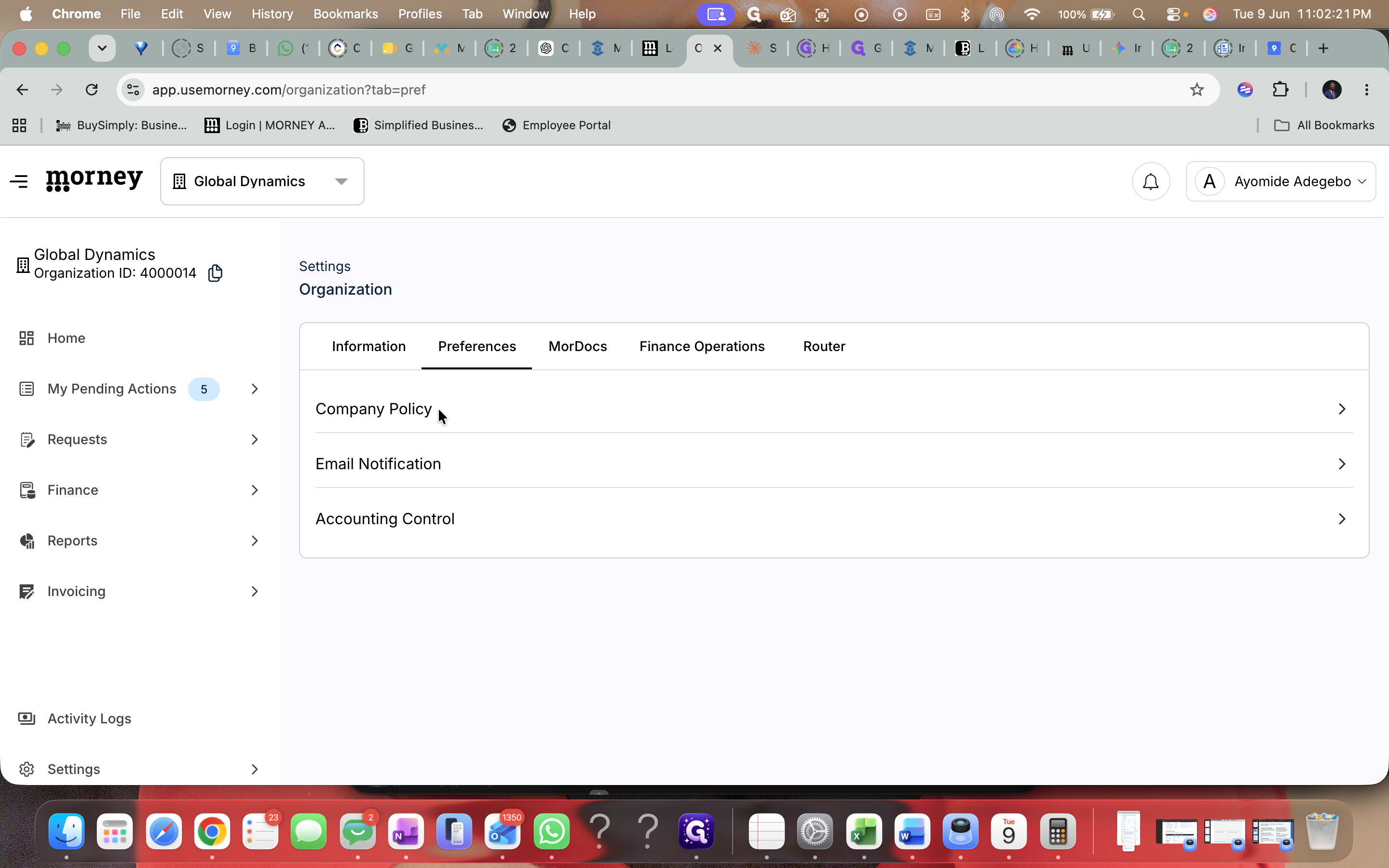
Click Company Policy within the Preferences tab.
Step #7: Click Company Policy within the Preferences tab.
8
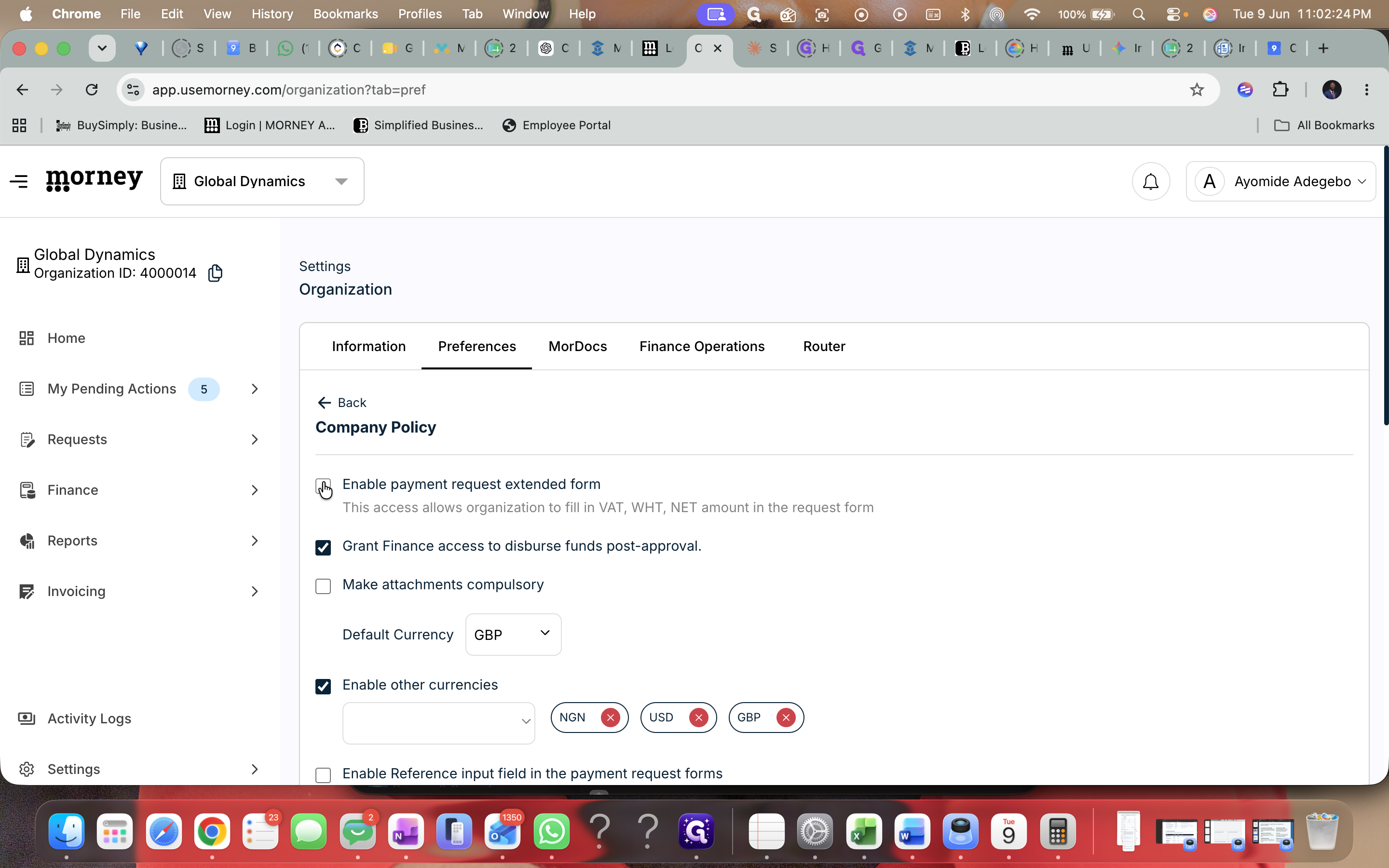
Check the box for Enable payment request extended form.
Step #8: Check the box for Enable payment request extended form.
9
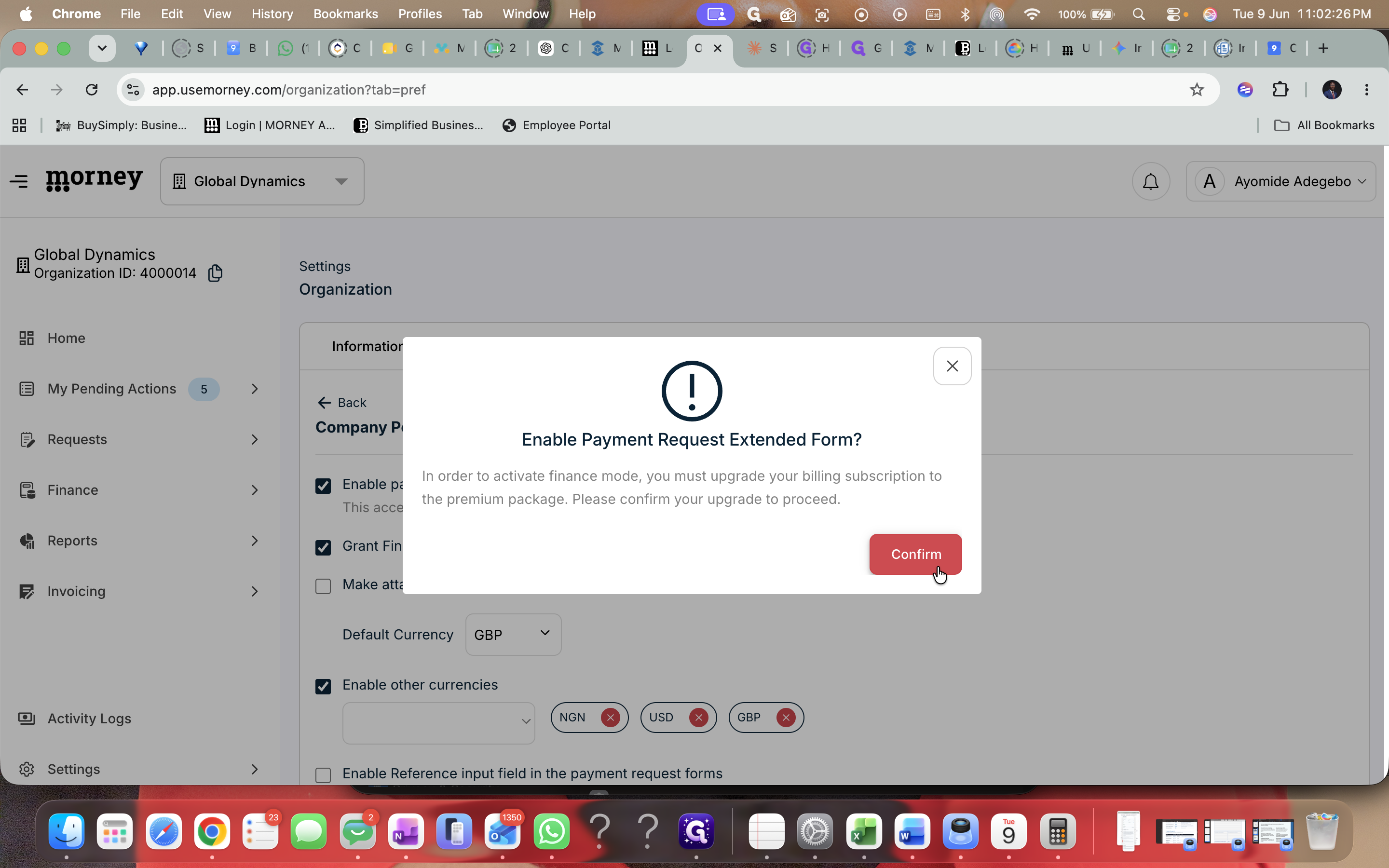
Click Confirm to apply the changes.
Step #9: Click Confirm to apply the changes.

Configure Payee Tax Information

Add VAT and withholding tax percentages for your registered payees.
10
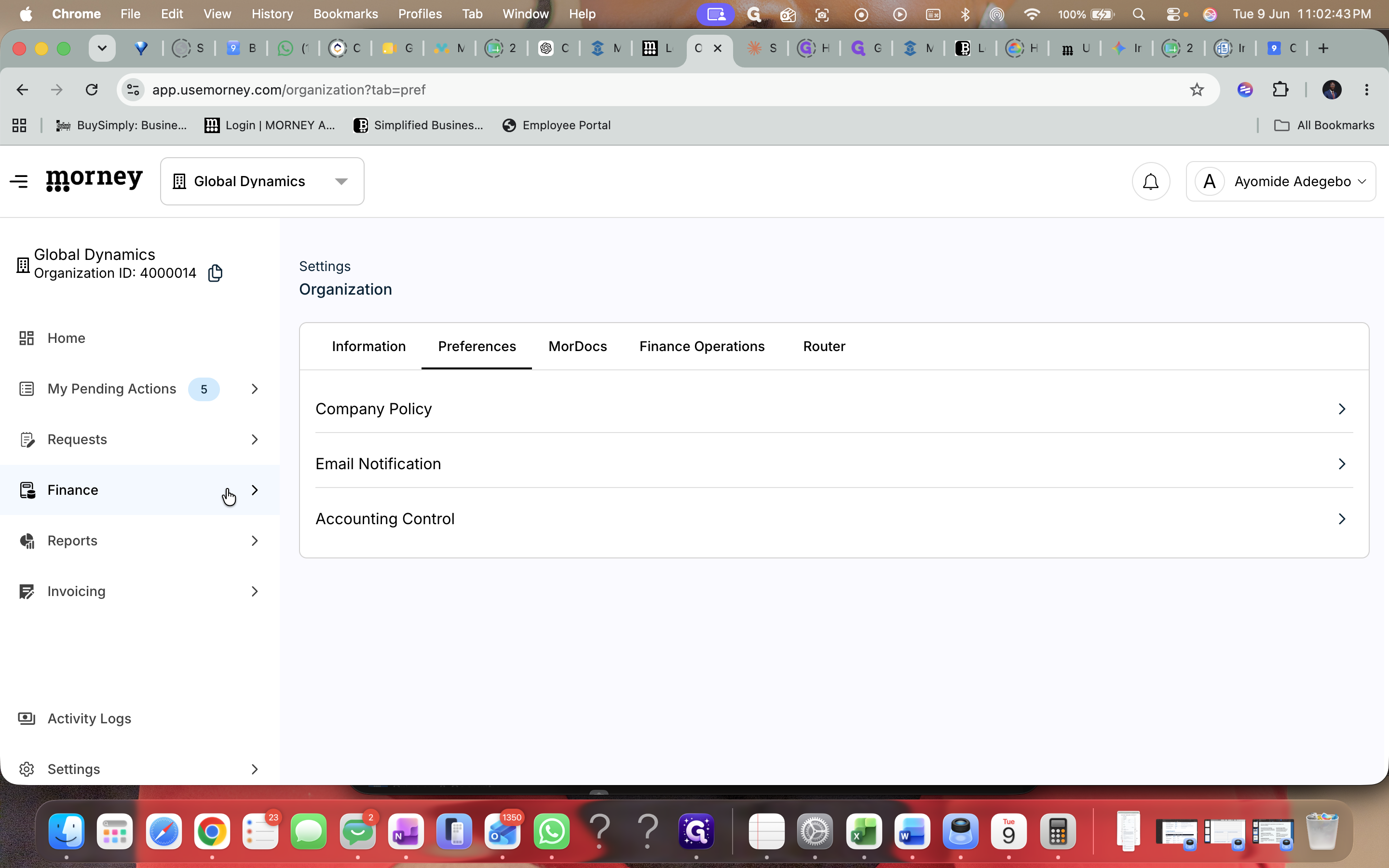
Click Finance in the left navigation sidebar.
Step #10: Click Finance in the left navigation sidebar.
11
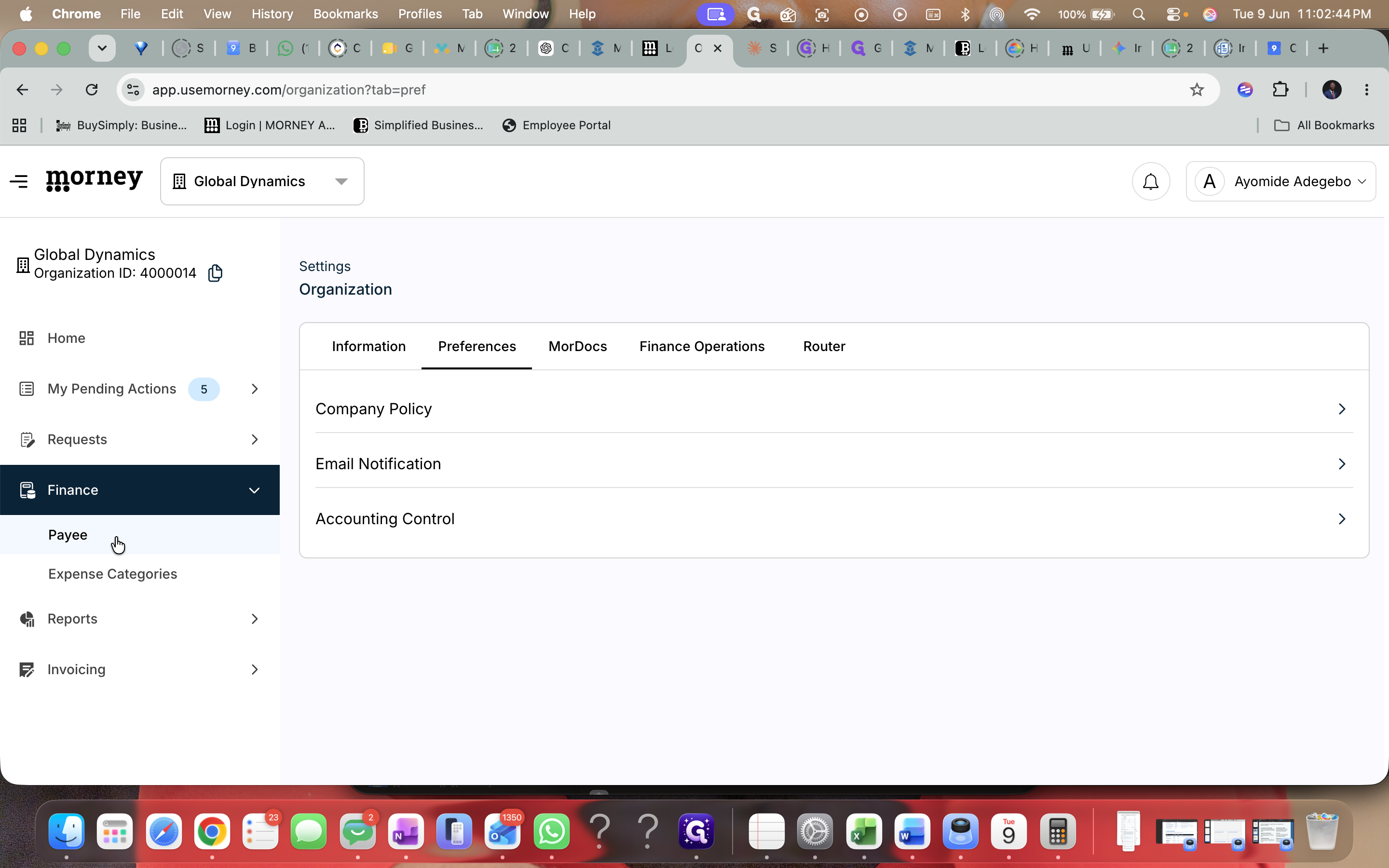
Select Payee.
Step #11: Select Payee.
12
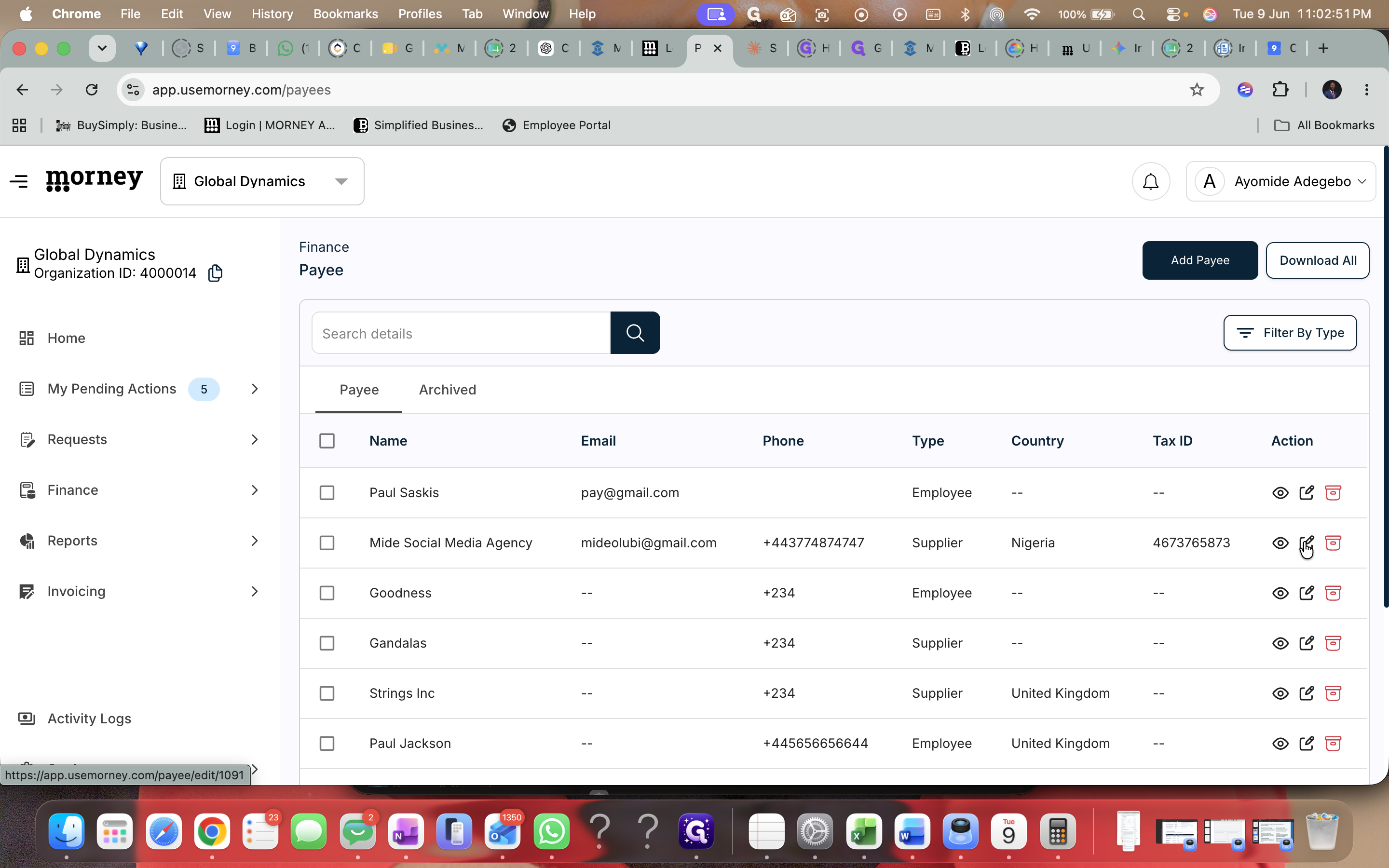
Click the edit icon next to the payee you want to update.
Step #12: Click the edit icon next to the payee you want to update.
13
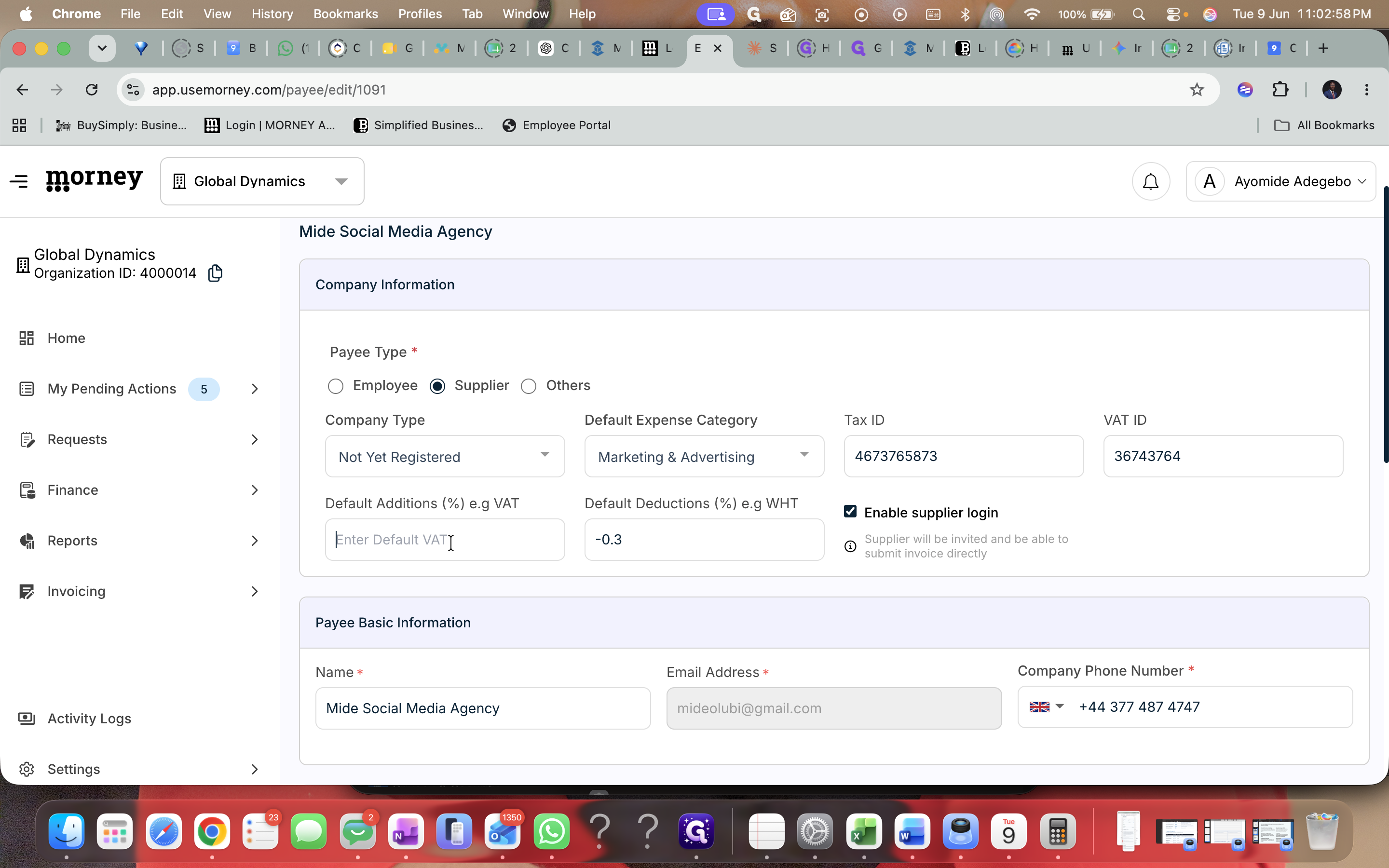
Click into the Default Additions (%) e.g VAT field.
Step #13: Click into the Default Additions (%) e.g VAT field.
14
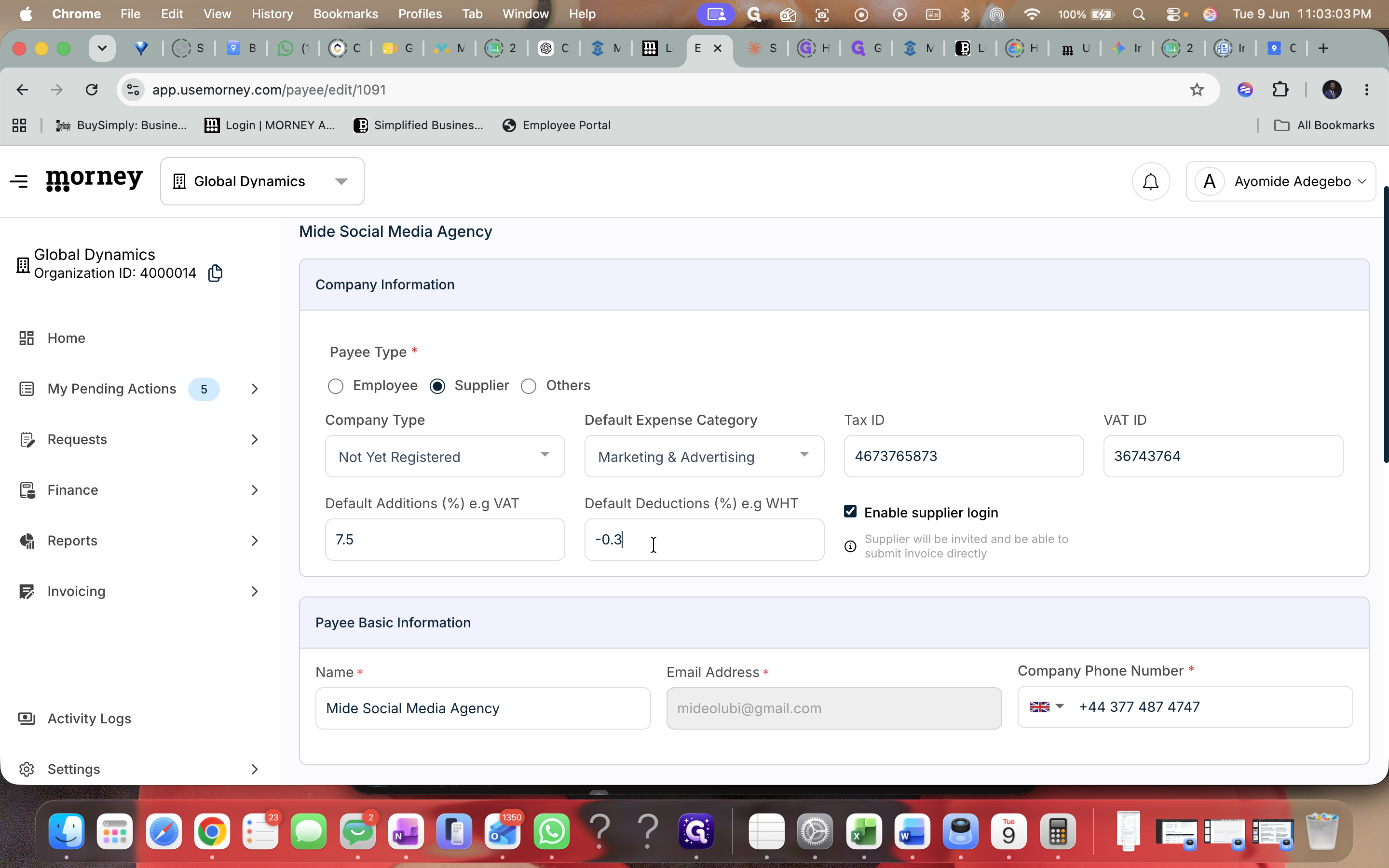
Enter the applicable tax percentage, such as "7.5".
15
Click into the Default Deductions (%) field and input the withholding tax percentage.
Step #15: Click into the Default Deductions (%) field and input the withholding tax percentage.
16
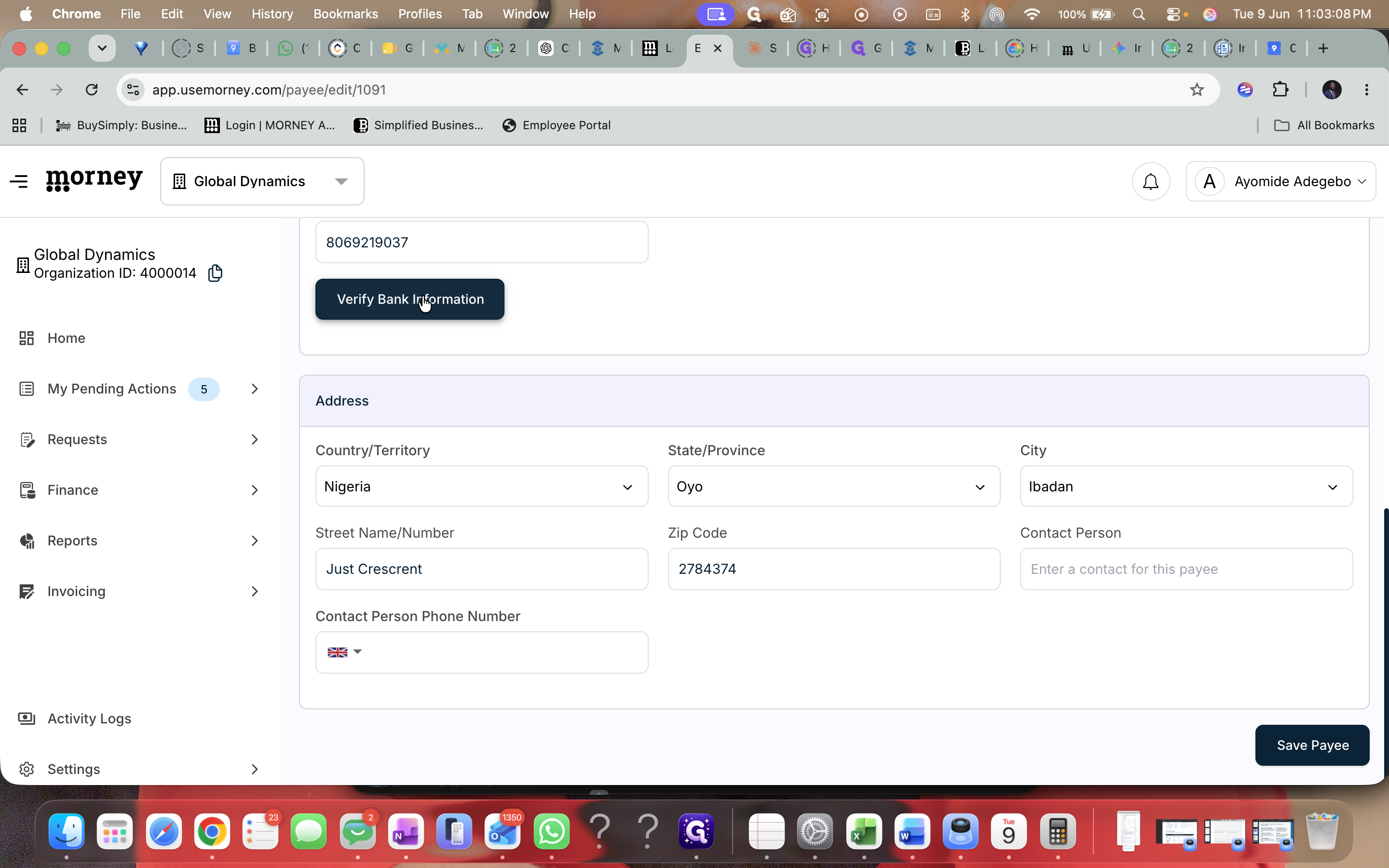
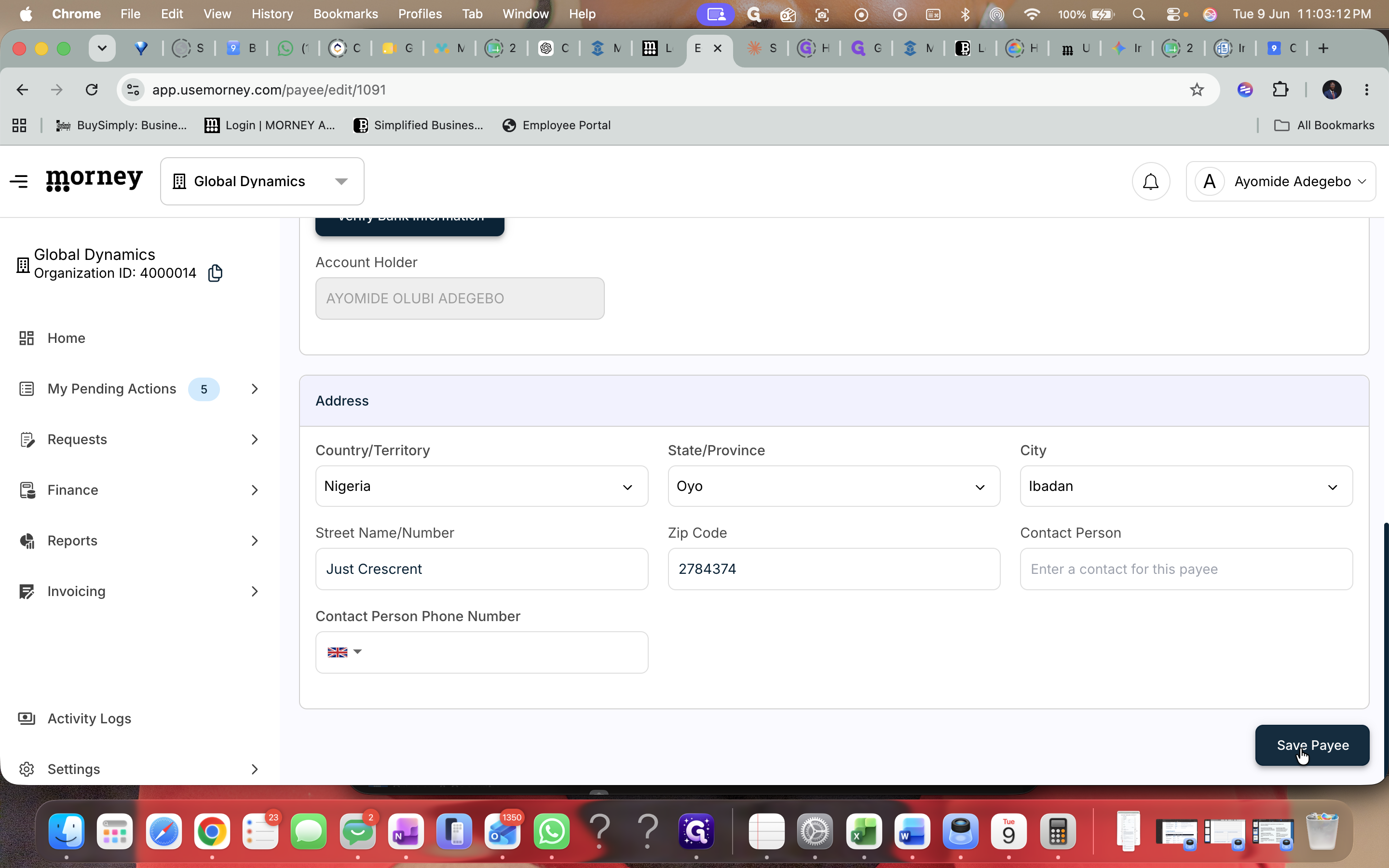
Click Verify Bank Information to ensure the payee's banking details are still correct.
Step #16: Click Verify Bank Information to ensure the payee's banking details are still correct.
17
Click Save Payee.
Step #17: Click Save Payee.

Assign GL Codes to Expense Categories

With GL code enforcement enabled, assign appropriate codes to your expense categories. There are two ways to do this:

Method 1: Inline Table Entry
18
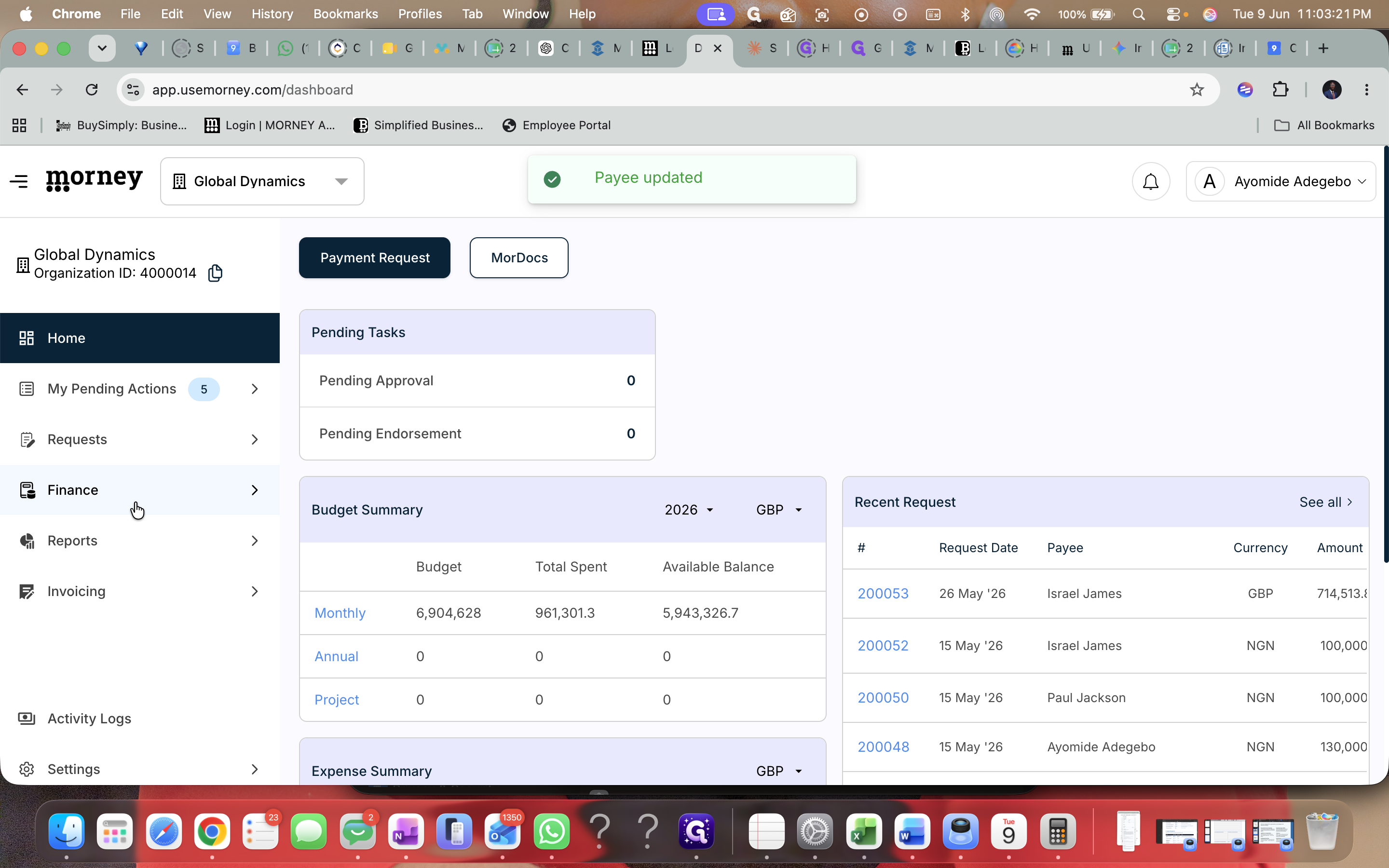
Navigate back to the Finance section.
Step #18: Navigate back to the Finance section.
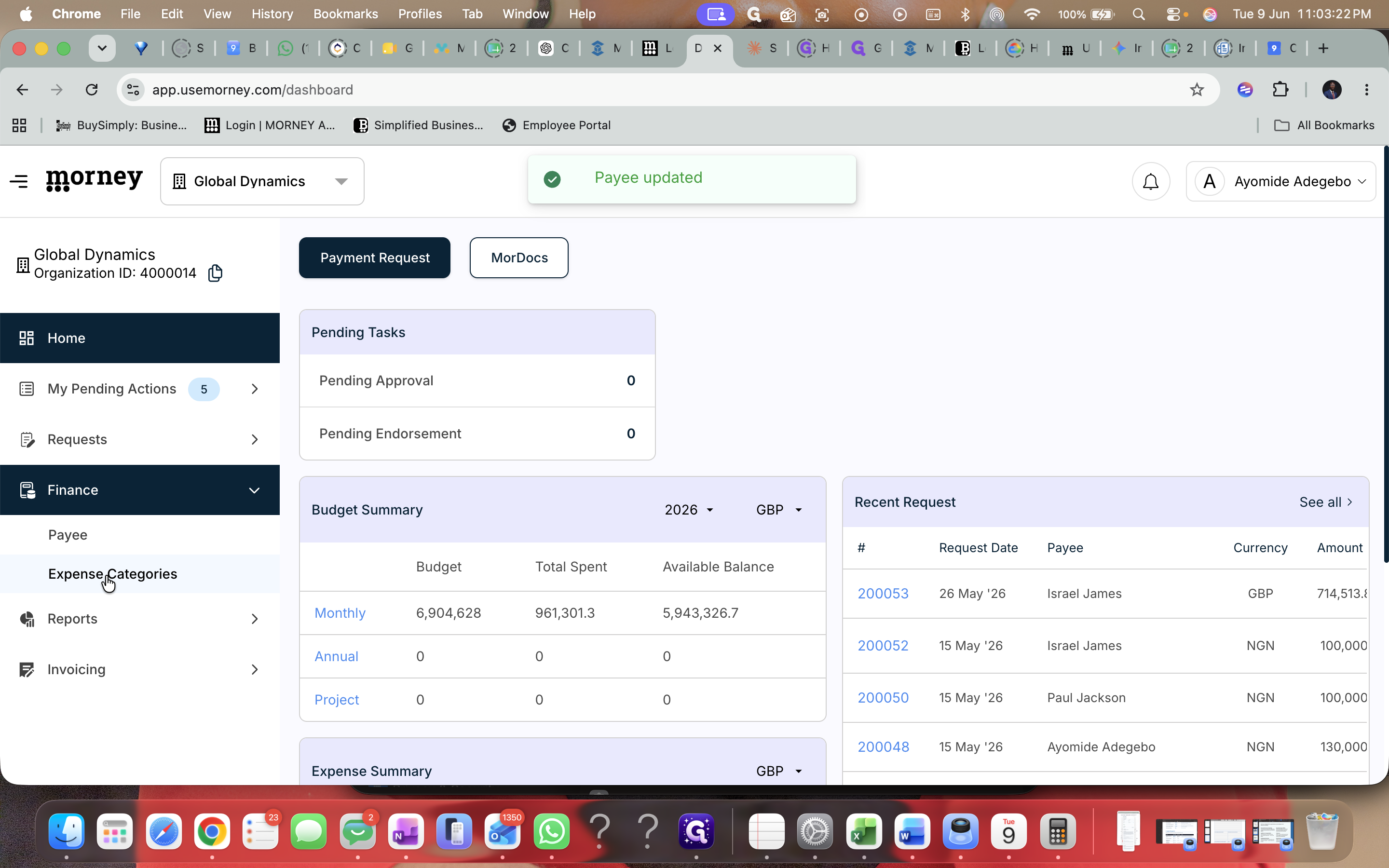
19
Click Expense Categories.
Step #19: Click Expense Categories.
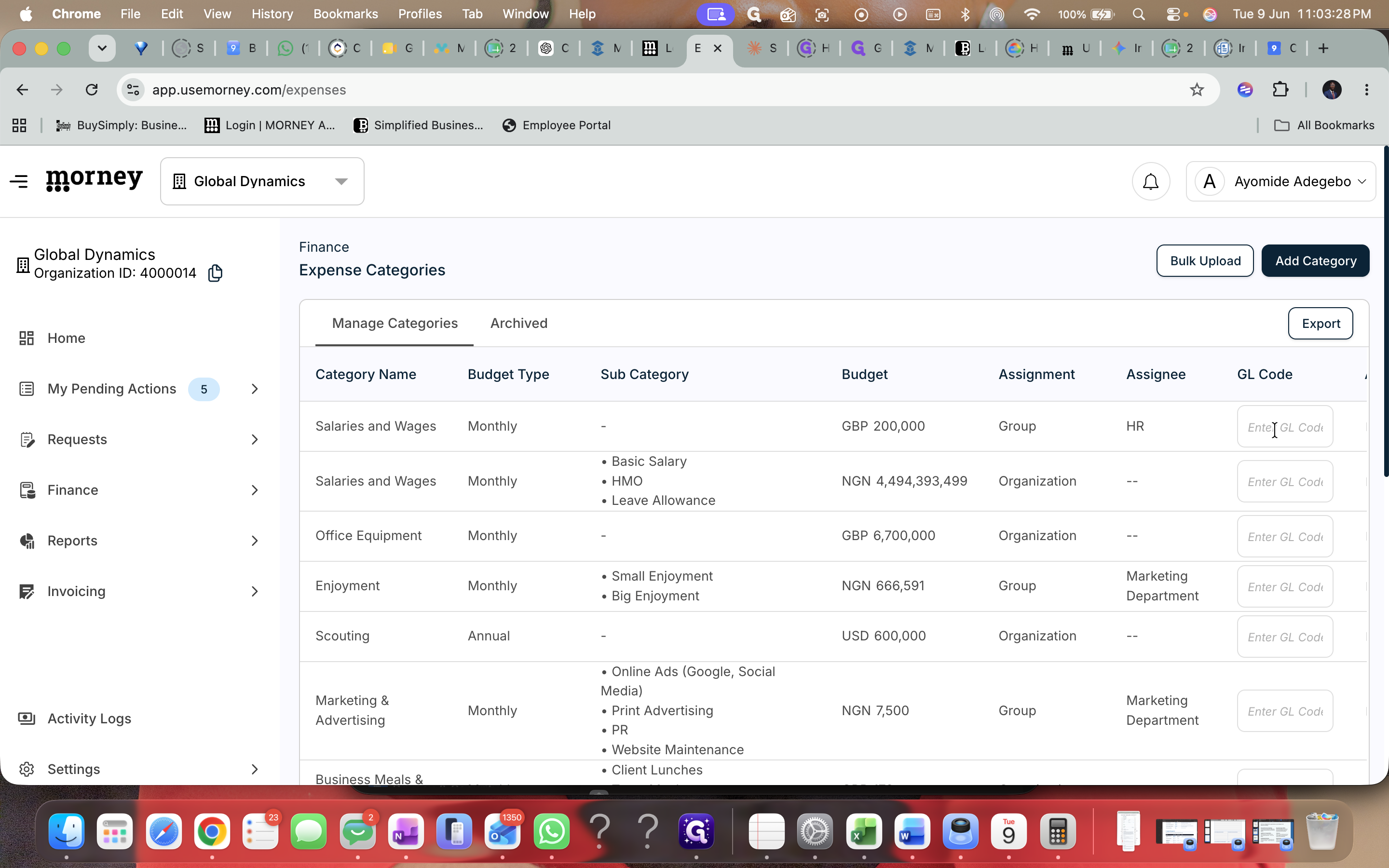
20
Click the Enter GL Code field directly in the row of the target category.
Step #20: Click the Enter GL Code field directly in the row of the target category.
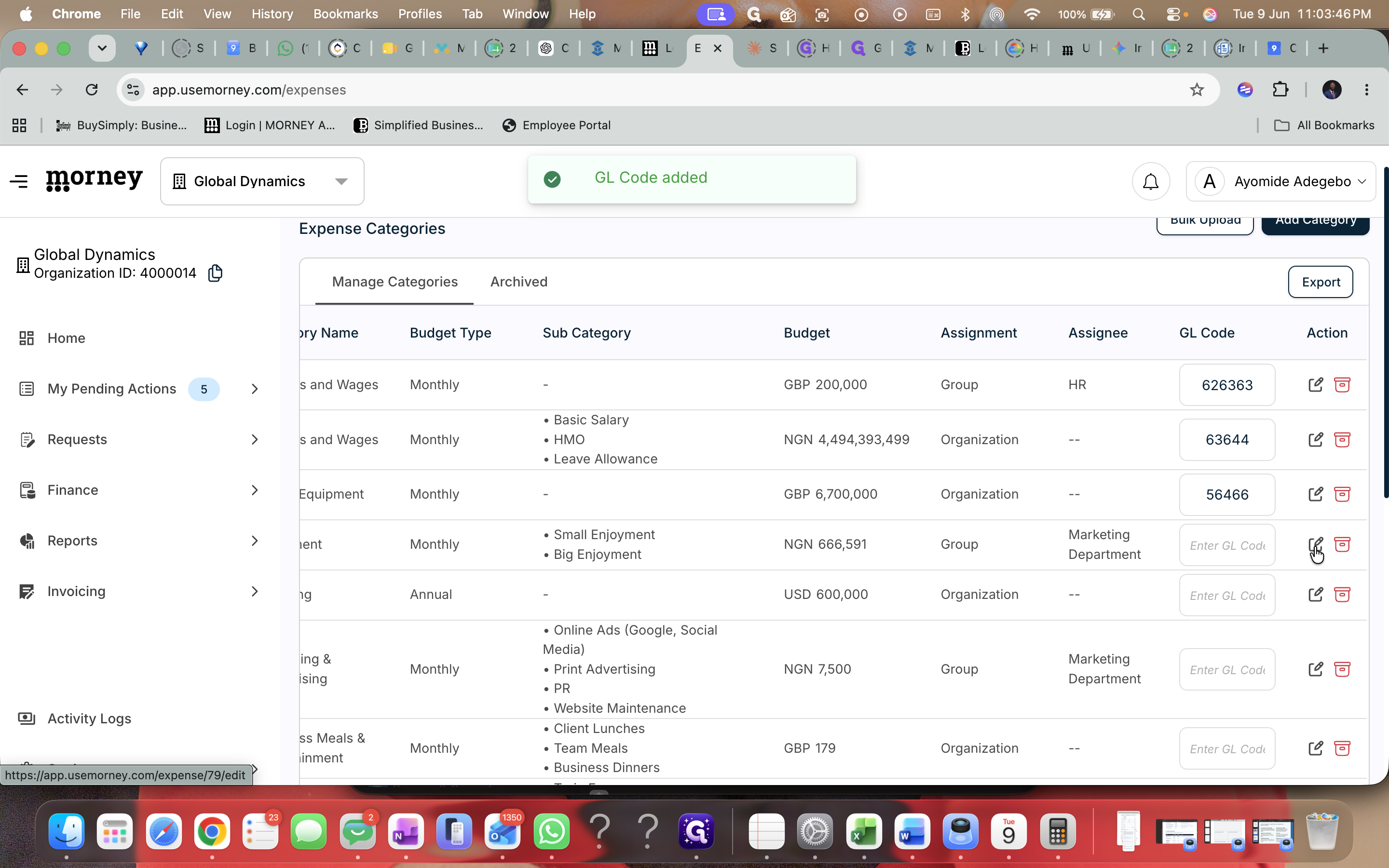
21
Type the GL Code and press Enter.

Method 2: Updating Subcategories
22
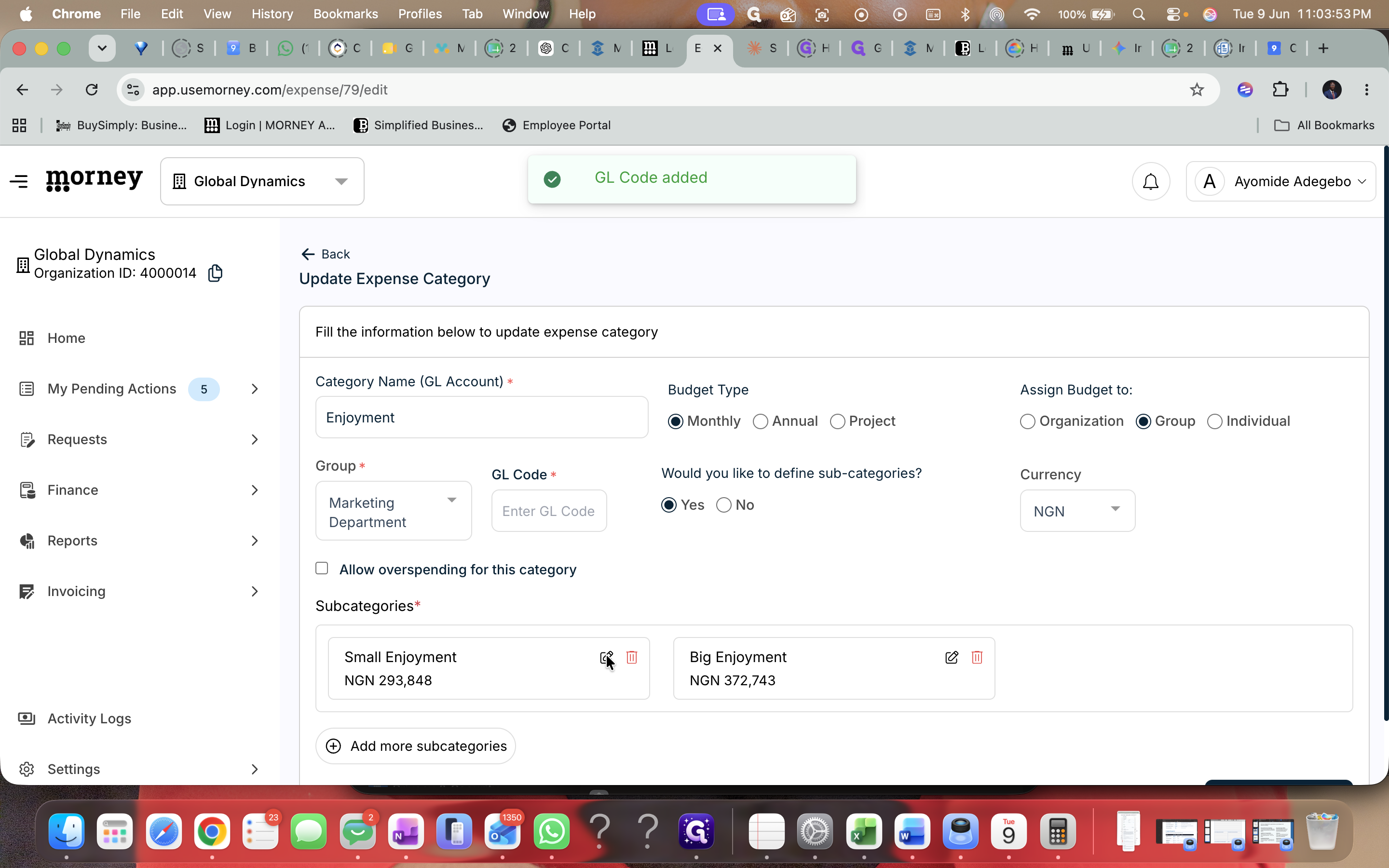
Click the edit icon next to a parent expense category.
Step #22: Click the edit icon next to a parent expense category.
23
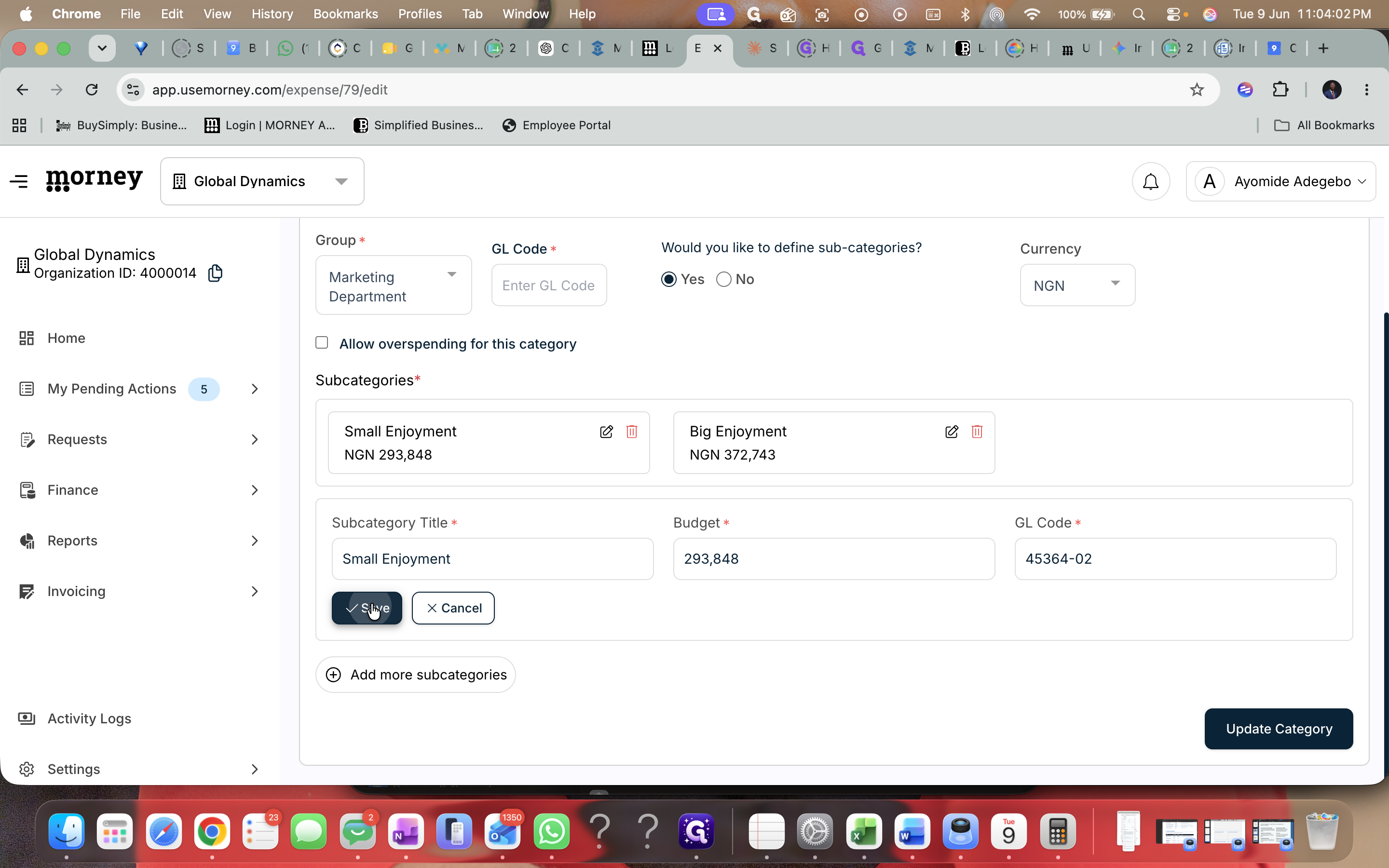
Click the edit icon on a specific subcategory card.
Step #23: Click the edit icon on a specific subcategory card.
24
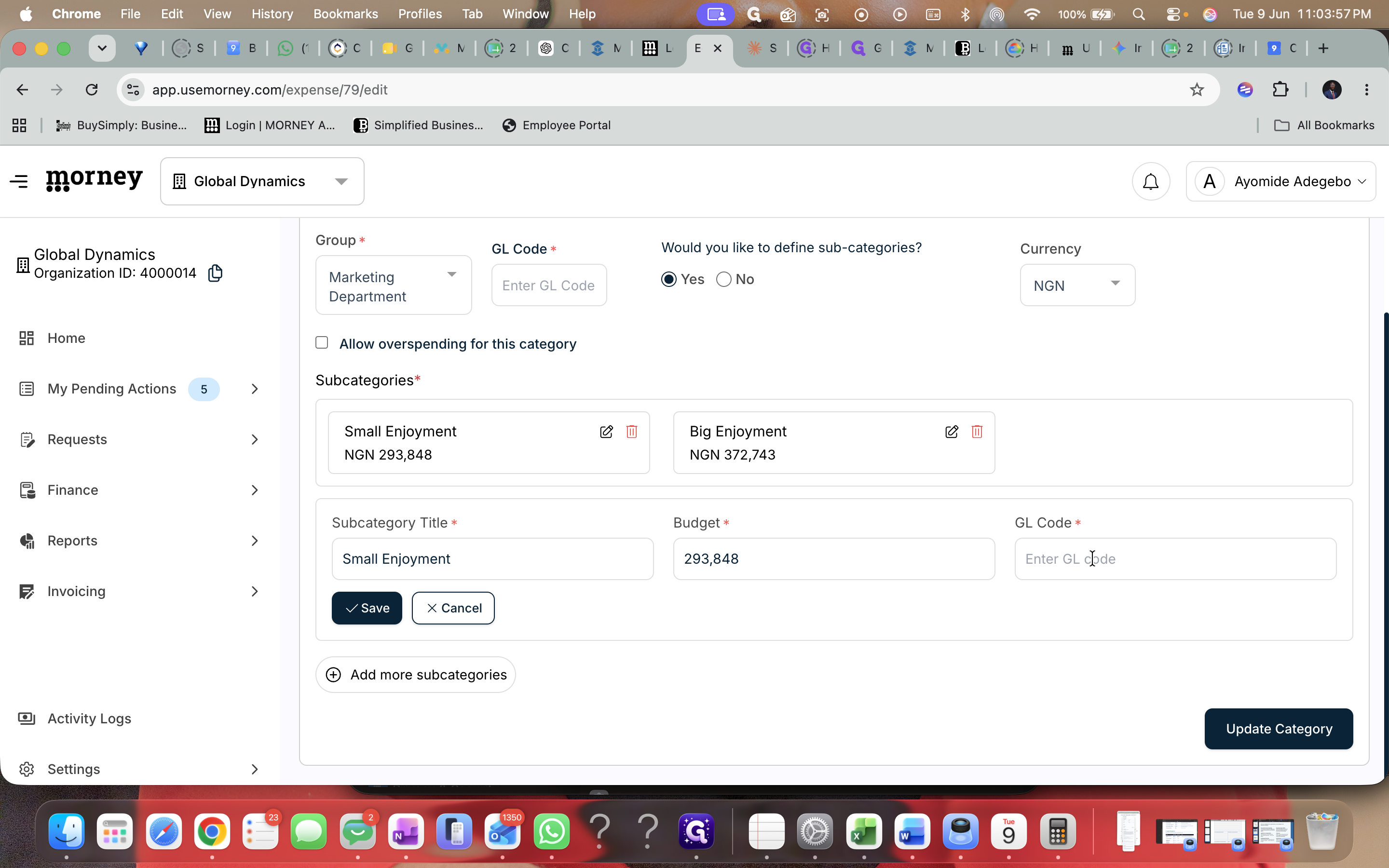
Click the Enter GL code field.
Step #24: Click the Enter GL code field.
25
Type the appropriate GL code for the subcategory.
26
Click Save to confirm the subcategory changes.
Step #26: Click Save to confirm the subcategory changes.
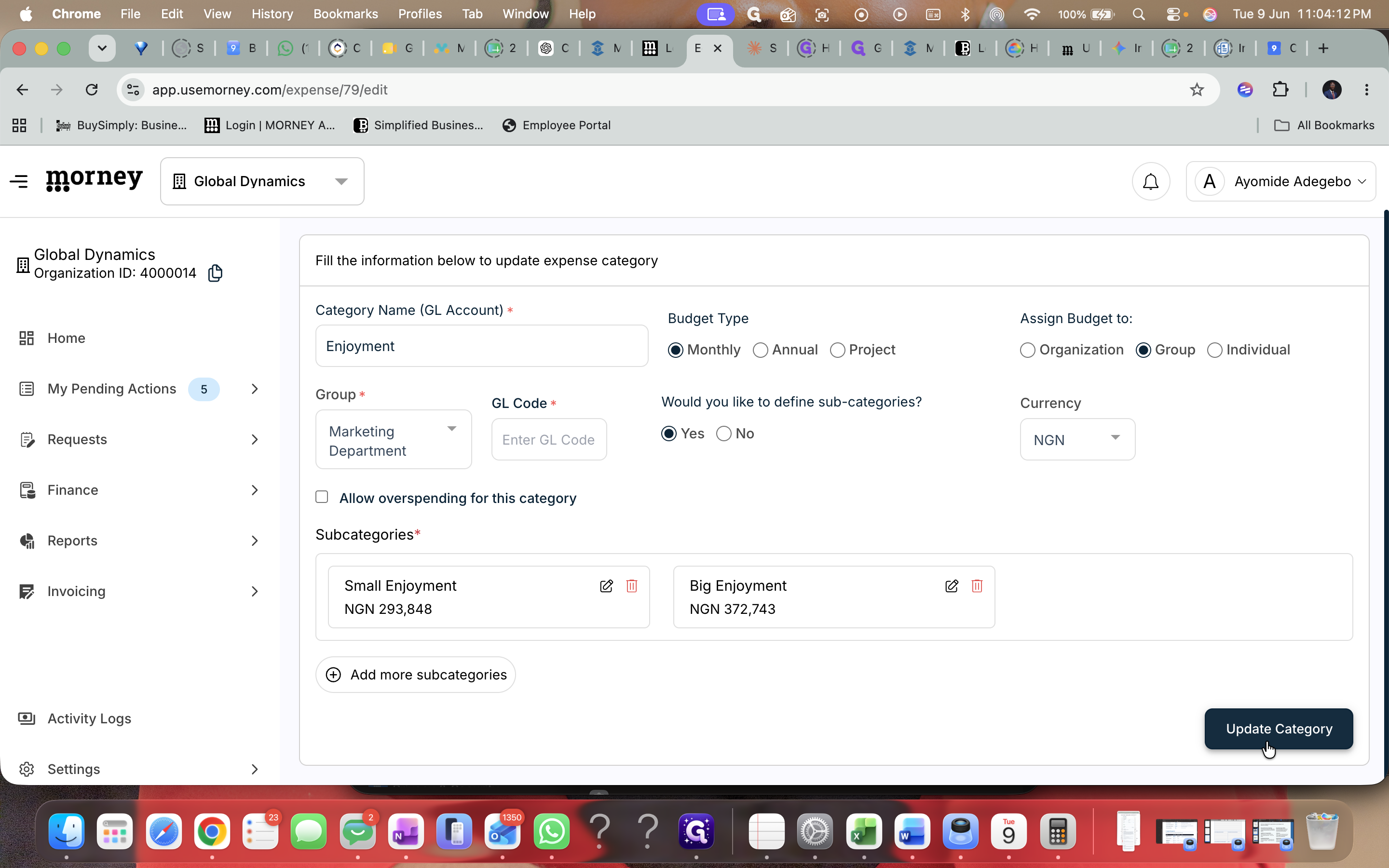
27
Click Update Category to apply all updates to the parent category.
Step #27: Click Update Category to apply all updates to the parent category.

Q: Why do I need to enable the Payment Request Extended form?

A: Enabling the extended form allows you to record VAT and withholding tax in your payment requests, which ensures your reports are fully formatted for Sage compliance.

Q: Where do I input my GL codes for expense categories?

A: You can input GL codes directly into the "GL Code" column on the Expense Categories table, or by editing the category to add individual GL codes to its subcategories.

Term

Definition

GL Code

A General Ledger Code is a unique alphanumeric identifier assigned to an account to categorize financial transactions.

VAT

Value-Added Tax, a consumption tax placed on a product whenever value is added at each stage of the supply chain.

Withholding Tax

A government requirement for the payer of an item of income to deduct tax from the payment and pay it to the government.

Sage

A popular enterprise accounting and financial management software platform.

Payee

A person or organization that receives a monetary payment.