Icon

Set Up Your Profile in RE-Sure

Learn how to complete your RE-Sure profile setup by adding your real estate license, joining your brokerage, and uploading a profile picture.

By Ali Romero

This guide provides the necessary steps to complete your initial profile setup in RE-Sure. Completing these tasks ensures you have access to the correct state forms and are properly linked to your brokerage.

This guide applies to real estate agents and brokers using RE-Sure. It should be completed immediately upon first logging into the platform to ensure full functionality.

Welcome to RE-Sure. Upon logging in, you need to complete three primary tasks to finish your profile setup: adding your state license, joining your brokerage, and uploading a profile picture.

Access Account Settings
1
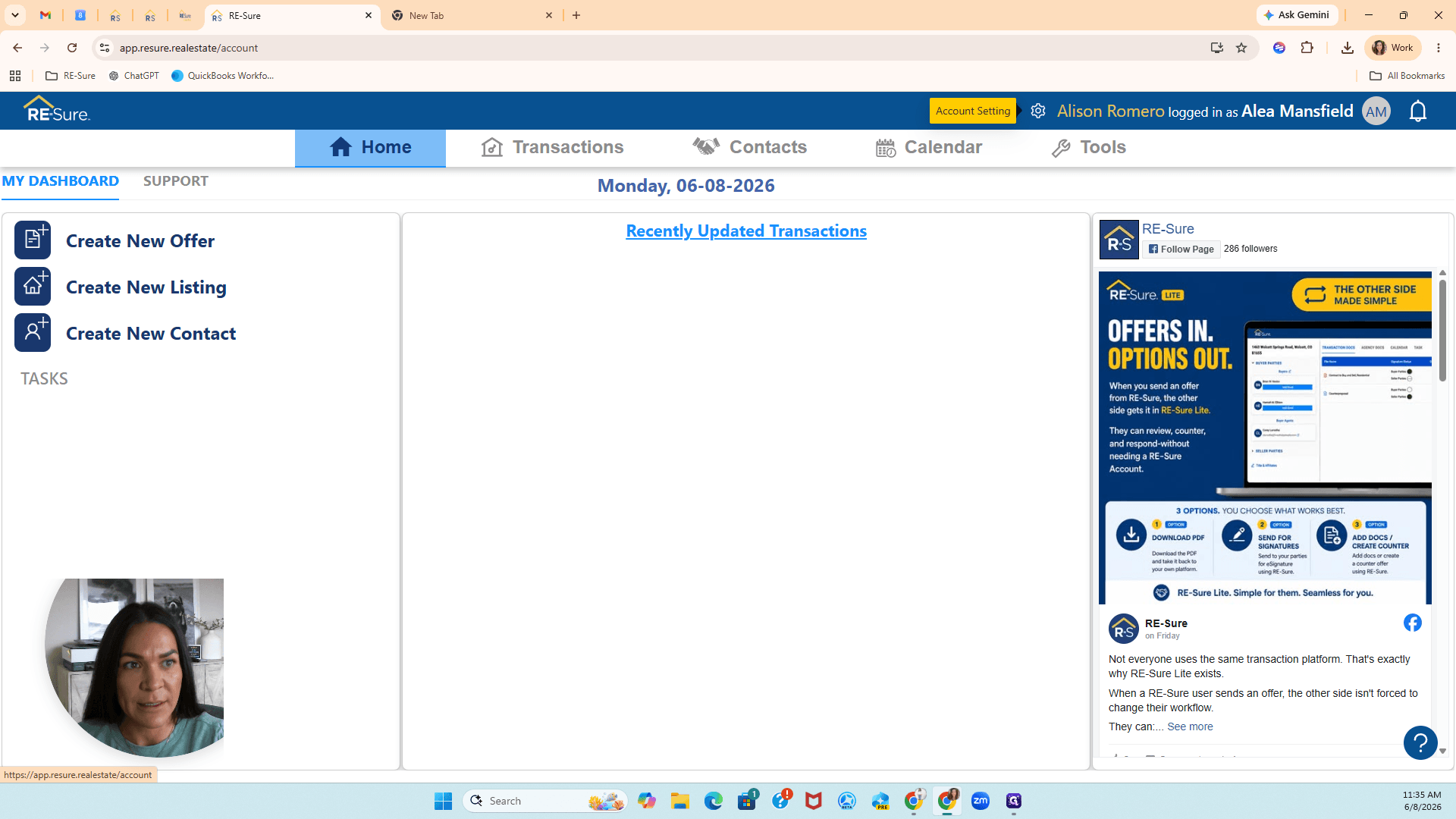
Click the gear icon in the top navigation to access your Account Settings.
Step #1: Click the gear icon in the top navigation to access your Account Settings.

Add Your Real Estate License

2
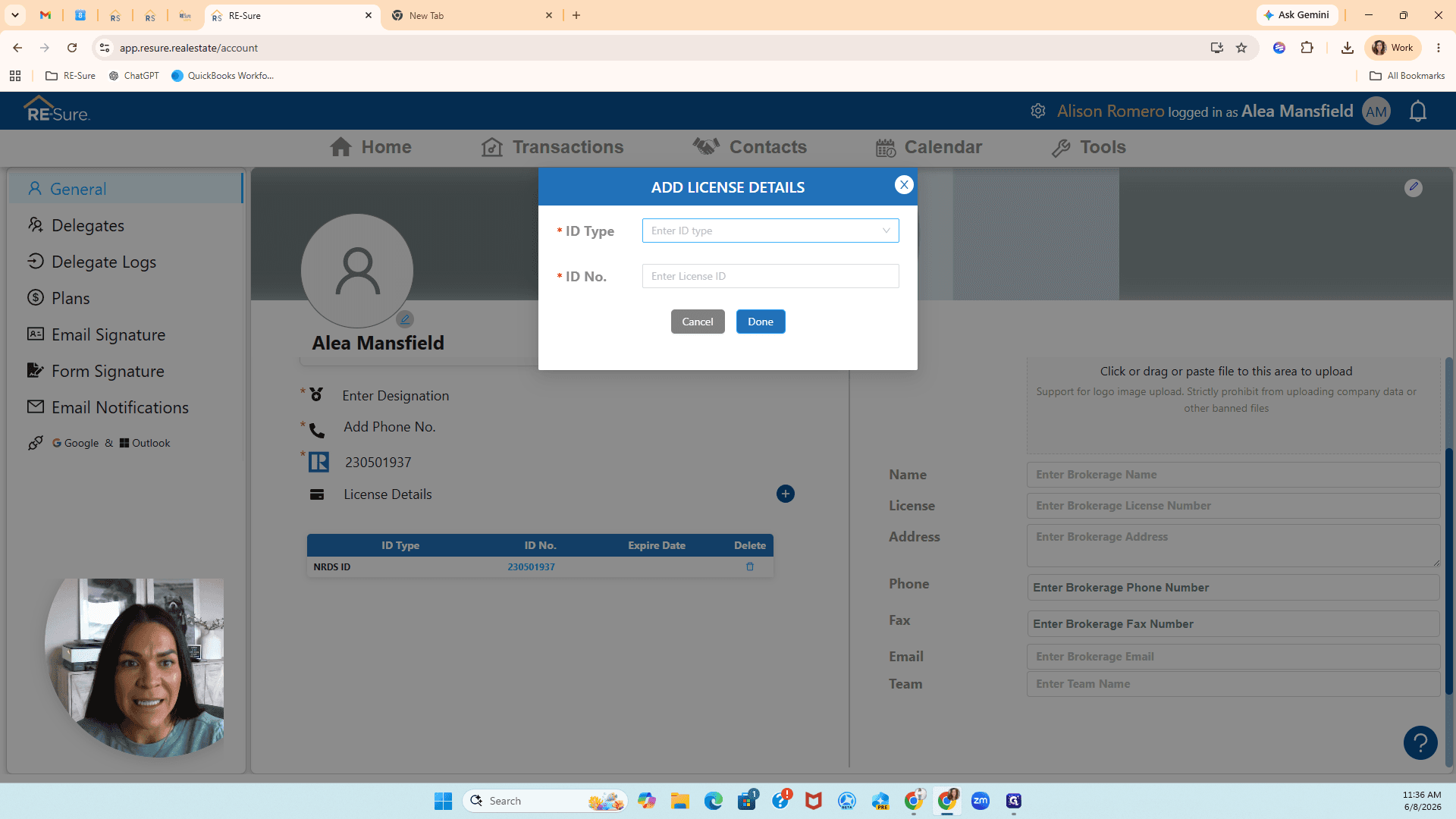
Under the License Details section, click + Add License.
Step #2: Under the License Details section, click + Add License.
3
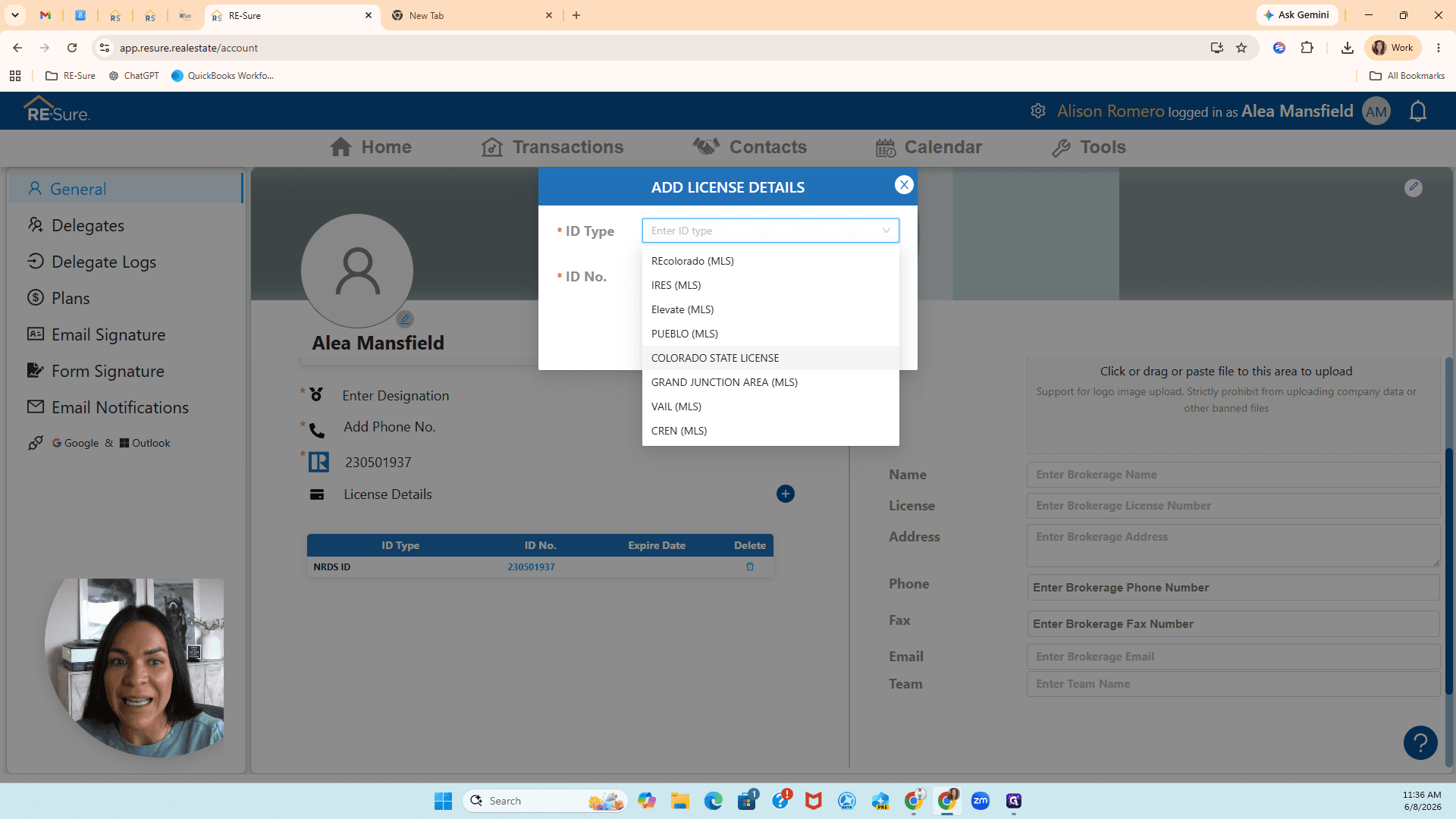
Click the ID Type dropdown menu.
Step #3: Click the ID Type dropdown menu.
4
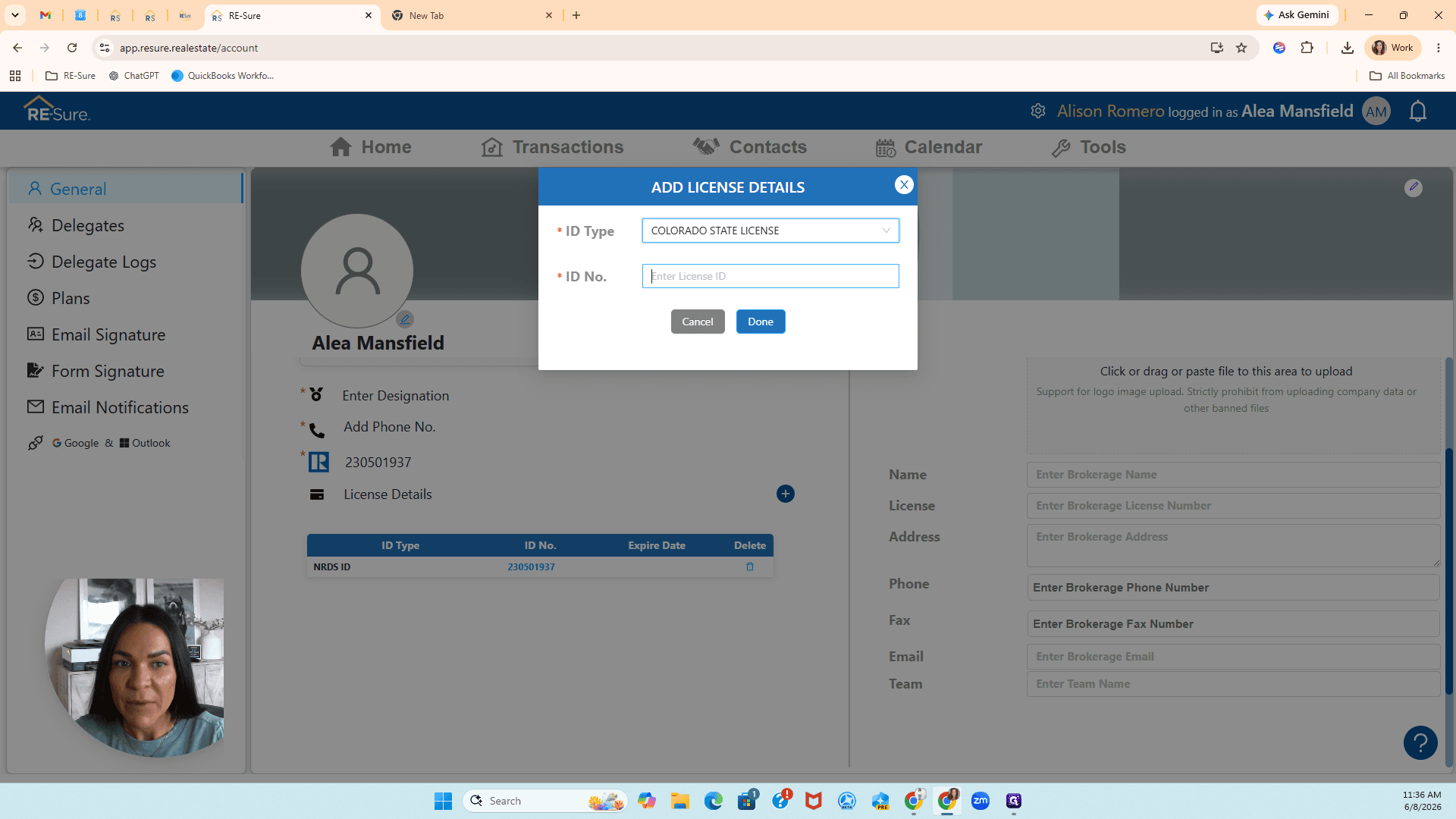
Select Colorado State License from the list.
Step #4: Select Colorado State License from the list.
5
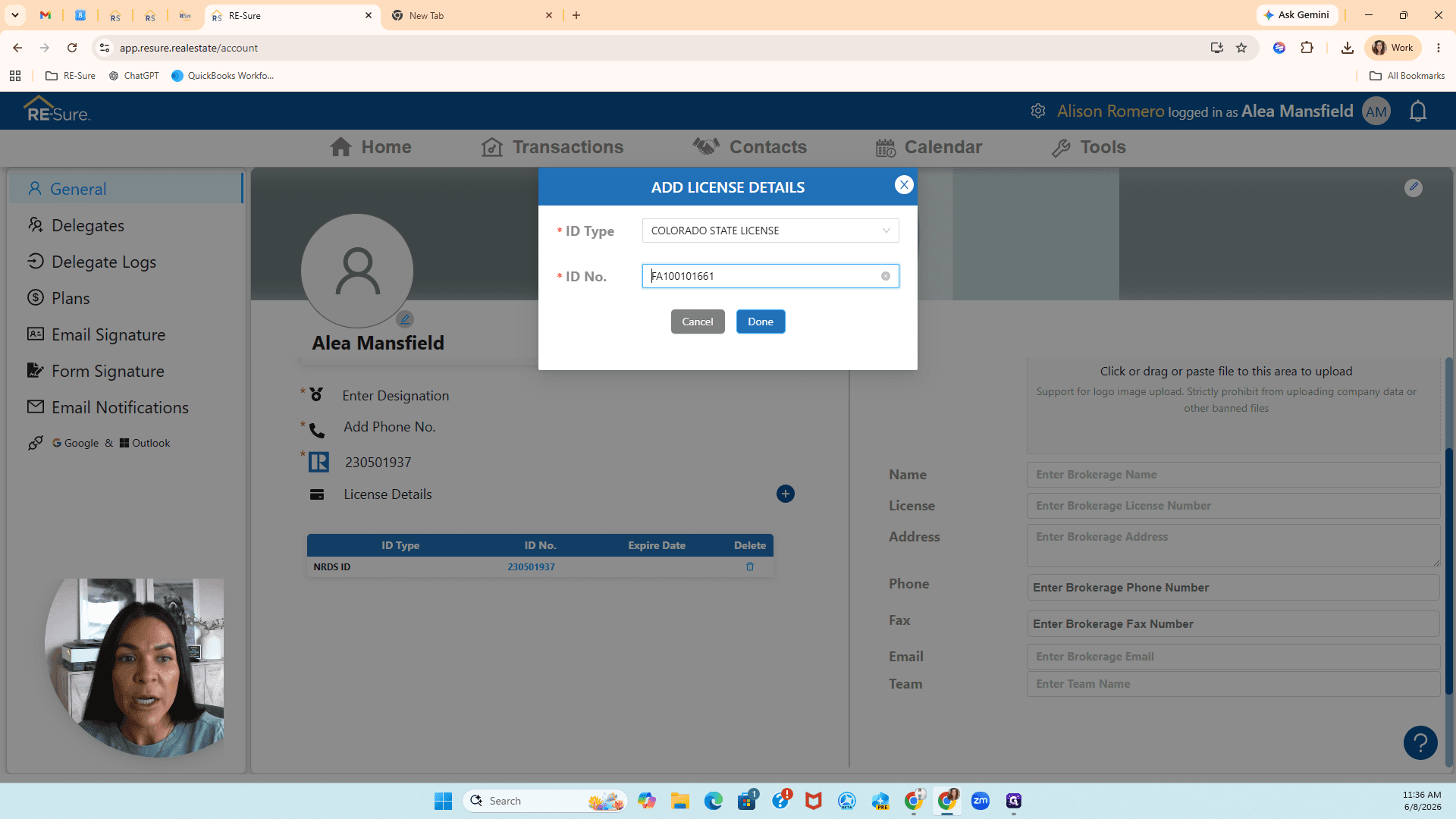
Click the ID No. field and enter your license number.
Step #5: Click the ID No. field and enter your license number.
6
Click Done to save your license.
Step #6: Click Done to save your license.

Link to Your Brokerage

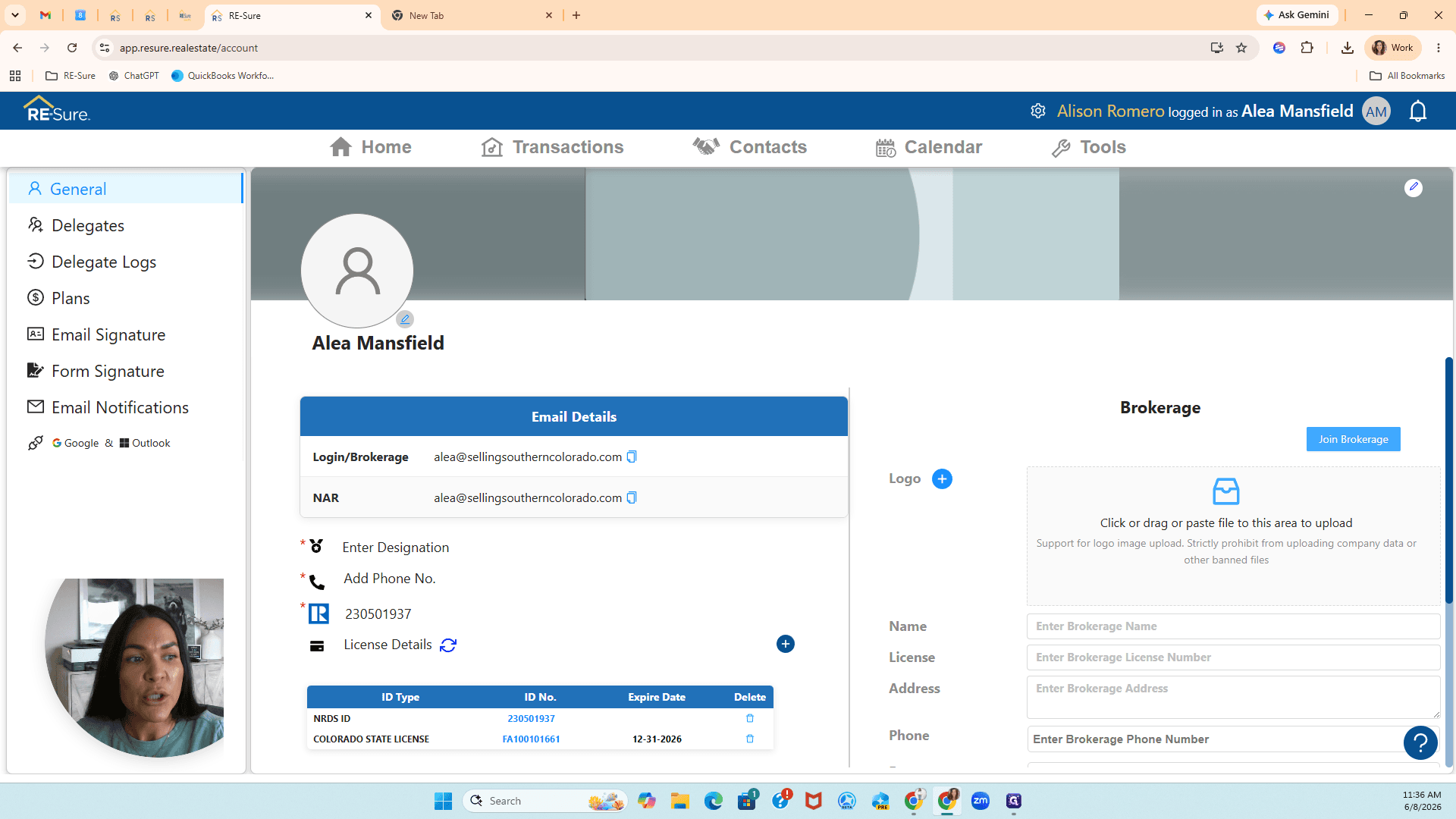
7
On the right side of your profile page, click Join Brokerage.
Step #7: On the right side of your profile page, click Join Brokerage.
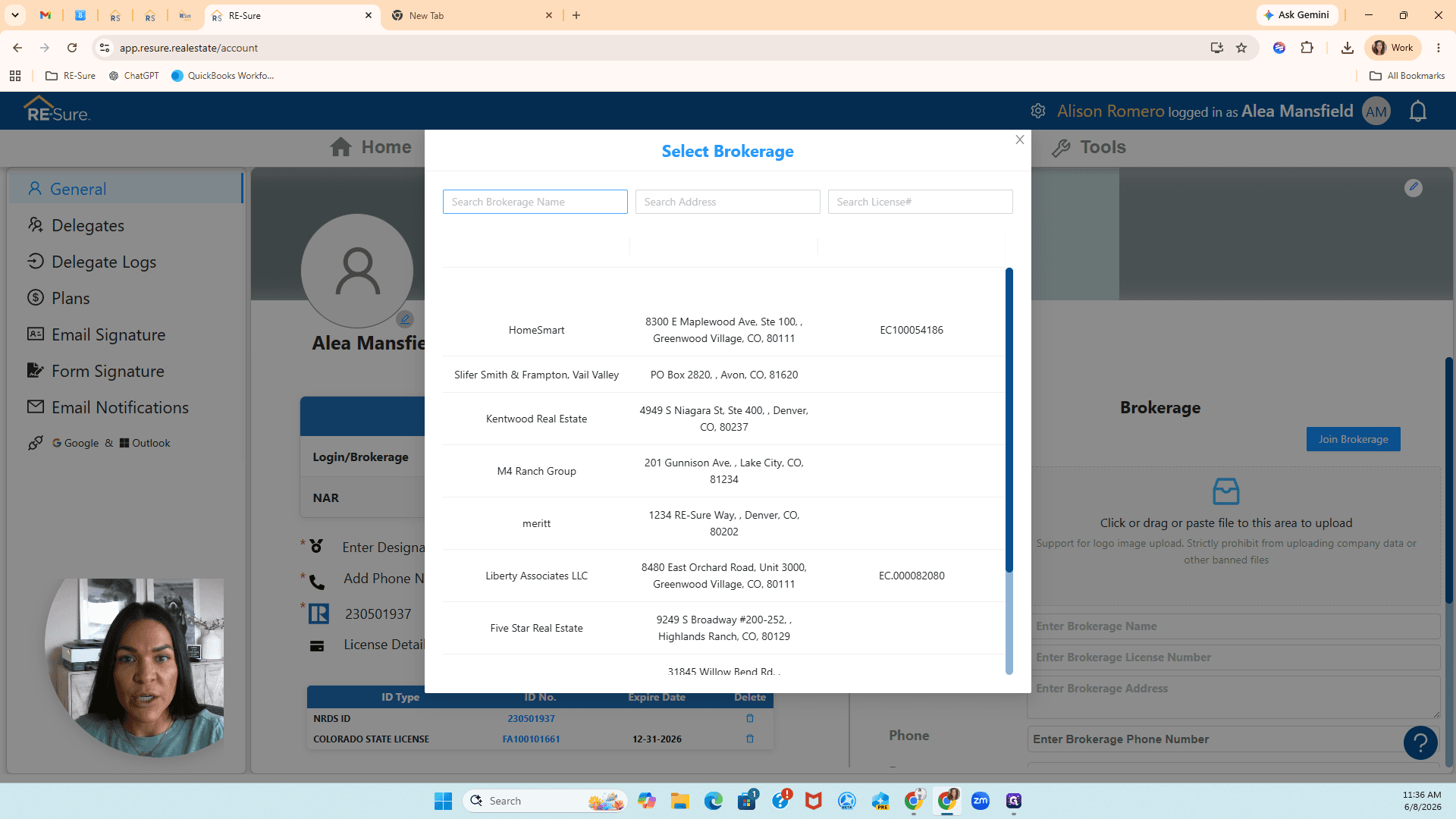
8
Click the Search Brokerage Name field.
Step #8: Click the Search Brokerage Name field.
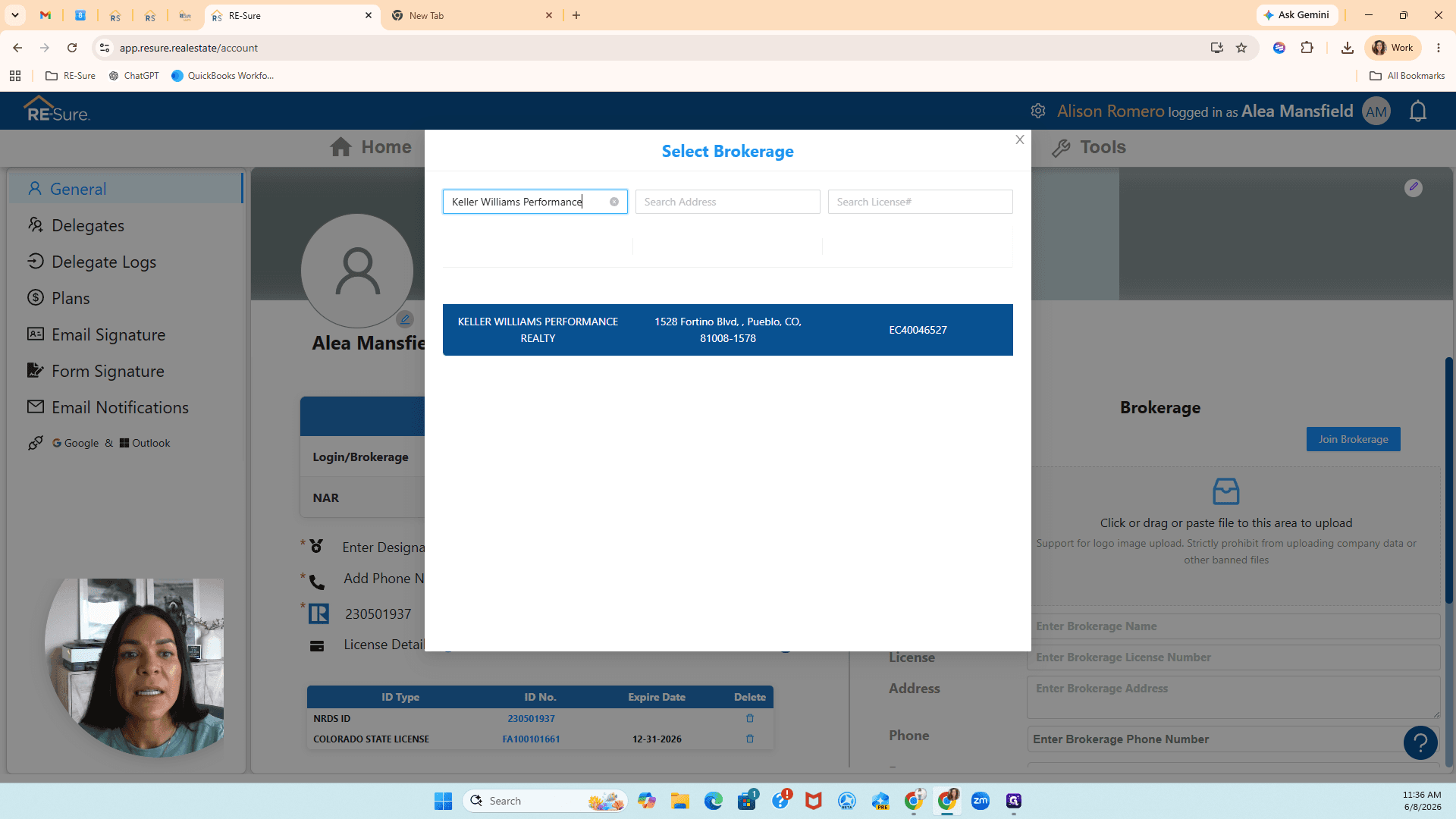
9
Type the name of your brokerage (e.g., "Keller Williams Performance") and press Enter.
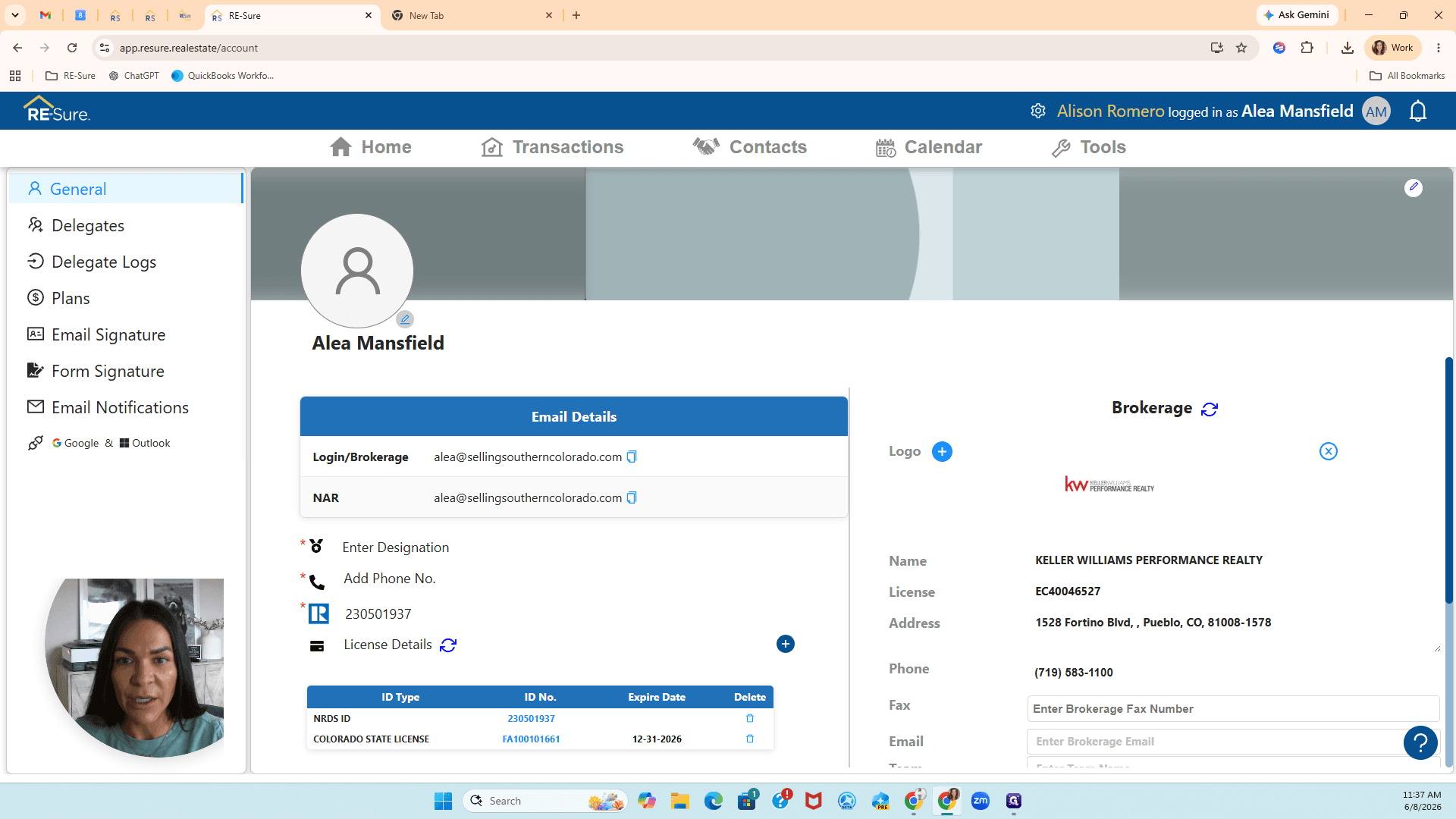
10
Review the search results to confirm the address and license number, then click your brokerage to link it to your account.
Step #10: Review the search results to confirm the address and license number, then click your brokerage to link it to your account.

Add a Profile Picture

11
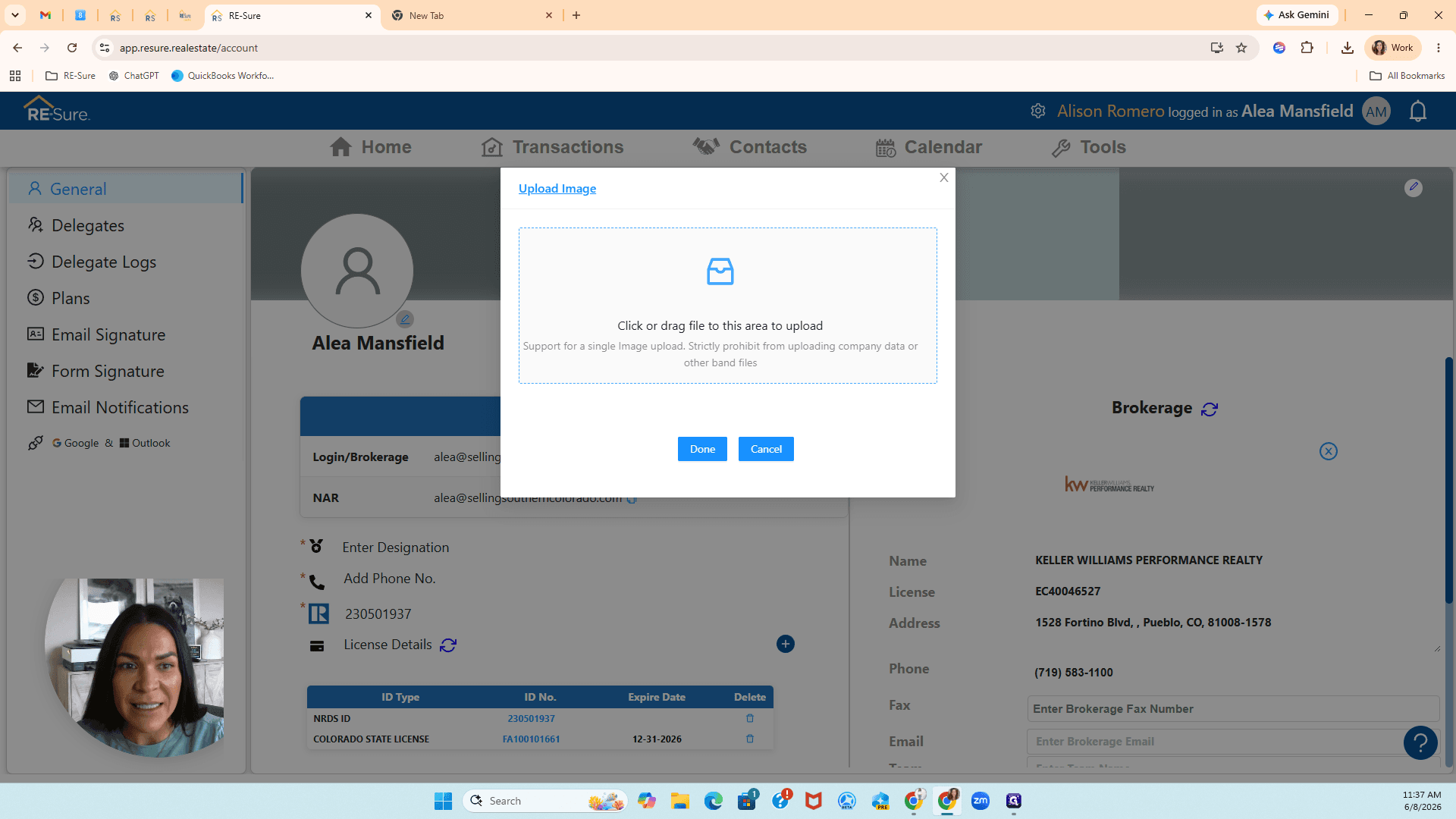
Click the blue pencil icon near the image placeholder at the top of your profile.
Step #11: Click the blue pencil icon near the image placeholder at the top of your profile.
12
Click inside the upload box to browse files on your computer.
Step #12: Click inside the upload box to browse files on your computer.
13
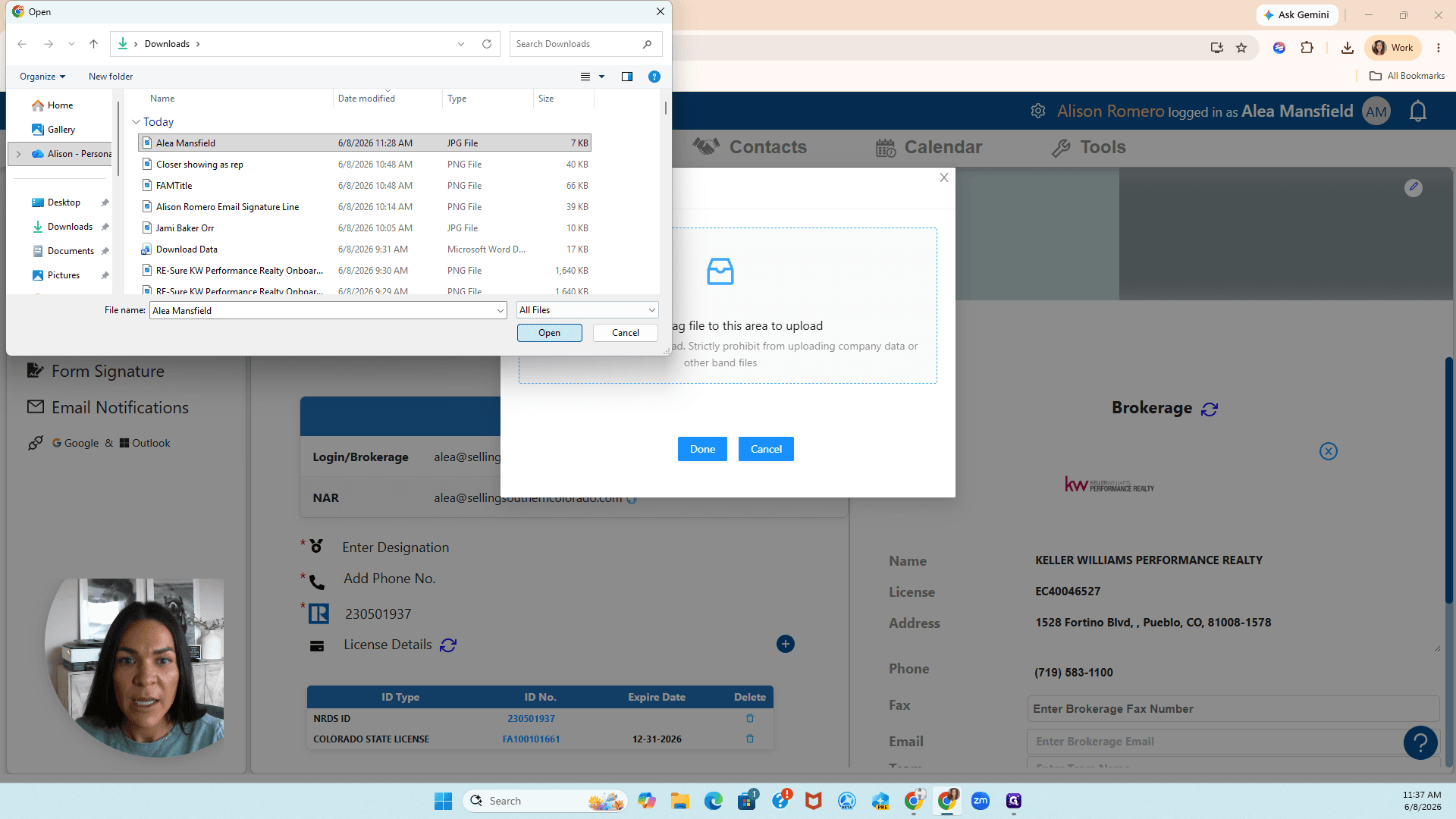
Select your profile picture file and click Open.
Step #13: Select your profile picture file and click Open.
14
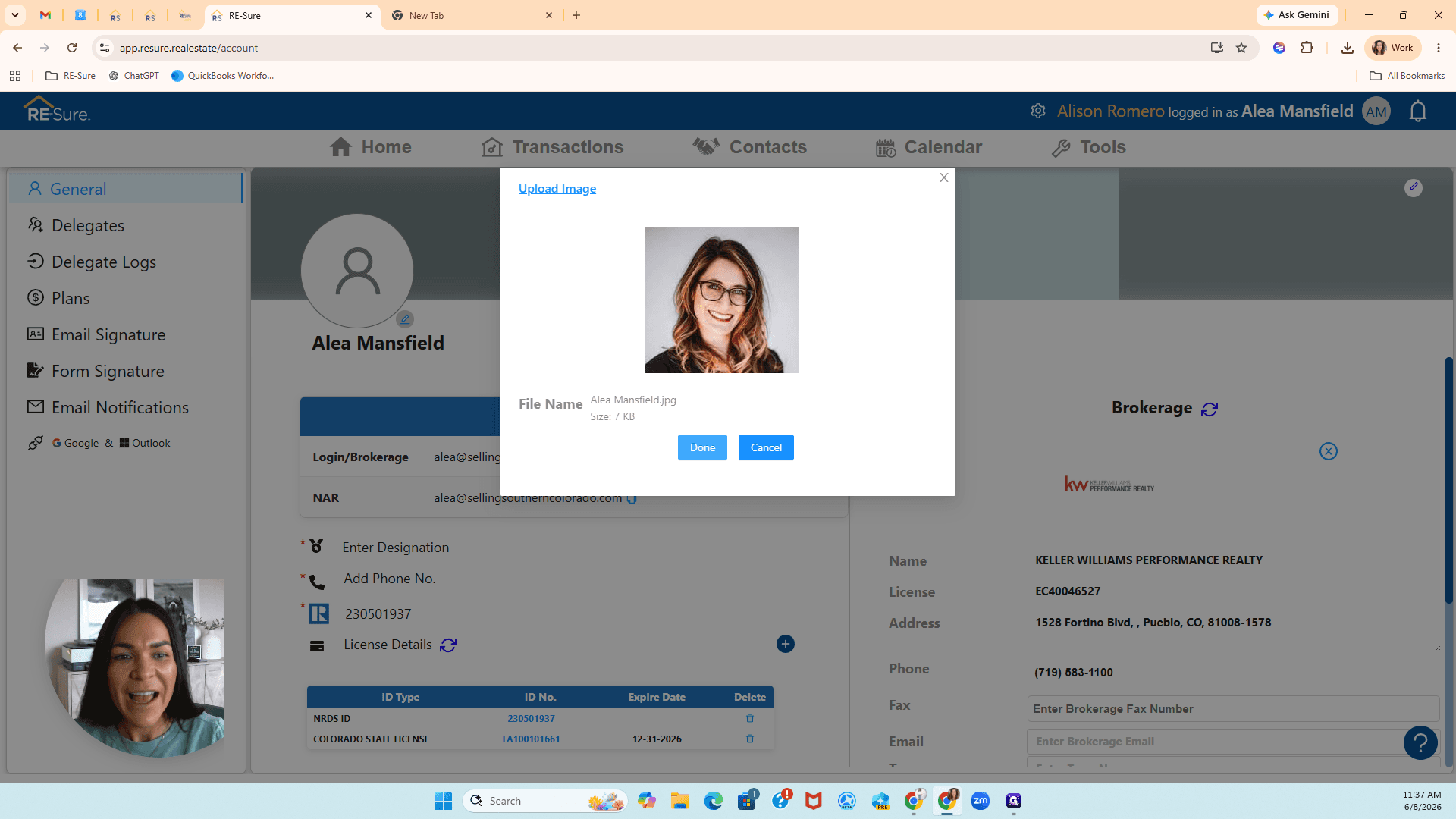
Click Done to save your new profile picture.
Step #14: Click Done to save your new profile picture.

Term

Definition

RE-Sure

A real estate transaction platform used to manage forms, brokerage links, and deals.

DORA Forms

Standardized real estate forms provided by the Colorado Department of Regulatory Agencies.

MLS

Multiple Listing Service, a database established by cooperating real estate brokers to share property data.