
How to Share an Inbox Folder in Outlook Web
Learn how to share your Inbox or other email folders in Microsoft Outlook on the web and assign specific access permissions to colleagues.
This guide walks you through sharing an email folder, such as your Inbox, with another user in Microsoft Outlook on the web. By following these steps, you can grant specific access levels to colleagues so they can read or manage your emails.
This applies to anyone using the Outlook web interface who needs to delegate access or share specific folders with team members.
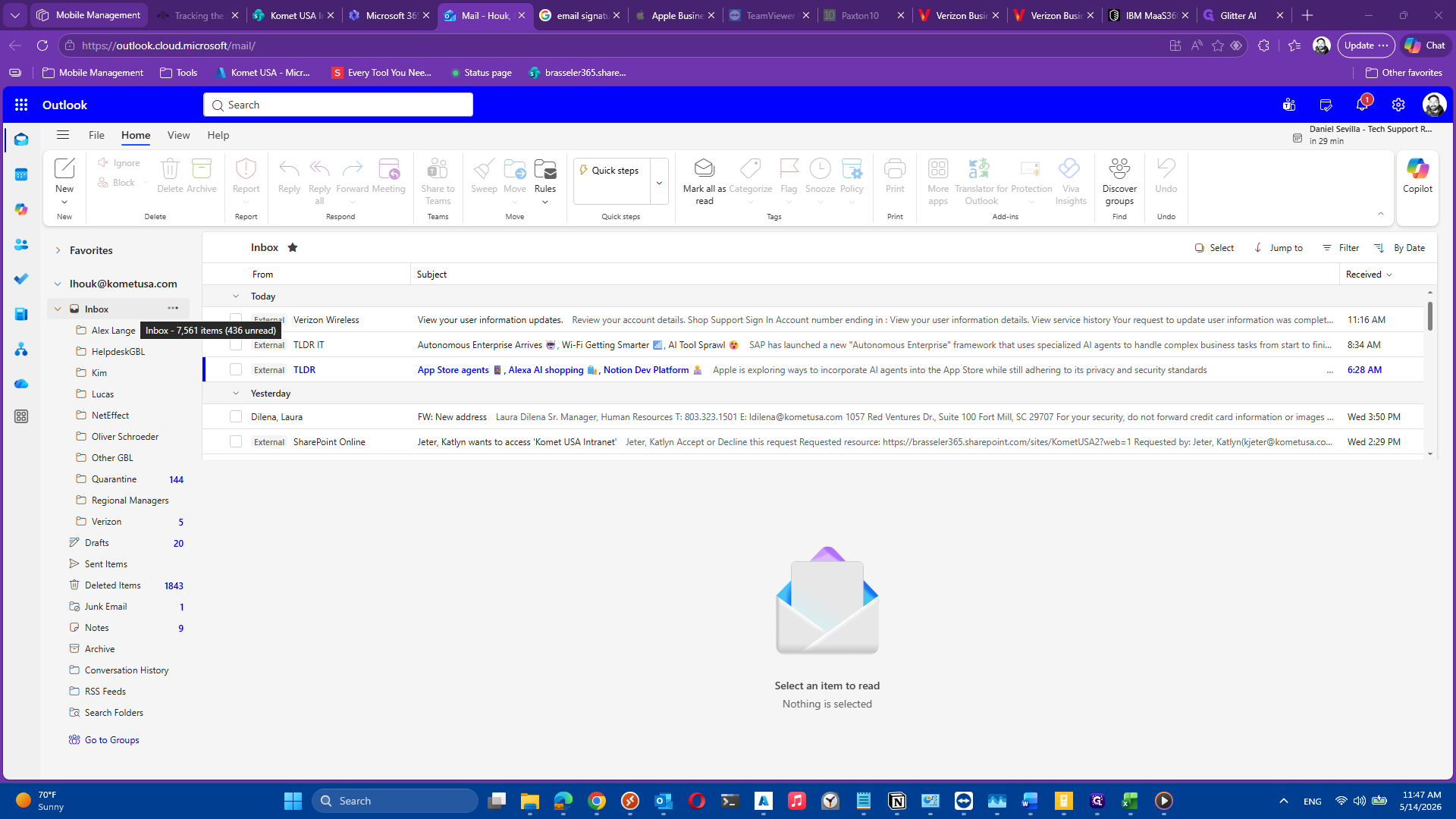
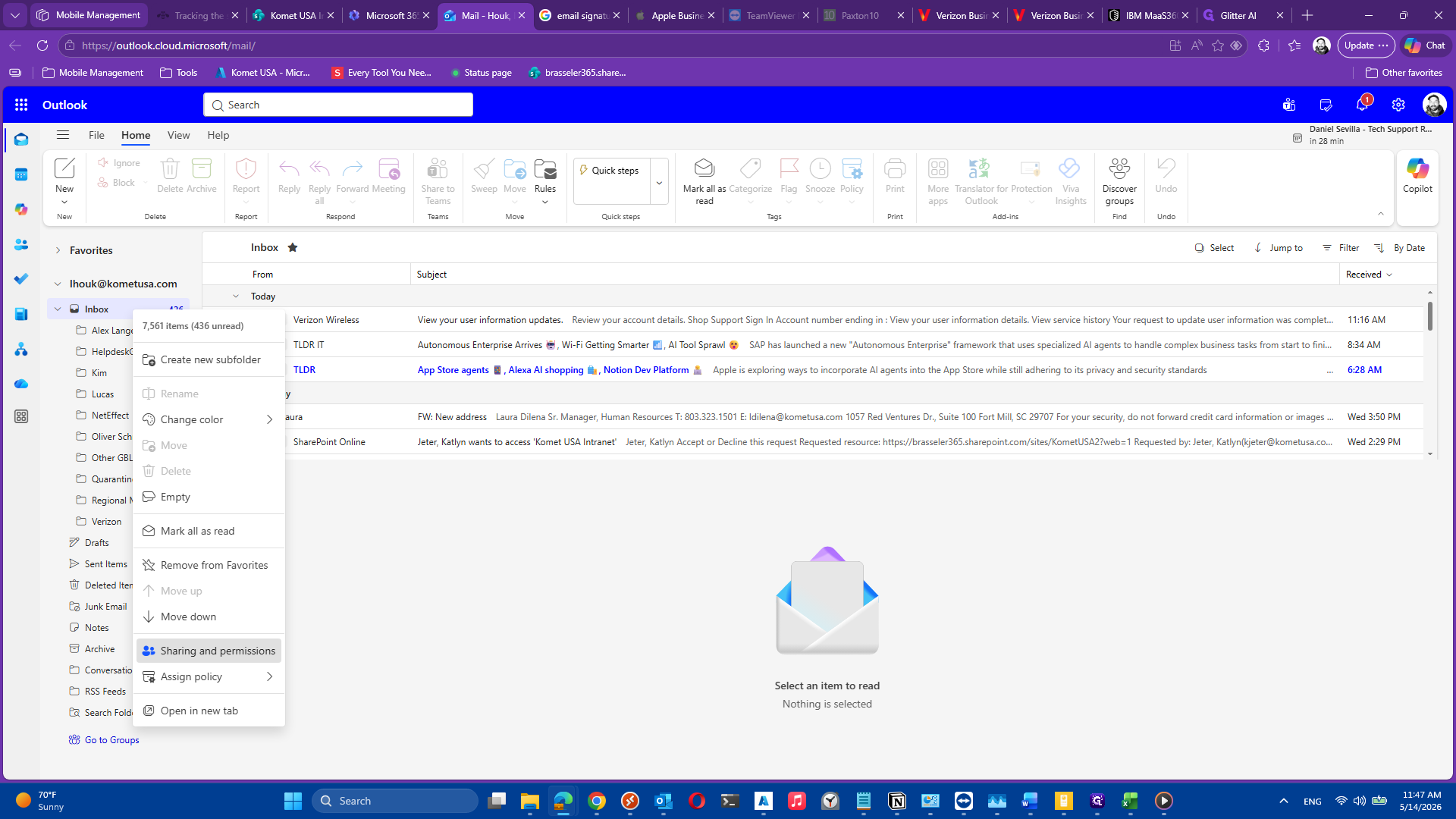
Accessing folder permissions
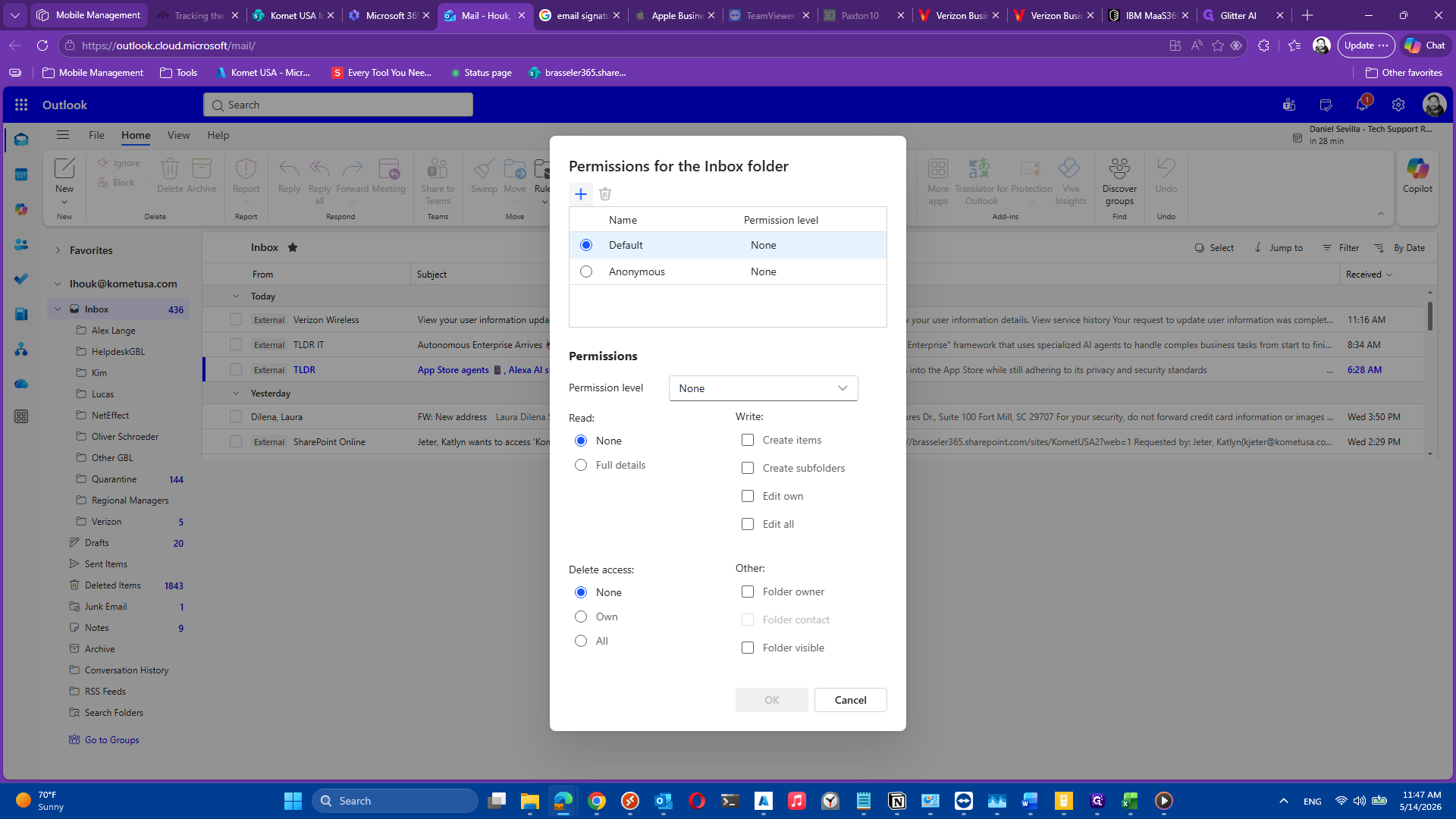
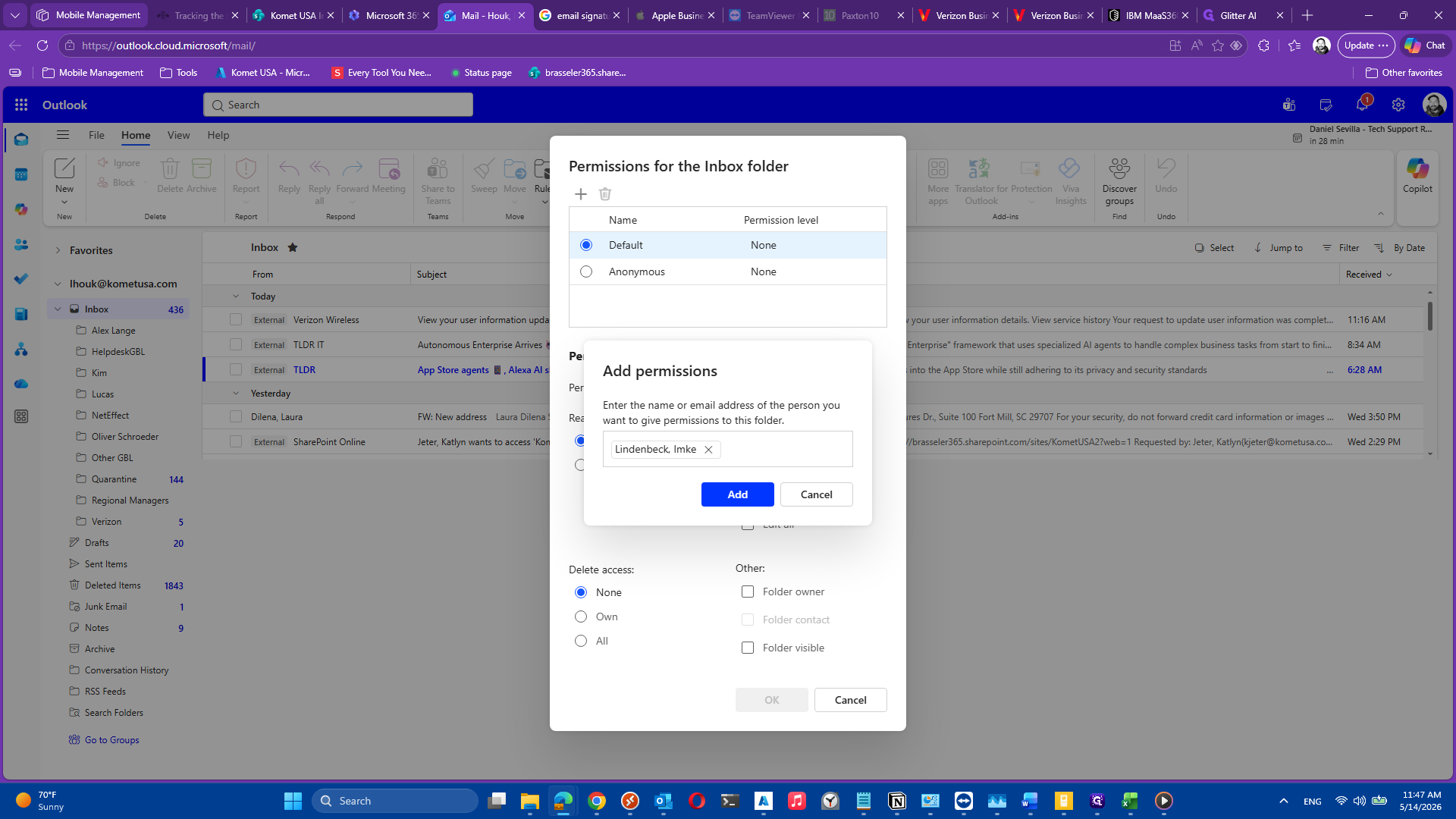
Adding a user
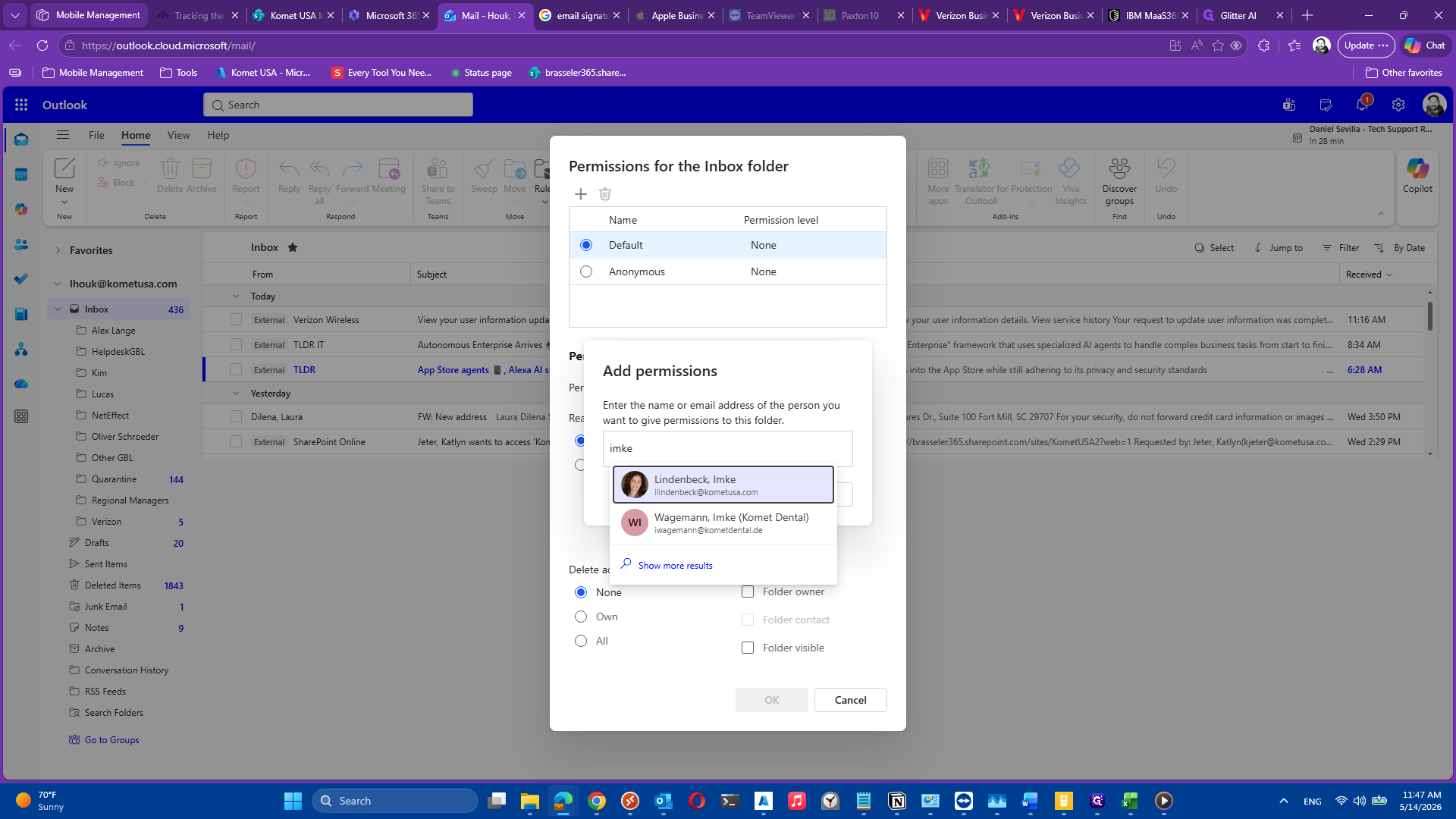
Assigning permission levels
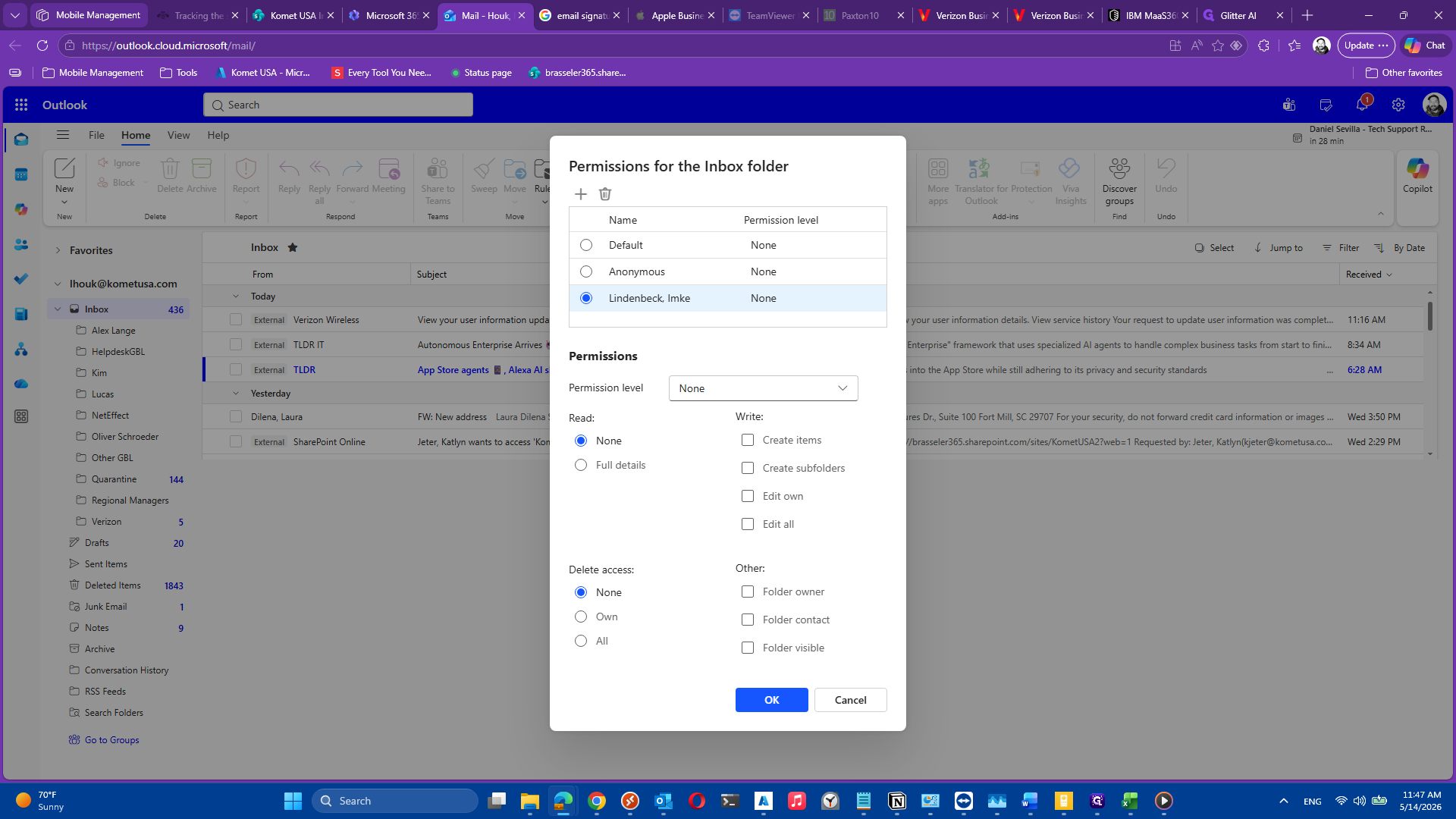
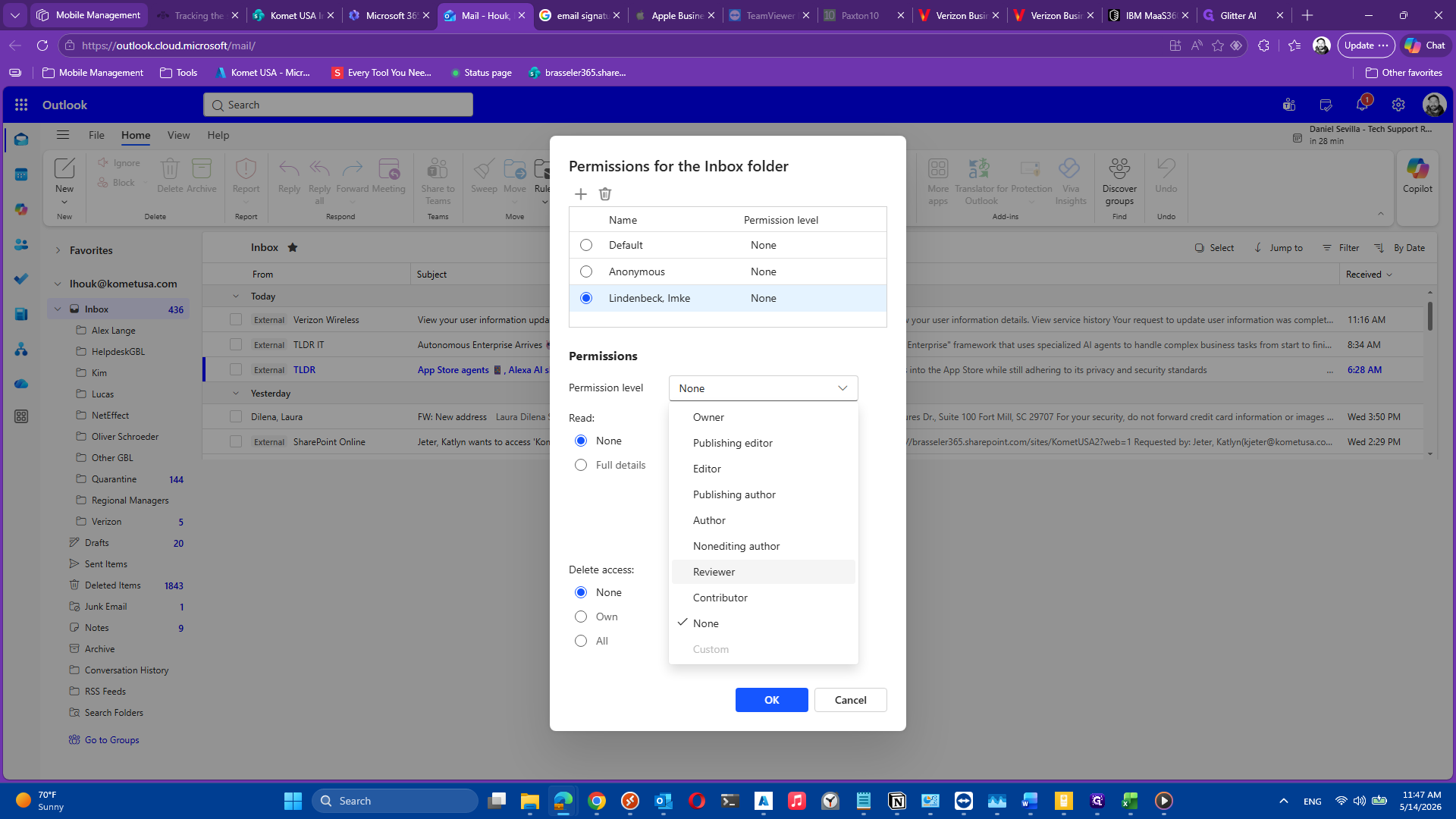
Once added, the user will default to having no access. You must specify their permission level to finalize the process.
Common permission levels
Permission Level | Access Granted | When to use |
|---|---|---|
Owner | Full read, write, and delete access. Can manage folder permissions. | When co-managing a shared inbox or delegating full mailbox control. |
Editor | Can read, create, modify, and delete items. | When an assistant or team member needs to process and manage your email. |
Reviewer | Read-only access. | When someone needs to monitor incoming emails without making changes. |
None | No access to folder contents. | When revoking previous access or adding a user before a role has been defined. |