Icon

Sharehouse - Register for a Sharehouse Course

Learn how to access the learning portal, and receive your Certificate of Completion for completing a Sharehouse Policy review.

By Mary-Jane Marcos

This guide walks you through registering for the Child Safety Policy Review, navigating the learning portal, and successfully completing the required quiz. Following these steps ensures you fully understand safety protocols and receive your official certification.

This guide applies to new hires, contractors, and volunteers who must complete mandatory child safety training as part of their onboarding and compliance.

Register and Log In

To begin the Child Safety Policy course, you first need to register and set up your portal account.
1
Enter your email address.
2
Fill in your full name.
3
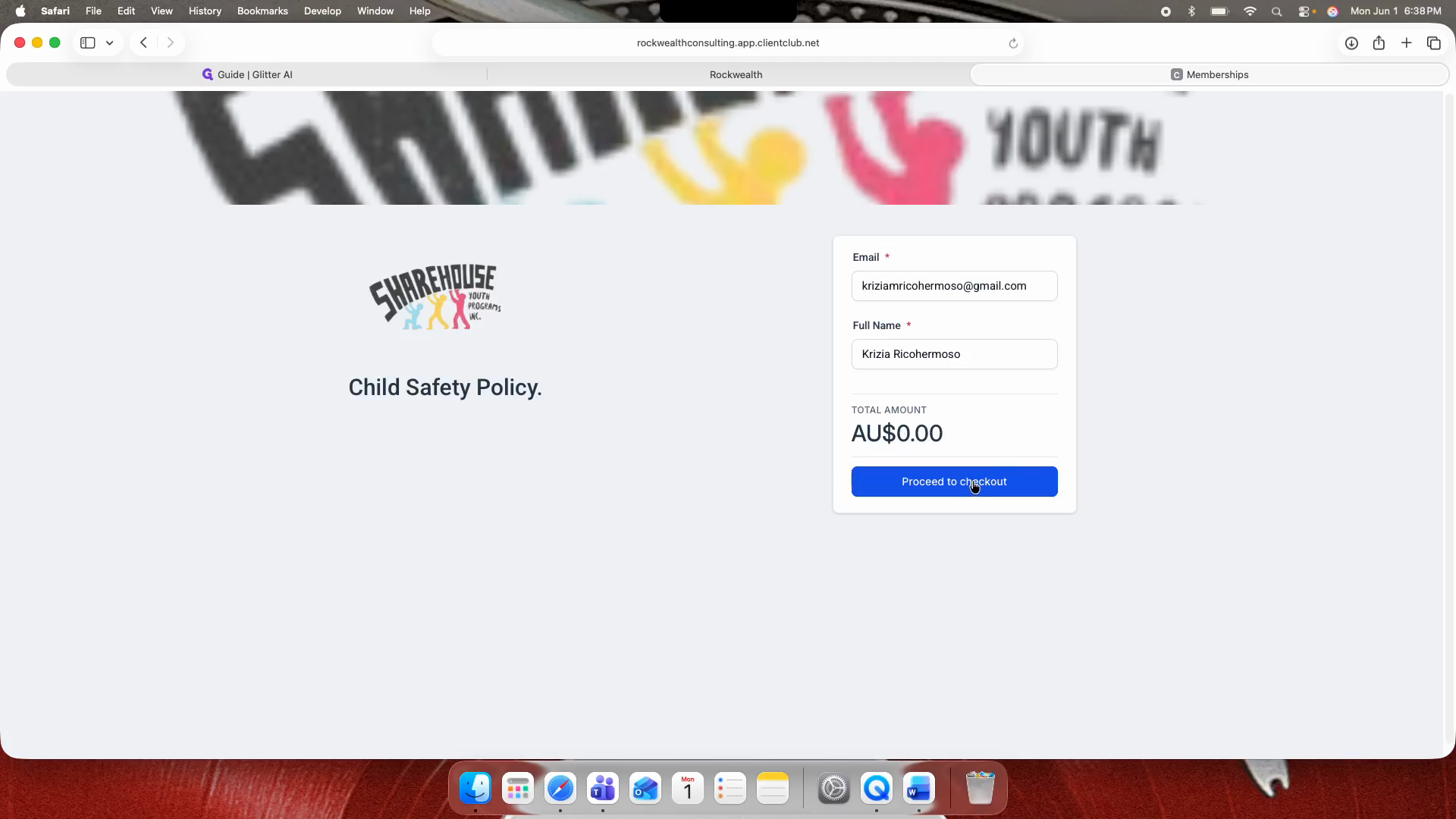
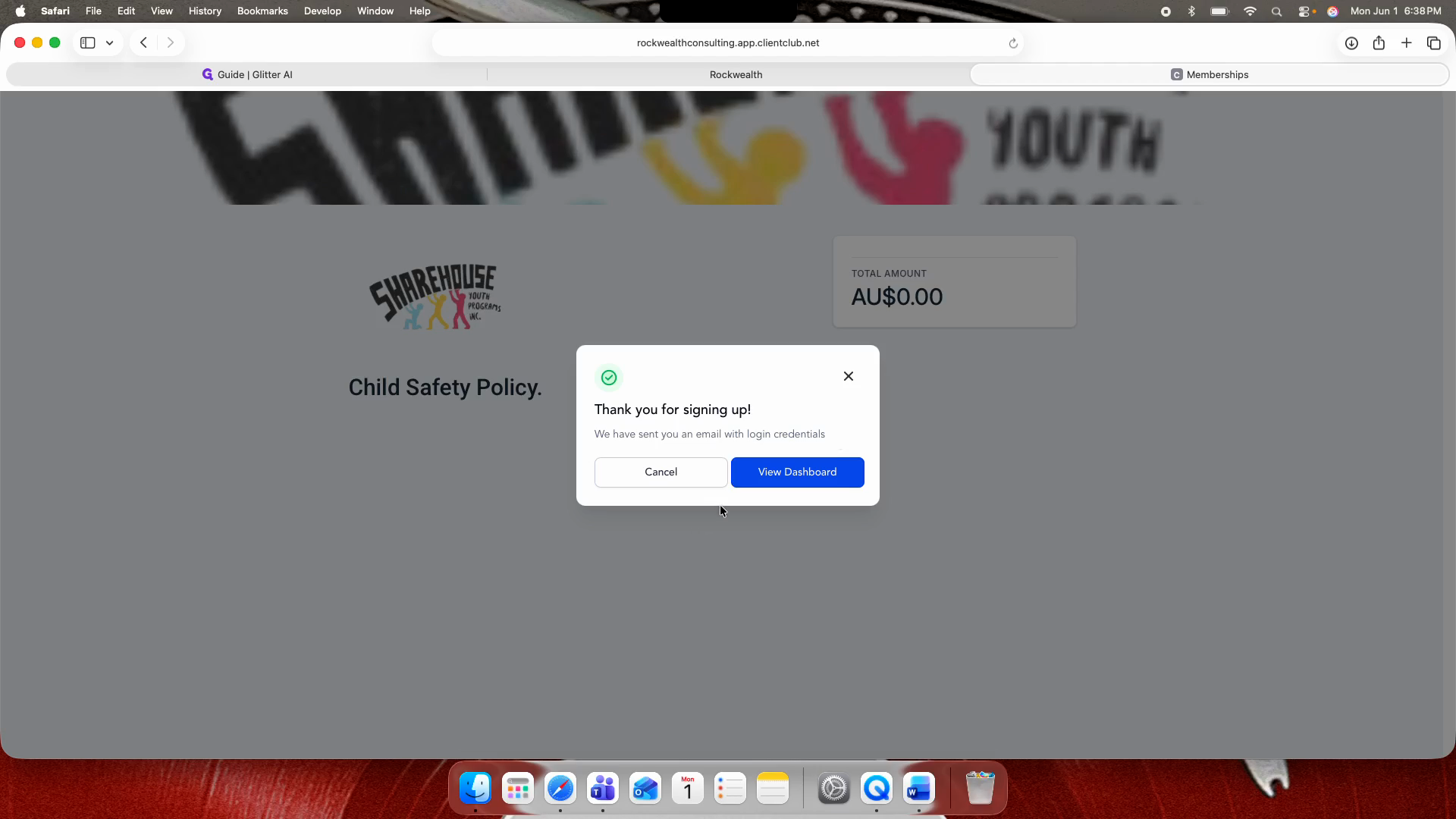
Click Proceed to checkout.
Step #3: Click Proceed to checkout.
4
Click Cancel when the confirmation popup appears.
Step #4: Click Cancel when the confirmation popup appears.
5
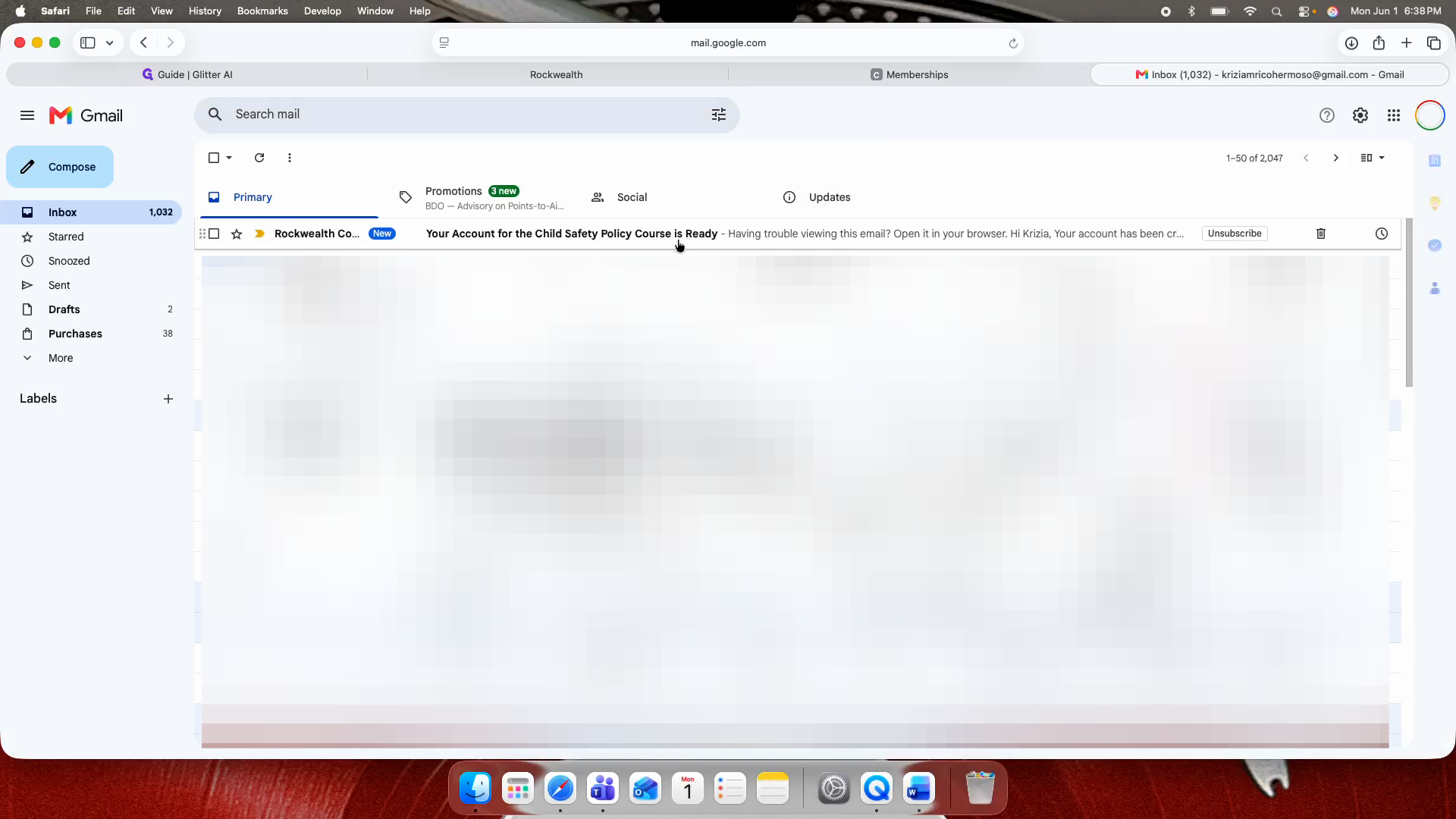
Check your email inbox and open the email titled "Your Account for the Child Safety Policy Course is Ready".
Step #5: Check your email inbox and open the email titled "Your Account for the Child Safety Policy Course is Ready".
6
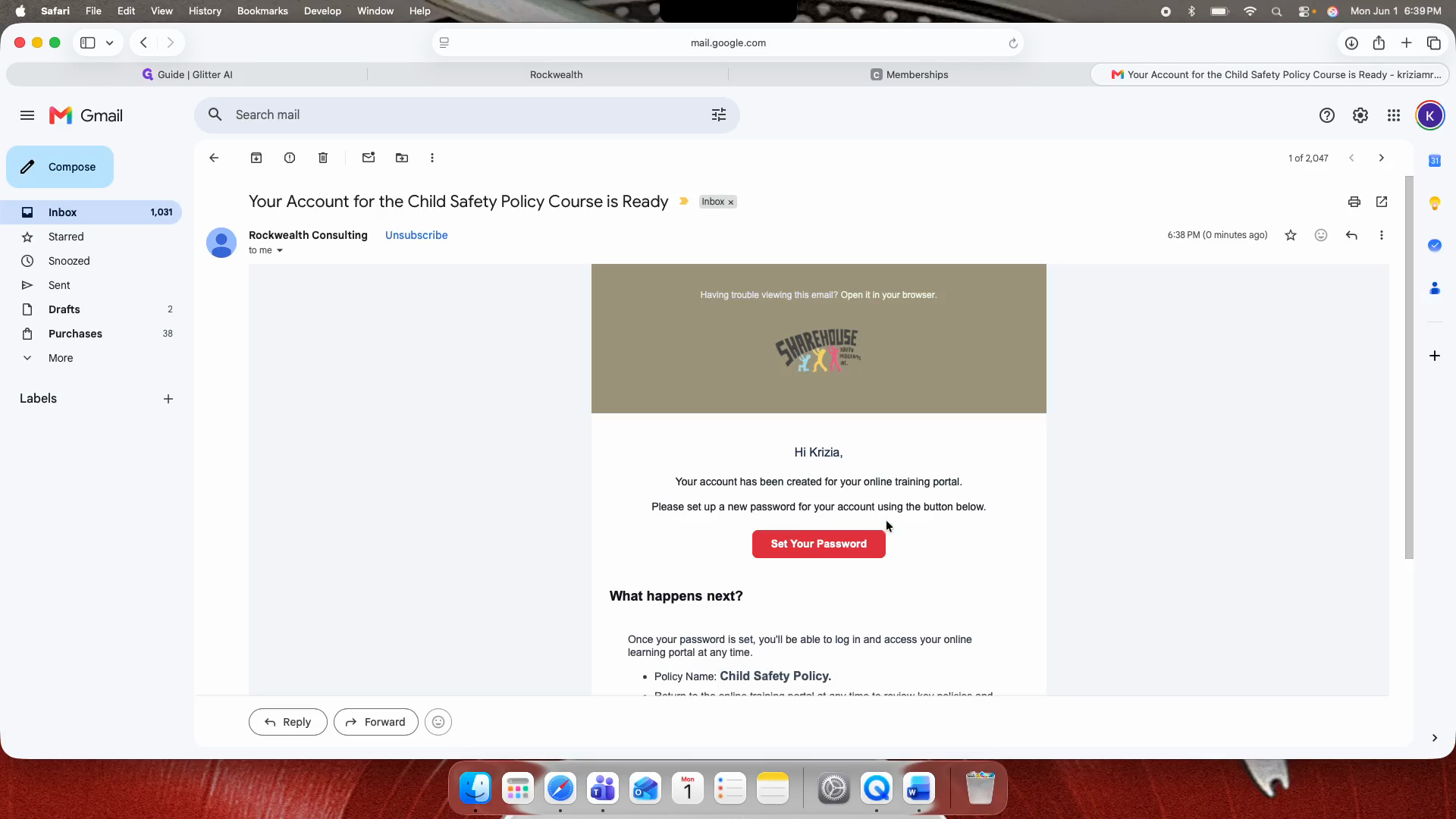
Click Set Your Password.
Step #6: Click Set Your Password.
7
Type your new password.
8
Type the same password in the confirmation field.
9
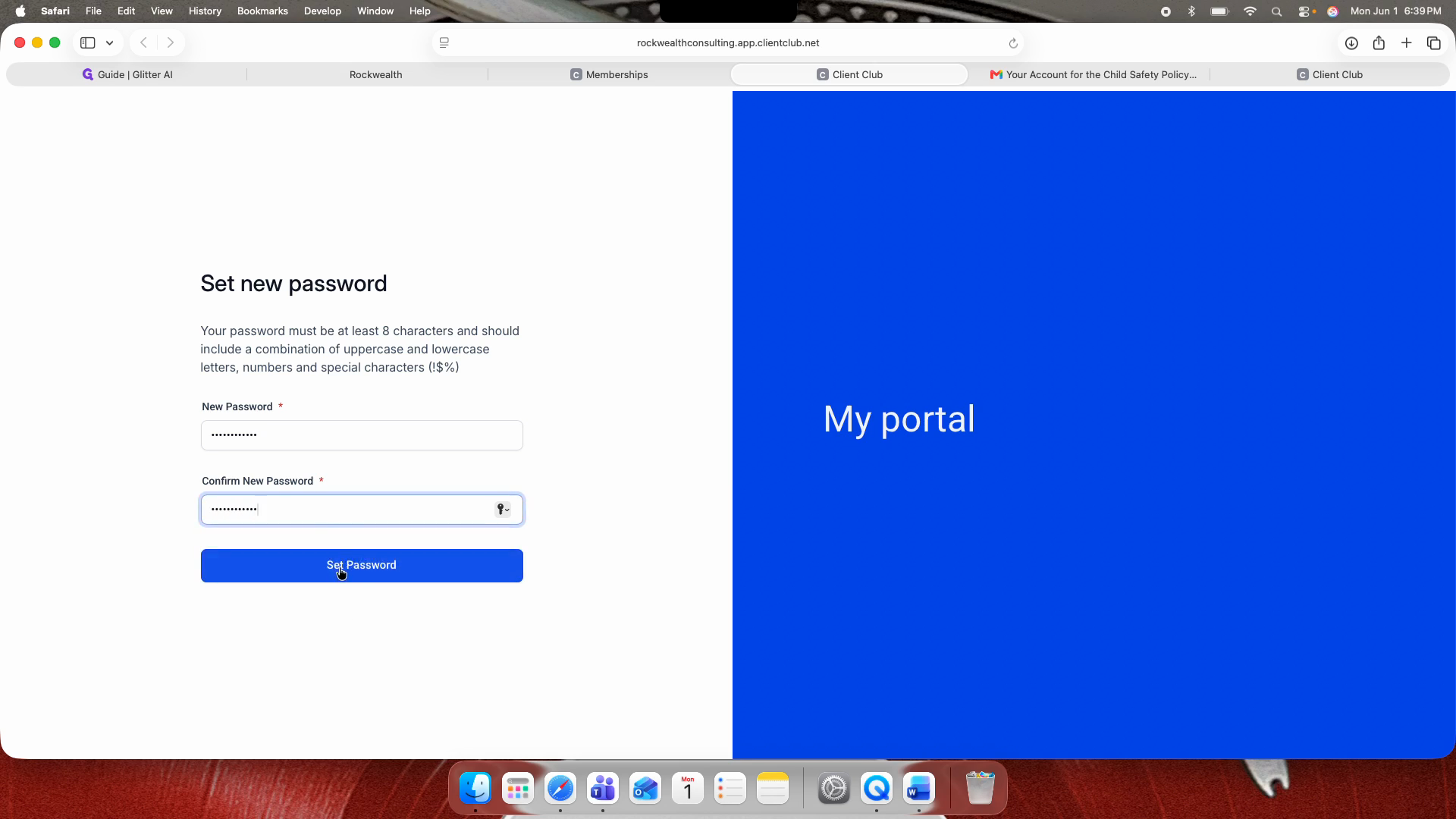
Click Set Password.
Step #9: Click Set Password.
10
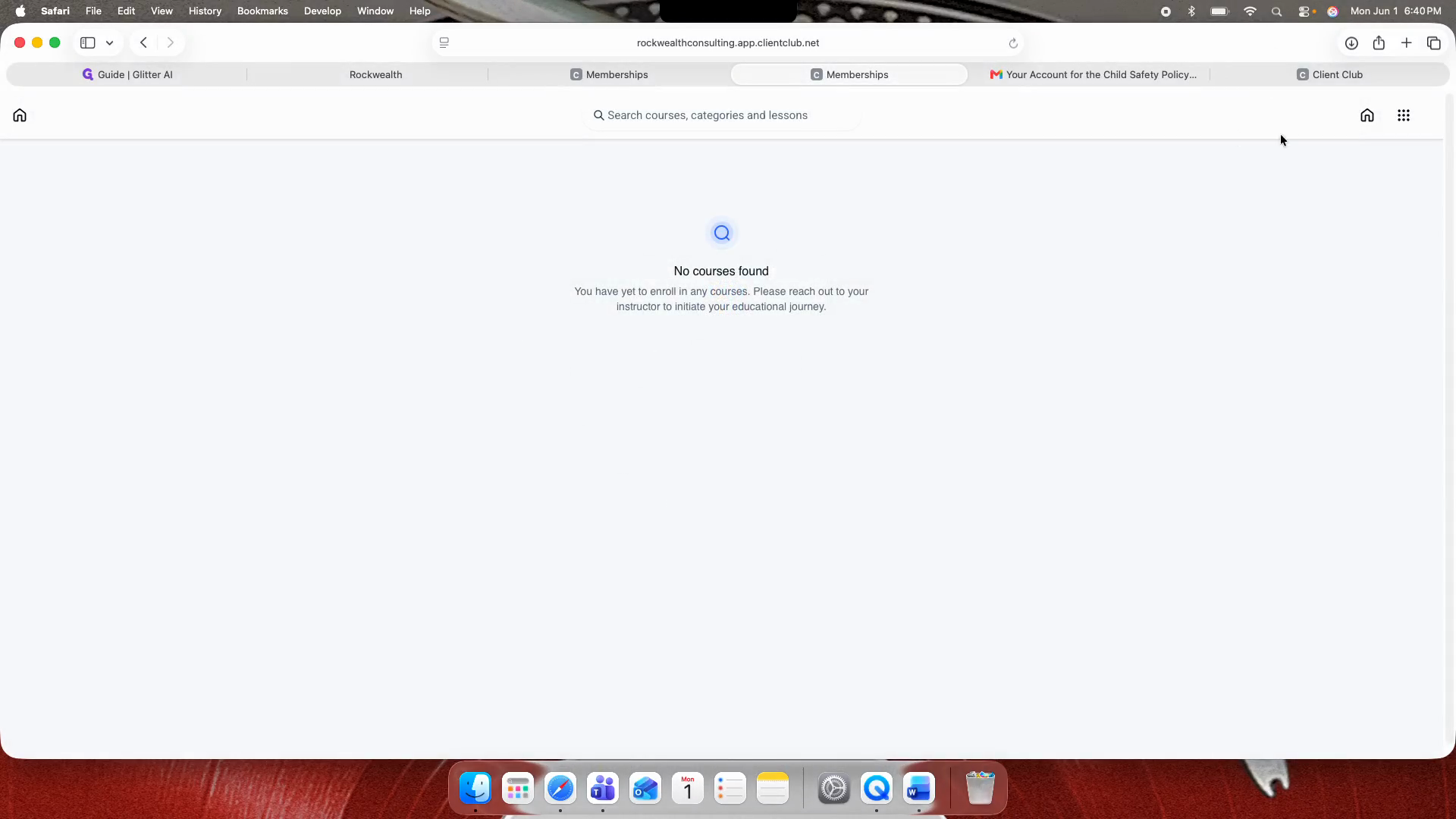
Click the Home icon.
Step #10: Click the Home icon.
11
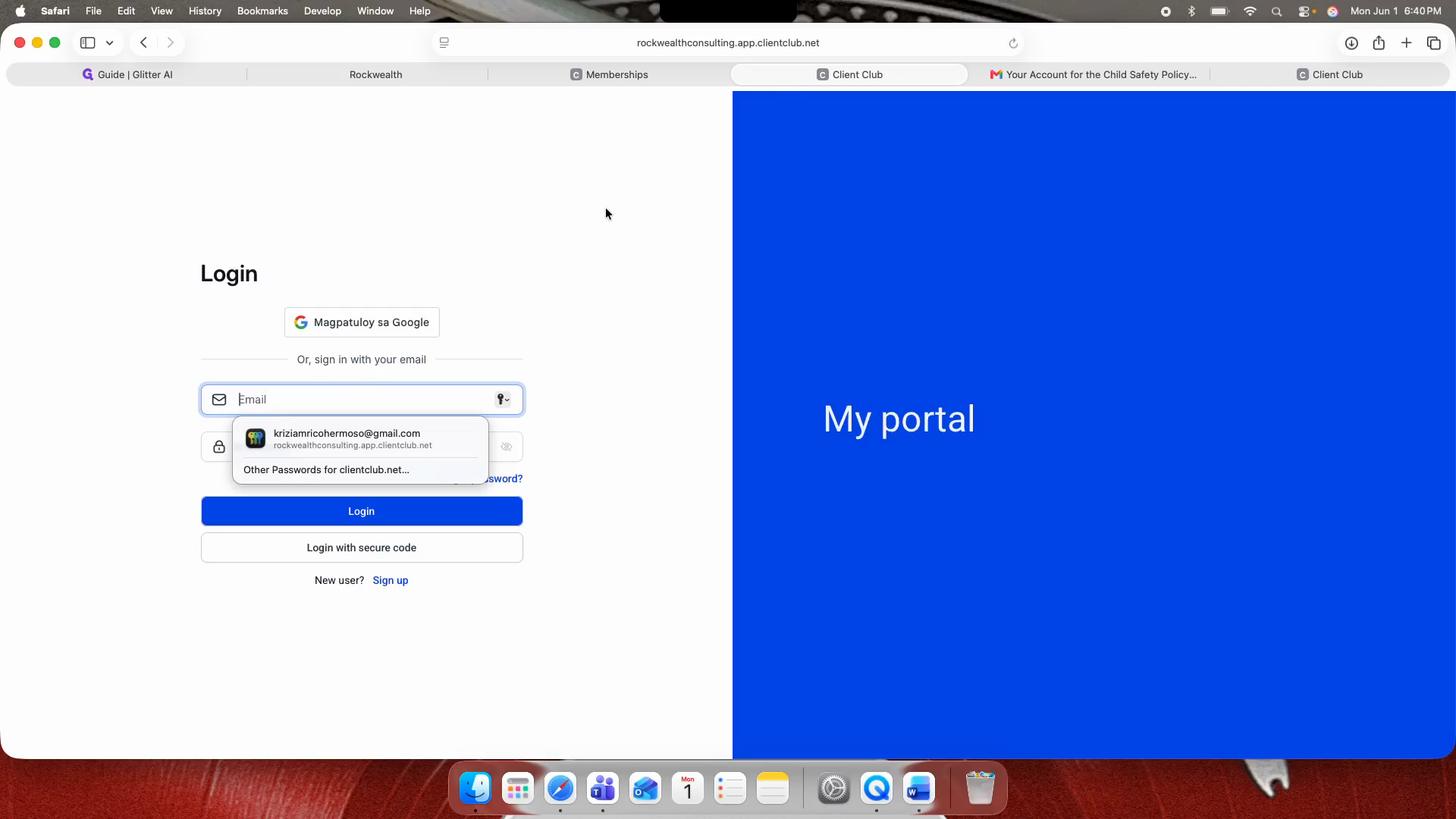
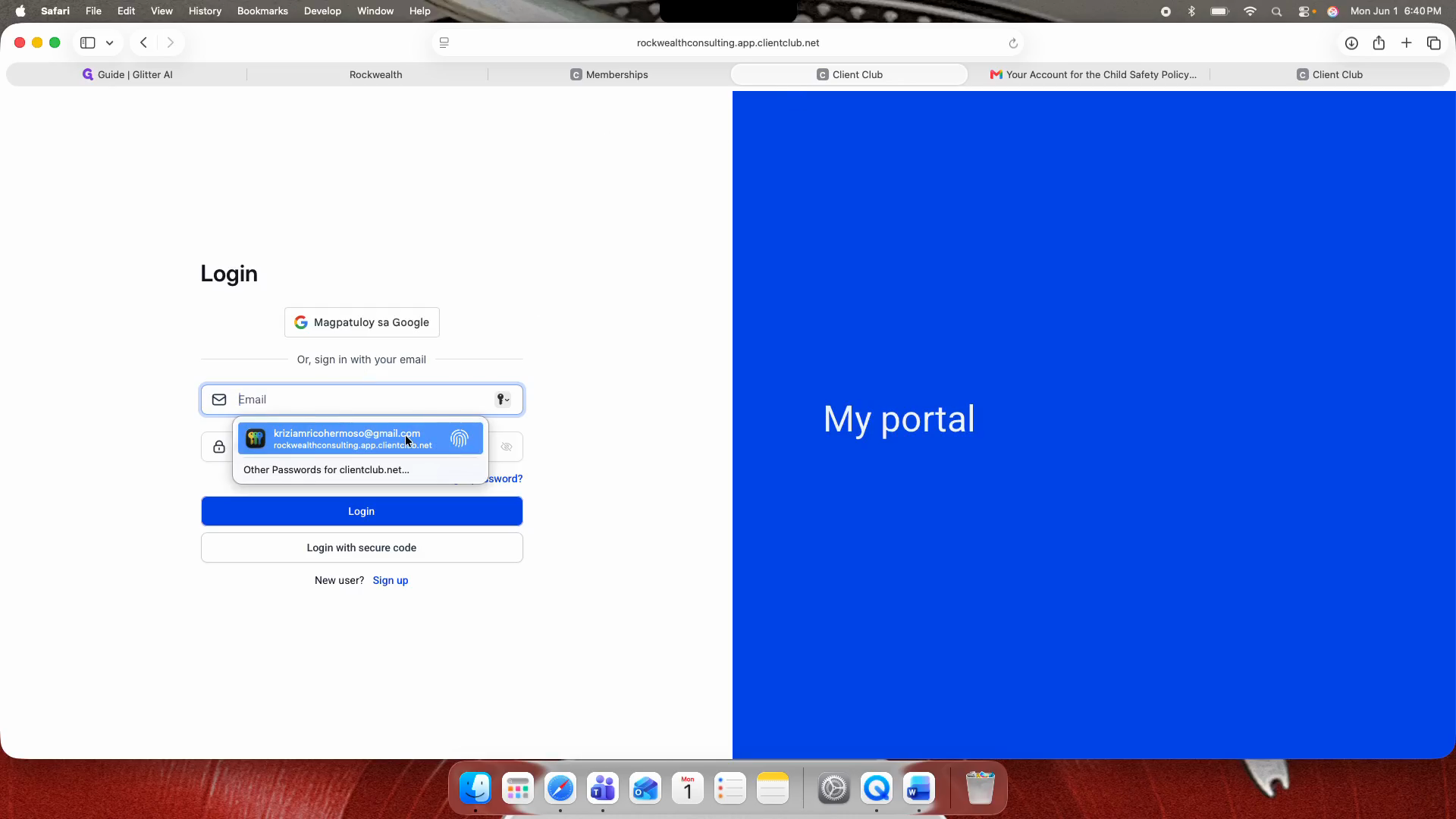
Select or enter your email address in the login field.
Step #11: Select or enter your email address in the login field.
12
Click Login.
Step #12: Click Login.

Complete the Course Material
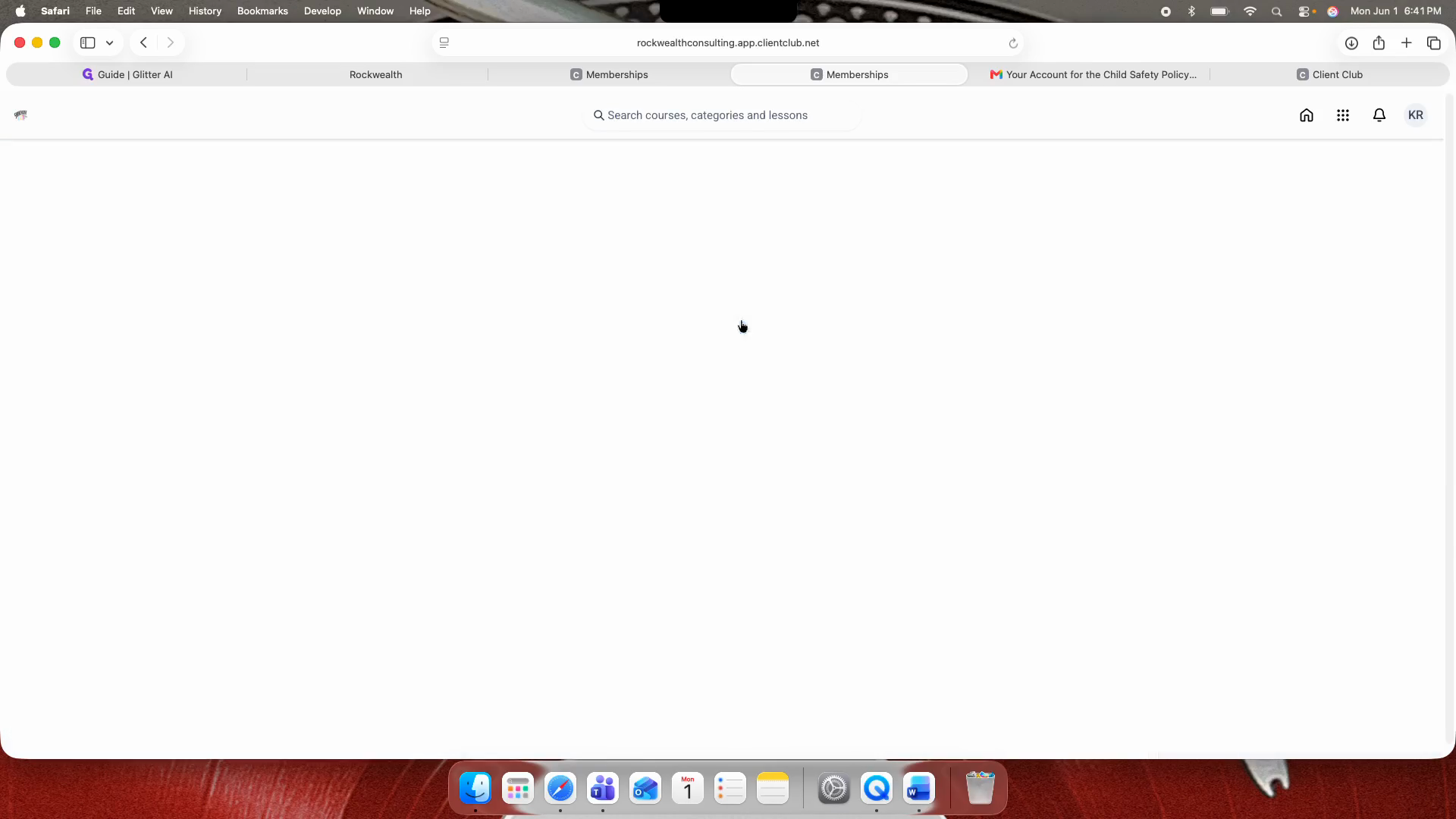
13
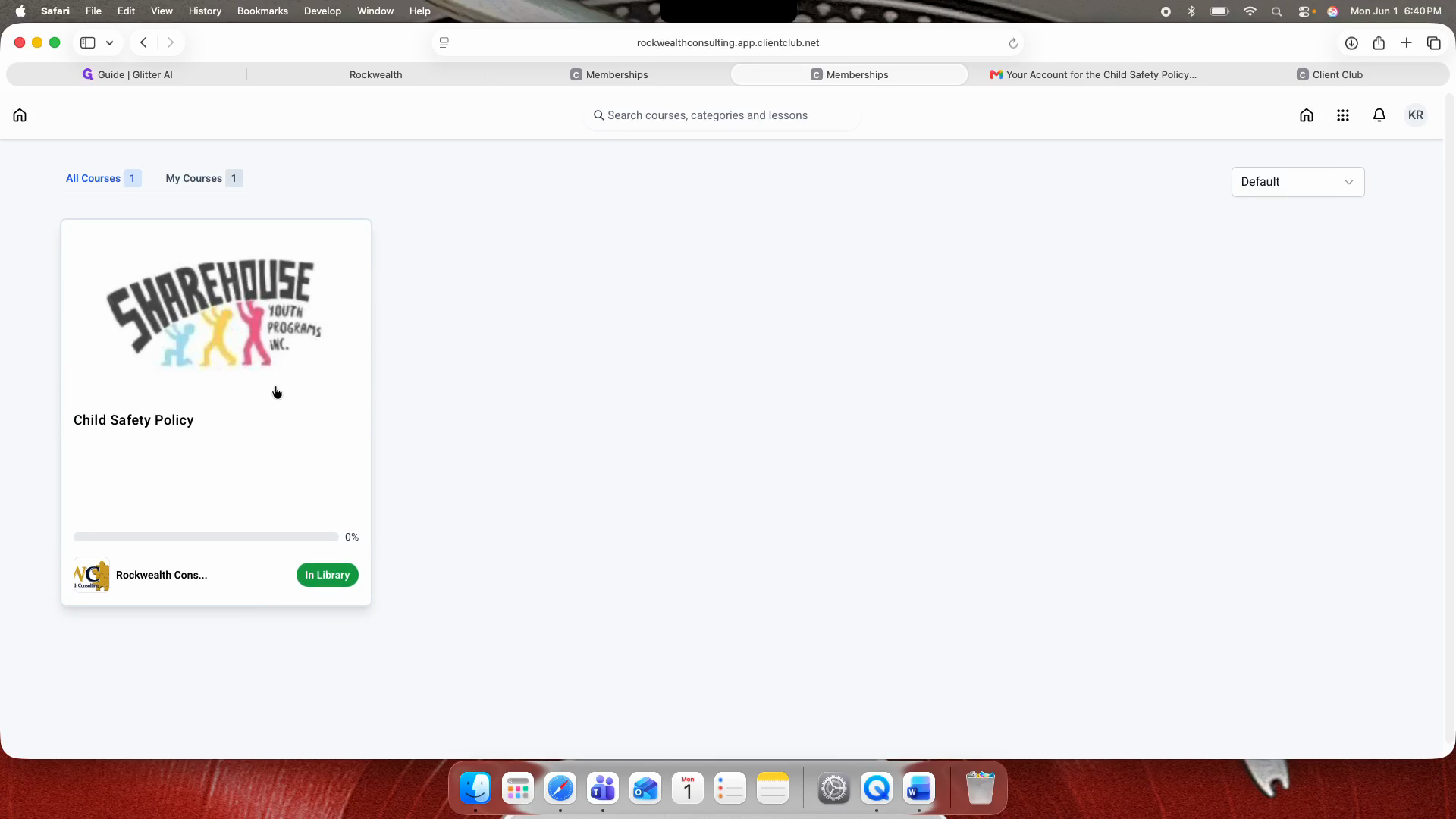
Click the Child Safety Policy course on your dashboard.
Step #13: Click the Child Safety Policy course on your dashboard.
14
Click Start Course.
Step #14: Click Start Course.
15
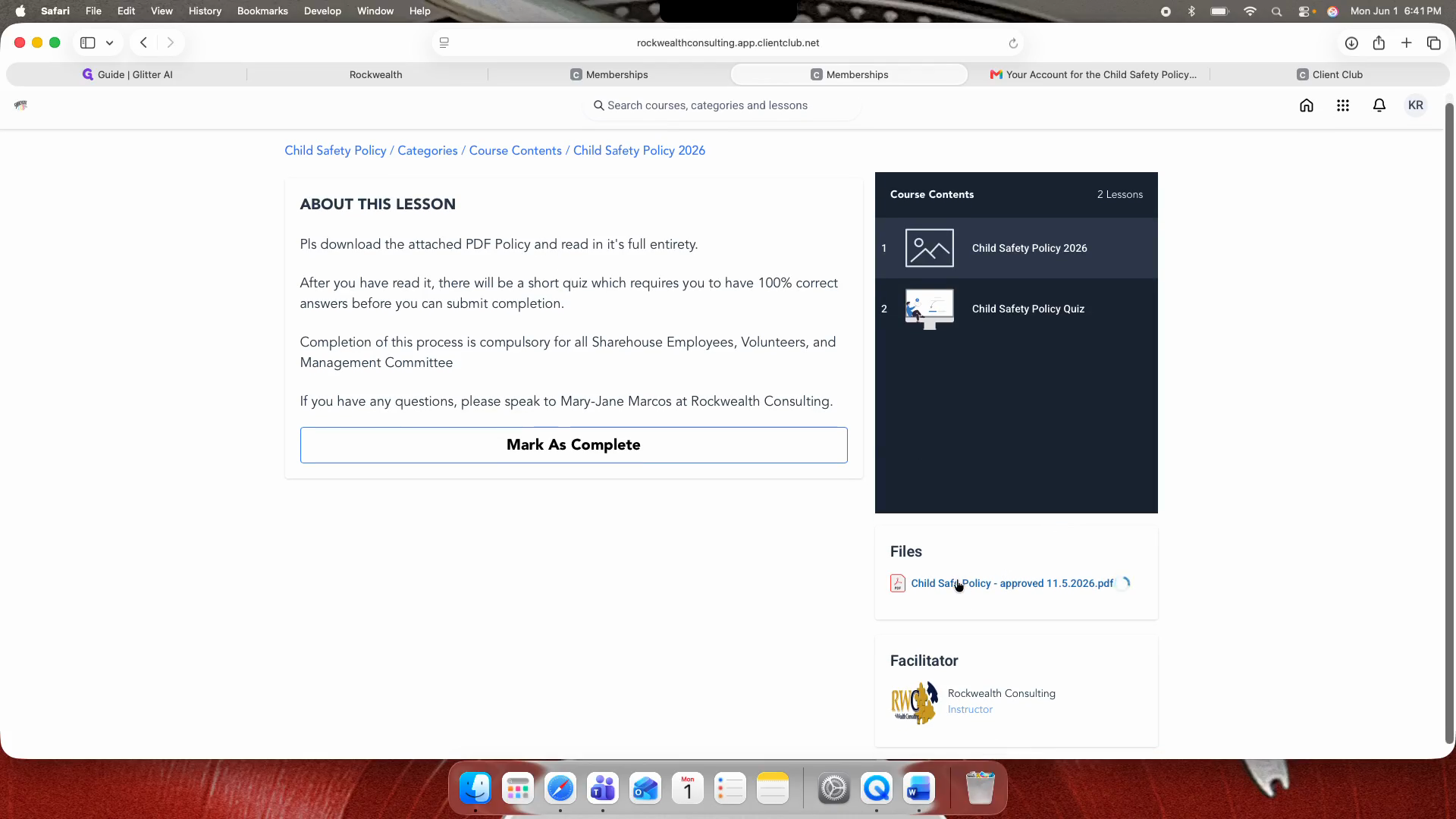
Click the Child Safe Policy PDF link located under the Files section.
Step #15: Click the Child Safe Policy PDF link located under the Files section.
16
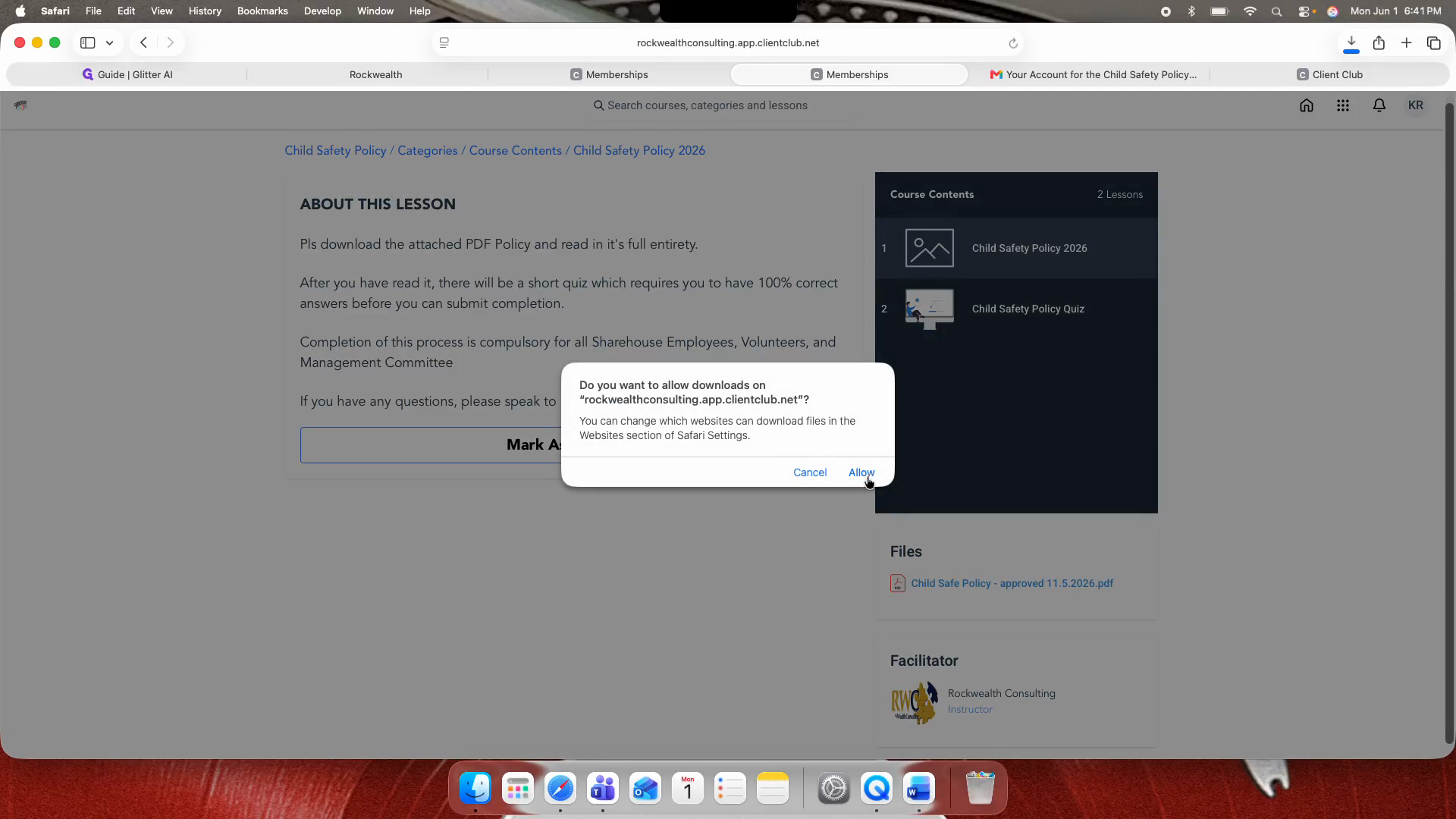
Click Allow in your browser popup to permit the file download.
Step #16: Click Allow in your browser popup to permit the file download.
17
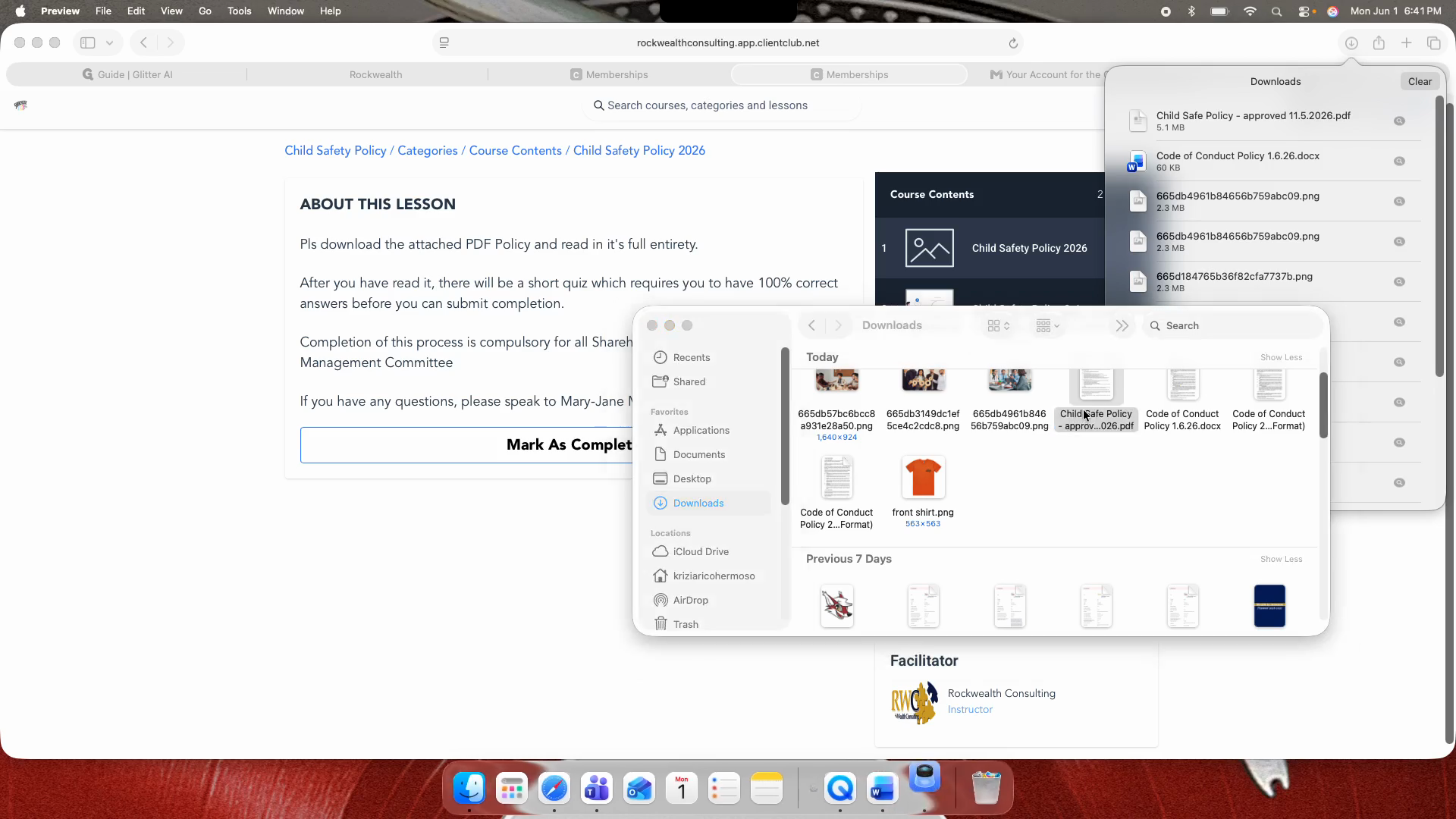
Open and review the downloaded document.
Step #17: Open and review the downloaded document.
18
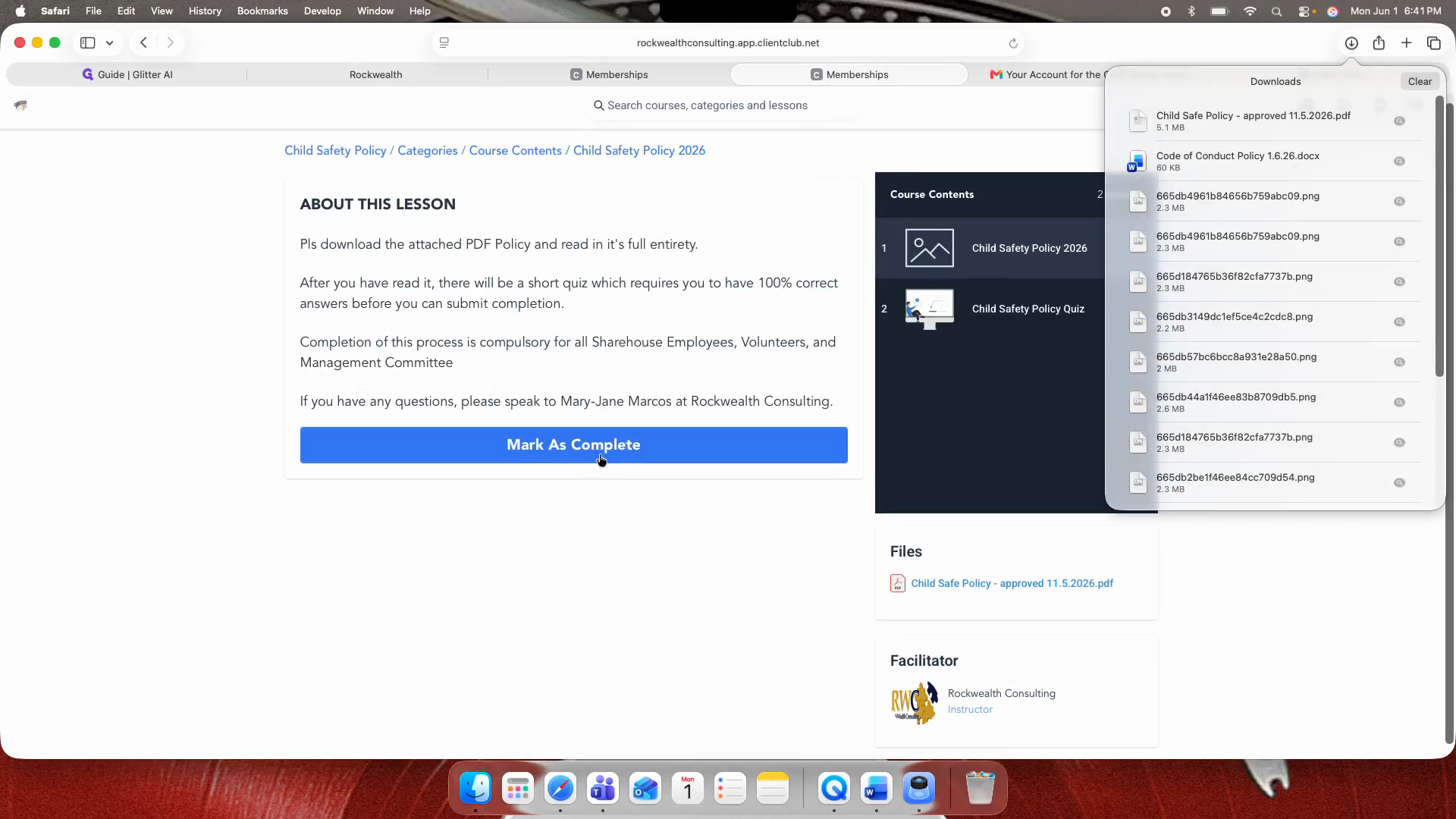
Click Mark As Complete when you finish reading the policy.
Step #18: Click Mark As Complete when you finish reading the policy.

Take the Assessment

19
Click Child Safety Policy Quiz in the course contents menu.
Step #19: Click Child Safety Policy Quiz in the course contents menu.
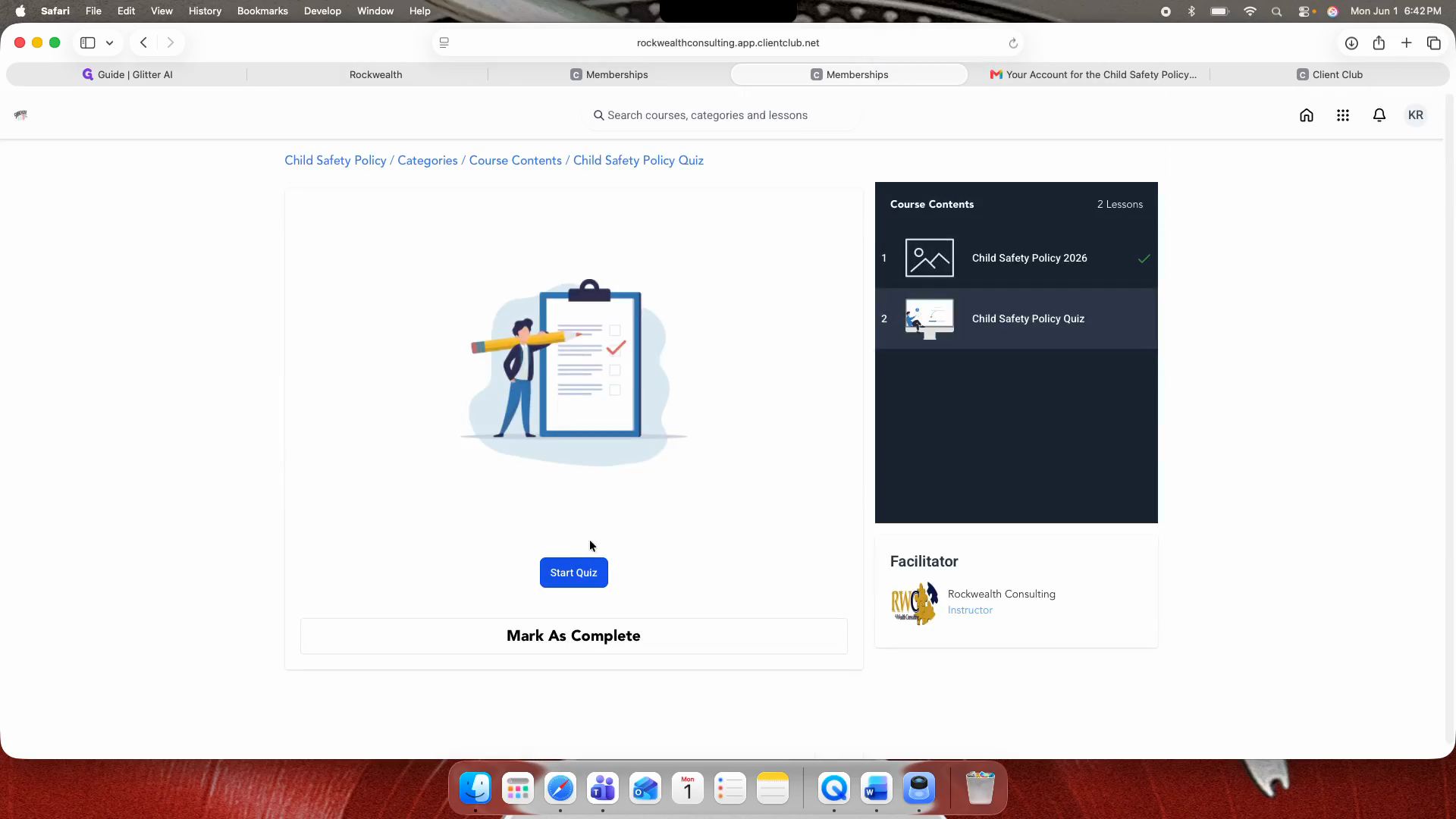
20
Click Start Quiz.
Step #20: Click Start Quiz.
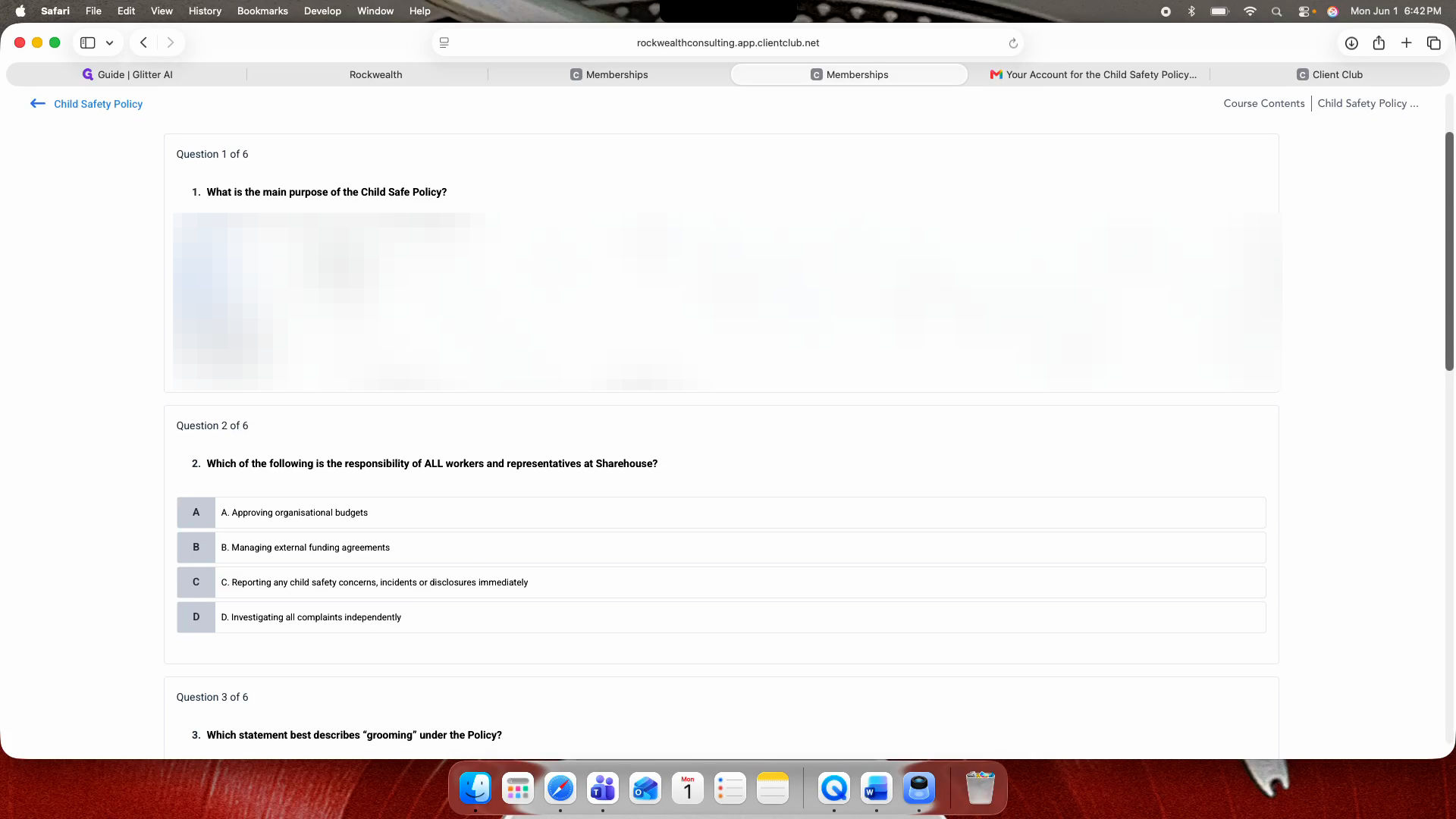
21
Answer all multiple-choice questions.
Step #21: Answer all multiple-choice questions.
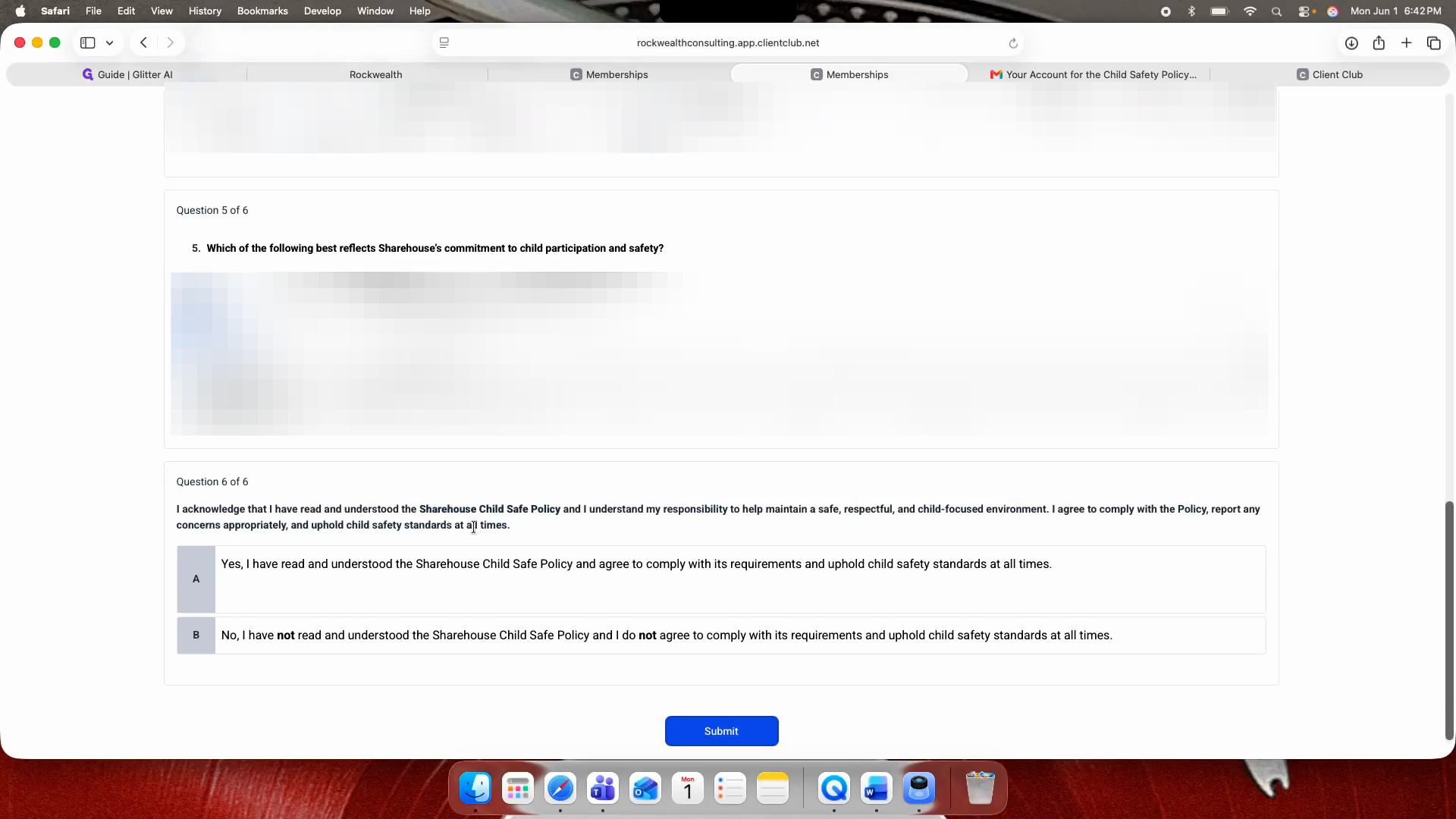
22
Click Submit.
Step #22: Click Submit.
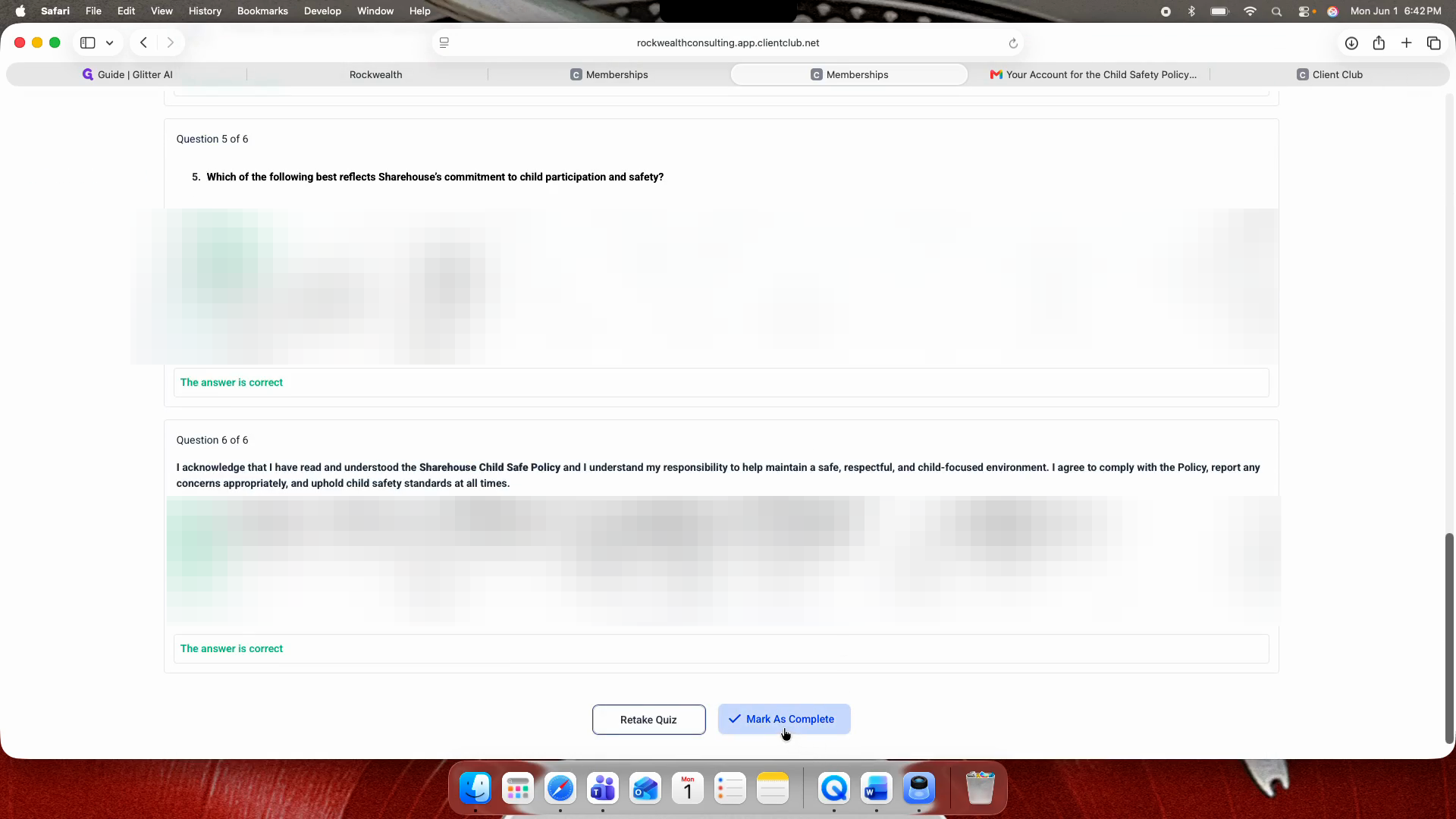
23
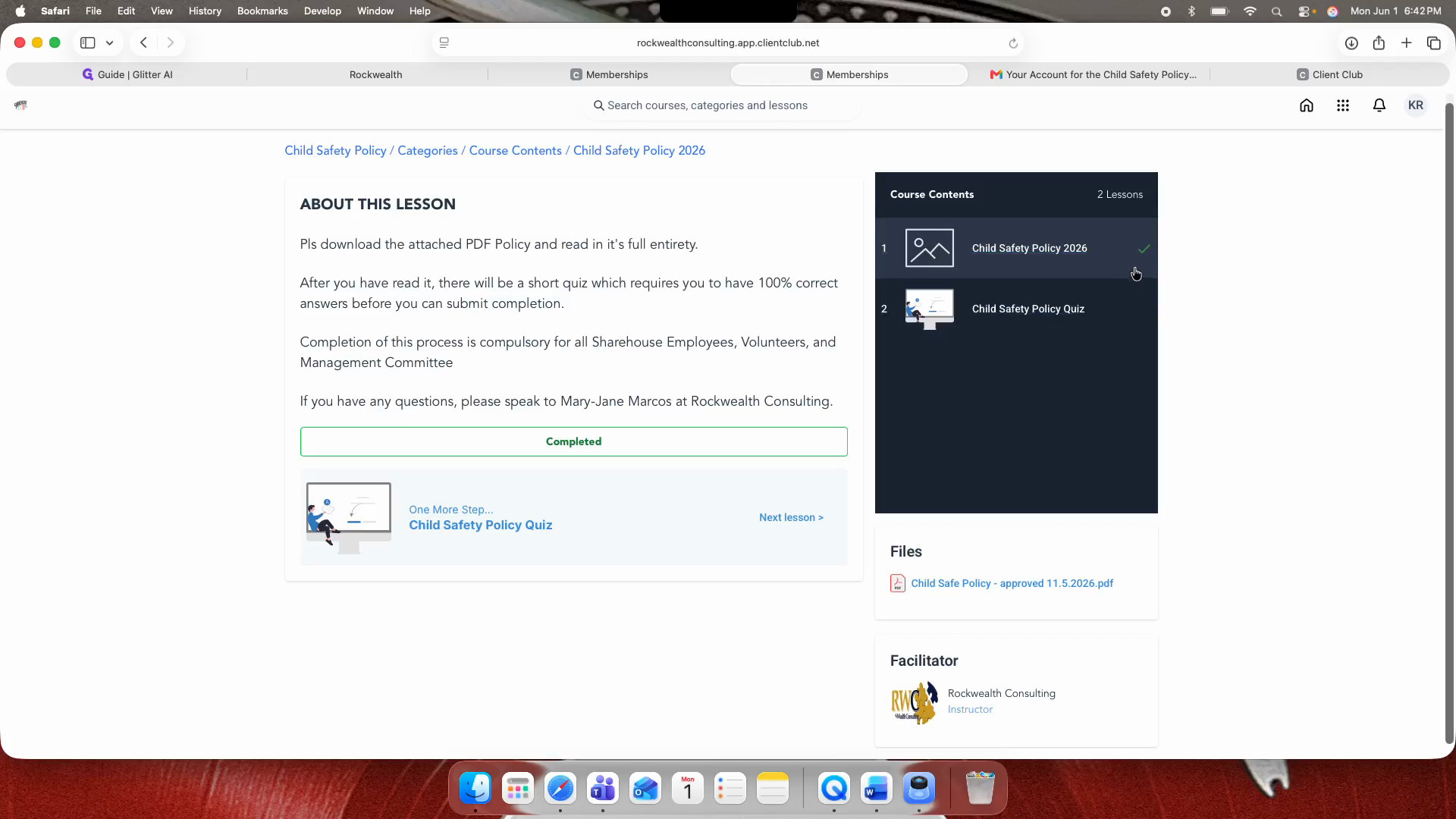
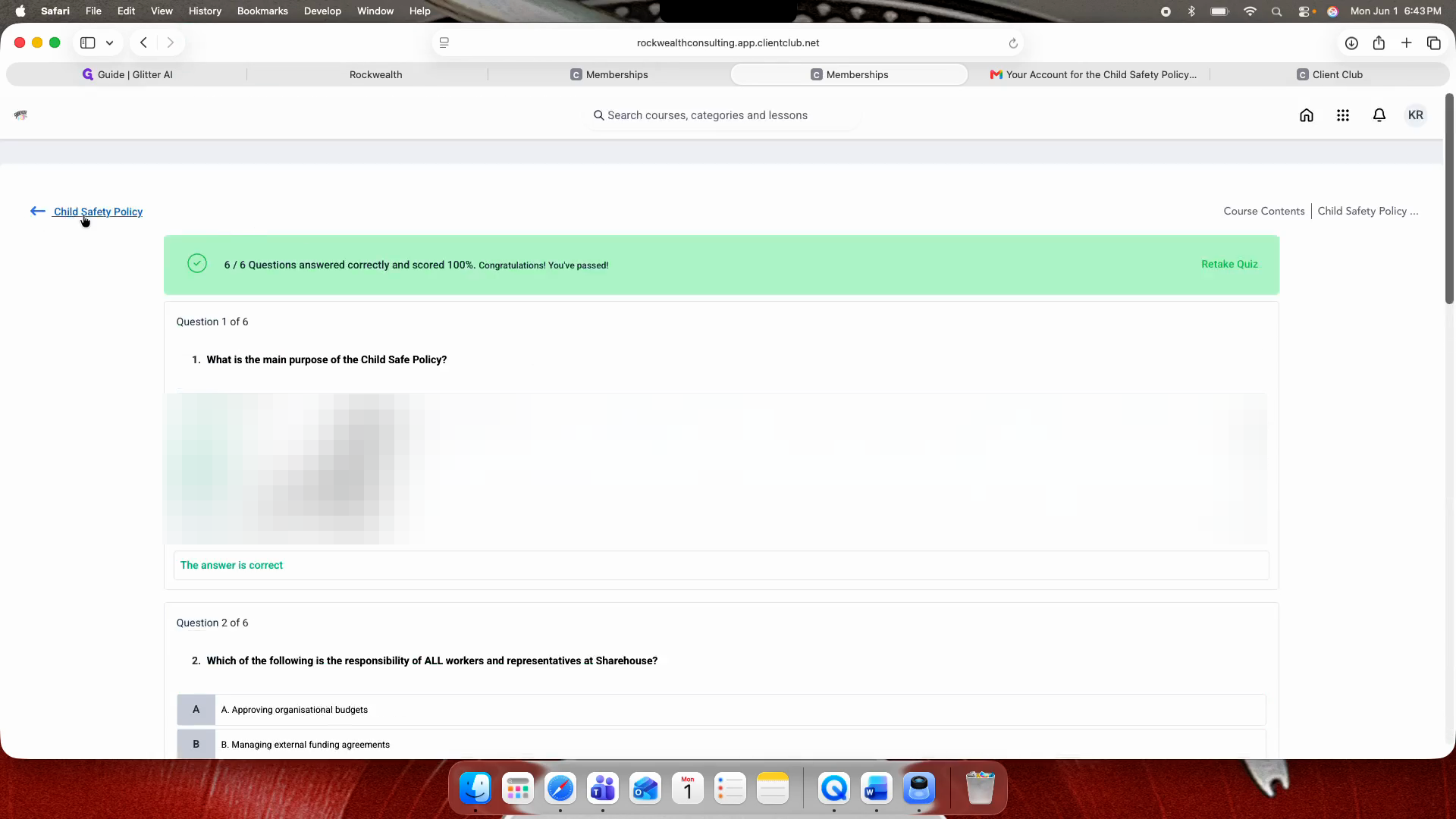
After you click Submit, scroll down and click Mark As Complete.
Step #23: After you click Submit, scroll down and click Mark As Complete.

Claim Your Certificate

Once you finish the lessons, your certificate is issued automatically. You can access it through the portal or your email.
24
Return to the main course menu.
Step #24: Return to the main course menu.
25
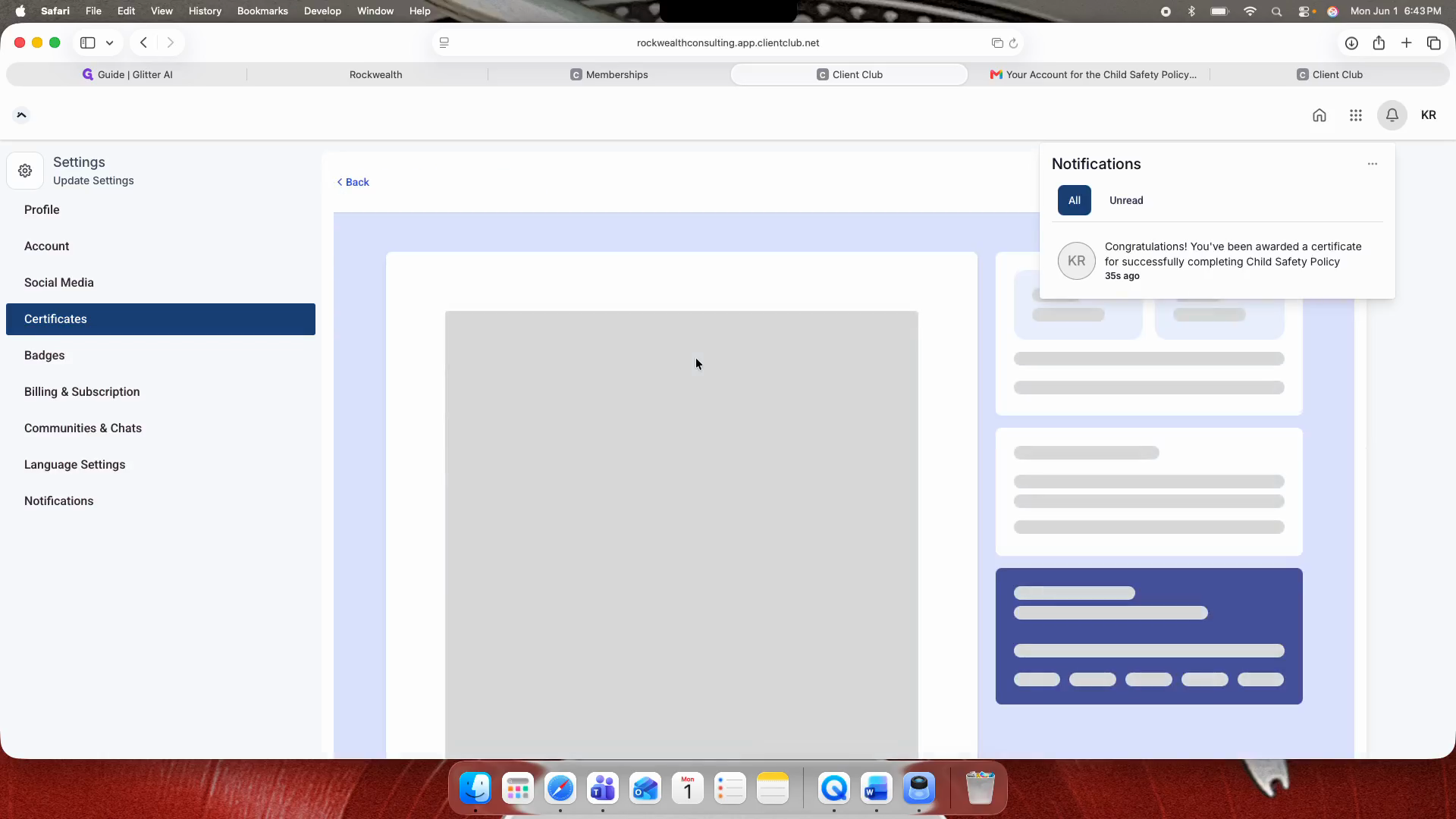
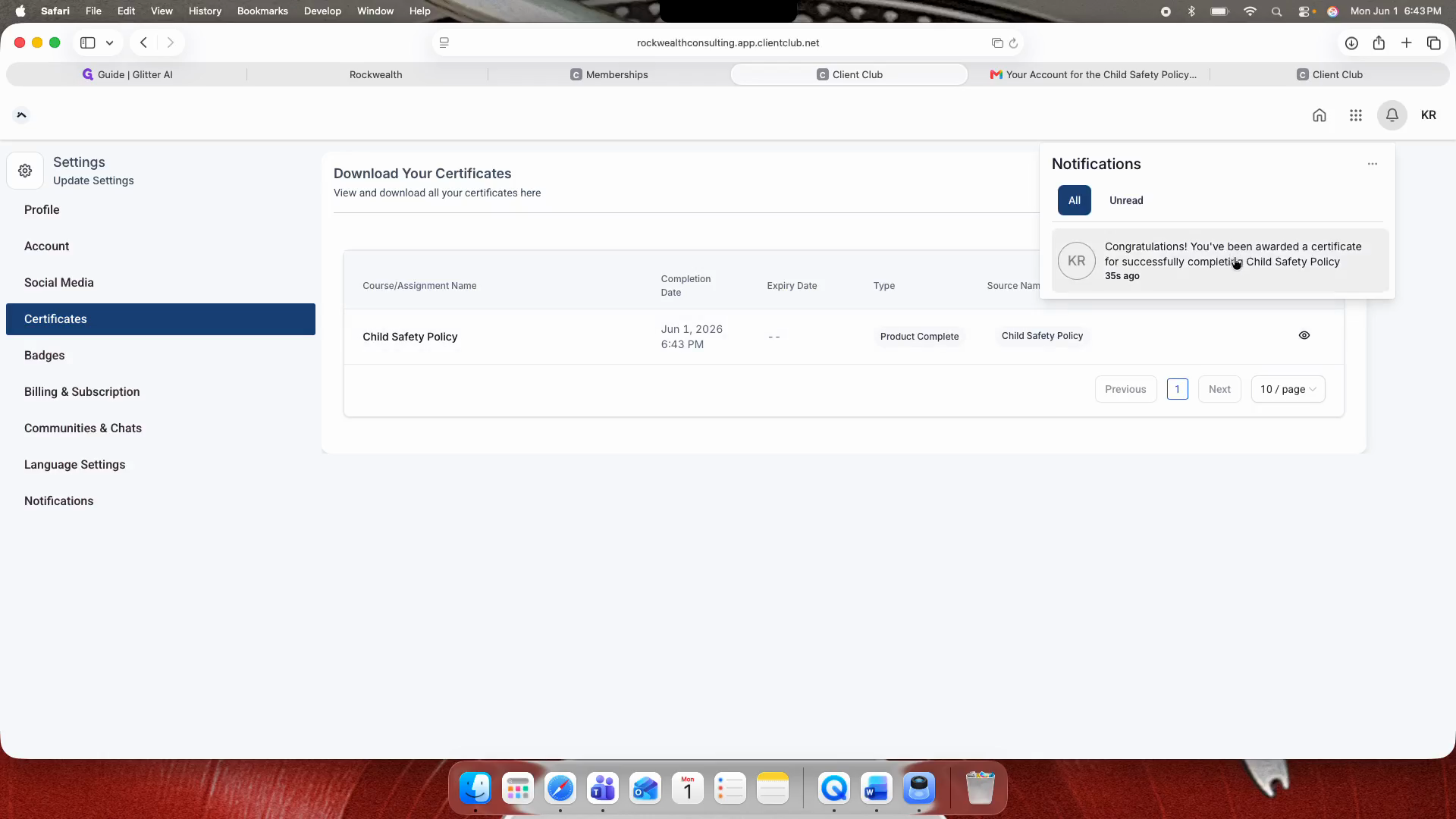
Click the notification confirming your awarded certificate.
Step #25: Click the notification confirming your awarded certificate.
26
Click to view your certificate details directly in the portal.
Step #26: Click to view your certificate details directly in the portal.

To view the certificate from your inbox:
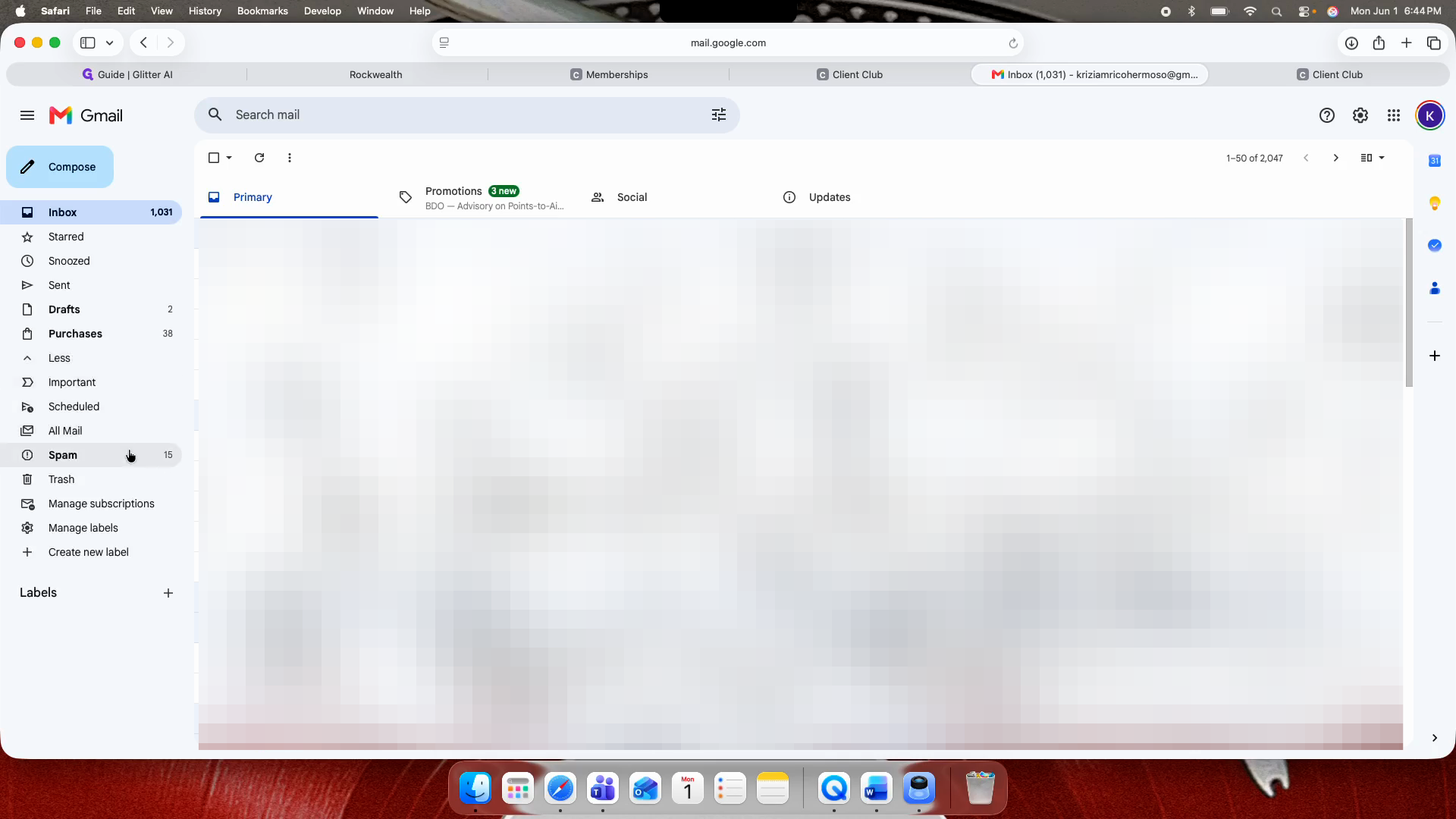
27
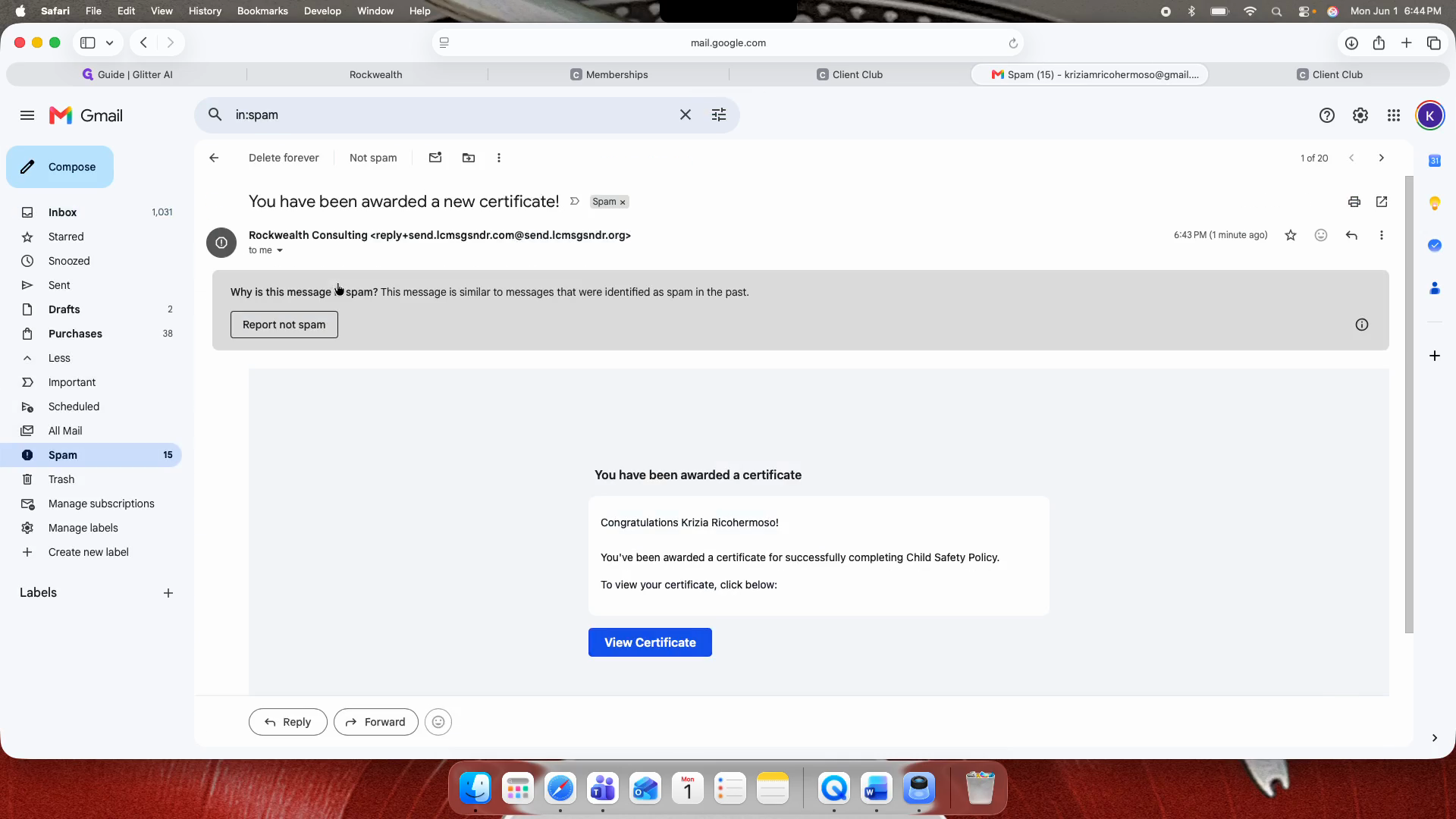
Open your email client and check your inbox or Spam folder.
Step #27: Open your email client and check your inbox or Spam folder.
28
Open the email titled "You have been awarded a new certificate!".
Step #28: Open the email titled "You have been awarded a new certificate!".
29
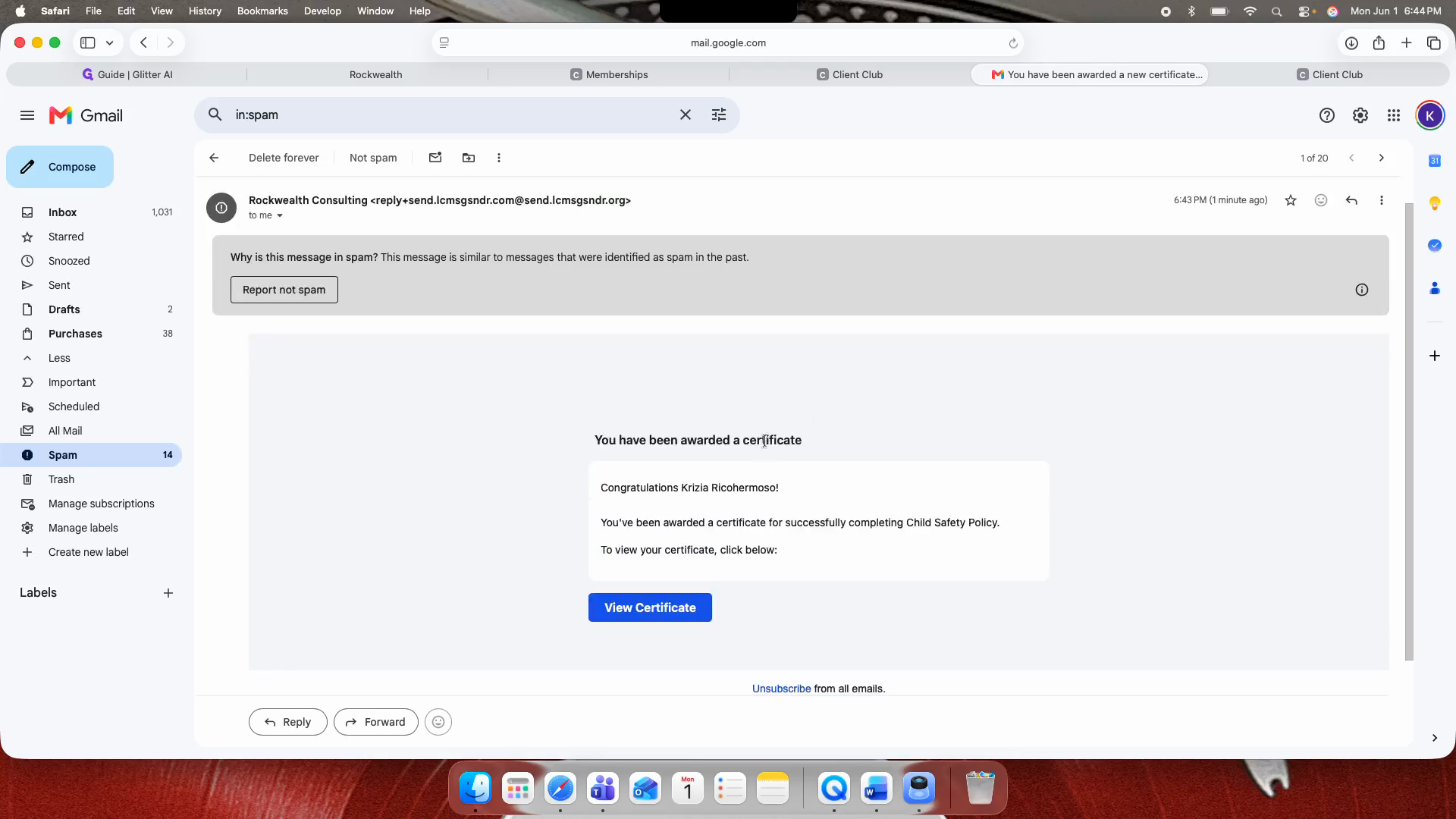
Click View Certificate to open and save your record.
Step #29: Click View Certificate to open and save your record.

Q: Should I enter a payment amount during checkout?

A: No, leave the amount field blank as it is not editable. You can proceed directly to checkout.

Q: What should I do if my dashboard says "No courses found"?

A: Click the Home icon in the upper right corner, log out, and sign back in using your registered email and password. Your assigned course should now appear.

Q: Why can't I find my certificate email?

A: Automated certificate emails are sometimes filtered by email providers. Check your Spam or Junk folder if it doesn't appear in your main inbox.