
How to Sign In and Activate Foxit PDF Editor via SSO
Learn how to sign in to Foxit PDF Editor using SSO, set it as your default PDF viewer, and resolve maximum device activation limits.
This guide explains how to activate Foxit PDF Editor using your County email credentials. Completing these steps ensures your software is fully activated and ready for use as your default PDF viewer.
This workflow applies to any employee or team member setting up Foxit PDF Editor for the first time or reactivating their license on a new computer.
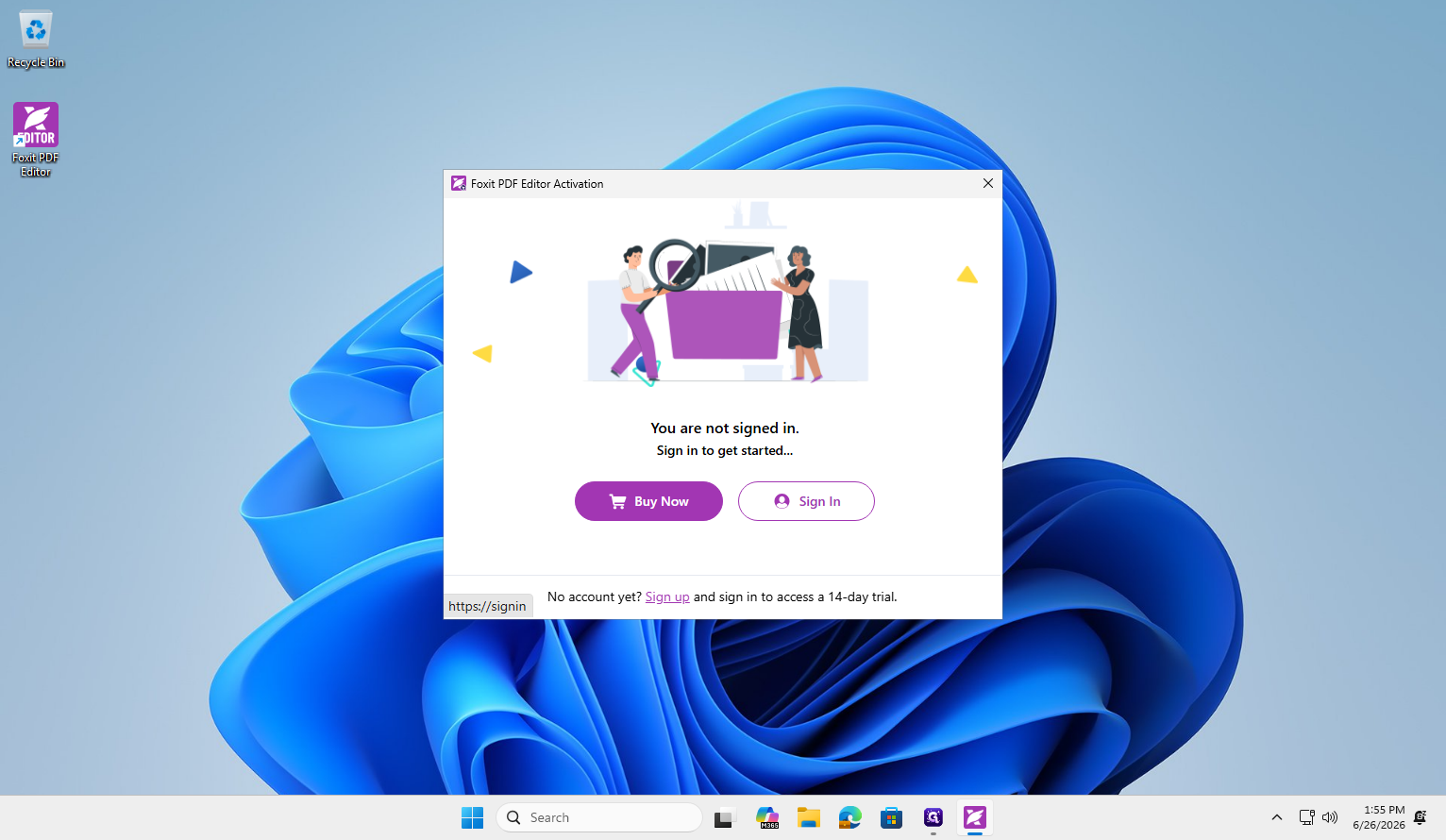
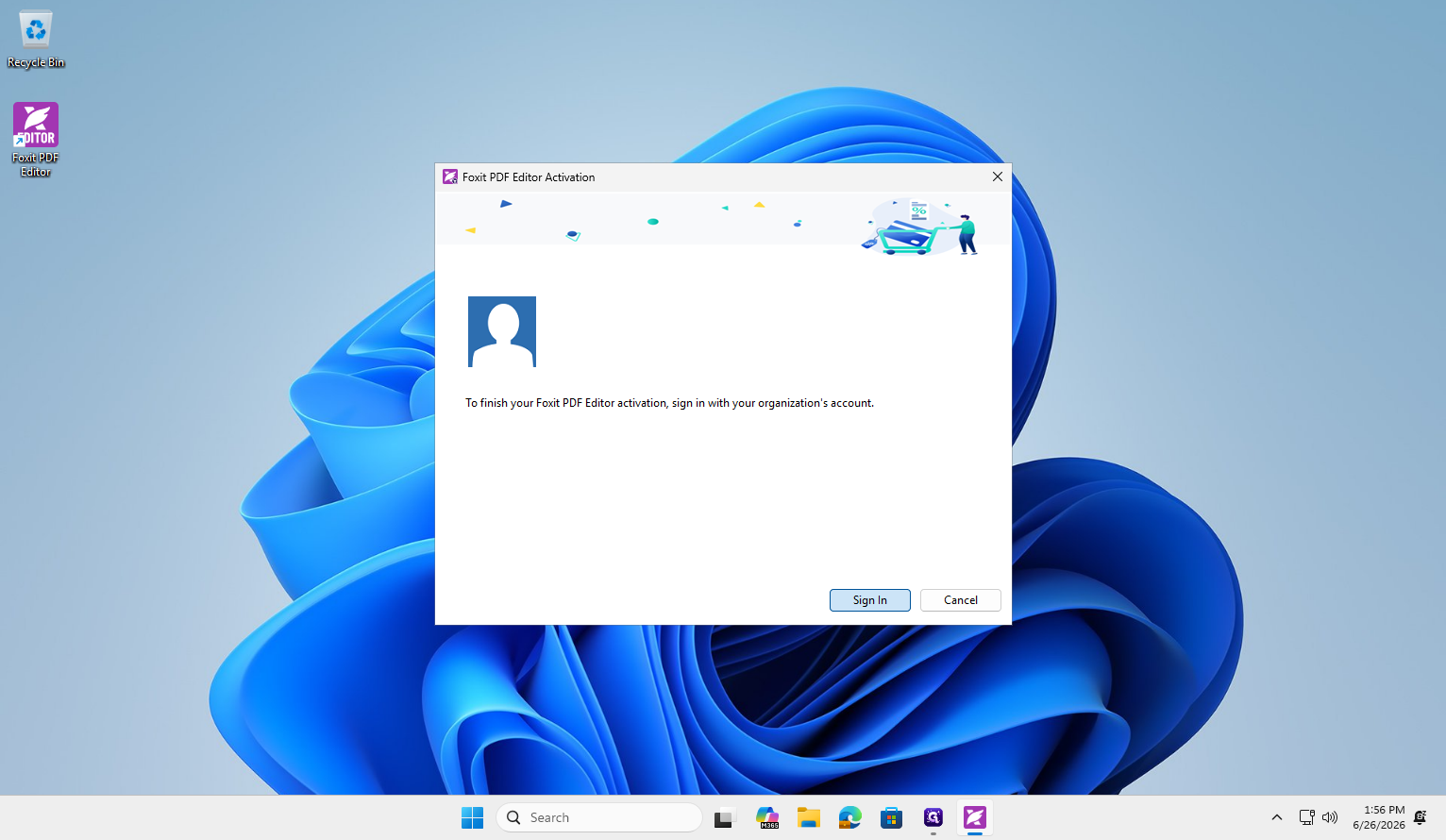
Launch and Sign In

Set as Default Viewer (Optional)
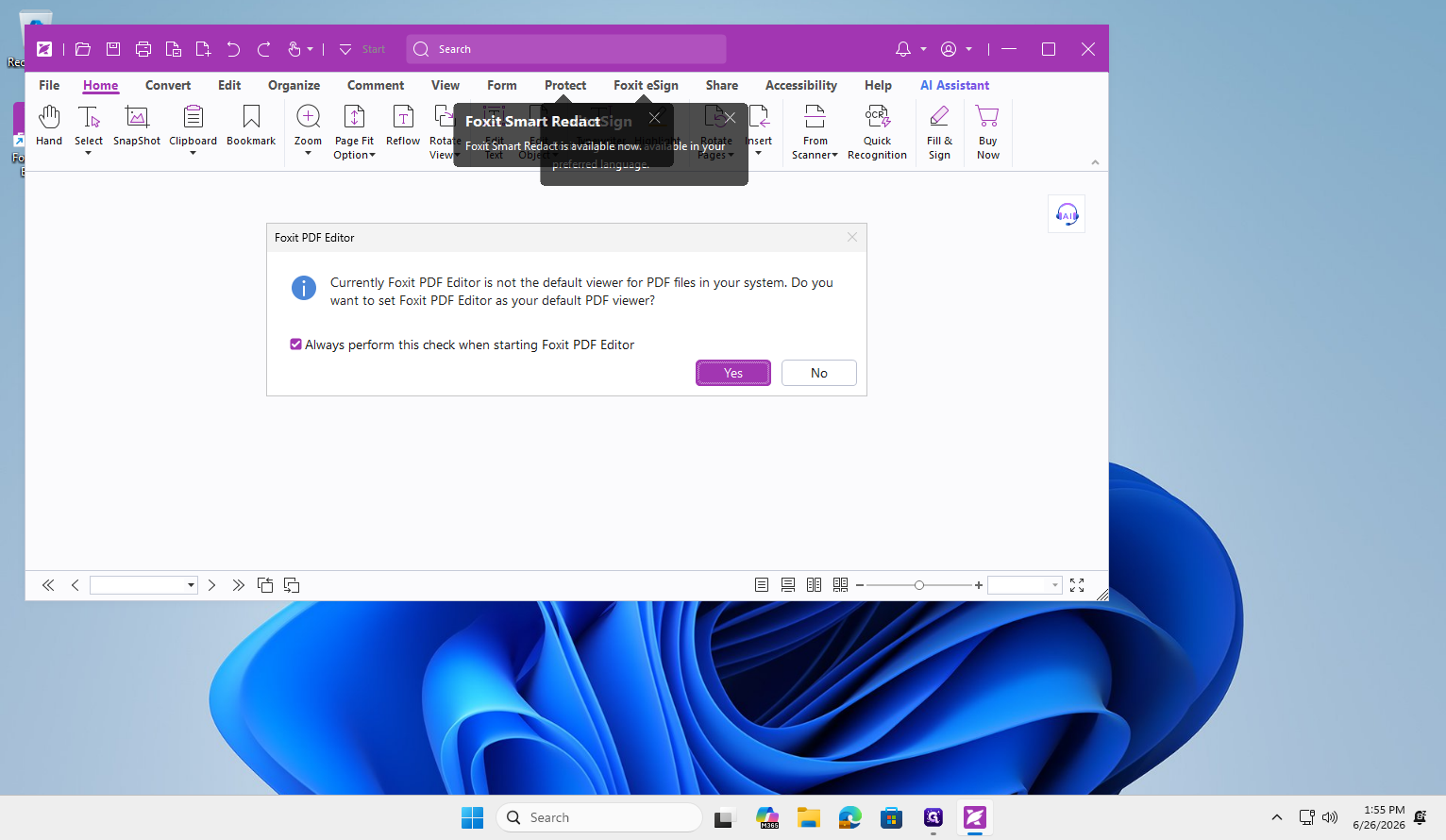
.pdf files.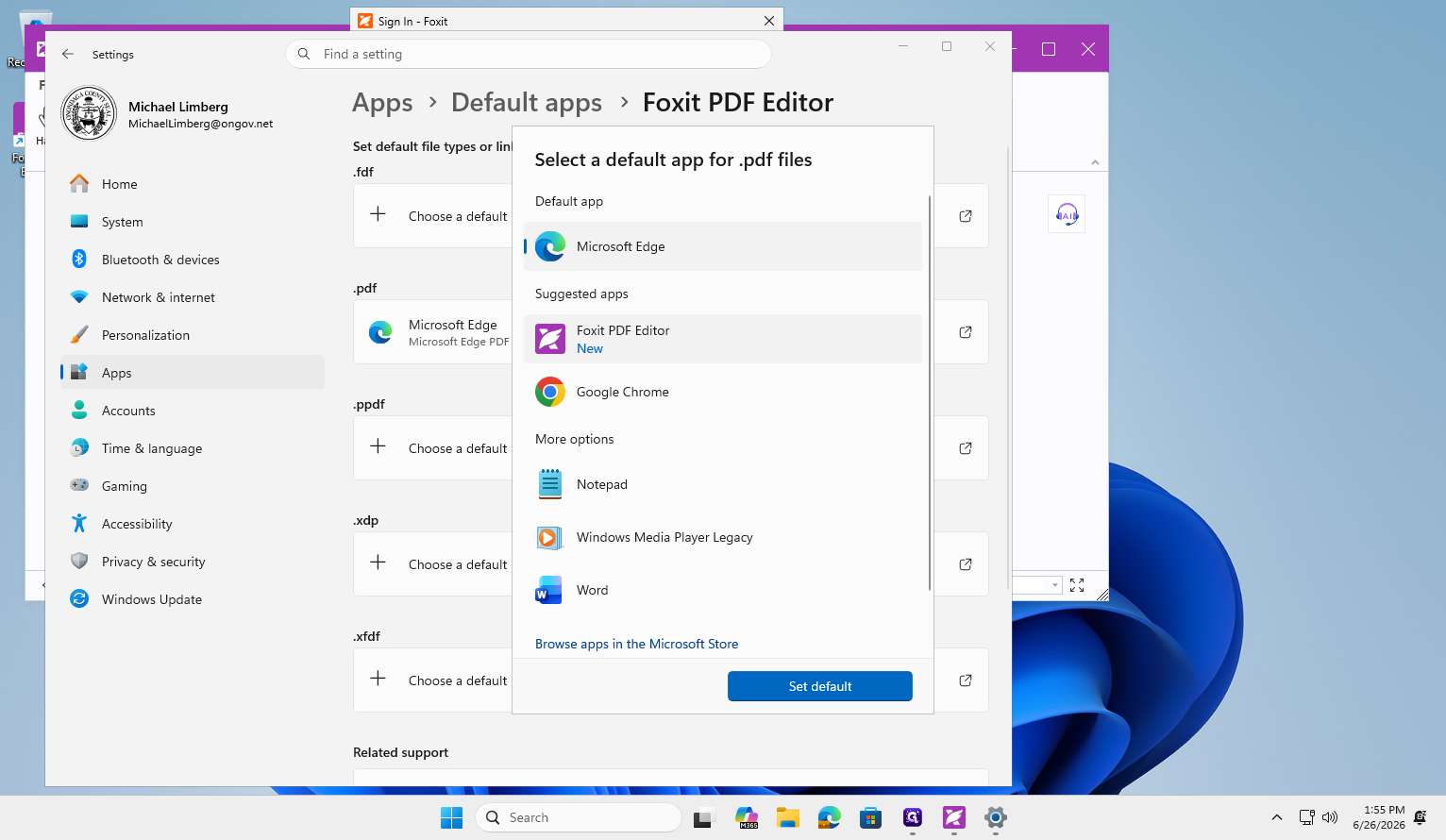
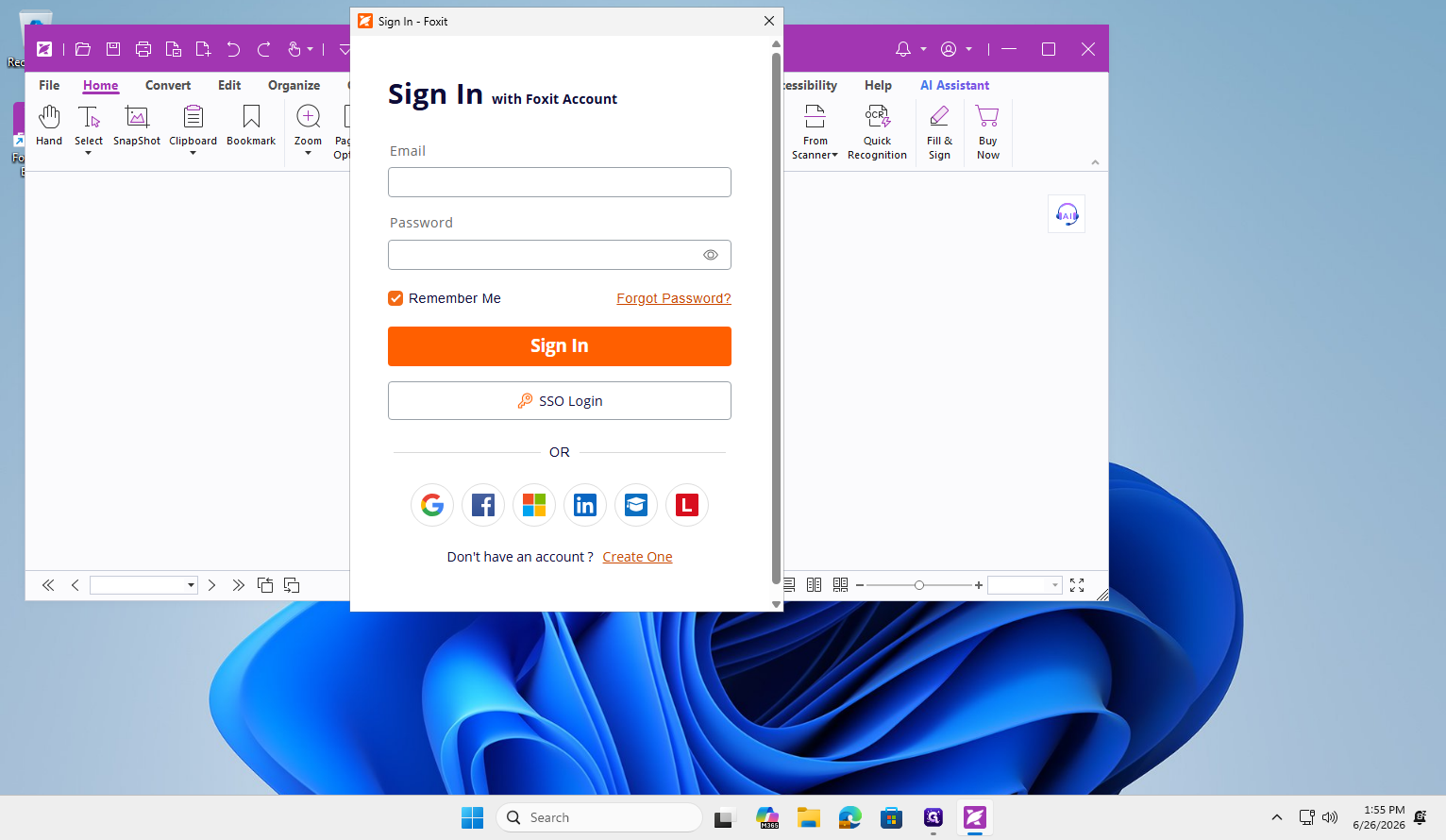
Authenticate via SSO
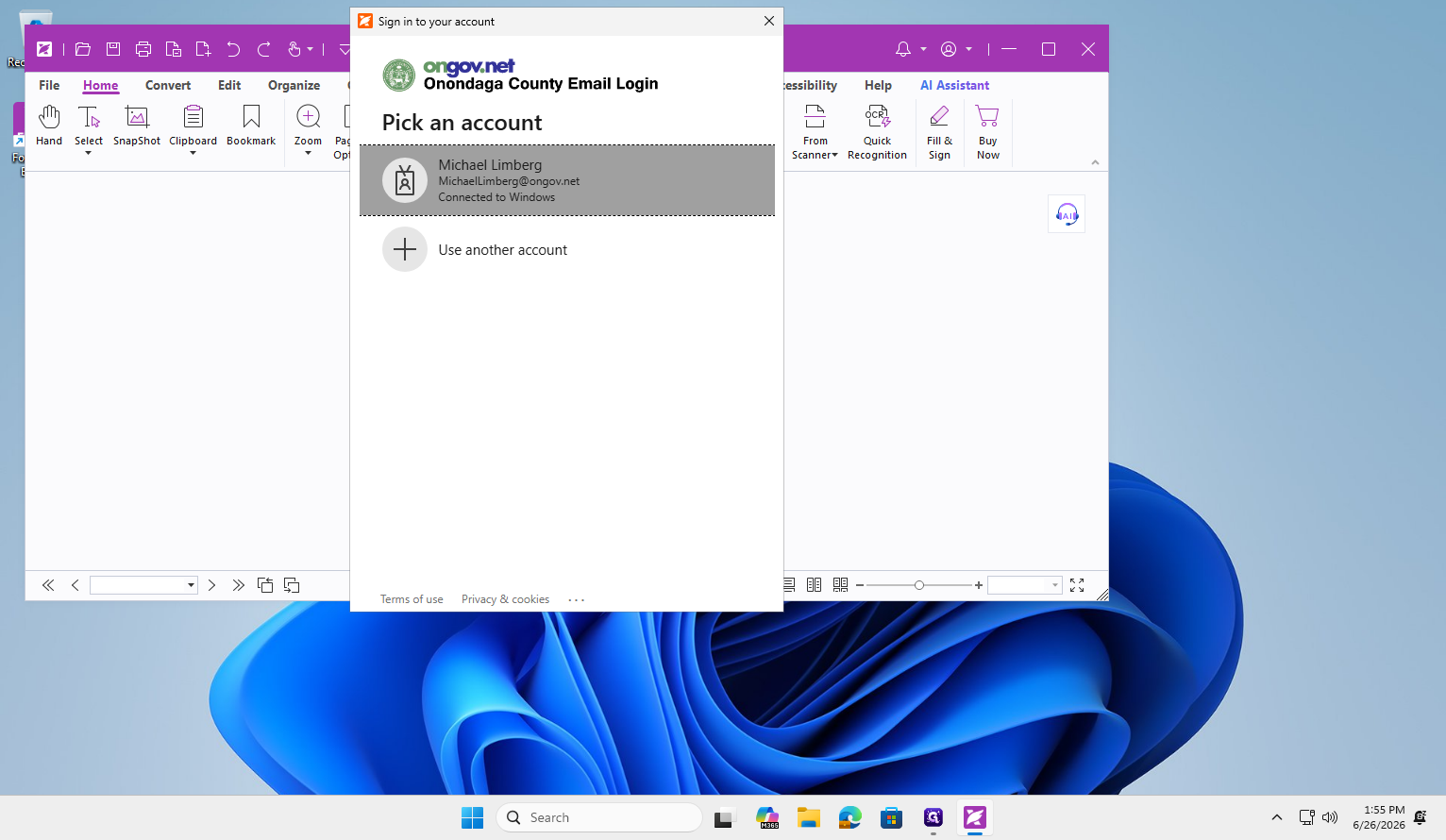
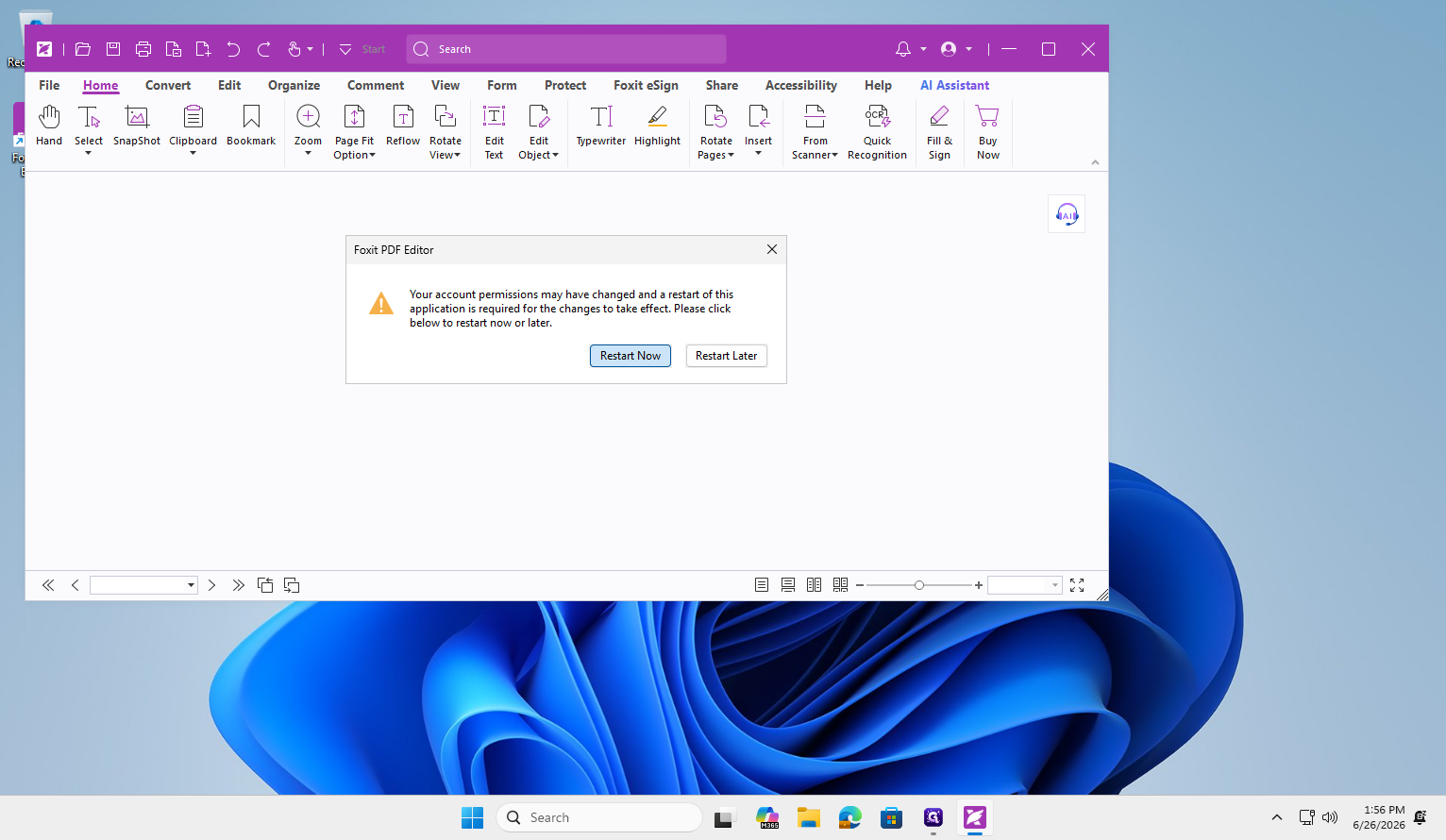
Resolve Activation Limits
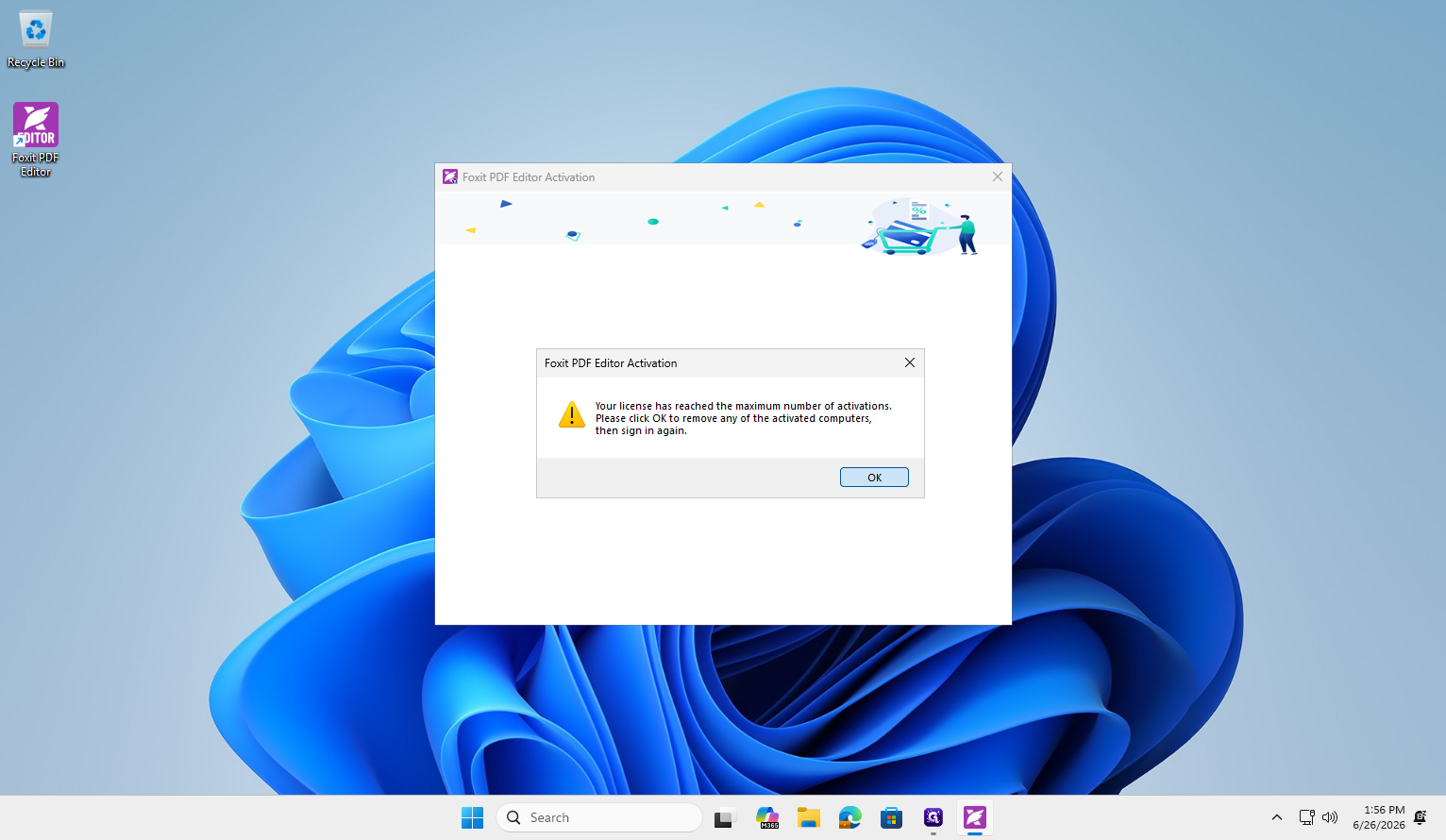
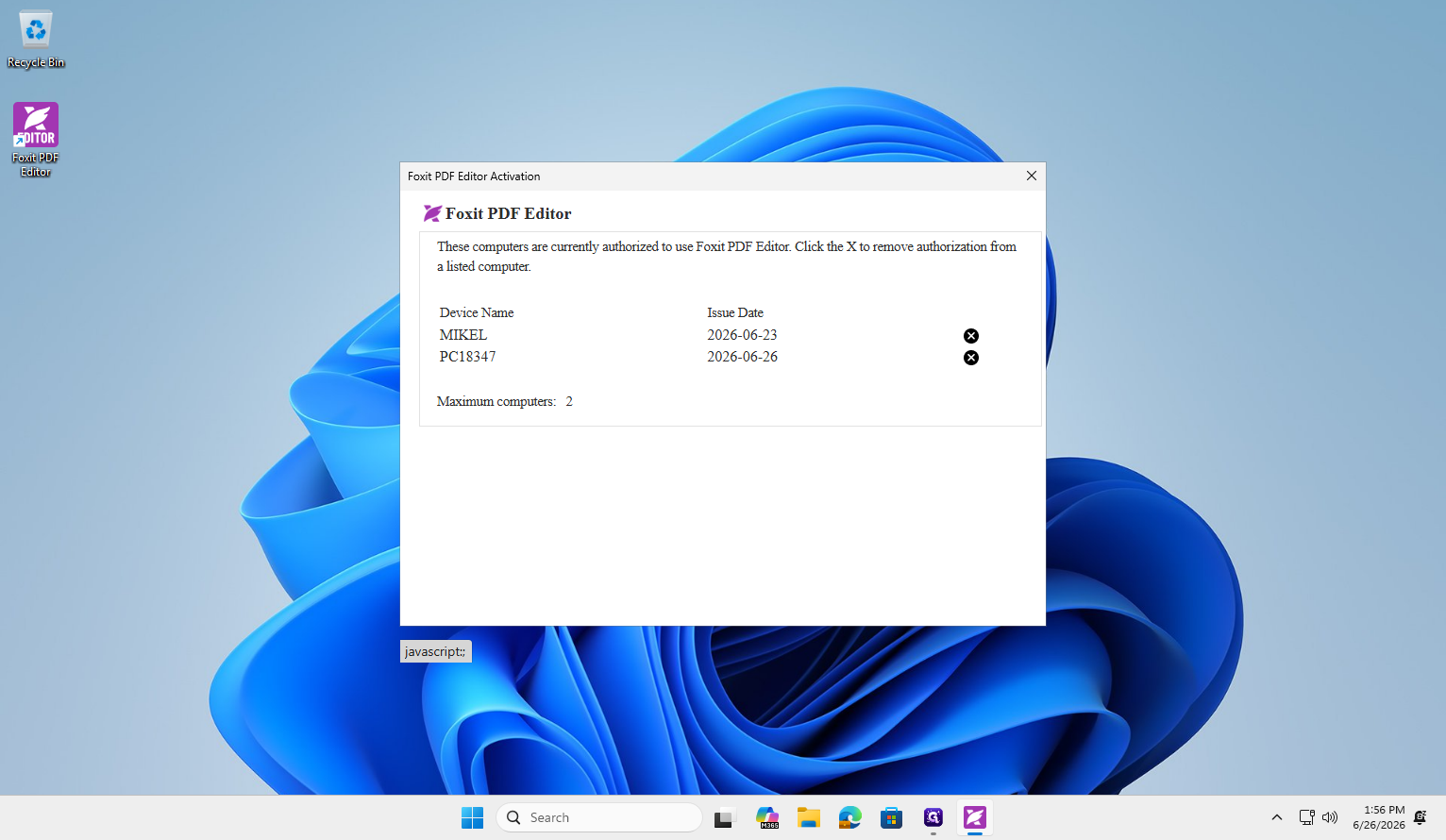
Q: Why did I receive a maximum activations error?
A: Foxit PDF Editor allows a limited number of device activations per license. If you hit this limit, you must remove authorization from an older or unused device before signing in on a new one.
Q: What is SSO Login?
A: SSO (Single Sign-On) allows you to log in using your organization's standard email credentials rather than maintaining a separate password for Foxit PDF Editor.
Q: Why did the application prompt me to restart?
A: After logging in via SSO, the application downloads your updated account permissions. A restart is required to fully apply these updates to the editor.
Term | Definition |
|---|---|
SSO (Single Sign-On) | An authentication method that allows users to securely log in to multiple applications using one set of organizational credentials. |
.pdf (Portable Document Format) | A file format used to present documents in a manner independent of application software, hardware, and operating systems. |