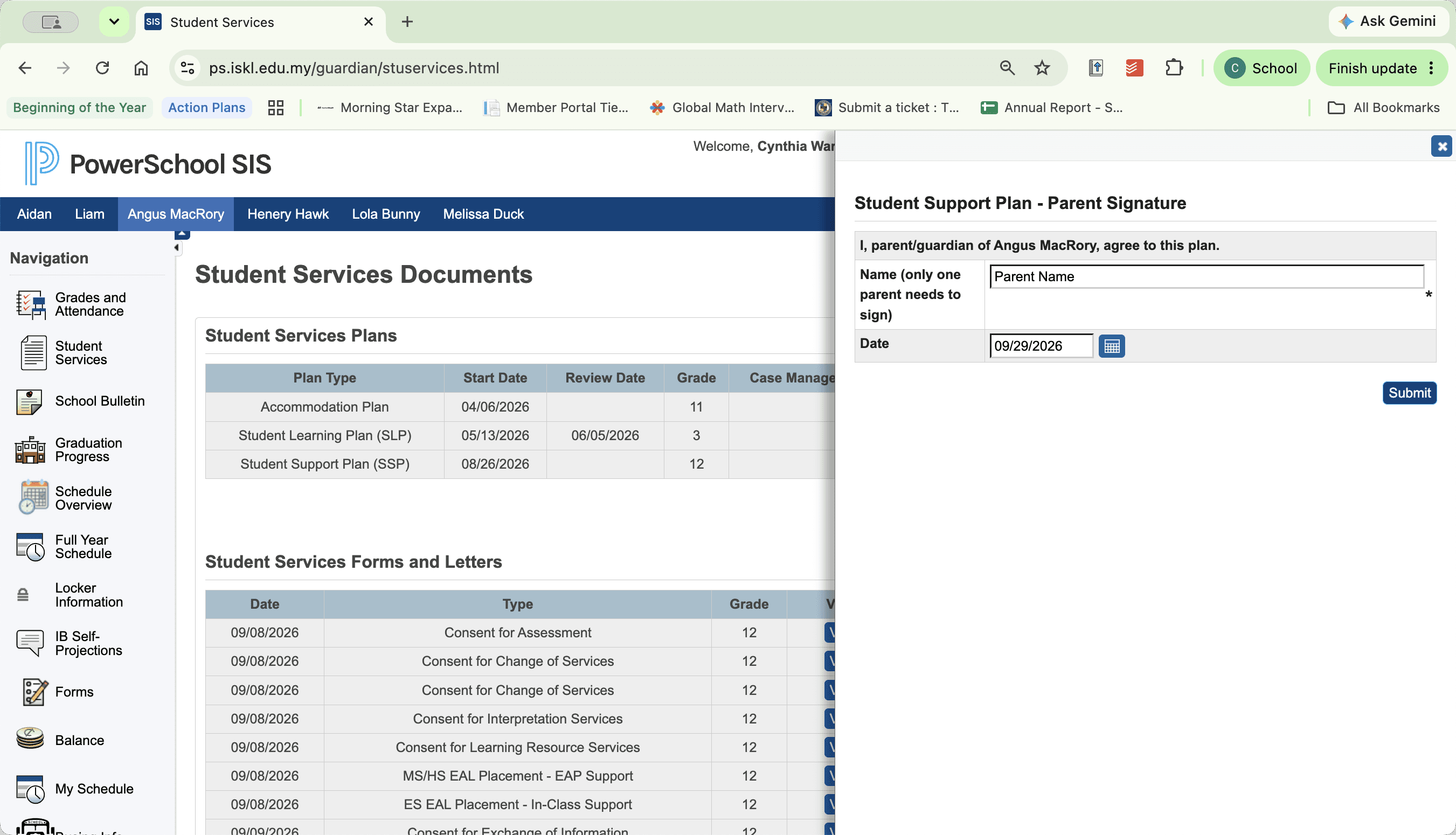
Sign a Student Support Plan in PowerSchool
Learn how to access, review, and electronically sign a student support plan in the PowerSchool Parent Portal.
By Cindy Warner-Dobrowski
Access Student Services
1
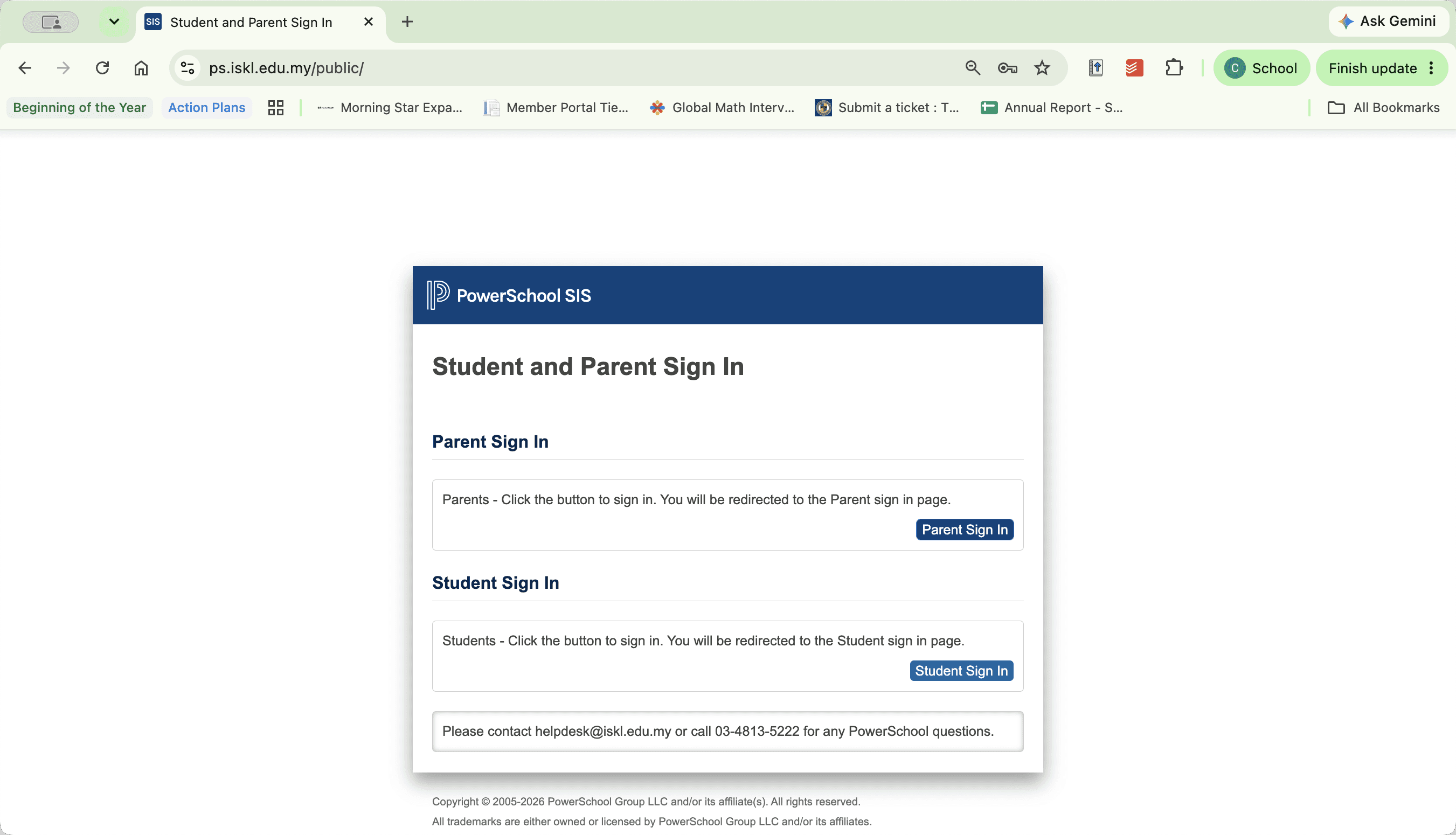
Click Parent Sign In on the PowerSchool sign-in page (https://ps.iskl.edu.my/public/).
2
Select your student's name tab from the top row.
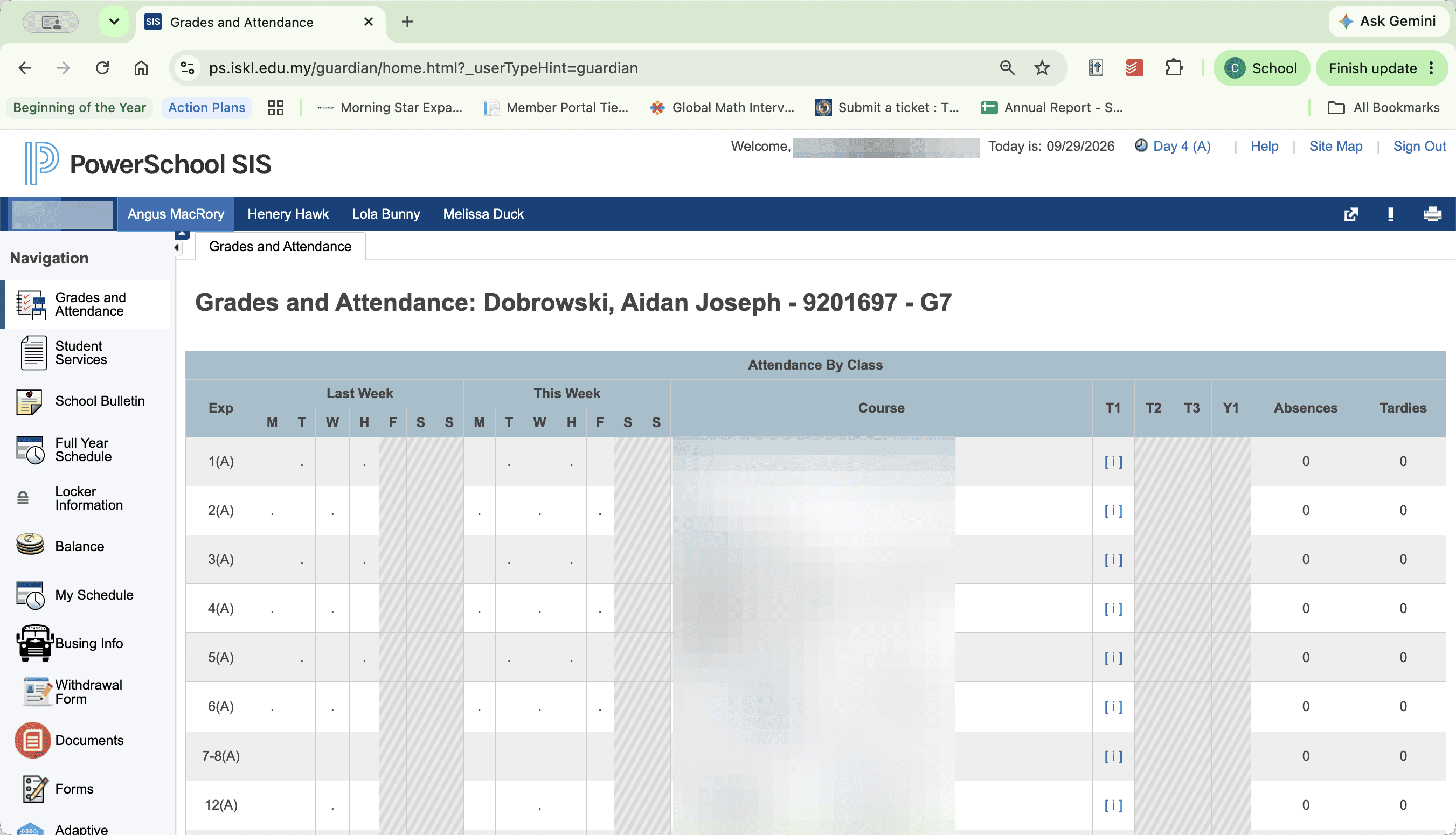
If you have multiple students linked to your account, make sure you select the specific student whose plan you need to review.
3
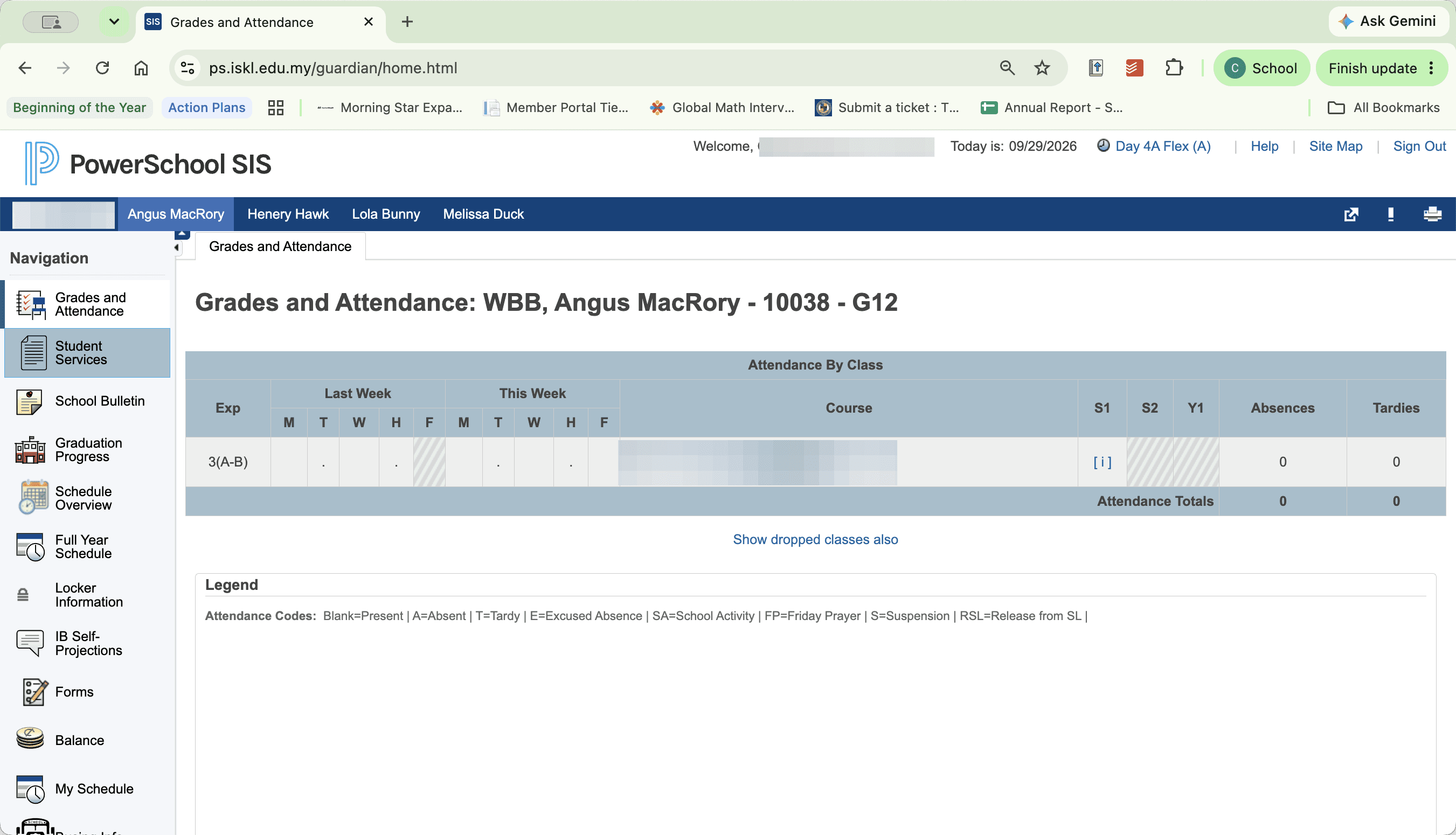
Click Student Services in the left navigation panel.
Review and Sign the Plan
1
Click View Plan to open and review the support plan document.
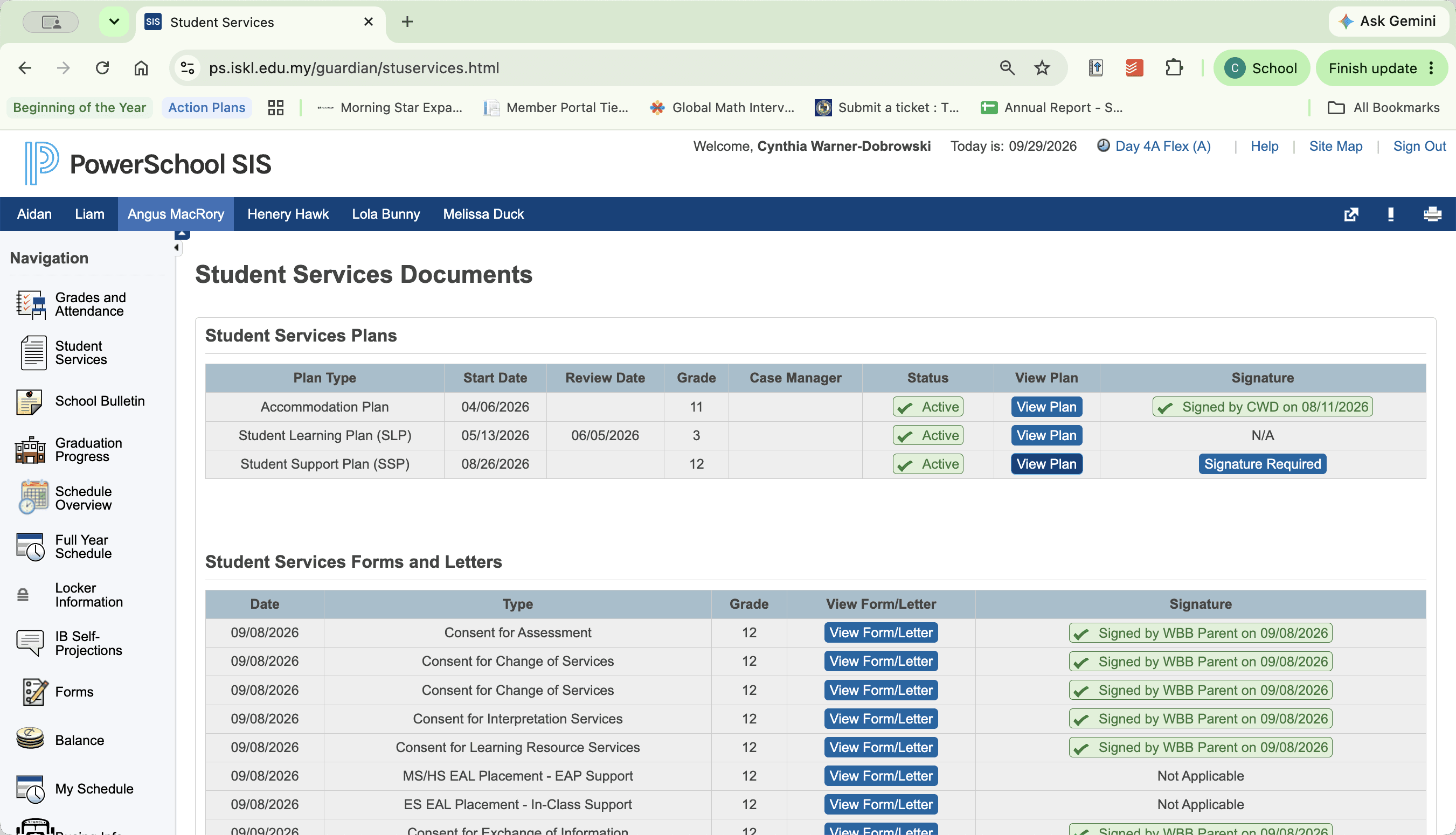
Review all plan details and accommodations thoroughly before closing the plan and continuing to sign.
2
Click Signature Required in the Student Services table.
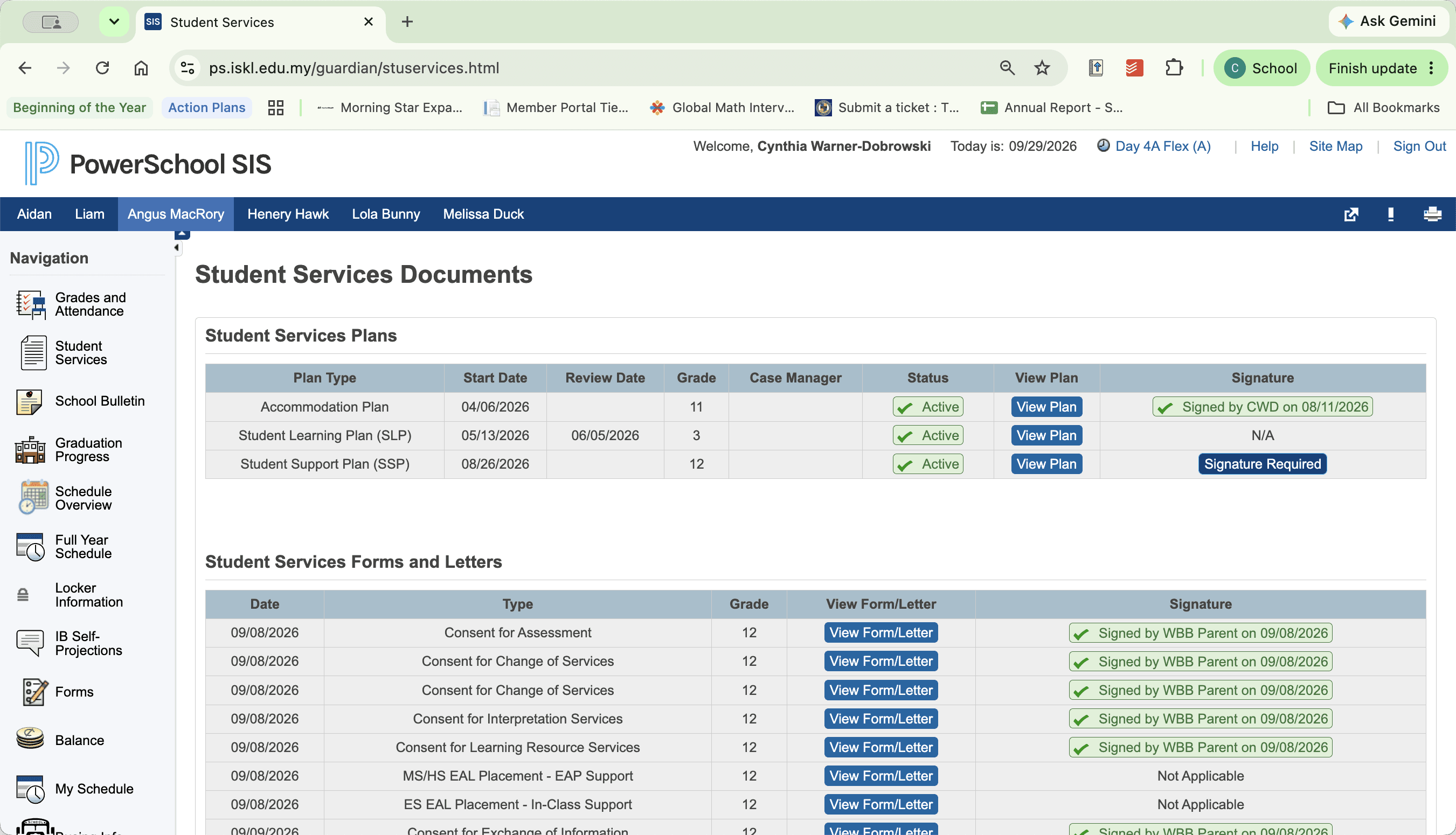
This opens the Student Support Plan - Parent Signature panel where you can provide your electronic signature.
3
Click the calendar icon next to the date input field and select the current date.
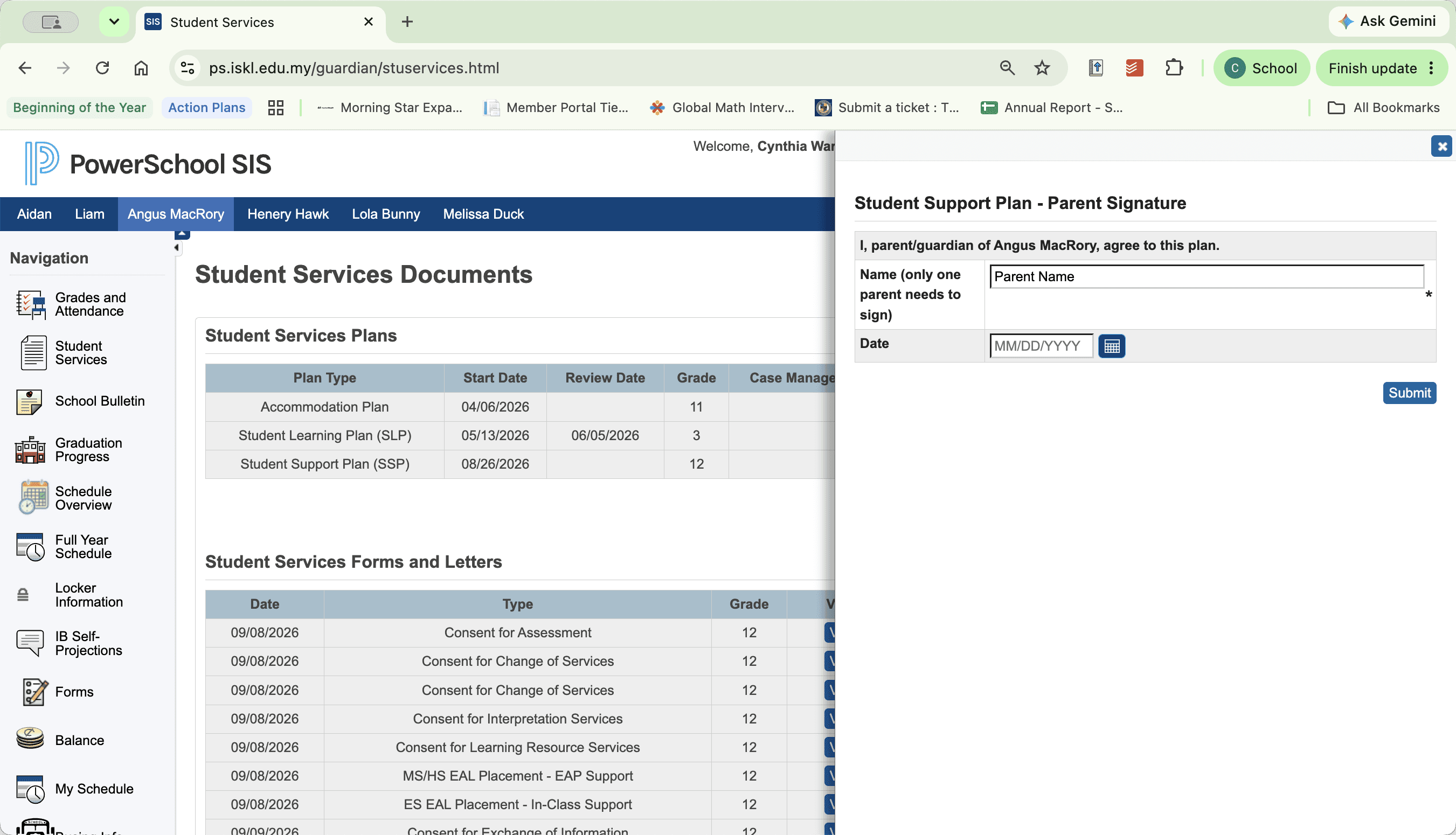
Enter your name in the designated signature field.
4
Click Submit.