Status progress: "Validator" profile
Step-by-step guide to capture sustainability data and update indicator status in DATAIE Sustainability Analytics.
By Soporte DATAIE
In this guide, you will learn step by step how to validate the indicators assigned to you as a Validator.This guide is for users with the "Validator" profile in the organization. Their main role is to review and validate the indicators that were assigned to them earlier.
Open the data entry module
1
Go to the DATAIE Sustainability Analytics portal.
2
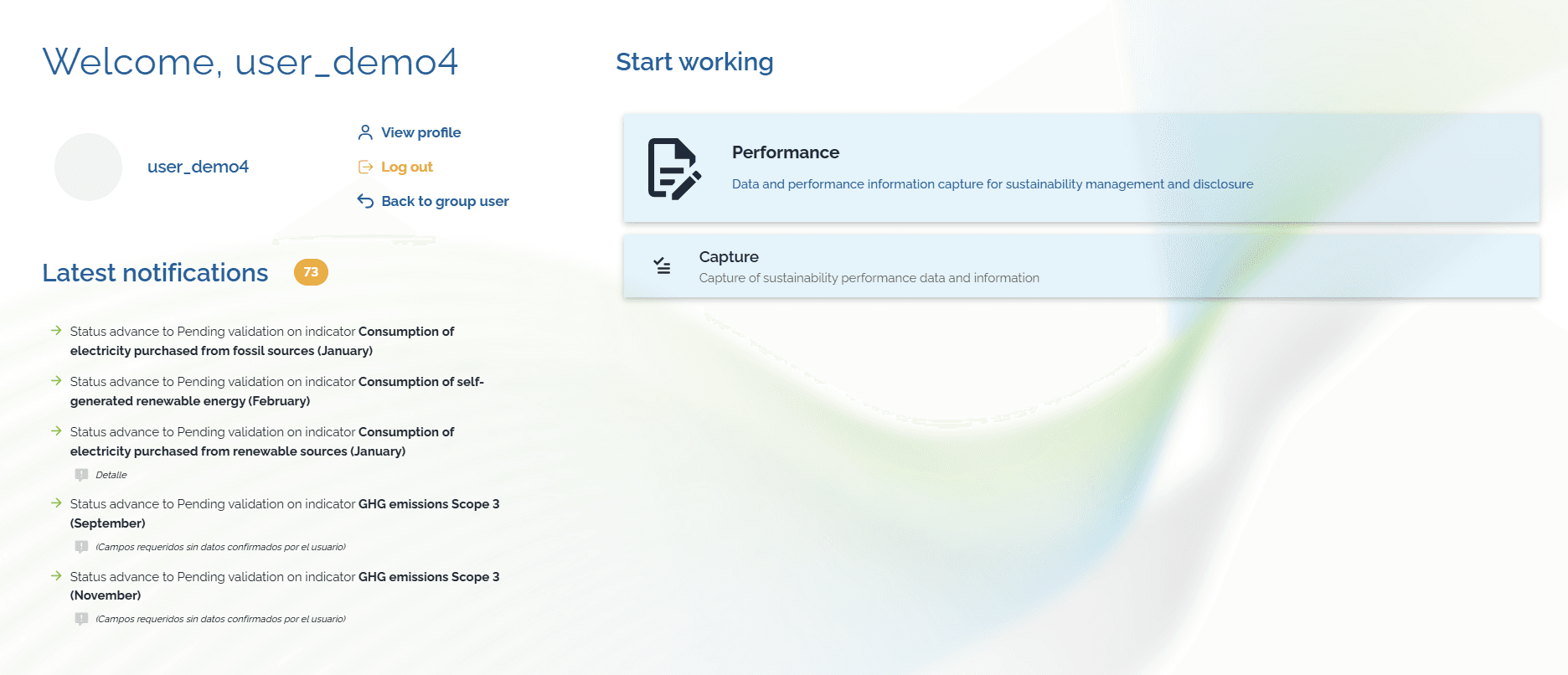
Click "Performance" and then "Capture" to enter.
Find the indicator
3
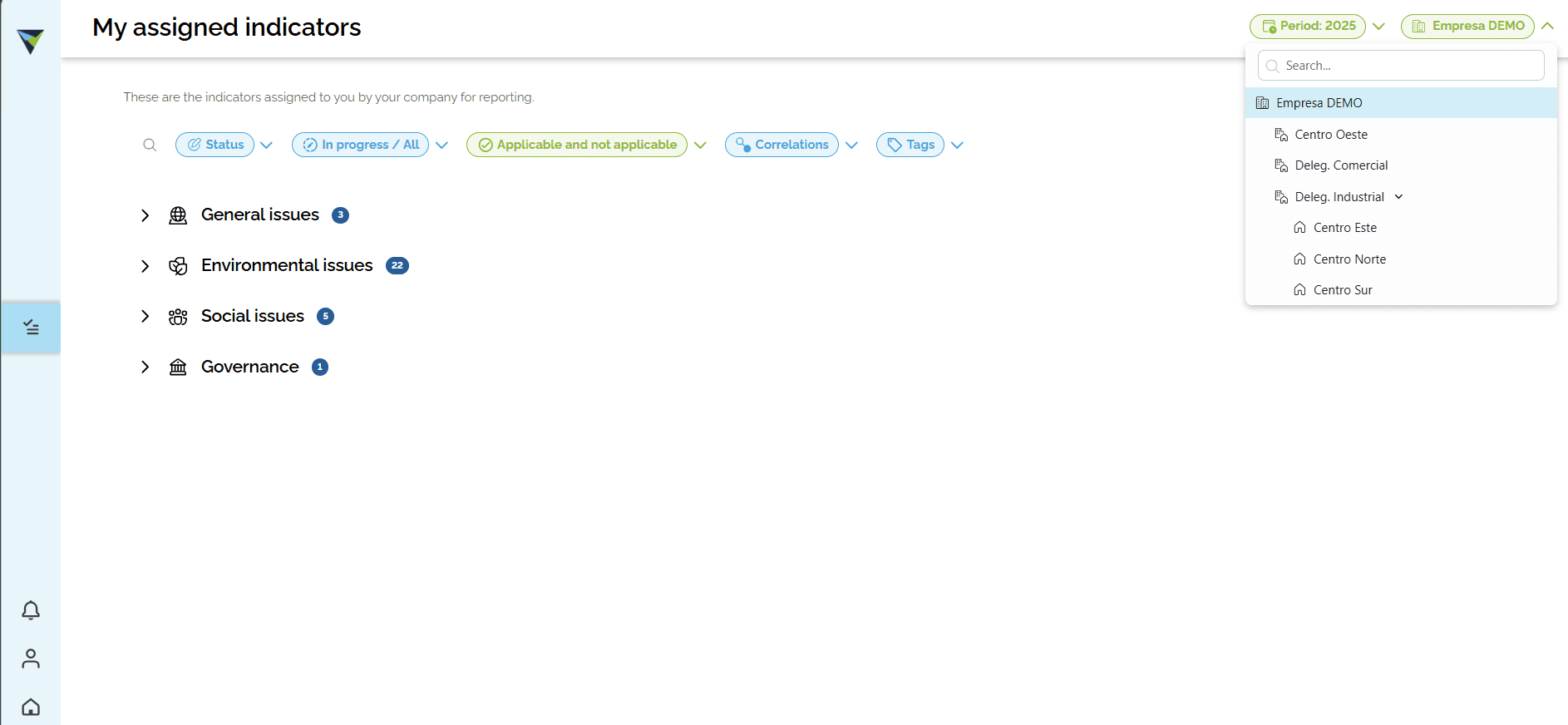
You will see the indicators assigned to your profile. If you need to, you can filter them by reporting unit or by period.
4
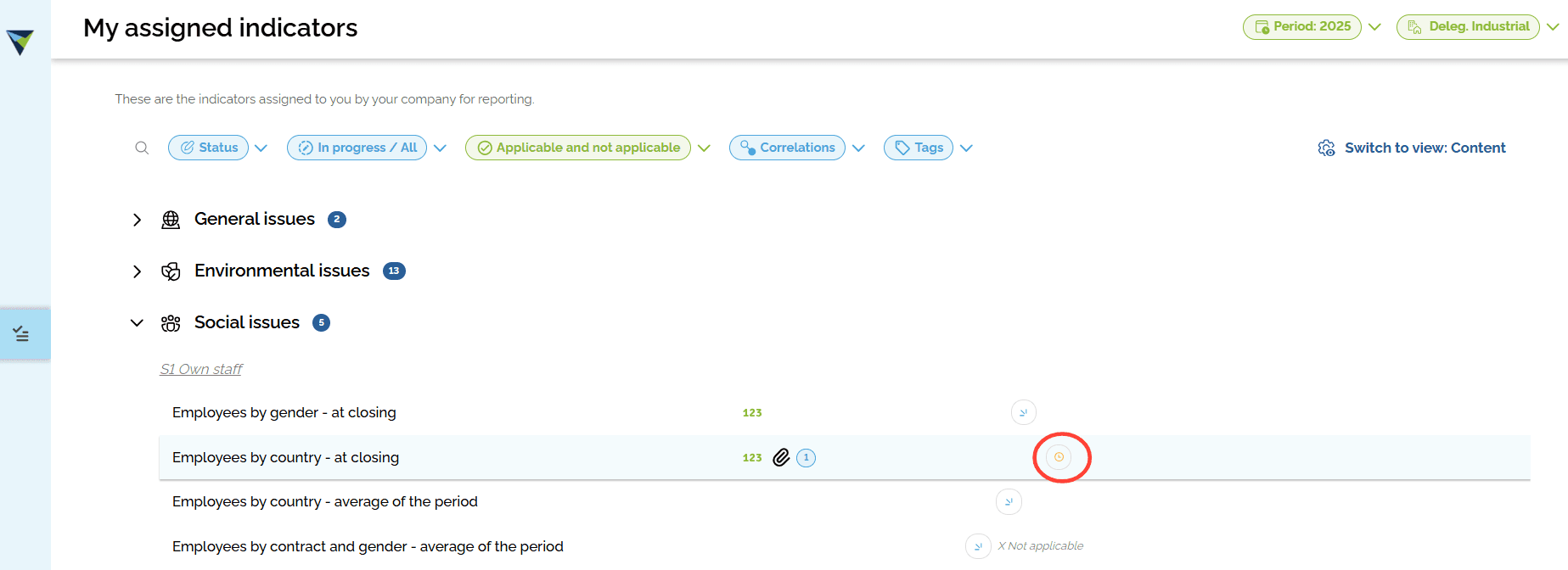
From the list of assigned indicators, select the one you want to validate. It will have the status "Pending validation". This means the data has already been entered and the indicator is ready to be validated.
Validate the information
5
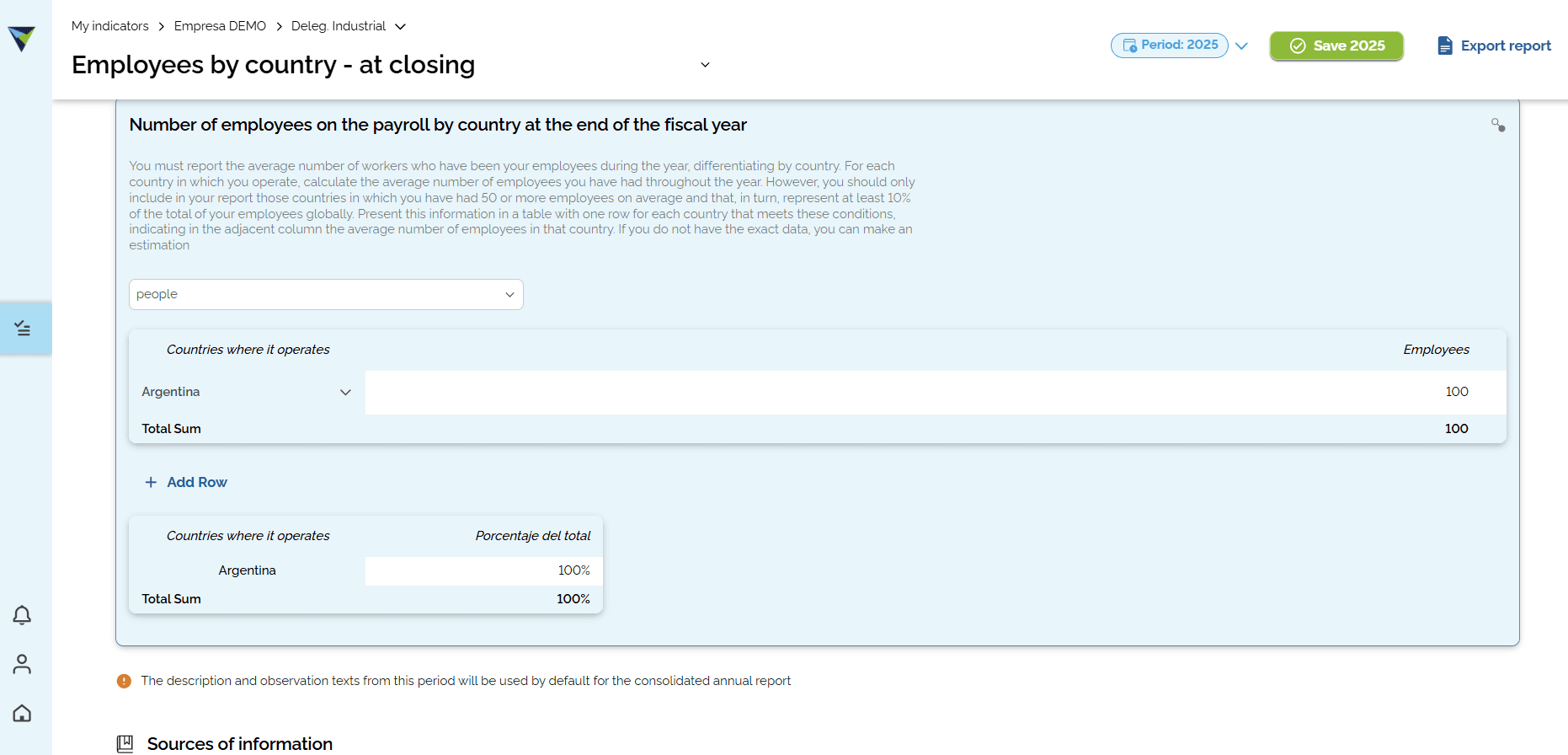
Inside the indicator, you will find the data you need to validate. Review it and check that the information entered is correct.
6
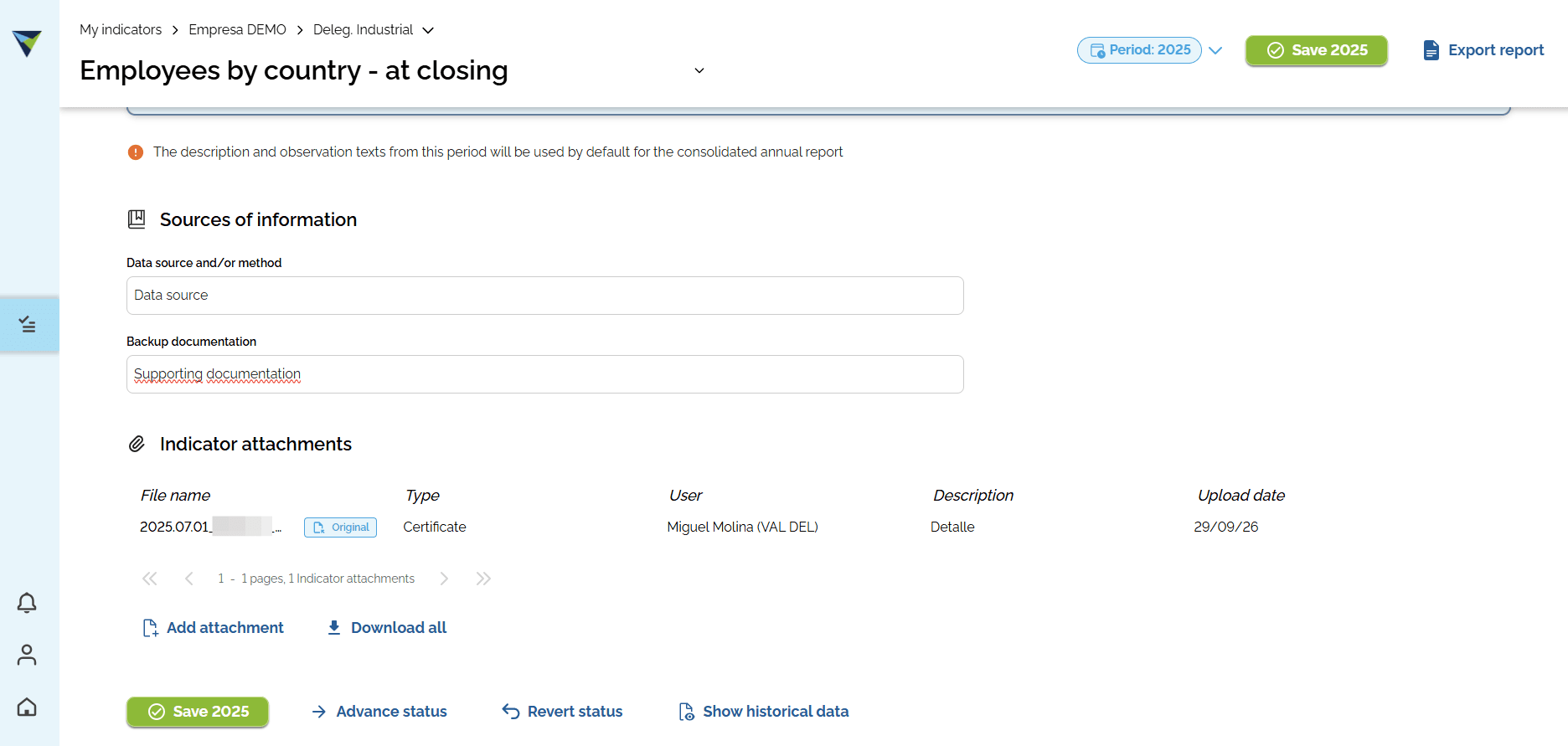
At the bottom, you will find fields that help you with this task, such as "Data source and/or method used to obtain the data"", "Backup documentation" and "Attachments". All the evidence needed for validation should be attached here.
Update and advance the status
7
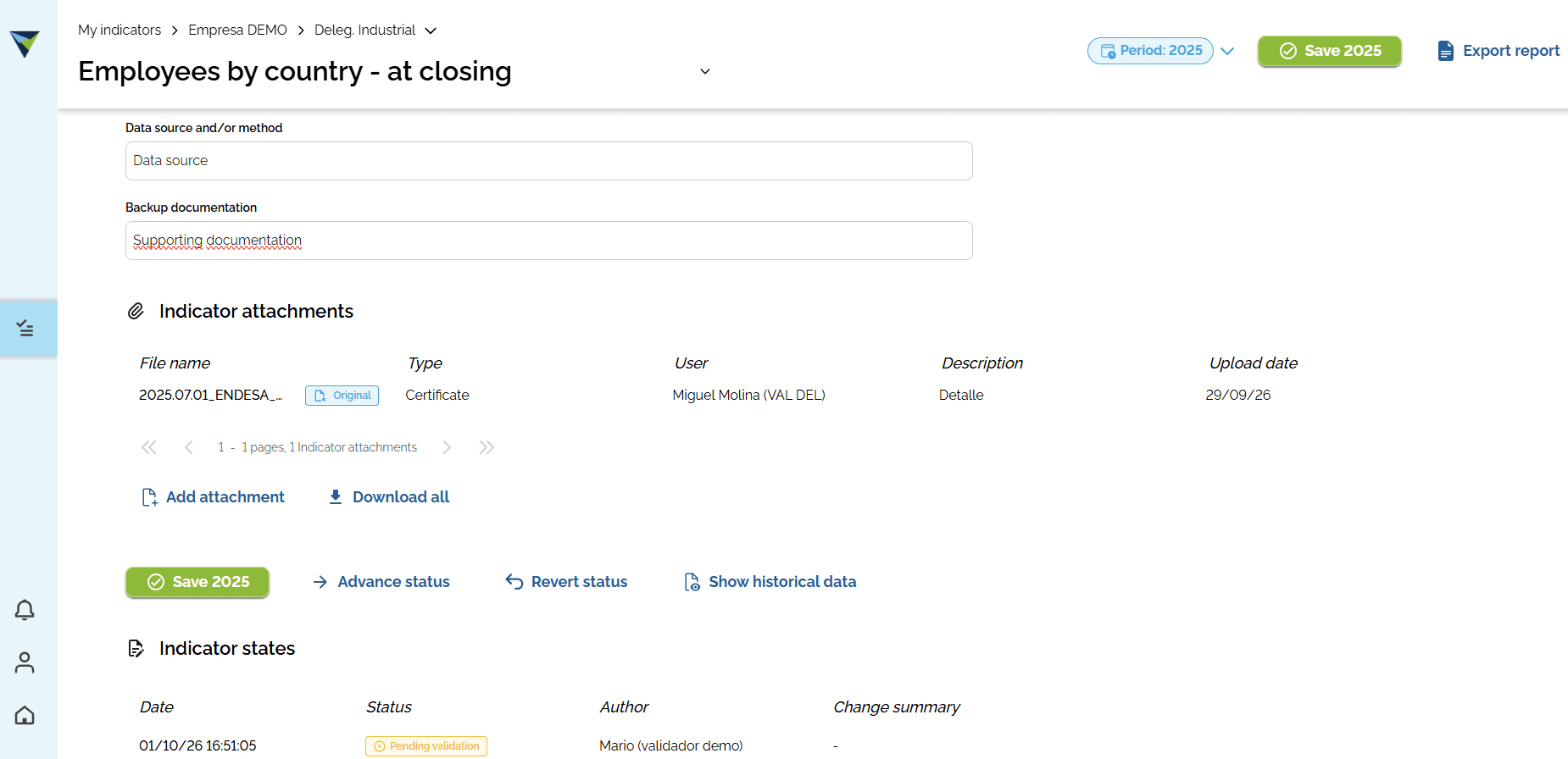
After you check the information, you can validate the indicator. To do this, click the "Advance status" button.
8
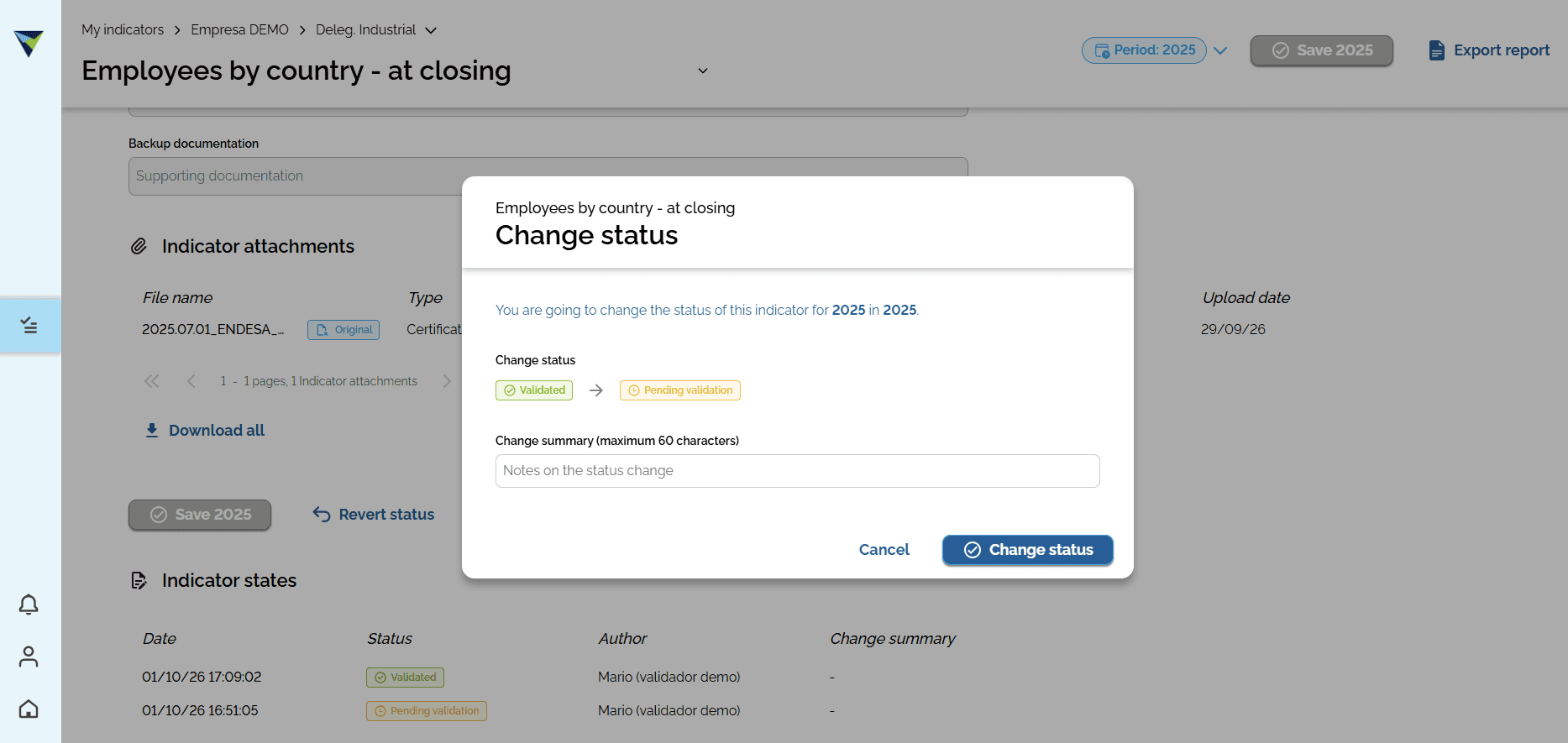
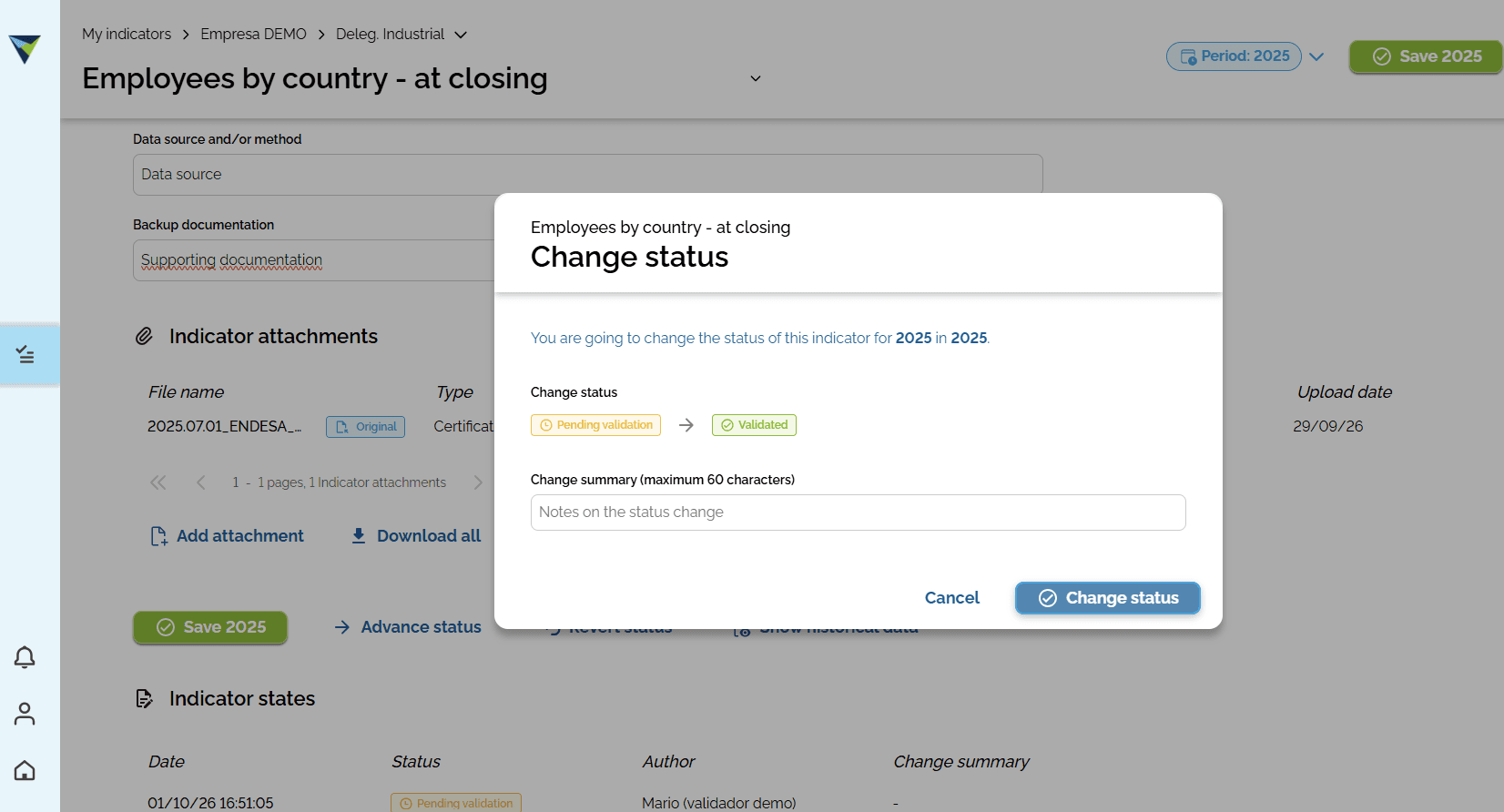
A window will appear showing the status change. If you want, you can add a note in the "Change summary" field. Then click "Status change" to continue.
9
At the bottom, you can see the date of the status change, the new status "Validated", the author or person responsible for the change, and the summary you added.

Revert the status (optional)
10
If needed, you can revert the indicator status back to "Pending validation" or "New". This is useful, for example, when the indicator was validated by mistake and you need to add more information or evidence