
Step 2 How to Create and Format Mail Merge Labels in Microsoft Word Part 1
Learn how to set up, filter data, and format custom mail merge labels in Microsoft Word using an existing template and an Excel data source.
This guide explains how to set up and format custom mail merge labels in Microsoft Word using an existing template and a spreadsheet data source. Completing this ensures you can efficiently generate accurate, properly formatted tags for students or attendees without printing blank entries.
This workflow is ideal for administrative staff or event coordinators who need to generate custom car rider tags, name badges, or mailing lists. It should be used after preparing your recipient data in a CSV or Excel file.
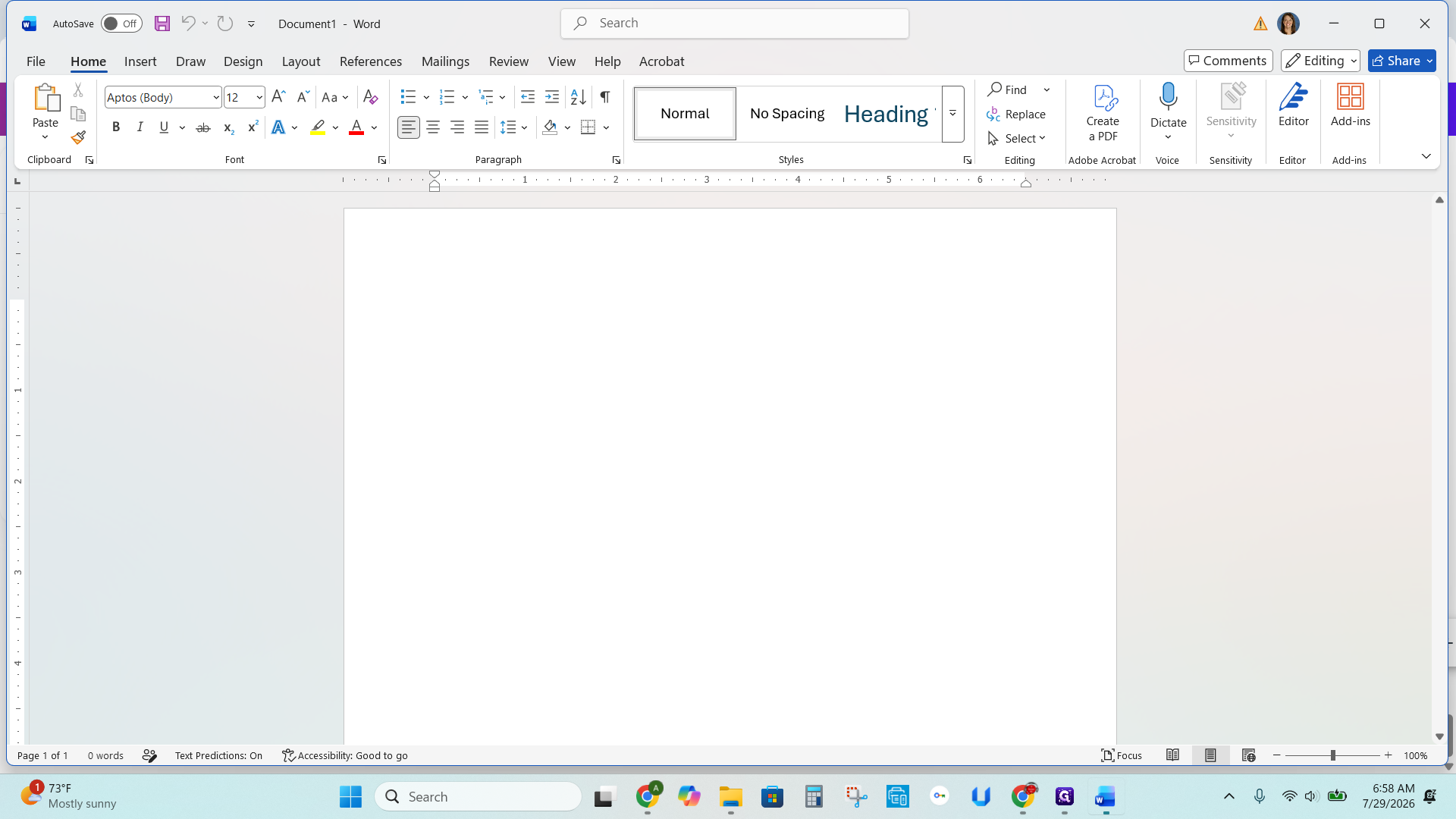
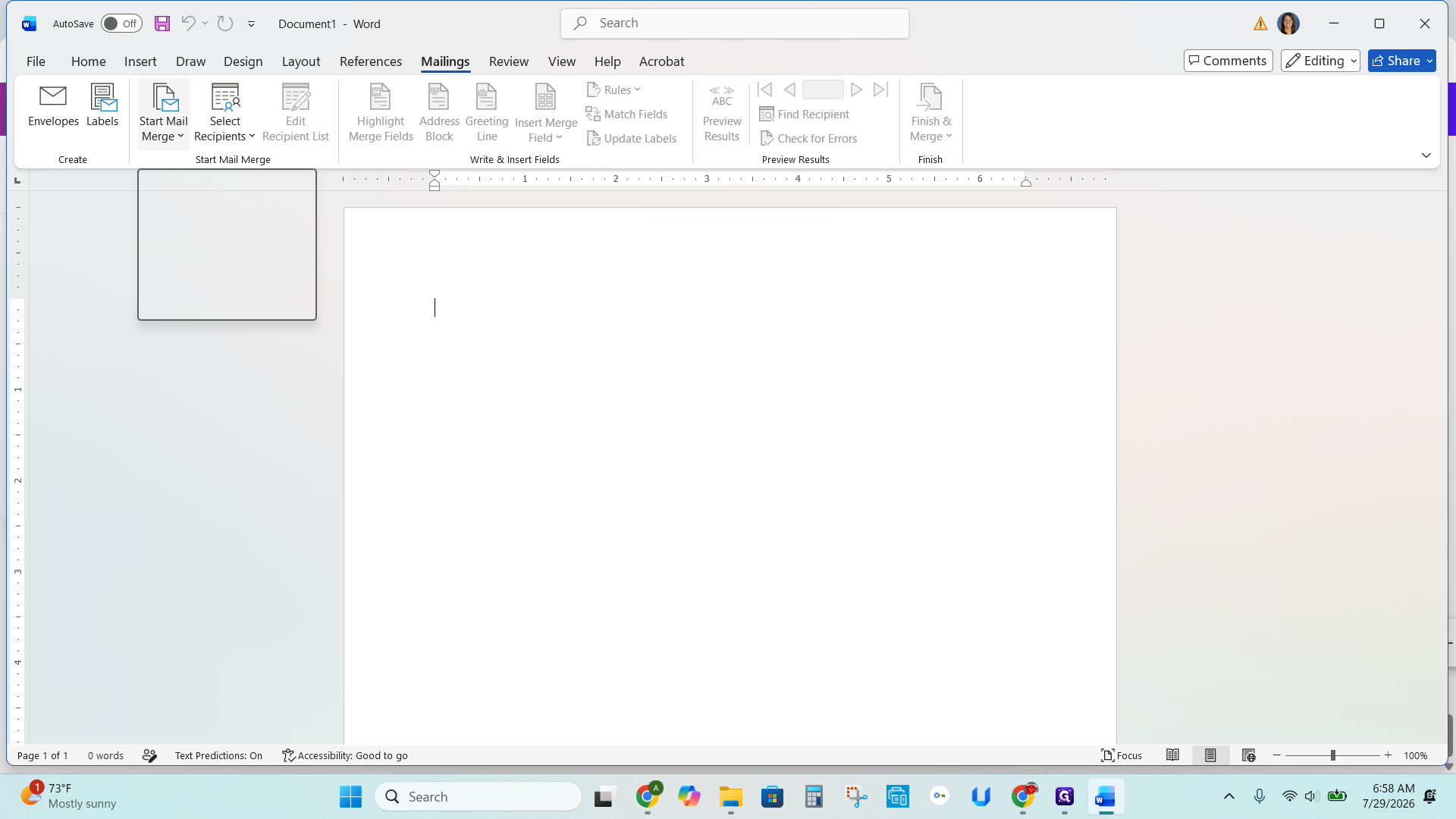
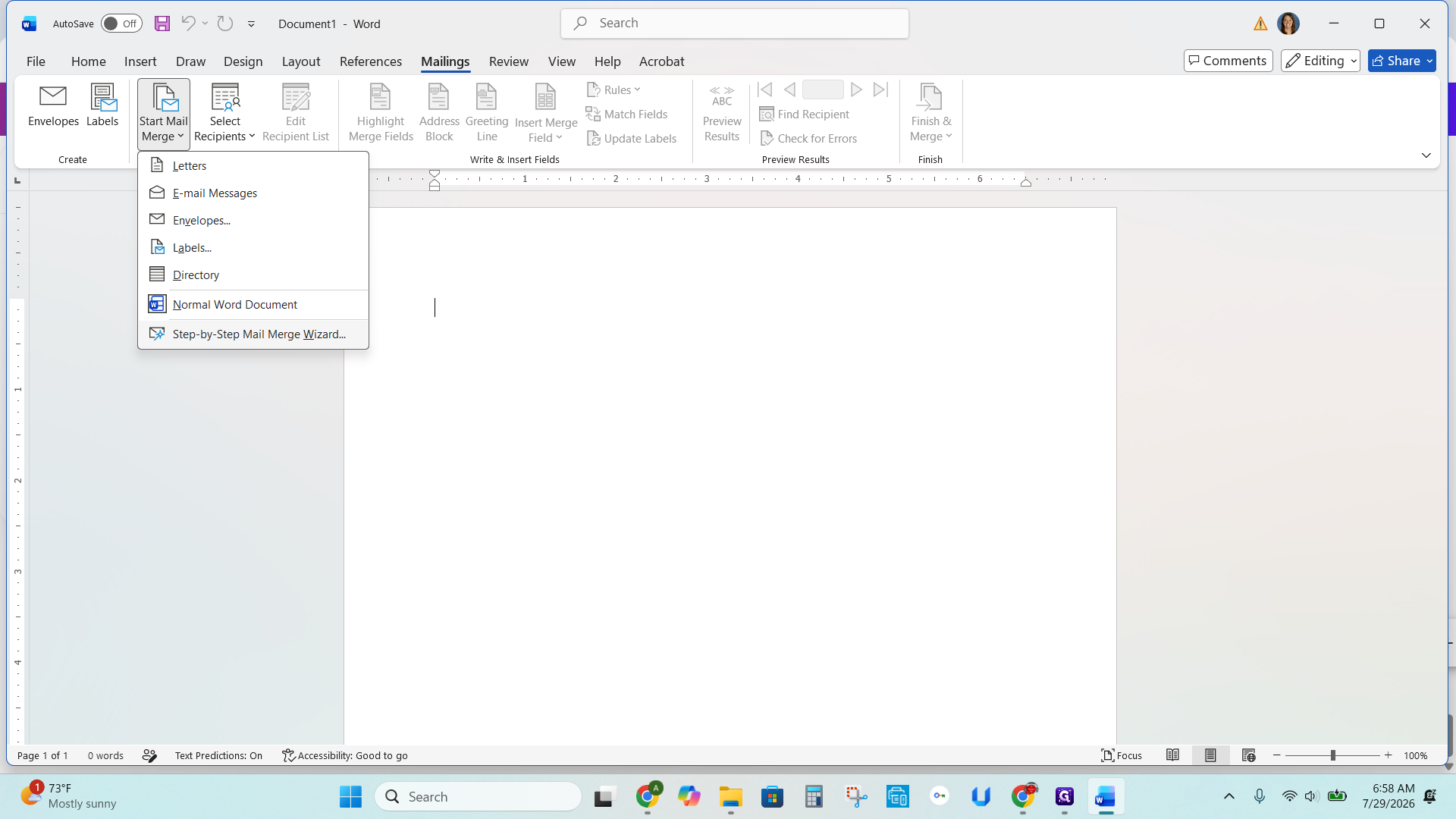
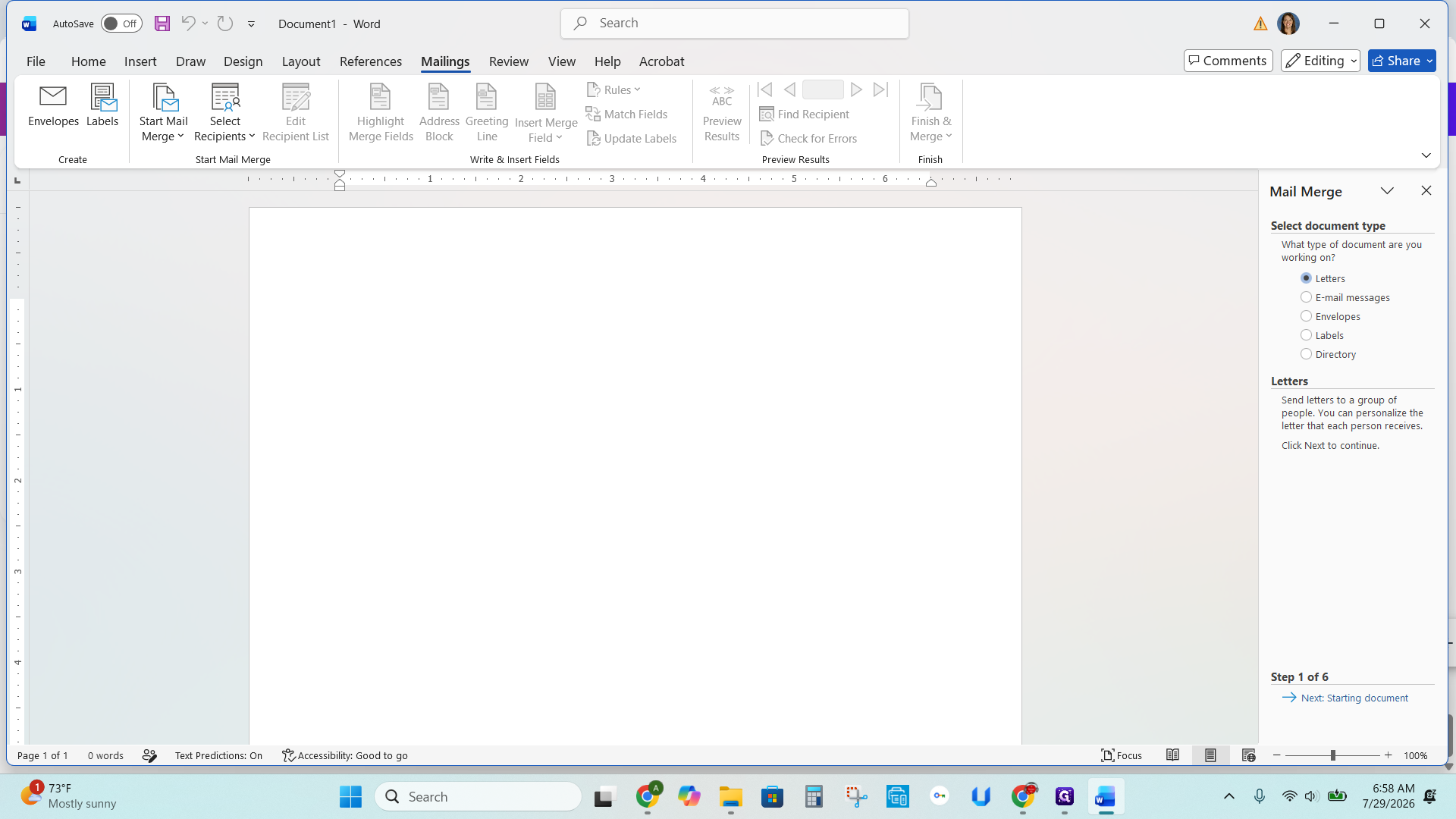
Start the Mail Merge
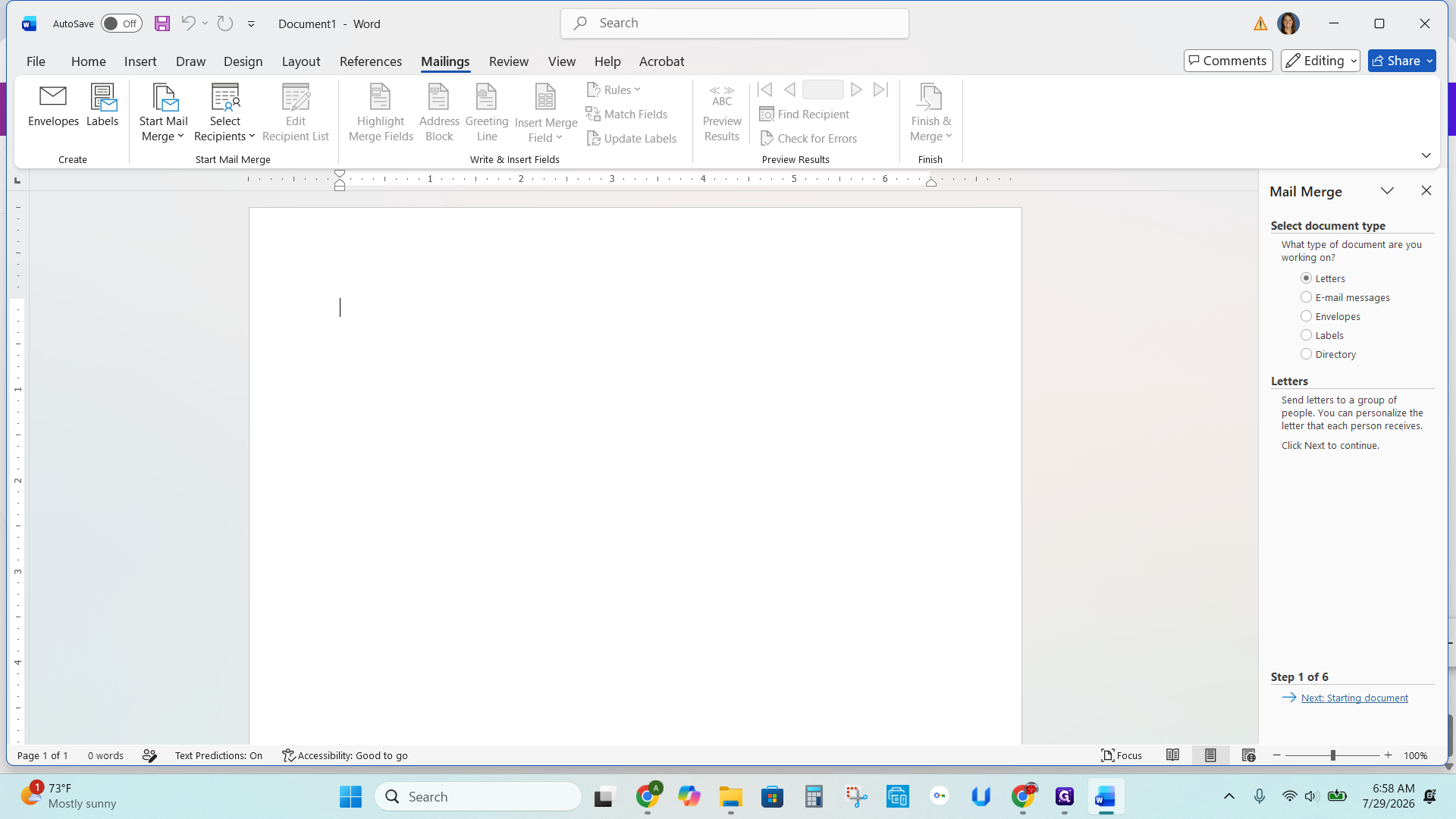
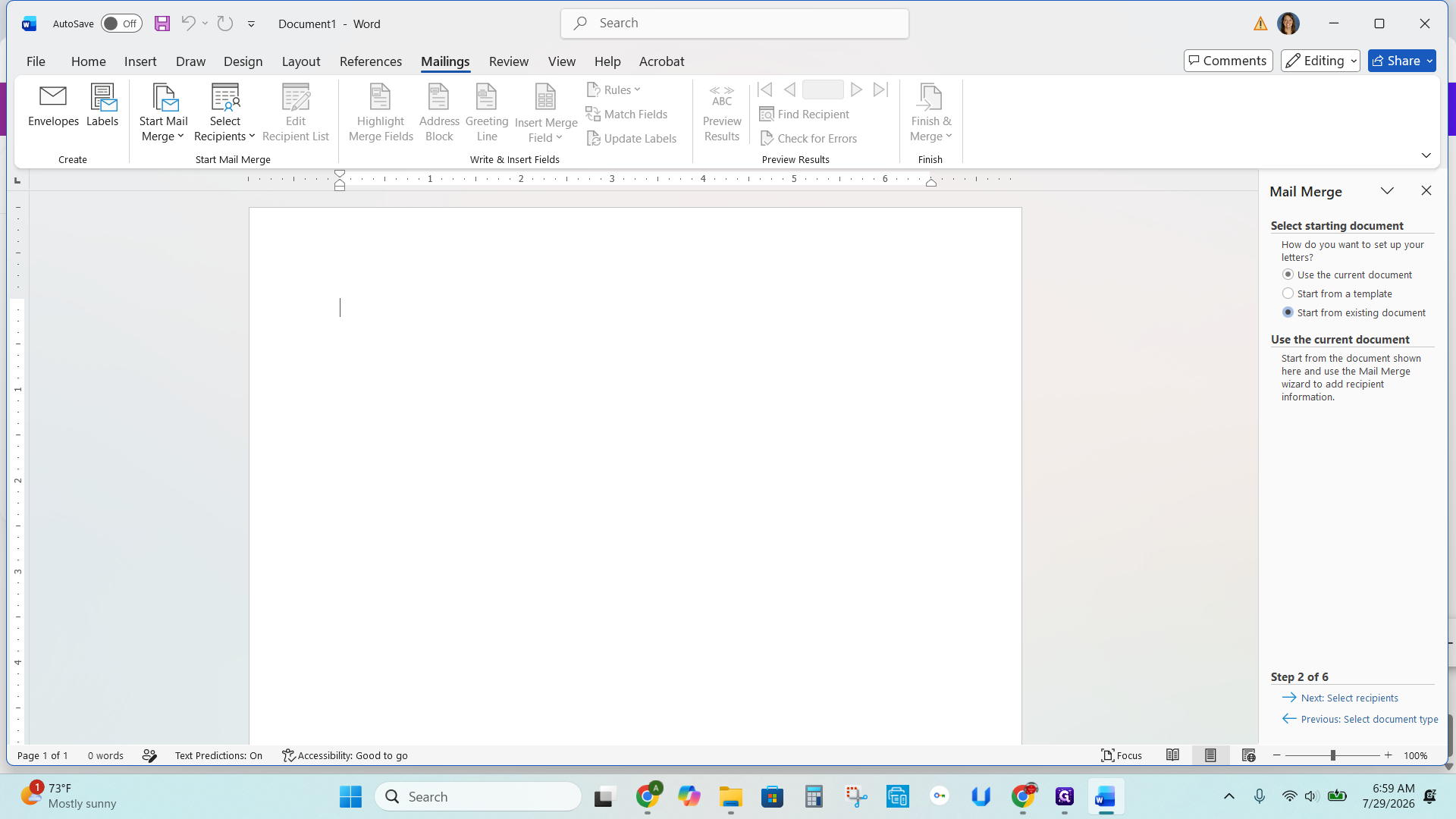
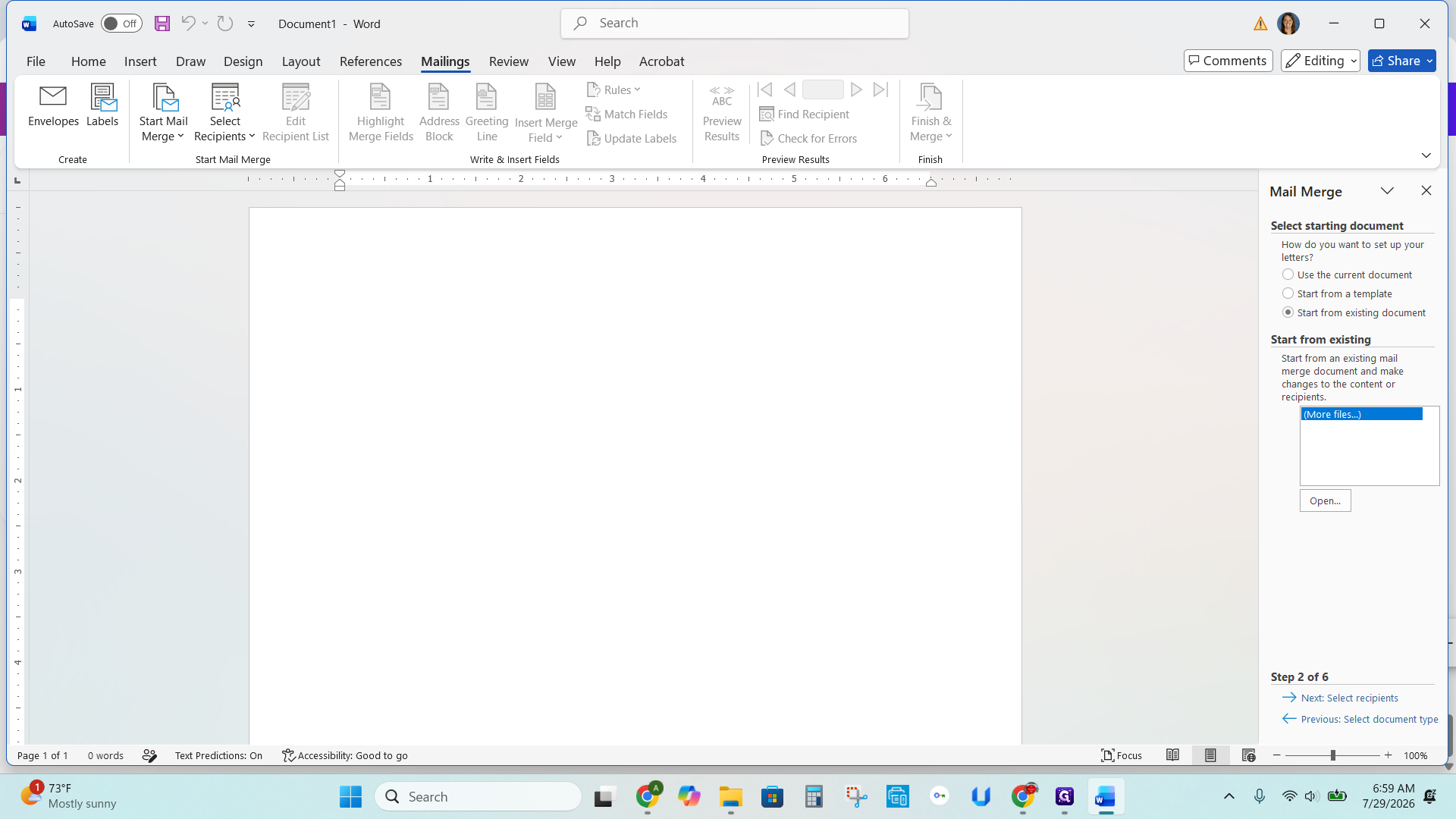
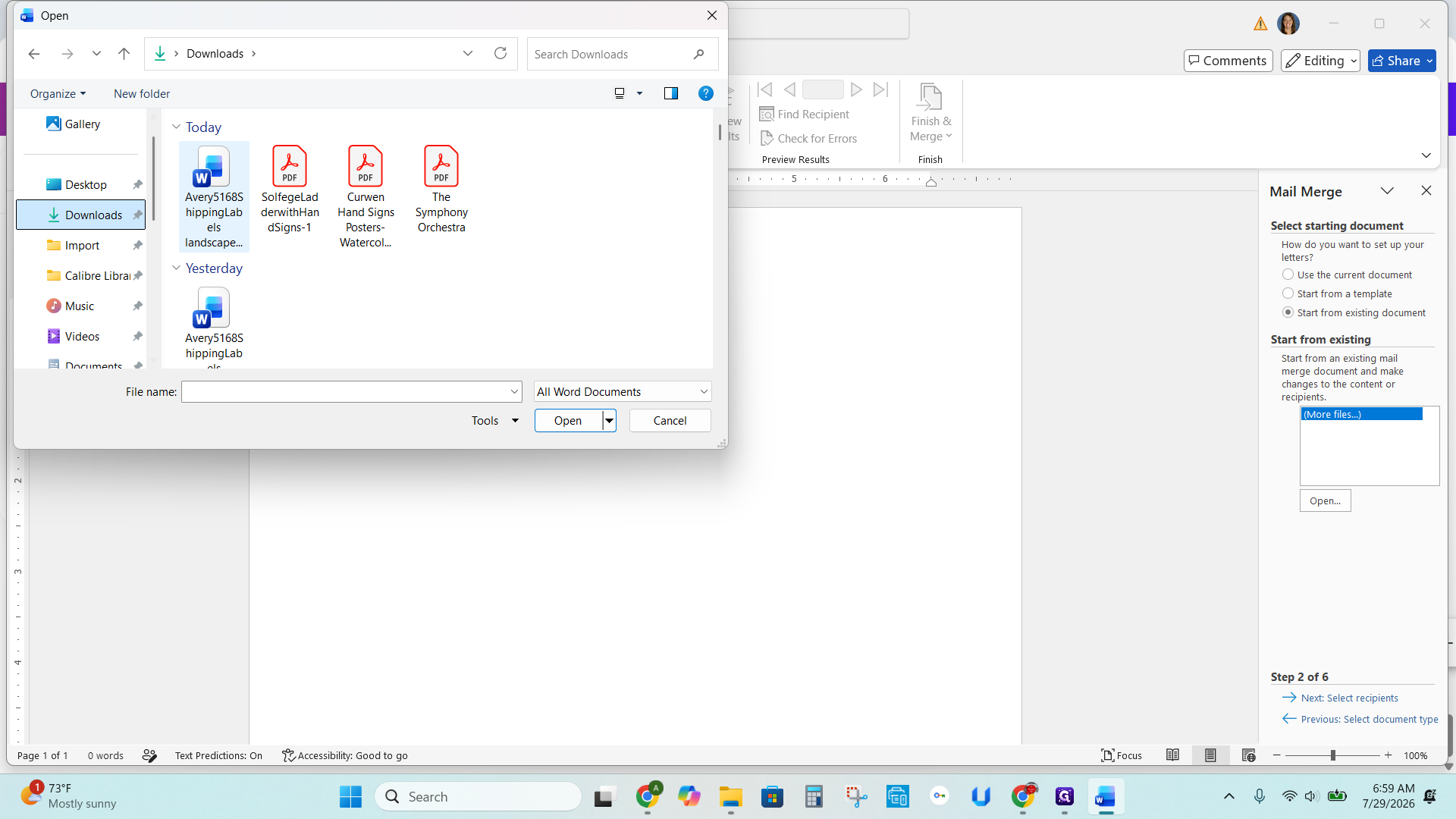
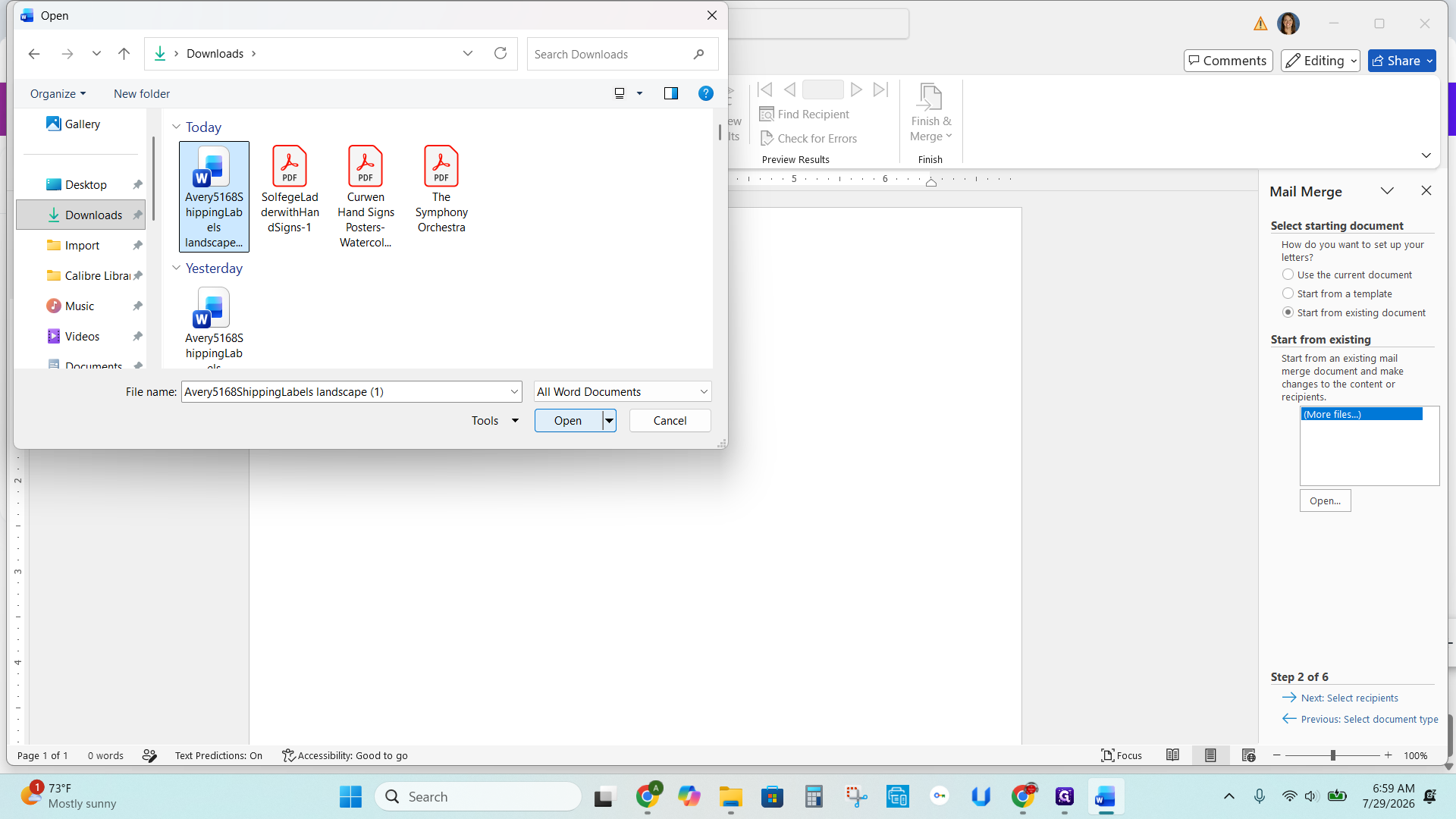
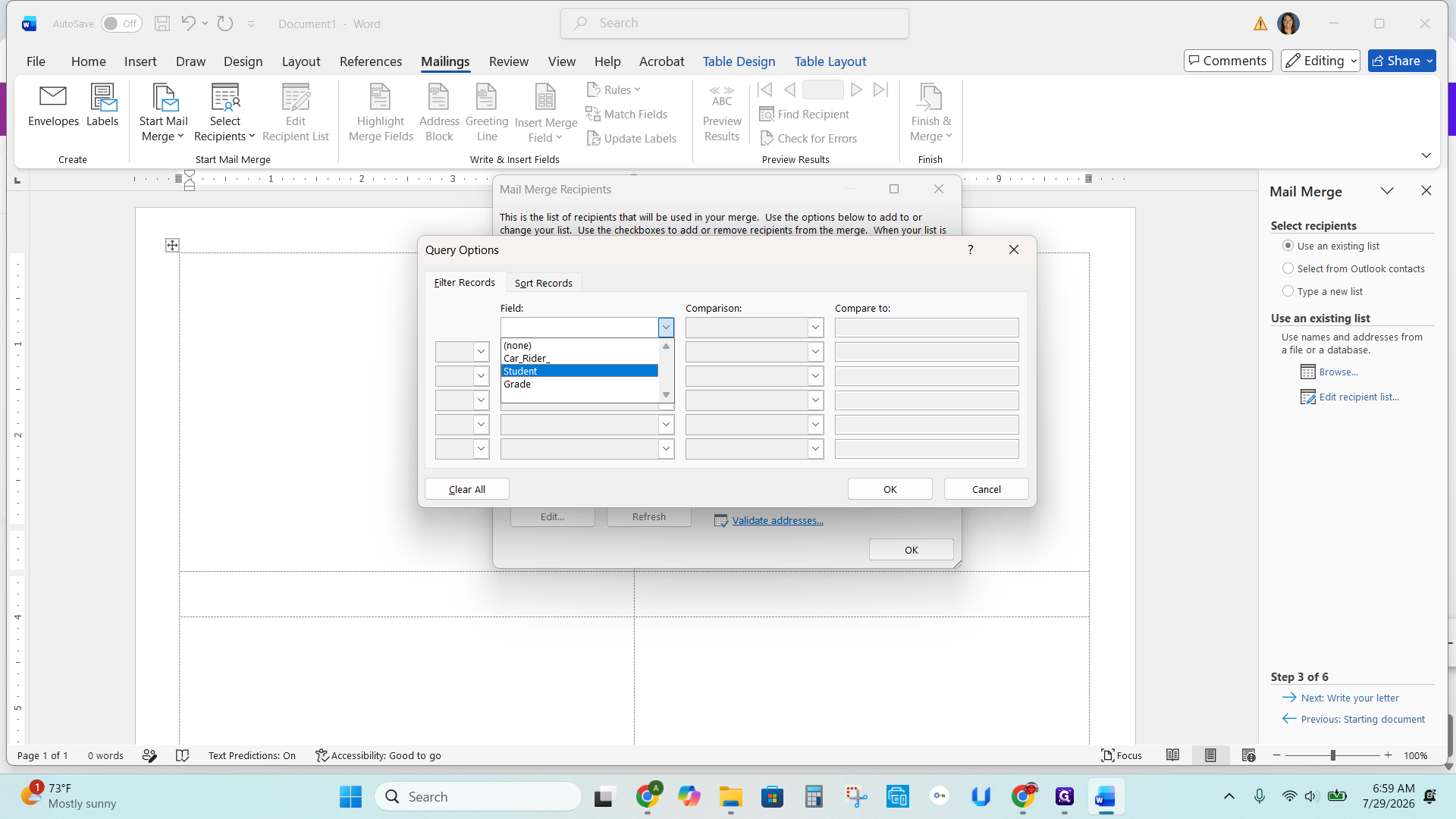
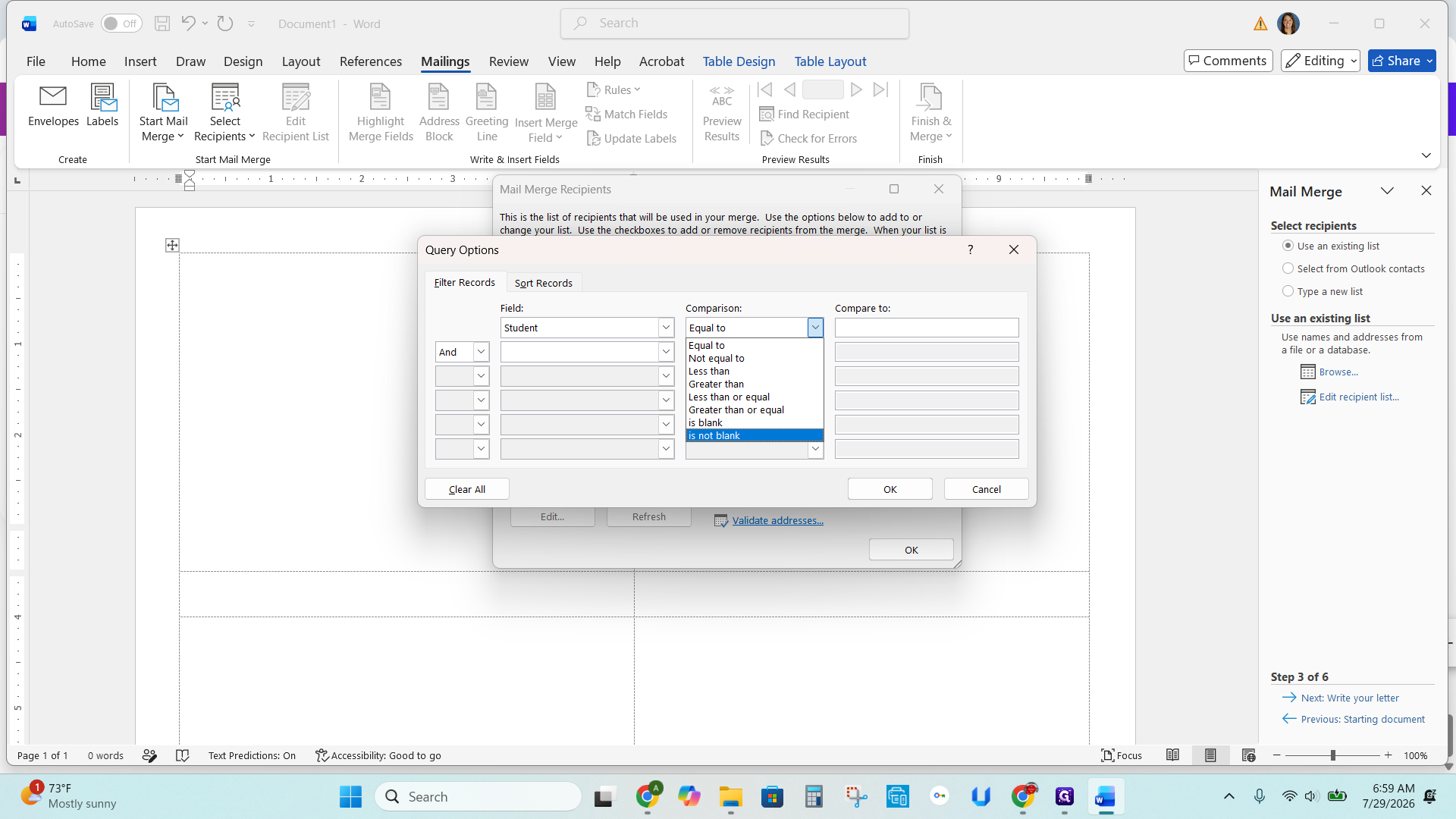
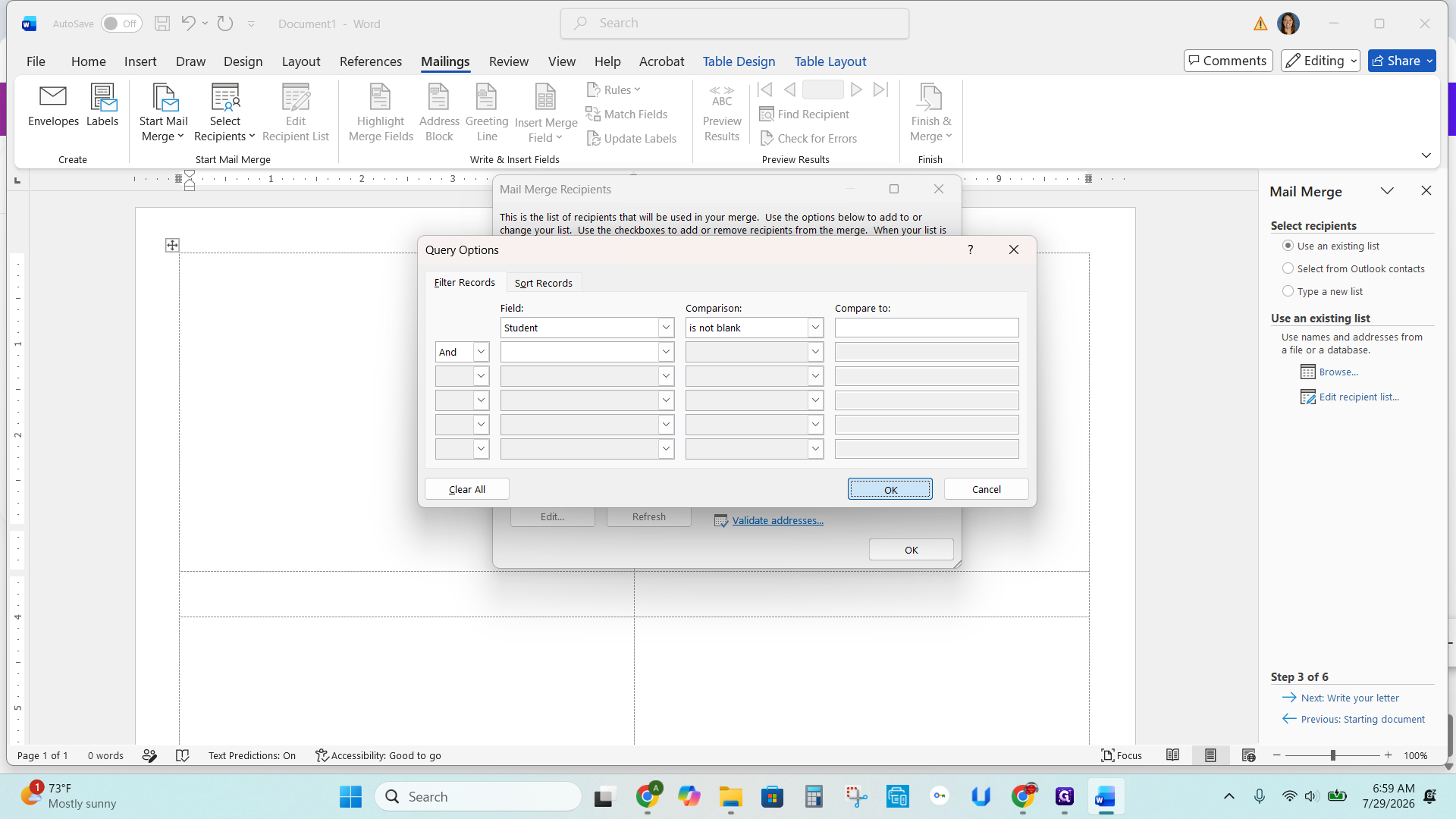
Select and Filter Recipient Data
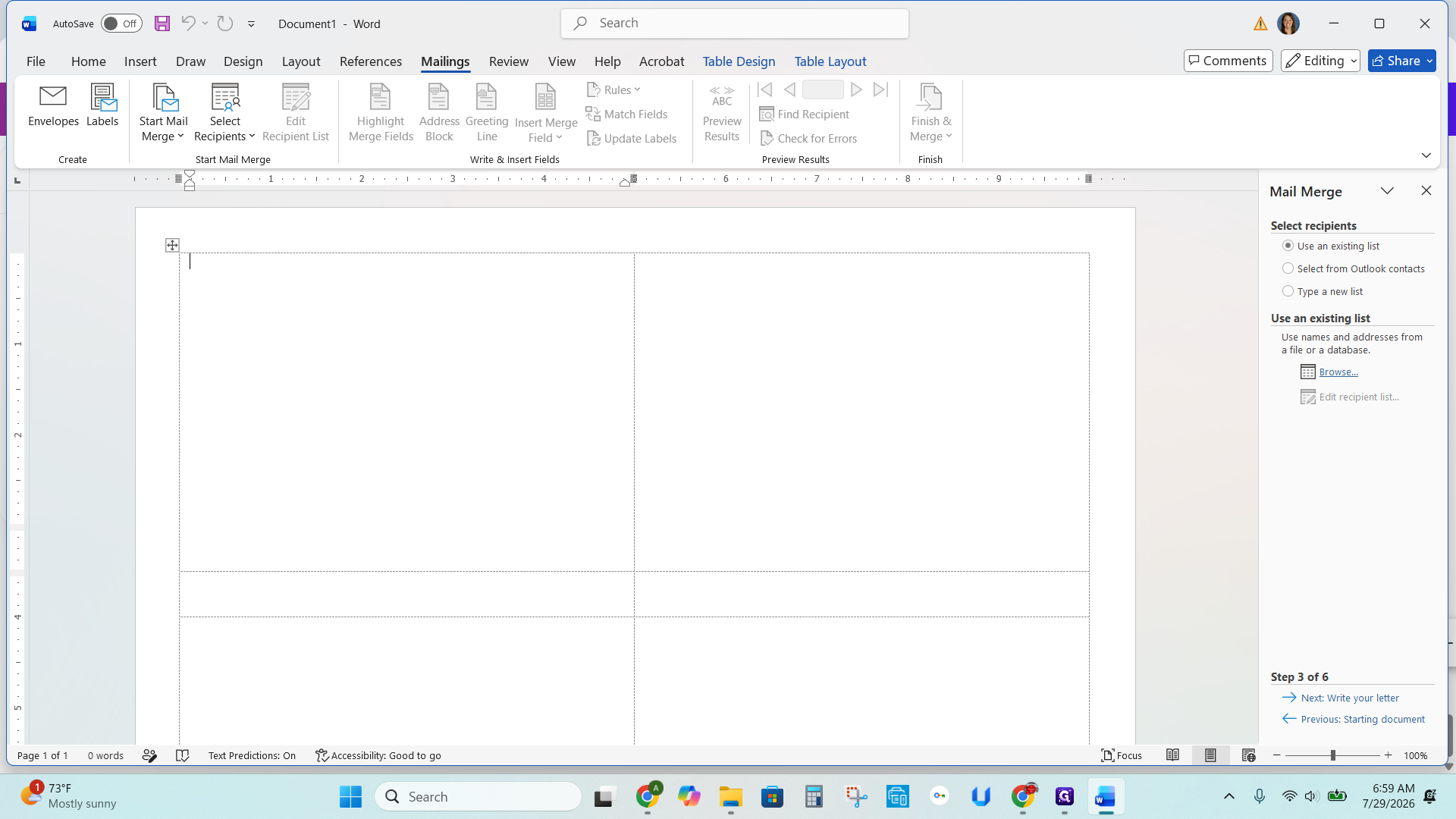
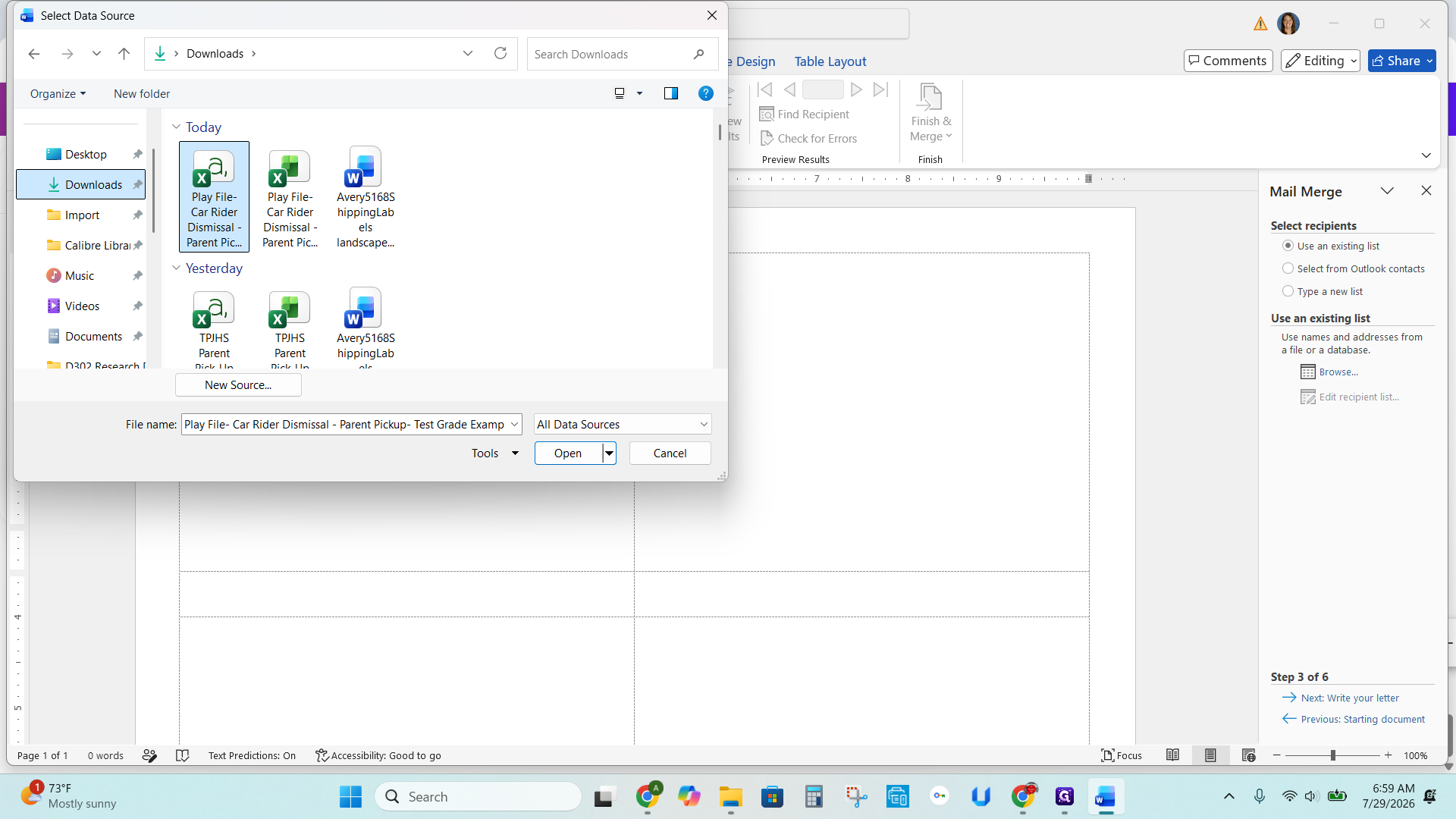
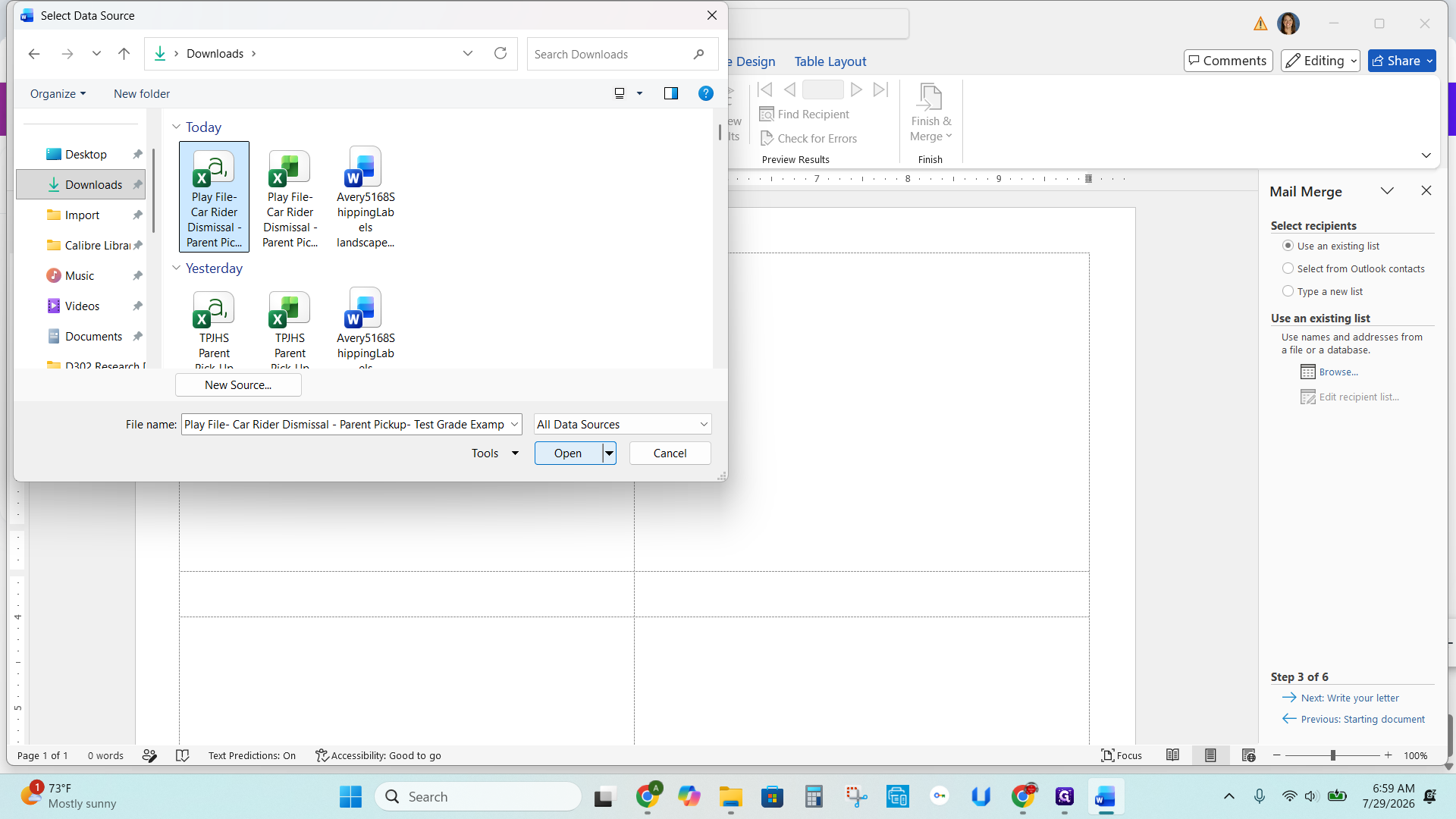
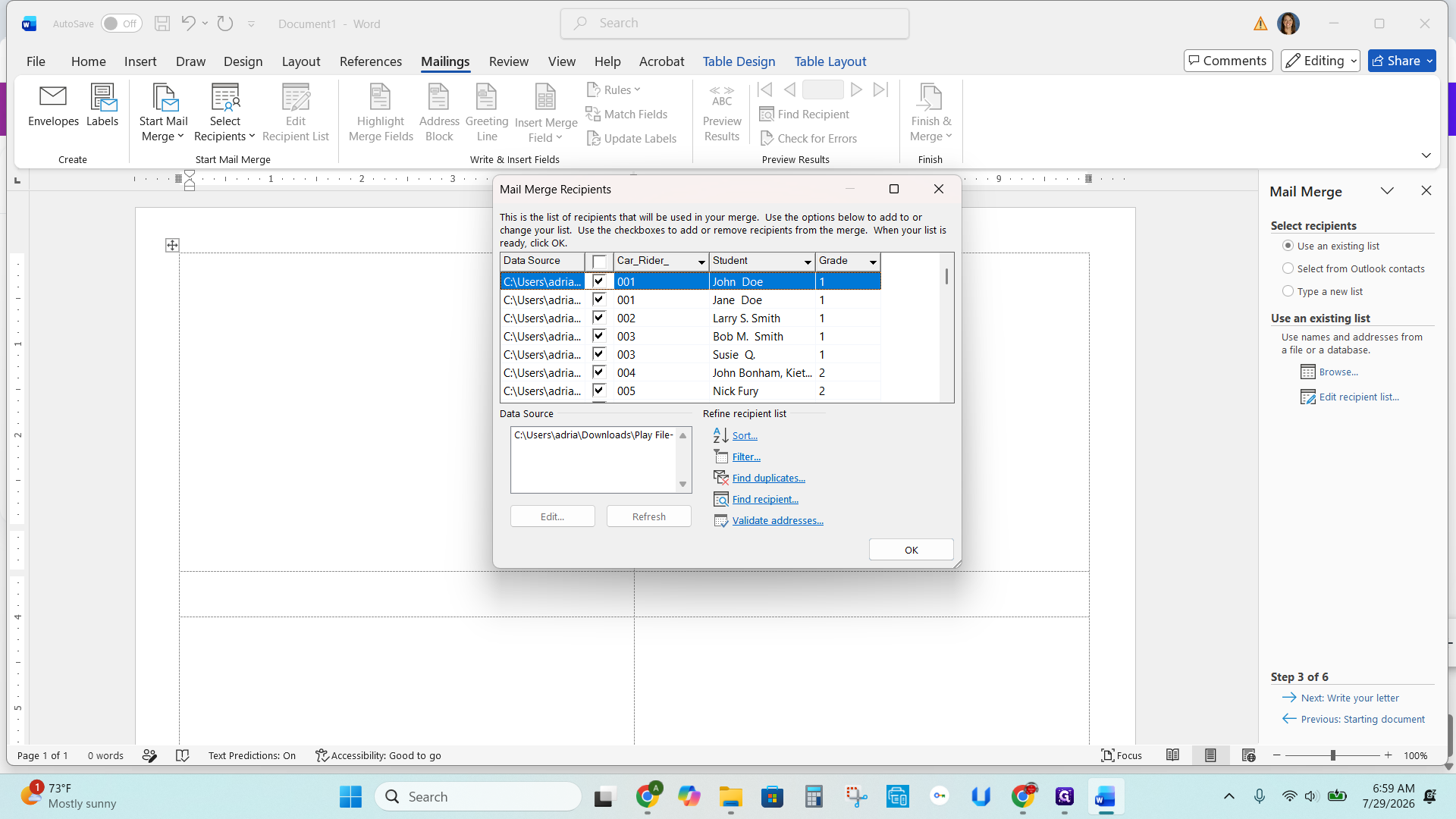
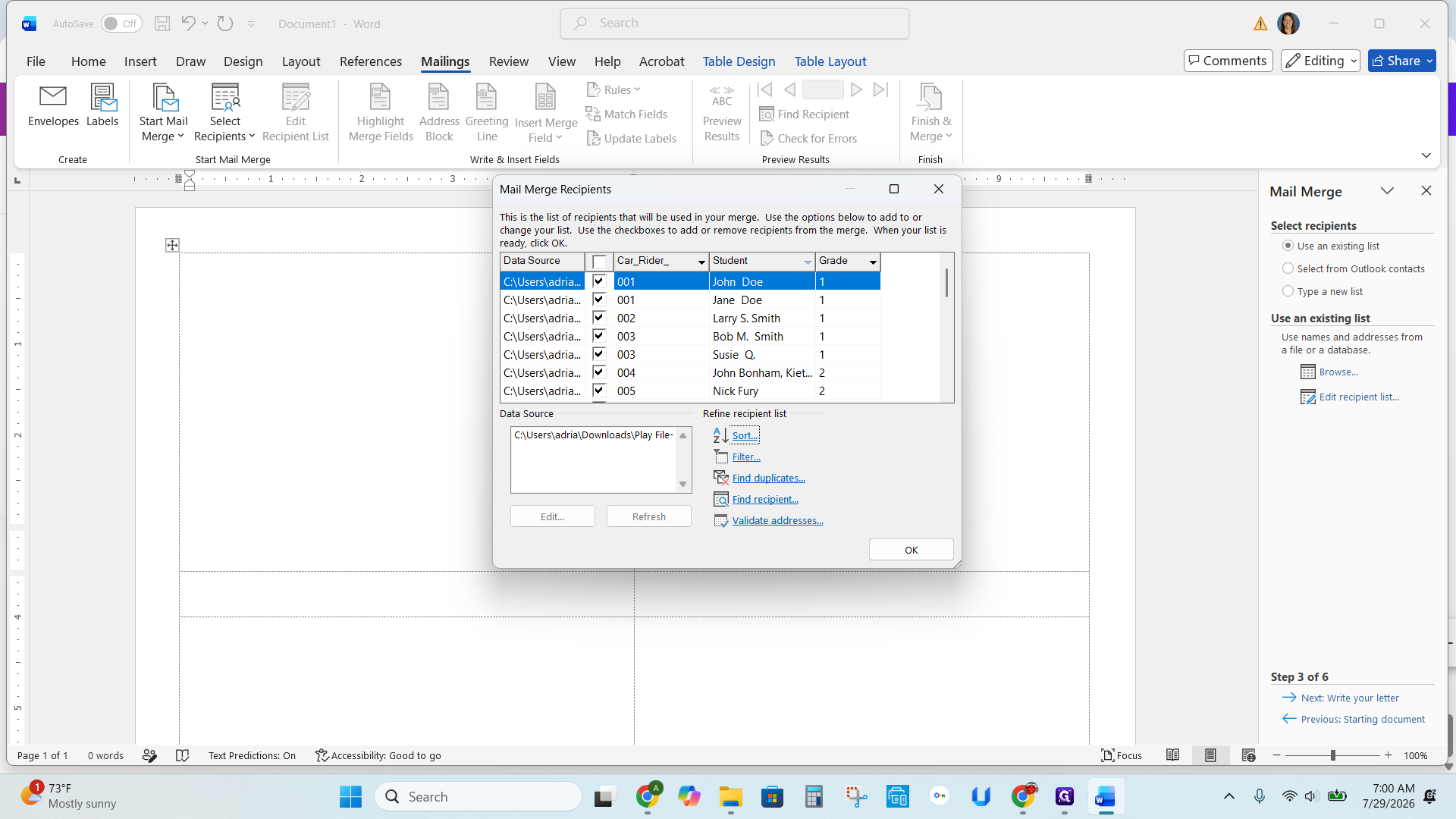
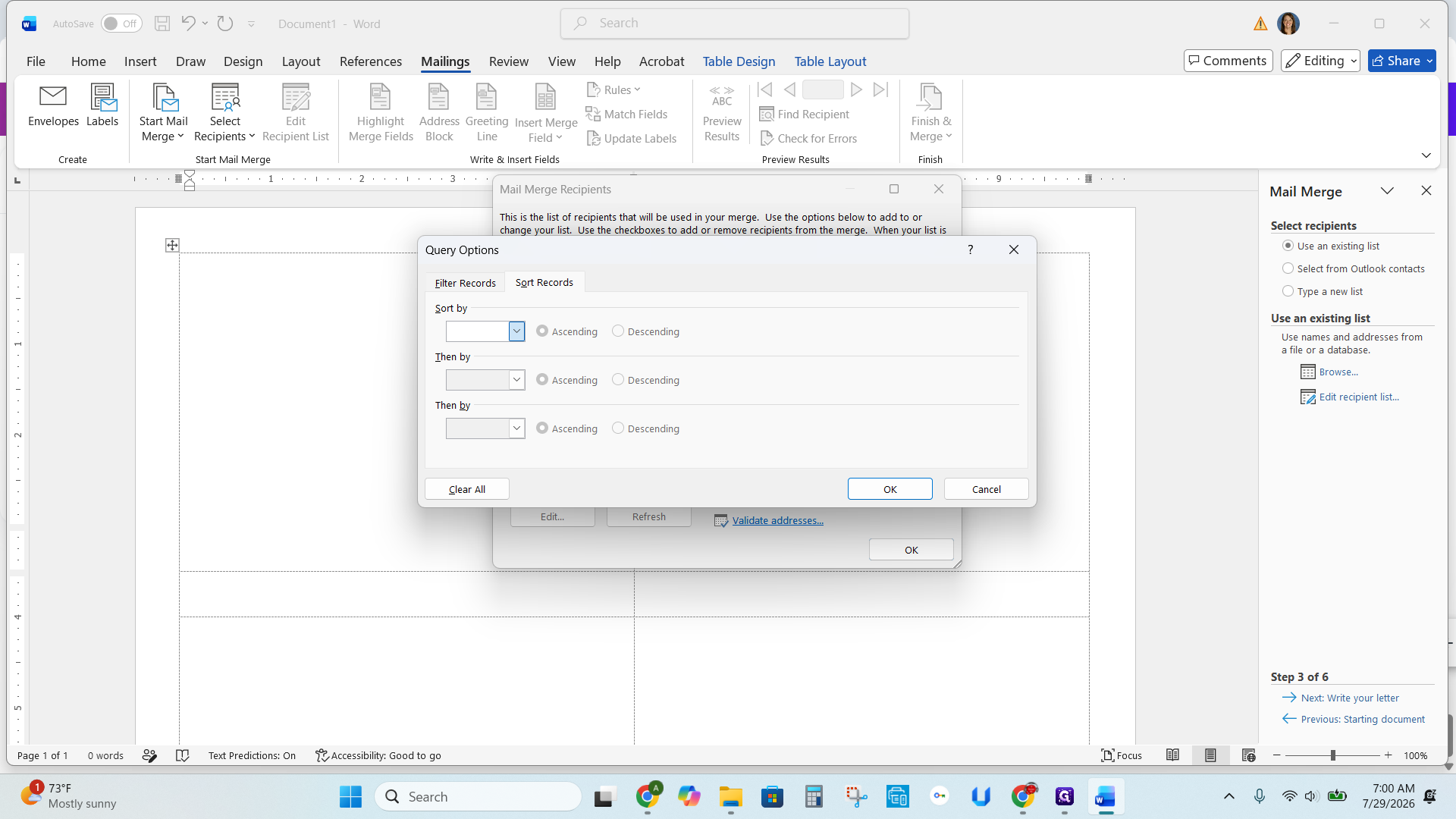
If your data is not already grouped by grade level, sort it now:
Insert and Format Merge Fields
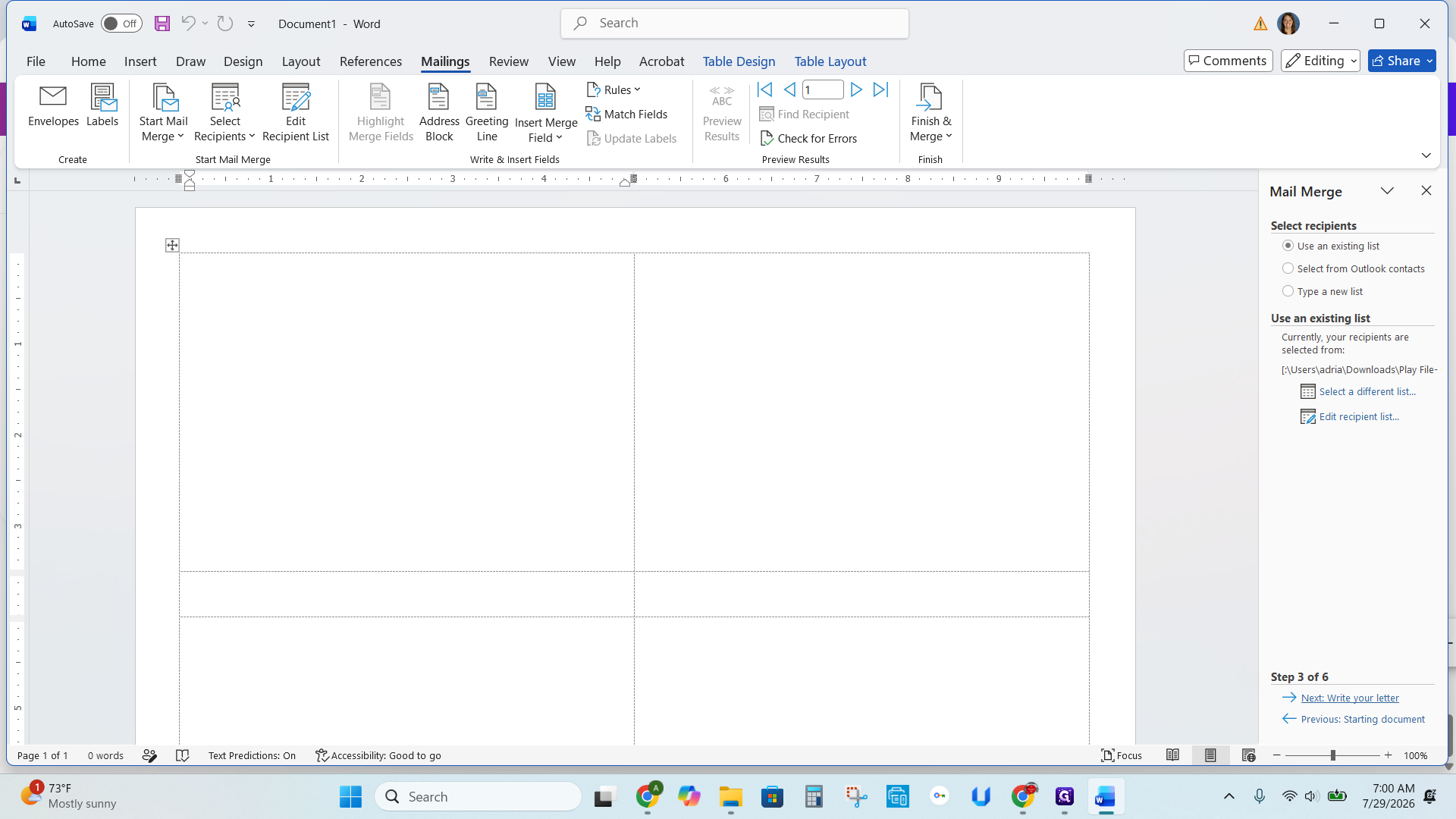
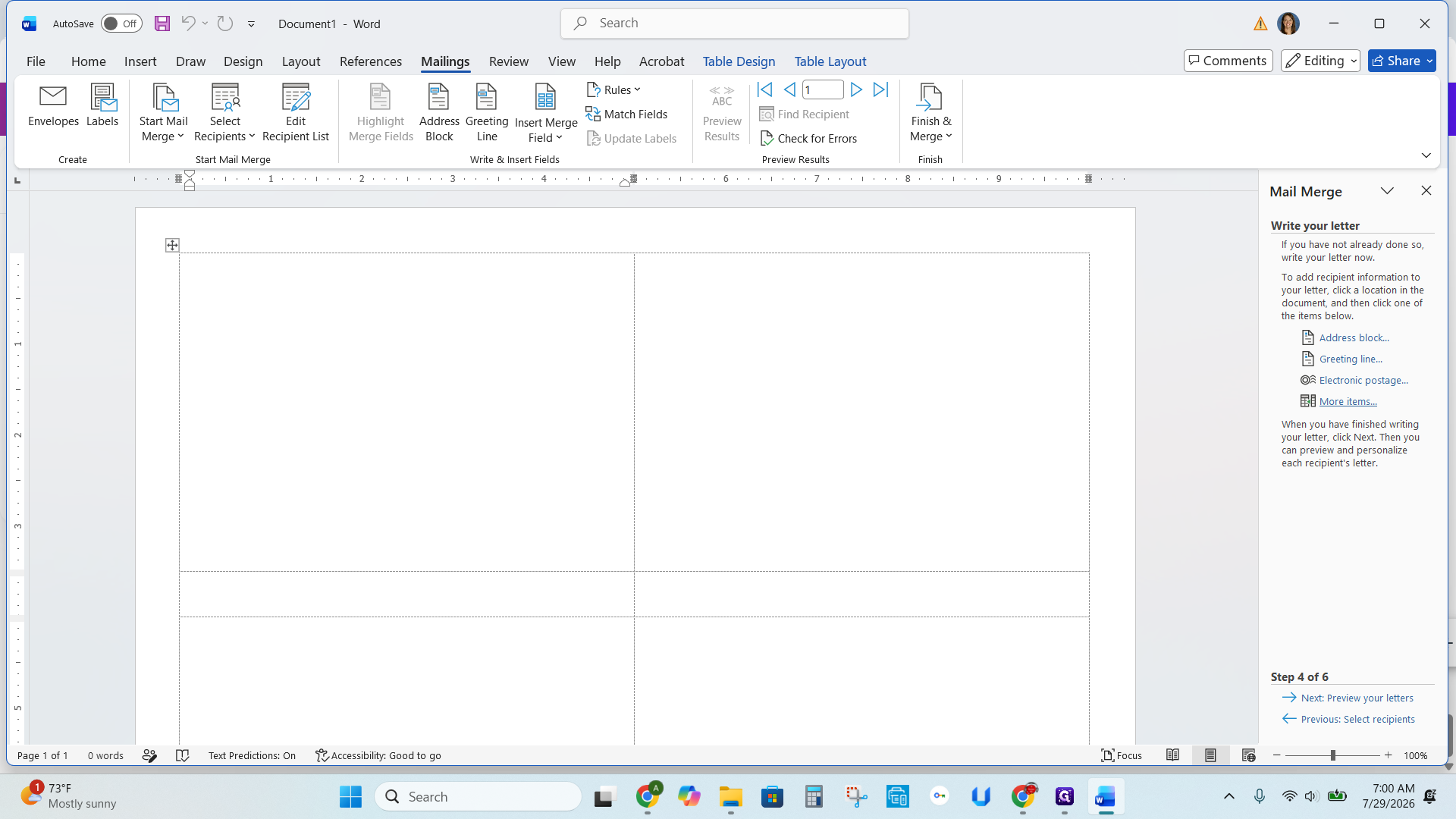
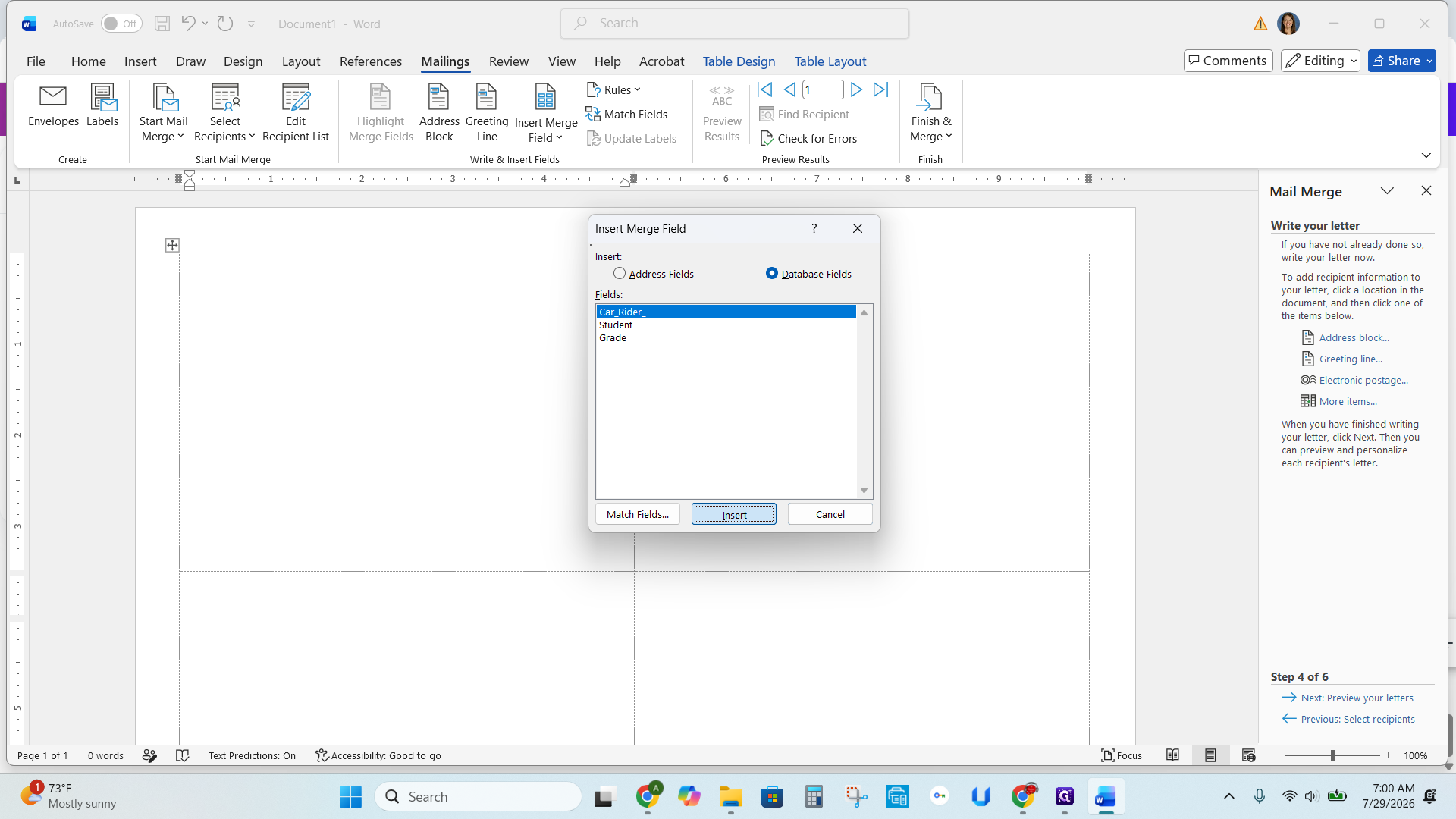
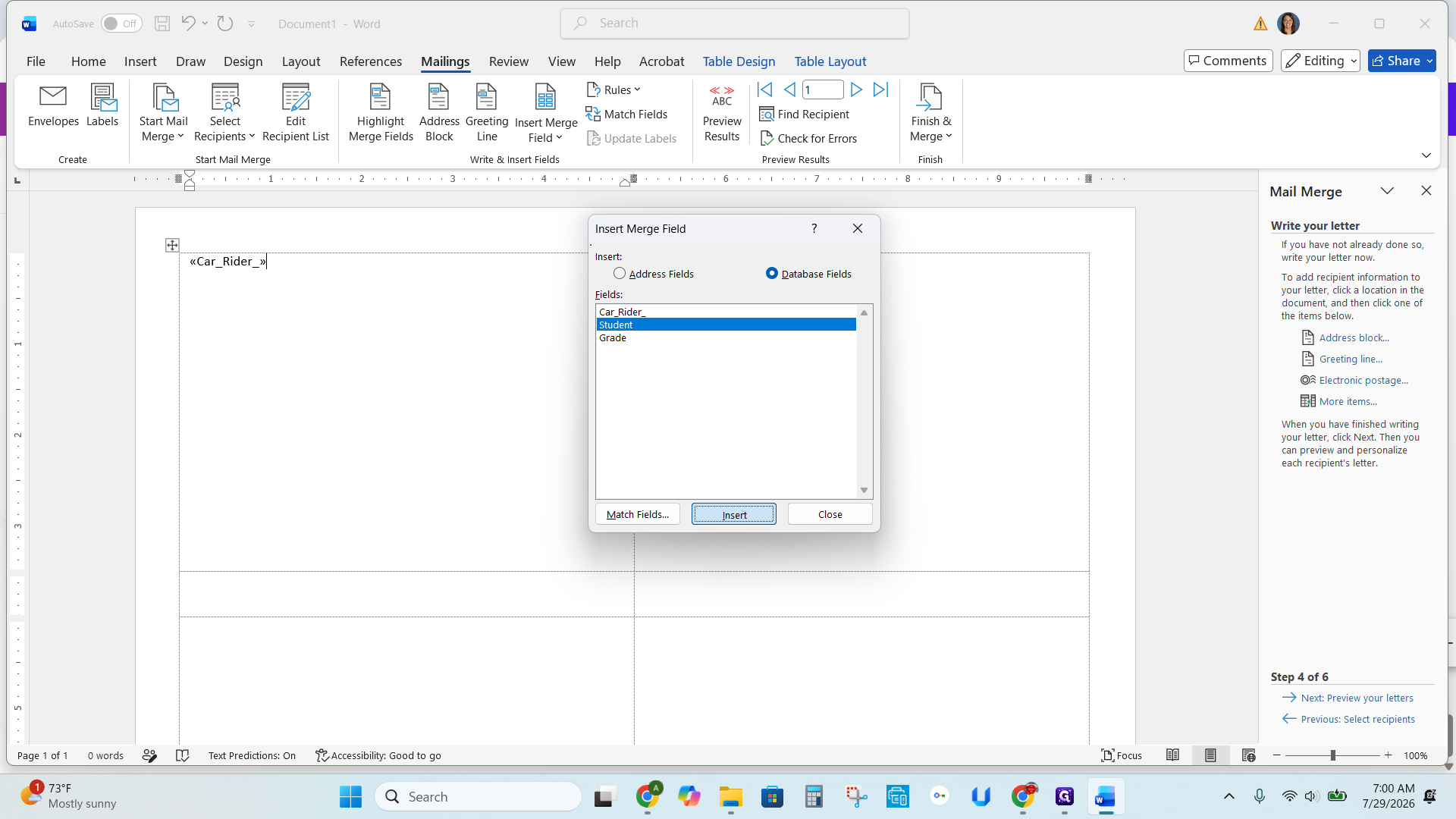
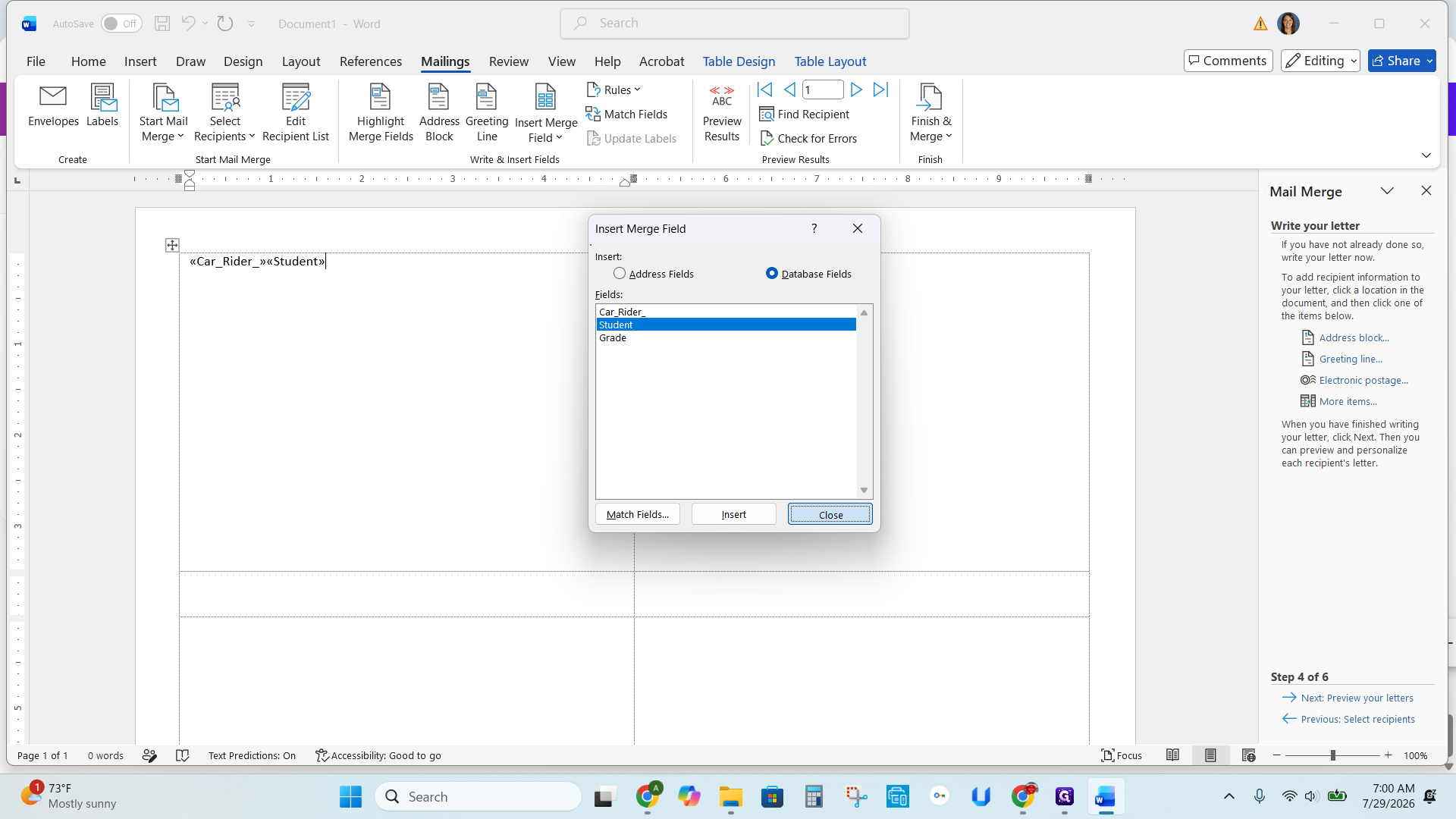
Structure the fields inside your first label box so they are uniform.
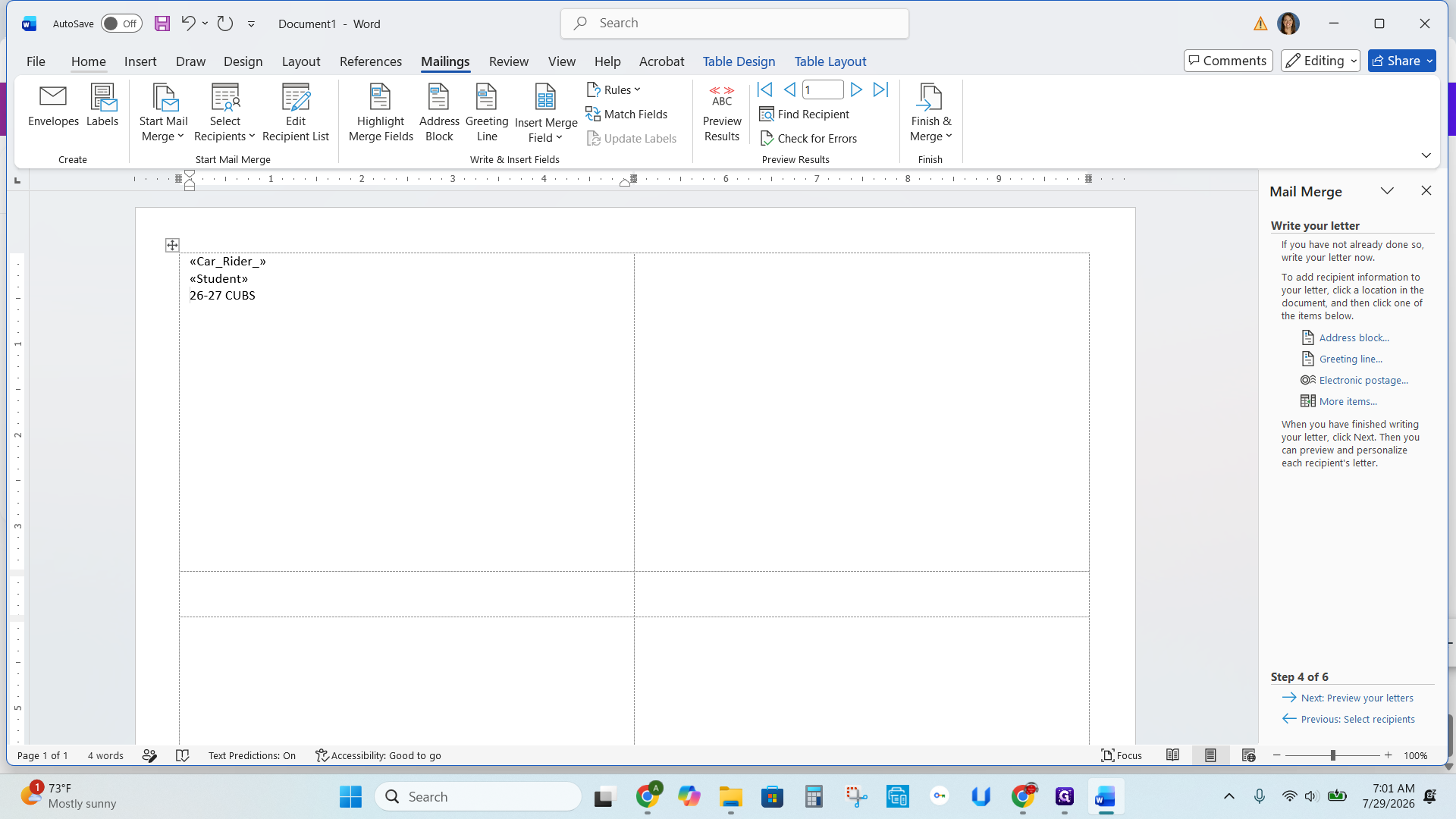
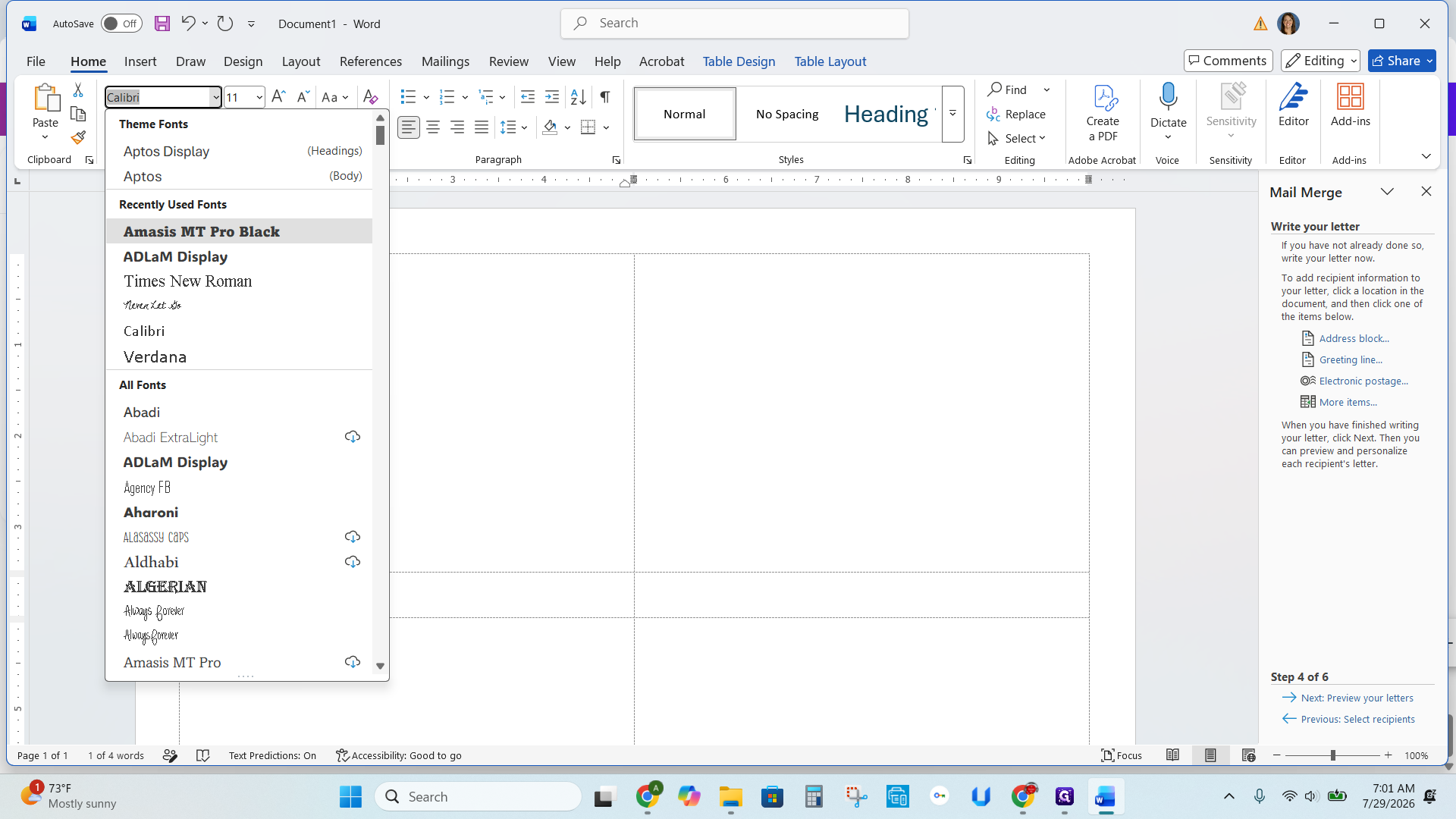
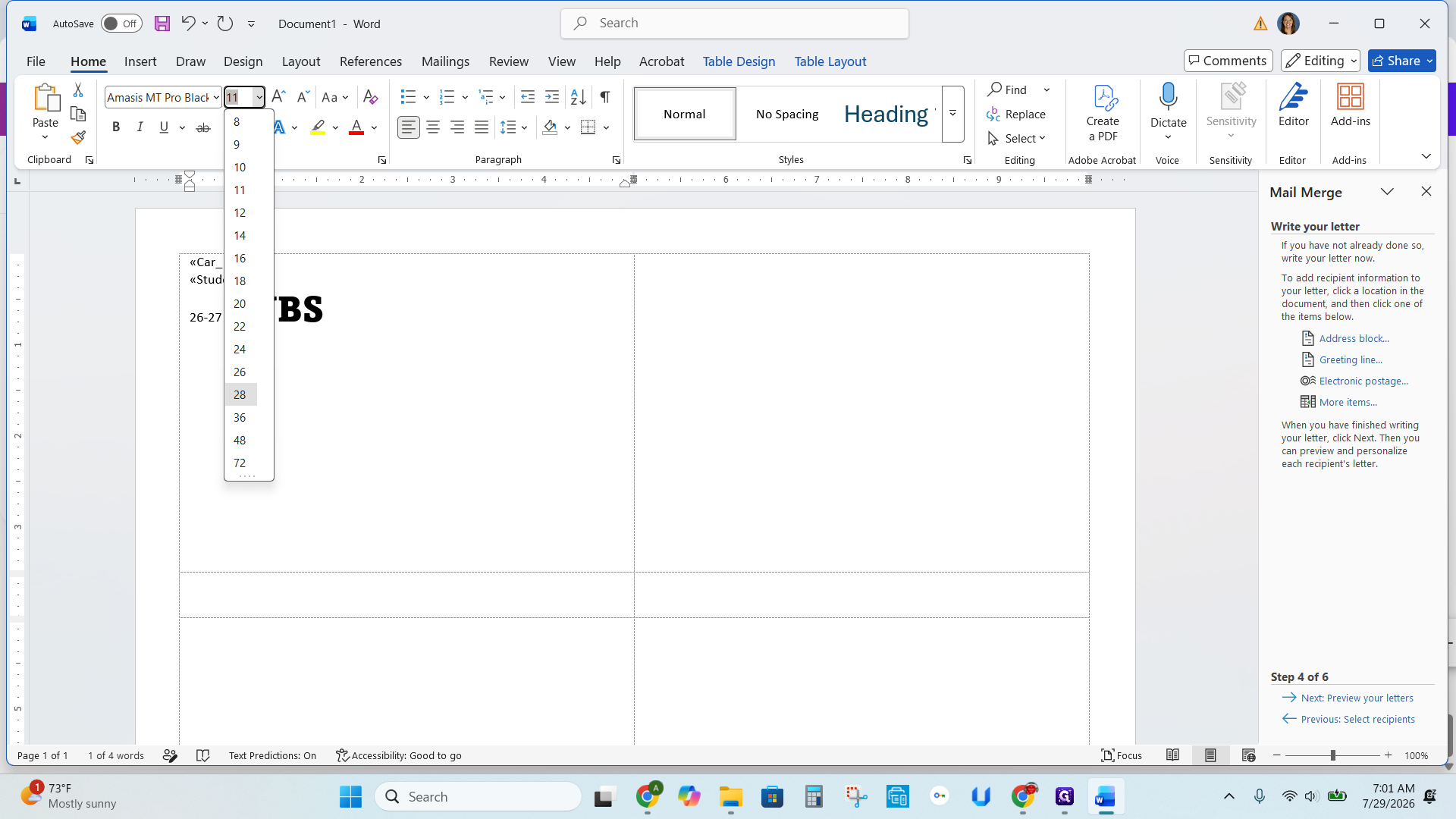
<<Student>> merge field and select a clean font like Calibri.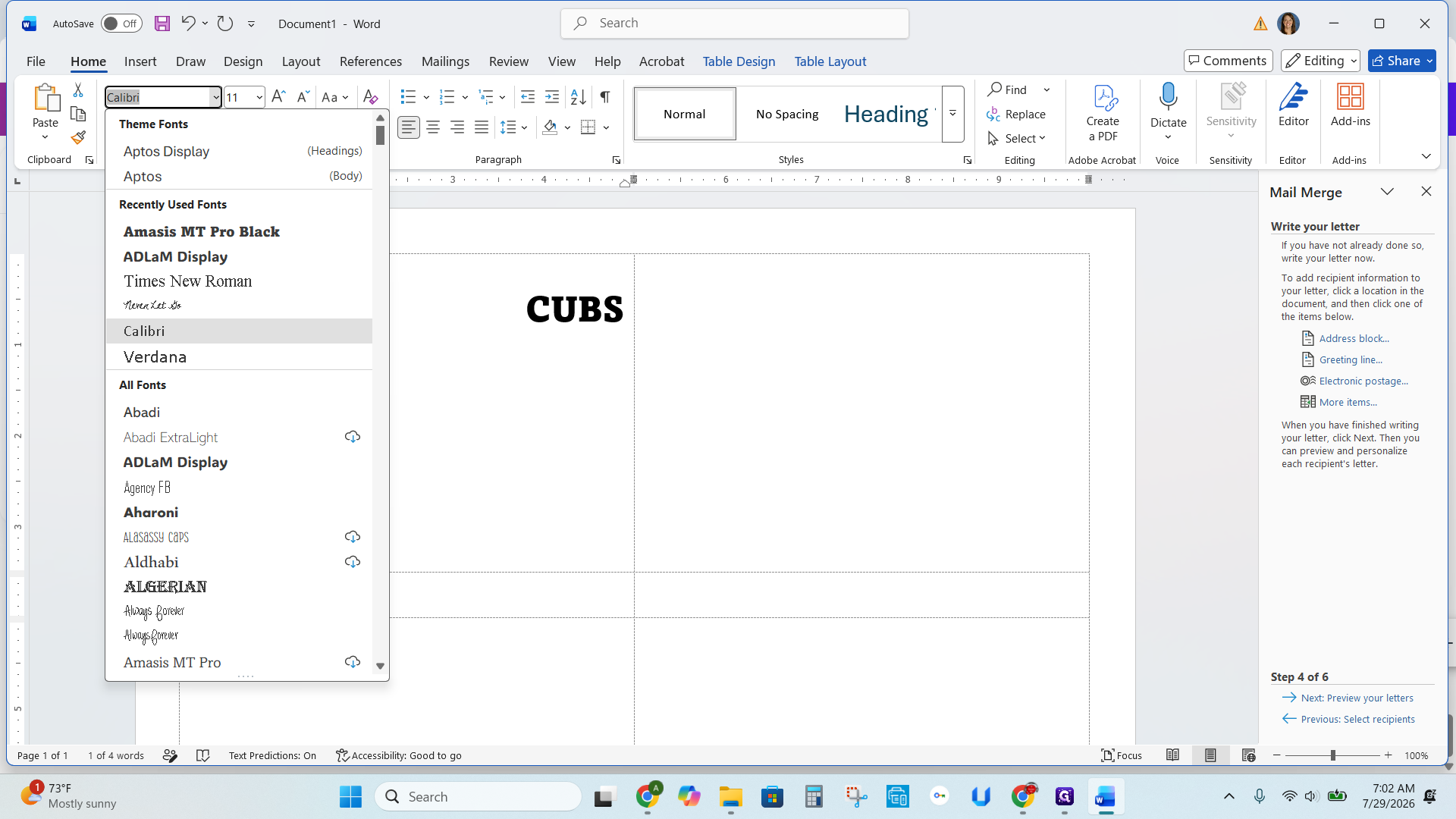
Apply Layout to Multiple Labels
To populate the rest of the boxes in your document, copy your formatted text and use a rule to advance to the next recipient.
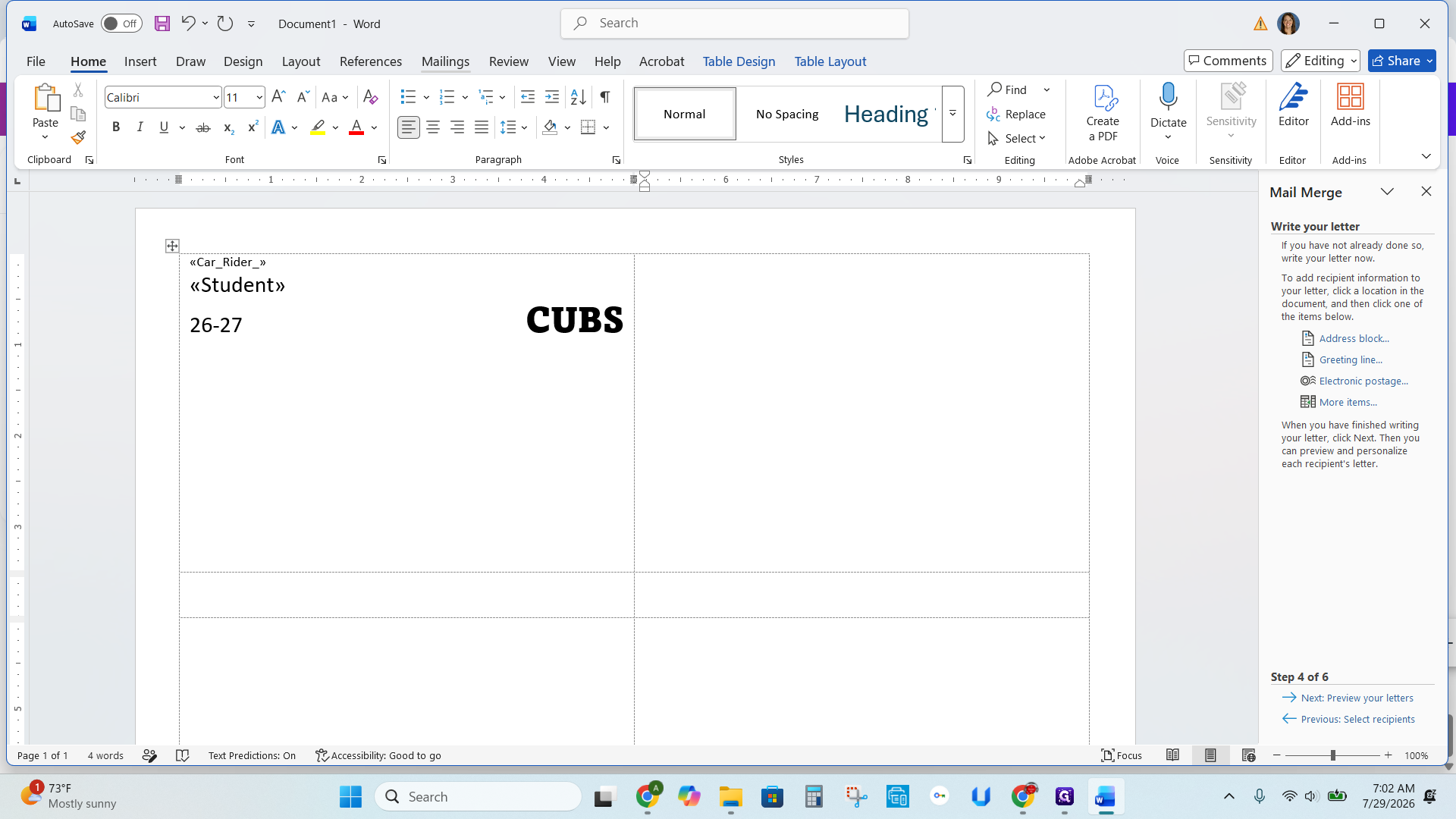
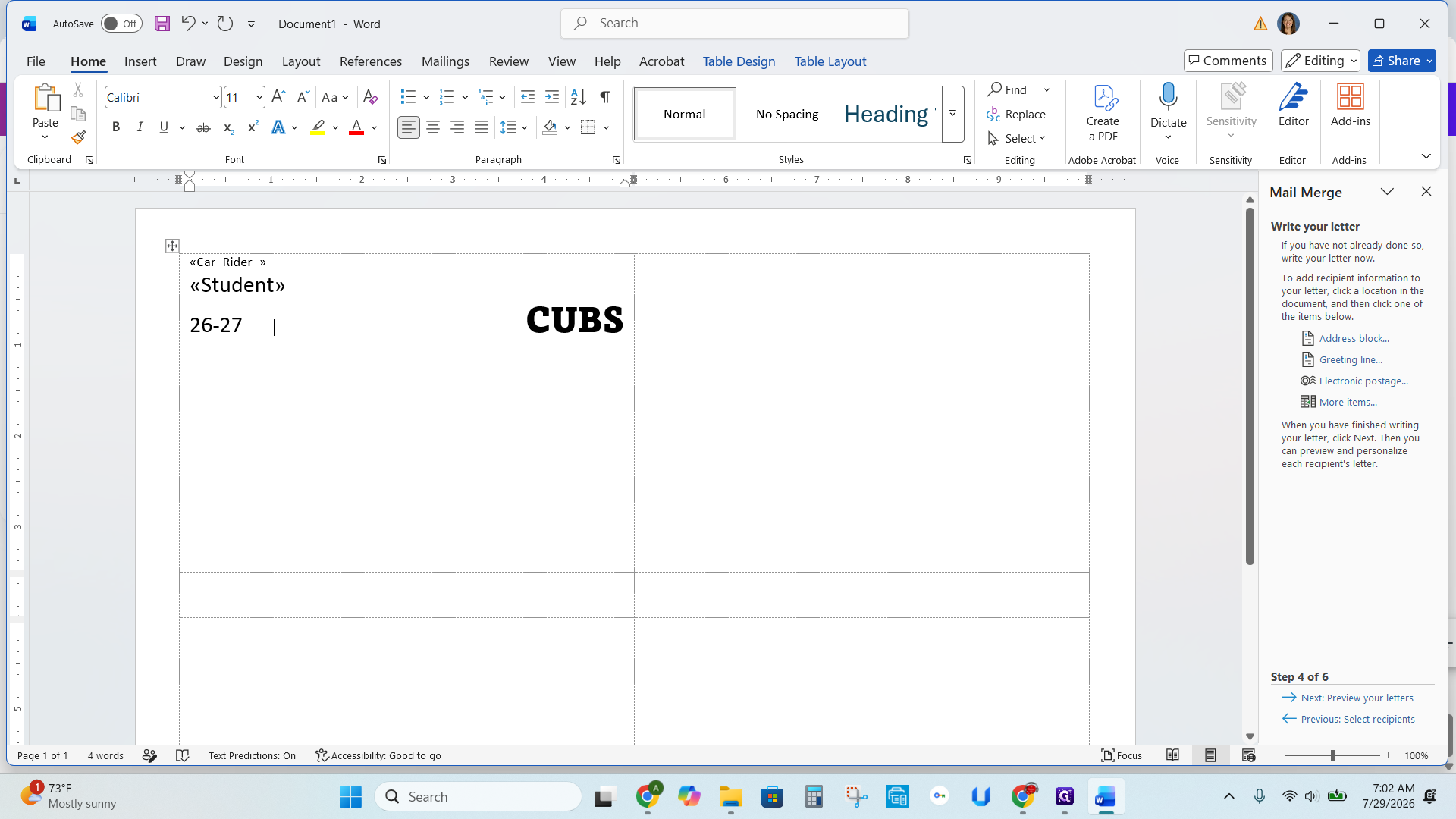
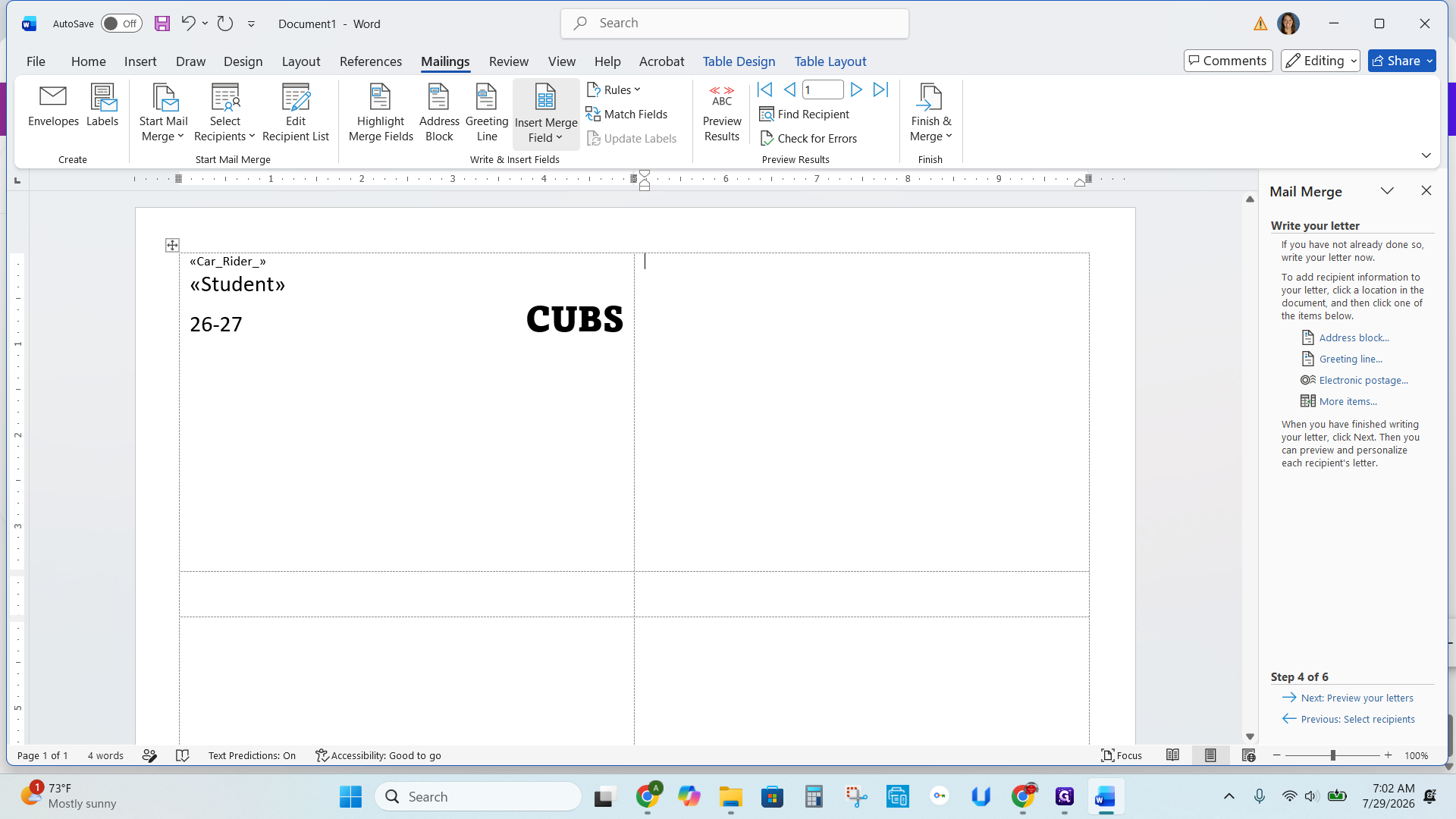
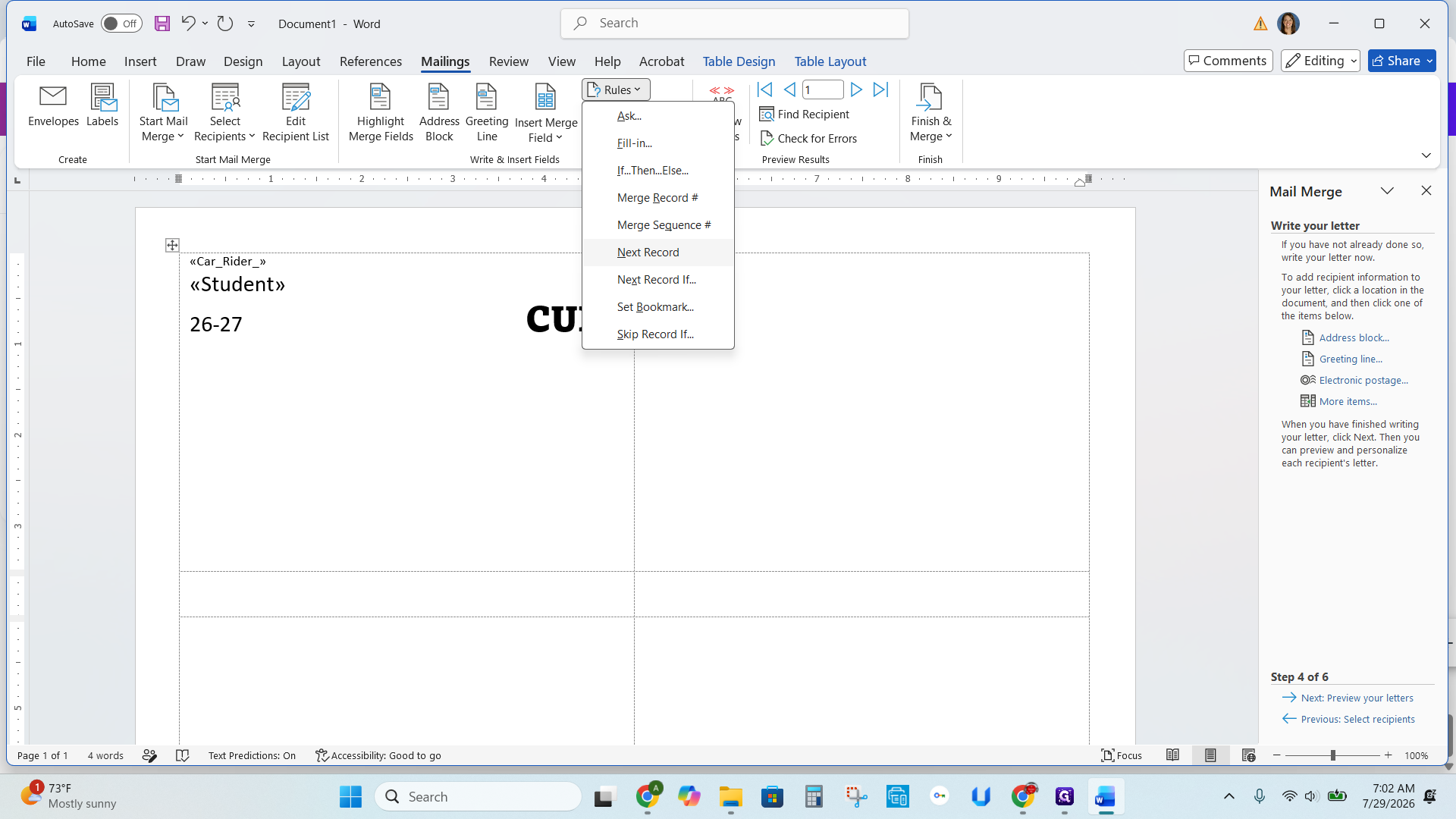
<<Next Record>> precedes the merged fields in each new box.Q: Why do we choose "Letters" instead of "Labels" for the document type?
A: For this specific template, choosing "Letters" ensures that the custom dimensions print correctly on the page without Microsoft Word trying to reformat the document into standard label sheets.
Q: Why should I filter the data for students that are "not blank"?
A: Filtering out blank records ensures you don't print car tags with no names on them, which saves paper and label materials.
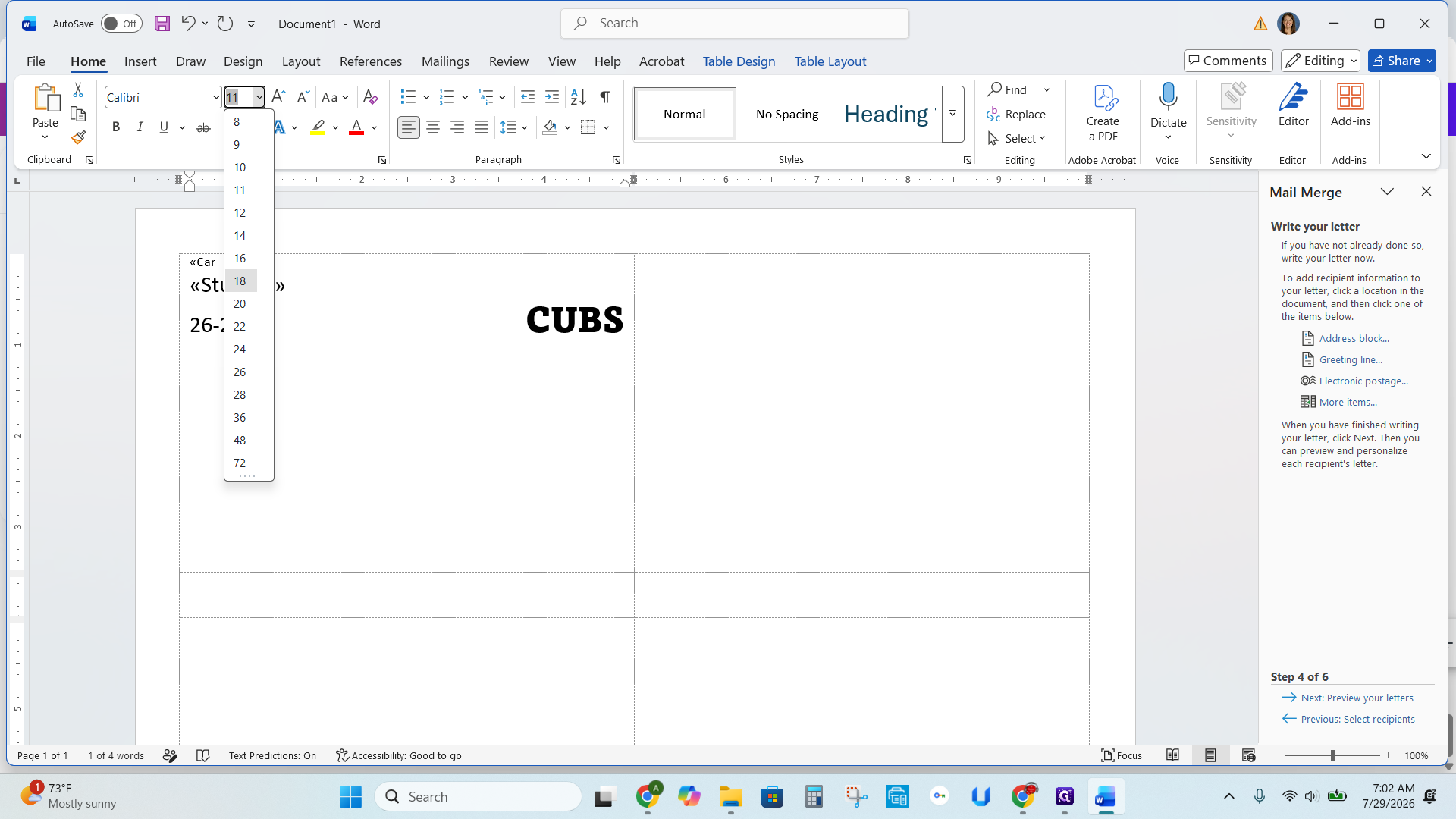
Q: What font size is recommended for the student names?
A: A font size of 18 is recommended. This ensures that even long student names fit on a single line without wrapping to a second line.
Q: How do I print two identical tags for the same car rider?
A: When pasting your formatted layout into adjacent boxes, do not insert the "Next Record" rule between them. This will print the same student's data twice before advancing to the next recipient in your list.
Term | Definition |
|---|---|
Mail Merge | A Microsoft Word feature that automatically populates a document template with data from a spreadsheet or database. |
Next Record | A rule in Mail Merge that tells Word to move to the next row of data in your list for the subsequent section of the document. |
Merge Field | A placeholder inserted into a document that will be replaced by specific data (like a name or ID number) during a mail merge. |