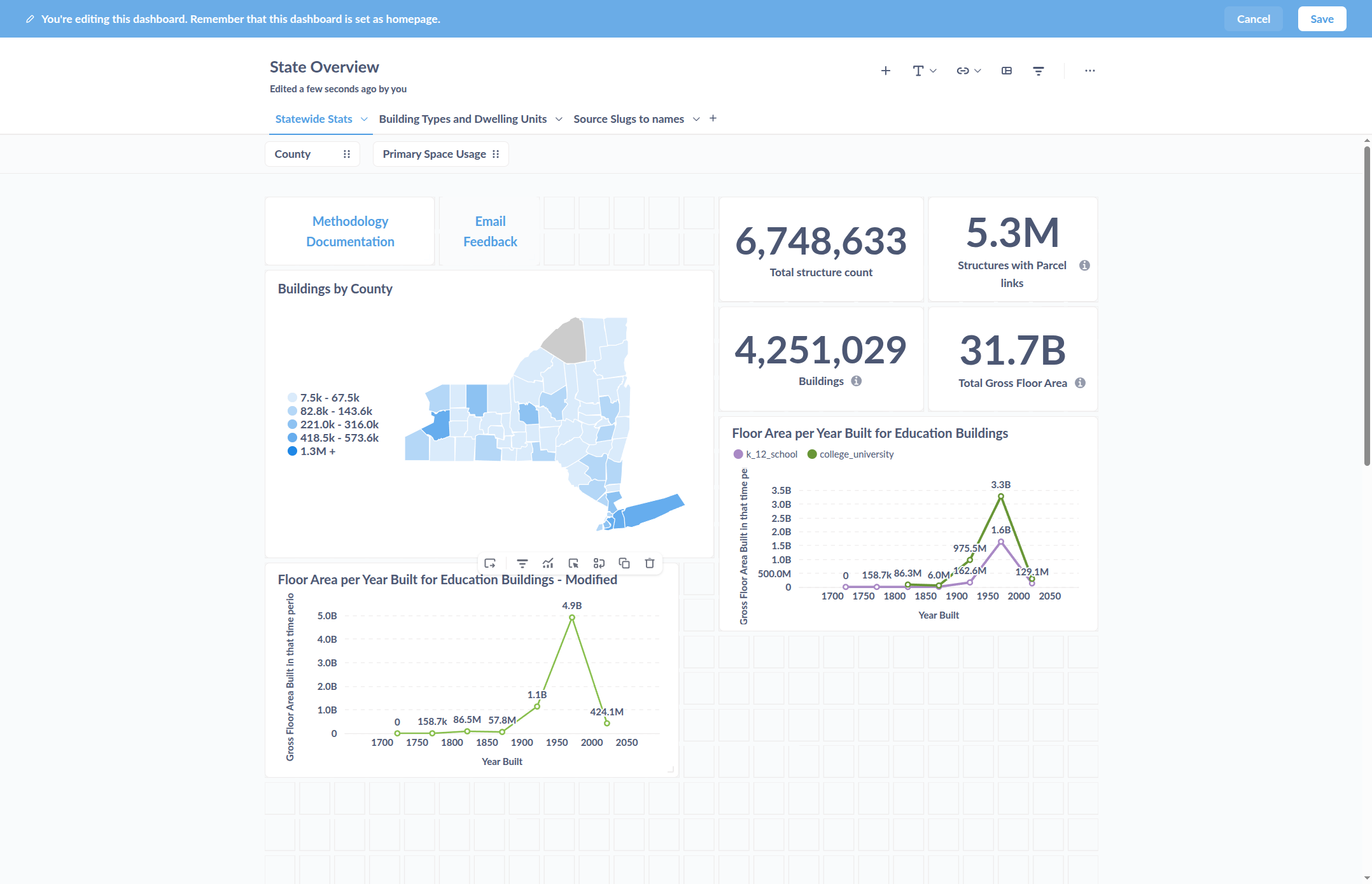
Step-by-Step Guide: Creating a Visual Chart to Display Data Summaries
Learn how to create a visual chart to display data summaries, including filtering, grouping, color coding, and customizing your chart for educational buildings by gross floor area and year built.
In this guide, we'll learn how to create a visual chart to summarize and compare data, such as the total gross floor area of different types of educational buildings over time. We will cover how to select and filter data, choose the right chart type, customize the appearance, and save your chart for future use or sharing.
Let's get started
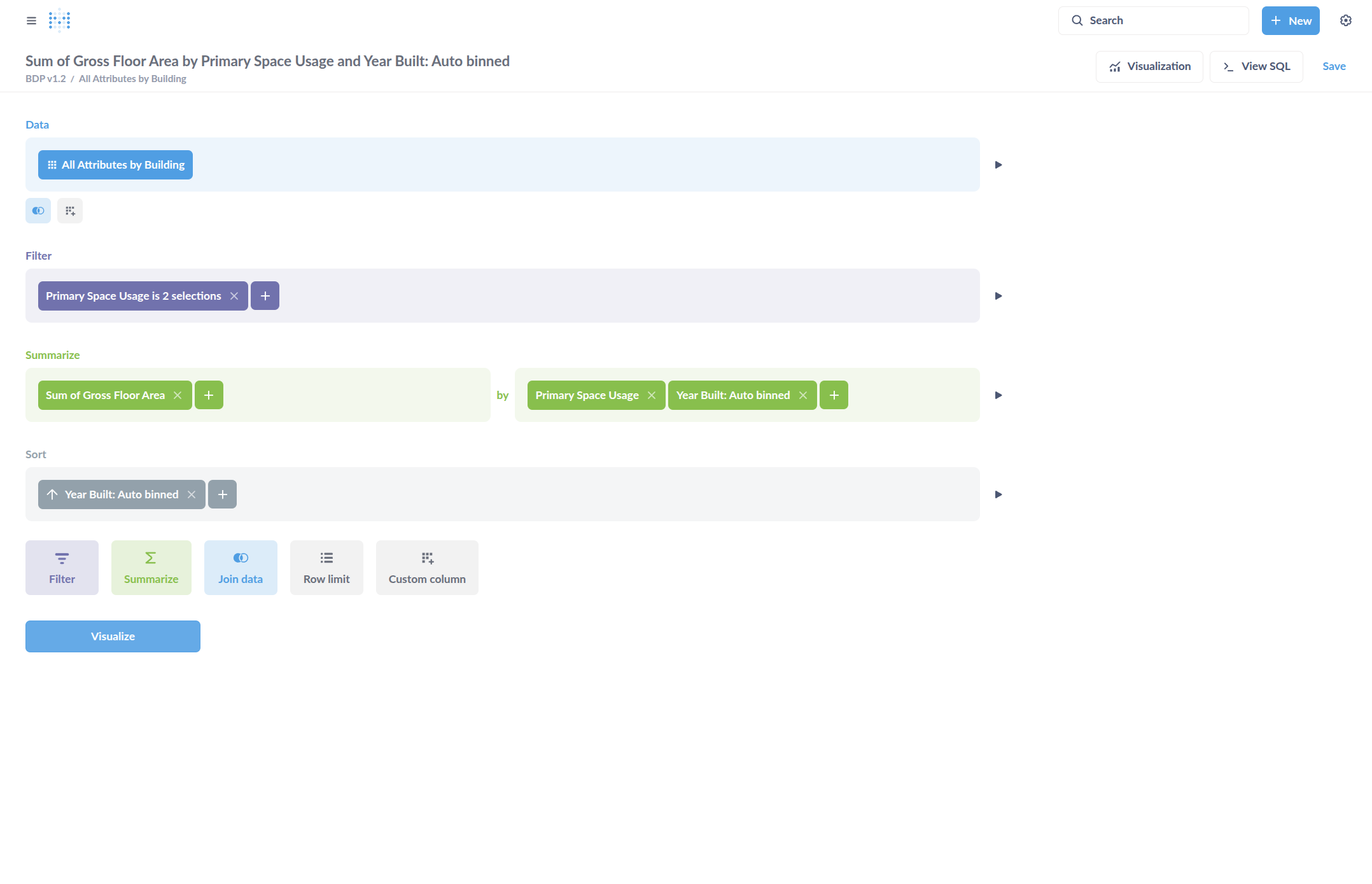
... Guide for creating a visual chart to display a data summary. We can start by creating a summary. Click Editor.
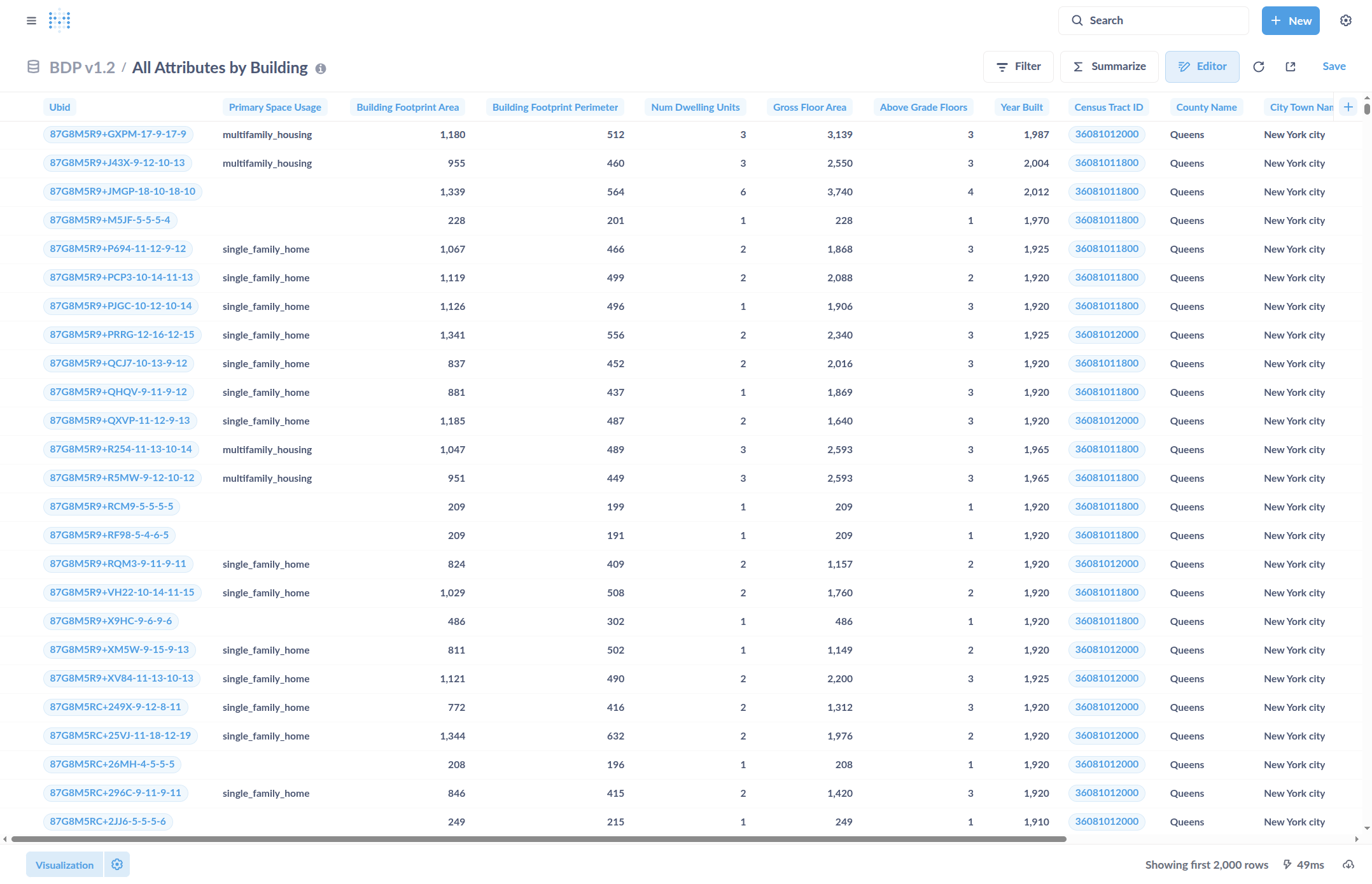
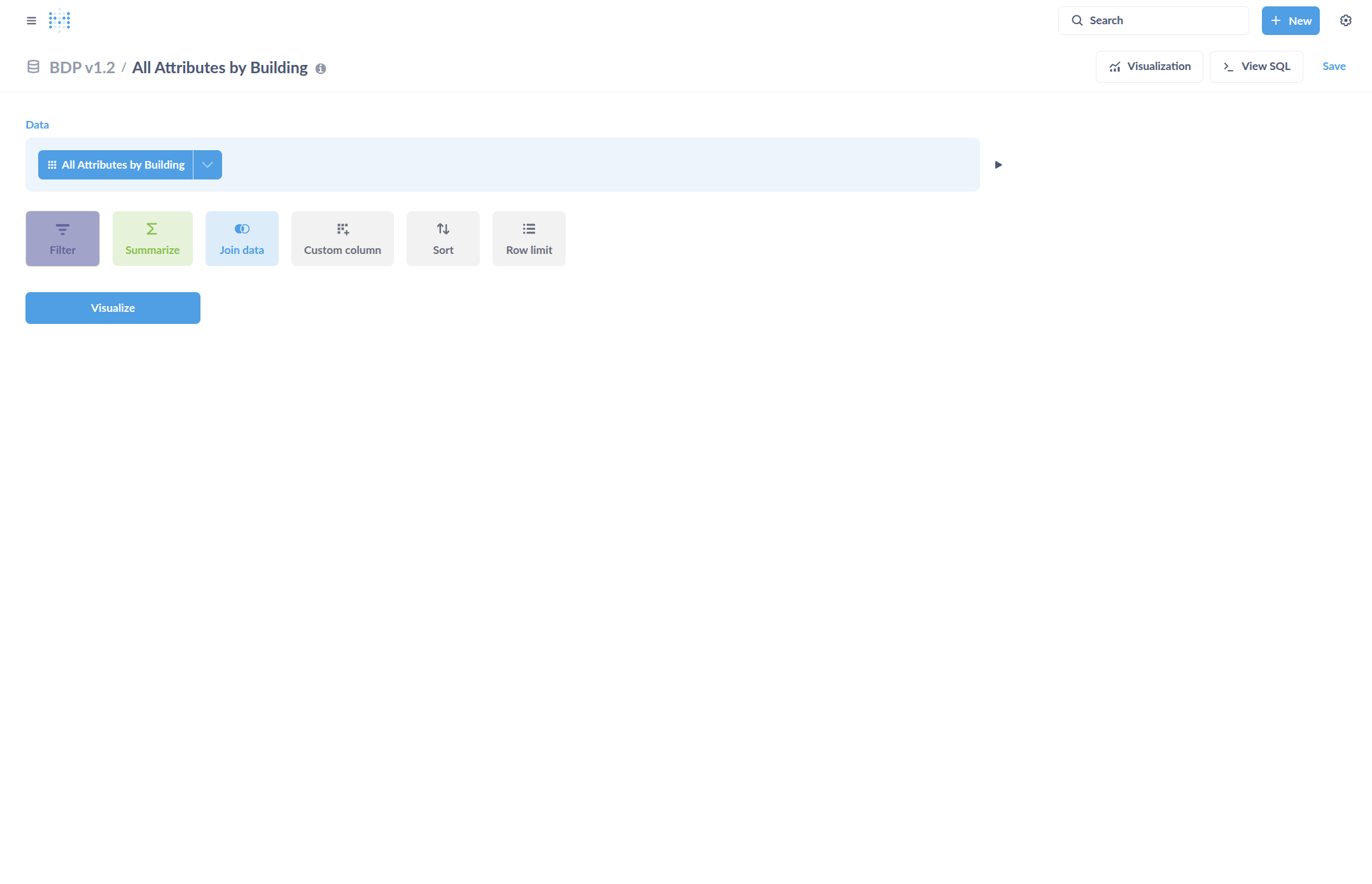
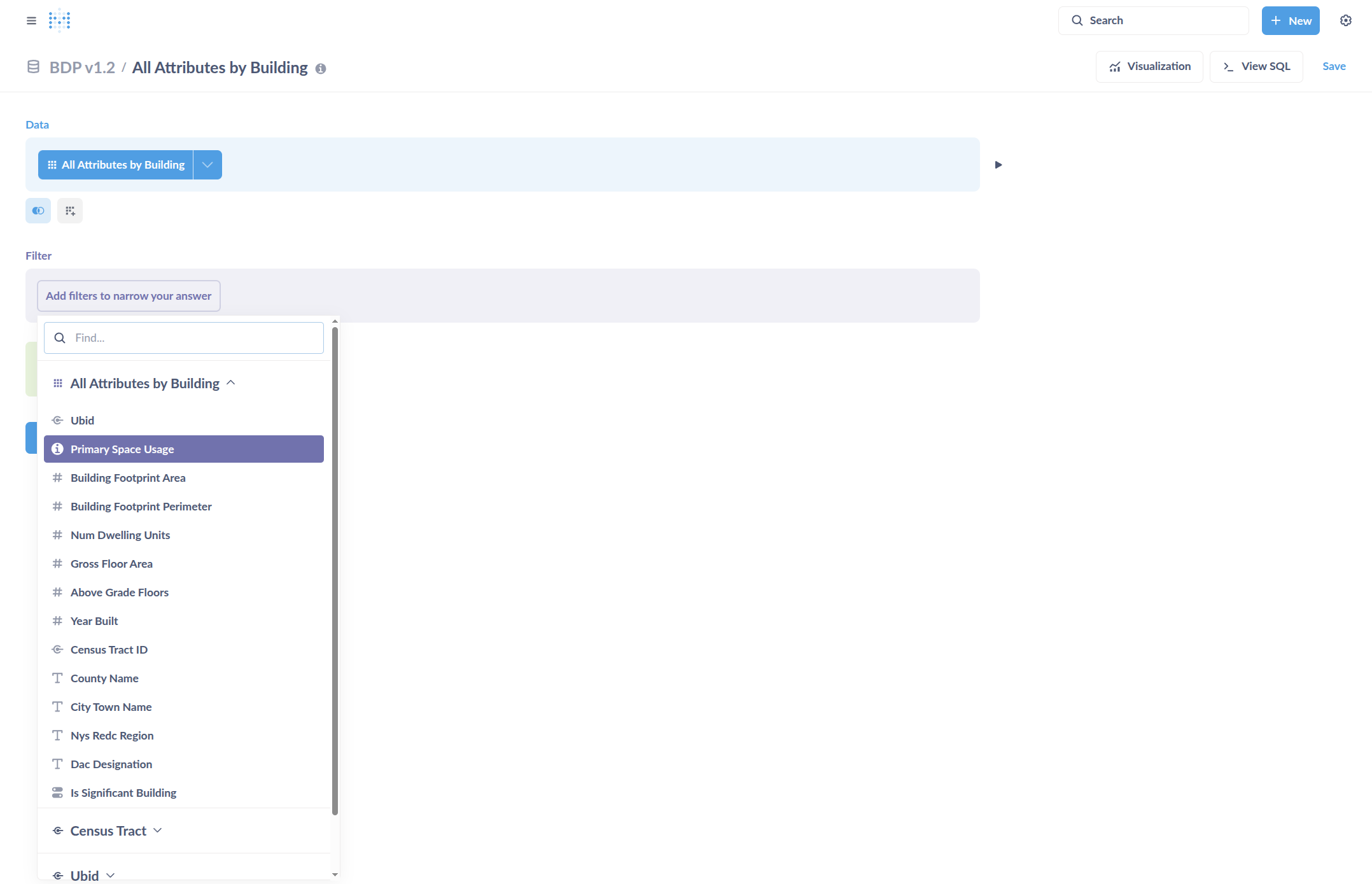
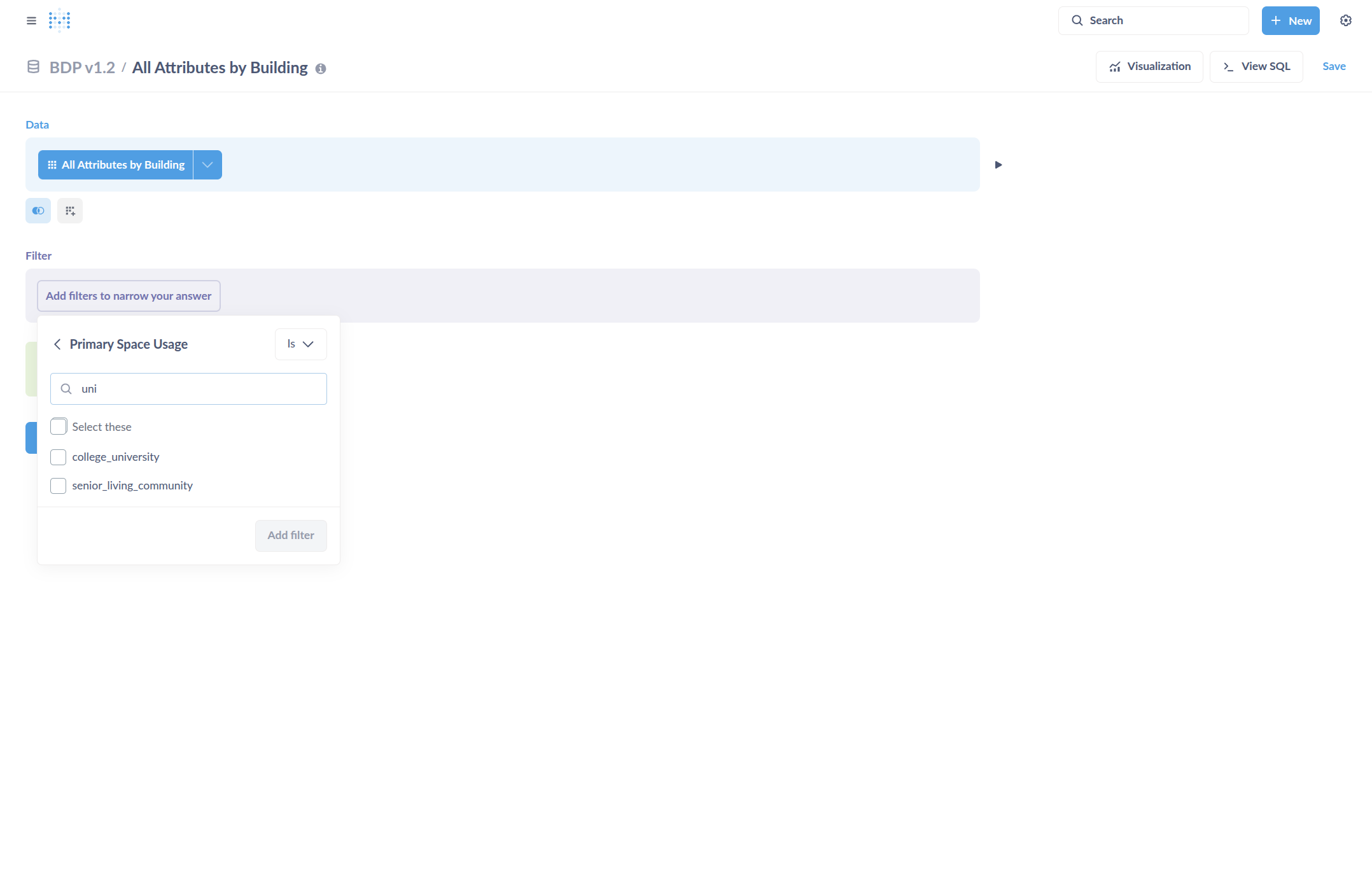
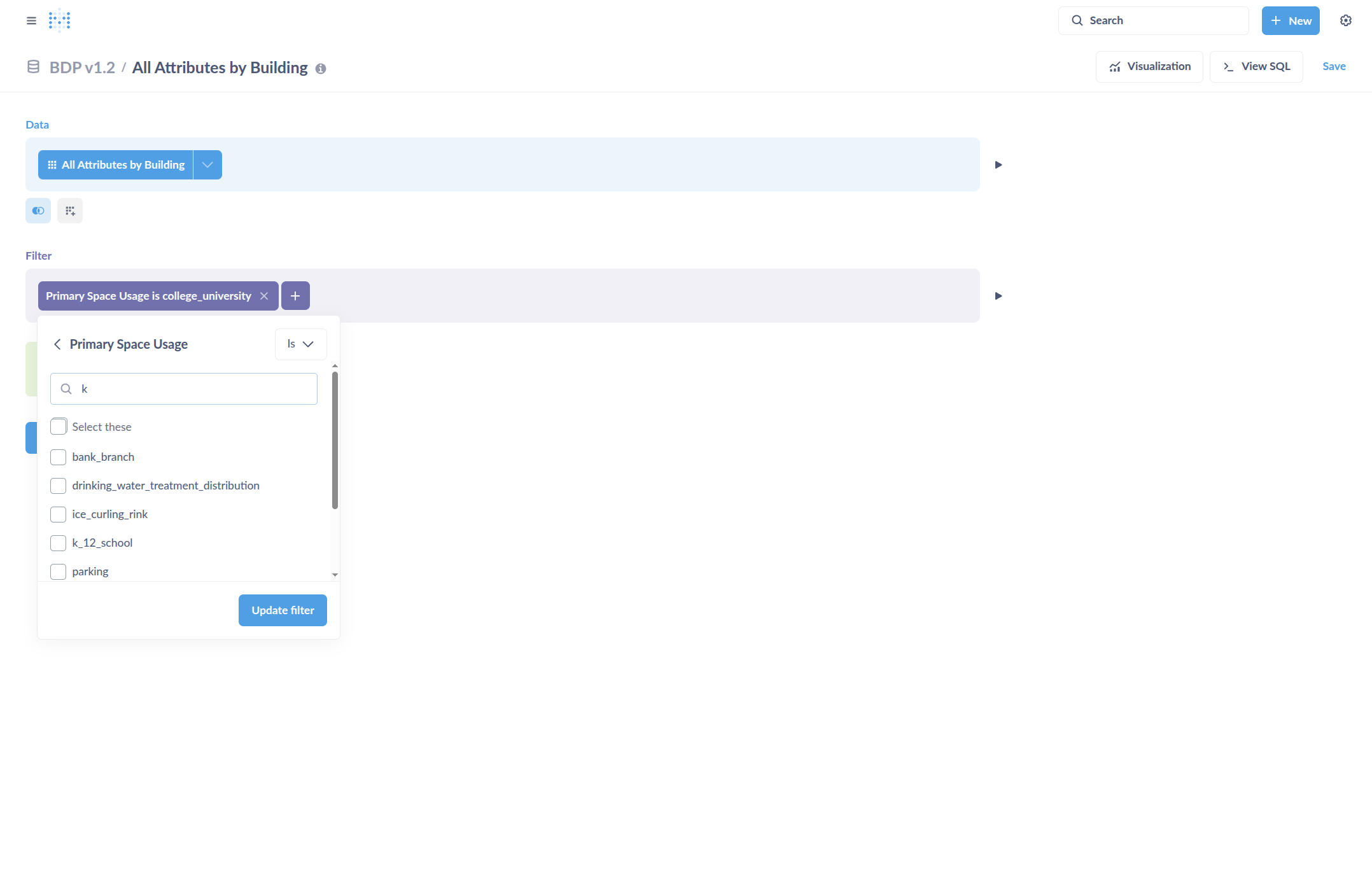
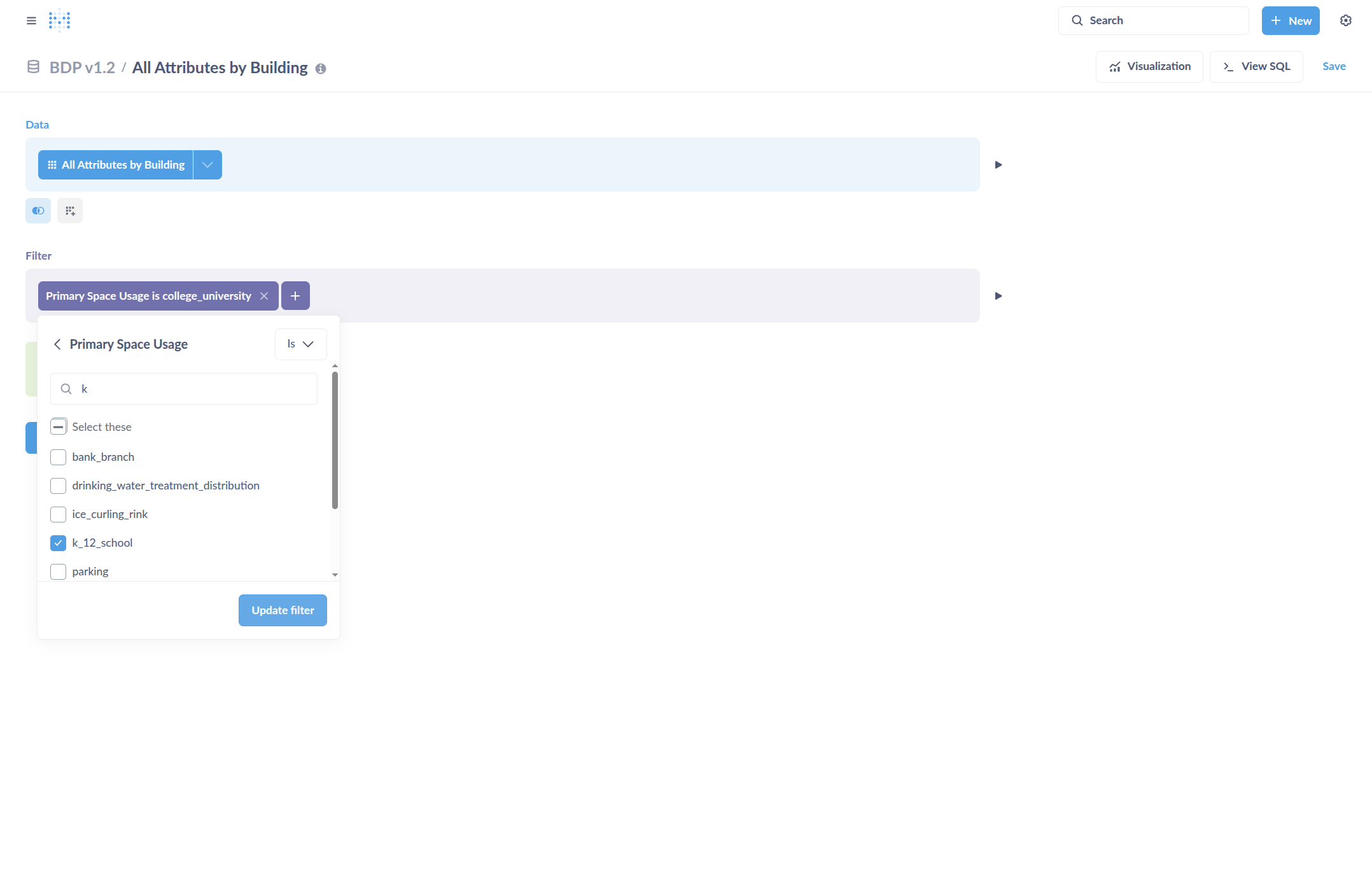
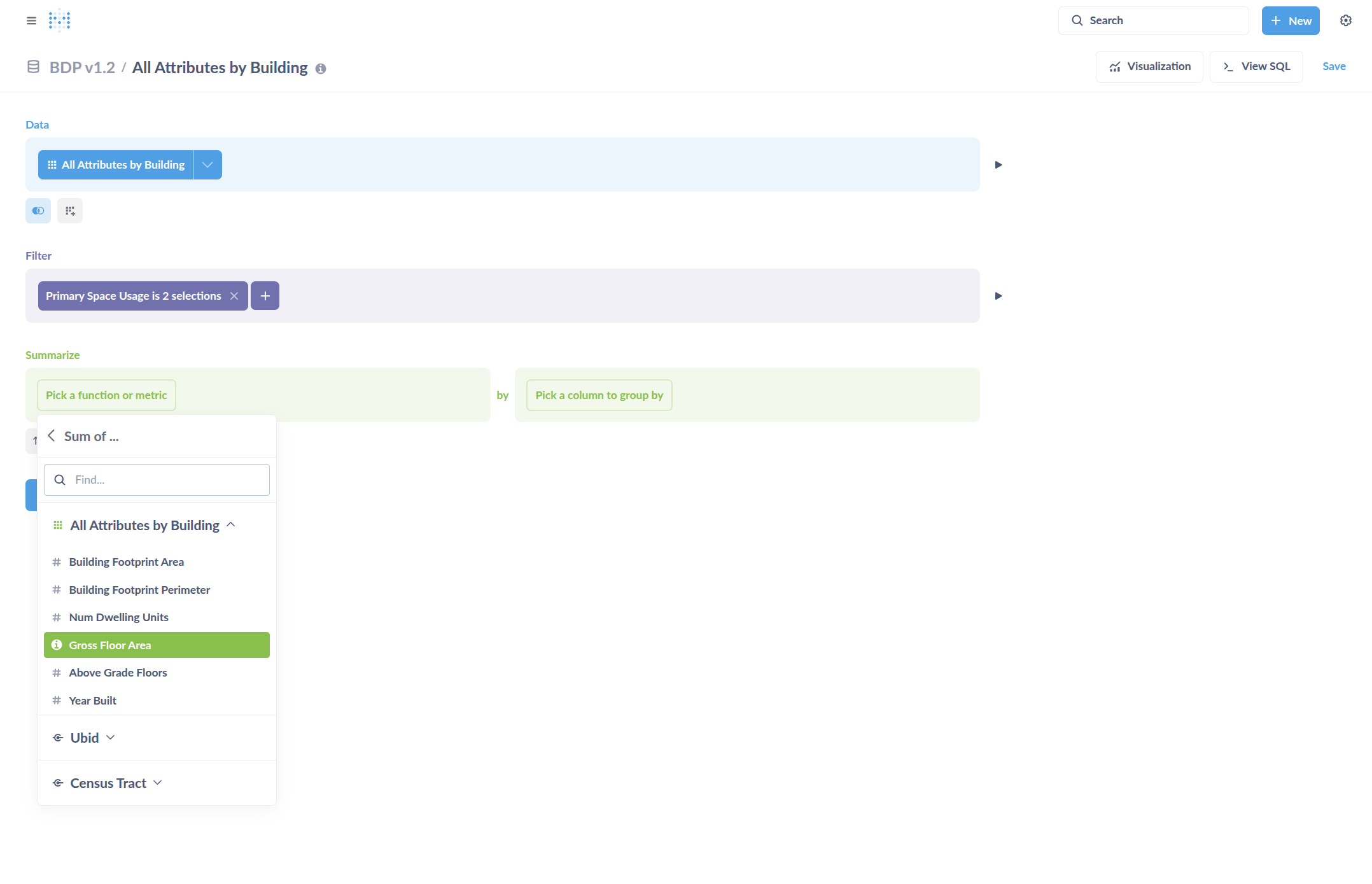
Then, click on what you want the chart to display.
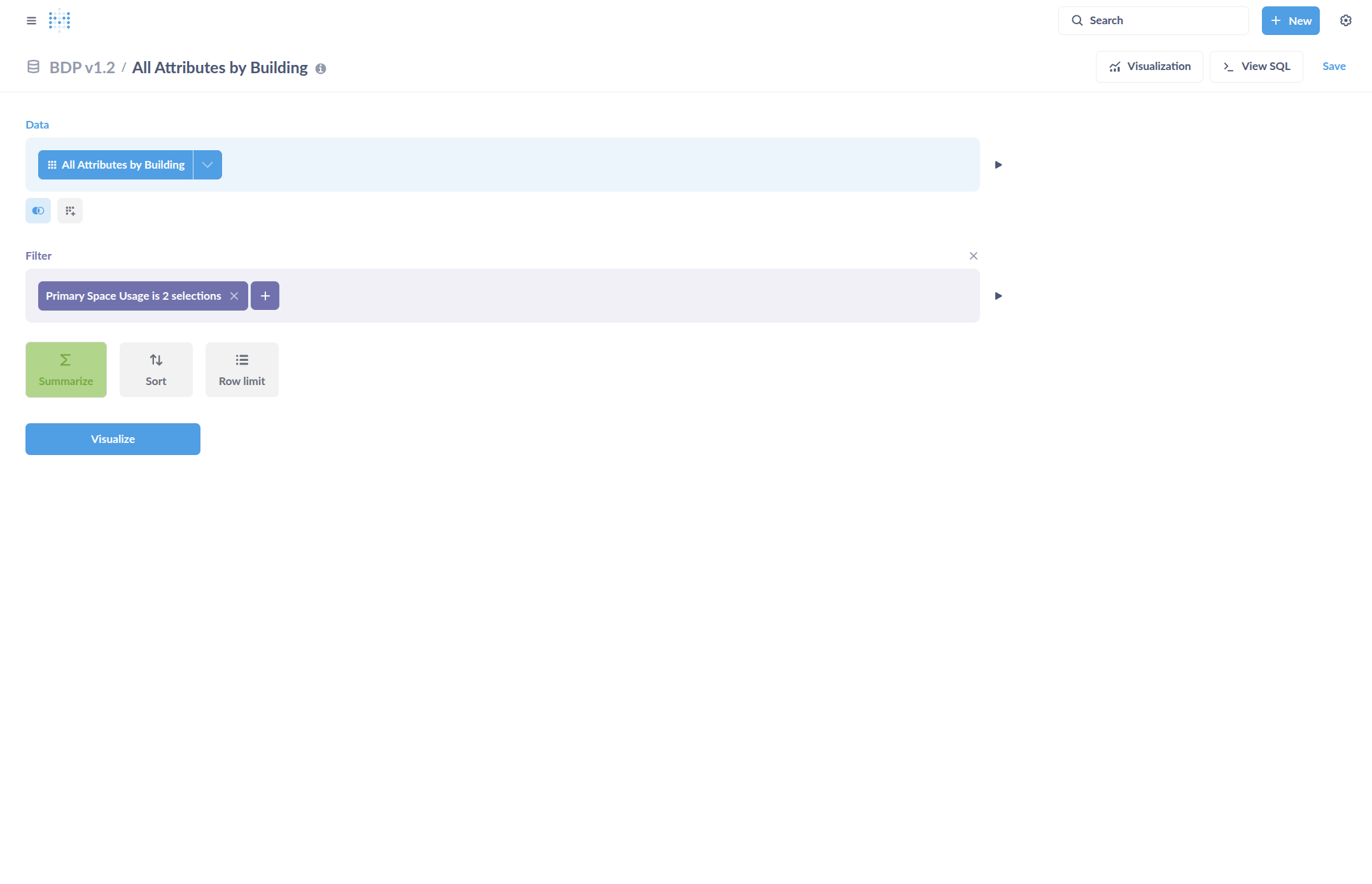
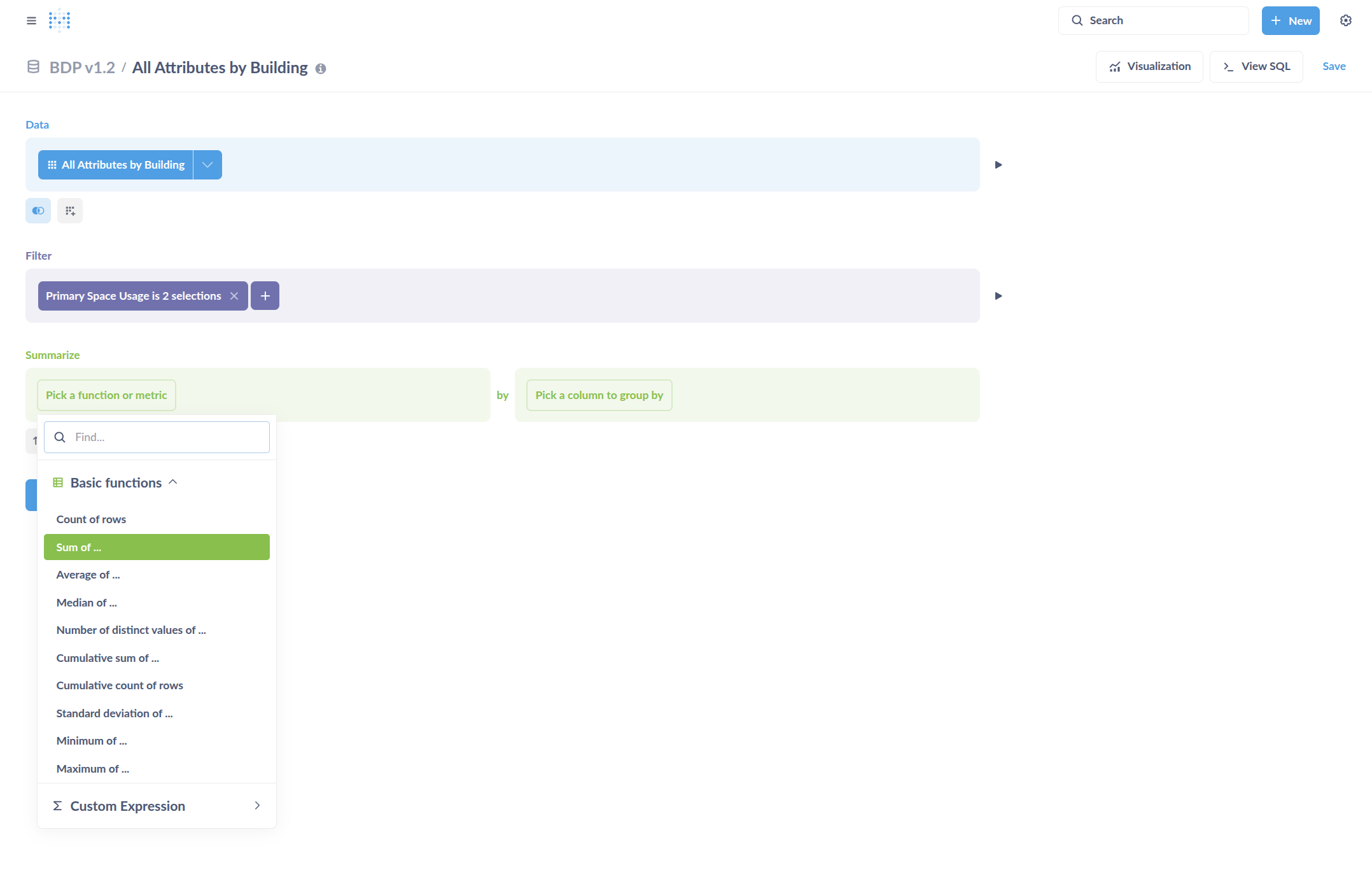
For example, the sum of the gross floor area.
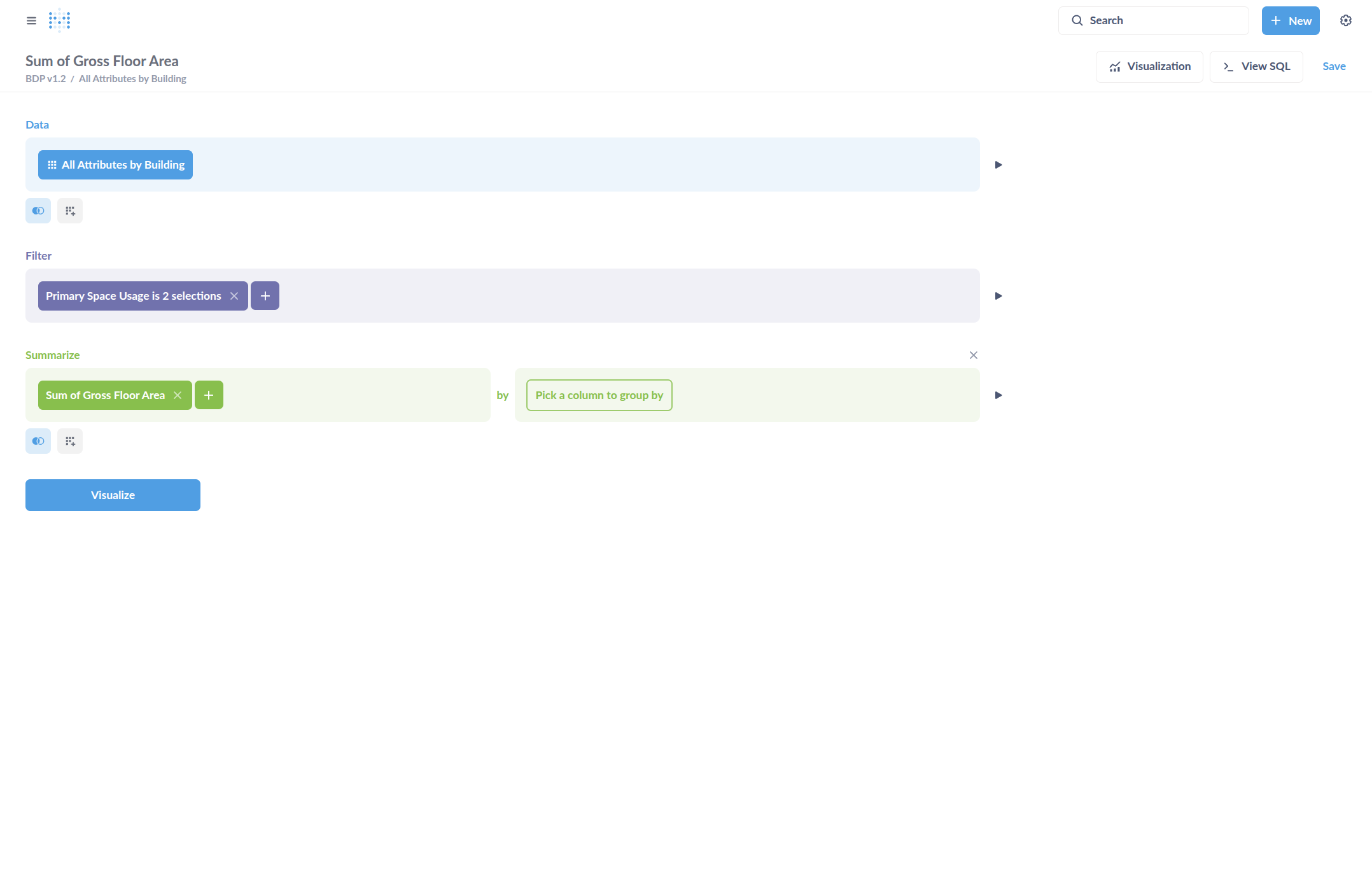
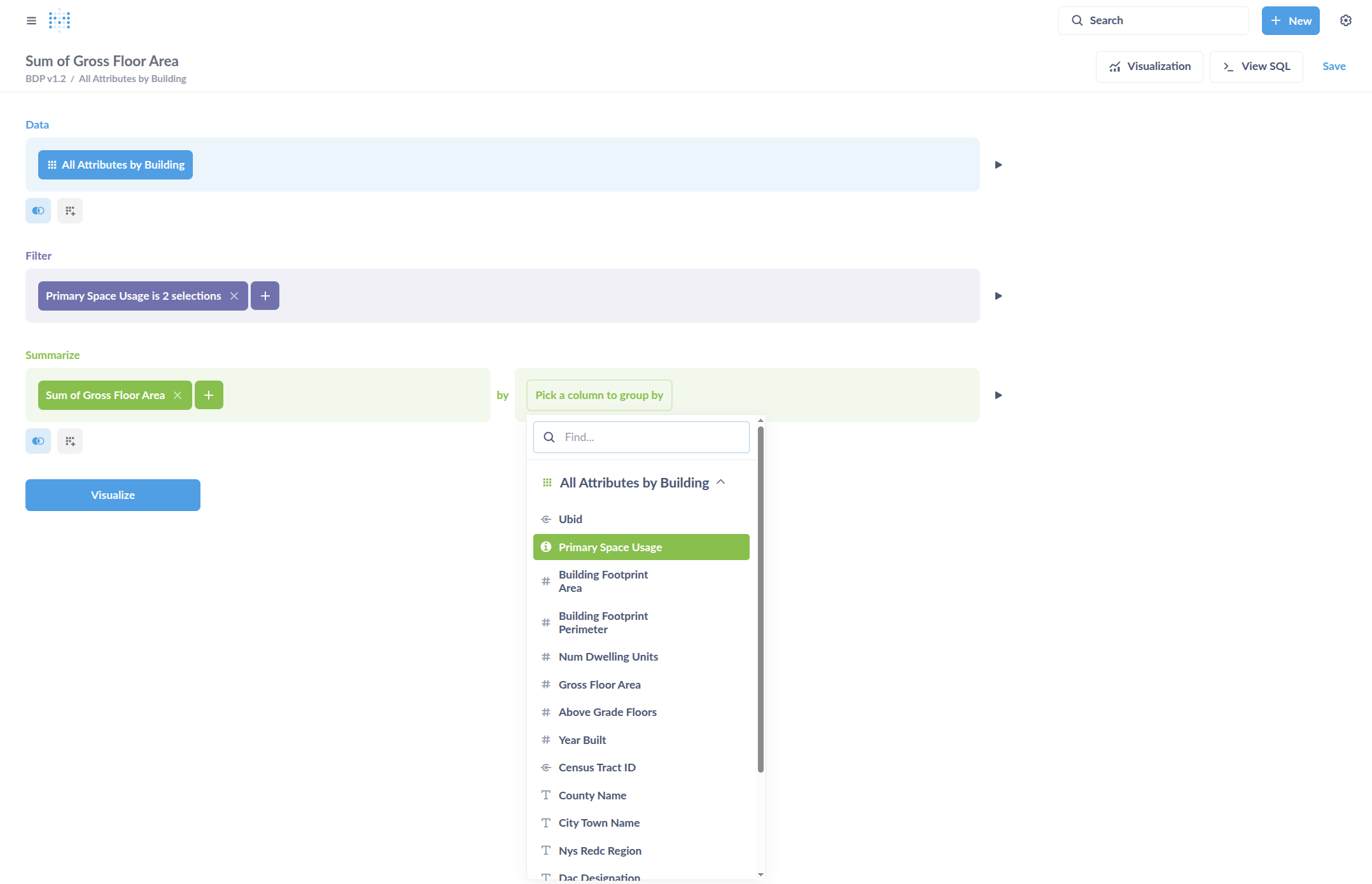
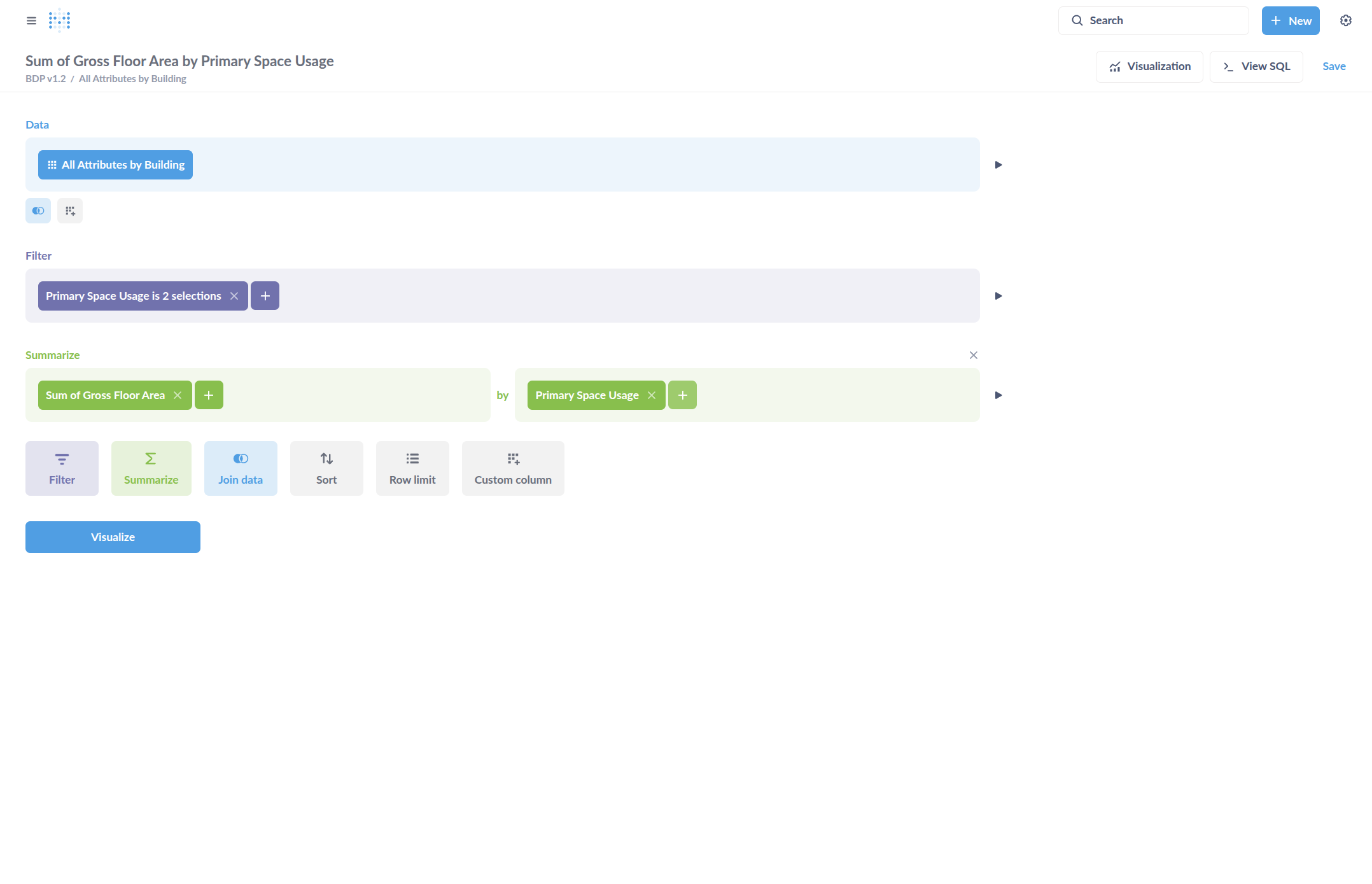
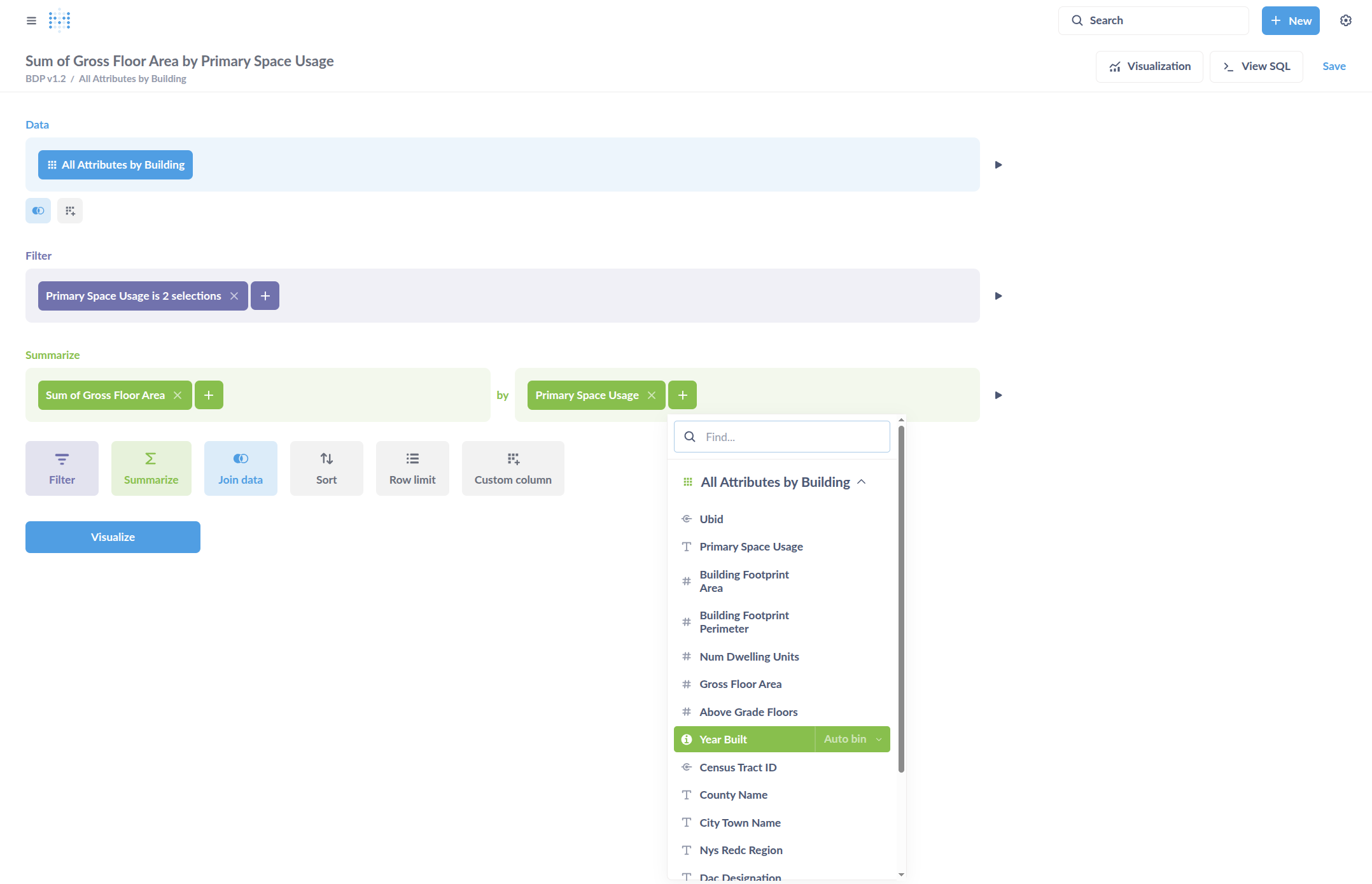
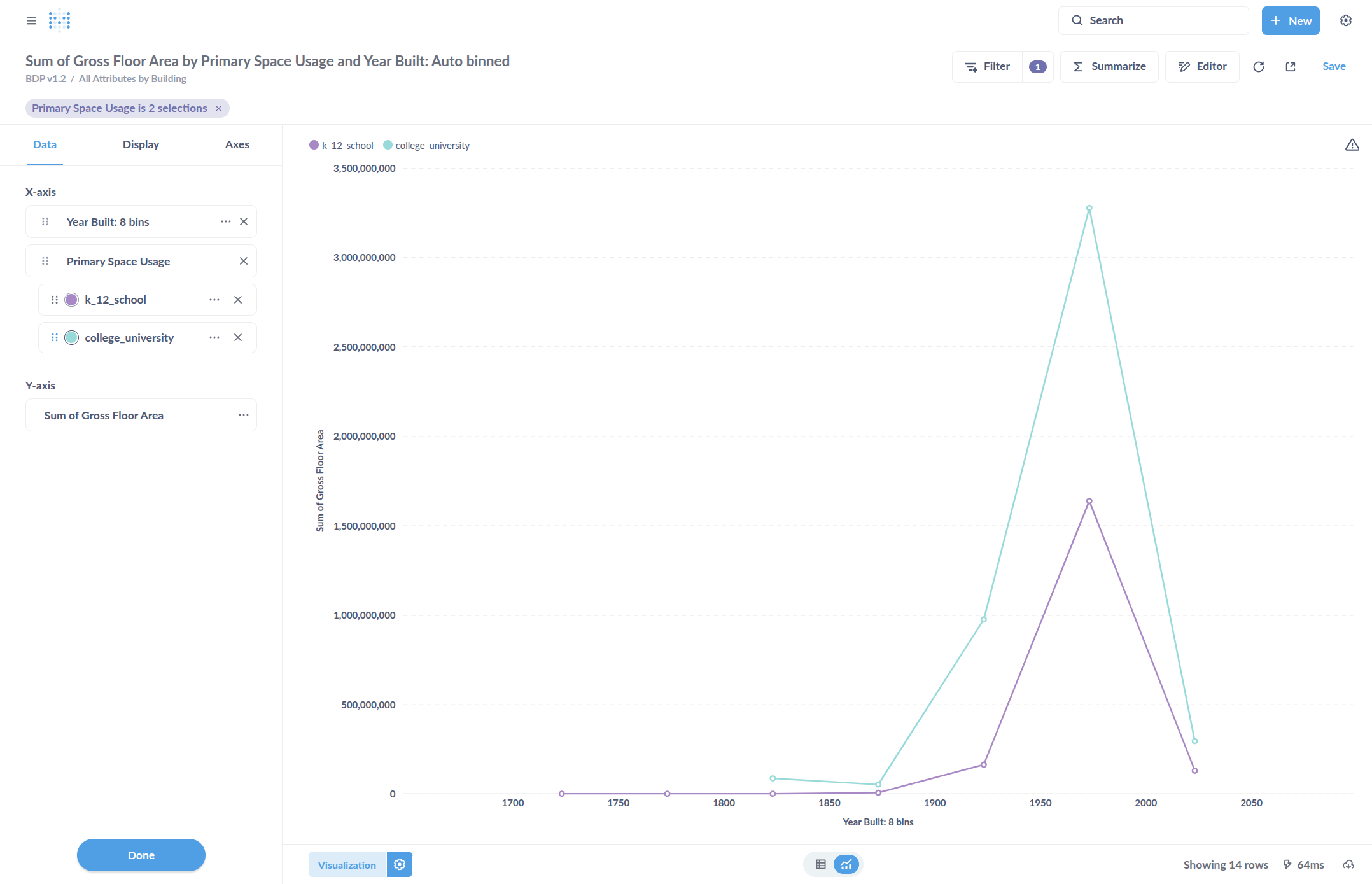
Here, we are designing a chart to compare two types of buildings by their gross floor area, based on the year they were built. The idea is to set the X axis as Year Built and the Y axis as total Gross Floor Area. We will use color coding to represent the type of Primary Space Usage. It helps to sort this by Year Built to help with charting the X axis in order from earliest to most recent.
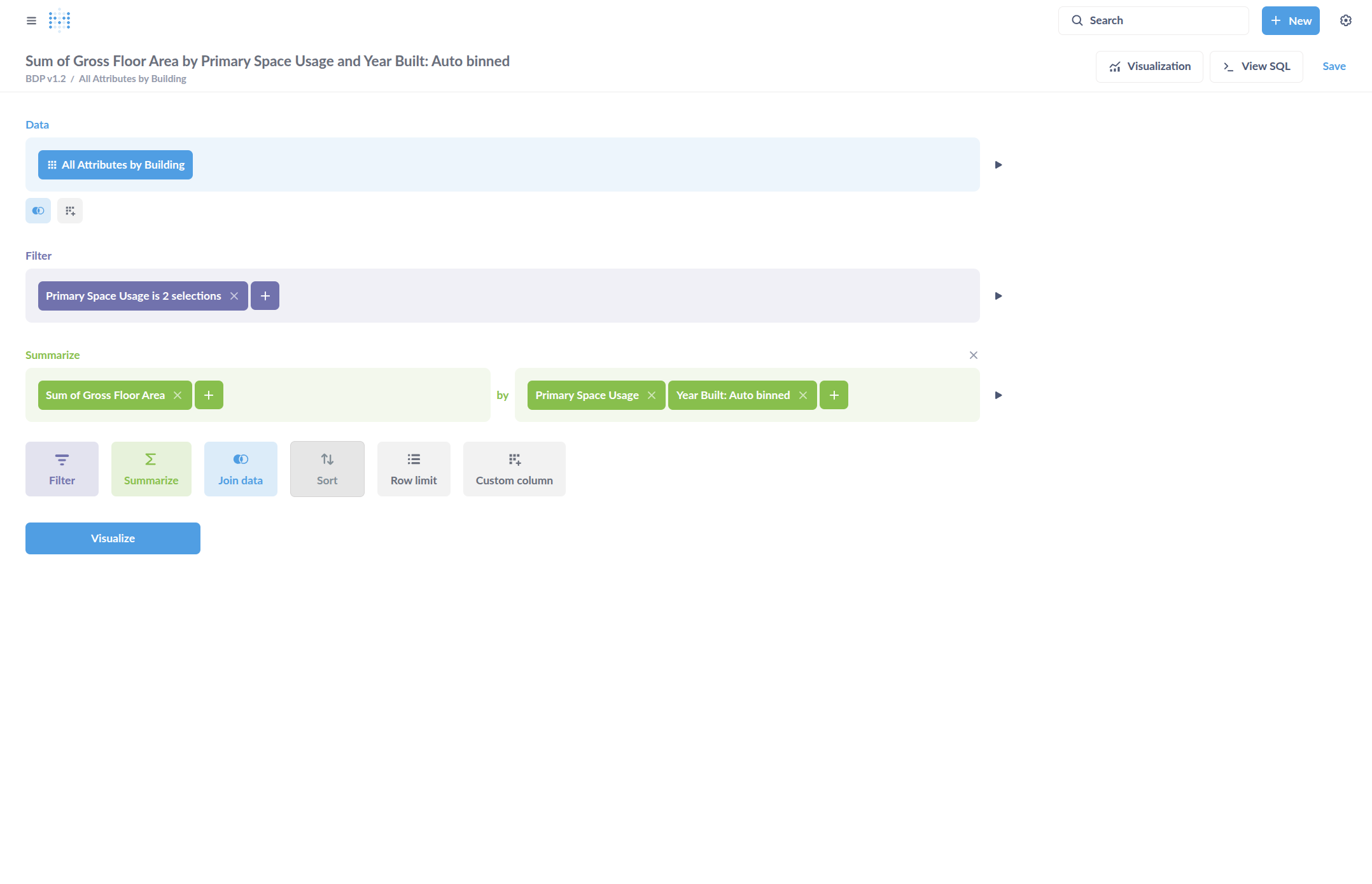
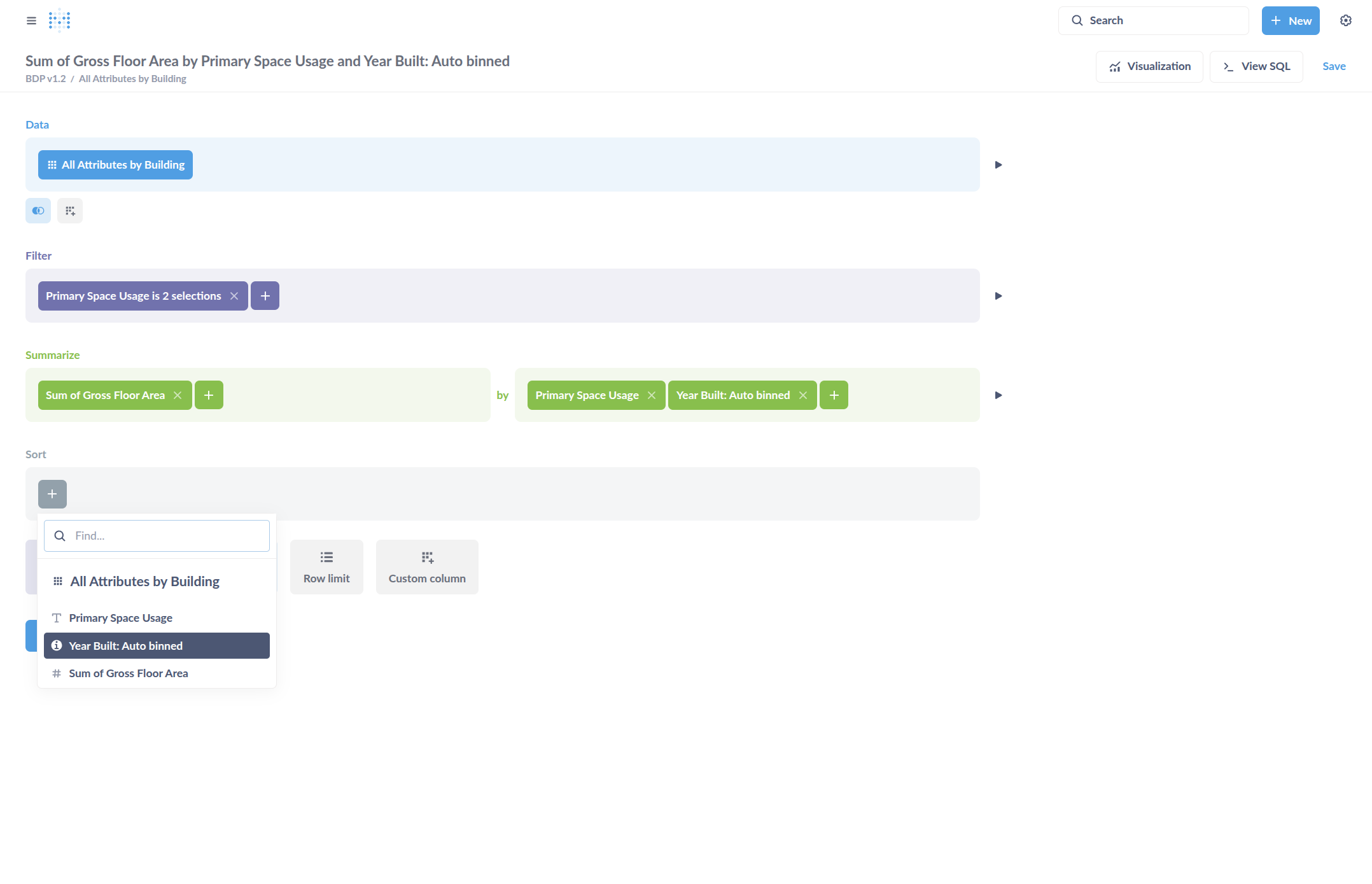
Now select "Visualize."
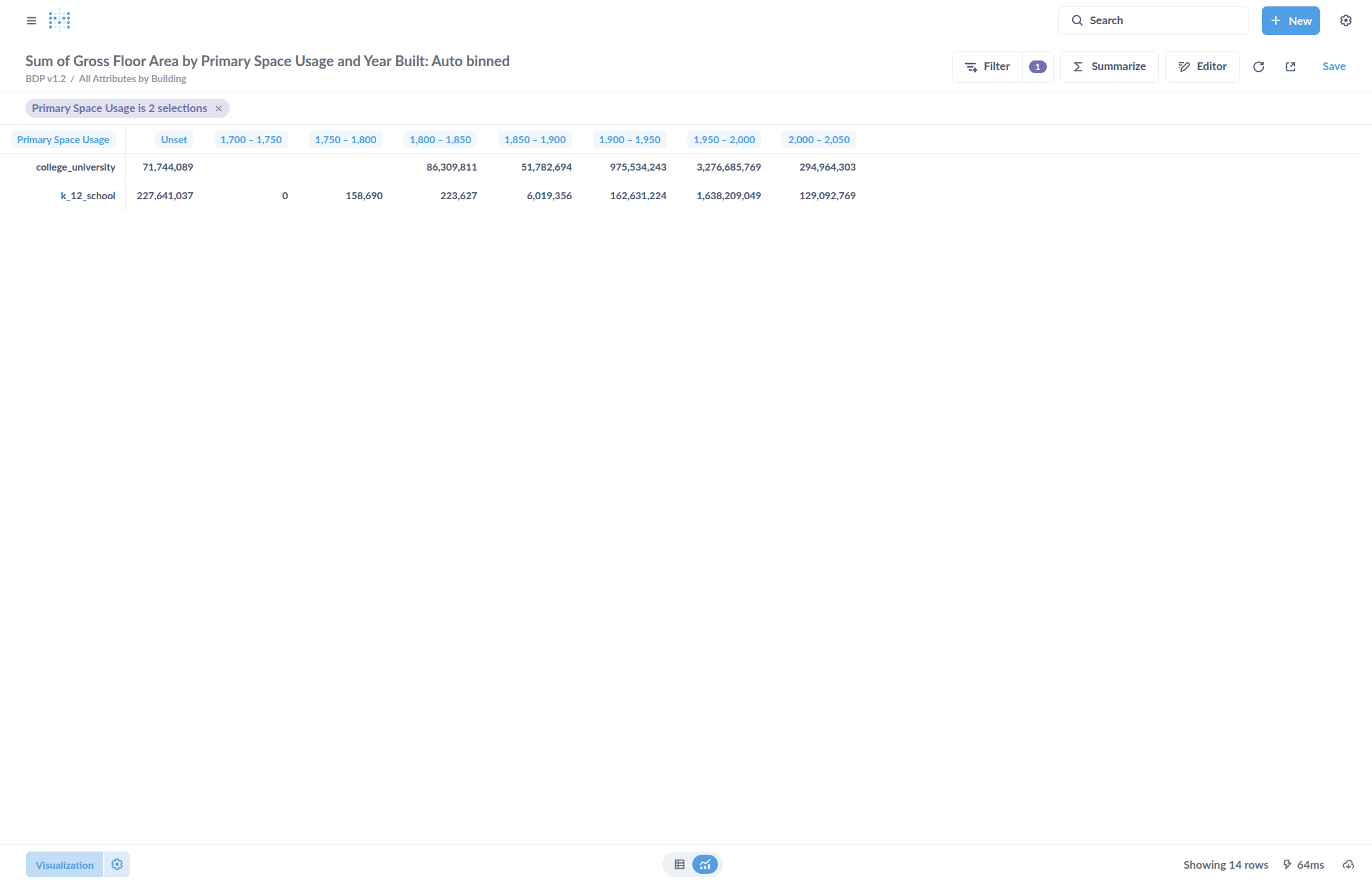
By default, it displays a table. I can go to Visualization and click on it.
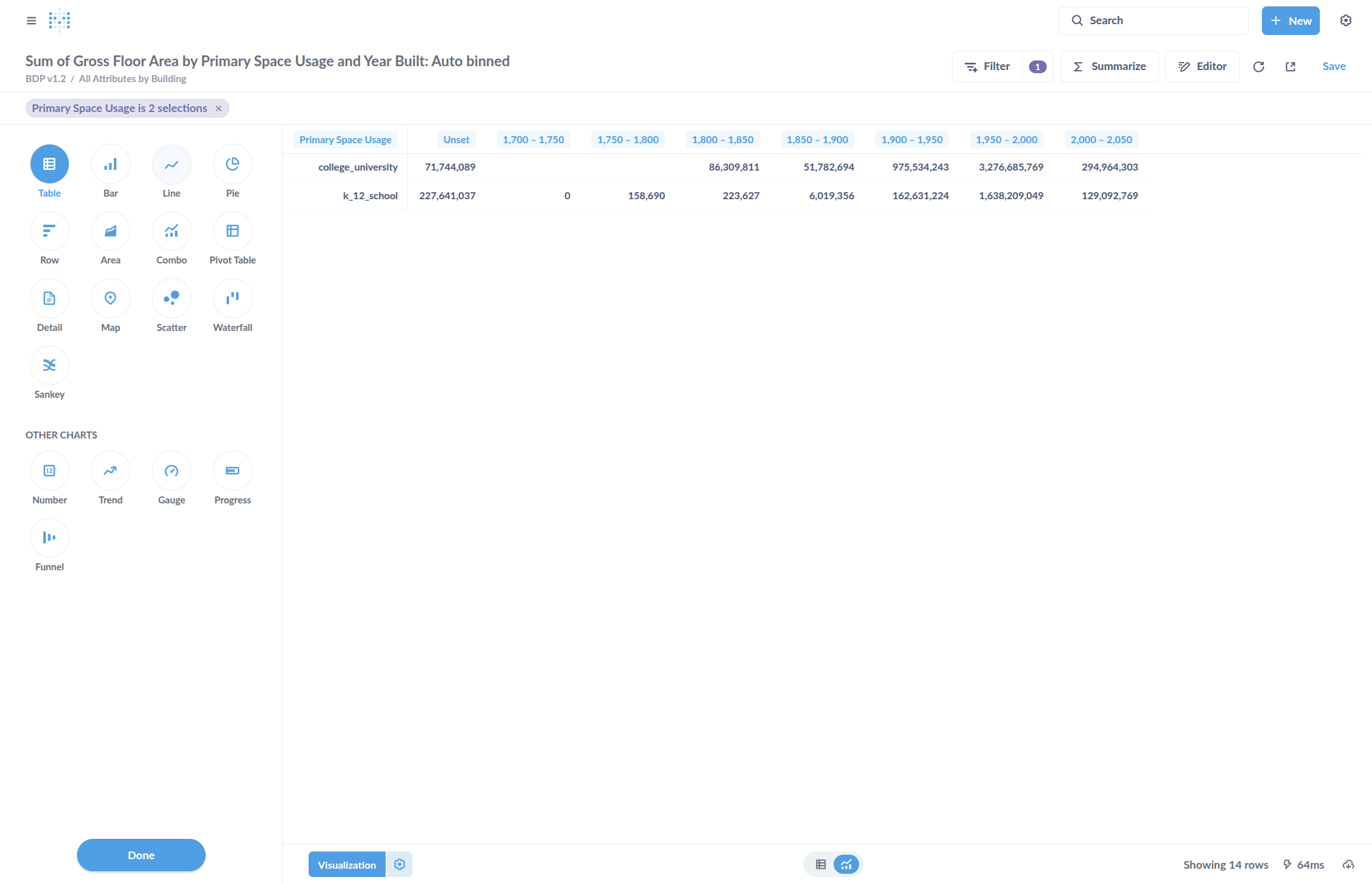
Now I can change it to the type of chart I want to see. I can select a line chart by clicking Line Chart.
Select Done, which just means done with selecting the type of chart
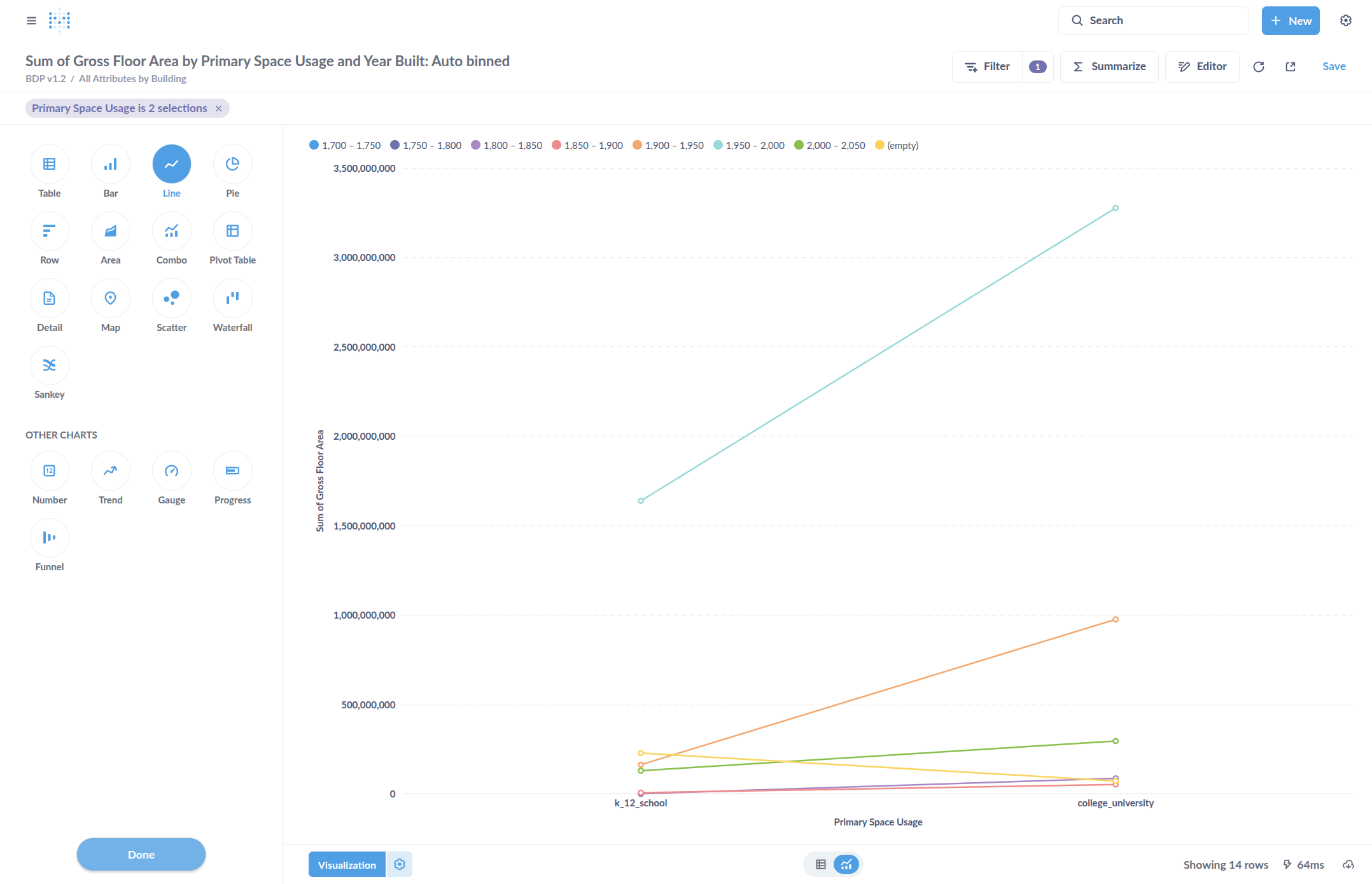
I can go to the visualization settings by clicking on the Settings icon next to the Visualization button.
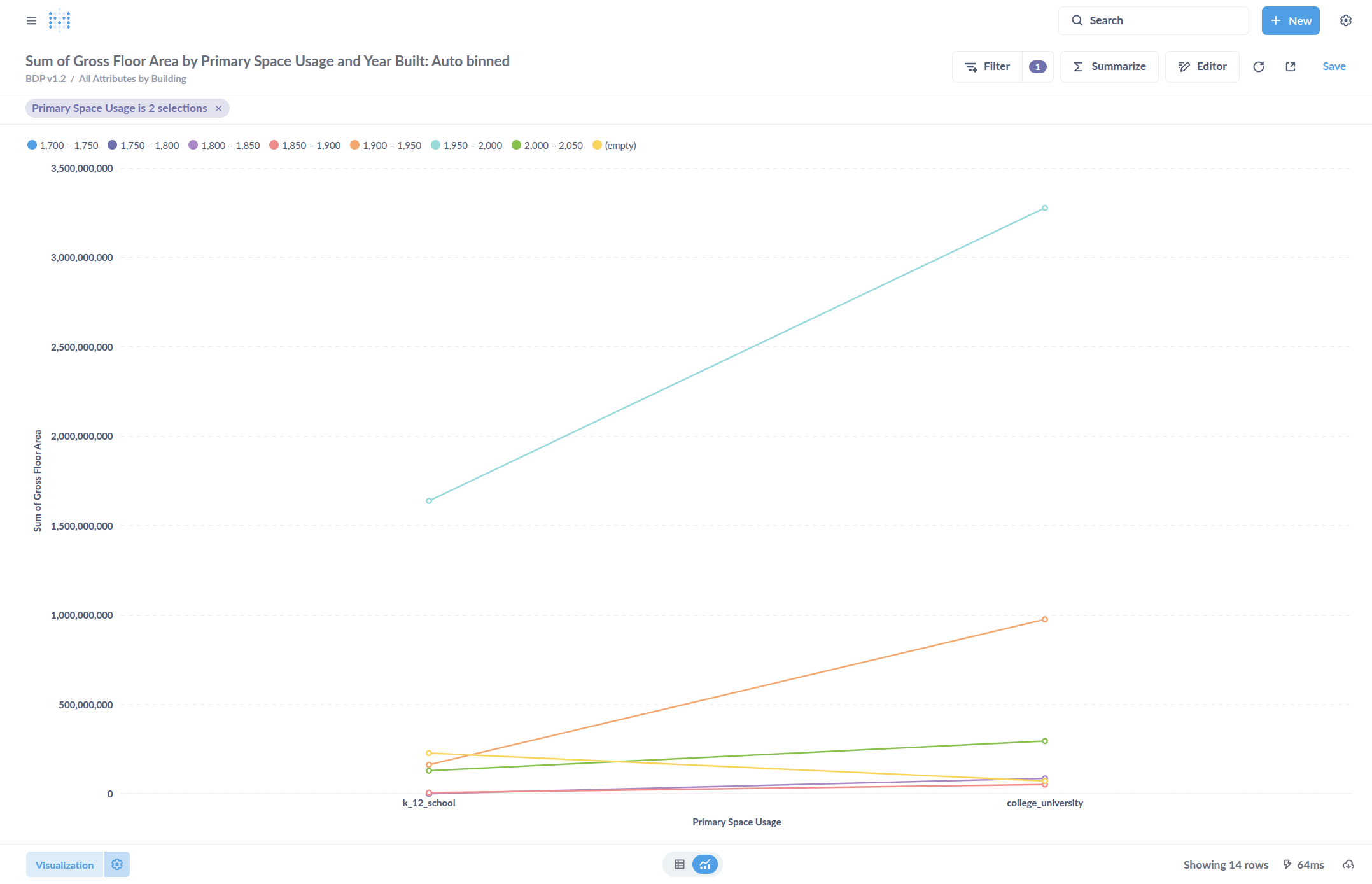
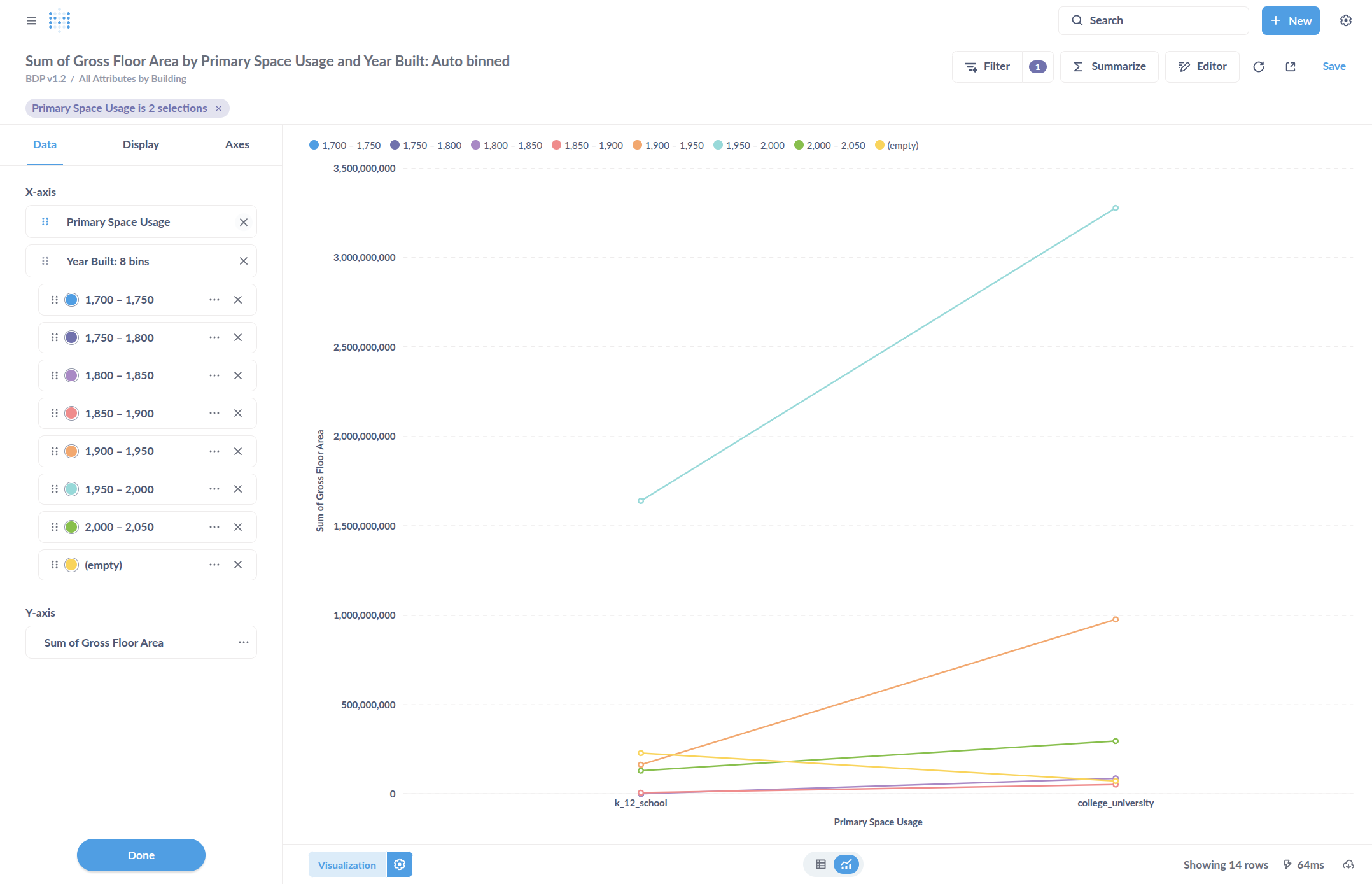
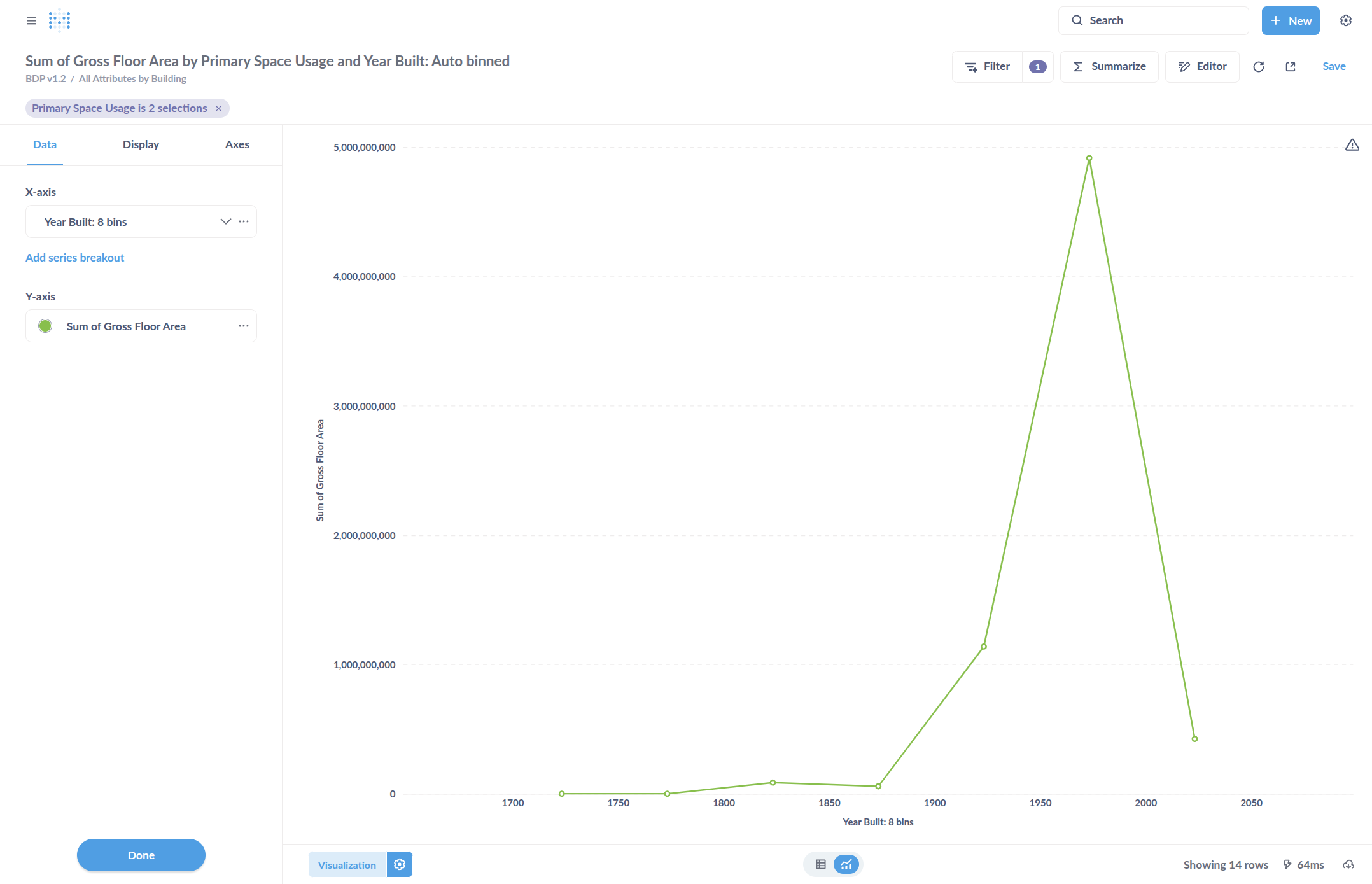
Now only Year Built is on that axis.
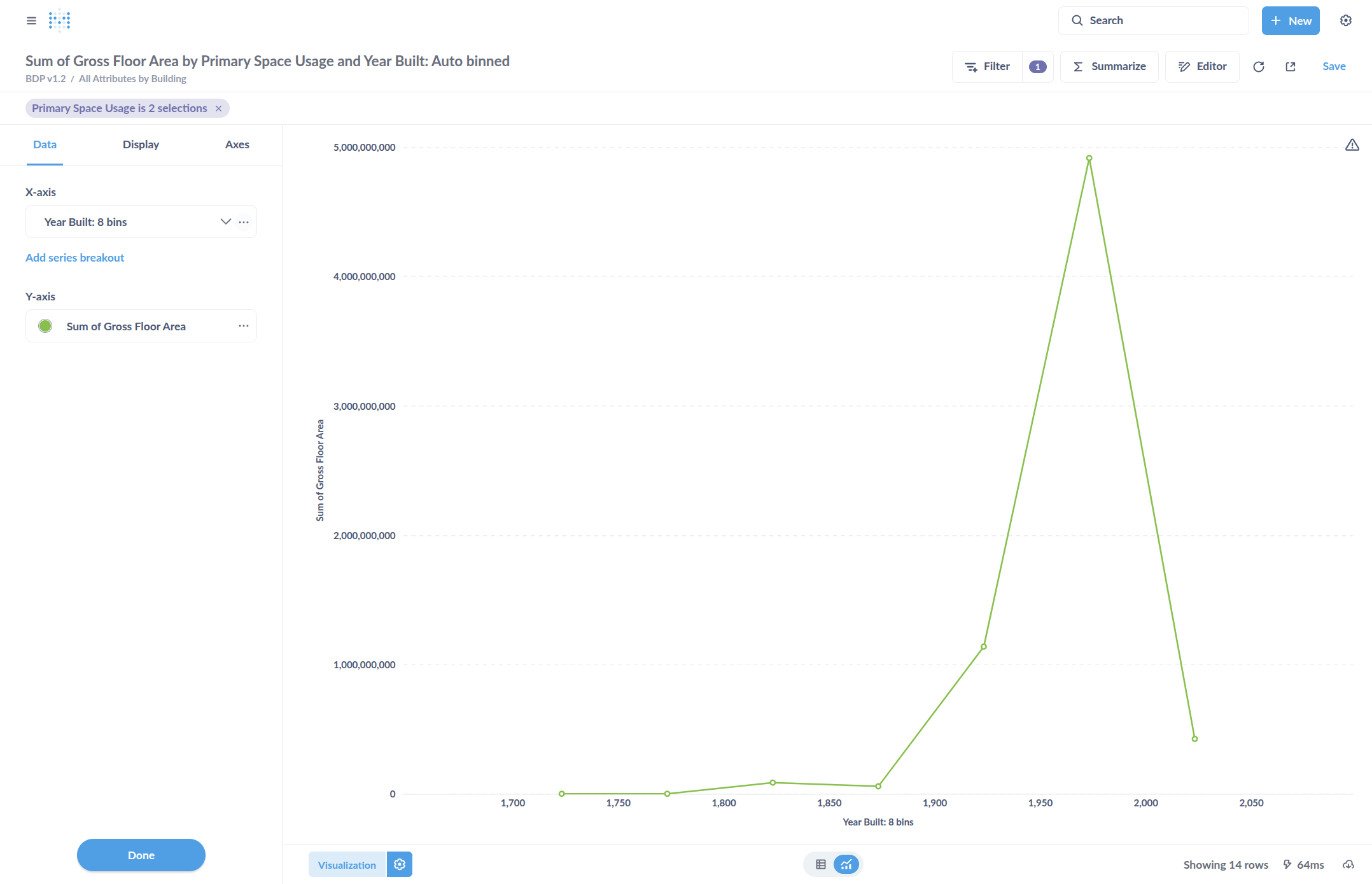
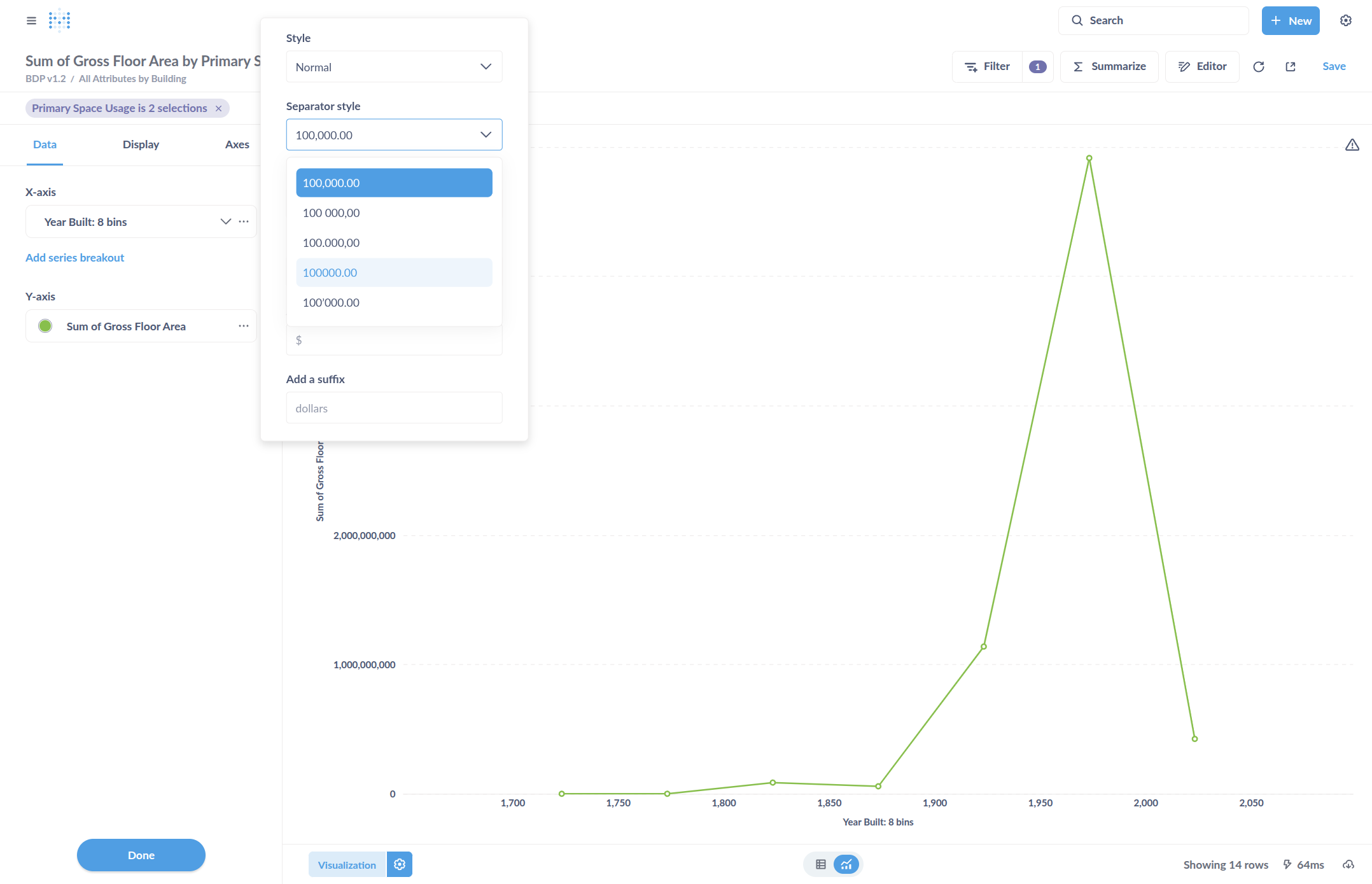
Change the number formatting style so that the Year Built does not include a comma. To do this, click Separator Style and select the option without commas.
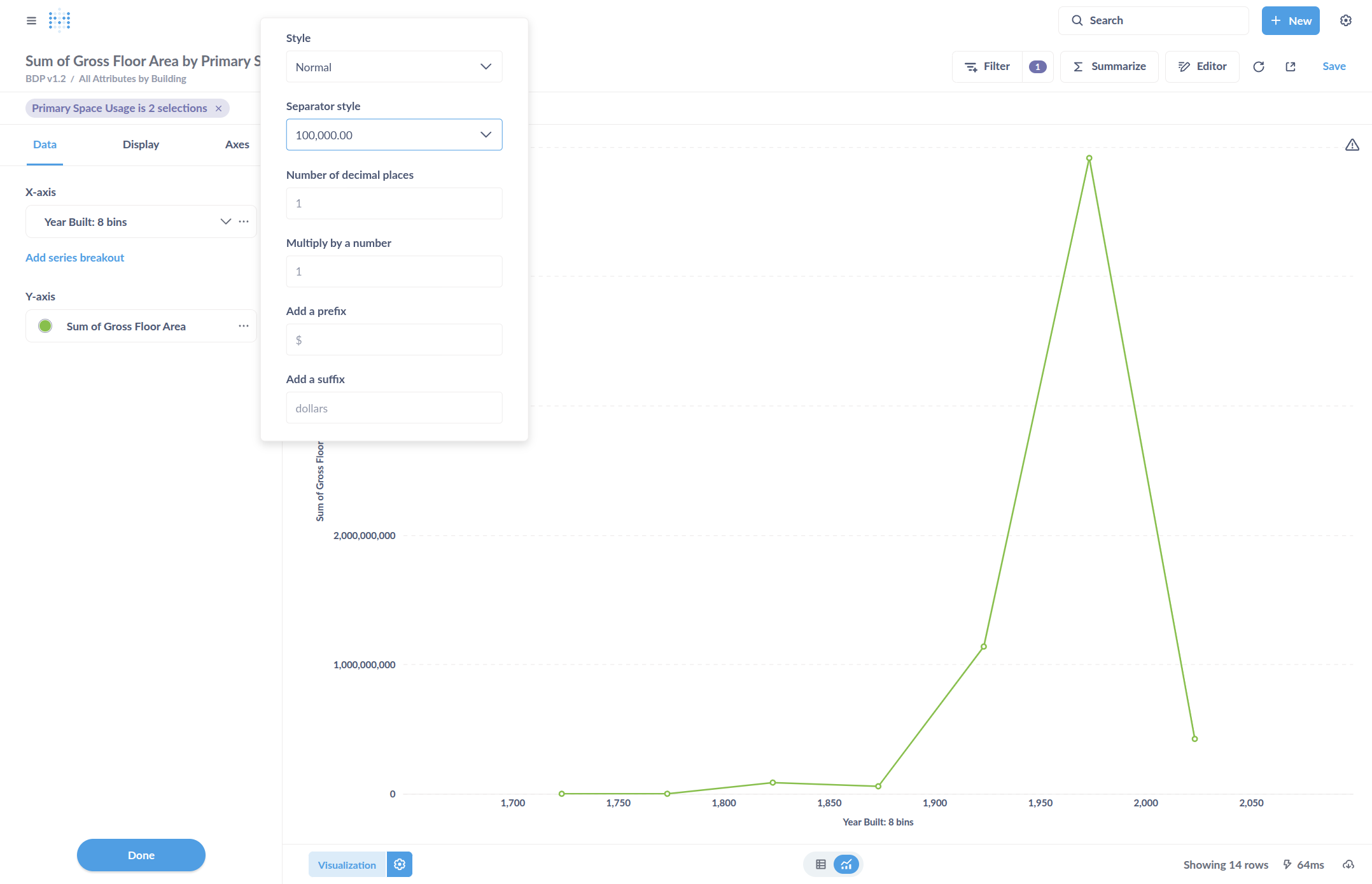
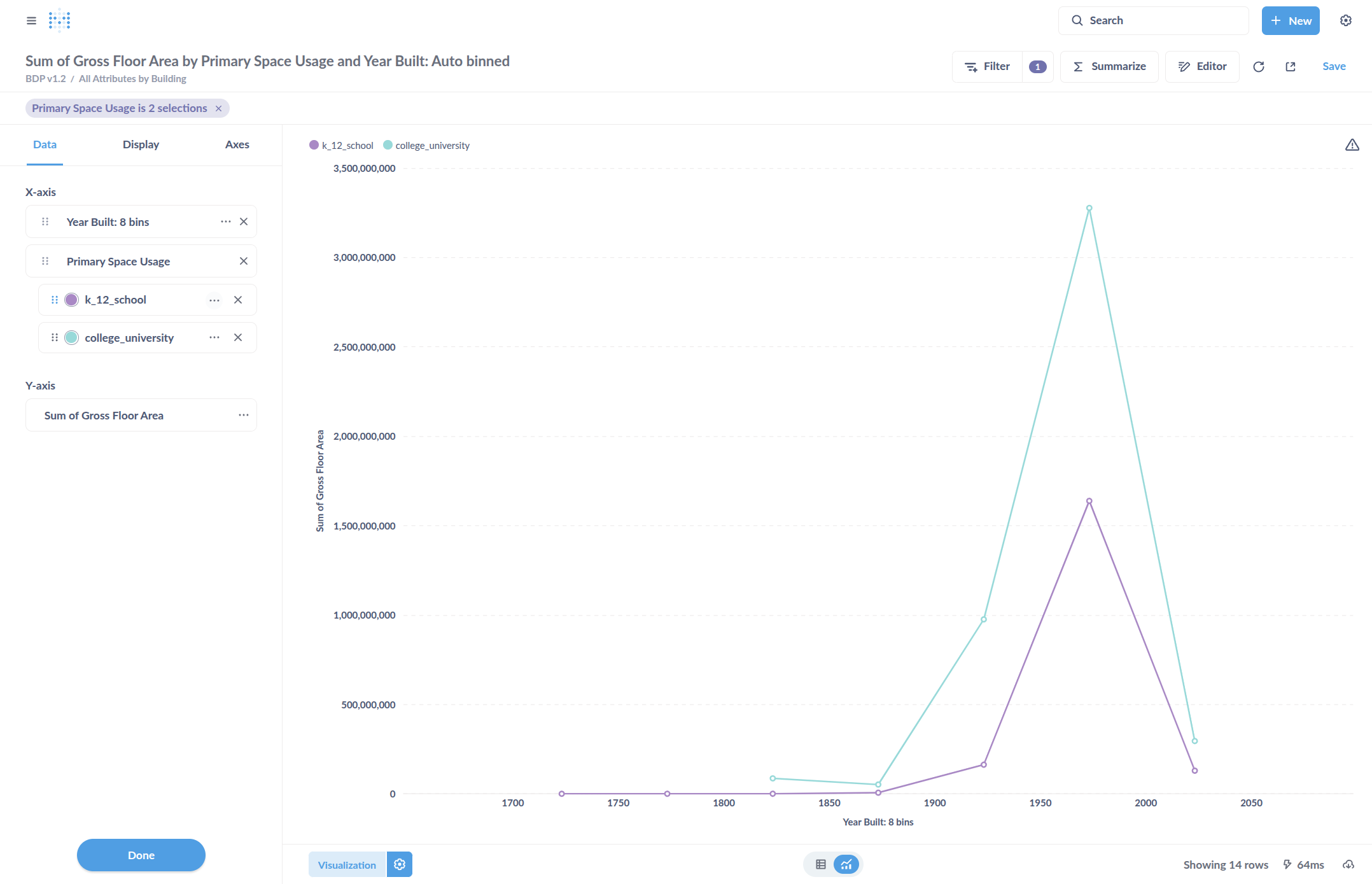
Color code the chart by selecting "Add Series Breakout."
By default, it added Primary Space Usage, which is correct in this case. It is now color-coded for the two different types of space usage.
Edit the type of shape or line to include hashes, or to interpolate if there are missing points.
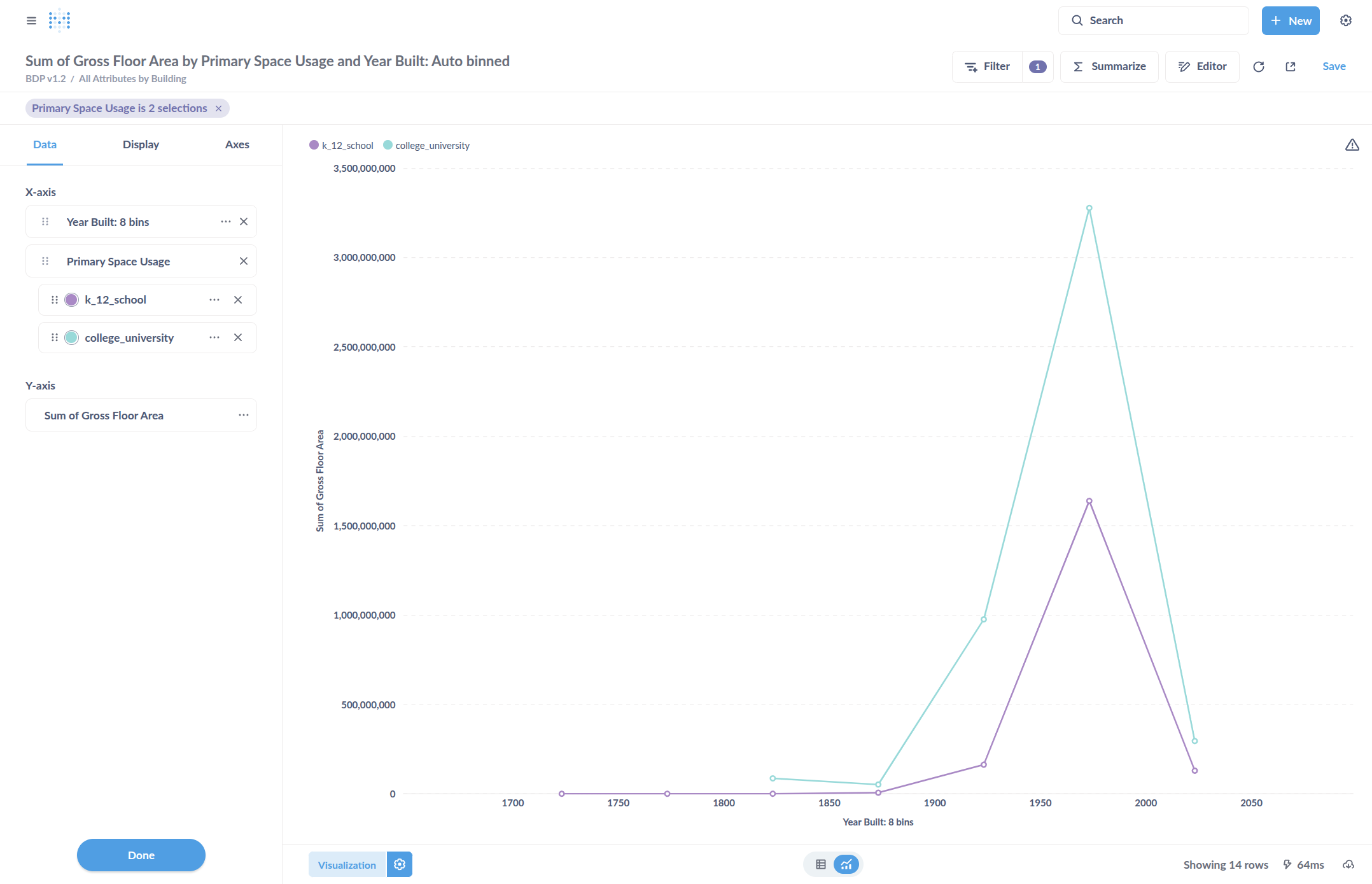
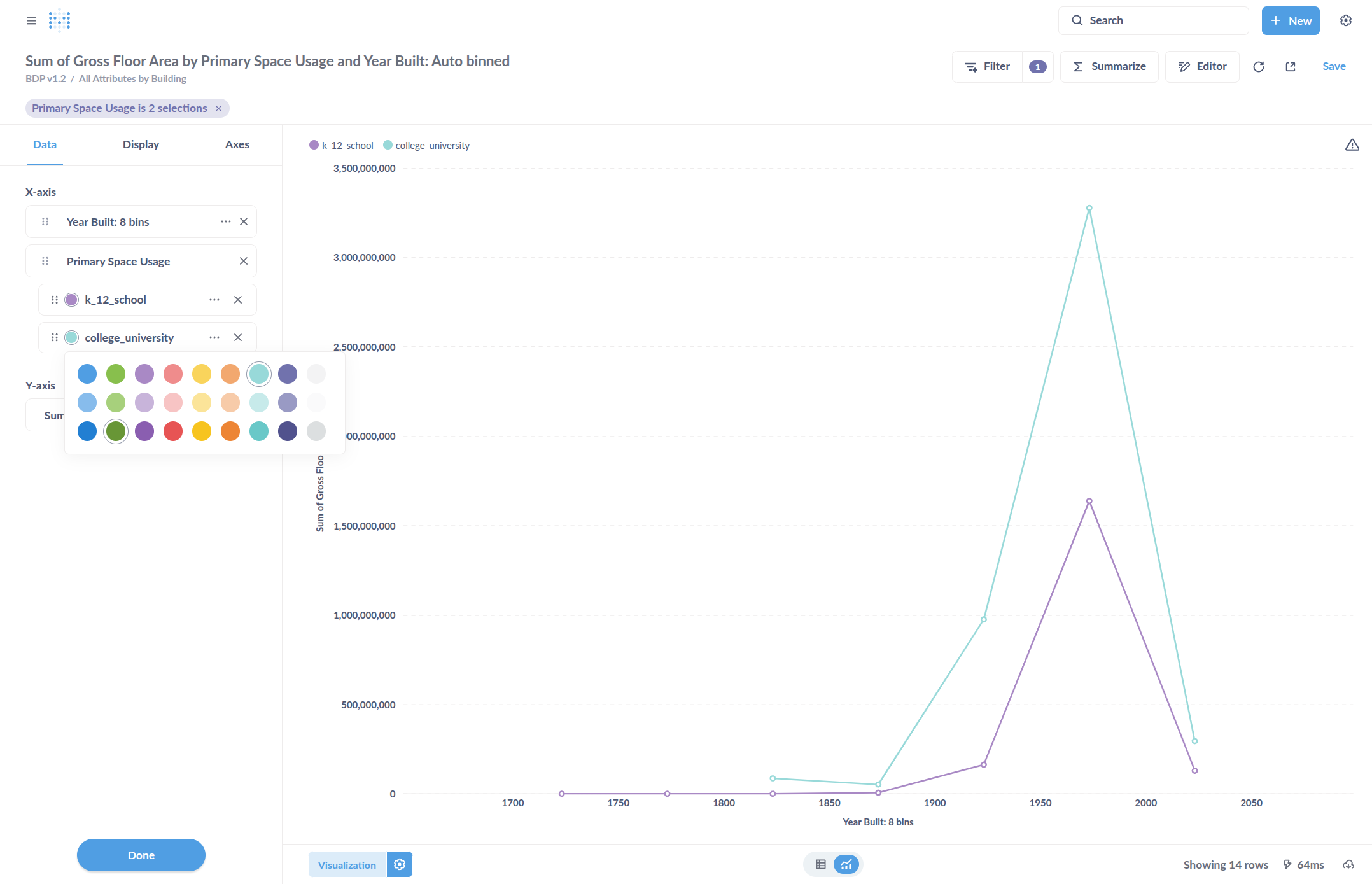
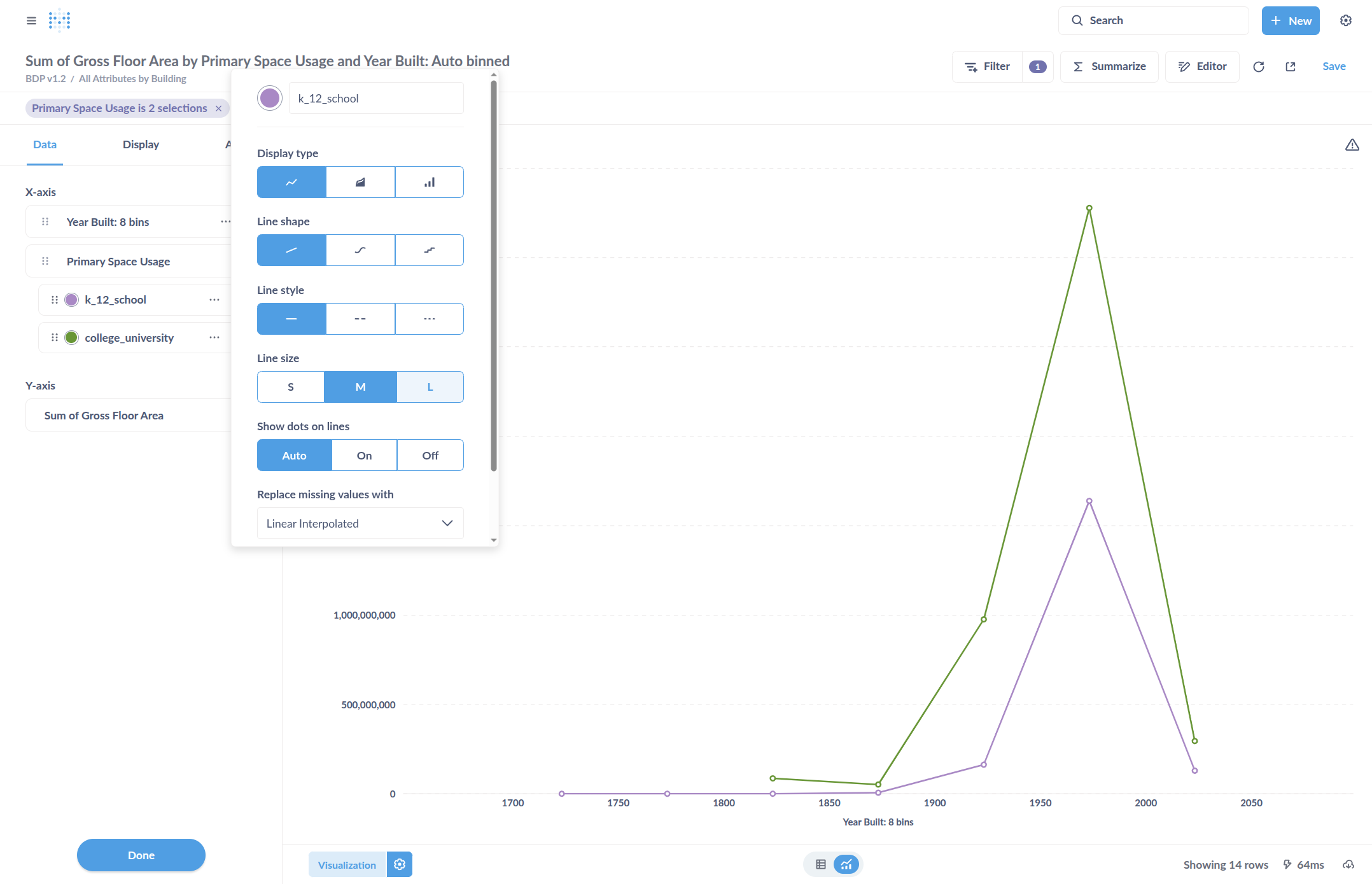
Change the color by clicking on the colored circle next to the label. In this example, we will change the color of College/University to one with more contrast compared to K through 12 schools. This will make them easier to distinguish on the chart.
Change the "Line size" to change the thickness of the line, which may improve visibility.
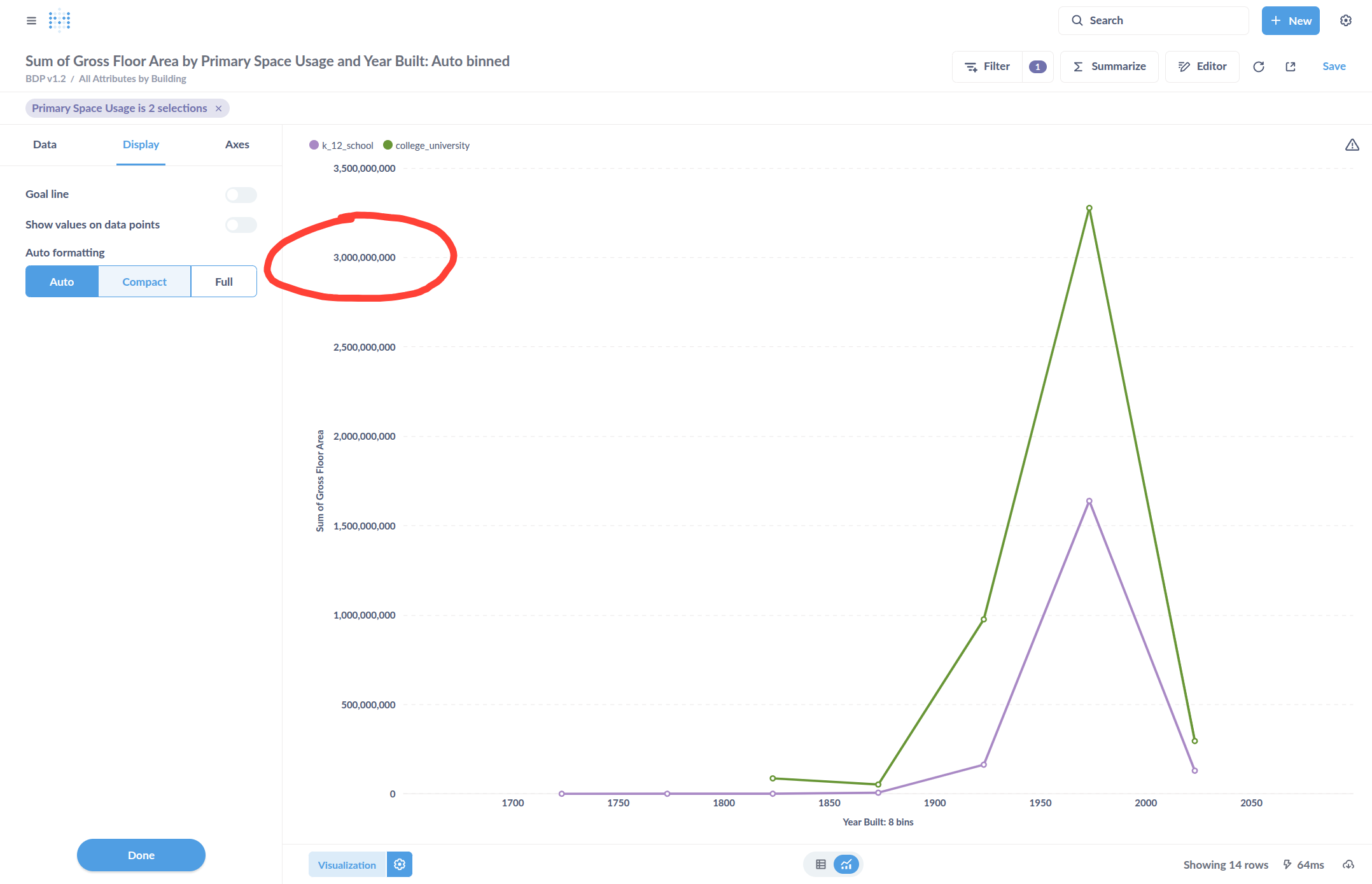
Click "Display" and change the formatting of the labels to show the full number or have it automatically abbreviated.
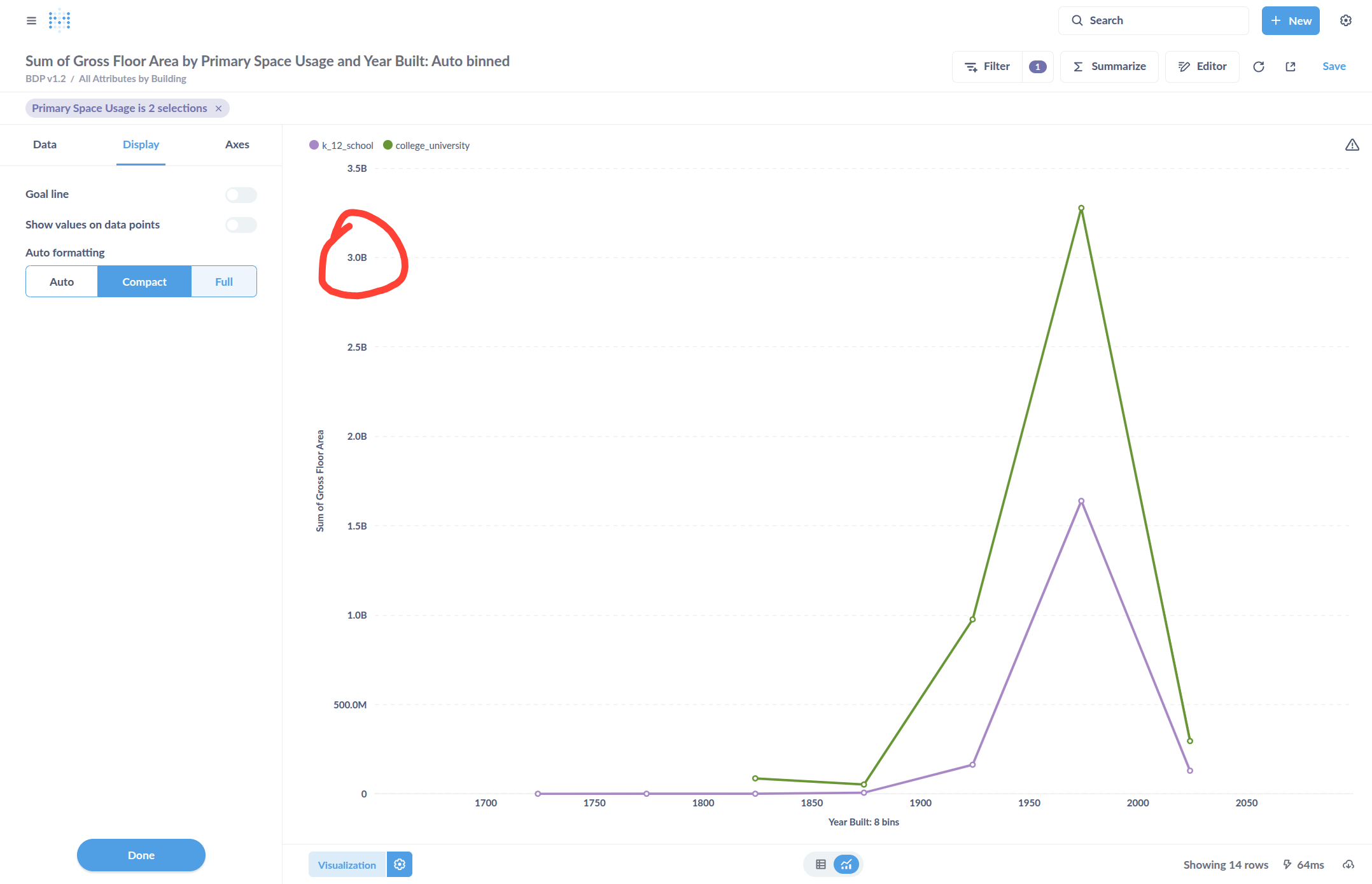
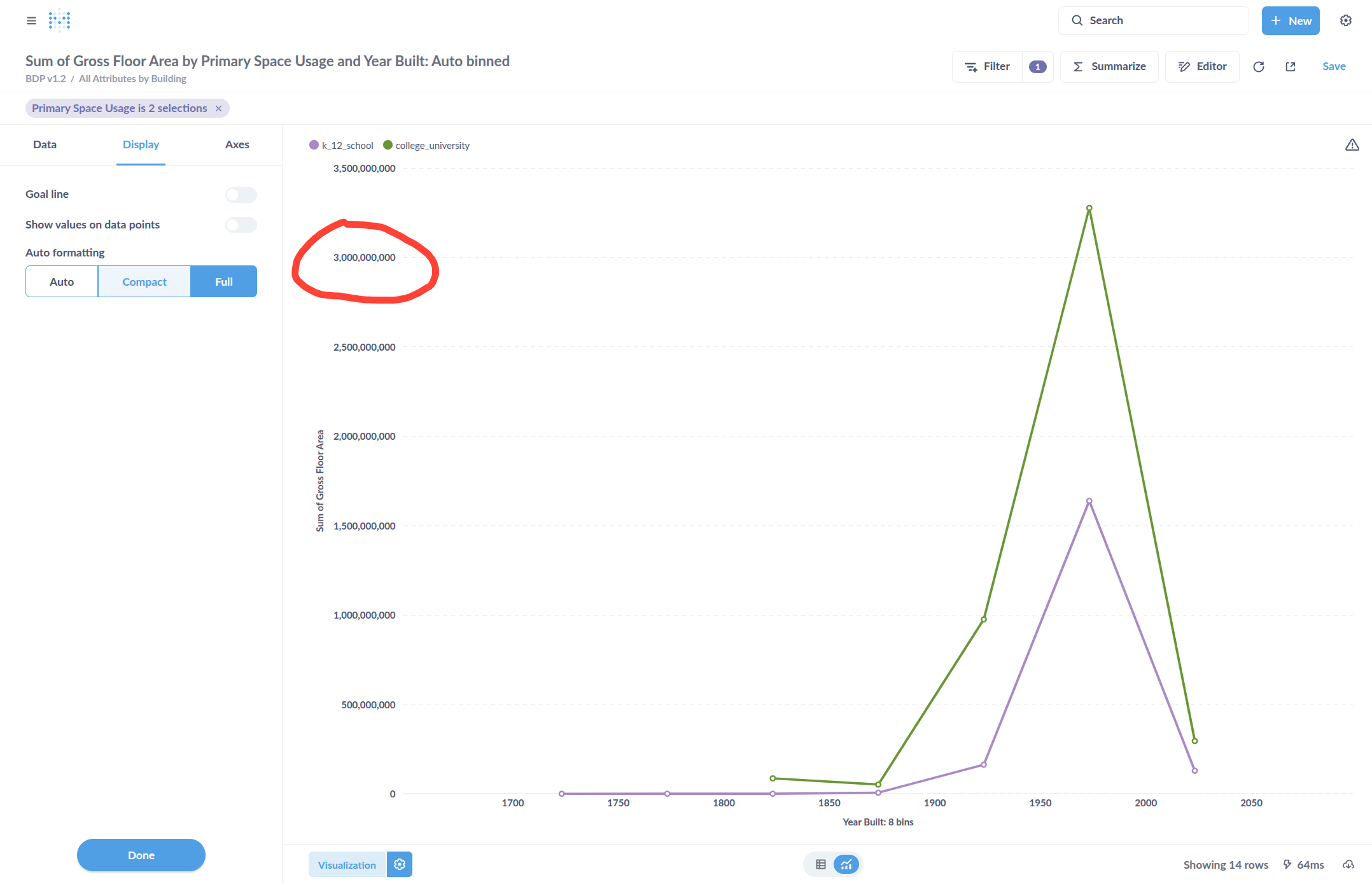
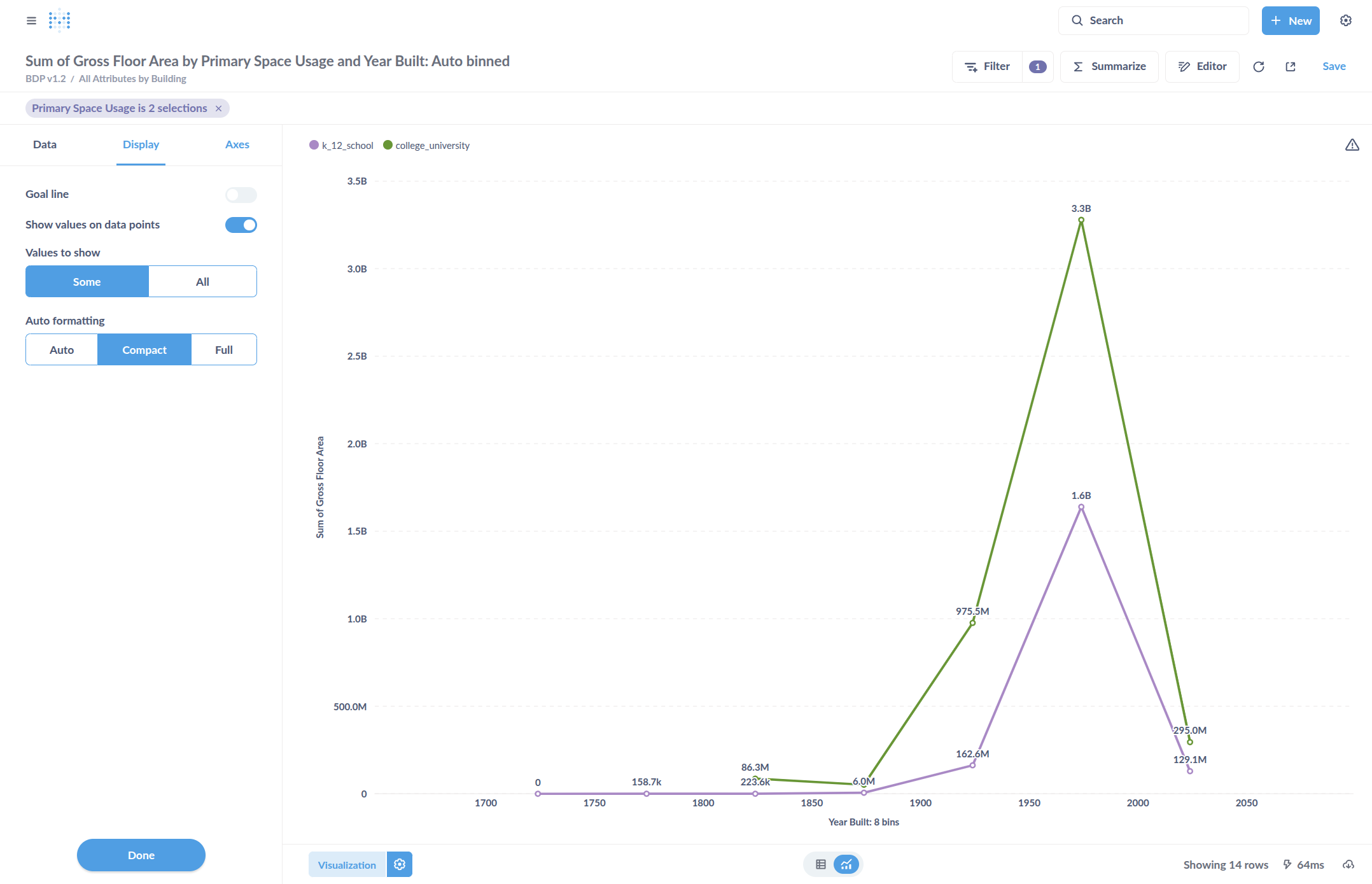
Add the values labels to the data points by clicking Show Values on Data Points. This will label the chart with the numbers for each point.
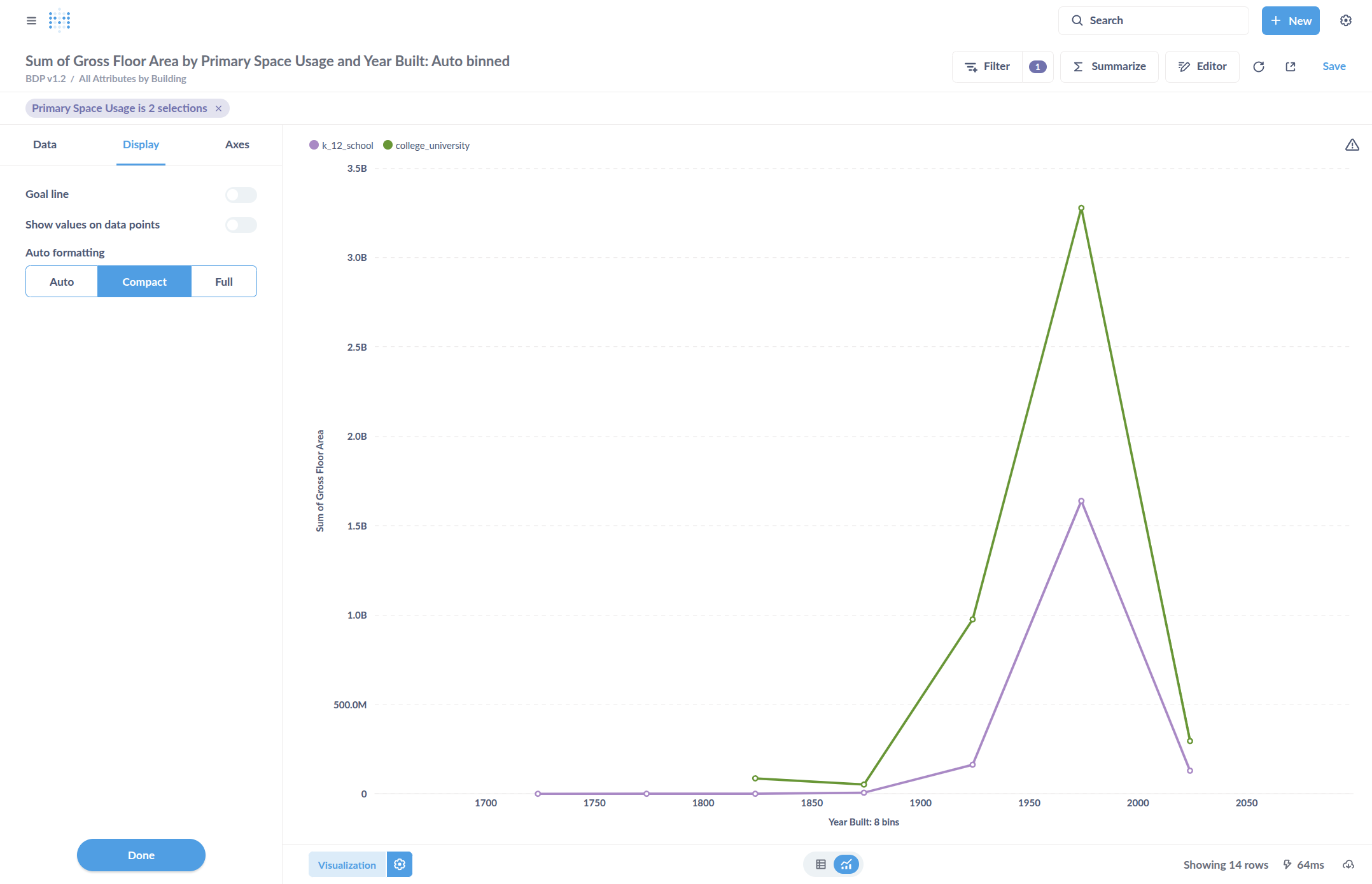
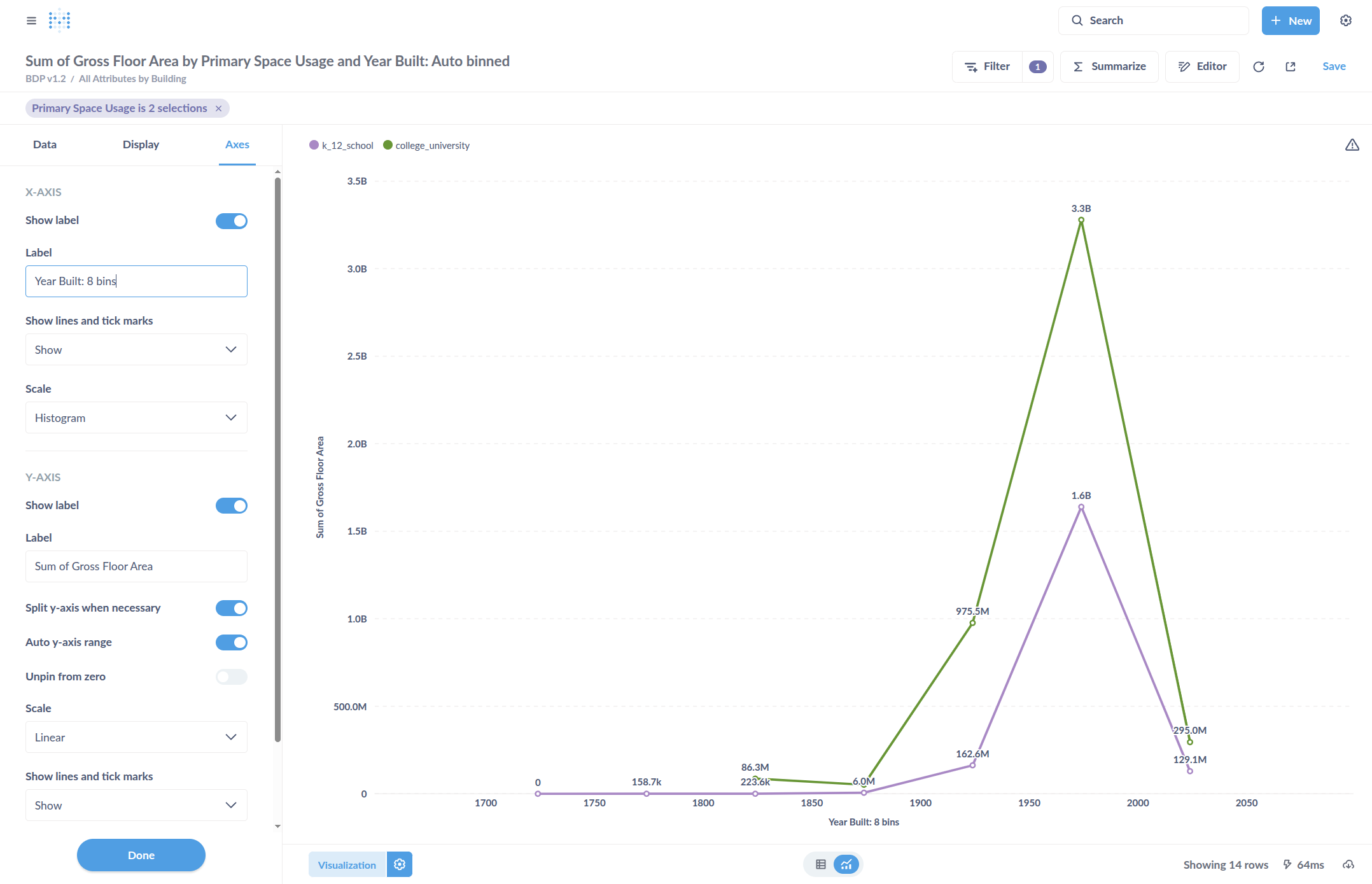
Change the labels on our axes. Click in this box to edit the text.
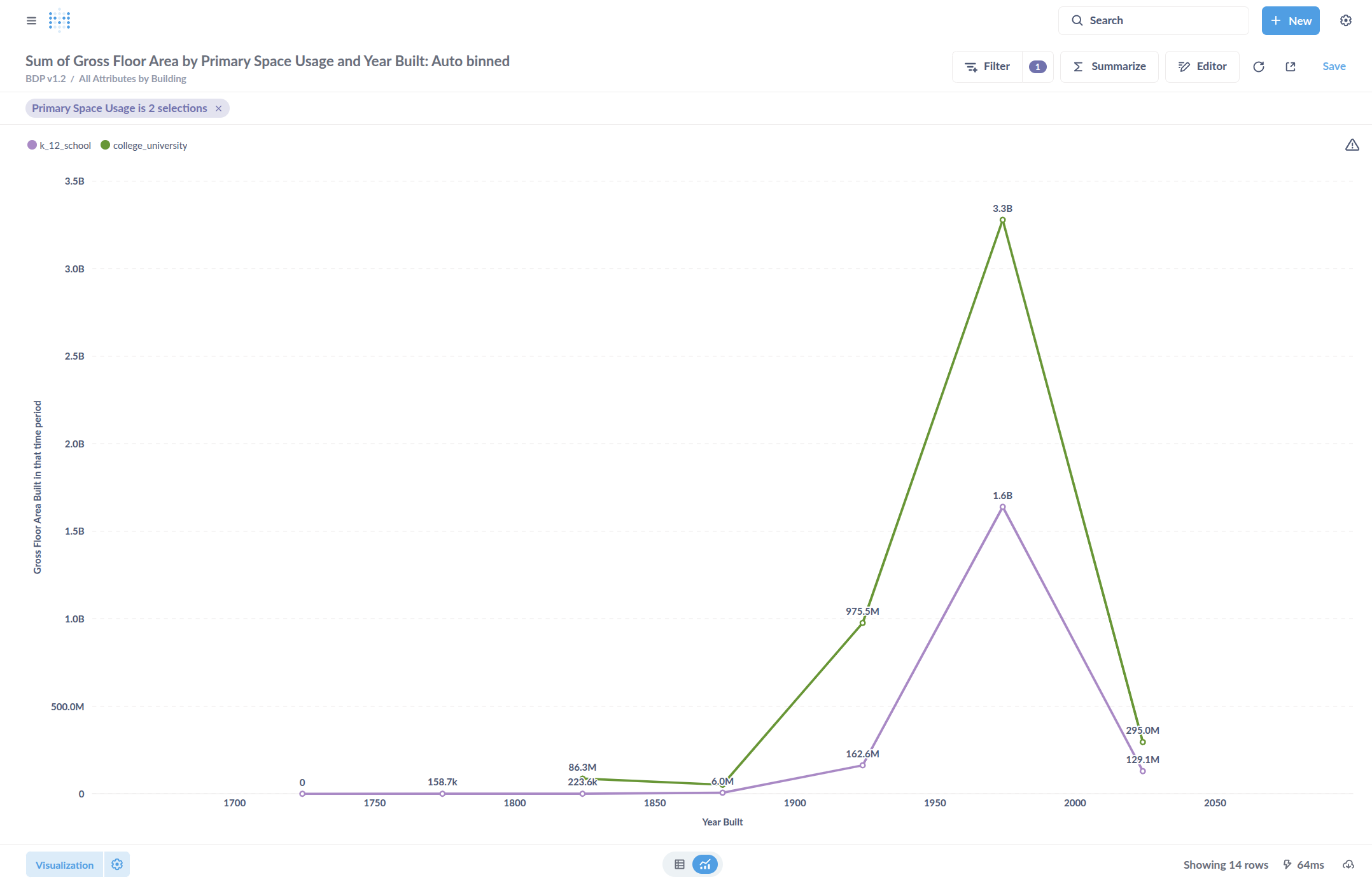
Save the chart.
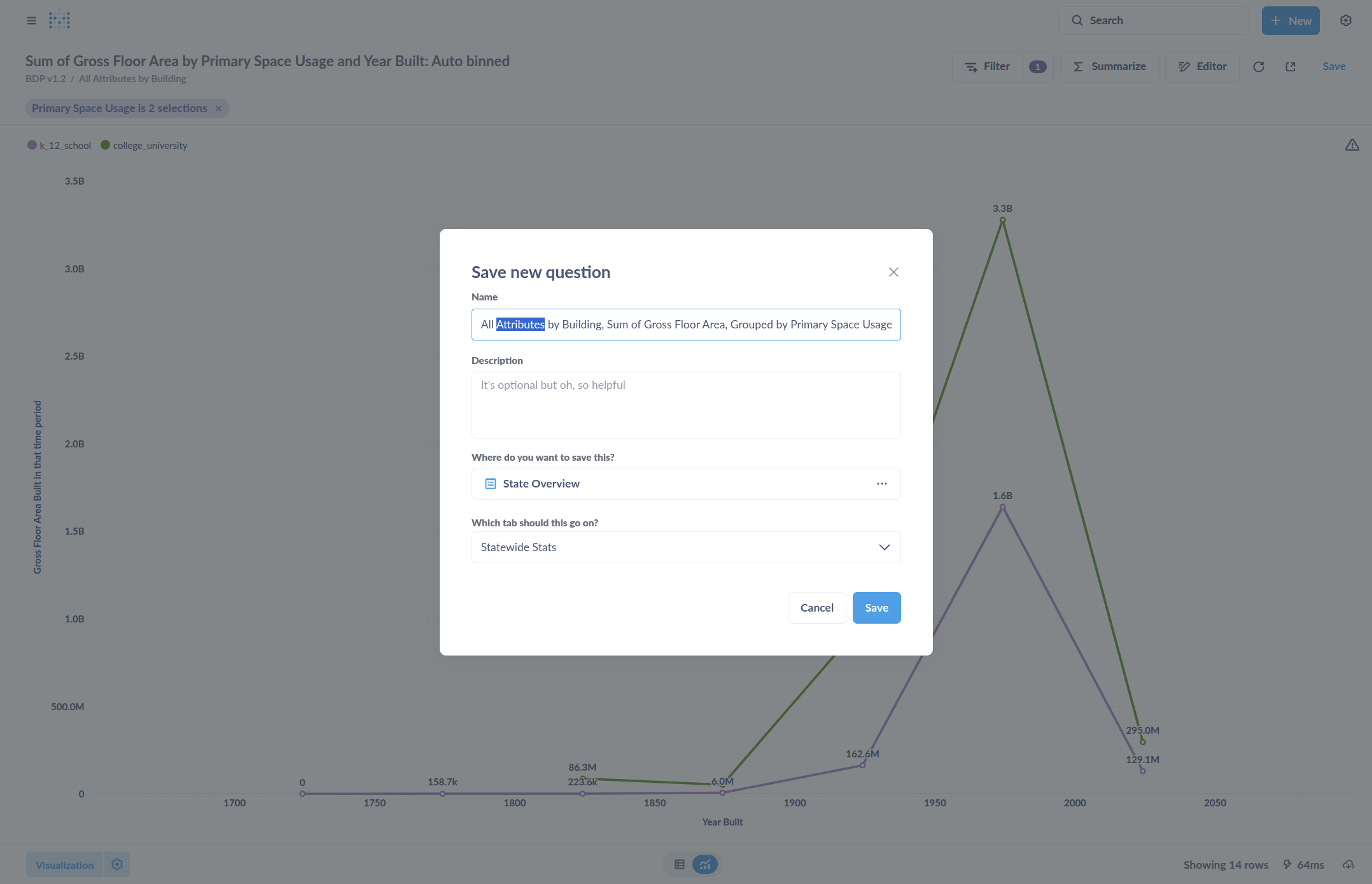
Give it a title, such as "Floor area built for education buildings over time."
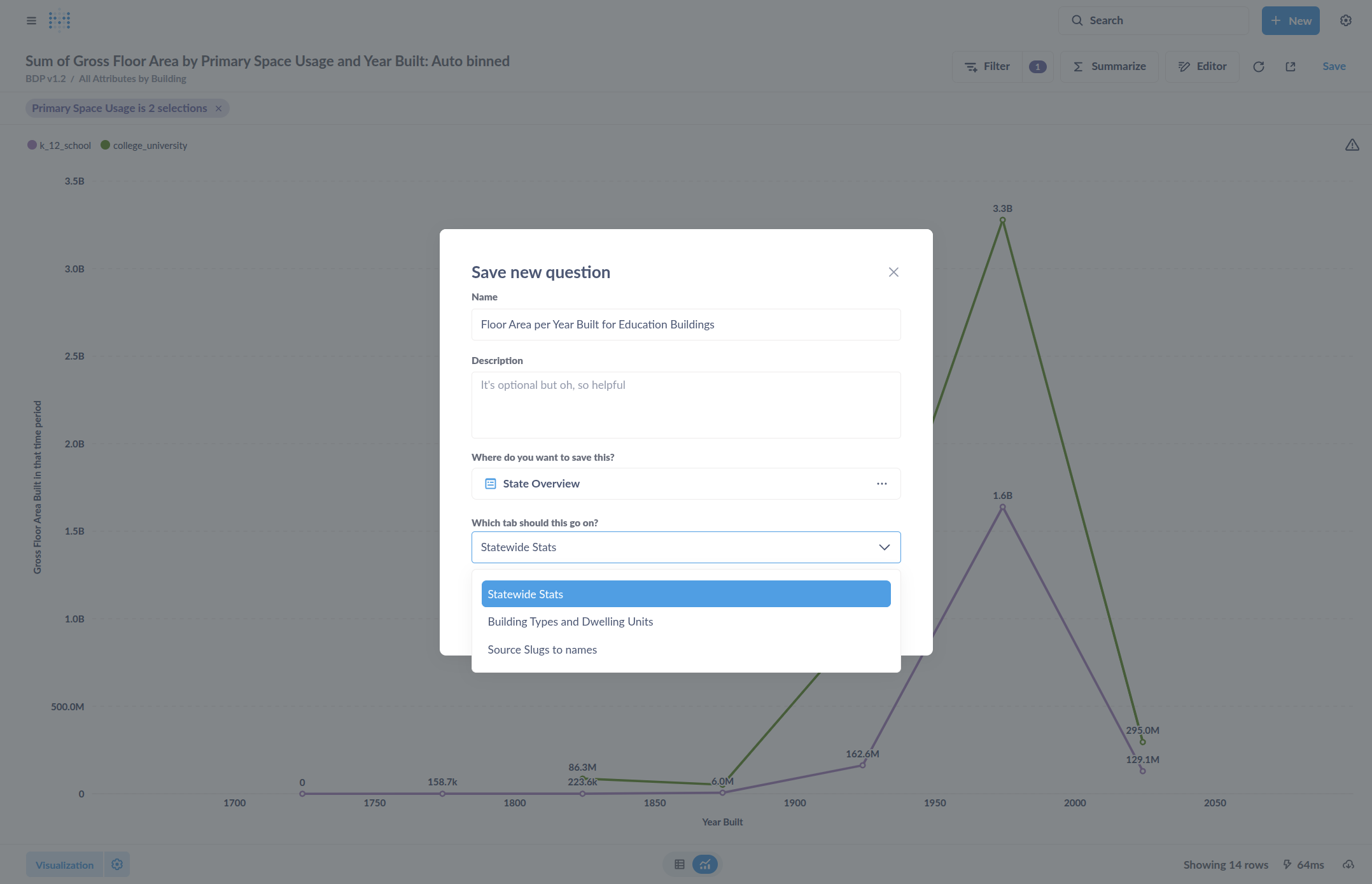
It can be added to an existing dashboard, or just saved as a chart, referred to as "Questions" elsewhere in the user interface.
You can now see it added at the bottom with our title, labels, and the formatting we wanted.
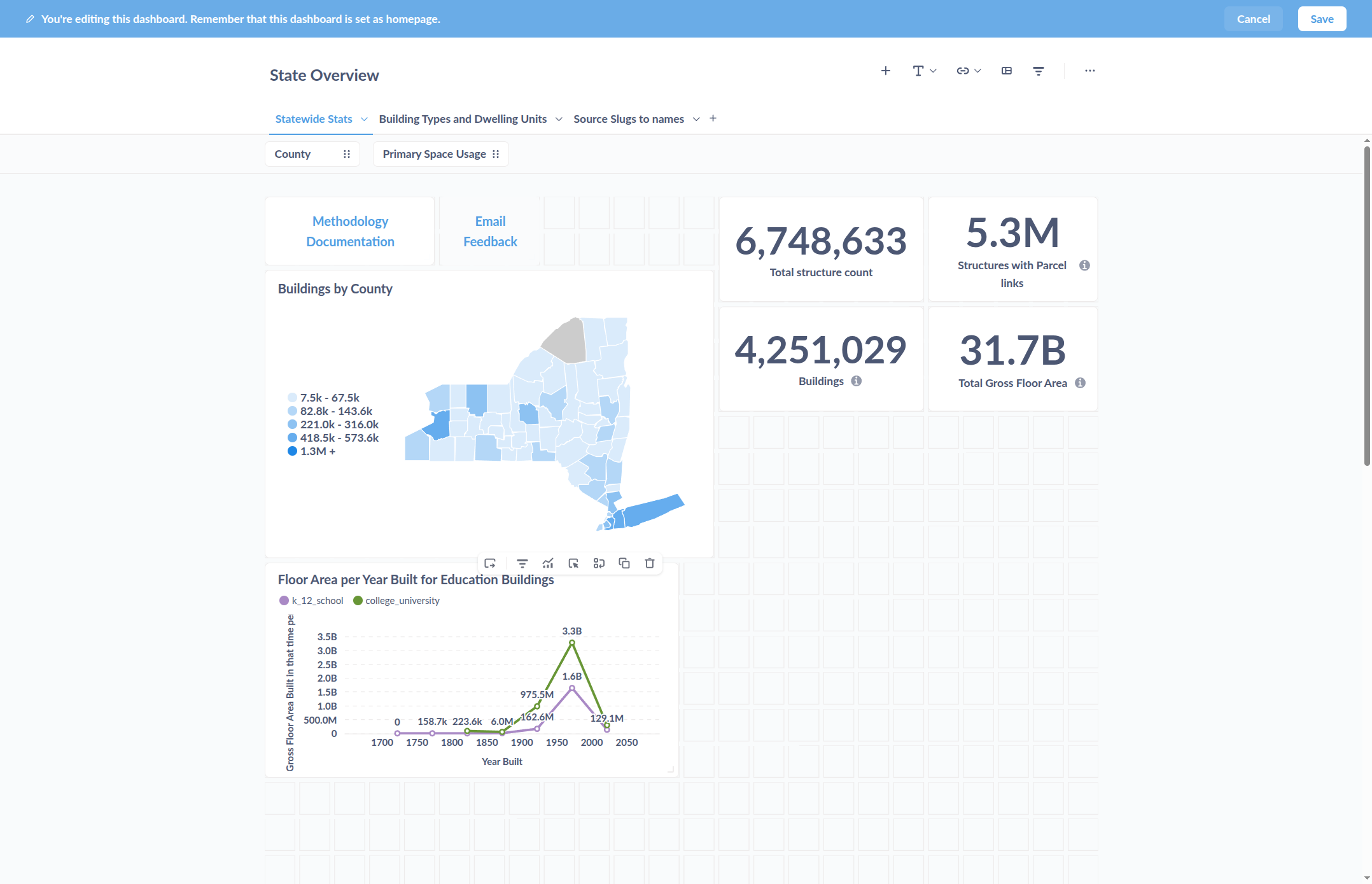
Once saved and on a dashboard, you can go back and edit the chart.
First, I'll click Save because that's where I want it on the dashboard.
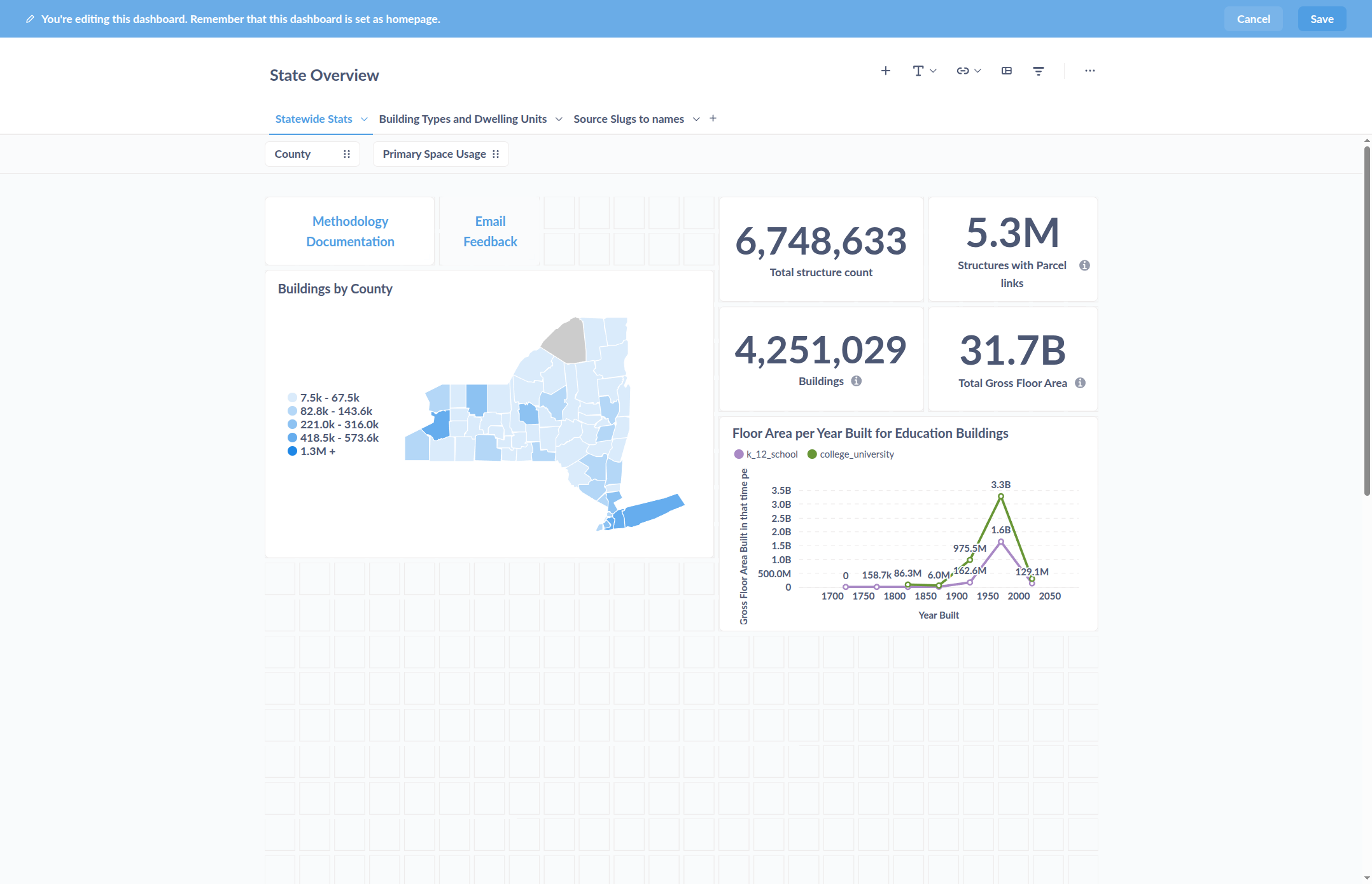
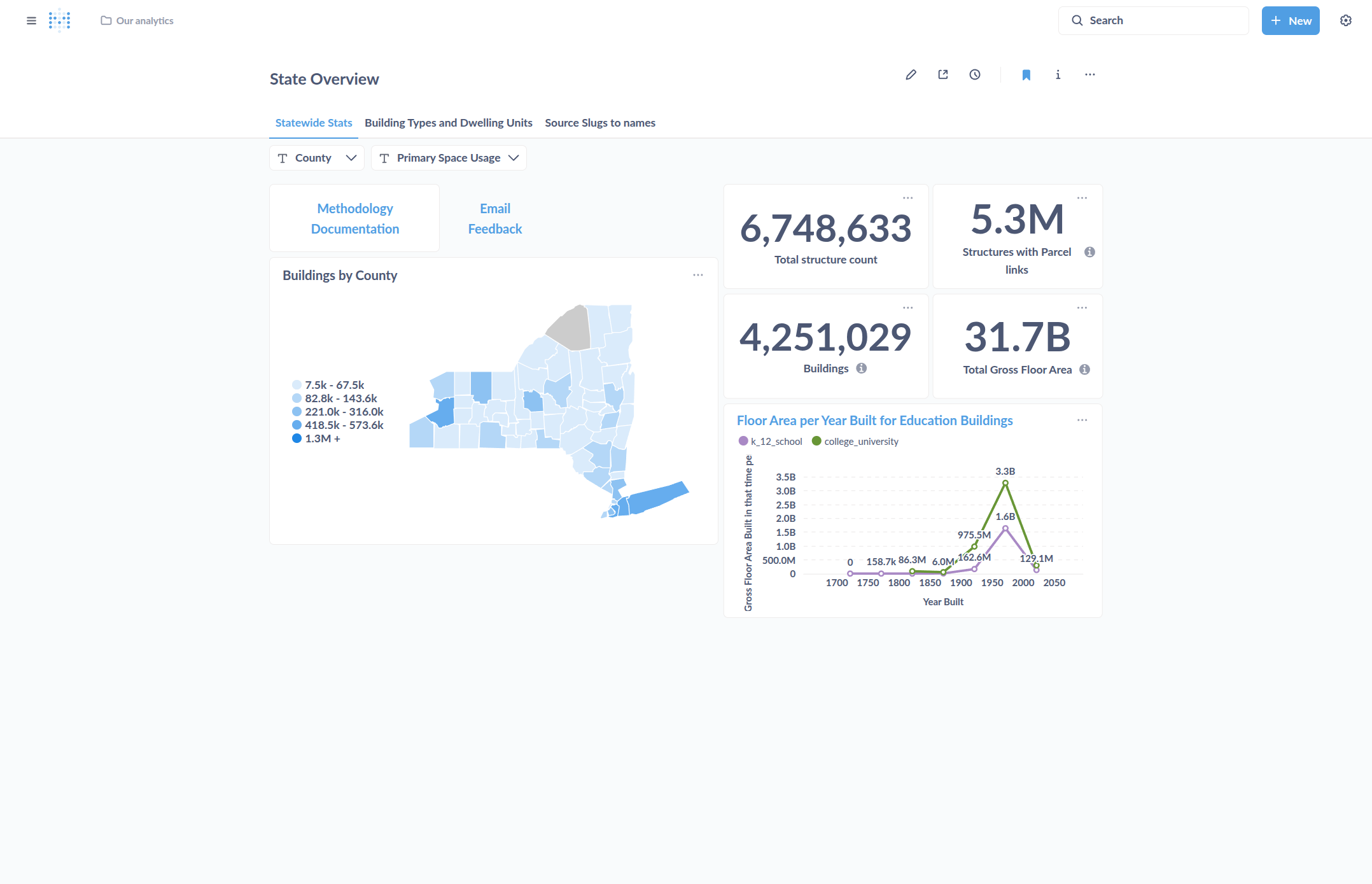
In the normal view, click the name to return to the chart. To edit it, click Editor.
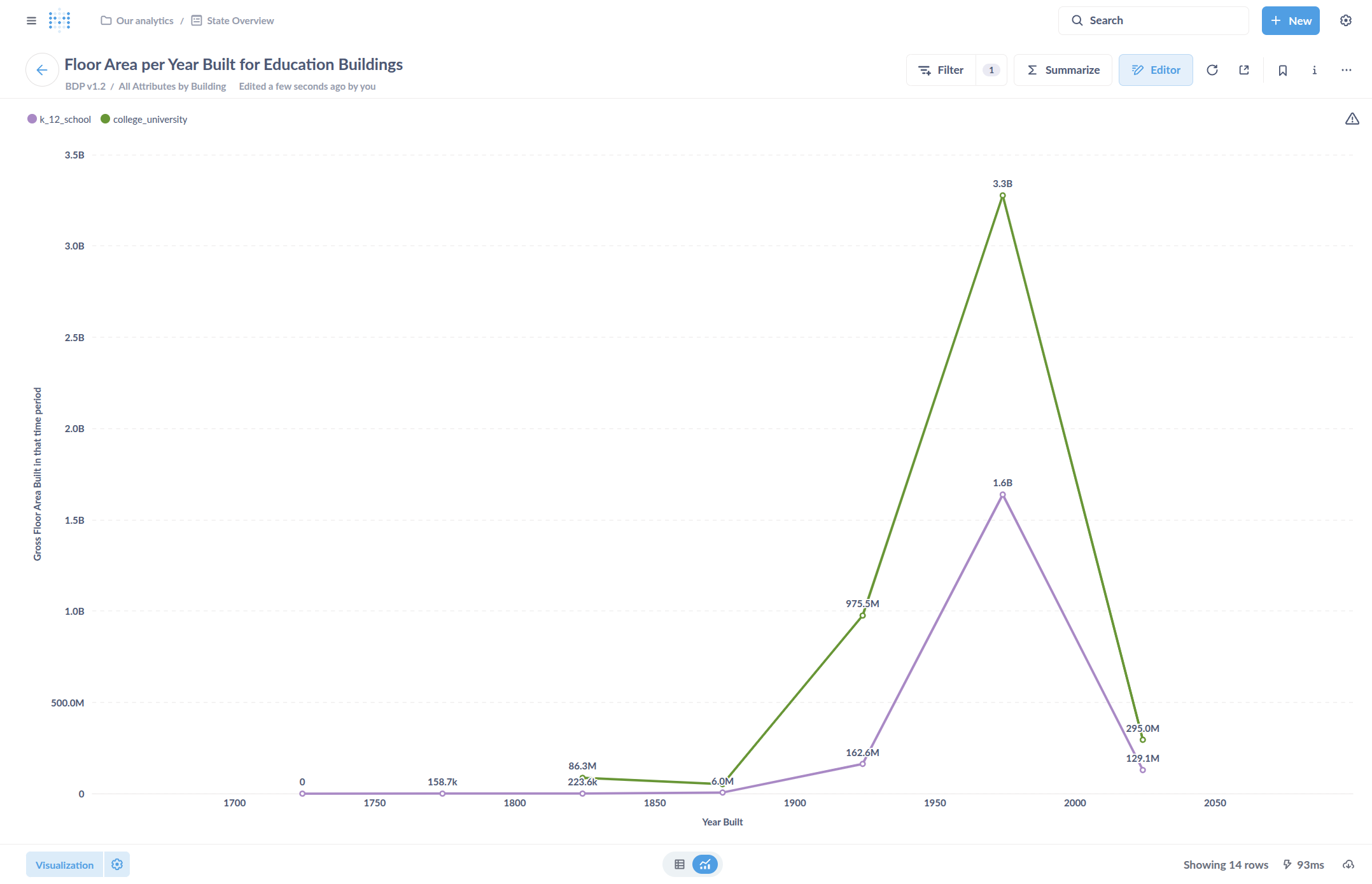
Change the visualization by returning to Visualization and adjusting the Settings.
Everything is still editable. Once done editing, you can choose to overwrite the existing chart, including its dashboard location, or create a new chart.
This is essentially "Save to Overwrite" and "Save As New Question." "Save As New Question" creates a new chart that can be placed elsewhere. To save it as a new question, click "Save As New Question."
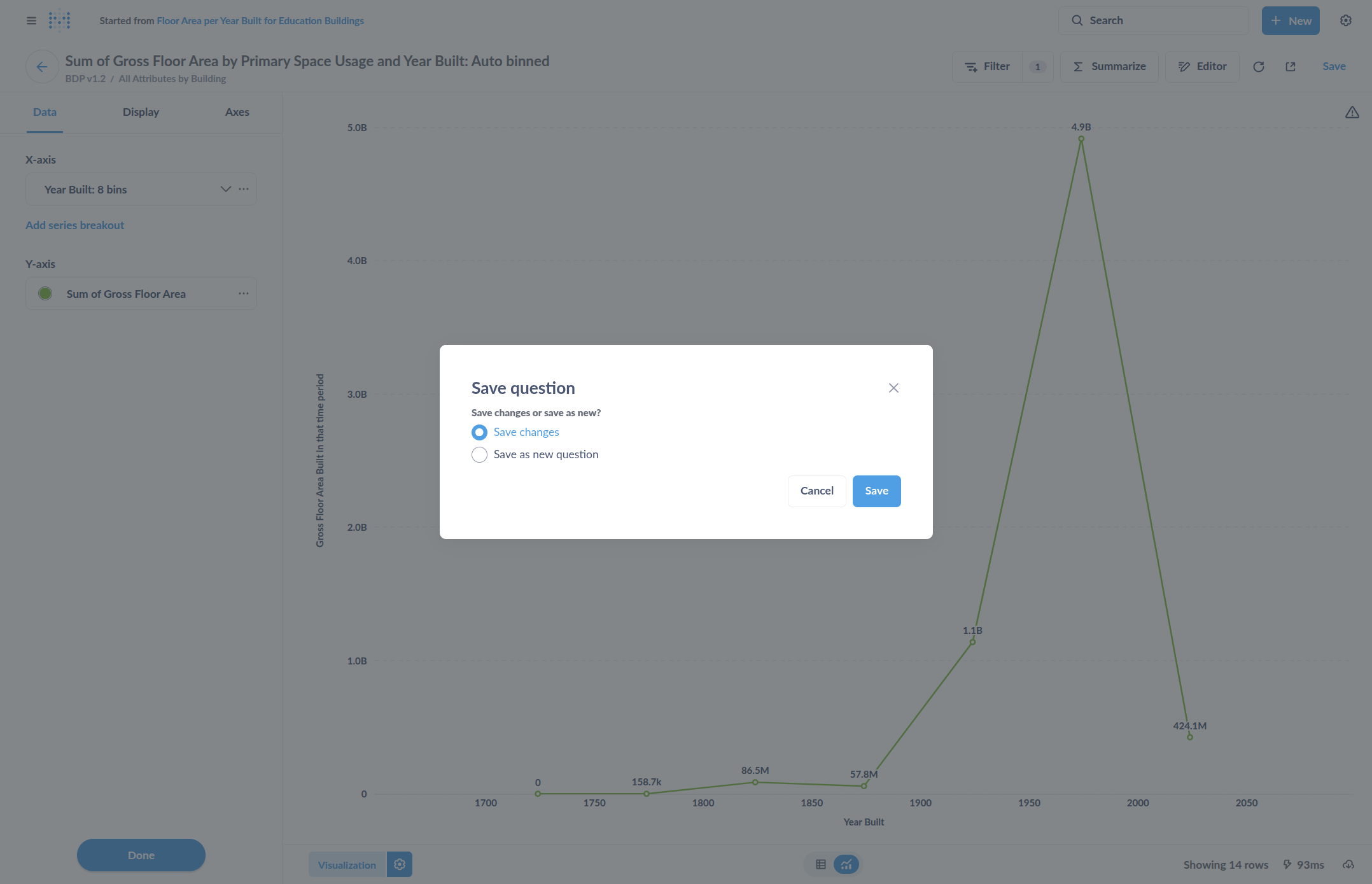
You can place it in a different location or the same one, then click Save.
Now you will see two charts.