Icon

SOP: AR Reporting Process

Learn how to efficiently manage AR reporting by exporting, cleaning, and summarizing accounts receivable data in Excel. This guide covers best practices for daily updates, handling payments, and preparing reports for accounting.

By Jessica Esslinger

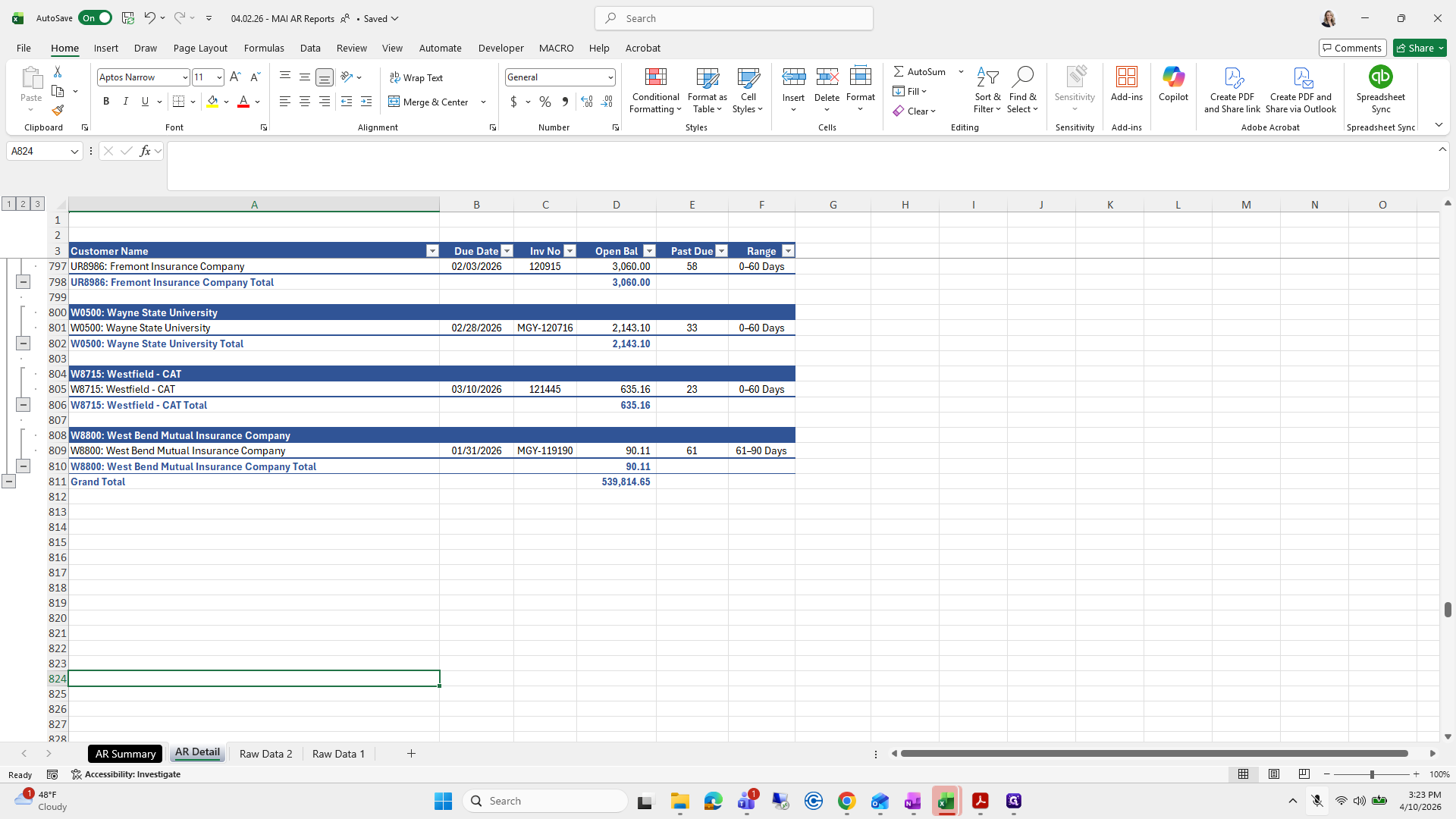
In this guide, we'll learn how to prepare and export an AR Aging Detail Report, organize the data in Excel, and finalize the report for review and distribution. The steps include running the report, cleaning and sorting the data, using formulas and macros, and saving the final version as a PDF. This process helps ensure accurate and efficient AR reporting each week.

Let's get started

Okay. For AR reporting, enter all AR, ACH payments, and check deposits for the week. I recommend updating these daily to avoid spending two hours on Friday. Excuse me.
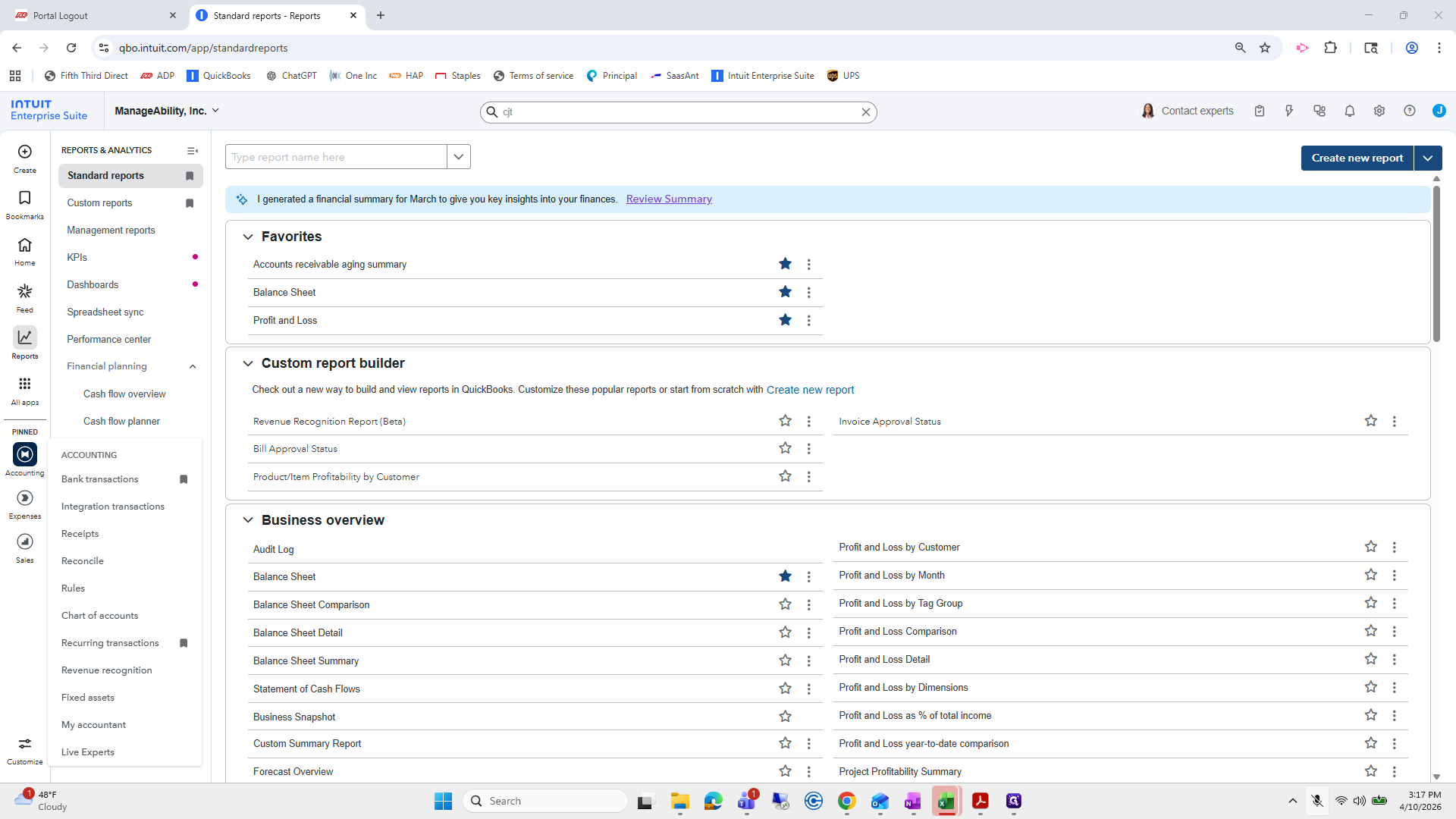
1
Click on "Accounting"
Step #1: Click on "Accounting"

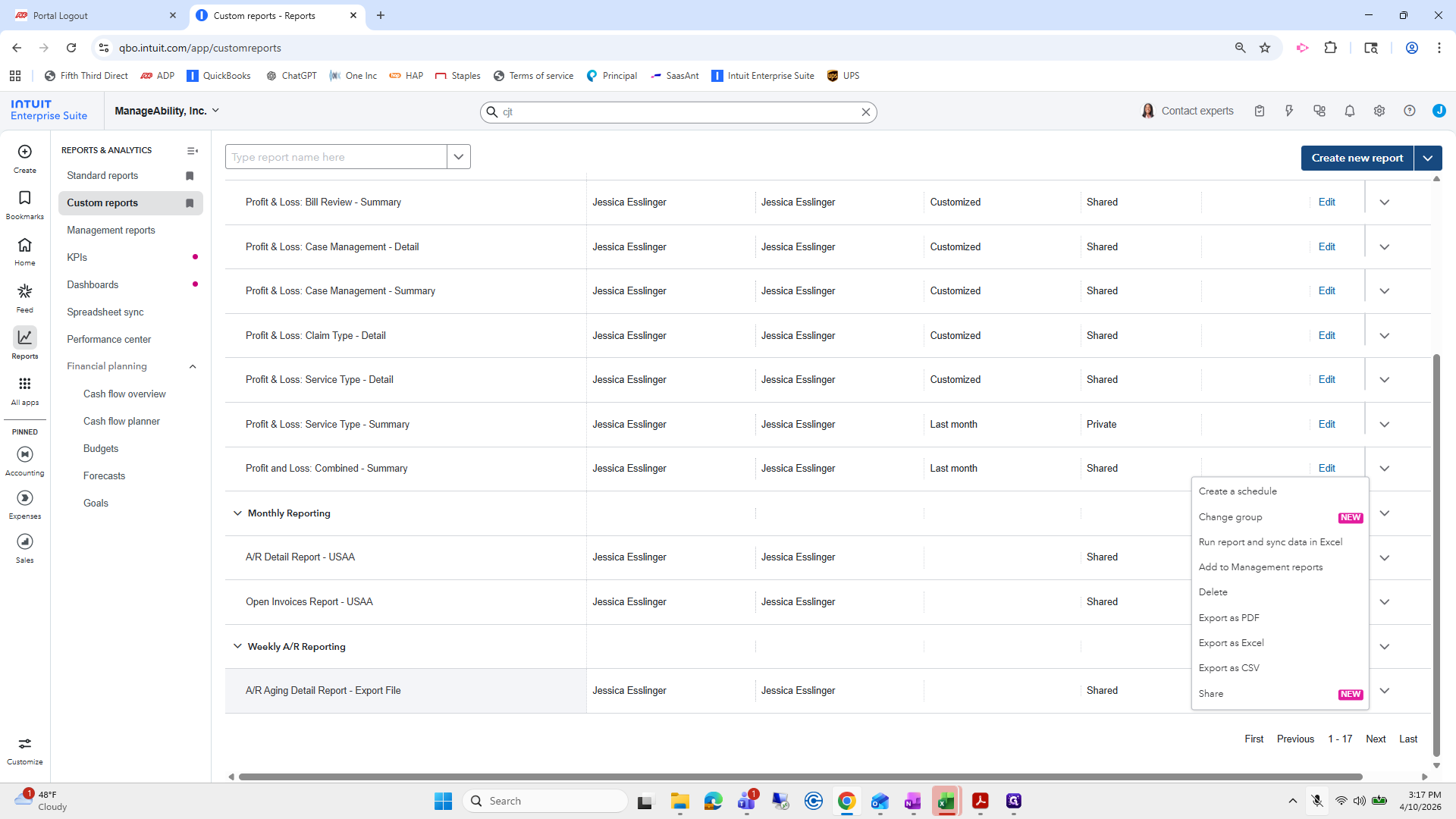
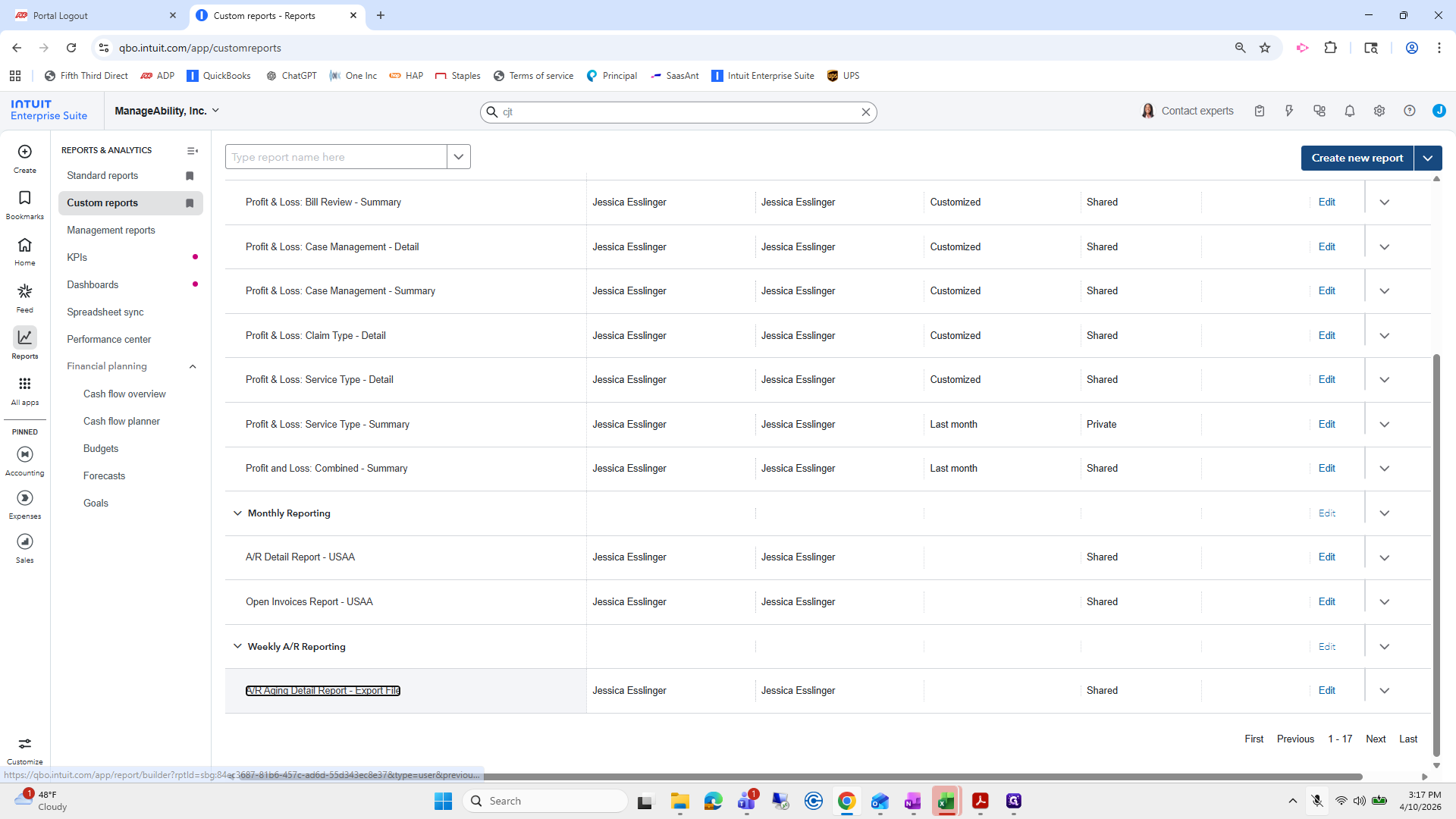
Go to Reports, then Custom Reports. Find the AR Aging Detail Report Export File.
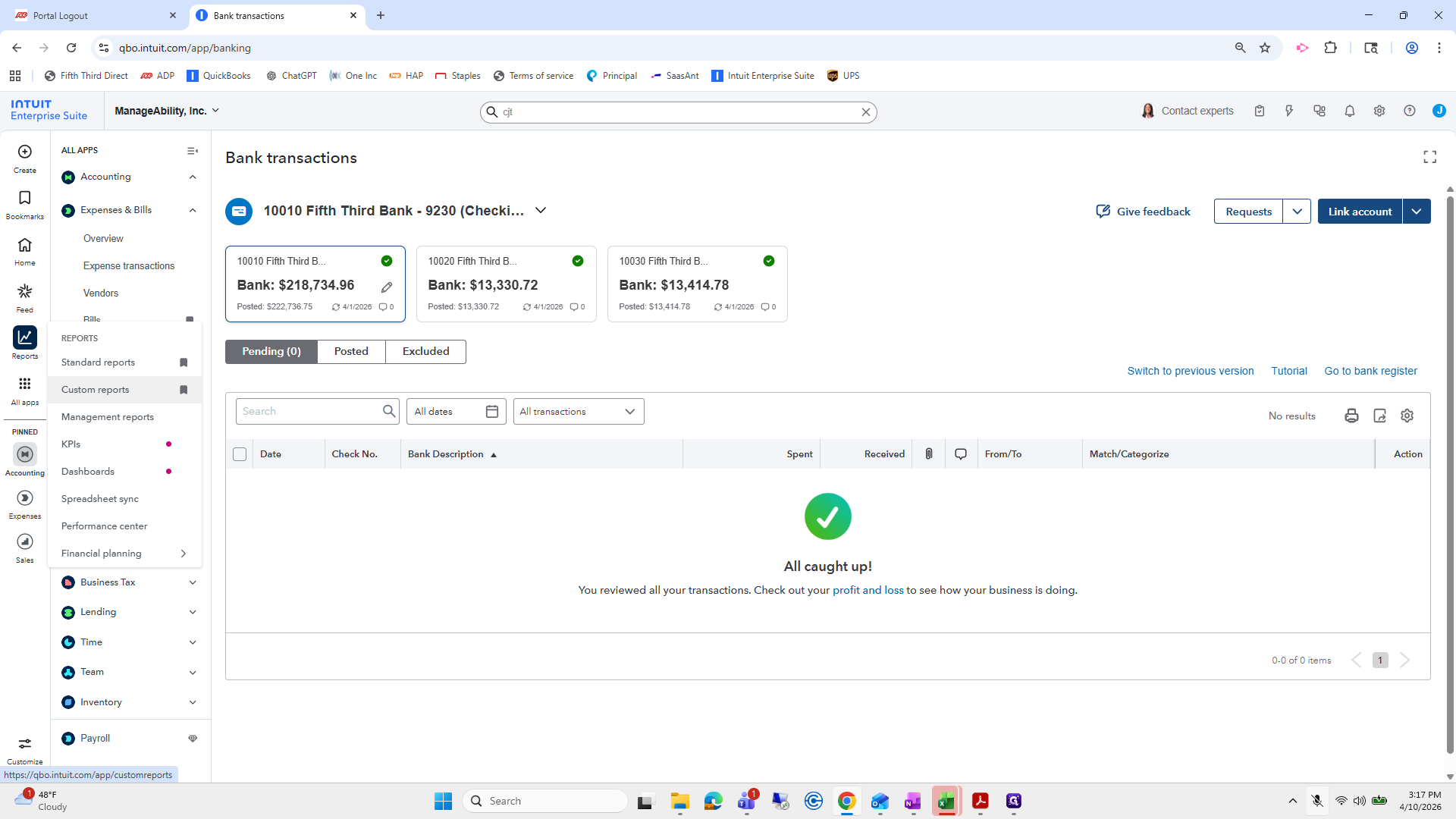
2
Click on "reports"
Step #2: Click on "reports"

We are going to run it. I could have just clicked Run on the side, but I prefer to do it manually.
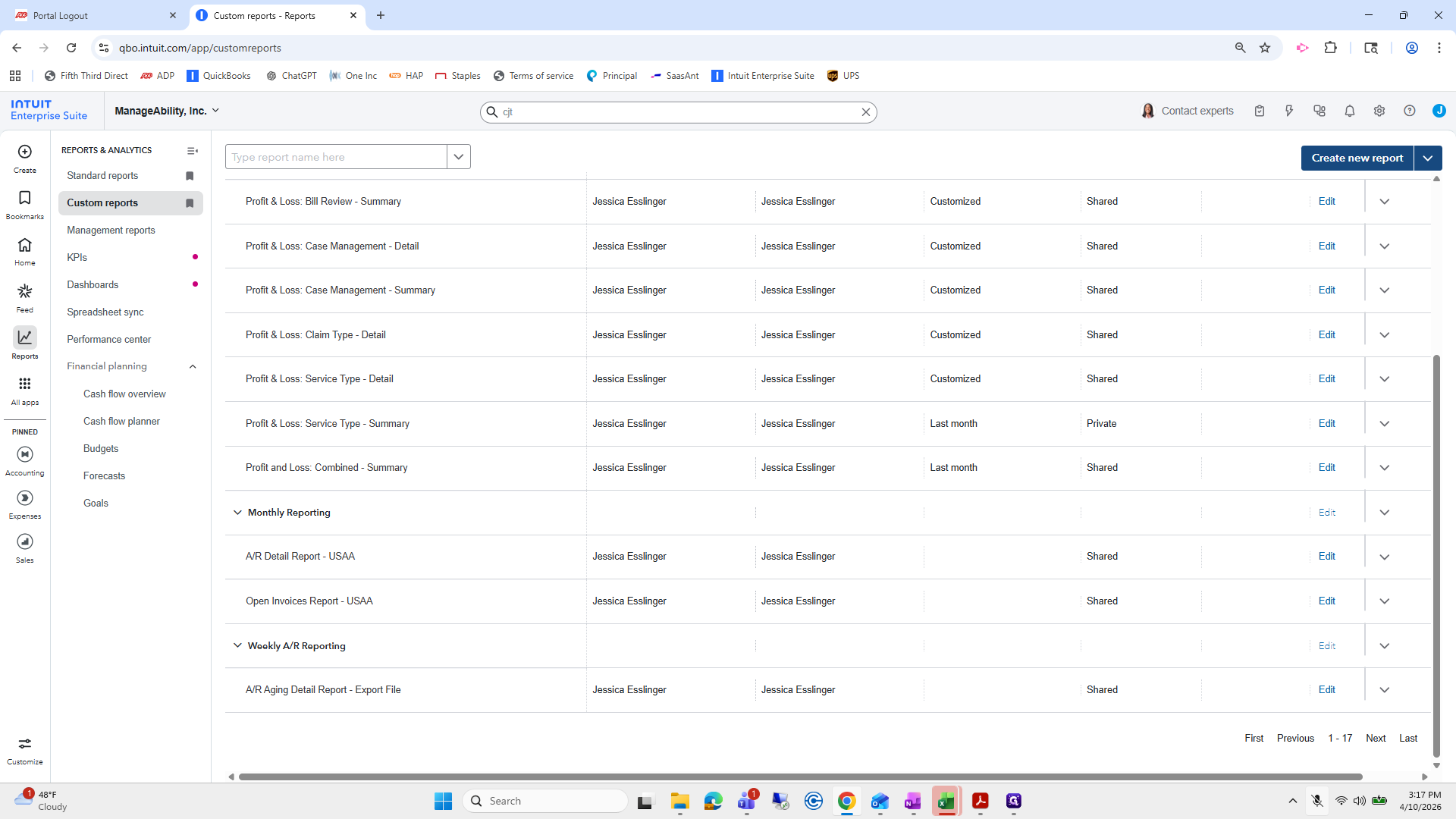
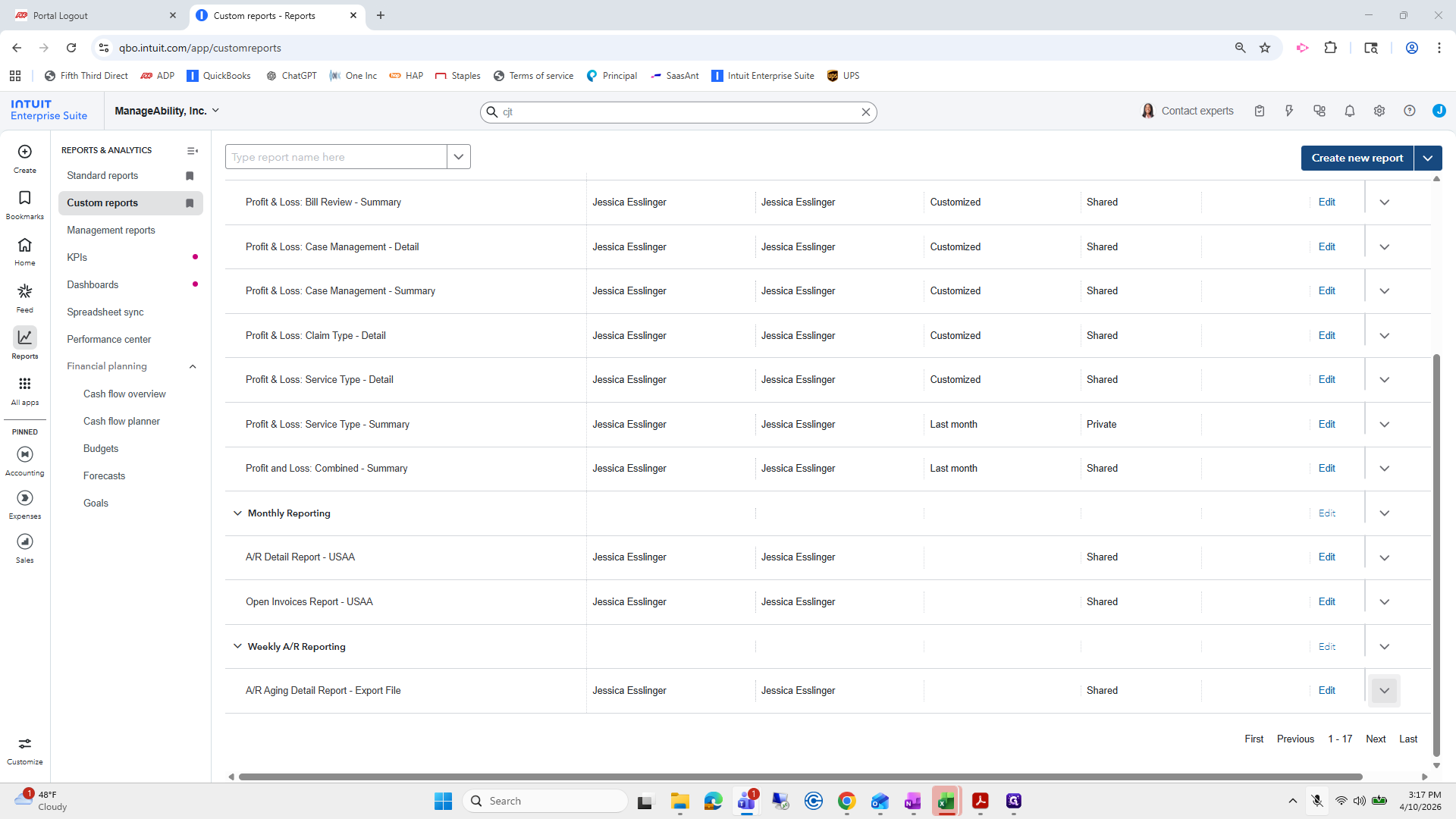
3
Drag here
Step #3: Drag here
4
Click here
Step #4: Click here
5
Click on "Detail"
Step #5: Click on "Detail"
6
Click on "A / R Aging Detail Report - Export File"
Step #6: Click on "A / R Aging Detail Report - Export File"

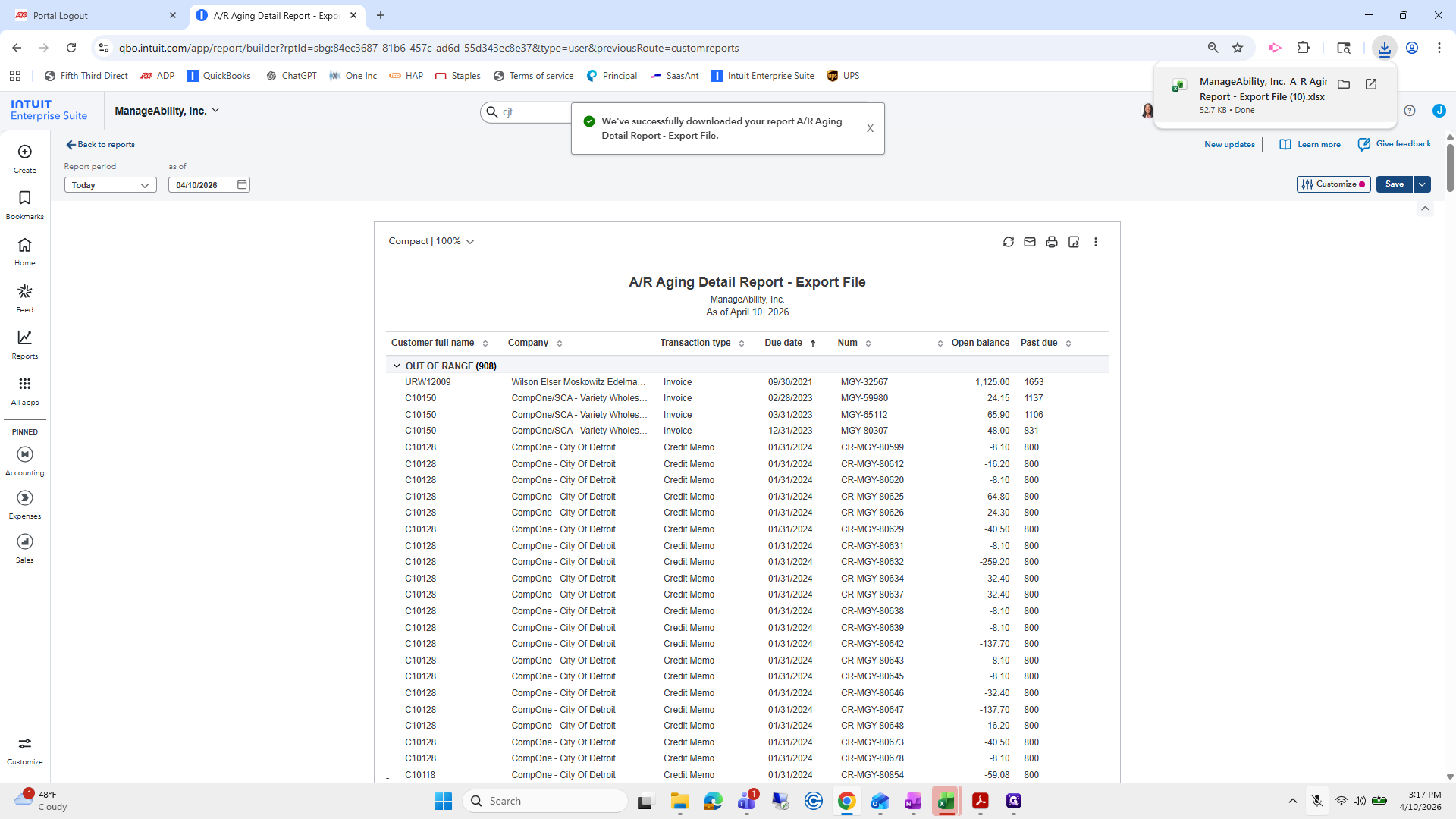
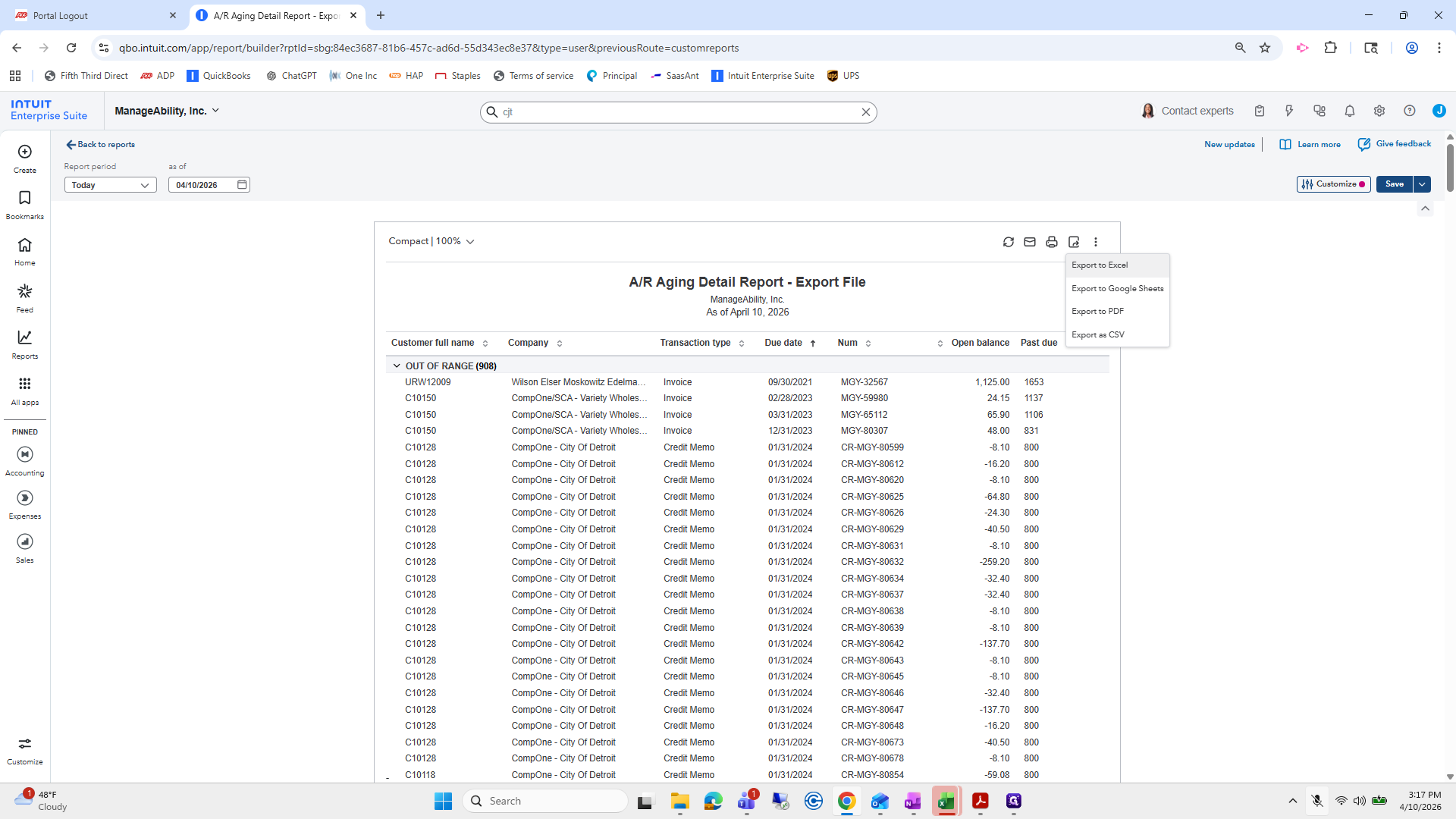
We will export using Excel instead of CSV. Excel is recommended because using tabs in CSV can cause you to lose your work if you forget, which can be very frustrating.
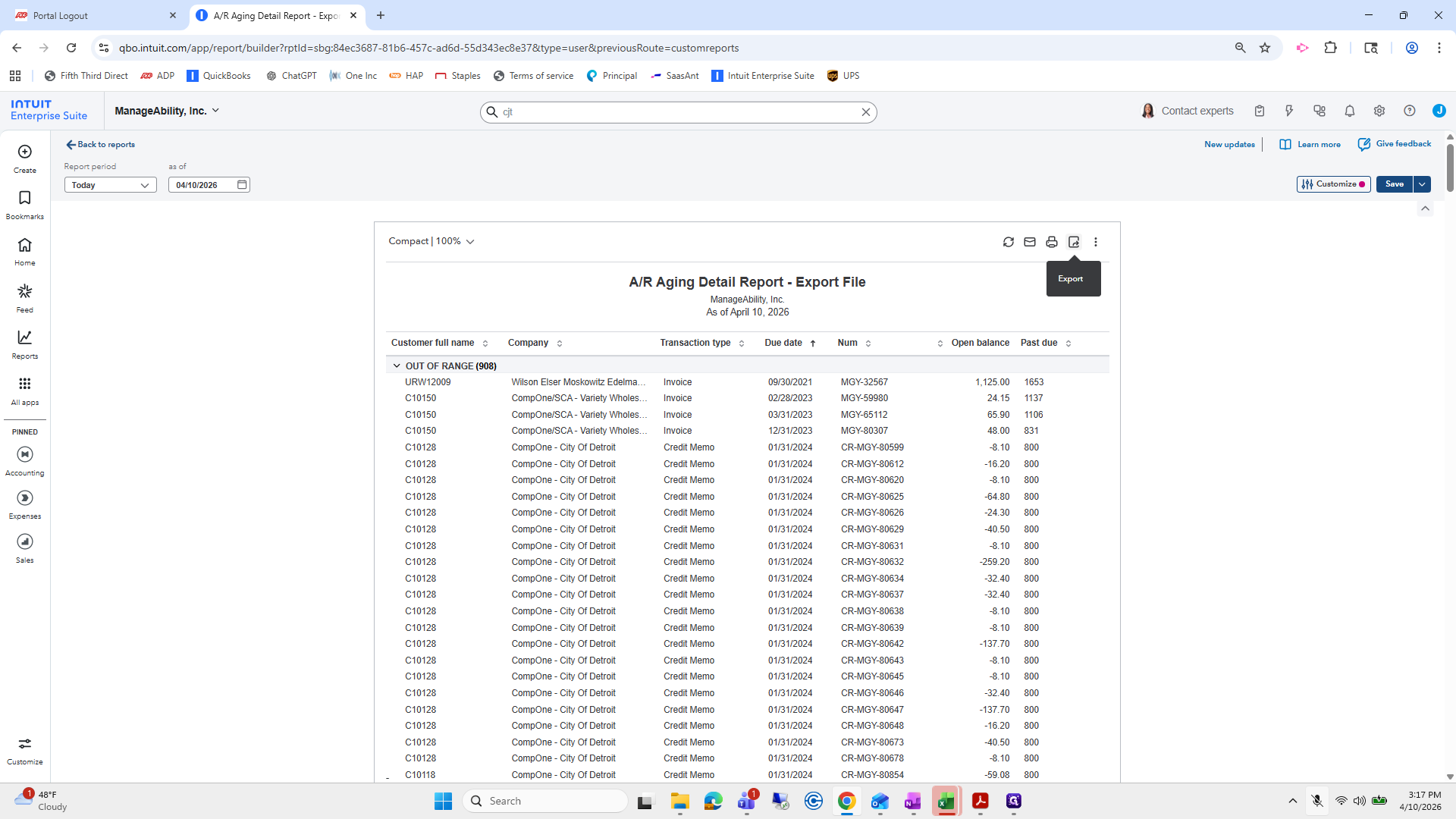
7
Click here
Step #7: Click here
8
Click on "Export to Excel"
Step #8: Click on "Export to Excel"
9
Click on "Report - Export File"
Step #9: Click on "Report - Export File"

That's harsh. . Okay.

10
Click here
Step #10: Click here
11
Click here
Step #11: Click here

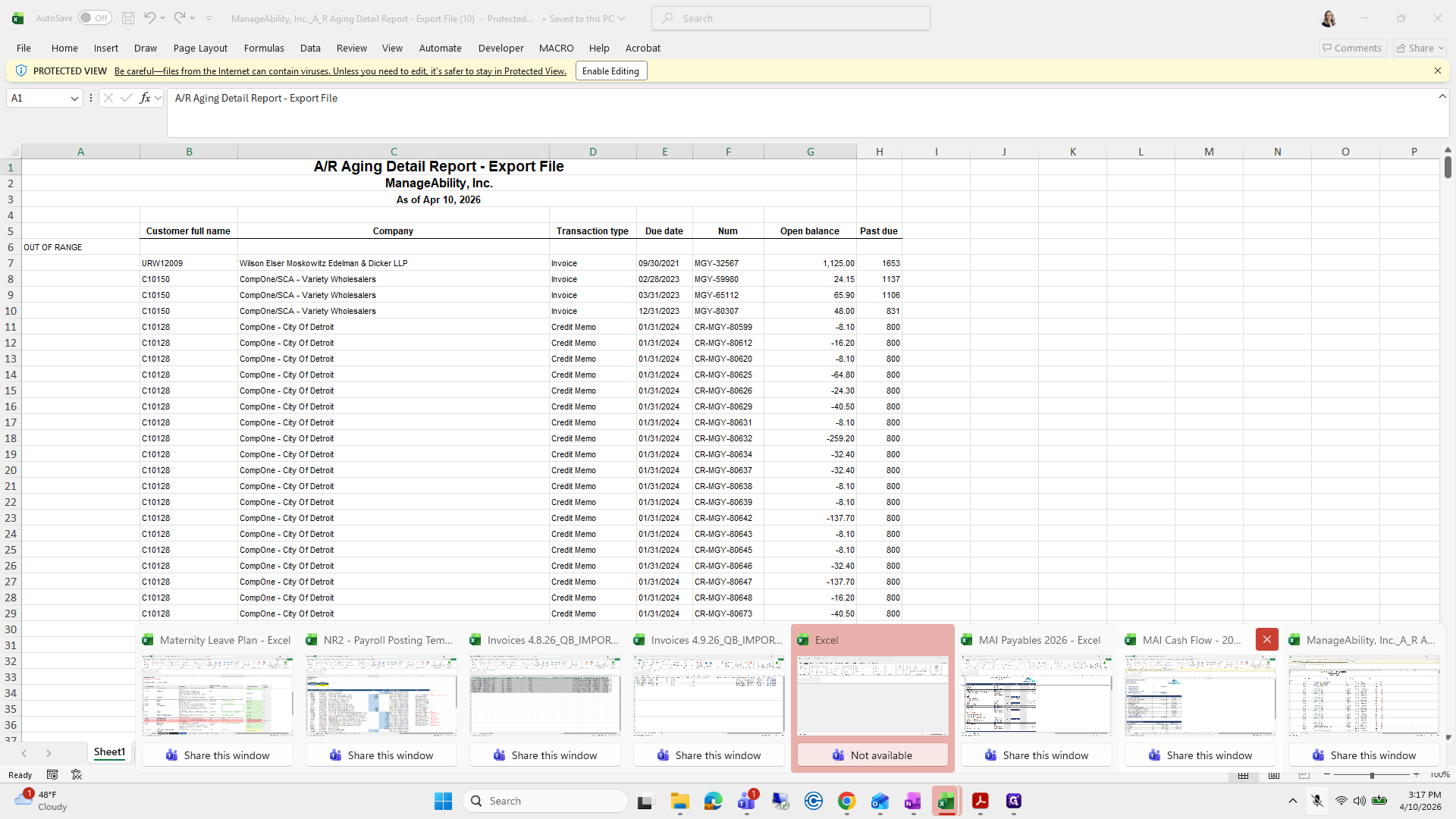
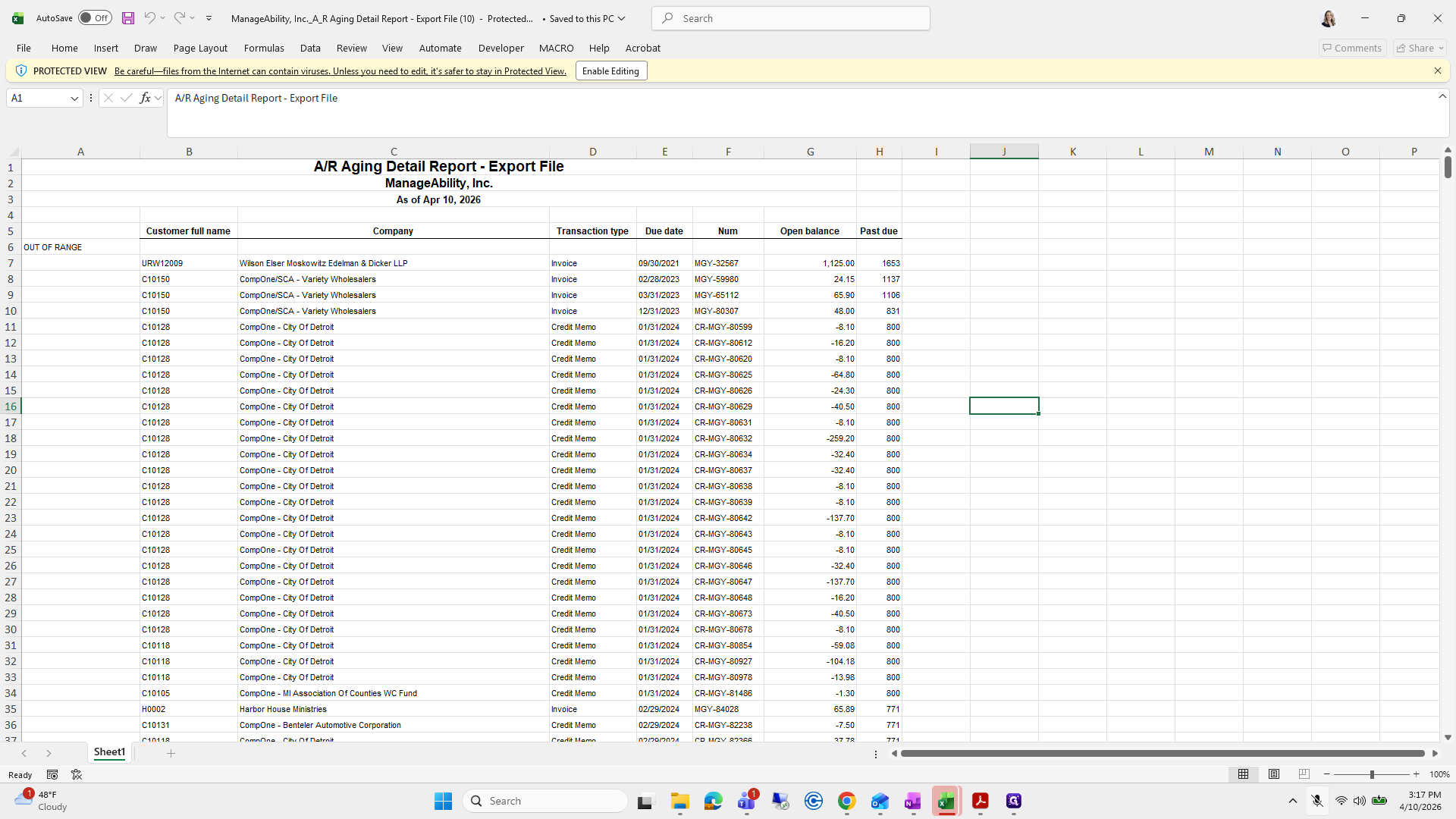
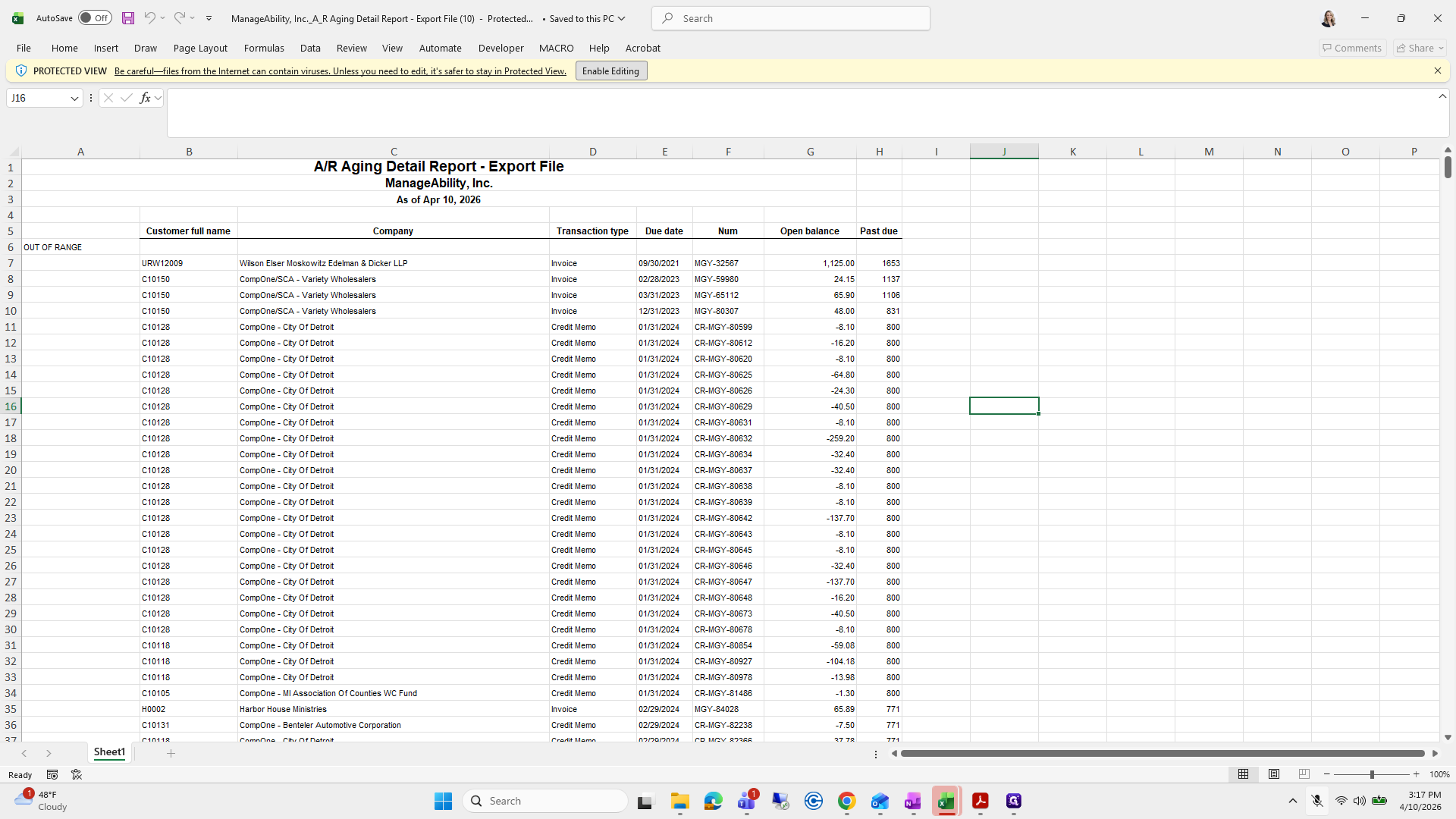
I'll enable editing.

12
Click on "Enable Editing"
Step #12: Click on "Enable Editing"
13
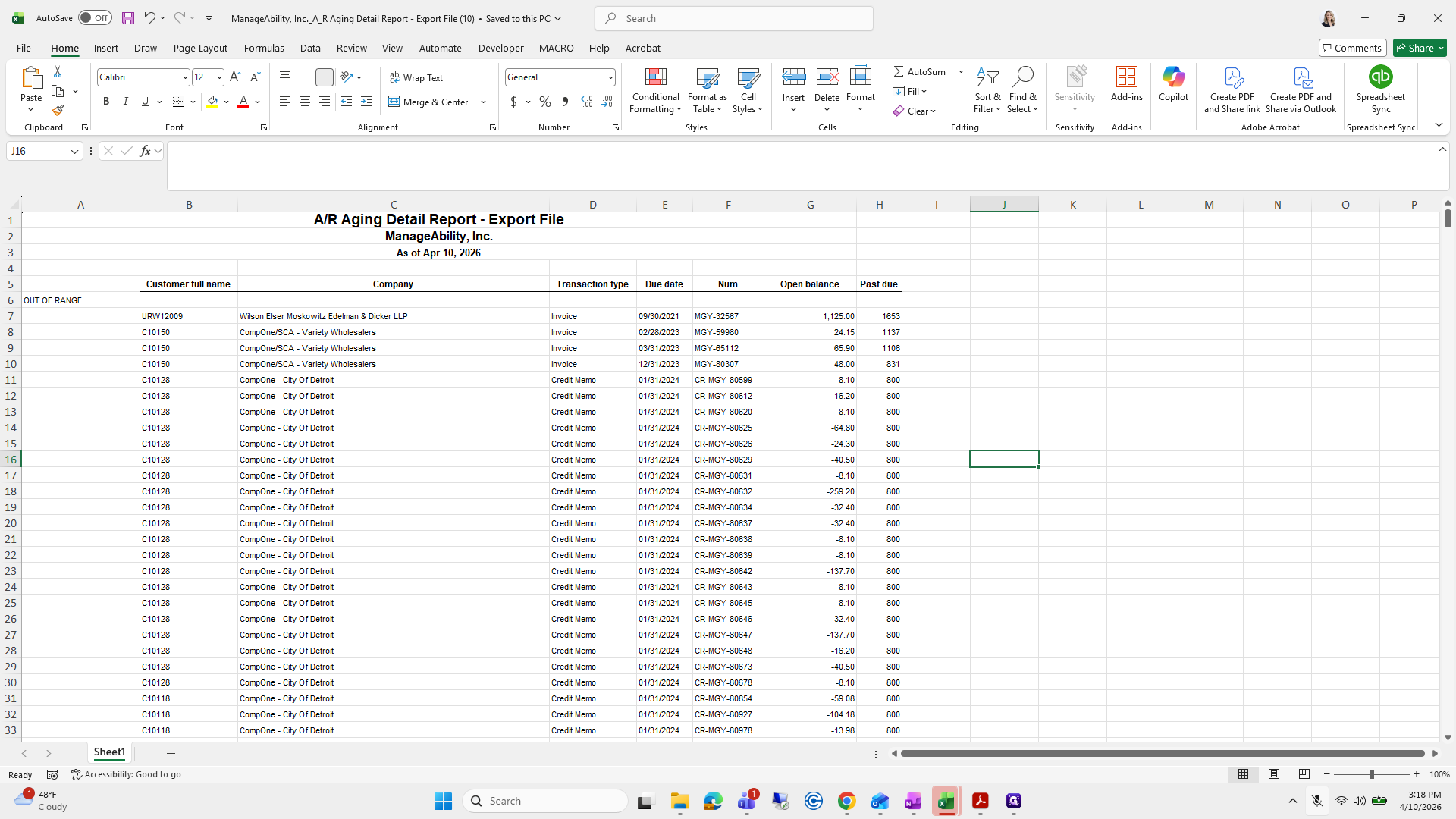
Double-click on "Sheet1"
Step #13: Double-click on "Sheet1"

I'll label this one as Original Export.

14
Type "Original Export"

I'll leave that as it is. Sometimes I make mistakes.
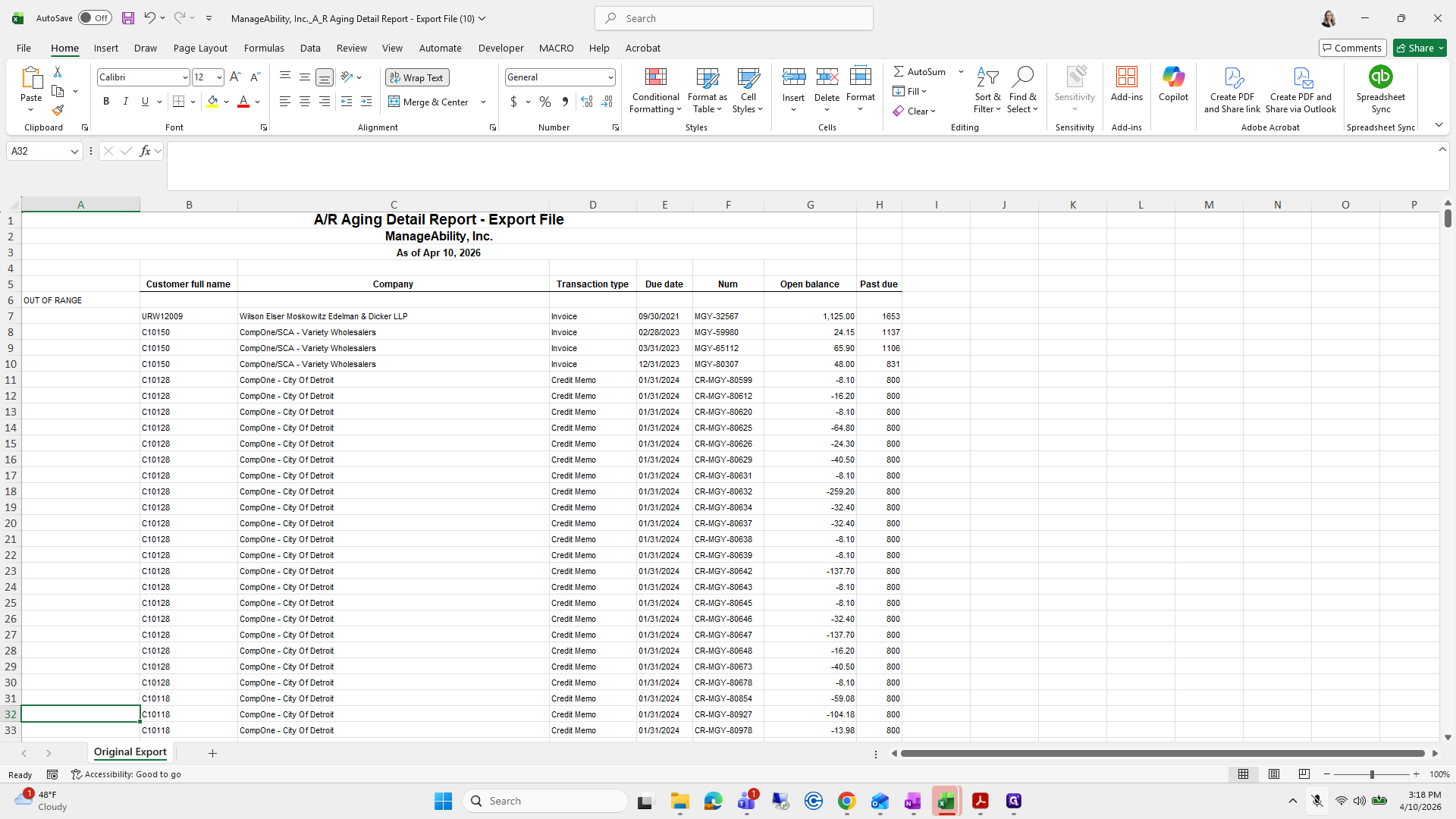
15
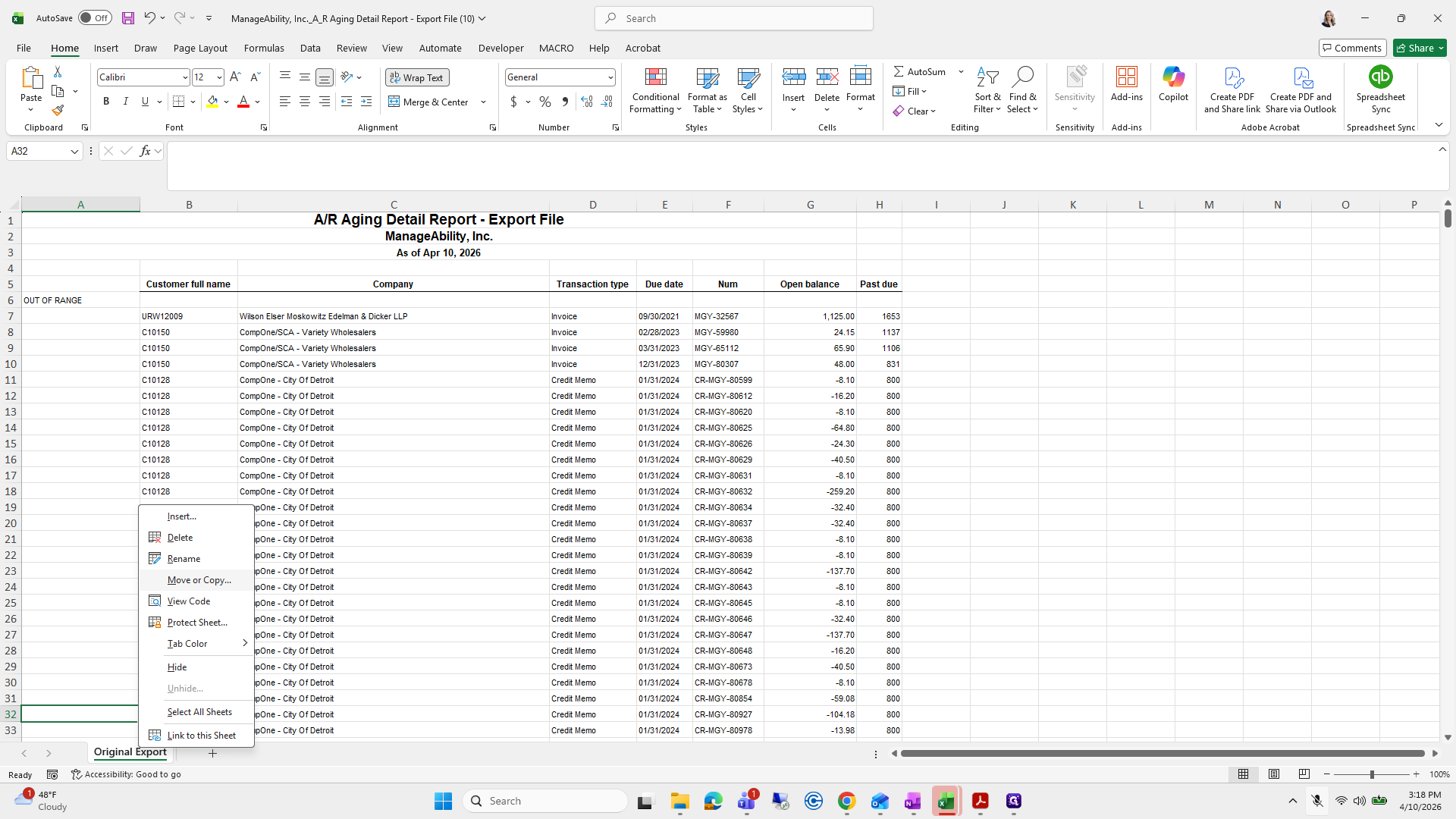
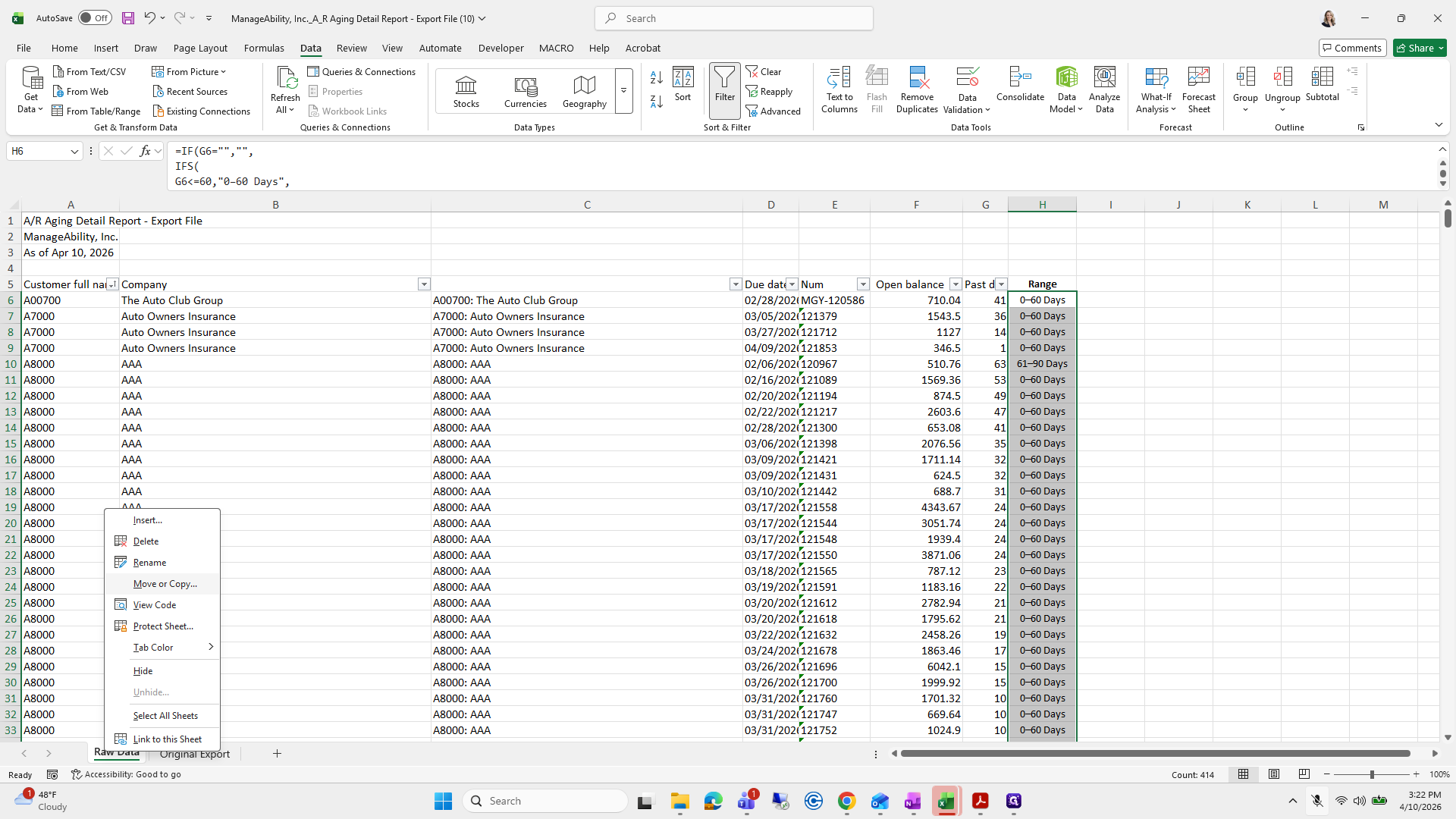
Right-click on "Original Export"
Step #15: Right-click on "Original Export"
16
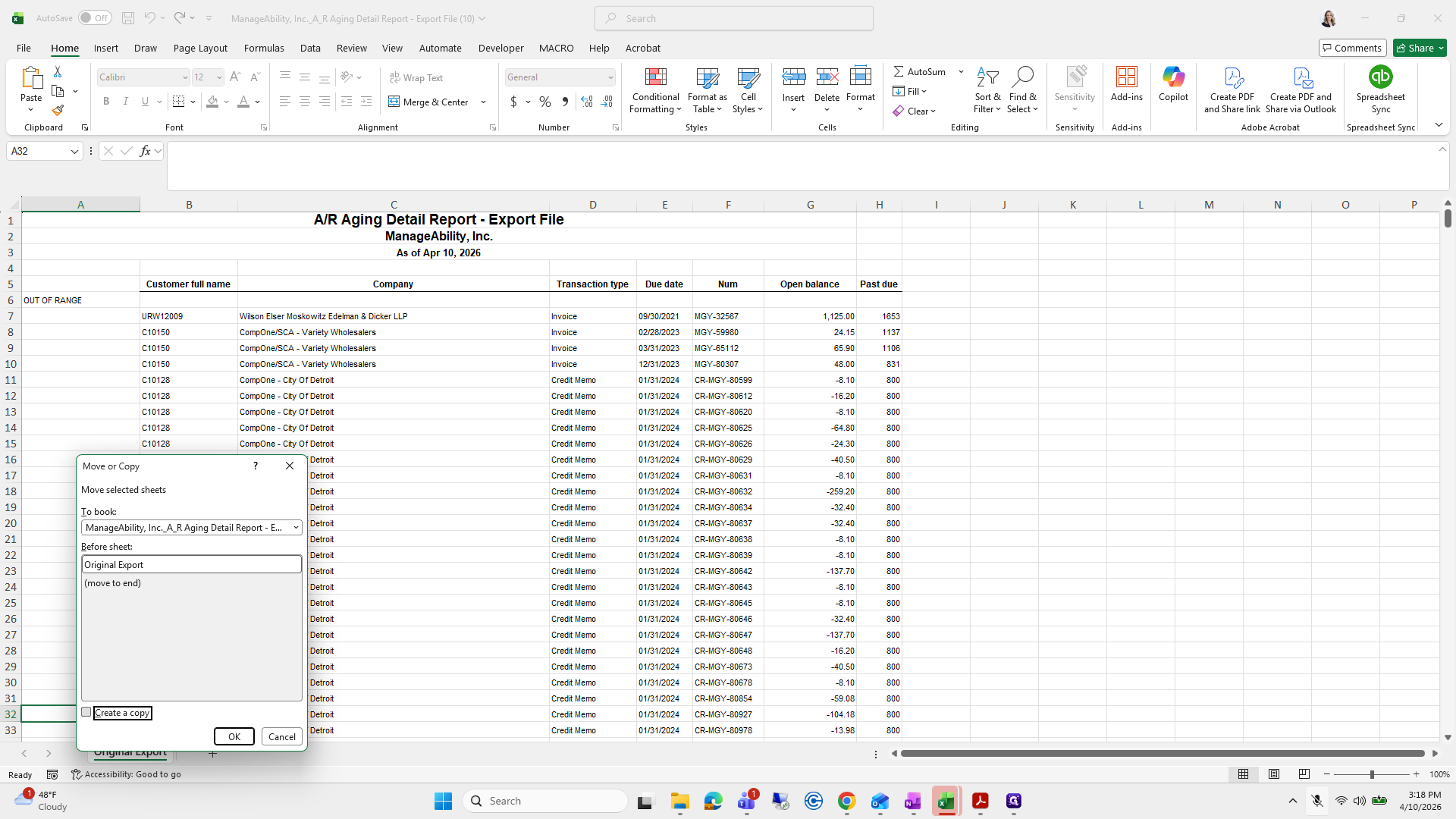
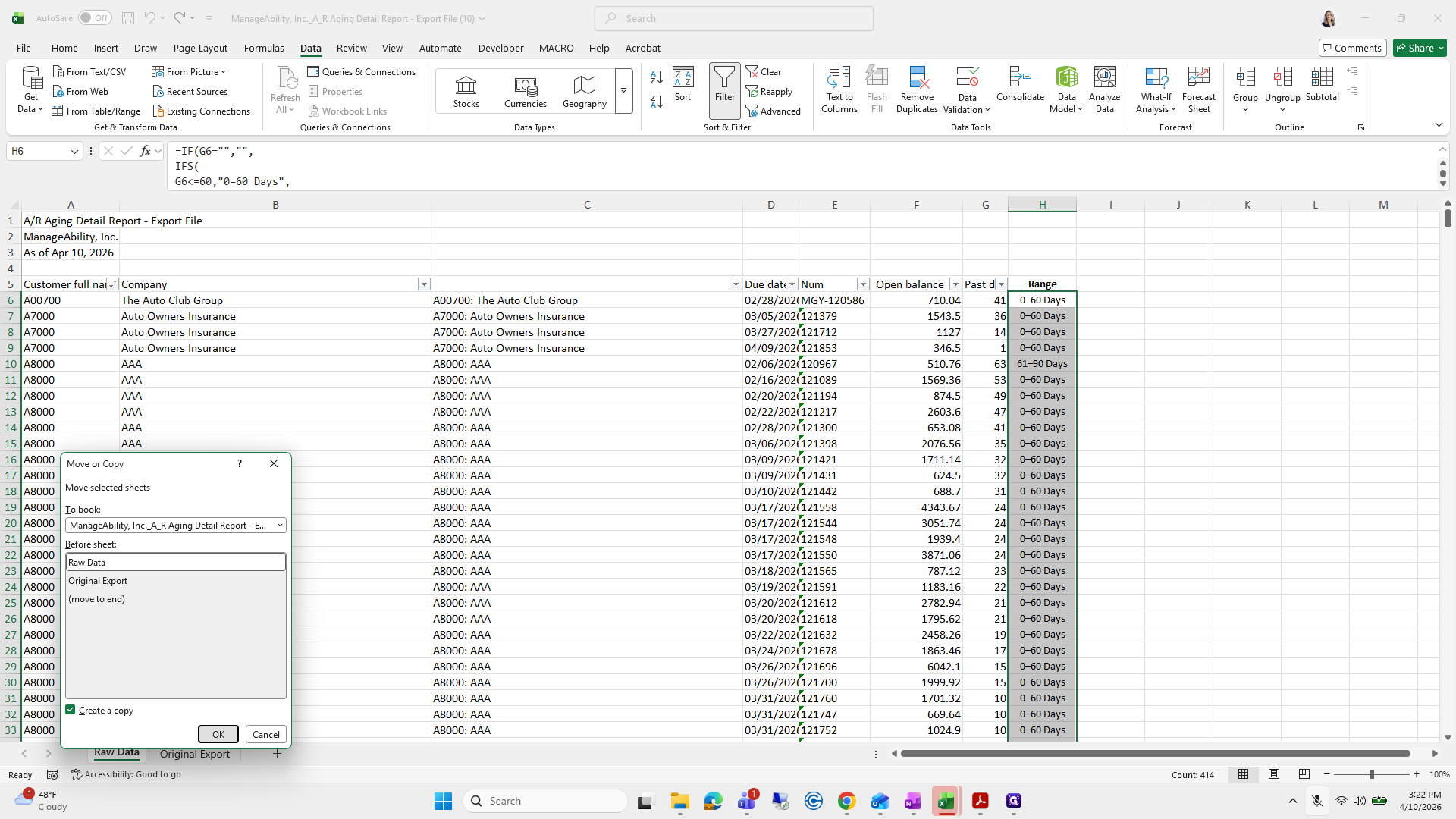
Click on "Move or Copy"
Step #16: Click on "Move or Copy"
17
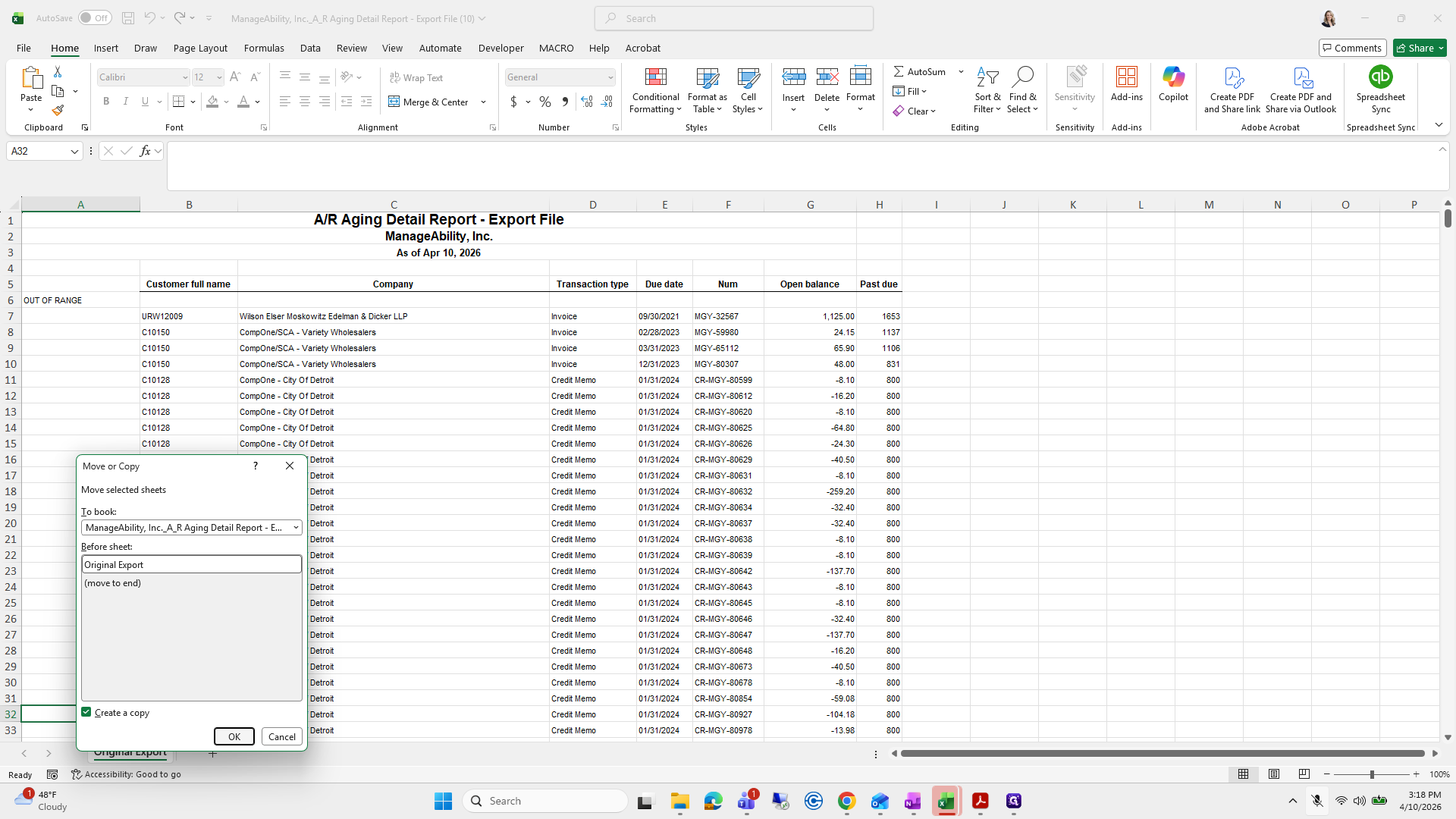
Click on "a copy"
Step #17: Click on "a copy"
18
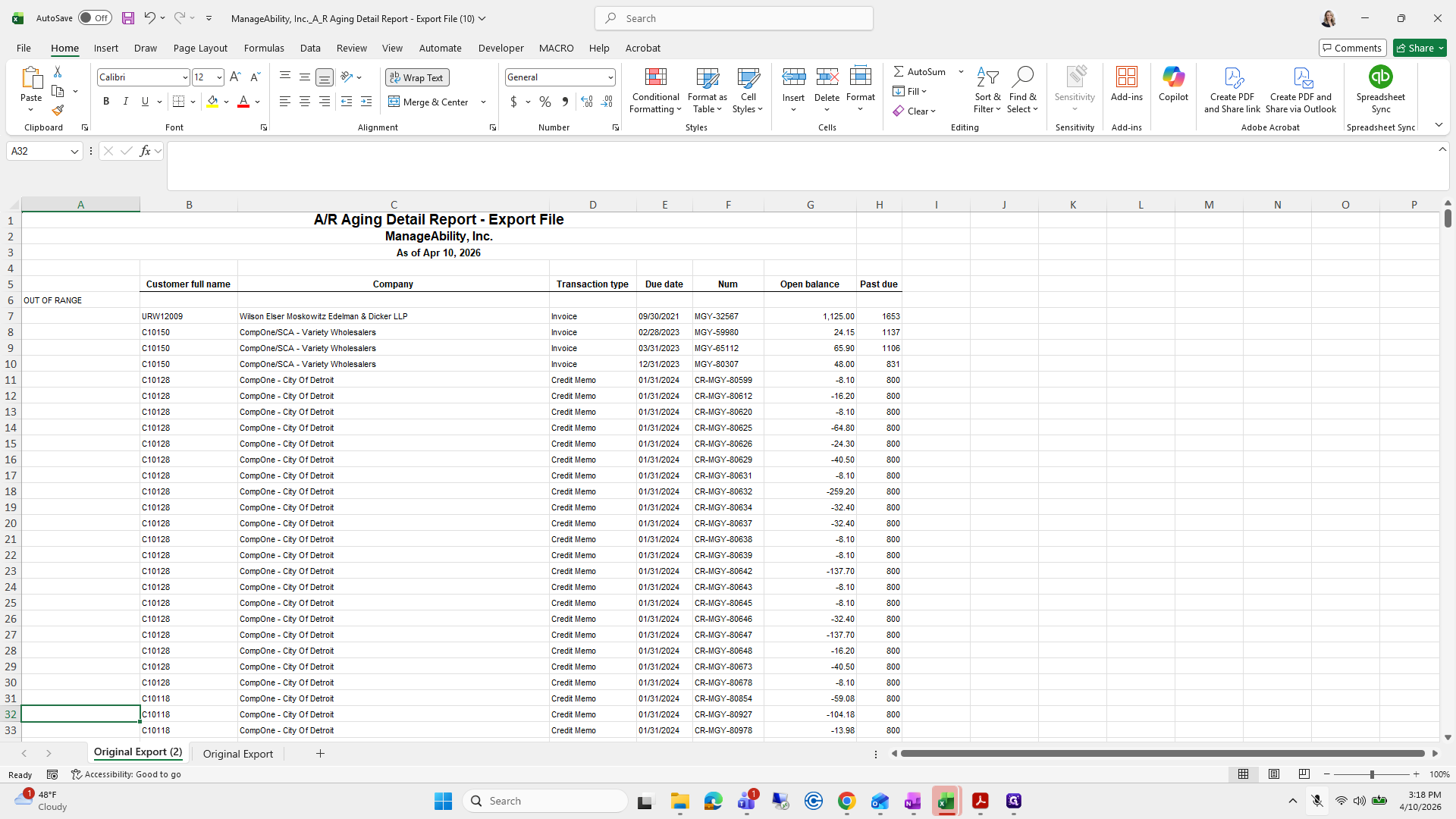
Click on "OK"
Step #18: Click on "OK"
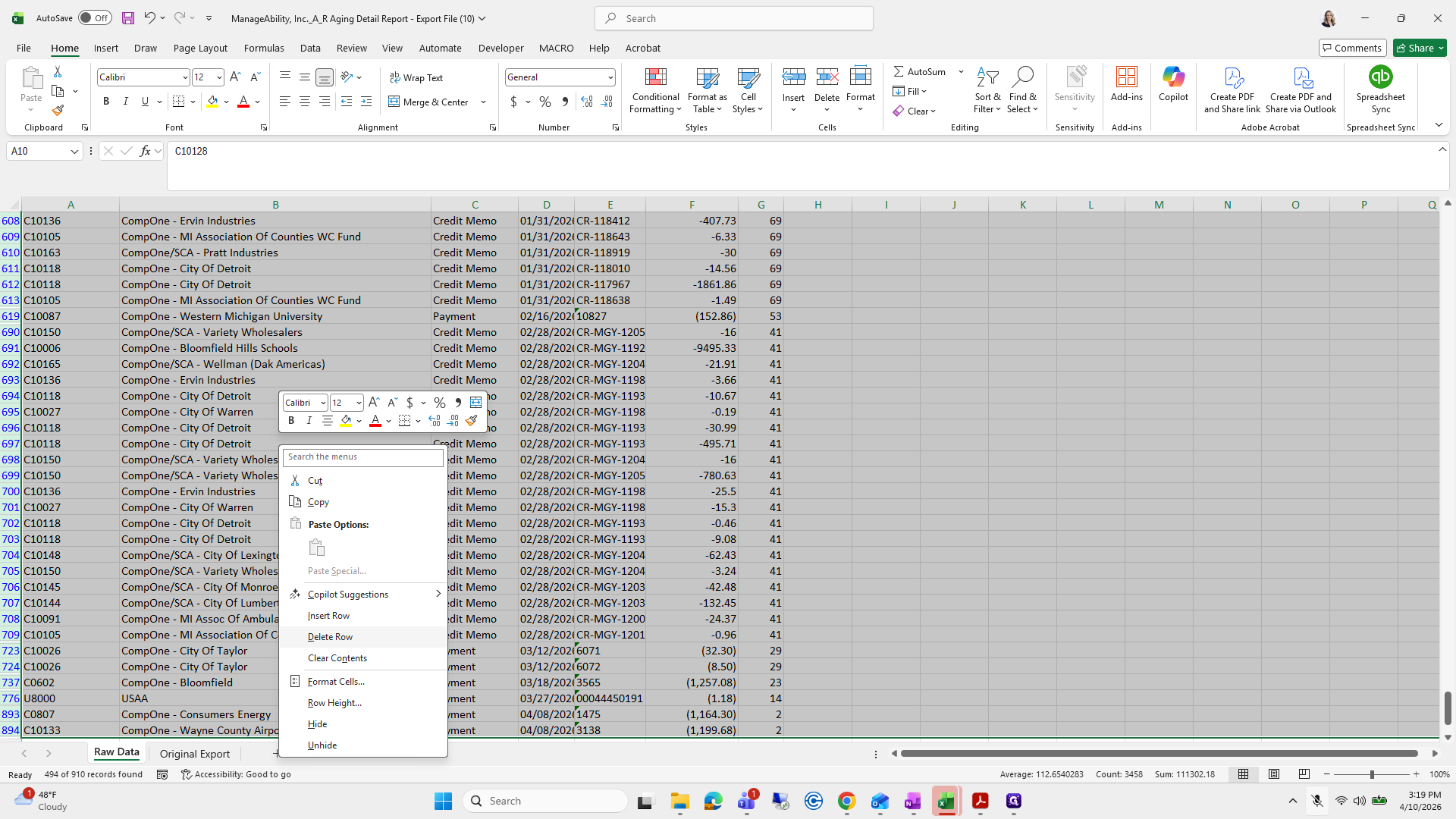
19
Click here
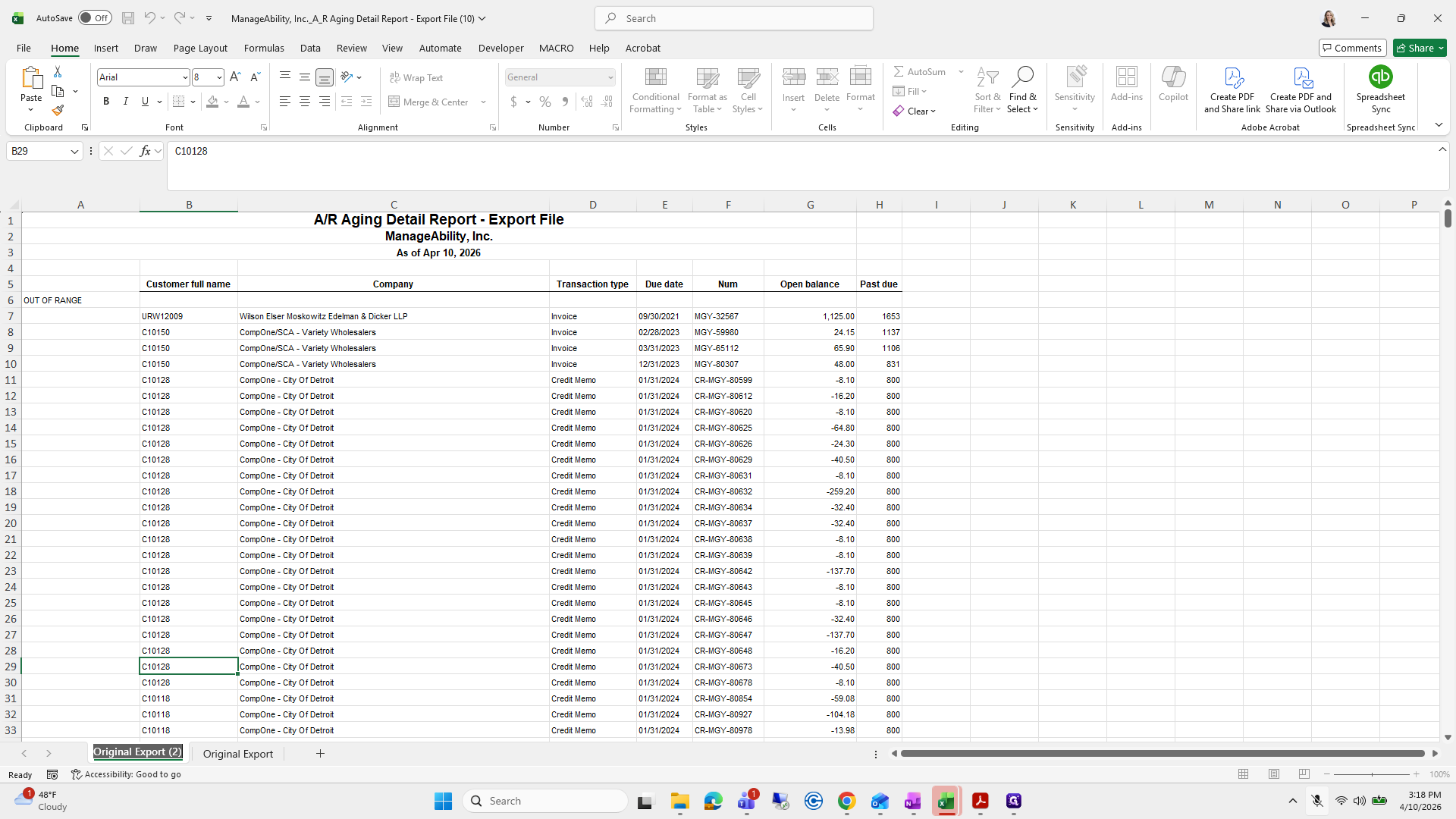
Step #19: Click here
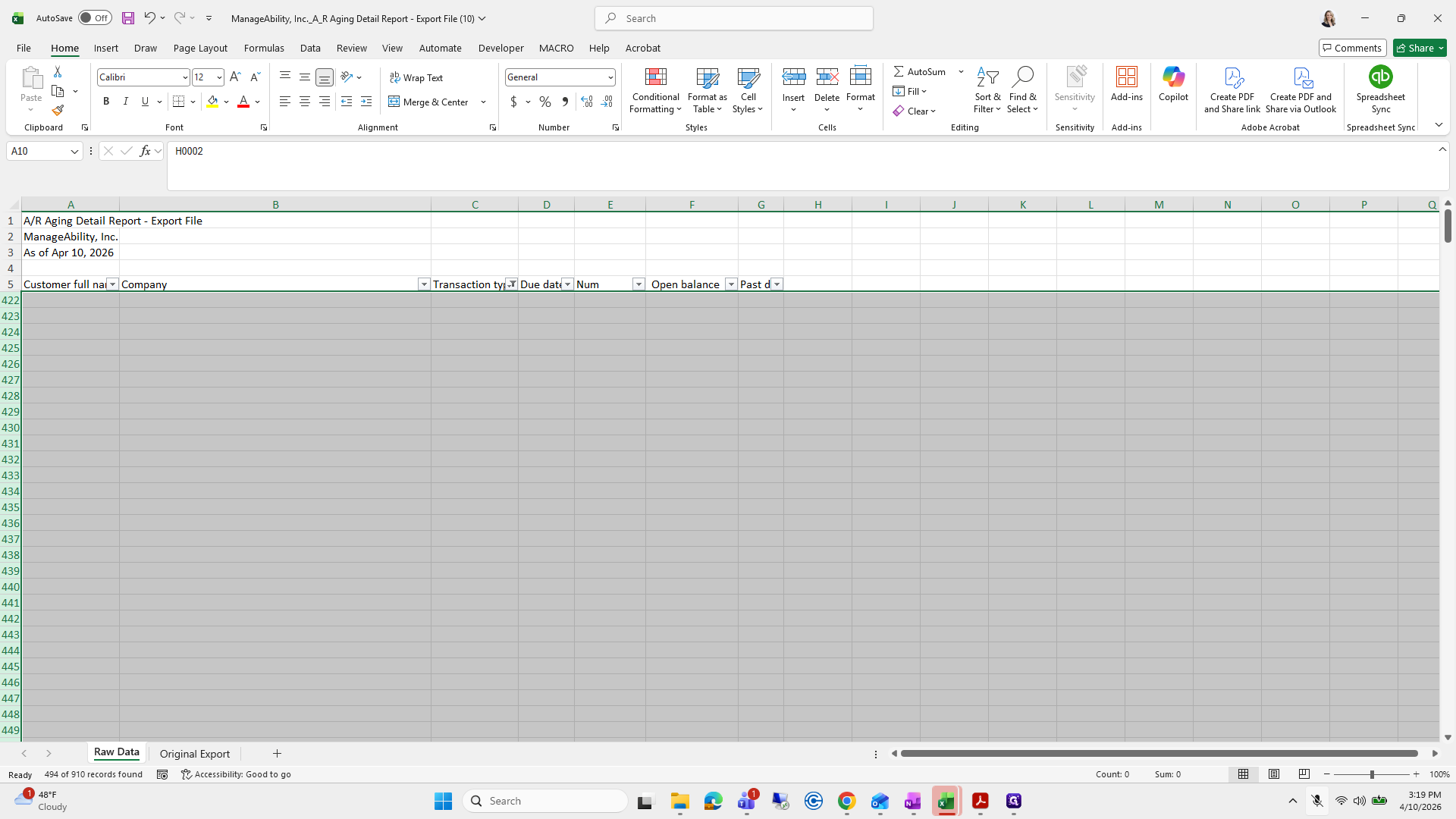
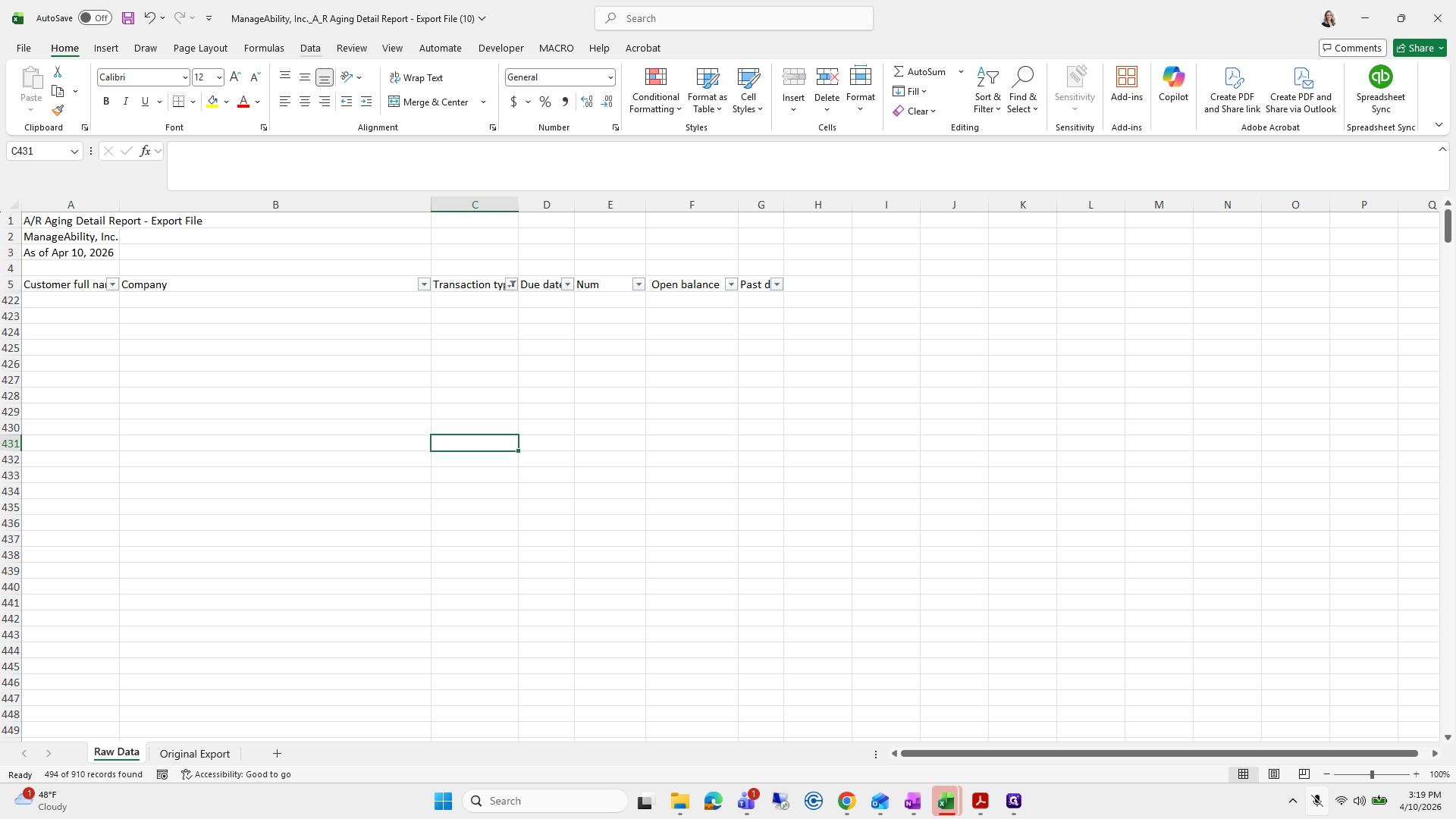
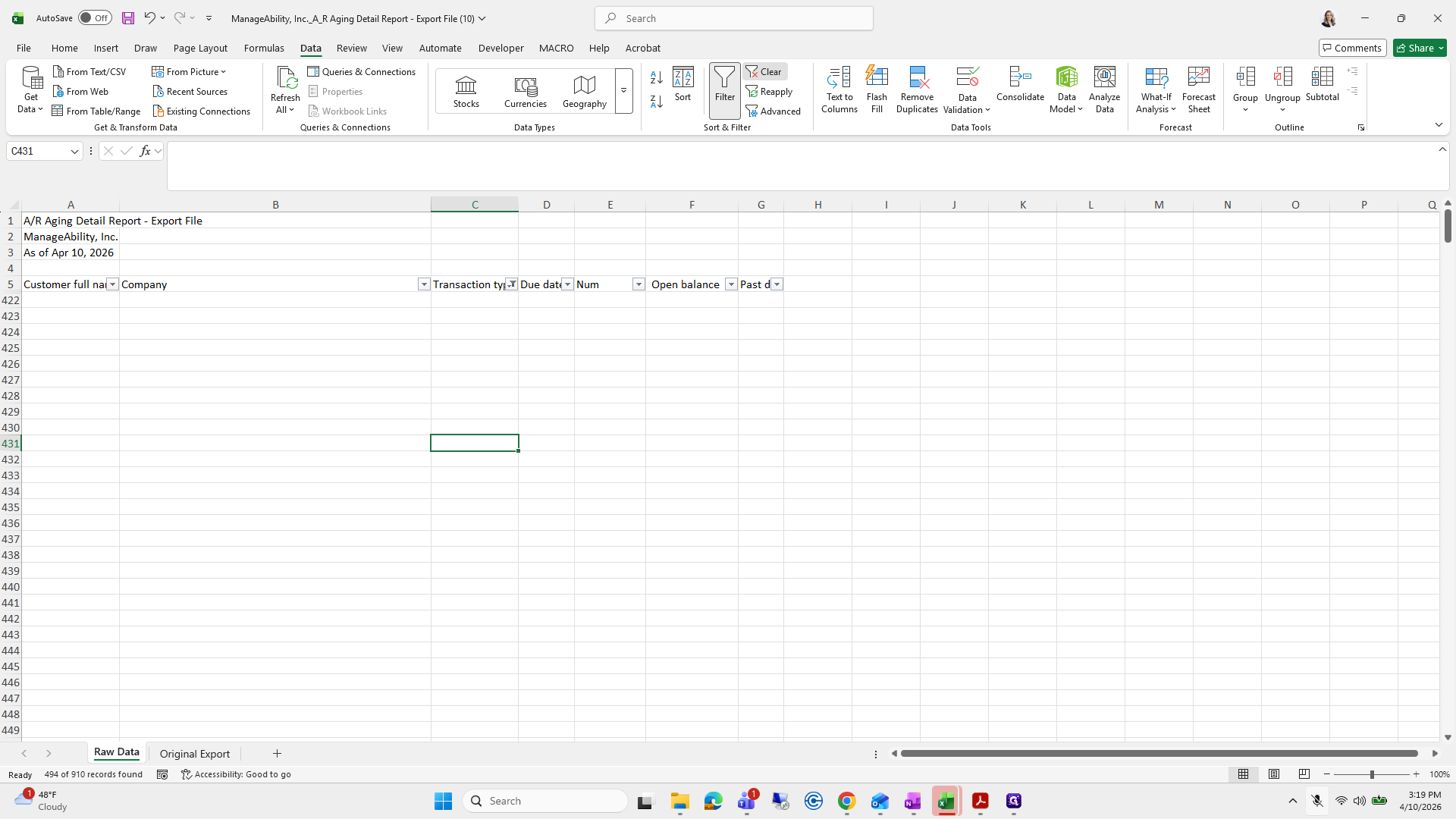
20
Double-click on "Export"
Step #20: Double-click on "Export"

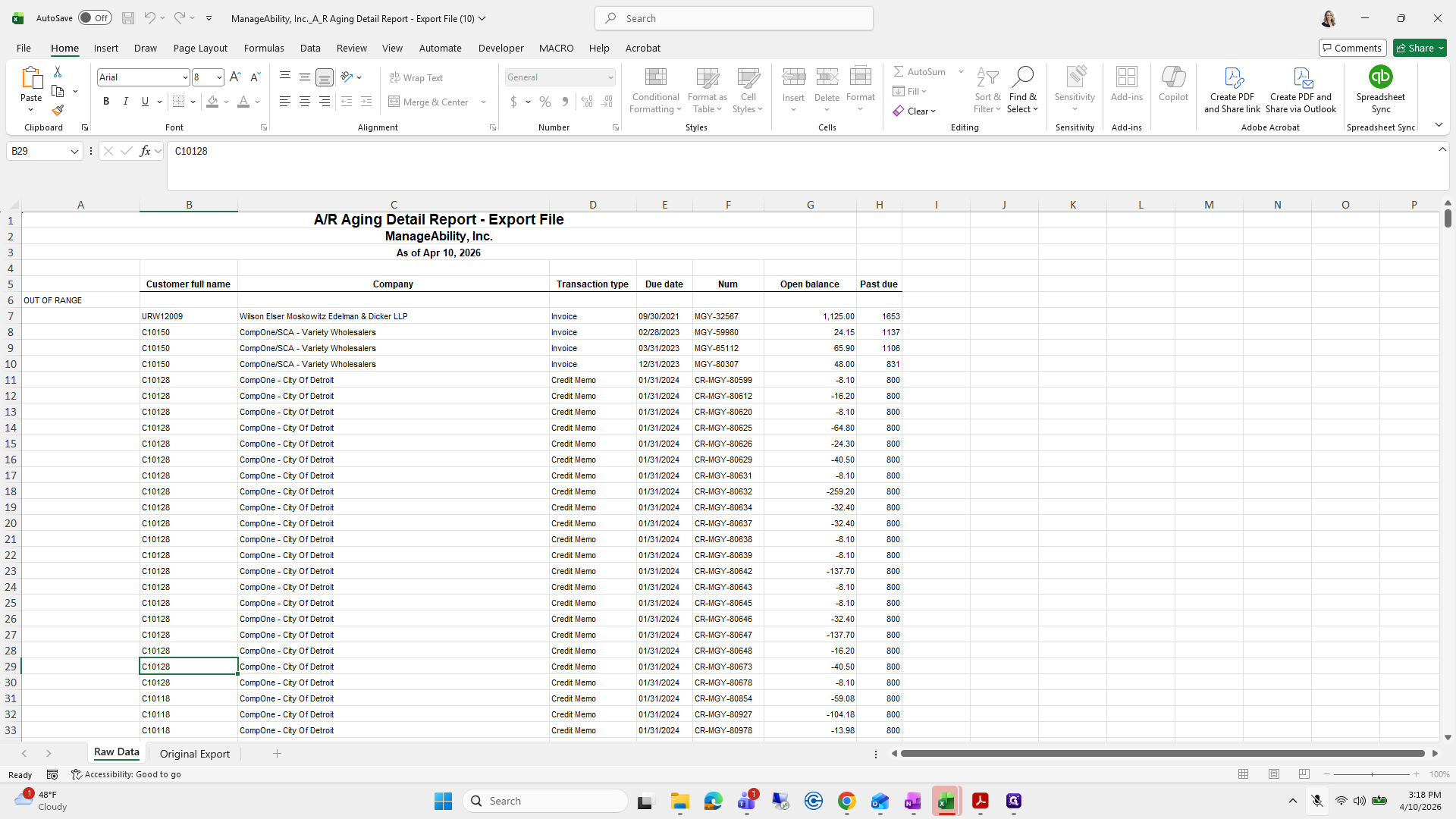
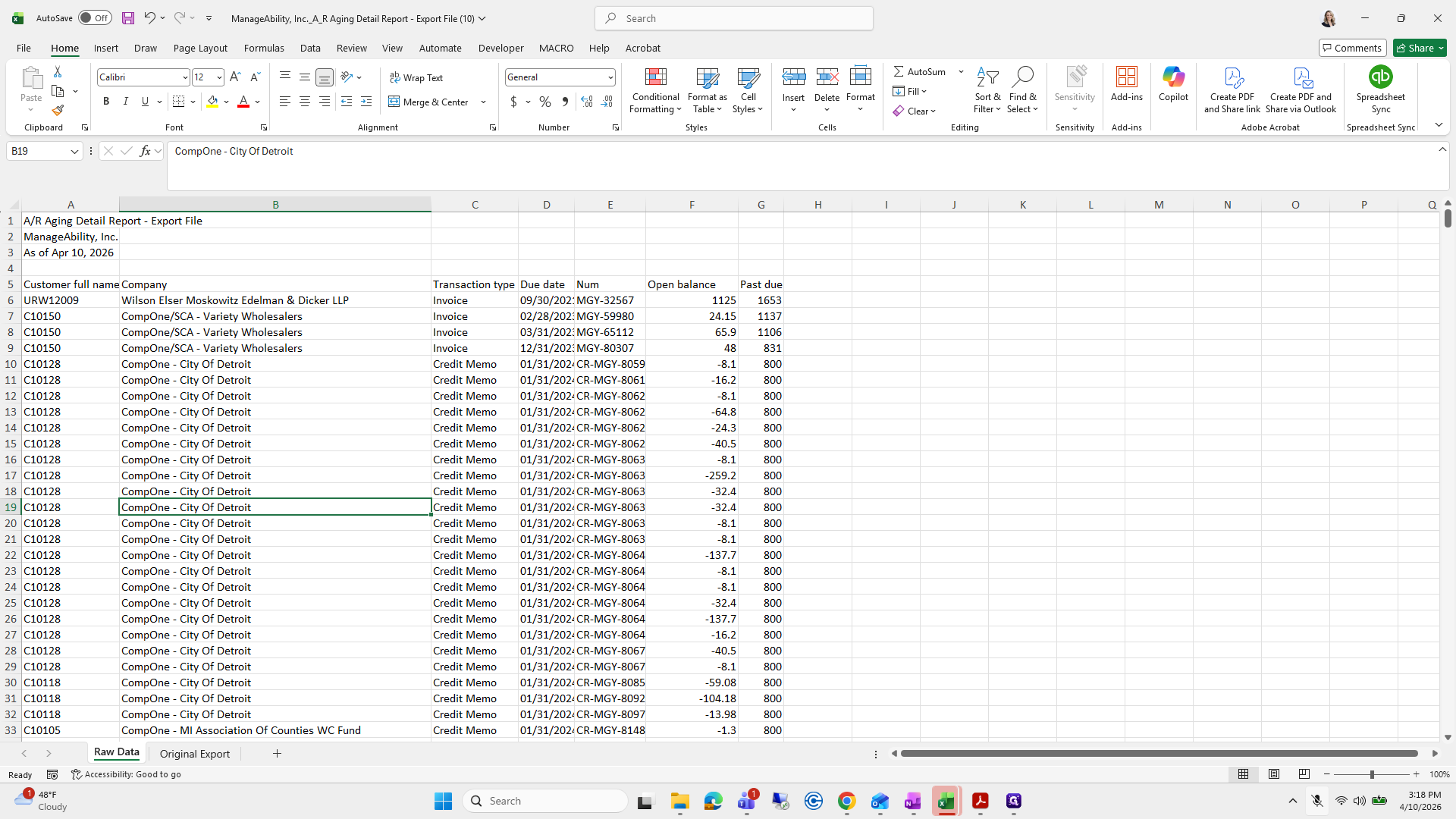
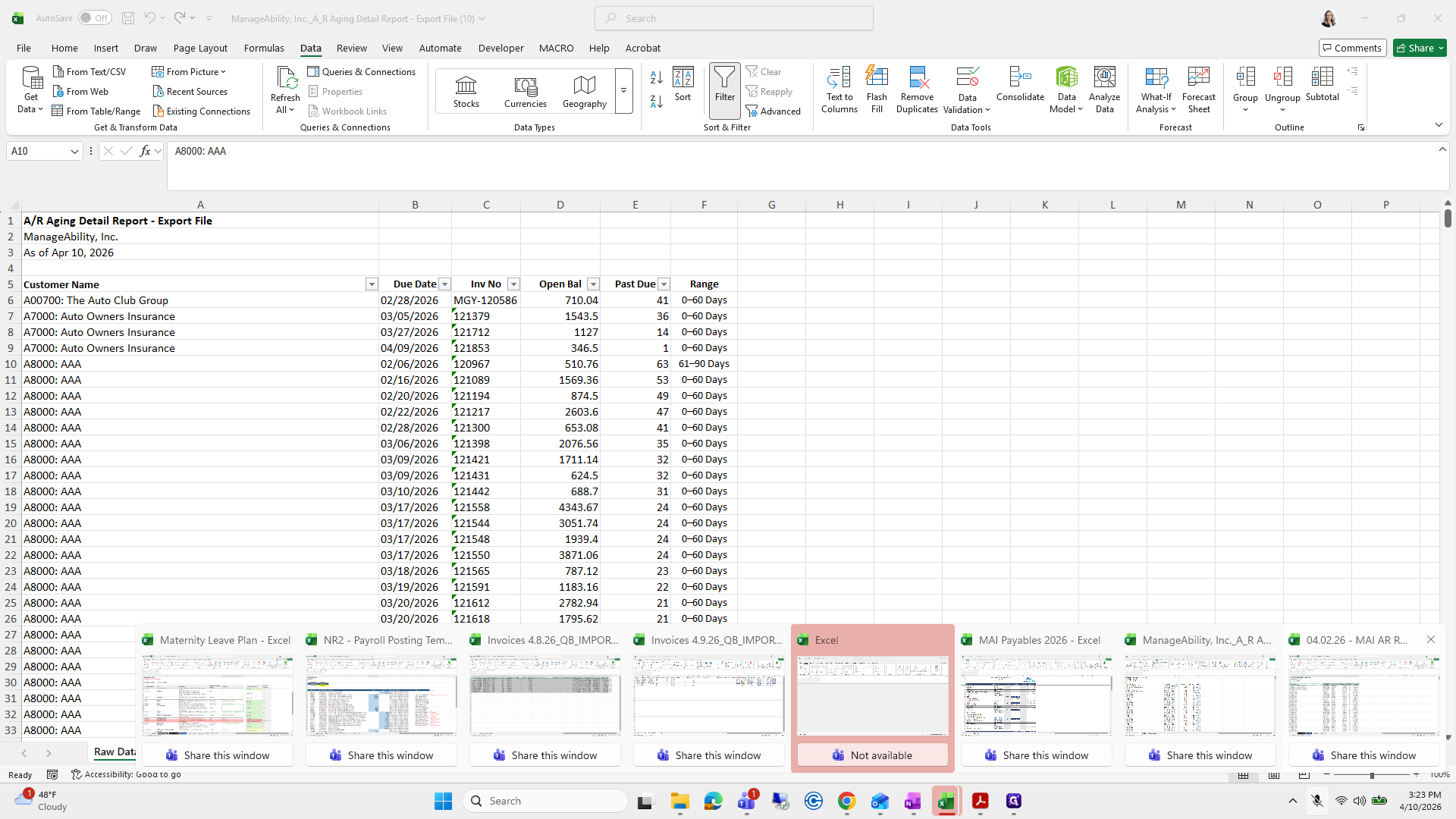
This is raw data.

21
Type "Raw Data"
22
Click here
Step #22: Click here

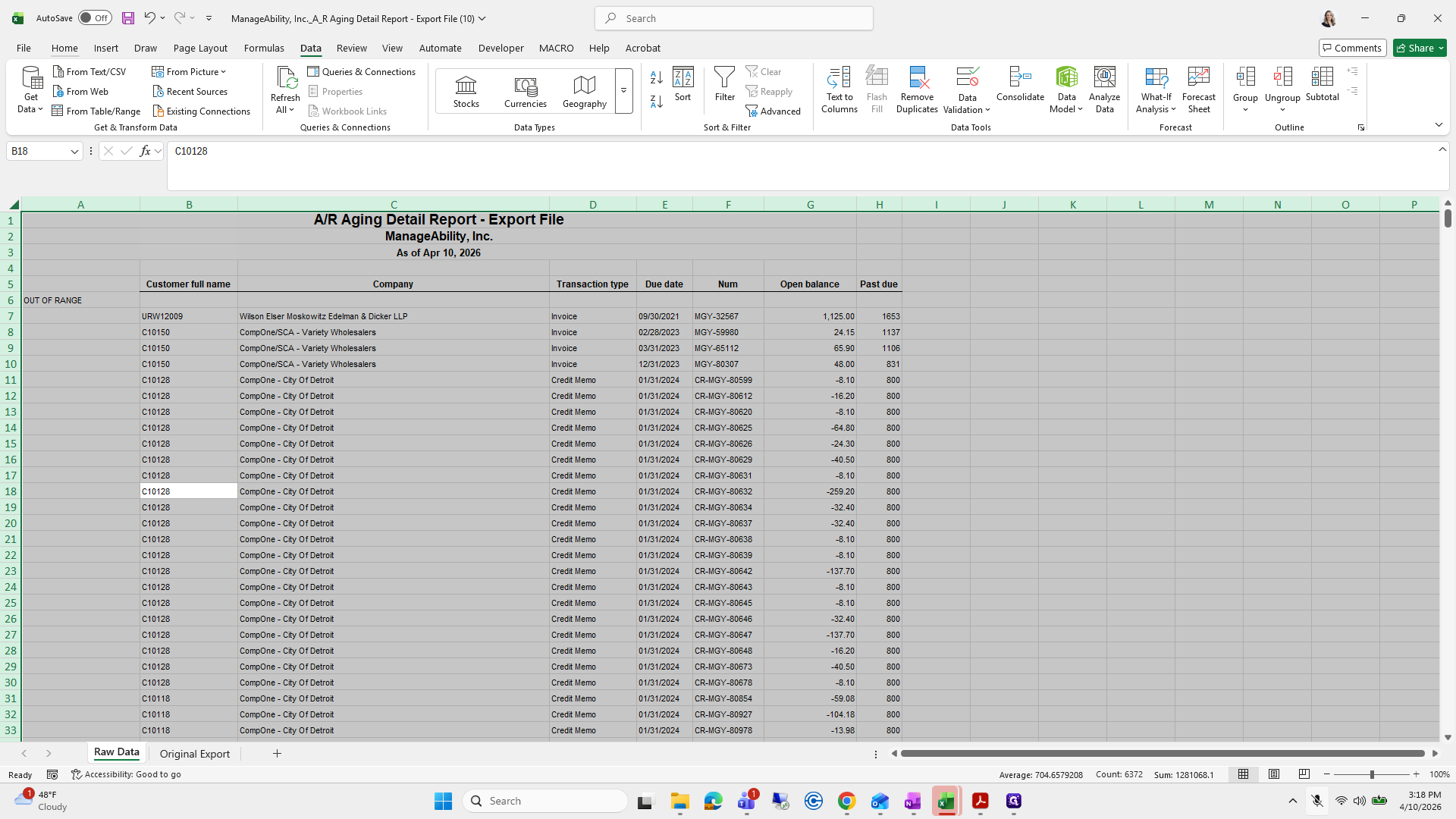
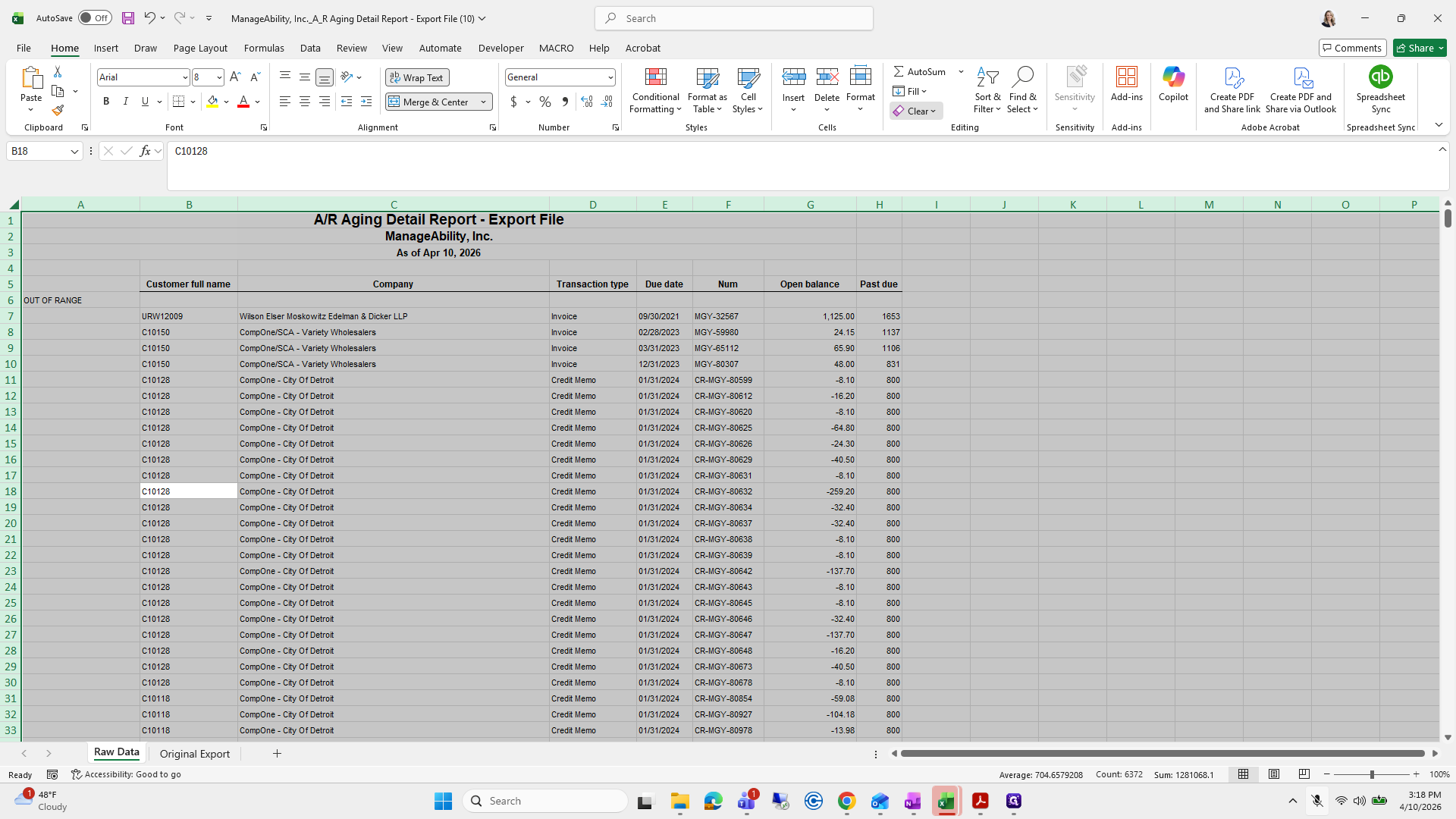
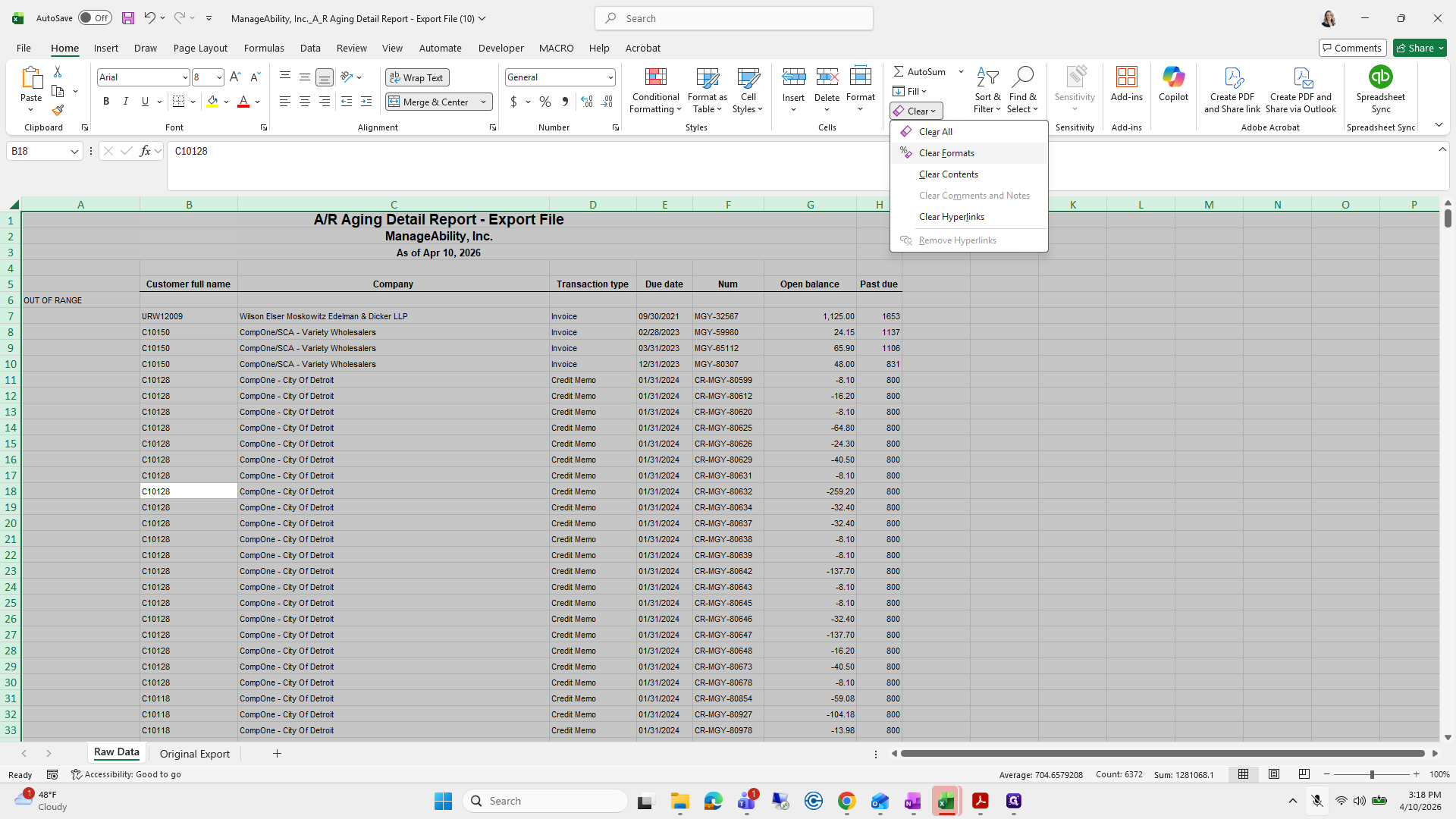
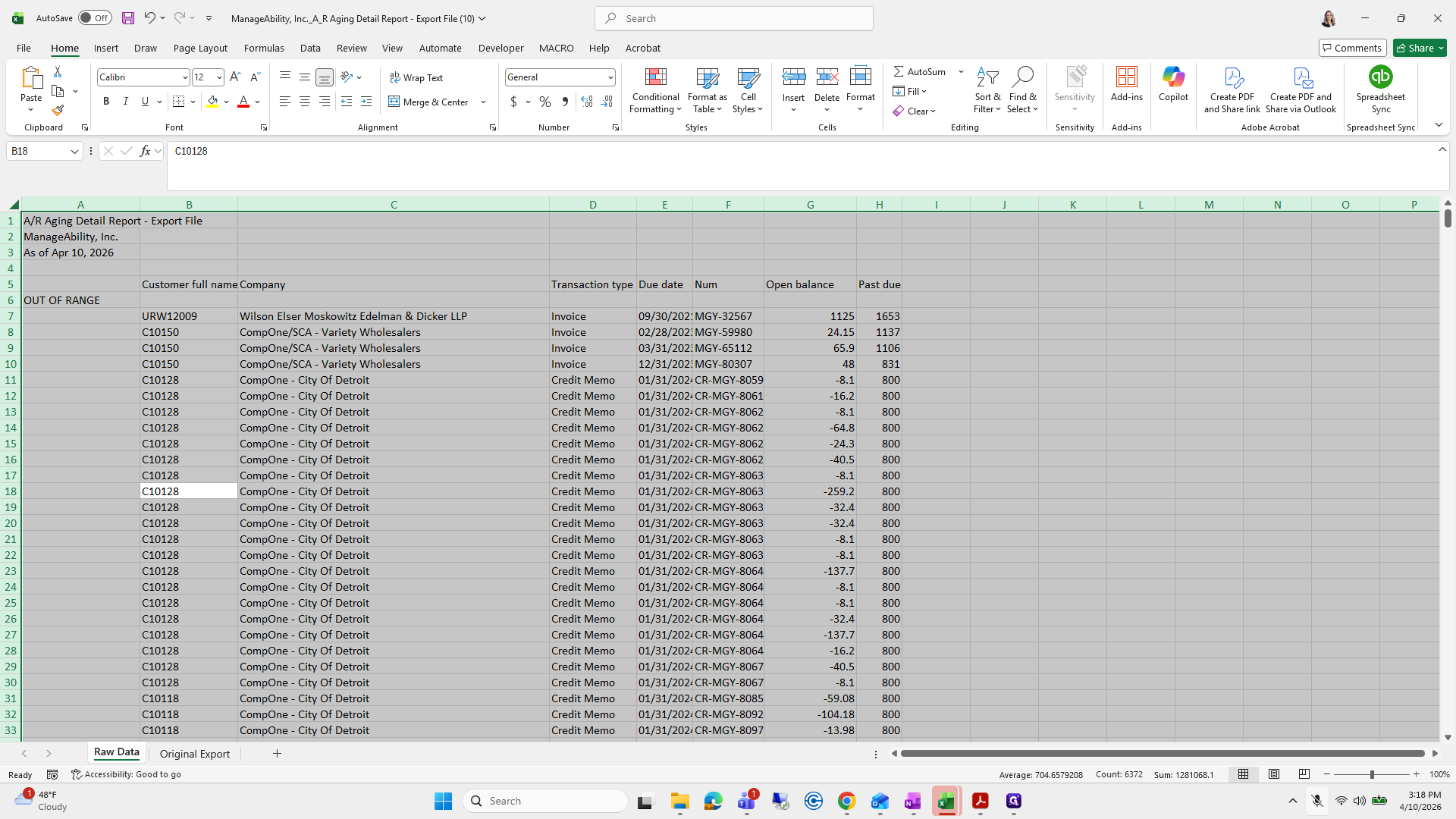
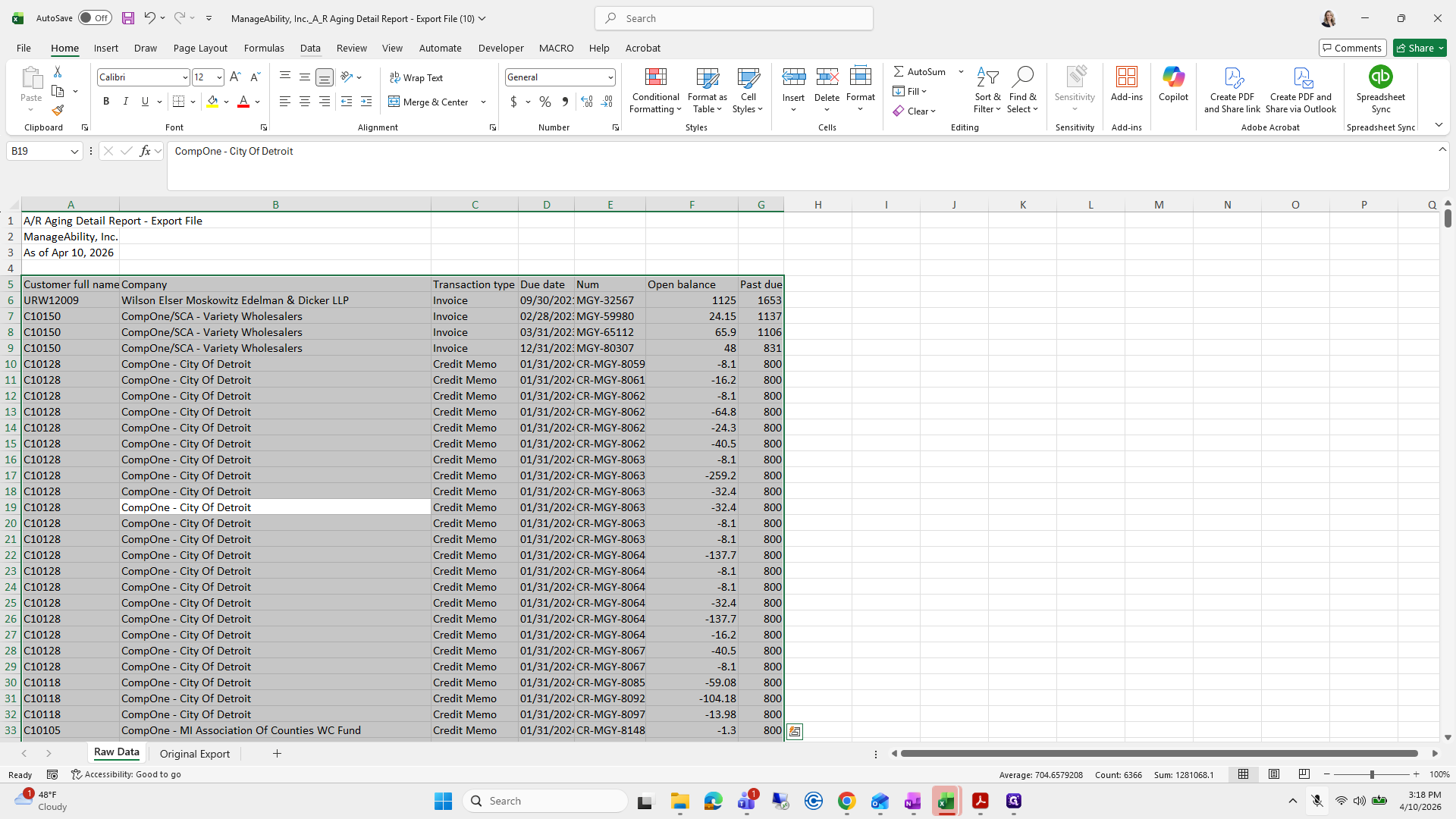
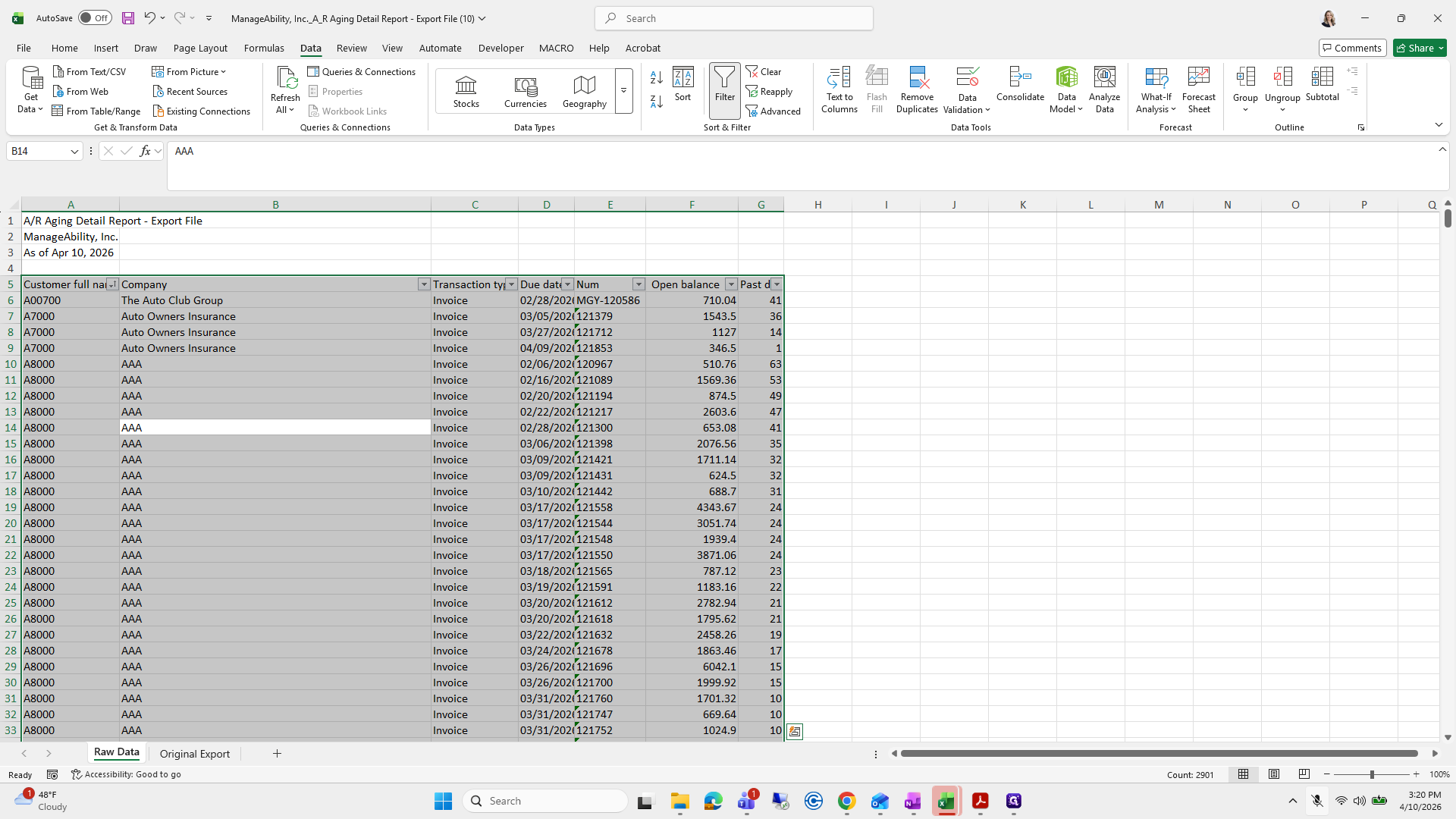
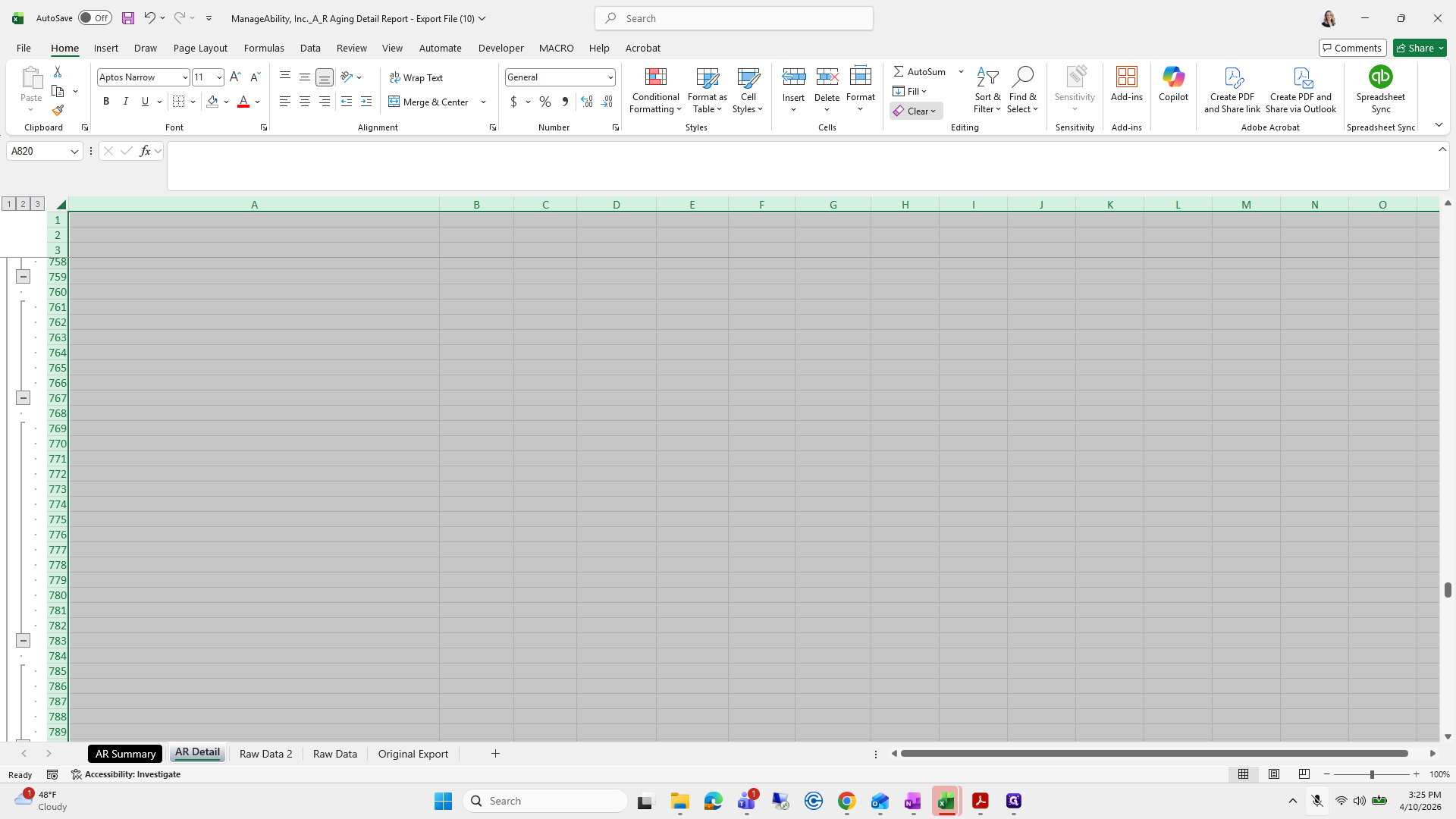
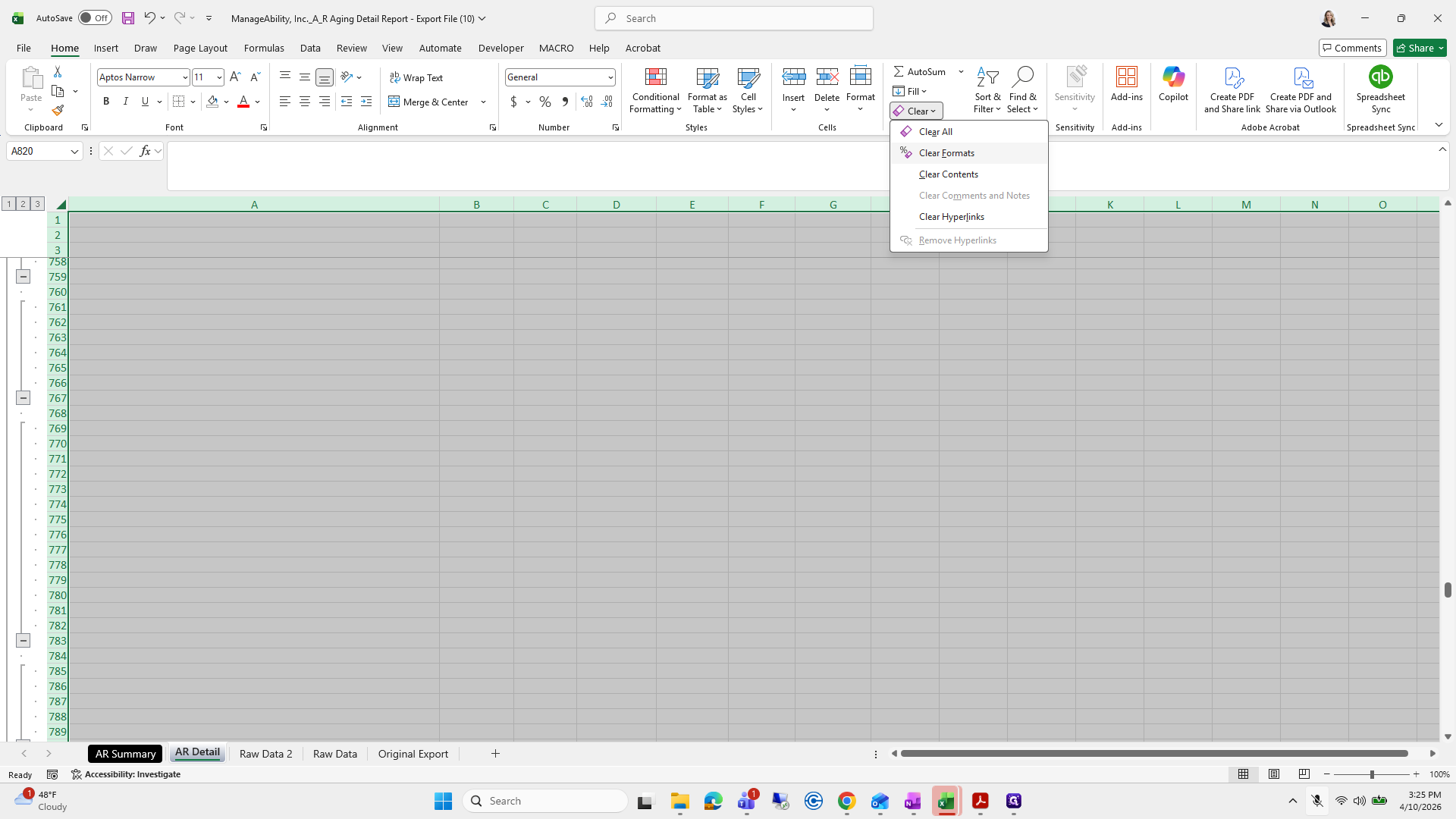
I select all, go to Home, click Clear, then Formats.
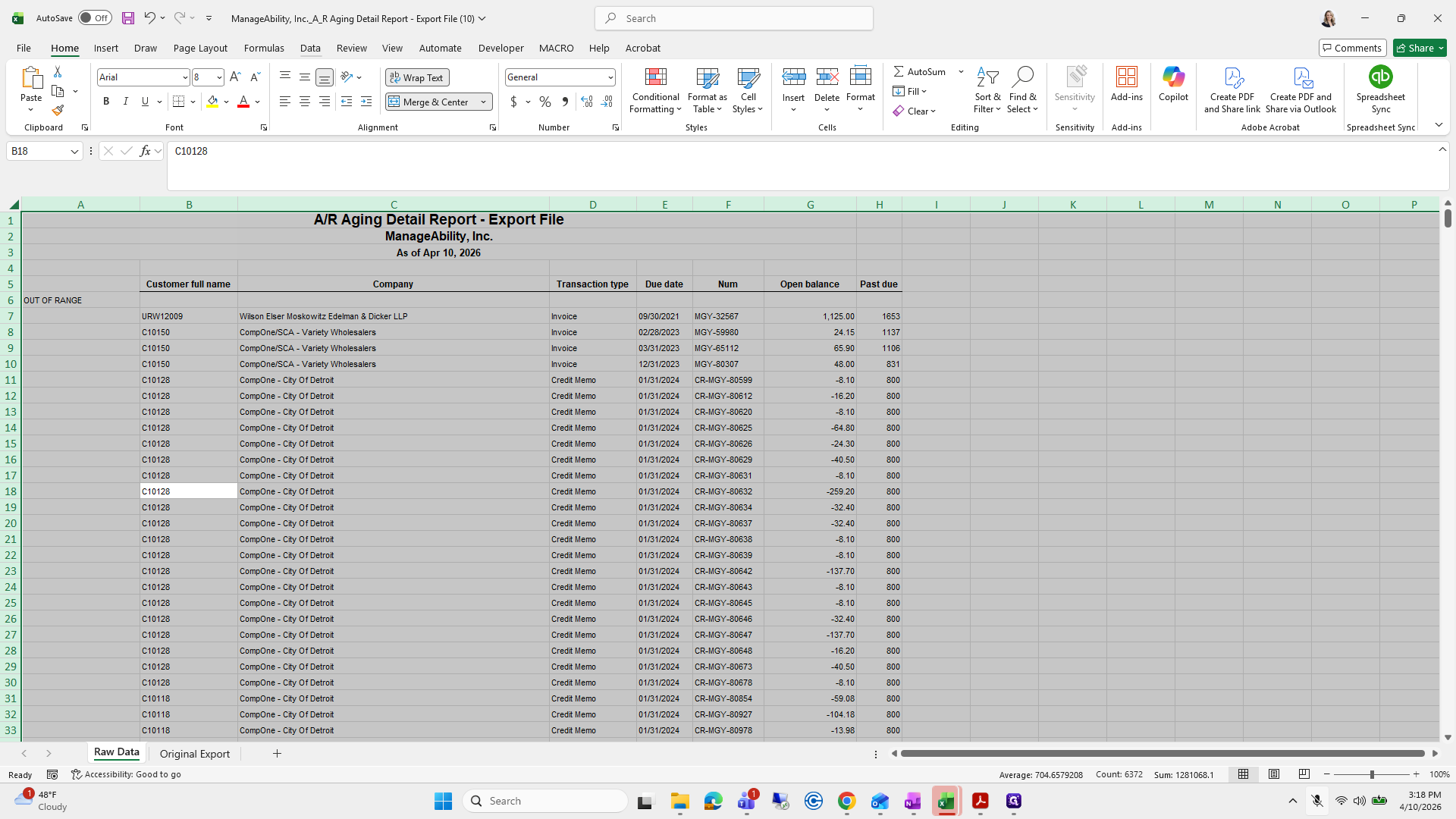
23
Type "Ctrl + A"
24
Type "Ctrl + A"
25
Click on "Data"
Step #25: Click on "Data"
26
Click on "Home"
Step #26: Click on "Home"
27
Click on "Clear"
Step #27: Click on "Clear"
28
Click on "Clear Formats"
Step #28: Click on "Clear Formats"
29
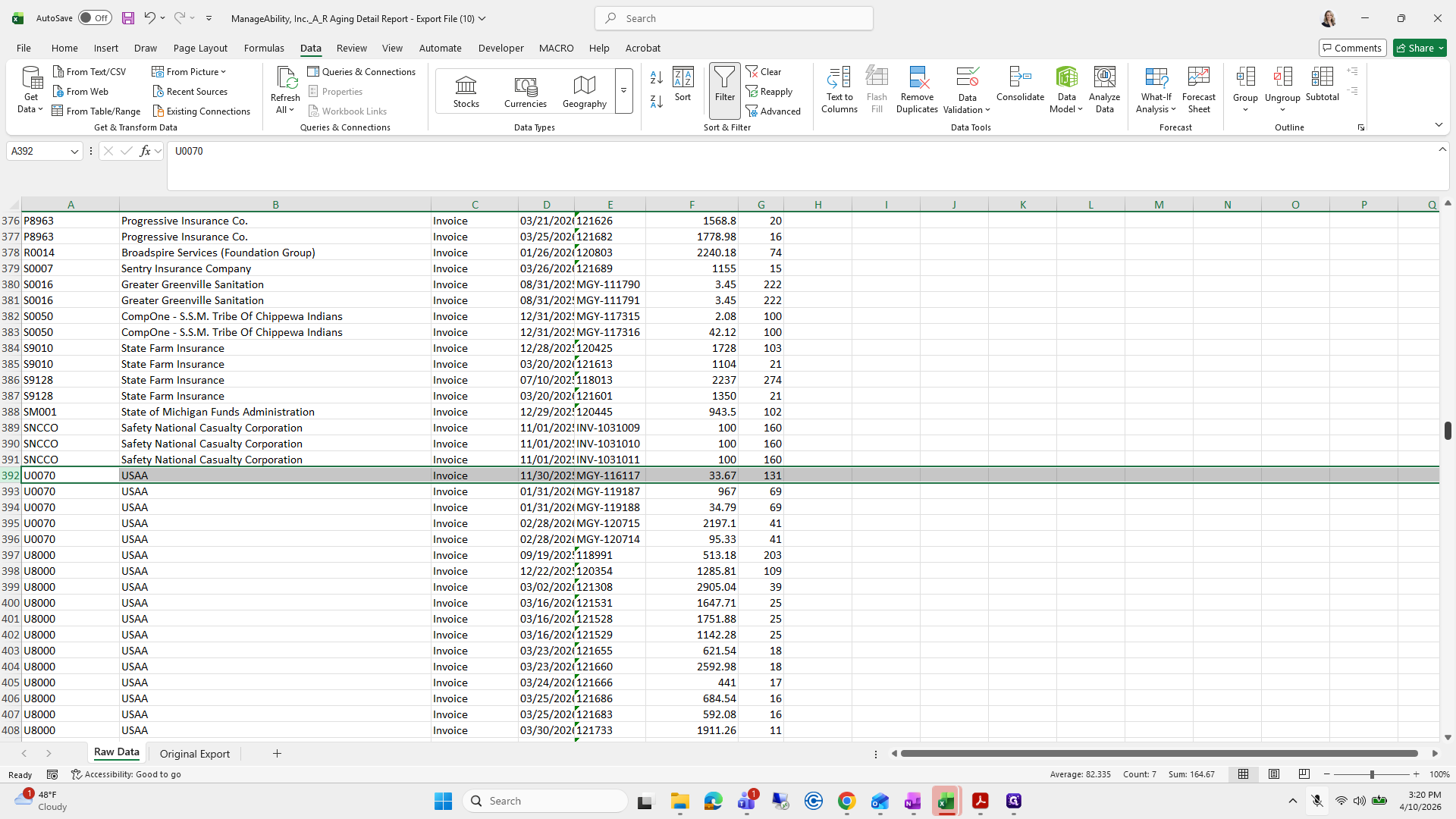
Click on "03/31/202 :"
Step #29: Click on "03/31/202 :"

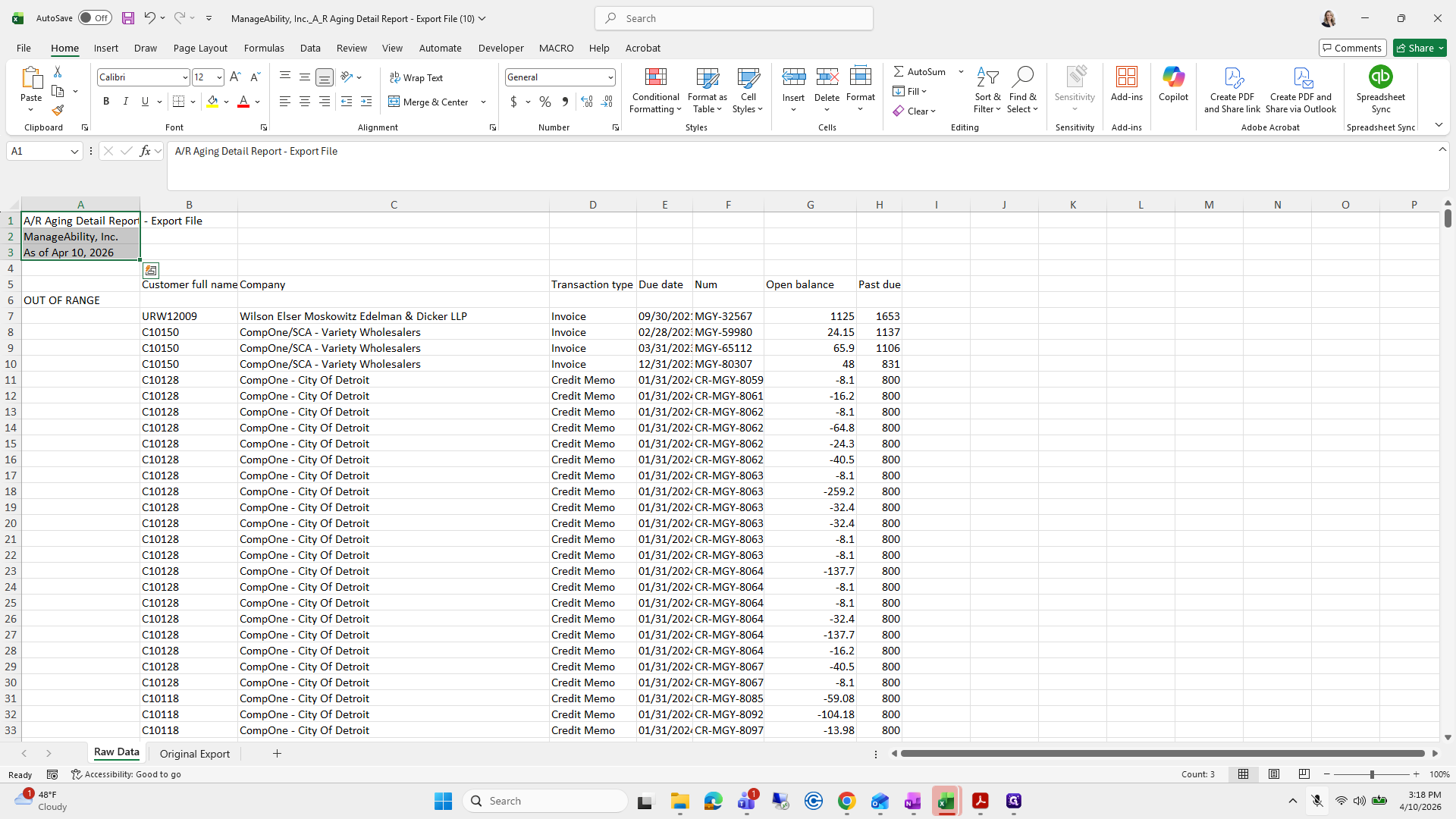
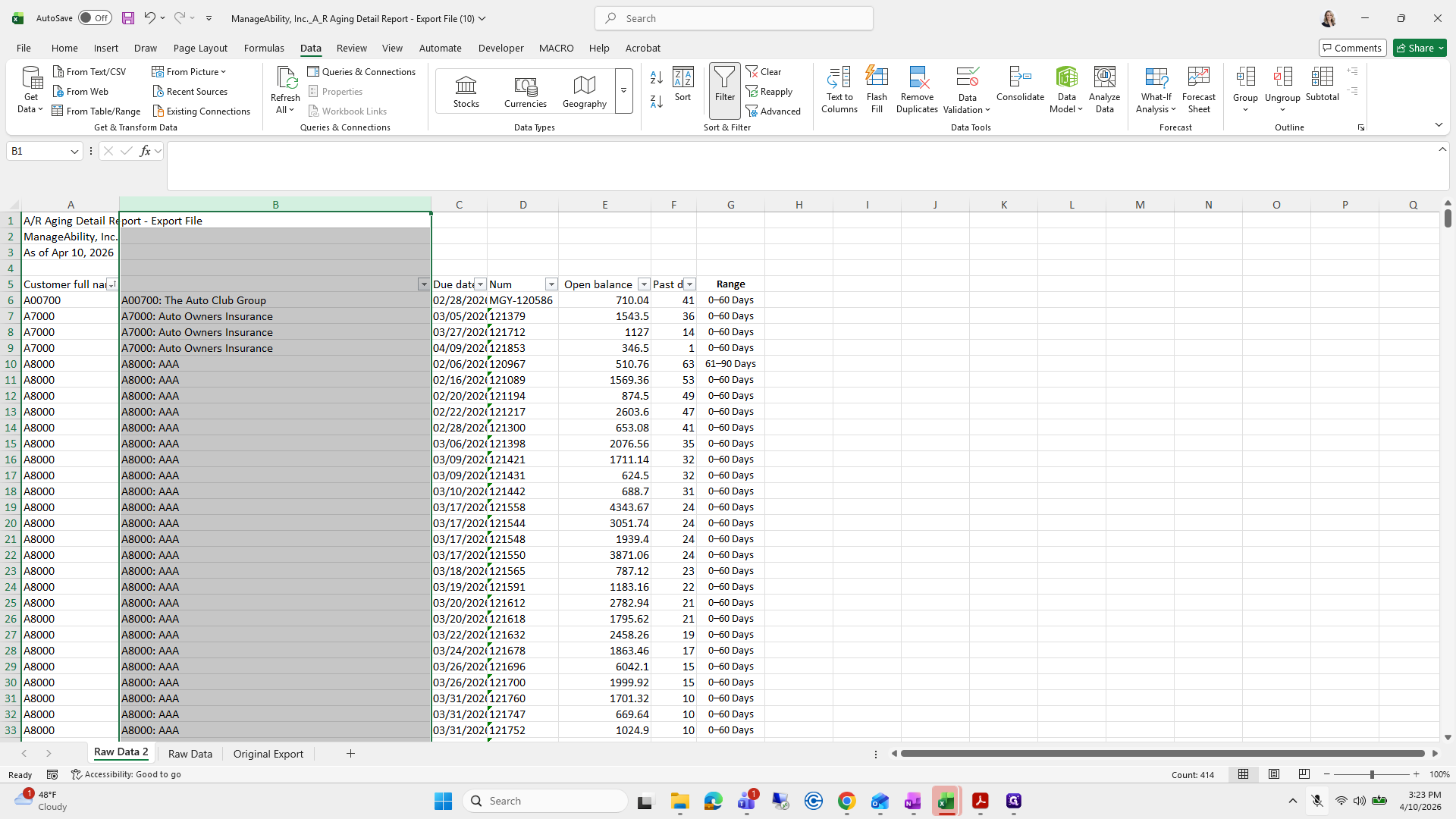
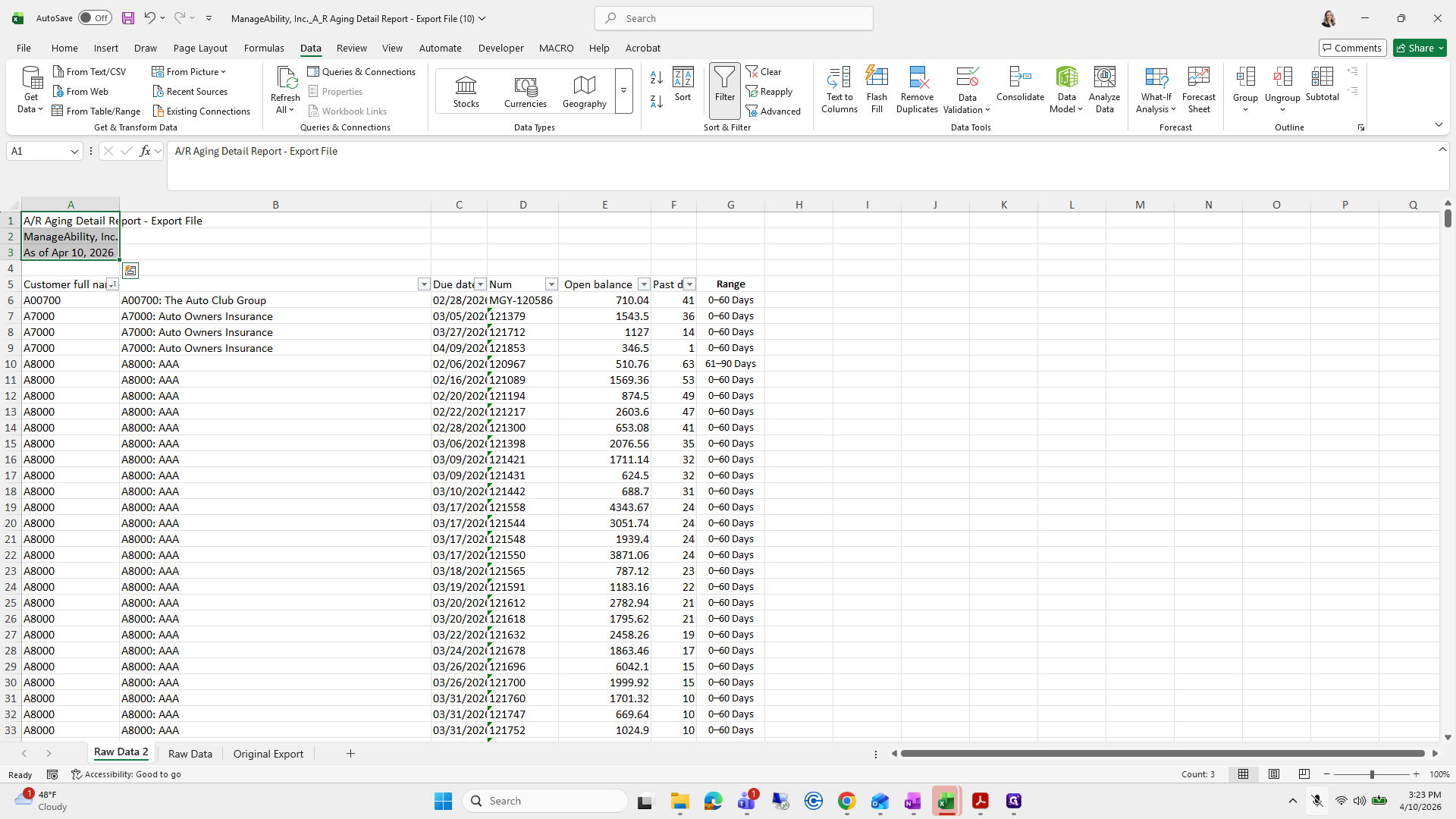
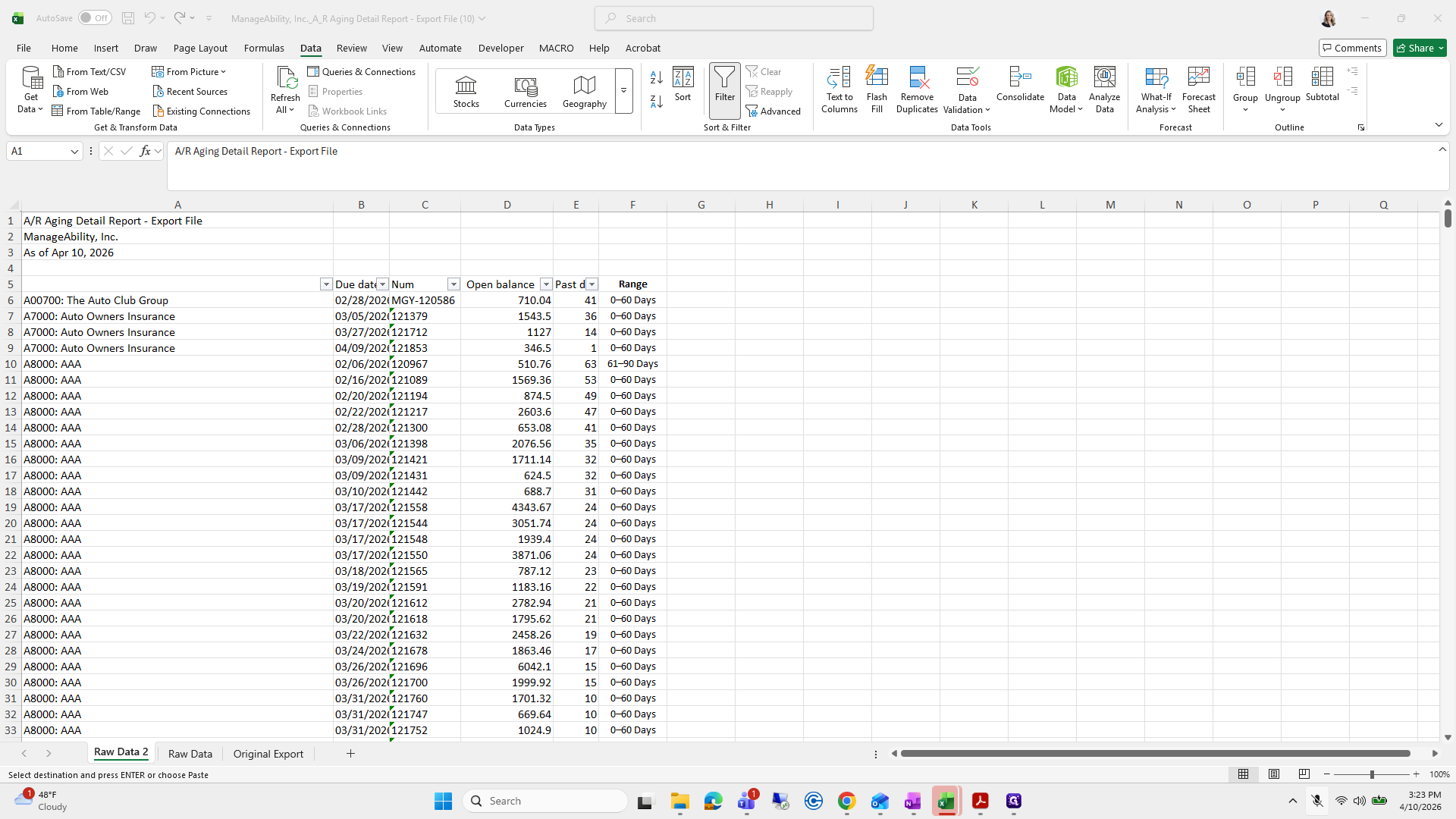
Then I grab this section and bring it over.
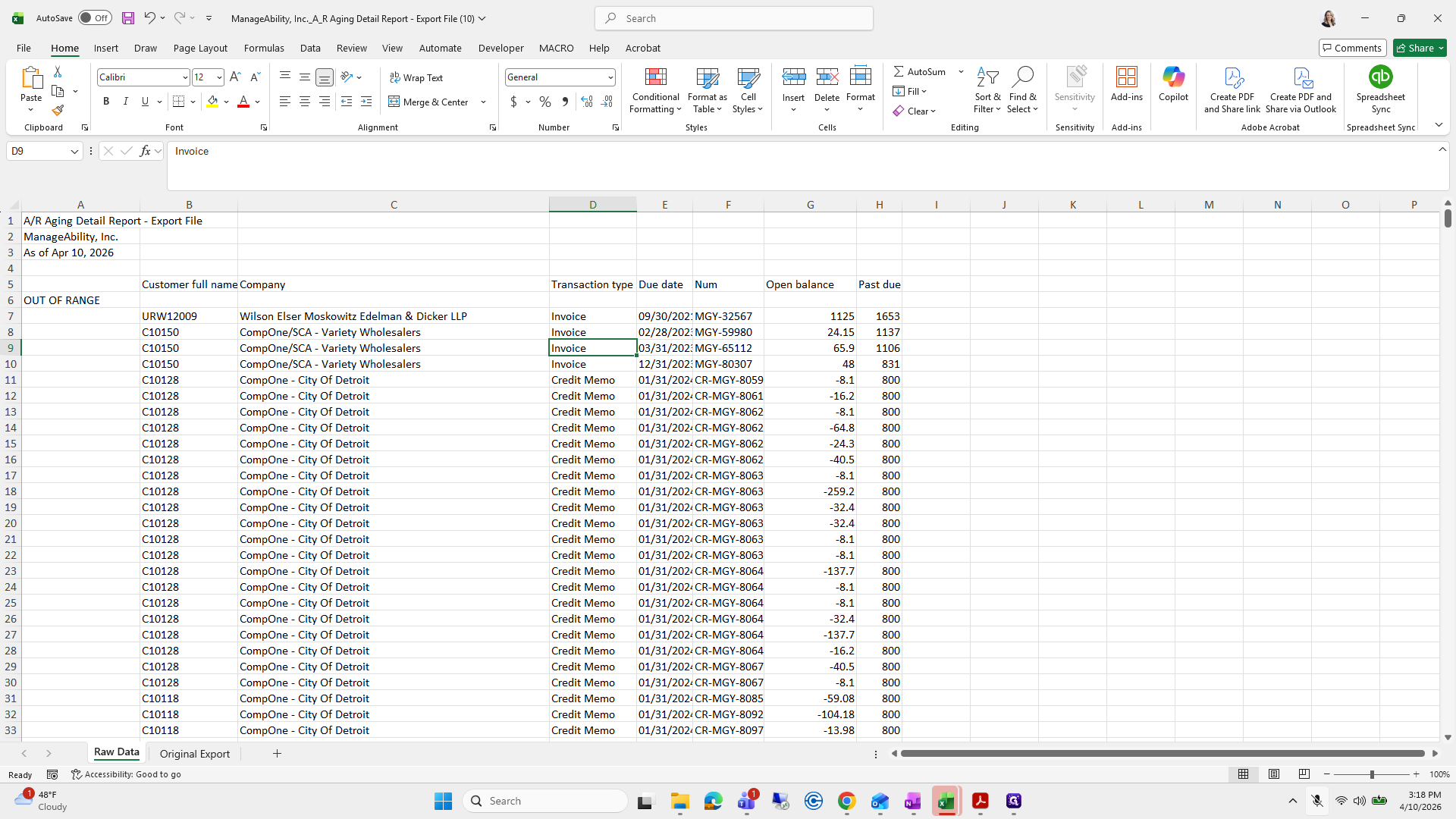
30
Click on "1 A / R Aging Detail Report - Export File"
Step #30: Click on "1 A / R Aging Detail Report - Export File"
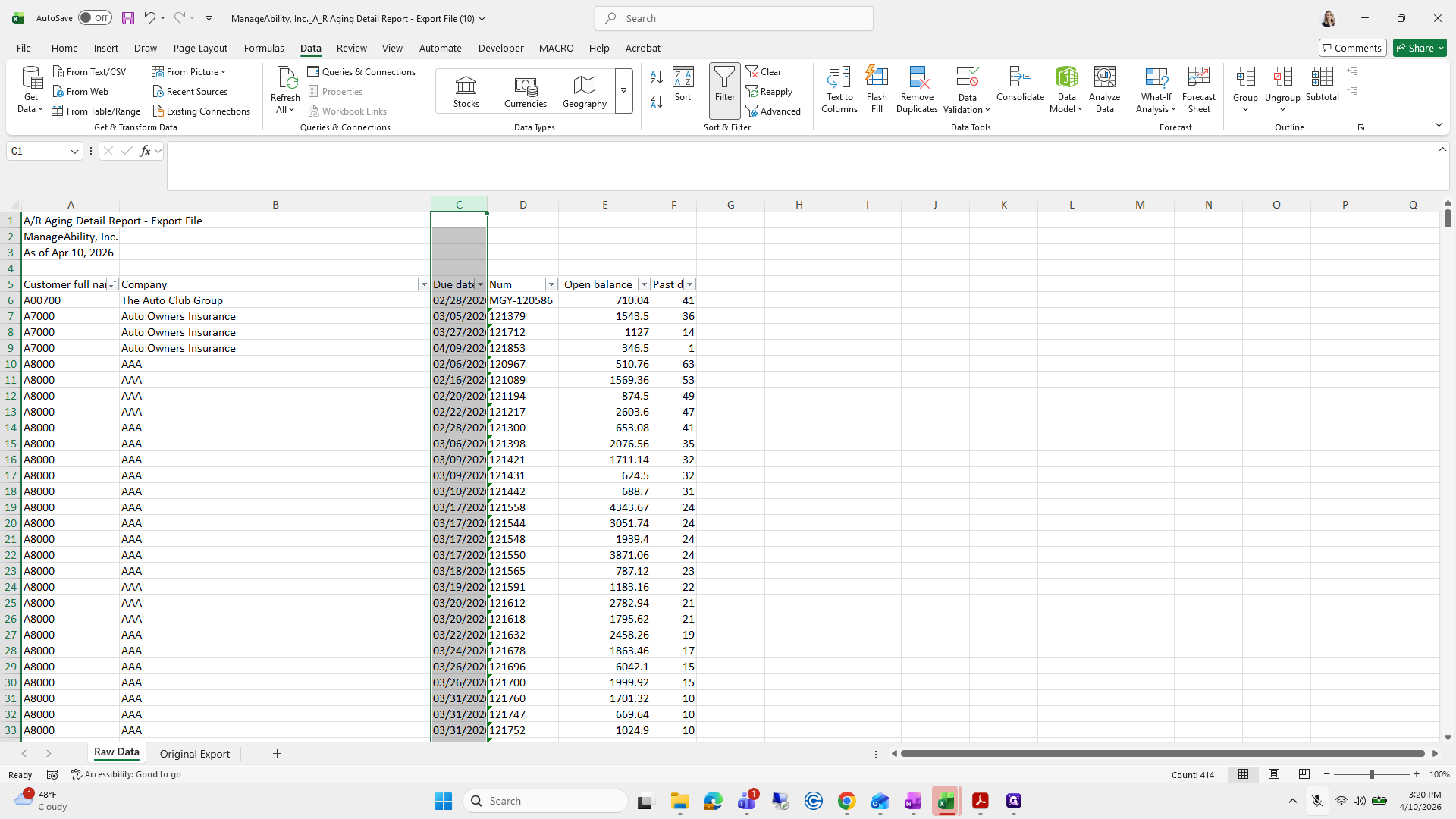
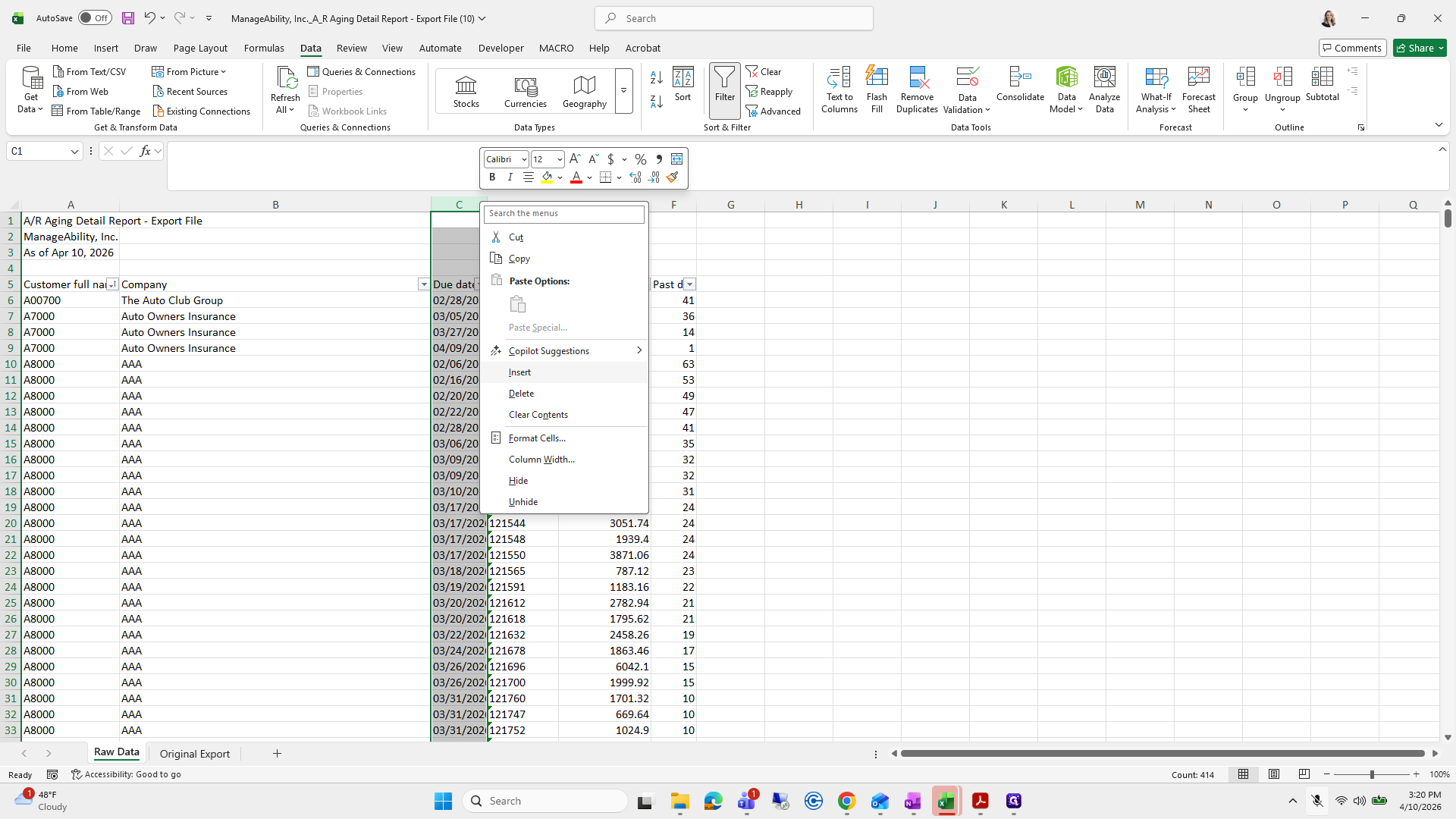
31
Drag "As of Apr 10 , 2026"
Step #31: Drag "As of Apr 10 , 2026"
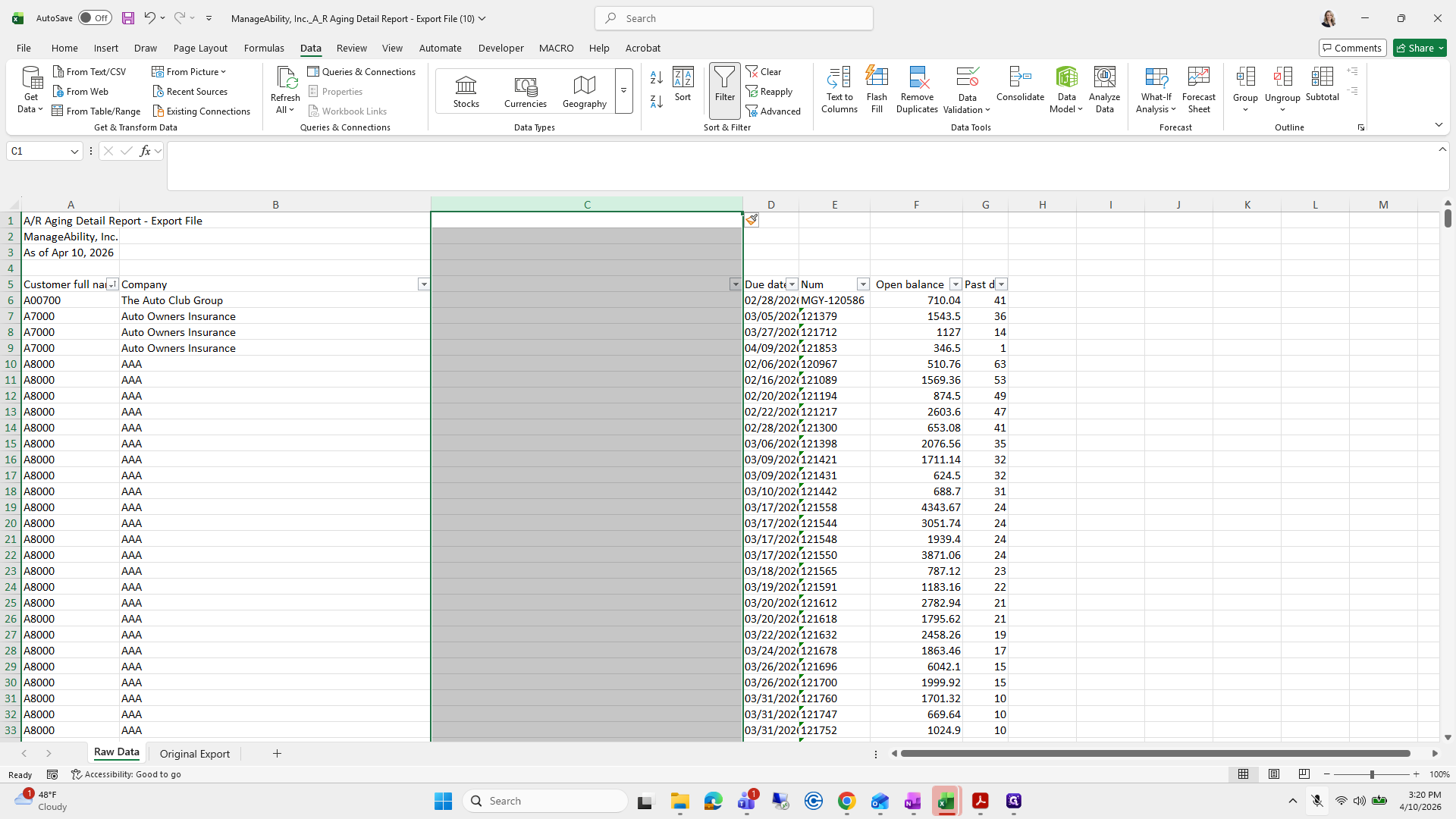
32
Click on "JA / R Aging"
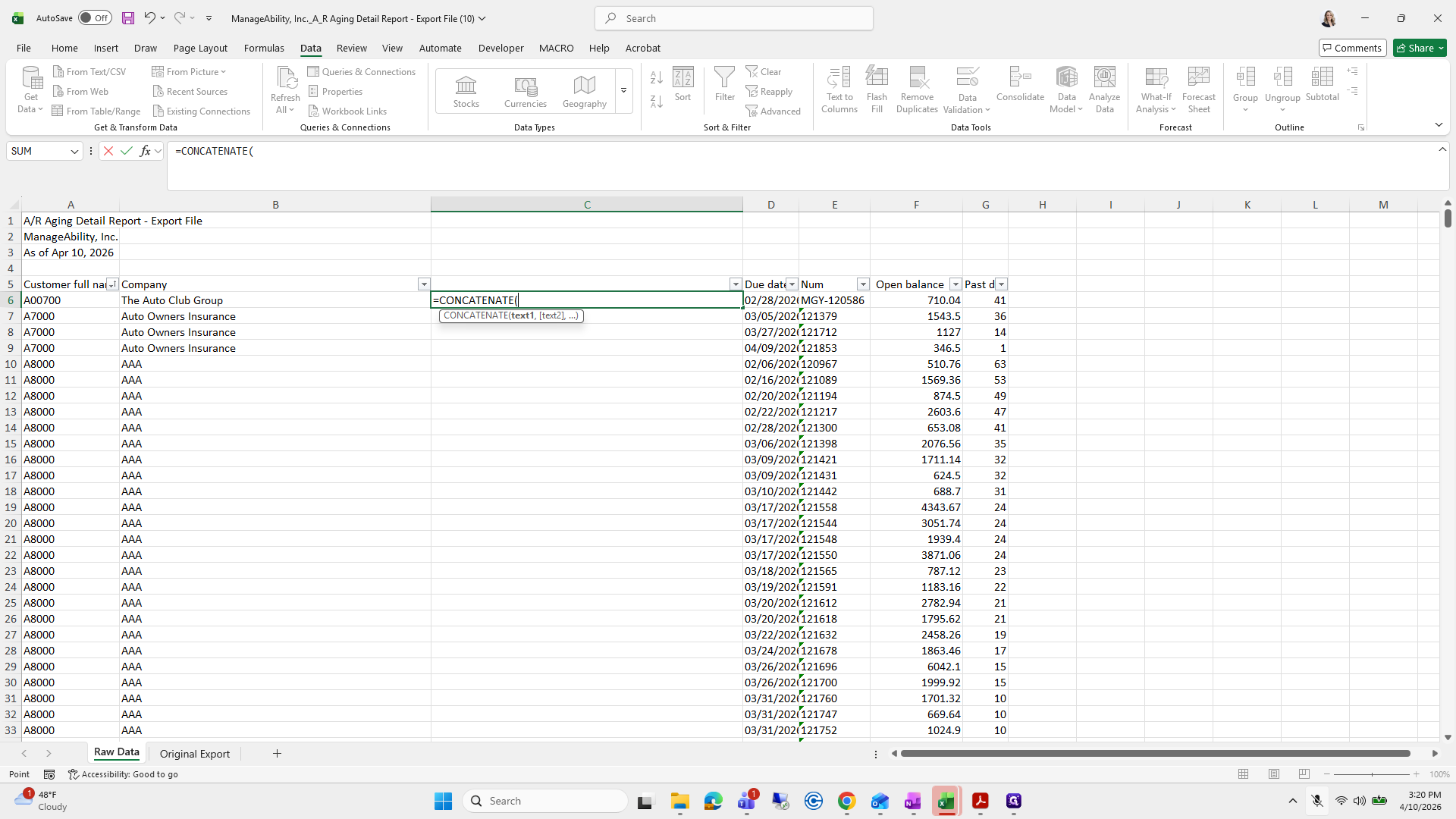
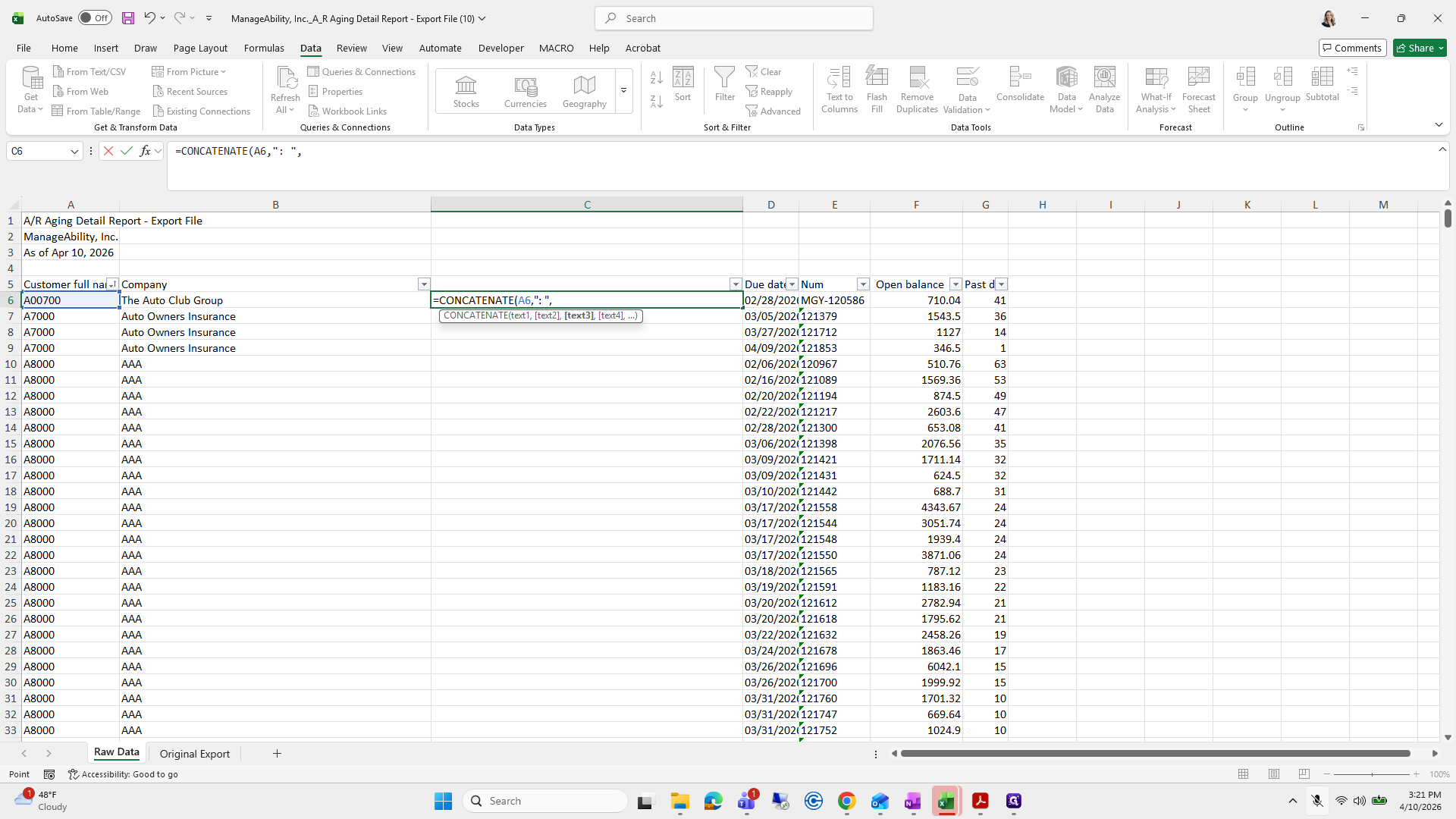
Step #32: Click on "JA / R Aging"

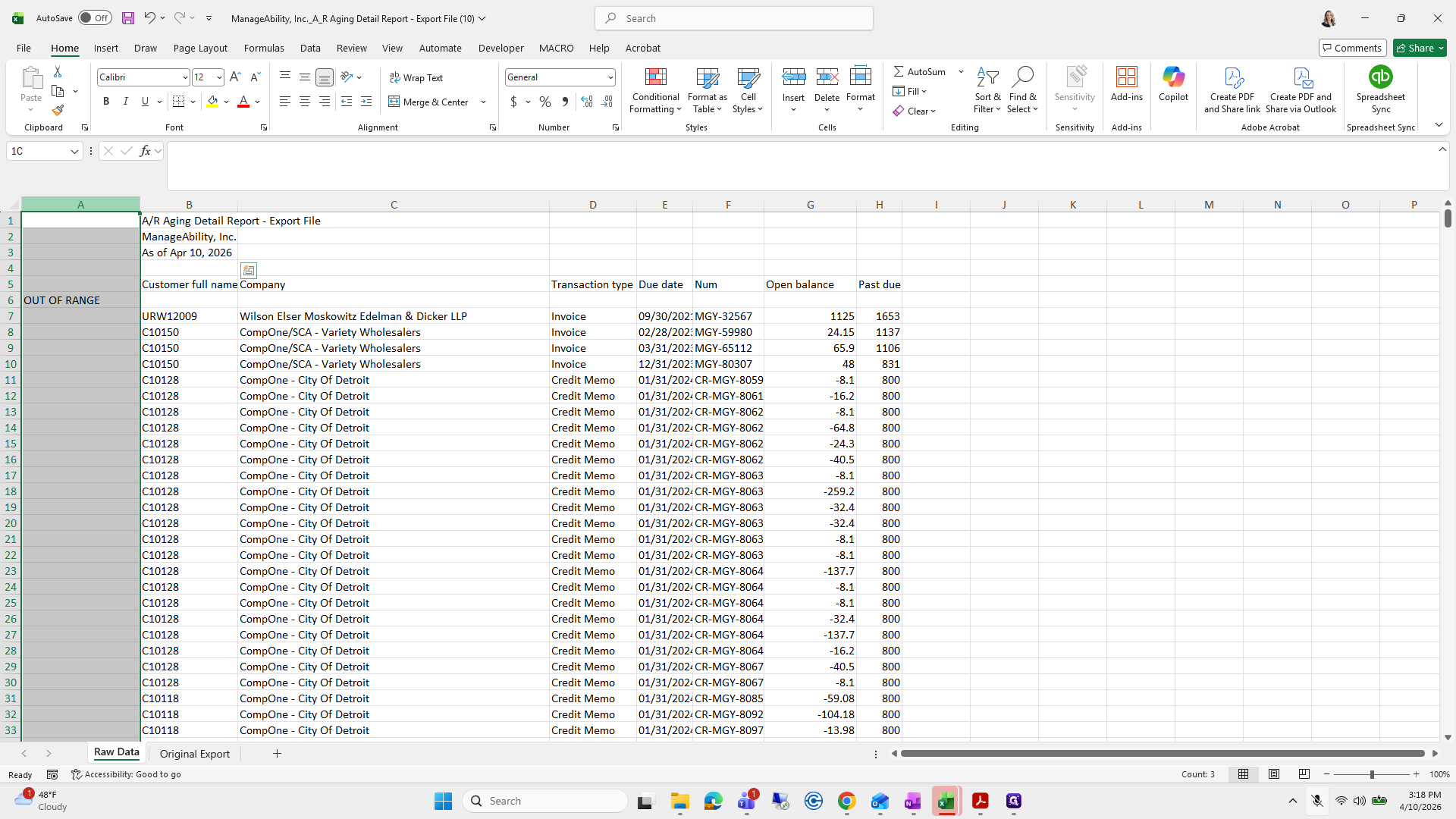
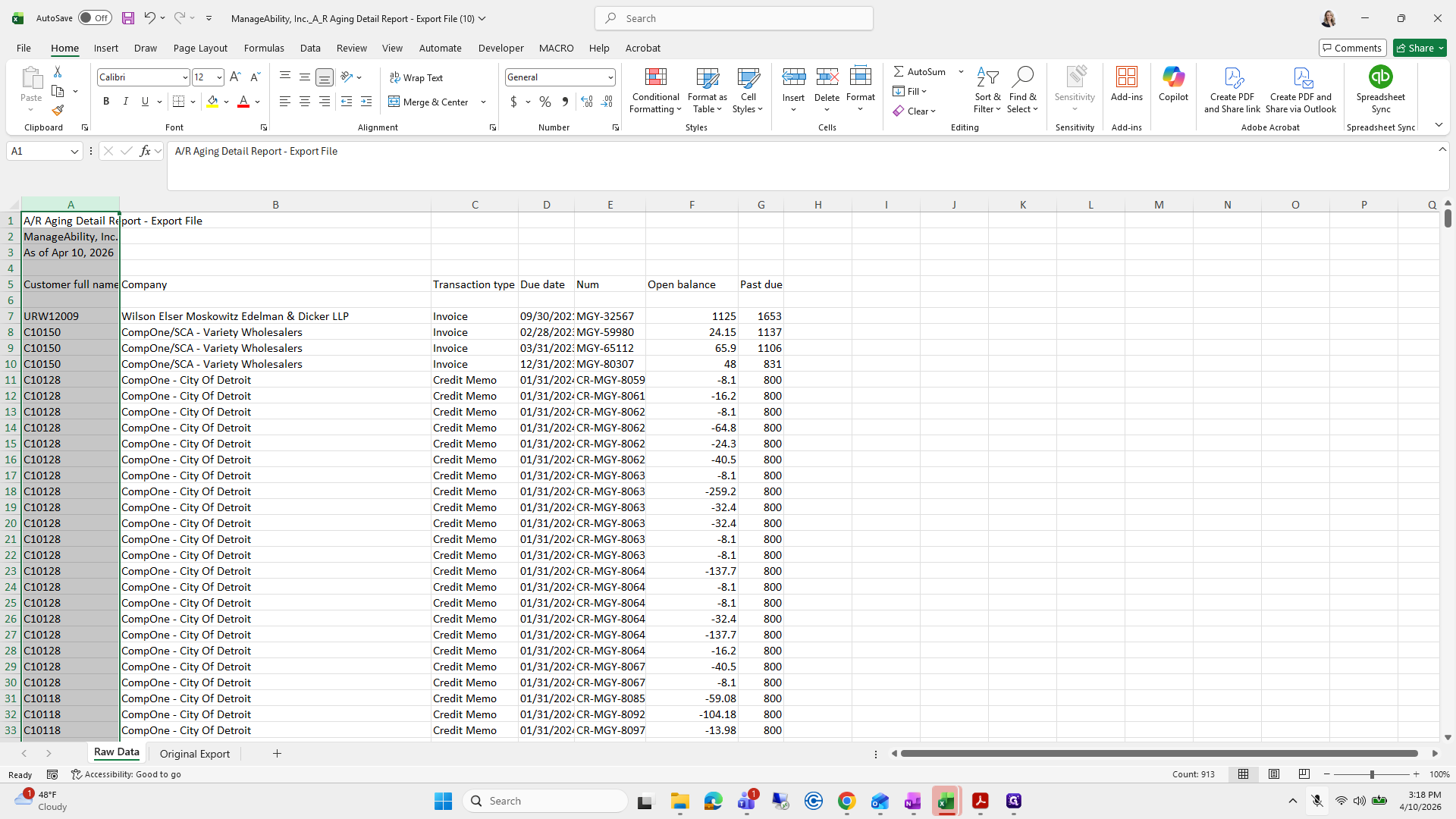
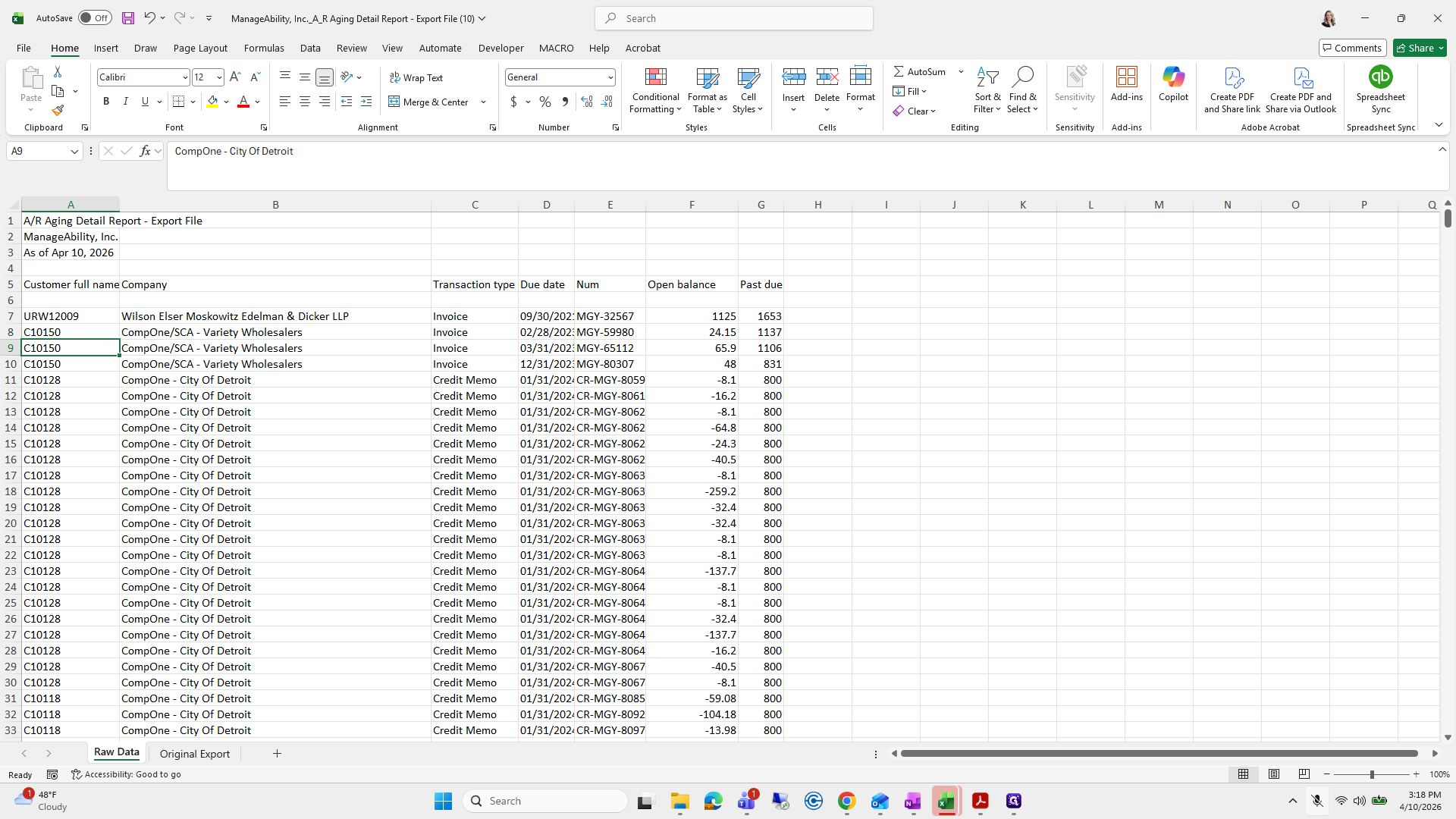
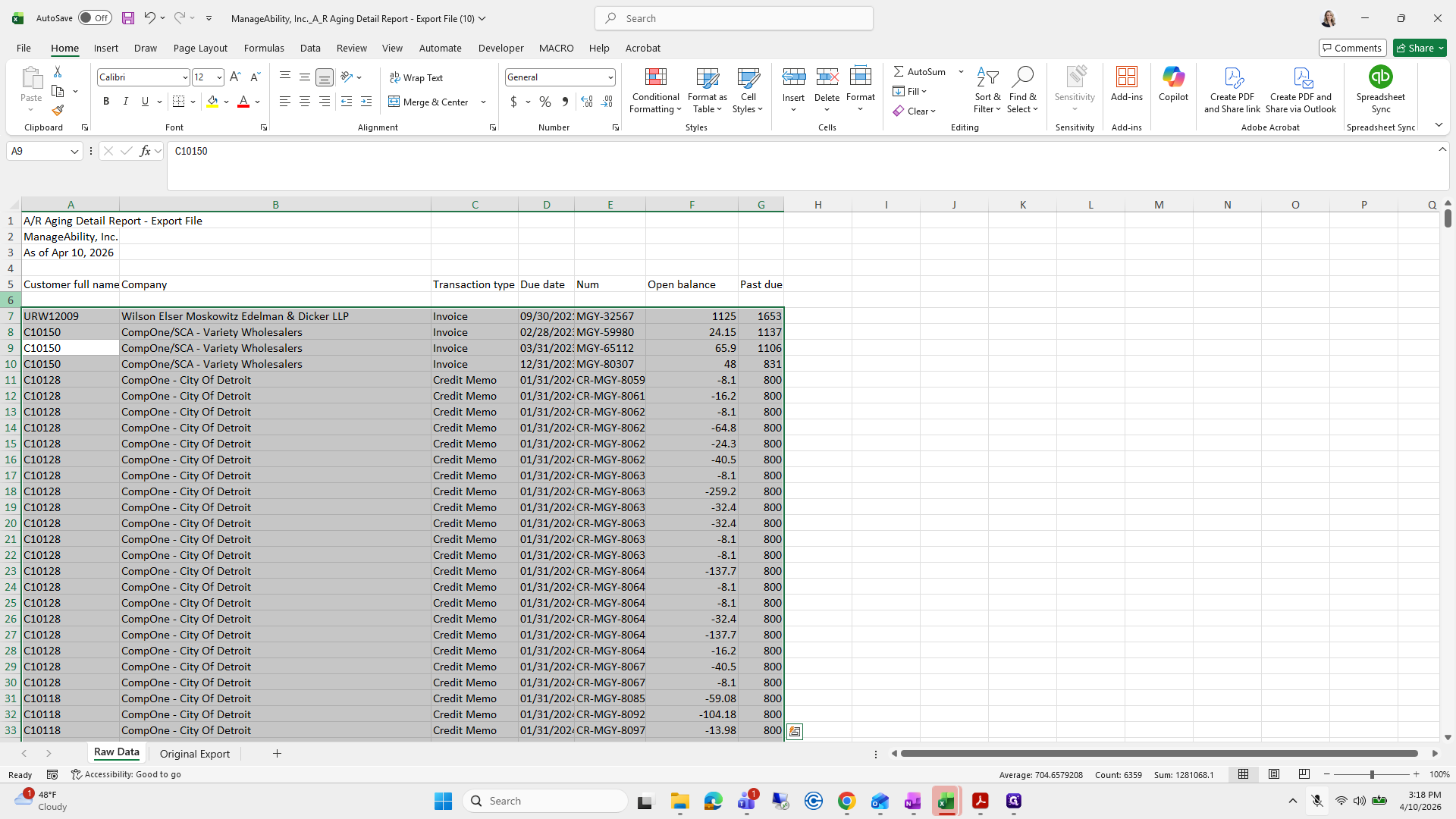
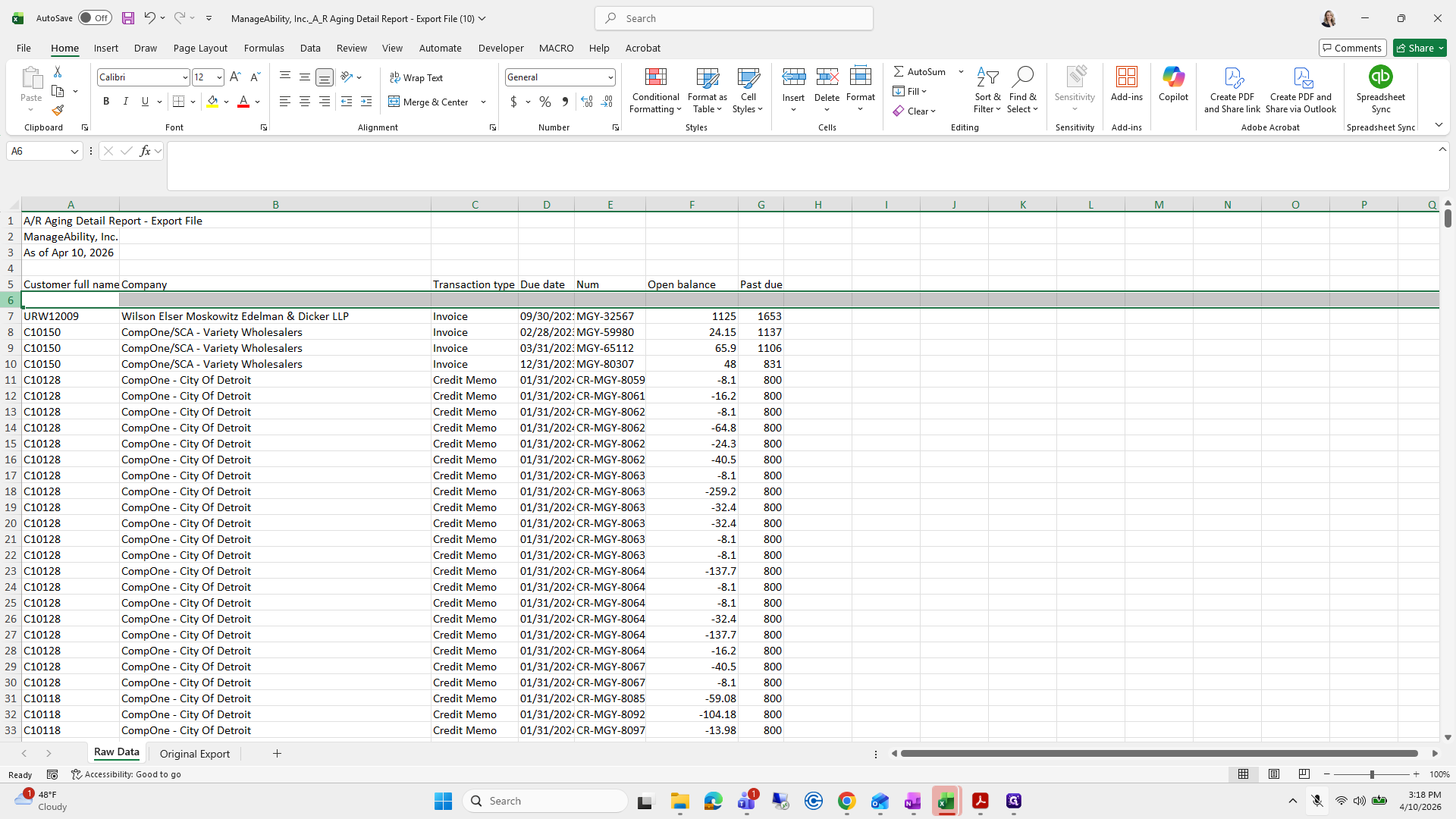
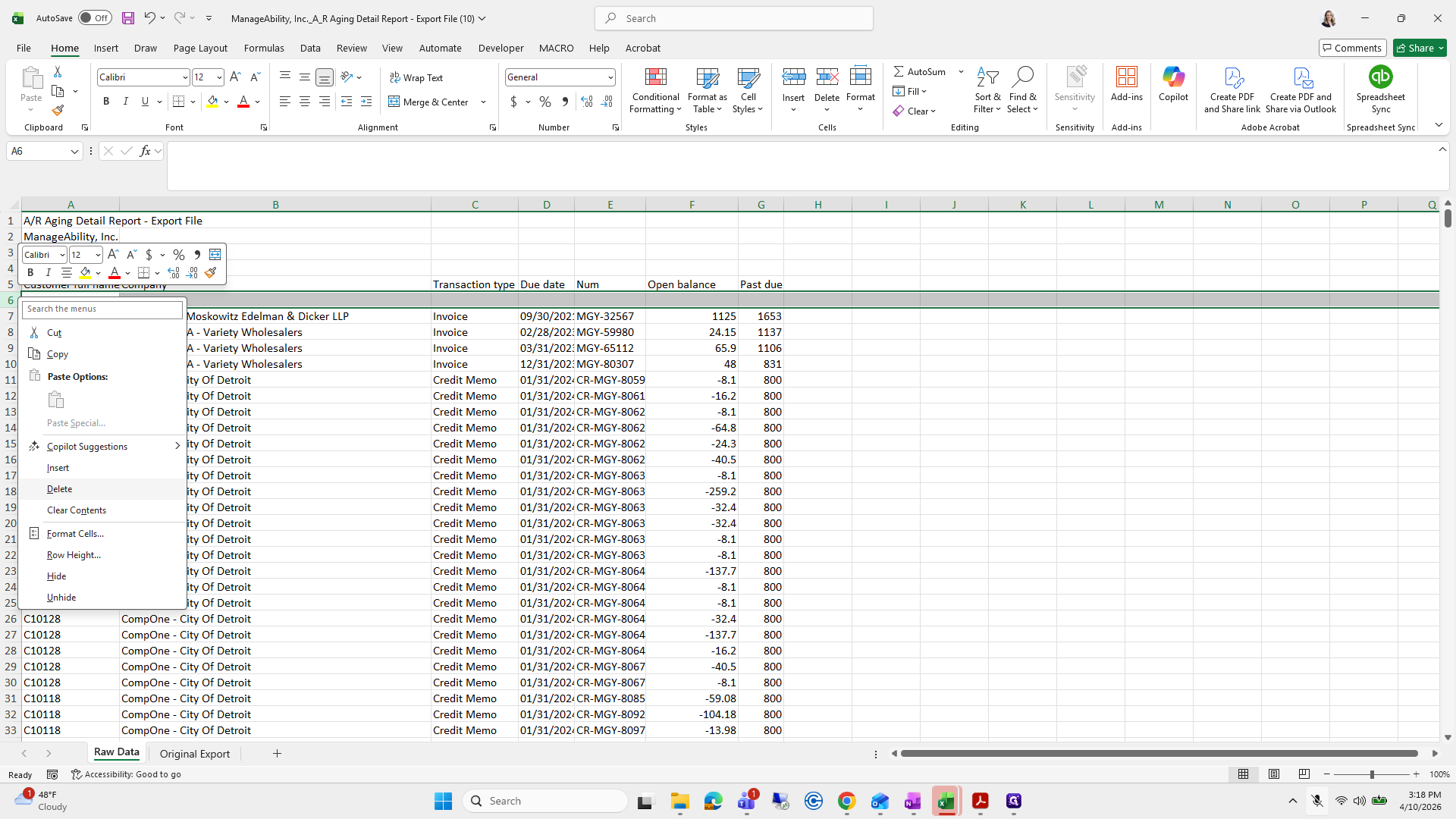
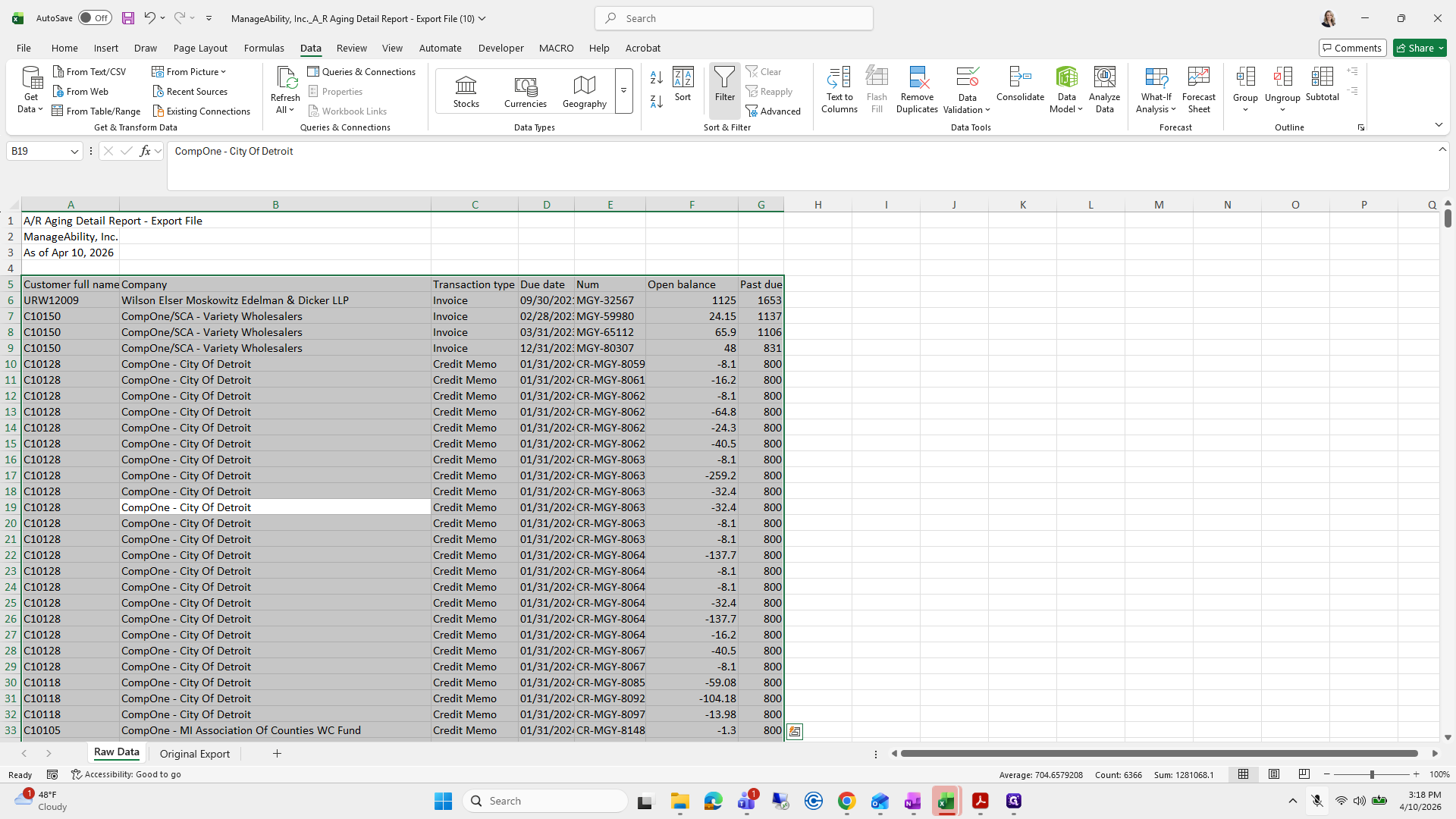
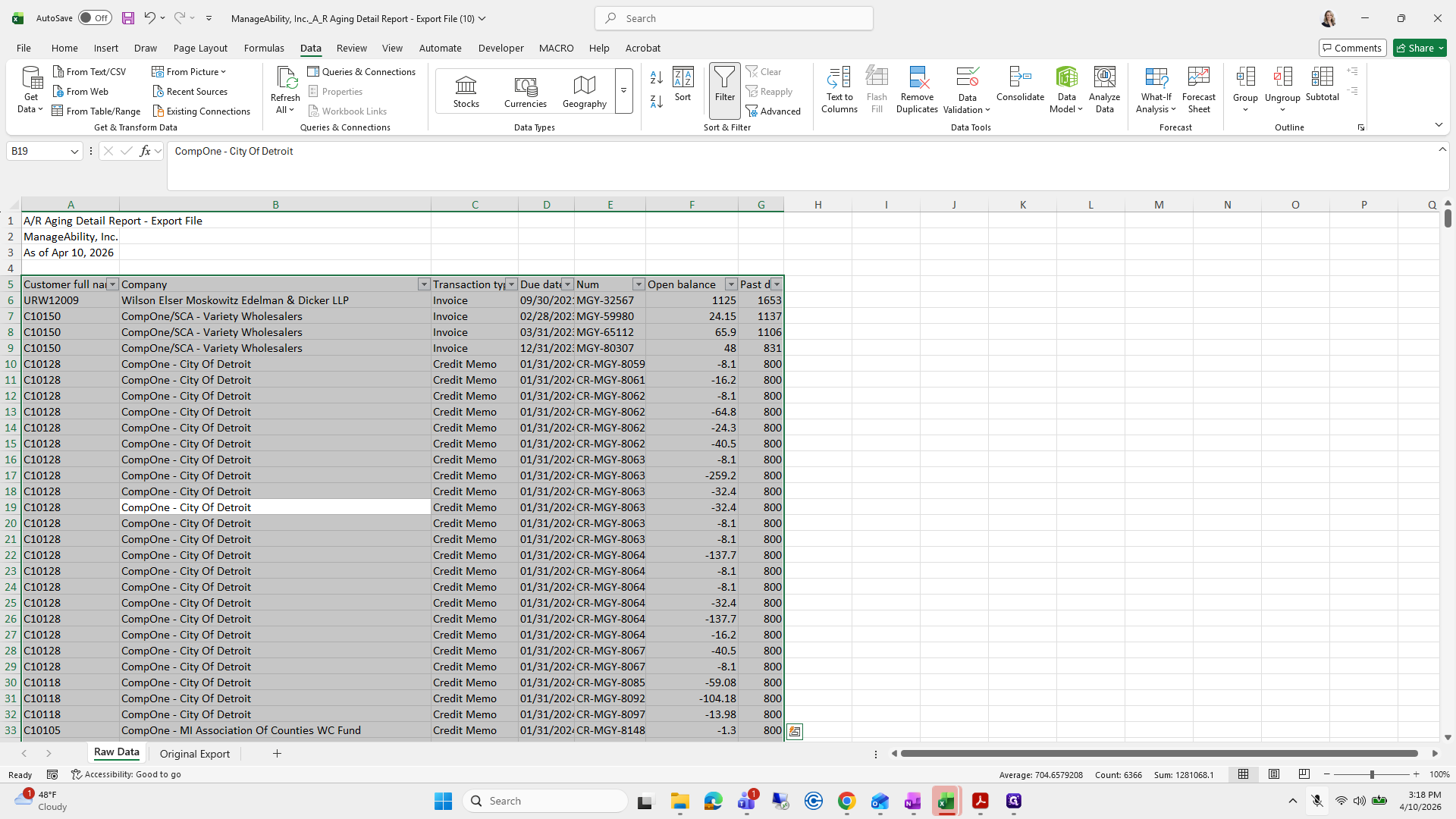
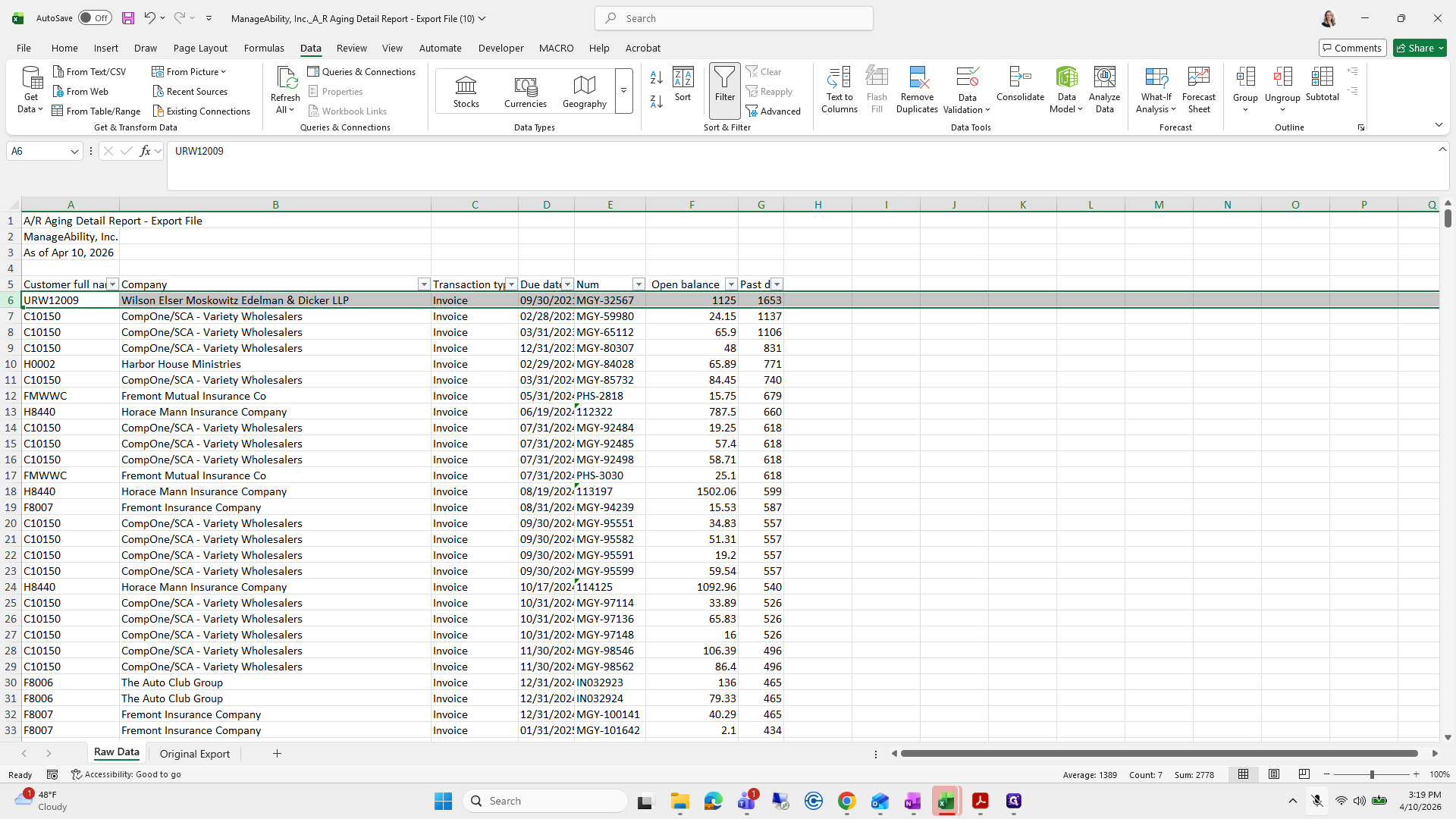
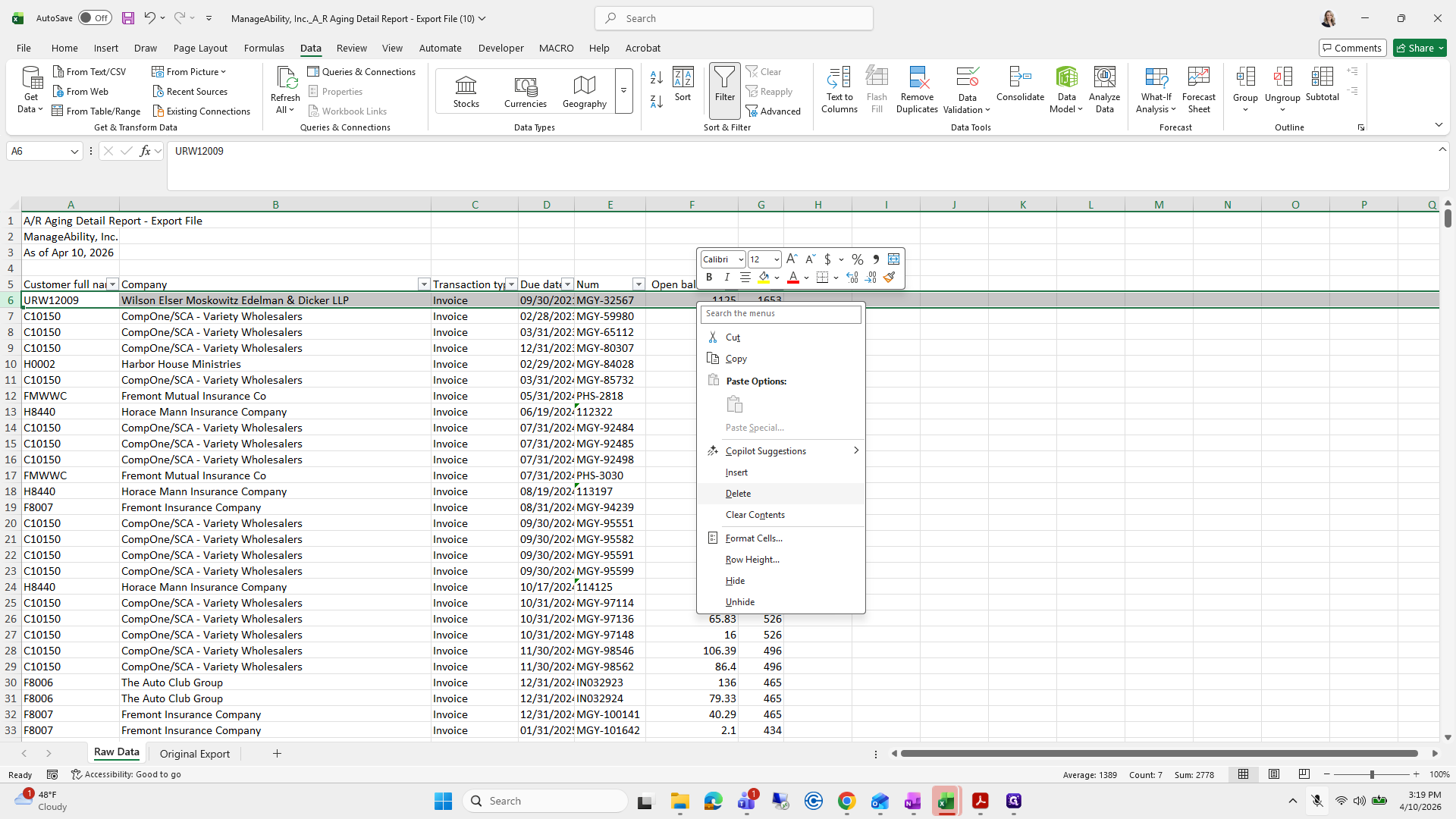
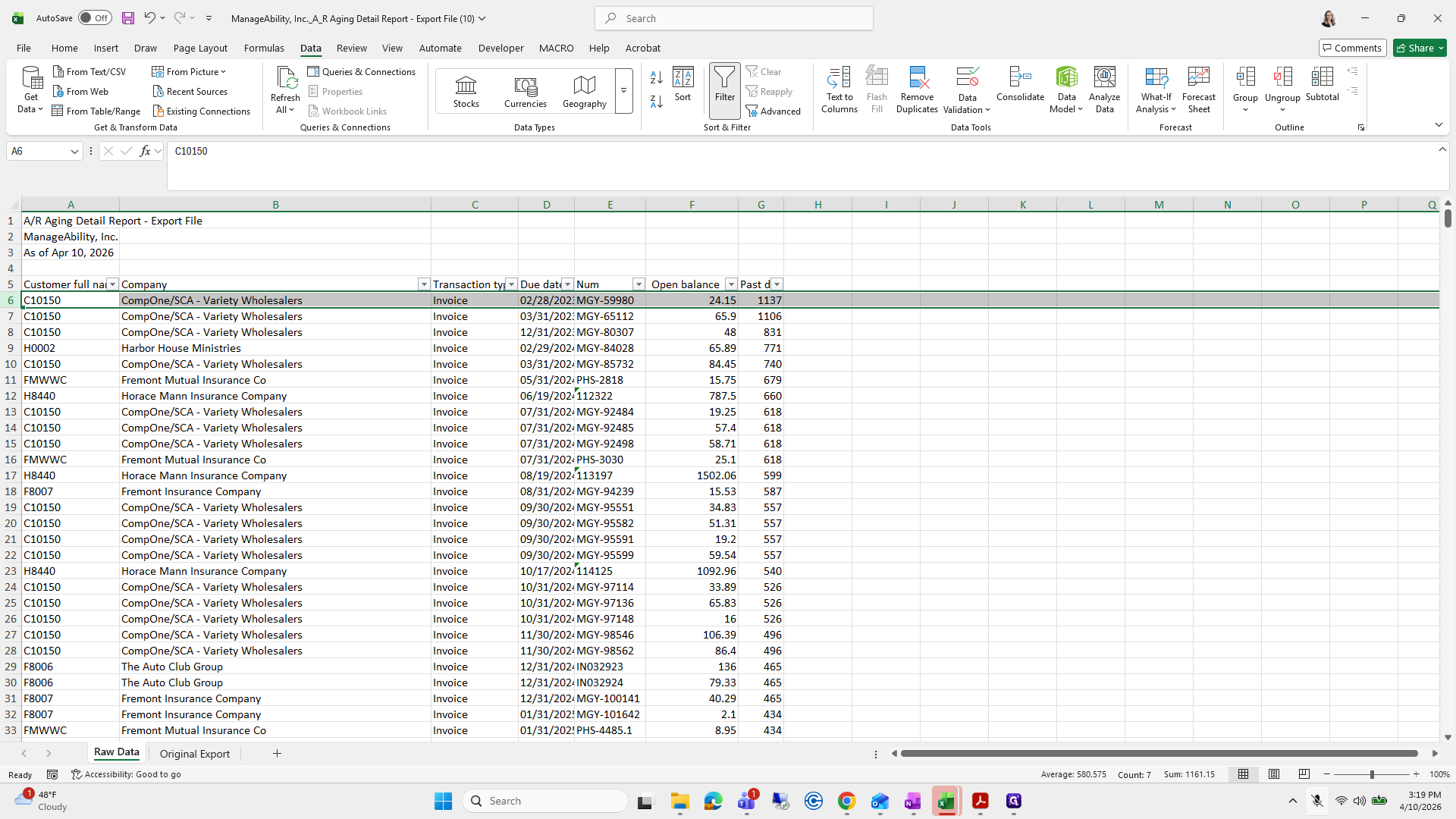
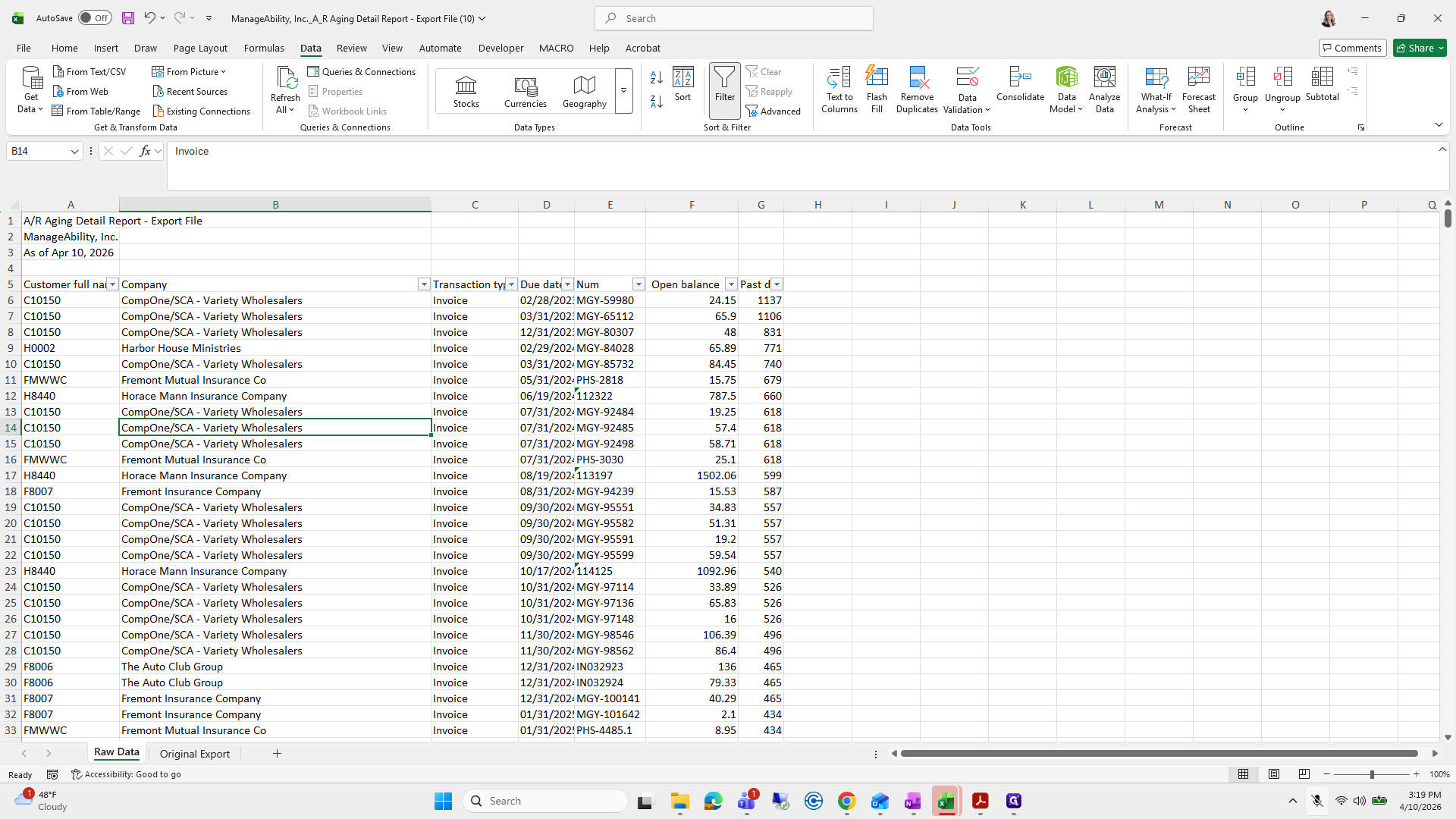
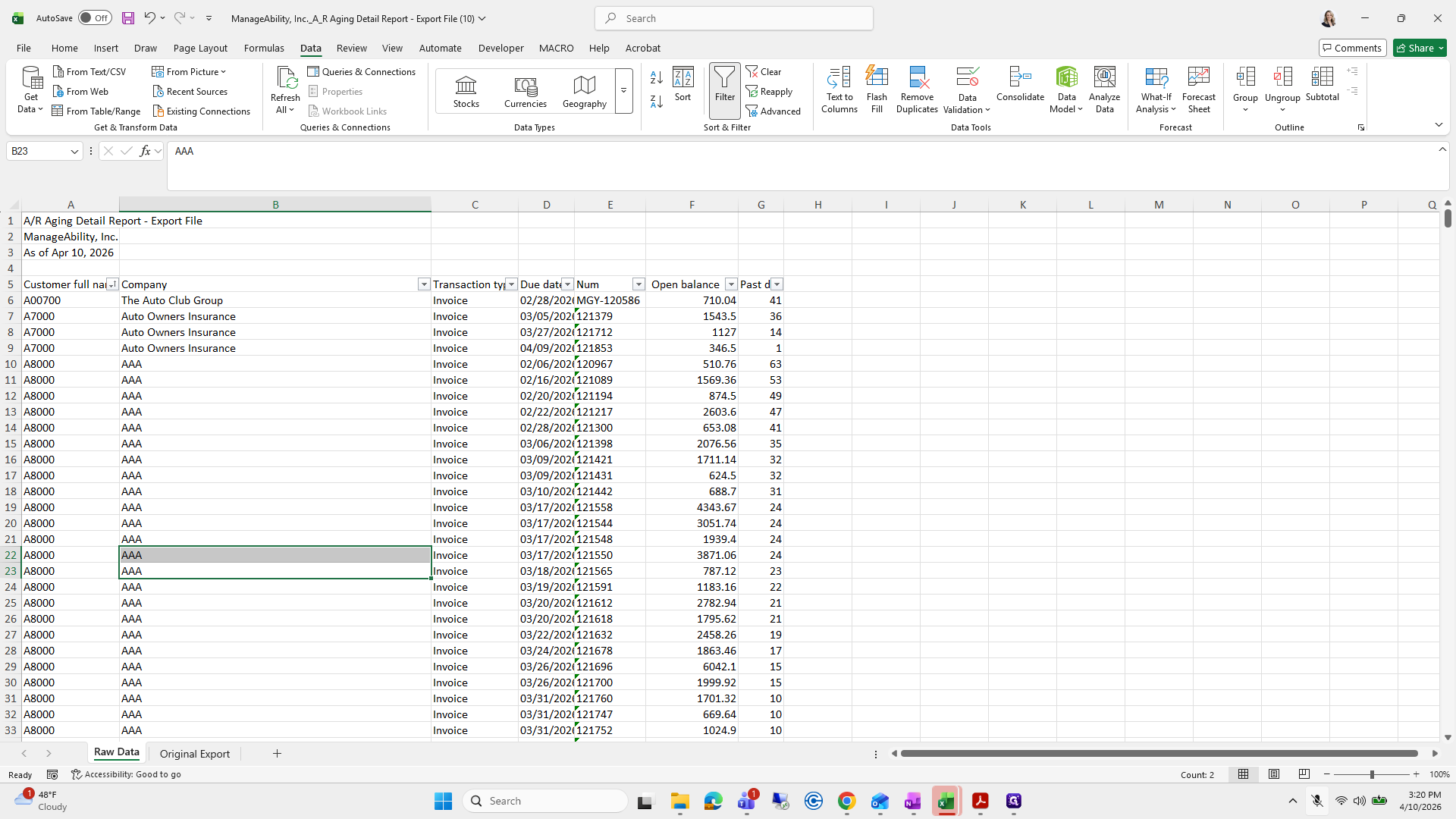
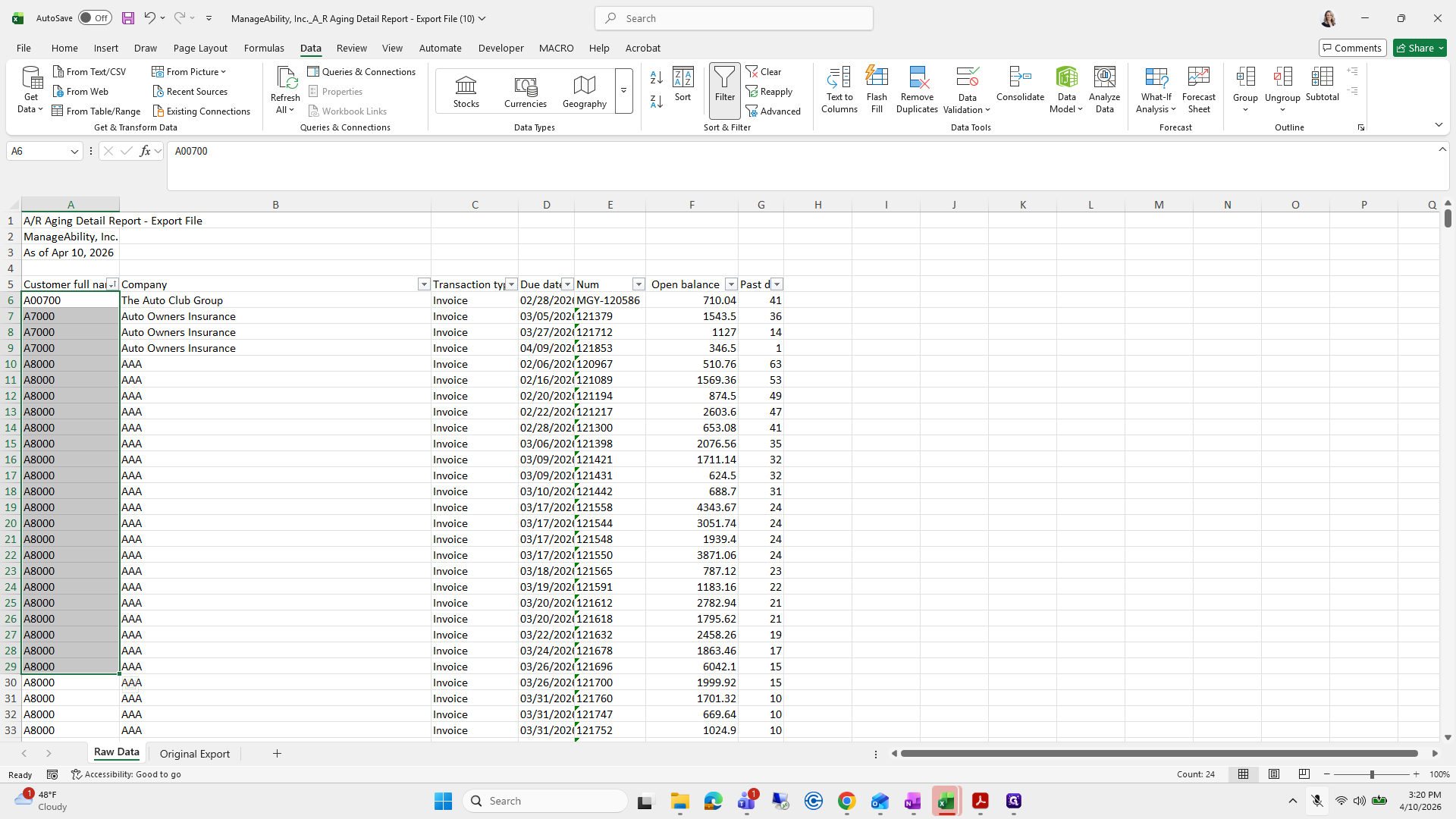
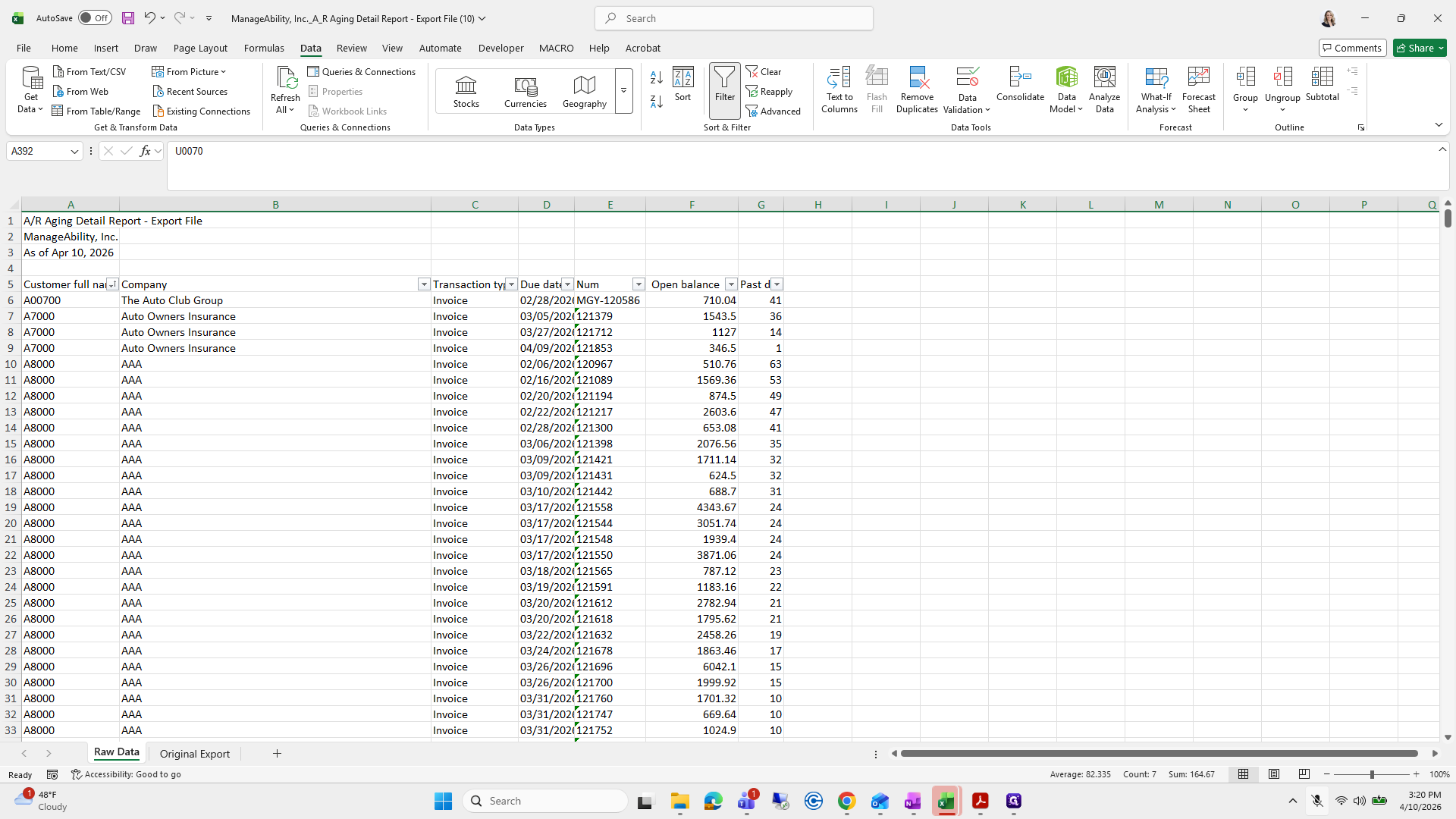
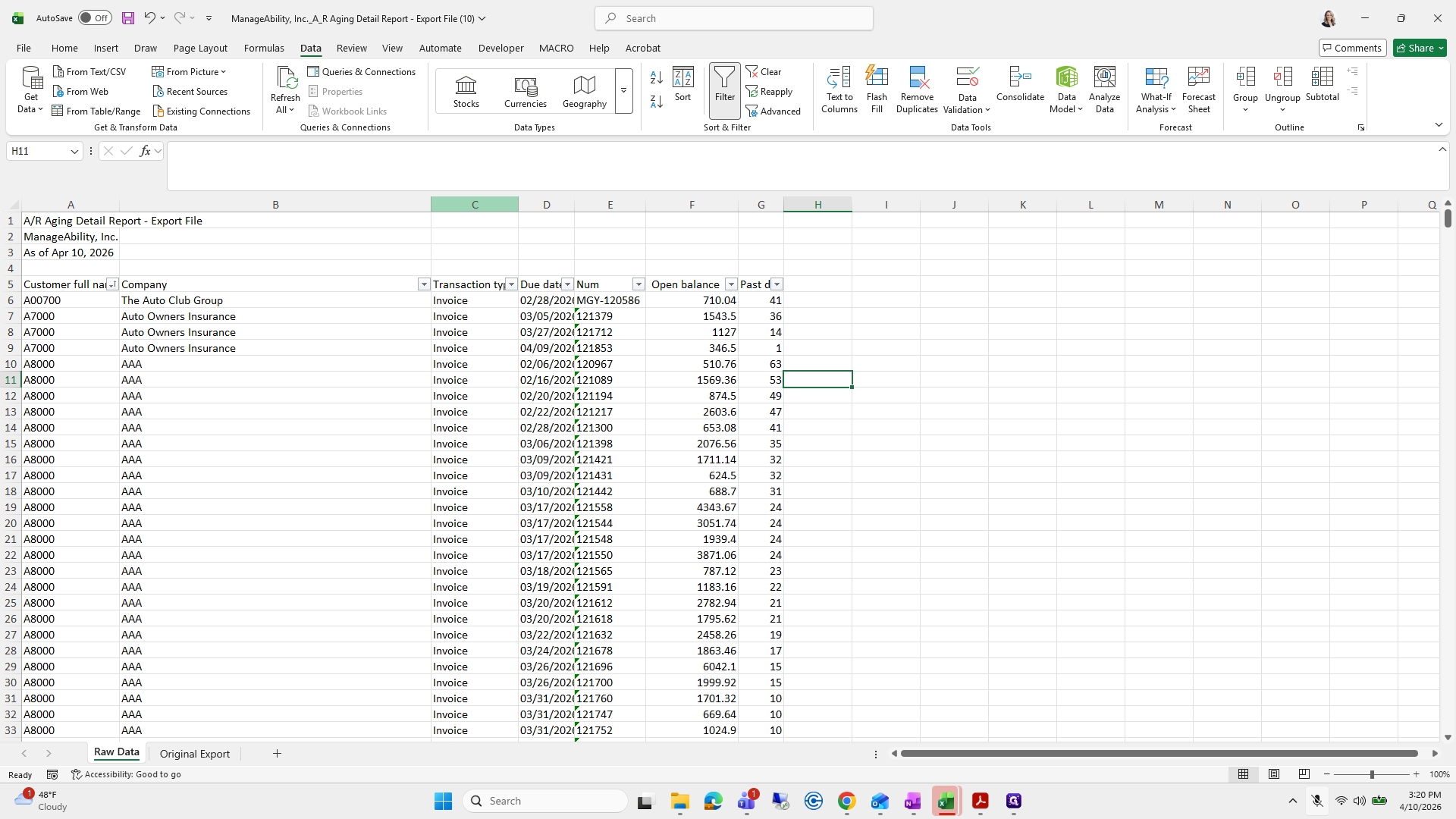
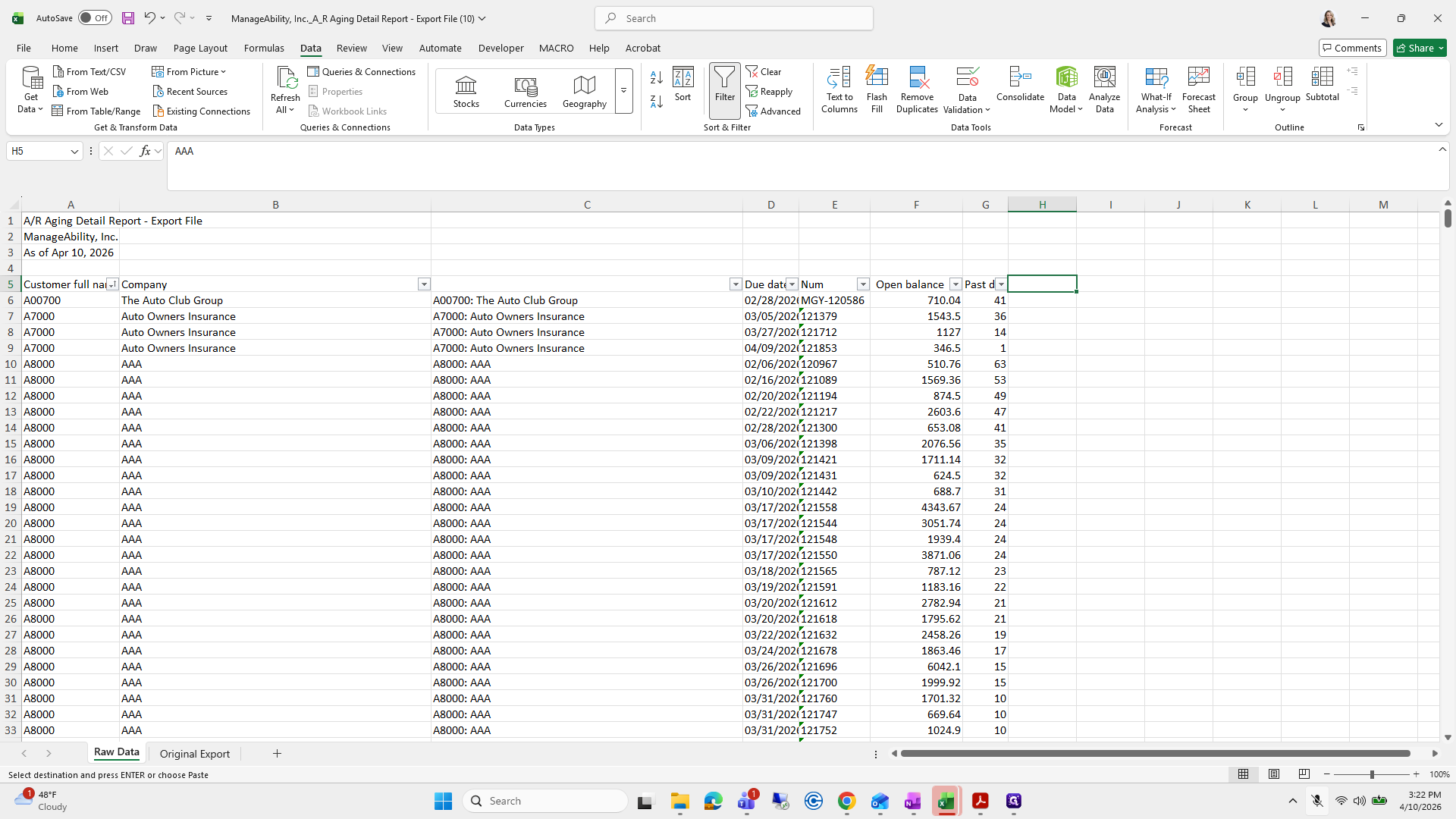
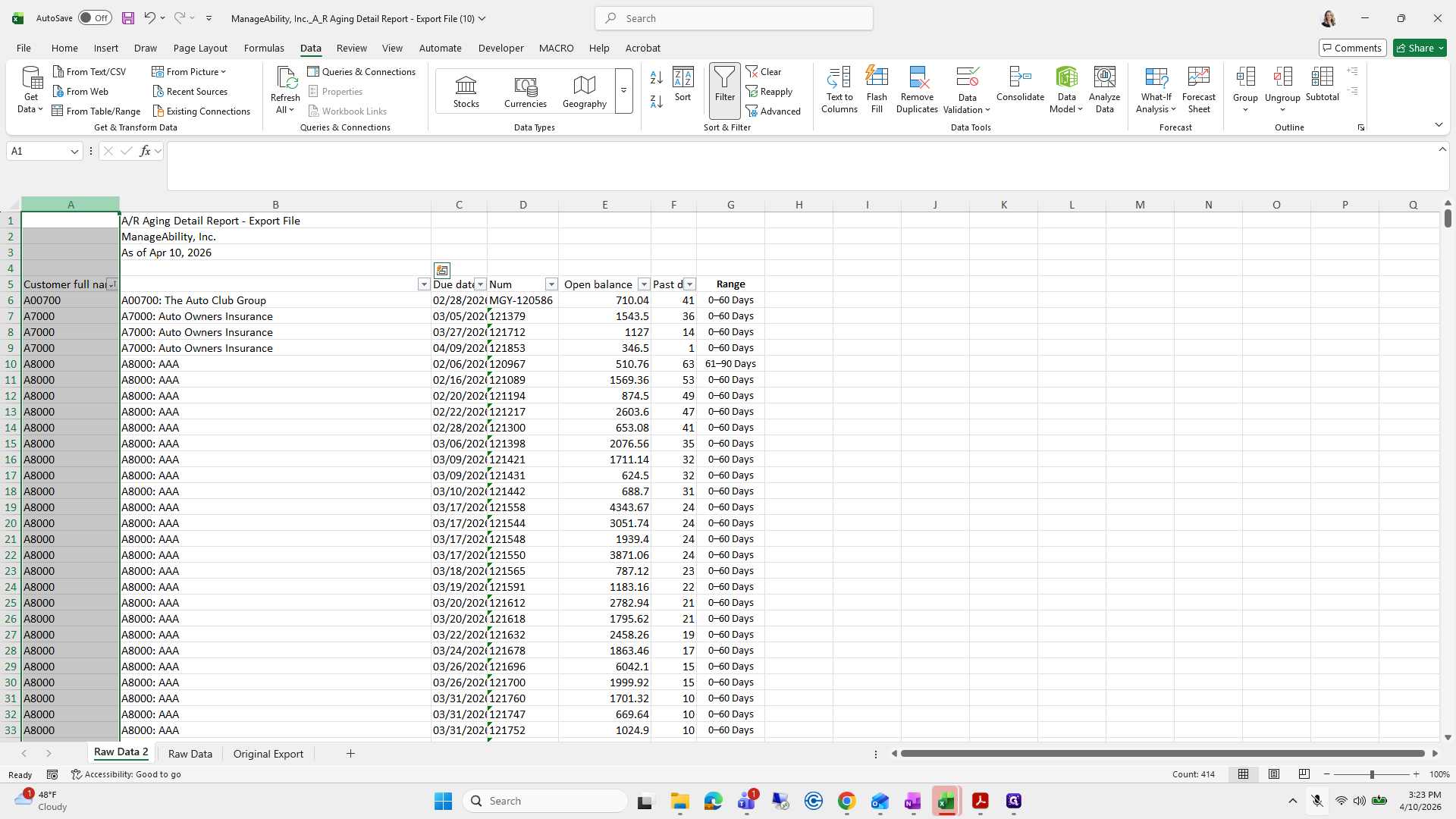
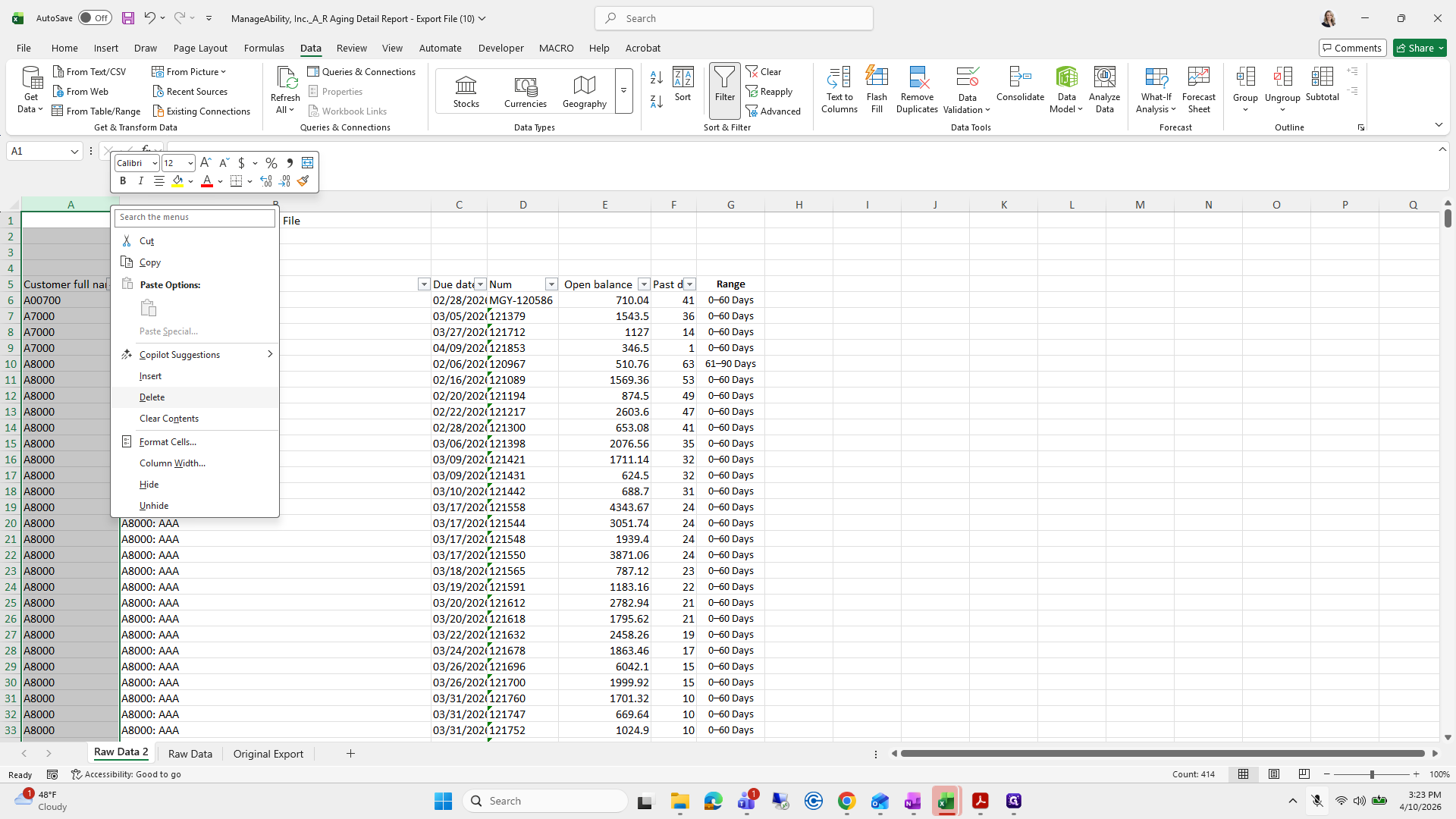
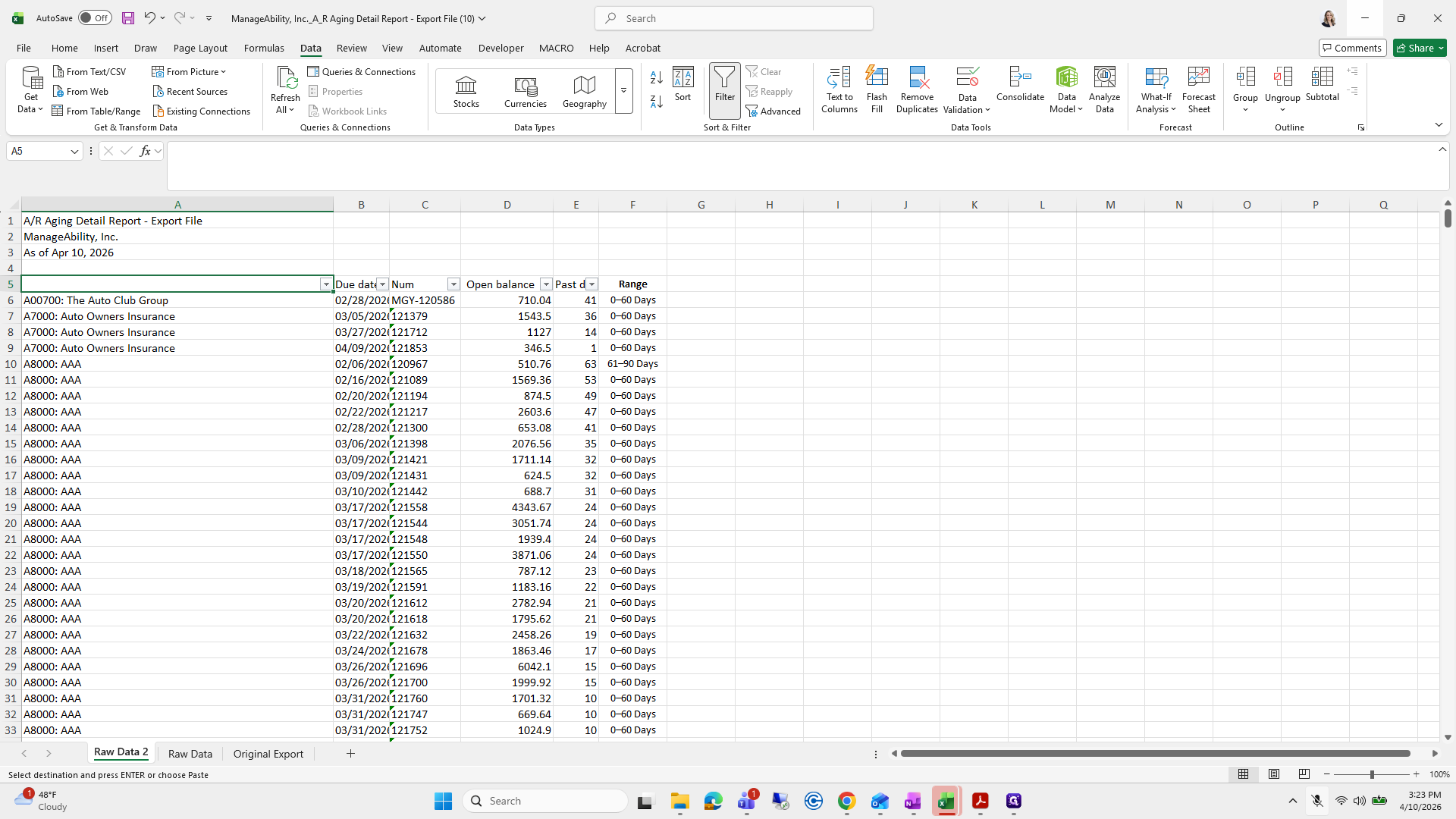
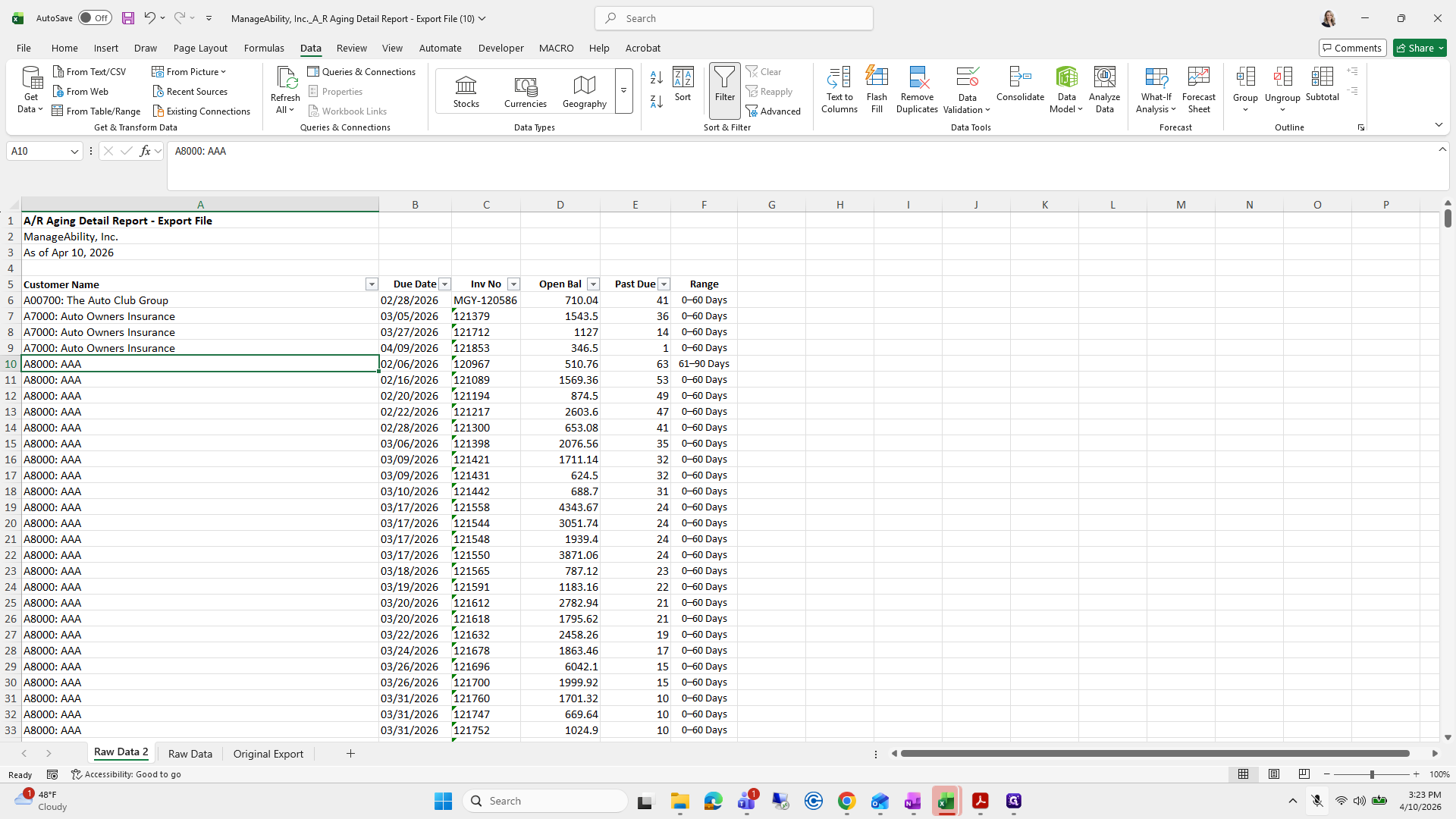
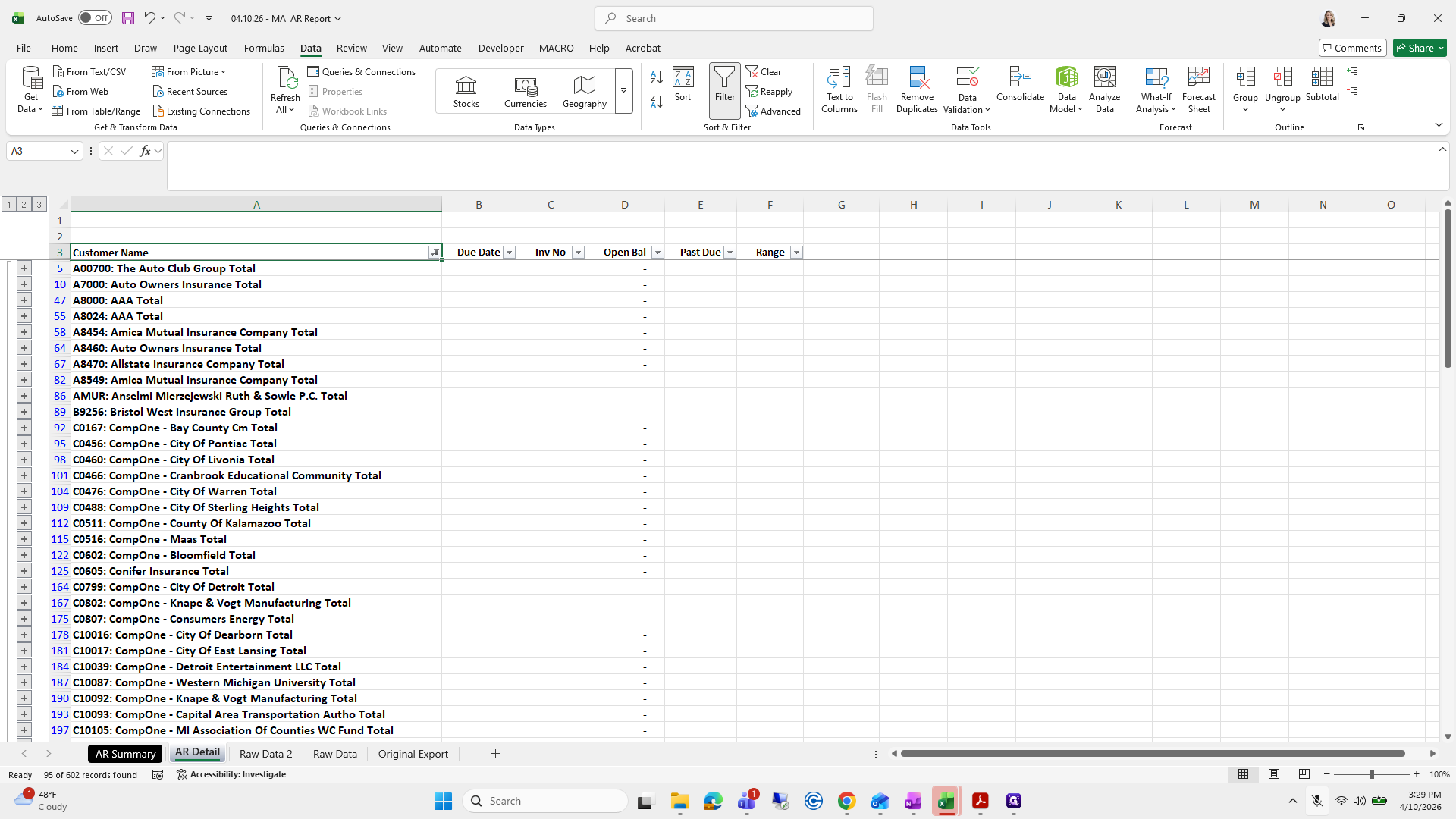
I will delete column A, then delete row six. This allows me to select all the data and apply Data > Filter.
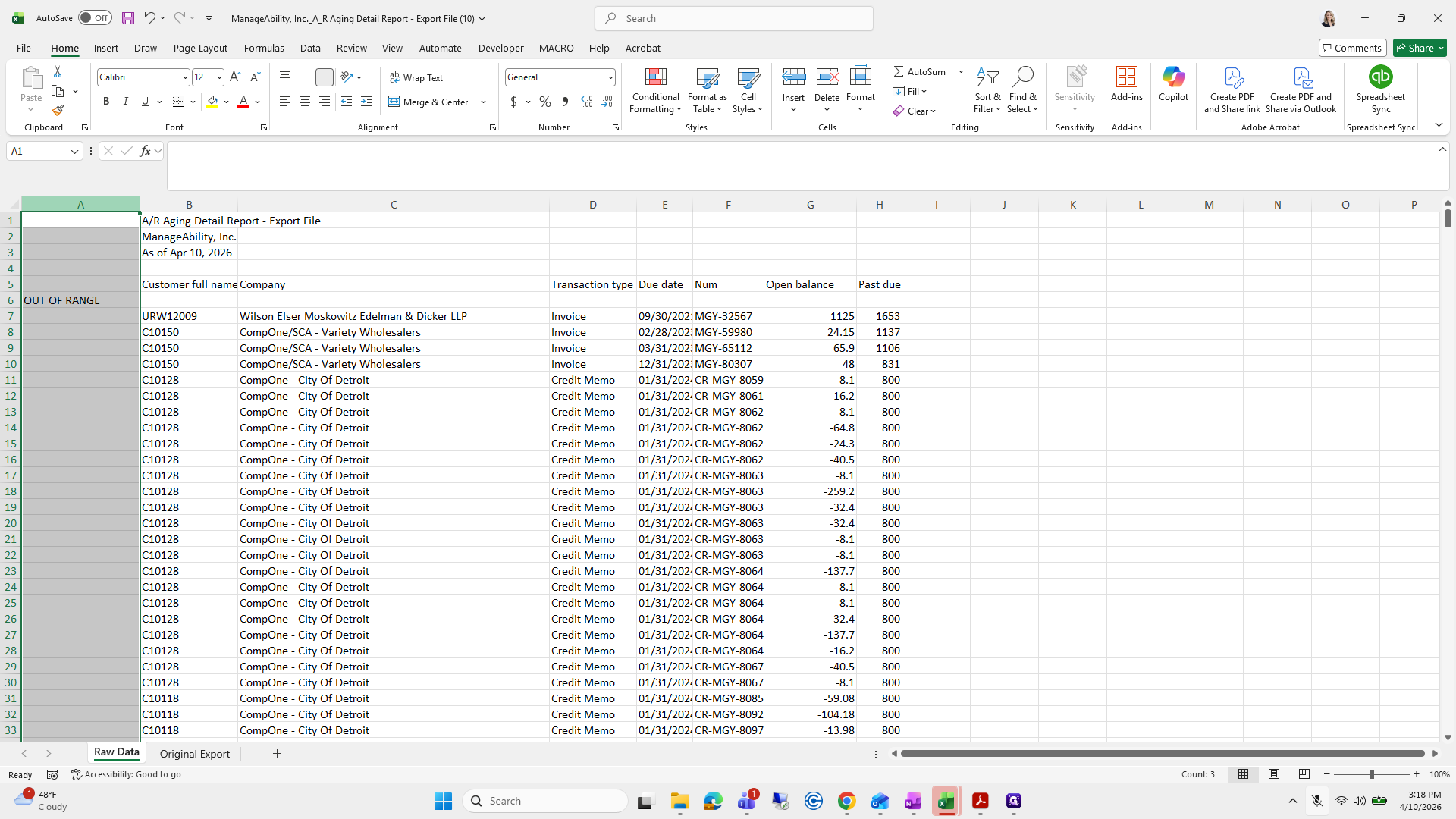
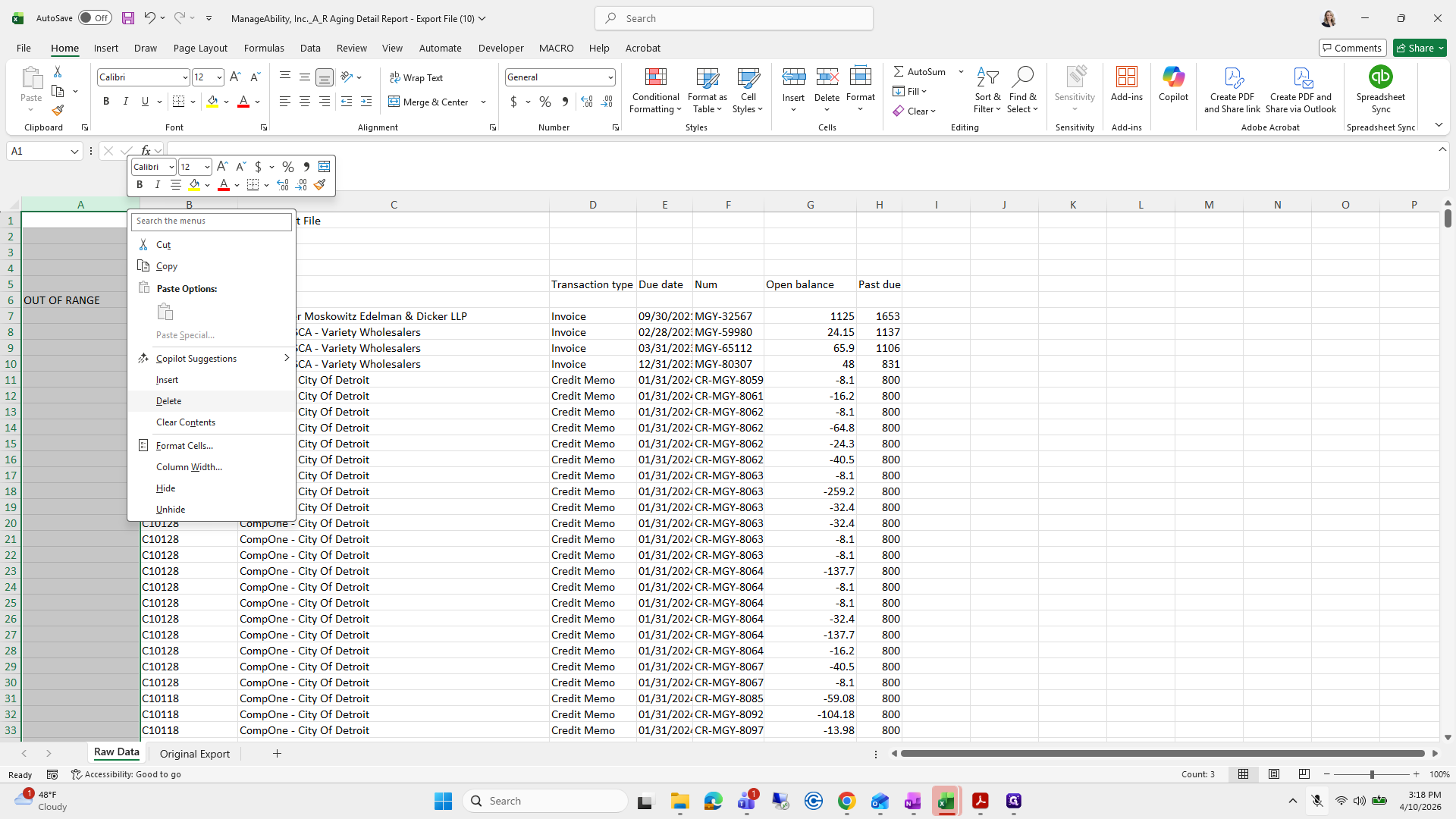
33
Right-click on "JA / R Aging Detail Report - Export File ManageAbility , Inc."
Step #33: Right-click on "JA / R Aging Detail Report - Export File ManageAbility , Inc."
34
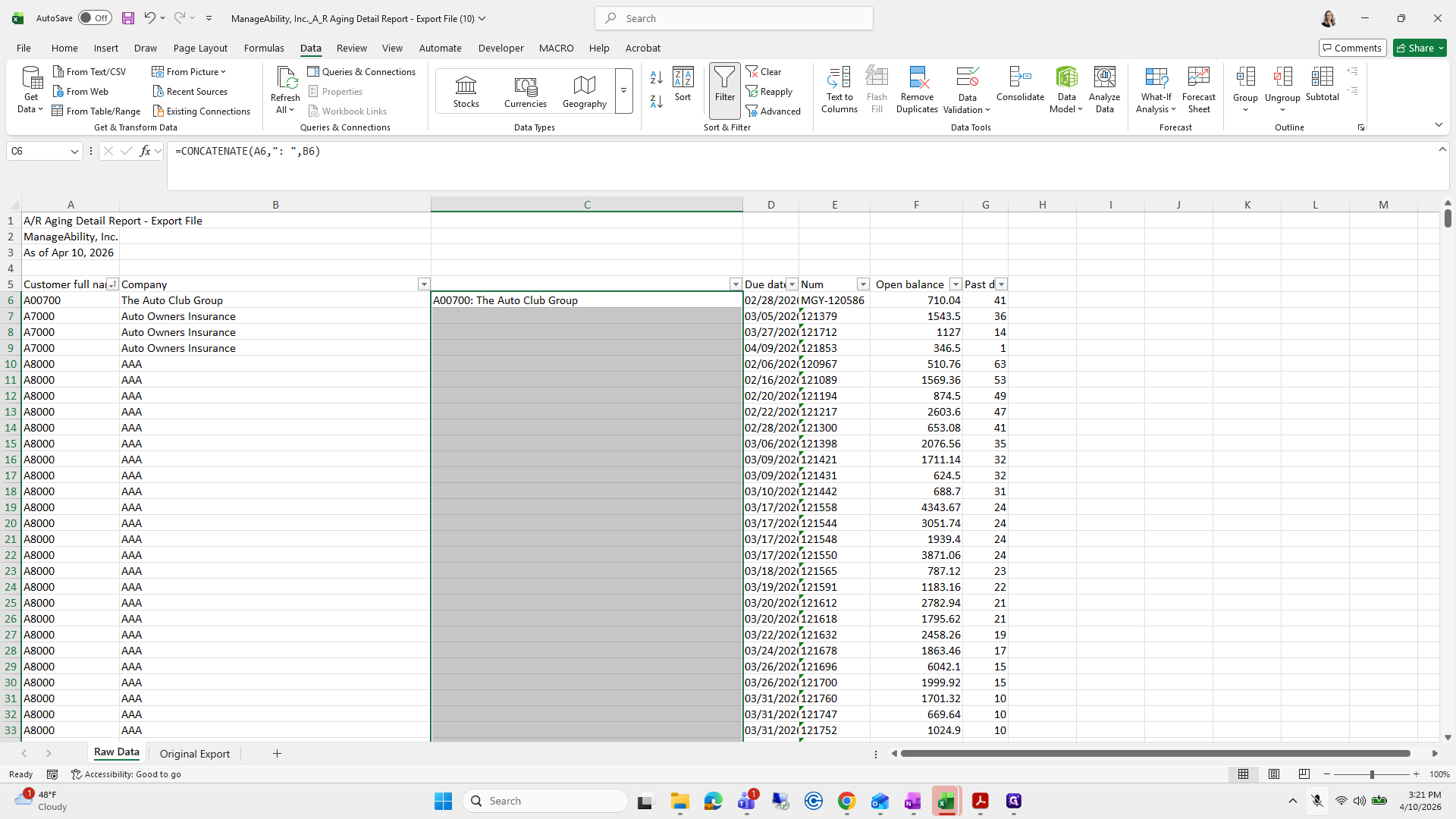
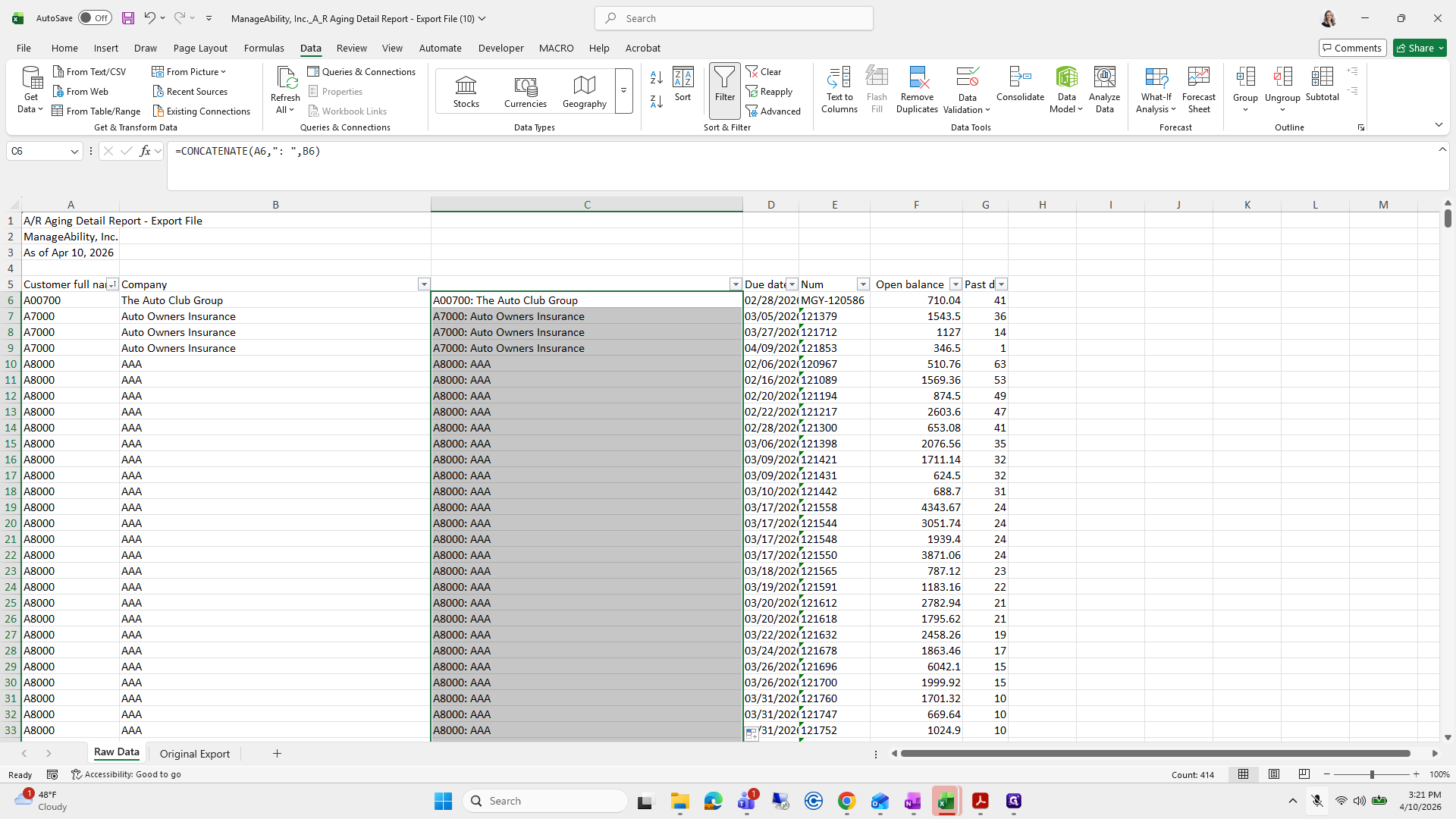
Click on "Delete"
Step #34: Click on "Delete"
35
Click on "City Of Detroit"
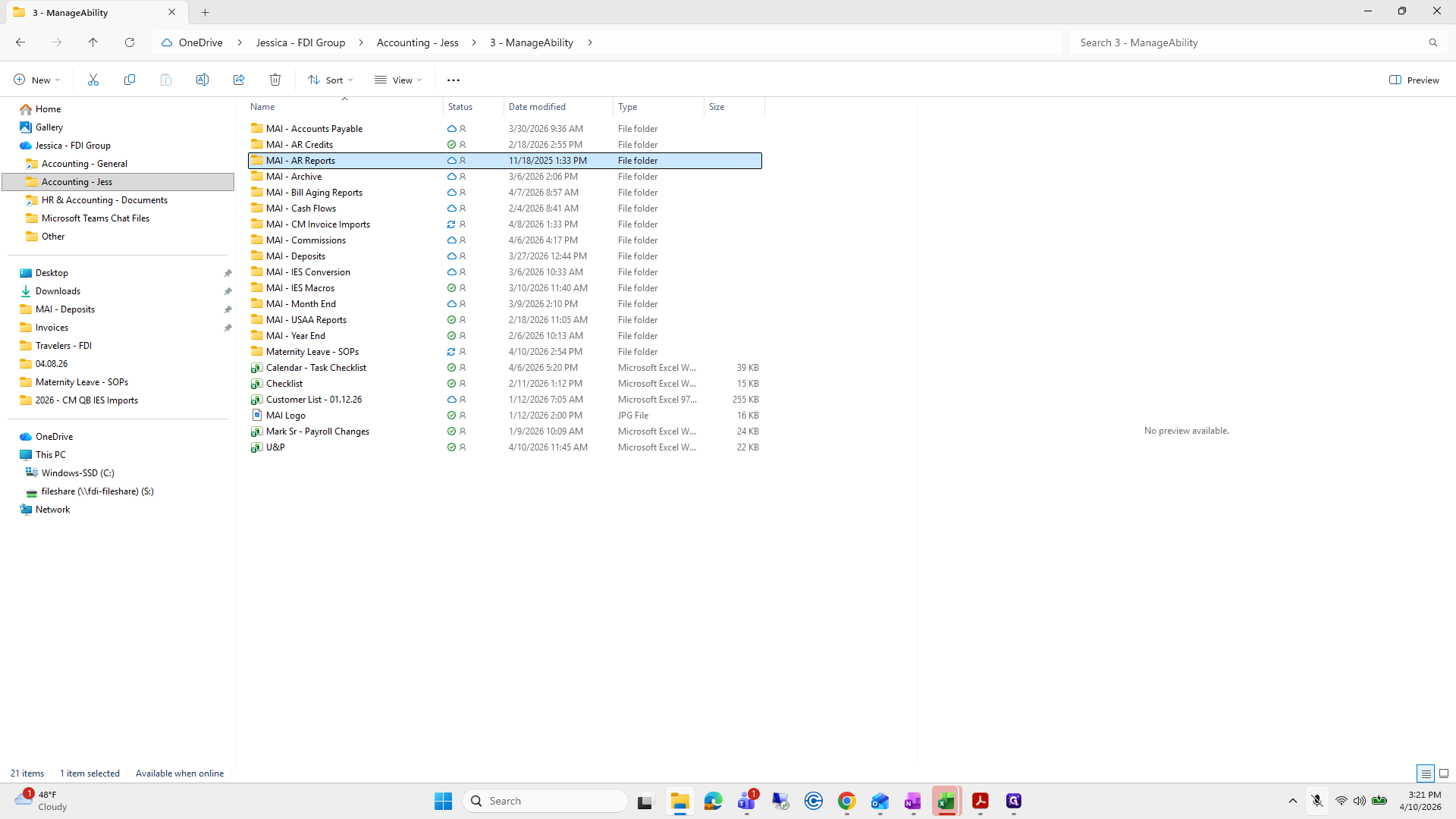
Step #35: Click on "City Of Detroit"
36
Click on "CompOne / SCA - Variety Wholesalers"
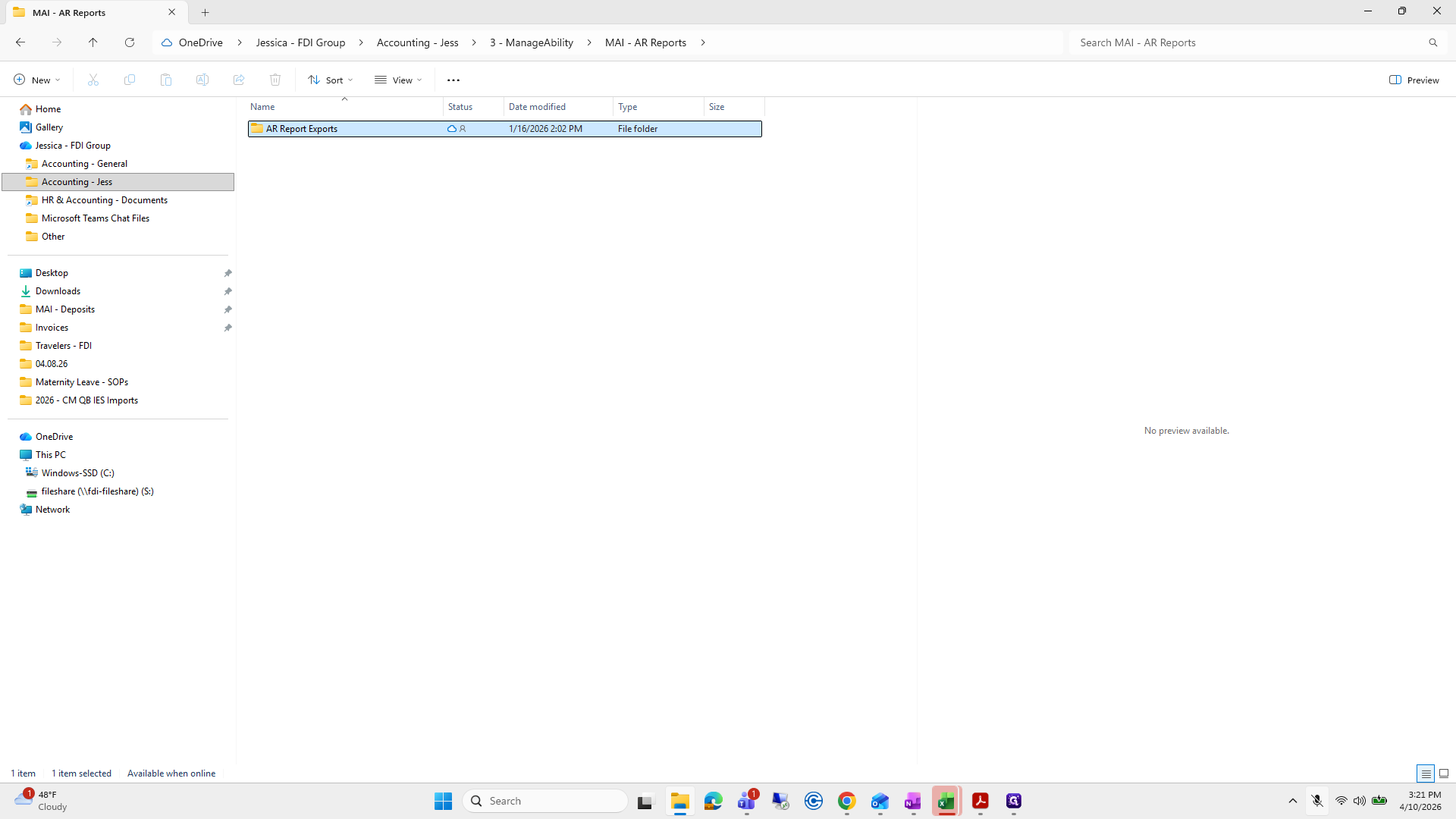
Step #36: Click on "CompOne / SCA - Variety Wholesalers"
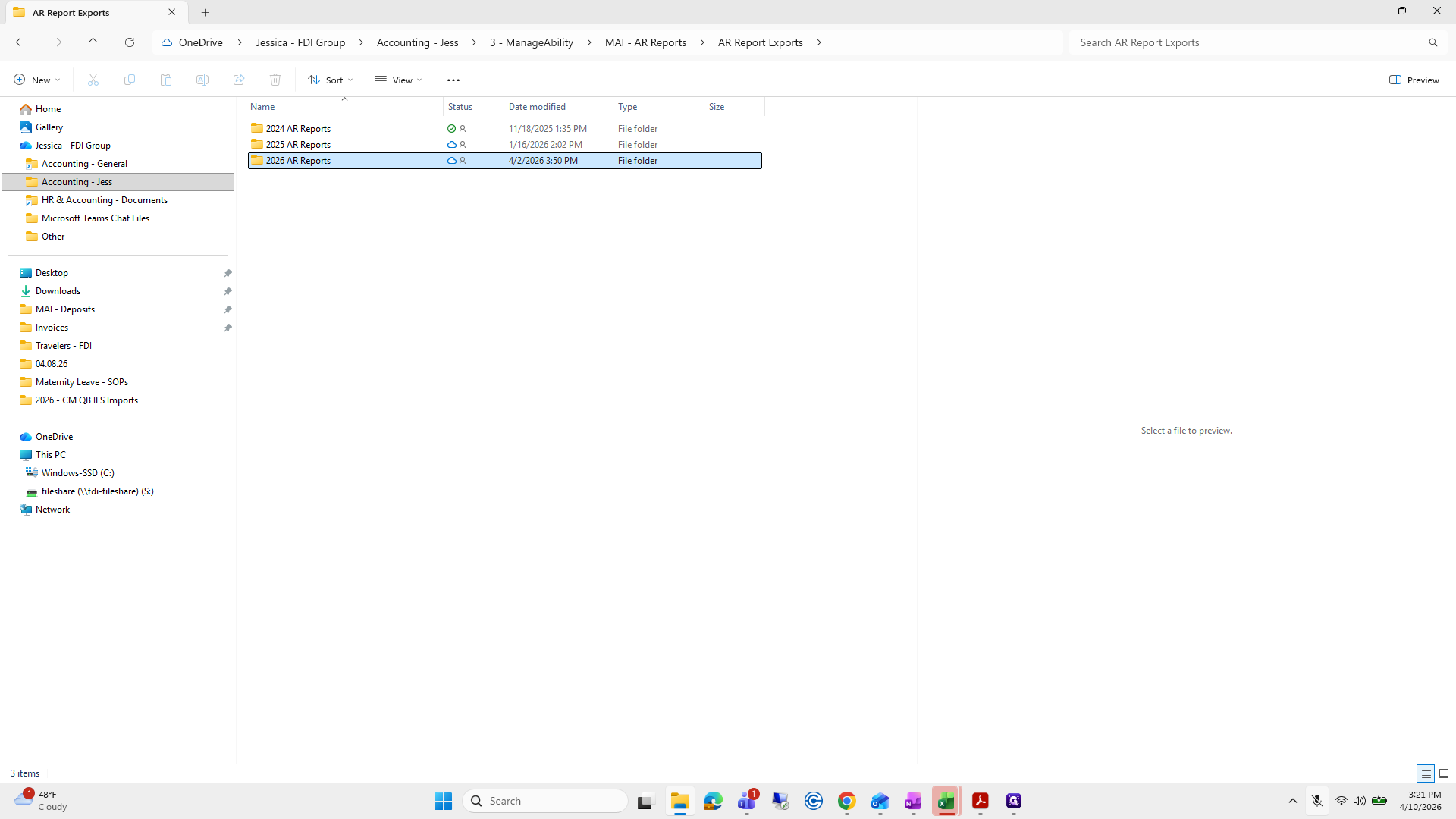
37
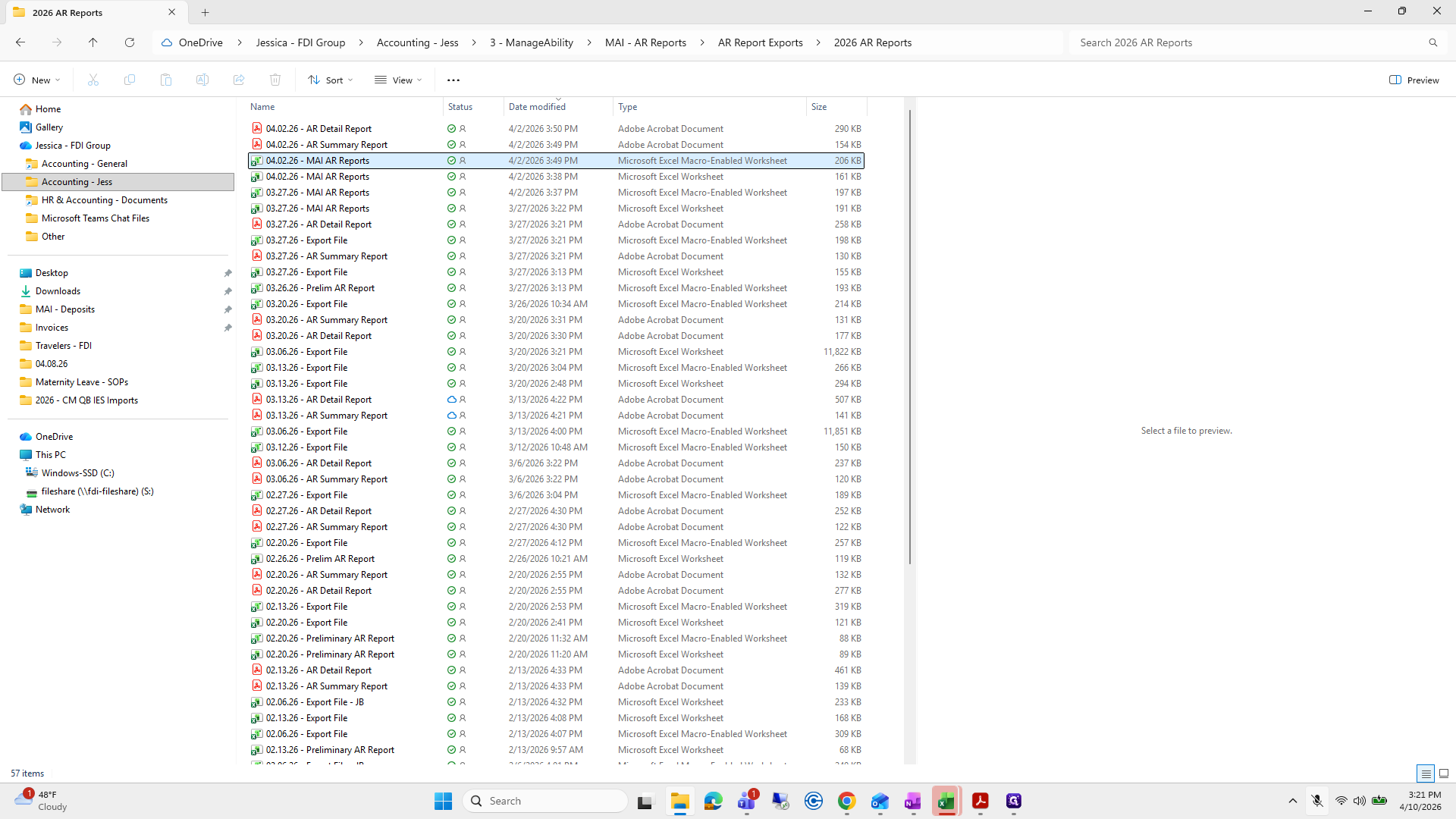
Type "Ctrl + A"
38
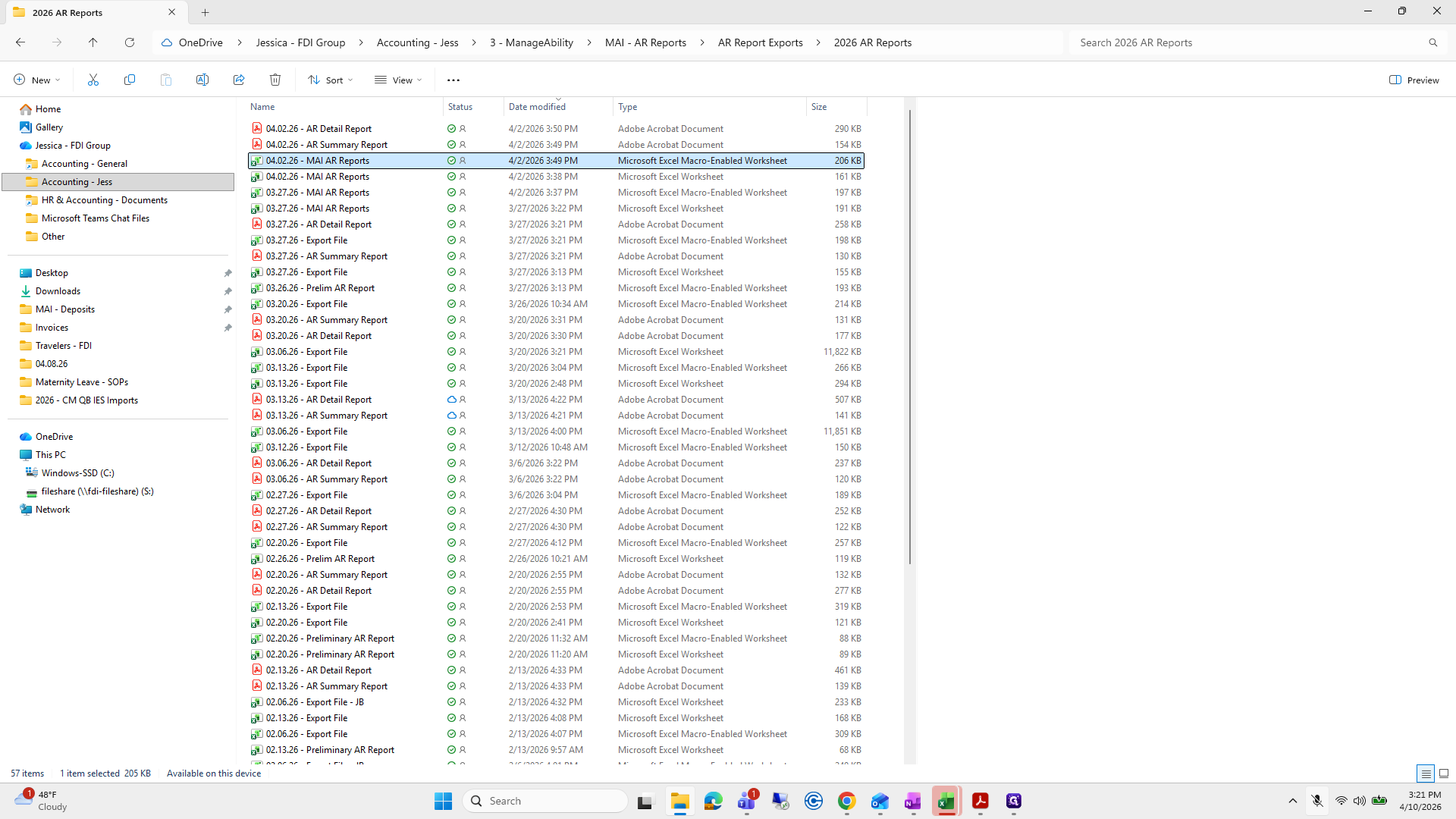
Click on "5698"
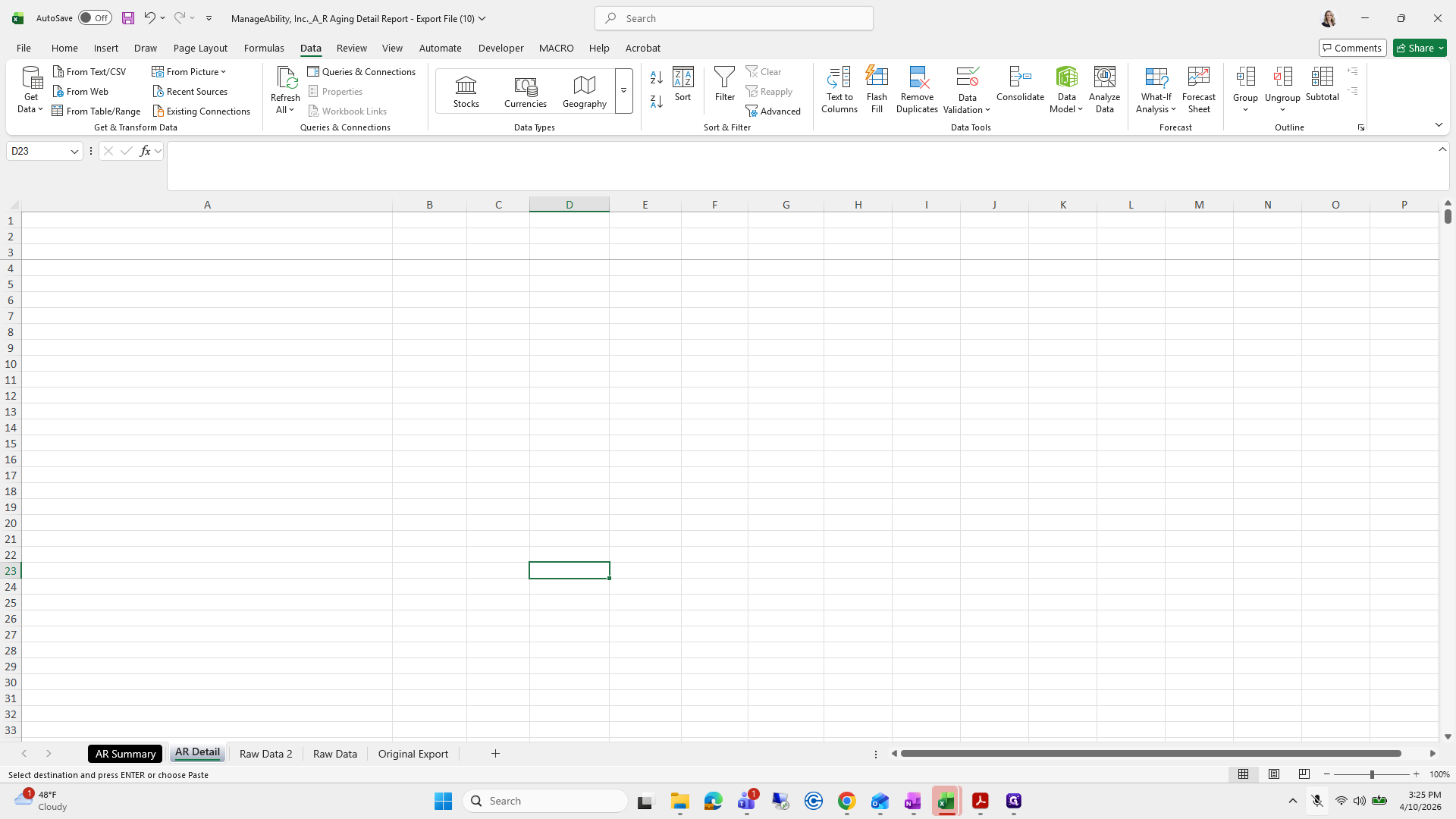
Step #38: Click on "5698"
39
Right-click on "6"
Step #39: Right-click on "6"
40
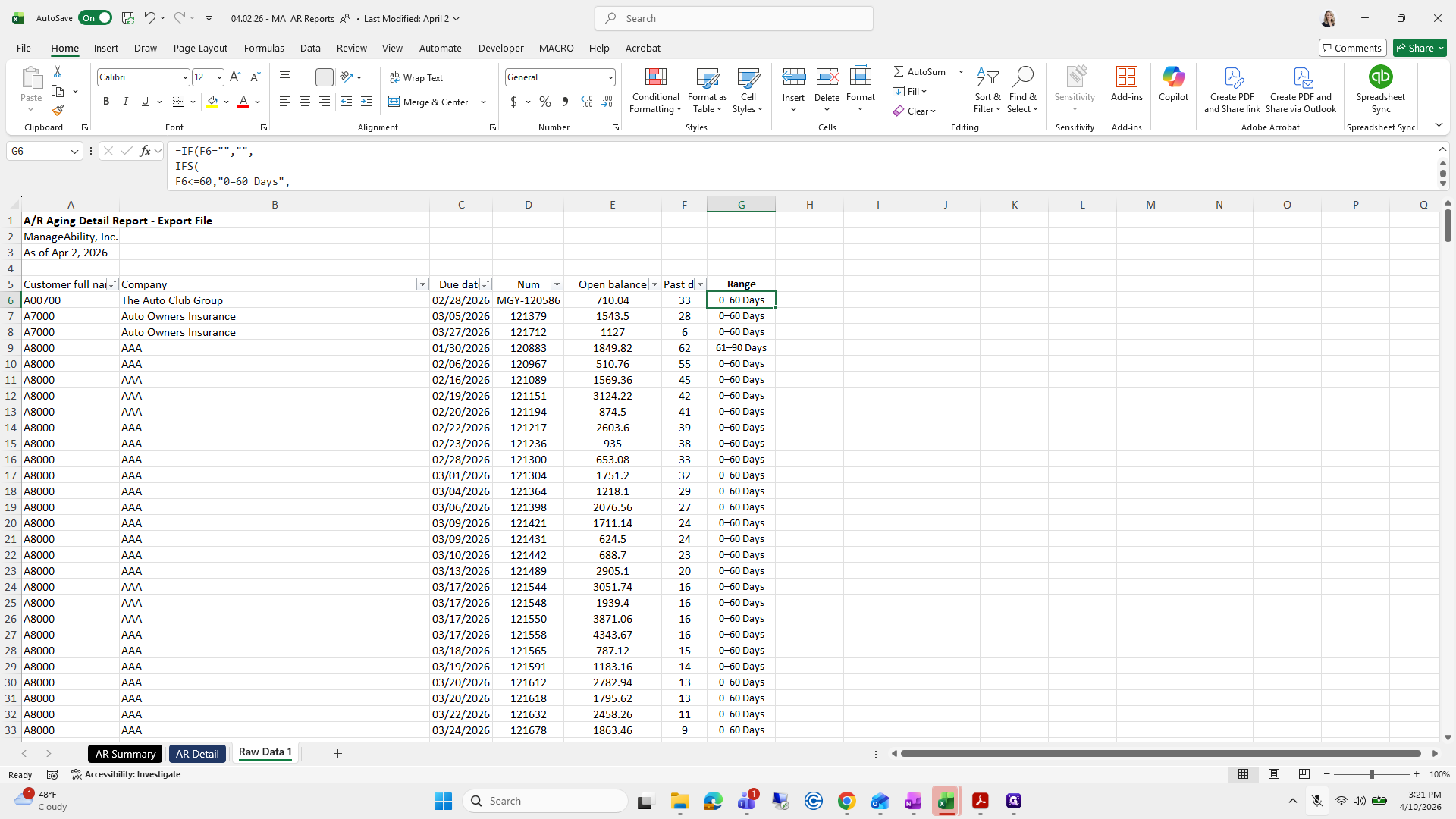
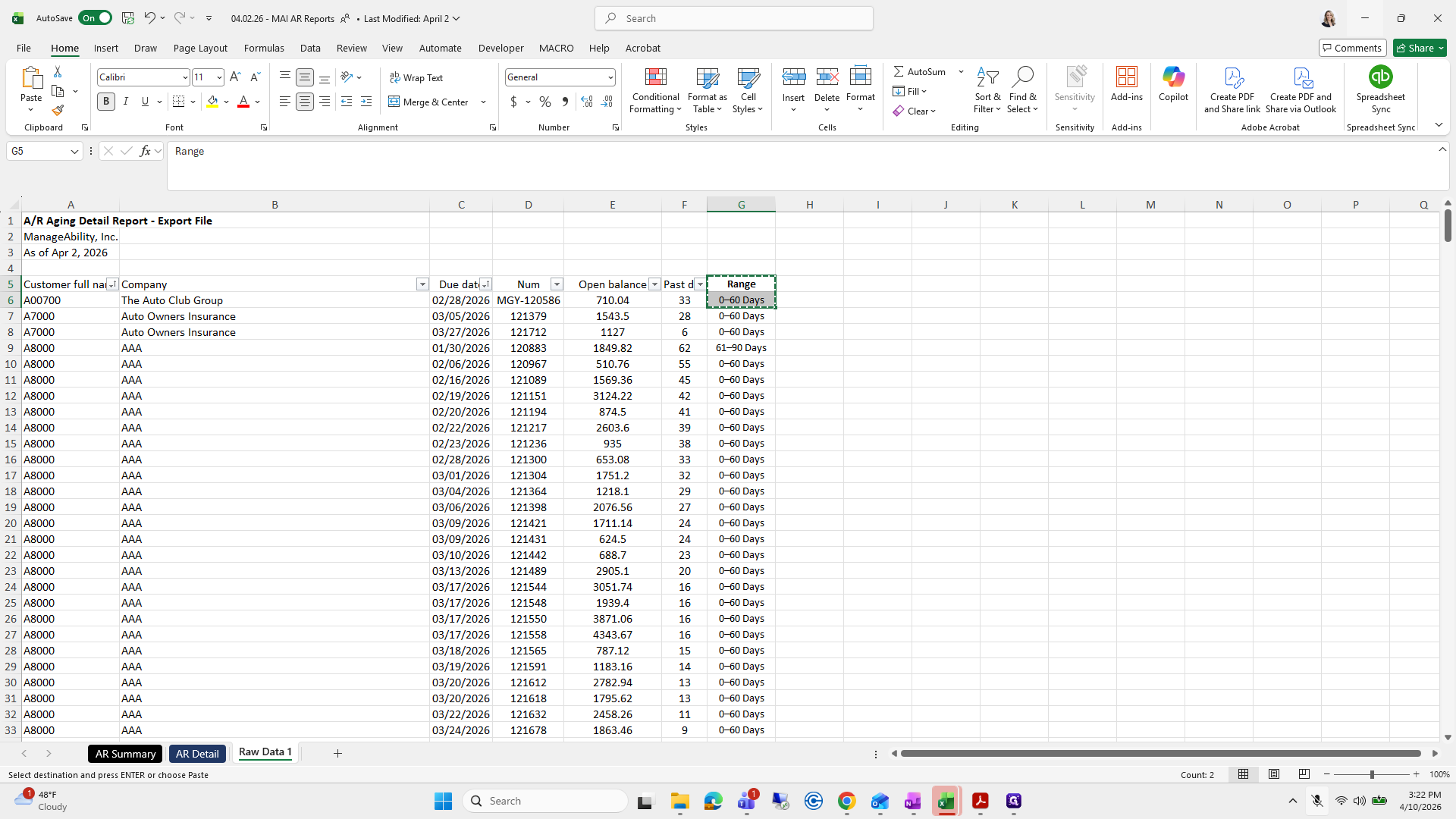
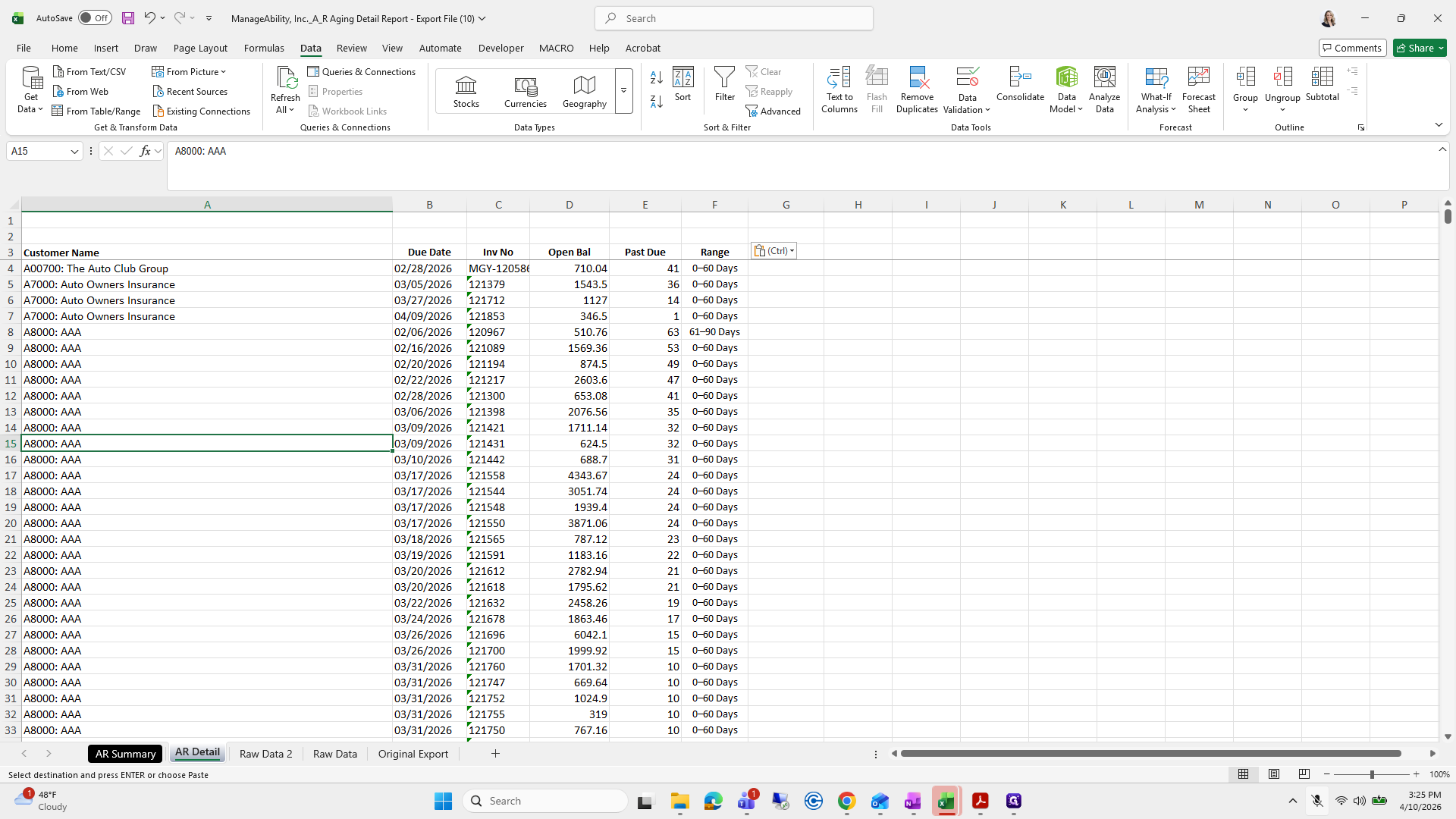
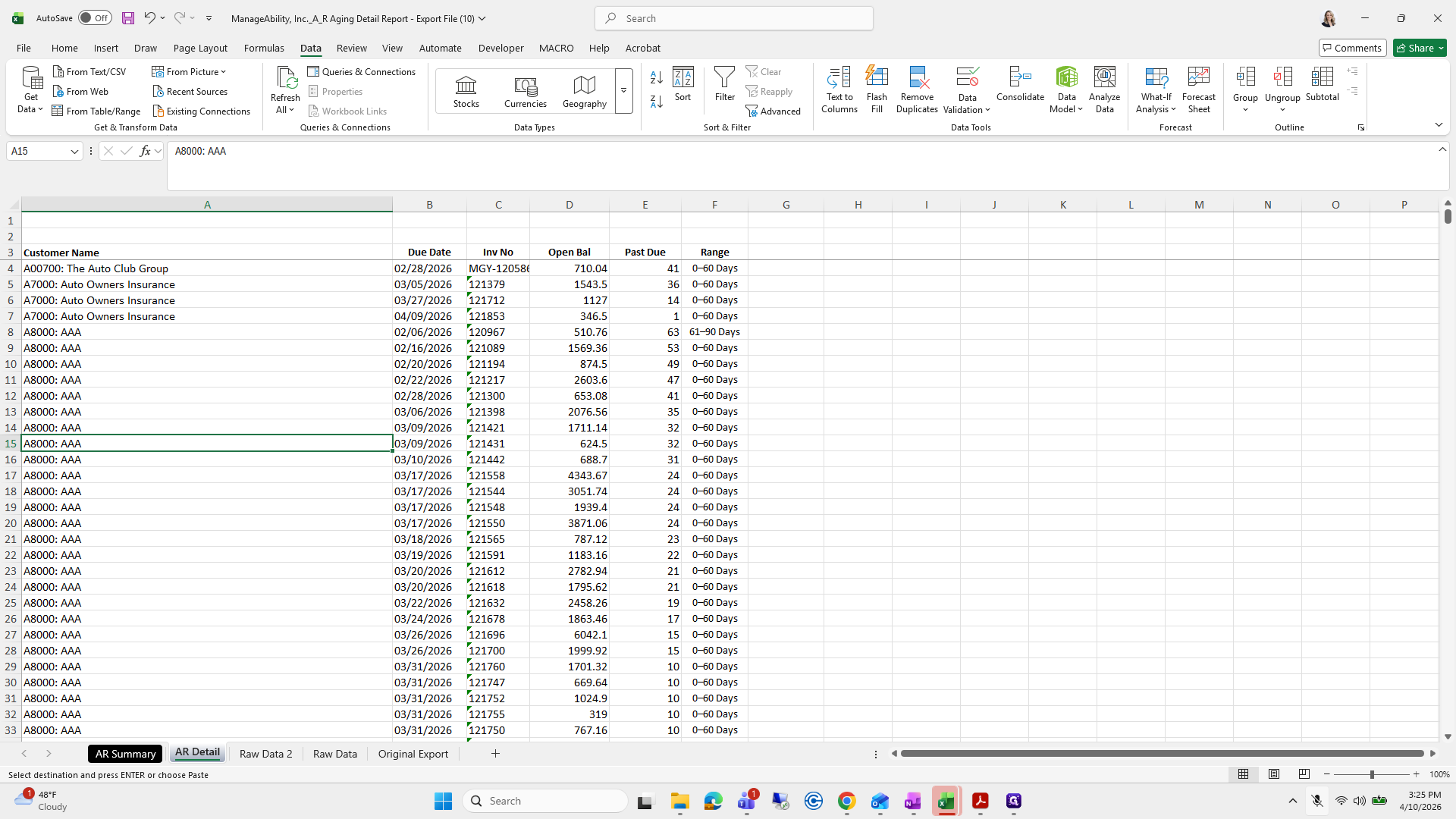
Click on "Delete"
Step #40: Click on "Delete"
41
Click here
Step #41: Click here
42
Type "Ctrl + A"
43
Click on "Data"
Step #43: Click on "Data"
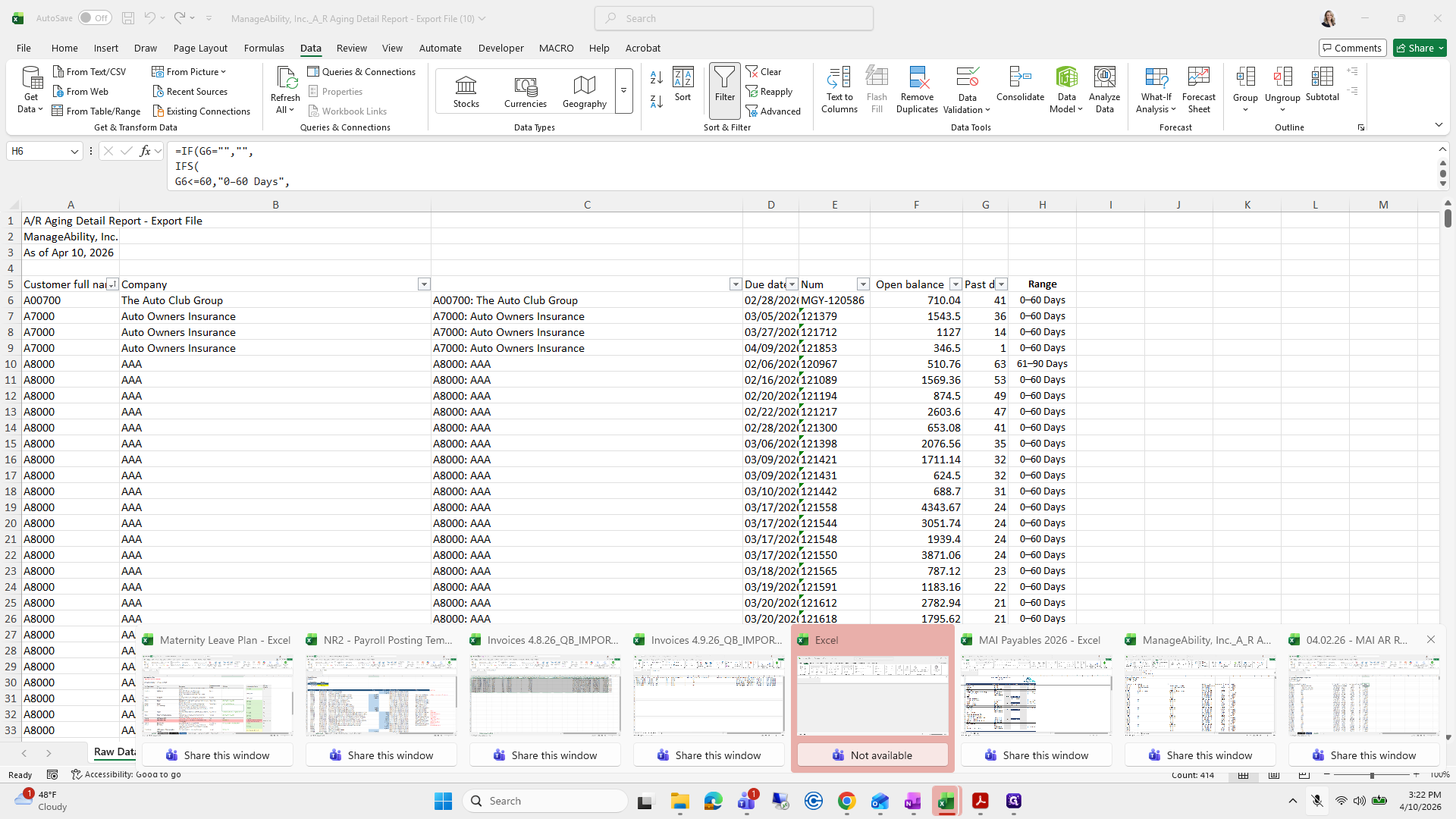
44
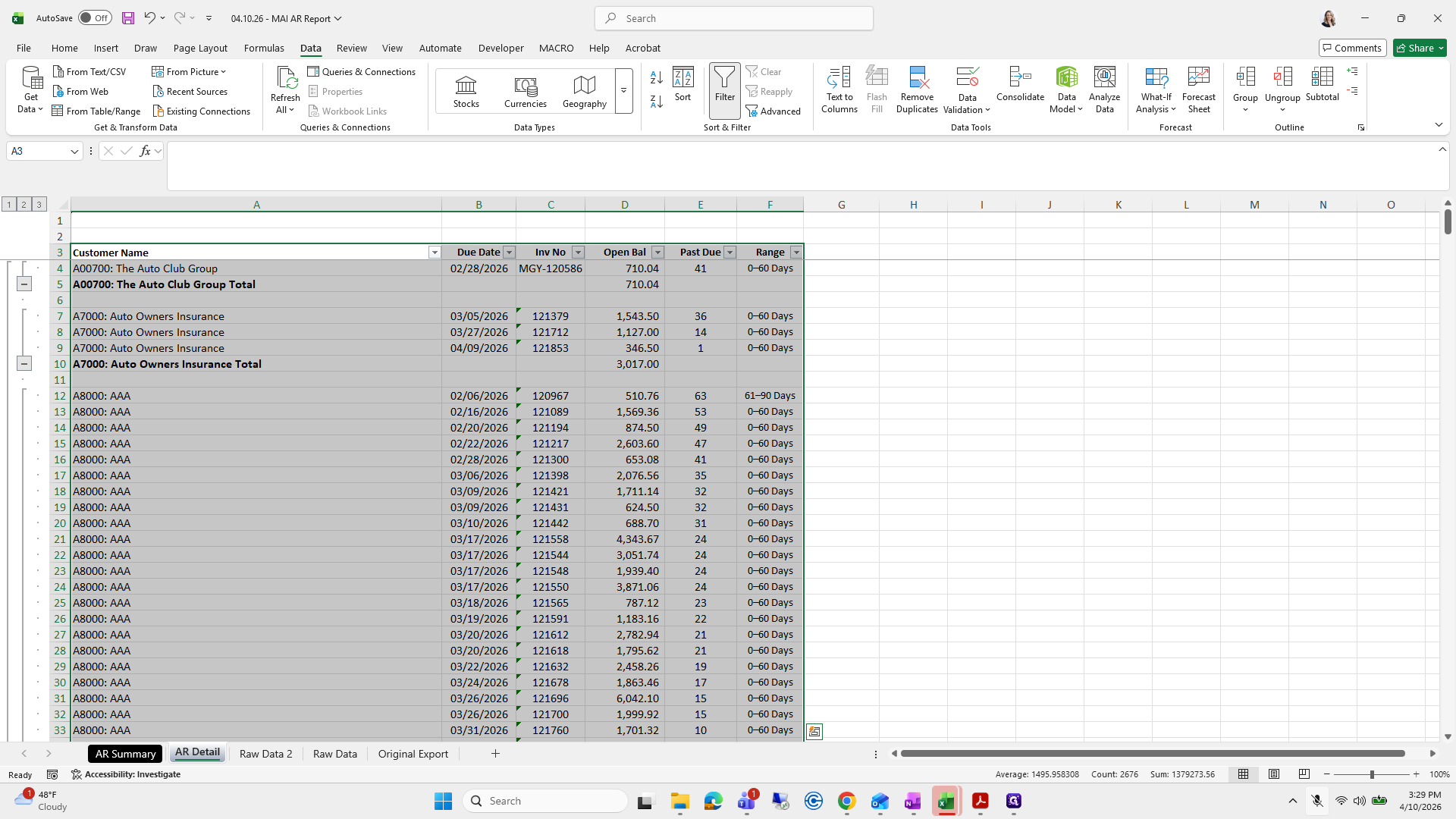
Click on "Filter"
Step #44: Click on "Filter"
45
Click on "MGY - 8062"
Step #45: Click on "MGY - 8062"

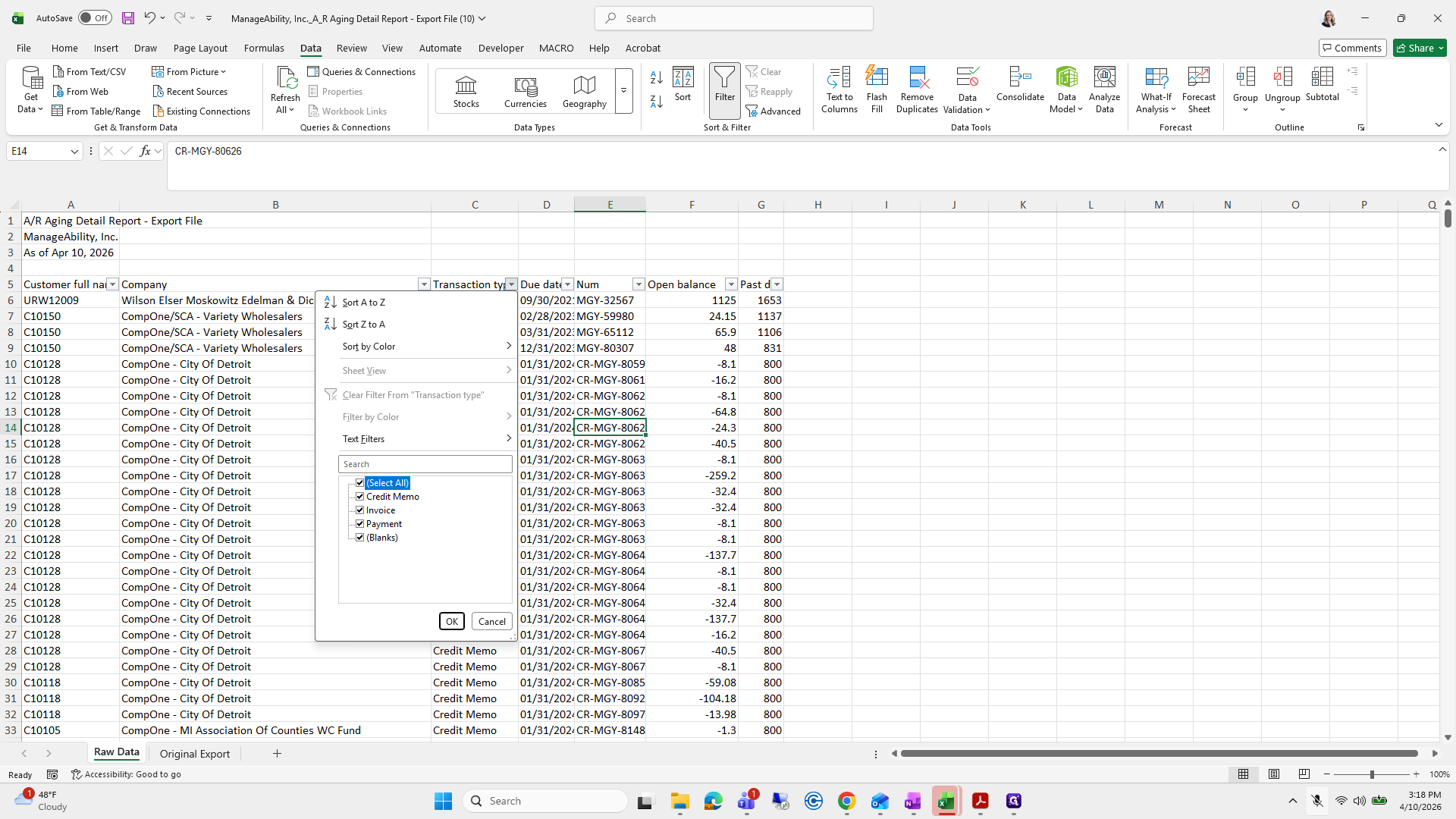
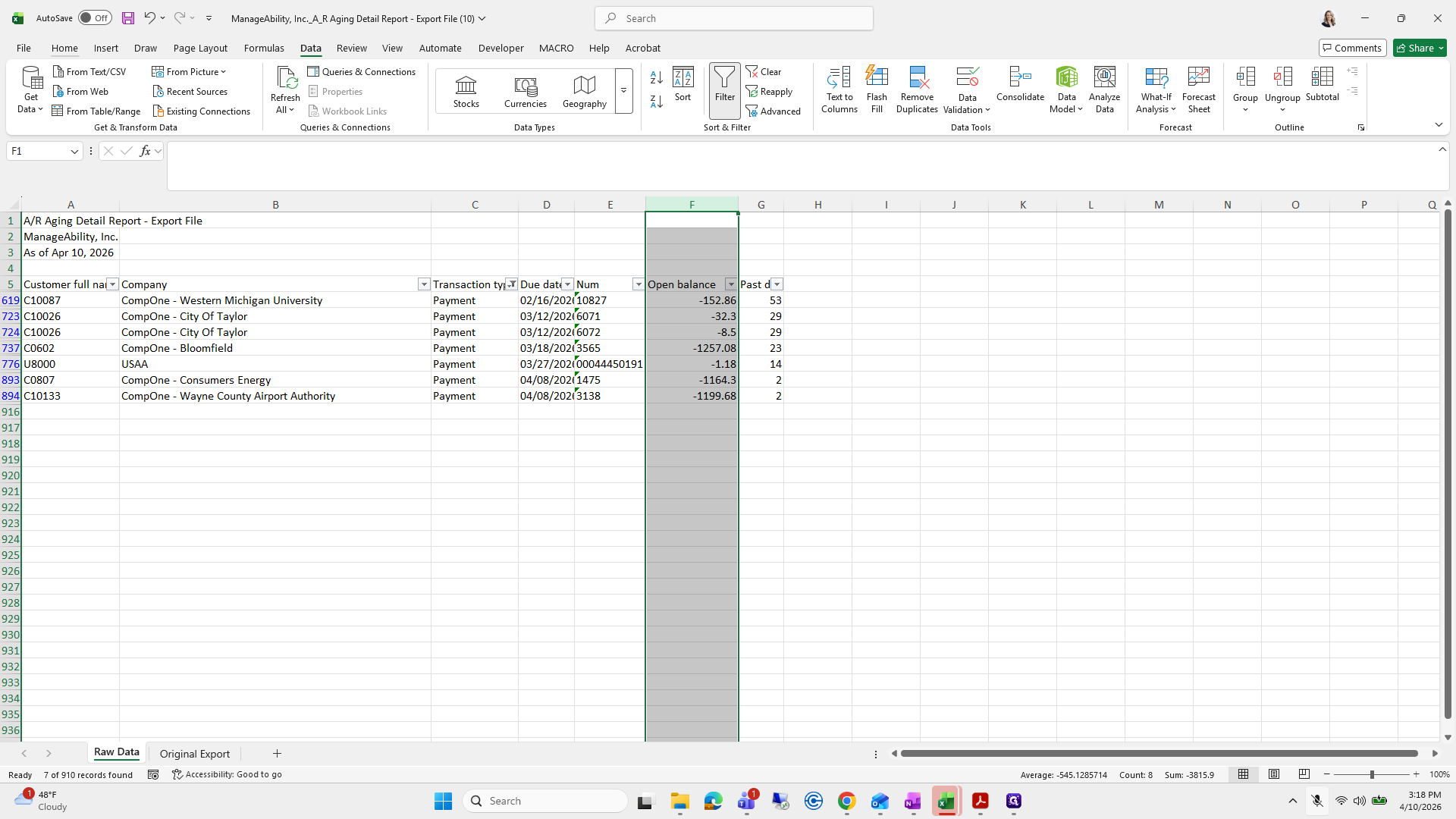
From here, I will review my payment in My Payments first.
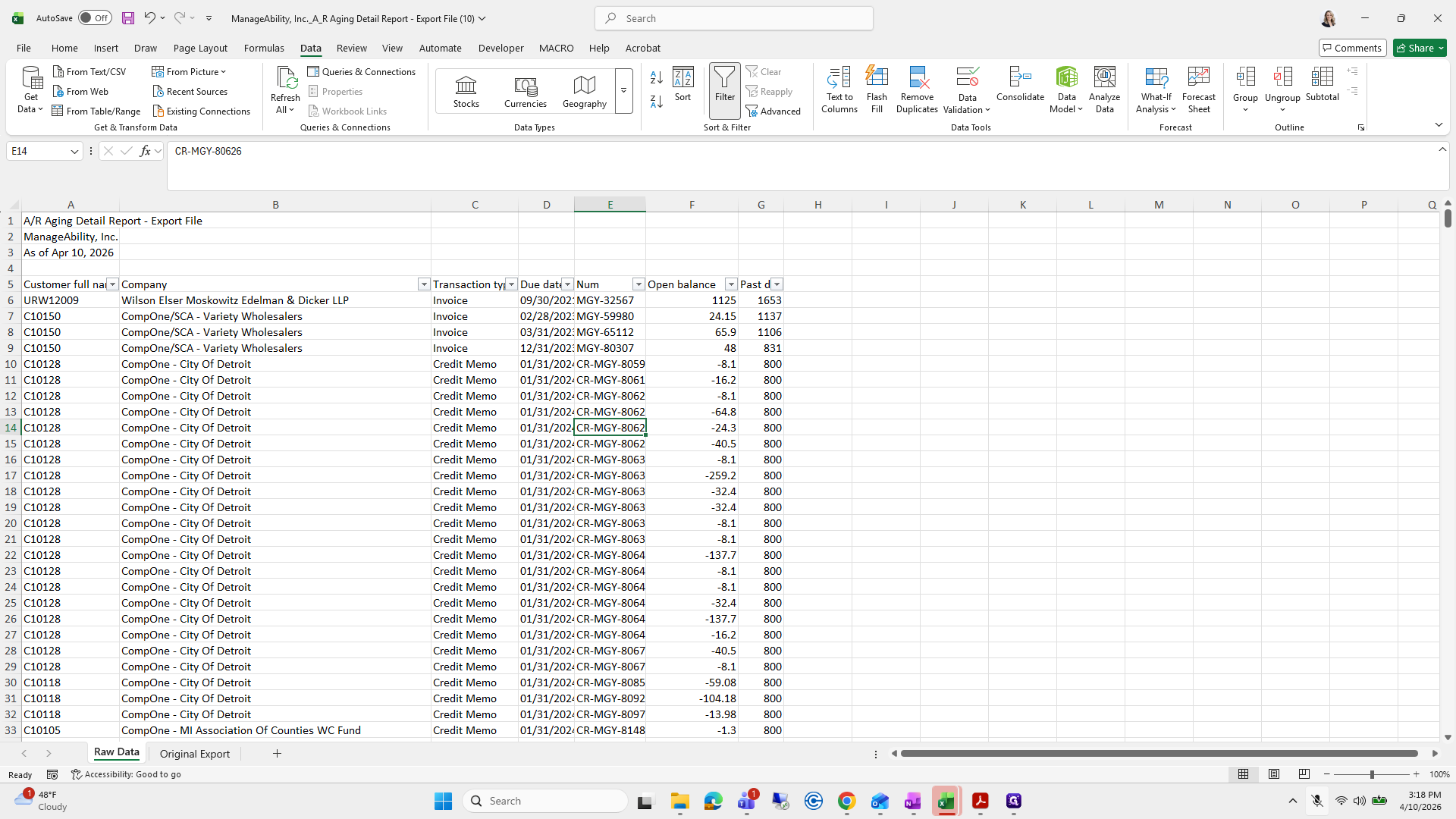
46
Click on "▾ Transaction ty▾ Due date ▾ Num"
Step #46: Click on "▾ Transaction ty▾ Due date ▾ Num"
47
Click on "Select"
Step #47: Click on "Select"
48
Double-click on "Select"
Step #48: Double-click on "Select"
49
Click on "Select"
Step #49: Click on "Select"
50
Click on "01/31/2024 CR - MGY - 8064 Credit Memo 01/31/2024 CR - MGY - 8067"
Step #50: Click on "01/31/2024 CR - MGY - 8064 Credit Memo 01/31/2024 CR - MGY - 8067"

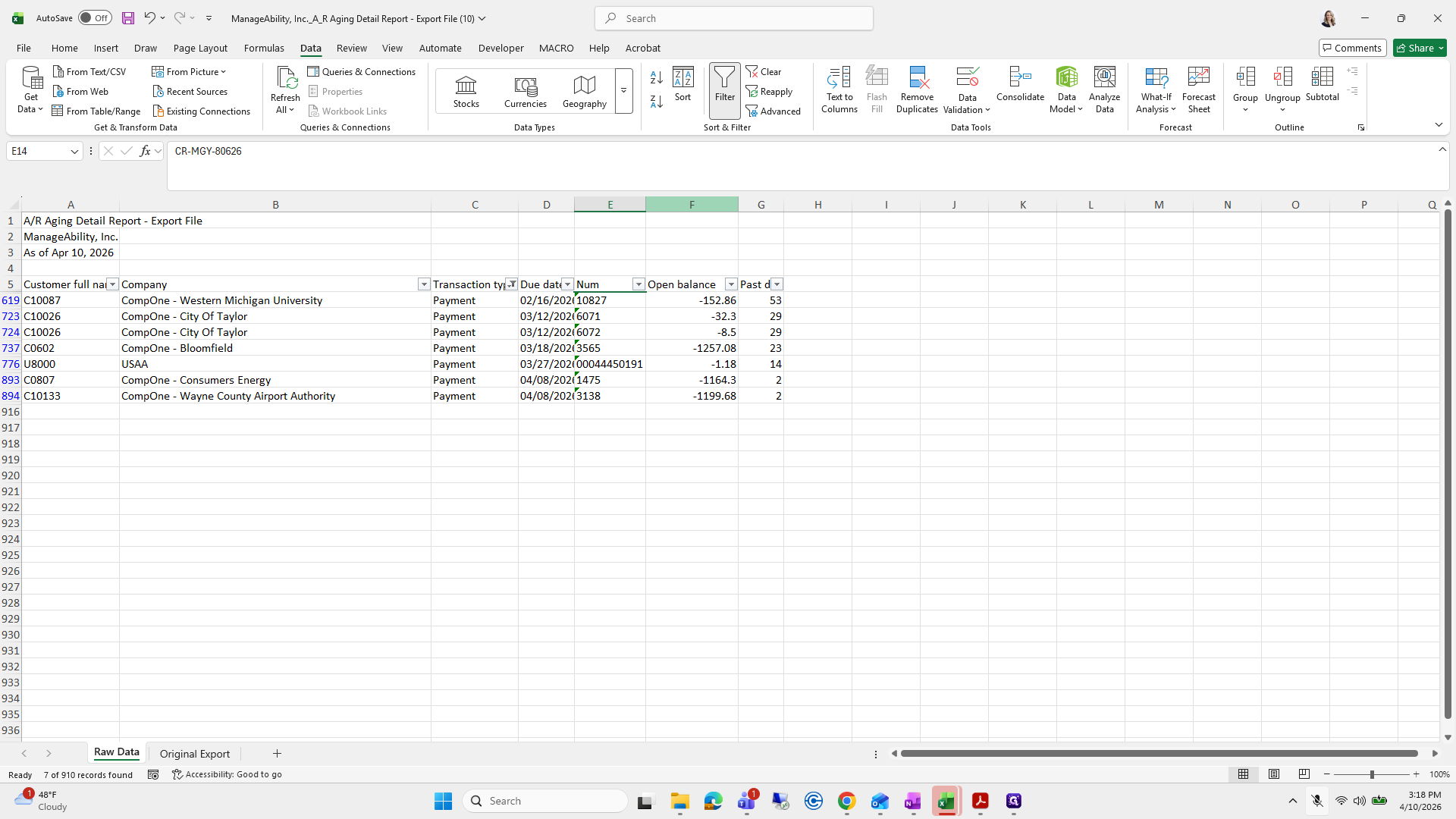
Some payments have not been applied yet.
51
Click on "F"
Step #51: Click on "F"
52
Click on "Home"
Step #52: Click on "Home"
53
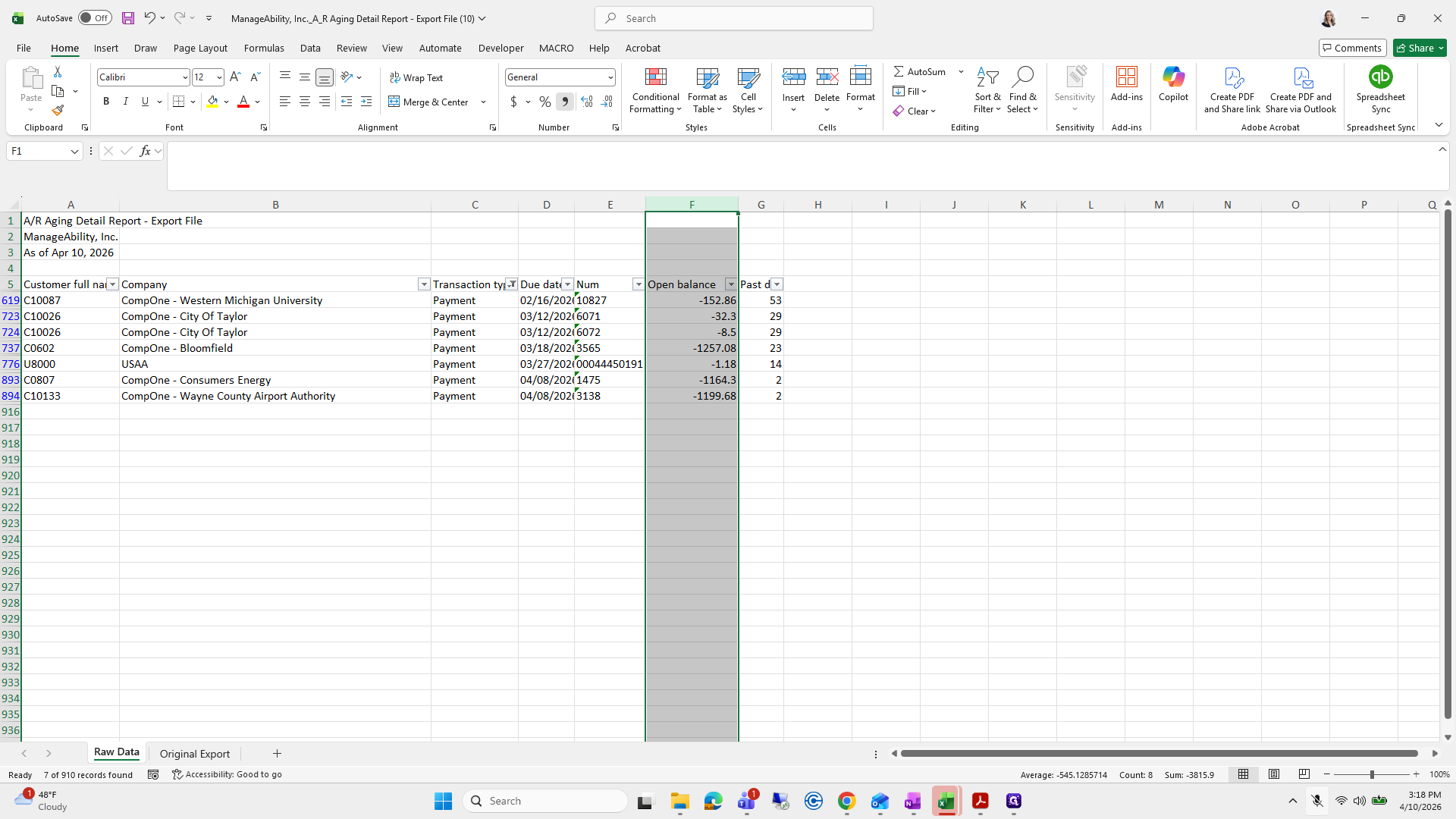
Click on "$ % 950000"
Step #53: Click on "$ % 950000"
54
Click here
Step #54: Click here

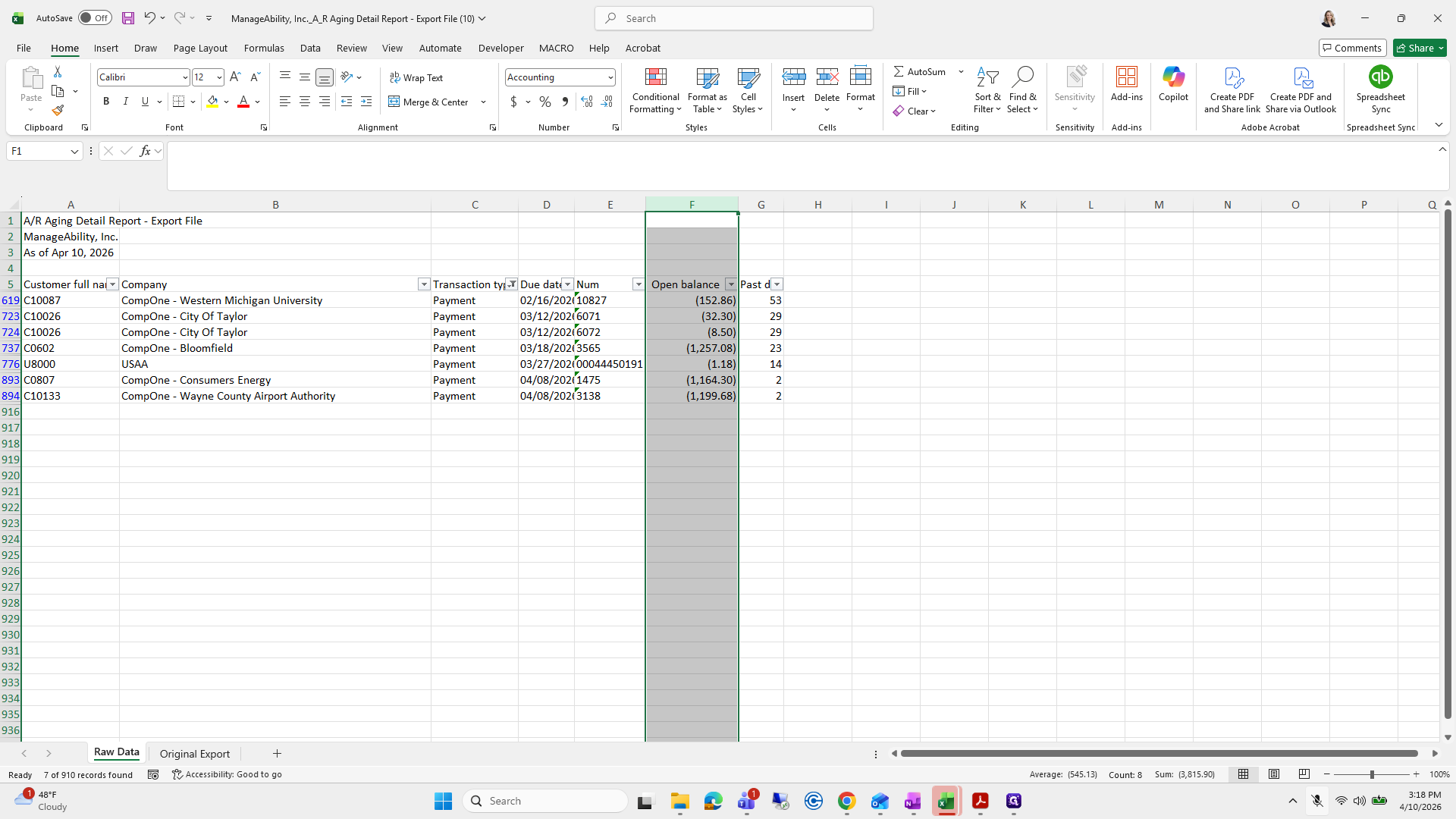
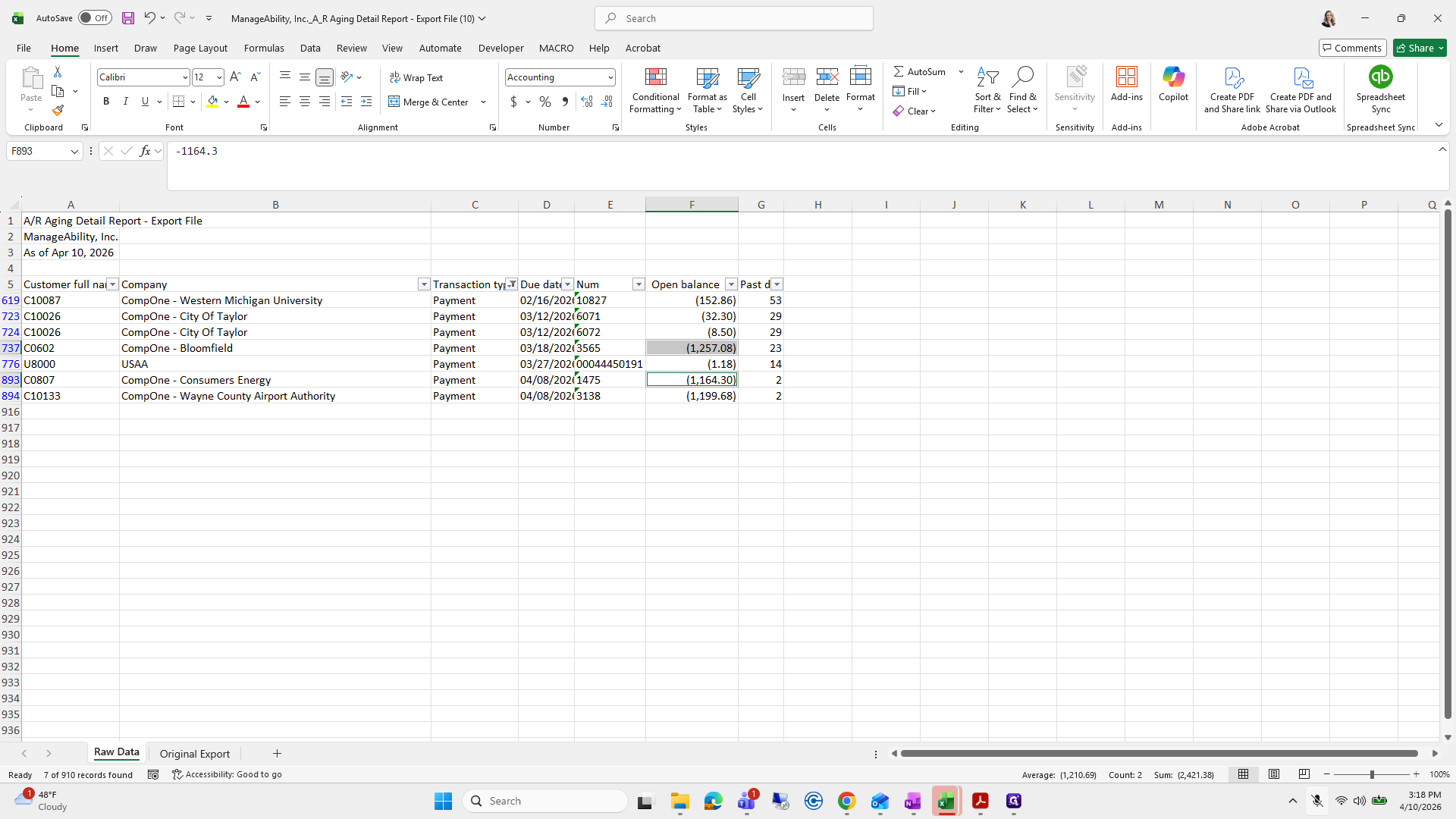
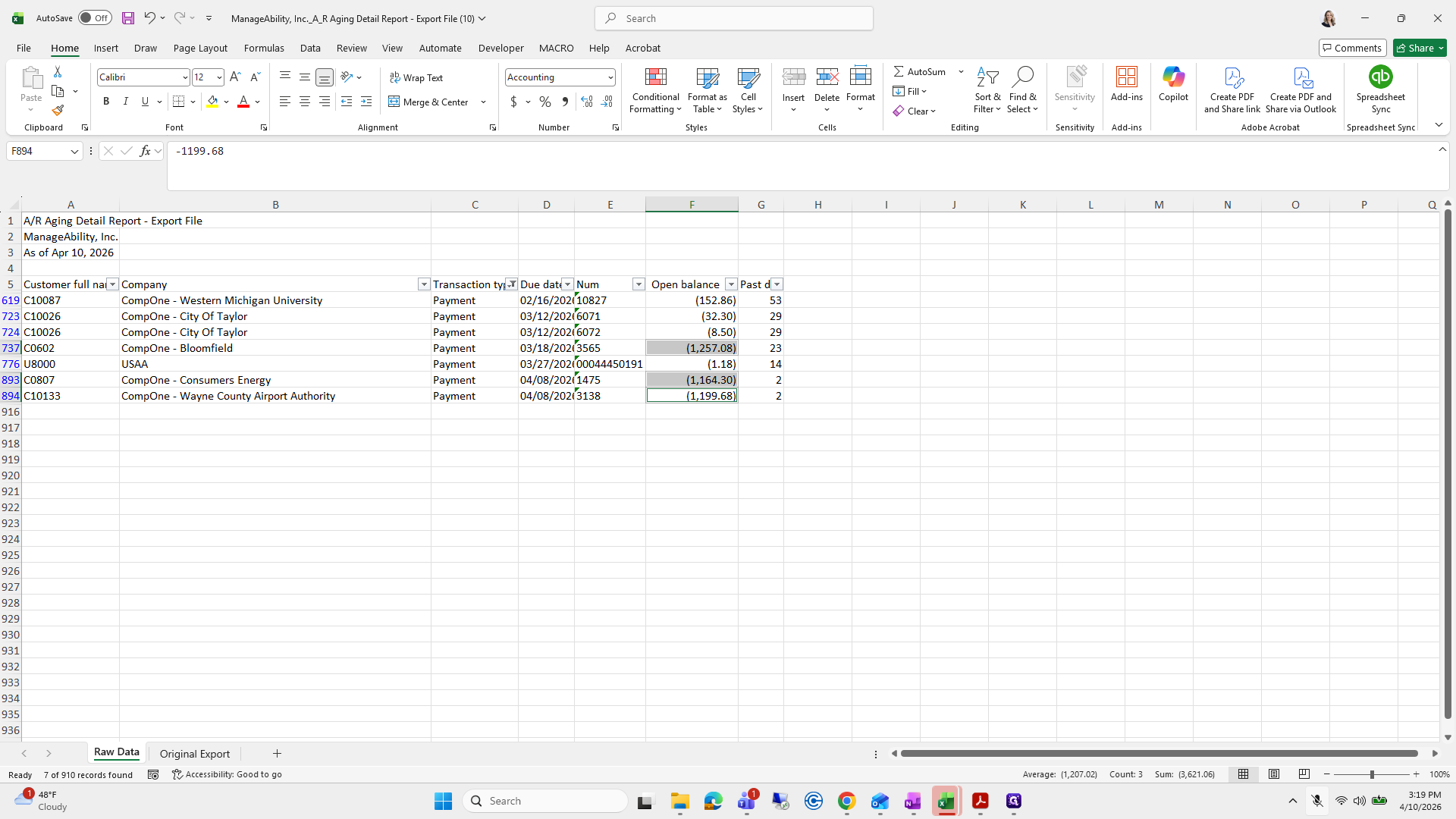
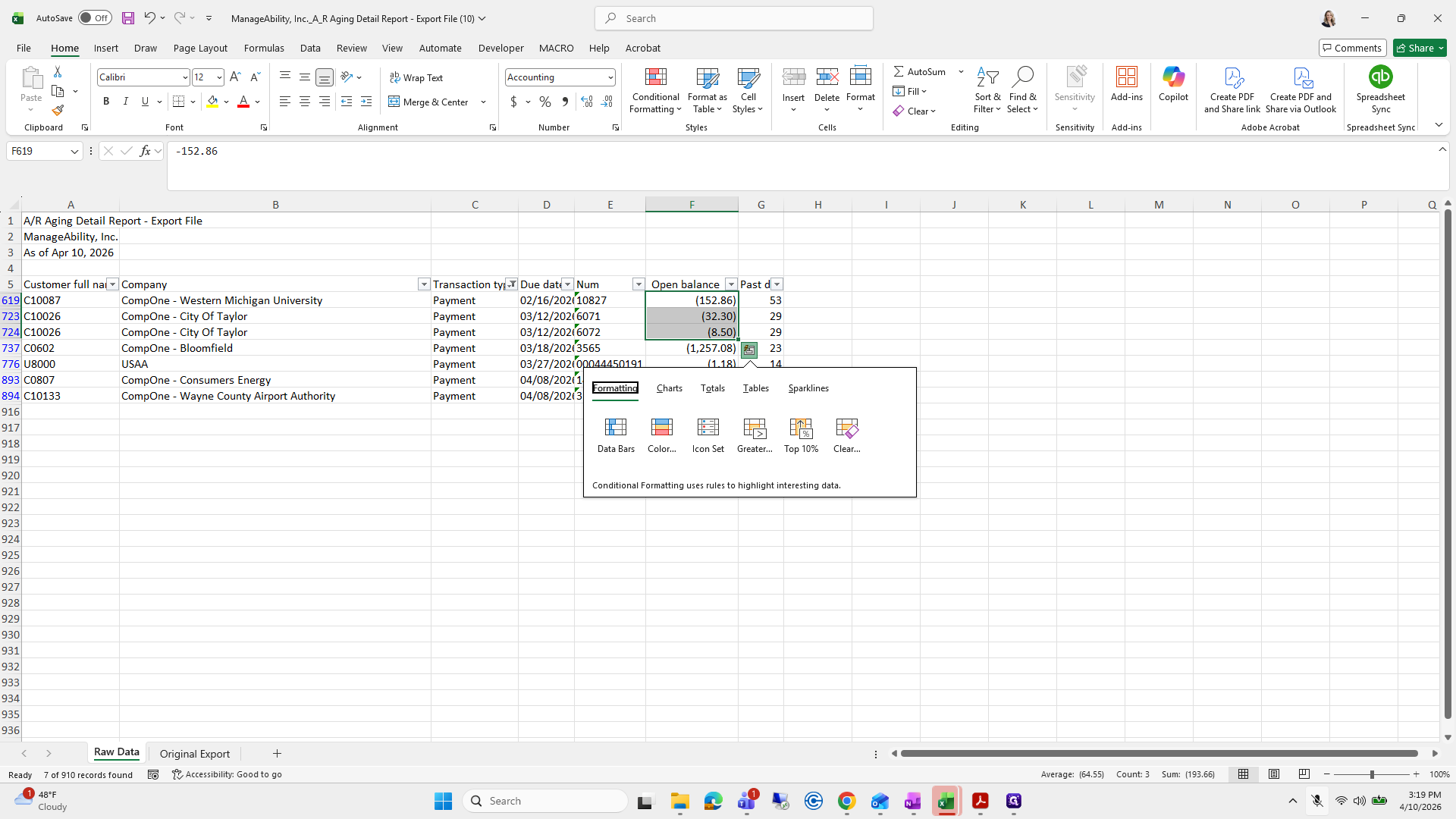
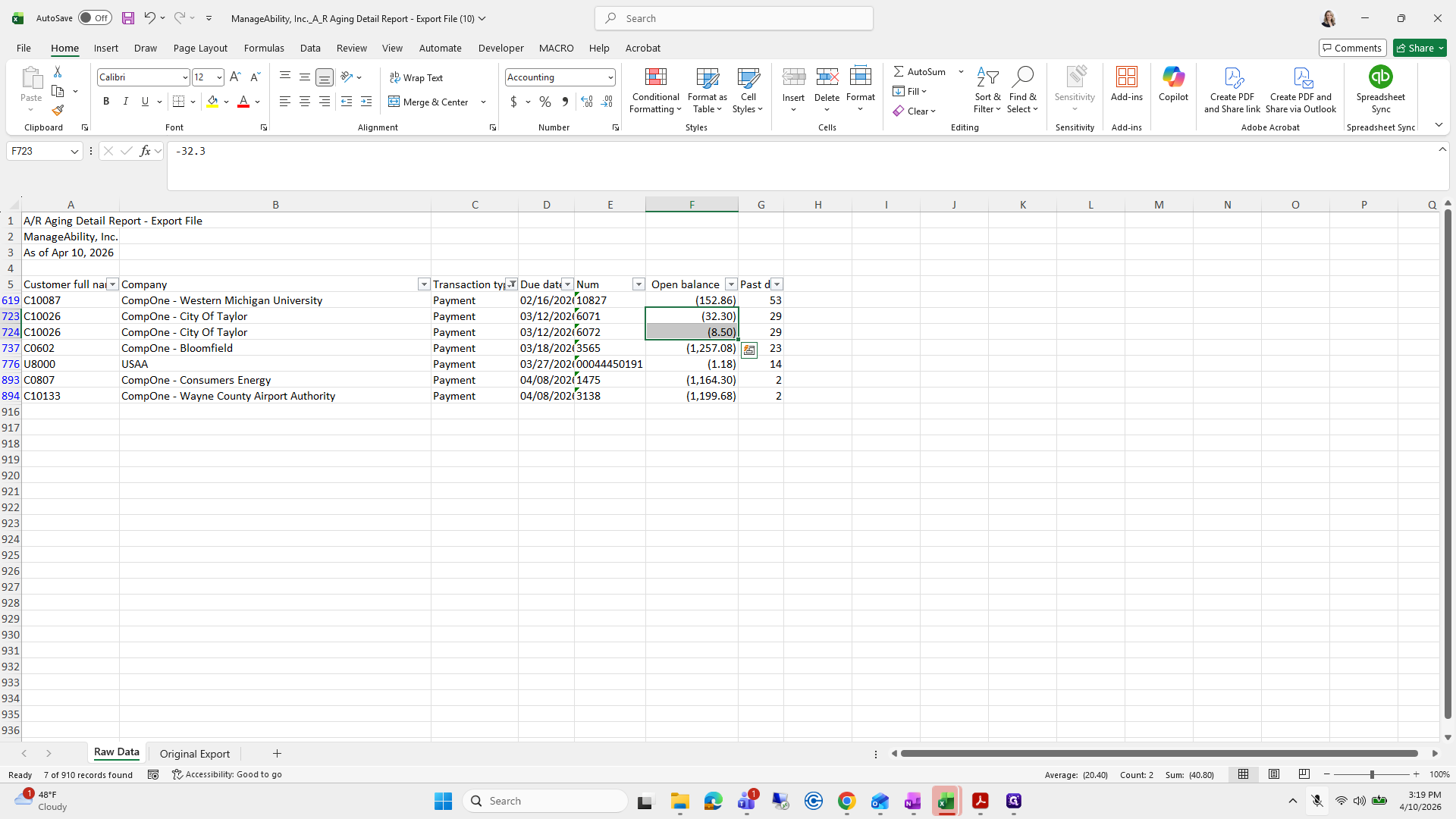
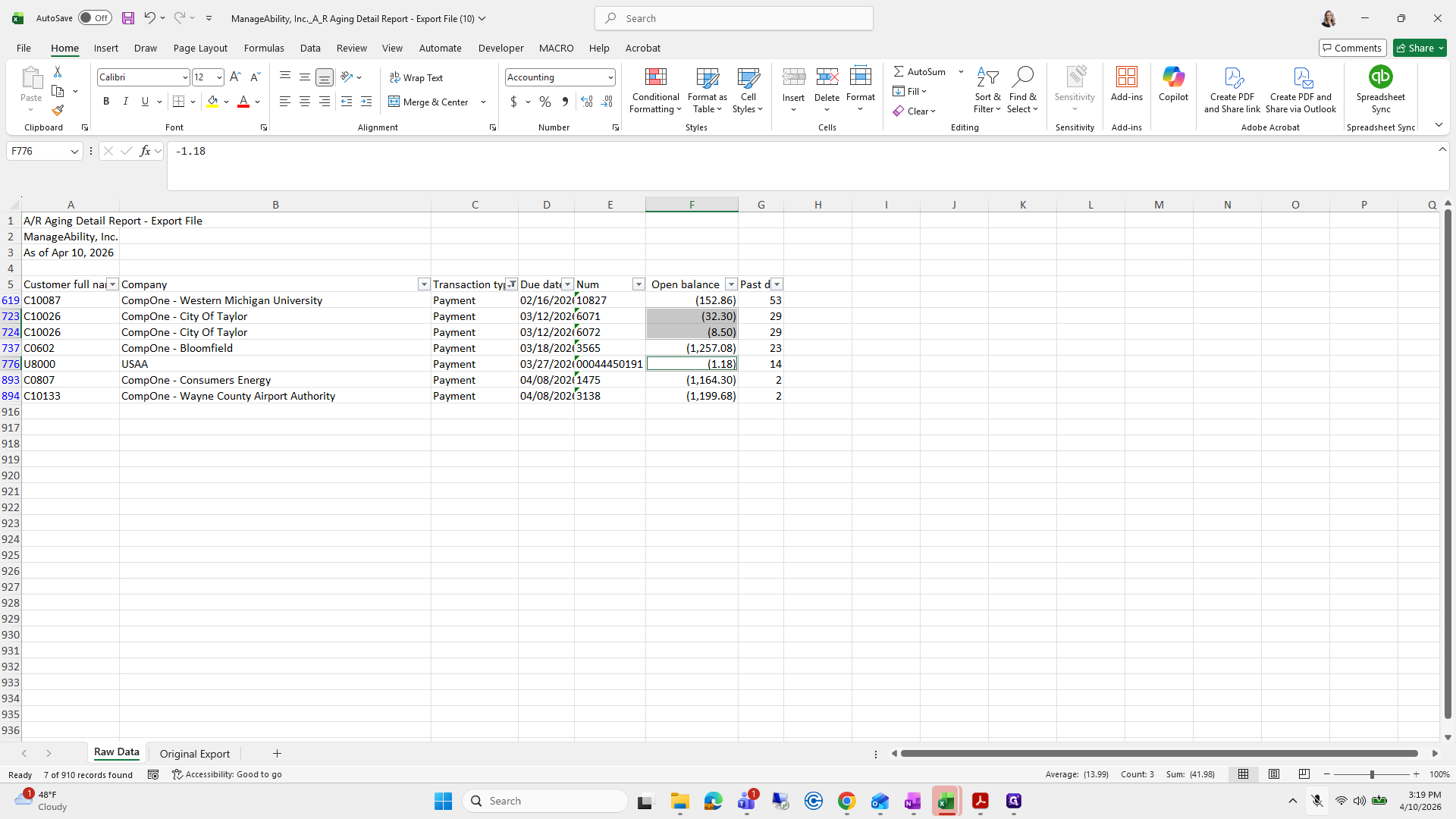
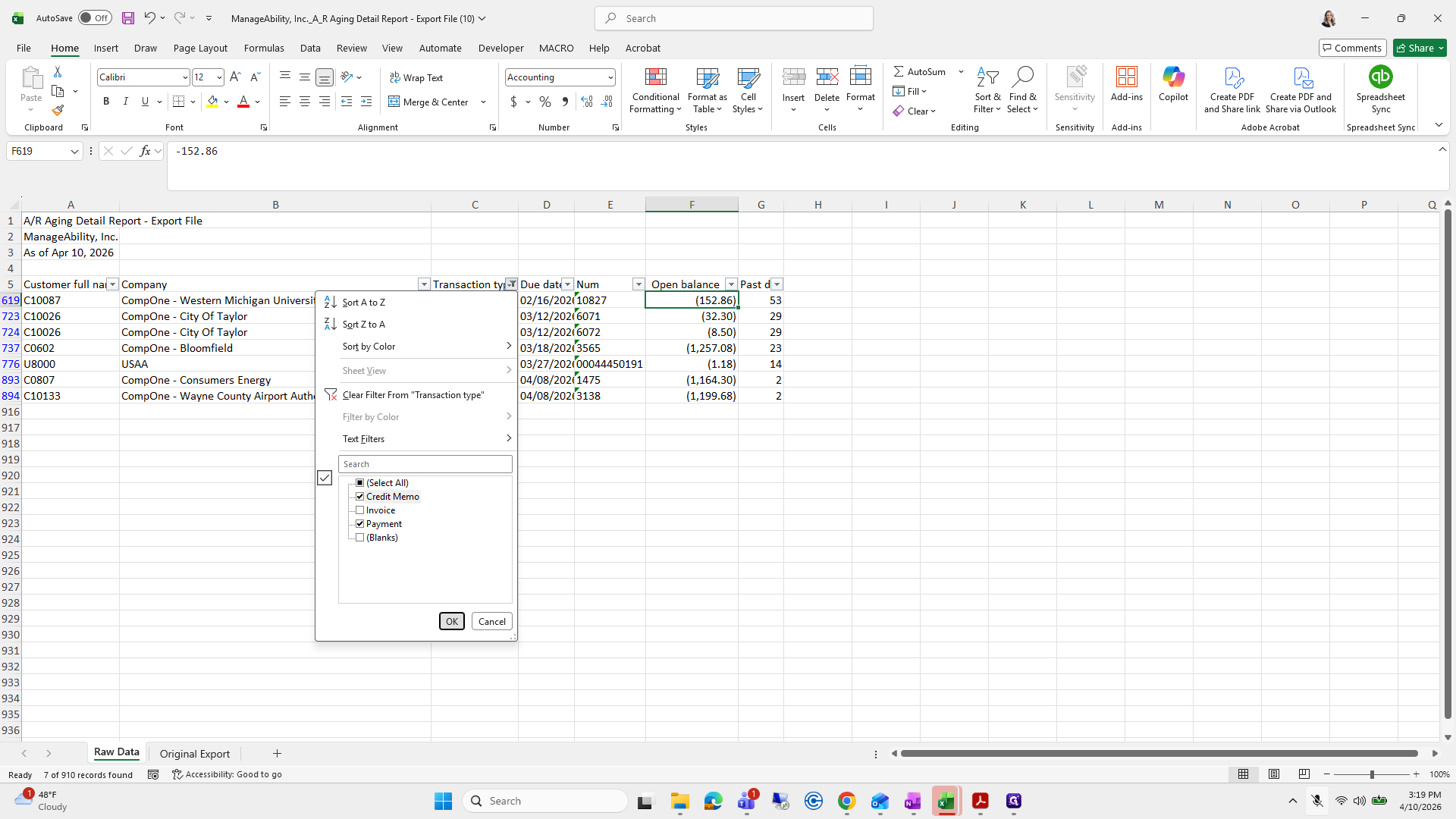
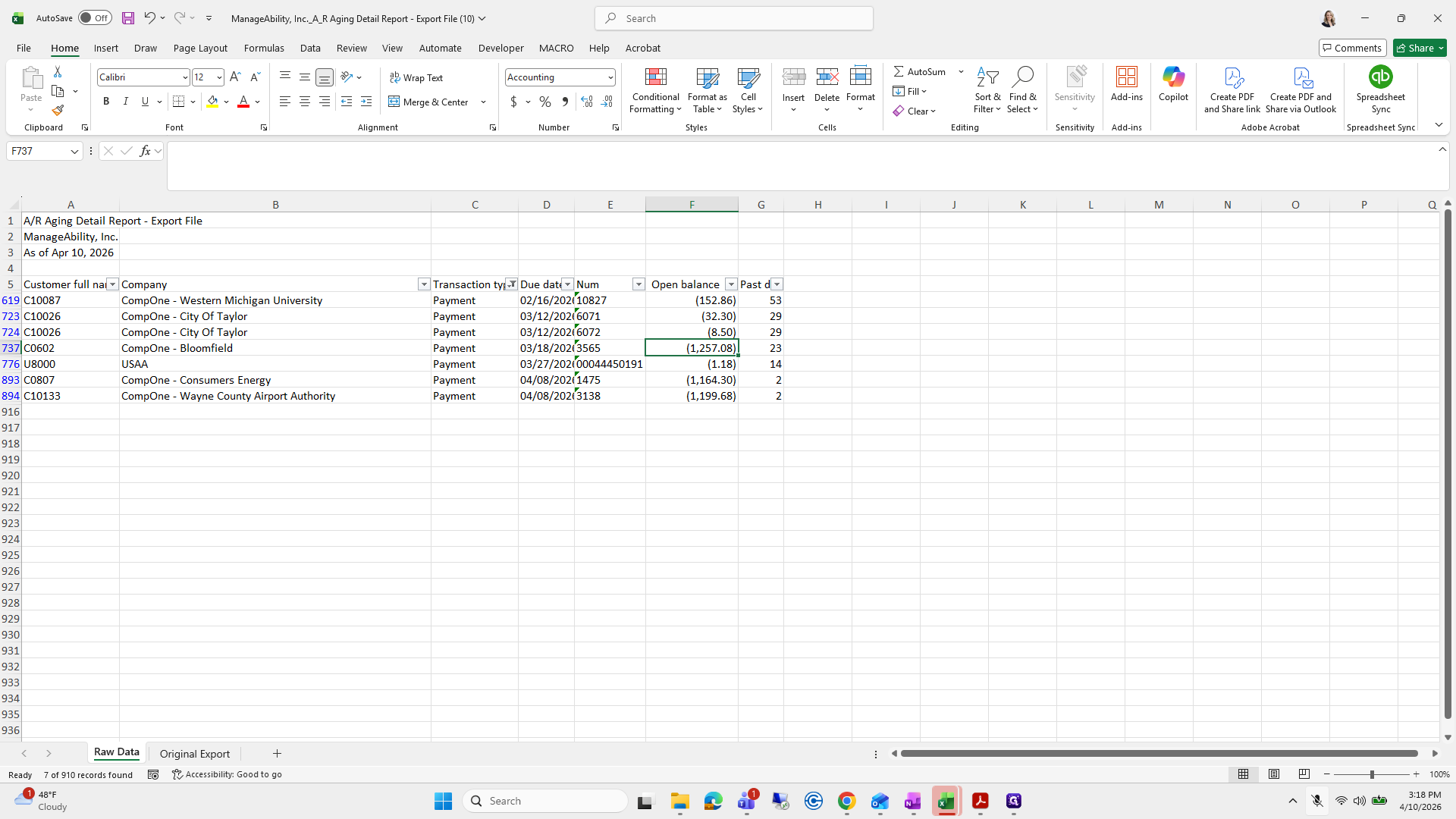
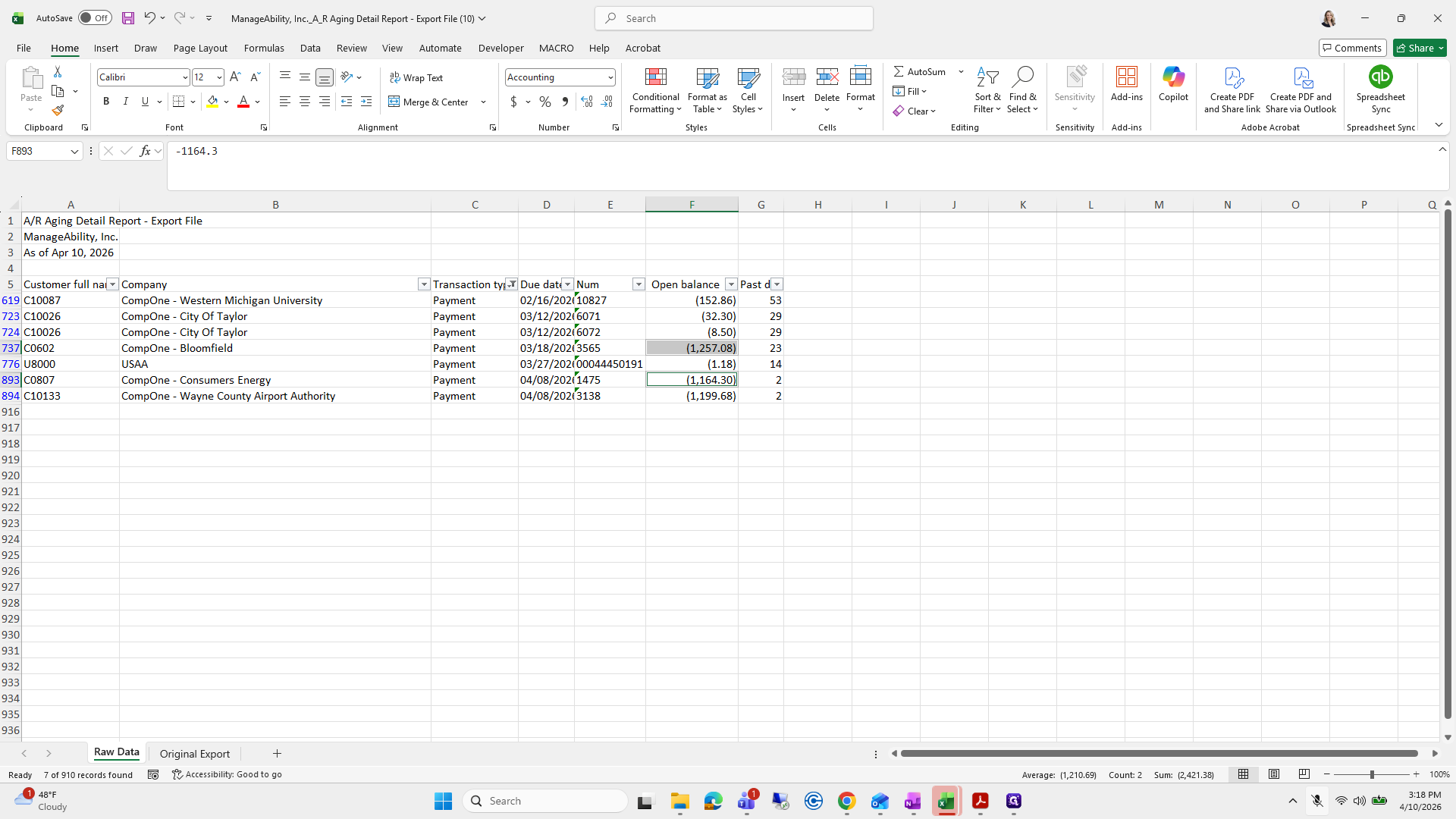
These are duplicate payments I entered today. I have inquiries with Michelle Hibbard about them. These three need to be booked to interest, and this one is an overpayment.
55
Click on "("
Step #55: Click on "("
56
Click on "( 1,164.30"
Step #56: Click on "( 1,164.30"
57
Click on "( 1,199.68"
Step #57: Click on "( 1,199.68"
58
Click on "▾ Open balance"
Step #58: Click on "▾ Open balance"
59
Click on "( 32.30"
Step #59: Click on "( 32.30"
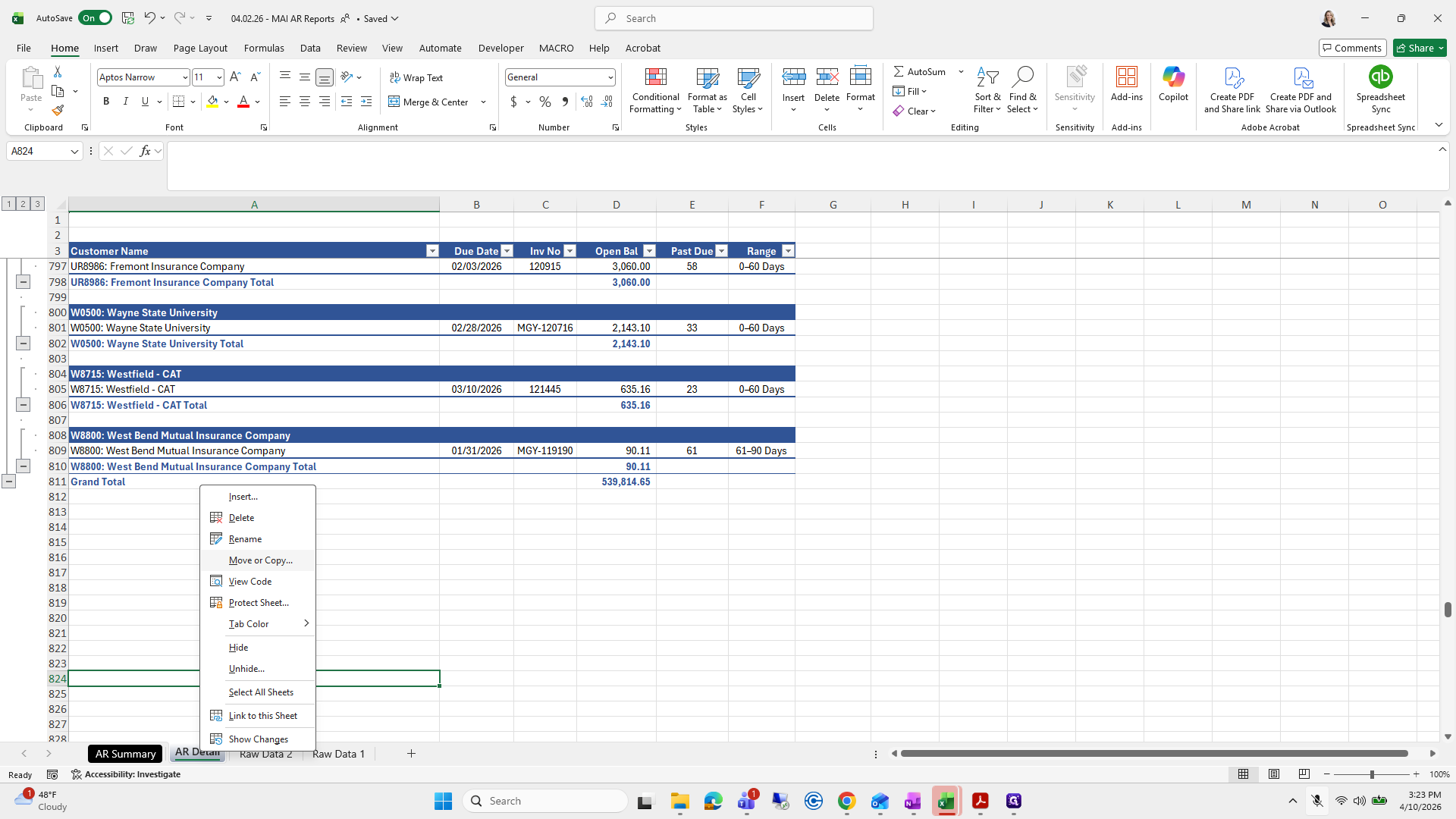
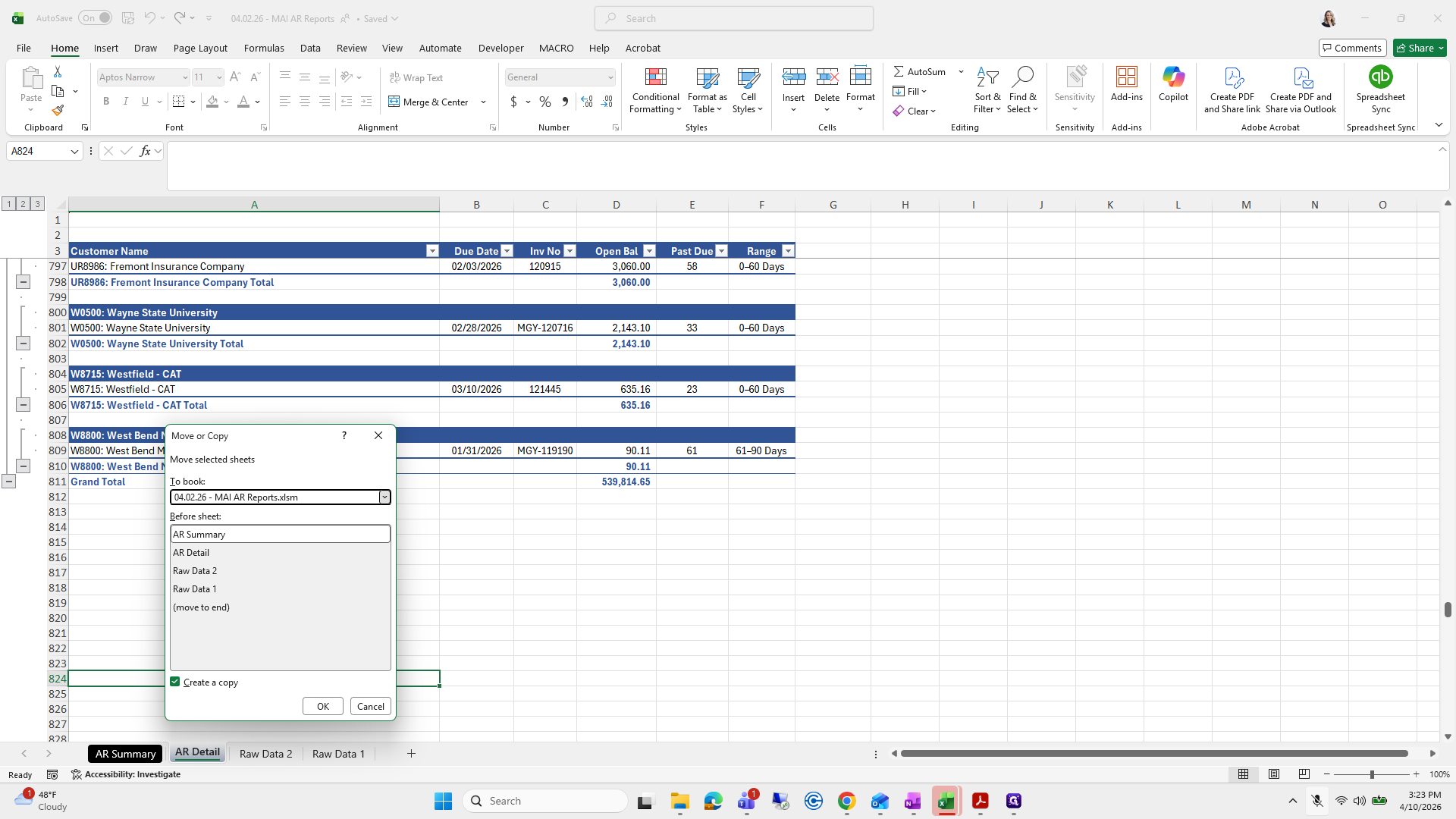
60
Click on "( 1,257.08"
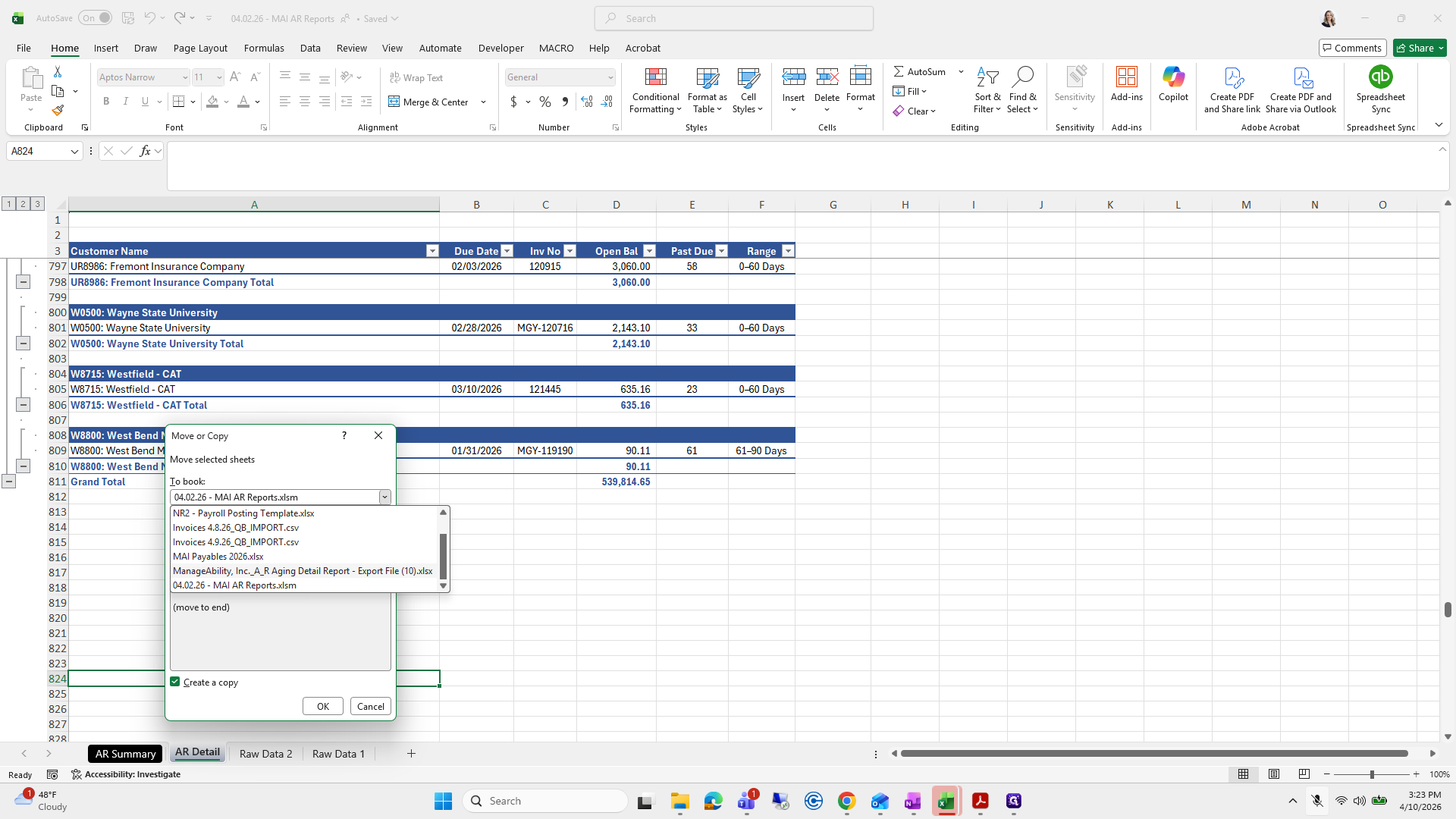
Step #60: Click on "( 1,257.08"
61
Click on "( 152.86"
Step #61: Click on "( 152.86"

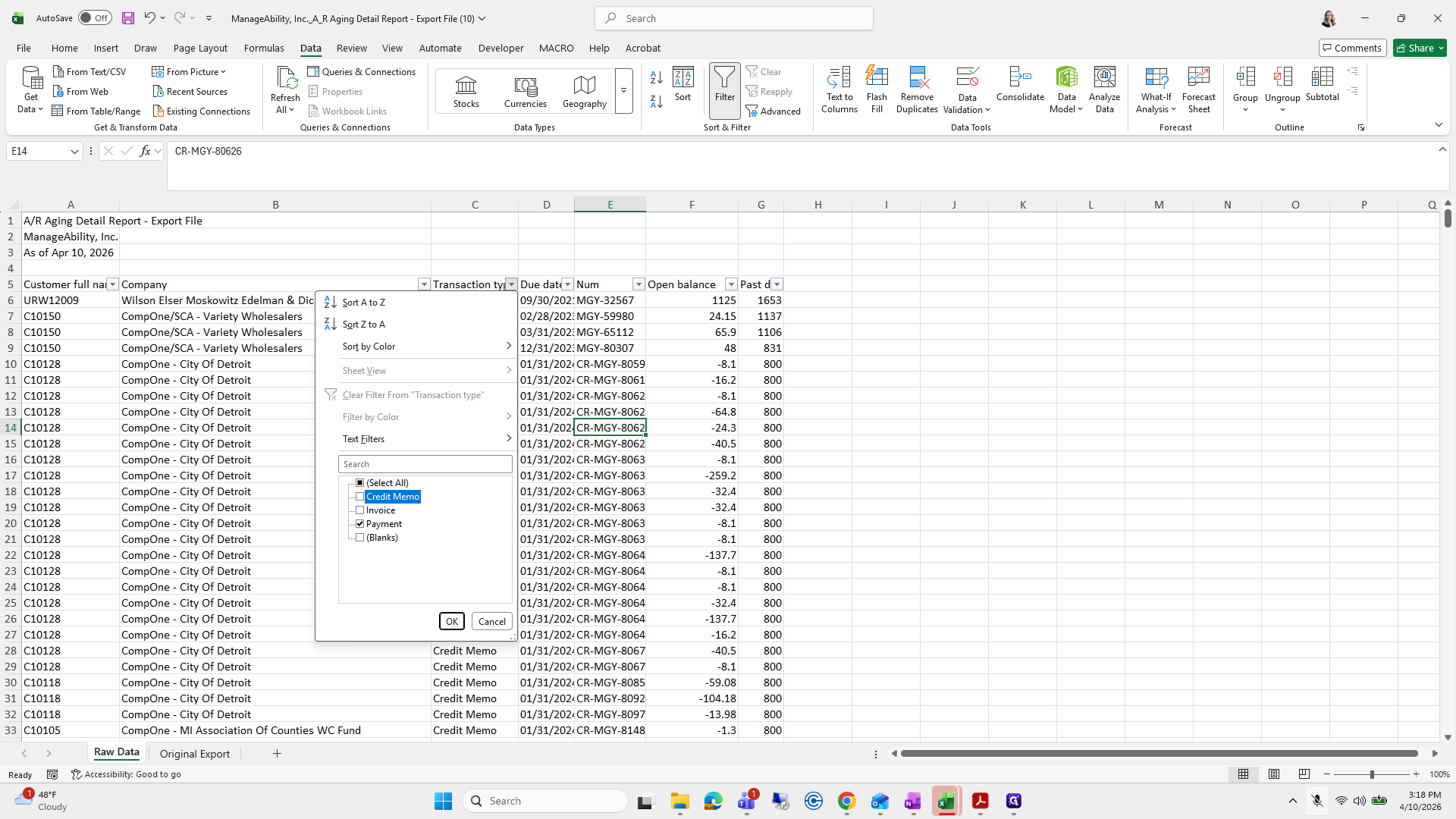
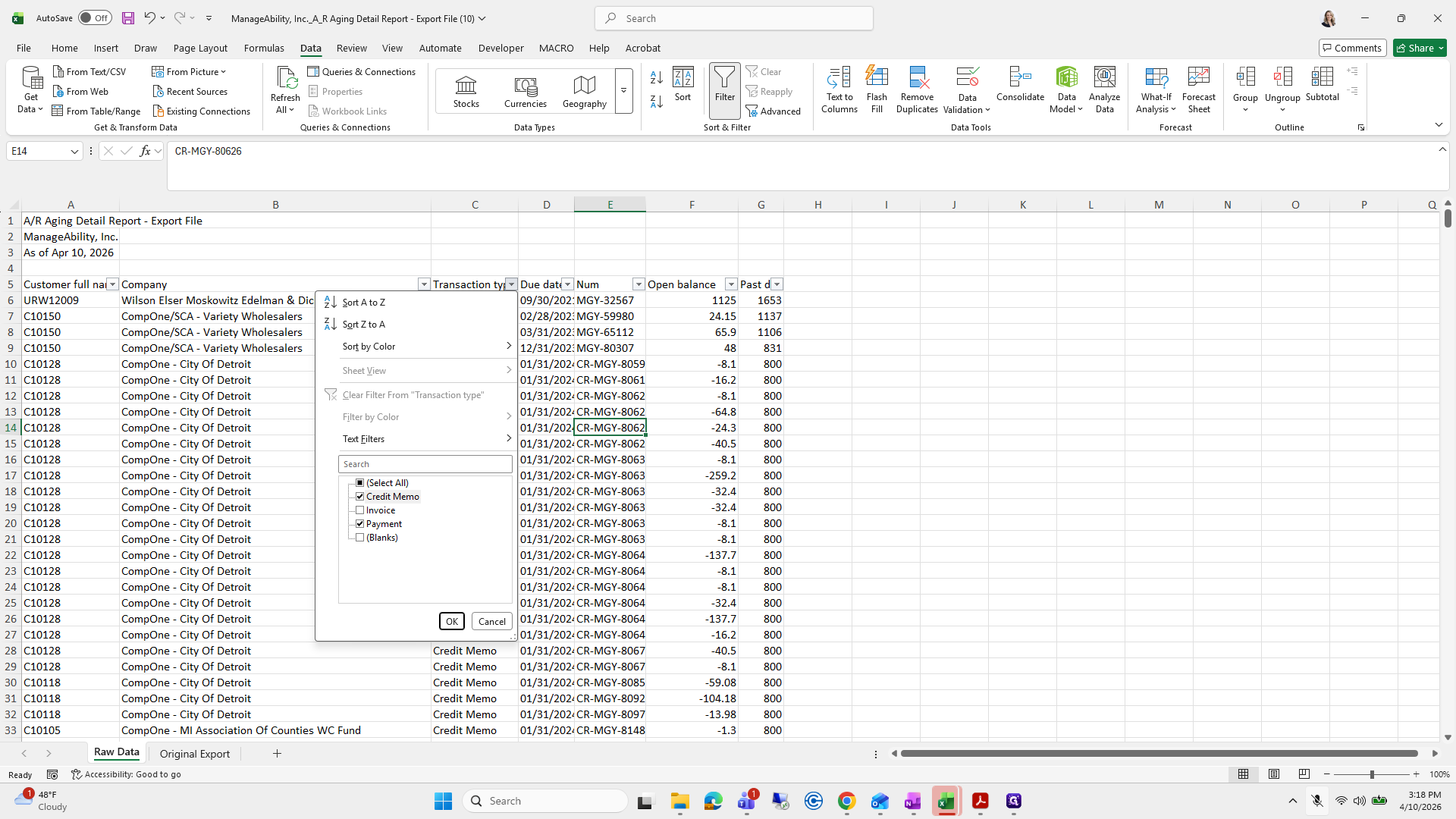
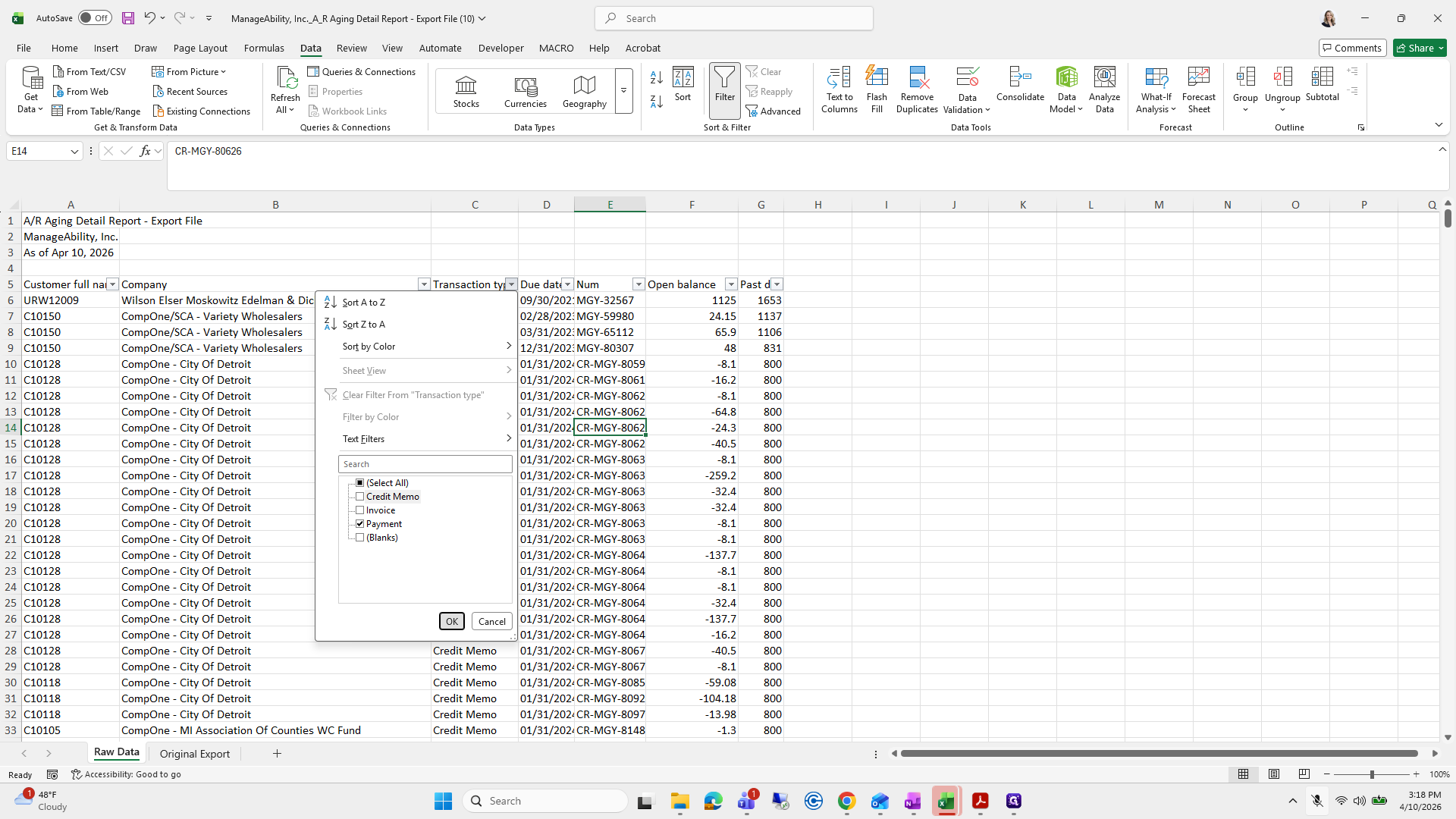
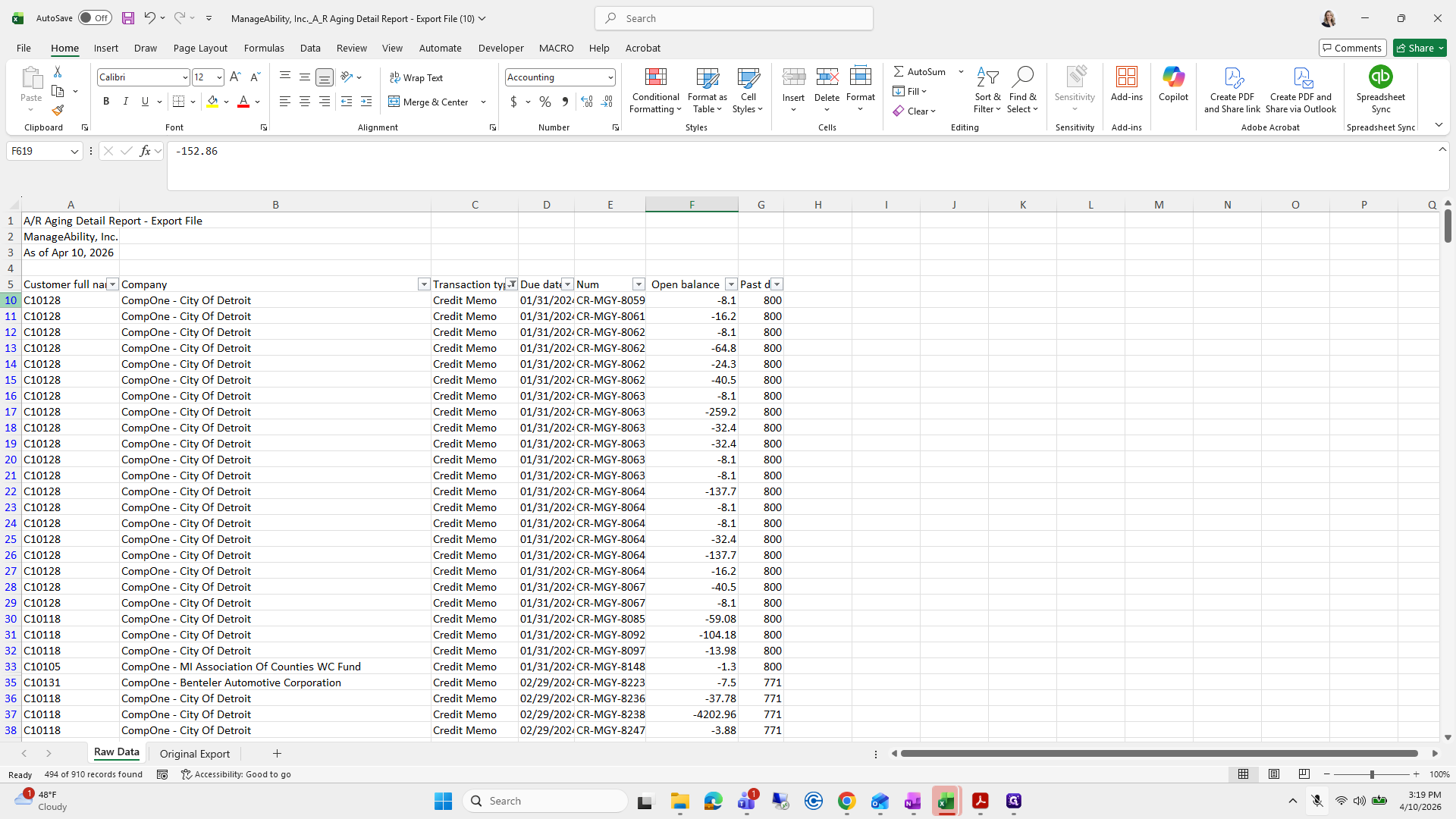
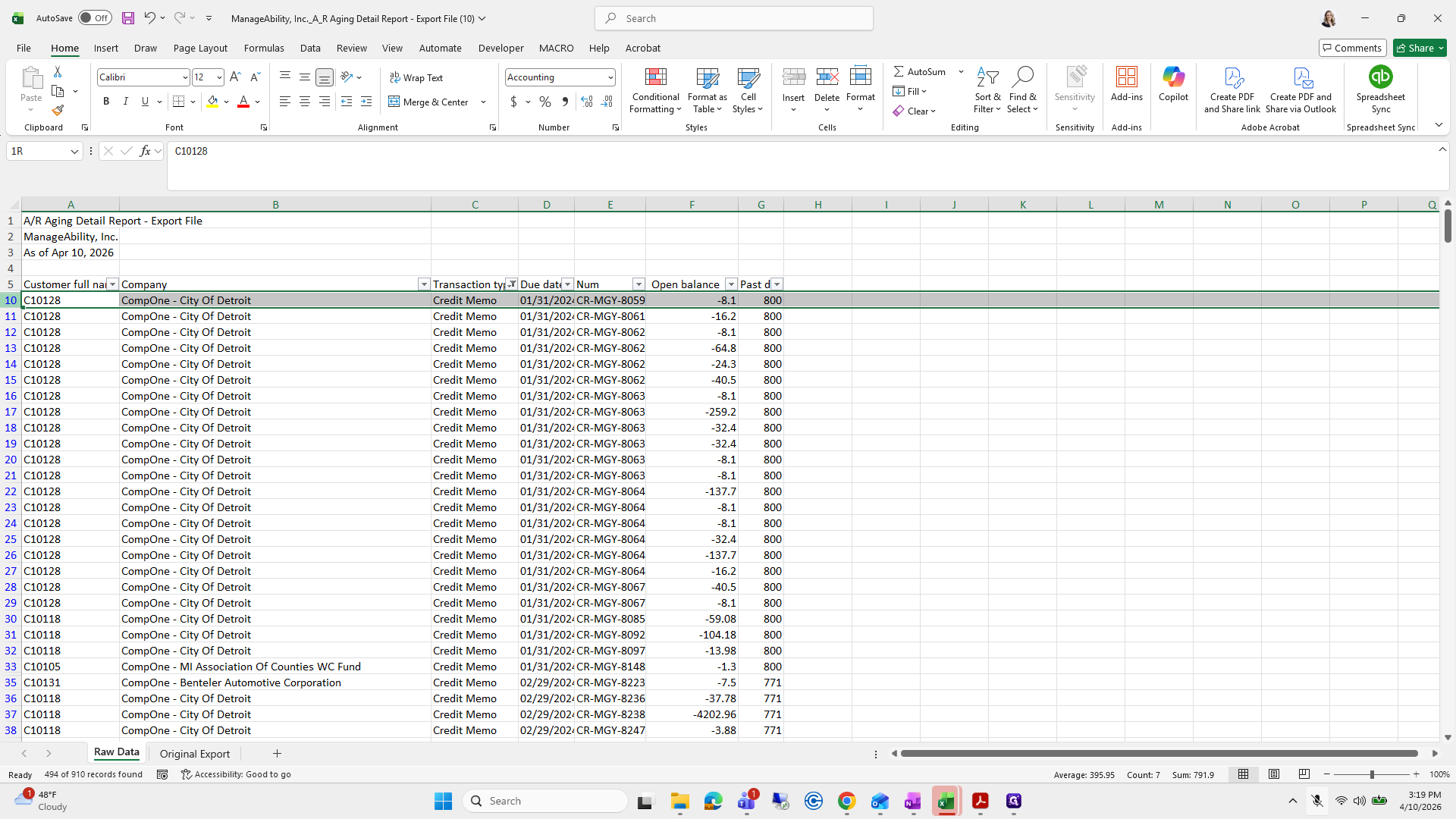
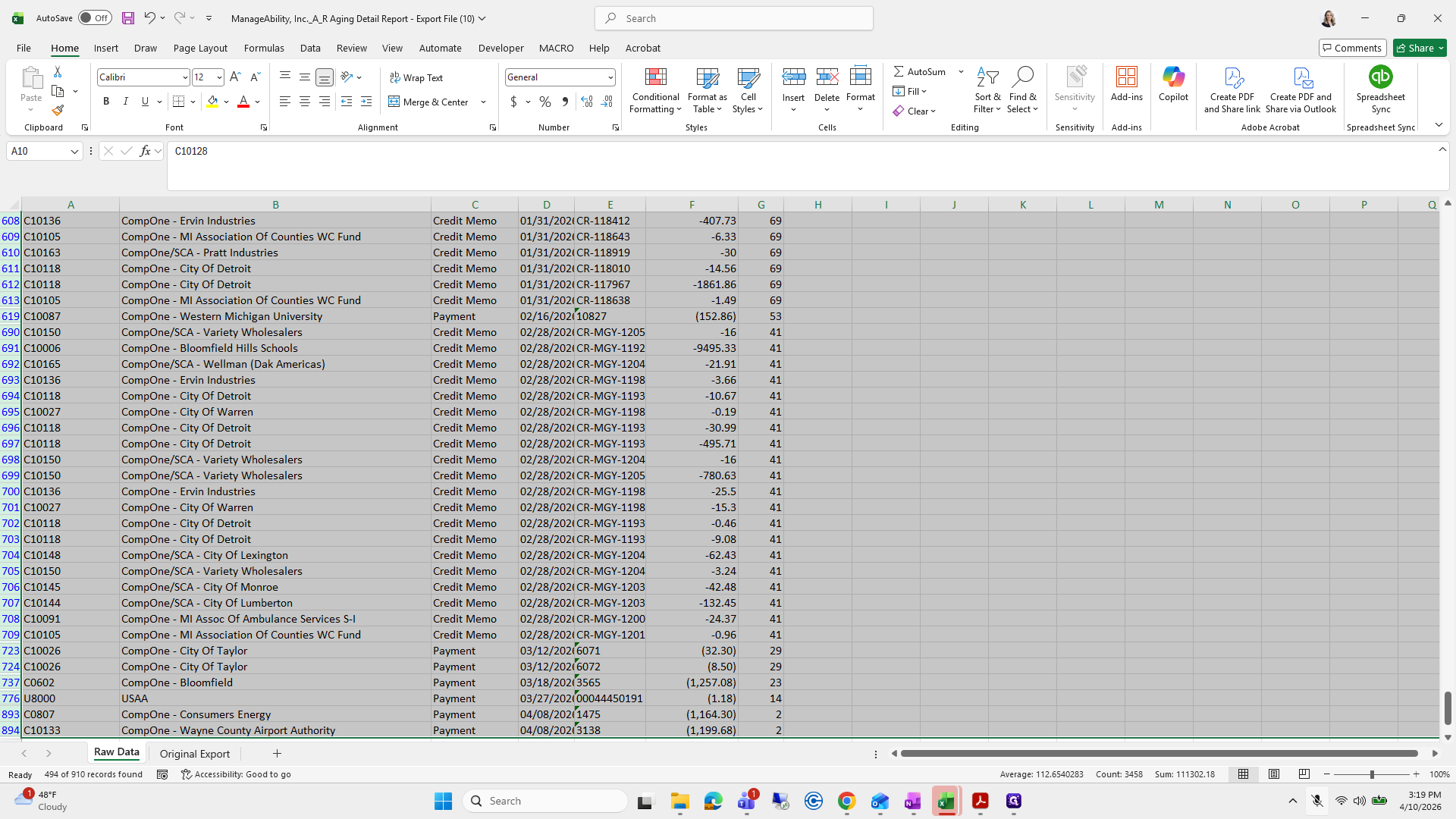
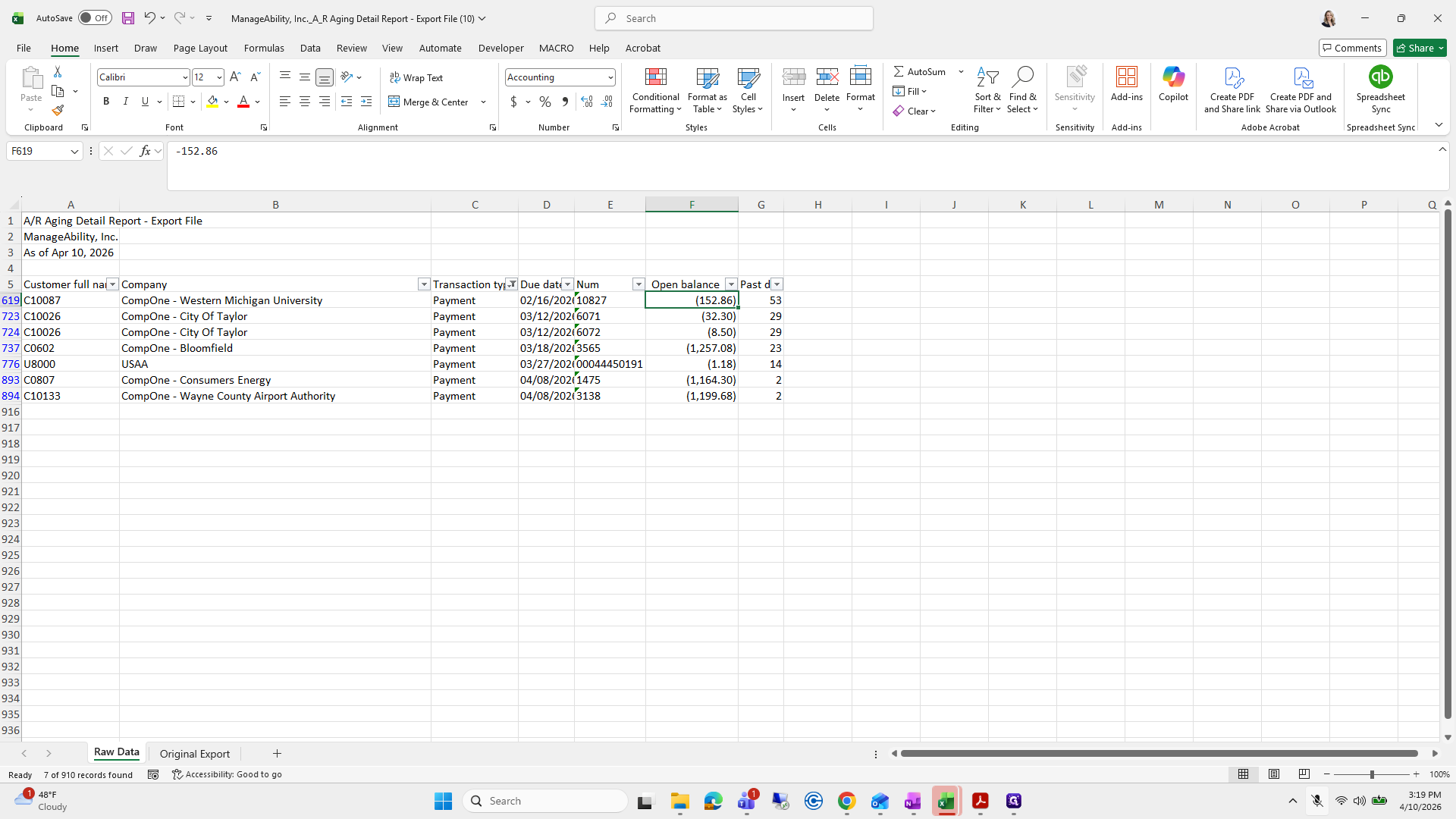
I will make sure those are taken care of. If they are not handled before maternity leave, filter Credit Memo and Payments. Start from the top left and drag all the way down.
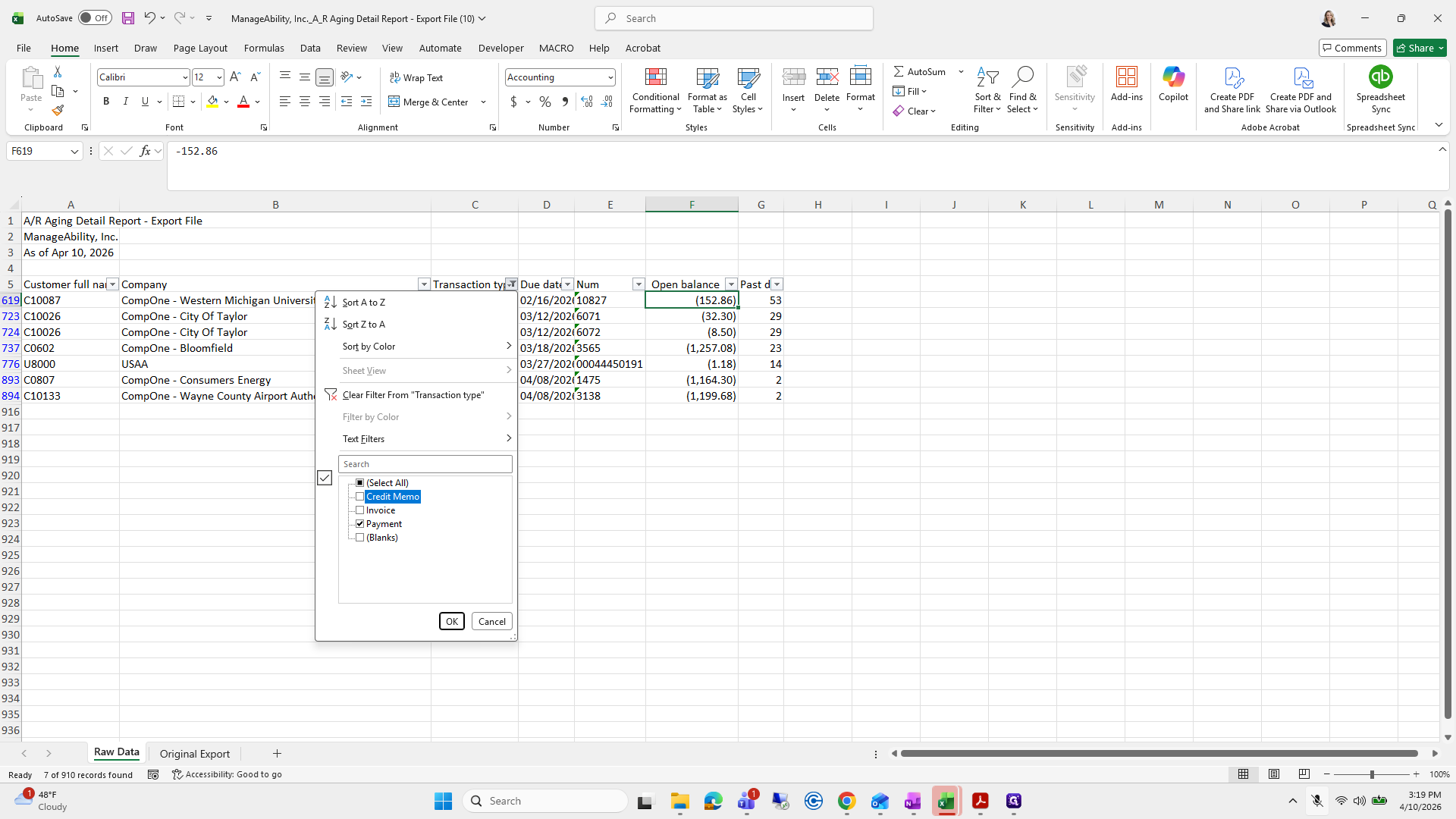
62
Click on "Transaction tyDue date ▾ Num"
Step #62: Click on "Transaction tyDue date ▾ Num"
63
Click on "Invoice"
Step #63: Click on "Invoice"
64
Click on "☑"
Step #64: Click on "☑"
65
Click on "10 C10128"
Step #65: Click on "10 C10128"
66
Drag "10 C10128"
Step #66: Drag "10 C10128"

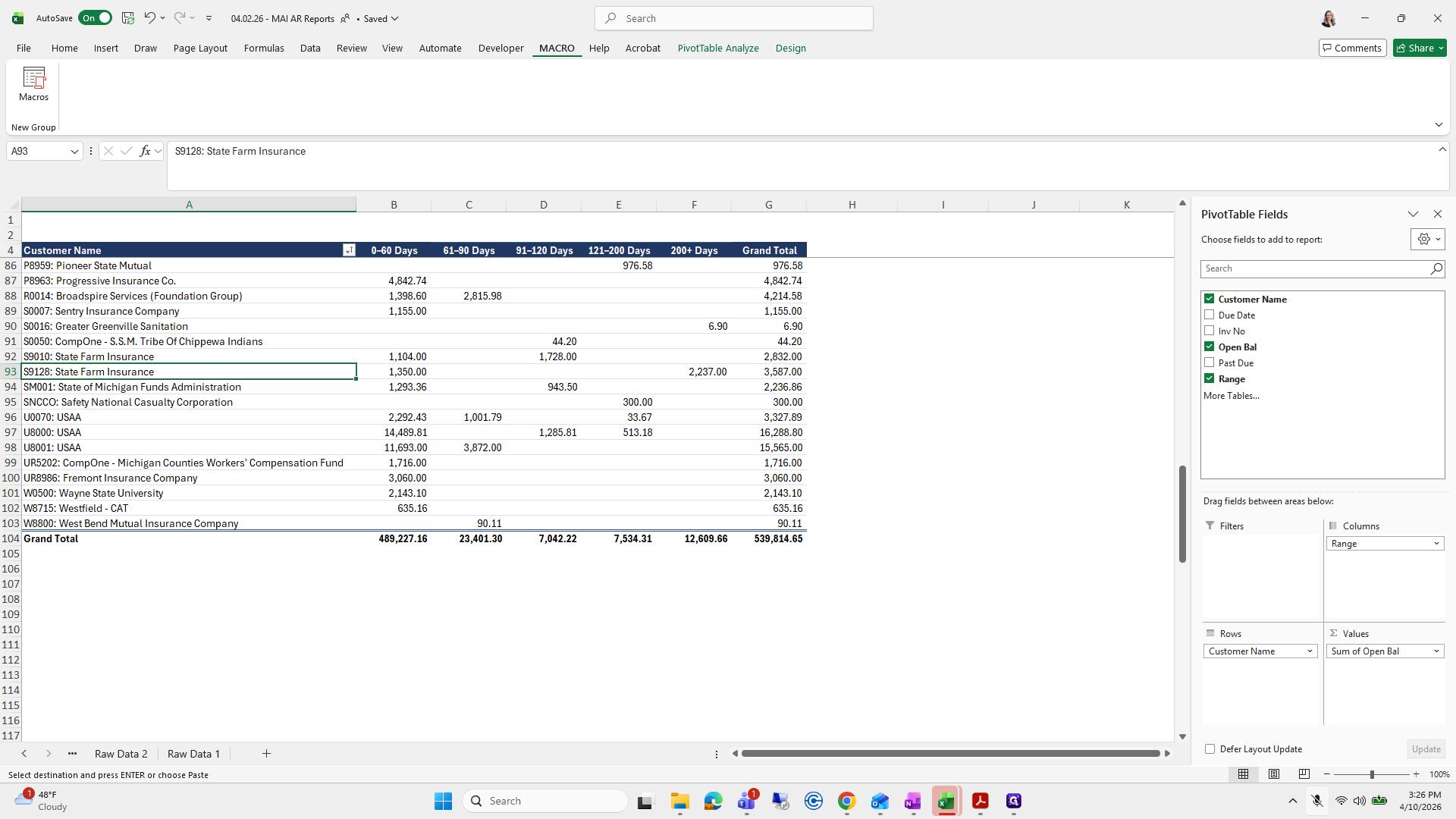
It... Can I go any further? No.

67
Right-click on "CompOne / SCA - Variety Wholesalers"
Step #67: Right-click on "CompOne / SCA - Variety Wholesalers"

Right-click Delete, then press...

68
Click on "Delete Row"
Step #68: Click on "Delete Row"
69
Click here
Step #69: Click here
70
Click on "Data"
Step #70: Click on "Data"

Where is my data?

71
Click on "Clear"
Step #71: Click on "Clear"

Clear it, and then there's this person I haven't written off yet, which I need to do. Don't forget to delete it, because JB will notice.
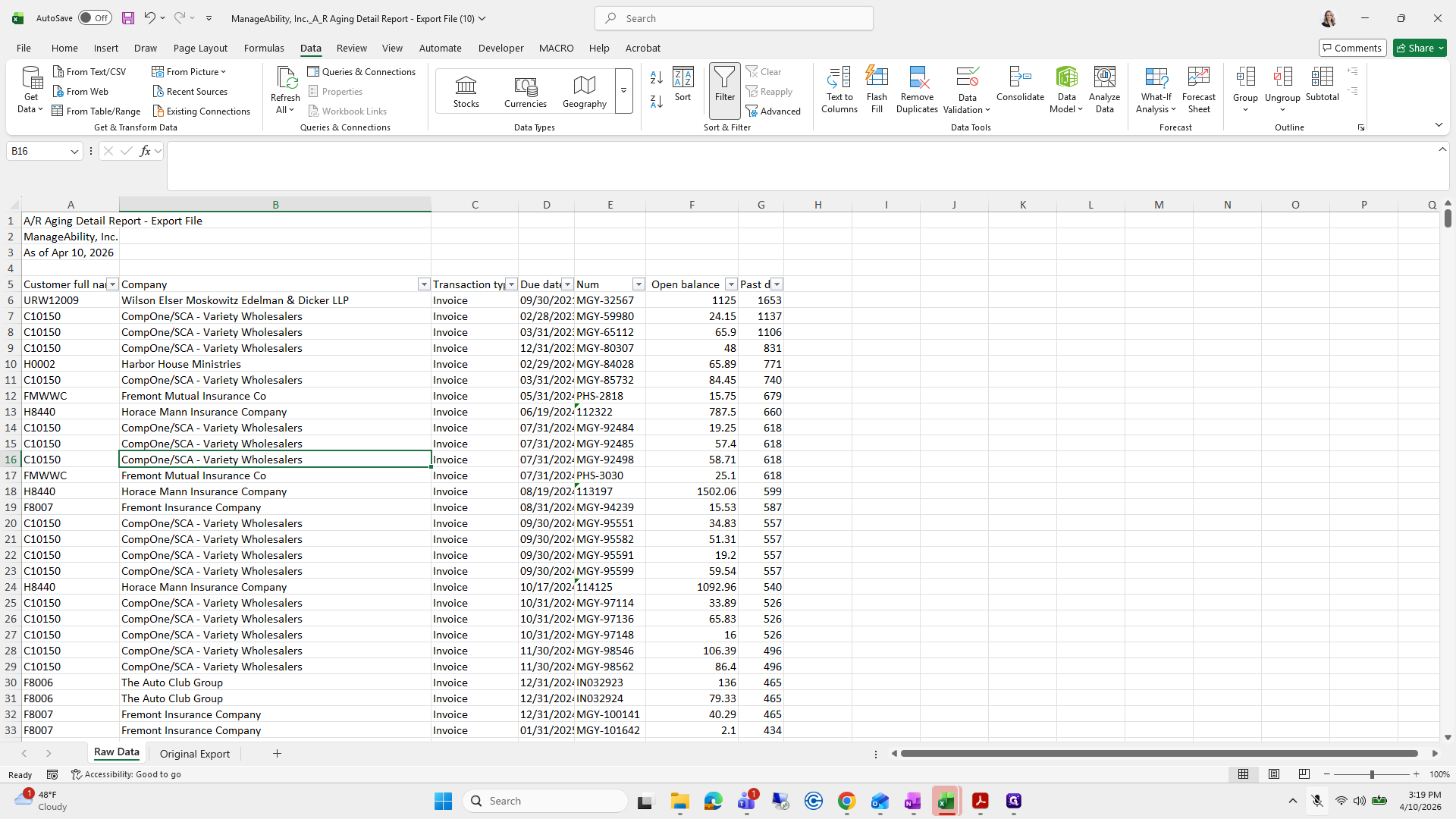
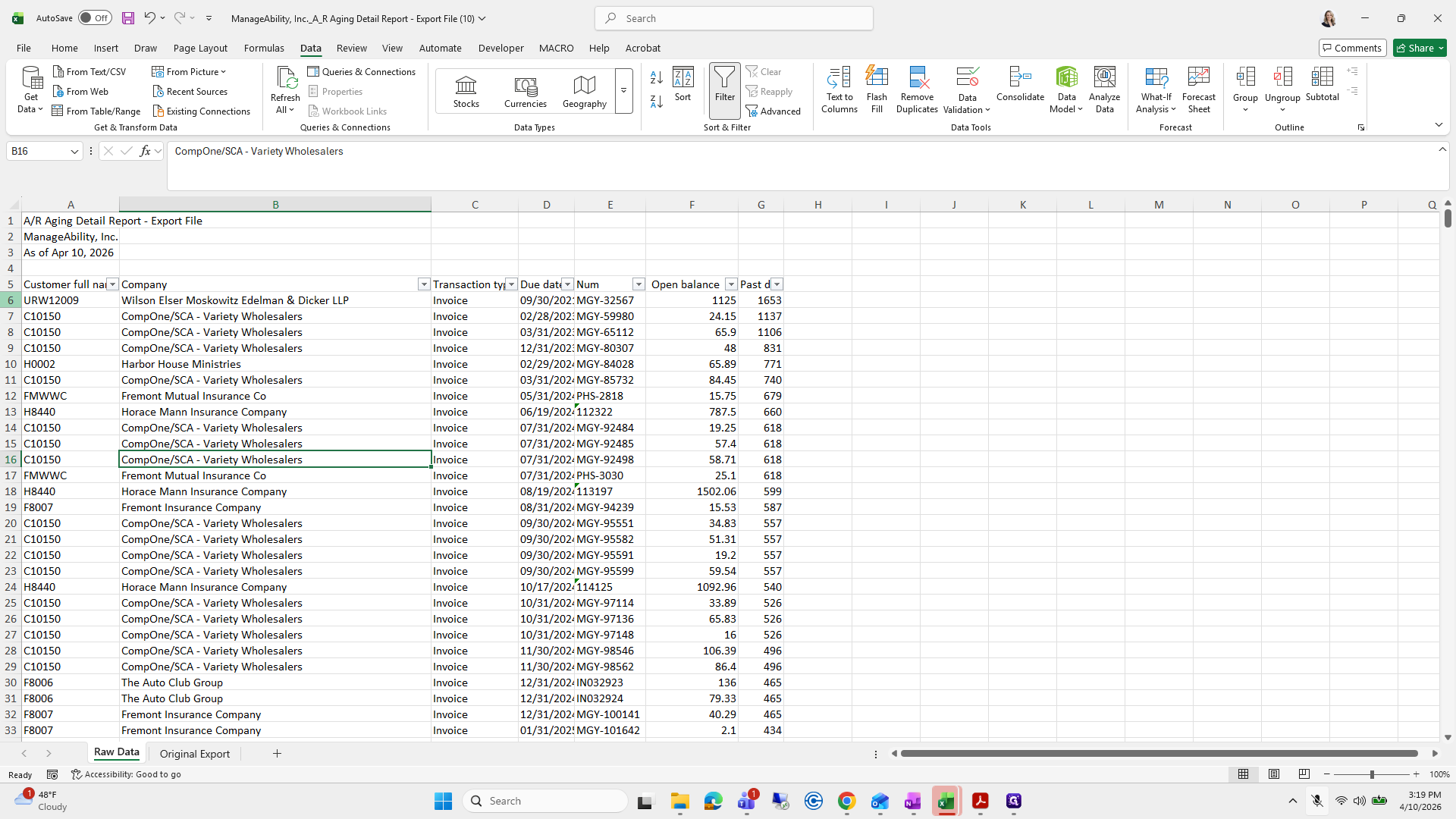
72
Click here
Step #72: Click here
73
Click on "6"
Step #73: Click on "6"
74
Right-click on "▾ Open balance"
Step #74: Right-click on "▾ Open balance"
75
Click here
Step #75: Click here
76
Click on "Invoice"
Step #76: Click on "Invoice"
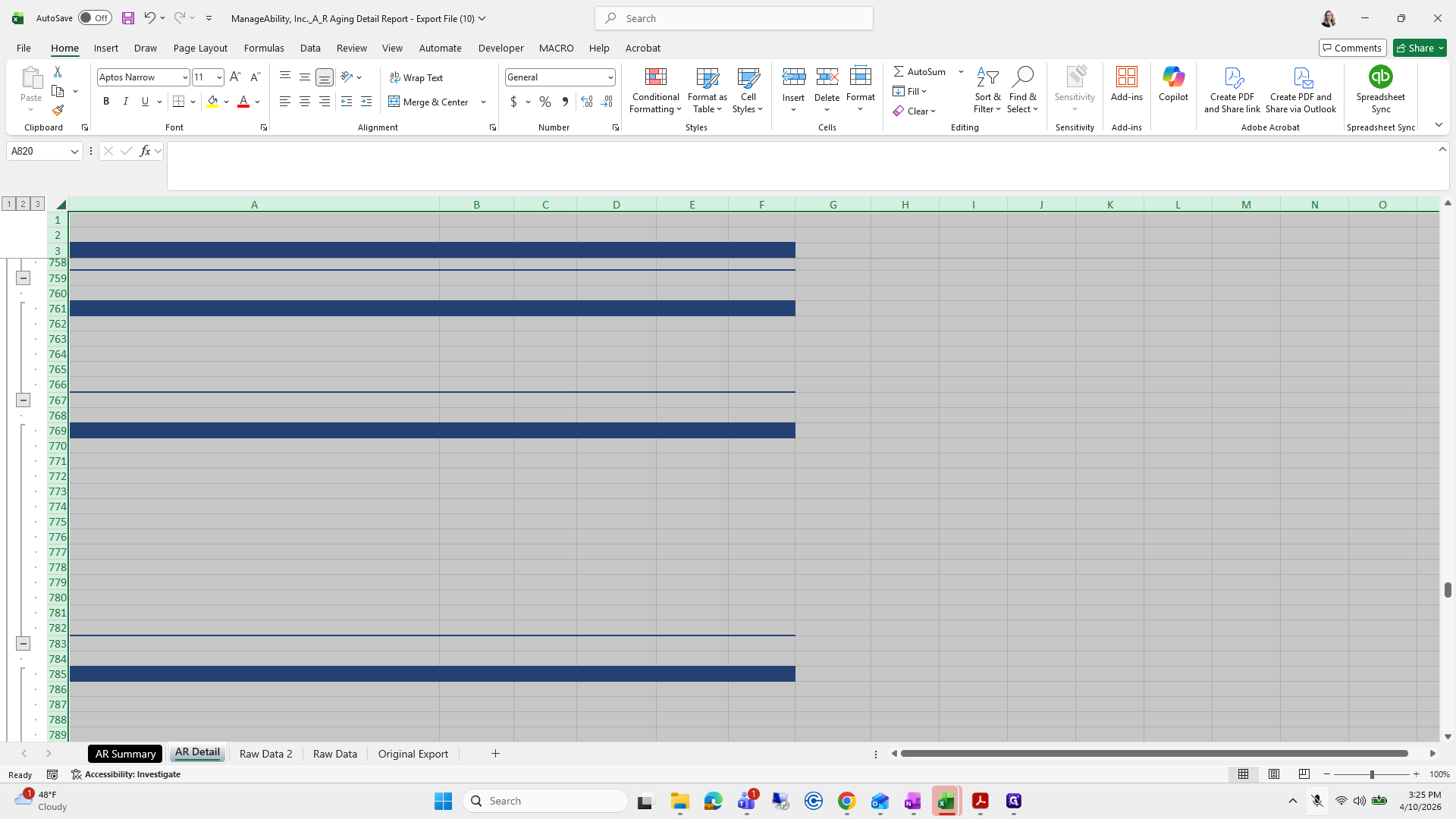
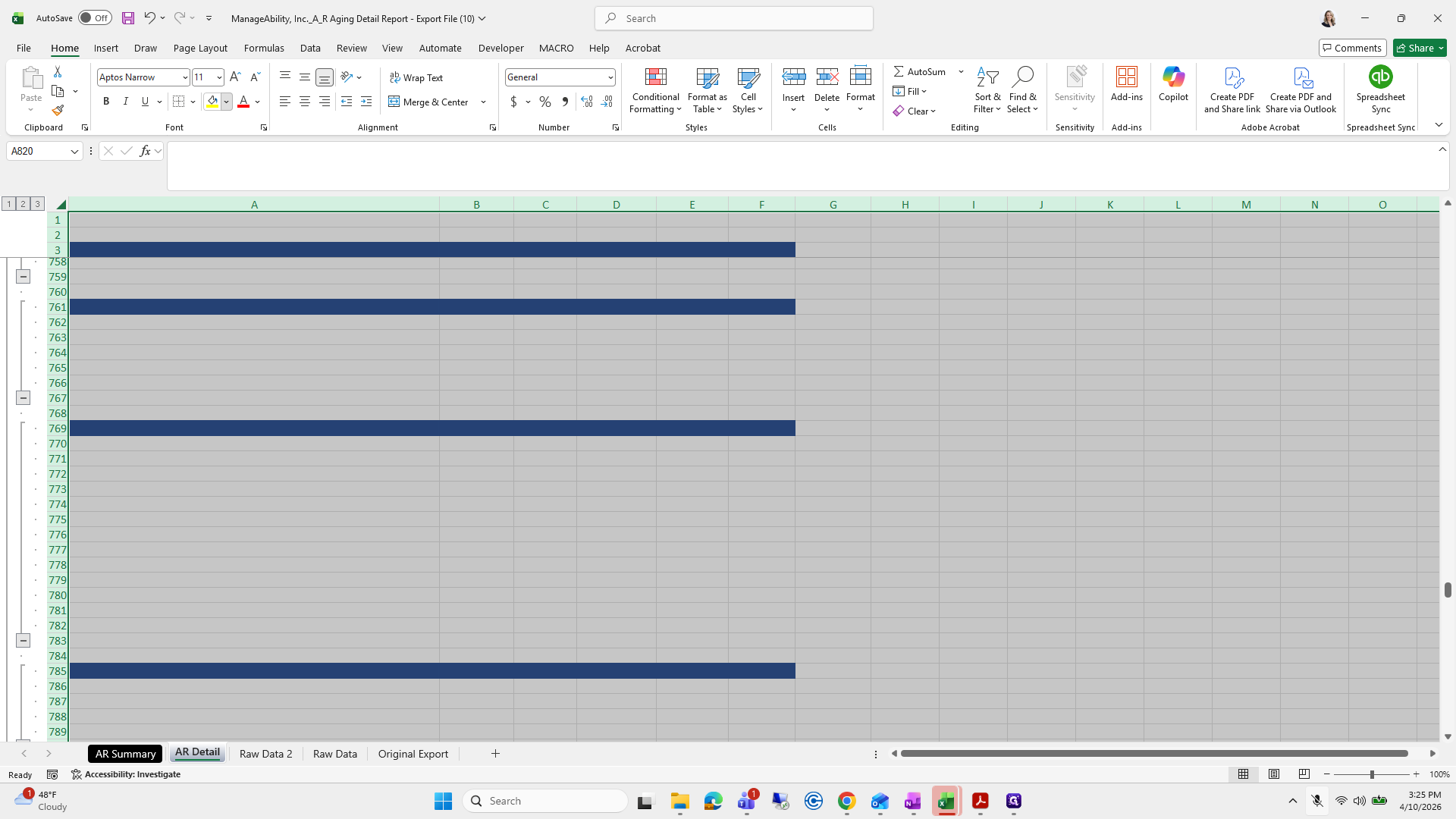
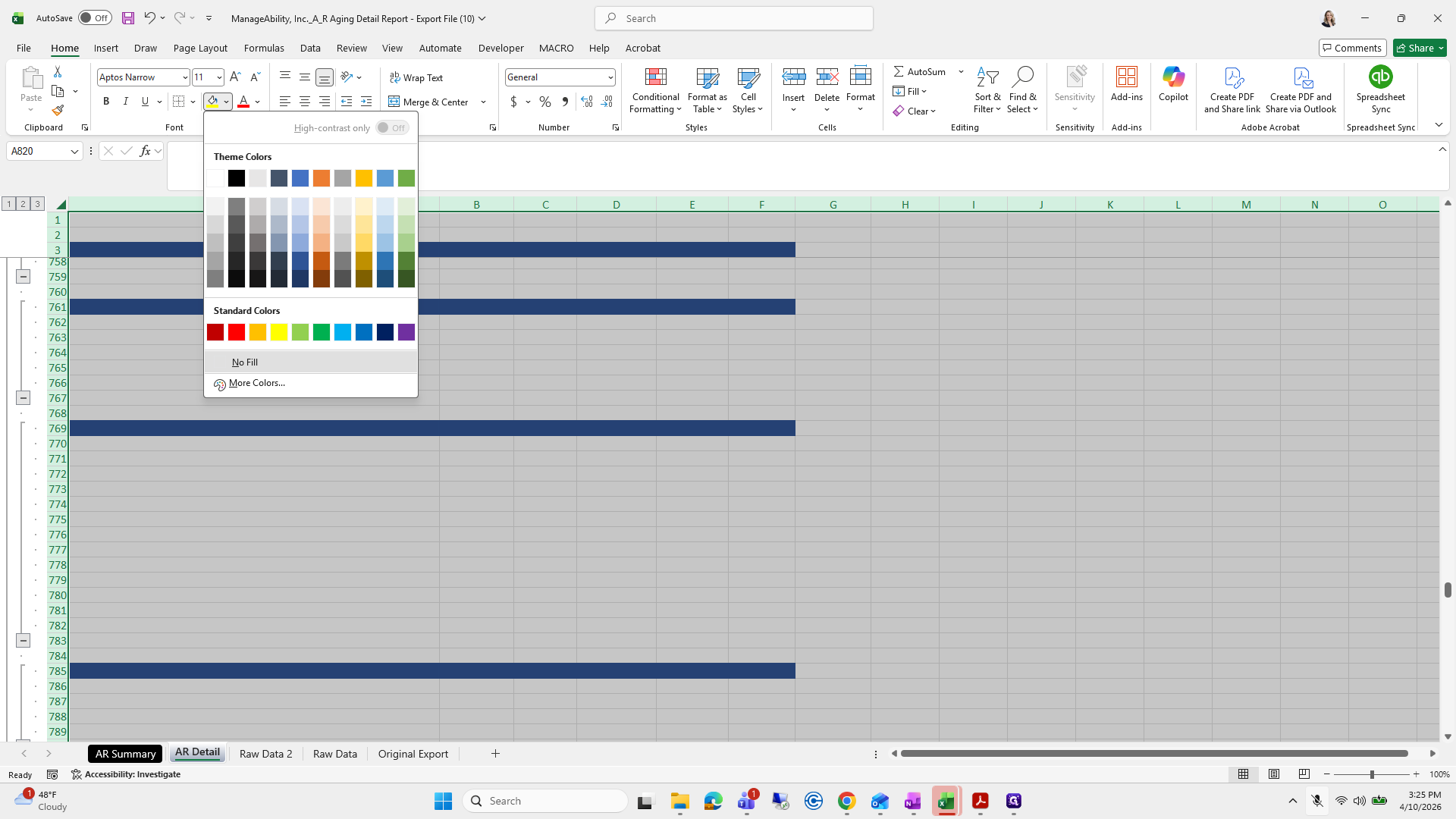
77
Click here
Step #77: Click here

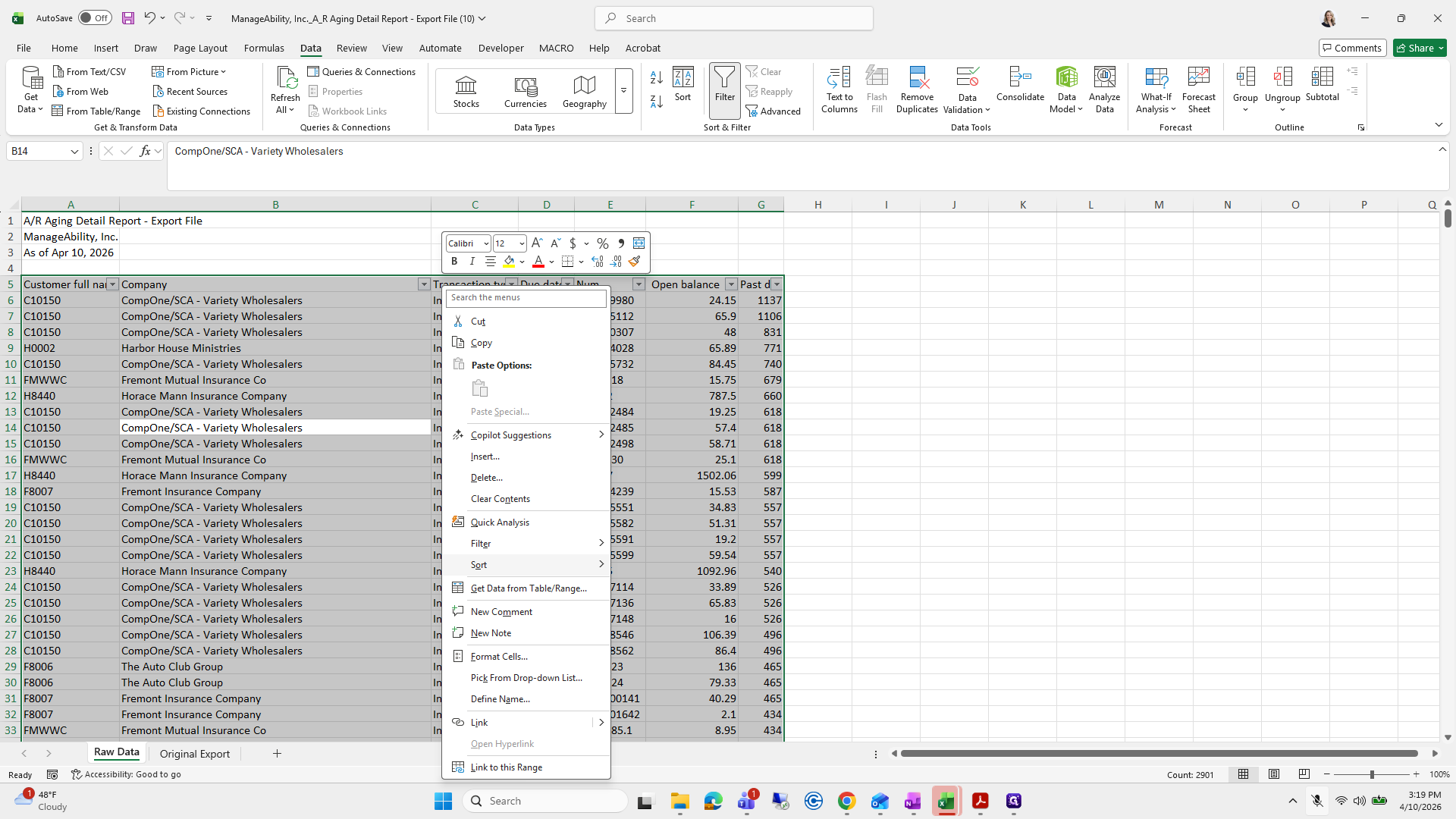
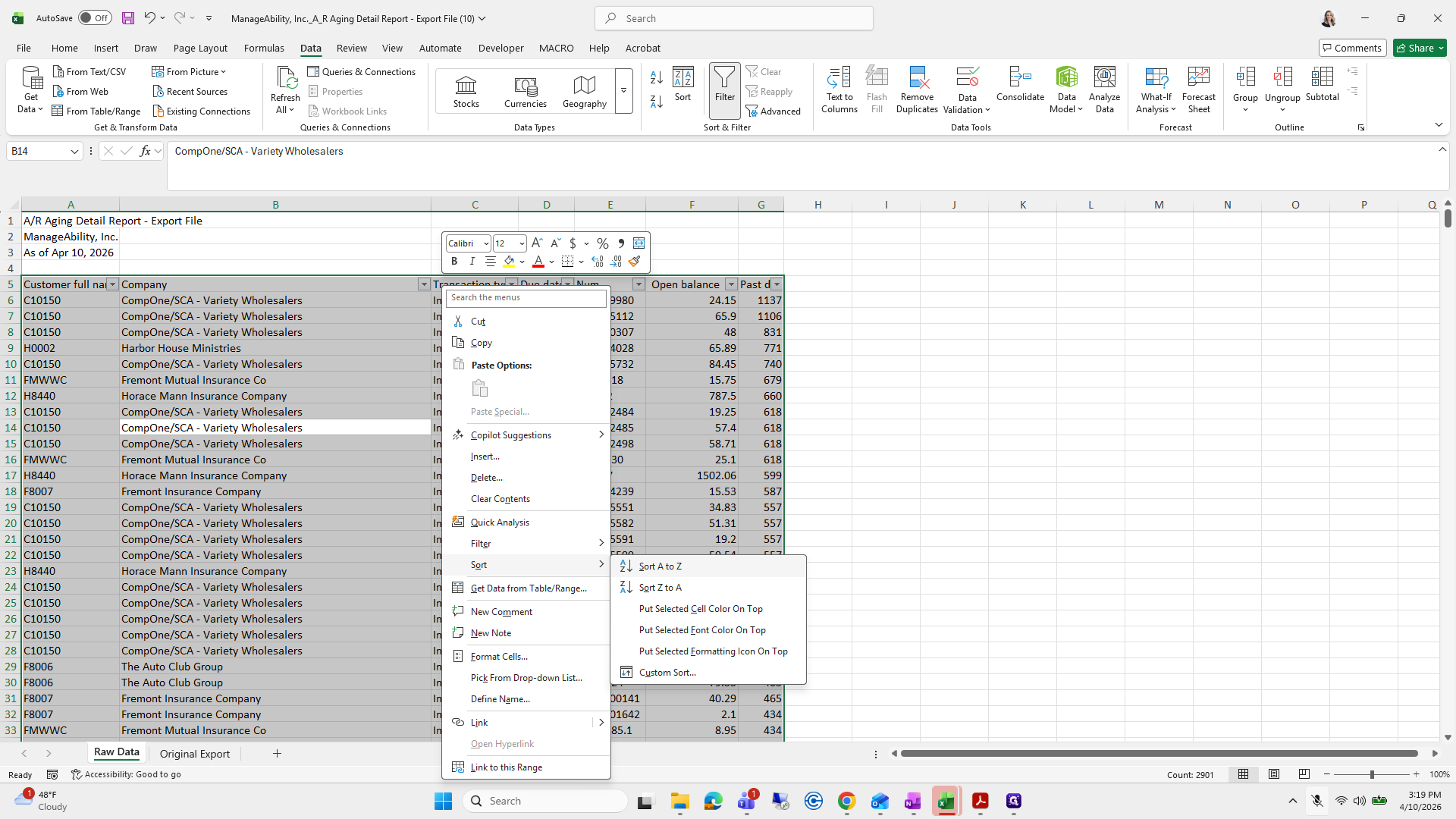
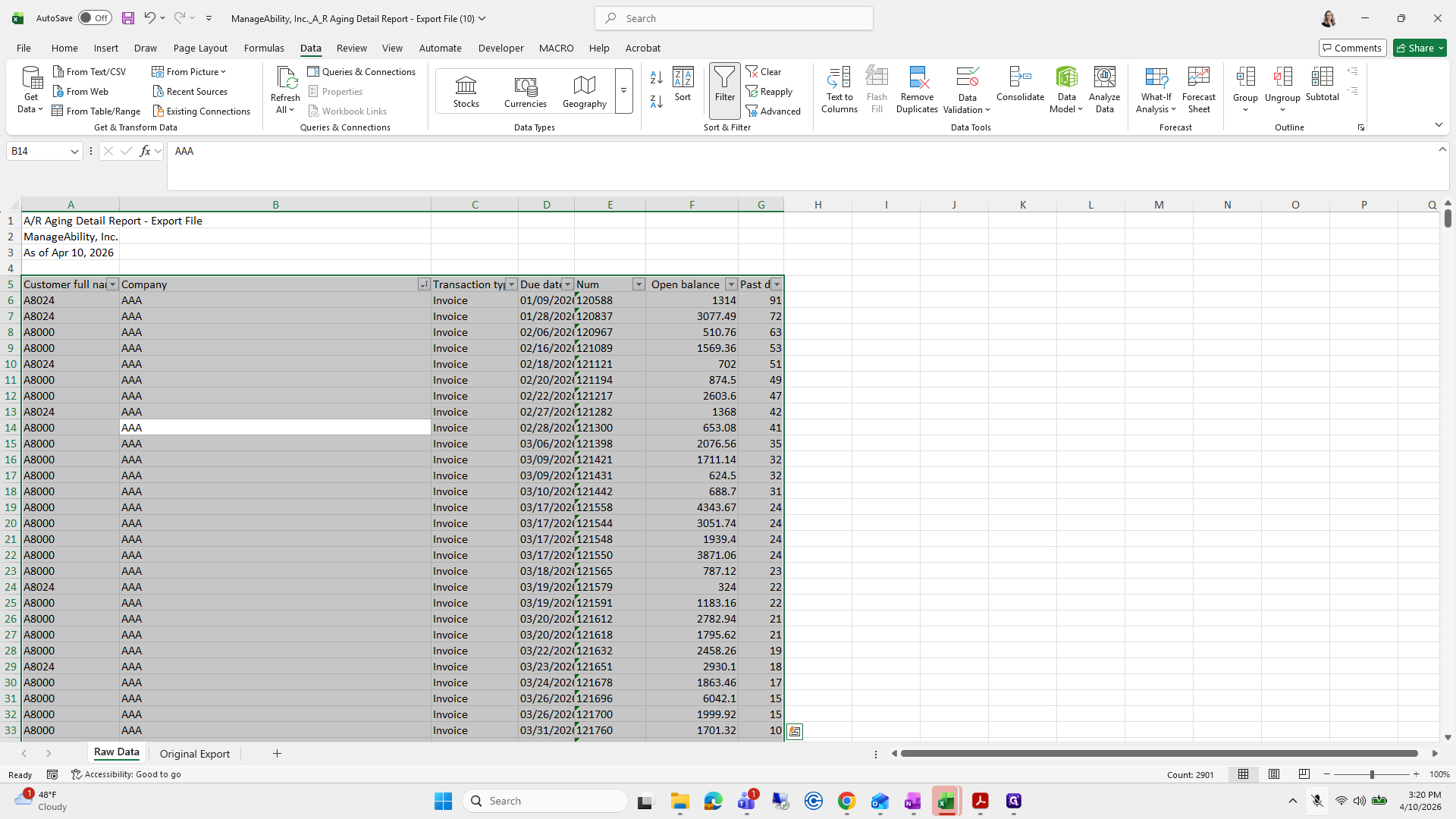
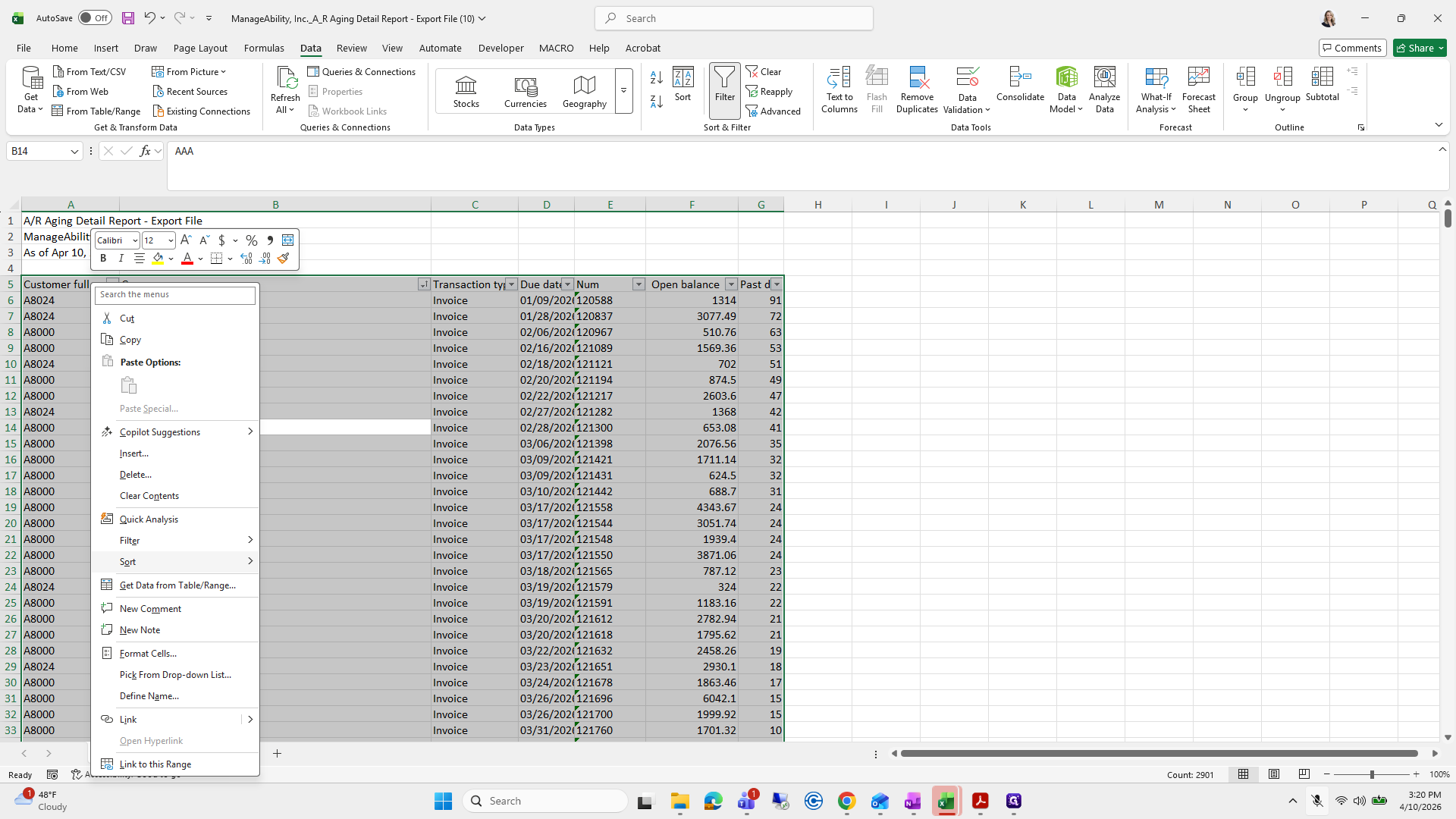
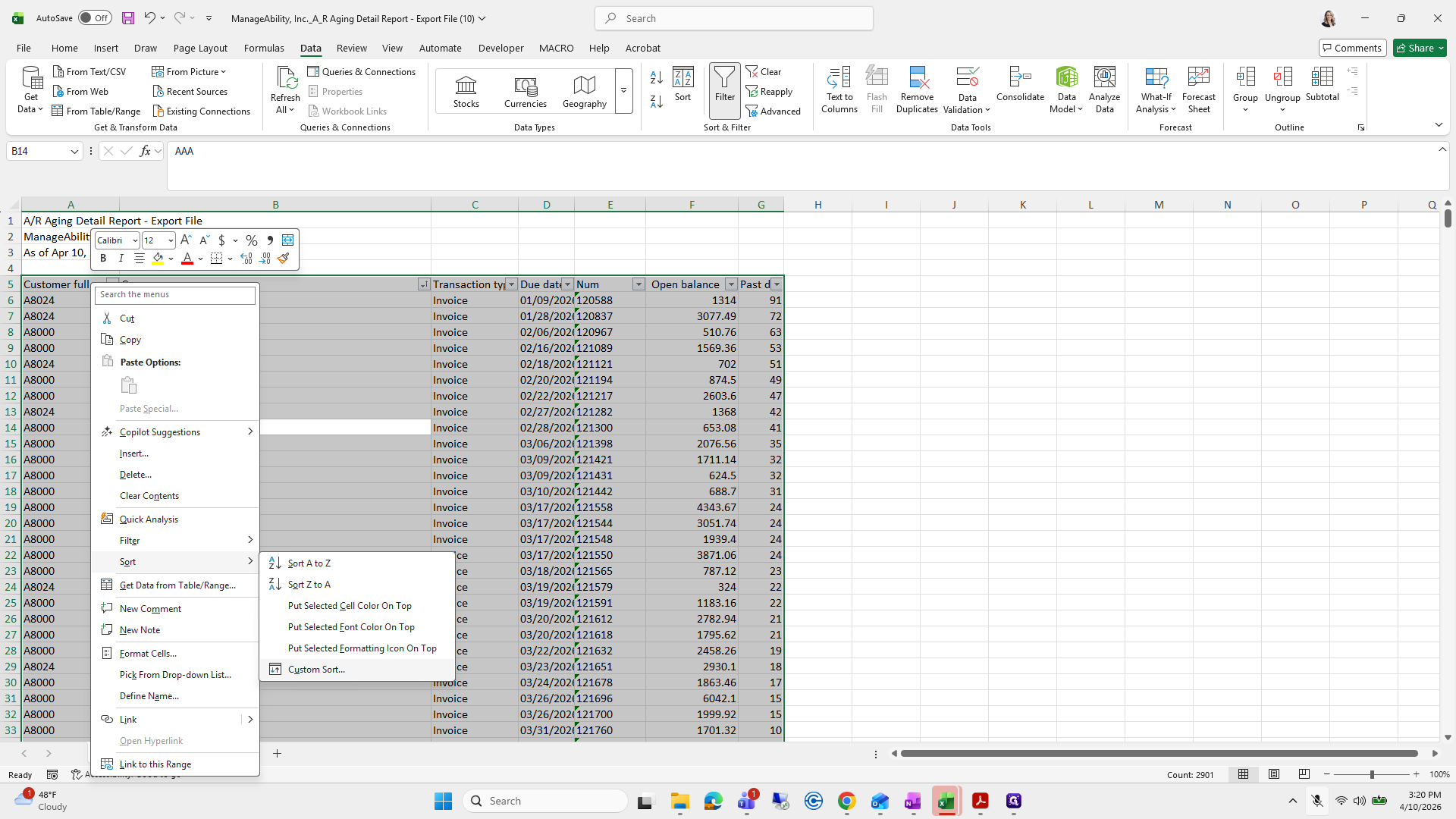
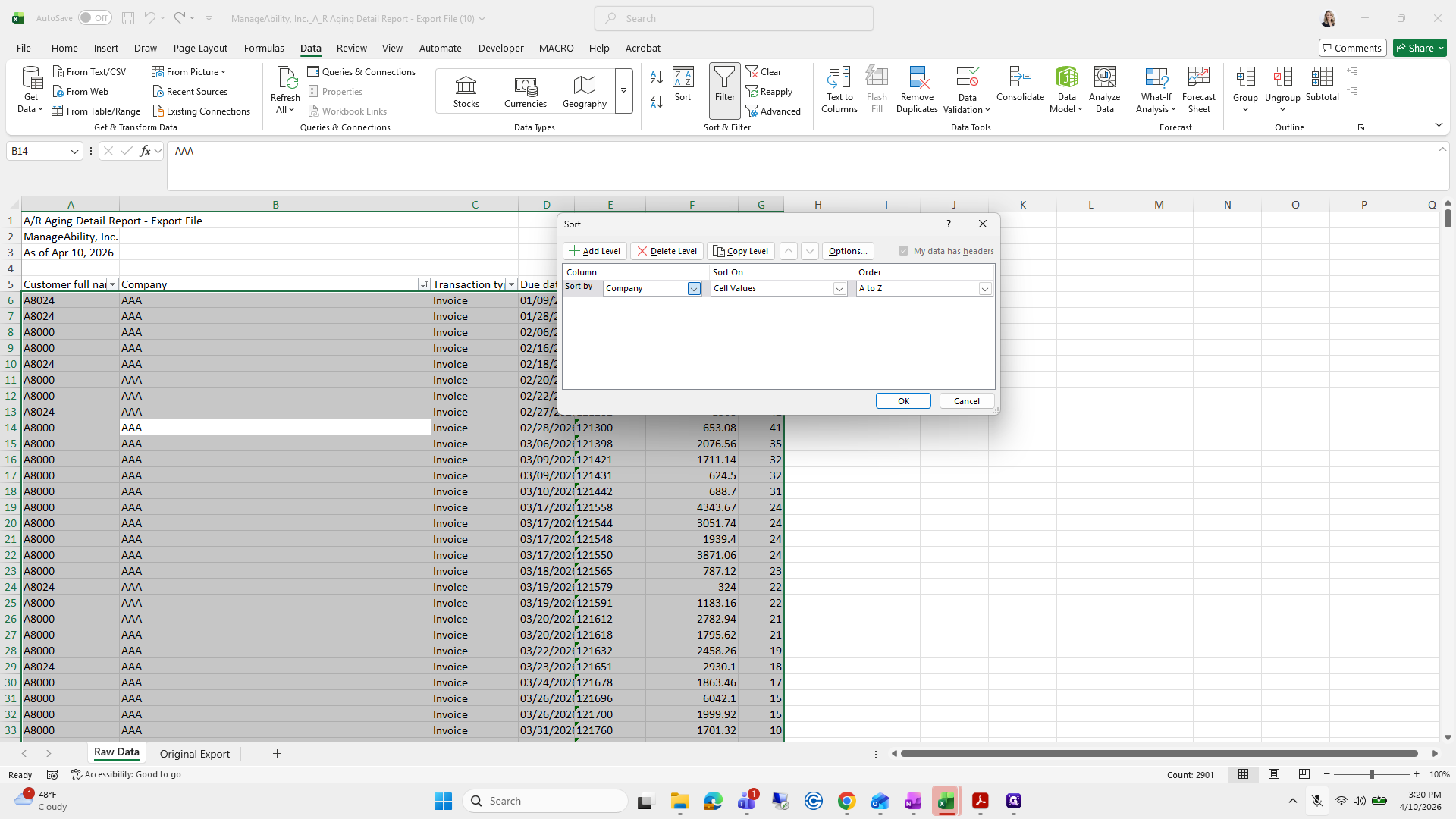
I select all, then sort A to Z by customer name. I don't think I did it correctly.
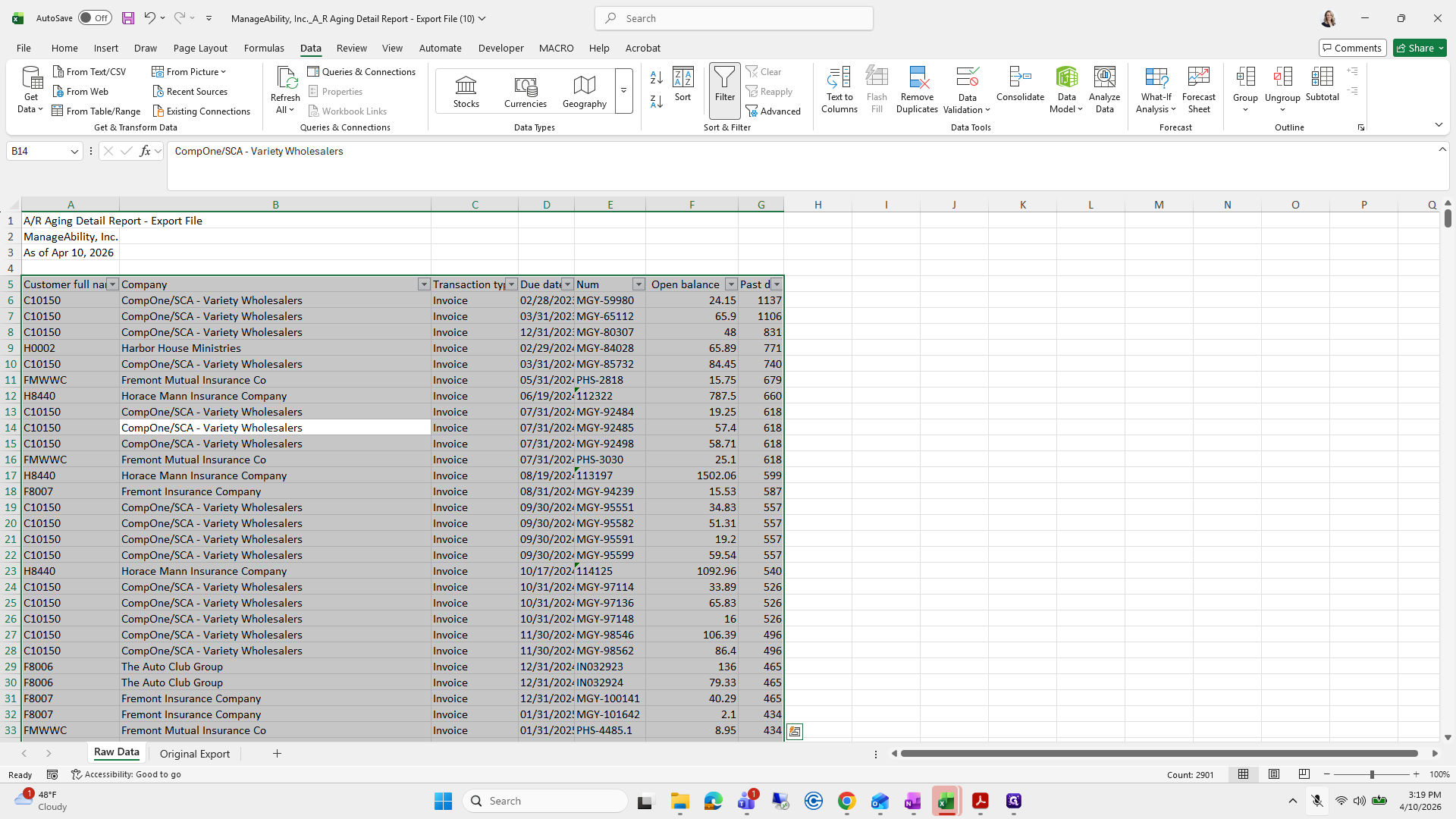
78
Type "Ctrl + A"
79
Right-click on "Invoice"
Step #79: Right-click on "Invoice"
80
Click on "Get Data from Table / Range"
Step #80: Click on "Get Data from Table / Range"
81
Click on "↓ Sort A to Z"
Step #81: Click on "↓ Sort A to Z"
82
Right-click on "na"
Step #82: Right-click on "na"
83
Click here
Step #83: Click here
84
Click on "Put Selected Formatting Icon On Top Custom Sort ..."
Step #84: Click on "Put Selected Formatting Icon On Top Custom Sort ..."
85
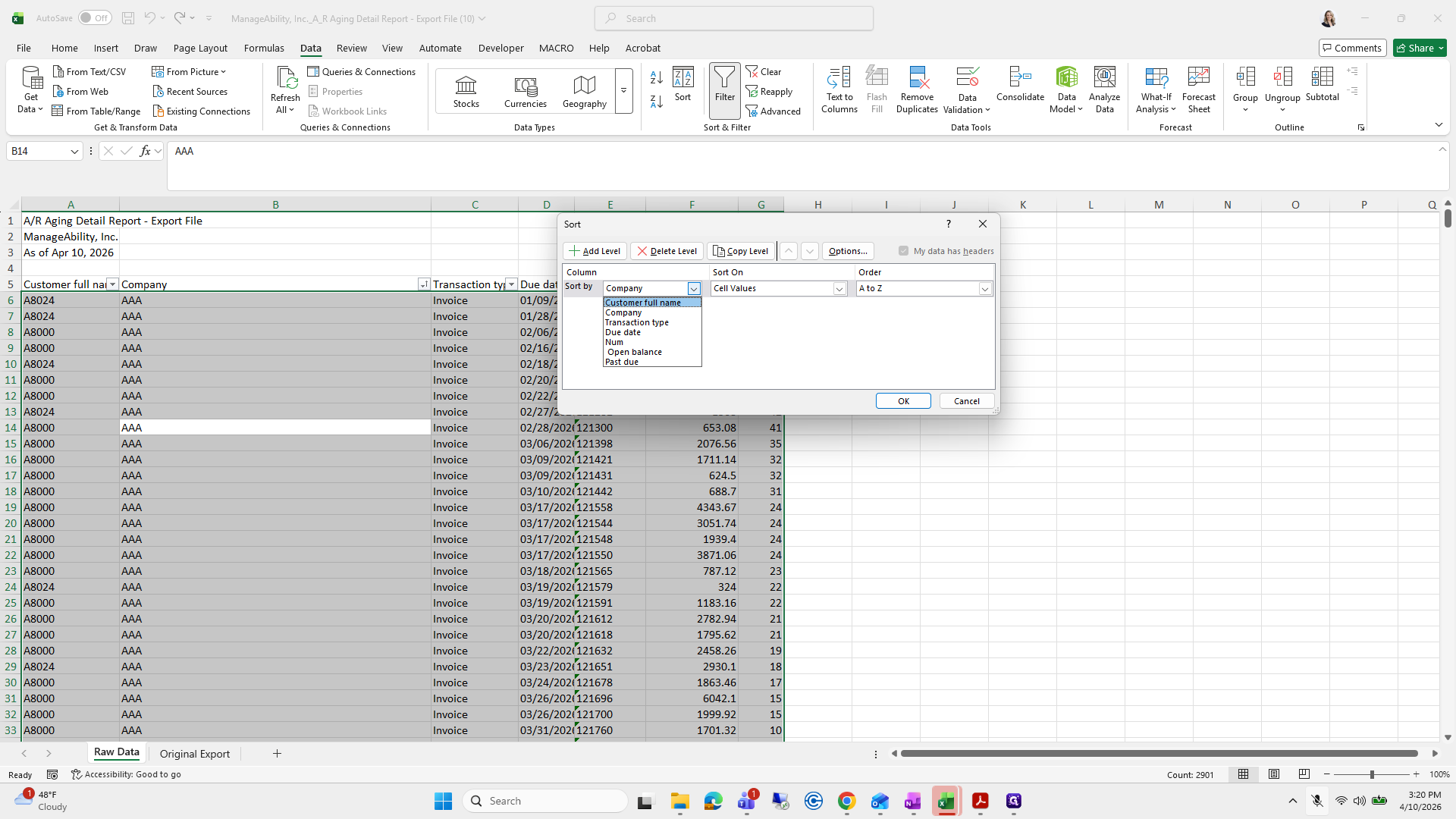
Click on "Company"
Step #85: Click on "Company"
86
Click on "Customer full name"
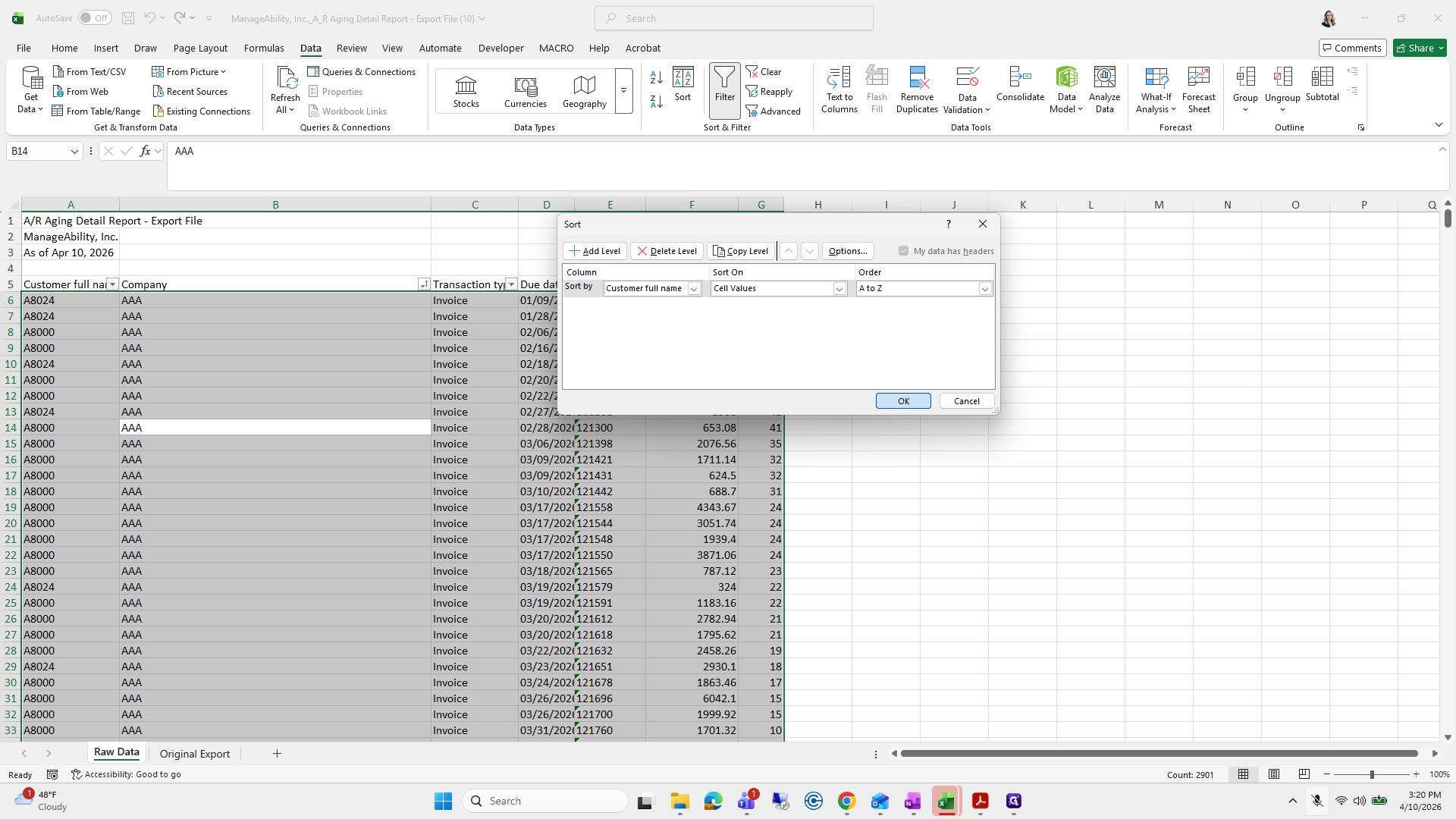
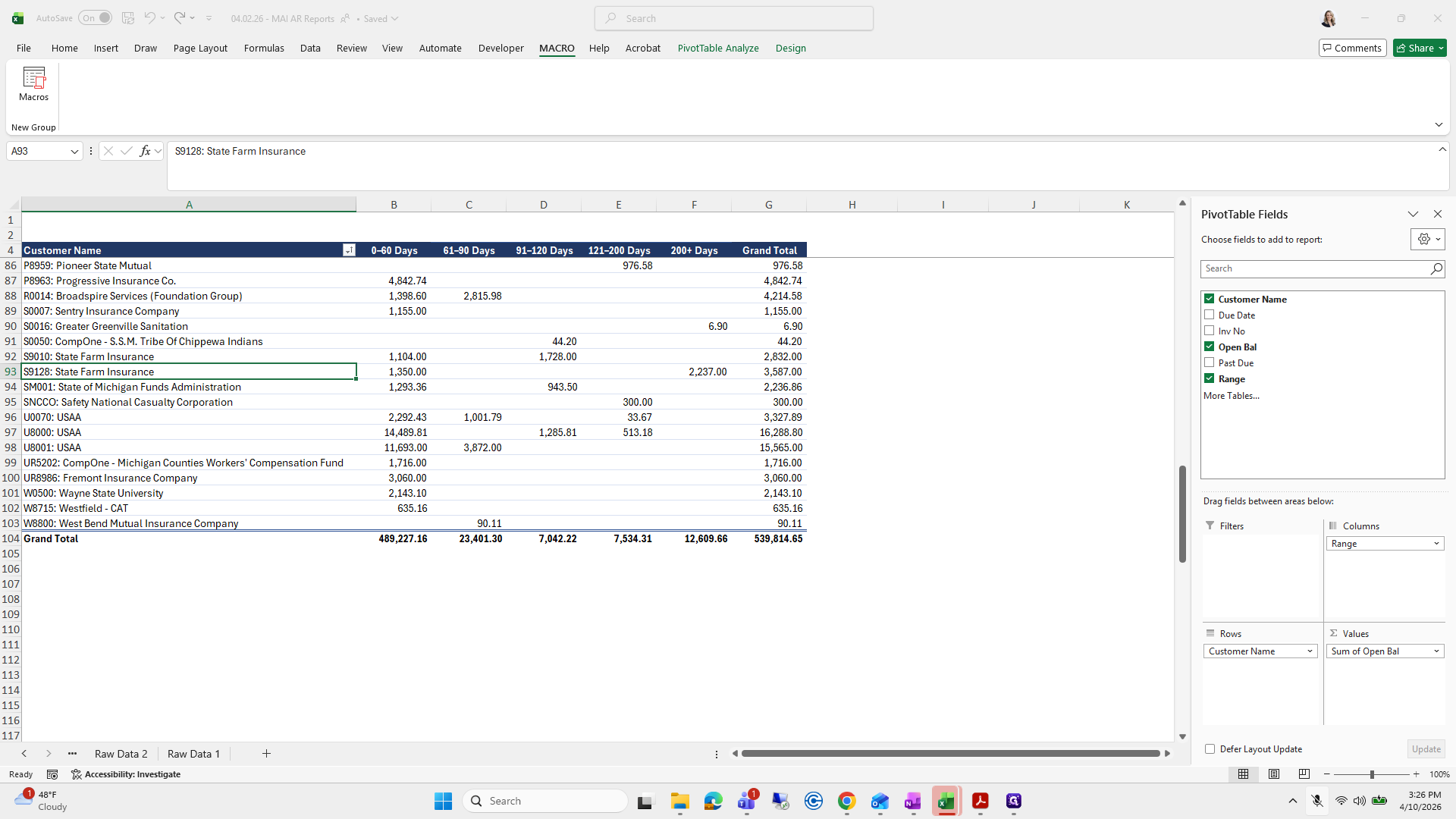
Step #86: Click on "Customer full name"

Customer full name.

87
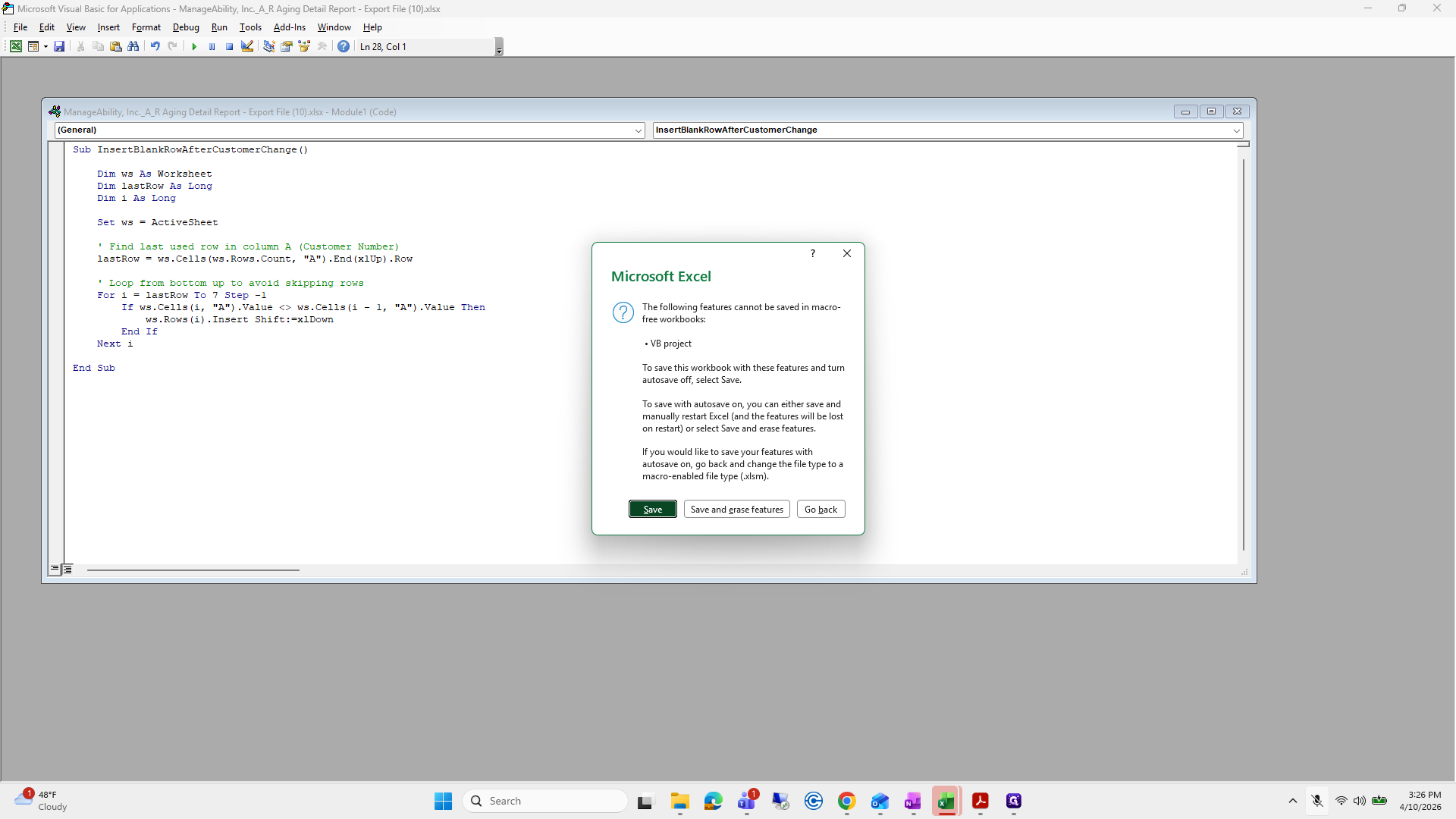
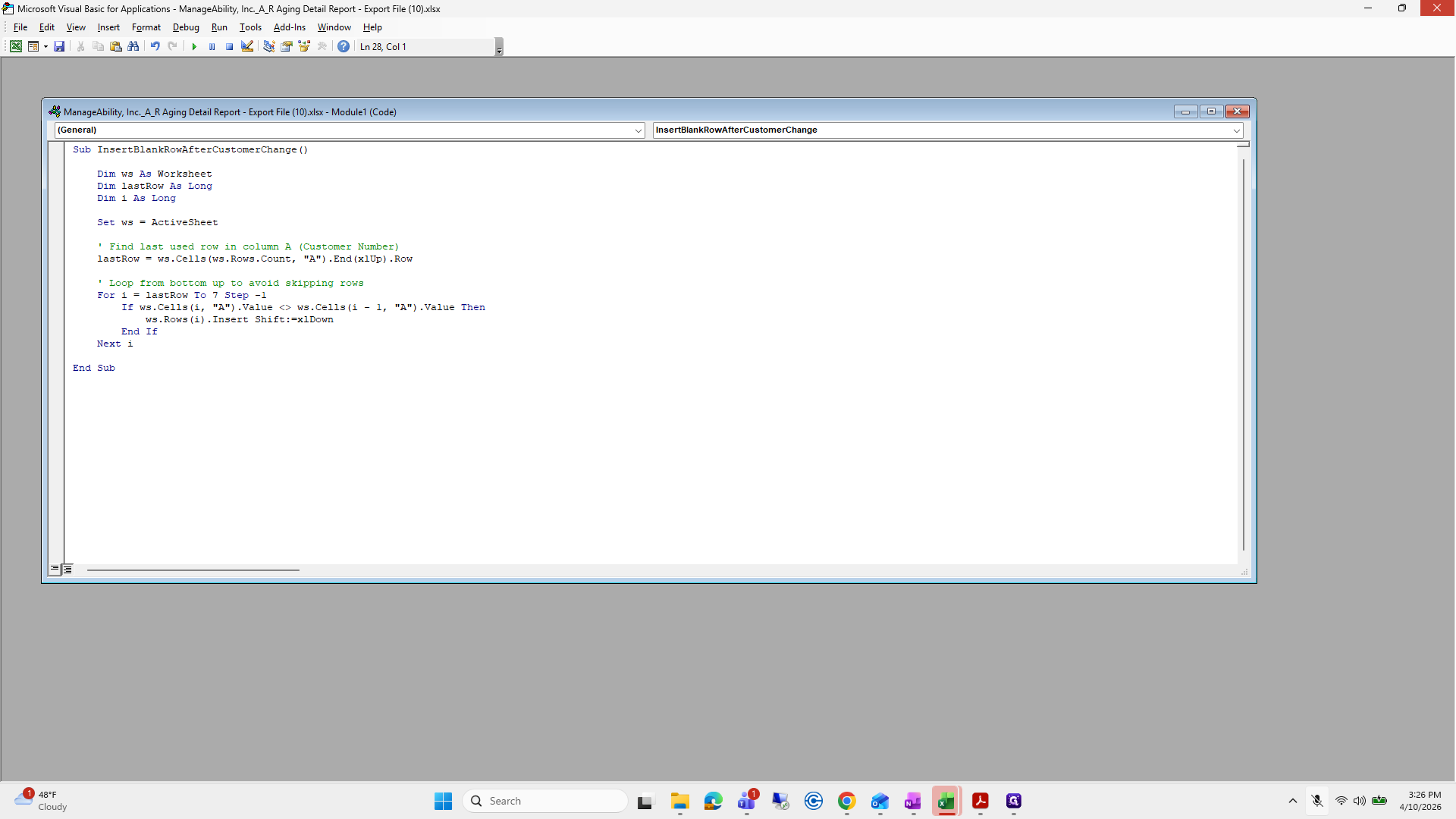
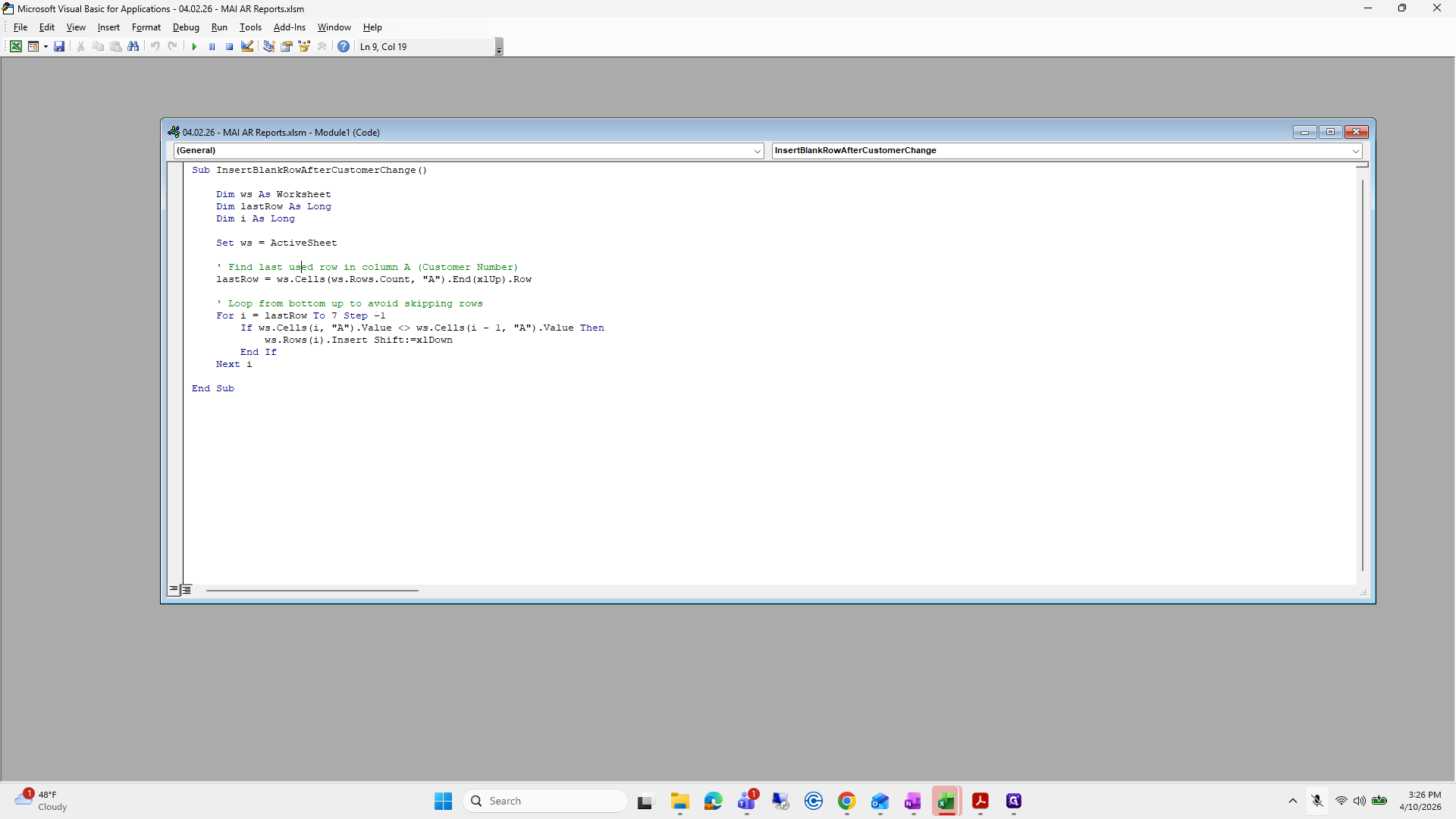
Click on "OK"
Step #87: Click on "OK"

Press OK.

88
Click on "Auto Owners Insurance"
Step #88: Click on "Auto Owners Insurance"

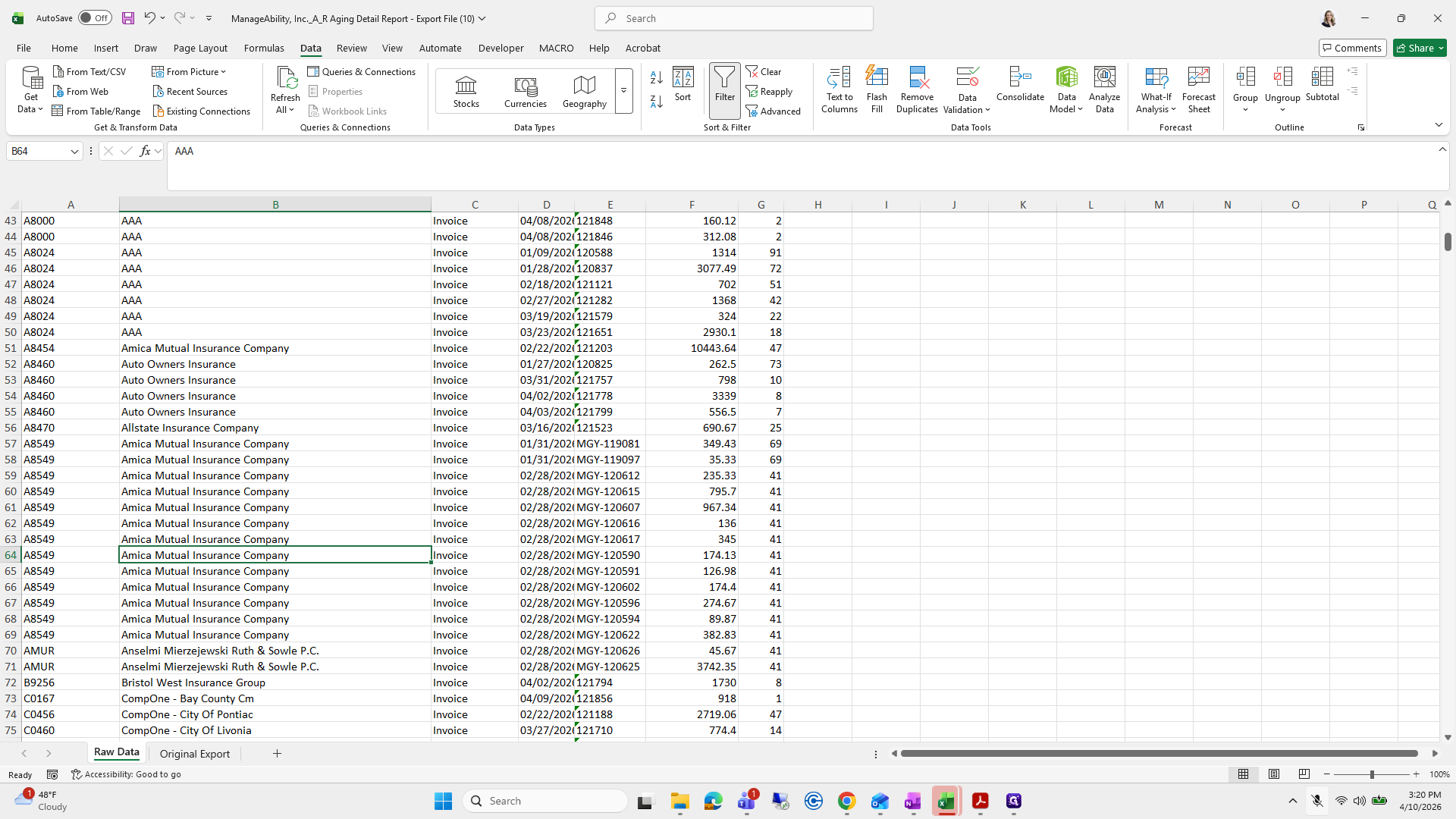
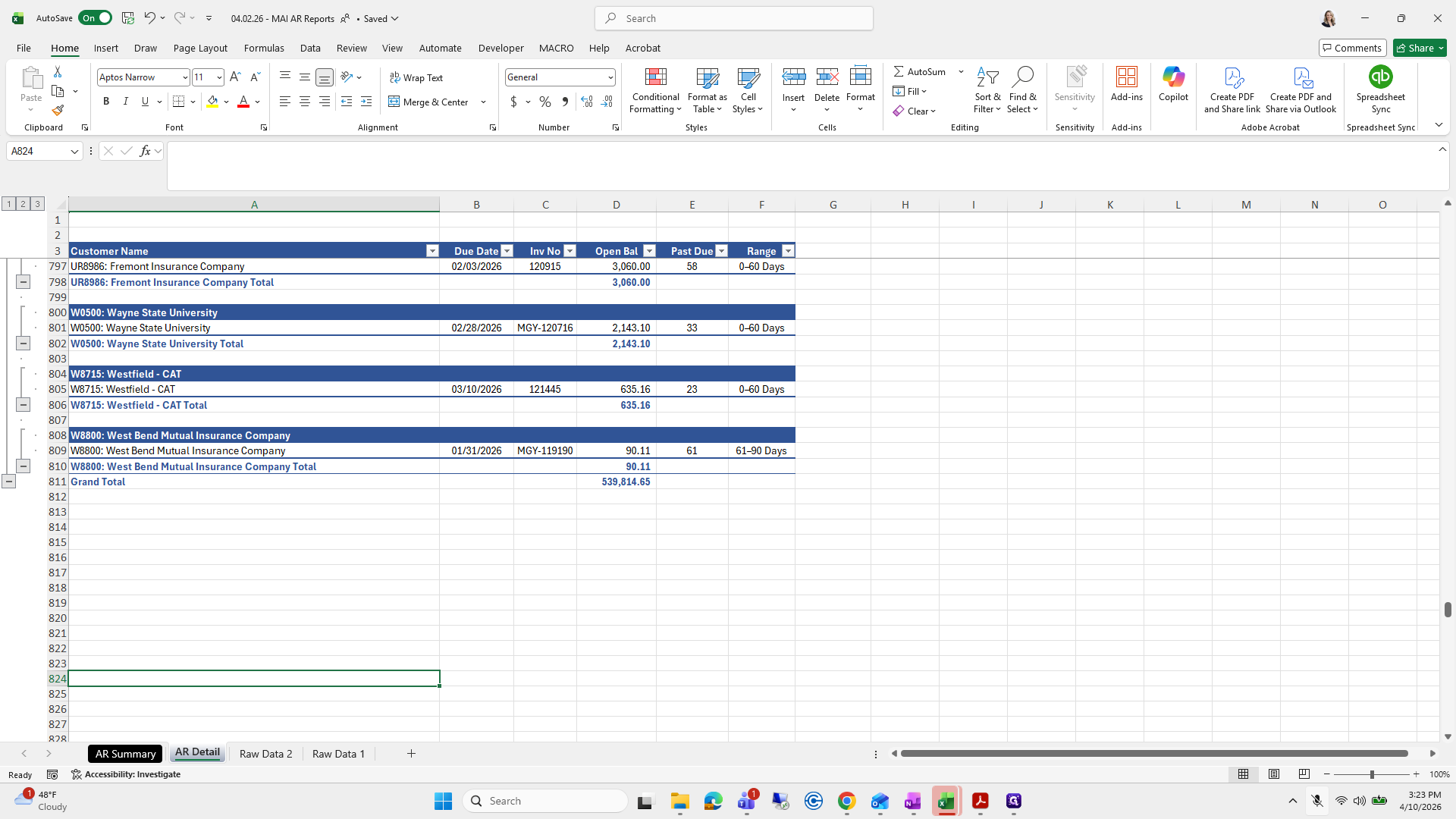
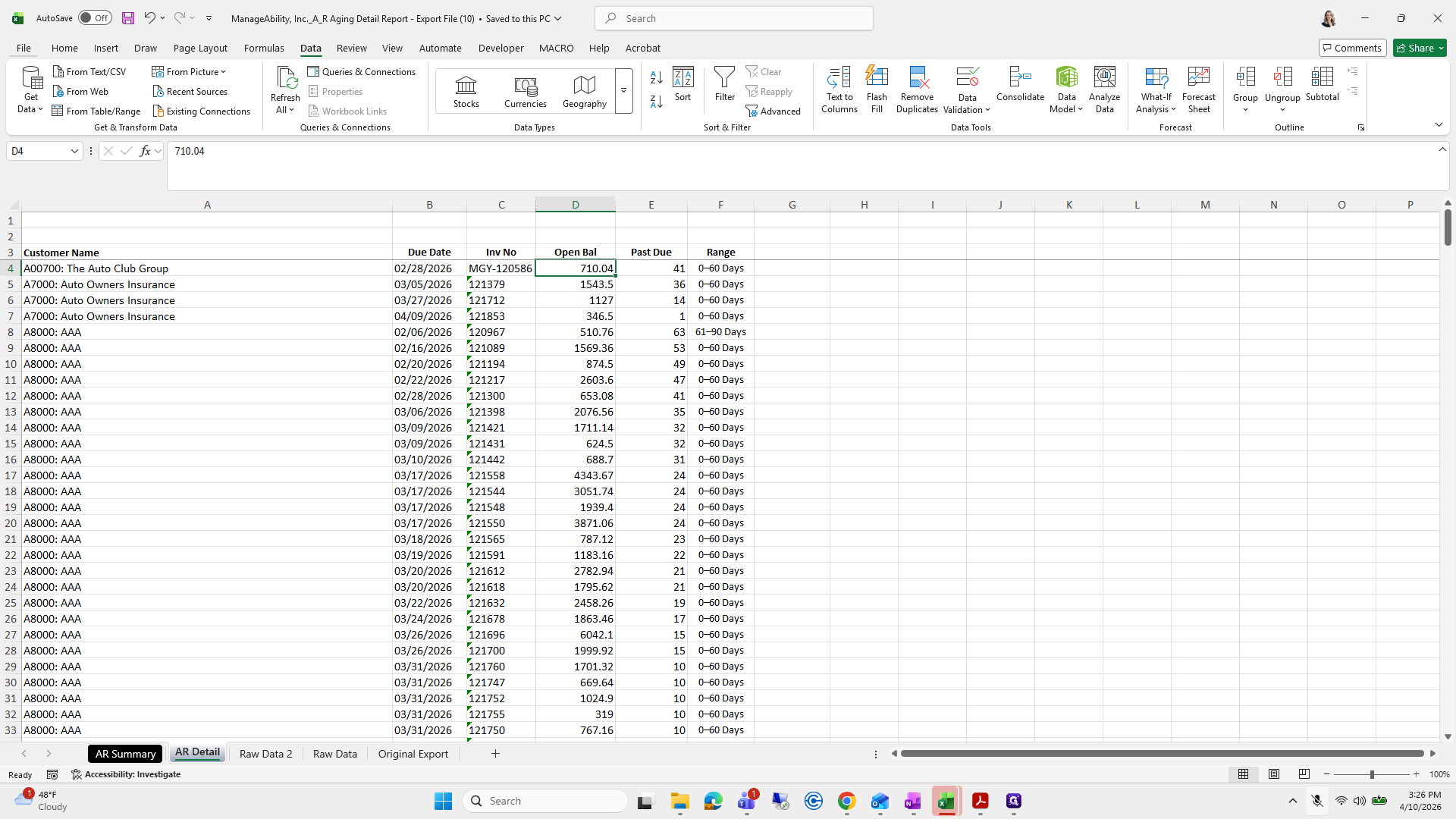
Make sure the entire table is sorted by the customer number for John Bradley. Also, check that there is no total hidden in the table.
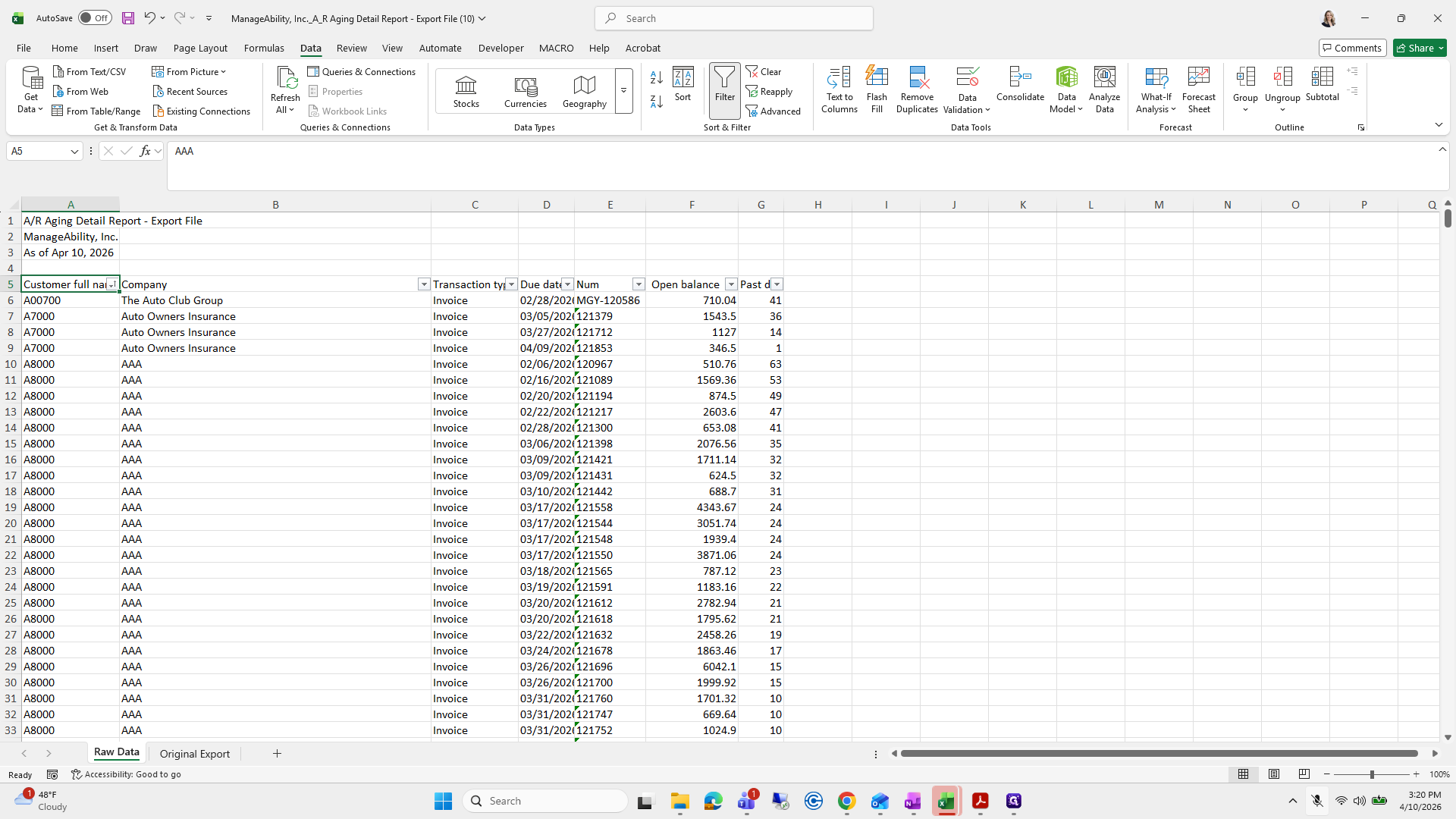
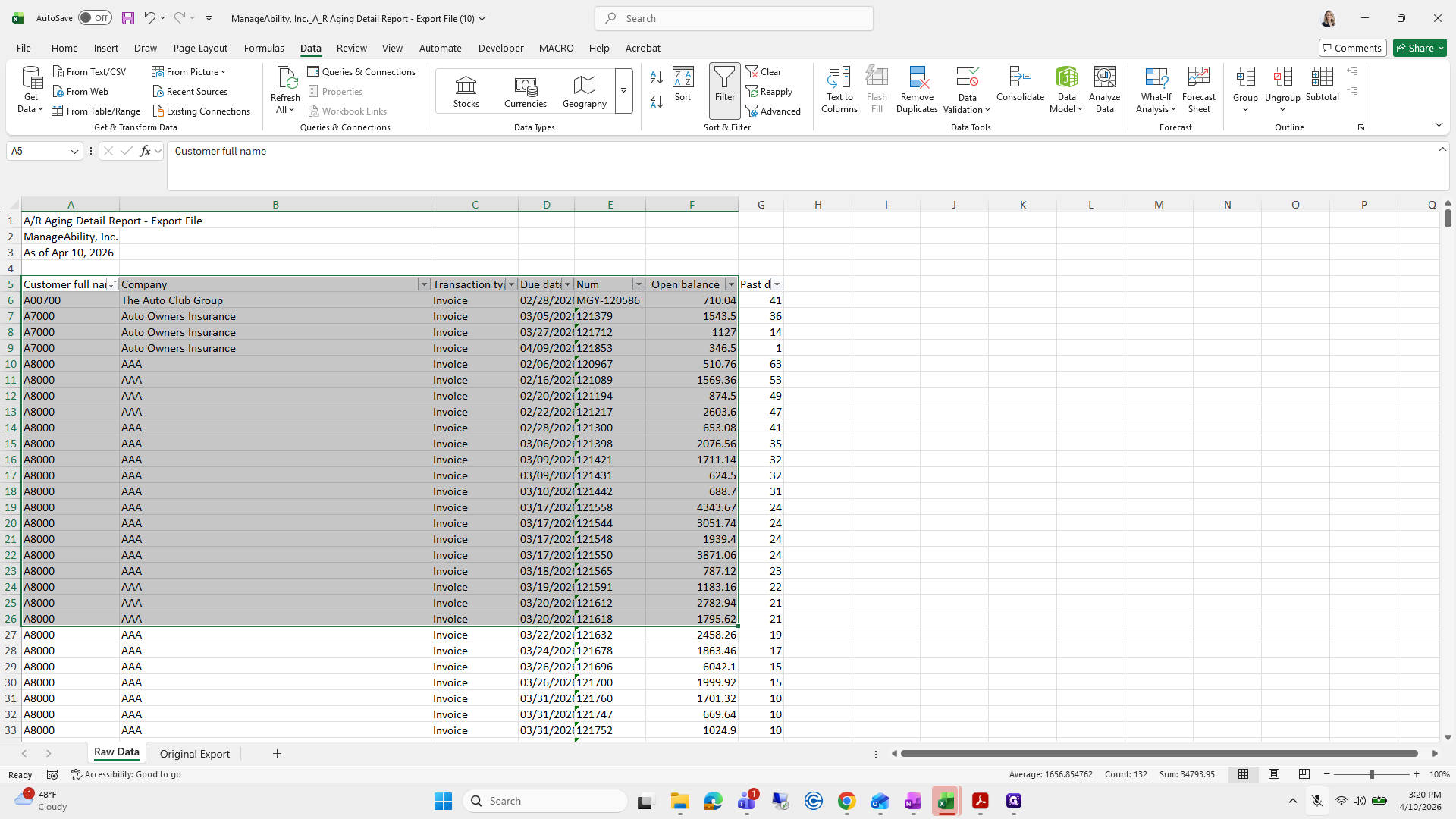
89
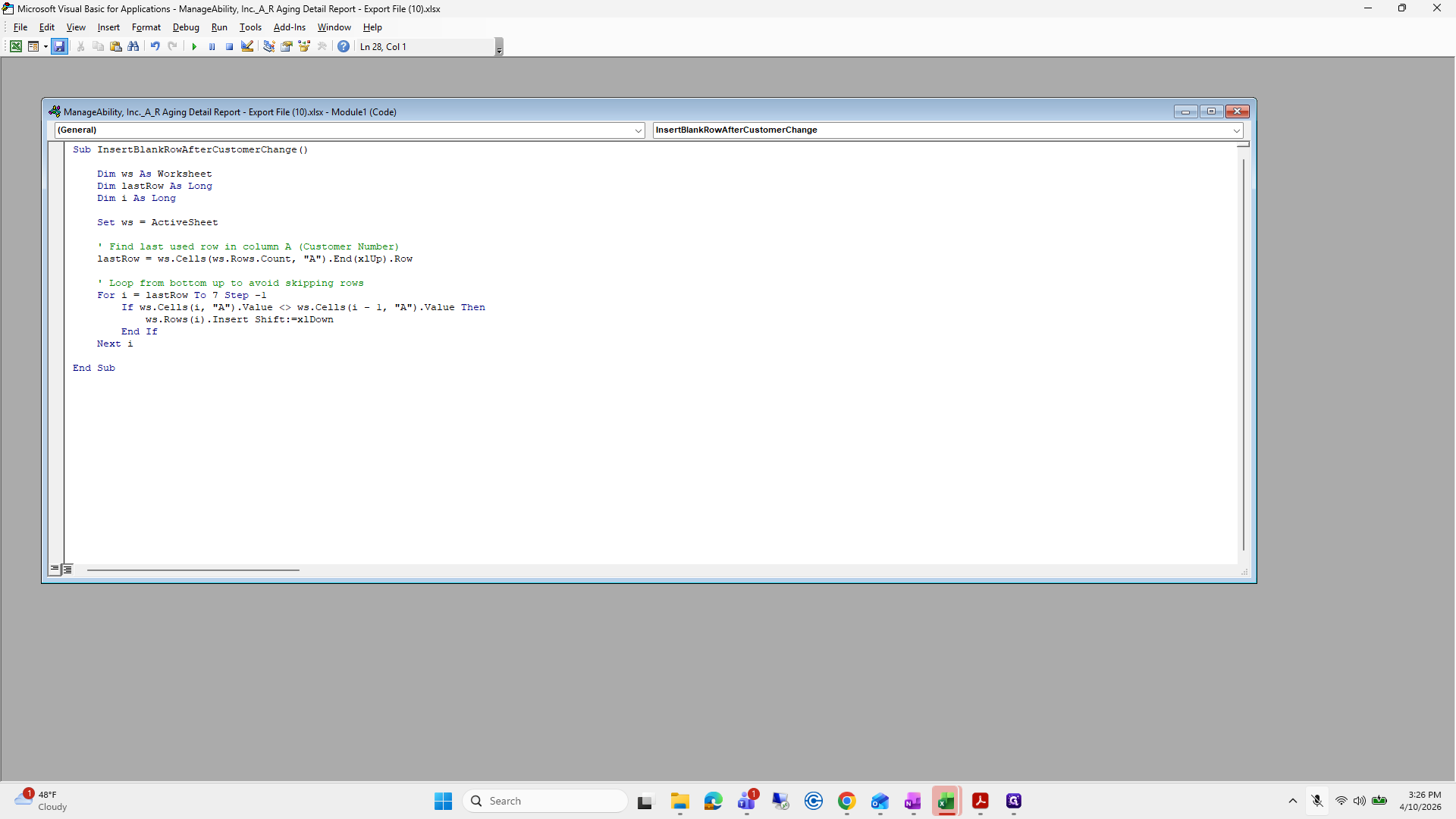
Drag "full"
Step #89: Drag "full"
90
Click here
Step #90: Click here
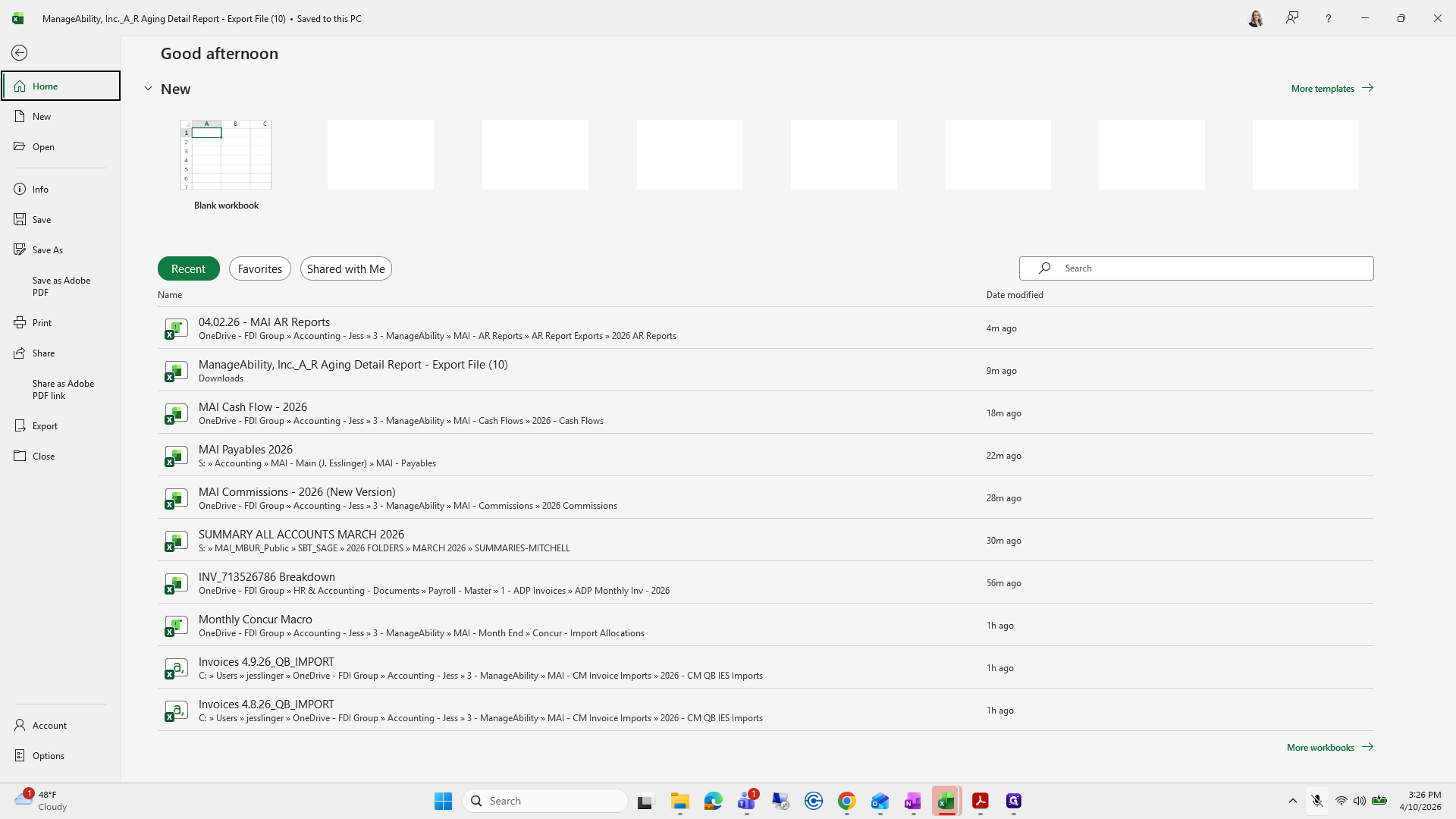
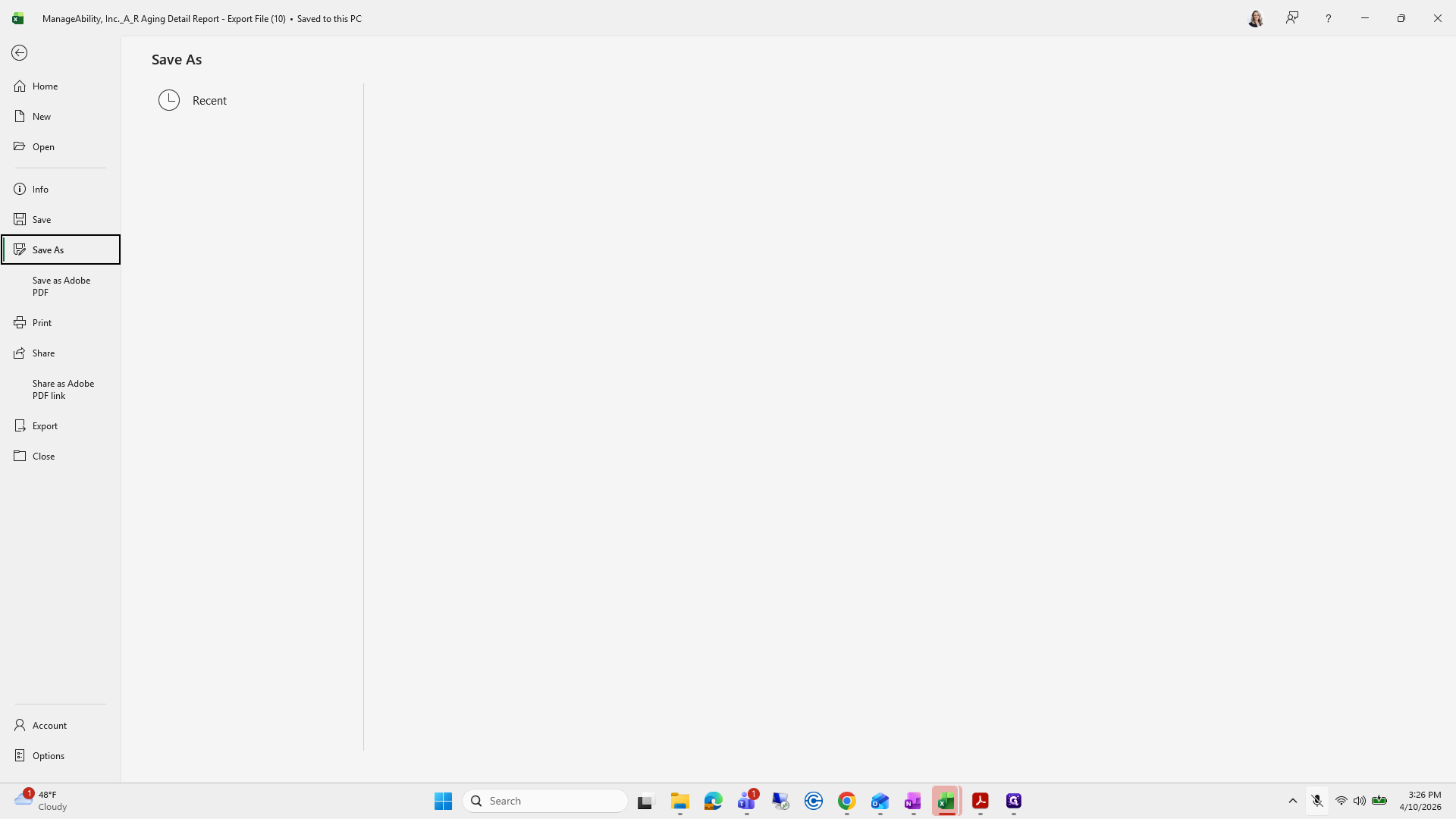
91
Drag "Customer full"
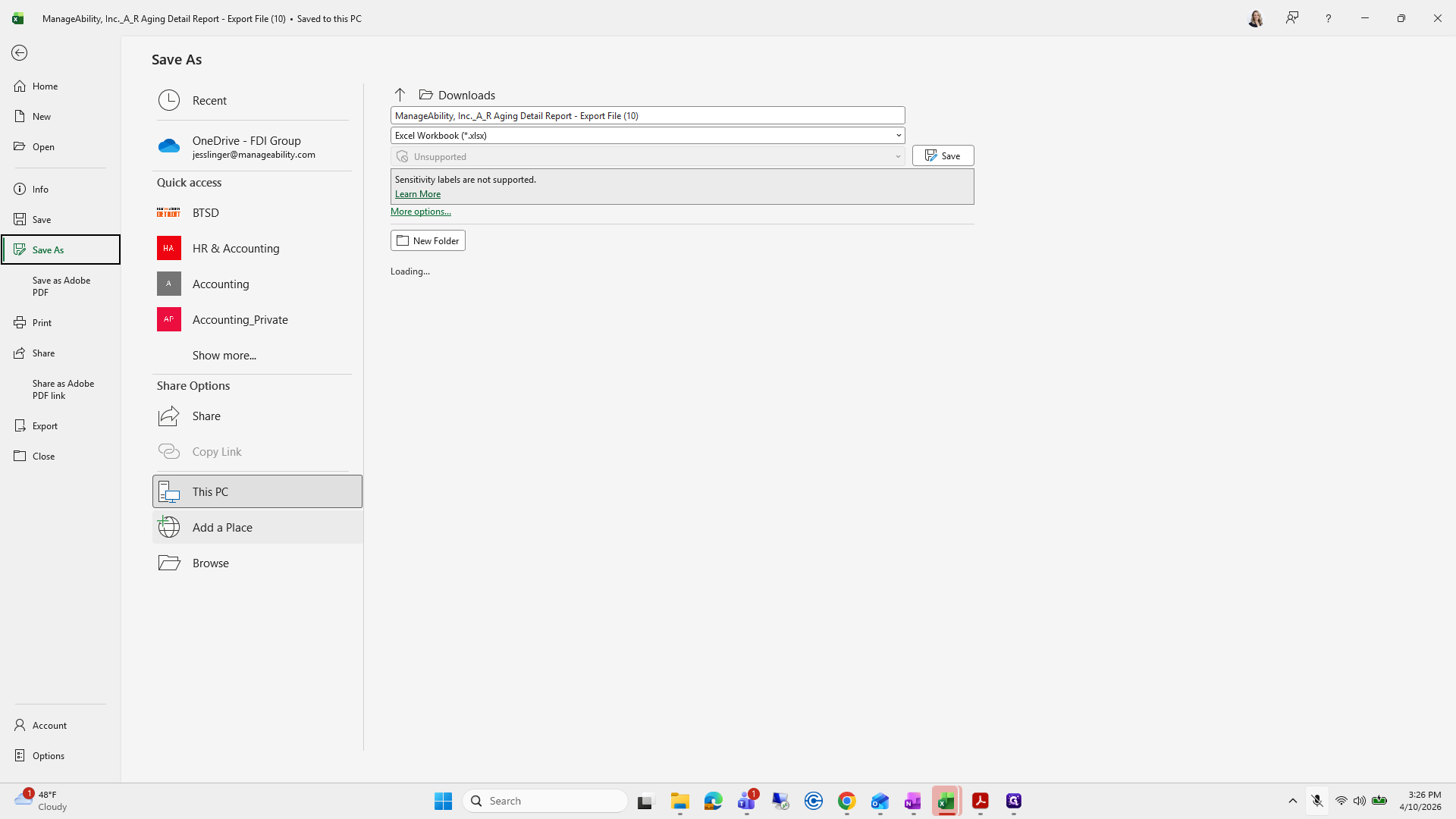
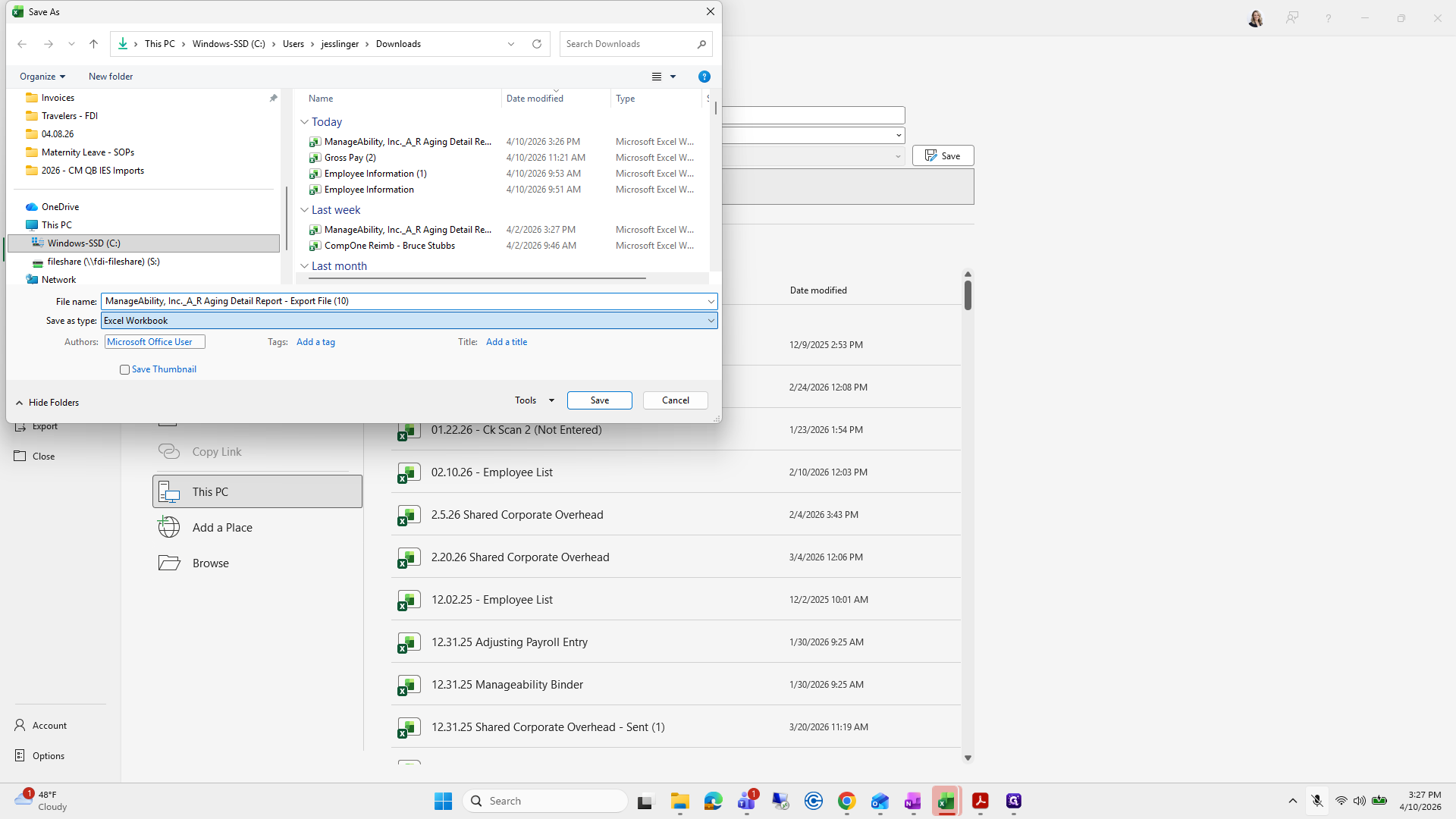
Step #91: Drag "Customer full"
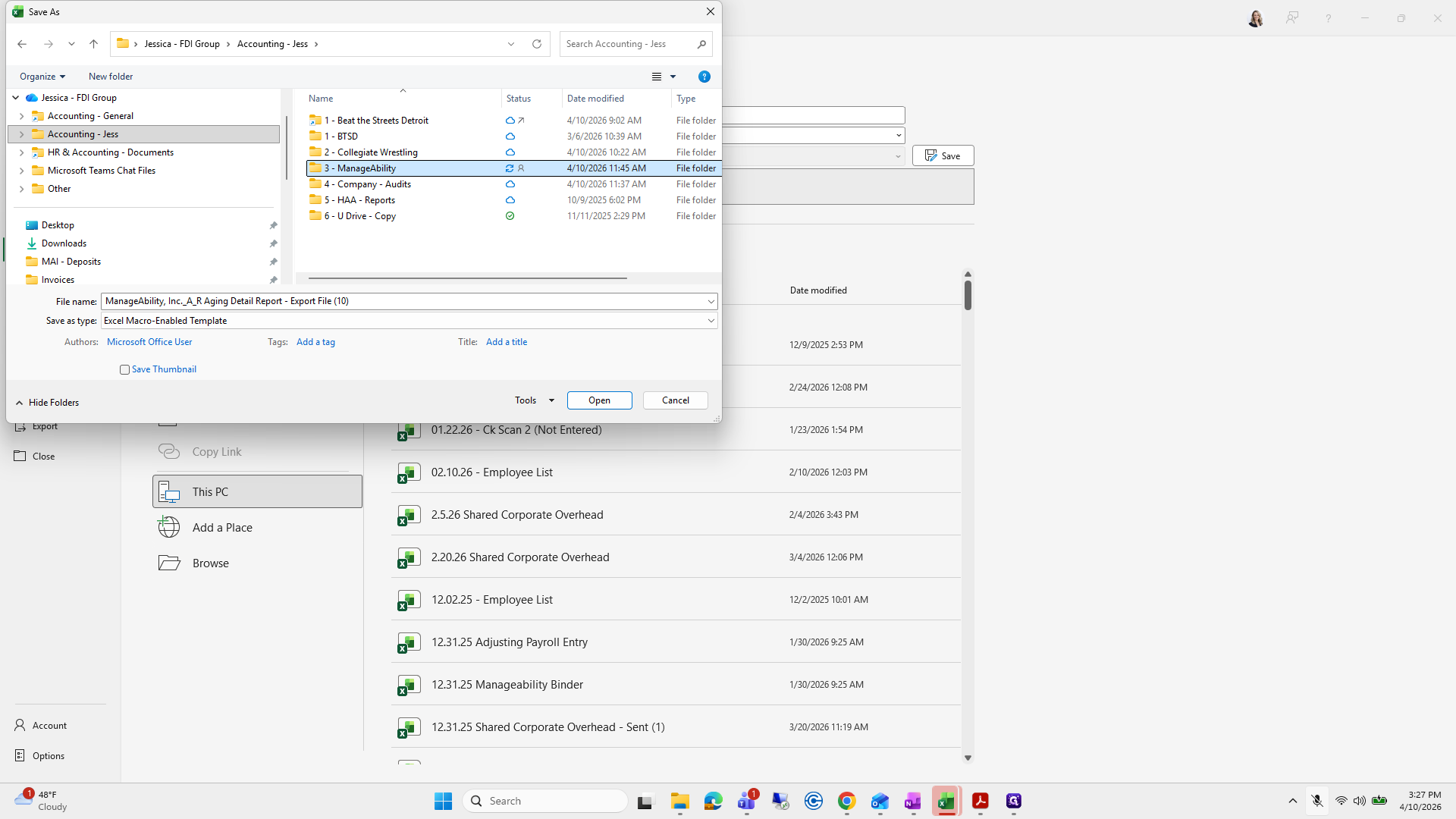
92
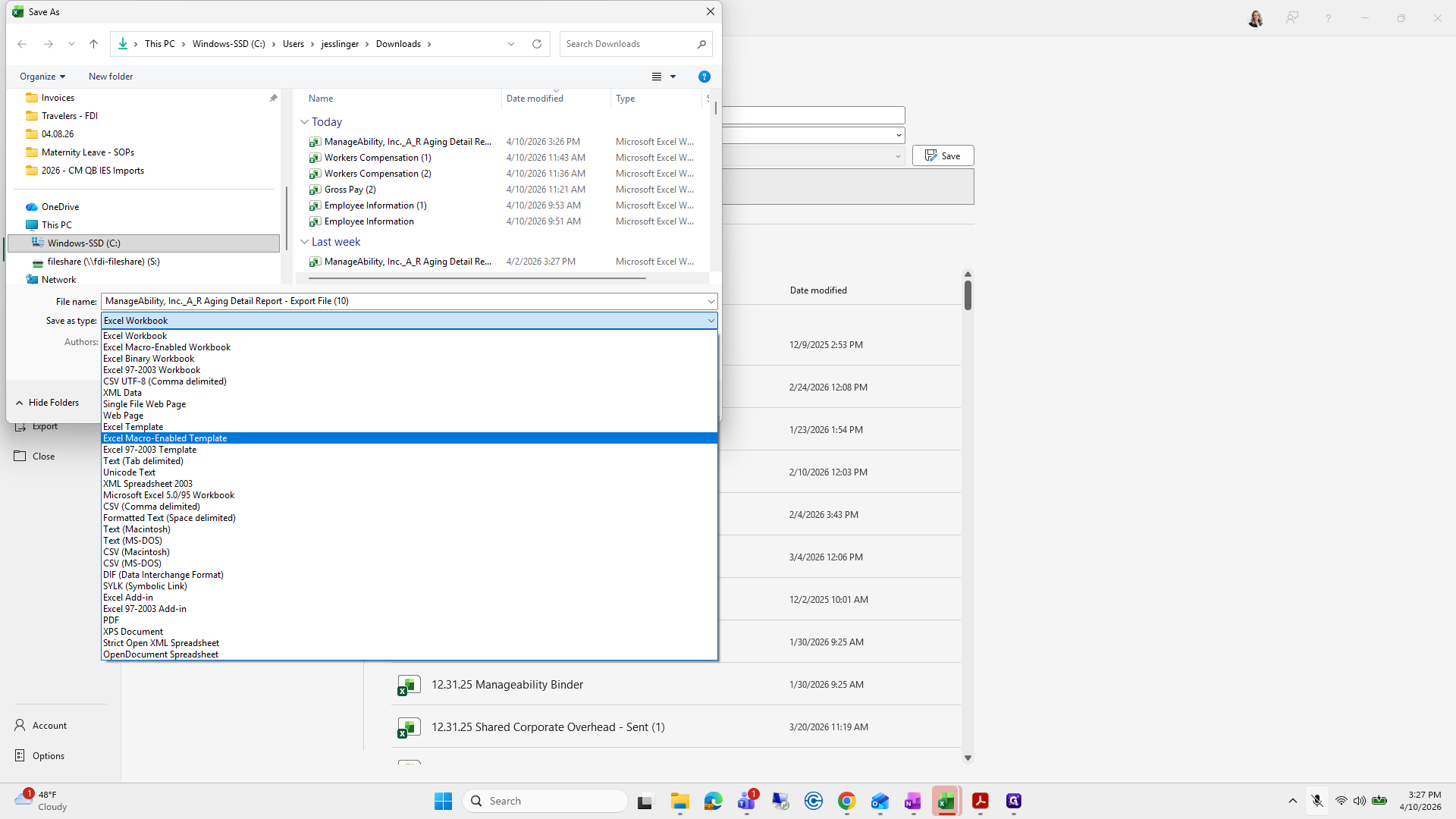
Click here
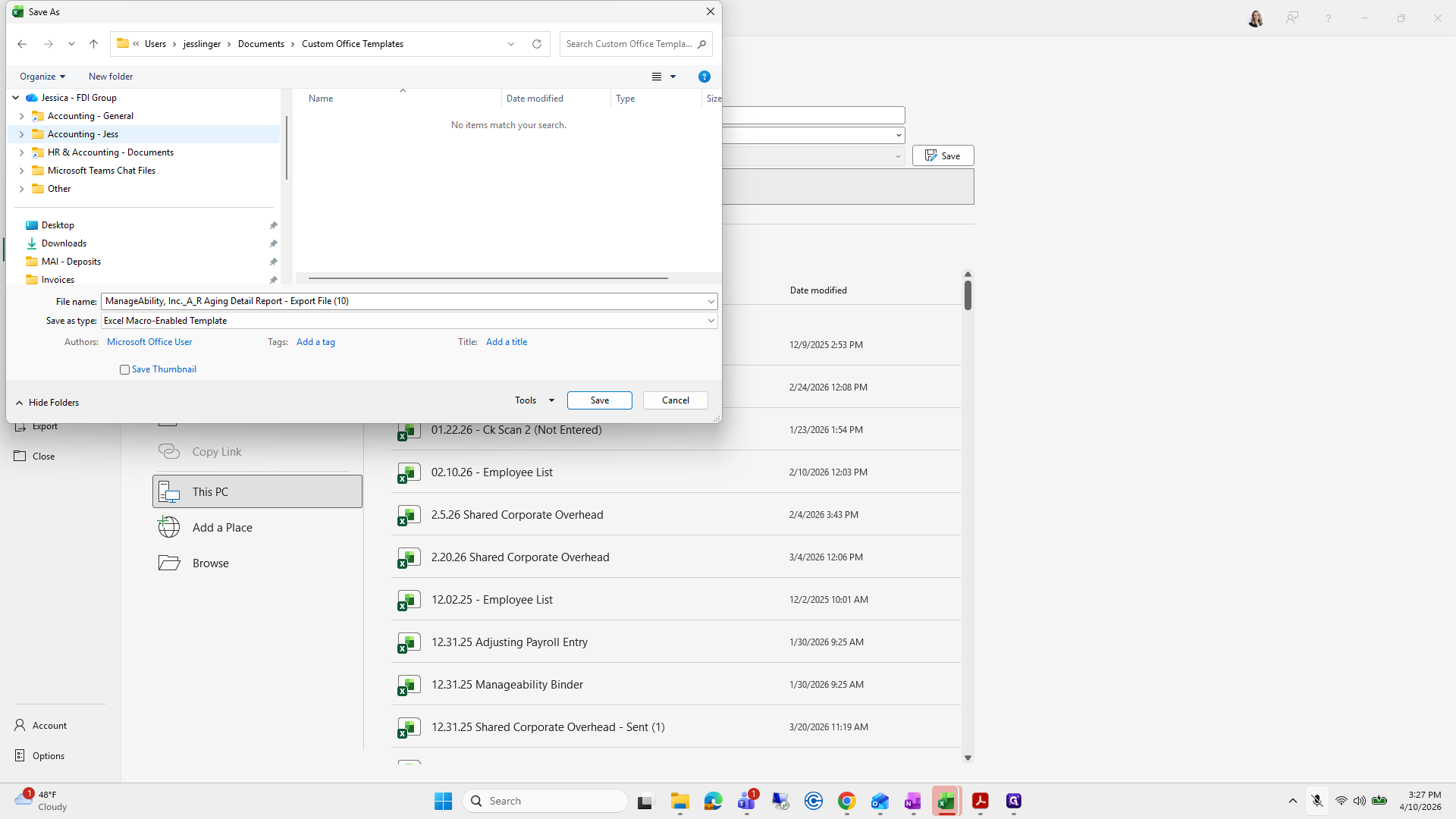
Step #92: Click here
93
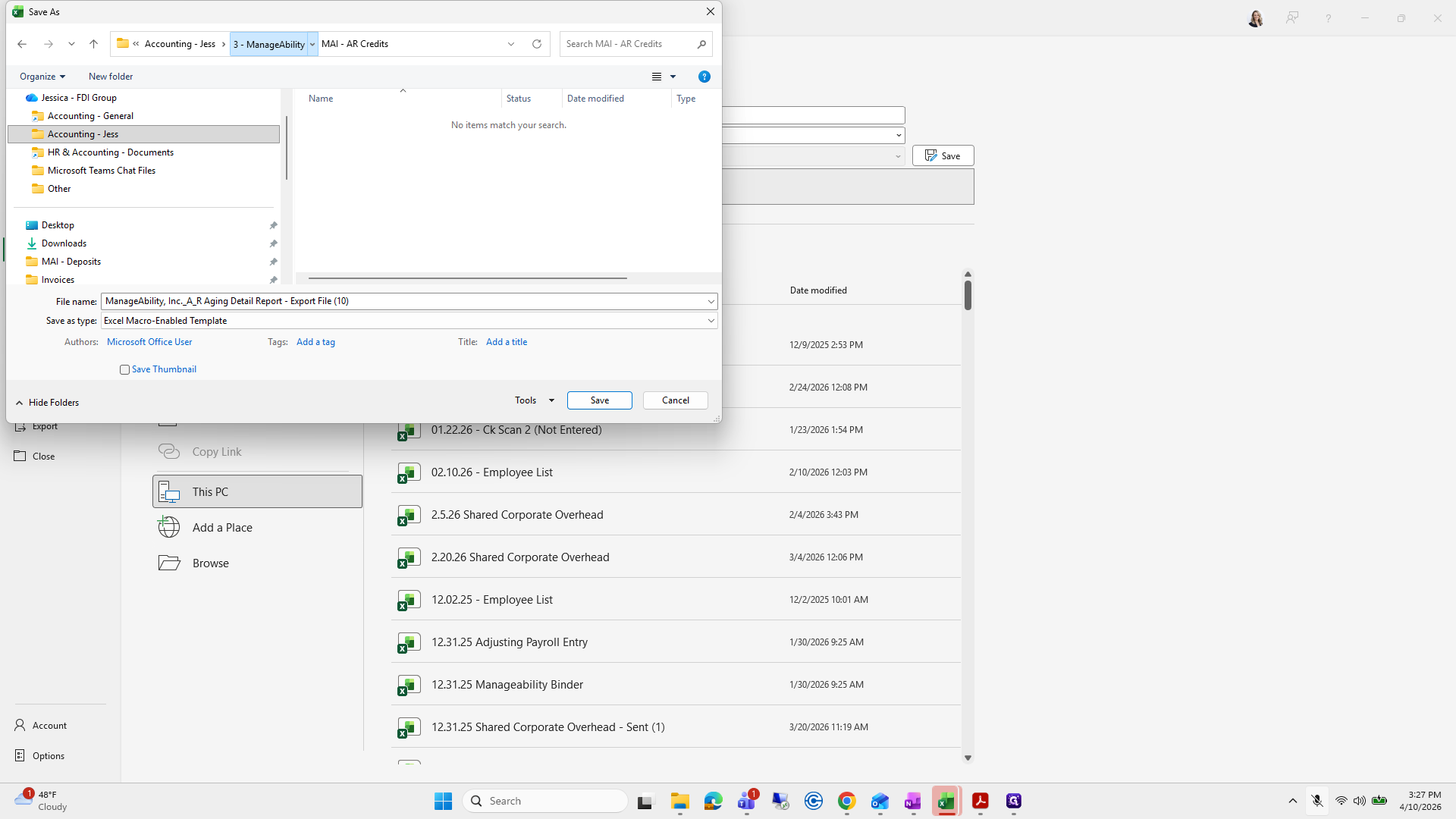
Click on "Amica Mutual Insurance Company"
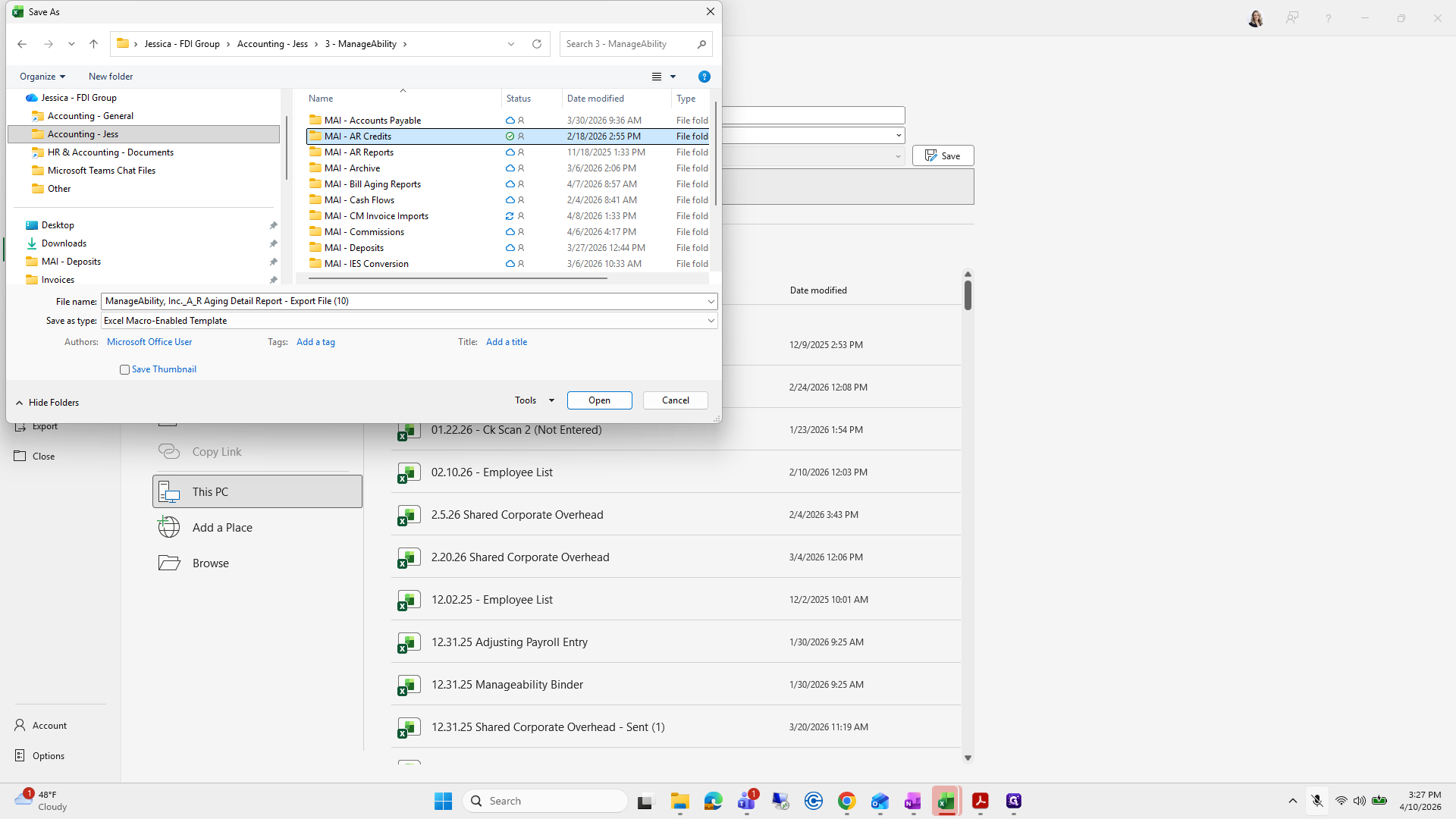
Step #93: Click on "Amica Mutual Insurance Company"
94
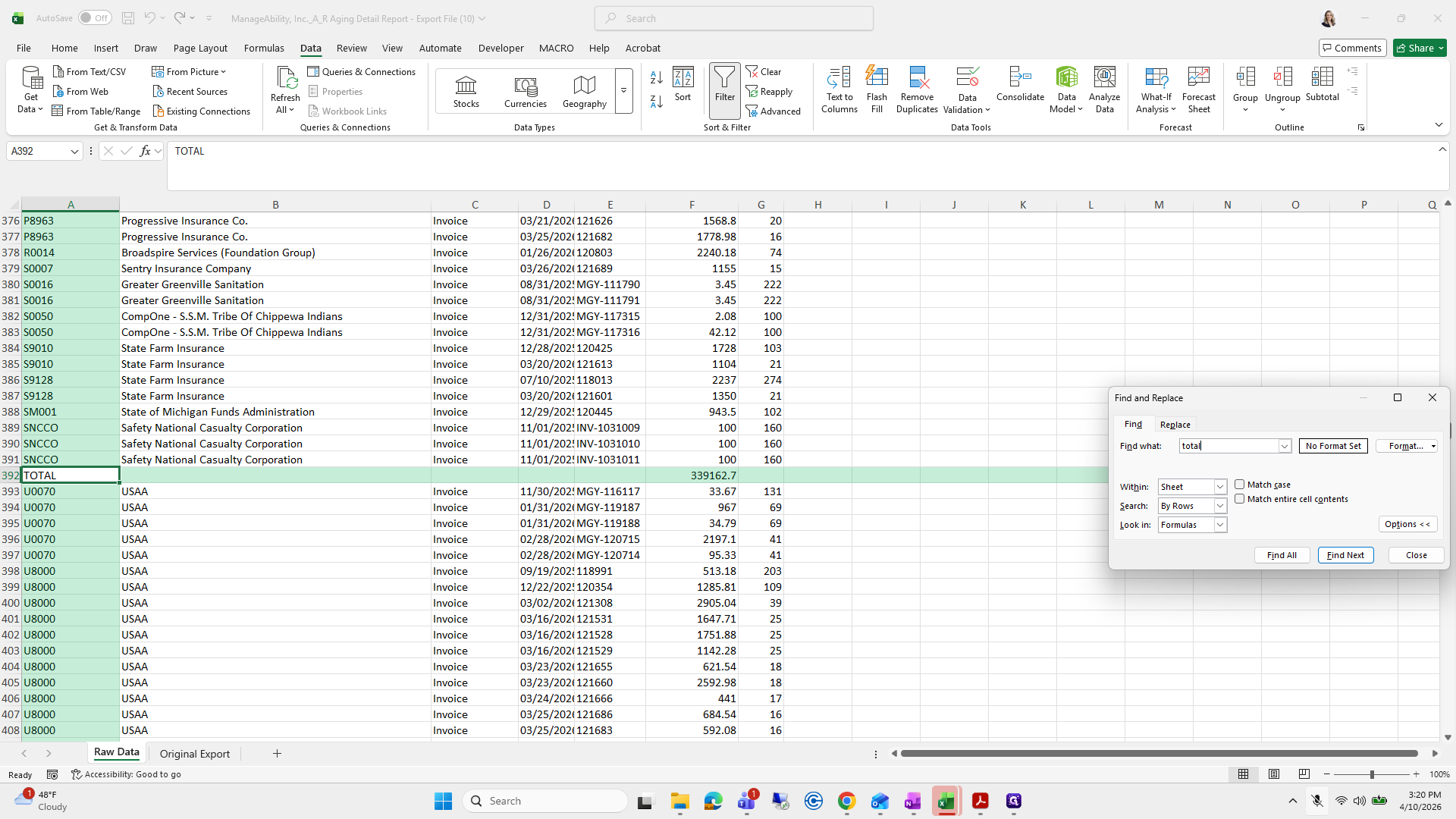
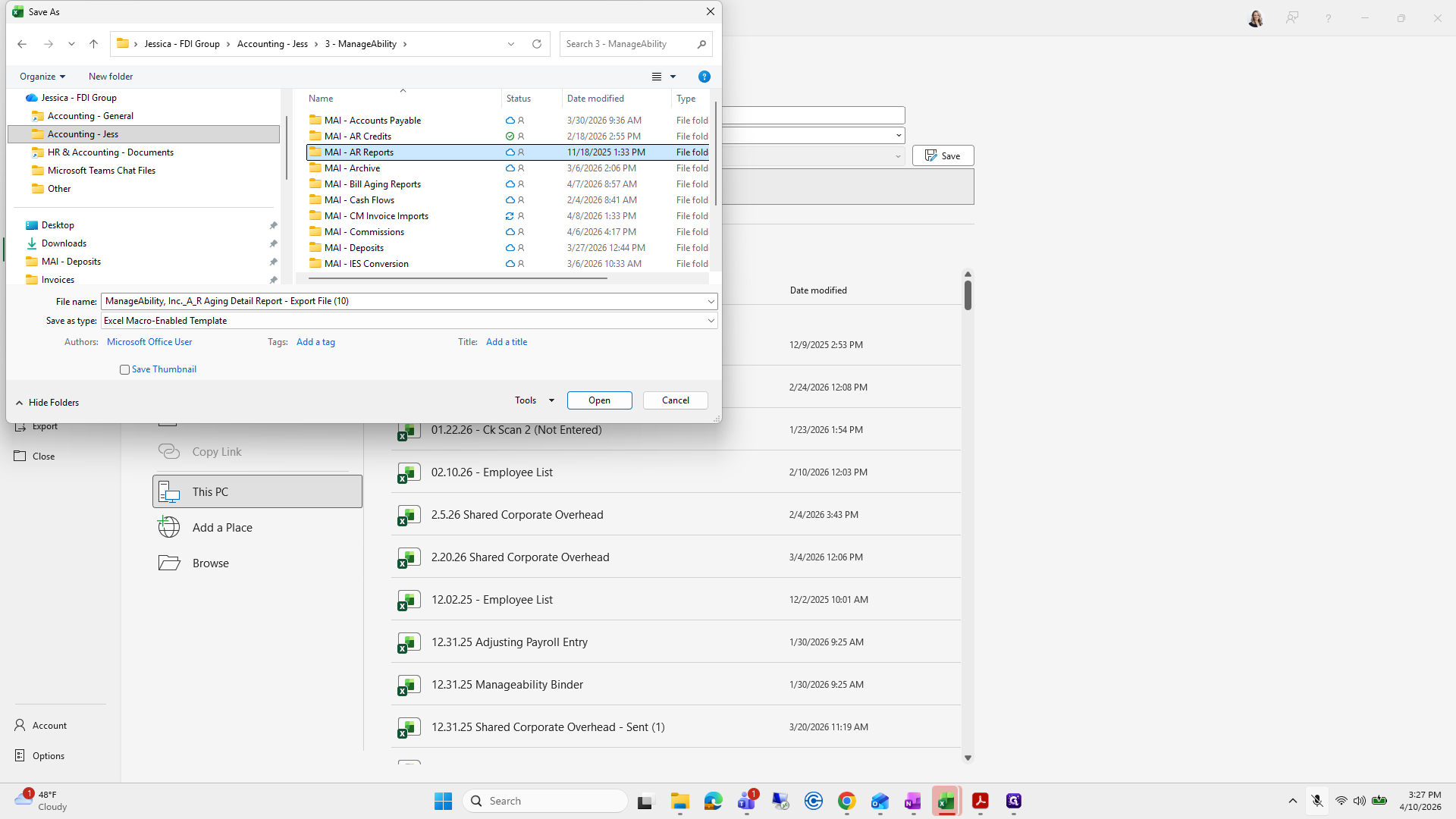
Type "Ctrl + F"
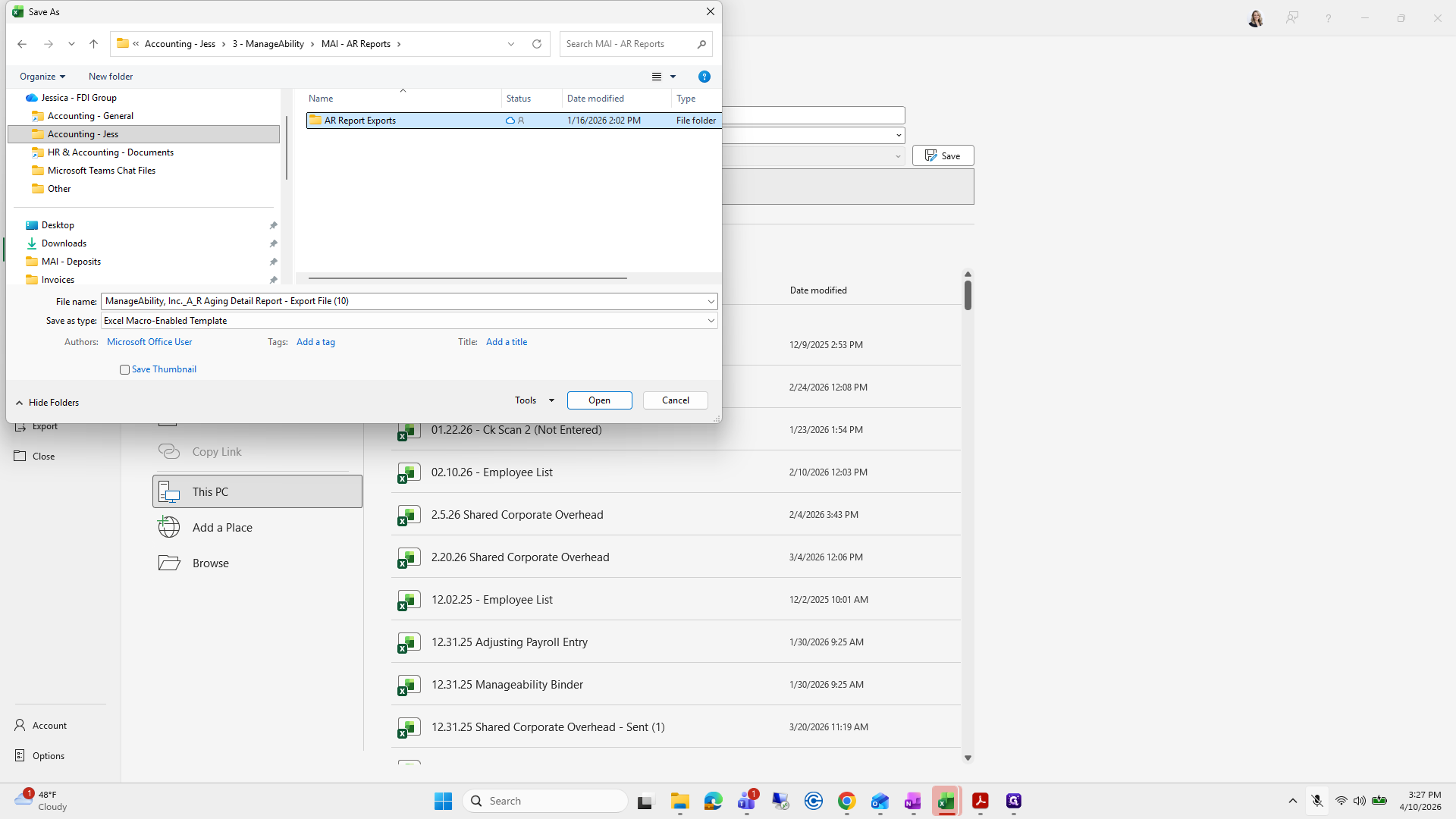
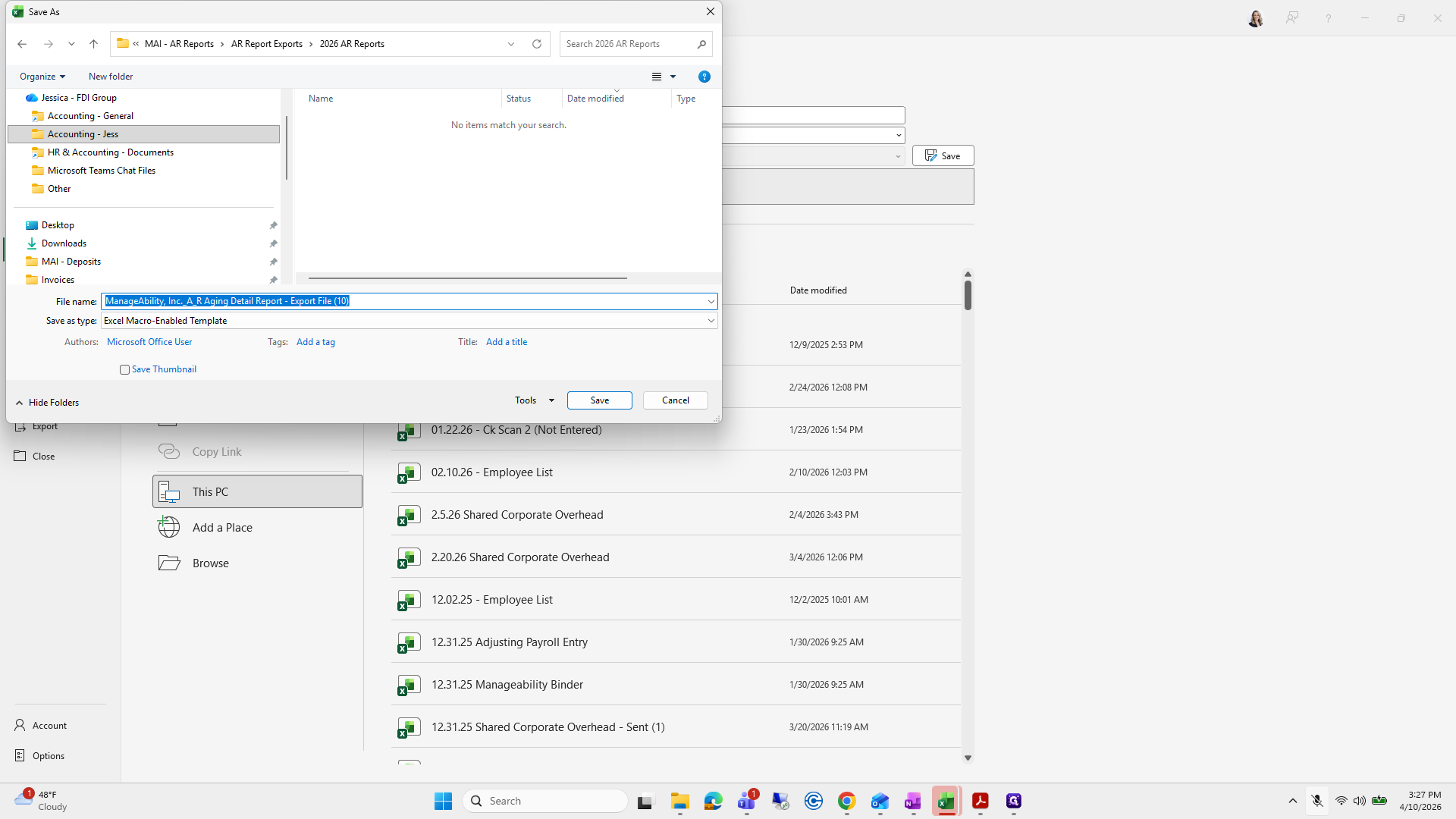
95
Type "total + Enter"
96
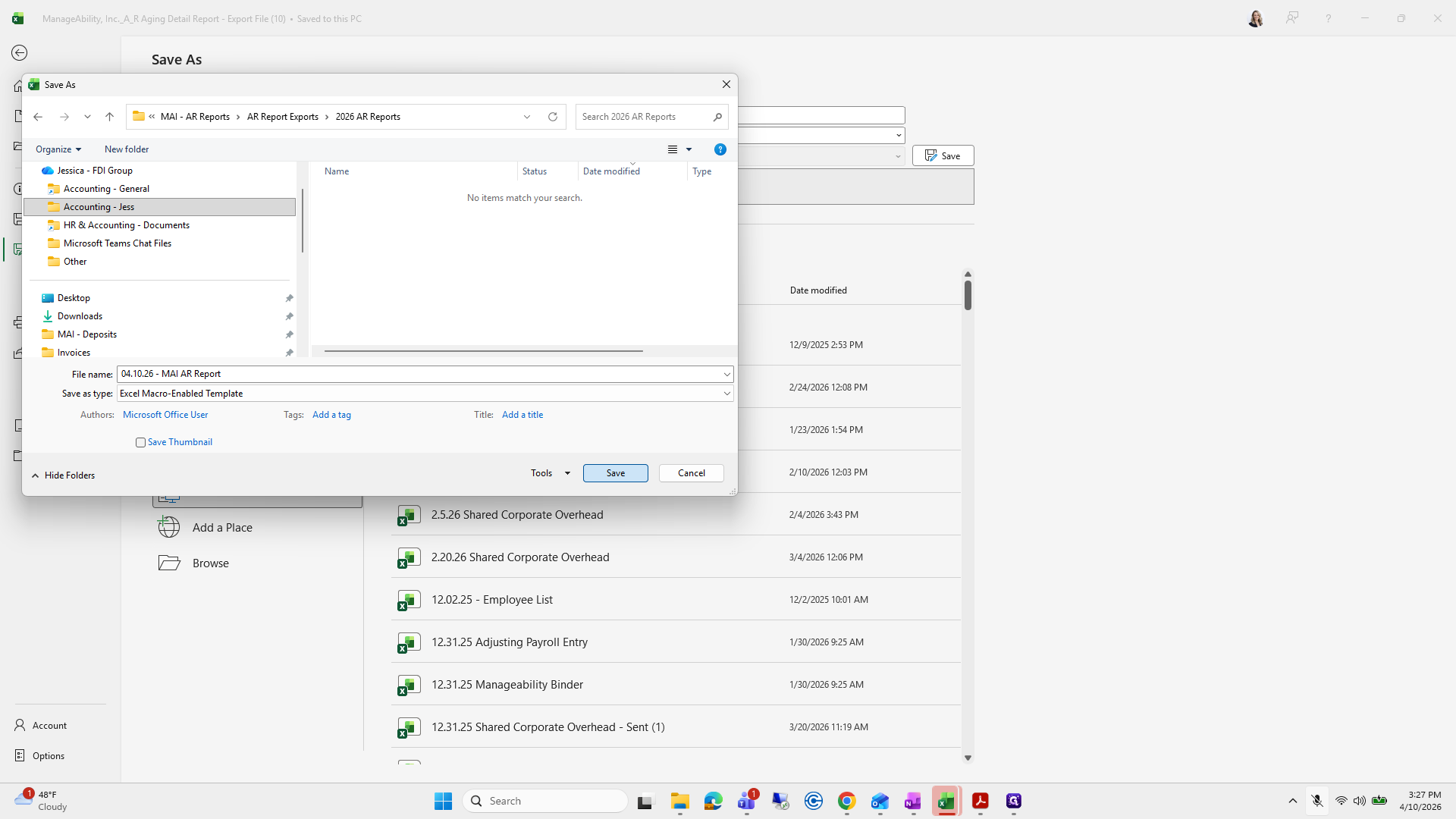
Drag here
Step #96: Drag here

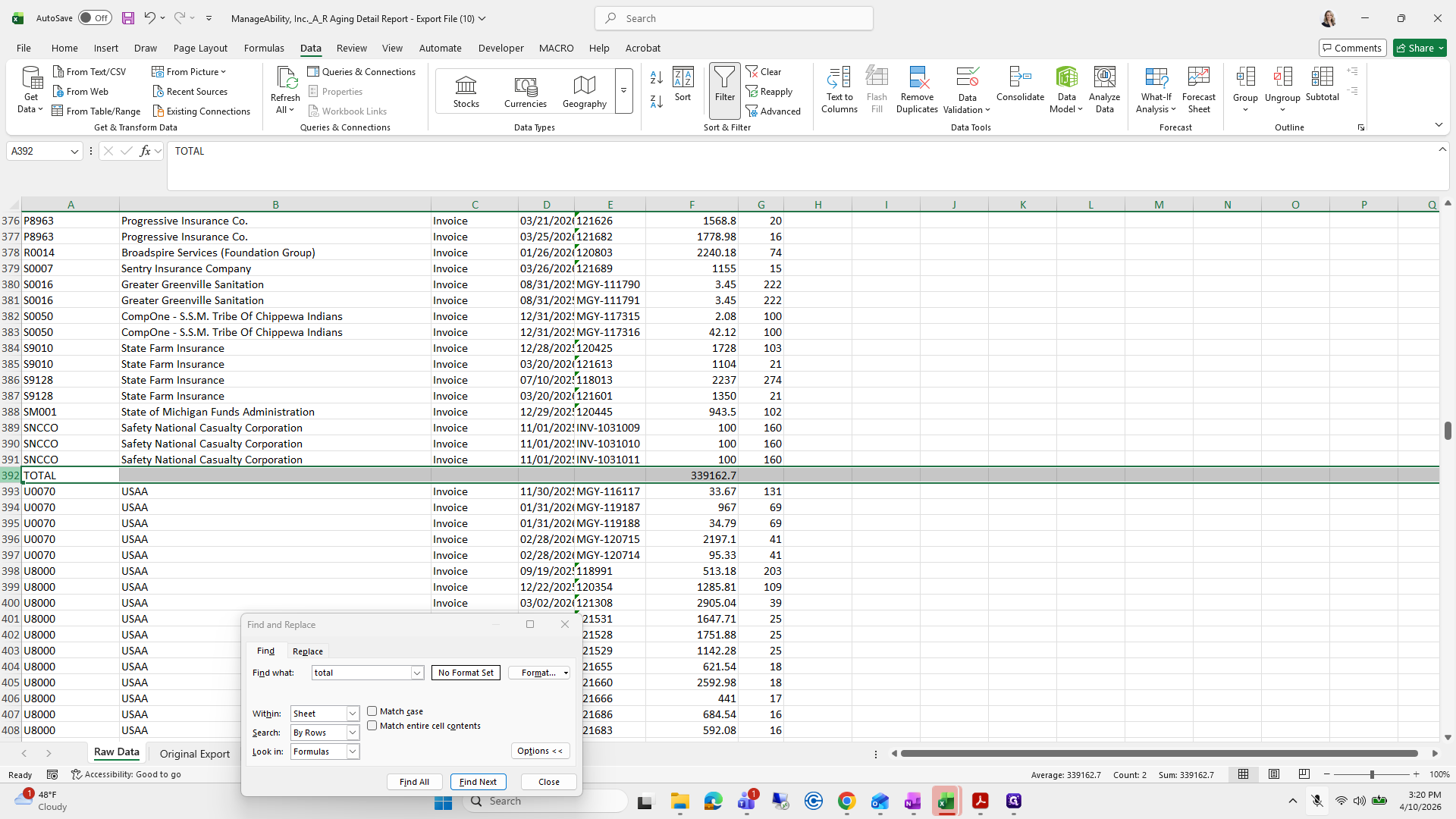
Yes. Sometimes I forget to delete this total line.
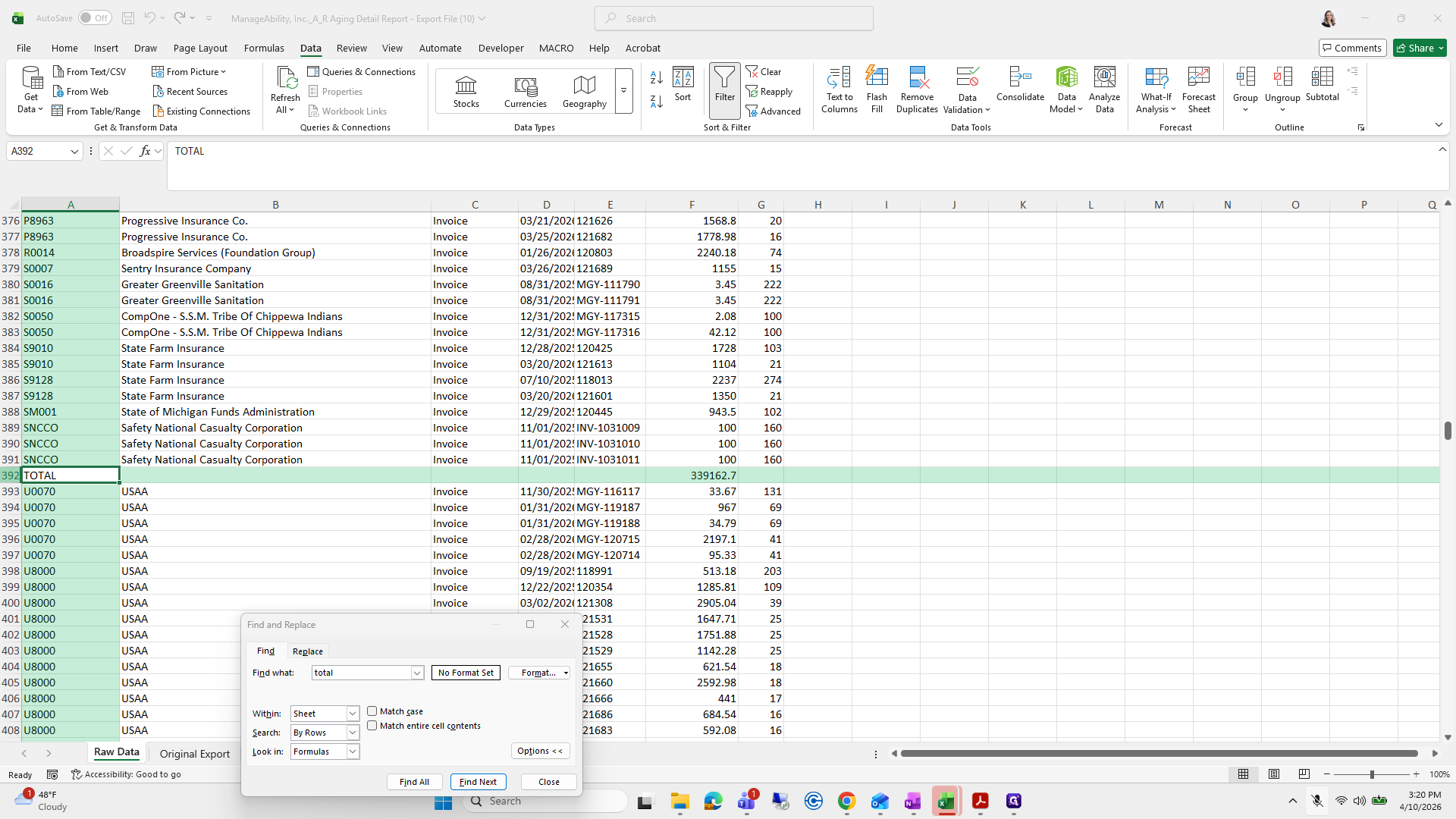
97
Click on "392 TOTAL"
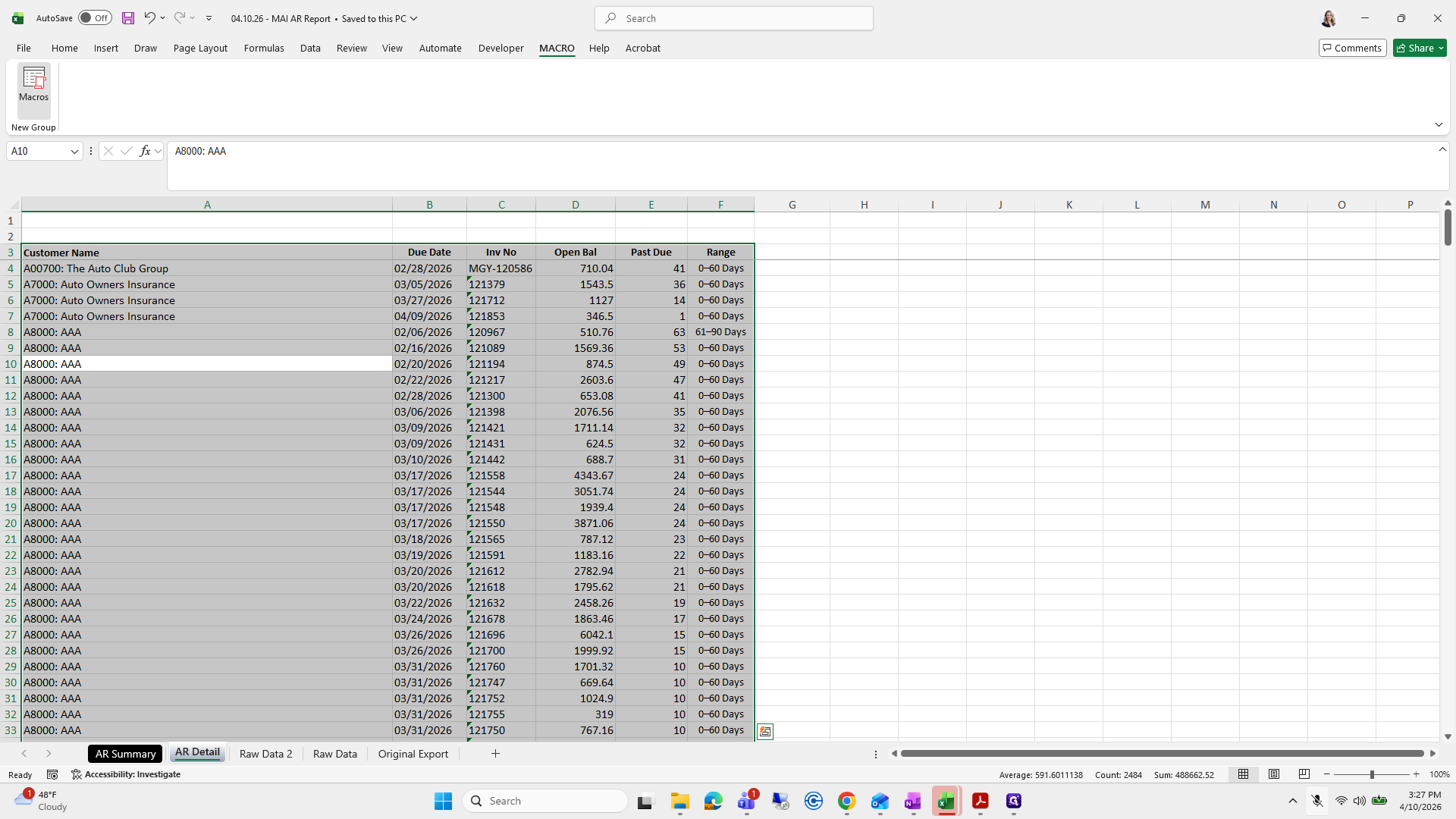
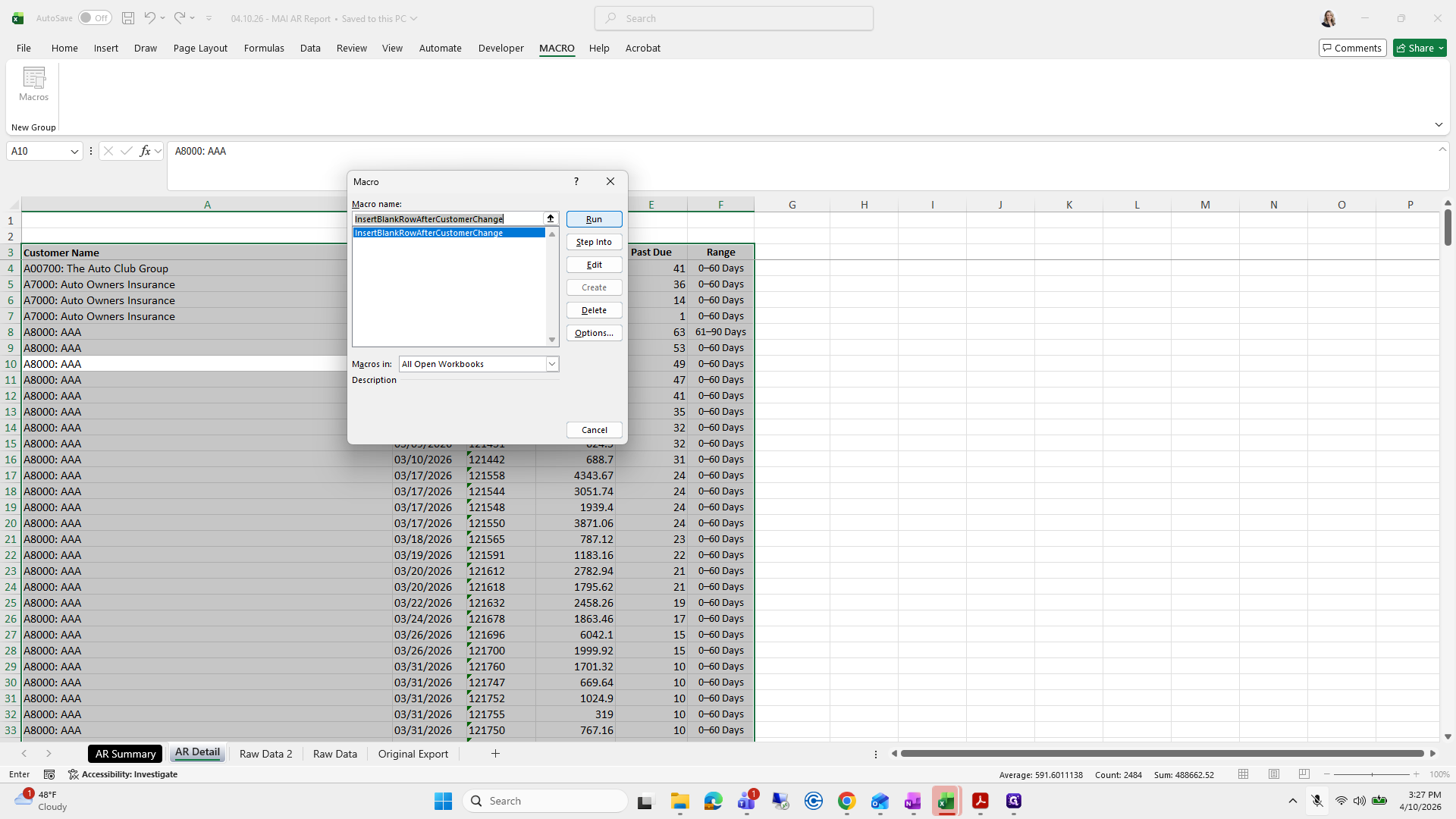
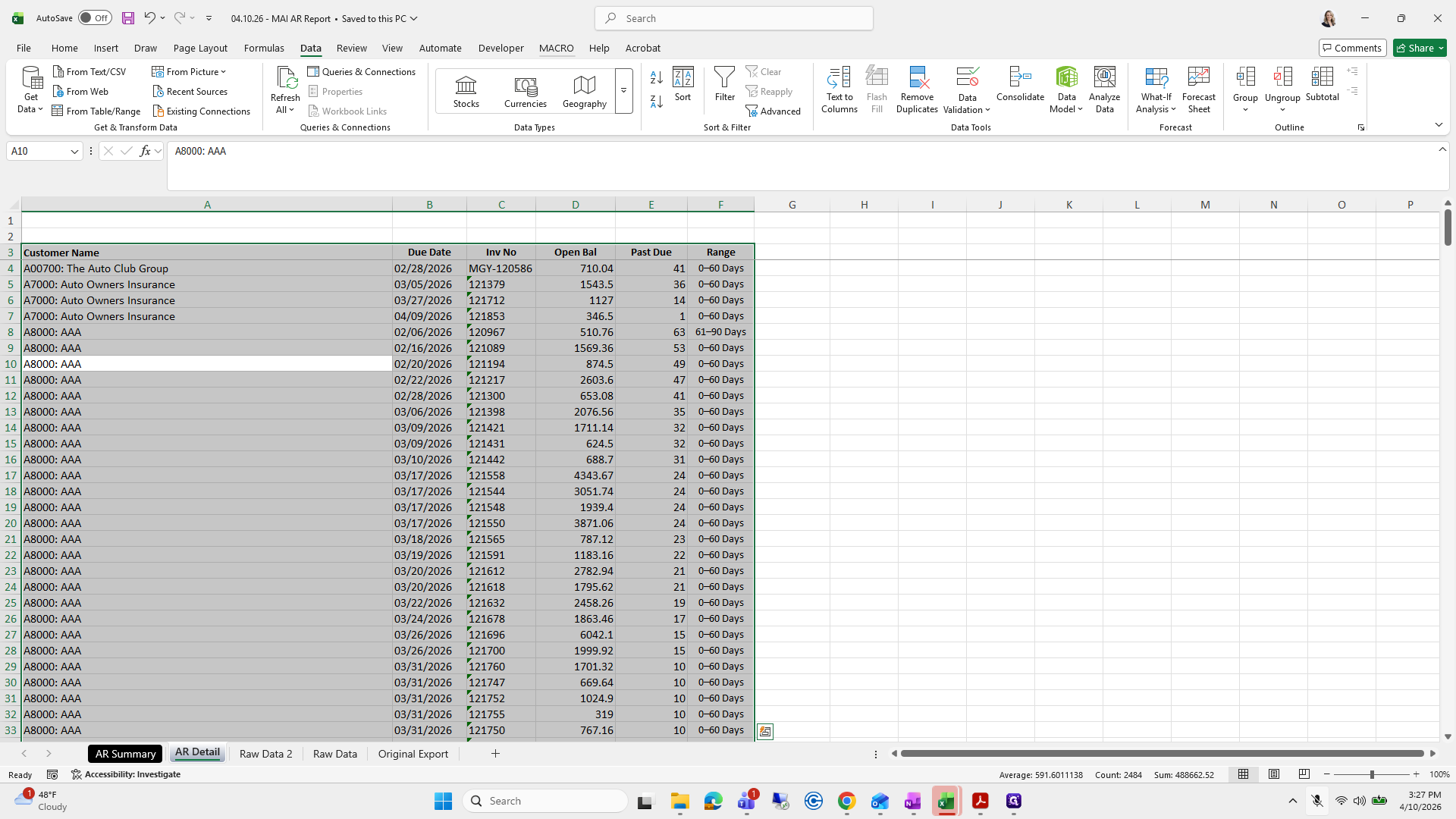
Step #97: Click on "392 TOTAL"
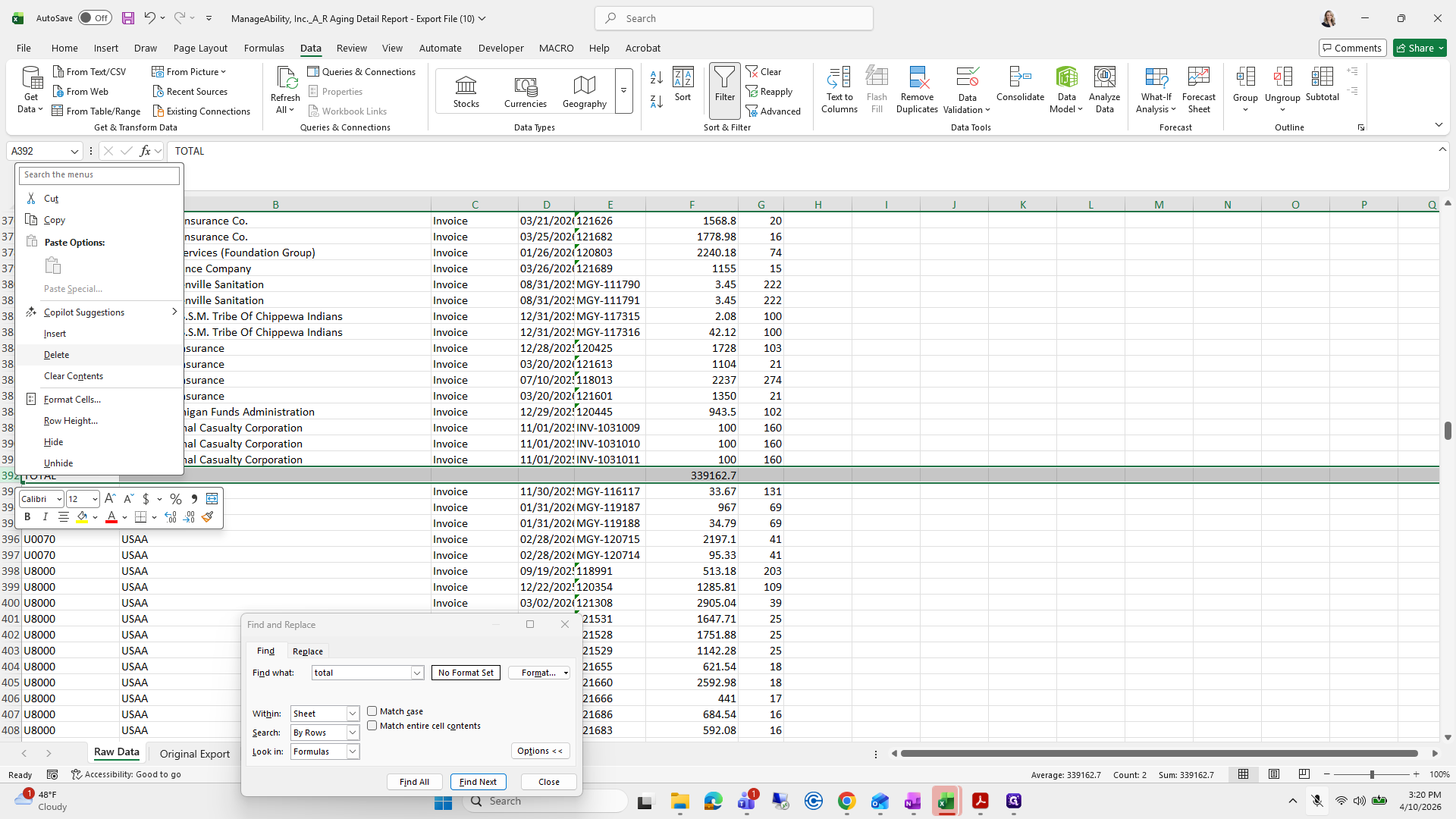
98
Right-click on "392 TOTAL"
Step #98: Right-click on "392 TOTAL"
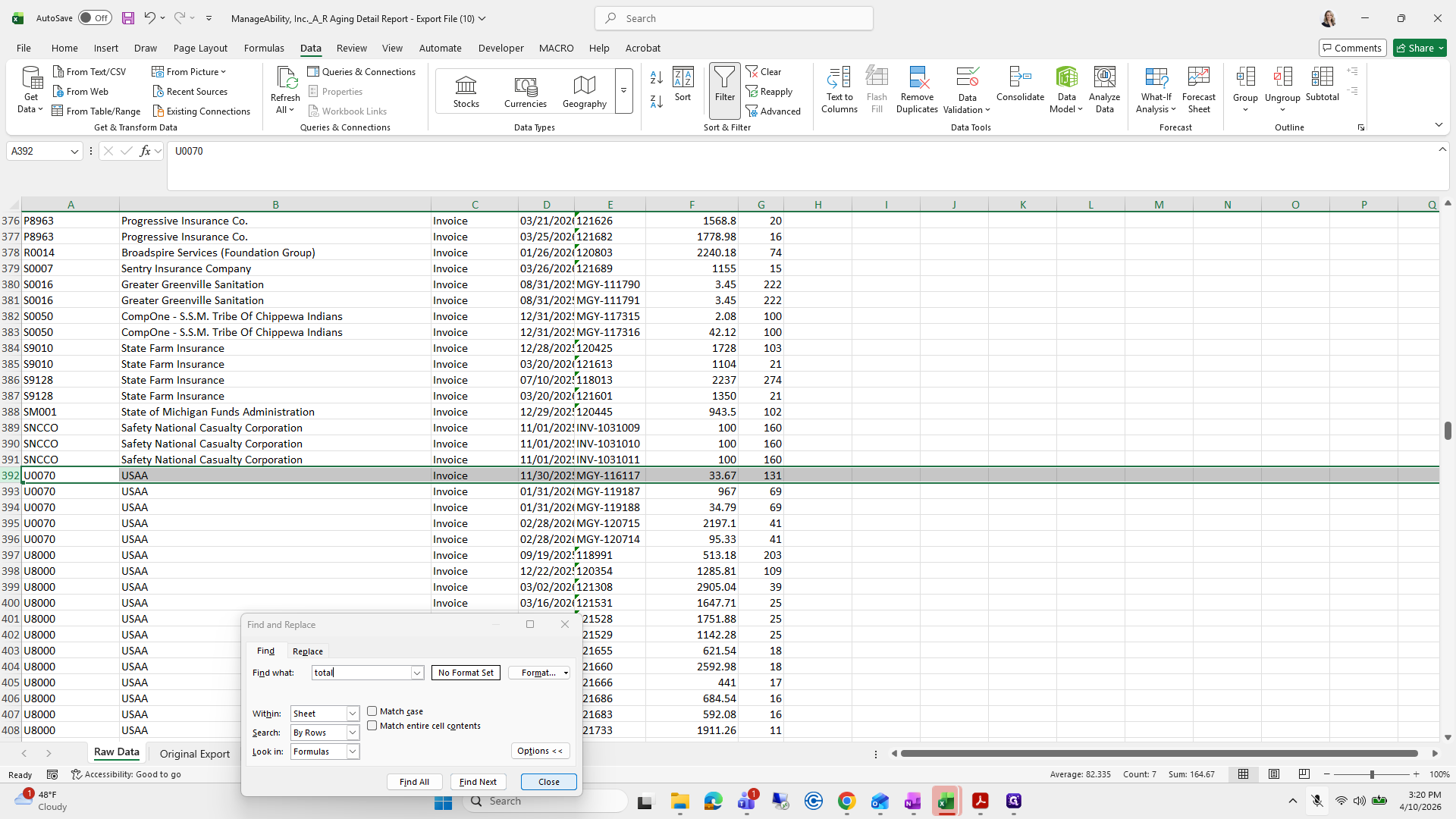
99
Click on "Delete"
Step #99: Click on "Delete"

Make sure you delete that.

100
Click on "Close"
Step #100: Click on "Close"

Okay.

101
Drag here
Step #101: Drag here
102
Click here
Step #102: Click here

Now we have a bit of fun.

103
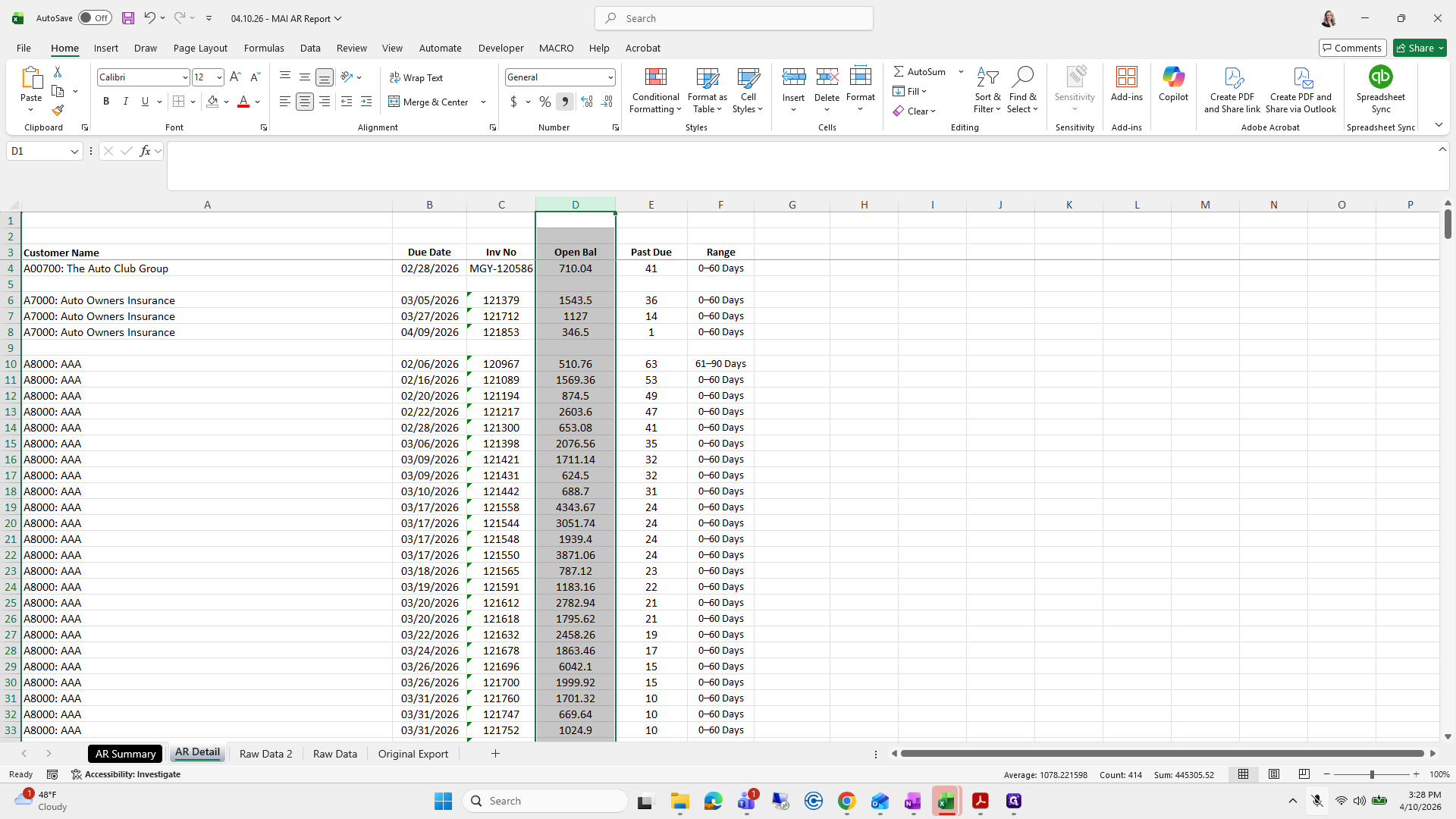
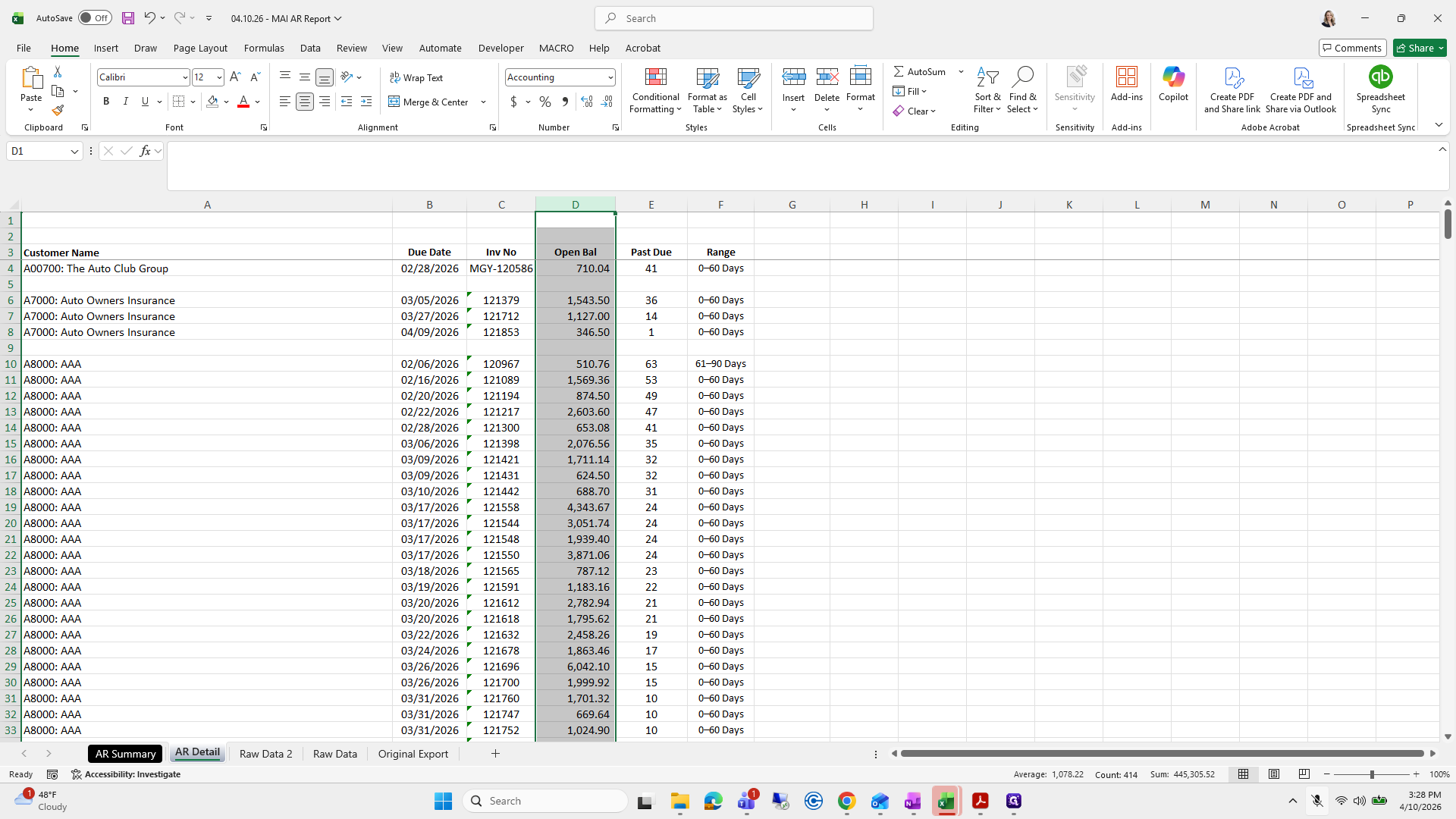
Click here
Step #103: Click here

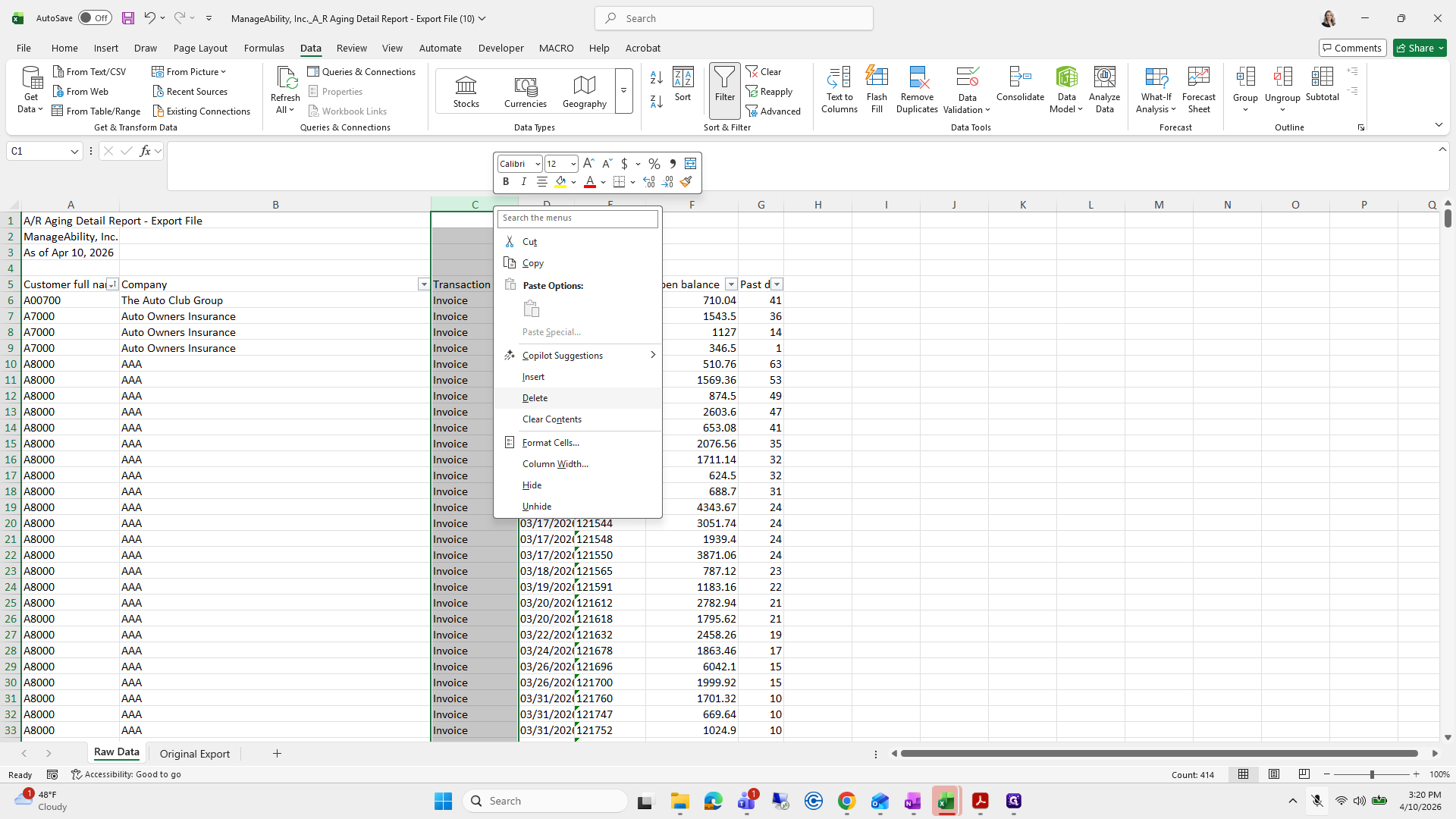
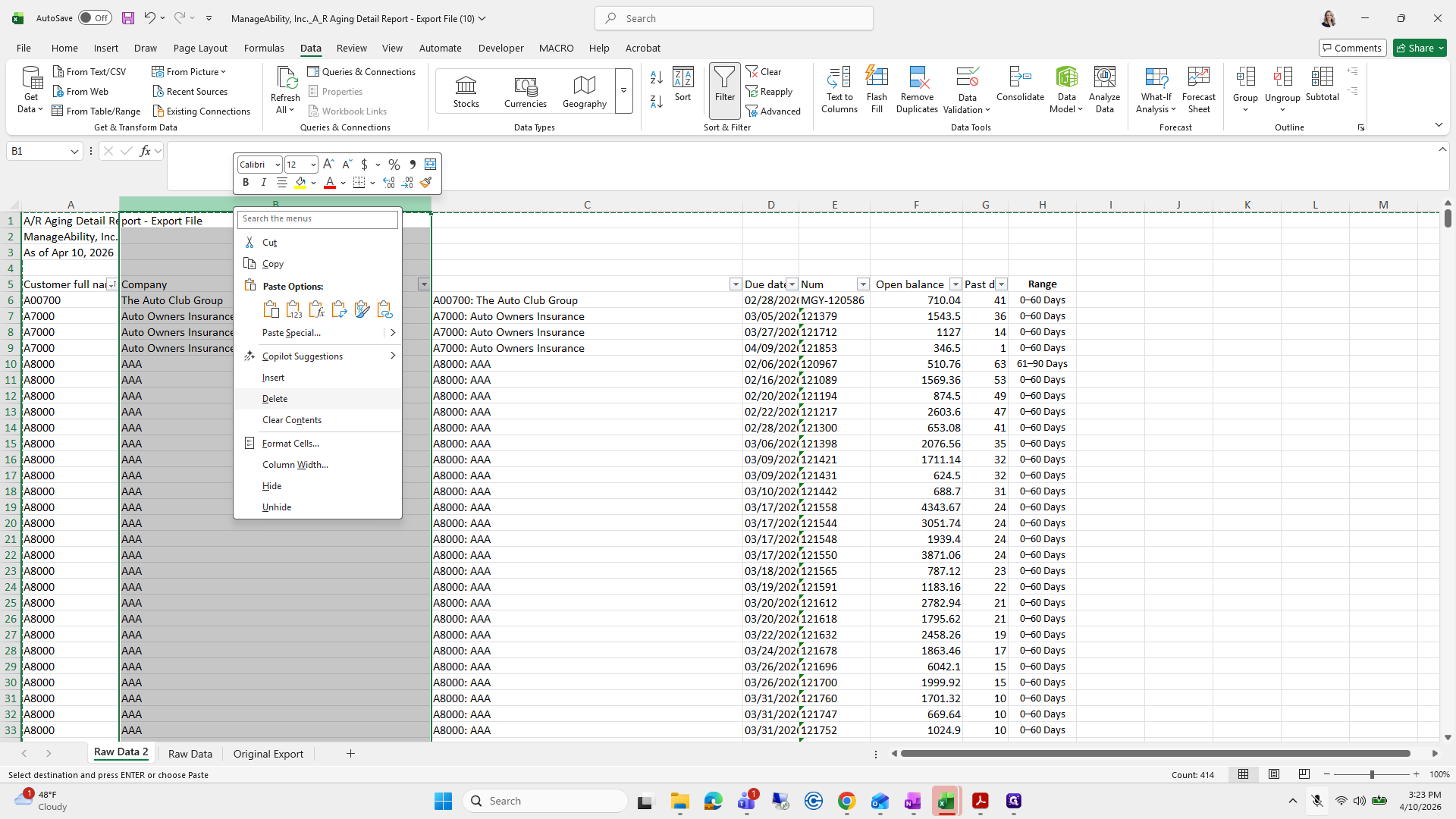
Now we can delete column C, Transaction Type. Then, we'll add it back and update it as needed.
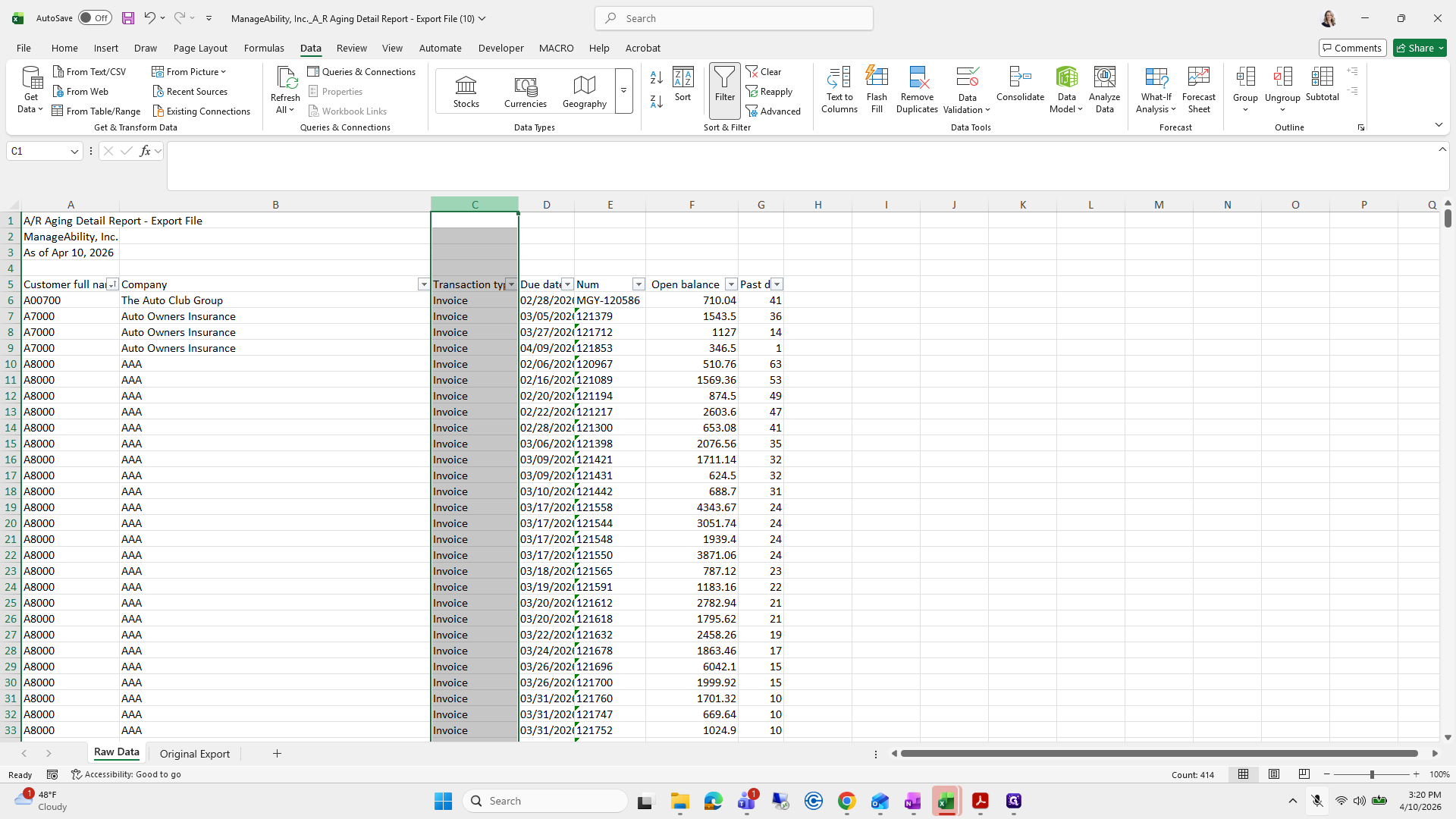
104
Right-click here
Step #104: Right-click here
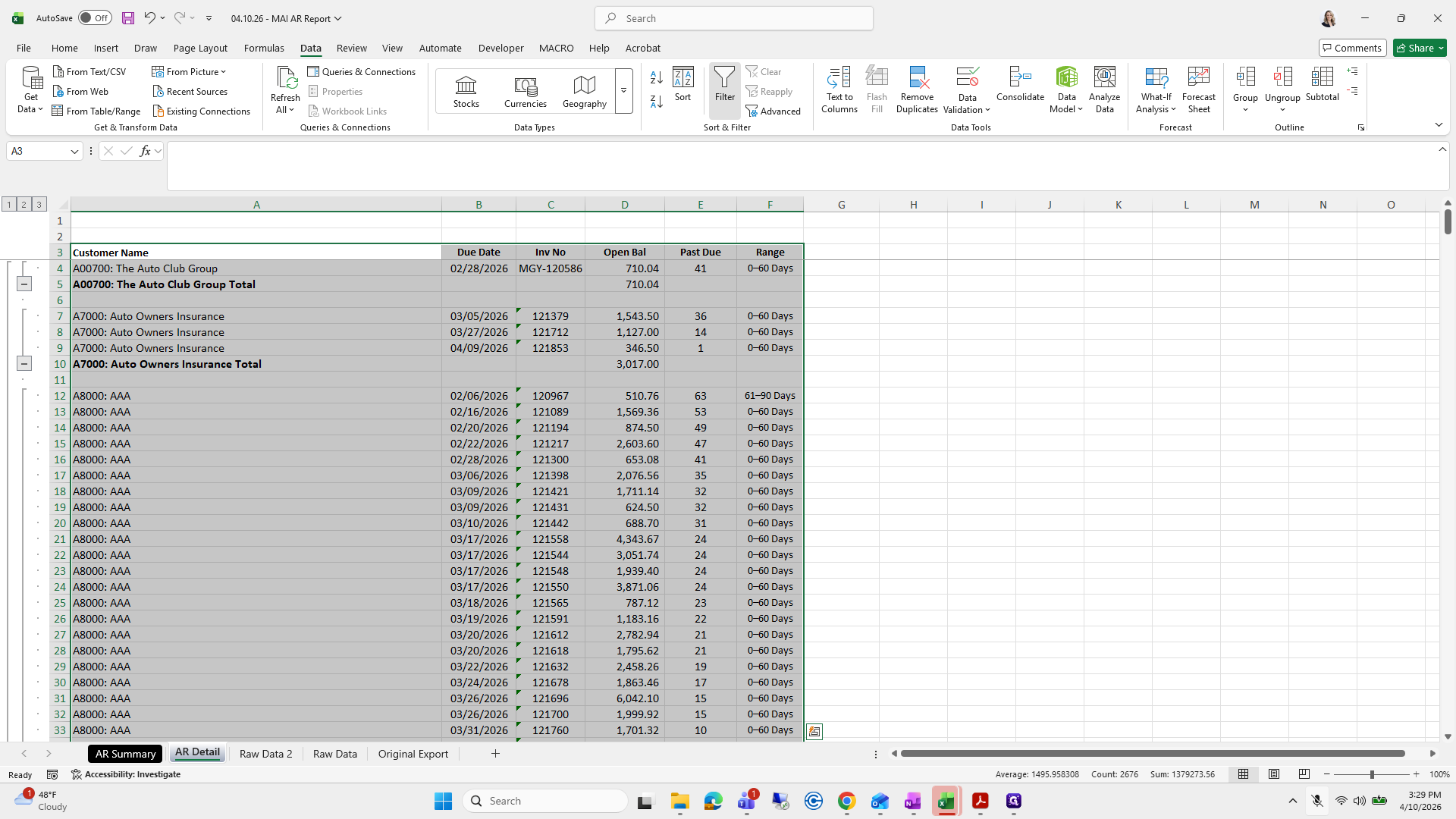
105
Click on "Delete"
Step #105: Click on "Delete"
106
Right-click here
Step #106: Right-click here
107
Click on "Insert"
Step #107: Click on "Insert"
108
Click here
Step #108: Click here

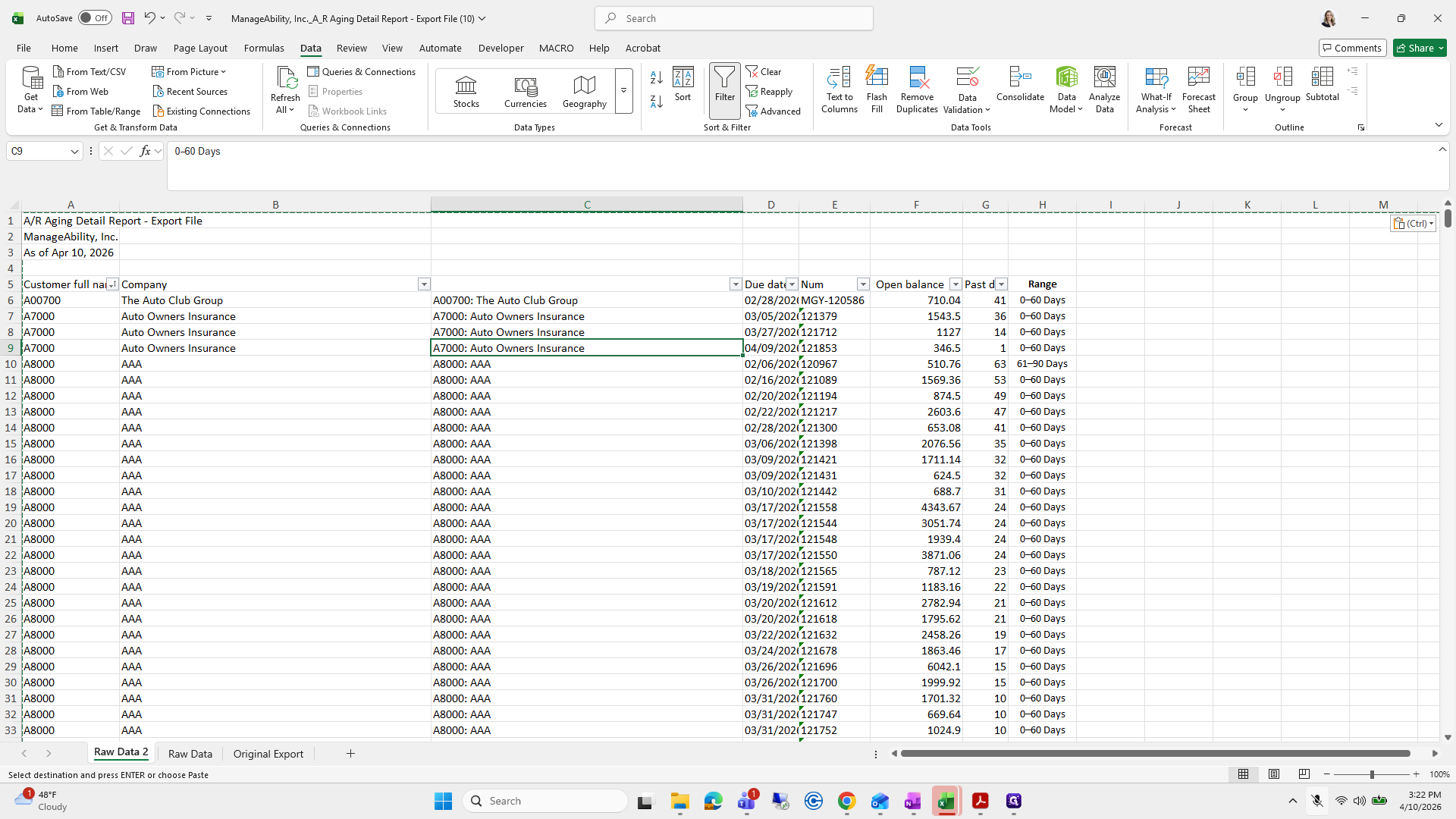
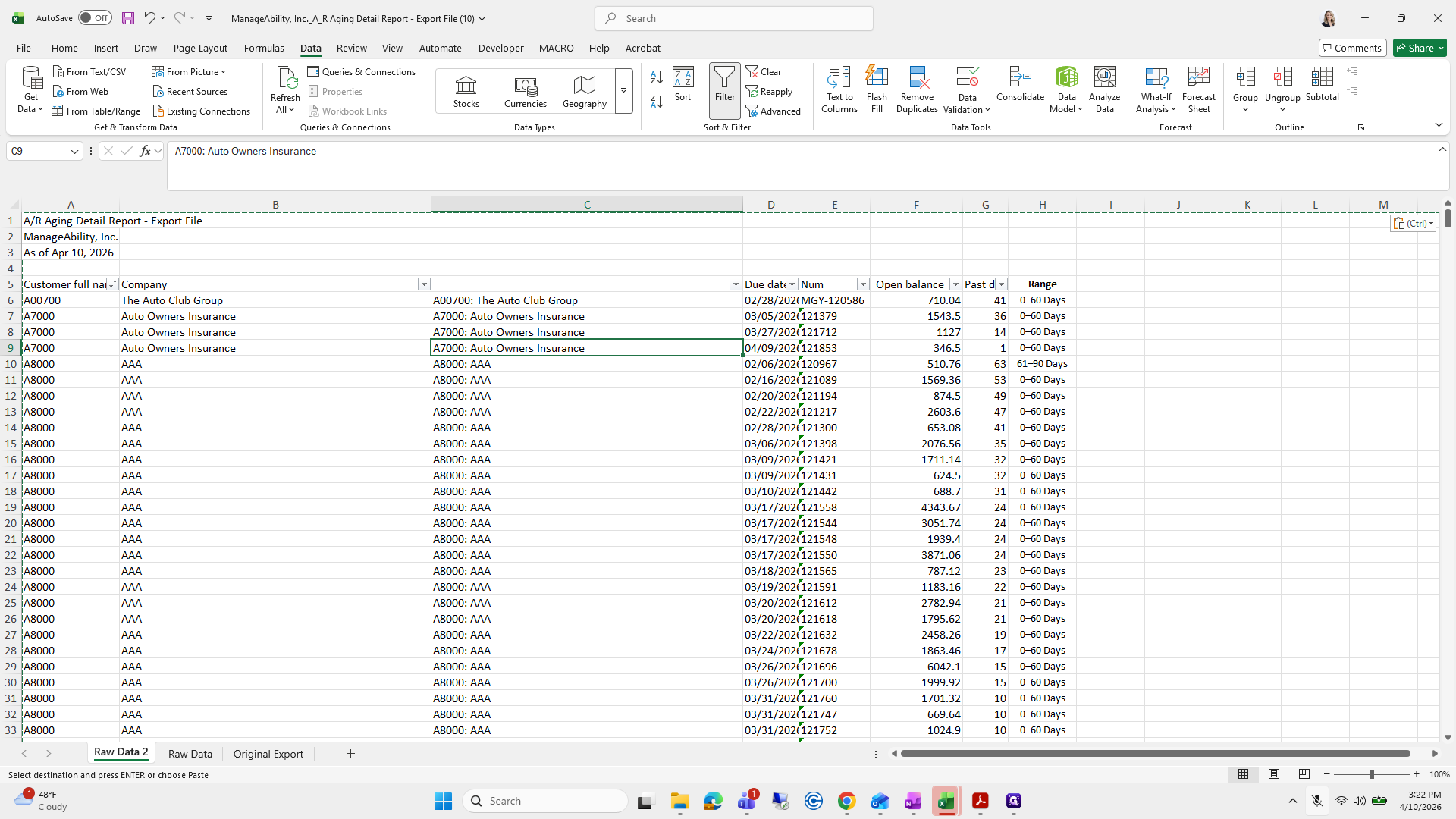
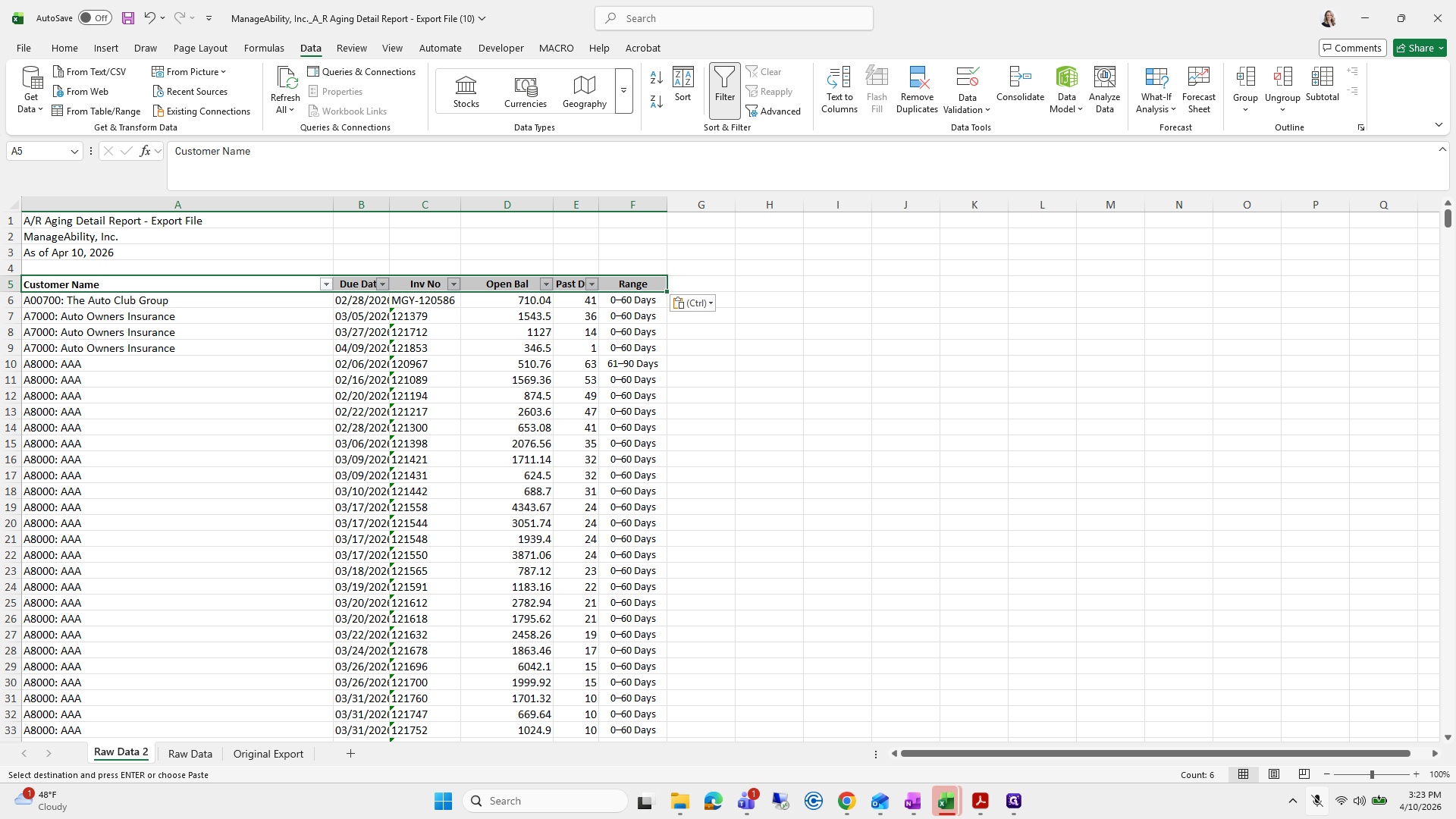
Conjugate, grab the customer code, comma, quotation mark, add a space, then conjugate.
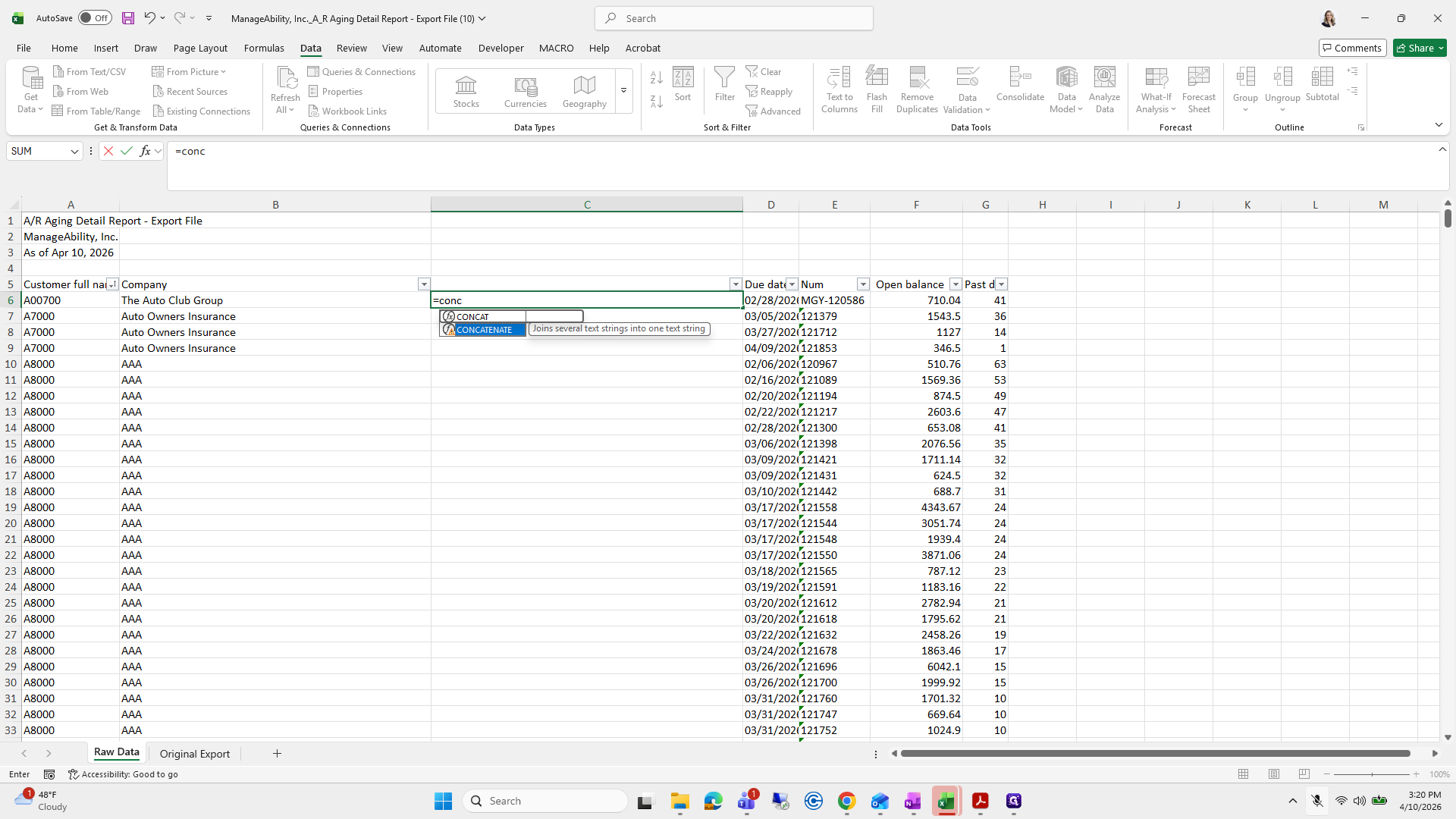
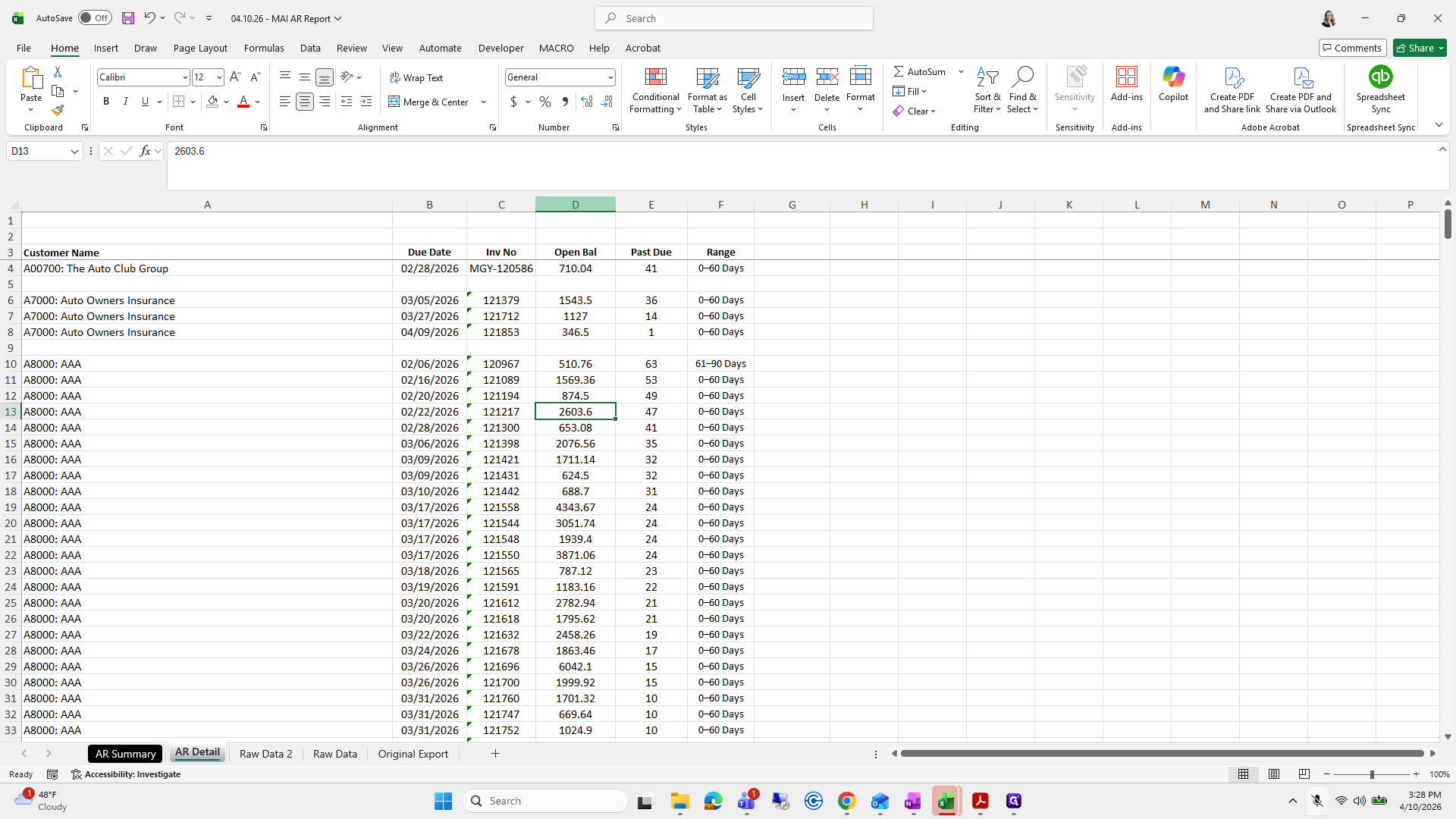
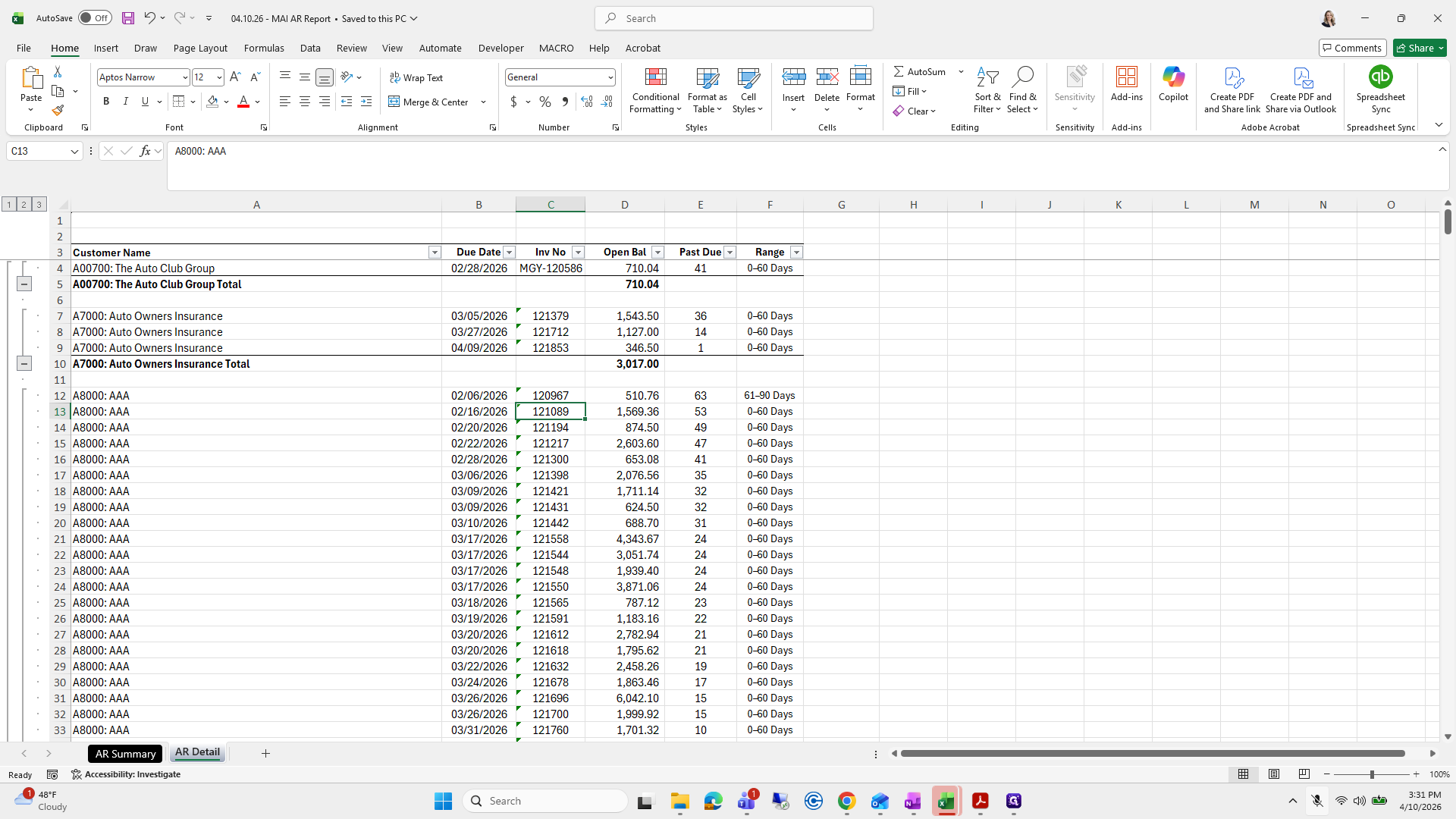
109
Type "=conc"
110
Type "=conc"
111
Double-click on "CONCATENATE"
Step #111: Double-click on "CONCATENATE"
112
Click on "The Auto Club Group"
Step #112: Click on "The Auto Club Group"
113
Type ",": ","
114
Click on "The Auto Club Group"
Step #114: Click on "The Auto Club Group"

That combines the items with a colon, and then we will drag it down.
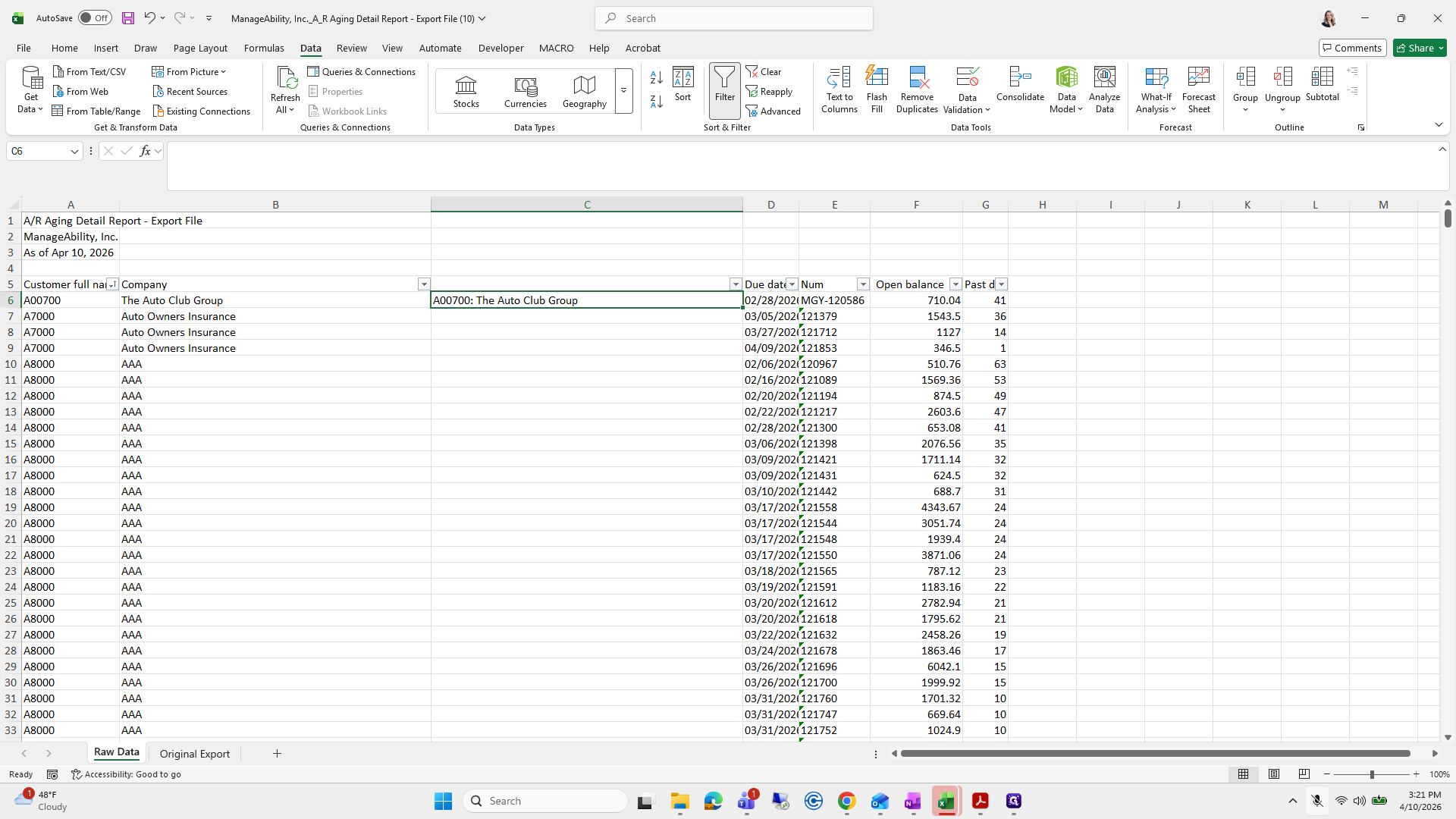
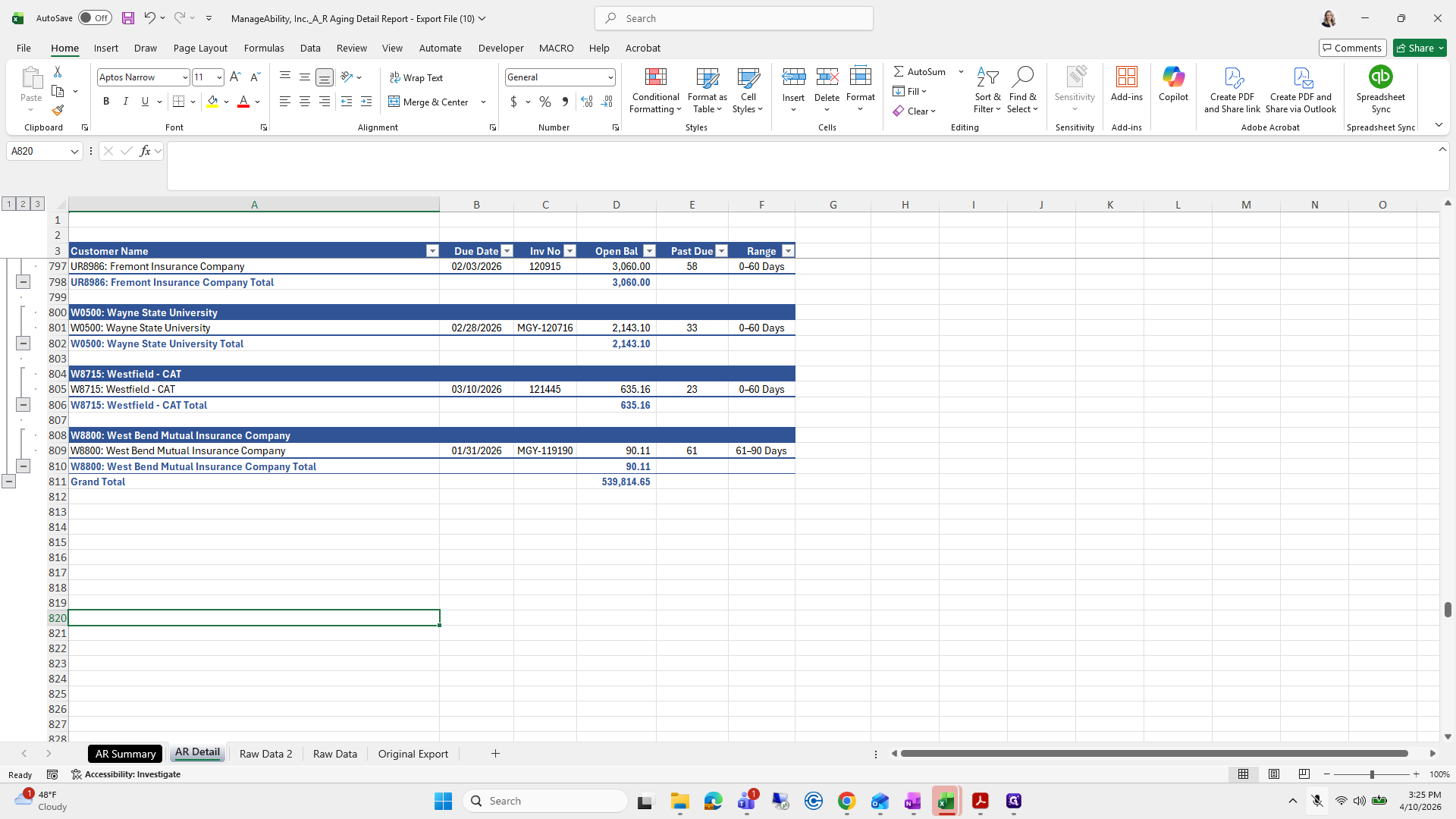
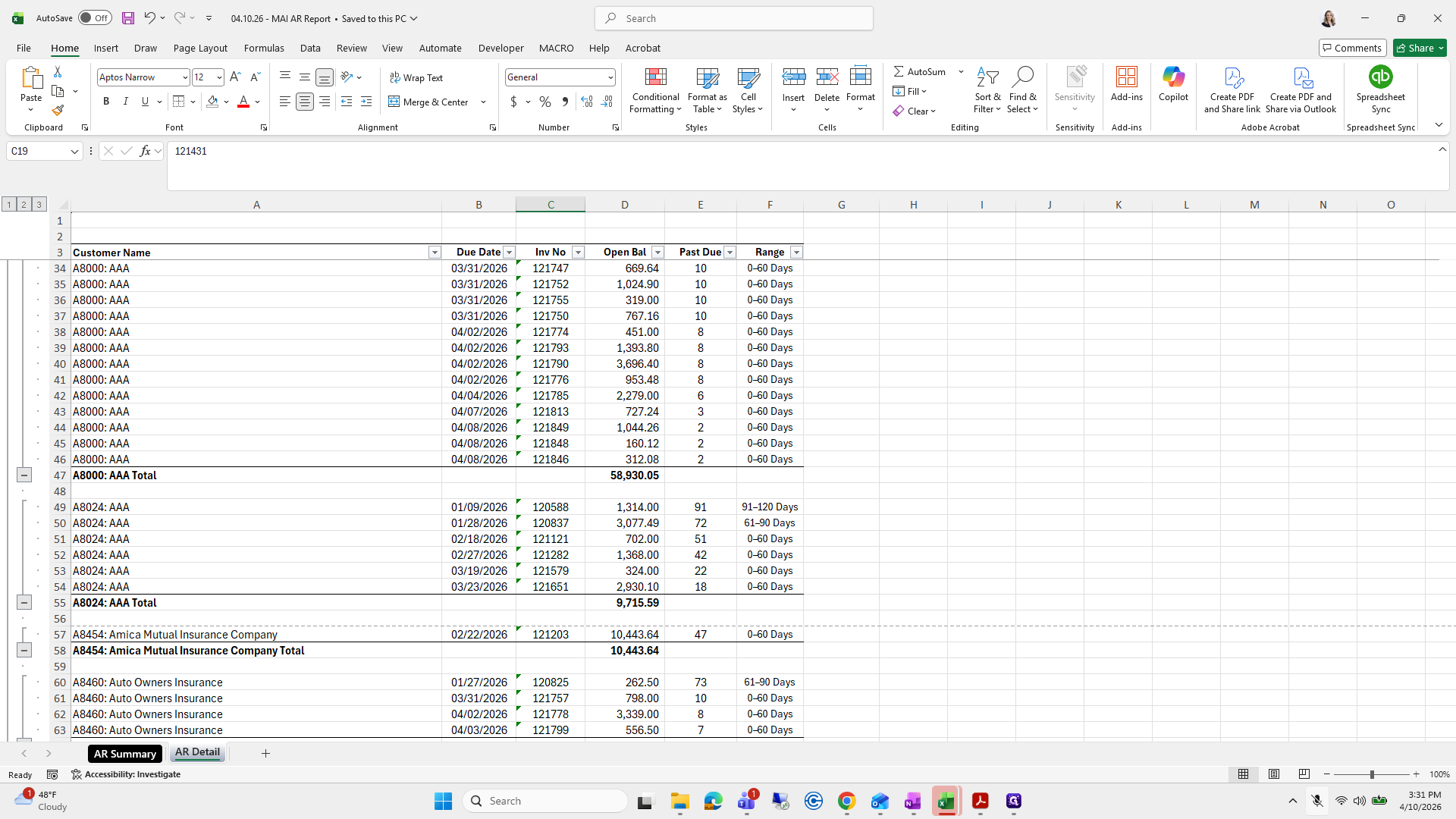
115
Type ") + Enter"
116
Click on "A00700 : The Auto Club Group"
Step #116: Click on "A00700 : The Auto Club Group"
117
Double-click on "03/05/202"
Step #117: Double-click on "03/05/202"
118
Click here
Step #118: Click here

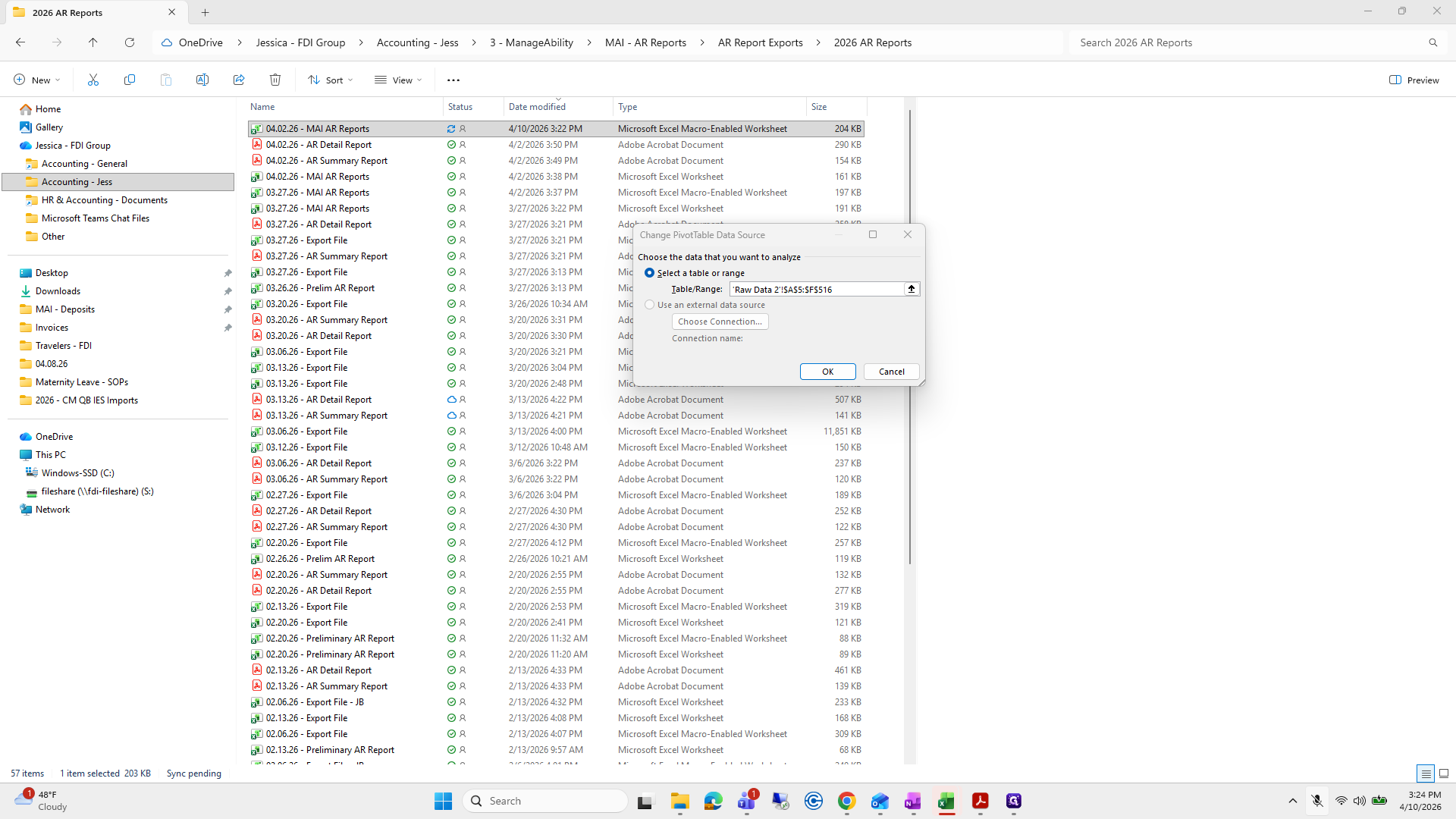
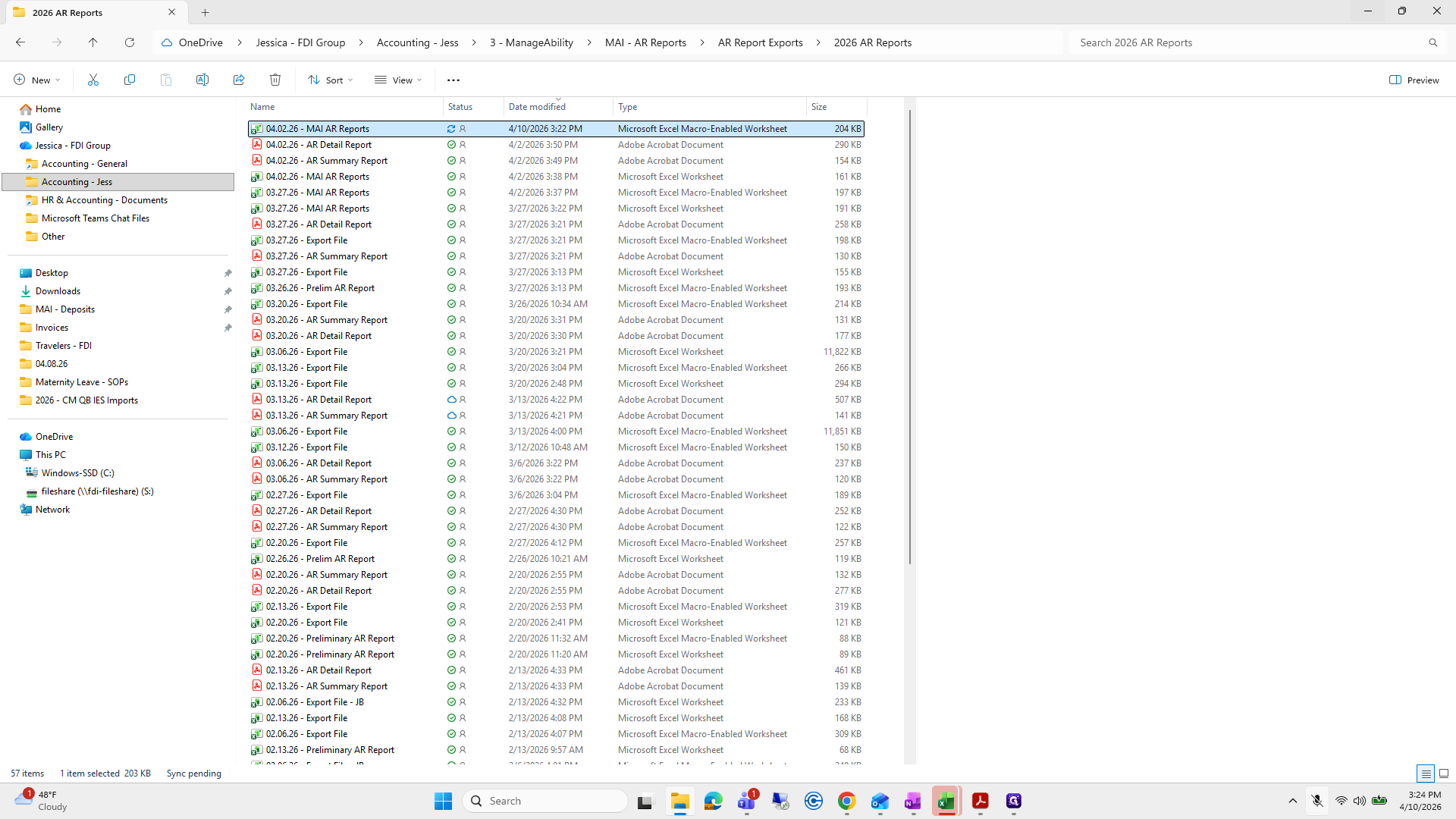
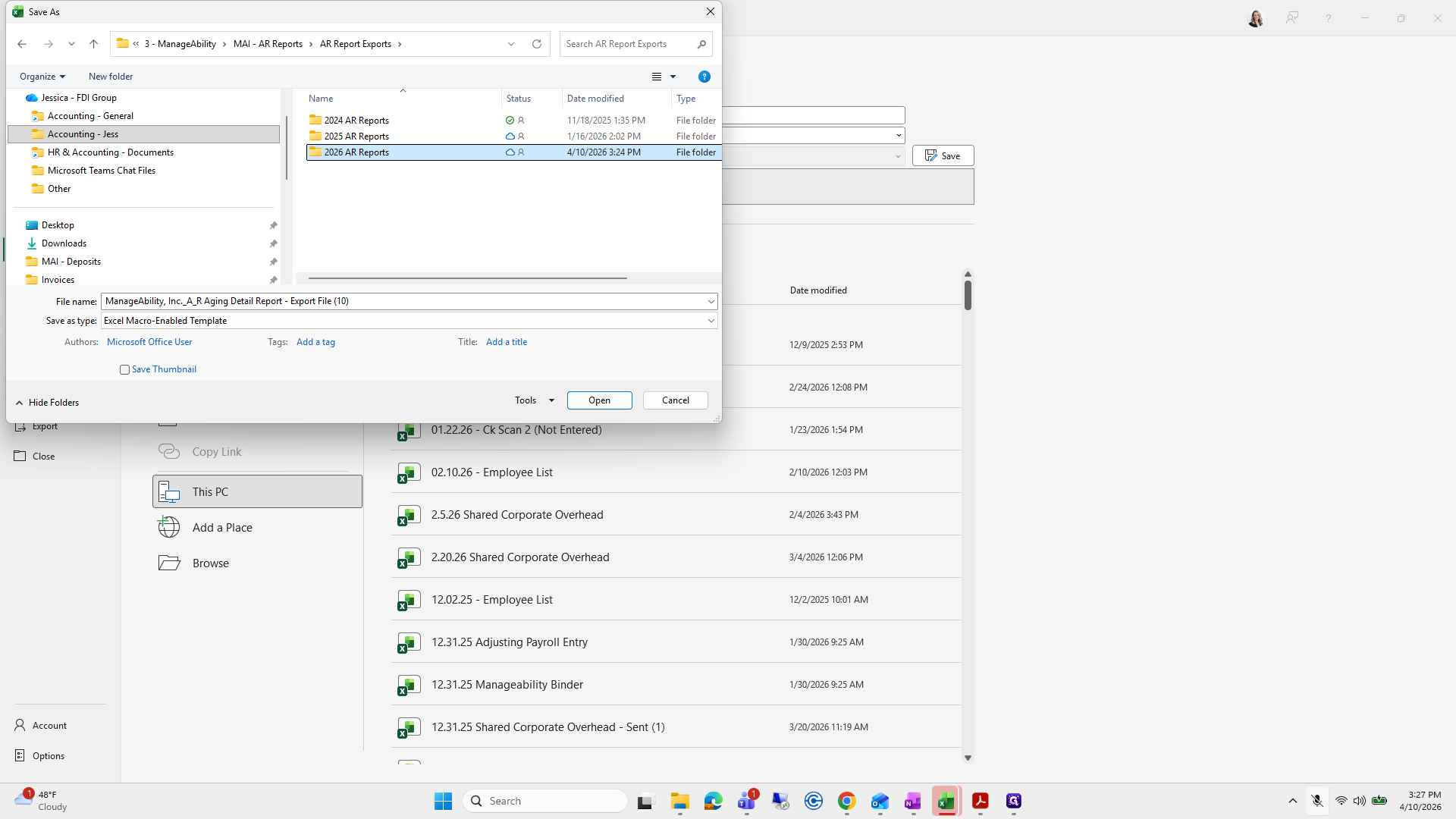
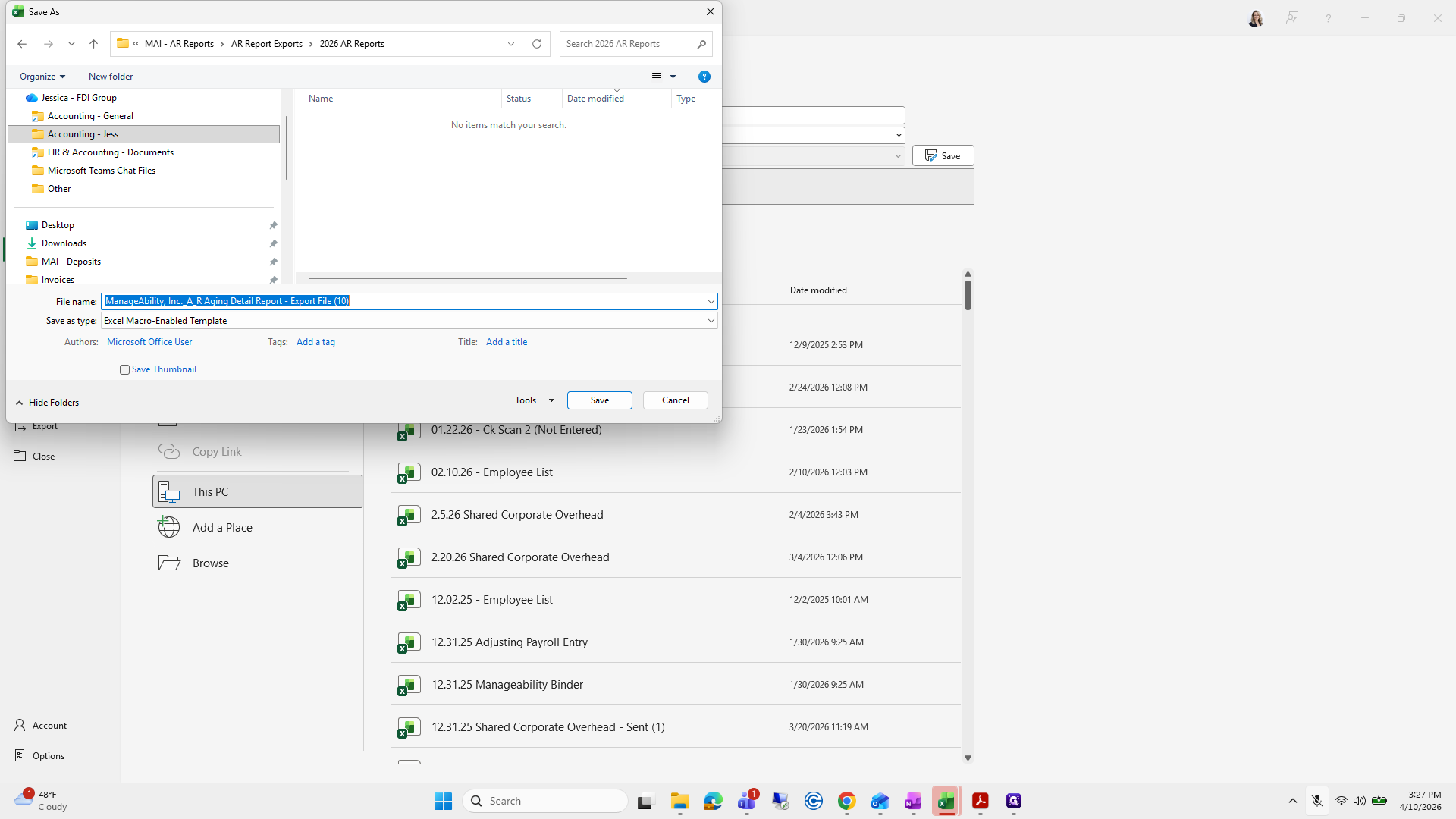
Next, go to the Manageability folder, open AR Reports, and select 2026. Then, choose the latest macro-enabled report from that folder.
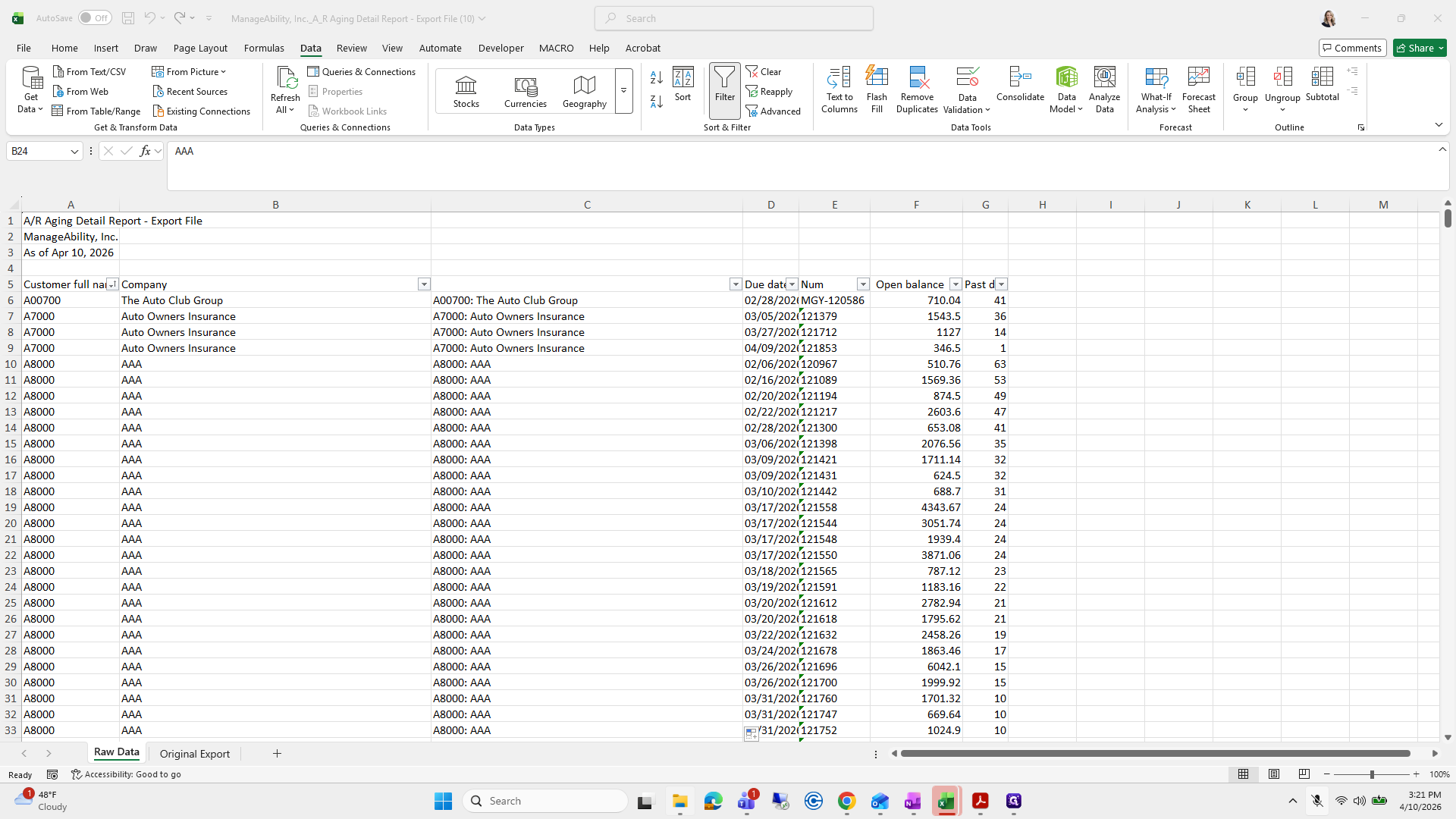
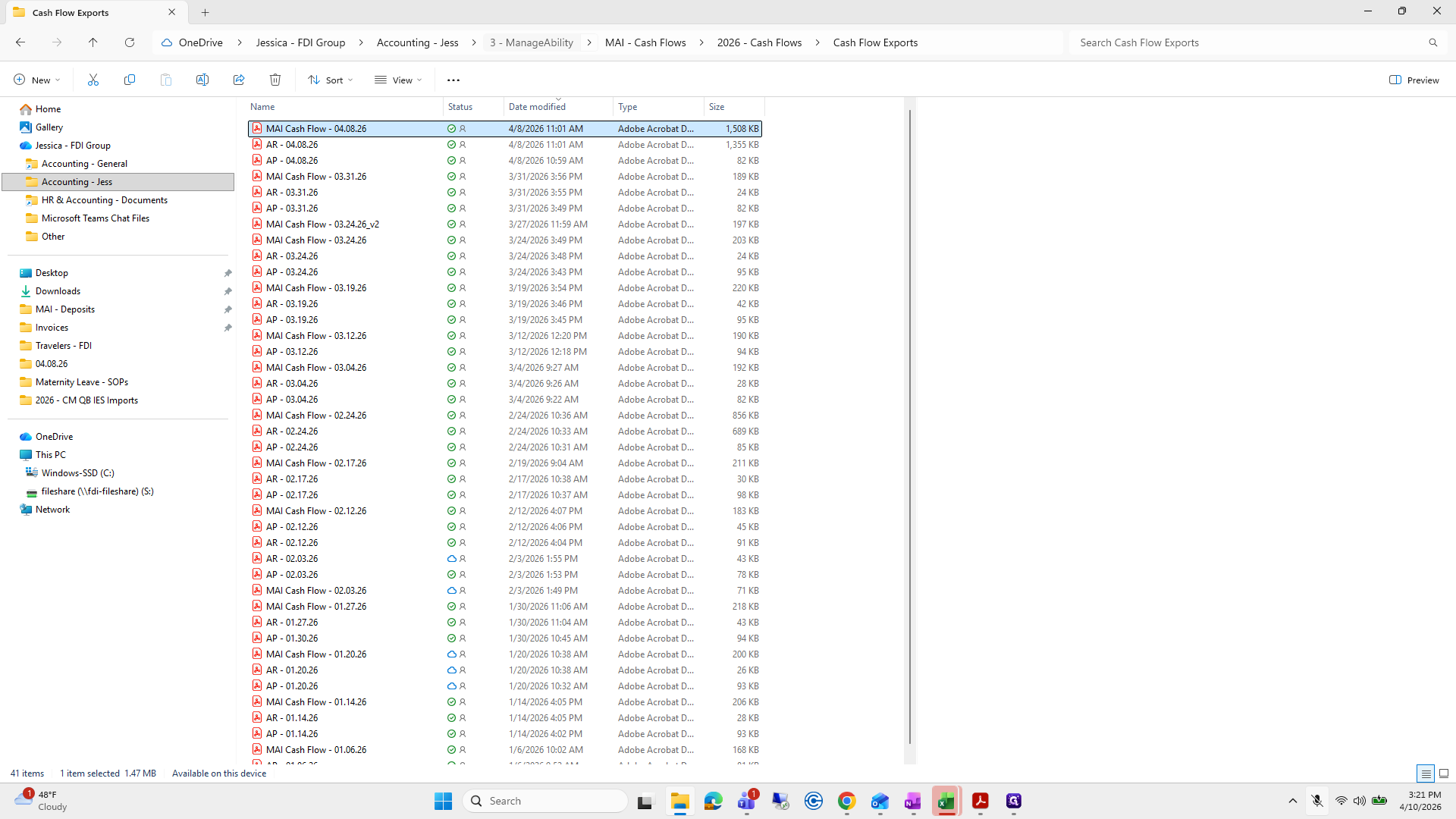
119
Click here
Step #119: Click here
120
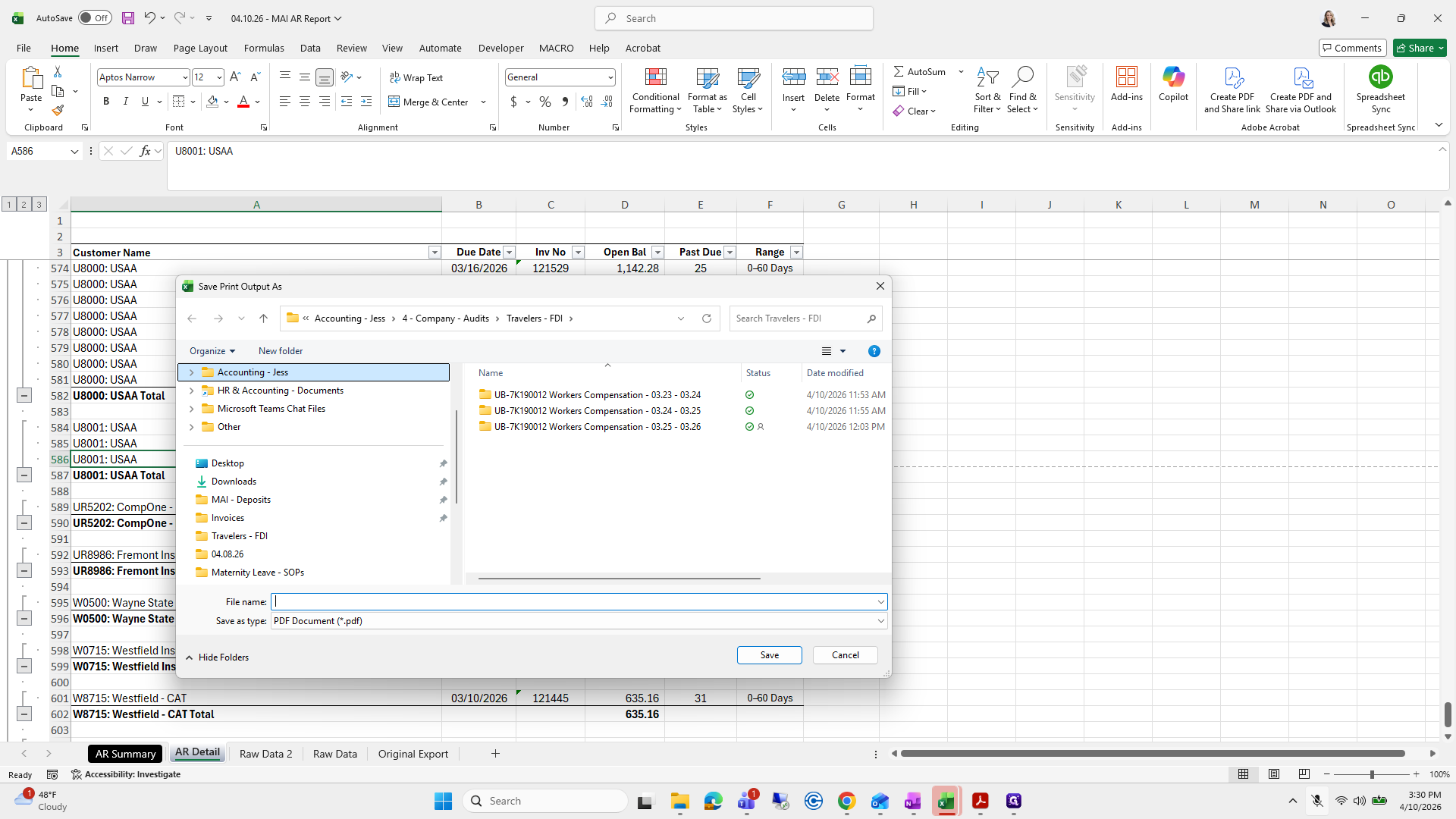
Click on "ManageAbility"
Step #120: Click on "ManageAbility"
121
Double-click on "MAI - AR Reports"
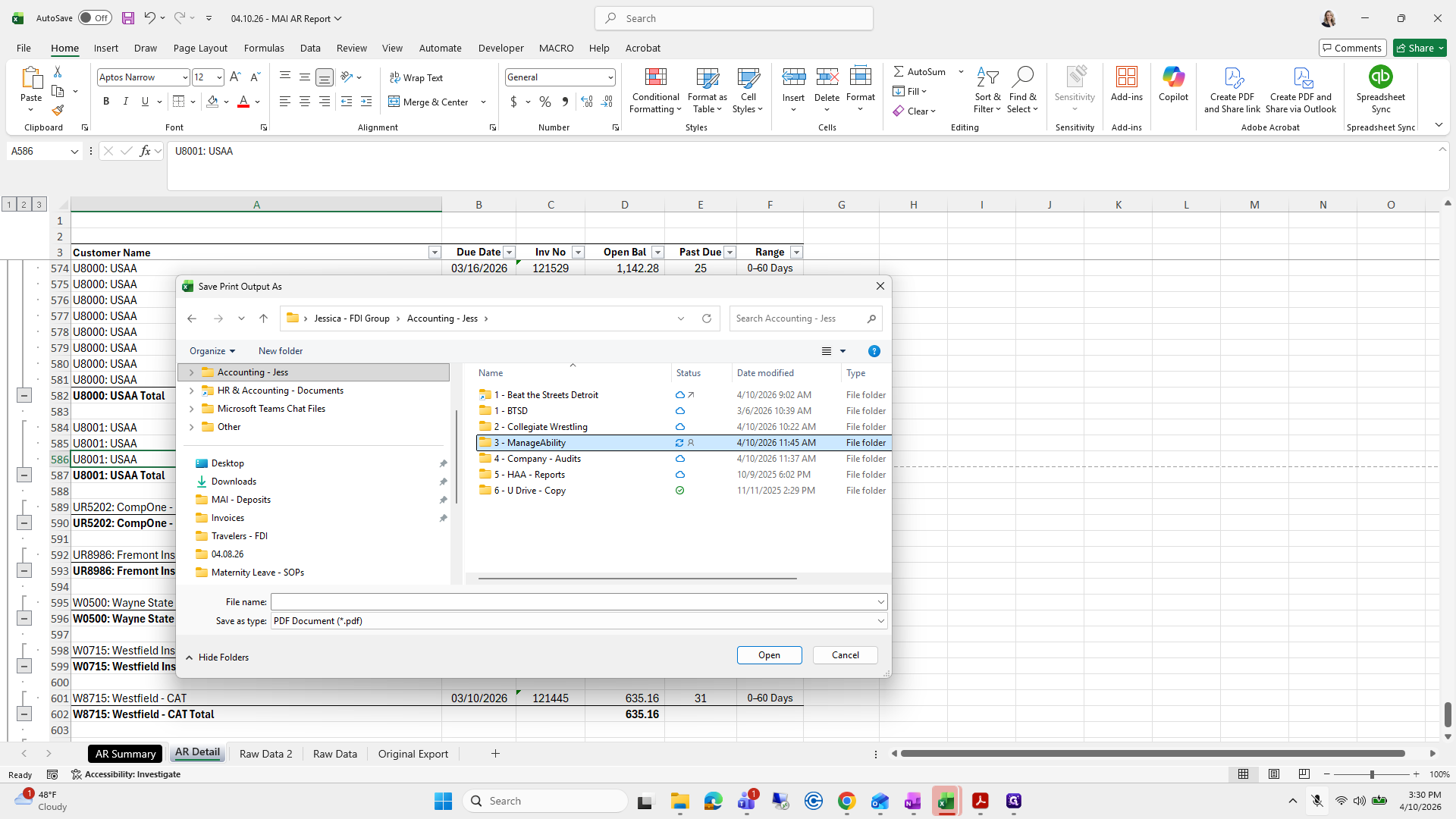
Step #121: Double-click on "MAI - AR Reports"
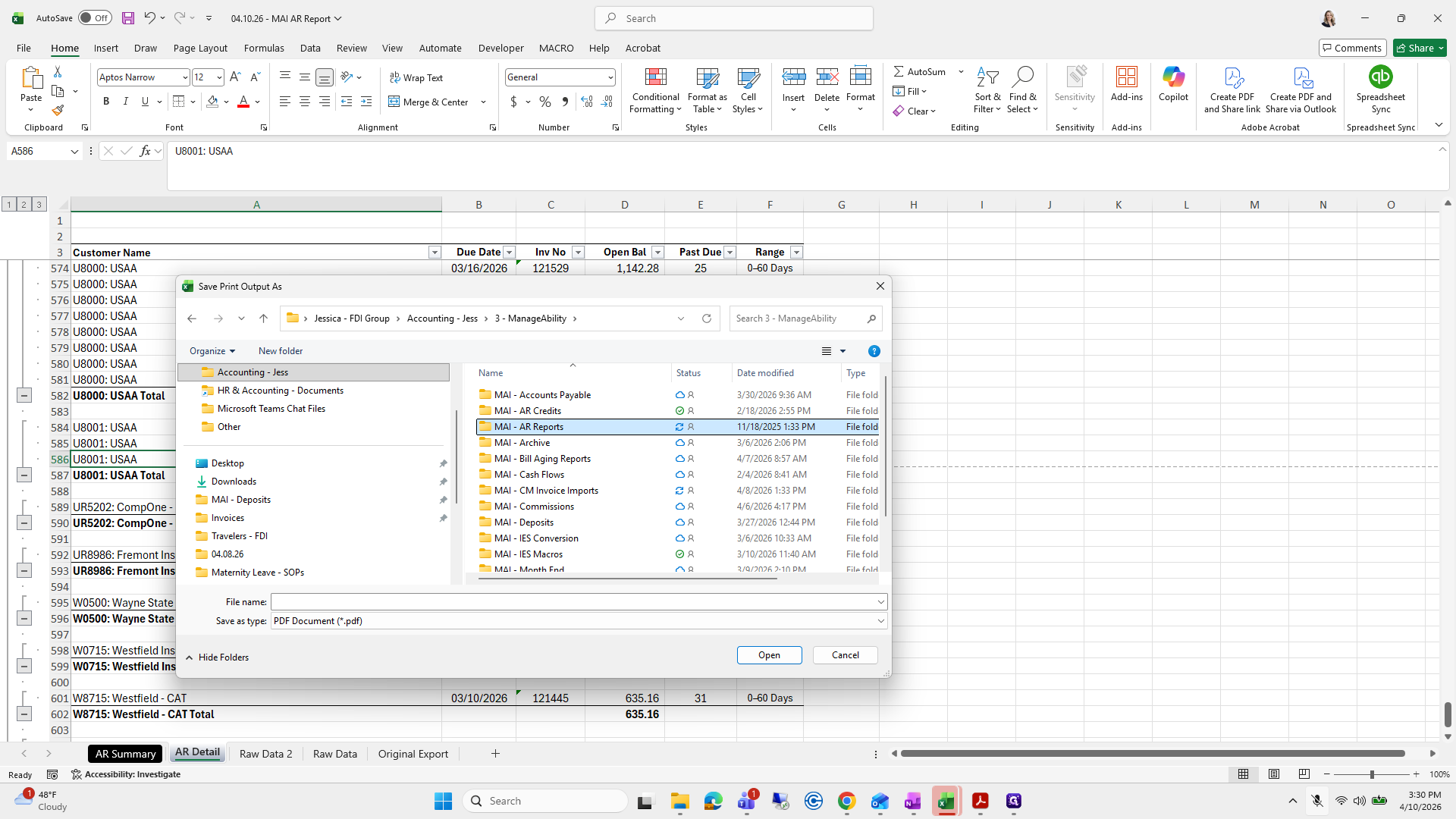
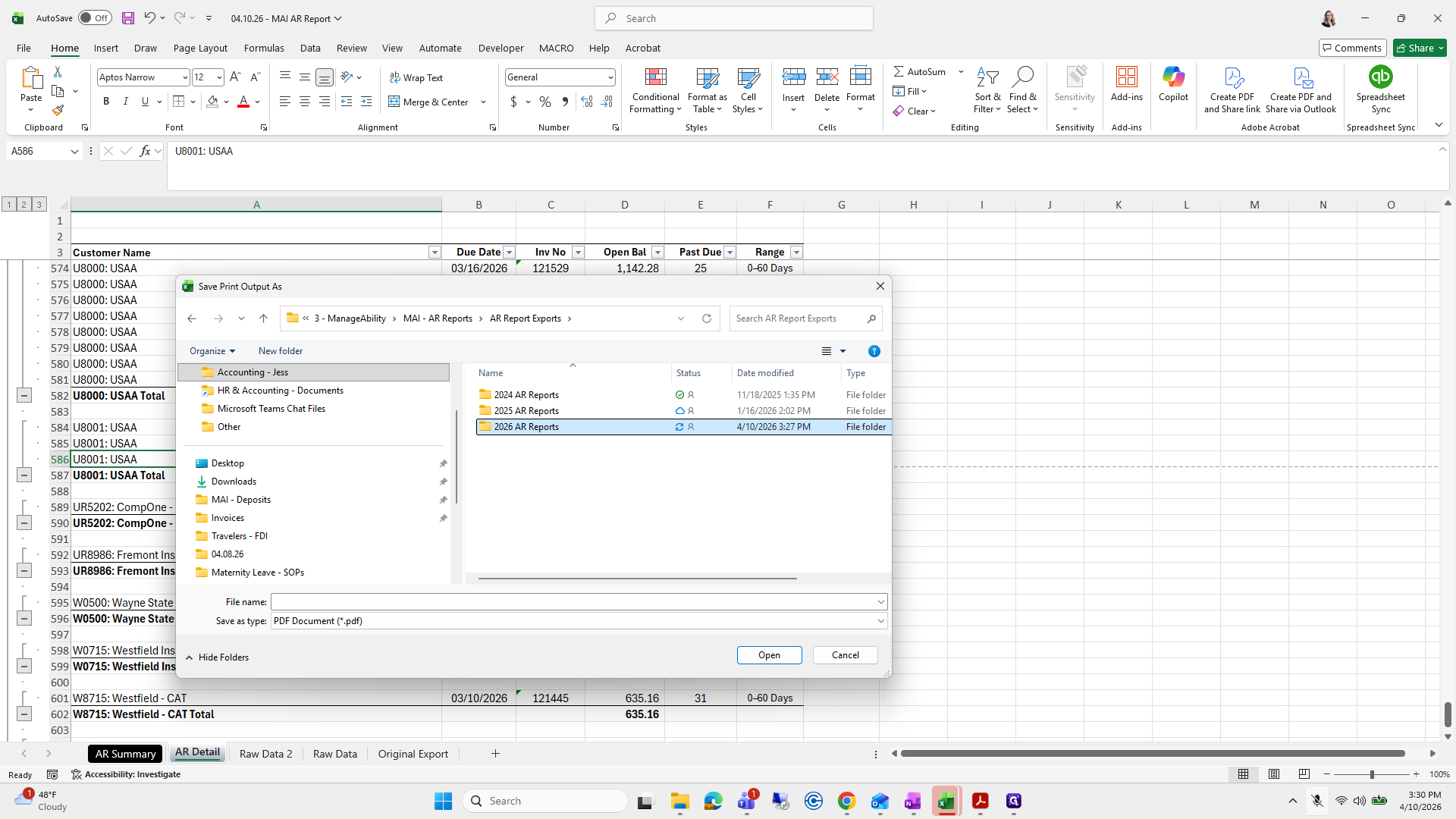
122
Double-click on "AR Report Exports"
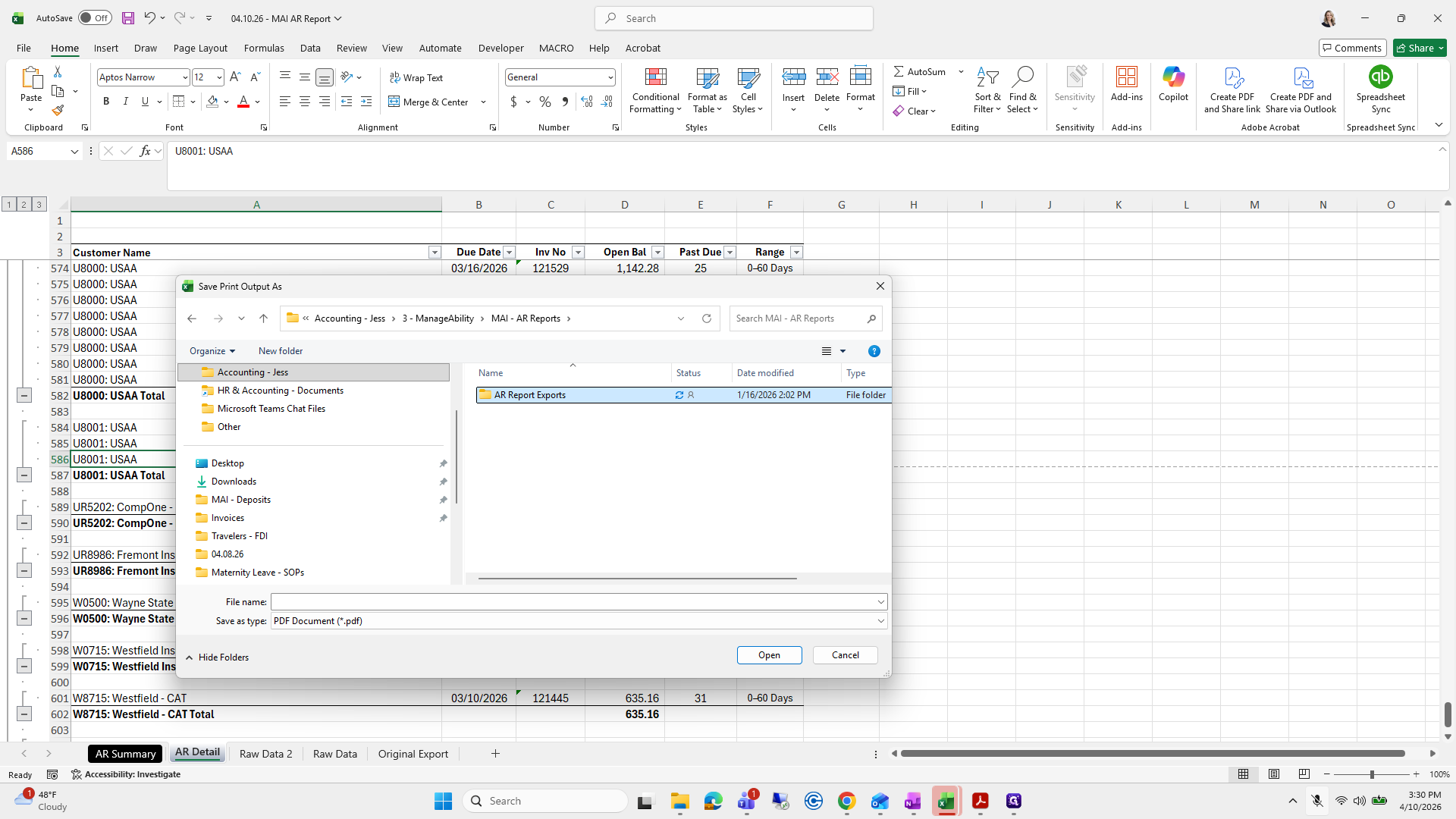
Step #122: Double-click on "AR Report Exports"
123
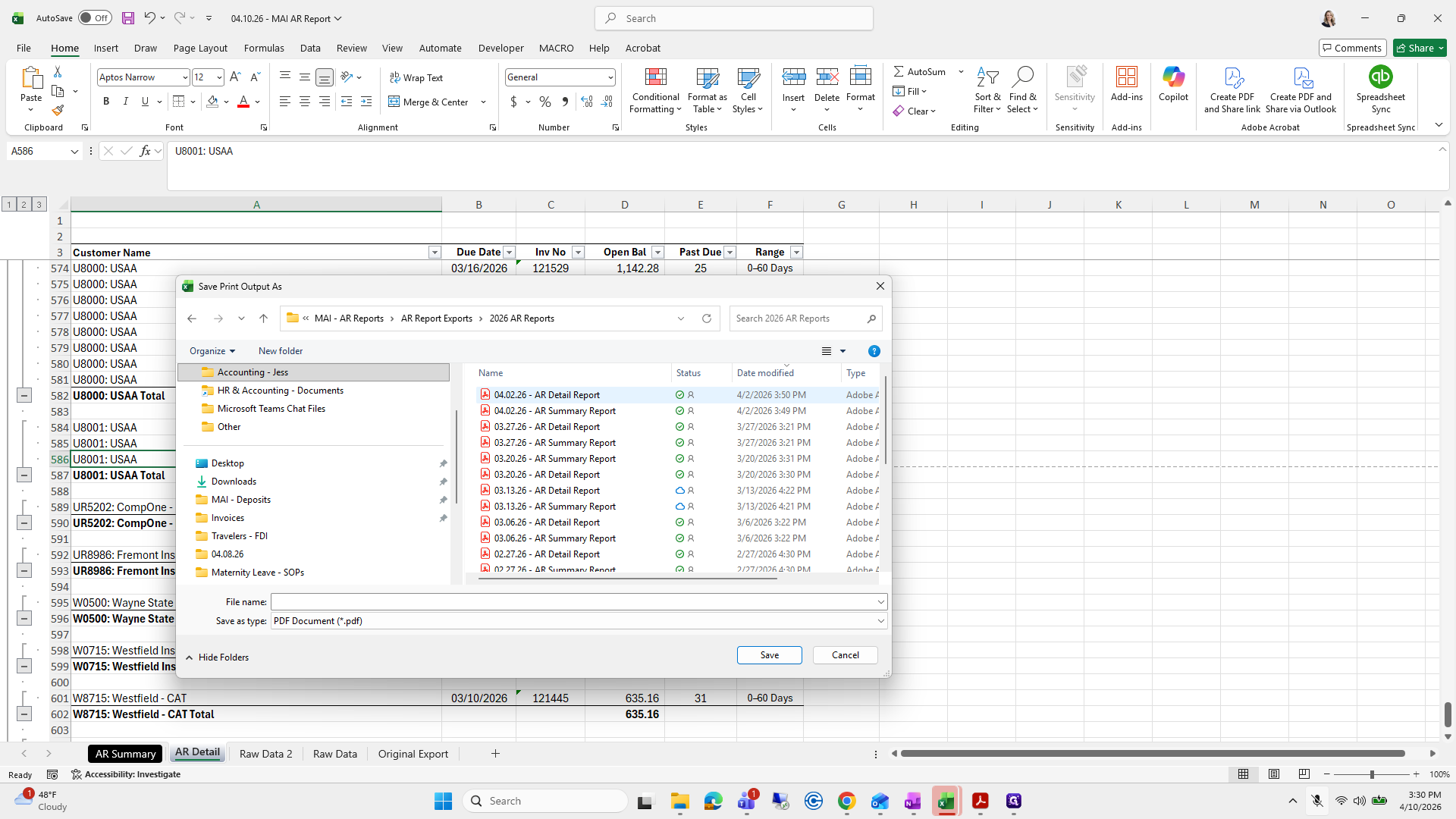
Double-click on "2026 AR Reports"
Step #123: Double-click on "2026 AR Reports"
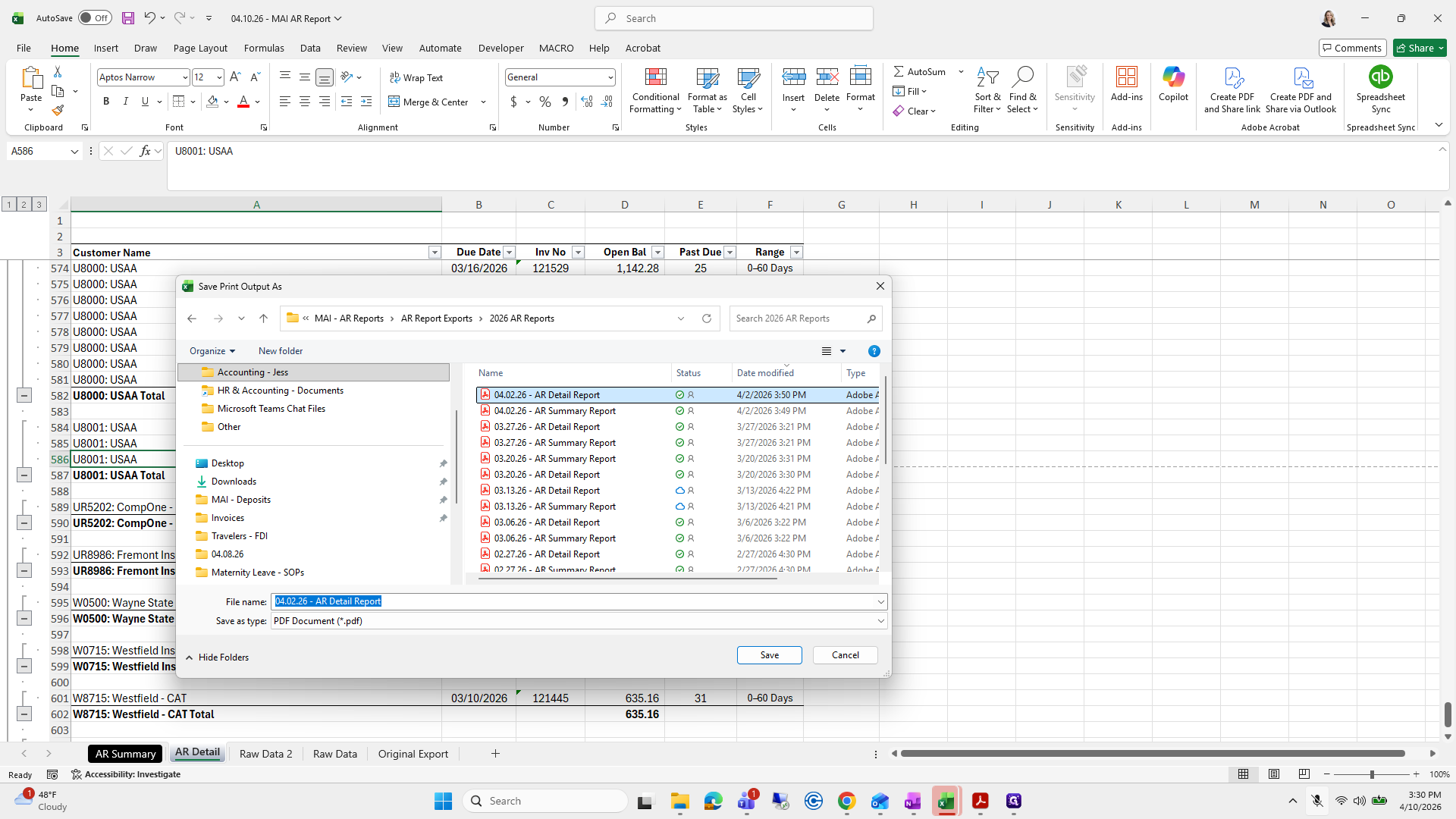
124
Click on "AR Summary Report"
Step #124: Click on "AR Summary Report"
125
Double-click on "MAI AR Reports"
Step #125: Double-click on "MAI AR Reports"

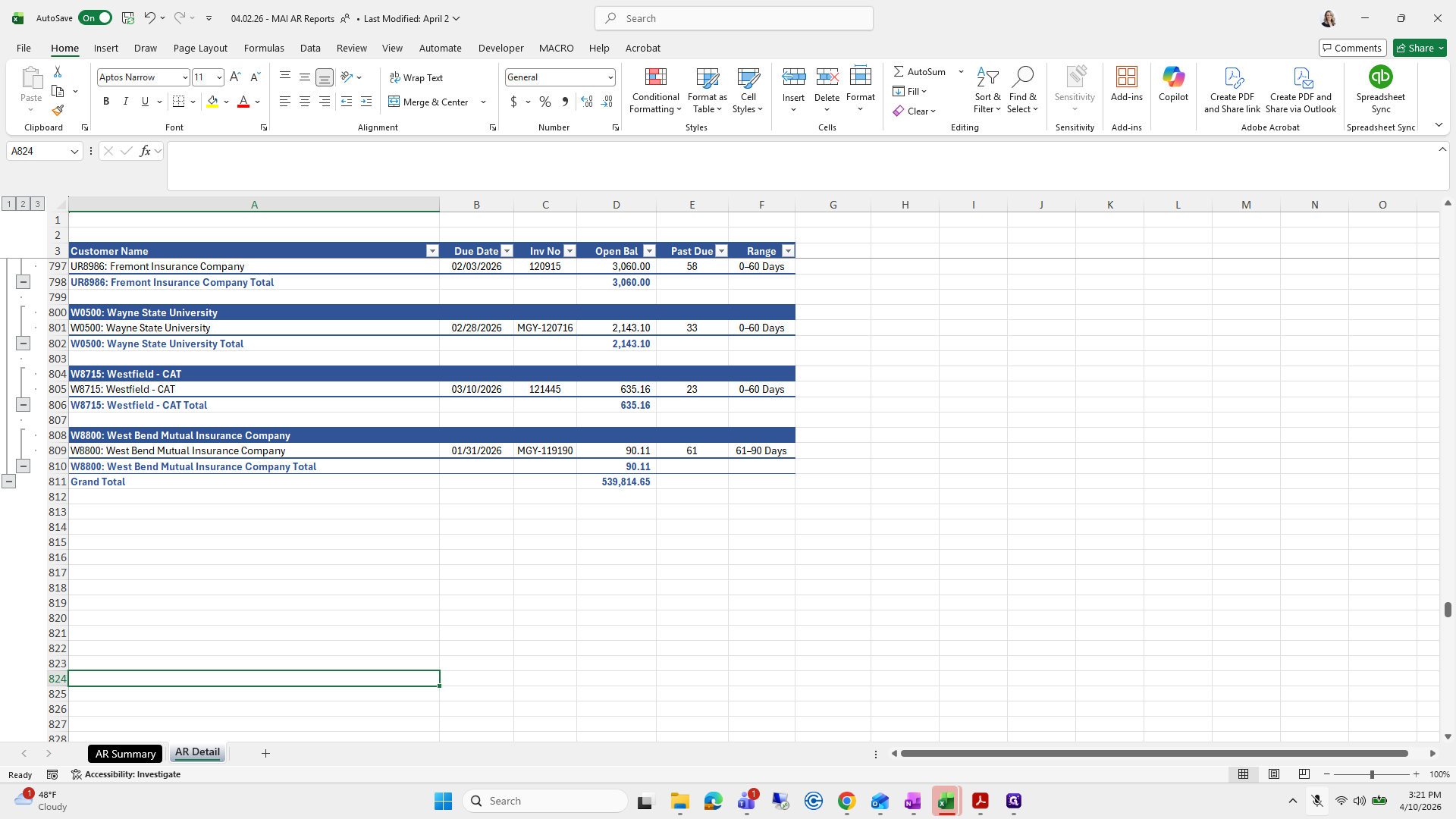
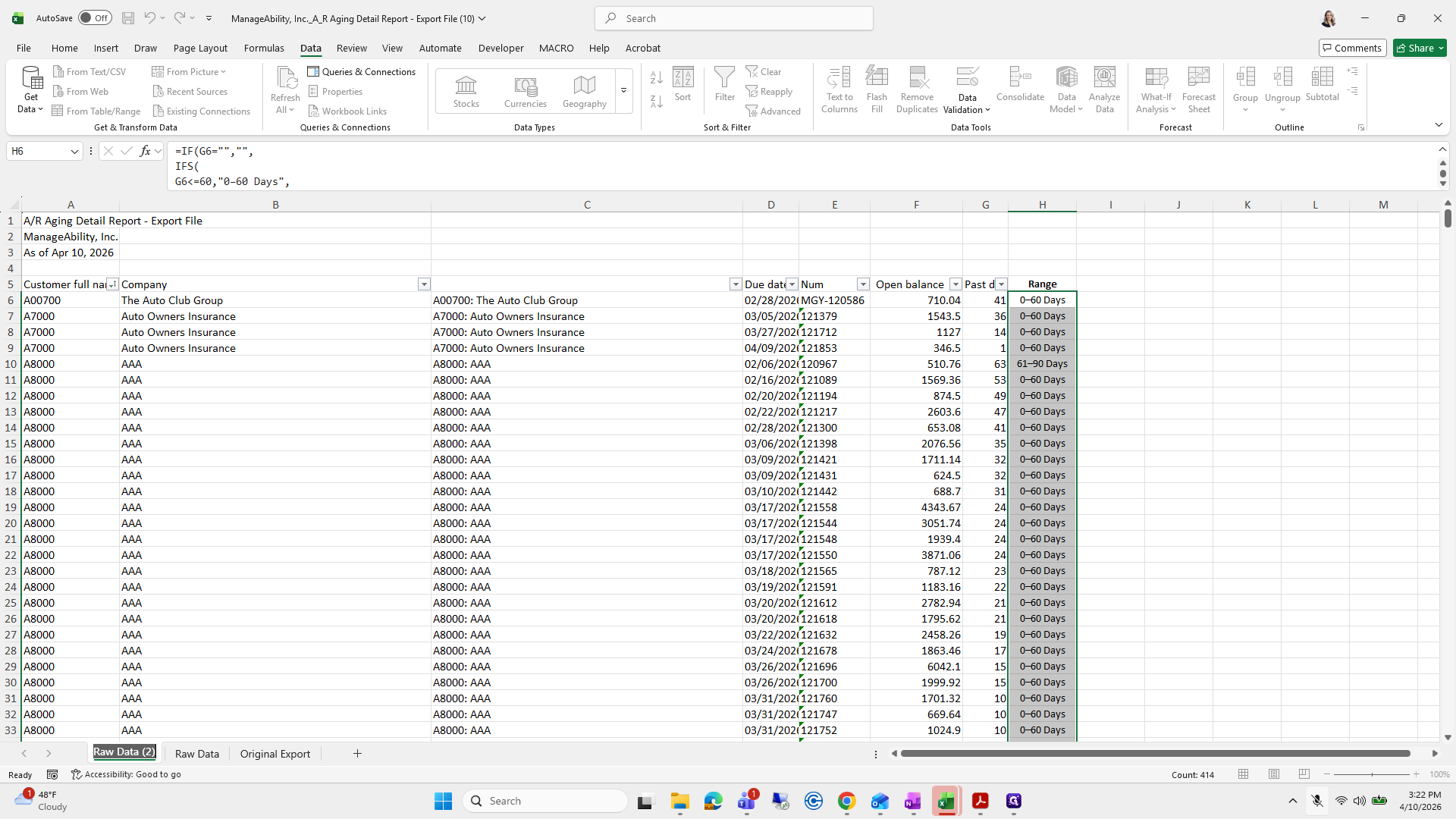
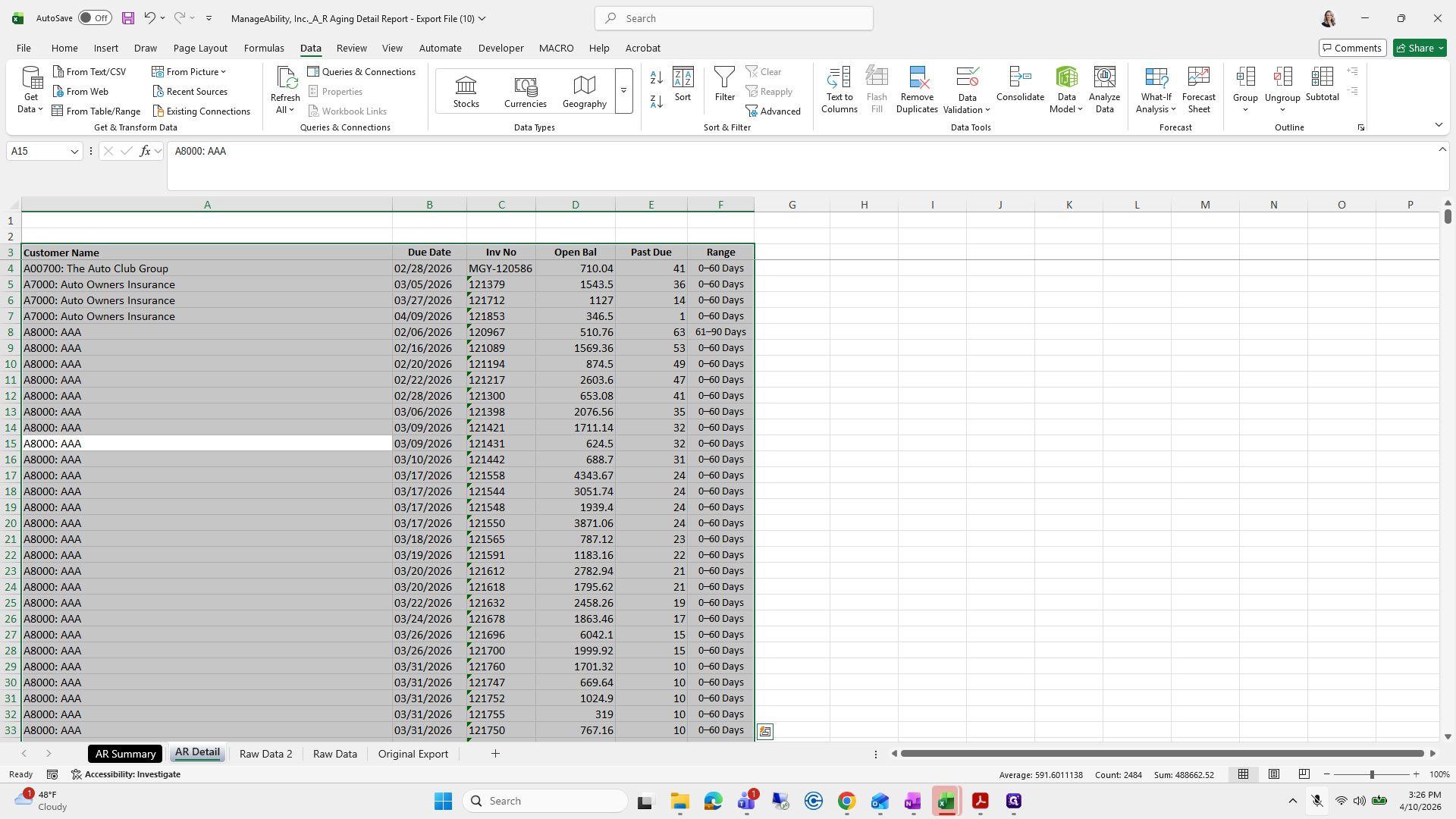
I will unhide my Raw Data tab because it contains formulas I want to copy and paste.
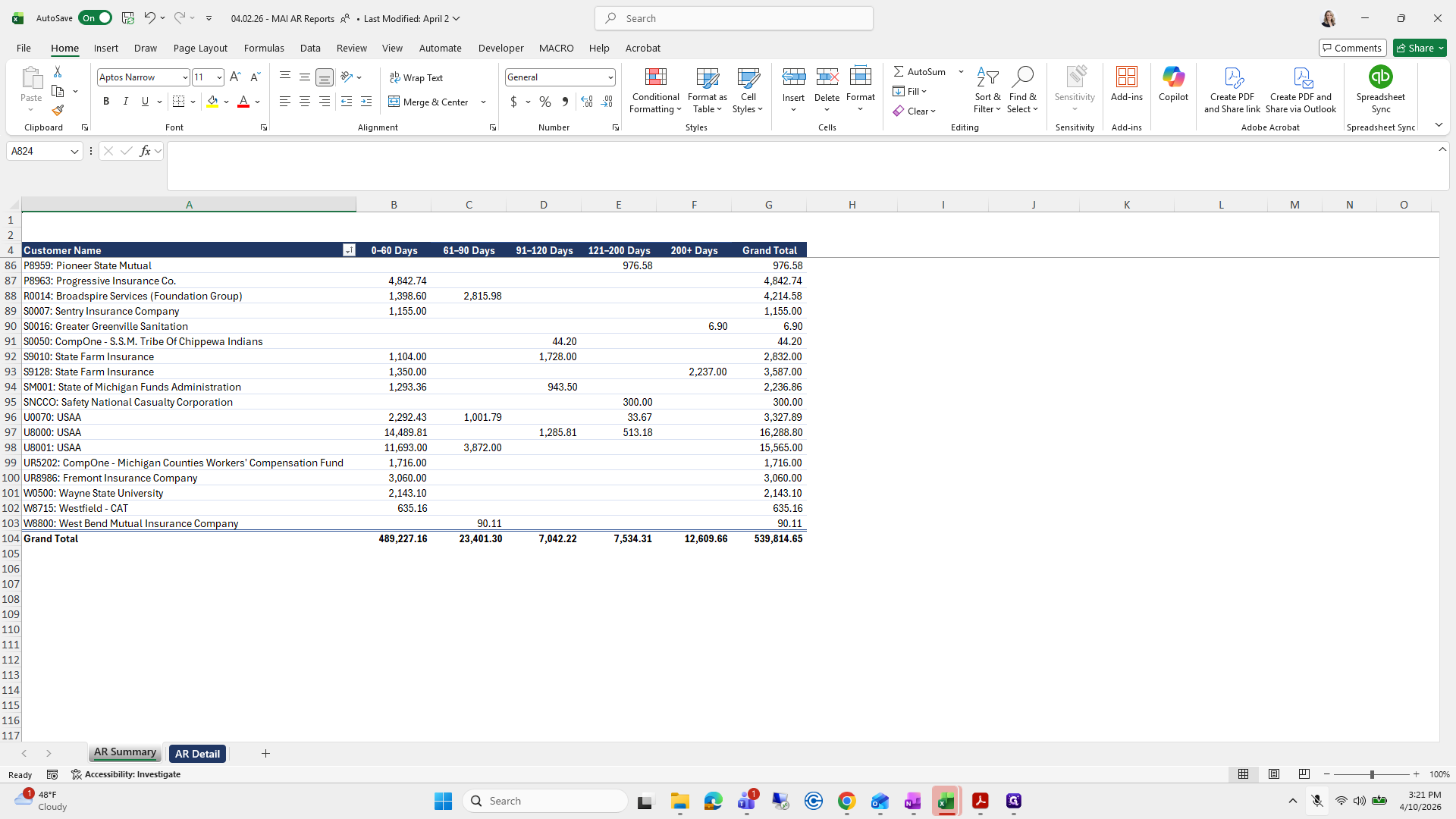
126
Click on "AR Detail"
Step #126: Click on "AR Detail"
127
Right-click on "AR Detail"
Step #127: Right-click on "AR Detail"
128
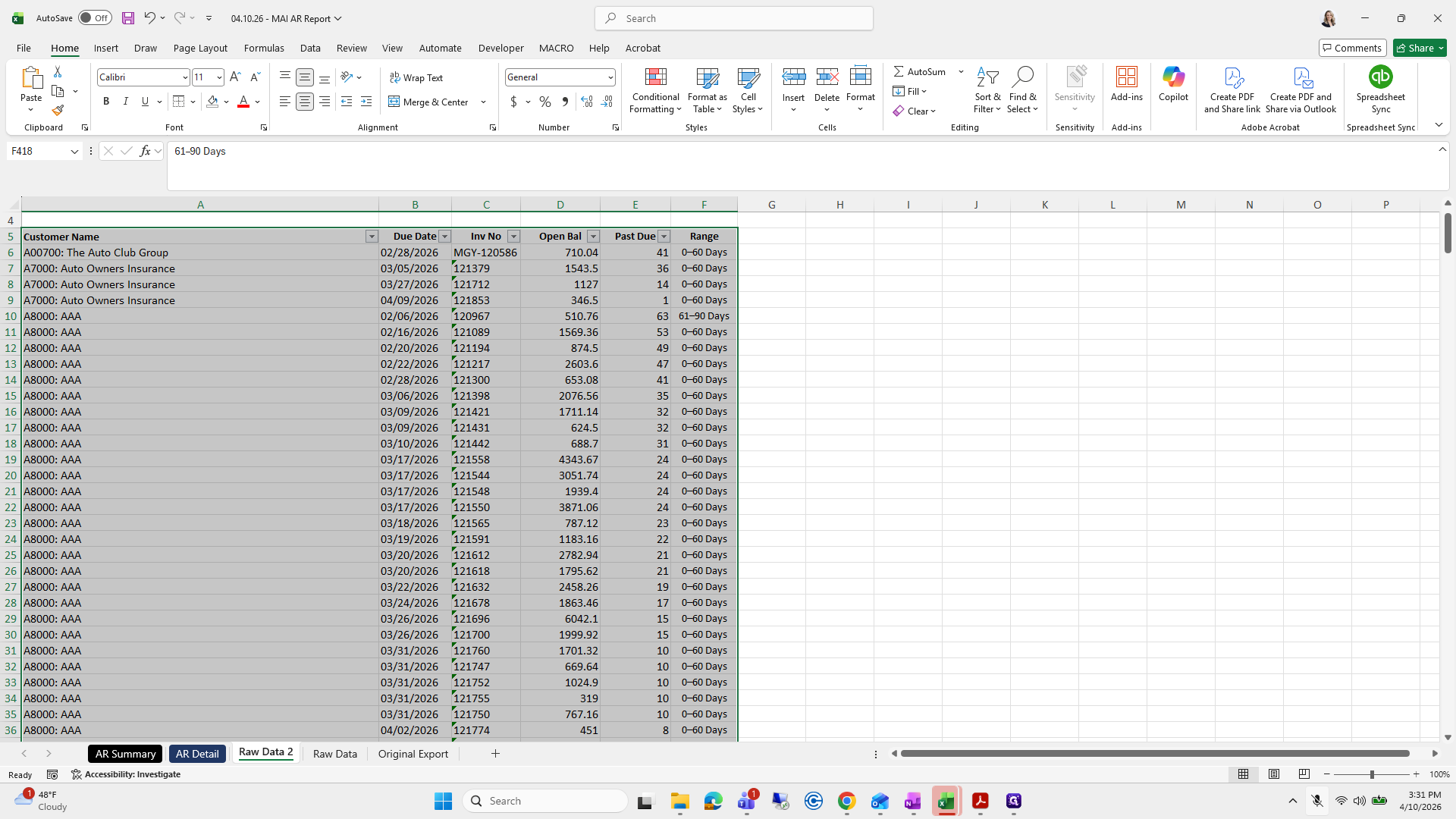
Click on "..."
Step #128: Click on "..."
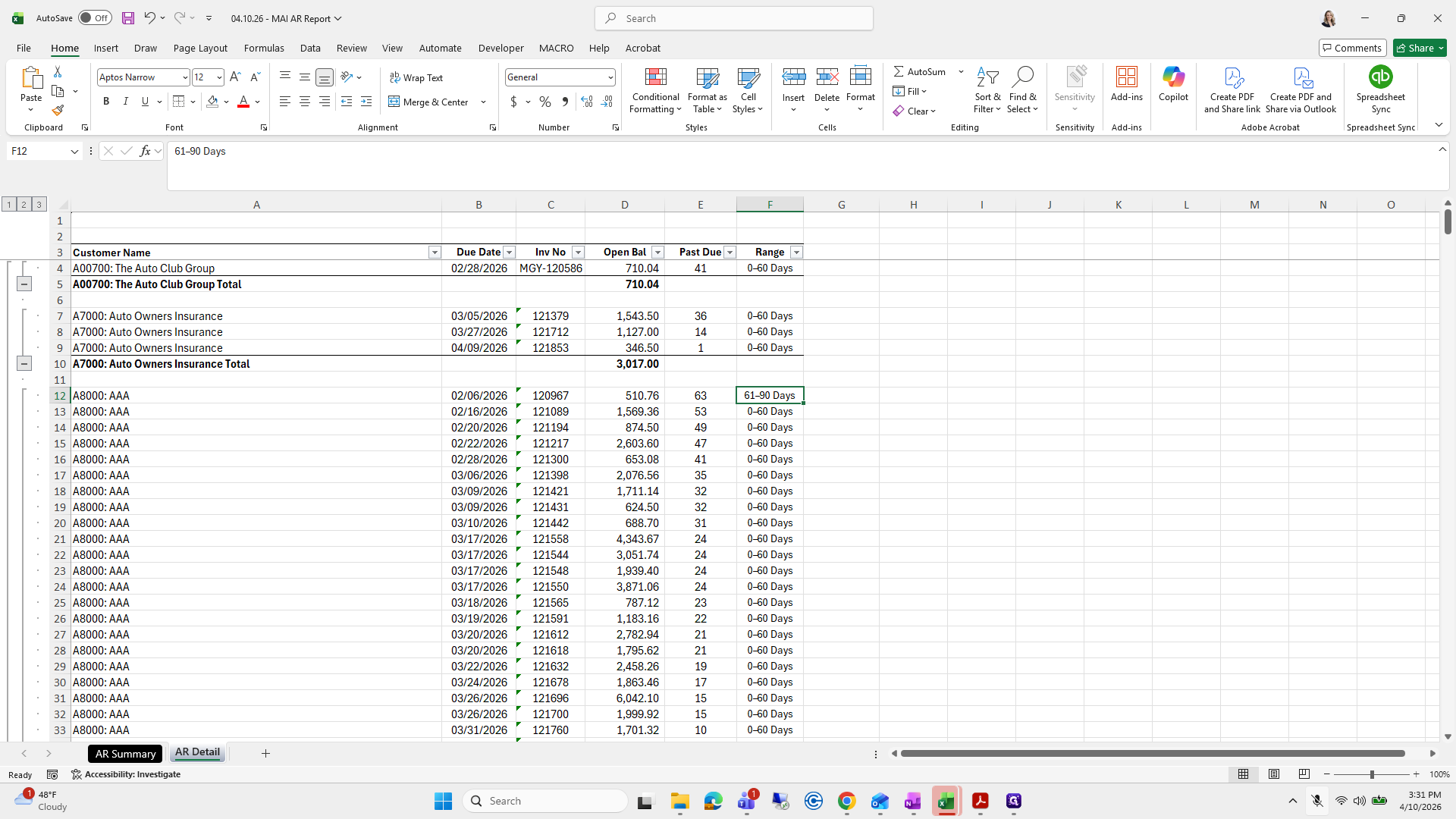
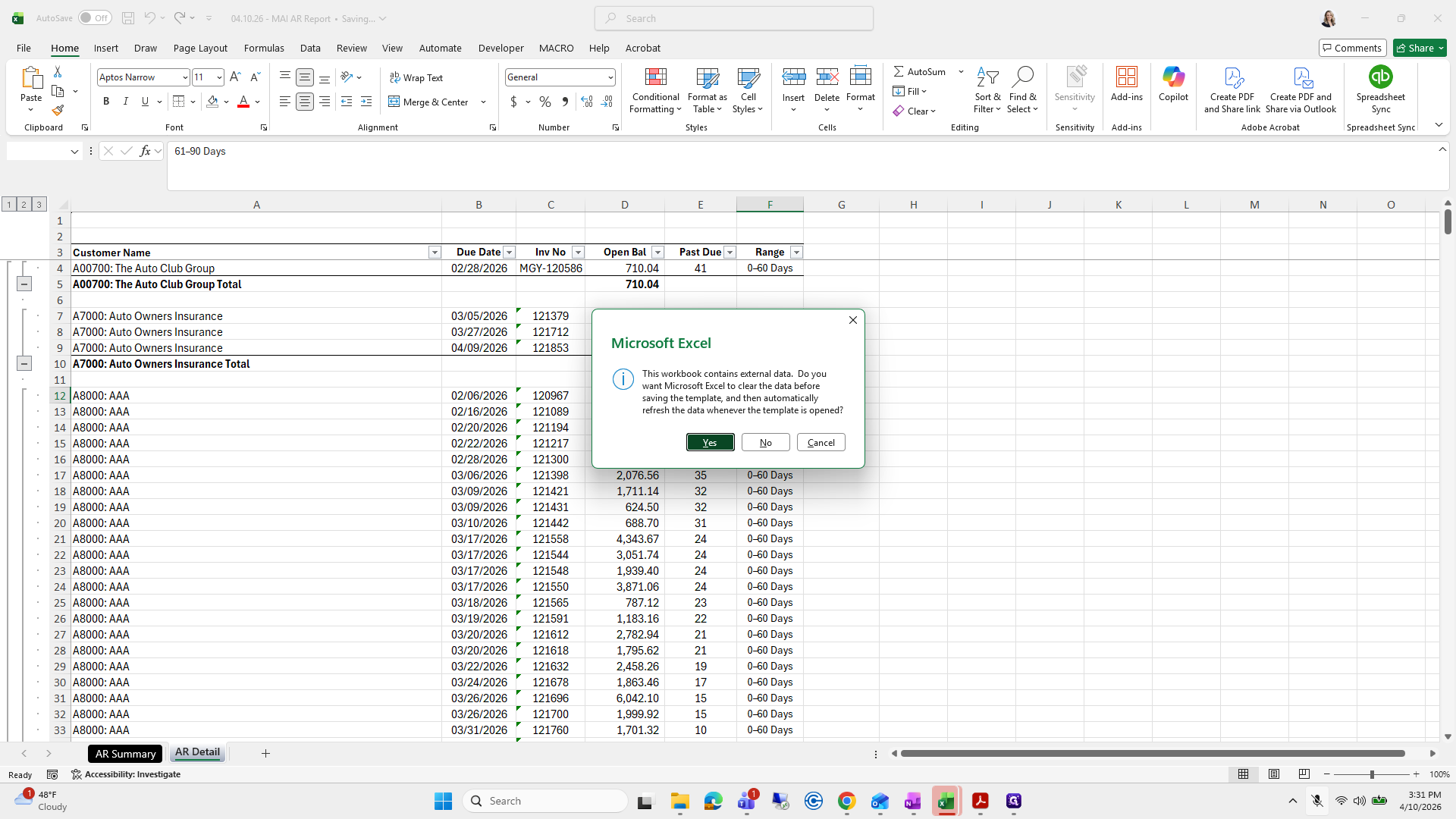
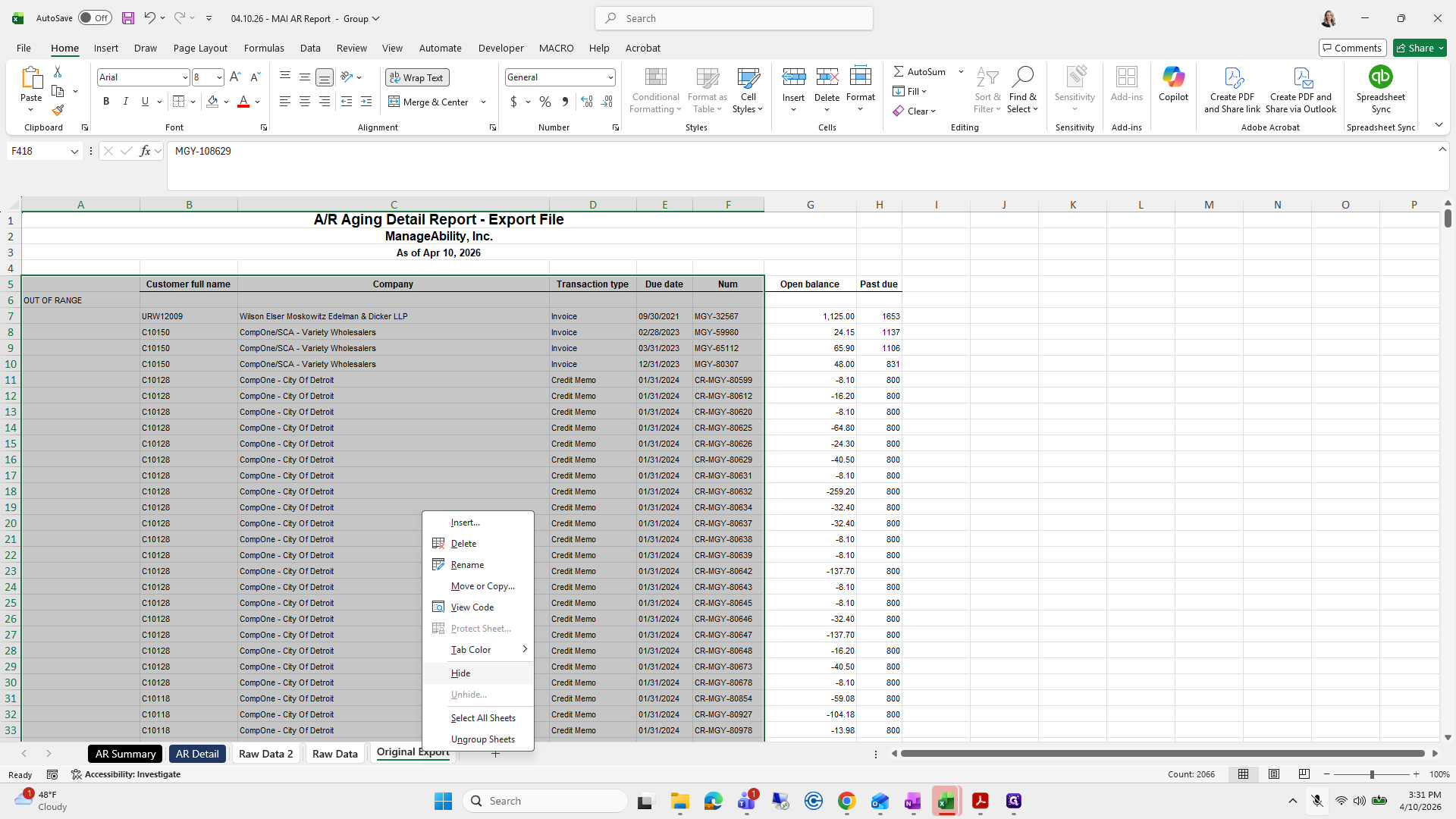
129
Click on "File"
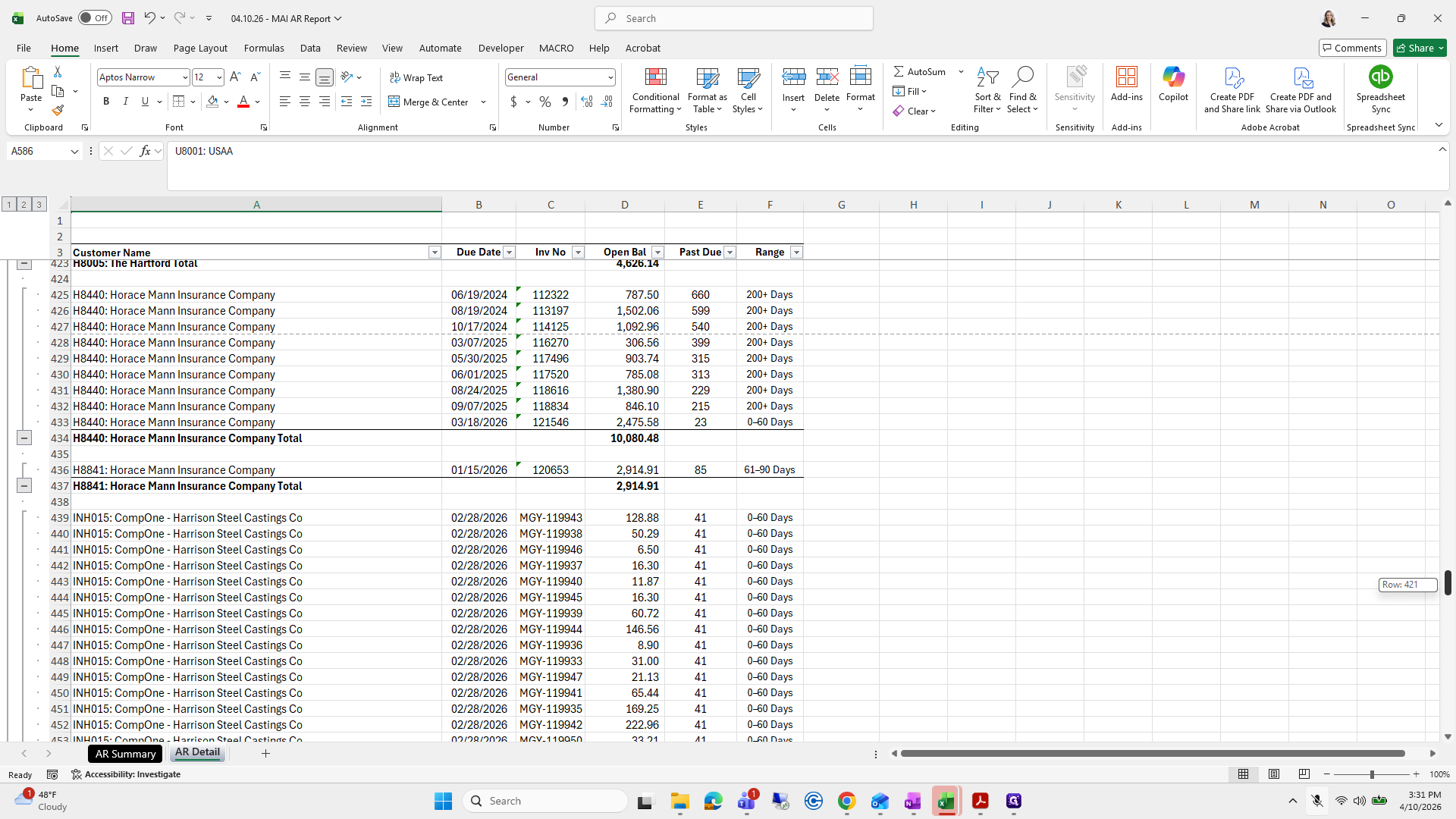
Step #129: Click on "File"
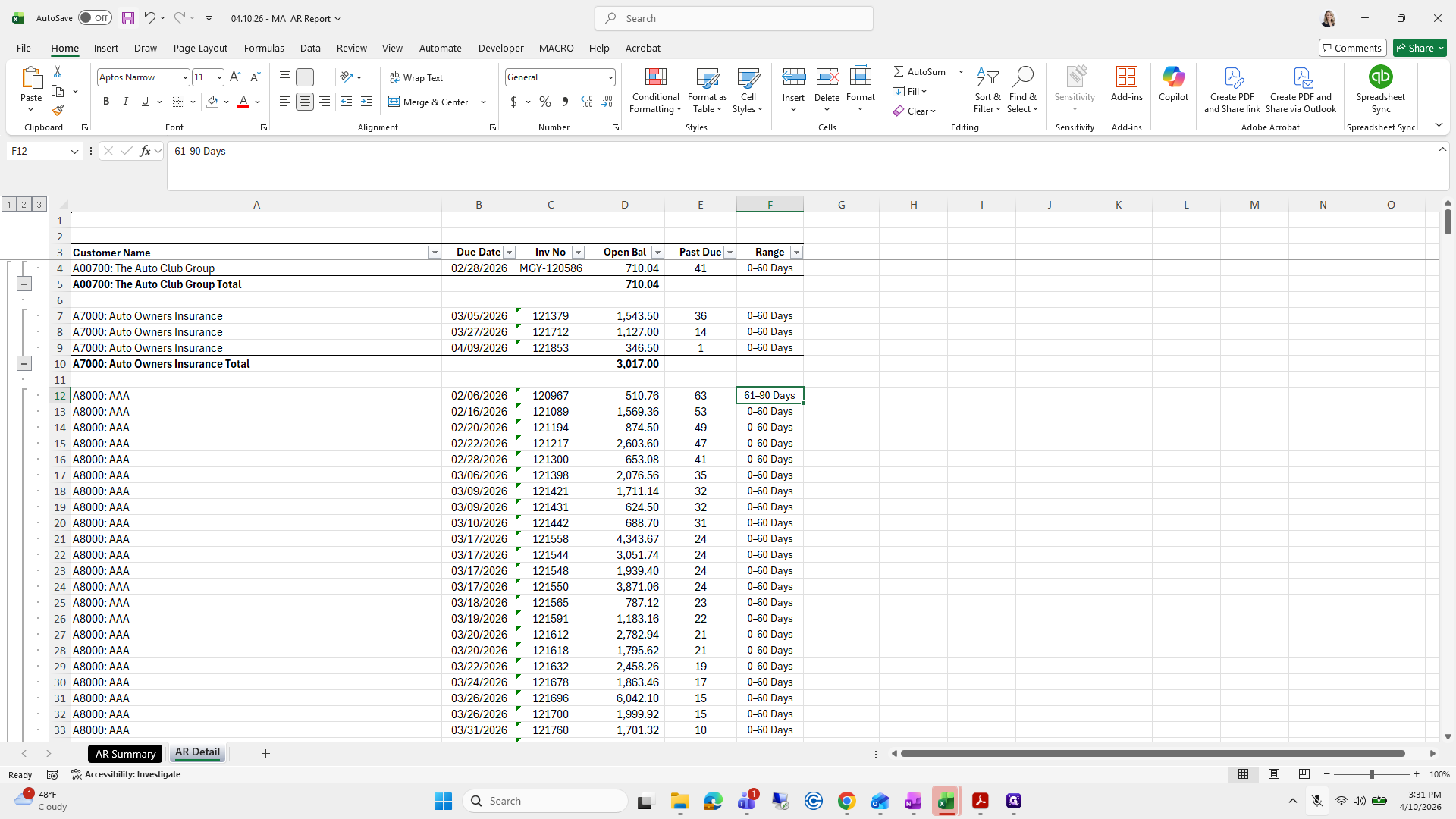
130
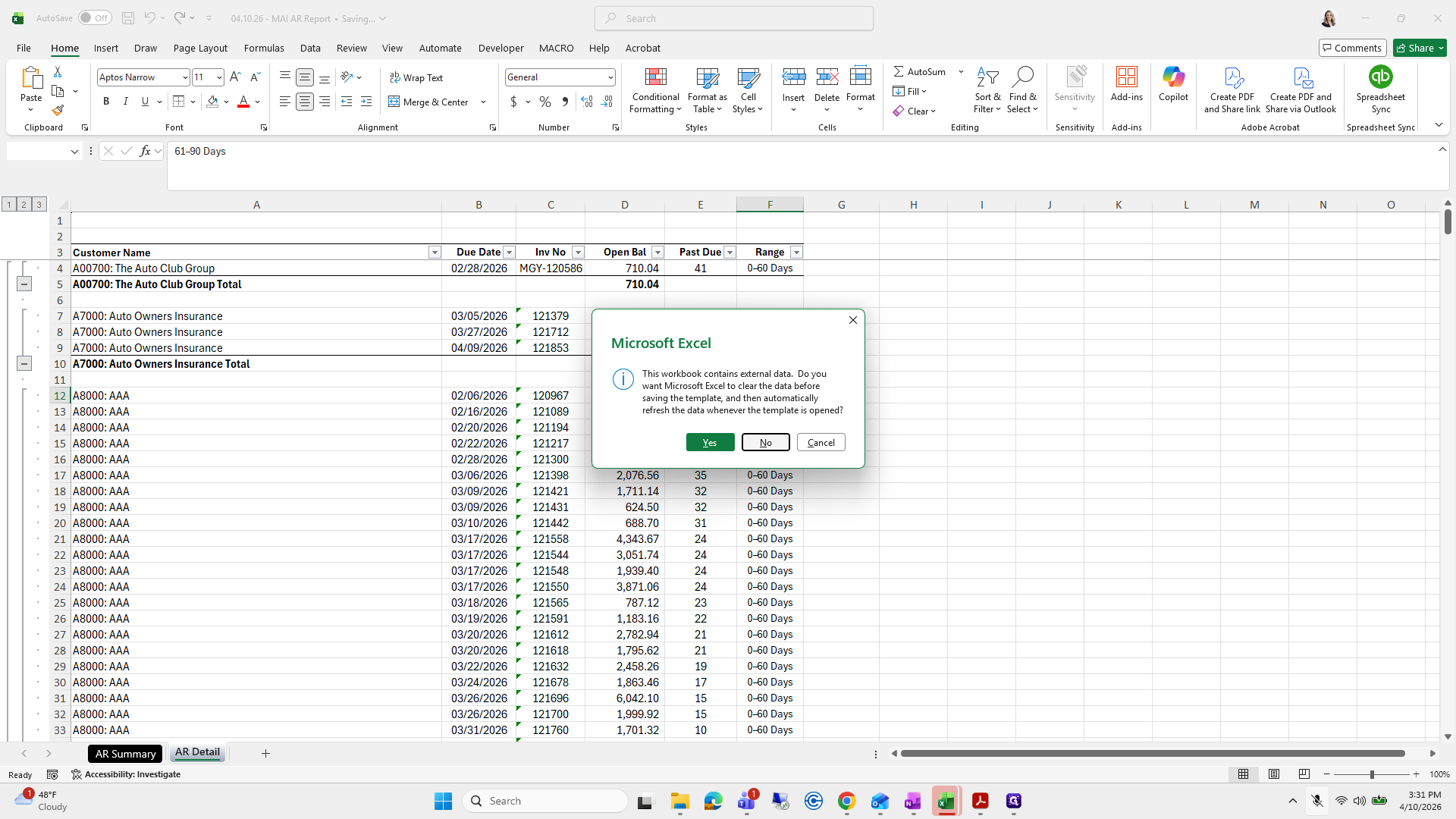
Click on "OK"
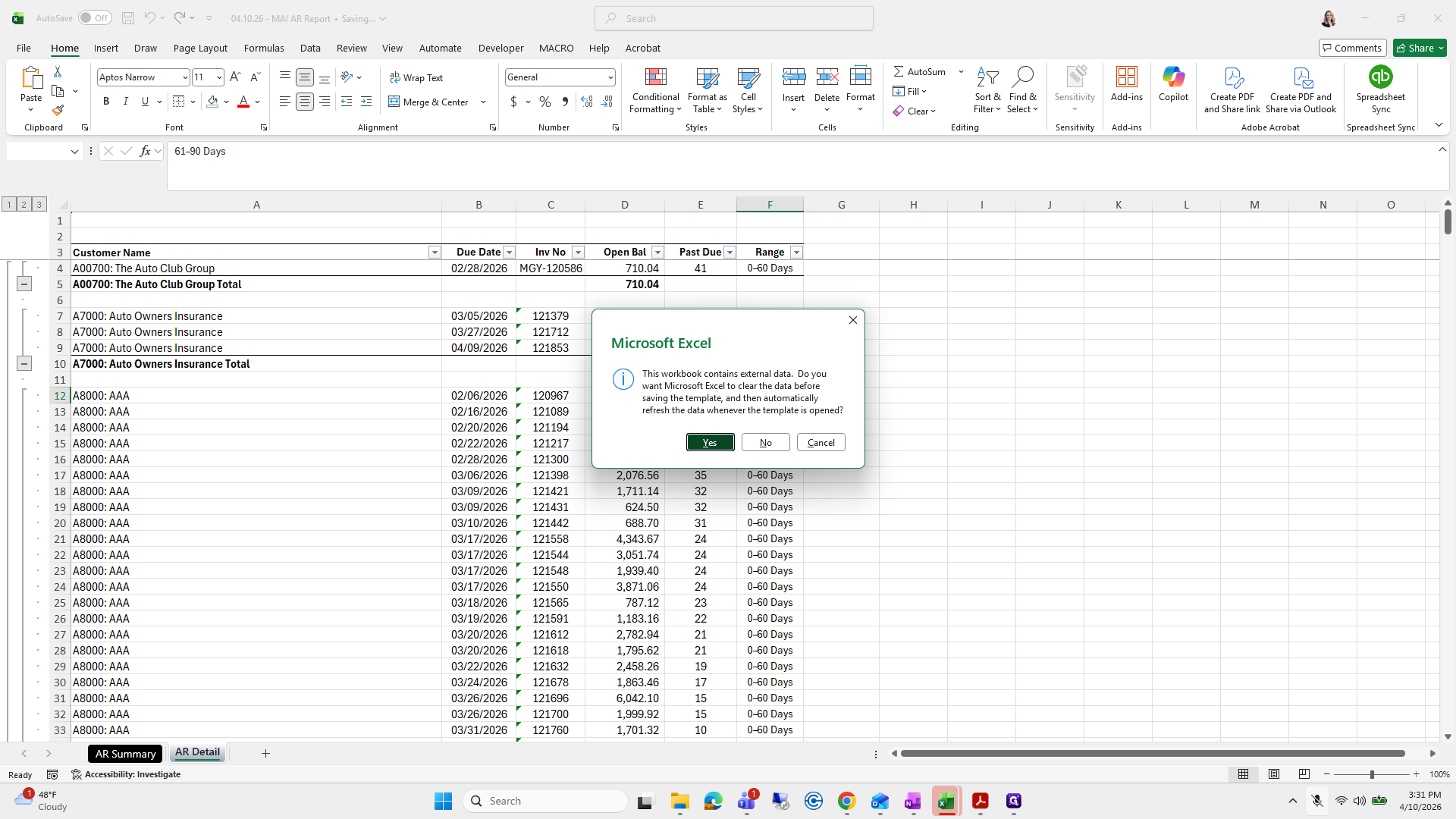
Step #130: Click on "OK"
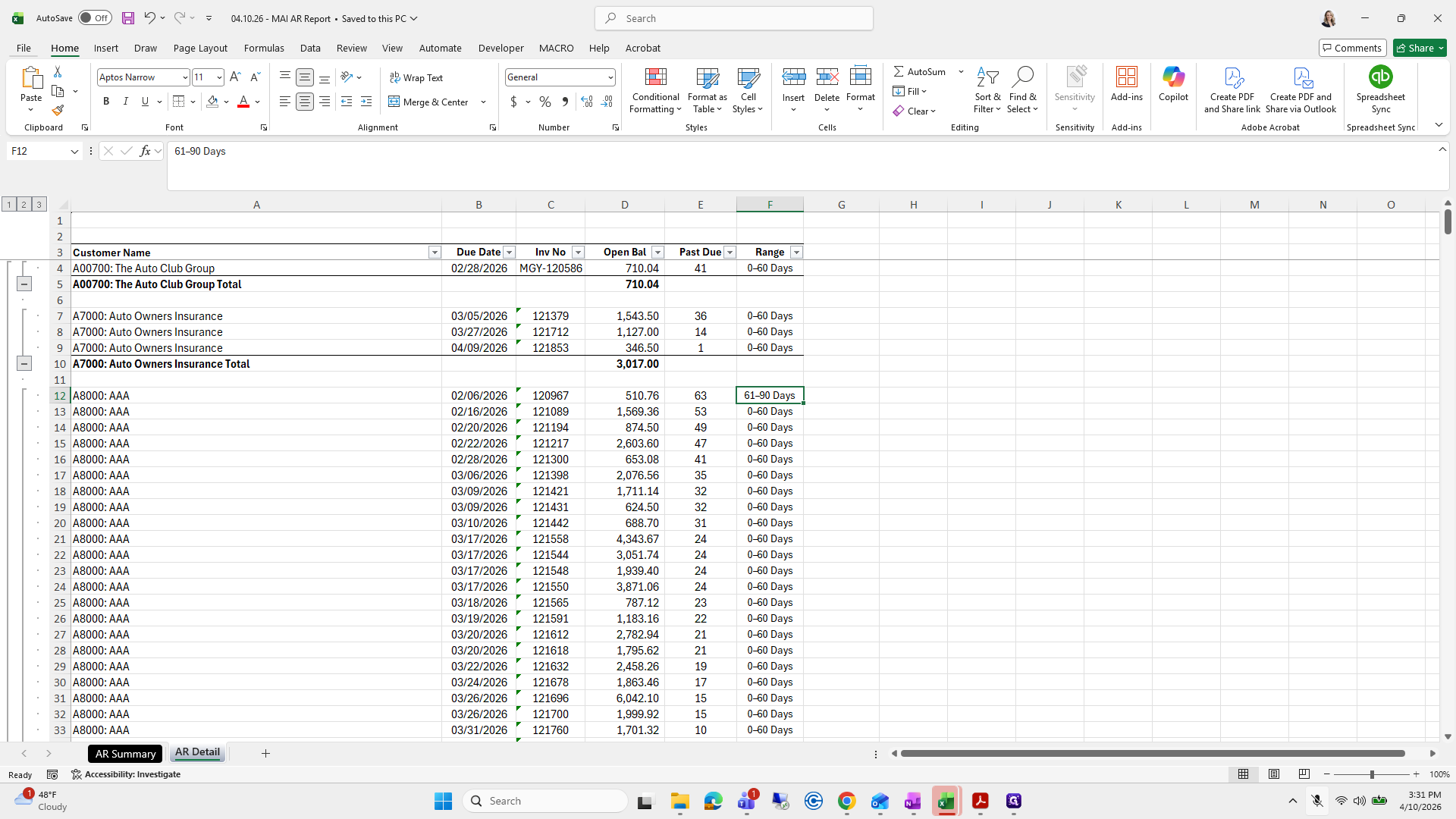
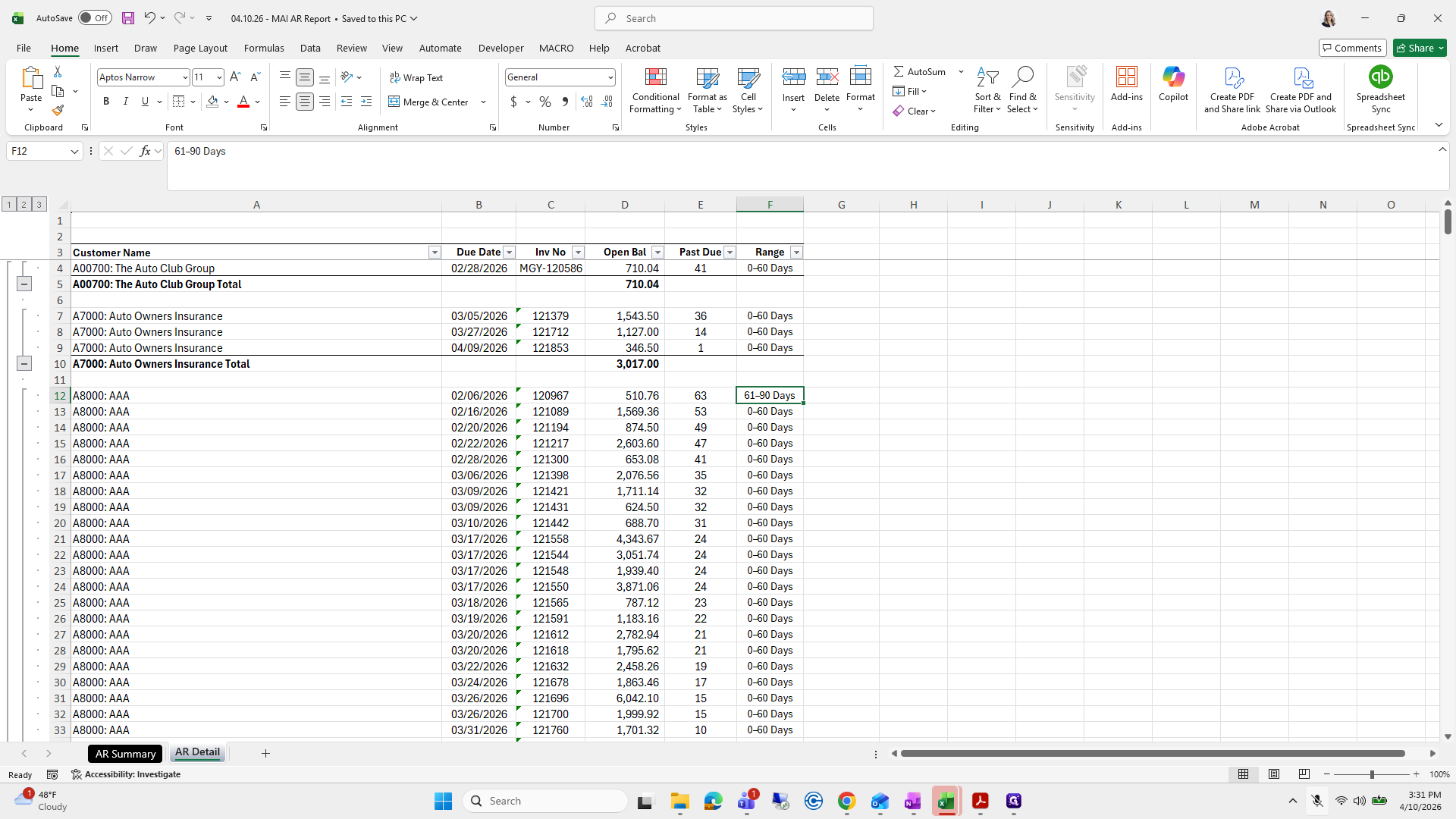
131
Click on "0-60 Days"
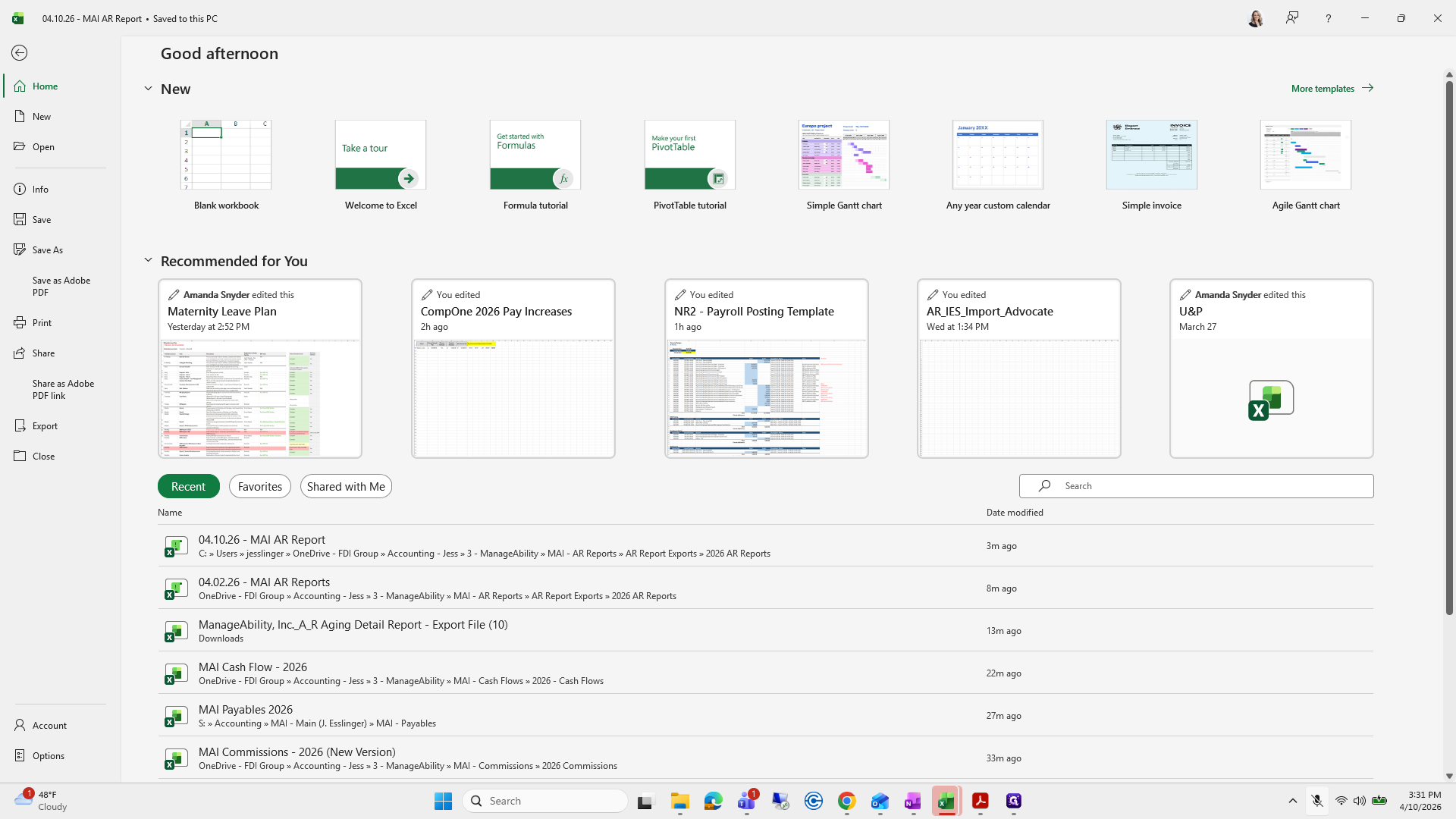
Step #131: Click on "0-60 Days"

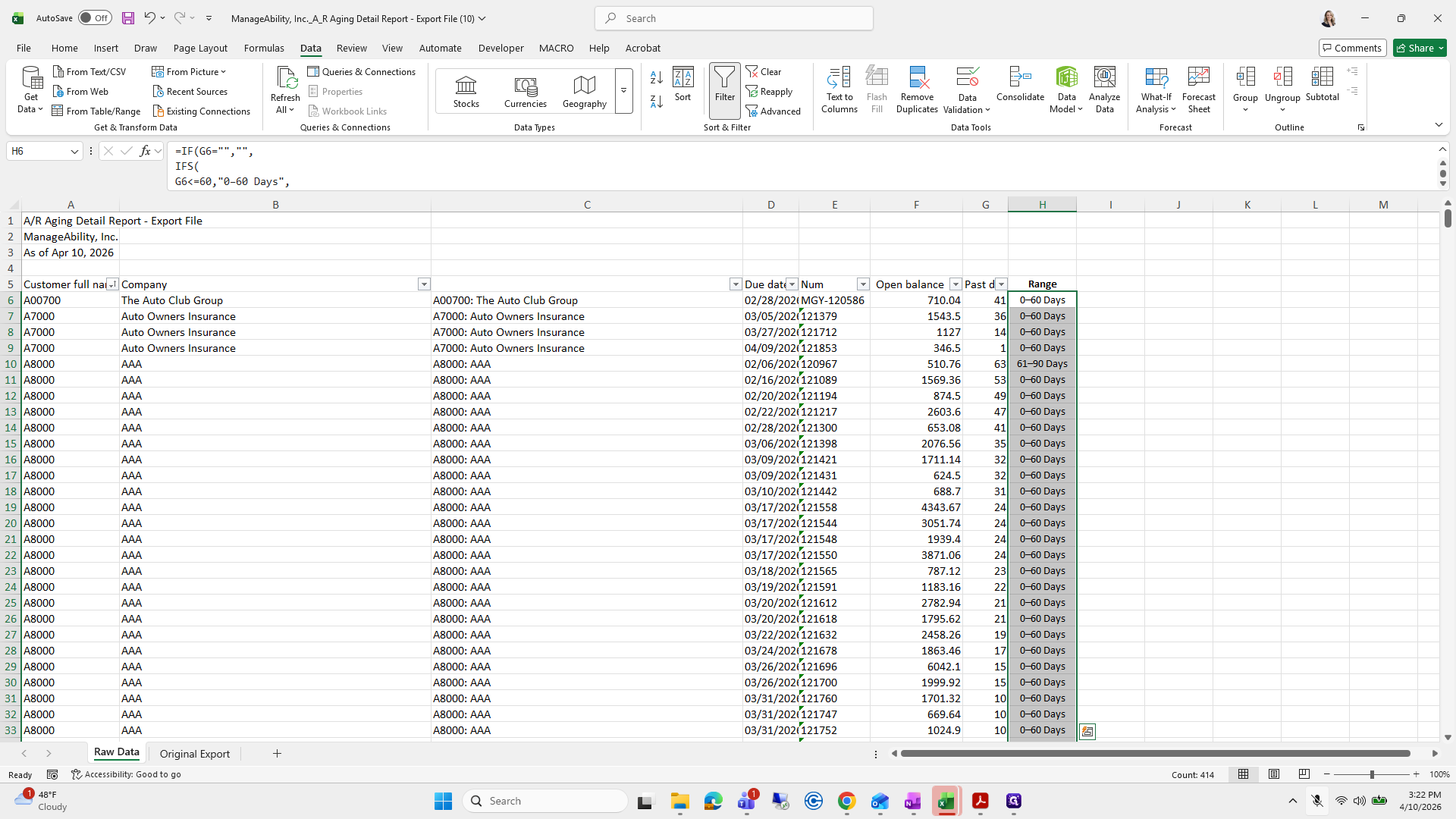
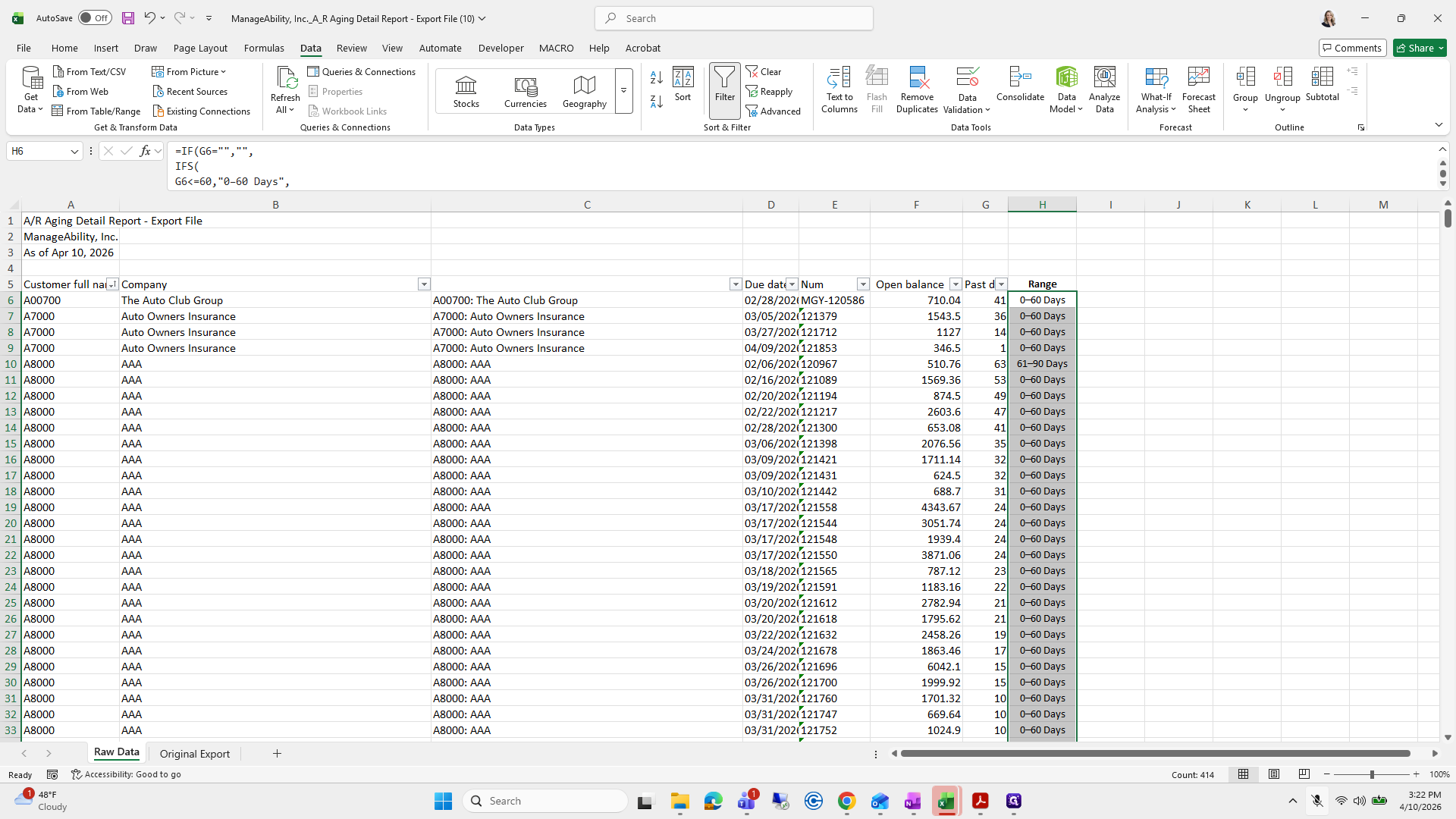
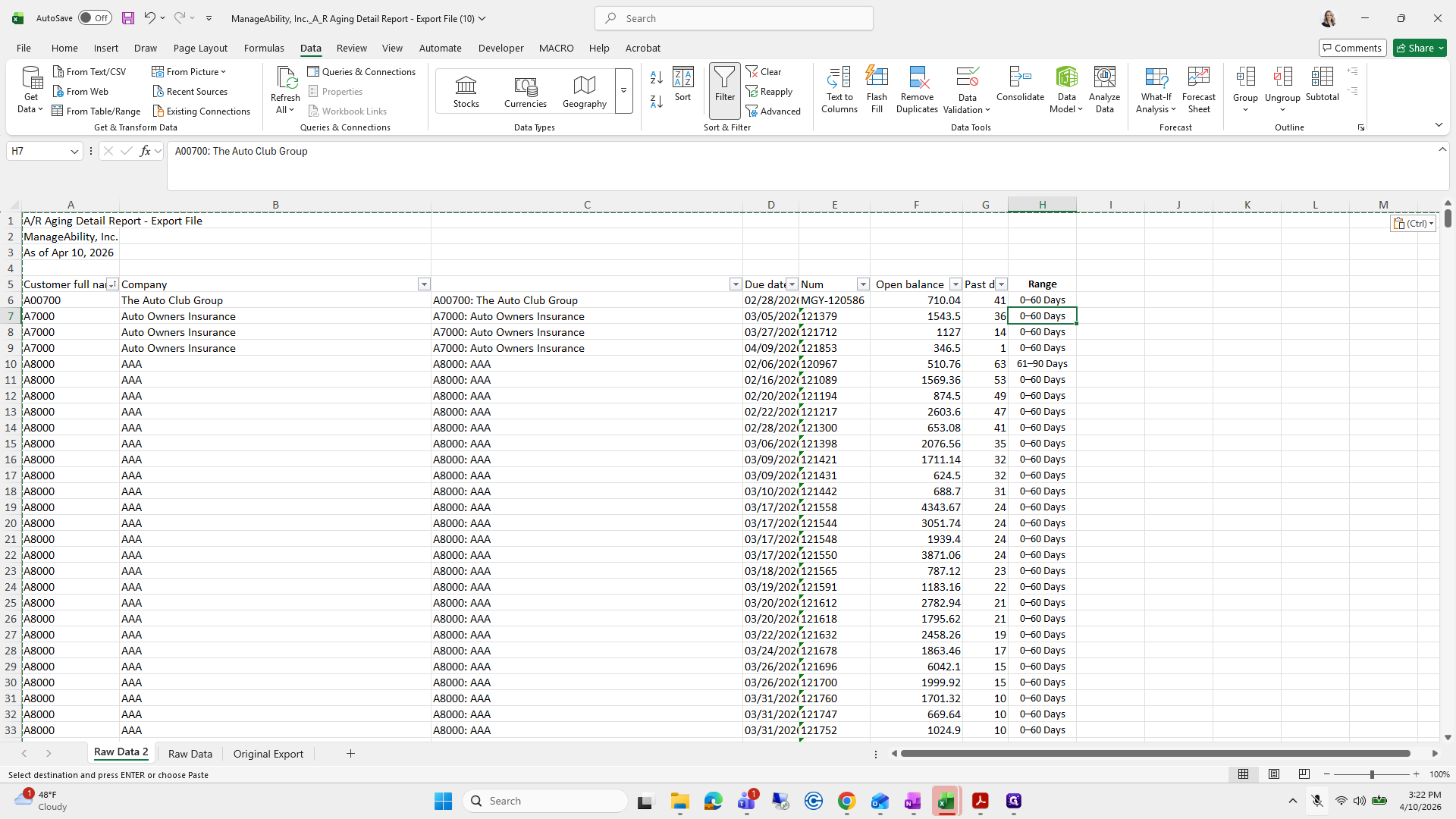
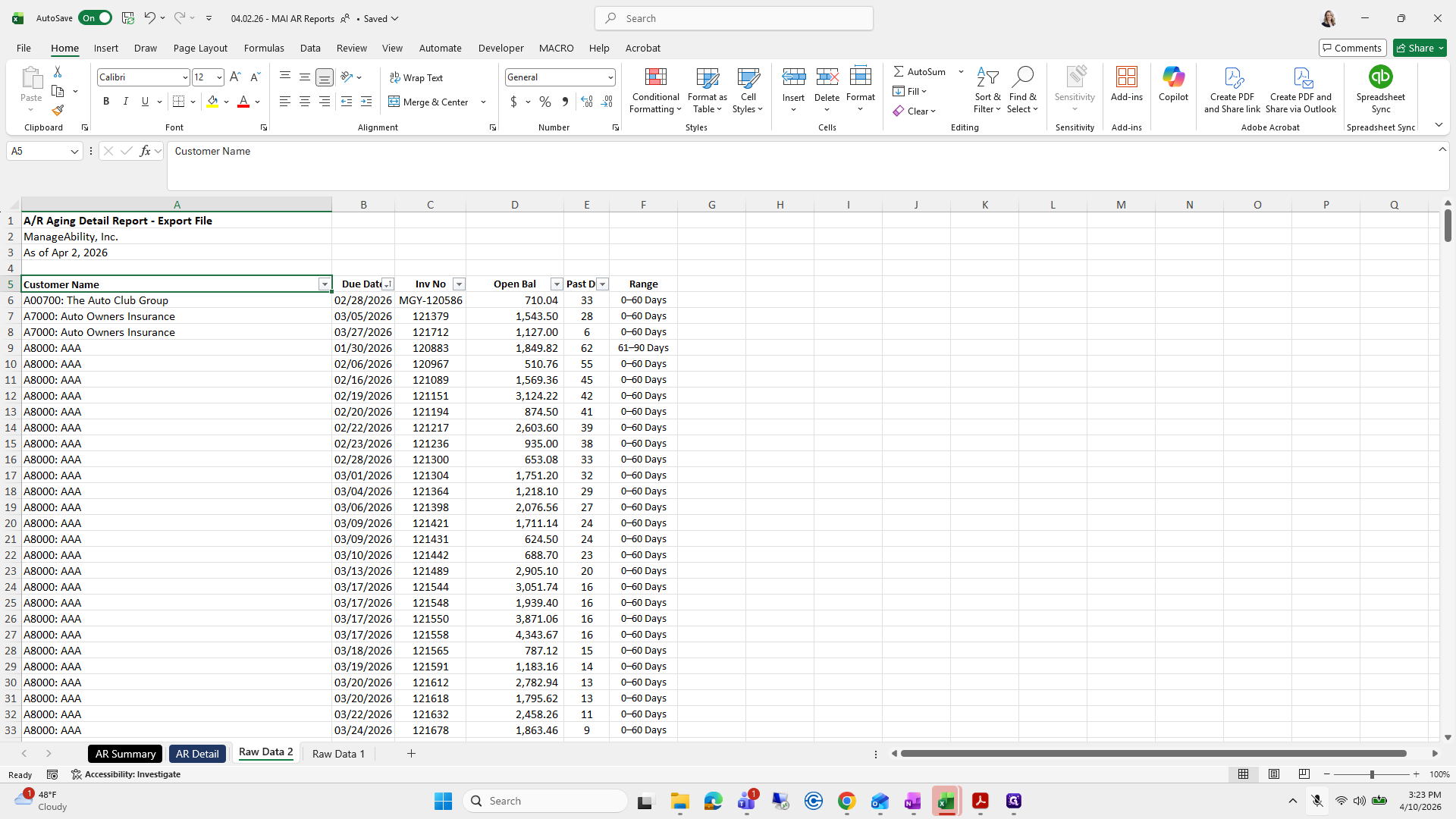
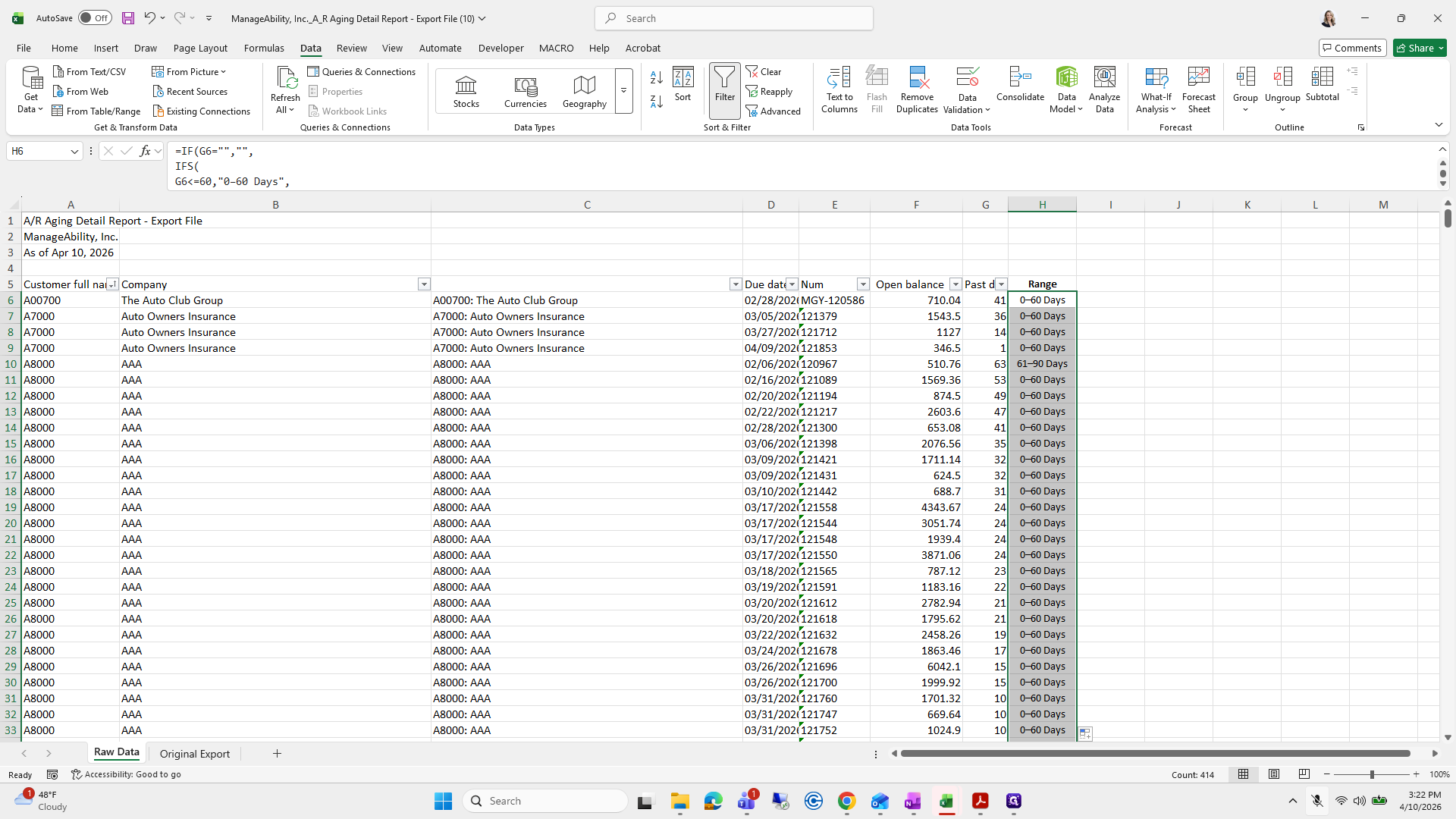
I will take Range and G, and copy it.
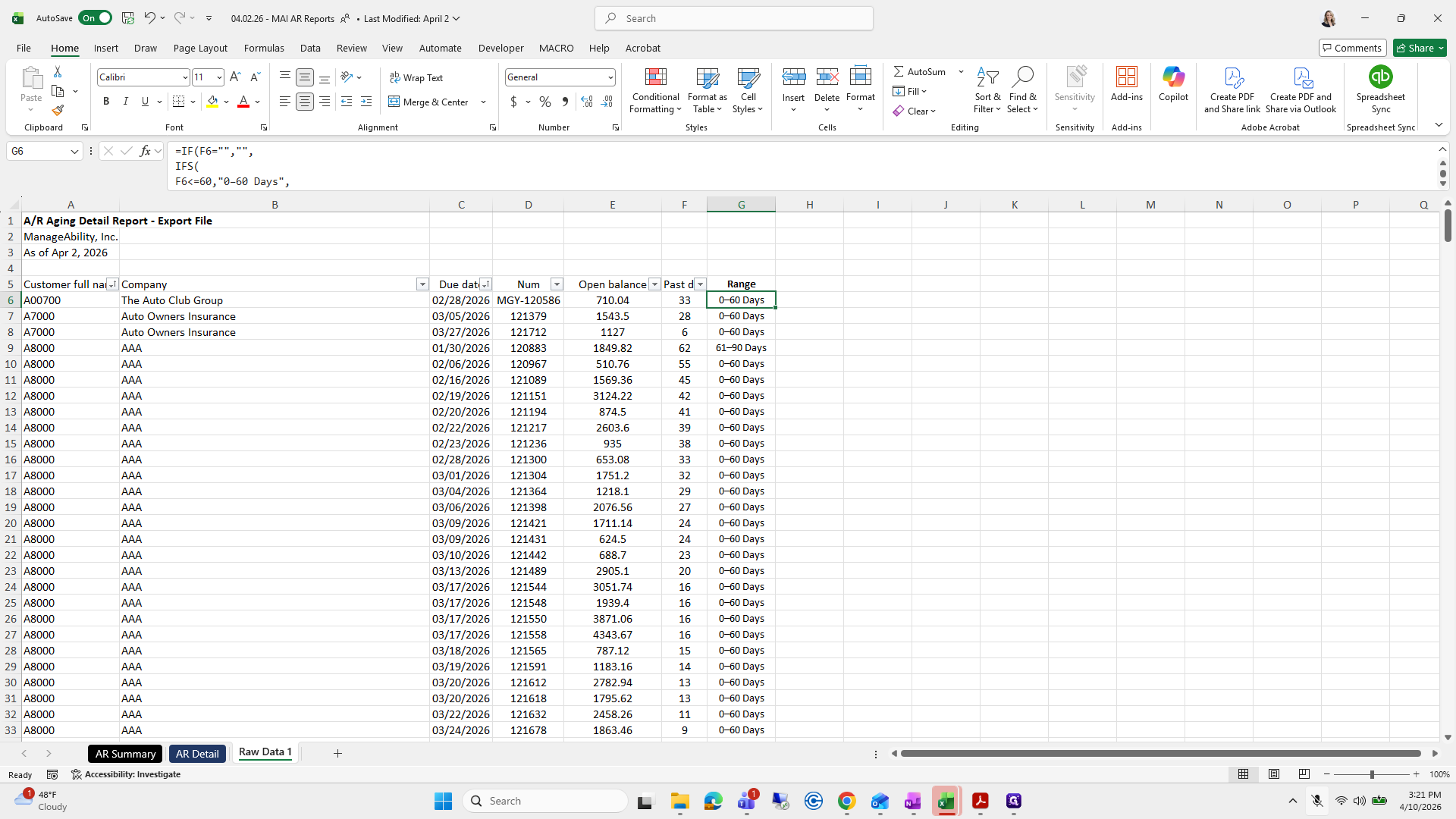
132
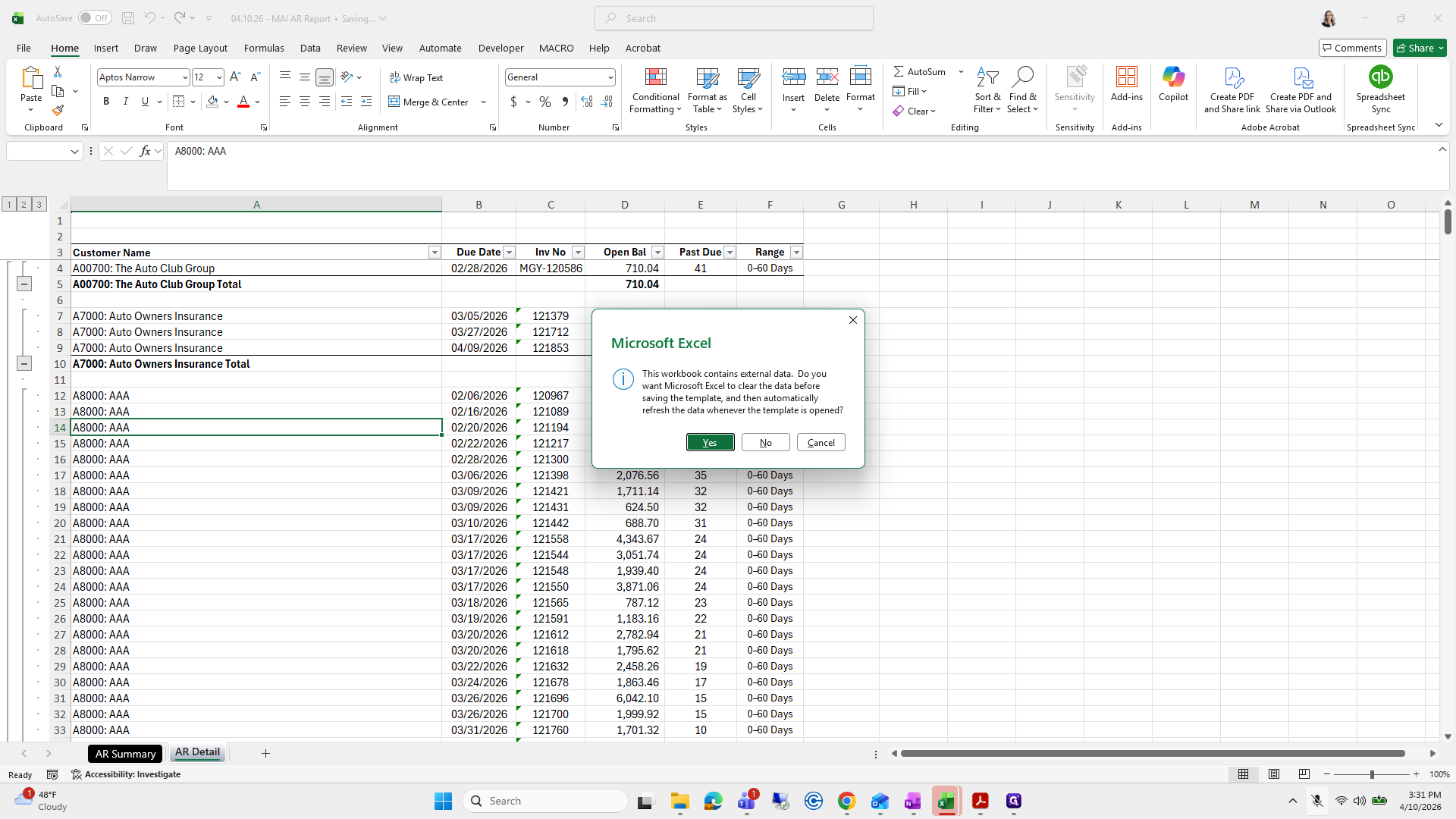
Click on "Range"
Step #132: Click on "Range"
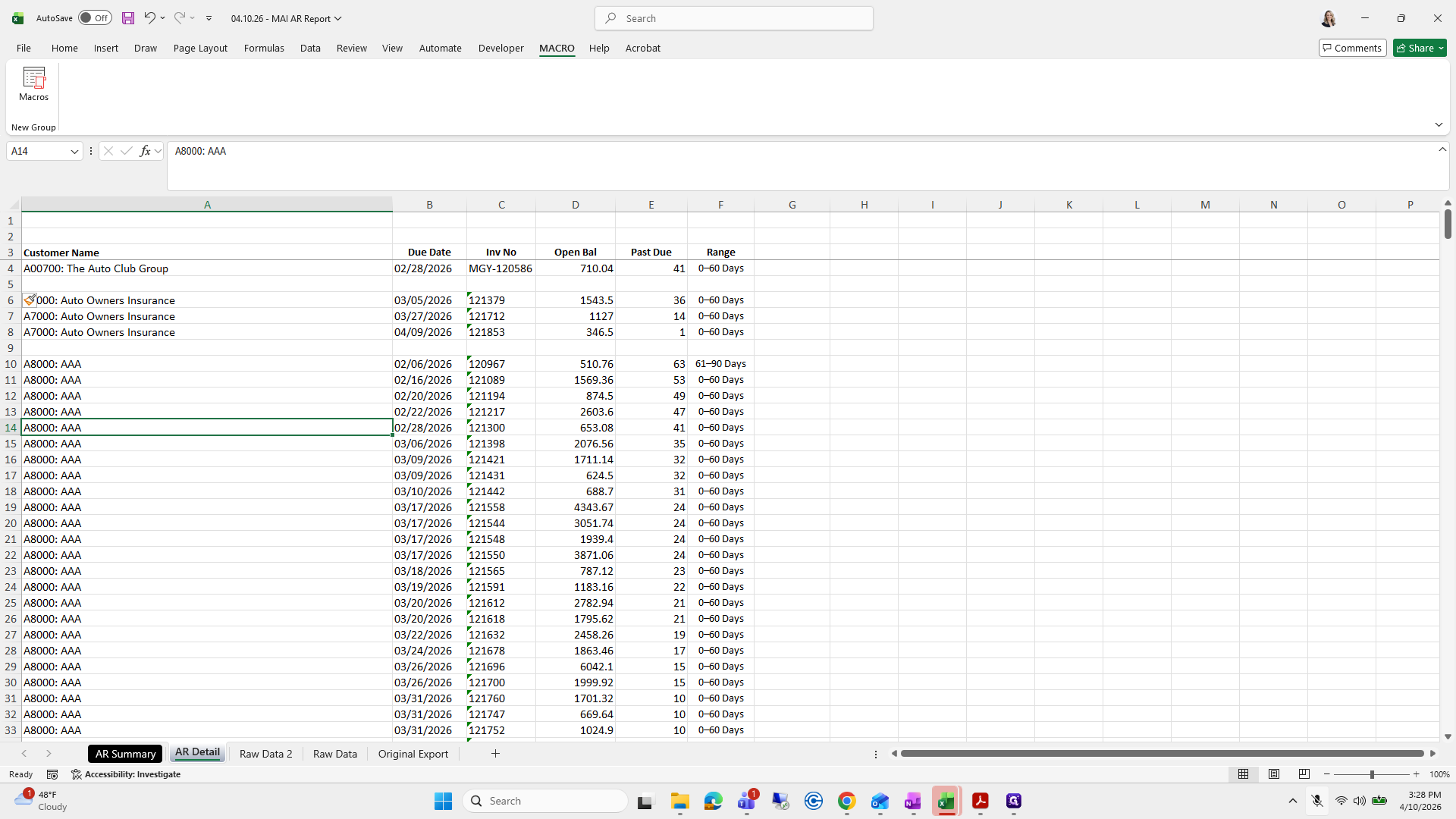
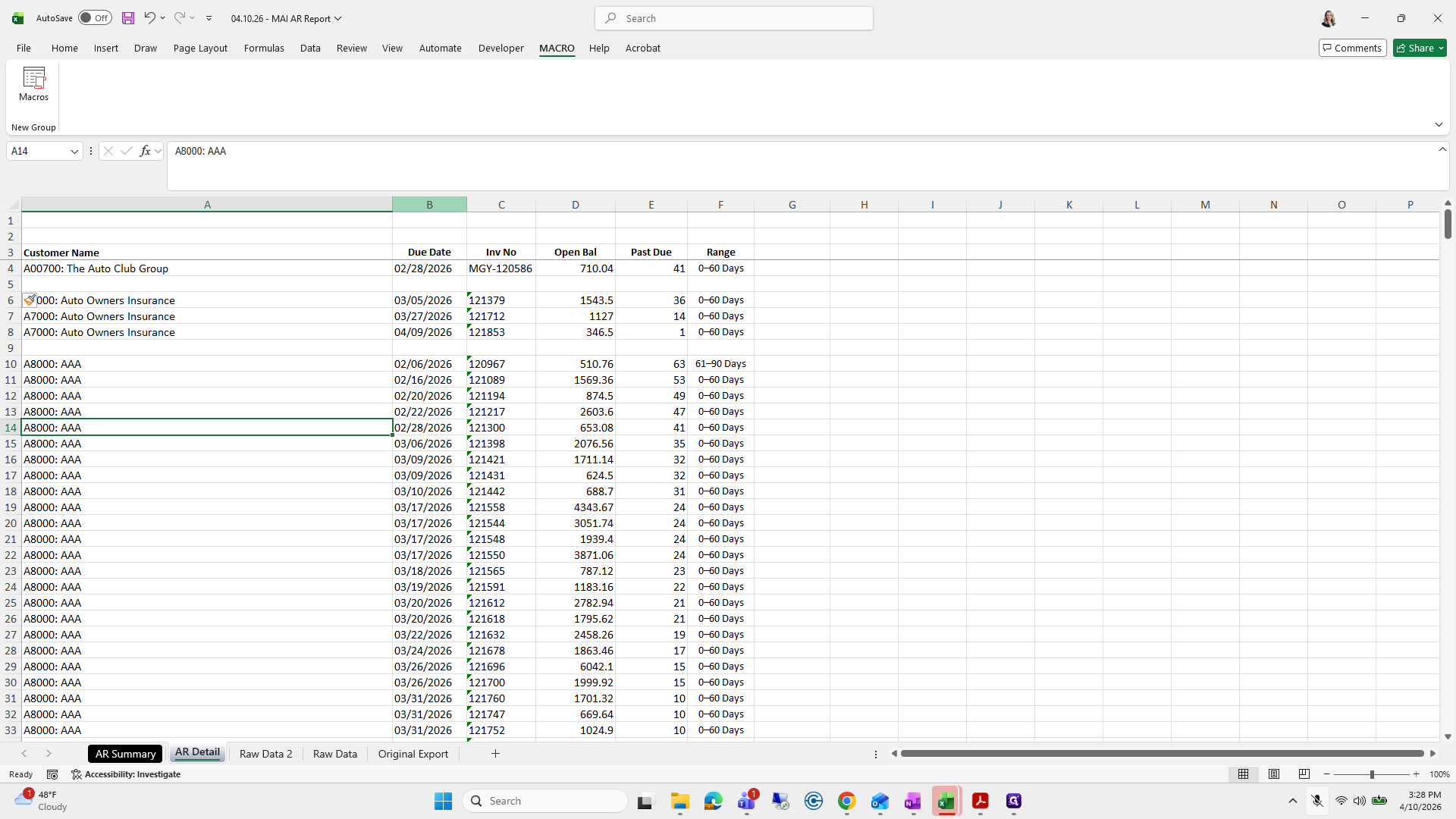
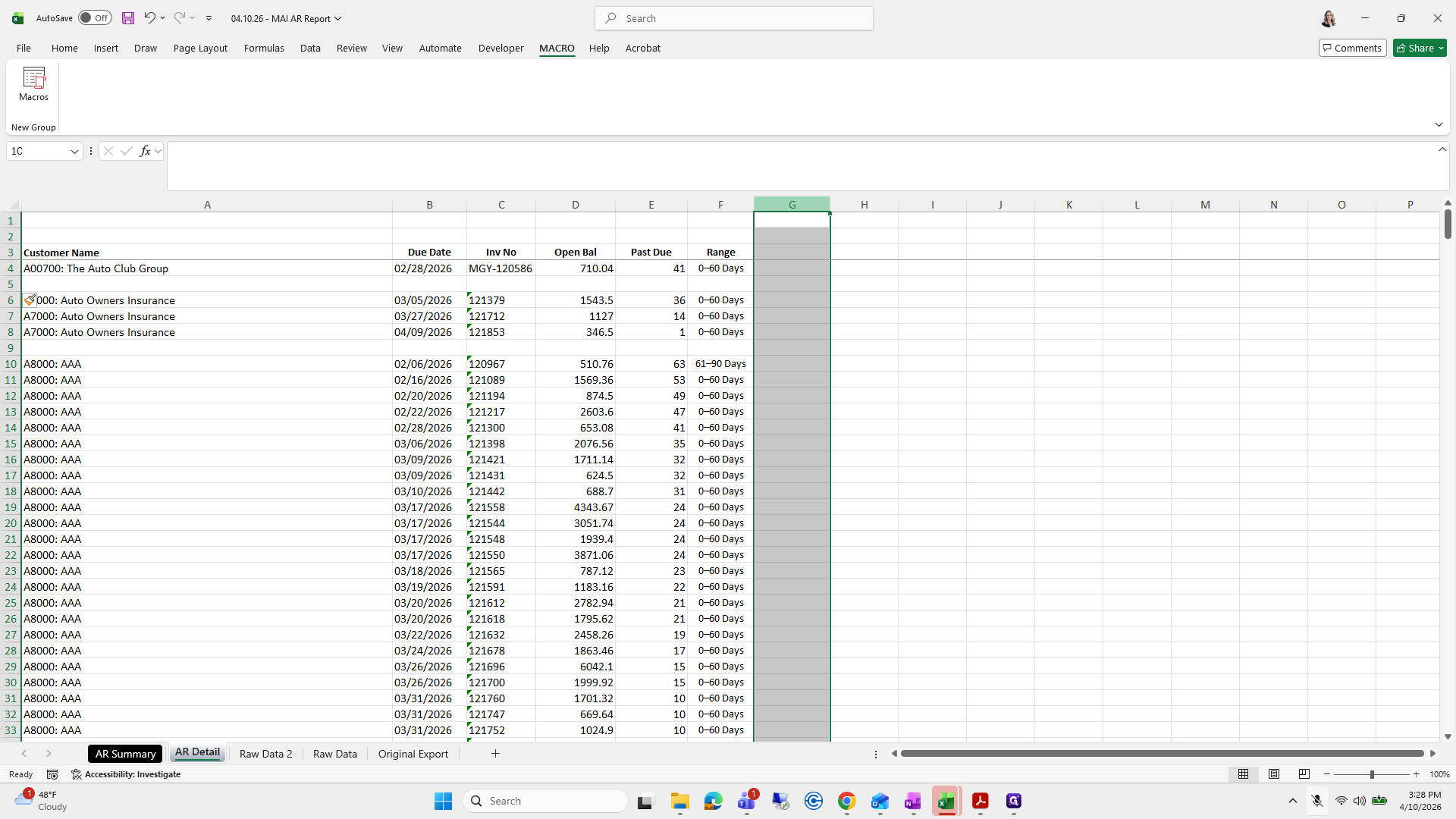
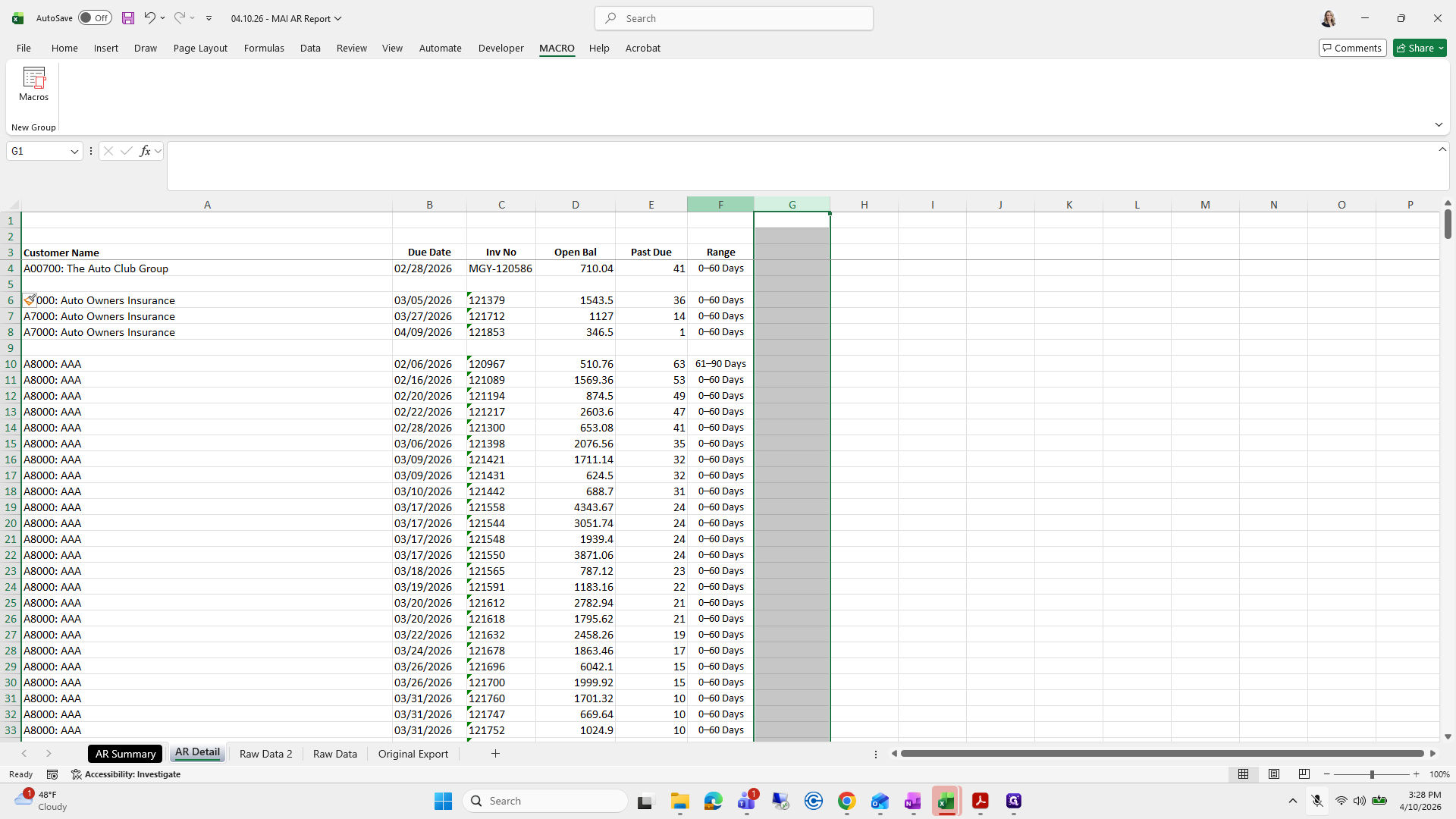
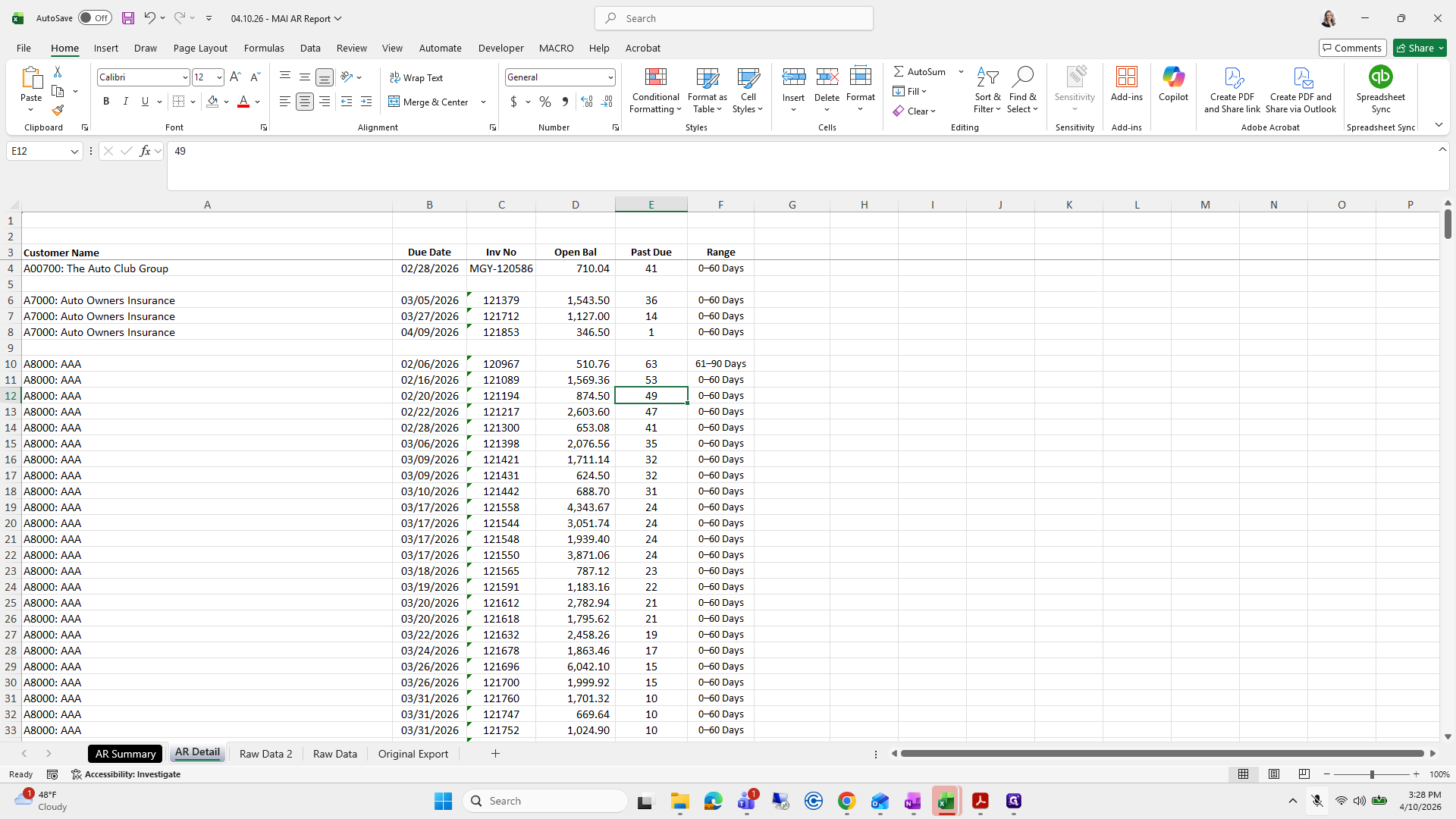
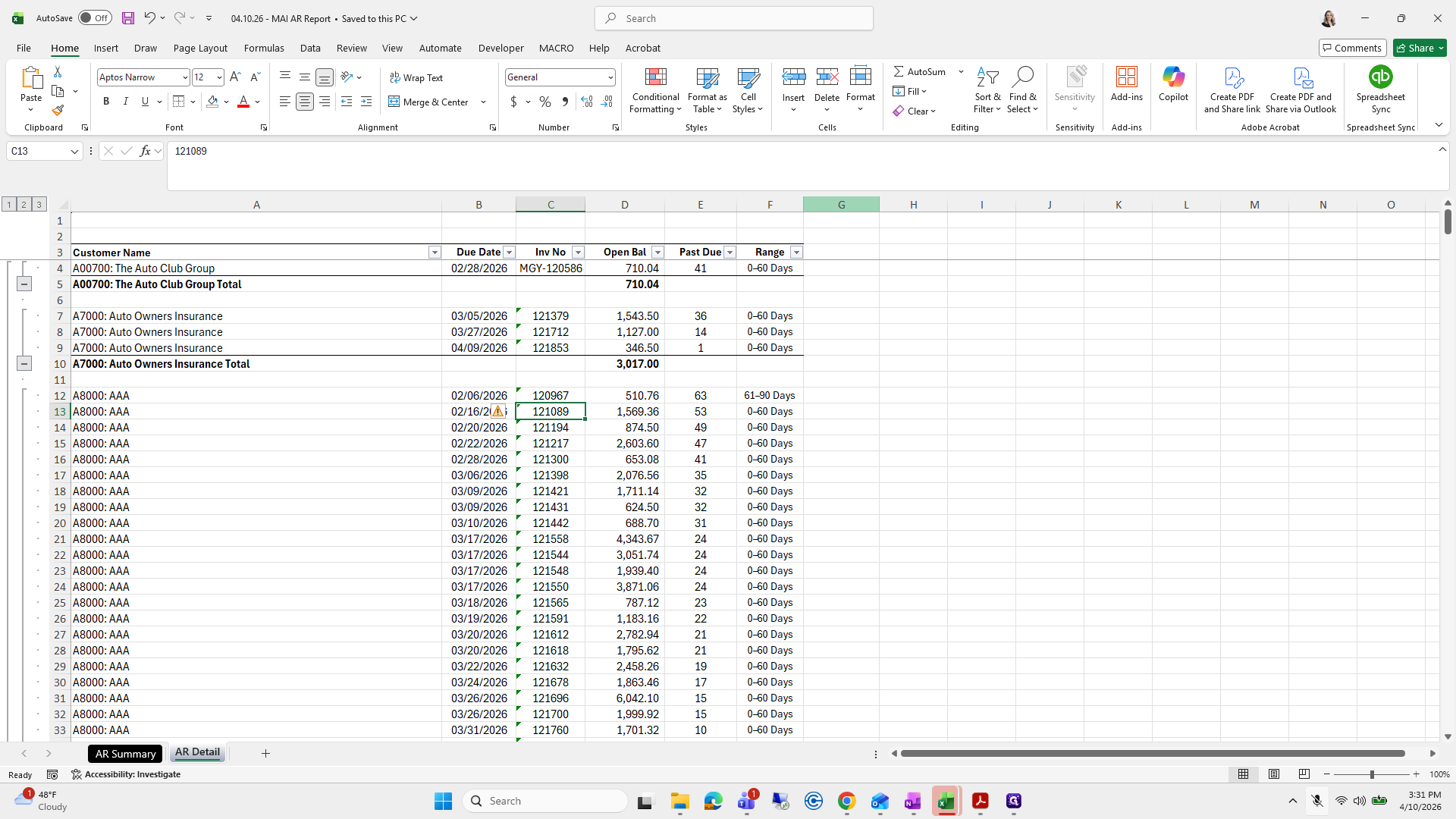
133
Type "Ctrl + C"
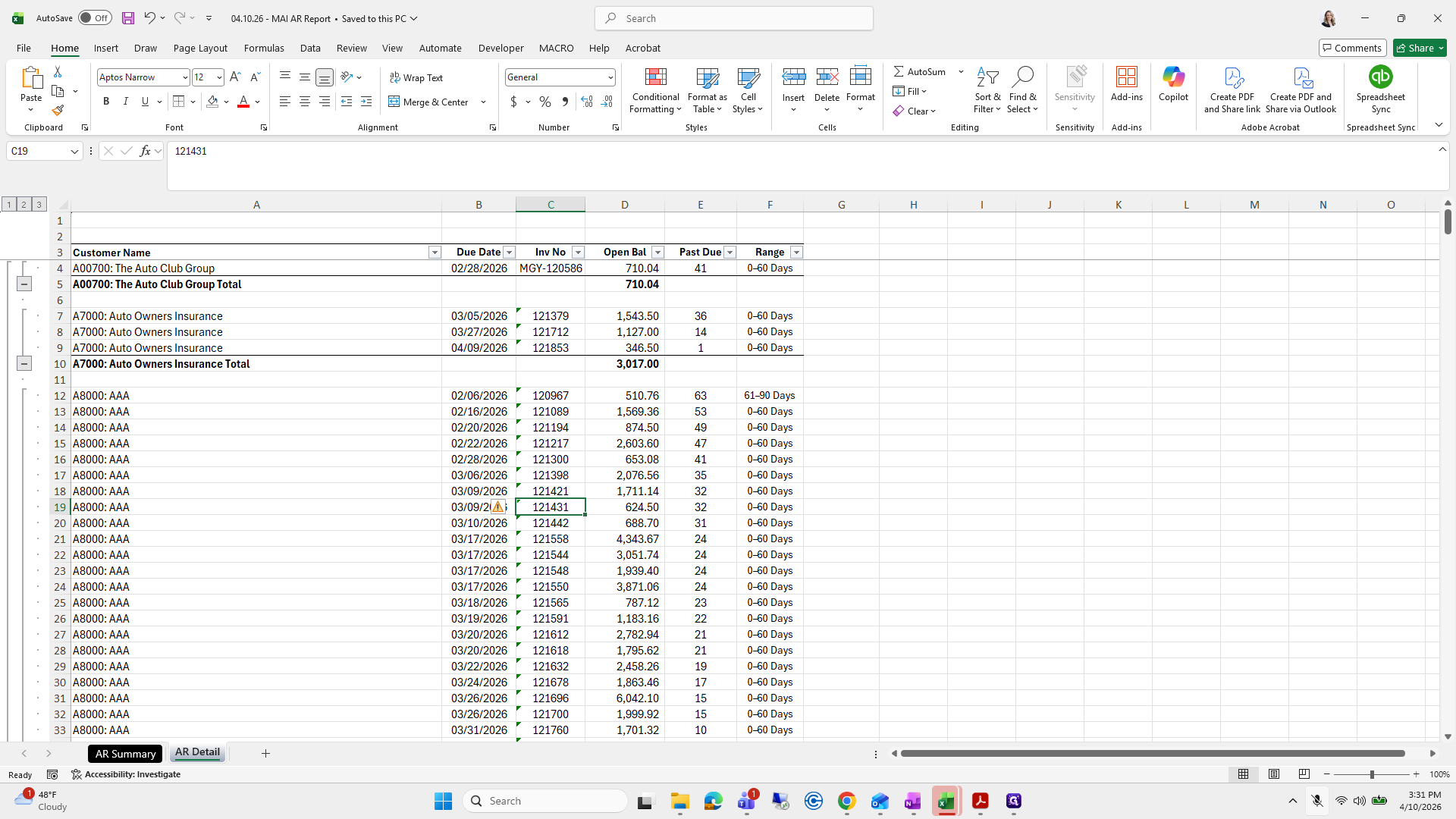
134
Click here
Step #134: Click here
135
Click here
Step #135: Click here

I'm going to paste it and make sure that it...
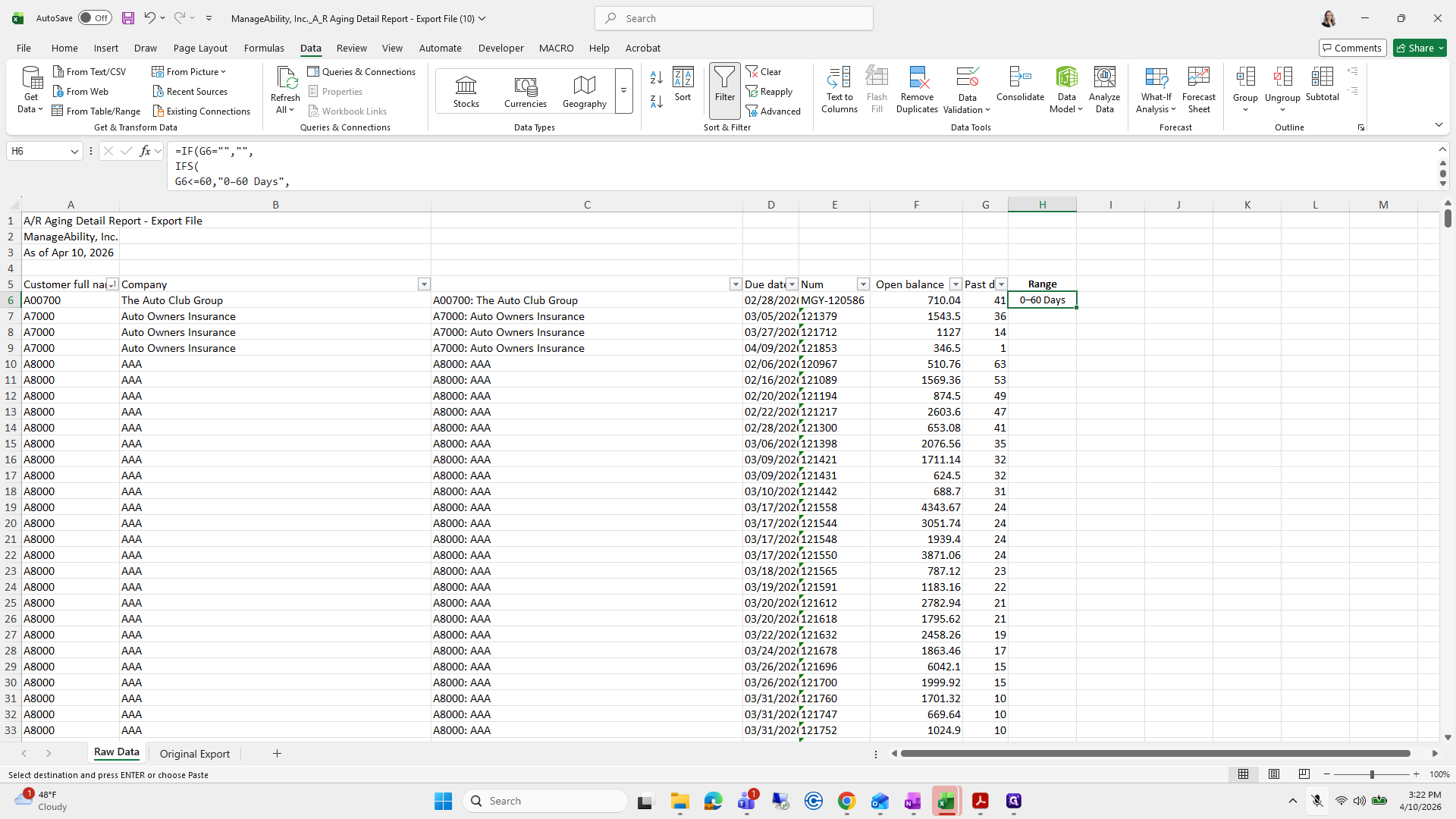
136
Type "Ctrl + V"
137
Double-click on "0-60 Days"
Step #137: Double-click on "0-60 Days"

Just paste, and do not use Control+P or Paste Special. I have tried that before, and it does not work well.
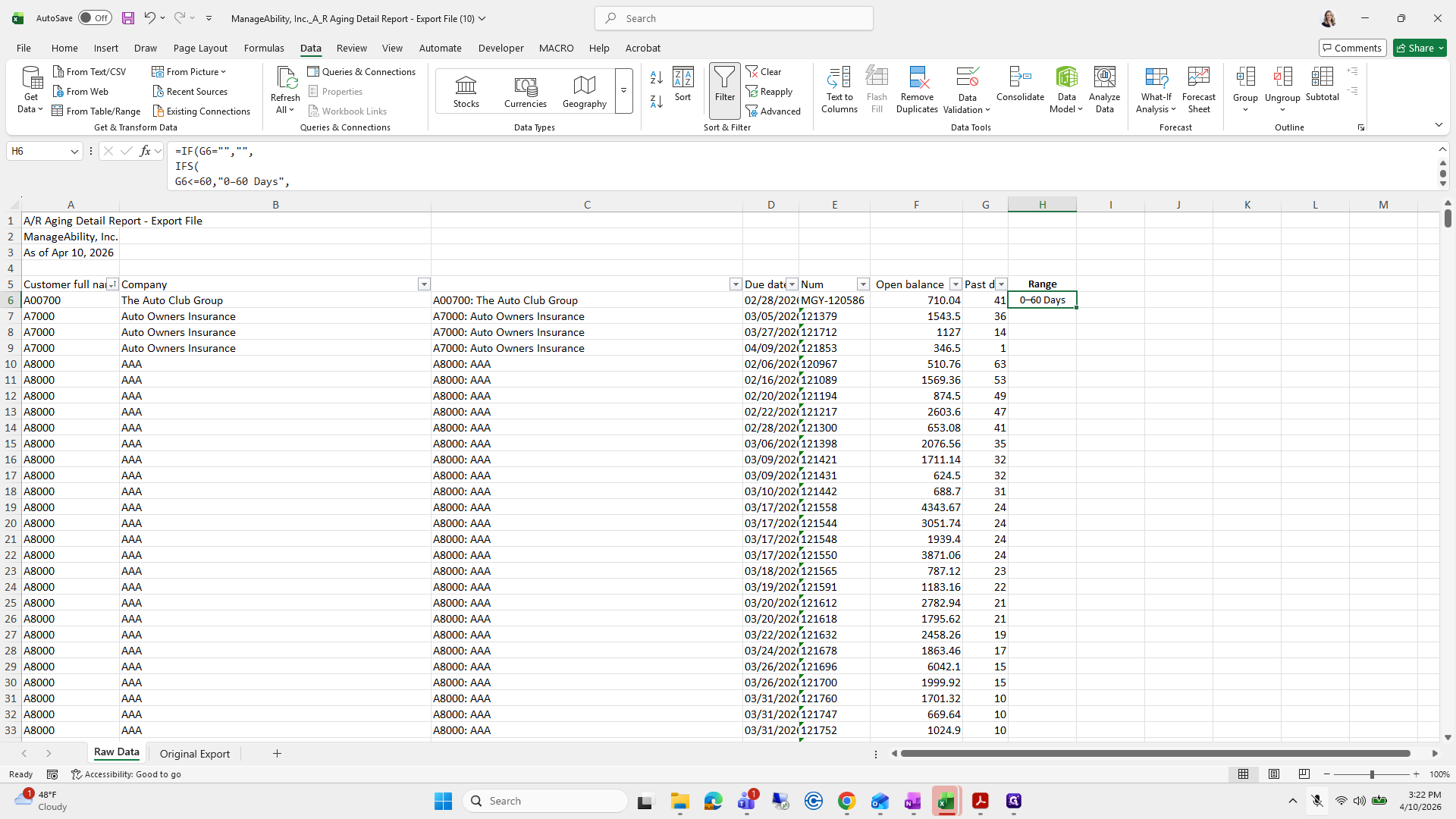
138
Type "Esc"
139
Double-click on "0-60 Days"
Step #139: Double-click on "0-60 Days"

Then I will drag it down. Then I will go back to my other sheet.
140
Click here
Step #140: Click here
141
Click here
Step #141: Click here

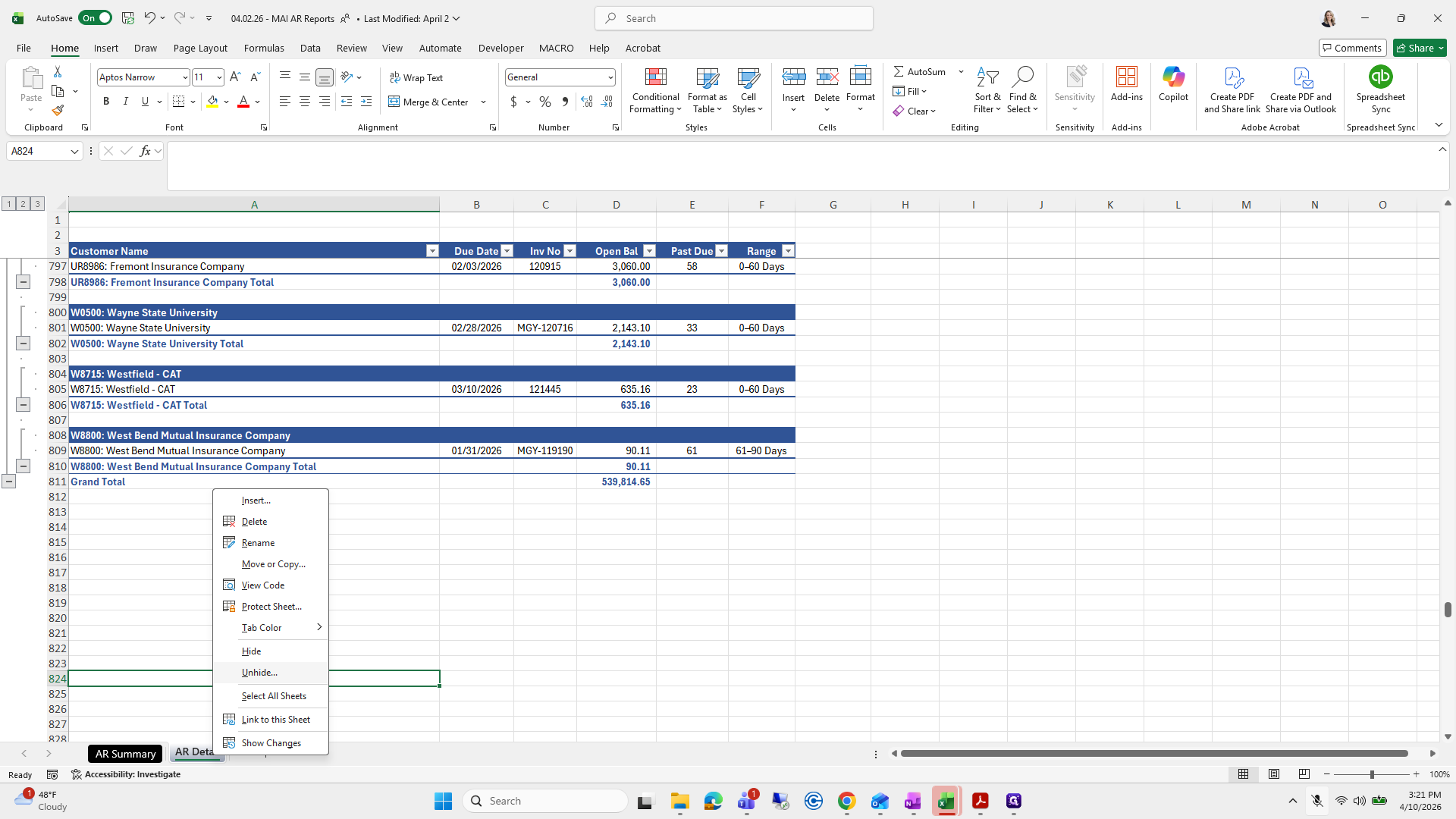
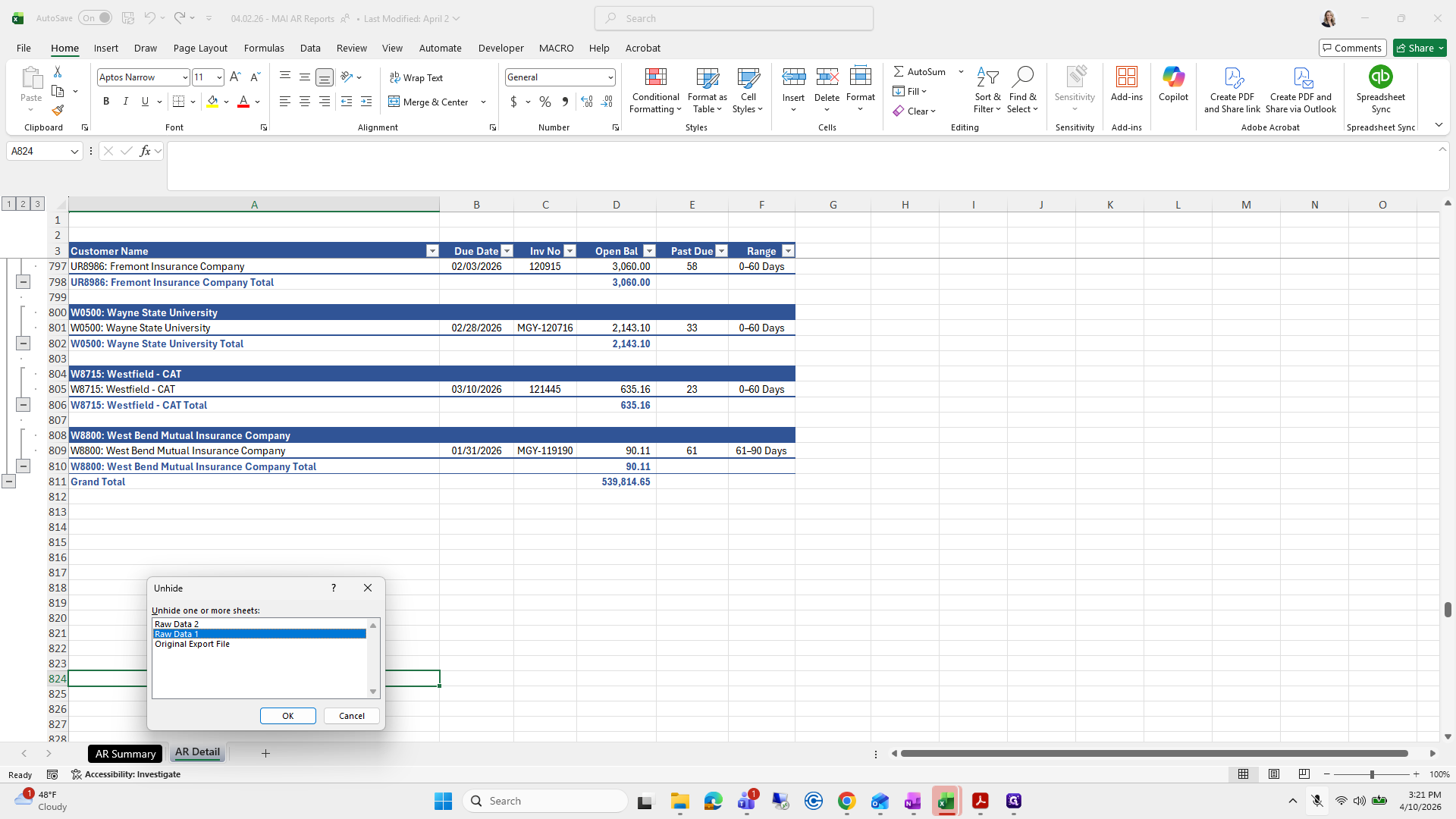
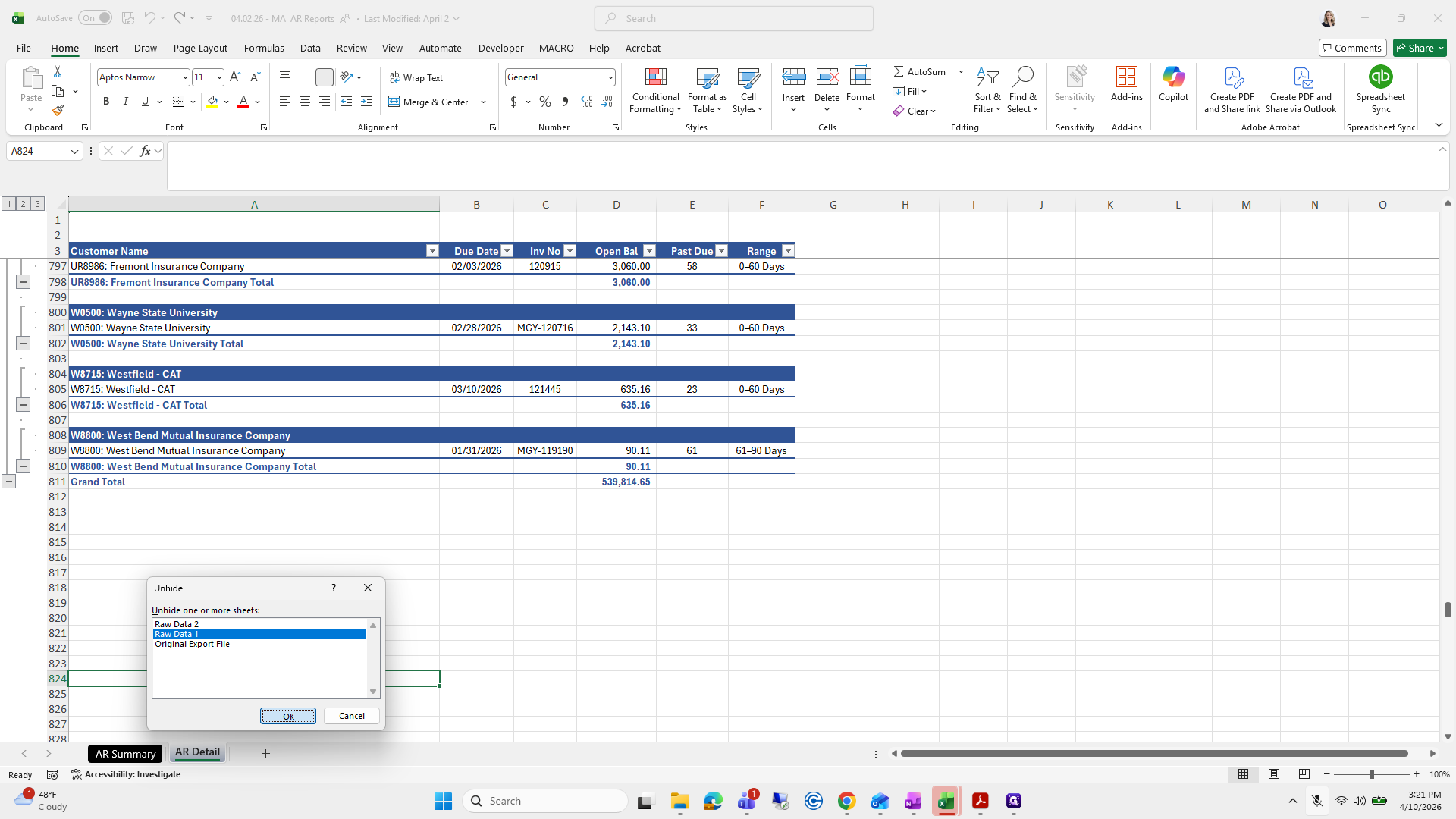
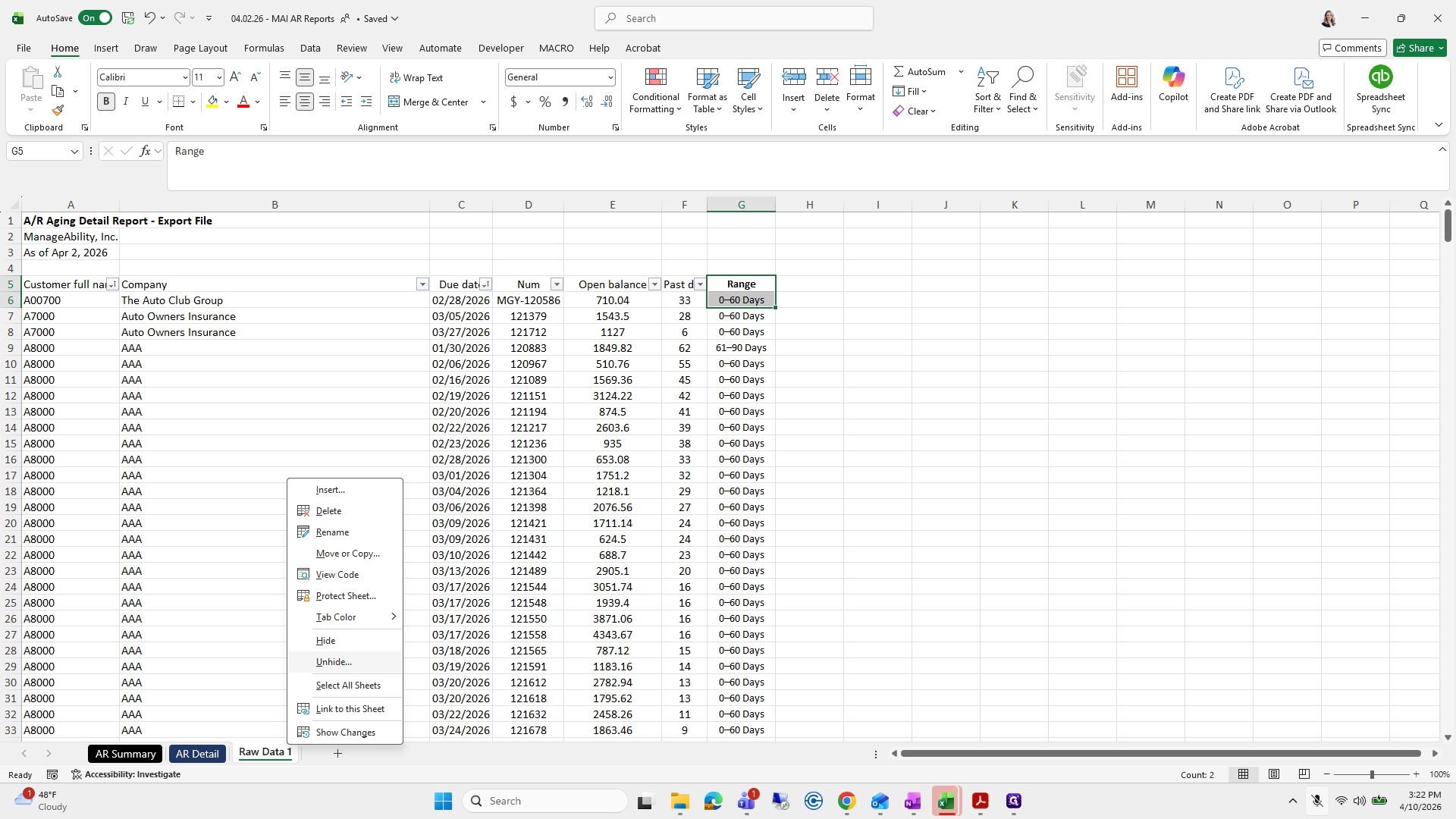
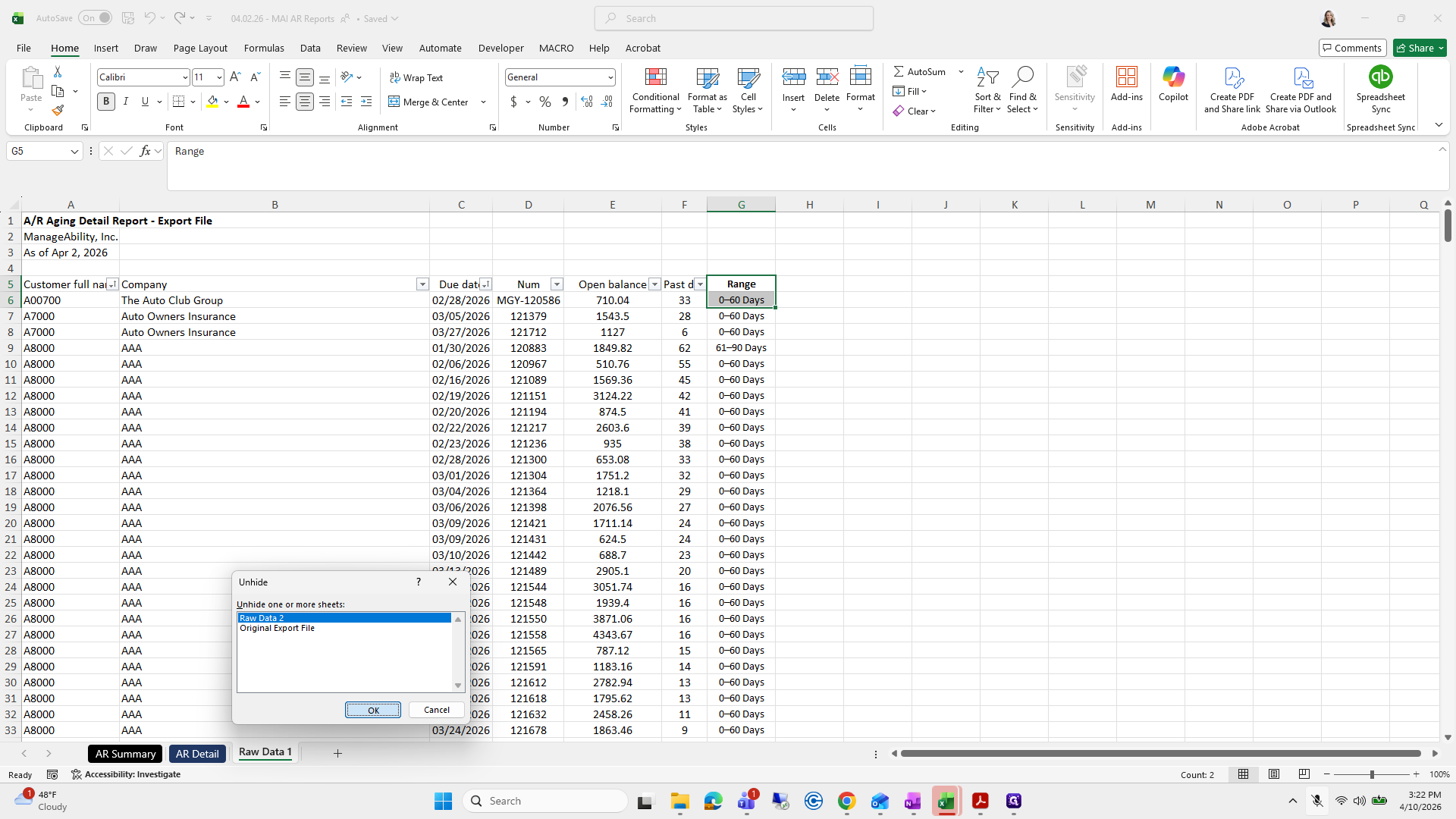
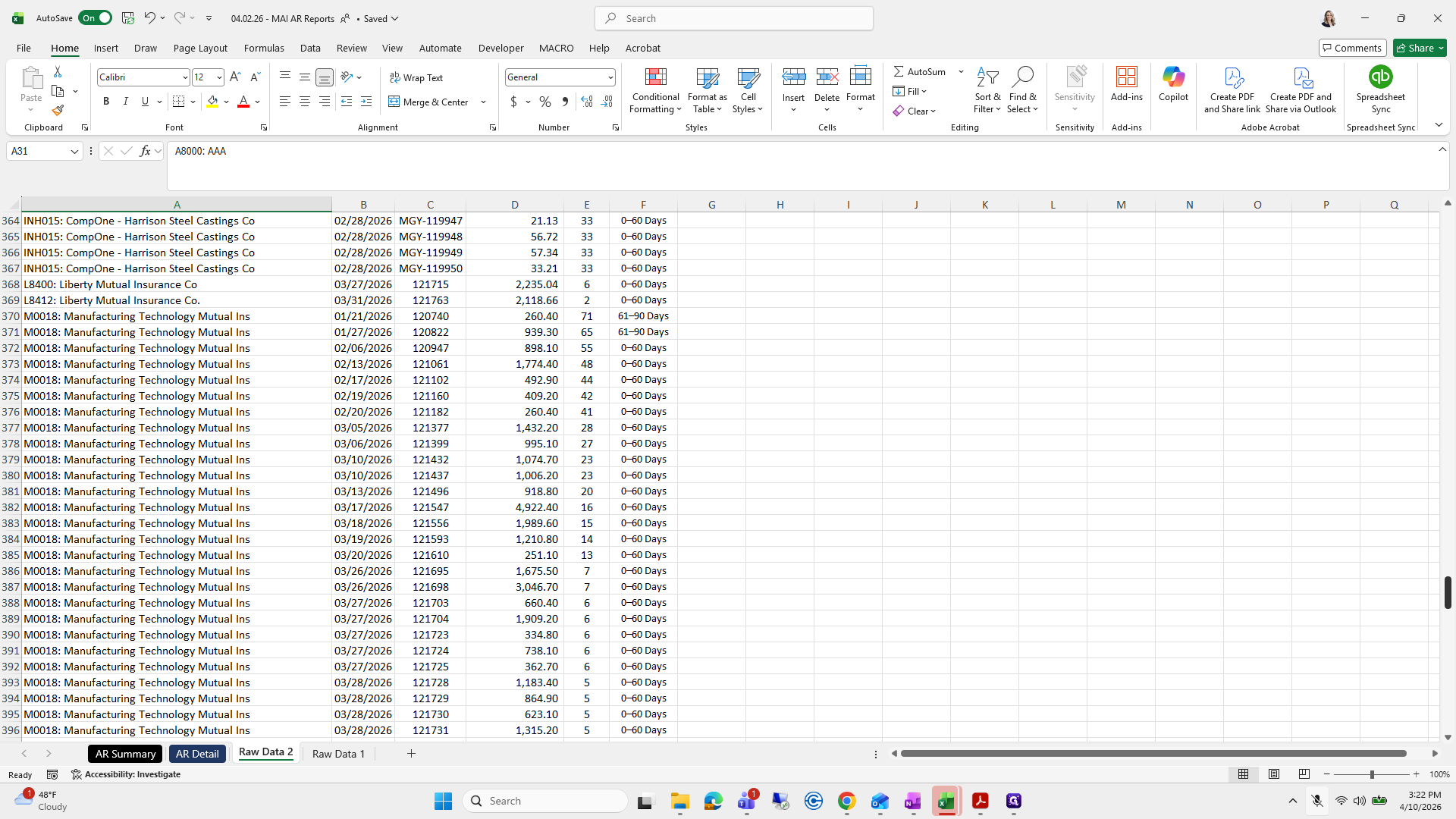
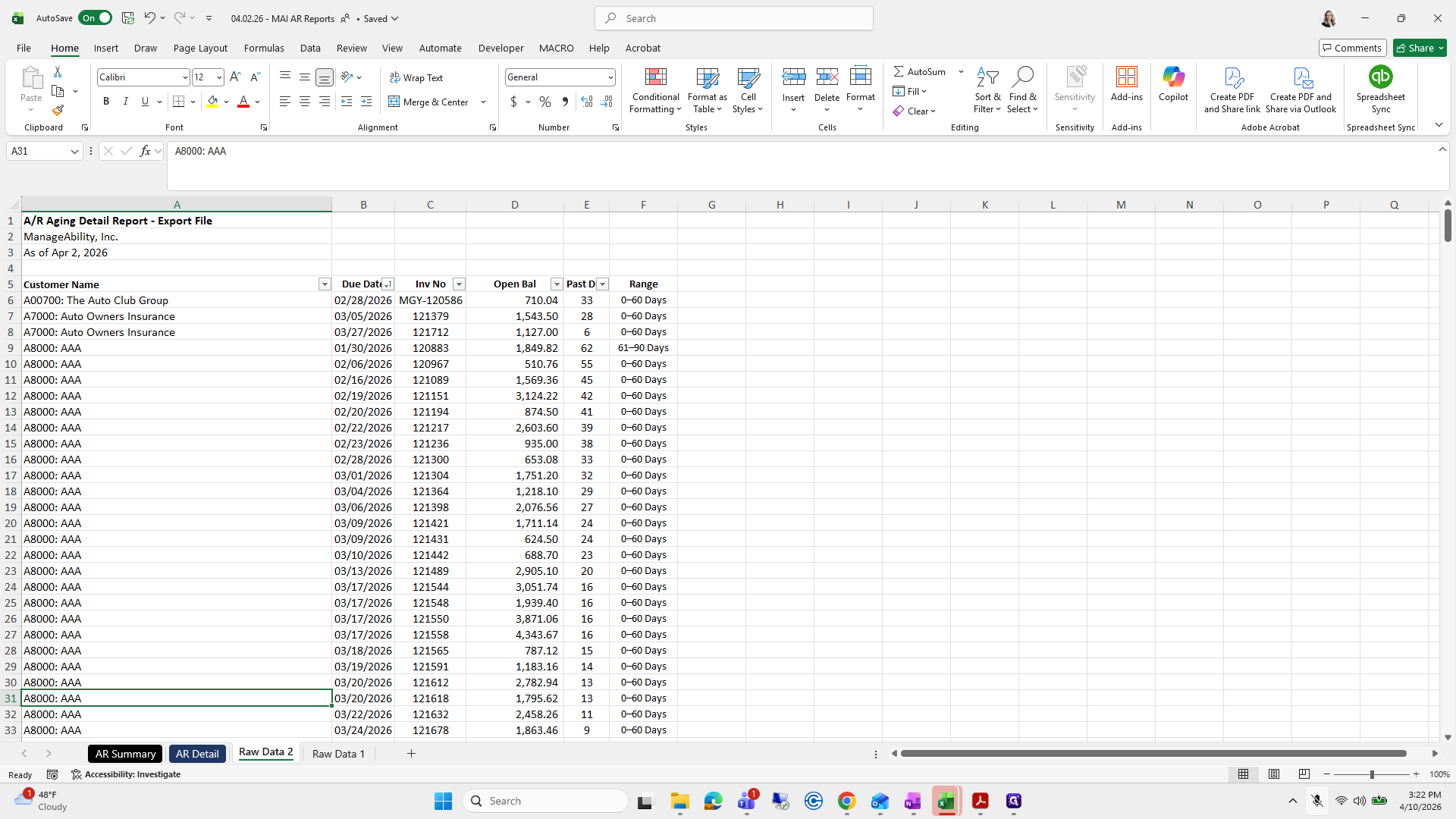
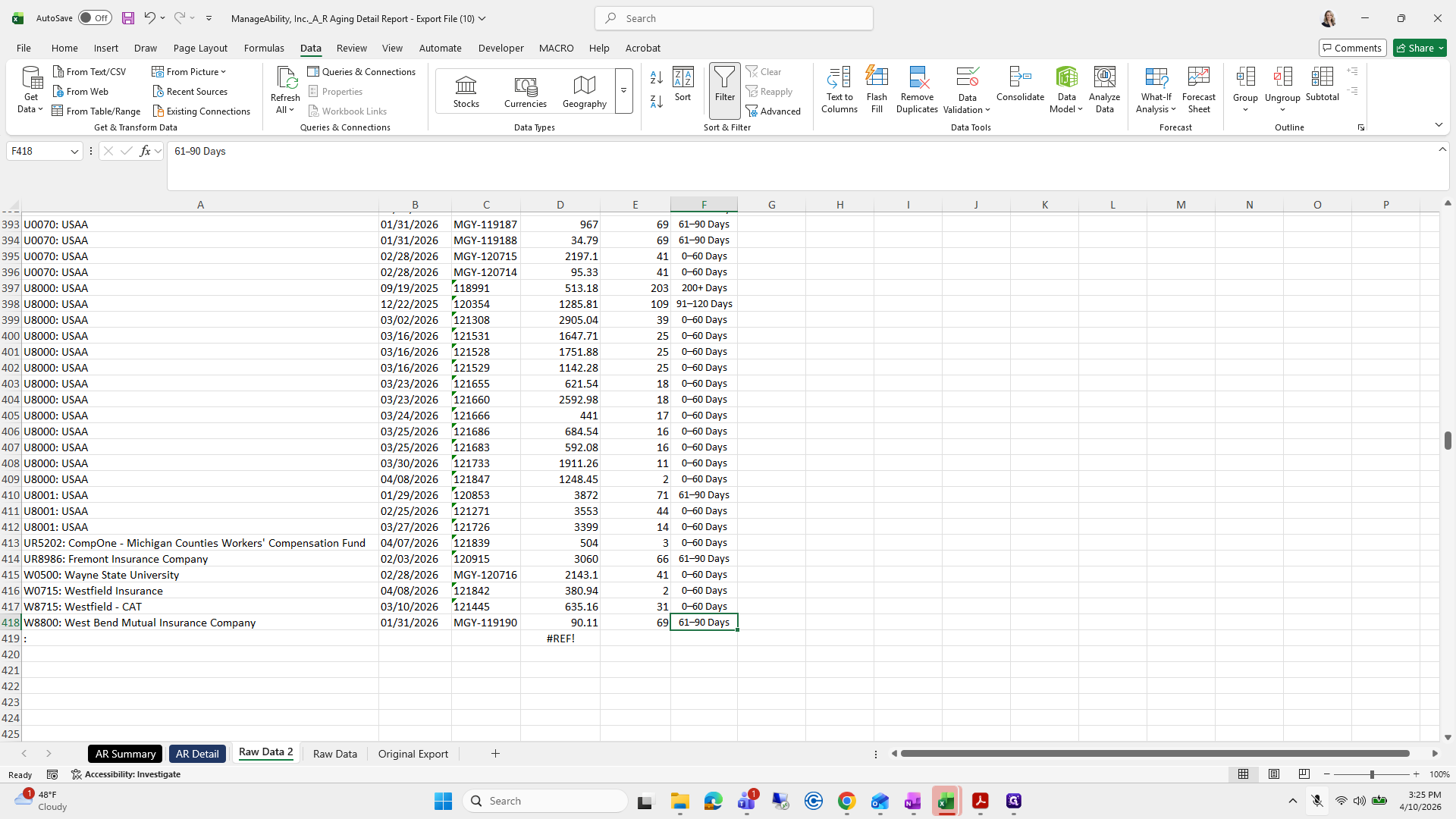
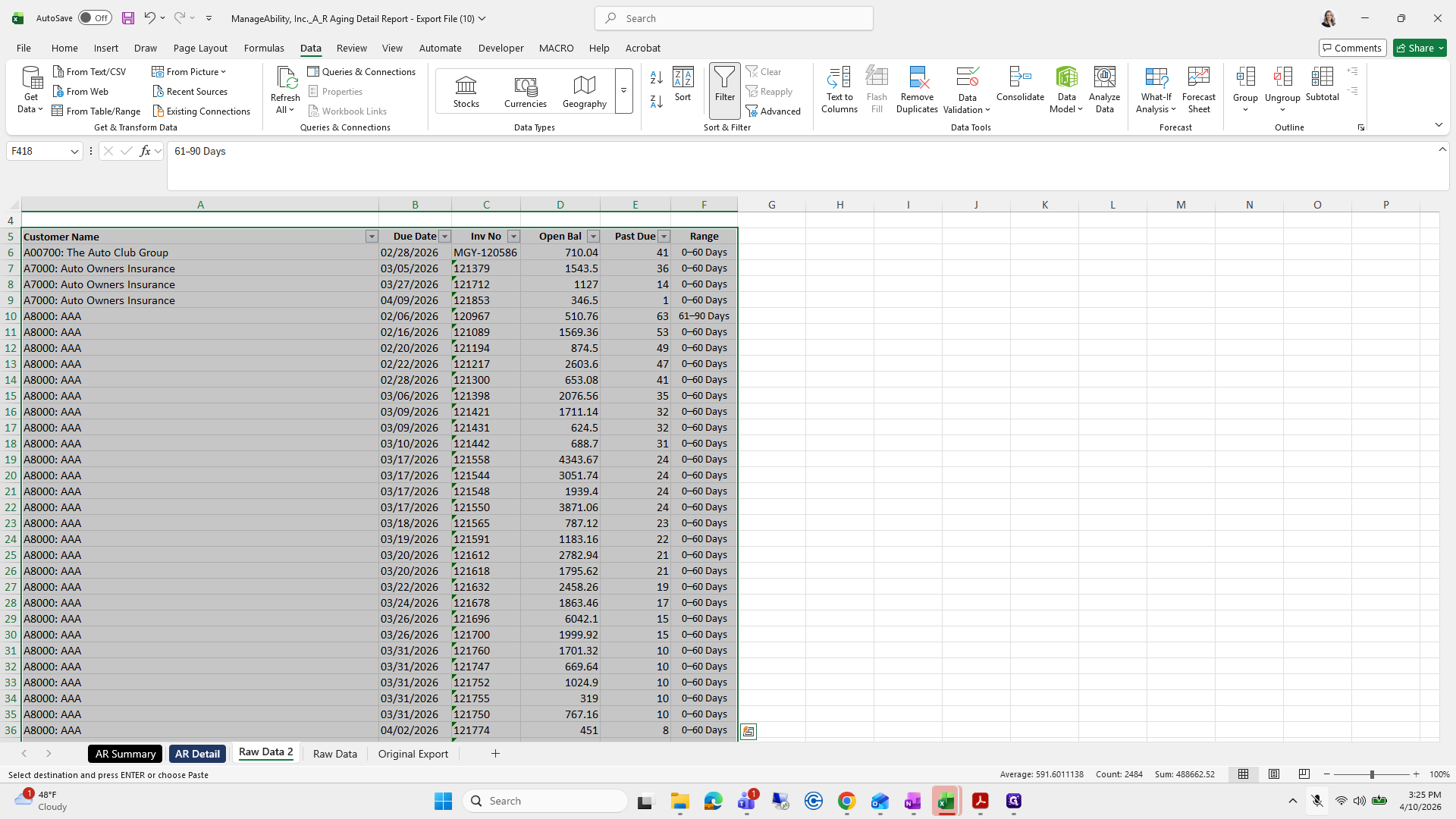
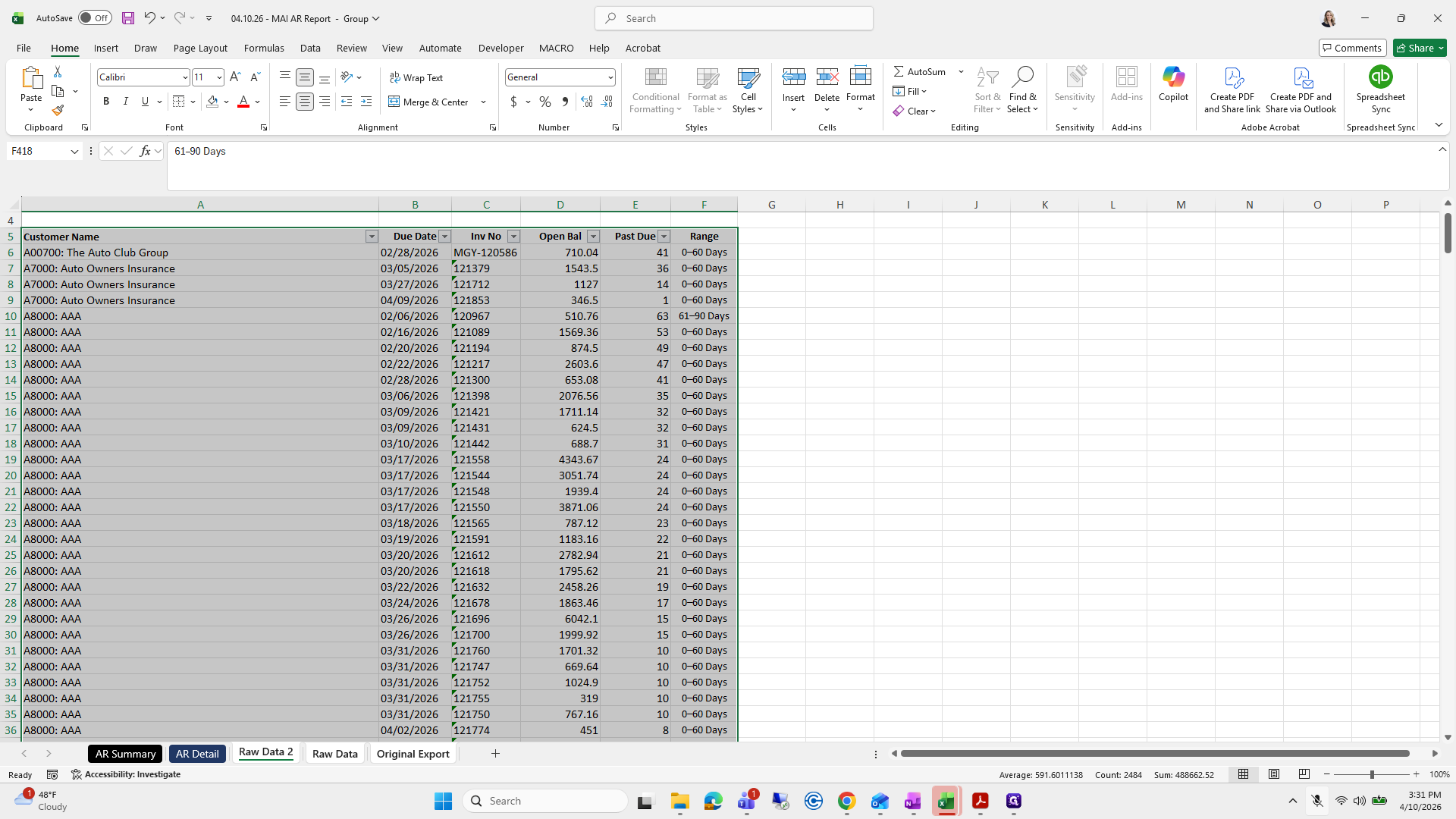
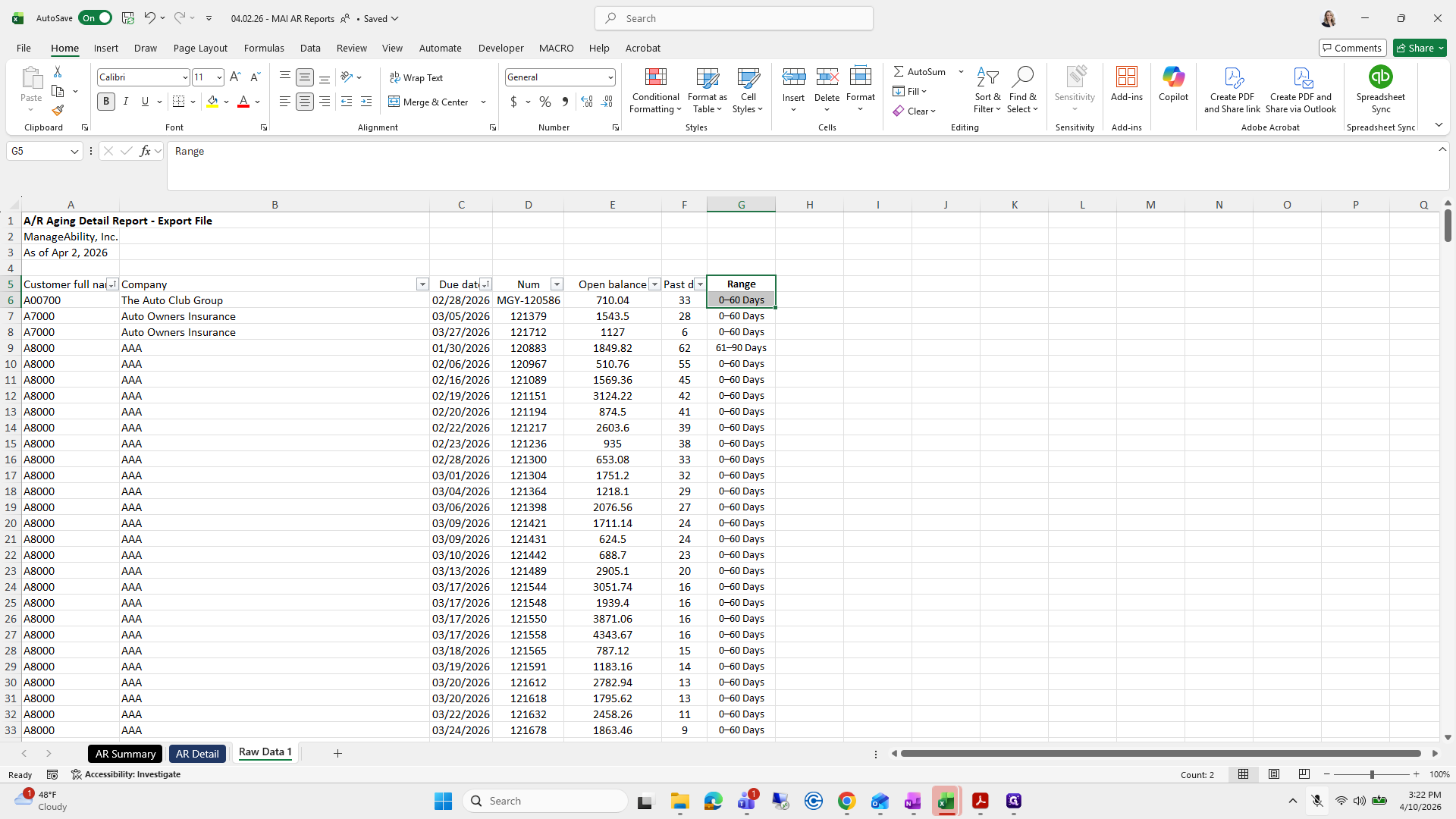
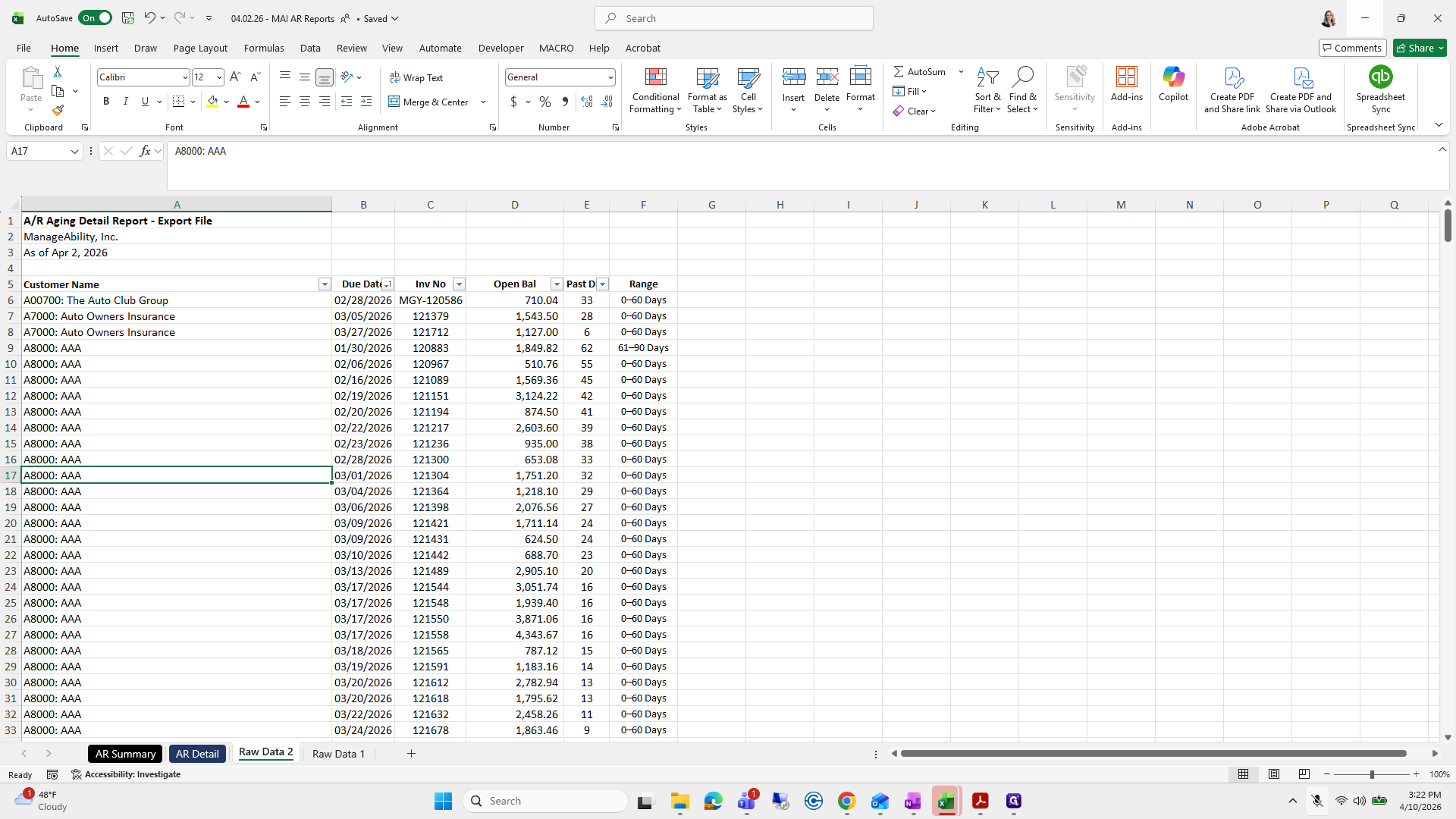
Here we go. I will unhide Raw Data 2 because this is how we want it to look.
142
Right-click on "Raw Data 1"
Step #142: Right-click on "Raw Data 1"
143
Click on "Unhide ..."
Step #143: Click on "Unhide ..."
144
Click on "OK"
Step #144: Click on "OK"
145
Drag here
Step #145: Drag here
146
Click here
Step #146: Click here

I will go back to this sheet, copy it quickly, and create a new one.
147
Click here
Step #147: Click here
148
Right-click on "Raw Data"
Step #148: Right-click on "Raw Data"
149
Click here
Step #149: Click here
150
Click on "Move or Copy ..."
Step #150: Click on "Move or Copy ..."
151
Click on "OK"
Step #151: Click on "OK"
152
Double-click on "Raw Data ( 2 )"
Step #152: Double-click on "Raw Data ( 2 )"

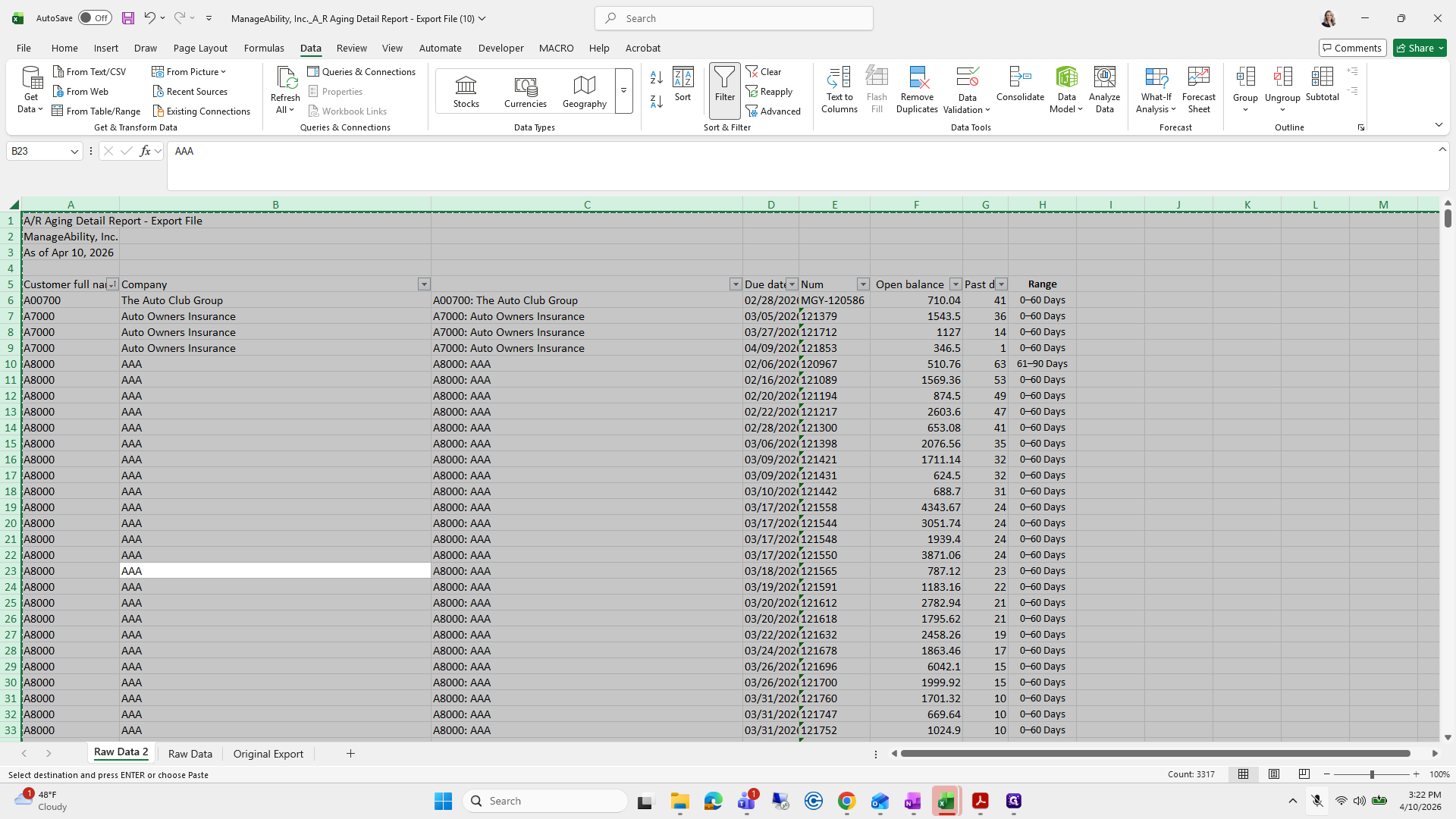
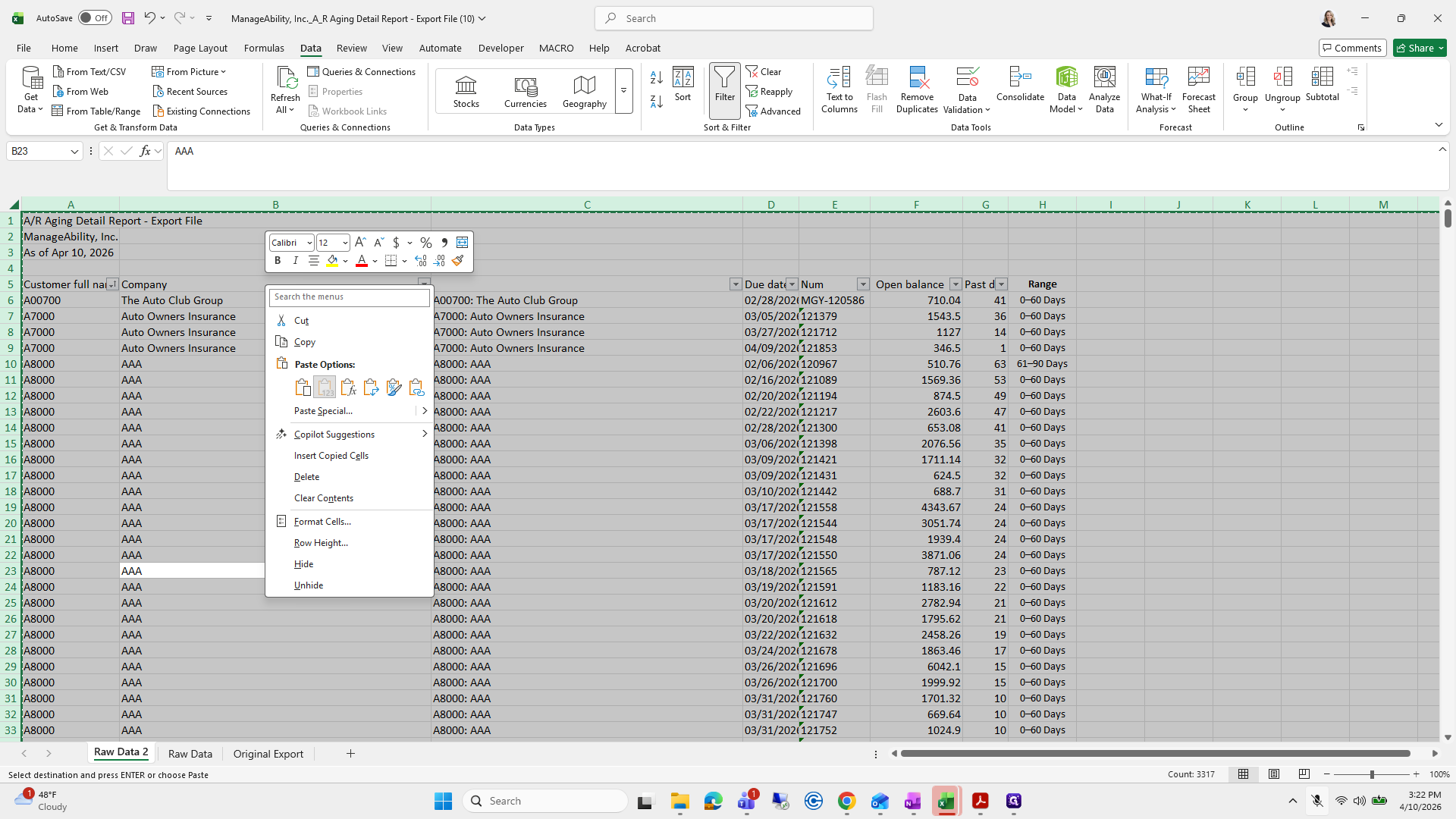
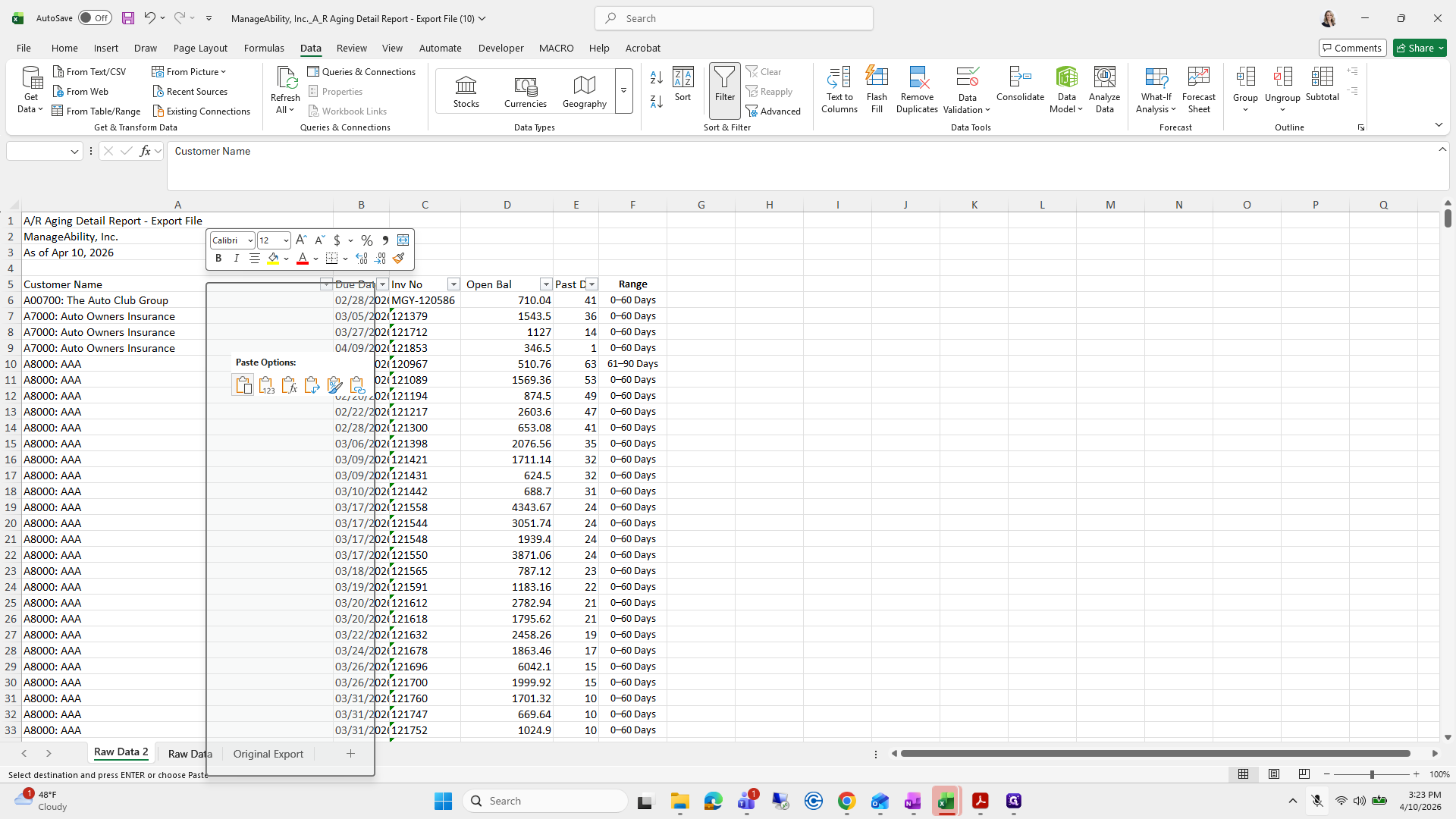
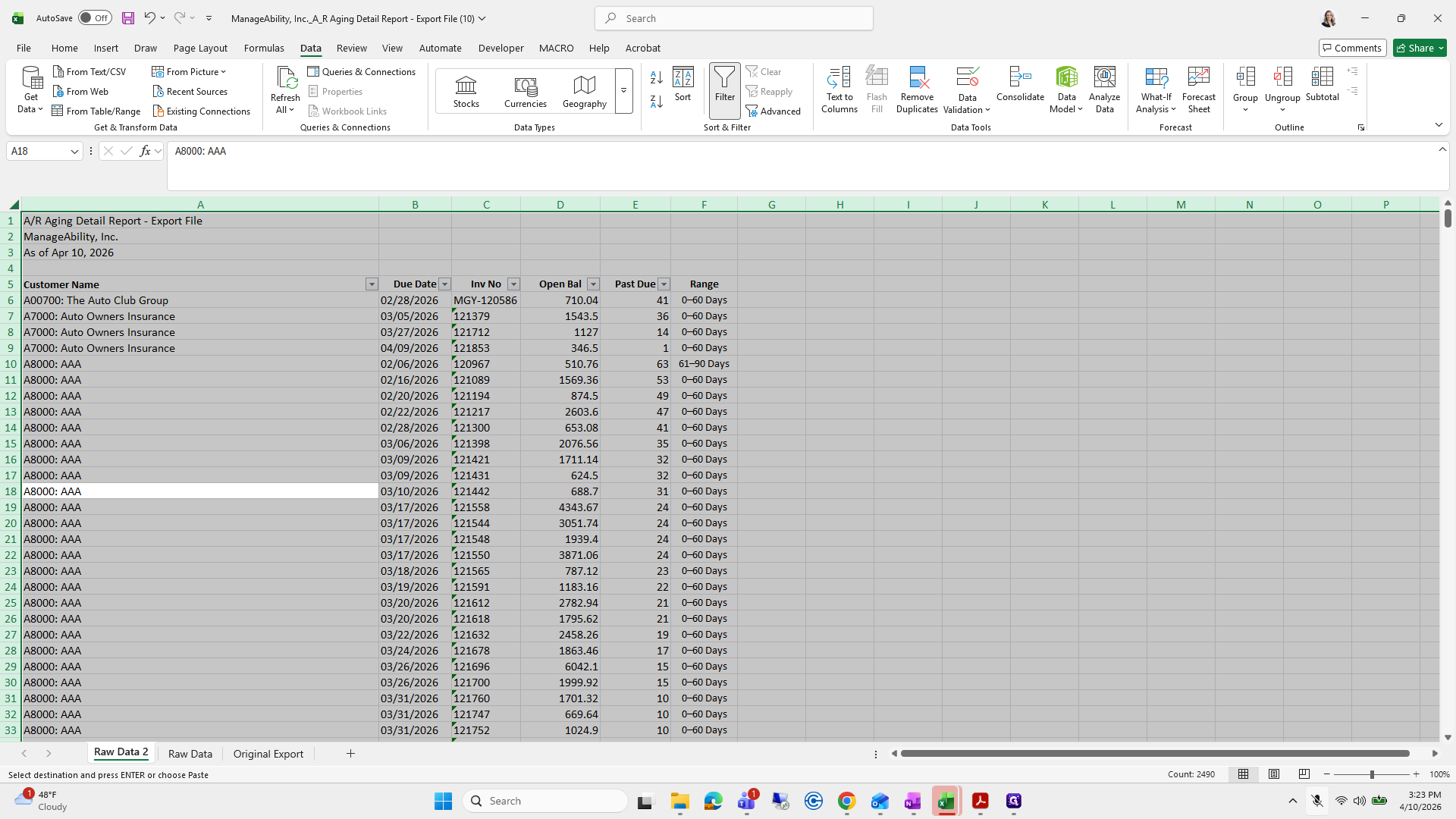
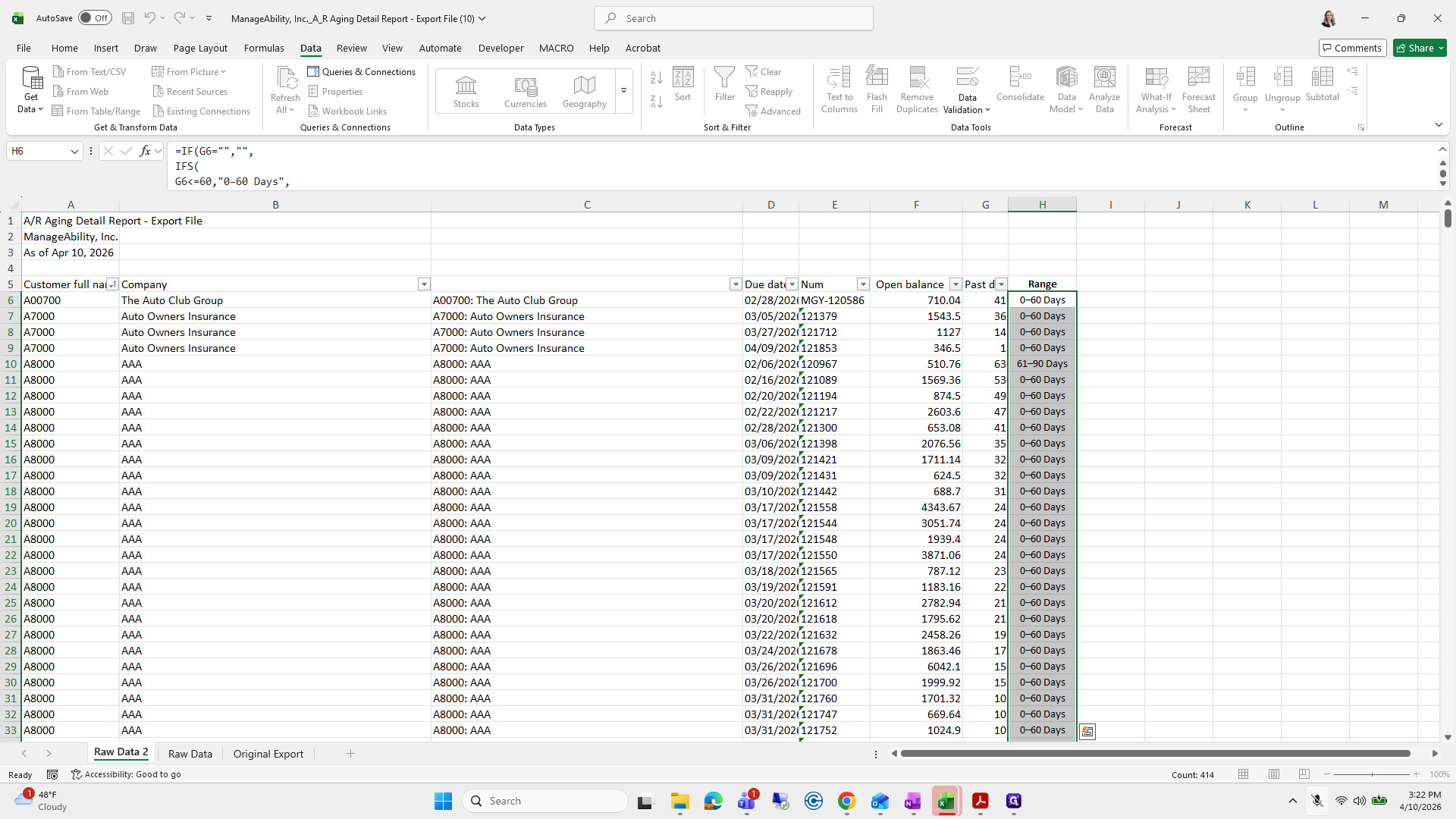
I will copy and paste special the entire content so my conjugate and range remain unchanged.
153
Type "Raw Data 2"
154
Click here
Step #154: Click here
155
Type "Raw Data 2"
156
Type "Ctrl + A"
157
Type "Ctrl + A"
158
Type "Ctrl + C"
159
Type "Ctrl + C"
160
Drag here
Step #160: Drag here
161
Click here
Step #161: Click here
162
Double-click on "The Auto Club Group"
Step #162: Double-click on "The Auto Club Group"
163
Click on "0-60 Days"
Step #163: Click on "0-60 Days"
164
Click here
Step #164: Click here
165
Click on "1 A / R Aging Detail Report - Export File"
Step #165: Click on "1 A / R Aging Detail Report - Export File"

I will remove this column and 80.
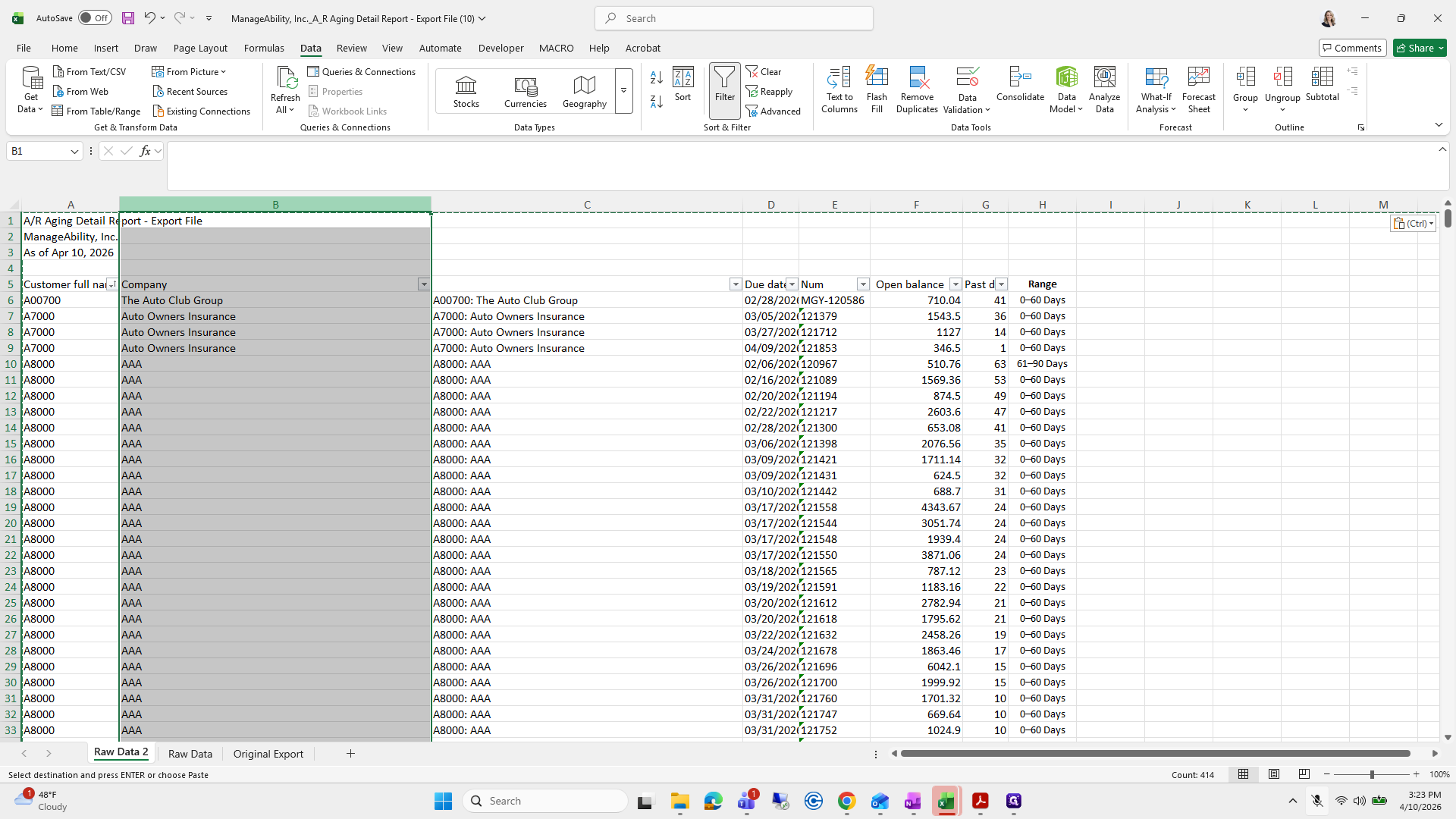
166
Right-click here
Step #166: Right-click here
167
Click here
Step #167: Click here
168
Click on "1 A / R Aging Detail Report - Export"
Step #168: Click on "1 A / R Aging Detail Report - Export"
169
Drag "2026"
Step #169: Drag "2026"
170
Right-click on "JA / R Aging Detail"
Step #170: Right-click on "JA / R Aging Detail"
171
Click on "Delete"
Step #171: Click on "Delete"

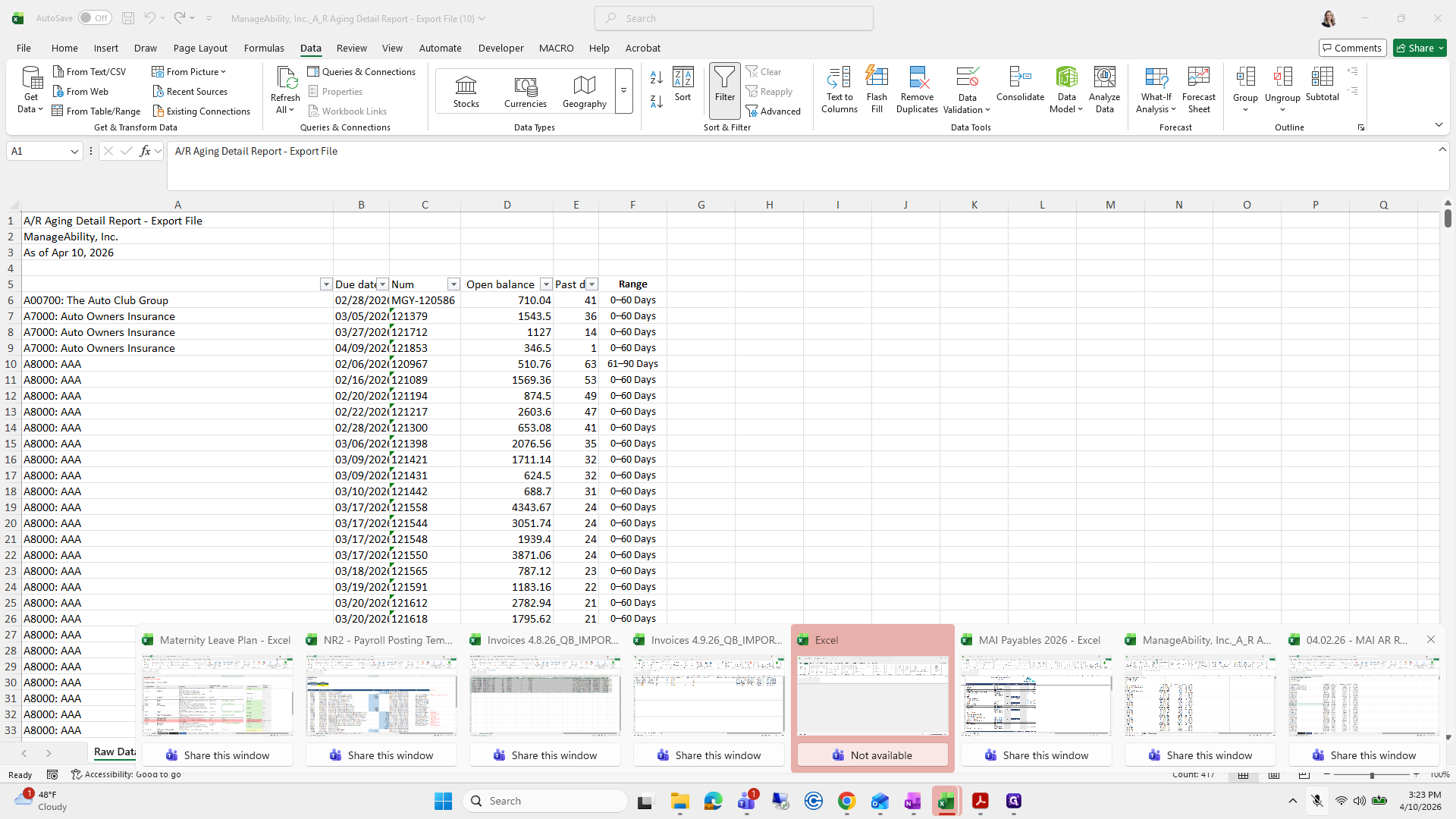
Now I'll go back and start copying and pasting, which is probably a relief. I enjoy copying and pasting.
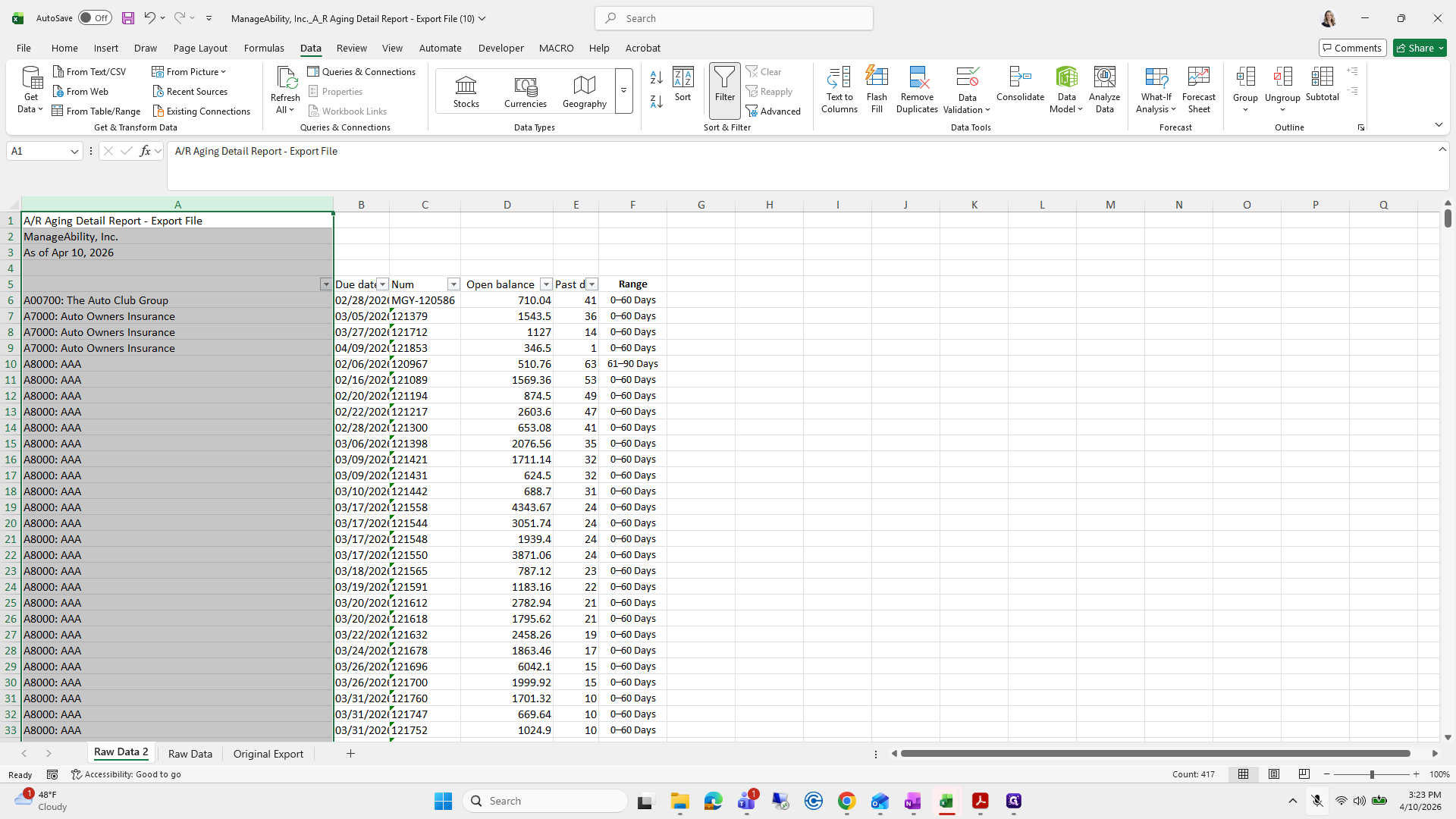
172
Click here
Step #172: Click here
173
Click here
Step #173: Click here
174
Drag here
Step #174: Drag here
175
Type "Ctrl + C"
176
Click here
Step #176: Click here
177
Right-click here
Step #177: Right-click here
178
Click here
Step #178: Click here

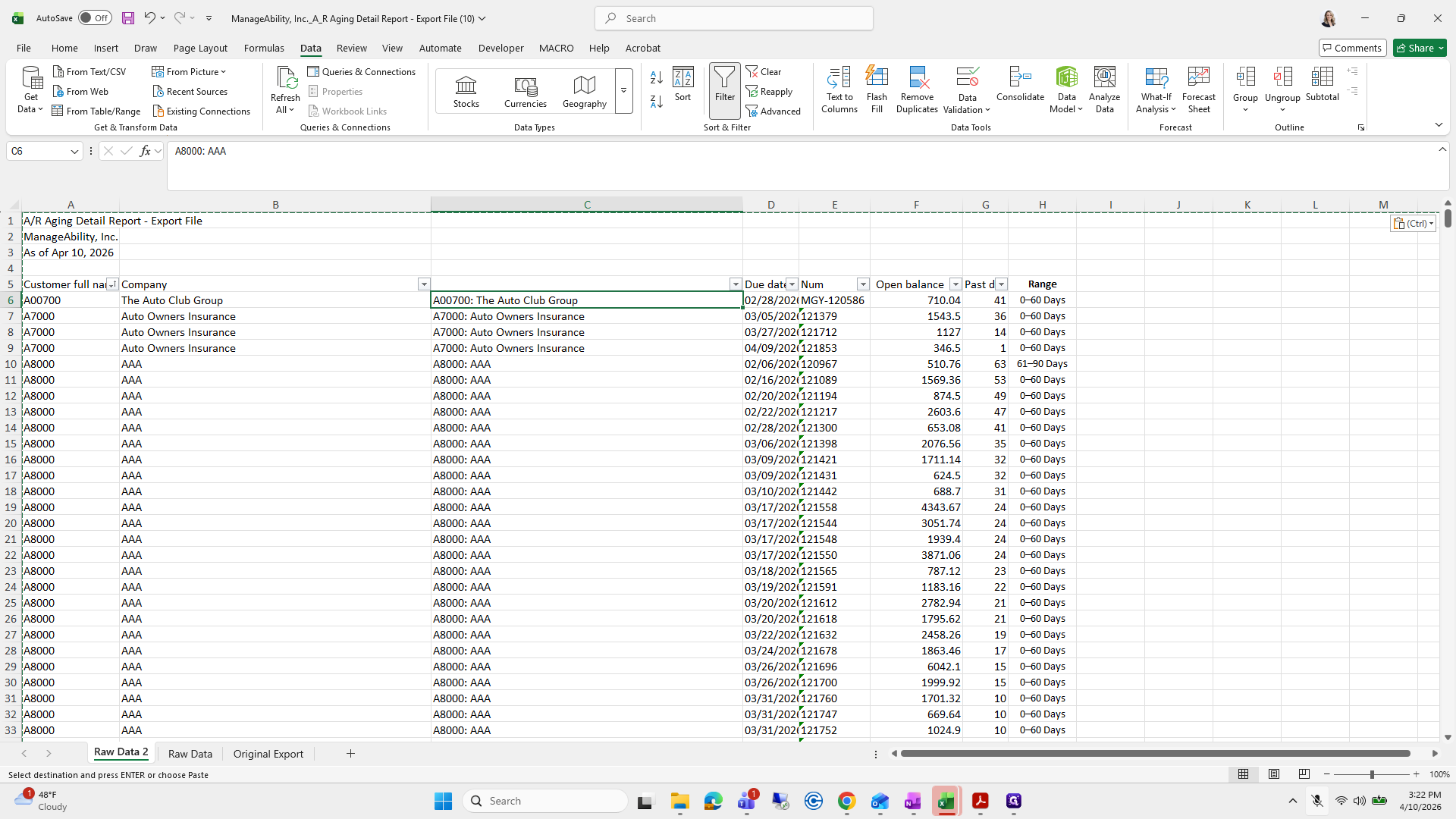
Paste.

179
Click here
Step #179: Click here

Everything looks good.

180
Type "Ctrl + A"
181
Type "Ctrl + A"
182
Type "Ctrl + A"
183
Type "Ctrl + A"
184
Double-click here
Step #184: Double-click here
185
Click here
Step #185: Click here
186
Type "Ctrl + B"
187
Click here
Step #187: Click here

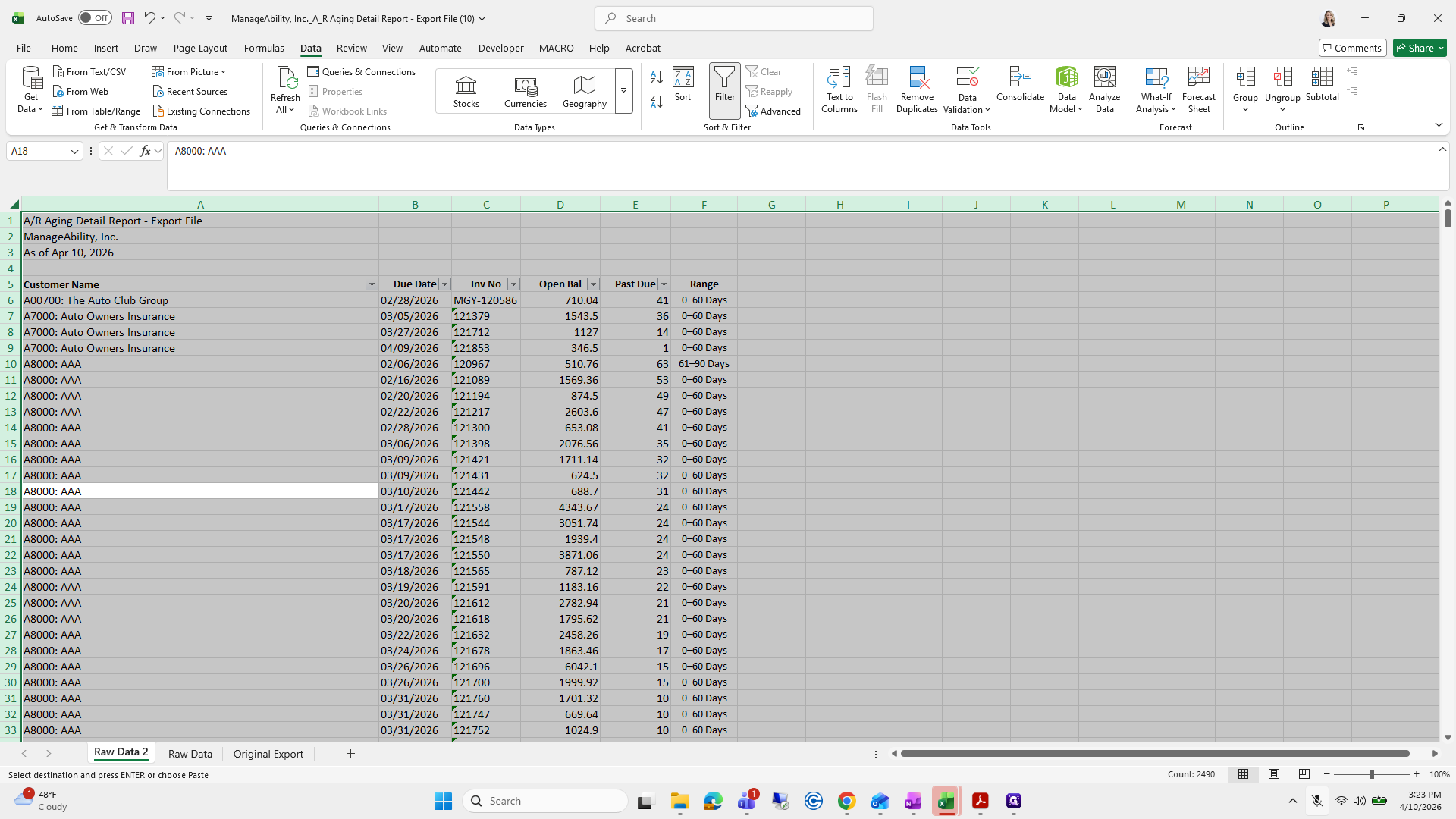
You don't need to worry about how this one looks. It's just your raw data.
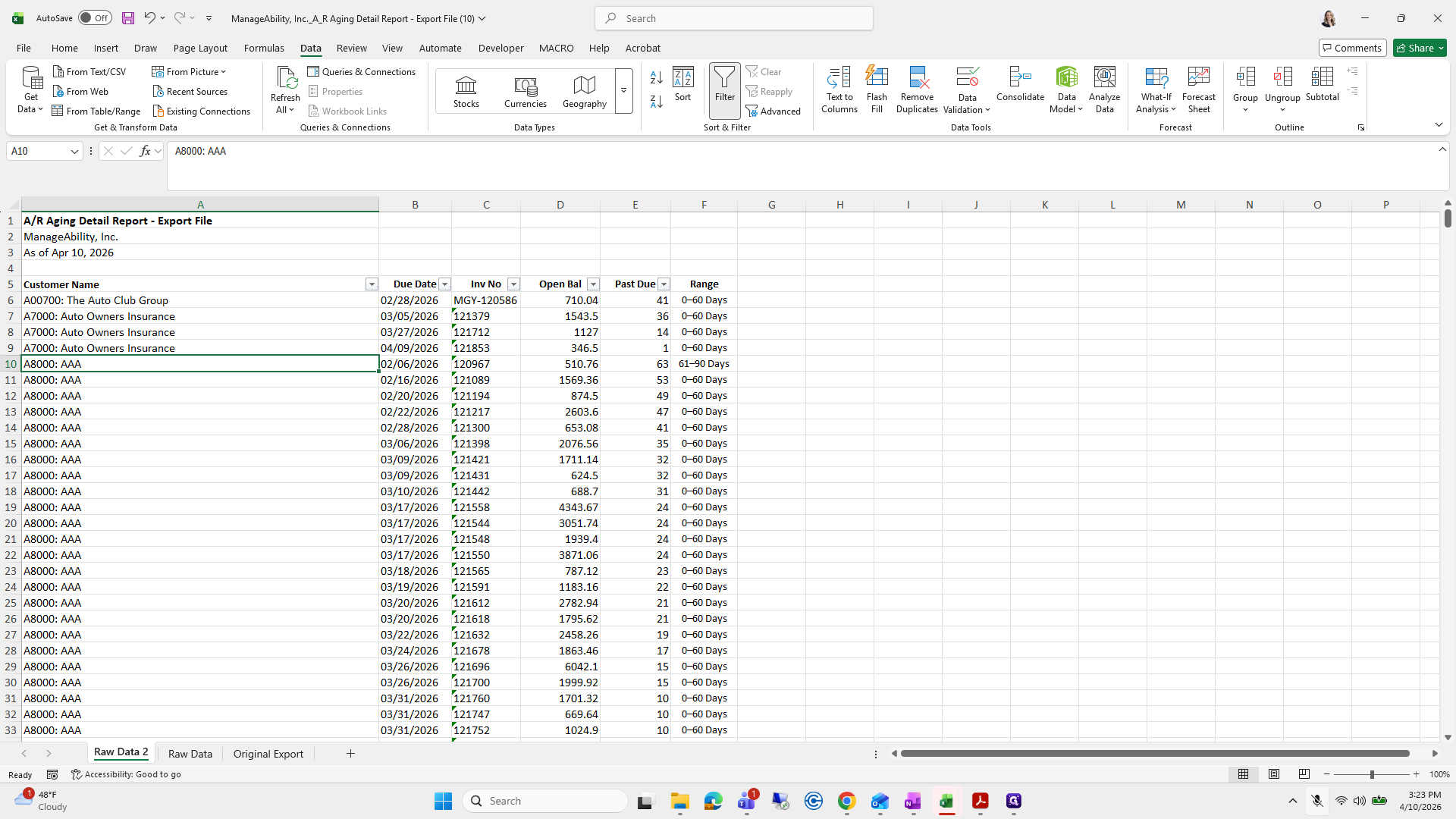
188
Click here
Step #188: Click here
189
Click here
Step #189: Click here

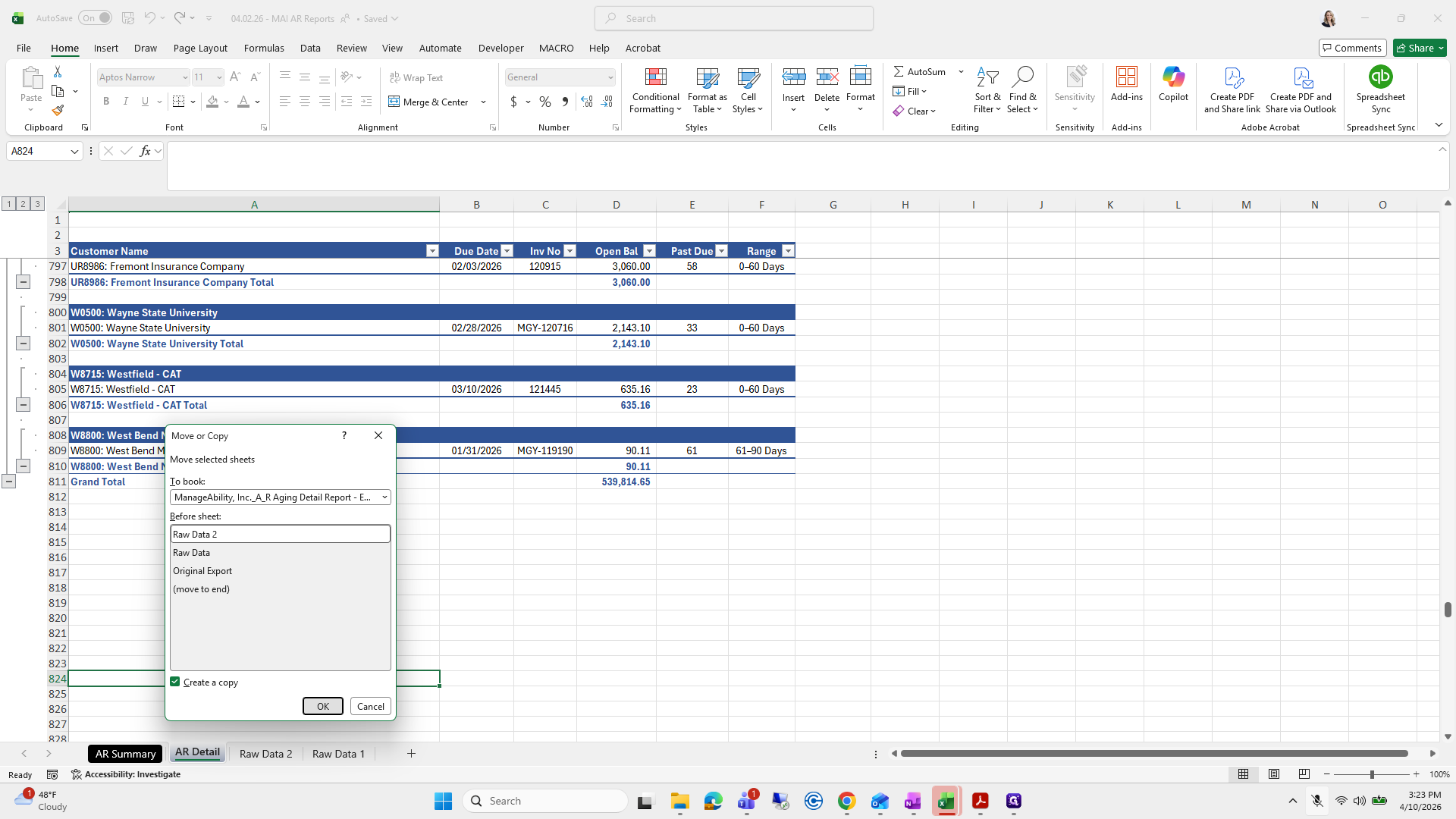
Next, go back to the other file and copy and paste the AR data.
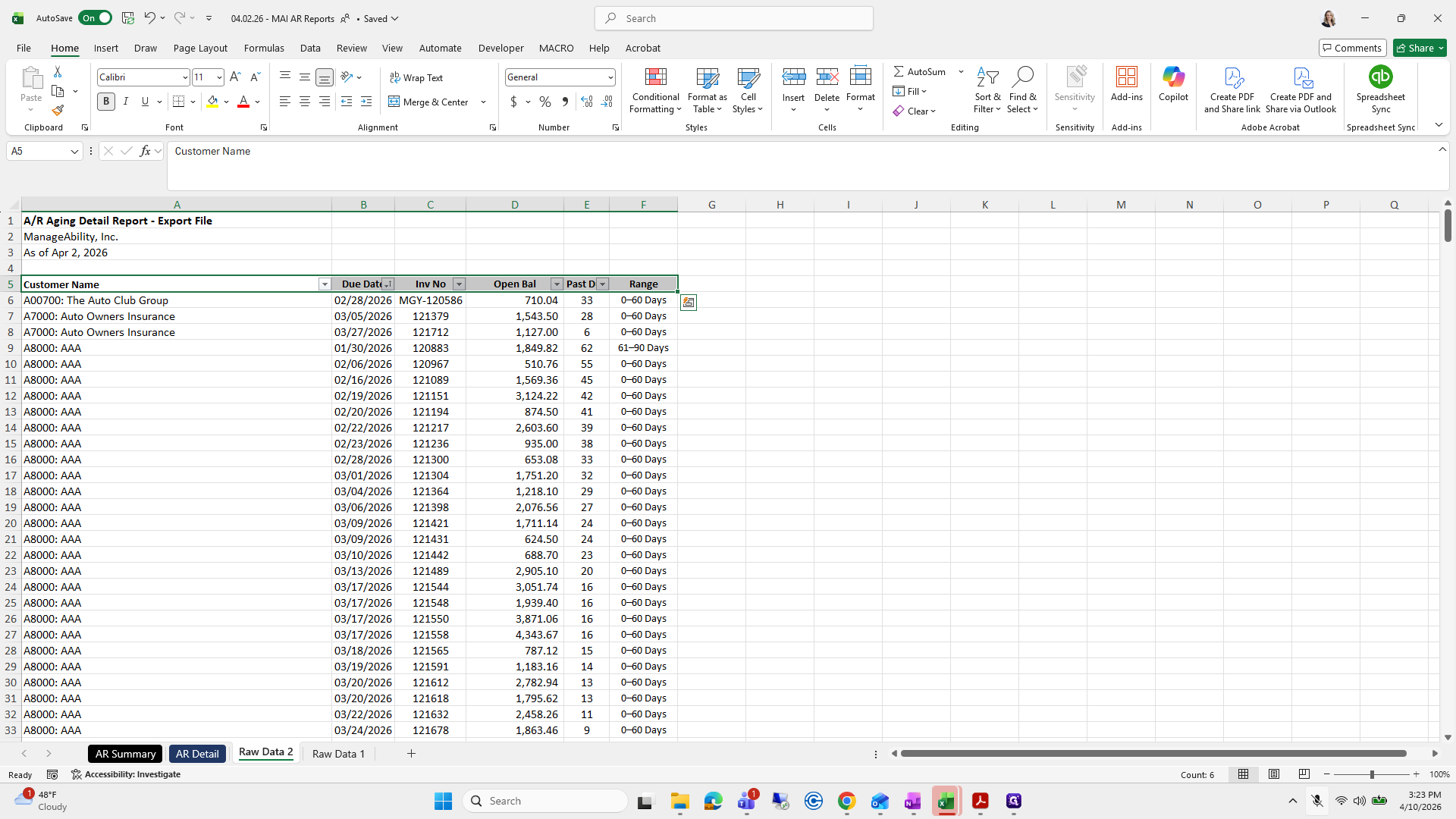
190
Drag "0-60 Days"
Step #190: Drag "0-60 Days"
191
Right-click on "AR Detail"
Step #191: Right-click on "AR Detail"
192
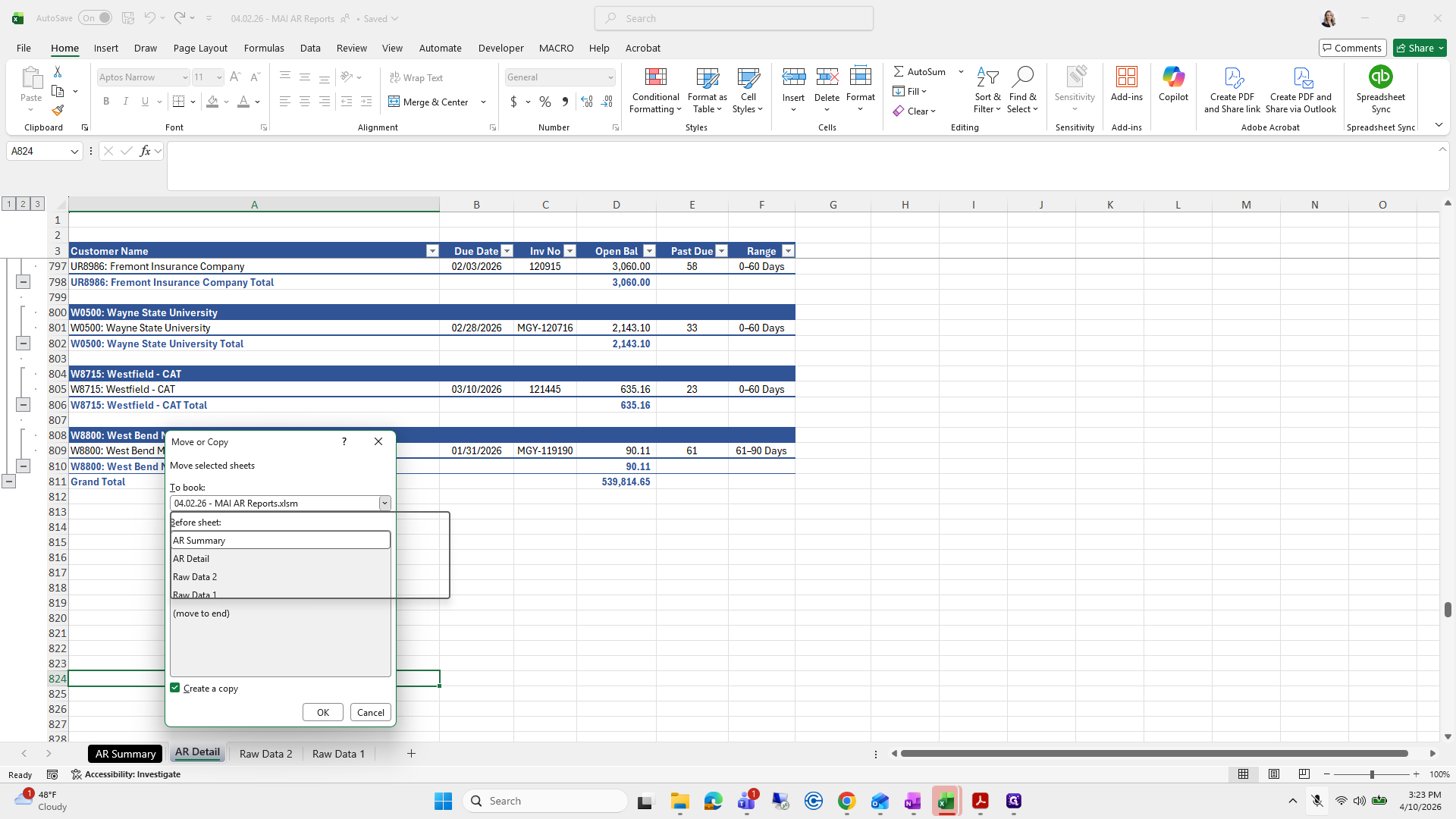
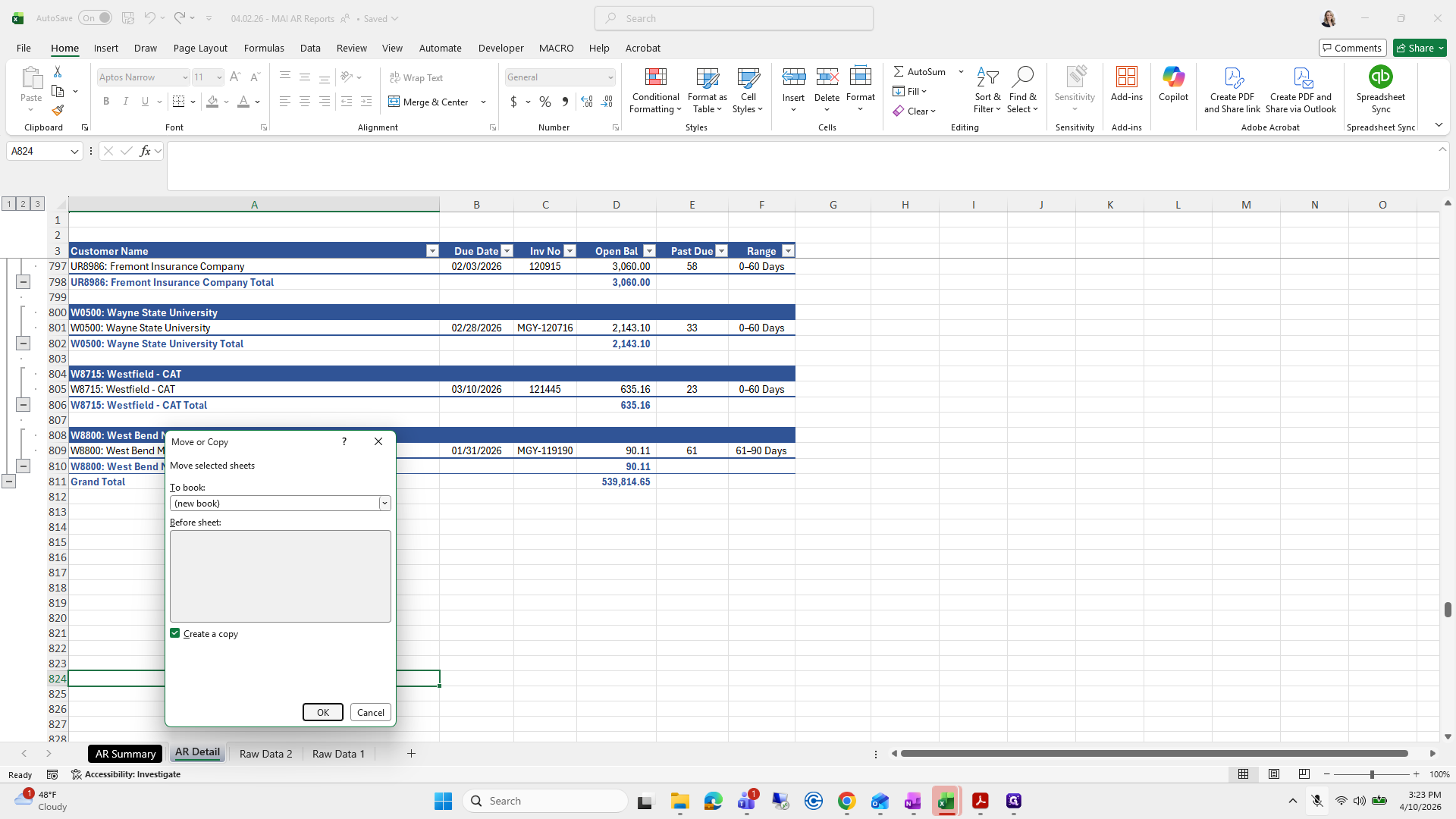
Click on "Move or Copy ..."
Step #192: Click on "Move or Copy ..."
193
Click on "Create a copy"
Step #193: Click on "Create a copy"
194
Click on "MAI AR Reports.xlsm"
Step #194: Click on "MAI AR Reports.xlsm"

You might want to skip this one, but we don't need to make it look perfect.
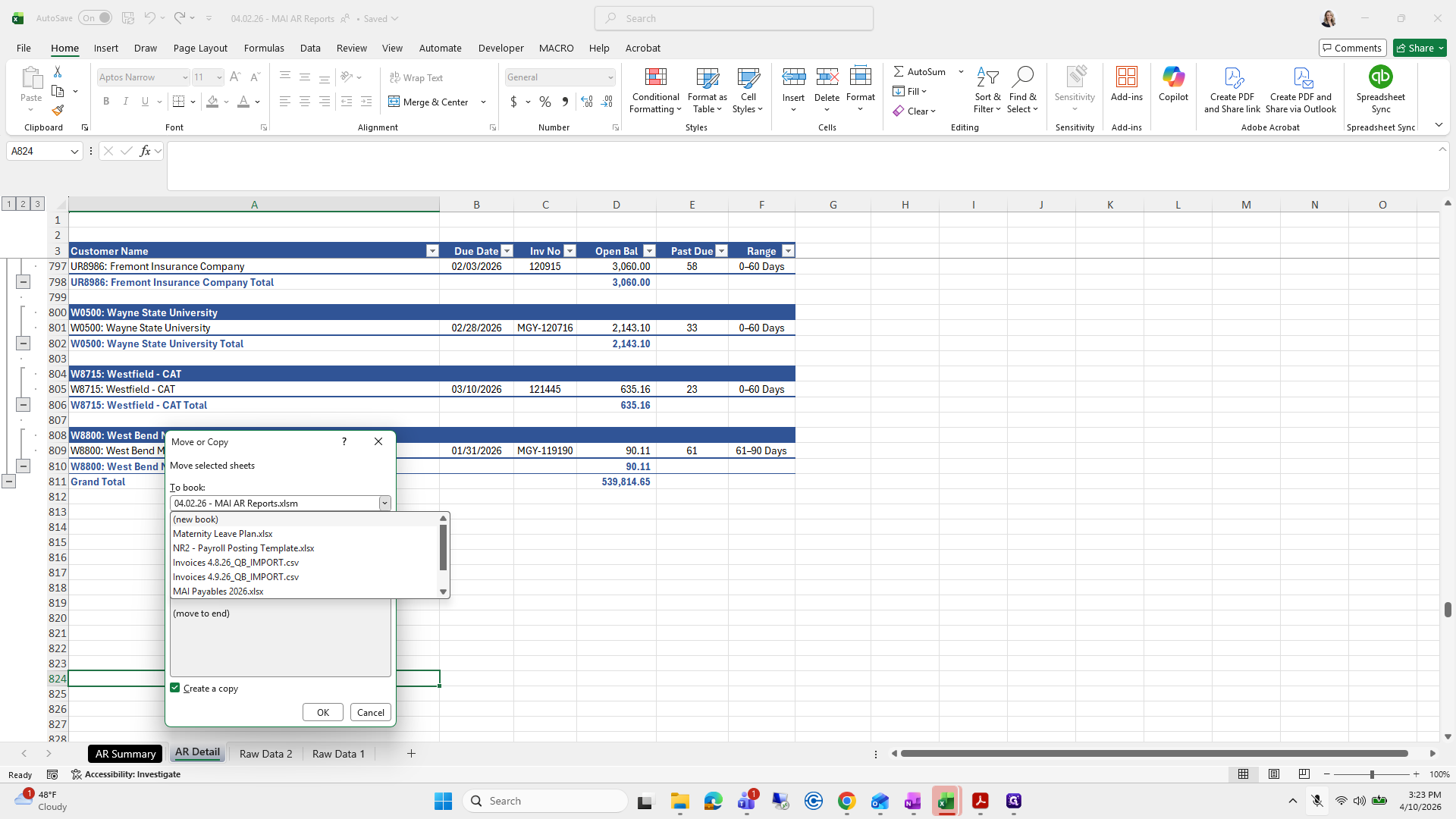
195
Click on "Plan.xlsx"
Step #195: Click on "Plan.xlsx"

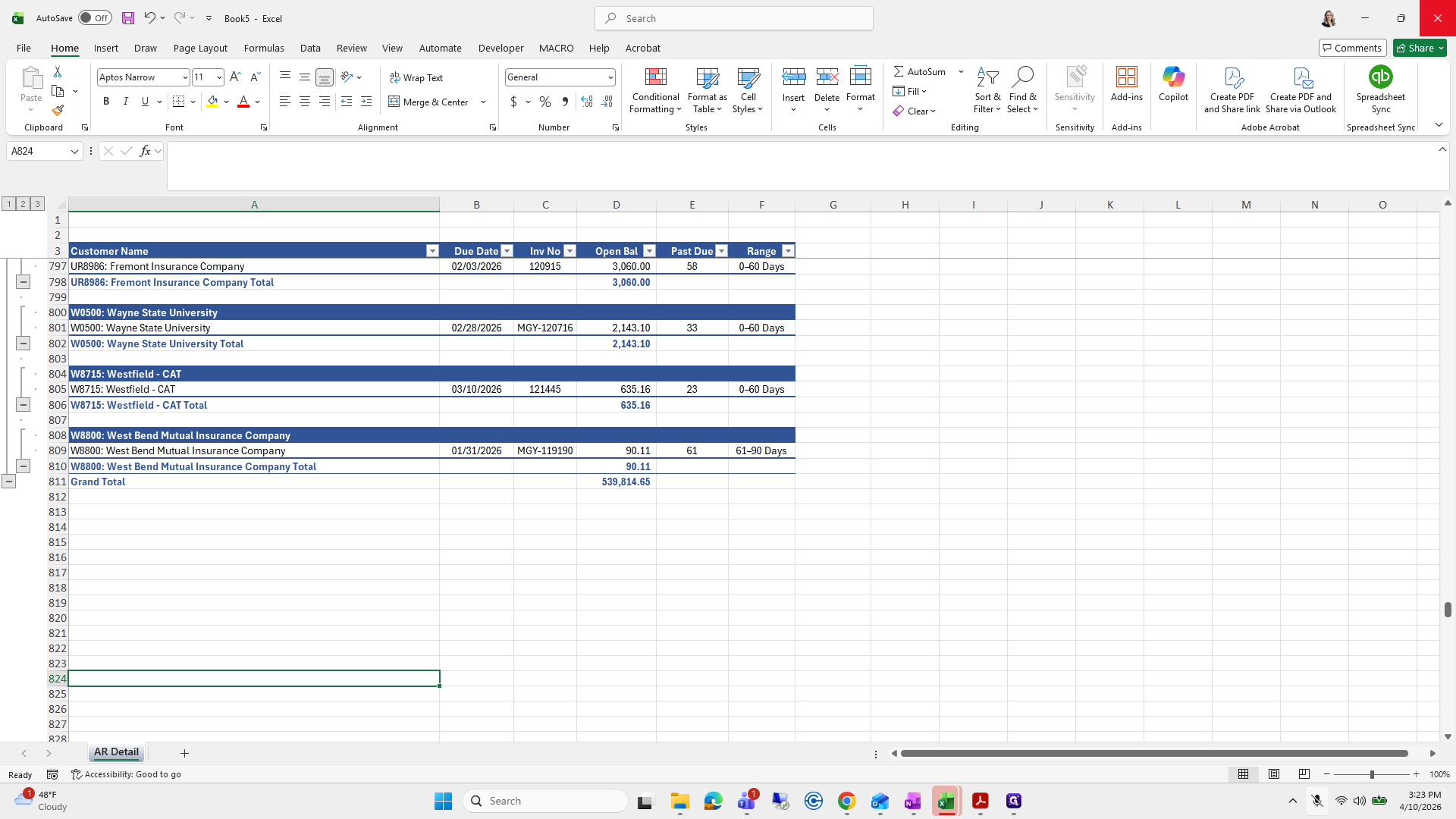
I'll show you the bare minimum.

196
Click on "OK"
Step #196: Click on "OK"

I didn't put it in the other one.

197
Click here
Step #197: Click here
198
Click here
Step #198: Click here

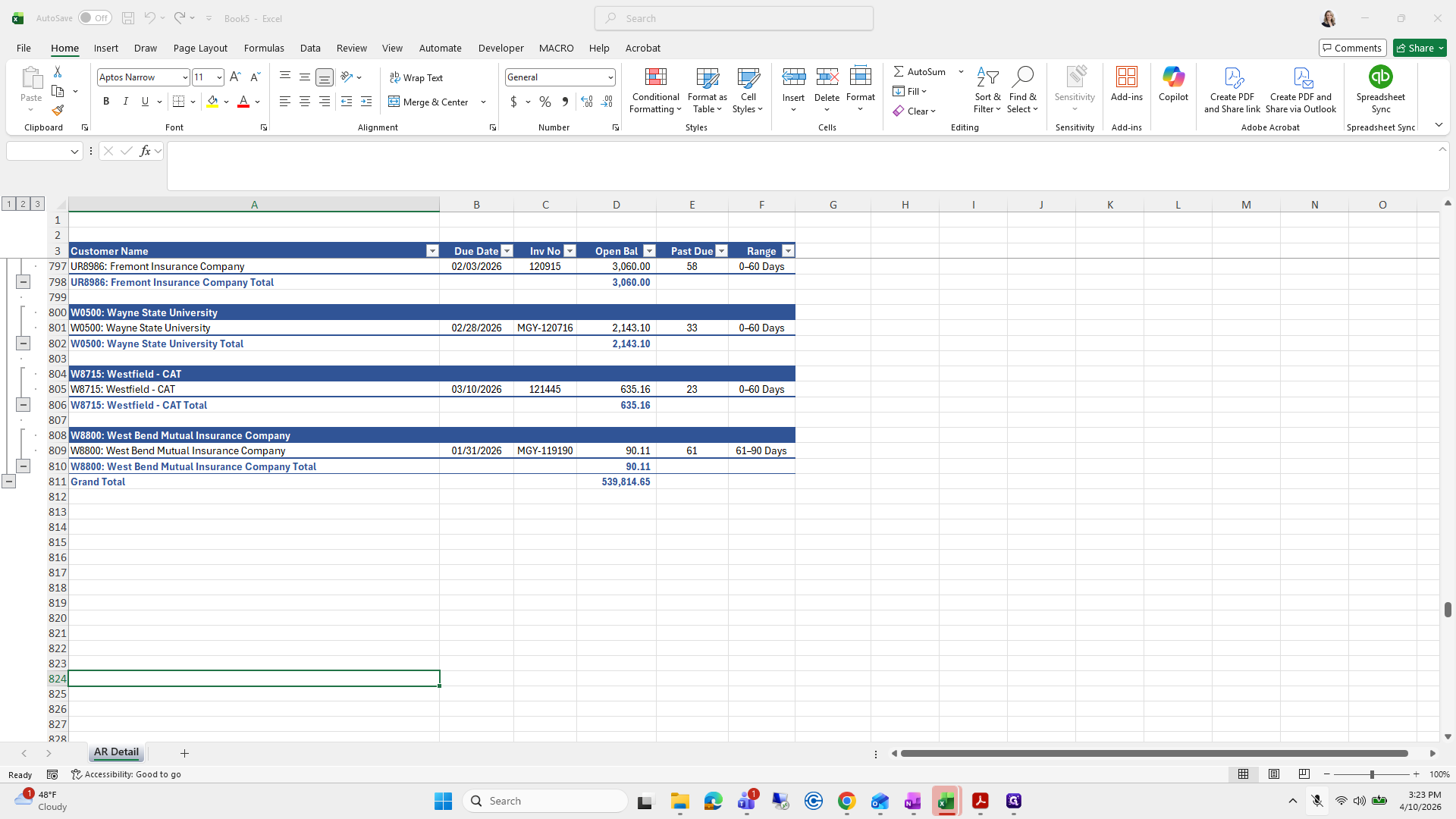
Don't save that.

199
Right-click on "AR Detail"
Step #199: Right-click on "AR Detail"
200
Click on "Move or Copy ..."
Step #200: Click on "Move or Copy ..."

We will move and copy, create the copy, and place it in our...
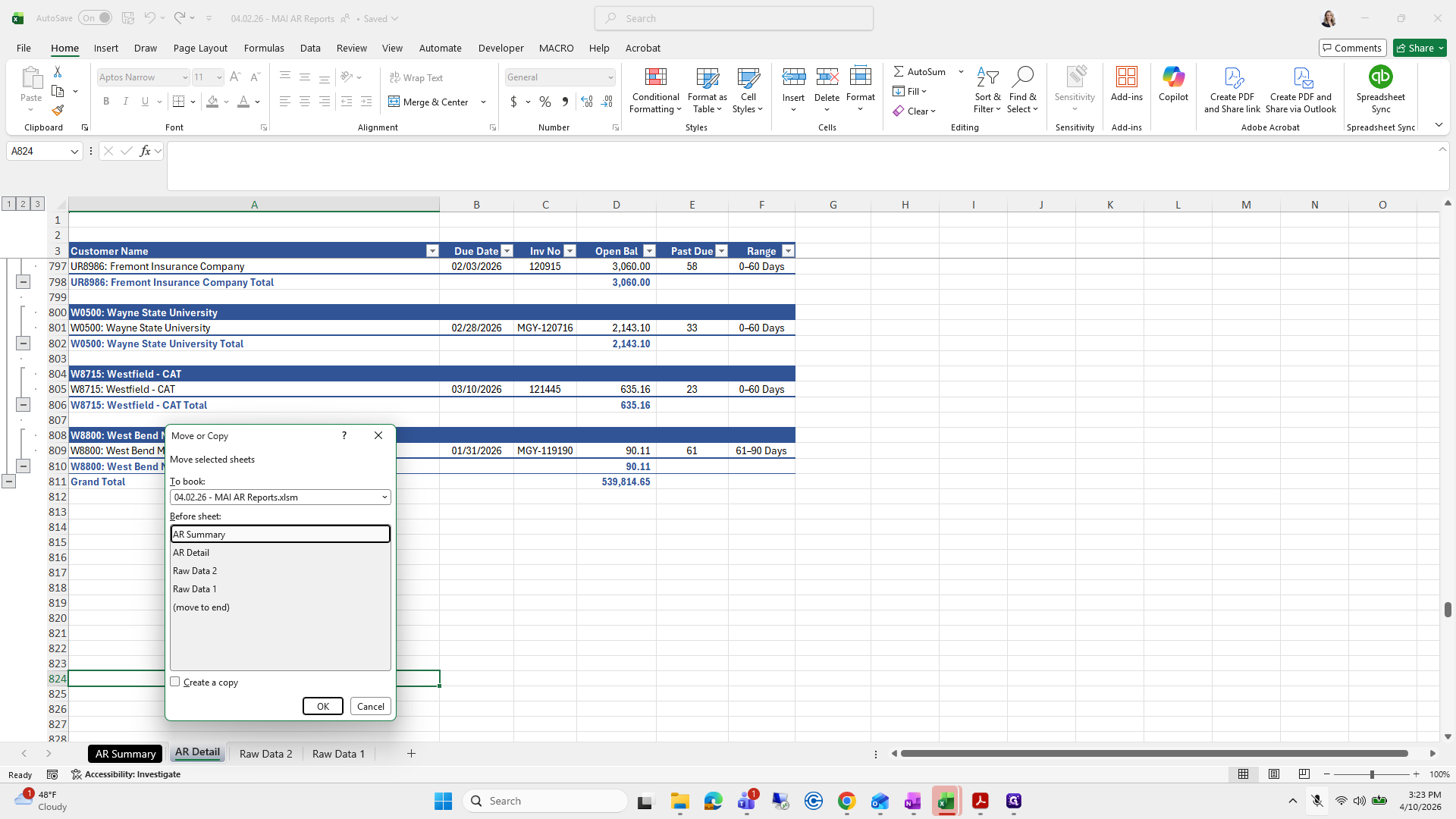
201
Click on "Create a copy"
Step #201: Click on "Create a copy"
202
Click here
Step #202: Click here

Did I sort the...

203
Click on "Report"
Step #203: Click on "Report"

We should have renamed our export file before proceeding, but we didn't.
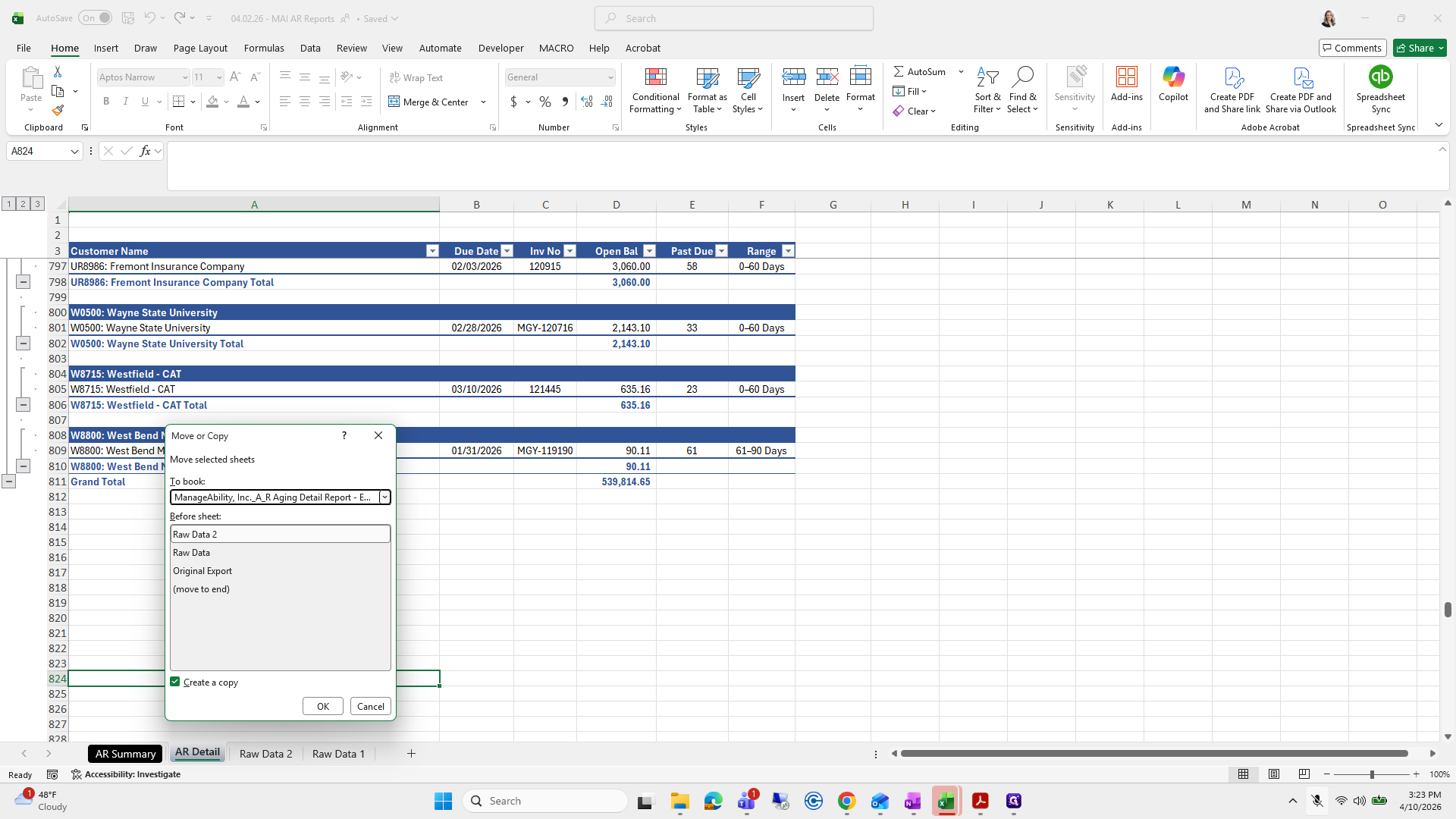
204
Click here
Step #204: Click here
205
Click on "OK"
Step #205: Click on "OK"

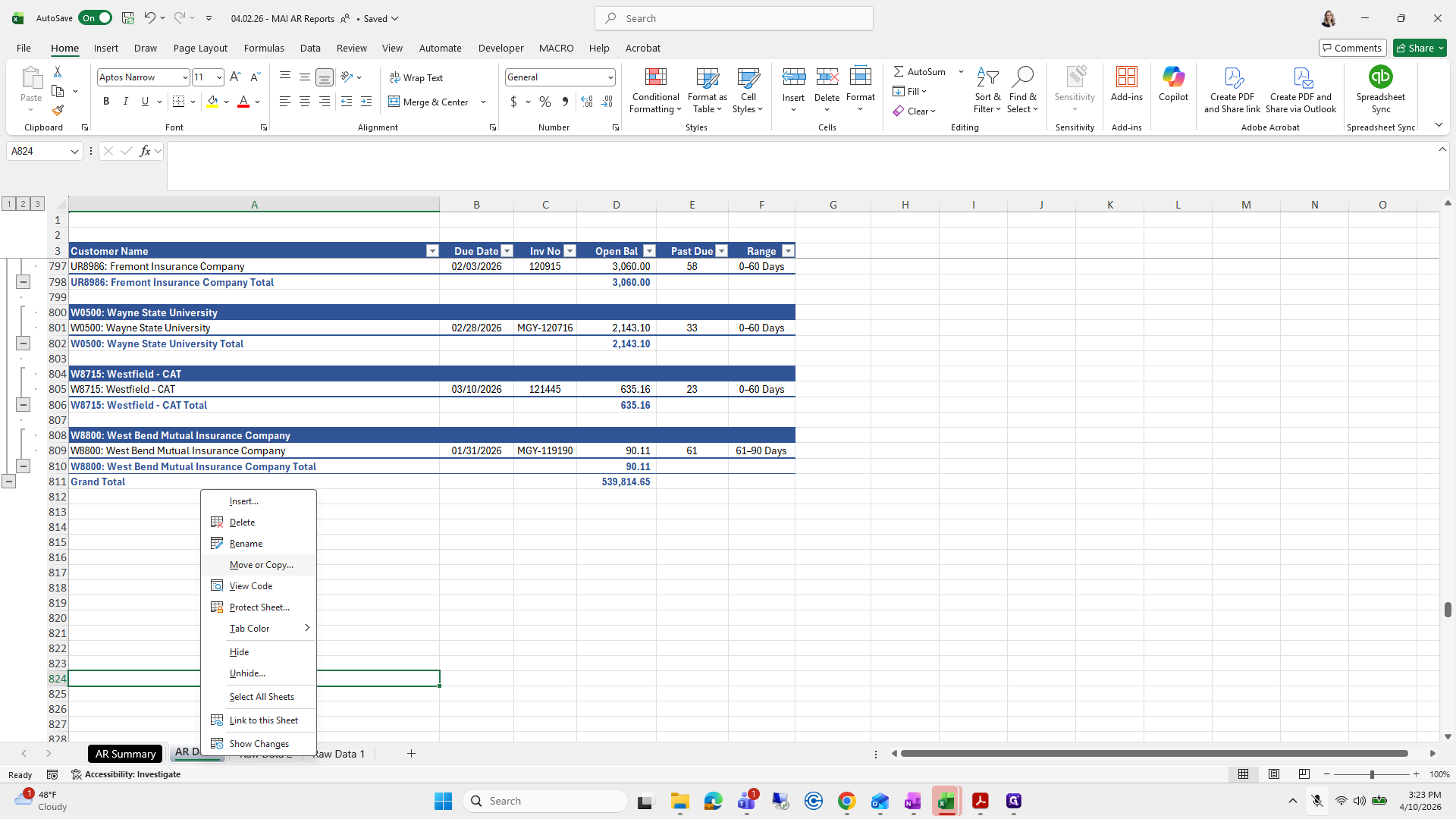
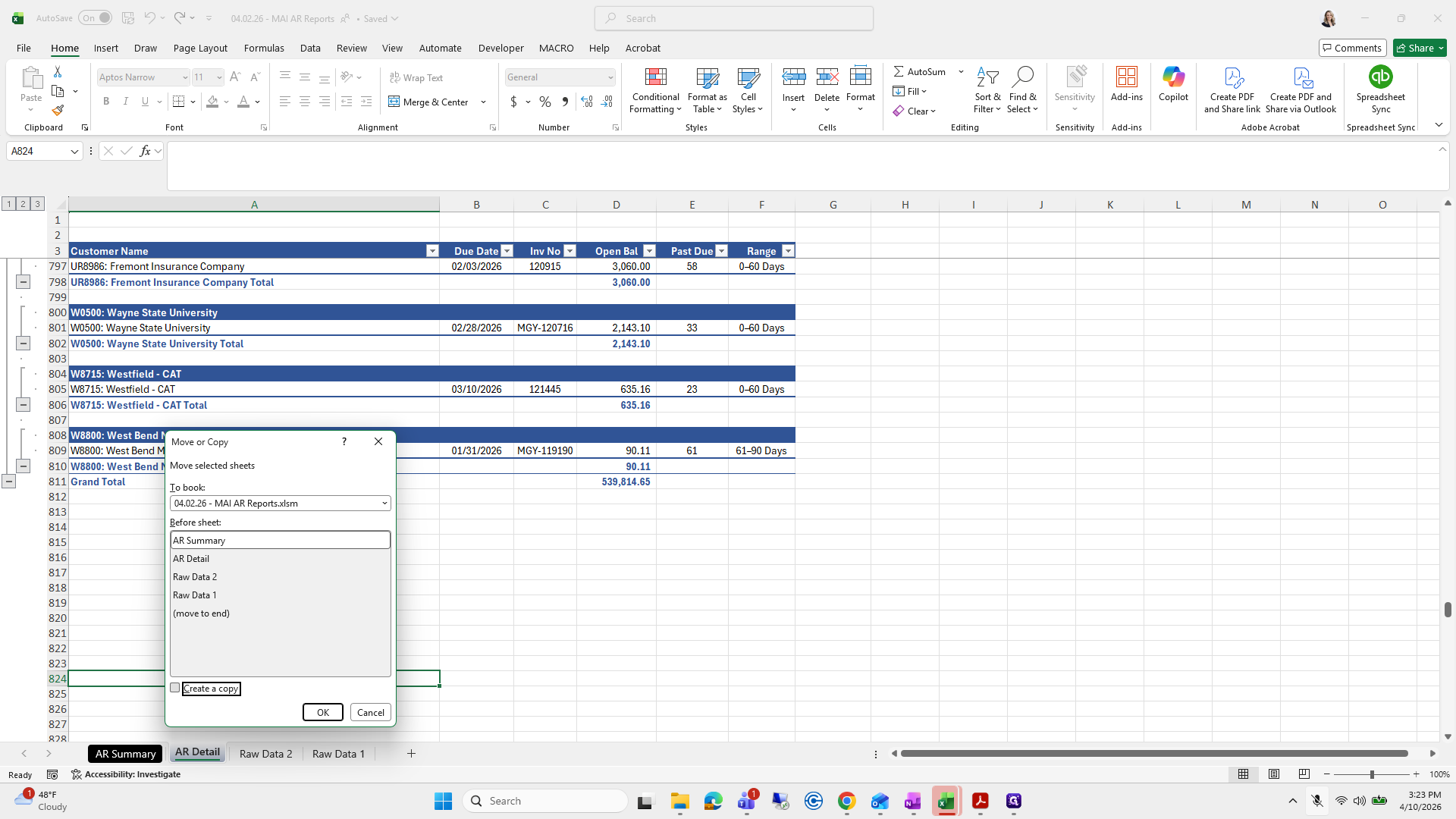
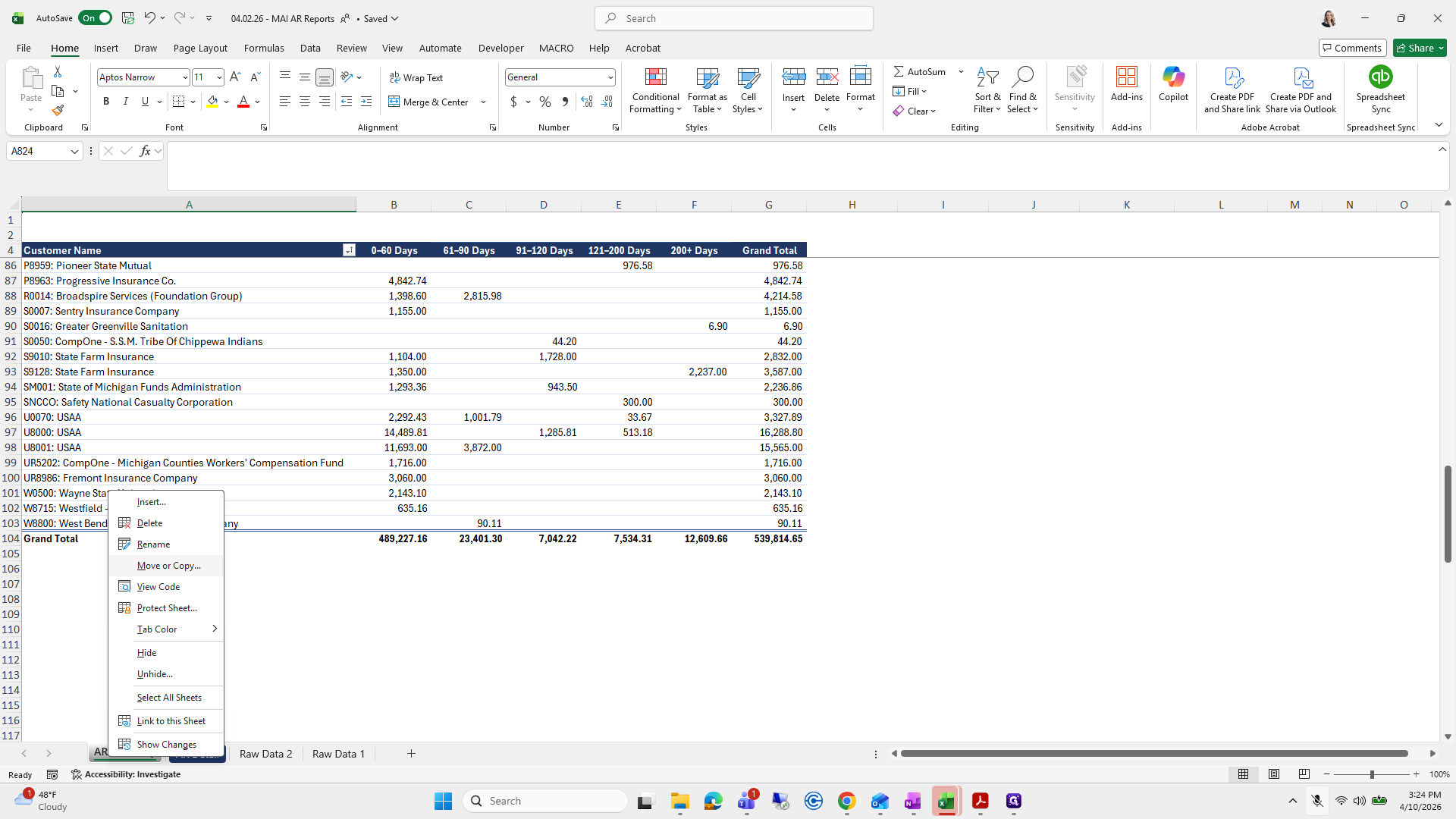
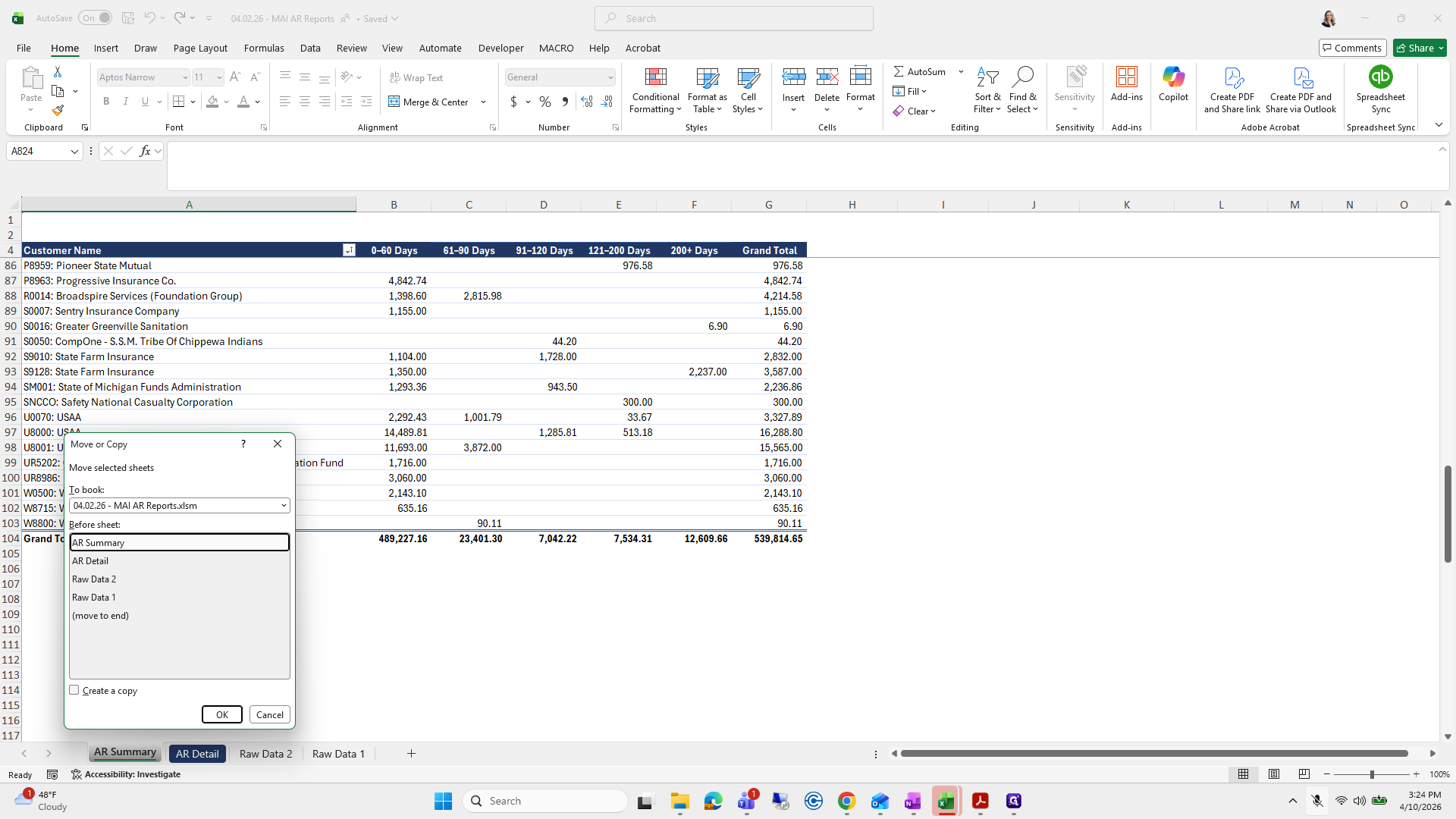
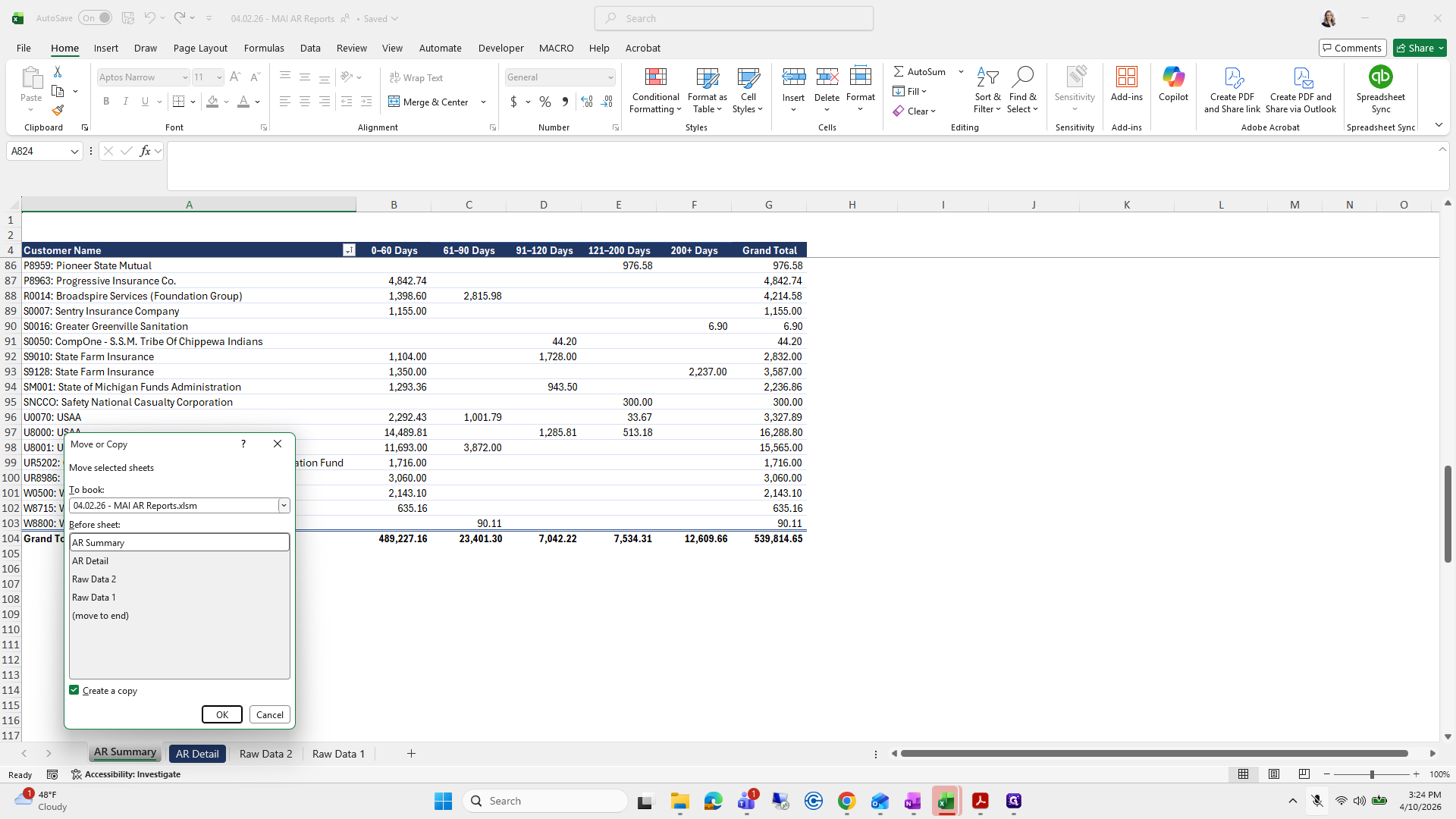
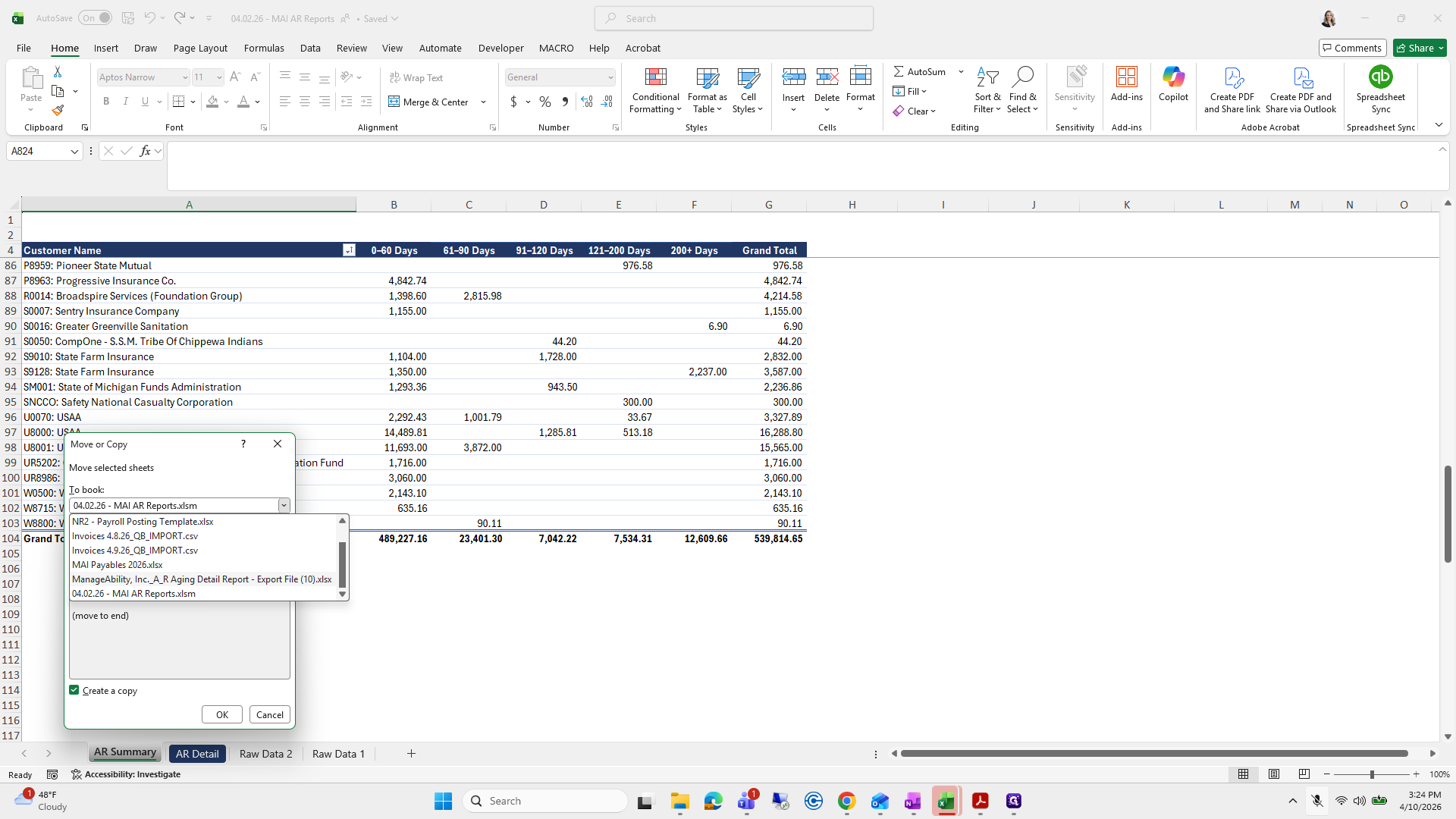
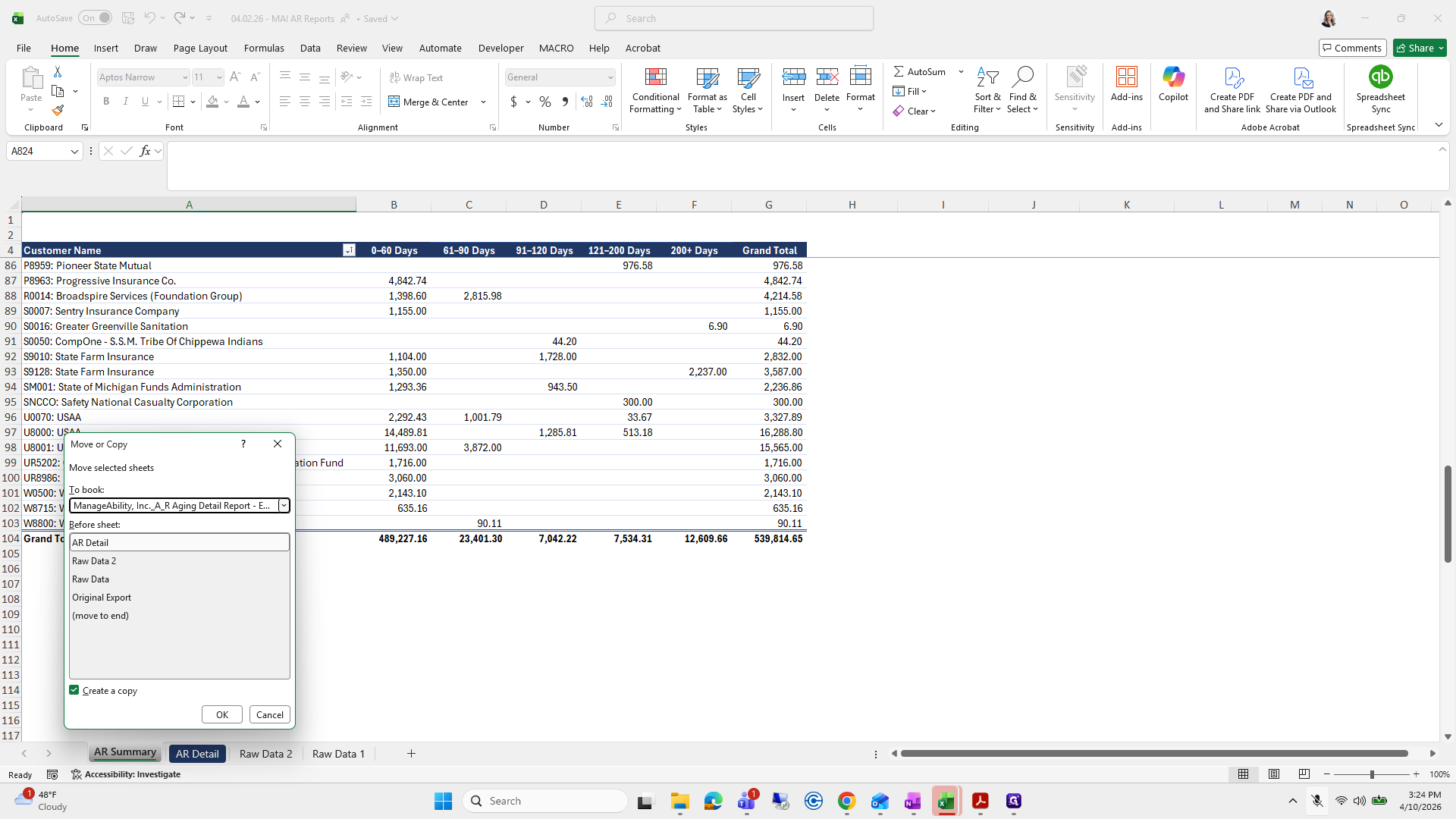
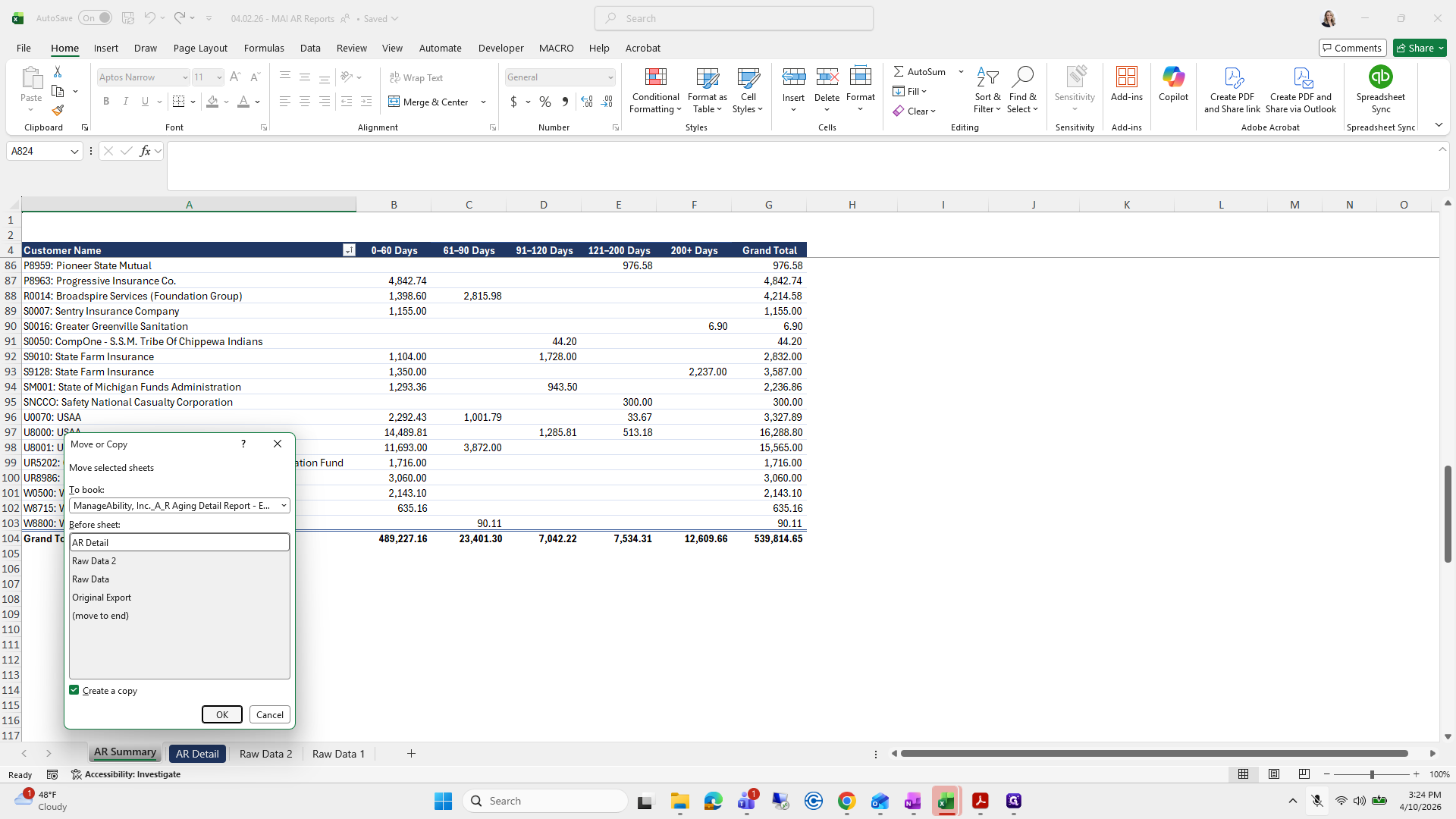
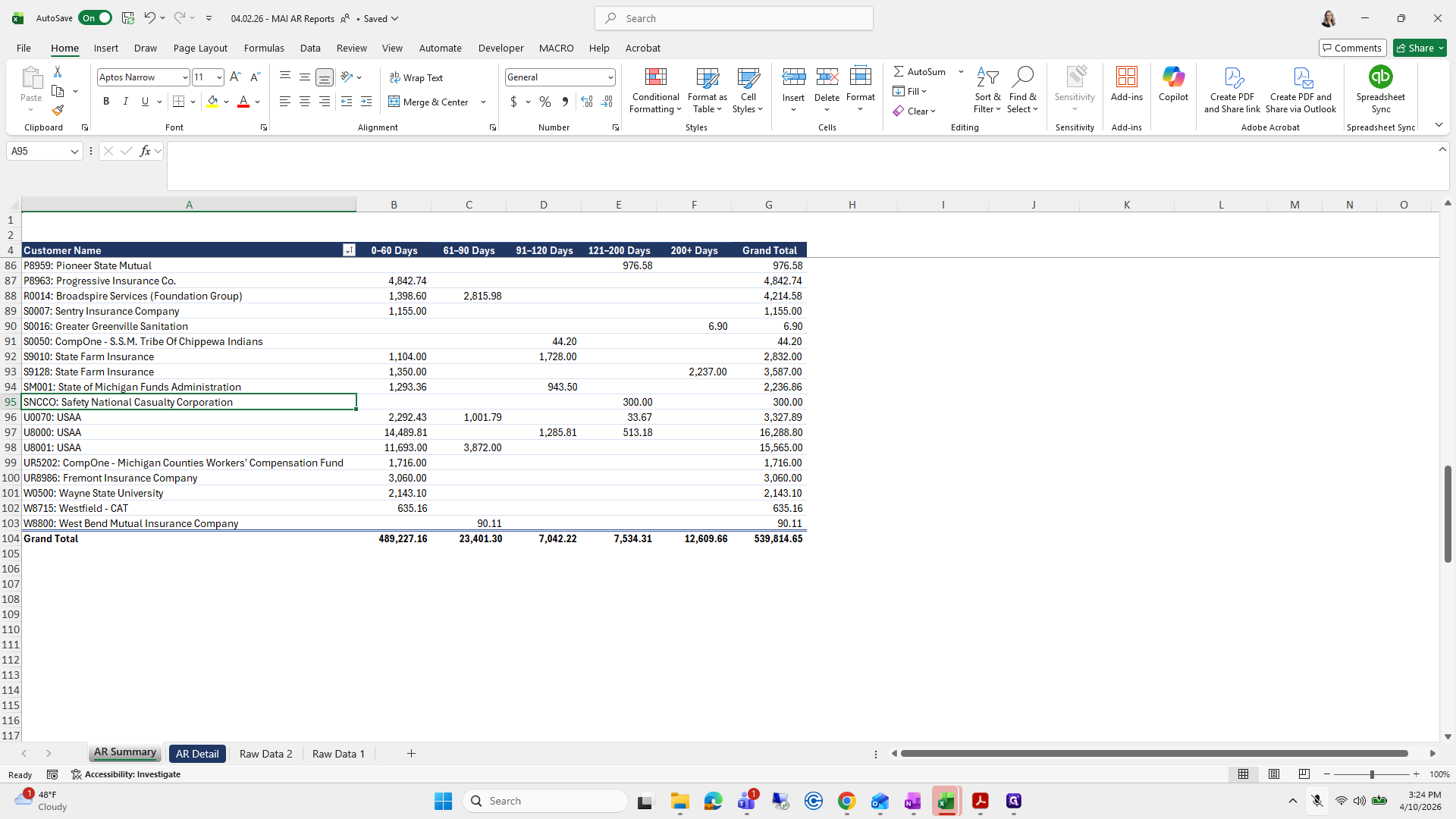
Next, do the same with the AR summary. Use move and copy, create a copy, and place it in our file before that sheet.
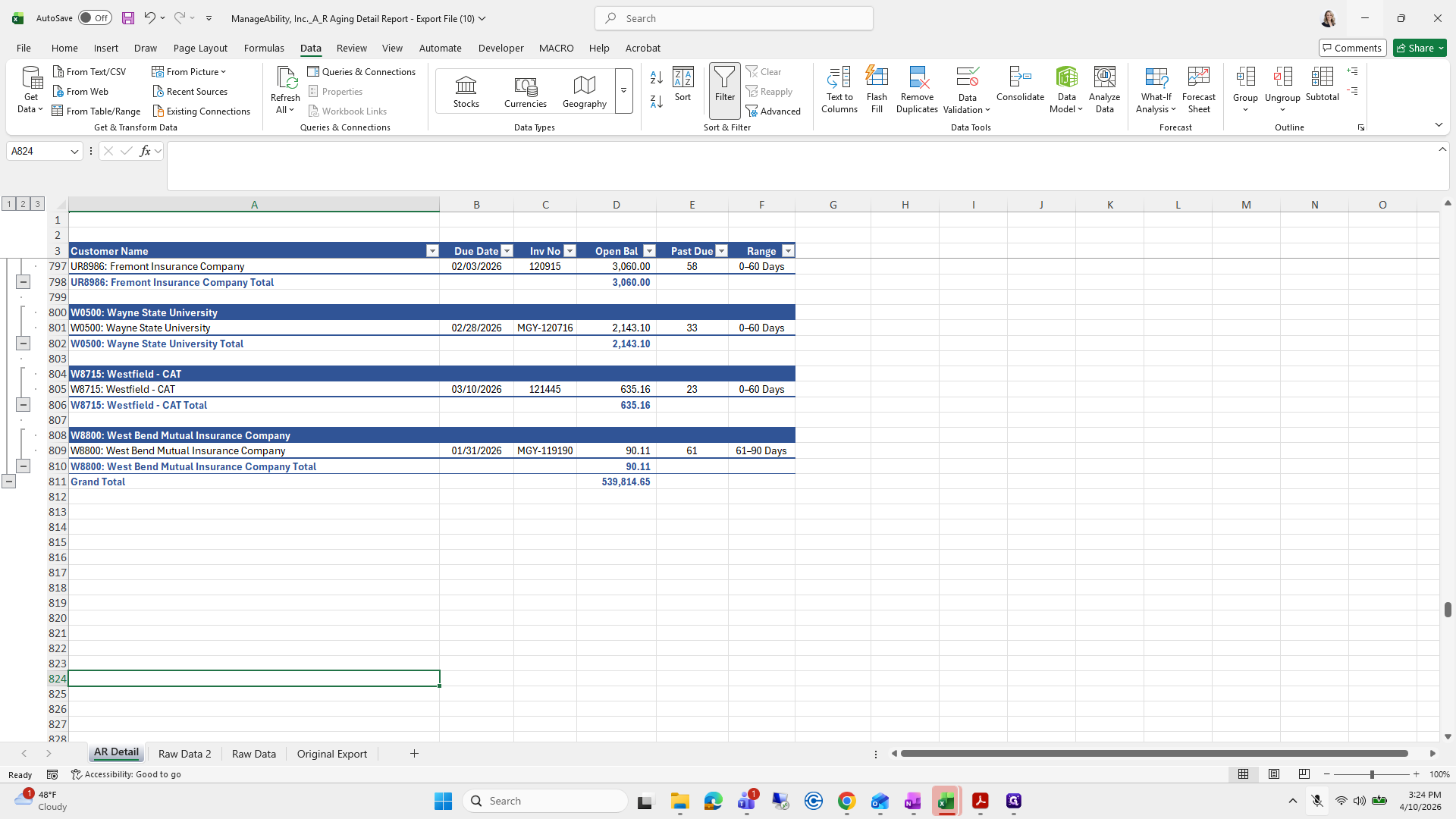
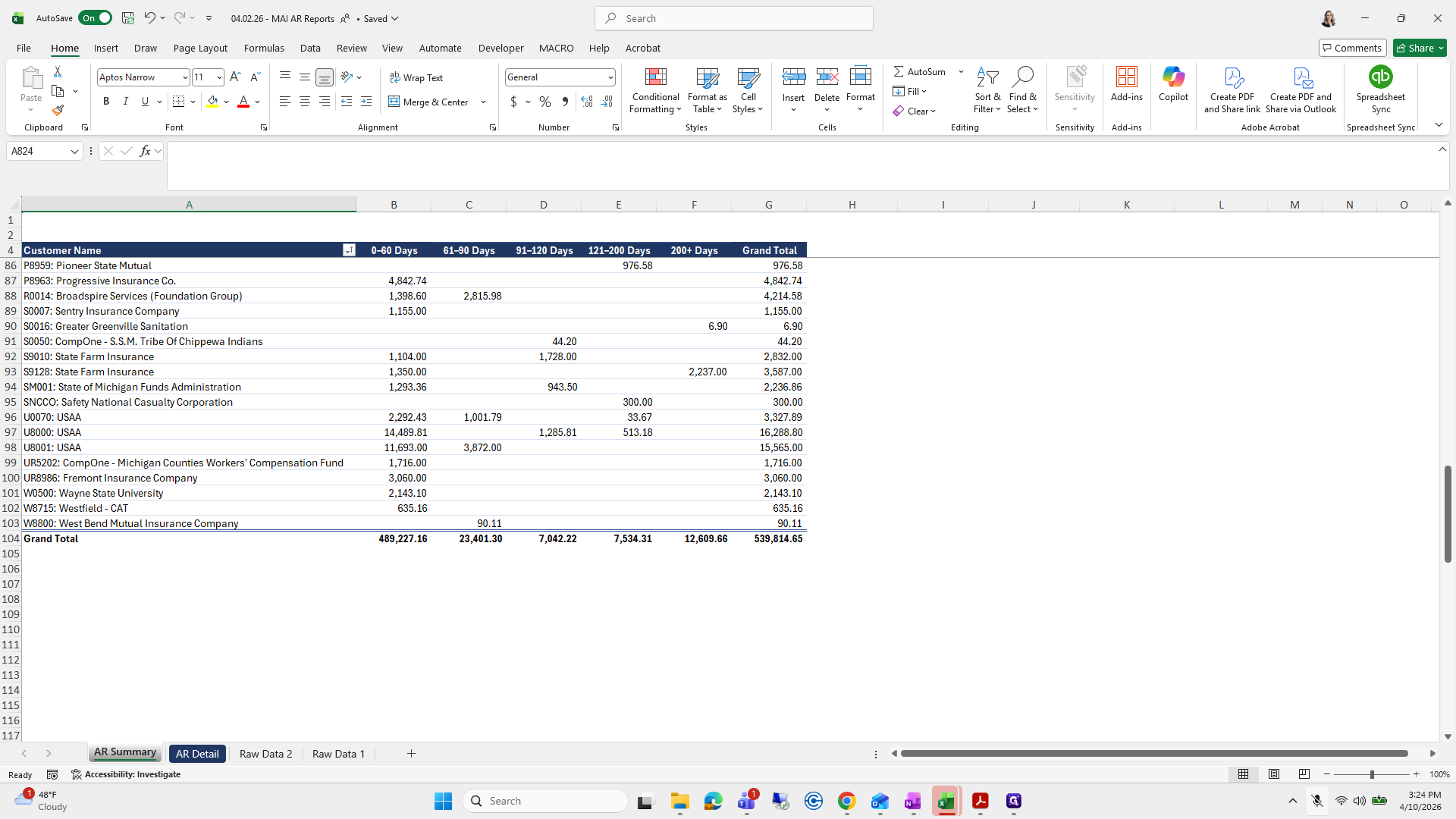
206
Click here
Step #206: Click here
207
Right-click on "AR Summary"
Step #207: Right-click on "AR Summary"
208
Click on "Move or Copy"
Step #208: Click on "Move or Copy"
209
Click on "Create a copy"
Step #209: Click on "Create a copy"
210
Click on "04.02.26 - MAI AR Reports.xlsm"
Step #210: Click on "04.02.26 - MAI AR Reports.xlsm"
211
Click on "Inc._A_R Aging Detail"
Step #211: Click on "Inc._A_R Aging Detail"
212
Click here
Step #212: Click here
213
Click on "OK"
Step #213: Click on "OK"
214
Click on "Safety National Casualty Corporation"
Step #214: Click on "Safety National Casualty Corporation"

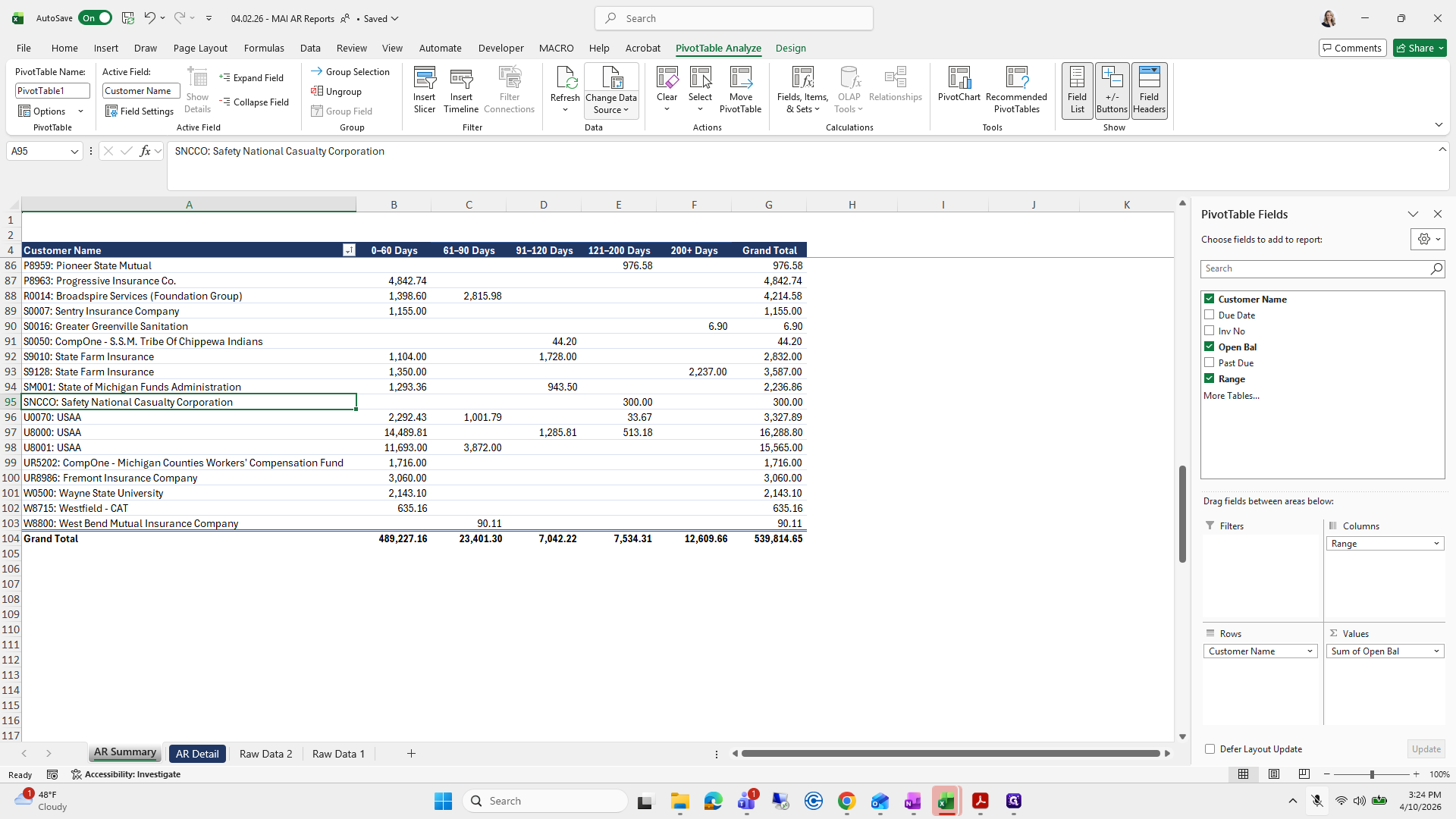
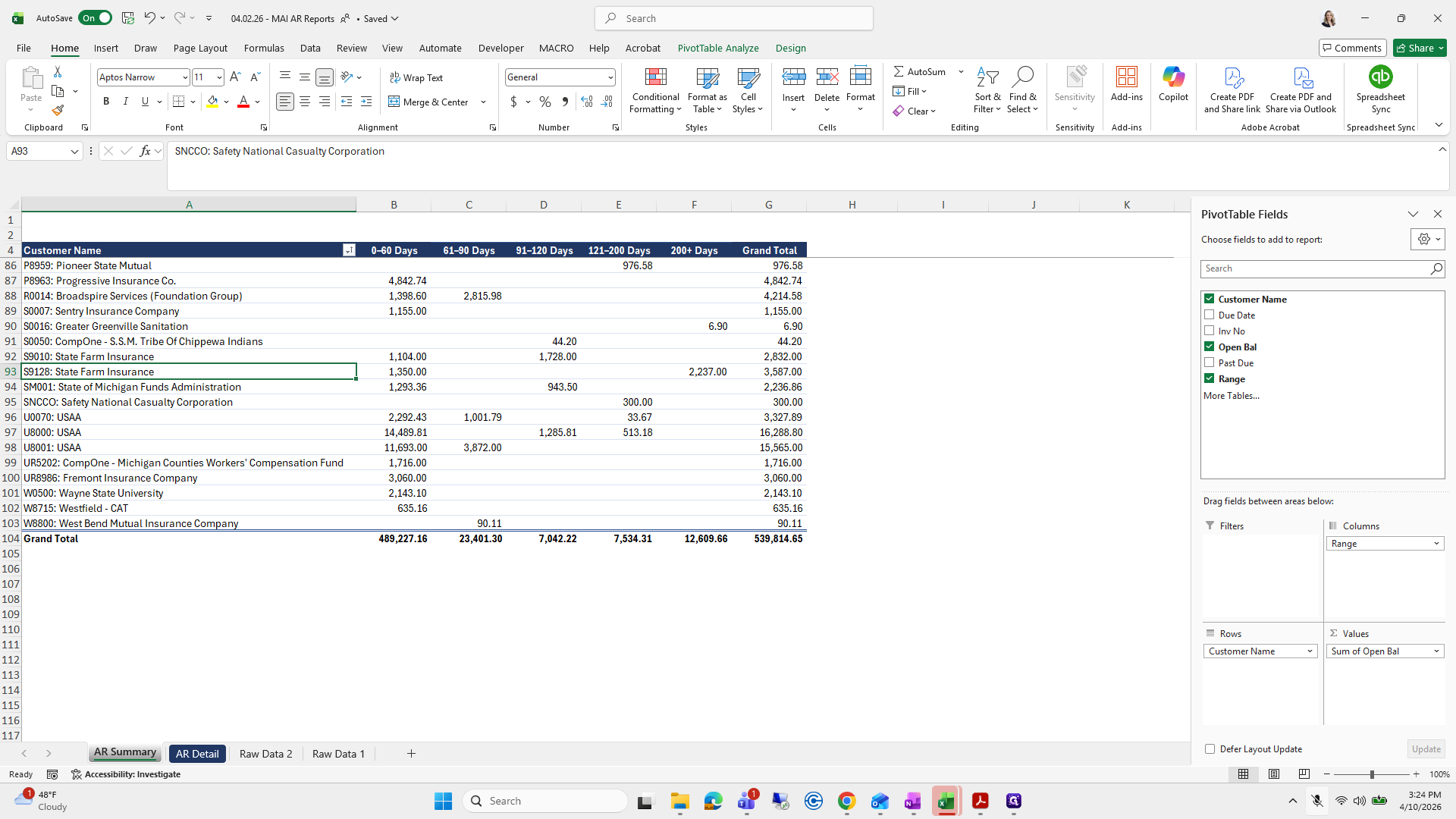
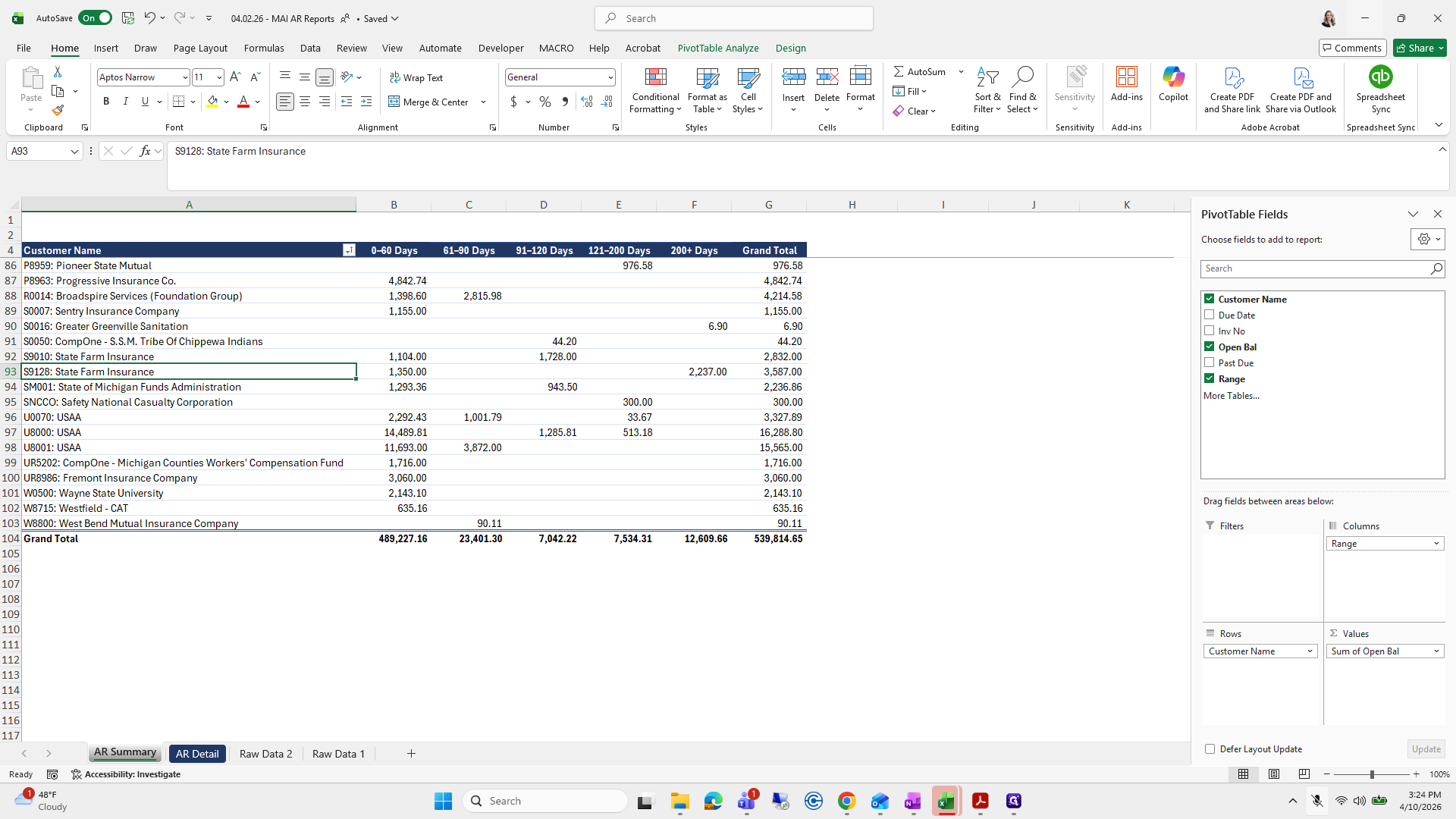
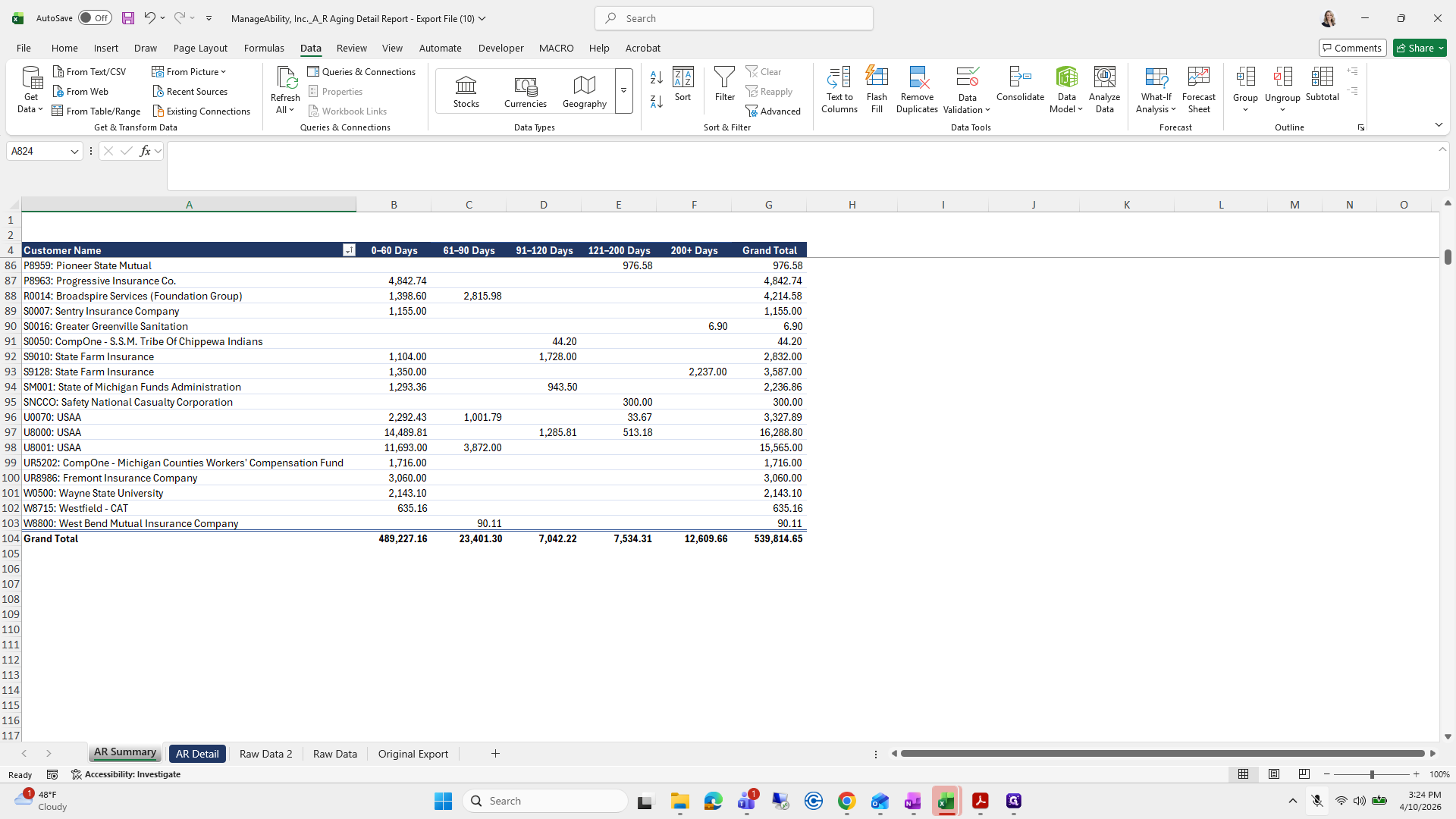
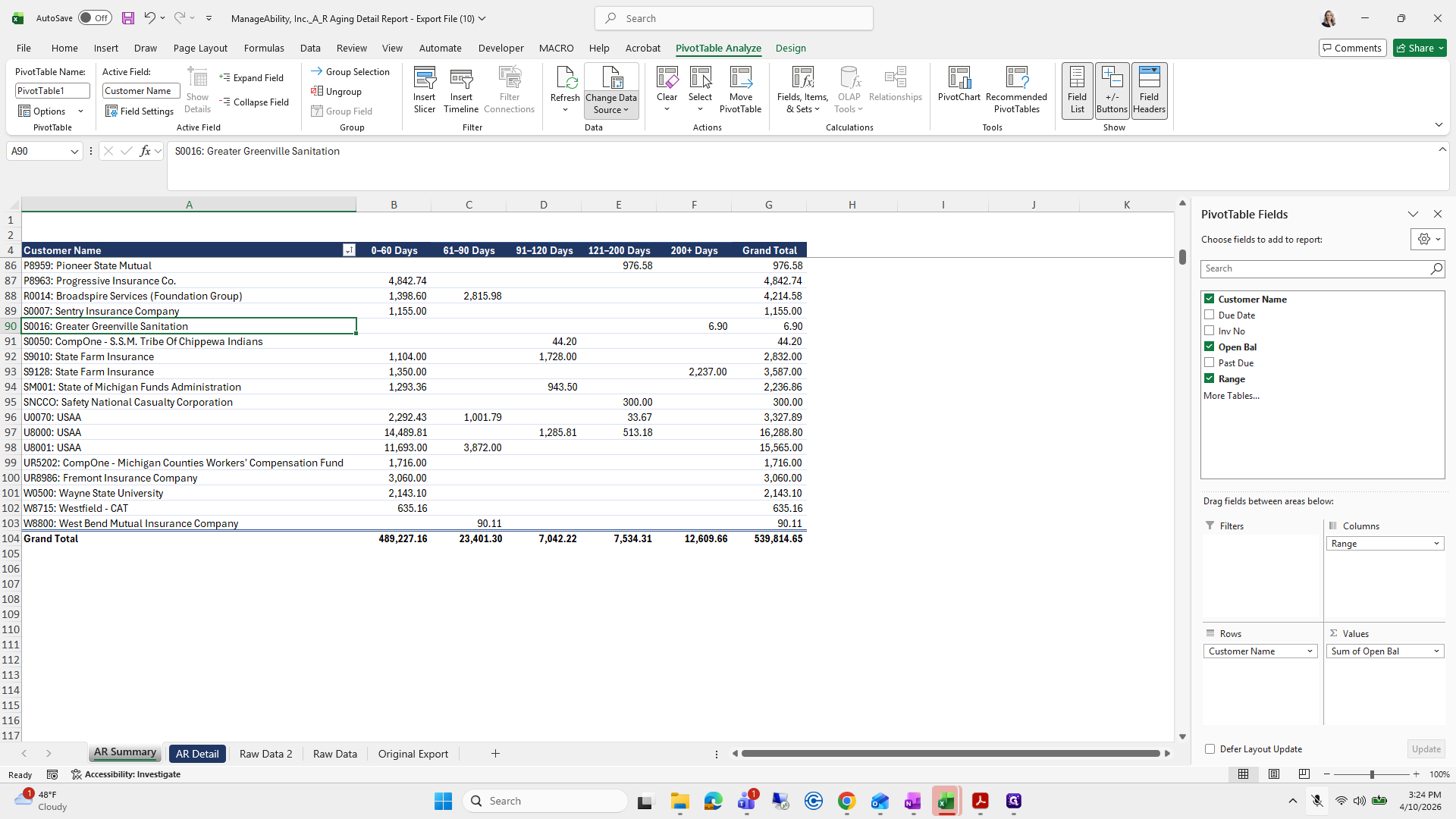
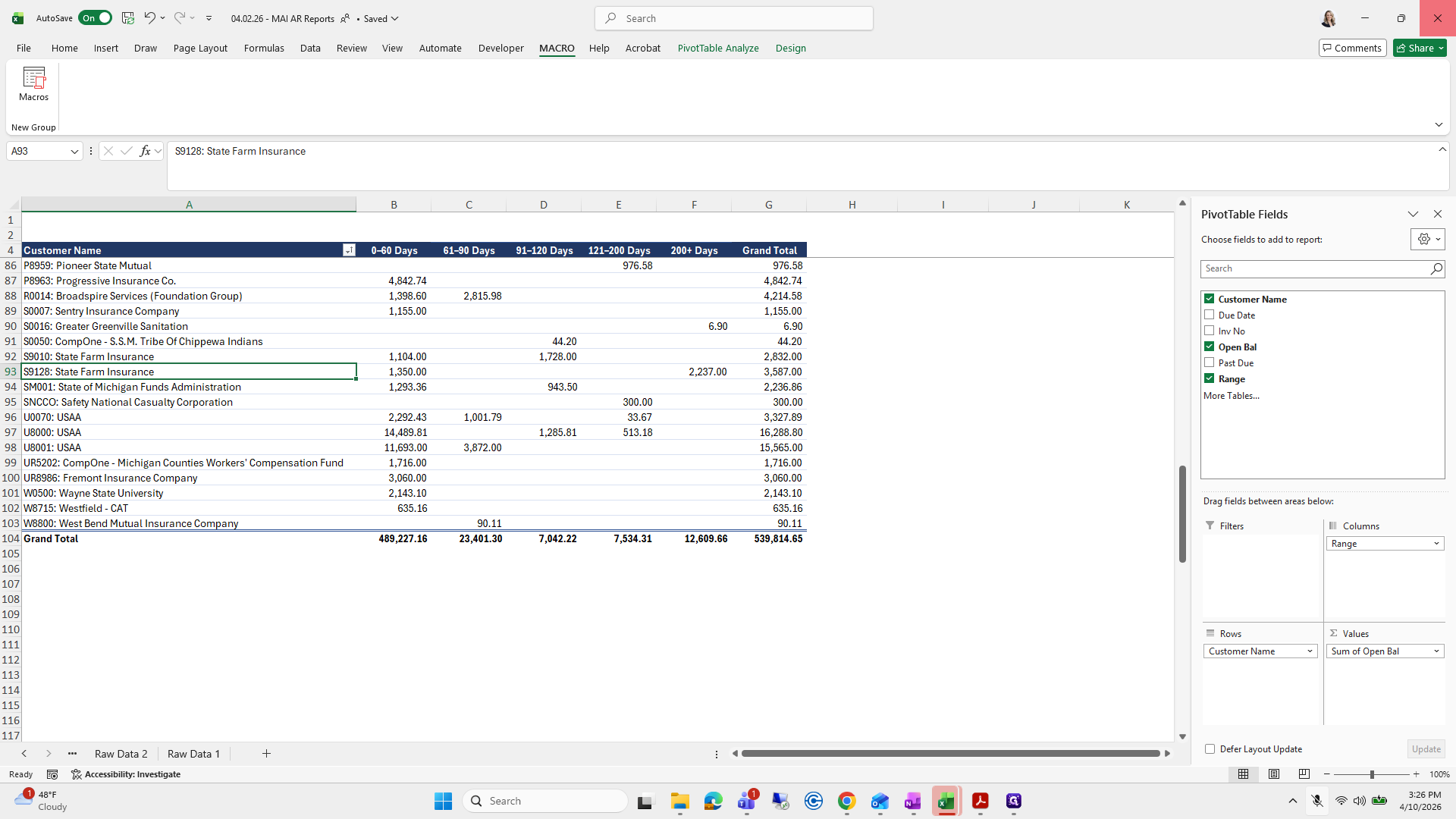
For this step, go to Pivot Table, then select Analyze and Design.
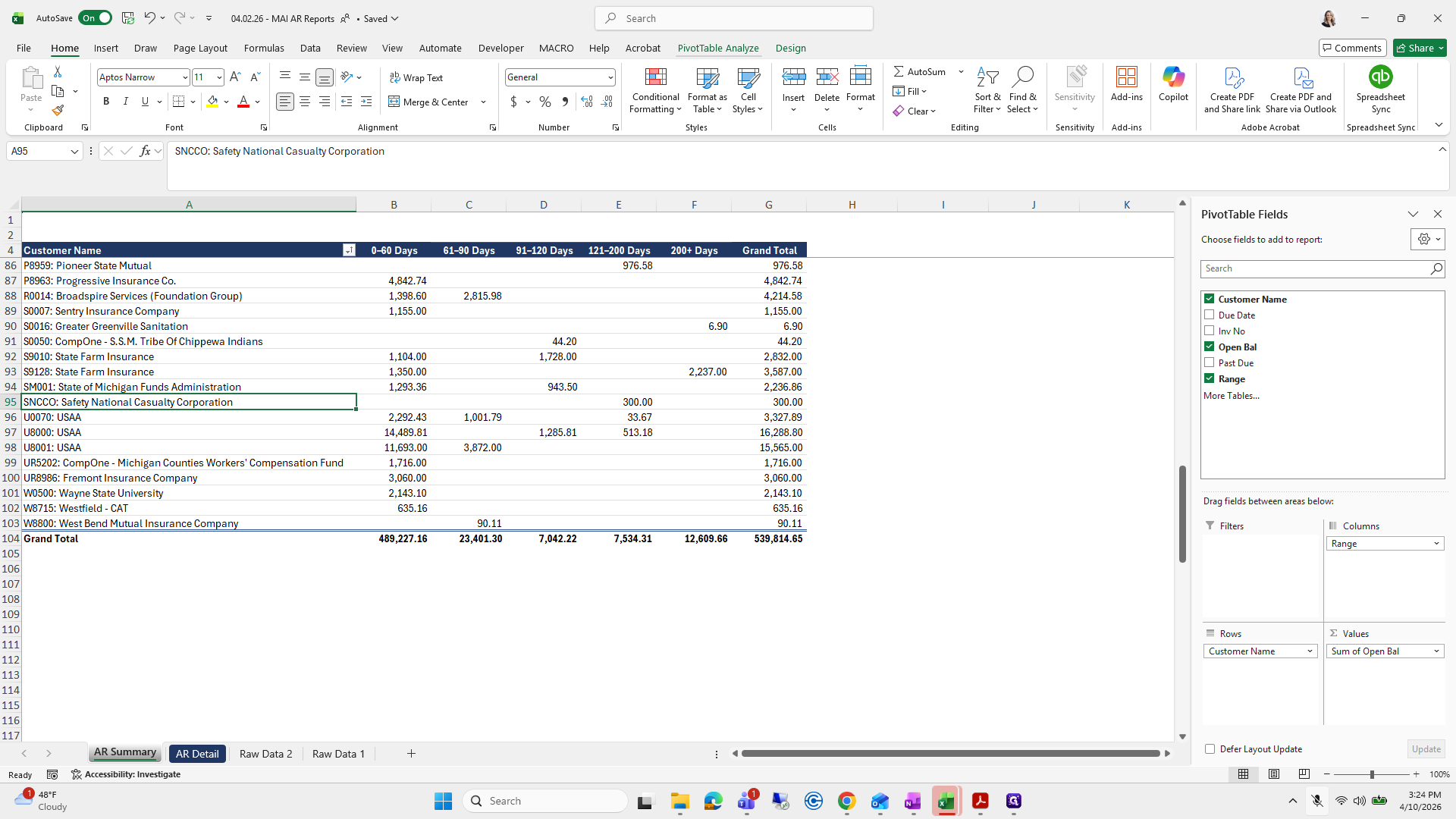
215
Click on "PivotTable Analyze"
Step #215: Click on "PivotTable Analyze"
216
Click on "Source"
Step #216: Click on "Source"

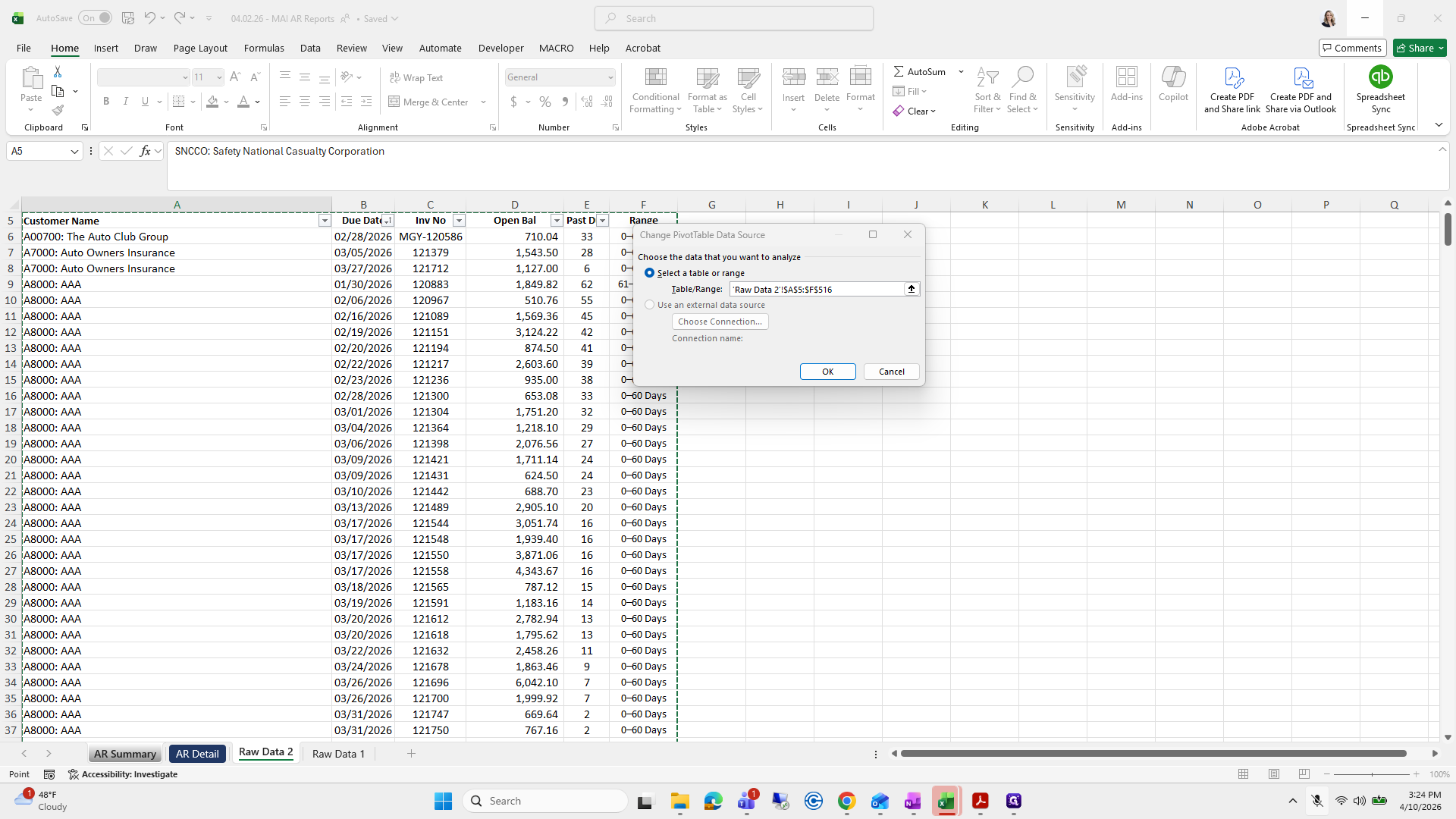
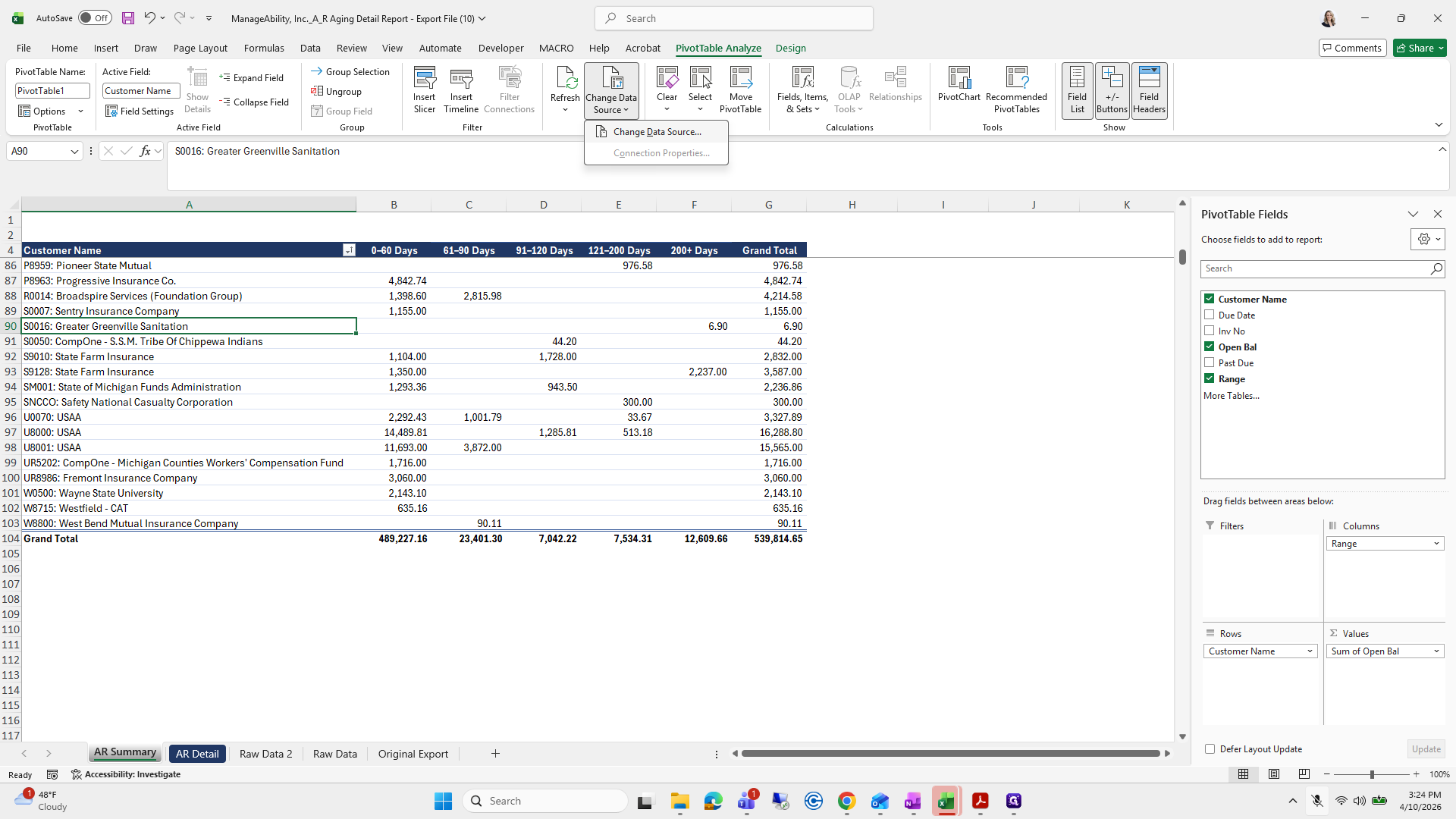
We will change the data source and ensure we are selecting the correct file source.
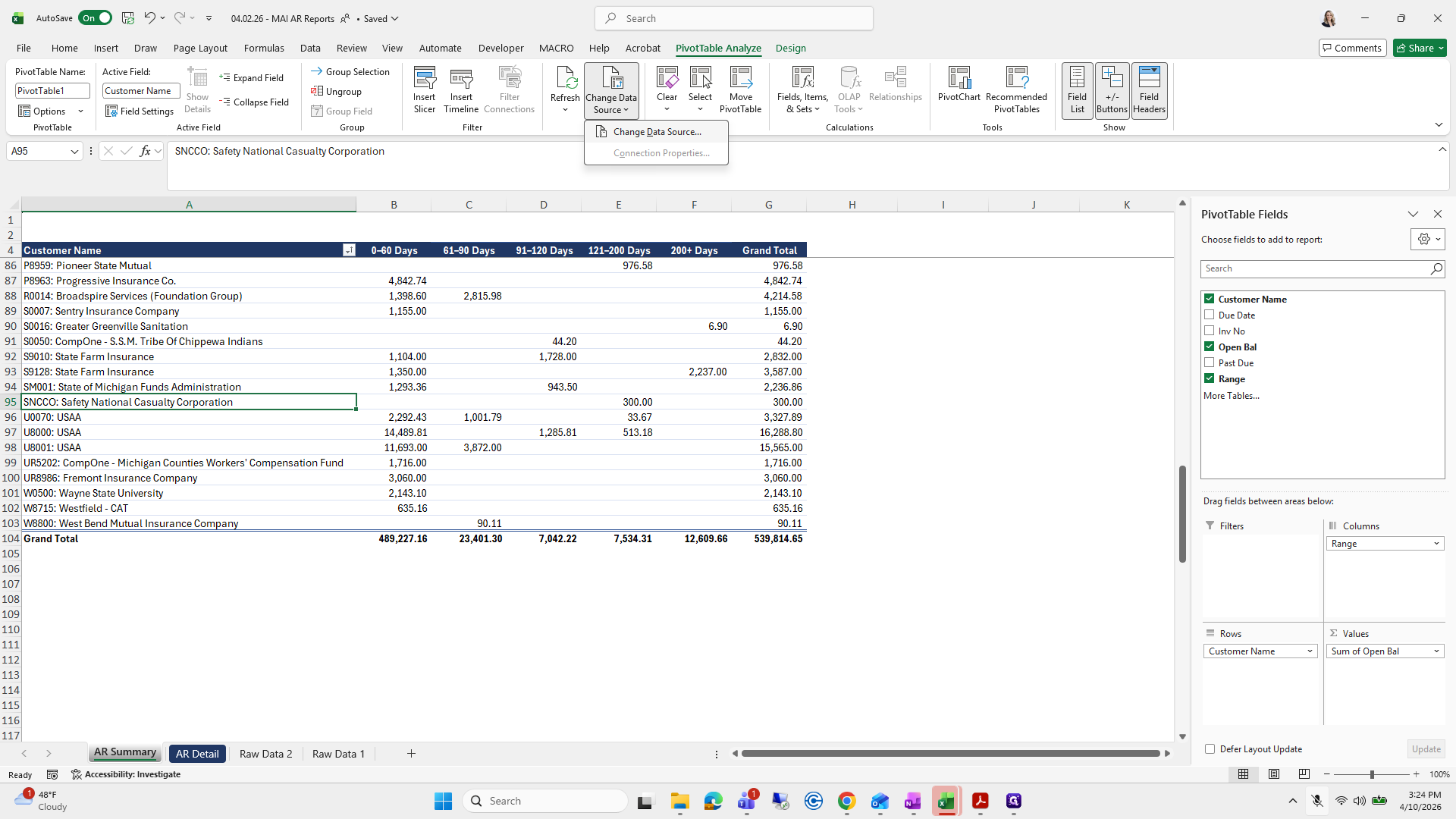
217
Click on "Change Data Source"
Step #217: Click on "Change Data Source"
218
Click here
Step #218: Click here
219
Click here
Step #219: Click here

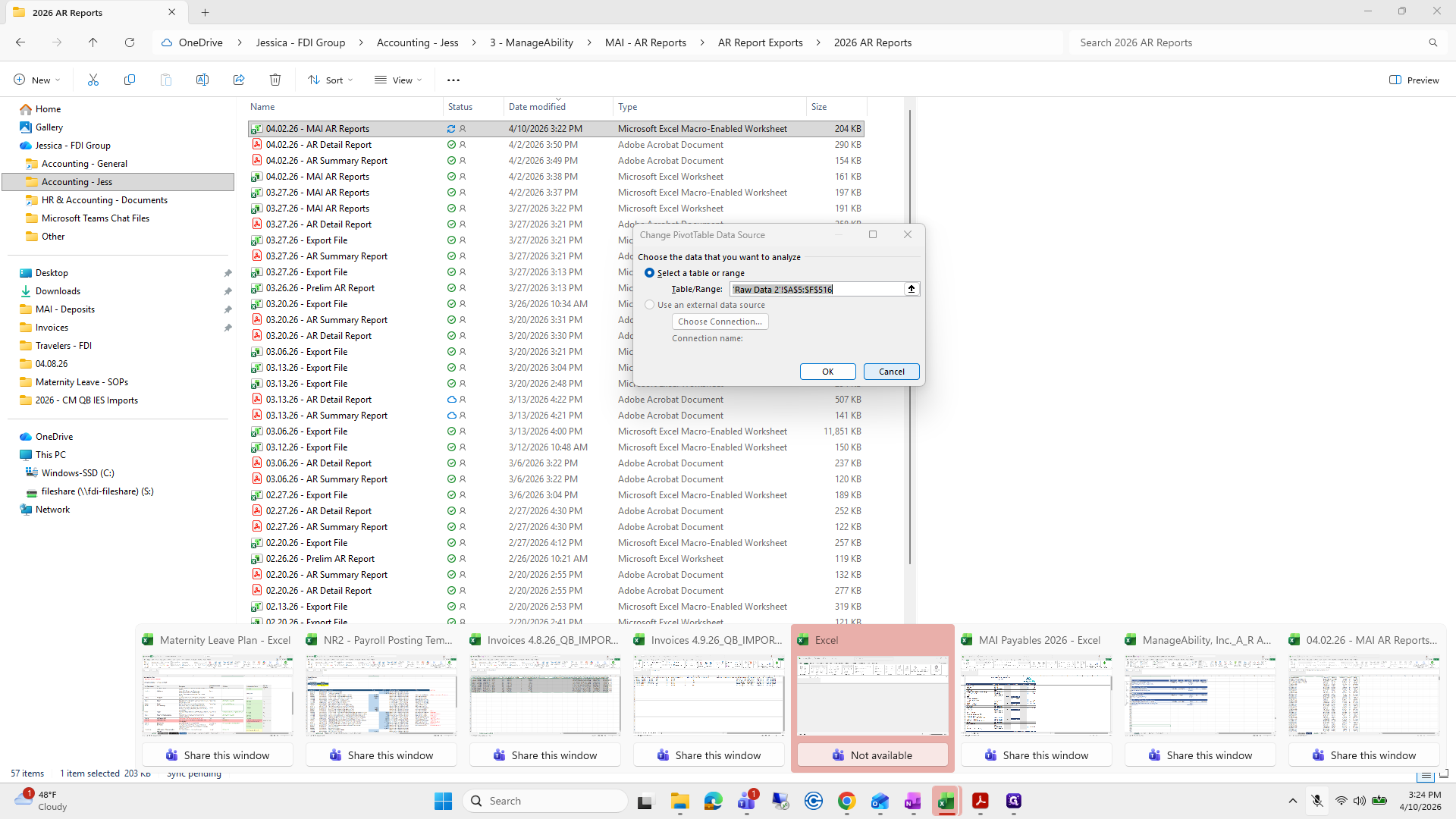
Did I do it?

220
Type "Esc"
221
Type "Esc"
222
Type "Esc"
223
Type "Esc"

Ugh, where'd it go?

224
Click on "Cancel"
Step #224: Click on "Cancel"
225
Click on "State of Michigan Funds Administration"
Step #225: Click on "State of Michigan Funds Administration"

Where'd it go? Go away. This one?
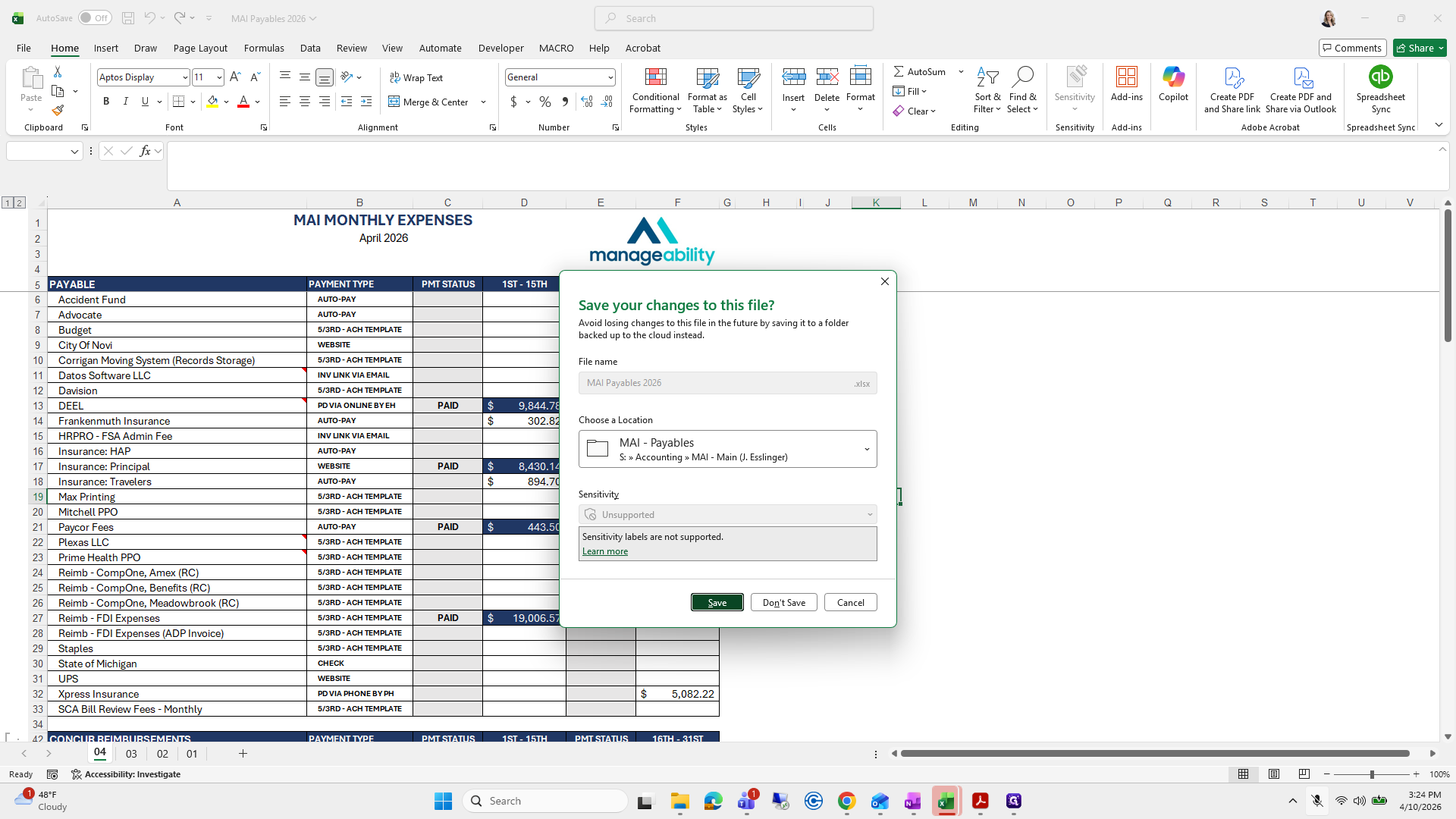
226
Click here
Step #226: Click here
227
Click here
Step #227: Click here
228
Click here
Step #228: Click here
229
Click on "Save"
Step #229: Click on "Save"

This one. We will change the data source by selecting raw data two and dragging it all the way down.
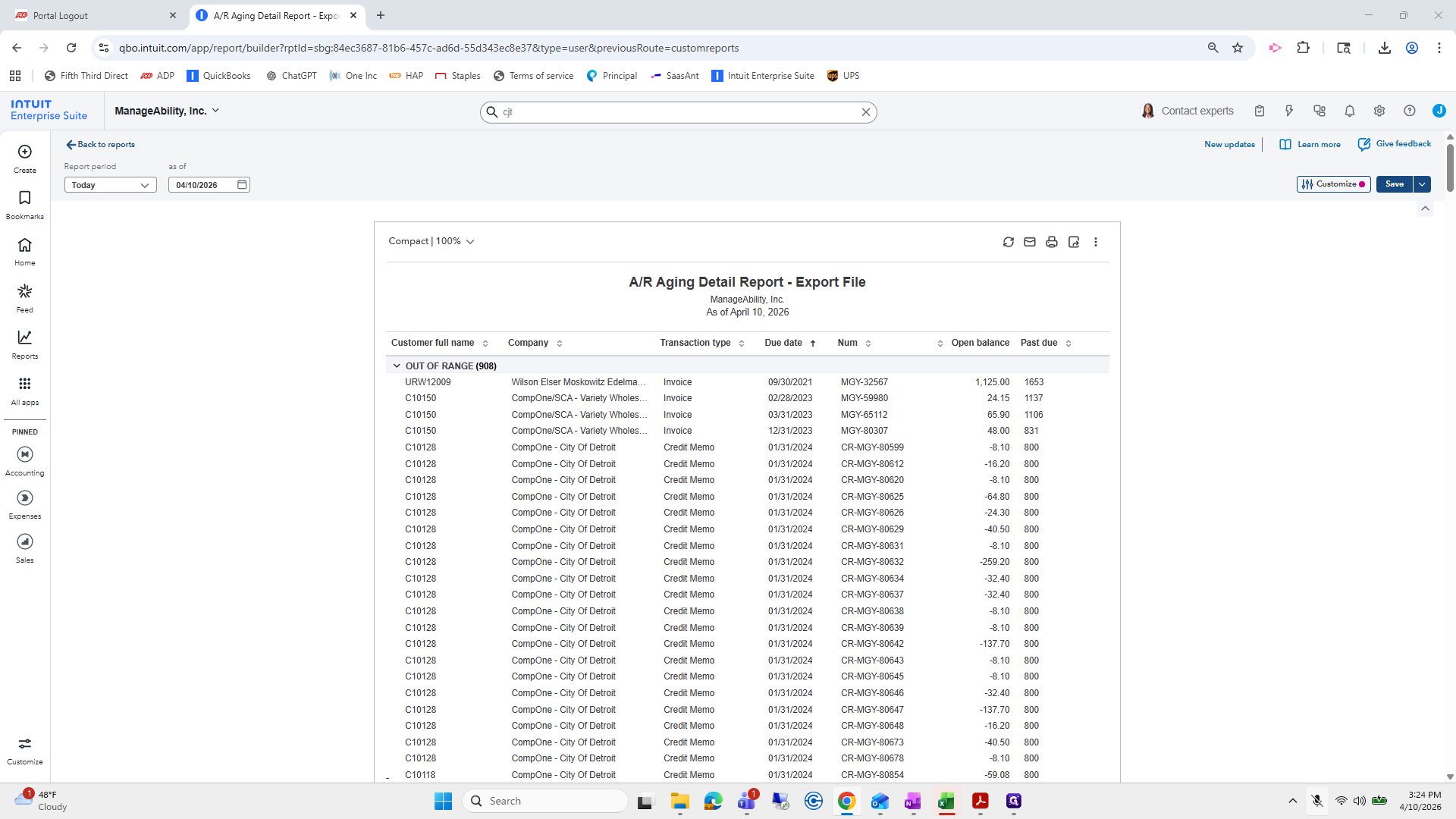
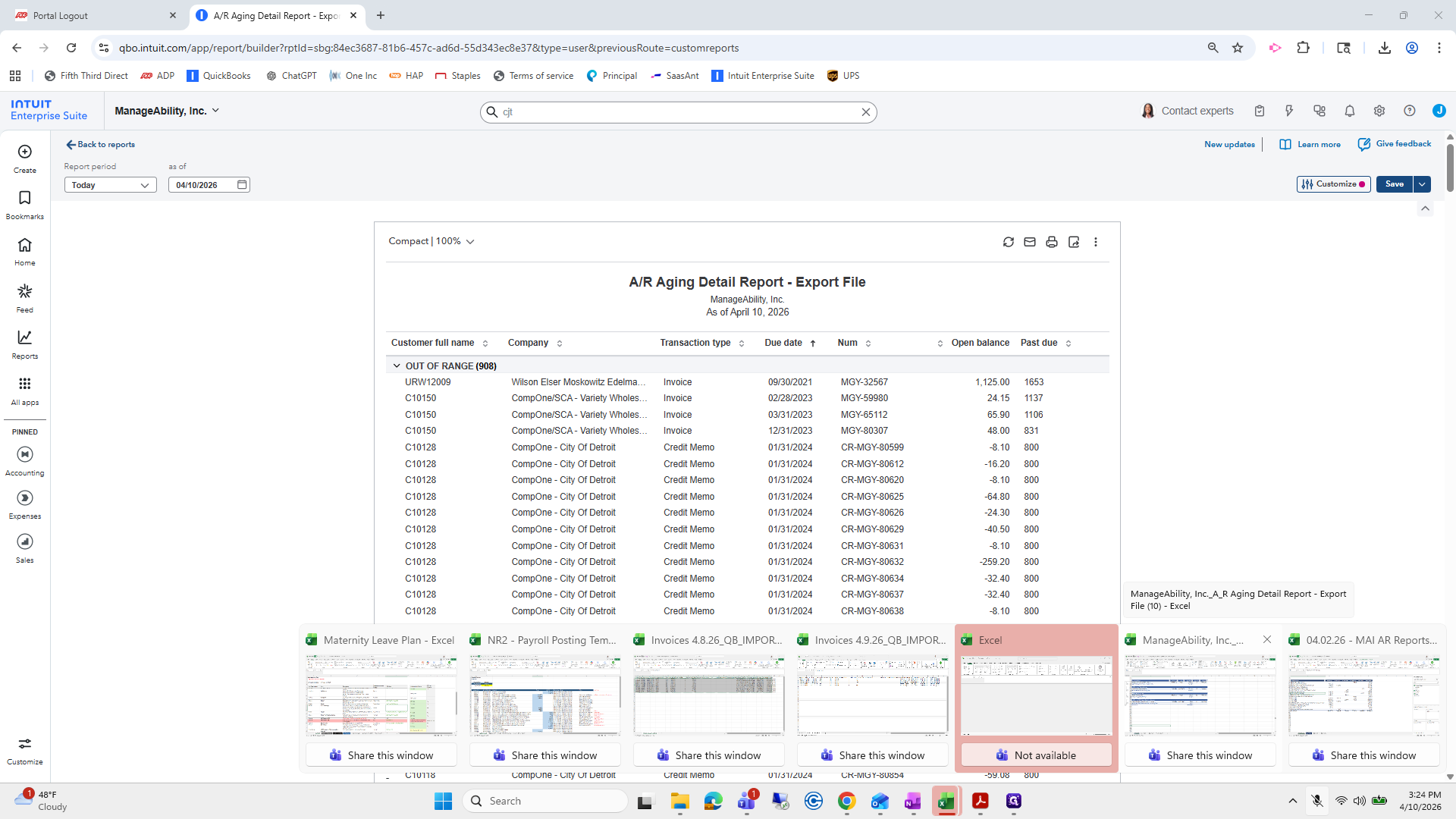
230
Click here
Step #230: Click here
231
Click here
Step #231: Click here
232
Click here
Step #232: Click here

Then press Enter and everything updates.
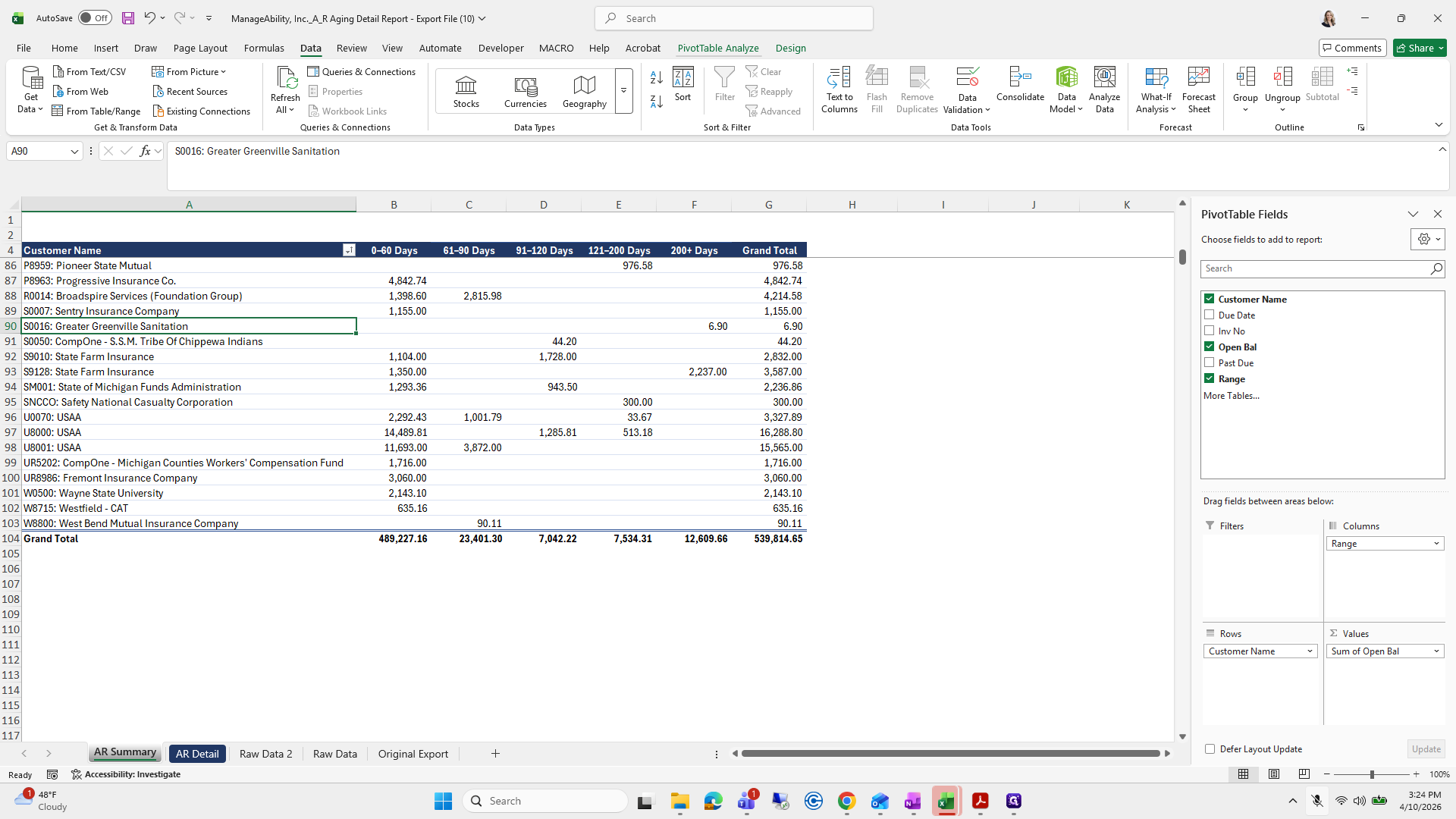
233
Click on "PivotTable Analyze"
Step #233: Click on "PivotTable Analyze"
234
Click on "Source"
Step #234: Click on "Source"
235
Click on "Change Data Source"
Step #235: Click on "Change Data Source"
236
Click on "Raw Data 2"
Step #236: Click on "Raw Data 2"

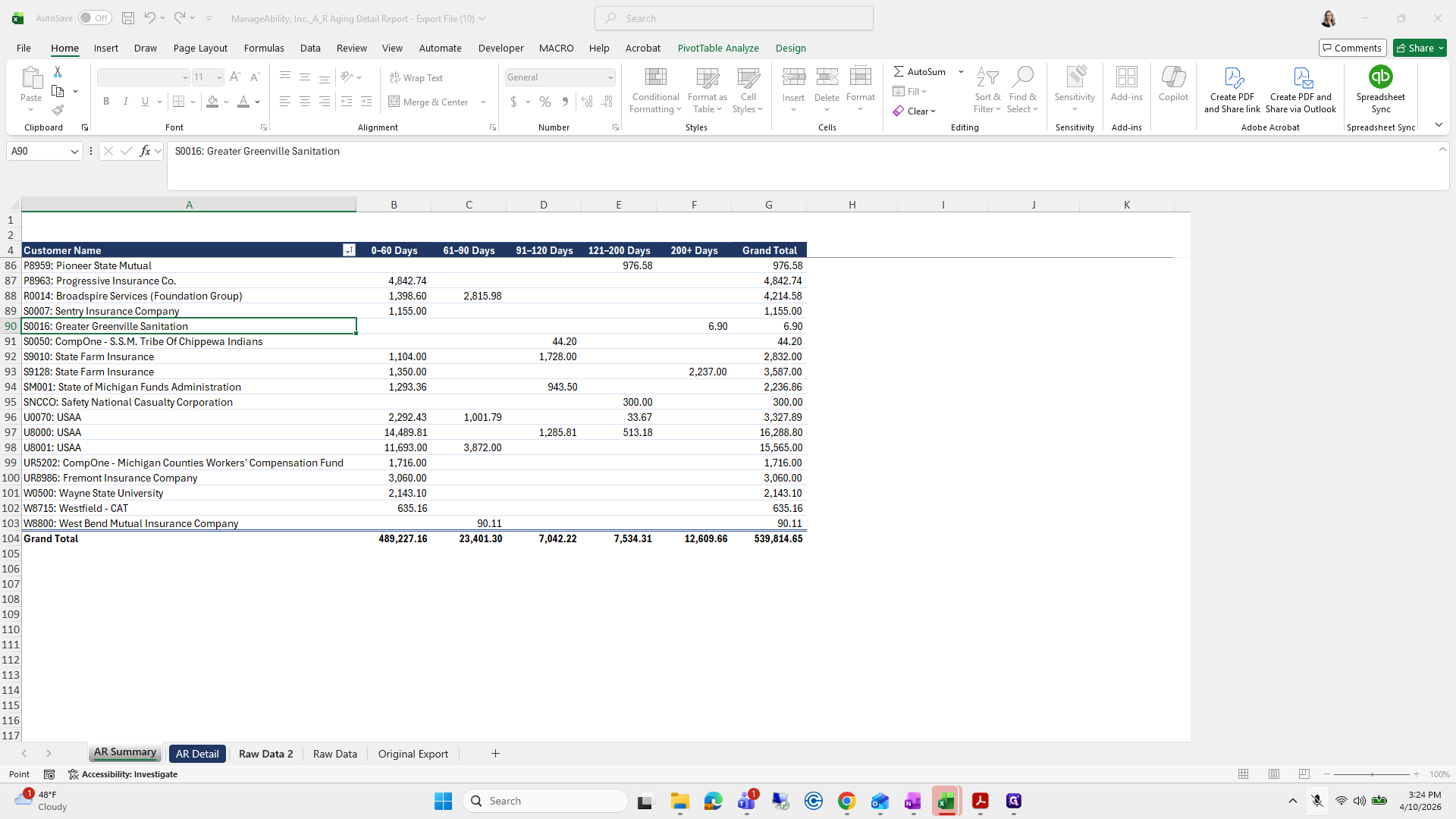
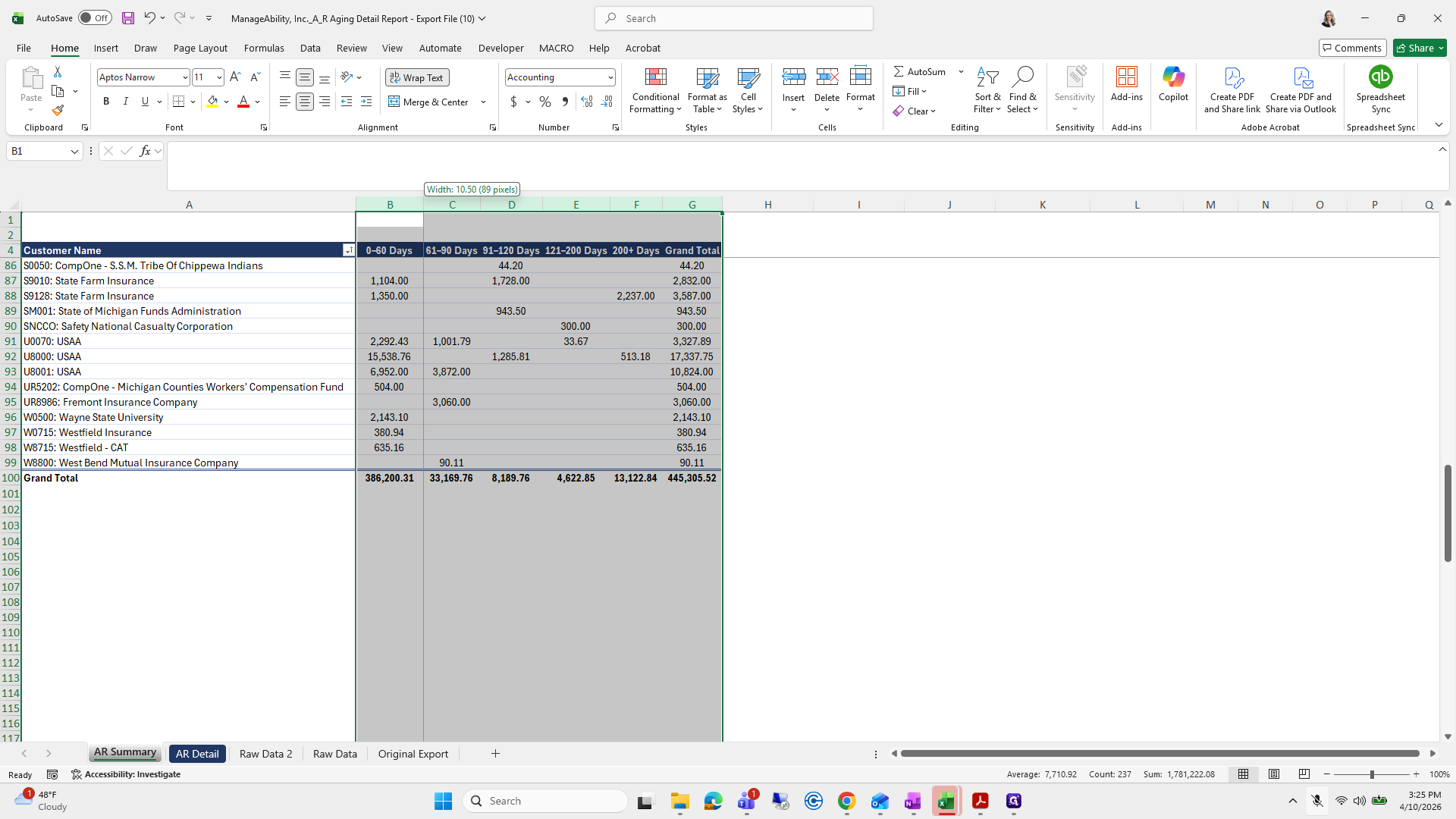
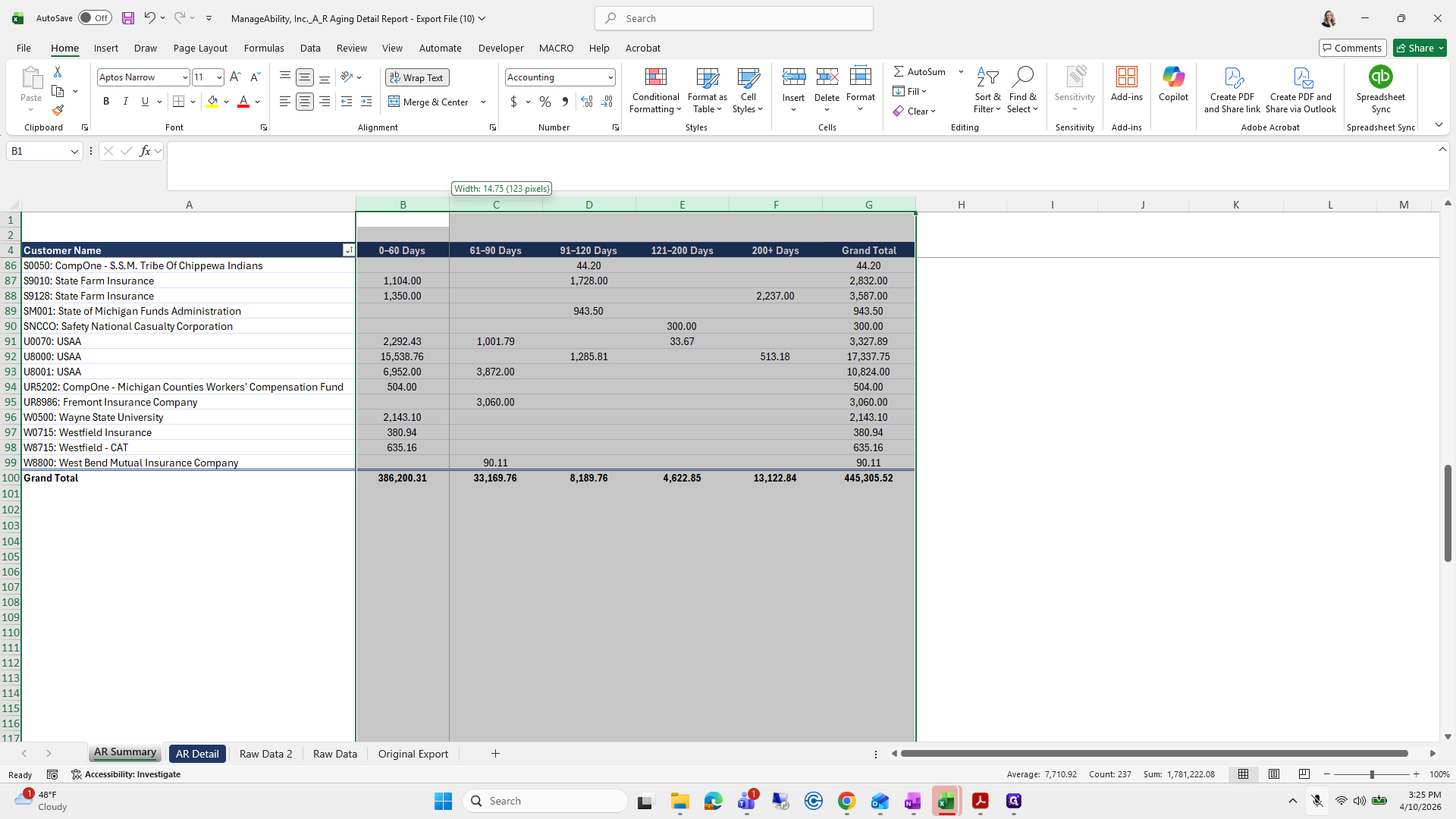
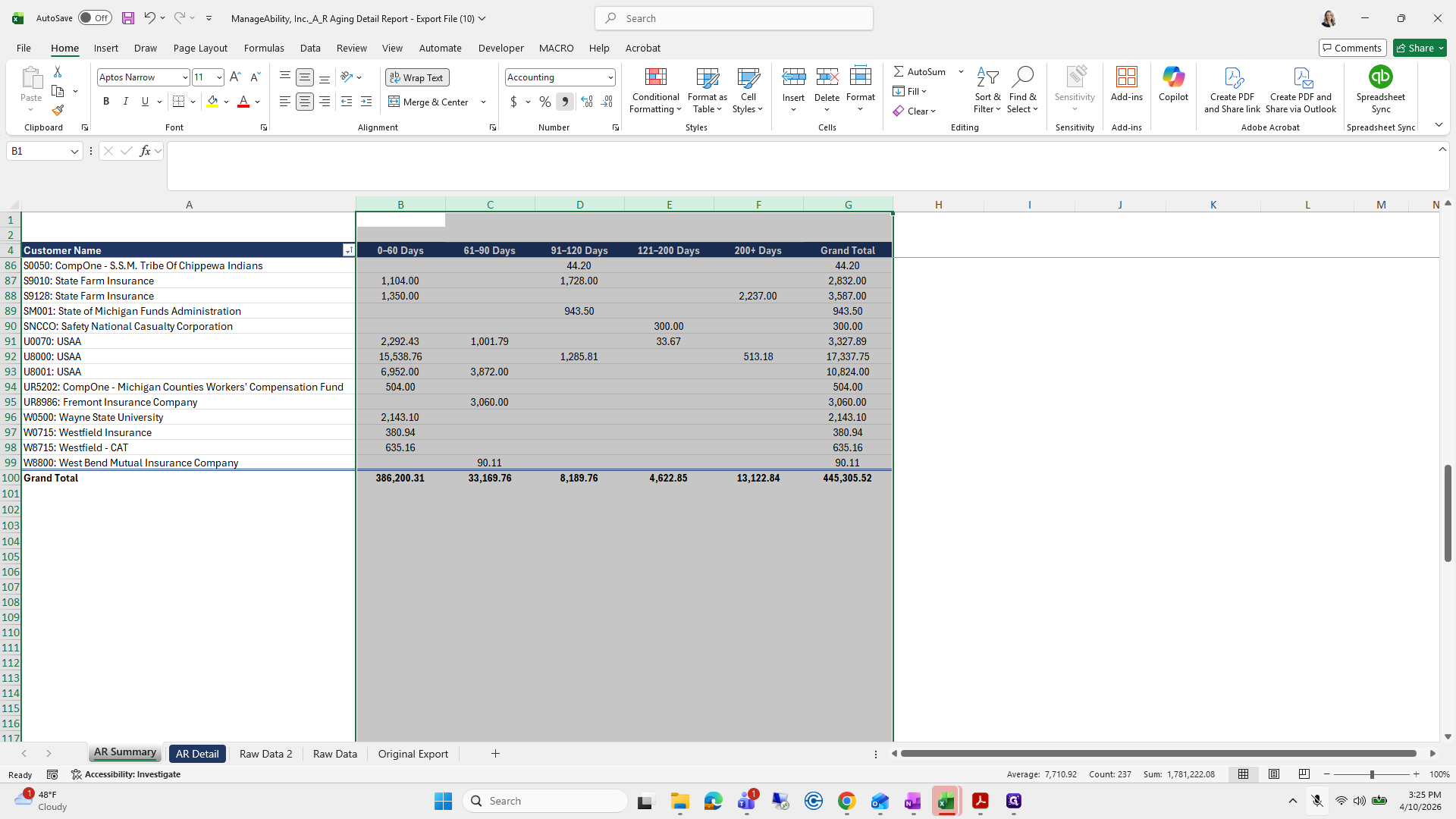
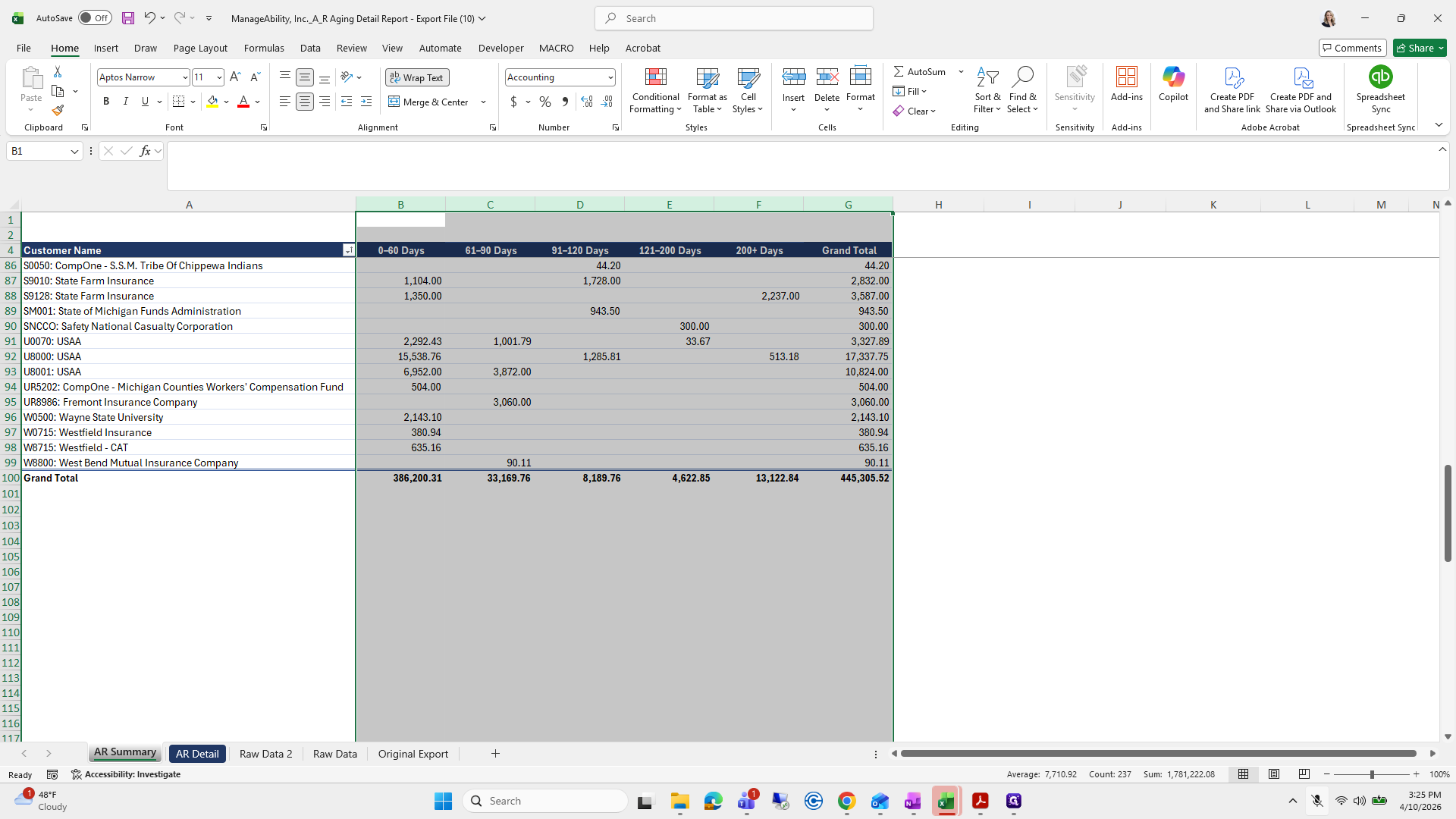
I quickly make it look presentable, and then the page is finished.
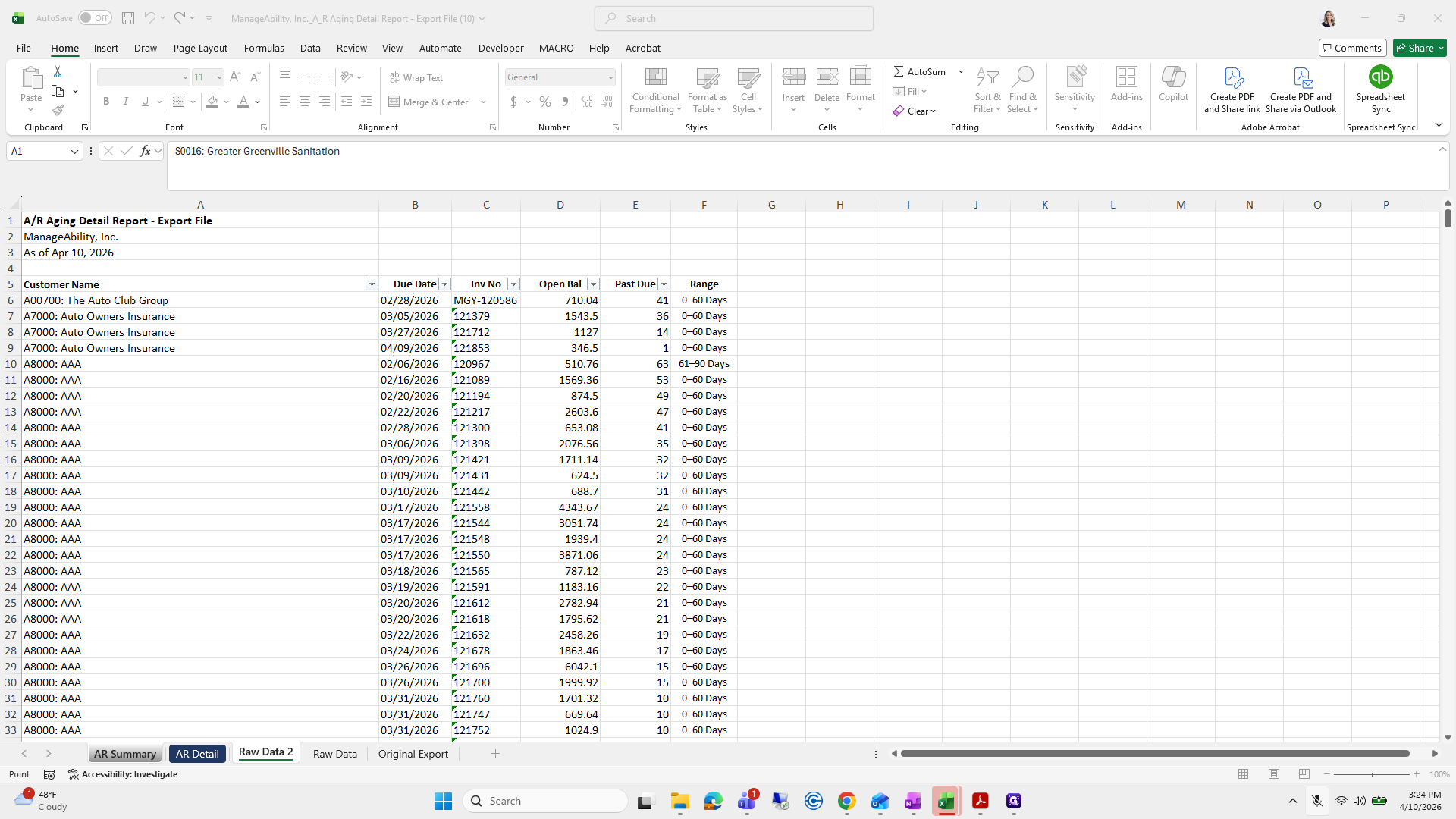
237
Drag "5 Customer Name"
Step #237: Drag "5 Customer Name"
238
Type "Enter"

When you save this, it is ready to go.
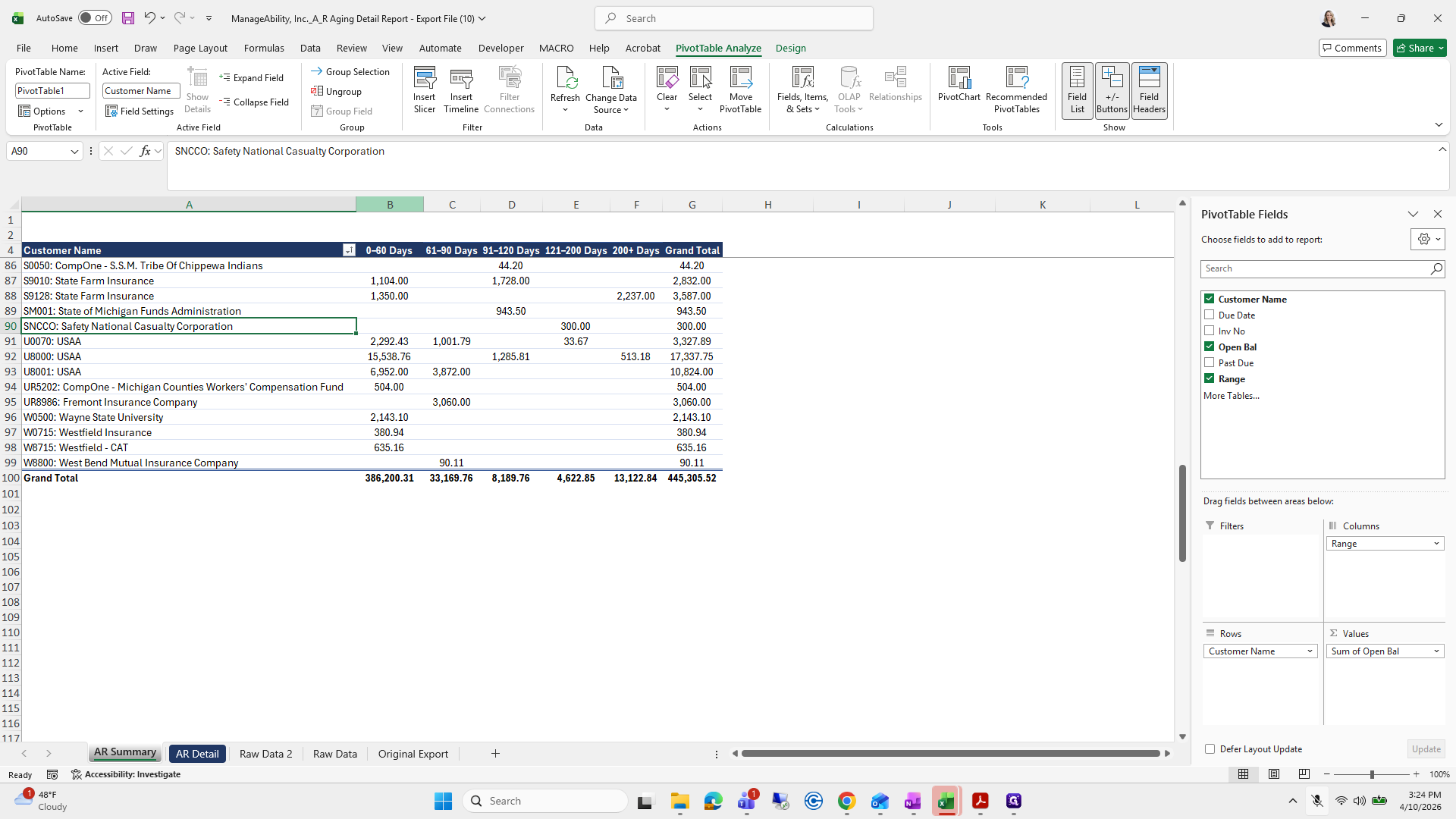
239
Drag here
Step #239: Drag here
240
Click here
Step #240: Click here

Beautiful.

241
Click here
Step #241: Click here
242
Click here
Step #242: Click here
243
Click here
Step #243: Click here

This one is a bit more difficult, but it's okay.
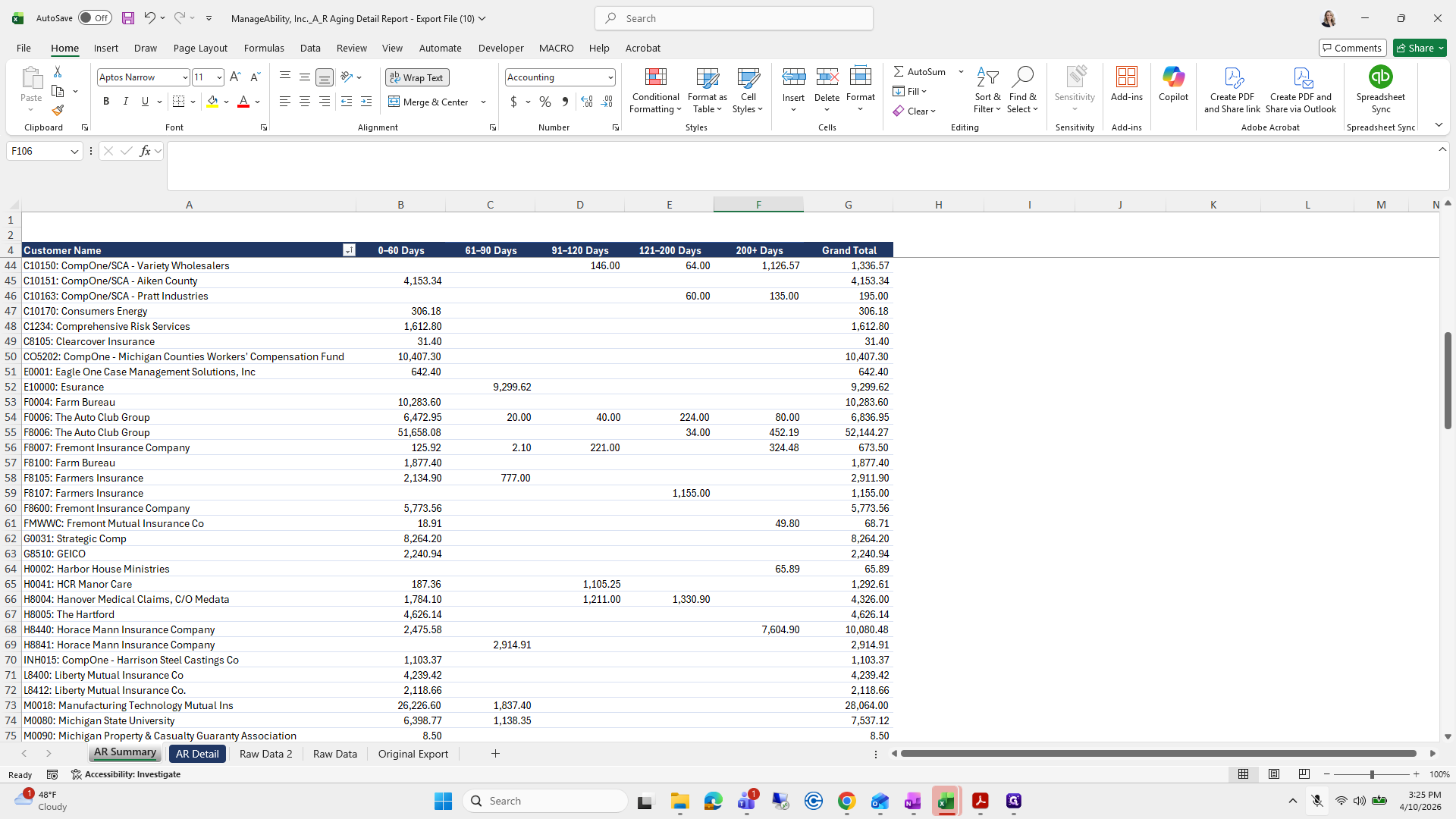
244
Click here
Step #244: Click here
245
Type "Ctrl + P"

We're going to delete and get rid of all the...
246
Type "Esc"
247
Click on "AR Detail"
Step #247: Click on "AR Detail"
248
Click here
Step #248: Click here

We will use no border and no fill.

249
Type "Ctrl + A"

I could have just used "Clear Formats" because that's the best way to do it.
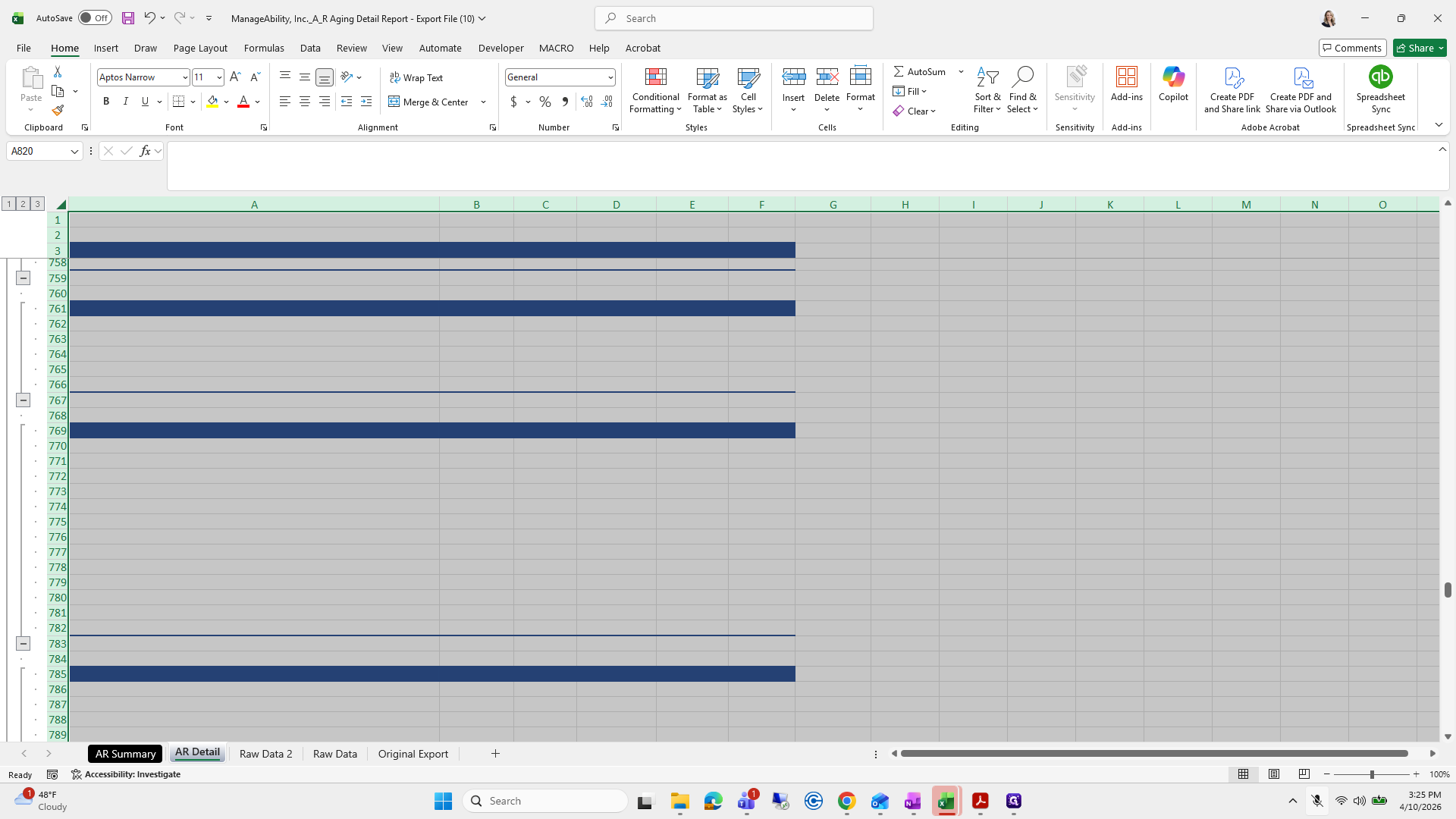
250
Right-click here
Step #250: Right-click here

We also have these small items here, which are for grouping.
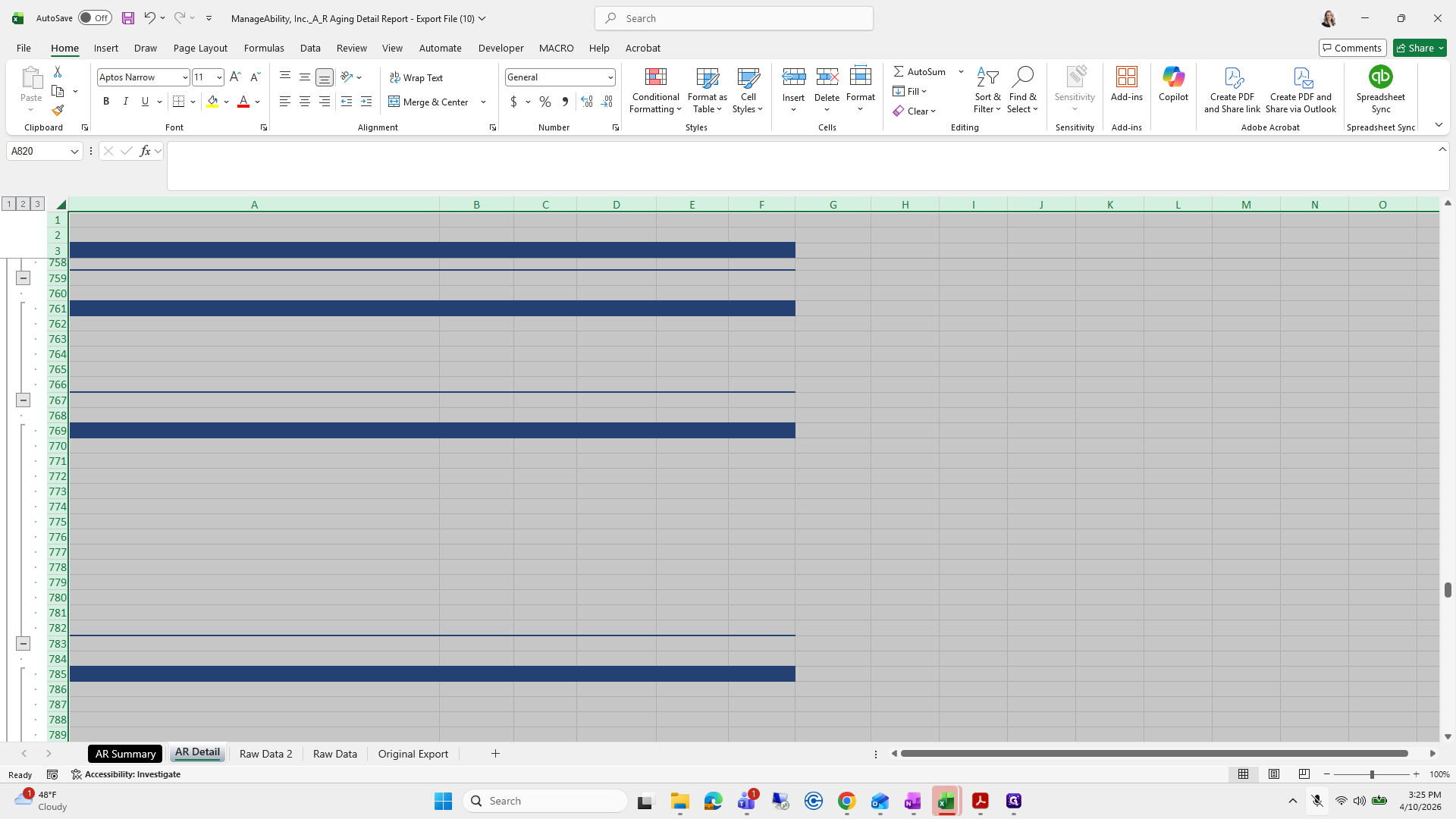
251
Click on "BIU▾"
Step #251: Click on "BIU▾"
252
Click here
Step #252: Click here
253
Click on "~ A ~"
Step #253: Click on "~ A ~"

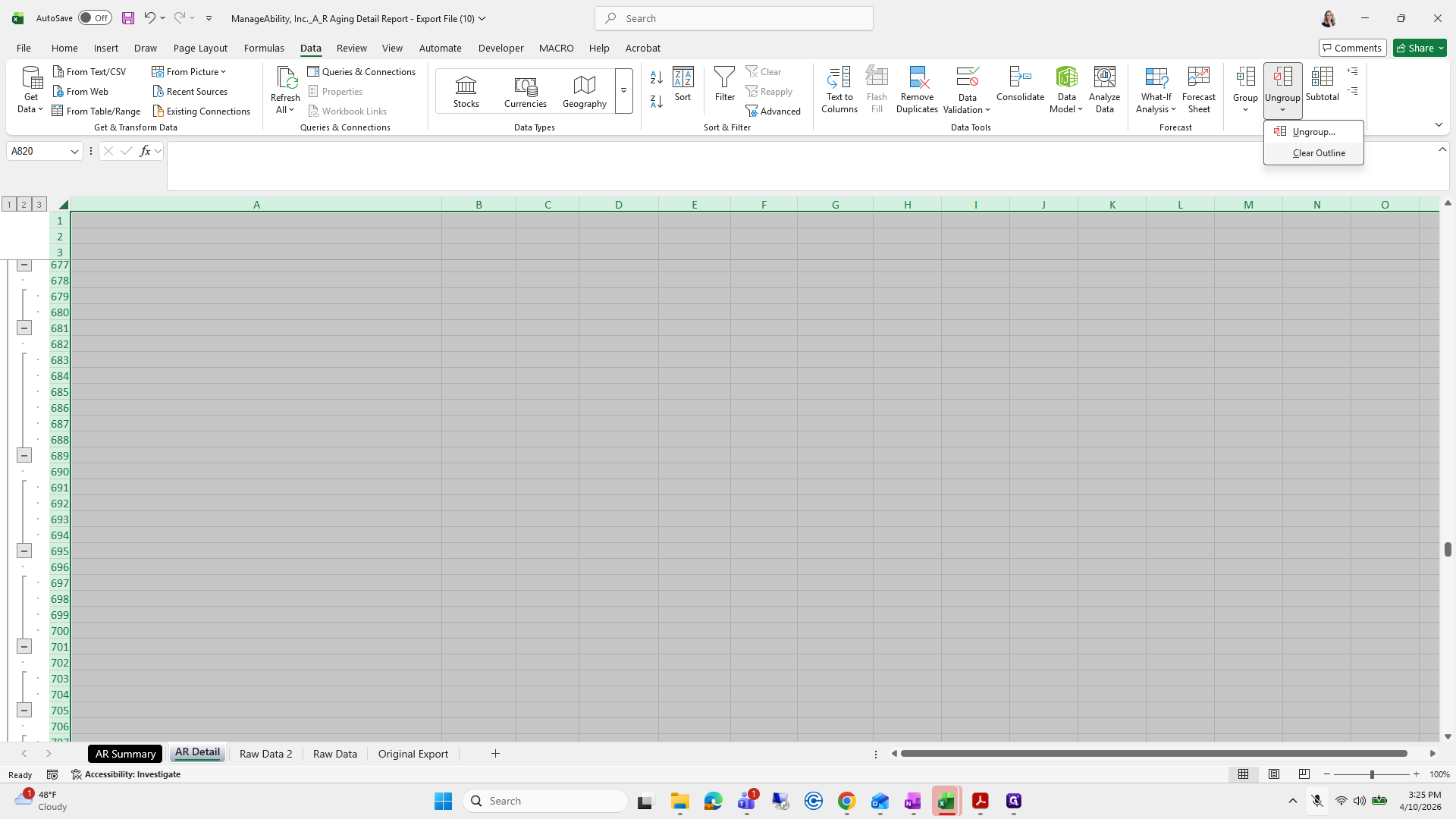
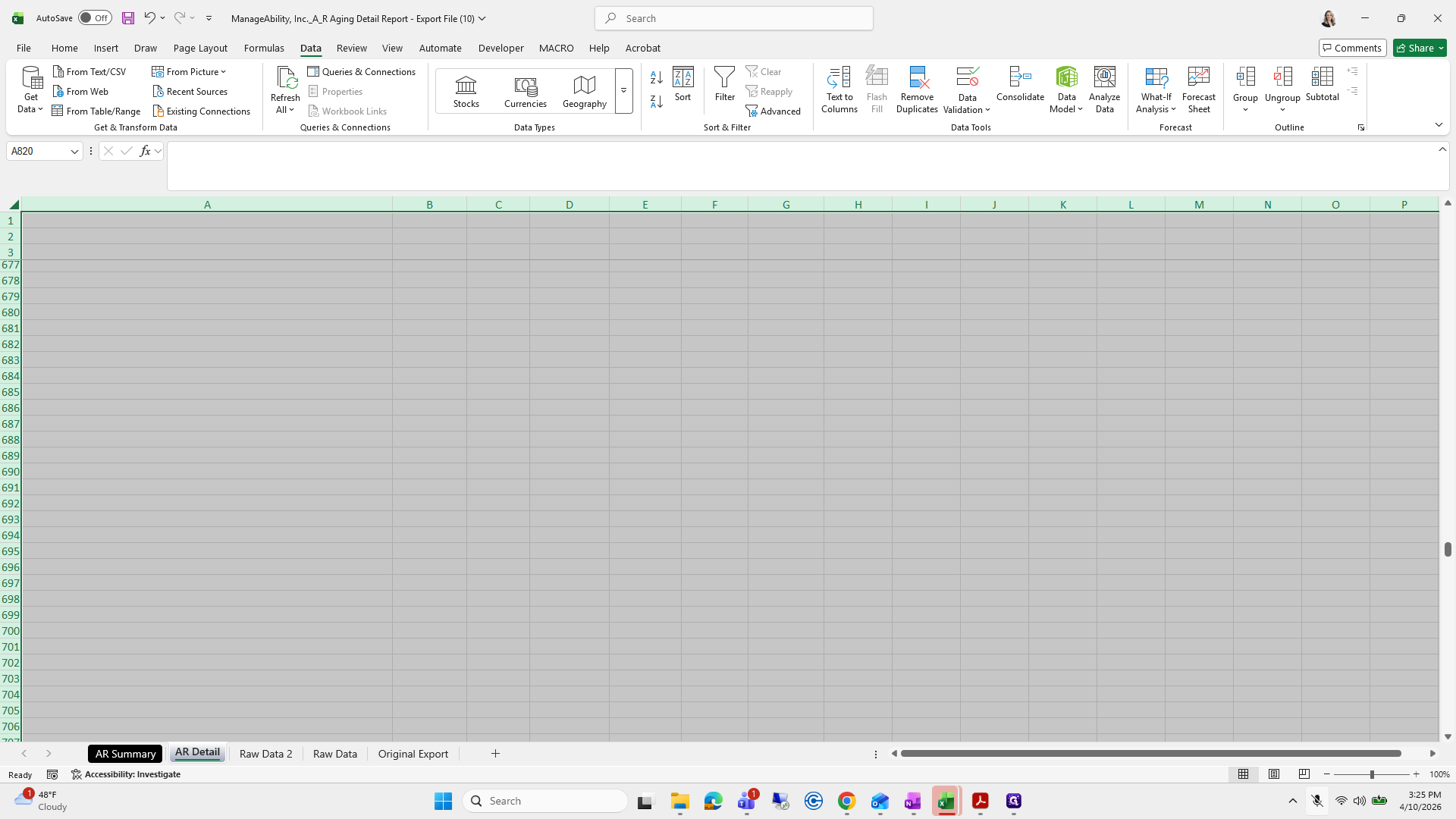
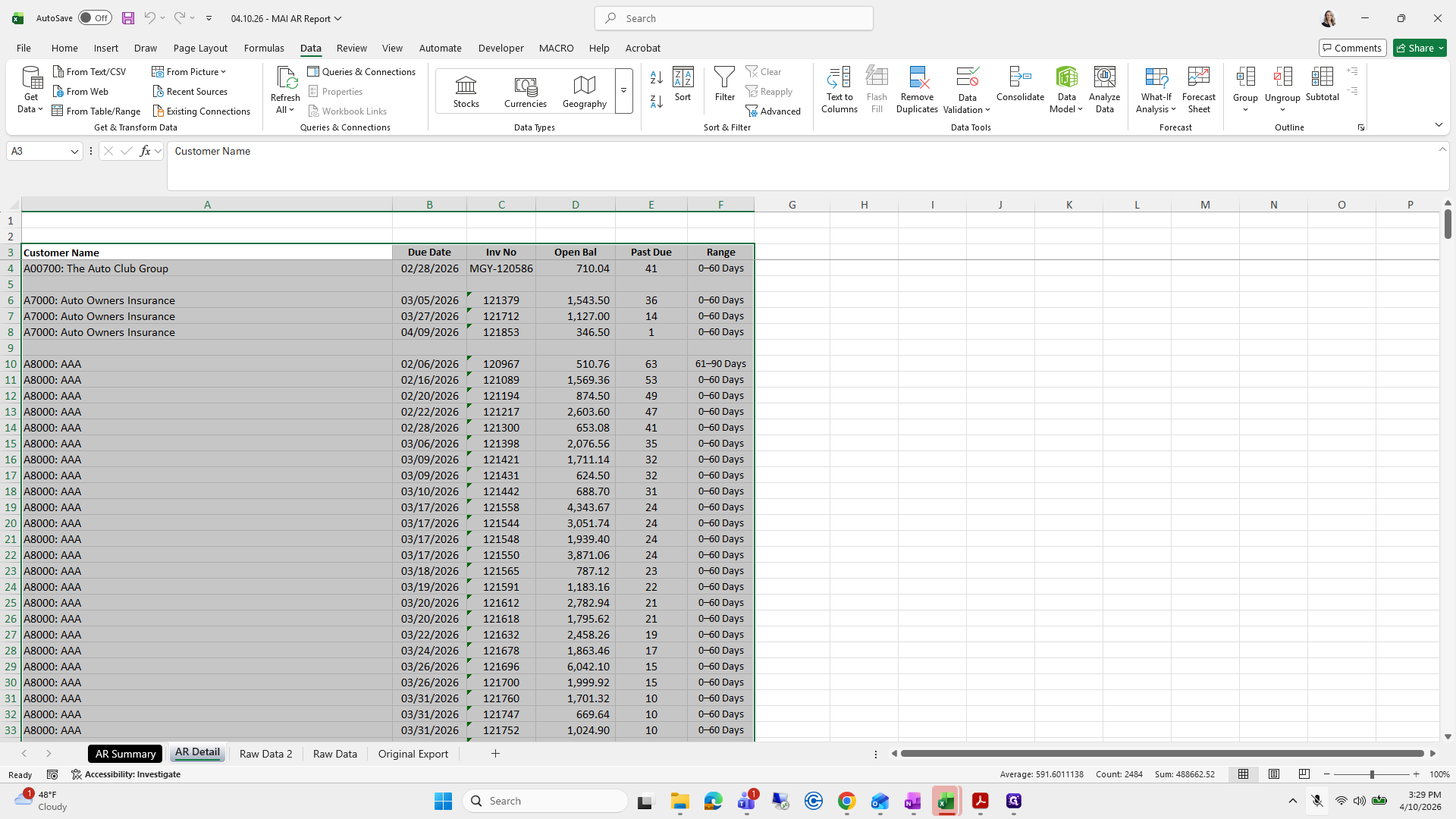
I'm going to clear that outline.

254
Click on "No Fill"
Step #254: Click on "No Fill"
255
Click on "Clear"
Step #255: Click on "Clear"
256
Click here
Step #256: Click here

You don't need to worry about formatting. You can simply say, "I'm taking over, Jessica," and it may not look as polished.
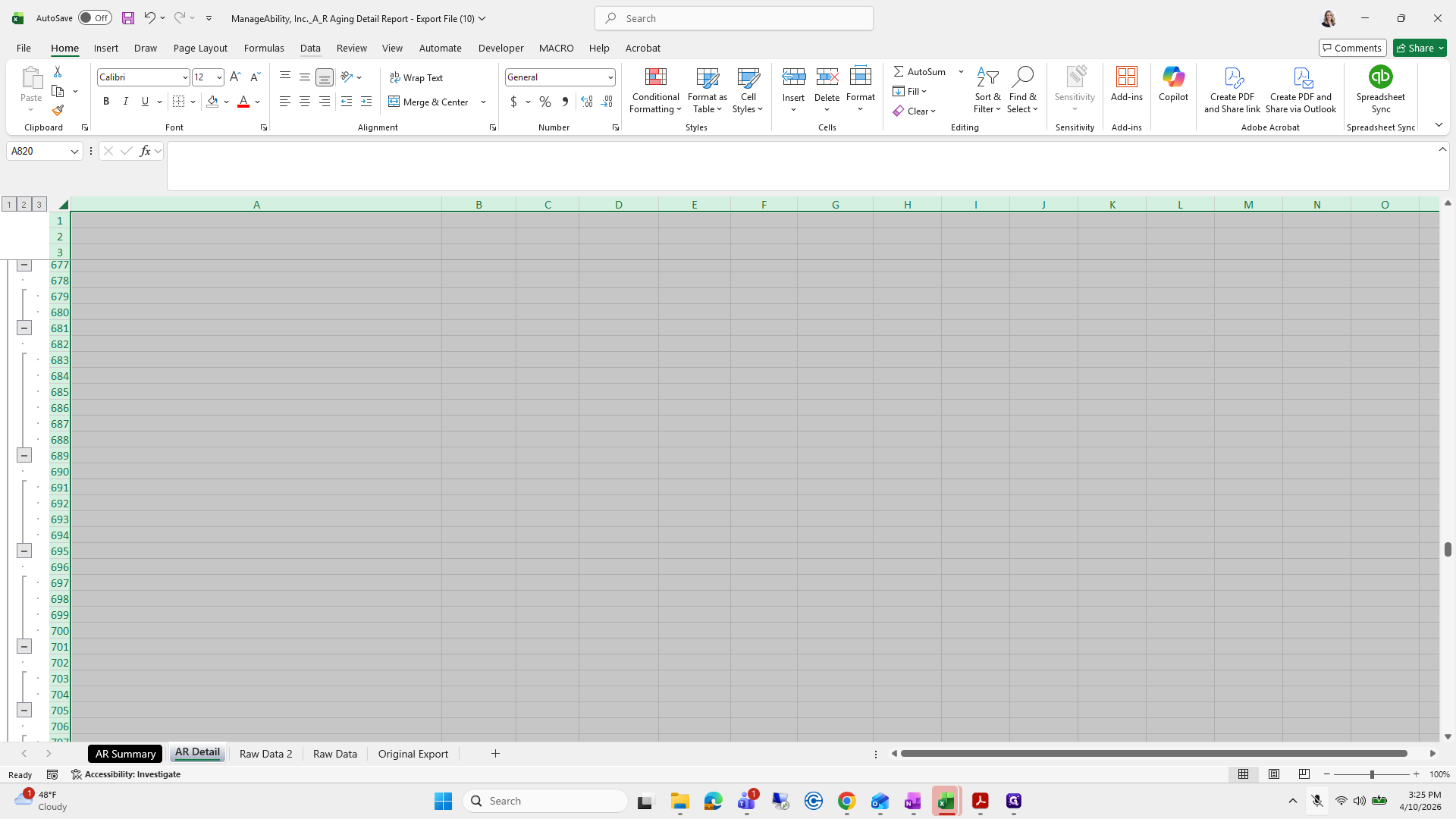
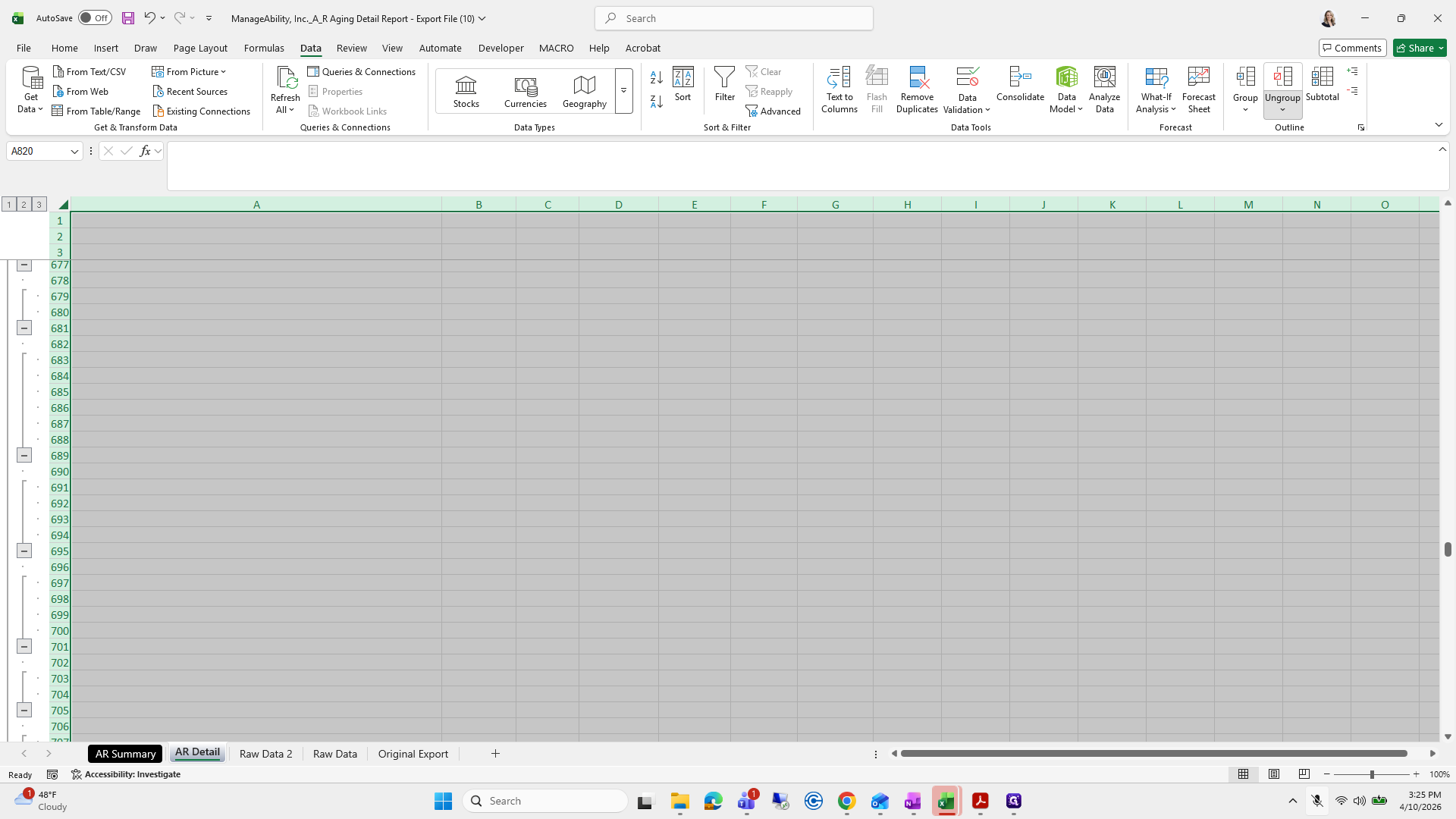
257
Click on "Data"
Step #257: Click on "Data"
258
Click on "Ungroup"
Step #258: Click on "Ungroup"
259
Click on "Clear Outline"
Step #259: Click on "Clear Outline"
260
Click here
Step #260: Click here
261
Drag here
Step #261: Drag here
262
Double-click on "Raw Data 2"
Step #262: Double-click on "Raw Data 2"

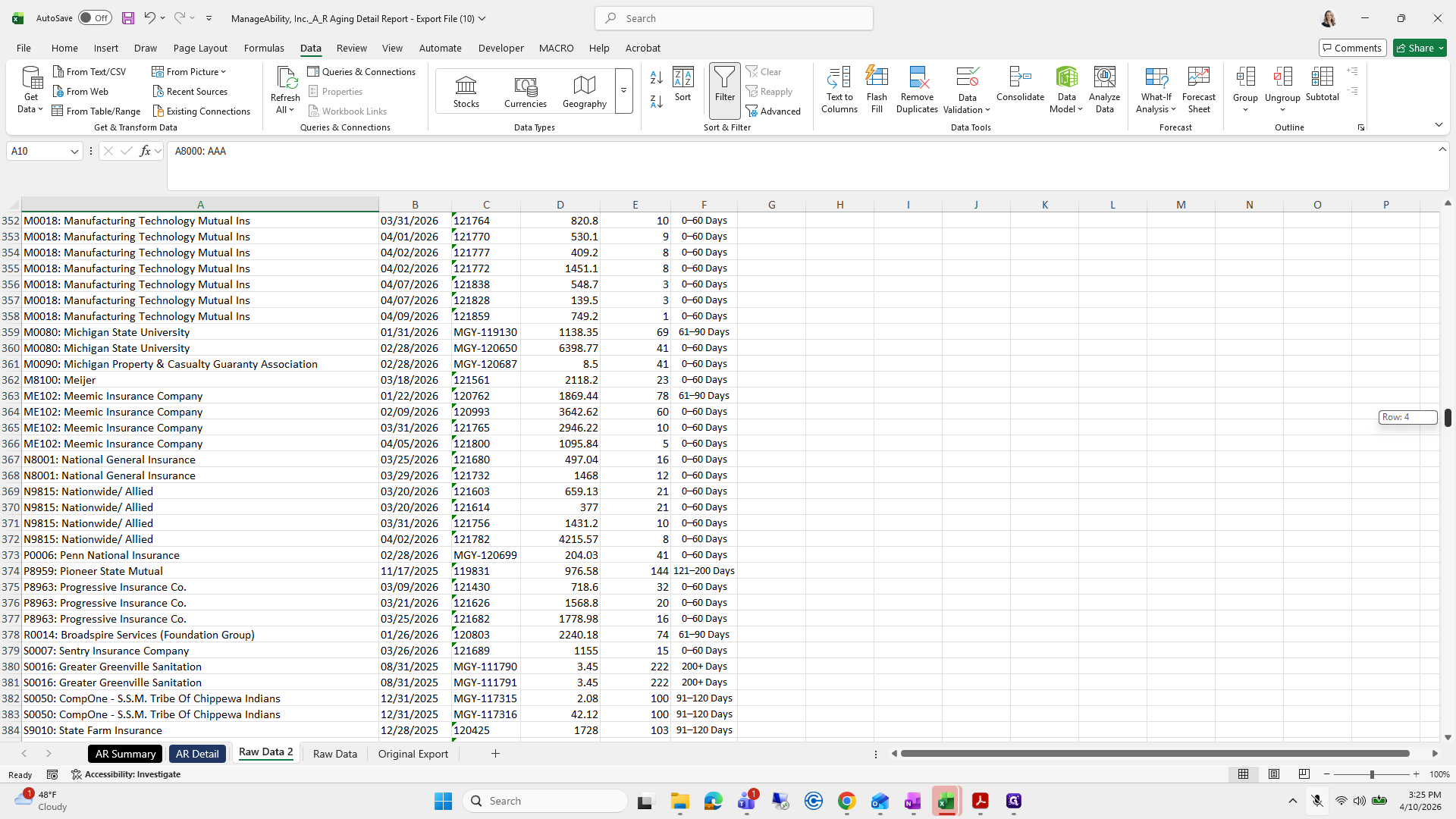
Copy the raw data two and paste it here.
263
Click here
Step #263: Click here
264
Drag "61-90 Days"
Step #264: Drag "61-90 Days"

What do I do next?

265
Type "Ctrl + C"

What should I do? We are going to...

266
Click on "AR Detail"
Step #266: Click on "AR Detail"
267
Click here
Step #267: Click here
268
Type "Ctrl + V"

I can't remember the next step.

269
Click here
Step #269: Click here
270
Double-click here
Step #270: Double-click here

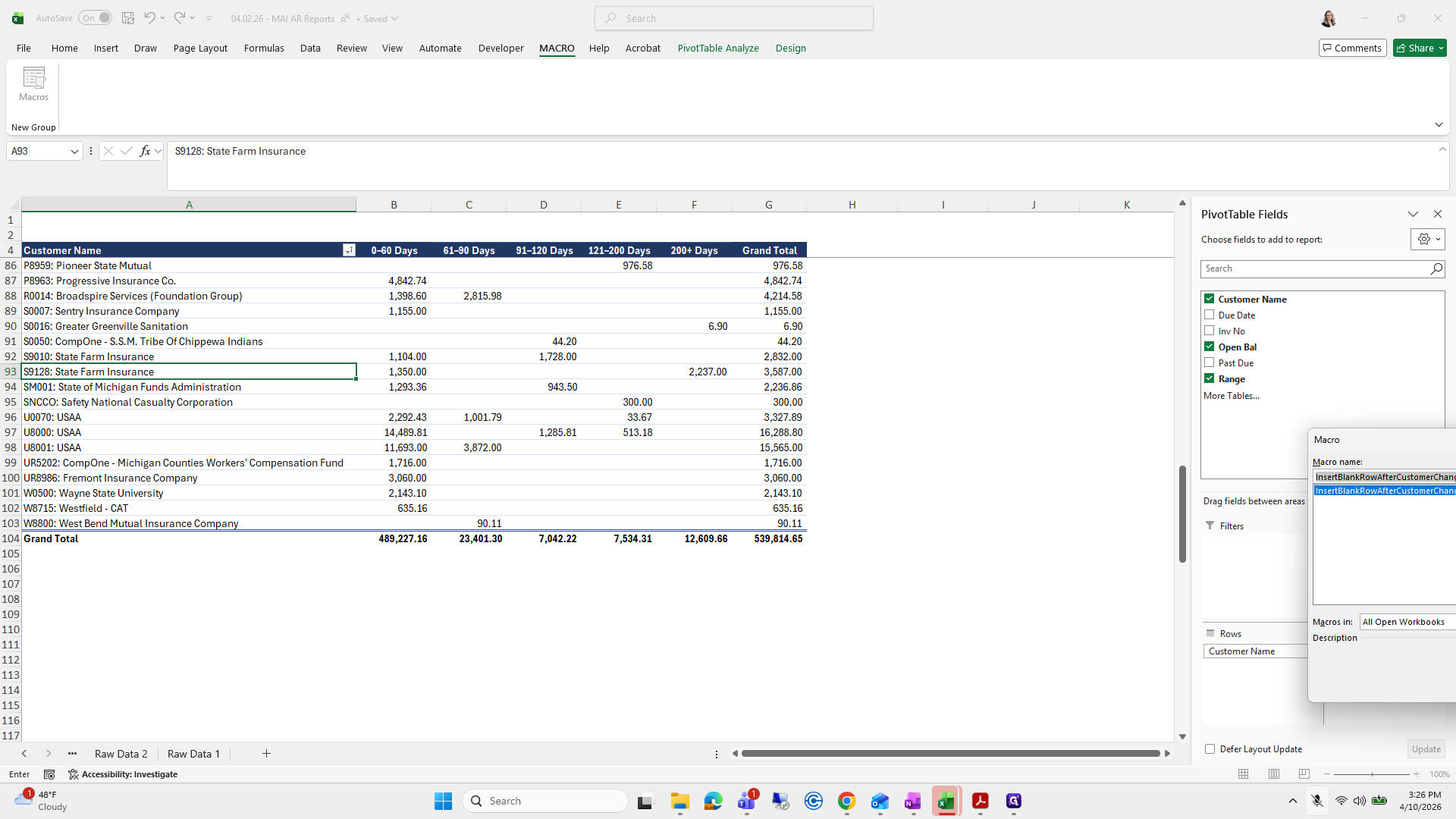
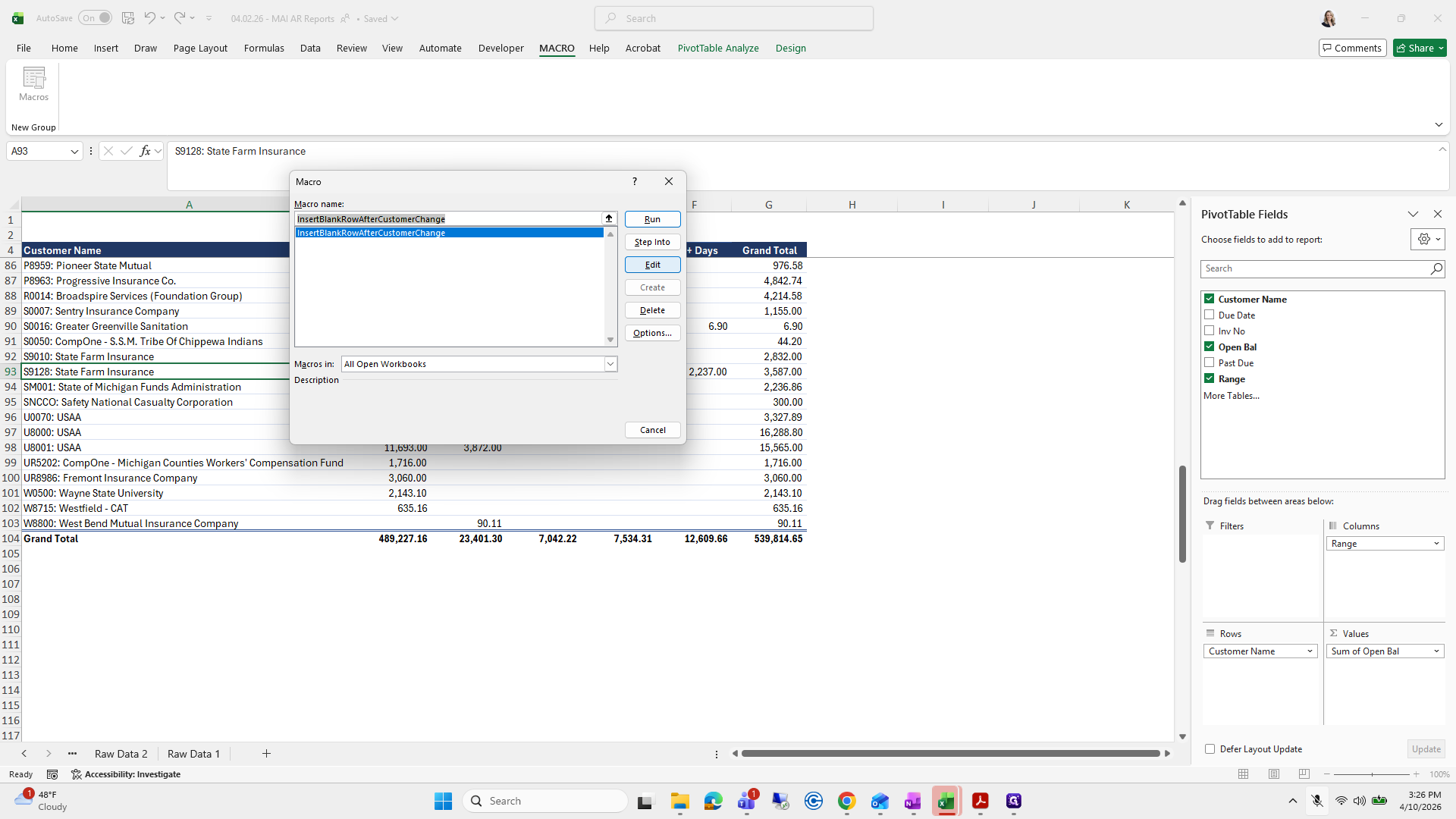
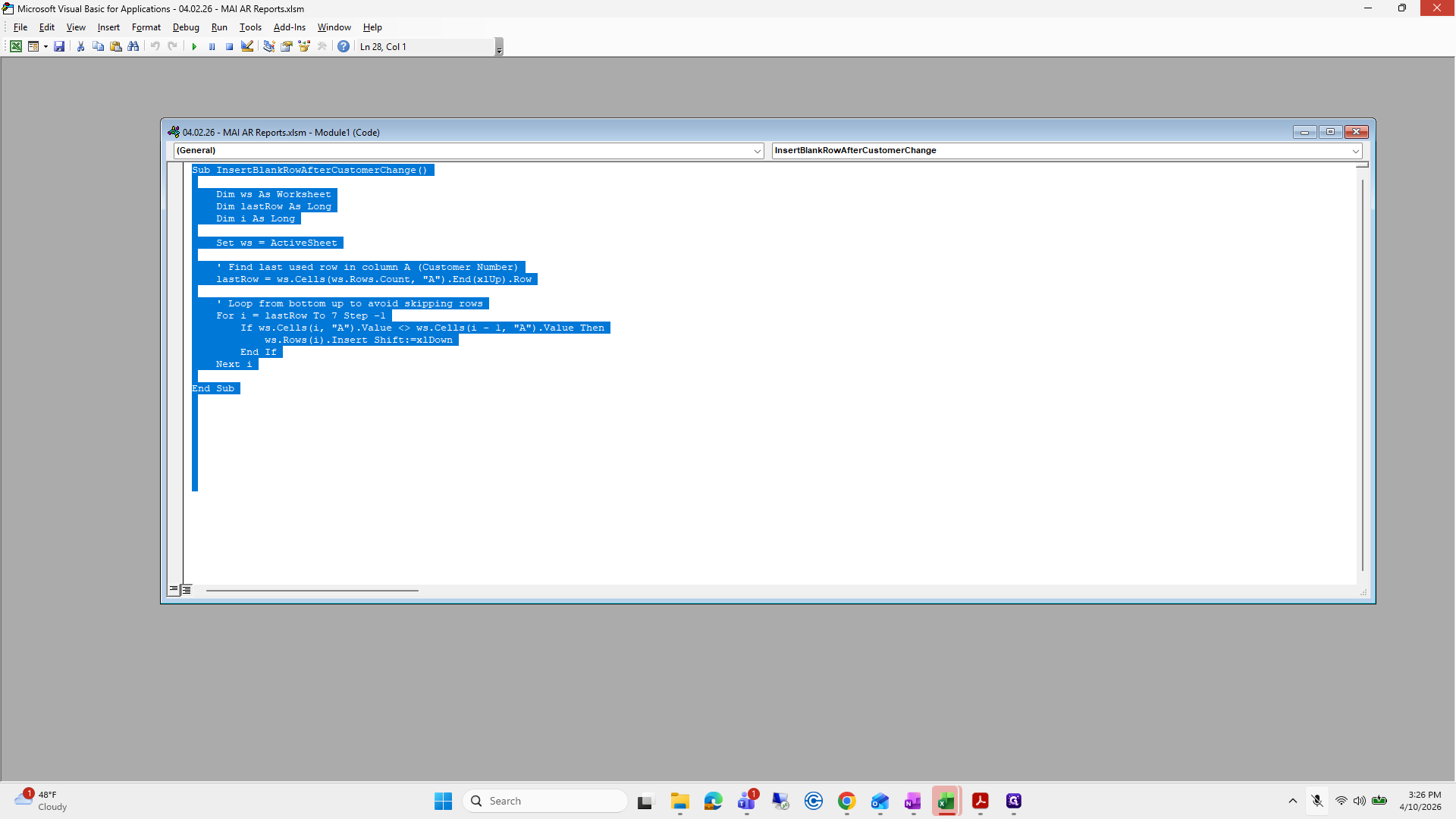
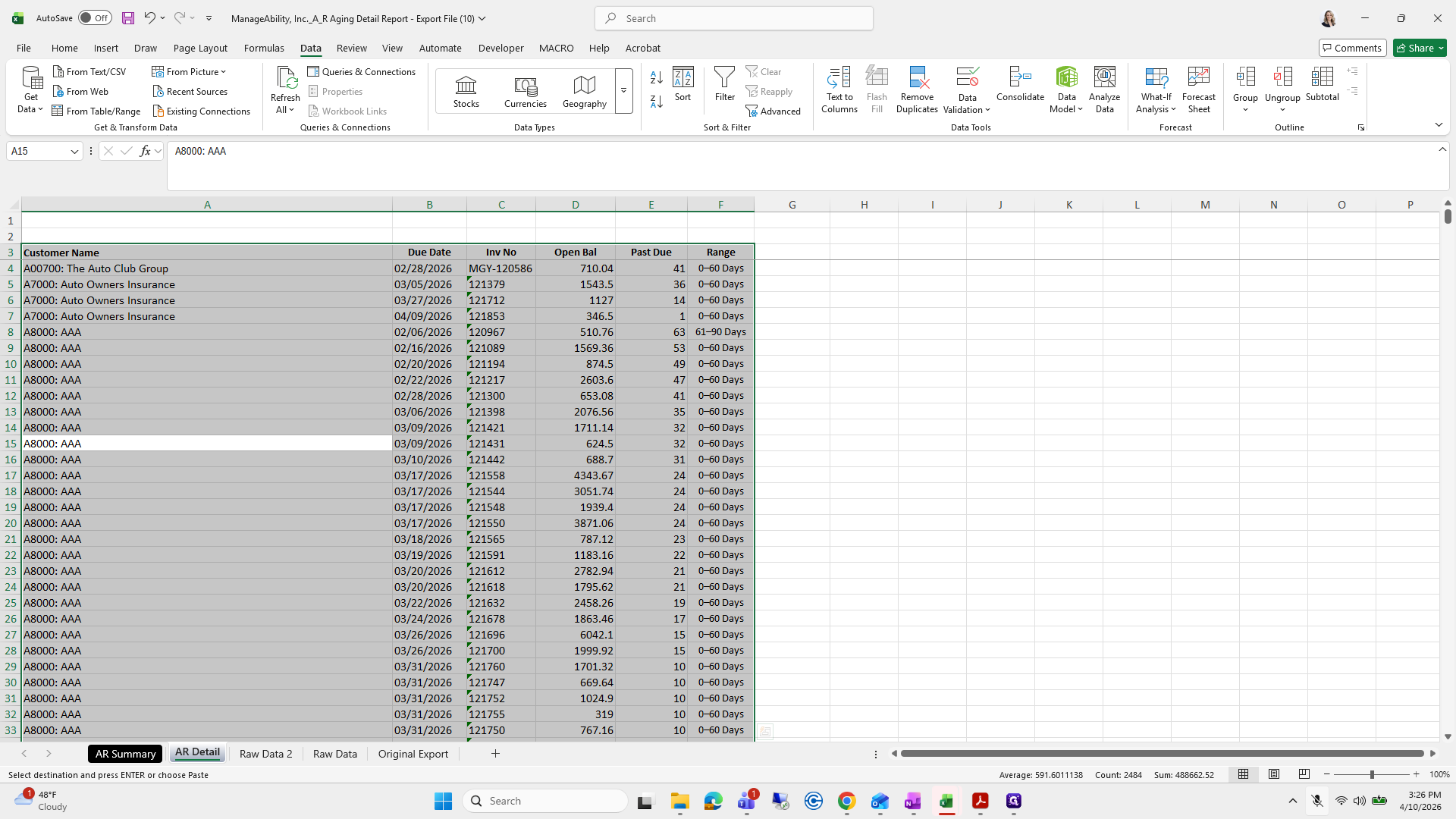
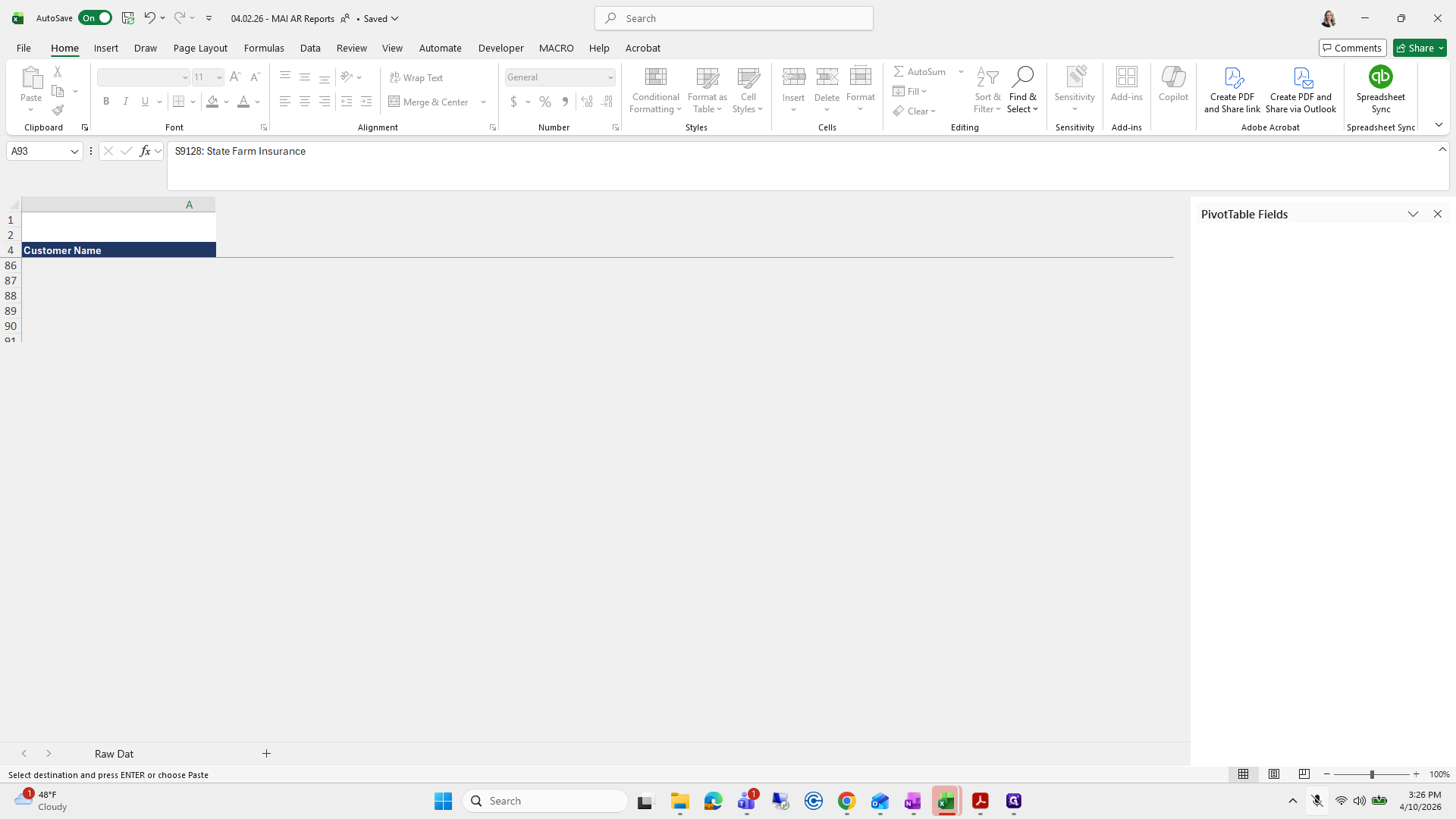
I think I go like this. Copy or select all. I will quickly open the other file to get a macro from it. I'm going to macros, then edit, but you don't need to do this part.
271
Type "Ctrl + A"
272
Click here
Step #272: Click here
273
Click here
Step #273: Click here
274
Click on "MACRO"
Step #274: Click on "MACRO"

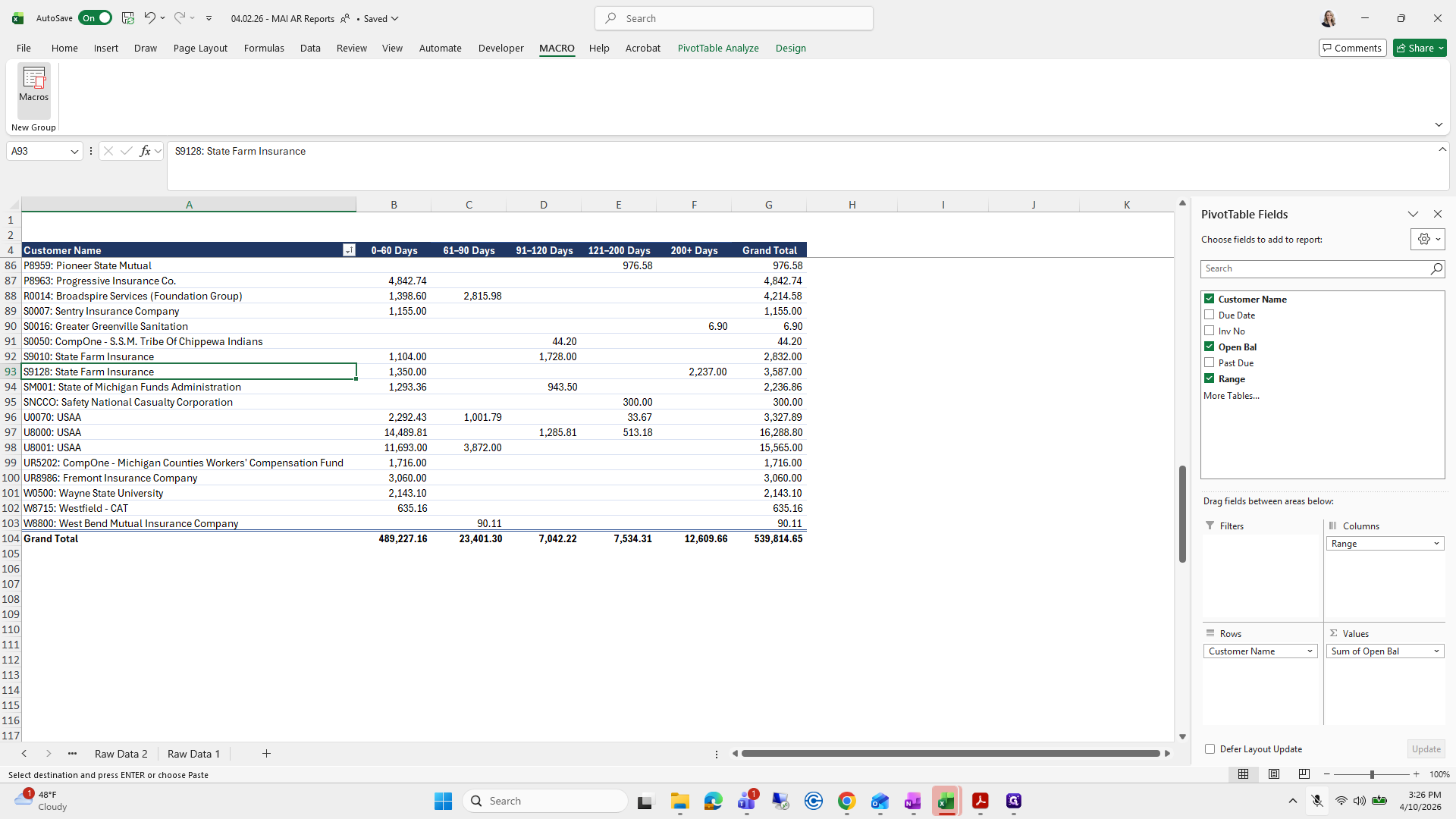
I don't think it will let me do it.
275
Click on "Macros"
Step #275: Click on "Macros"

Select all, then copy.

276
Drag here
Step #276: Drag here
277
Click on "Edit"
Step #277: Click on "Edit"

Then you will exit the four-two, just like before.
278
Drag here
Step #278: Drag here
279
Drag here
Step #279: Drag here
280
Click on "ㅁ"
Step #280: Click on "ㅁ"

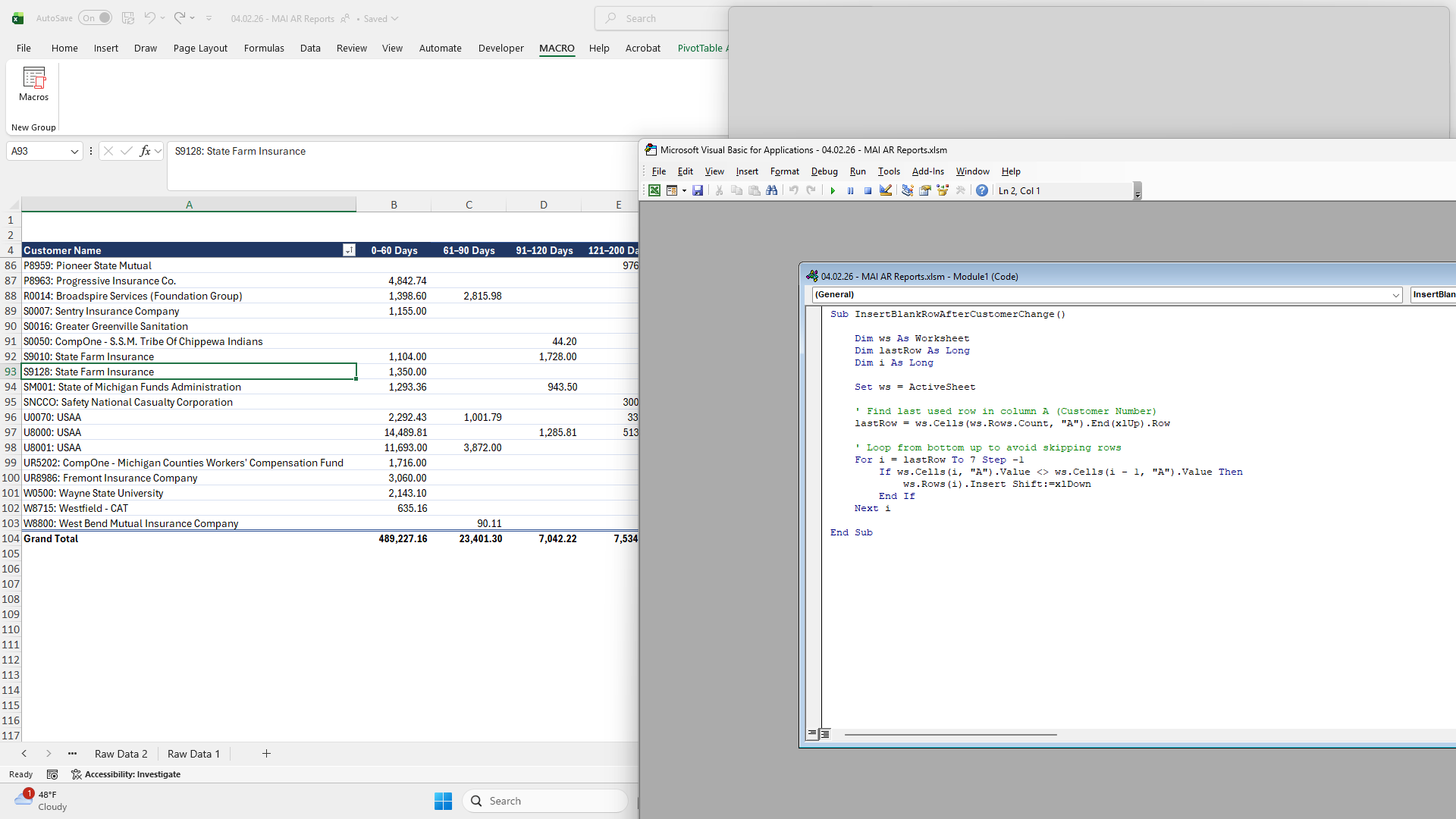
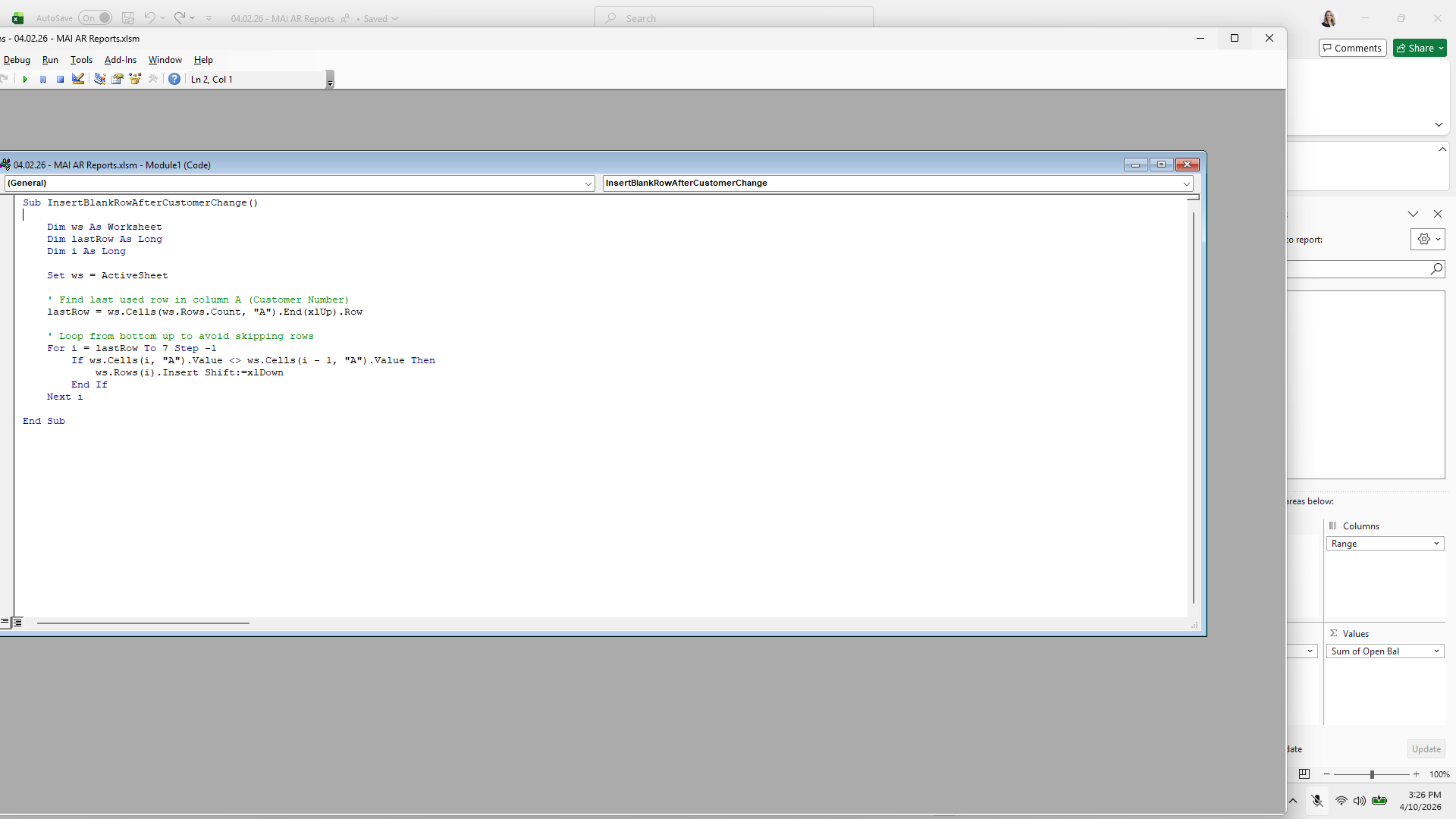
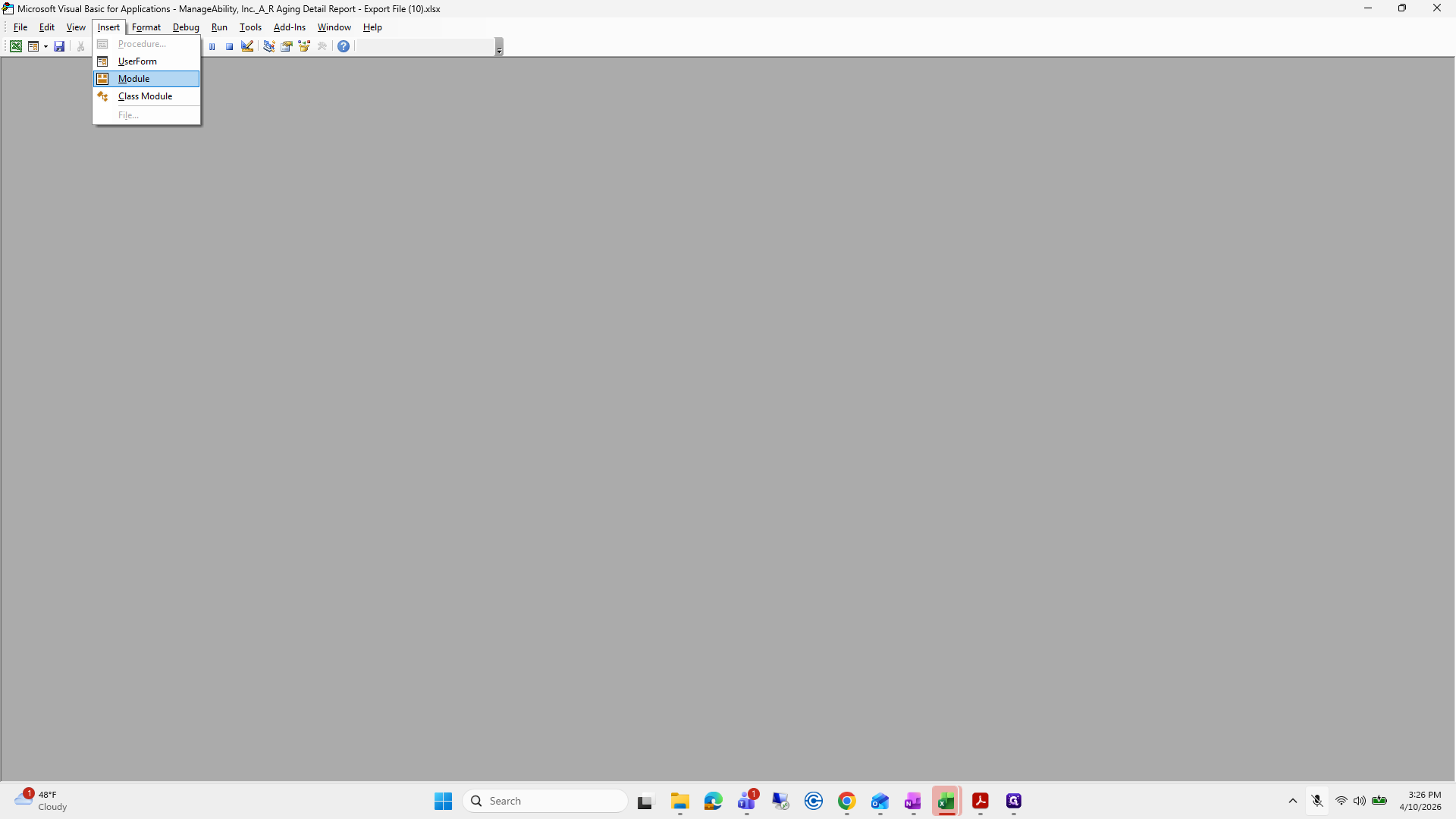
Press Alt+F11, insert a module, paste the code, and save.
281
Click on "Find last used row in column A"
Step #281: Click on "Find last used row in column A"
282
Type "Ctrl + A"
283
Type "Ctrl + C"
284
Click here
Step #284: Click here
285
Click here
Step #285: Click here
286
Click on "710.04"
Step #286: Click on "710.04"

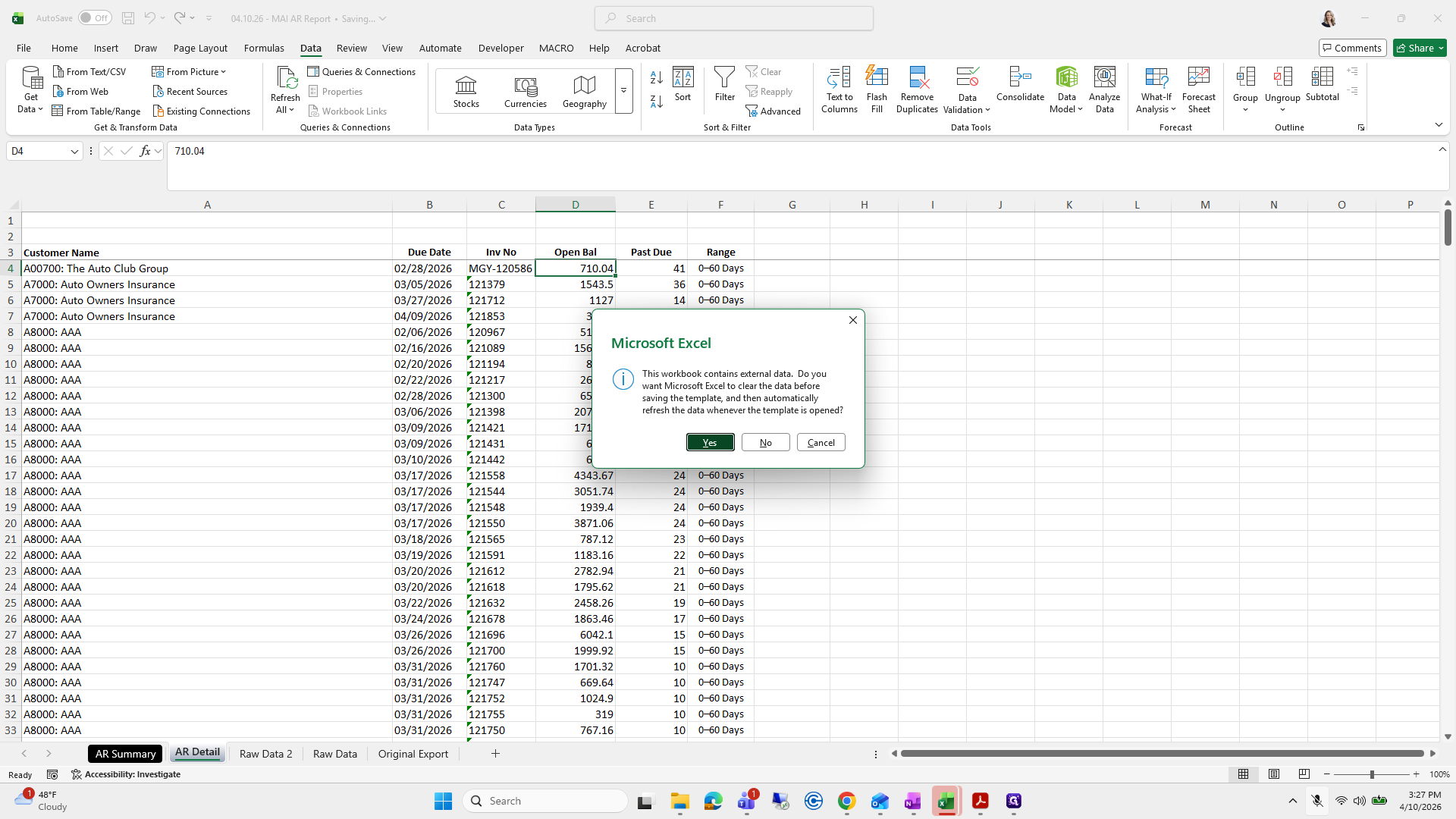
But I forgot to save it as a macro. I will save this file as a macro.

287
Click on "Insert"
Step #287: Click on "Insert"
288
Click on "Module"
Step #288: Click on "Module"

If you want to skip this part, you can and move on to the next section.
289
Type "Ctrl + V"
290
Click here
Step #290: Click here
291
Click on "Save"
Step #291: Click on "Save"
292
Click here
Step #292: Click here

Account manage, manageability AR.
293
Click on "File"
Step #293: Click on "File"
294
Click here
Step #294: Click here
295
Click on "Save As"
Step #295: Click on "Save As"
296
Double-click on "This PC"
Step #296: Double-click on "This PC"

Oops.

297
Click on "Excel Workbook"
Step #297: Click on "Excel Workbook"
298
Click on "Enabled Template"
Step #298: Click on "Enabled Template"

Let's... Oh, God.

299
Click on "-"
Step #299: Click on "-"
300
Double-click on "3- ManageAbility"
Step #300: Double-click on "3- ManageAbility"
301
Double-click on "MAI - AR Credits"
Step #301: Double-click on "MAI - AR Credits"

Sometimes I don't know why I am like this.
302
Click on "Accounting - Jess > 3- ManageAbility"
Step #302: Click on "Accounting - Jess > 3- ManageAbility"

And then 04-10-26 AR...

303
Double-click on "MAI - AR Reports"
Step #303: Double-click on "MAI - AR Reports"
304
Double-click on "Exports"
Step #304: Double-click on "Exports"
305
Double-click here
Step #305: Double-click here

I can't remember the name of the file.
306
Click here
Step #306: Click here

""

307
Drag here
Step #307: Drag here

Maybe. I don't know. And then I will select all, macros, and run.
308
Type "04.10.26 - AR ReportMAI "
309
Click on "Save"
Step #309: Click on "Save"
310
Click on "Yes"
Step #310: Click on "Yes"

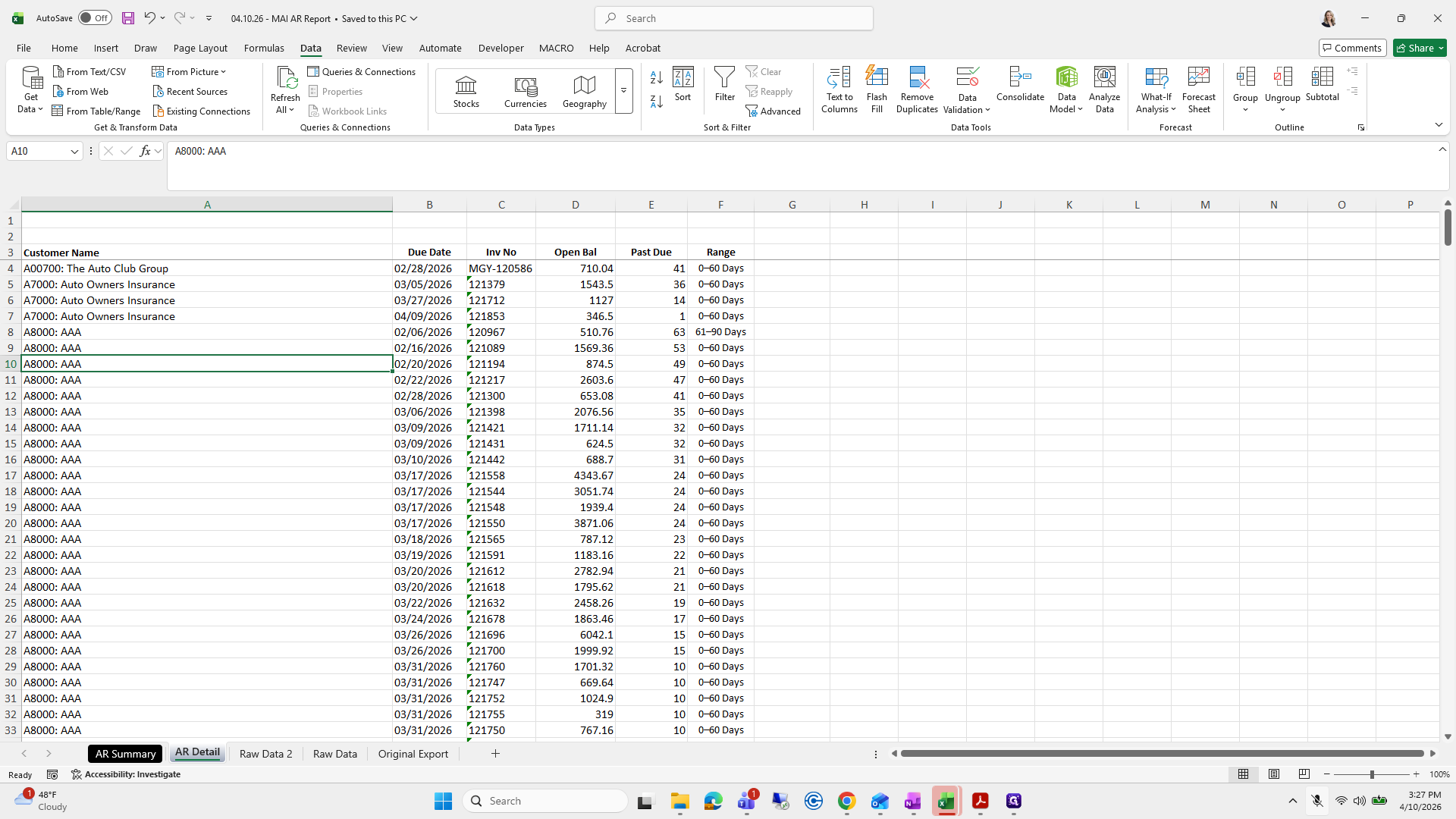
It places a, what's it called?

311
Click here
Step #311: Click here
312
Type "Ctrl + A"

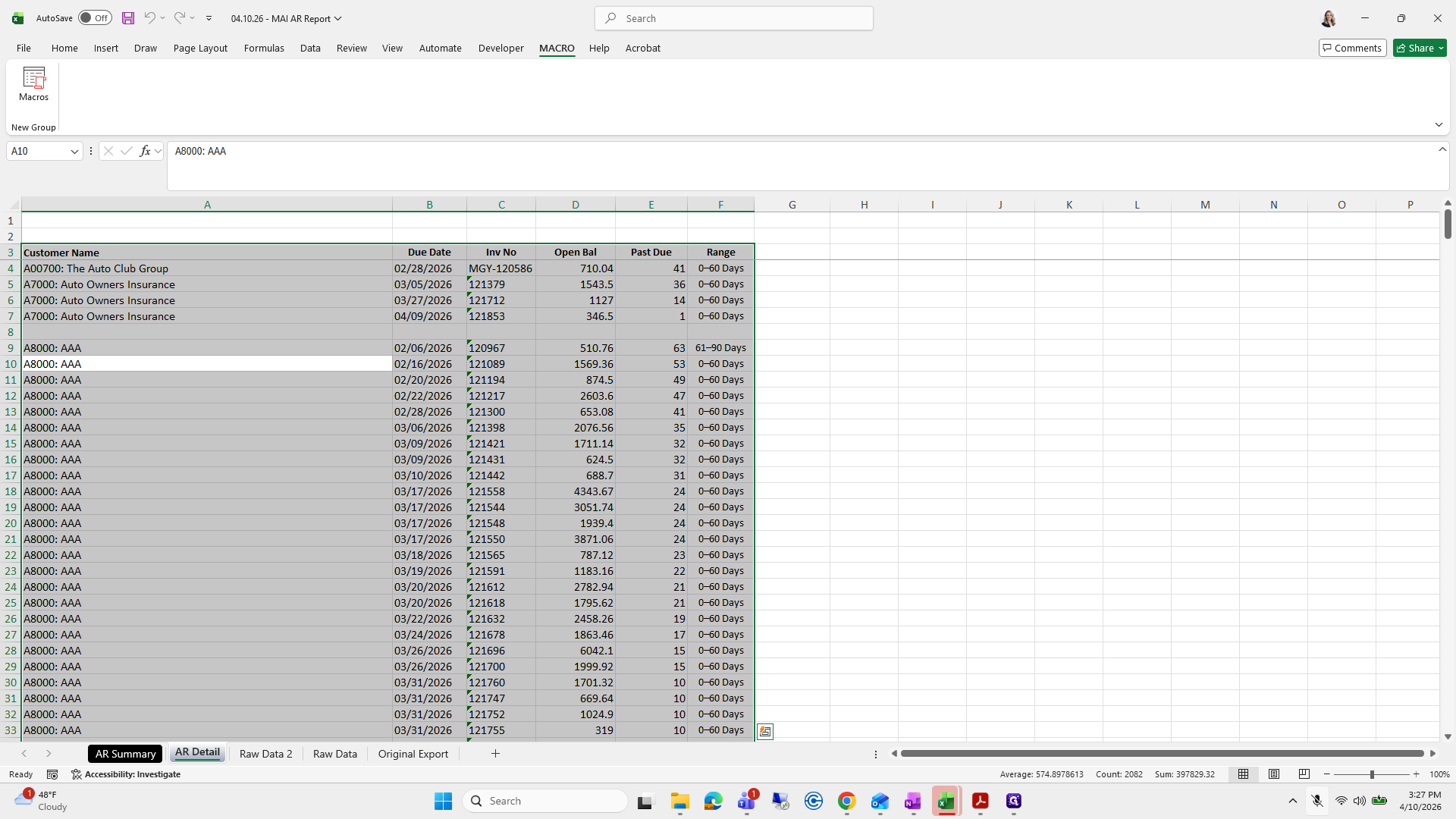
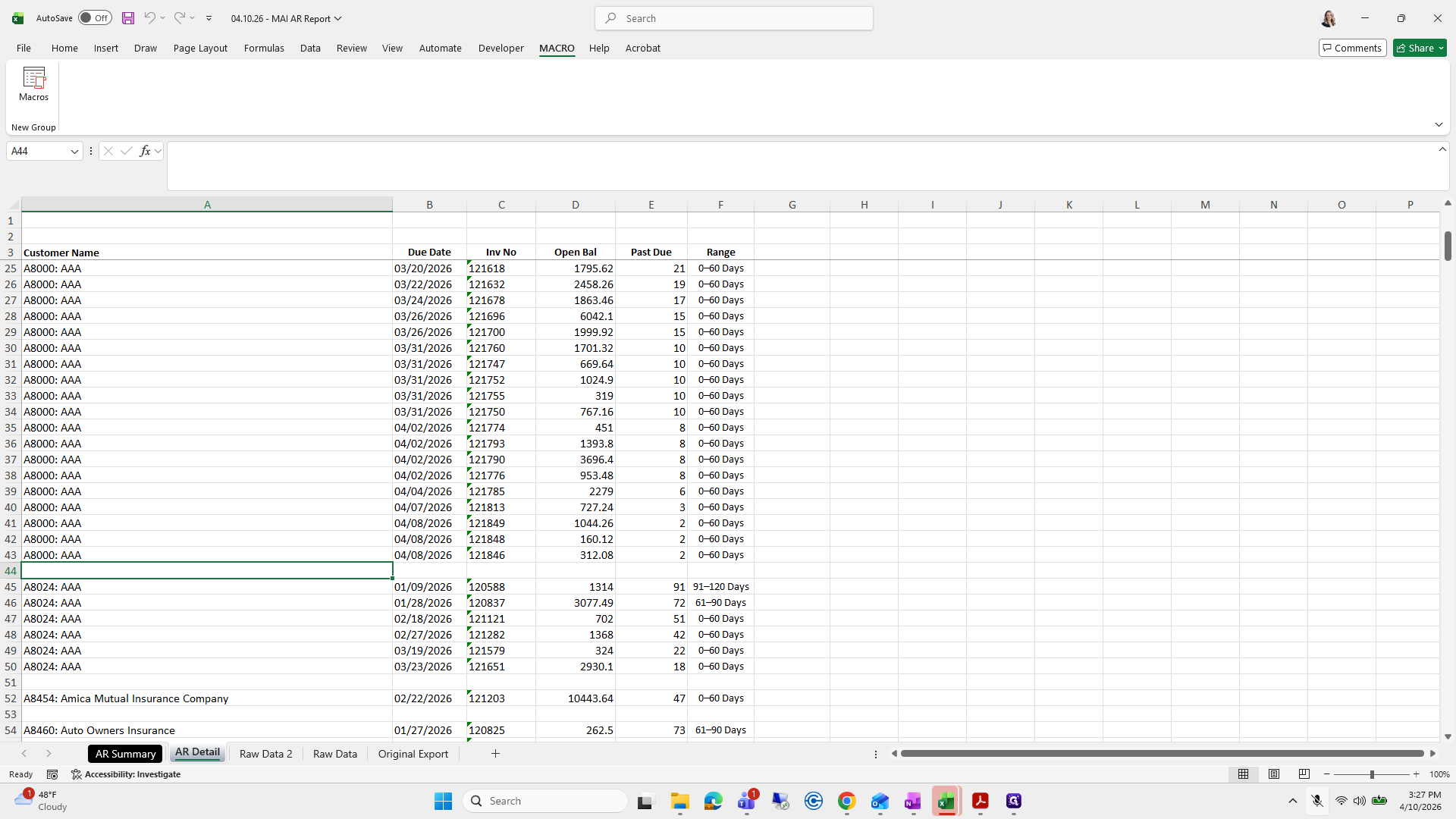
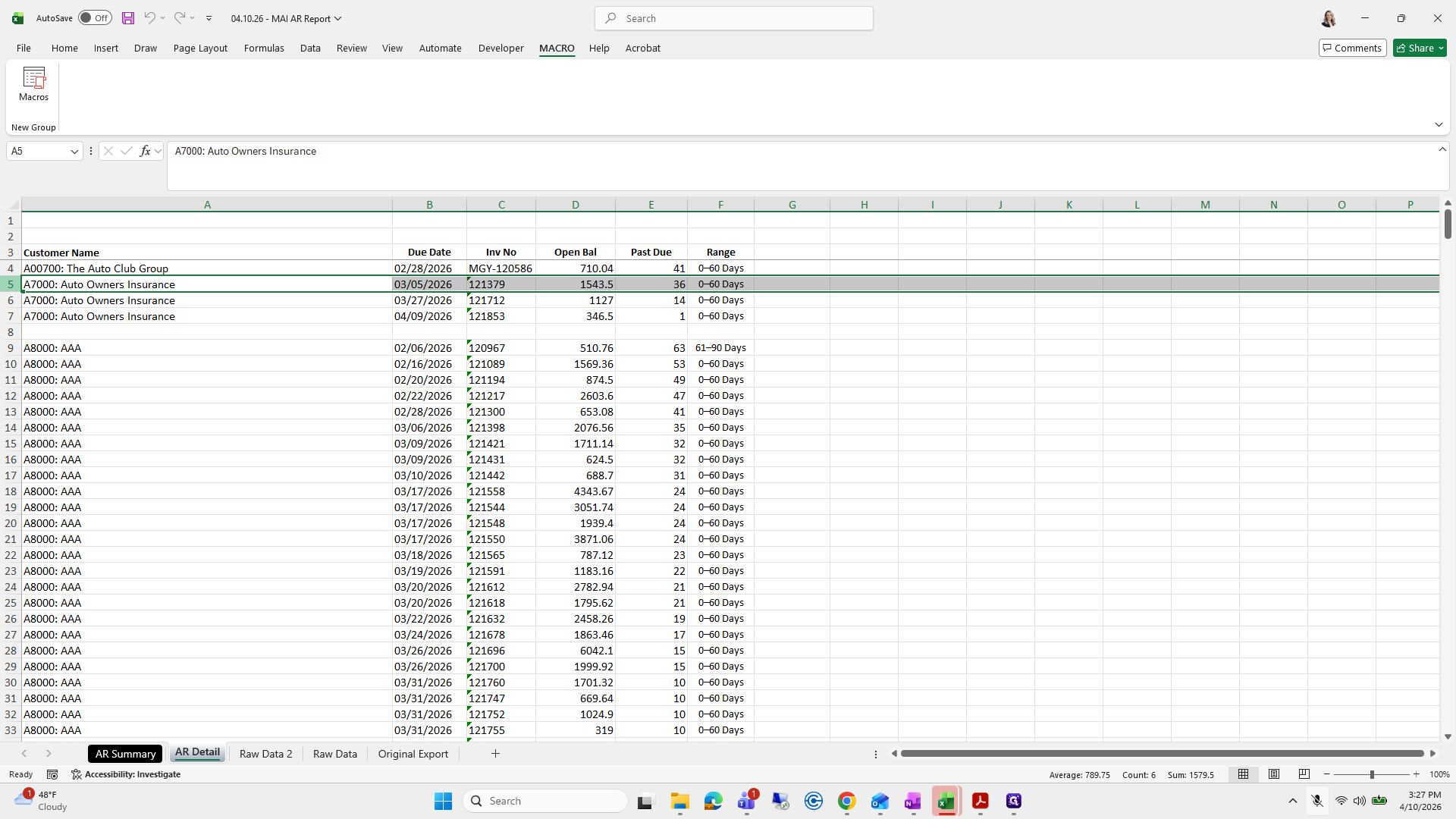
Insert a row between each customer change.
313
Click on "MACRO"
Step #313: Click on "MACRO"
314
Click here
Step #314: Click here
315
Click on "Run"
Step #315: Click on "Run"

I just deleted that.

316
Click here
Step #316: Click here
317
Drag here
Step #317: Drag here

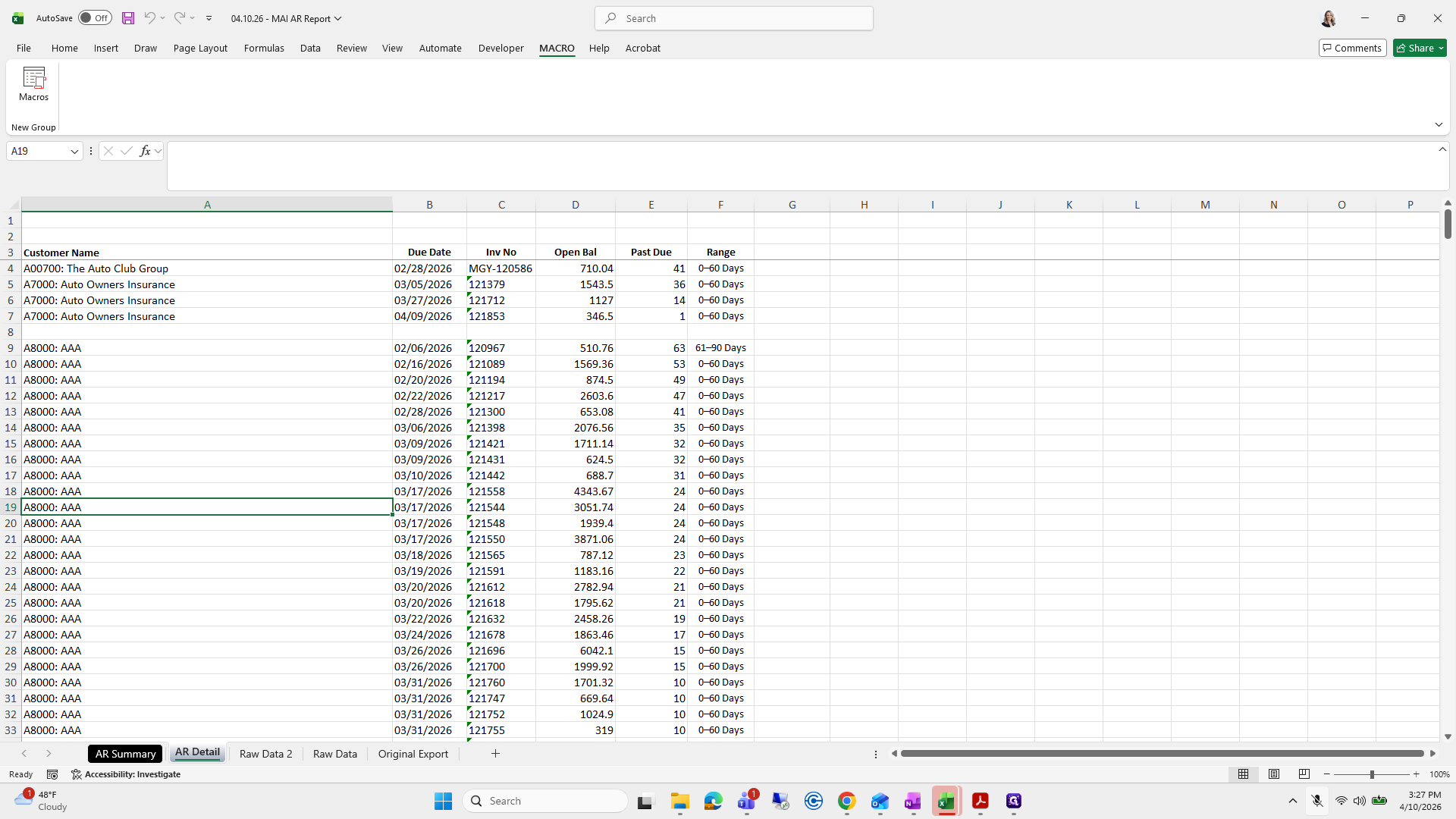
If you want to skip formatting, you can do so now to save time and make things easier.
318
Click here
Step #318: Click here
319
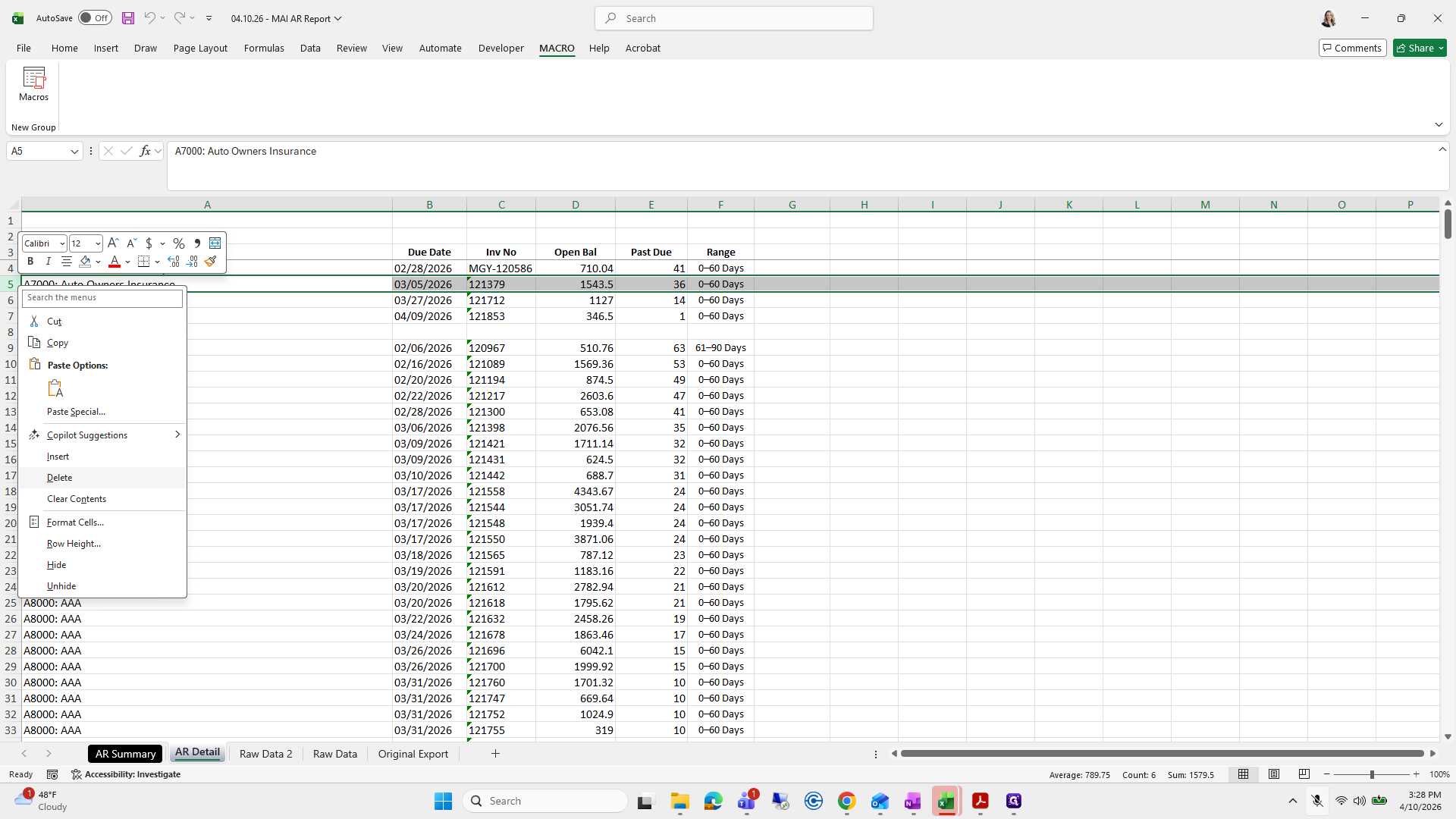
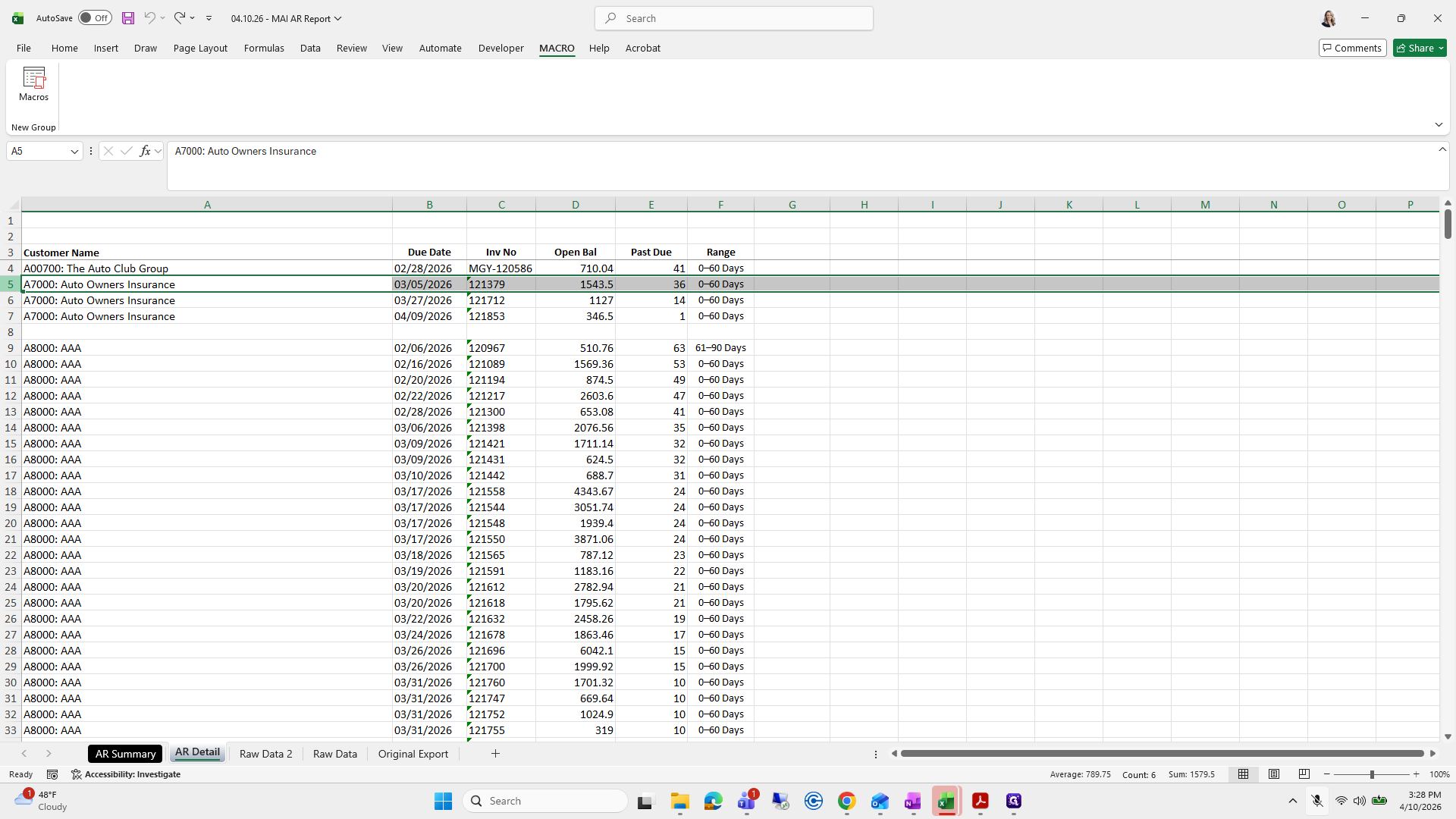
Right-click on "5 A7000"
Step #319: Right-click on "5 A7000"
320
Click here
Step #320: Click here
321
Type "Ctrl + Z"
322
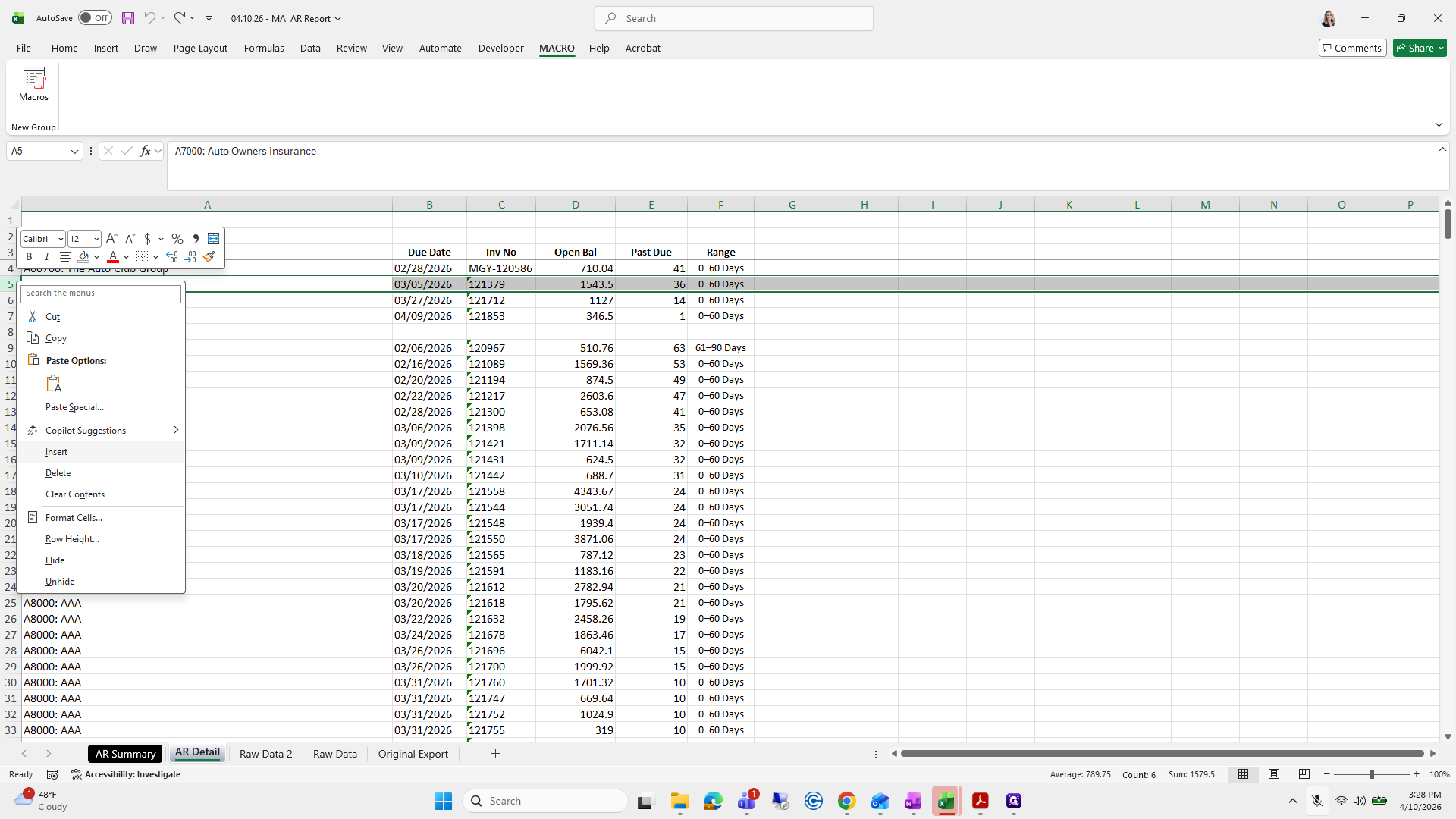
Right-click on "A00700"
Step #322: Right-click on "A00700"
323
Click on "Insert"
Step #323: Click on "Insert"
324
Drag here
Step #324: Drag here

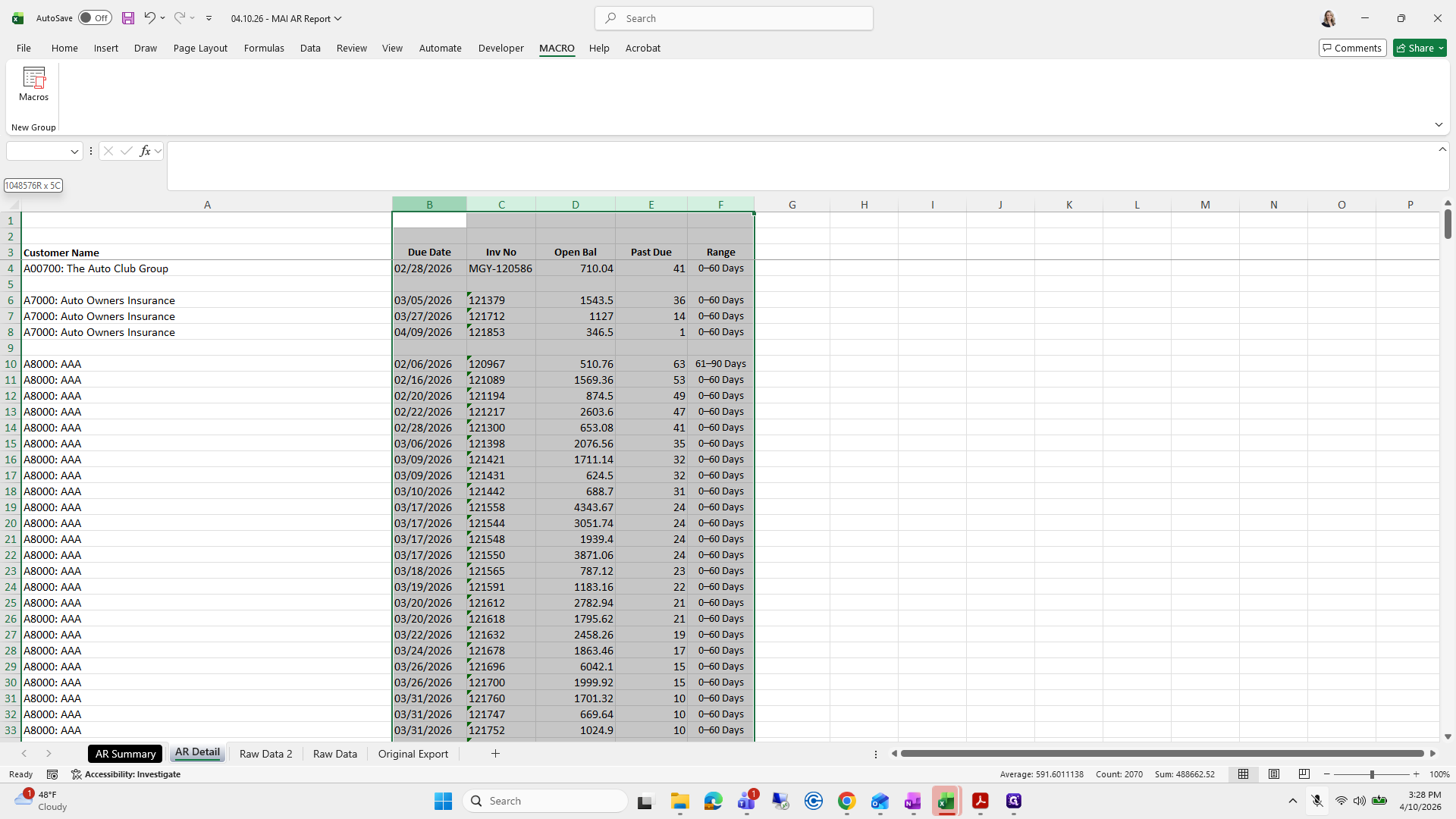
We want to grab it all.

325
Drag "B"
Step #325: Drag "B"
326
Click here
Step #326: Click here
327
Drag here
Step #327: Drag here
328
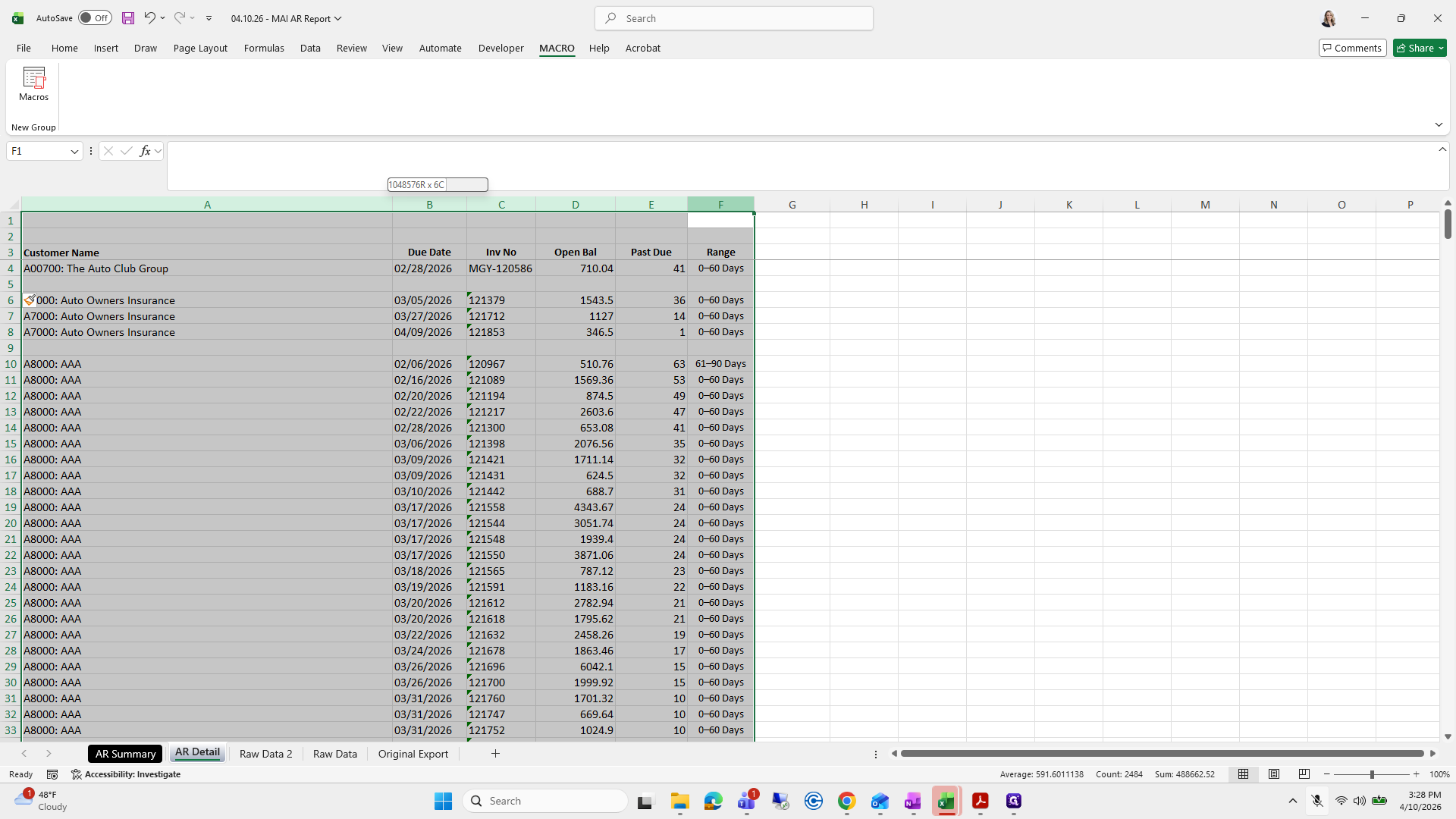
Click on "1048576R x 6C B"
Step #328: Click on "1048576R x 6C B"
329
Click here
Step #329: Click here
330
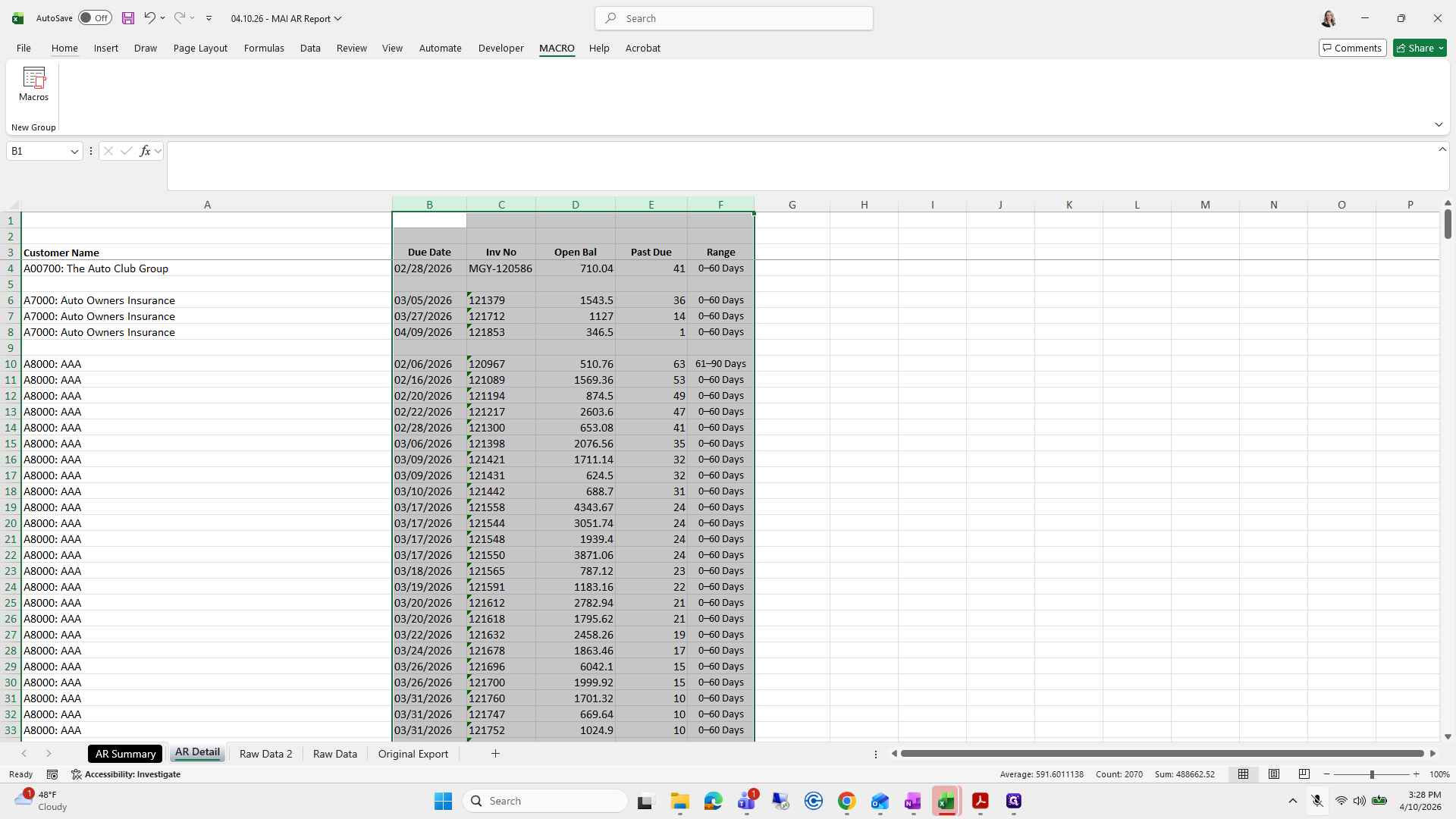
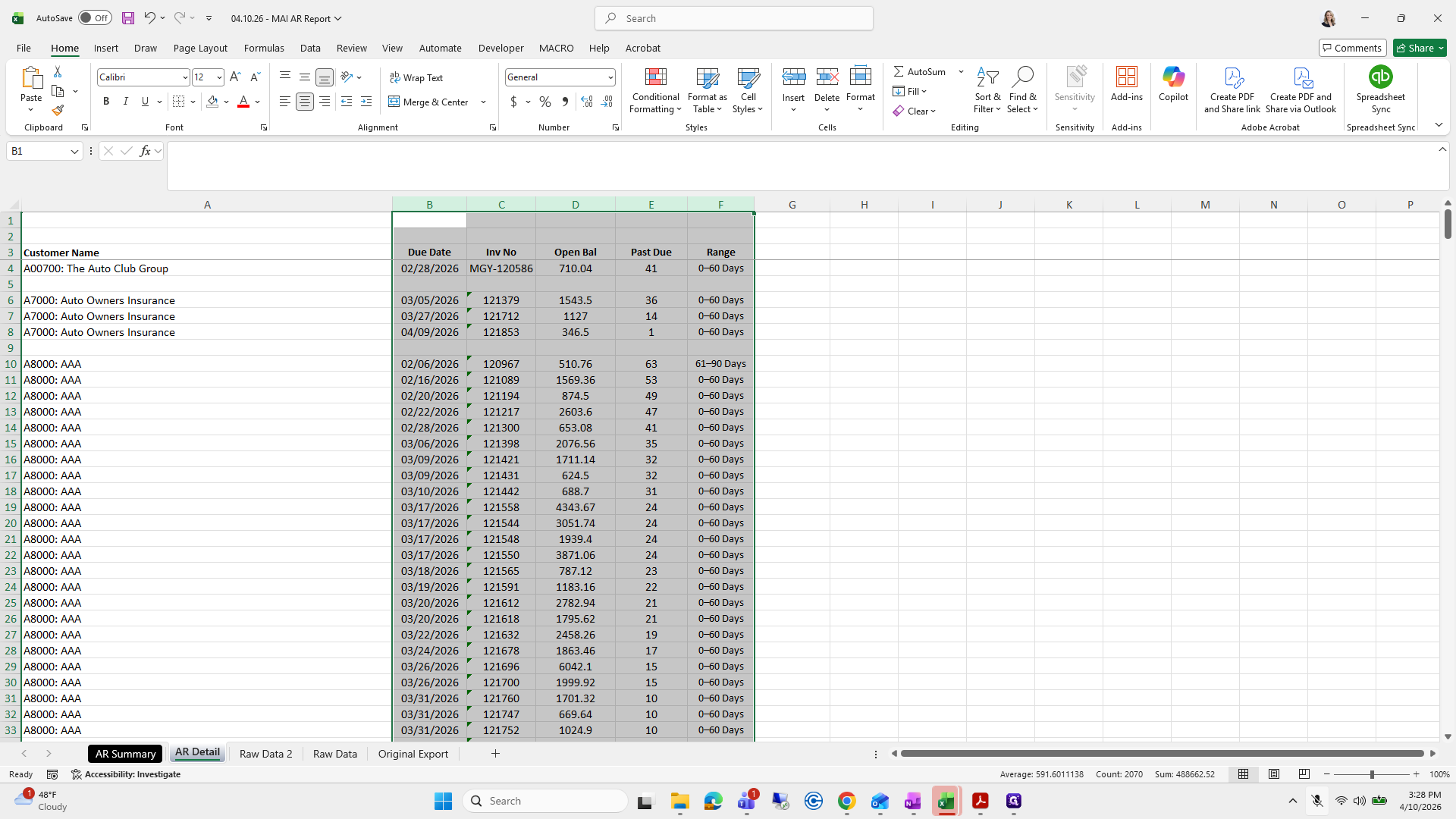
Click on "Home"
Step #330: Click on "Home"

What do I usually do?

331
Double-click here
Step #331: Double-click here
332
Click on "D"
Step #332: Click on "D"
333
Click on "$ % 9"
Step #333: Click on "$ % 9"
334
Click here
Step #334: Click here

It's okay.

335
Drag here
Step #335: Drag here

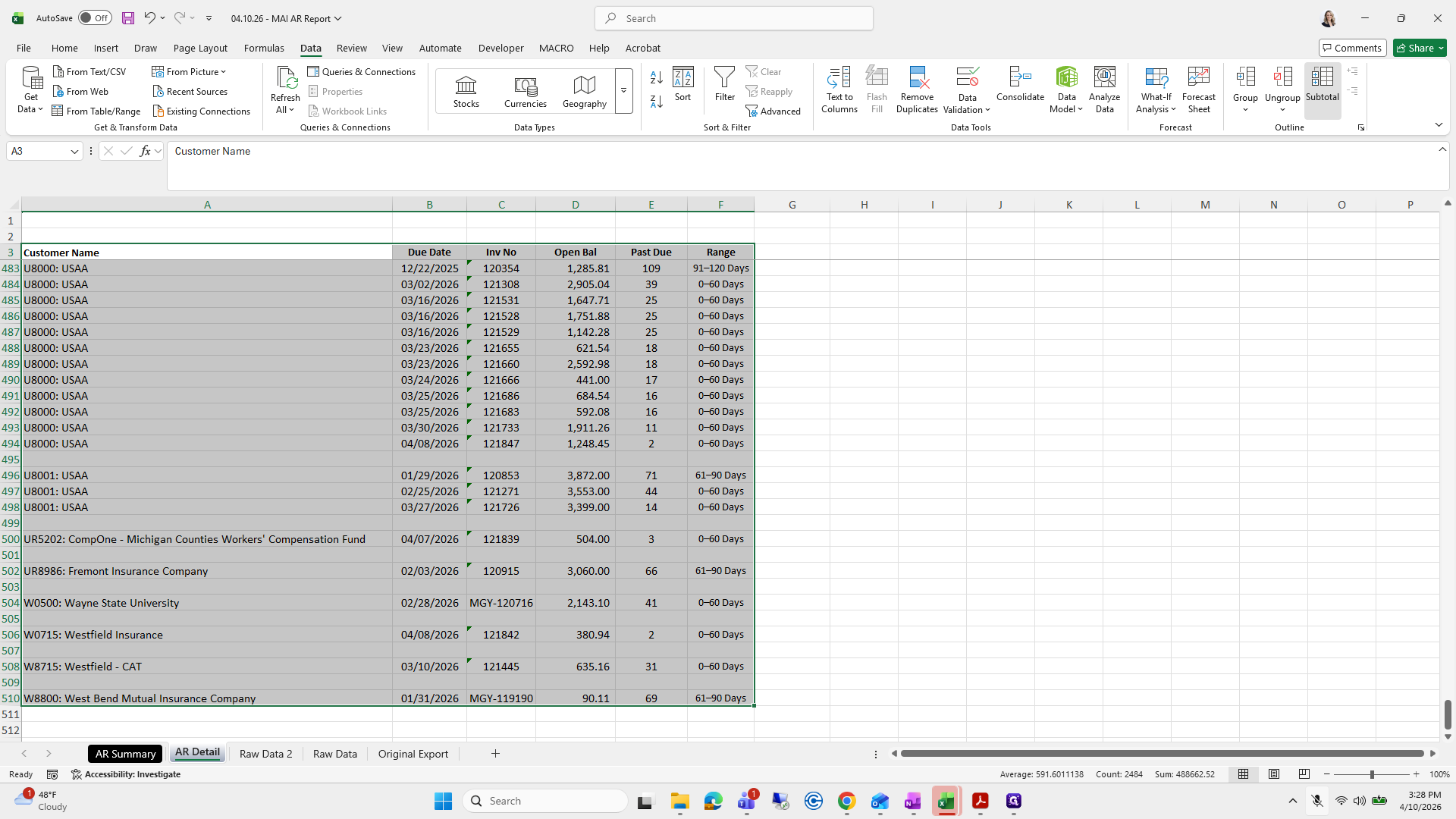
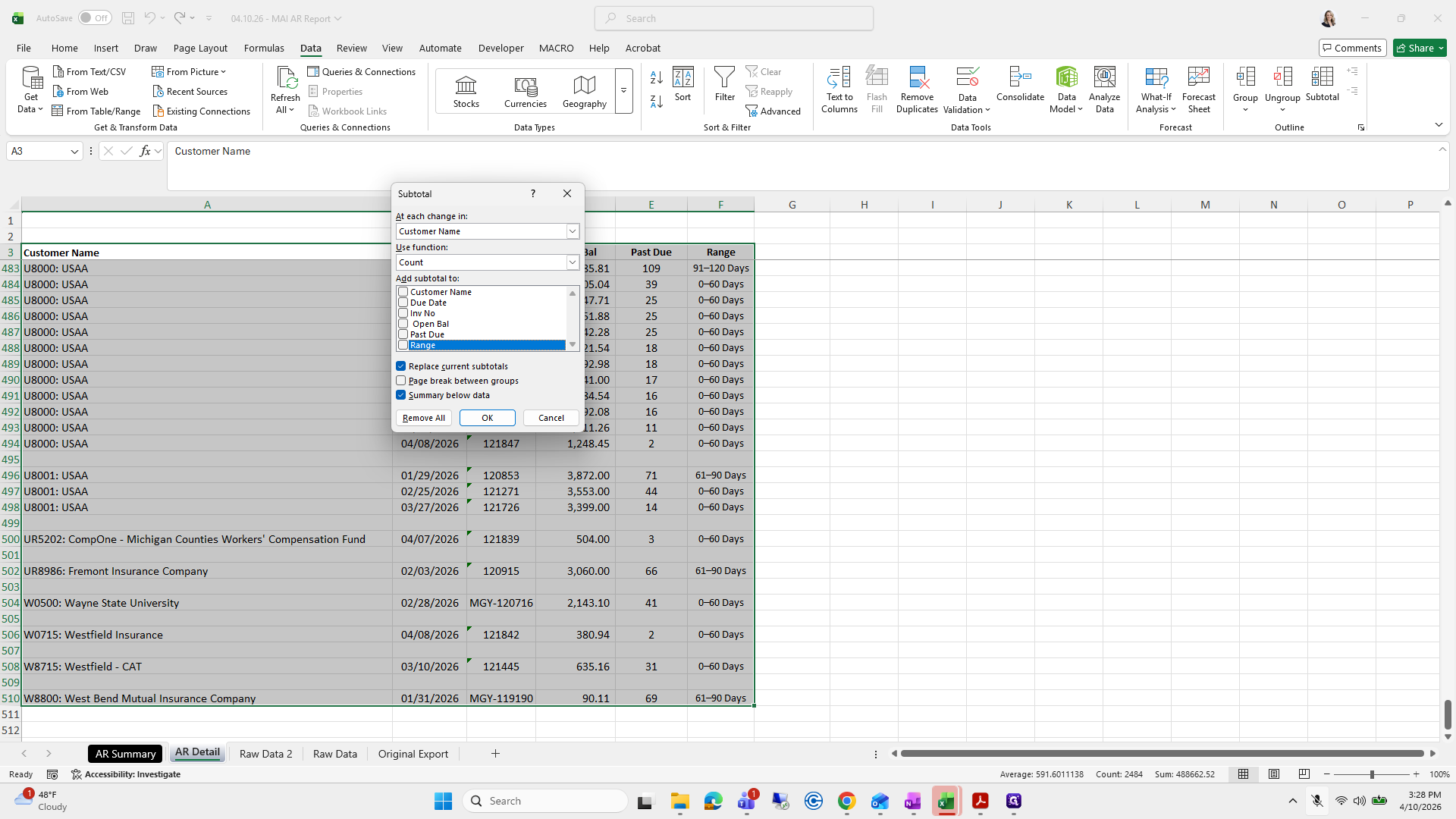
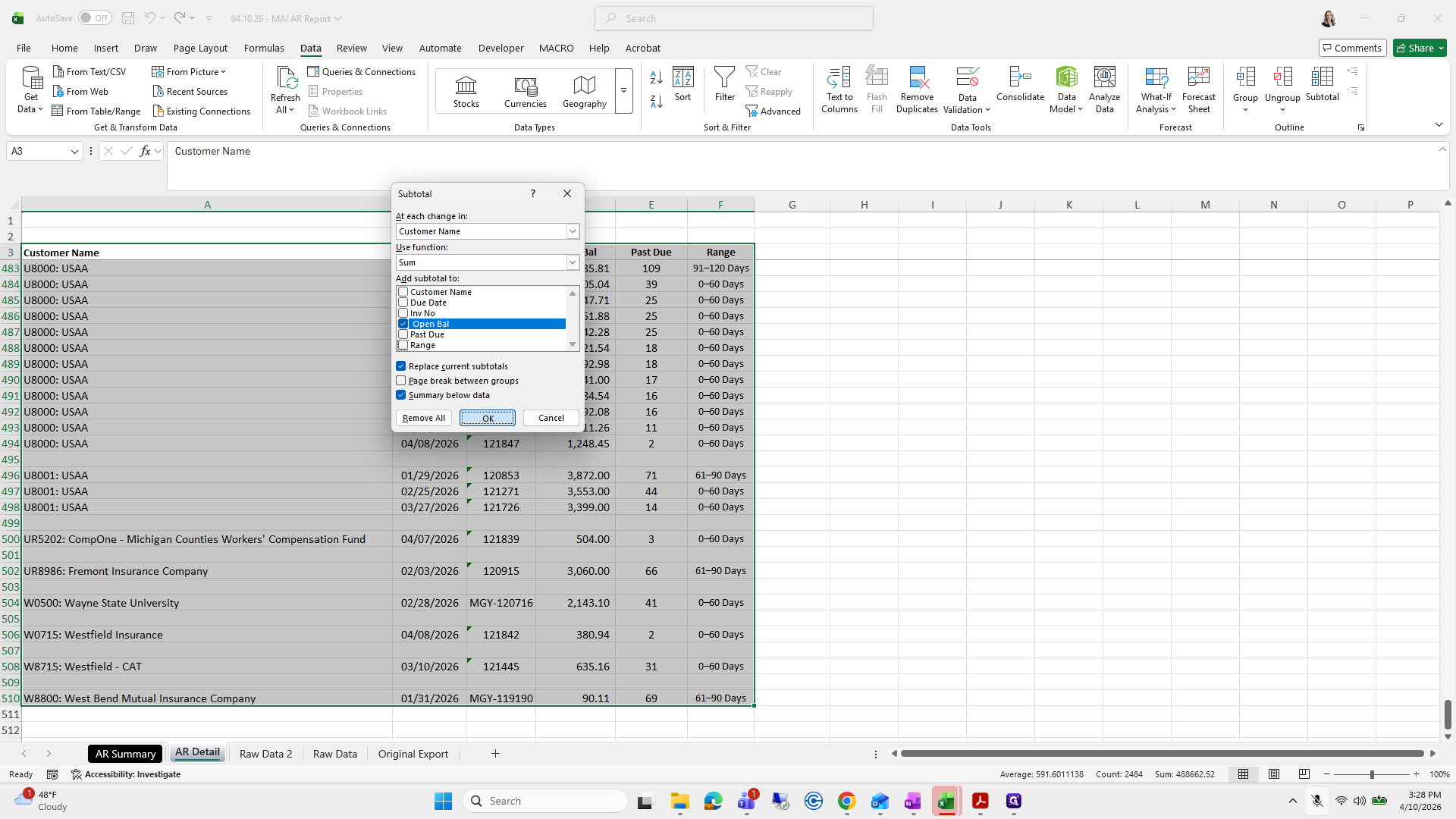
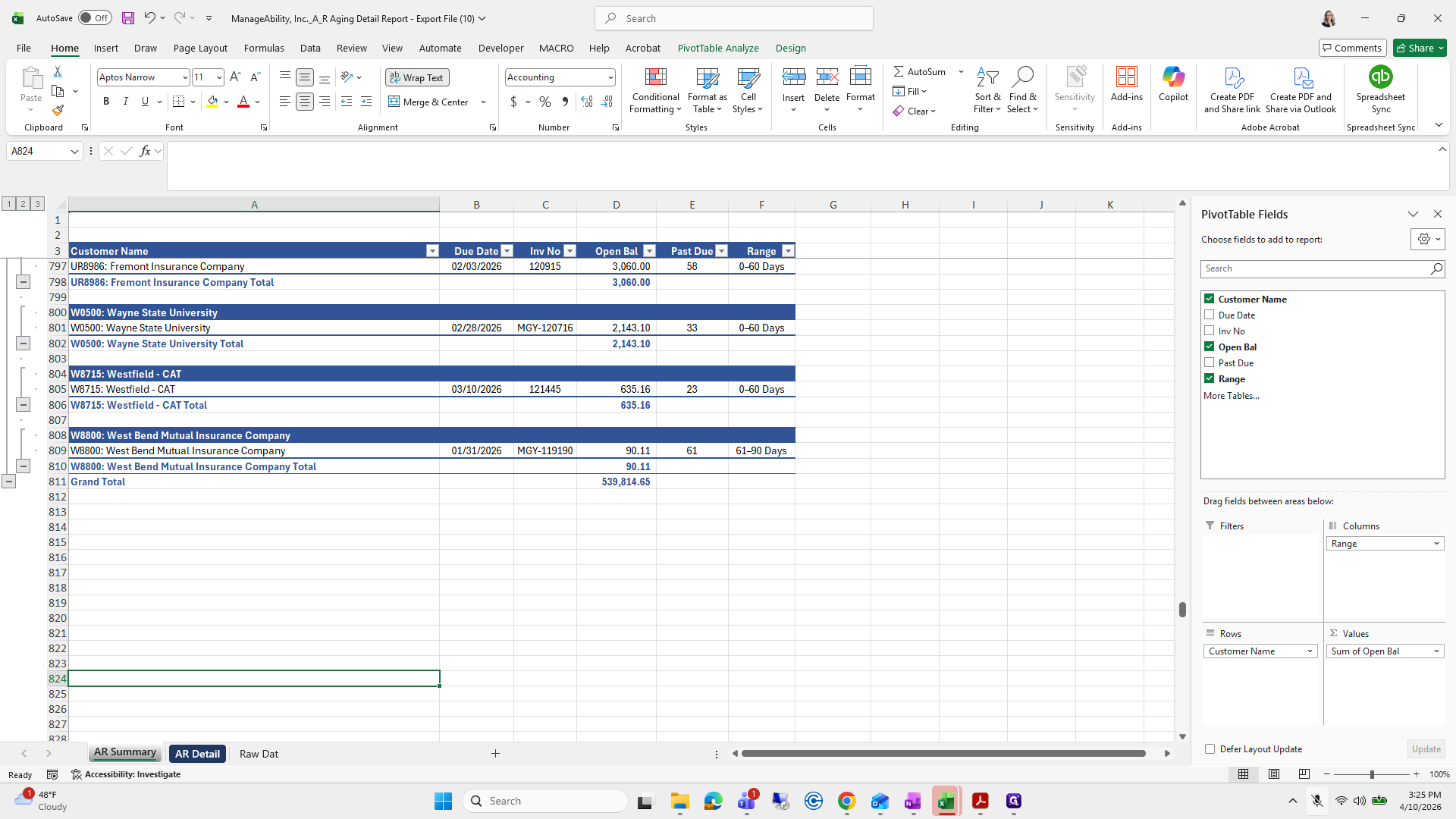
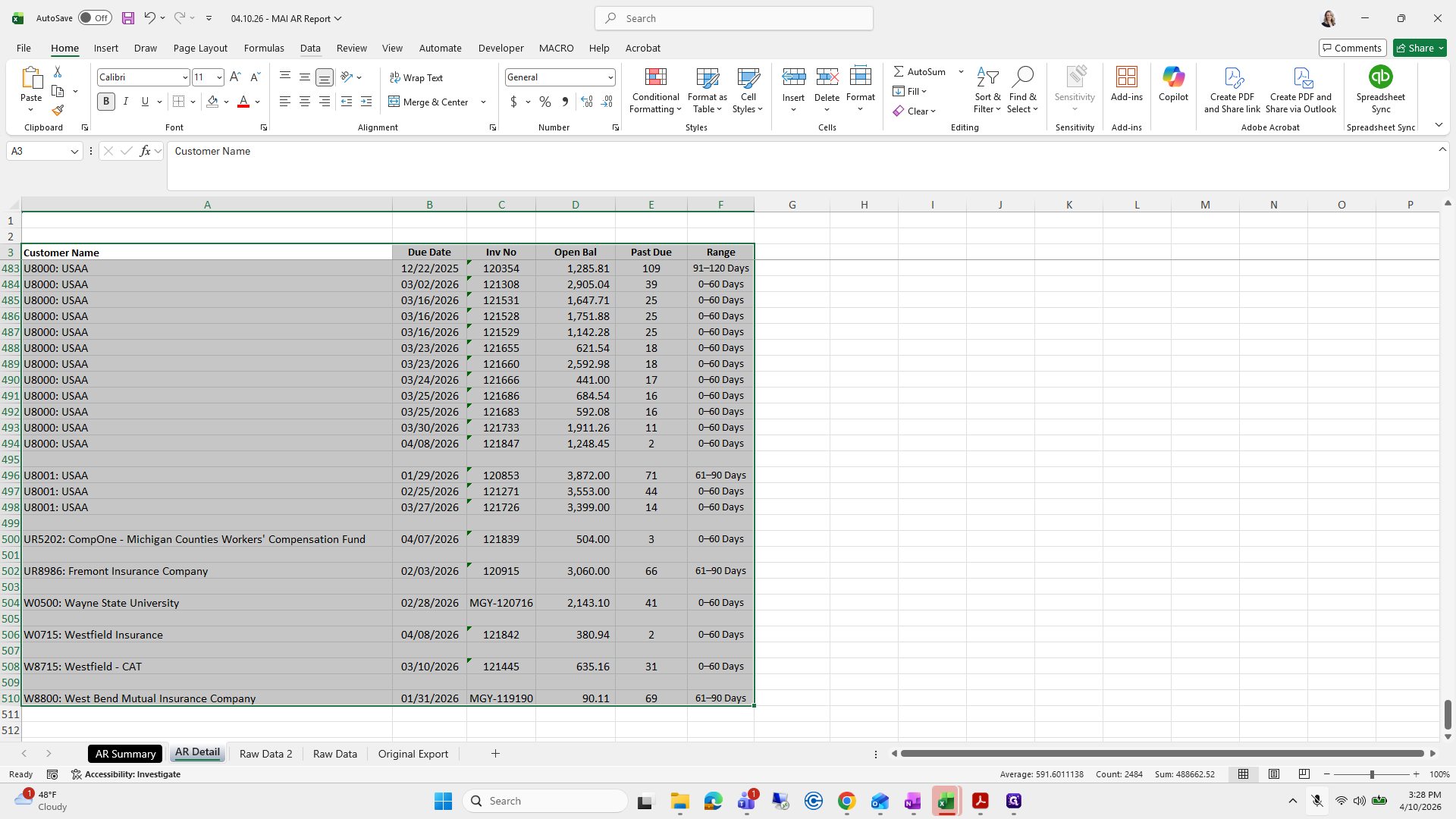
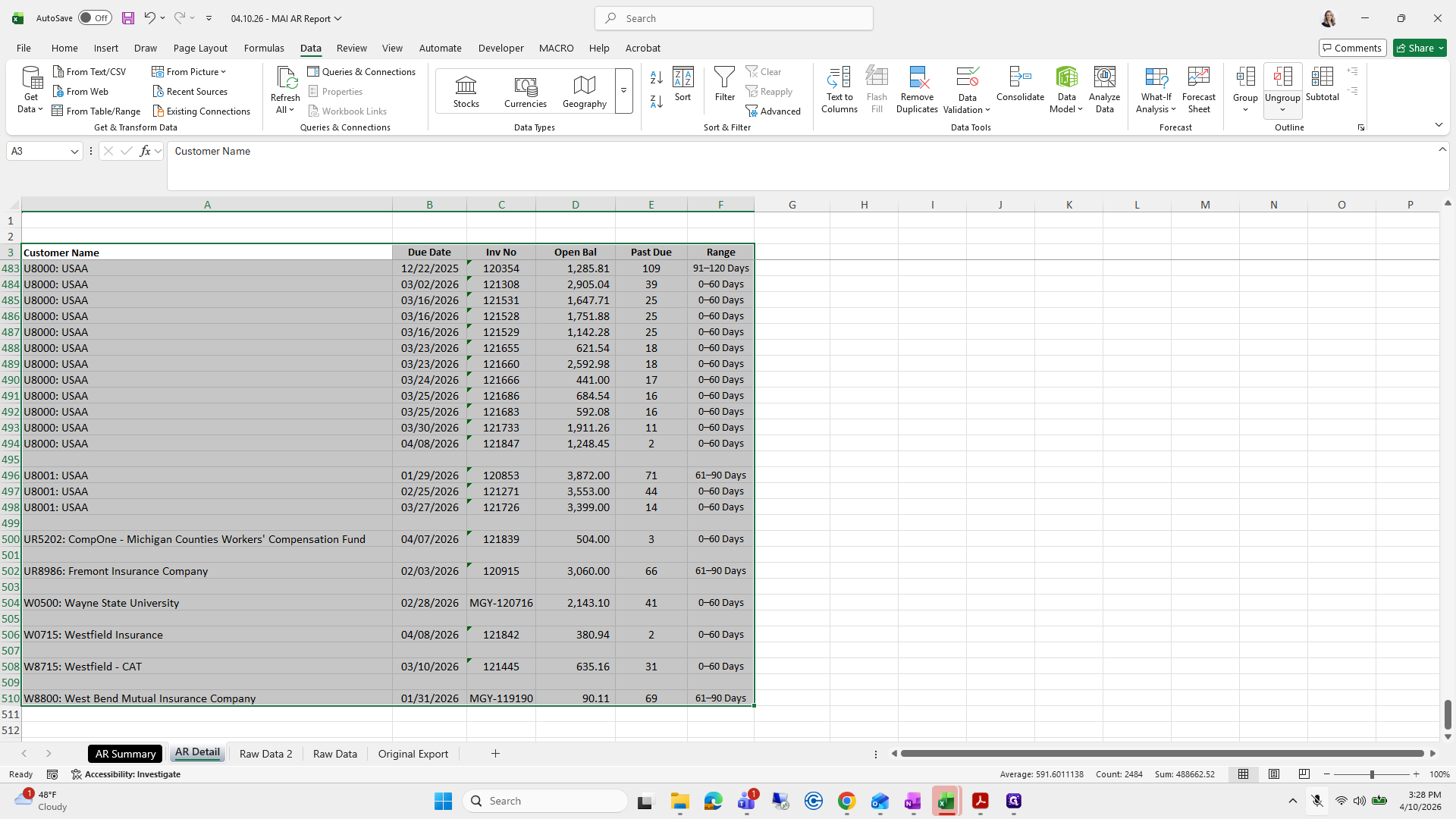
Next, go to Data and select Subtotal. You can skip the macro I just used if you prefer. Since we're not doing formatting on this one.
336
Click on "Data"
Step #336: Click on "Data"
337
Click on "Ungroup"
Step #337: Click on "Ungroup"
338
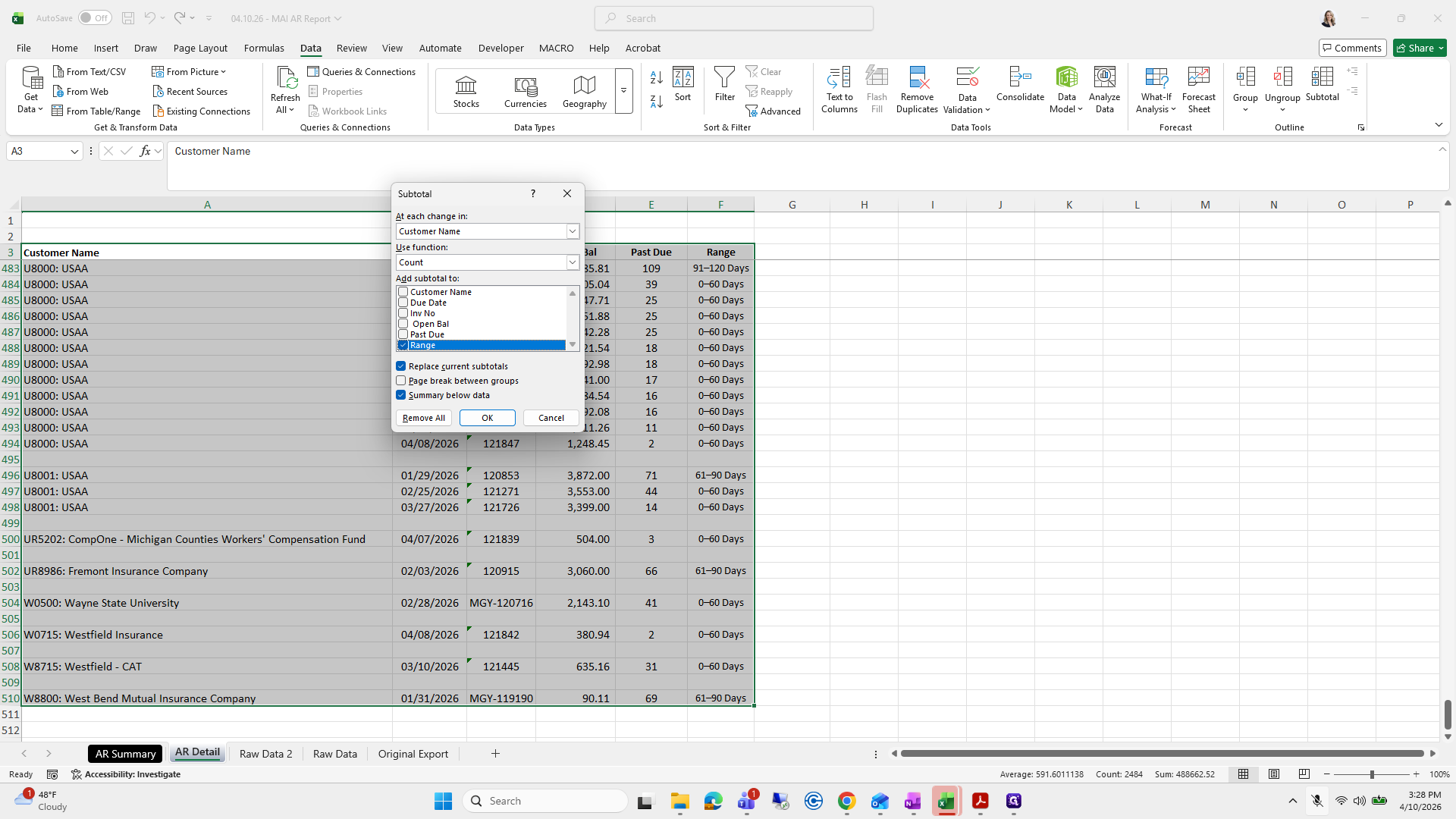
Click on "Subtotal"
Step #338: Click on "Subtotal"

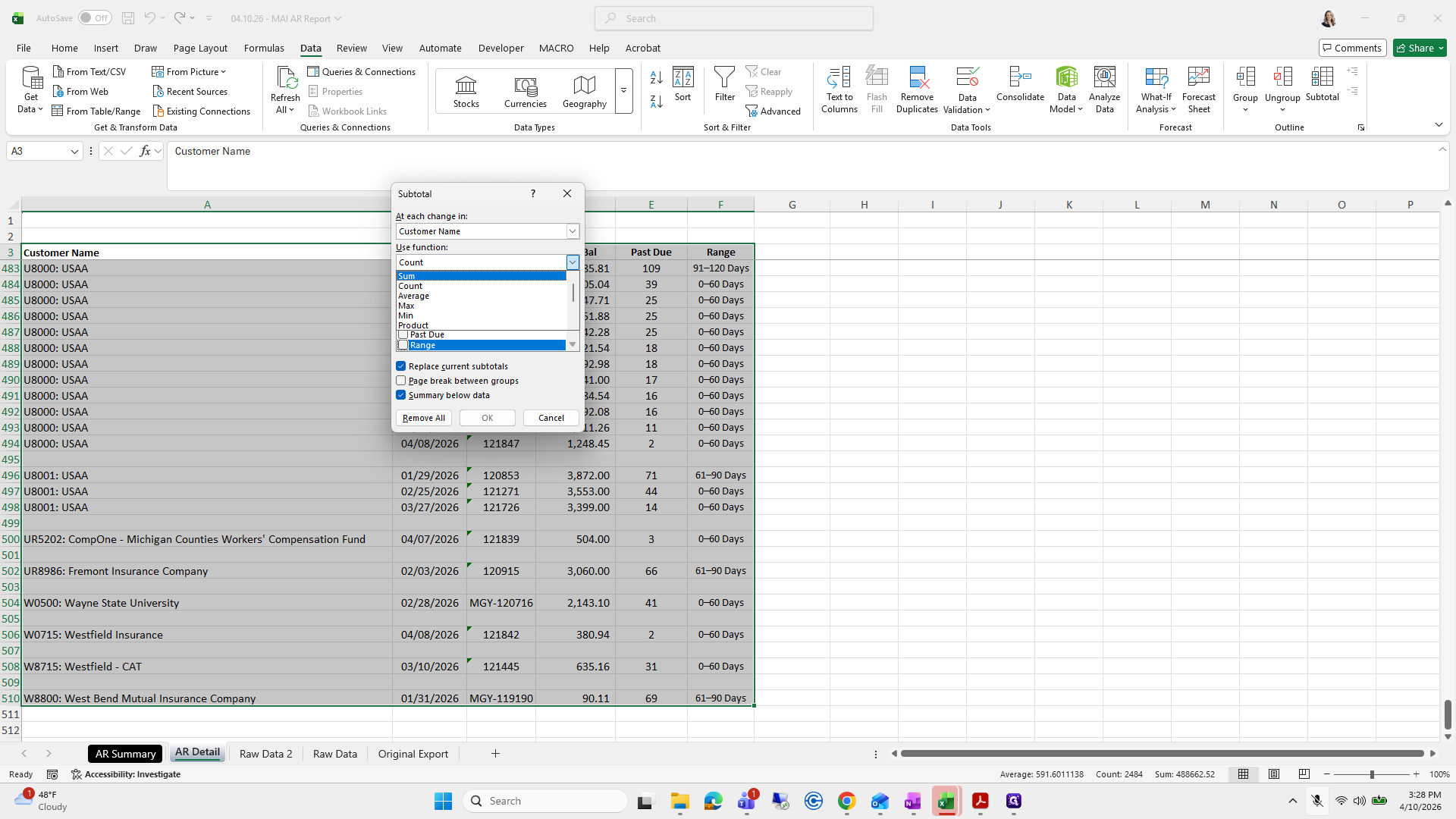
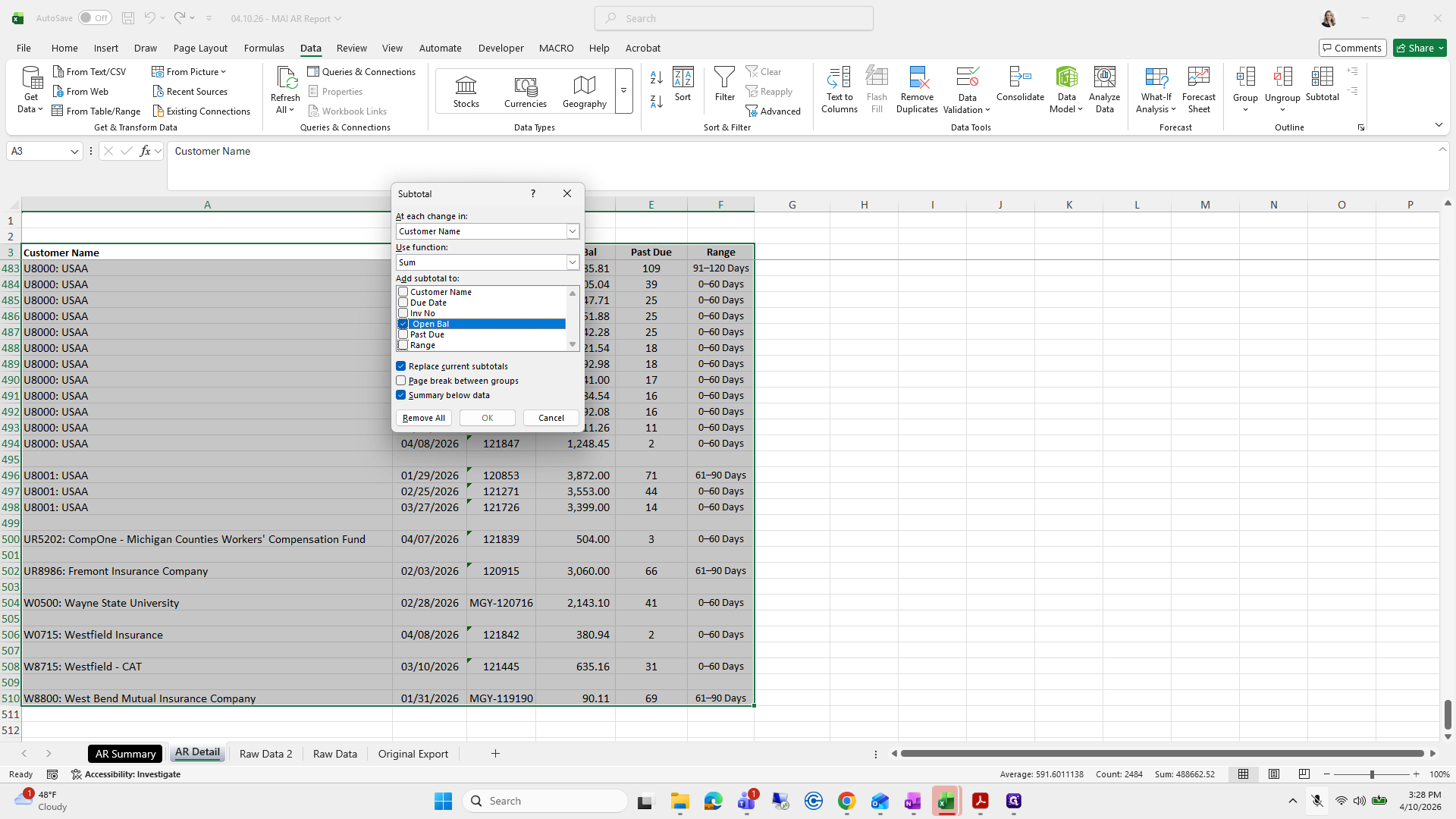
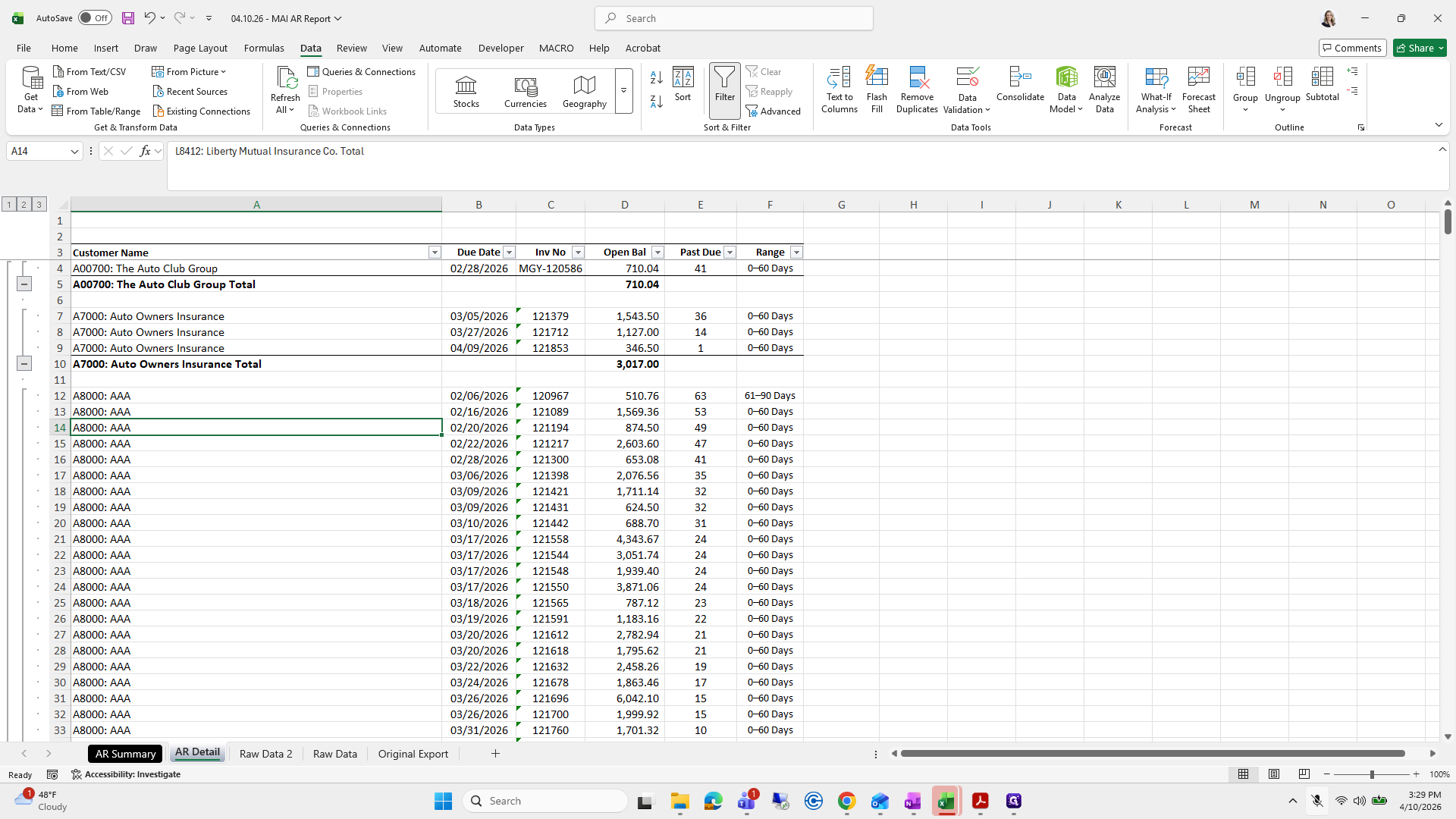
We will change the customer name sum. Select open balance and press OK.
339
Click on "Past Due"
Step #339: Click on "Past Due"
340
Click on "Range"
Step #340: Click on "Range"

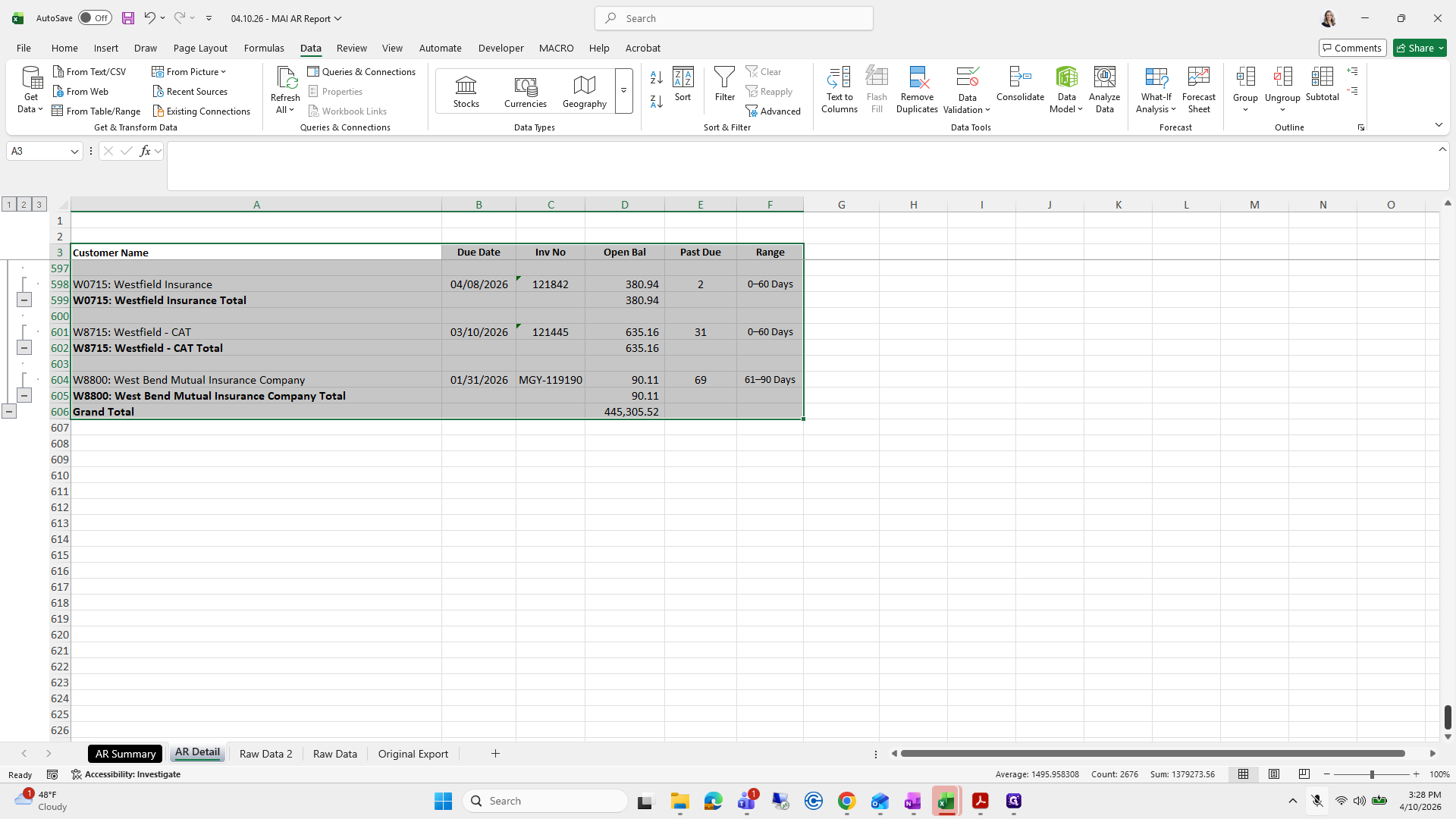
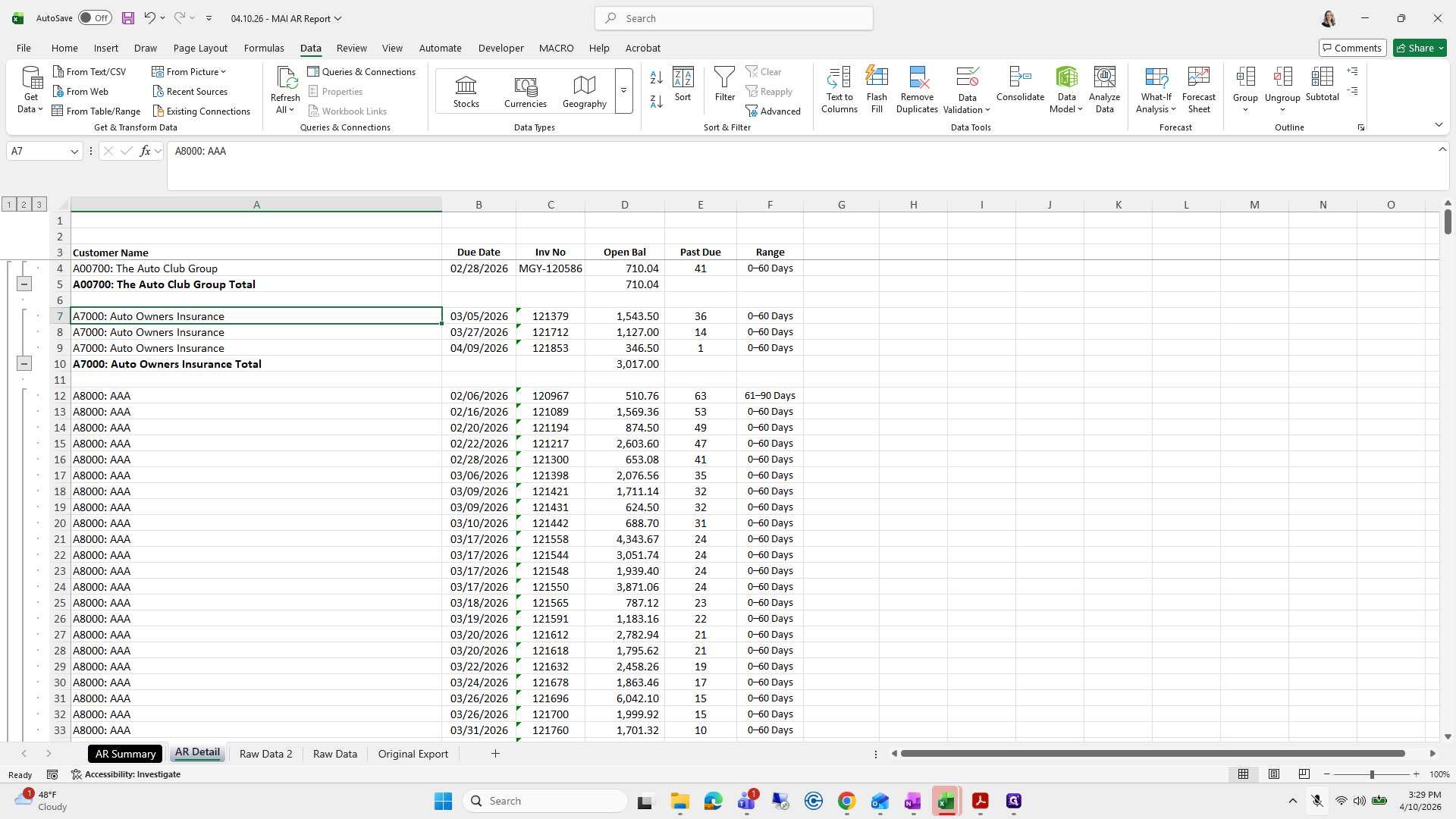
It gives you the total at the end of each customer transaction.
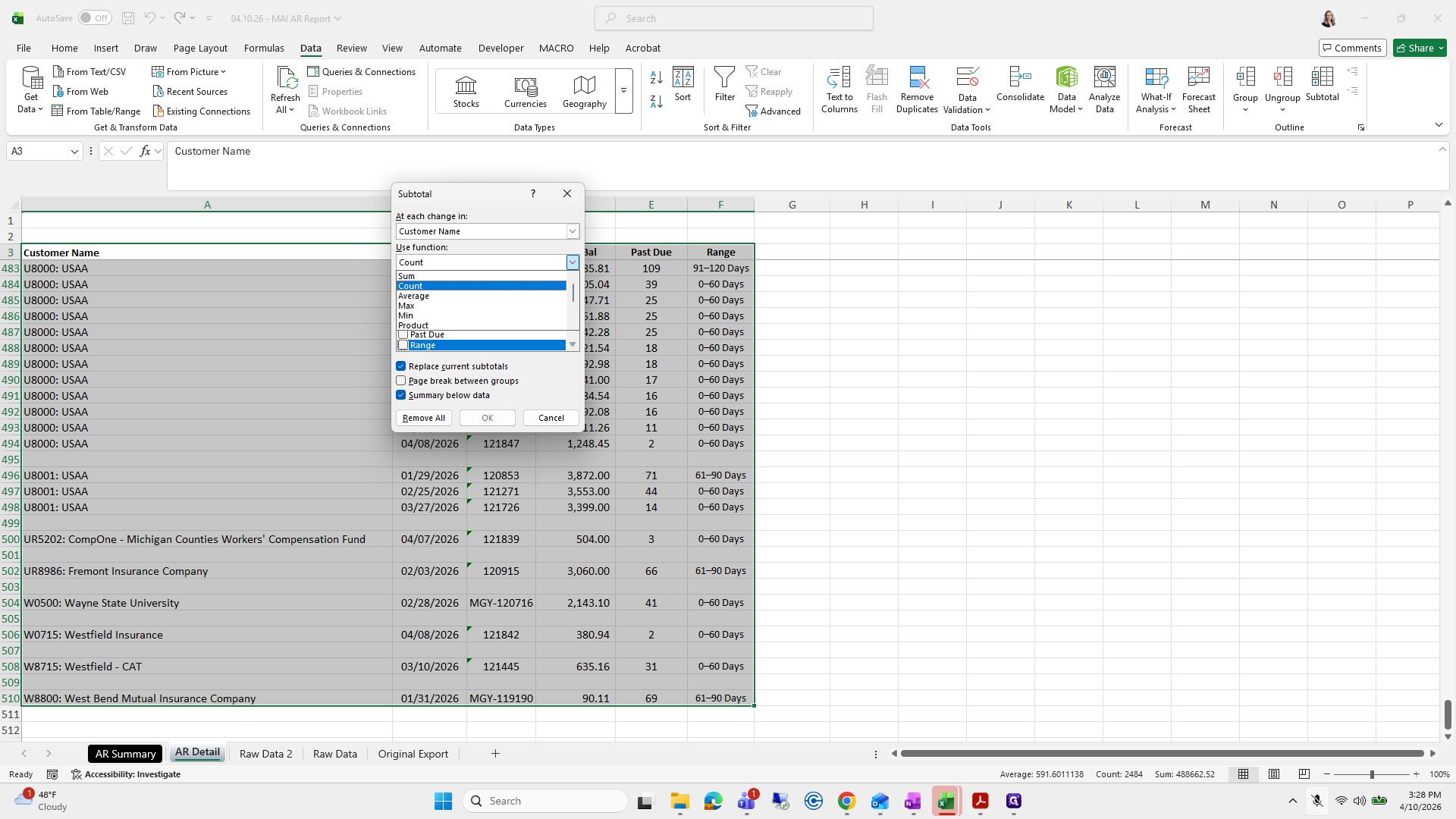
341
Click here
Step #341: Click here
342
Click here
Step #342: Click here

If you want...

343
Click on "Inv No"
Step #343: Click on "Inv No"
344
Click on "OK"
Step #344: Click on "OK"
345
Drag here
Step #345: Drag here

Go back. Did I just undo it? I did.
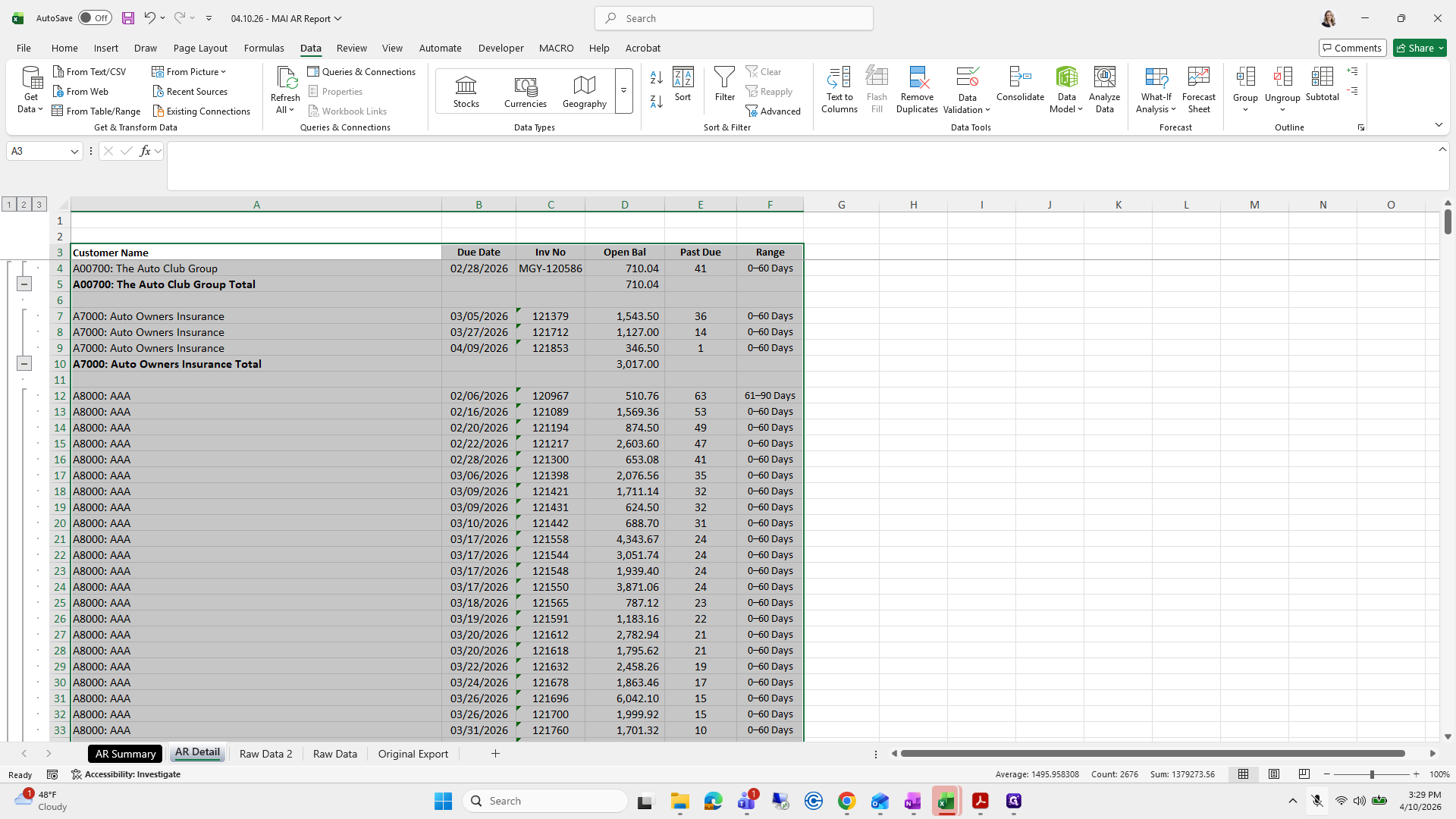
346
Click here
Step #346: Click here

Xfinity, why are you calling me?

347
Click here
Step #347: Click here

Oops.

348
Type "Ctrl + A"
349
Type "Ctrl + Z"

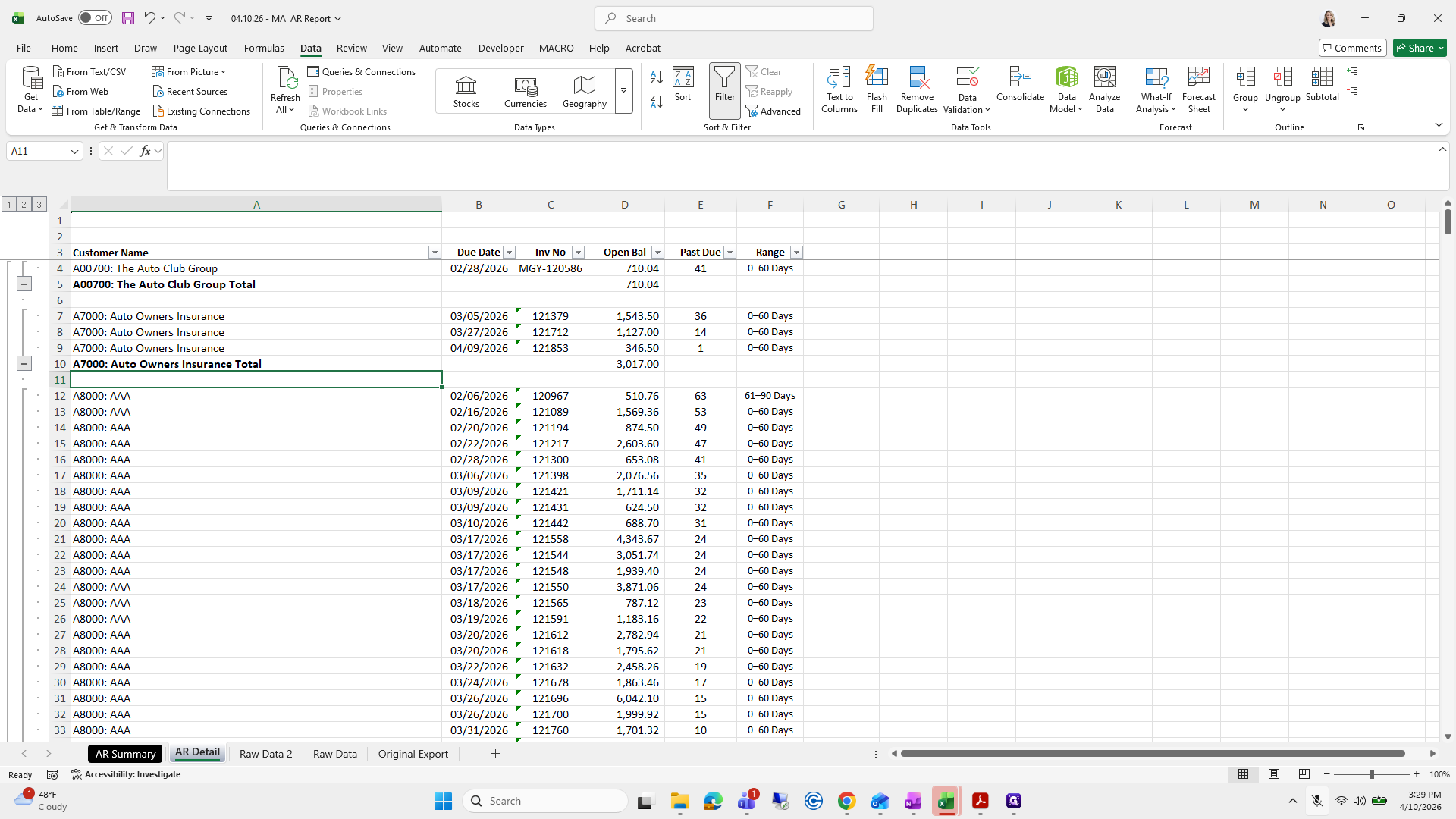
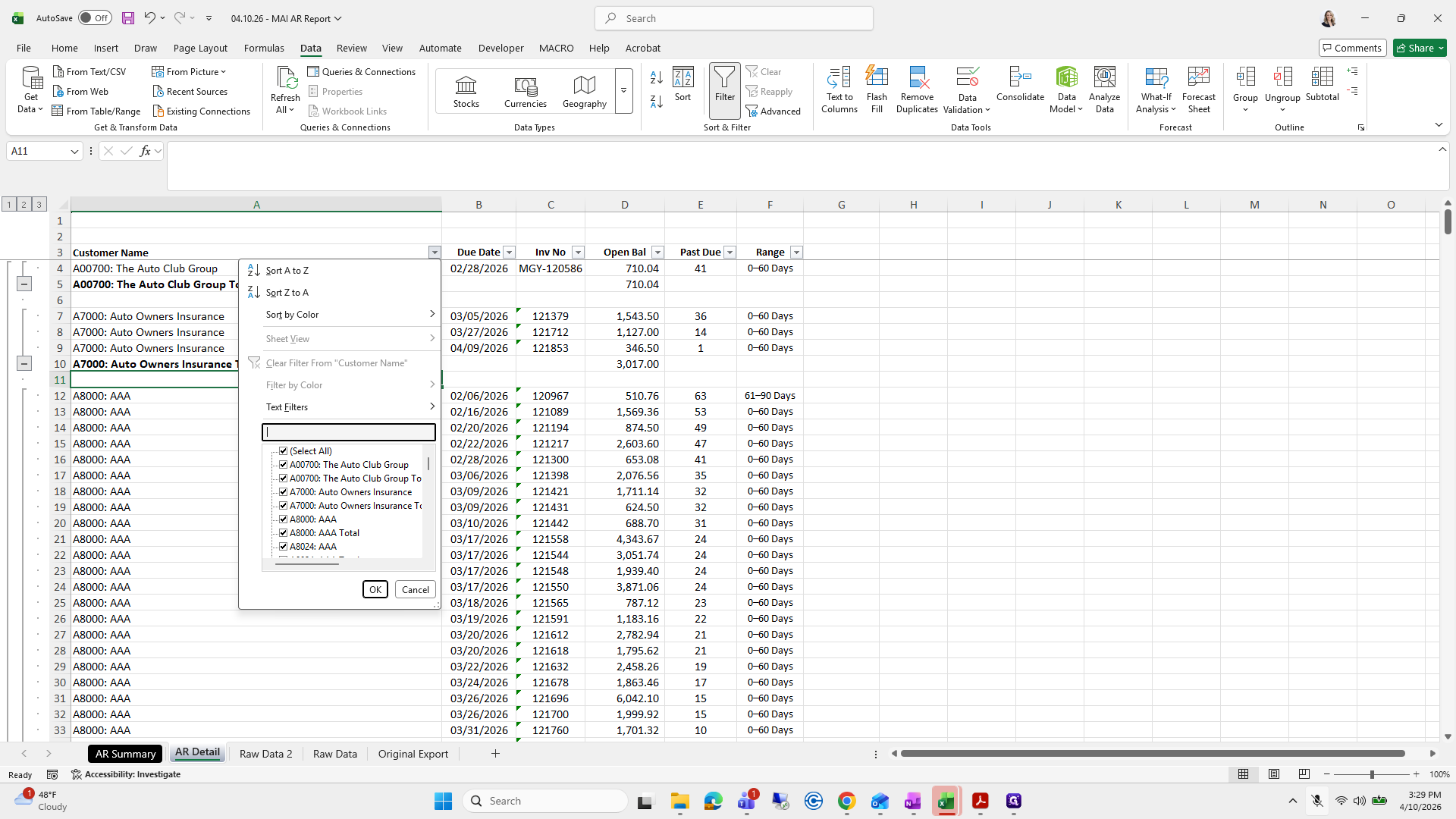
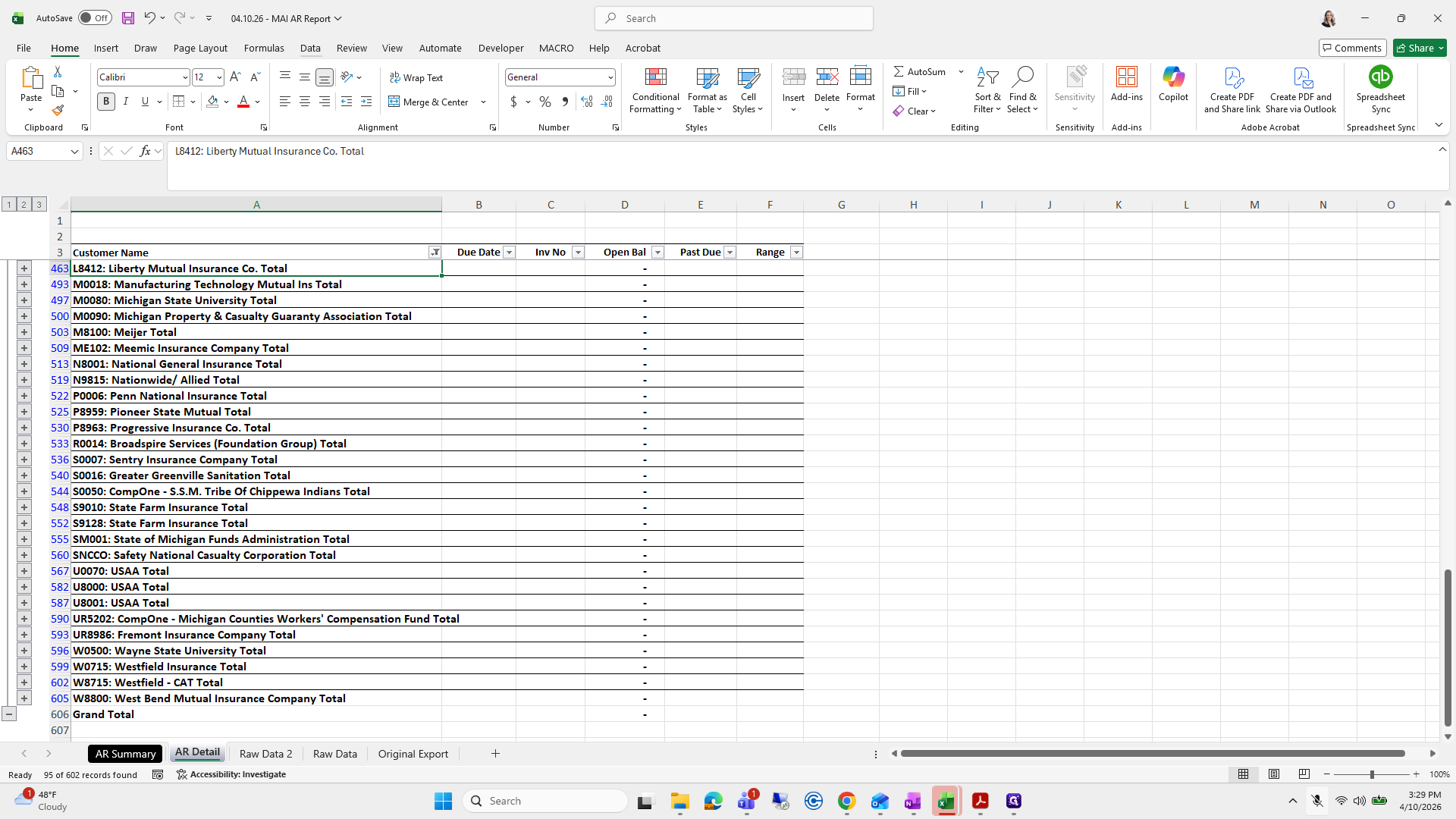
Okay. I put it back, then quickly filter by Total to make all these bold.
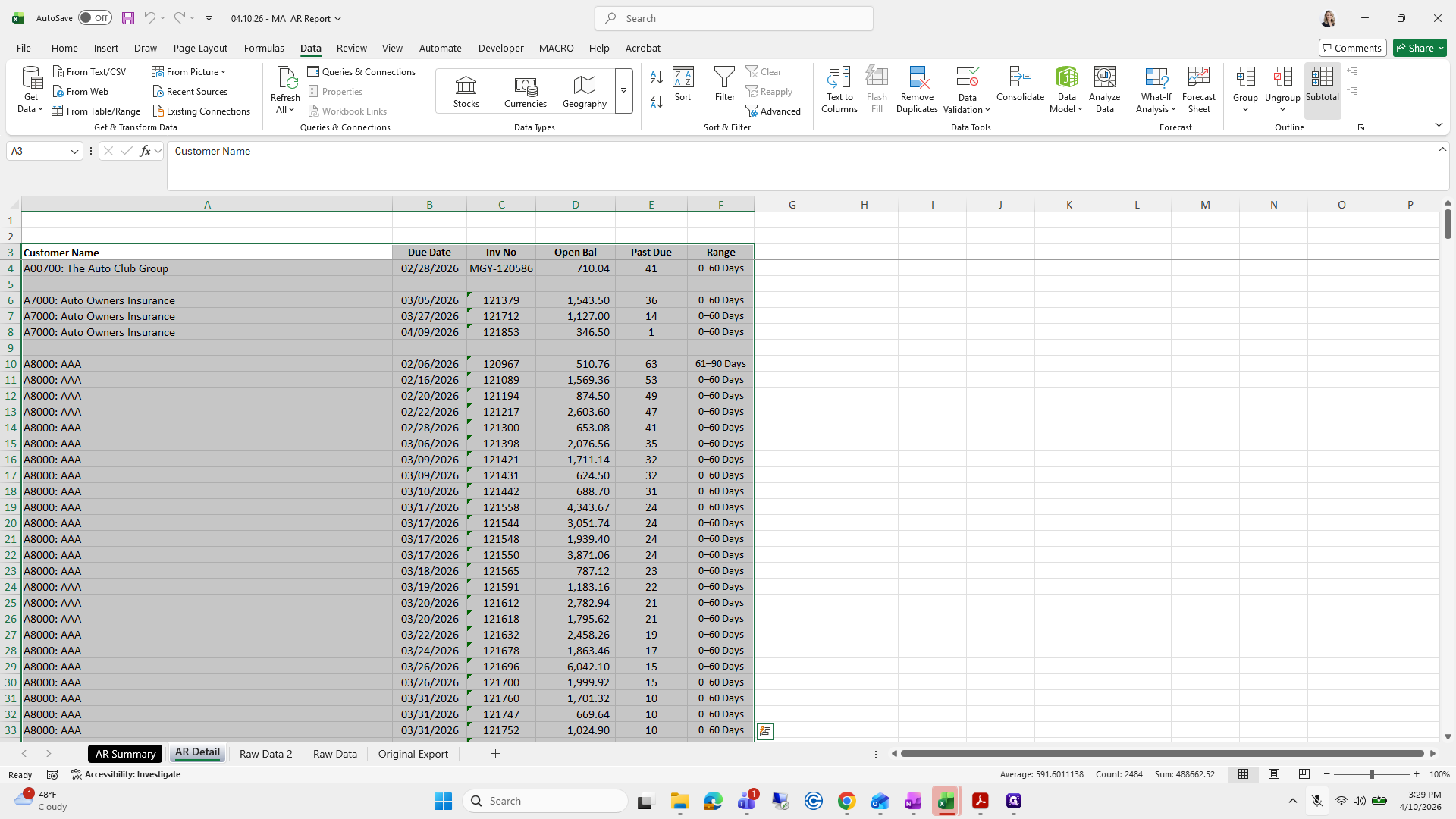
350
Click on "Subtotal"
Step #350: Click on "Subtotal"
351
Click on "121217"
Step #351: Click on "121217"

We'll do a quick line.

352
Click on "Filter Z ↓ Sort"
Step #352: Click on "Filter Z ↓ Sort"
353
Click here
Step #353: Click here
354
Click on "02/28/2026 MGY - 120586"
Step #354: Click on "02/28/2026 MGY - 120586"
355
Click here
Step #355: Click here
356
Type "total + Enter"

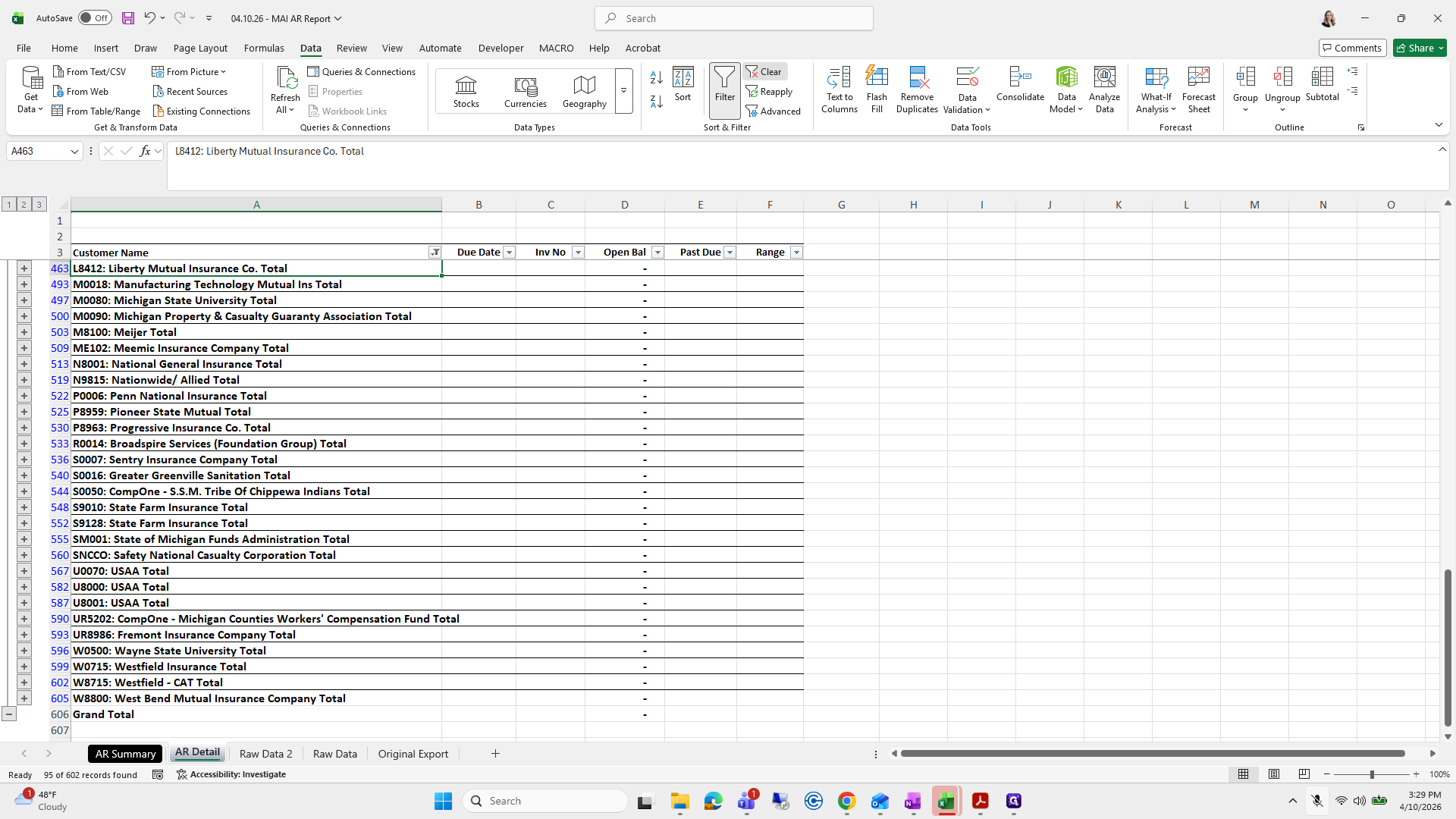
Then I'll select Data, Clear.

357
Drag here
Step #357: Drag here
358
Type "Ctrl + B"
359
Type "Ctrl + B"
360
Click on "Home"
Step #360: Click on "Home"

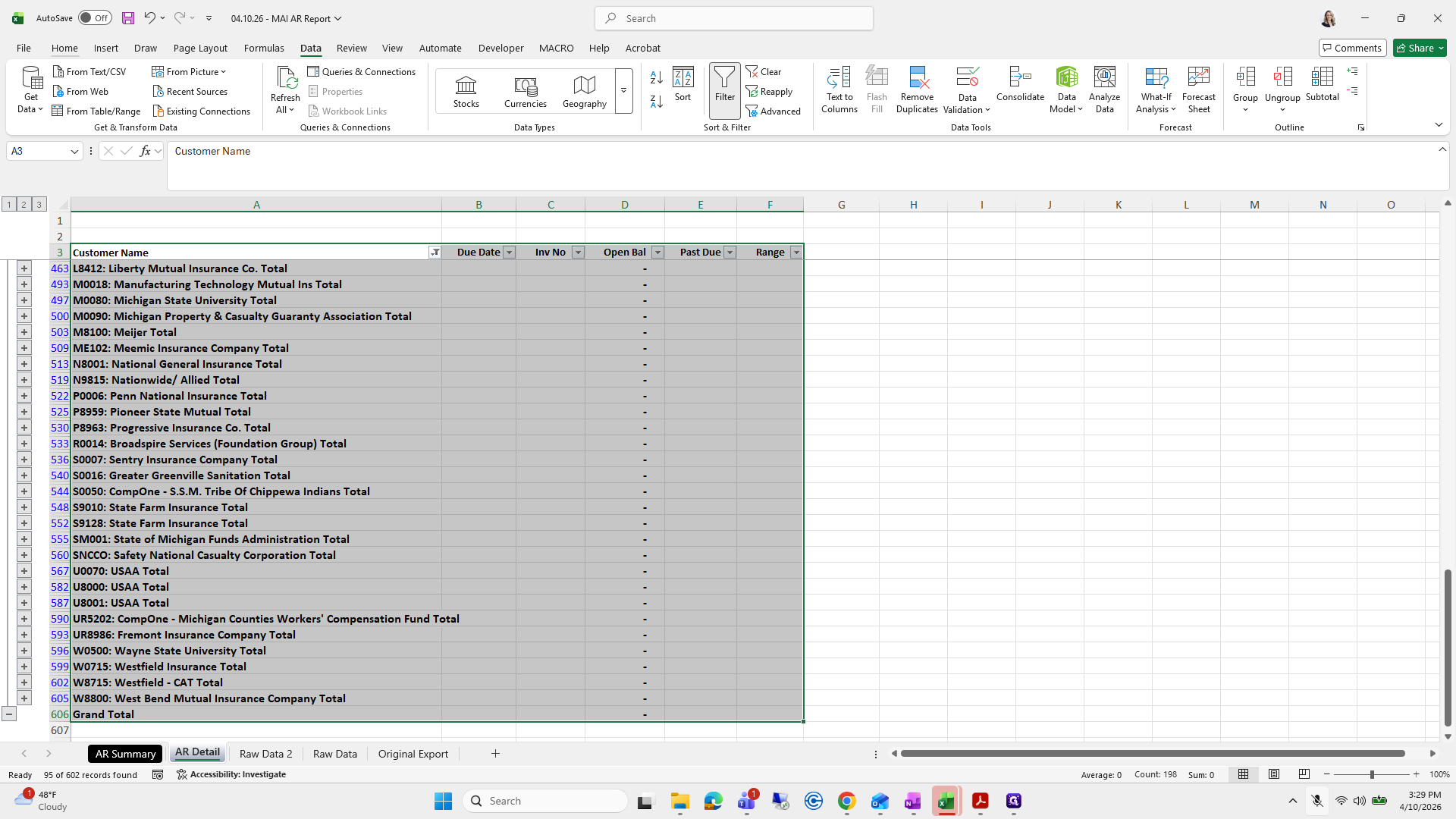
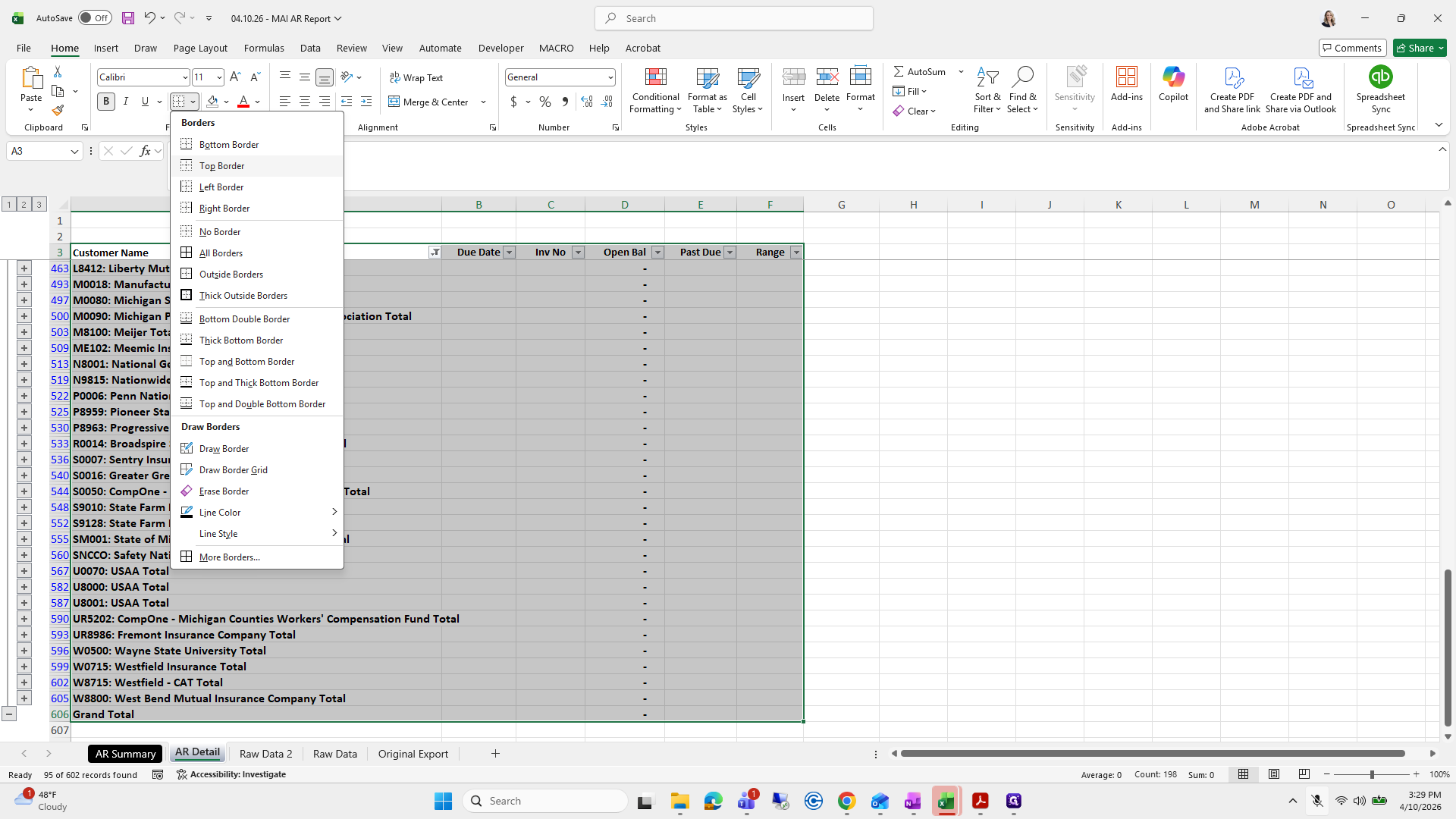
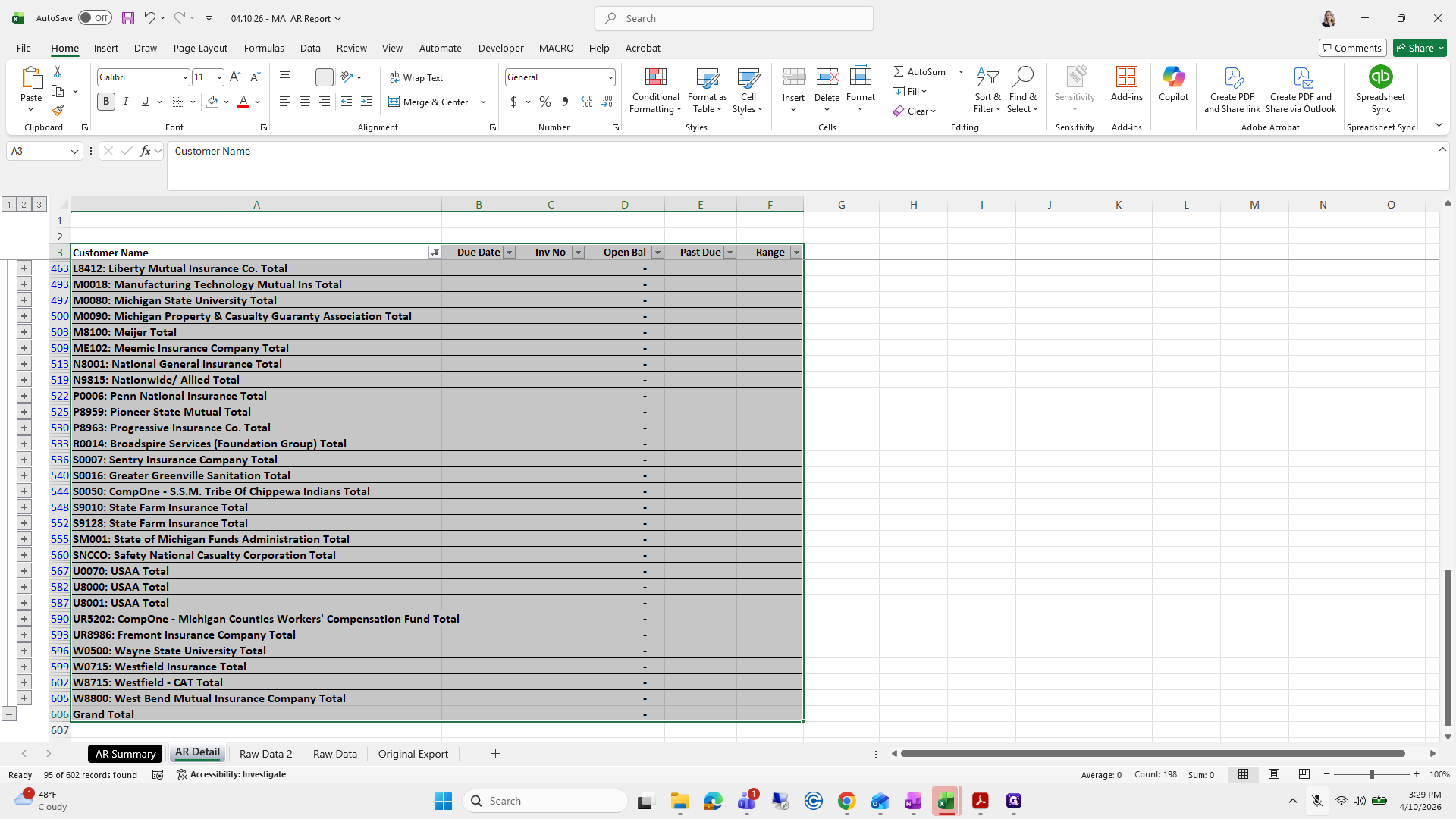
This is a quick and simple version, which you can use when it doesn't need to look perfect.
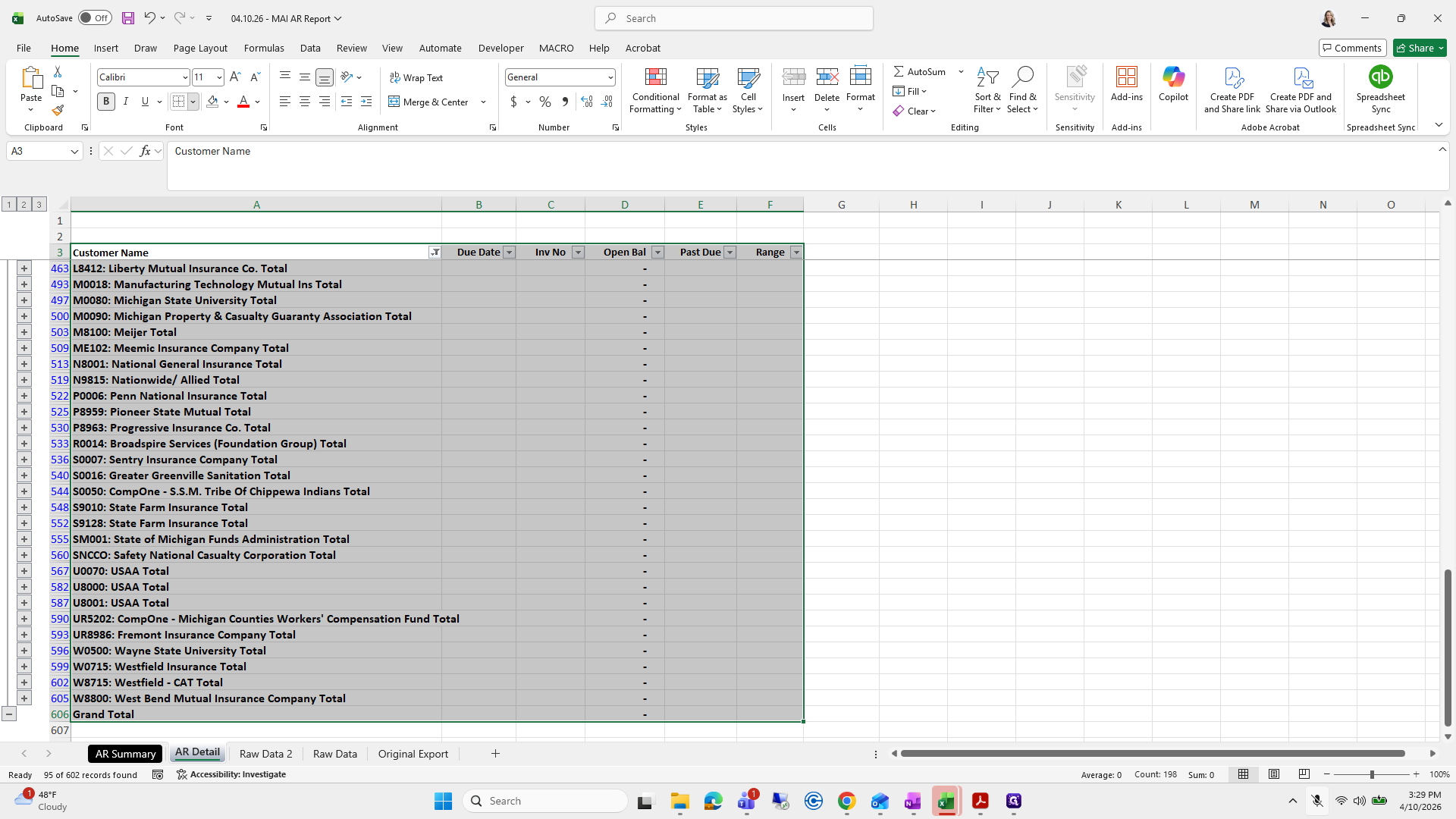
361
Click on "H"
Step #361: Click on "H"
362
Click on "Top Border"
Step #362: Click on "Top Border"
363
Click on "Technology Mutual Ins Total"
Step #363: Click on "Technology Mutual Ins Total"
364
Click on "Data"
Step #364: Click on "Data"
365
Click on "Clear"
Step #365: Click on "Clear"

If you press Print, the document is already ready to go.
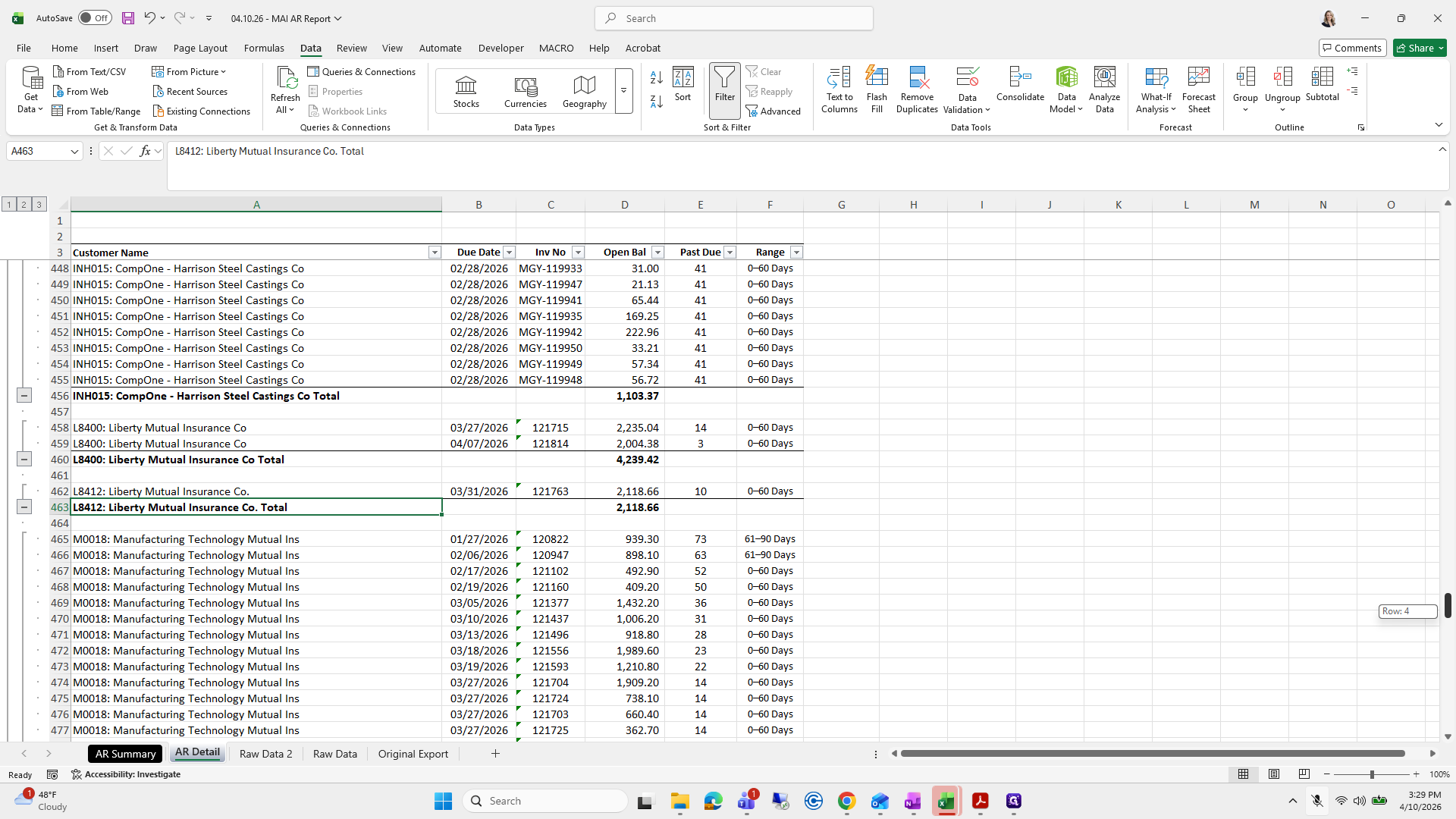
366
Drag here
Step #366: Drag here

Amazing.

367
Click here
Step #367: Click here

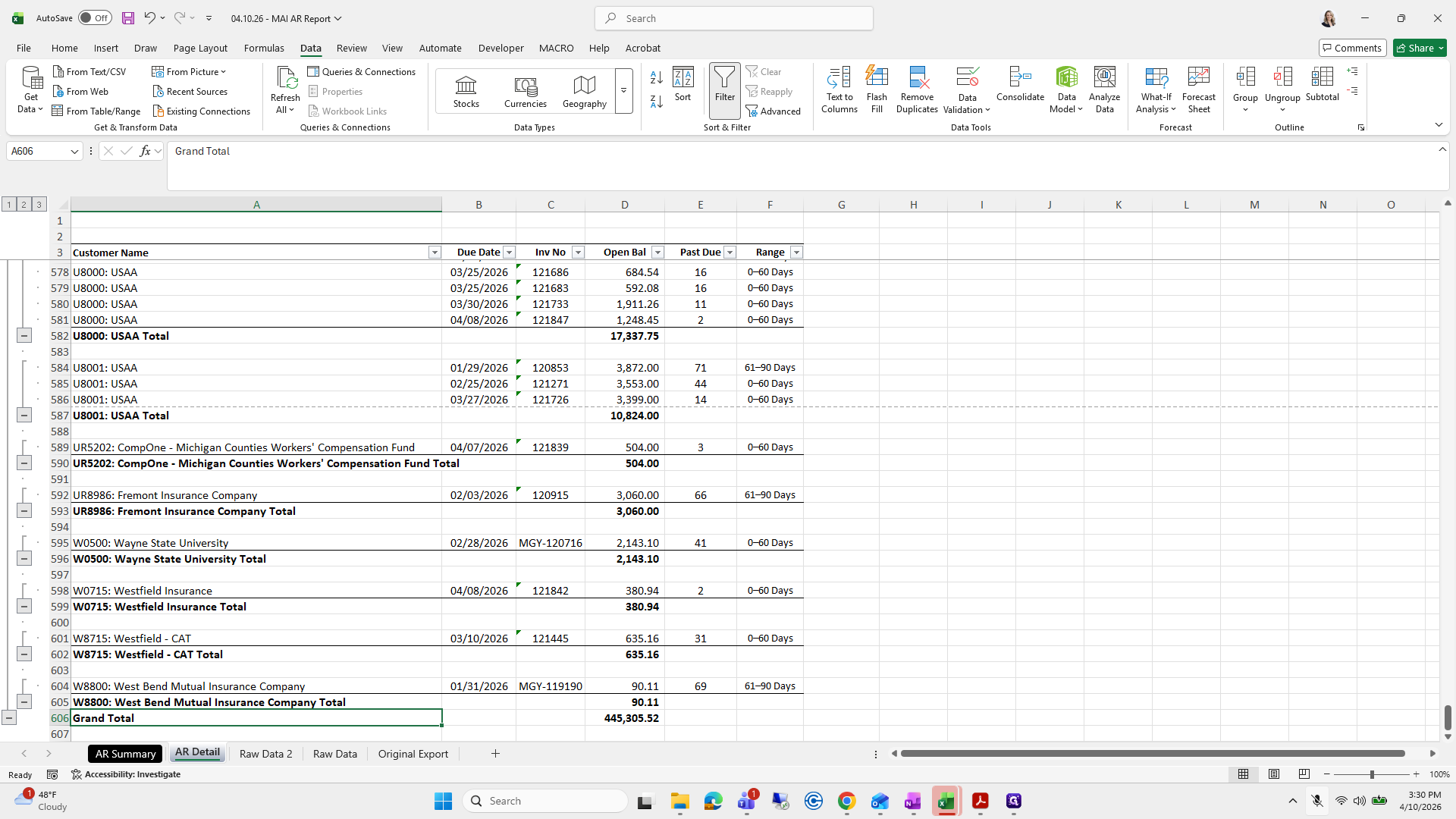
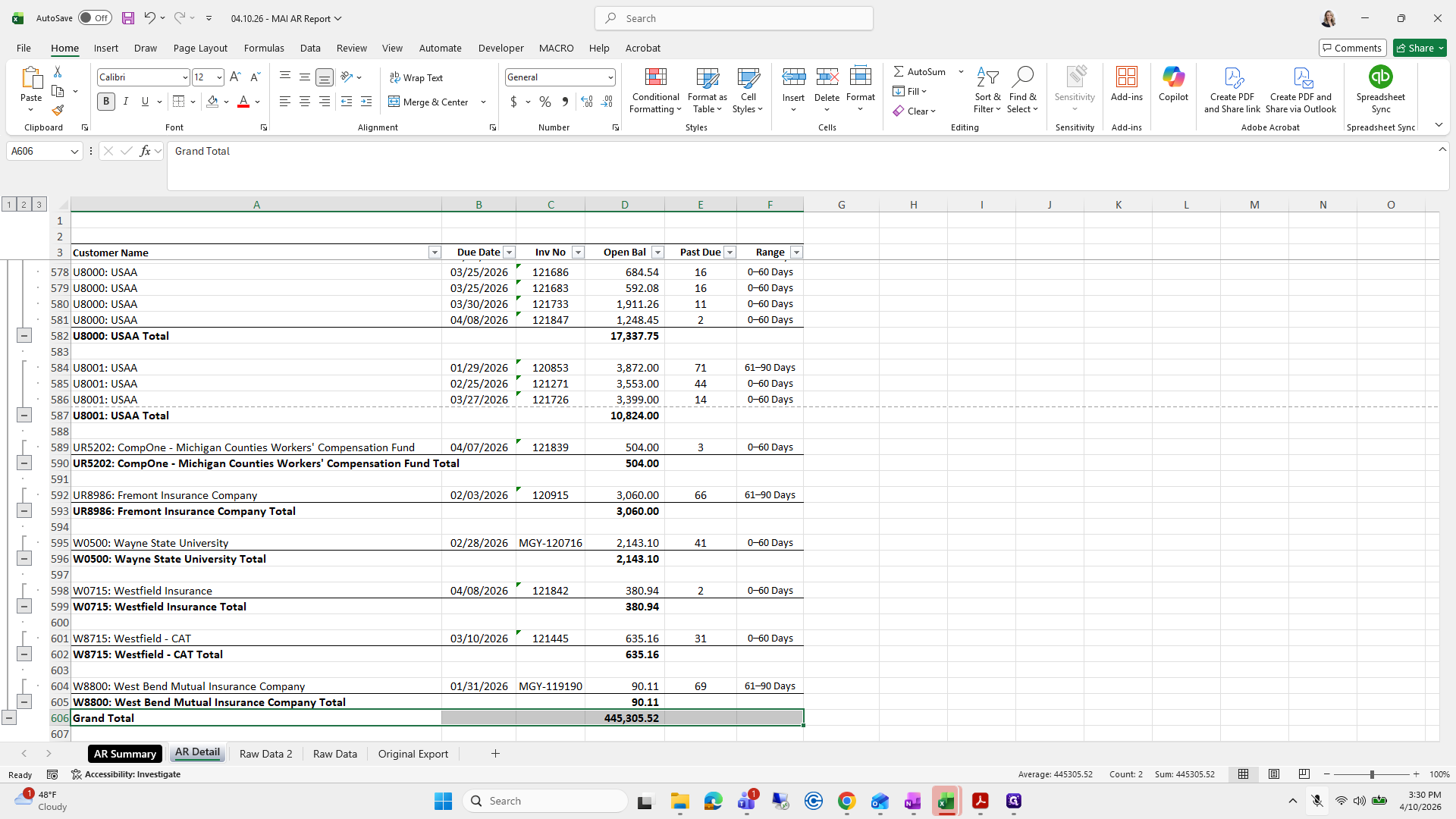
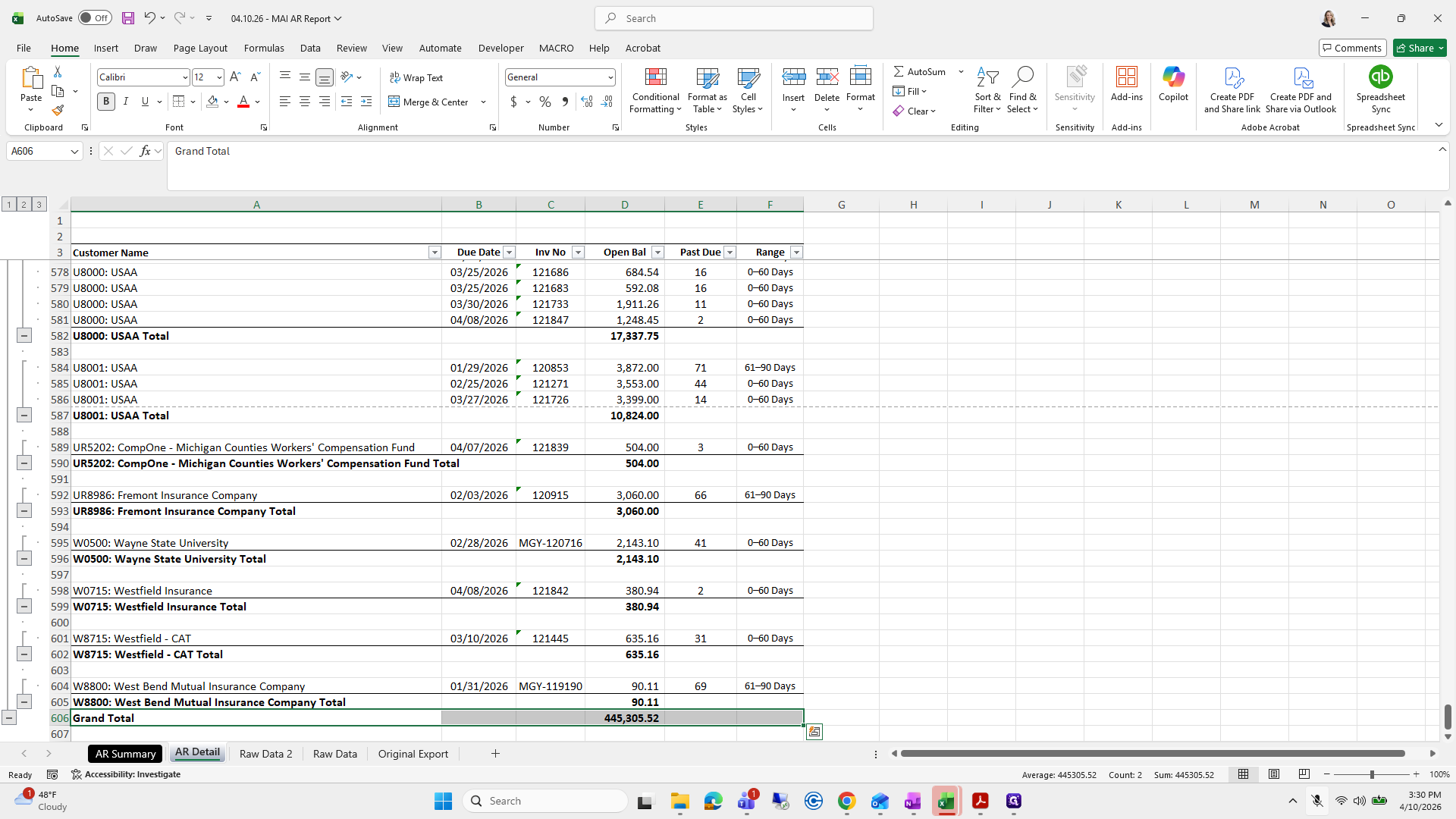
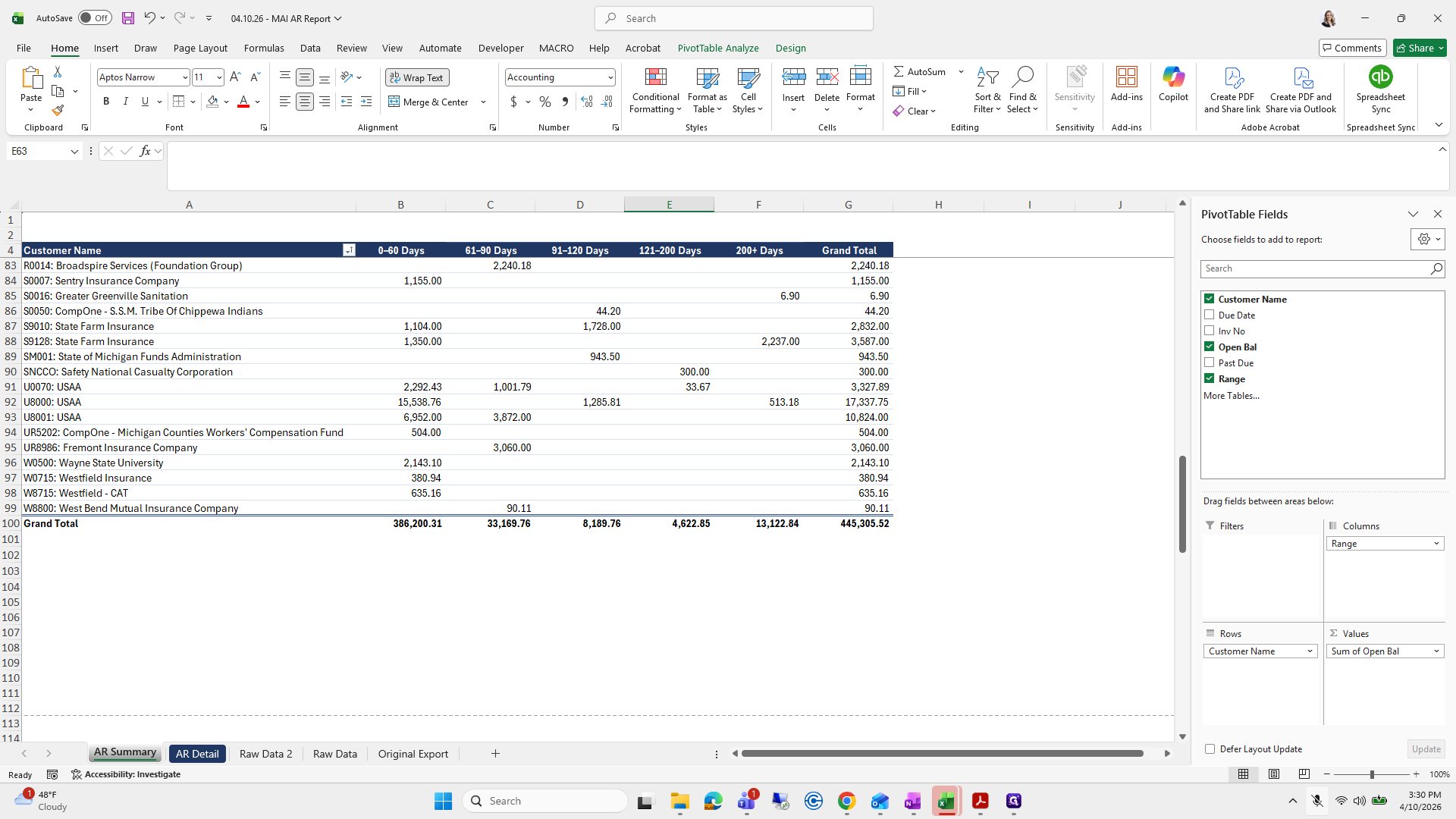
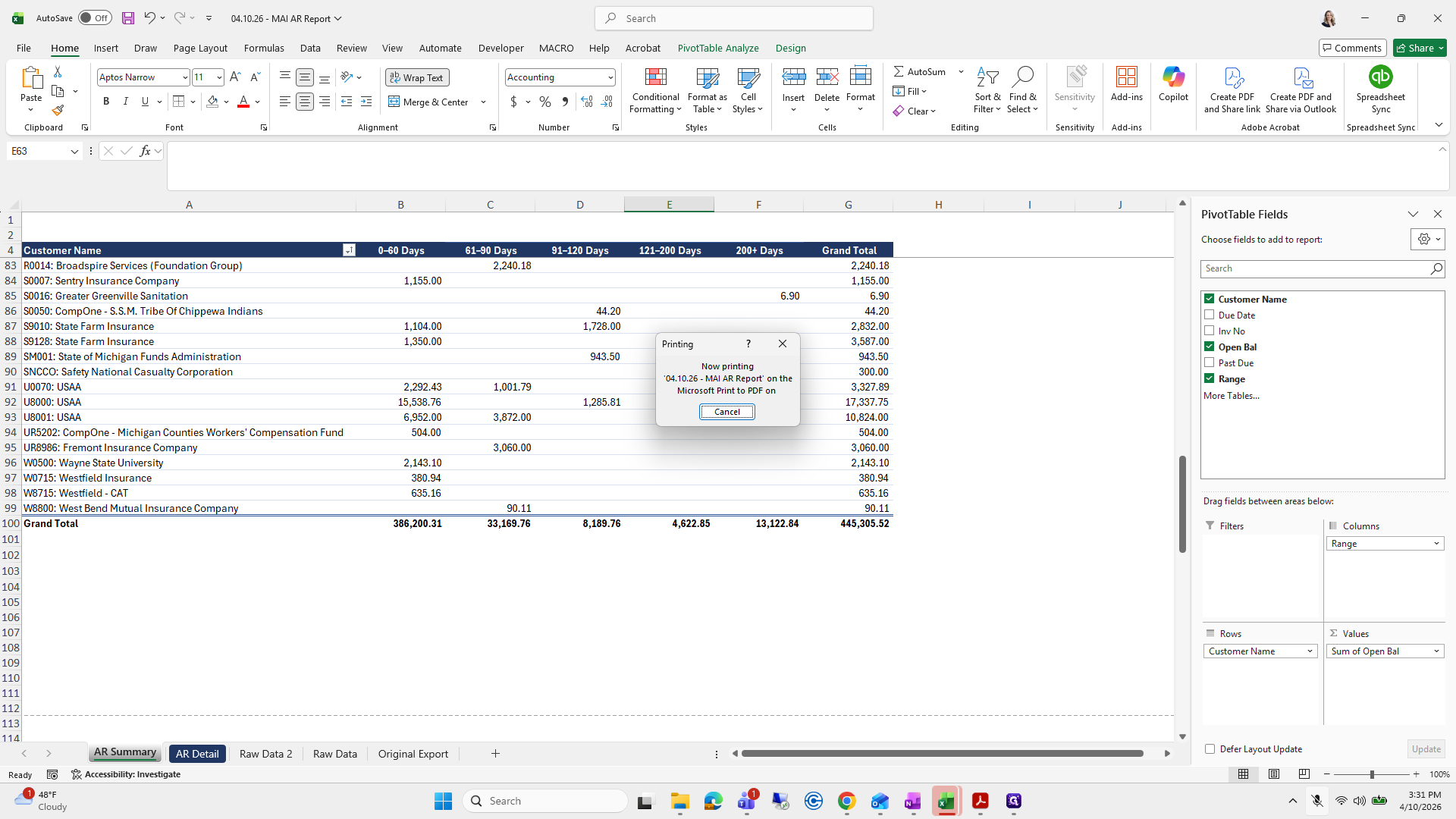
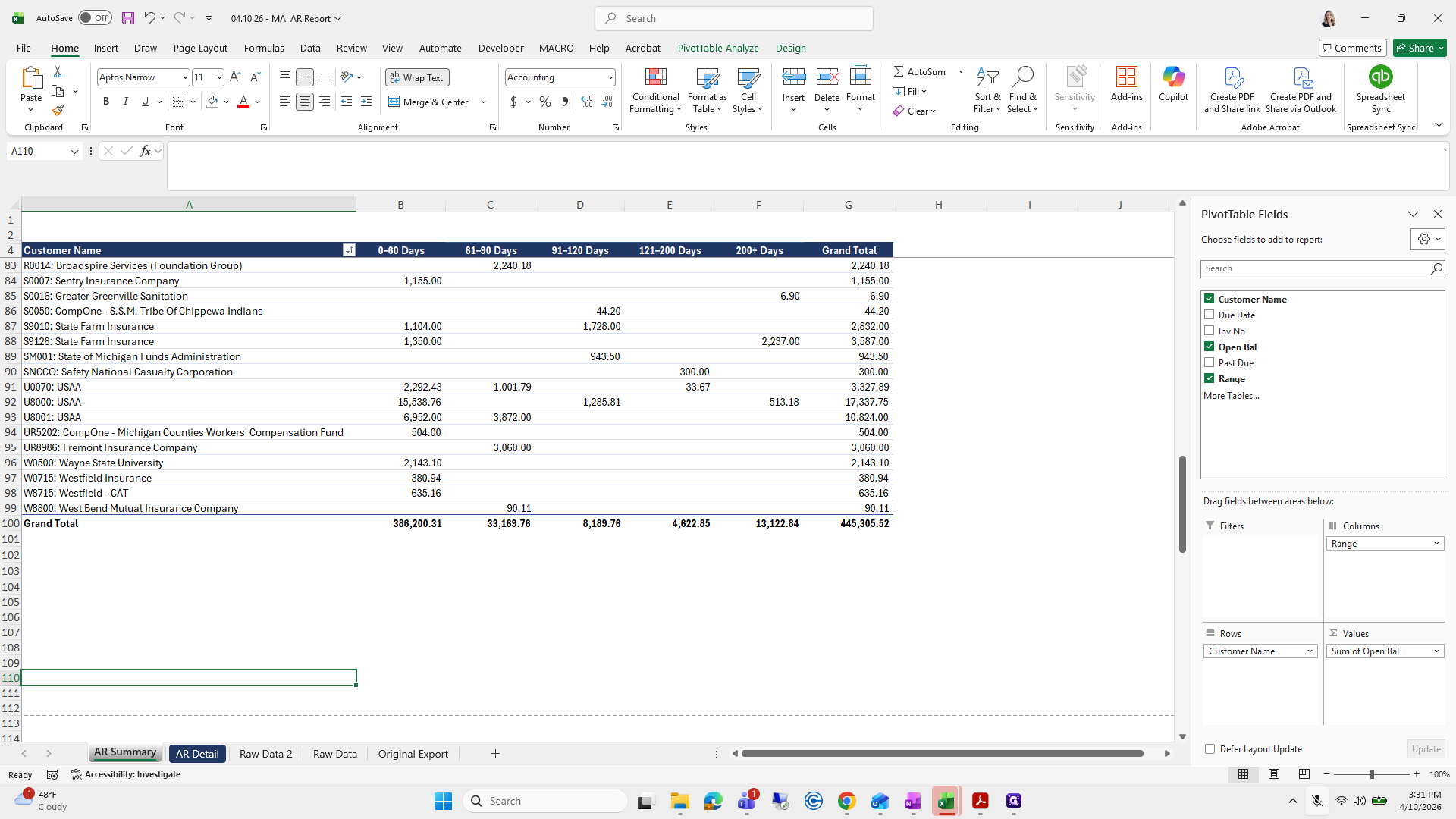
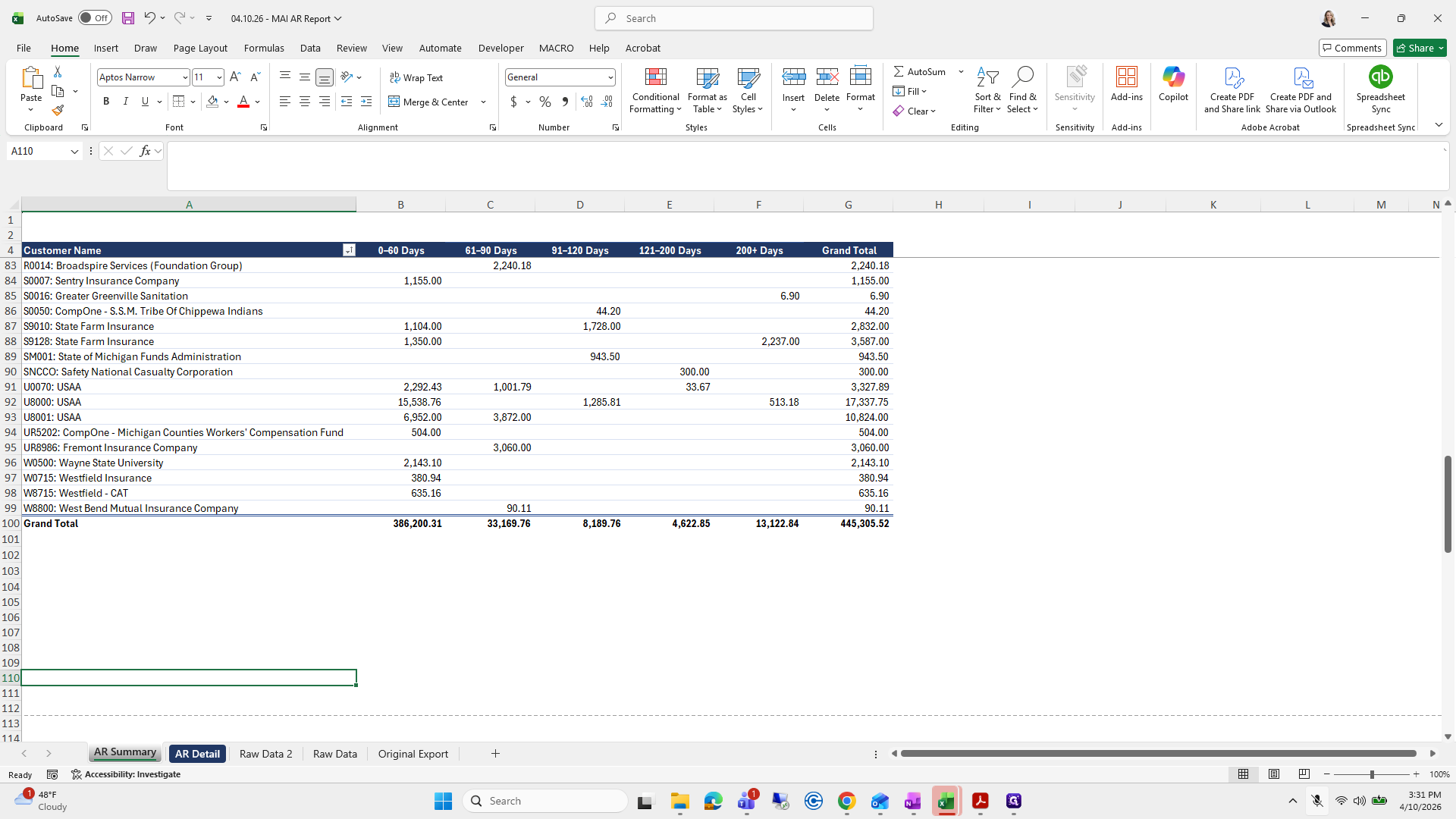
I always double-check that the grand total at the bottom matches the total in the AR summary: 444, 445, 305.52.
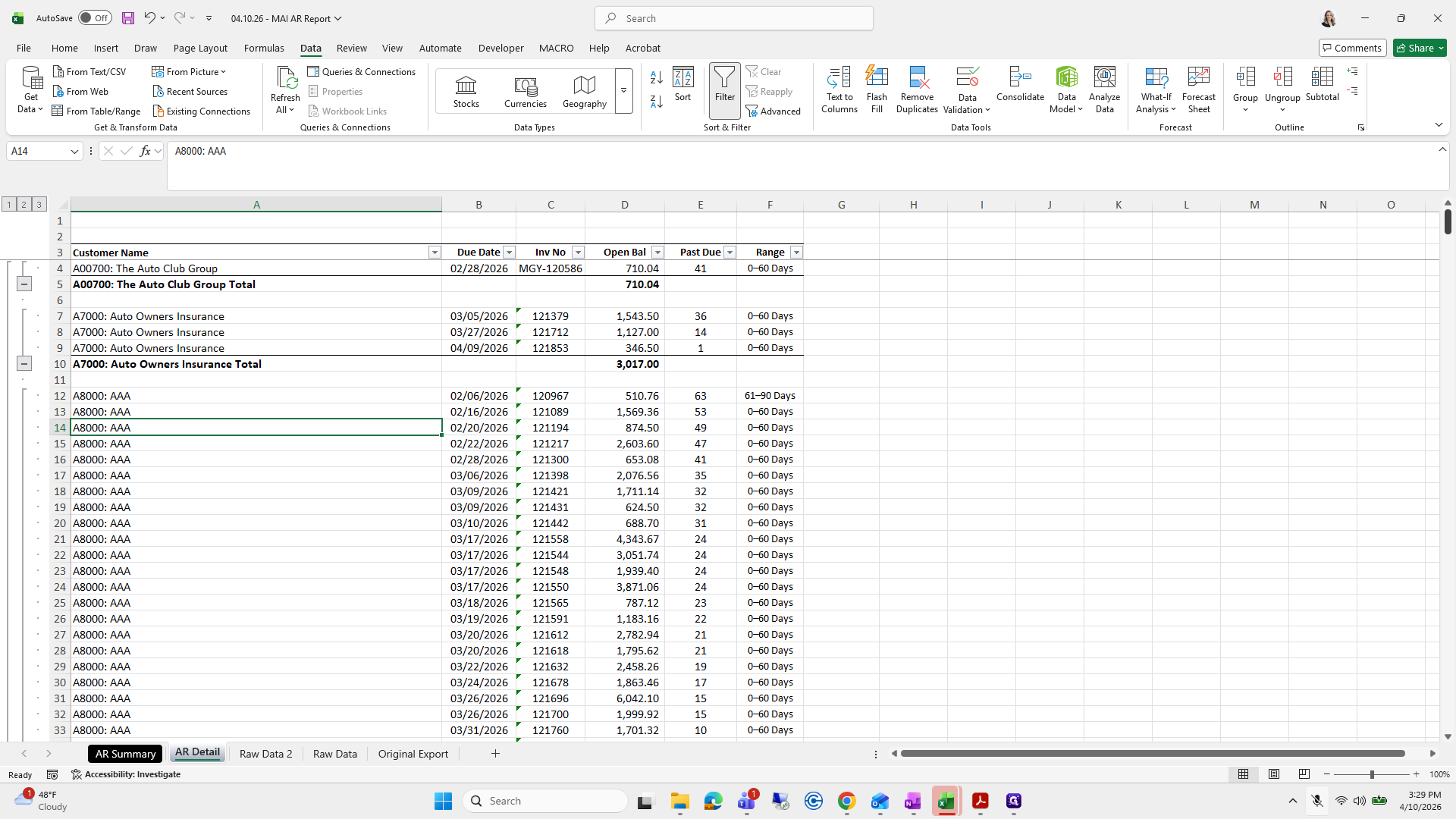
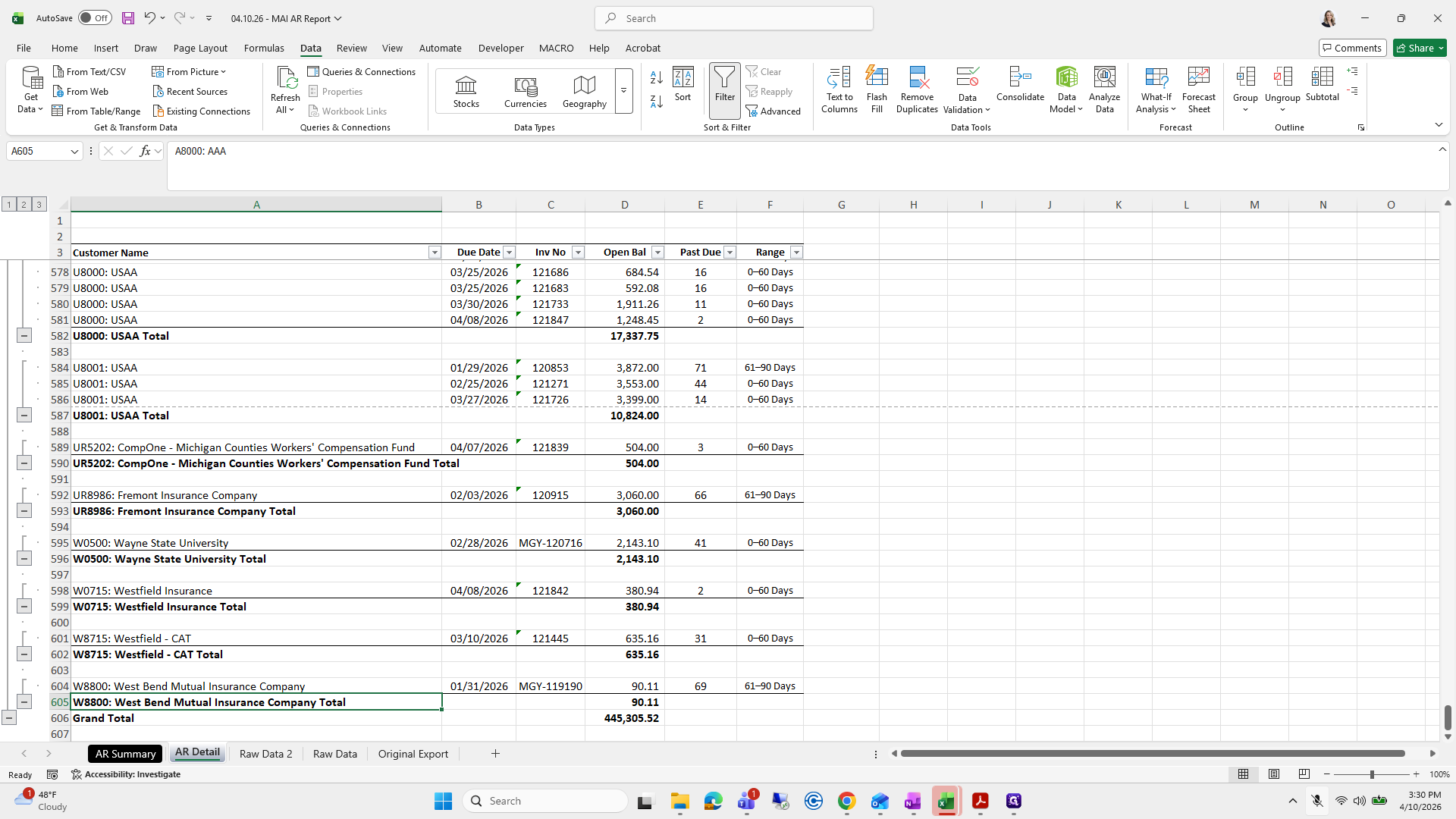
368
Type "Ctrl + P"
369
Type "Esc"
370
Drag here
Step #370: Drag here
371
Click on "606 Grand Total"
Step #371: Click on "606 Grand Total"
372
Drag "606 Grand Total"
Step #372: Drag "606 Grand Total"

Yeah. We don't need to do any formatting.
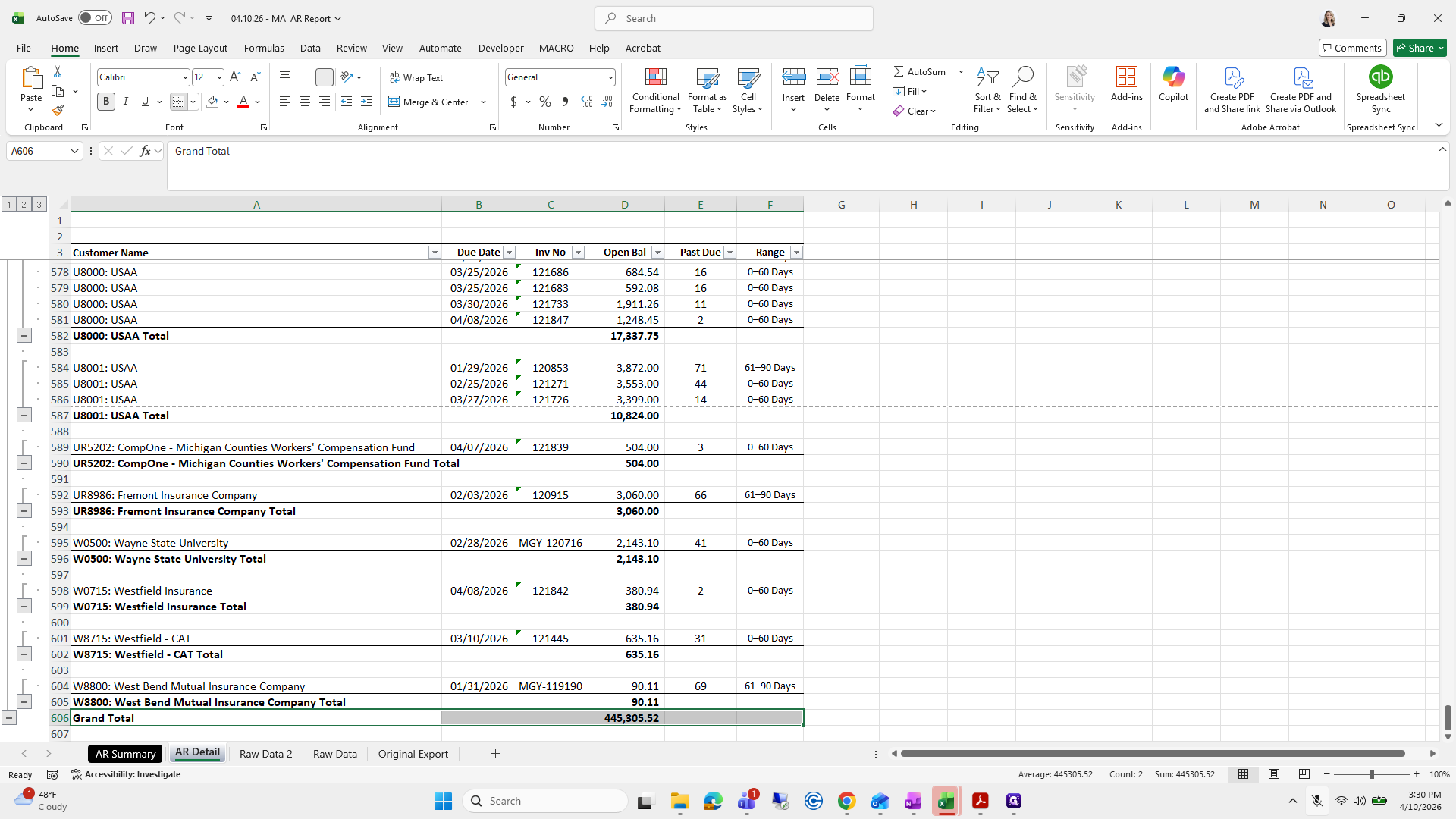
373
Click here
374
Click here
Step #374: Click here

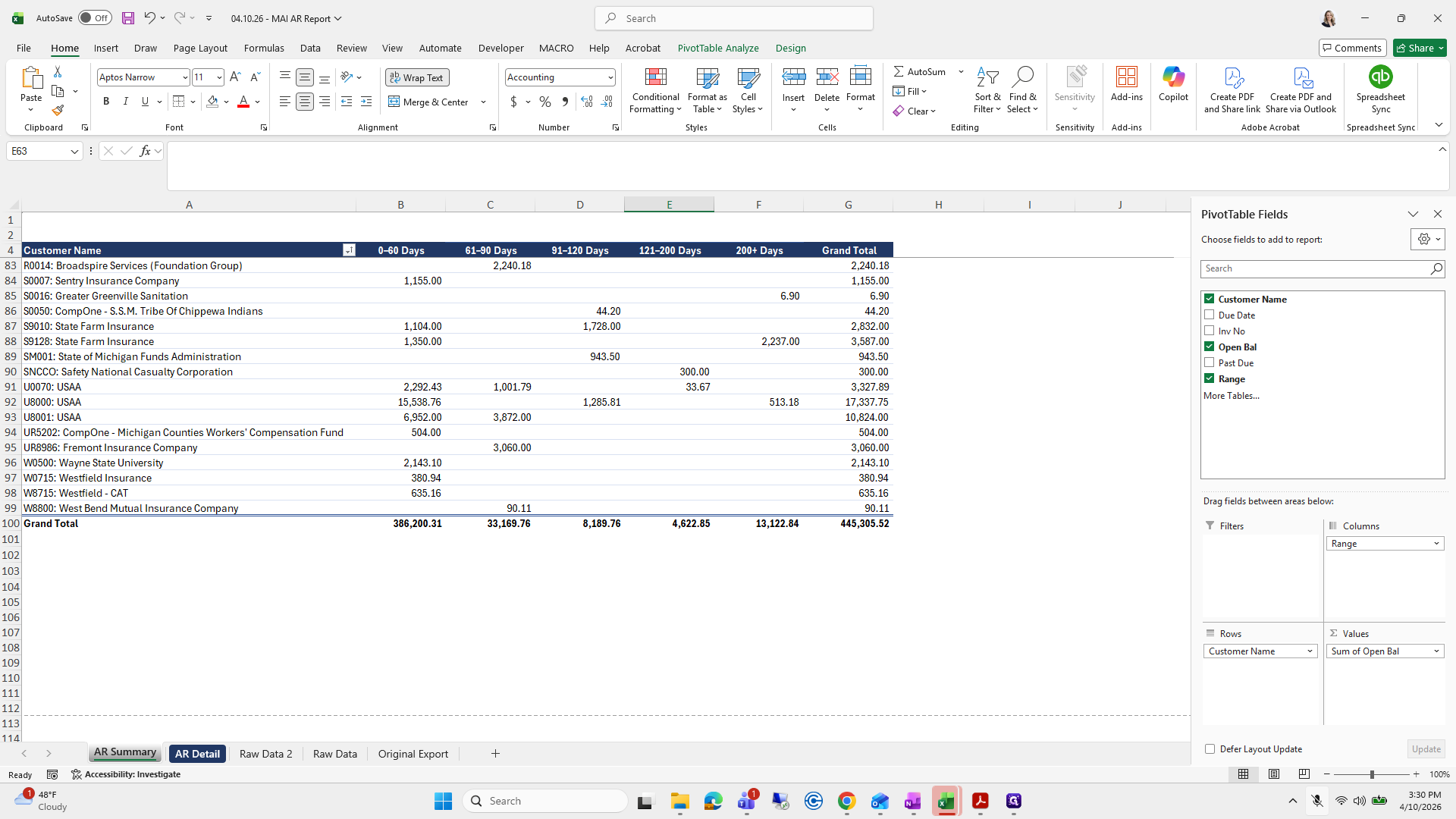
Don't worry about it.

375
Click on "AR Summary"
Step #375: Click on "AR Summary"

I like to make things look nice, which is not a big deal.
376
Click on "AR Detail"
Step #376: Click on "AR Detail"
377
Click here
Step #377: Click here
378
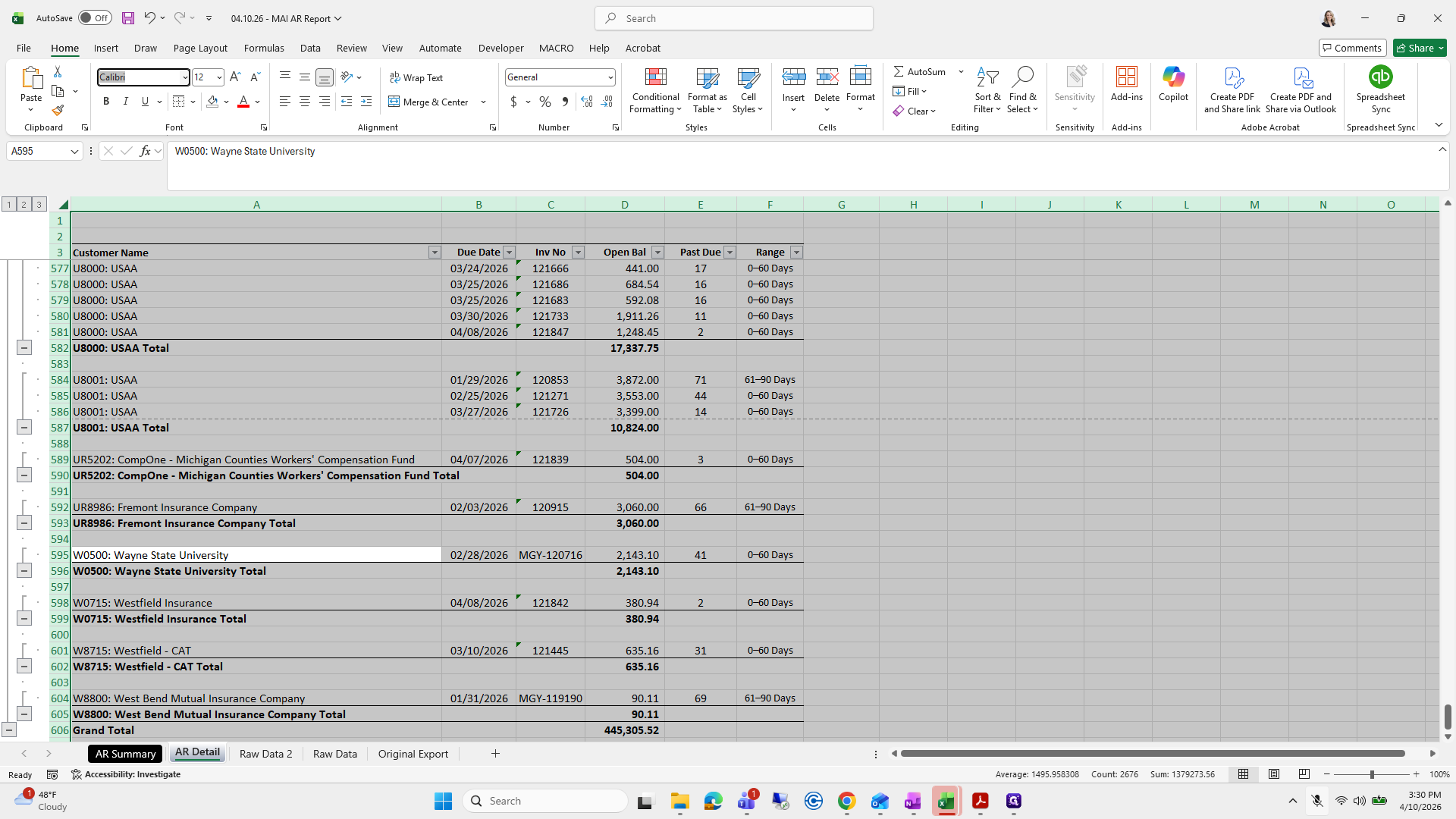
Type "Ctrl + A"
379
Type "Ctrl + A"

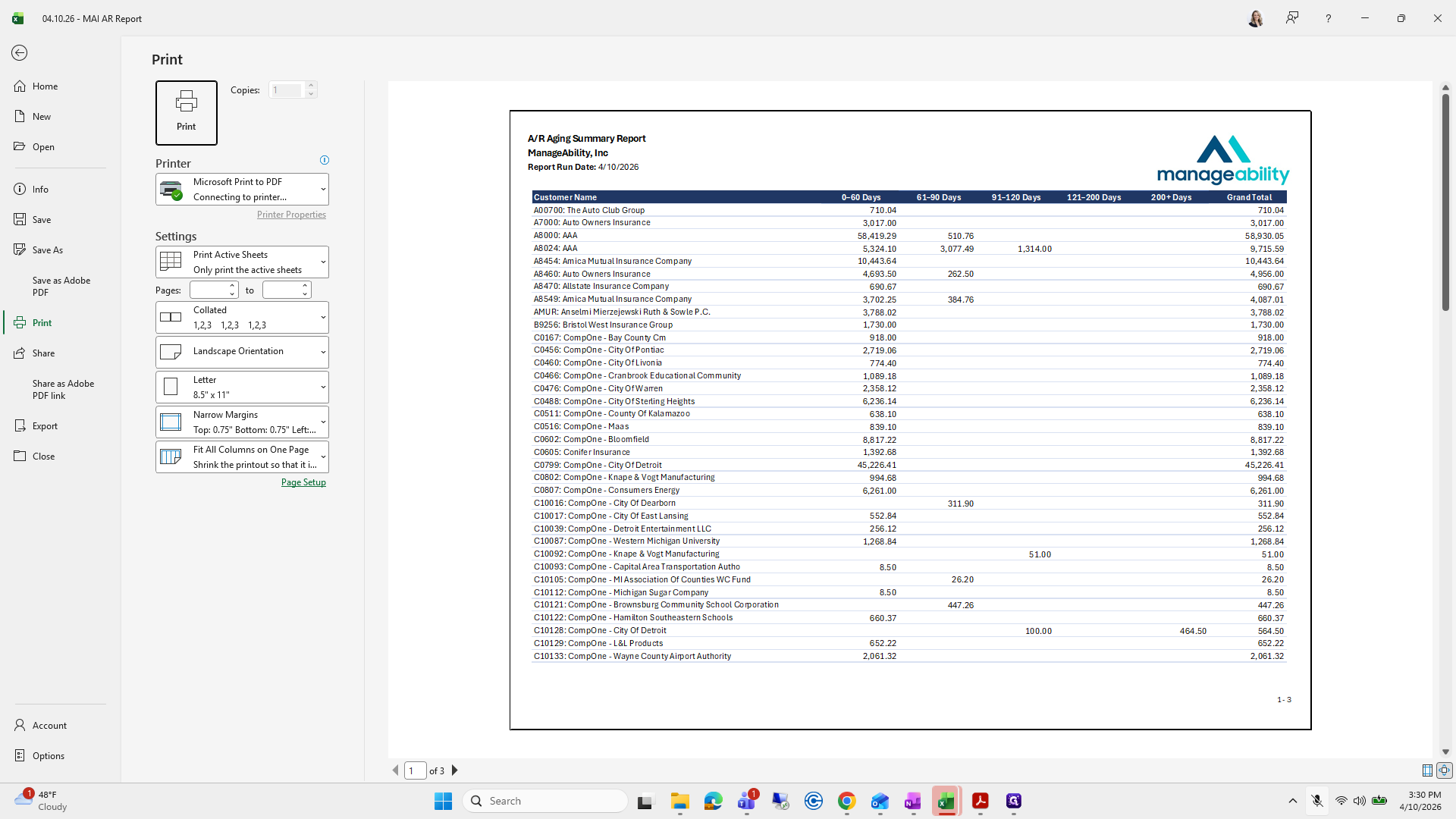
Then I will save this as a PDF.

380
Type "Ctrl + A"
381
Click here
Step #381: Click here

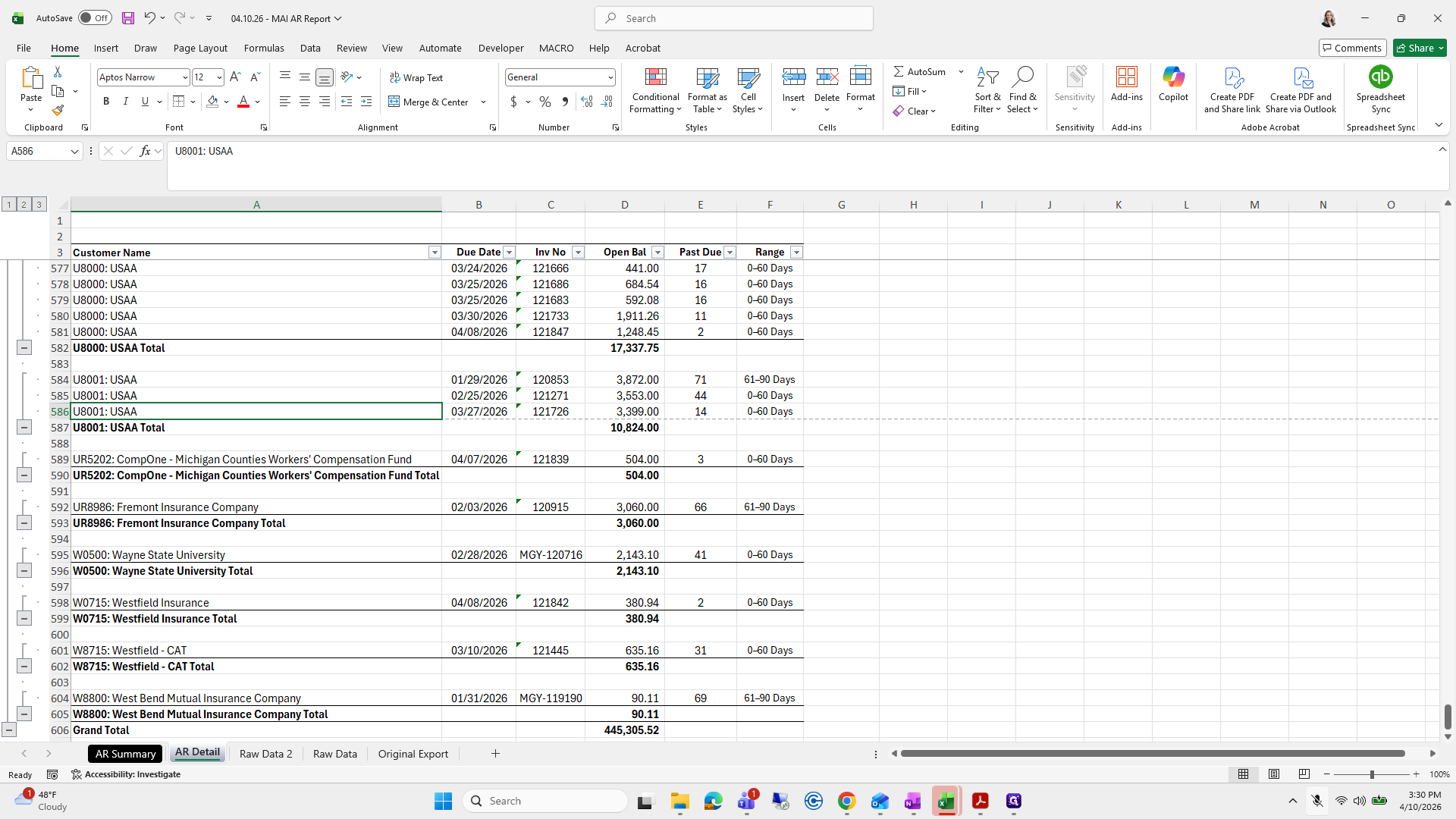
Everything looks good.

382
Type "aptos nar + Tab"
383
Click here
Step #383: Click here

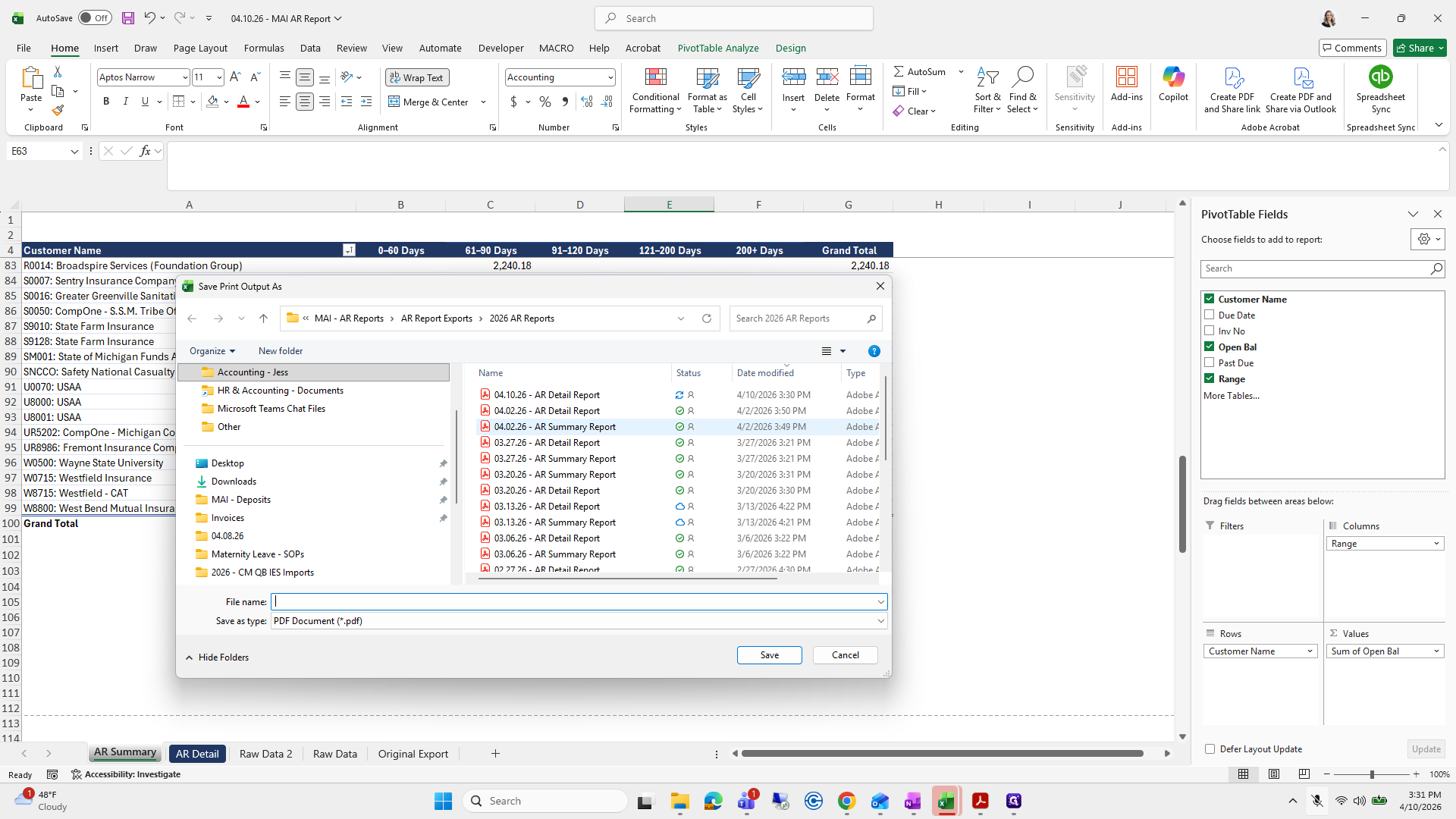
Accounting Task, Manageability, AR Reports, PDF.
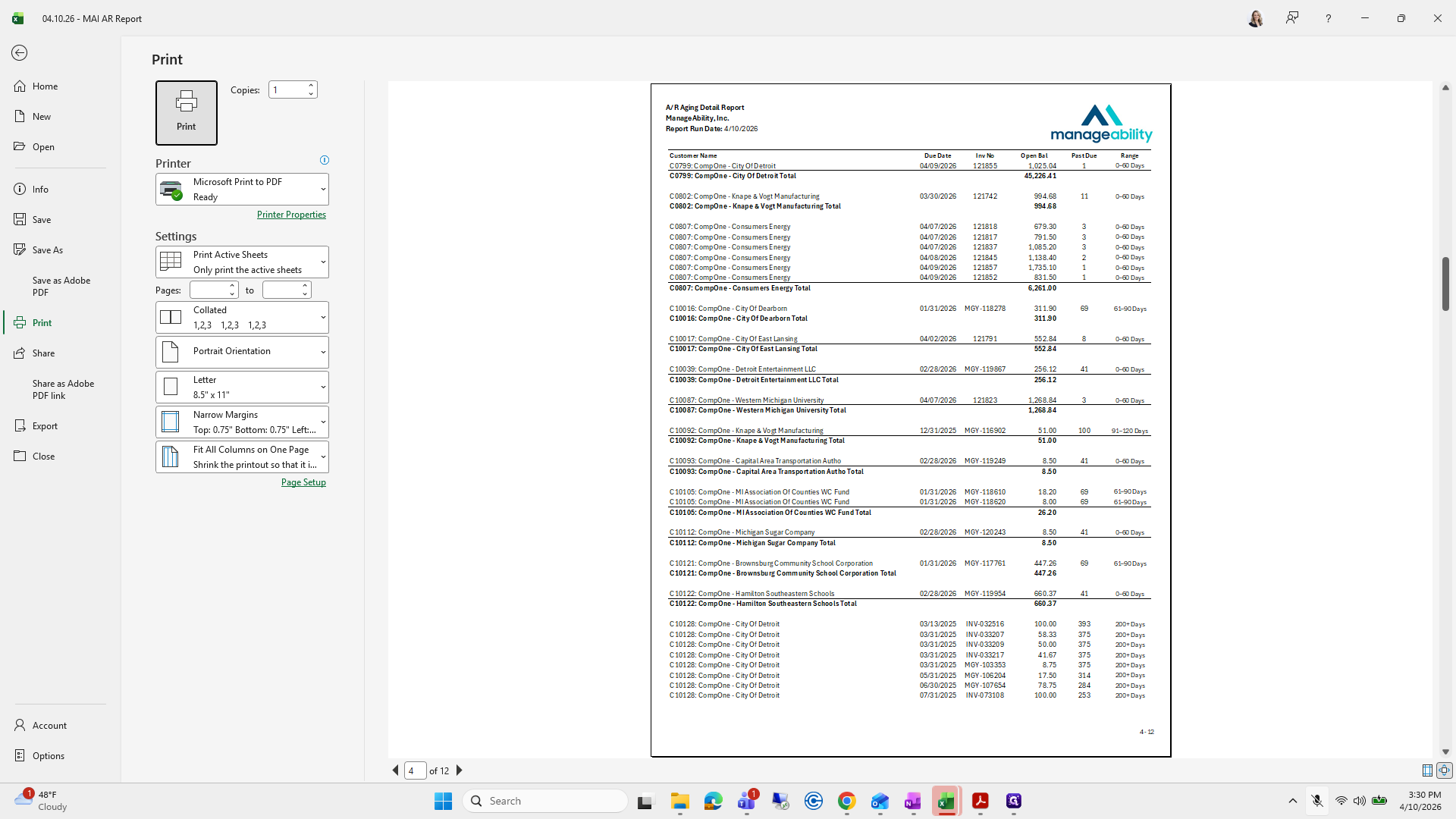
384
Type "Ctrl + P"
385
Click on "Print"
Step #385: Click on "Print"

I usually grab the Detail Report and change the date.
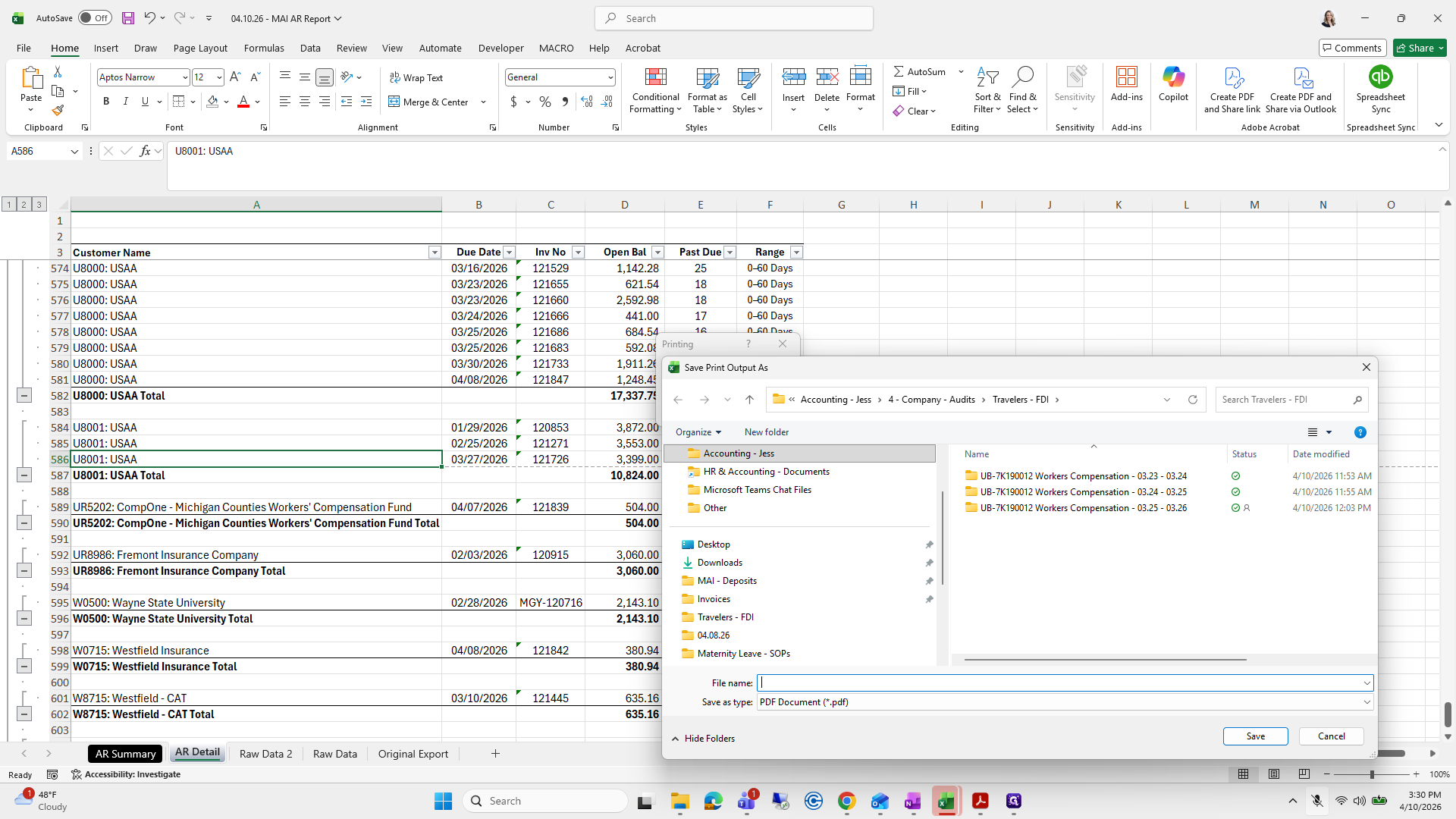
386
Drag here
Step #386: Drag here
387
Click on "Jess"
Step #387: Click on "Jess"
388
Double-click on "3 - ManageAbility"
Step #388: Double-click on "3 - ManageAbility"
389
Double-click on "- AR Reports"
Step #389: Double-click on "- AR Reports"
390
Double-click on "AR Report Exports"
Step #390: Double-click on "AR Report Exports"

The next one will be the same.
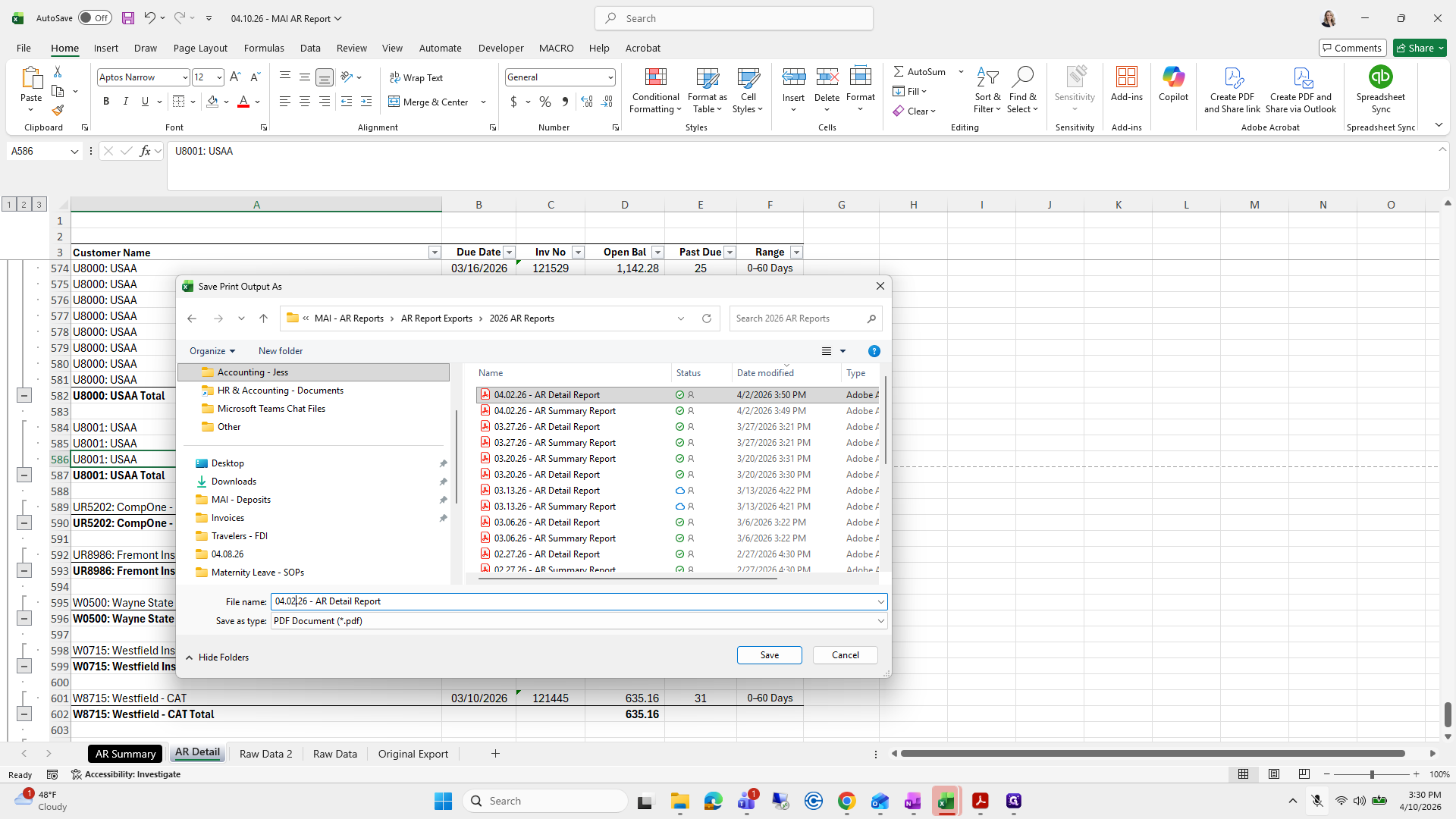
391
Double-click on "2026 AR Reports"
Step #391: Double-click on "2026 AR Reports"
392
Click on "04.02.26 - AR Detail Report 04.02.26 AR Summary Report 03.27.26 AR Detail Report 03.27.26 - AR Summary Report 03.20.26 AR Summary Report"
Step #392: Click on "04.02.26 - AR Detail Report 04.02.26 AR Summary Report 03.27.26 AR Detail Report 03.27.26 - AR Summary Report 03.20.26 AR Summary Report"
393
Click on "File name : Save as type : PDF Document ( * .pdf )"
Step #393: Click on "File name : Save as type : PDF Document ( * .pdf )"
394
Click on "04.02.26"
Step #394: Click on "04.02.26"
395
Type "Backspace"
396
Type "Backspace"

Boop, boop, boop.

397
Type "10 + Enter"
398
Click on "AR Summary"
Step #398: Click on "AR Summary"
399
Type "Ctrl + P"
400
Click here
Step #400: Click here

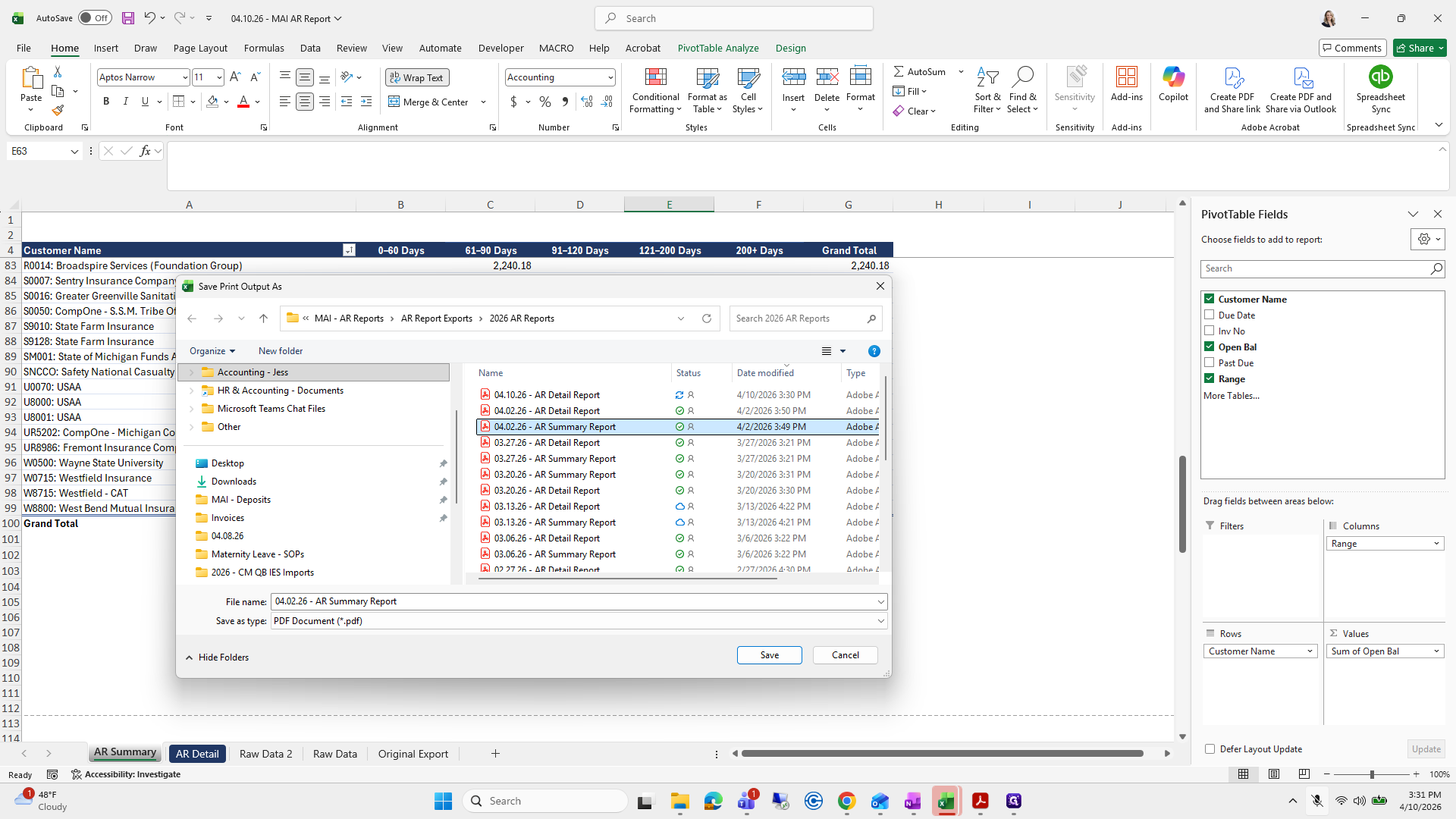
What is it called?

401
Click on "04.02.26 - AR Summary Report"
Step #401: Click on "04.02.26 - AR Summary Report"
402
Click on "04.02.26 - AR Summary Report"
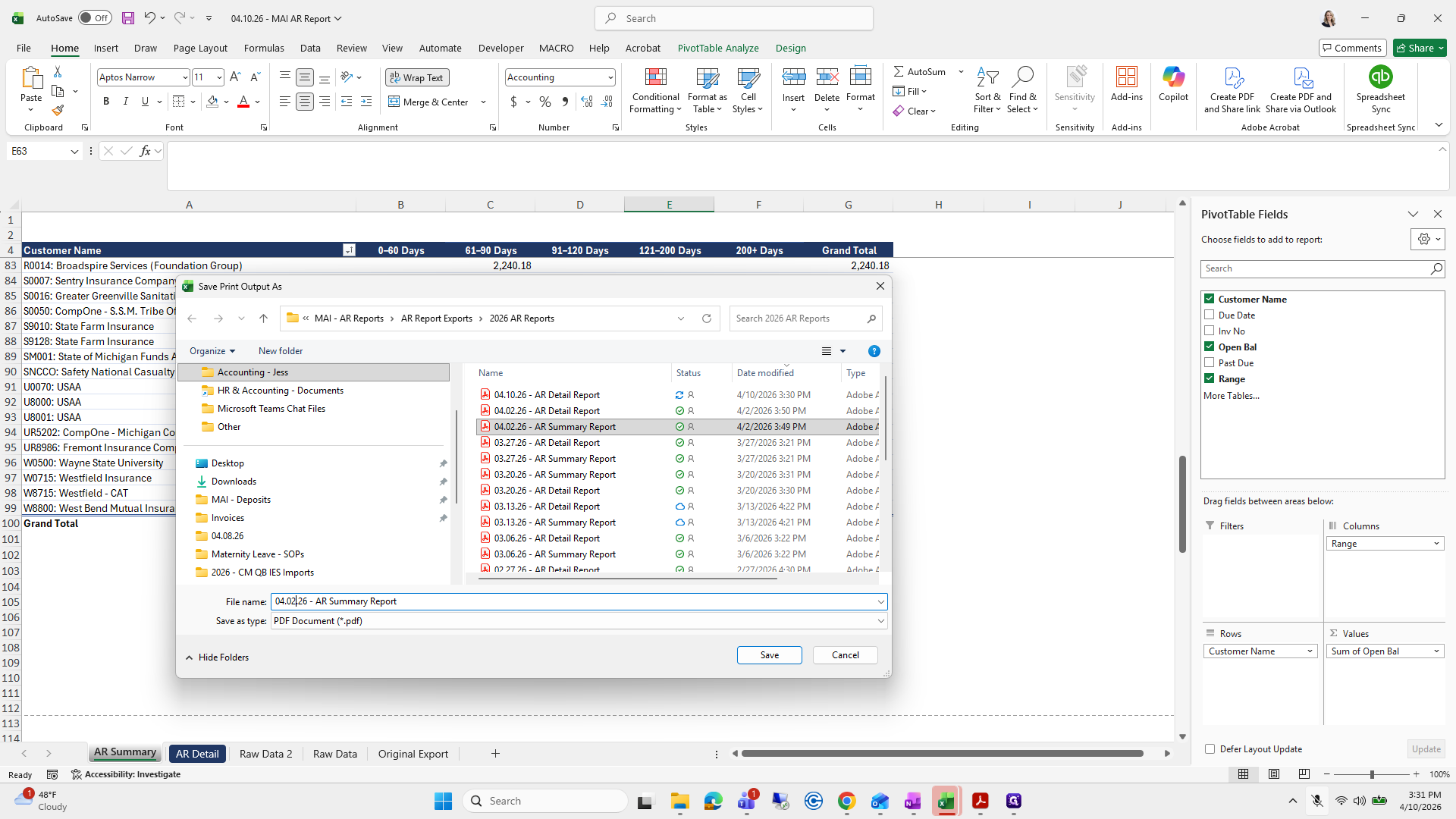
Step #402: Click on "04.02.26 - AR Summary Report"
403
Click on "26 - AR Summary Report"
Step #403: Click on "26 - AR Summary Report"
404
Type "Backspace"

I'll hide these.

405
Type "0"
406
Click here
Step #406: Click here

Then at some point... That's it.

407
Click here
Step #407: Click here
408
Click on "AR Detail"
Step #408: Click on "AR Detail"

I'll double-check that I saved this one.
409
Click on "Raw Data 2"
Step #409: Click on "Raw Data 2"
410
Right-click on "Original Export"
Step #410: Right-click on "Original Export"

Do you want Microsoft Word or Clear Data?
411
Click on "Hide"
Step #411: Click on "Hide"

No, I'm going to re-save this as... I don't know.
412
Drag here
Step #412: Drag here
413
Click on "61-90 Days"
Step #413: Click on "61-90 Days"
414
Click here
Step #414: Click here
415
Click on "Yes"
Step #415: Click on "Yes"

I'll just click Save, then Yes.

416
Drag "Yes"
Step #416: Drag "Yes"

I will send out this file with two PDFs. Jon Bradley specifically likes this page.
417
Click on "No"
Step #417: Click on "No"
418
Click on "File"
Step #418: Click on "File"
419
Click here
Step #419: Click here
420
Click here
Step #420: Click here
421
Type "Ctrl + S"
422
Click on "Yes"
Step #422: Click on "Yes"

And that's it.

423
Click on "121194"
Step #423: Click on "121194"
424
Click on "G"
Step #424: Click on "G"
425
Click on "121431"
Step #425: Click on "121431"
426
Click on ":"
Step #426: Click on ":"

SOP: AR Reporting Process