Icon

Step-by-Step Guide to Creating a Real Estate Offer in Indiana

Learn how to create a real estate offer in Indiana, including finding broker codes, listing required documents, handling earnest money, and ensuring a smooth closing process. Follow this comprehensive guide for agents and buyers.

By Luis Garcia

In this guide, we'll learn how to create a real estate offer using information from the MLS and other sources. We will cover how to find and enter key details like broker office codes, property information, and personal property that stays with the home. You will also see how to handle earnest money, financing terms, closing dates, and required documents.

This process helps ensure your offer is complete and accurate before sending it for signatures.

Let's get started

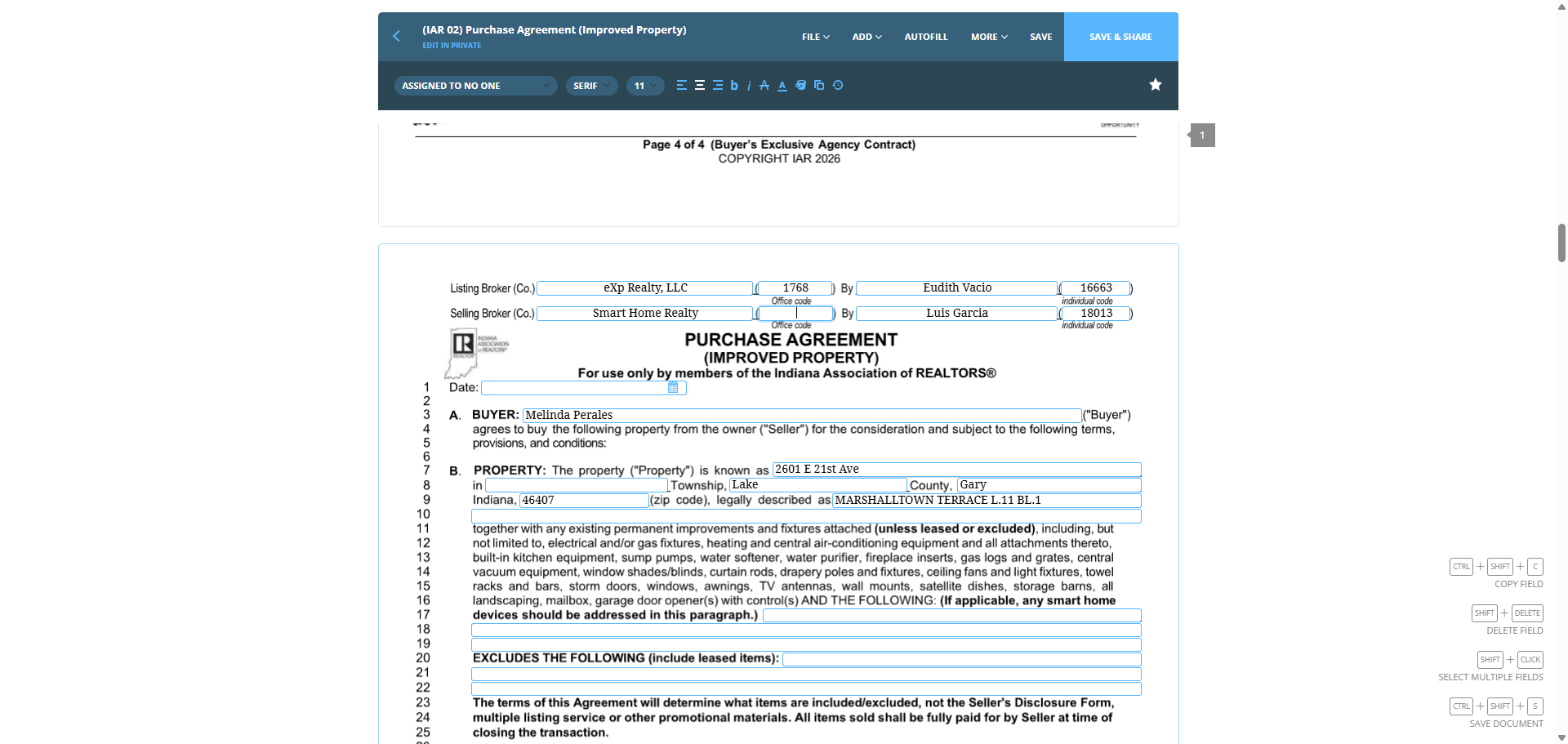
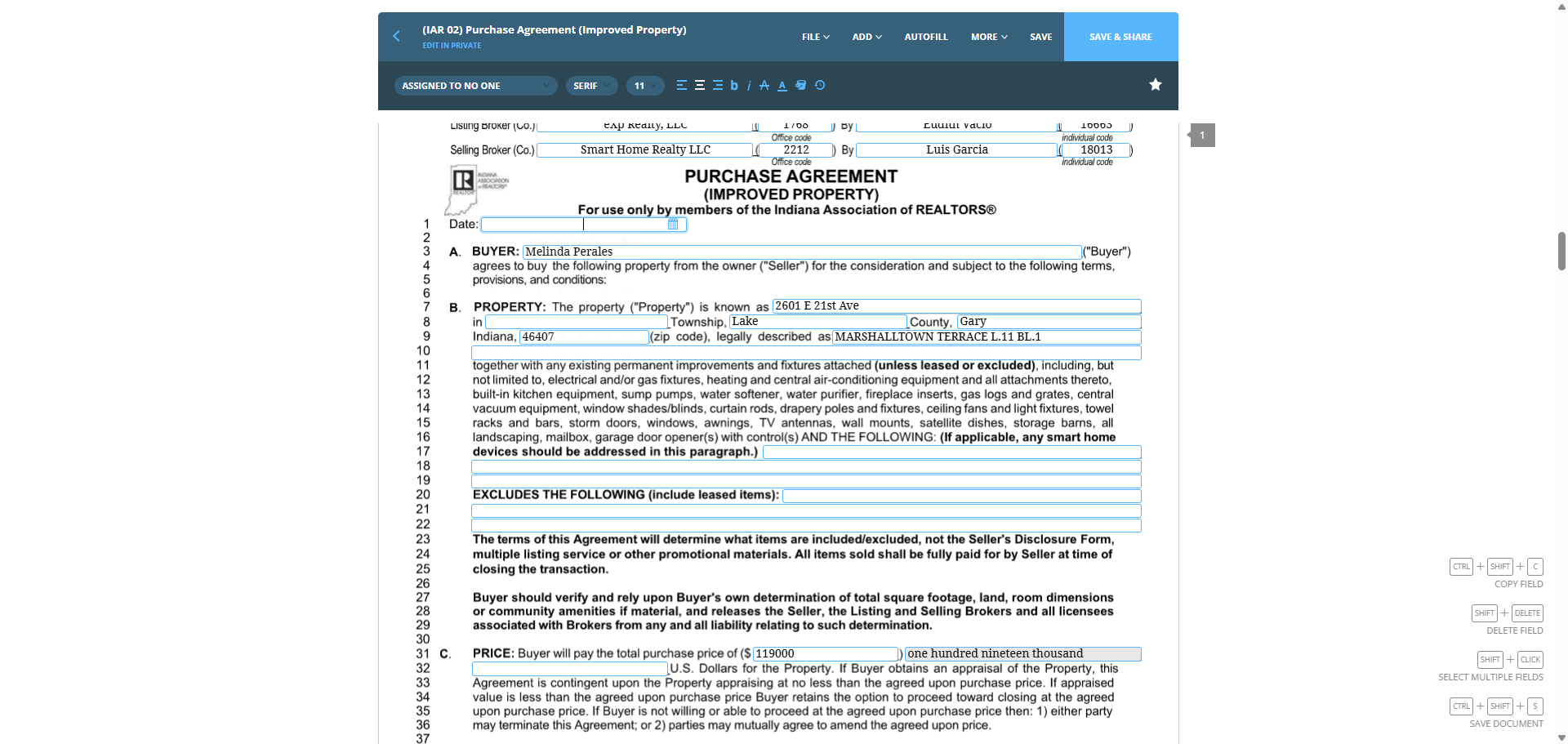
To create the offer now that everything is set up, begin from the top and work your way down. The key parts of the offer will be shown in this demonstration. Most will follow the same format. Not everything will follow, but most of it will. If it doesn't autogenerate, we need to find the listing broker office code, as well as the Smart Home Realty broker code for the brokers we represent. We need to find the office code for both the listing broker and the selling broker.

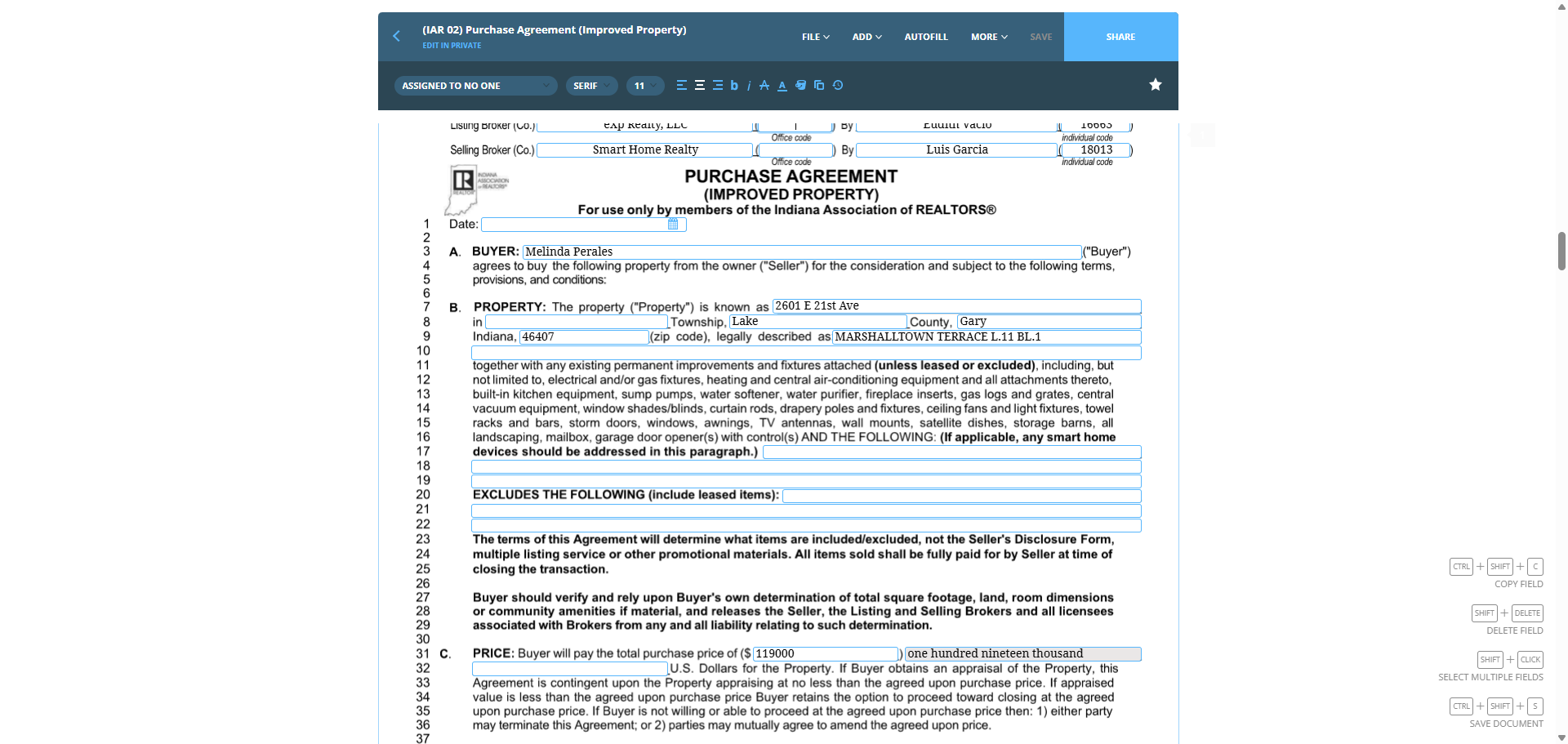
You can easily find that information on the listing sheet in the MLS. EXP listing code: office code is 1768.
1
Click on "Office code"
Step #1: Click on "Office code"
2
Type "1768"

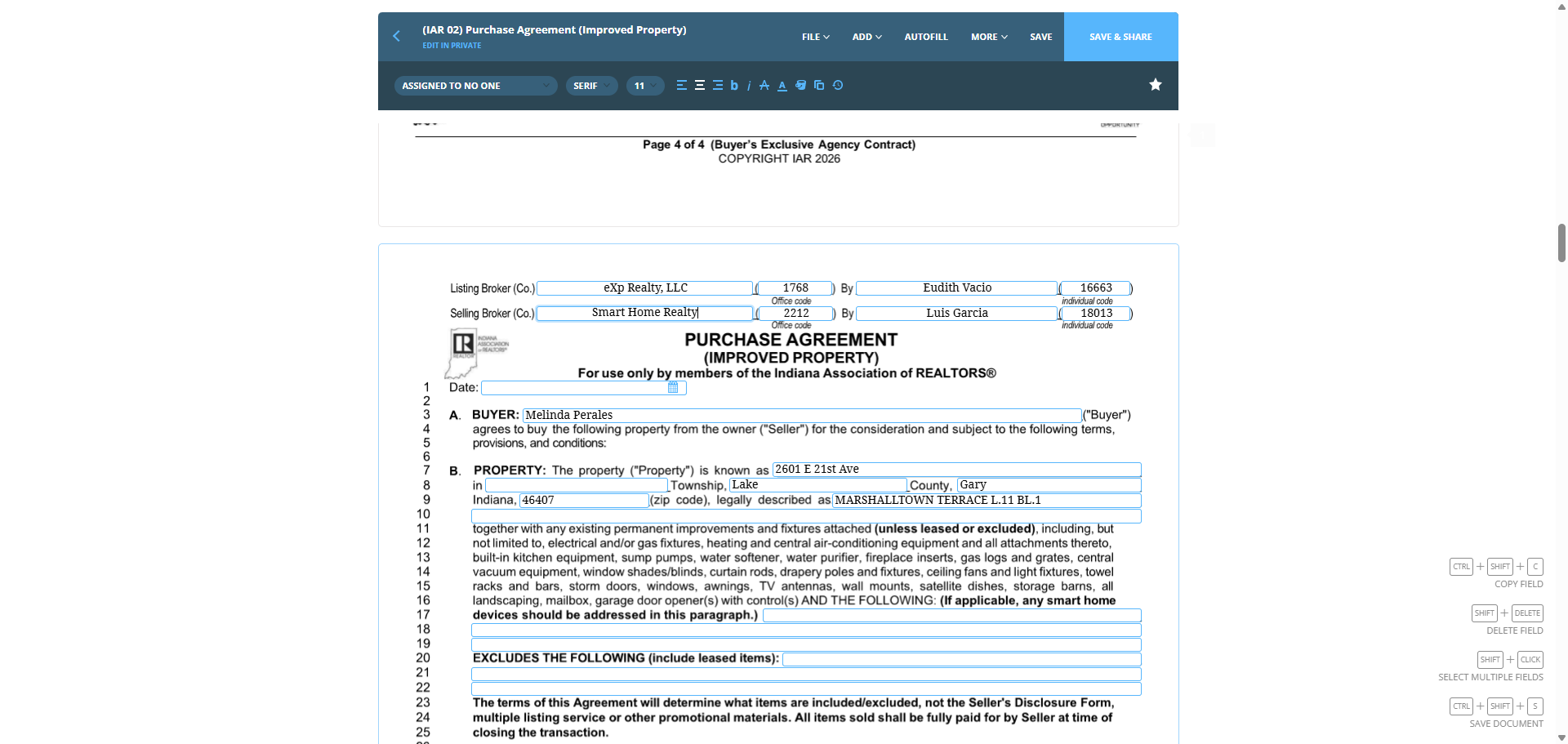
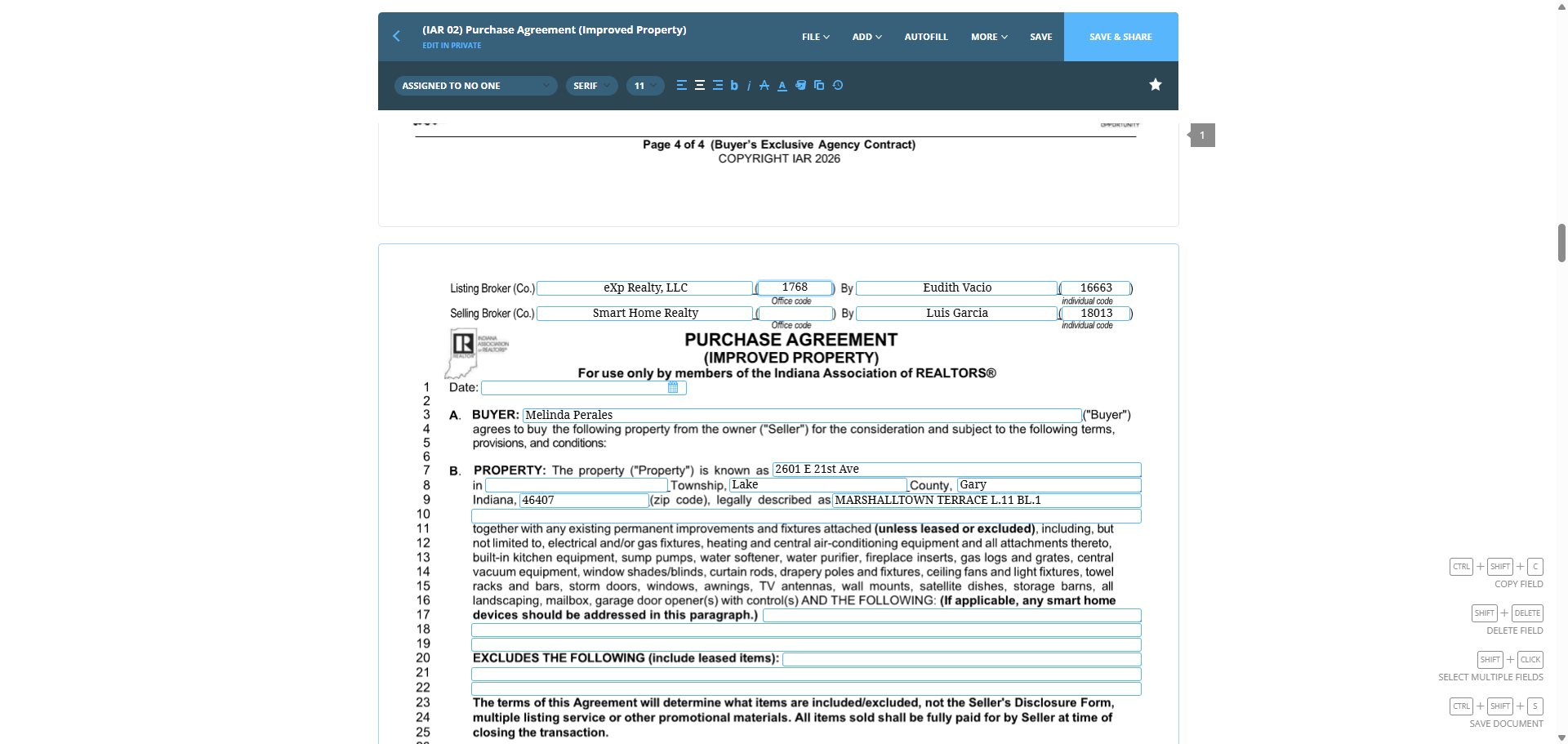
Smart Home Realty is located at 2212.
3
Click on "Office code"
Step #3: Click on "Office code"
4
Click on "Office code"
Step #4: Click on "Office code"
5
Click here
Step #5: Click here
6
Type "2212"

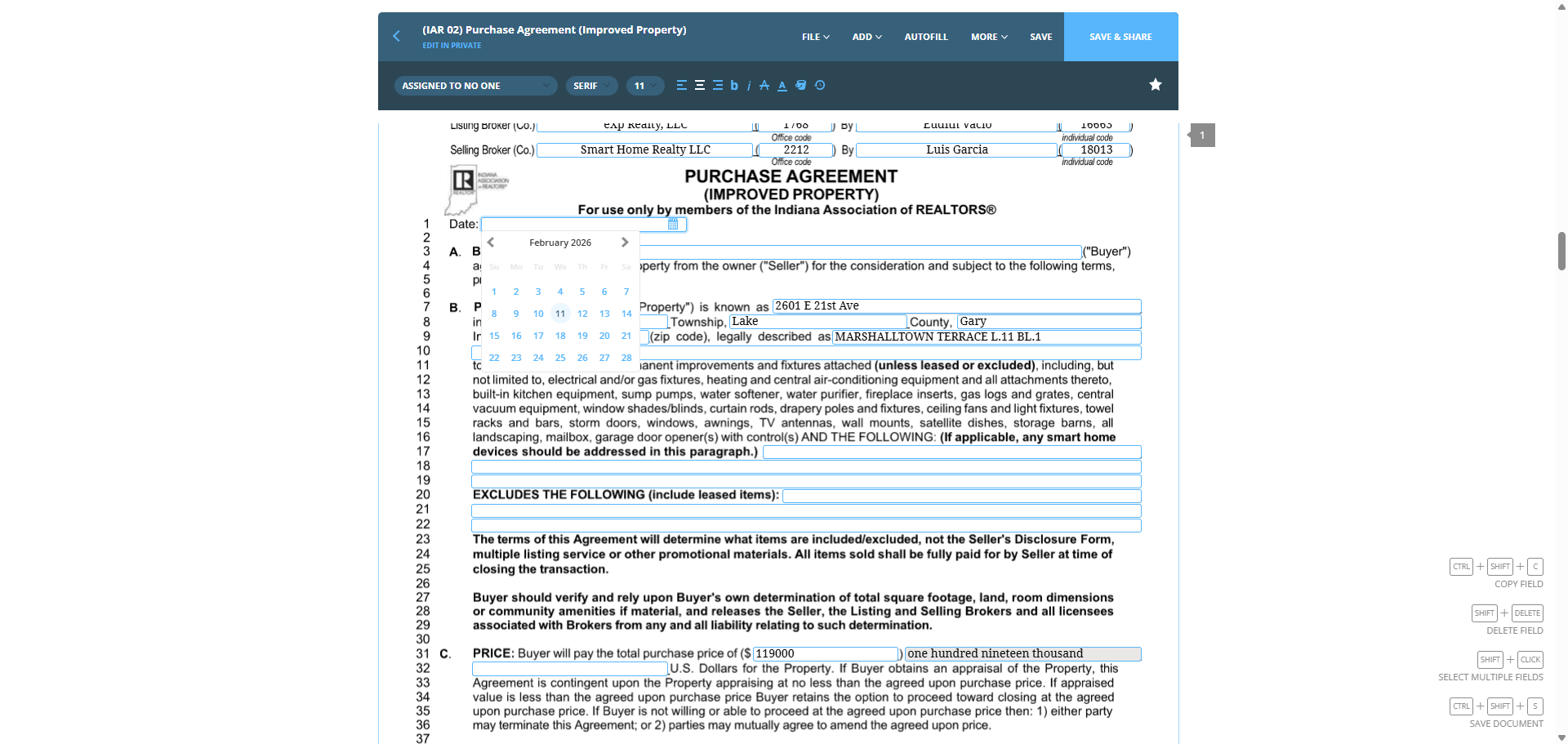
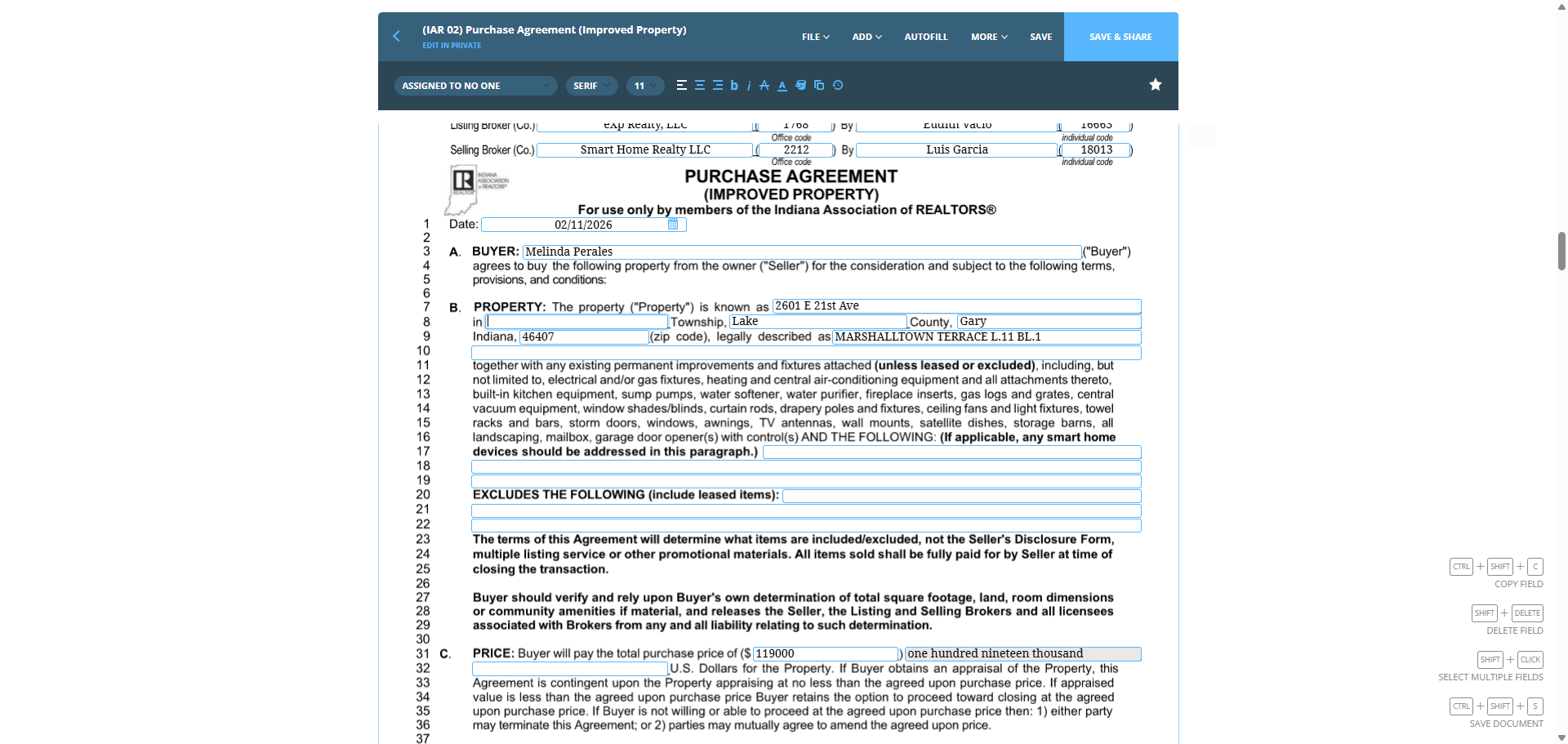
Smart Home Realty LLC. The date refers to when we are making the offer.
7
Click on "For use only by members of the Indiana Association of REALTORS®"
Step #7: Click on "For use only by members of the Indiana Association of REALTORS®"
8
Type " LLC"
9
Click on "11"
Step #9: Click on "11"

The buyer's name should appear.

10
Click on "PROPERTY : The property"
Step #10: Click on "PROPERTY : The property"

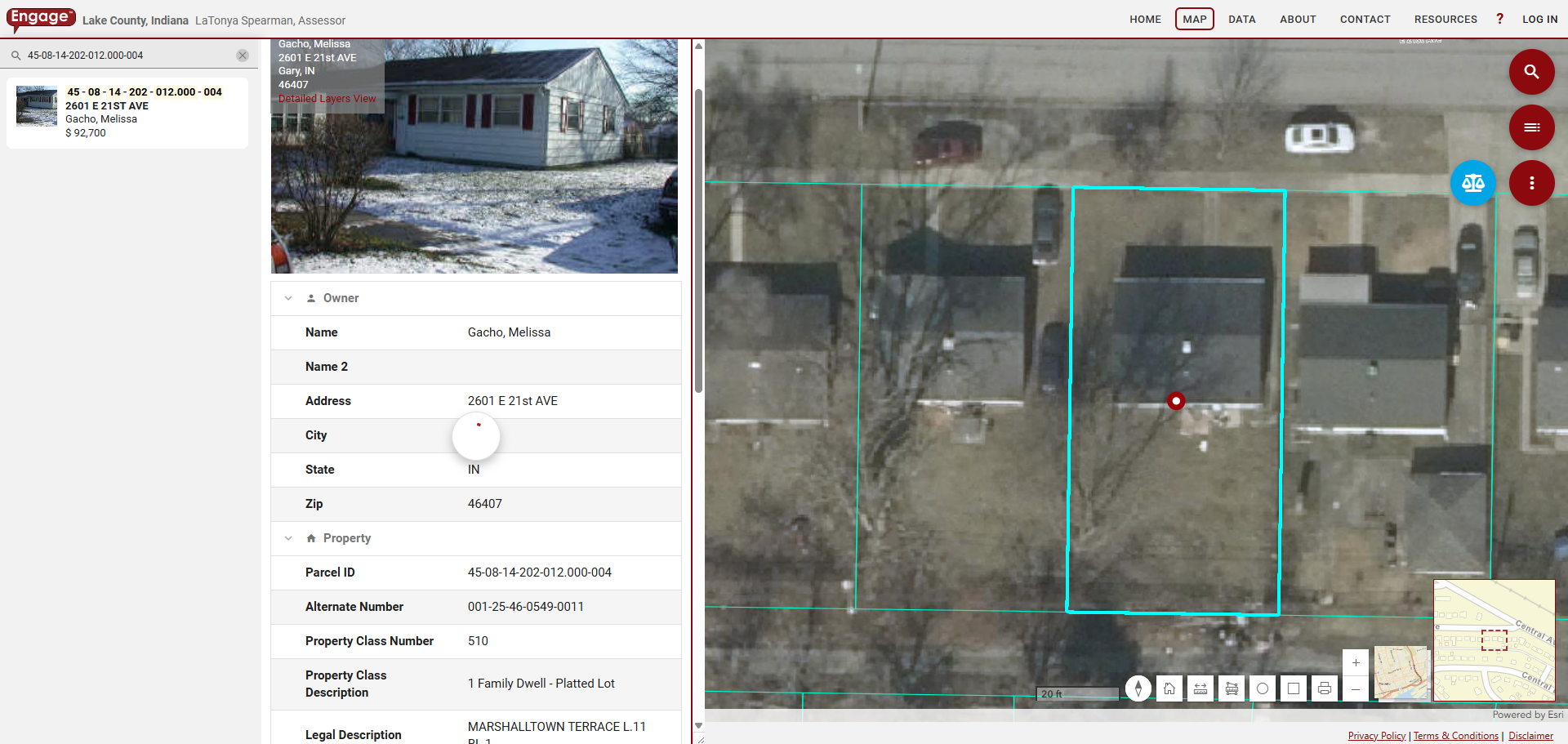
We can look up the township on the MLS. You can go to Realist. Click the tax ID.
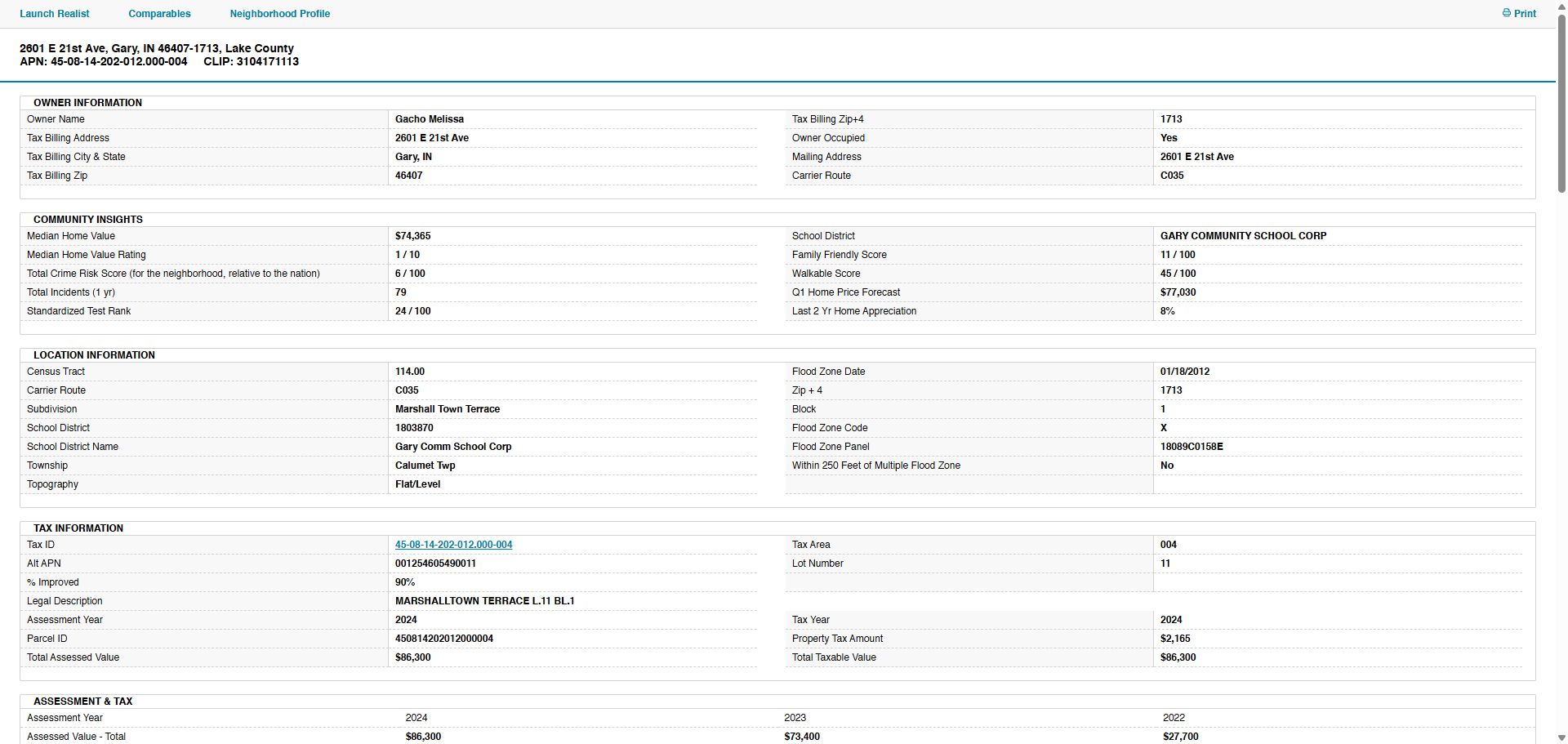
12
Click on "45-08-14-202-012.000-004"
Step #12: Click on "45-08-14-202-012.000-004"

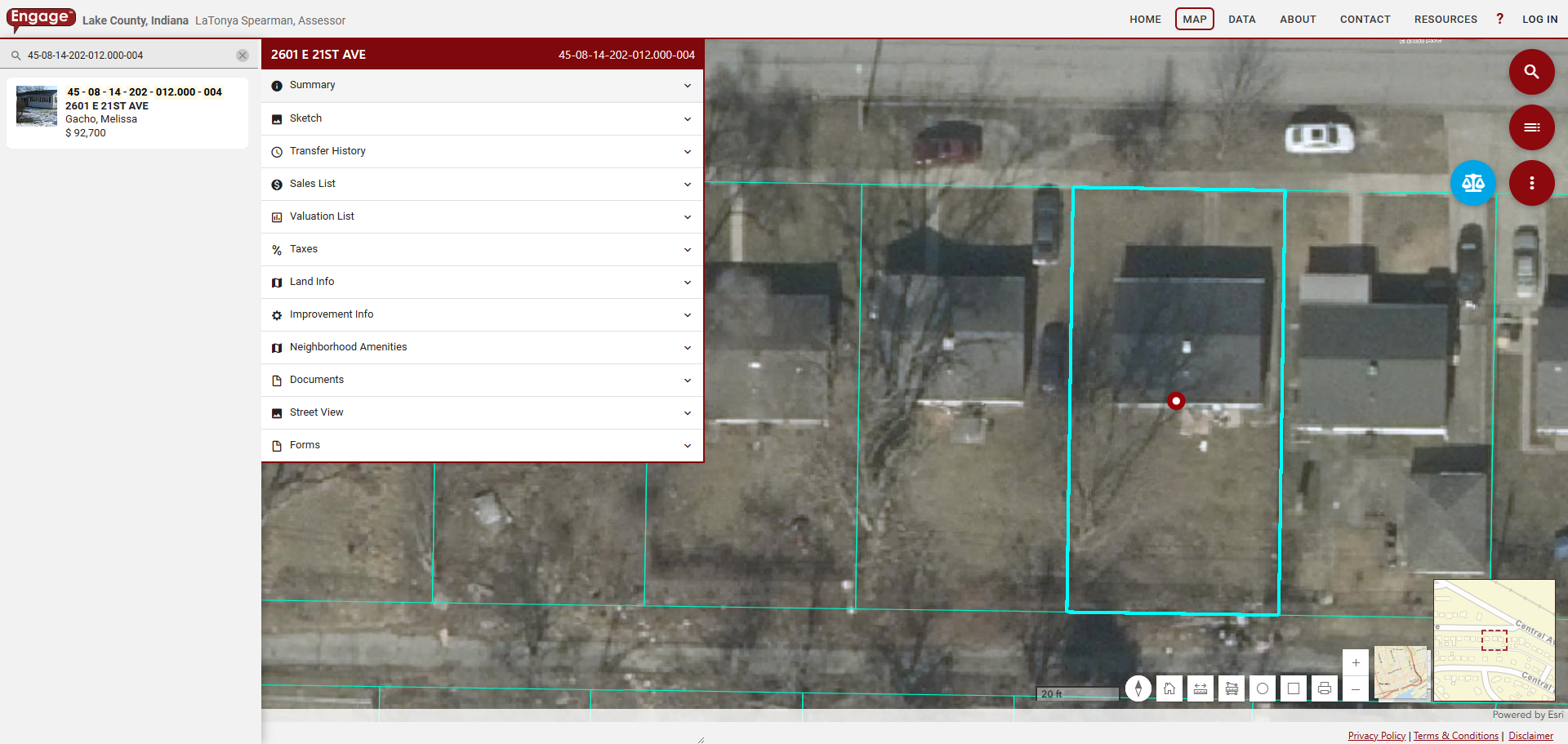
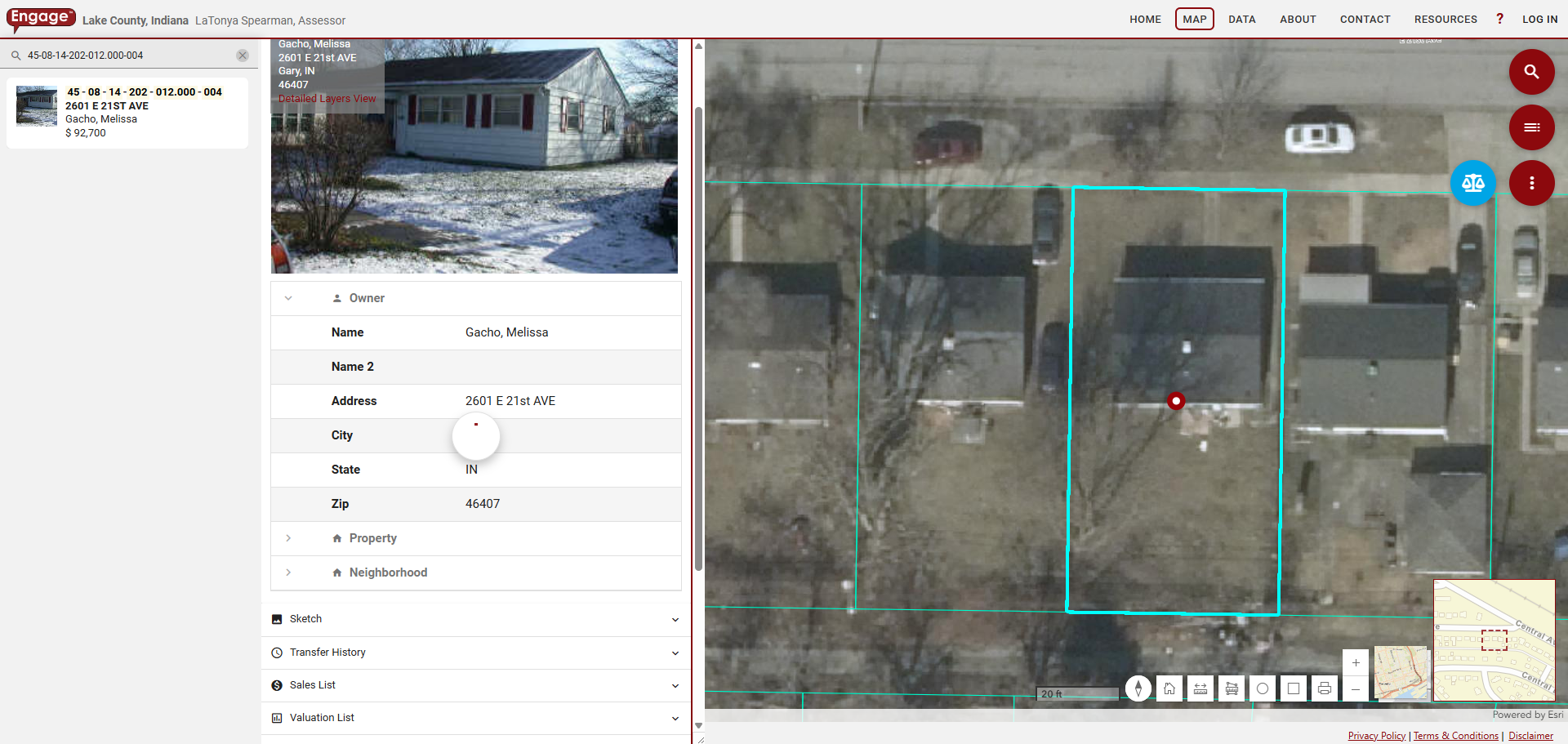
It will take us to the Lake County Assessor's website. Click on Summary, Property, and Township.
13
Click here
Step #13: Click here
14
Click on ">"
Step #14: Click on ">"
15
Click here
Step #15: Click here

The township name mentioned here is Calumet Township. This is something it does not generate automatically, so we must always add it ourselves. Make sure this is also correct.

16
Type "Calumet"

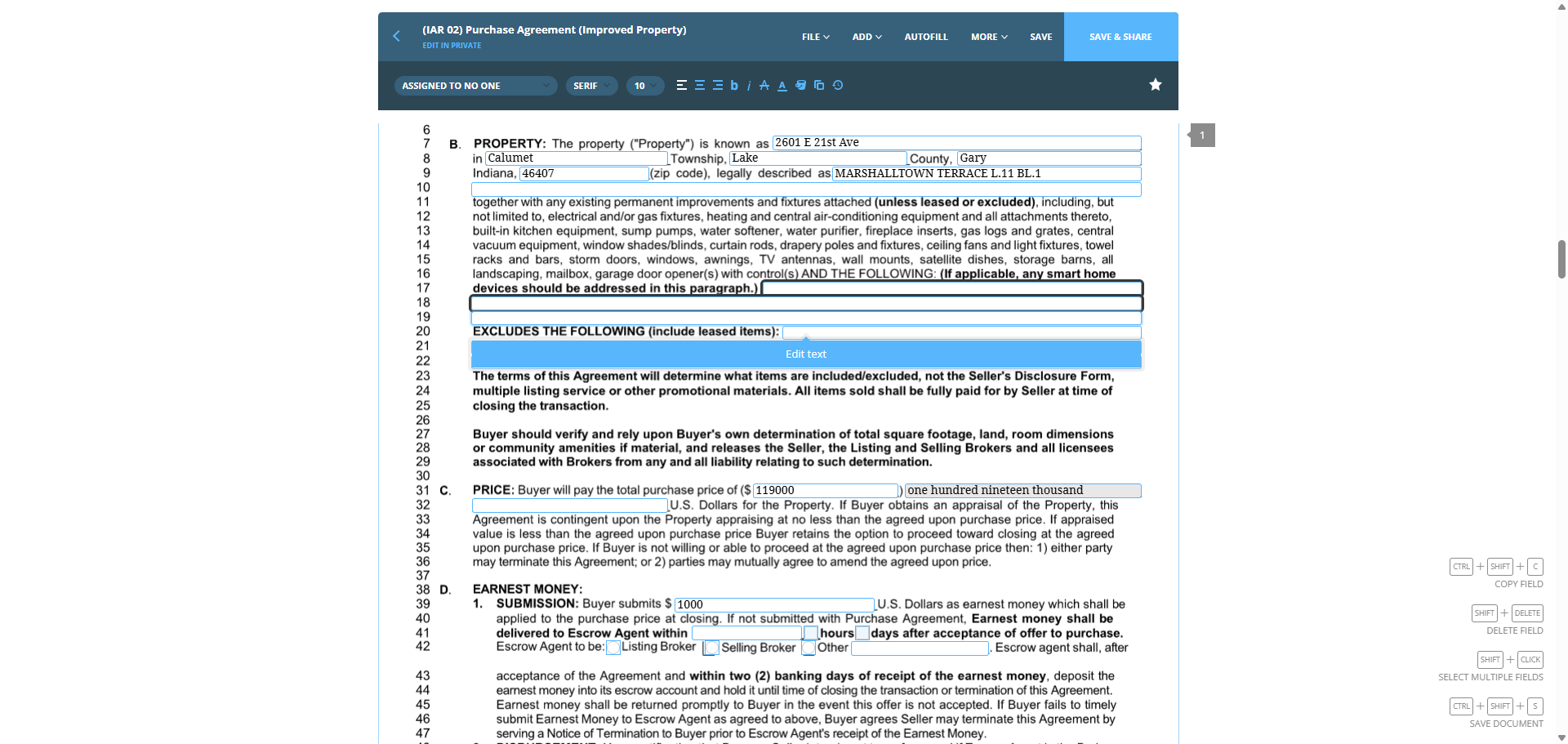
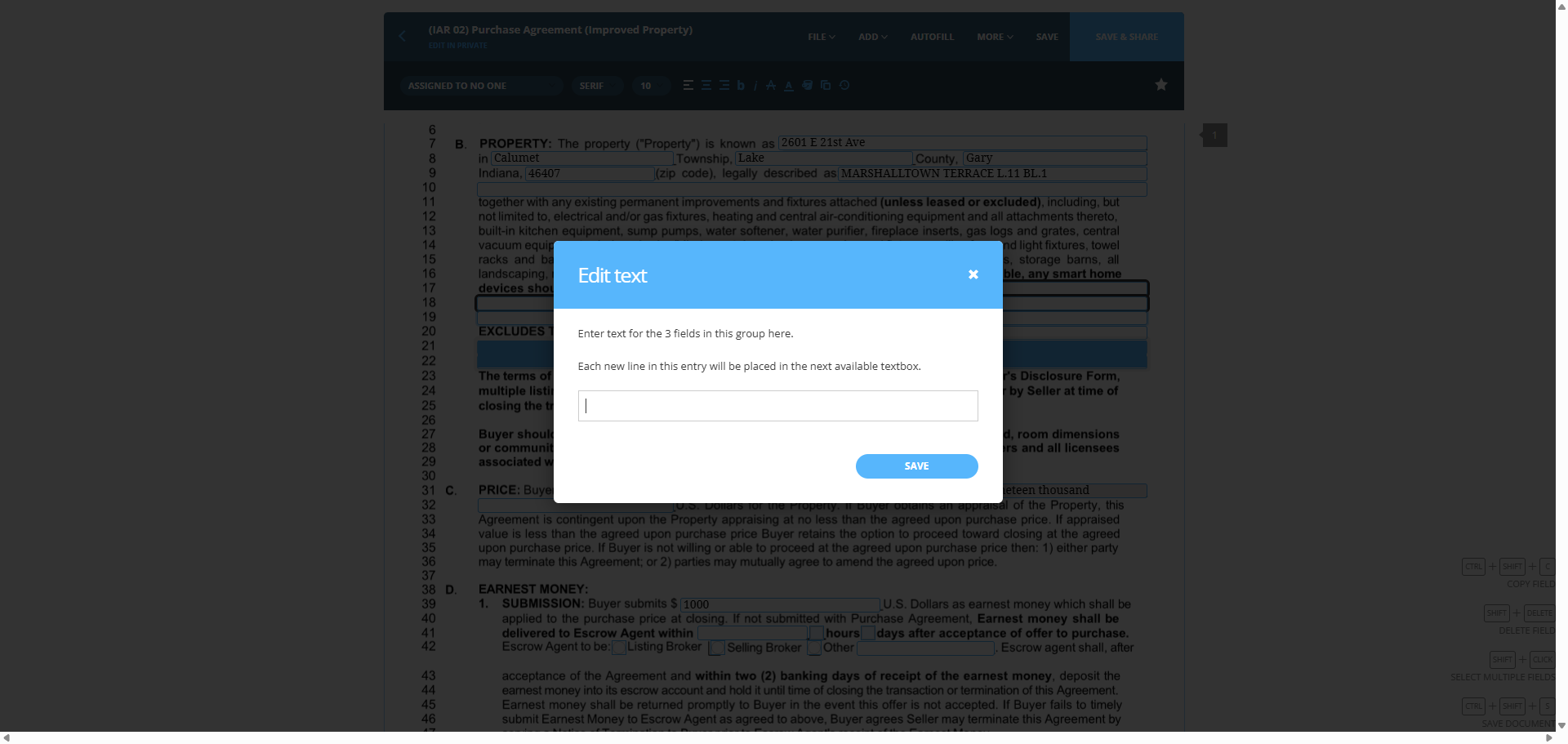
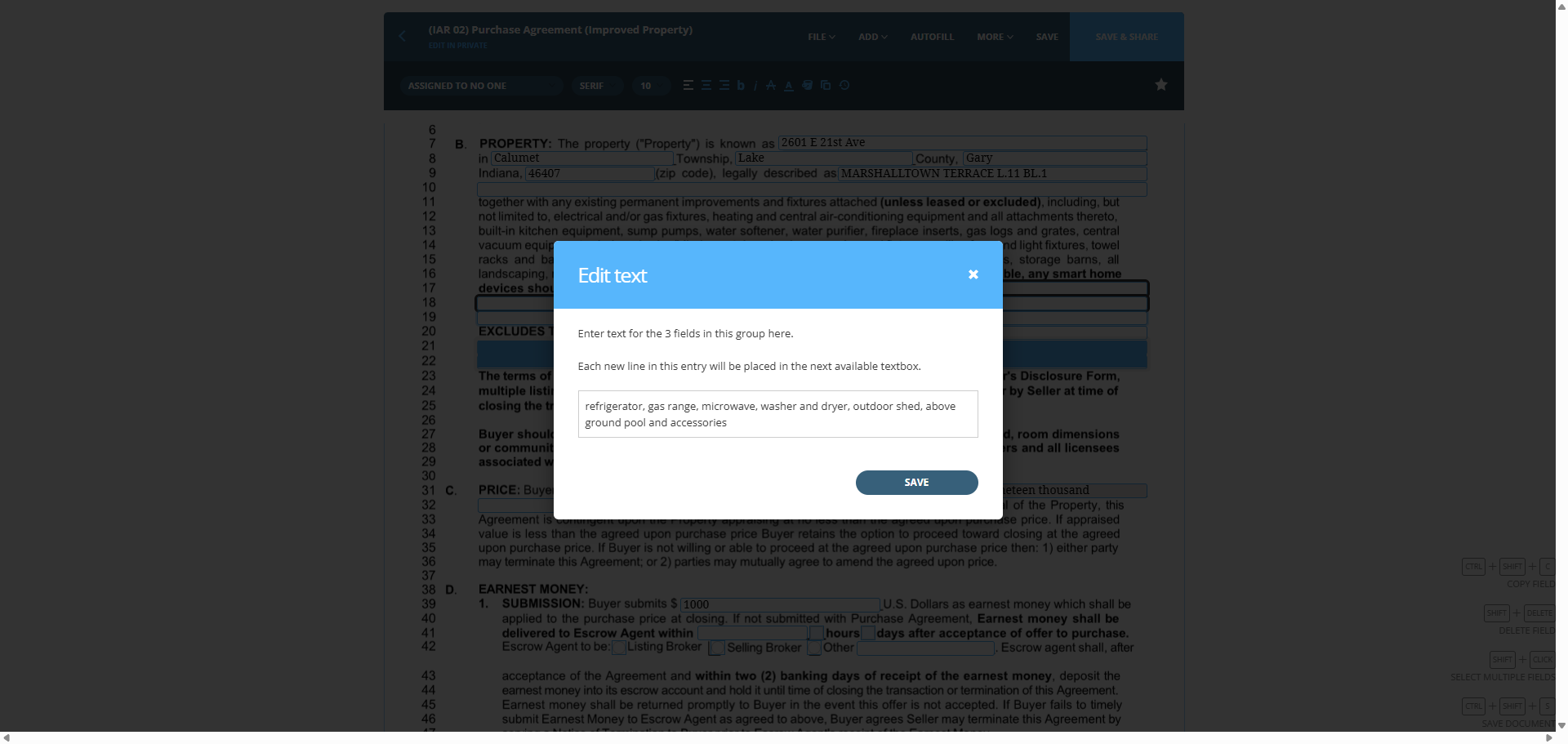
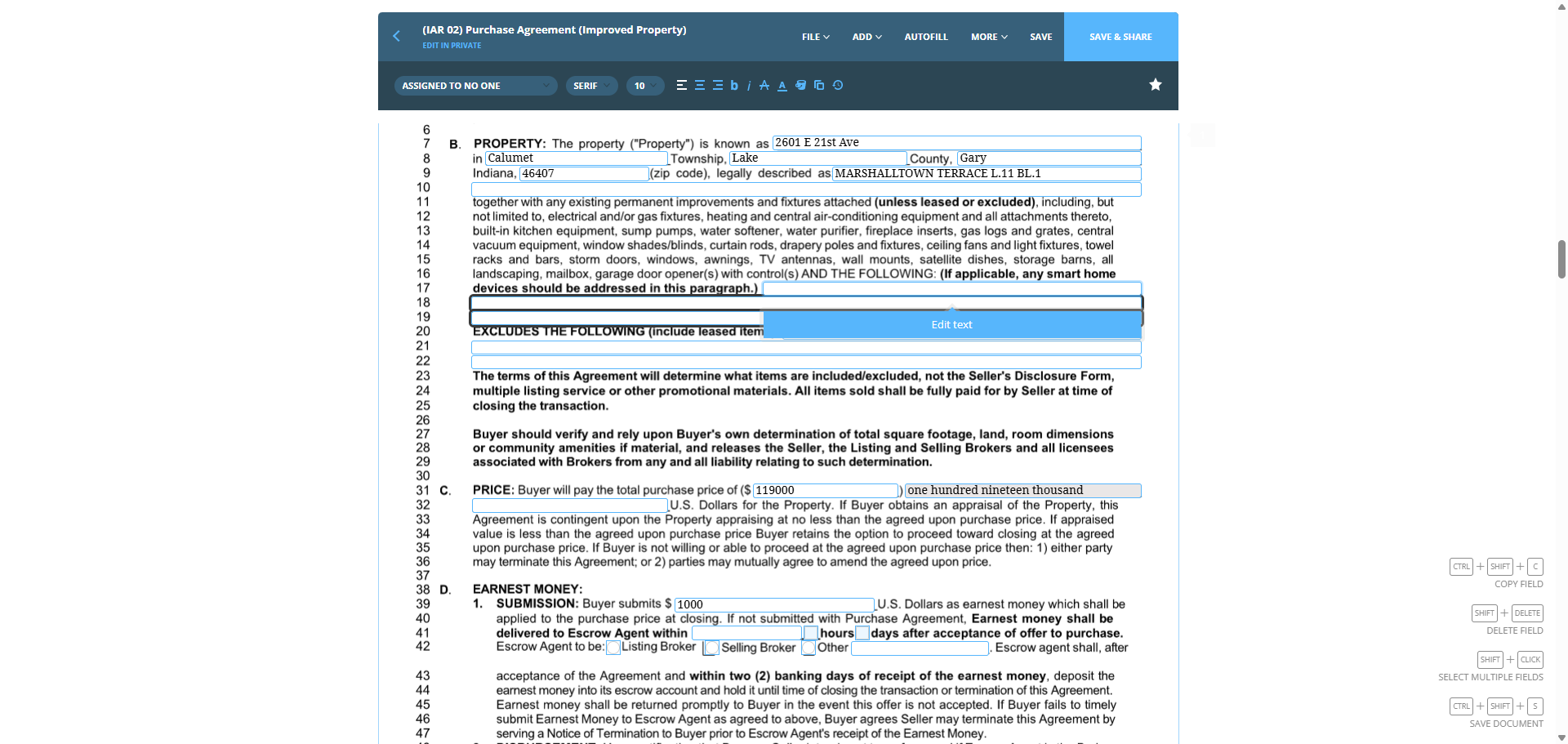
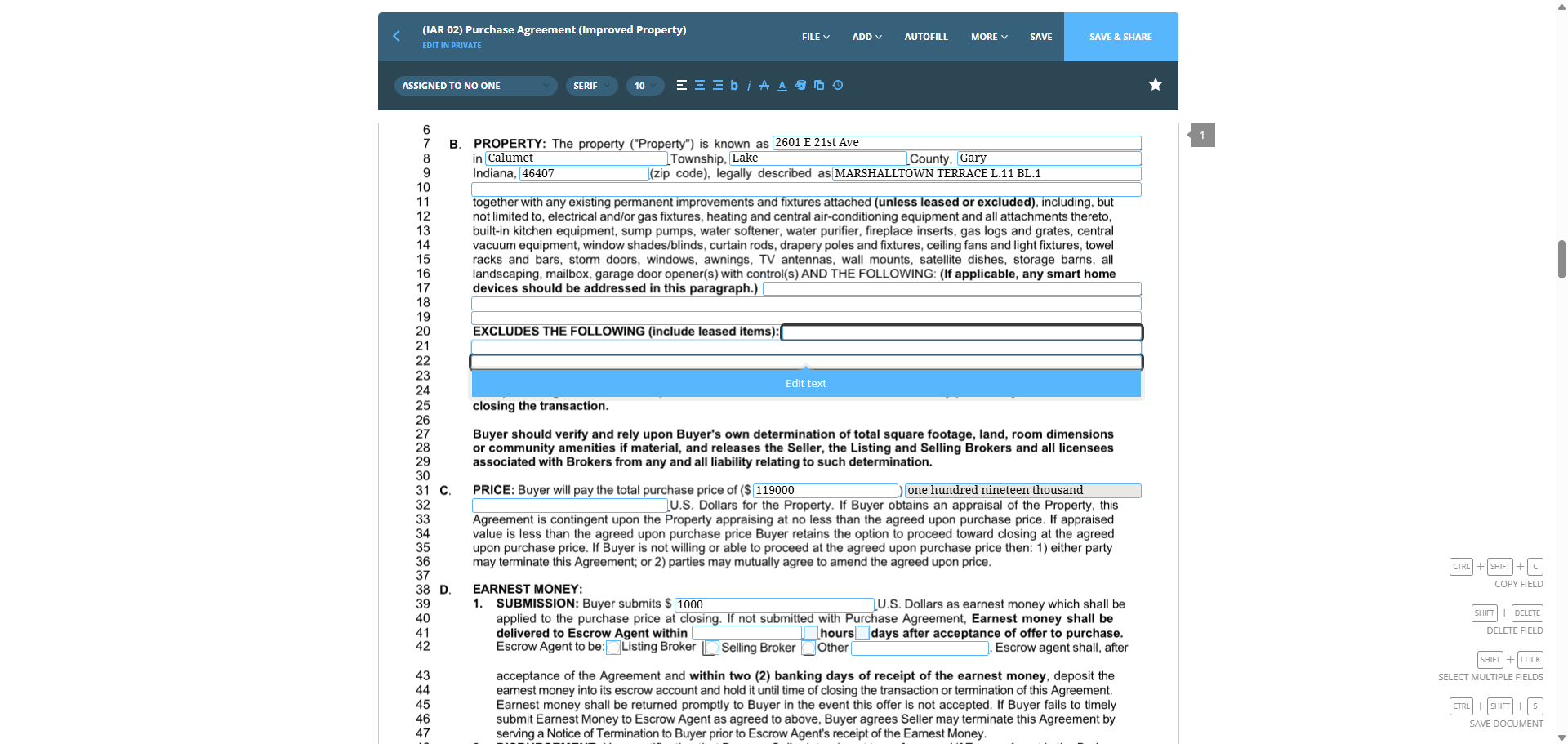
We check if any personal property will remain with the house. We do this by checking the pictures. We can now add an above-ground pool, shed, refrigerator, gas range, microwave, washer, and dryer. This will vary from house to house, as each one will have different features.
17
Click on "( s ) AND THE FOLLOWING"
Step #17: Click on "( s ) AND THE FOLLOWING"
18
Click here
Step #18: Click here
19
Click on "n kitchen equipment , sump pumps , water softener , water purifier , fireplace inserts , gas logs and grates , central im equipment , window shades / blinds , curtain rods , drapery poles and fixtures , ceiling fans and light fixtures , towel and bars , storm doors , windows , awnings , TV antennas , wall mounts , satellite dishes , storage barns , all caping , mailbox , garage door opener ( s ) with control ( s ) AND THE FOLLOWING : ( If applicable , any smart home es should be addressed in this paragraph . ) ["
Step #19: Click on "n kitchen equipment , sump pumps , water softener , water purifier , fireplace inserts , gas logs and grates , central im equipment , window shades / blinds , curtain rods , drapery poles and fixtures , ceiling fans and light fixtures , towel and bars , storm doors , windows , awnings , TV antennas , wall mounts , satellite dishes , storage barns , all caping , mailbox , garage door opener ( s ) with control ( s ) AND THE FOLLOWING : ( If applicable , any smart home es should be addressed in this paragraph . ) ["
20
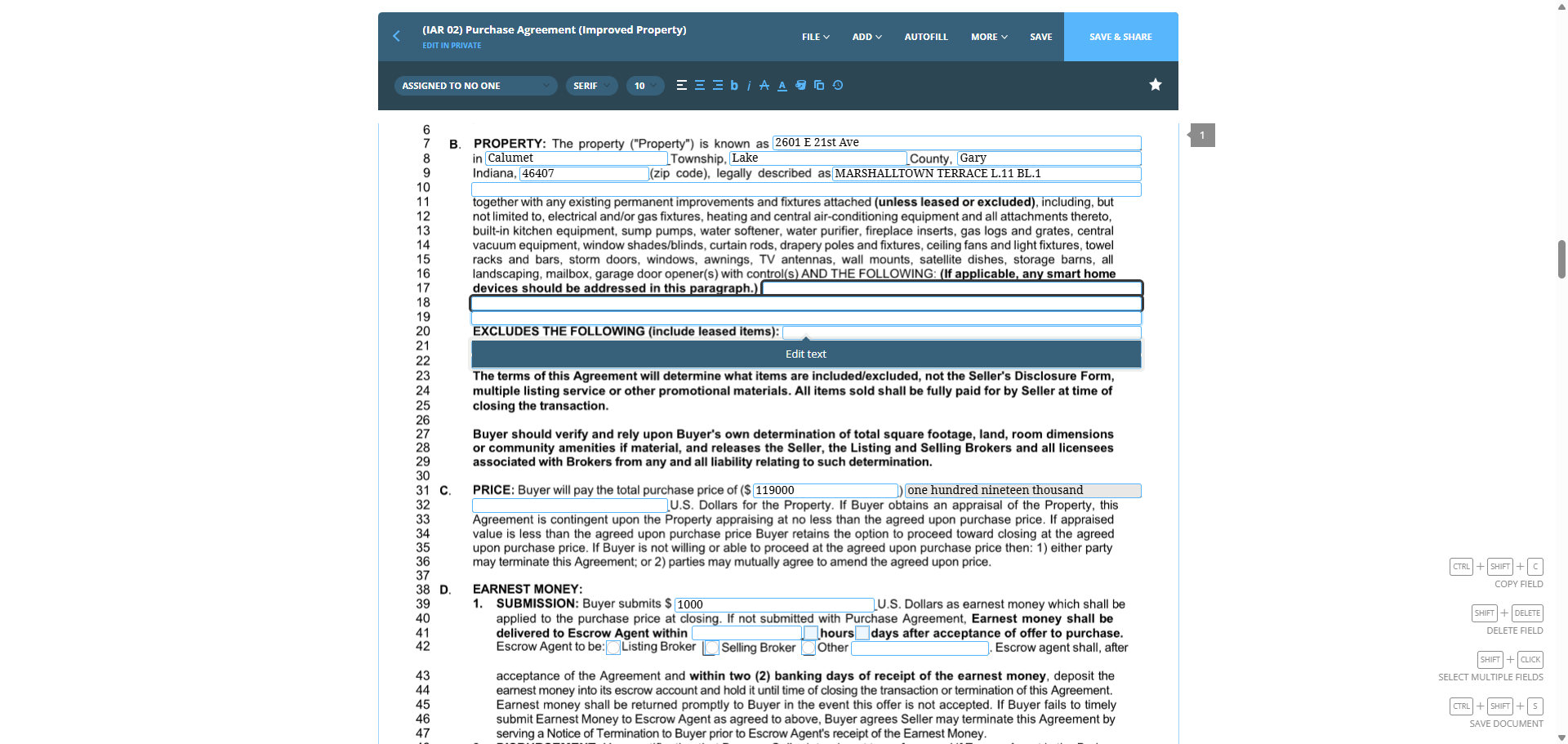
Click on "Edit text ms of this Agreement will determine what items are included / excluded , not the Seller's Disclosure Form ,"
Step #20: Click on "Edit text ms of this Agreement will determine what items are included / excluded , not the Seller's Disclosure Form ,"
21
Click here
Step #21: Click here
22
Click here
Step #22: Click here

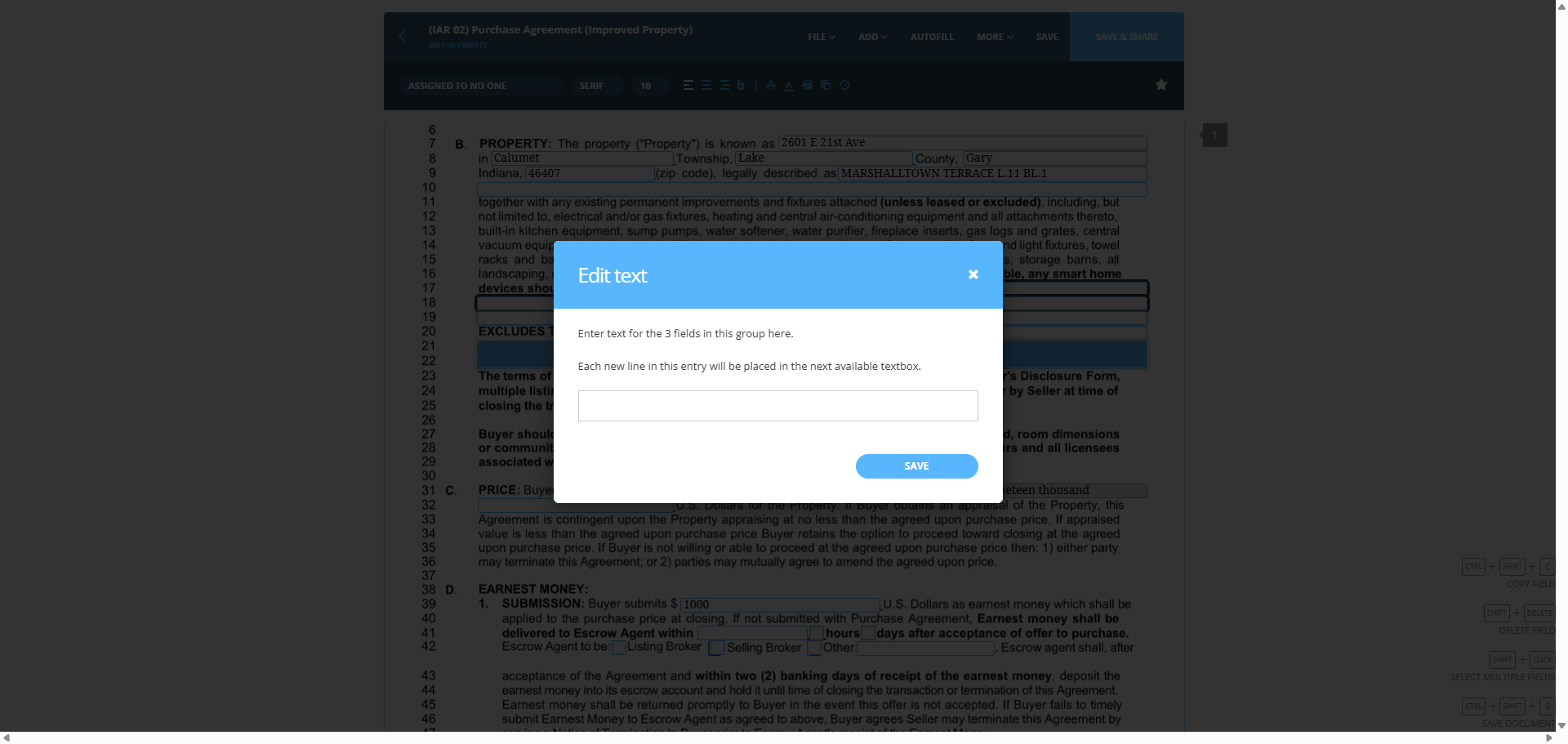
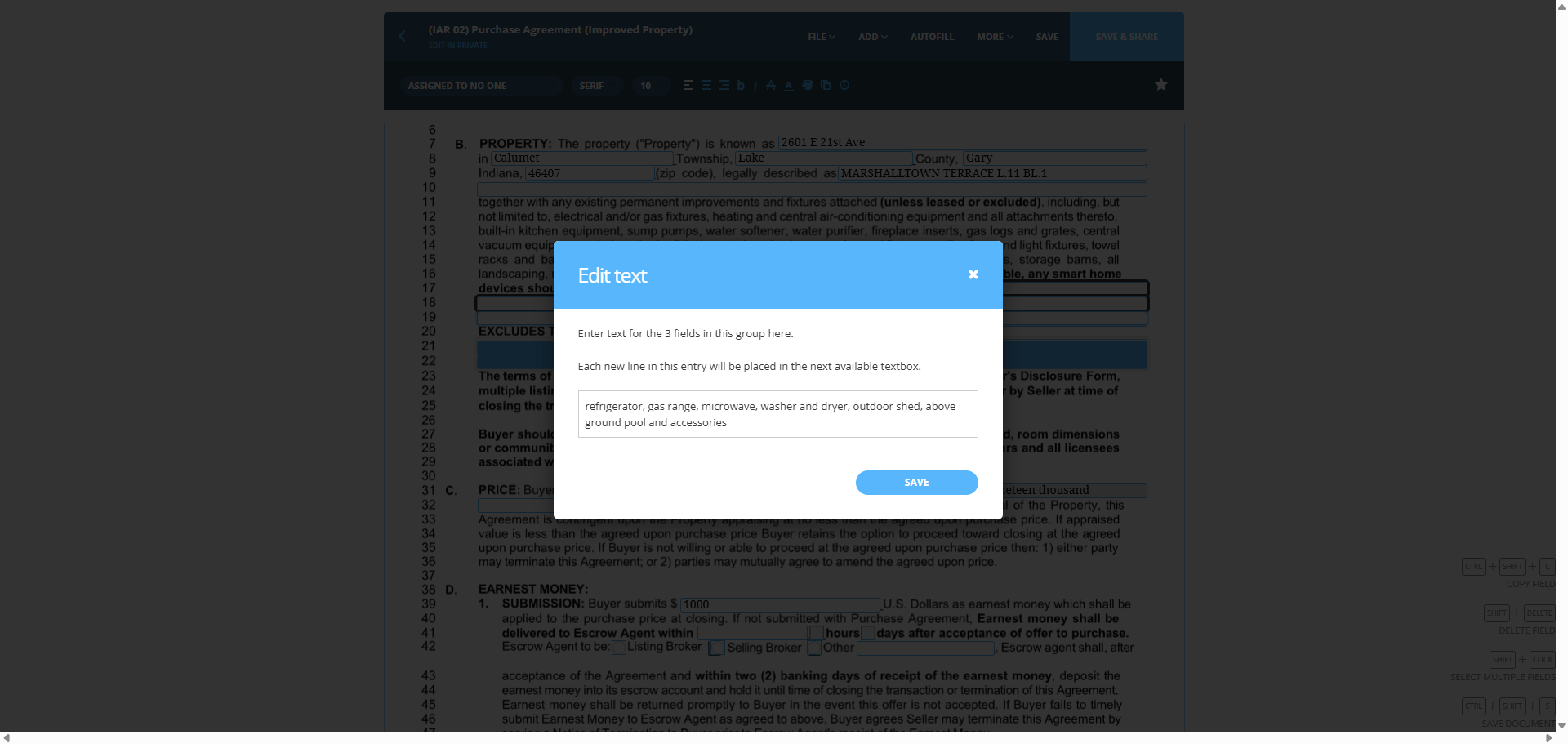
We need to review the pictures on the MLS to see what is included and what will remain. Fridge, microwave, washer, dryer, outdoor shed, above-ground pool, and accessories.
23
Click here
Step #23: Click here
24
Type "refrigerator, gas range, microwave, washer and dryer, outdoor shed, above ground pool and accessories "
25
Click here
Step #25: Click here

We save it.

26
Click here
Step #26: Click here

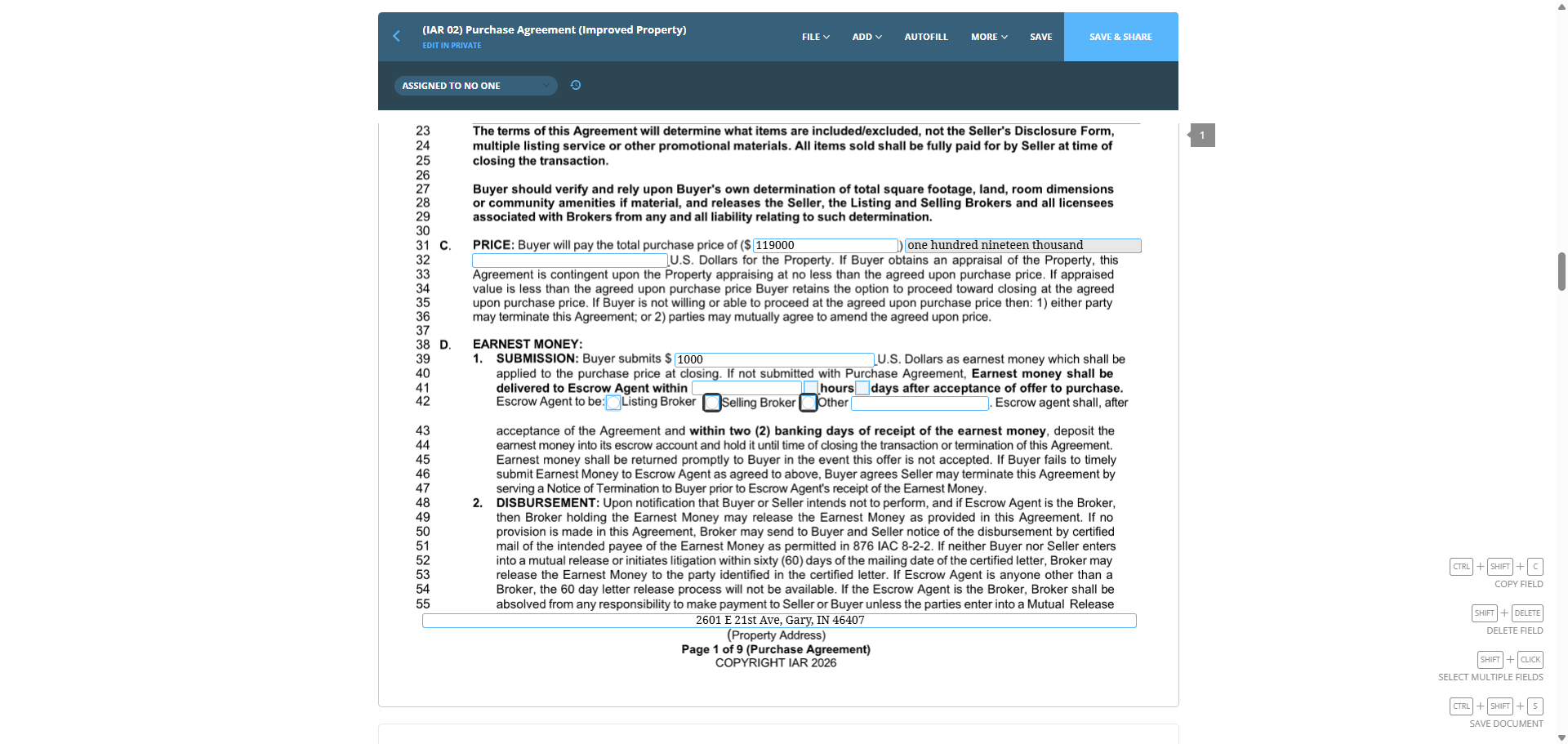
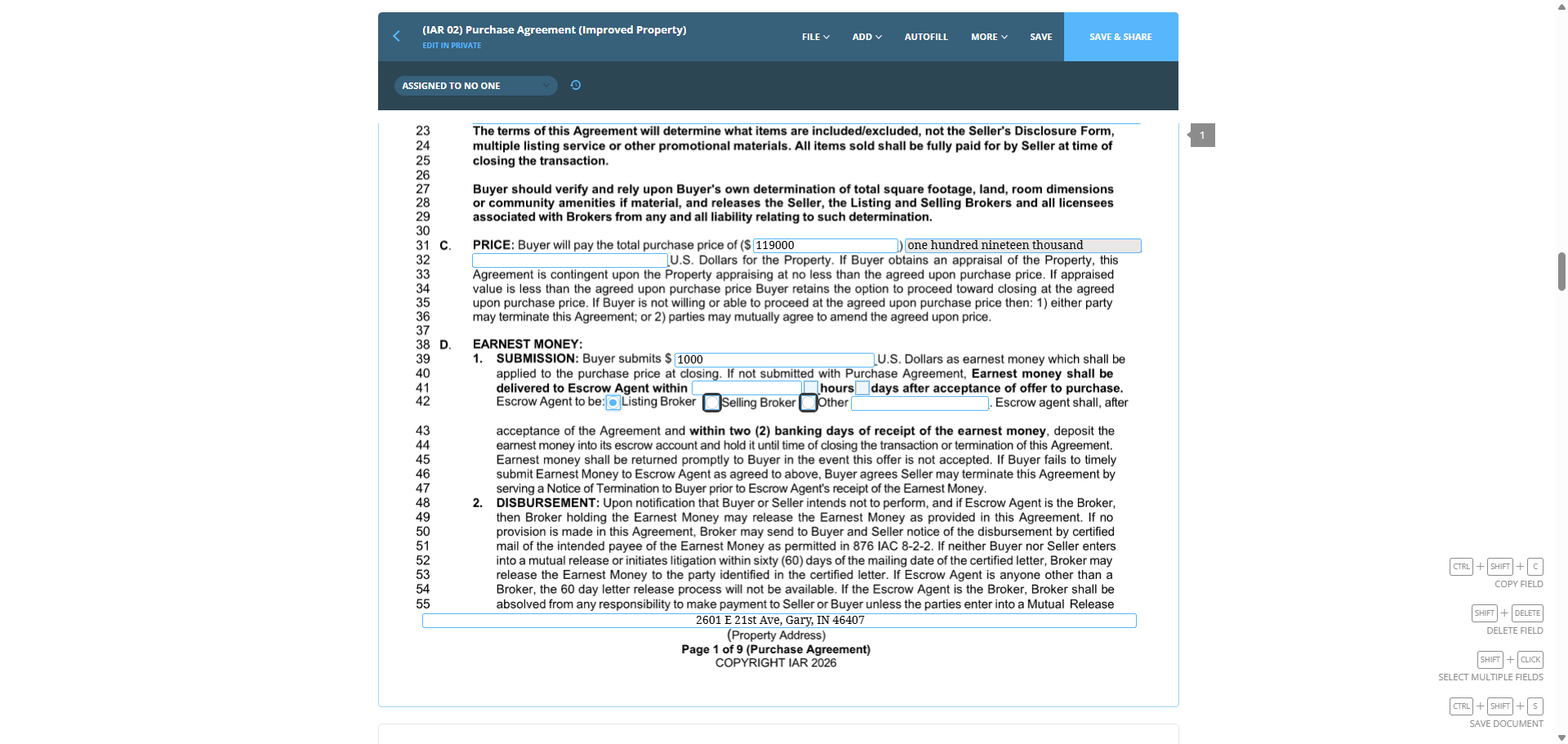
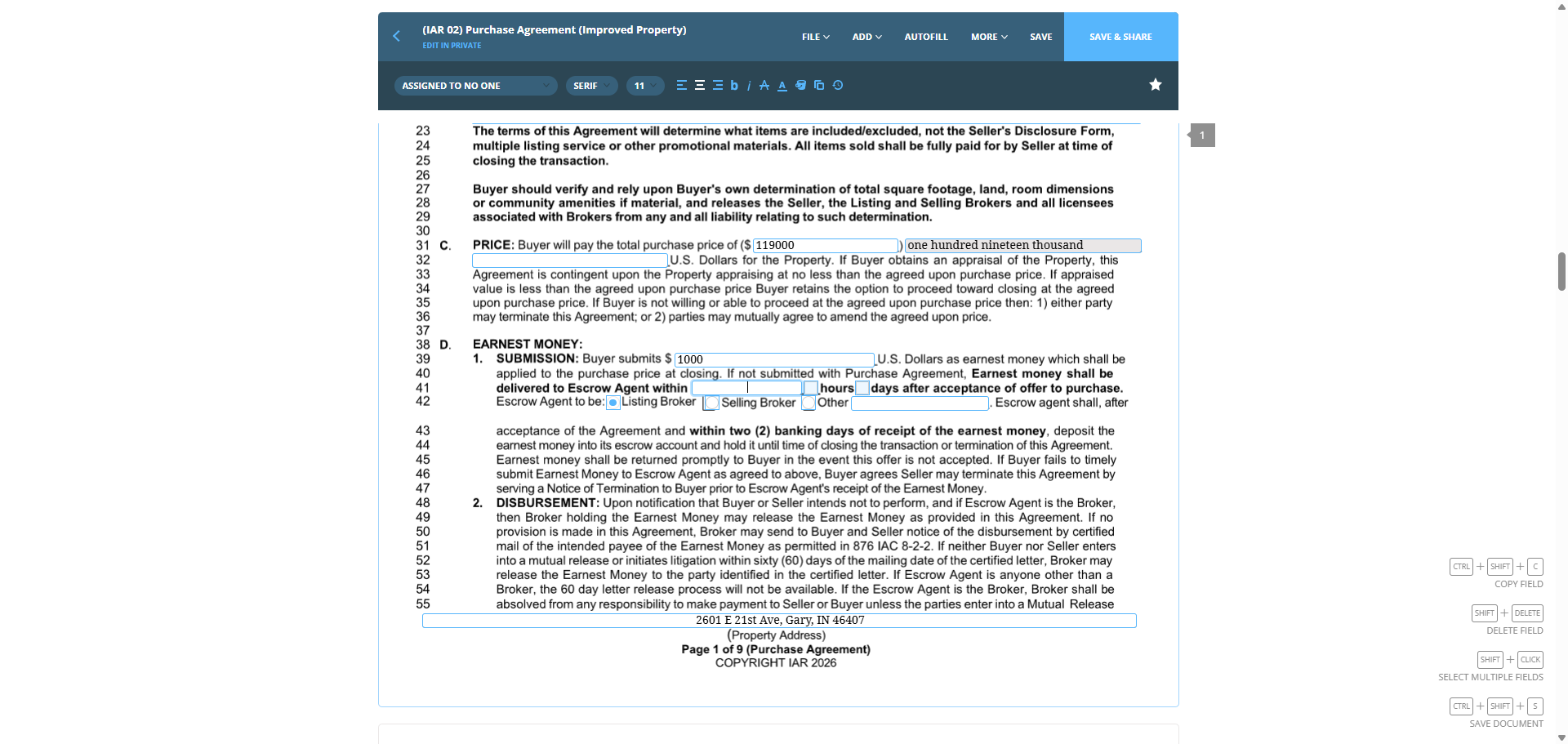
Earnest money should be given to the listing broker unless stated otherwise.
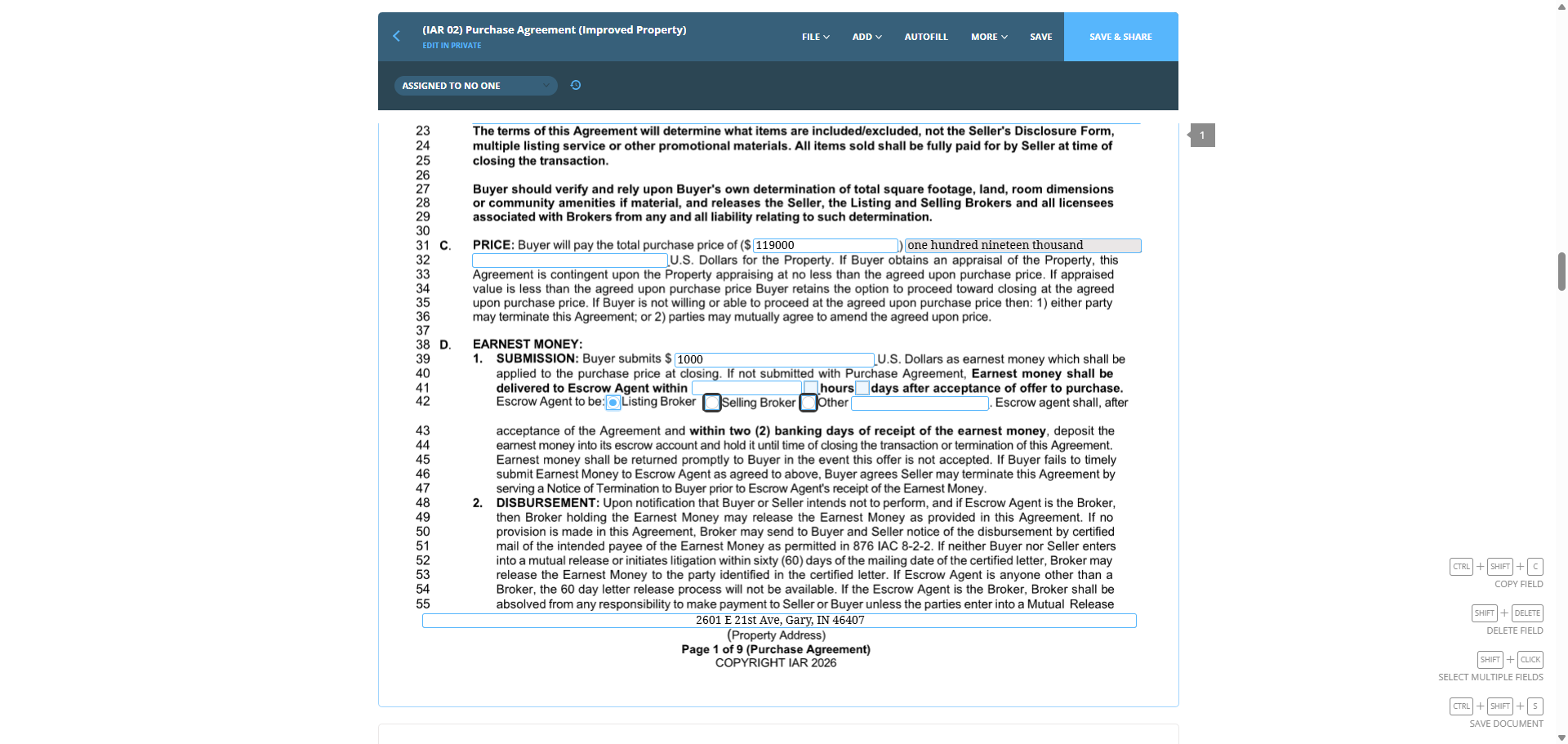
27
Click on ":"
Step #27: Click on ":"
28
Click on ":"
Step #28: Click on ":"
29
Click on "delivered to Escrow Agent within"
Step #29: Click on "delivered to Escrow Agent within"

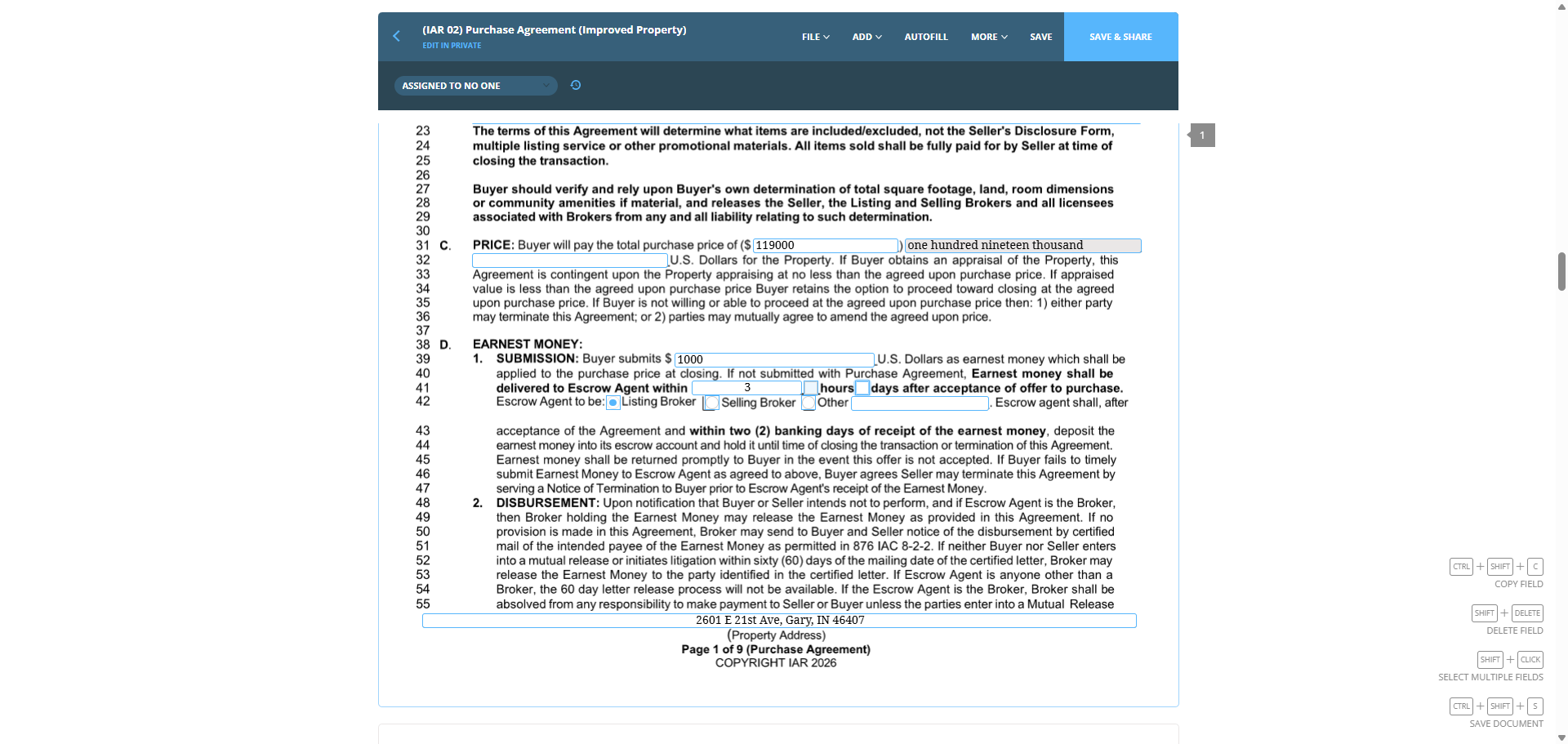
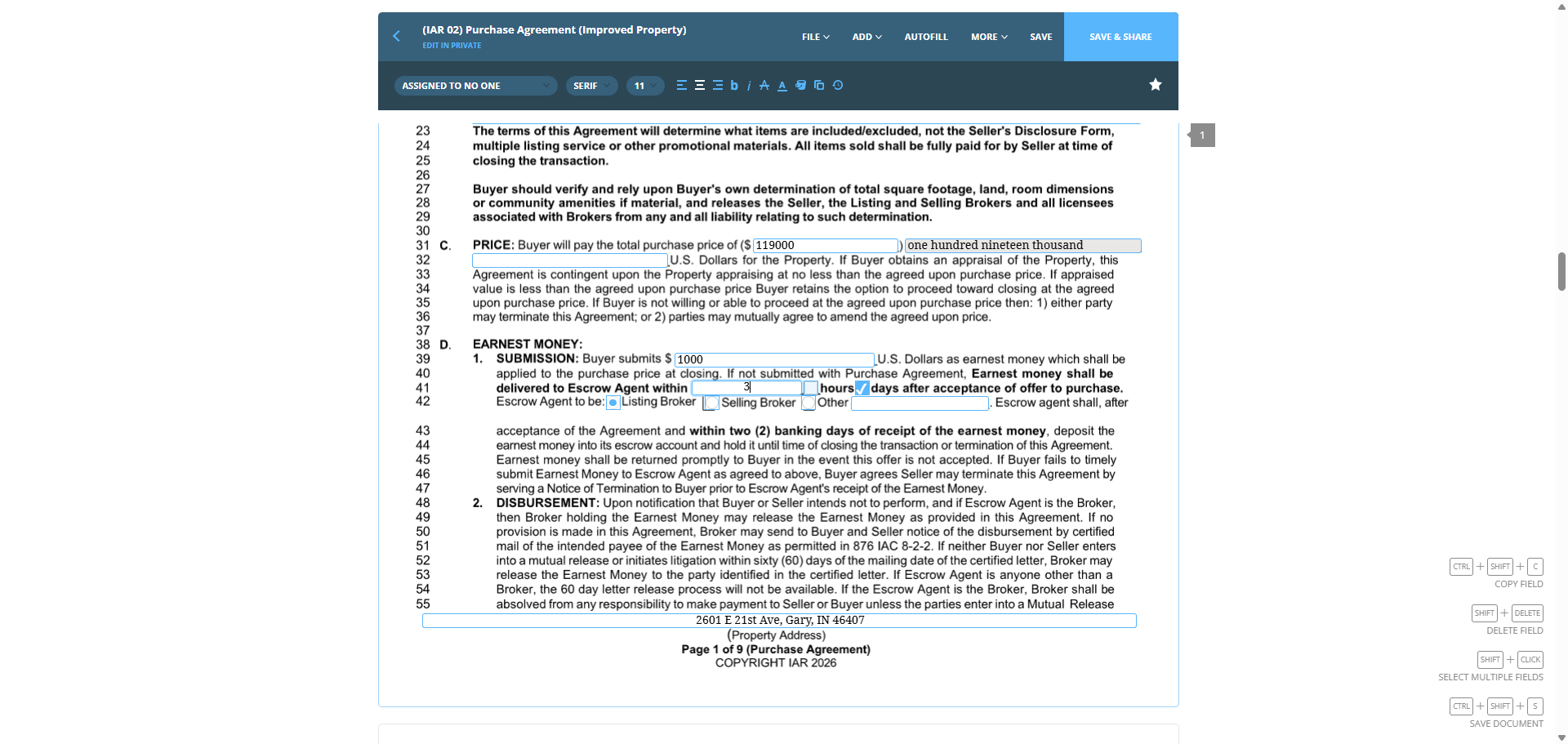
Earnest money will be delivered within three business days.
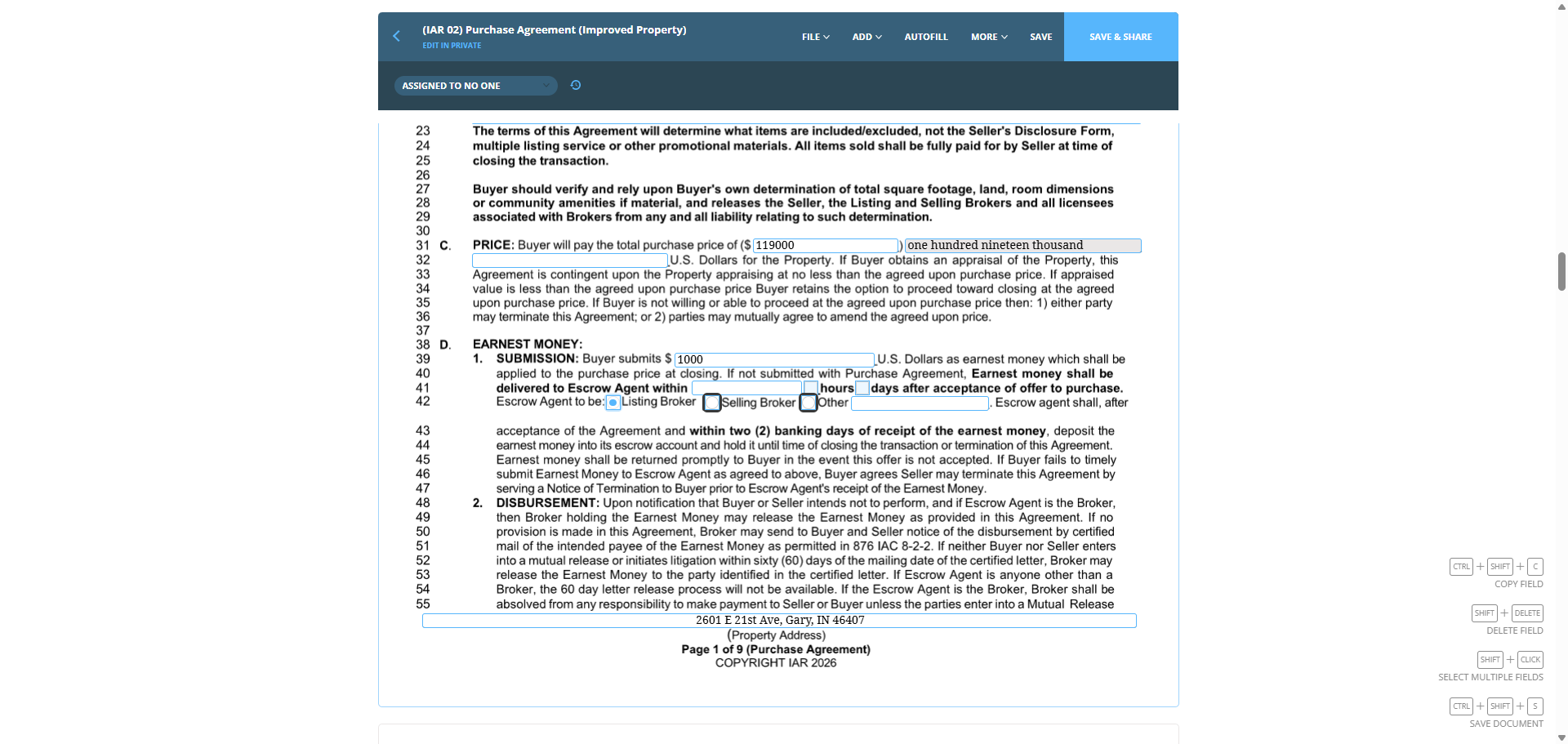
30
Click on "If"
Step #30: Click on "If"
31
Click on "If"
Step #31: Click on "If"
32
Click on "hours"
Step #32: Click on "hours"
33
Type "3"
34
Click on "not submitted with Purchase Agreement"
Step #34: Click on "not submitted with Purchase Agreement"

Make sure the business is documented.
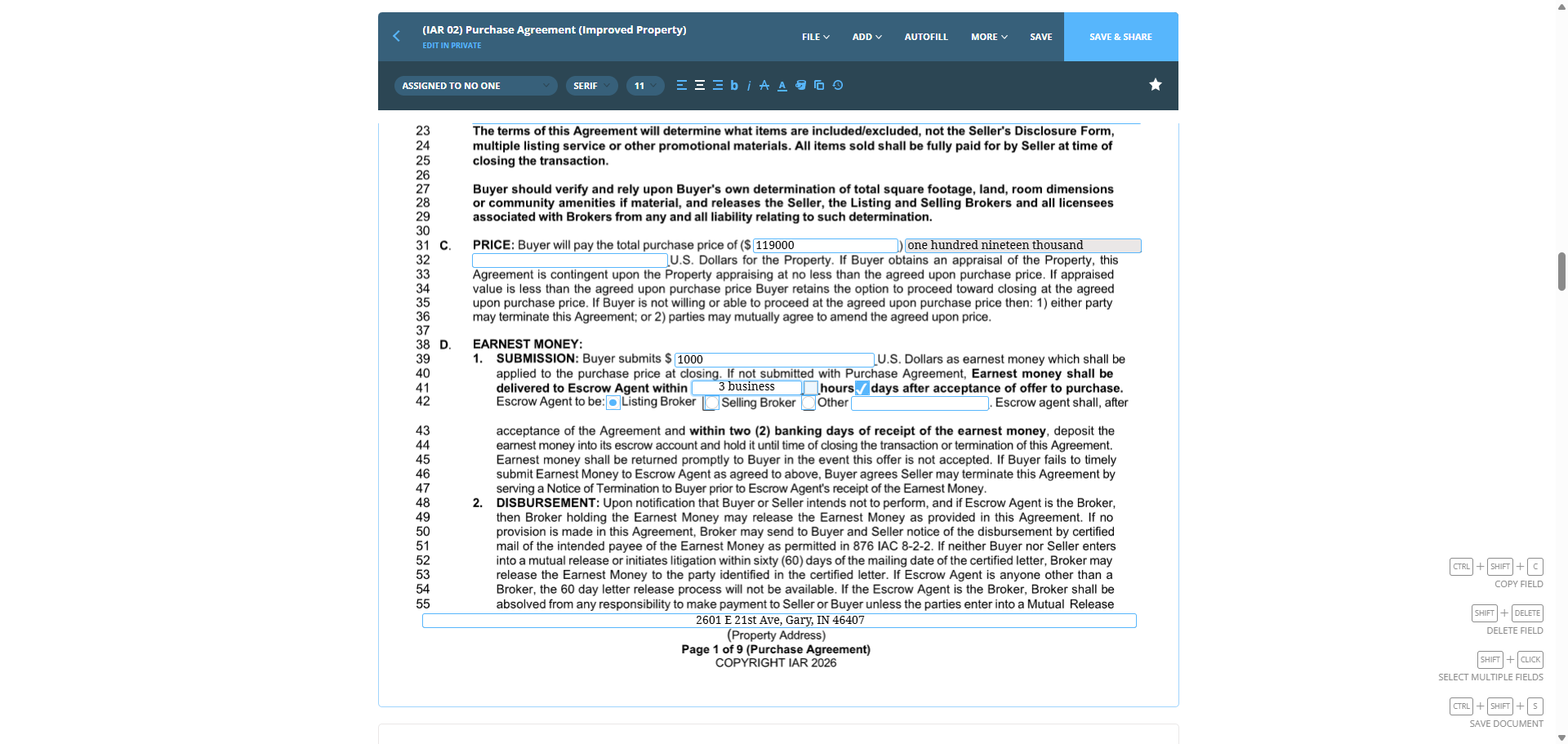
35
Click on "until"
Step #35: Click on "until"
36
Type " business"

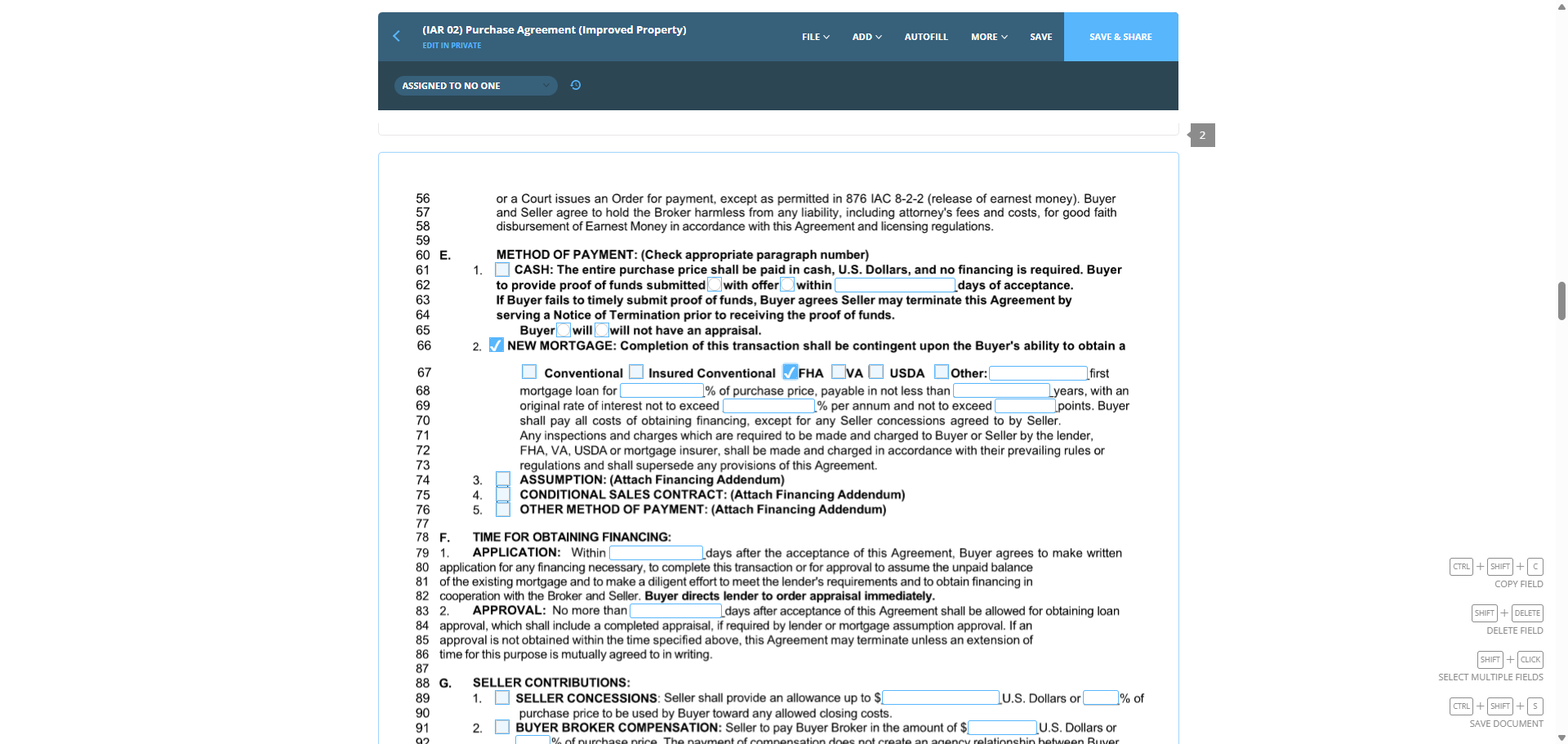
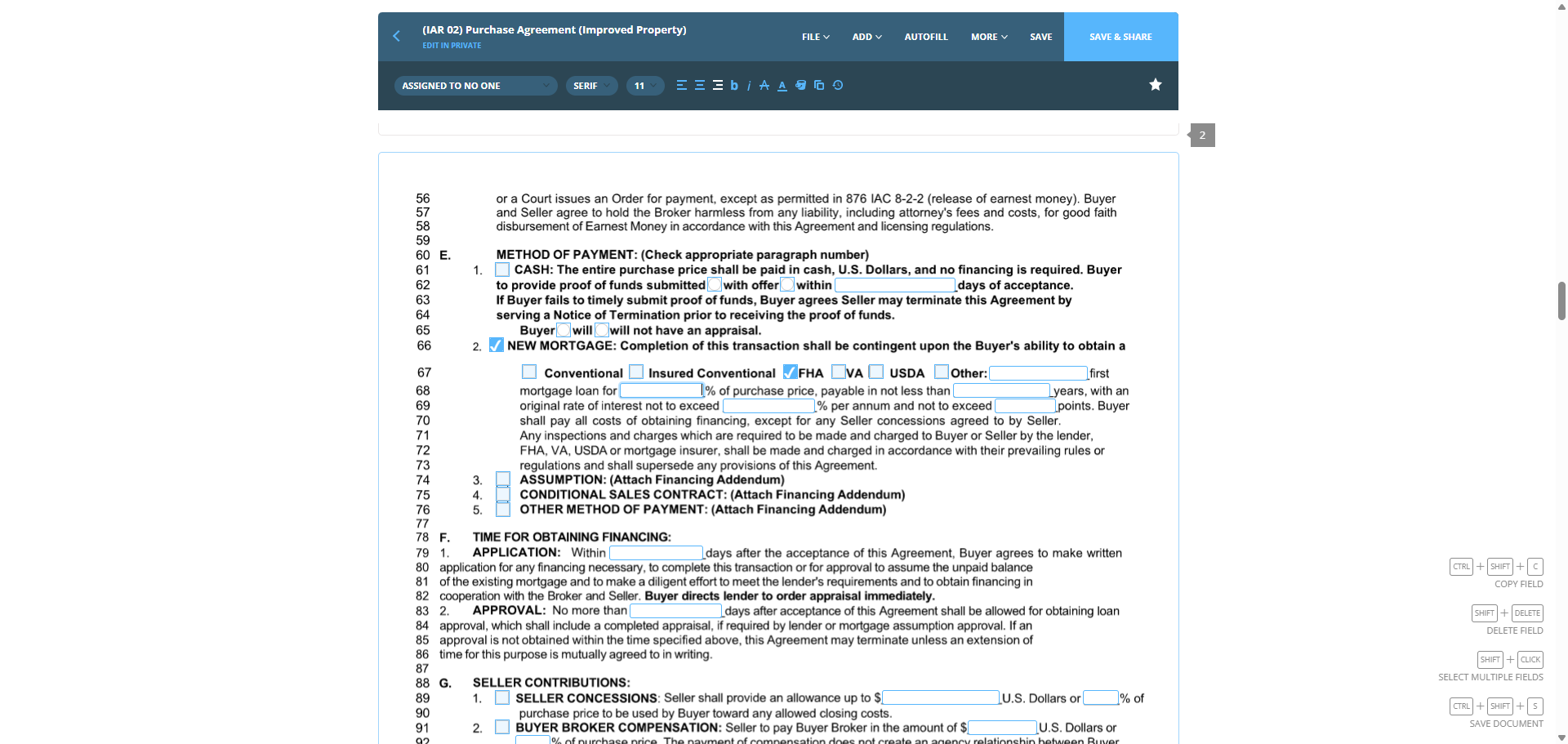
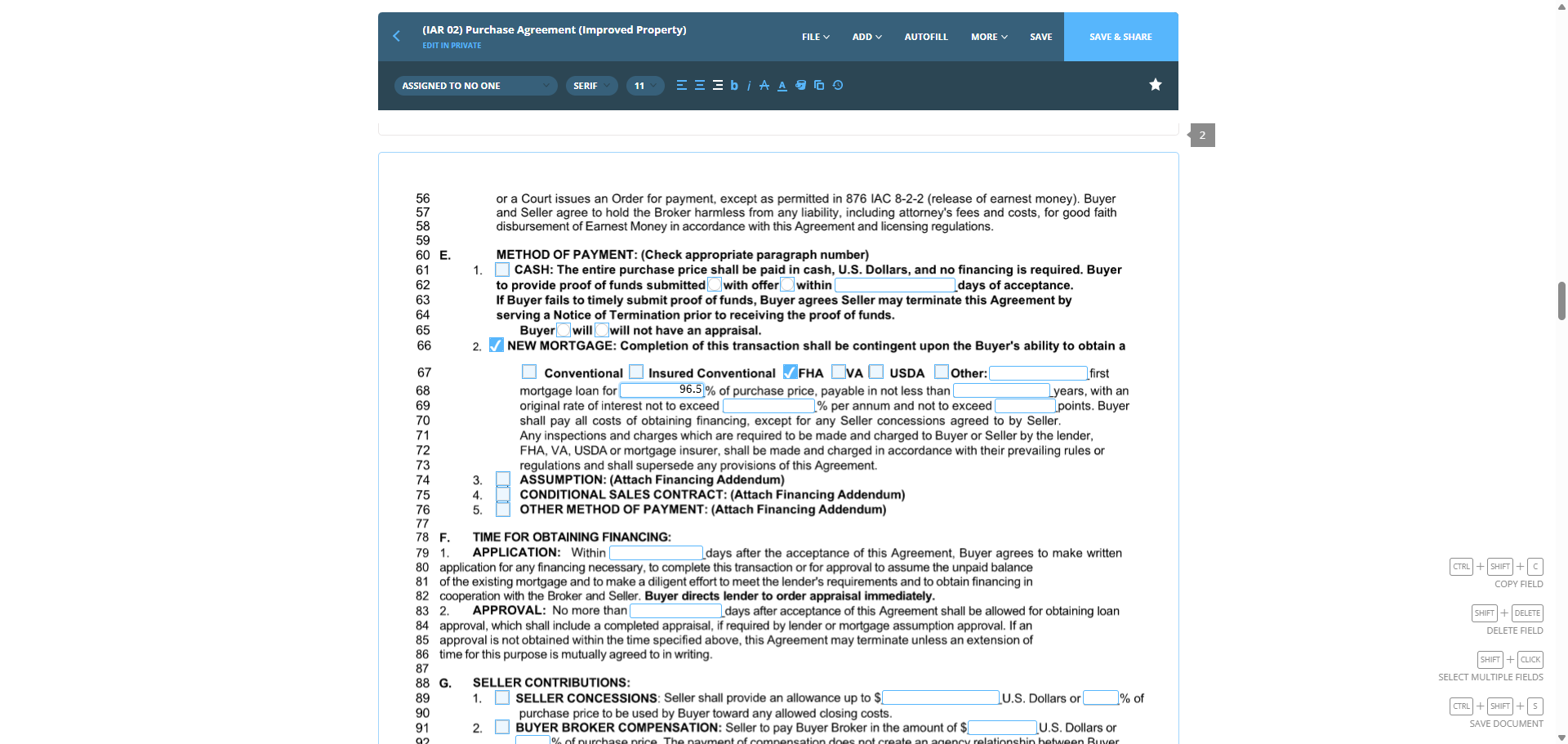
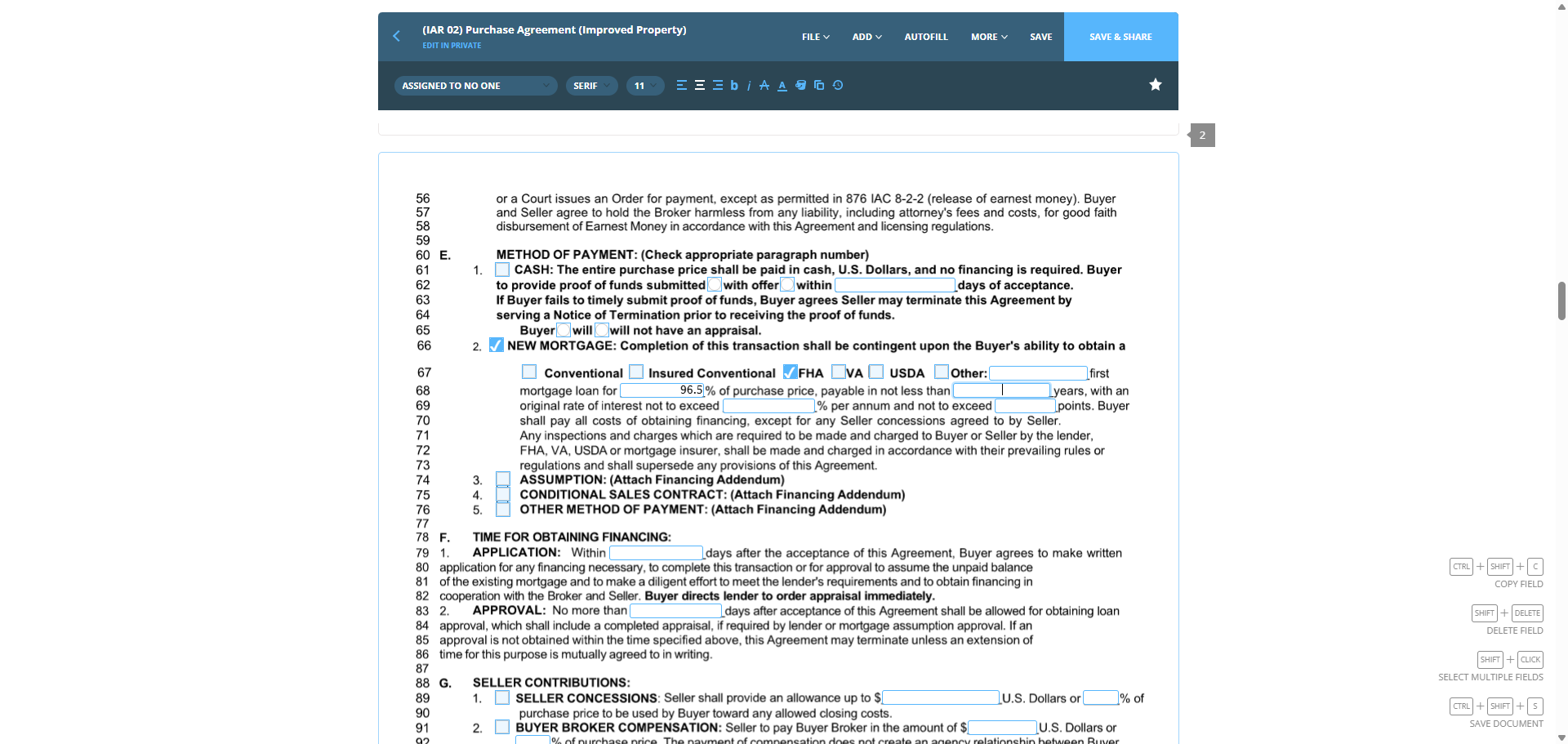
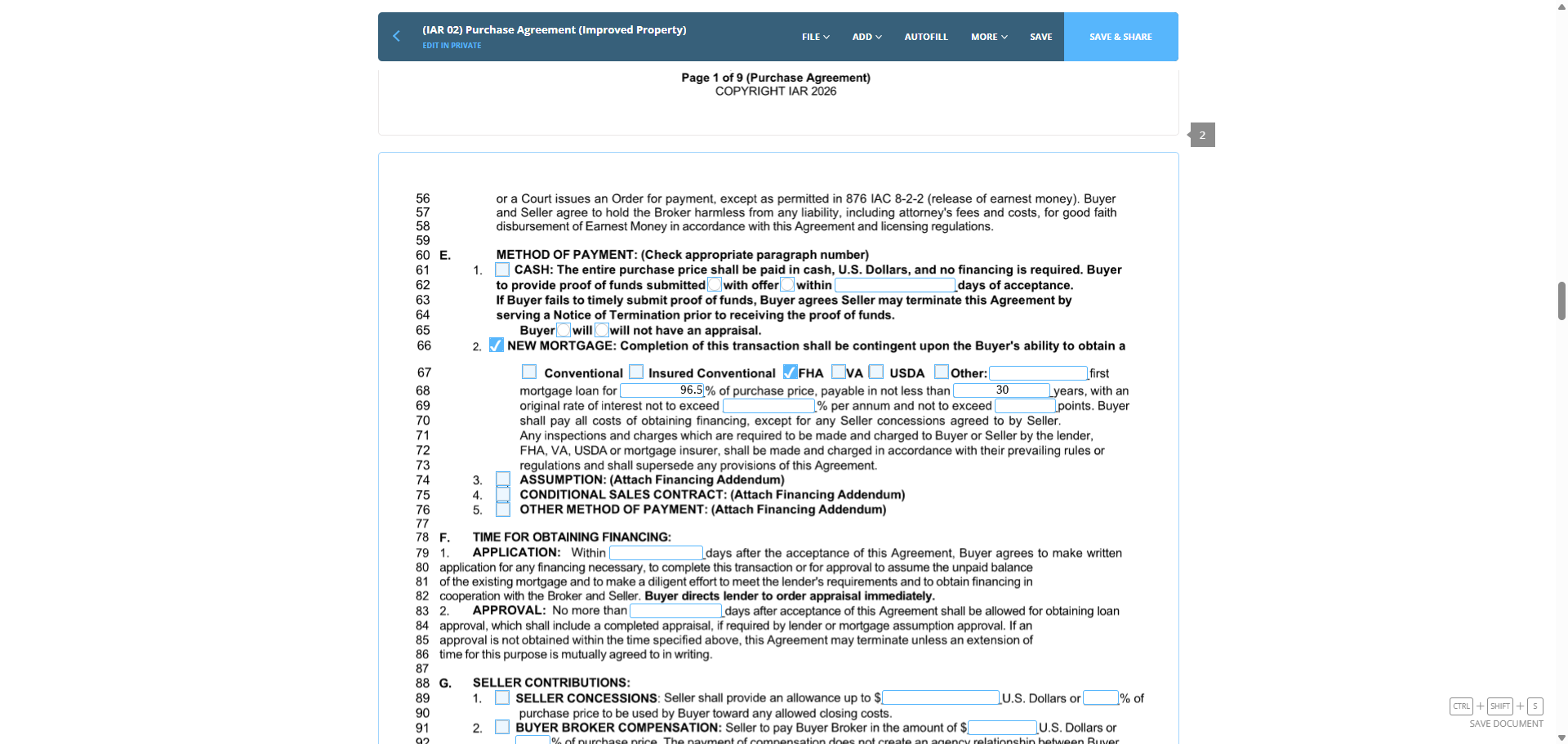
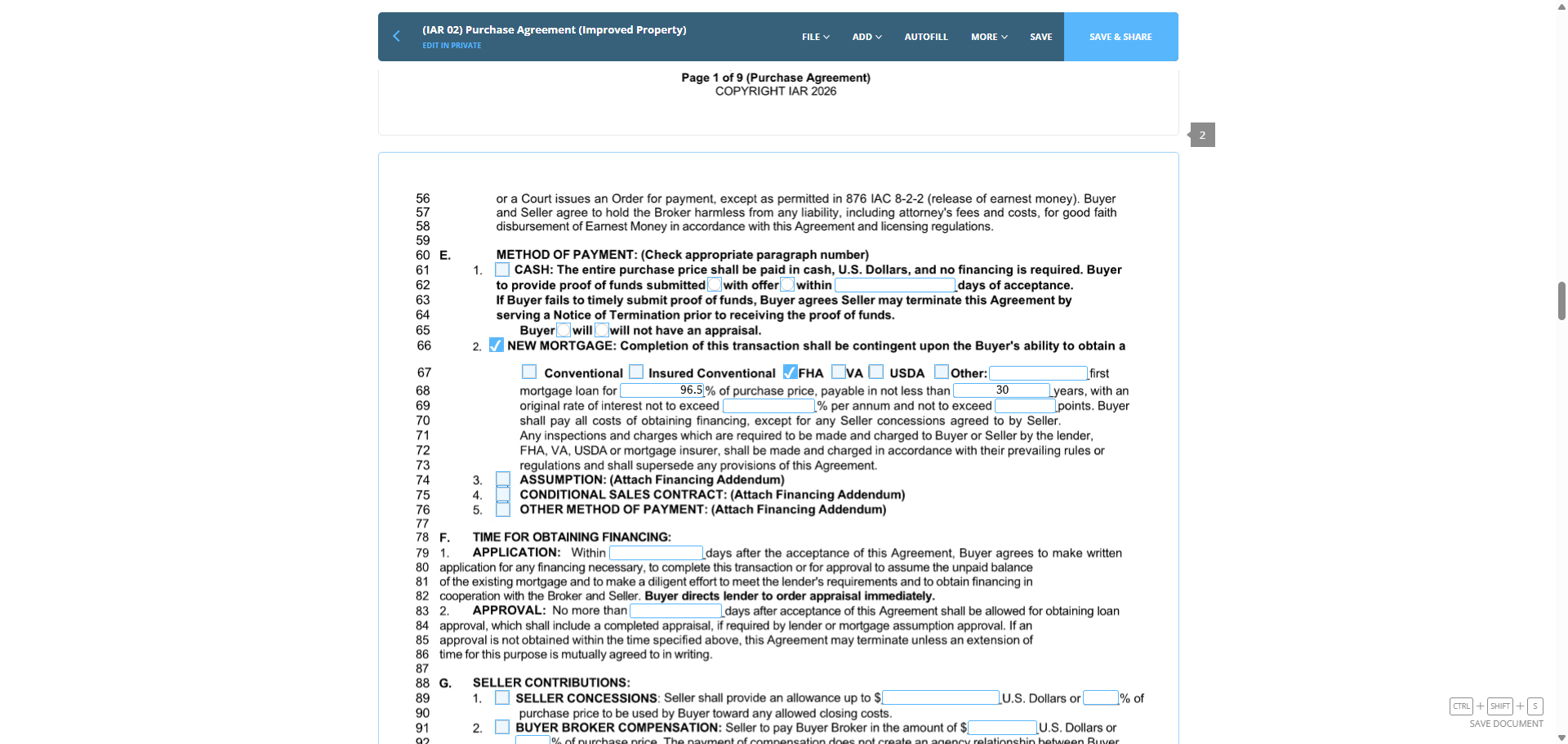
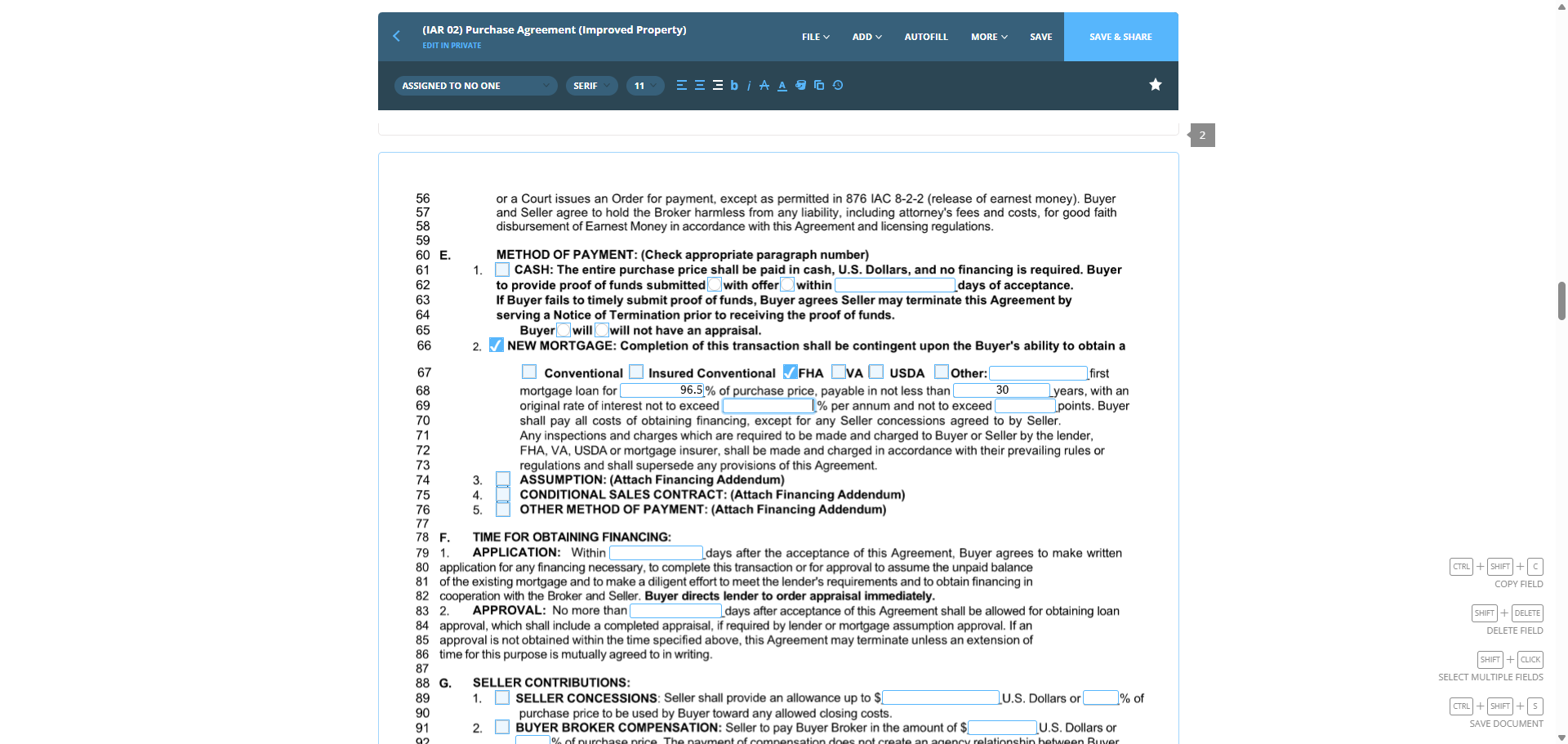
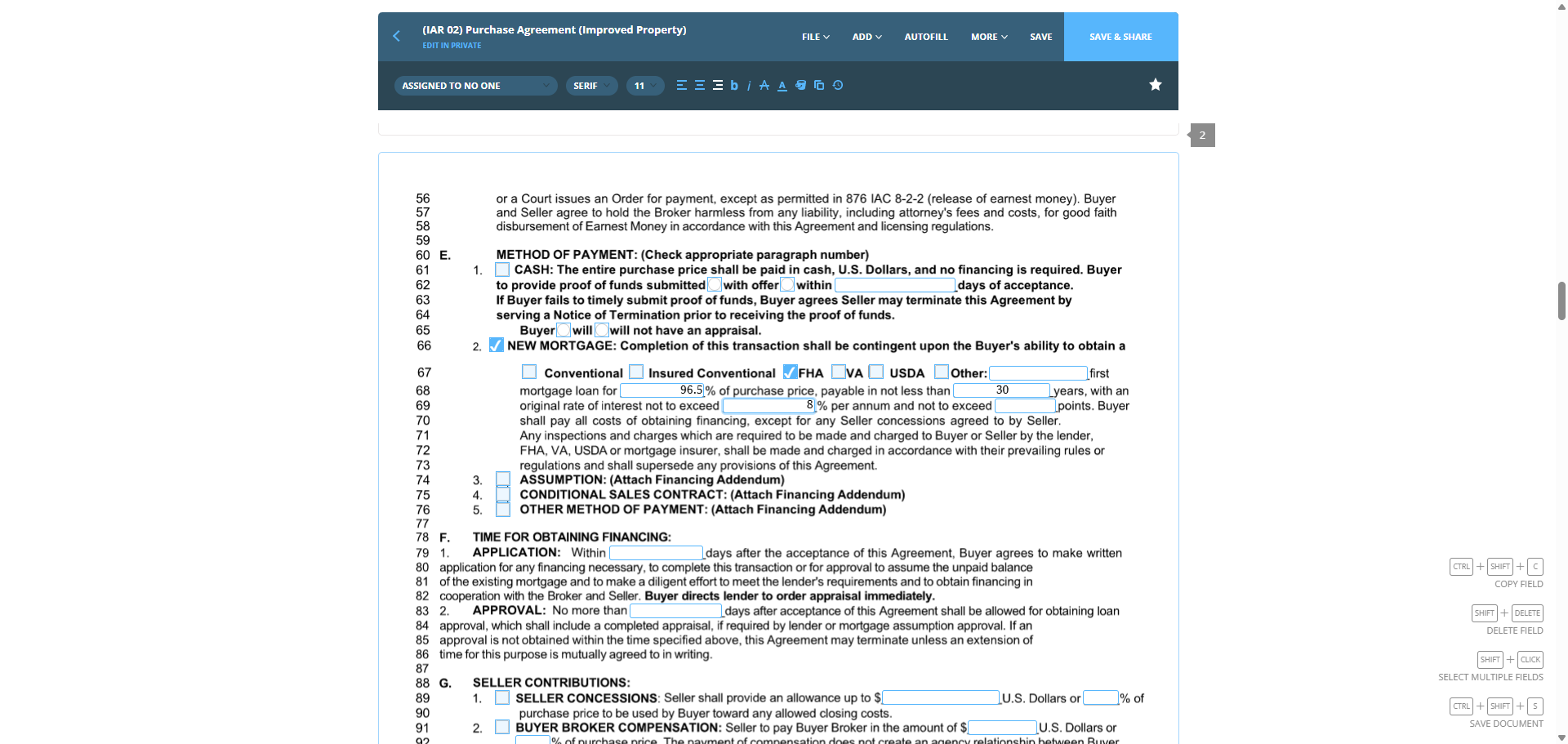
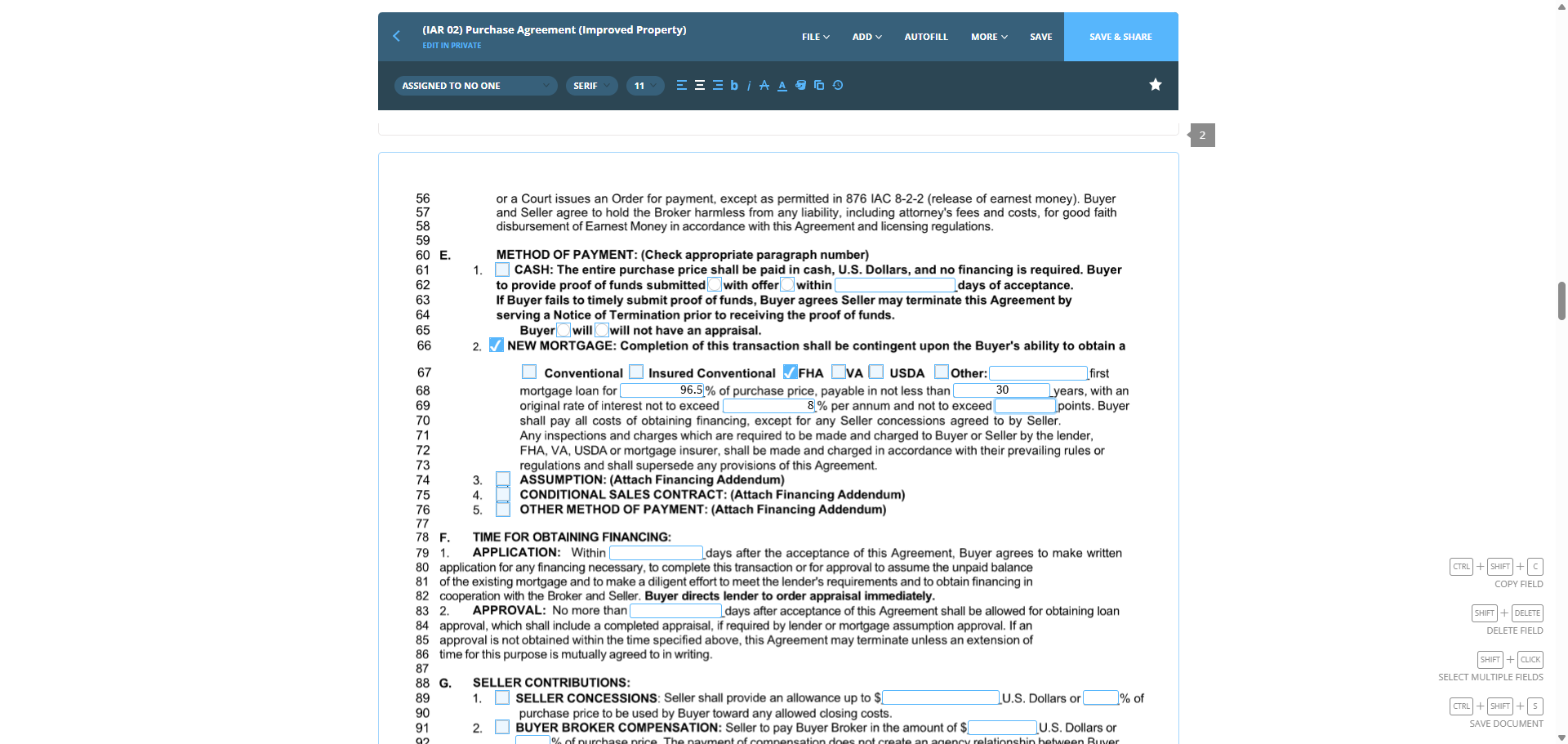
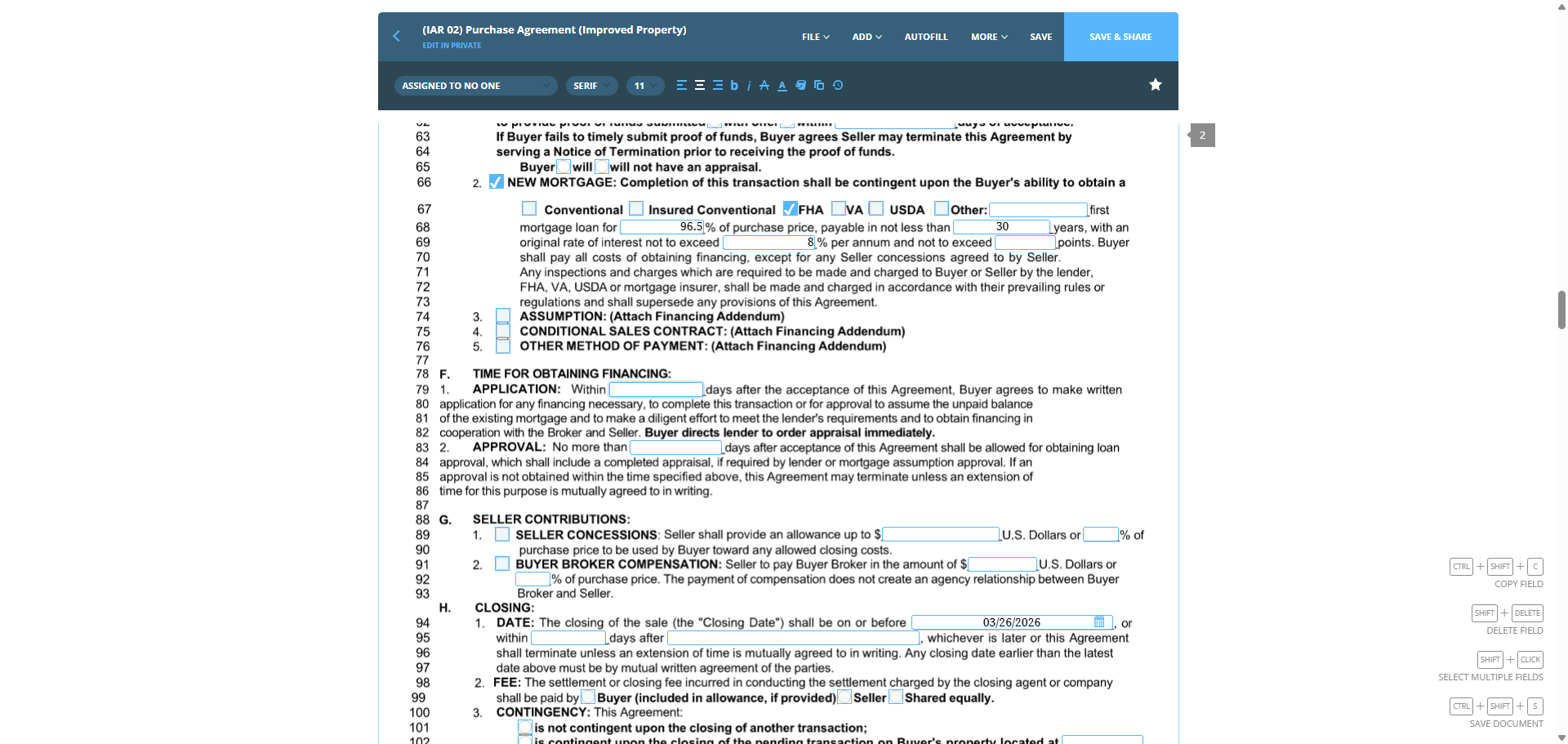
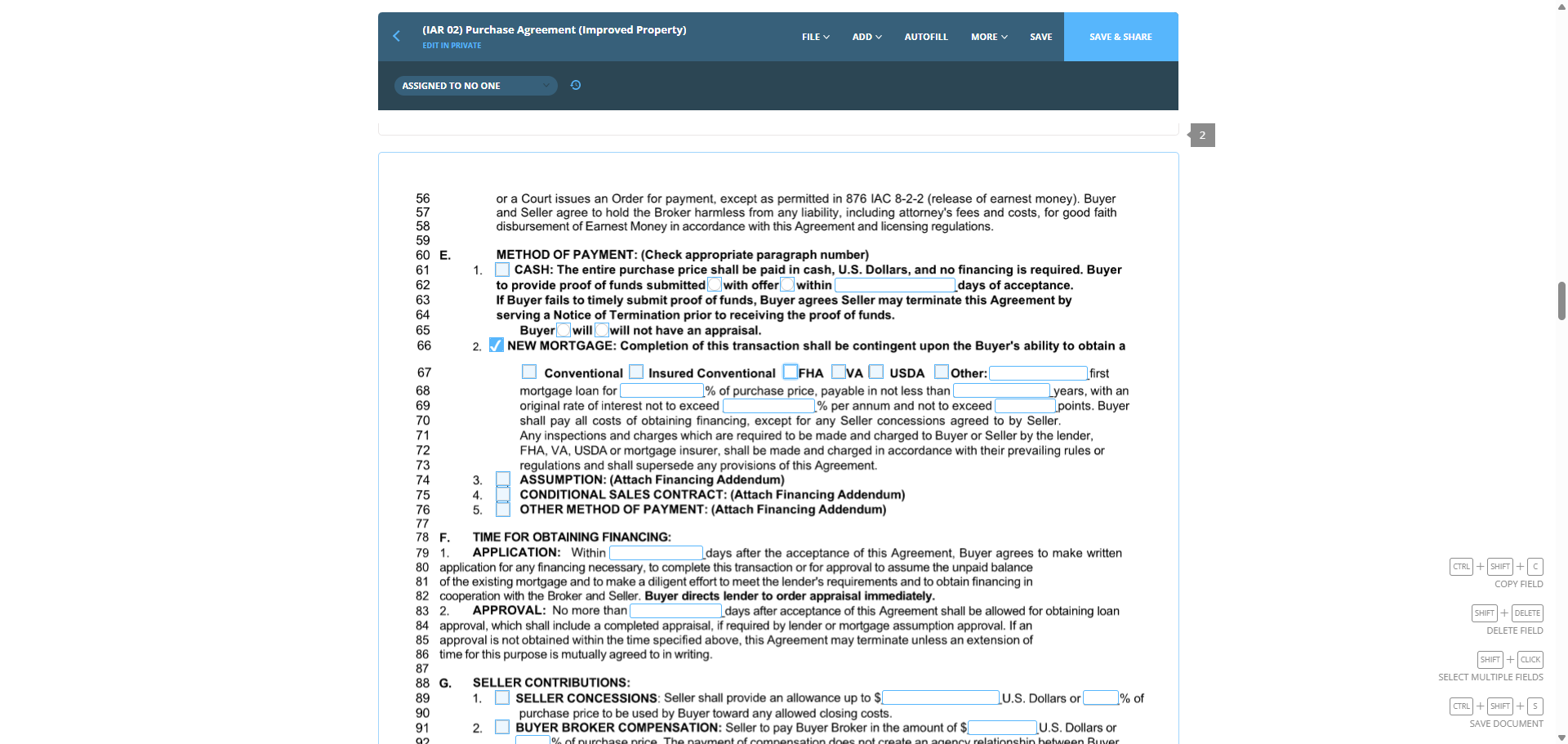
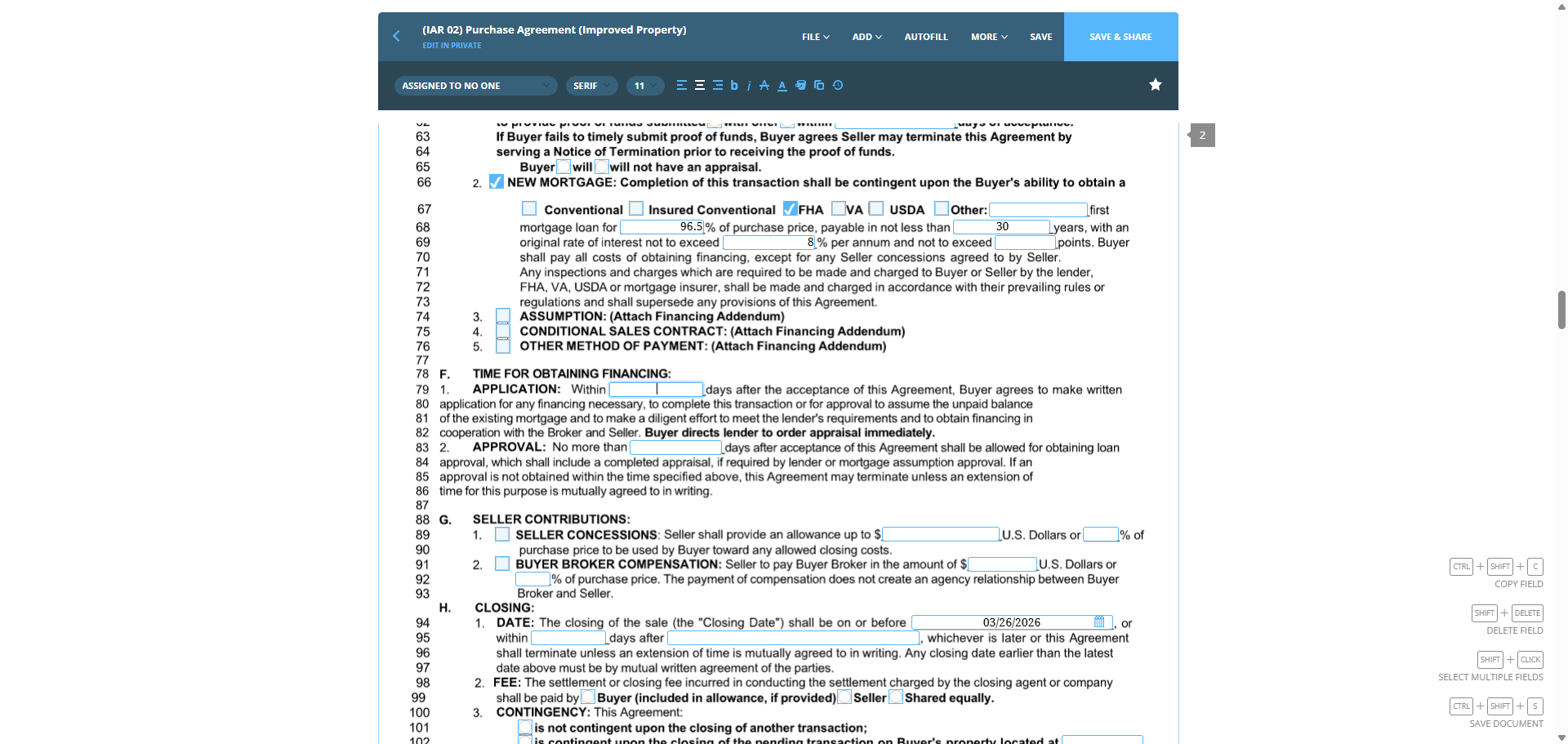
We check the preapproval to review her loan amount and terms. In this case, this will be a new FHA mortgage at 96.5% for 30 years, not to exceed eight.
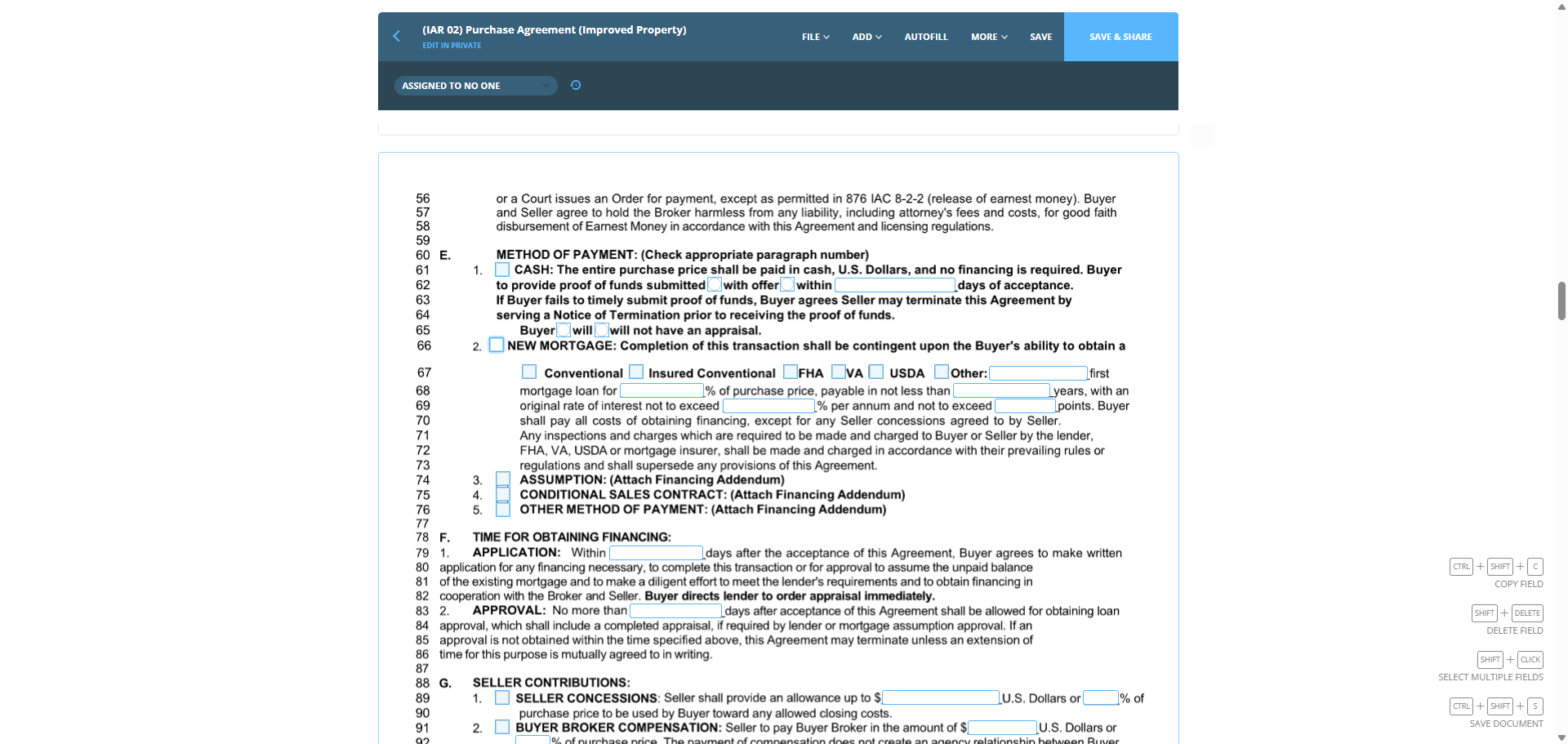
37
Click on "If Buyer fails to timely submit proof of funds , Buyer agrees Seller may serving a Notice of Termination prior to receiving the proof of funds . Buyer will will not have an appraisal ."
Step #37: Click on "If Buyer fails to timely submit proof of funds , Buyer agrees Seller may serving a Notice of Termination prior to receiving the proof of funds . Buyer will will not have an appraisal ."
38
Click on "FHA"
Step #38: Click on "FHA"
39
Click on "rate of interest not to exceed"
Step #39: Click on "rate of interest not to exceed"
40
Click on "rate of interest not to exceed"
Step #40: Click on "rate of interest not to exceed"
41
Click on "regulations and shall supersede any provisions of this Agreement"
Step #41: Click on "regulations and shall supersede any provisions of this Agreement"
42
Type "96.5"
43
Click on "% per annum and not to exceed"
Step #43: Click on "% per annum and not to exceed"
44
Click on "shall be made and charged in accordance with their prevailing rules or"
Step #44: Click on "shall be made and charged in accordance with their prevailing rules or"
45
Type "30"
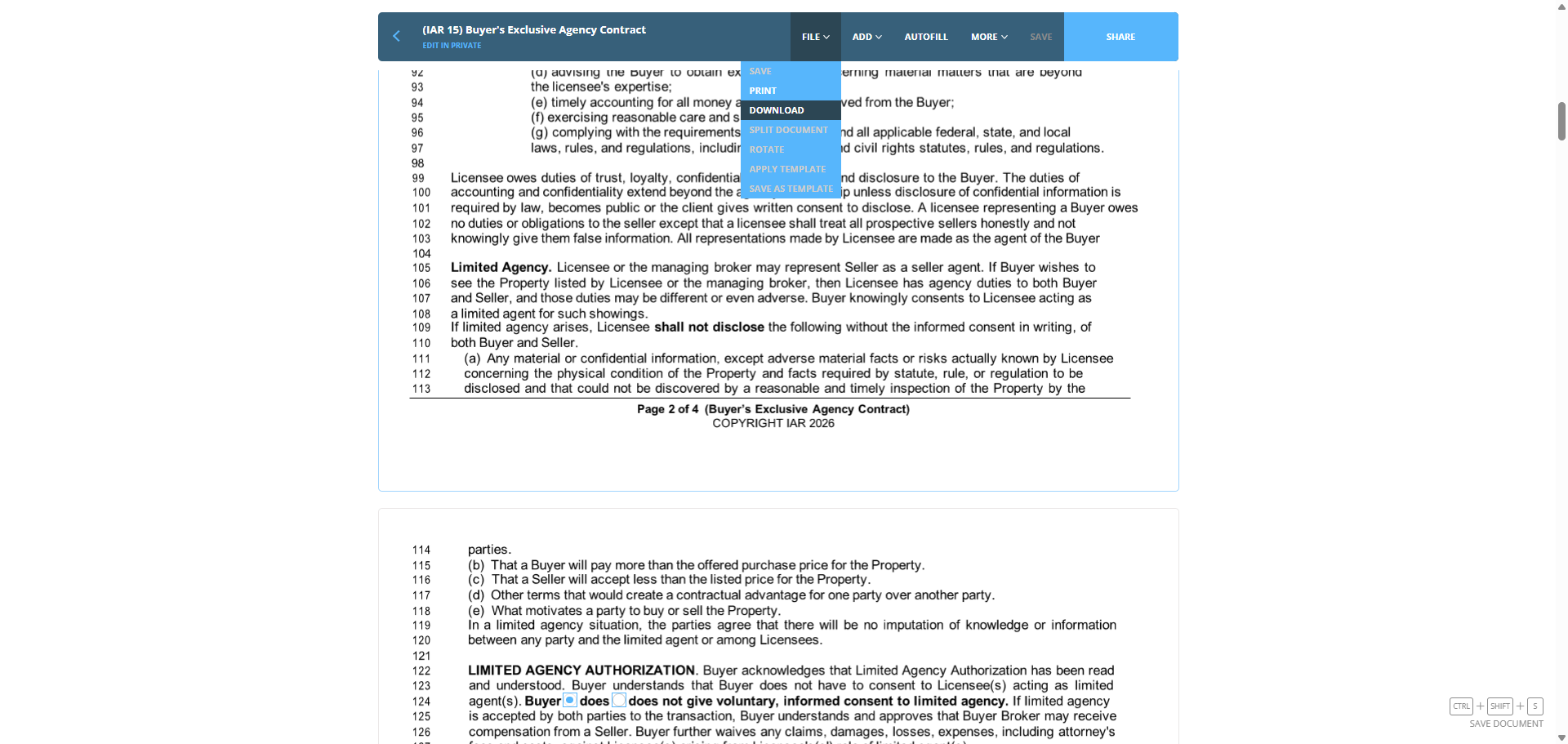
46
Click on "Any inspections and charges which are required to be made and charged to Buyer or Seller by the"
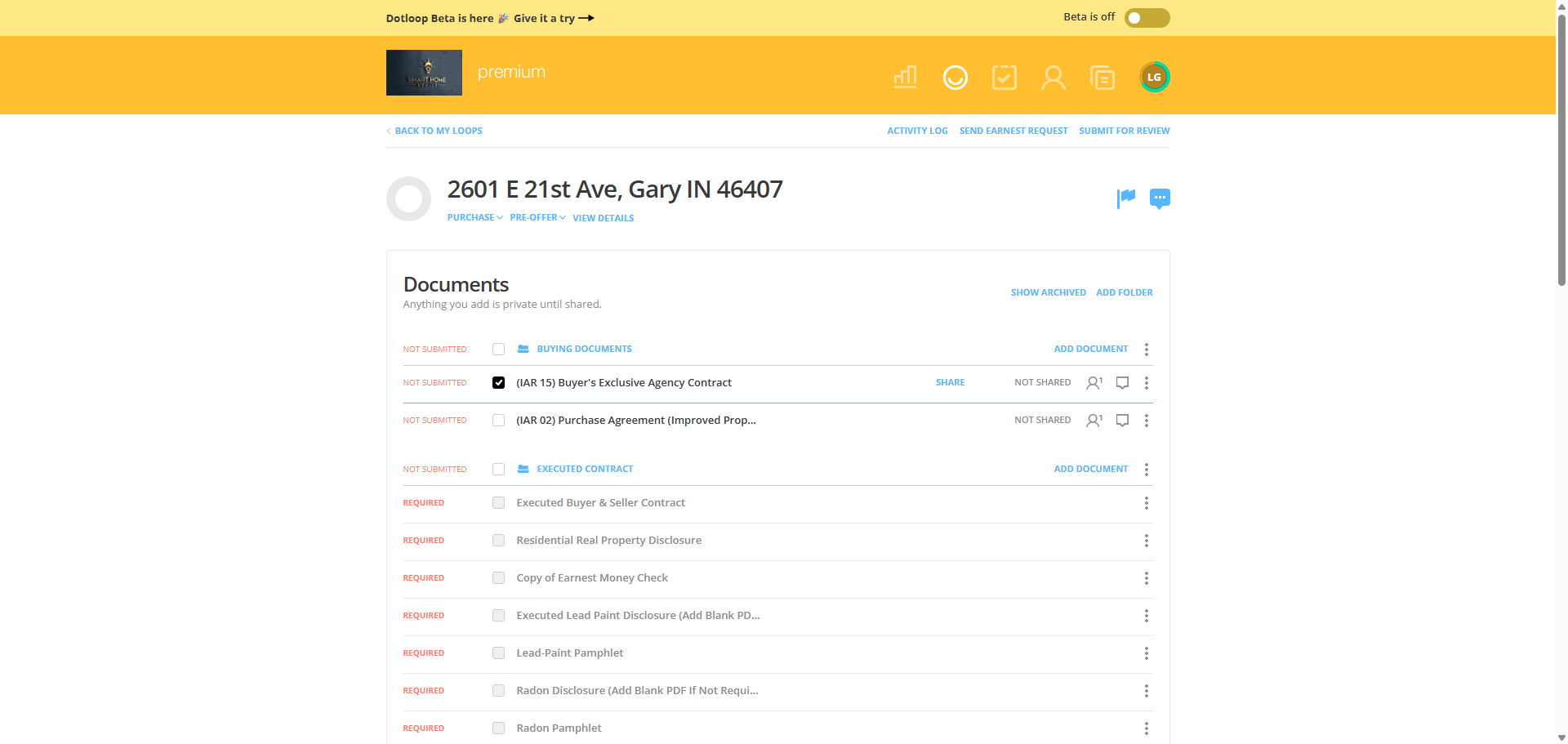
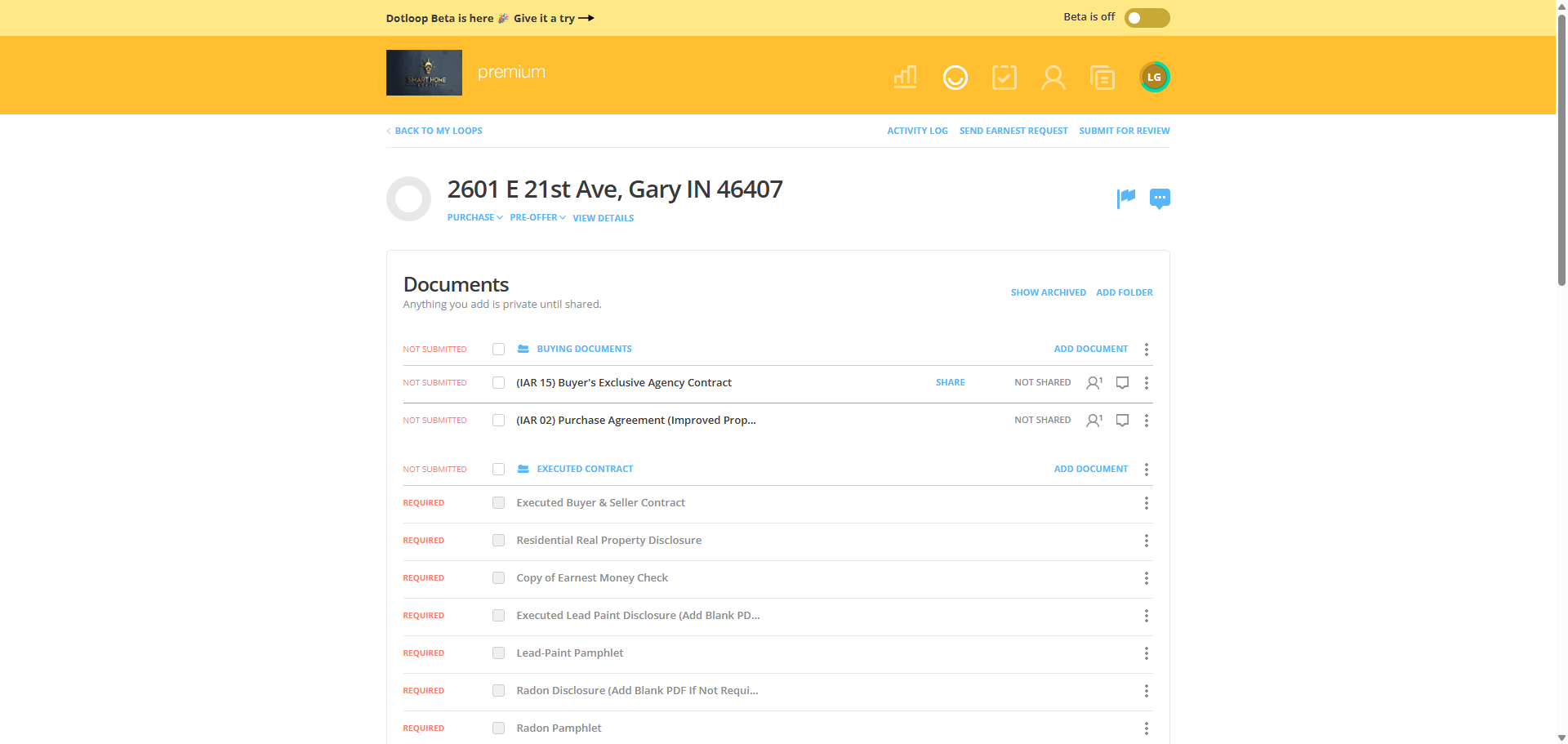
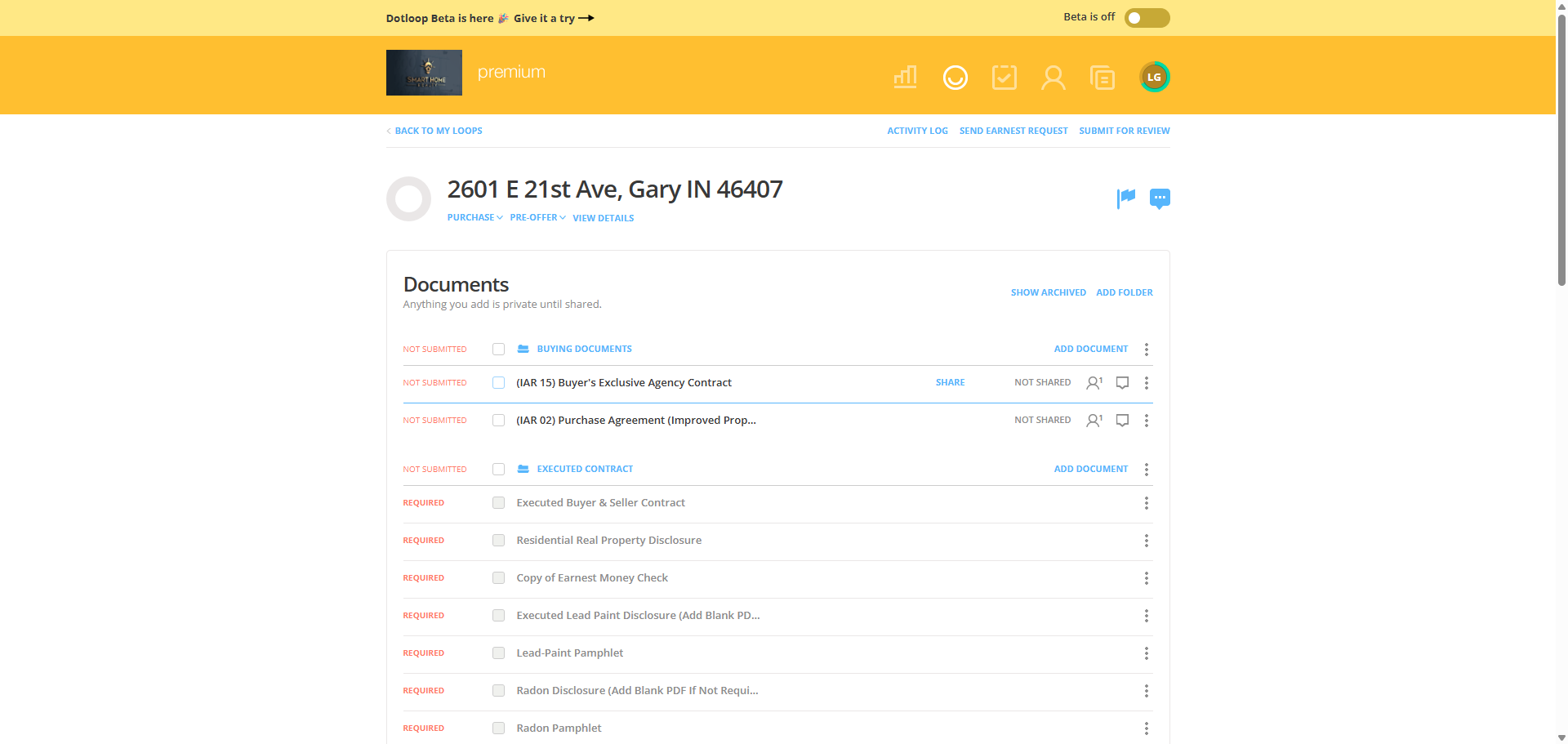
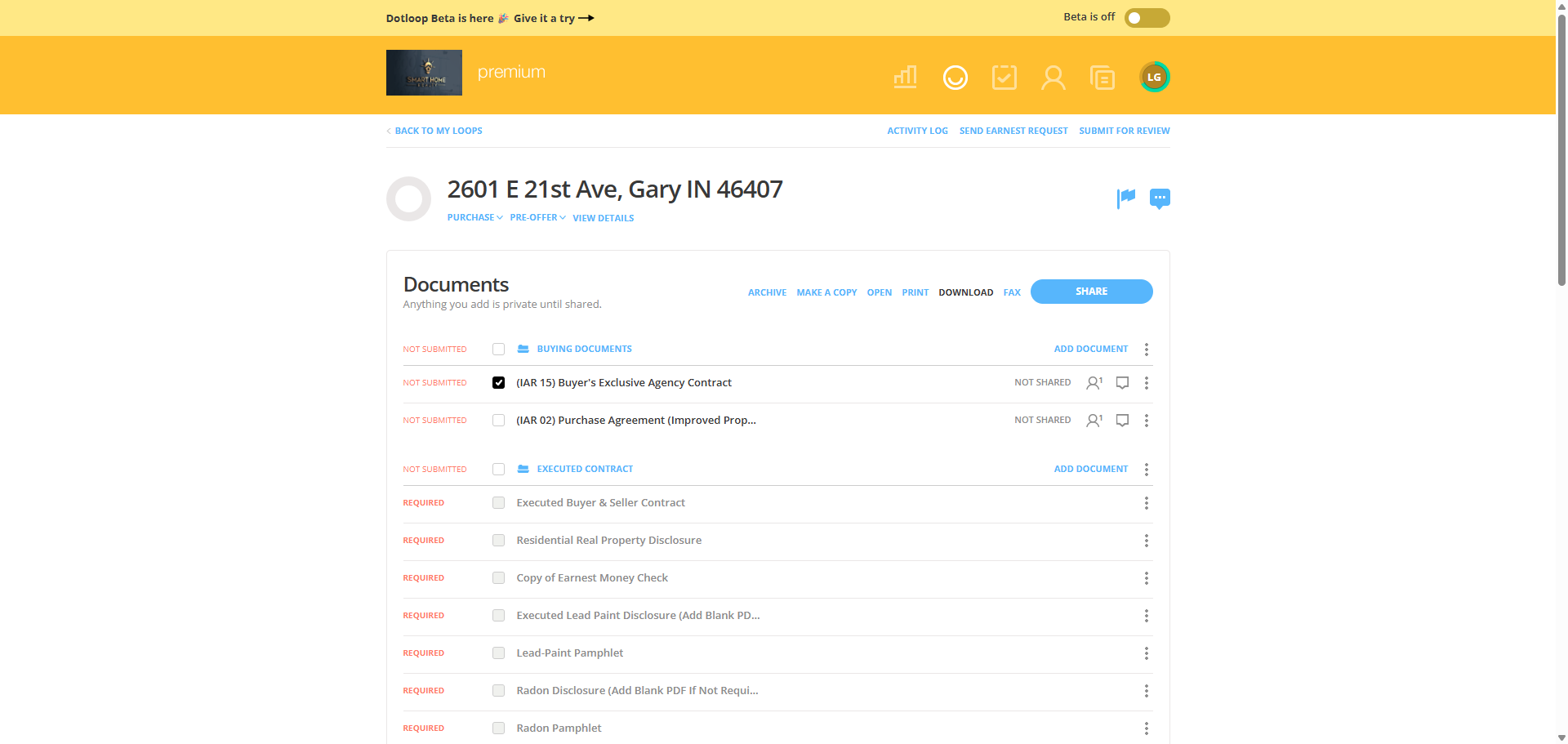
Step #46: Click on "Any inspections and charges which are required to be made and charged to Buyer or Seller by the"
47
Click on "96.5 % of purchase price"
Step #47: Click on "96.5 % of purchase price"
48
Click on "( Attach Financing Addendum )"
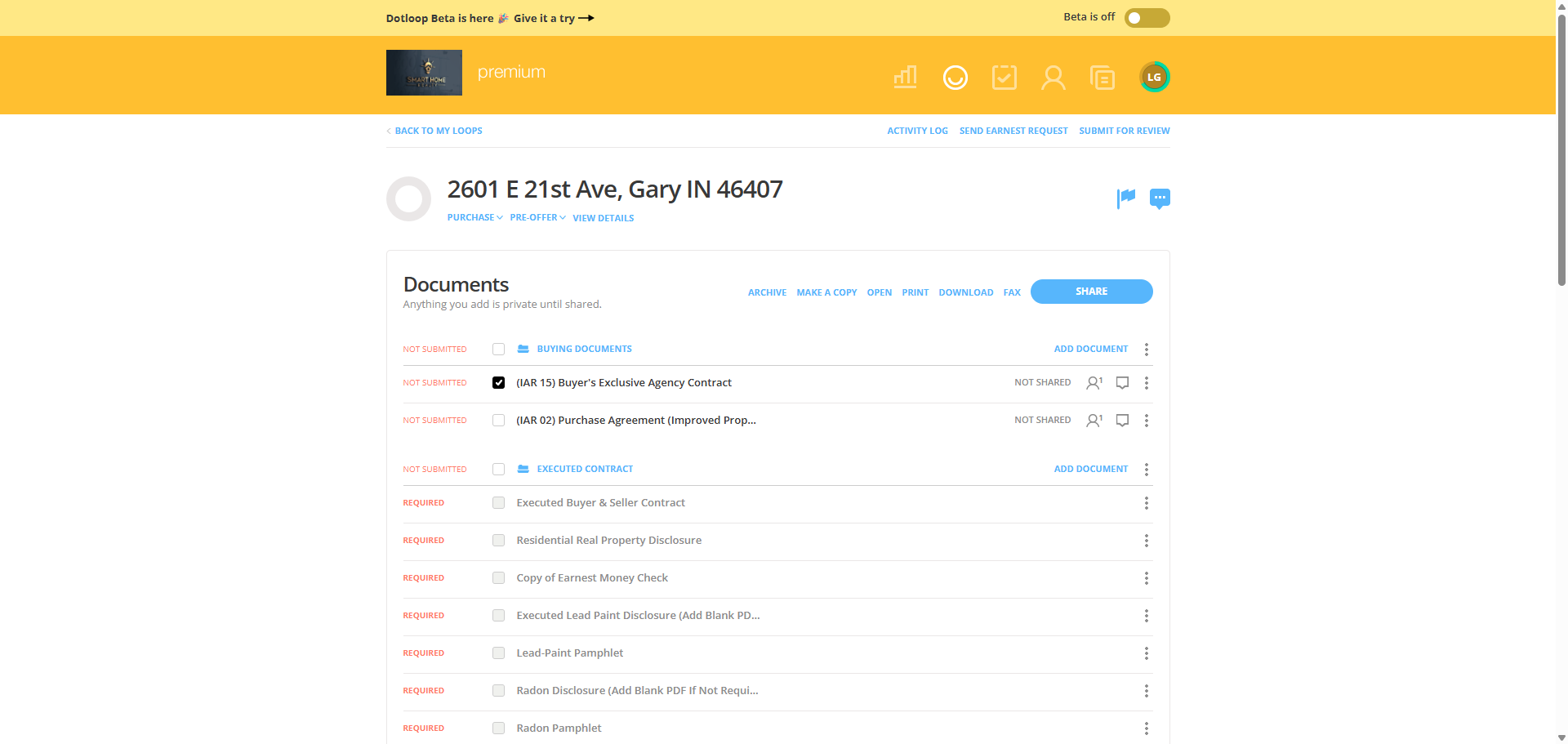
Step #48: Click on "( Attach Financing Addendum )"
49
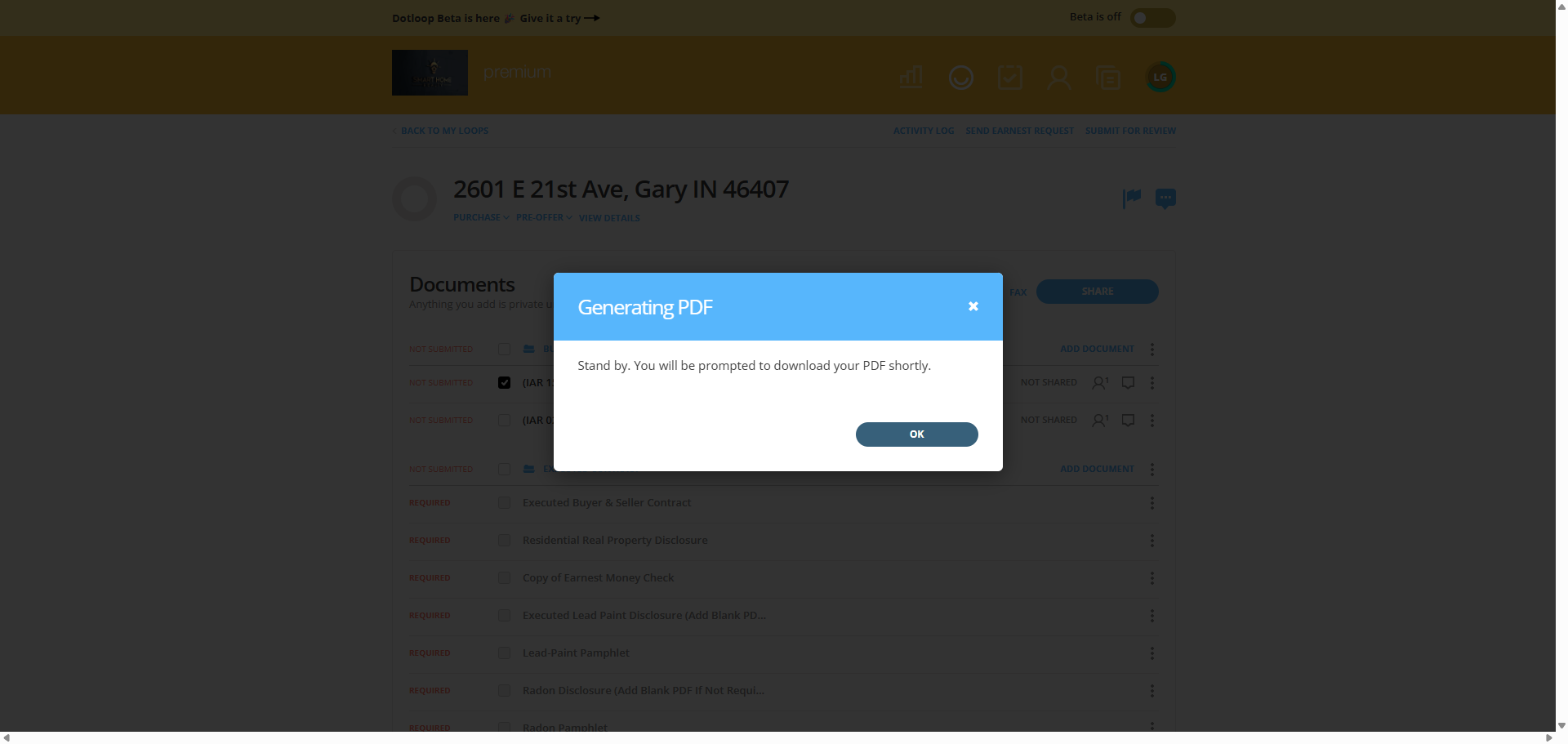
Type "8"
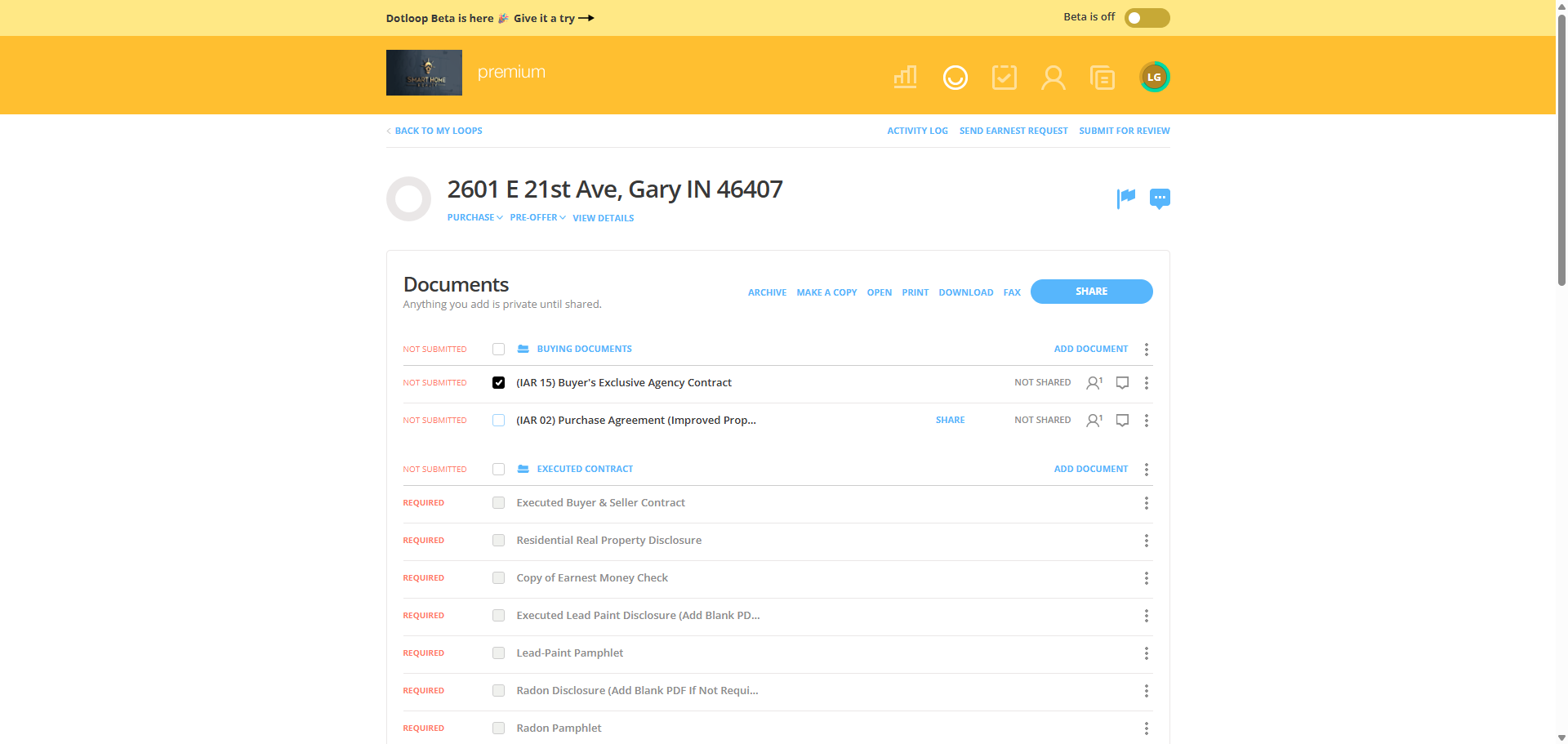
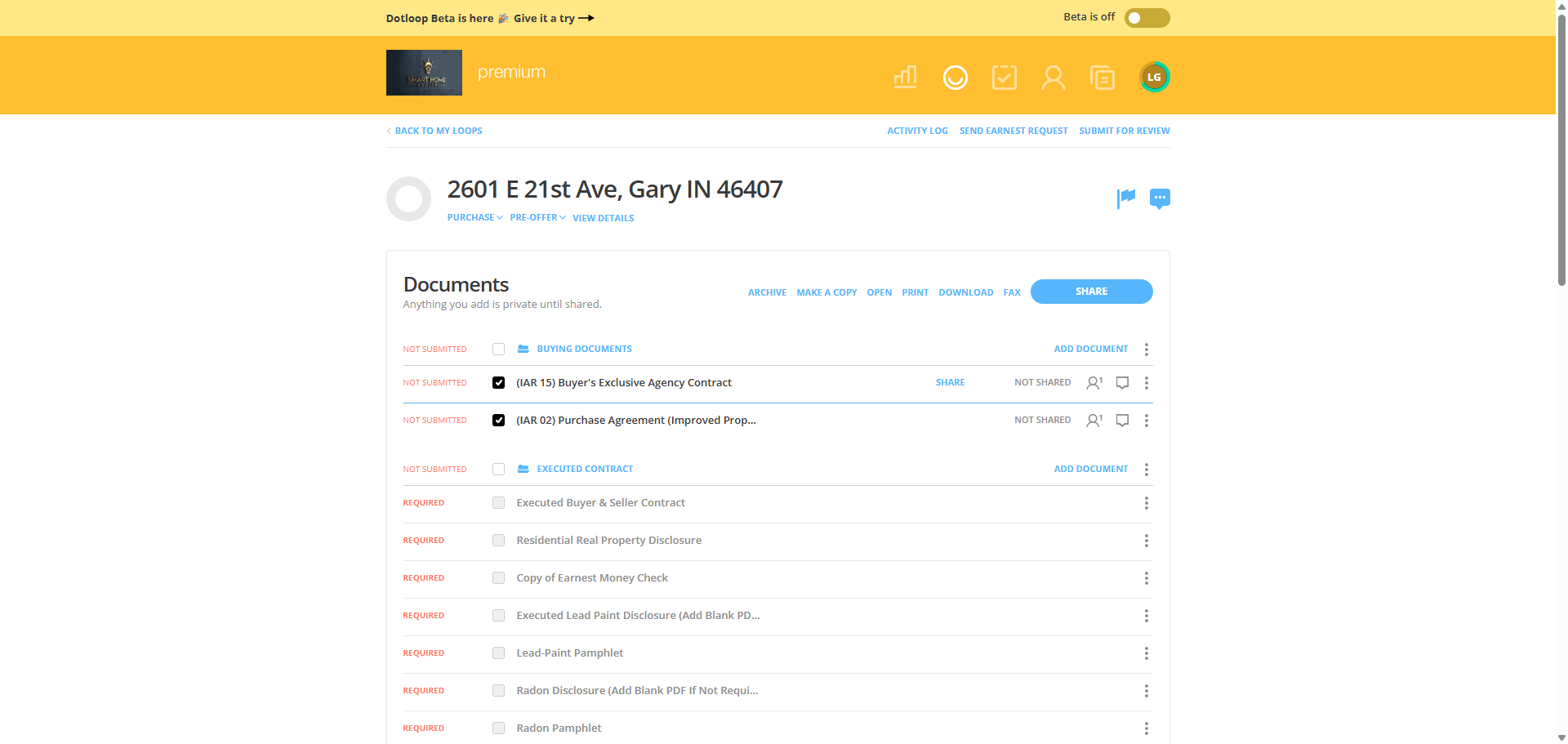
50
Click on "except for any Seller concessions agreed to by Seller"
Step #50: Click on "except for any Seller concessions agreed to by Seller"

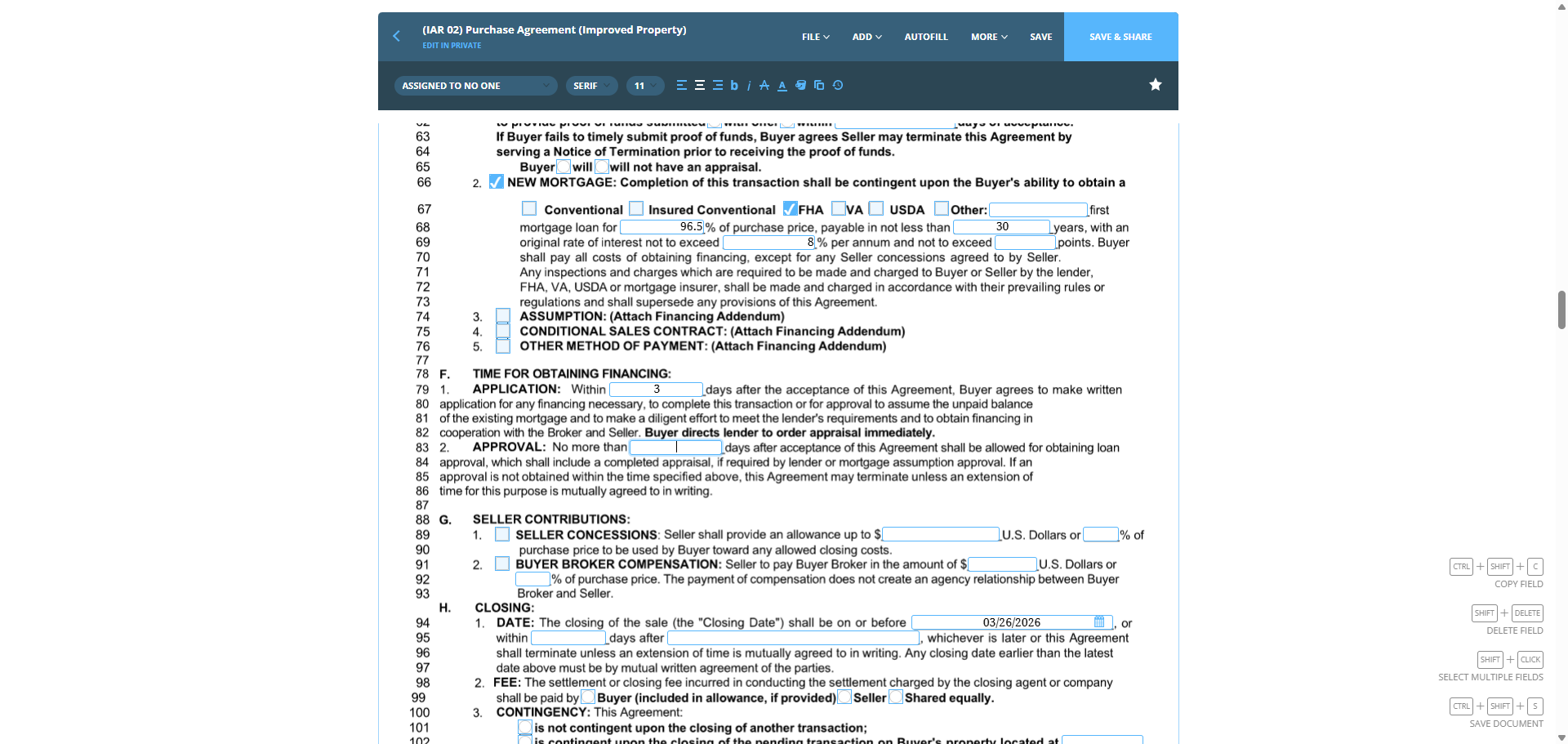
We can leave this one blank. The financing application process will take up to three days.
51
Click on "TIME FOR OBTAINING FINANCING :"
Step #51: Click on "TIME FOR OBTAINING FINANCING :"
52
Click on "TIME FOR OBTAINING FINANCING :"
Step #52: Click on "TIME FOR OBTAINING FINANCING :"

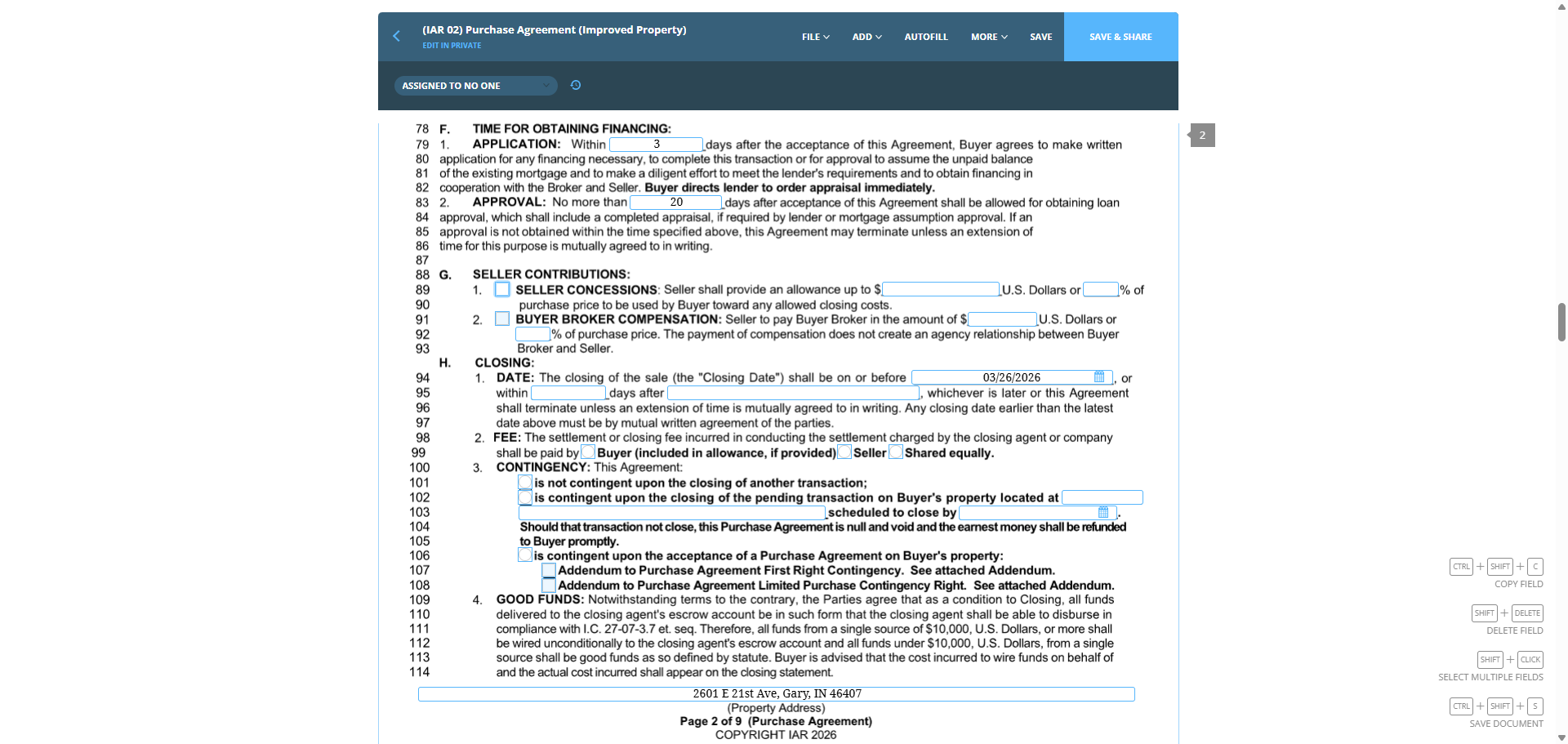
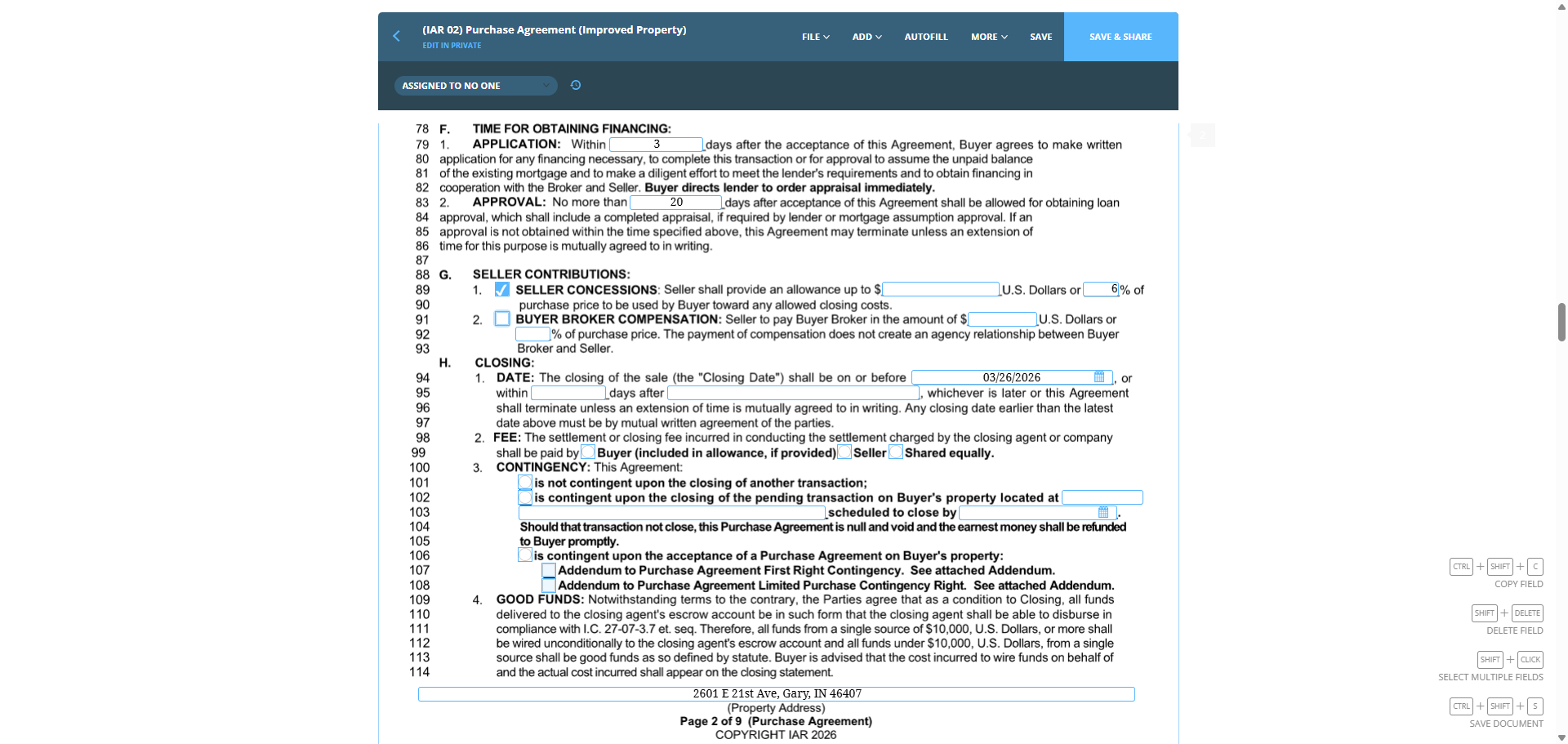
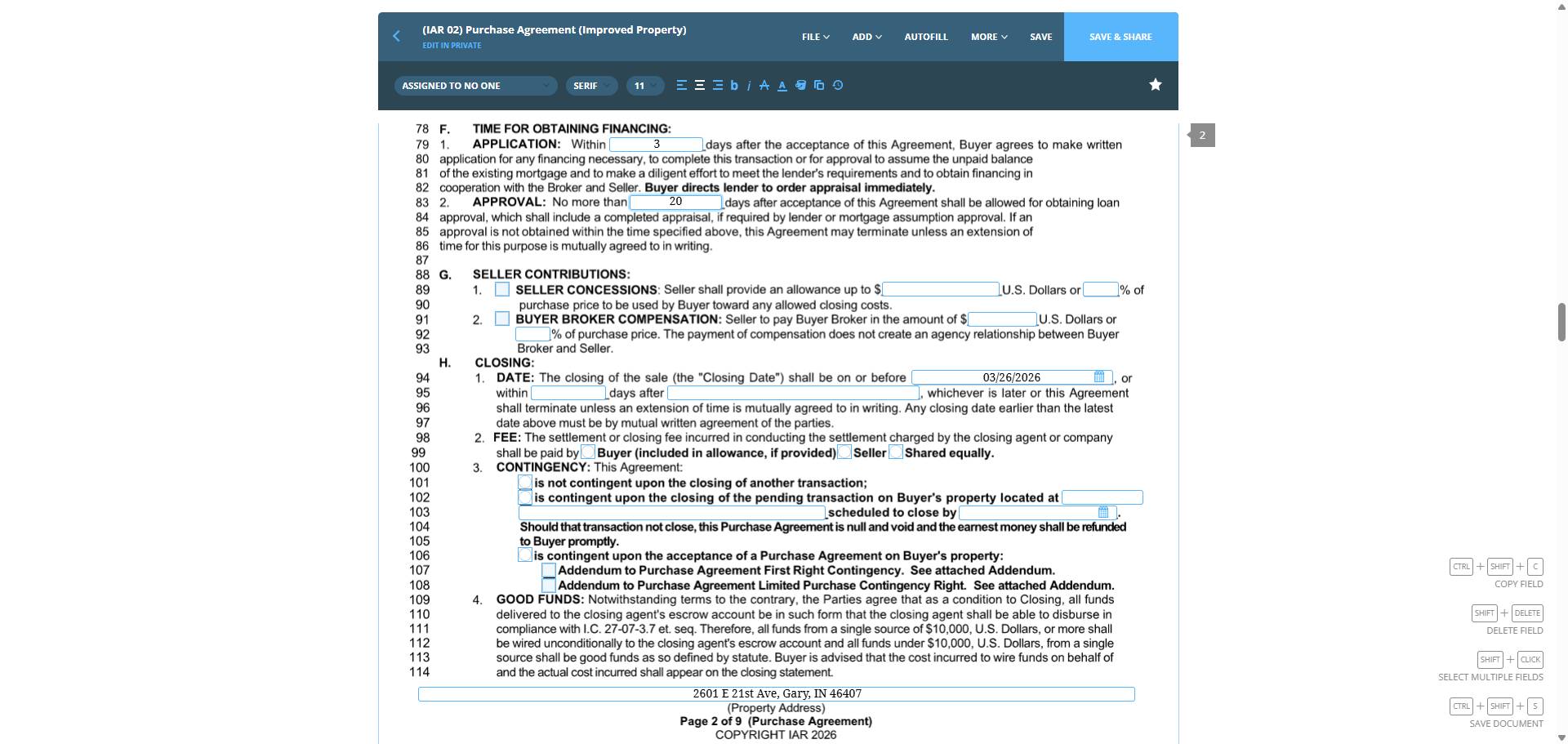
Approval is 20.

53
Click on ","
Step #53: Click on ","
54
Type "3"

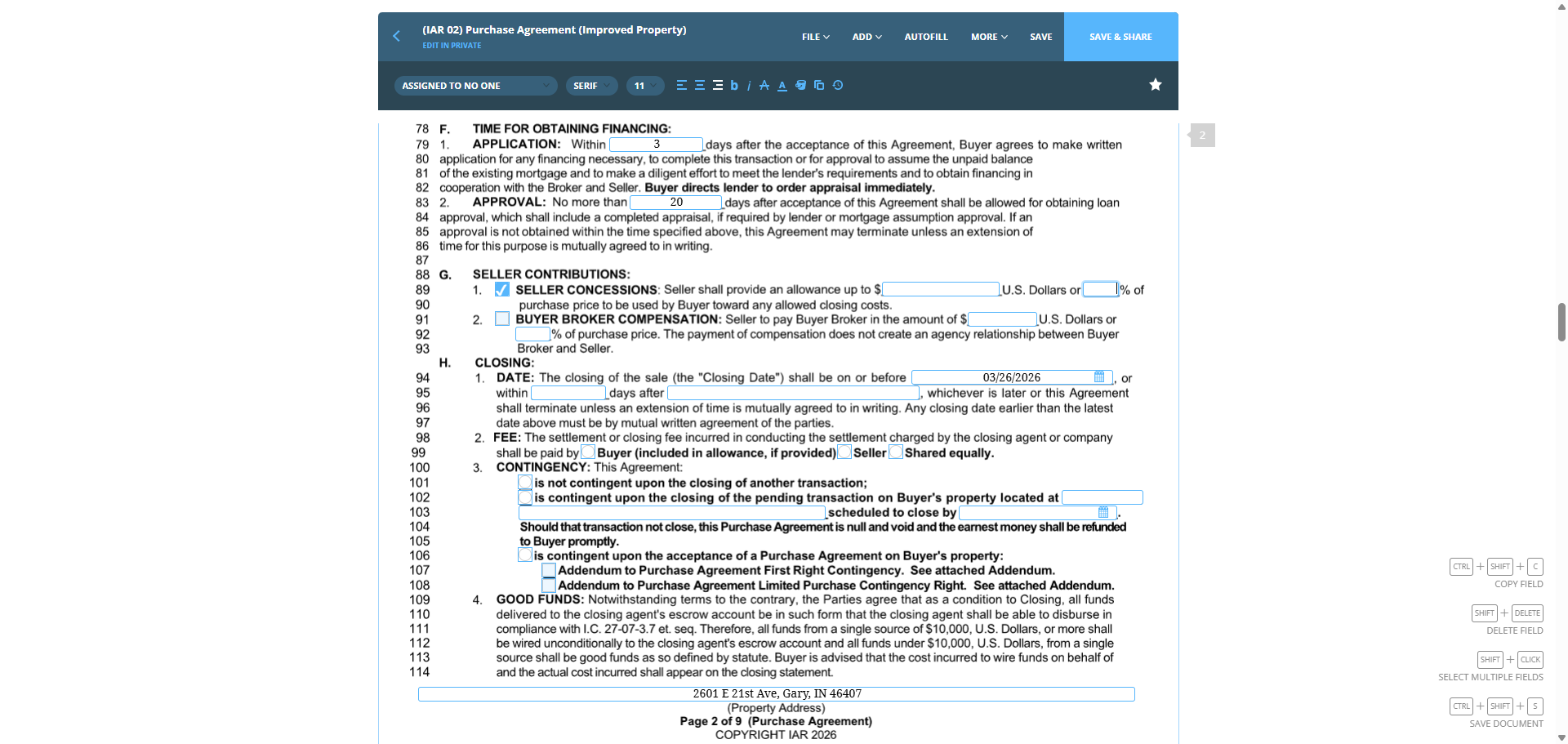
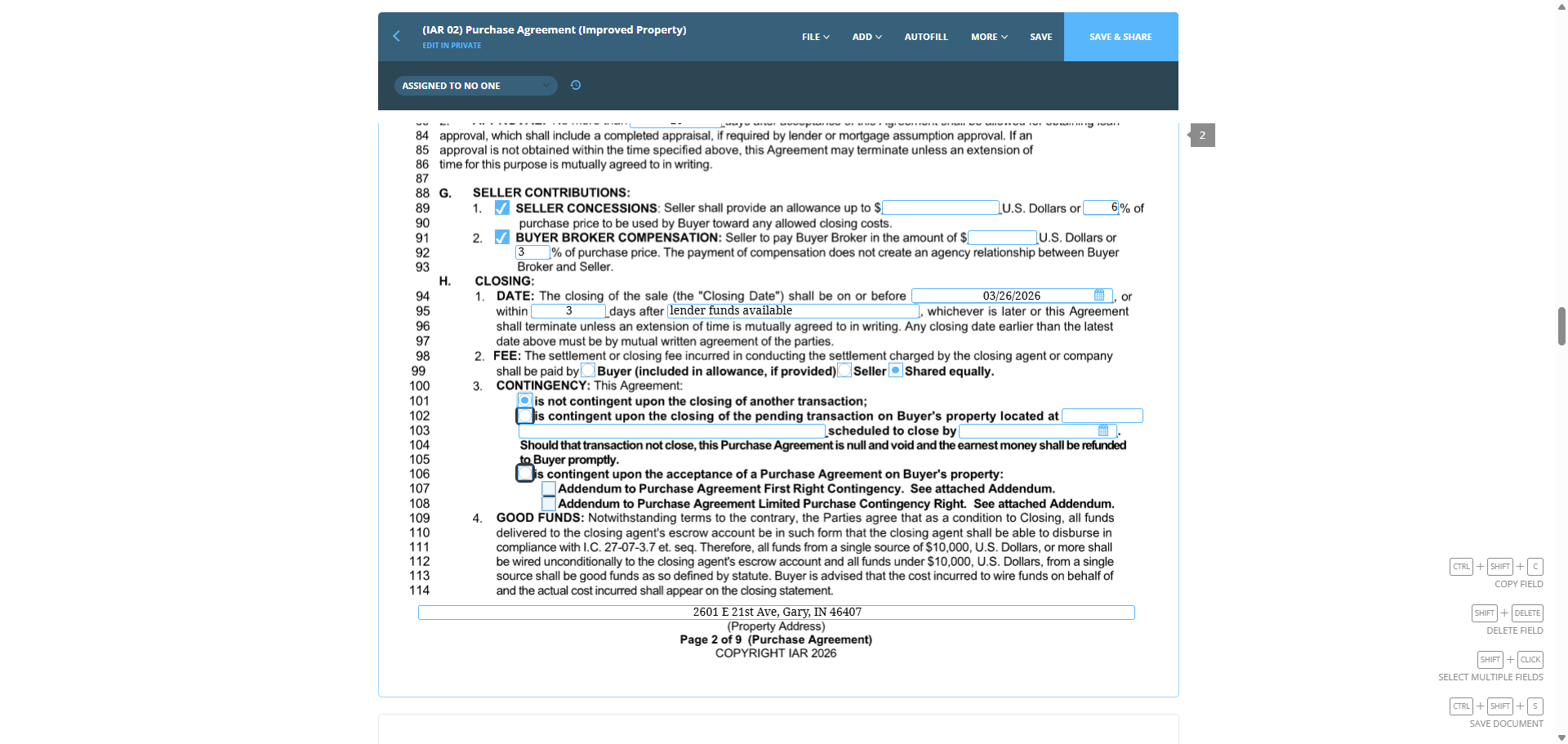
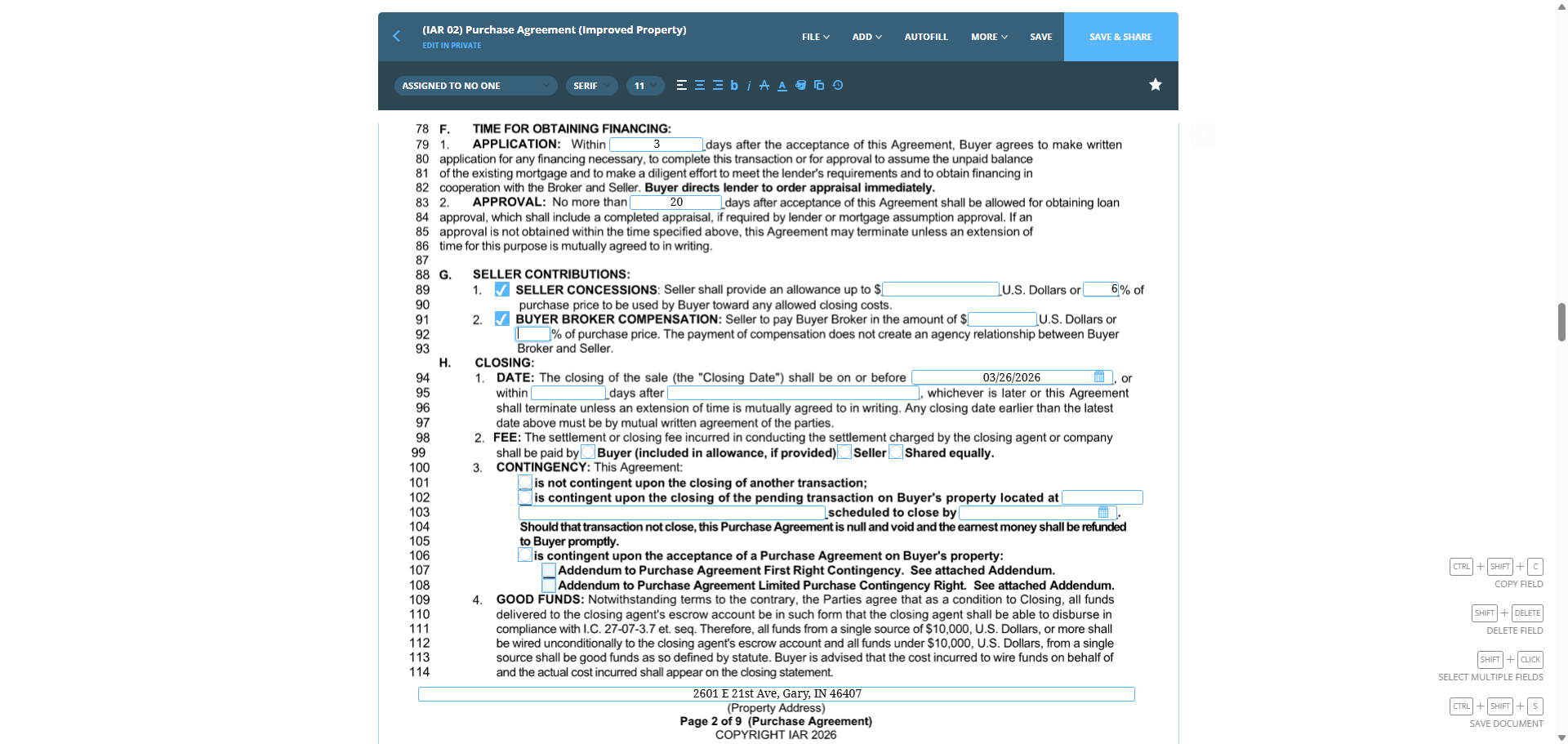
Seller concessions: we'll set this at six percent.
55
Type "20"
56
Click on "SELLER CONTRIBUTIONS :"
Step #56: Click on "SELLER CONTRIBUTIONS :"
57
Click on "SELLER CONTRIBUTIONS :"
Step #57: Click on "SELLER CONTRIBUTIONS :"
58
Click on "1 % of"
Step #58: Click on "1 % of"
59
Click here
Step #59: Click here

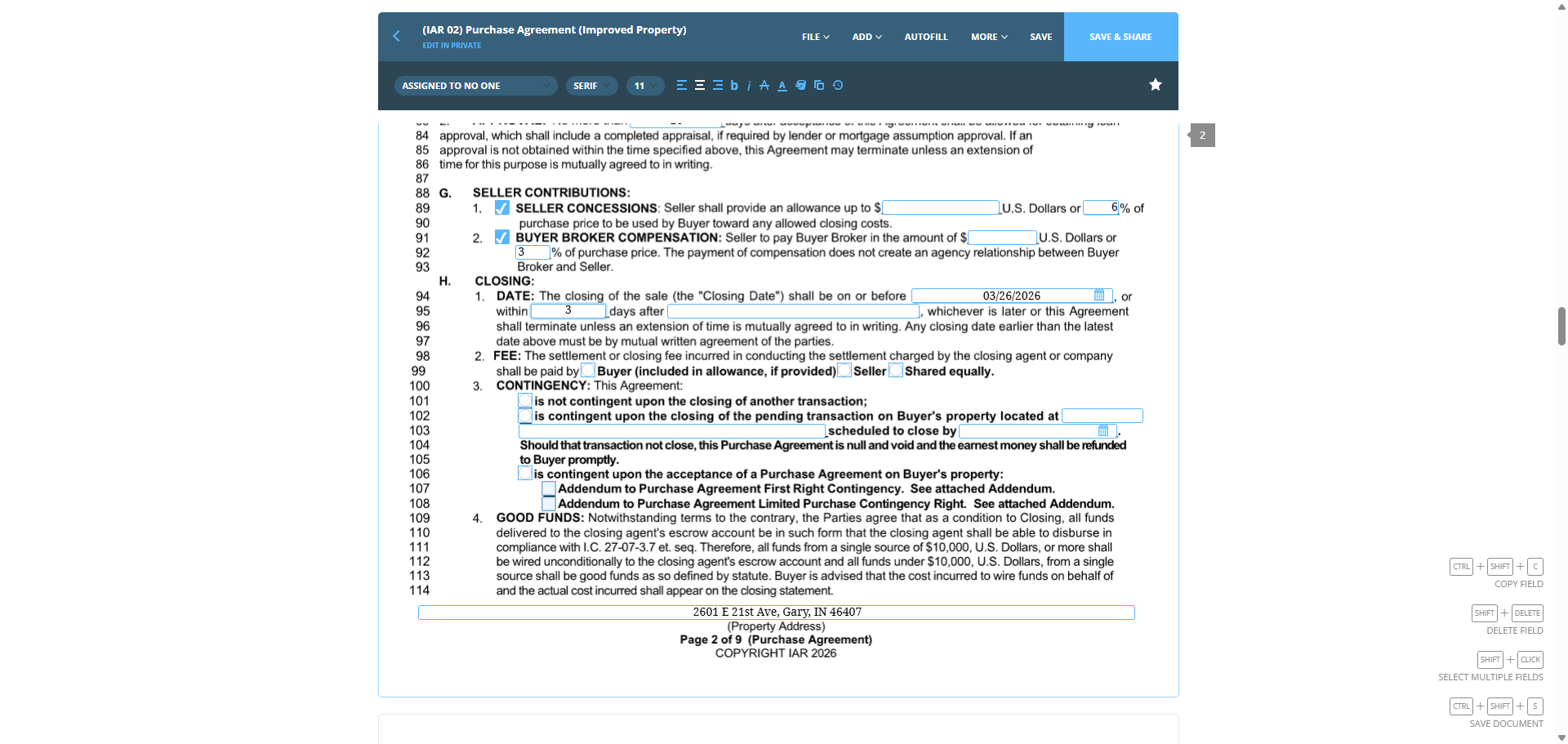
Buyer-broker compensation is three percent.
60
Type "6"
61
Click on "BUYER BROKER COMPENSATION"
Step #61: Click on "BUYER BROKER COMPENSATION"

Buyer-broker compensation is usually three percent. Seller concessions, however, can vary.

62
Type "3"

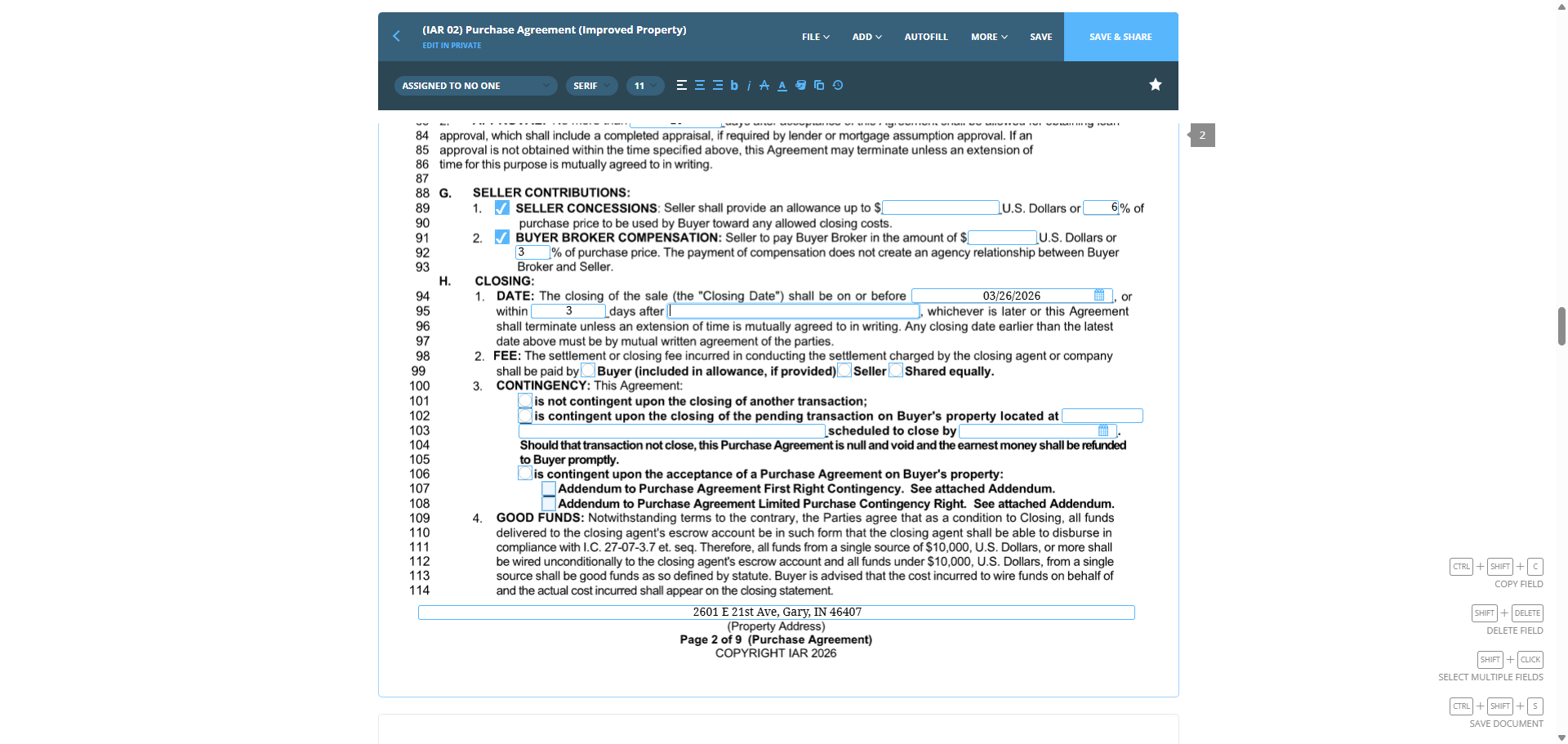
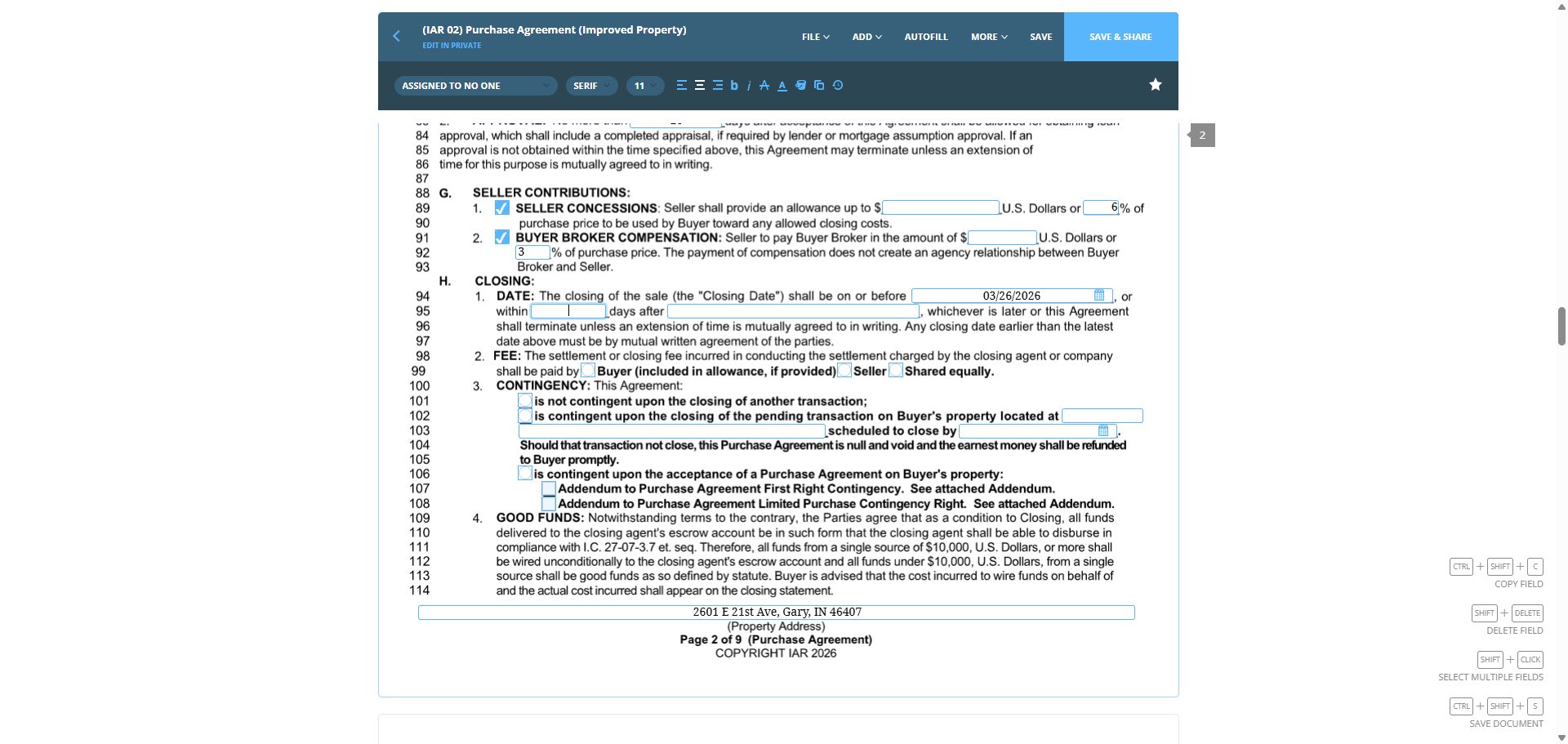
Closing usually takes 45 days for a standard transaction. This is a standard transaction with financing. Closing will occur within three days.
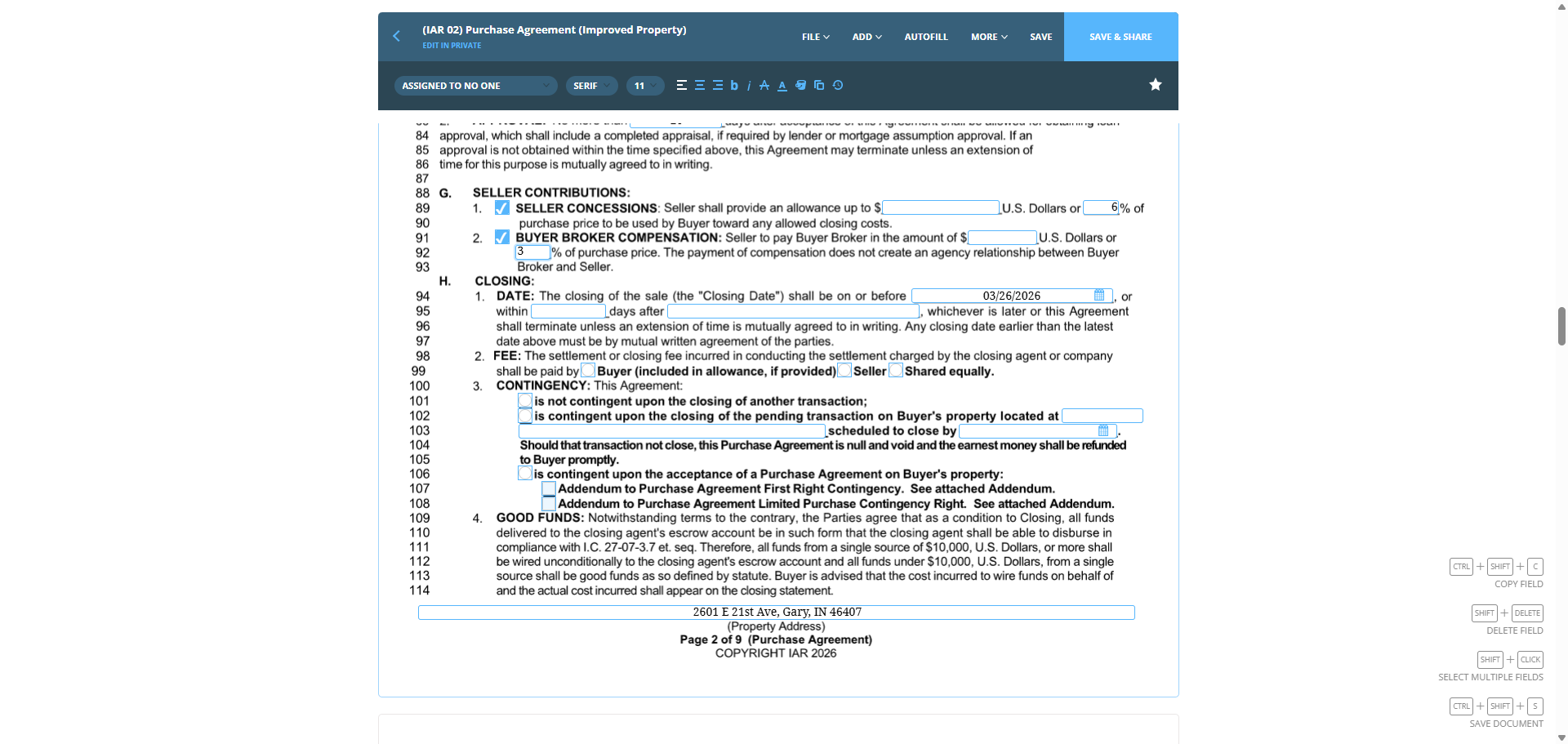
63
Click on "DATE : The closing of the sale"
Step #63: Click on "DATE : The closing of the sale"
64
Click on "The closing"
Step #64: Click on "The closing"
65
Click on "|"
Step #65: Click on "|"
66
Type "3"
67
Click on "after I"
Step #67: Click on "after I"

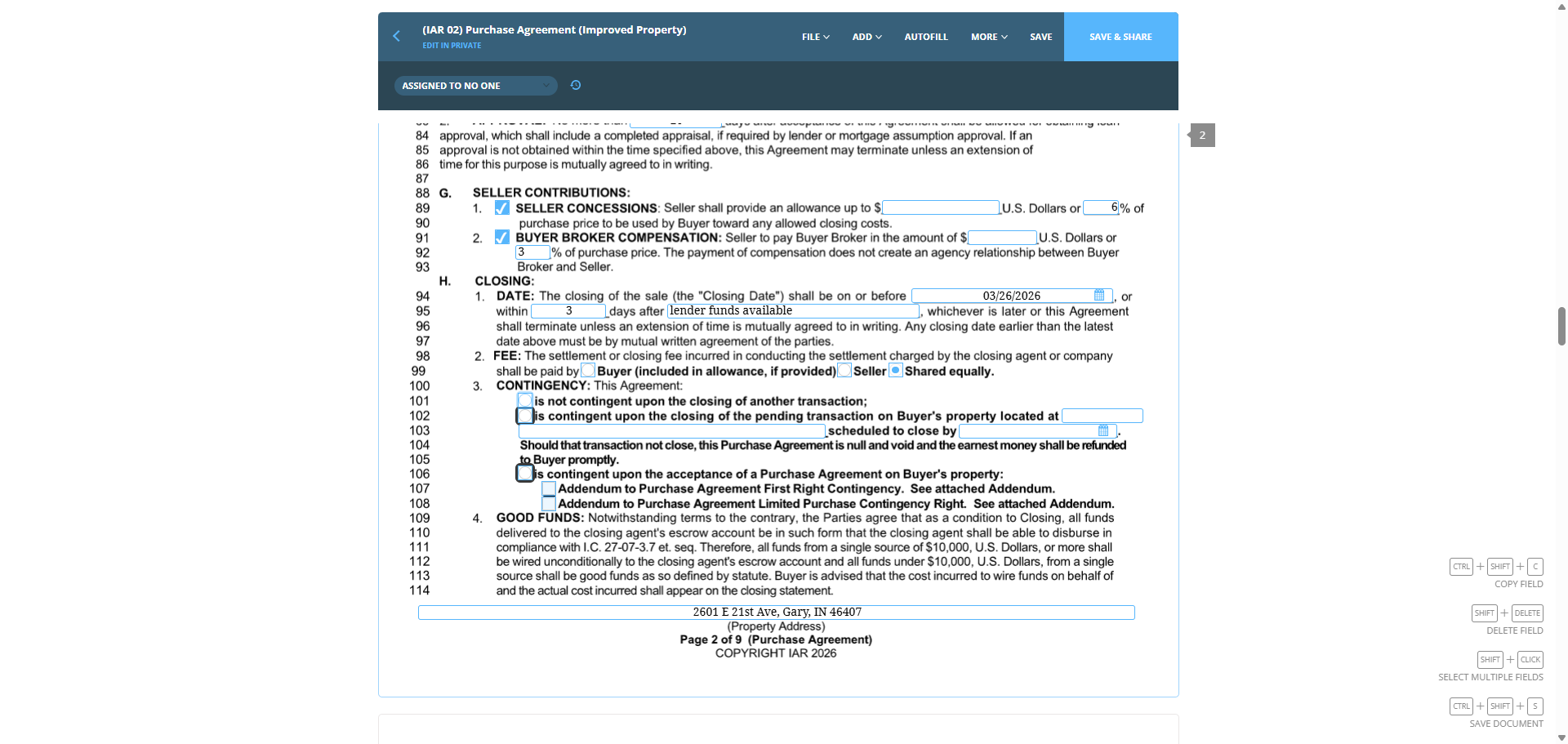
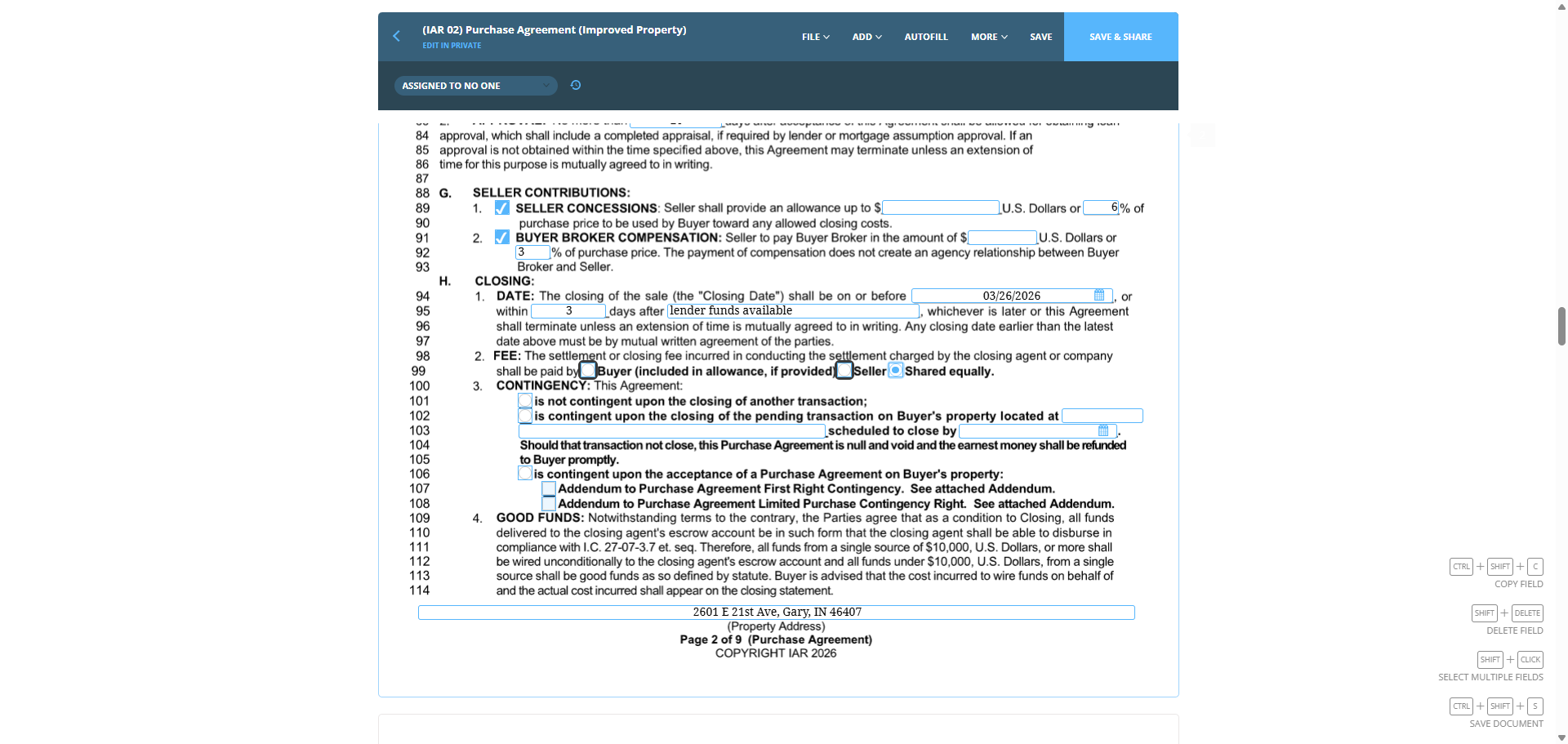
After checking the available funds.

68
Type "lender funds available"

In this section, we will select "shared equally."
69
Click on "conducting the settlement charged by the closing agent or company"
Step #69: Click on "conducting the settlement charged by the closing agent or company"

It is not dependent on the completion of another transaction.
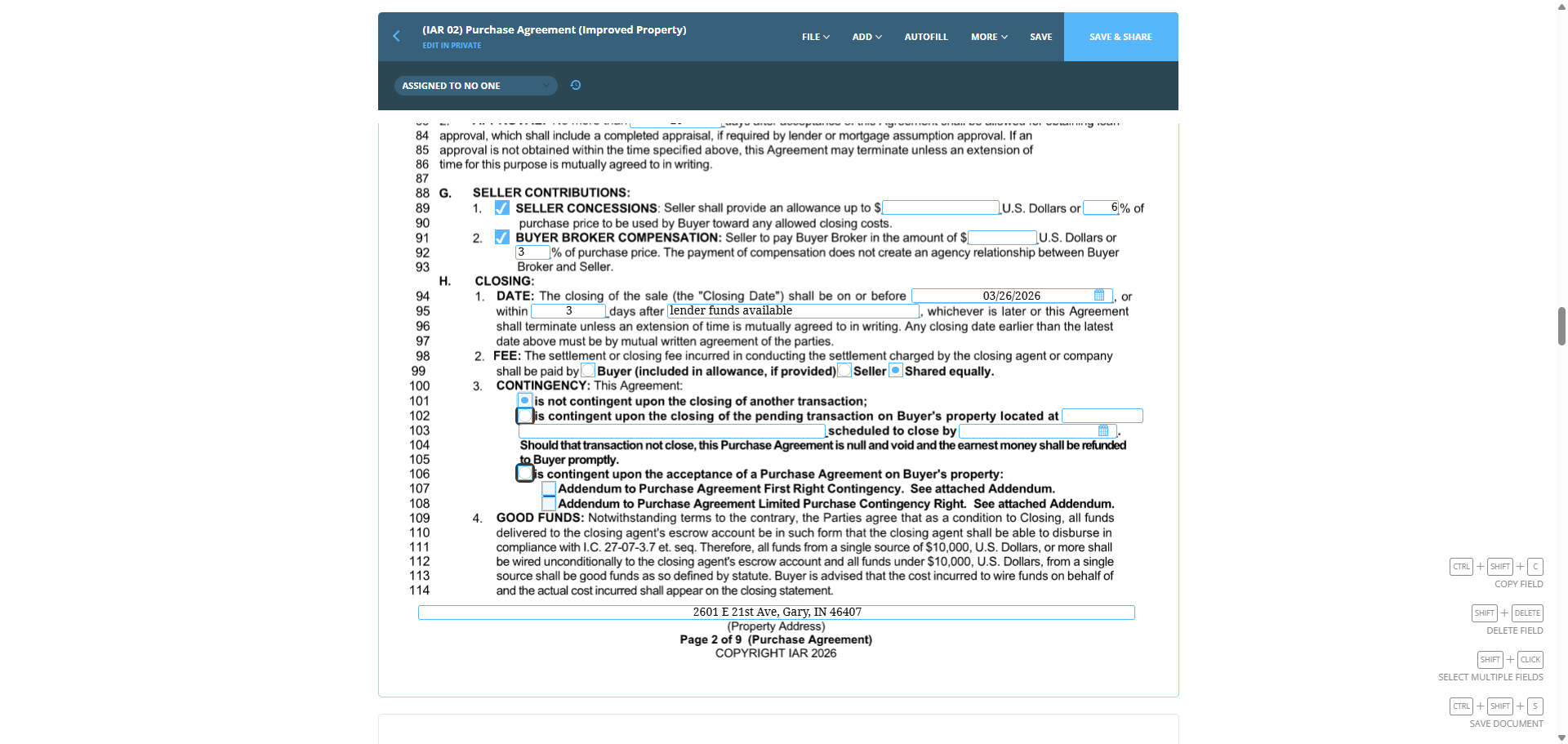
70
Click on "CONTINGENCY :"
Step #70: Click on "CONTINGENCY :"
71
Click on "CONTINGENCY :"
Step #71: Click on "CONTINGENCY :"
72
Click on "O"
Step #72: Click on "O"

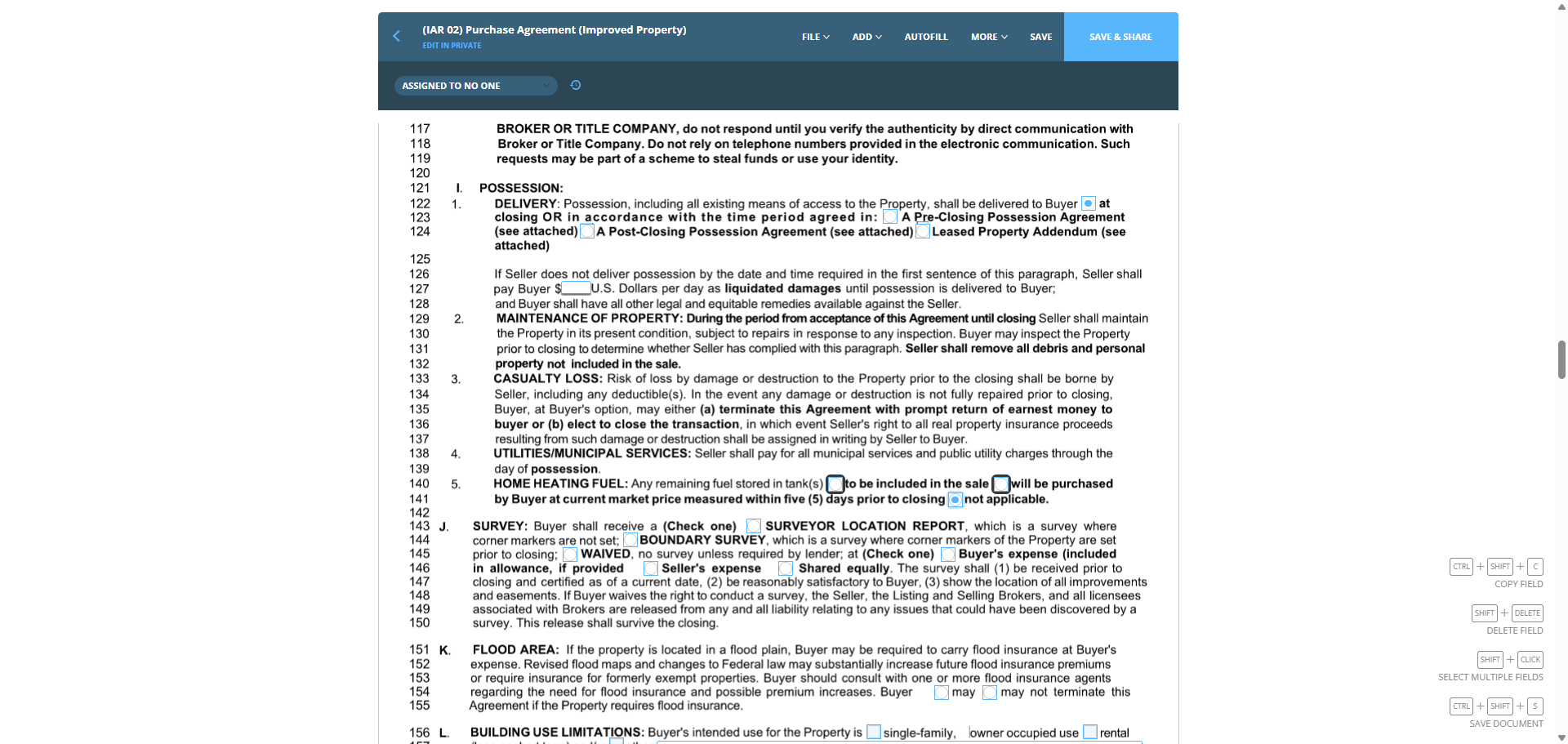
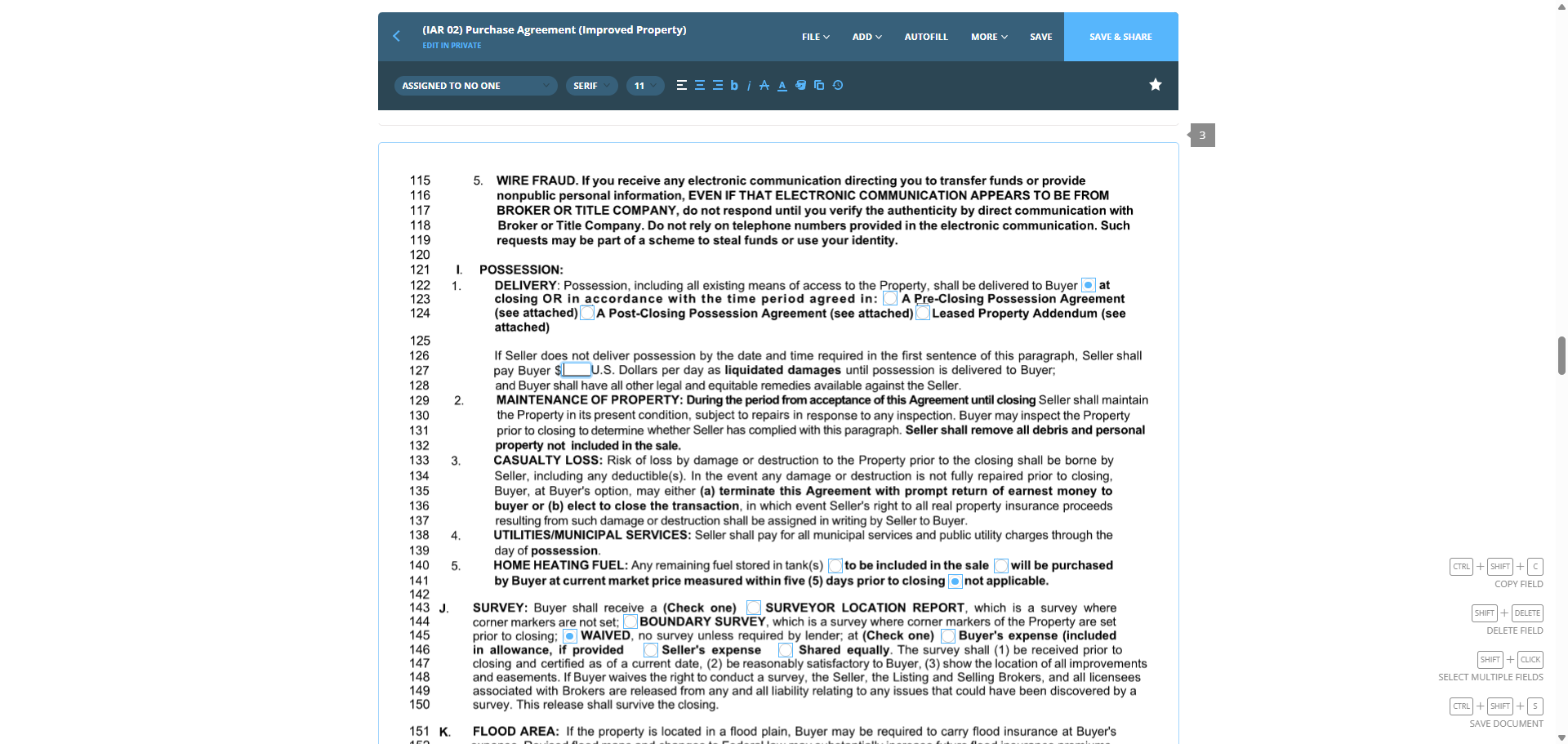
This can be deferred, but for the most part, that will be the selection. Possession at closing.
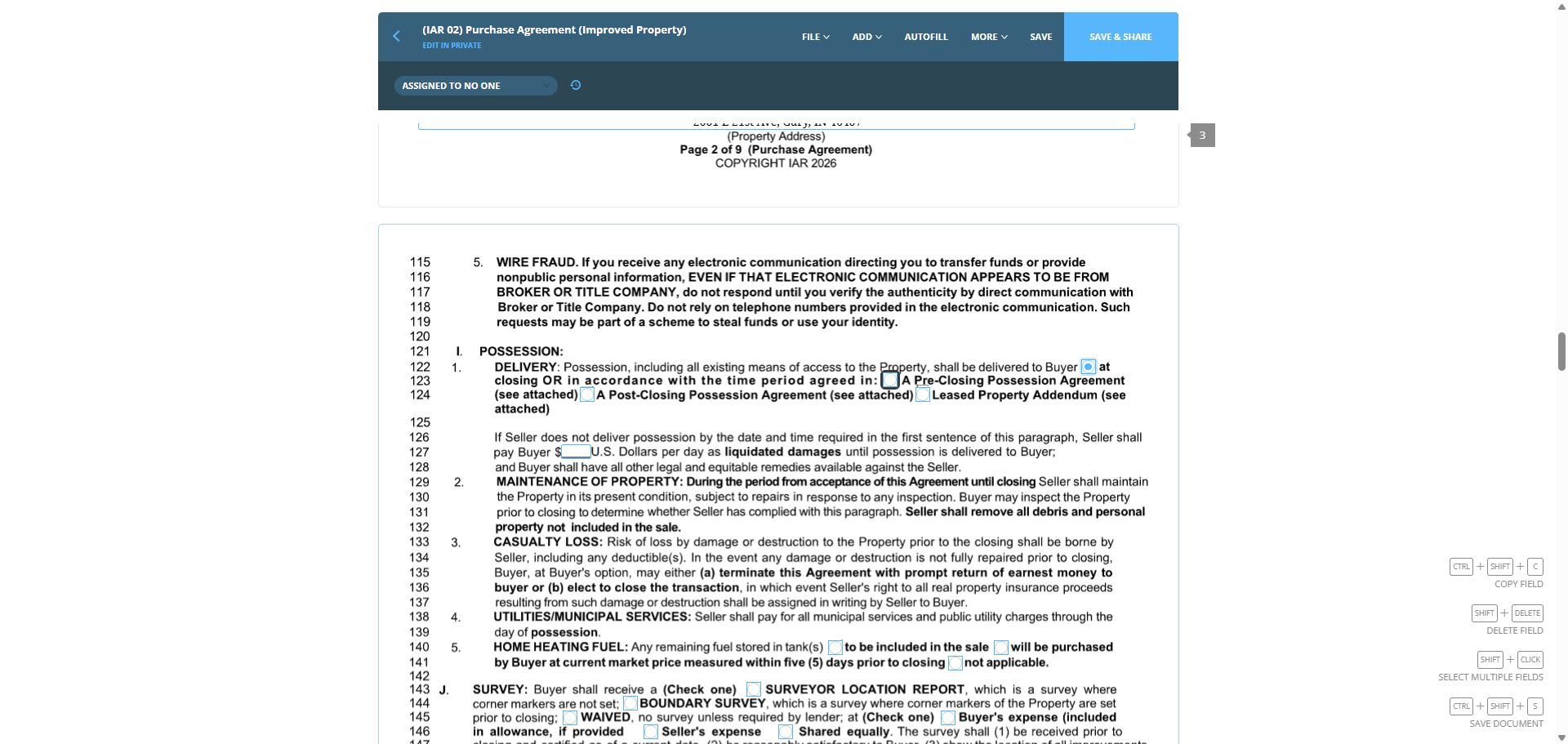
73
Click on "to Buyer"
Step #73: Click on "to Buyer"

Home heating fuel is not applicable.

74
Click on "the"
Step #74: Click on "the"

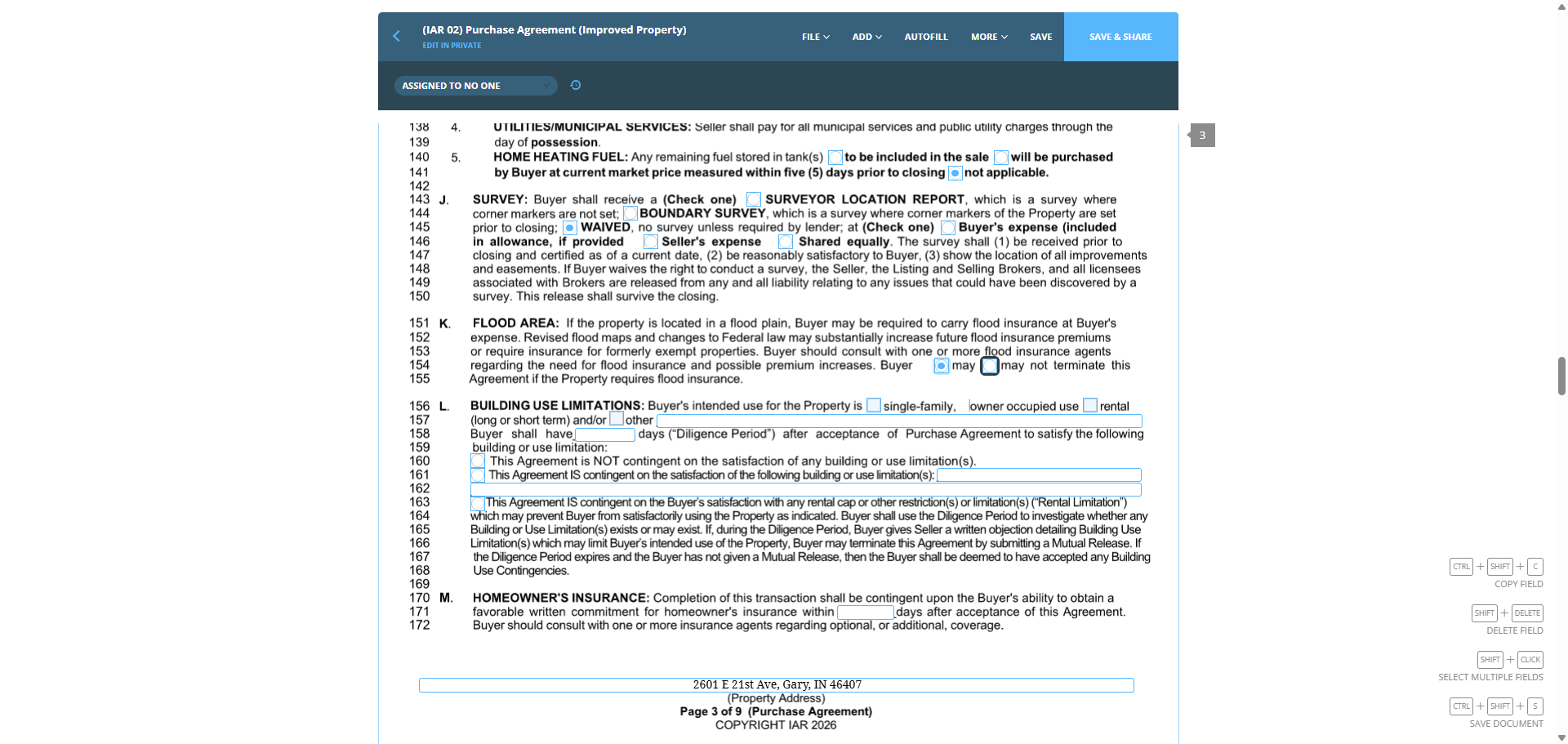
In Indiana, surveys are usually waived, so we can mark them as waived.
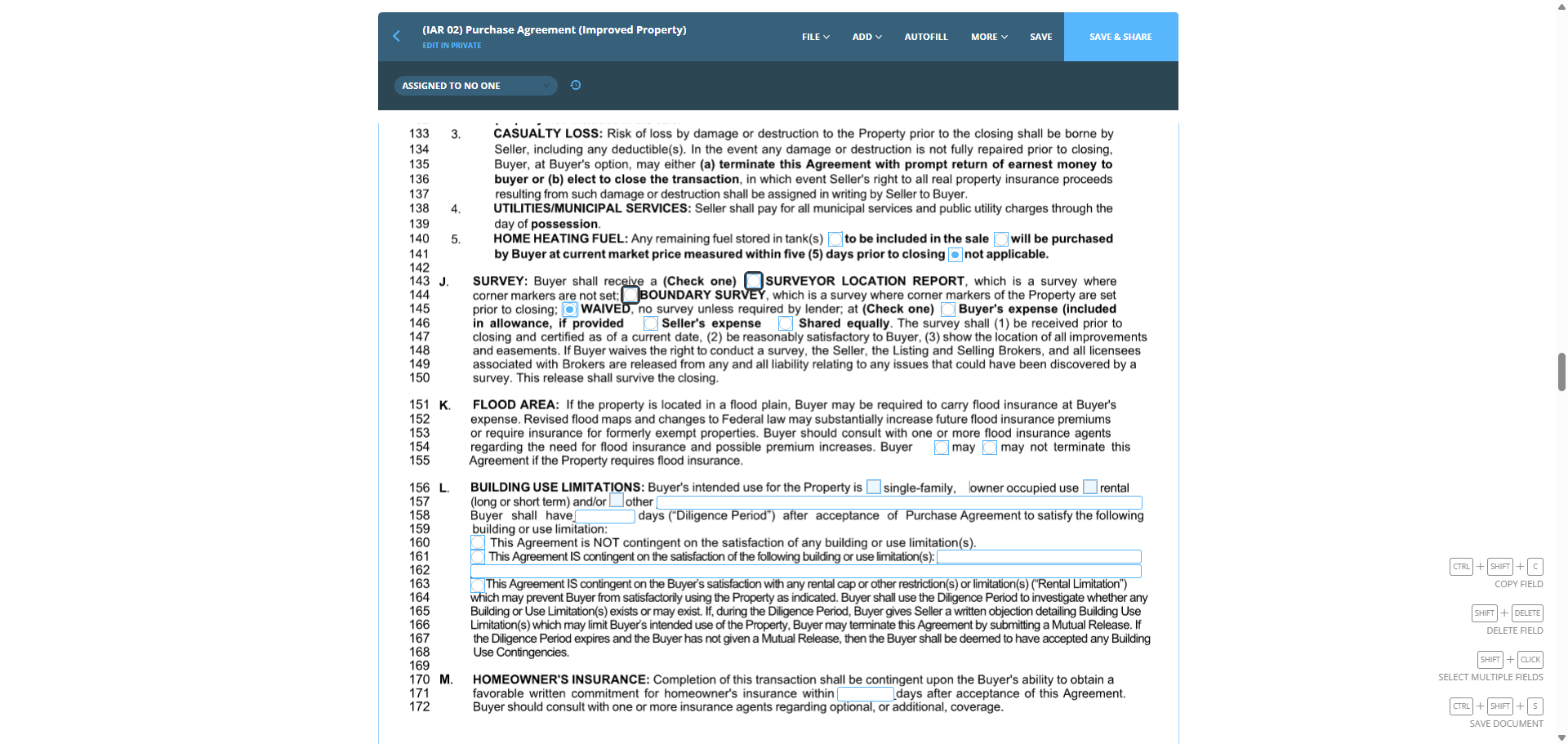
75
Click on "if provided"
Step #75: Click on "if provided"

If the area floods, they may terminate.
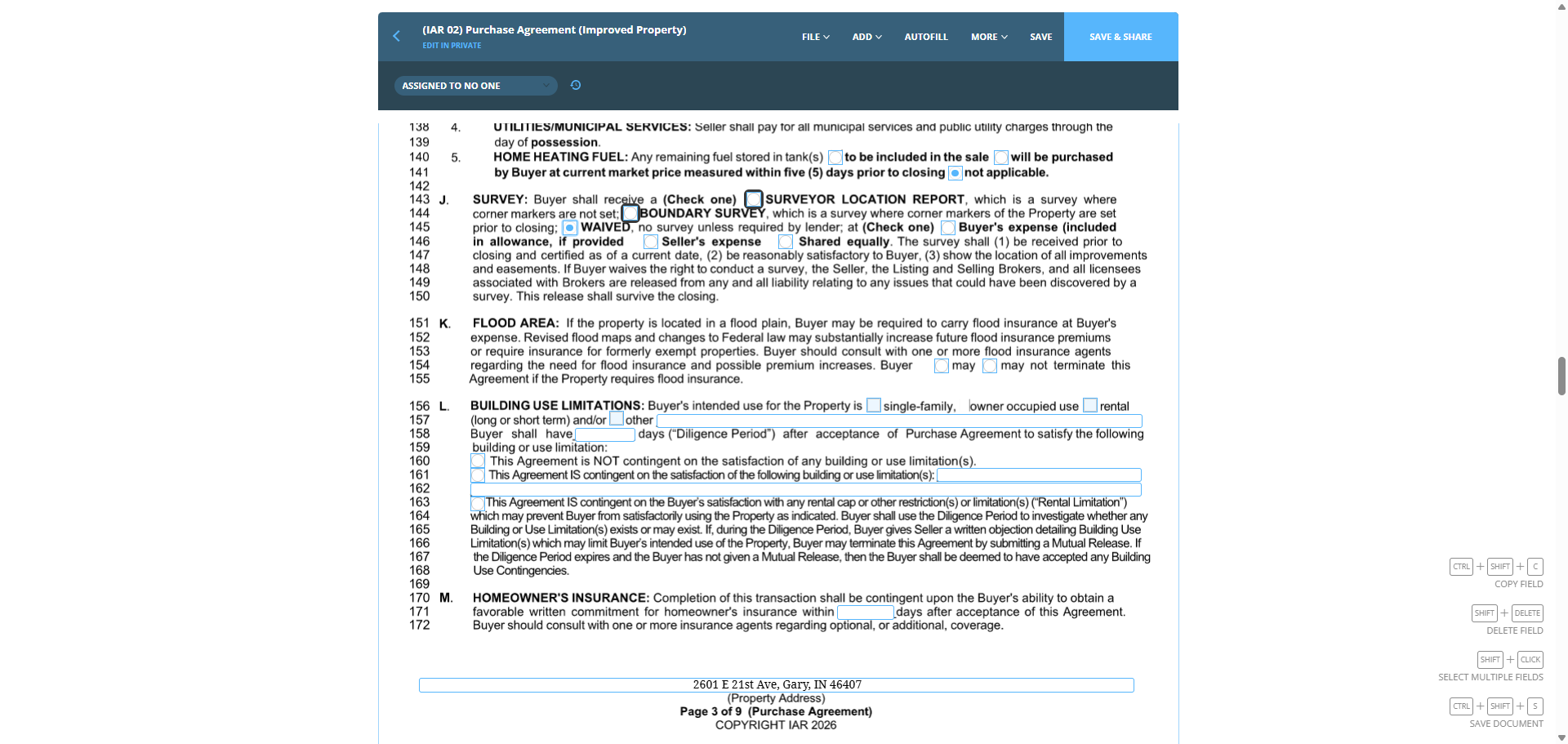
76
Click on "may"
Step #76: Click on "may"
77
Click on "Omay"
Step #77: Click on "Omay"

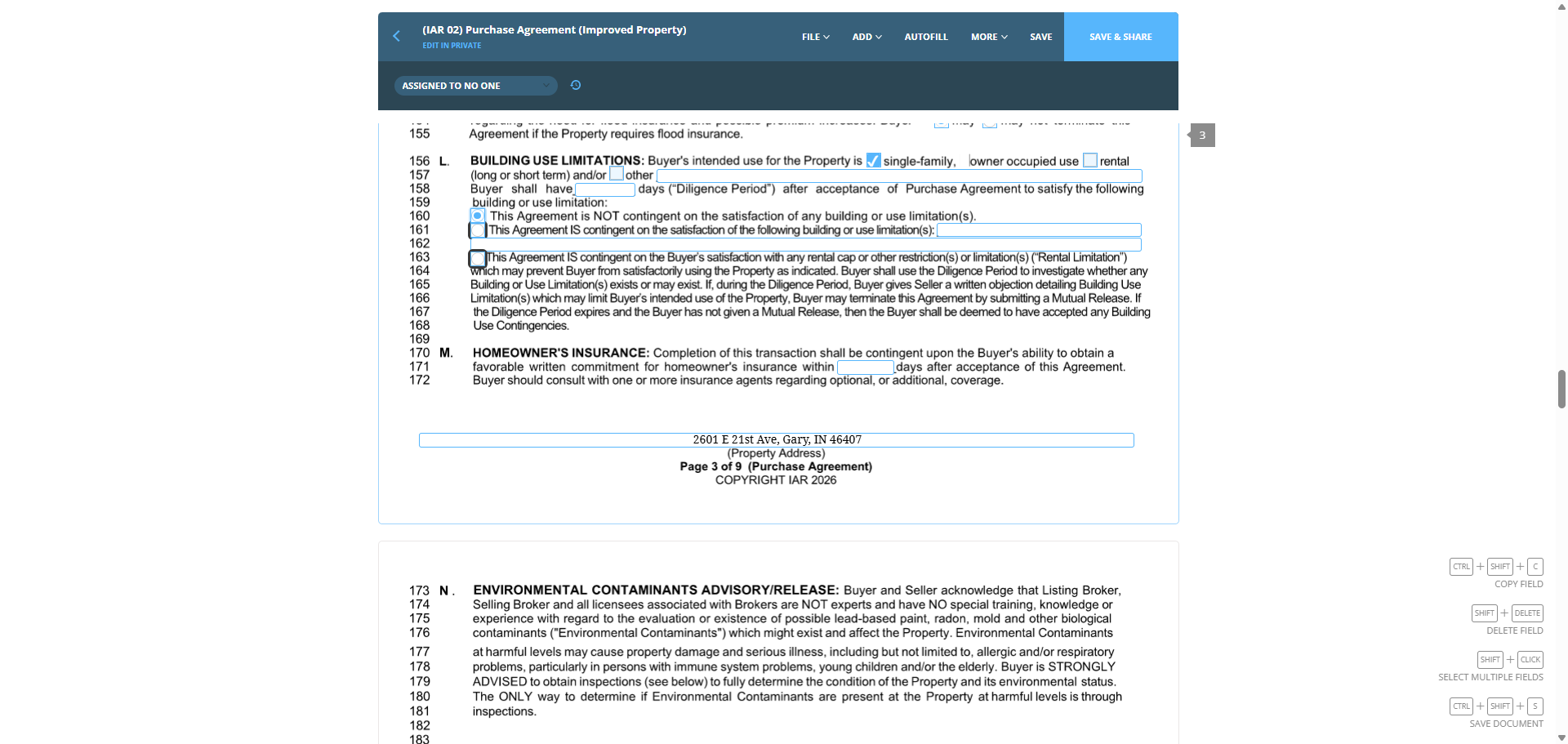
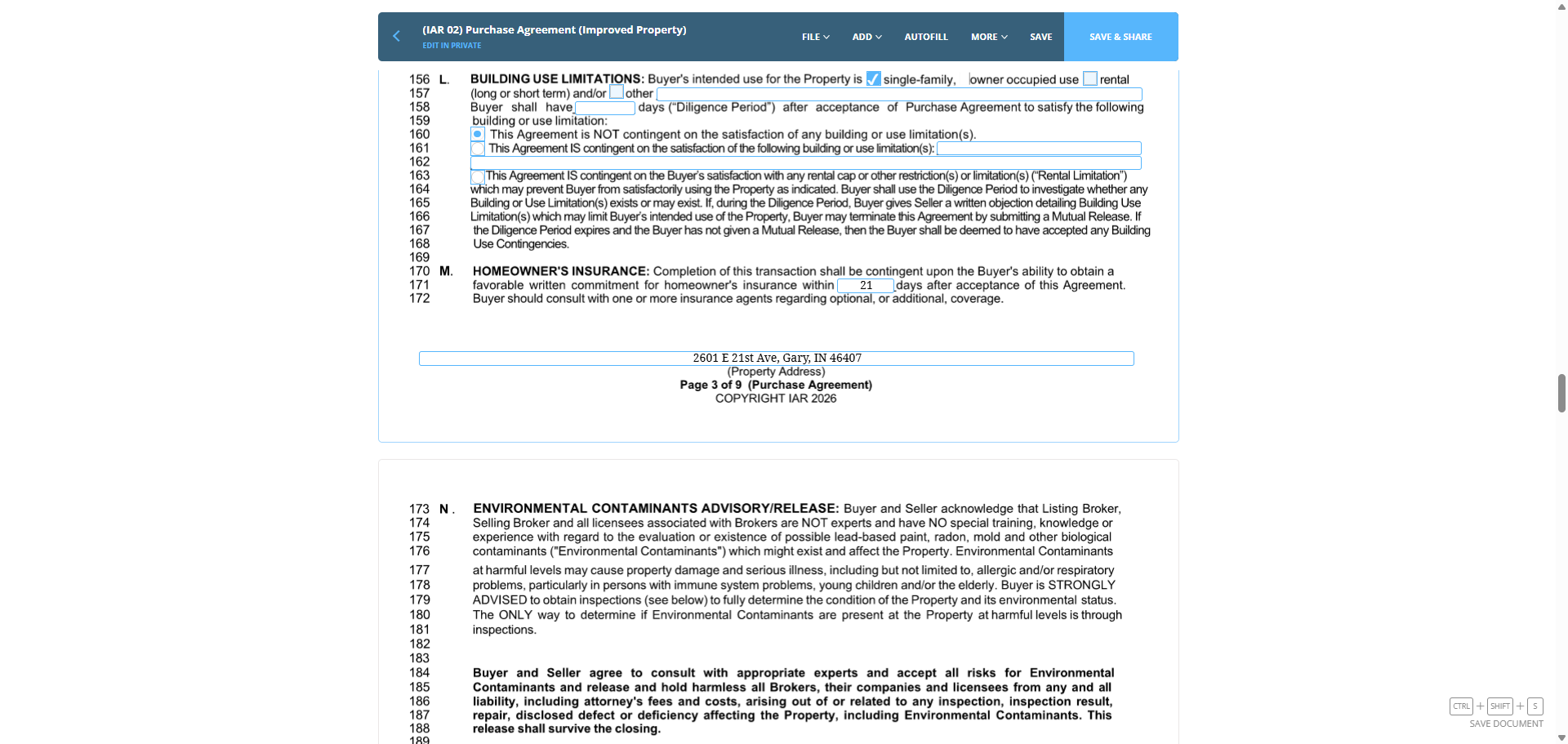
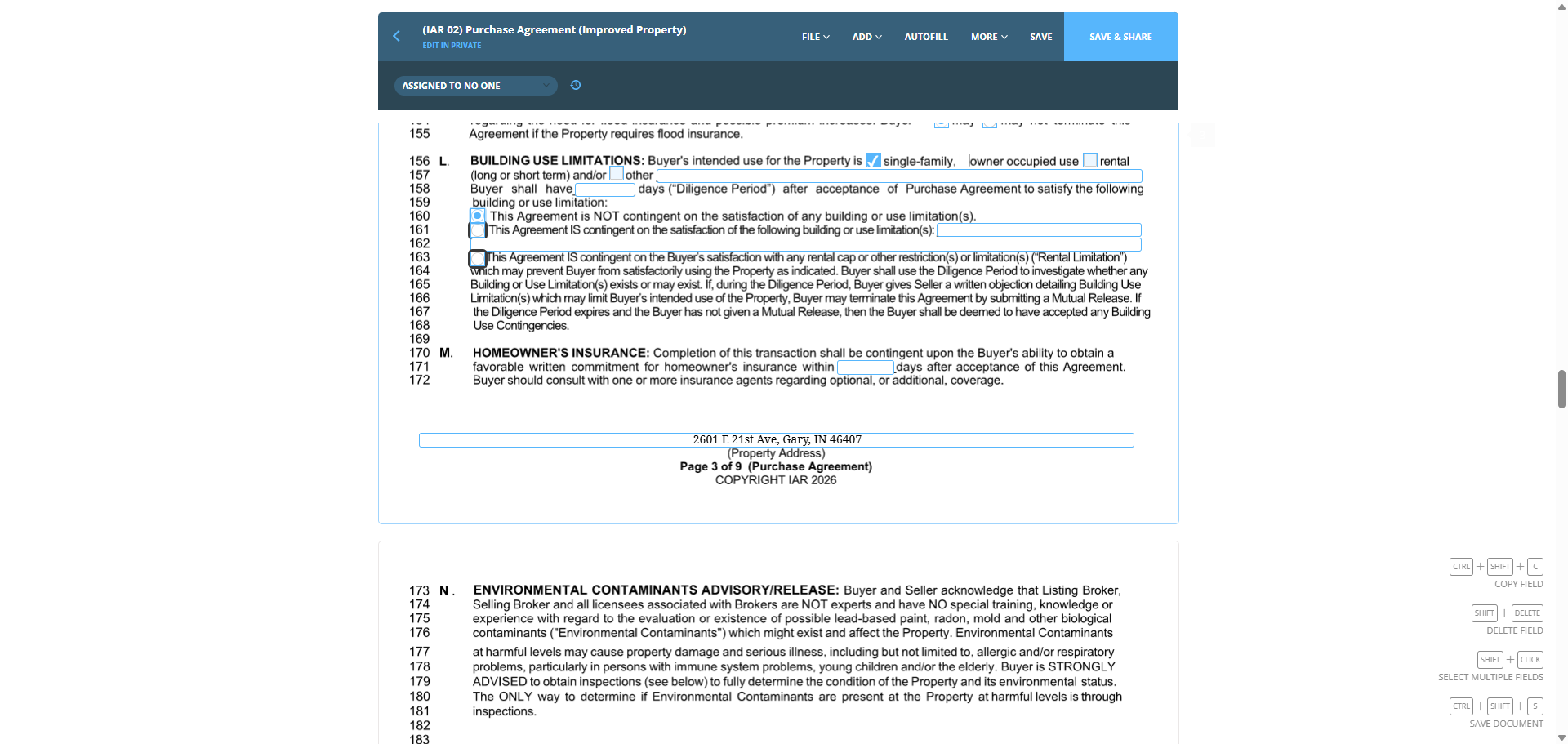
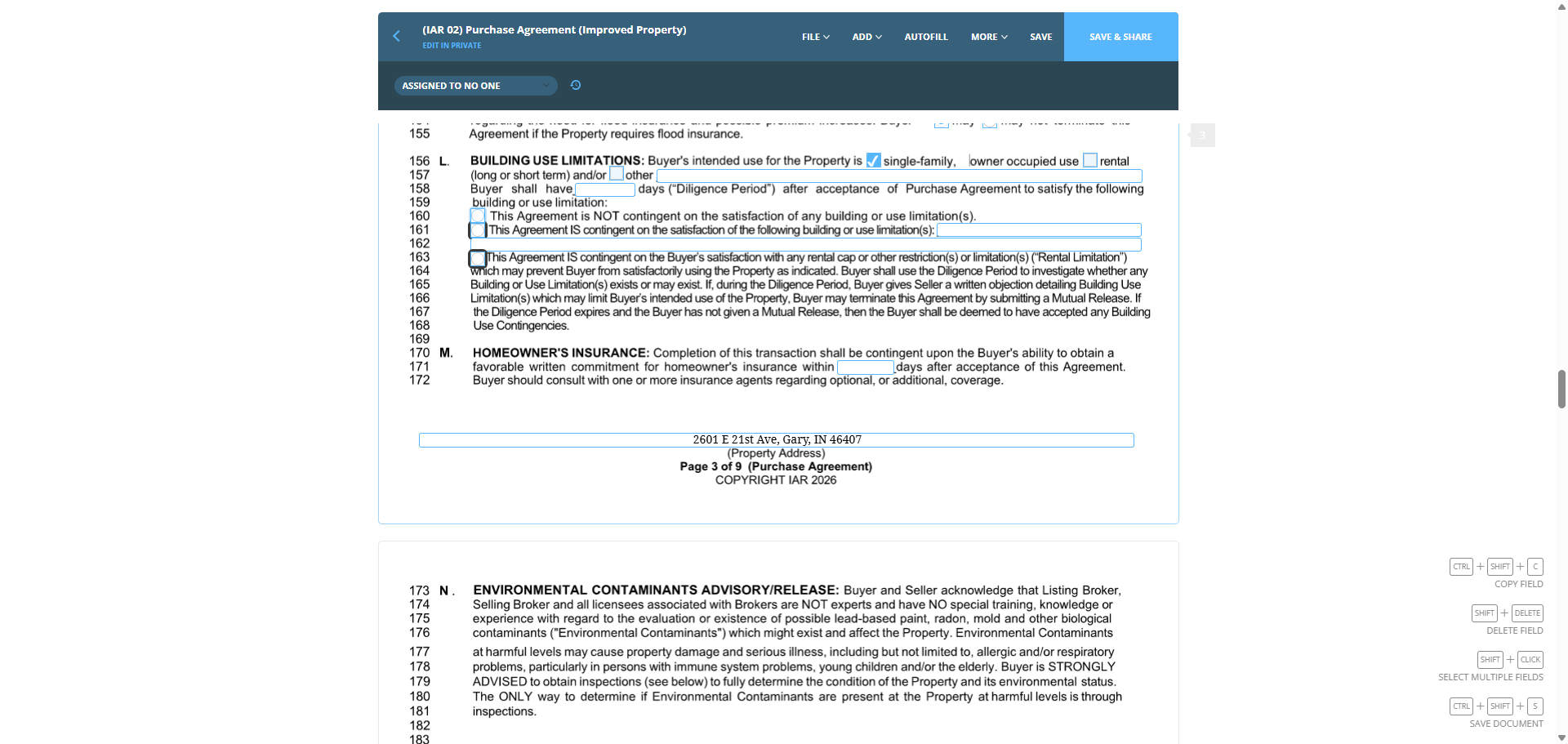
Homeowner's insurance: The building use will be limited to a single-family home.
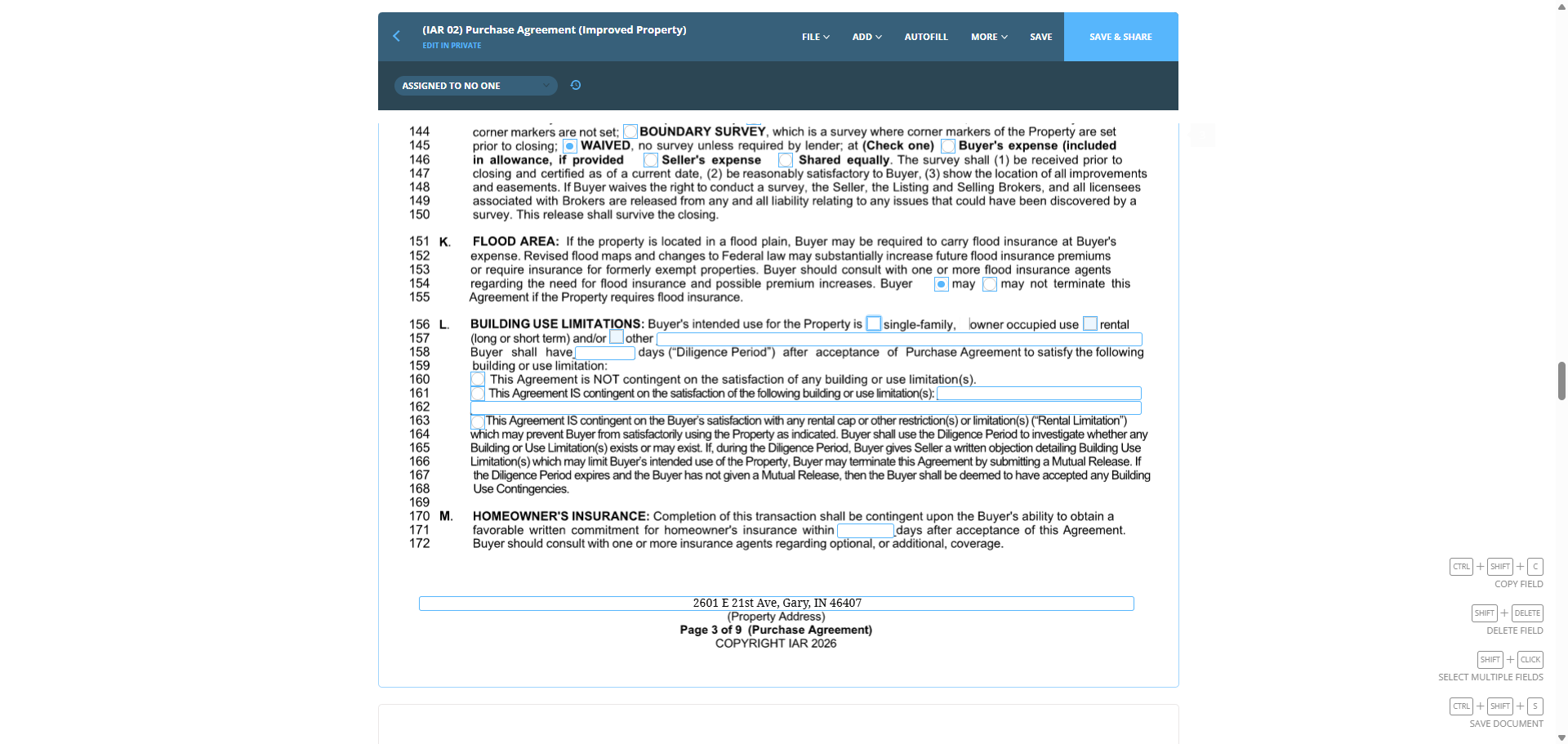
78
Click on "☐"
Step #78: Click on "☐"

If it is not, and it is used for something else, we can change it. This is not dependent on meeting the building or use limitations.
79
Click on "building"
Step #79: Click on "building"
80
Click on "building"
Step #80: Click on "building"
81
Click on "building or use"
Step #81: Click on "building or use"

After we select a position, possession will occur at closing.
82
Click on "U.S"
Step #82: Click on "U.S"

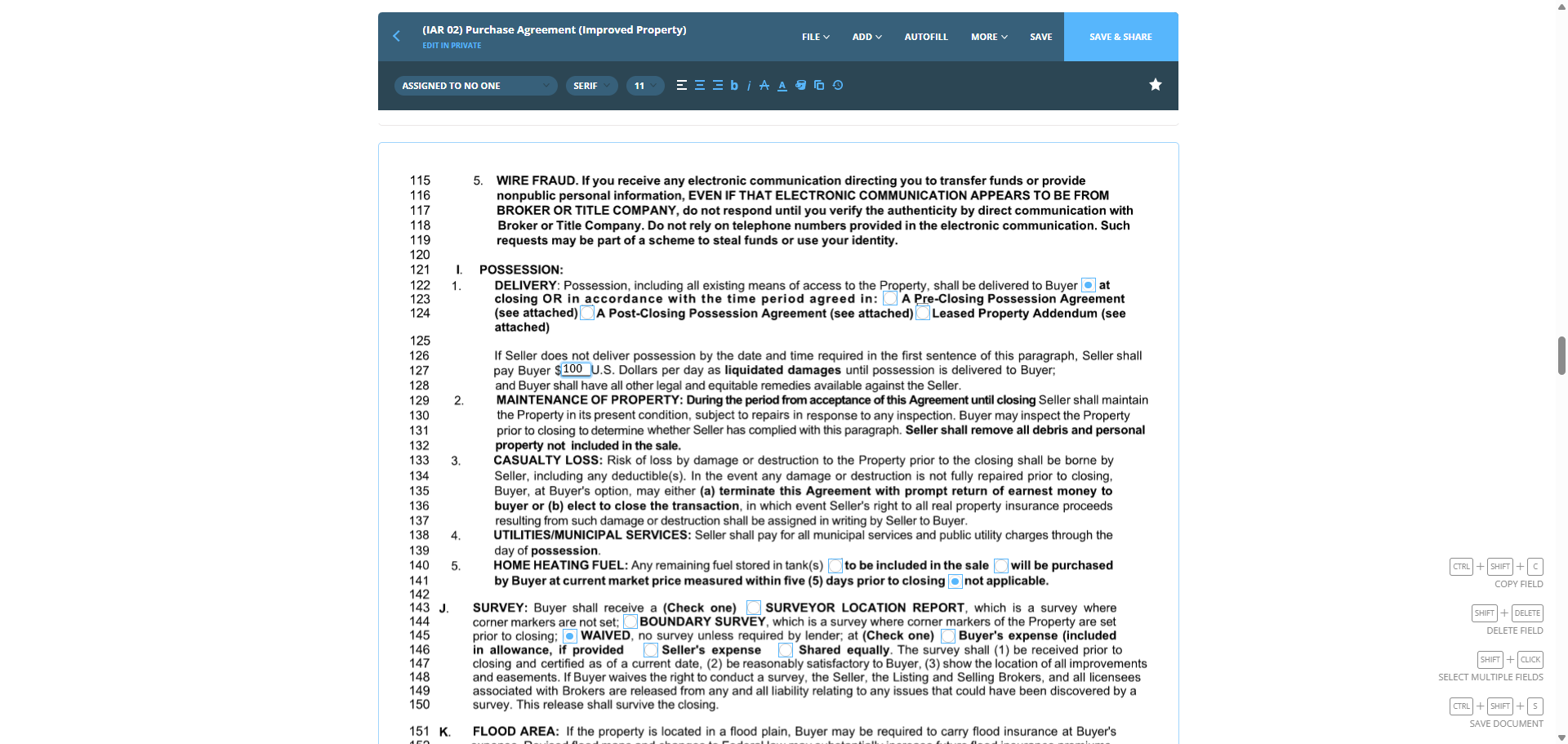
We will set aside $100 for each day that closing and possession are delayed beyond the agreed date.
83
Click on "MAINTENANCE OF PROPERTY"
Step #83: Click on "MAINTENANCE OF PROPERTY"
84
Type "100"

Homeowner's insurance will be set for 15 days.
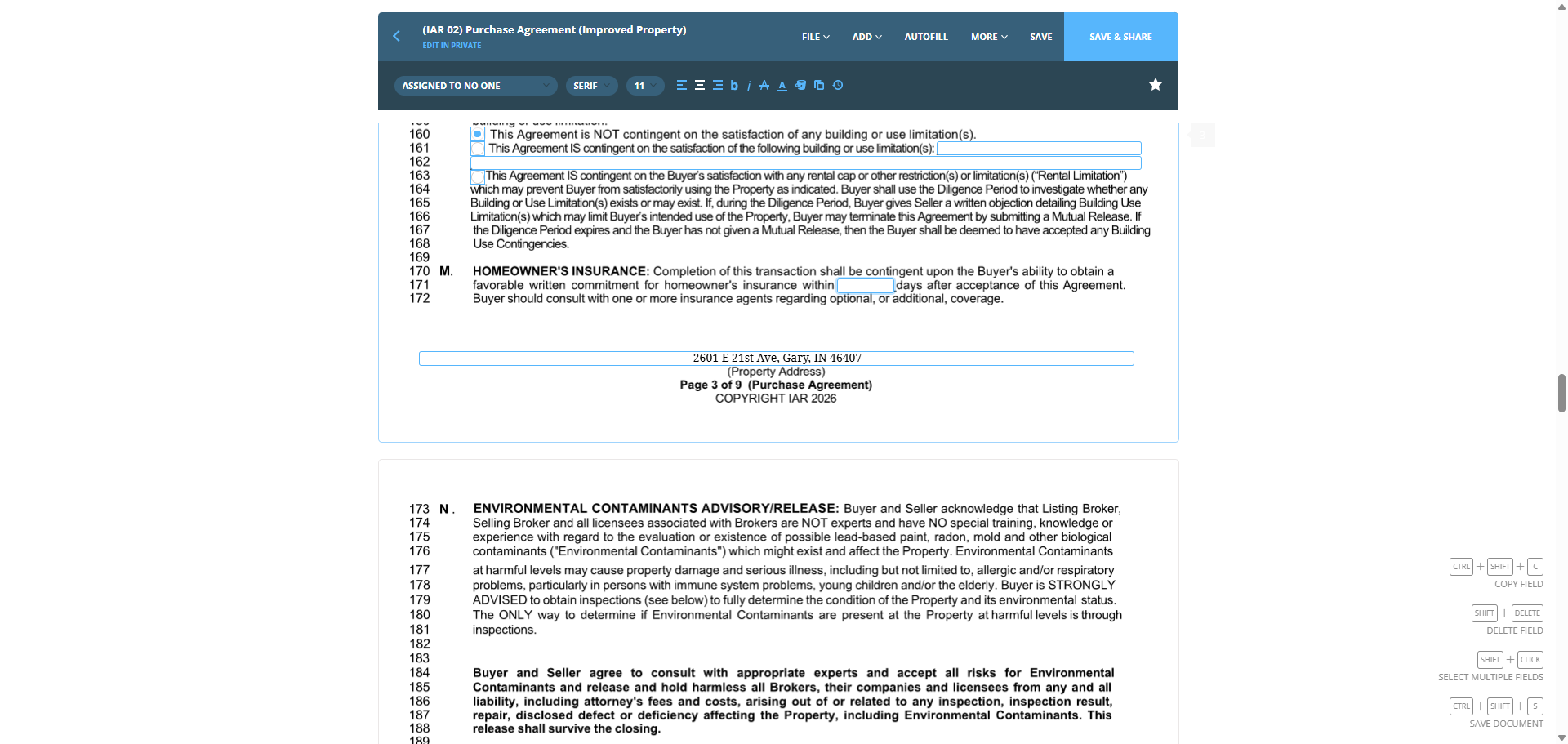
85
Click on "transaction shall be contingent upon the Buyer's"
Step #85: Click on "transaction shall be contingent upon the Buyer's"

Sorry, we'll do 21 days.

86
Click on "additional"
Step #86: Click on "additional"
87
Type "21"

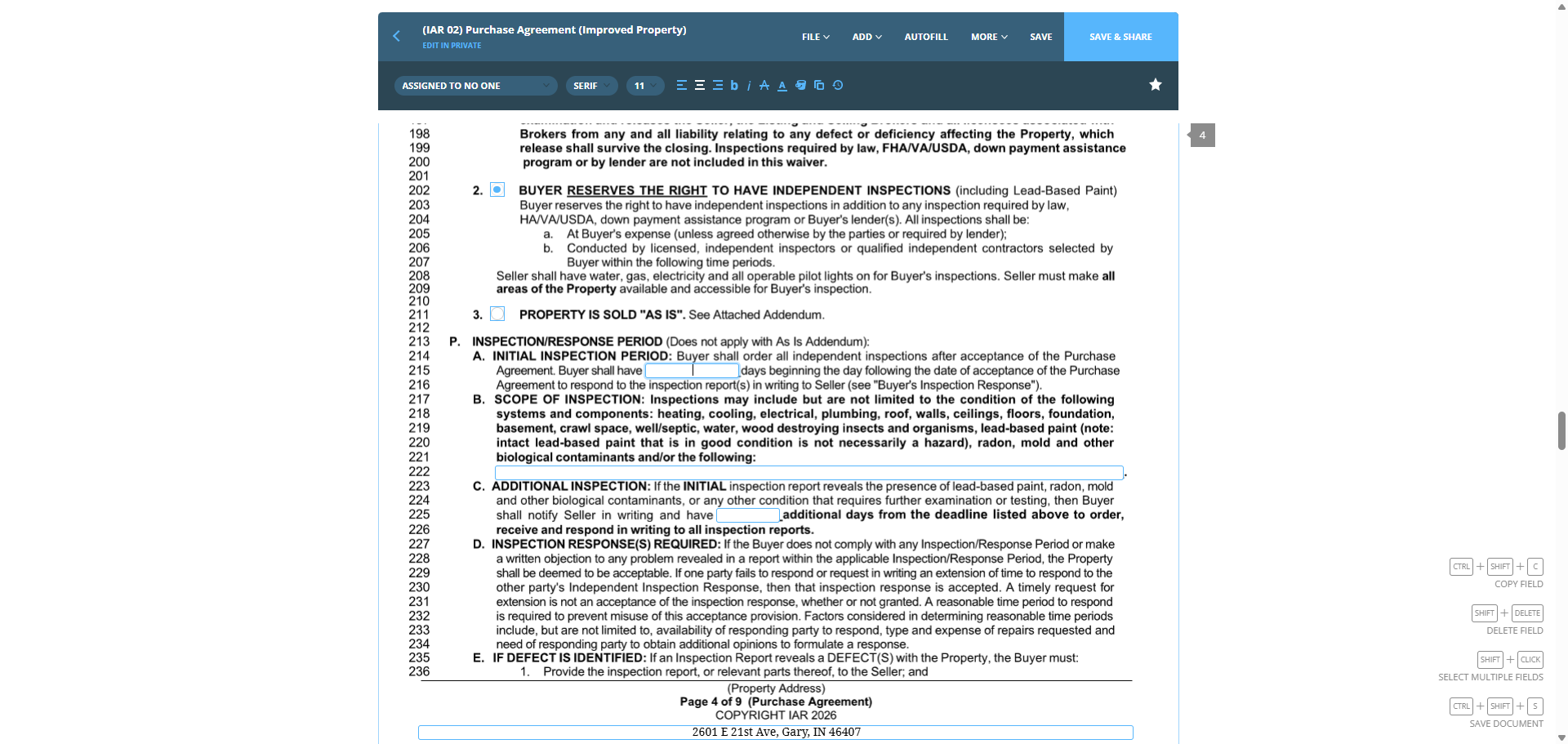
The buyer reserves the right to request an independent inspection.
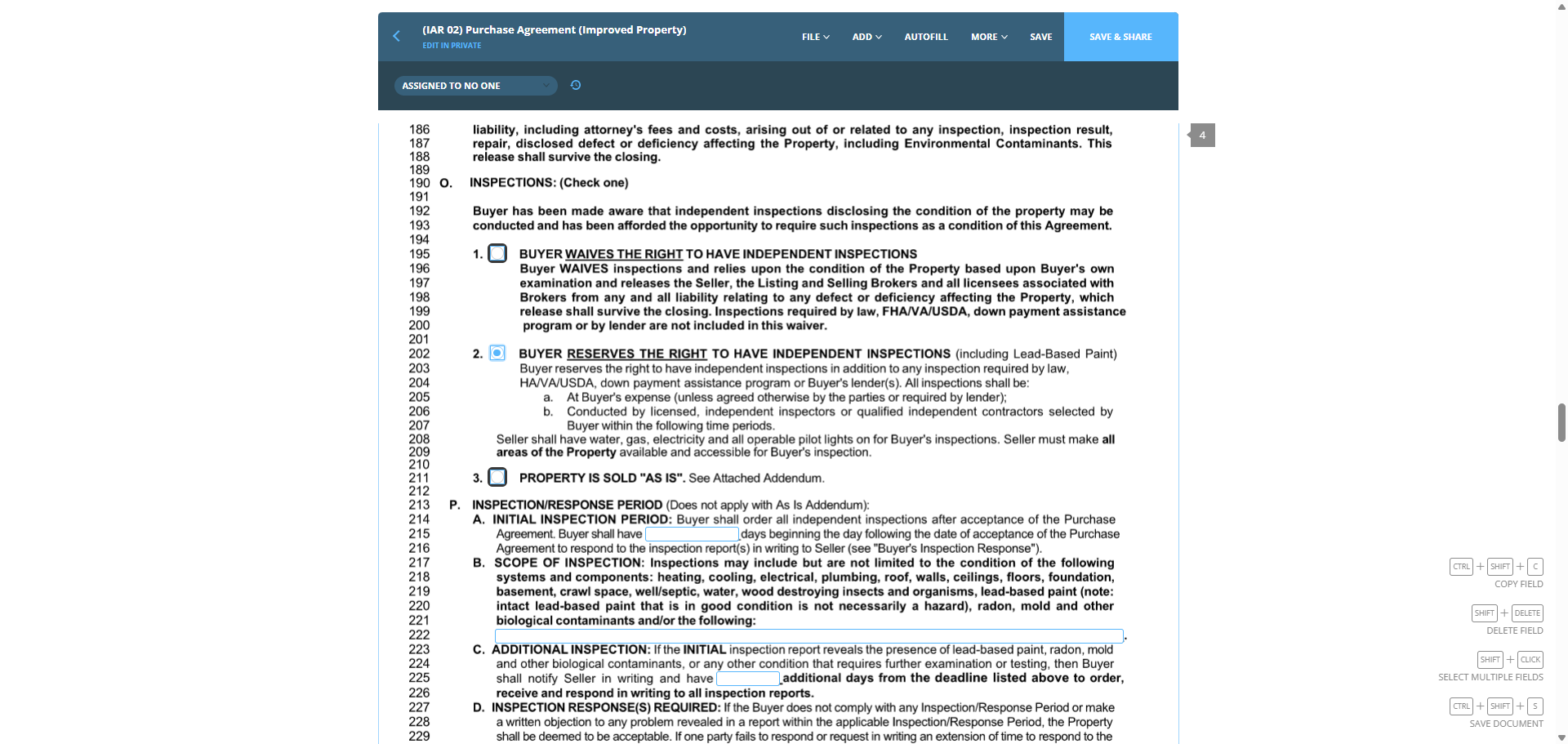
88
Click on "Buyer WAIVES inspections and relies upon the condition of the examination and releases the Seller , the Listing and Selling Broker Brokers from any and all liability relating to any defect or deficie program or by lender are not included in this waiver . BUYER RESERVES THE RIGHT TO HAVE INDEPENDENT INSPEC Buyer reserves the right to have independent inspections in addition to a HA / VA / USDA , down payment assistance program or Buyer's lender ( s ) . A a . At Buyer's expense ( unless agreed otherwise by the parties or re"
Step #88: Click on "Buyer WAIVES inspections and relies upon the condition of the examination and releases the Seller , the Listing and Selling Broker Brokers from any and all liability relating to any defect or deficie program or by lender are not included in this waiver . BUYER RESERVES THE RIGHT TO HAVE INDEPENDENT INSPEC Buyer reserves the right to have independent inspections in addition to a HA / VA / USDA , down payment assistance program or Buyer's lender ( s ) . A a . At Buyer's expense ( unless agreed otherwise by the parties or re"

This is always.

89
Click on "Buyer shall"
Step #89: Click on "Buyer shall"
90
Type "10"
91
Type "7"
92
Click on "Buyer acknowledges the"
Step #92: Click on "Buyer acknowledges the"

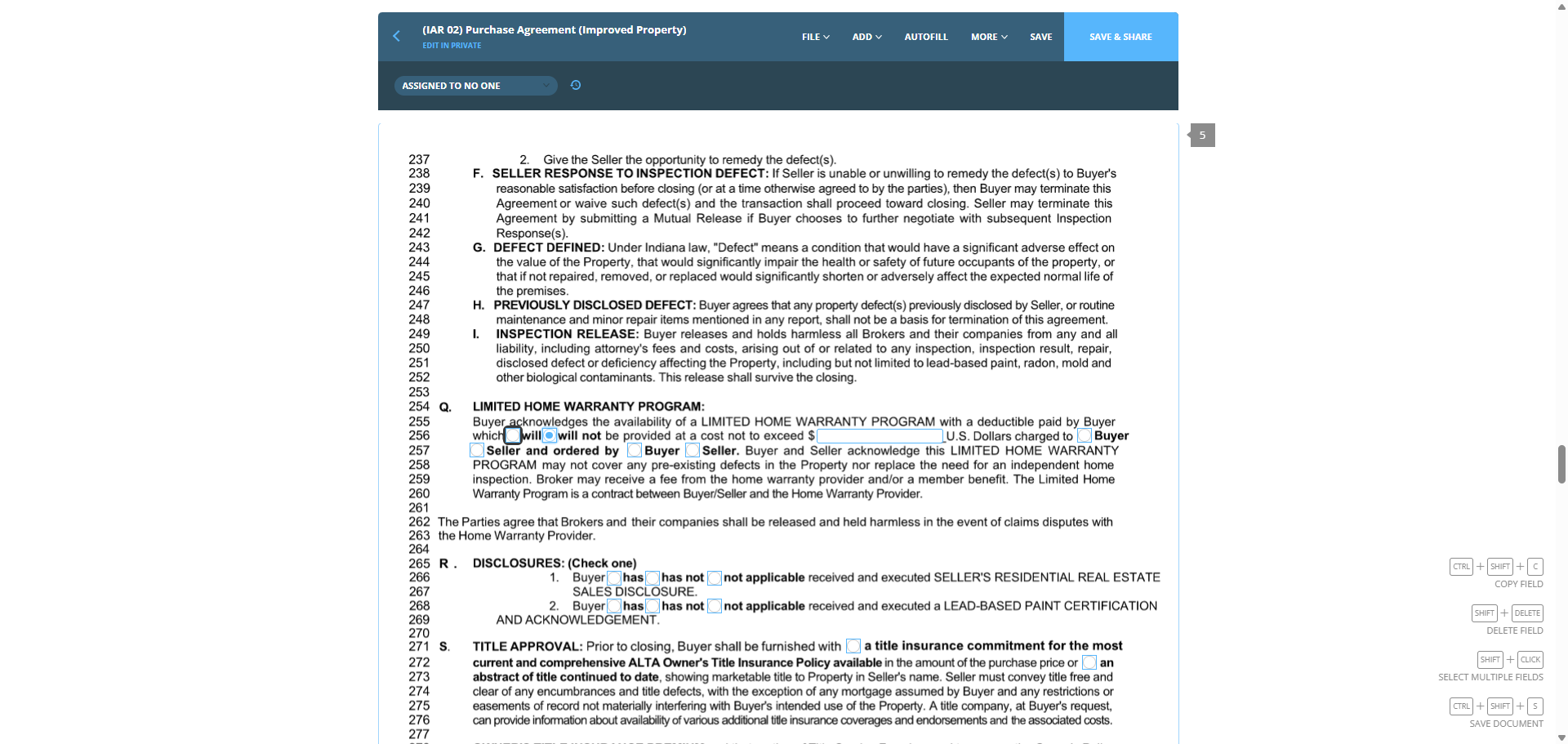
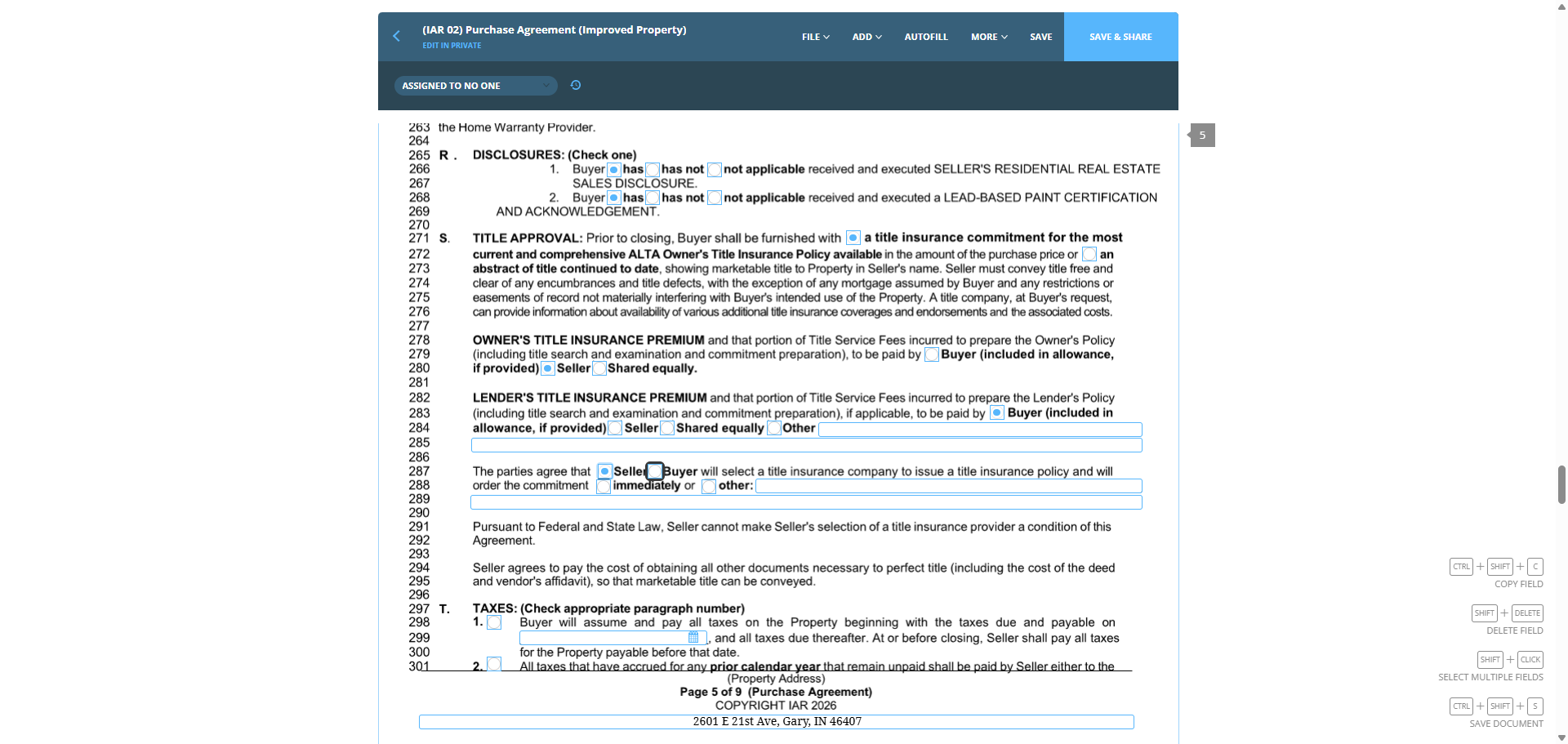
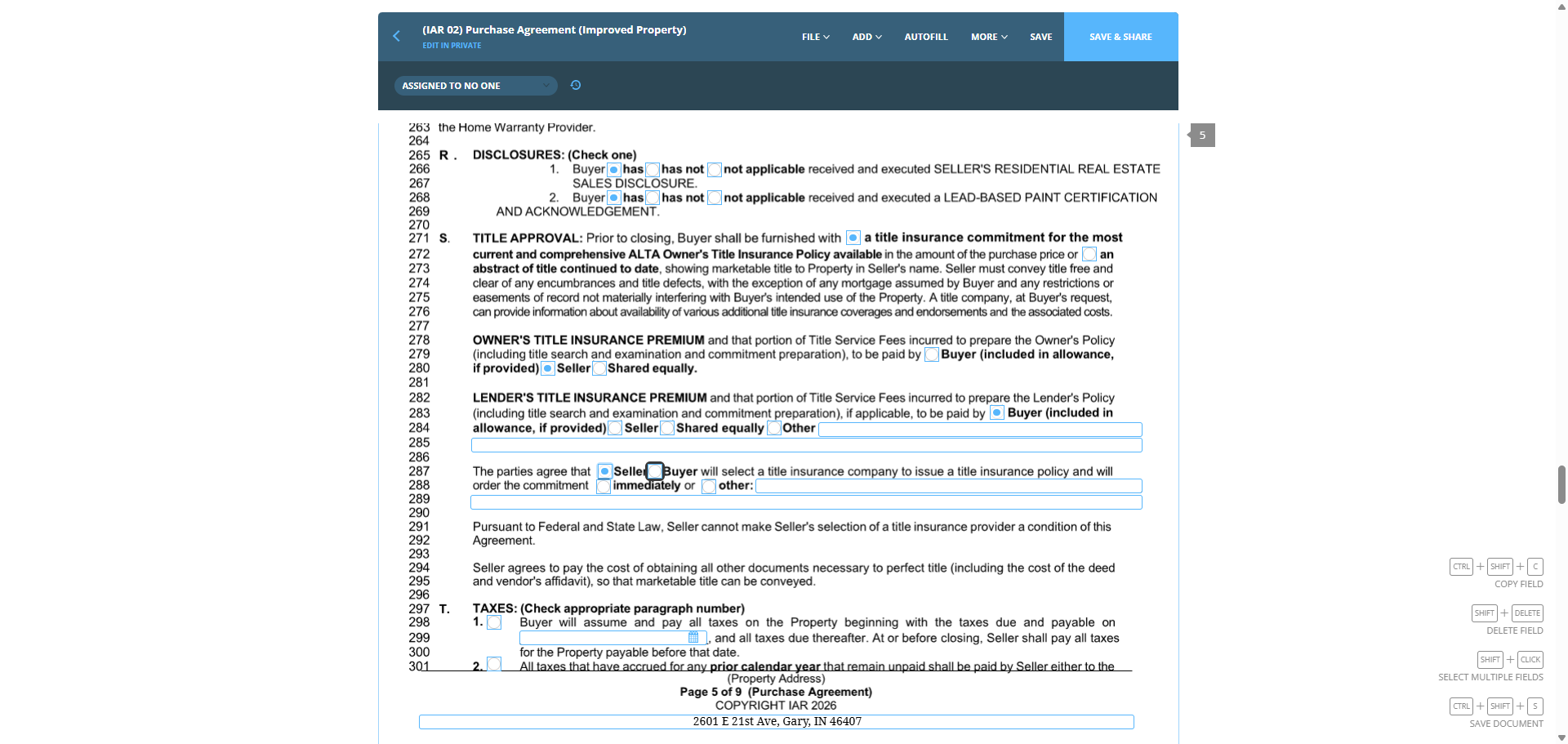
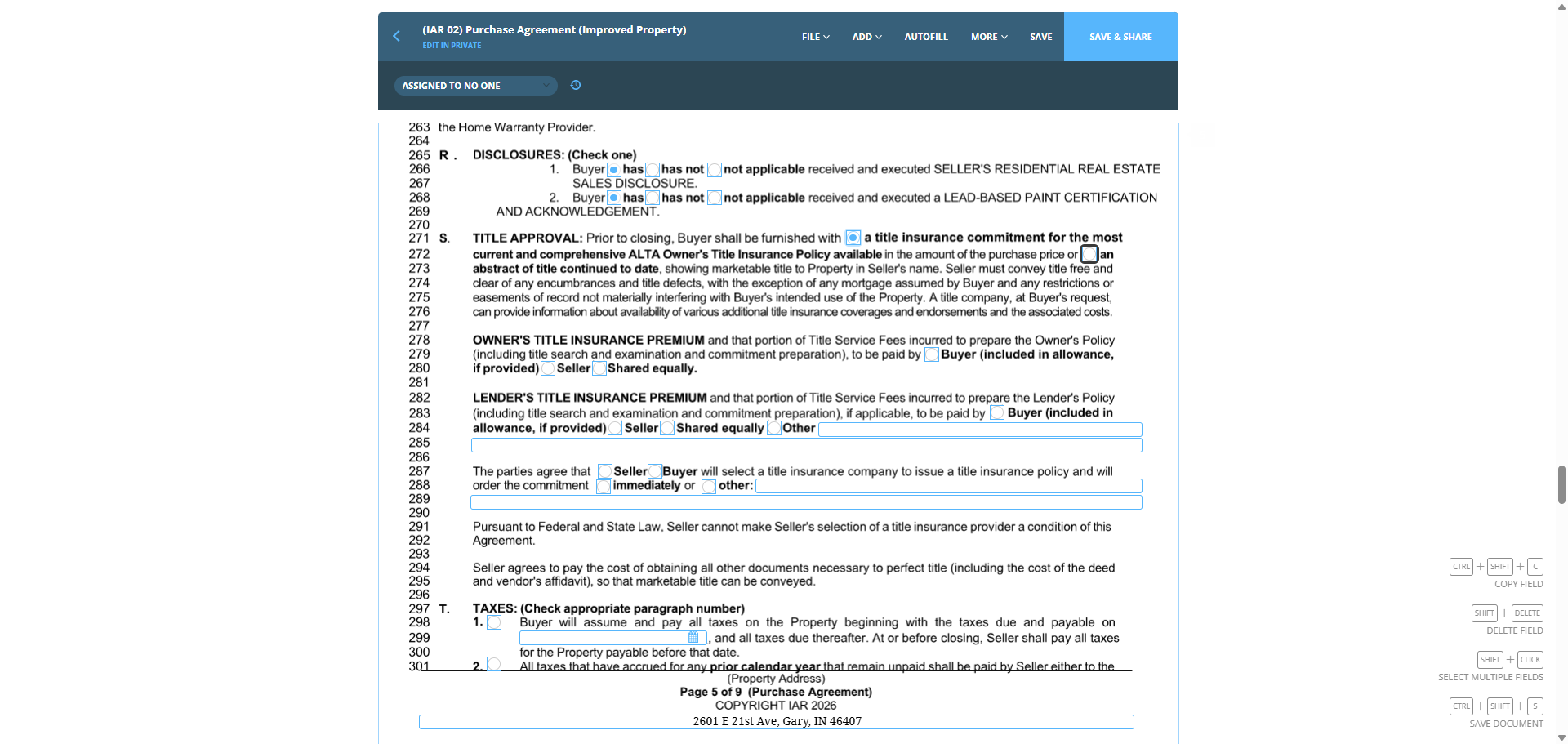
No home warranty. If we received the disclosures, we will indicate that we received them. If not, we will note that we did not receive them or mark as not applicable. Of course, we already saved them in the documents when we were setting things up. To be sure, check the seller disclosure to see if both documents are included or just one. Both were present when the offer was made.
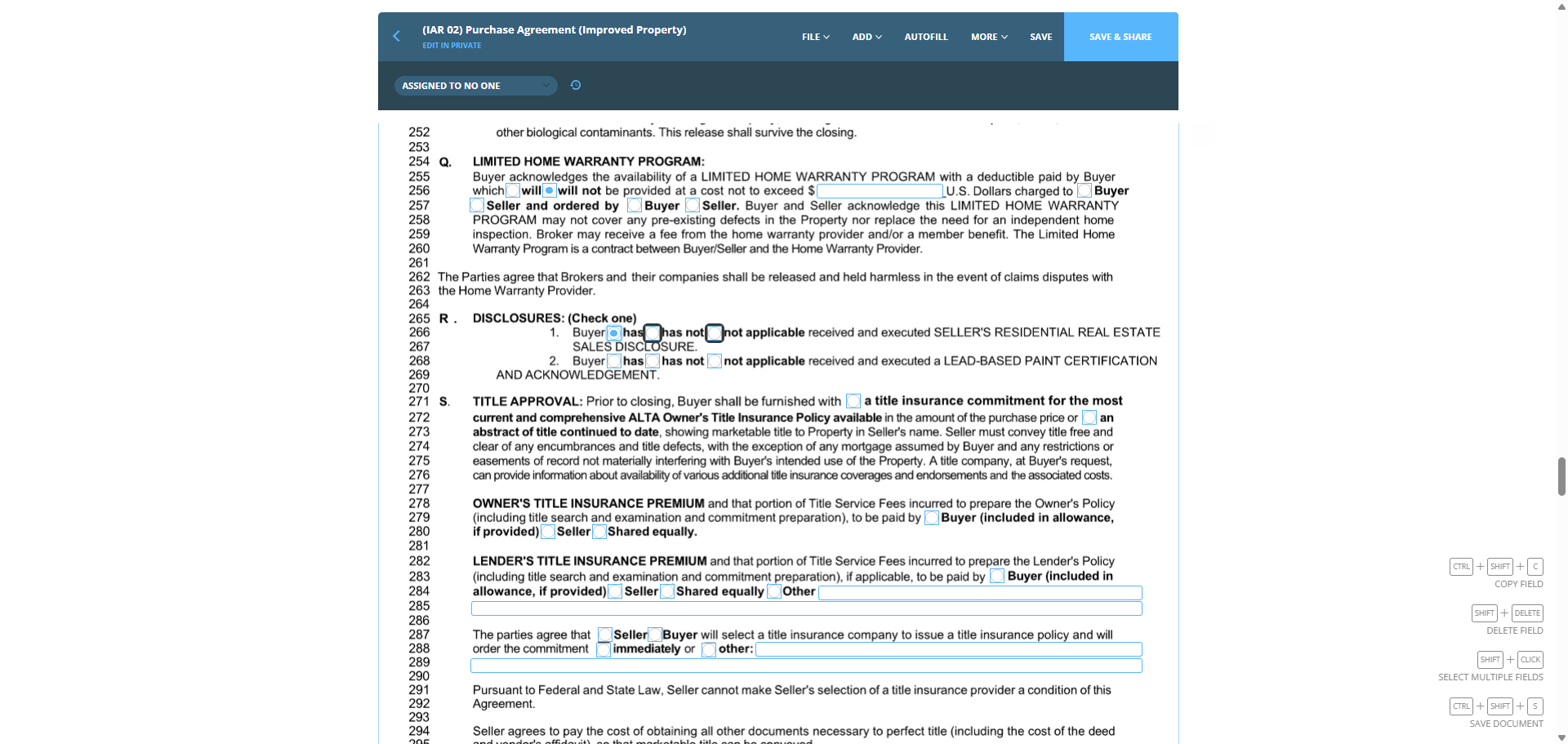
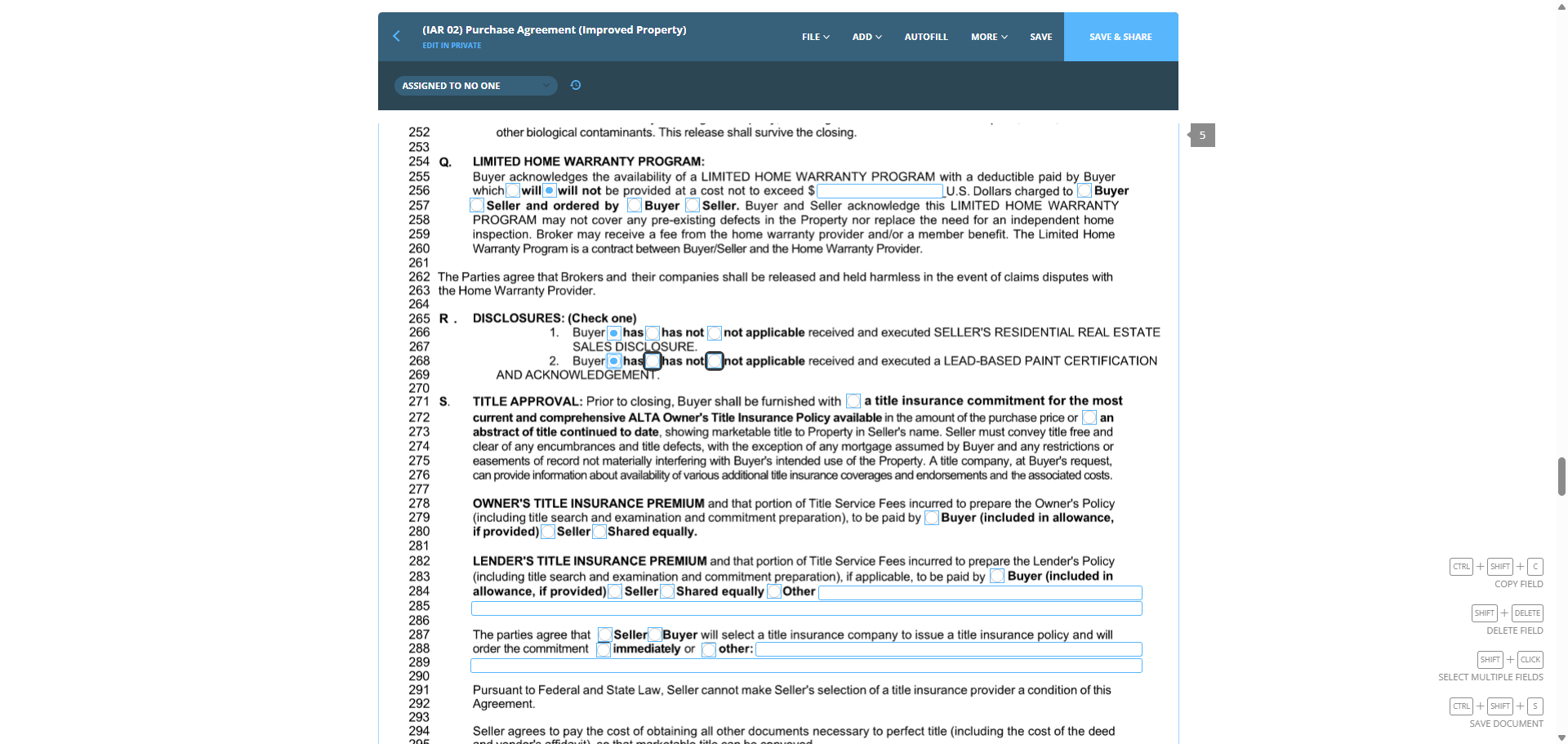
93
Click on "( Check one )"
Step #93: Click on "( Check one )"
94
Click on "has"
Step #94: Click on "has"

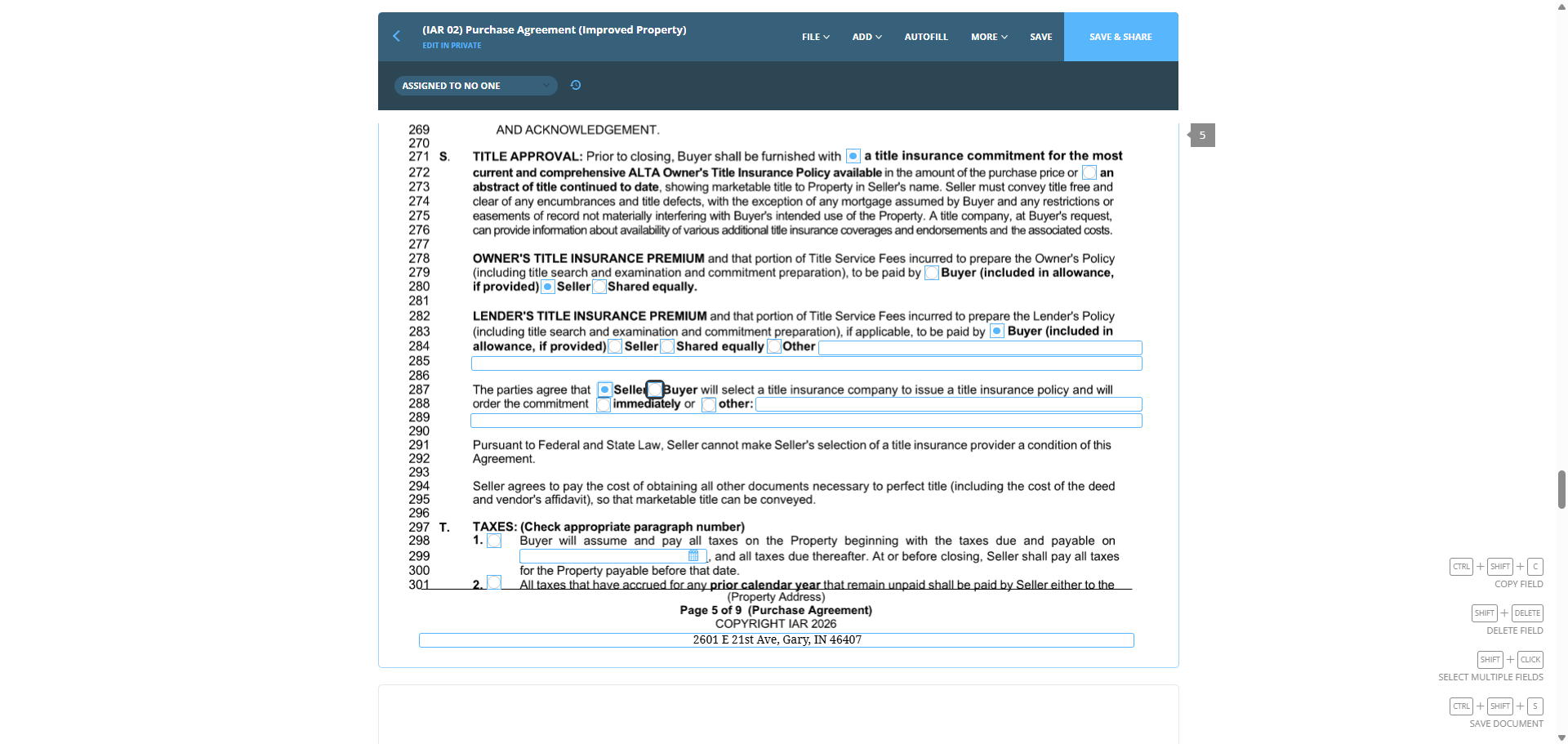
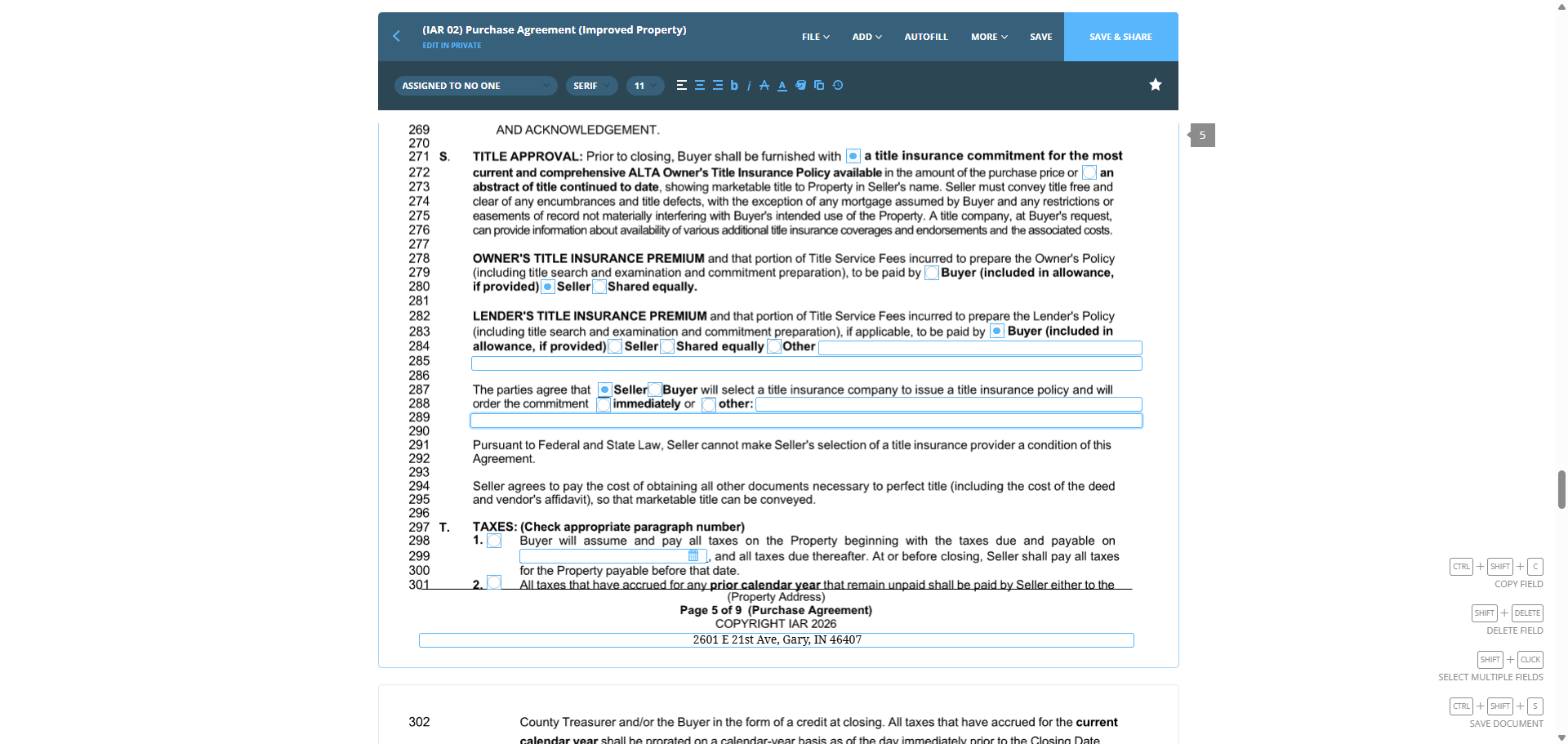
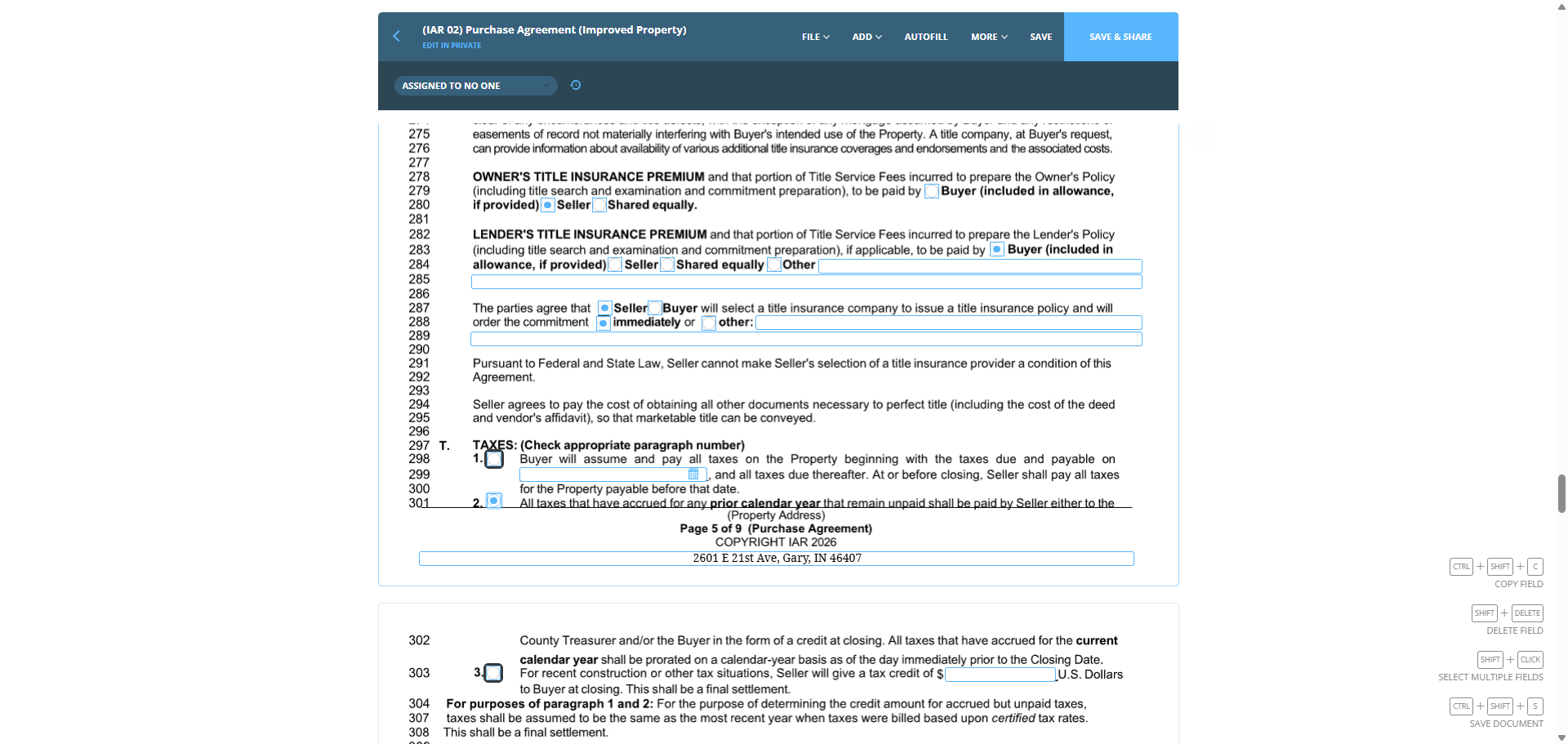
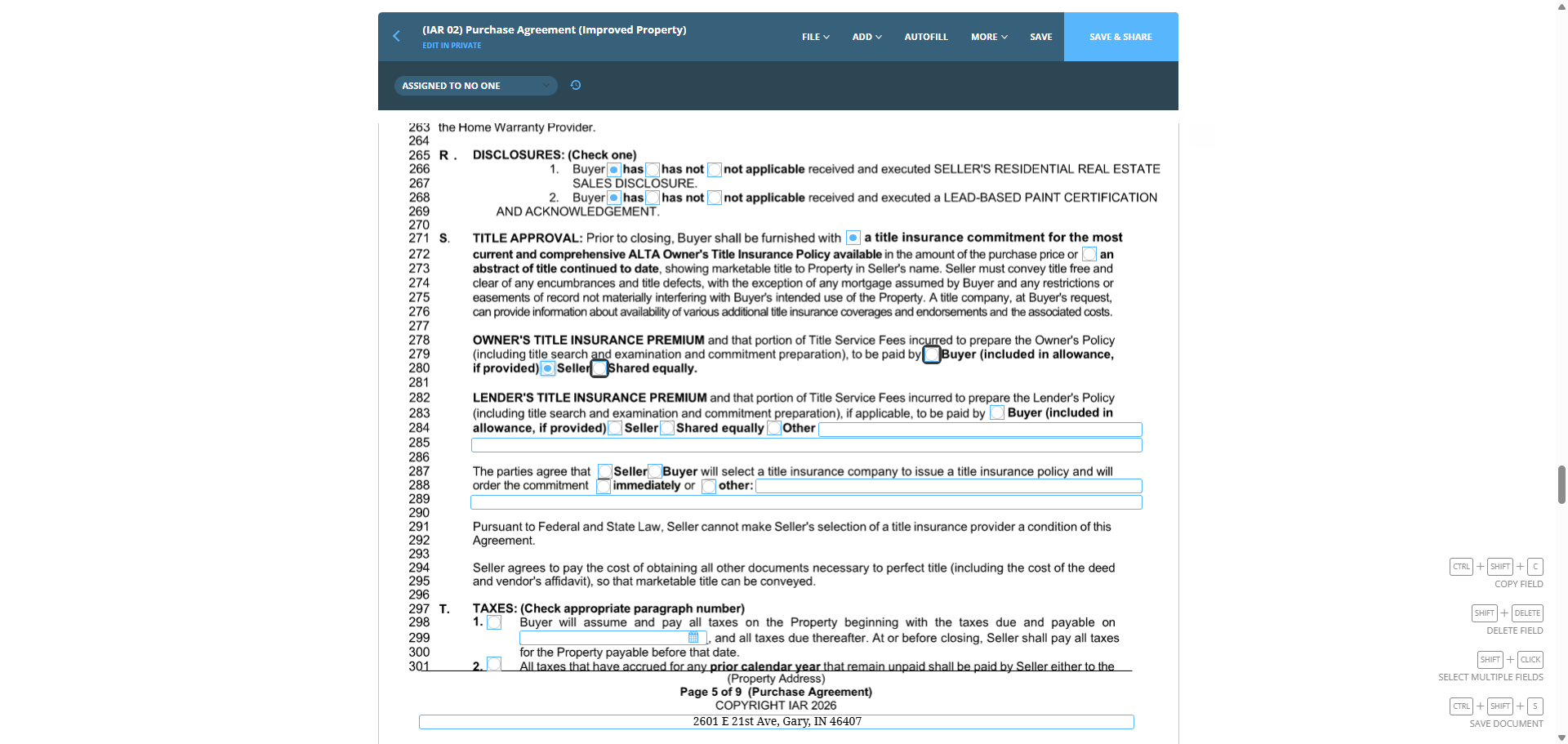
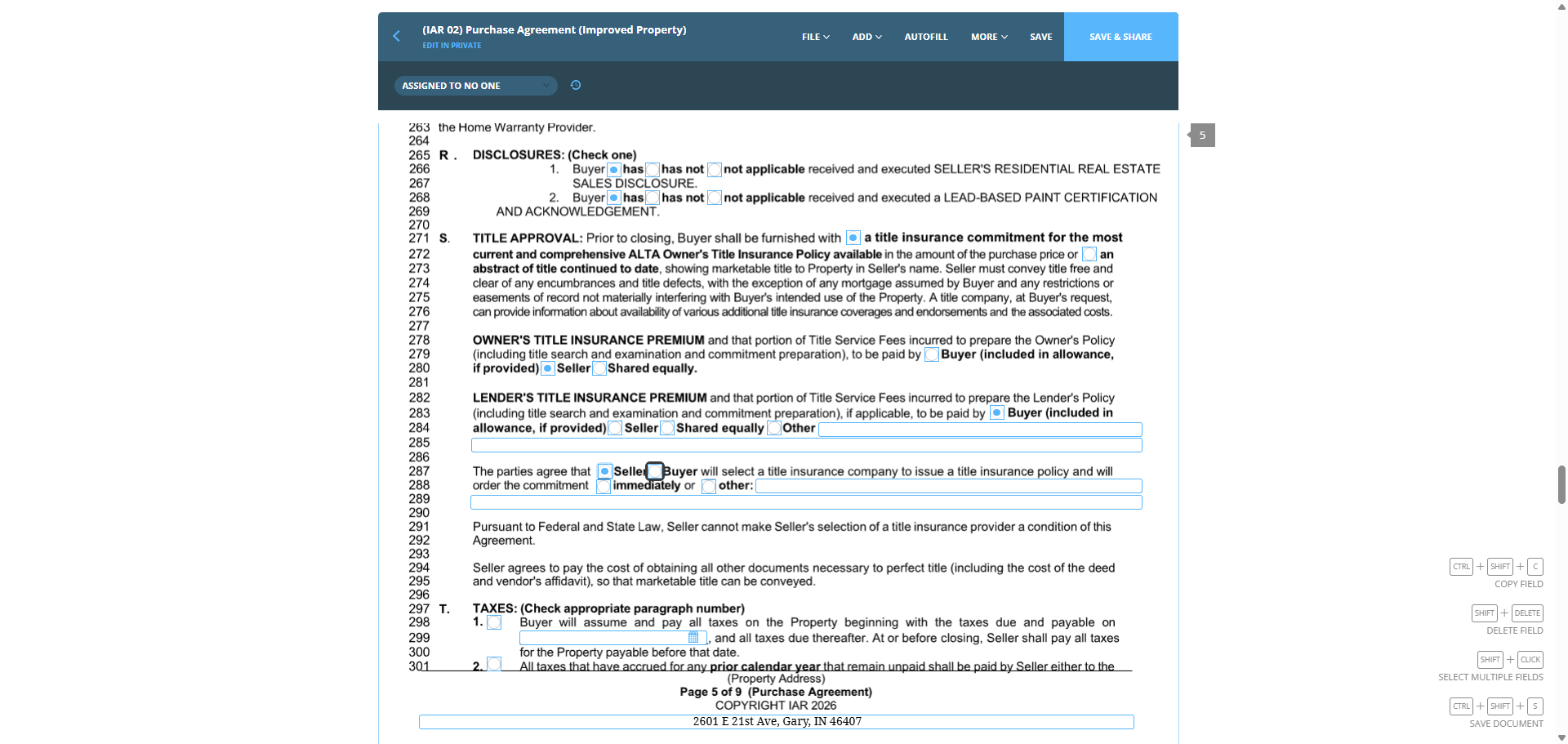
Title approval, title commitment, and title insurance commitment are required for the most current and comprehensive ALTA owner's title insurance policy. Here, we will list the seller.
95
Click on "available"
Step #95: Click on "available"
96
Click on ")"
Step #96: Click on ")"

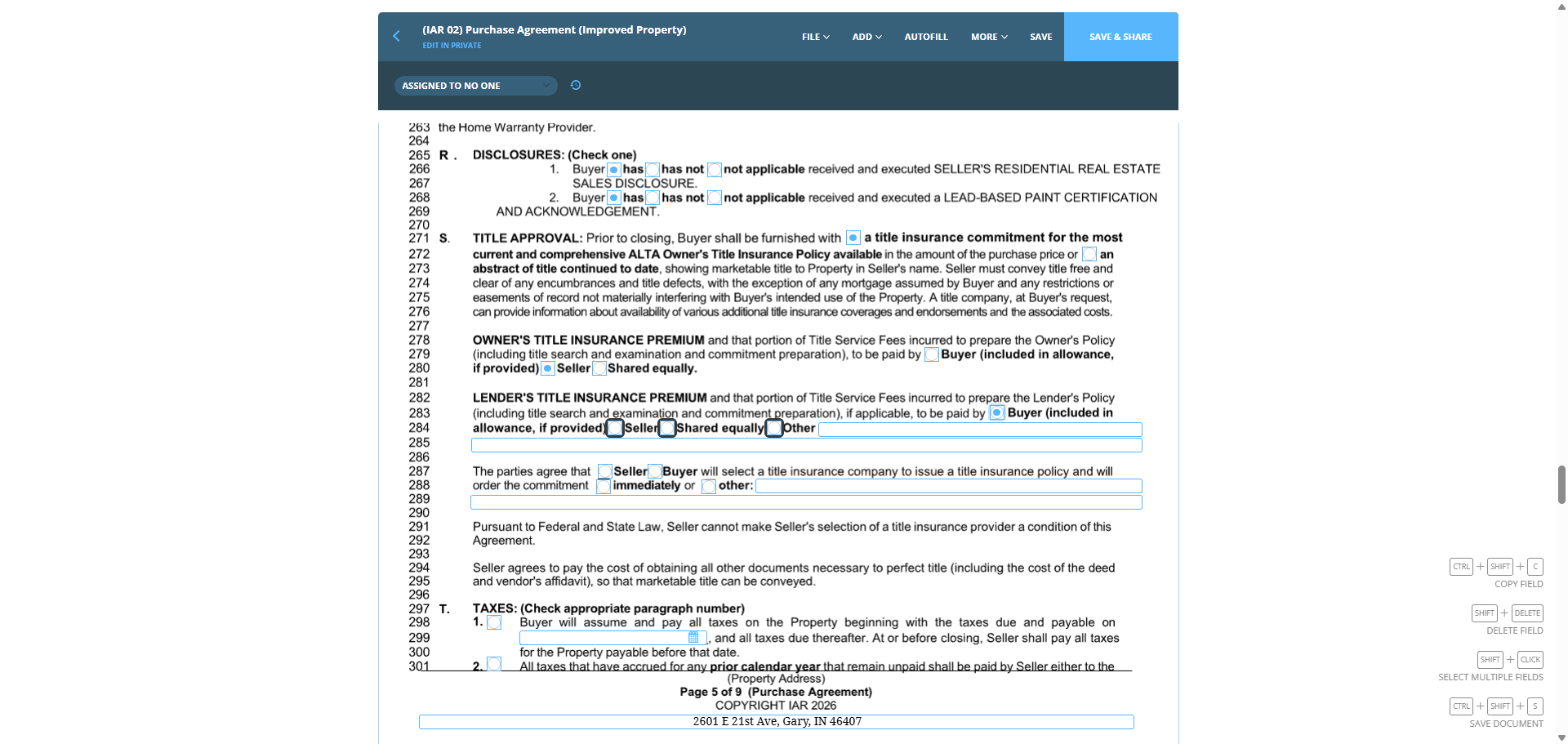
Buyer on this part, starting at line 282.
97
Click on "to be paid by"
Step #97: Click on "to be paid by"

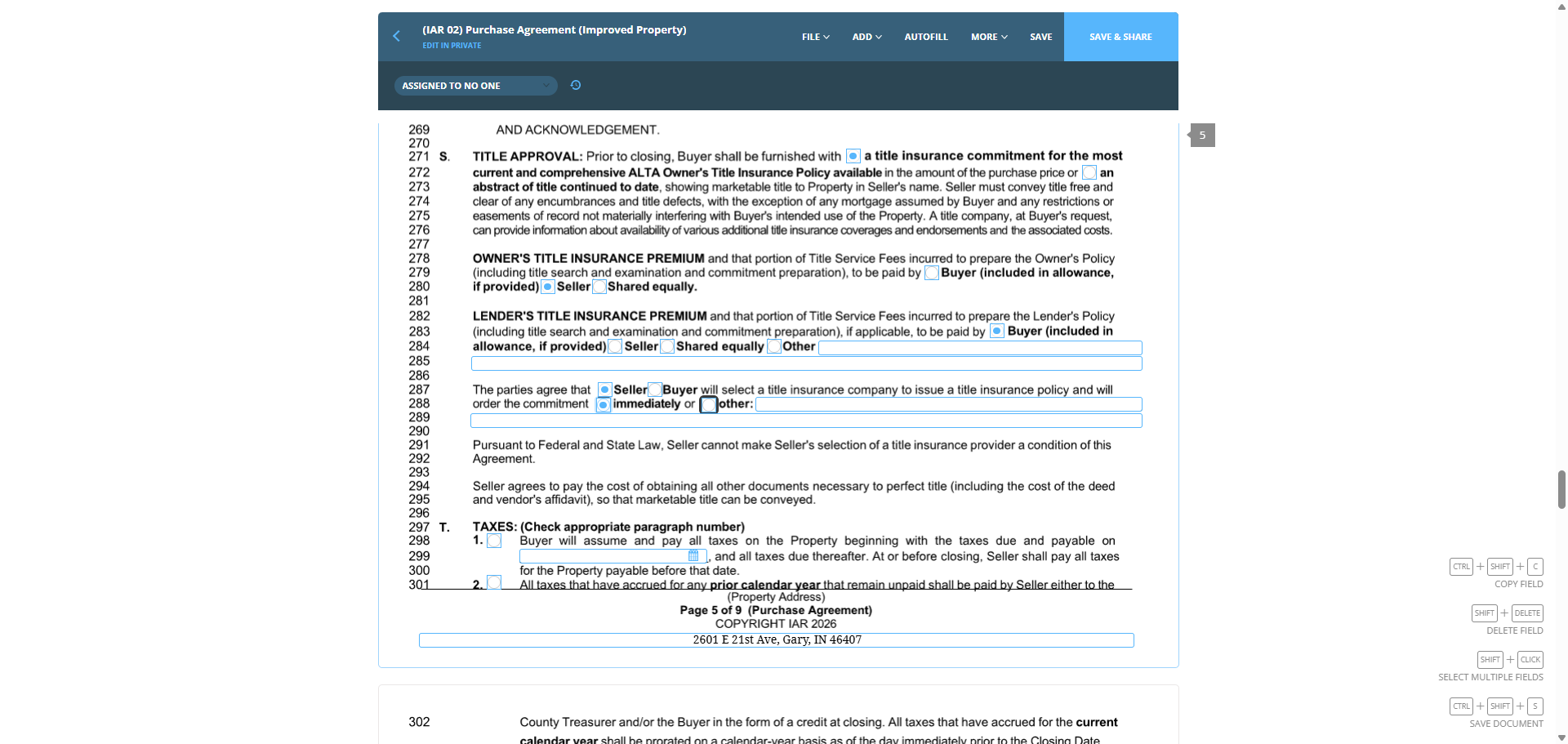
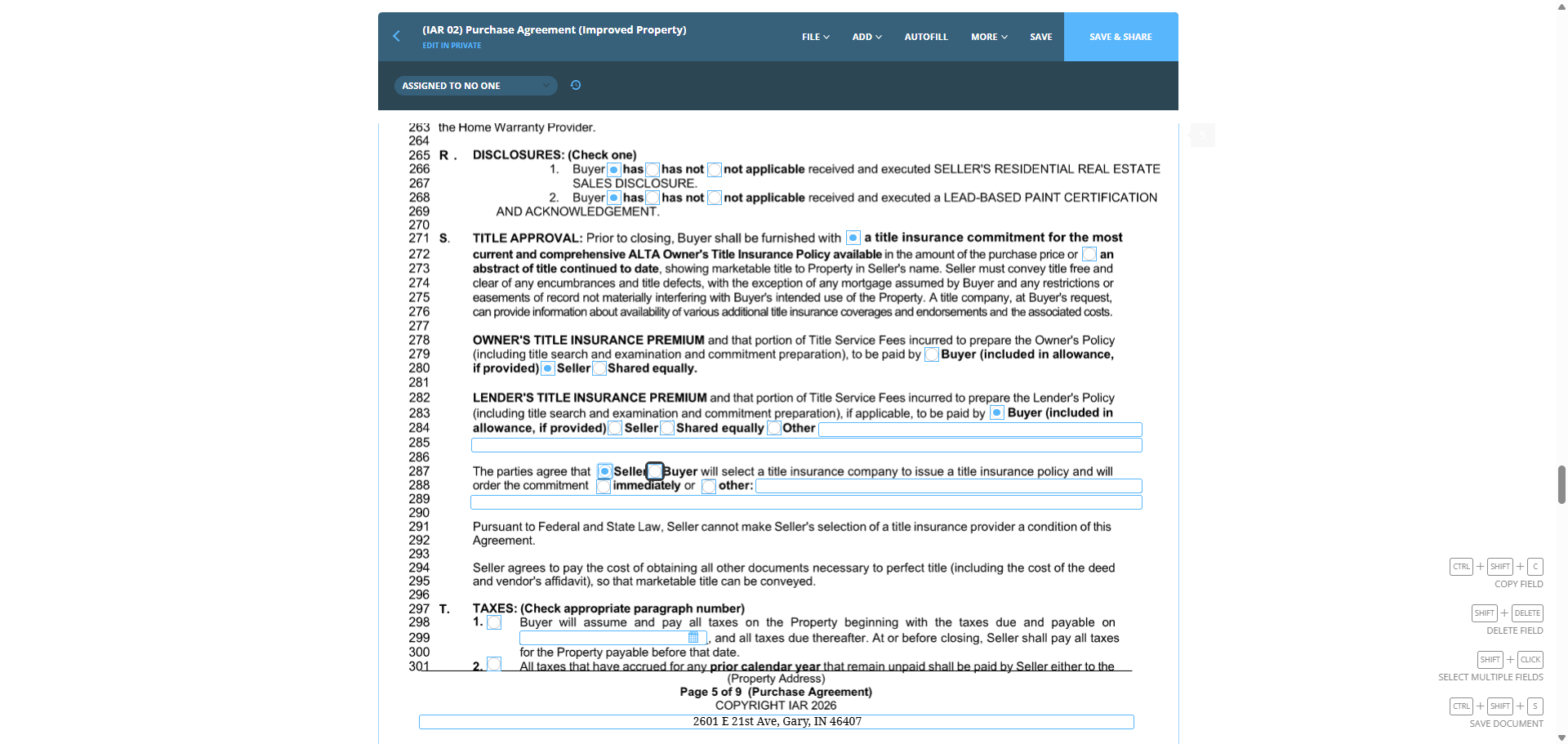
This can vary, but since there is a pre-selected title company, we will list the seller.
98
Click on "immediately"
Step #98: Click on "immediately"
99
Click on "immediately or"
Step #99: Click on "immediately or"

We will order the title, and payment will be due immediately.
100
Click on "immediately or"
Step #100: Click on "immediately or"
101
Click on "immediately or"
Step #101: Click on "immediately or"
102
Click on ","
Step #102: Click on ","
103
Click on "Seller"
Step #103: Click on "Seller"
104
Click on "the commitment"
Step #104: Click on "the commitment"

Taxes: Click option number two.

105
Click here
Step #105: Click here

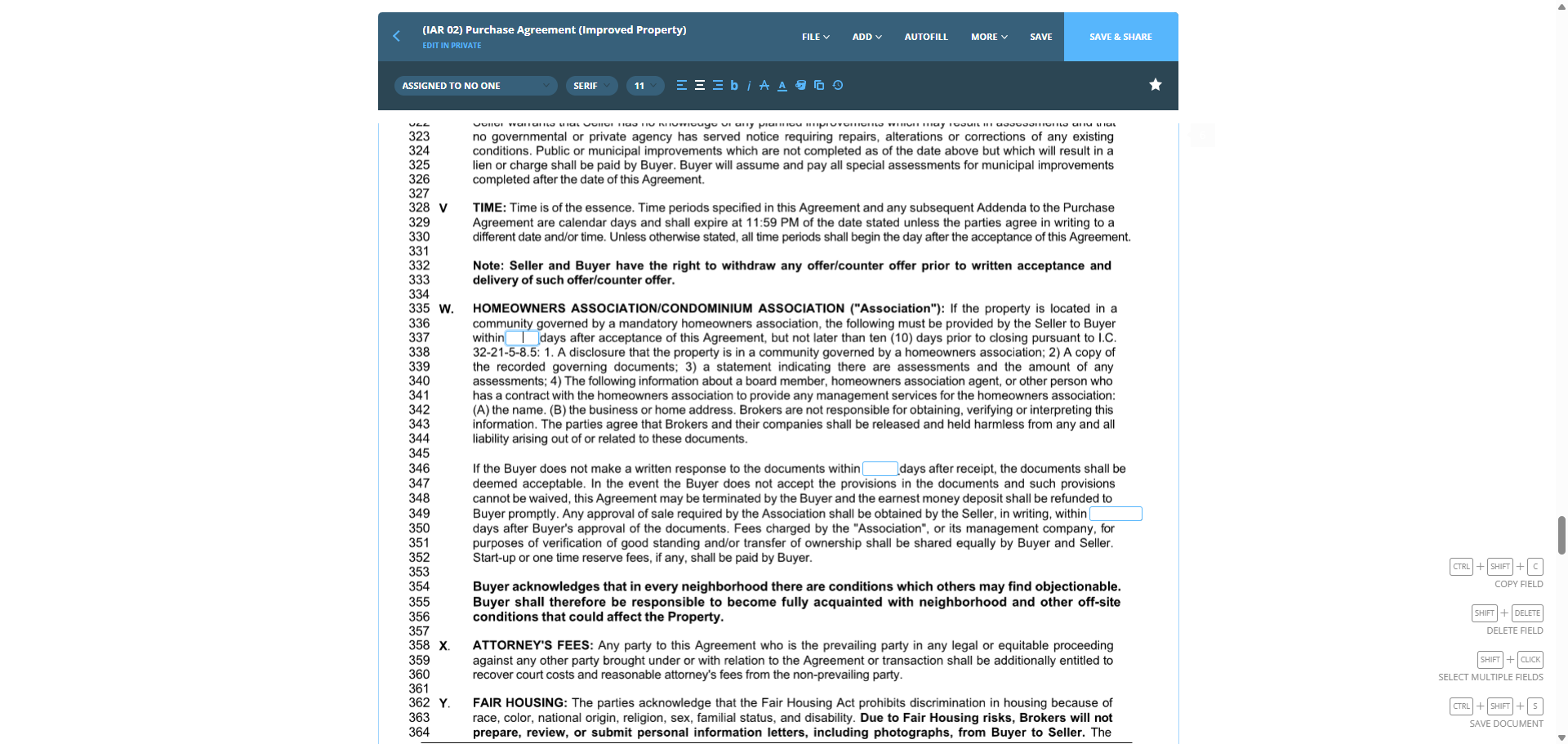
Continuing, no homeowners, N-A...

106
Click on "community governed by a mandatory homeowners association"
Step #106: Click on "community governed by a mandatory homeowners association"

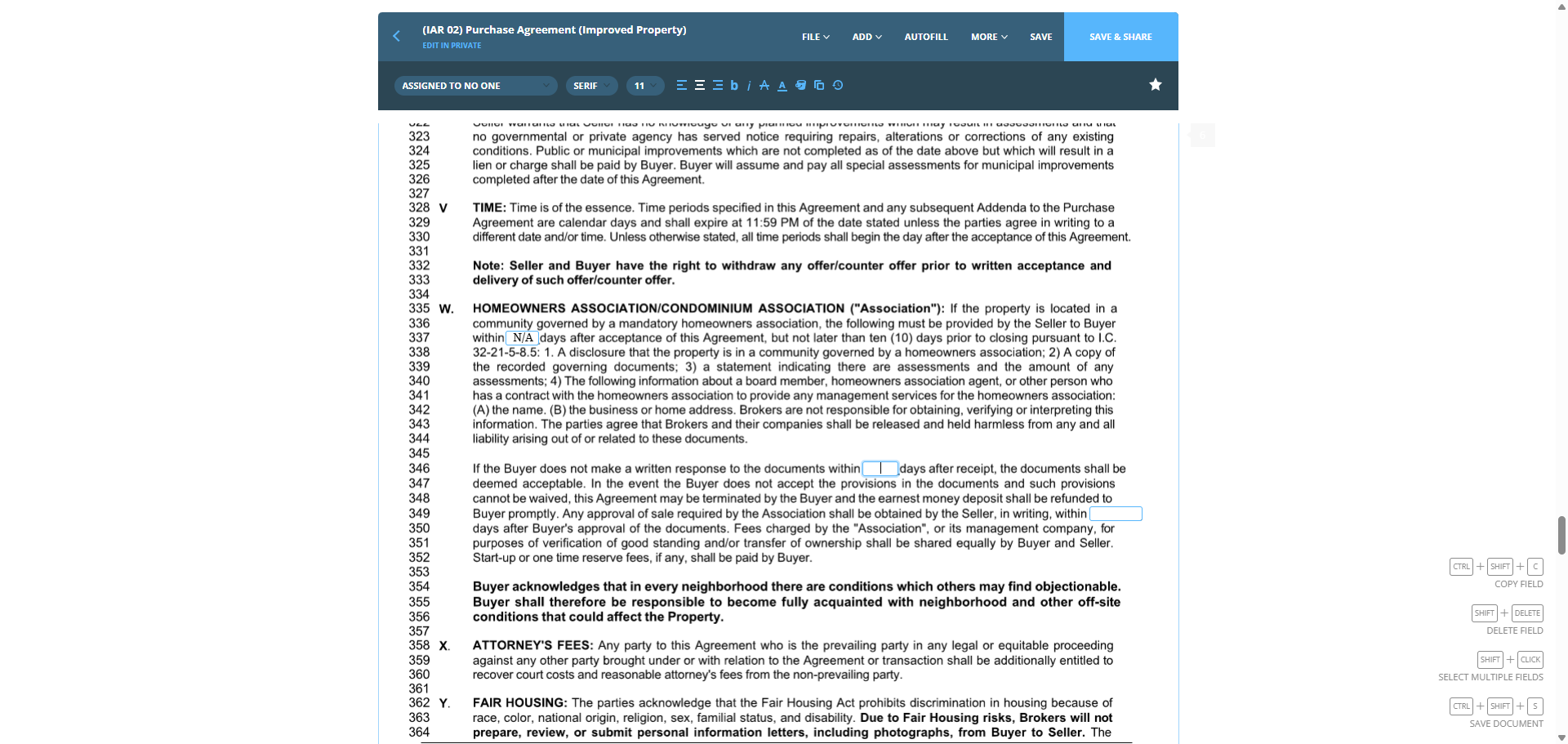
N-A, N-A for all this.

107
Click on "☐ days after"
Step #107: Click on "☐ days after"
108
Type "CapsLockN/A"

It will usually be that.

109
Type "N/A + TabN/A"
110
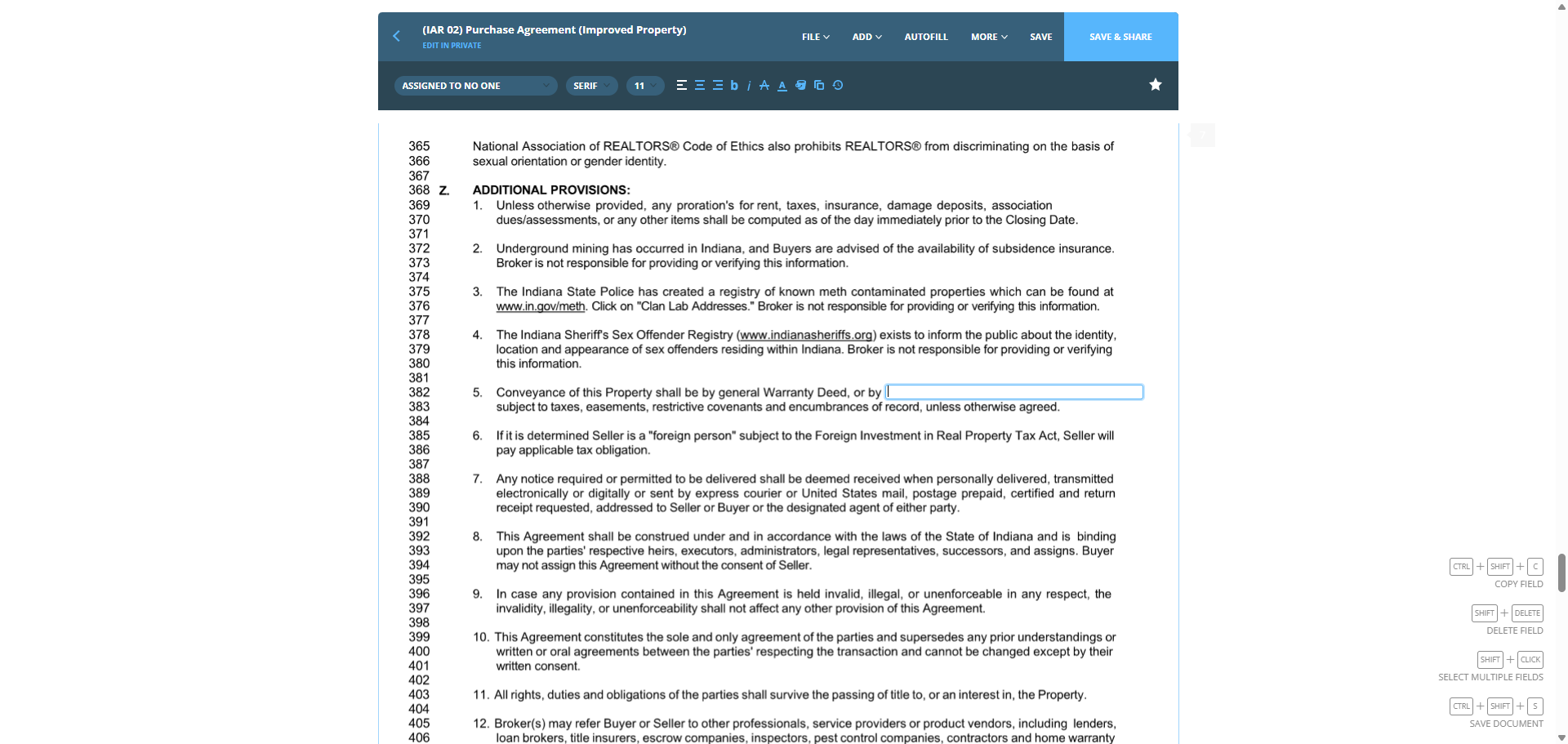
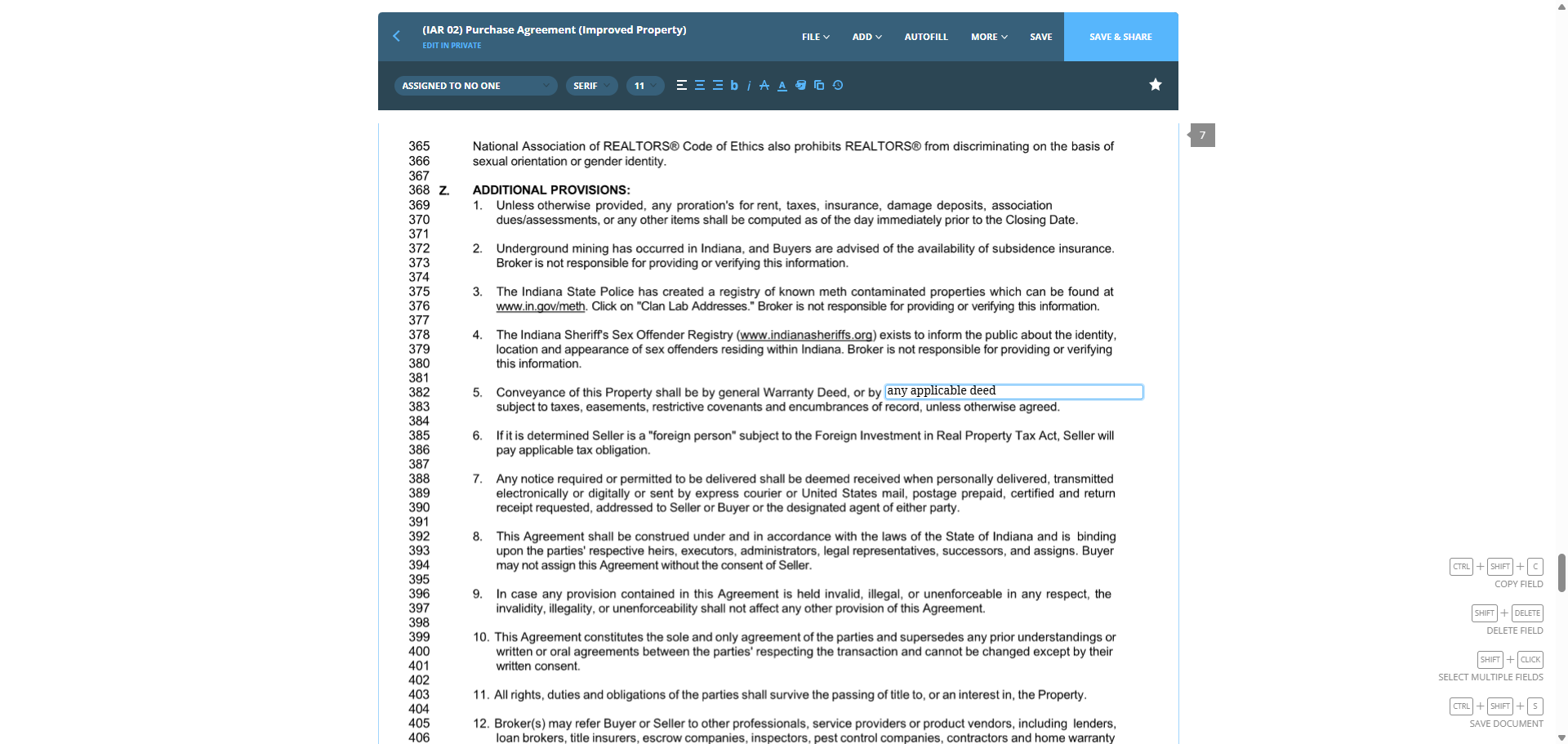
Click on "e of this Property shall be by general Warranty Deed , or by xes , easements , restrictive covenants and encumbrances of record , unless otherwise agreed ."
Step #110: Click on "e of this Property shall be by general Warranty Deed , or by xes , easements , restrictive covenants and encumbrances of record , unless otherwise agreed ."
111
Type "CapsLockany pplicable deed"
112
Click on "Real Property Tax Act"
Step #112: Click on "Real Property Tax Act"
113
Type "a"
114
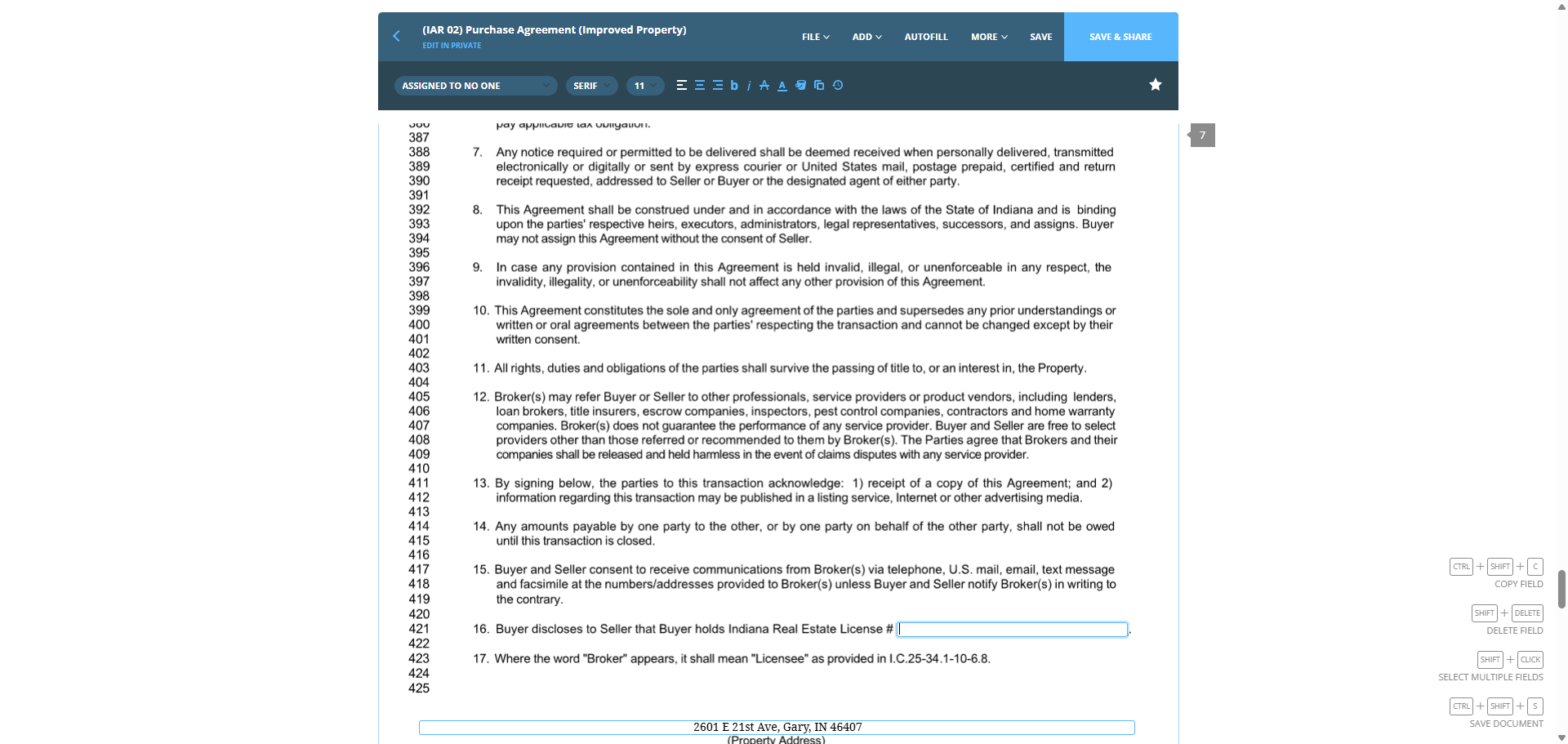
Click on "Seller that Buyer holds Indiana Real Estate License # |"
Step #114: Click on "Seller that Buyer holds Indiana Real Estate License # |"

N-A here.

115
Type "CapsLockN/A"

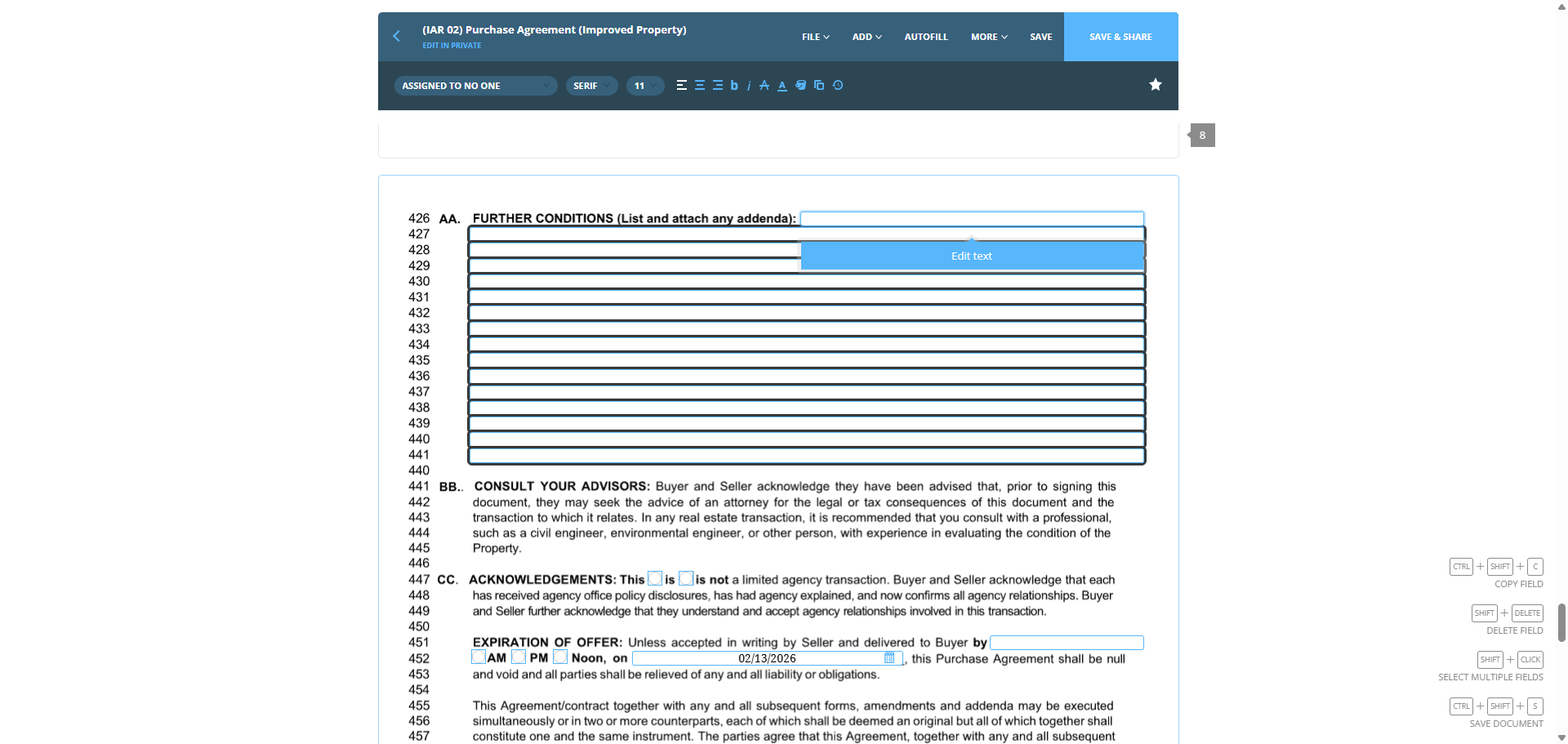
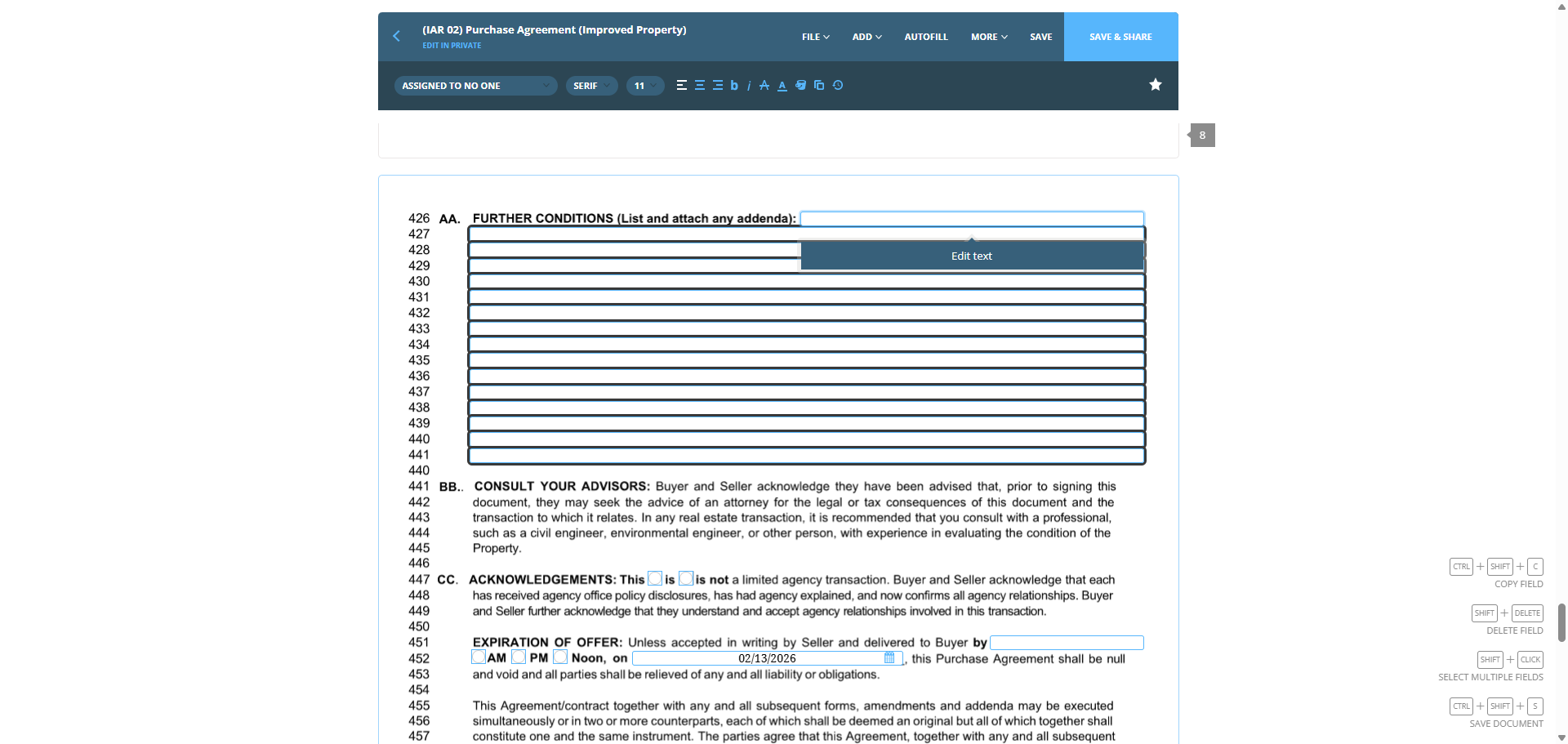
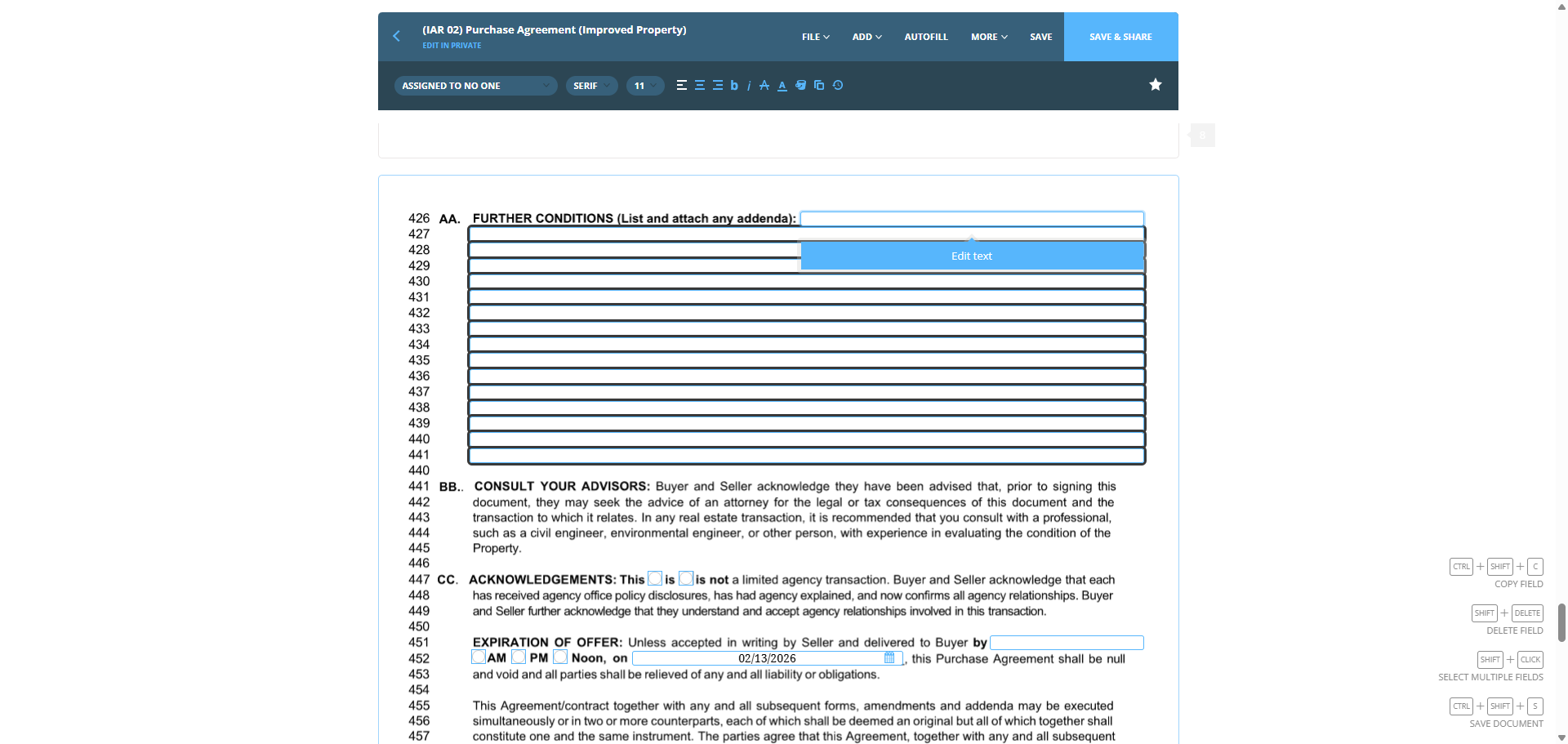
For the conditions, we will include them here.
116
Click here
Step #116: Click here
117
Click here
Step #117: Click here
118
Click here
Step #118: Click here
119
Click here
Step #119: Click here
120
Click here
Step #120: Click here

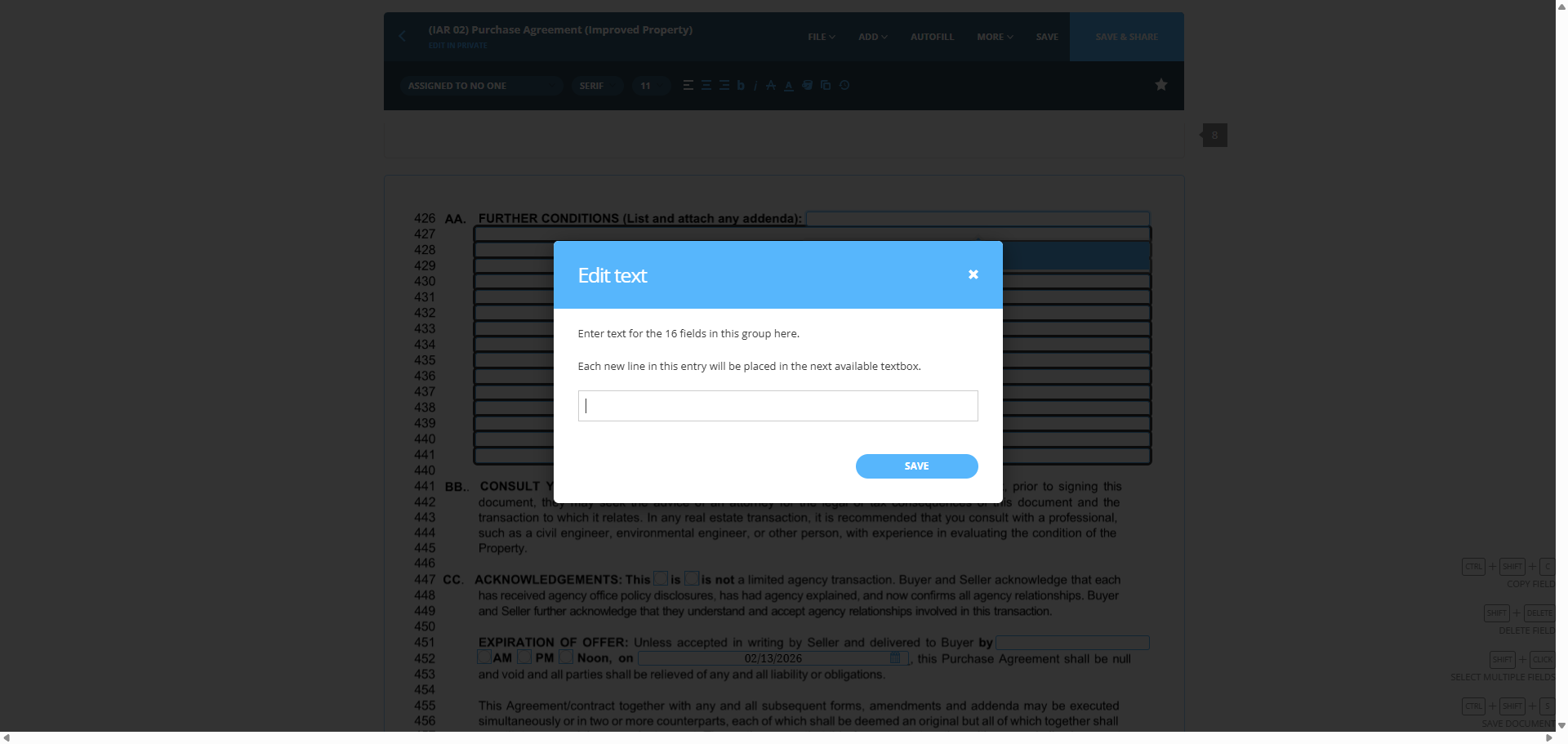
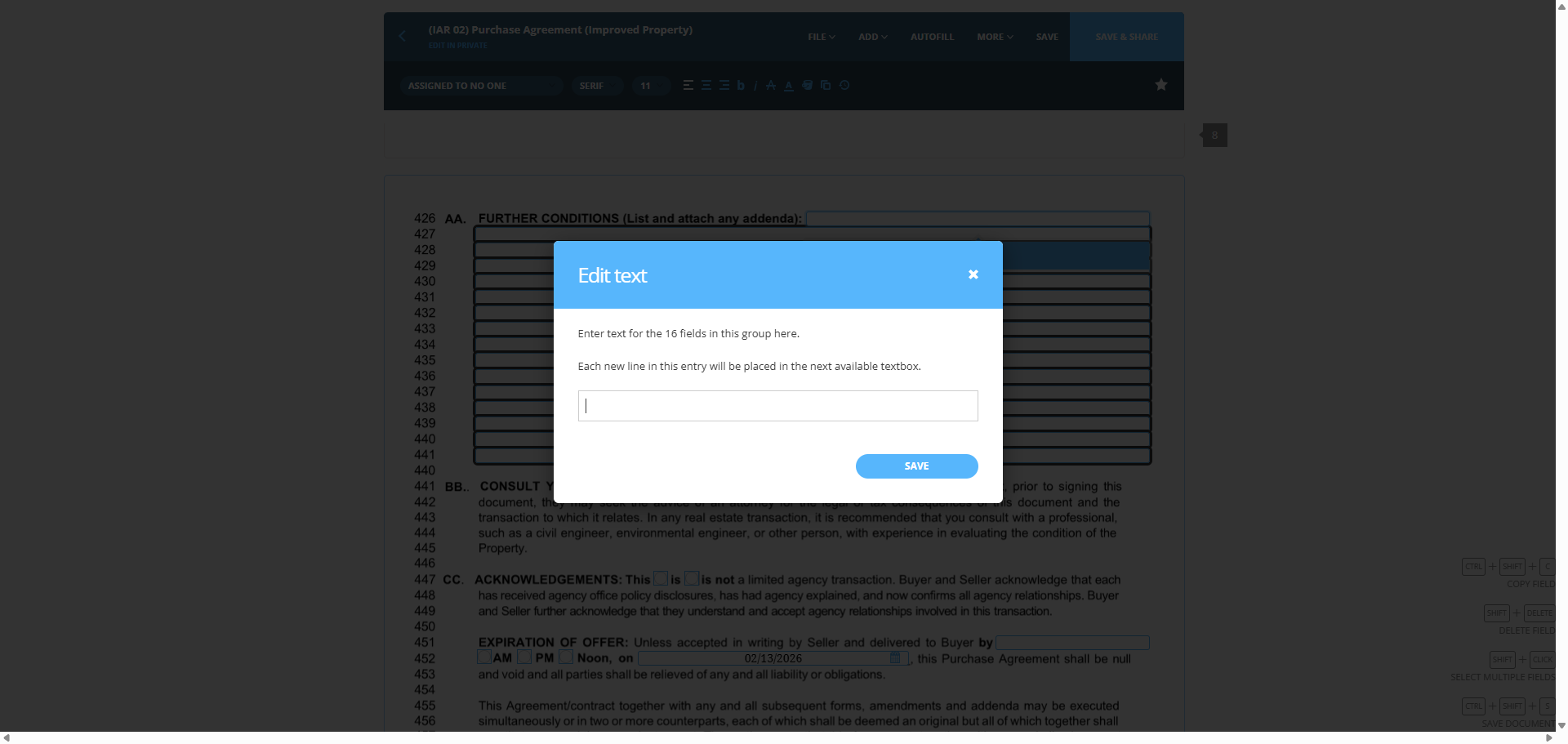
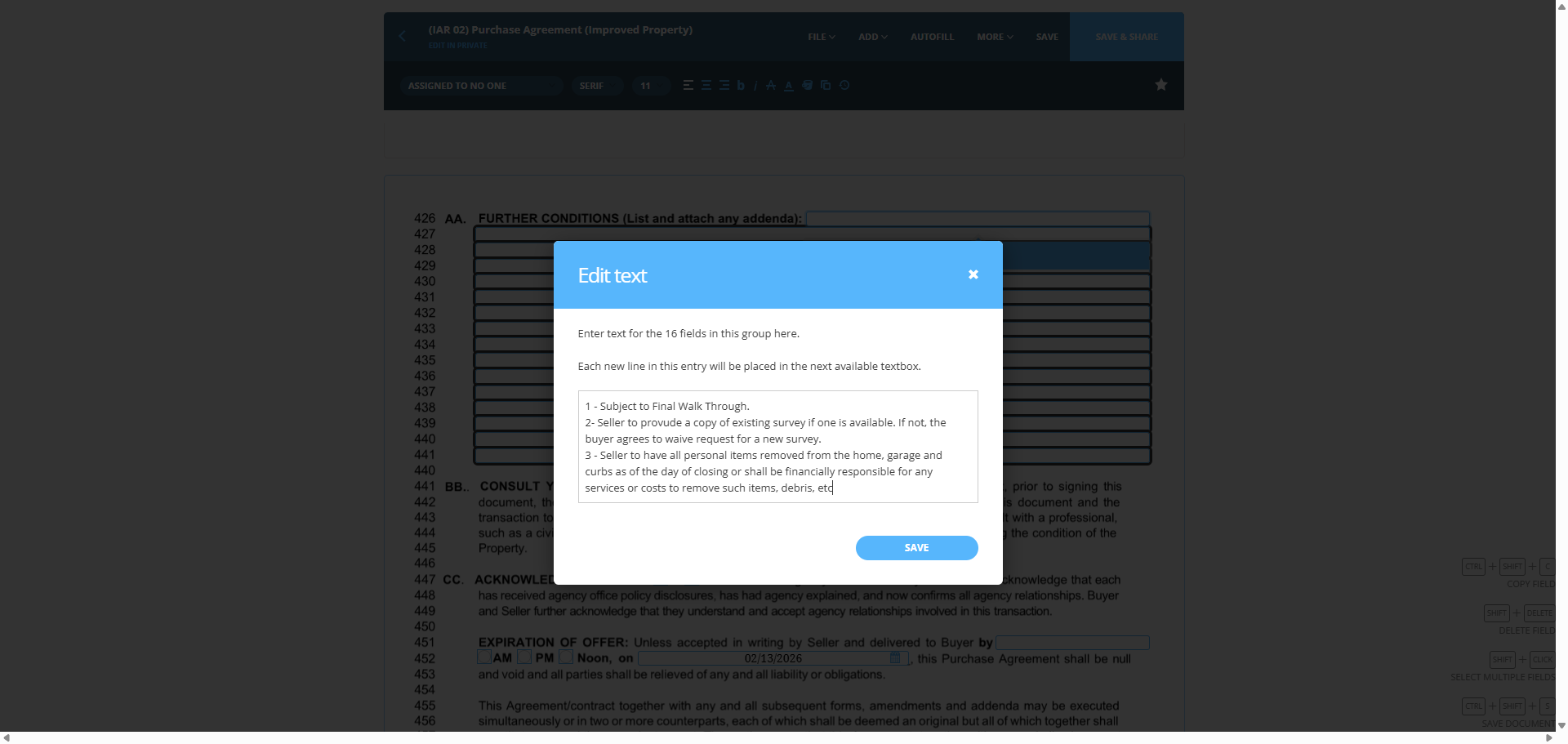
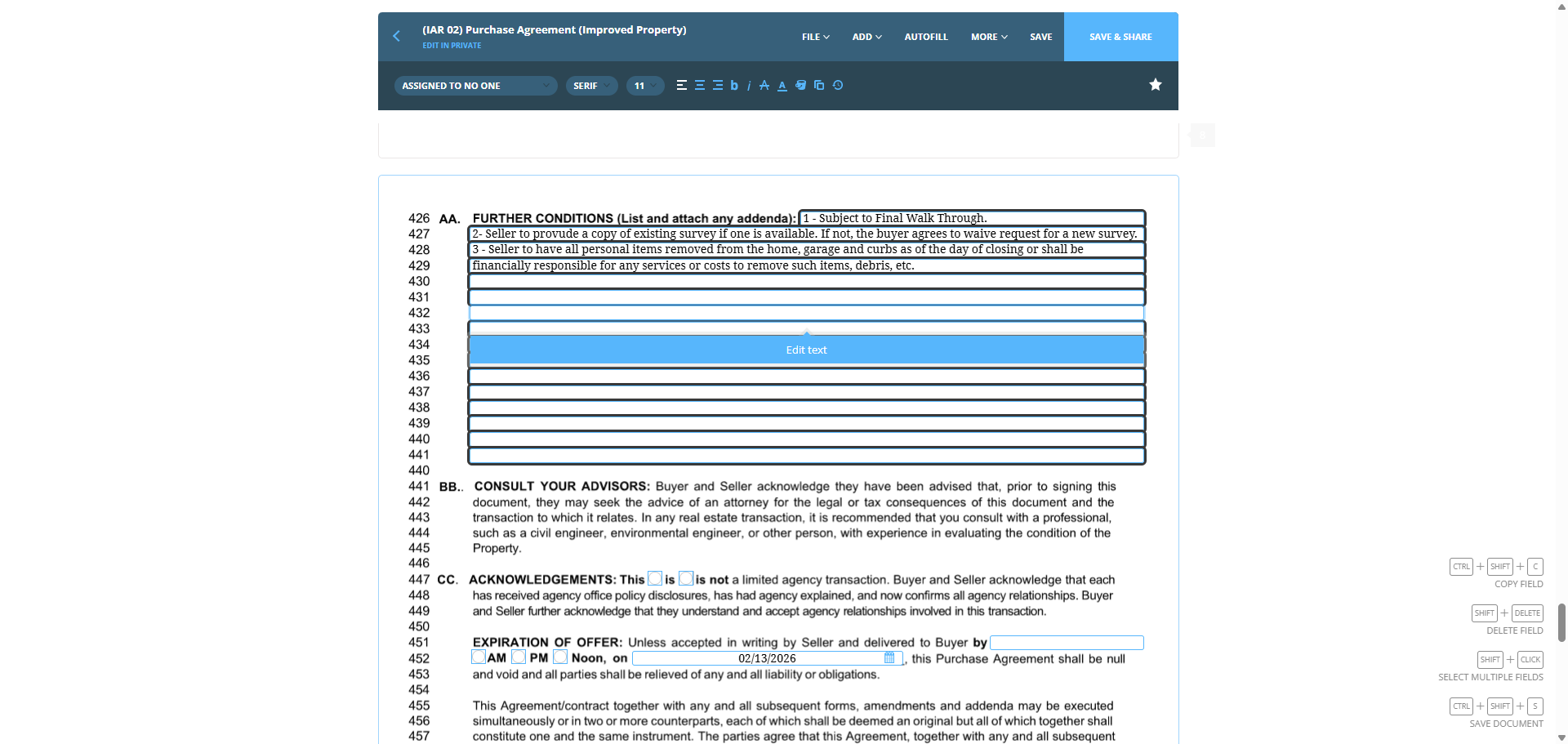
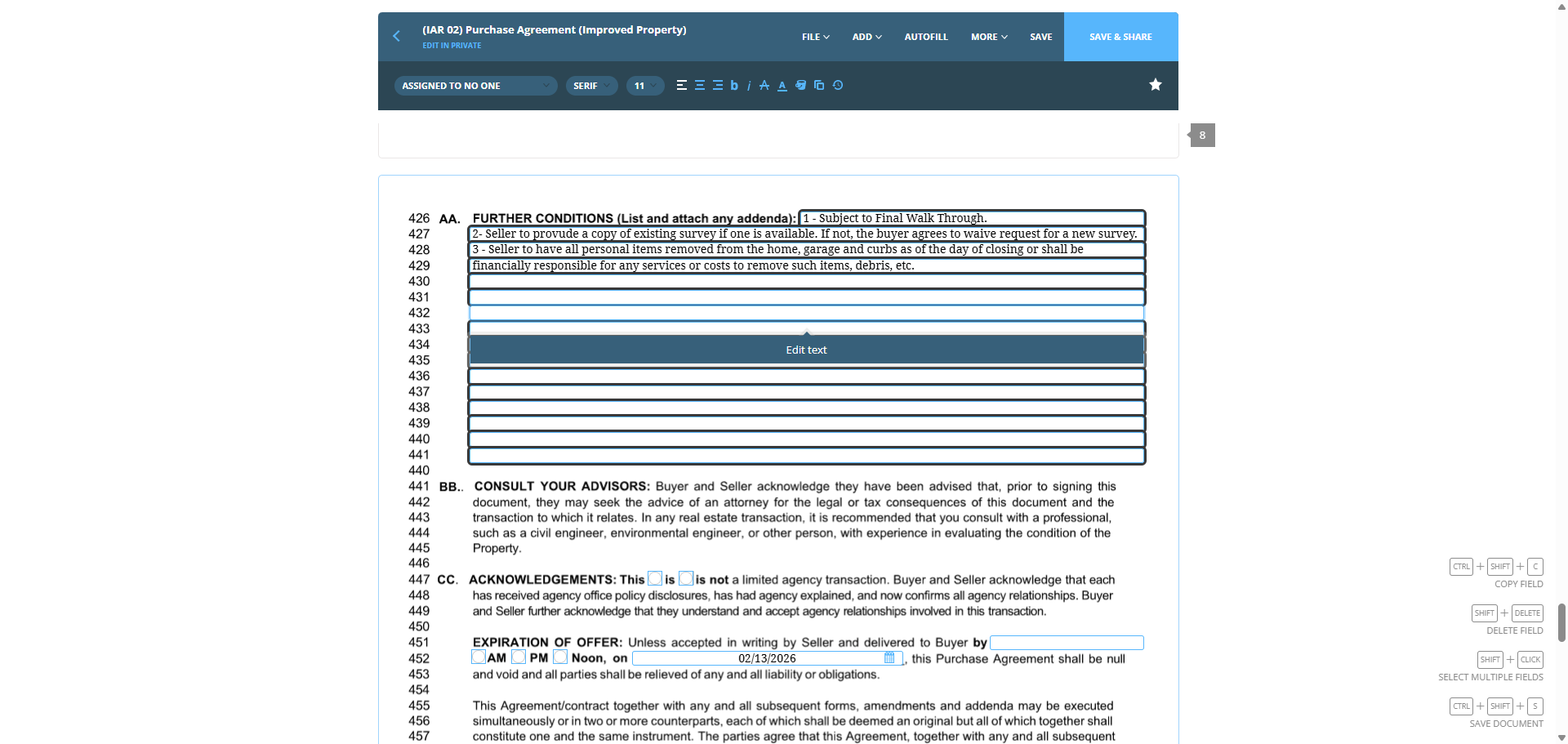
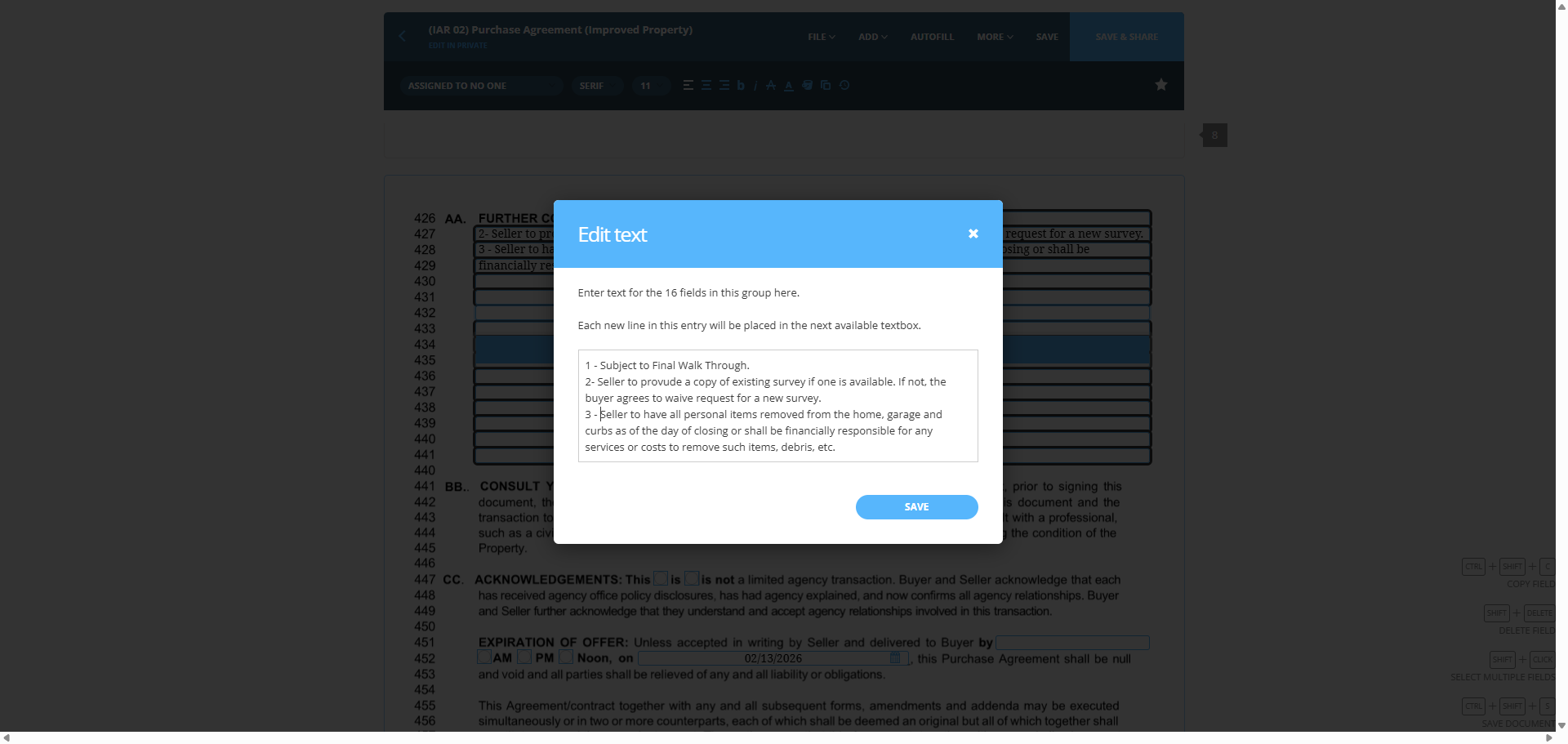
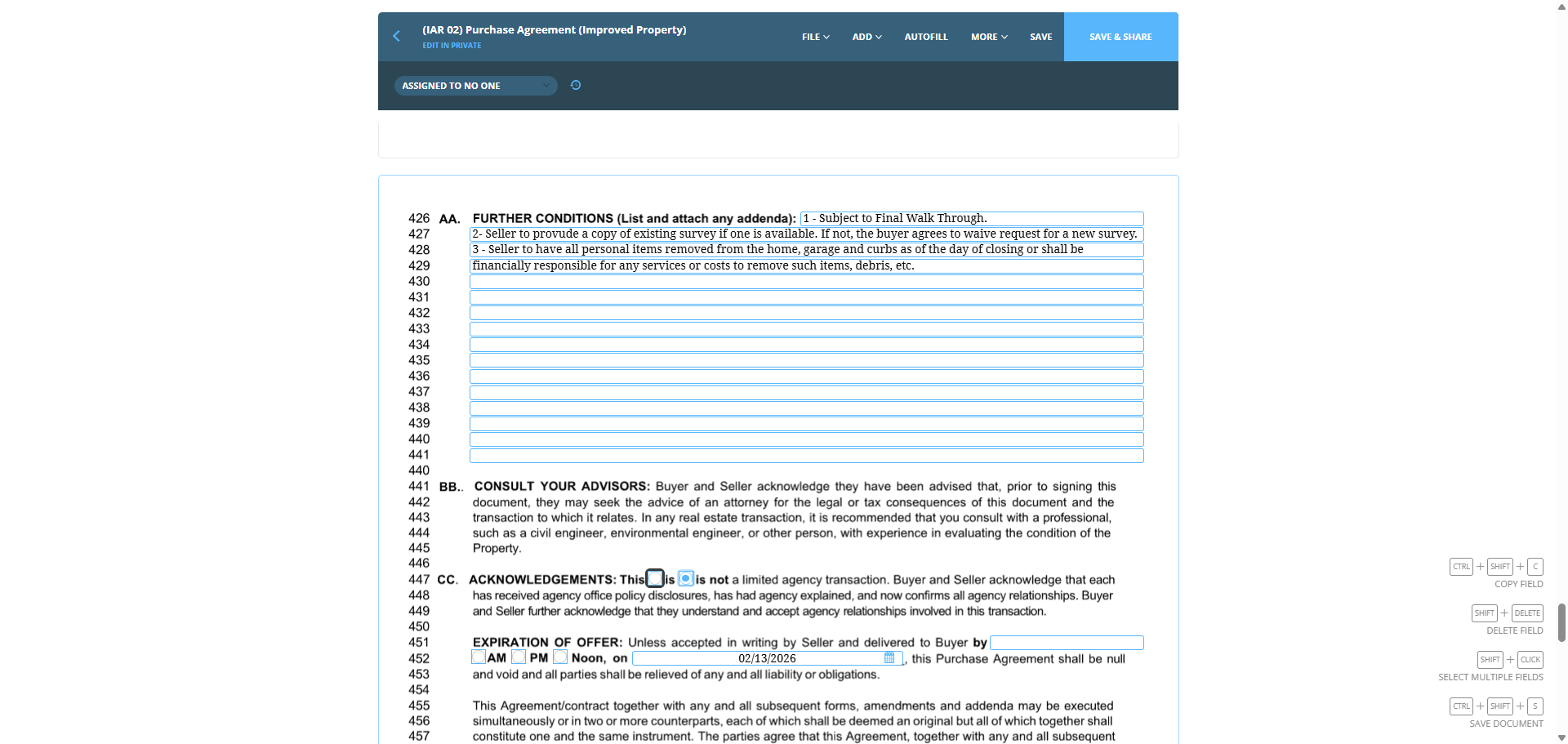
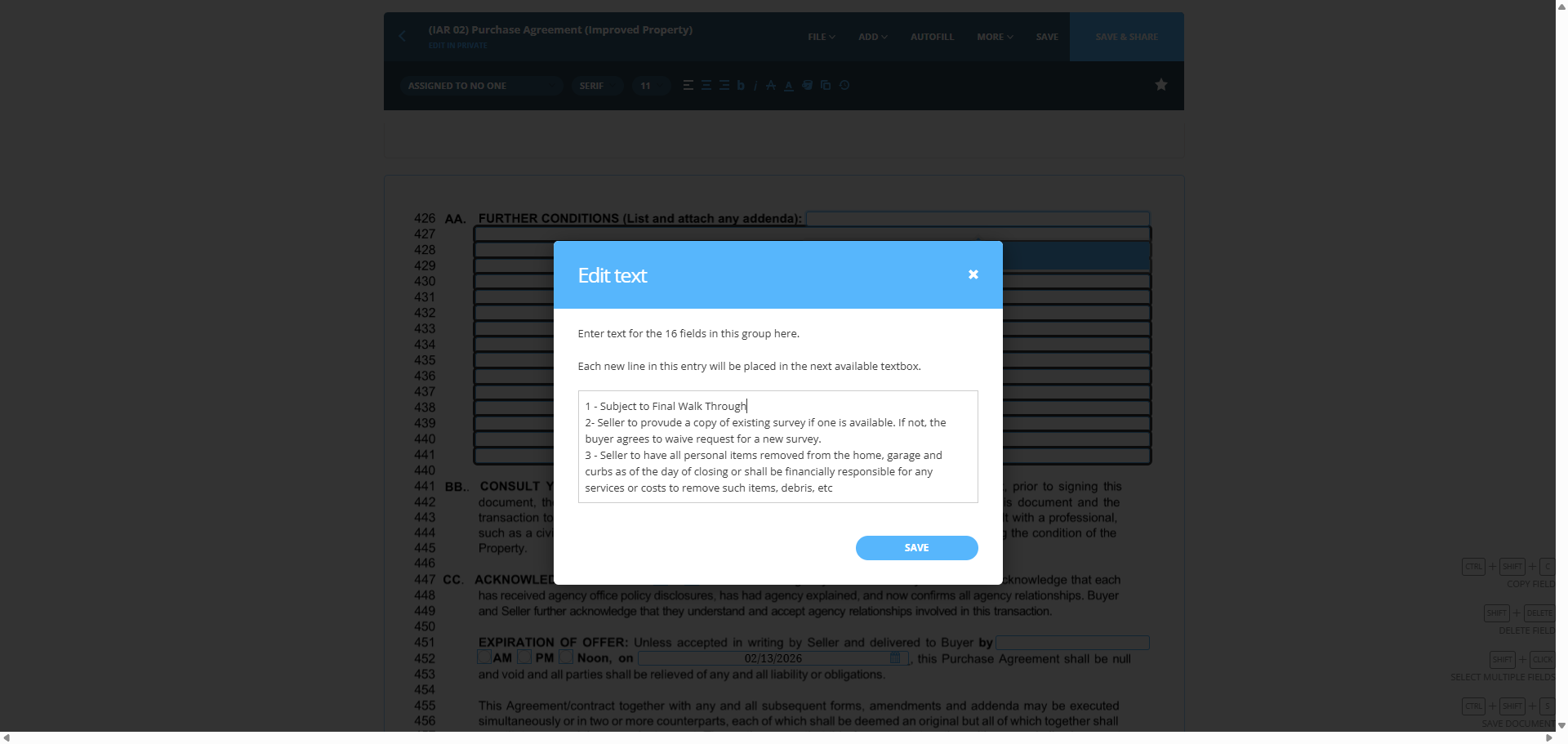
Subject. Final walk-through.

121
Type "1 - CapsLockSubject to Final Walk Through + Enter"

Seller must provide a copy of the existing survey. If one is available. If not, the buyer agrees... The buyer agrees to waive the request for a new survey. Seller to have...

122
Type "2- Seller to provude a copy of existing survey if one is available. If not, the buyer agrees to waive request for a new survey."
123
Type "Enter"

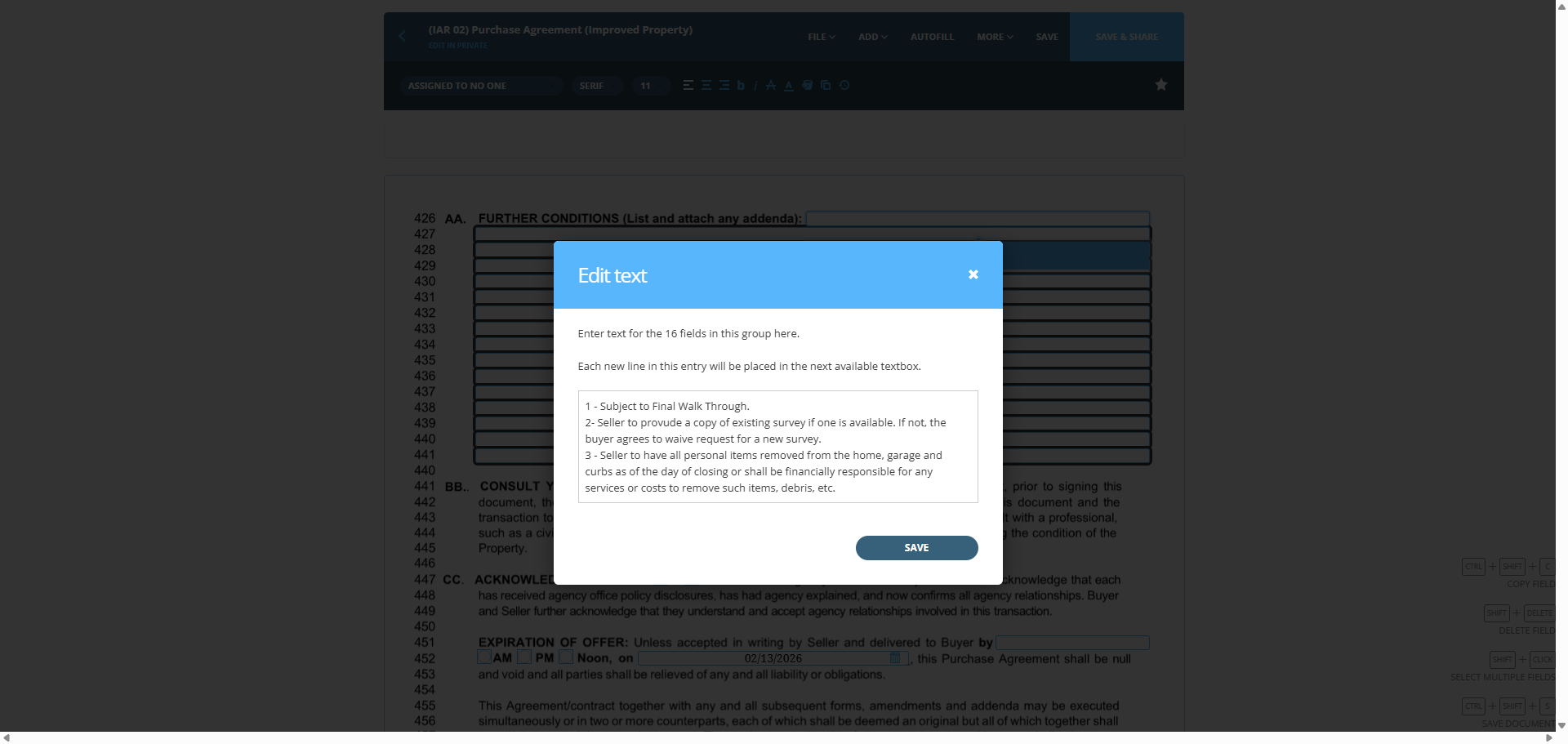
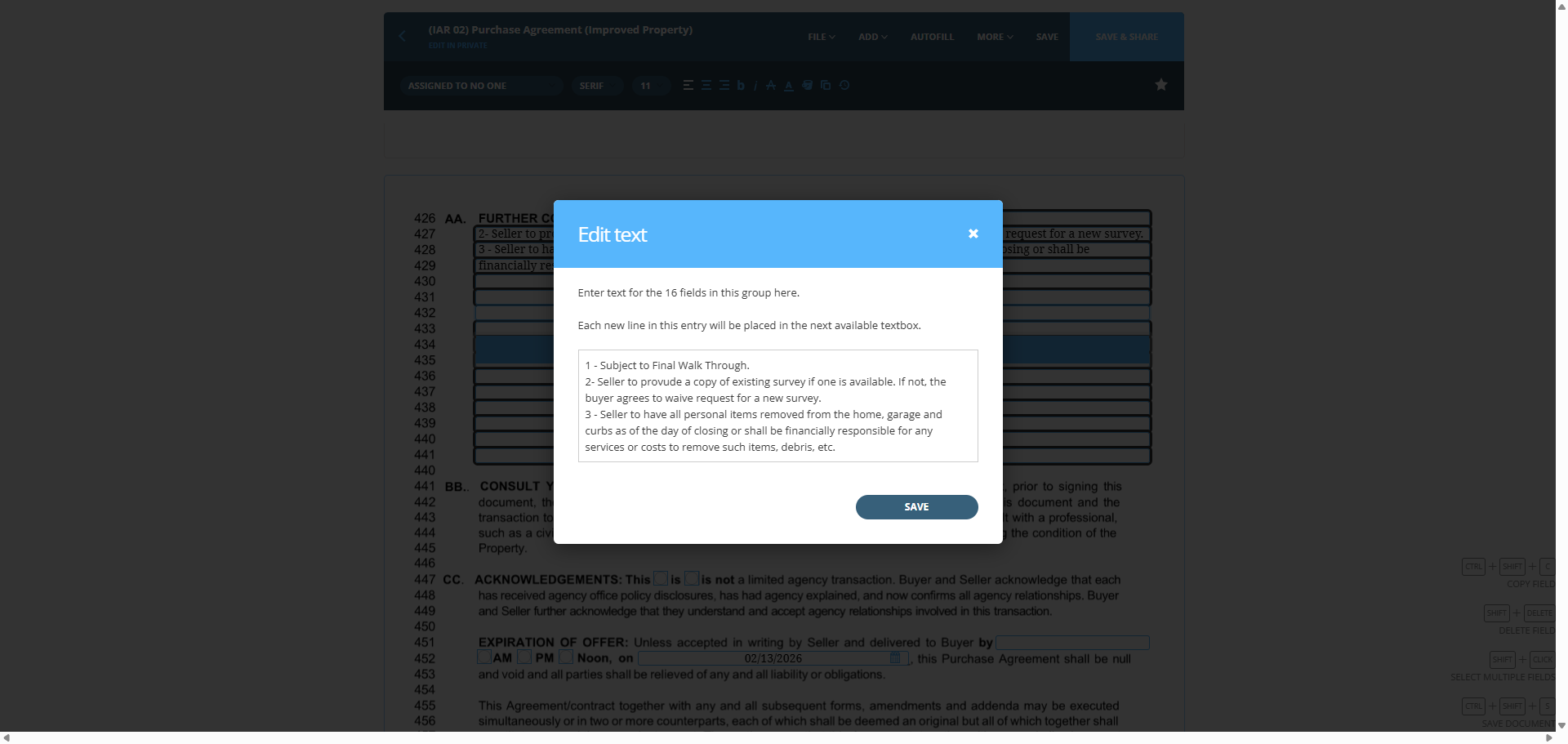
all... Personal items were removed from the home garage and placed on the curb. As of the closing date... Or shall be financially responsible for any services or costs.

124
Type "3 - Seller to have all personal items removed from the home, garage and curbs as of the day of closing or shall be financially responsible for any services or costs"

To remove items and debris, follow these steps. Click Save.
125
Click on "one"
Step #125: Click on "one"
126
Type " to remove such items, debris, etc"
127
Click here
Step #127: Click here
128
Type "."
129
Click on "SAVE"
Step #129: Click on "SAVE"
130
Type "."
131
Click here
Step #131: Click here
132
Click here
Step #132: Click here
133
Click on "buyer agrees to waive request for a new survey ."
Step #133: Click on "buyer agrees to waive request for a new survey ."
134
Type "Backspace"
135
Click here
Step #135: Click here
136
Type " "
137
Click on "is"
Step #137: Click on "is"

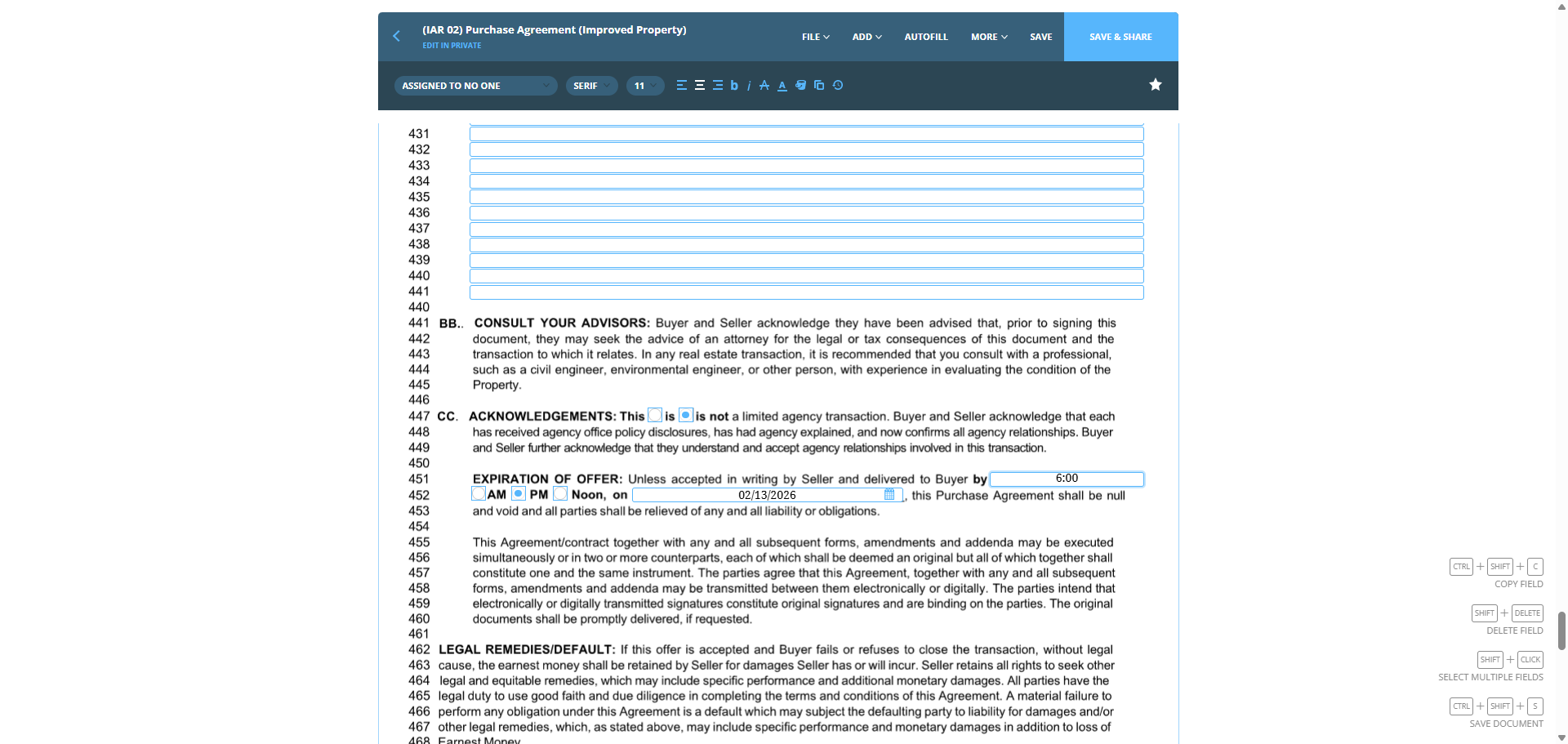
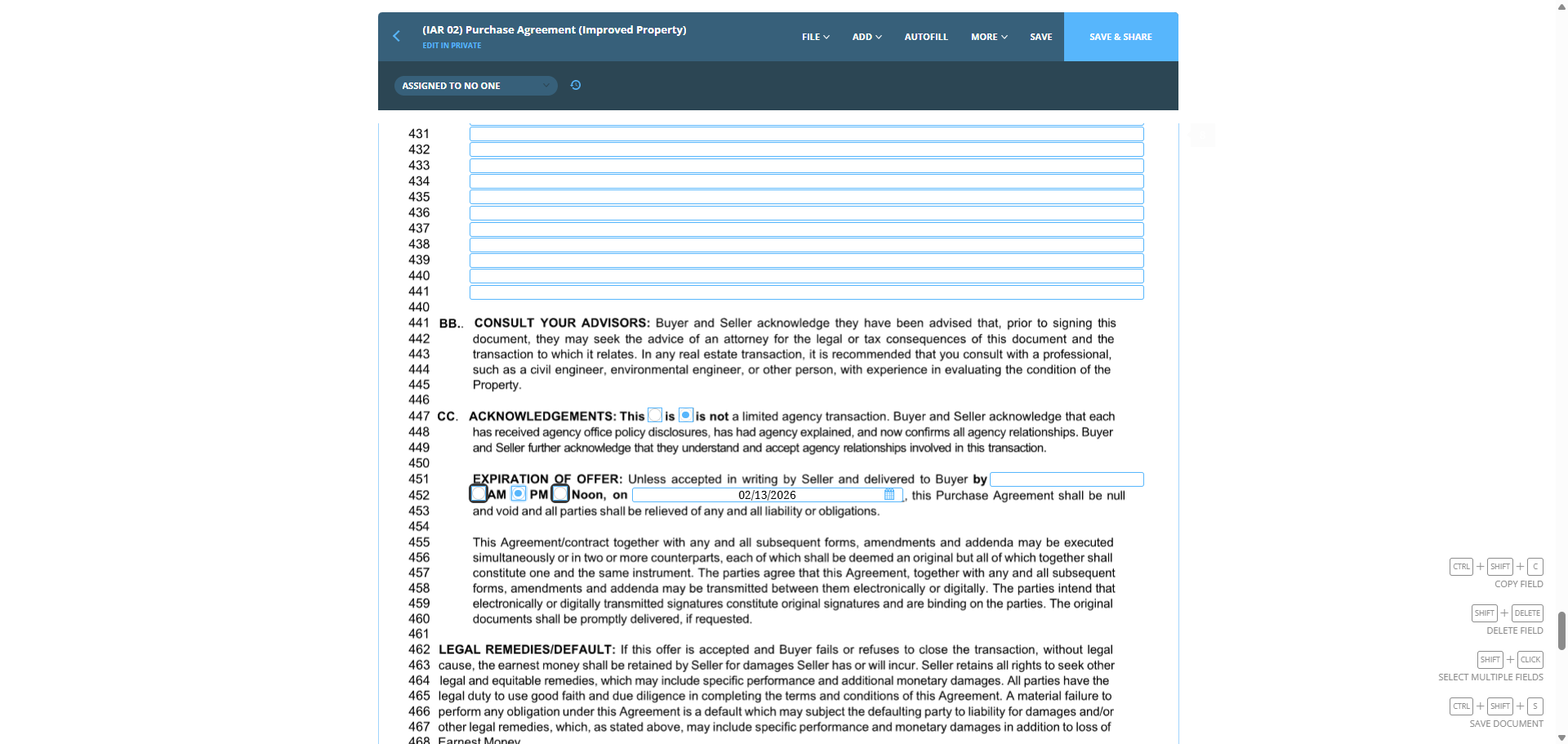
You click to indicate it is not a limited agency transaction. Expiration of offer. Since today is the 11th, we'll schedule it for the 13th at 6:00 PM.
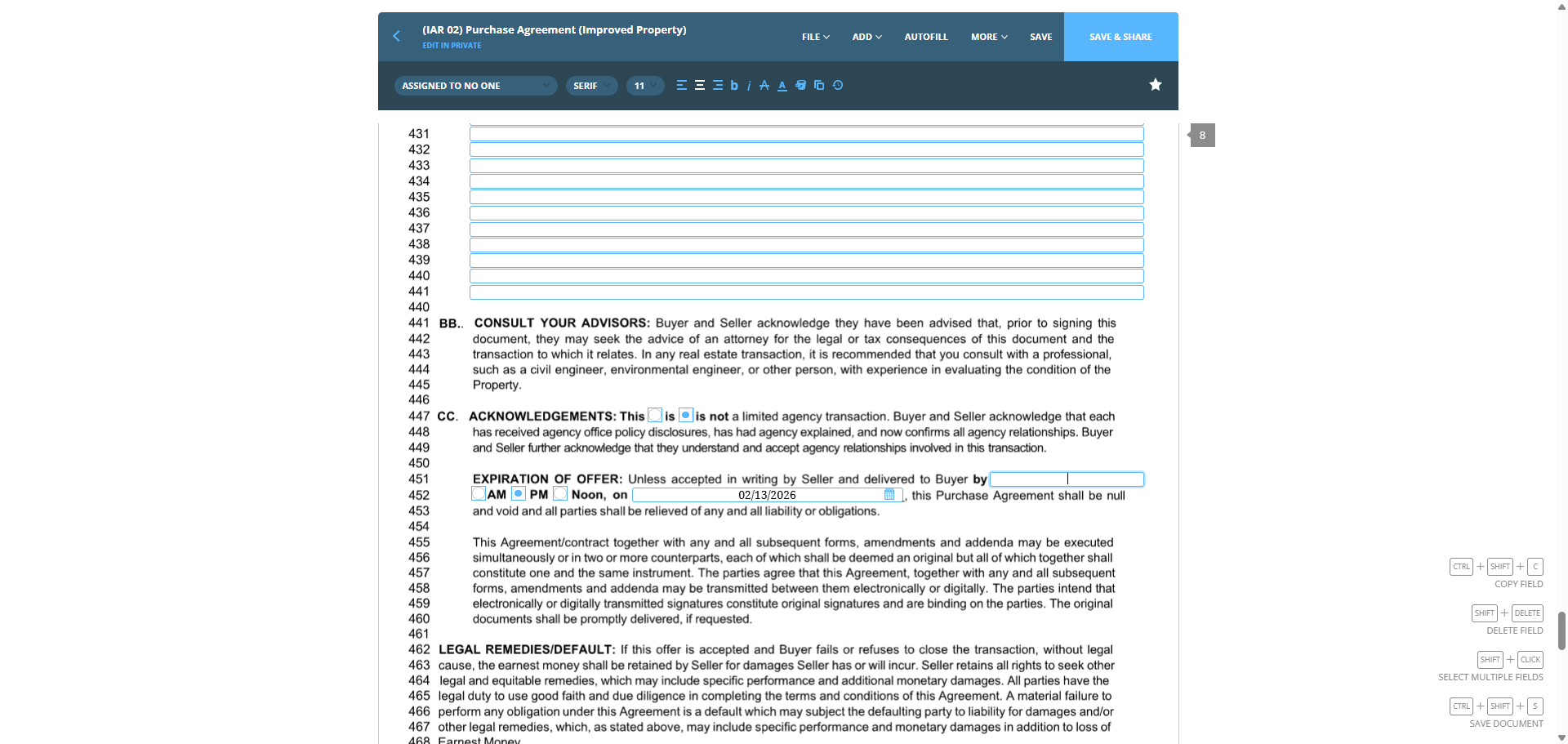
138
Click on "PM"
Step #138: Click on "PM"
139
Click here
Step #139: Click here
140
Click on "The parties"
Step #140: Click on "The parties"
141
Type "6:00"
142
Click here
Step #142: Click here

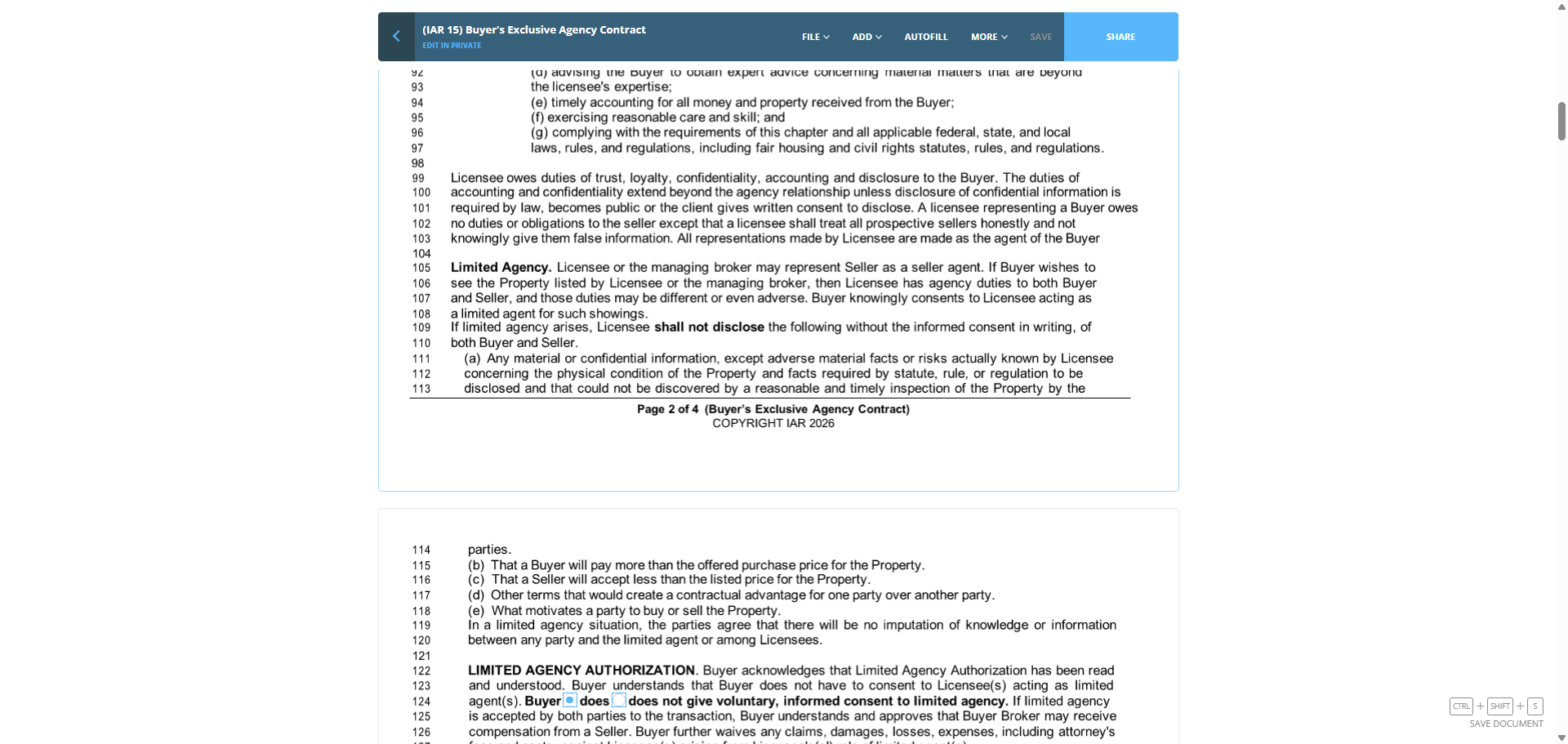
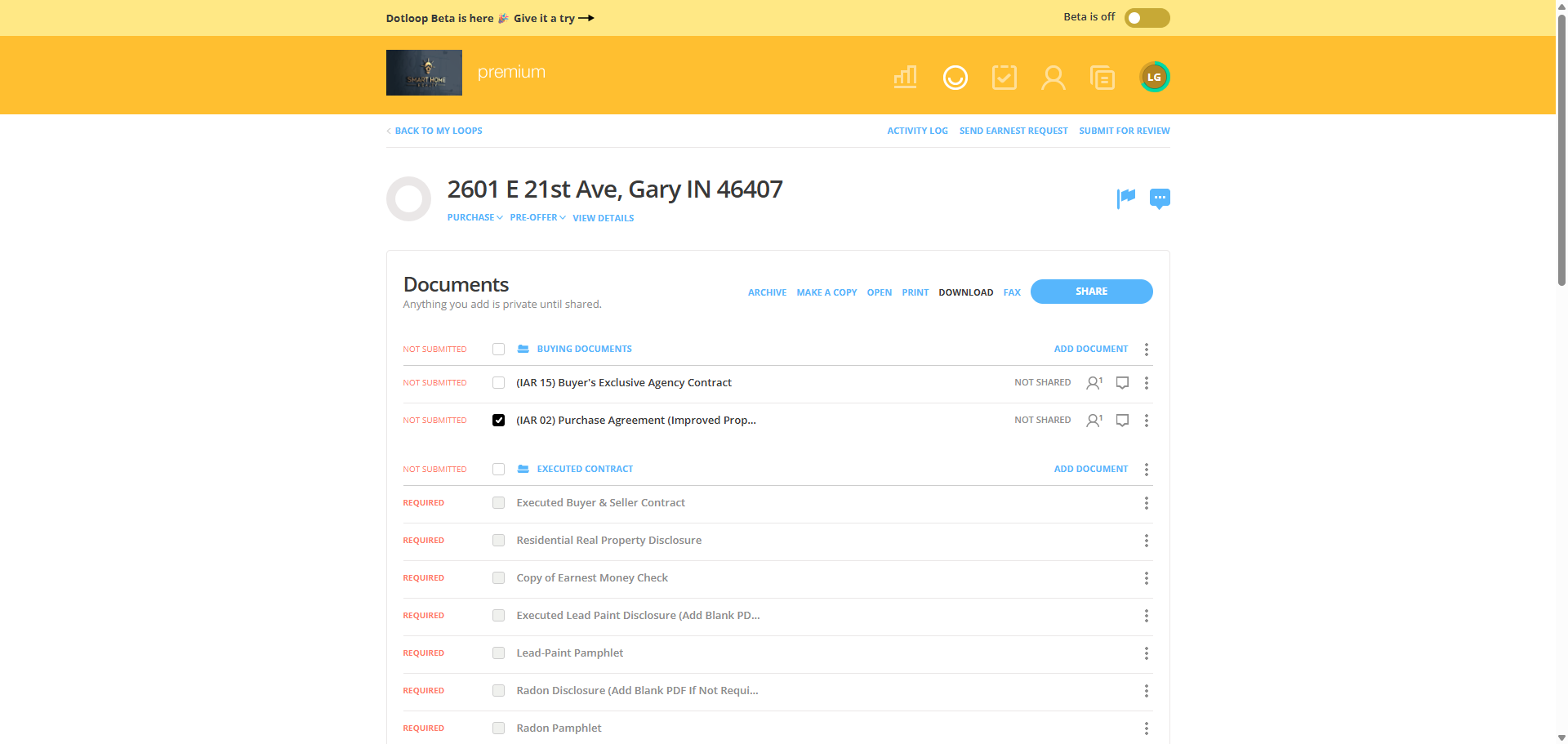
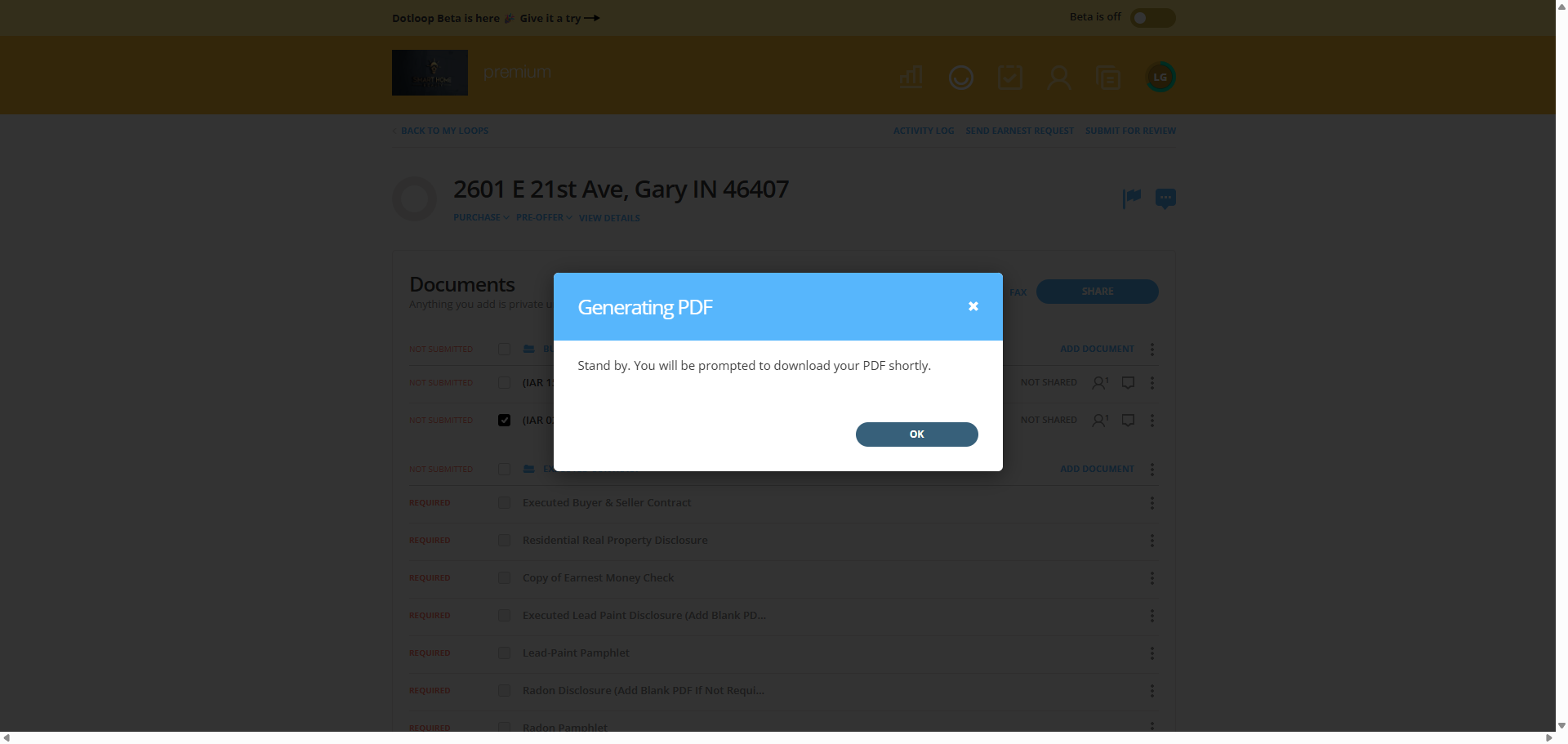
Now that the offer is saved, we can download it and add it to DocuSign.
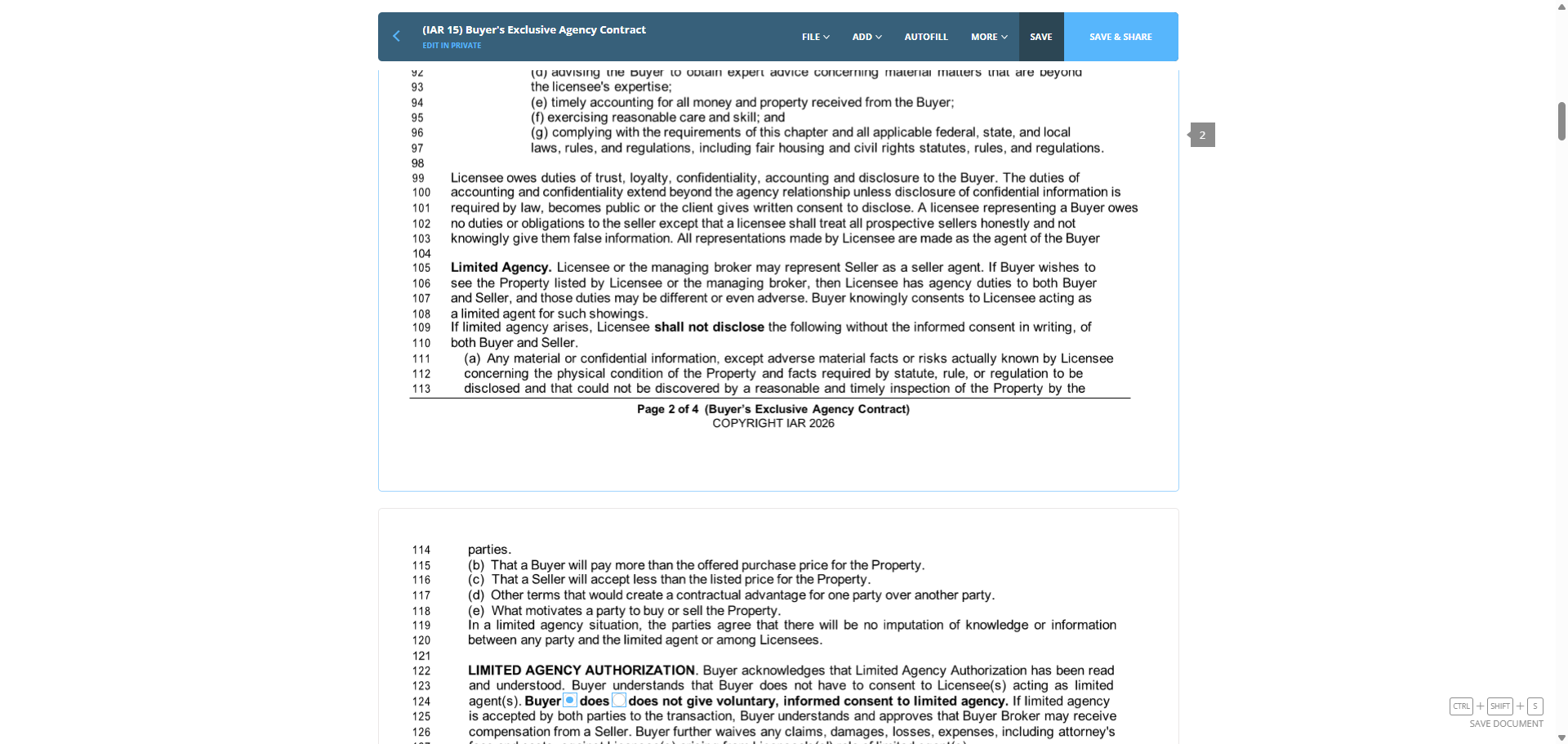
143
Click on "SAVE"
Step #143: Click on "SAVE"
144
Click here
Step #144: Click here

Let's save them one at a time.

145
Click on "DOWNLOAD"
Step #145: Click on "DOWNLOAD"
146
Click here
Step #146: Click here

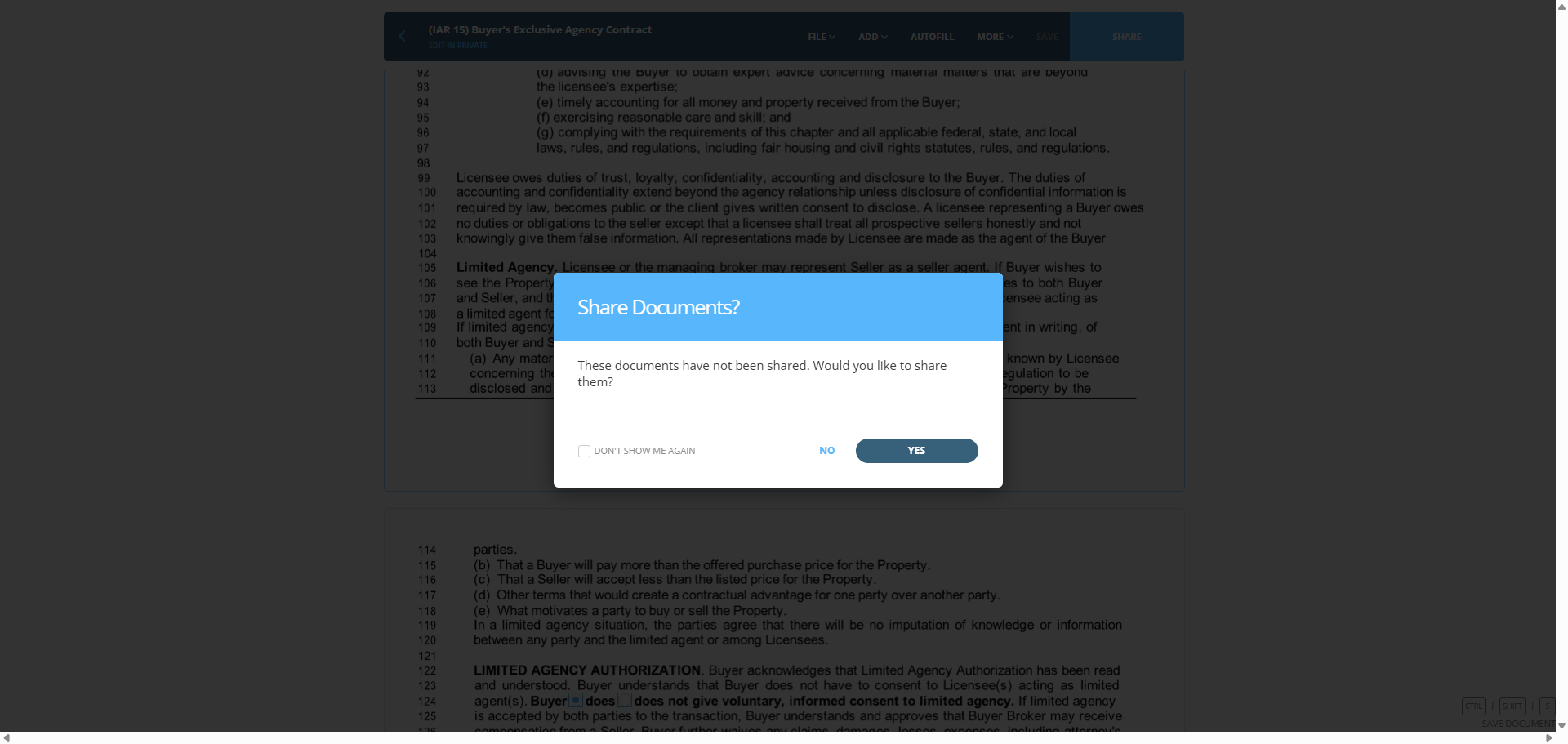
That way, we can use them later.

147
Click on "YES"
Step #147: Click on "YES"

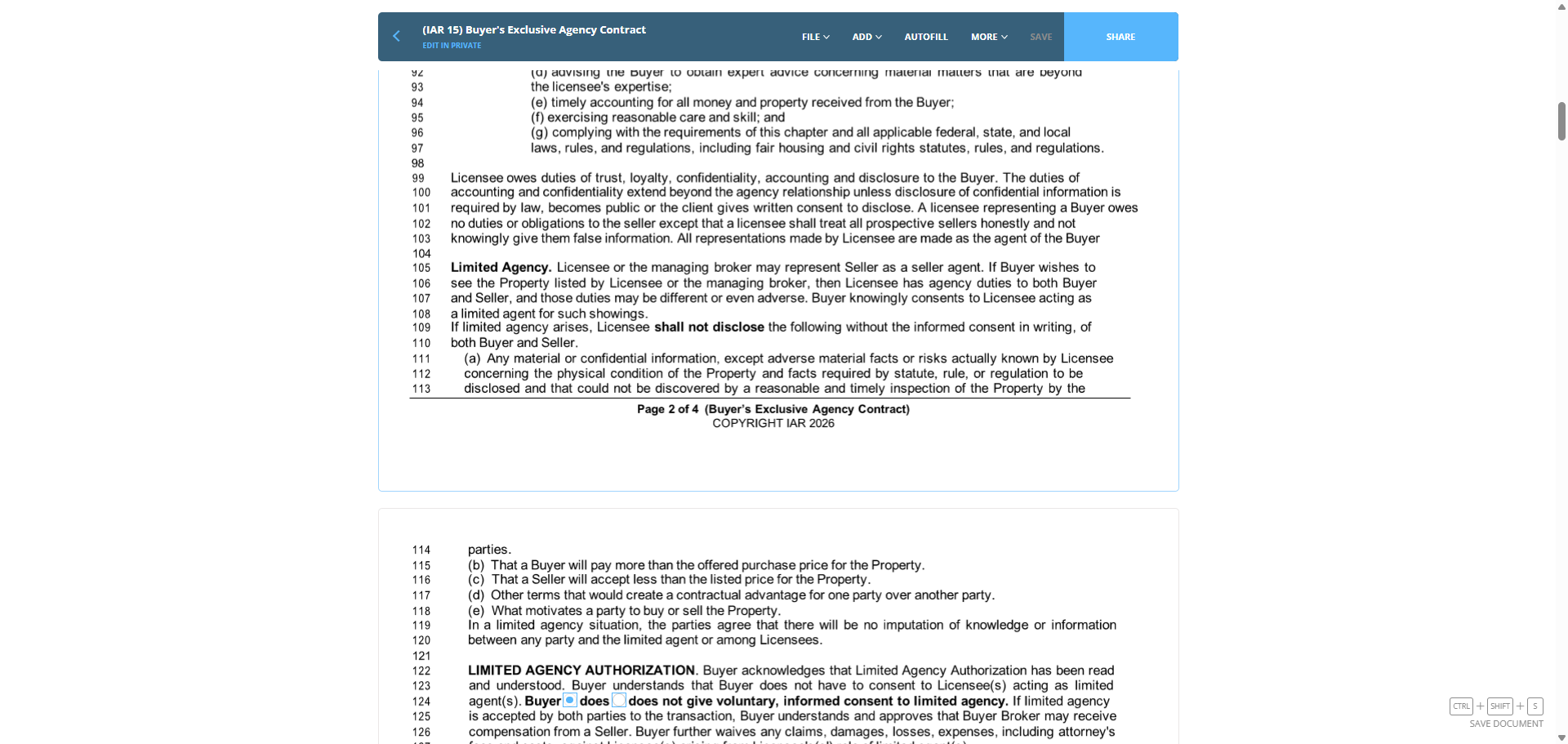
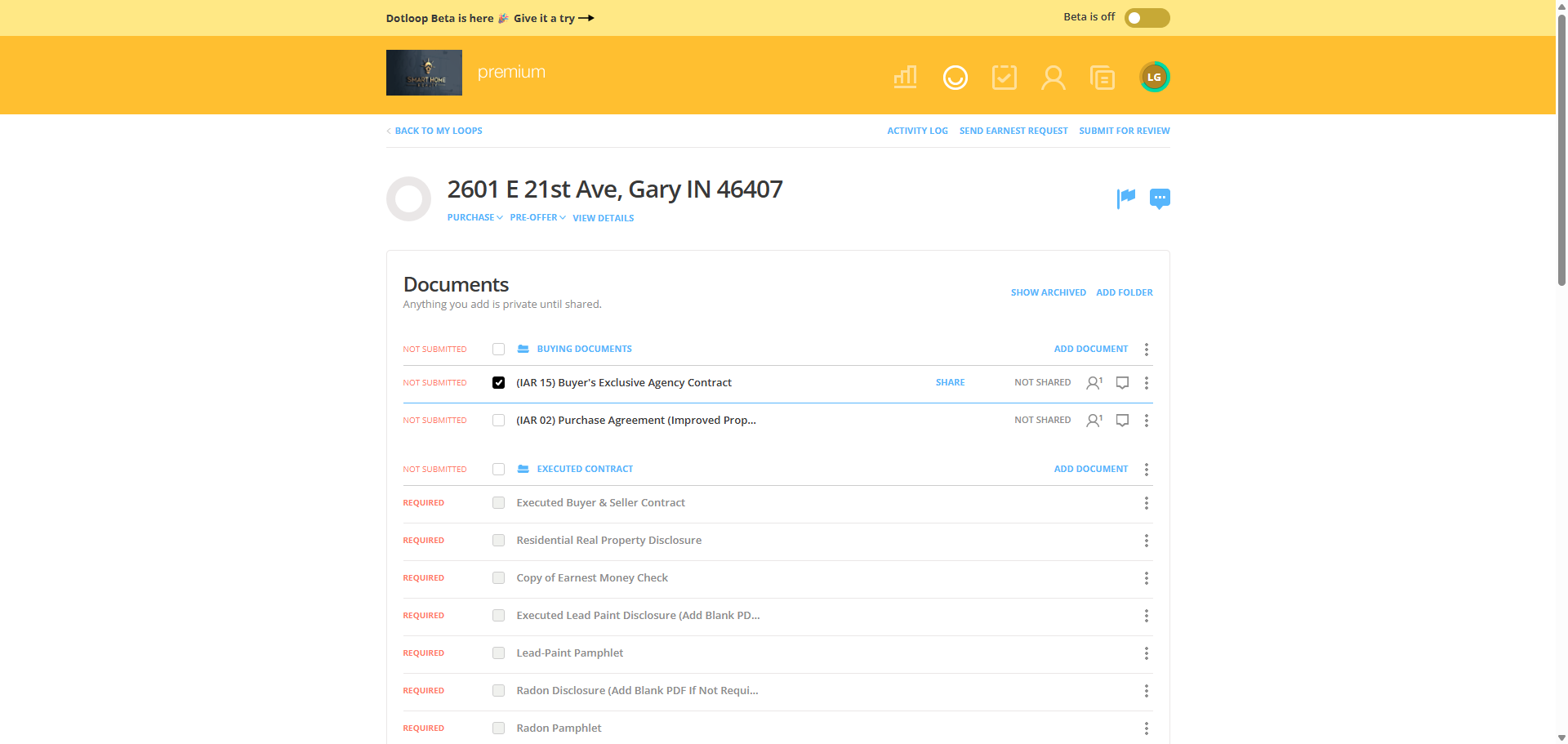
This is the buyer agency contract, followed by the purchase agreement.
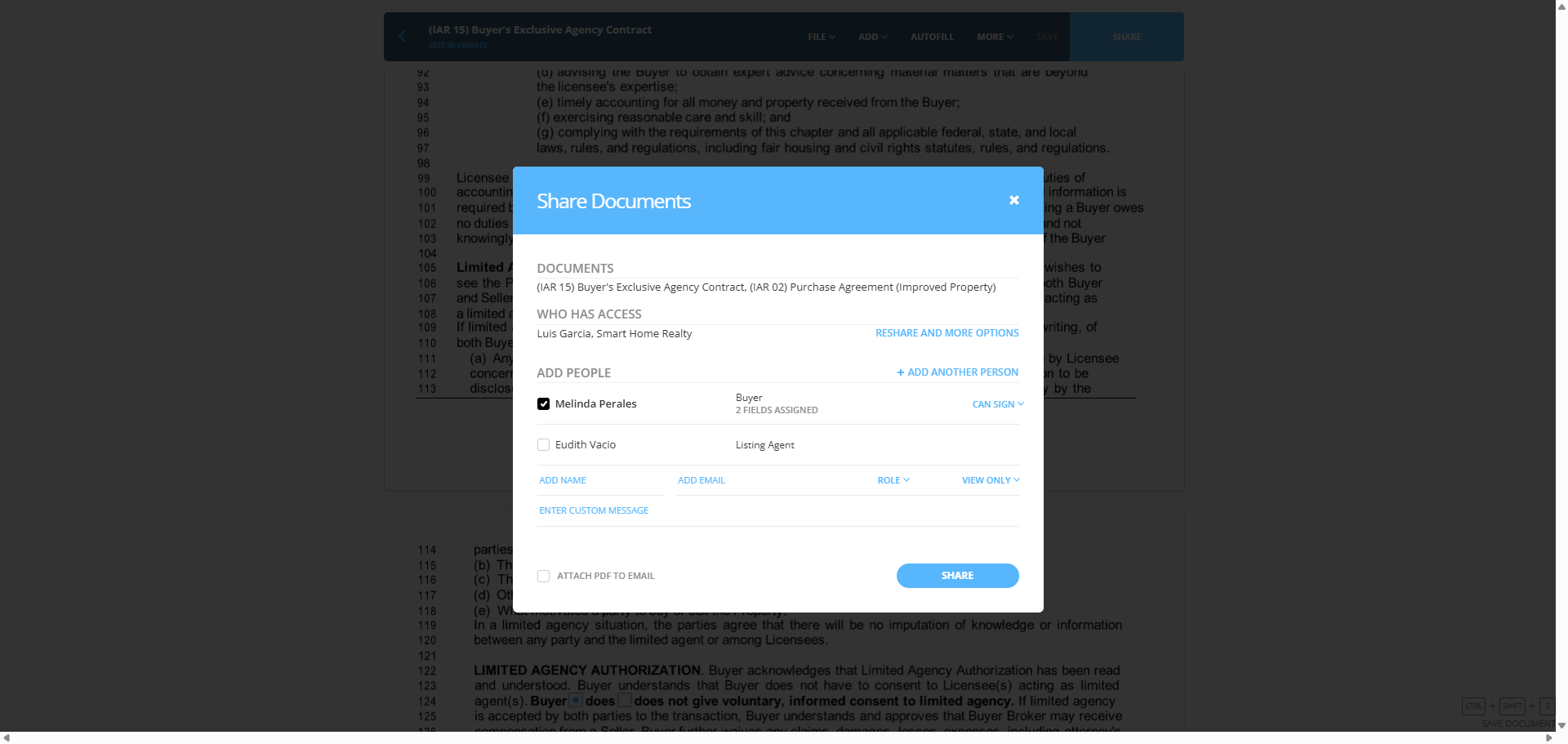
148
Click on "×"
Step #148: Click on "×"
149
Click here
Step #149: Click here
150
Click here
Step #150: Click here
151
Click here
Step #151: Click here
152
Click here
Step #152: Click here
153
Click on "PRINT DOWNLOAD FAX"
Step #153: Click on "PRINT DOWNLOAD FAX"
154
Click on "ARCHIVE MAKE A COPY OPEN PRINT DOWNLOAD FAX"
Step #154: Click on "ARCHIVE MAKE A COPY OPEN PRINT DOWNLOAD FAX"
155
Click on "OK"
Step #155: Click on "OK"
156
Click on "( IAR 02 ) Purchase Agreement ( Improved Prop ..."
Step #156: Click on "( IAR 02 ) Purchase Agreement ( Improved Prop ..."
157
Click on "✓"
Step #157: Click on "✓"
158
Click on "DOWNLOAD"
Step #158: Click on "DOWNLOAD"
159
Click on "OK"
Step #159: Click on "OK"

We will enter any applicable deed.
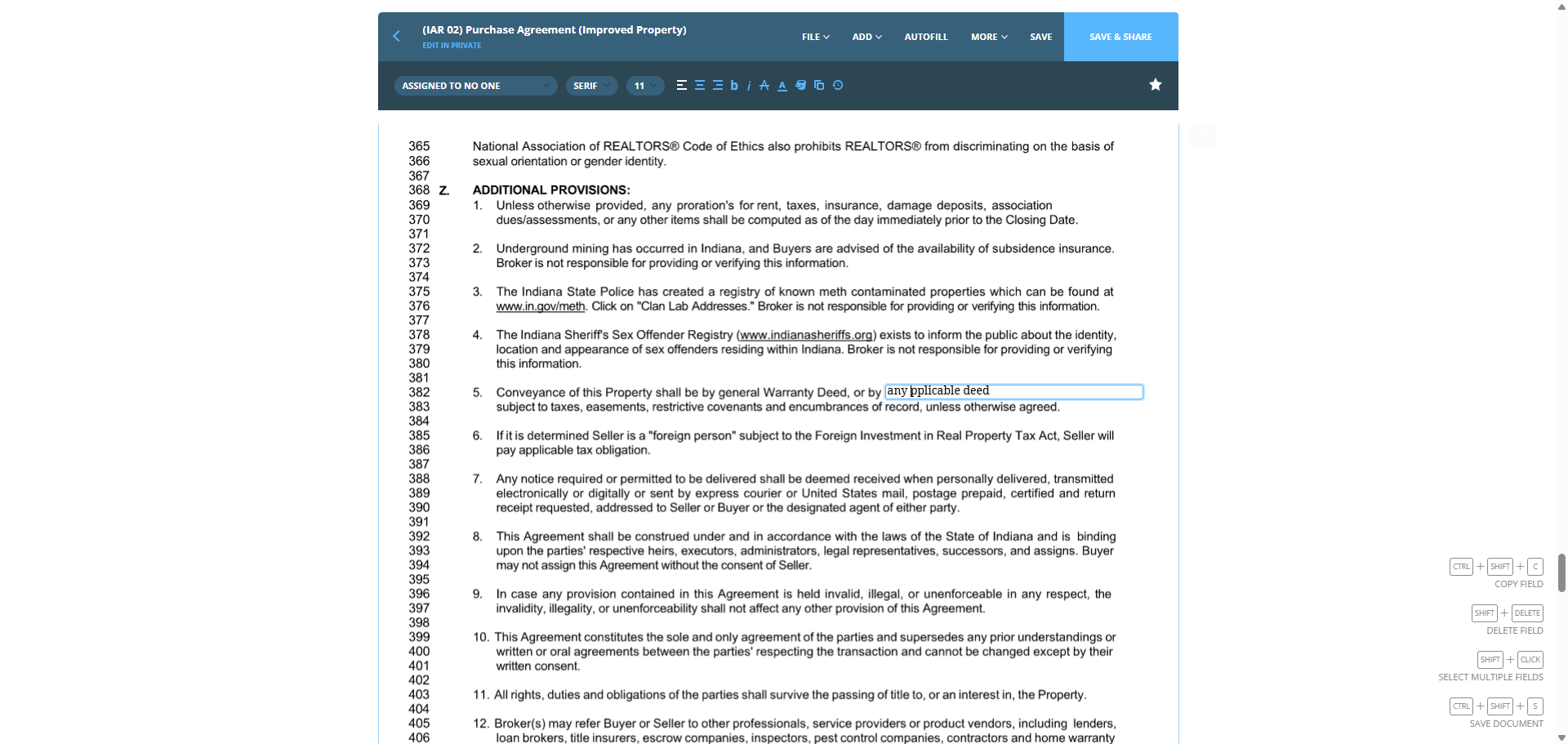
160
Click on "any pplicable"
Step #160: Click on "any pplicable"

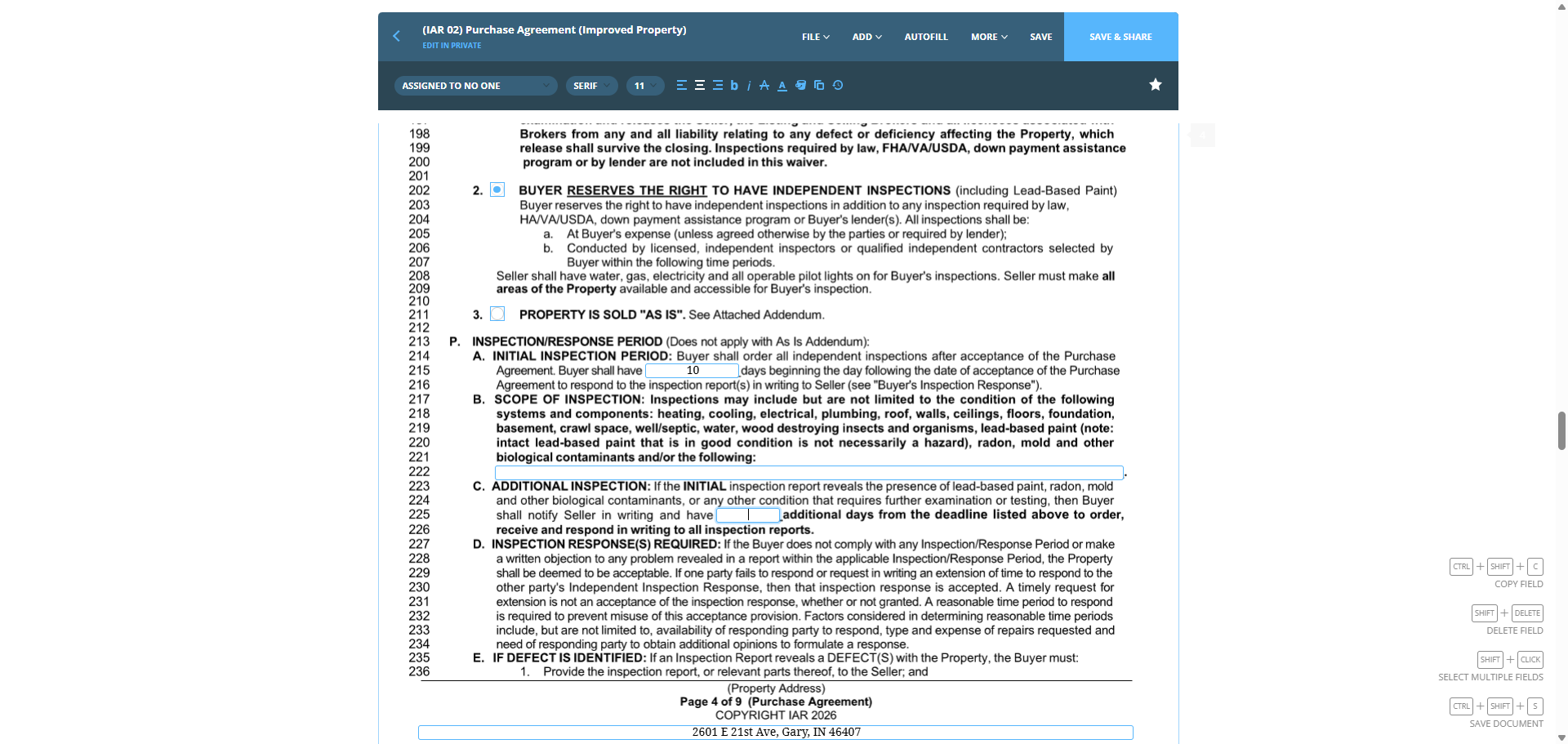
Inspection period: we’ll set it to 10, with a duration of seven days.
161
Click on "receive and respond in writing to all inspection reports"
Step #161: Click on "receive and respond in writing to all inspection reports"

Let's save both documents. Save them in the folder. Let's make sure to rename... Rename the files and ensure everything looks uniform. Make sure that we have ...

the... We need the office policy. Should be... this one . Copy it into our complete file.

If it's already there, leave it as is. If not, add it.