SOP: Payroll Step 5
Learn how to manage payroll worksheets, add incentive pay, handle advances, and process commissions efficiently. This guide covers common payroll errors, worksheet management, and best practices for accurate payroll processing.
In this guide, we'll learn how to manage payroll entries, including adding incentive hours, handling hourly employee worksheets, and processing special payments such as advances and commissions. The steps will cover how to reconcile hours, add or remove employees from worksheets, and ensure all payroll calculations are accurate. This process helps maintain accurate records and ensures employees are paid correctly.
Let's get started
For the last step, we added incentive hours, but the hours did not match the PDF totals of 22, 90, and 80.
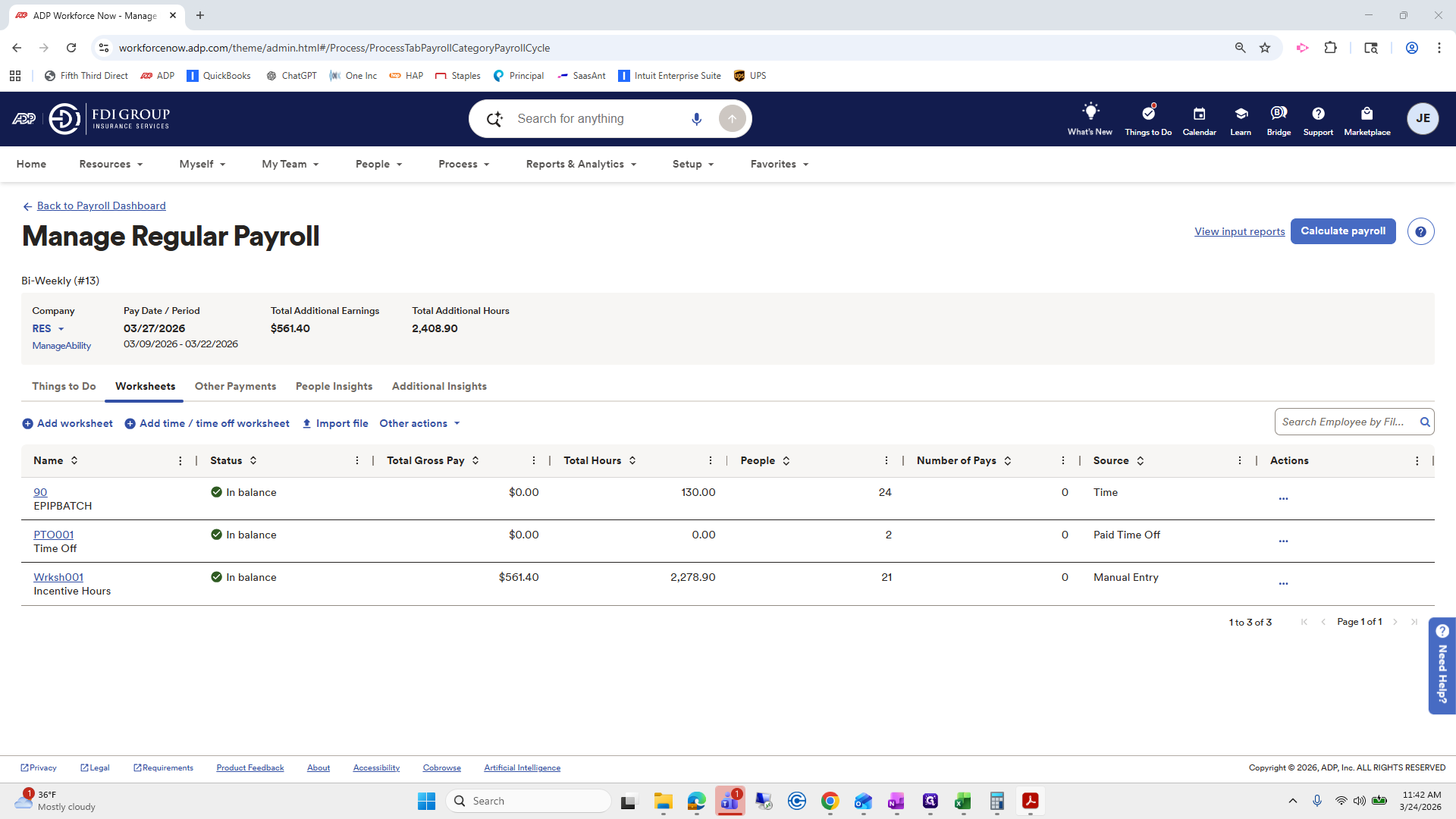
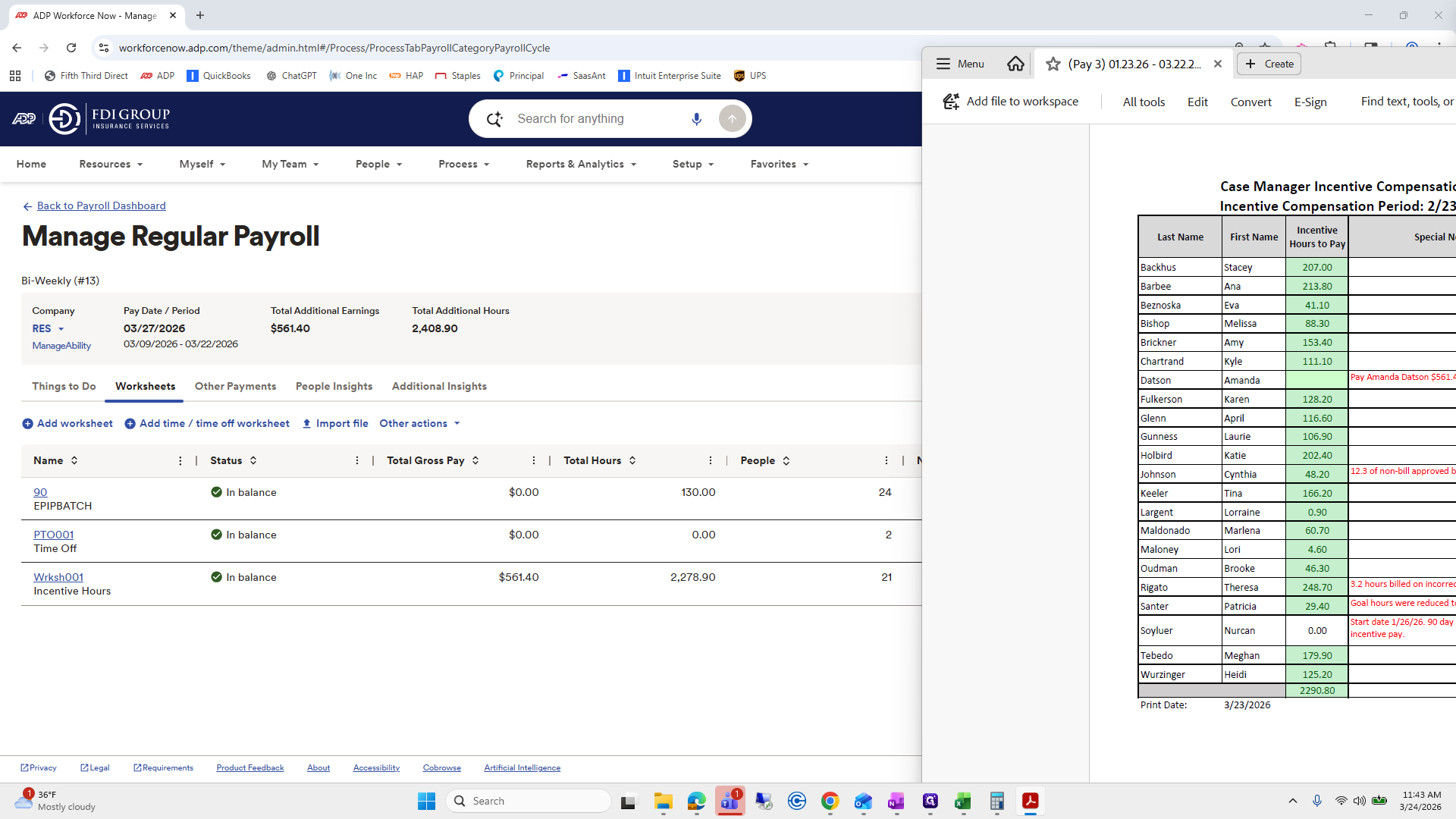
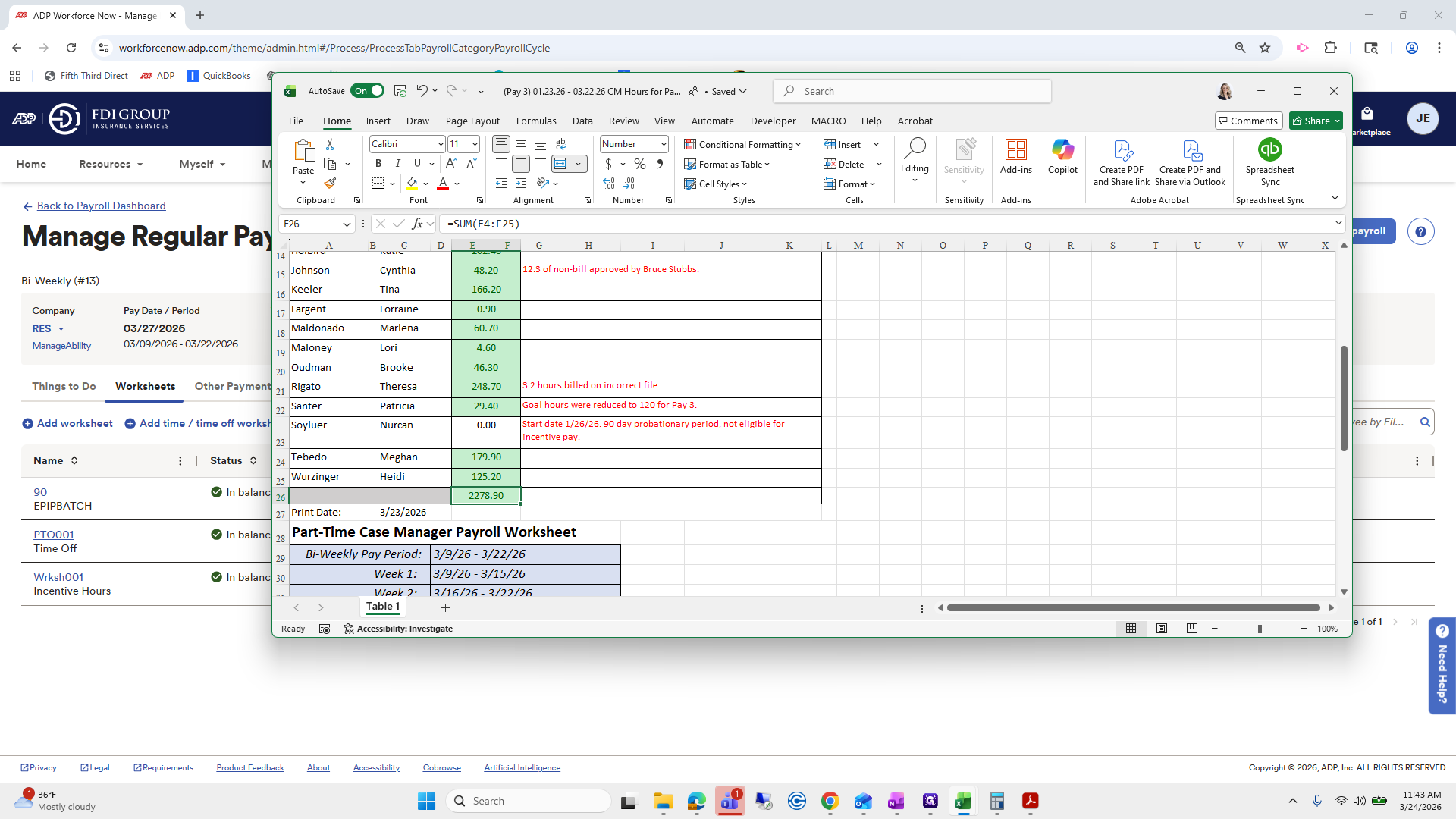
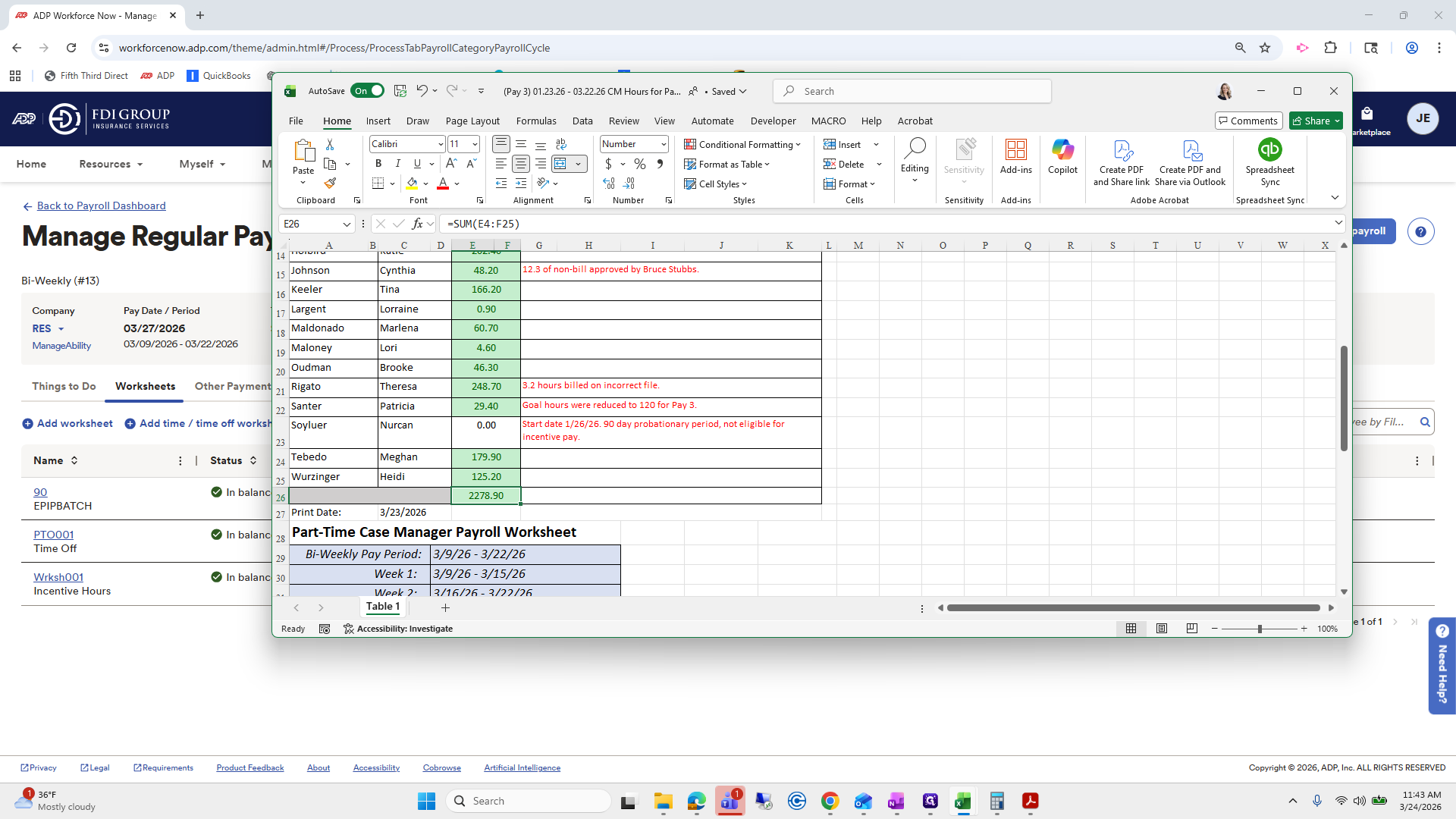
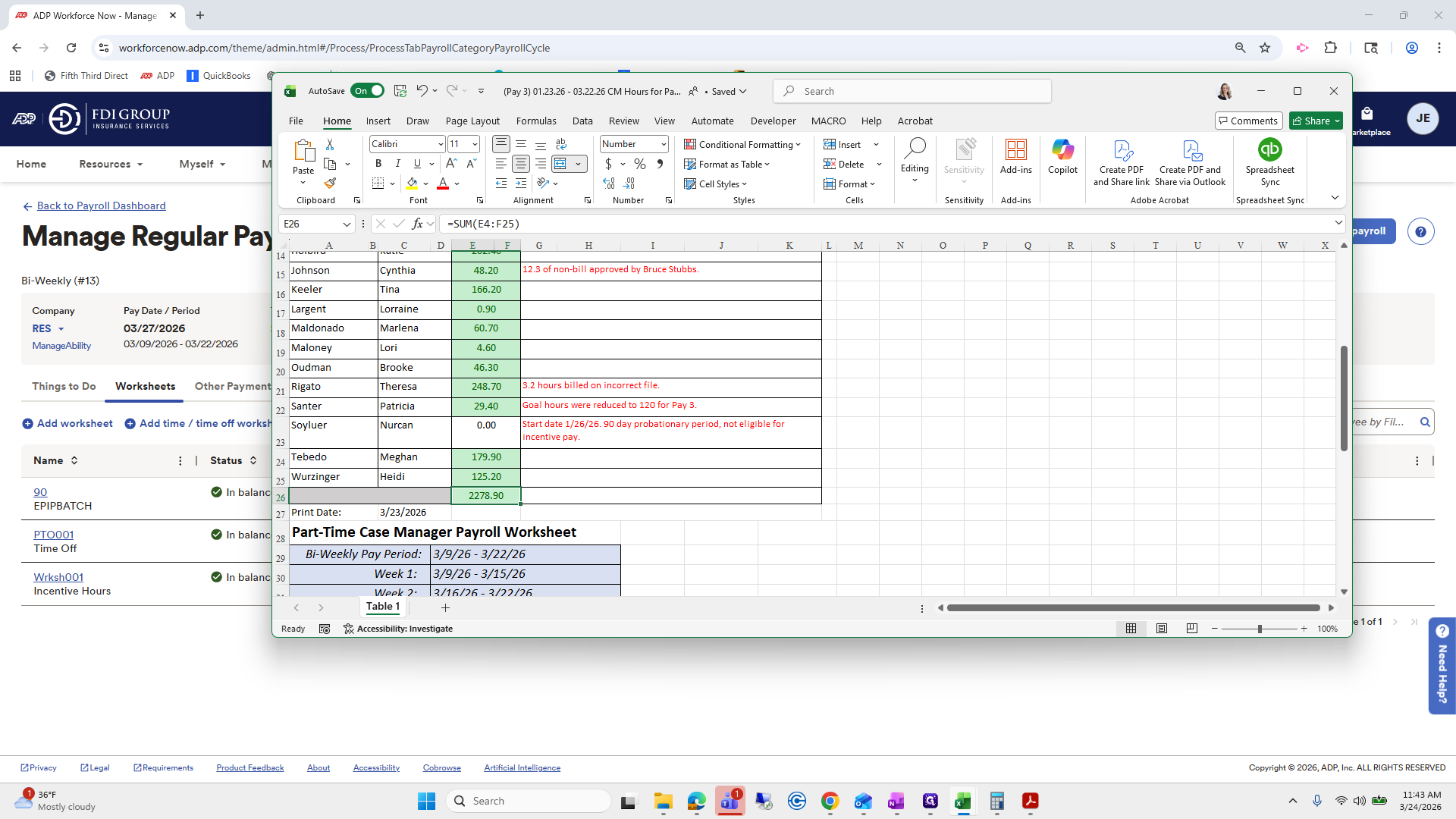
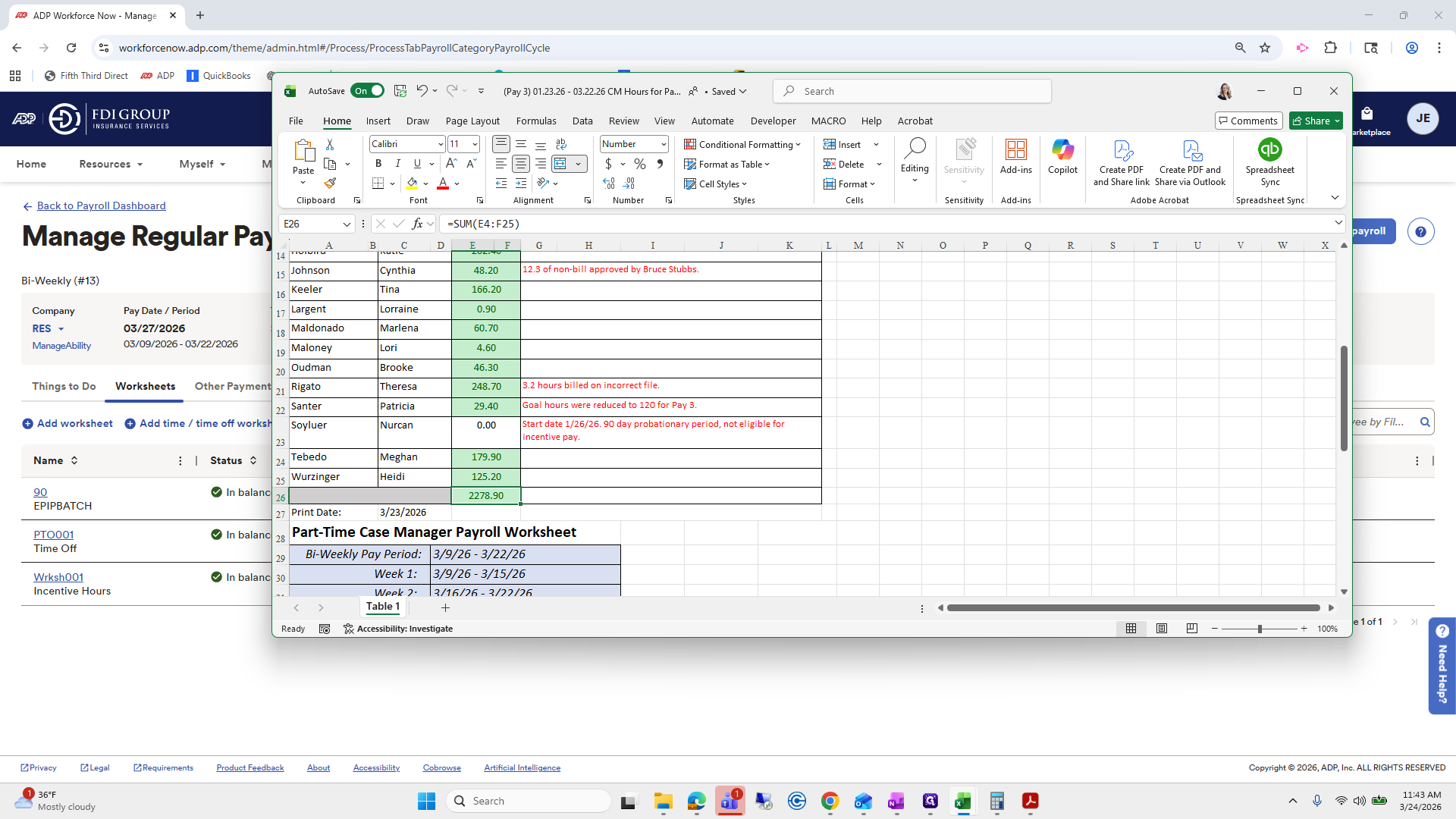
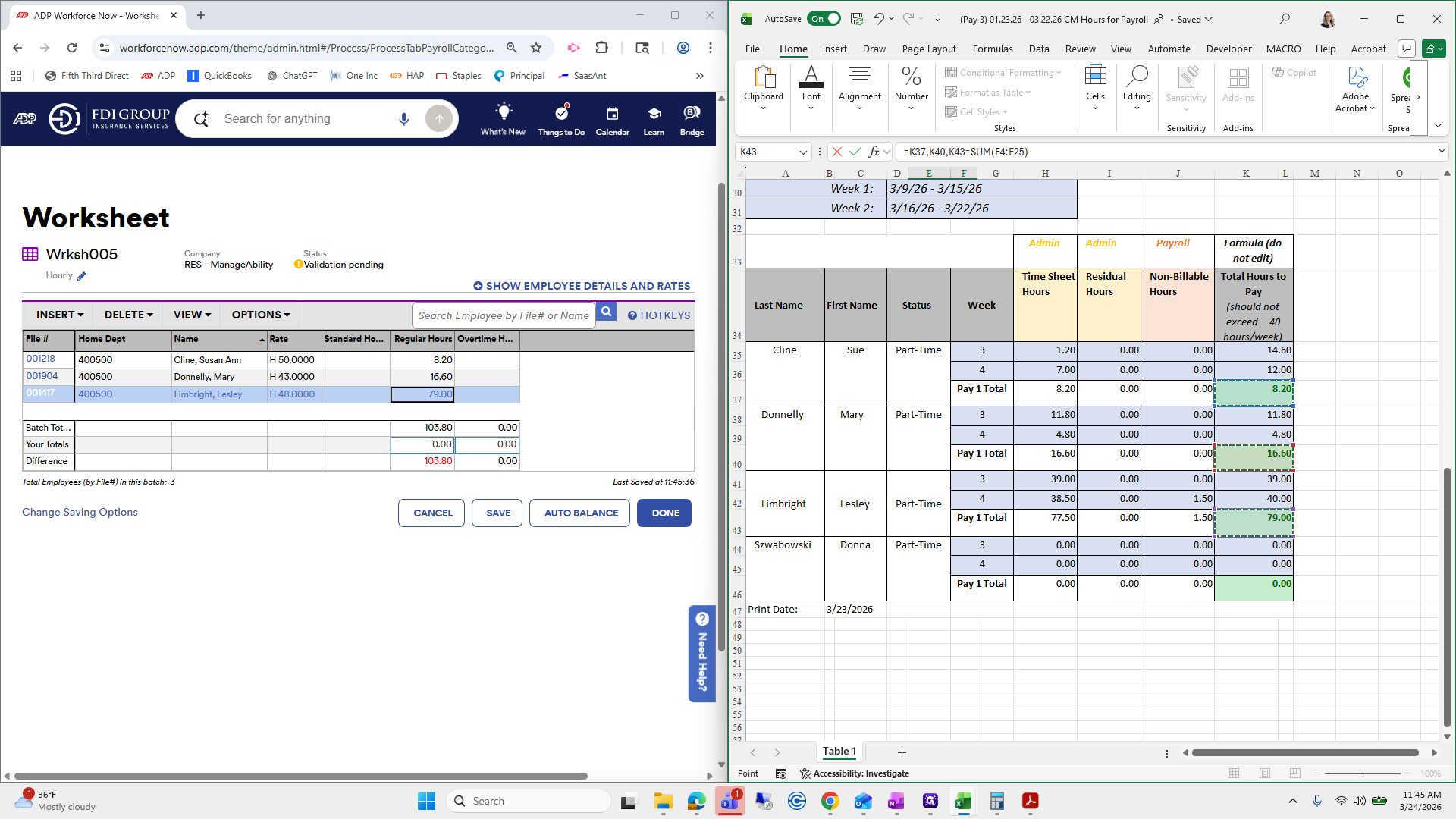
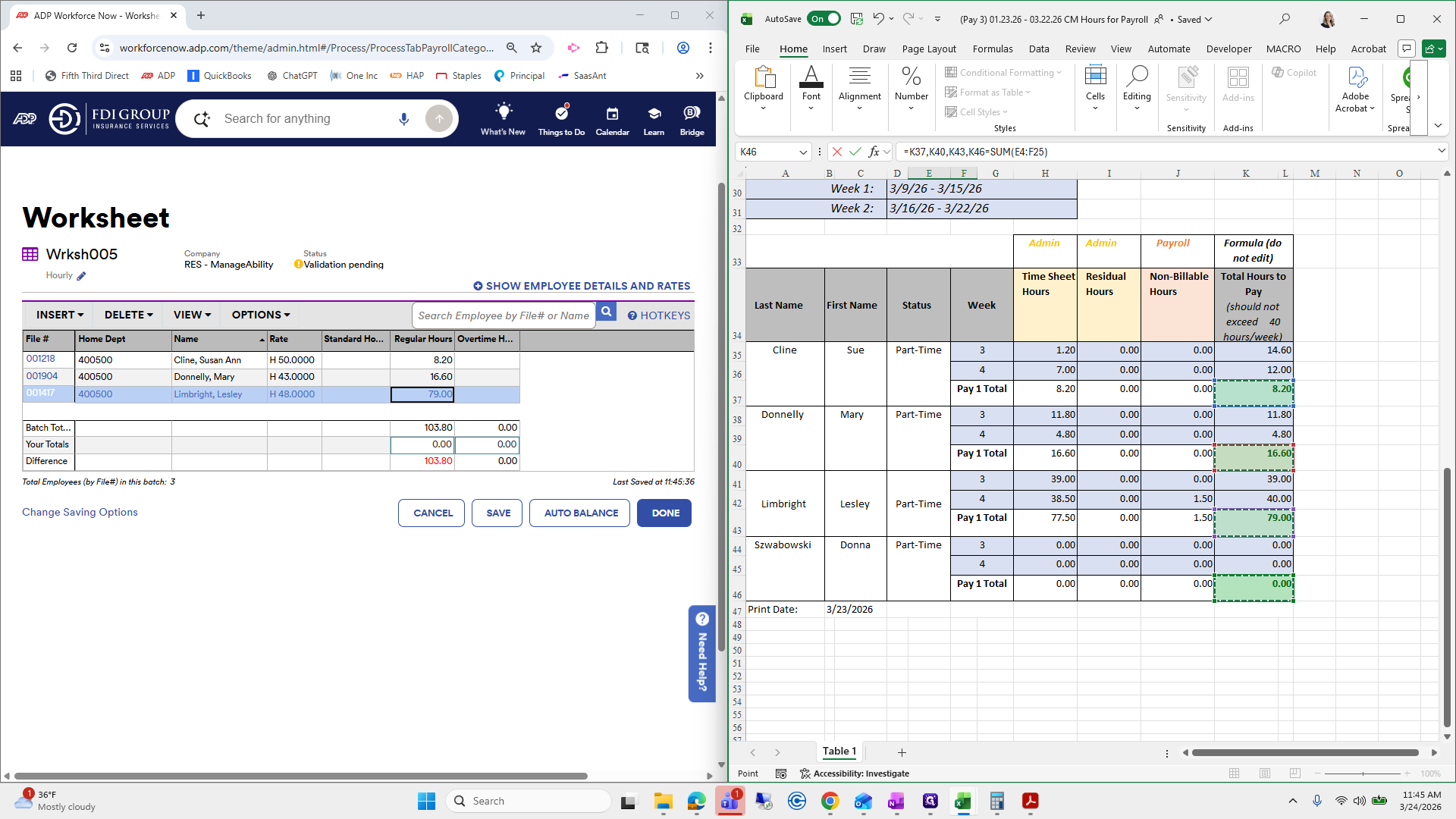
I converted it to Excel and recalculated the sum of all the incentive hours of pay.
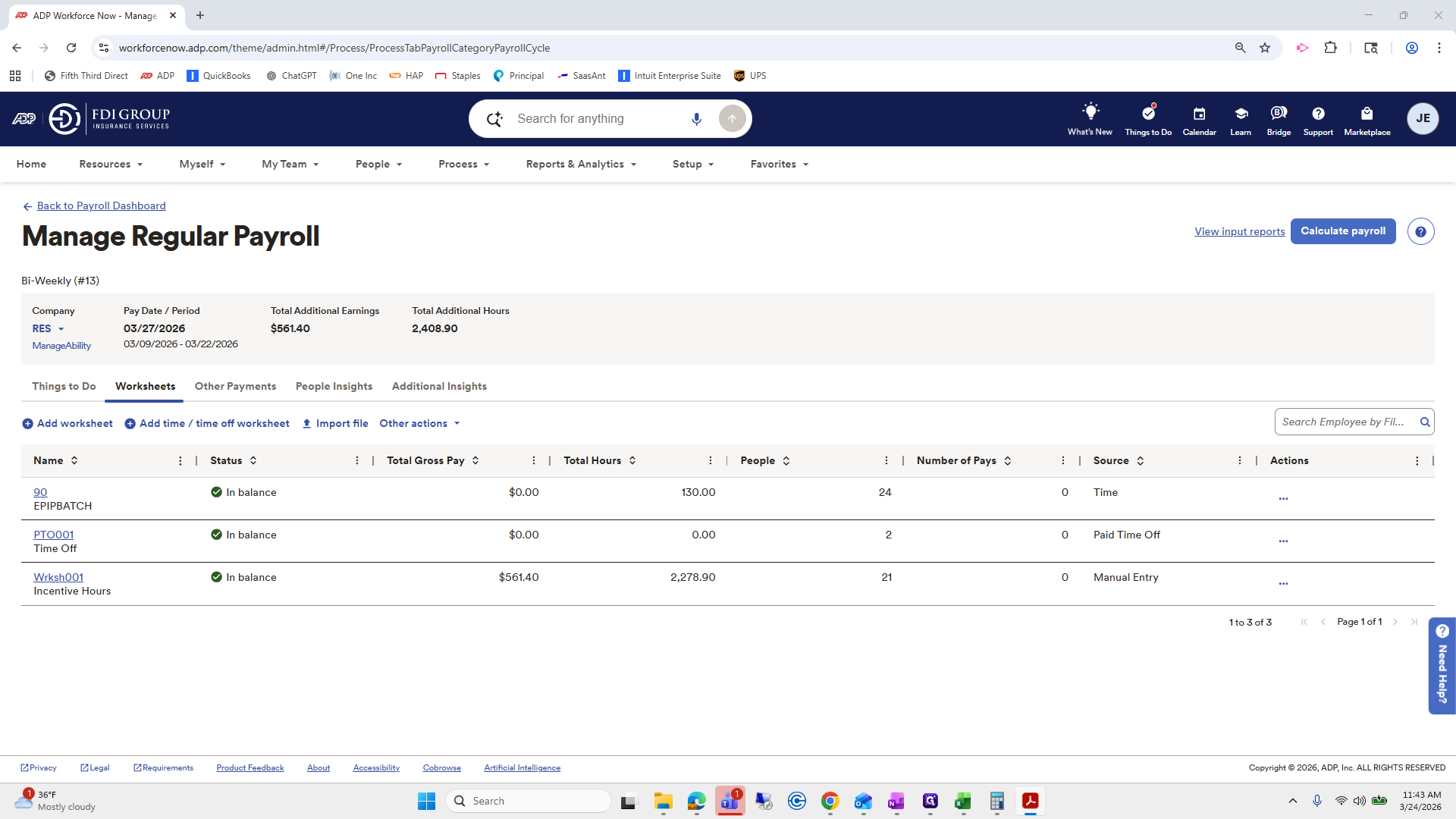
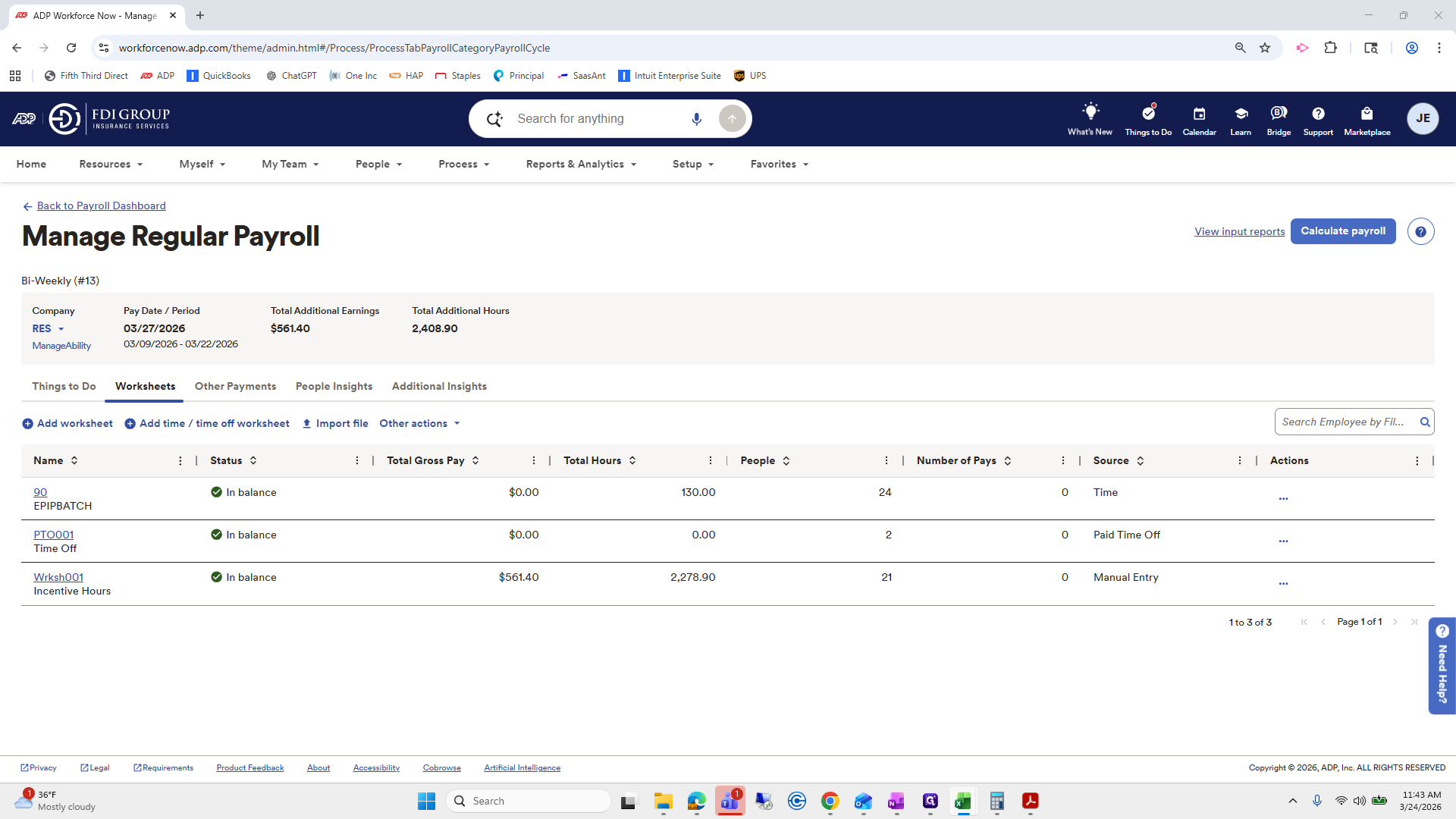
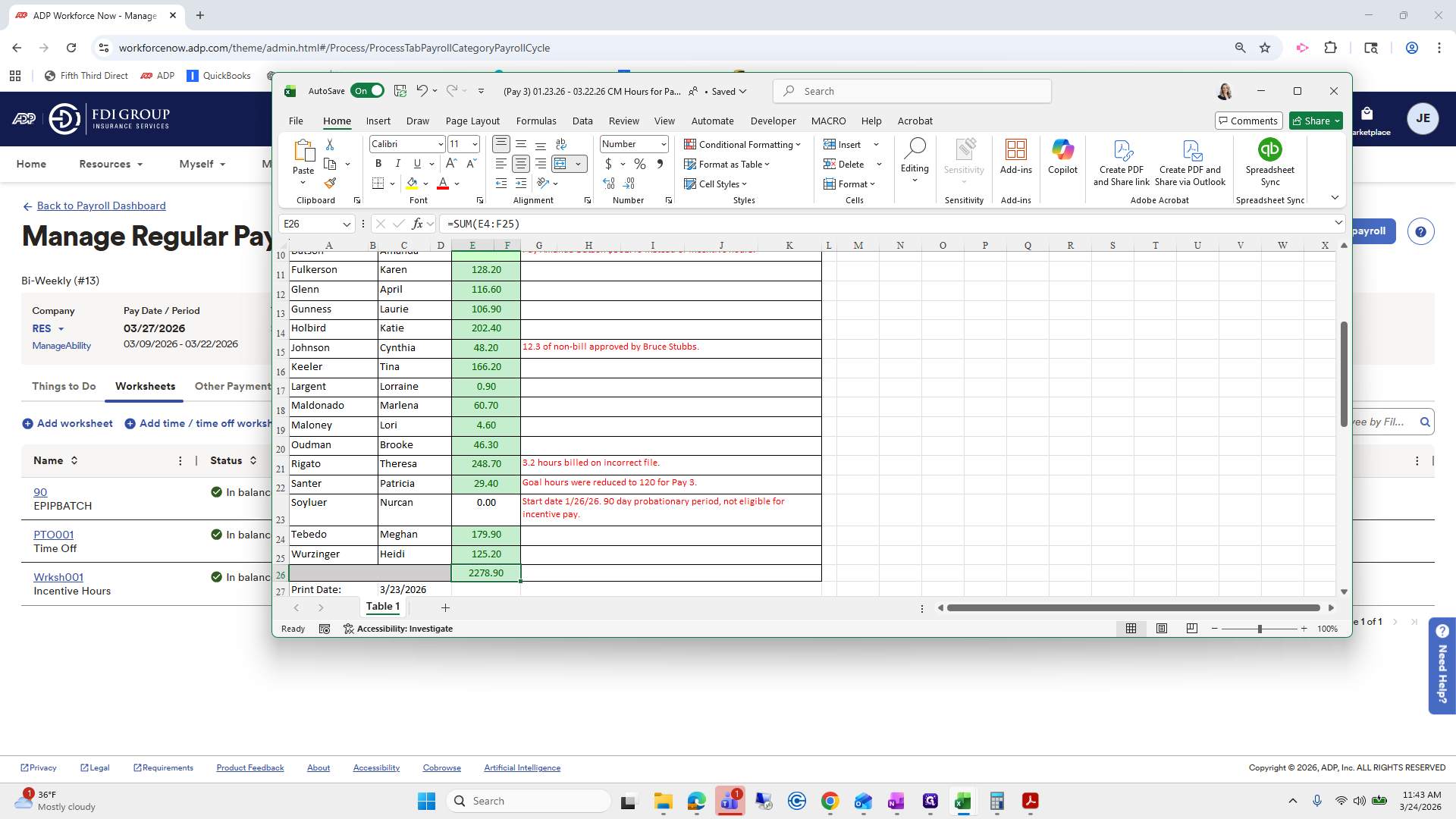
There was a calculation error, but it does tie out.
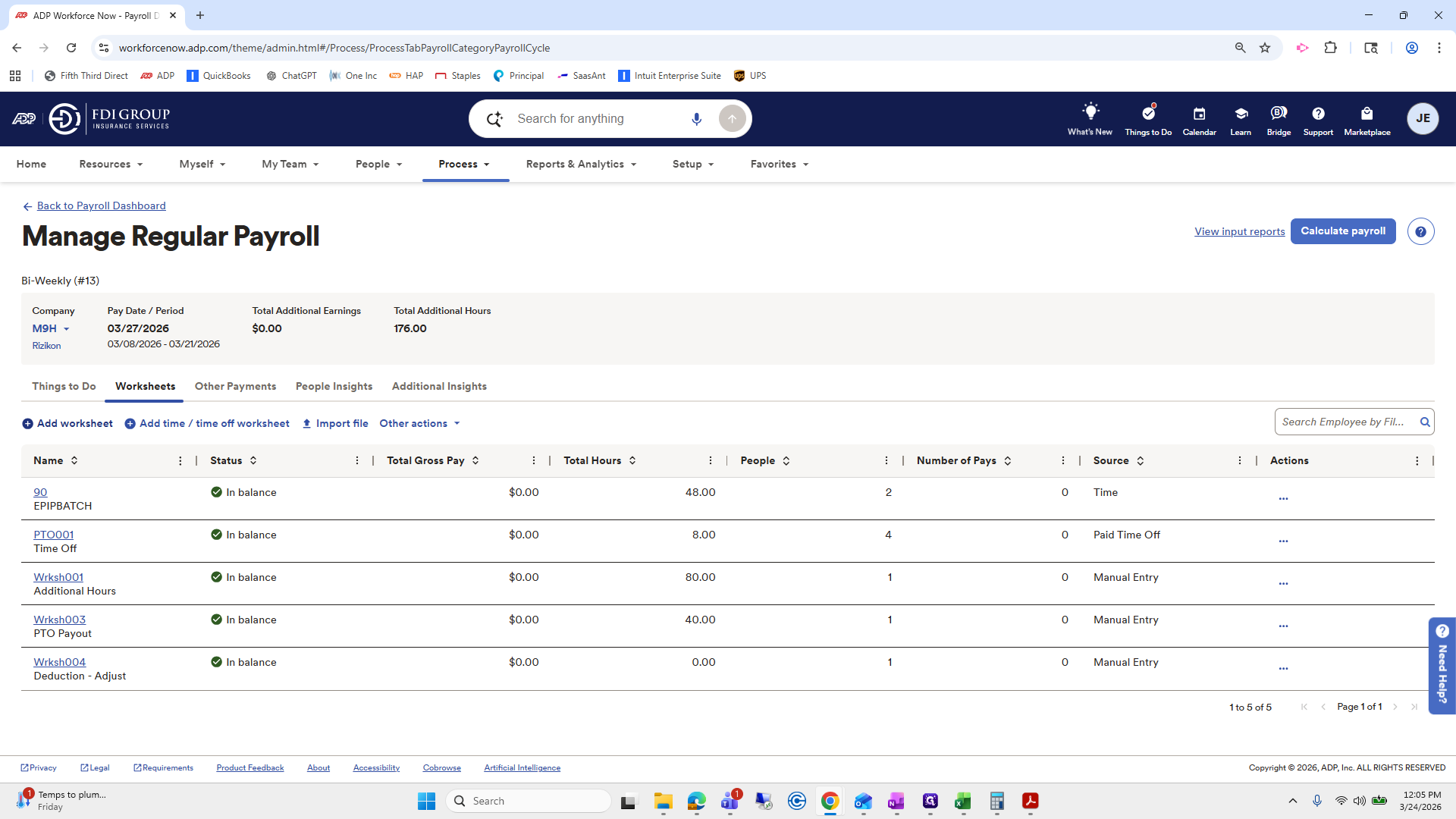
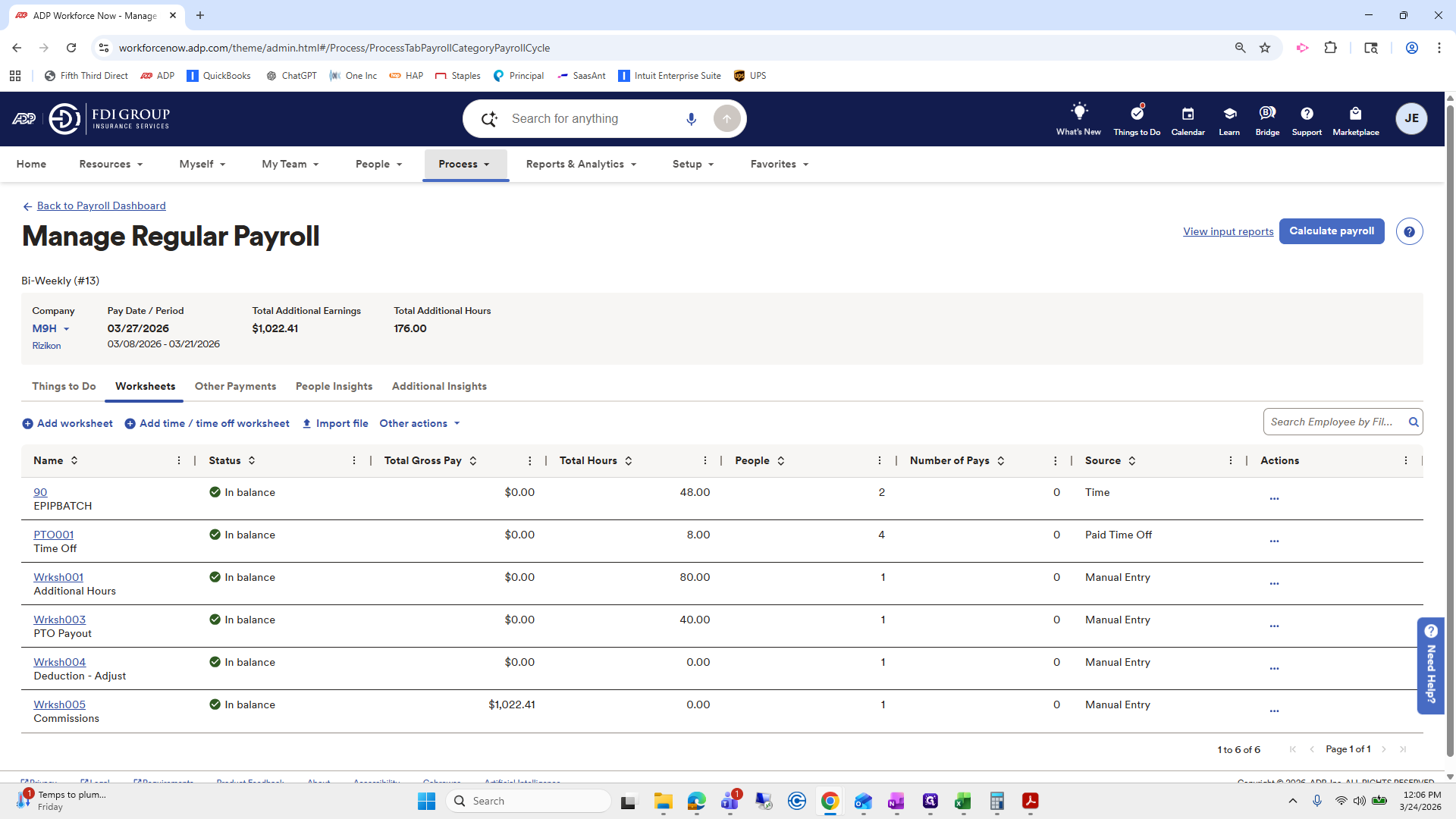
Next, go to Other Actions and select Manage Saved Worksheets. Now, add hourly.
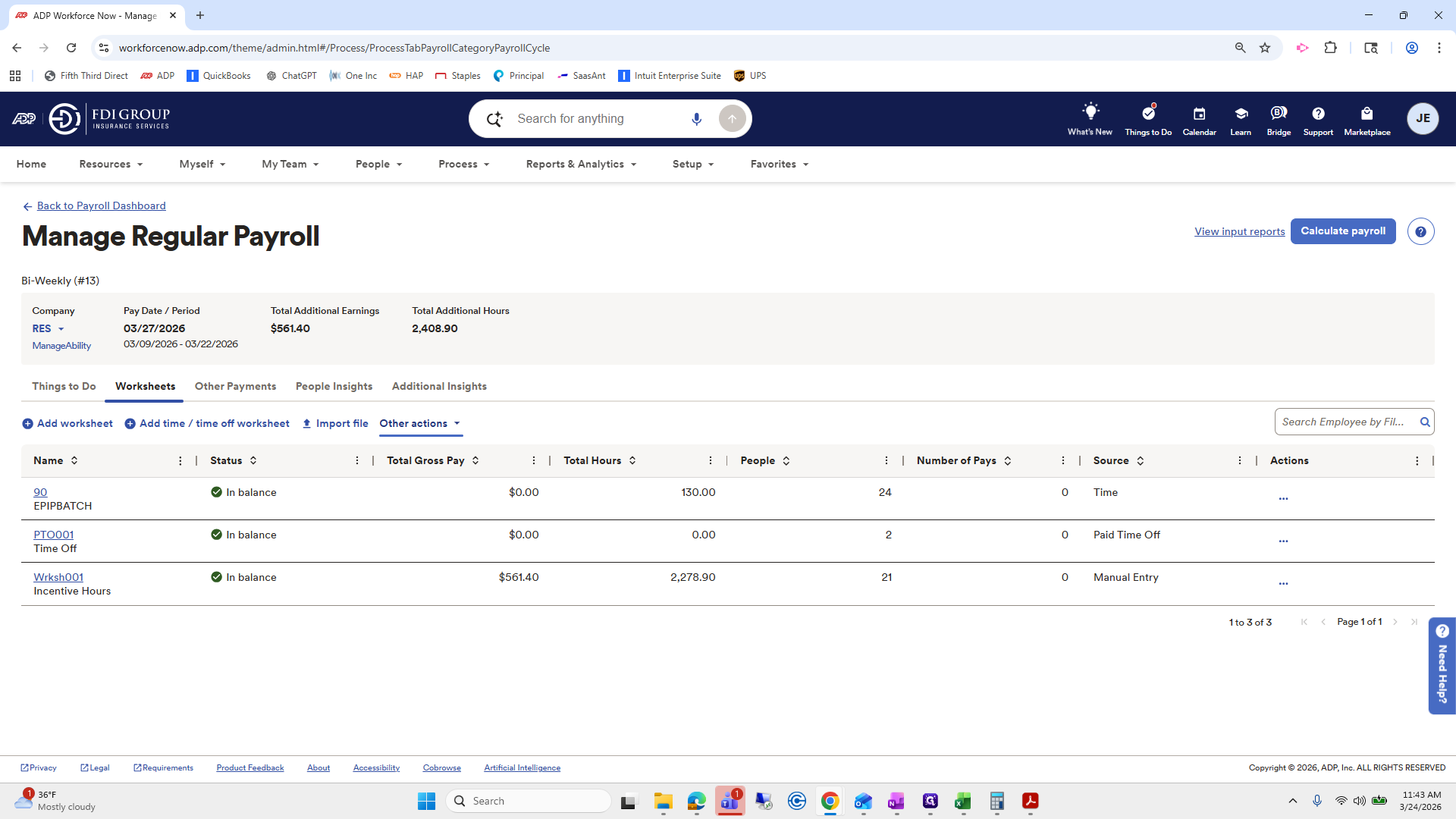
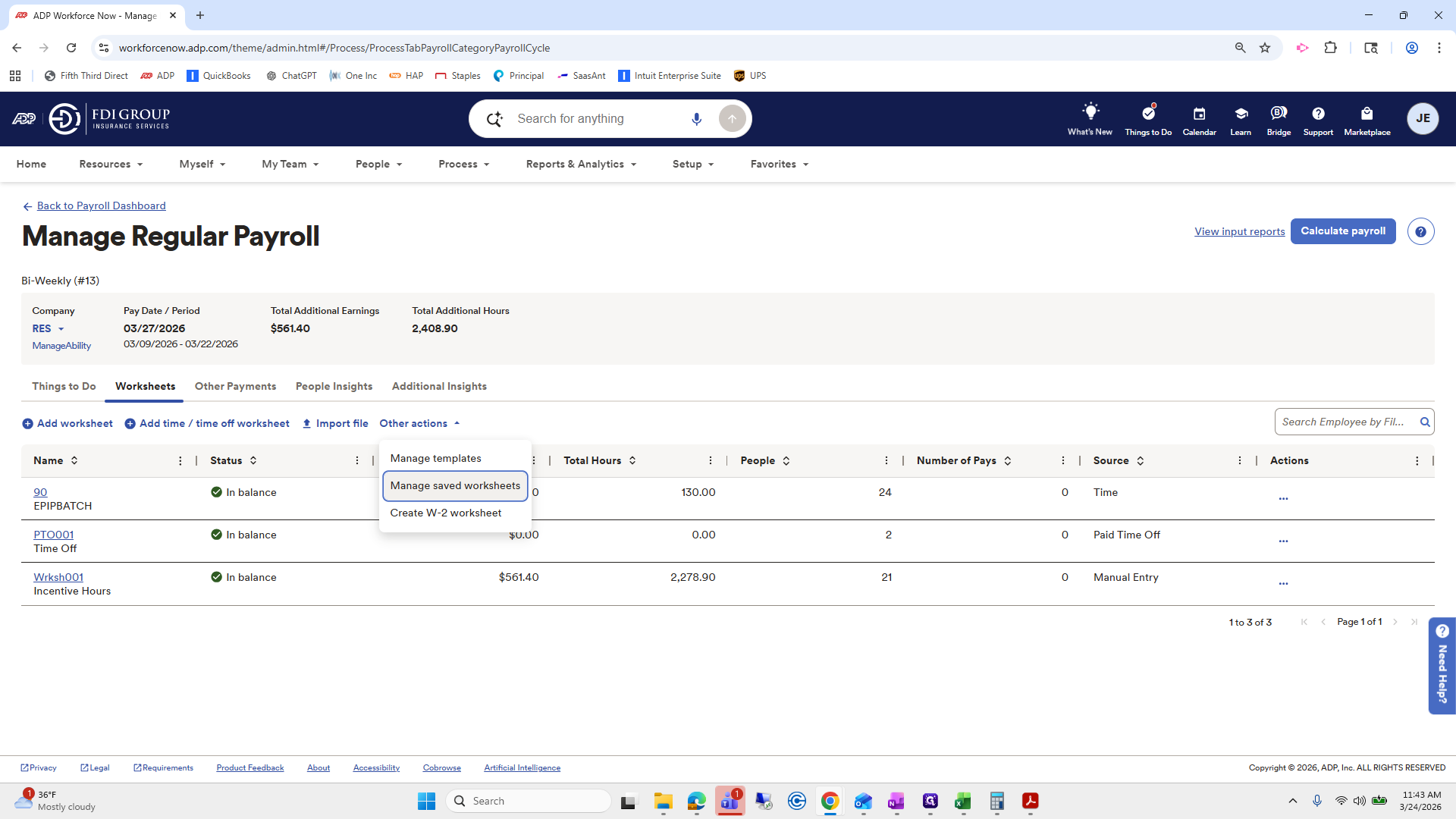
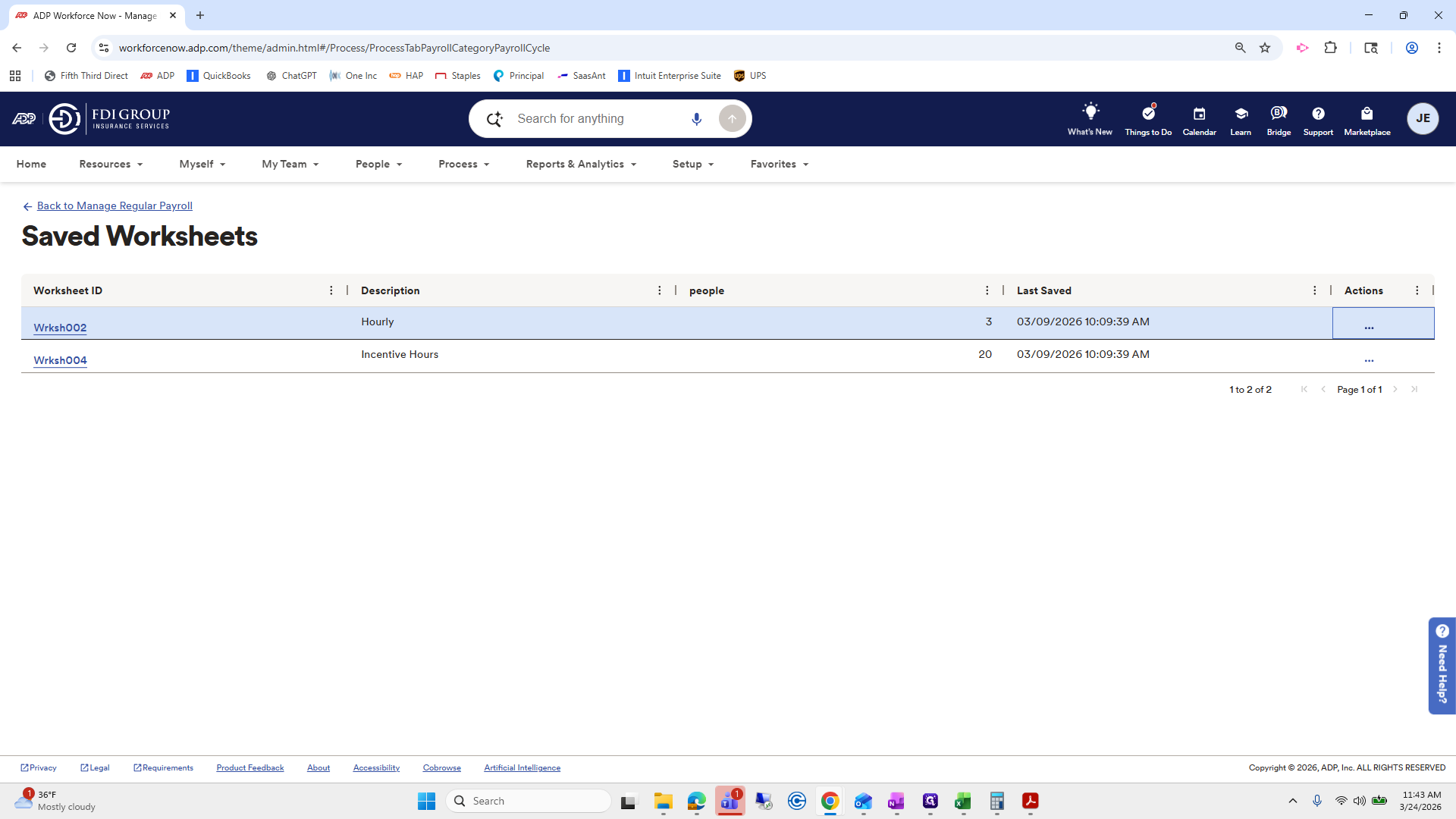
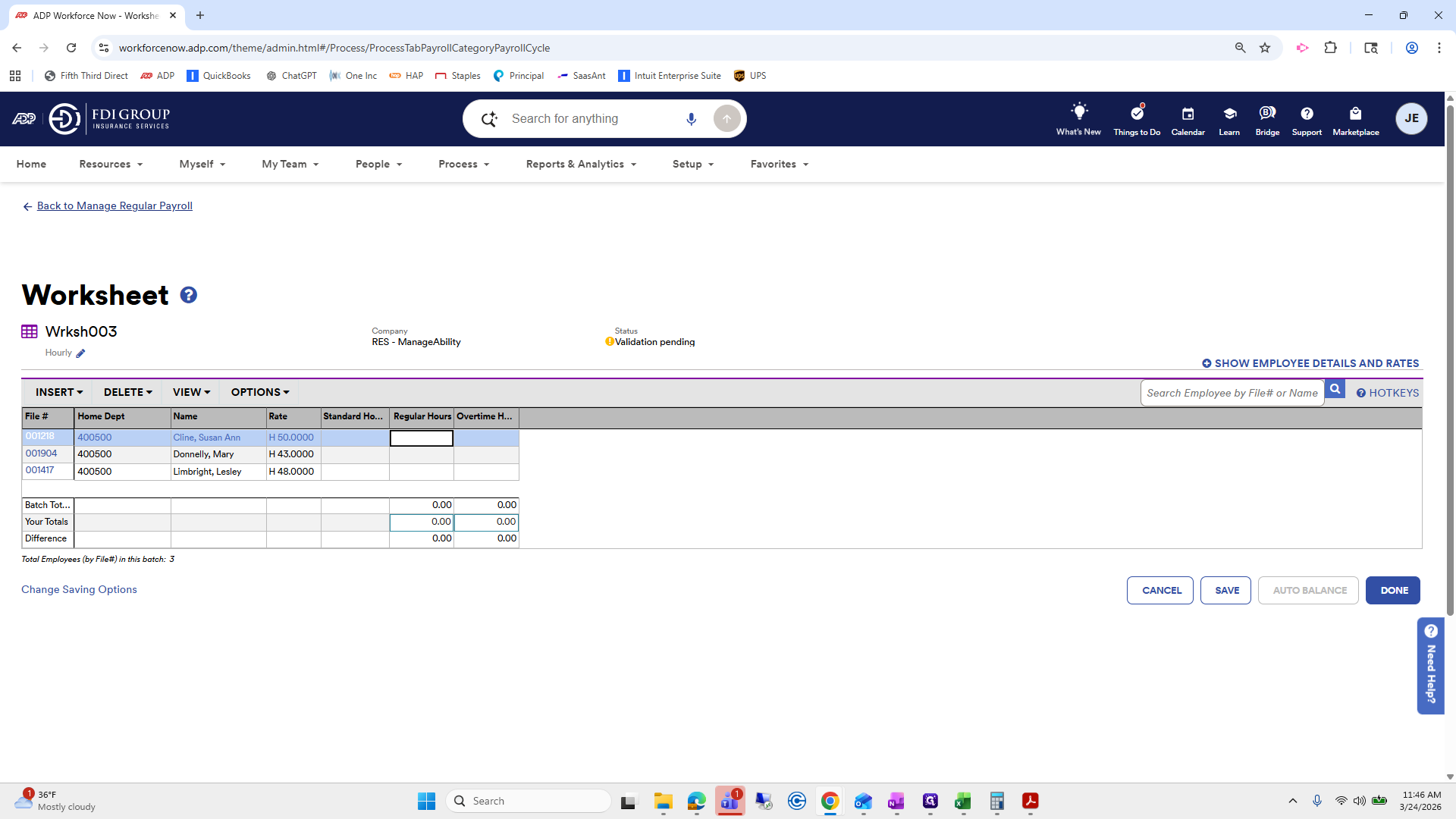
We will select the hourly create worksheet.
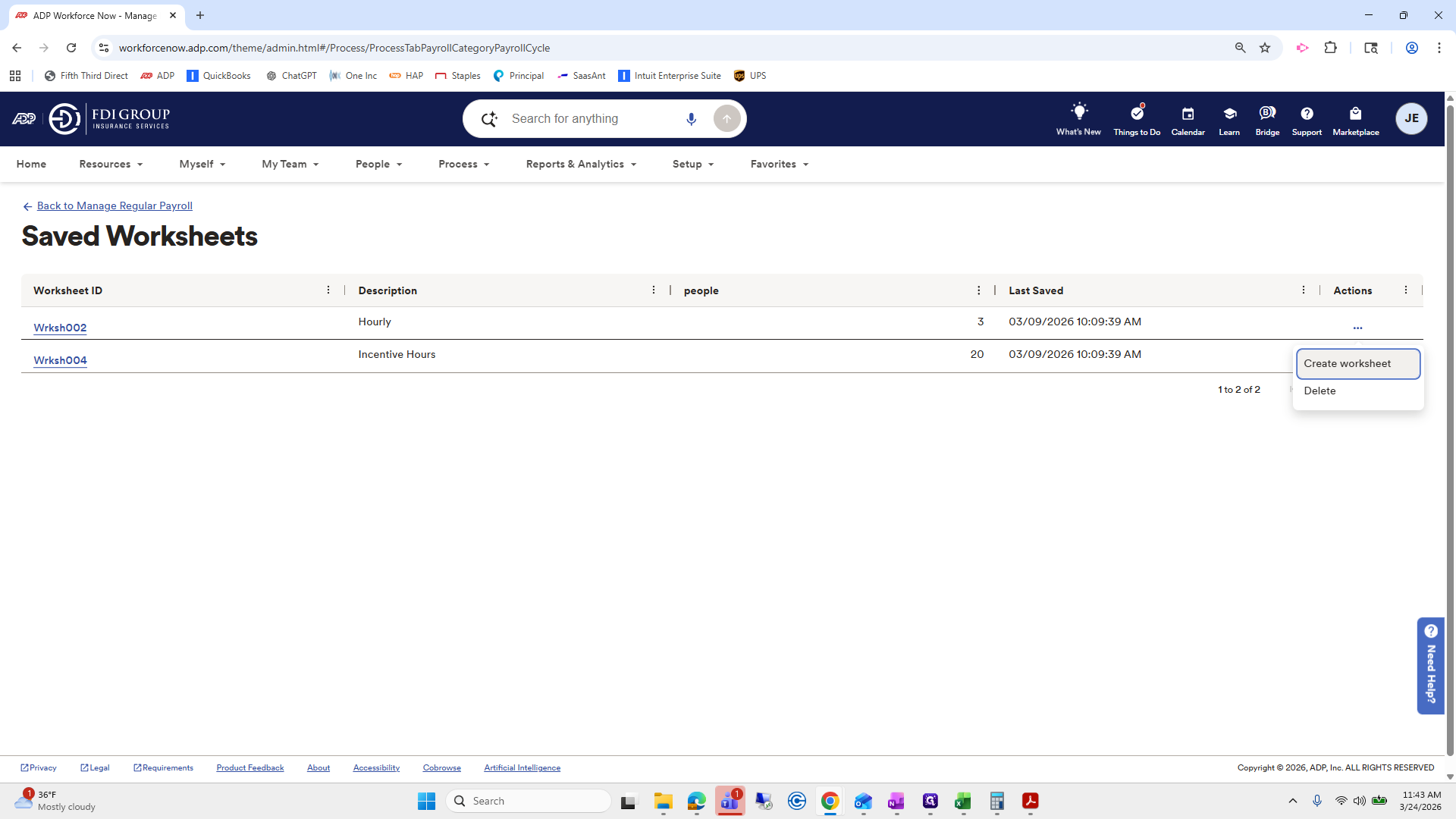
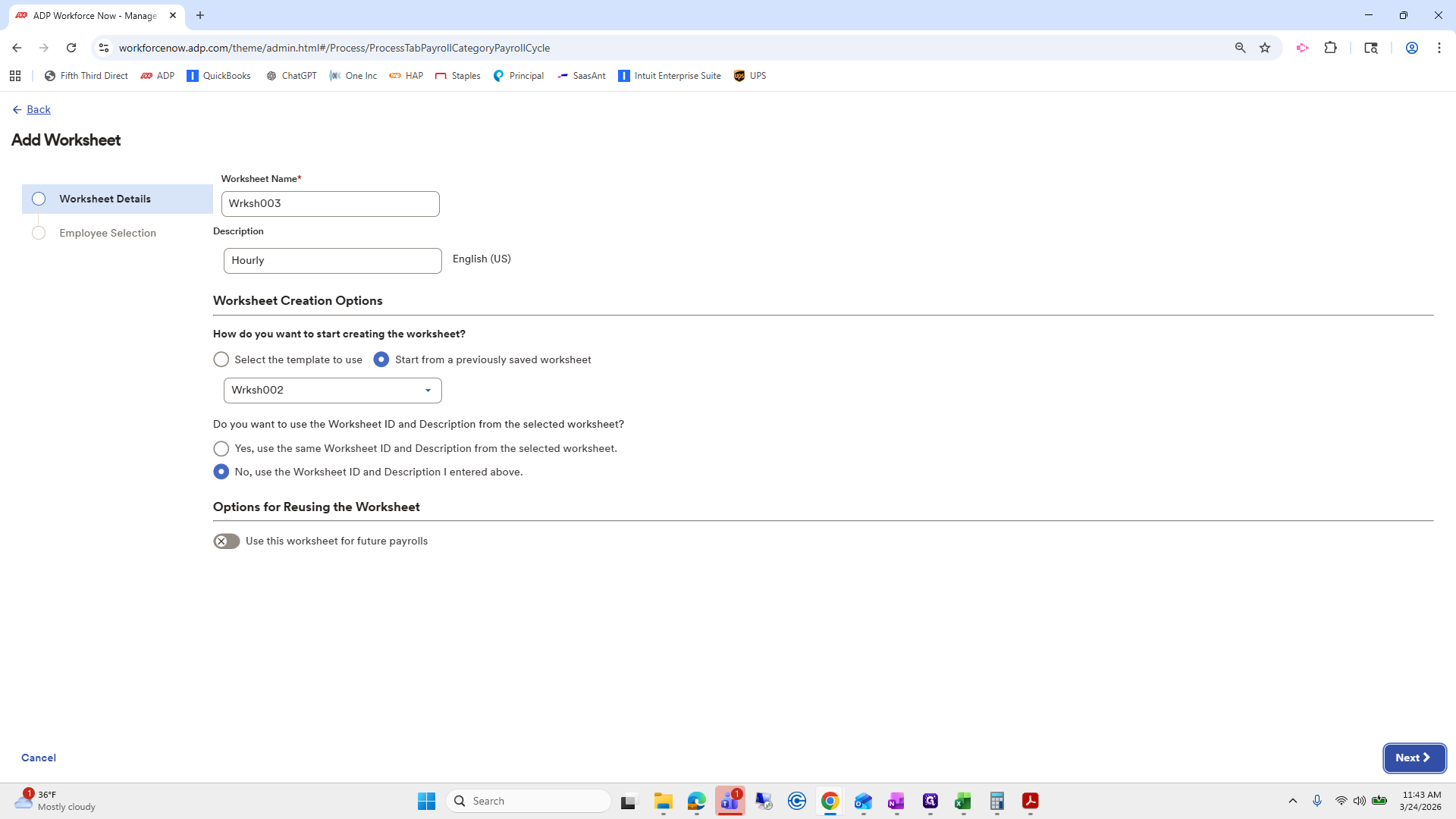
I’ll choose hourly here and click Next.
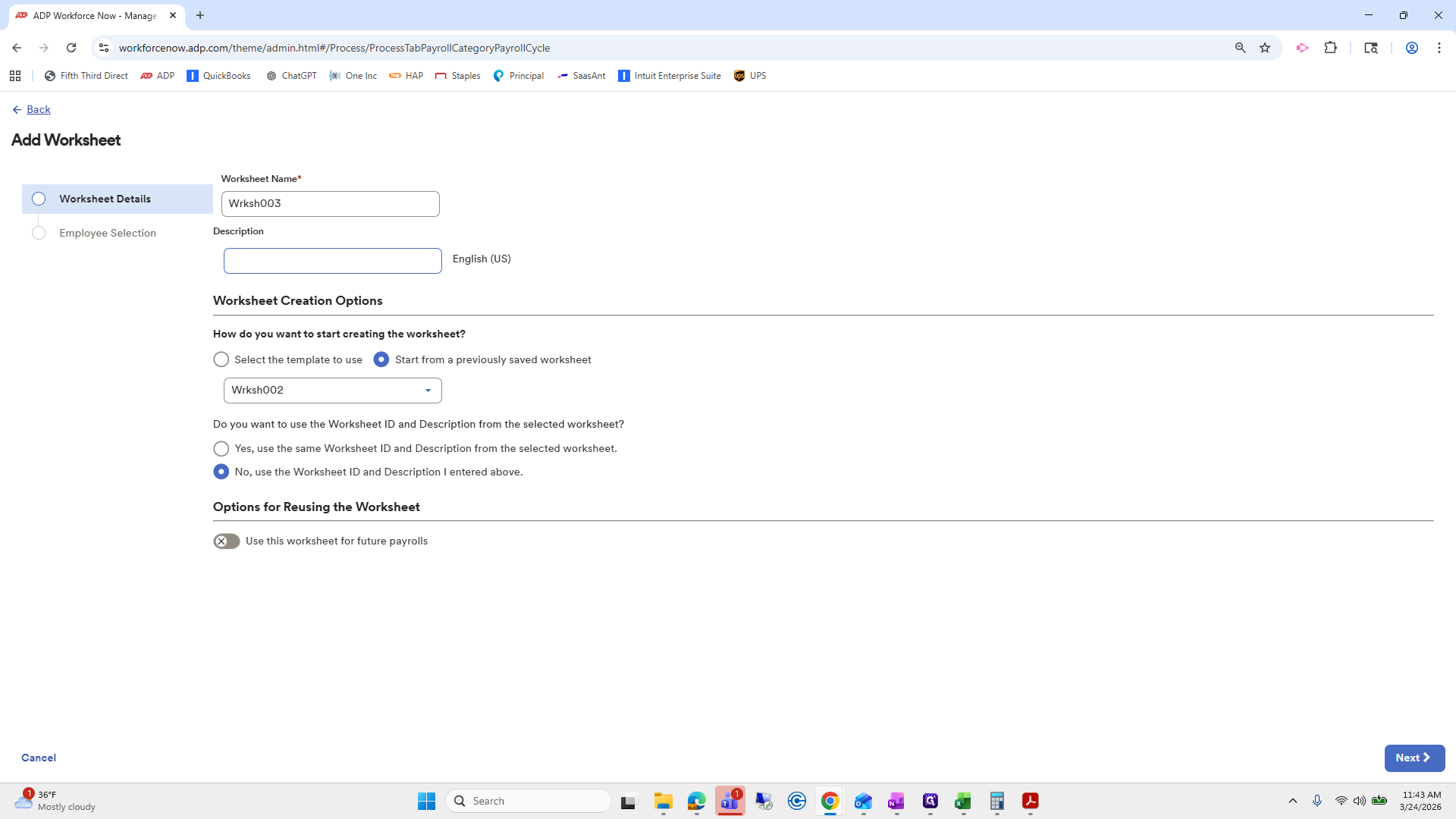
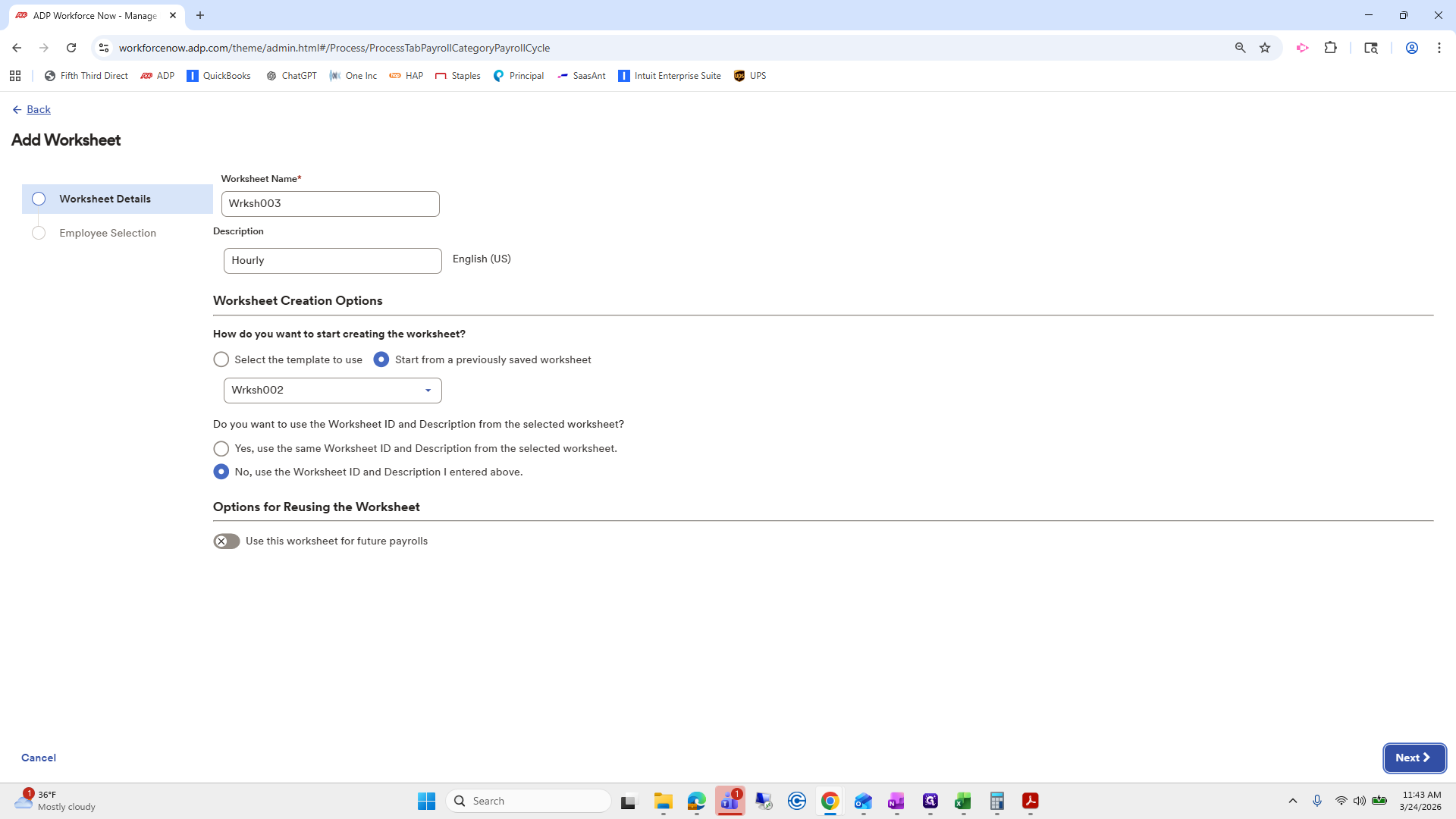
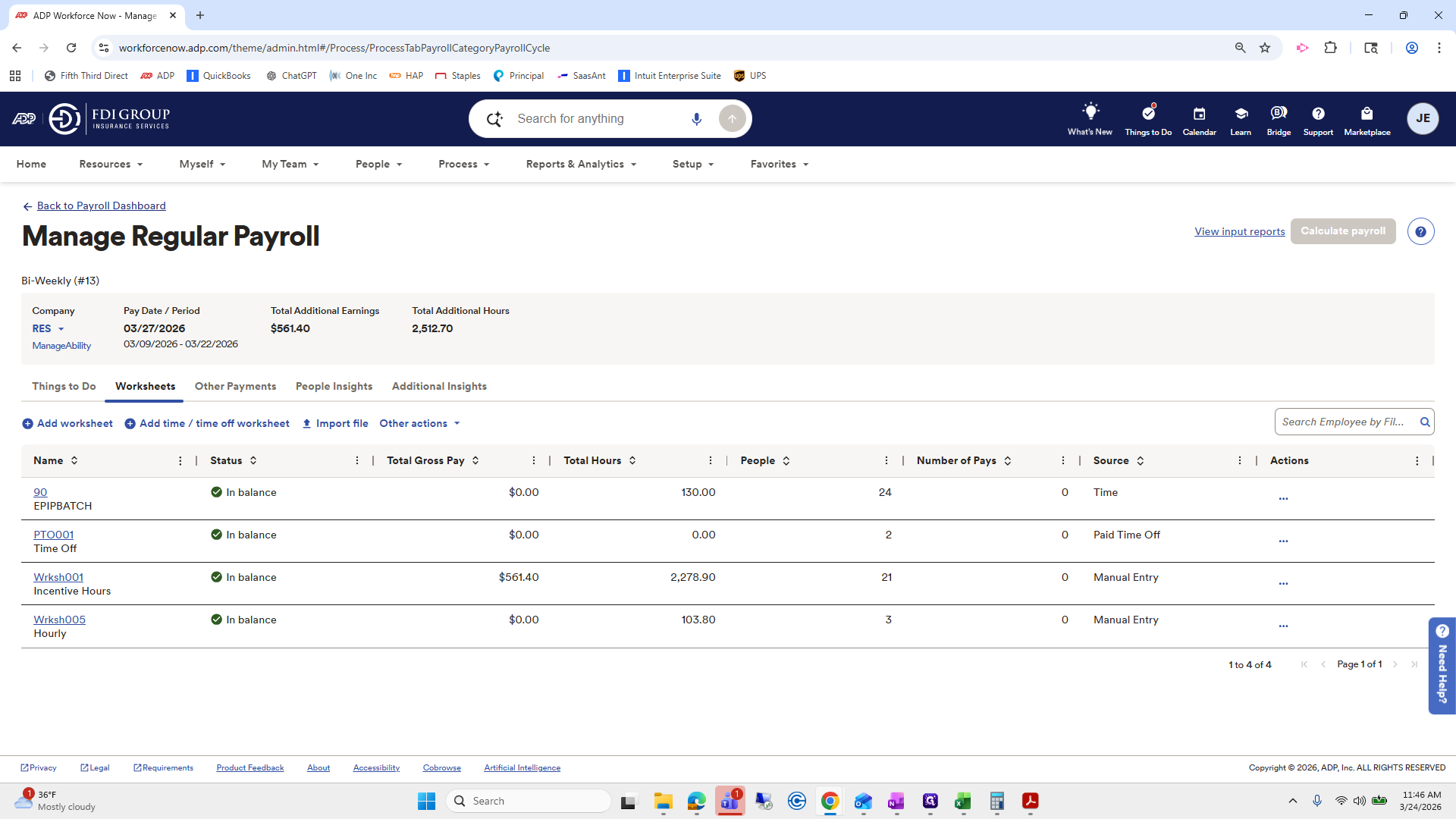
It includes all hourly employees, but it appears to have selected more than just hourly staff.
Hold on, let's check this worksheet.
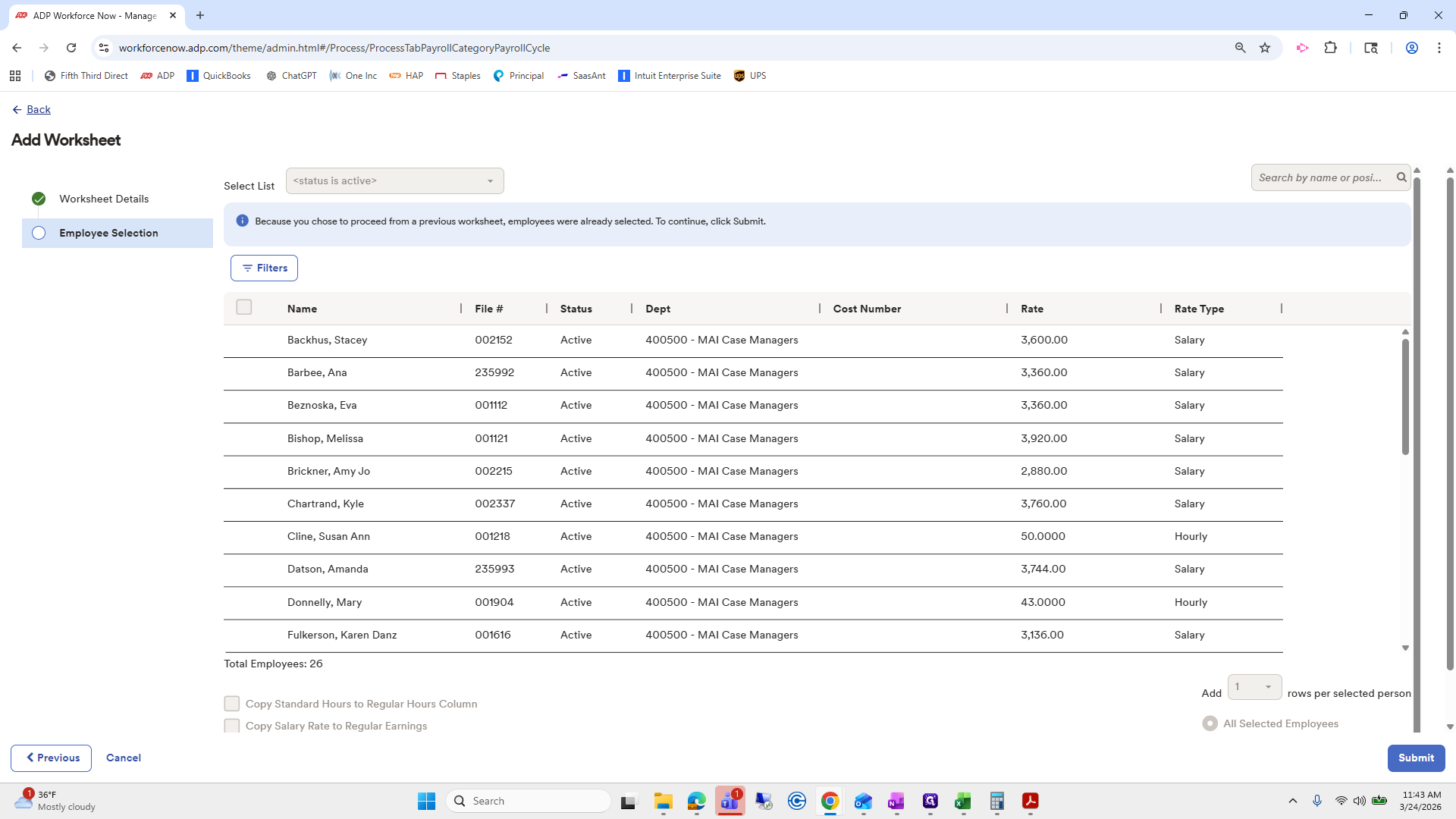
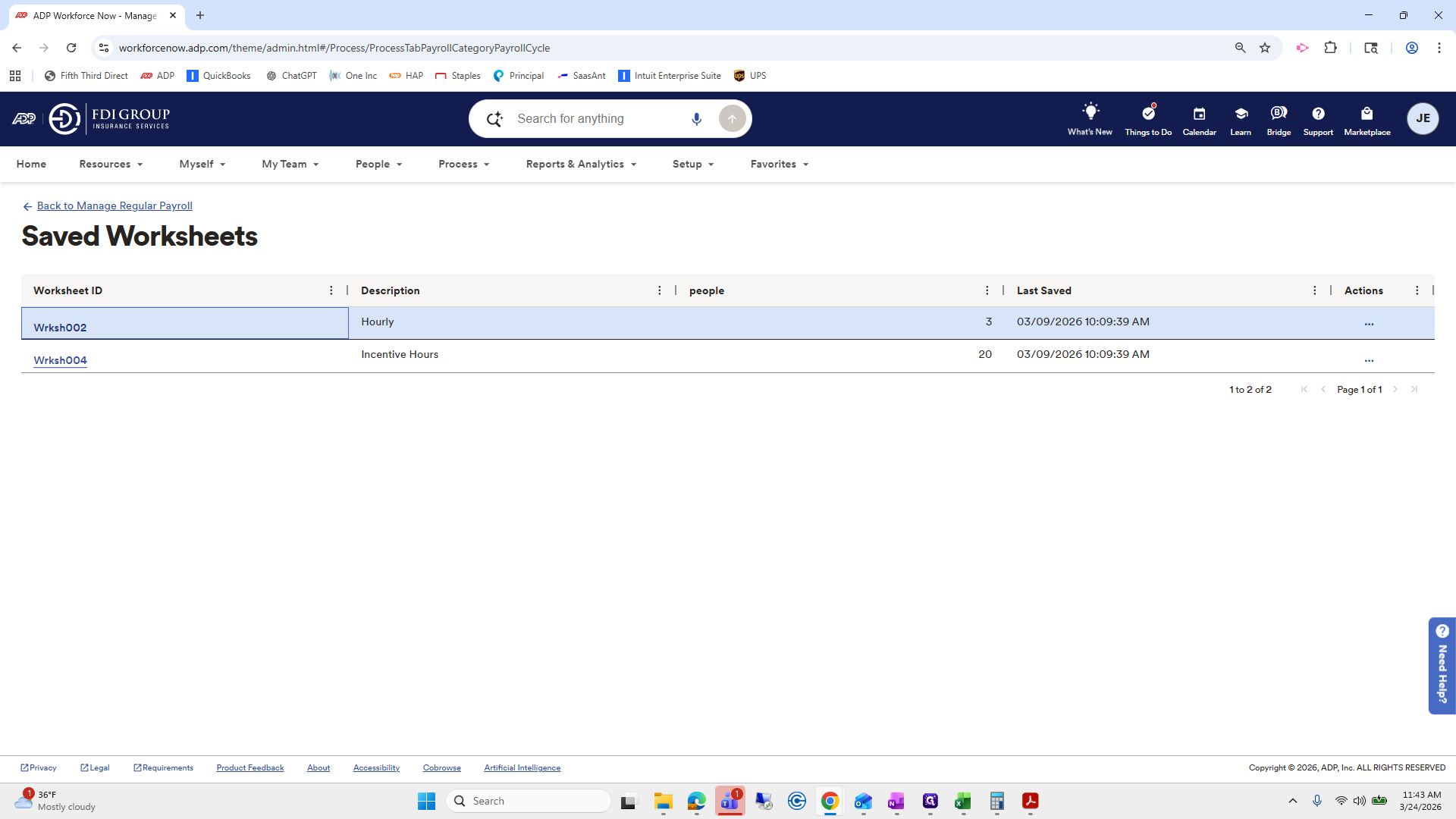
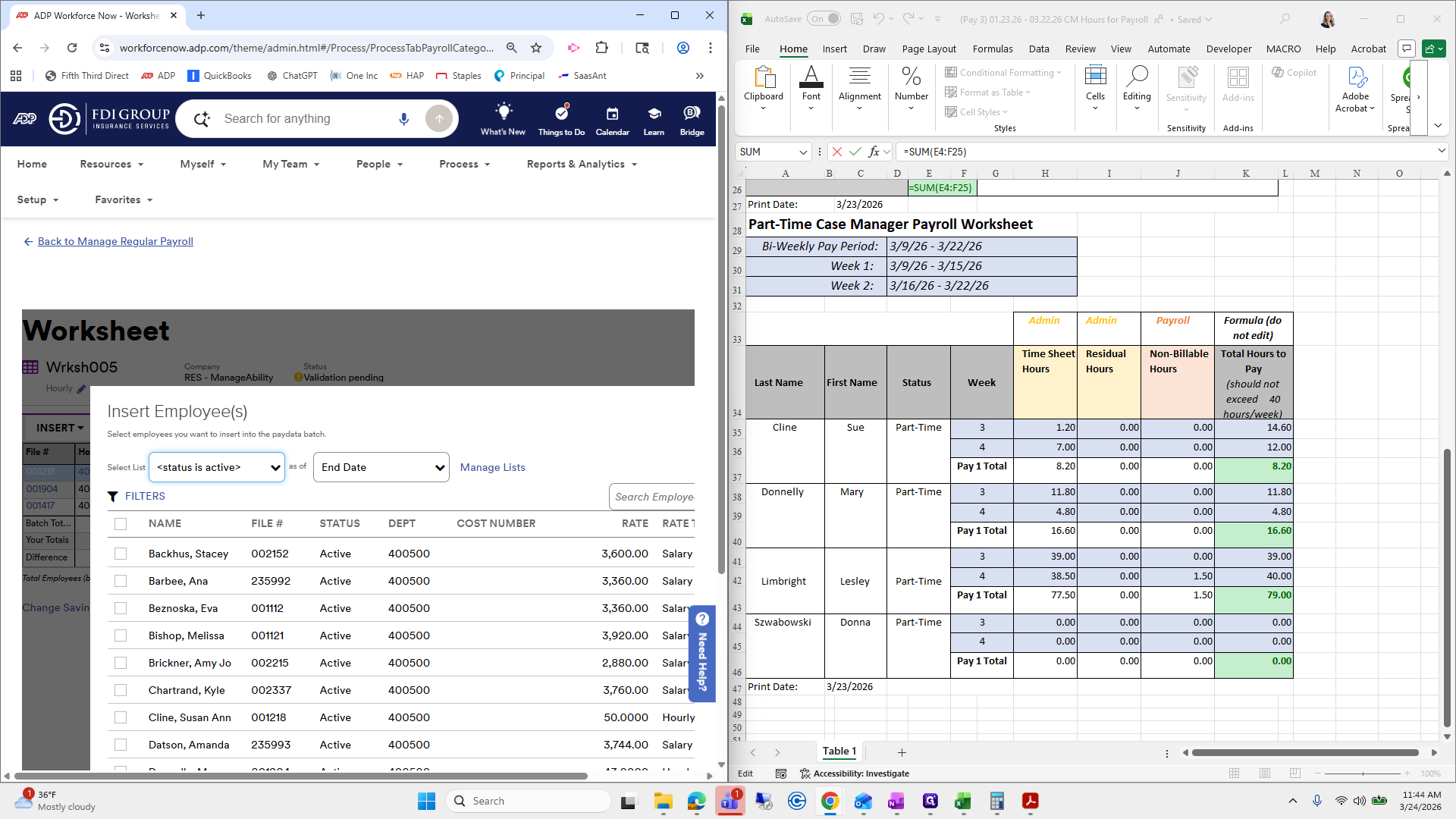
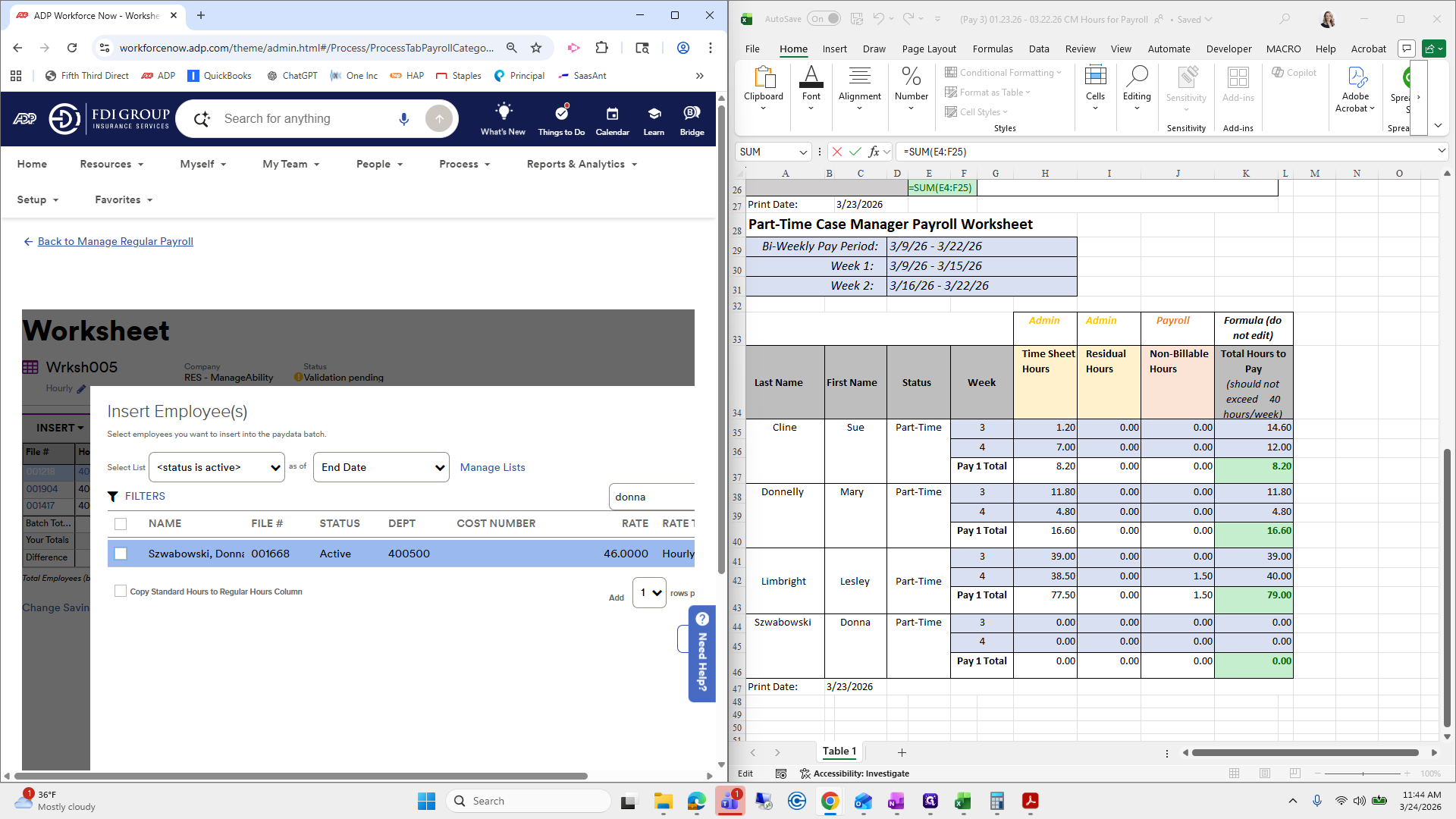
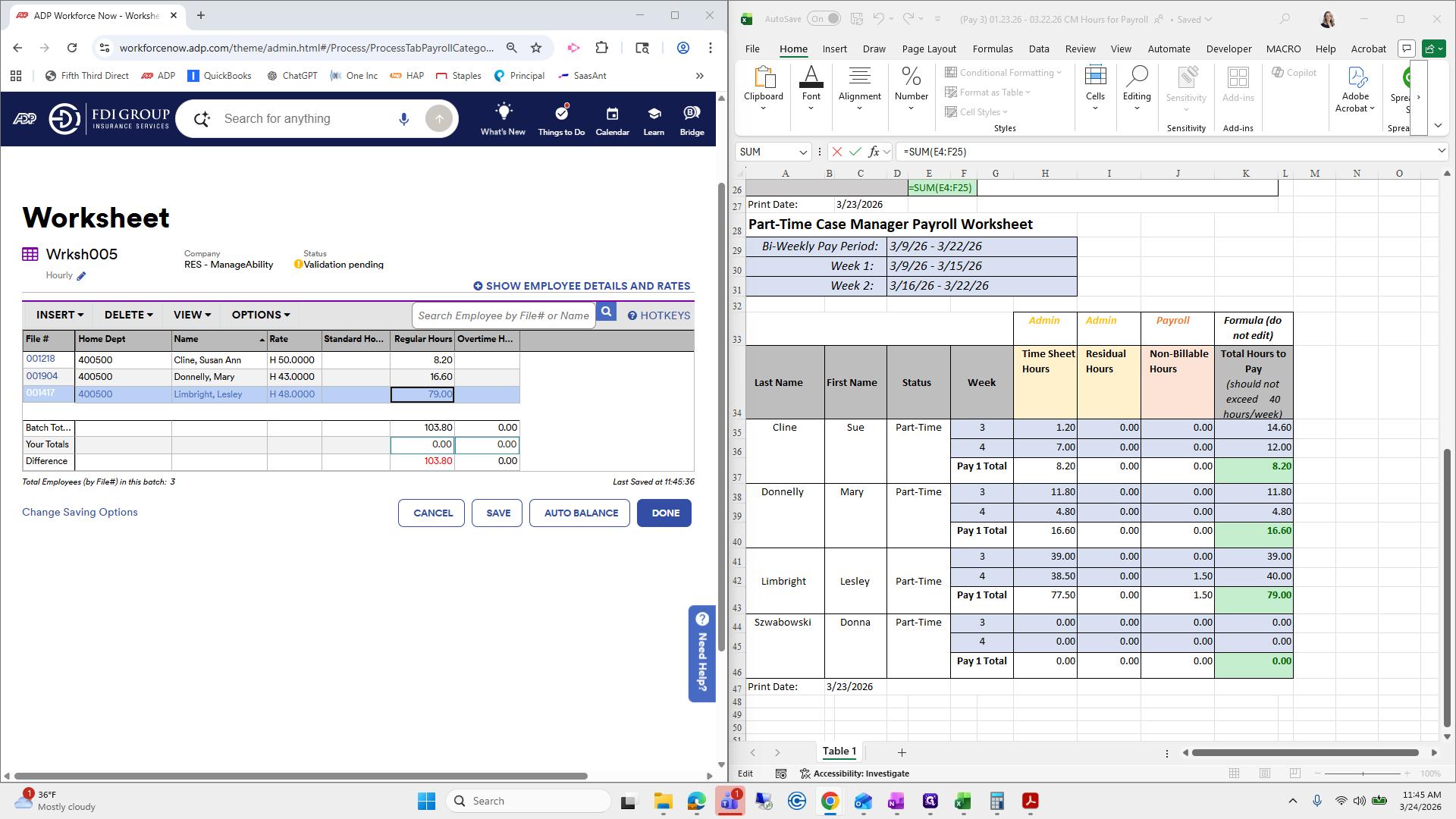
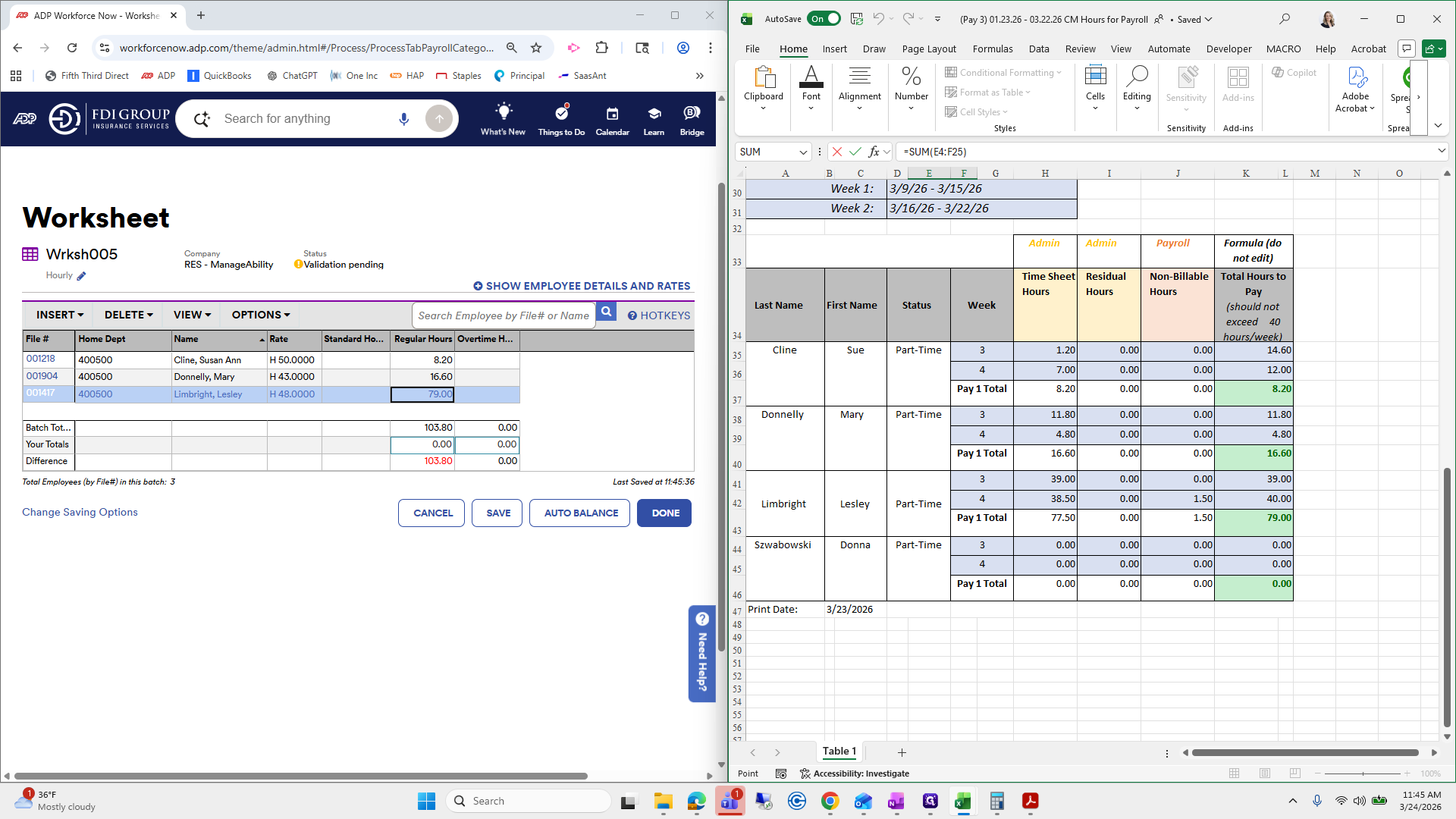
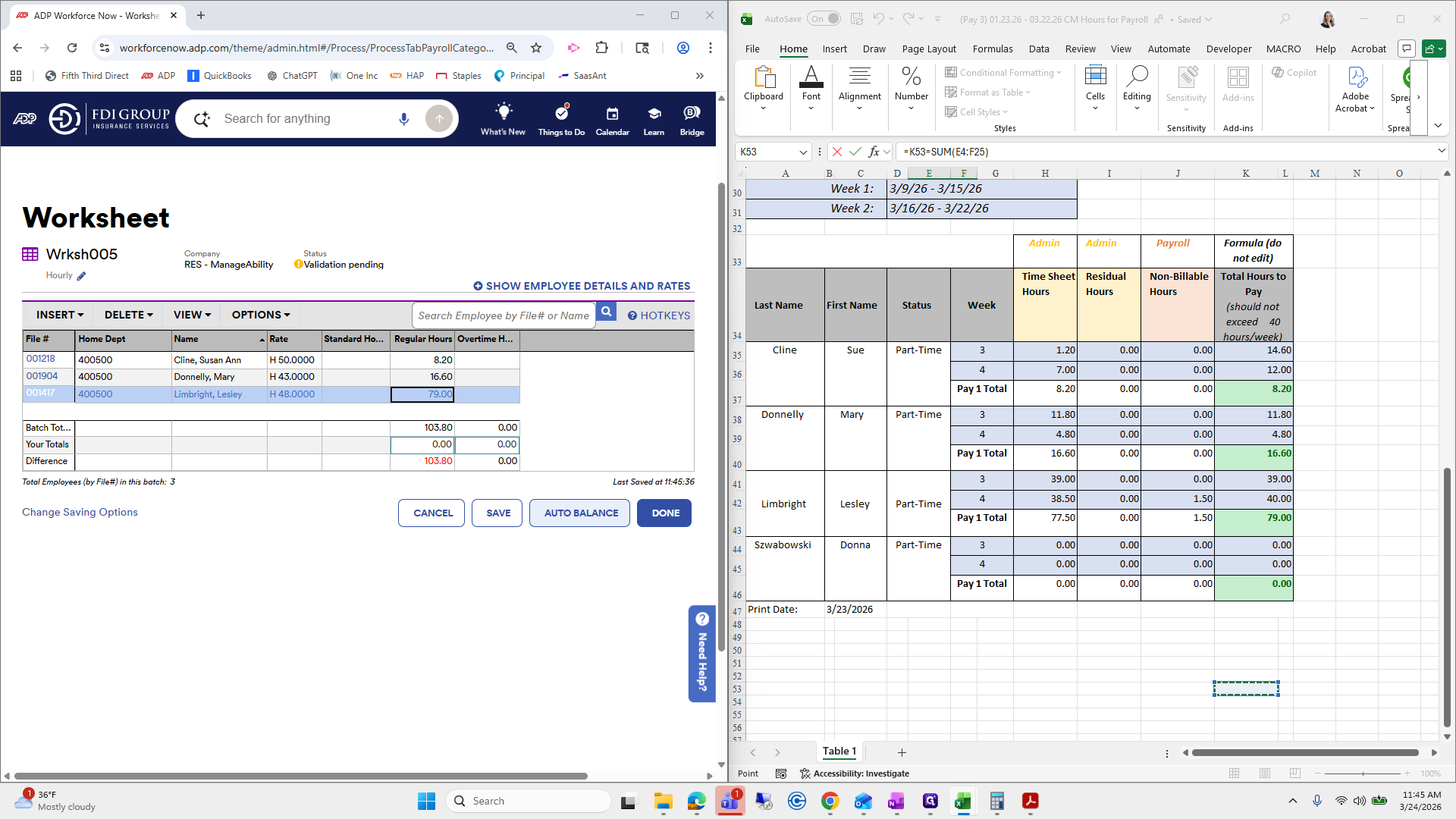
Okay, since we added all the hourly, there are three here, but it looks like we need to add... I will work from the worksheet I exported from the PDF. It looks like I'm missing Leslie Lim. The computer paused again. Donna is missing, so we need to insert her.
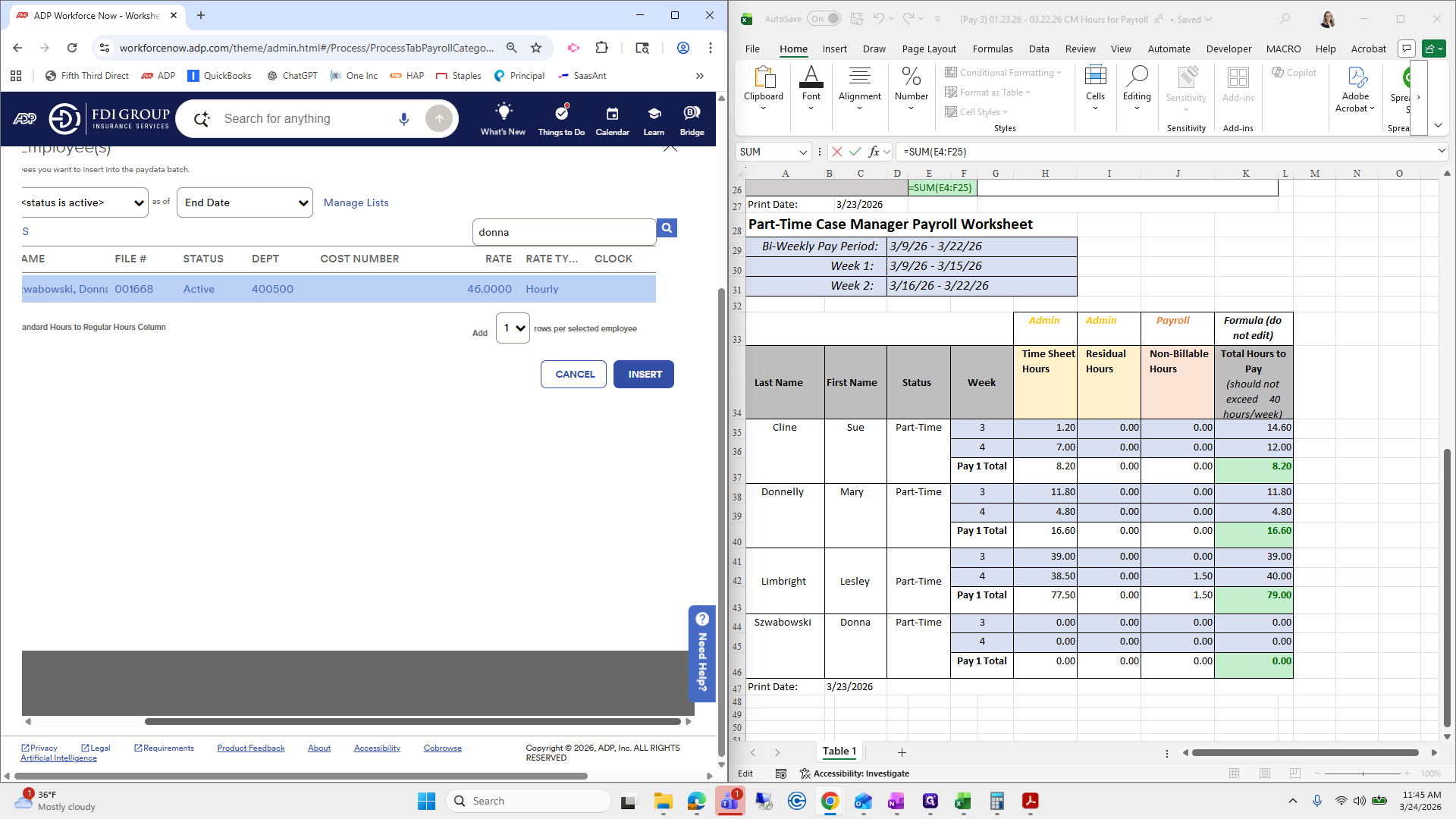
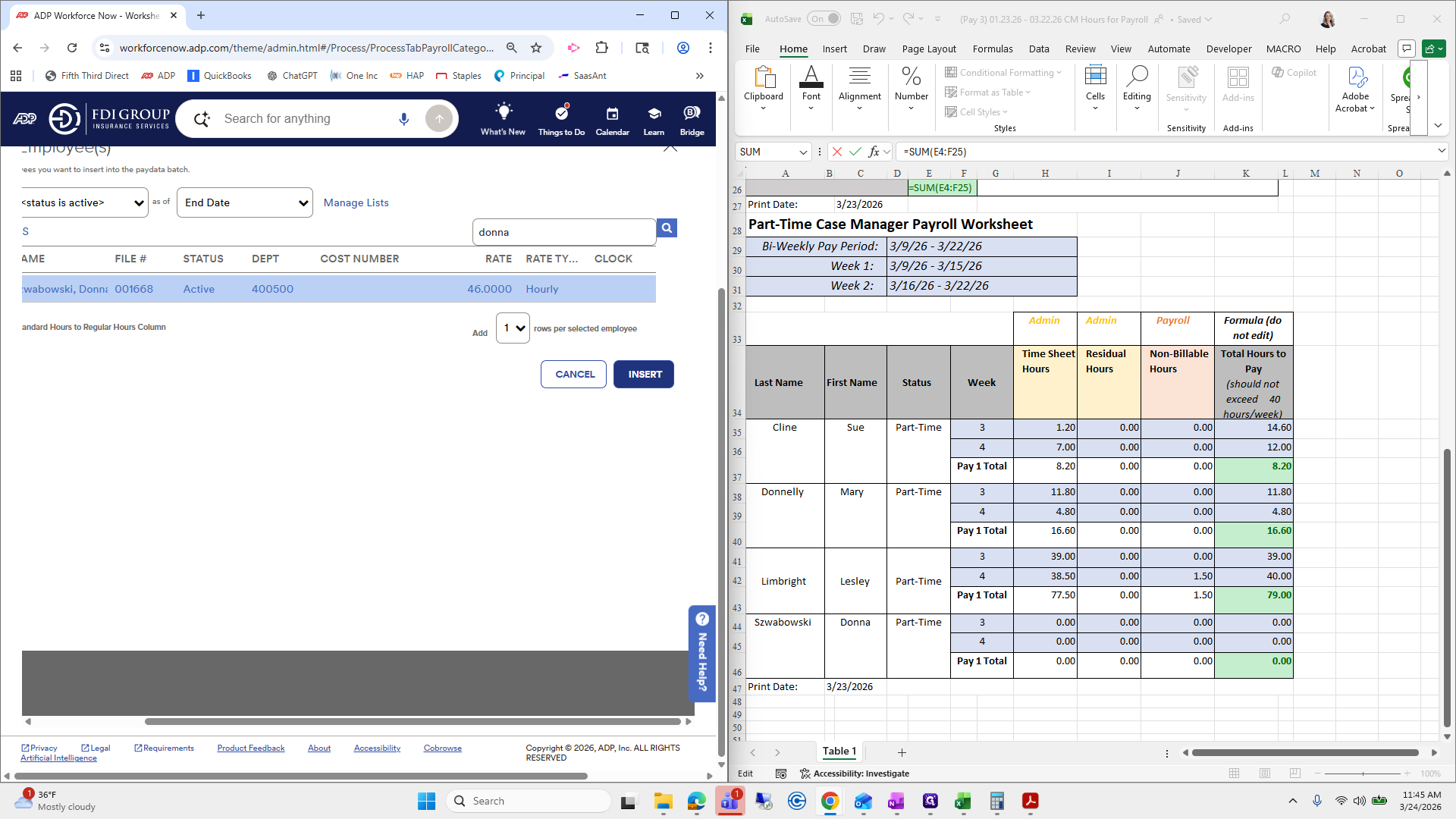
Click Donna, then click Insert.
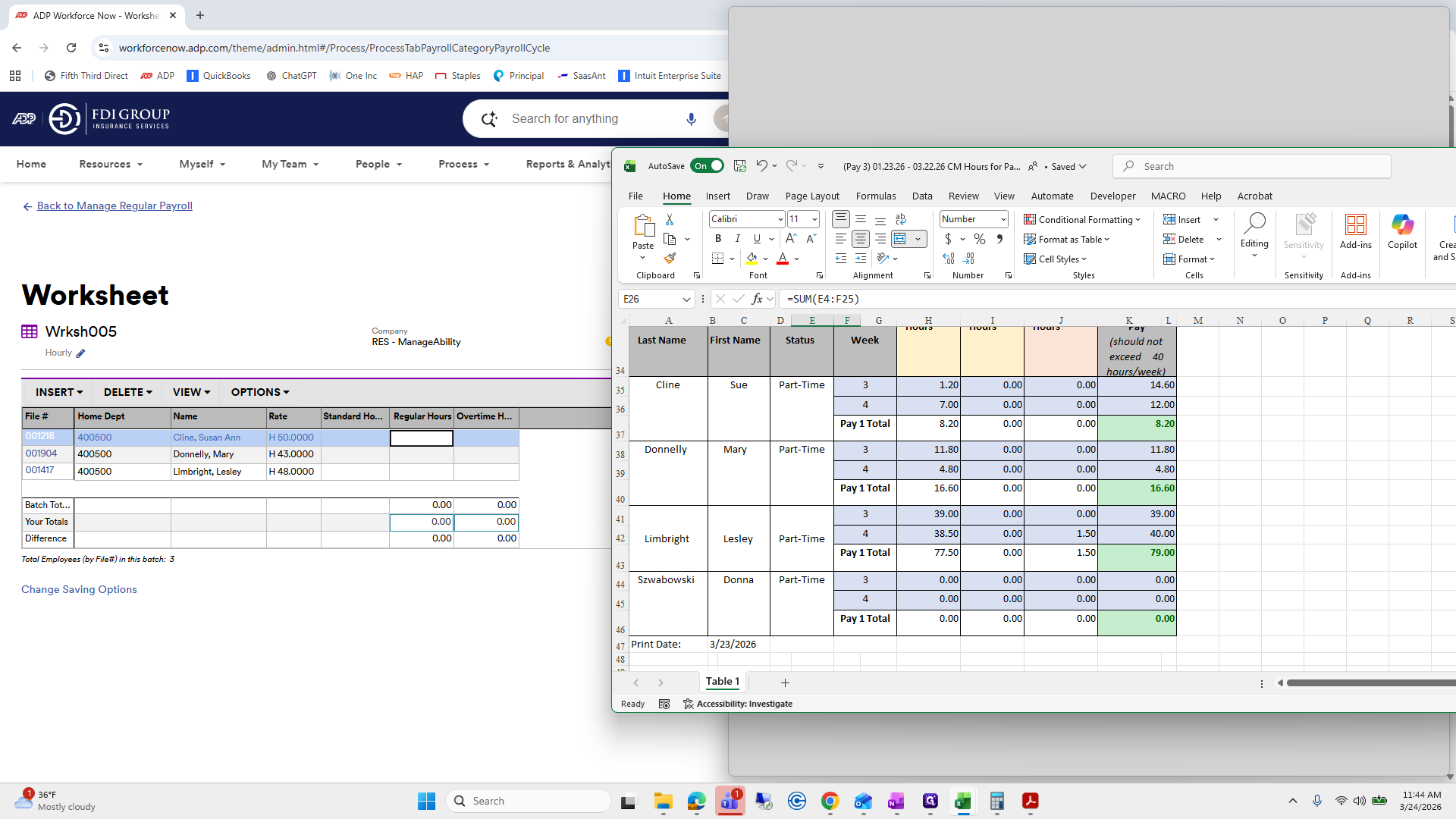
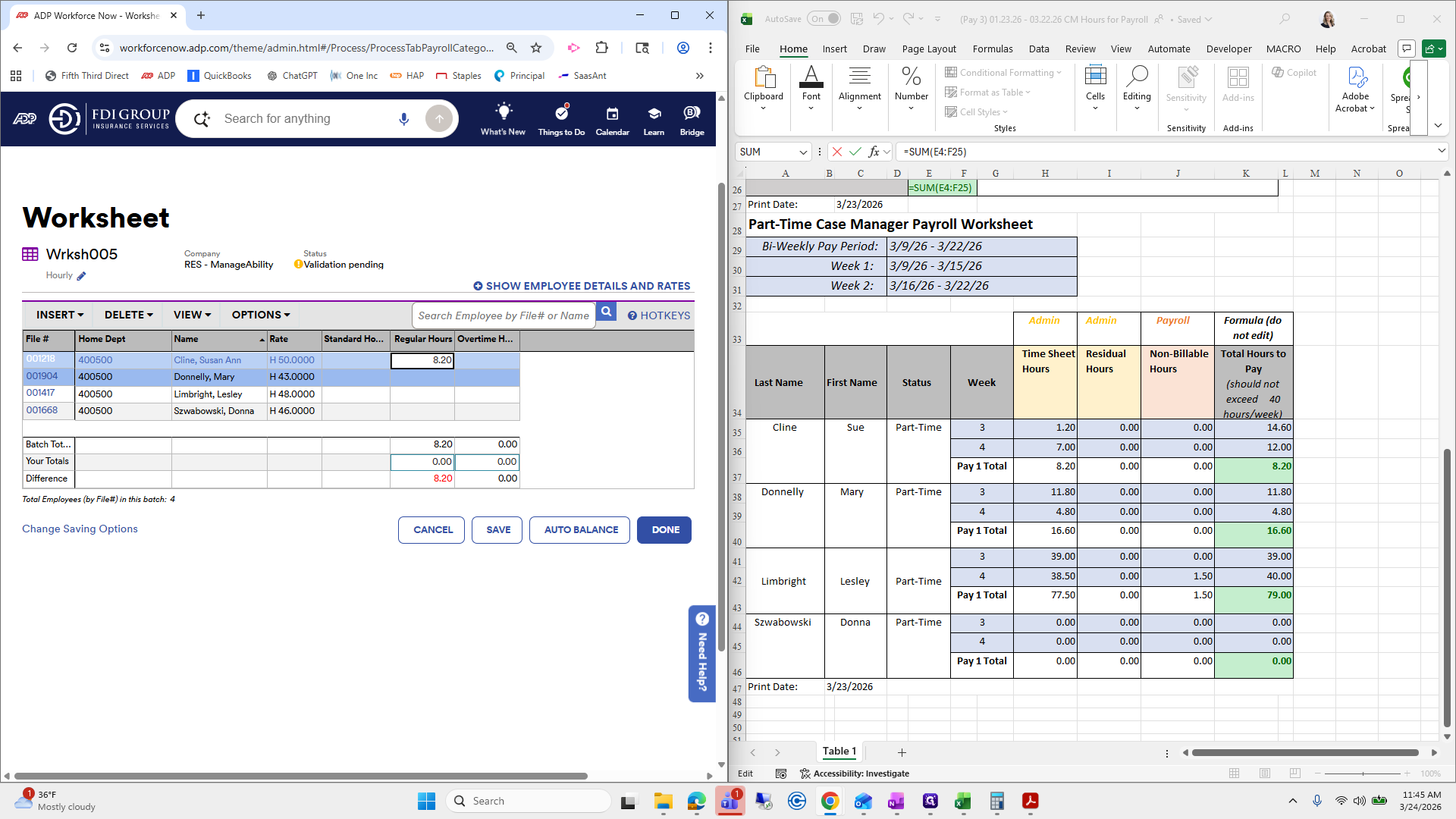
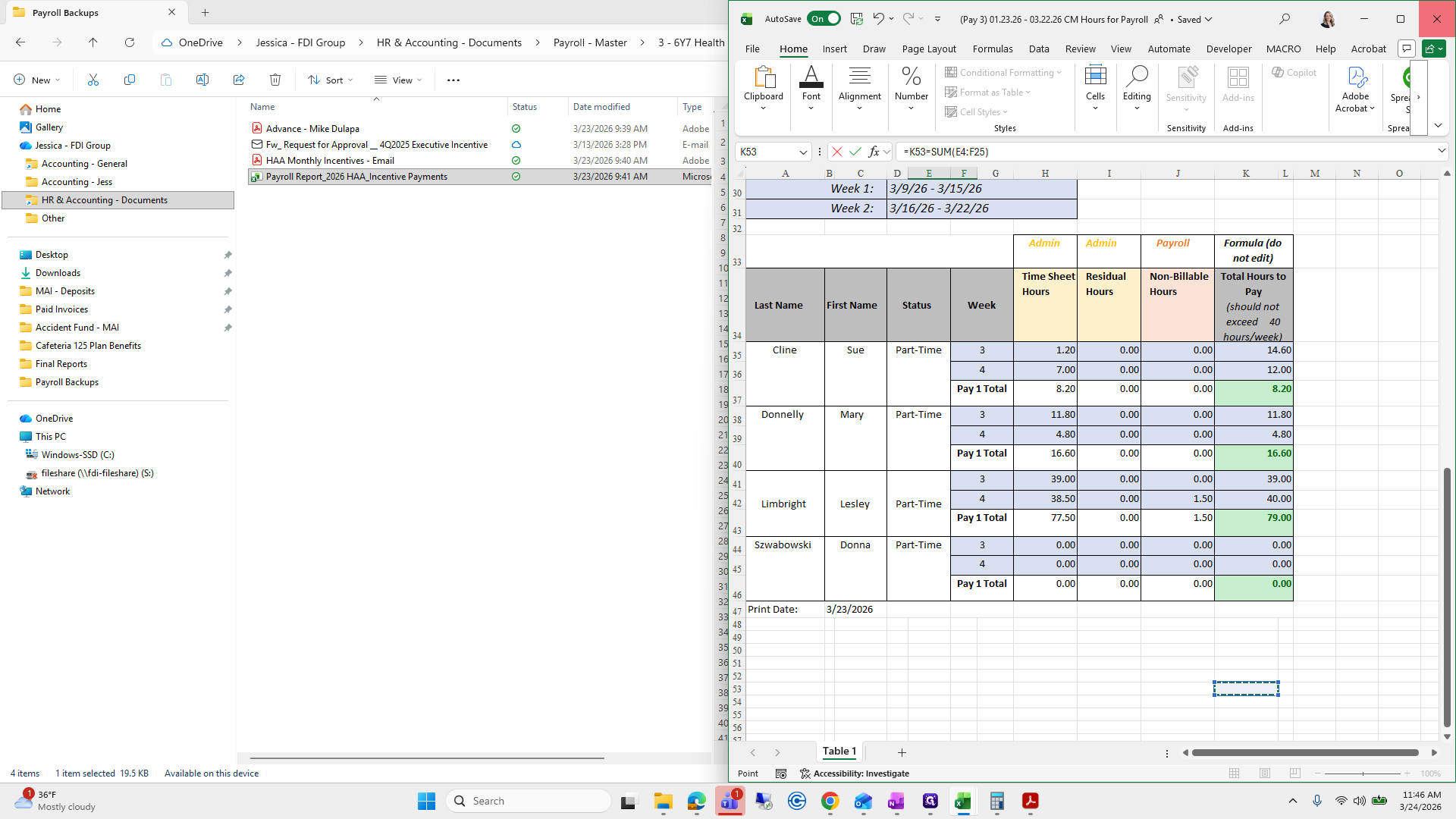
There she is. All right, on the standard hours line, Sue has 8.2.
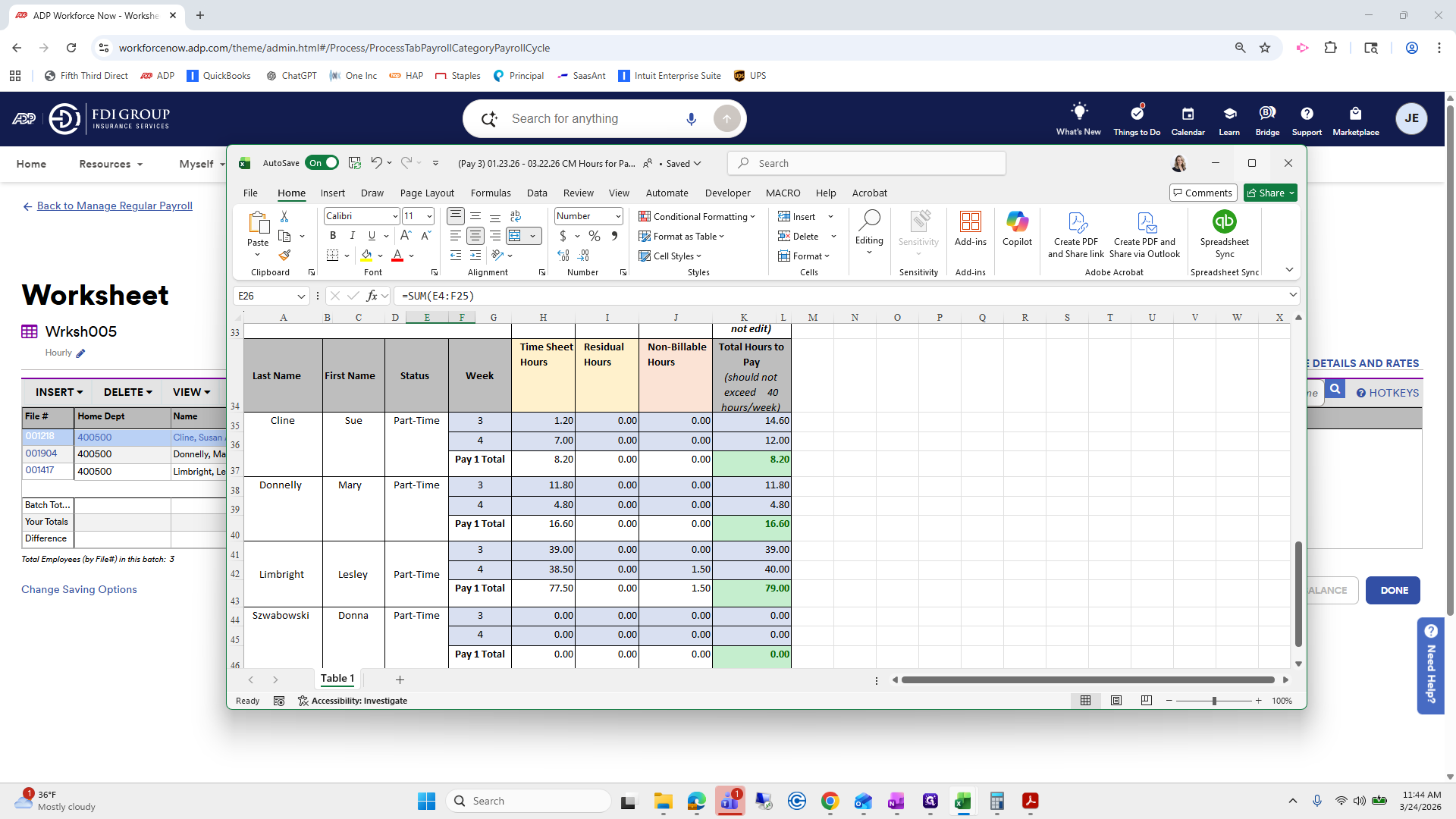
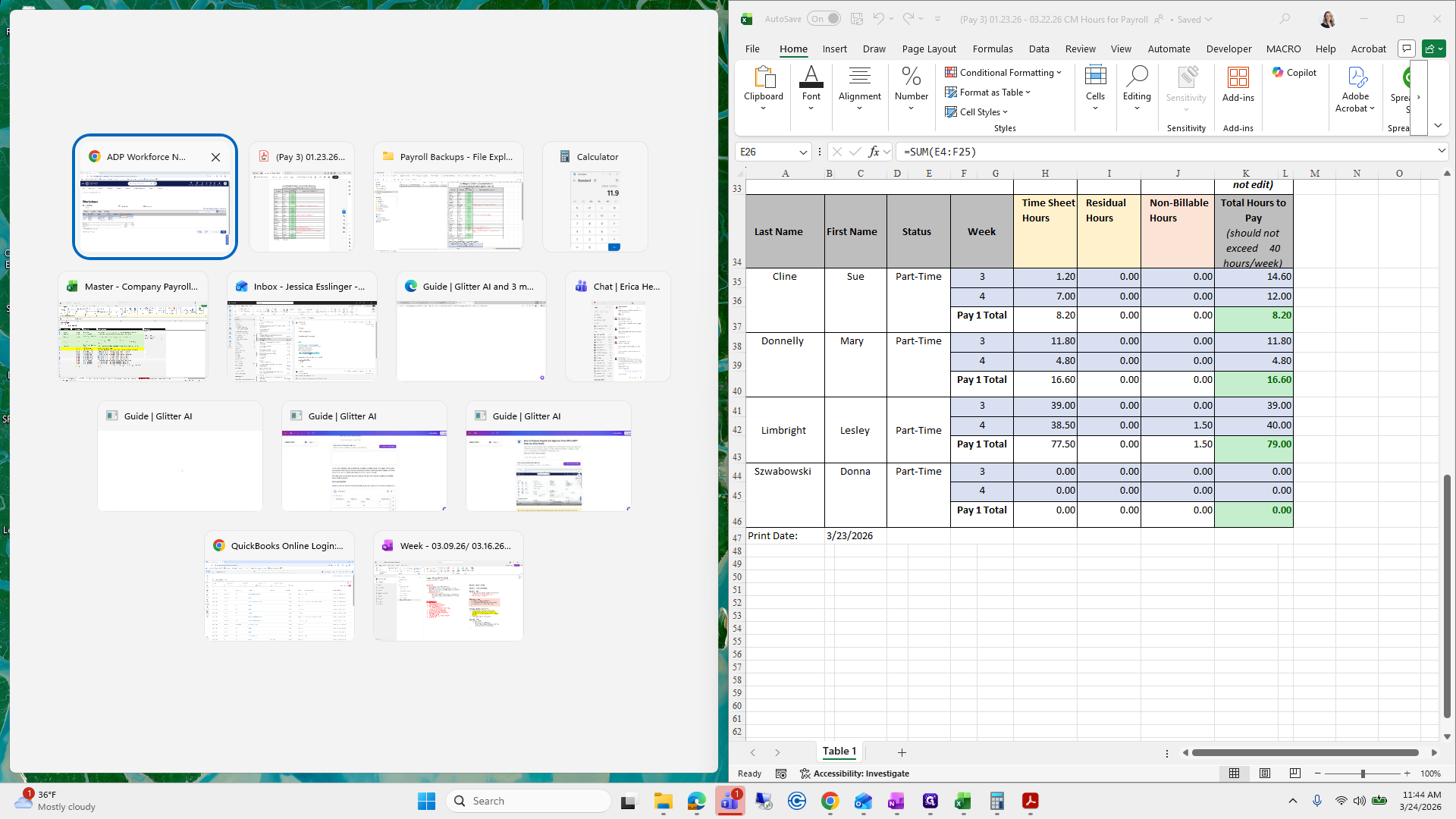
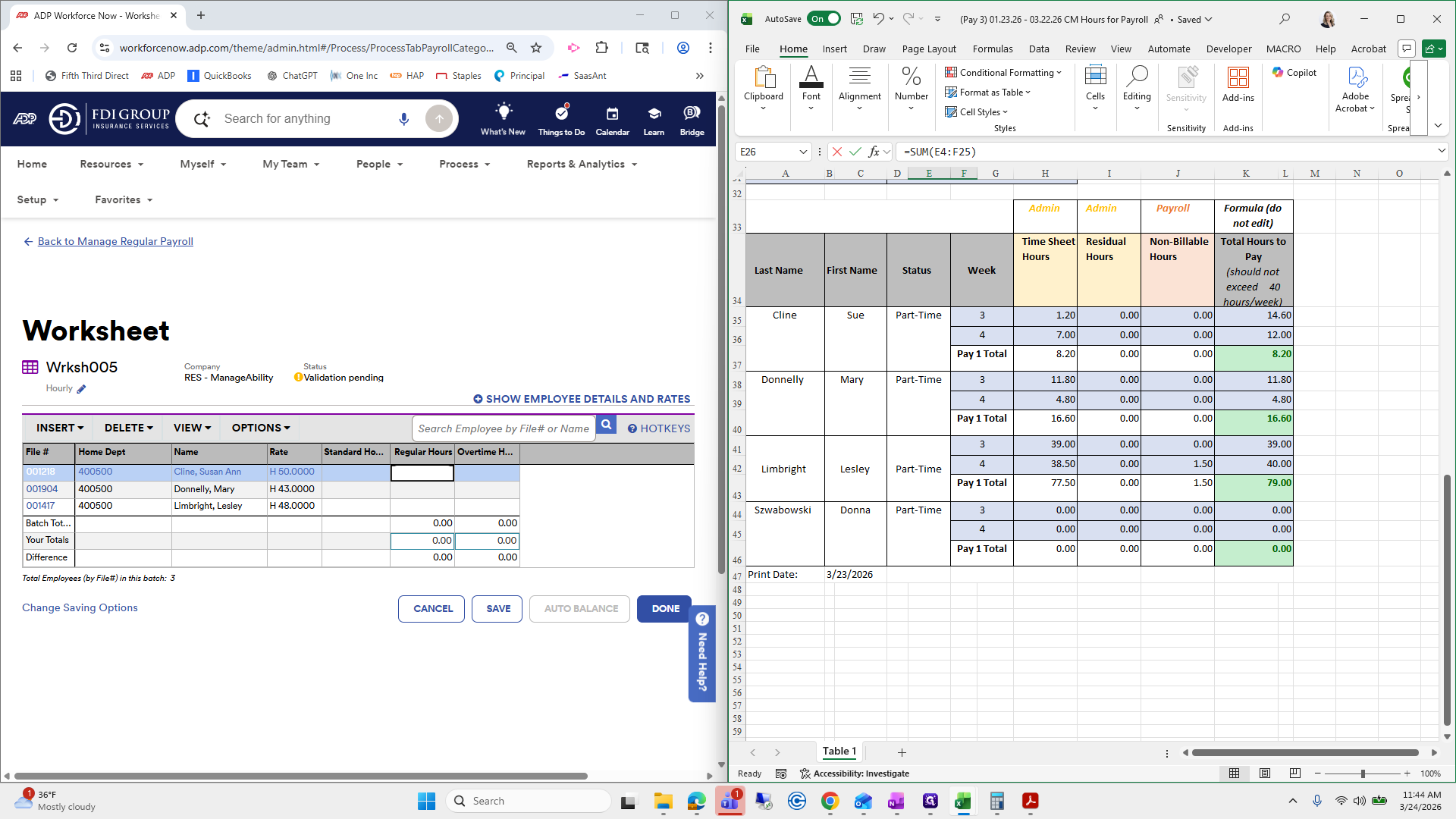
Regulars hour. I made a mistake.
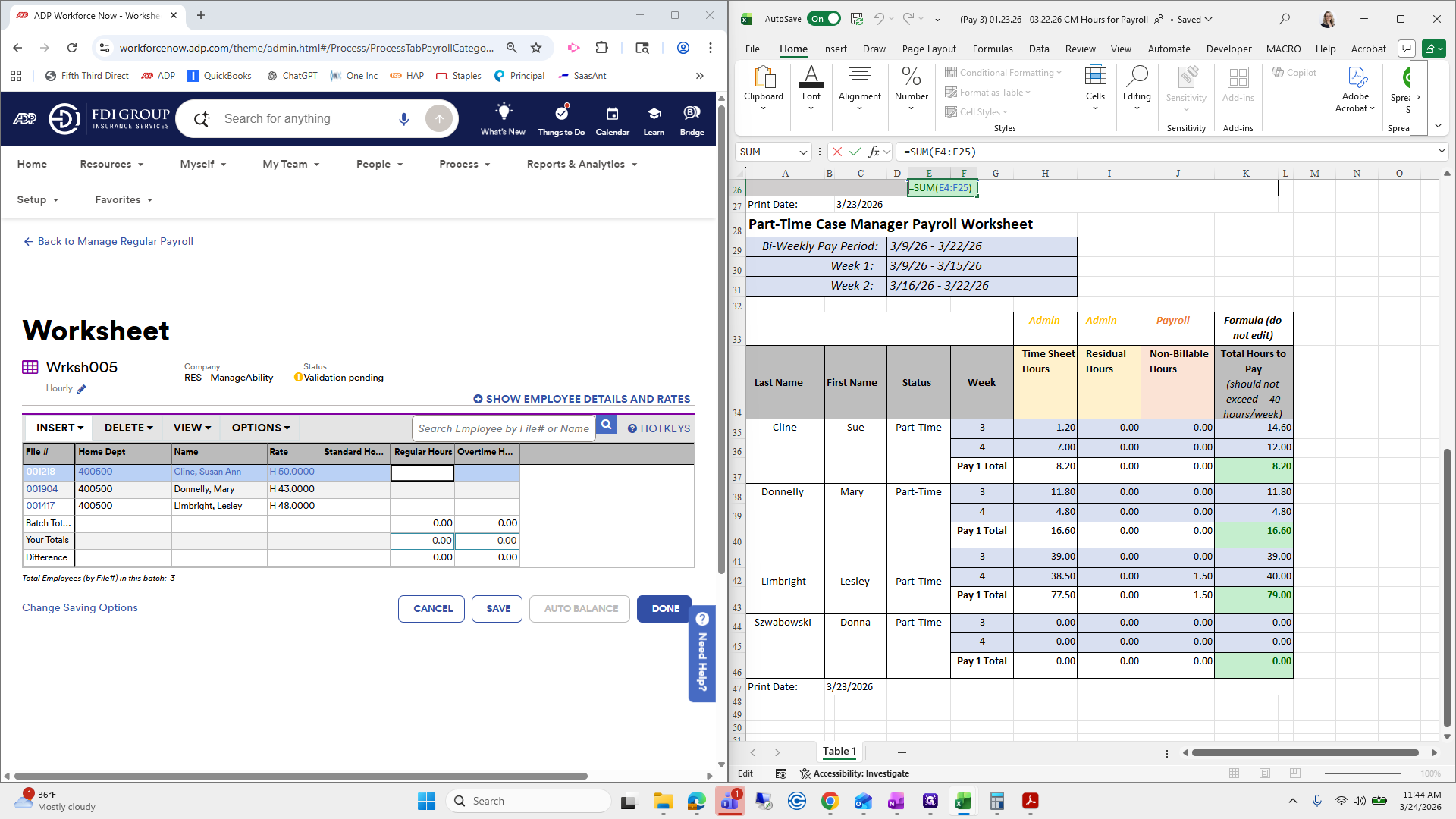
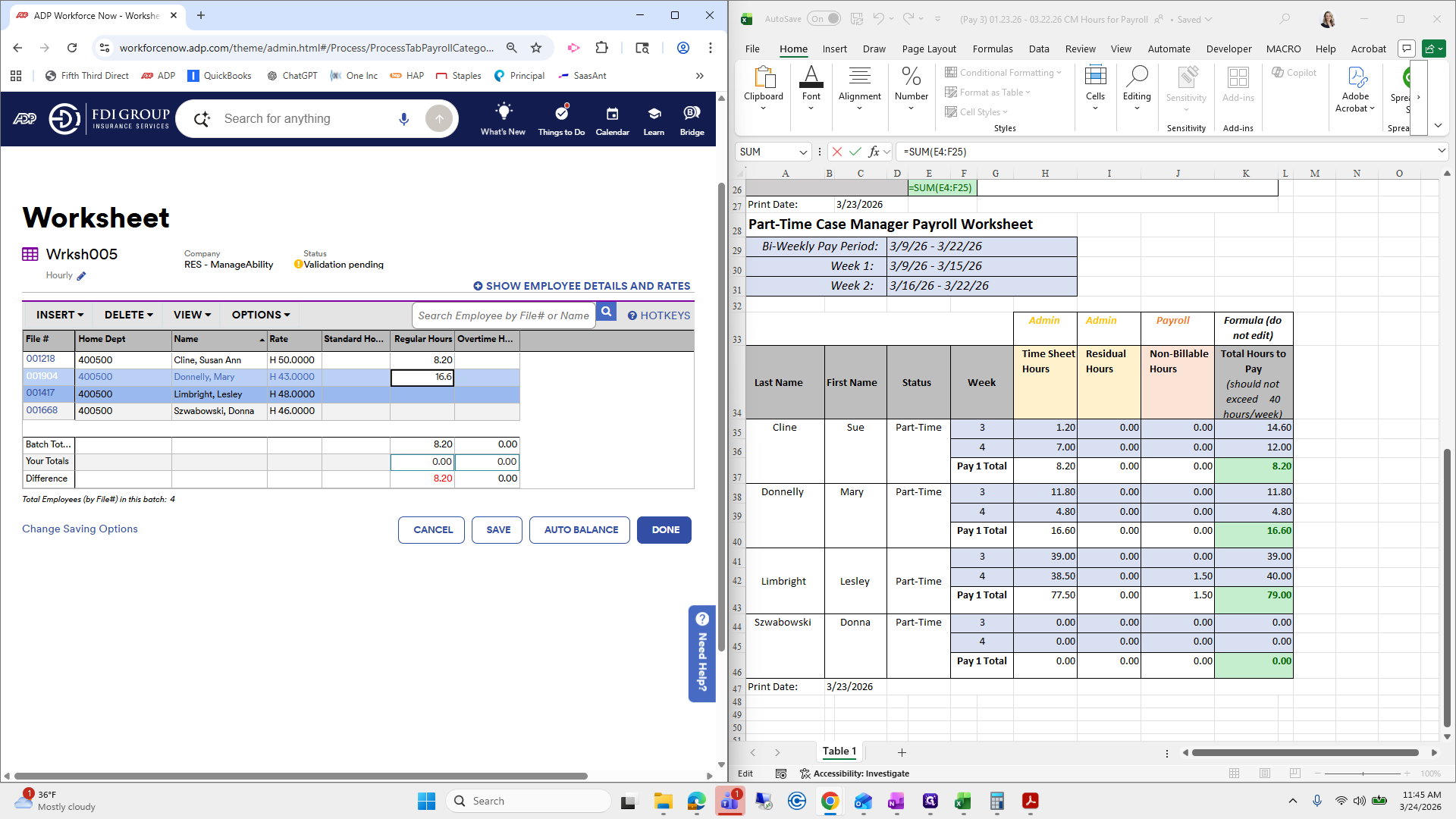
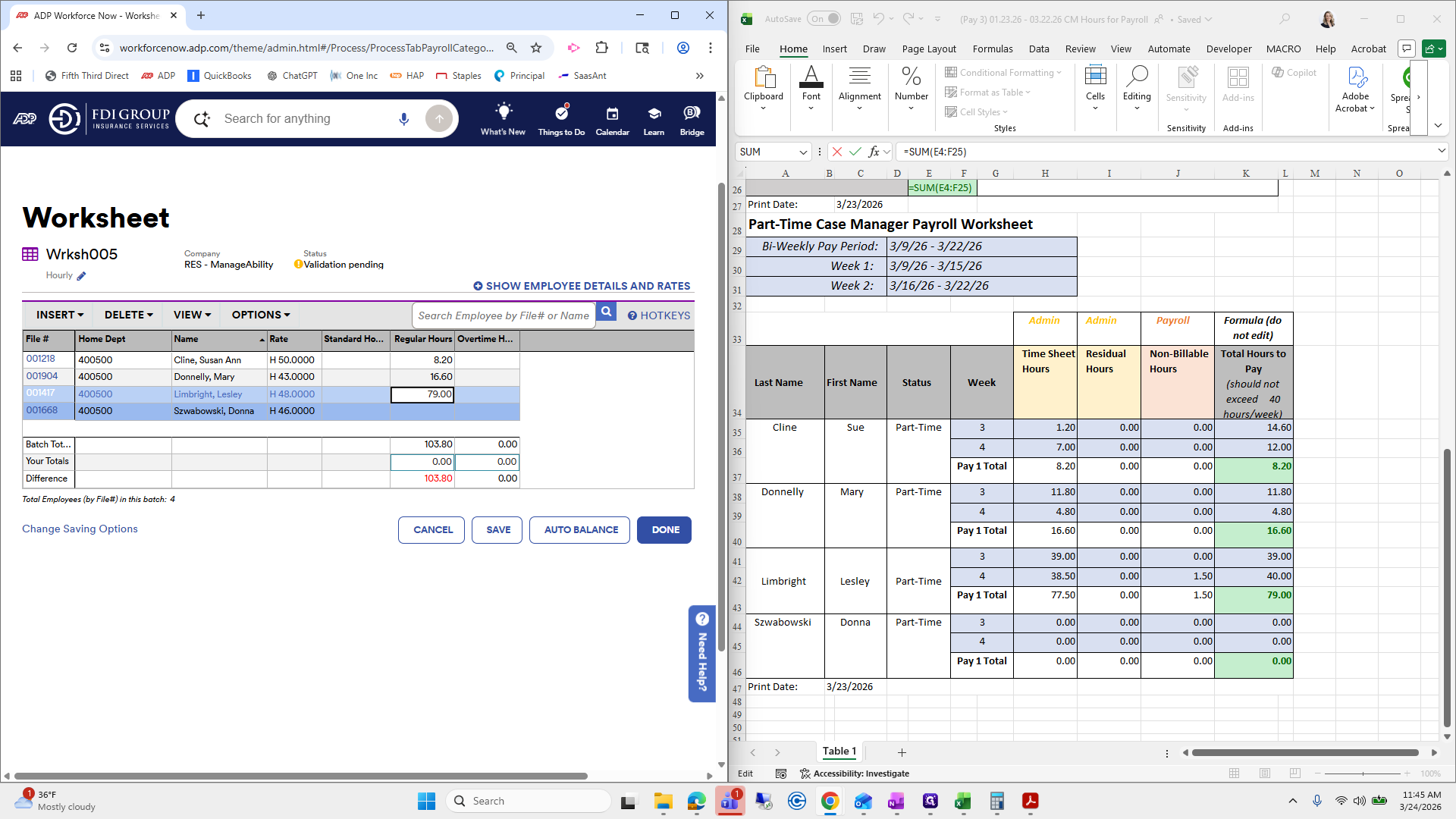
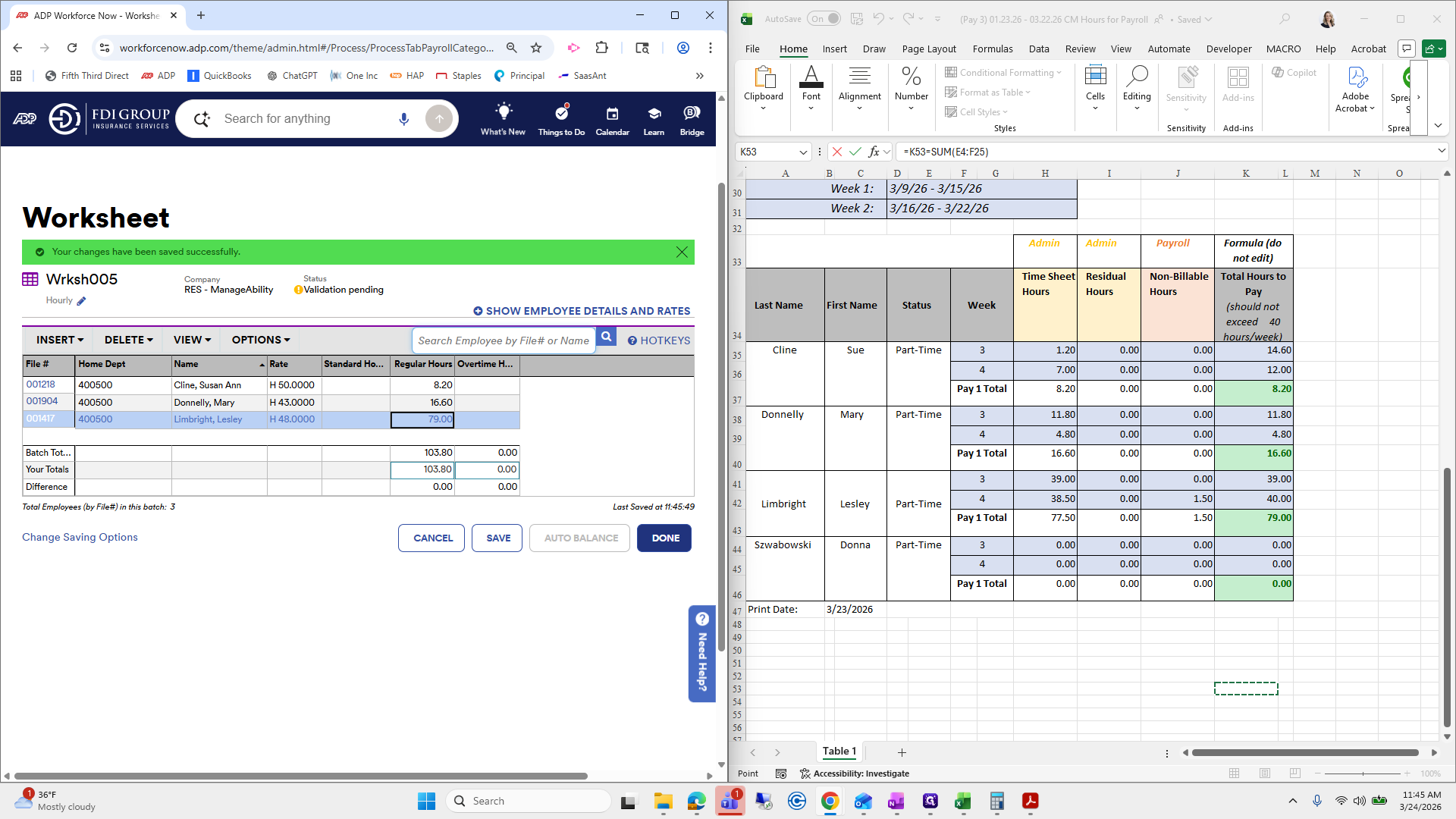
8.2 for Mary Donnelly, 16.6 for Leslie, 79, and Donna has zero. I didn't need to add her.
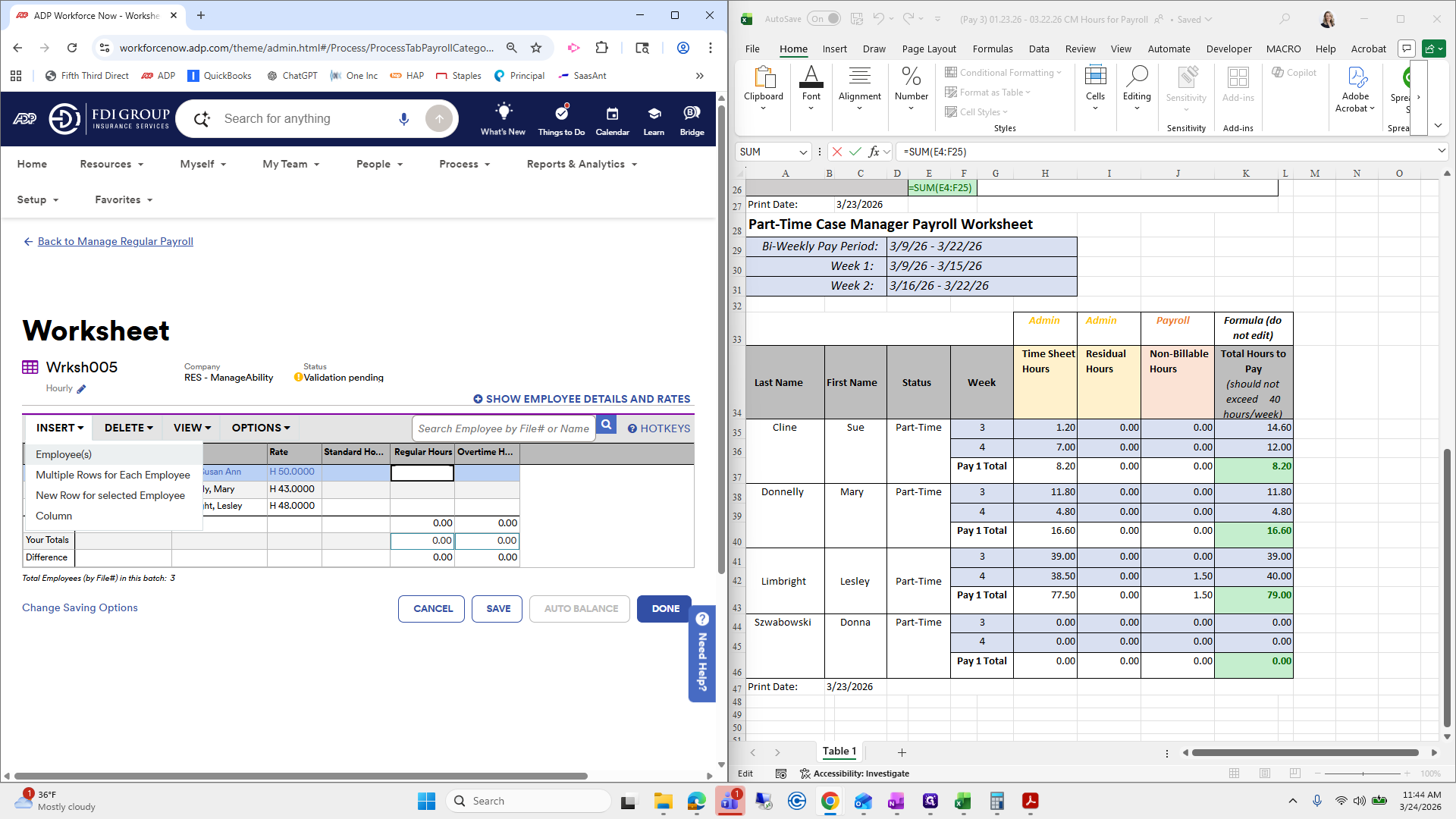
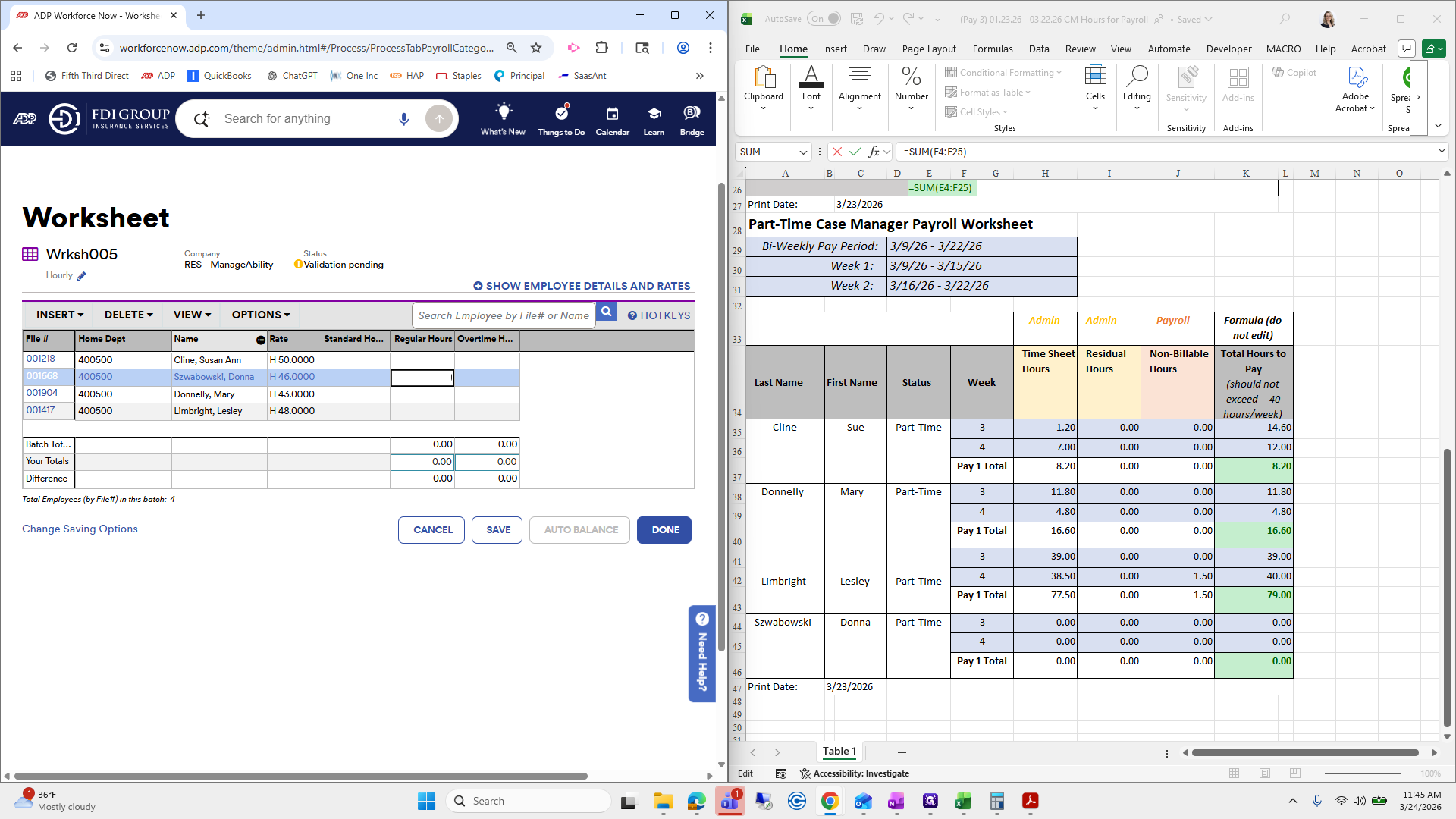
We are going to delete her backup.
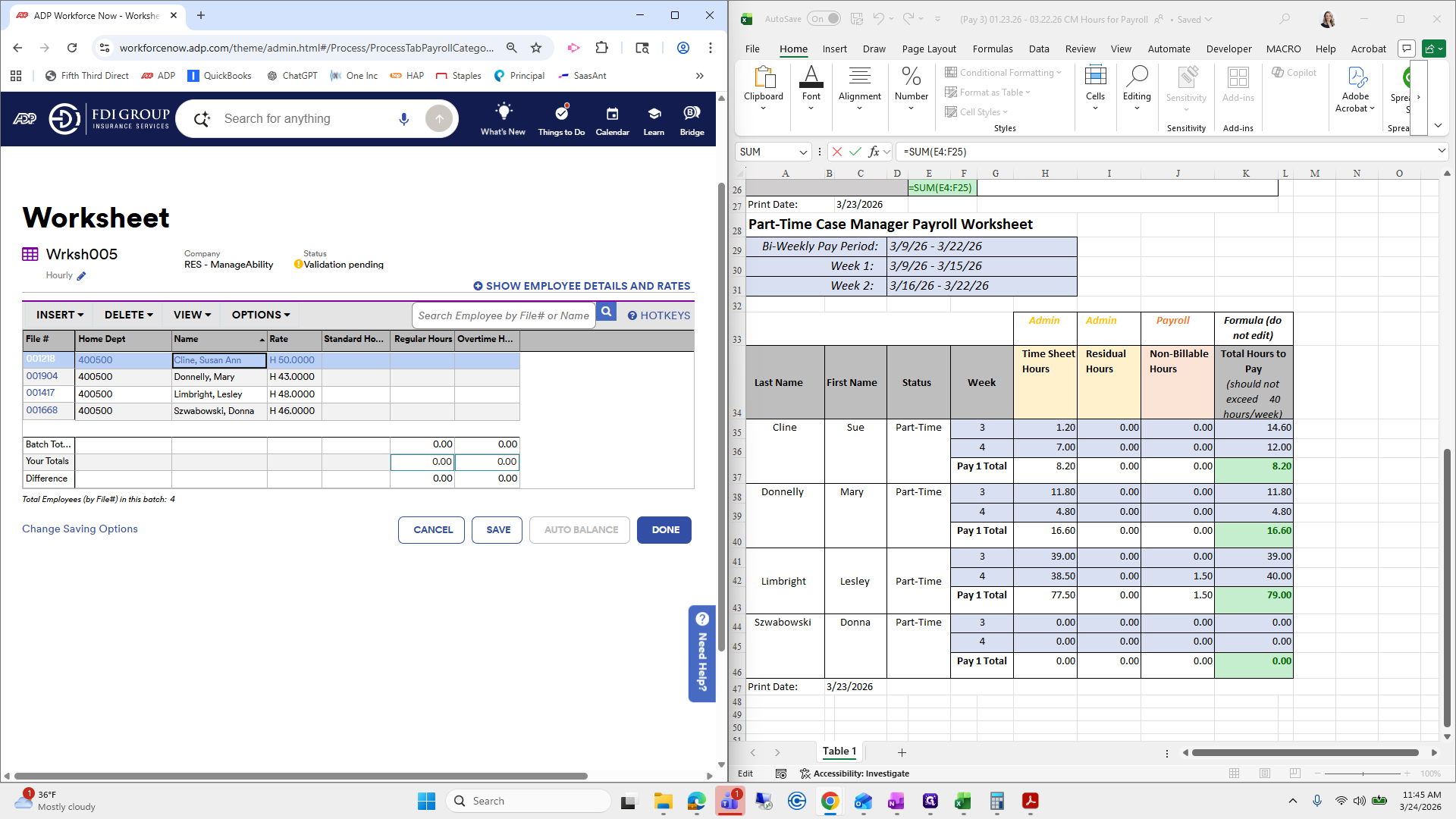
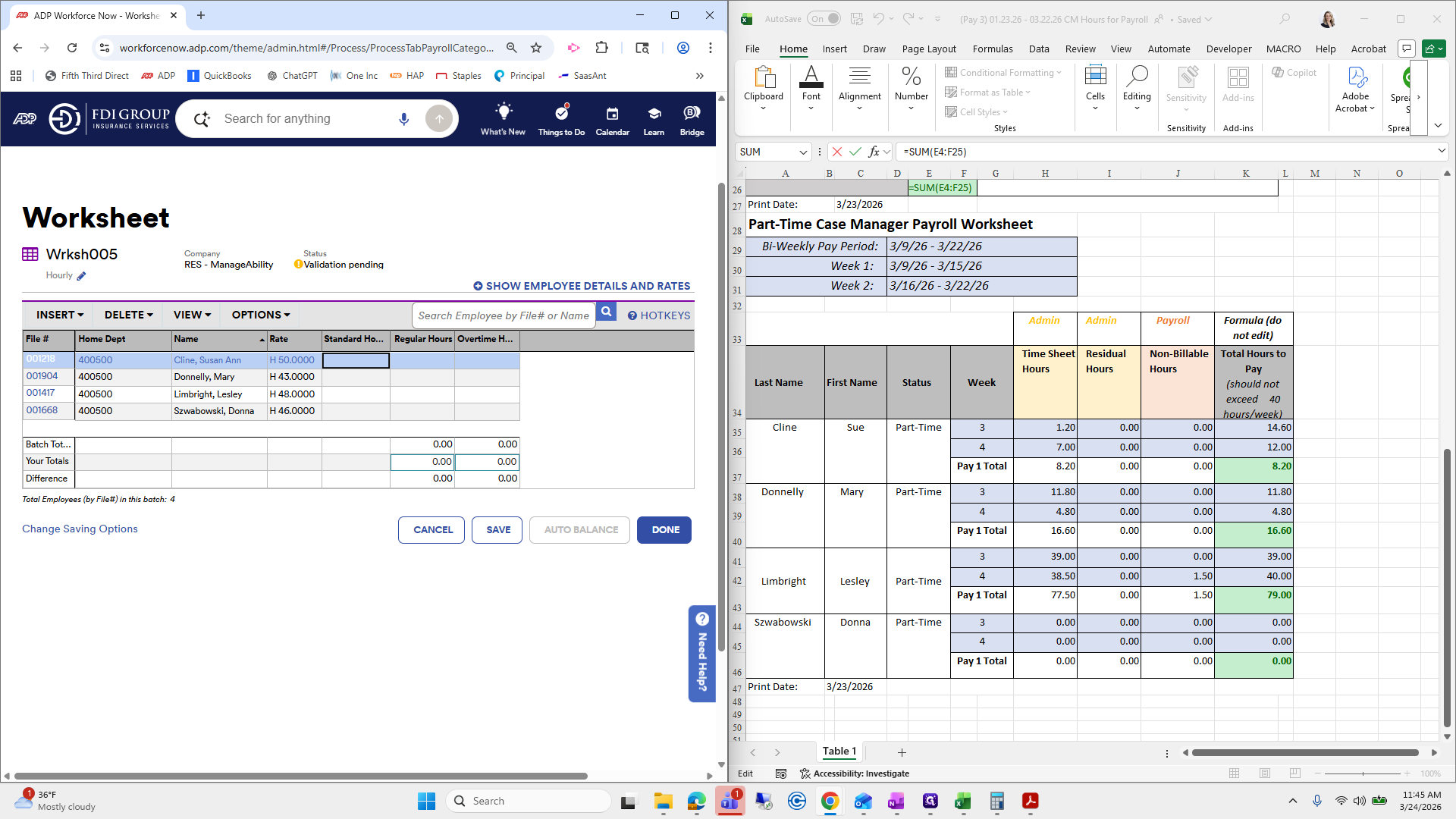
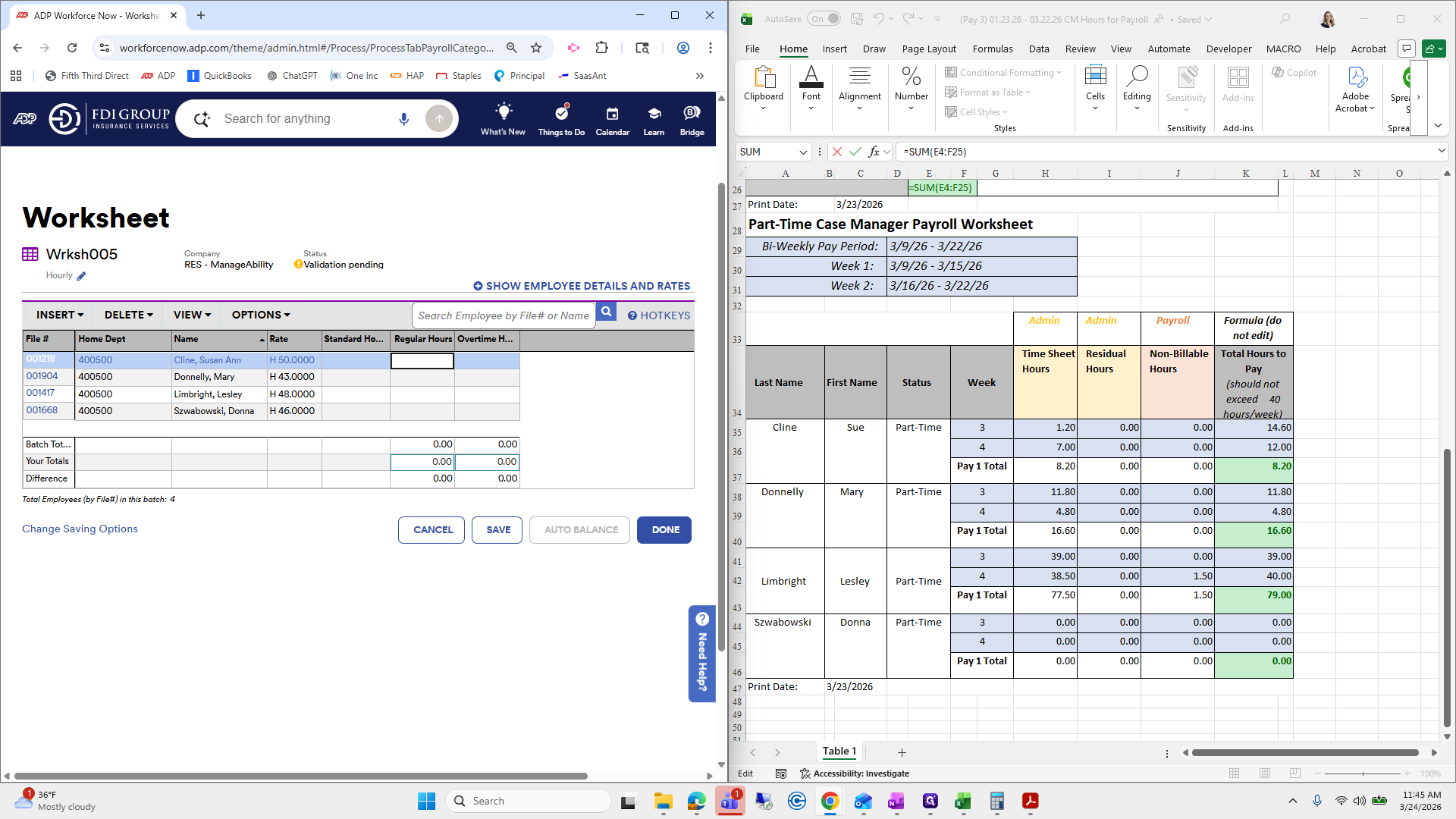
103, 80, and we're going to quickly add these together, which equals 103.86.
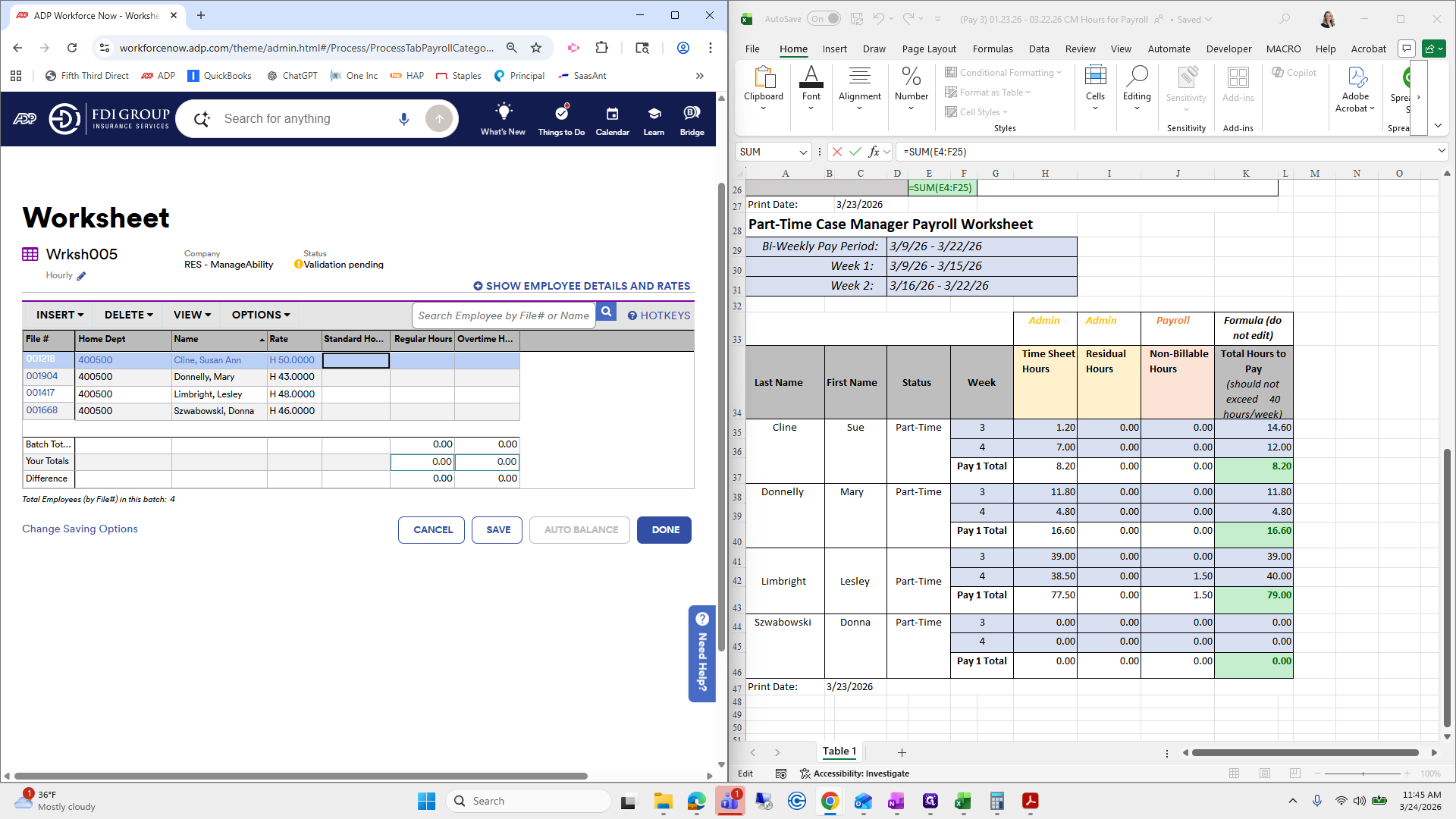
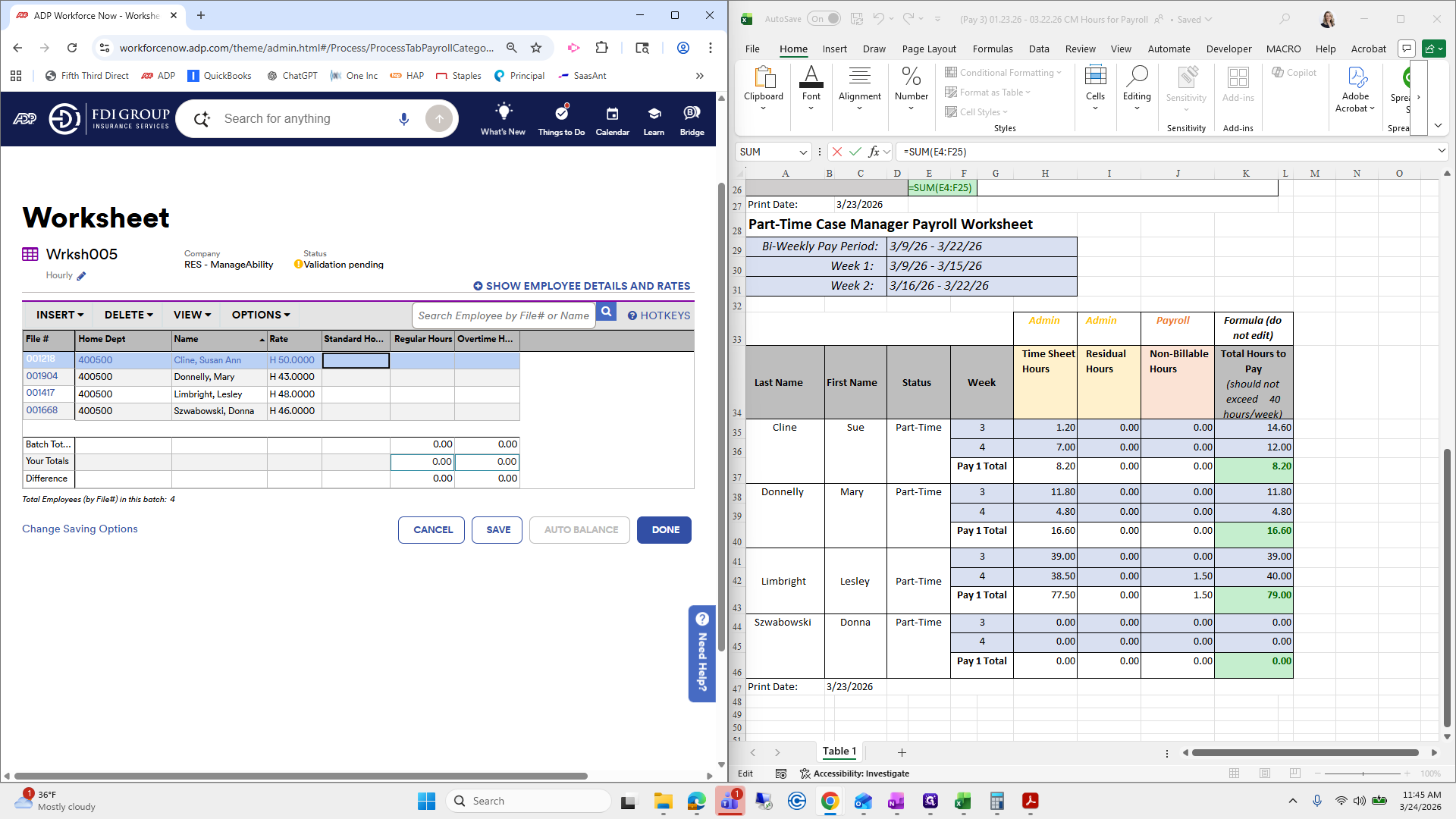
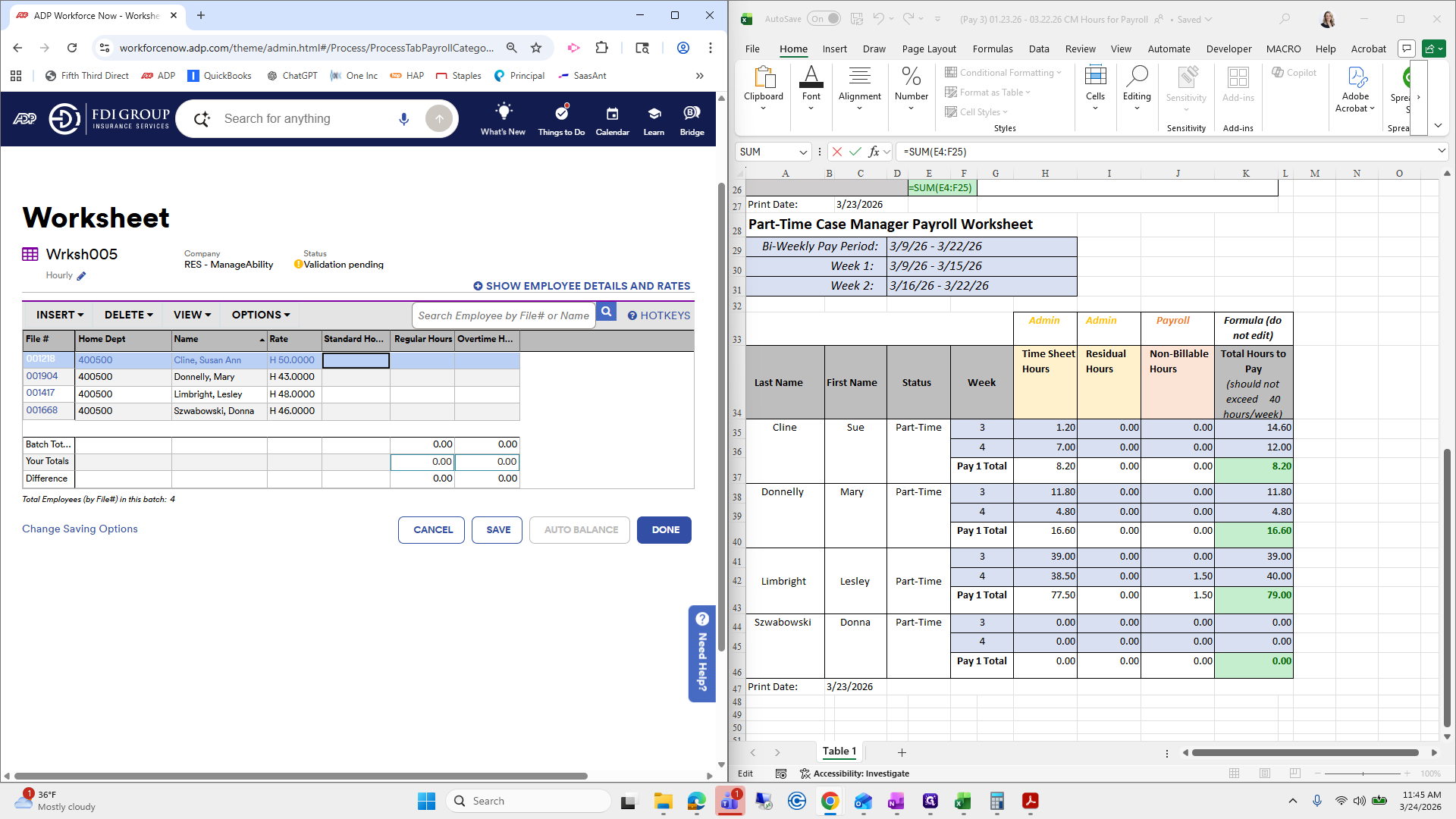
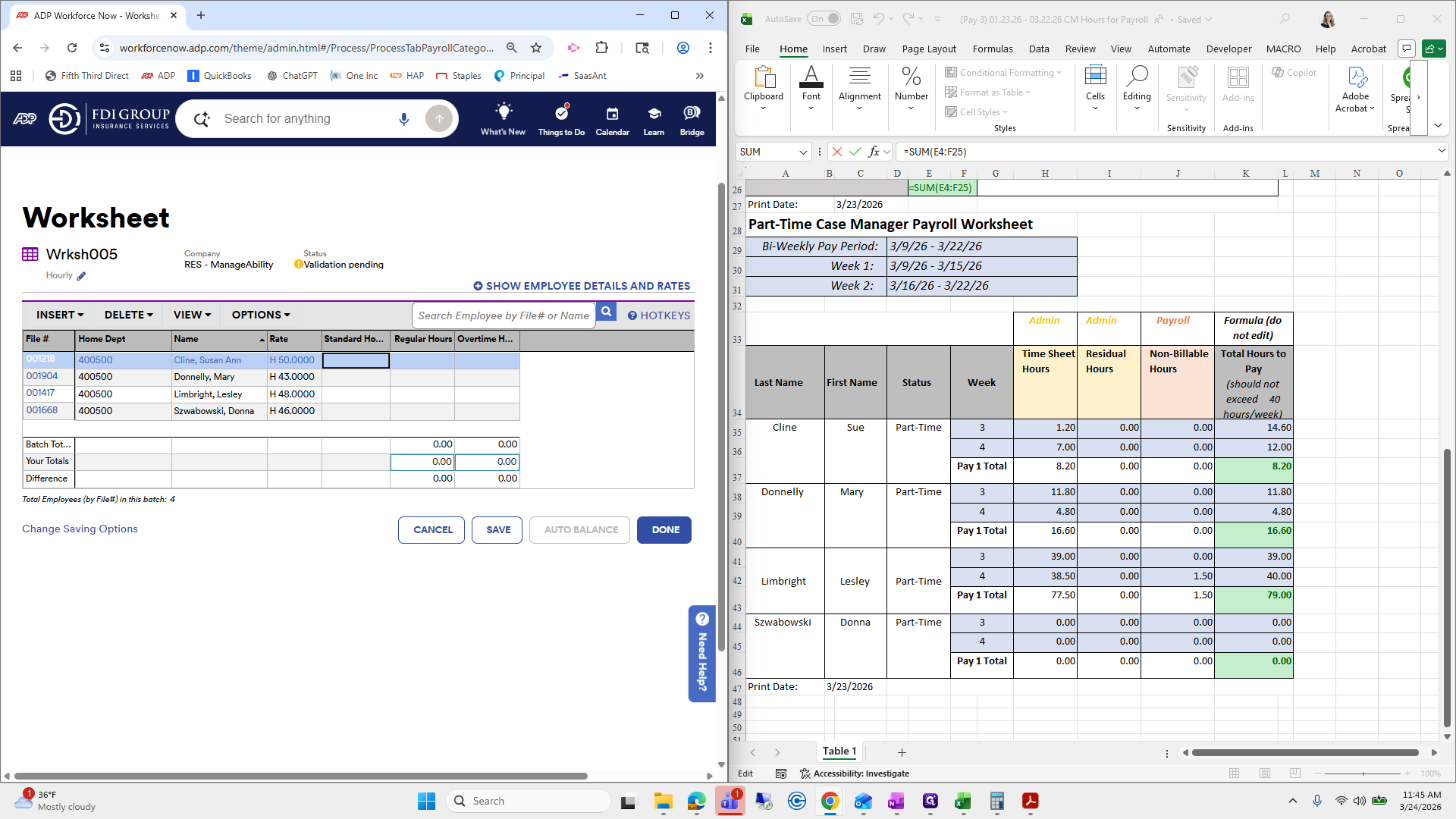
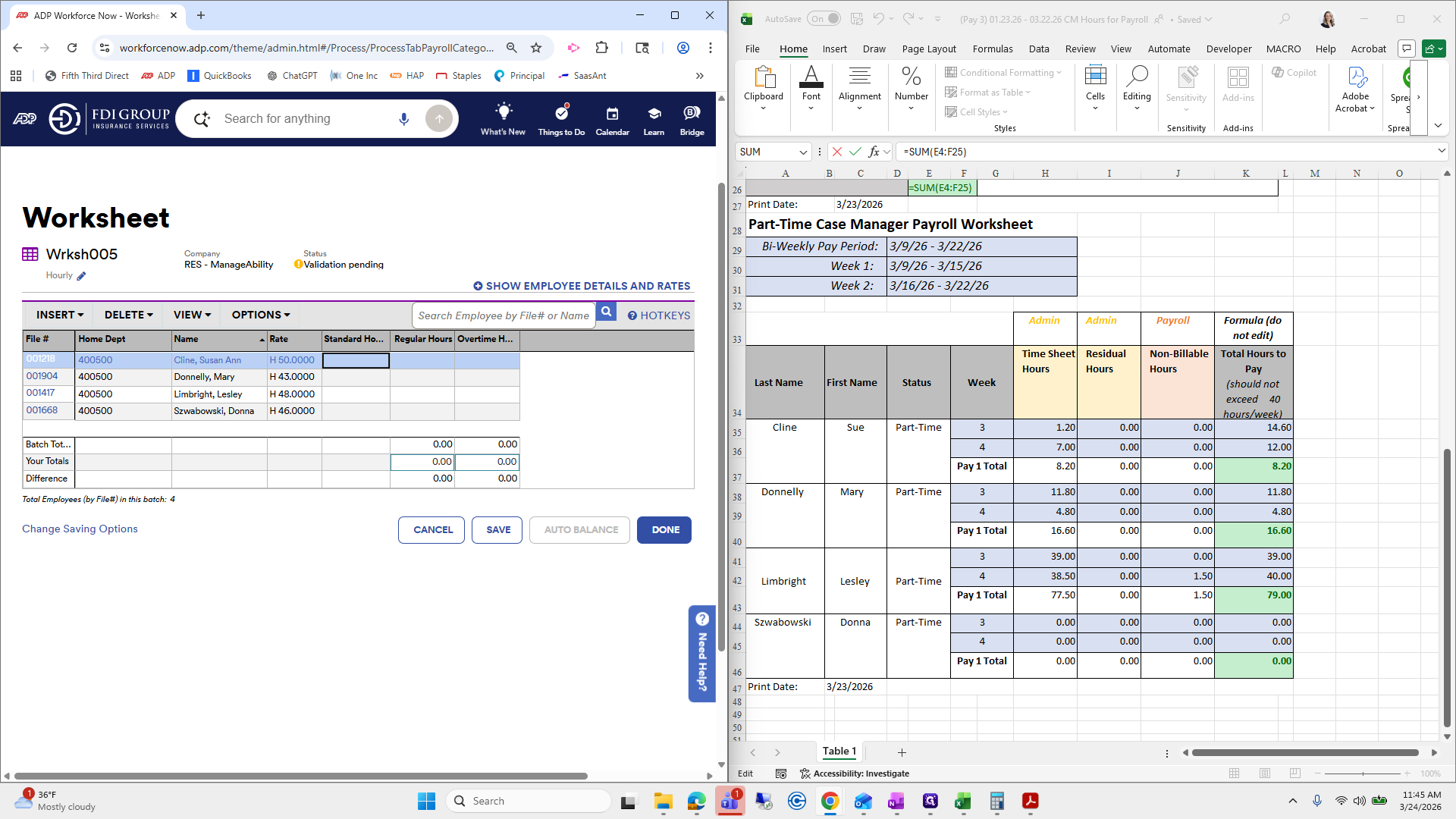
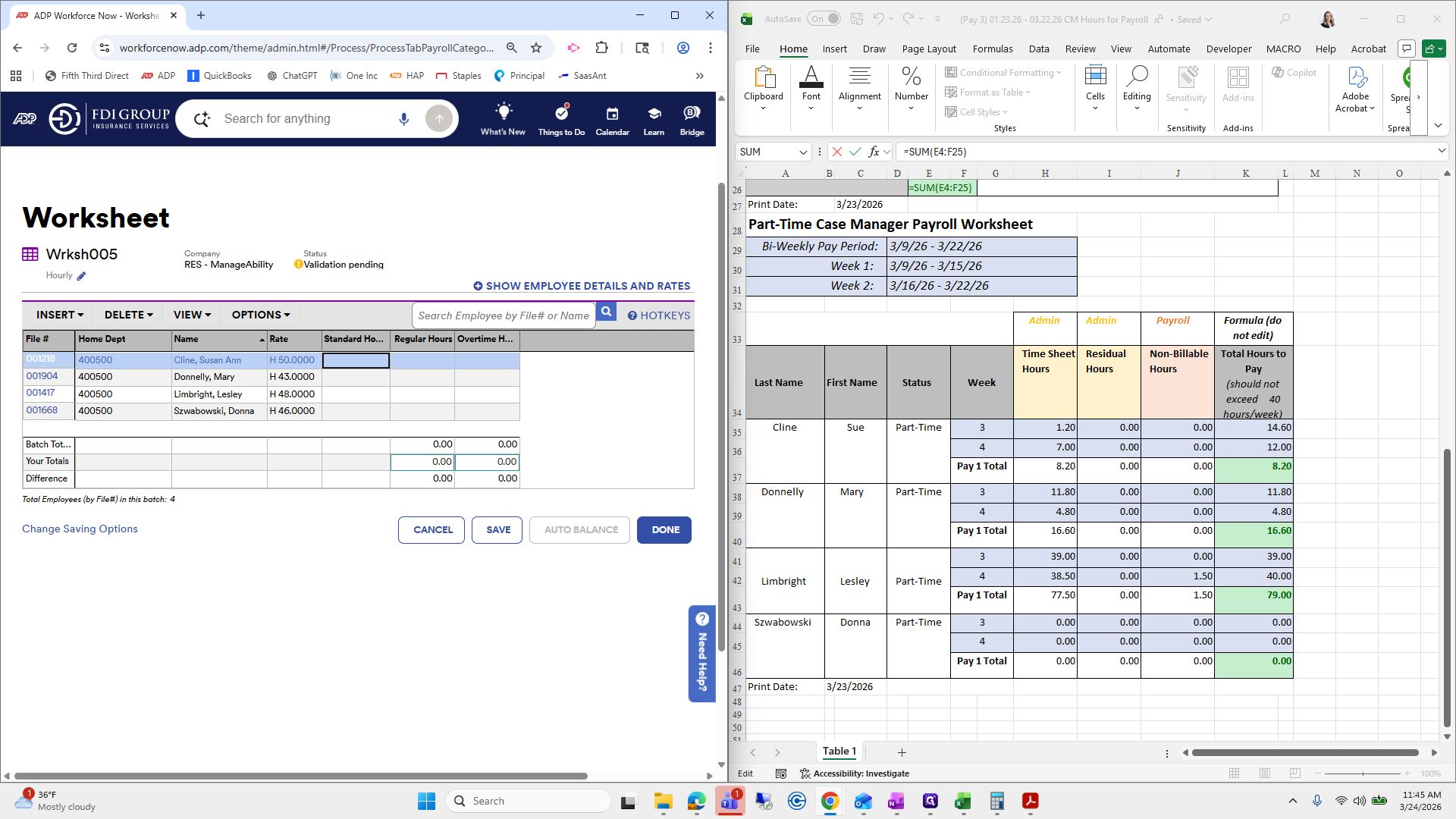
Yep. Now we will auto-balance. Click Done.
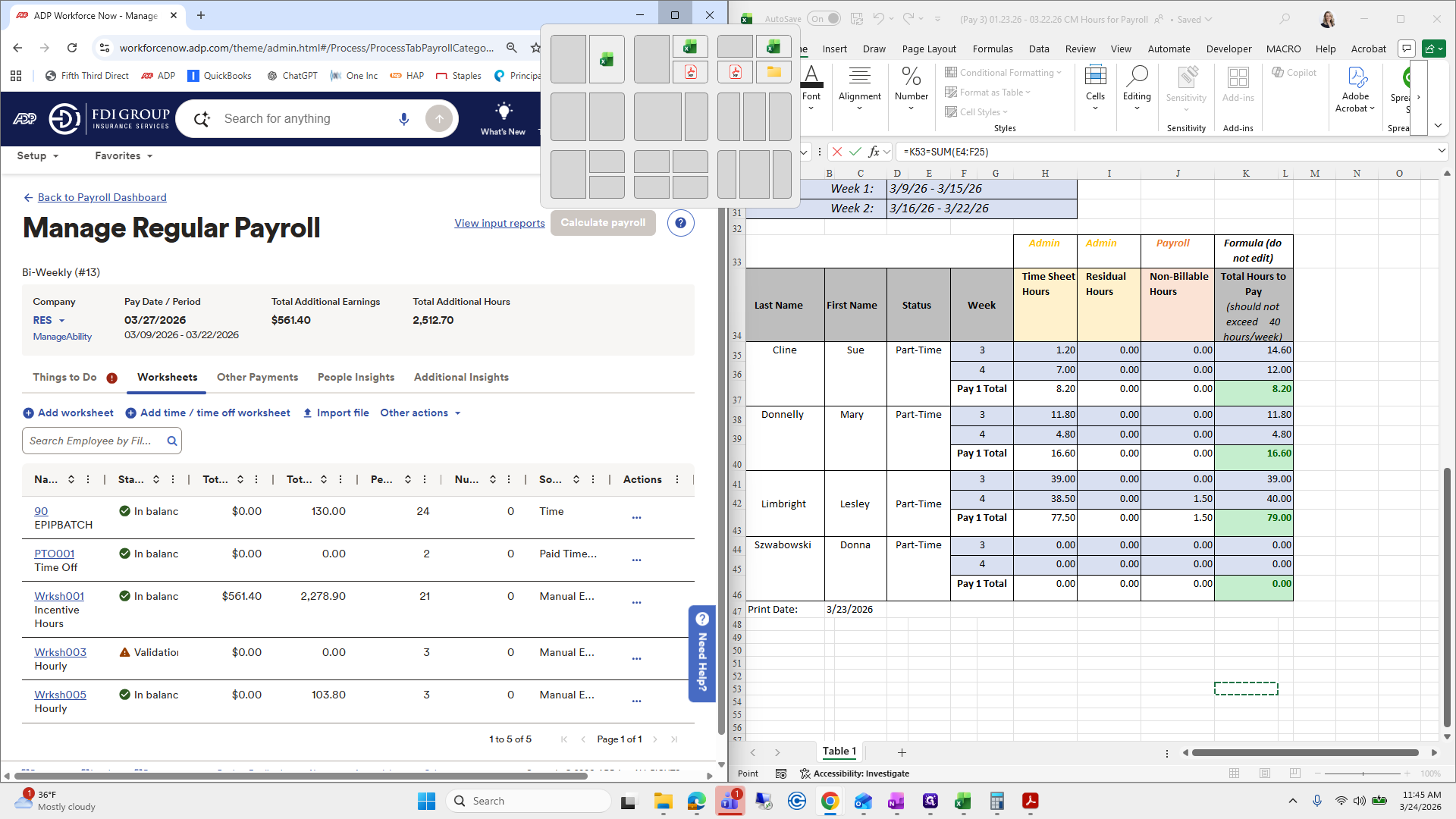
Manageability is good to go, but we need to...
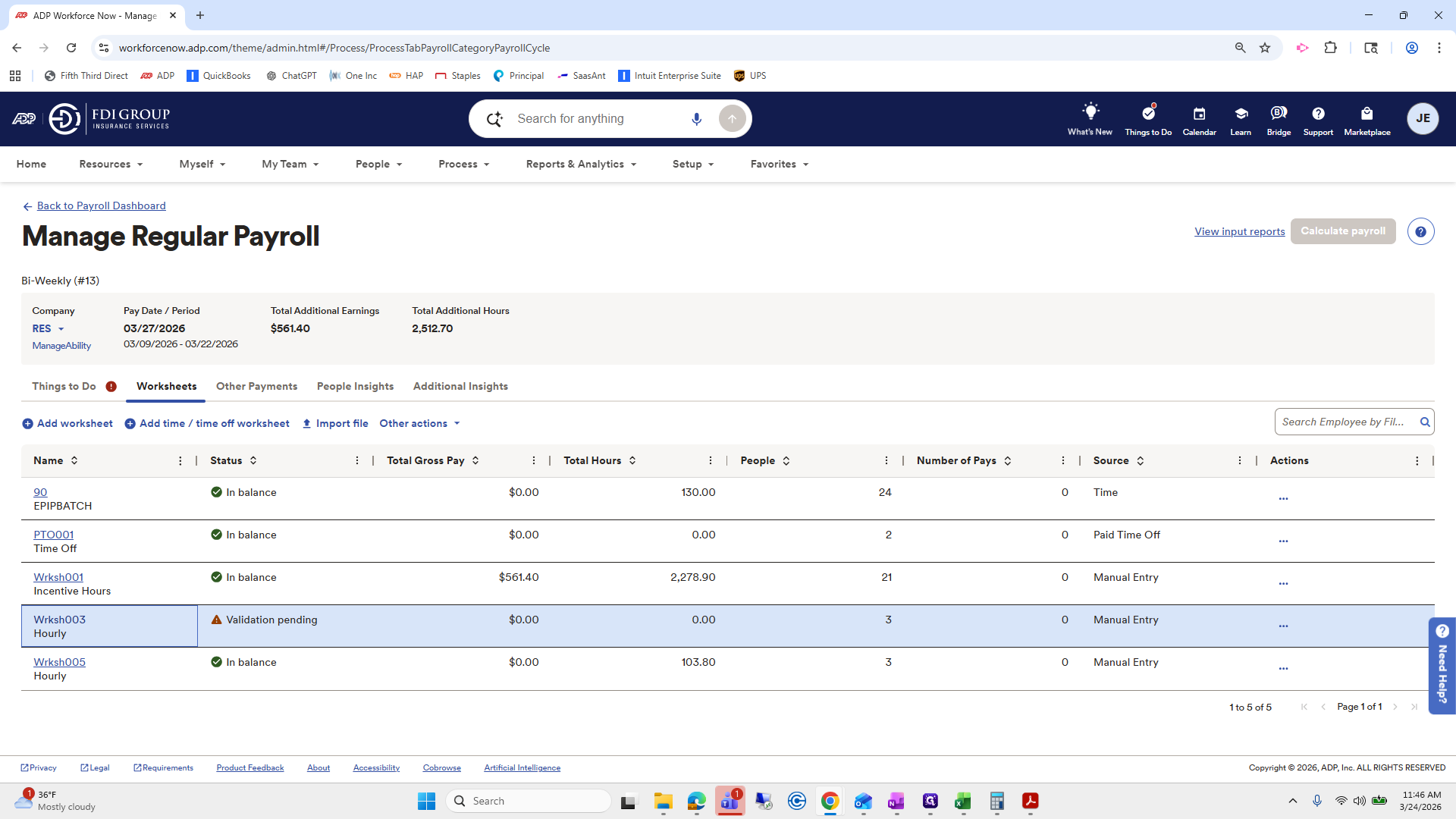
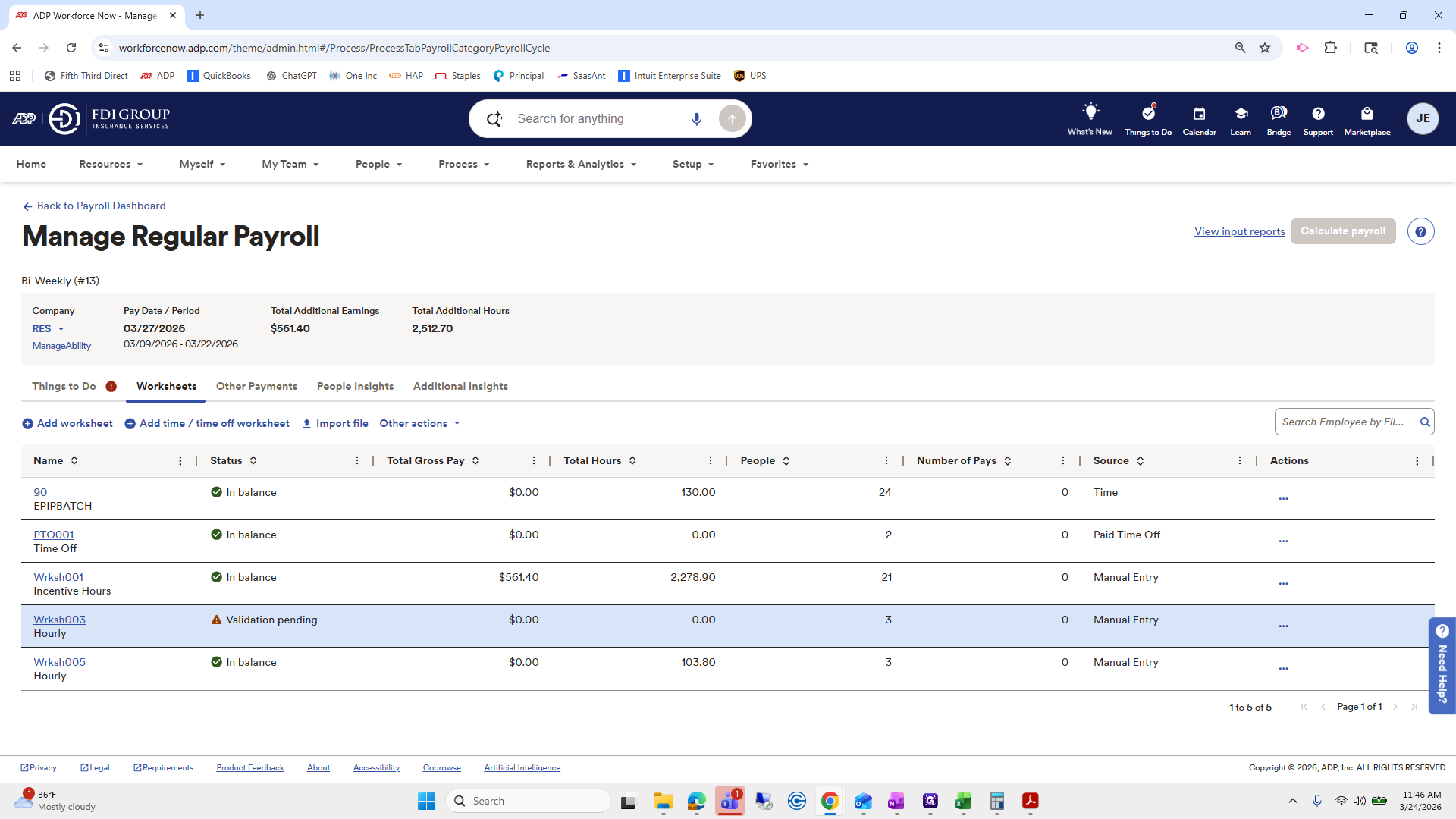
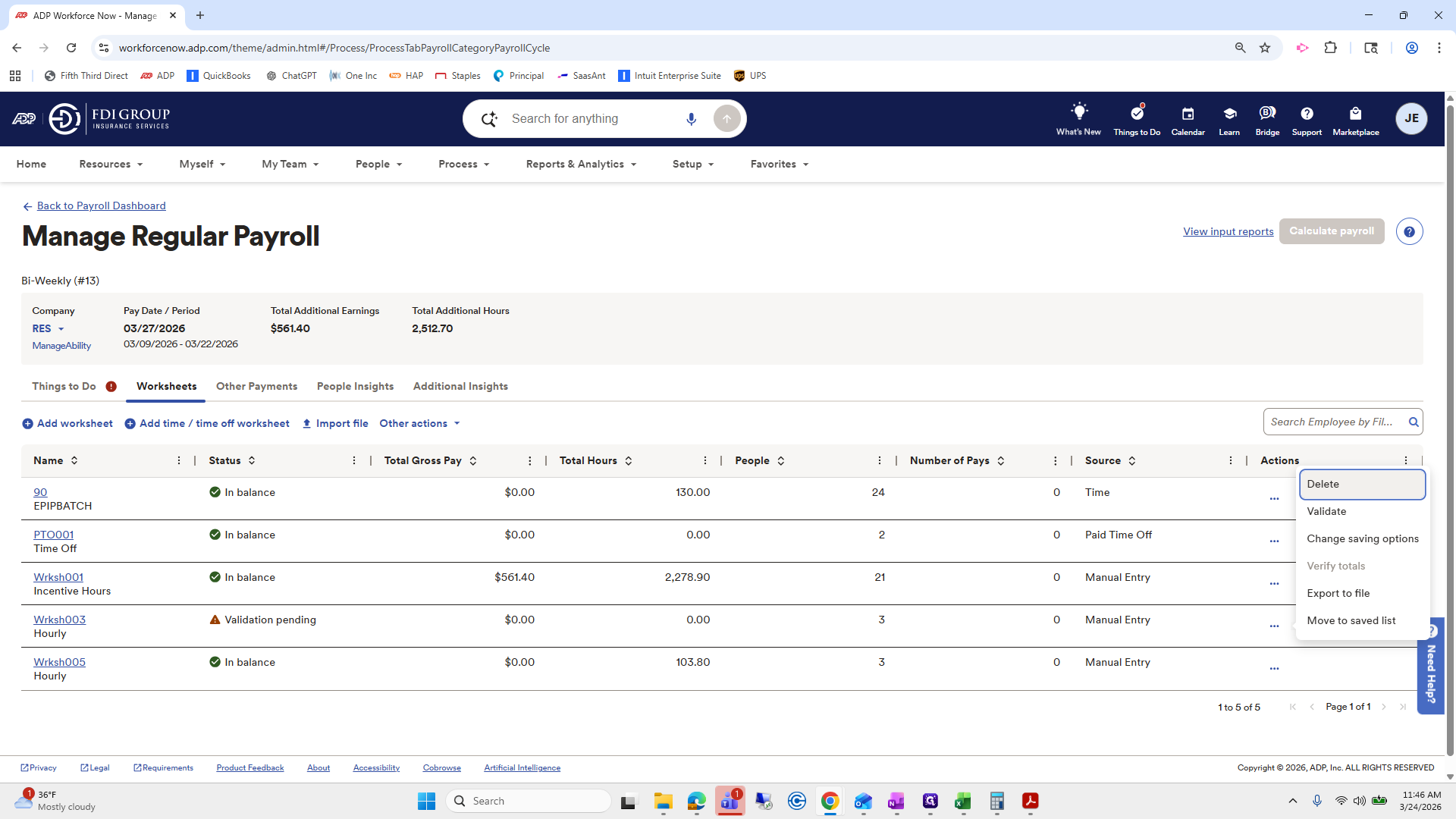
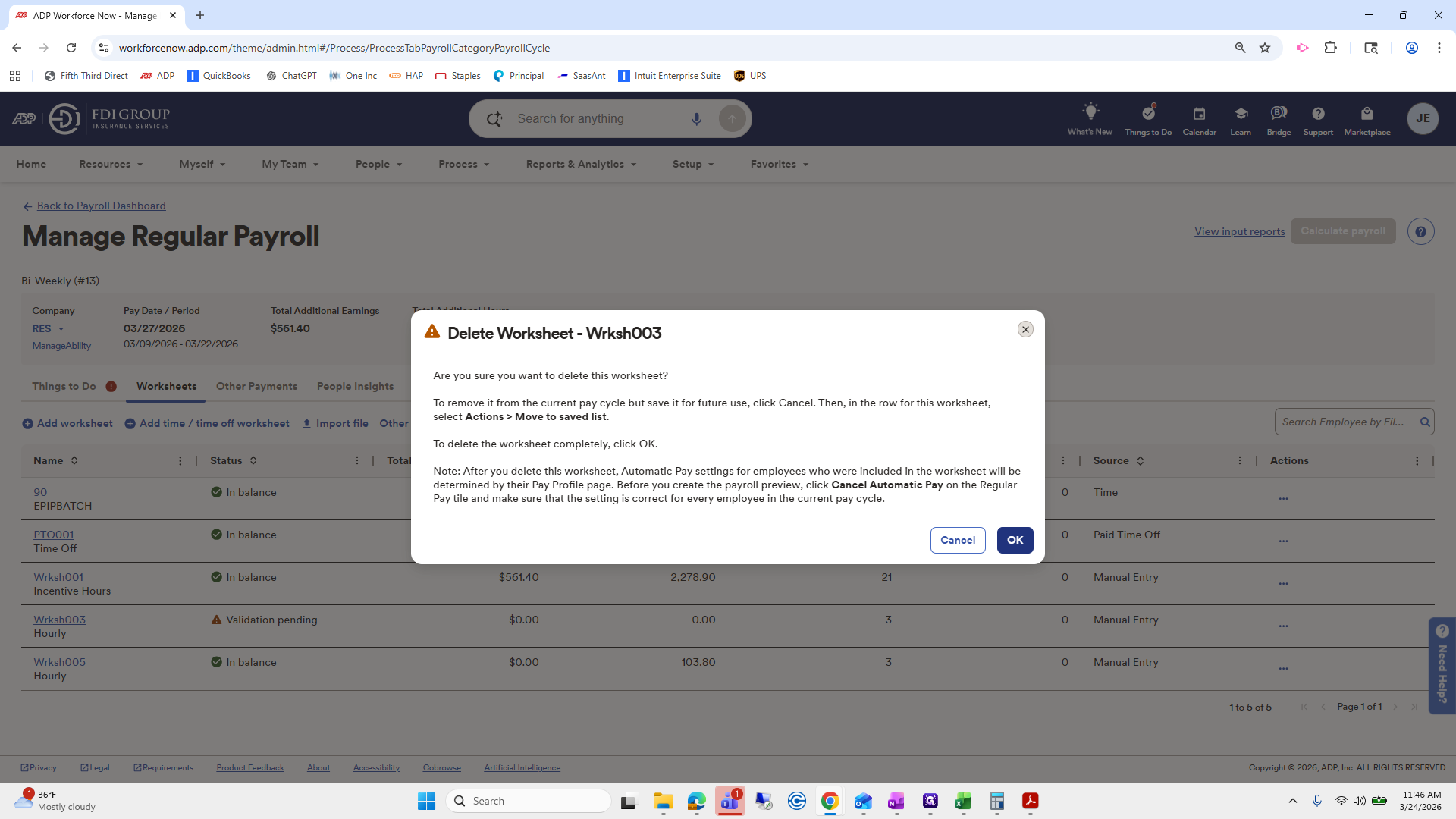
Let's see. I think I added an extra worksheet by accident.
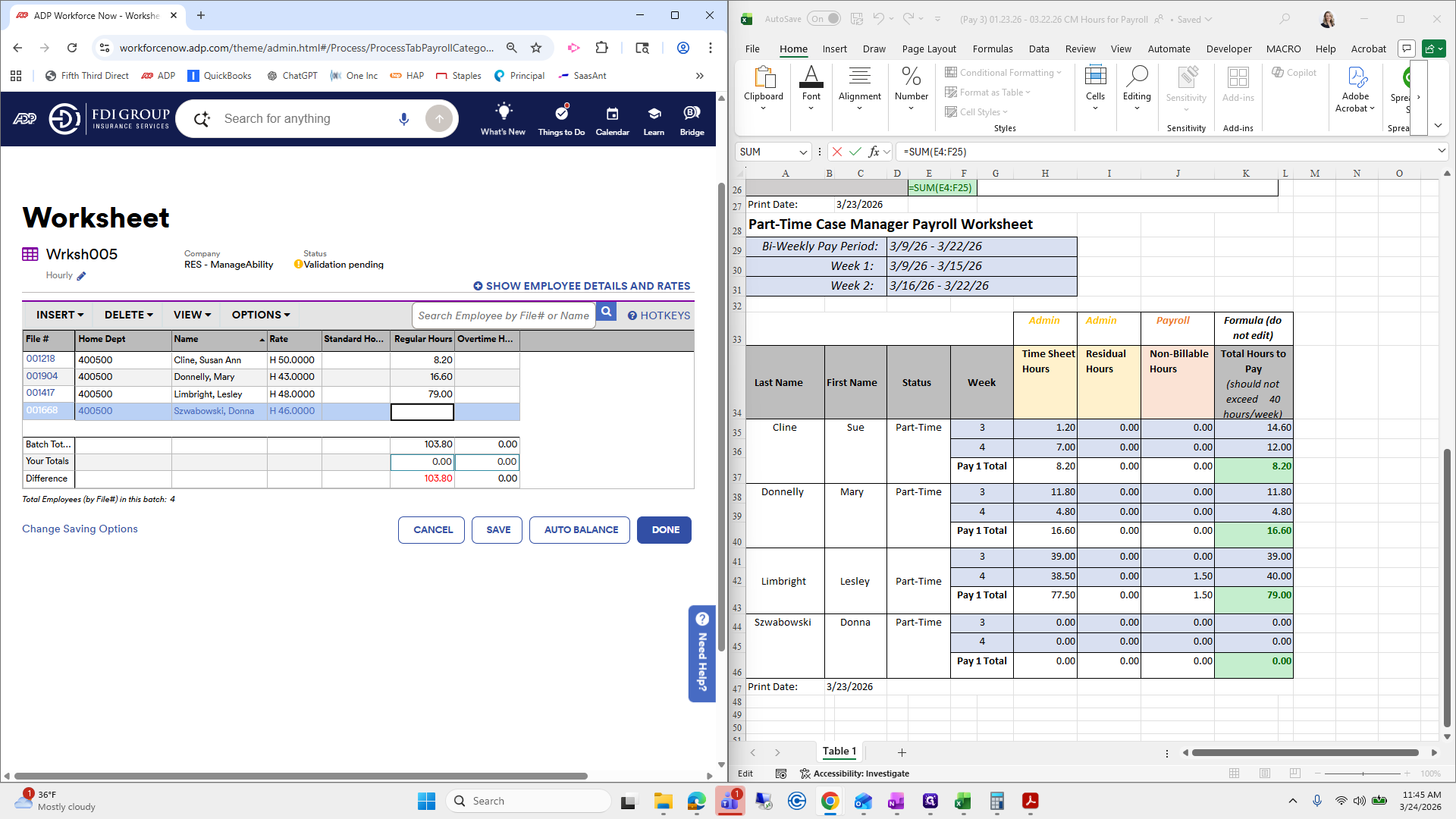
I did, so I'll delete this one.
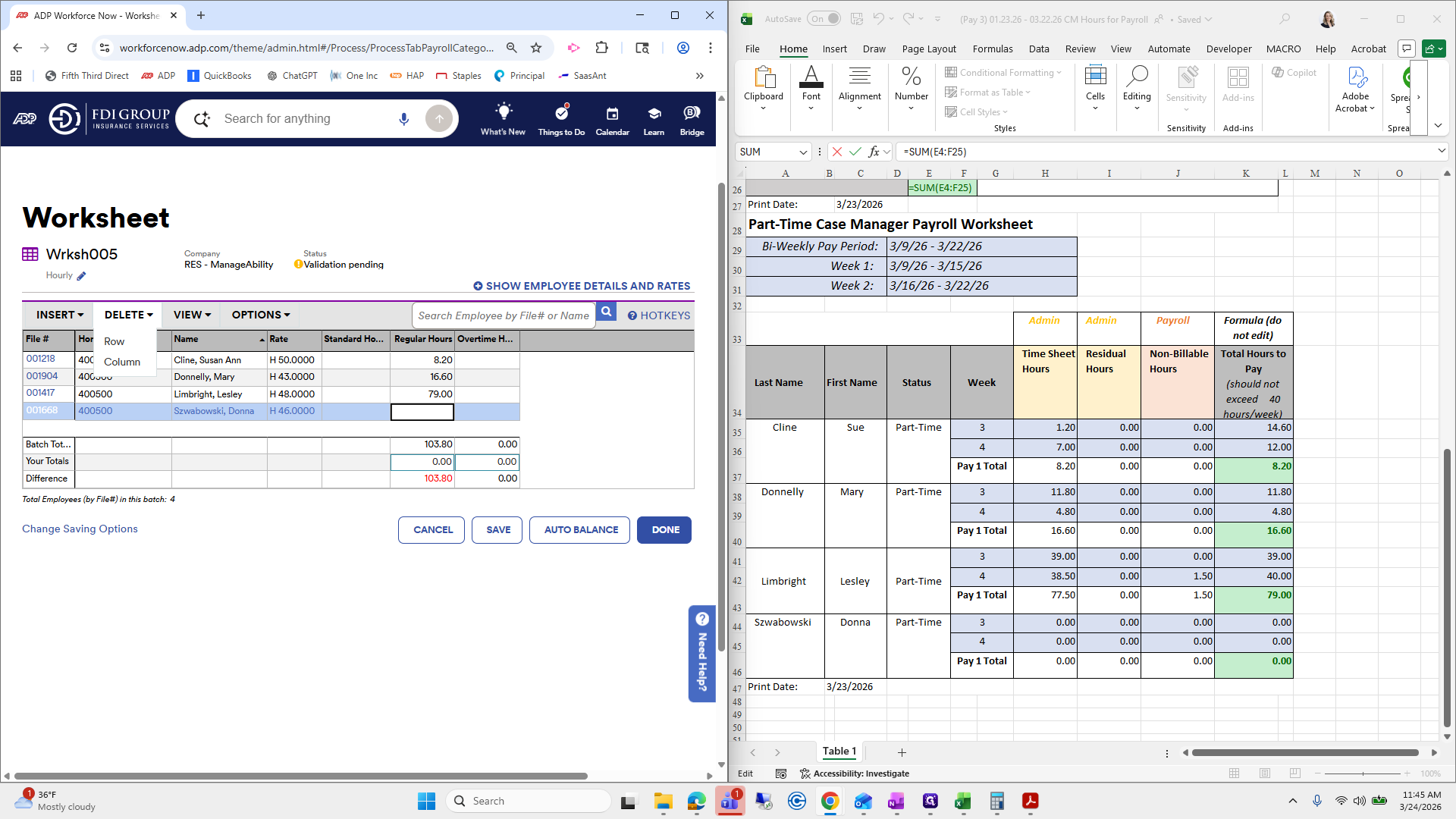
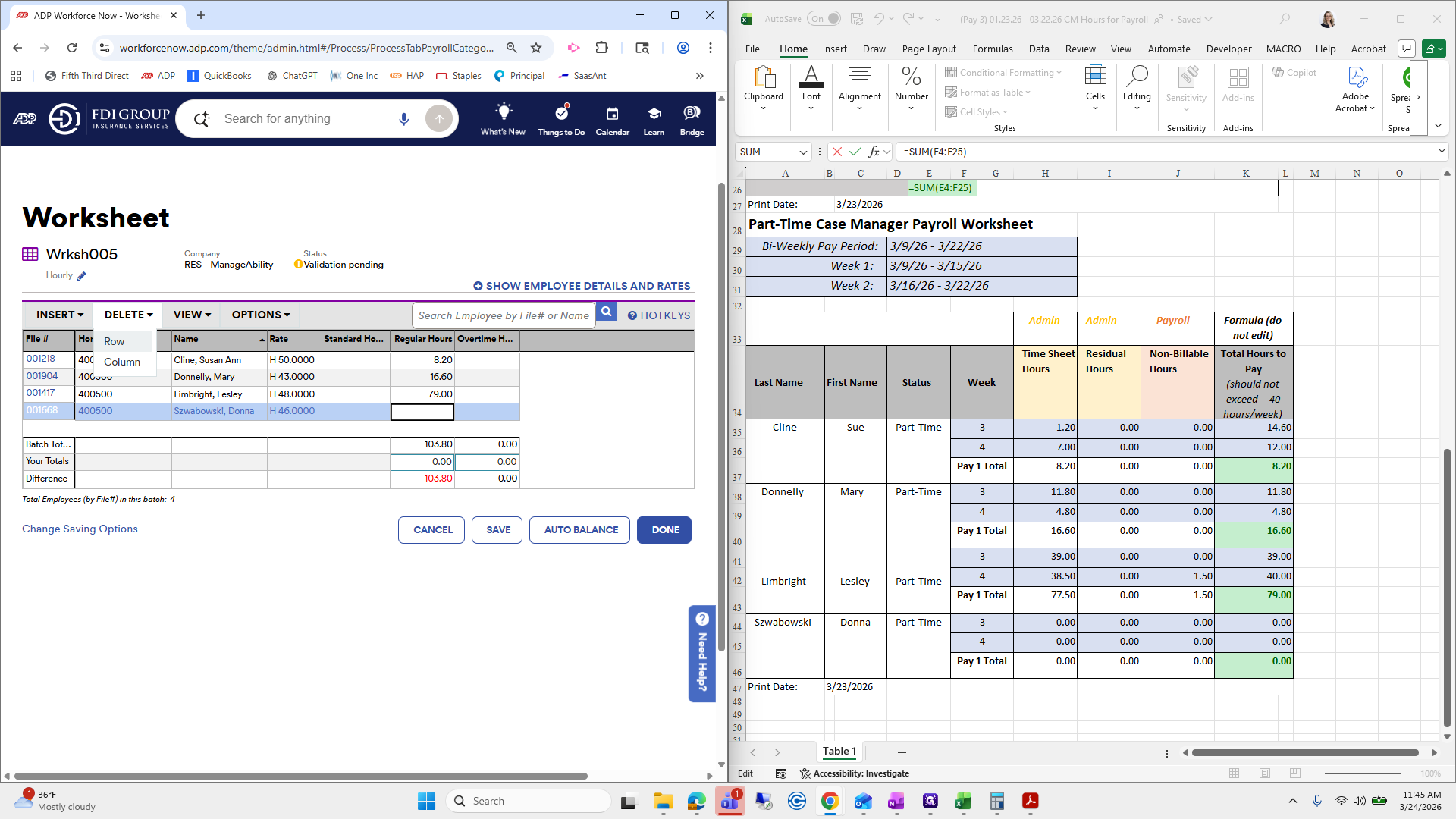
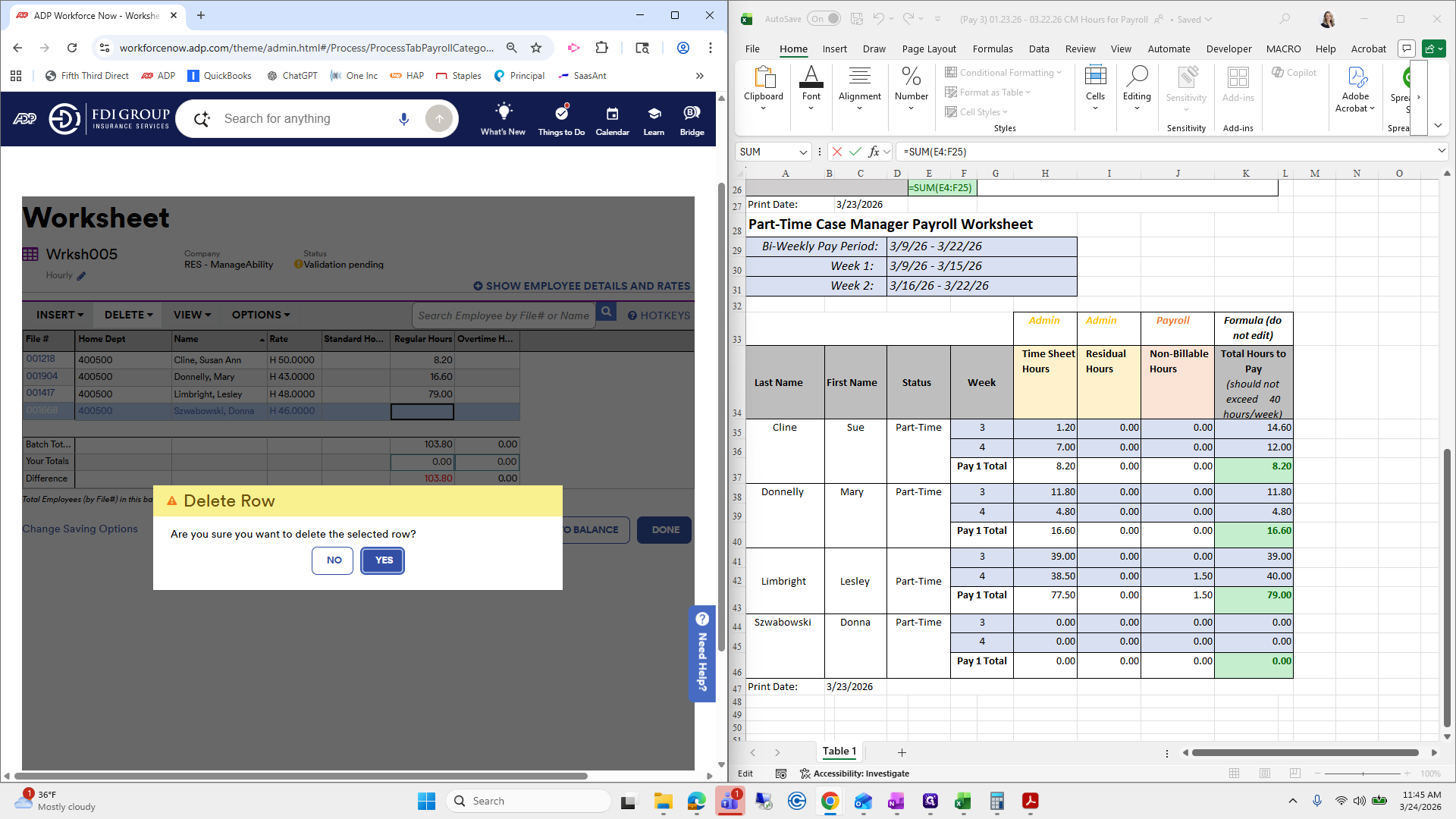
Okay.
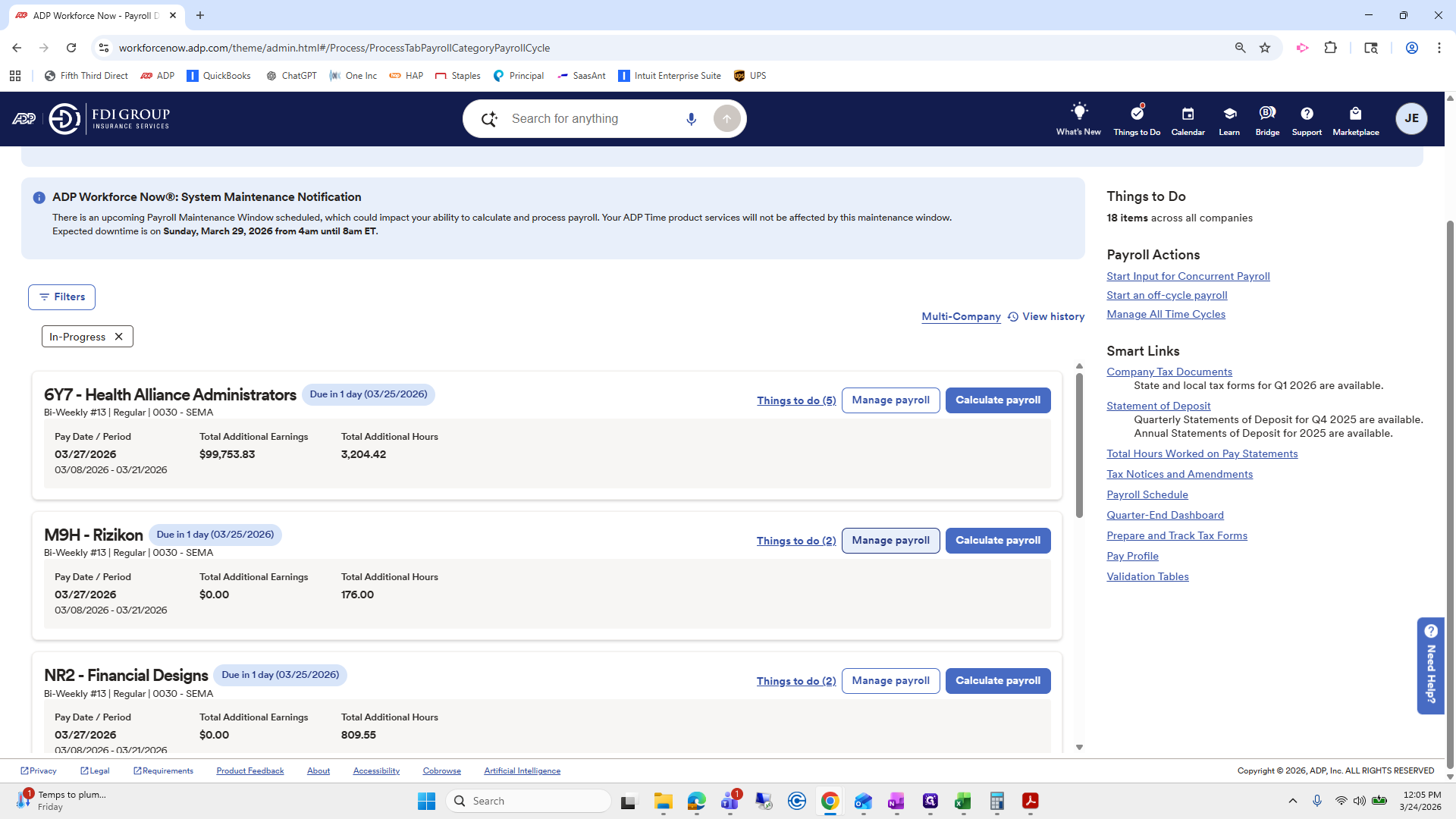
The next one we need to do is Health Alliance.
They have a few things to add.
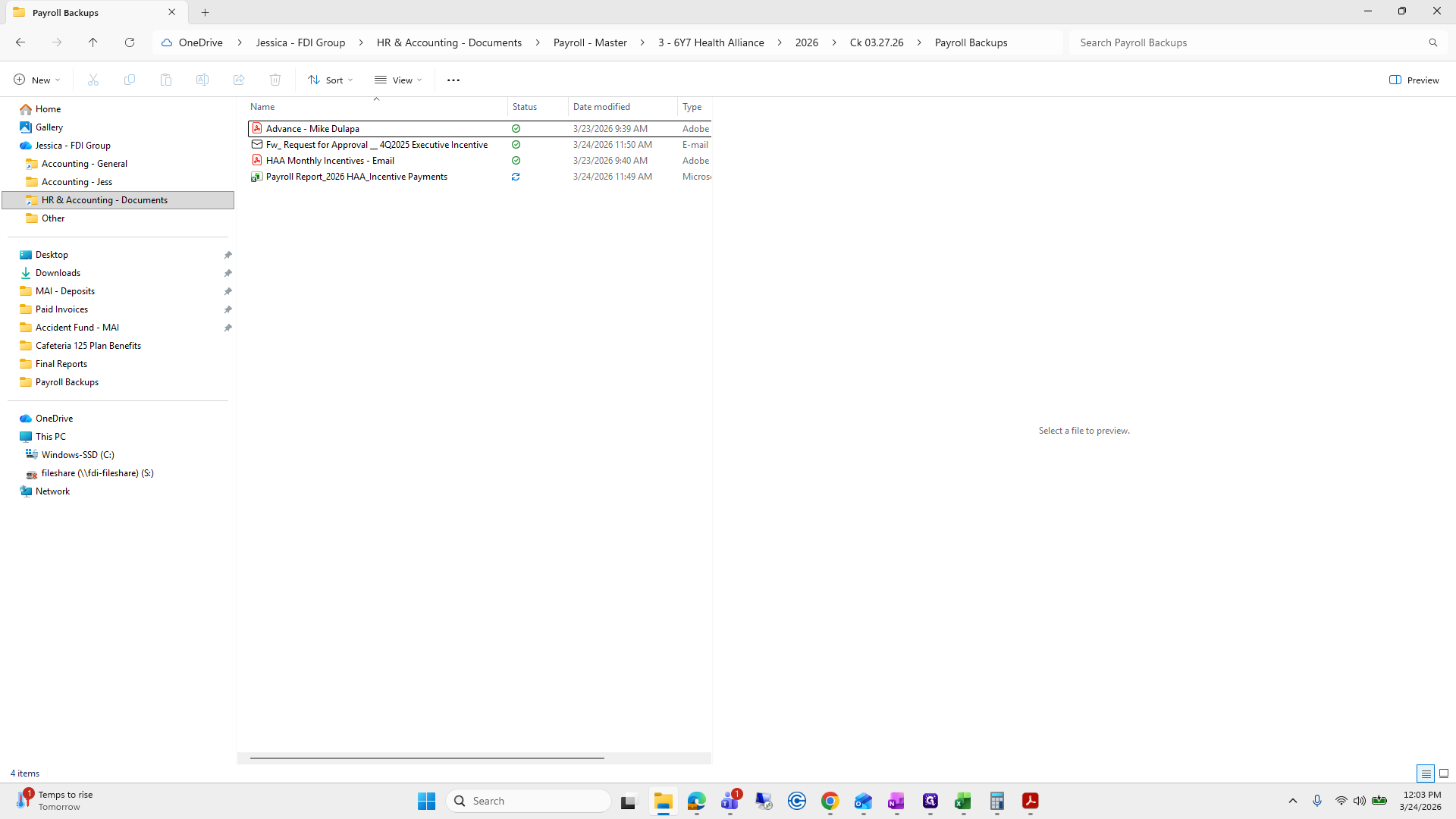
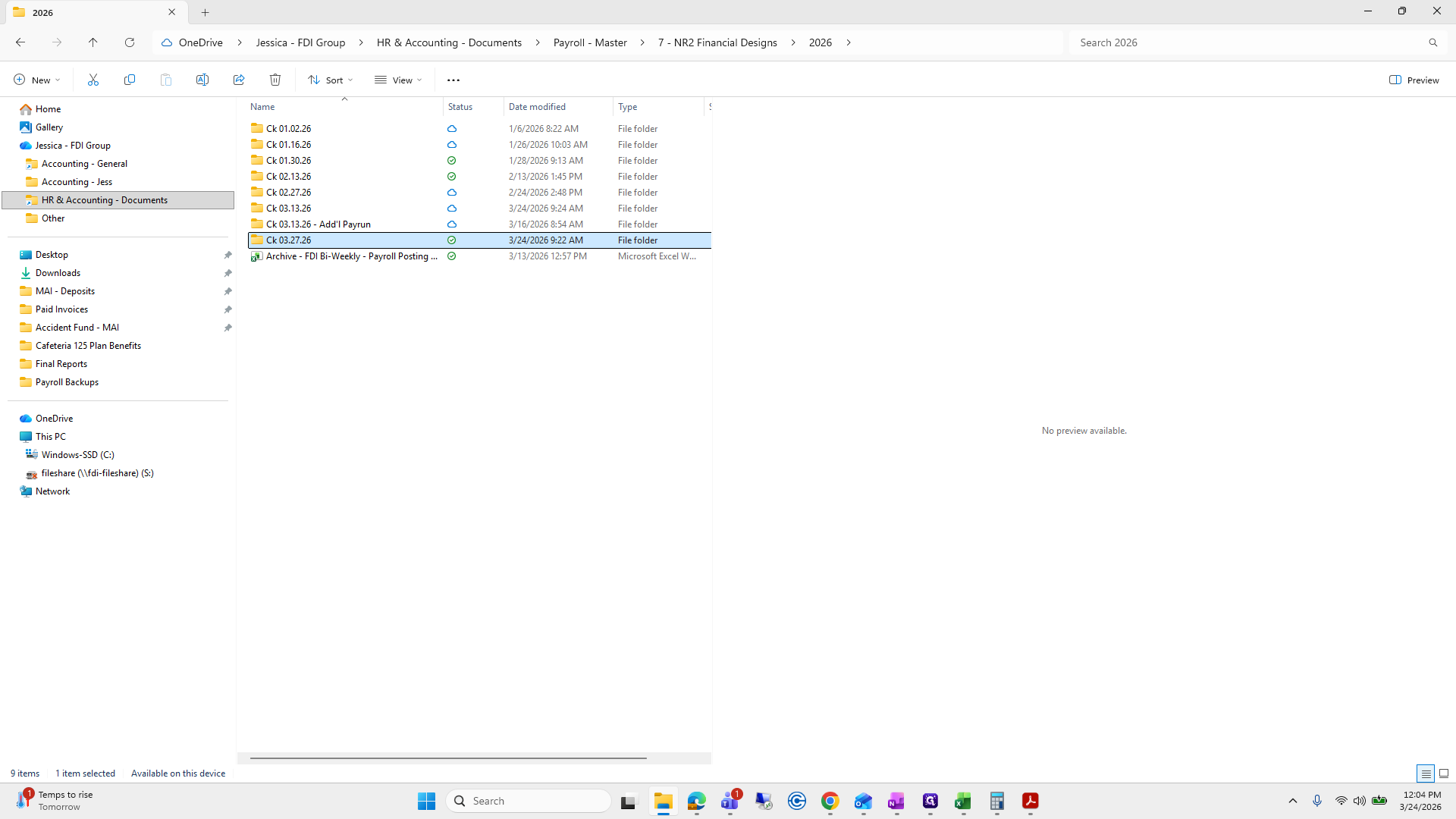
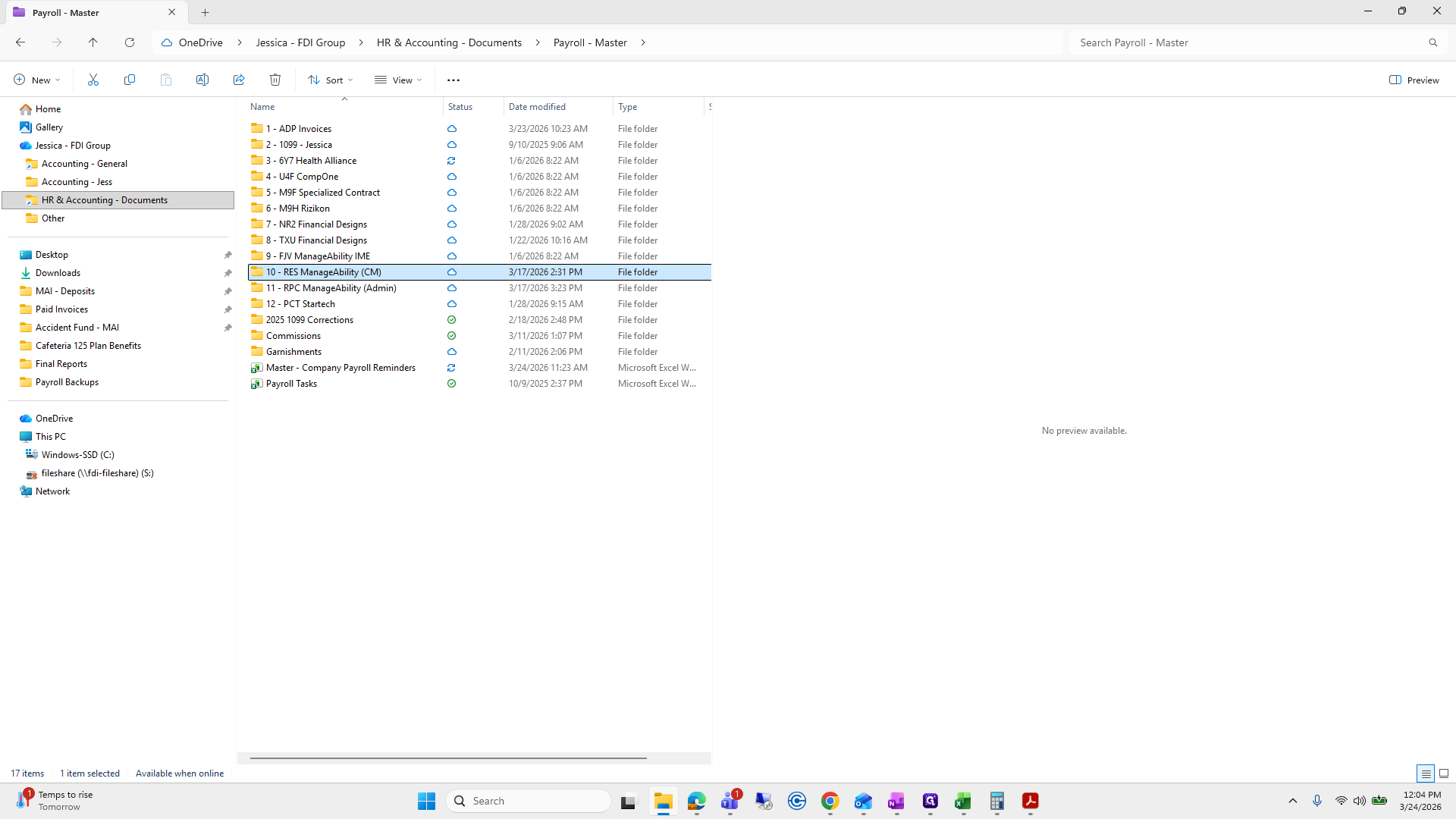
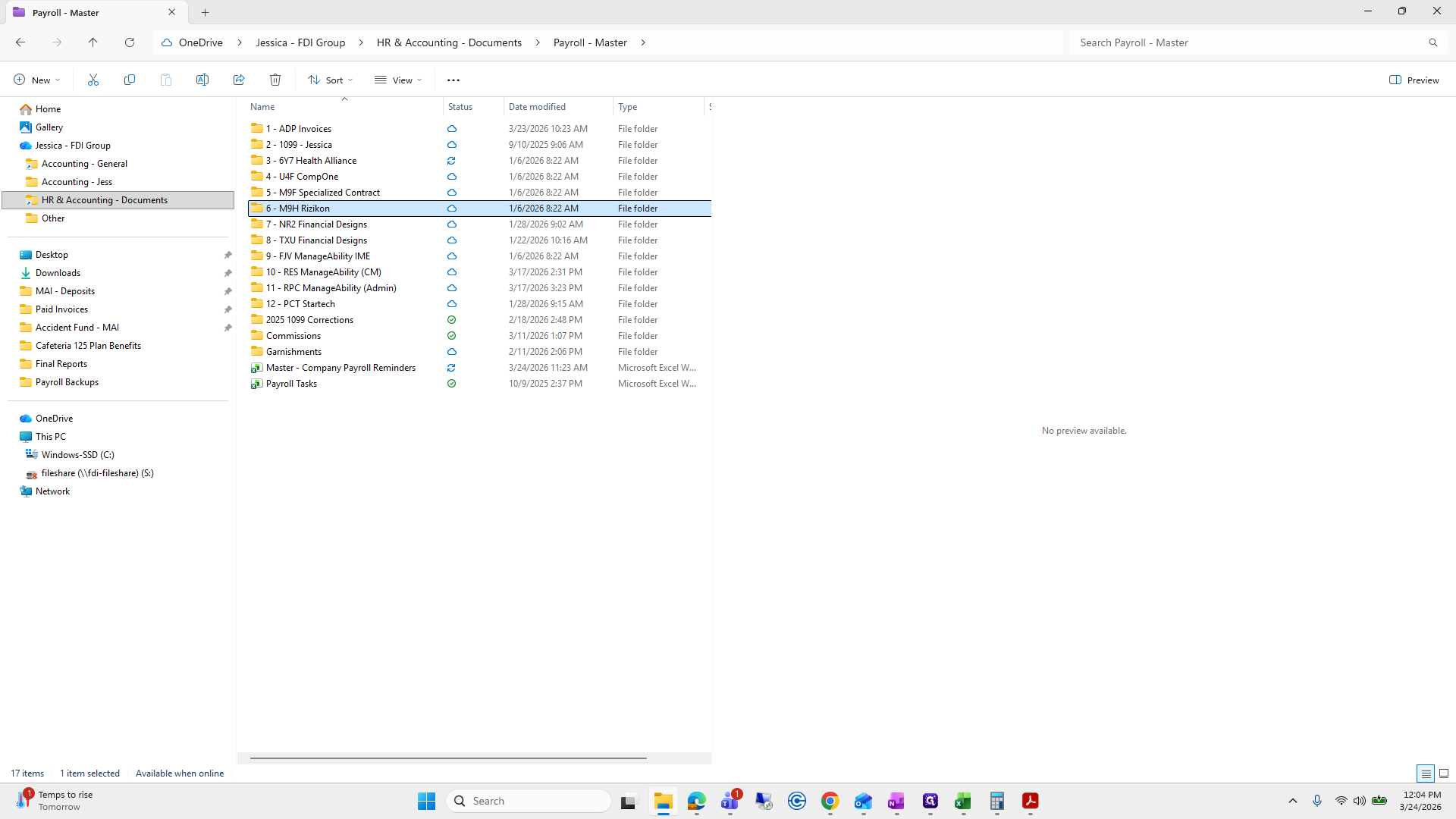
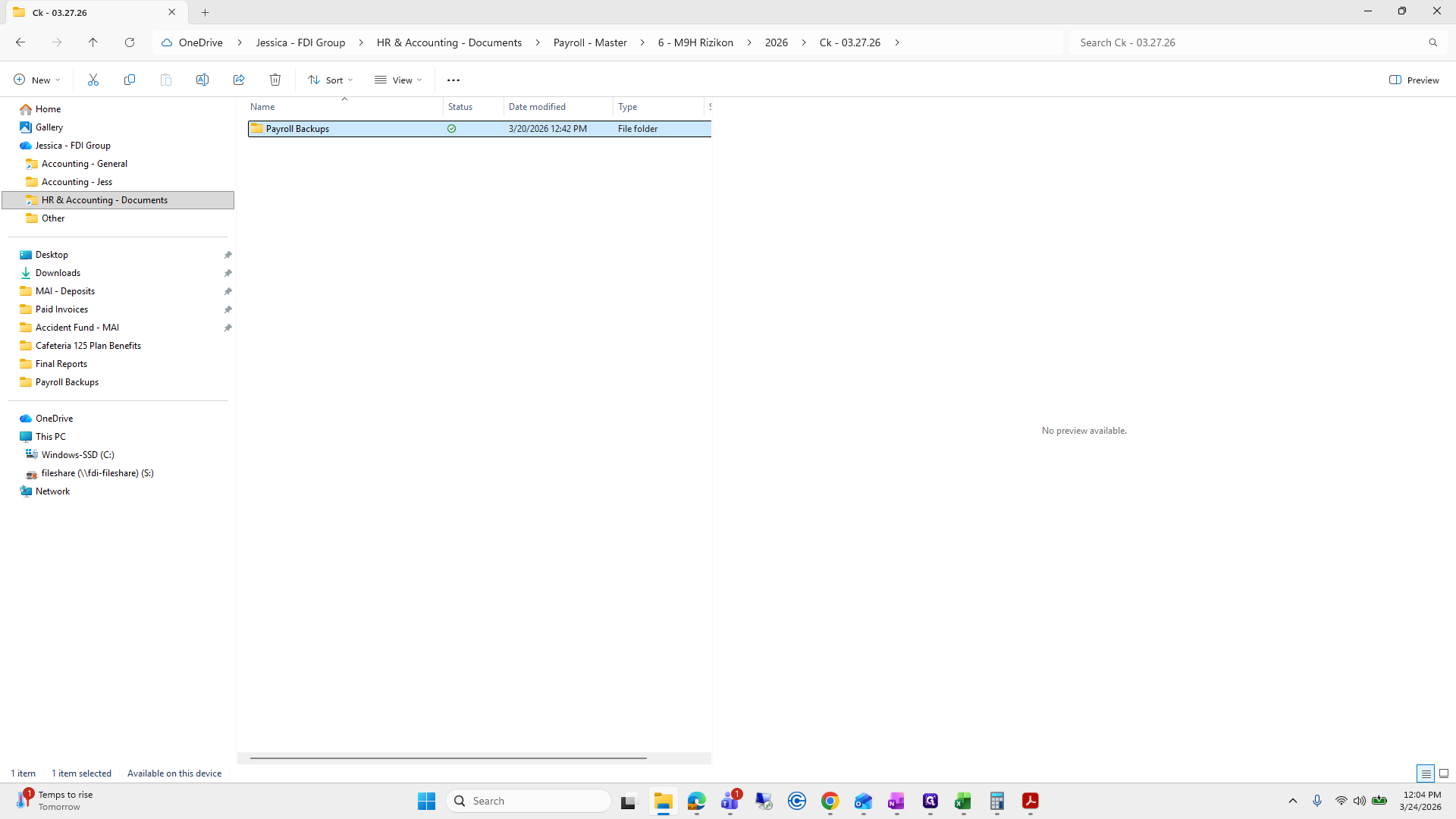
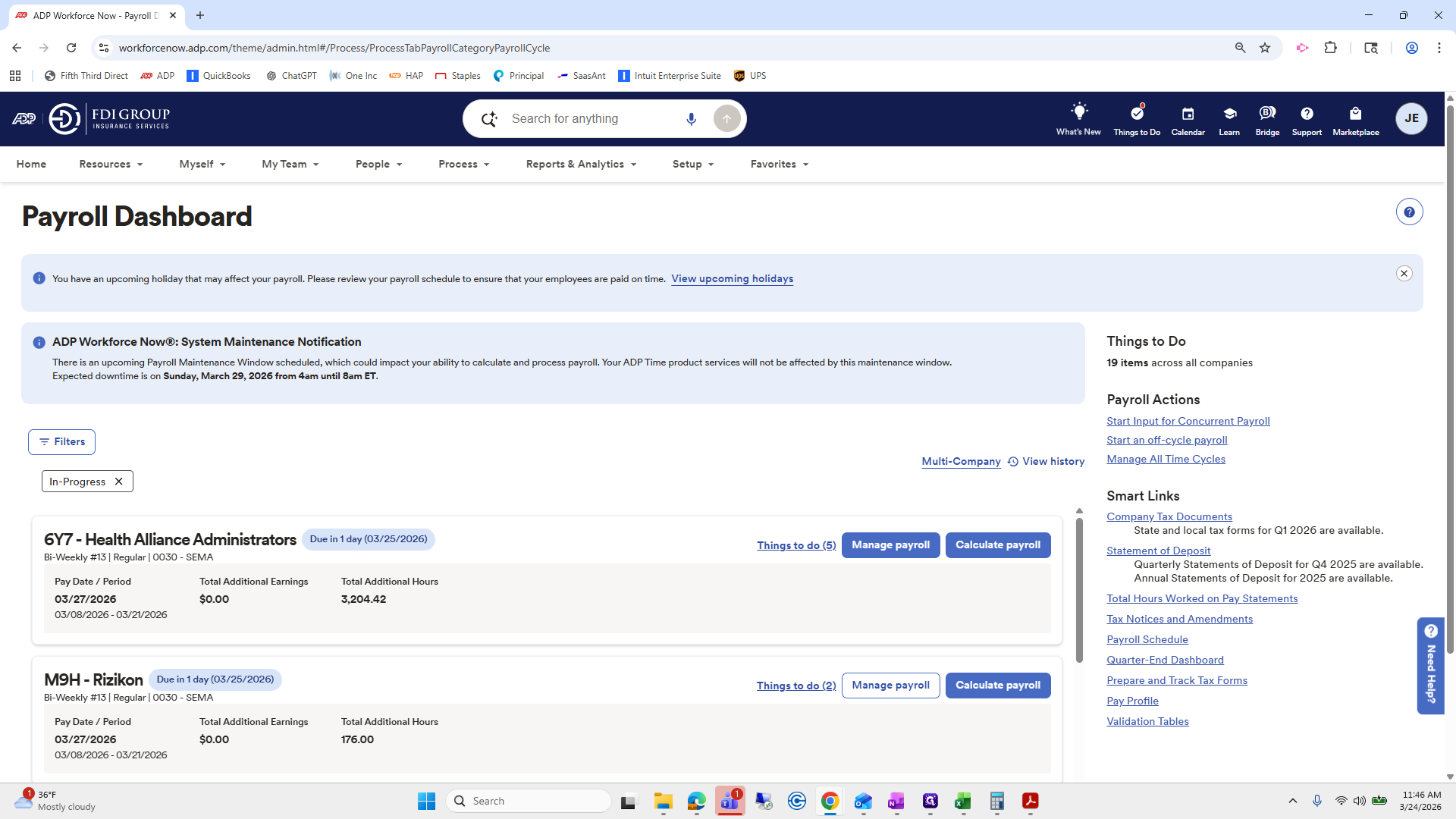
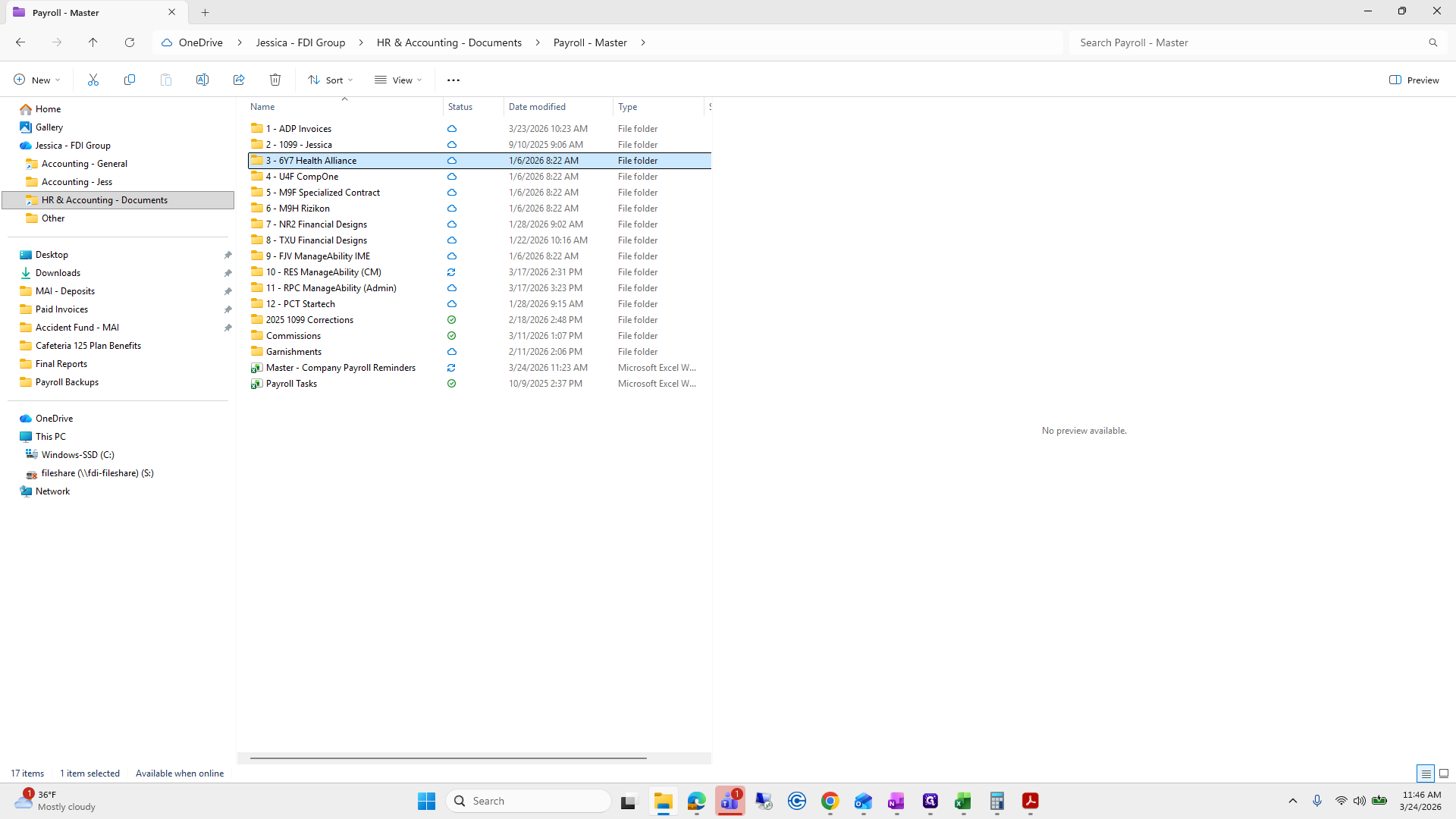
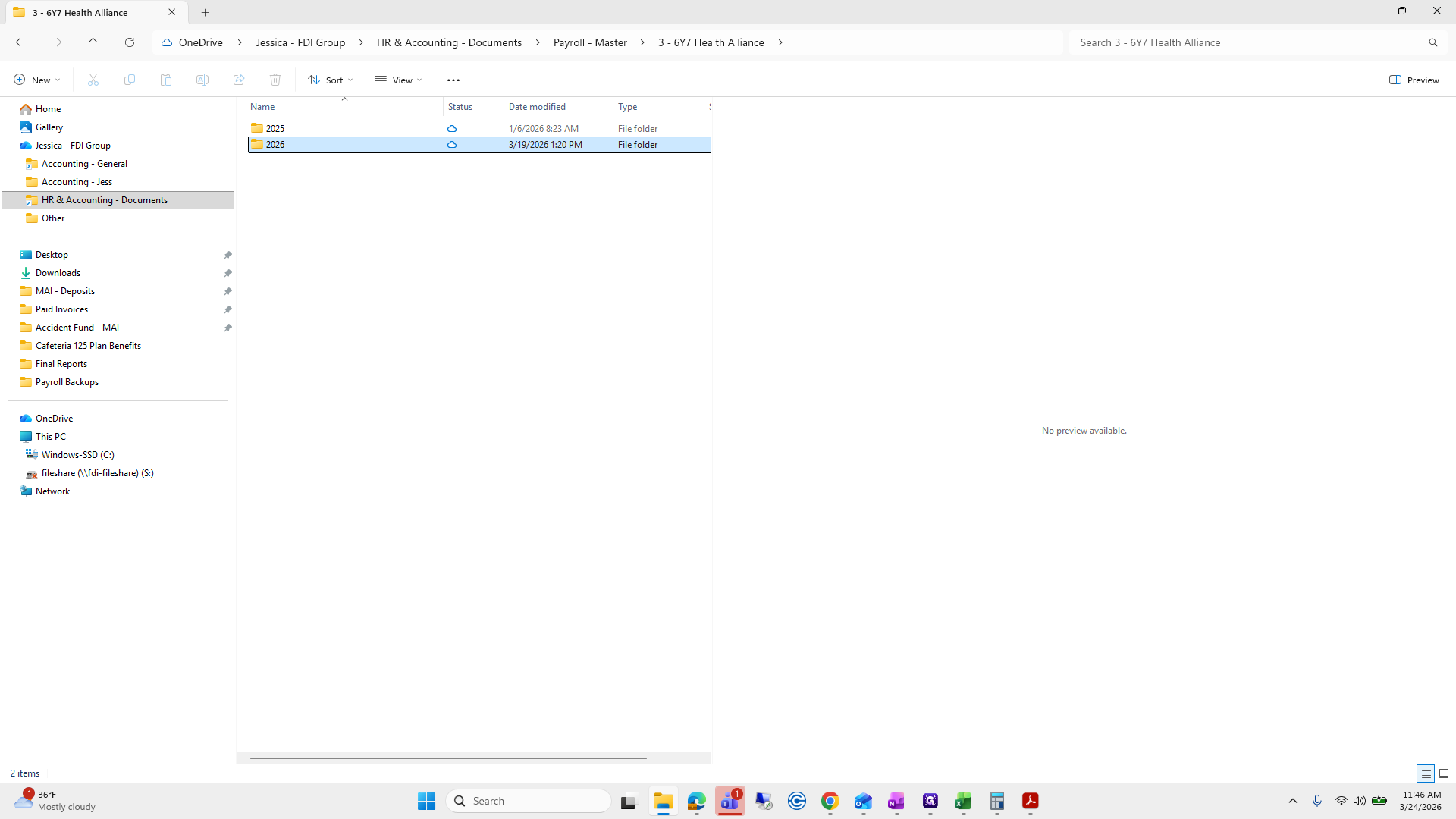
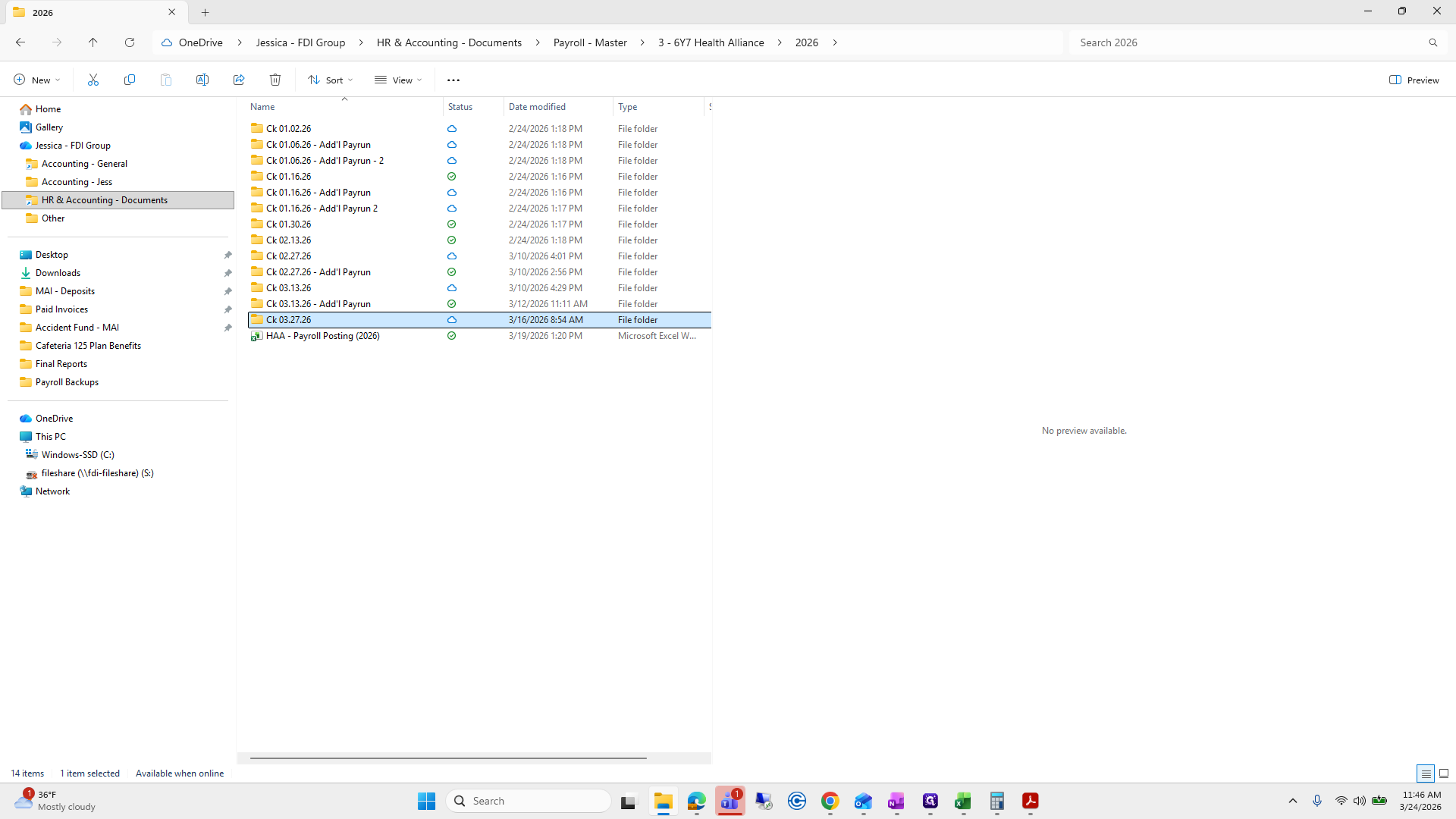
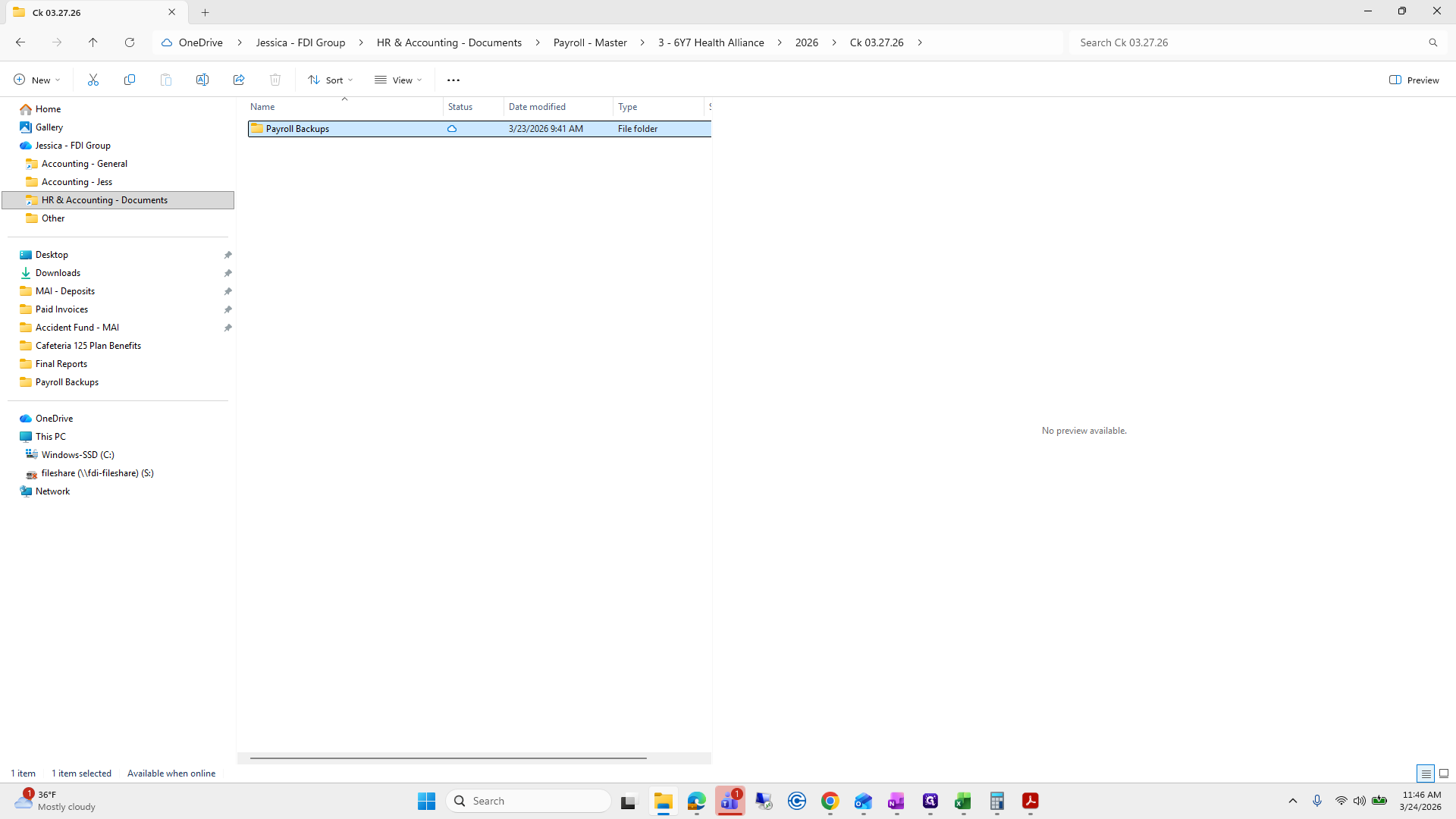
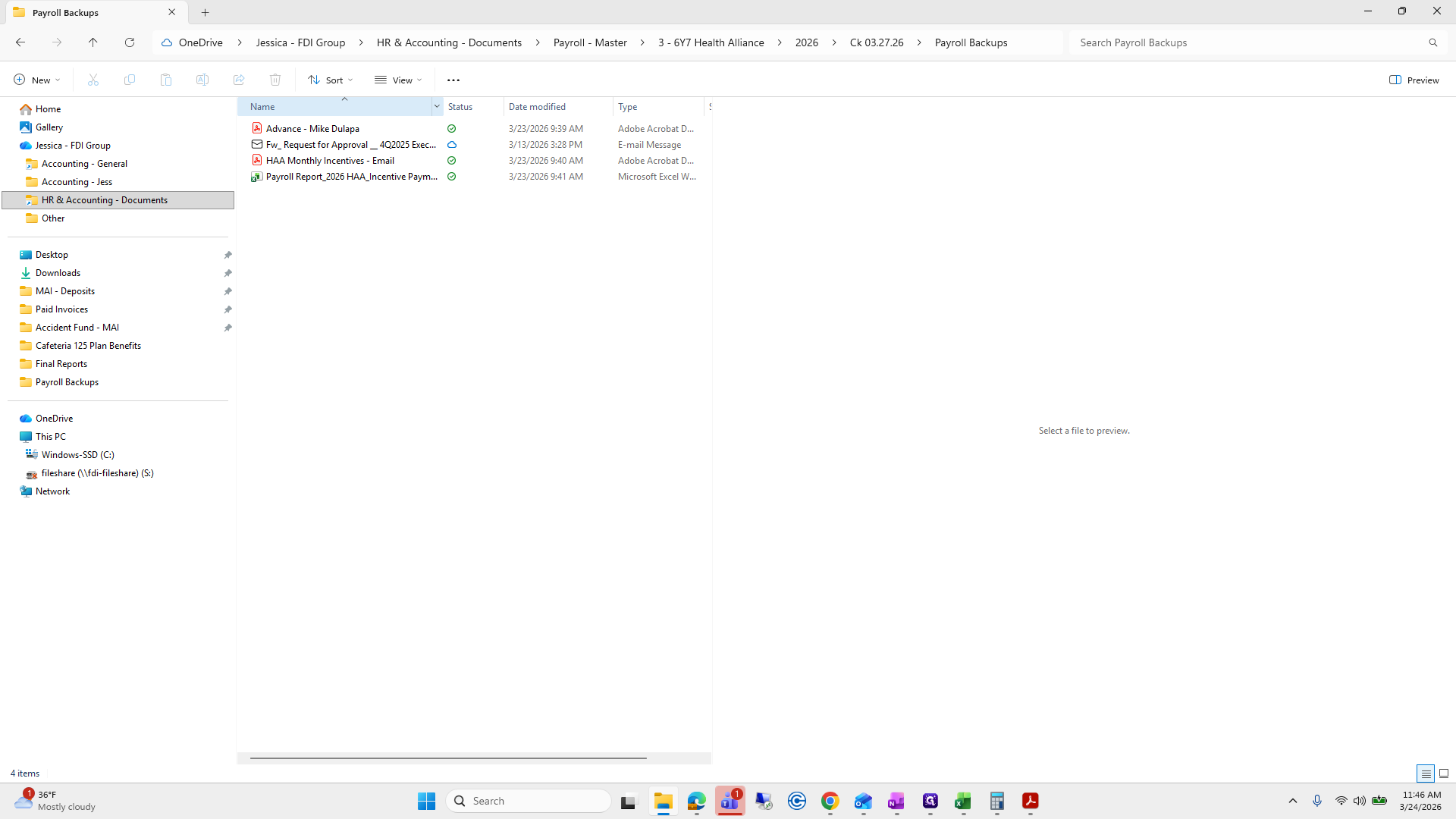
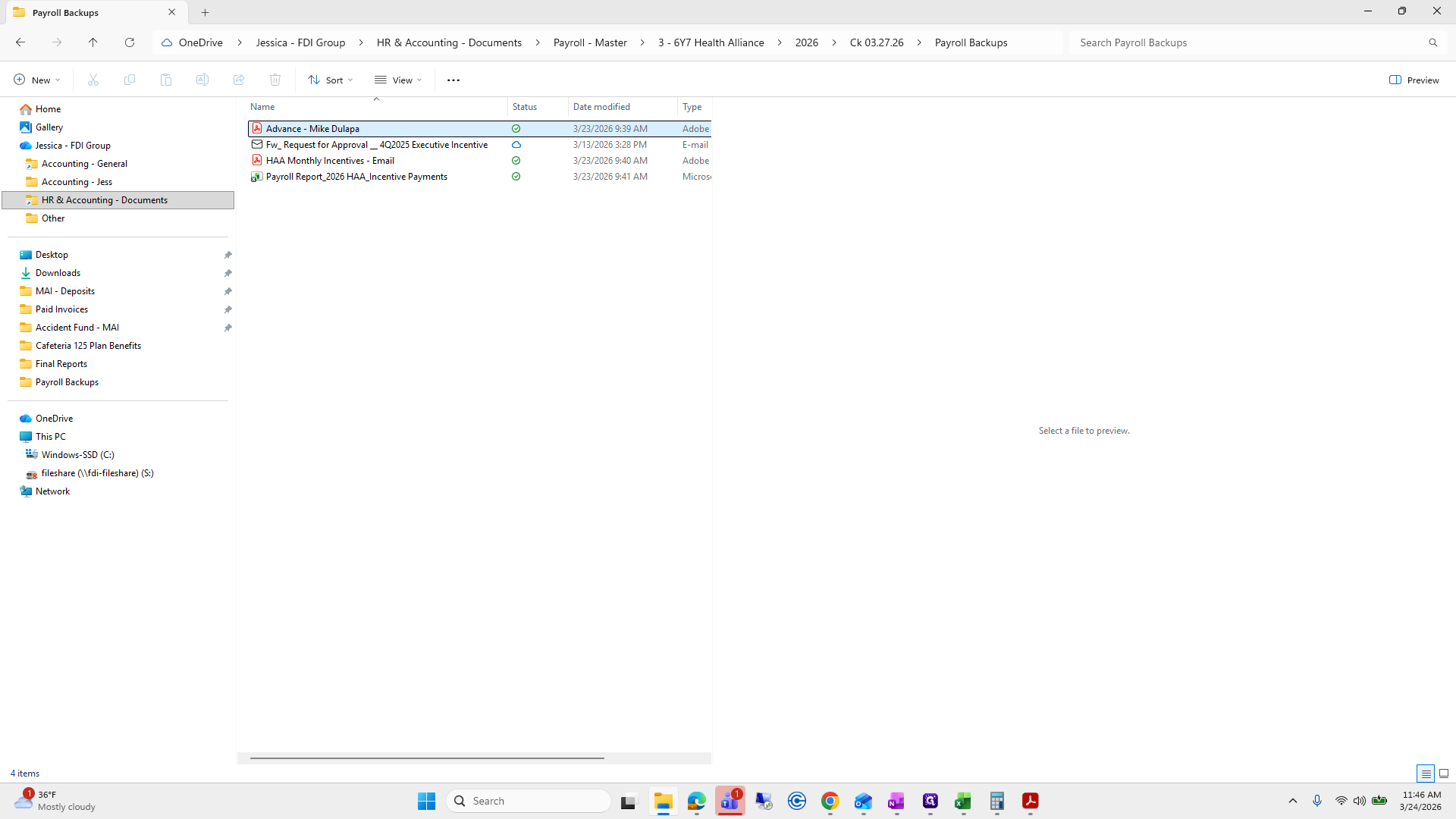
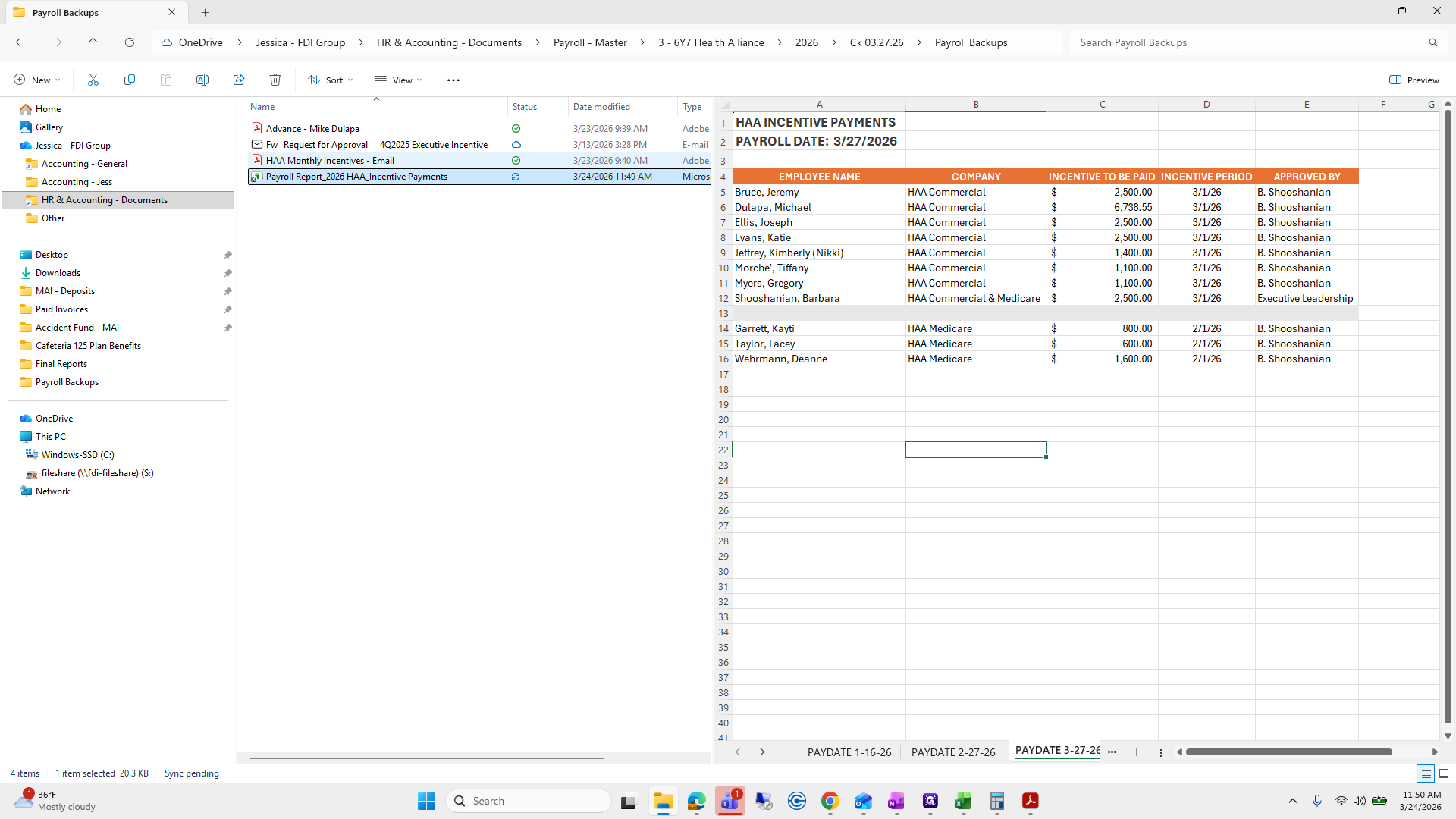
I will go to Health Alliance and Payroll, 327, Backups.
We need to make an advance. We also have an incentive and incentives to add.
We'll do this in a minute.
First, we will handle the incentive payments.
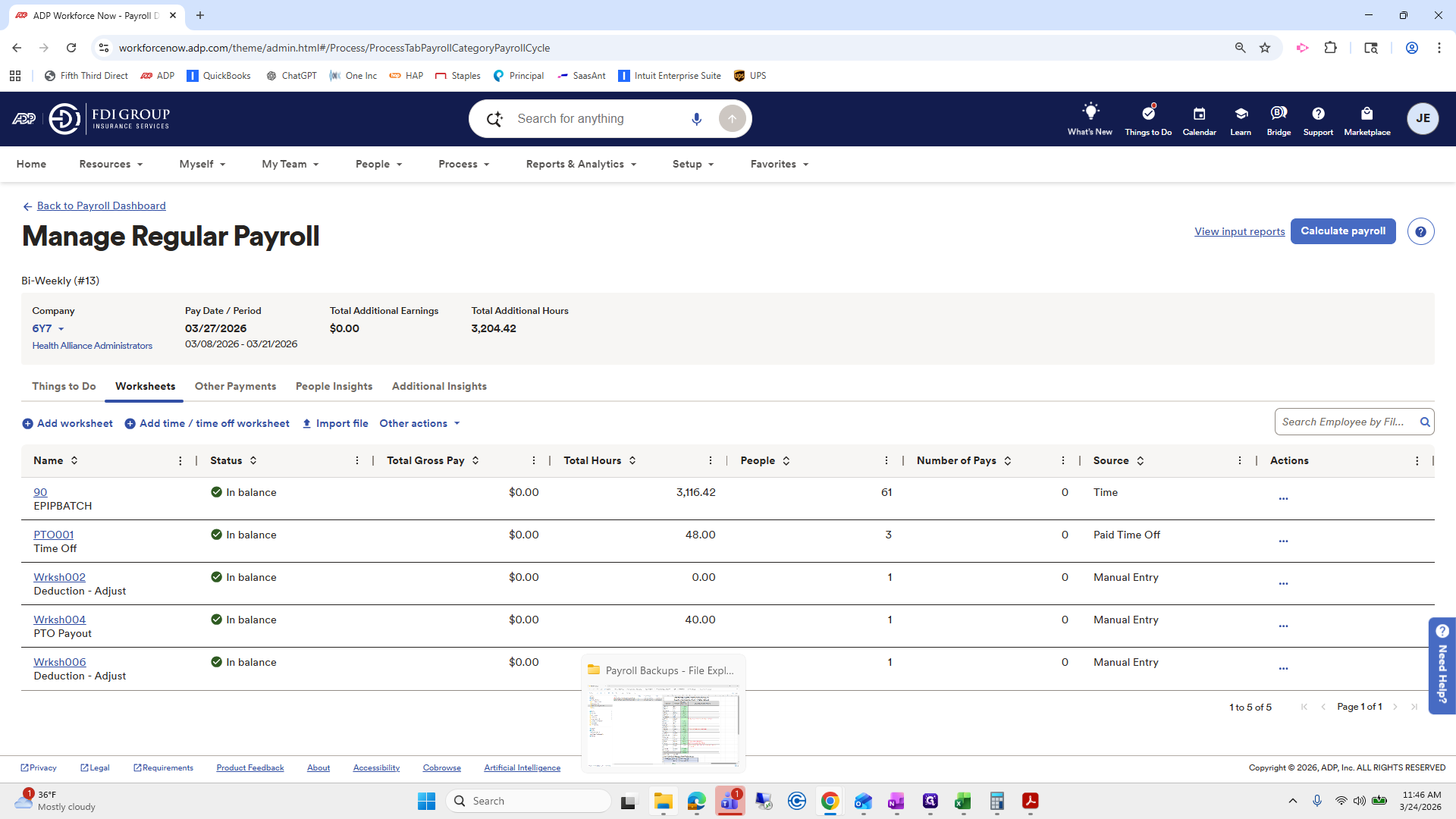
And we're going to go to...
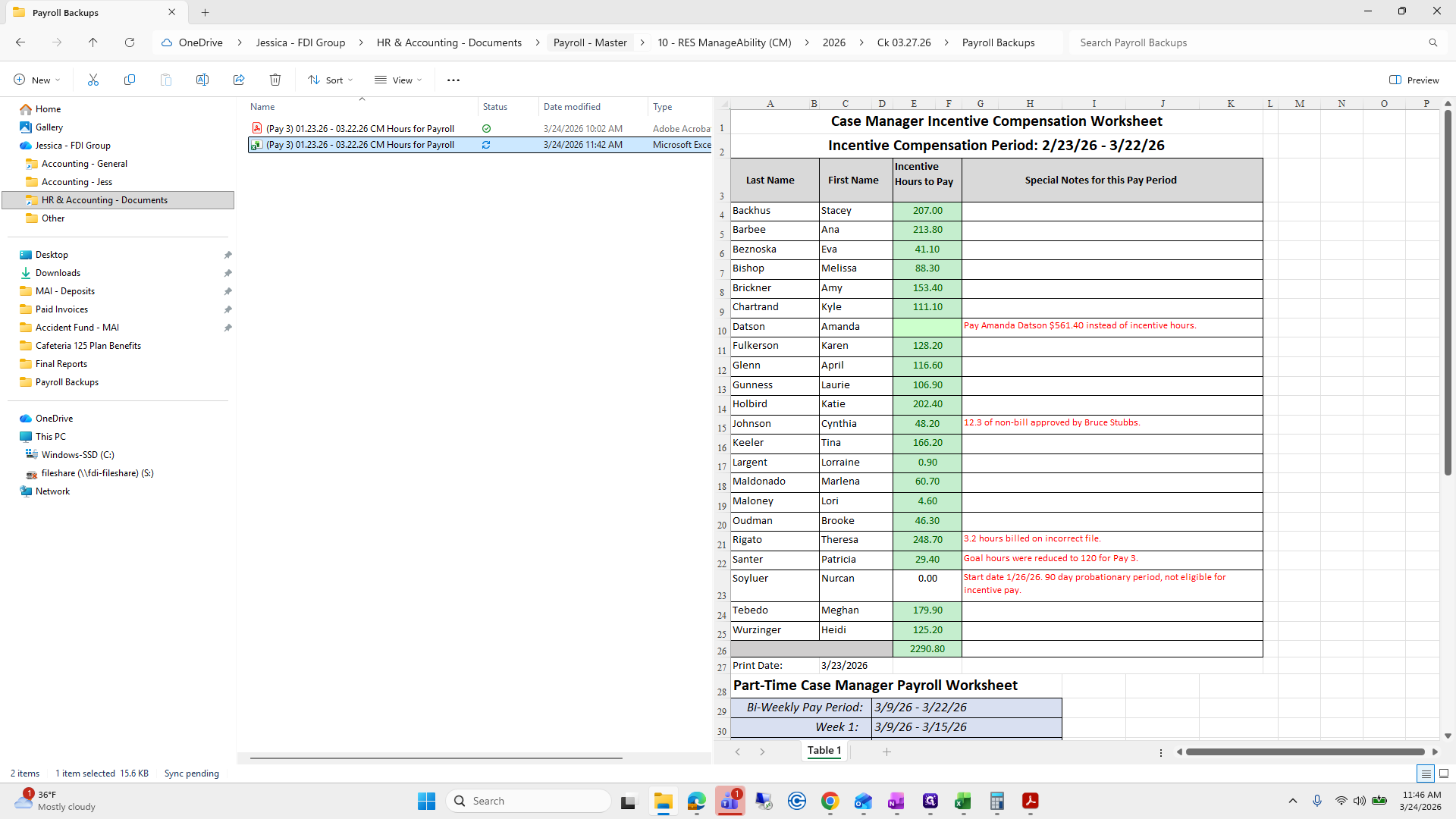
I believe I was already in it.
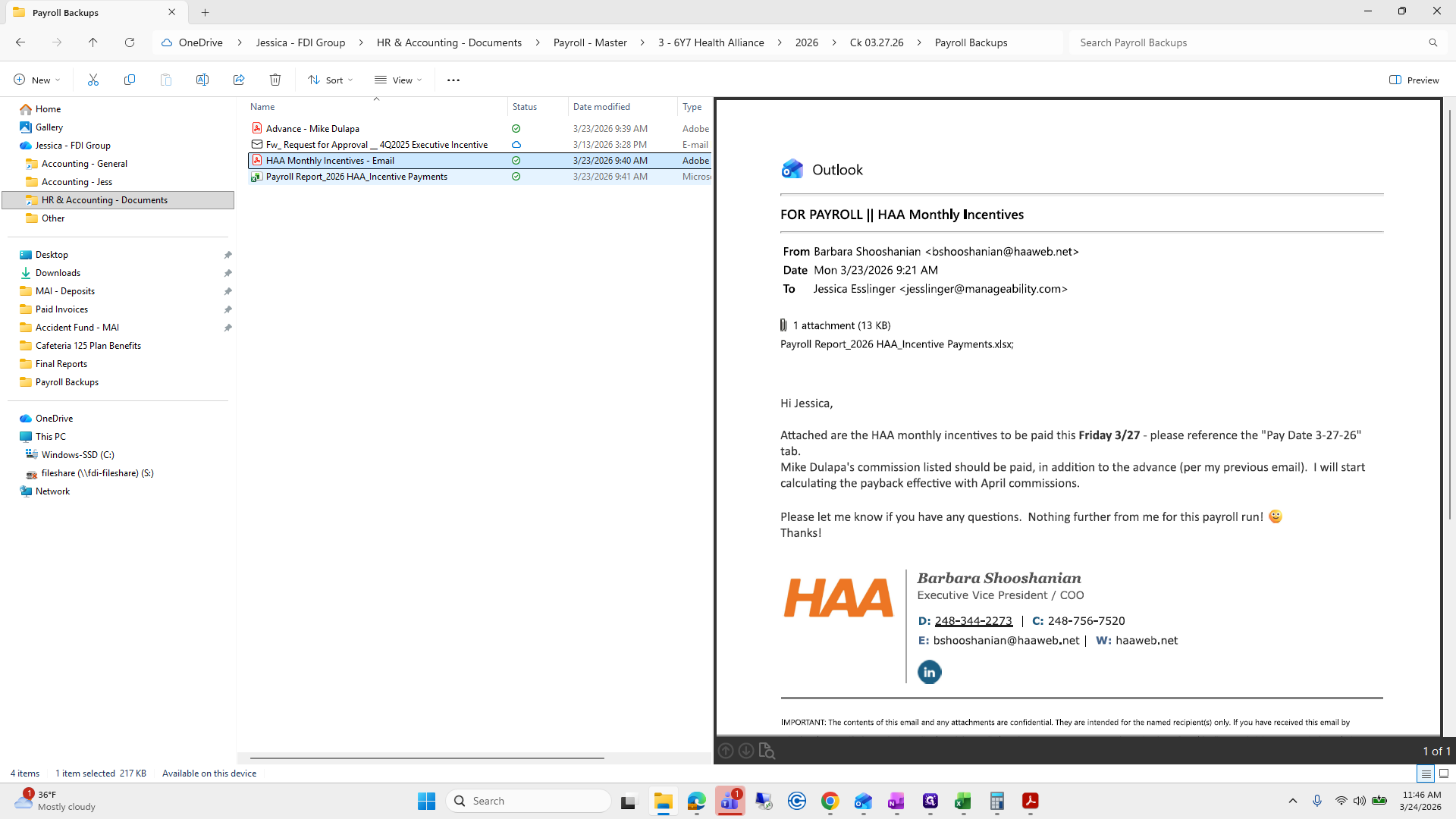
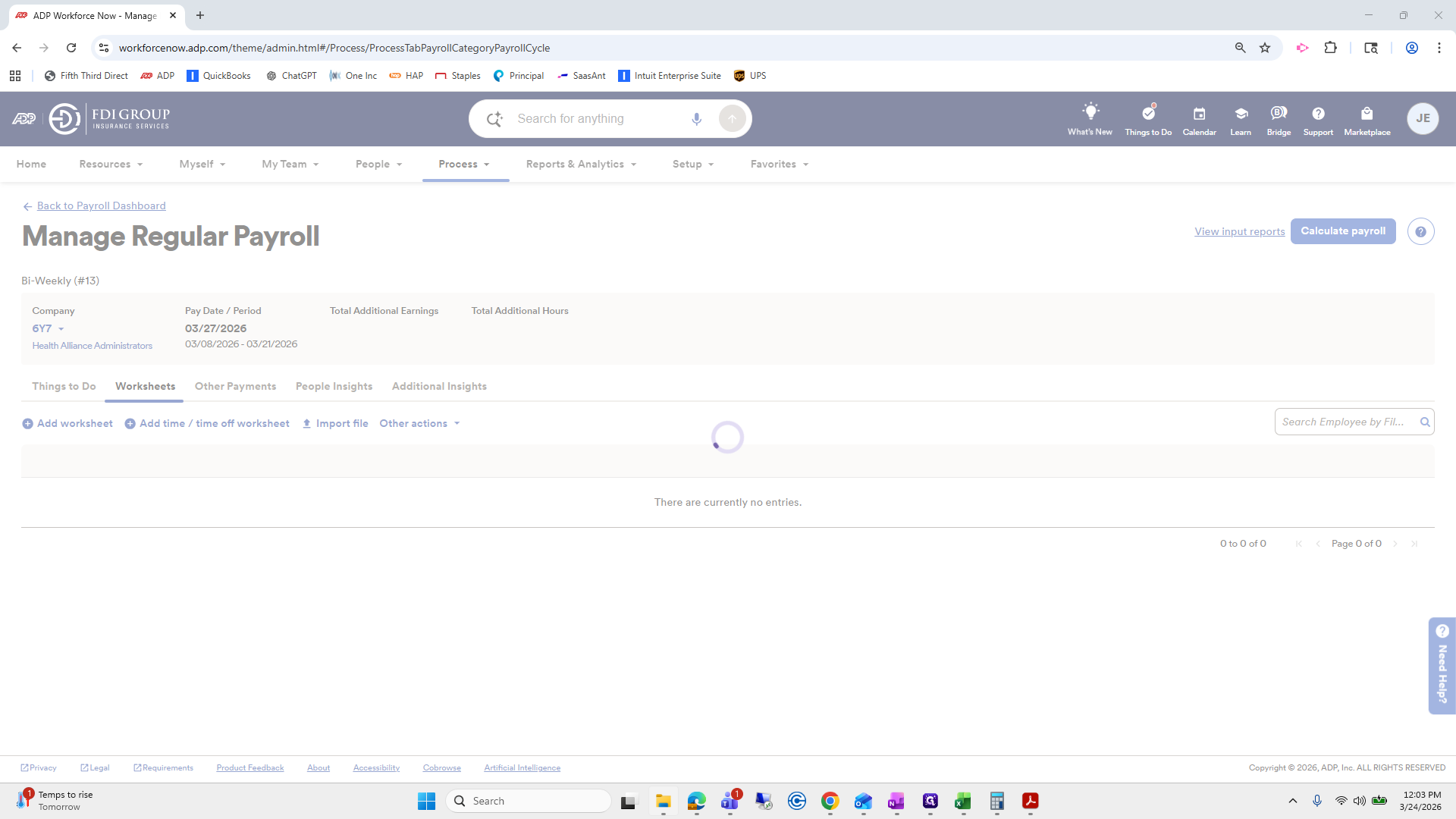
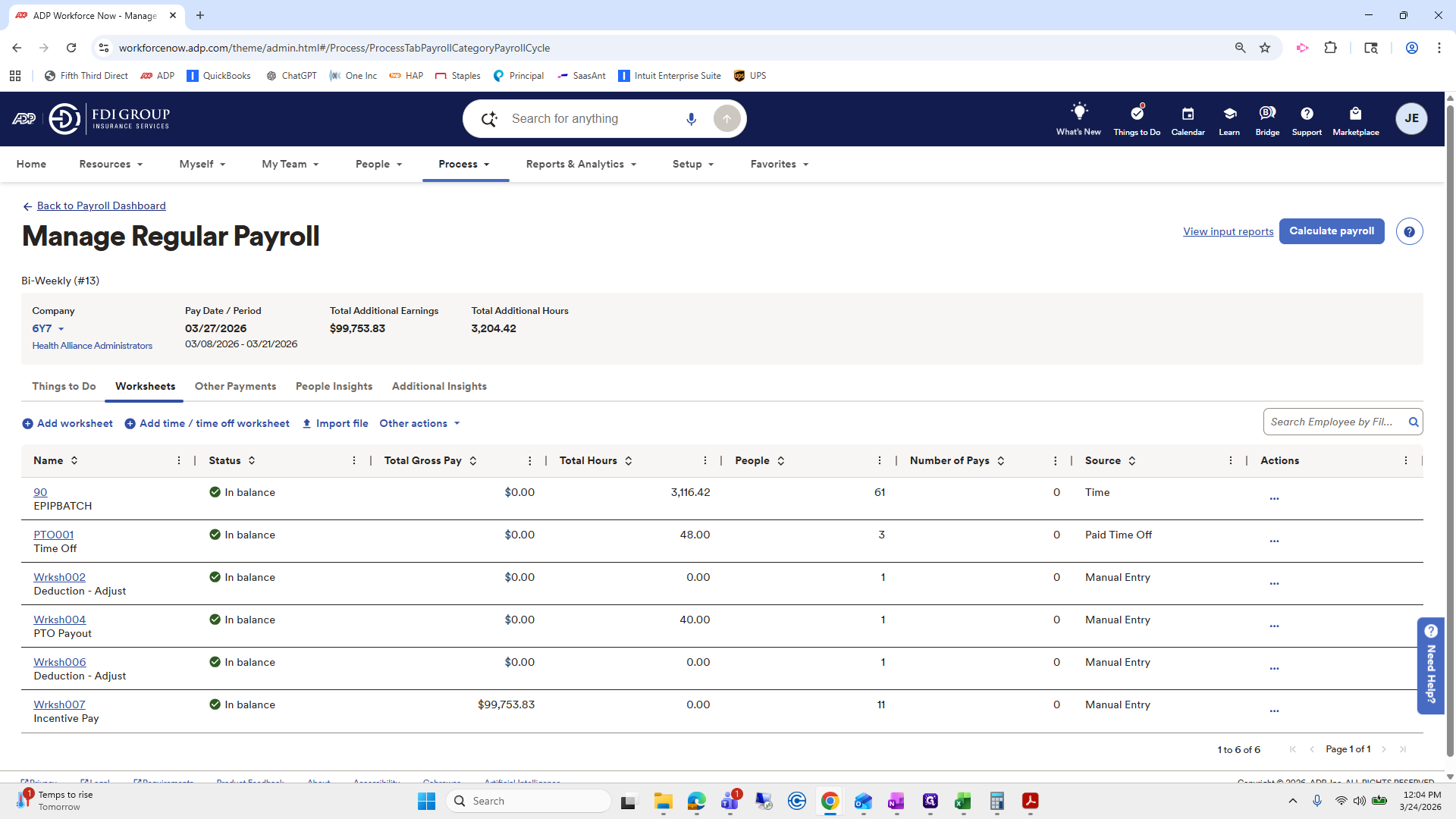
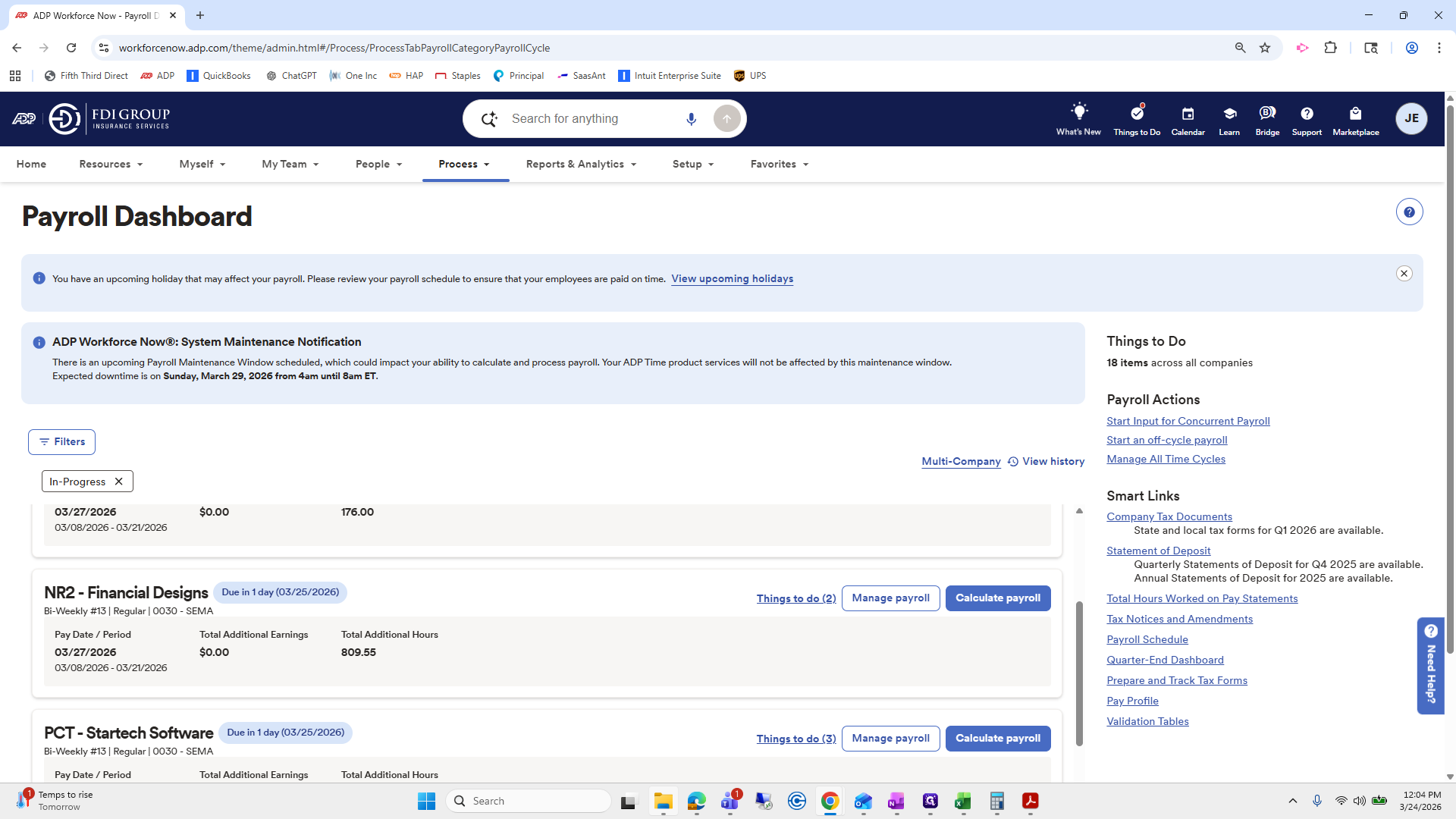
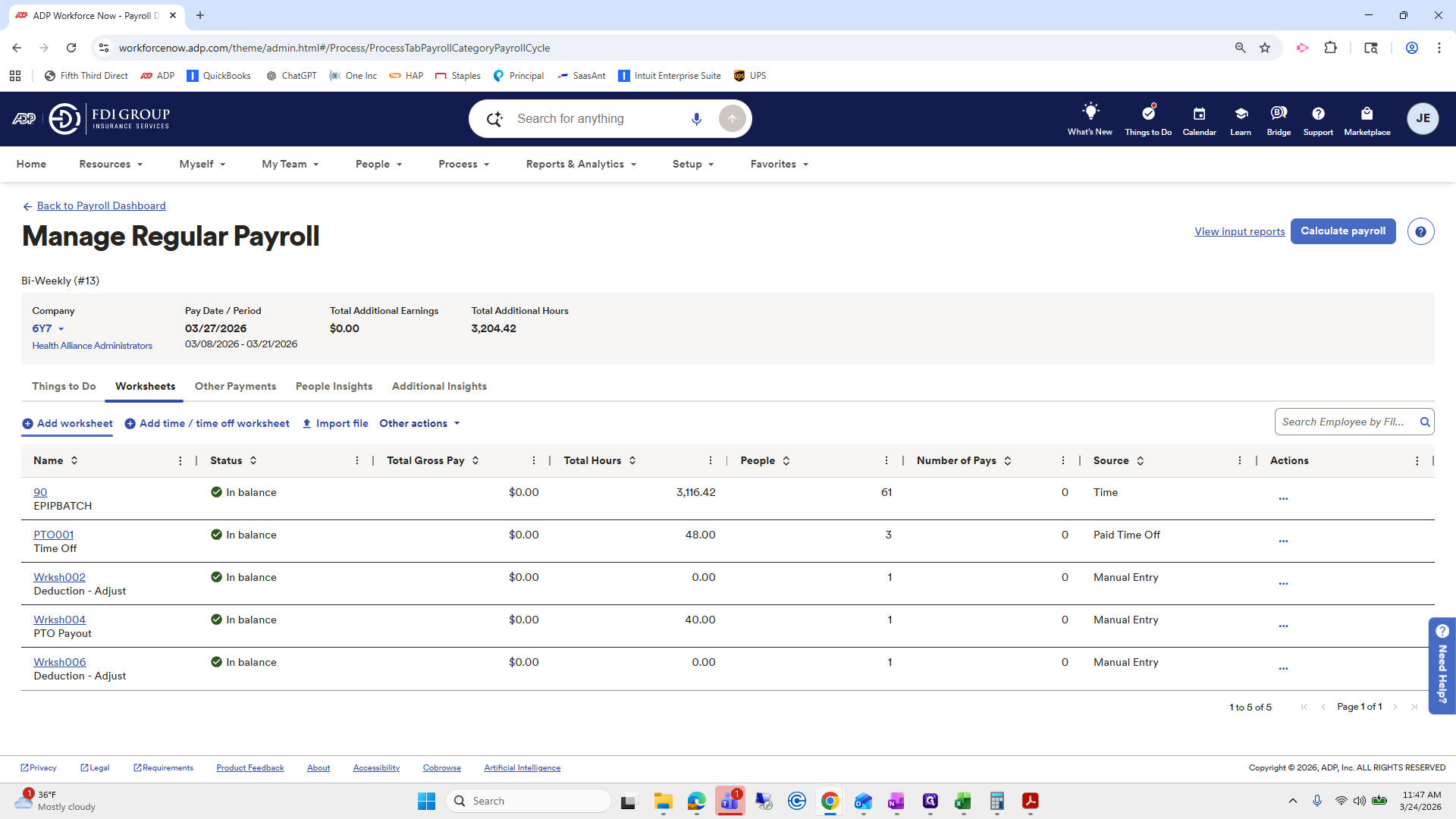
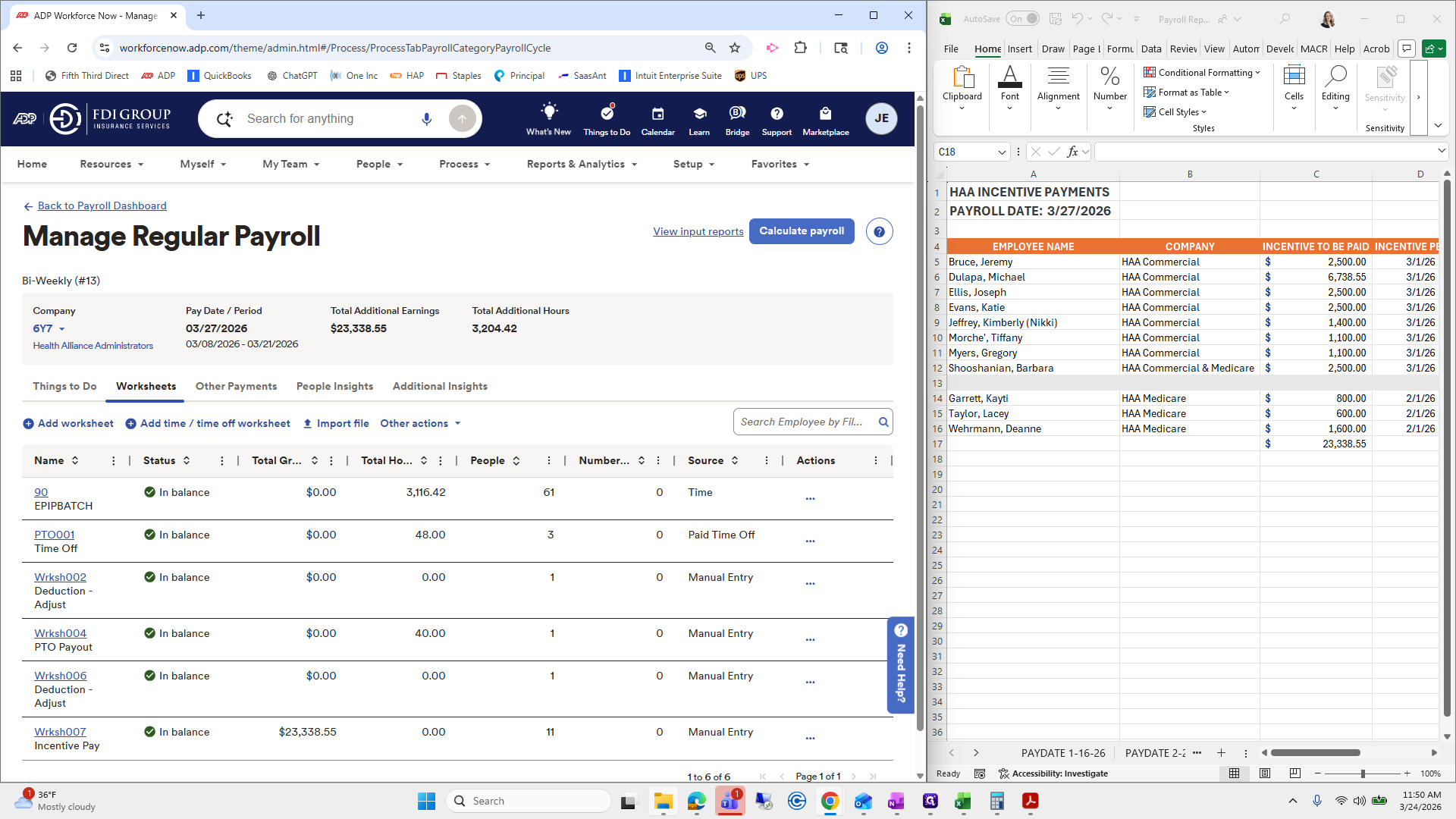
Managed payroll. We will add a worksheet.
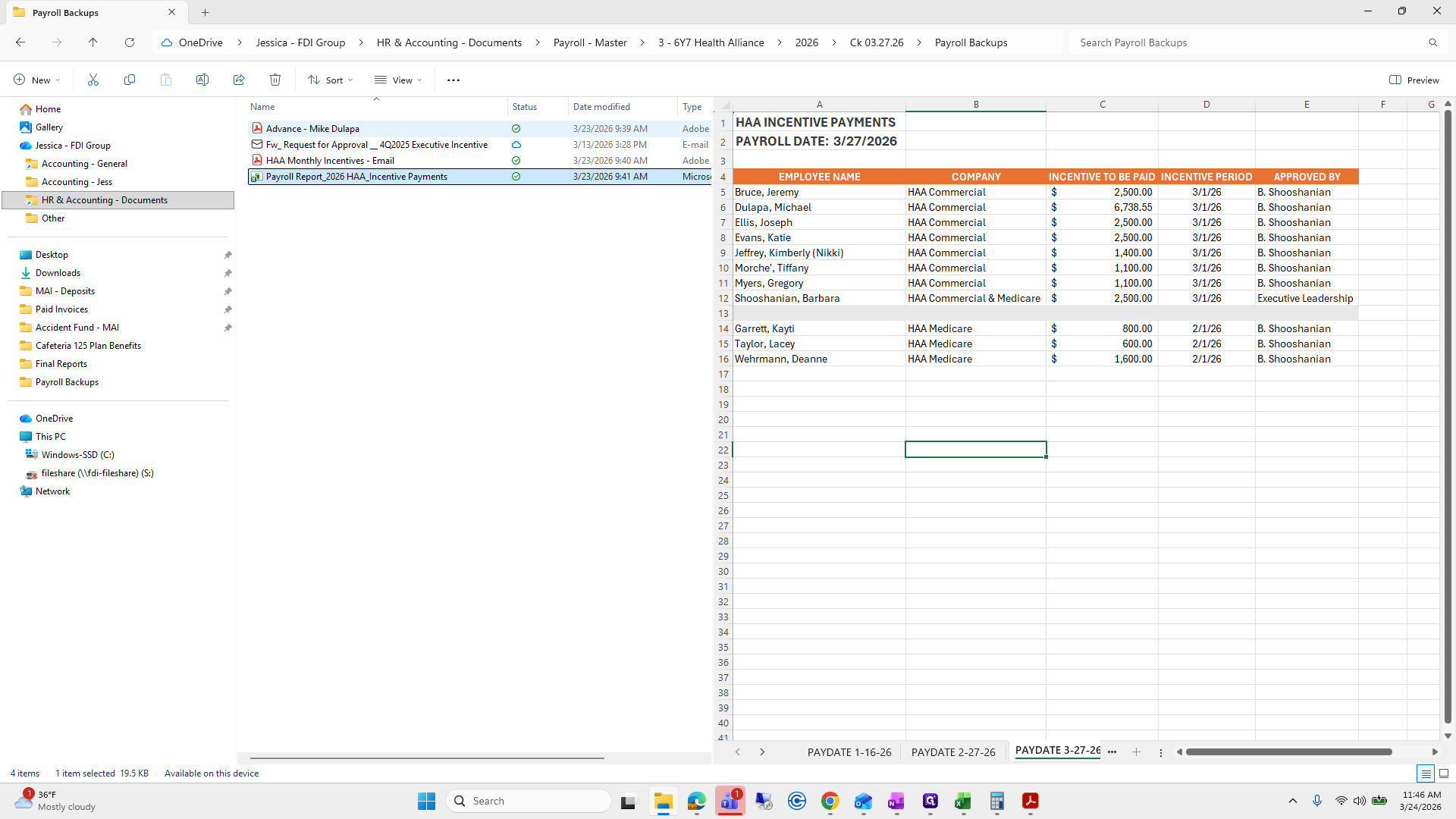
Do I have an incentive?
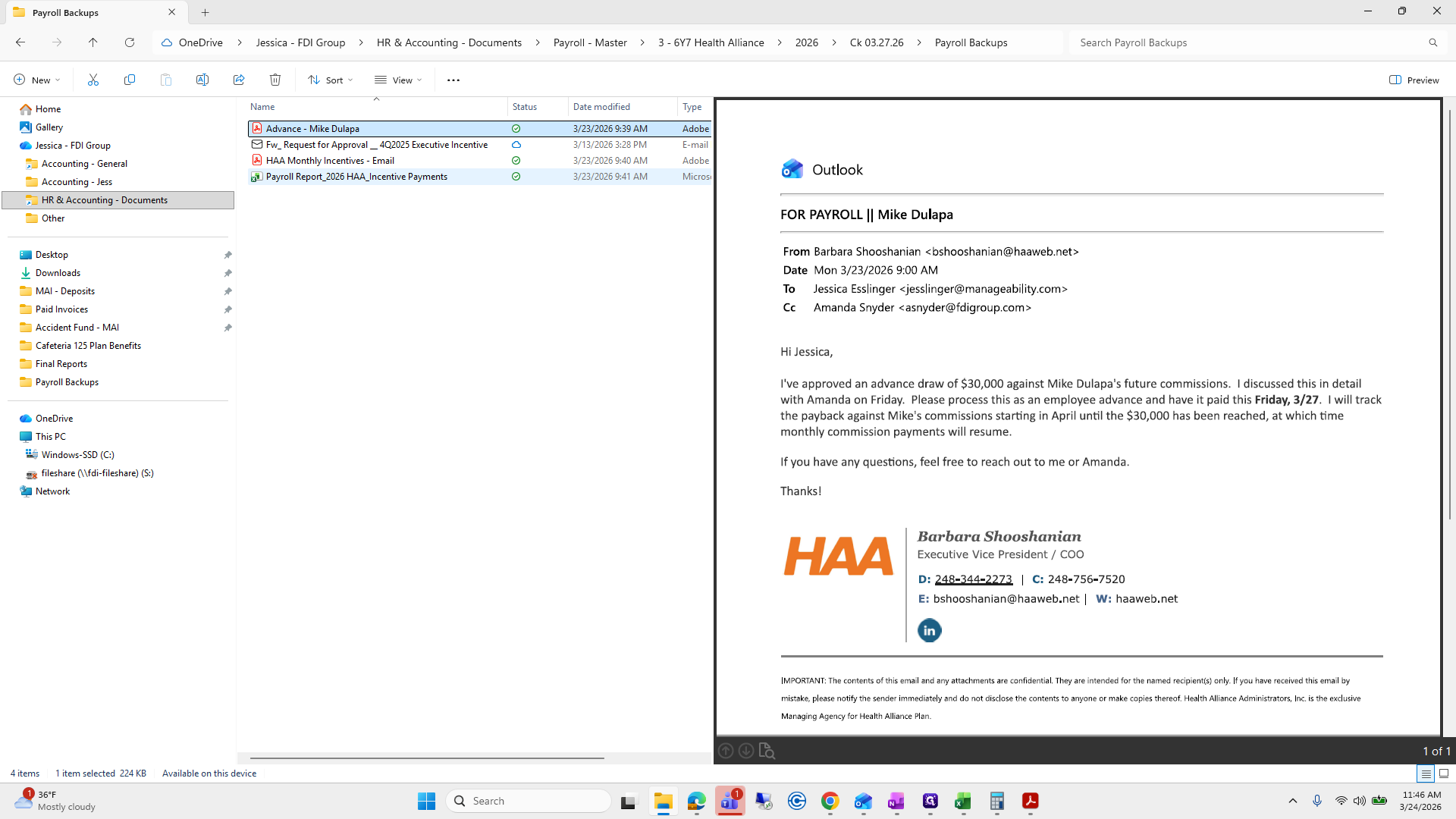
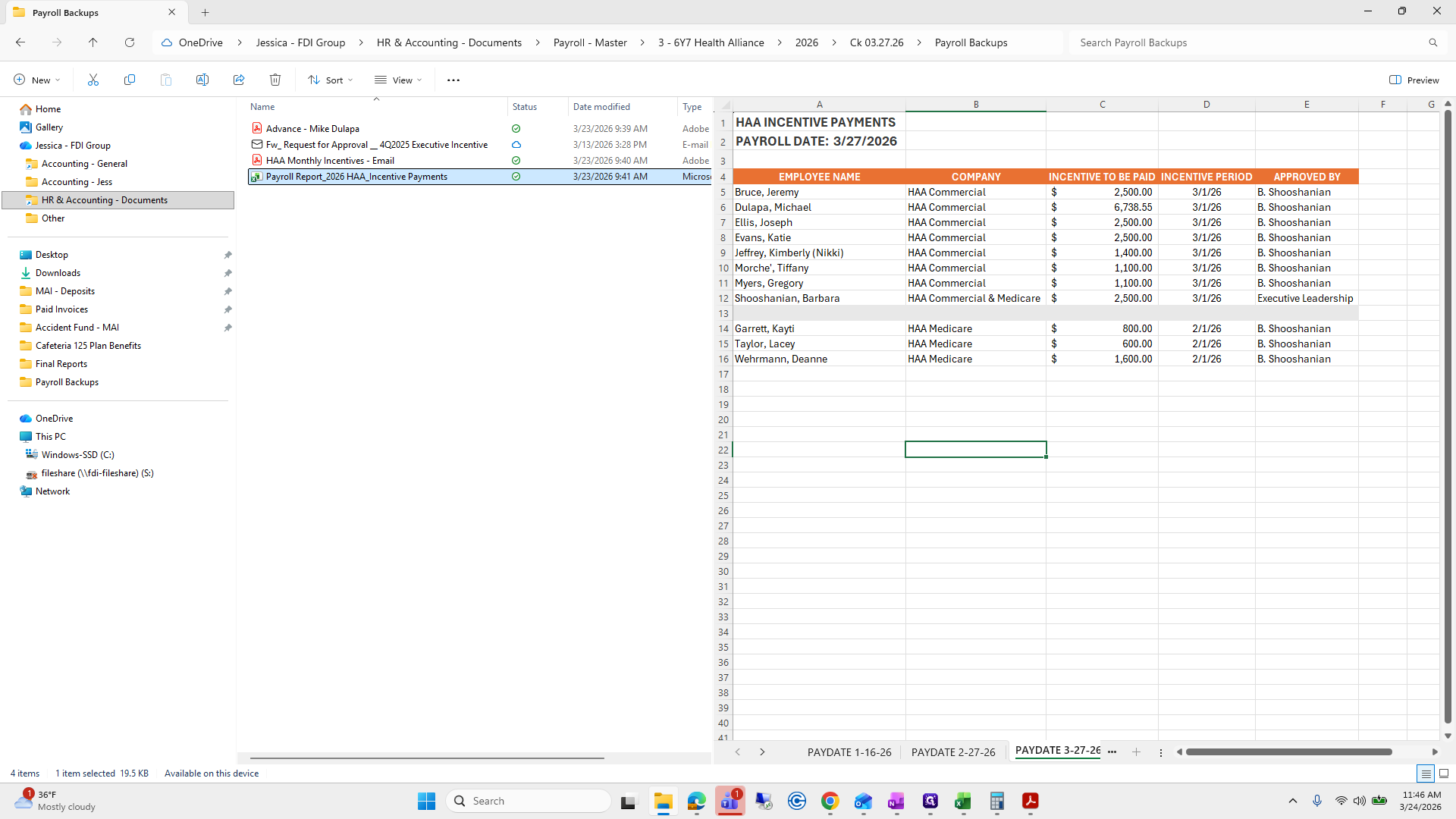
I have incentive pay. Let me check if I have a worksheet.
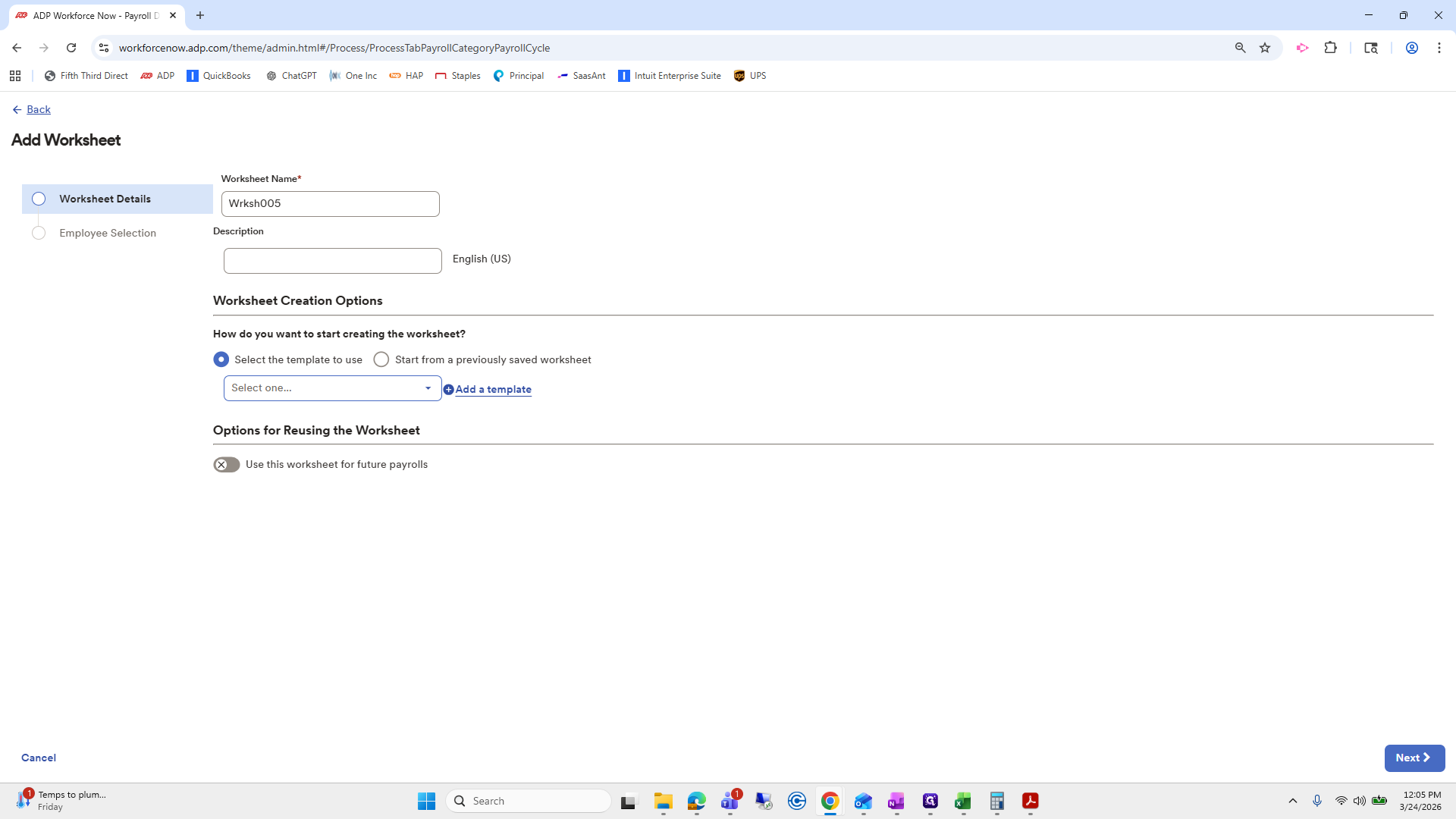
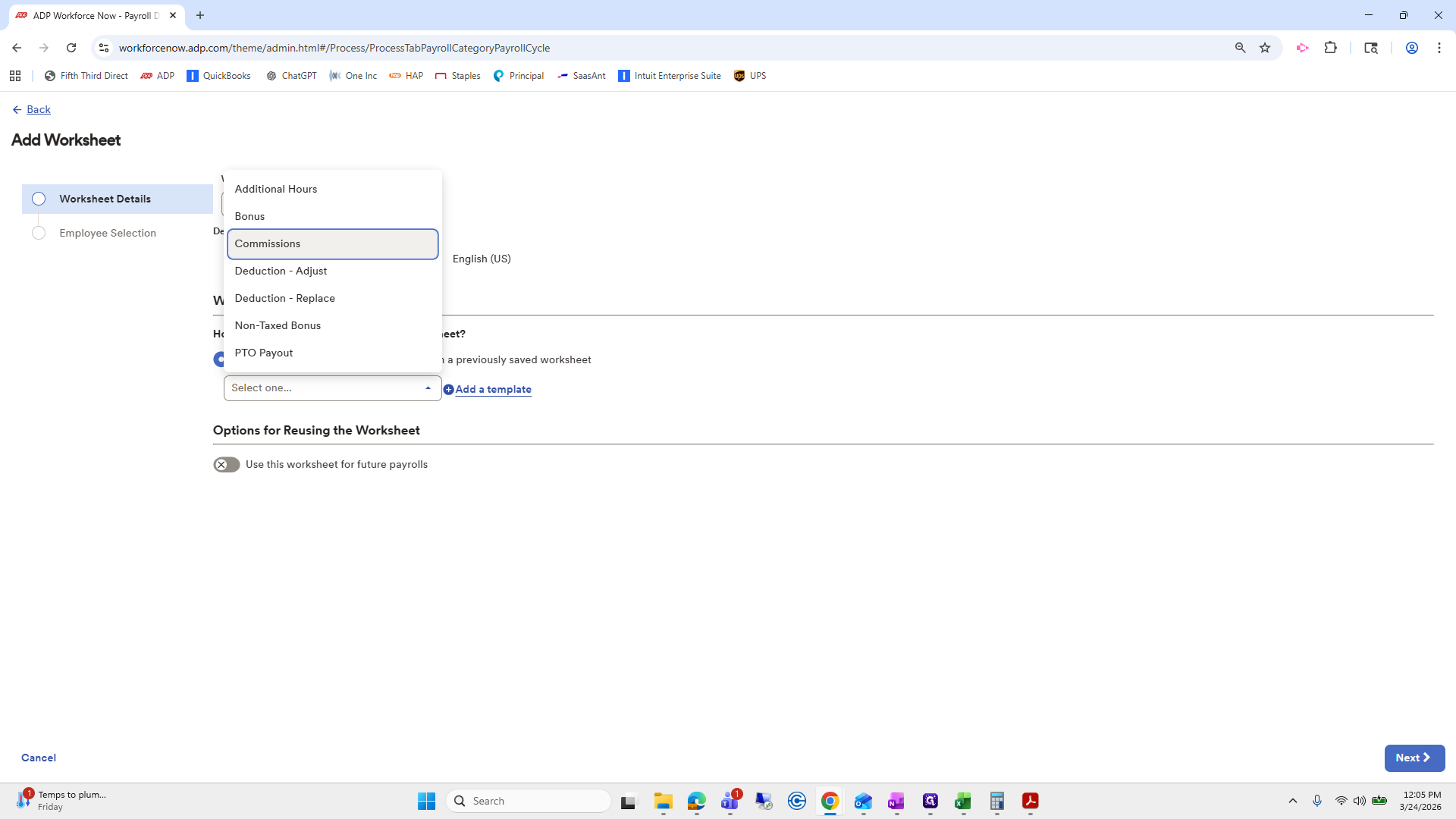
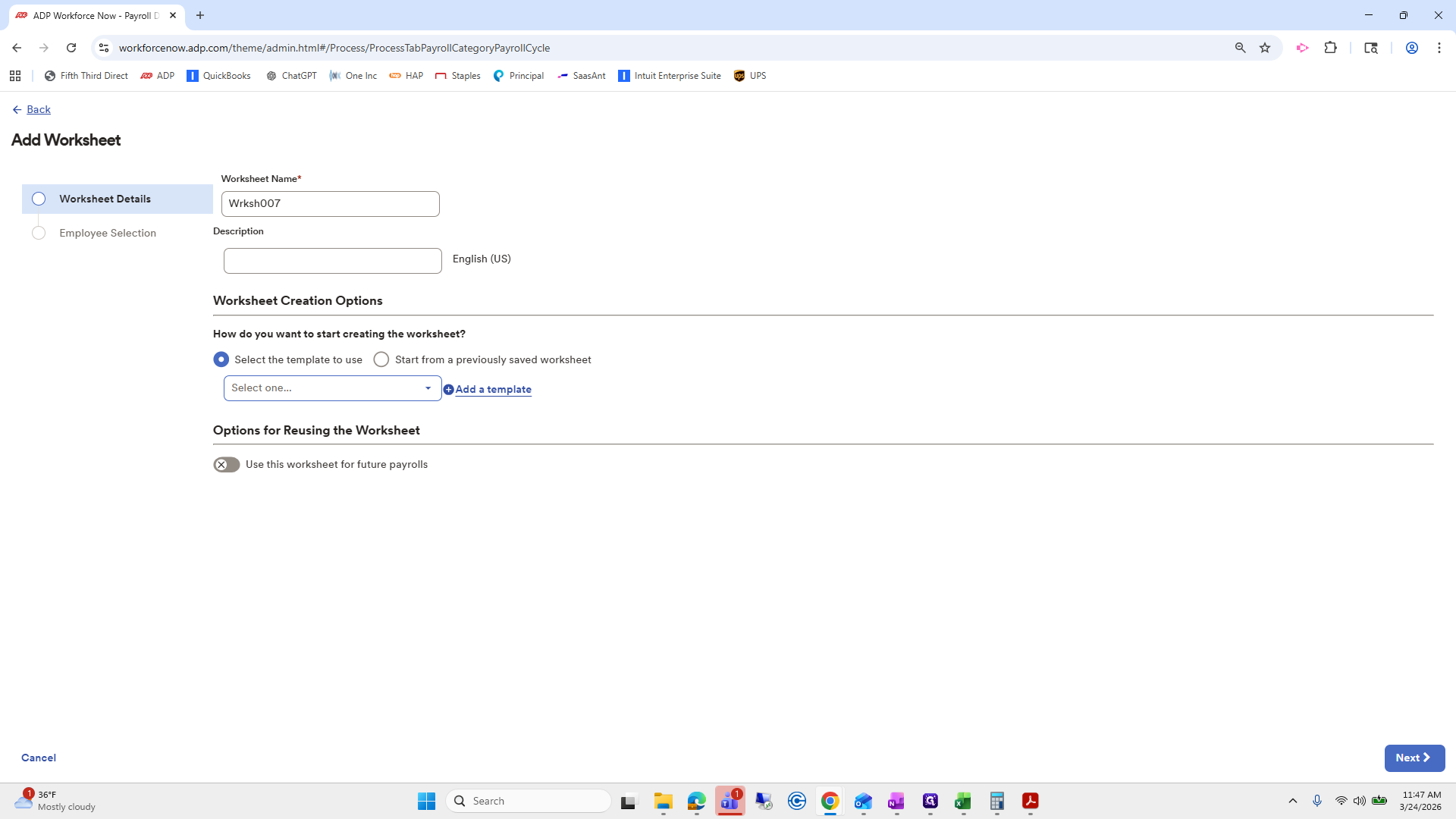
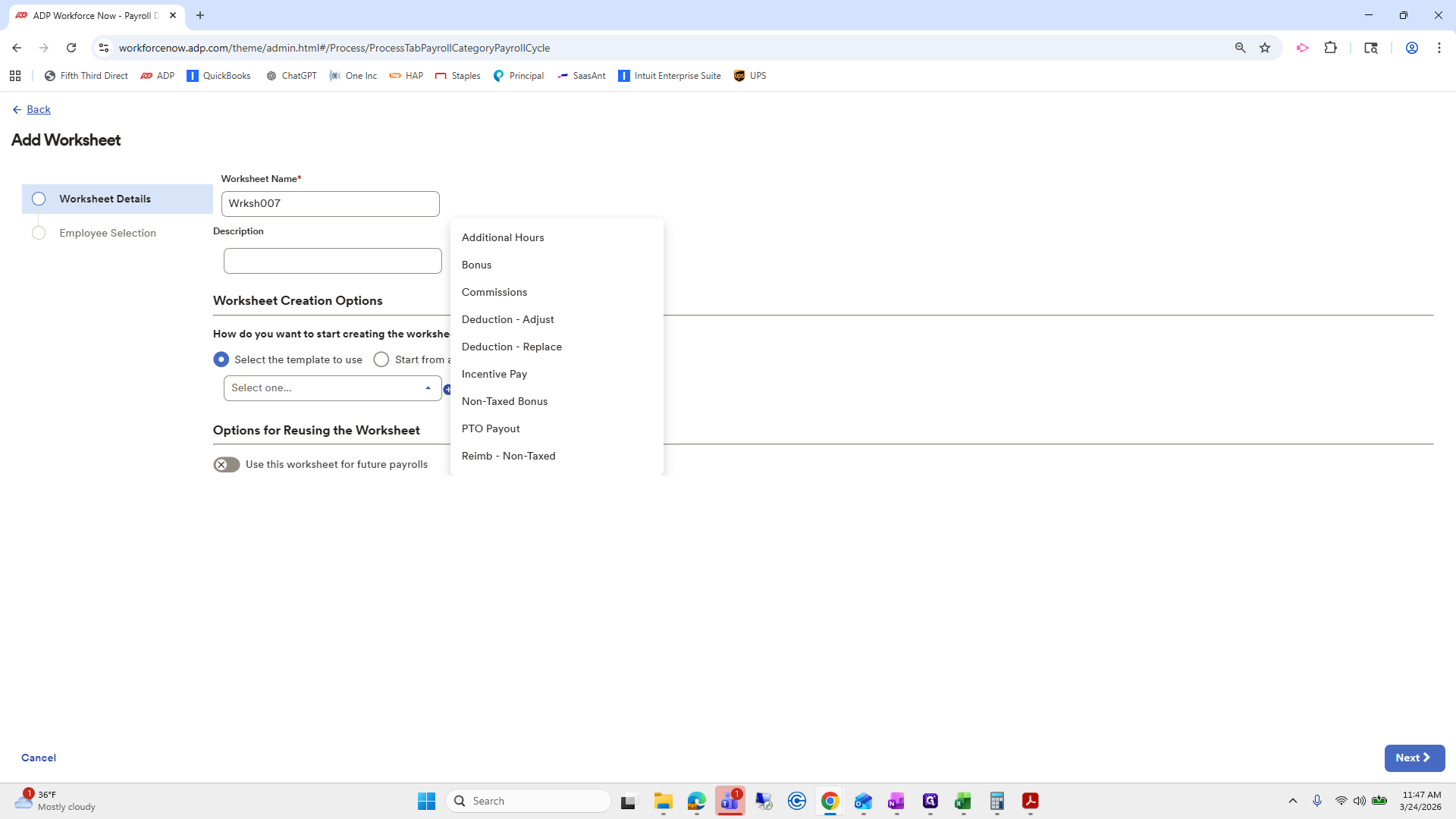
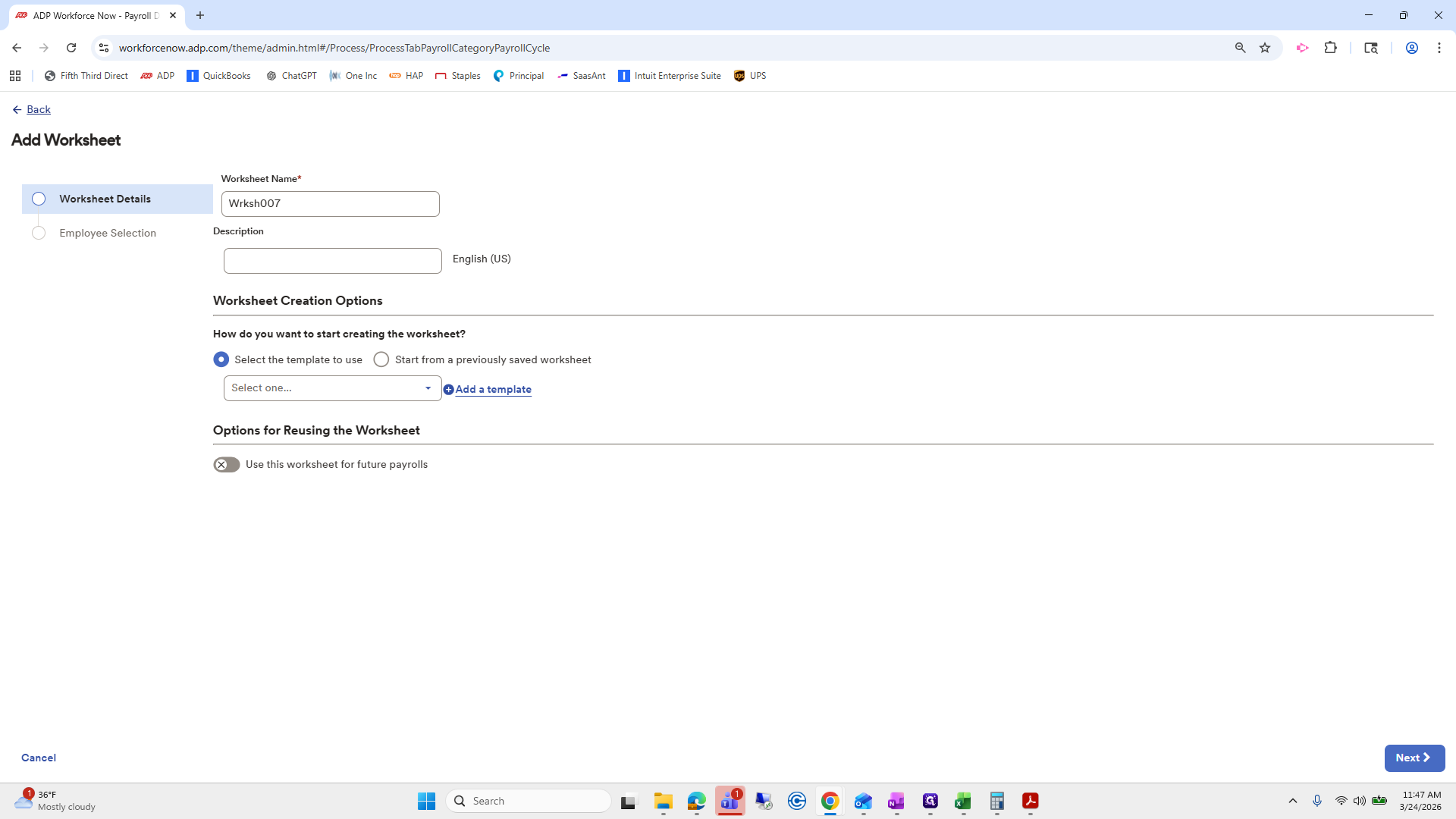
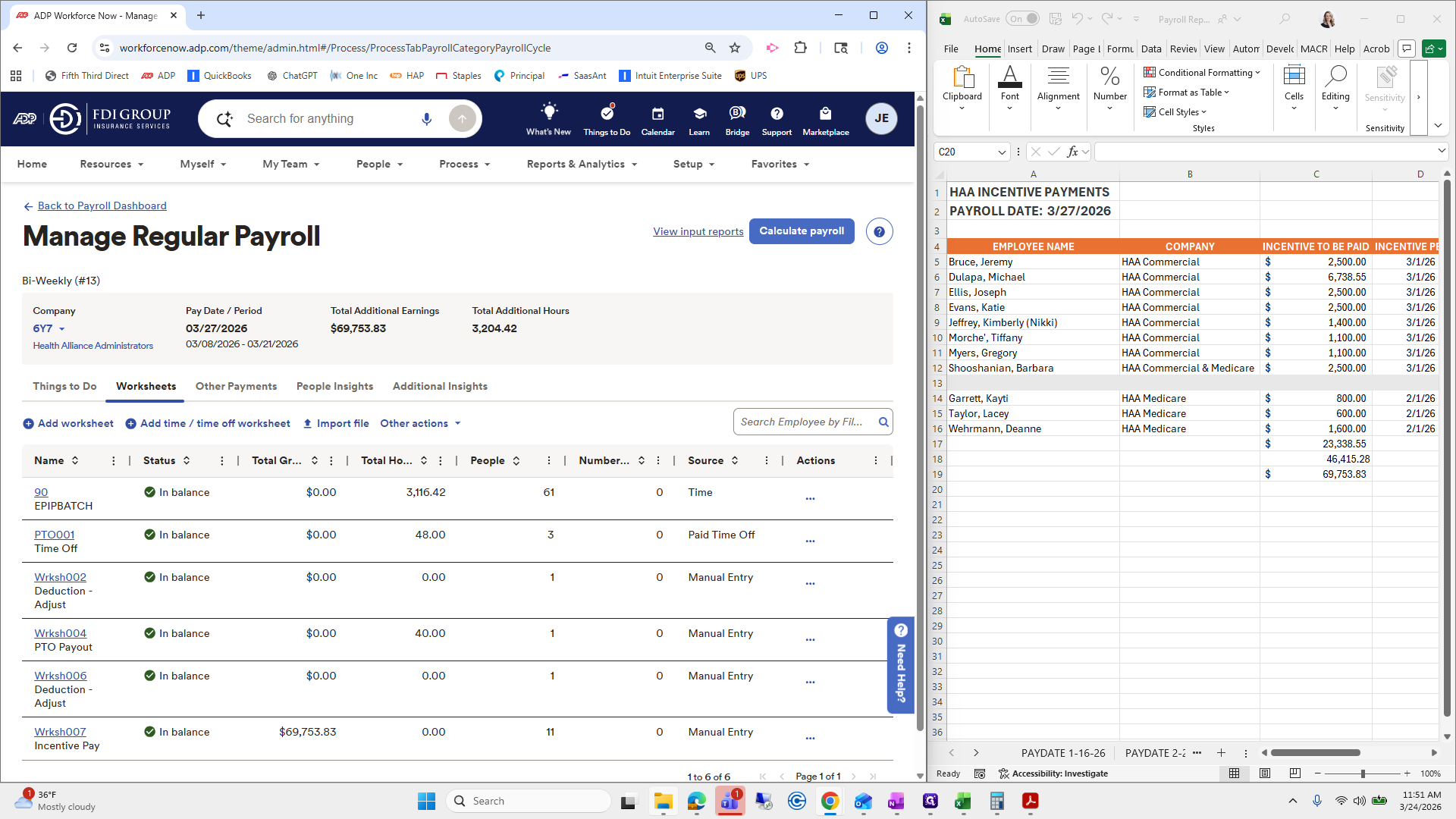
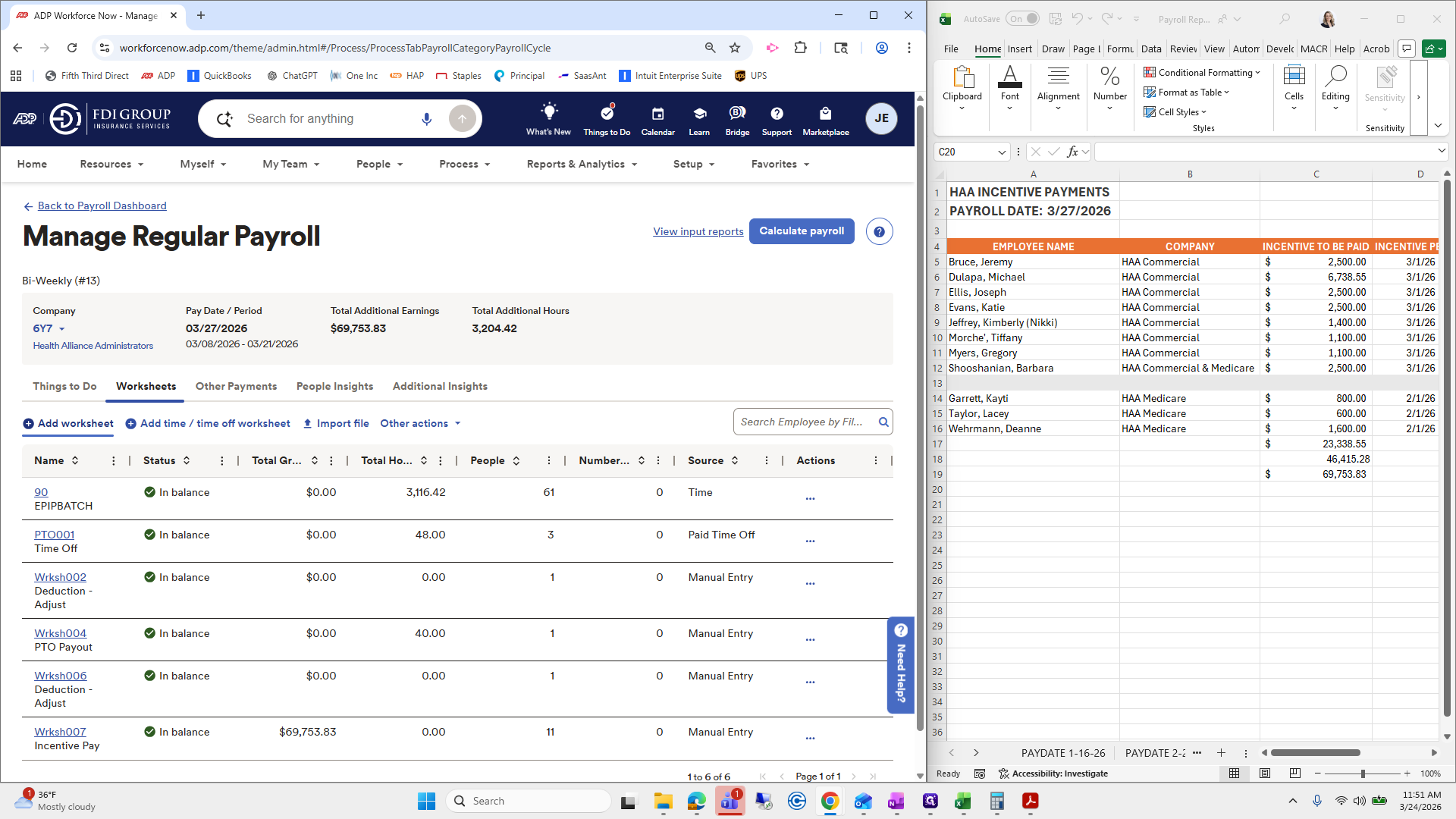
I don't. Go to Add Worksheet and select Incentive Pay.
Next.
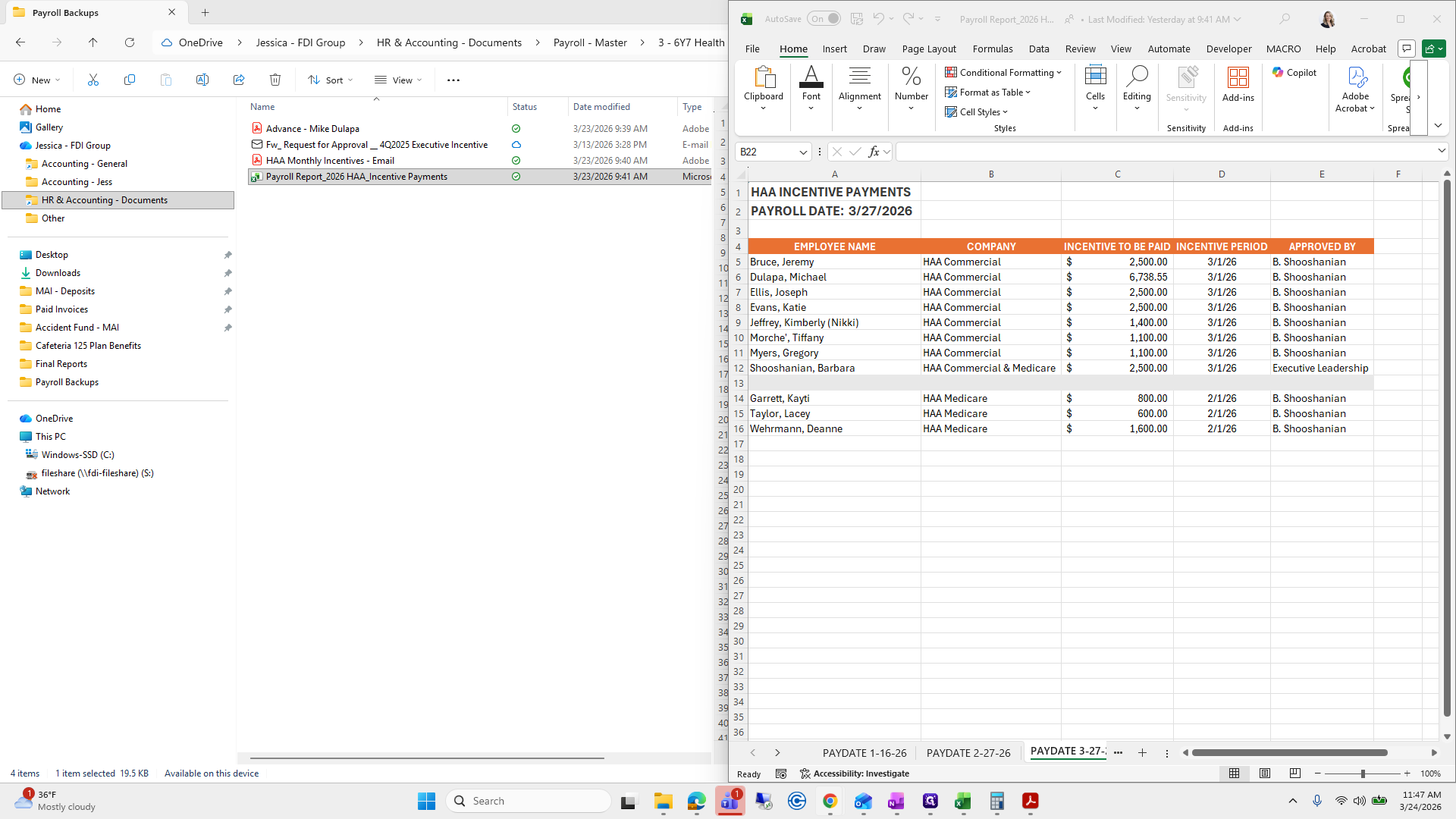
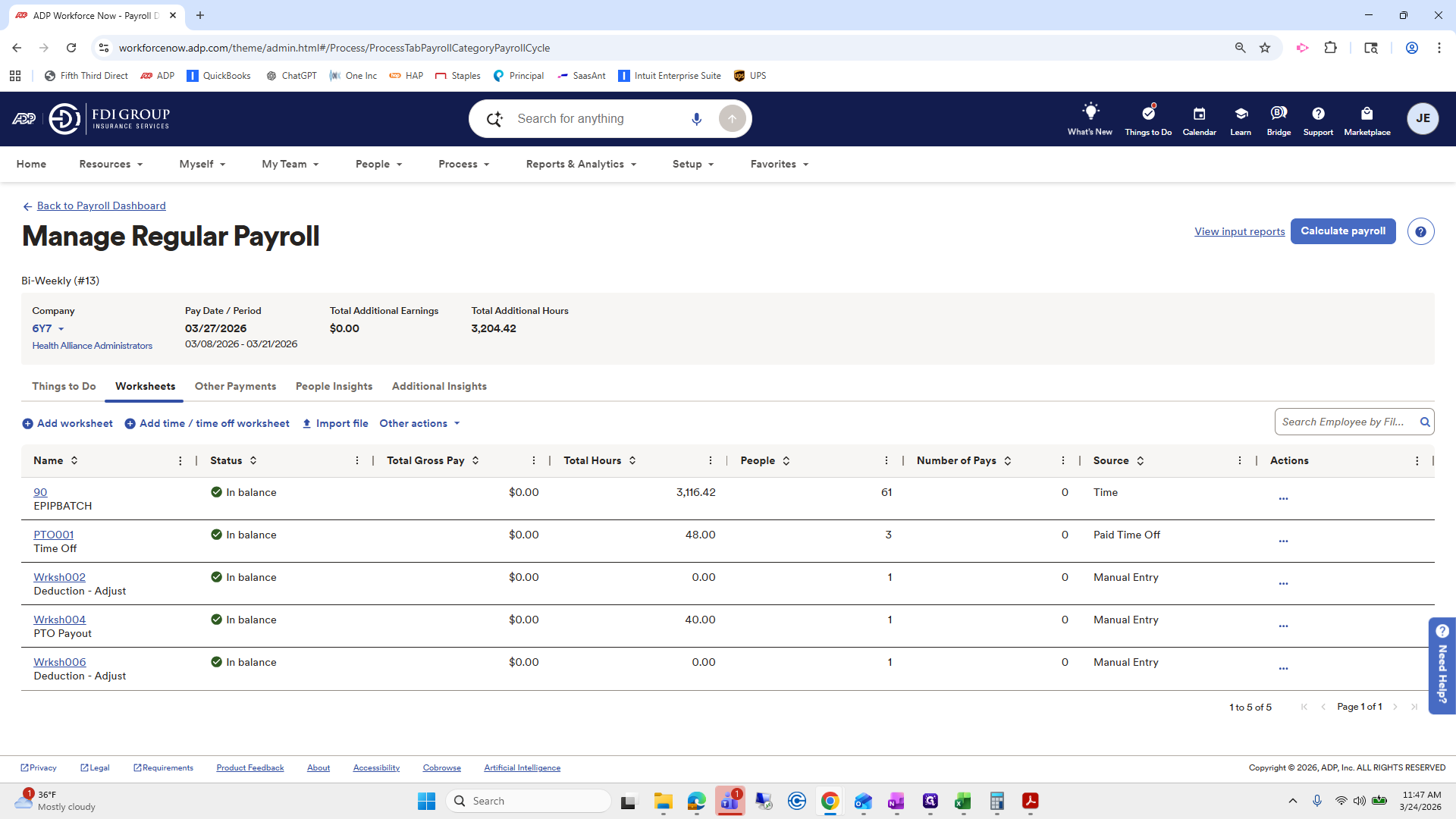
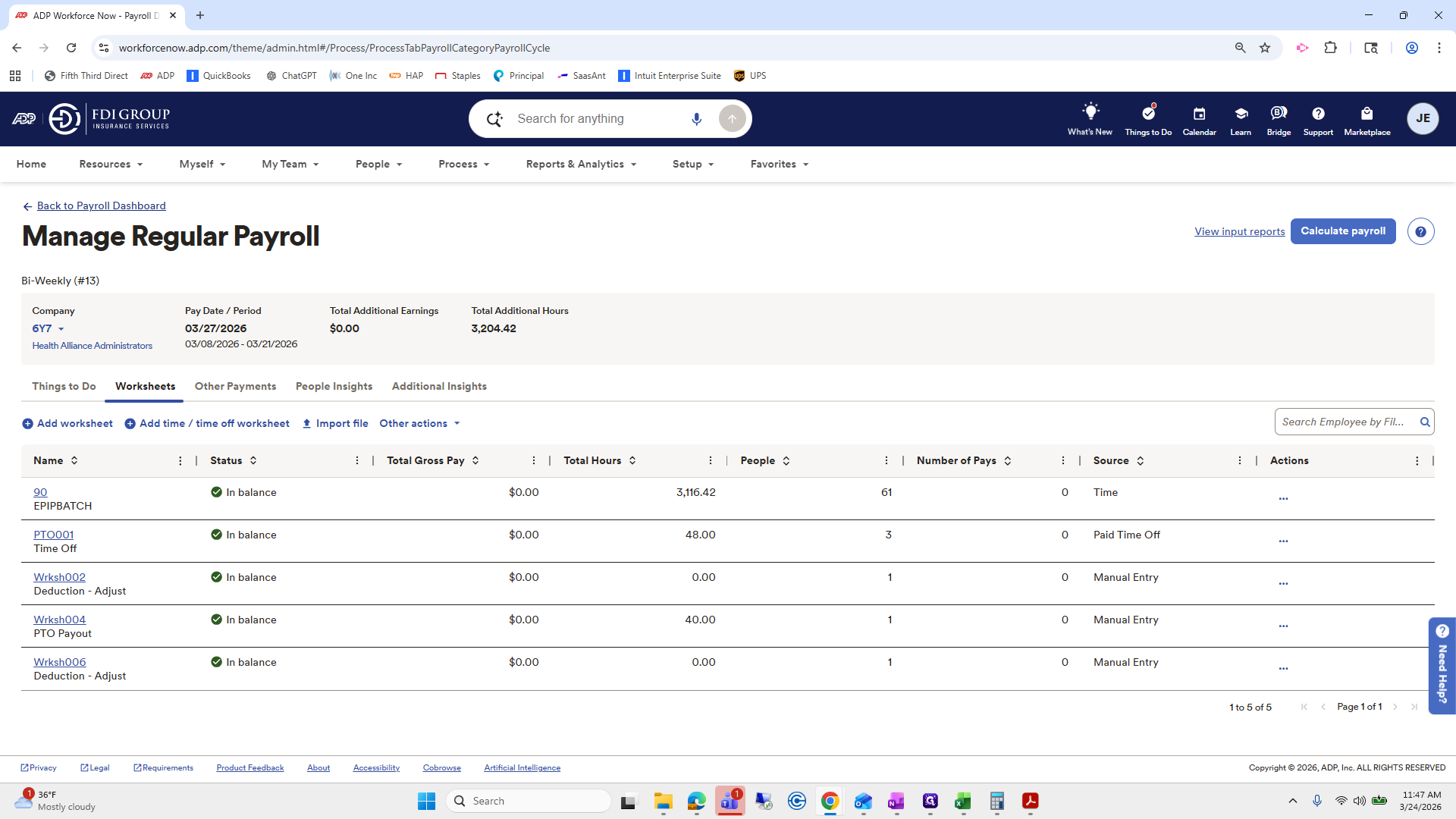
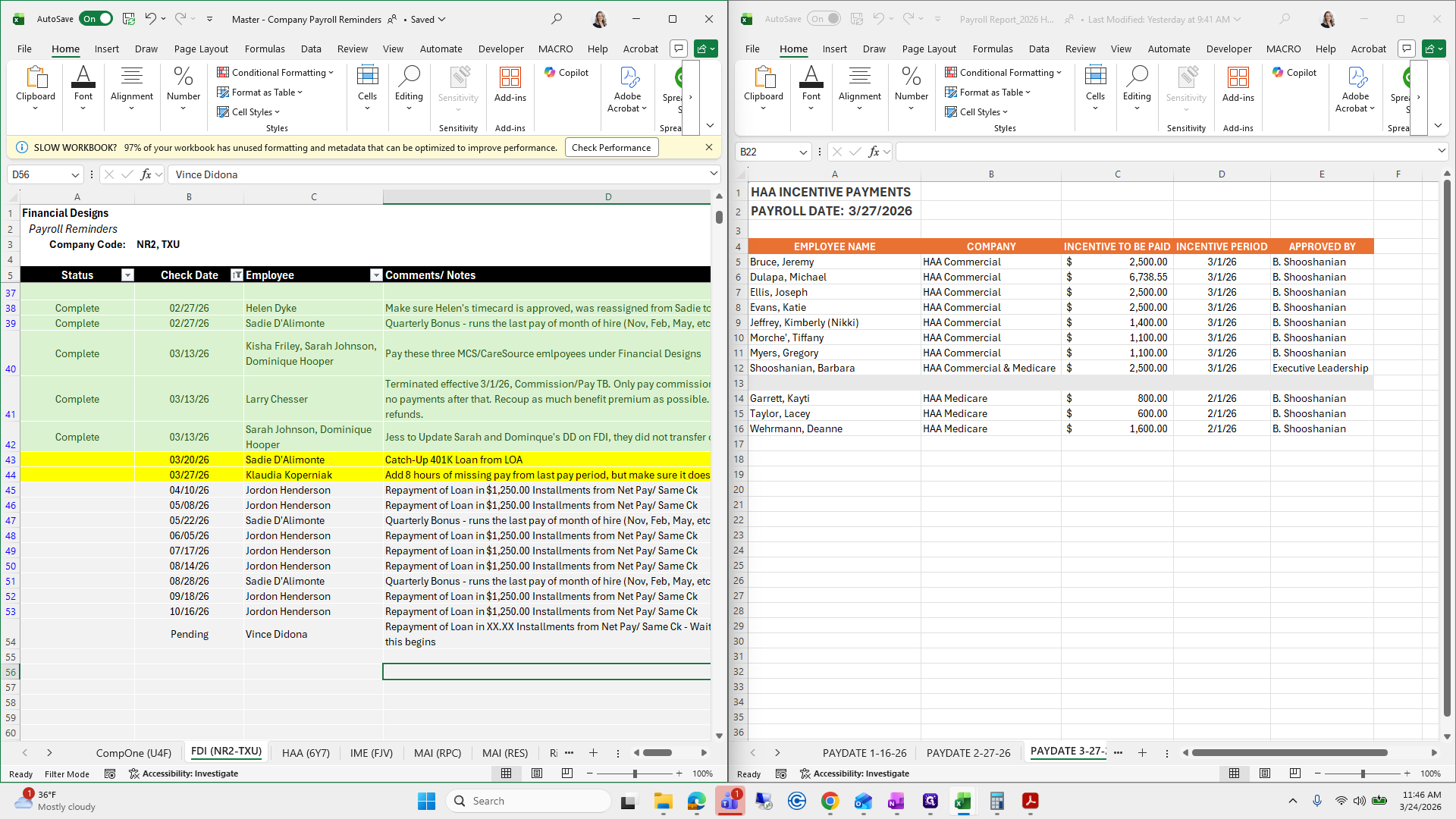
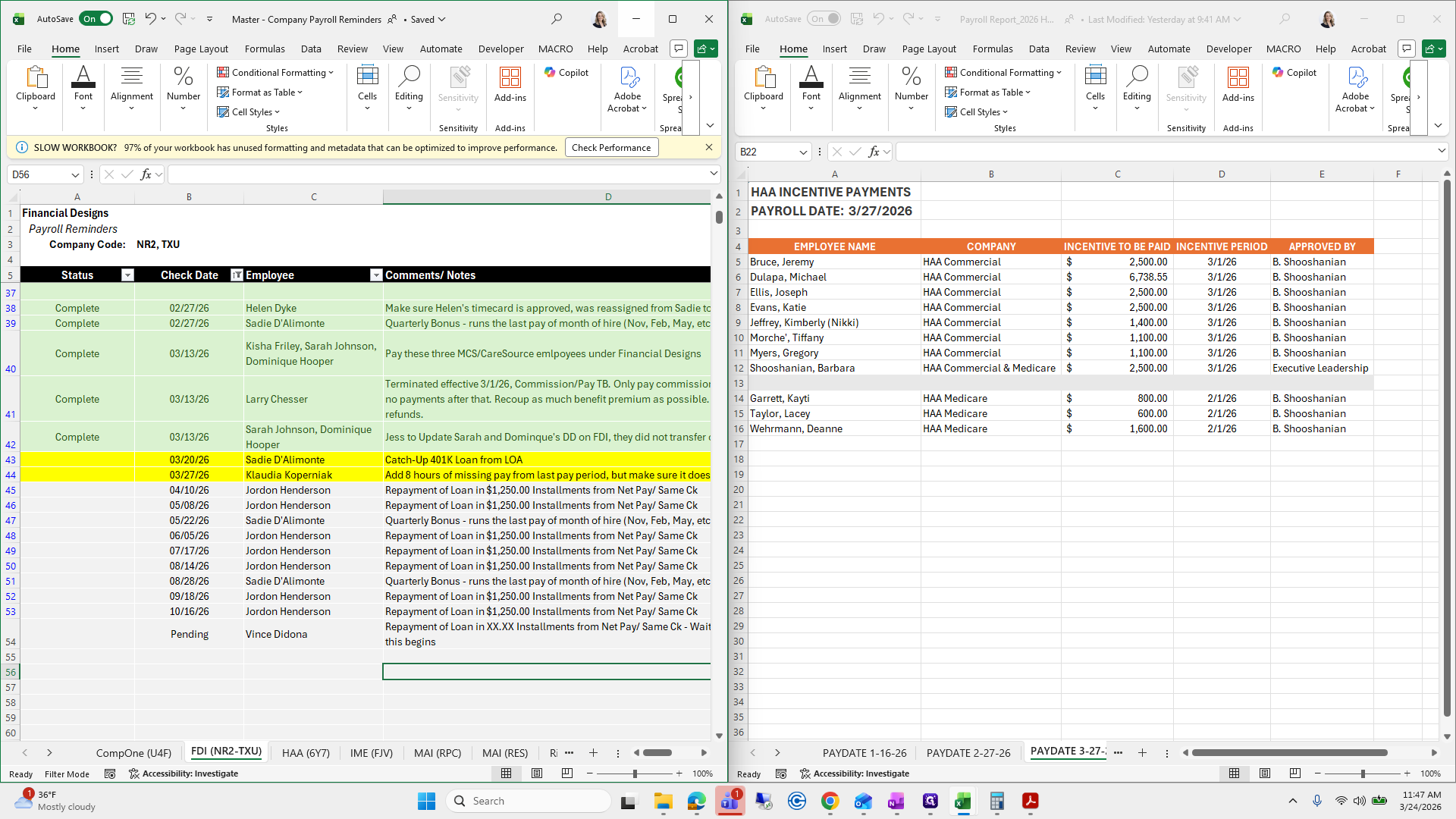
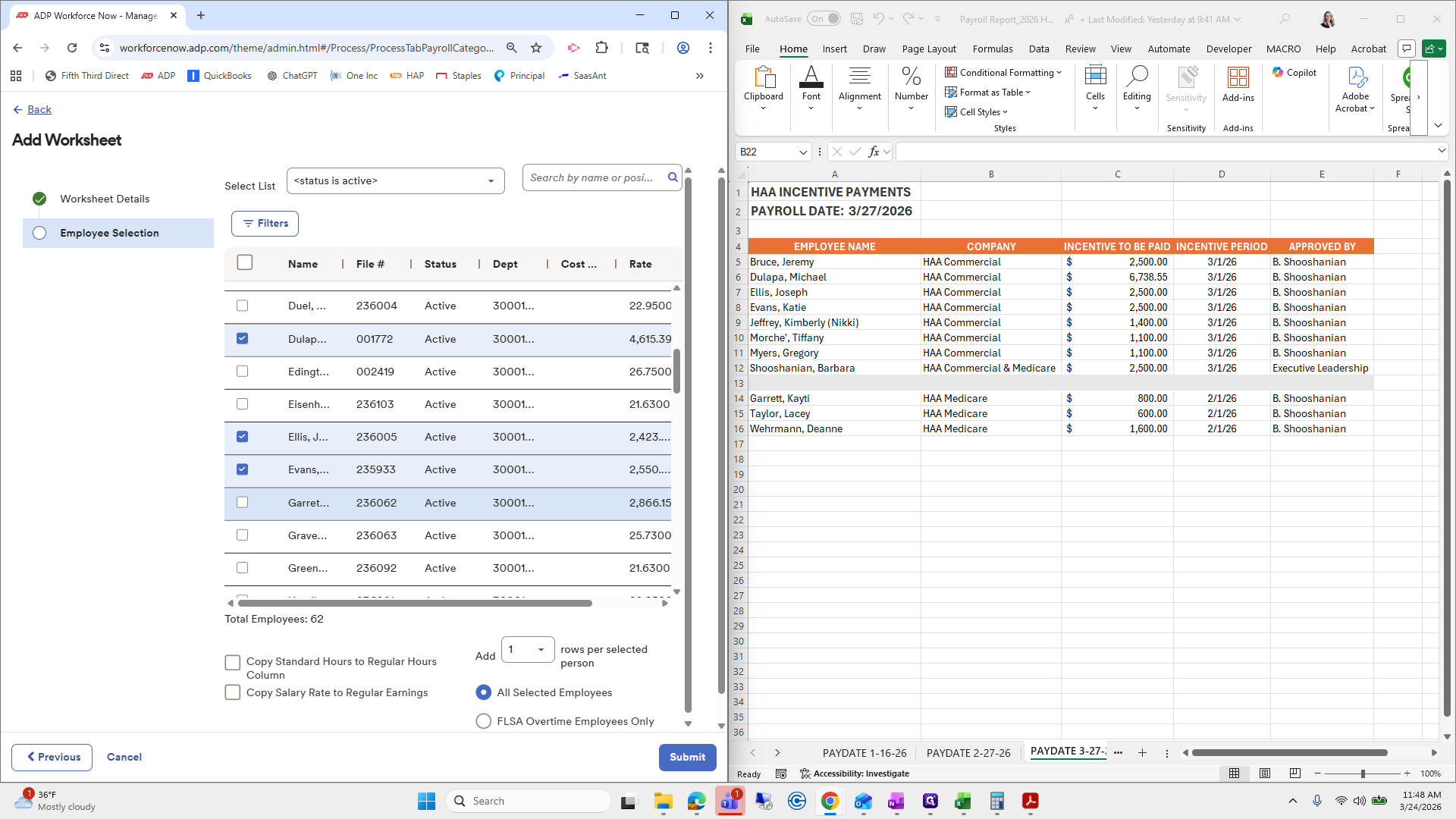
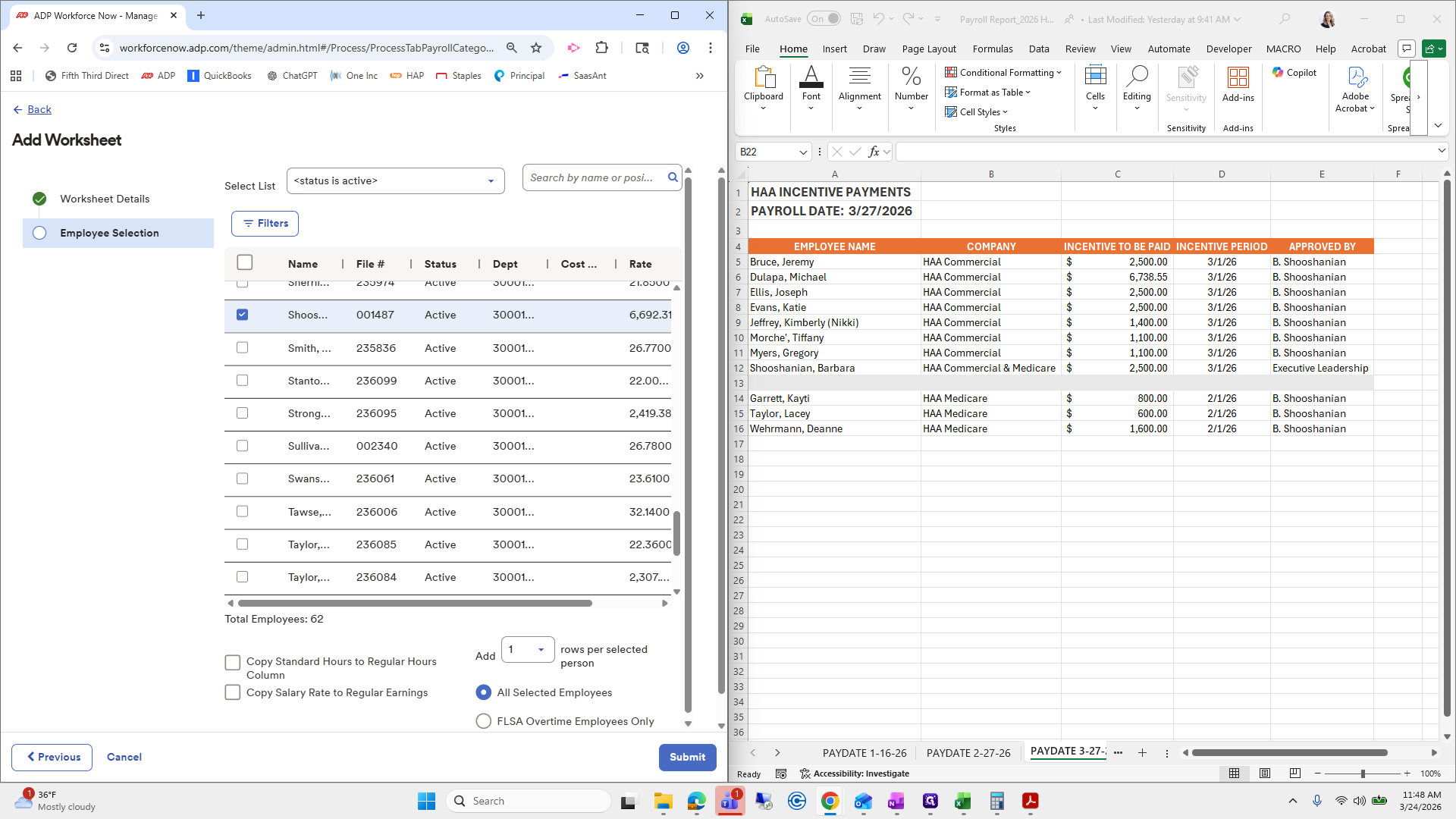
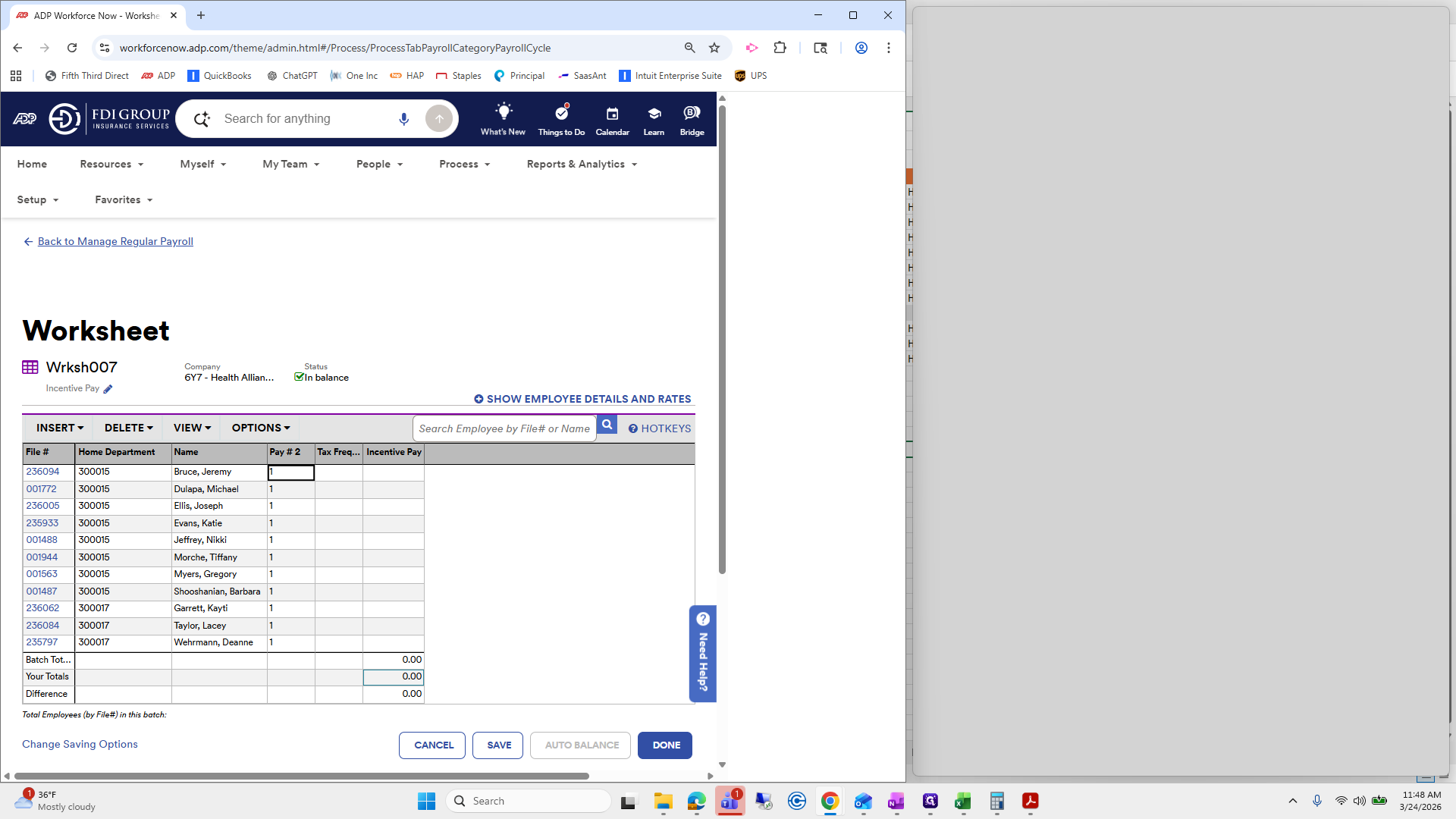
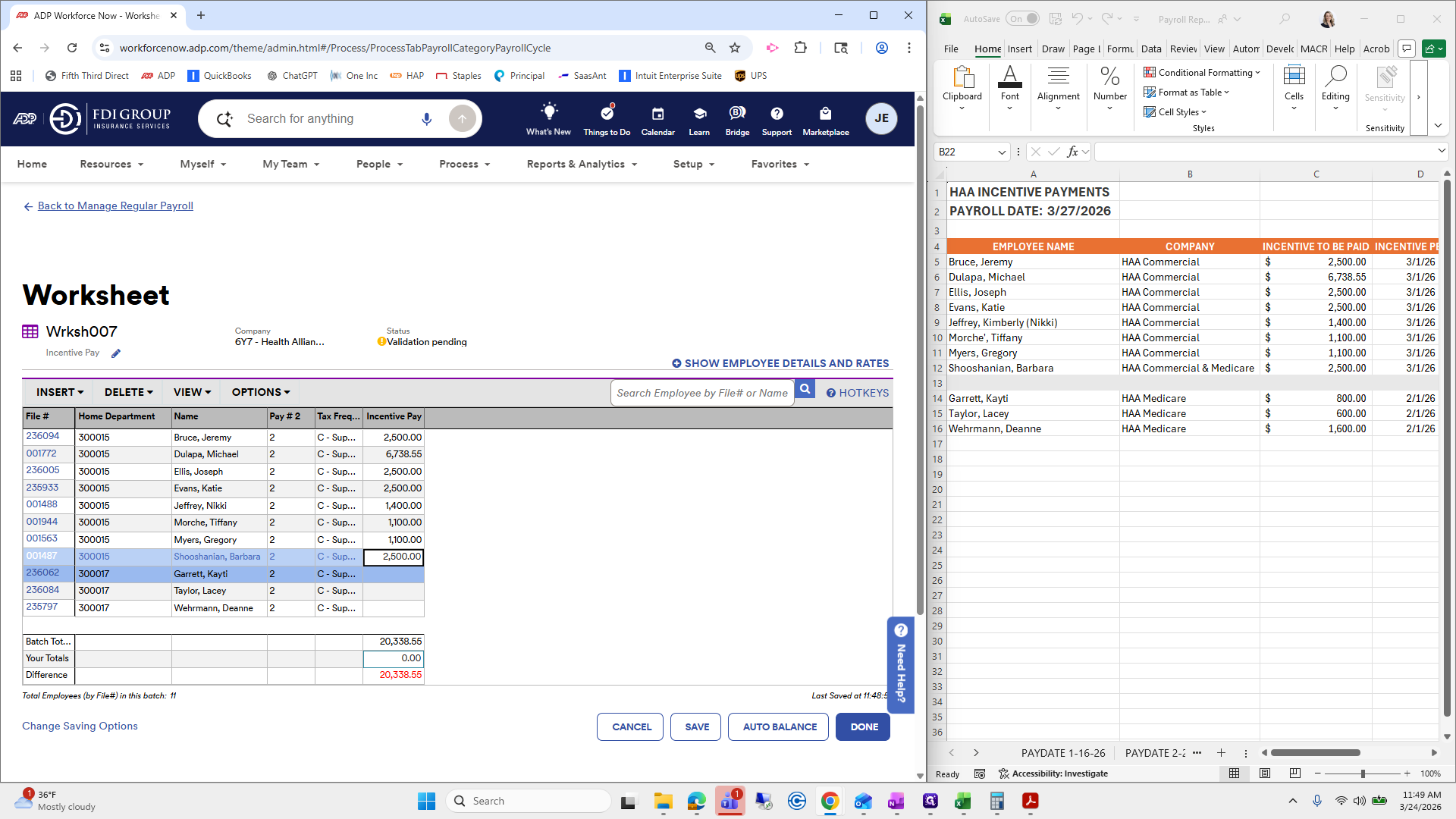
We will select the employees listed on this worksheet.
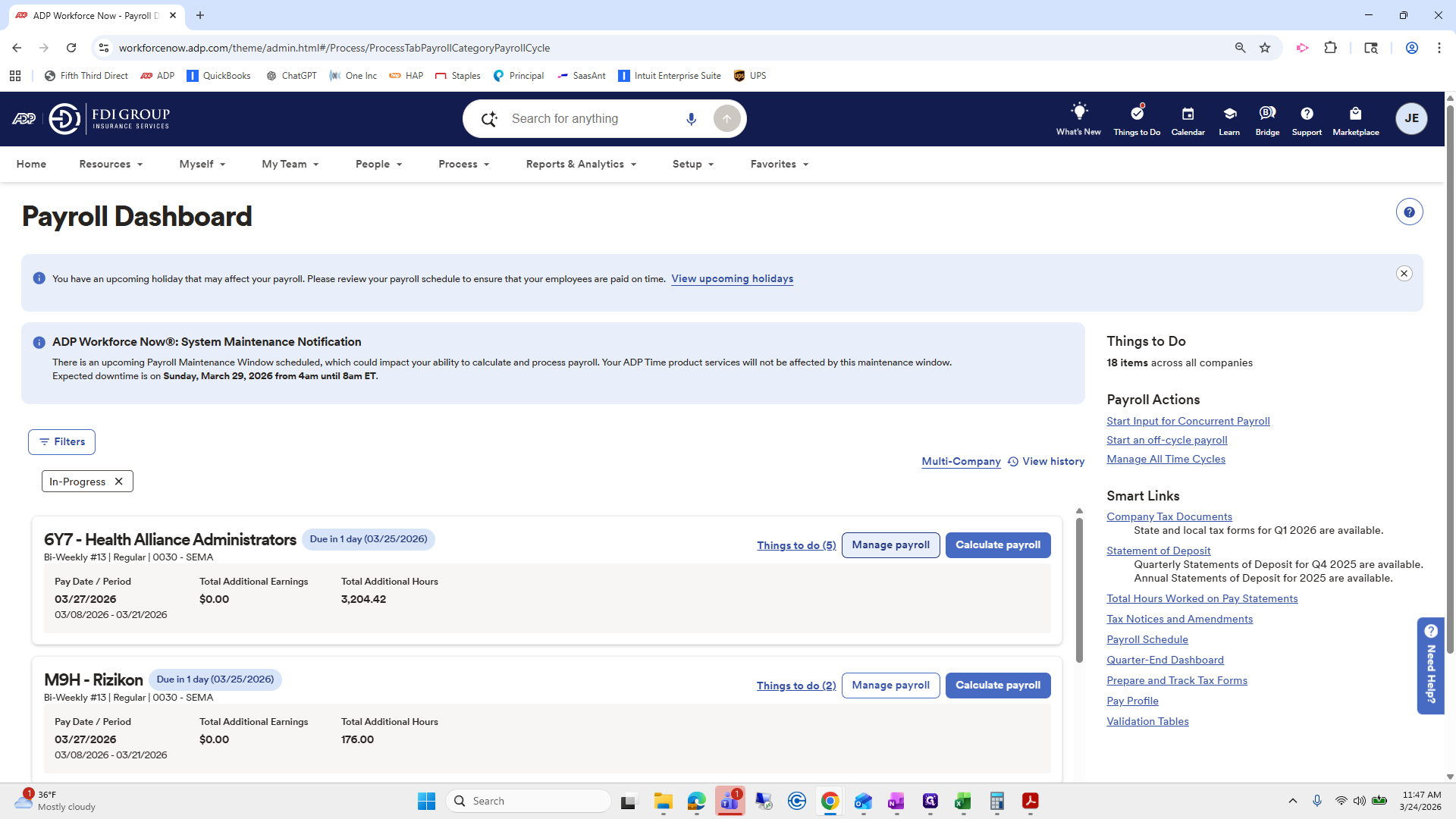
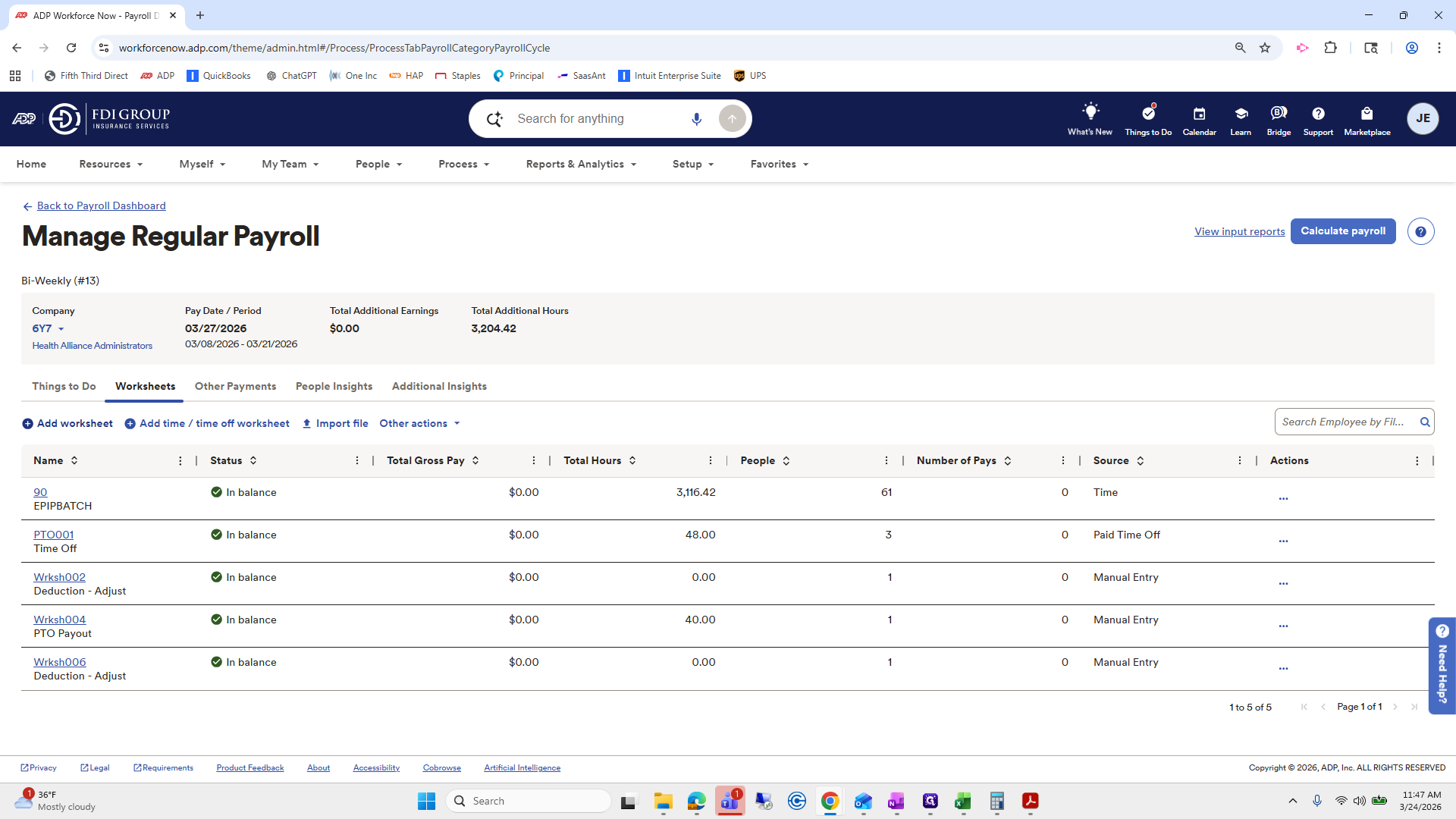
So we have...
doo-doo-doo... I will split the screens again.
Try naming. I'll go down one to make it easier.
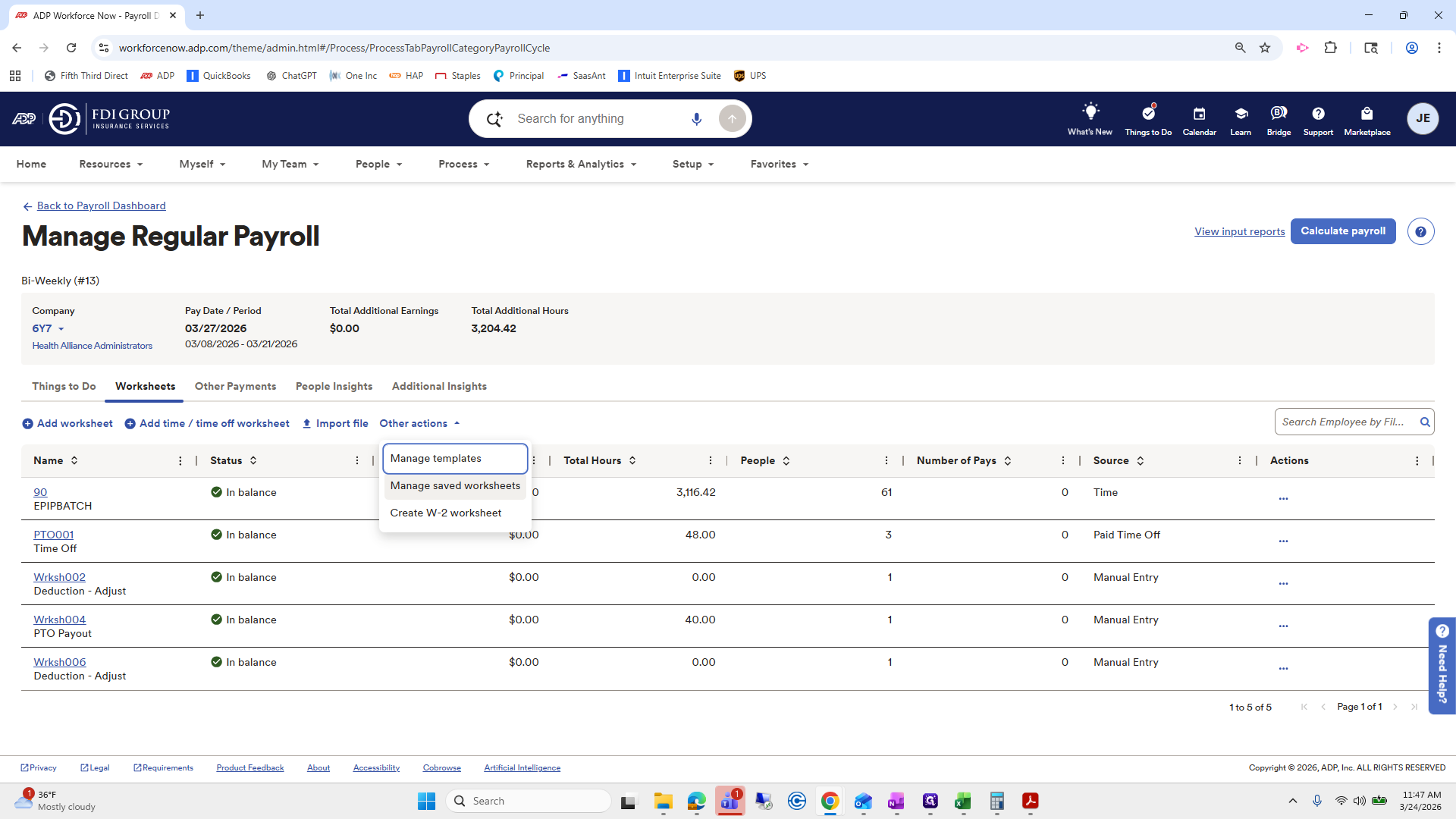
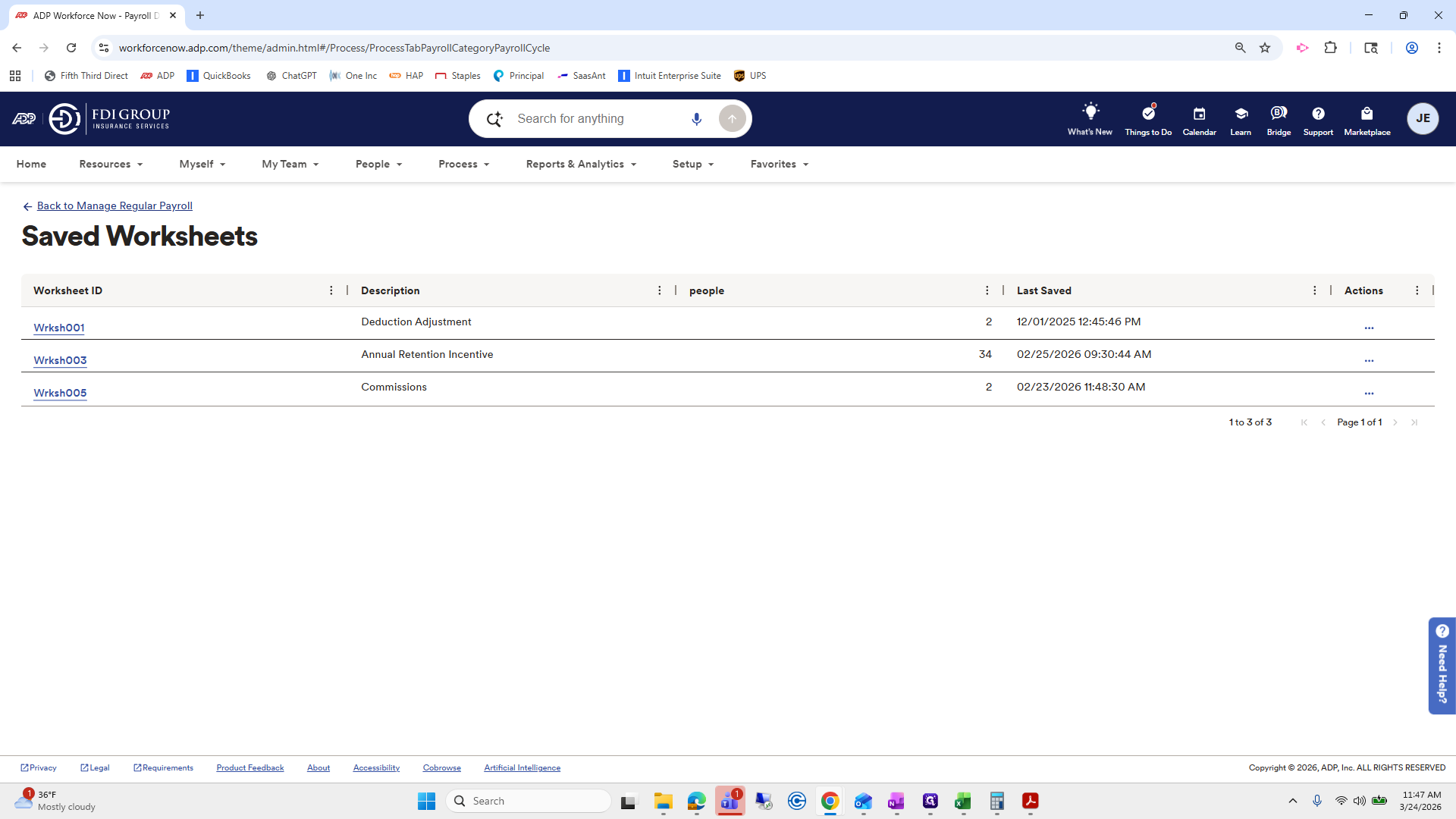
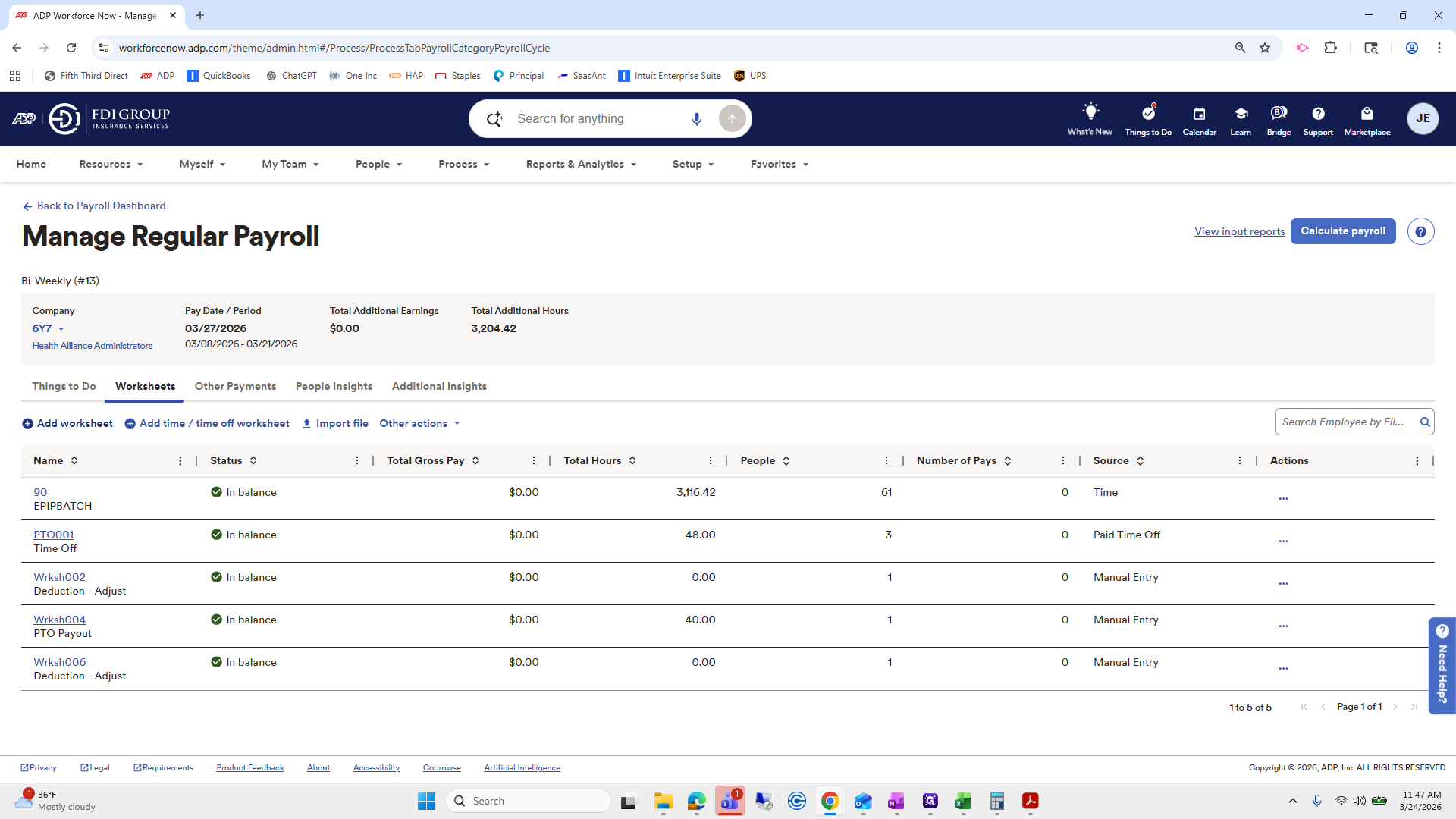
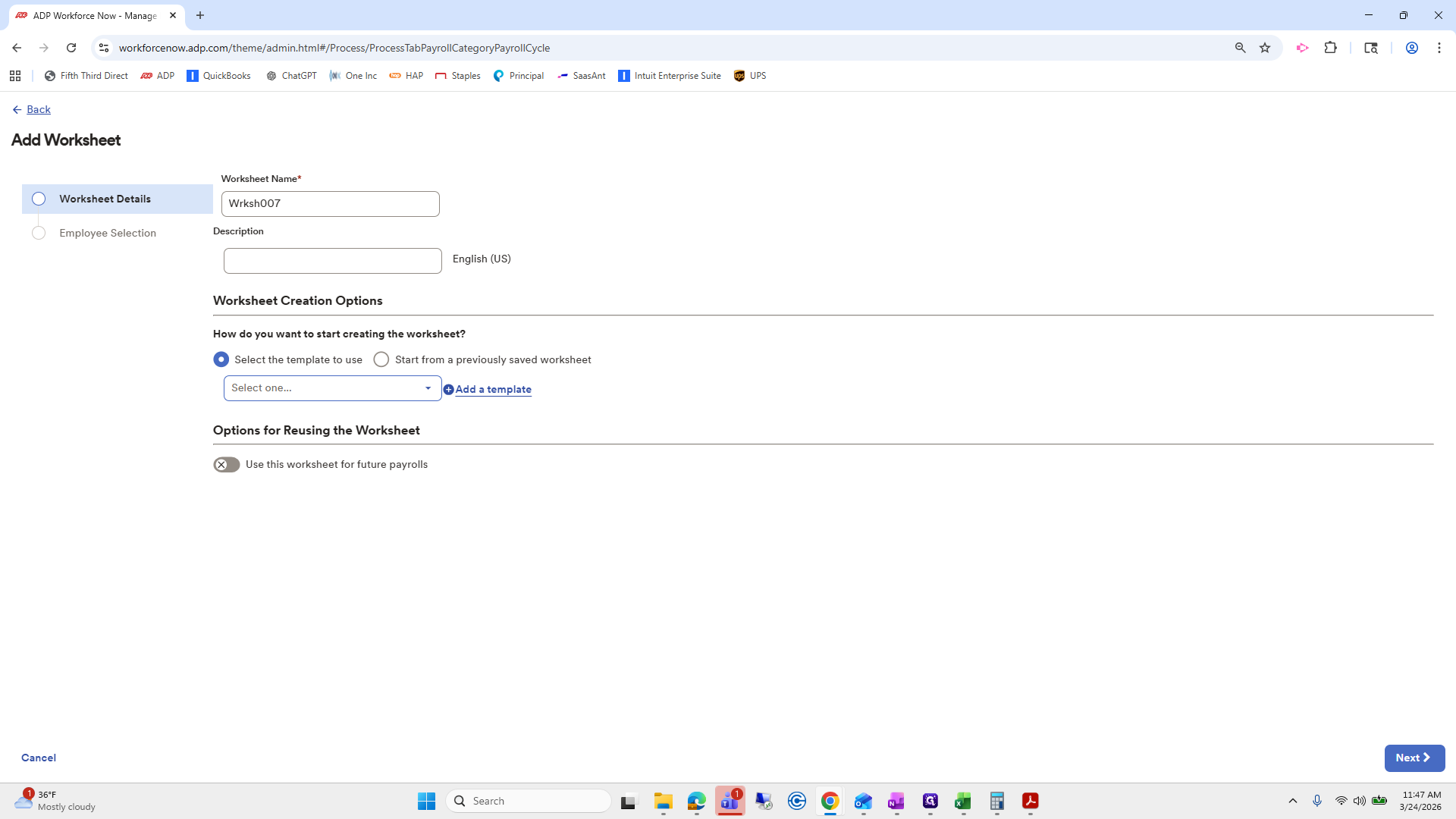
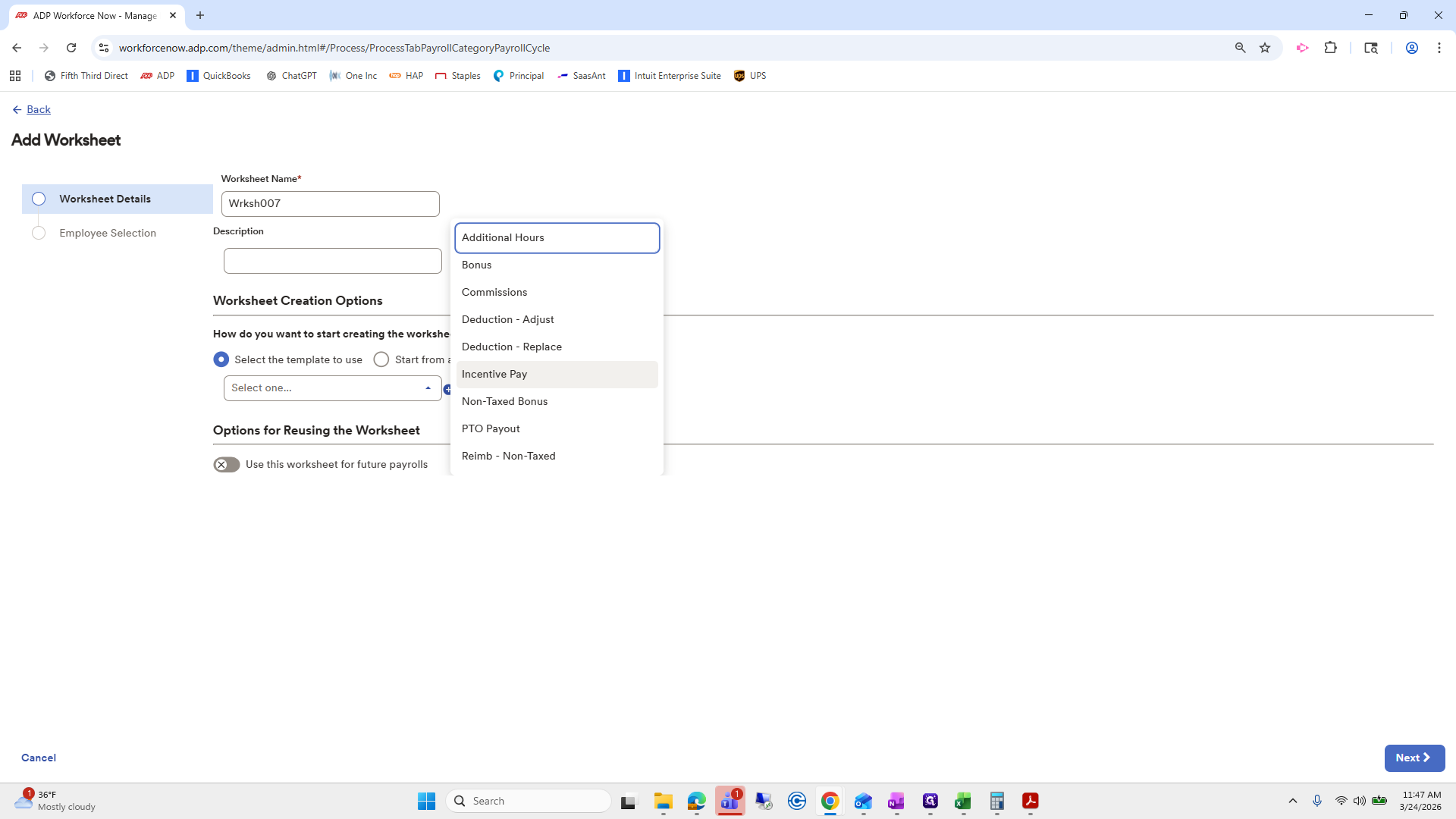
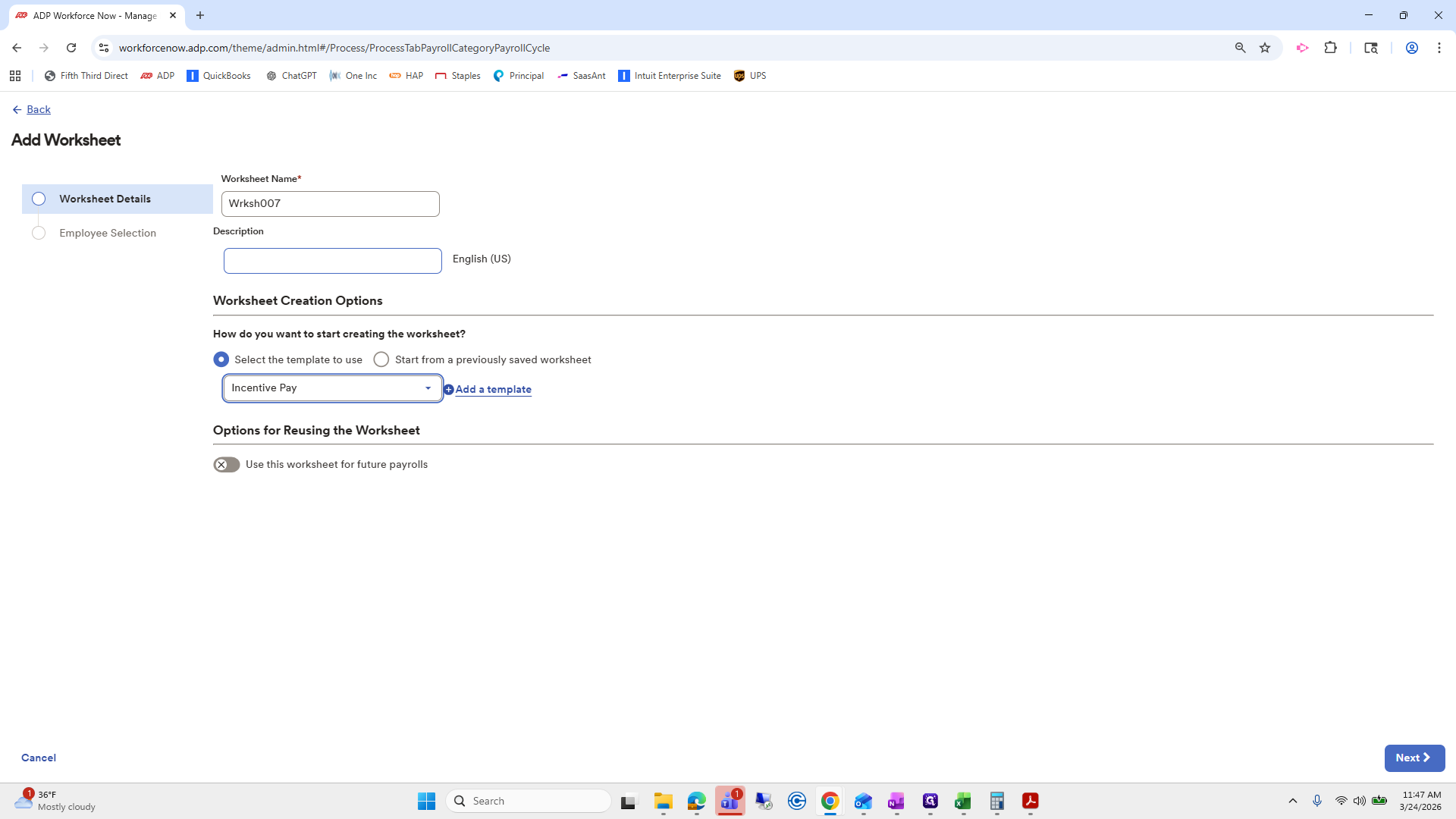
""
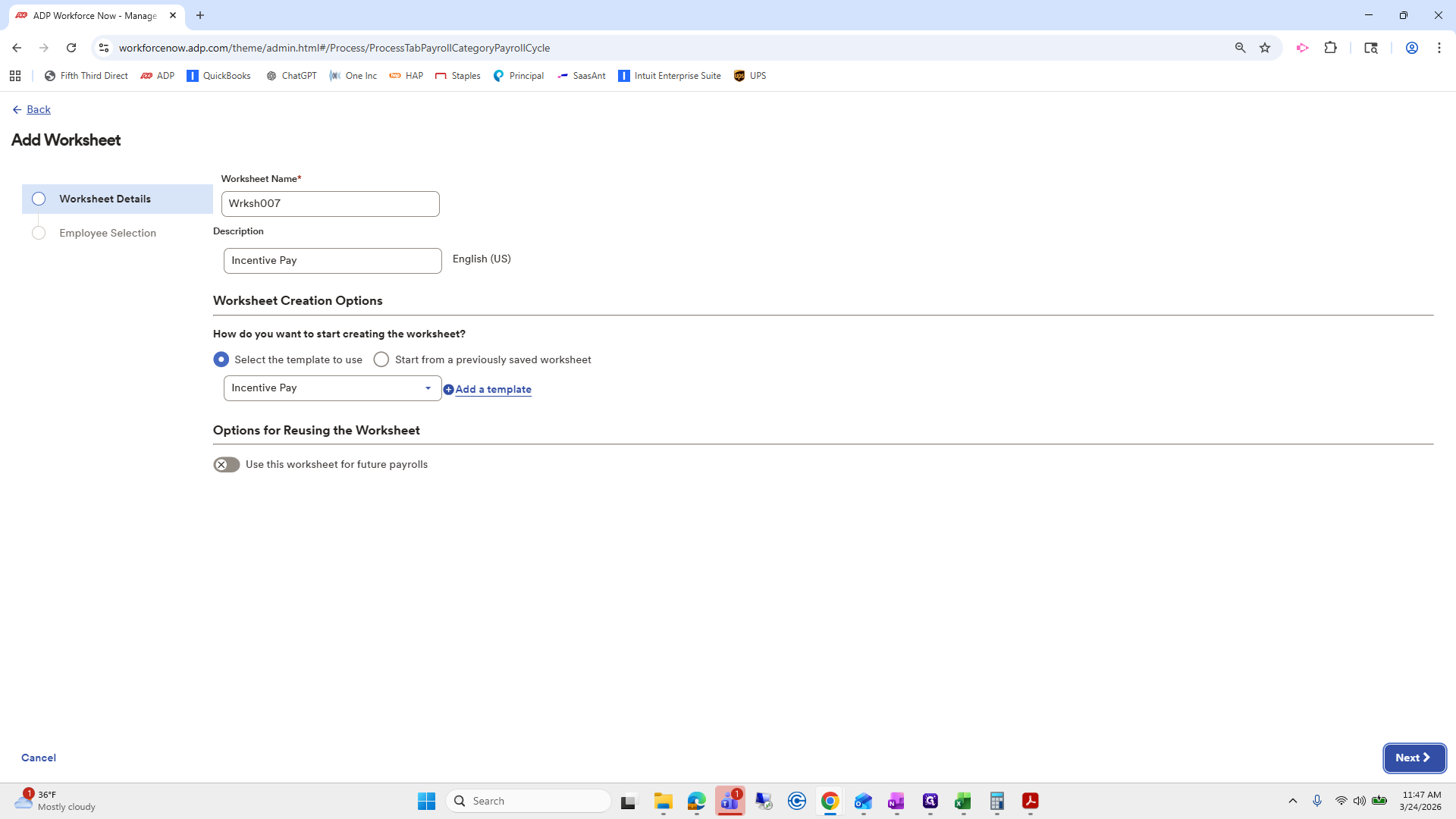
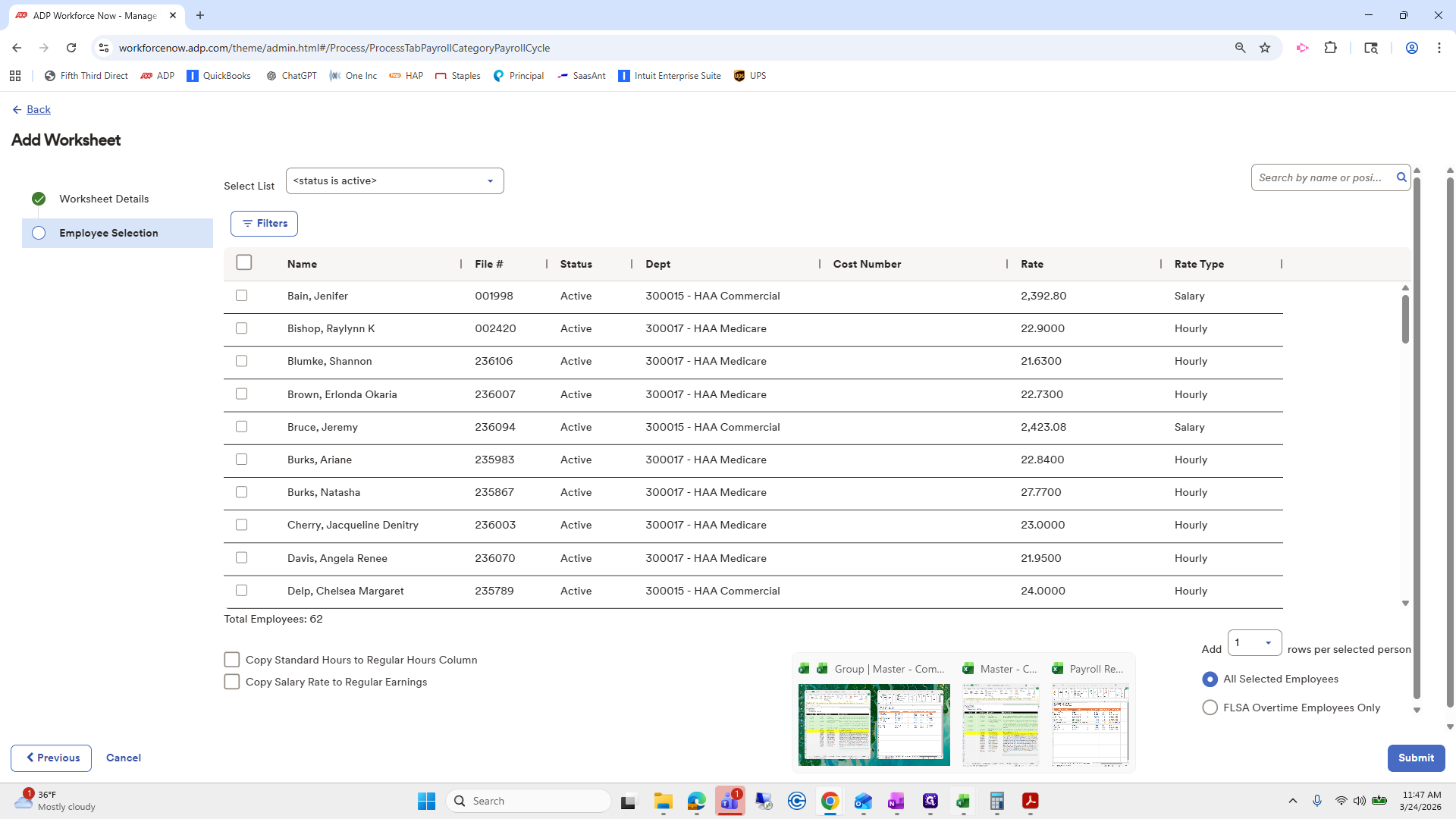
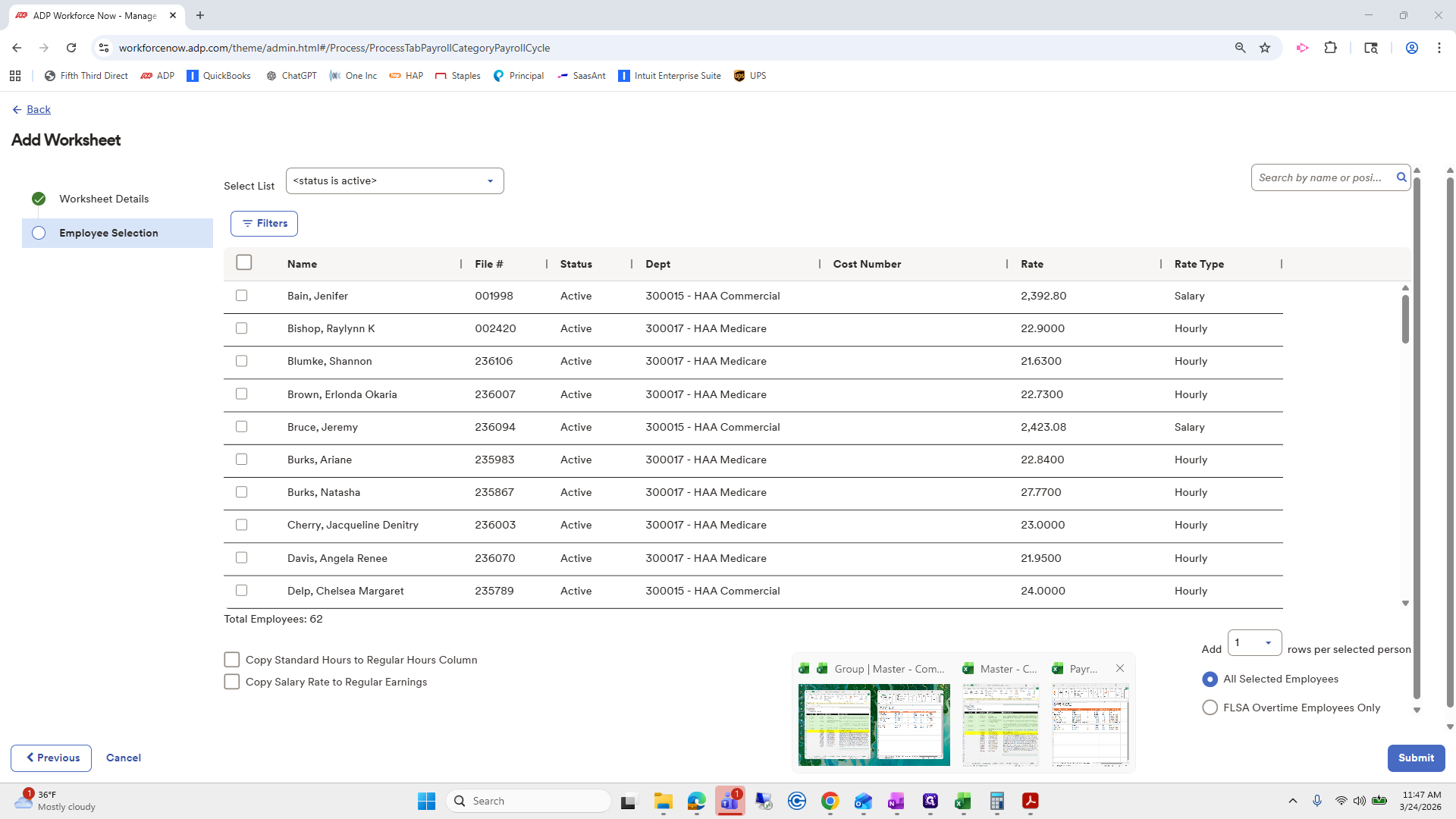
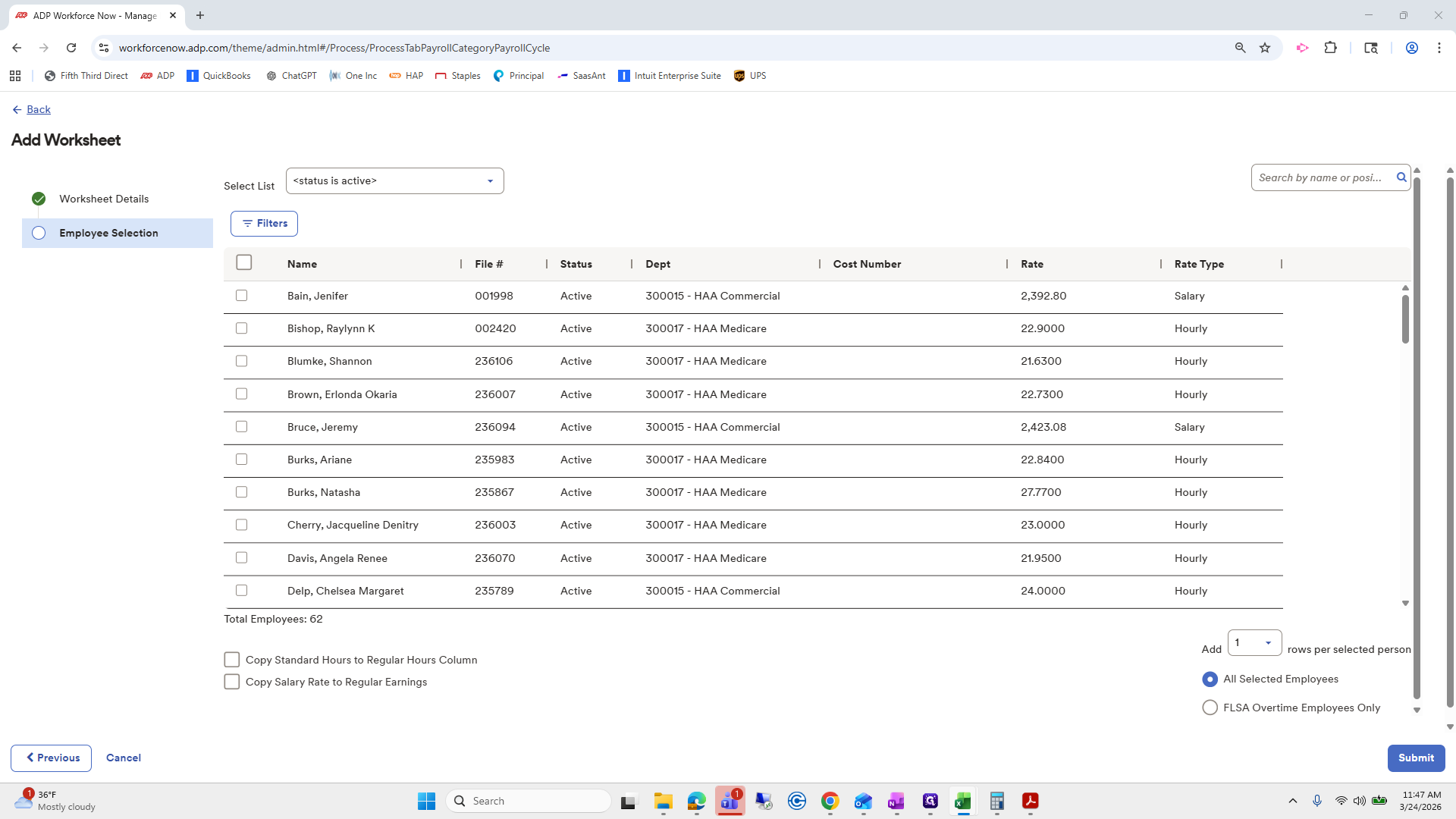
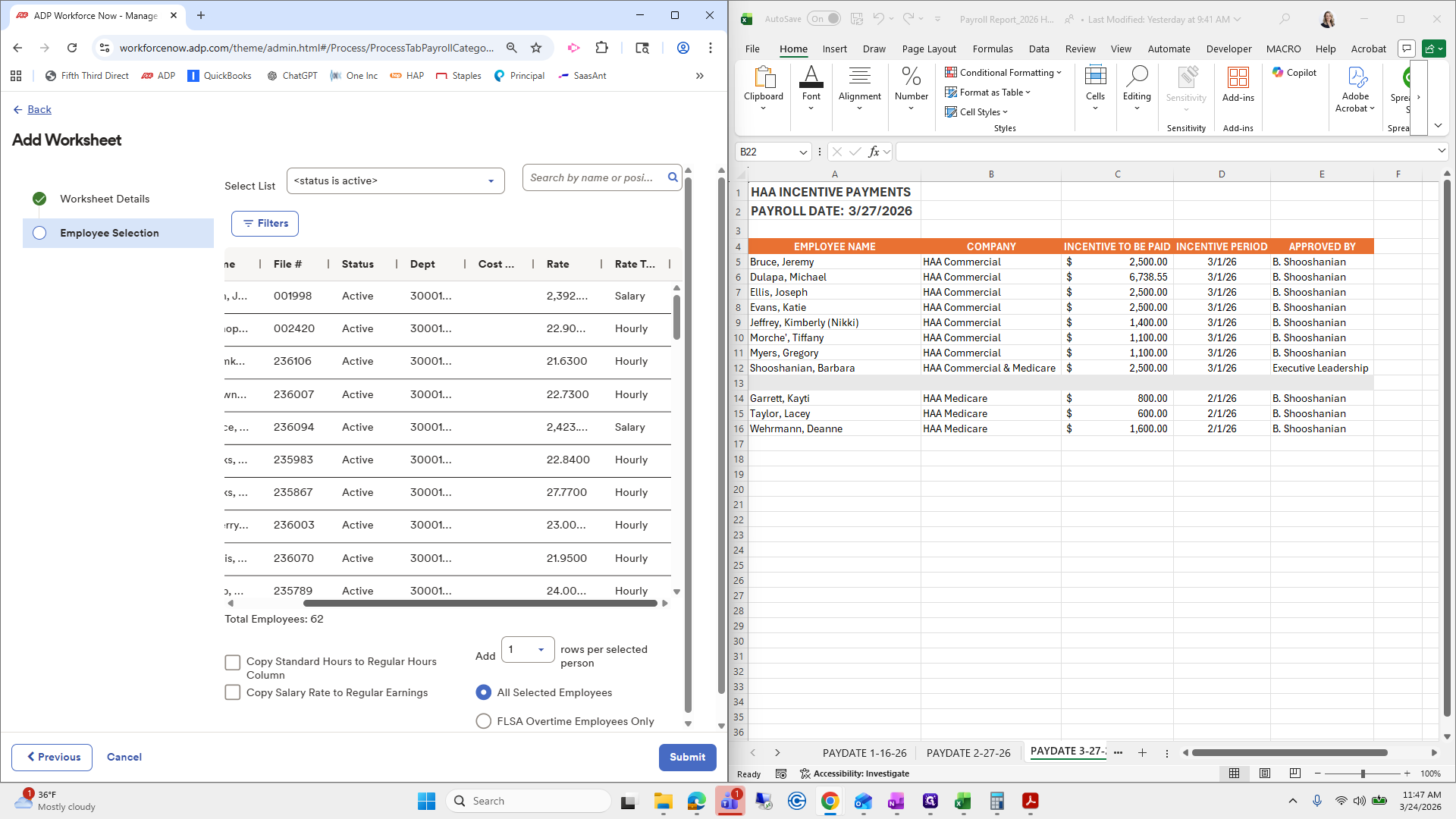
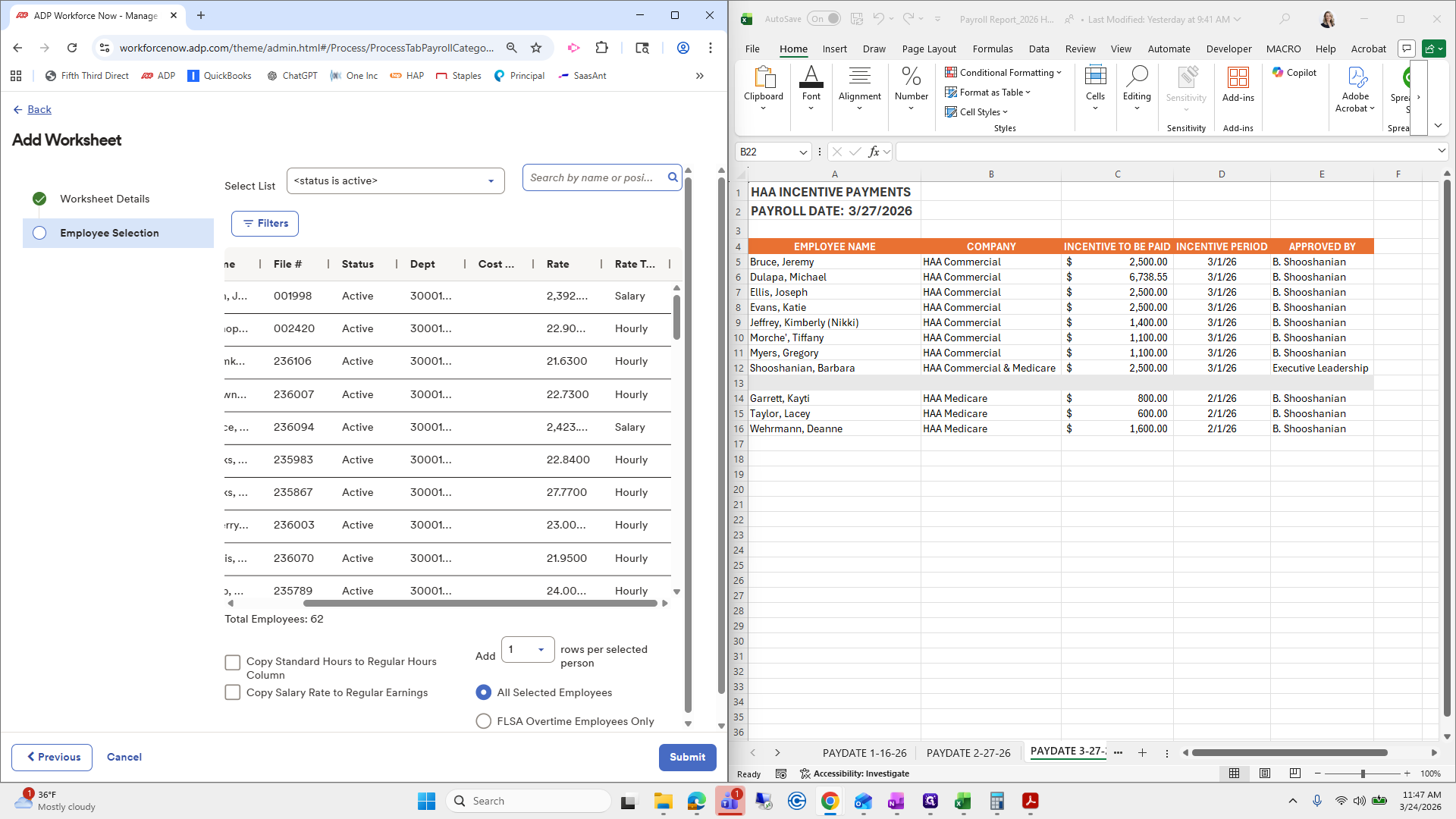
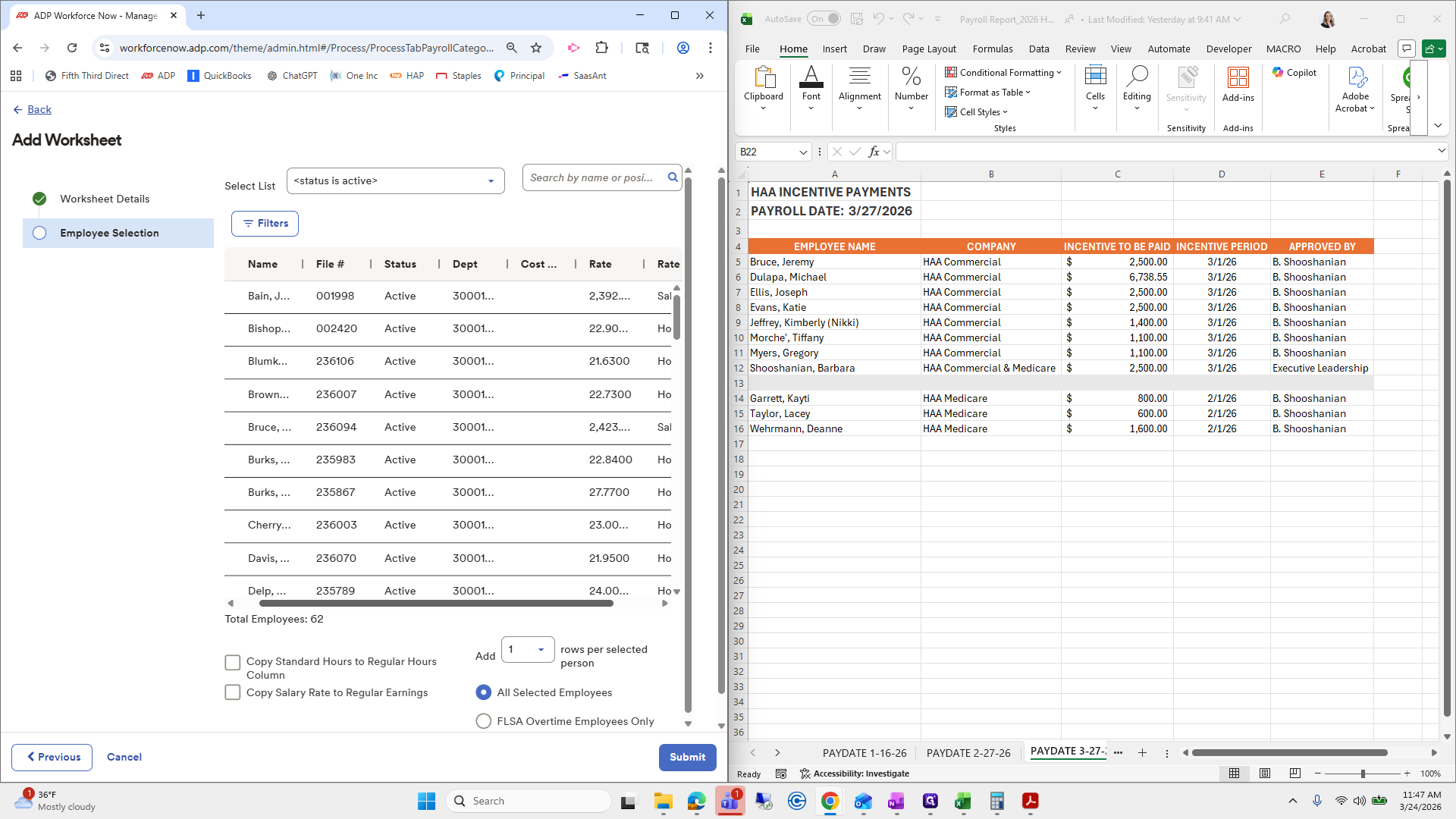
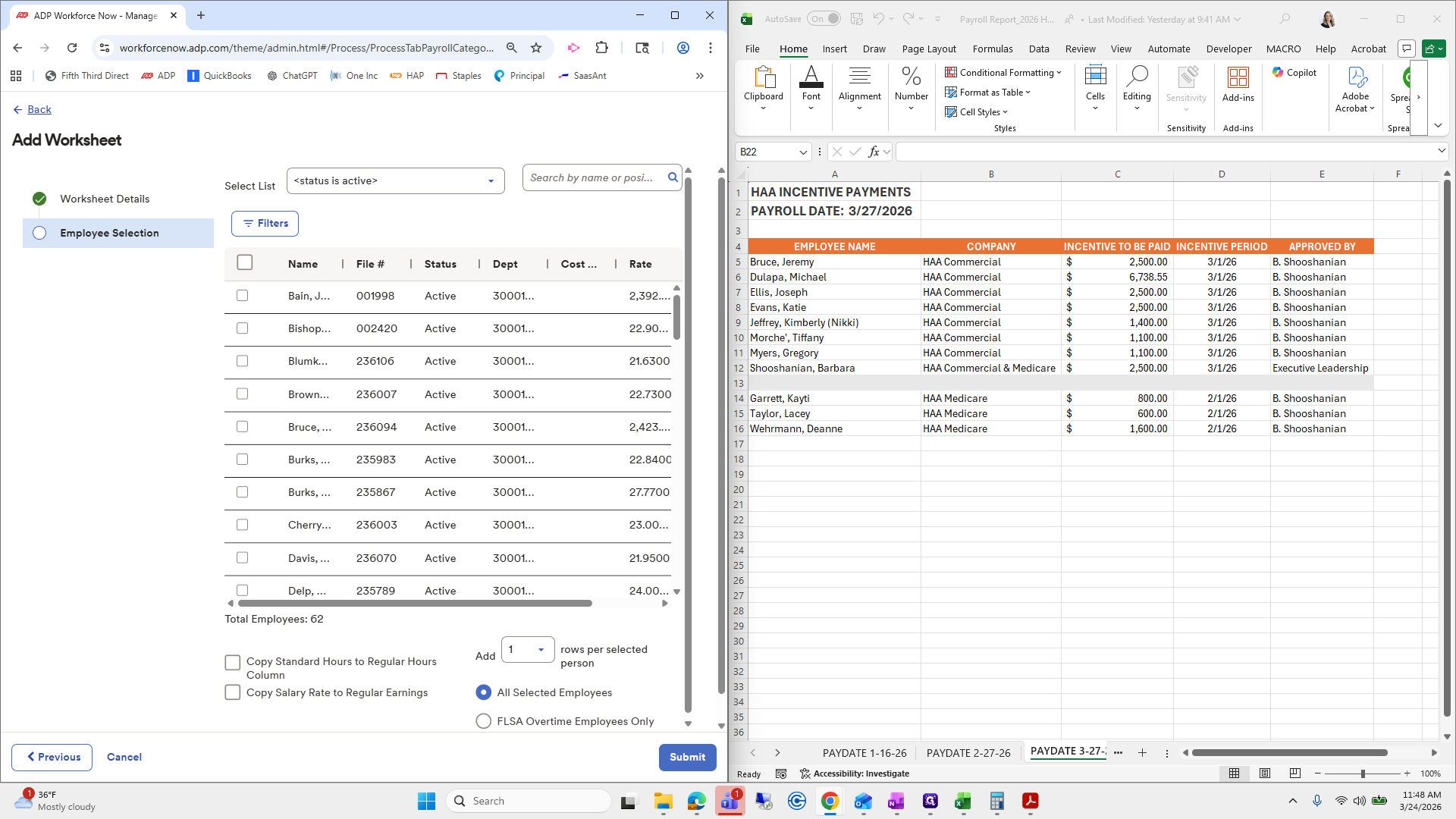
Make sure I choose the correct Taylor.
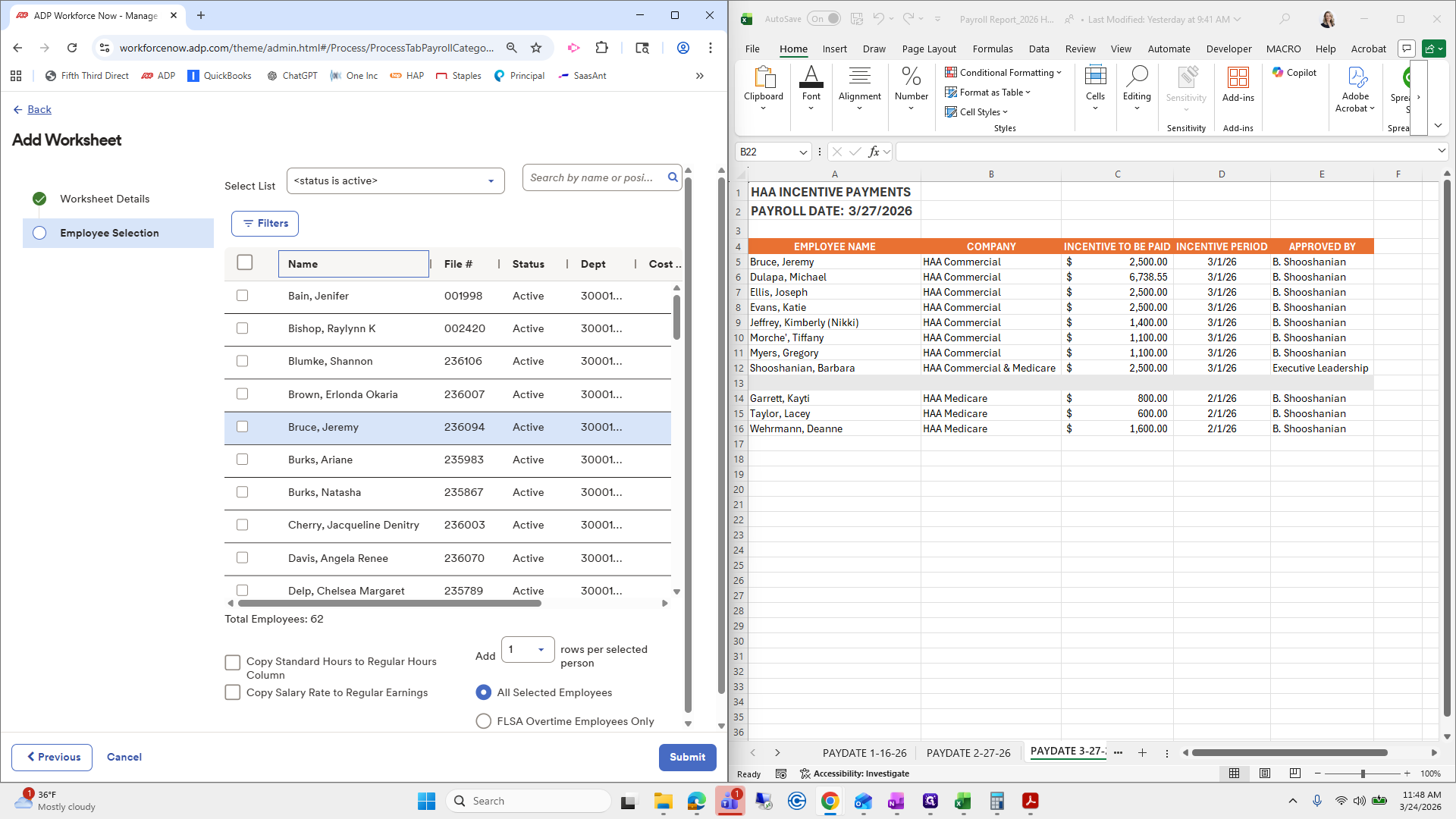
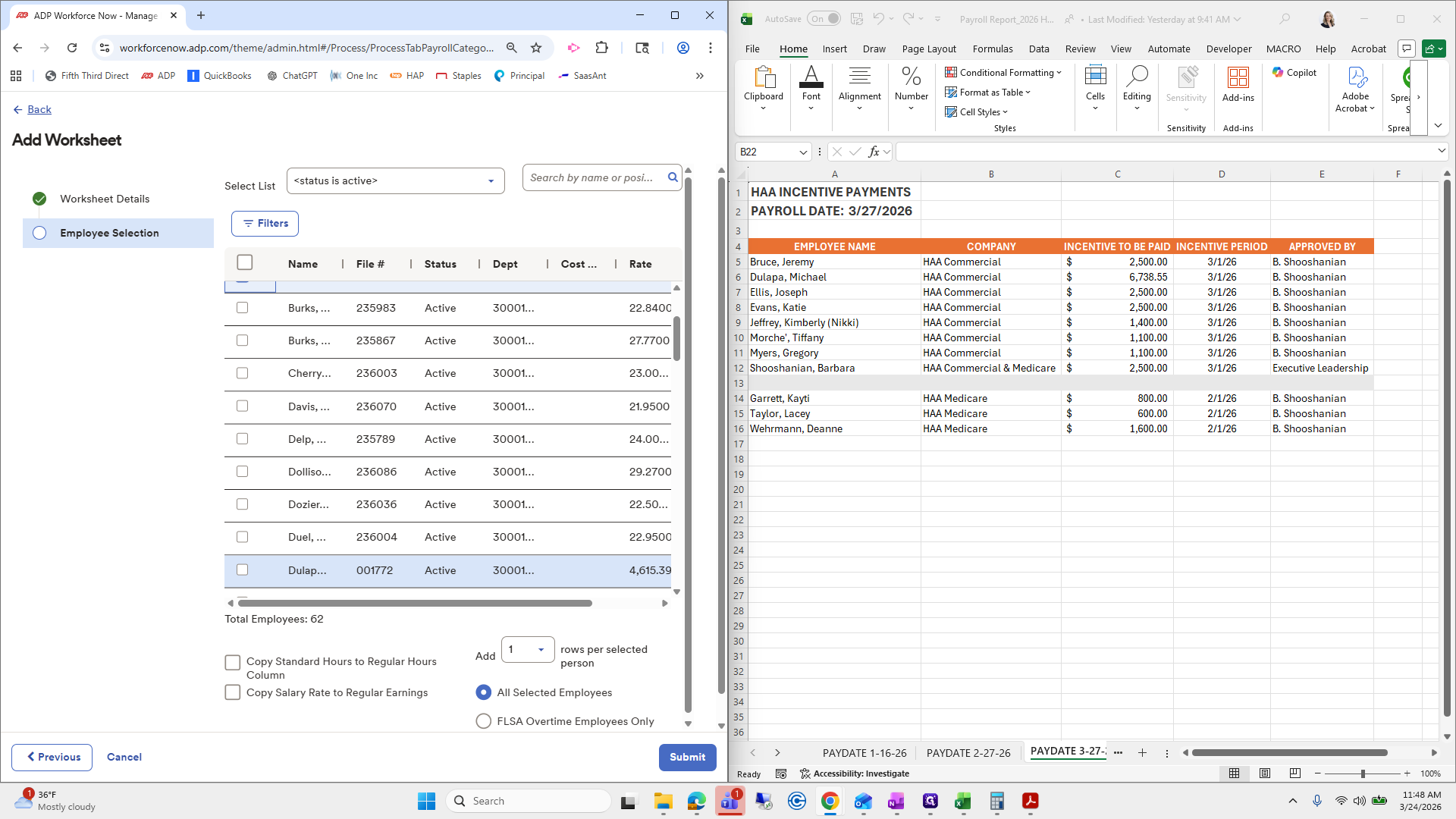
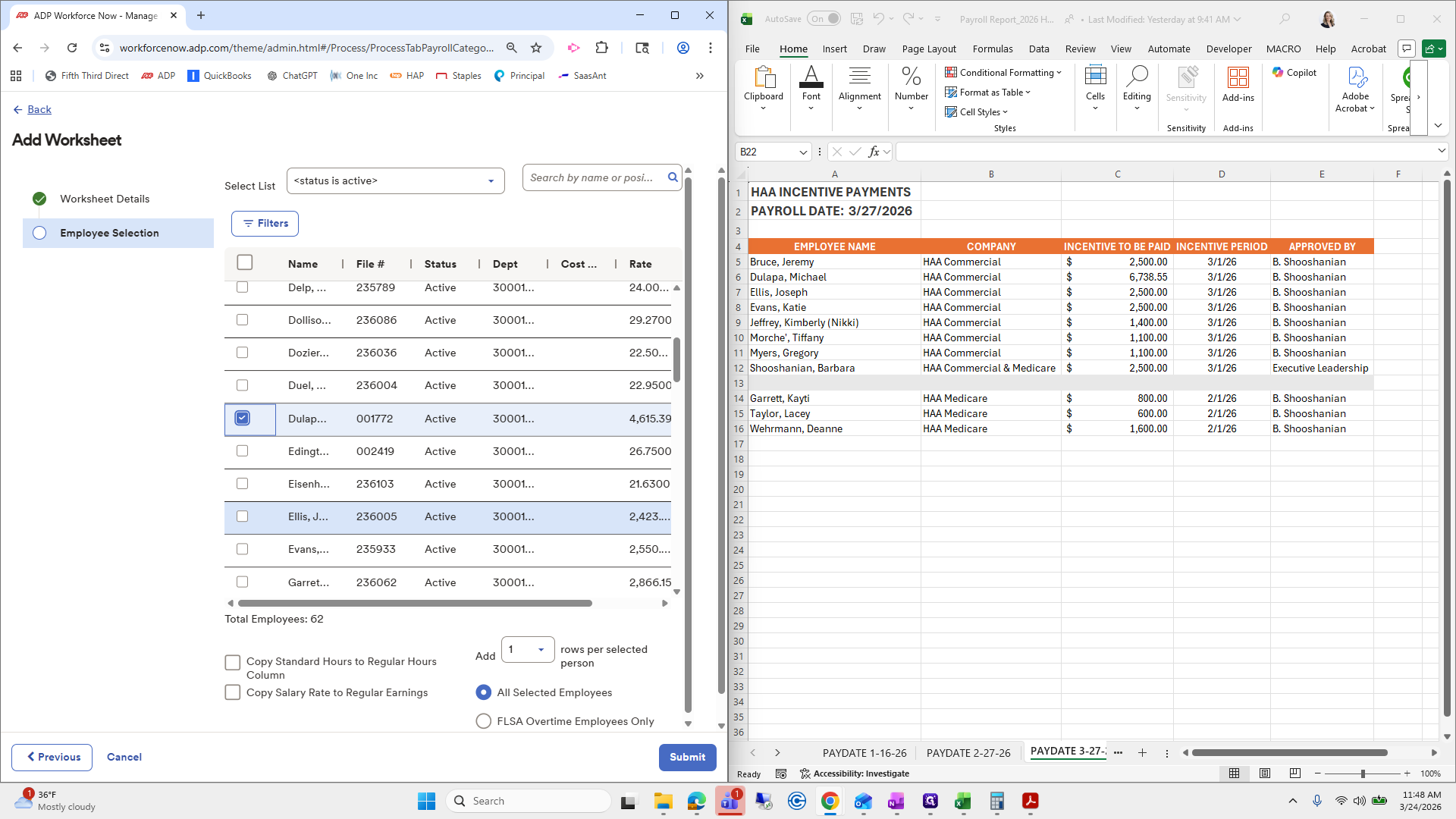
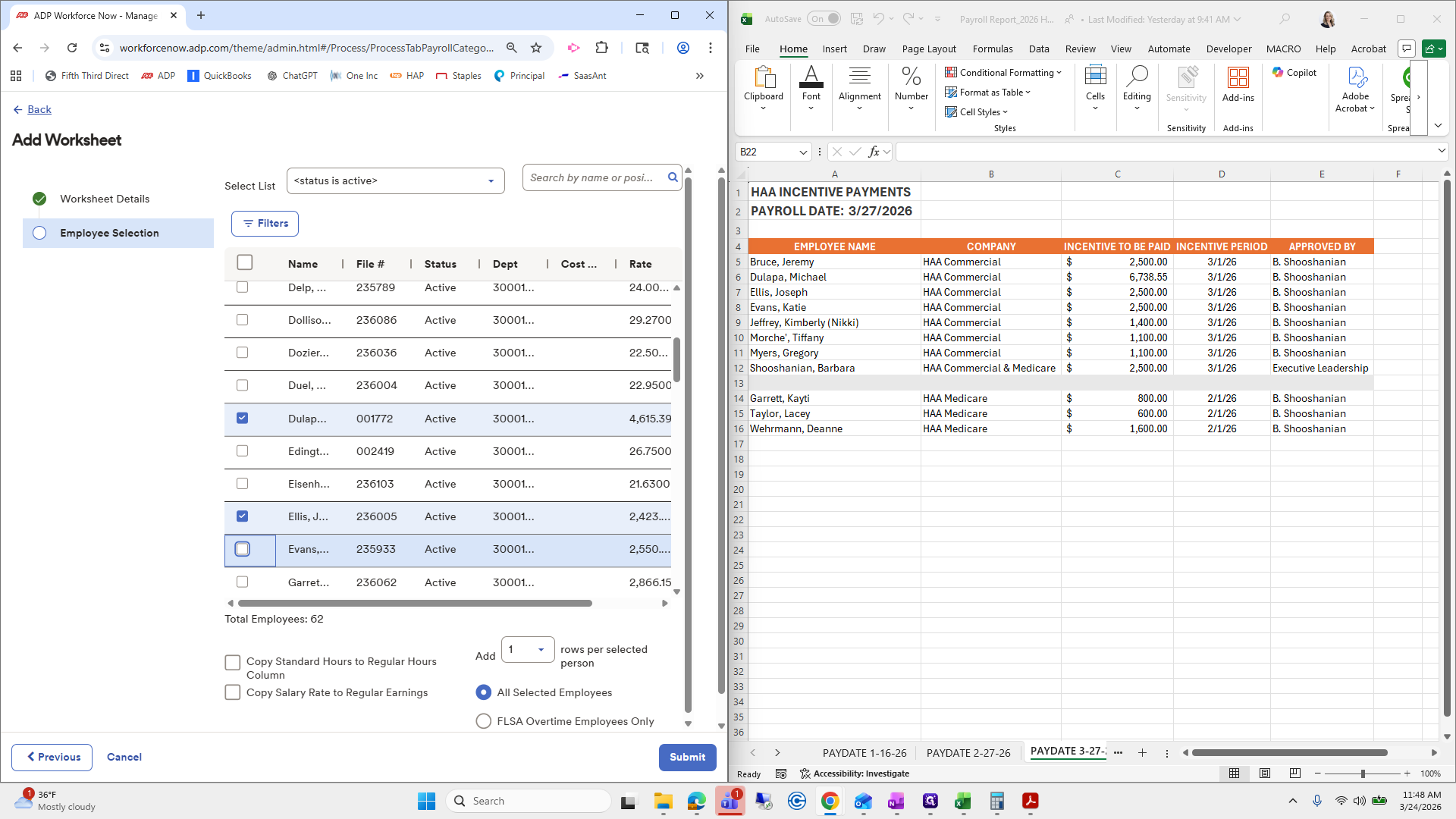
Dan Werman.
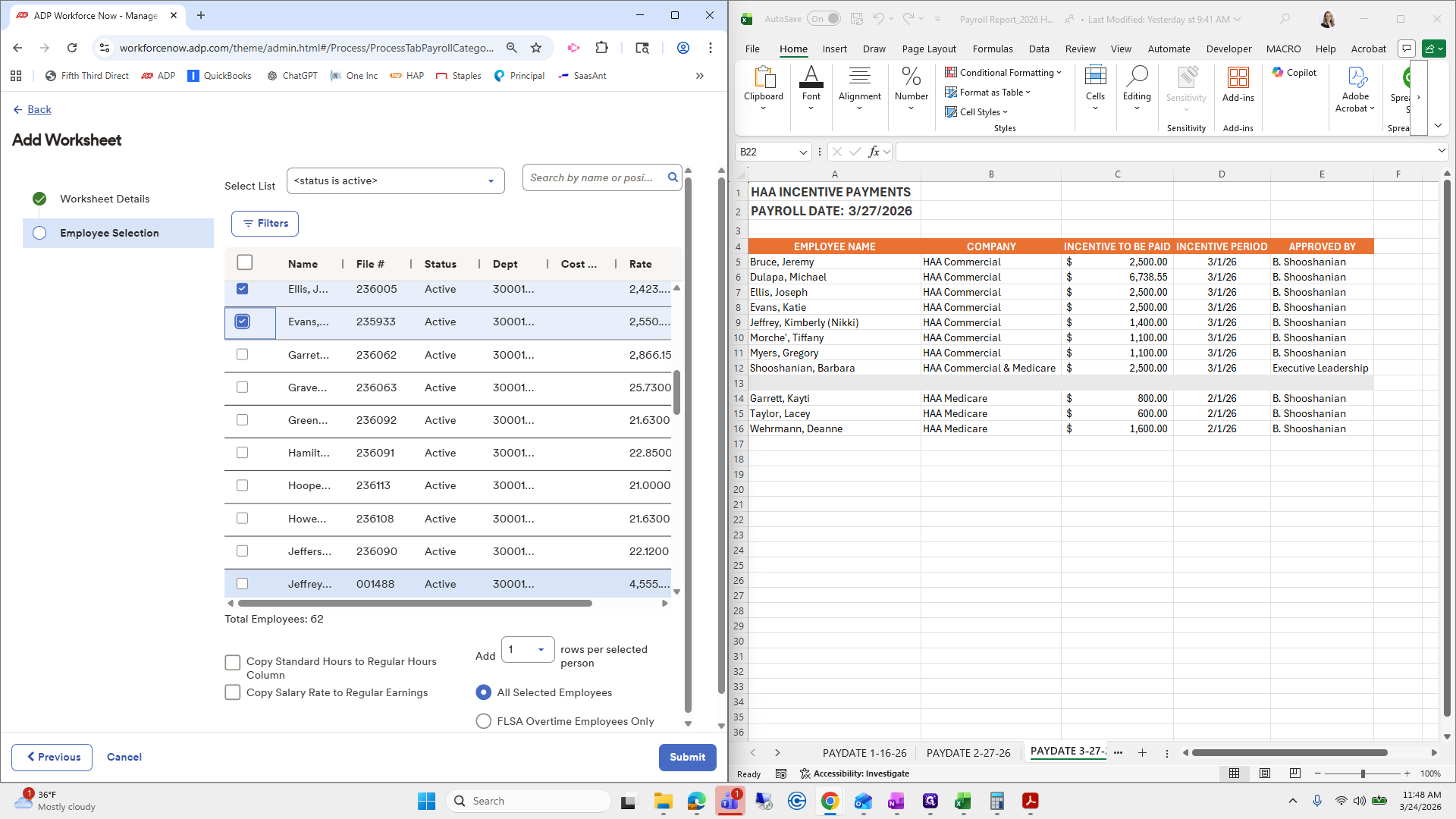
Then we will click Submit. Same thing.
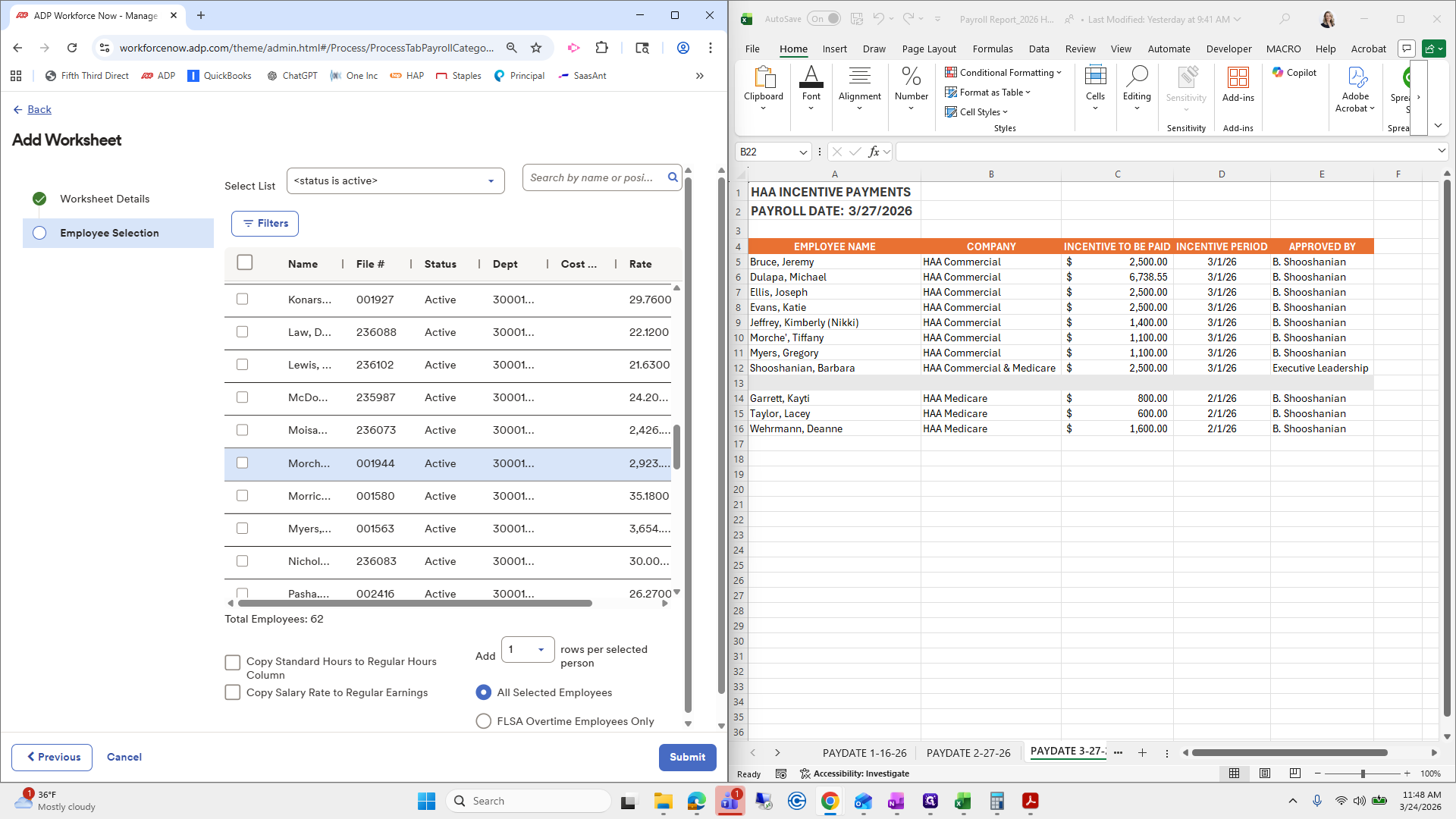
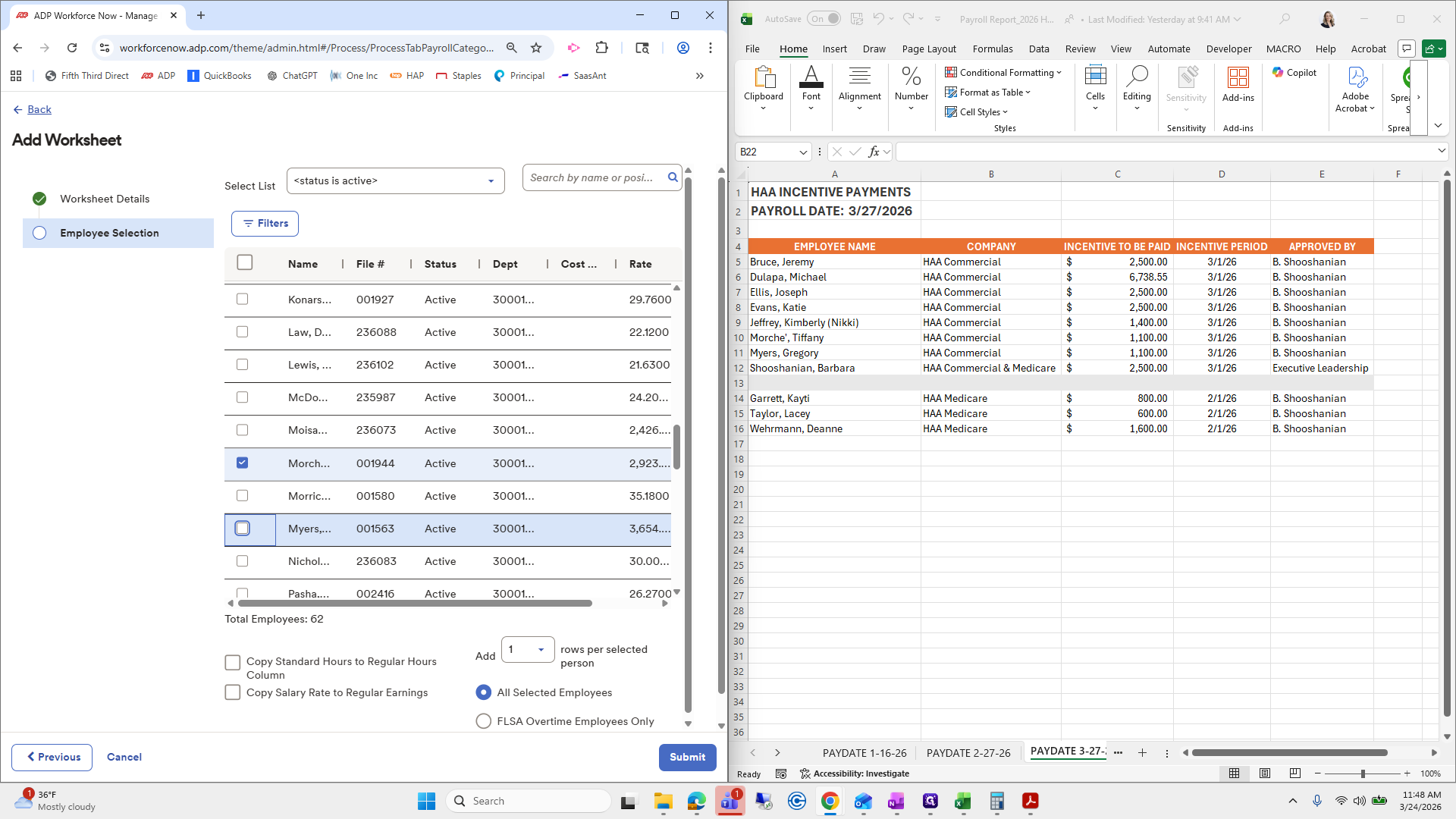
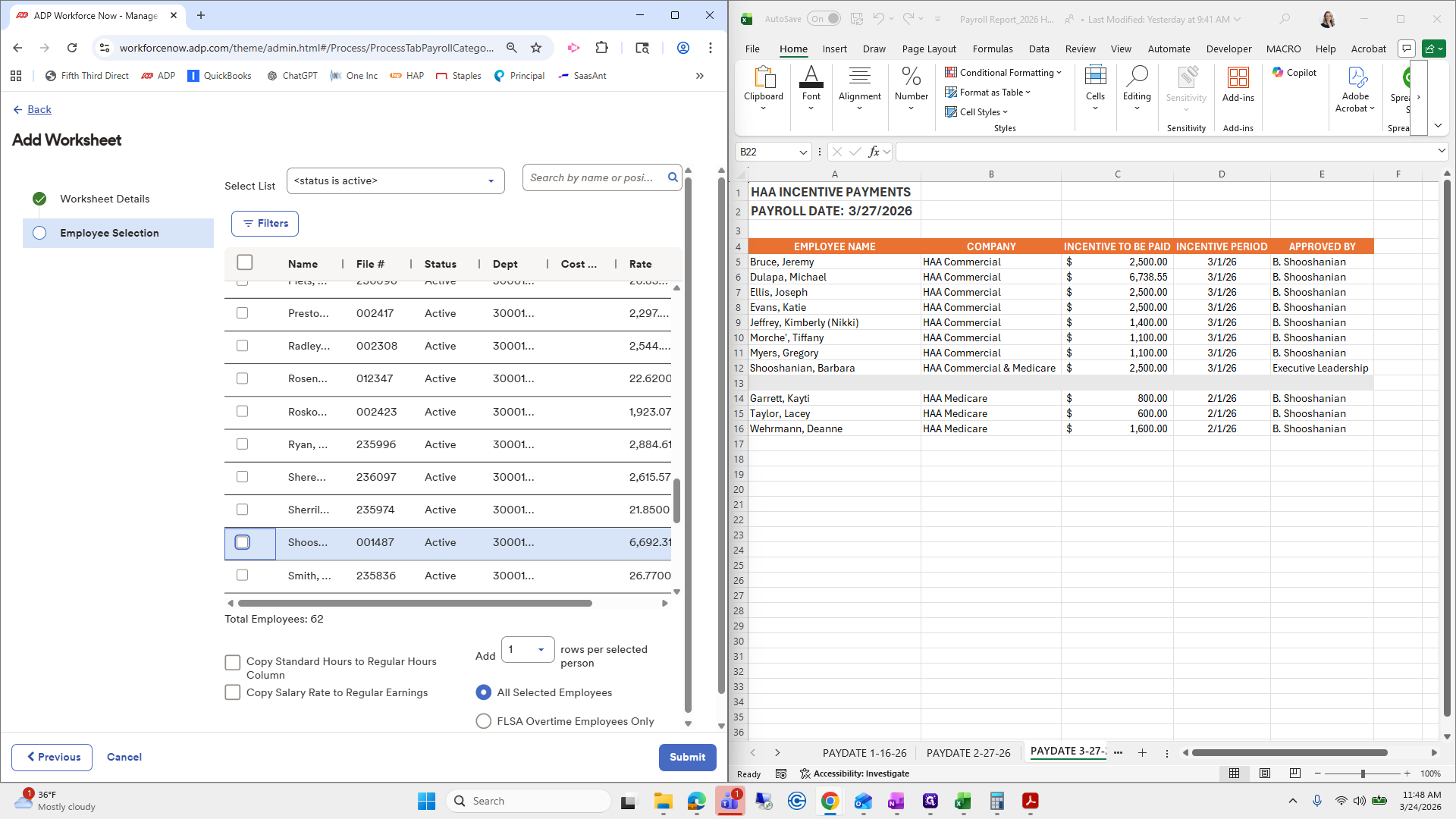
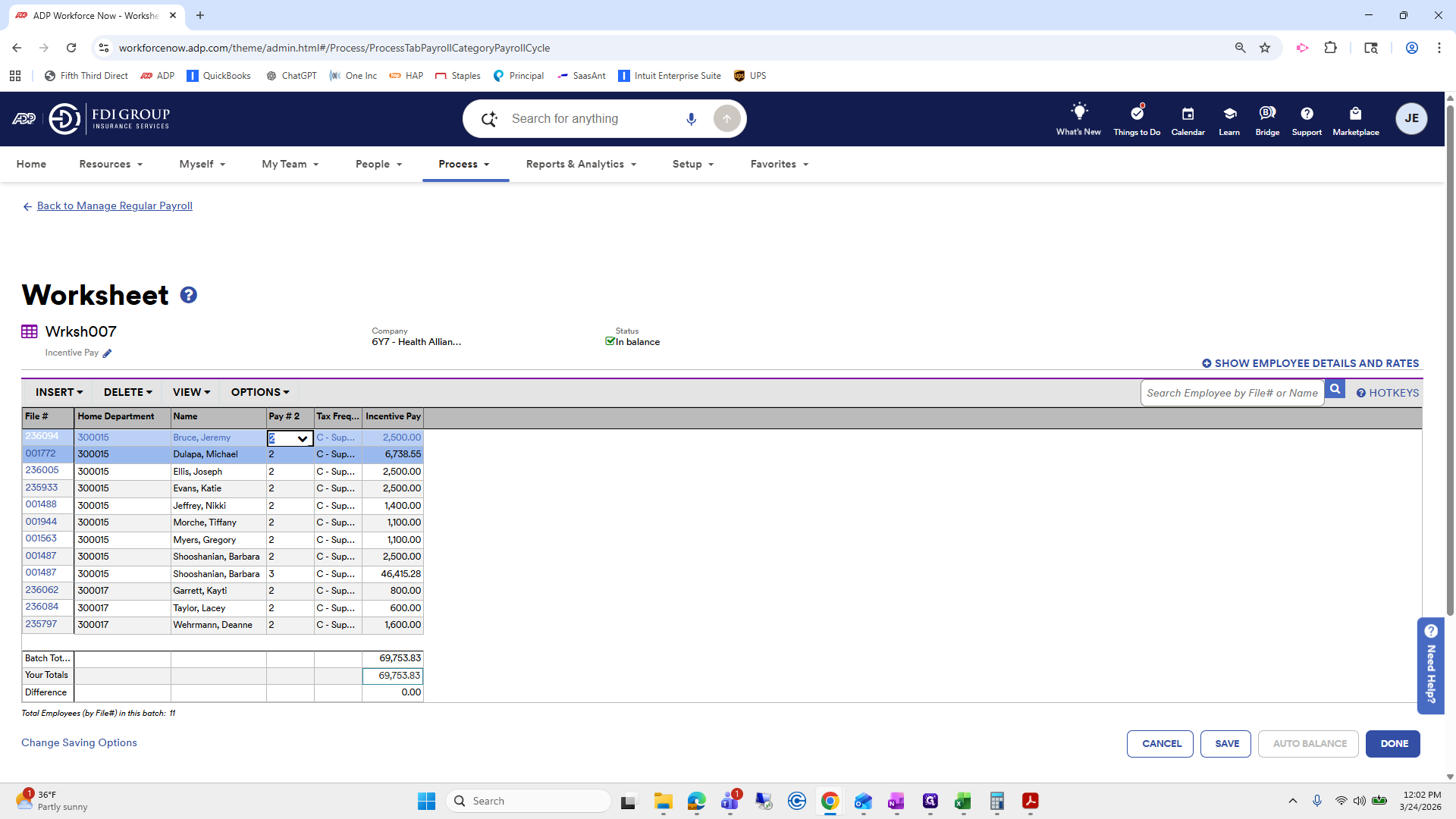
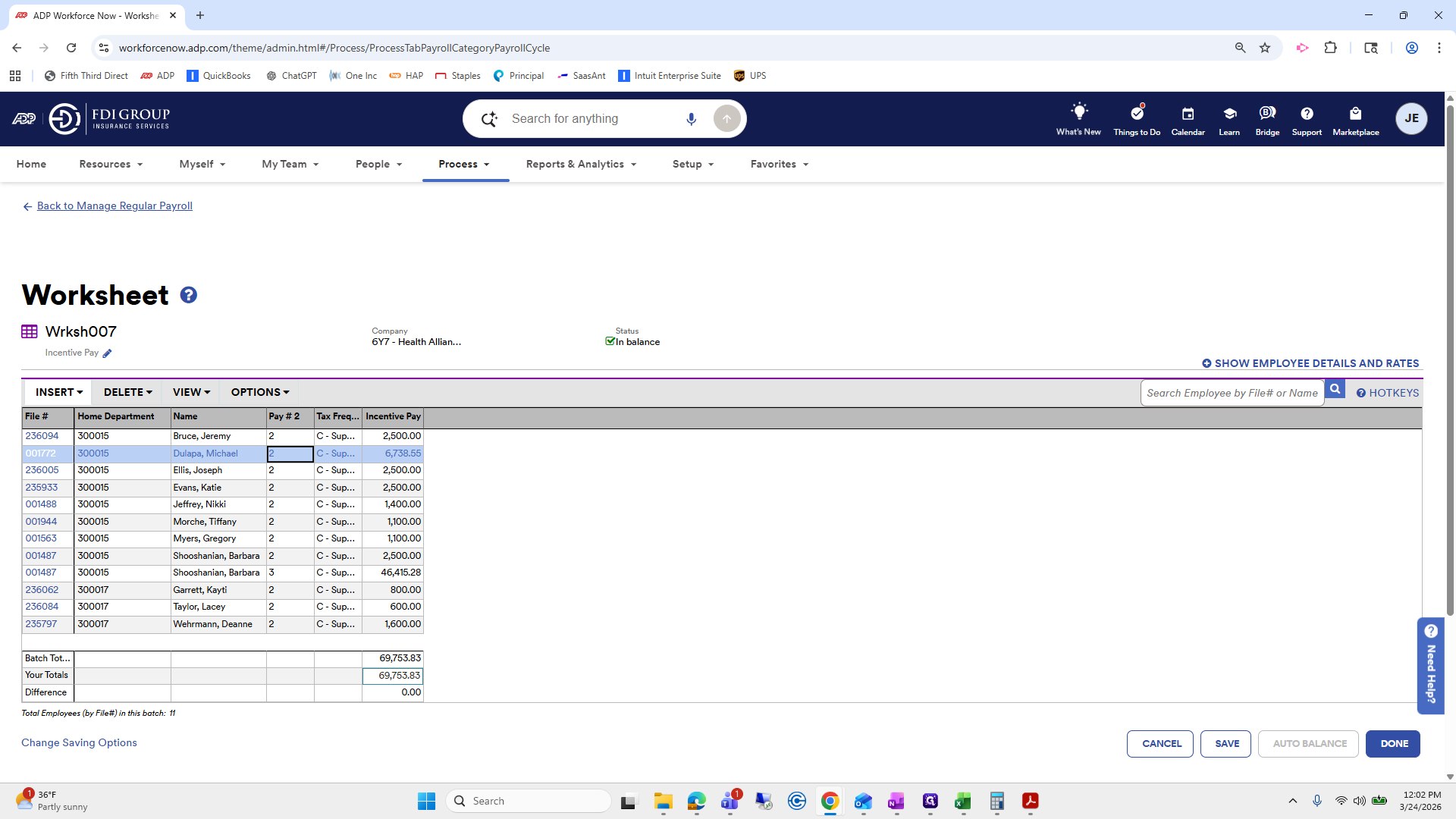
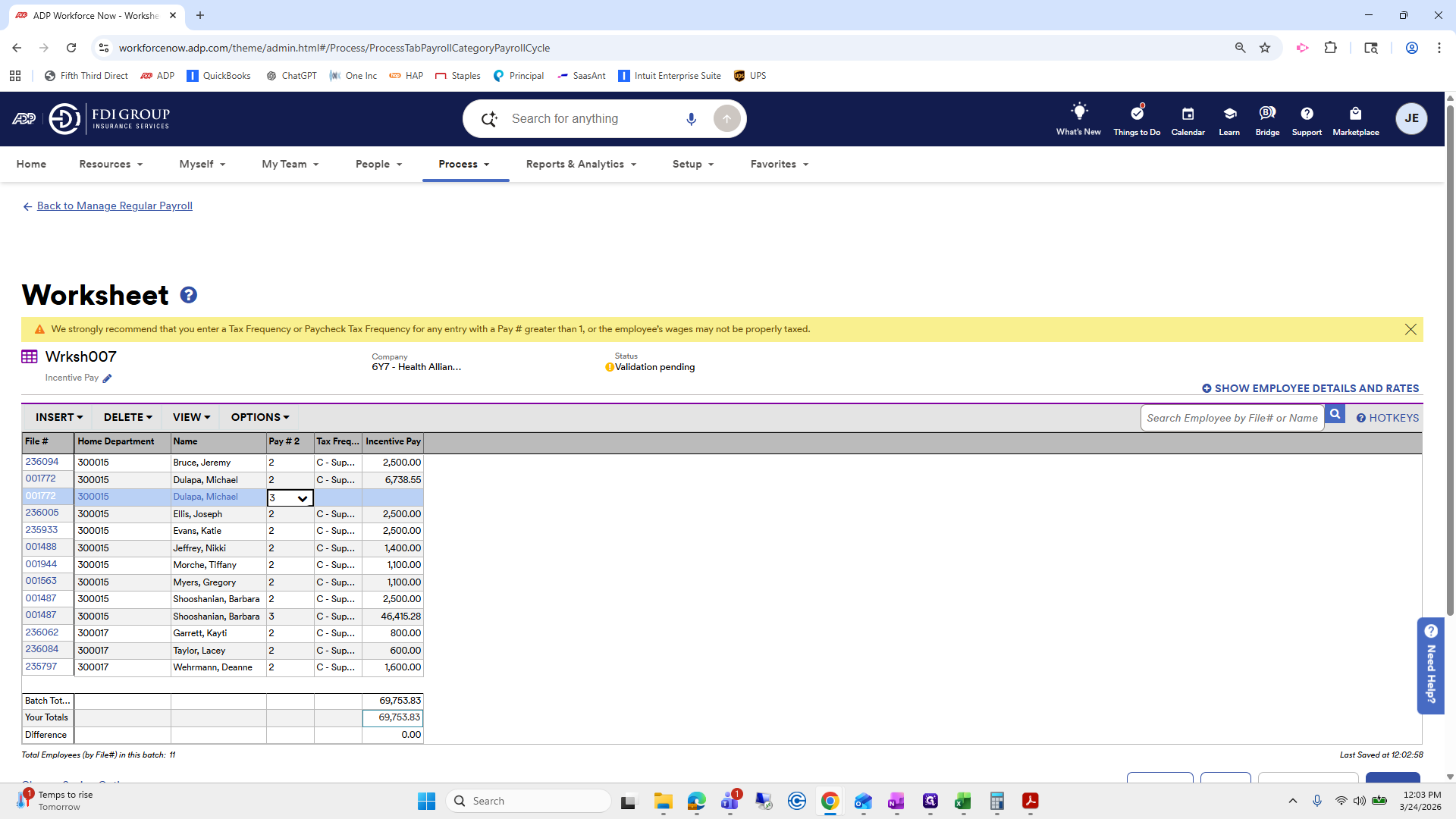
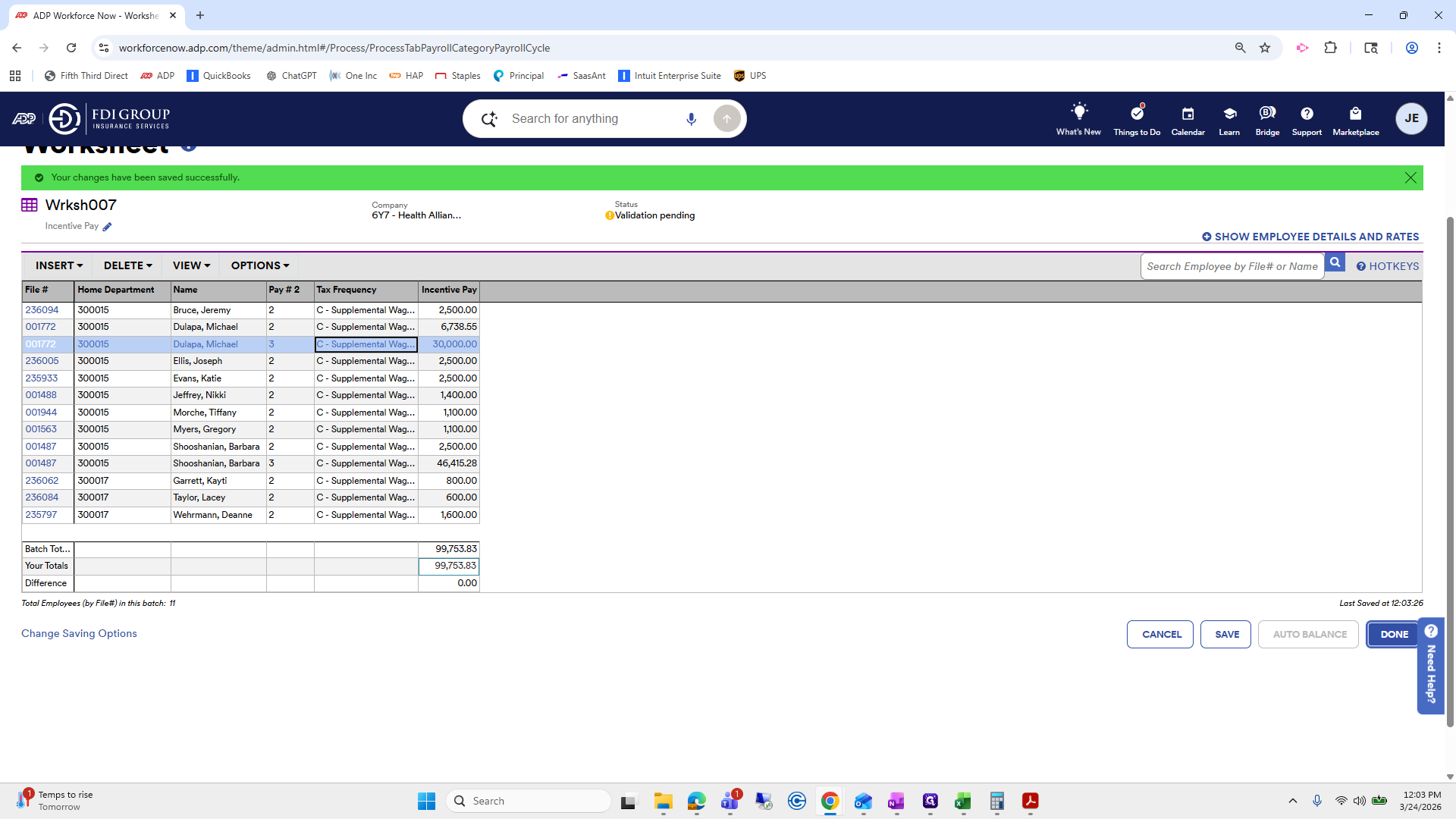
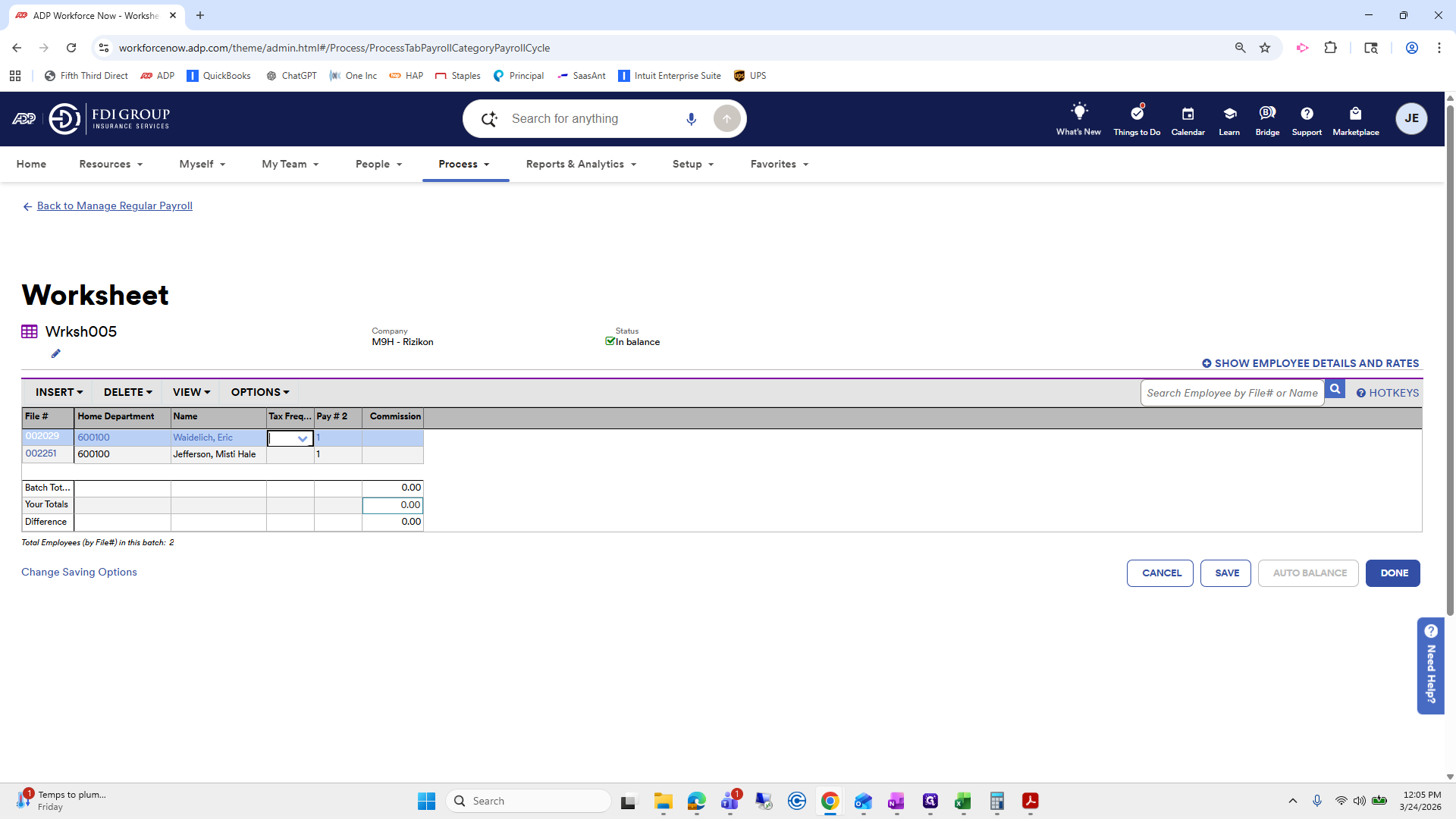
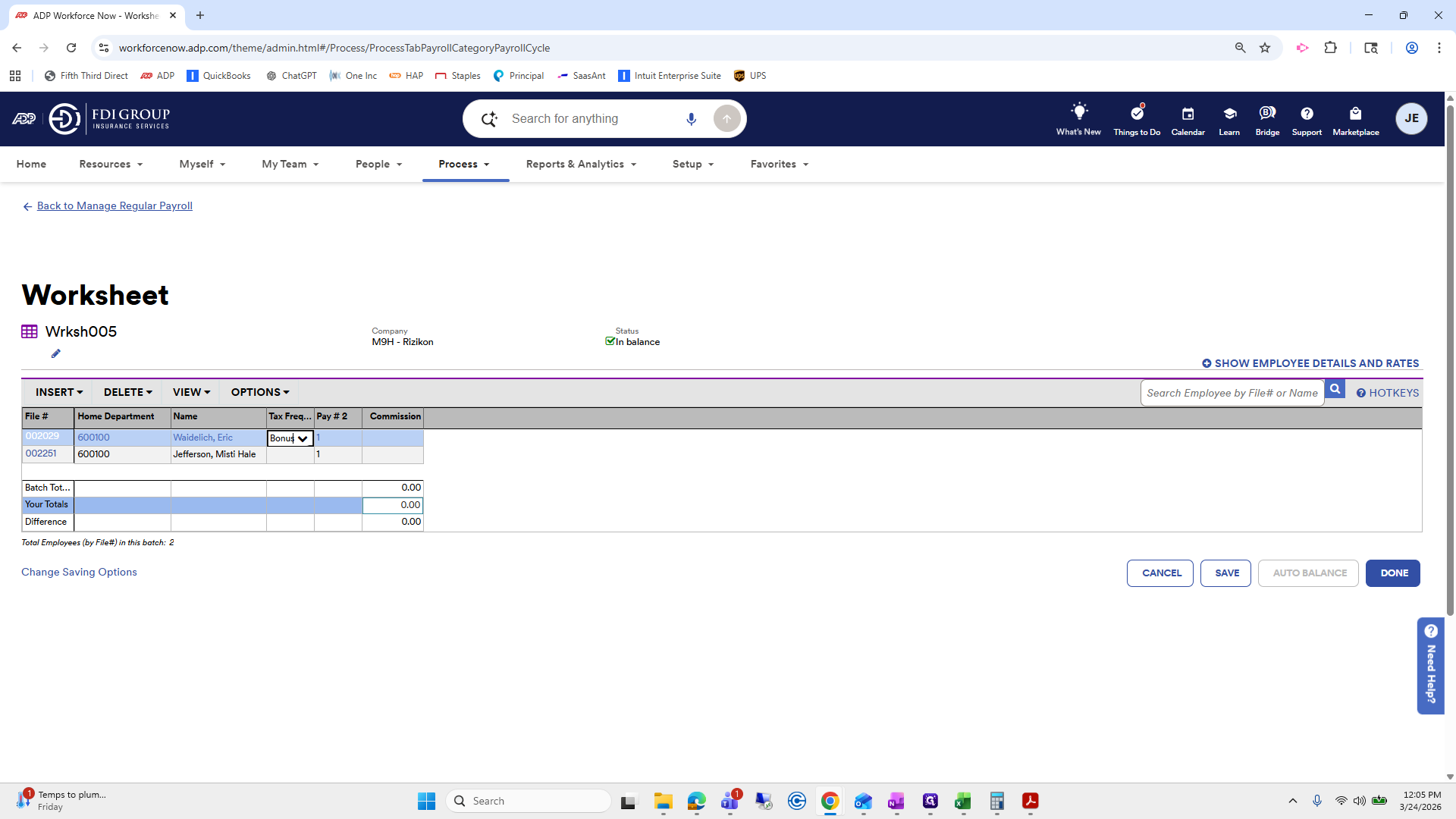
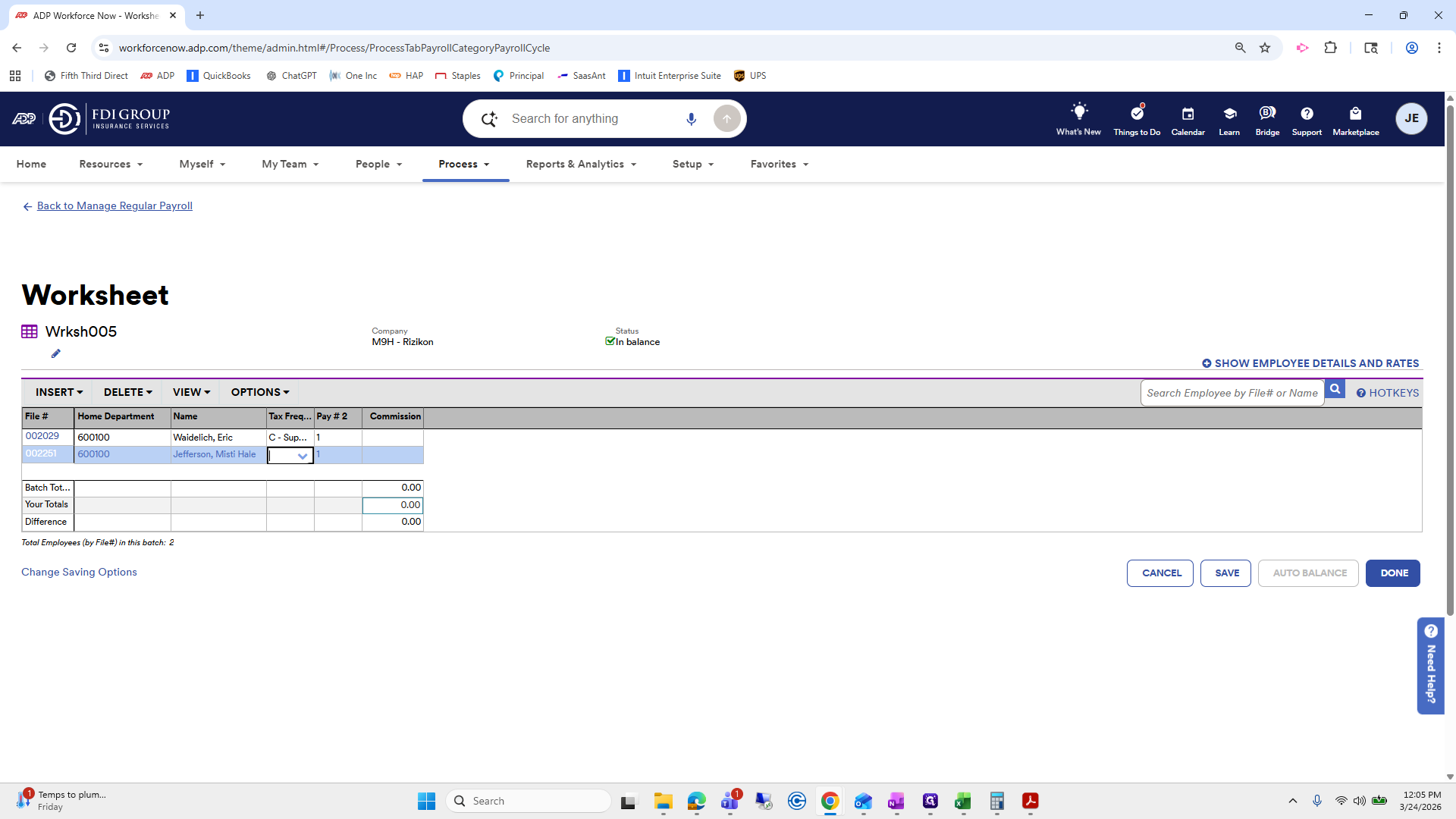
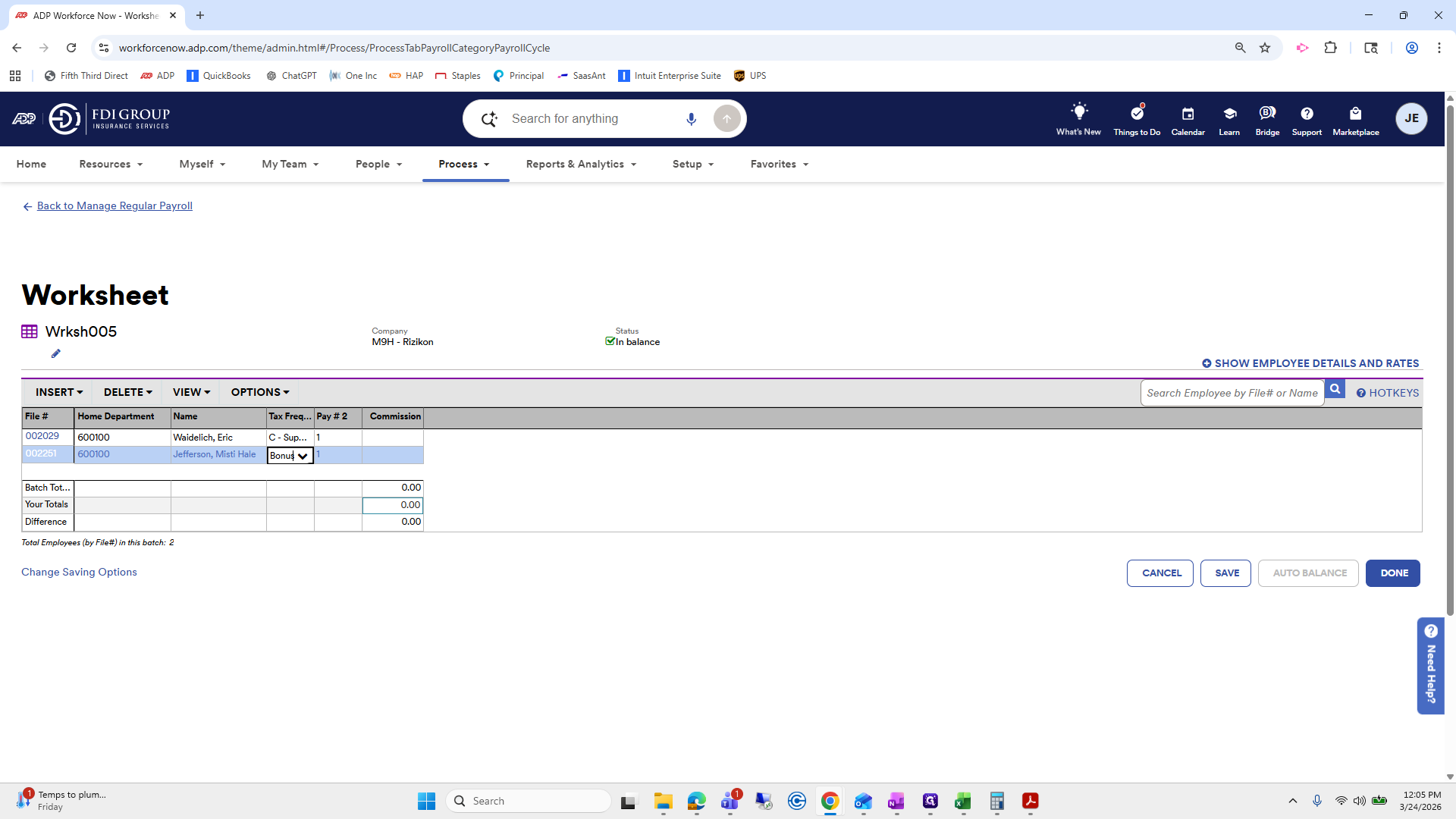
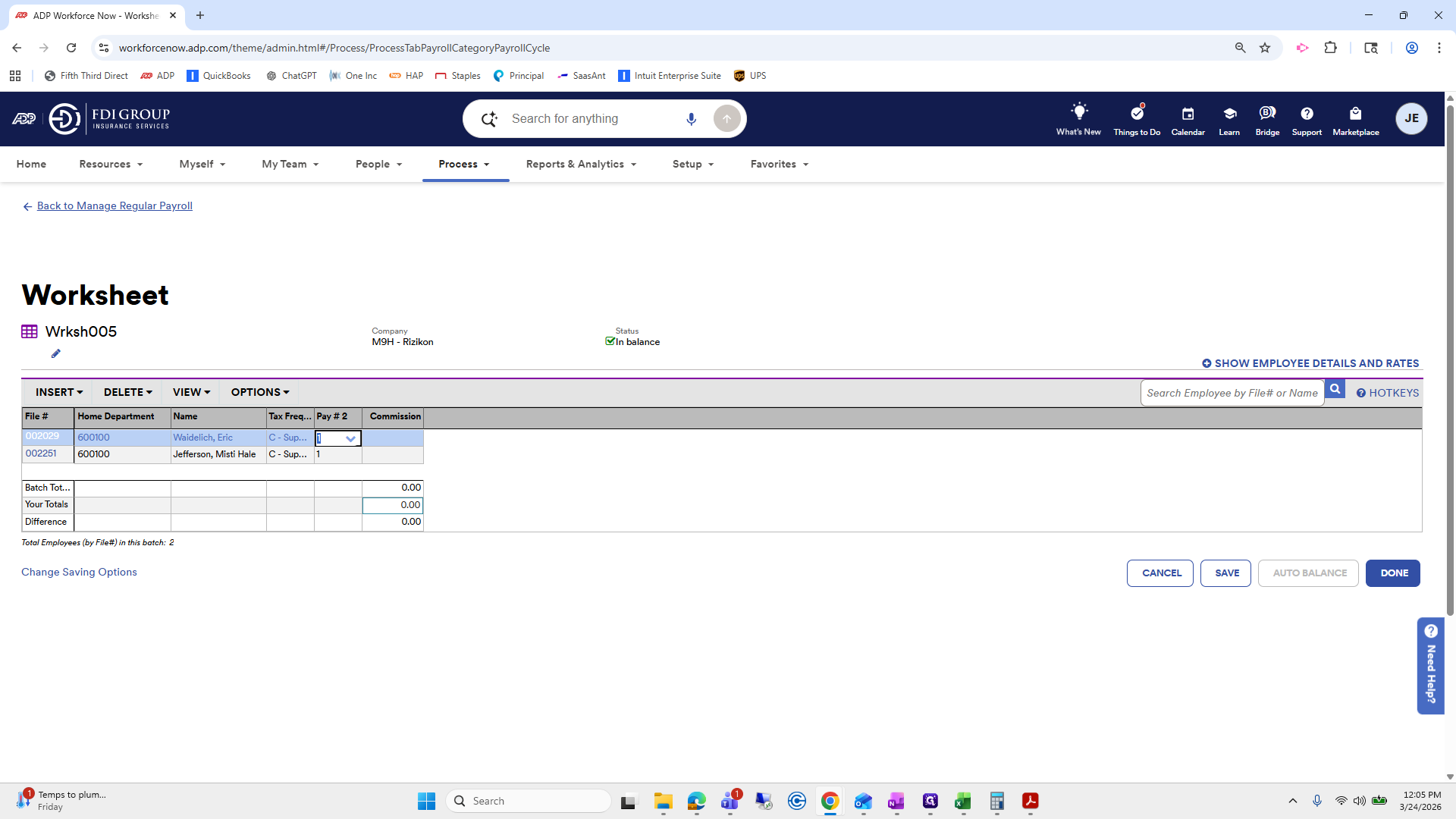
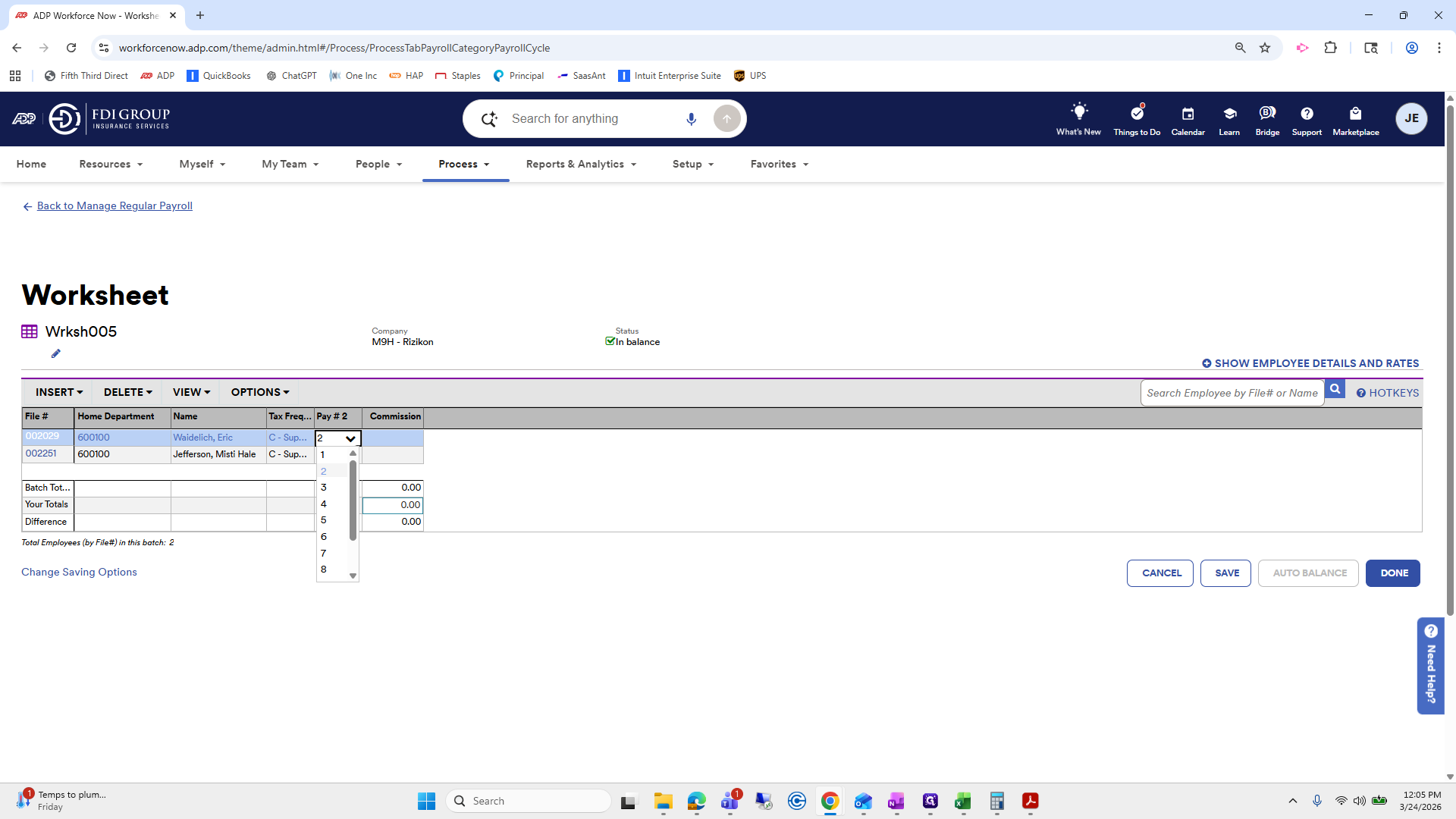
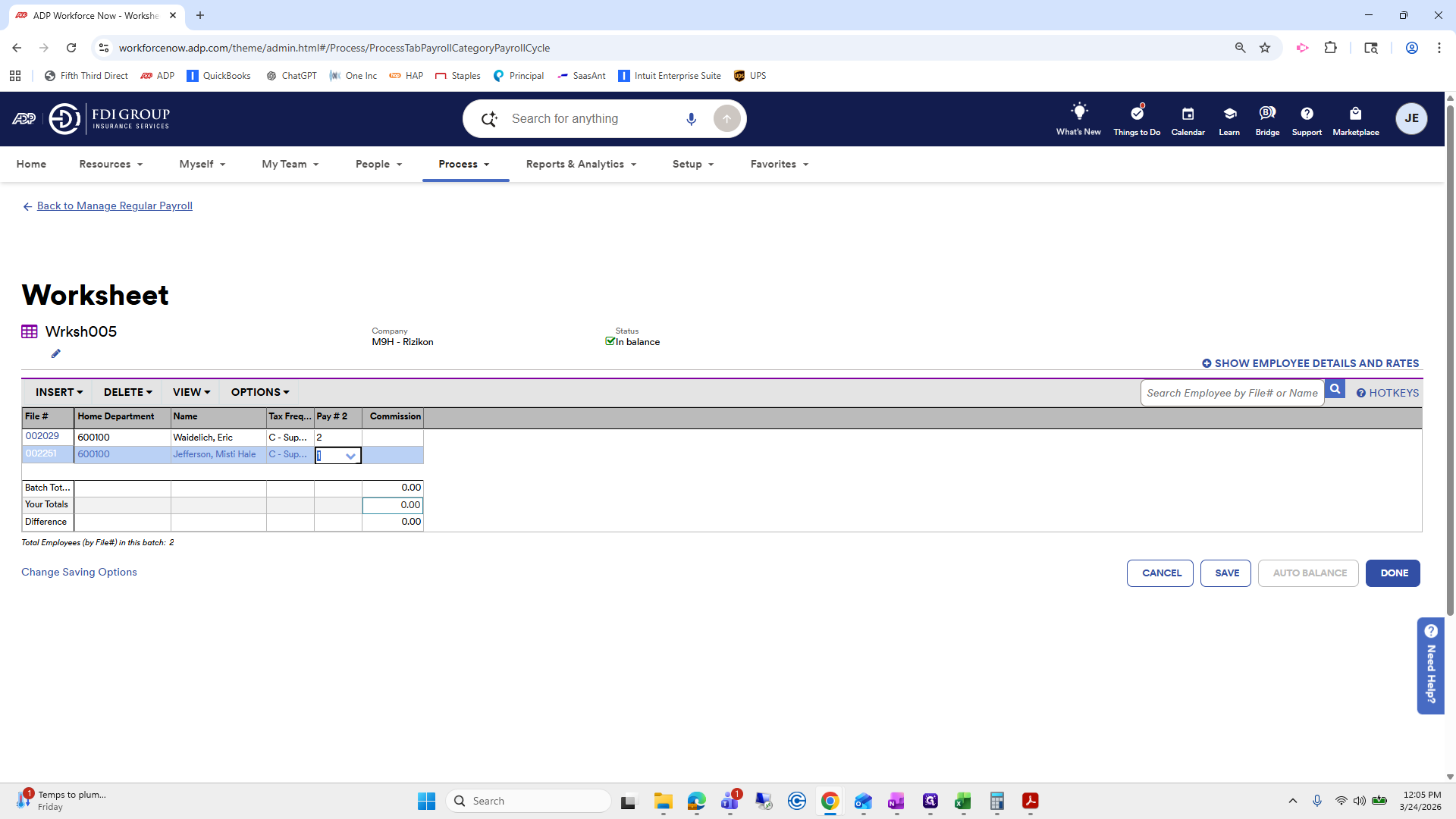
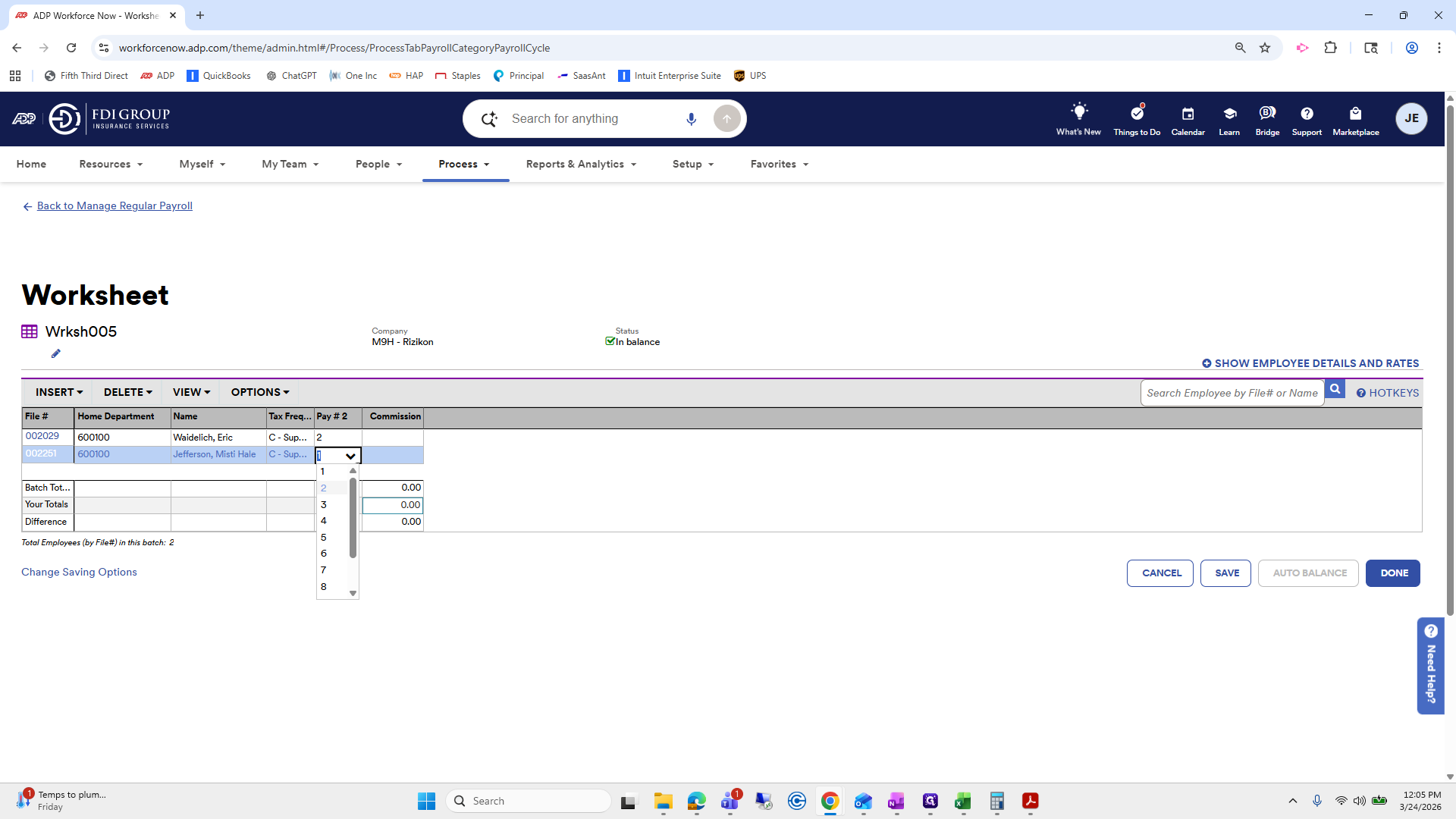
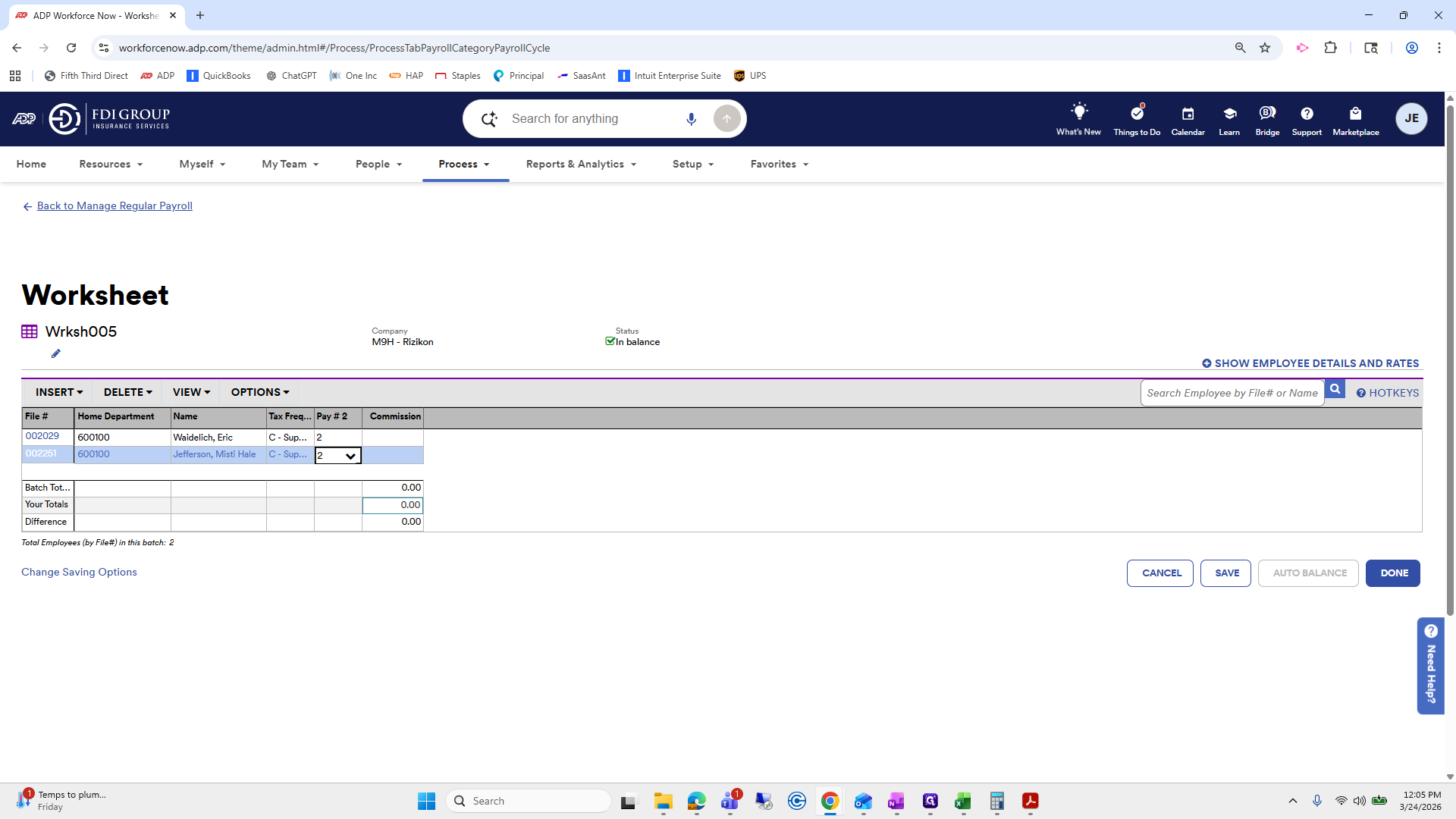
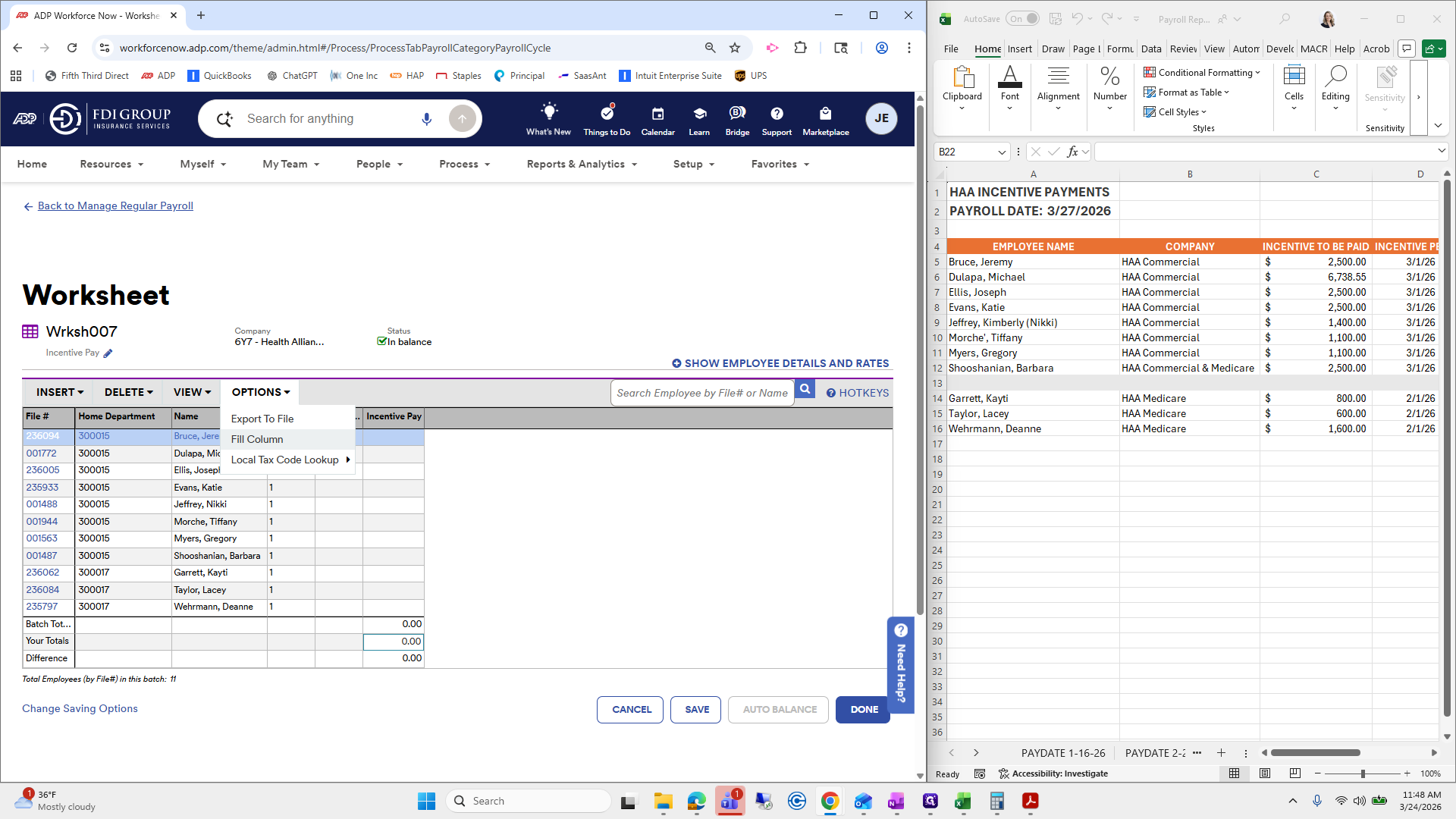
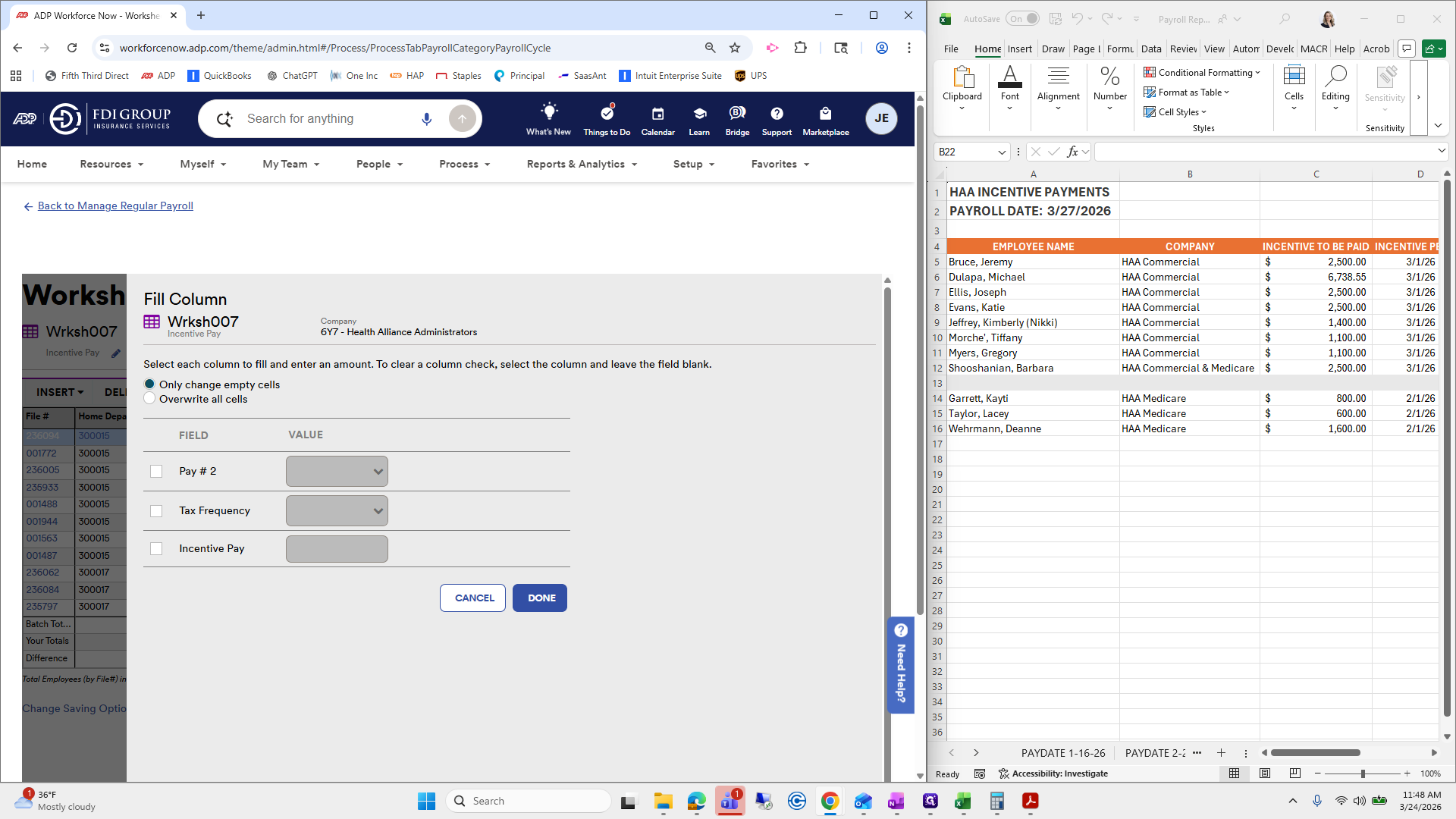
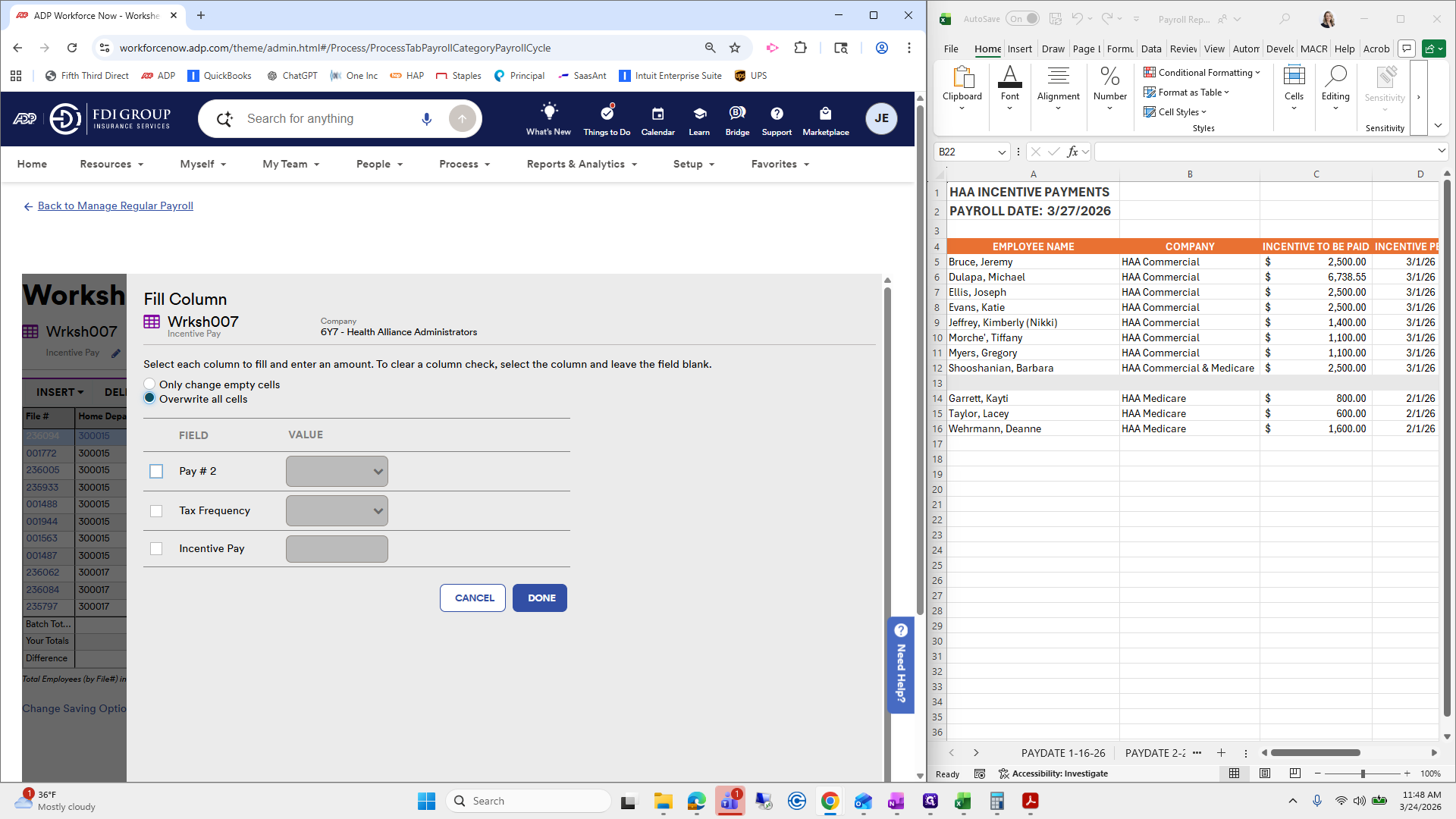
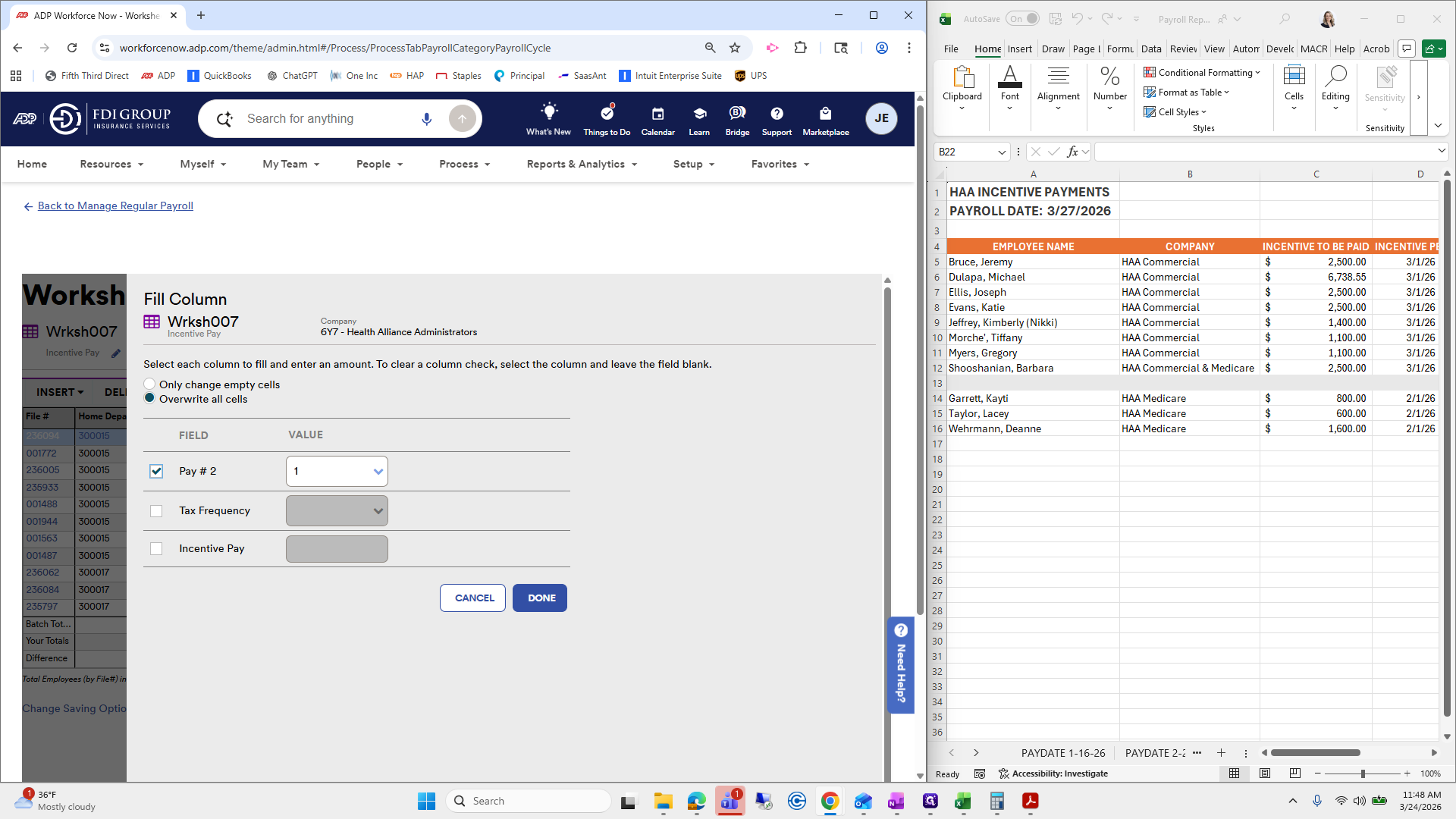
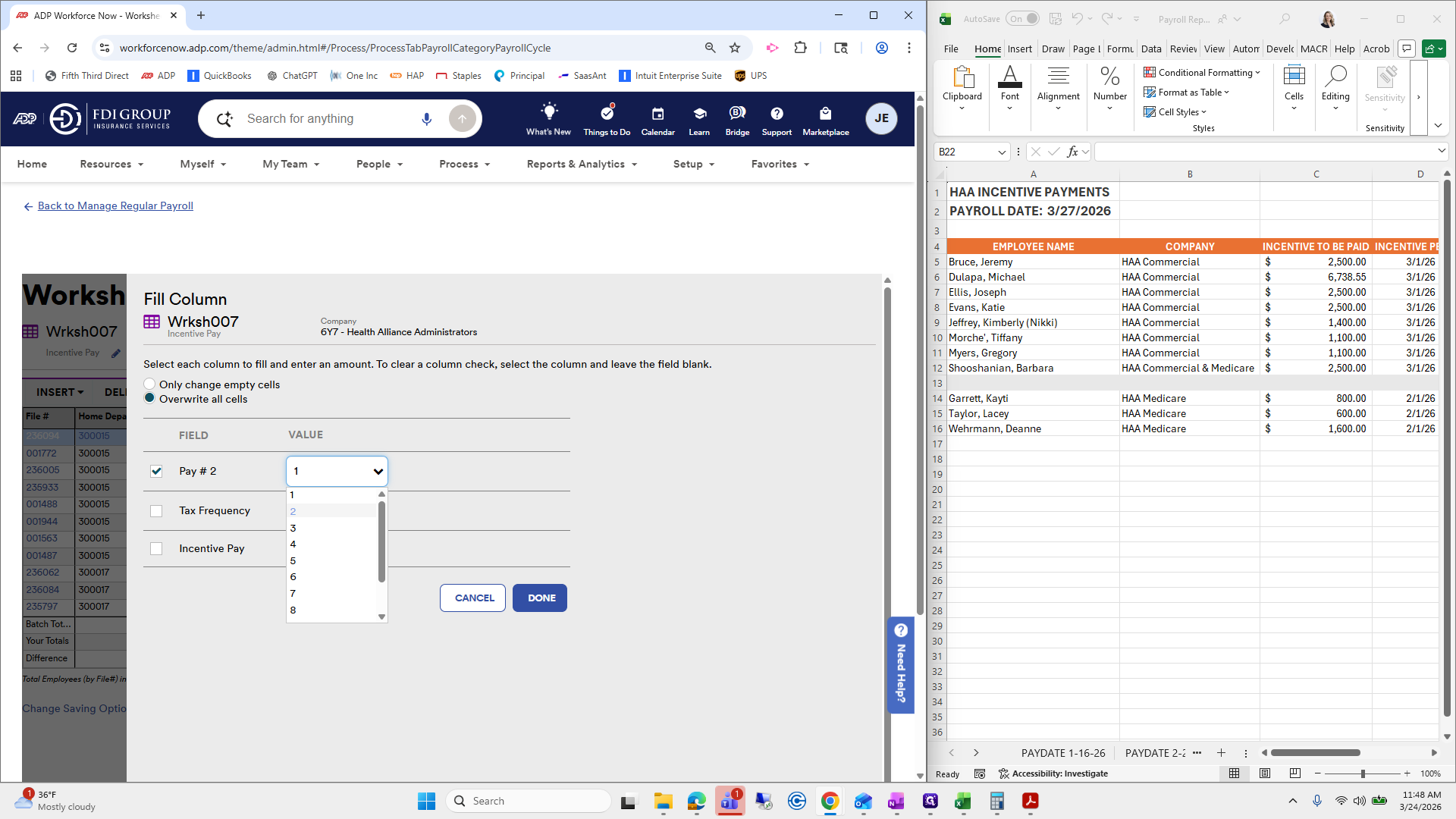
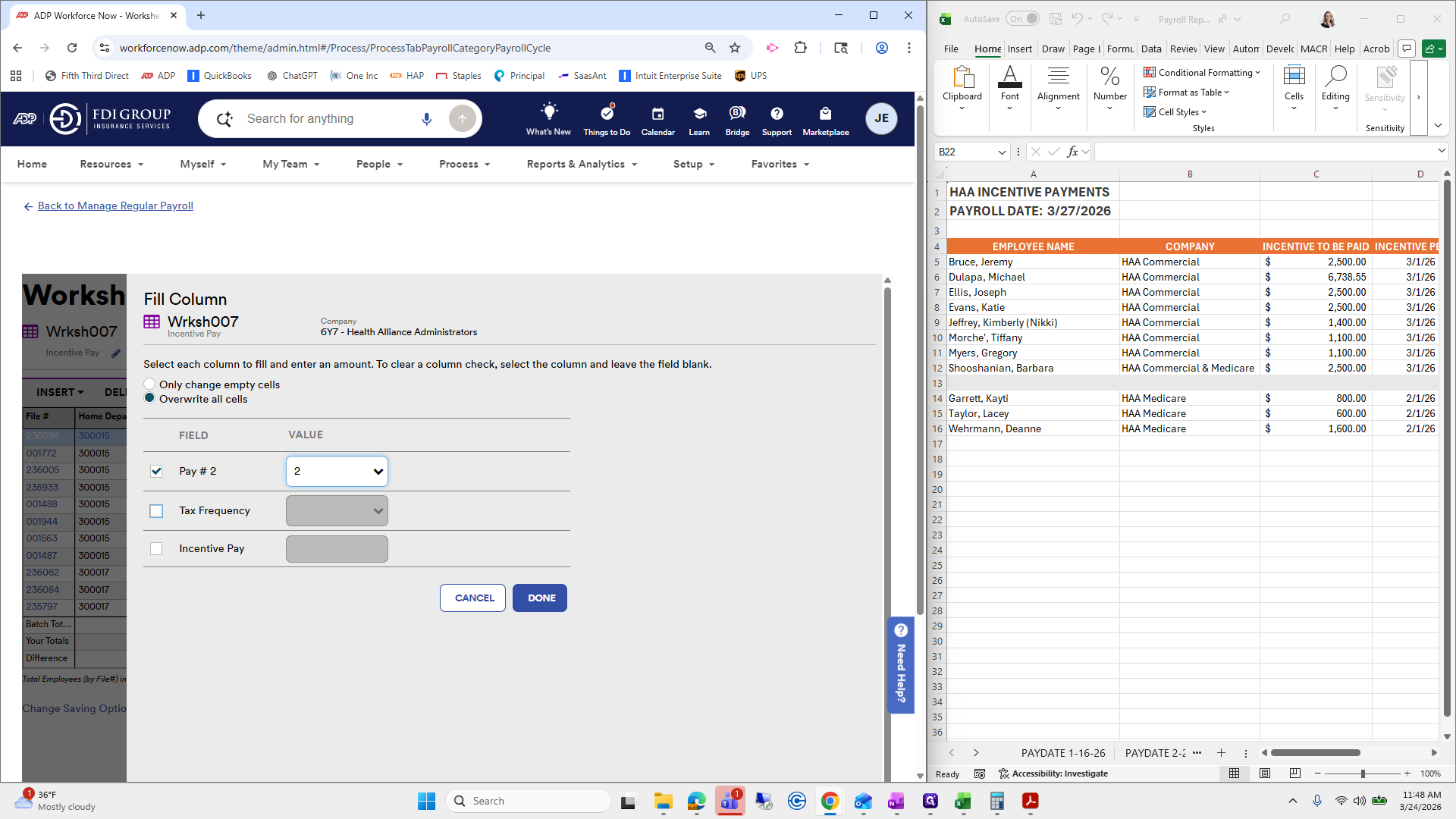
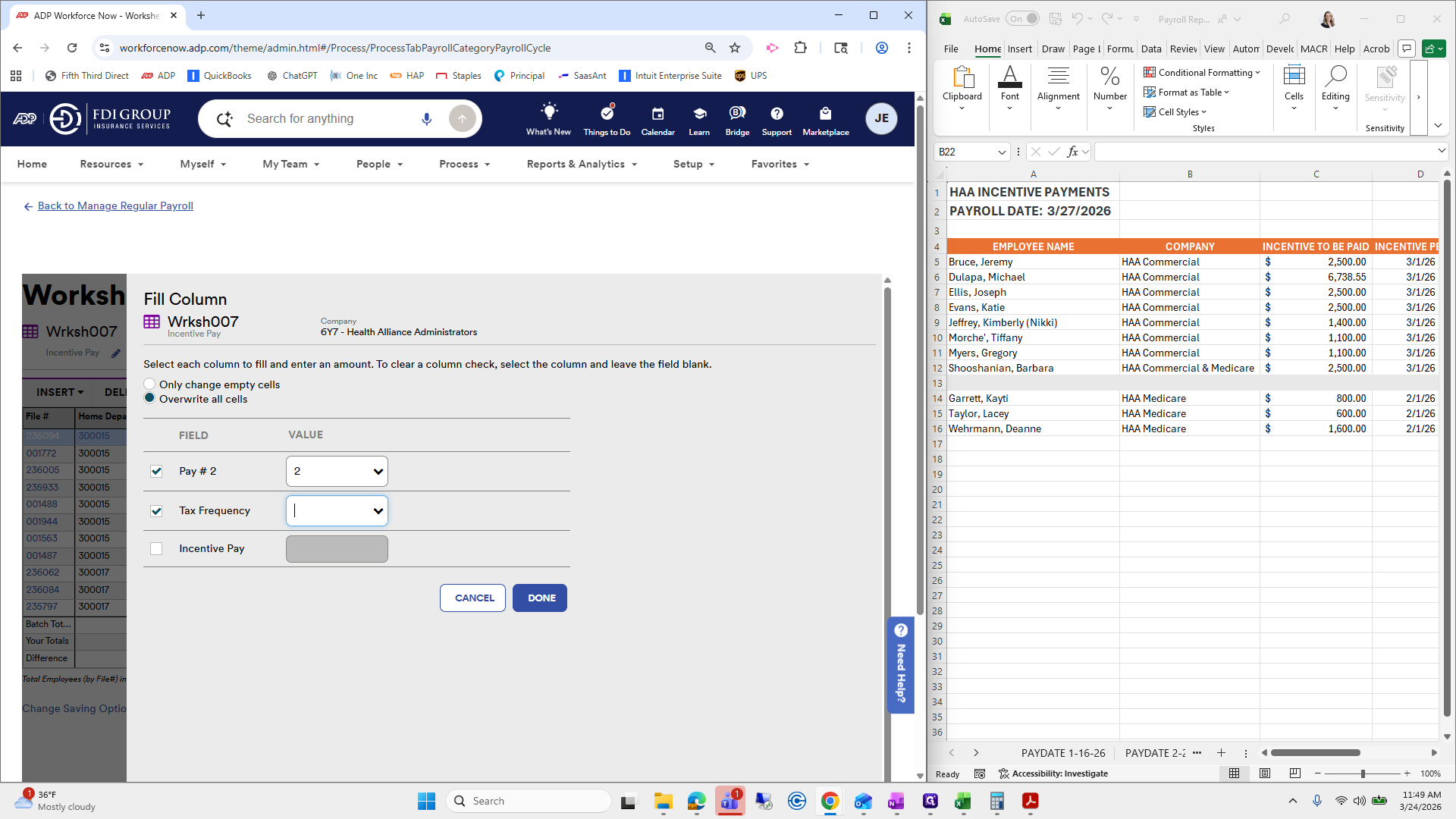
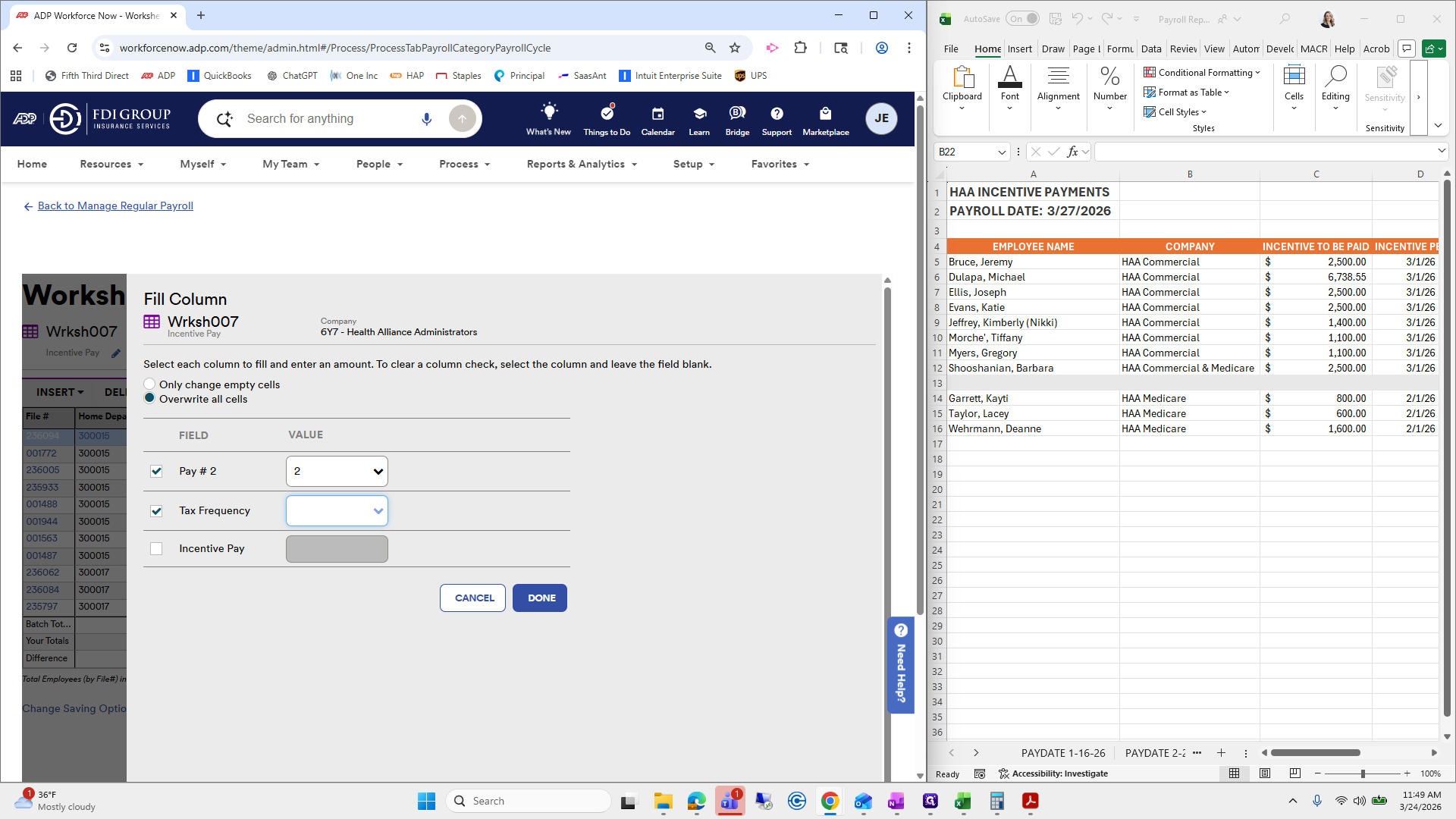
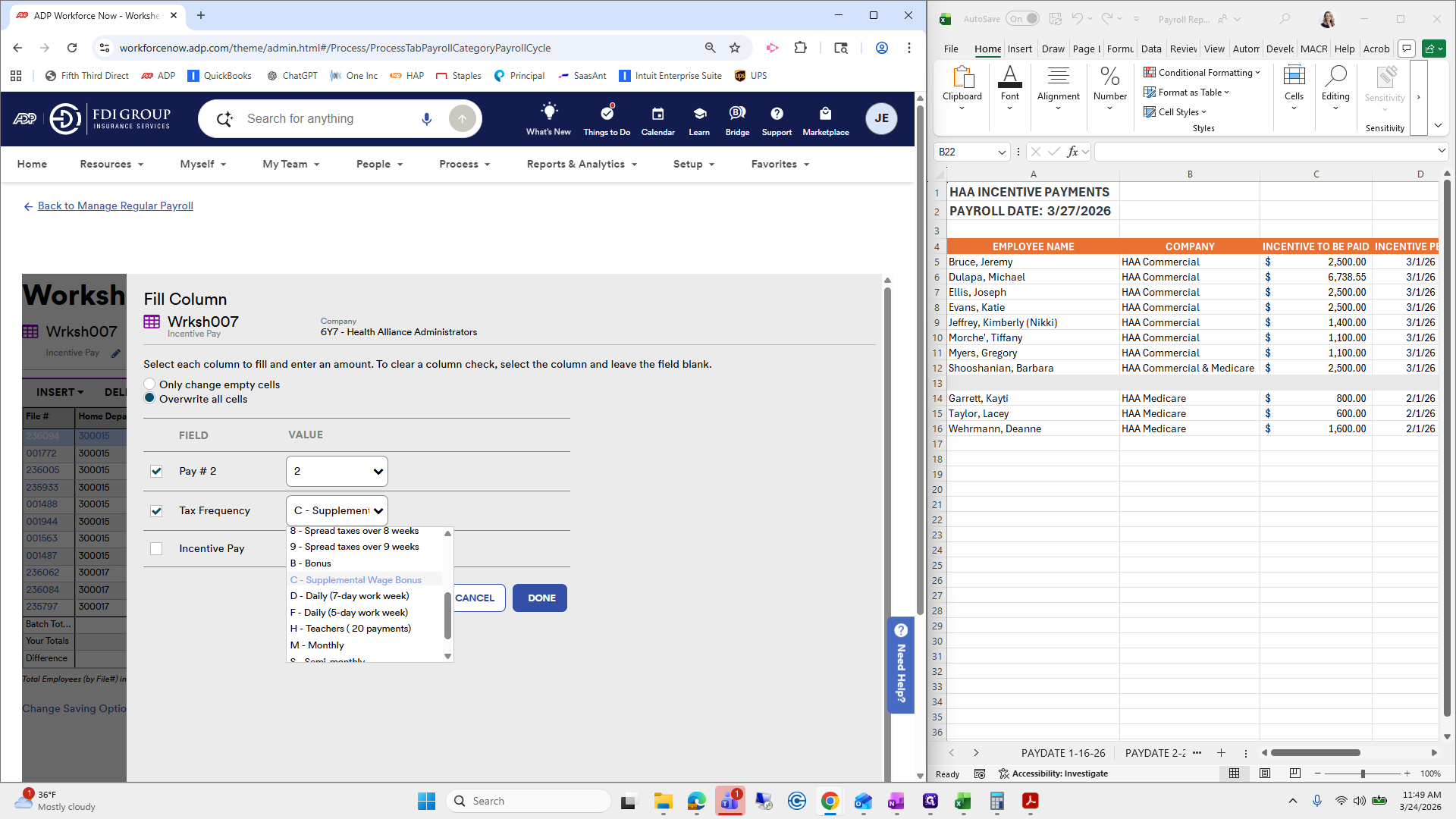
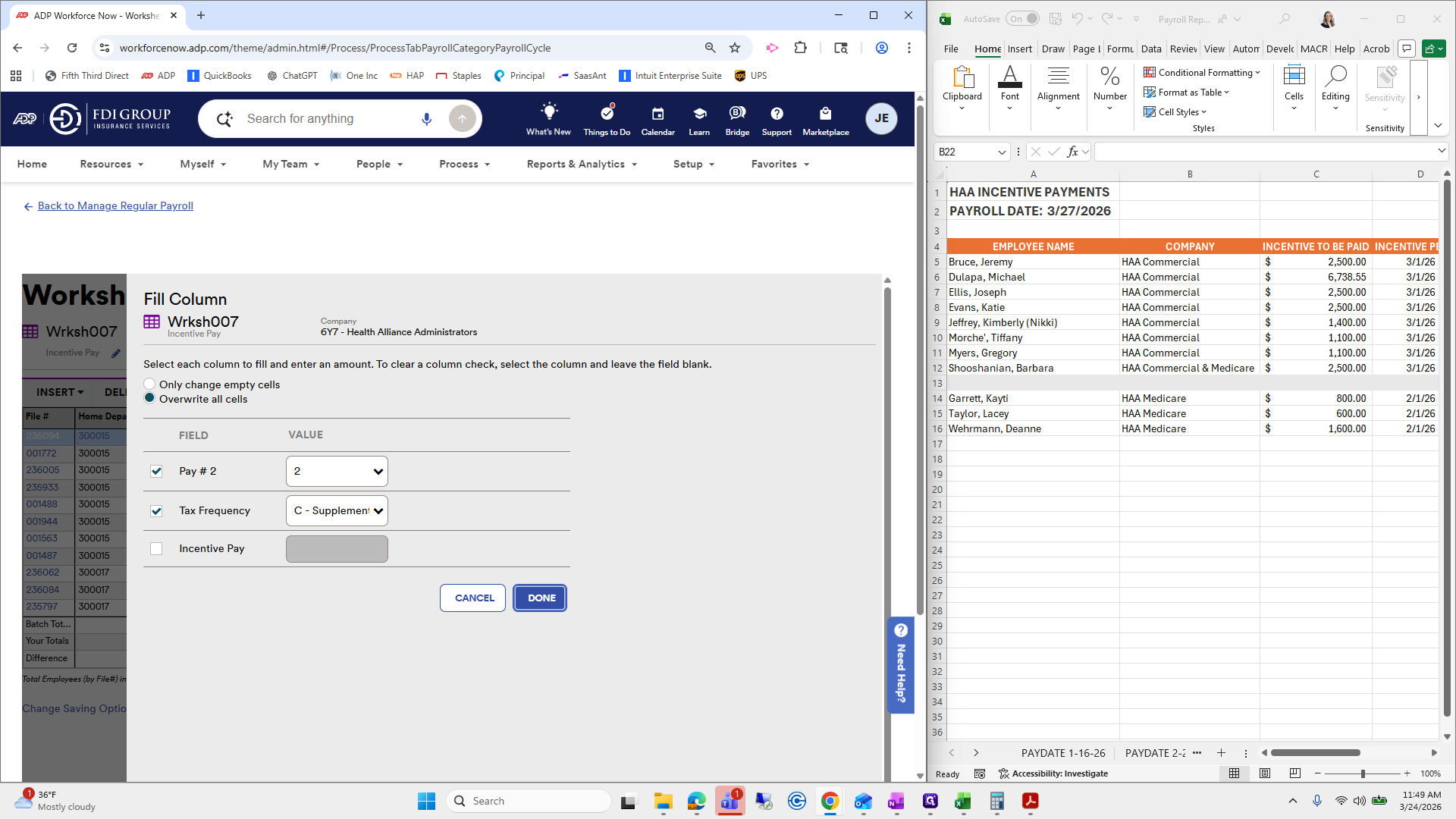
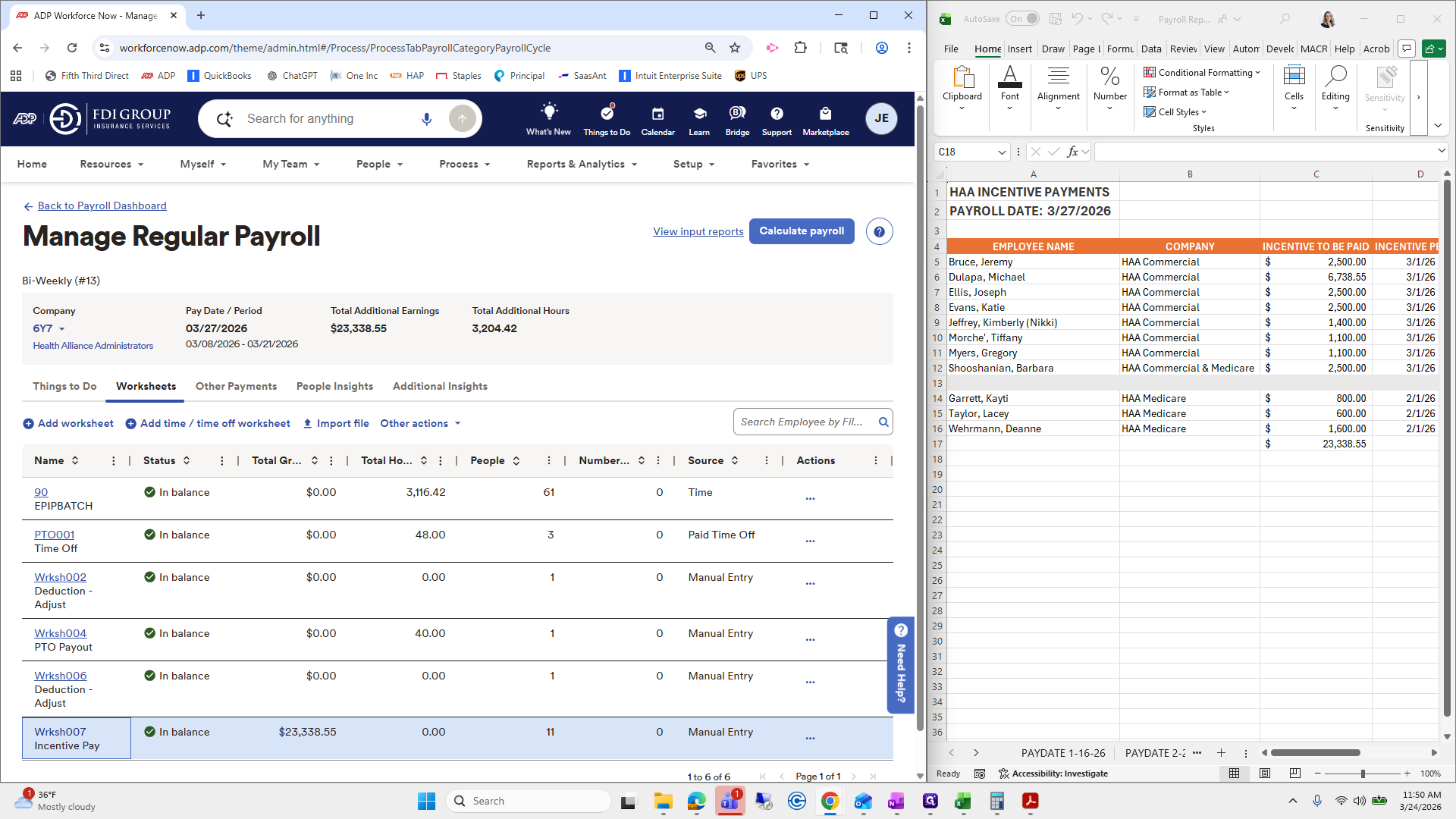
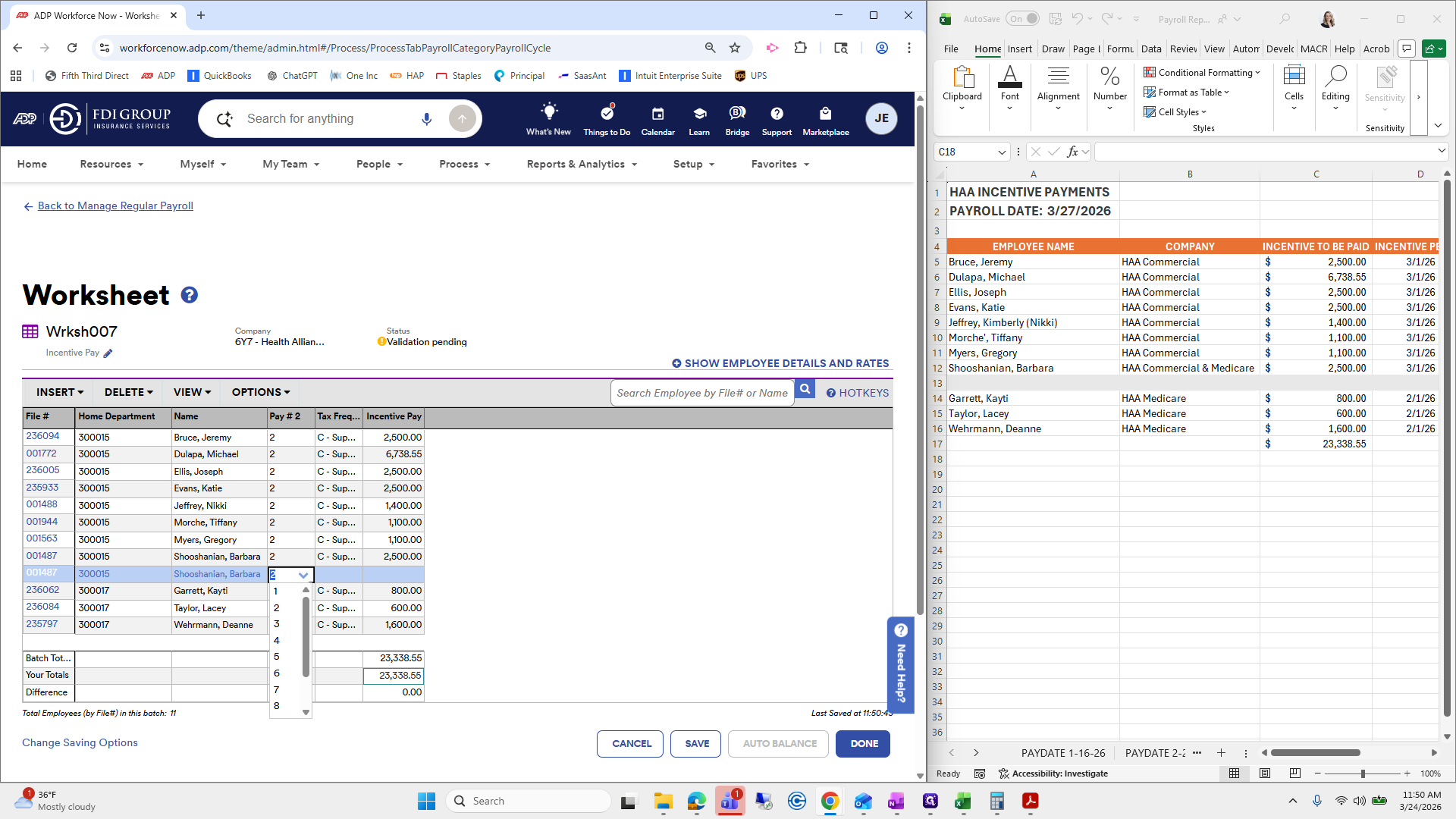
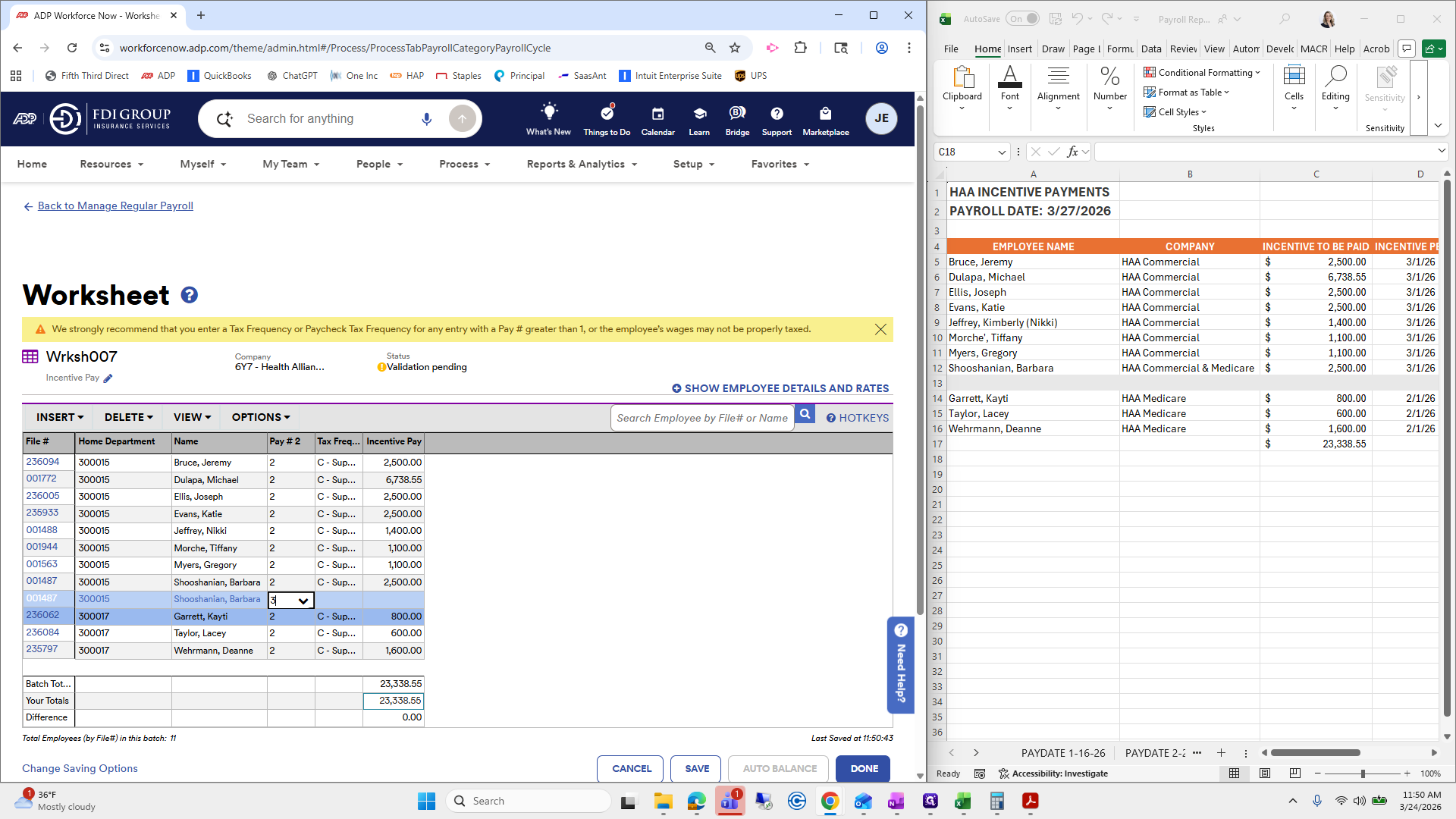
Go to Options, select Fill Column, then choose Overwrite All Cells. Pay number two; it needs to be two.
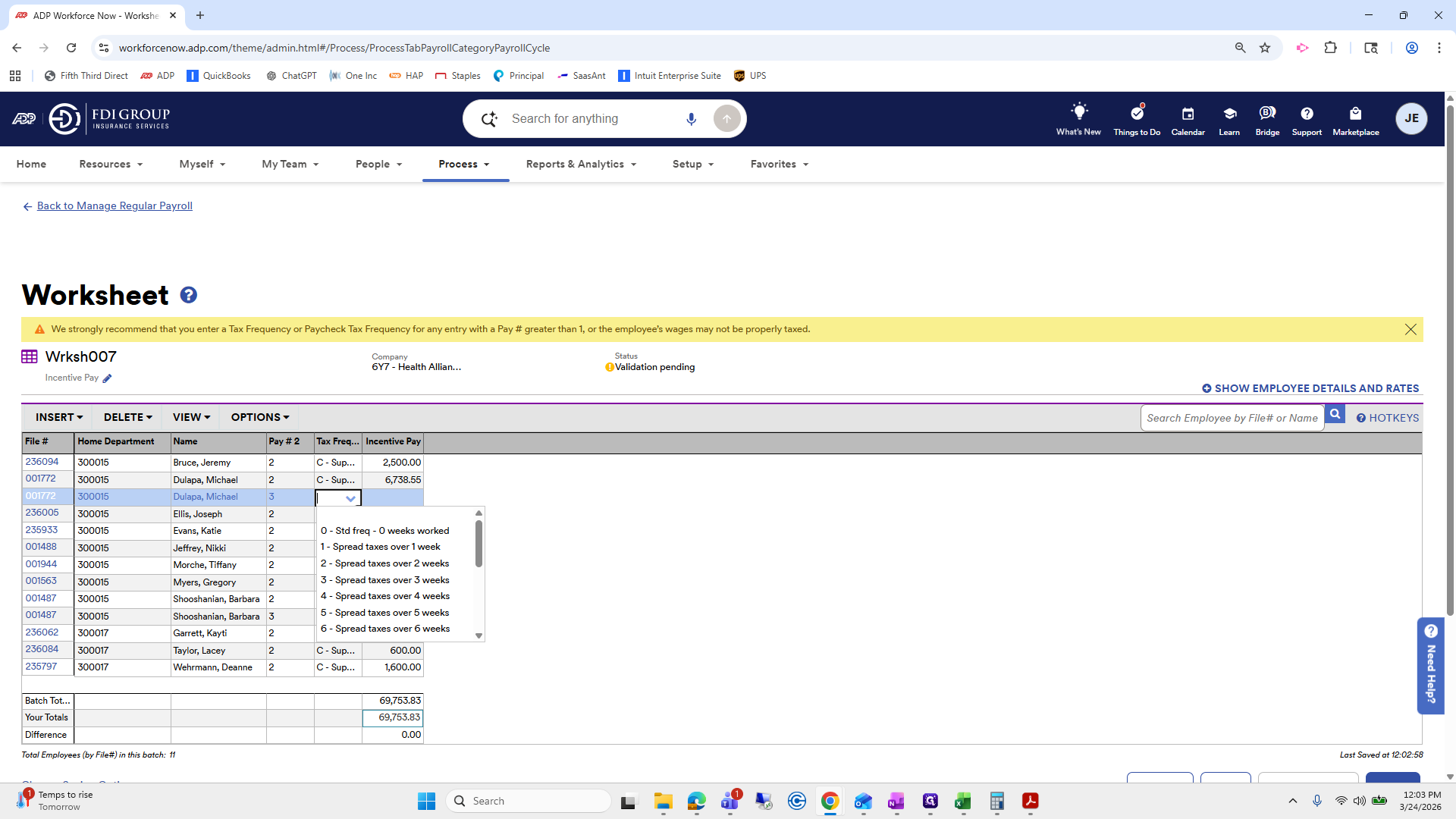
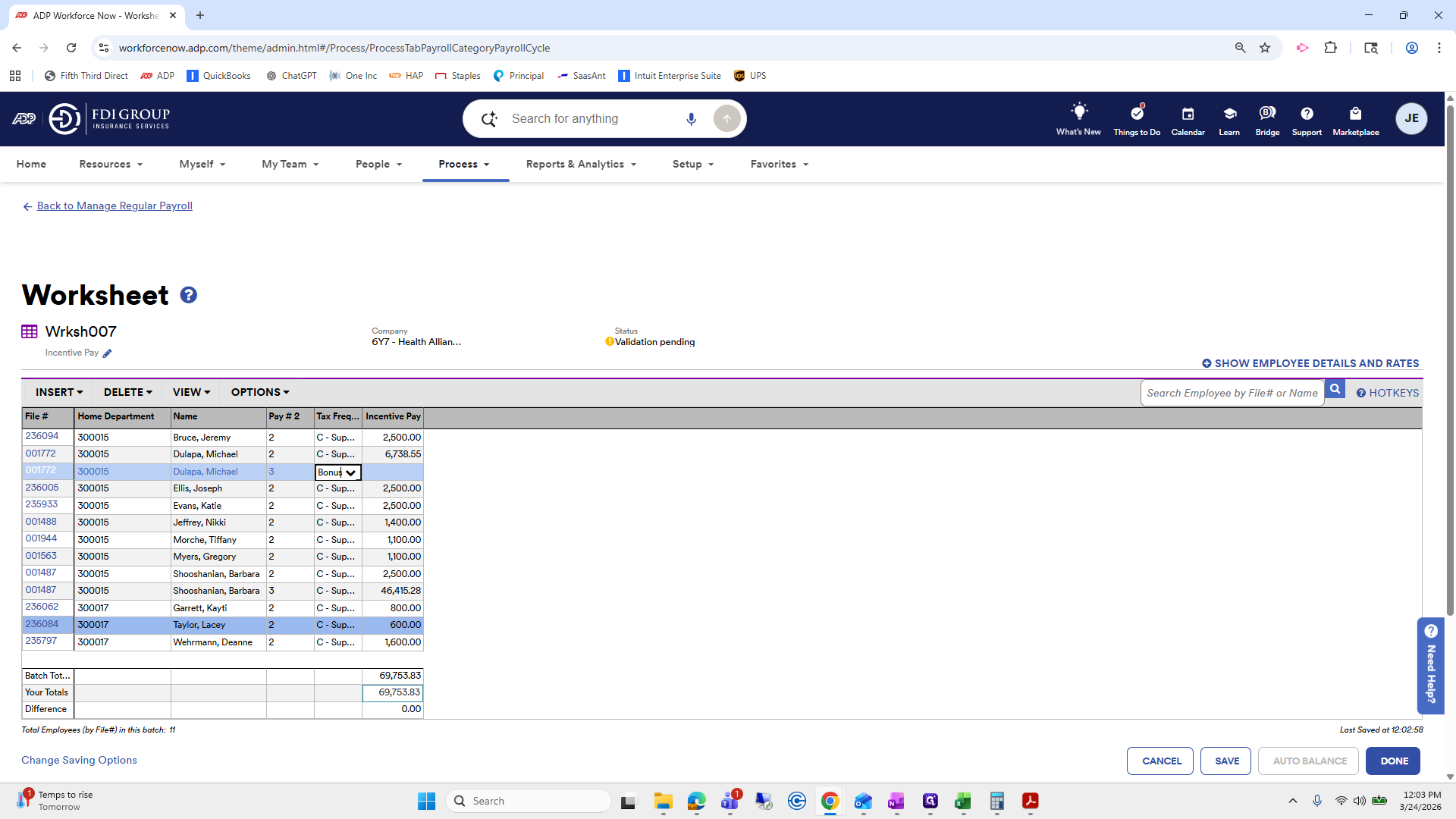
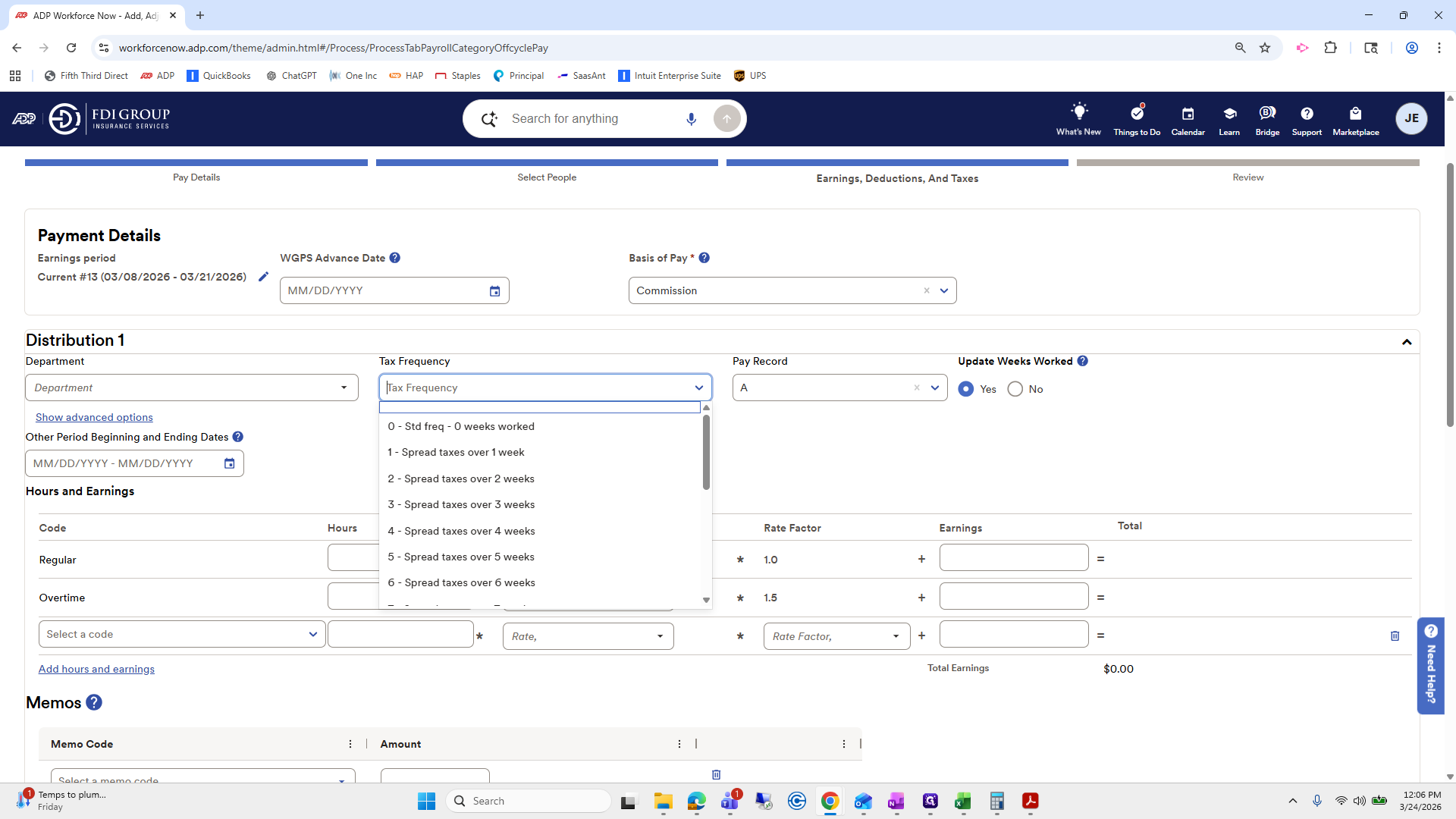
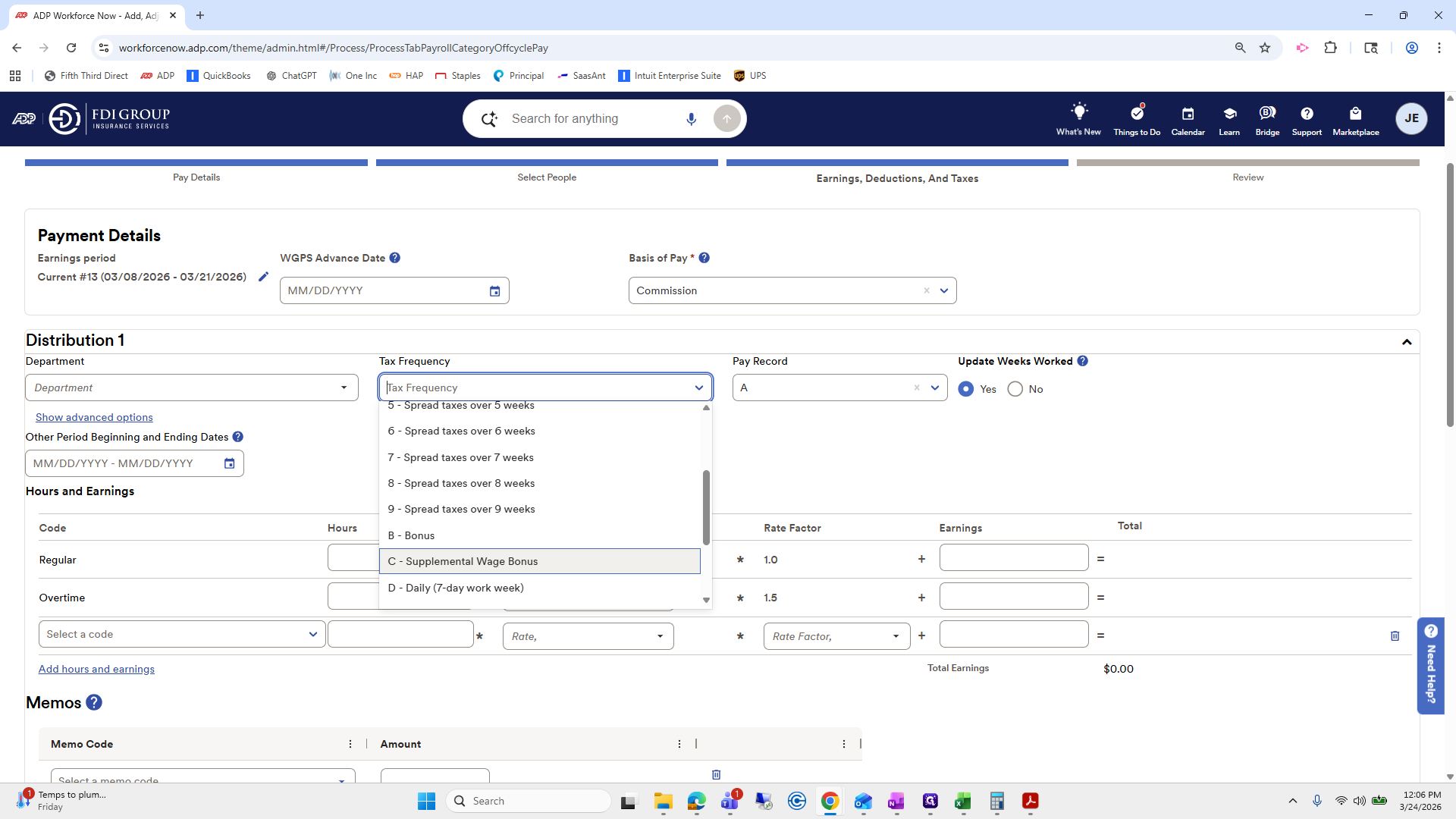
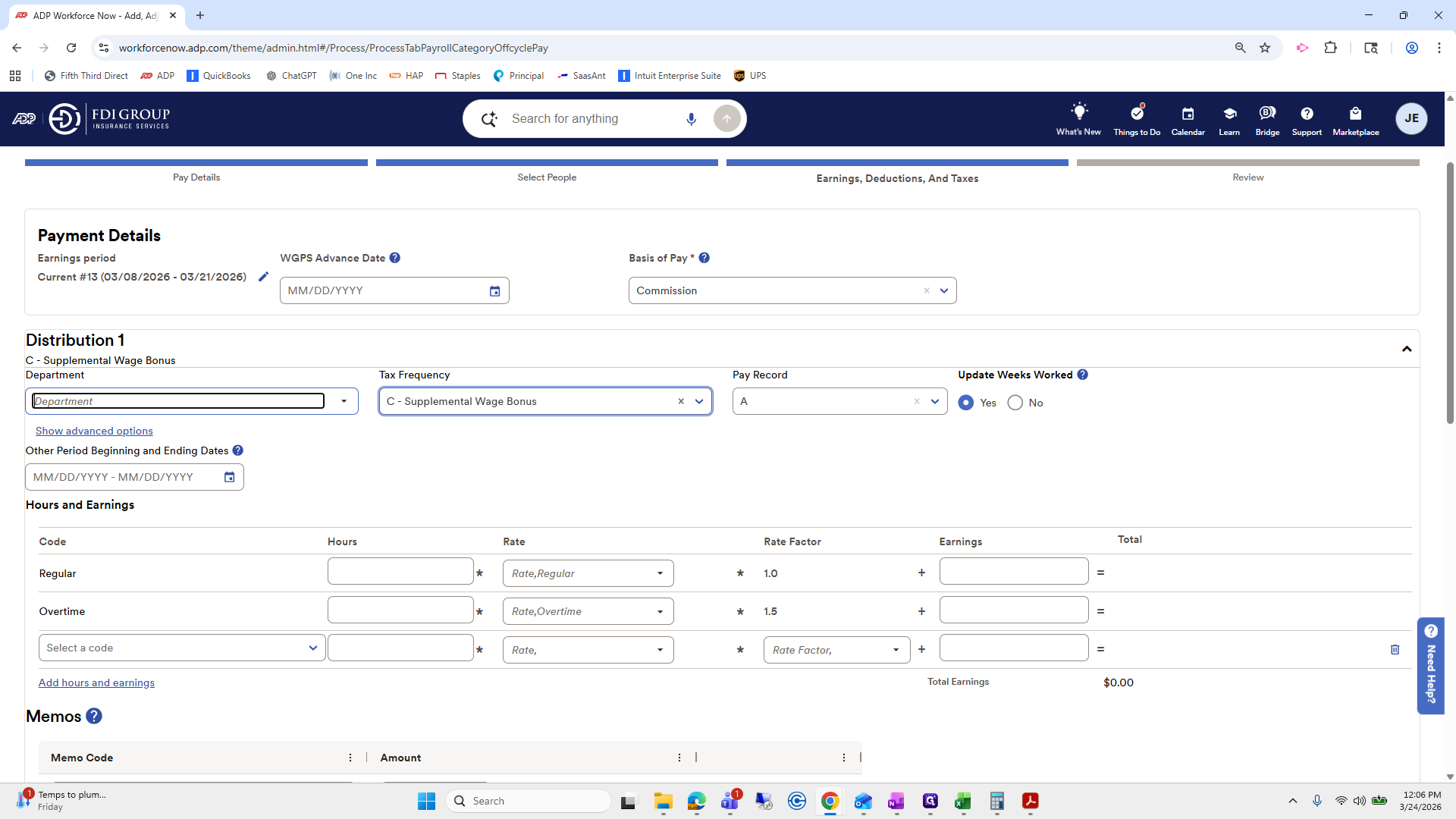
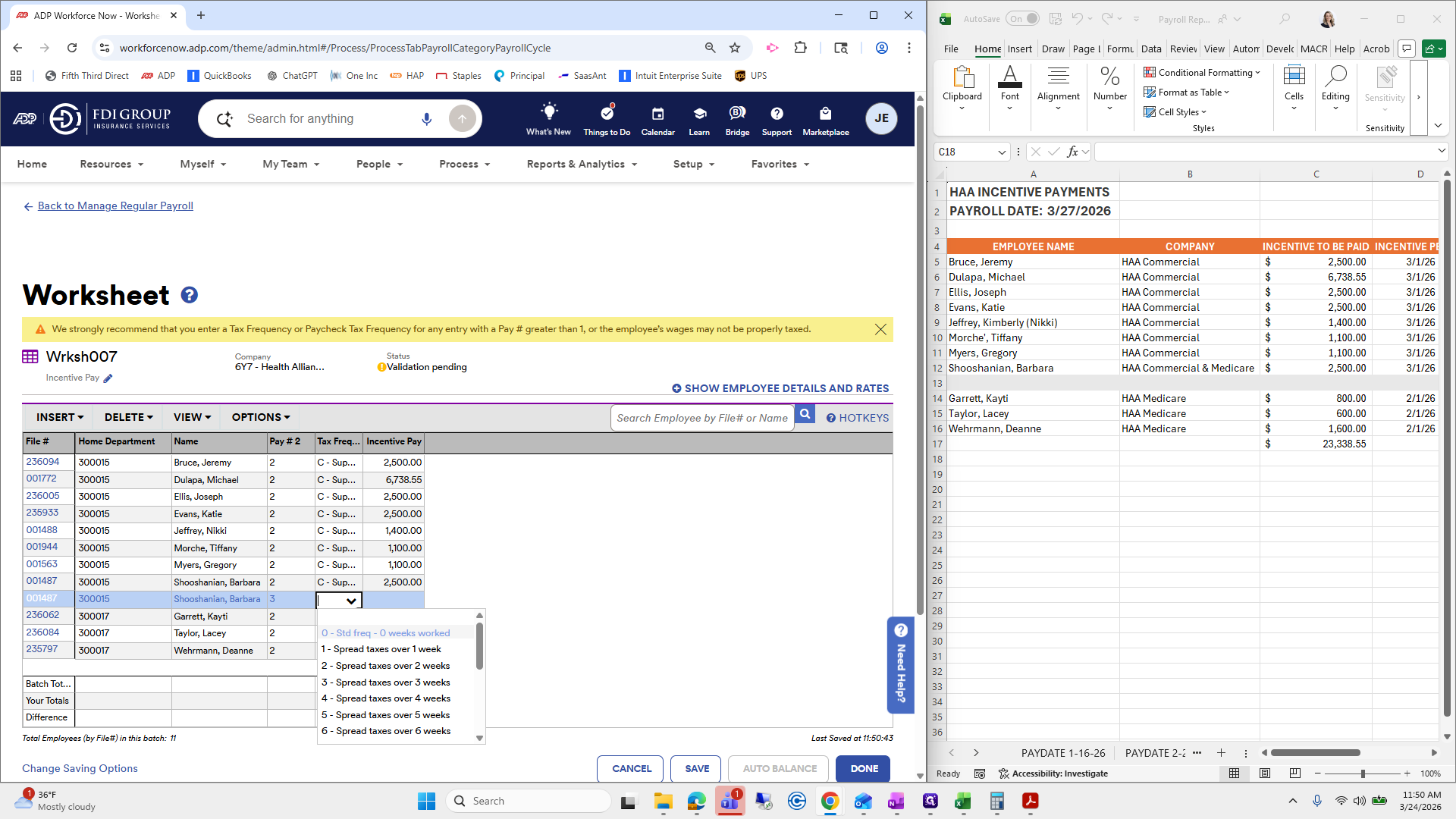
Tax frequency should be set to C, which stands for supplemental wage bonus.
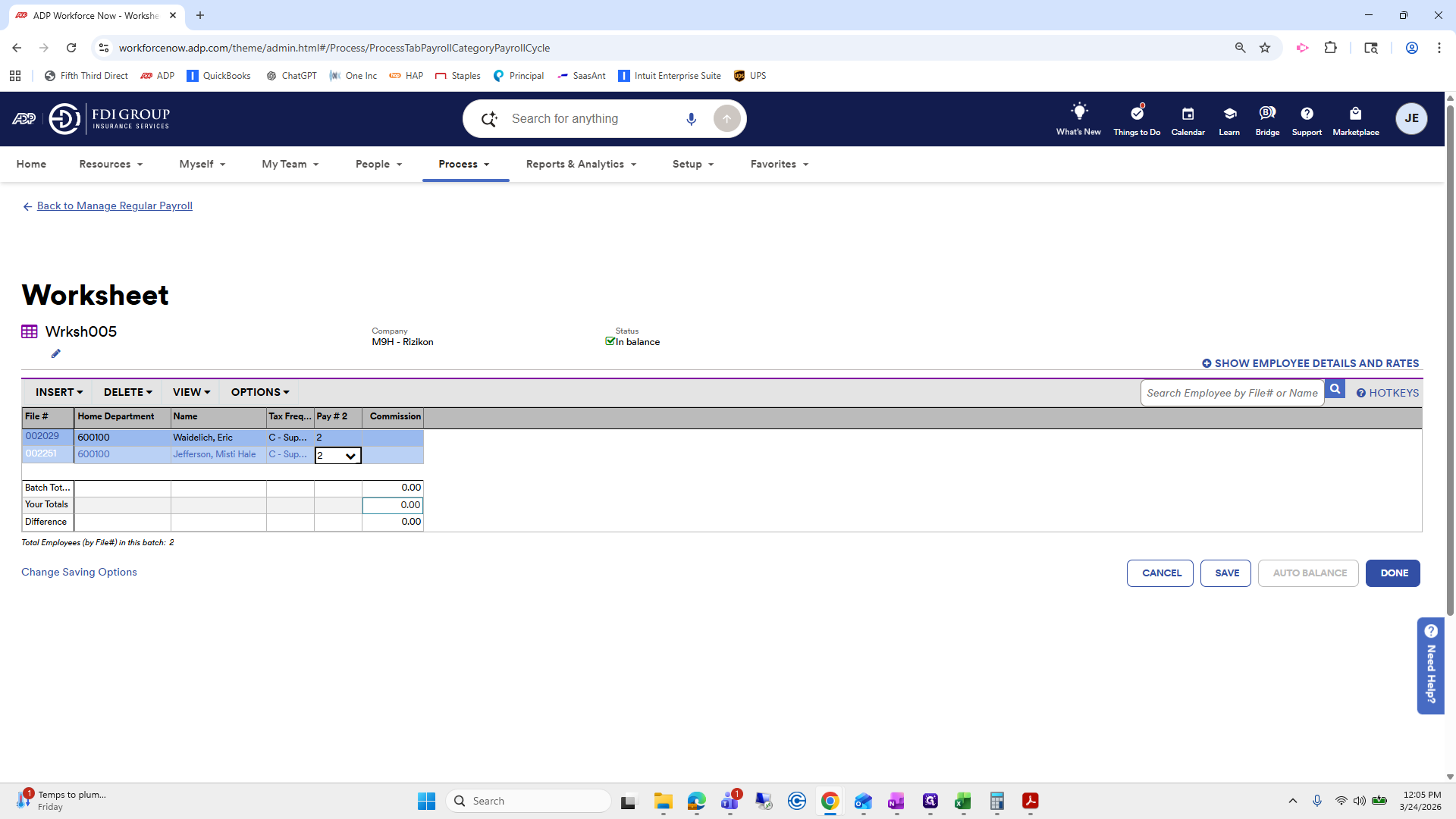
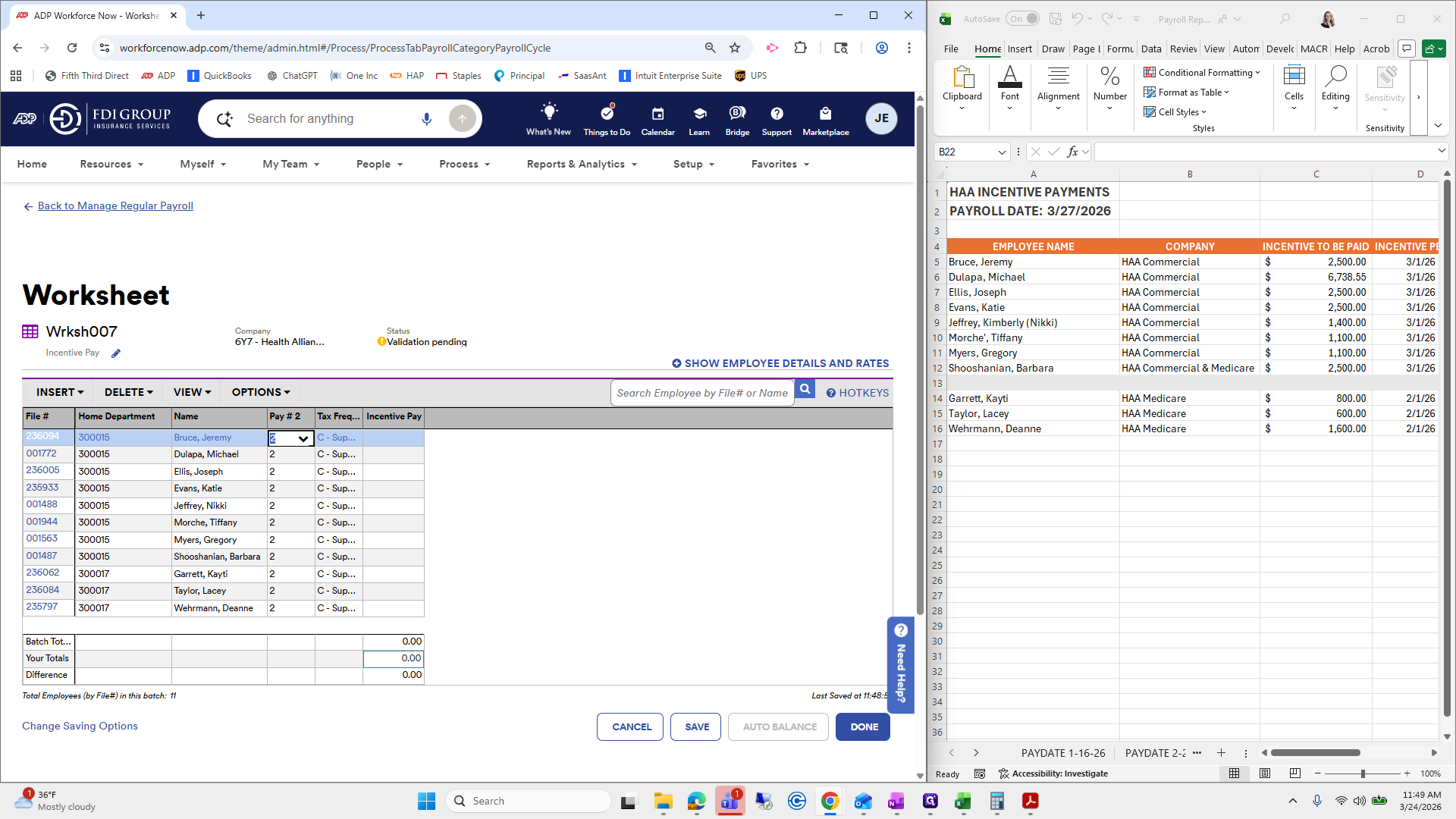
Click Done, and it will autofill for us.
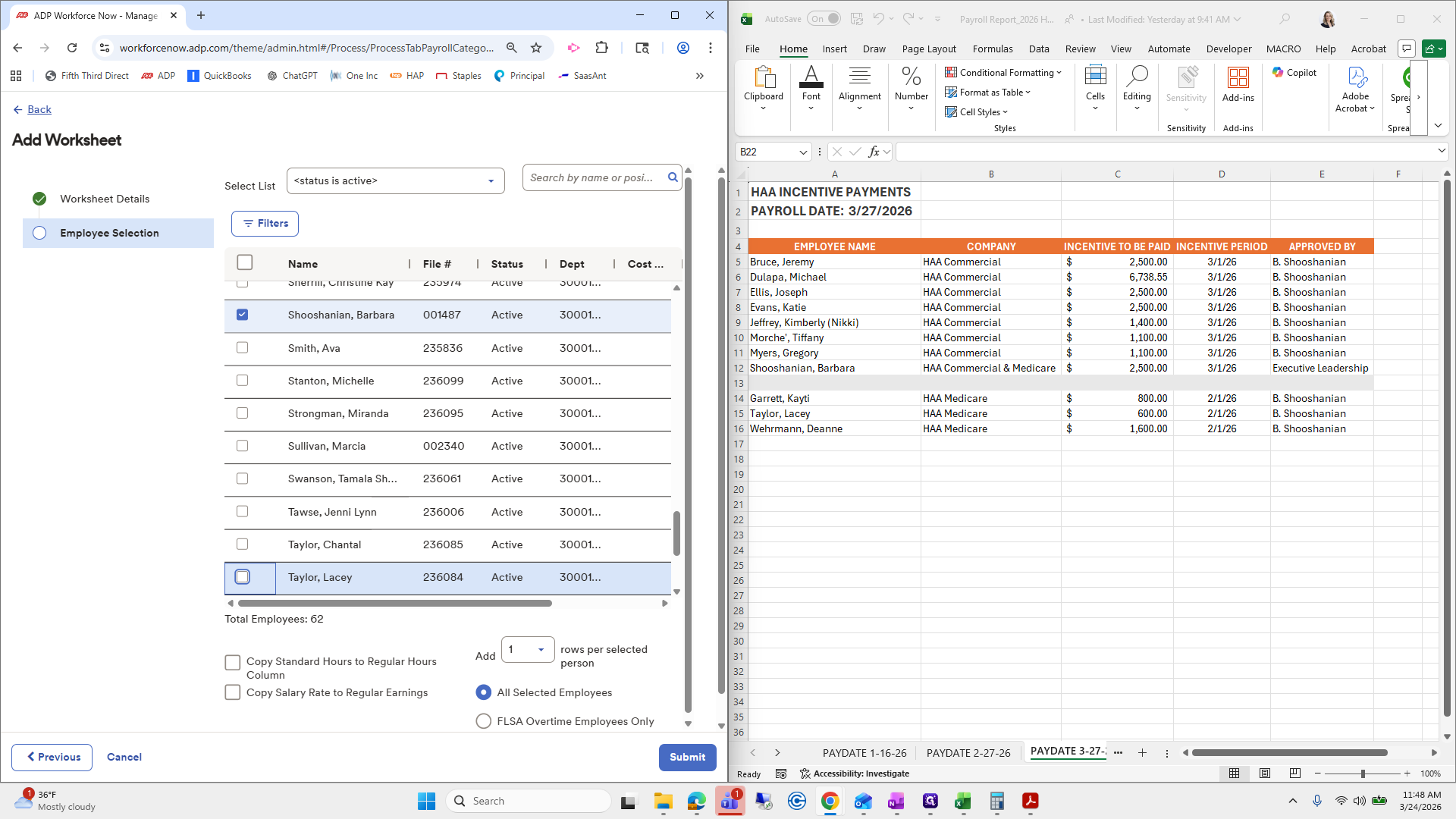
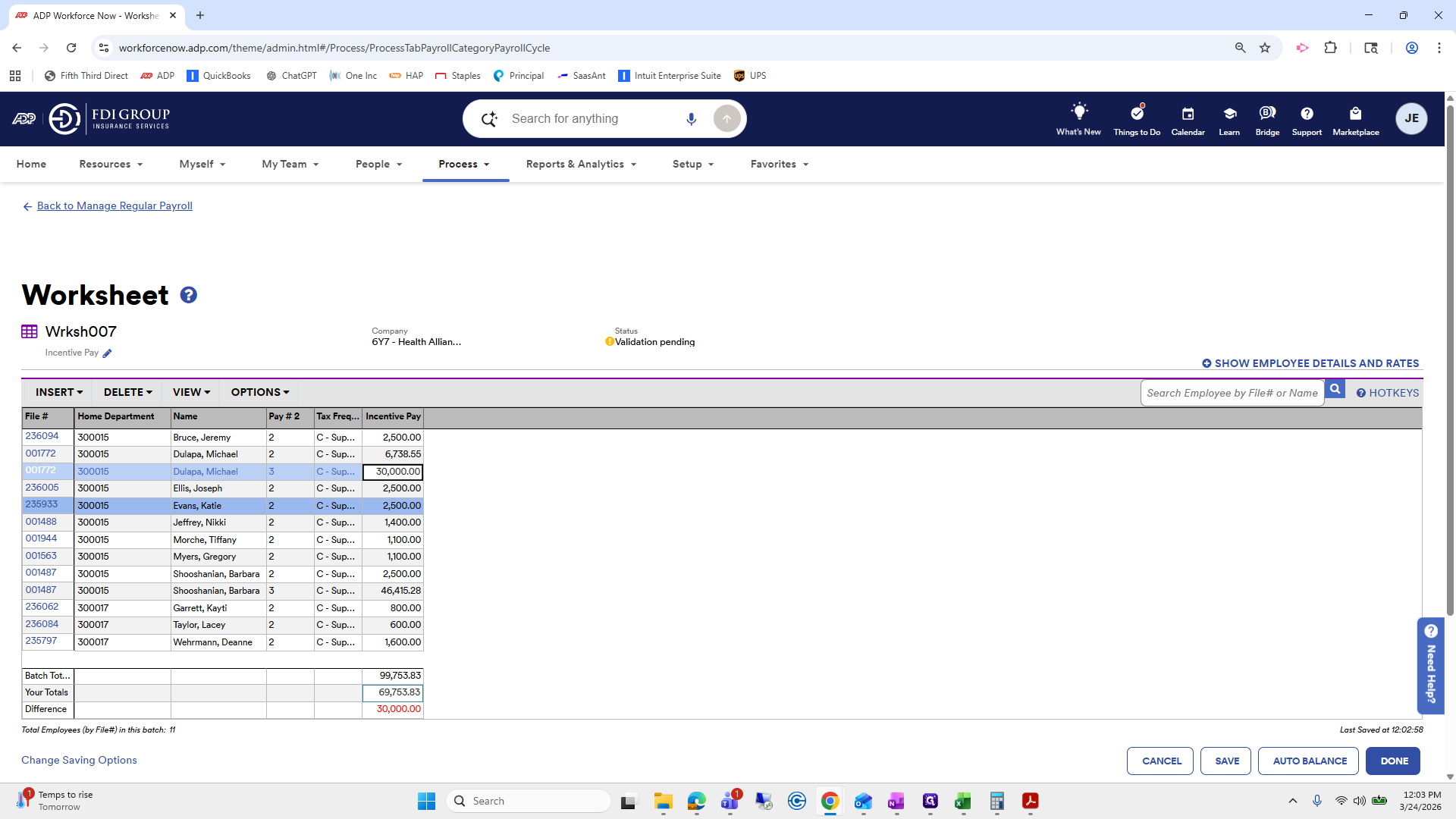
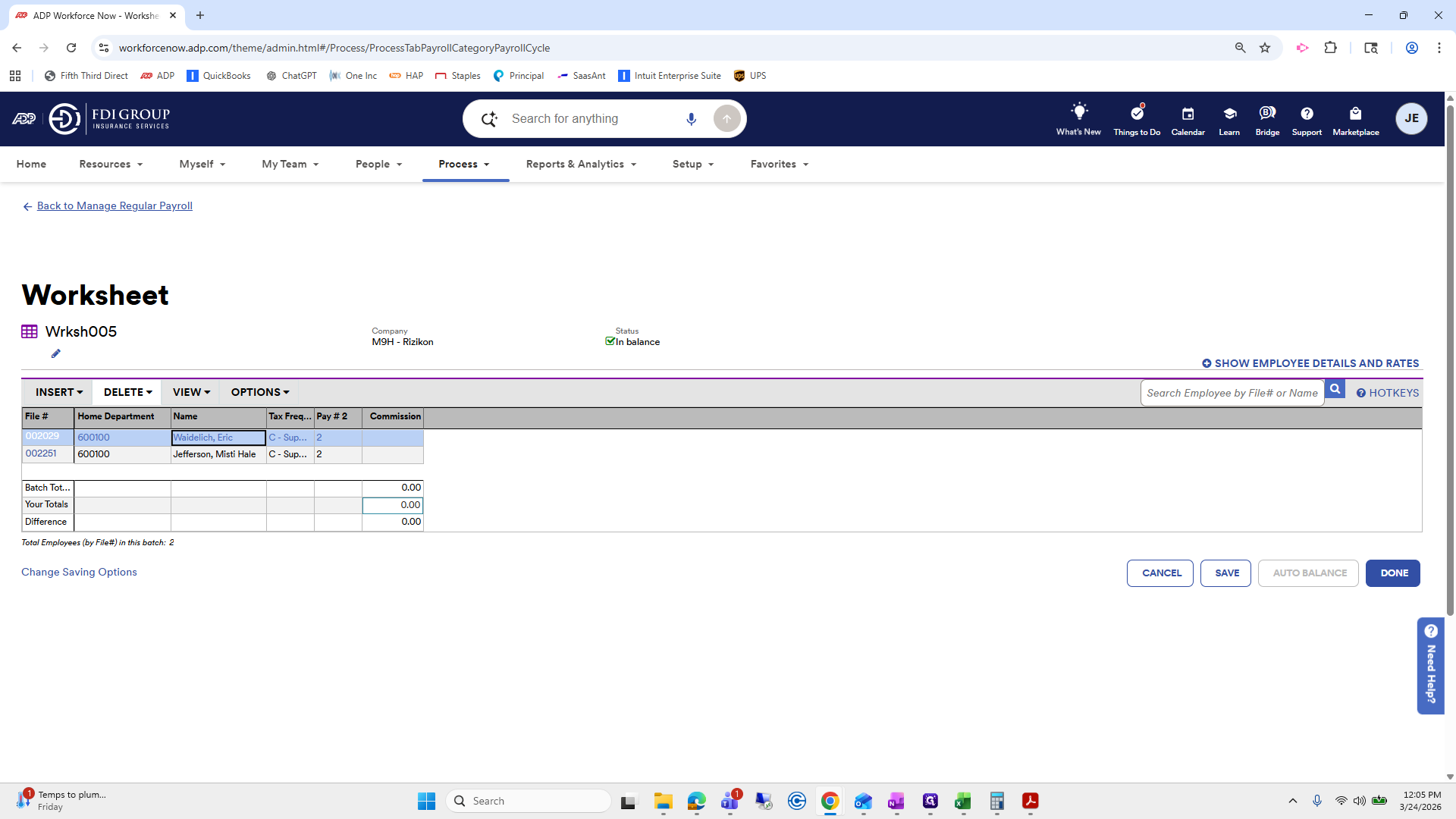
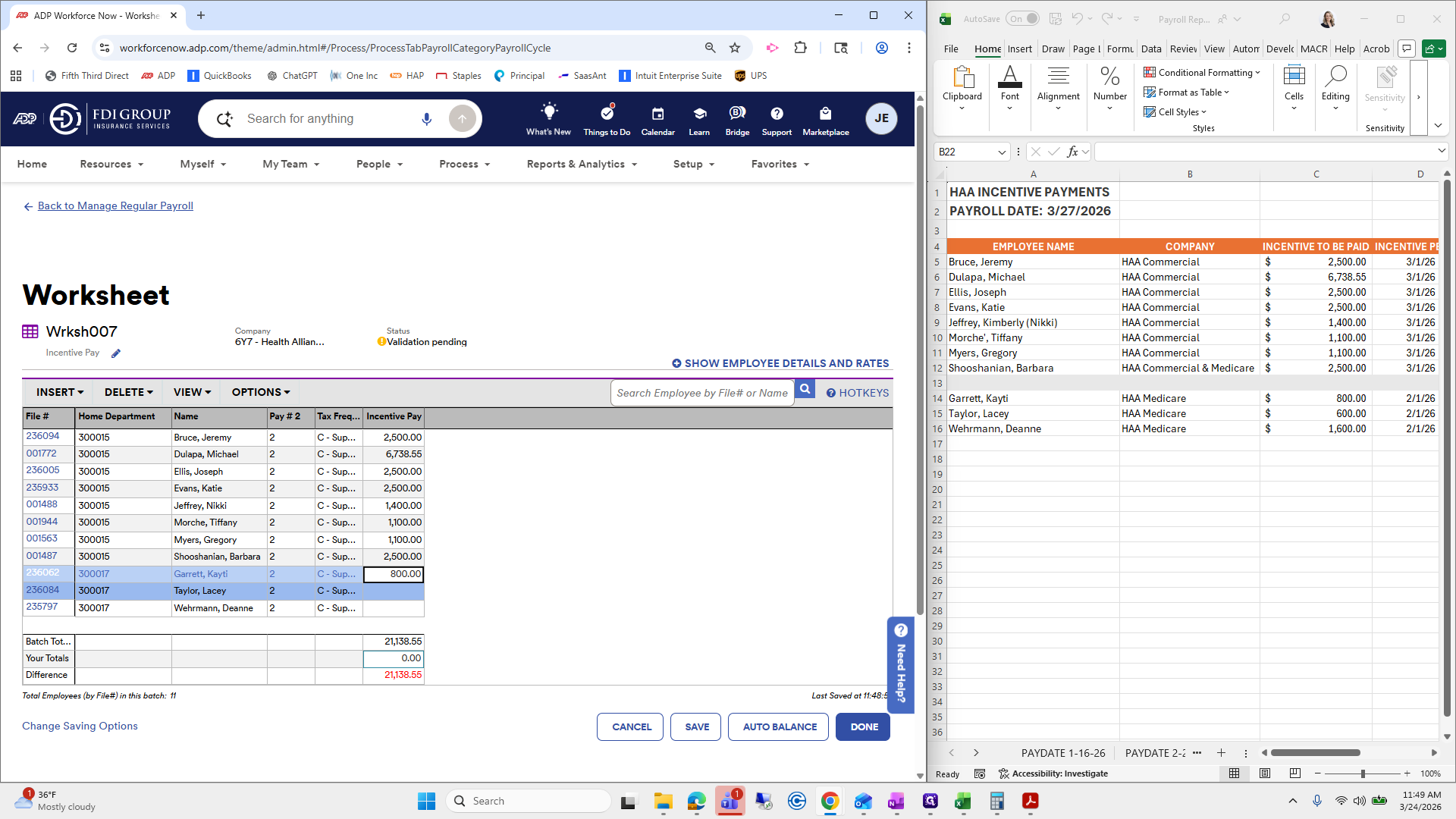
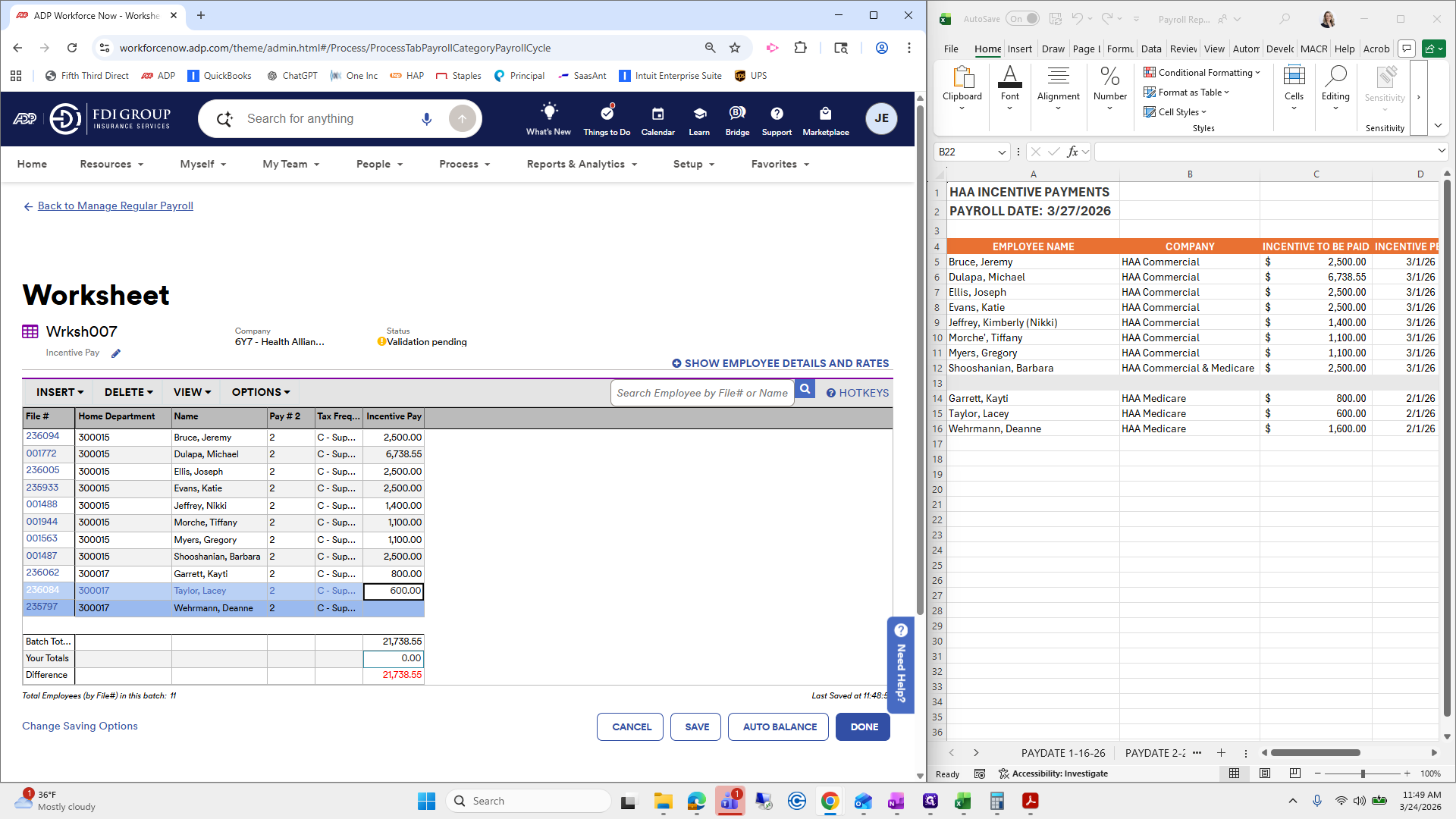
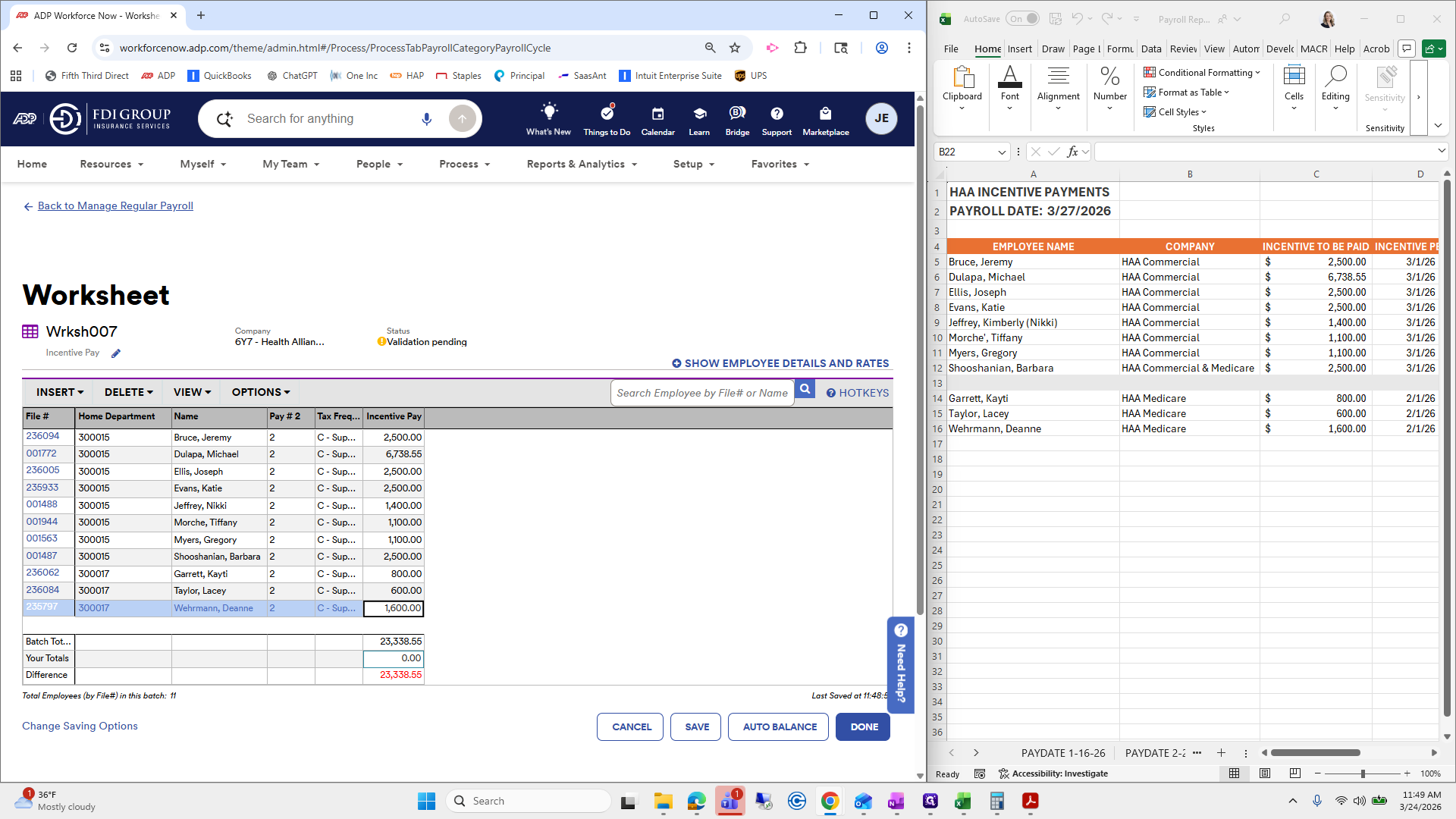
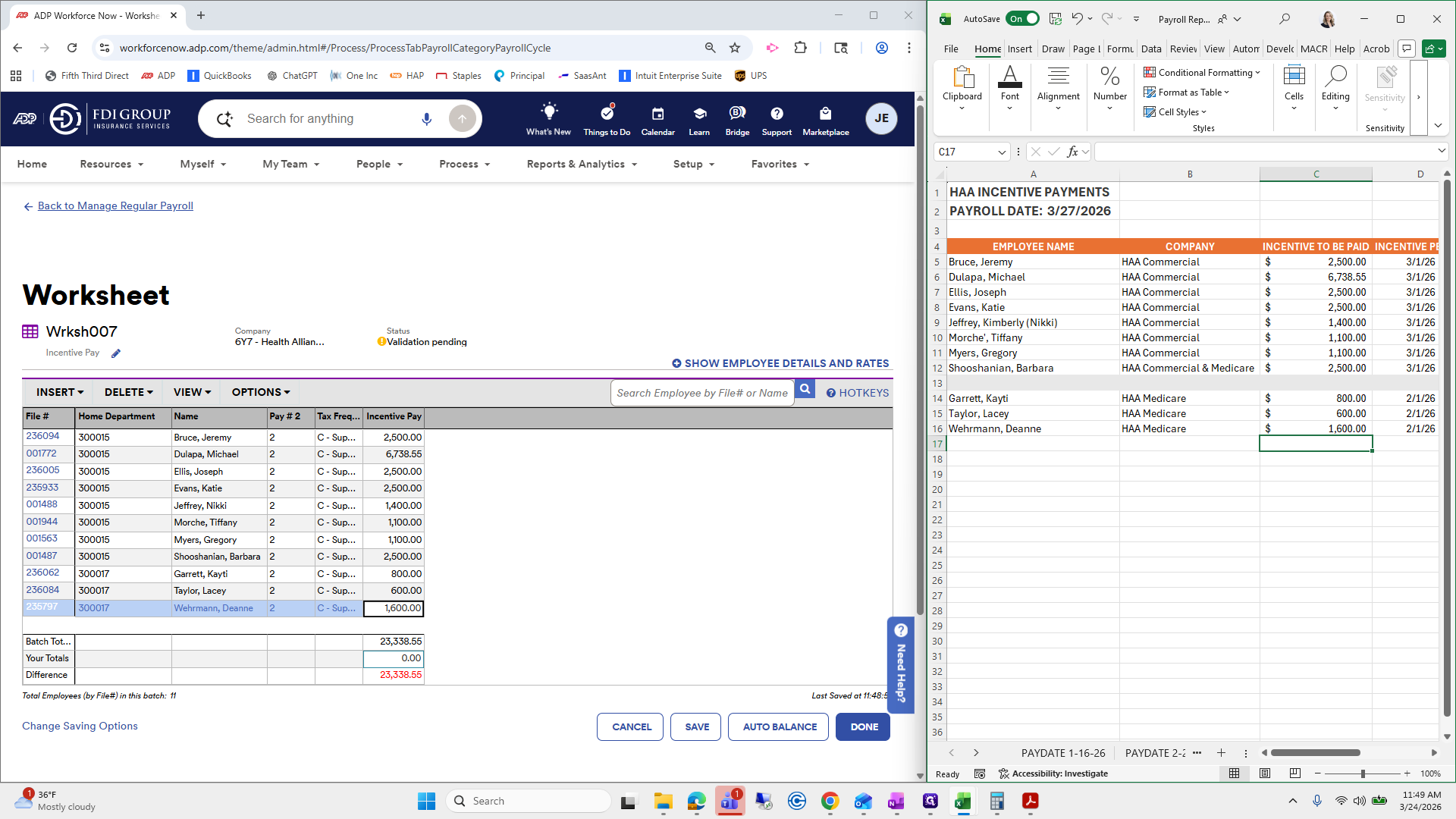
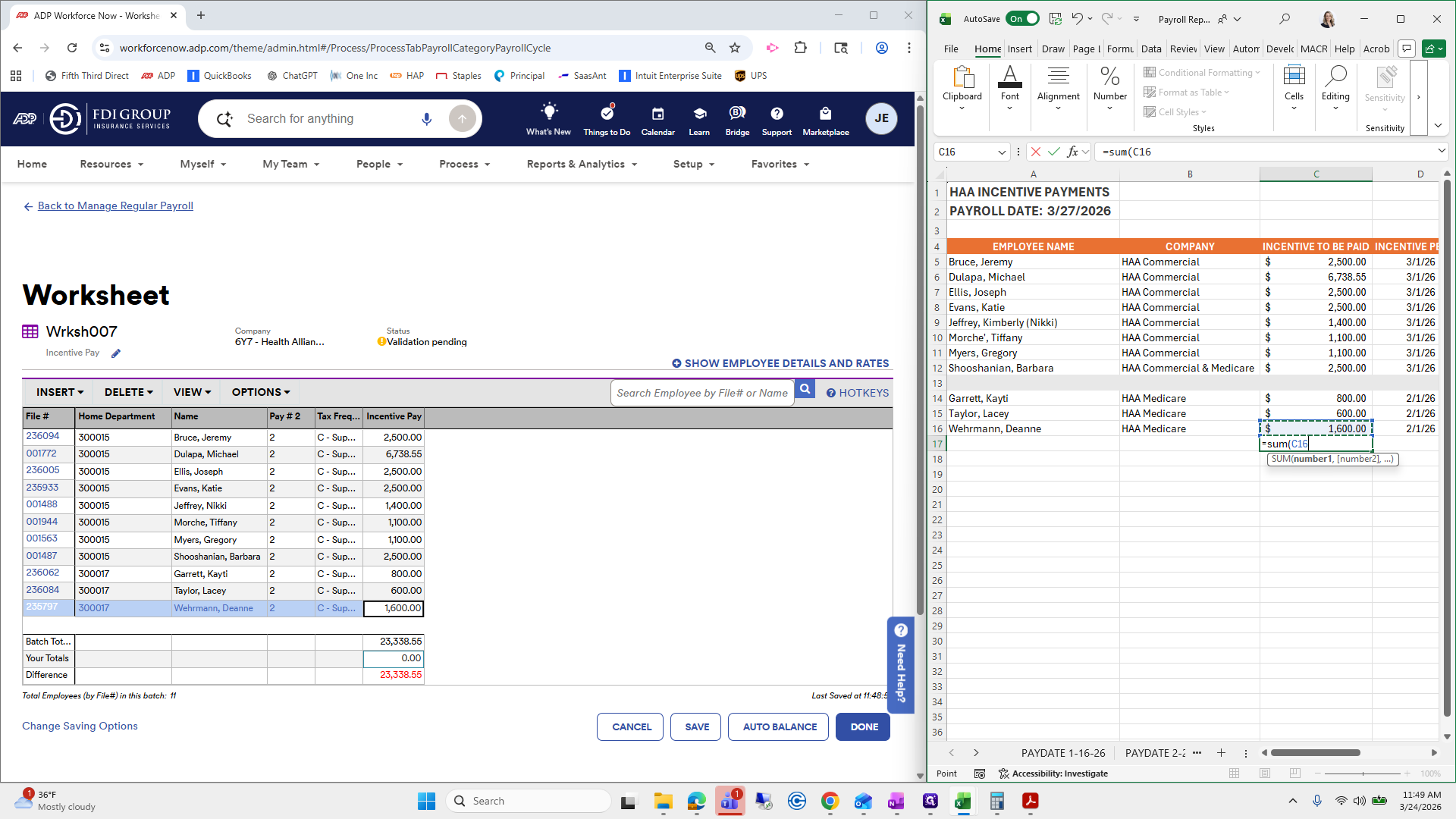
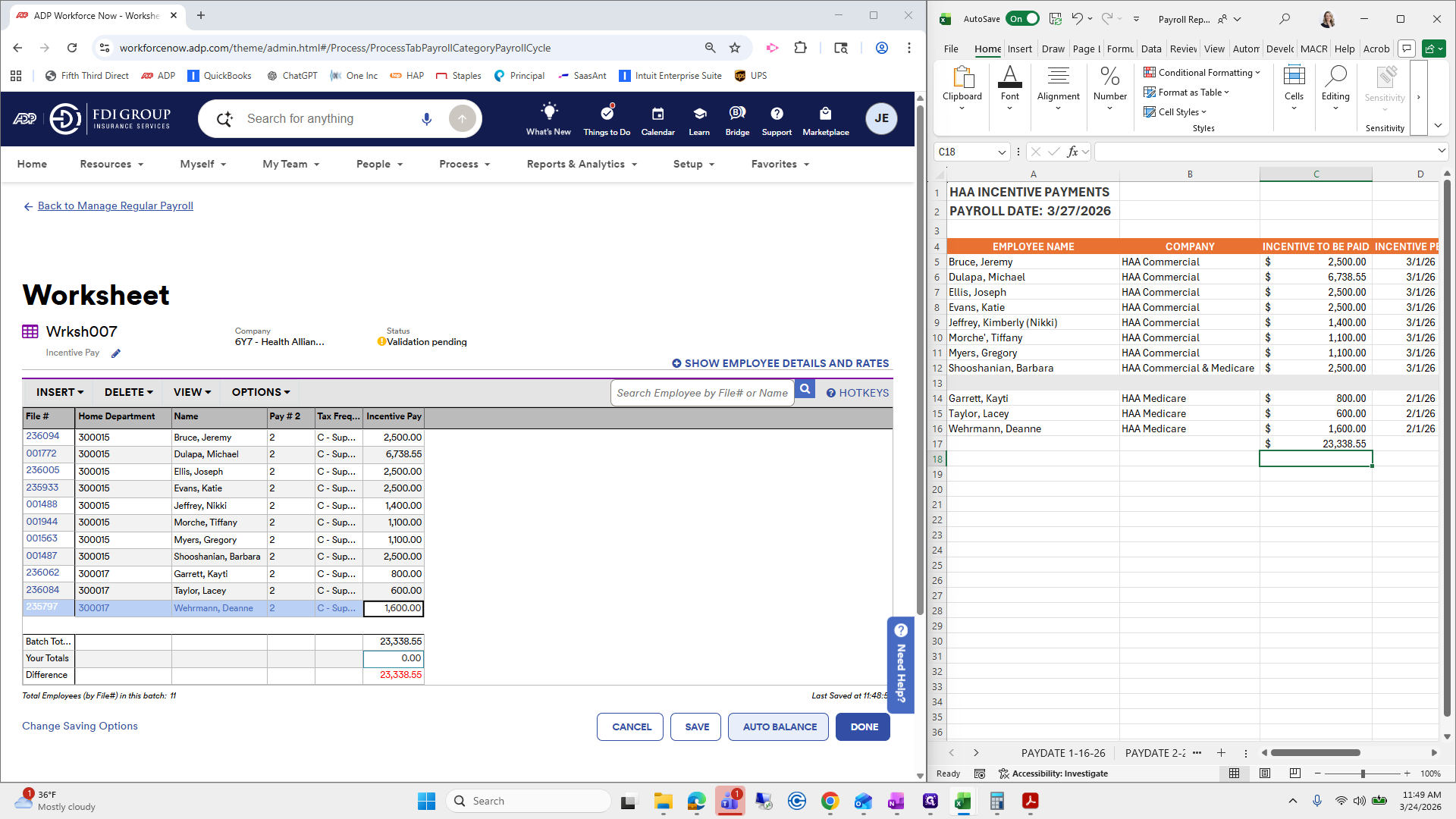
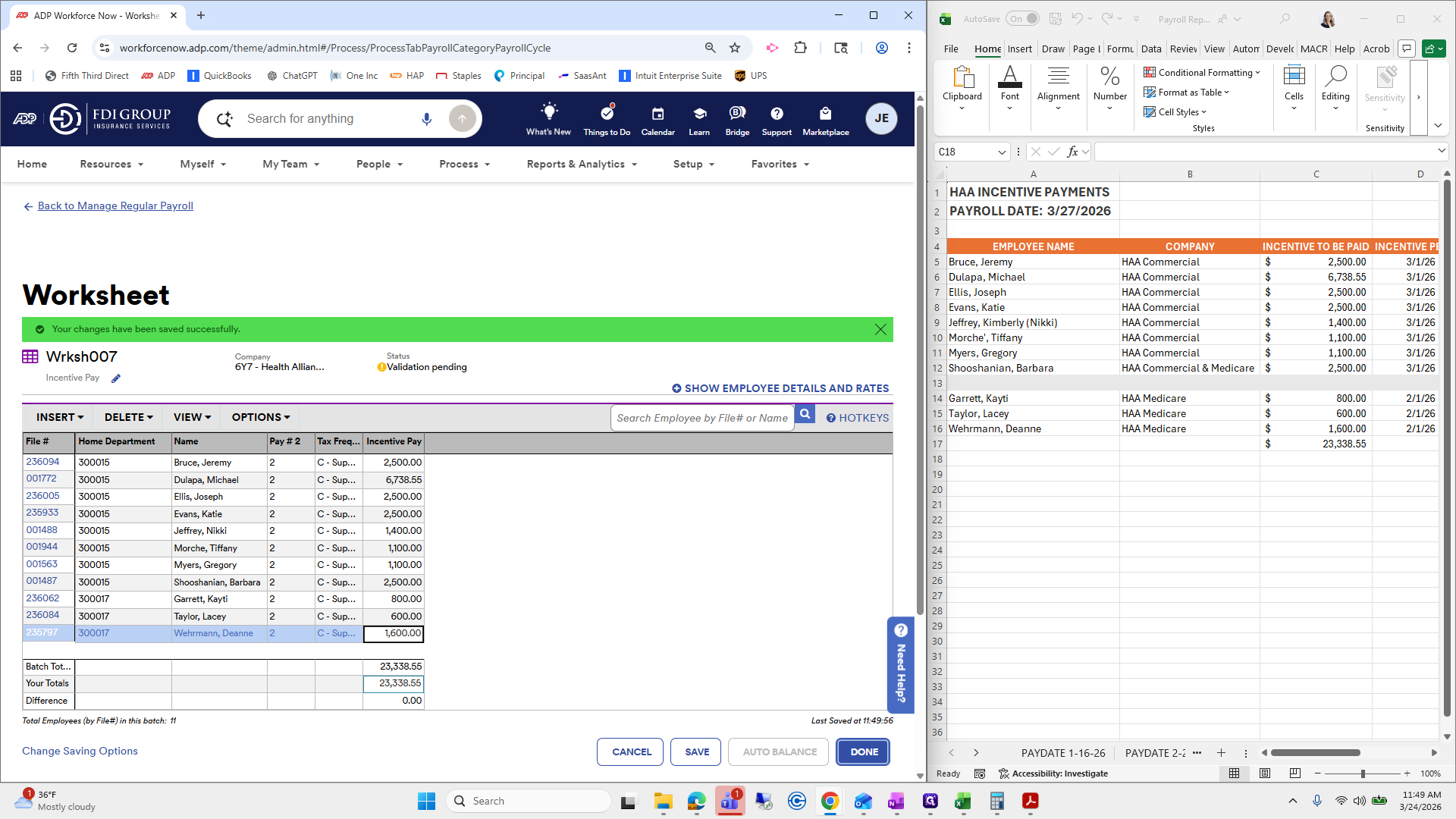
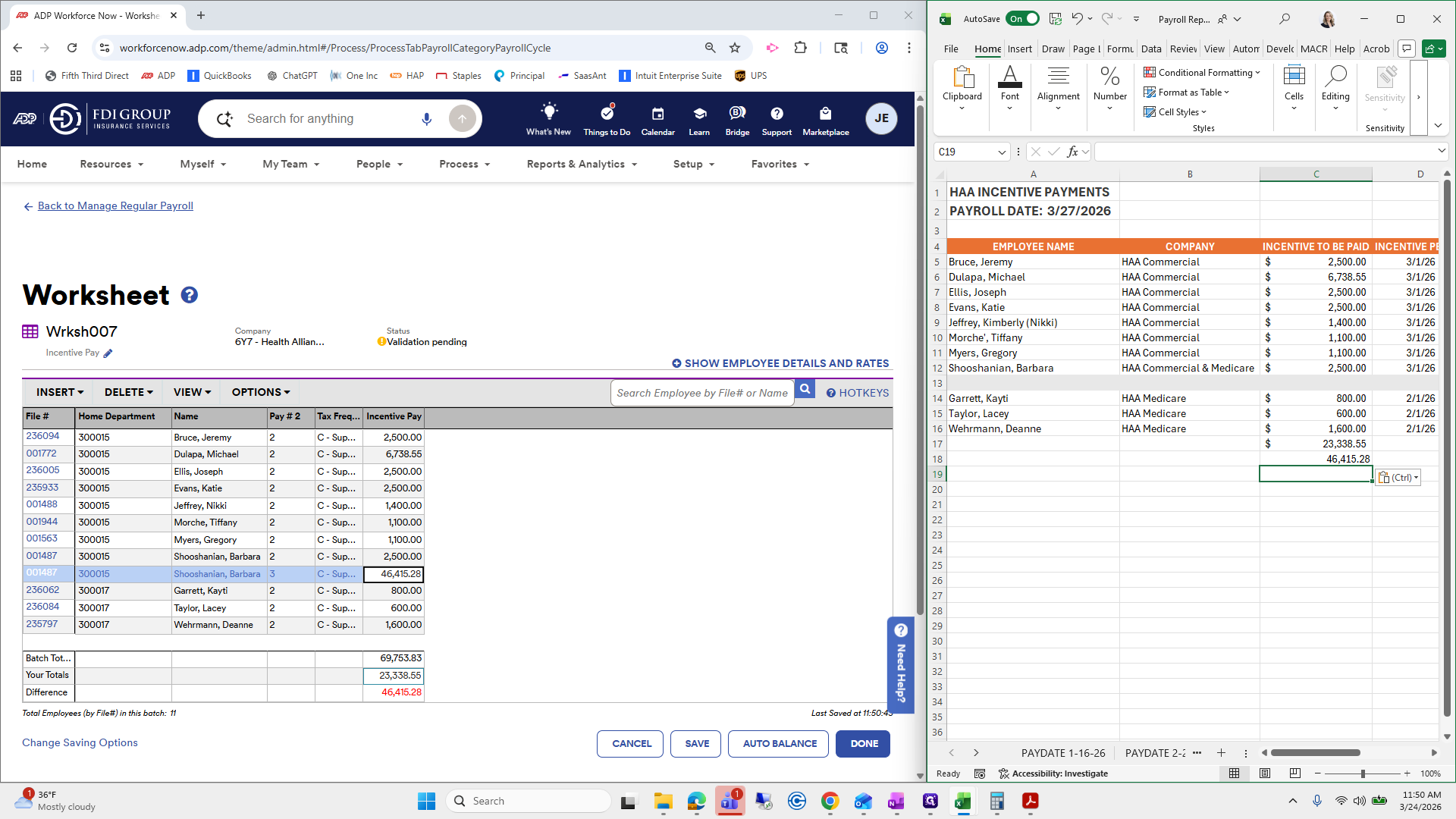
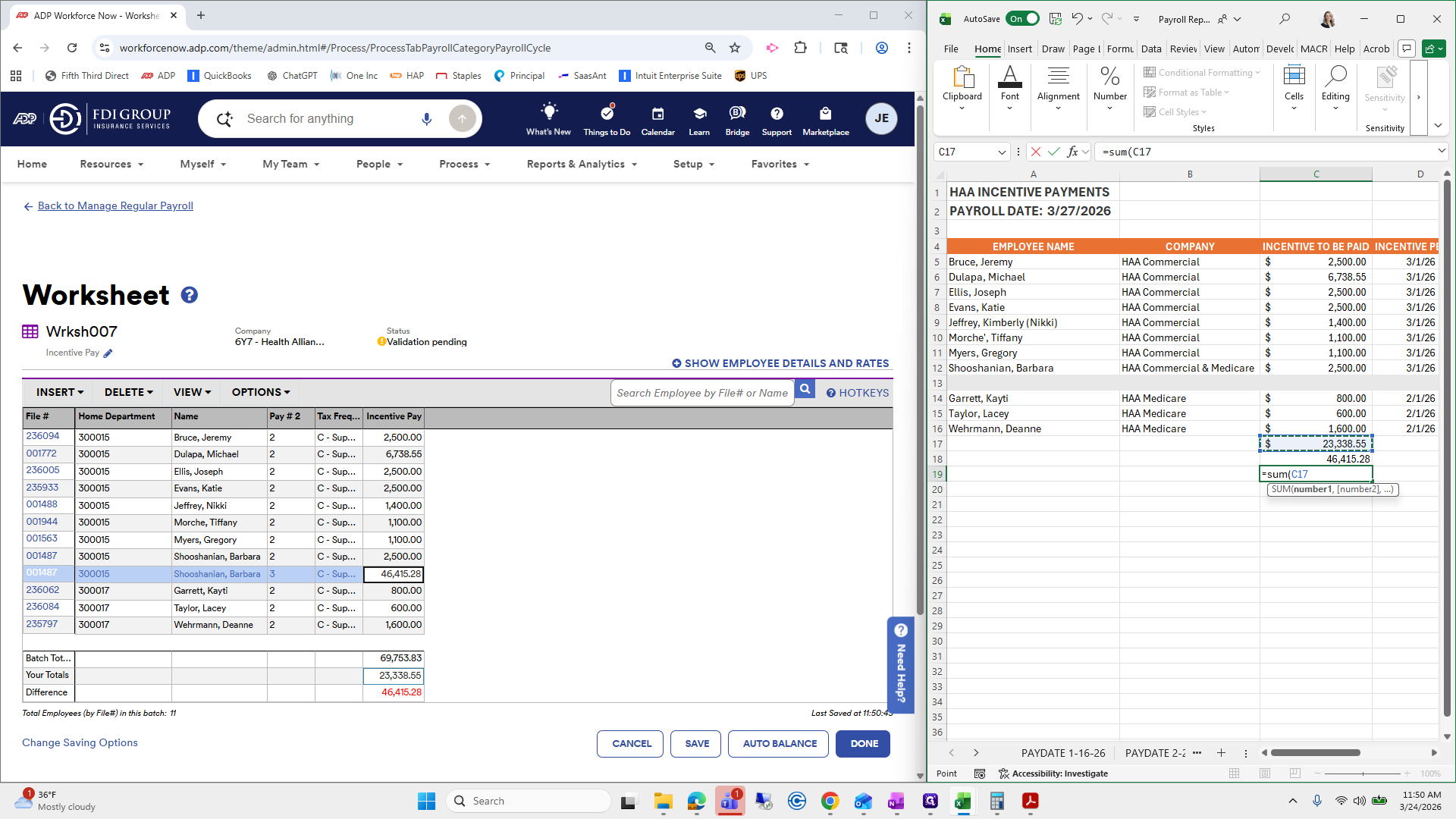
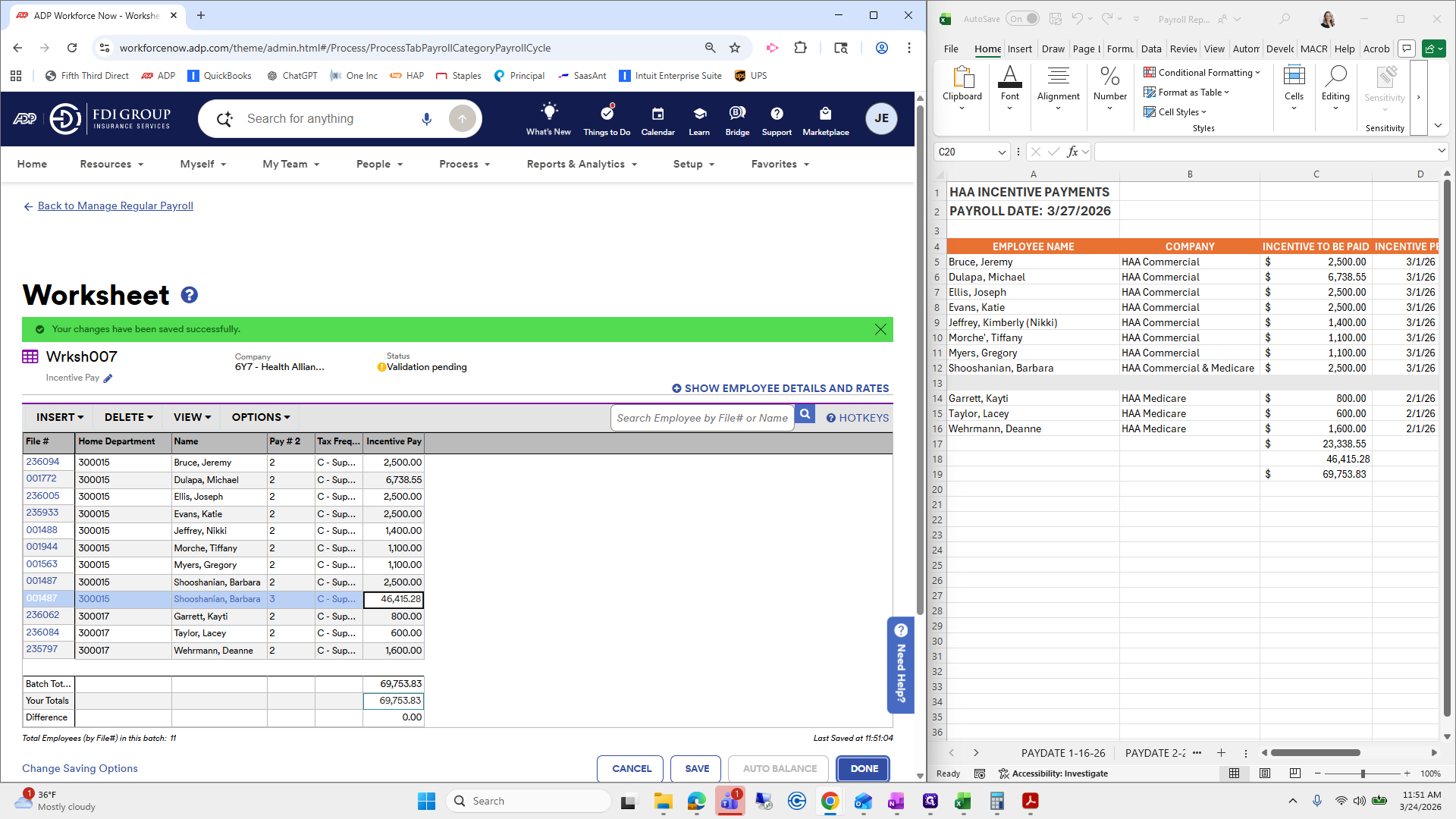
We go line by line to ensure everyone has their incentive pay added. For checks and balances, I'll do a quick sum of this.
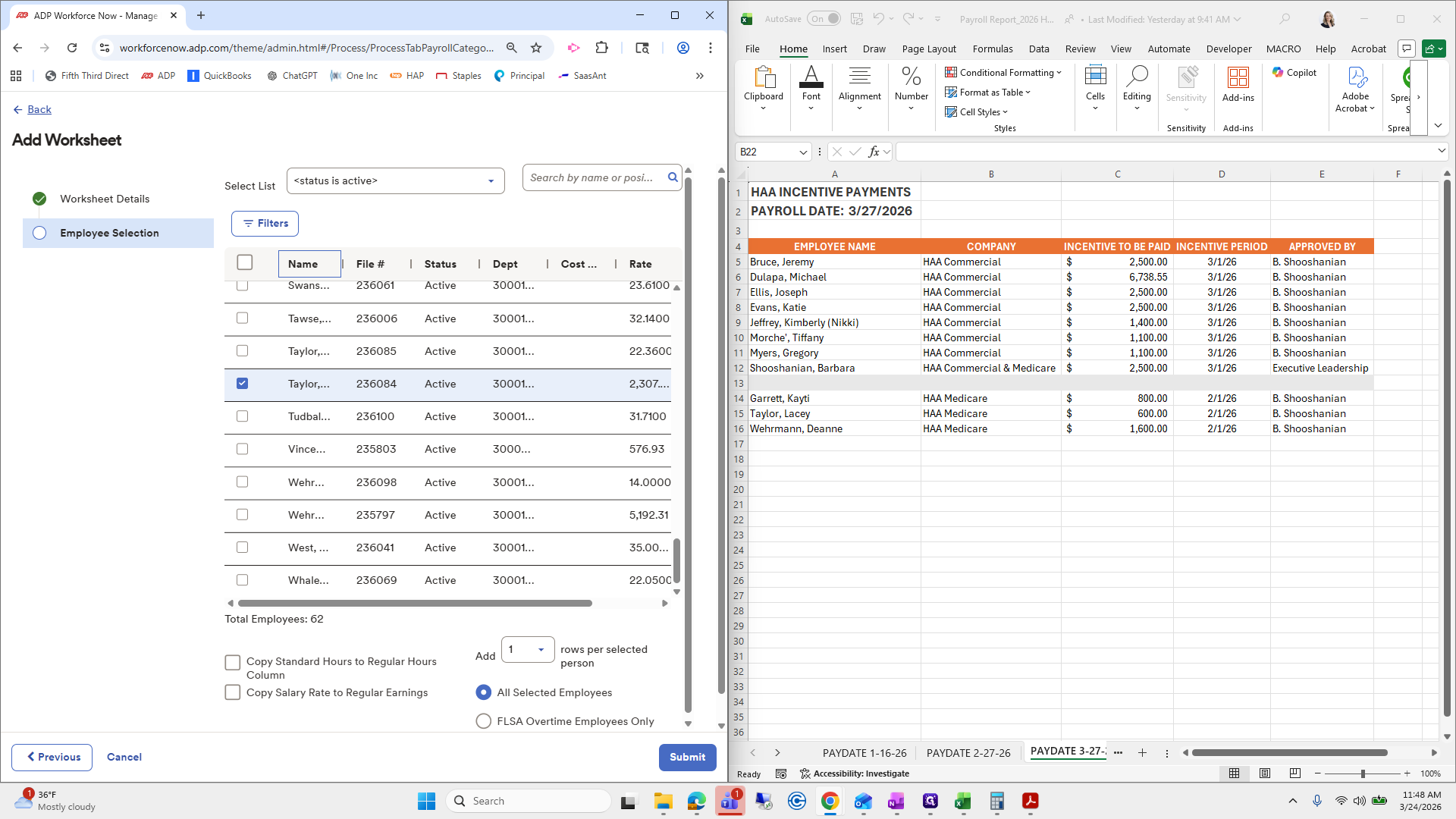
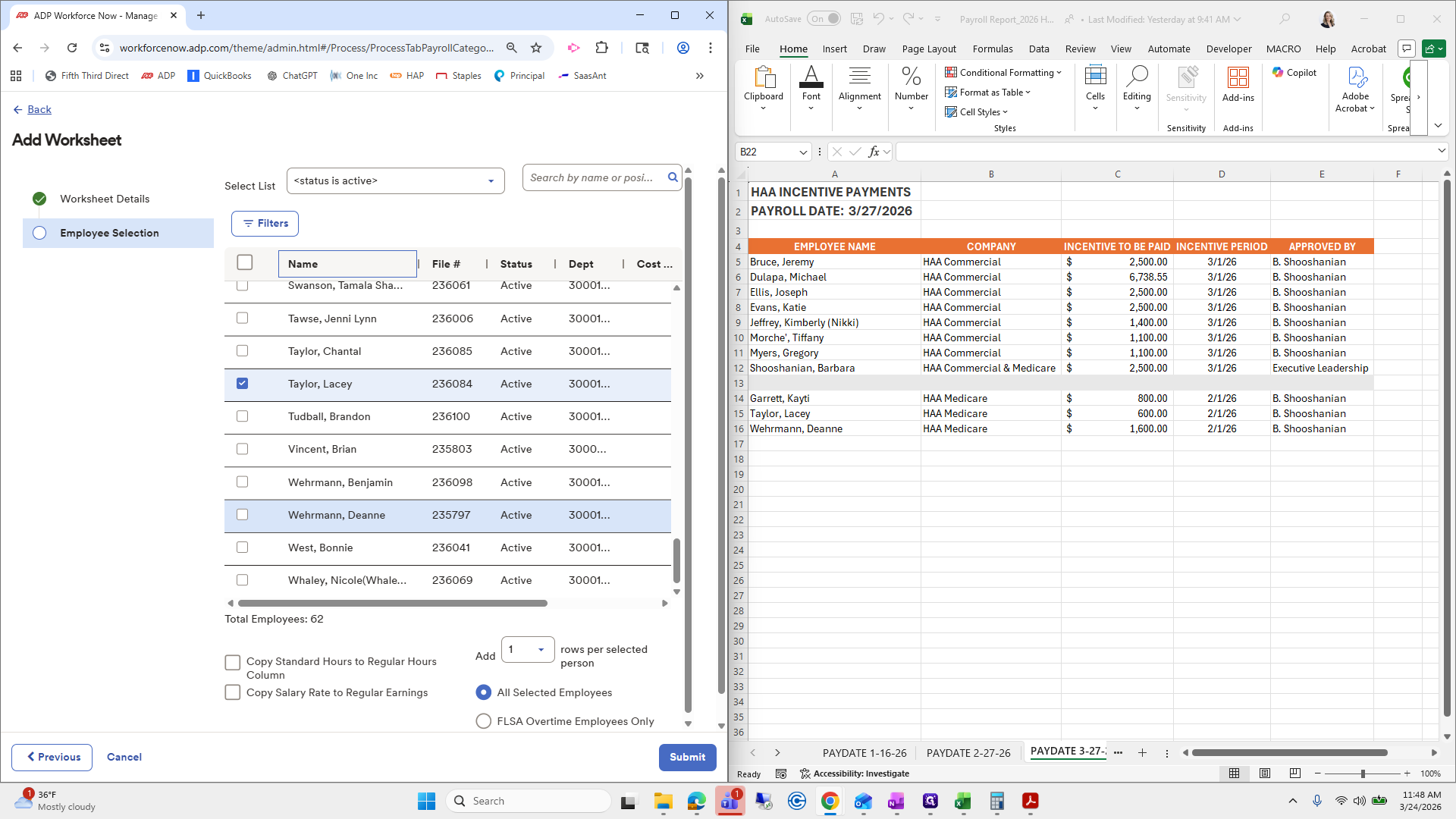
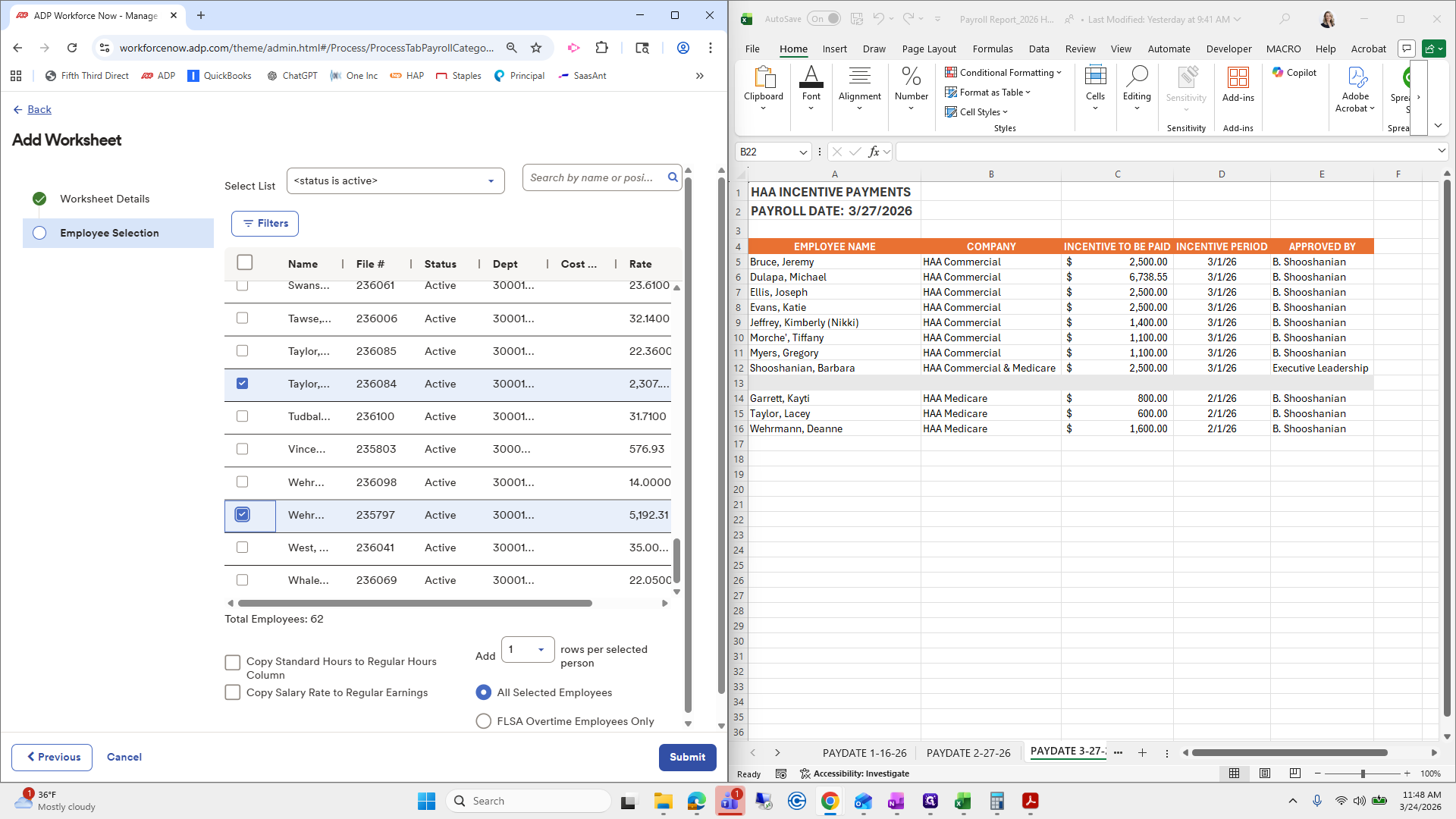
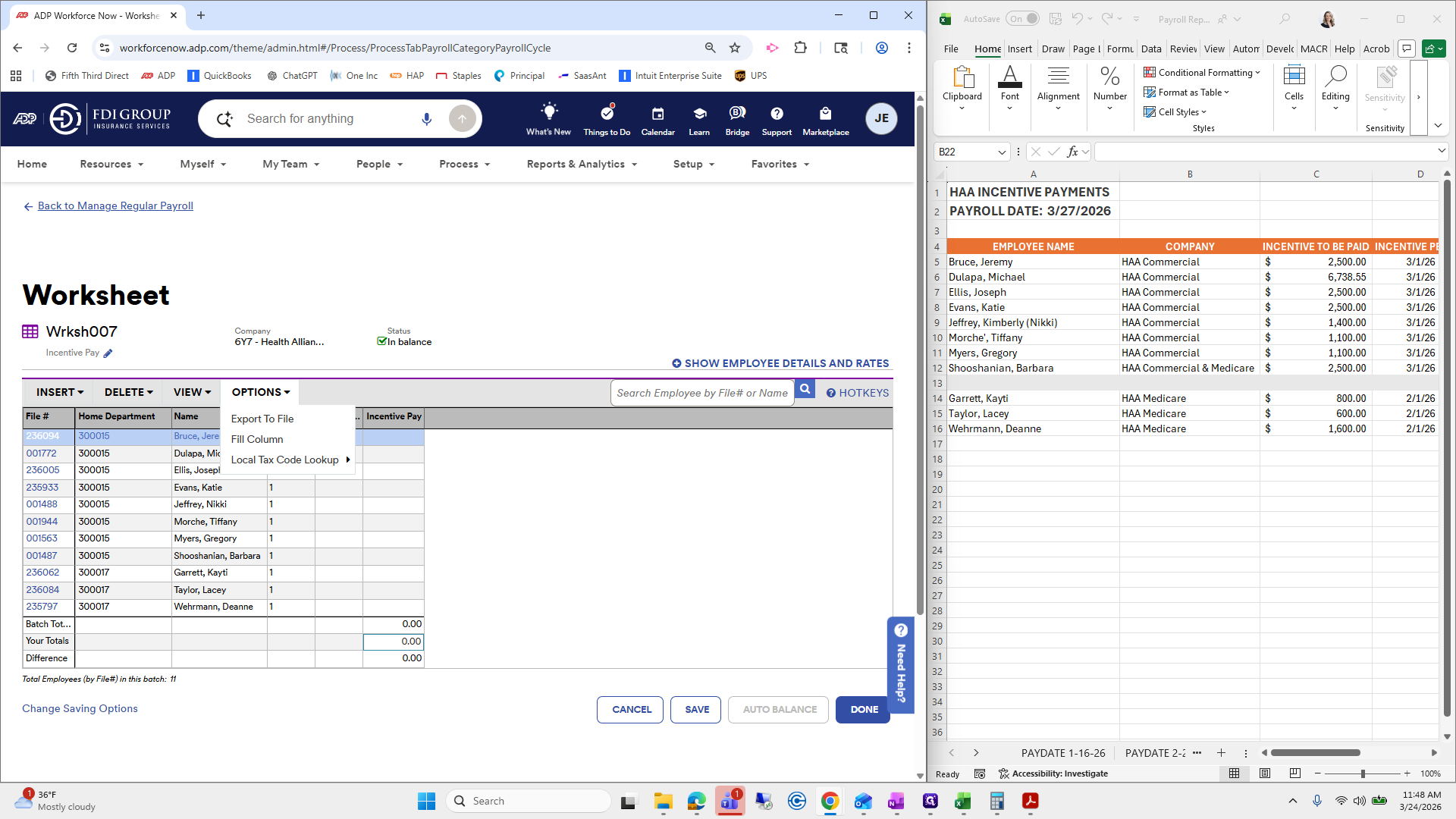
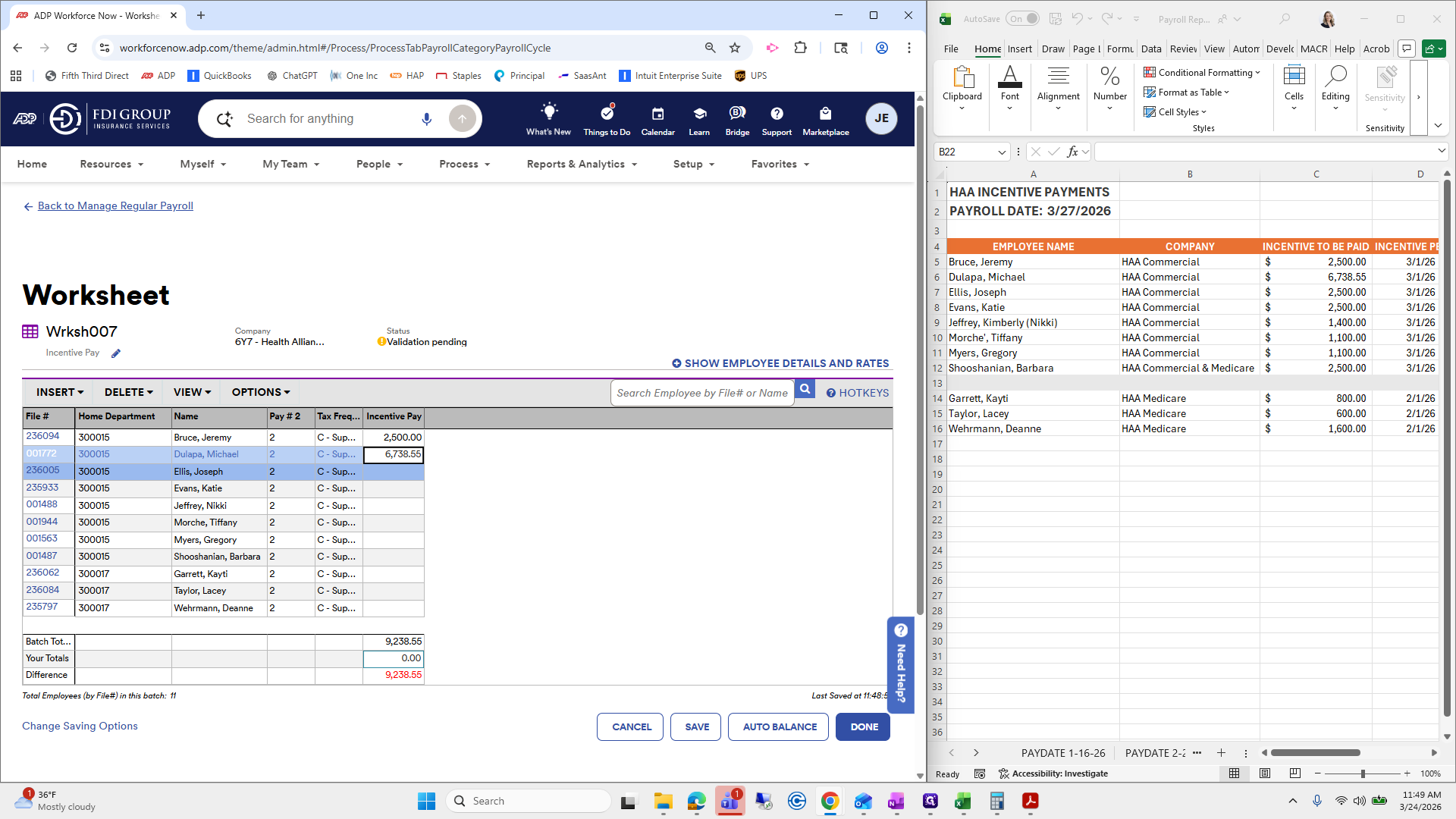
23,338.55.
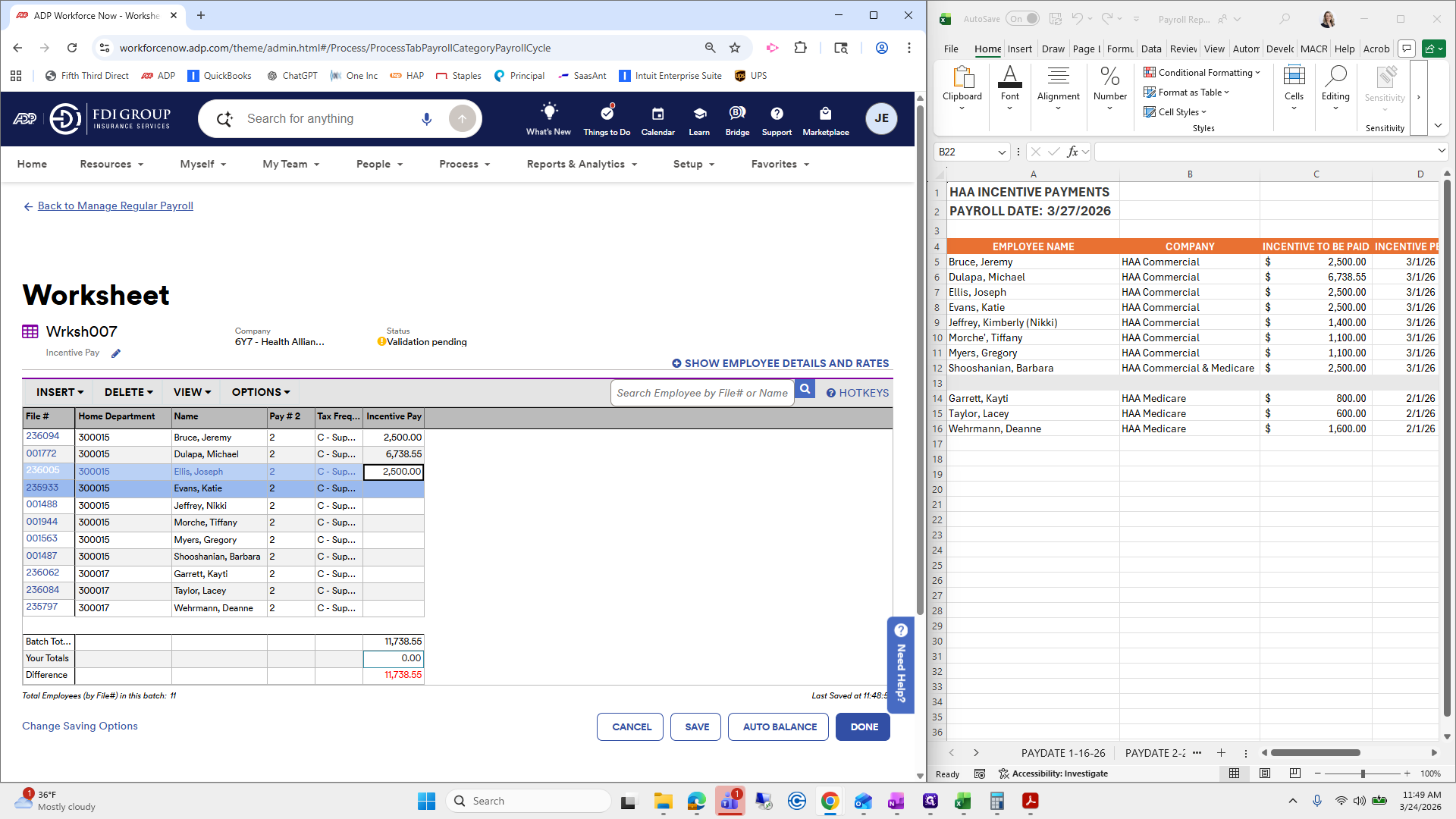
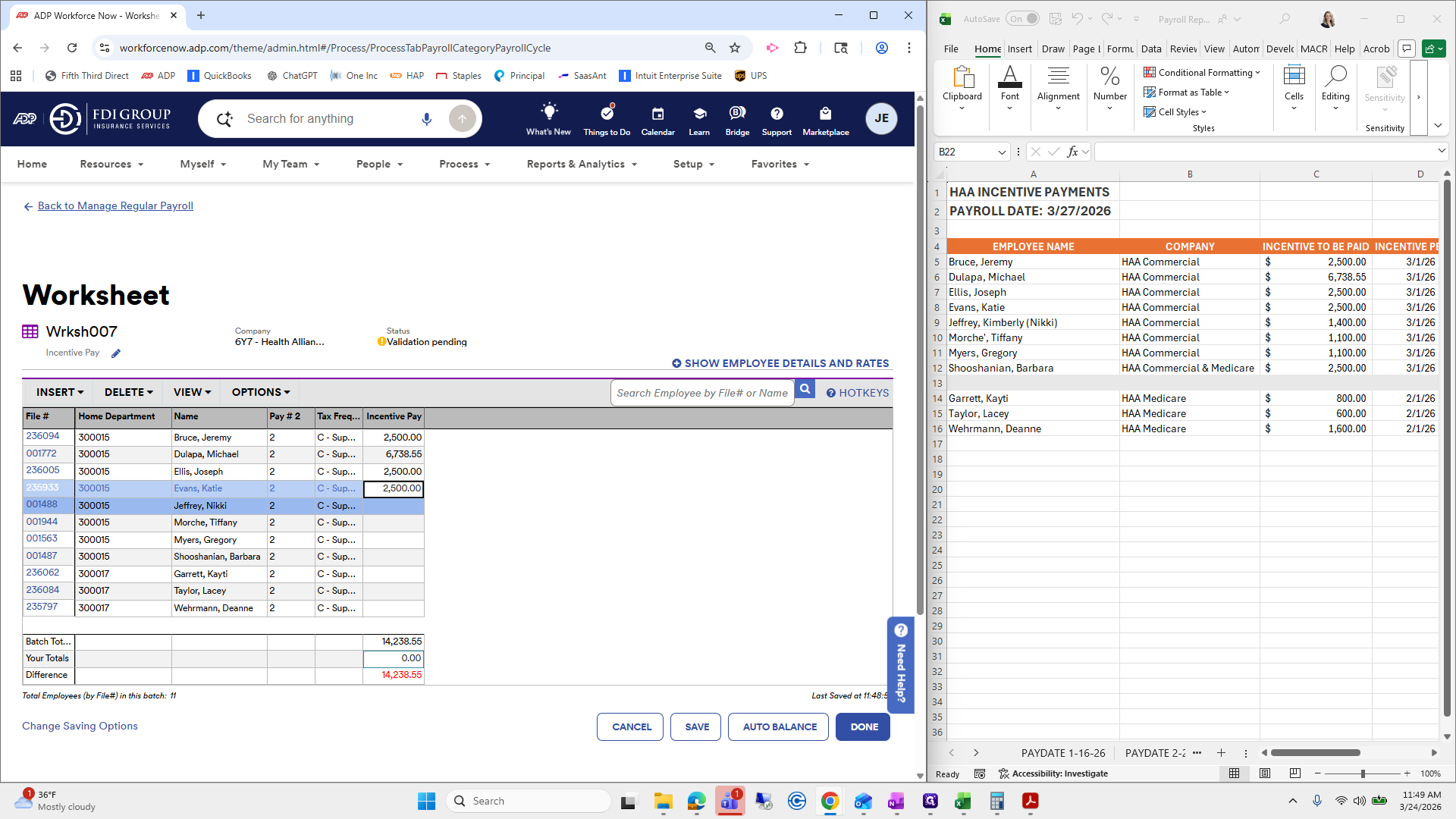
That looks good. Auto balance.
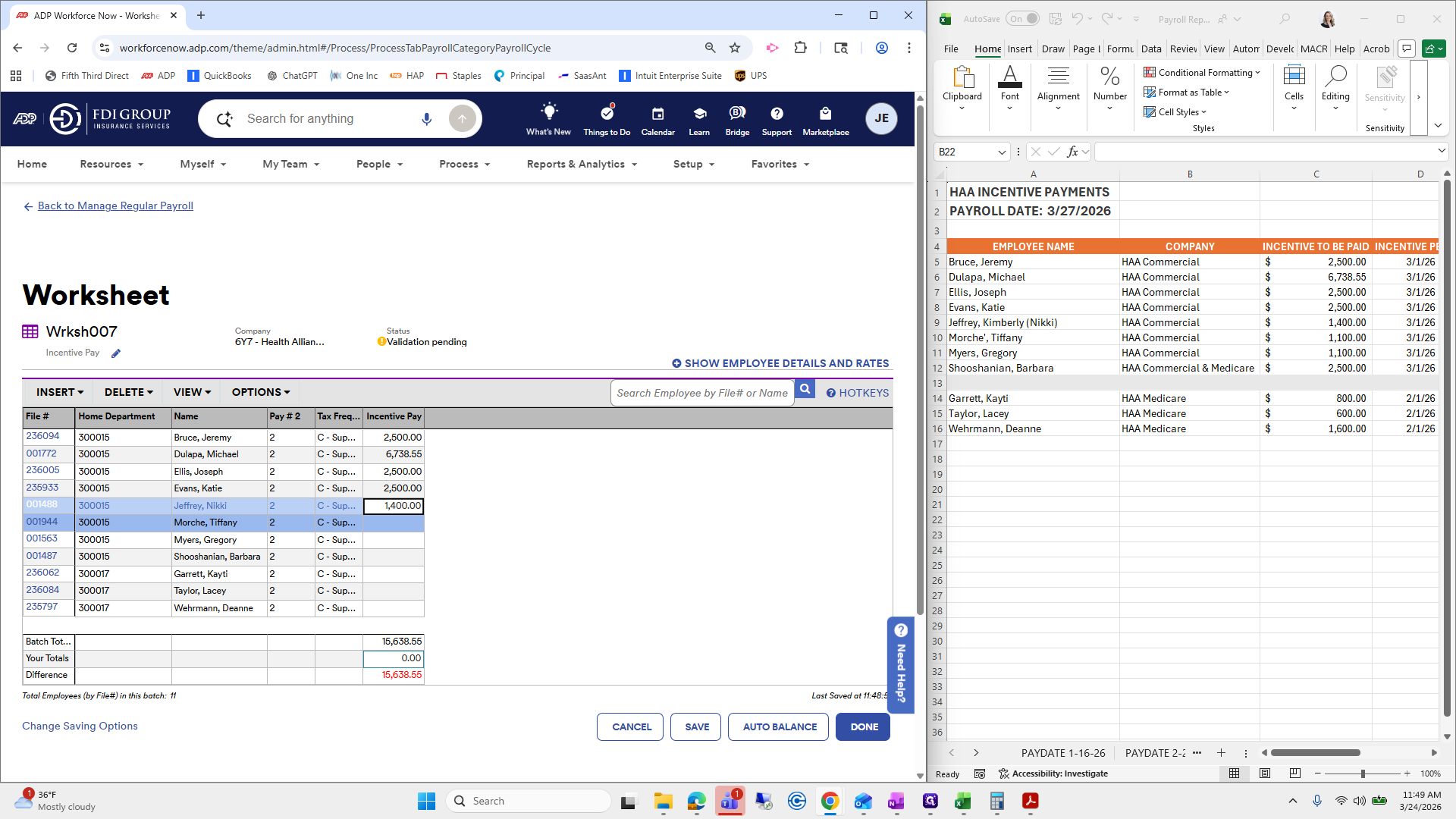
"" Okay.
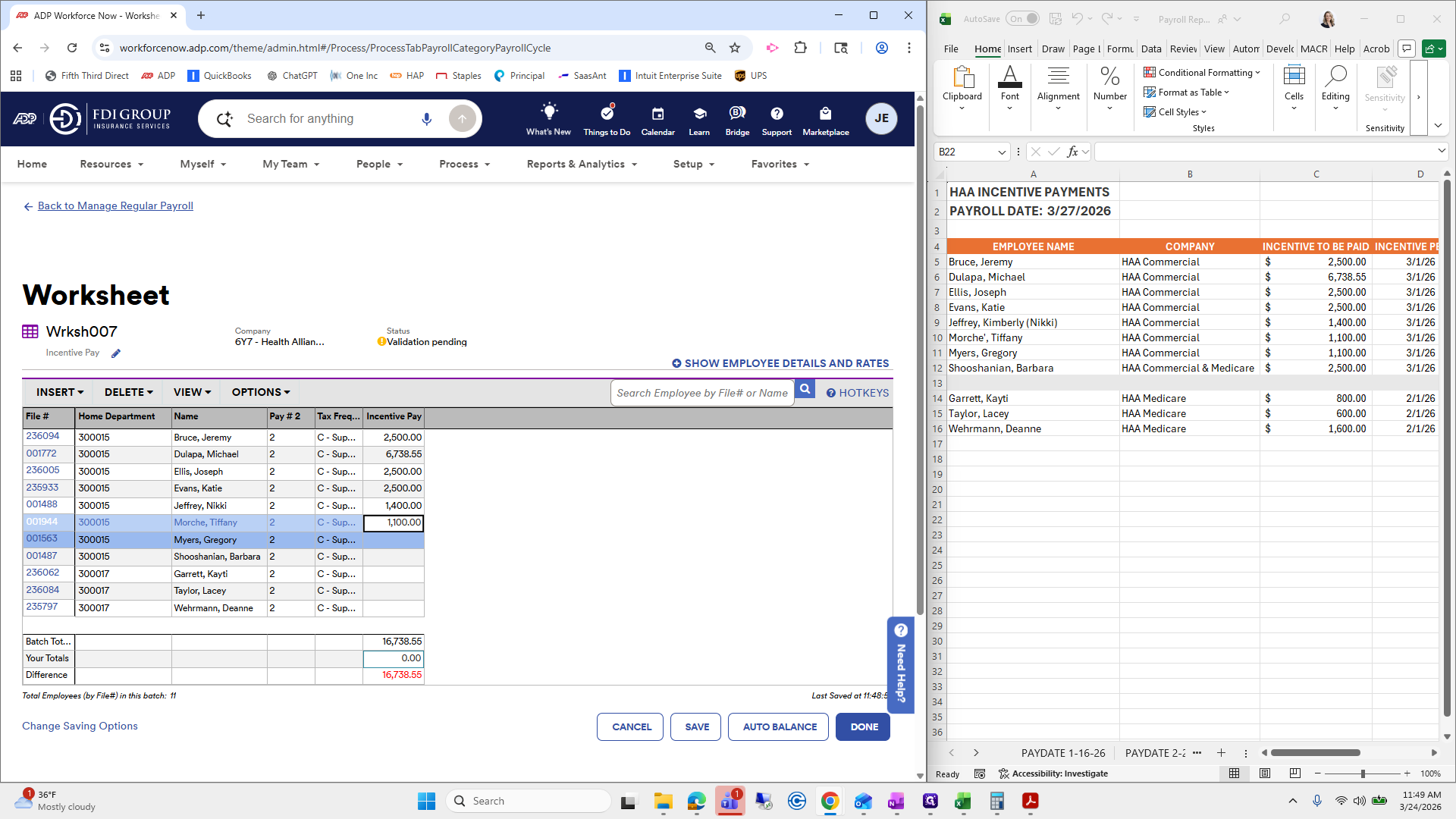
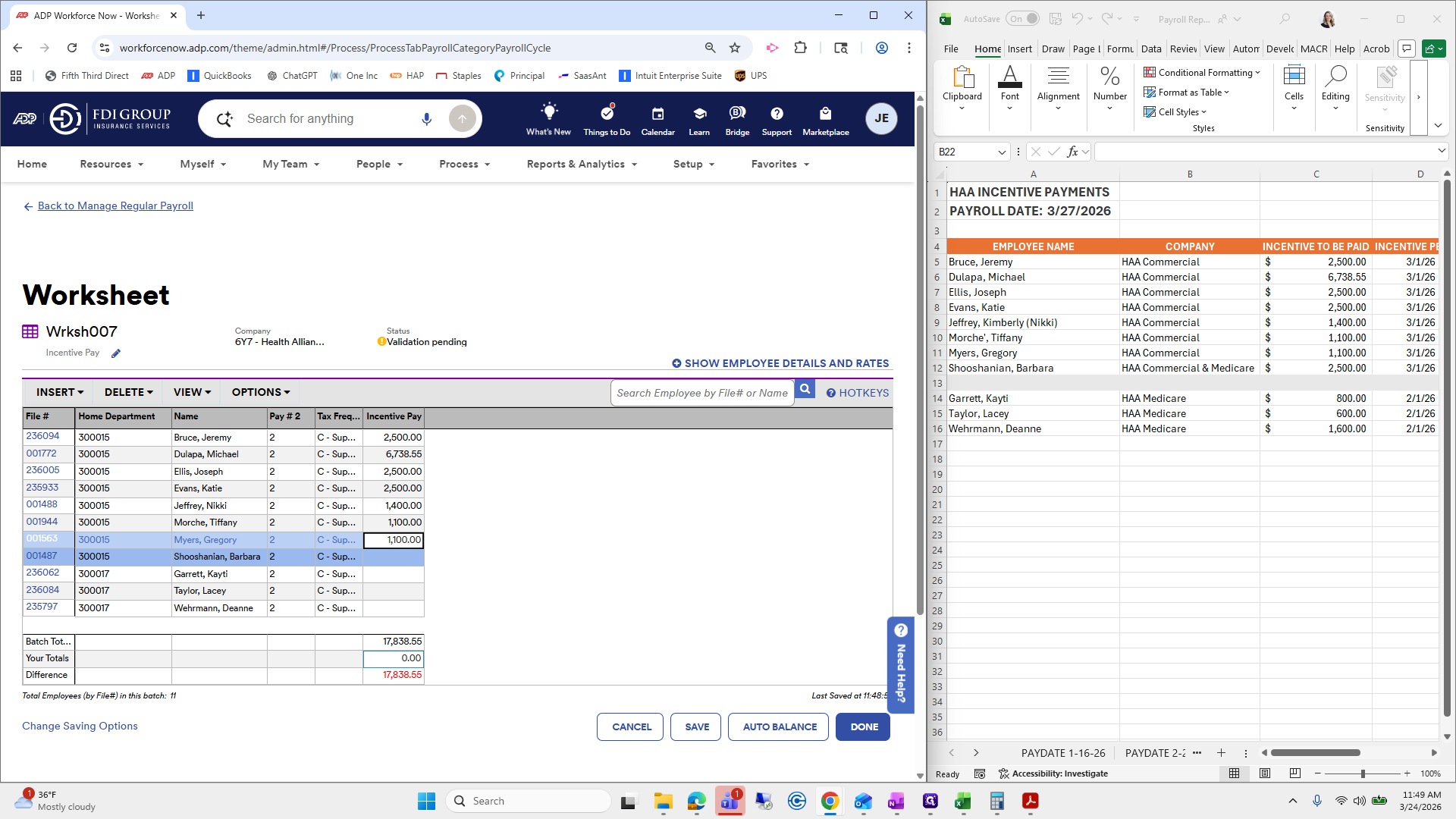
Next, we have an executive example.
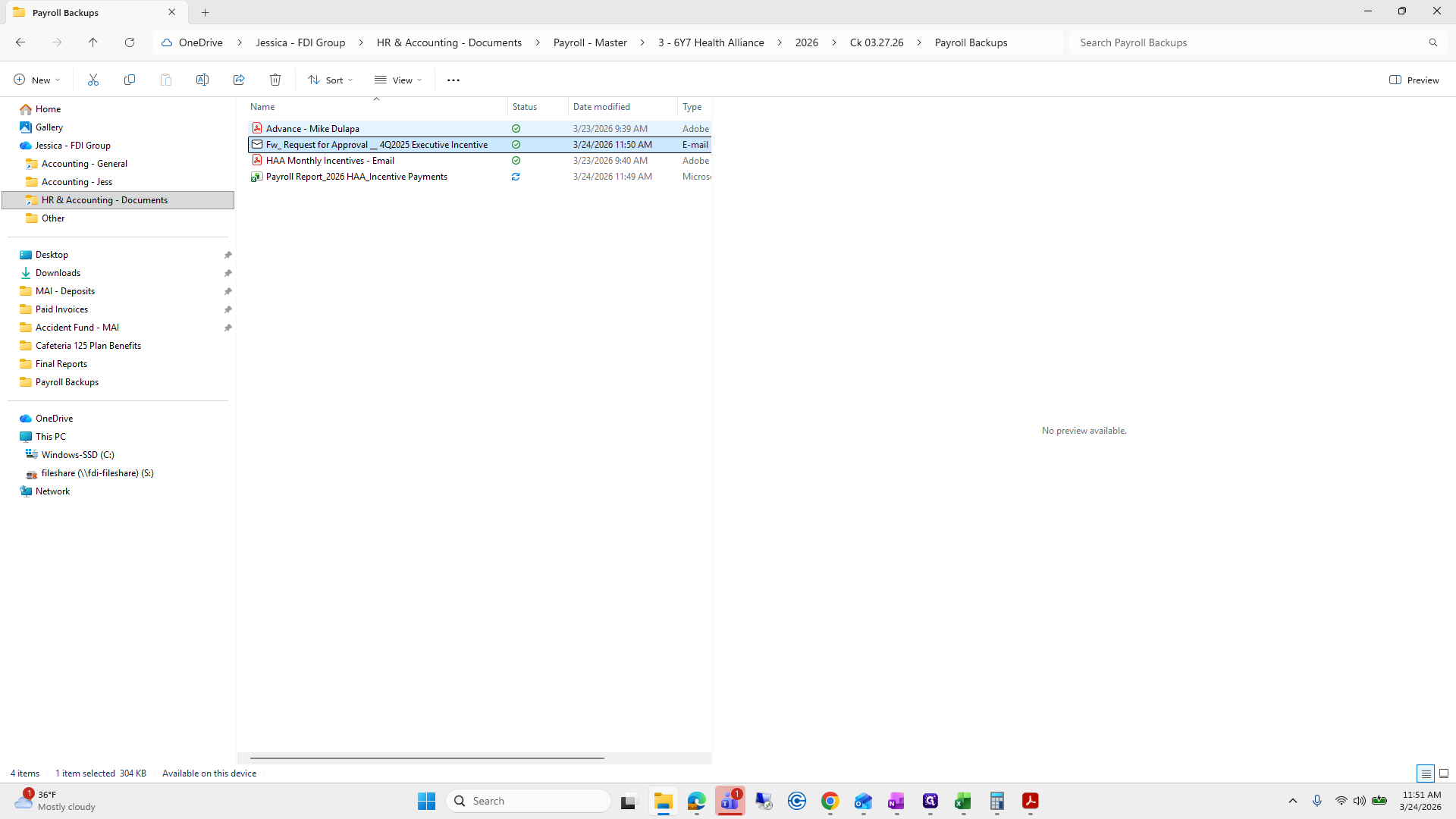
I need to open that because I can't remember the amount. I forgot to save all of these, but I will.
Shh.
Sec-incentive income generated.
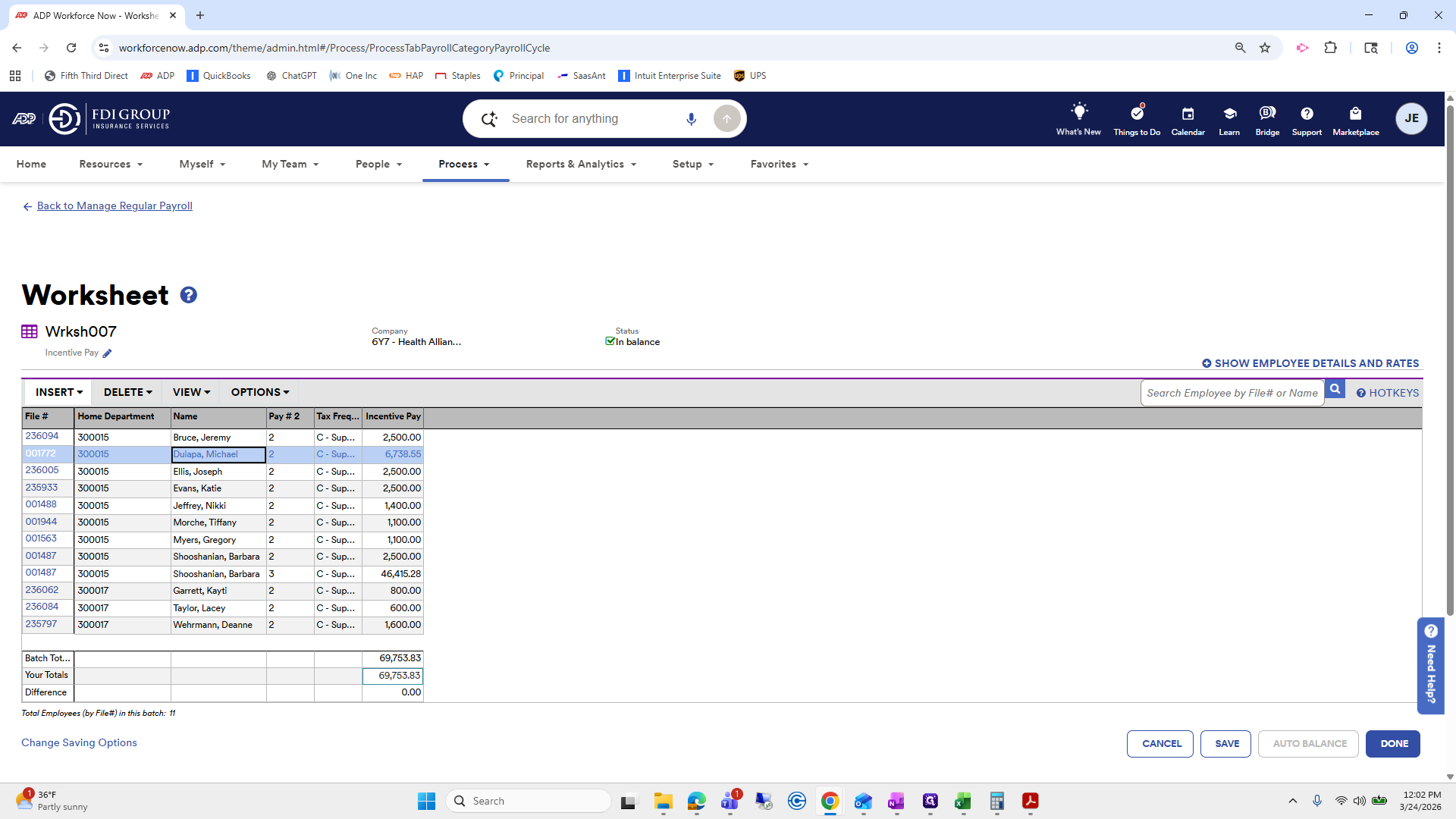
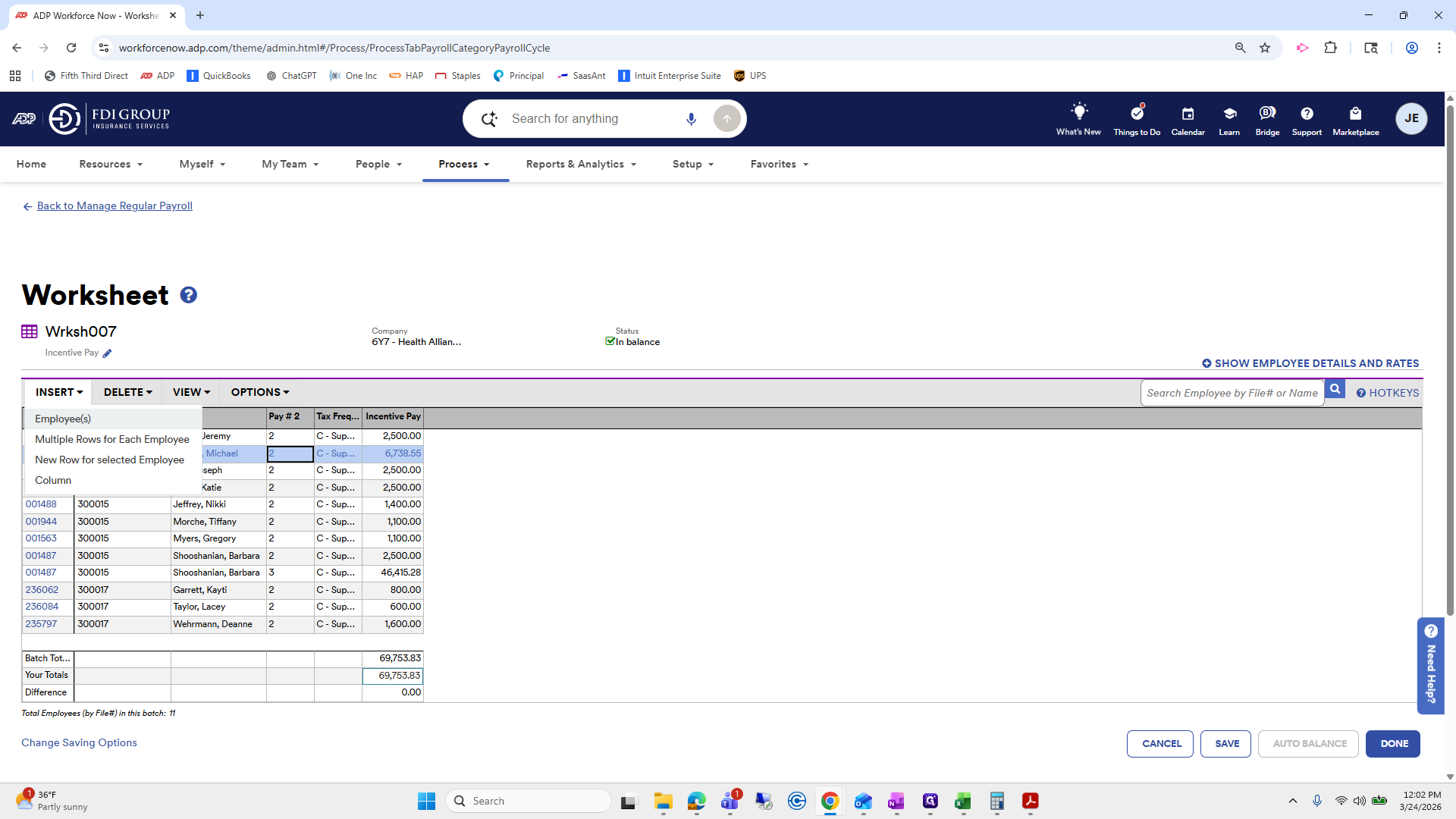
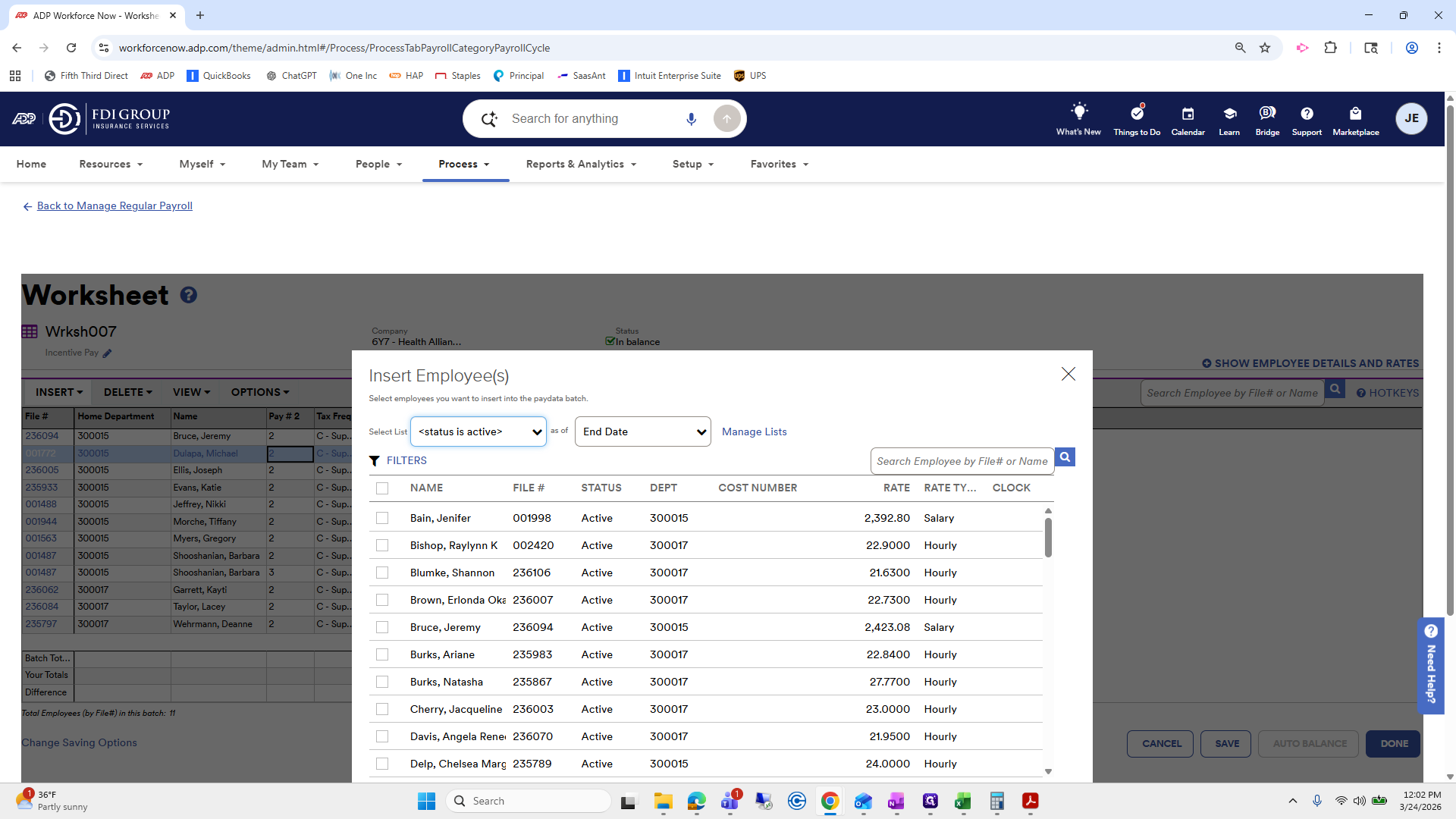
We will copy that. Next, I will return to the incentive pay and find Barb.
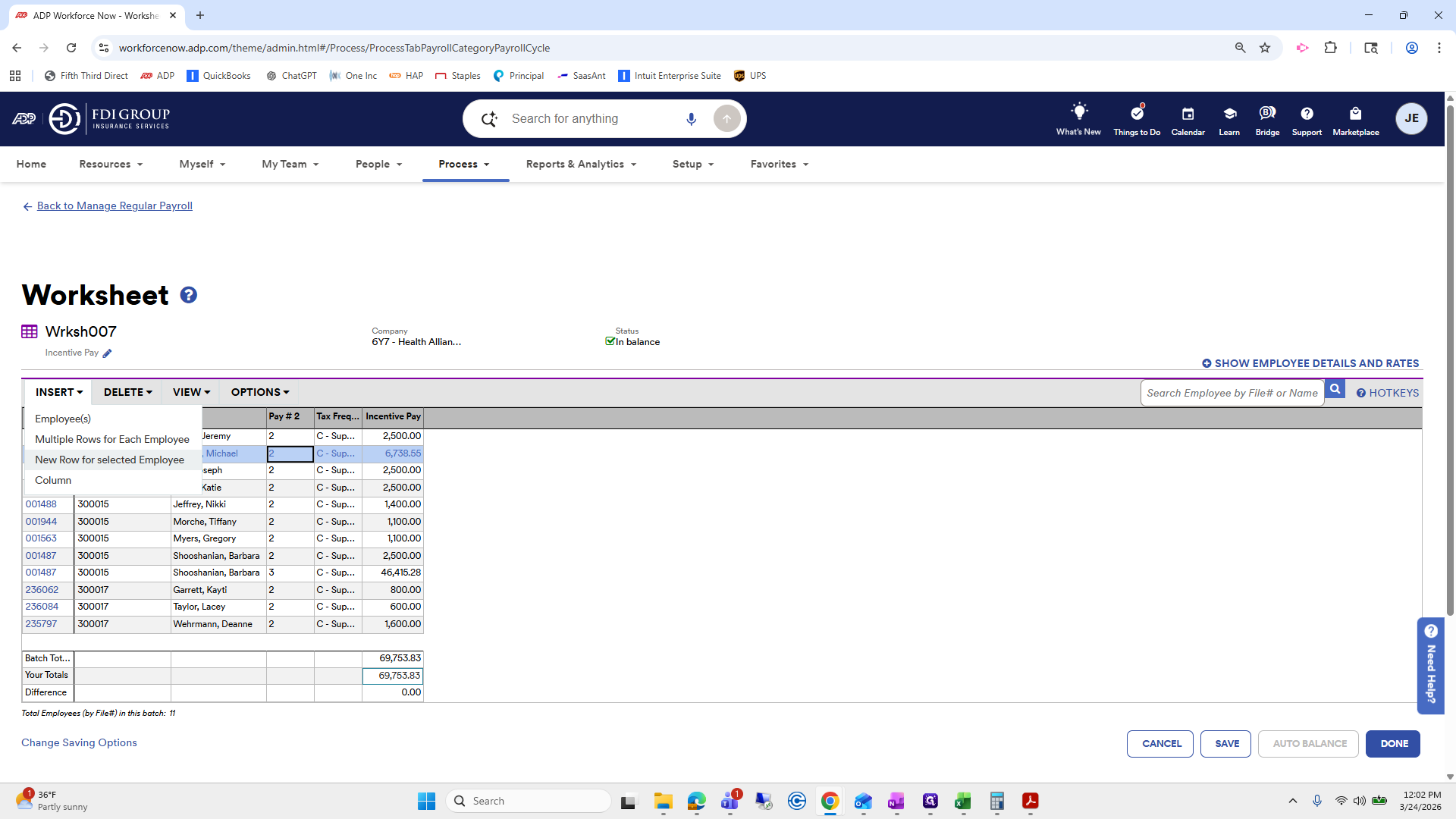
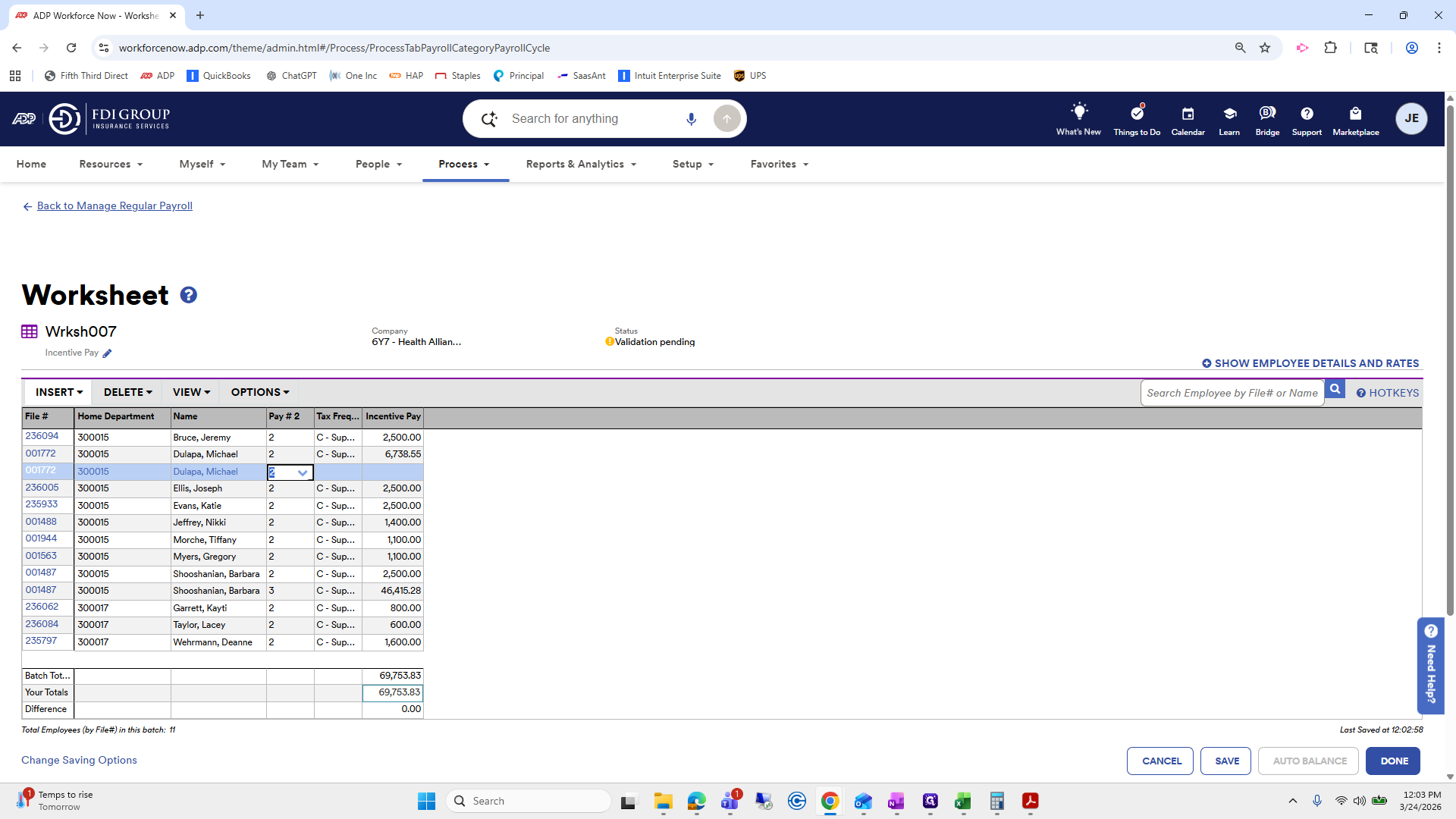
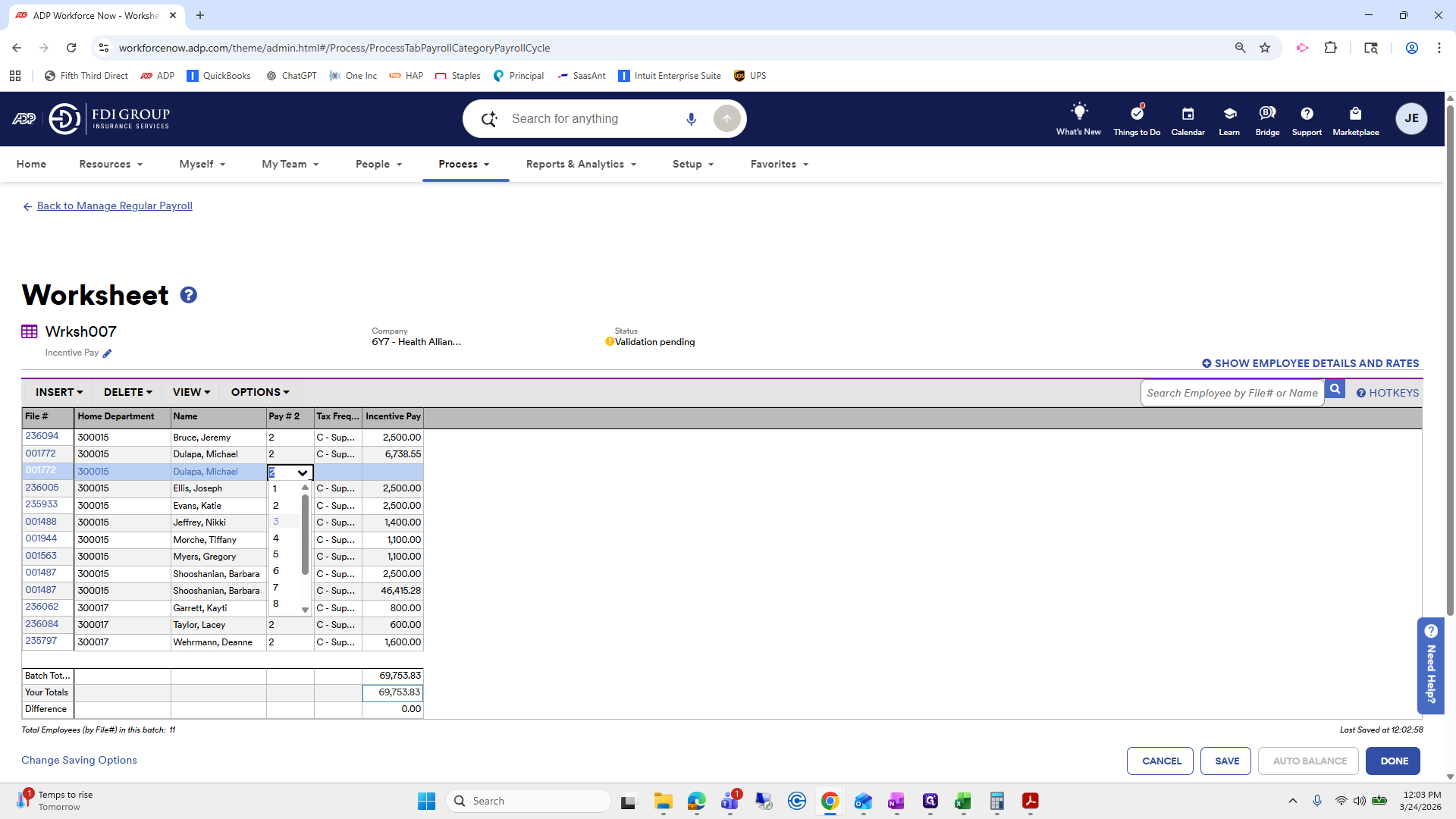
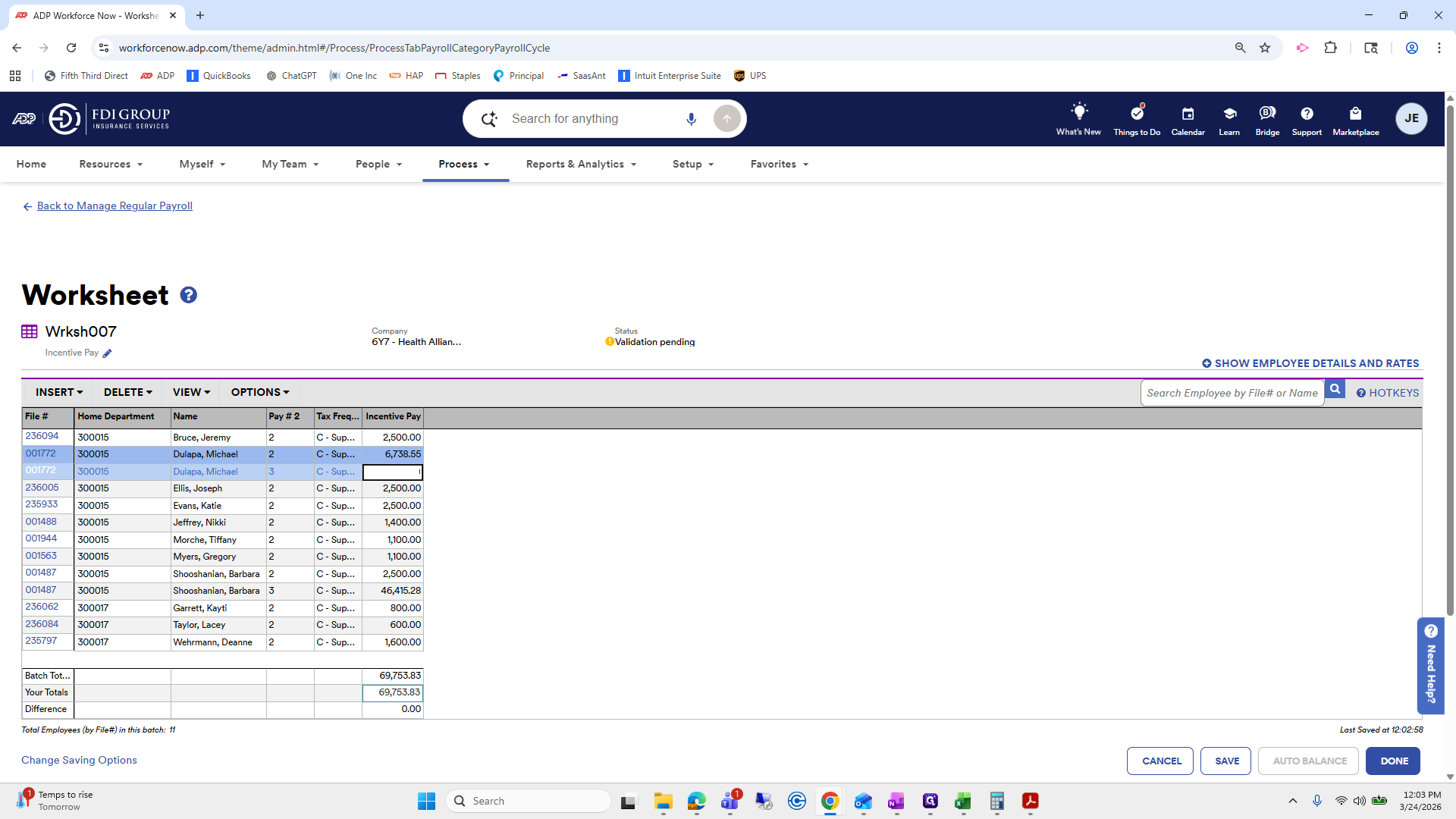
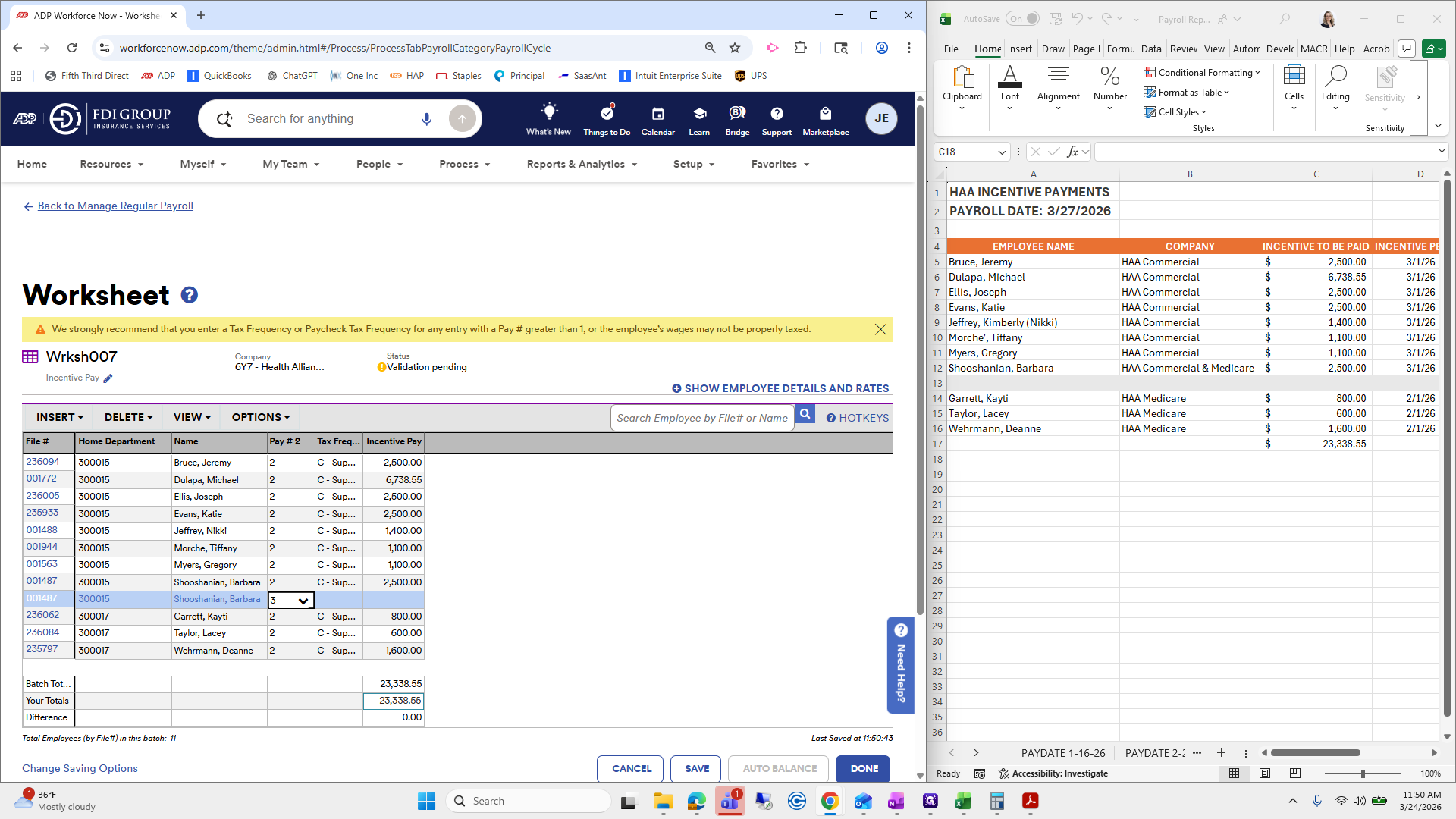
I will insert a new row for her. I will put this on a third check, do C supplemental, and add the amount that was there.
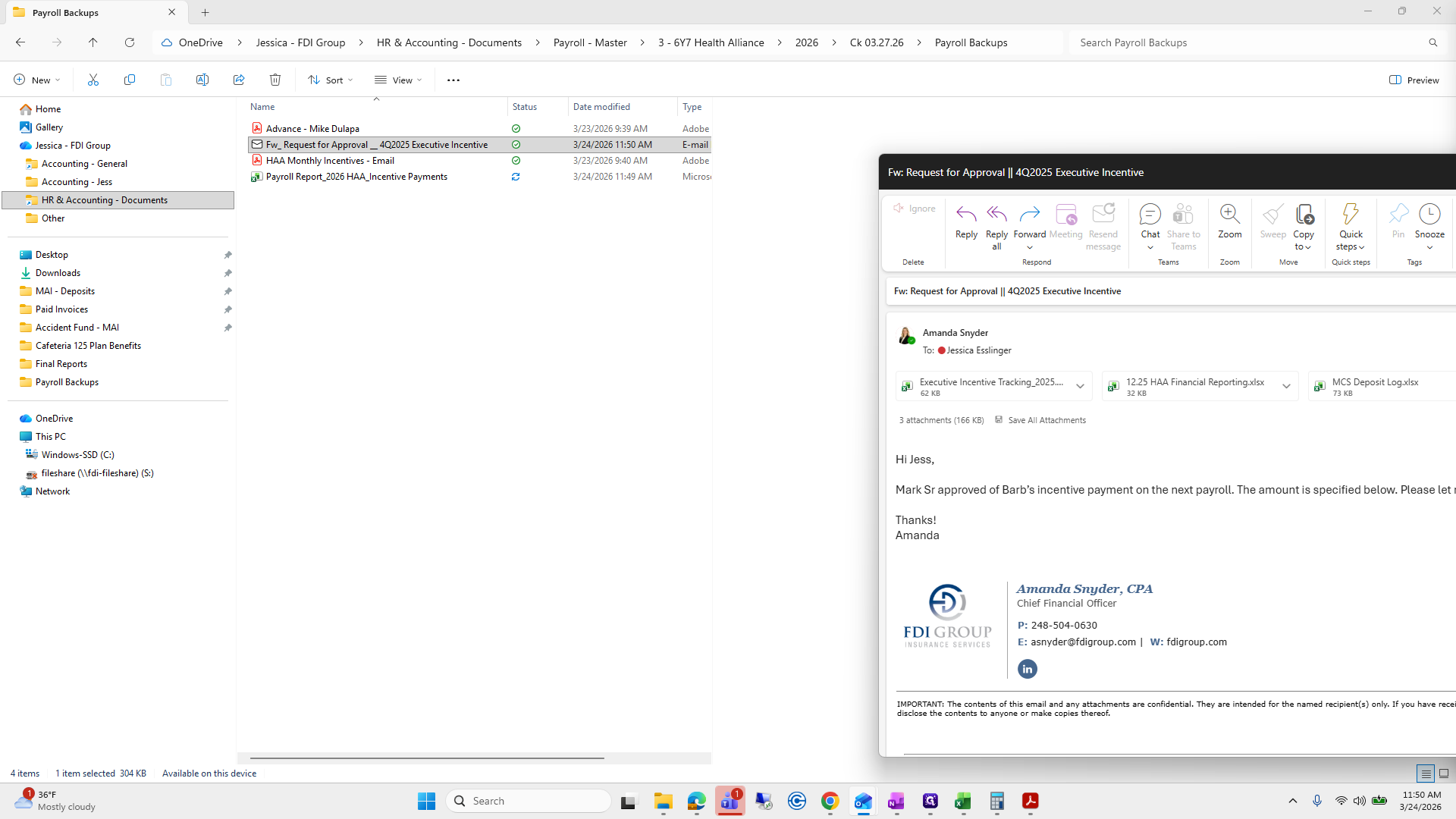
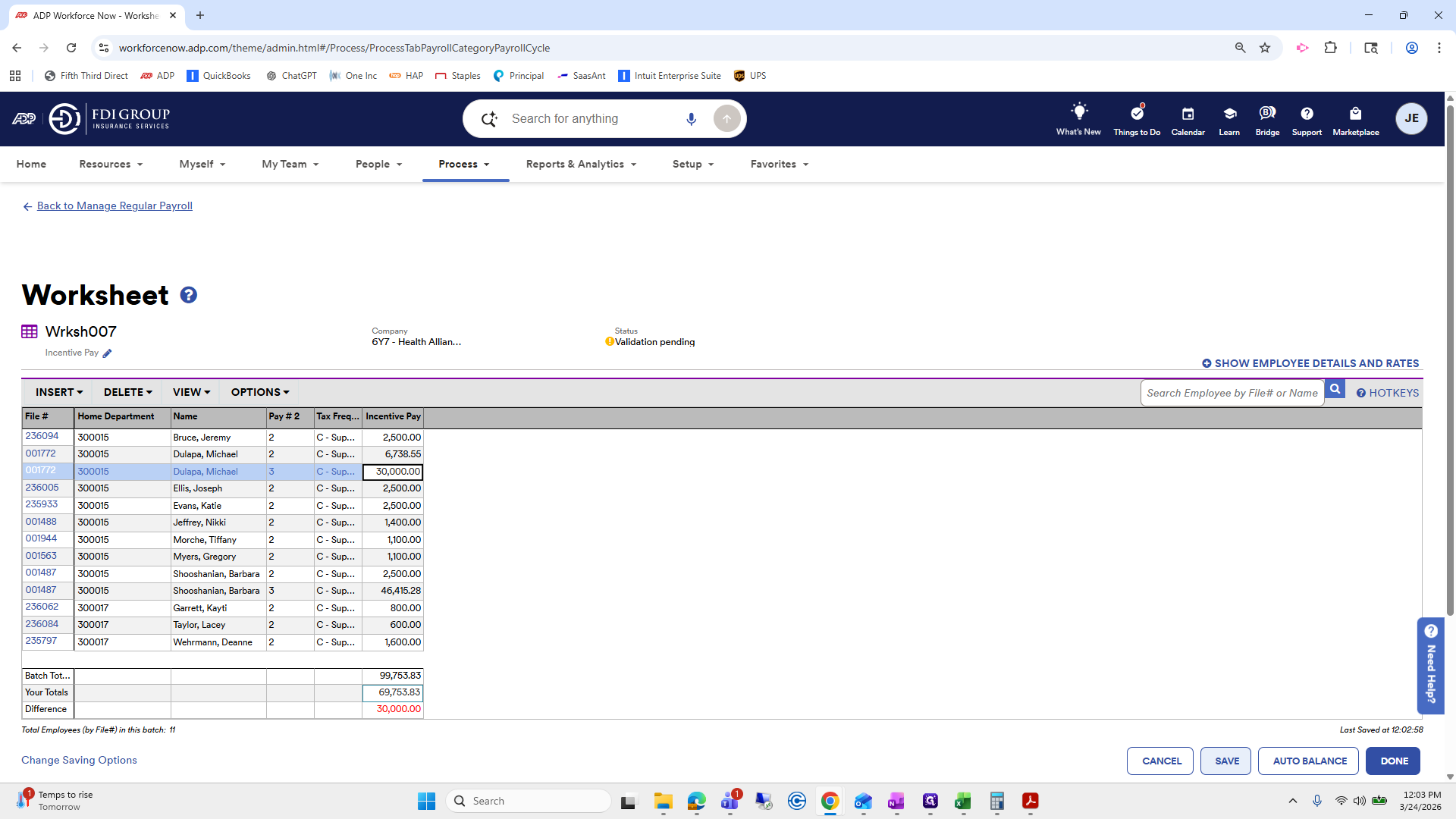
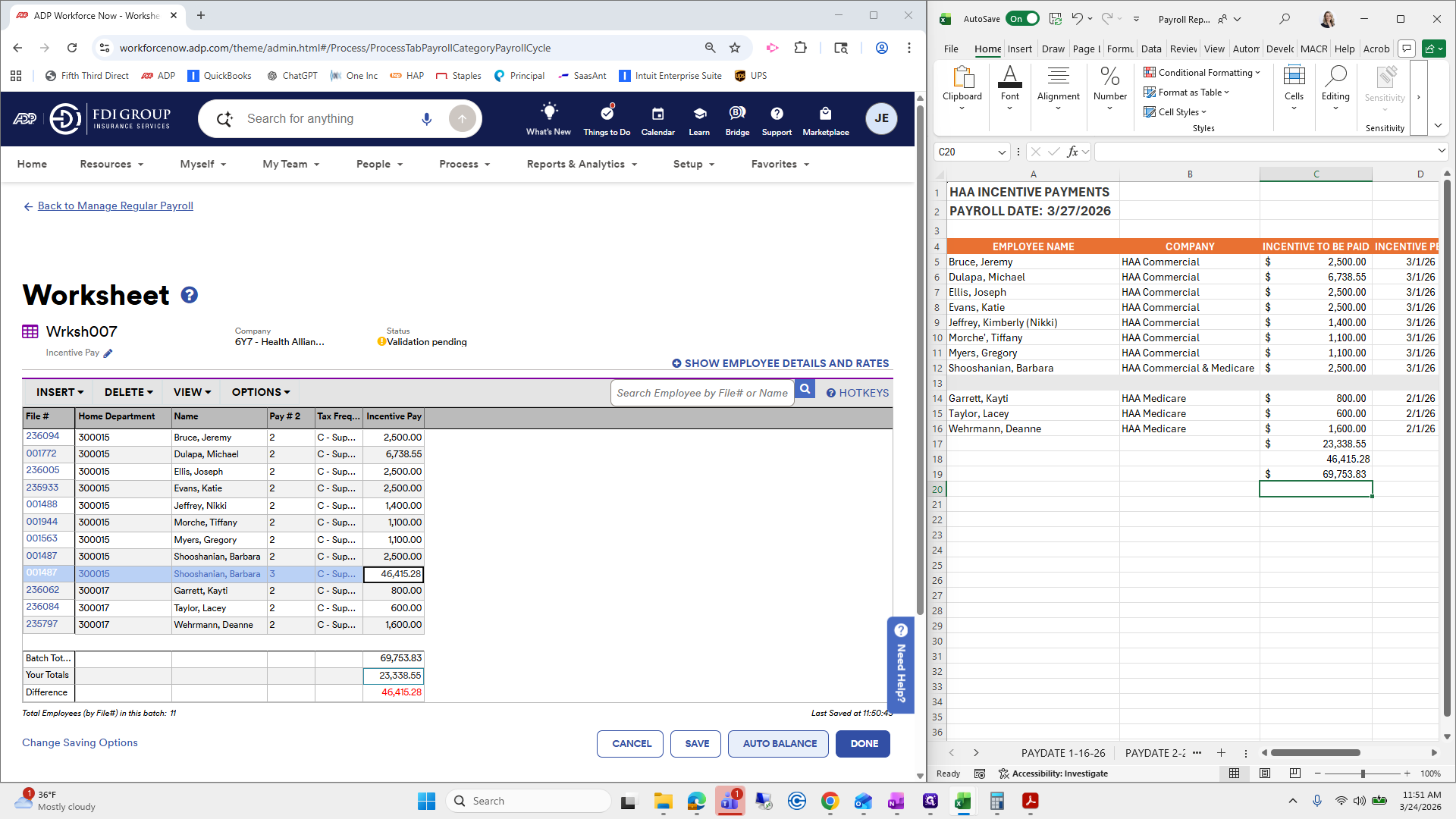
For checks and balances, I will add these together to ensure they are correct.
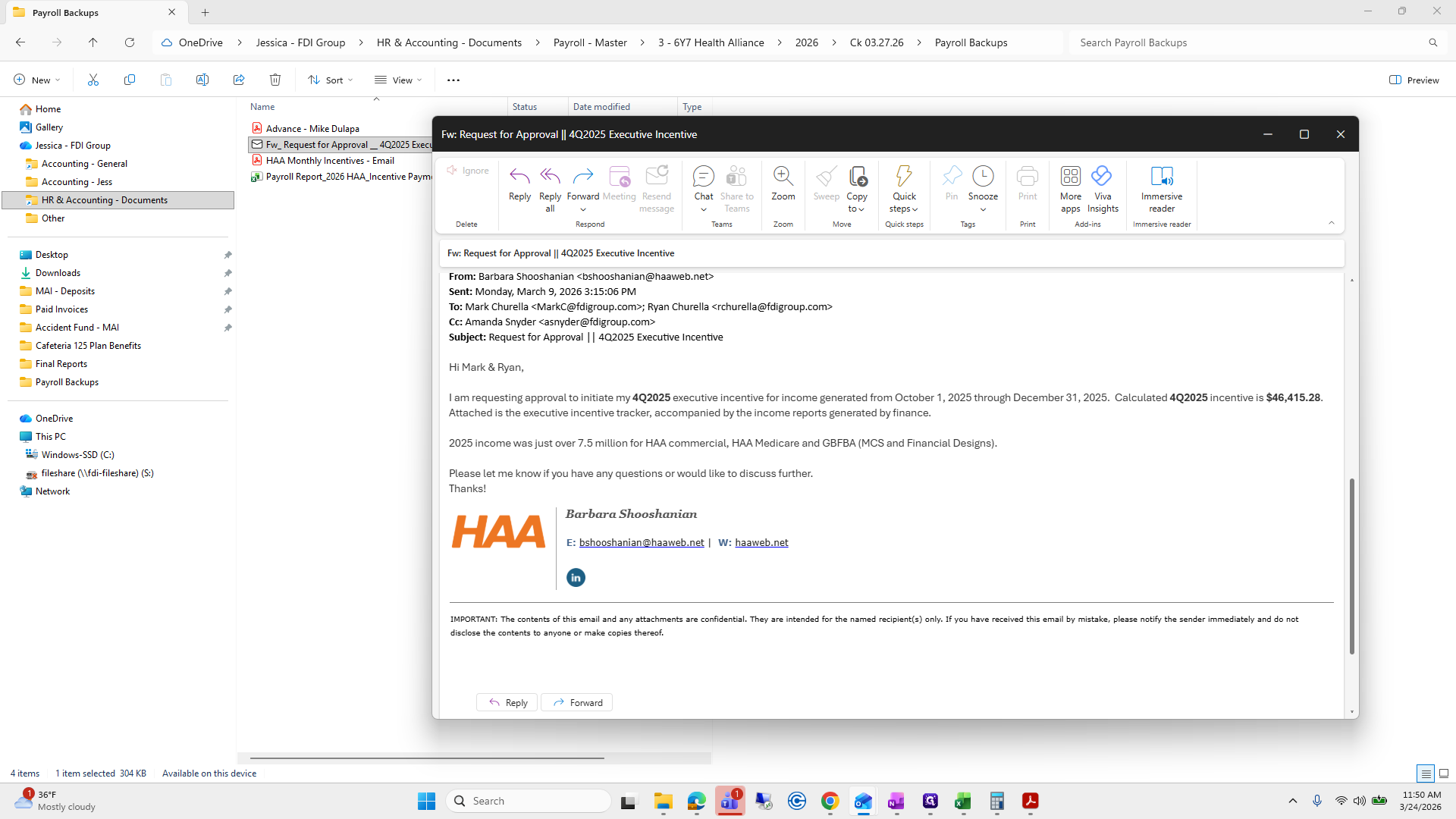
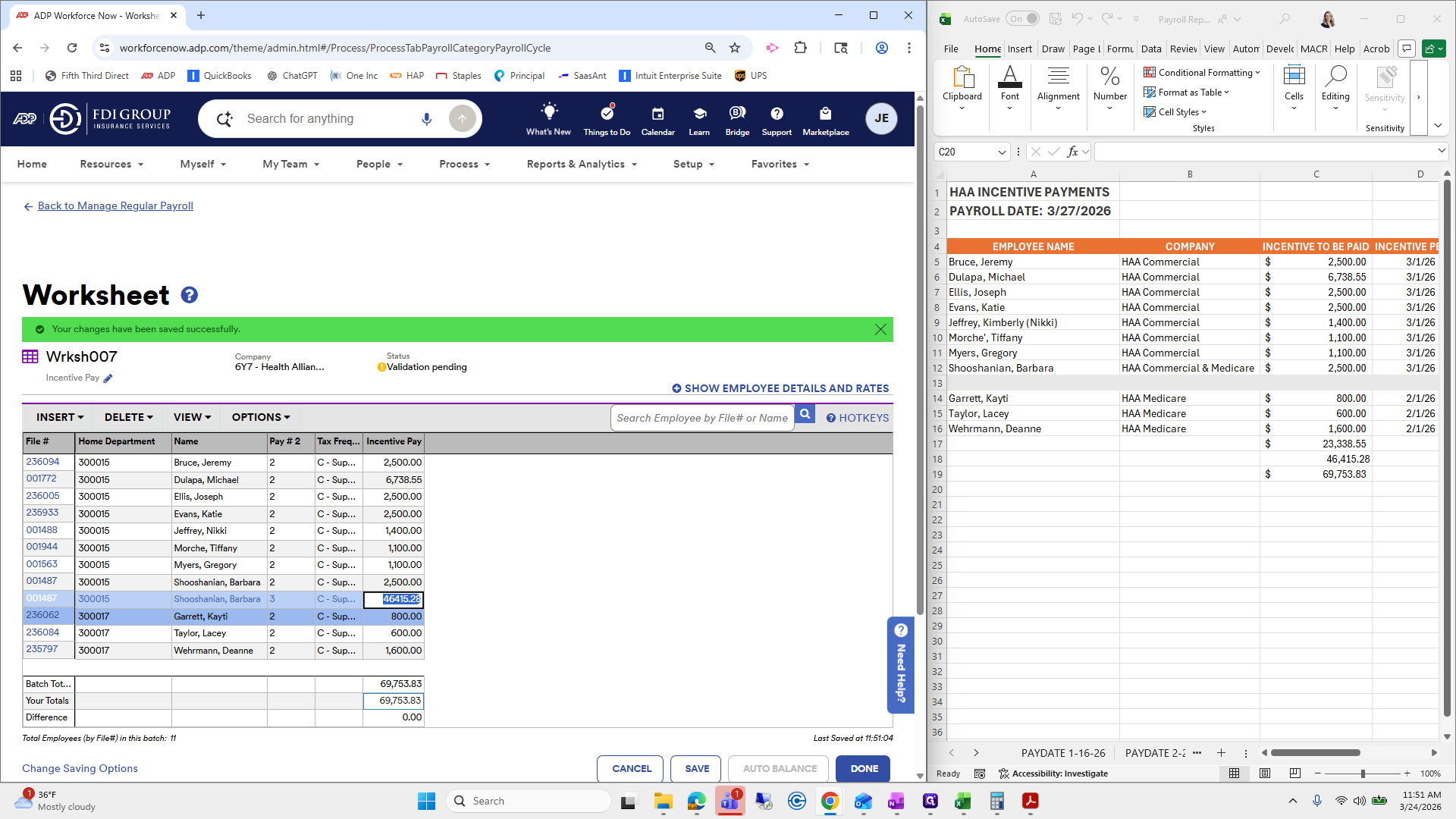
69,753.83.
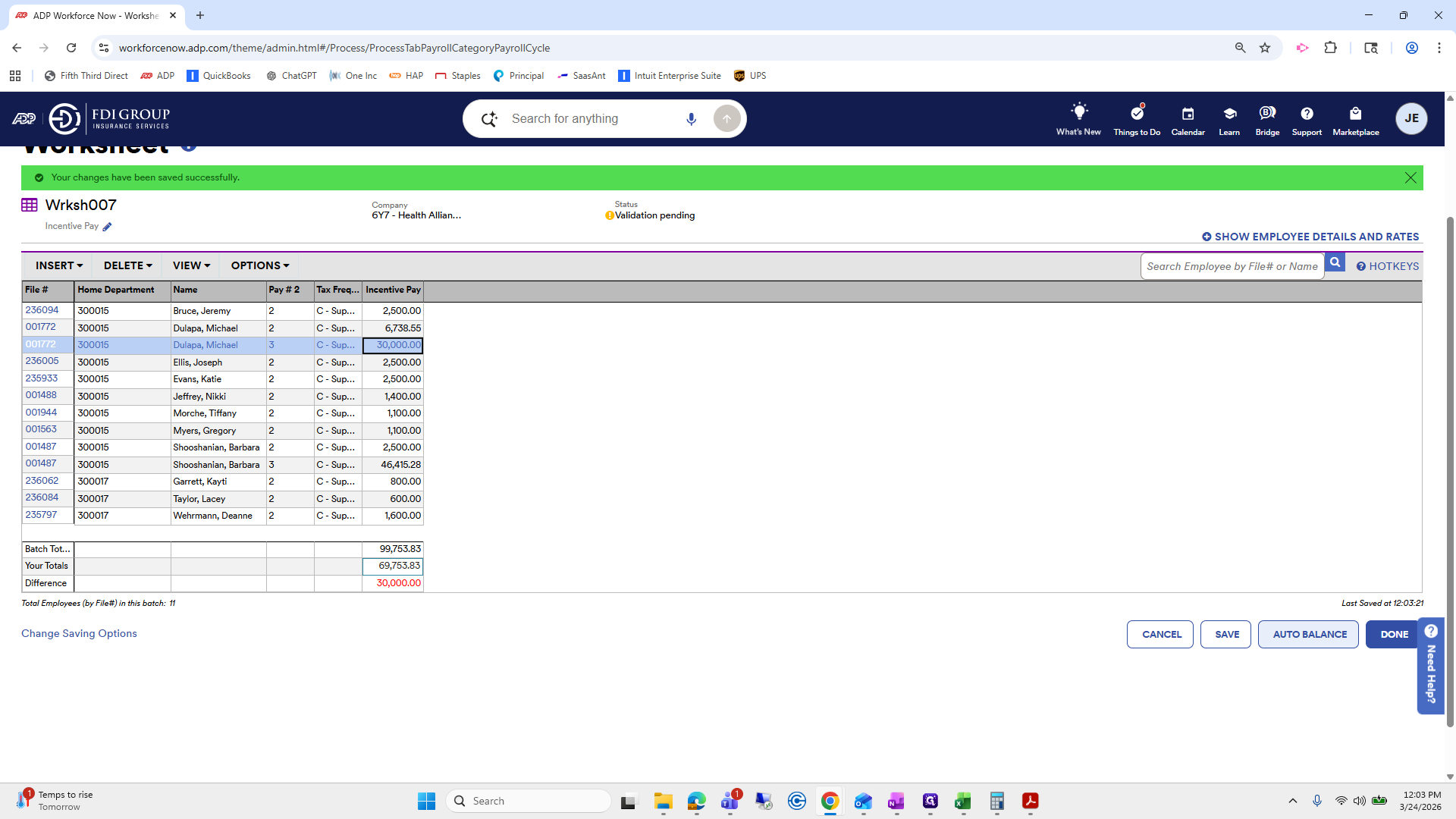
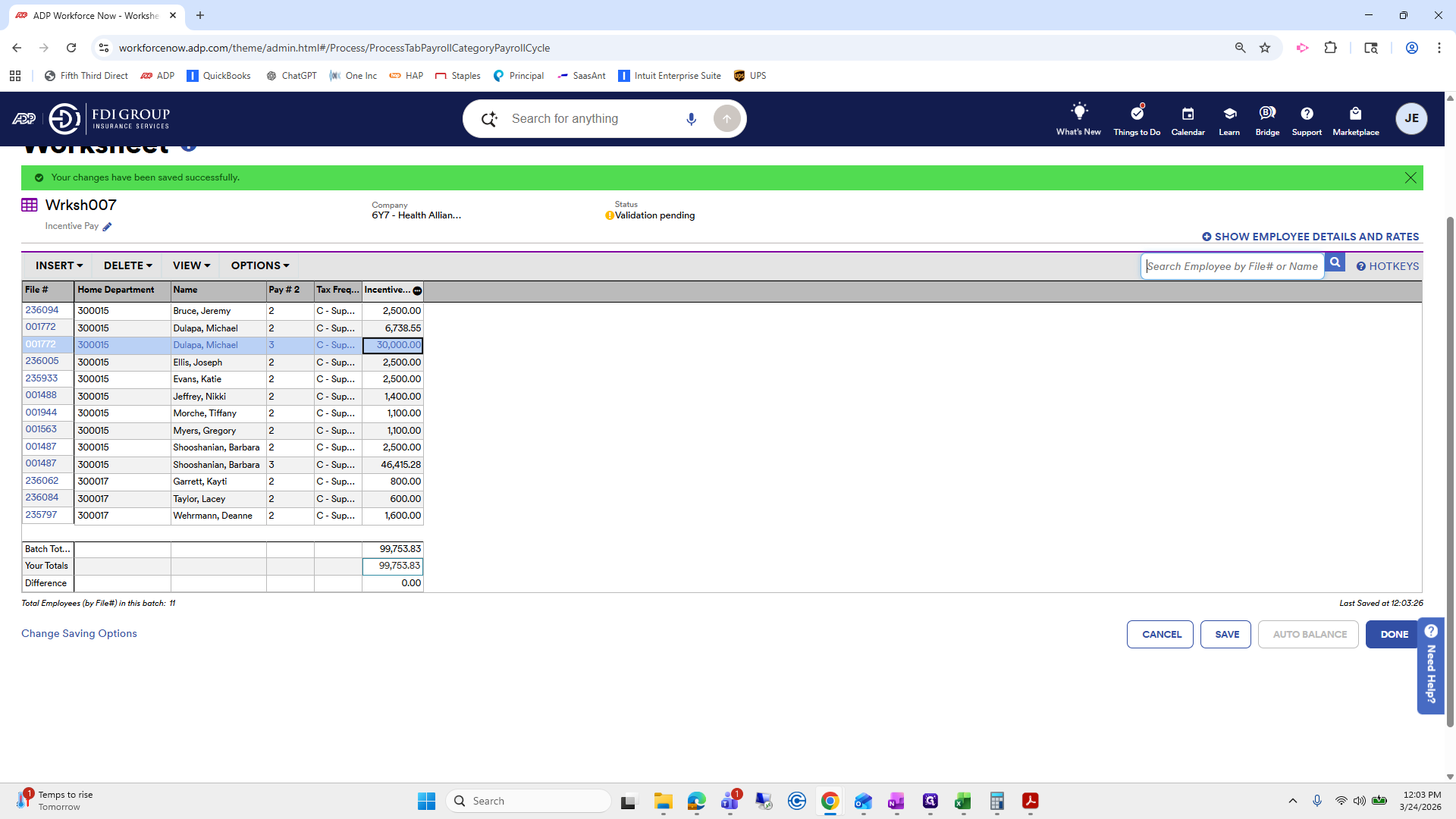
Auto balance. Okay. This separates the items onto different checks.
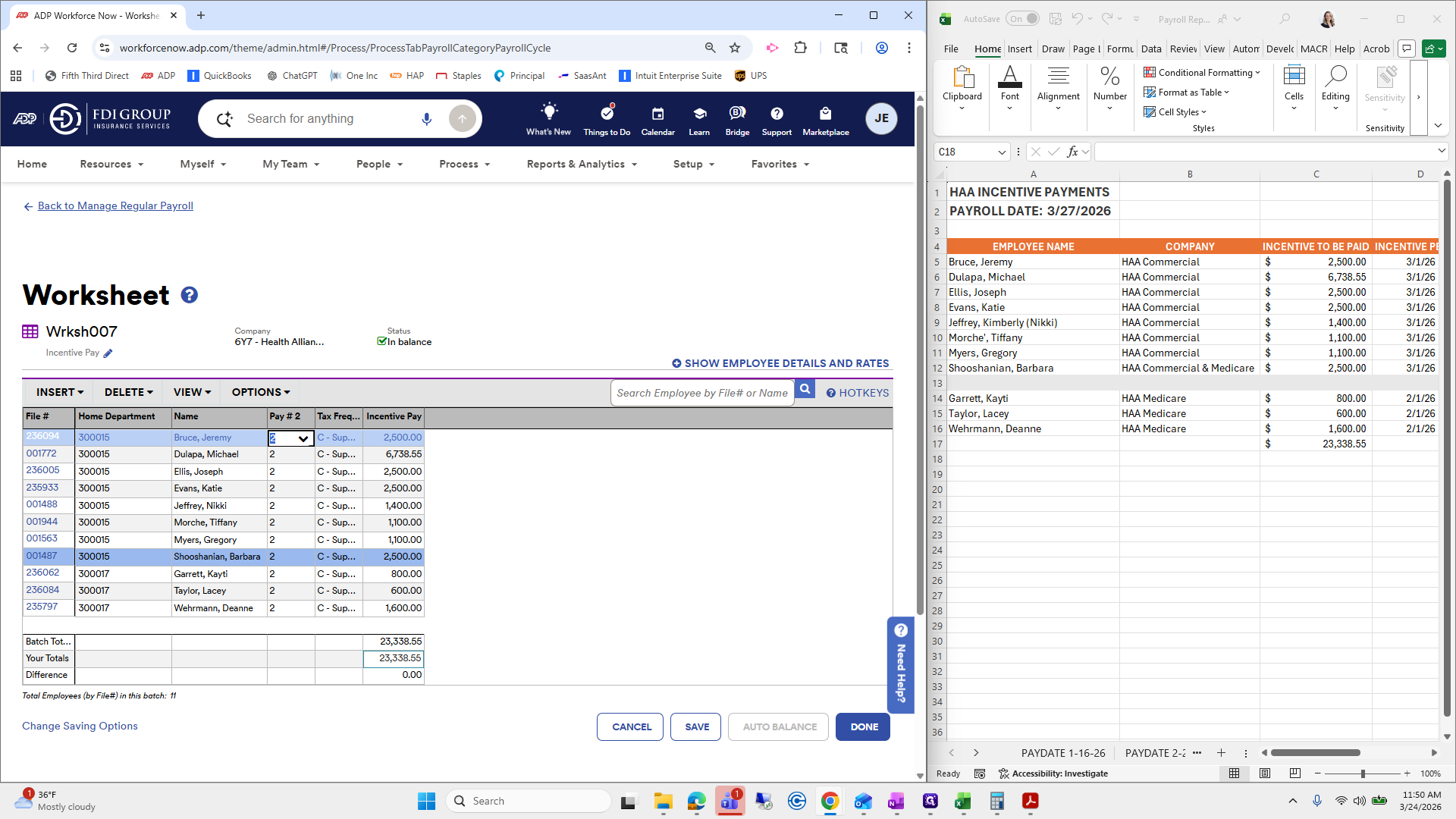
Done.
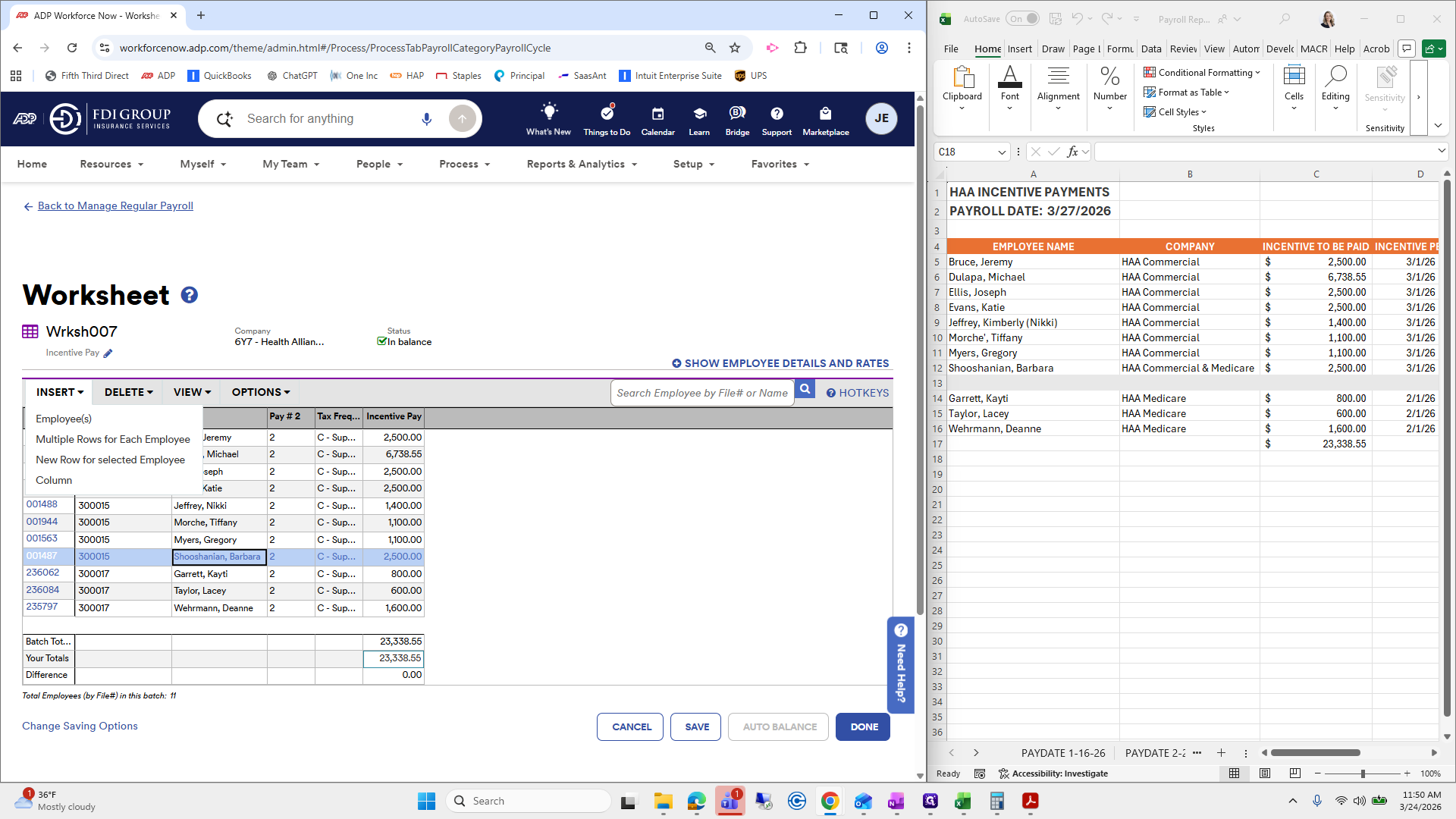
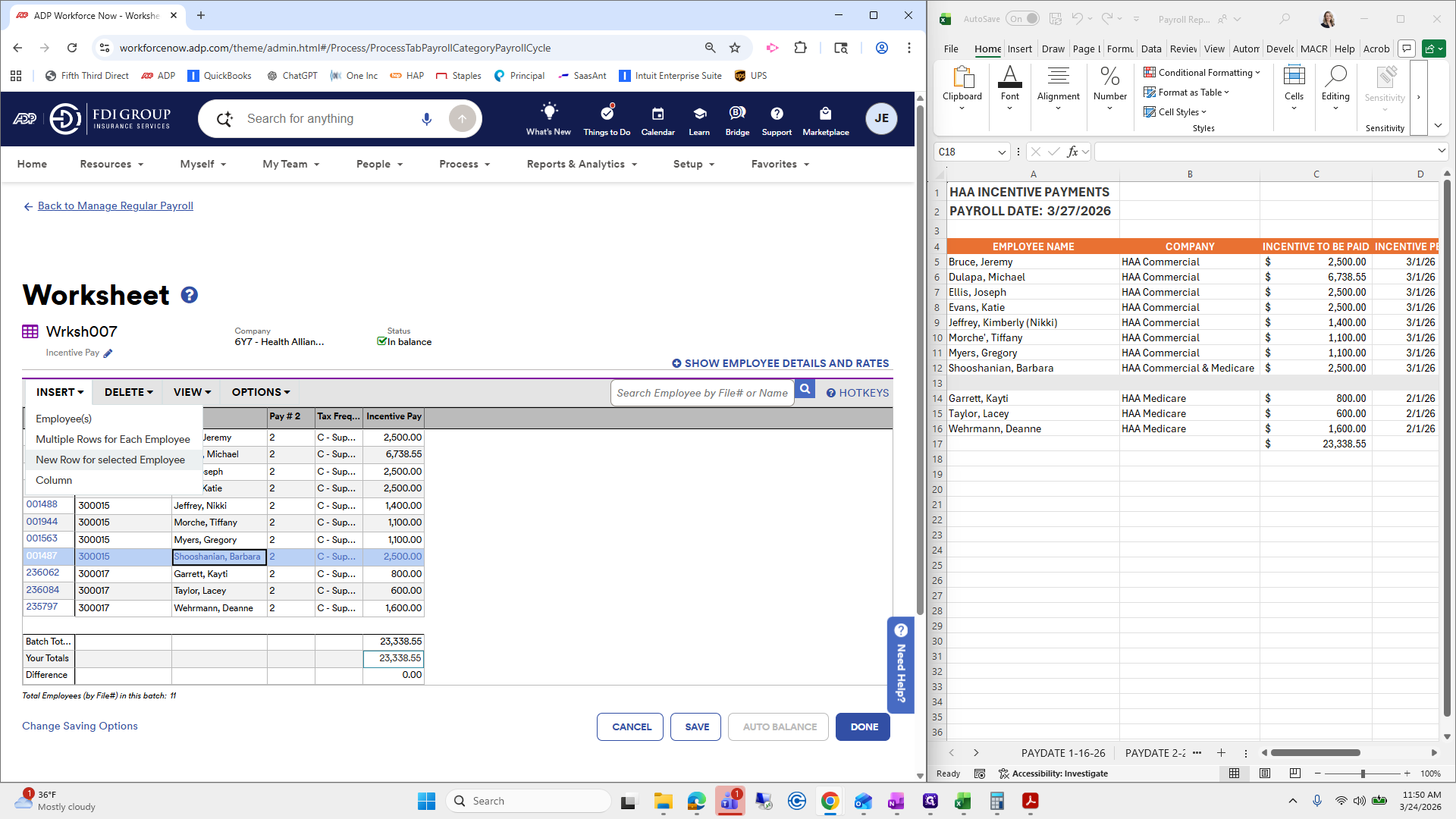
Okay.
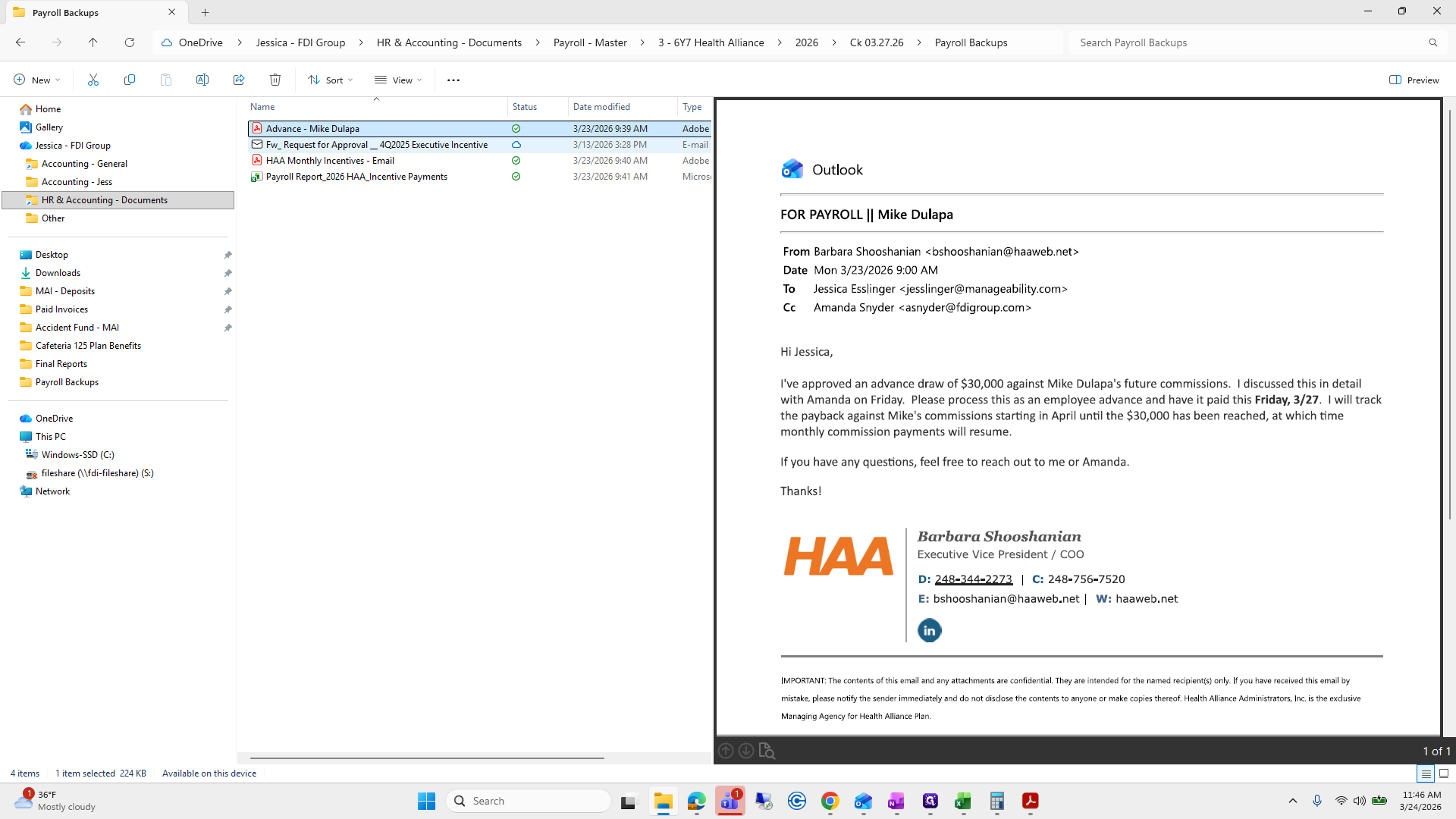
The next one is advance for Mike DeLuca.
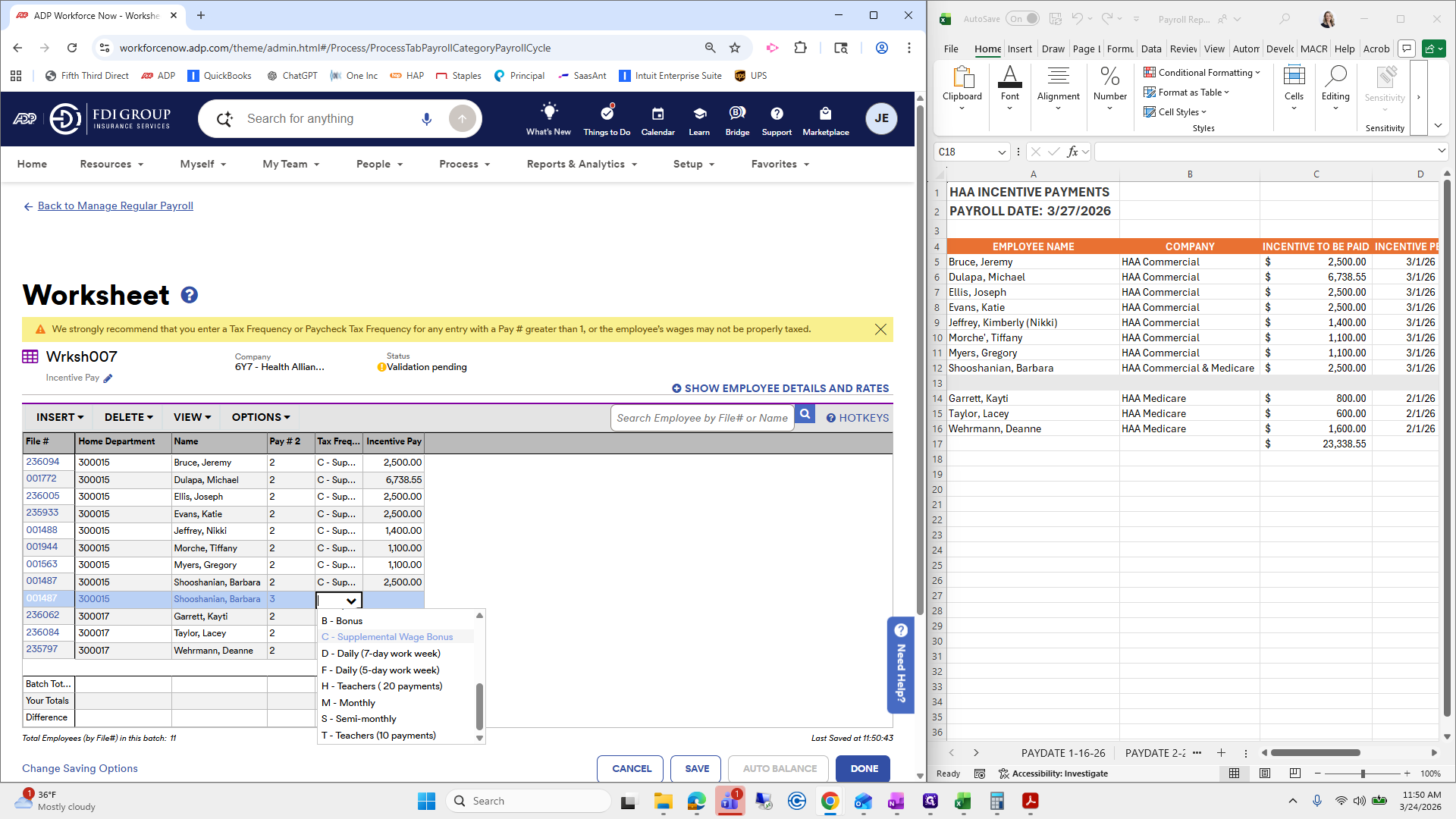
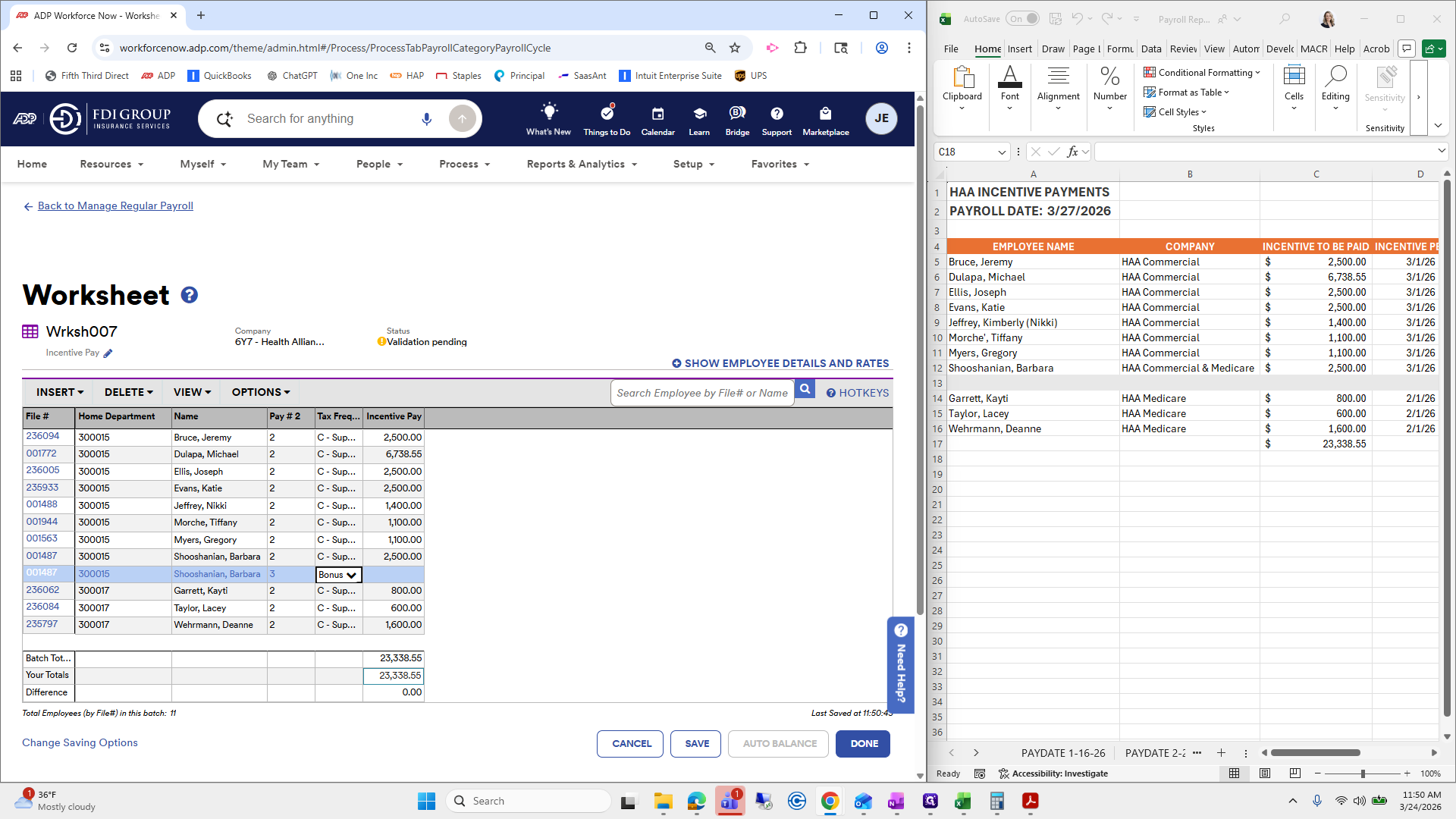
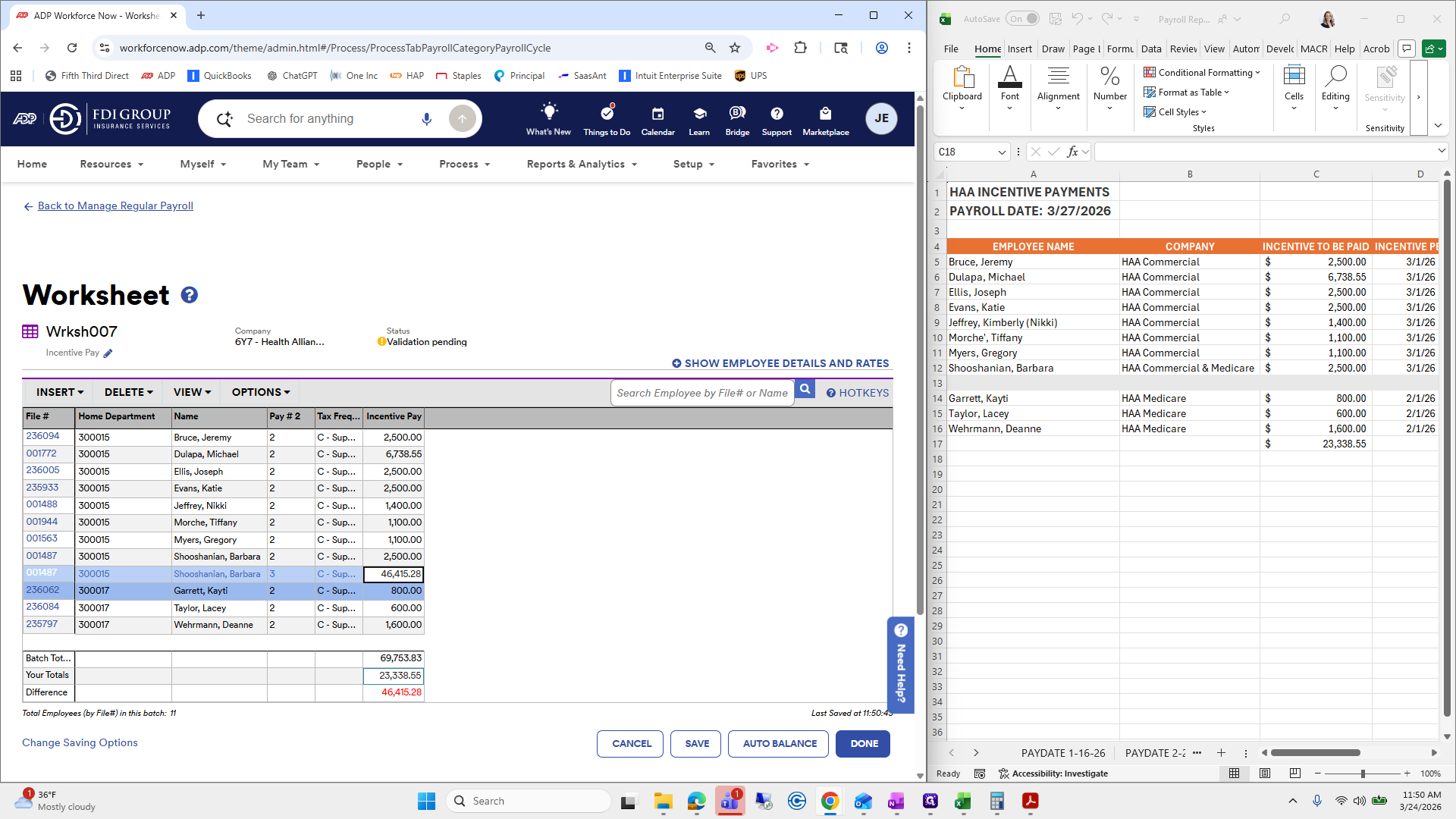
Do, do, do.
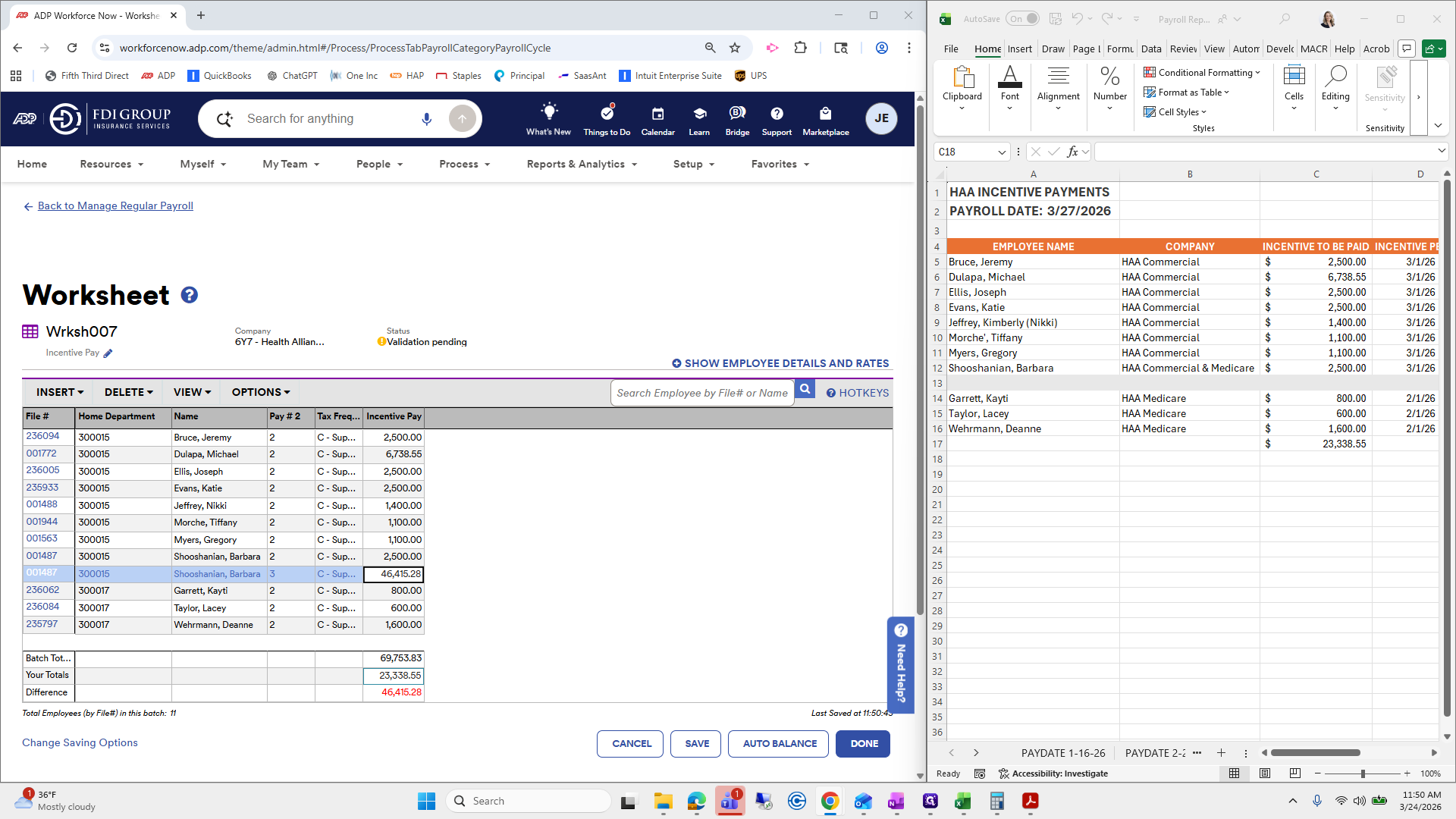
Okay.
There is an advanced code.
I just need to make sure it's on here. We are going to add a worksheet.
We're going to choose...
There is usually an advance.
Let's see, let's see, let's see.
Okay.
For this specific example for Michael, his case is being treated a little differently since it is an advance draw on his incentive pay.
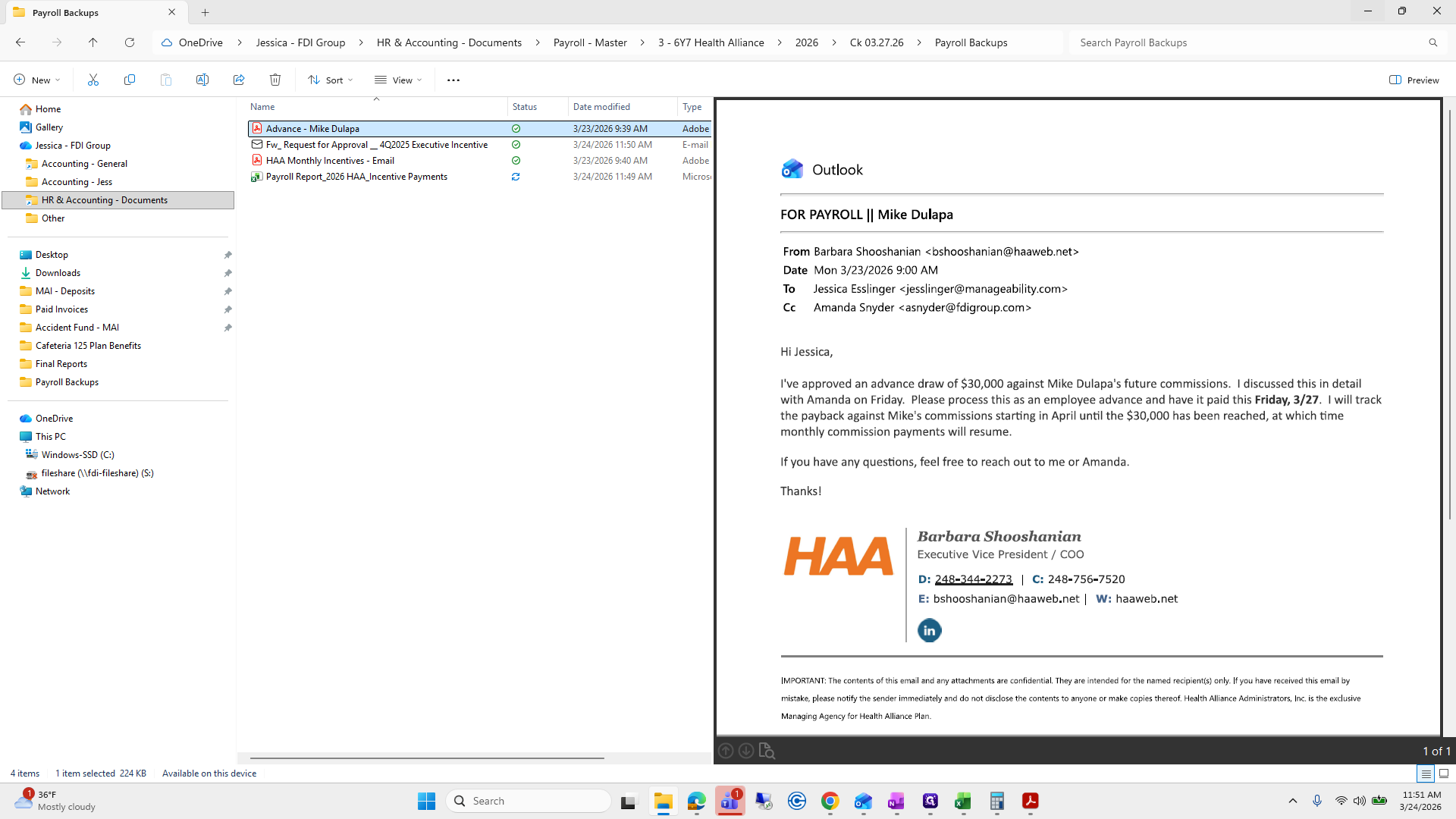
We will add another line for him so it is taxed.
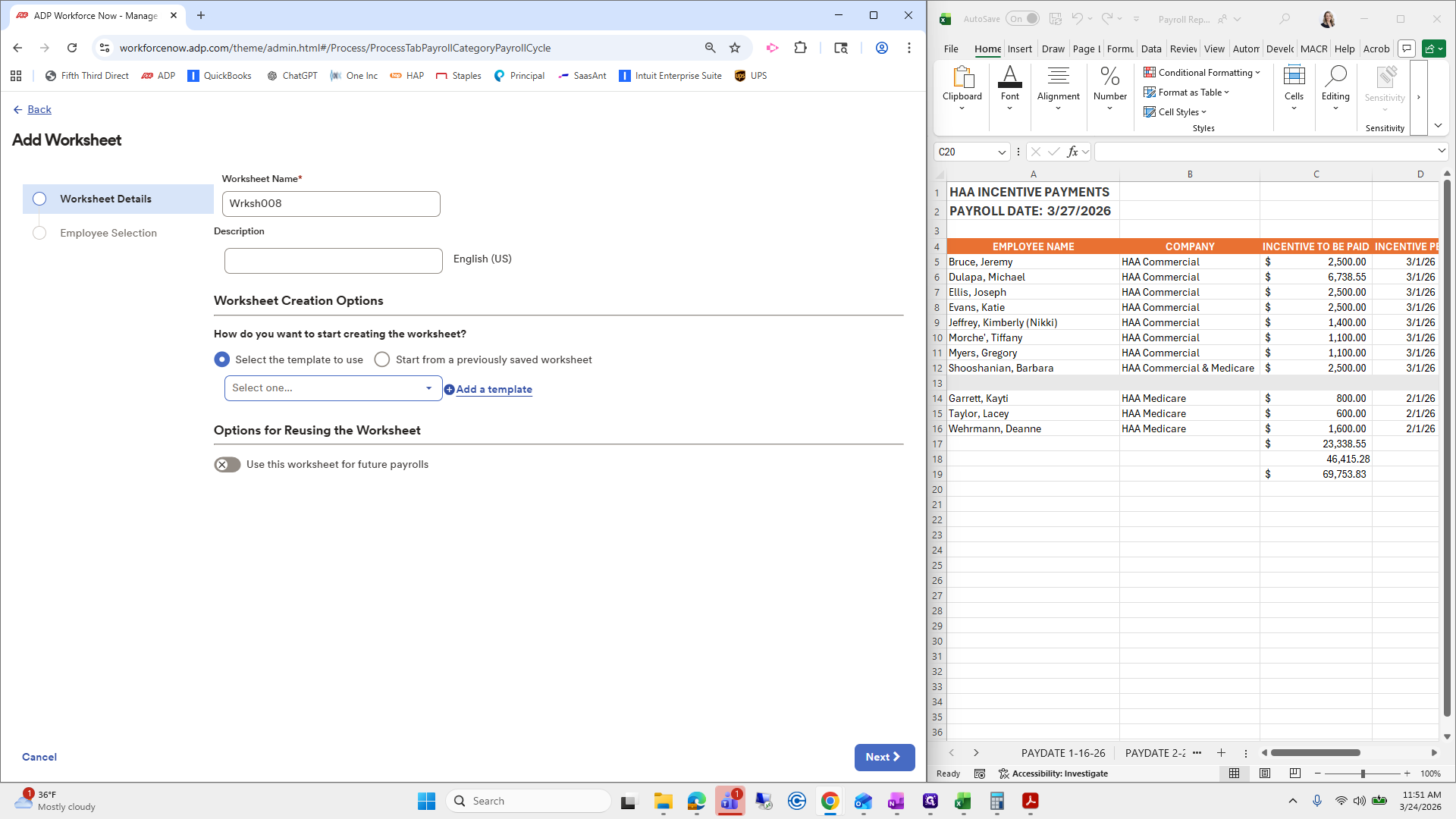
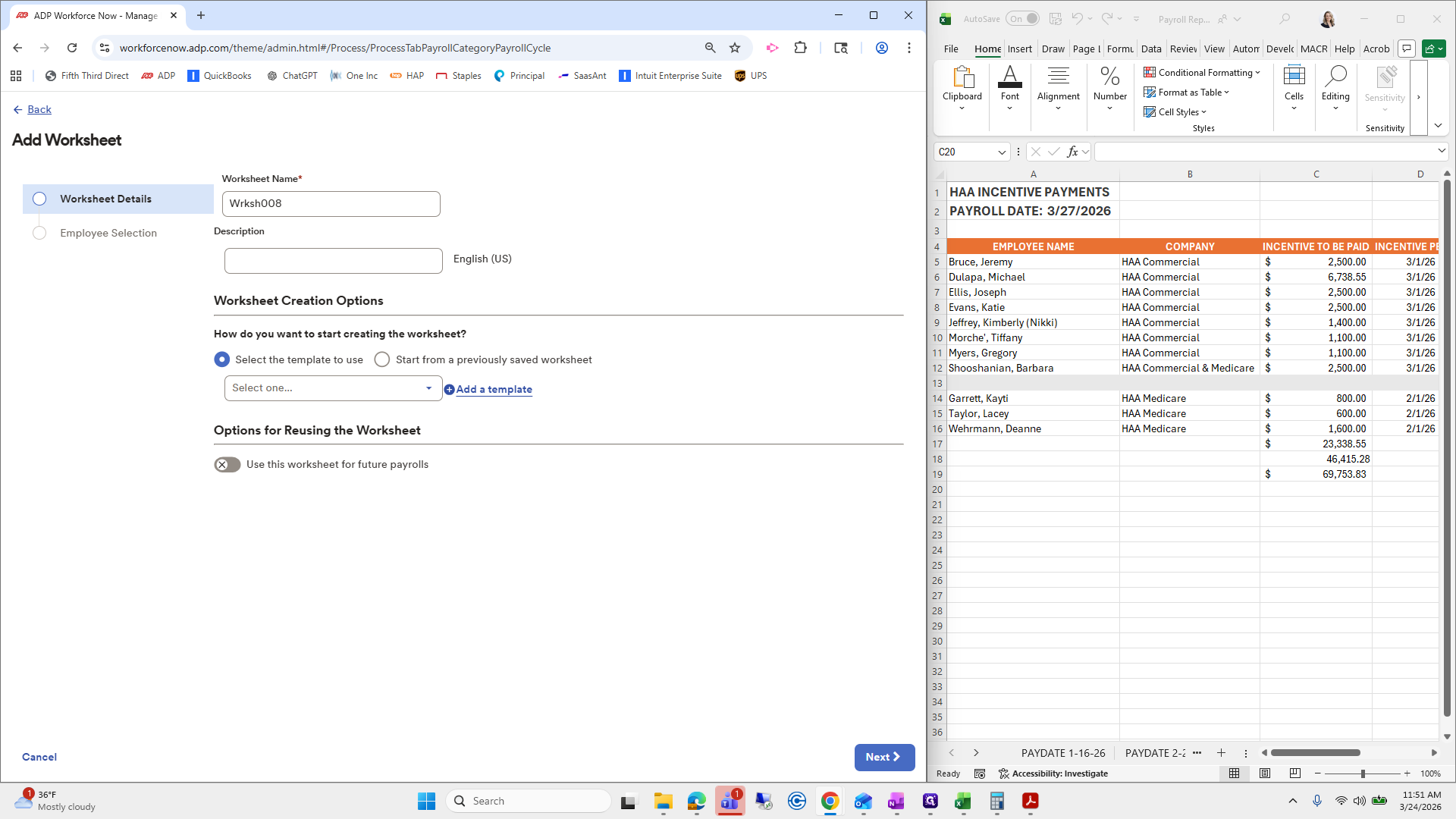
Oops. Generally, we would do an advance code so it's not taxed and then pay it back. Since they're paying it back through his incentive pay, that's how it will work for this case. We'll use pay code 3 for his third paycheck, supplemental wage, and enter 30,000. If I hear back from Amanda or Barb, I will likely make a different note in this training video. For now, we will tax it as his advance. Any future draw or monthly incentive pay he receives will be deducted from this amount. Barb will keep track of it. We will press "Done" on that.
We will check if there is anything else. There is not. Health Alliance is finished. Take action repeatedly. Risicon was good.
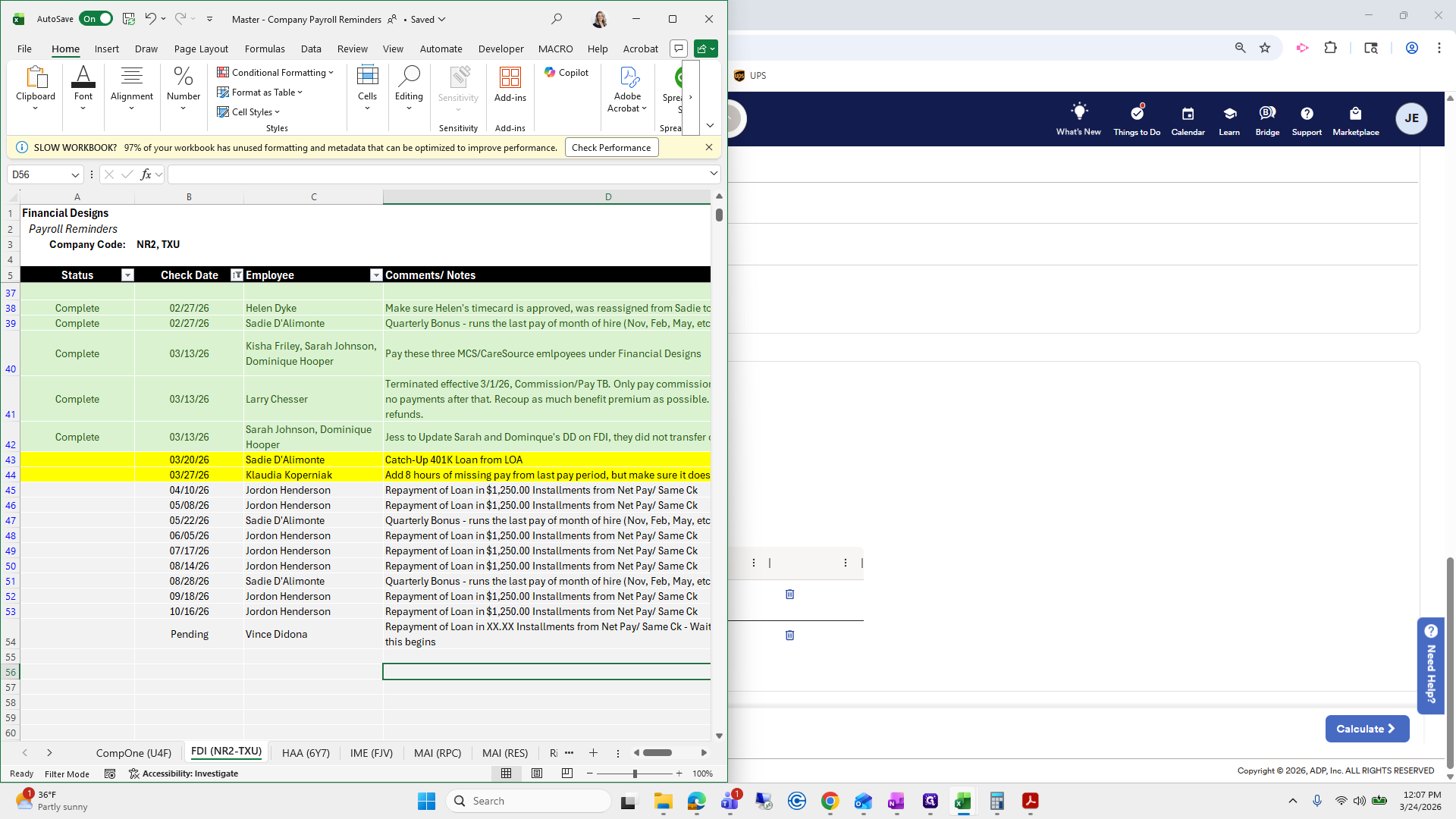
Financial Designs was good, as far as I know. I will double-check the folders. Generally, everything will be in the master work paper. 27. We have her missing amounts.
Then we have case managers. Already checked that one. Star Tech. There is no additional funding. Let's see.
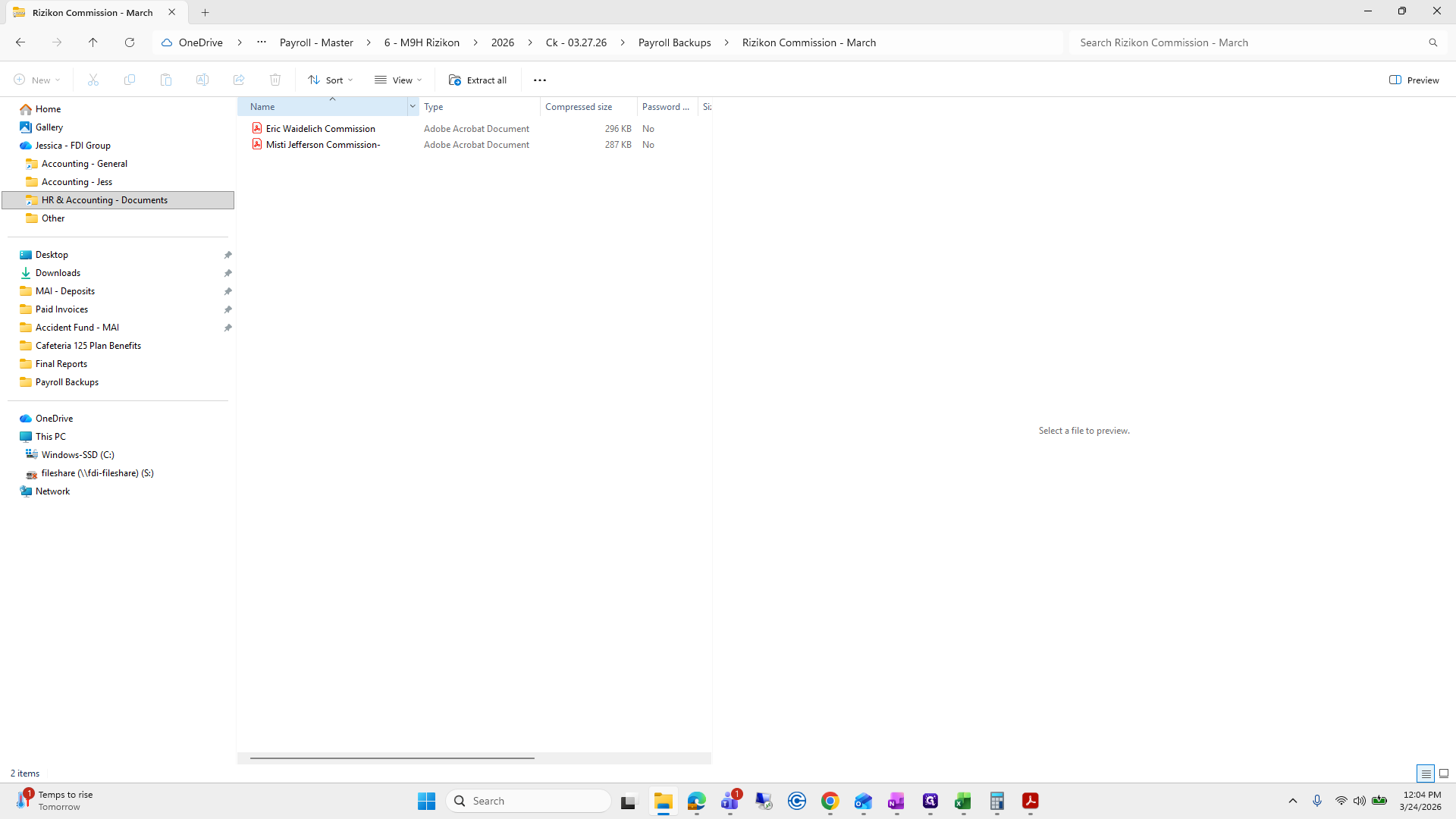
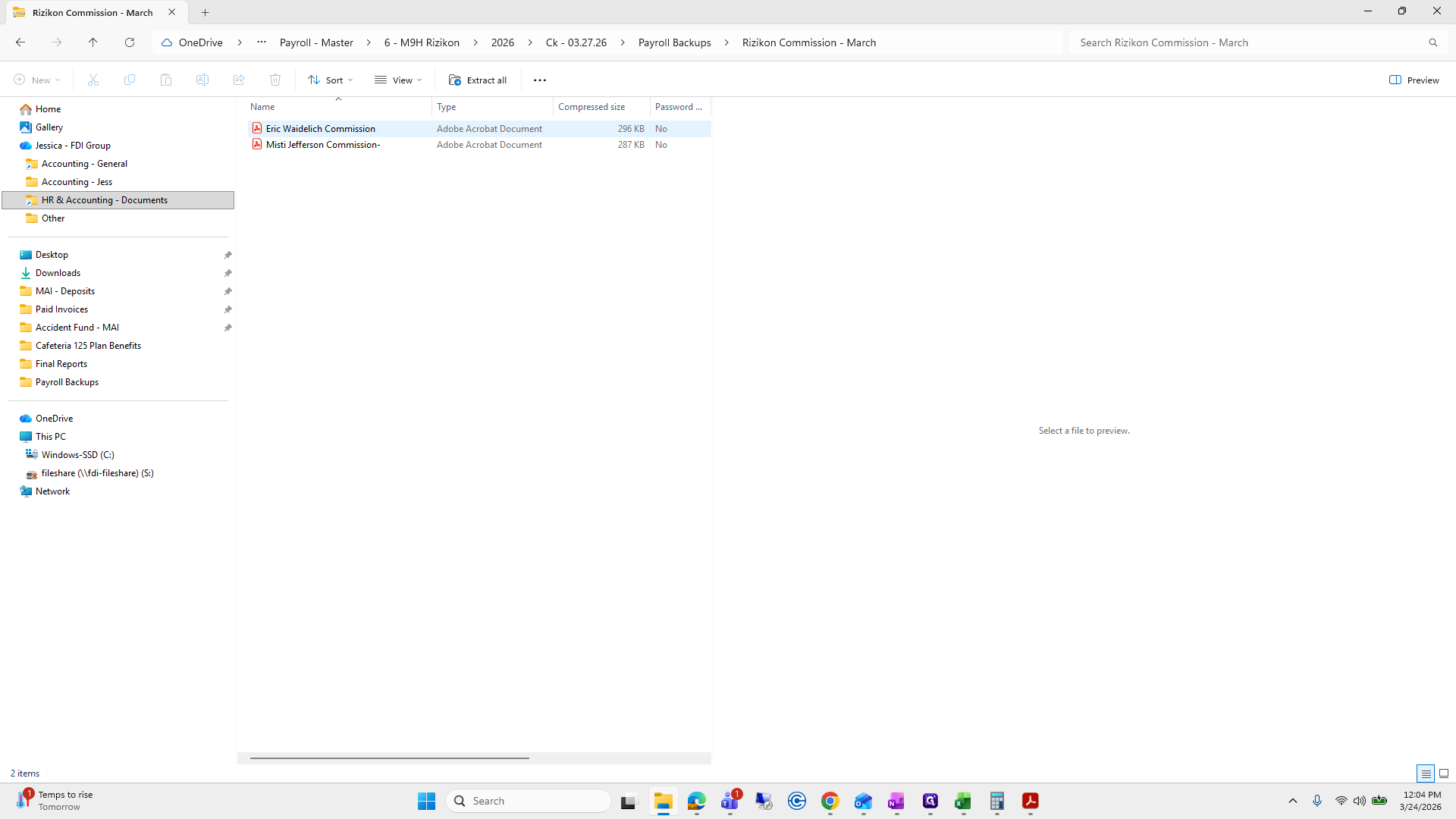
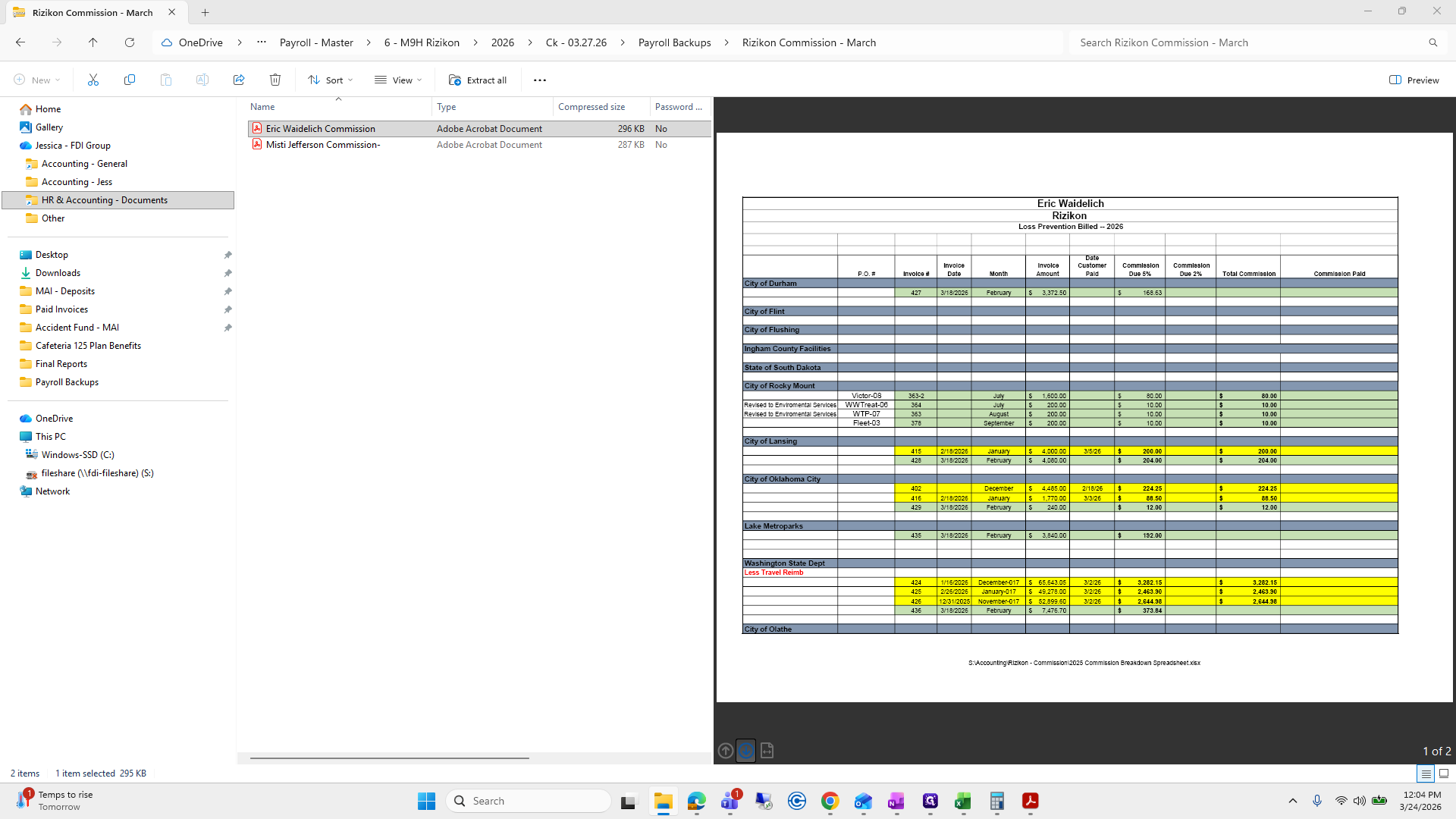
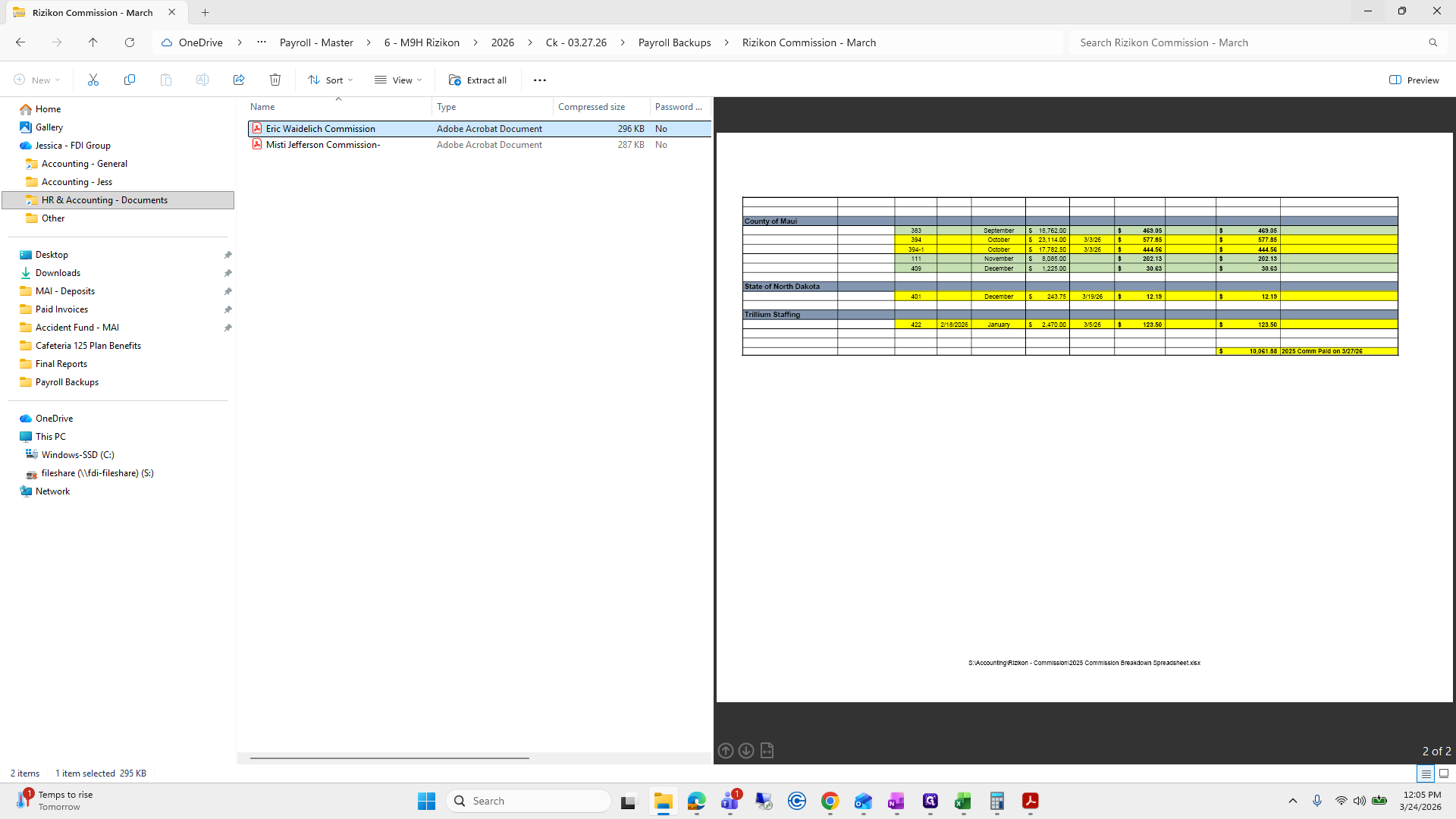
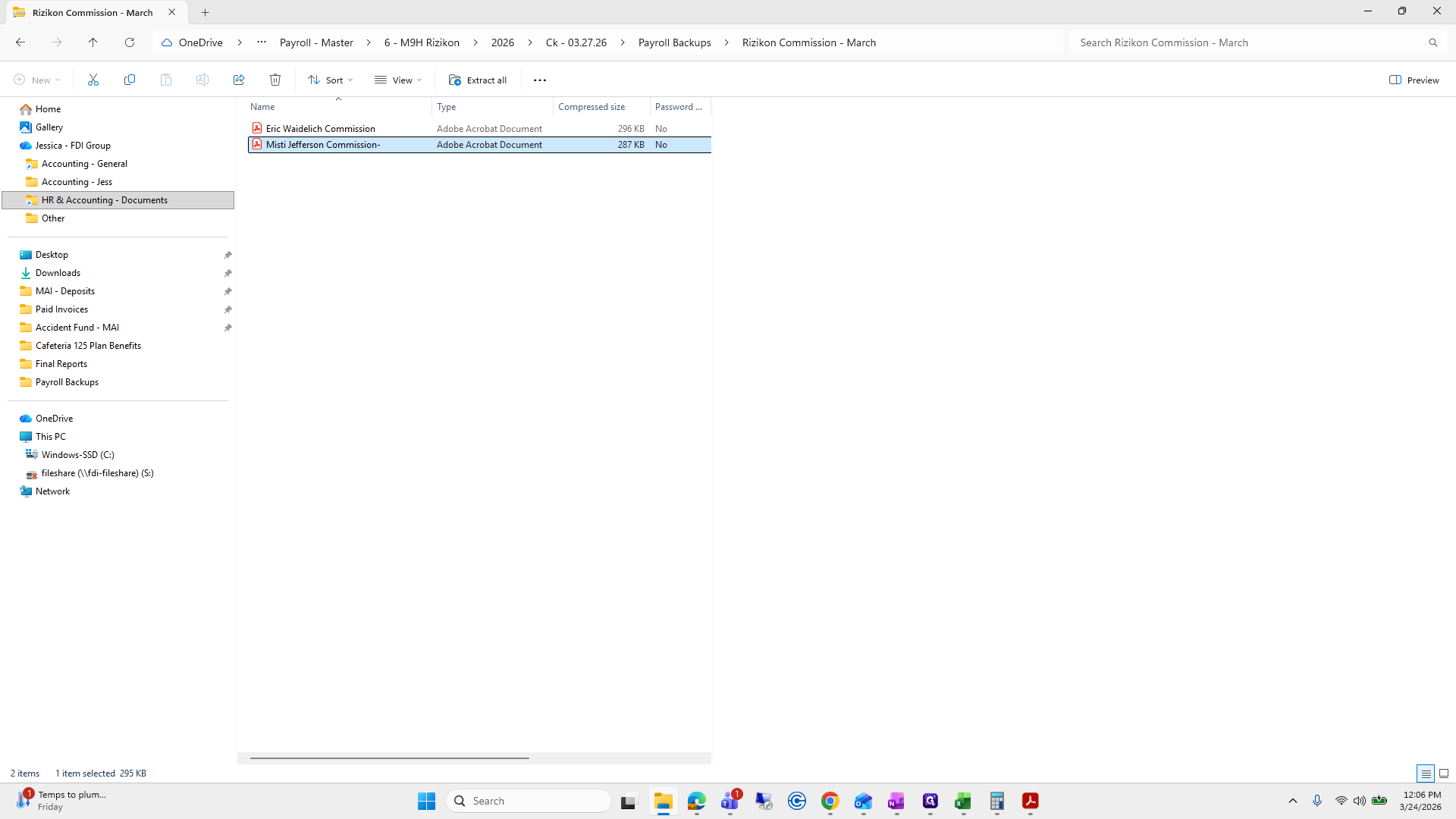
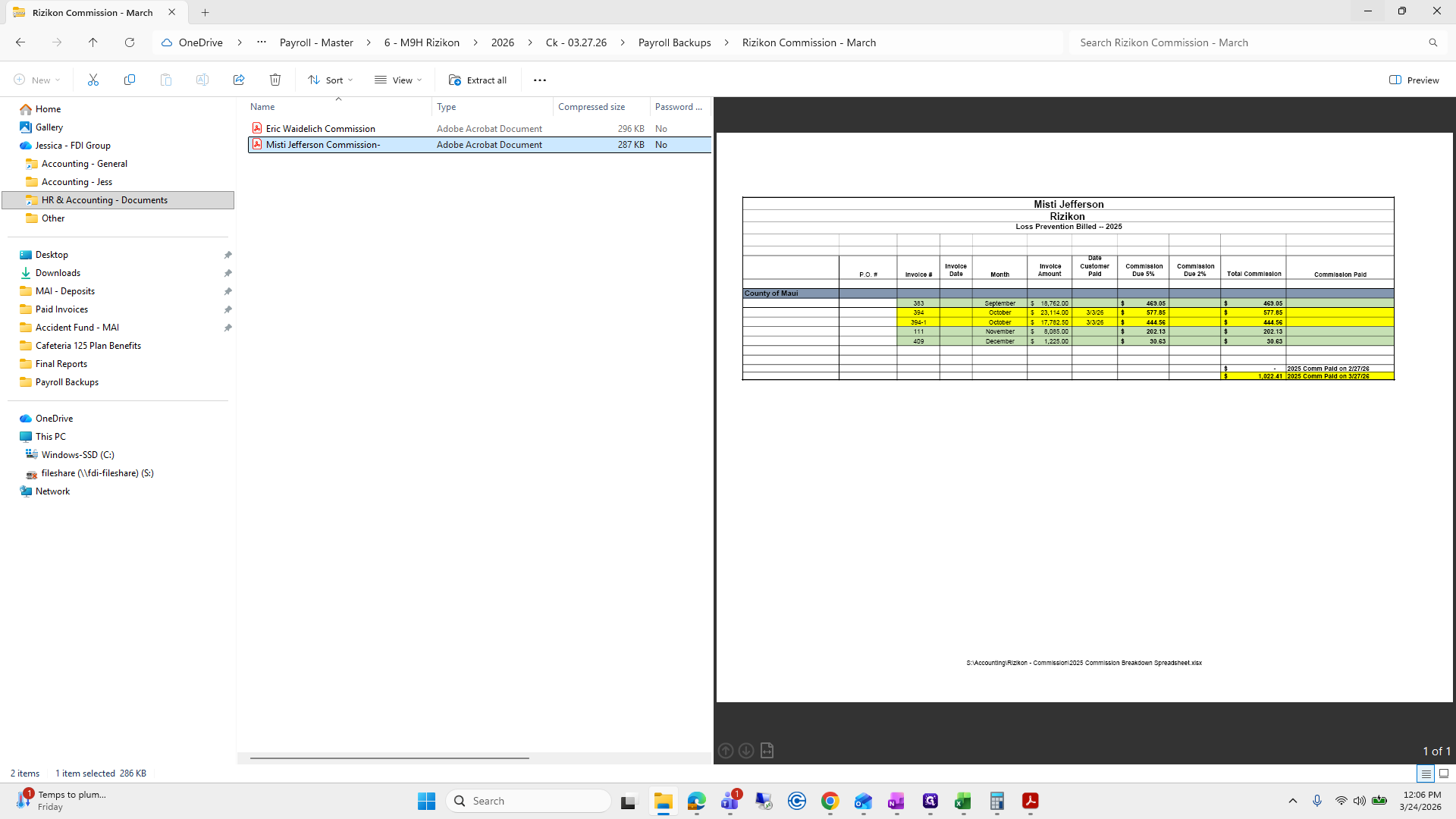
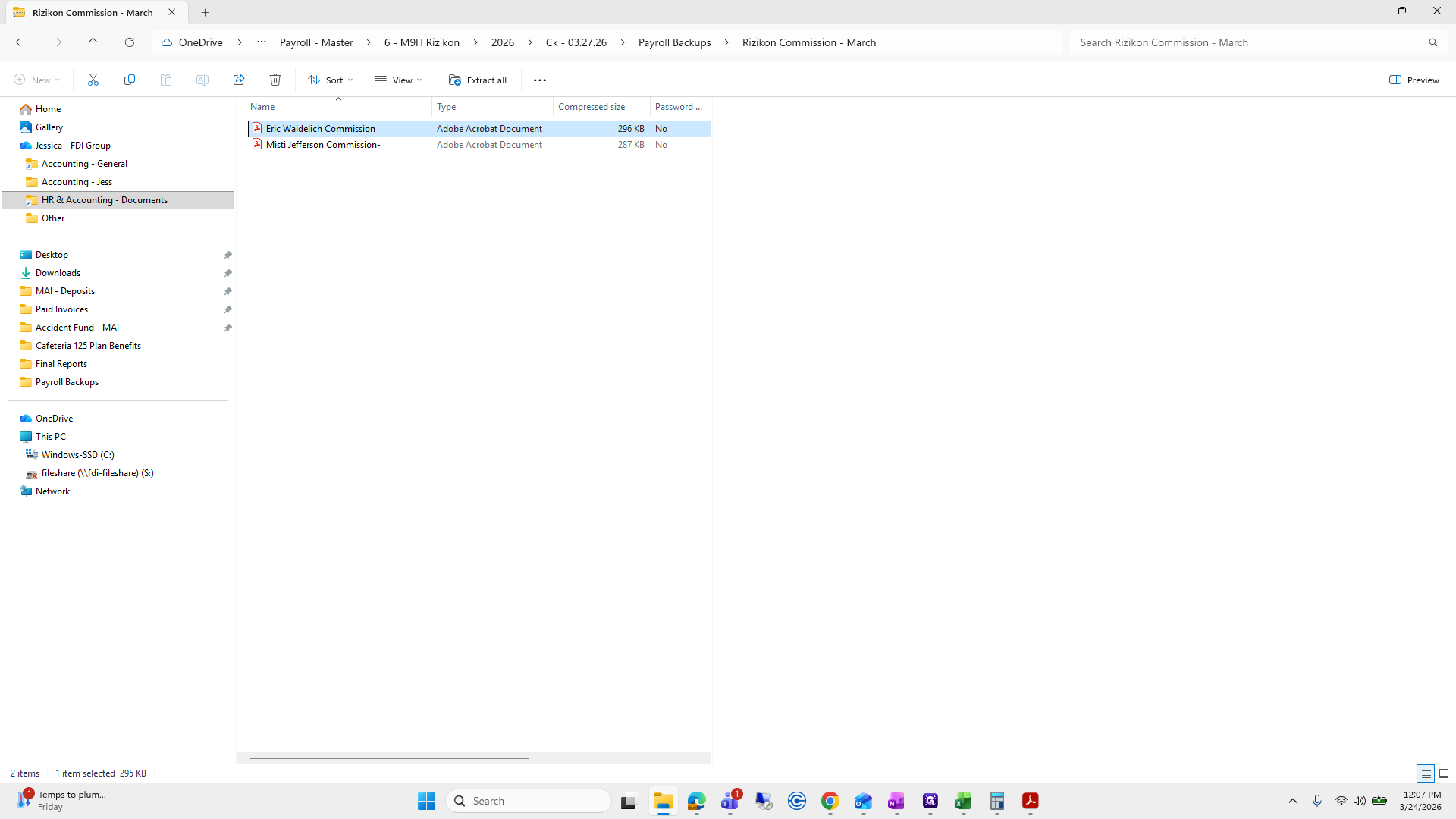
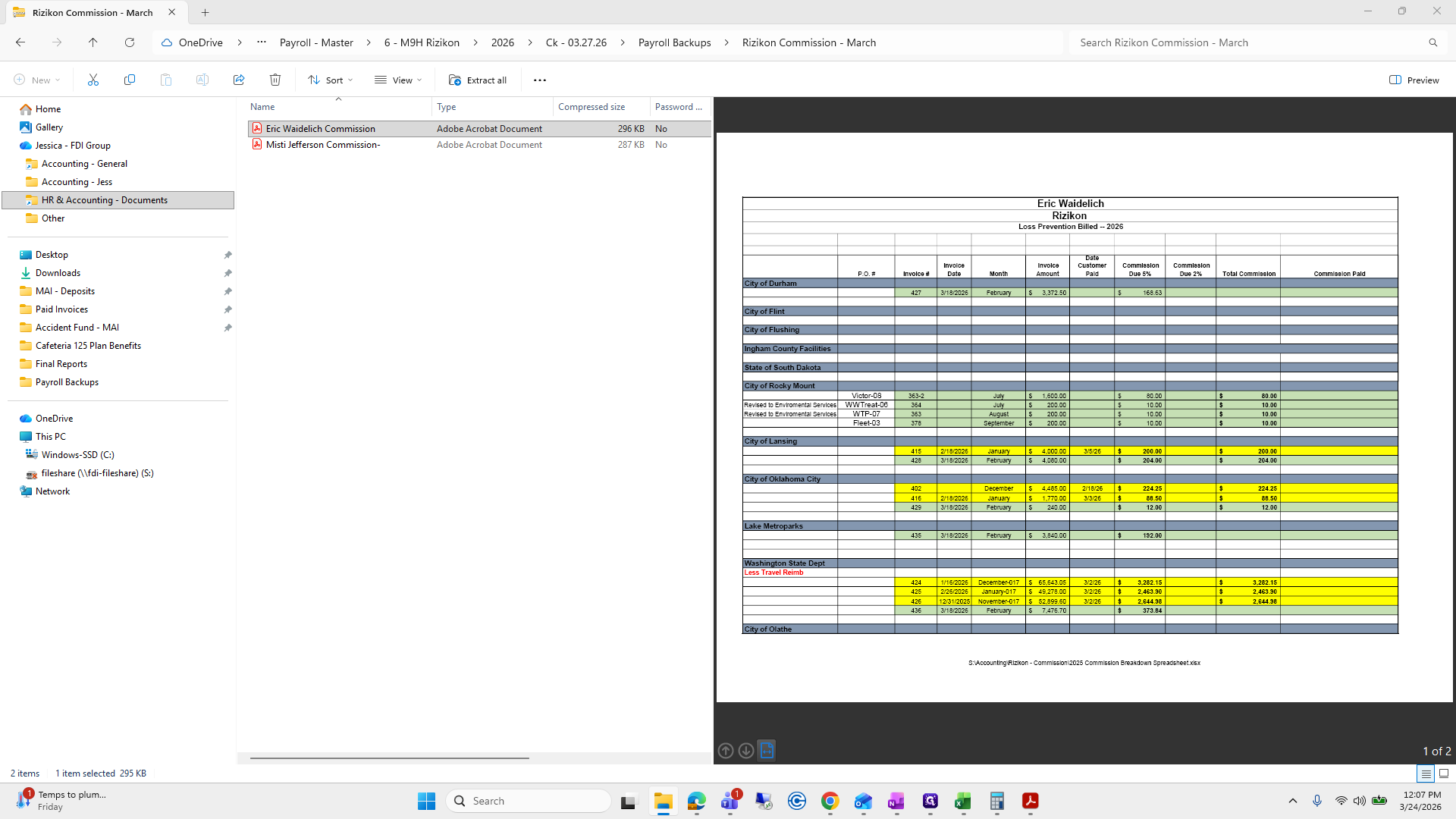
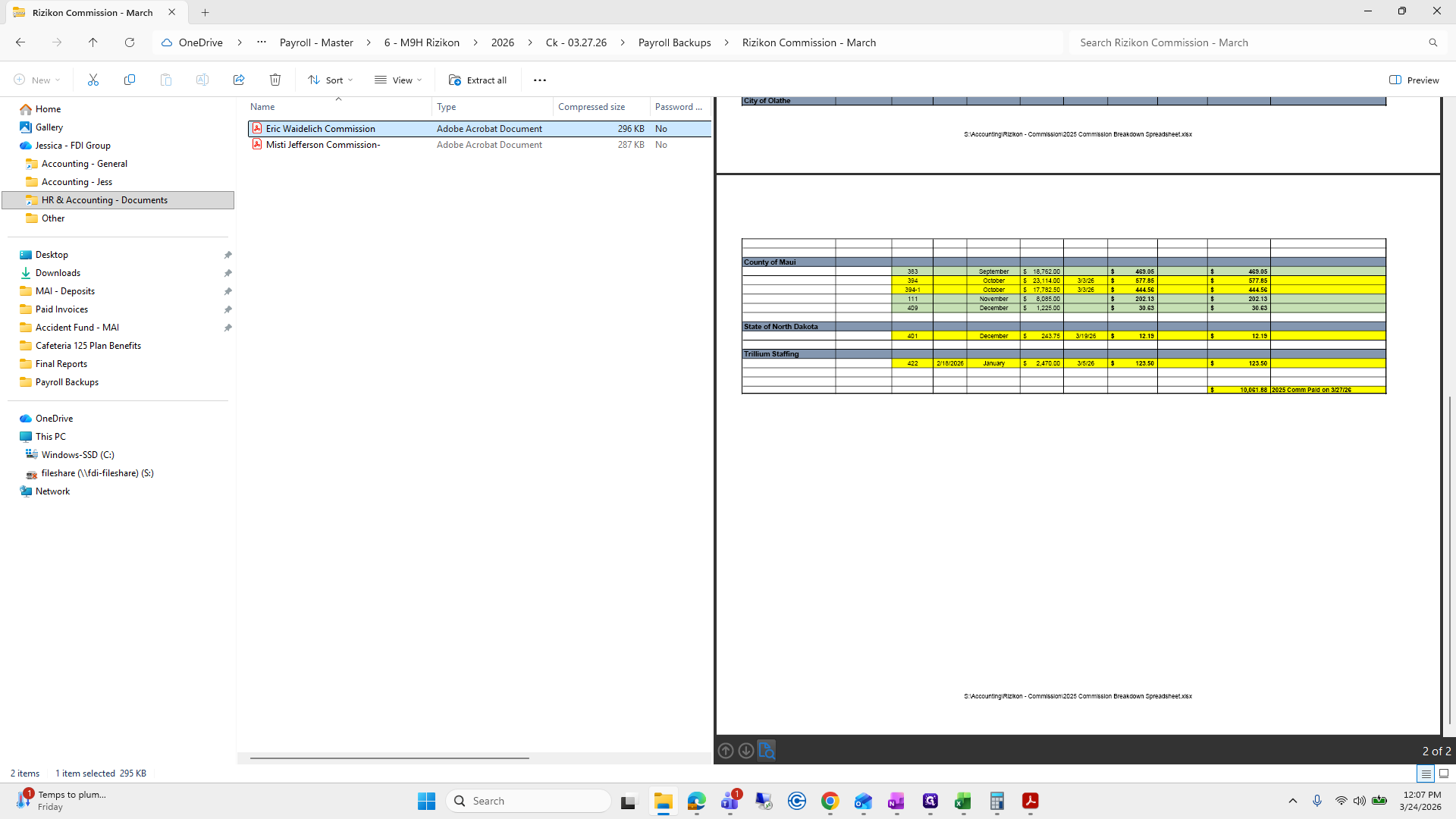
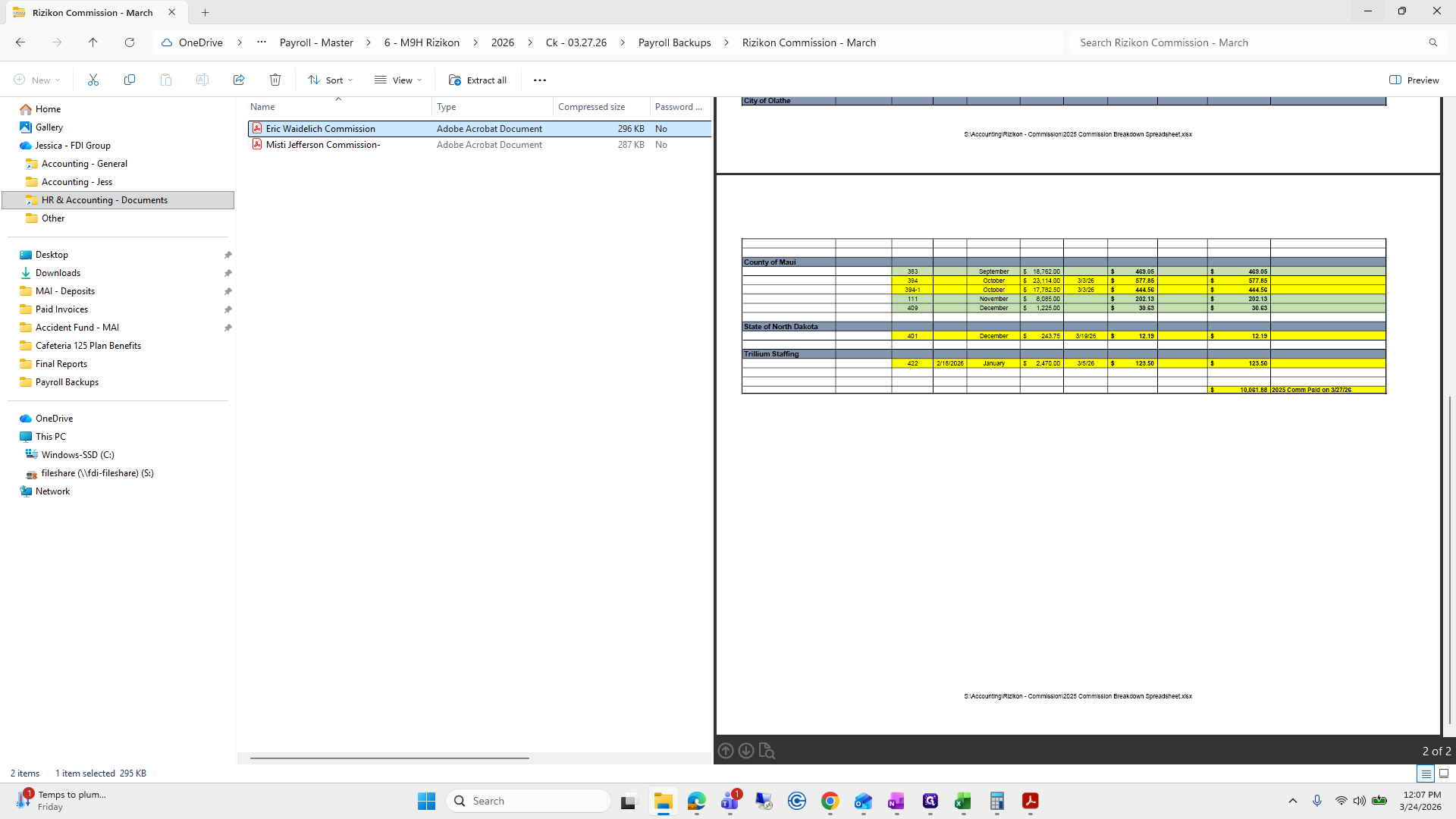
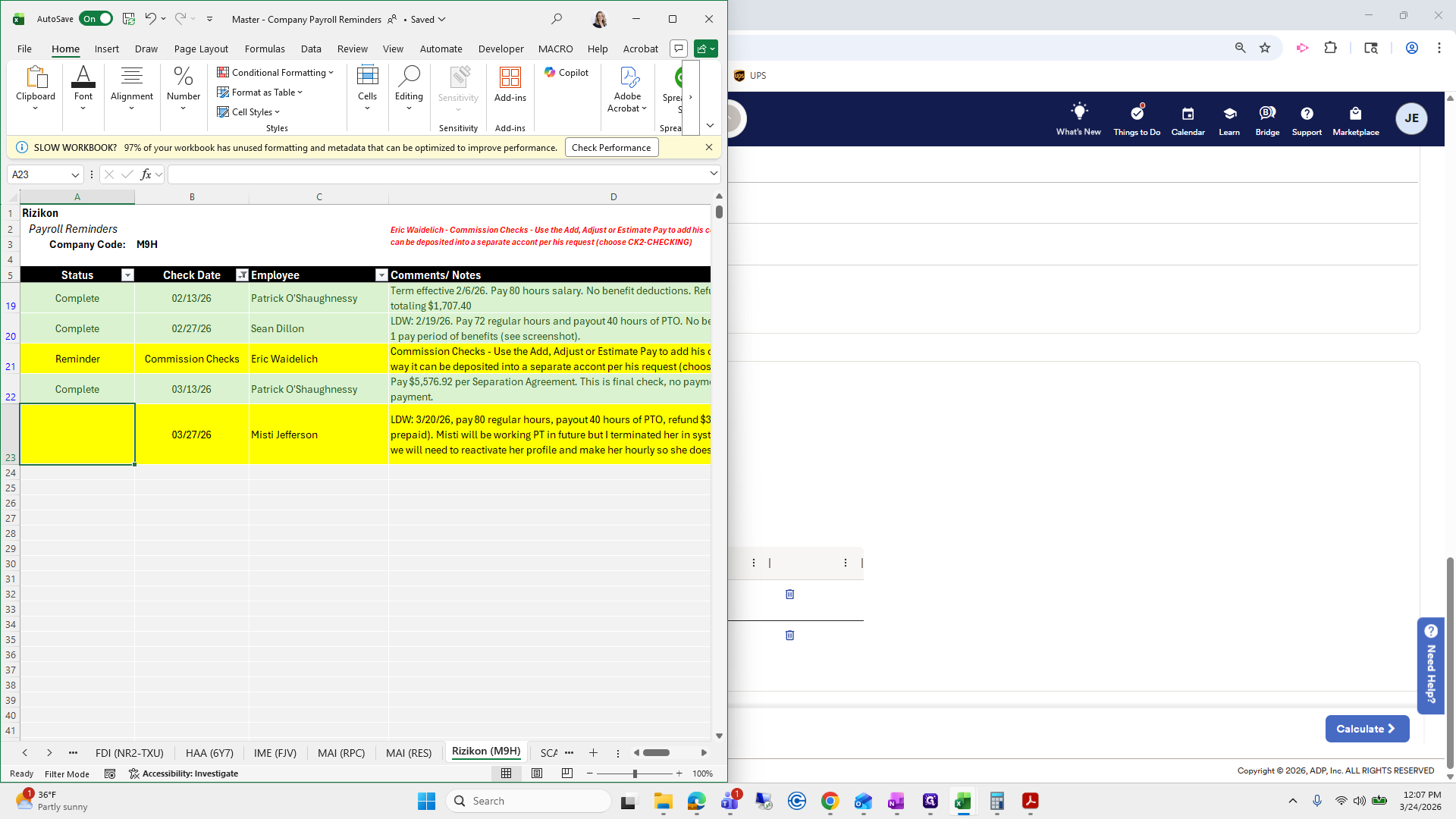
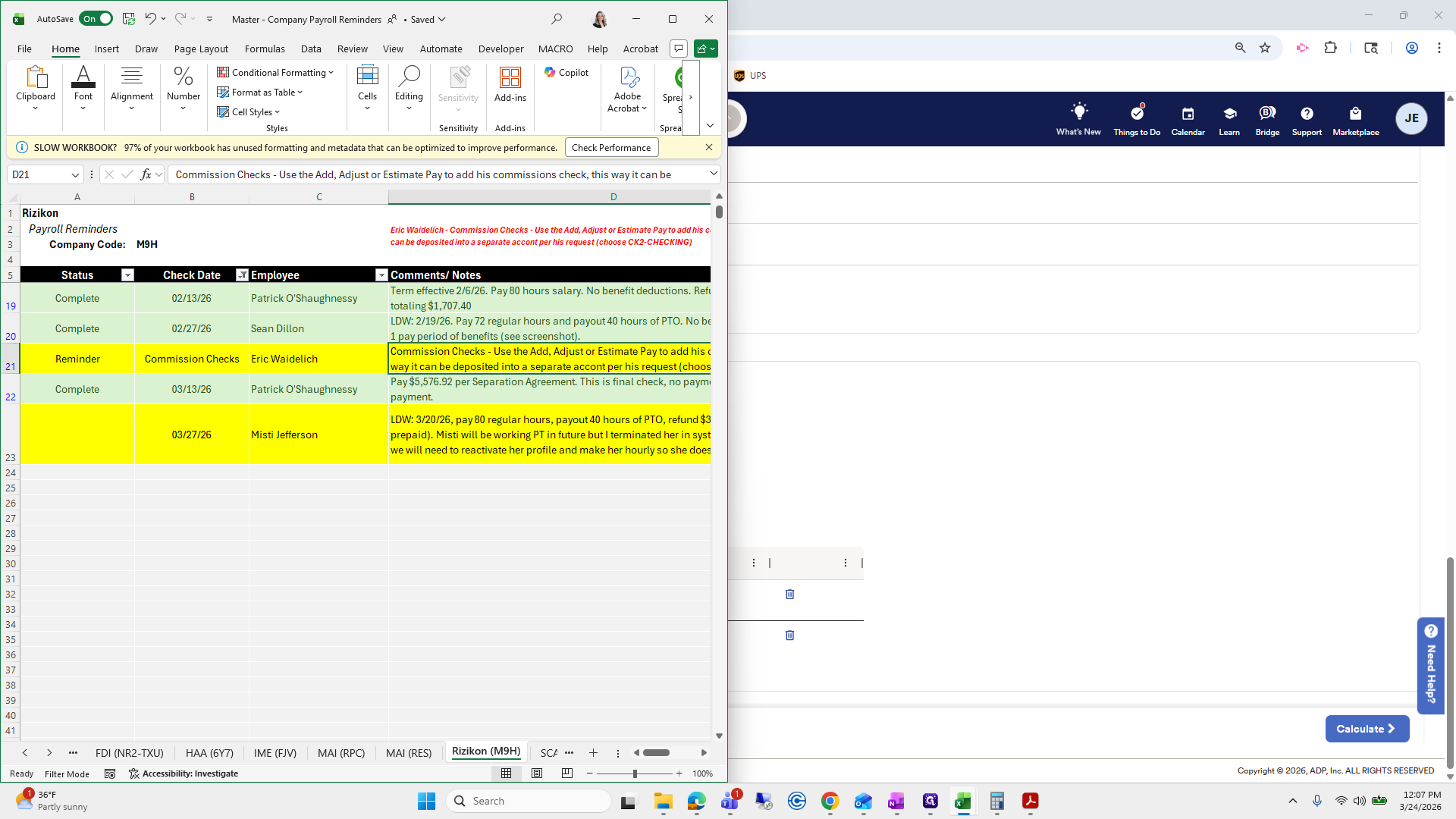
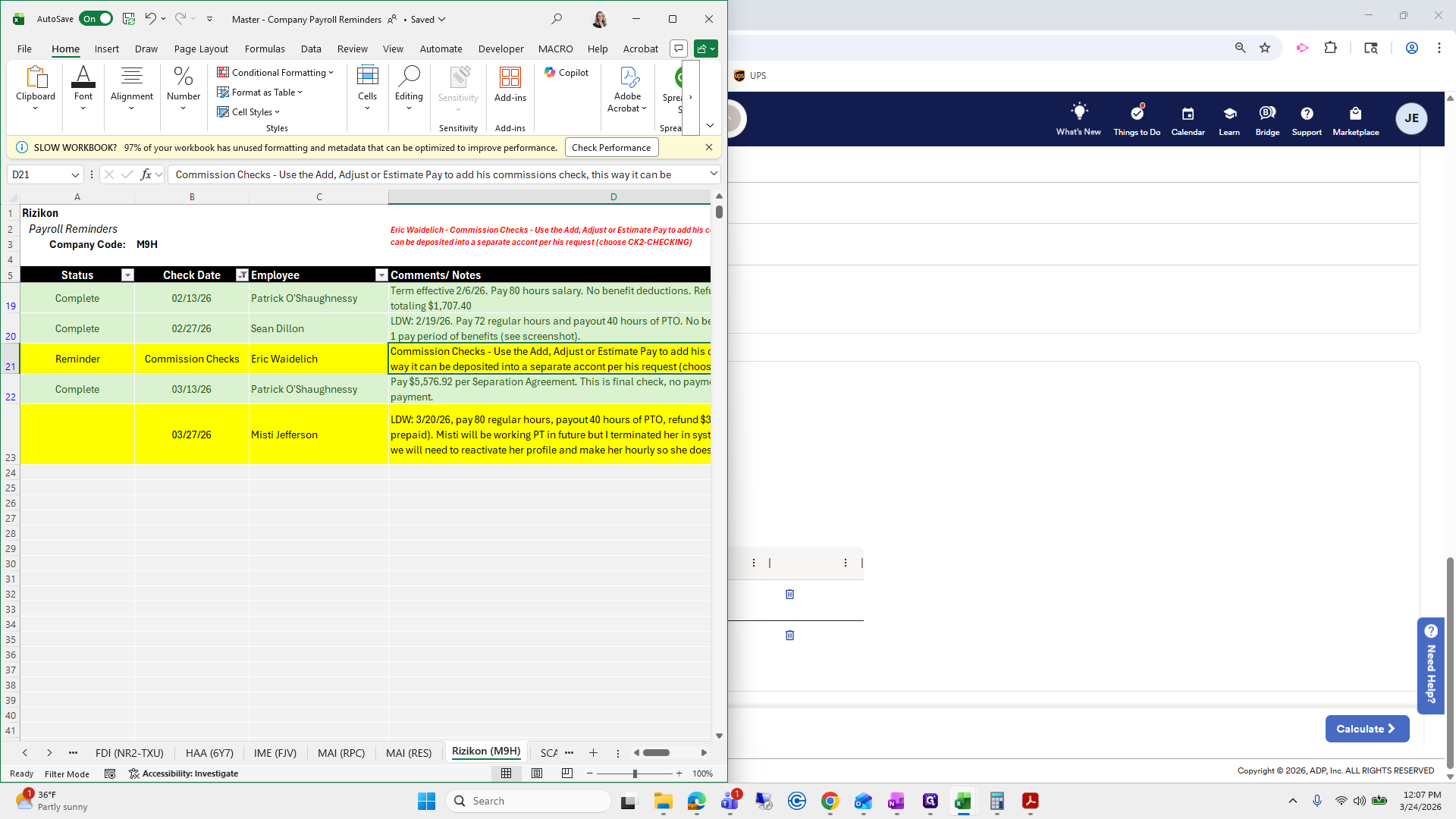
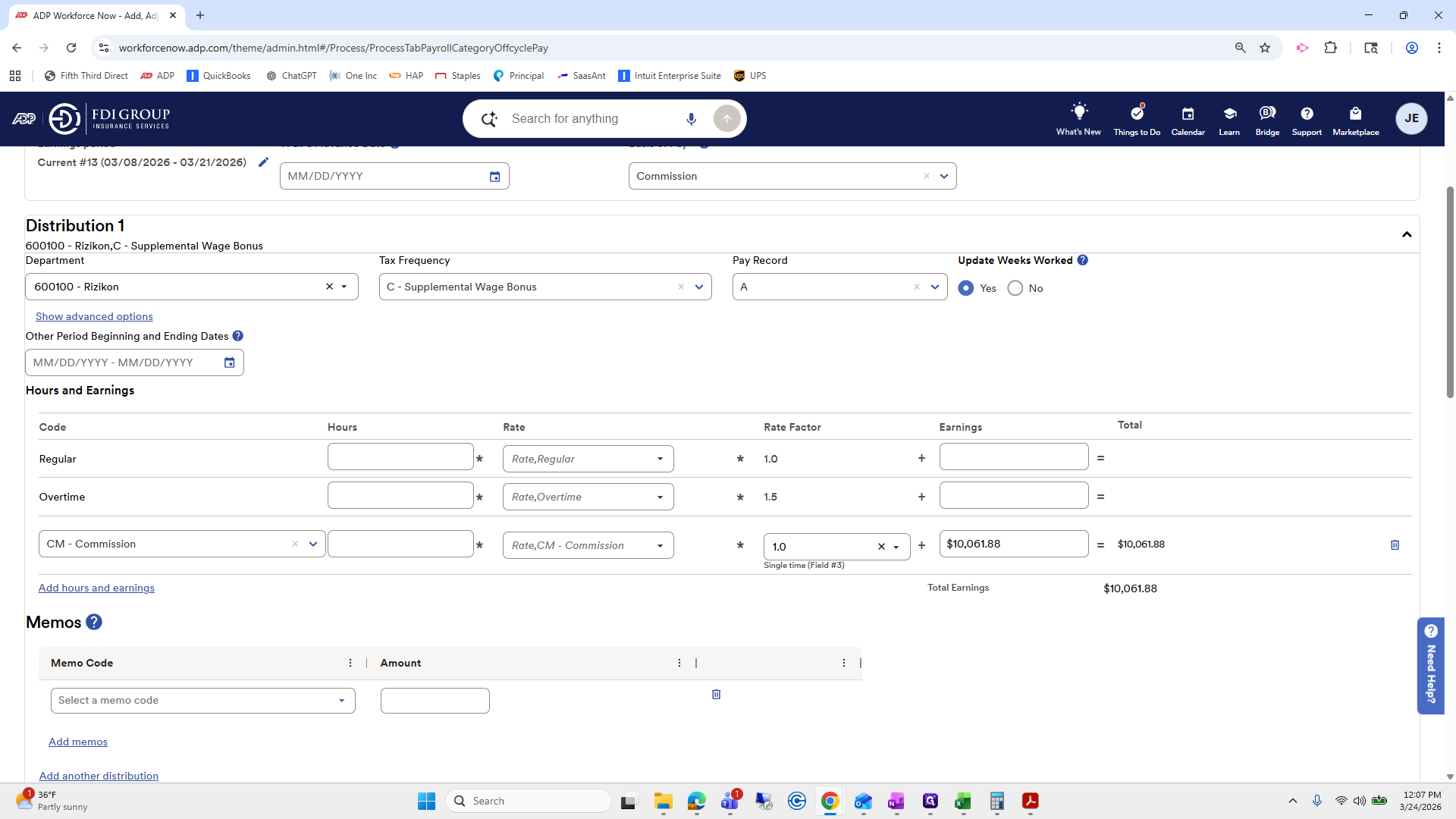
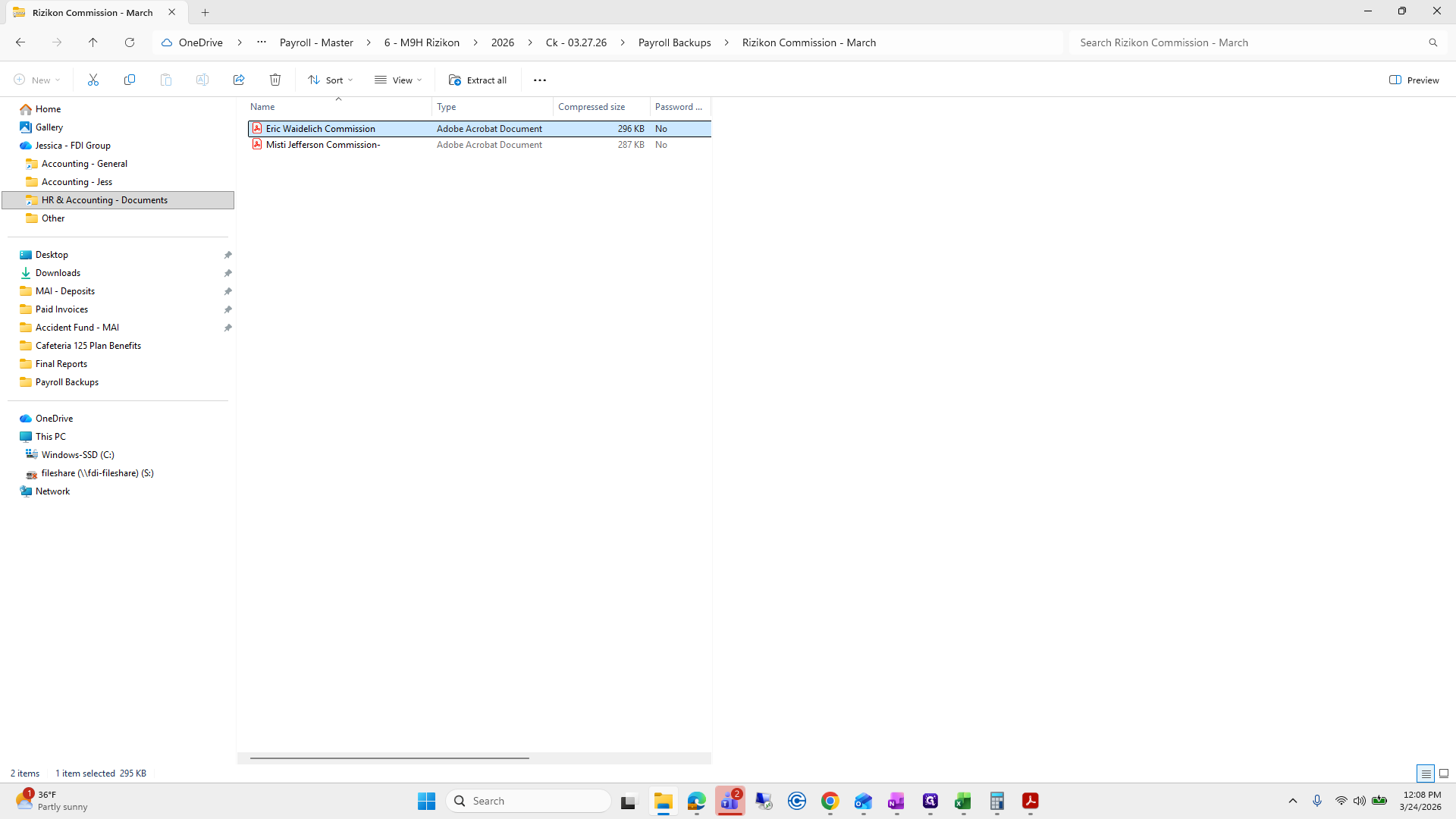
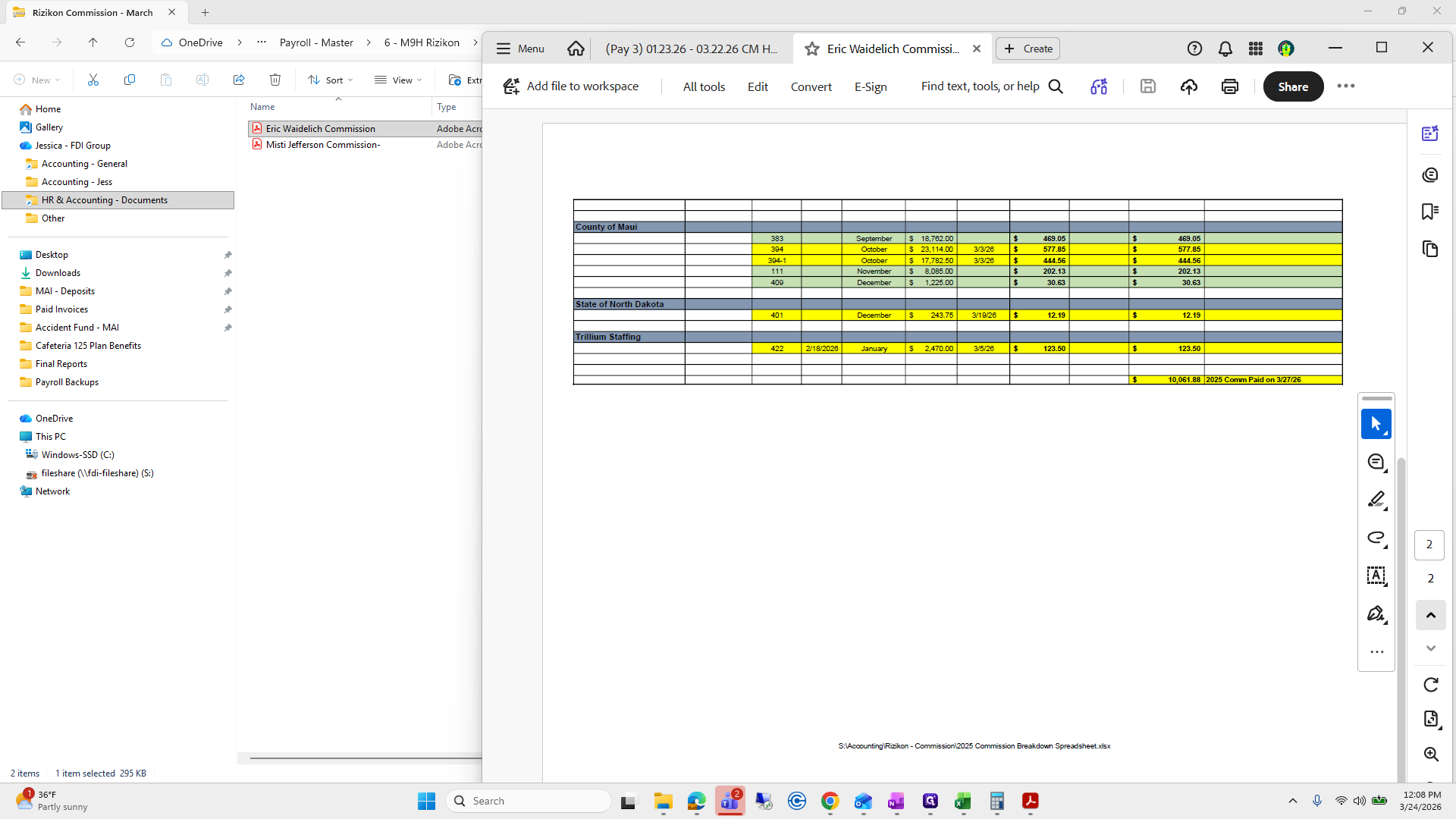
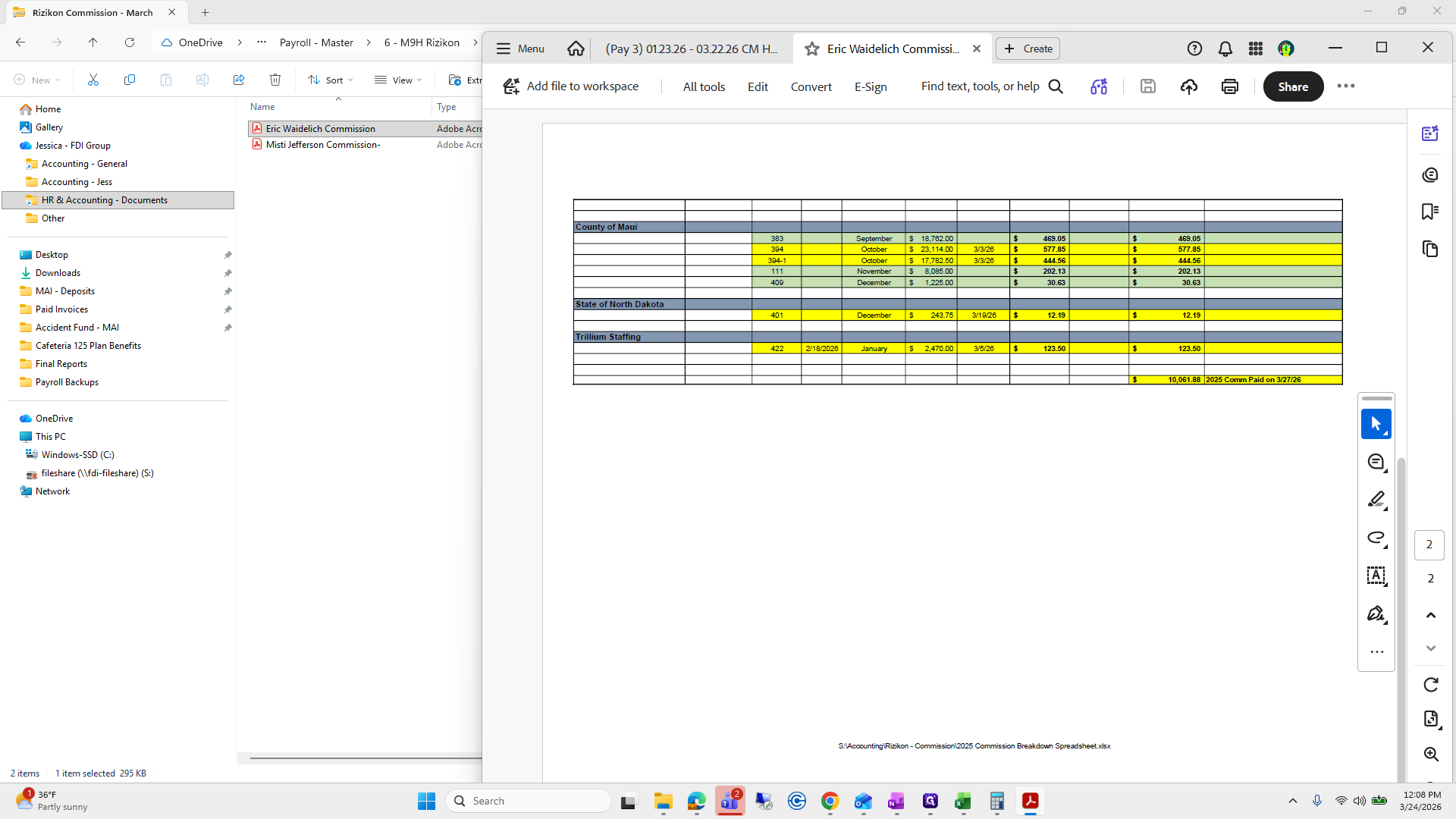
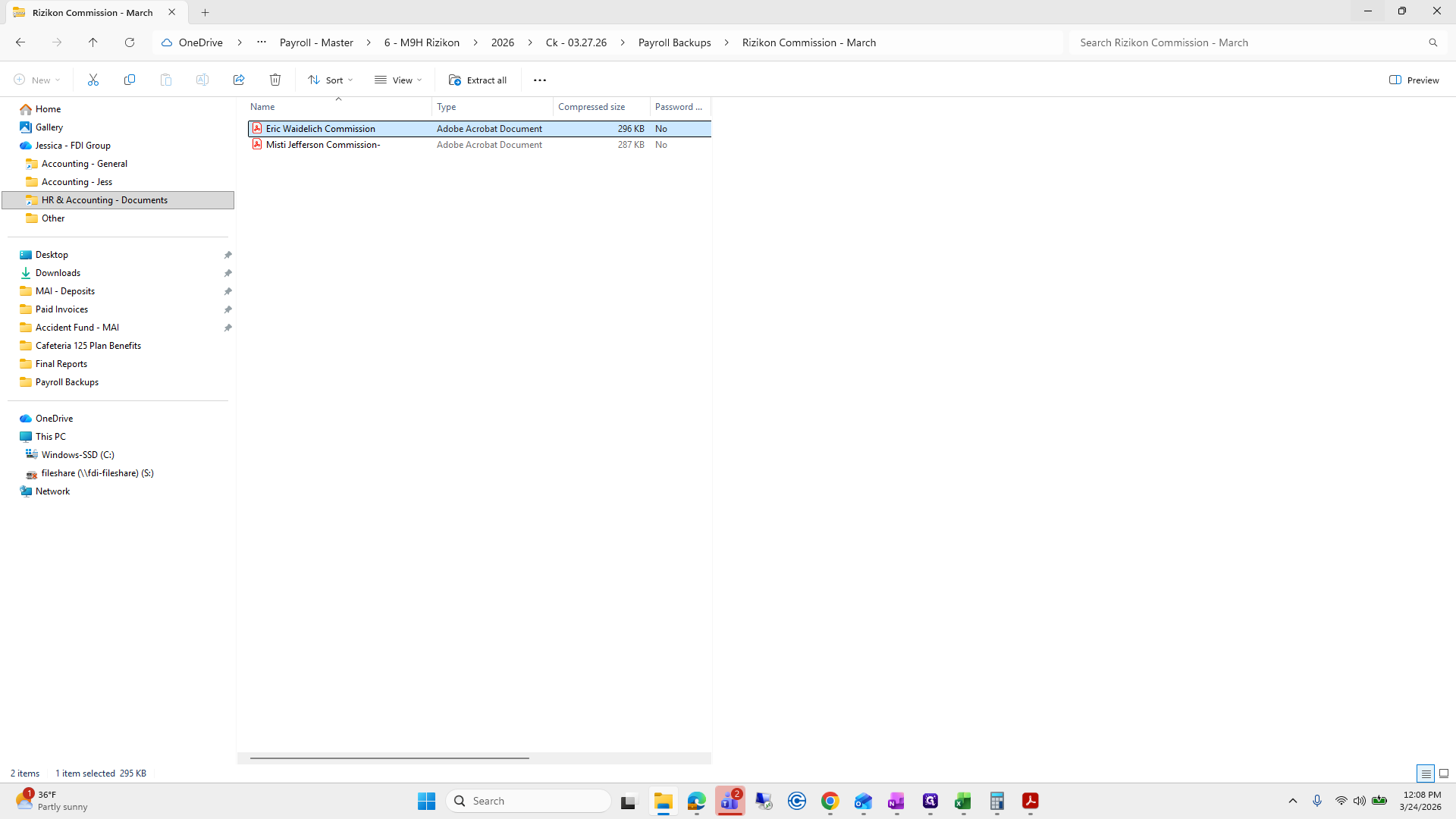
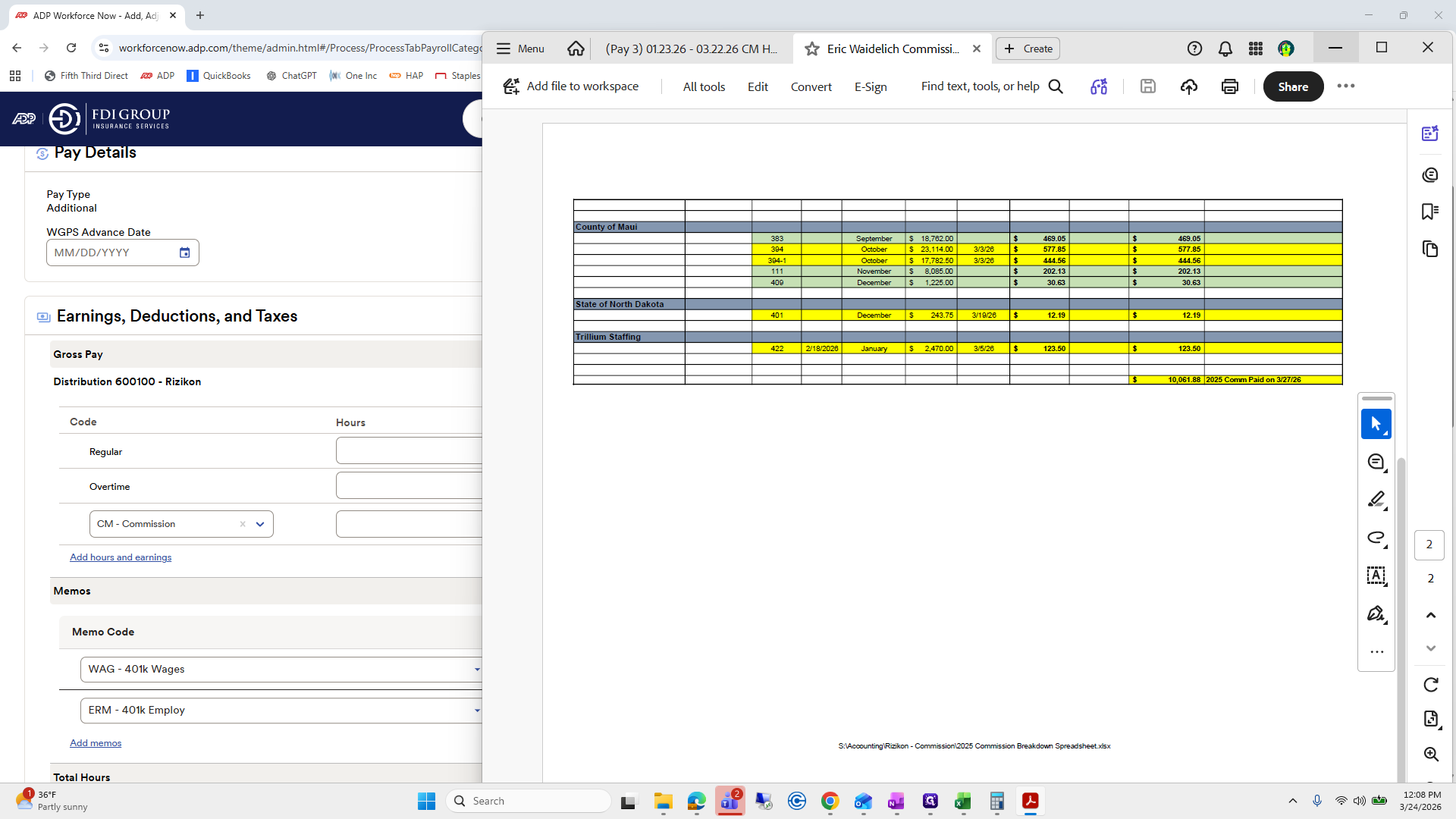
Comp 1, we are waiting on commissions. I missed commissions for Risicon, so we will do them now. Eric and Misty. Okay. Eric's commission is $10,061.88.
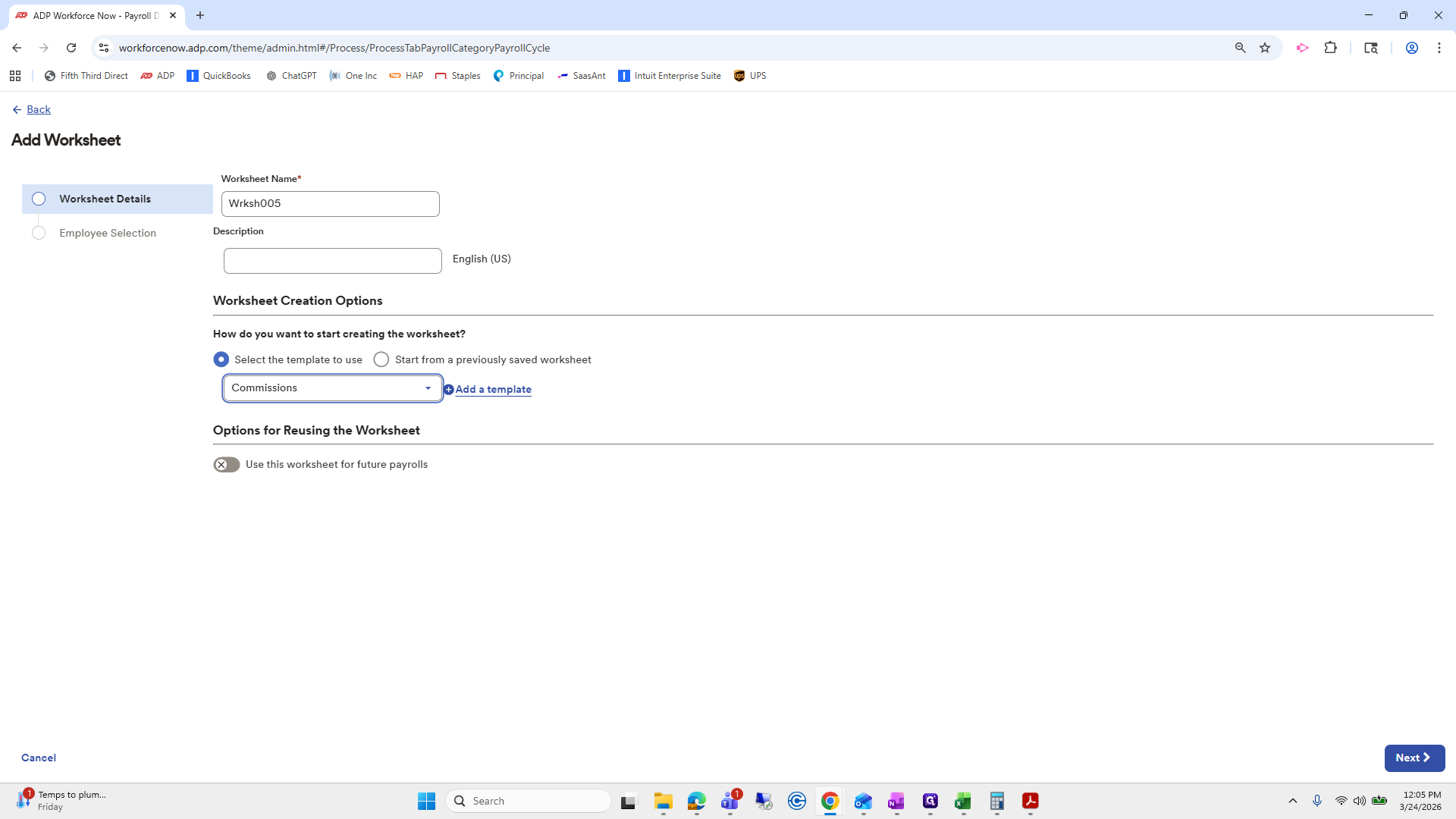
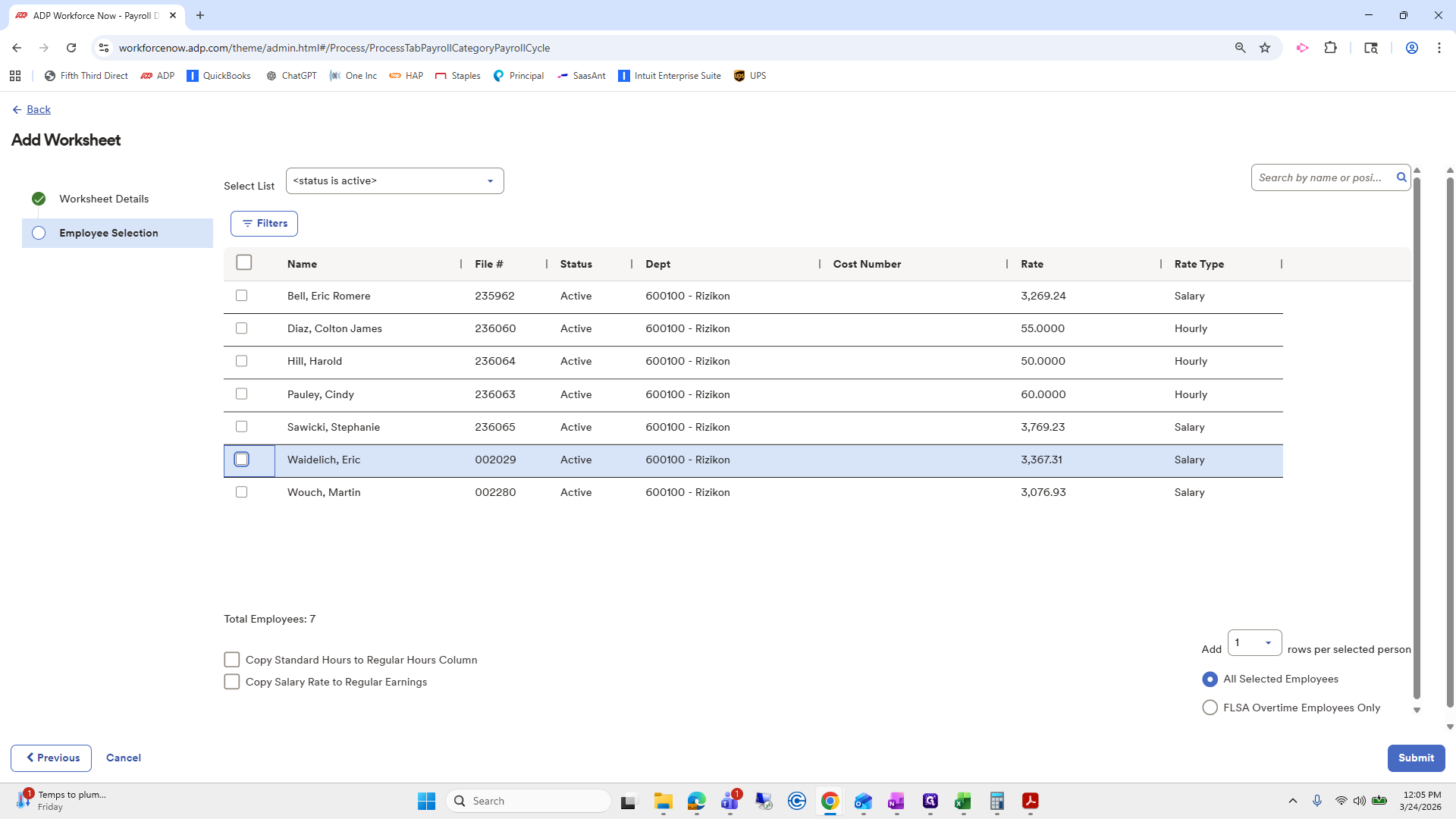
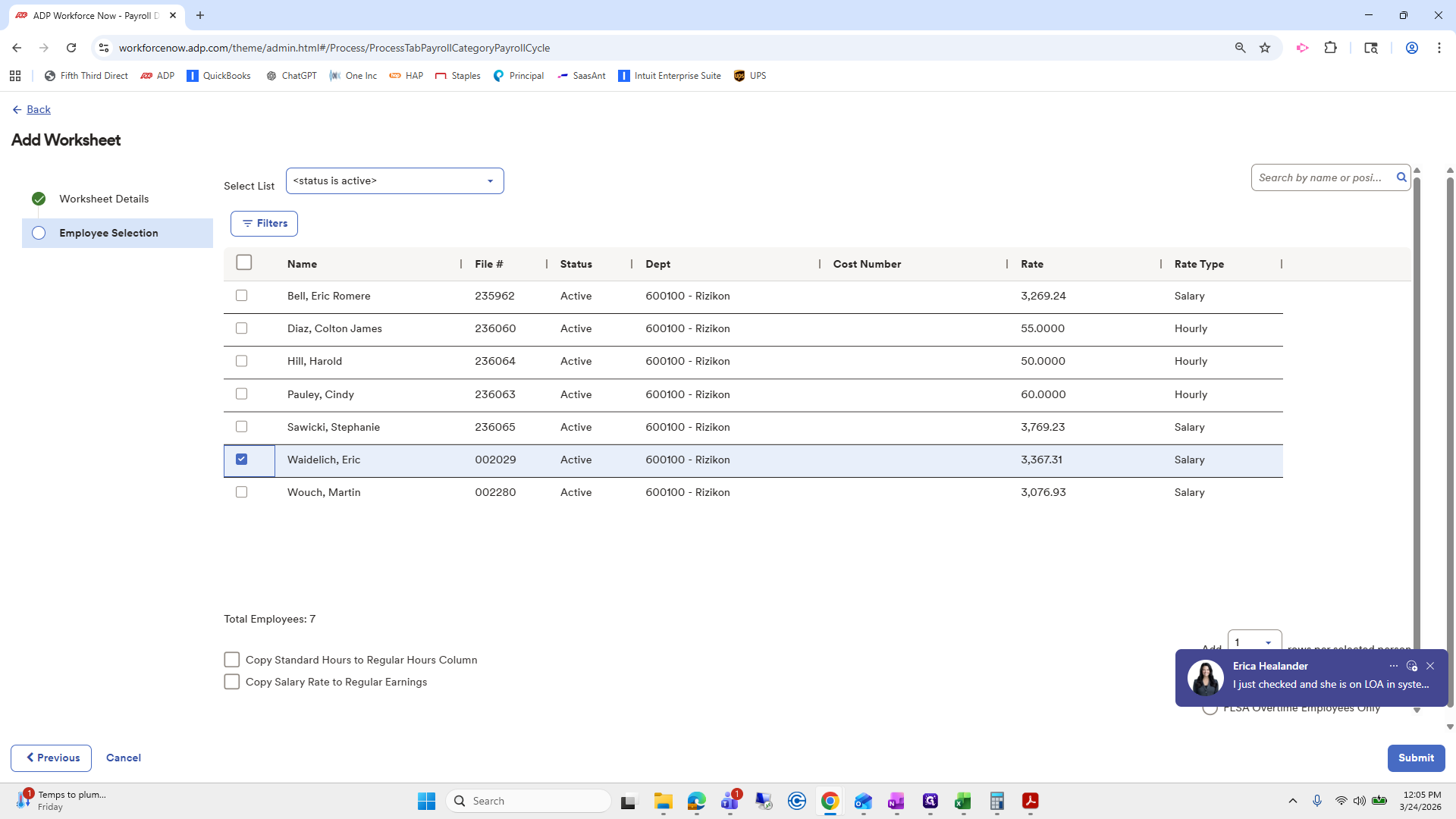
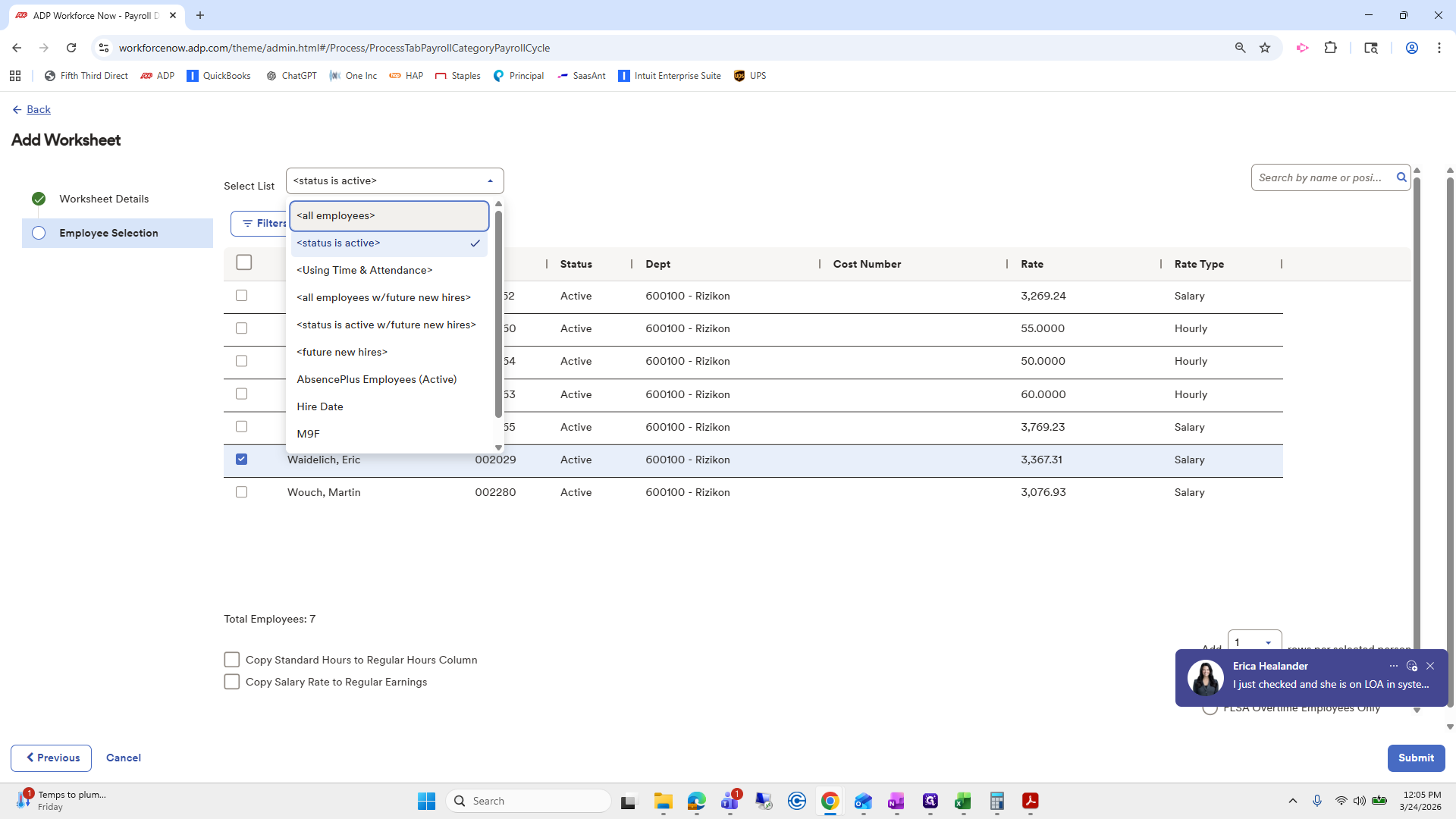
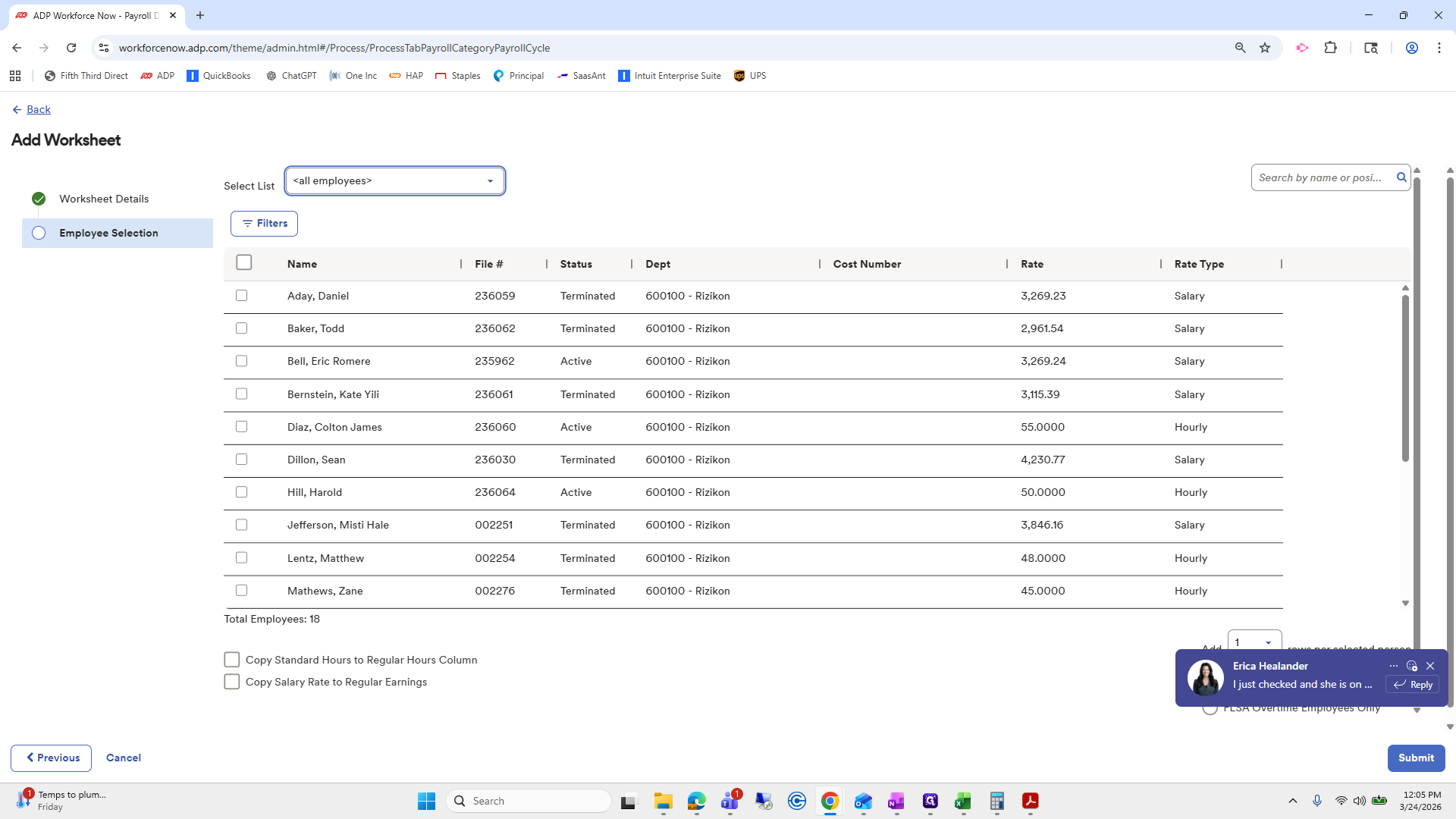
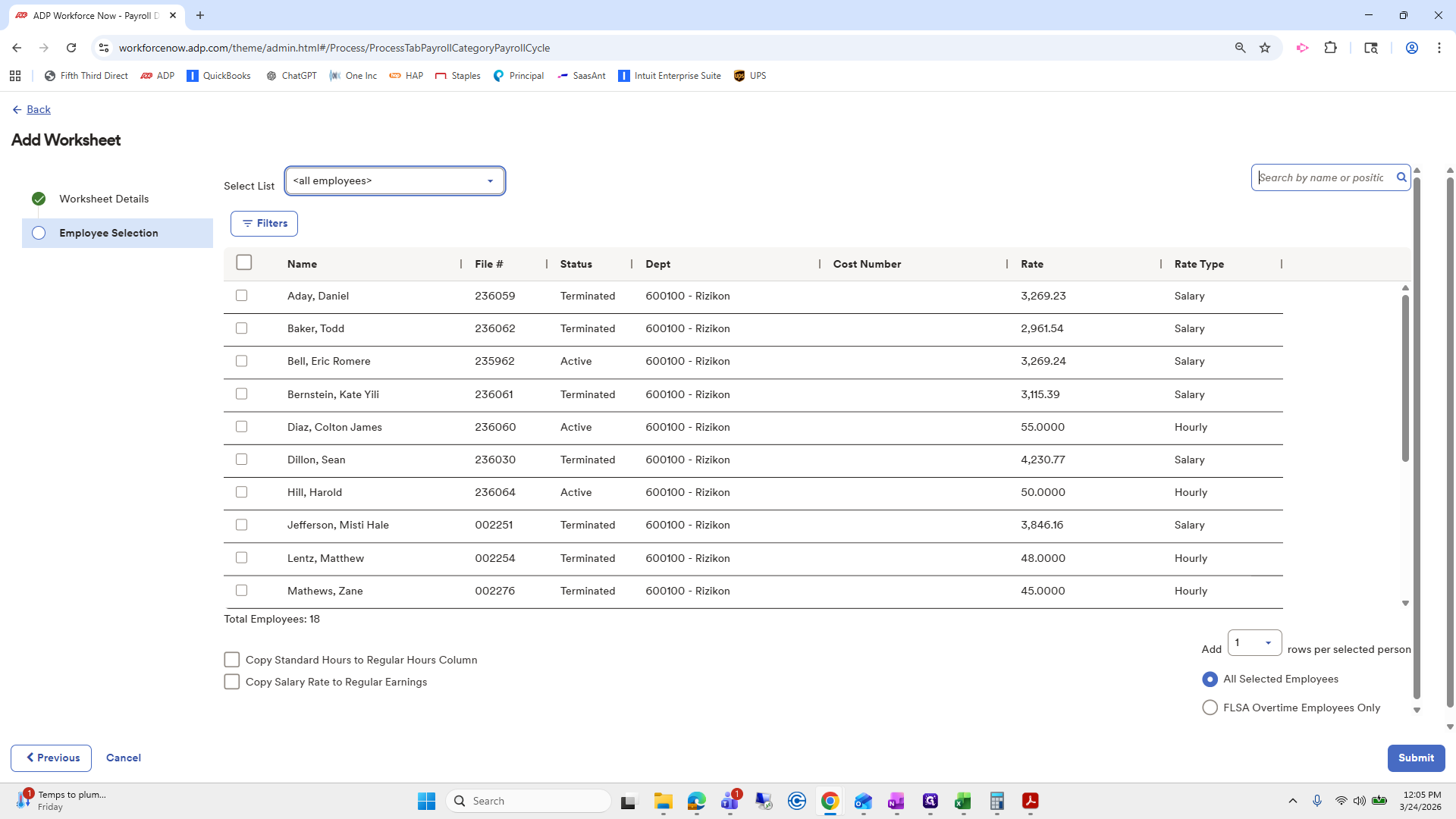
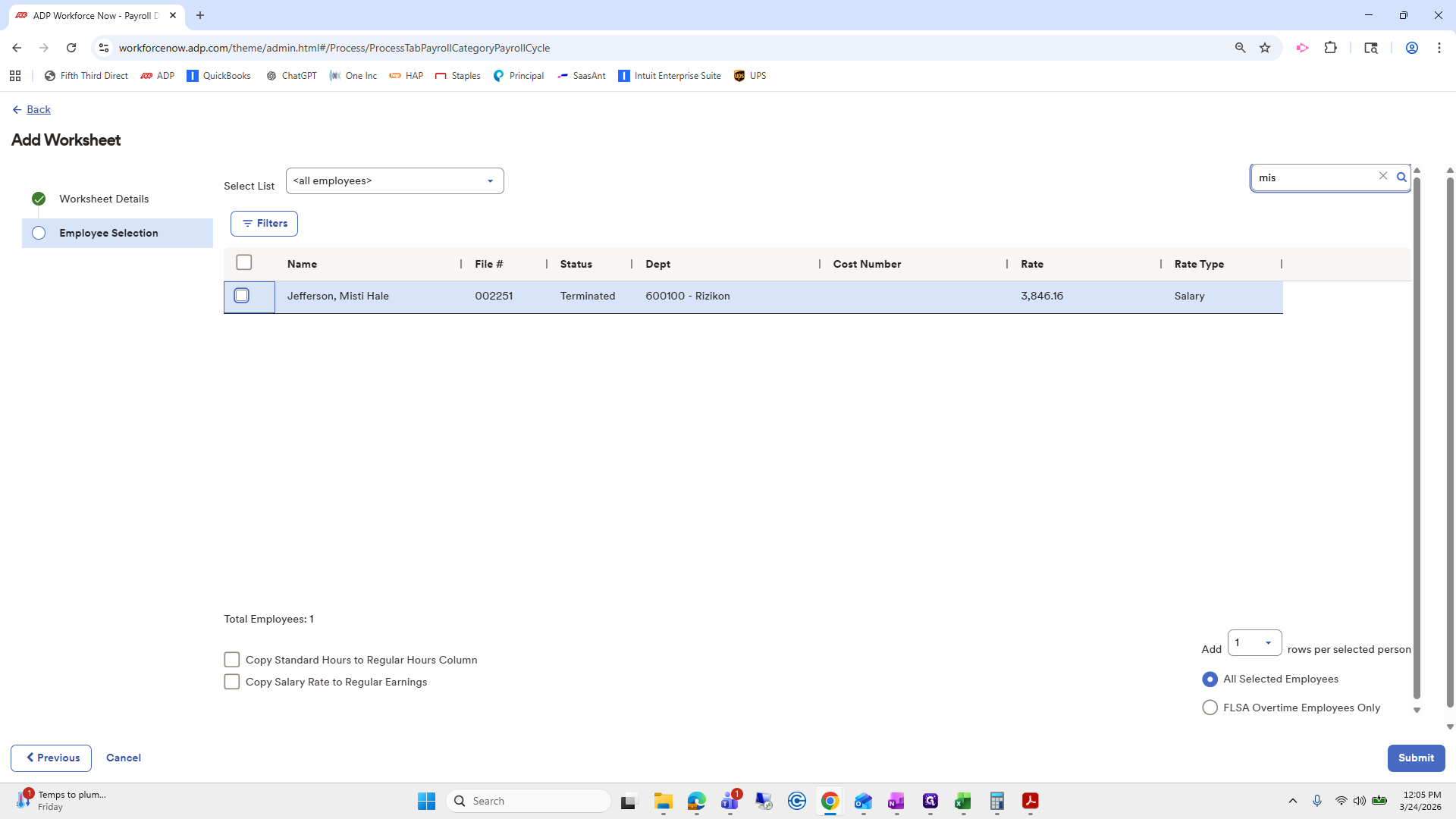
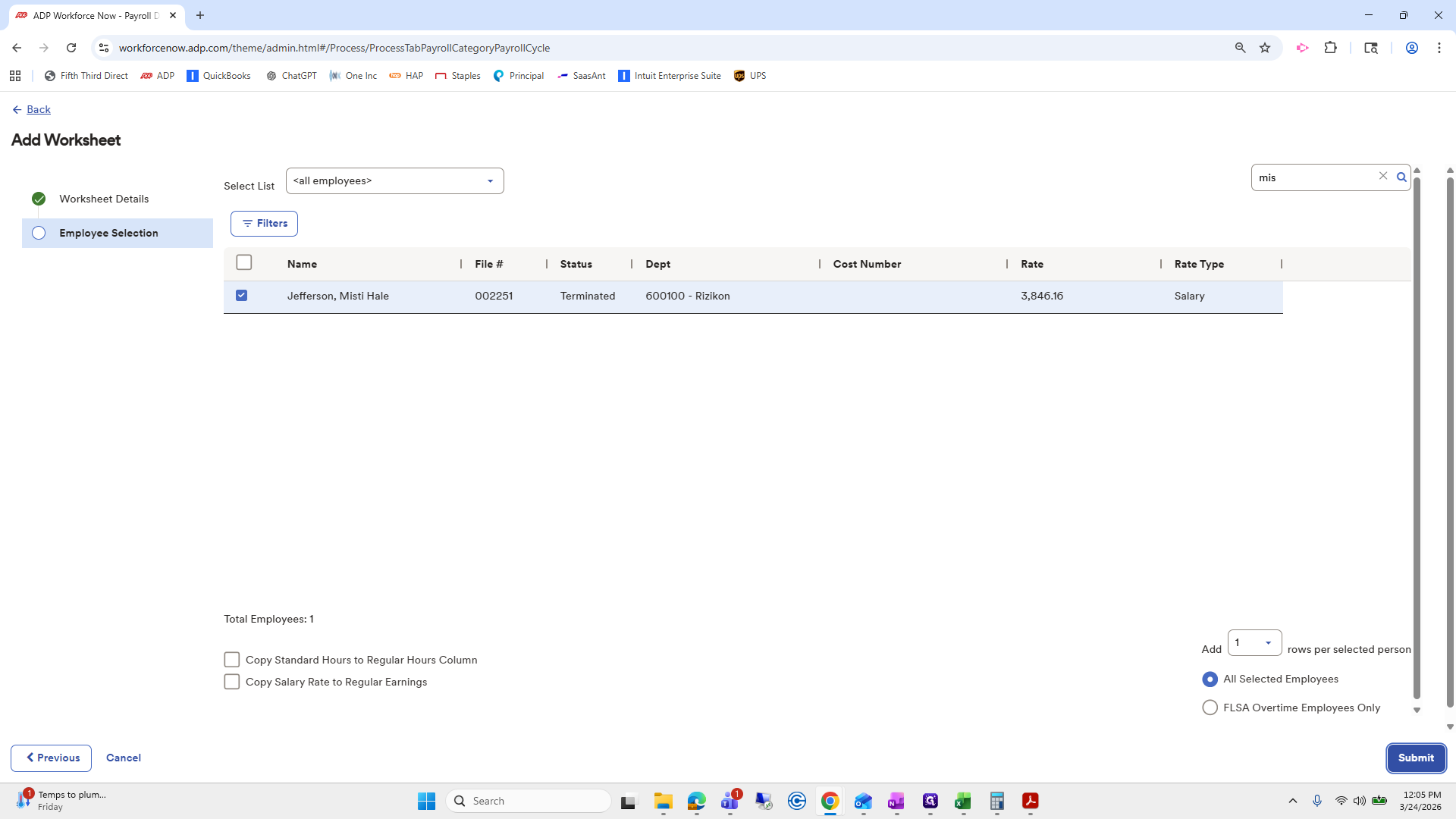
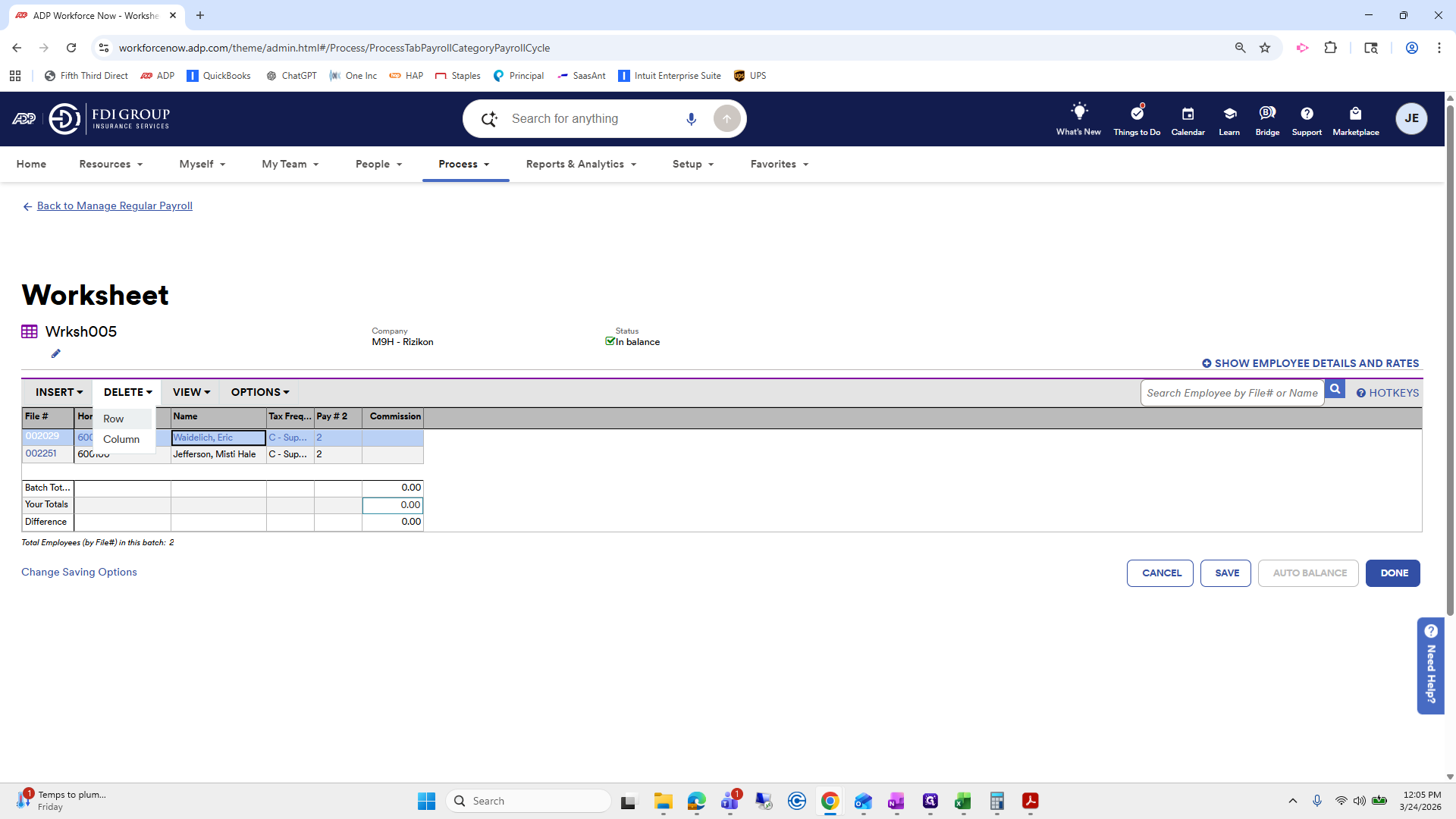
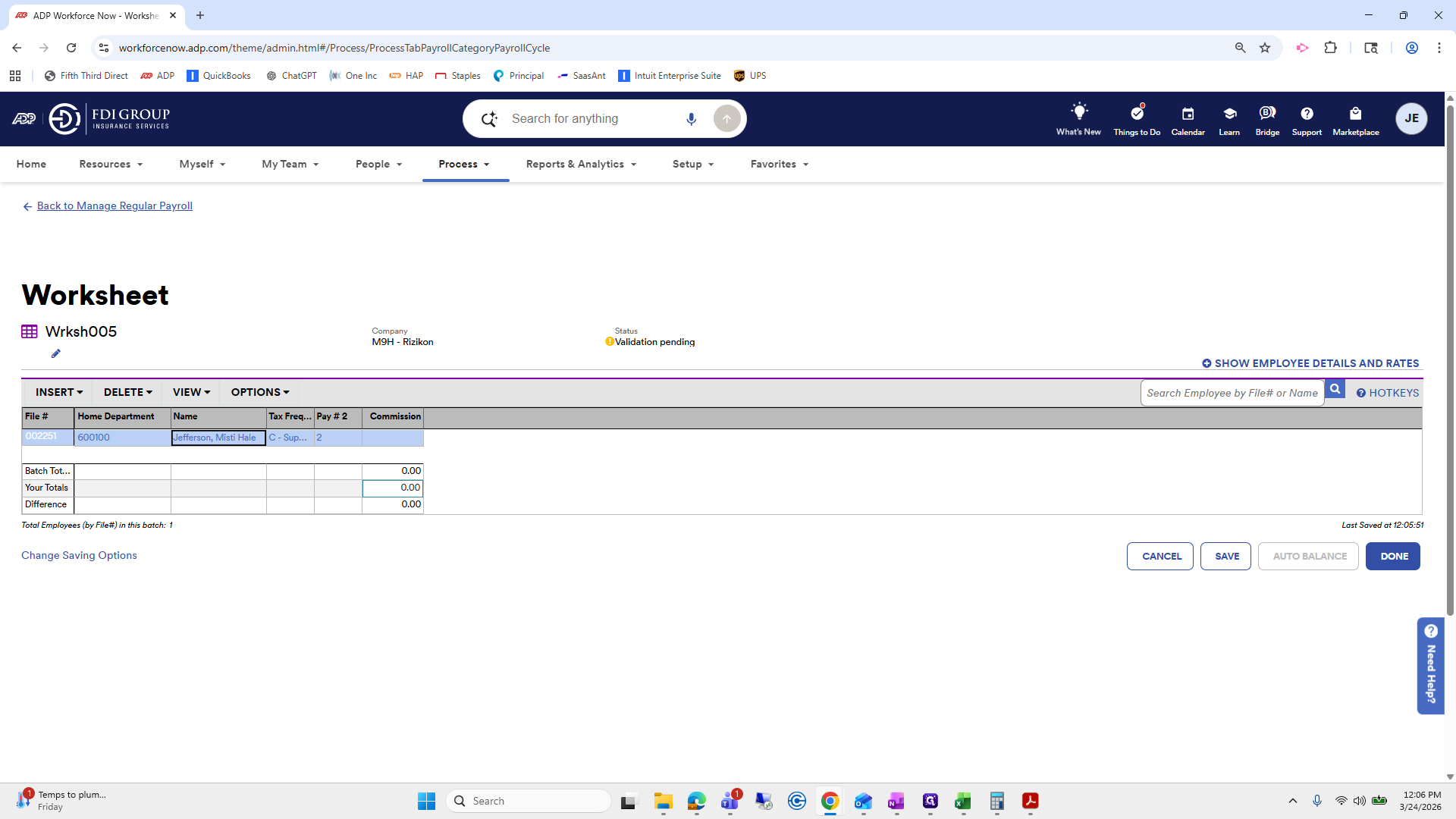
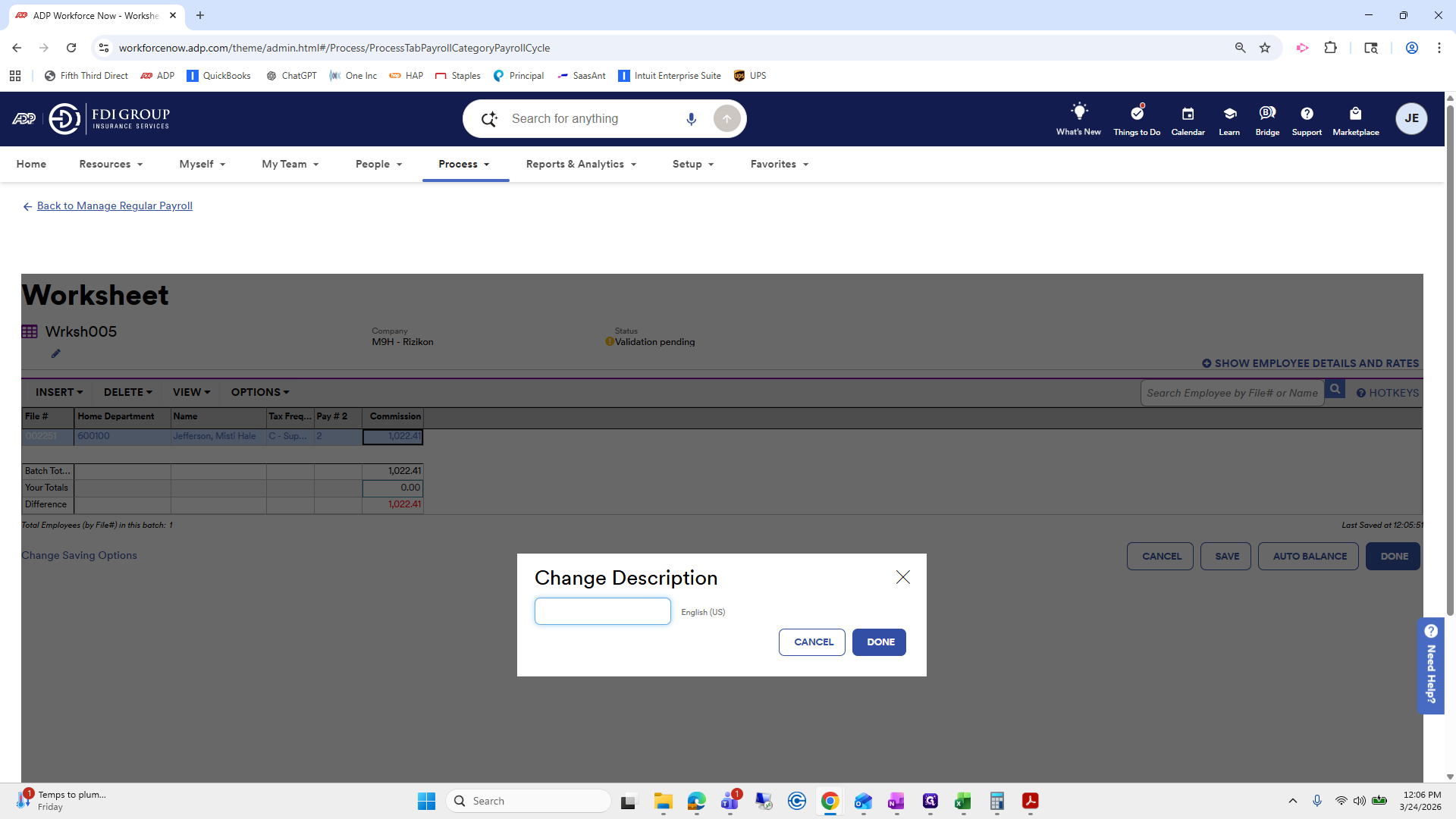
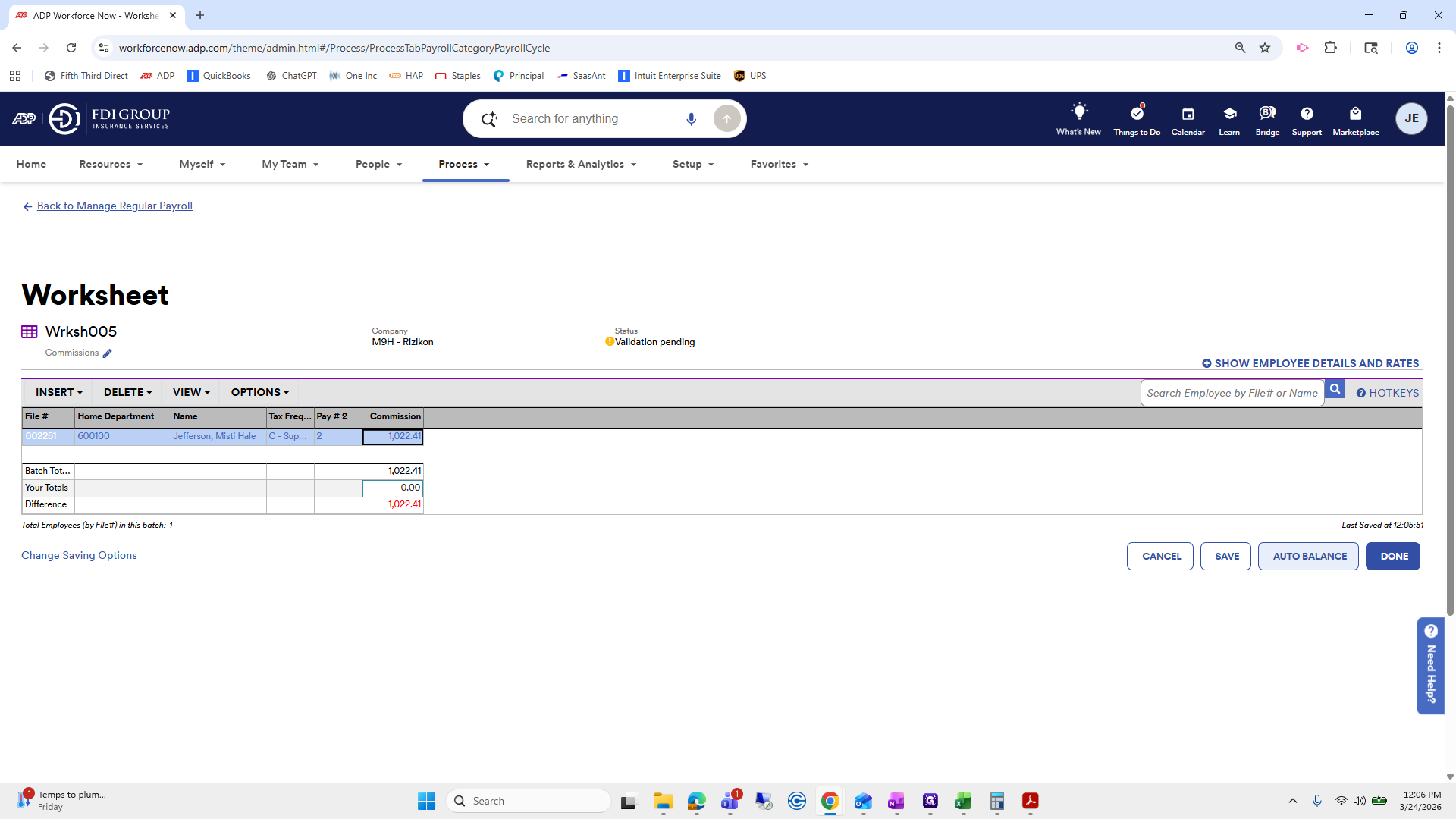
We will go to Risicon and manage payroll. Go to Add Worksheet. Select 1, Commissions. Click Next. We will click Eric and Misty. Since Misty is terminated, I needed to select all employees and then submit. Here, the tax frequency is C.
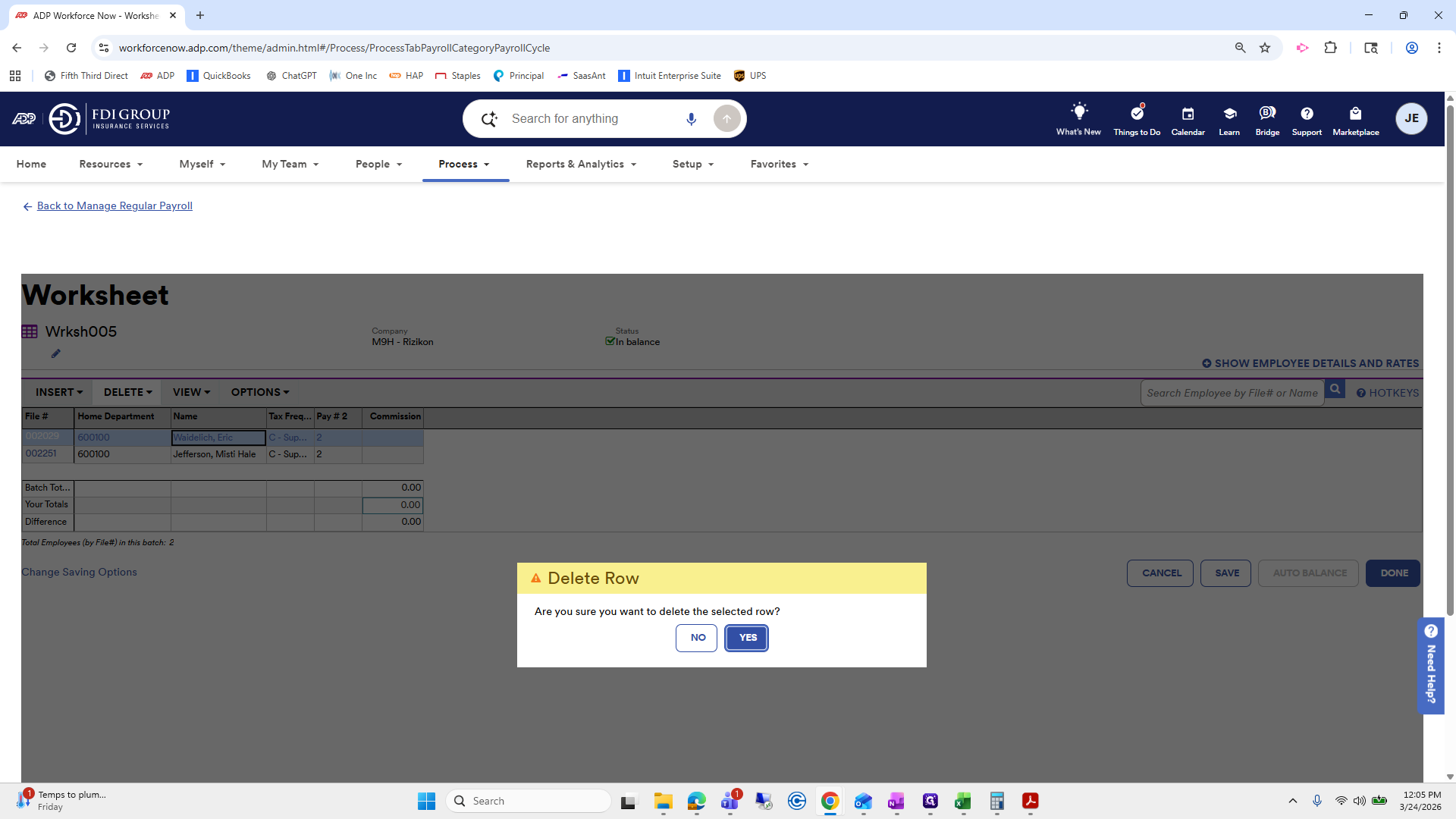
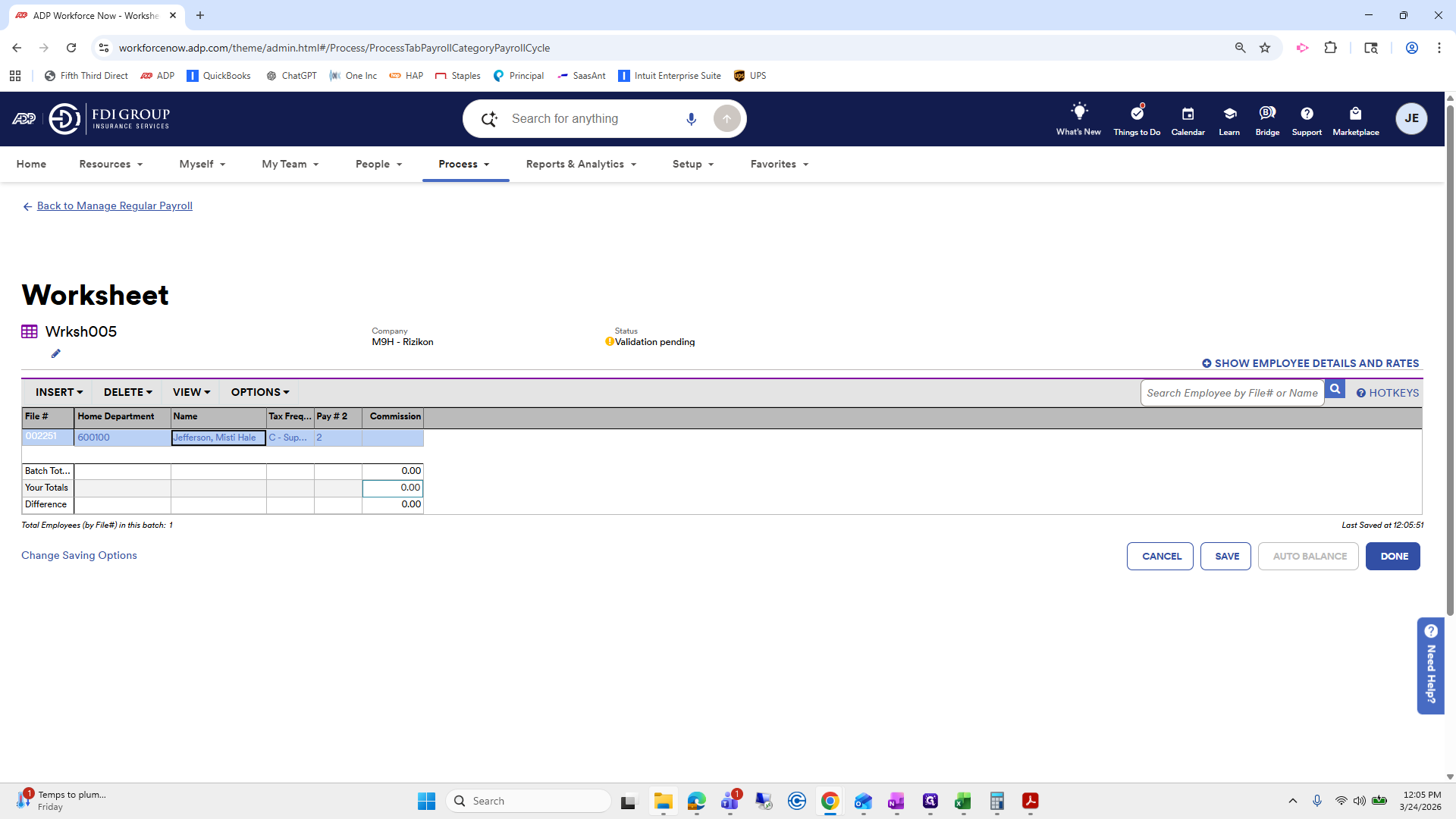
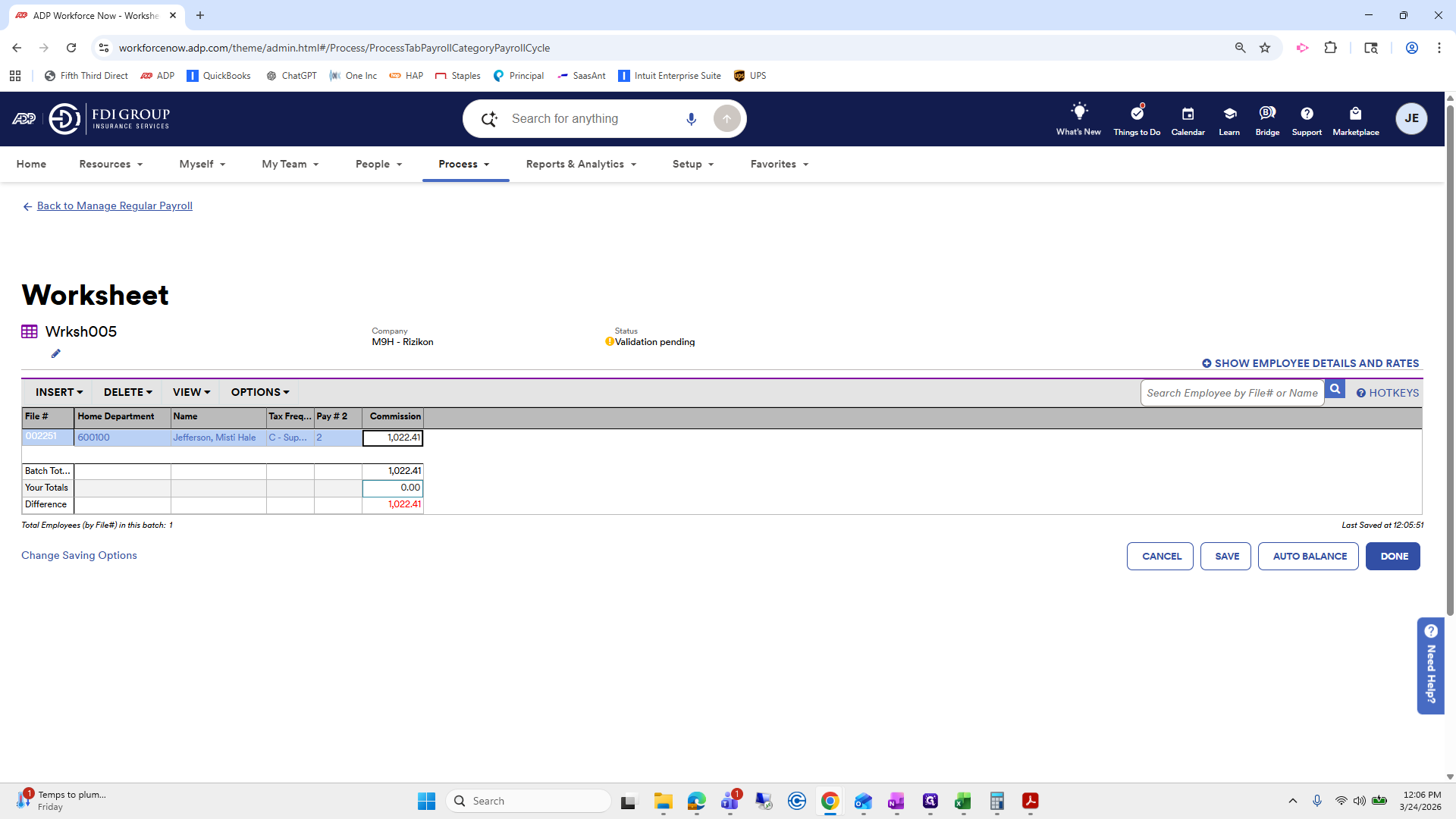
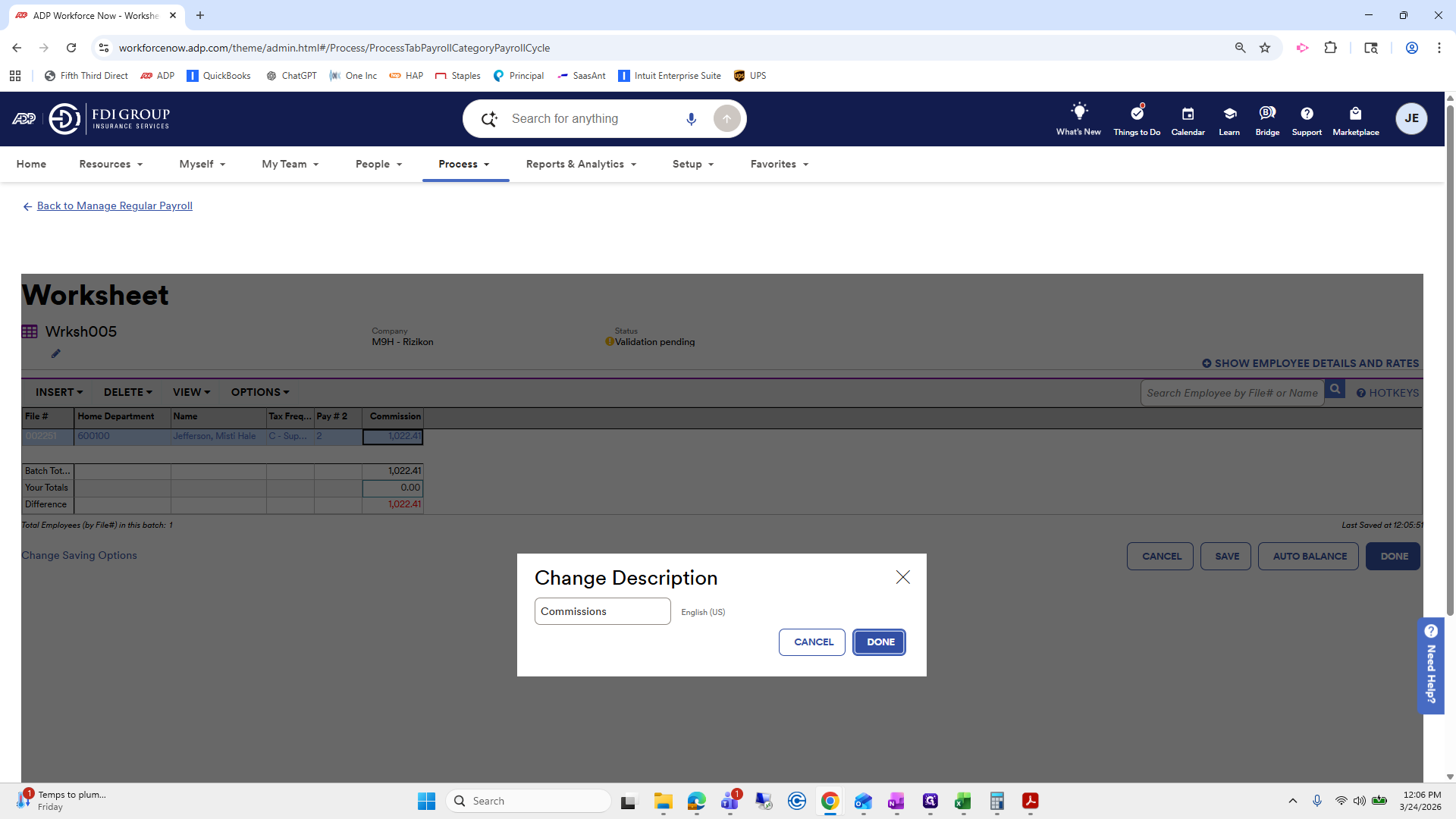
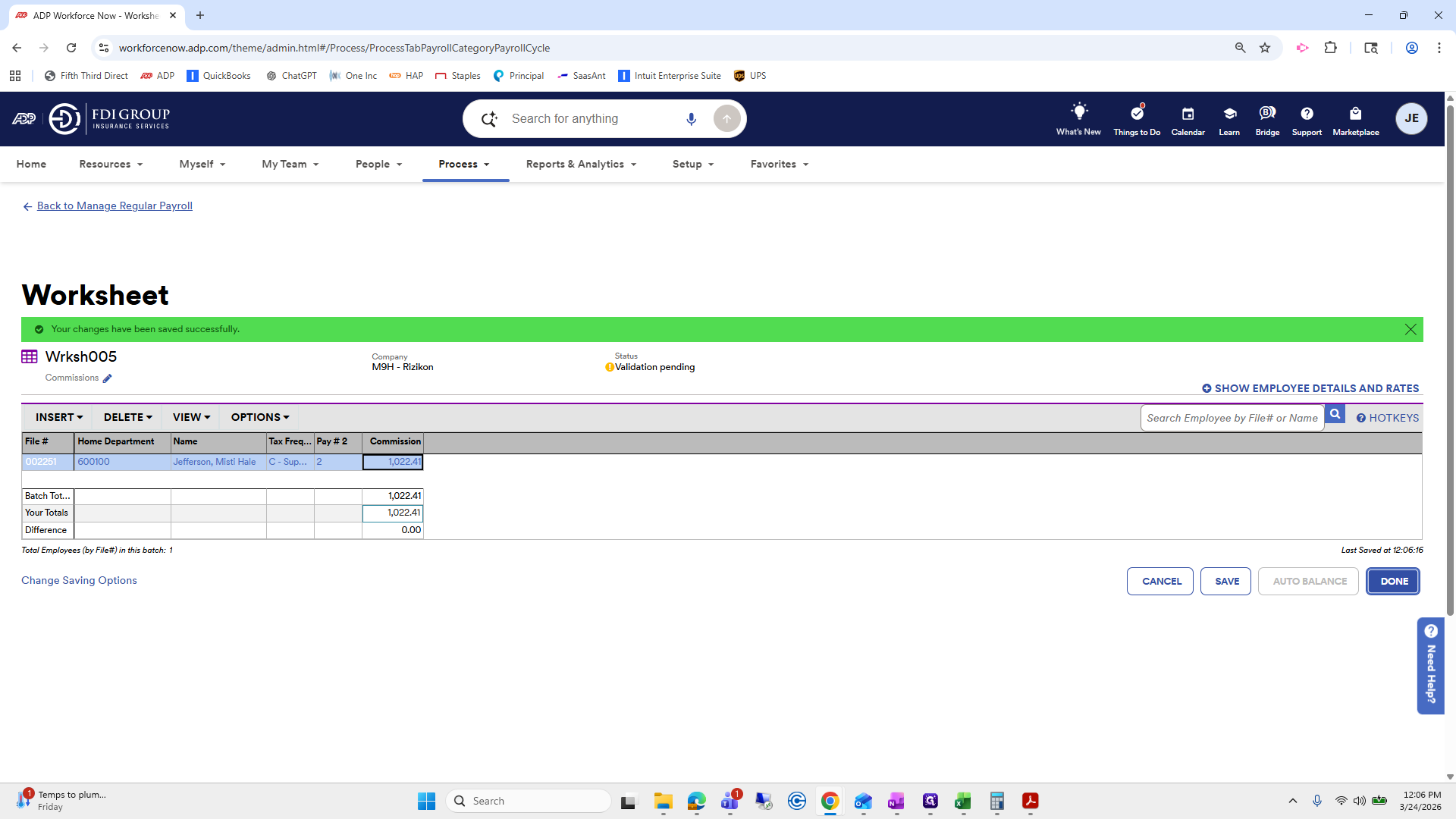
And C. We will process the second paycheck for both of them. Eric is different, so we will delete him. I have three minutes left in this video, so I will quickly do Misty, then show you how to do Eric's, since he says "Different." Misty is 102,241. Renaming this now.
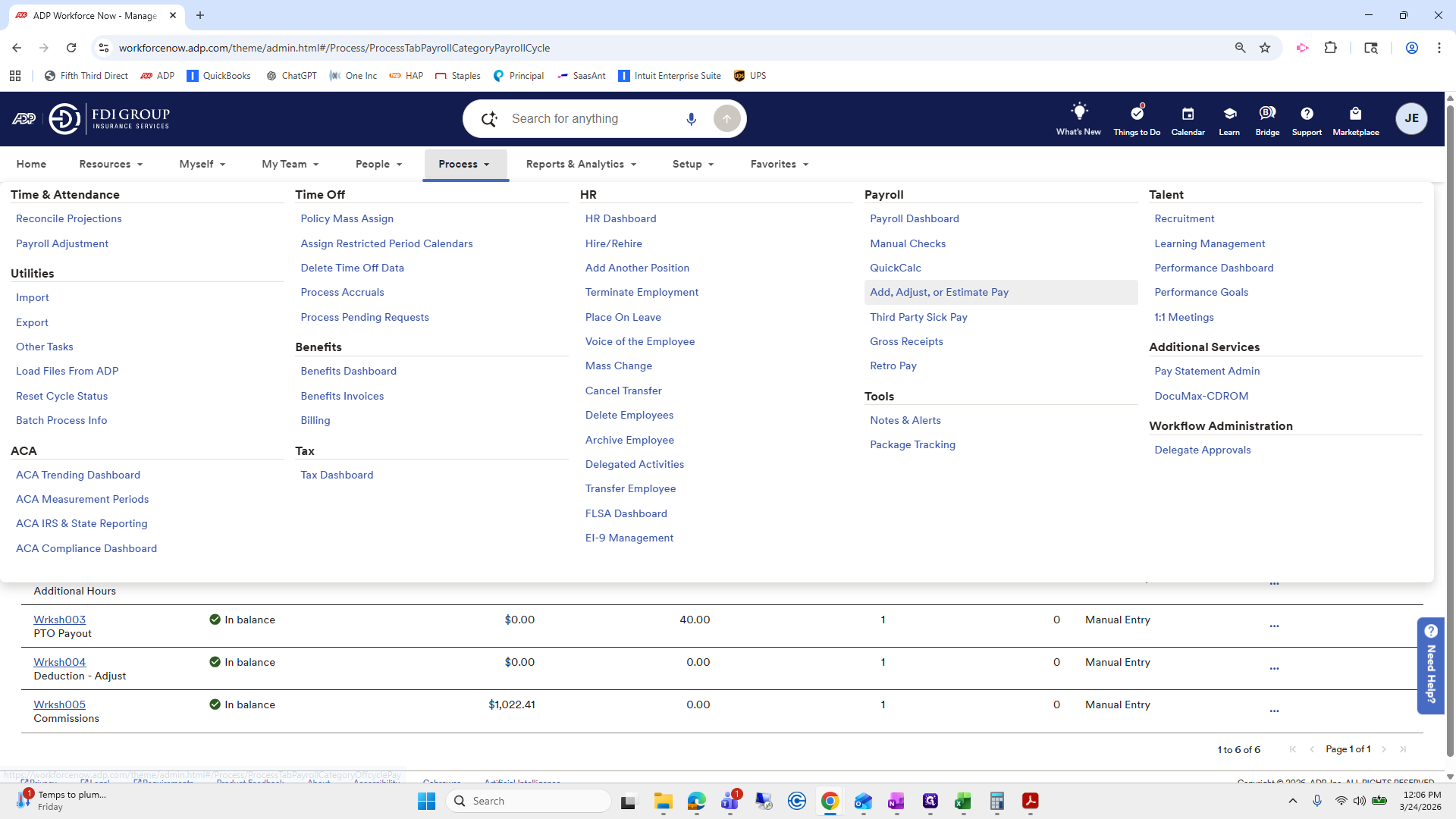
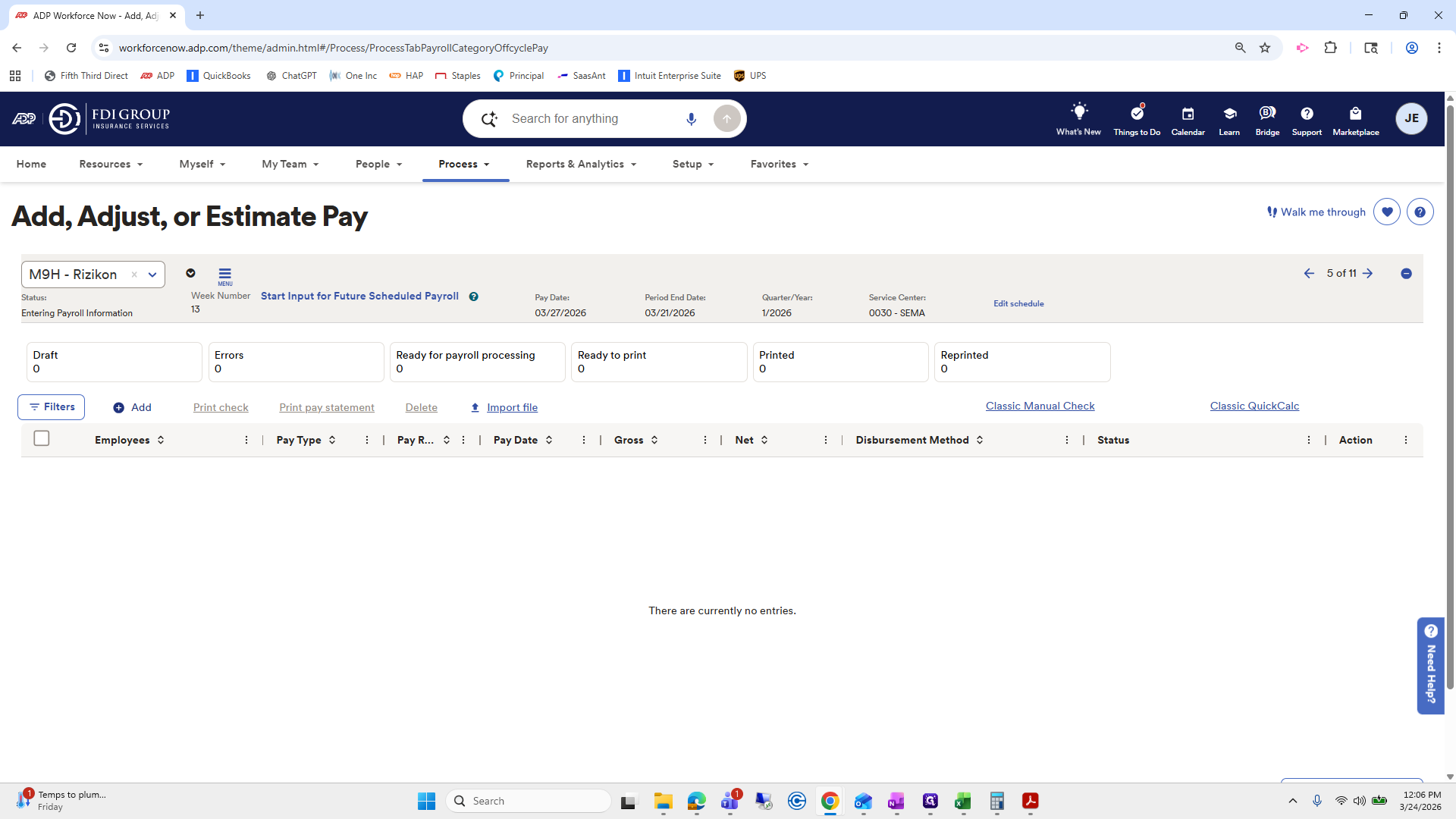
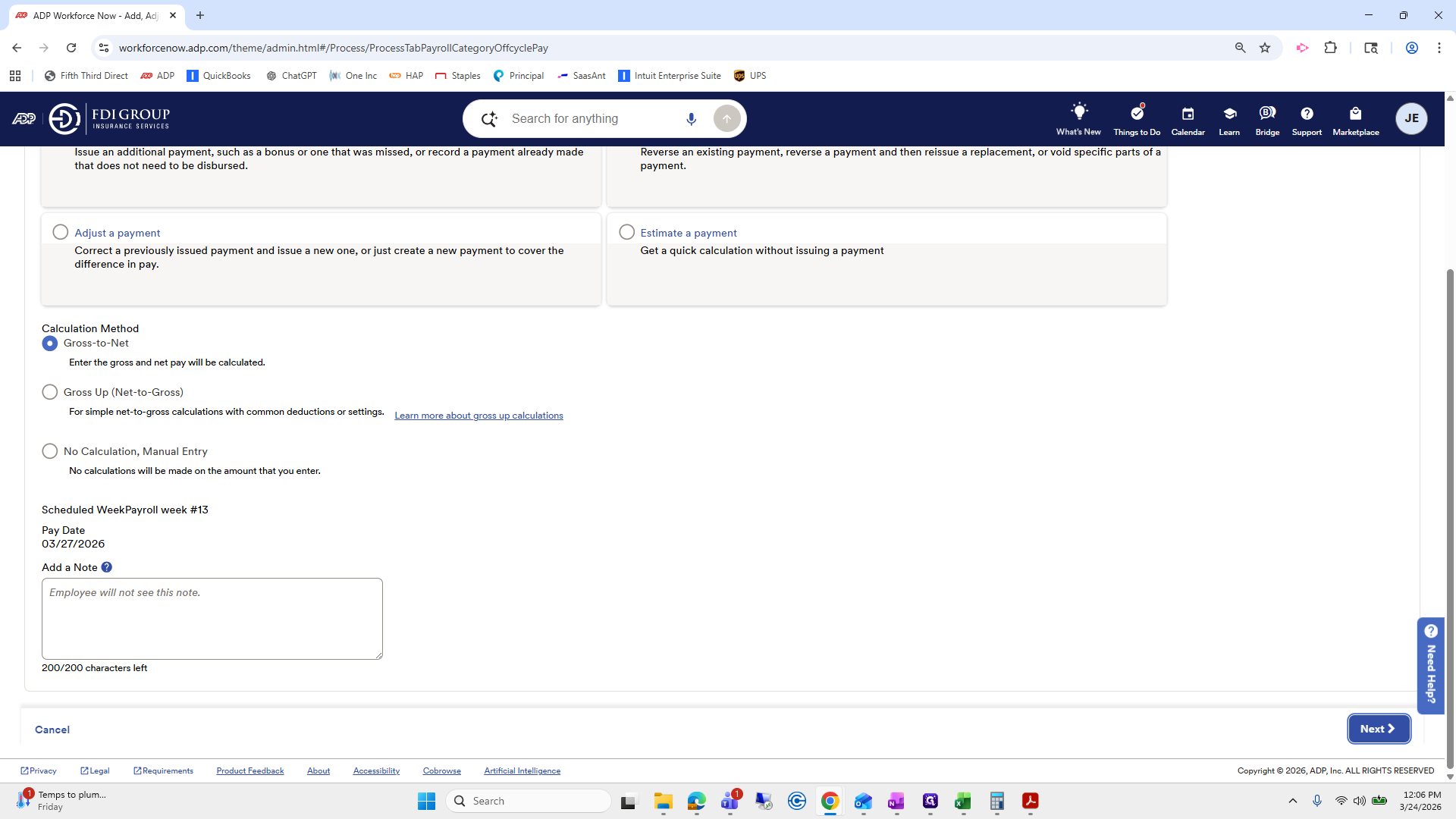
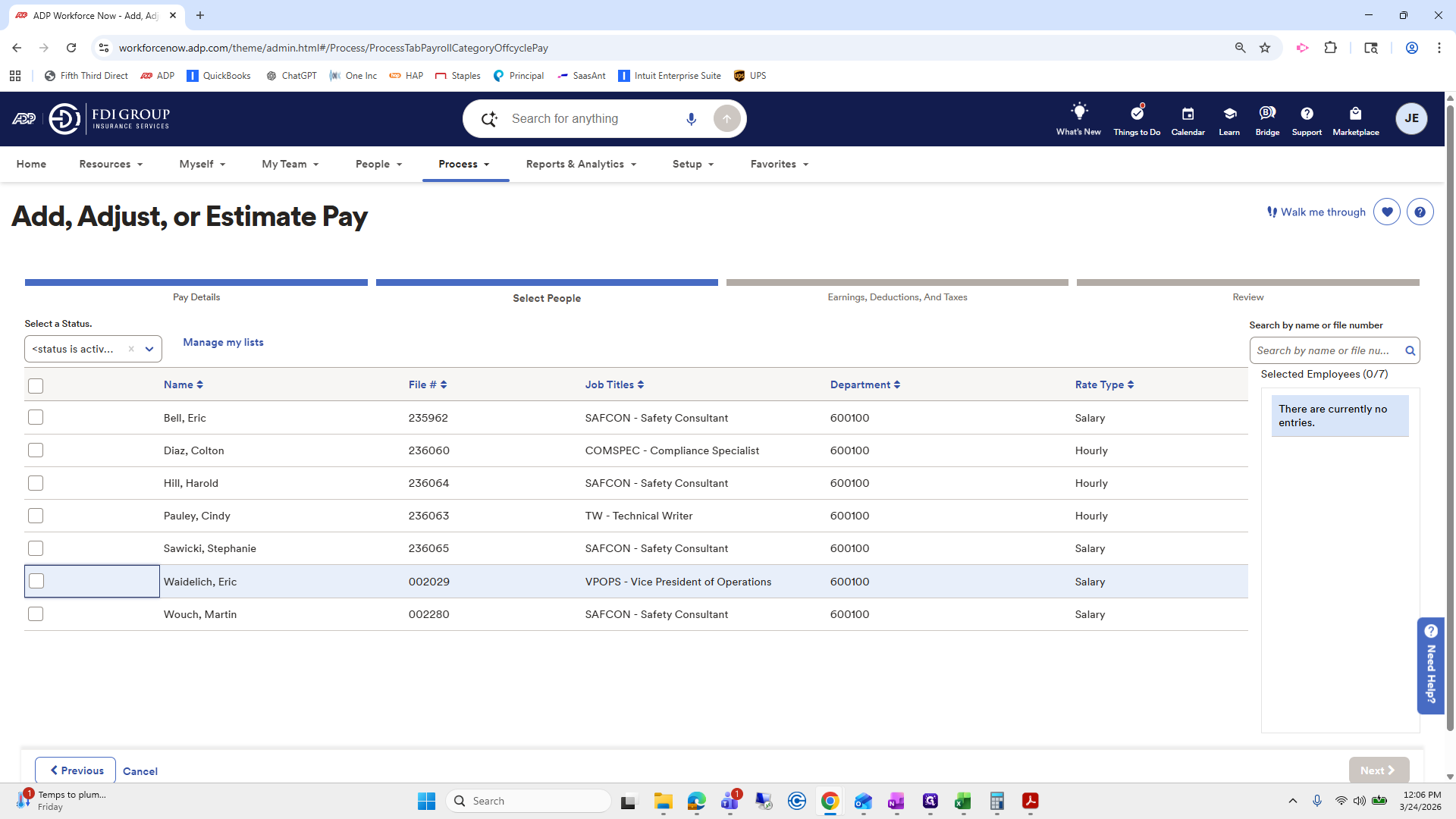
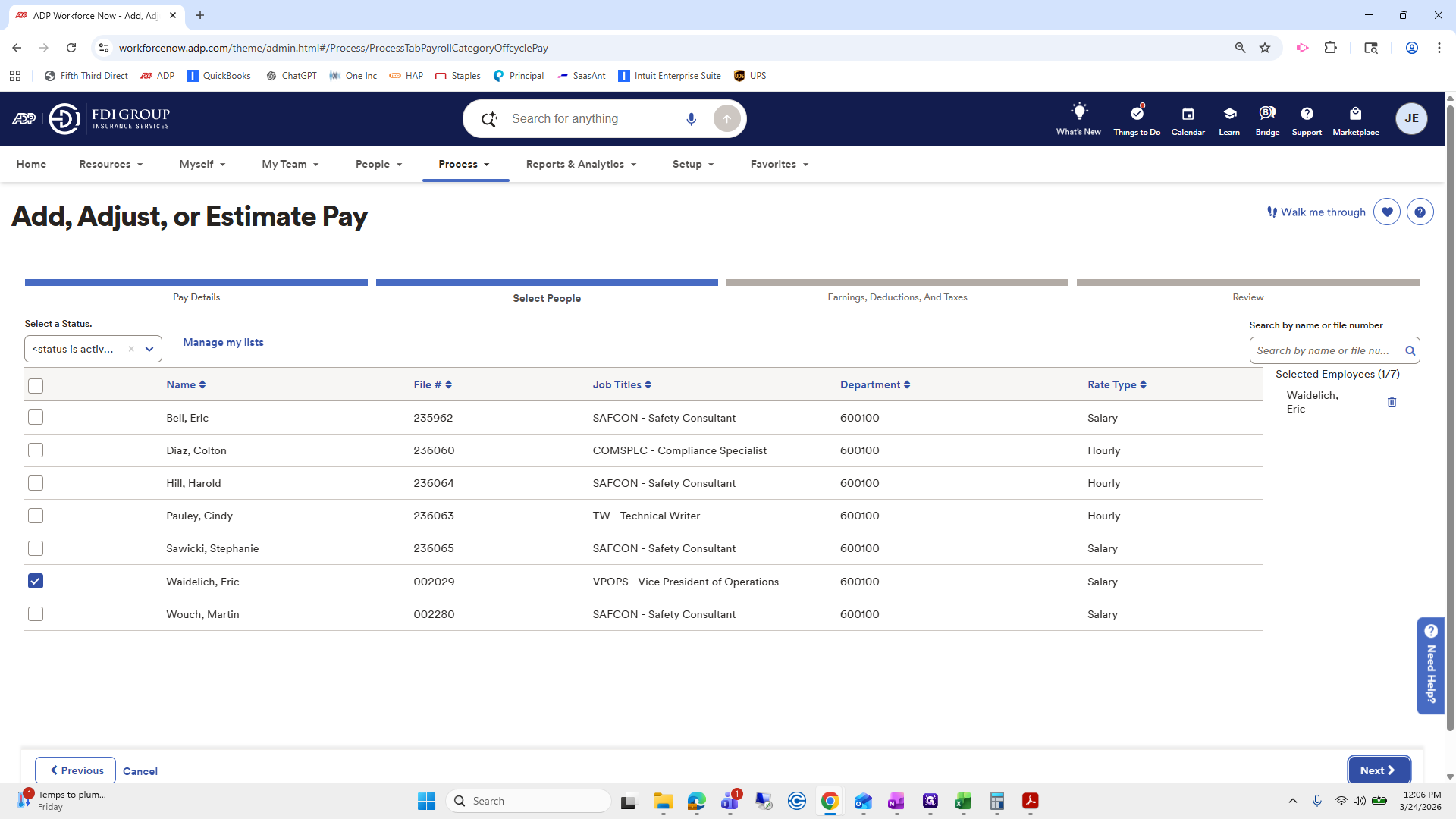
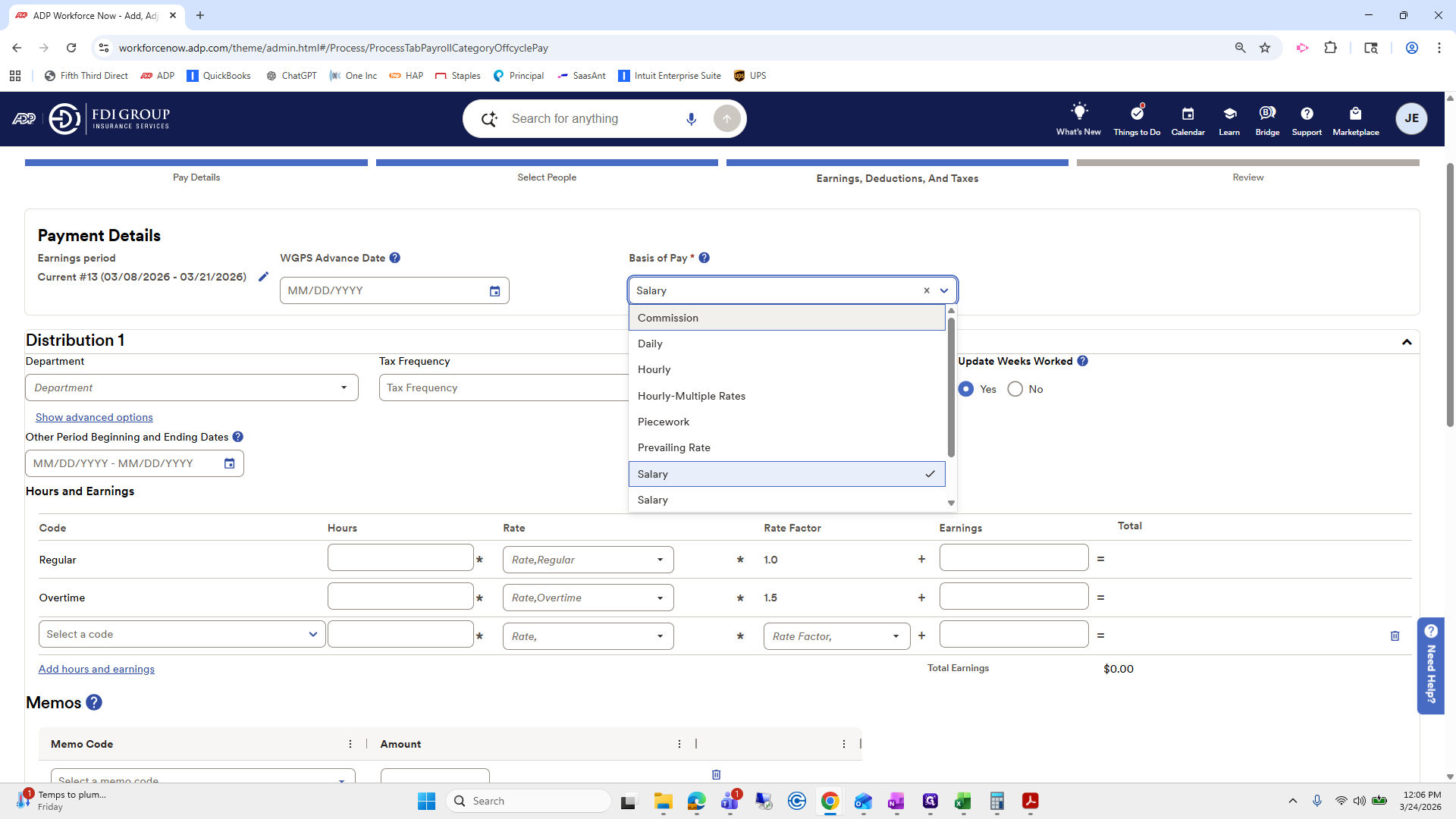
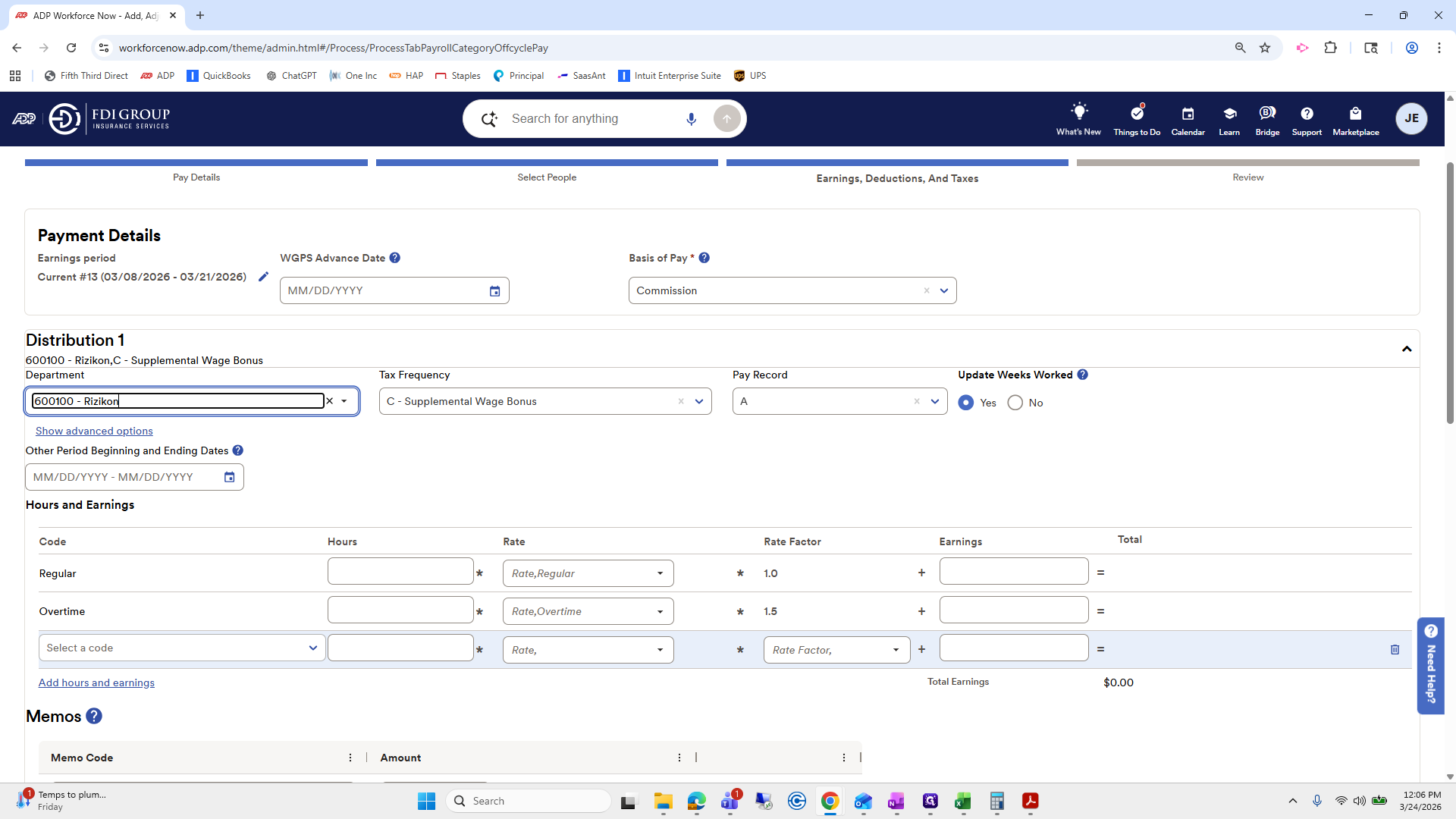
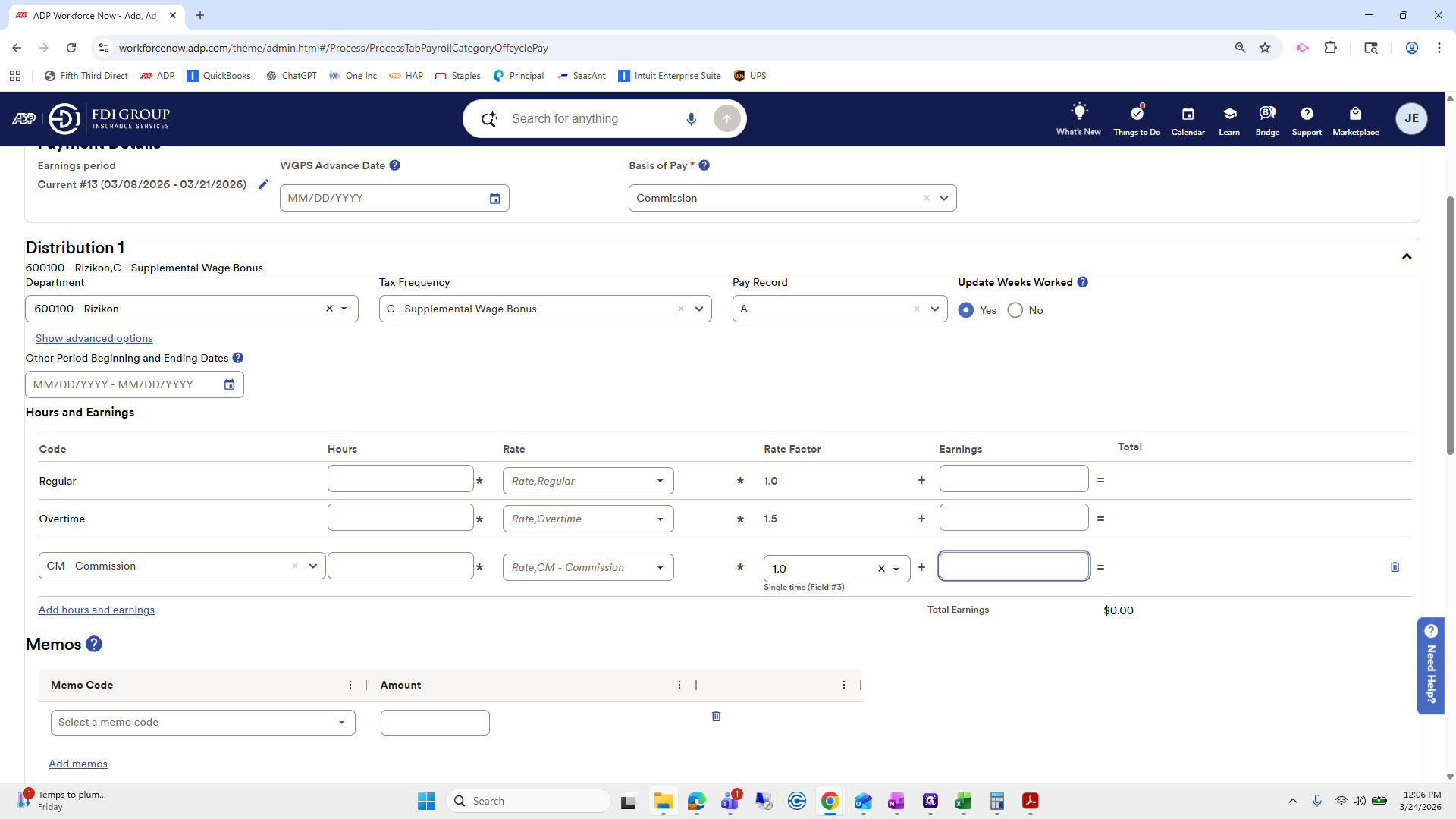
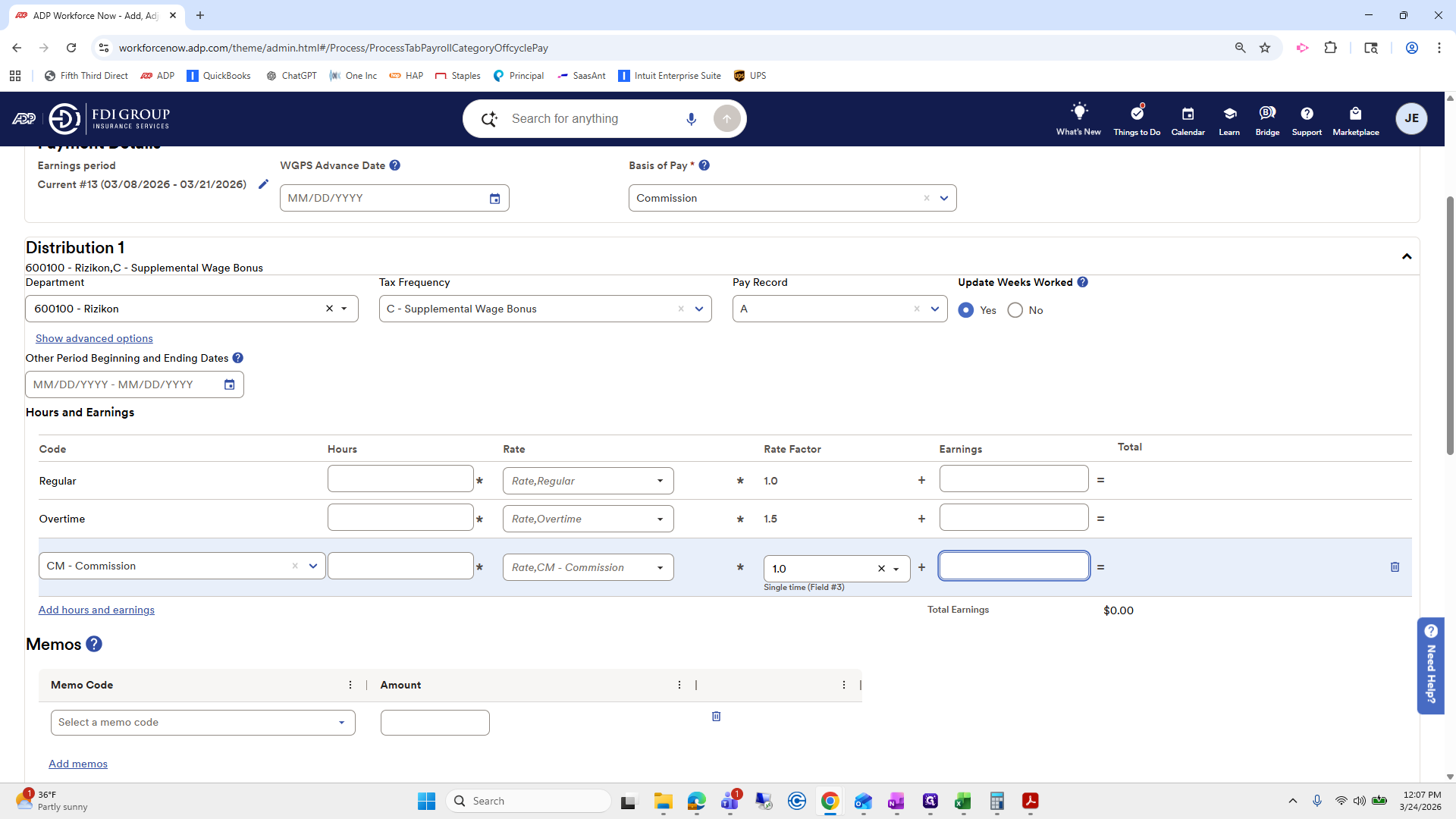
Auto balance completed. Let's see if I can do it in two minutes. For Eric, go to Process, then Add/Adjust or Estimate Pay. Add Eric, select Add a Payment, choose Gross or Net, then click Next. Next, we'll go to Eric. For him, the basis of pay is commission.
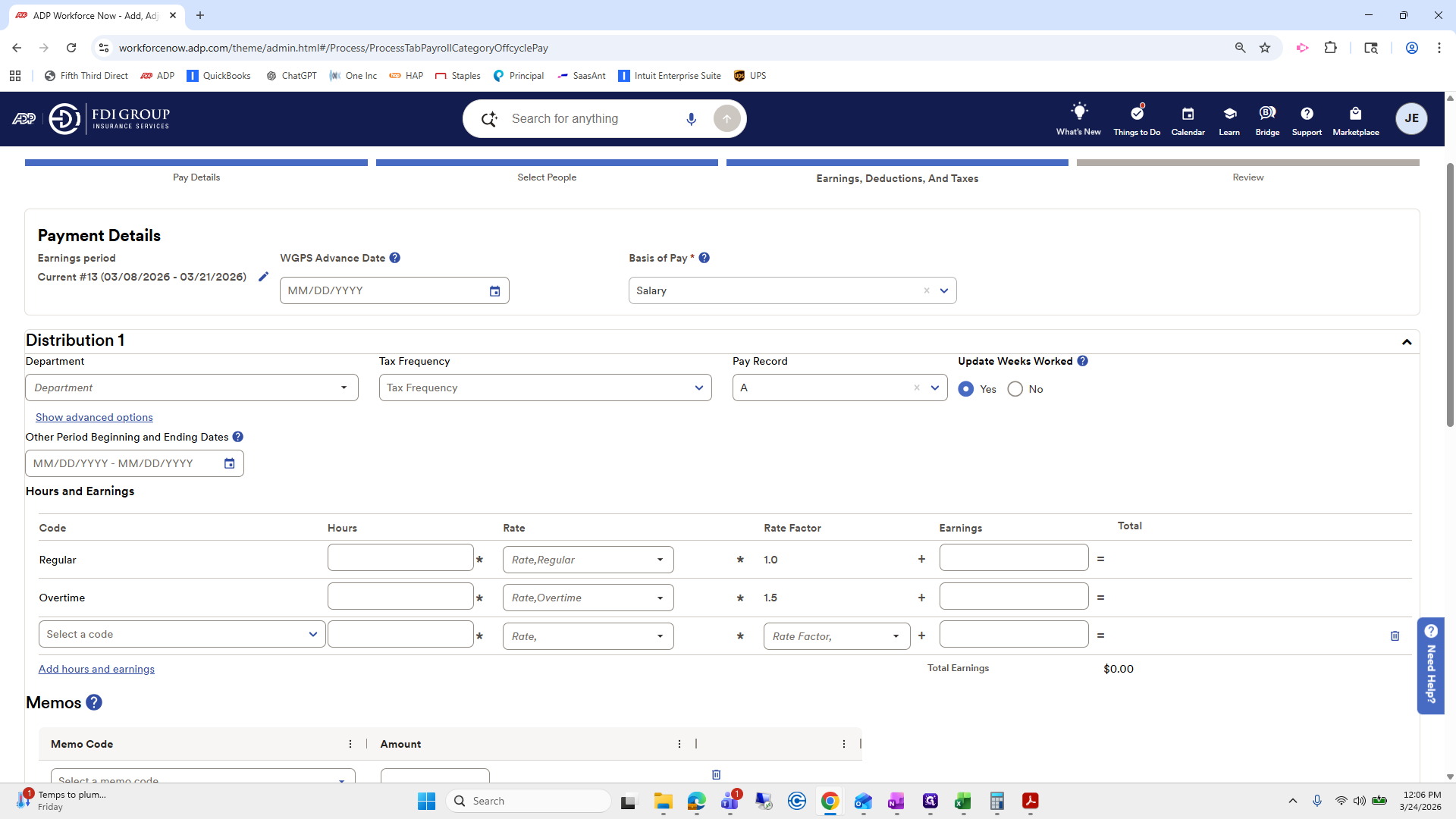
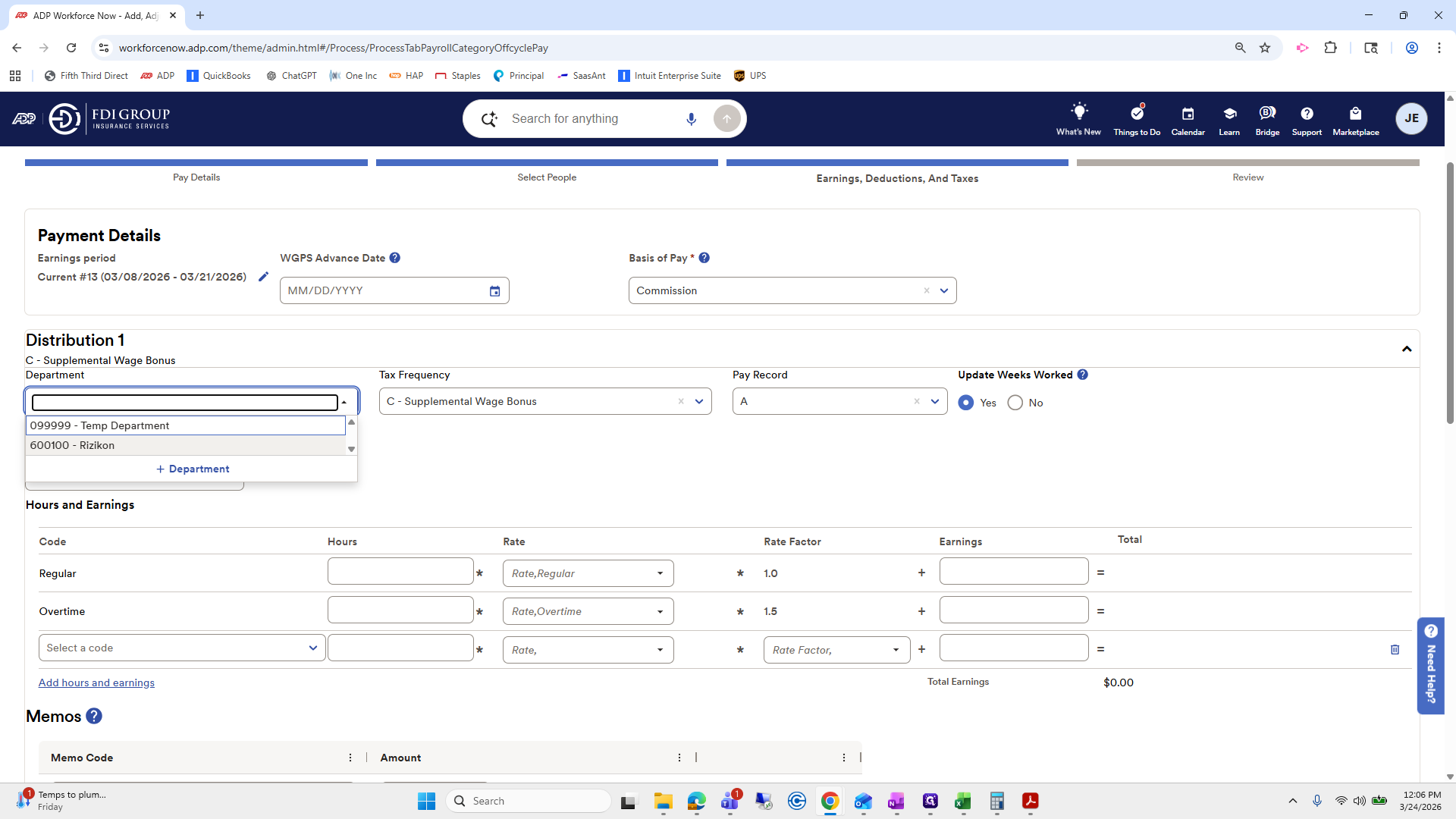
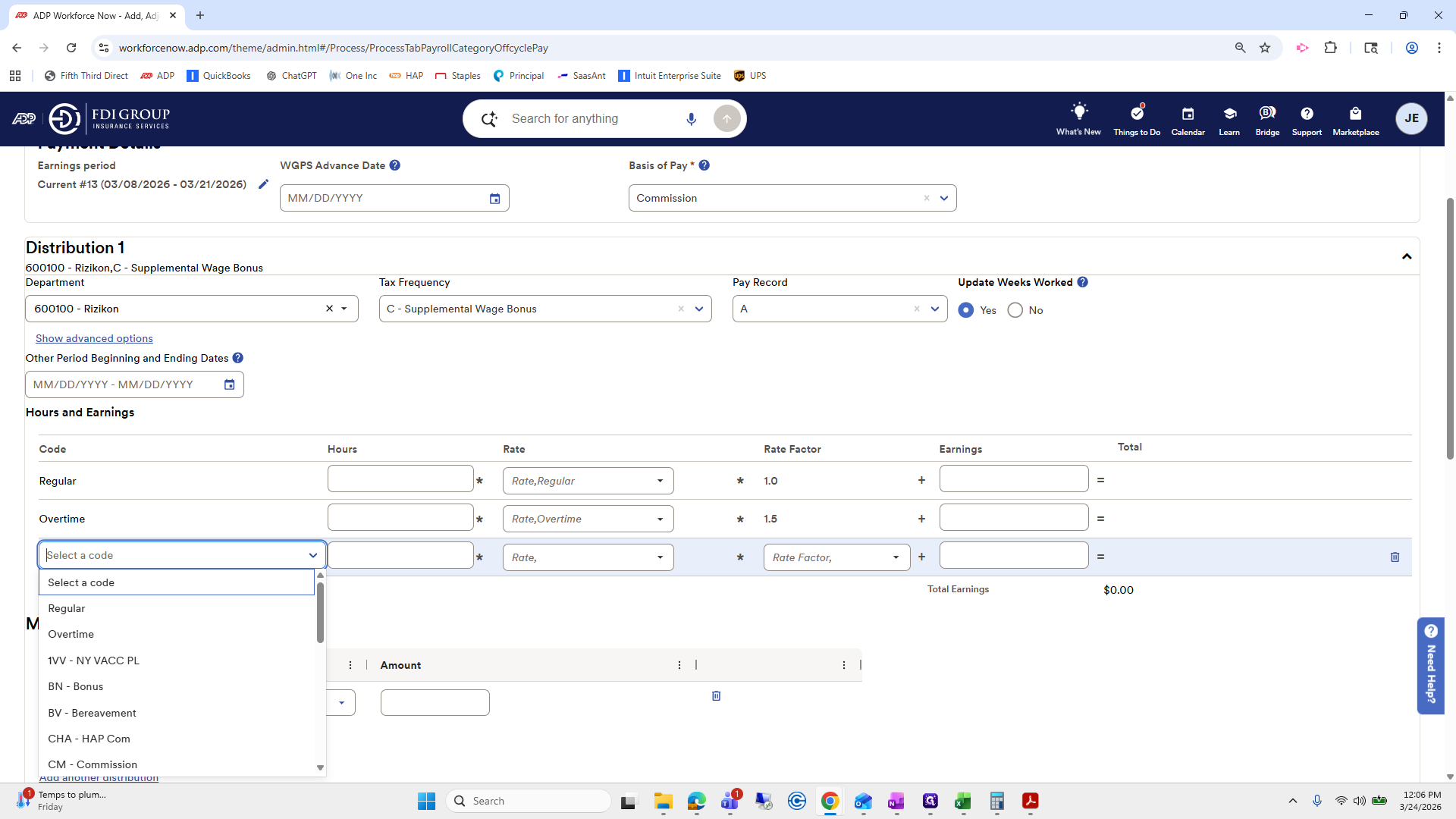
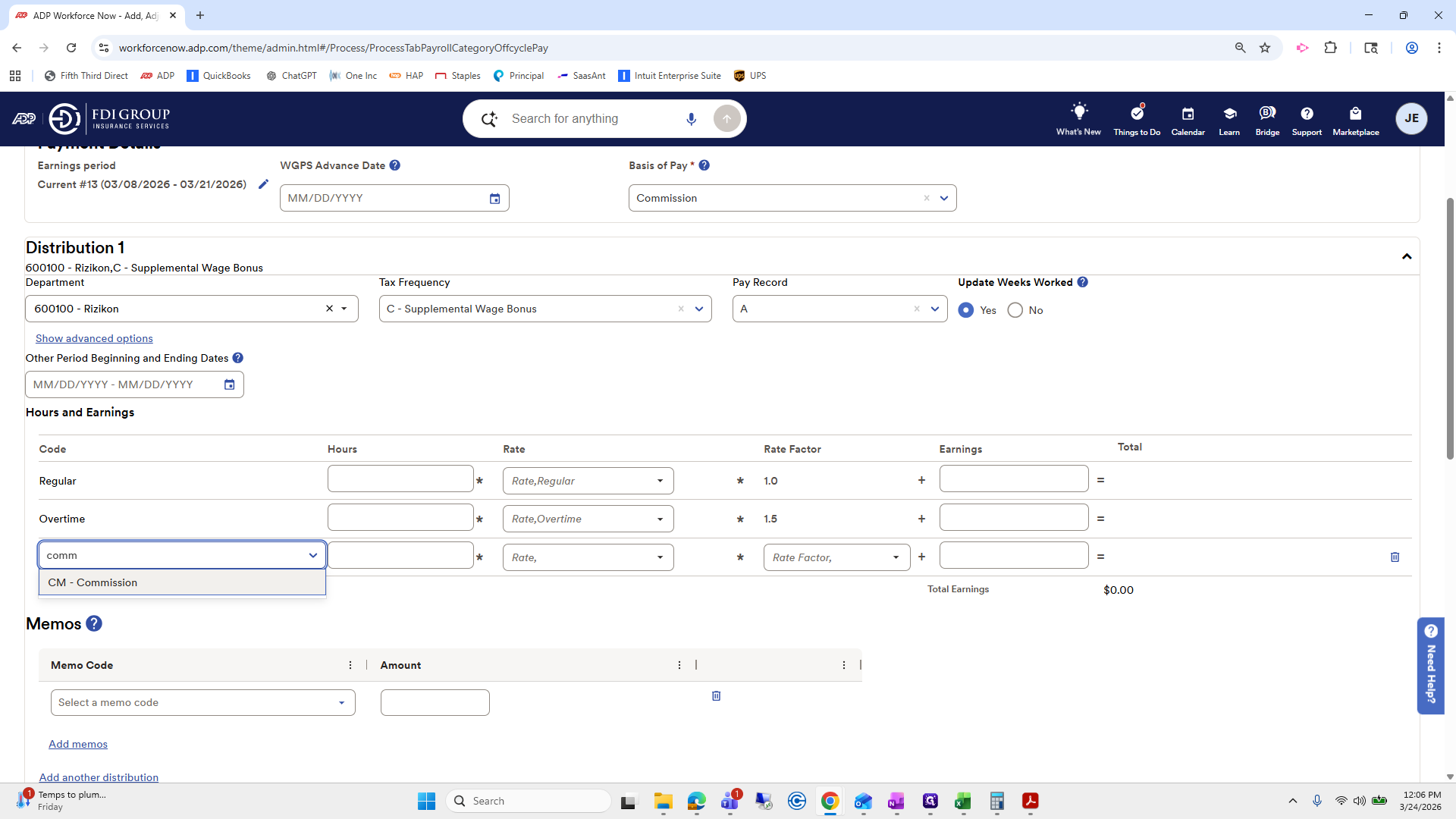
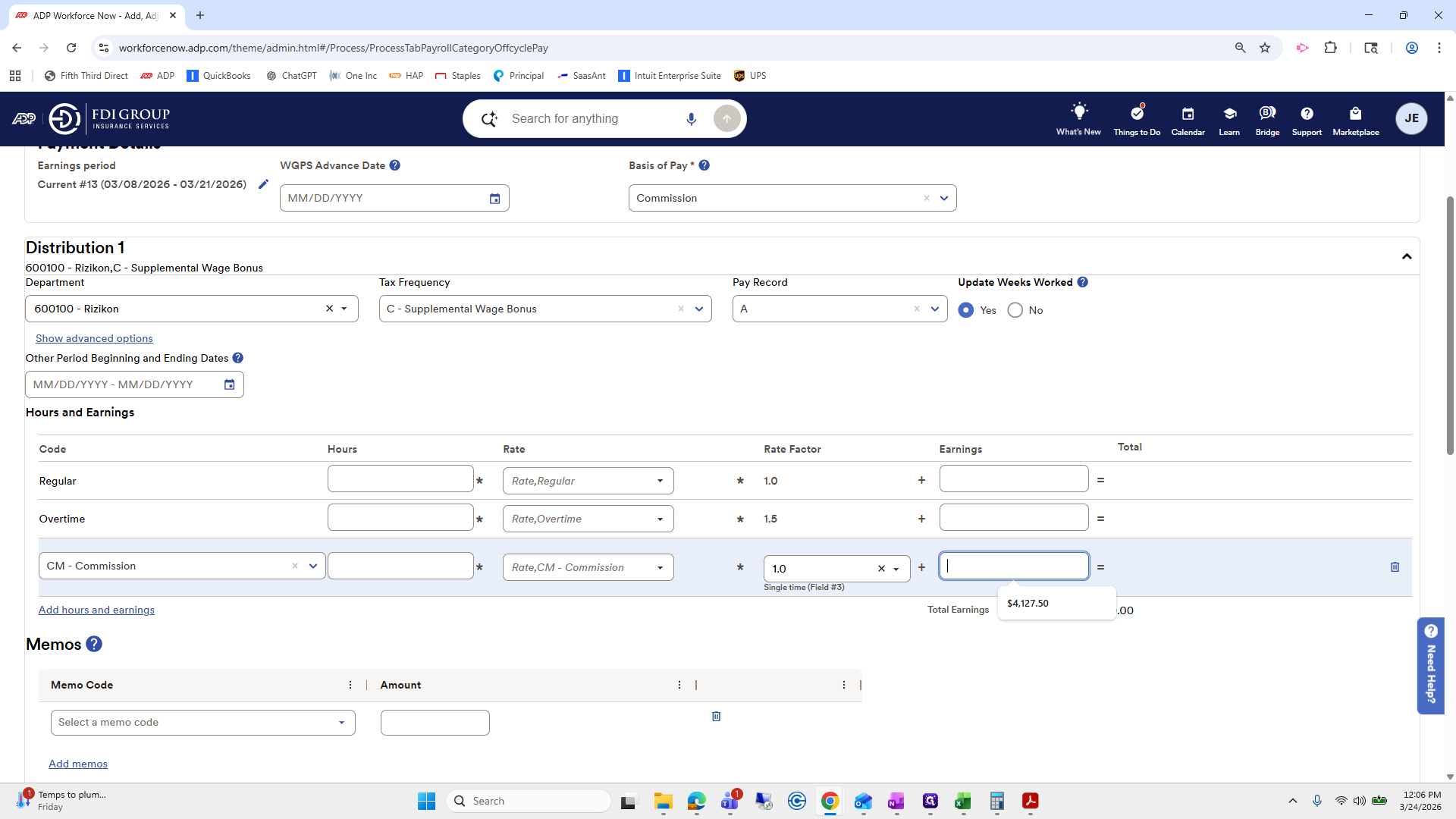
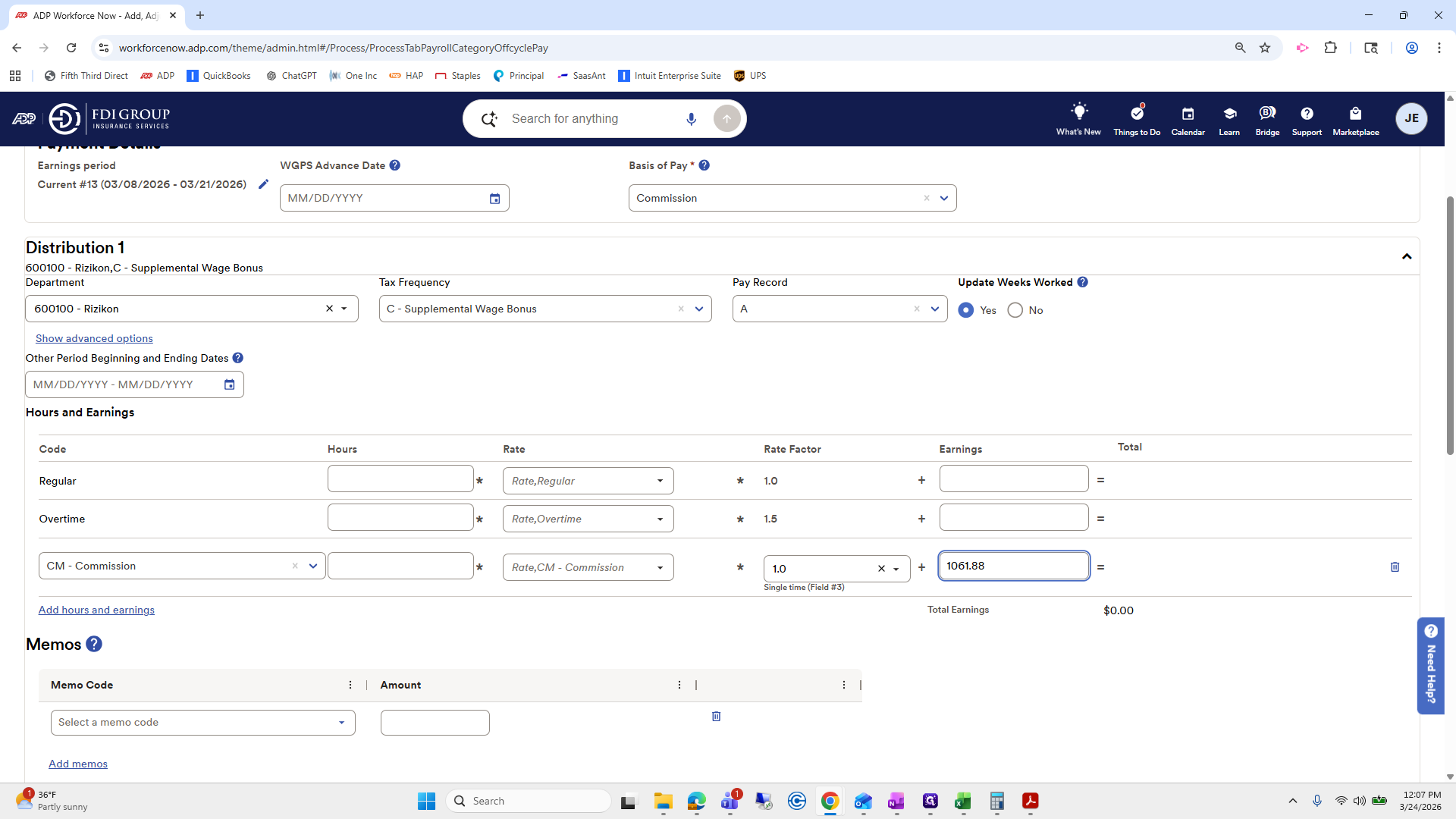
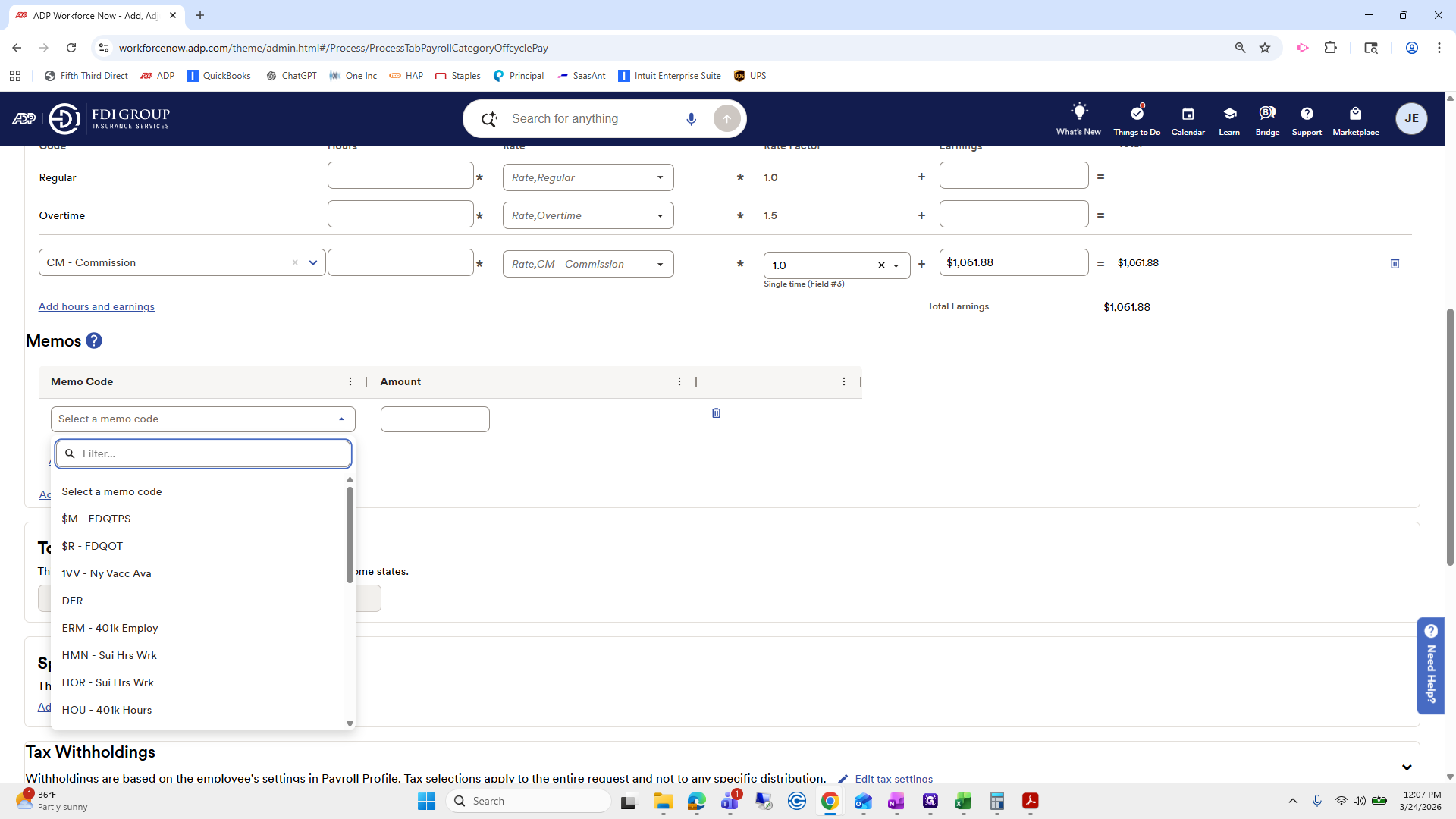
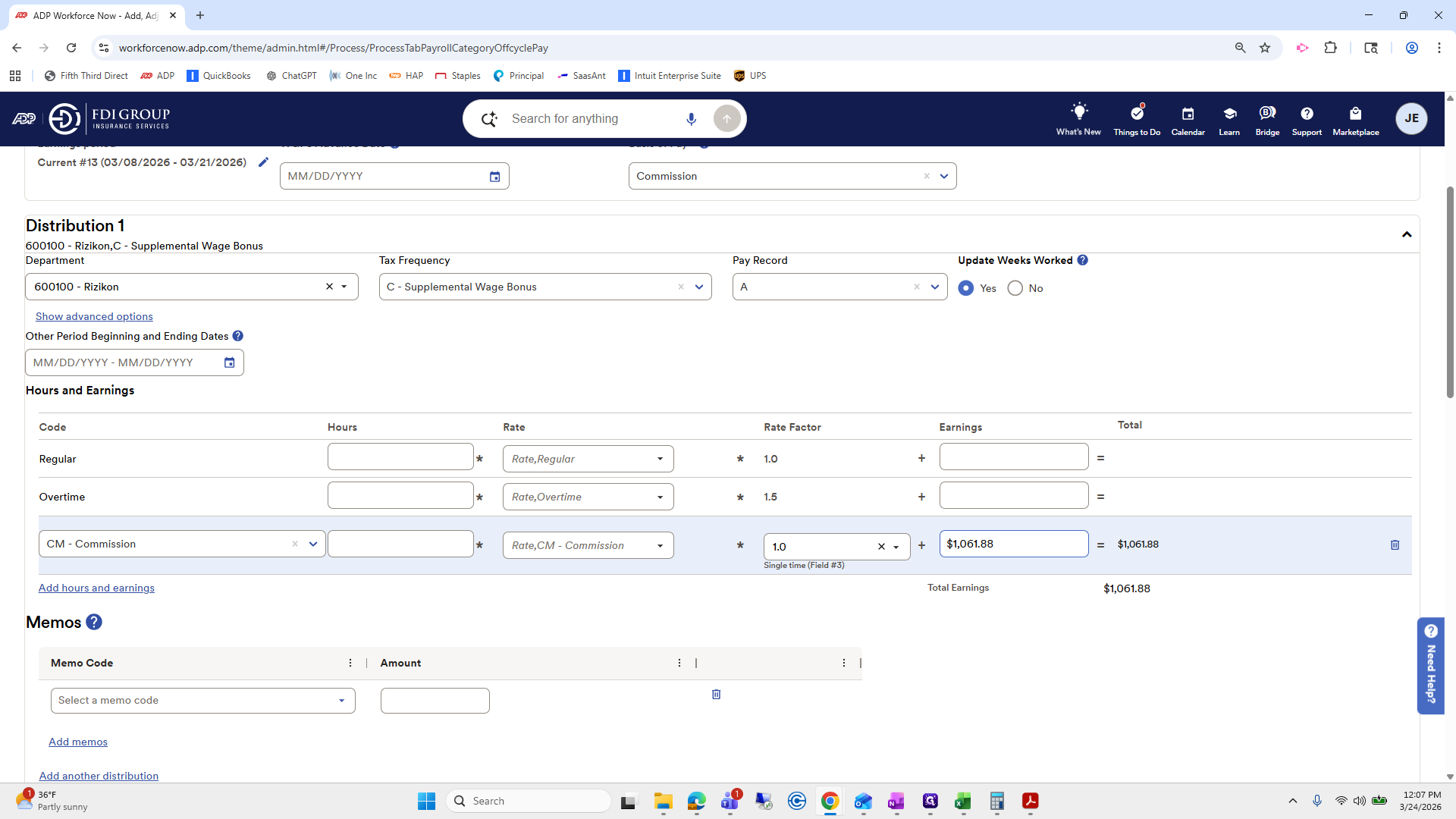
Tax frequency is C. His department is Risikon. Then, the selected code will be commission. We are going to put his earnings there. Eric's earnings were...
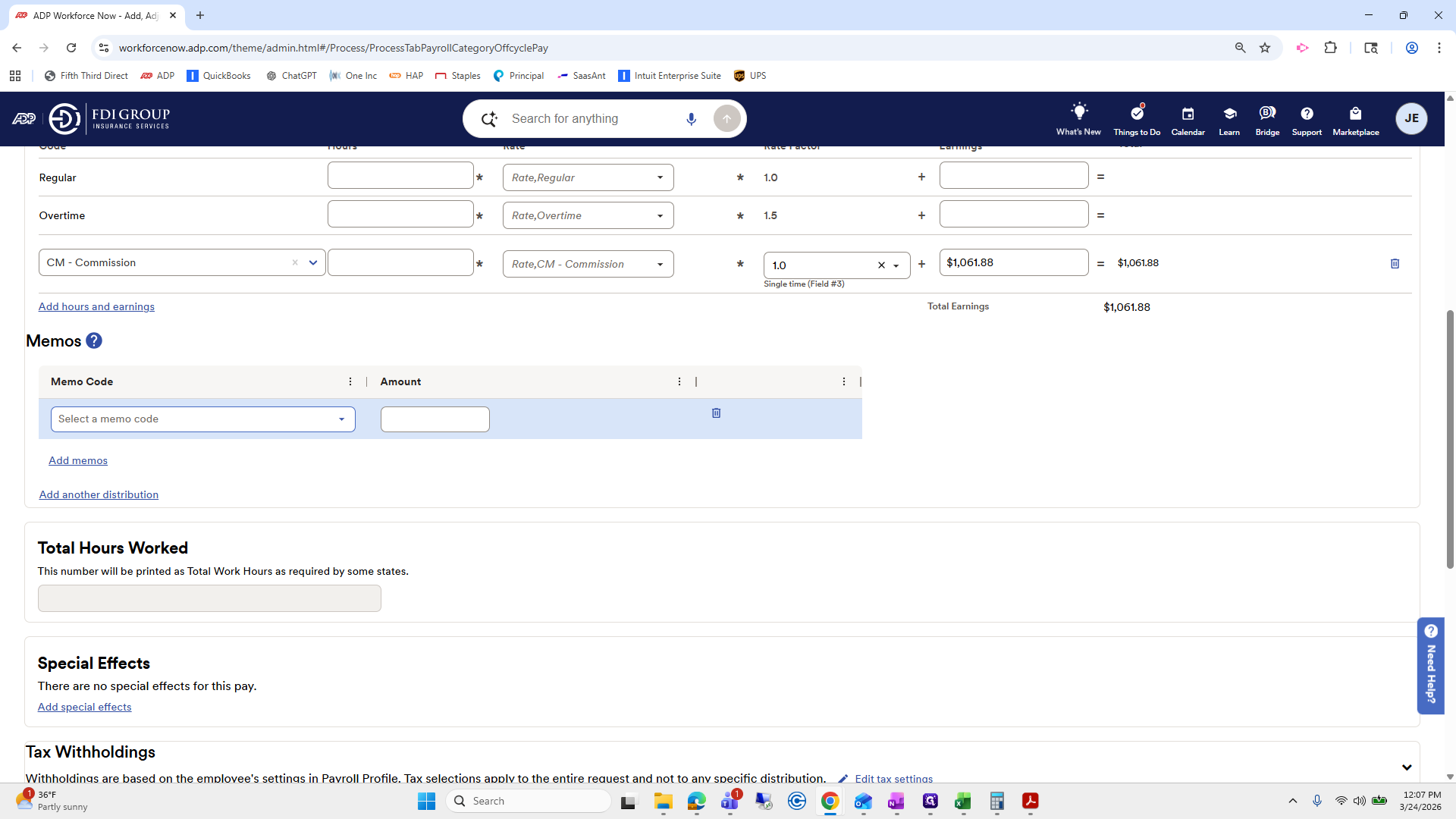
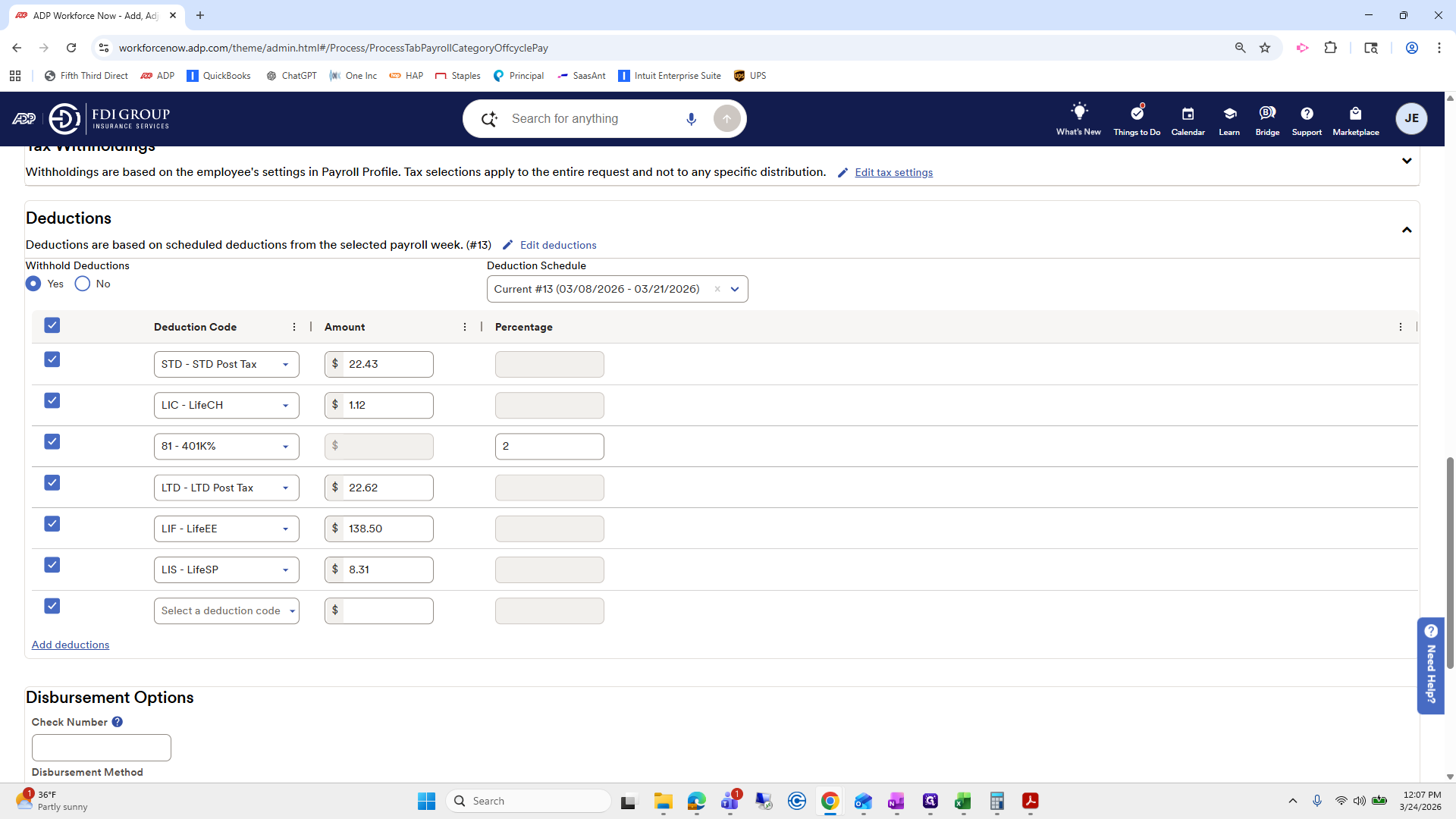
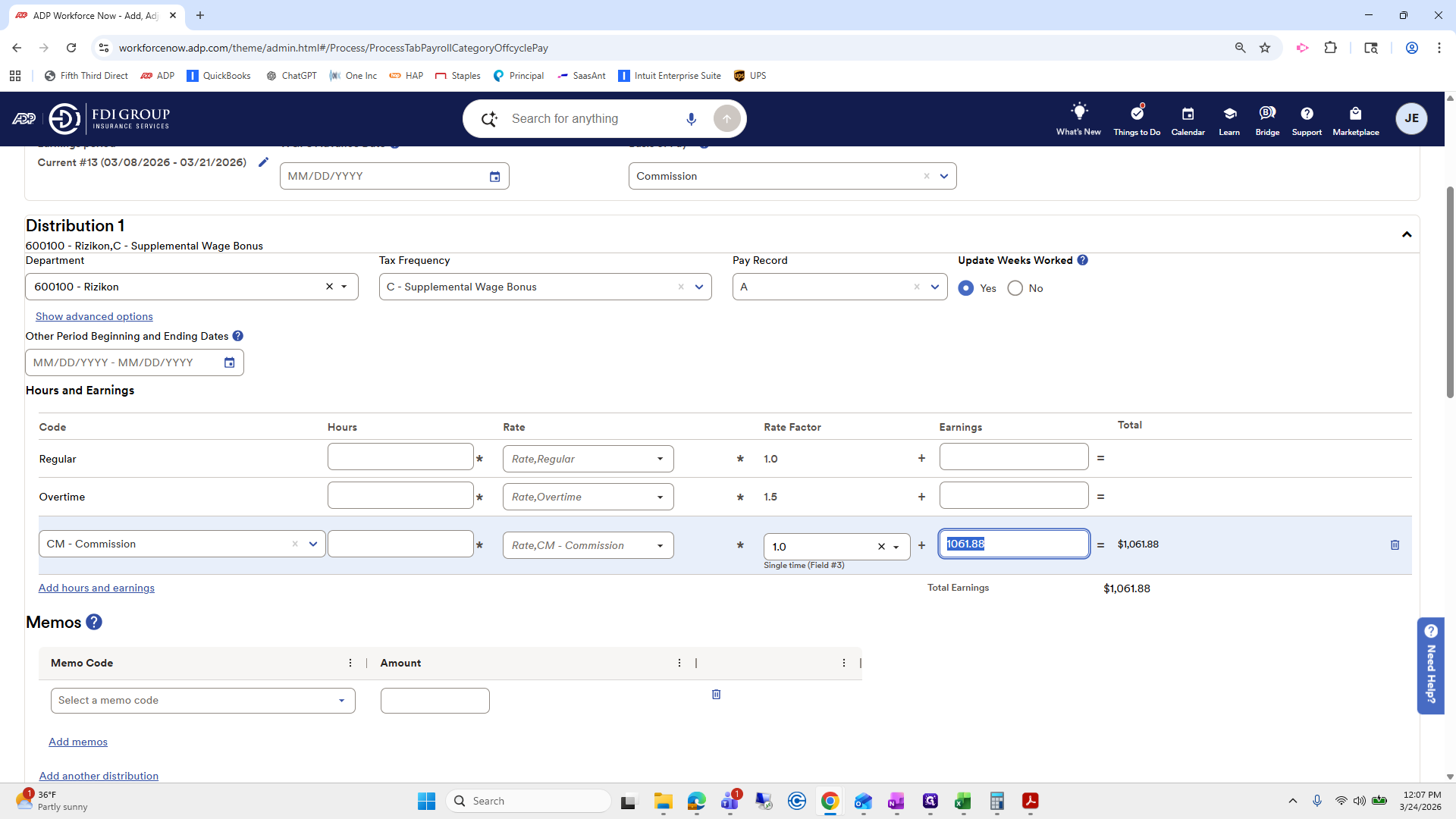
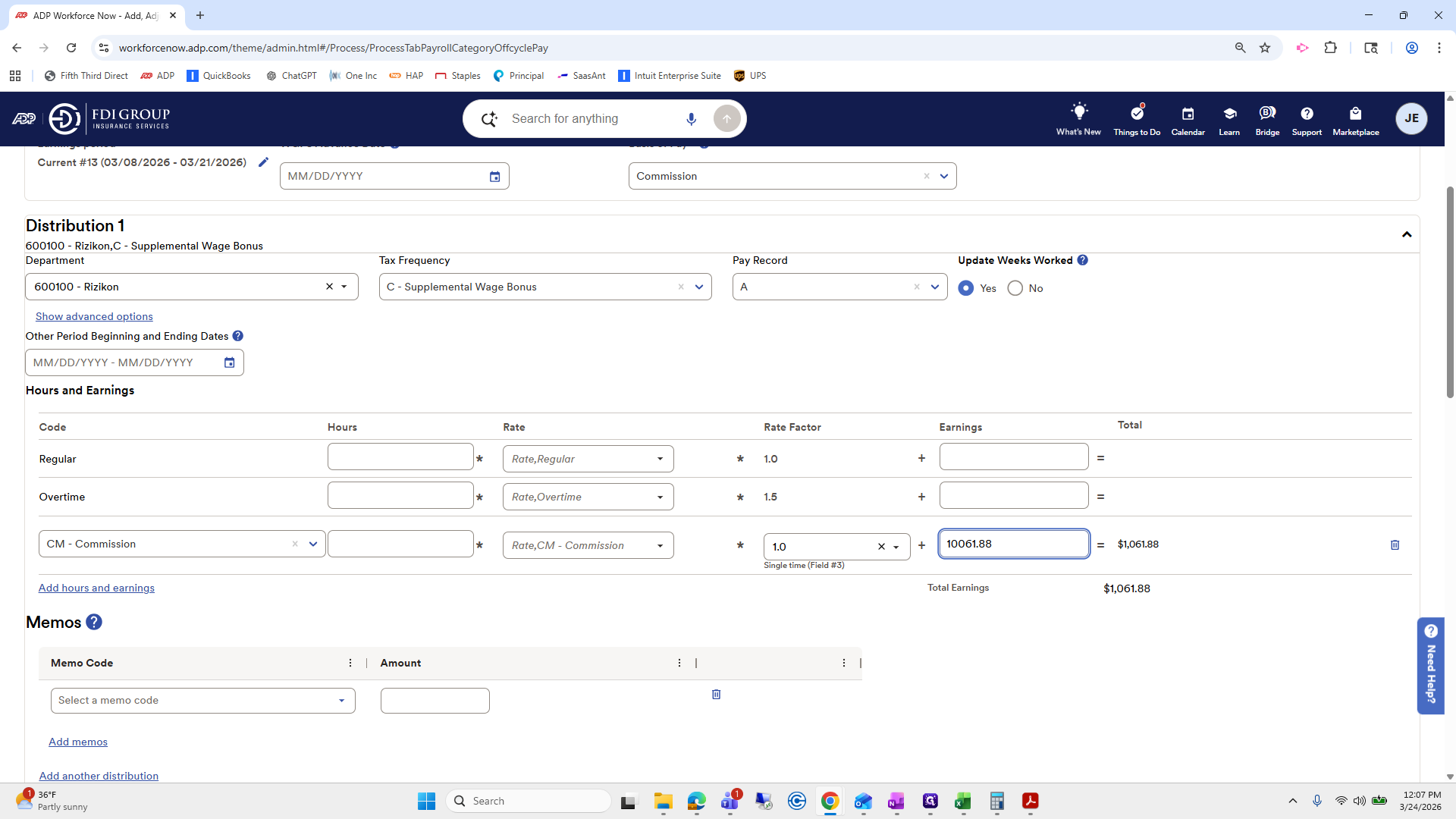
1,061.88. I will type 1,061.88. "" It might make me do that. I am not sure if it will. Go to Deductions and select Edit Deductions.
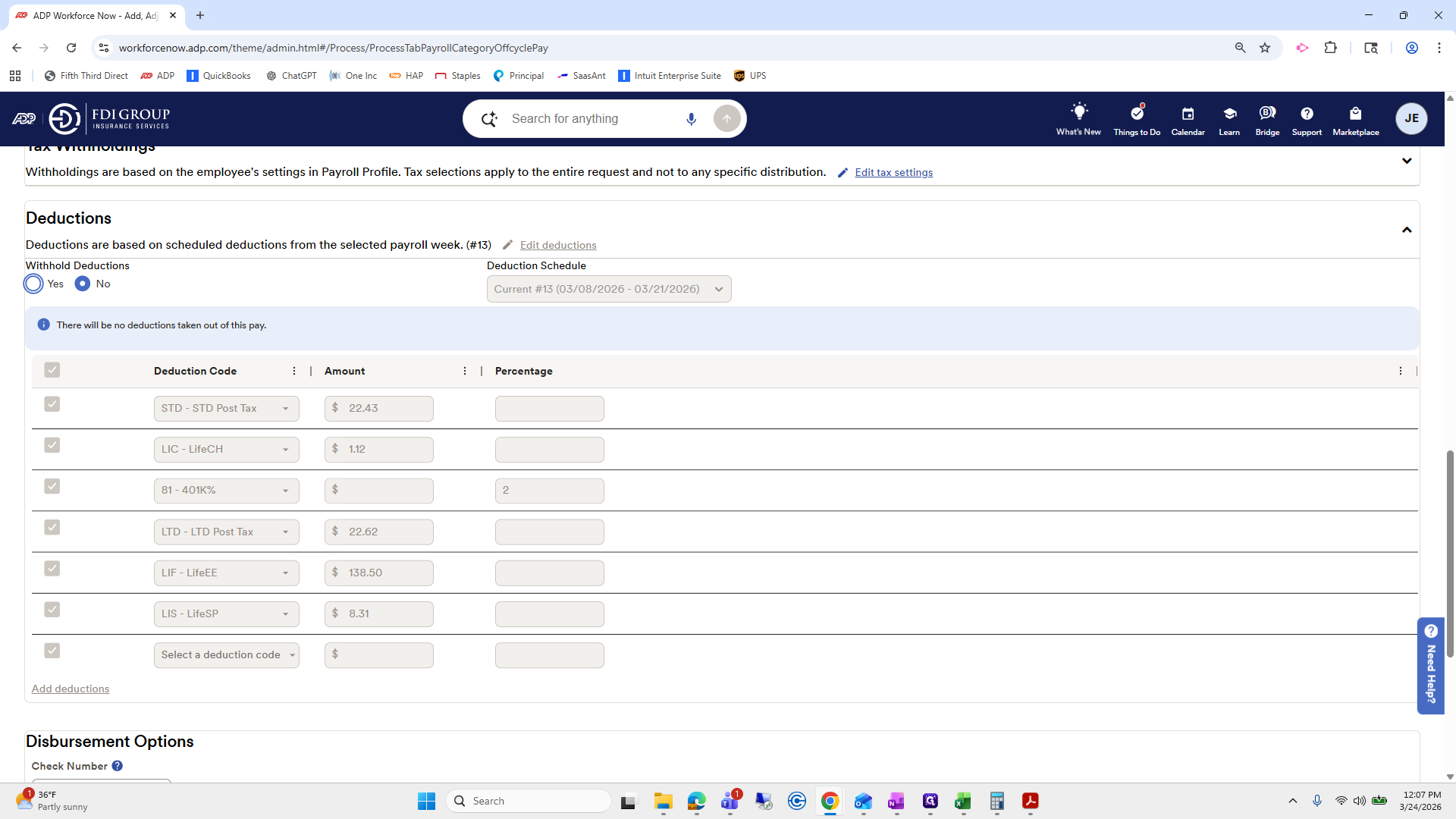
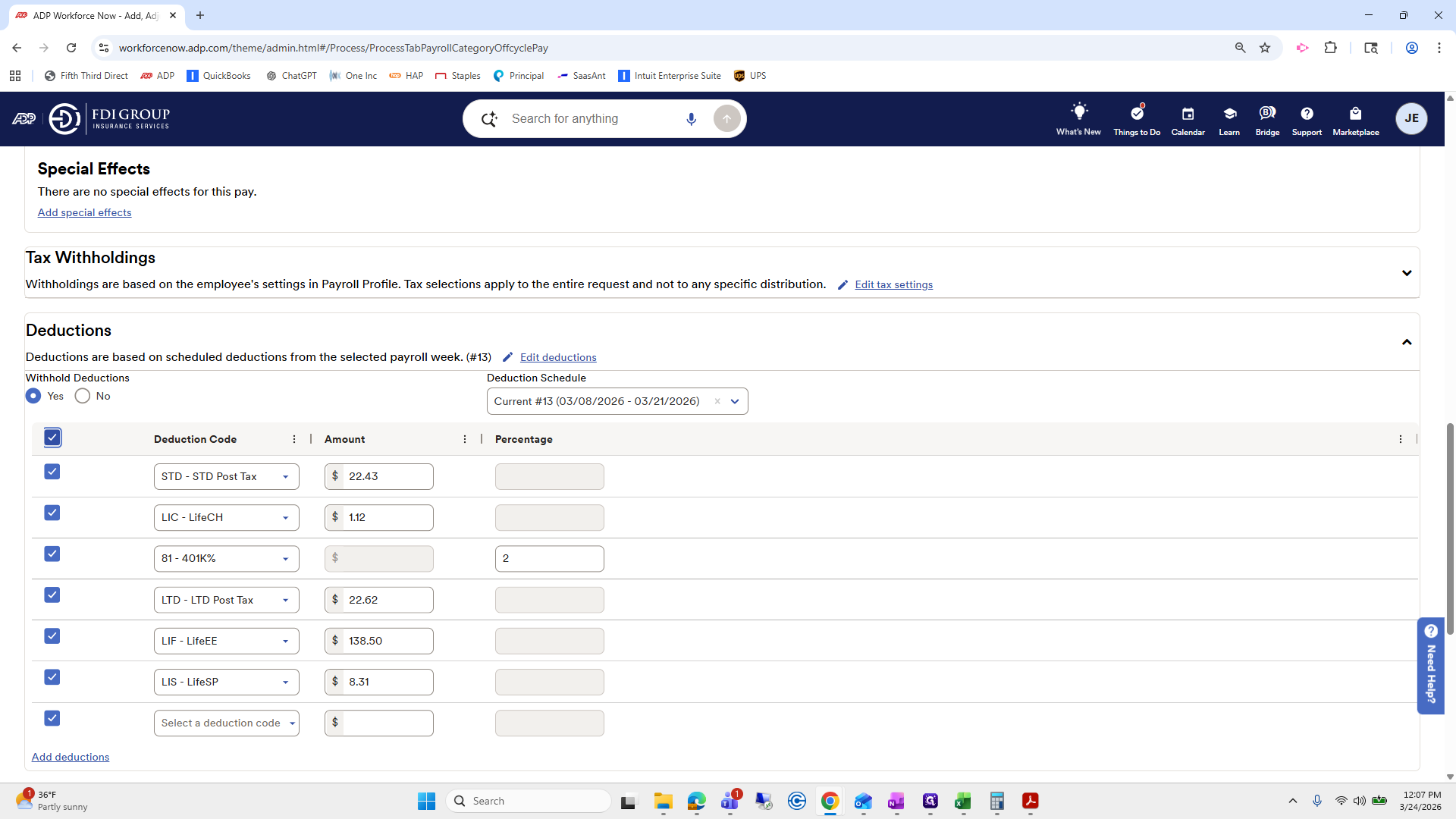
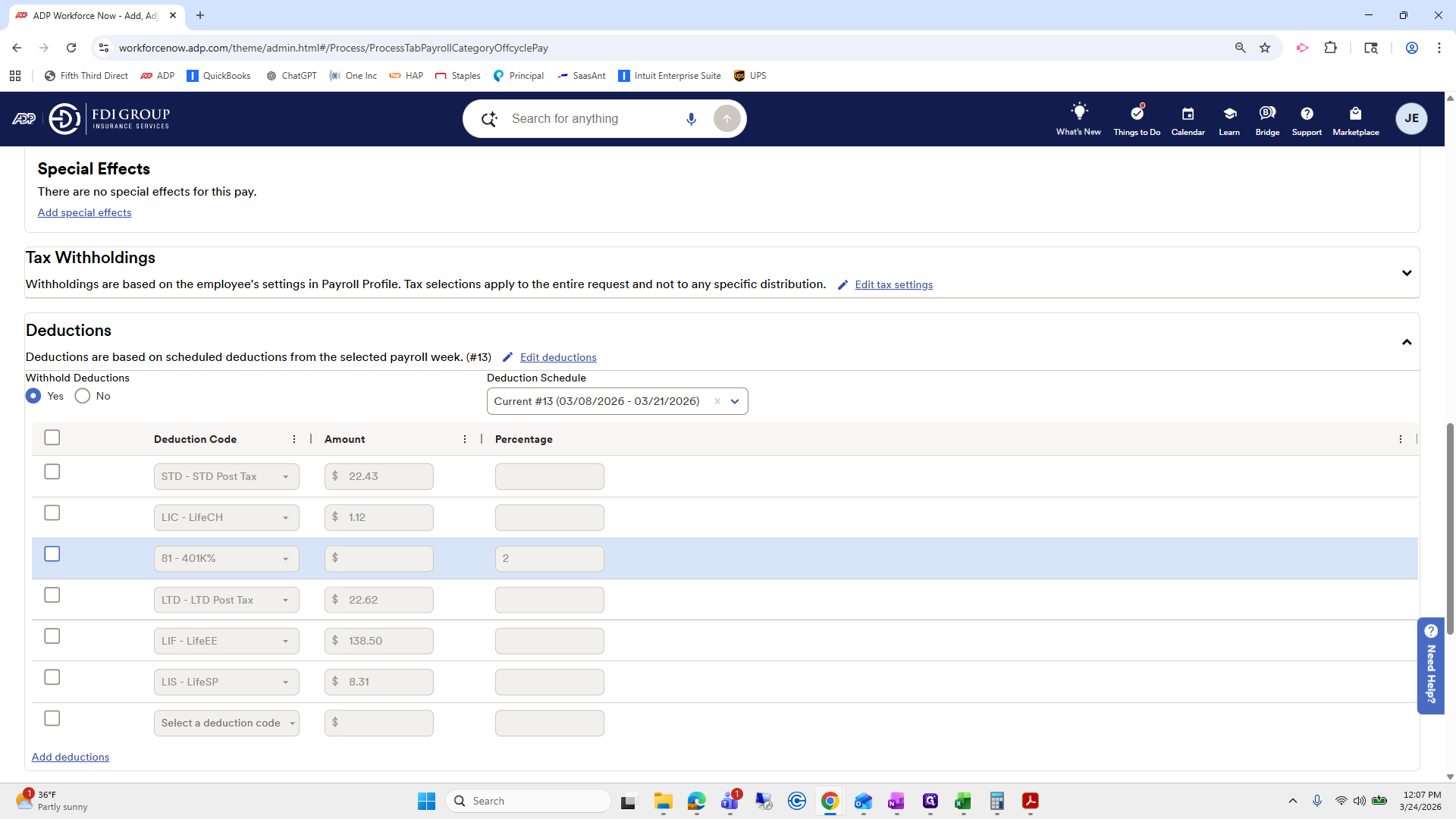
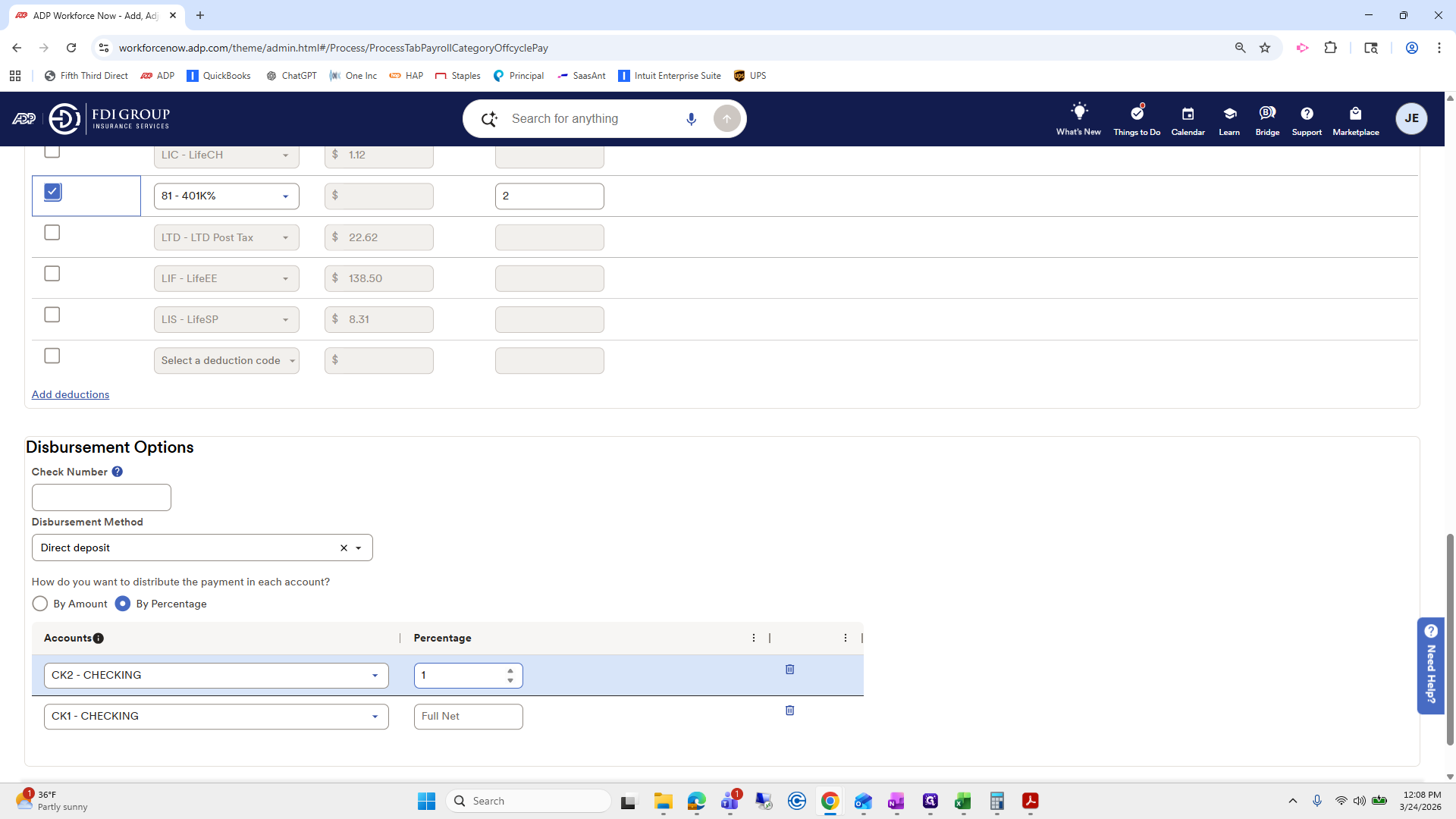
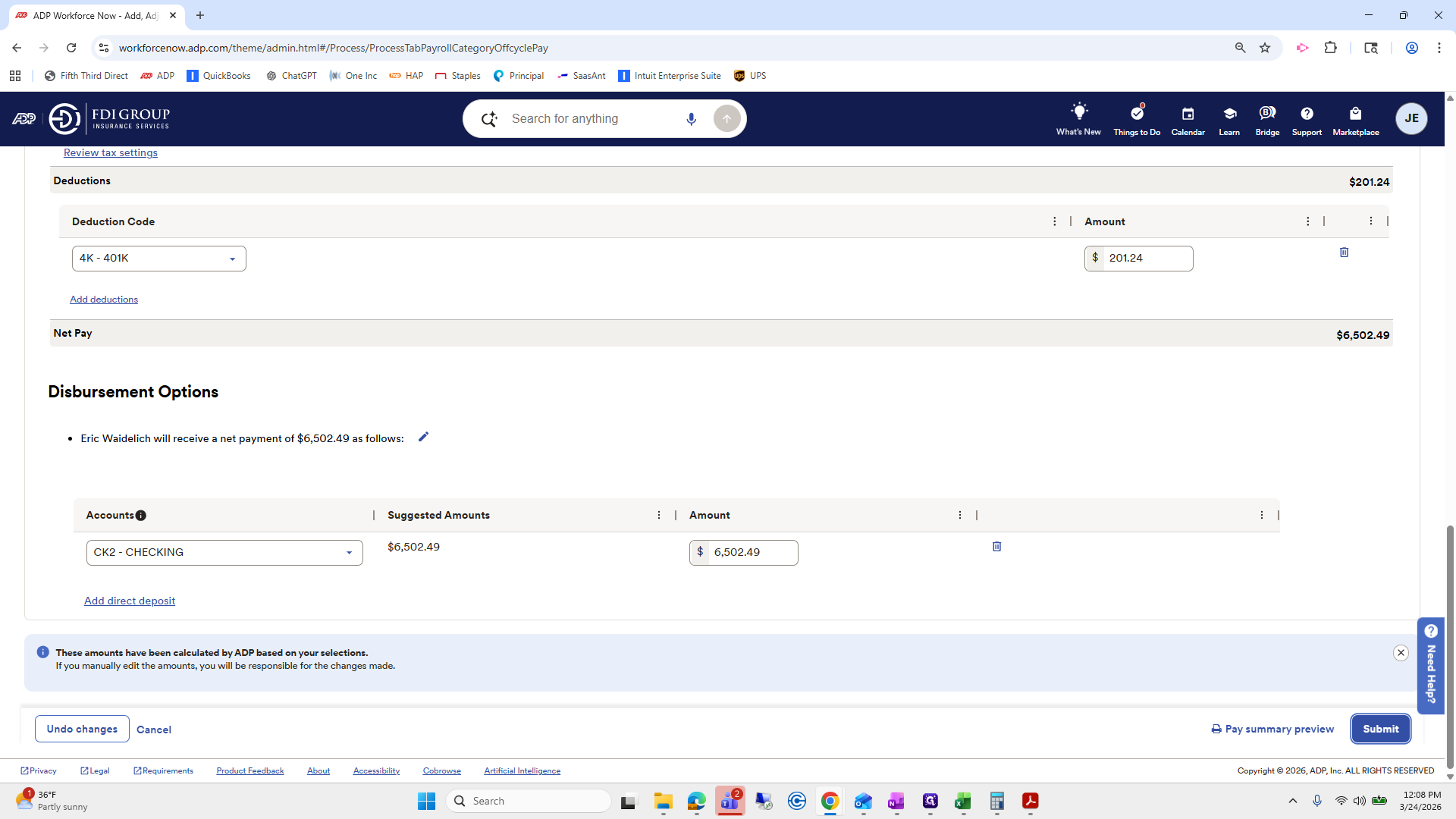
We will not withhold any deductions except for his 401(k). Does he have a 401? Yep. We will uncheck everything except his 401. Next, we will set up direct deposit.
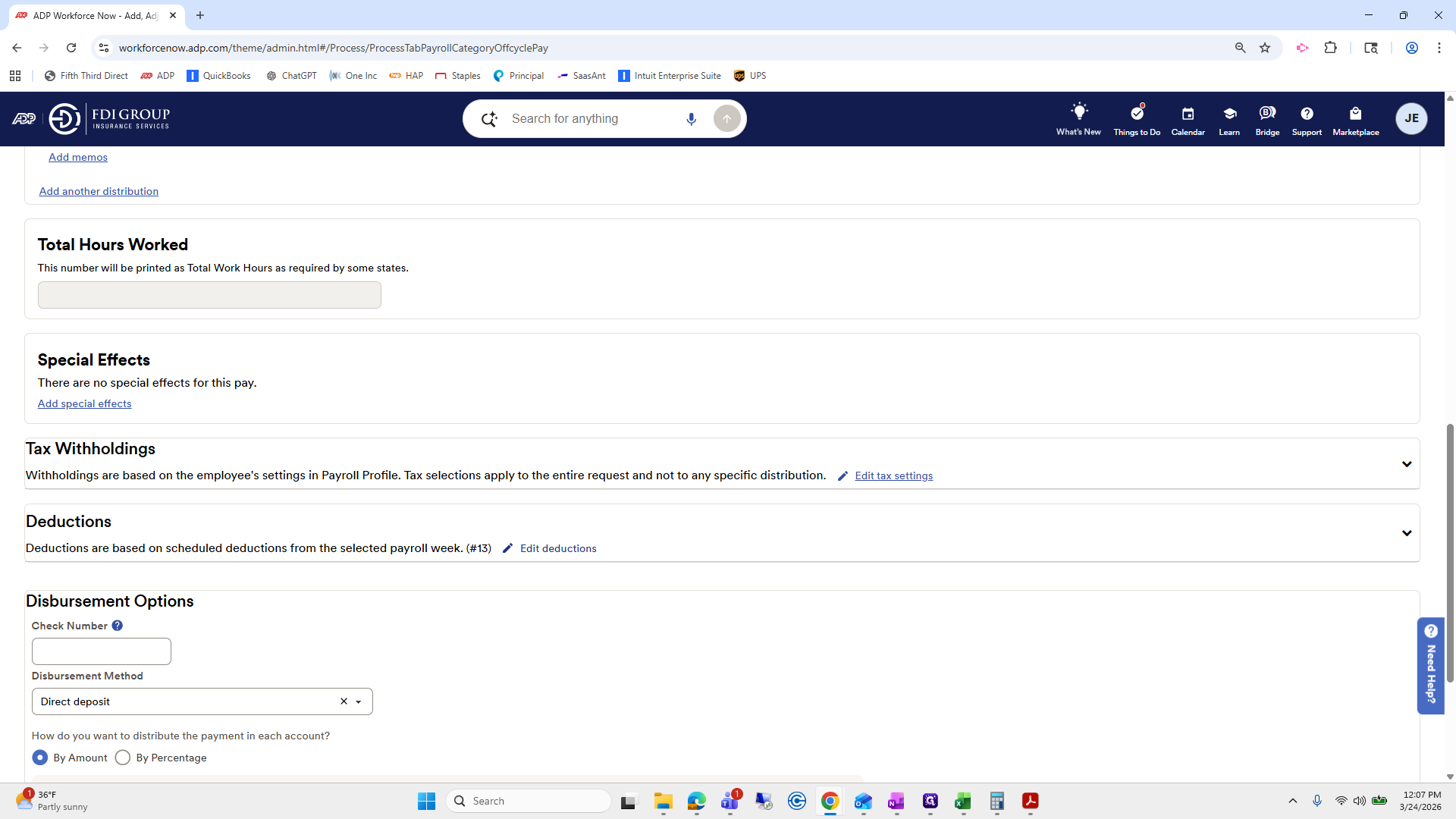
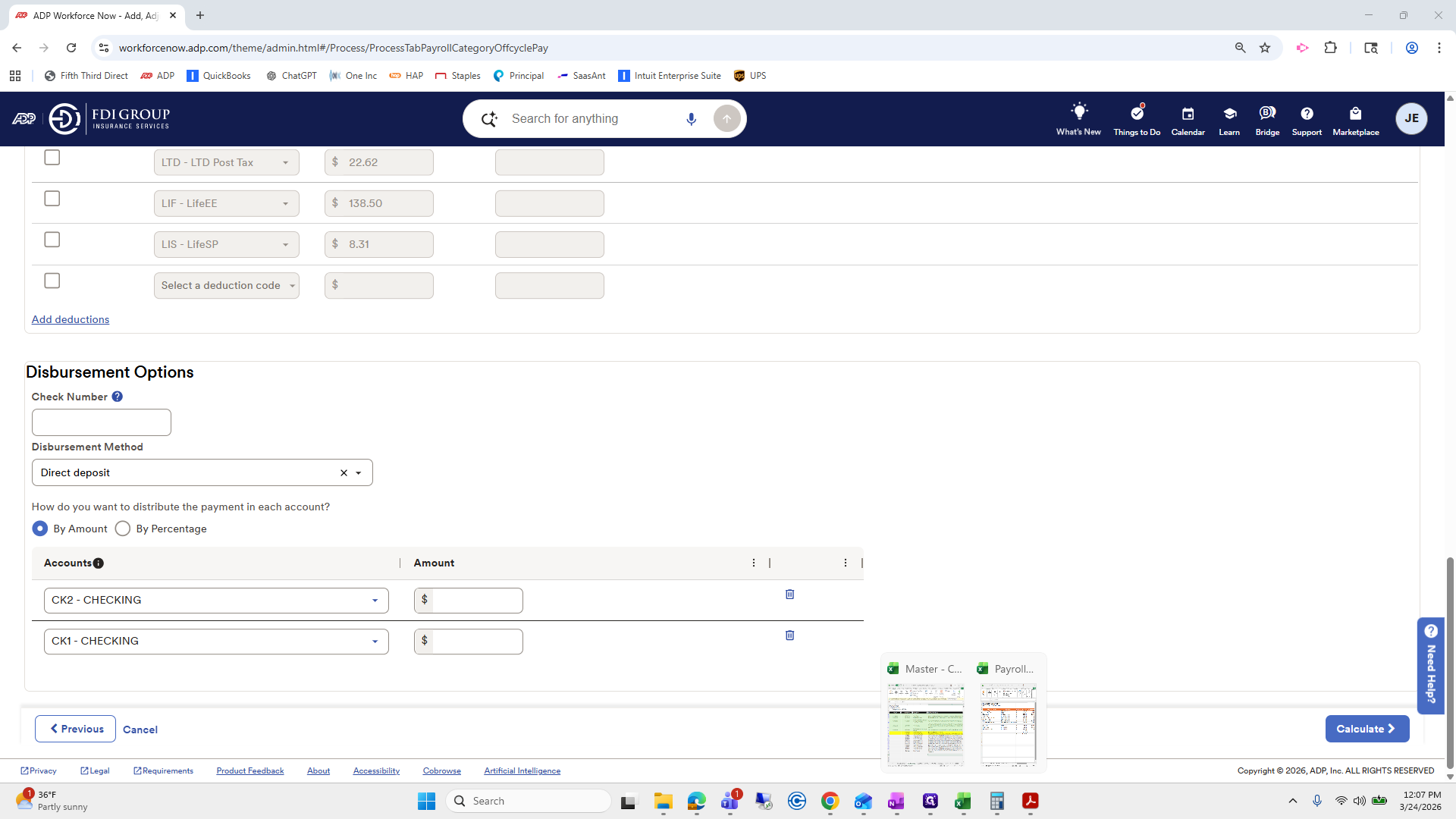
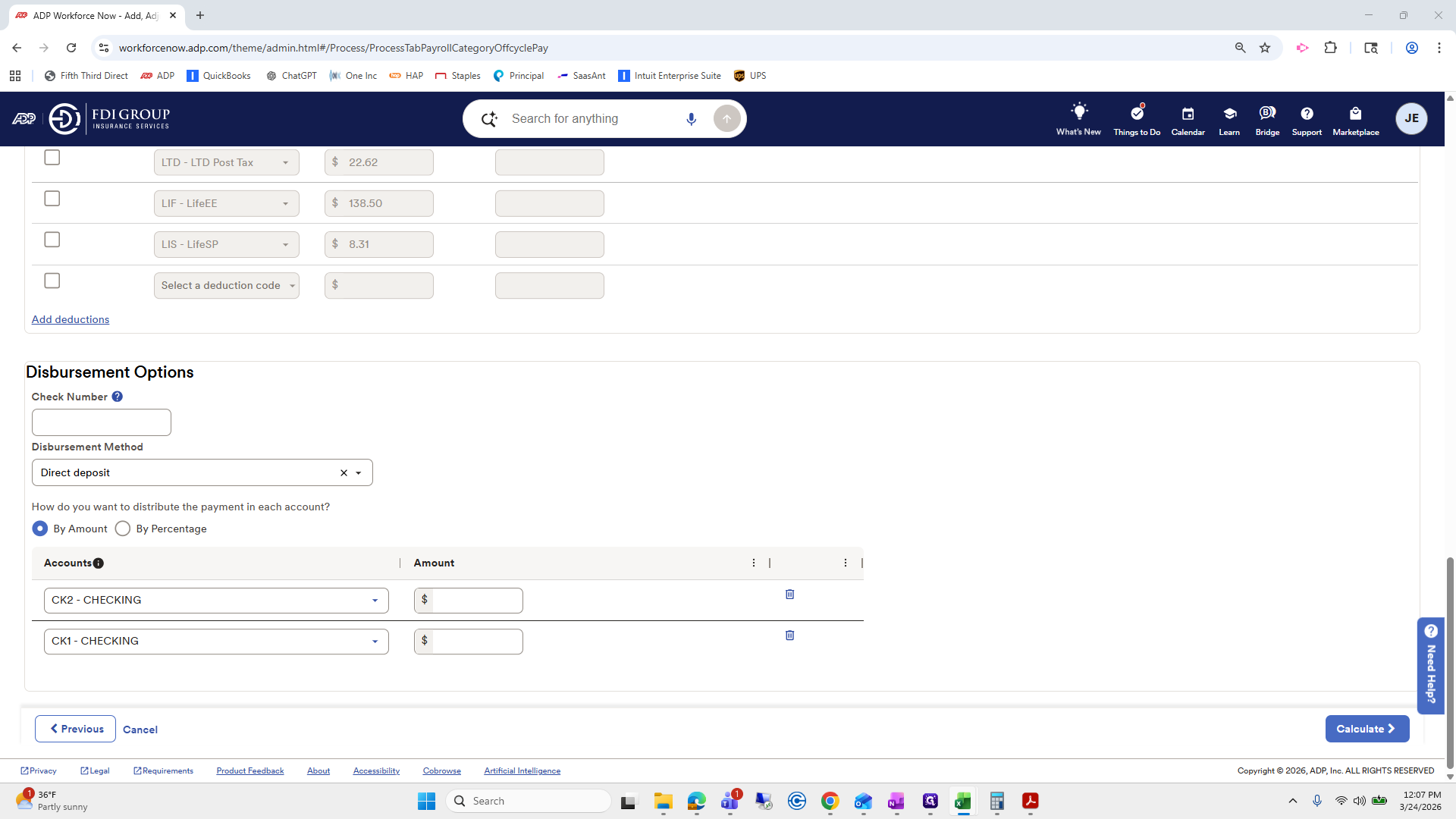
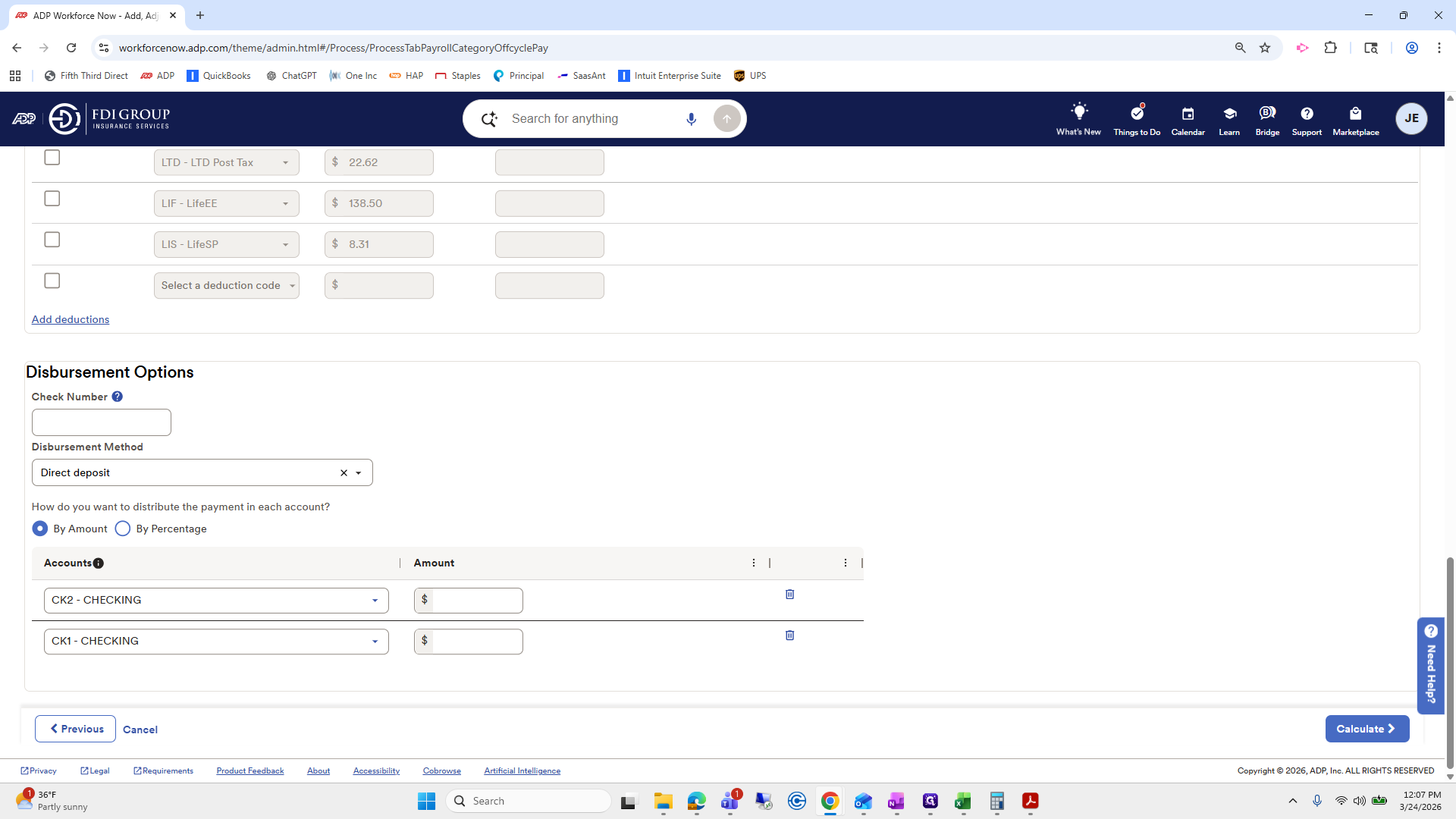
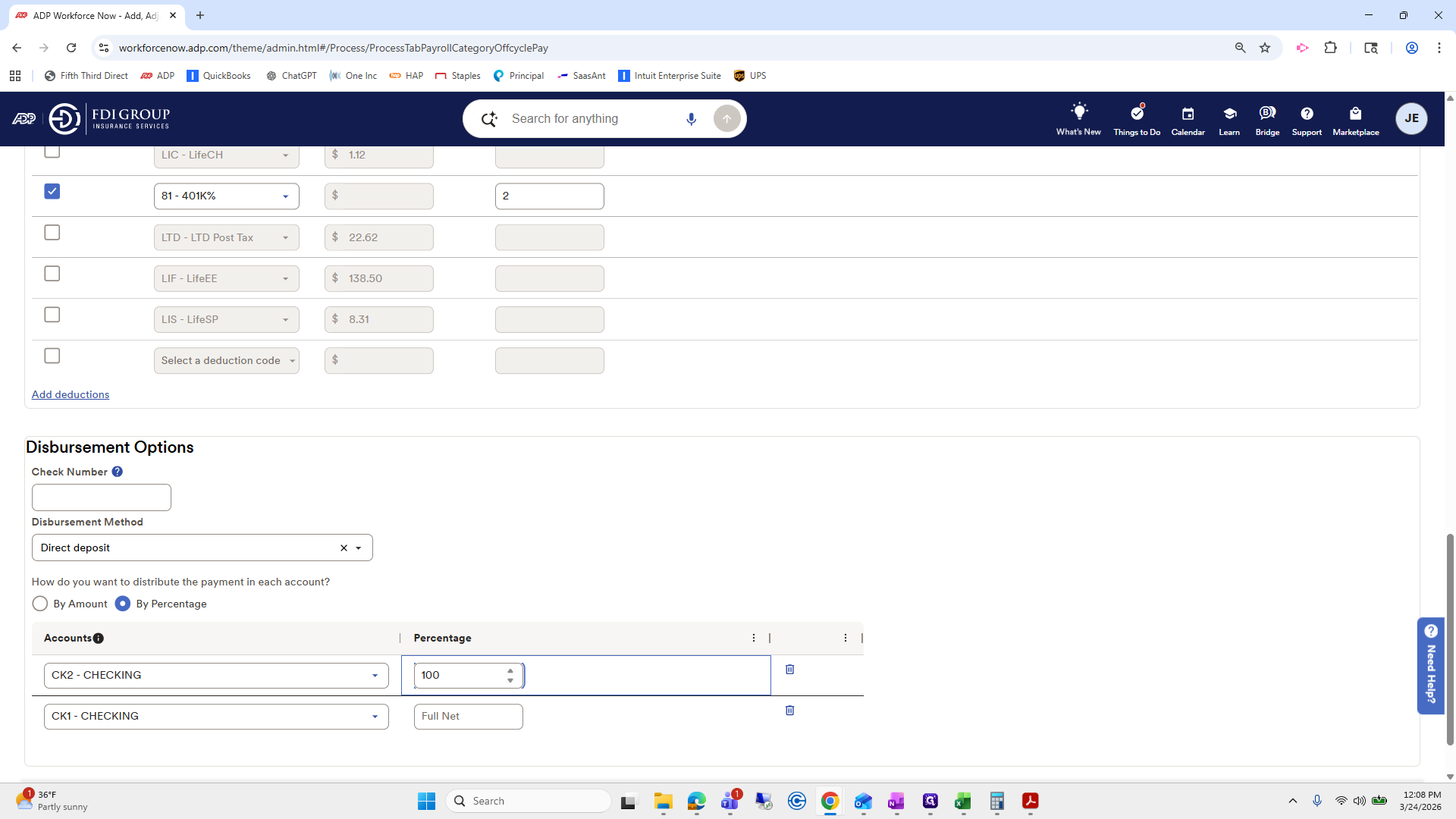
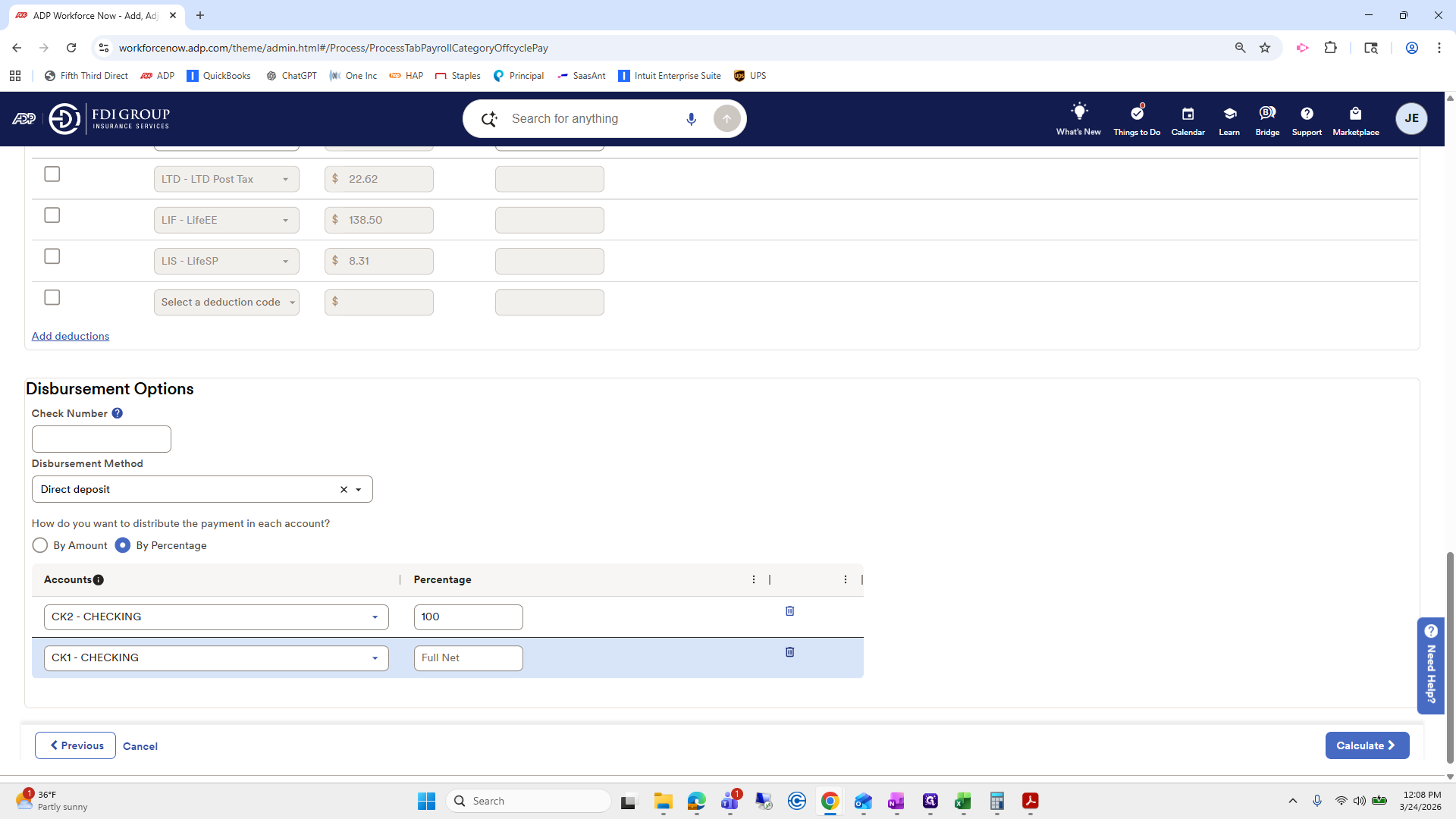
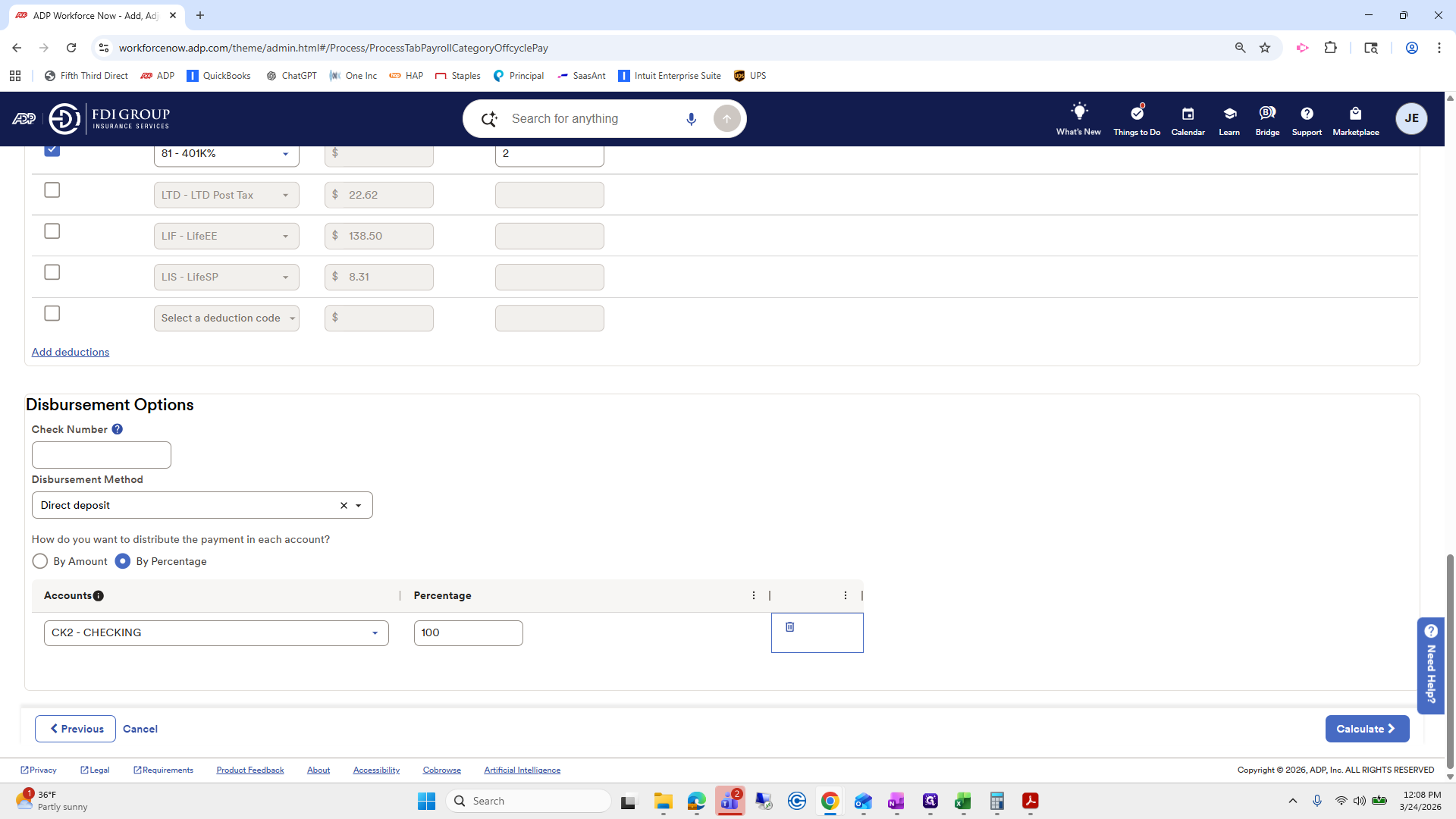
He prefers it recorded on the worksheet. Eric Risikon wants it noted for checking two. We will enter the full amount here: 1,061.6. There we go. And we're going to do it by percentage. He prefers it at 100%. We will delete checking one because he only wants it in this checking account.
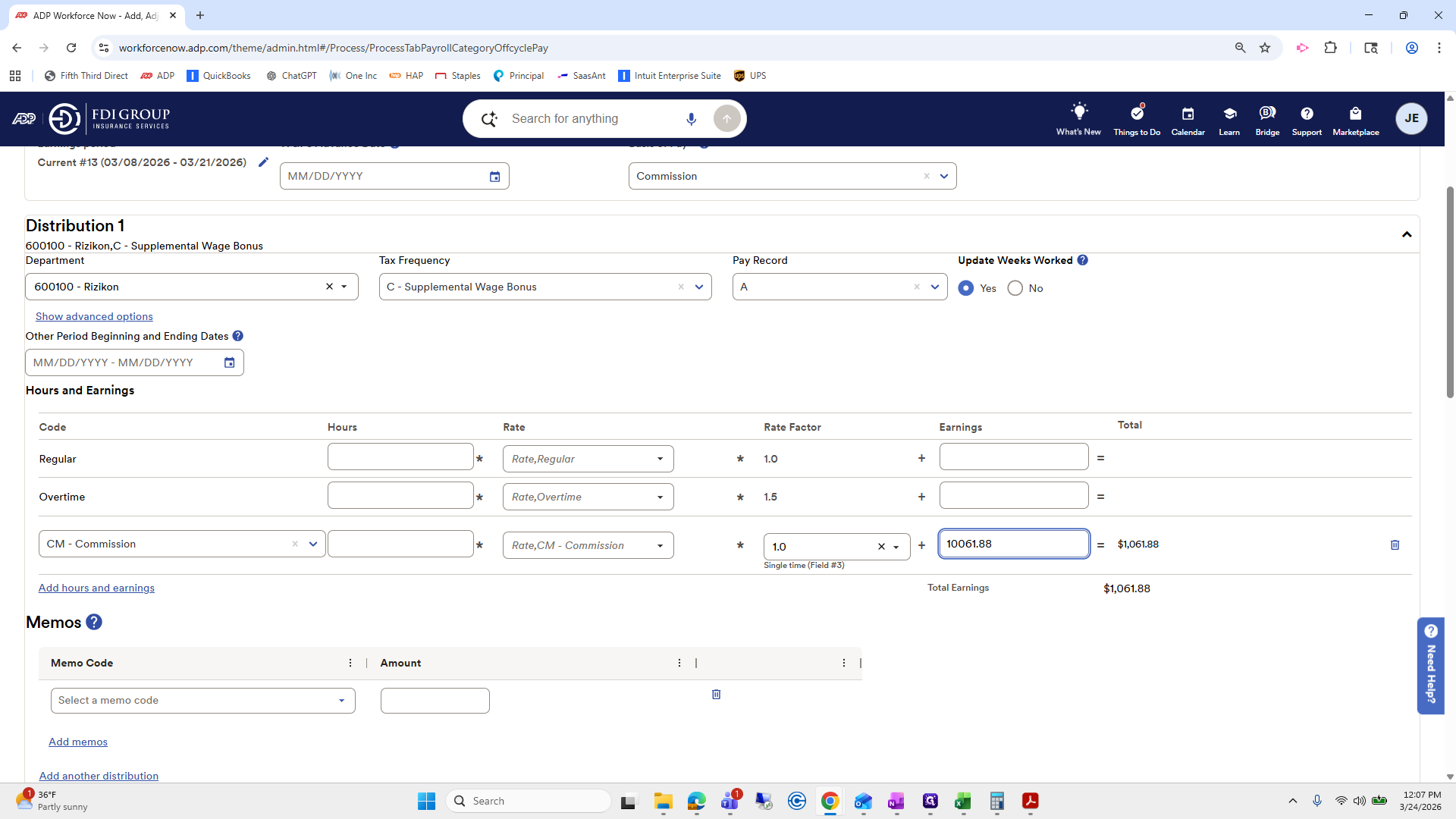
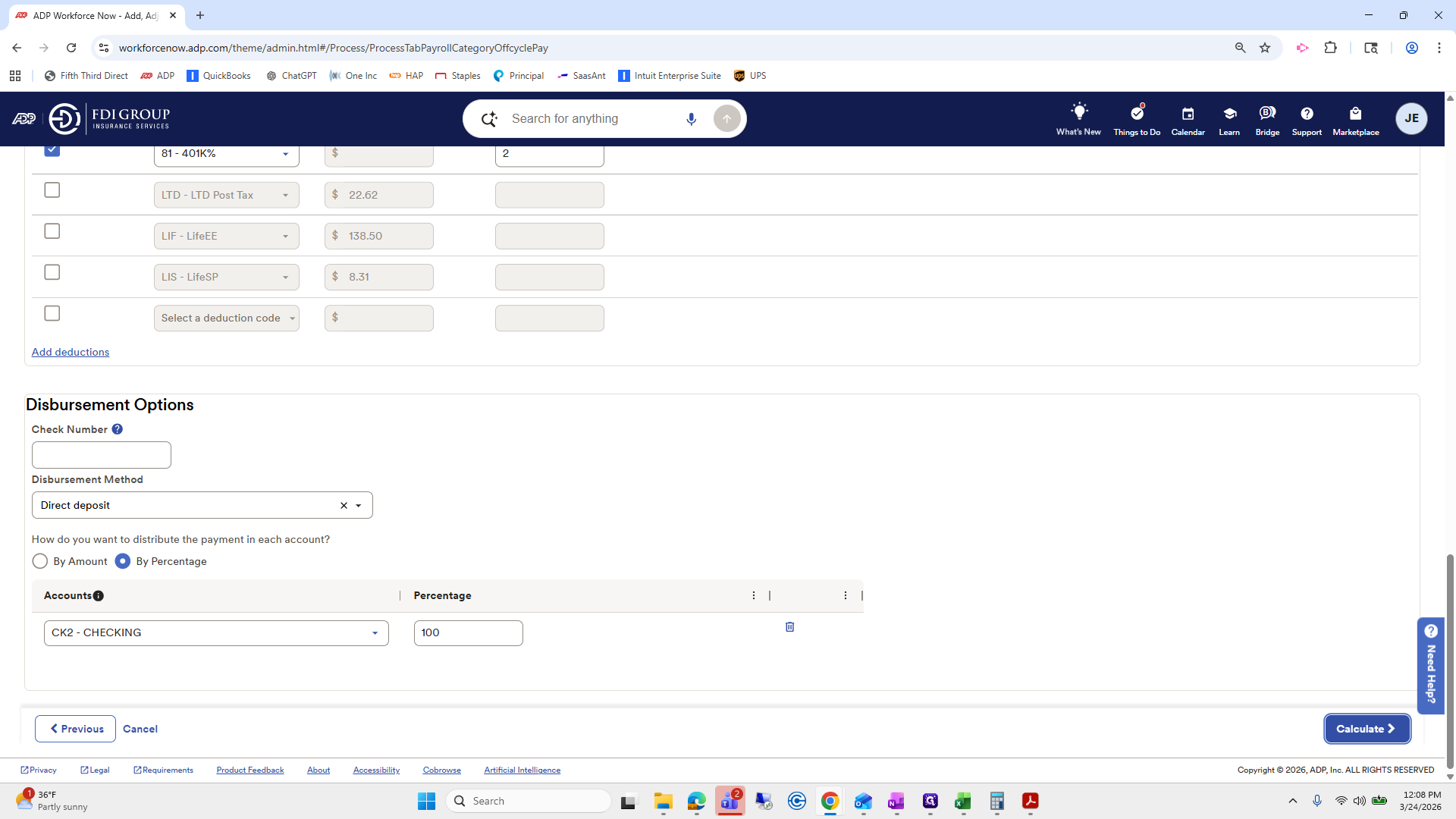
Next, we will calculate. If there are any errors, we will be notified. Okay, let's double-check his amount again. So, it is... 10,061.88. 10,061.88.
Okay. Everything looks good. All his taxes will be deducted, except for the 401(k). That looks good. Next, click submit.
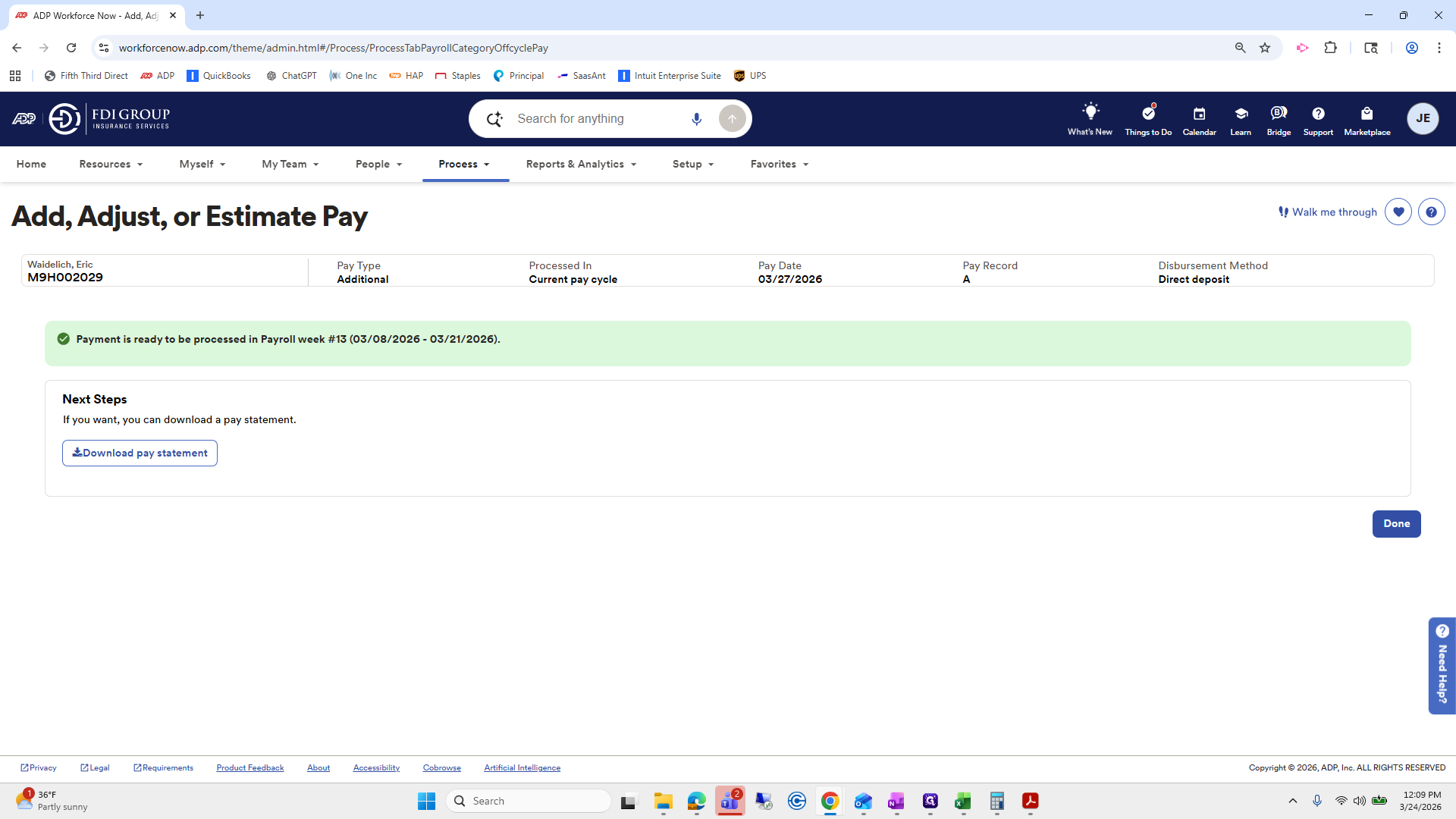
Then we're going to click done. When doing this, make sure it is within the week you are processing it.