Step-by-Step Guide to Order Processing: From Creation to Dispatch Including Non-Mainland UK Orders
Learn the complete process of handling orders from creation to dispatch, for non-mainland UK and international shipments. This guide covers order creation, pick rules, documentation, and shipping procedures.
In this guide, we'll learn how to process an order from creation to dispatch when shipping to a non-mainland UK address or another country. We will cover how to set up the order, assign the correct delivery details, manage documentation, and ensure the order is ready for export and shipping. This process helps ensure that all necessary steps are followed for orders that require special handling due to their destination.
Let's get started
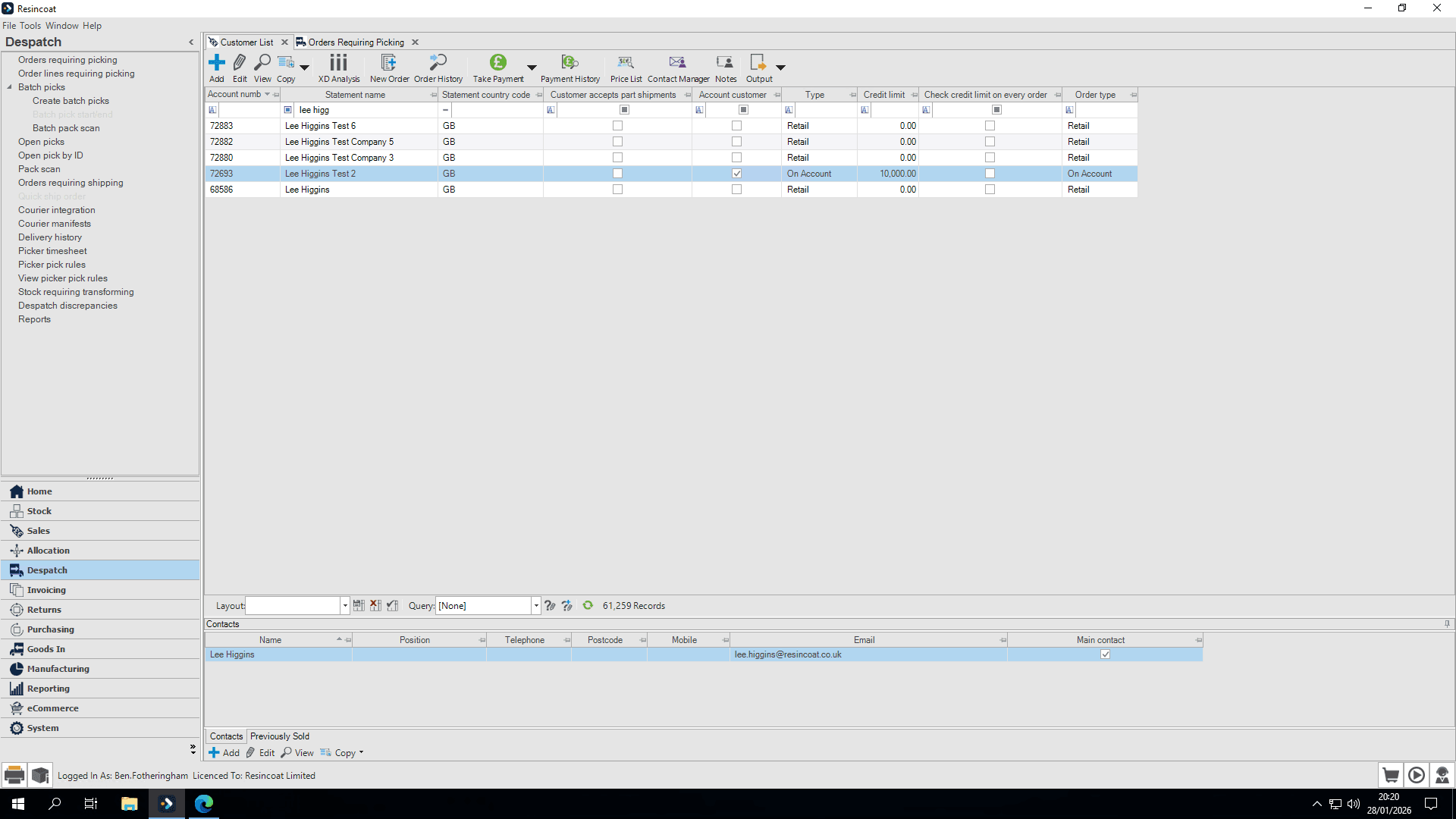
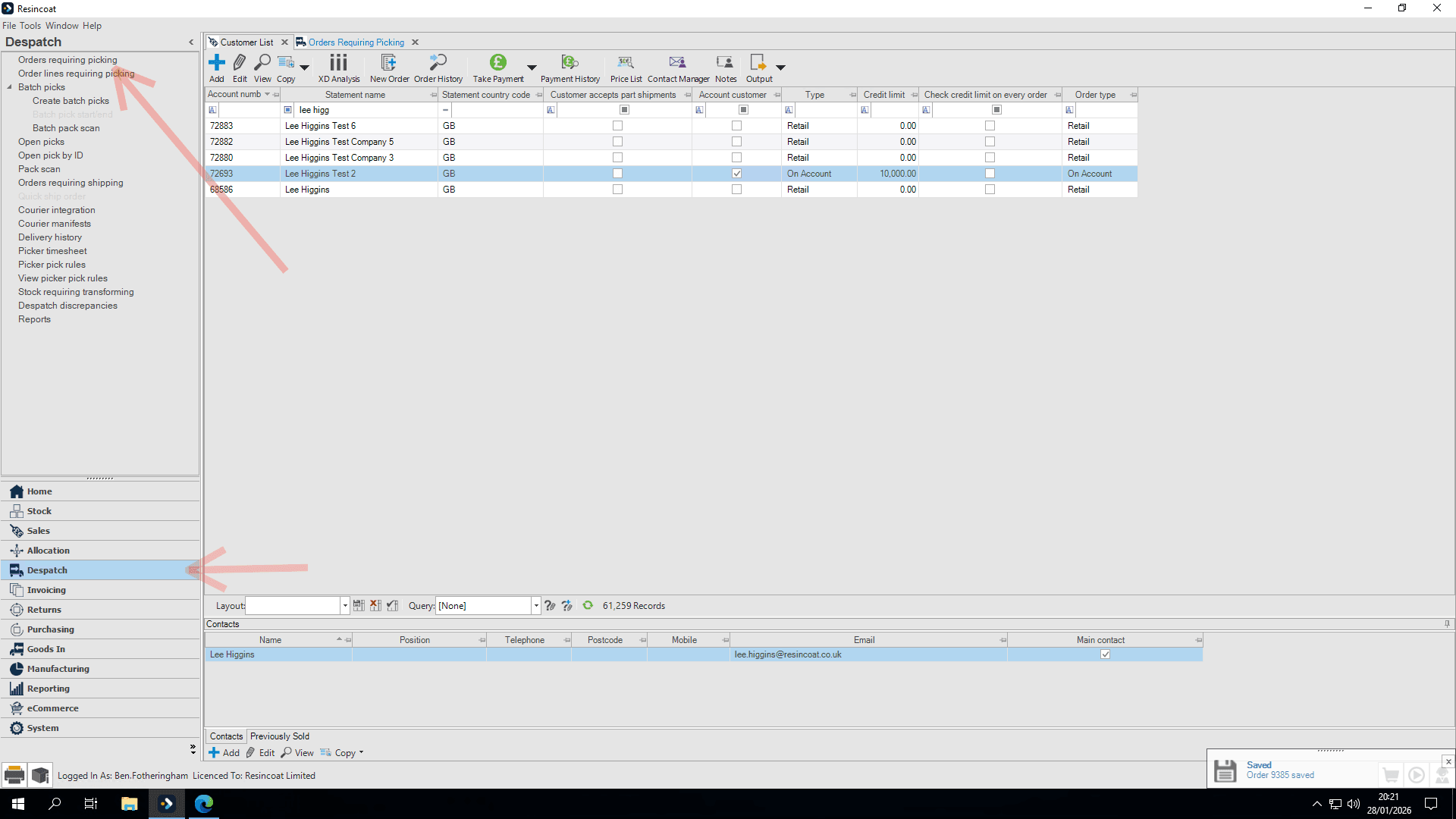
We will explain the entire process of handling an order, from creation to dispatch, including sending orders to non-mainland UK or other countries. I am already in the customer list and have found the account used for all our testing purposes.
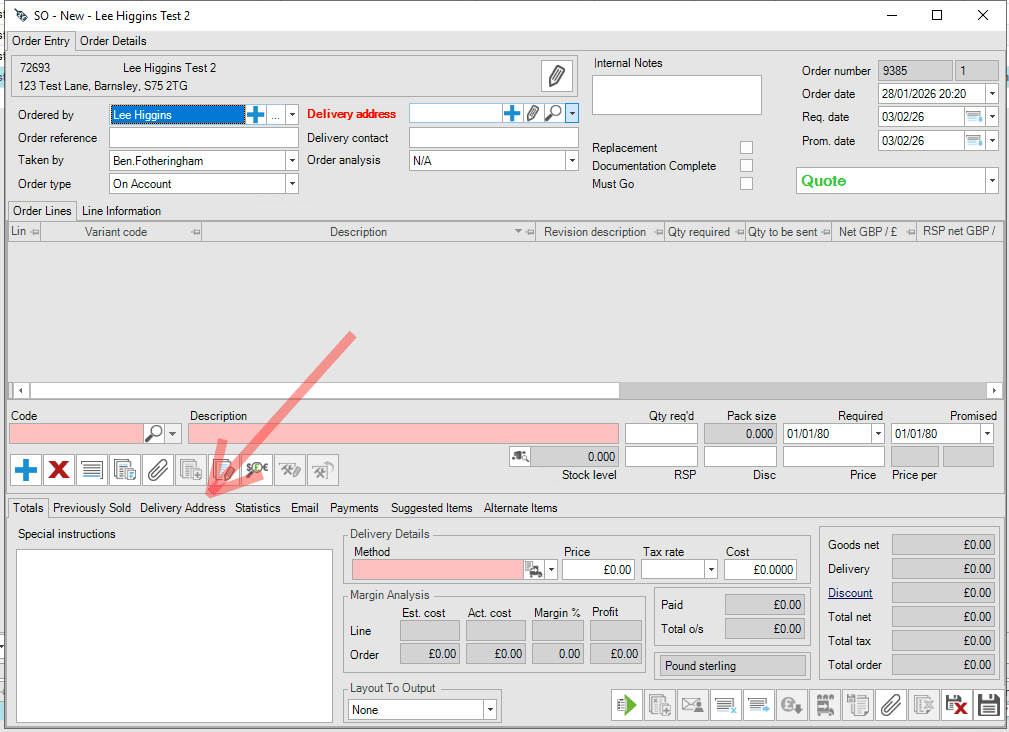
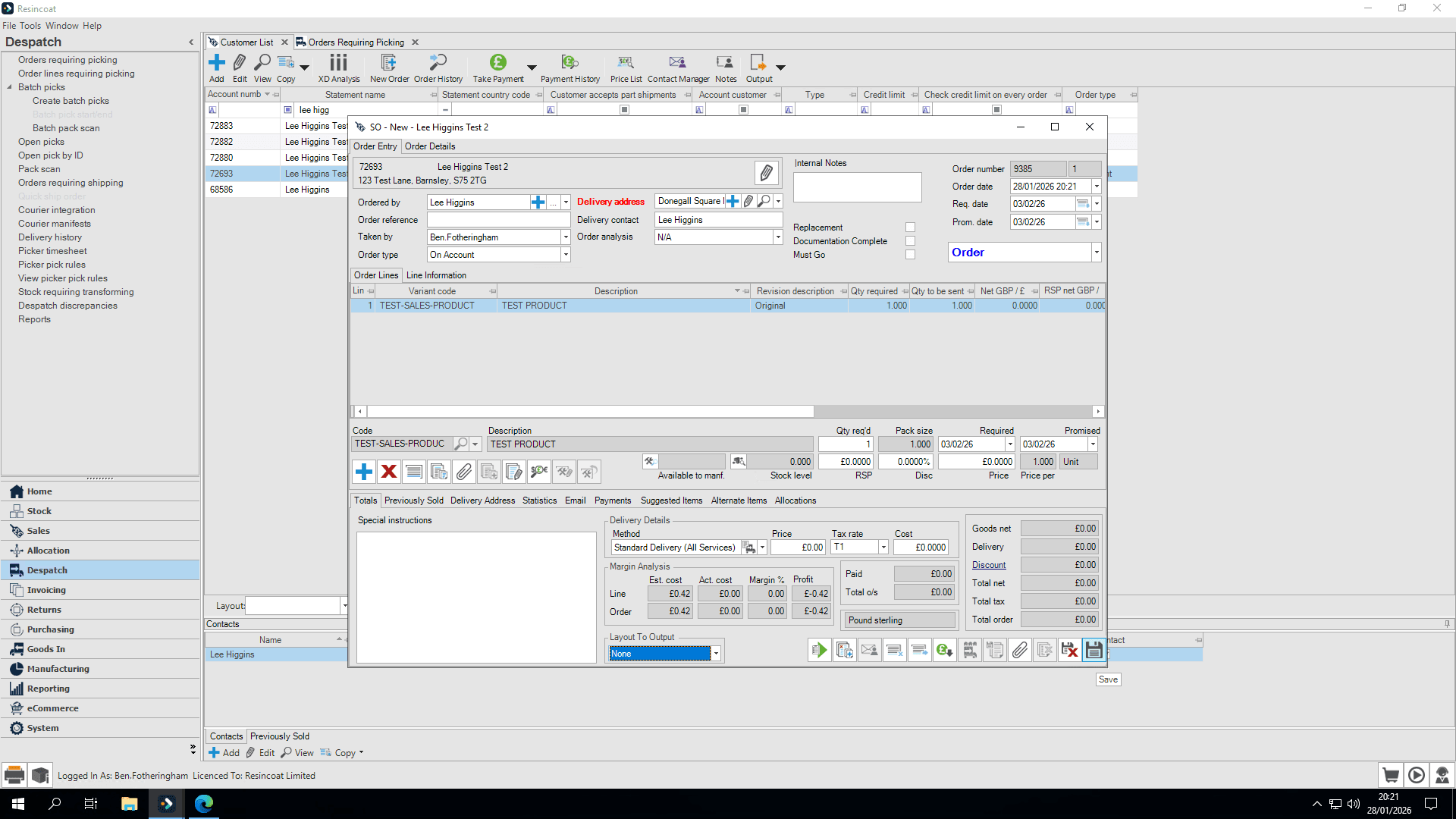
I'm going to create a simple order. We will set the delivery address to this location in Belfast.
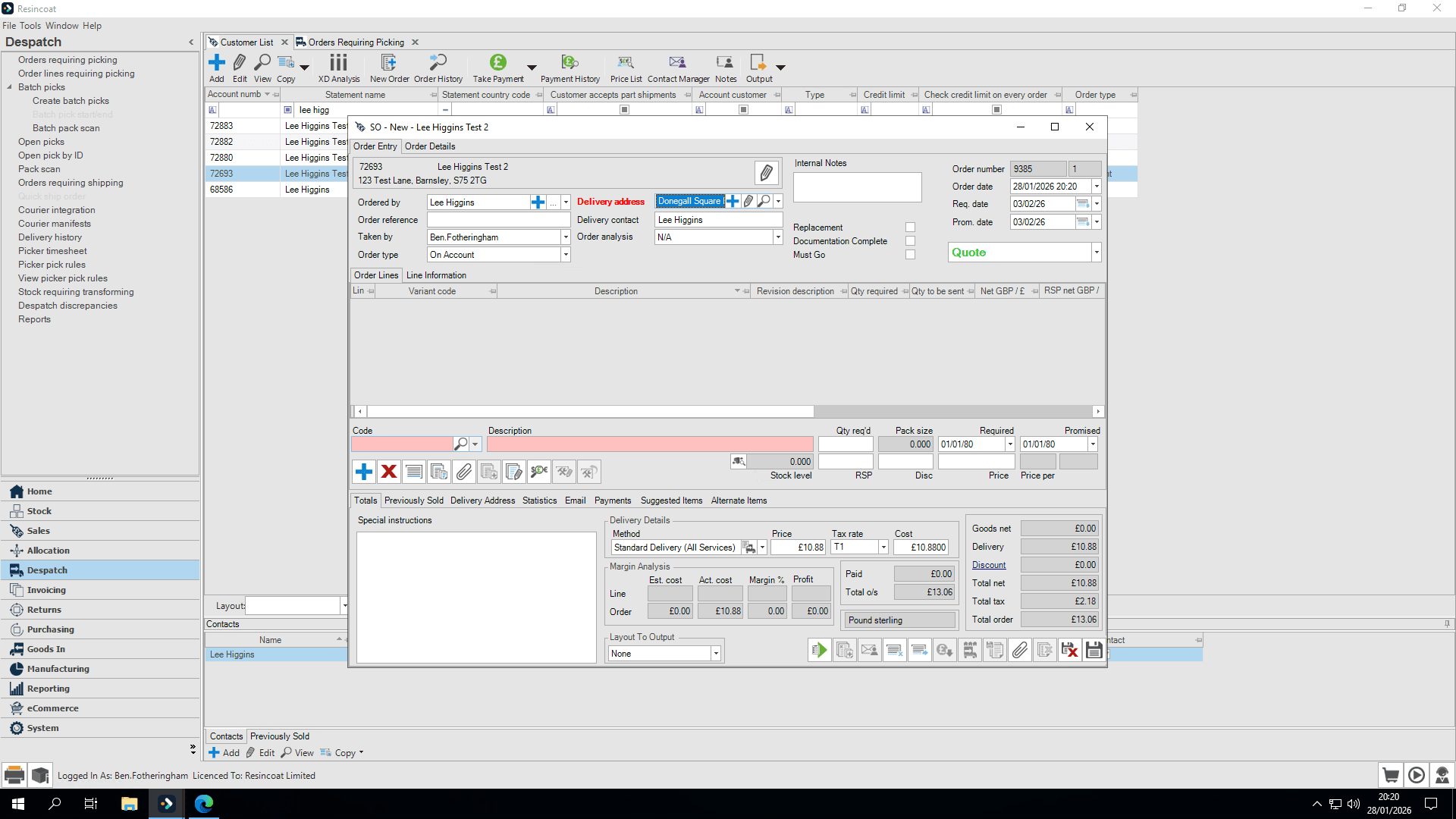
I'm happy my order is correct, Now, I'll click Save.
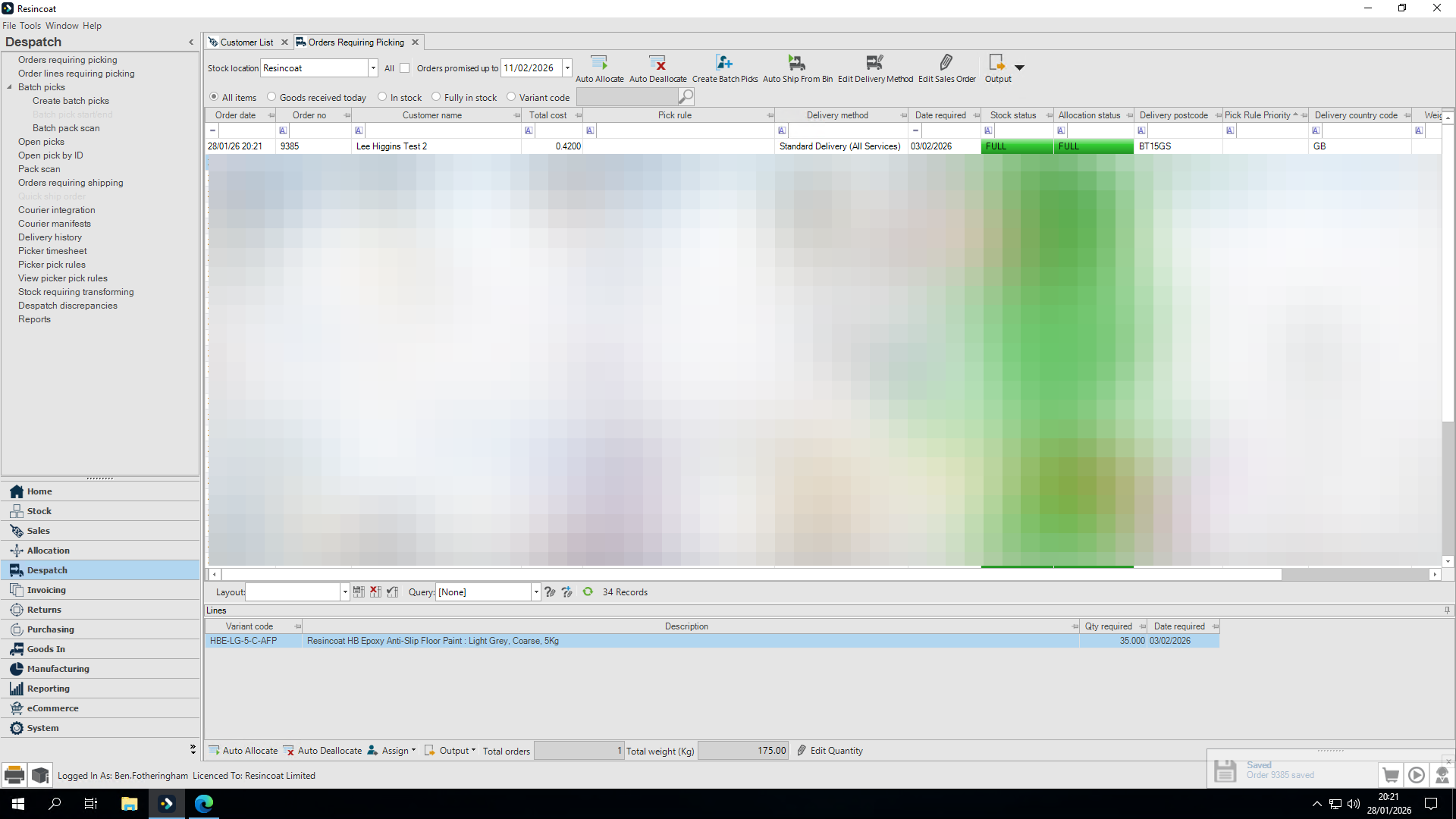
If we go to the orders that need picking, we should seeour order
Here's the order, but currently, no pick rule is assigned to it.
Pick rules are assigned every few minutes.
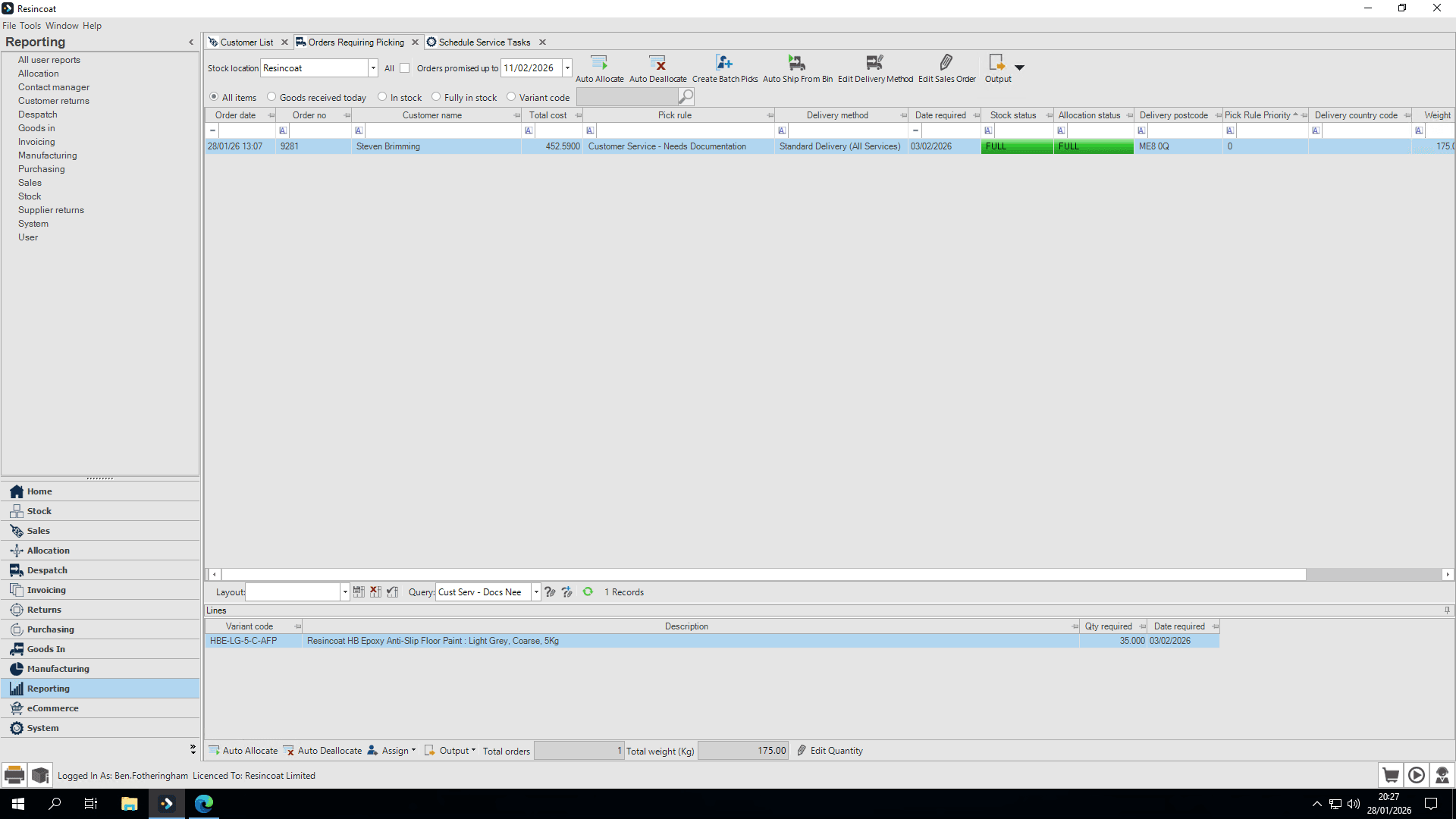
The “Customer Service Needs Documentation” pick rule is now active.
It triggers for non-mainland UK postcodes (e.g. BT – Belfast) to flag orders requiring documentation.
As this screen is busy, apply the query below to show only orders needing customer service documentation.
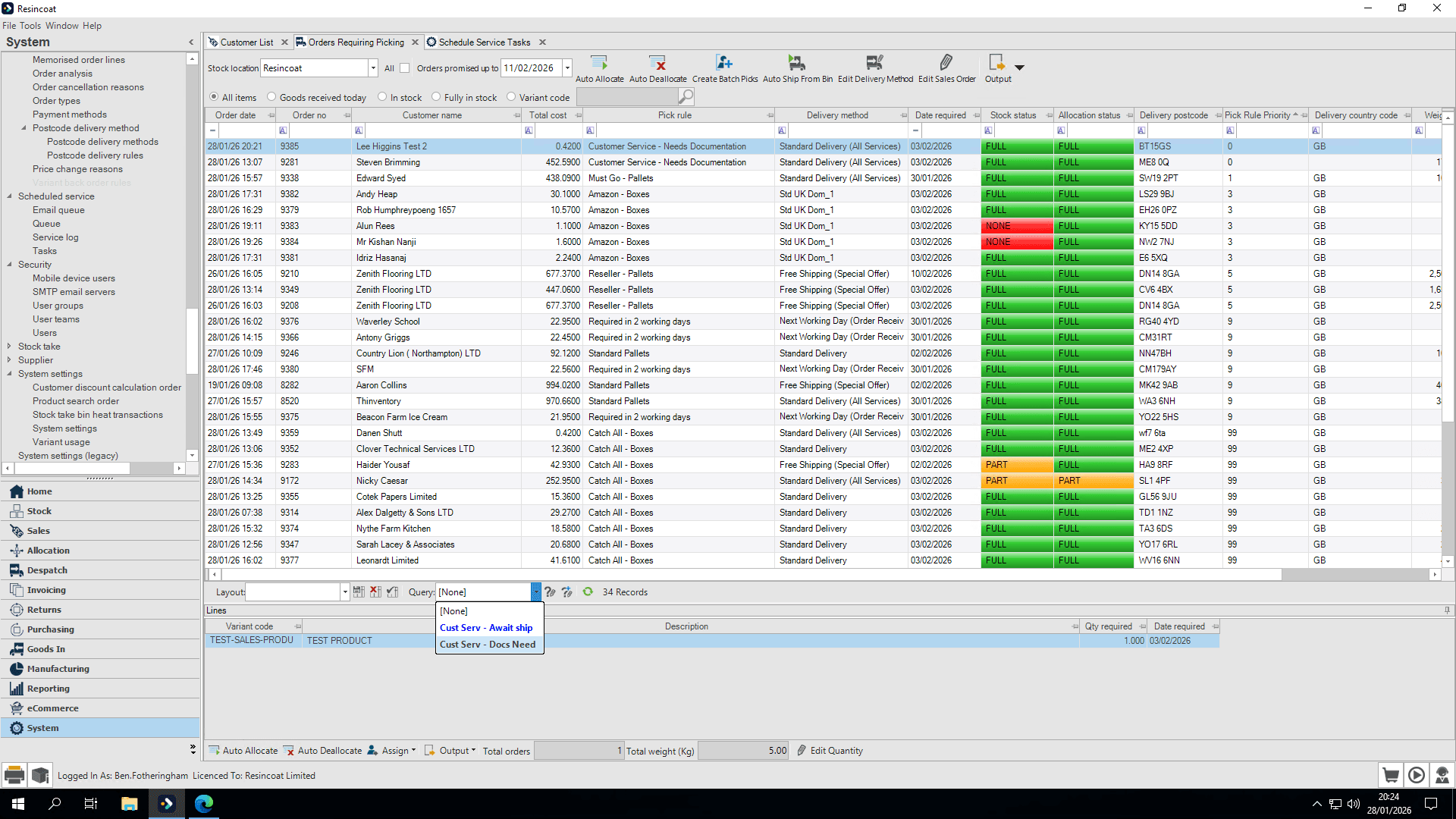
We have two orders here. This top item is included because, as you can see, there is no delivery country code assigned to it.
When the sales team creates orders, they must enter the complete address, including the country, even if it is the UK.
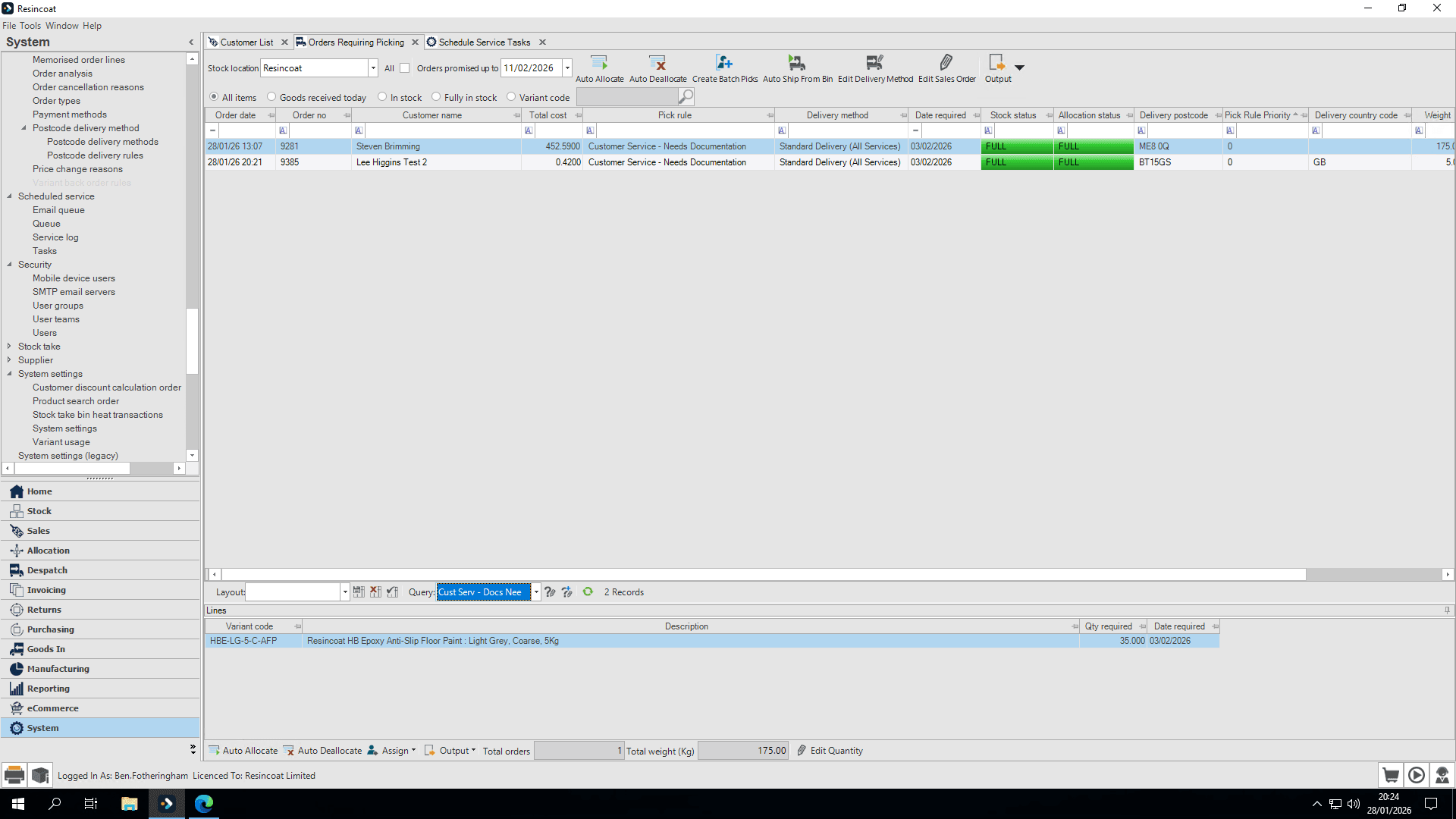
Back to our order. The products in this order are shown at the bottom.
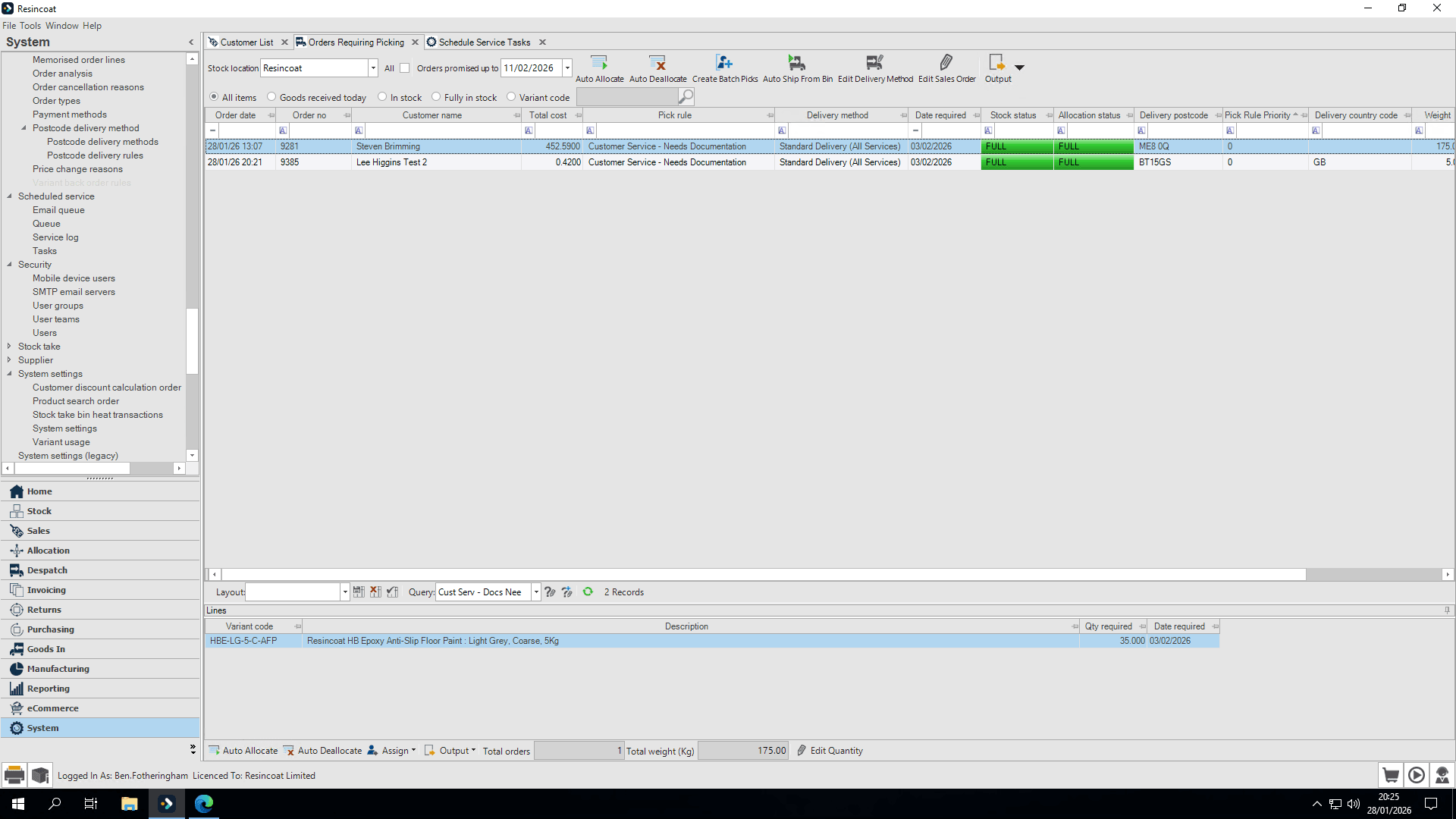
Click on the order, then select Edit Sales Order. This will open the actual sales order with all of the info we need to arrange DGN/Export/CI etc.
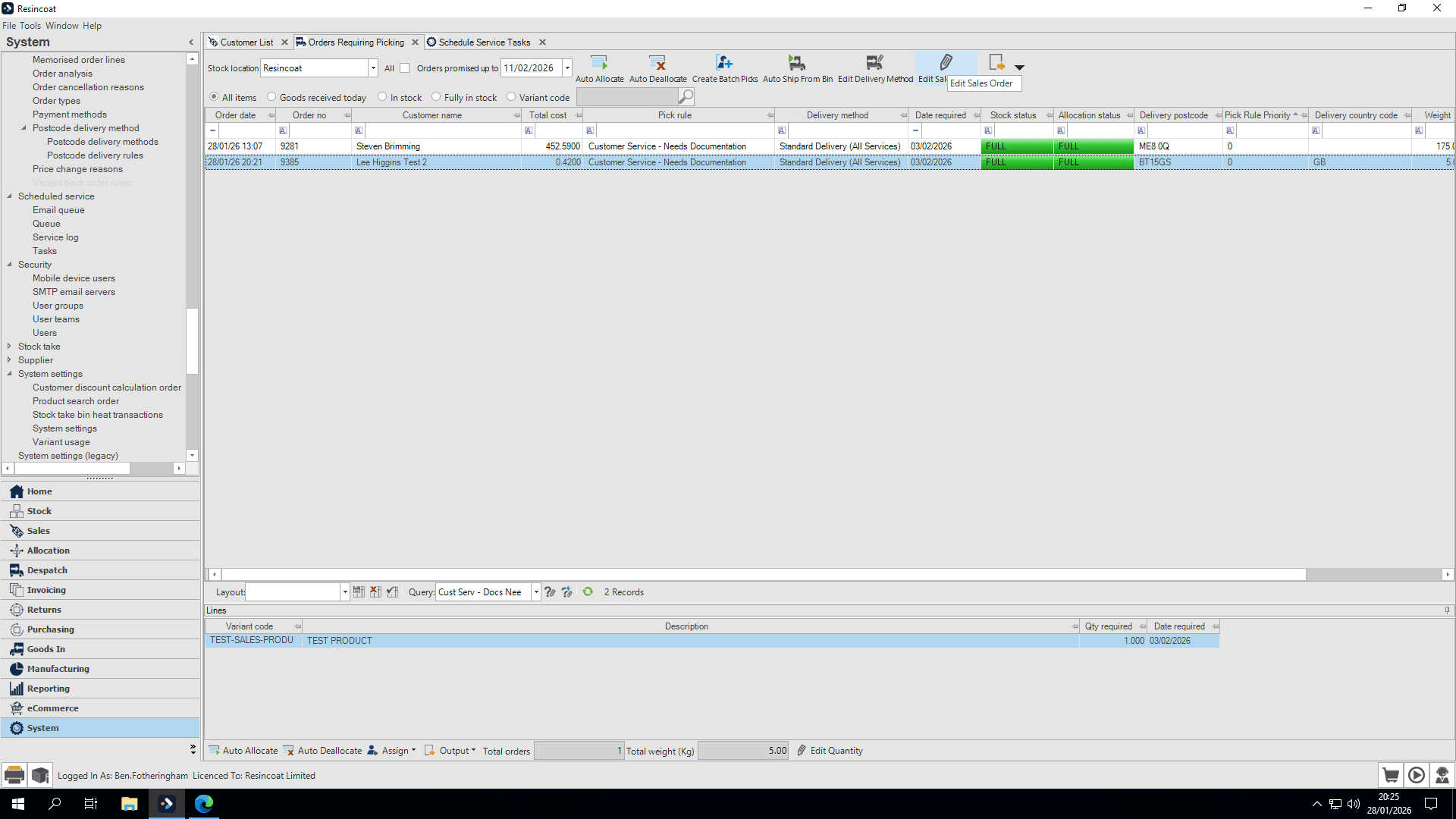
When we have sorted documentation, click the "Documentation Complete" checkbox to update the order and show documentation is available. Don't forget to save.
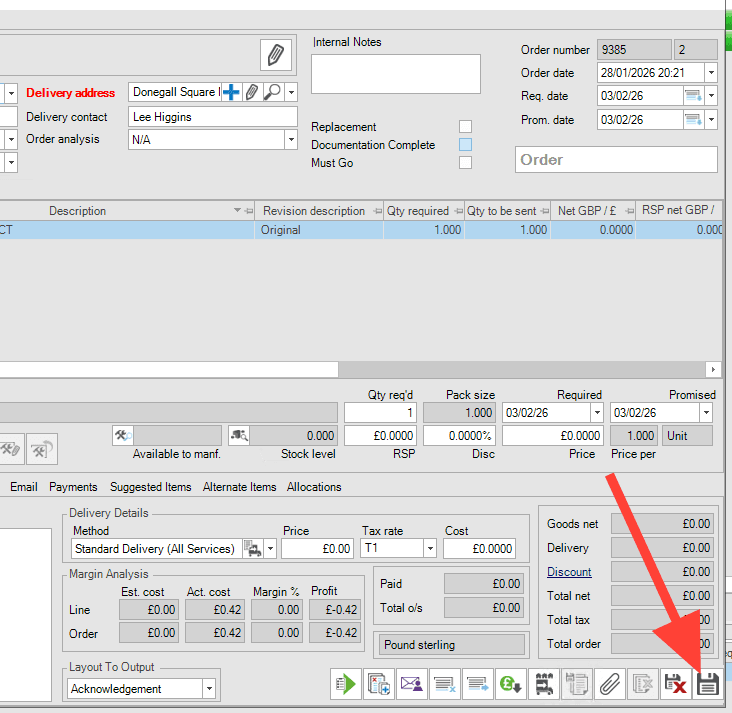
We’re back on the main screen. It still shows “Customer Service Needs Documentation” because we’re waiting for an update on the pick rules.
The pick rules have just refreshed. As you can see, that order is no longer on this screen because we are only viewing customer service documents needed.
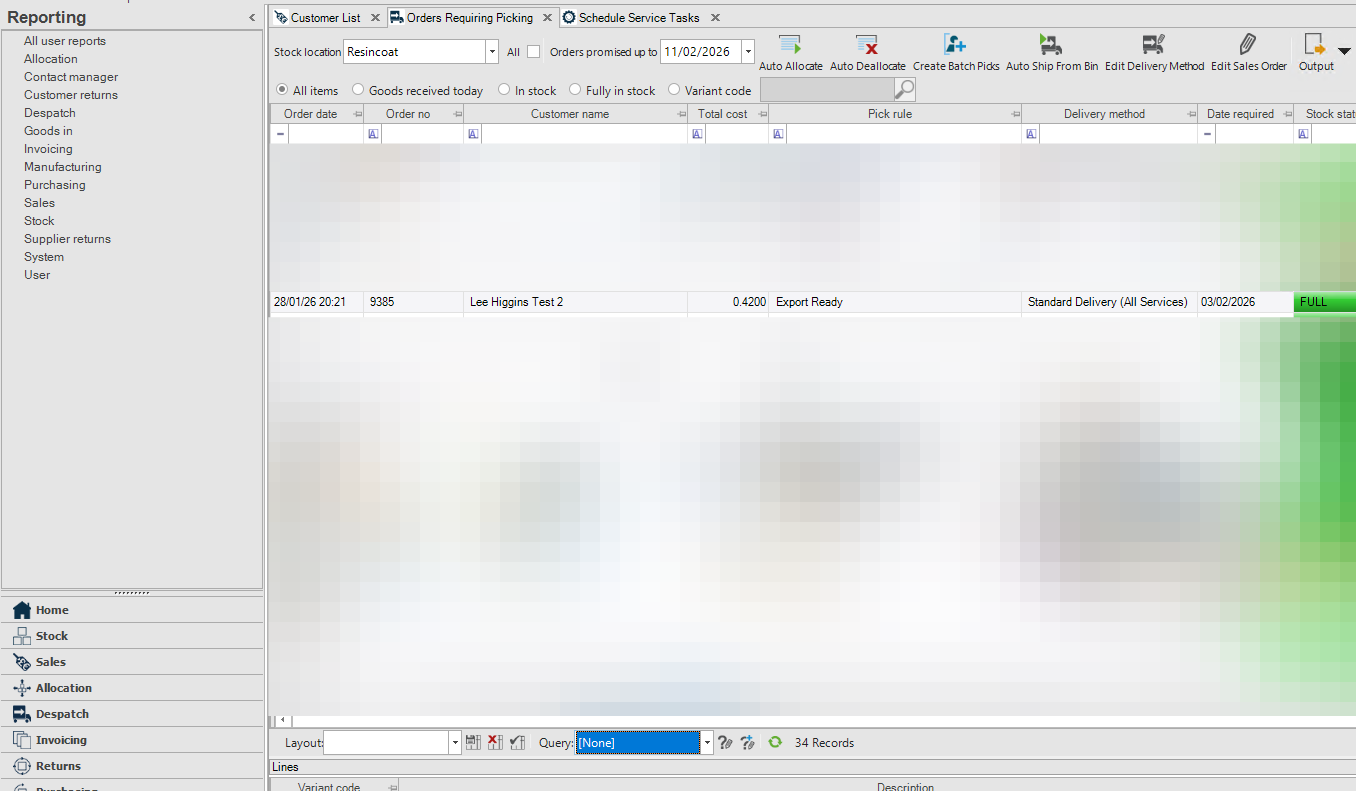
Let's go back to the the base Orders Require Picking screen and take a look.
![Step #13: Click on "[ None ]"](/_next/image?url=https%3A%2F%2Fmedia.glitter.io%2Fuploads%2Fe3322896-cae4-4c52-bbdf-f2c9be490d42%2Faaf74bd4-1e09-420c-9fff-8688564b66ce.png&w=3840&q=75)
It is now assigned to Export Ready and available for picking by the warehouse team.
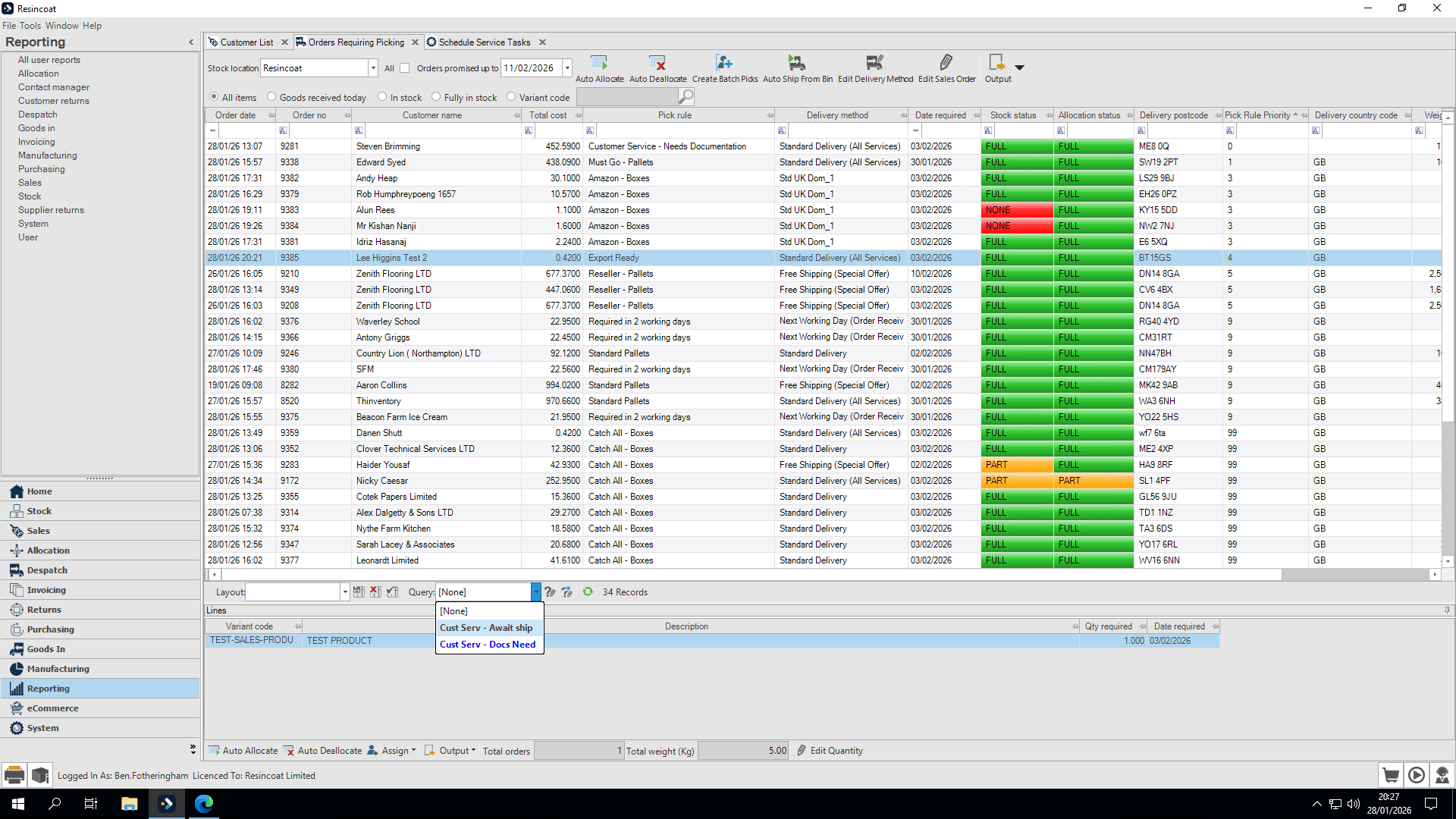
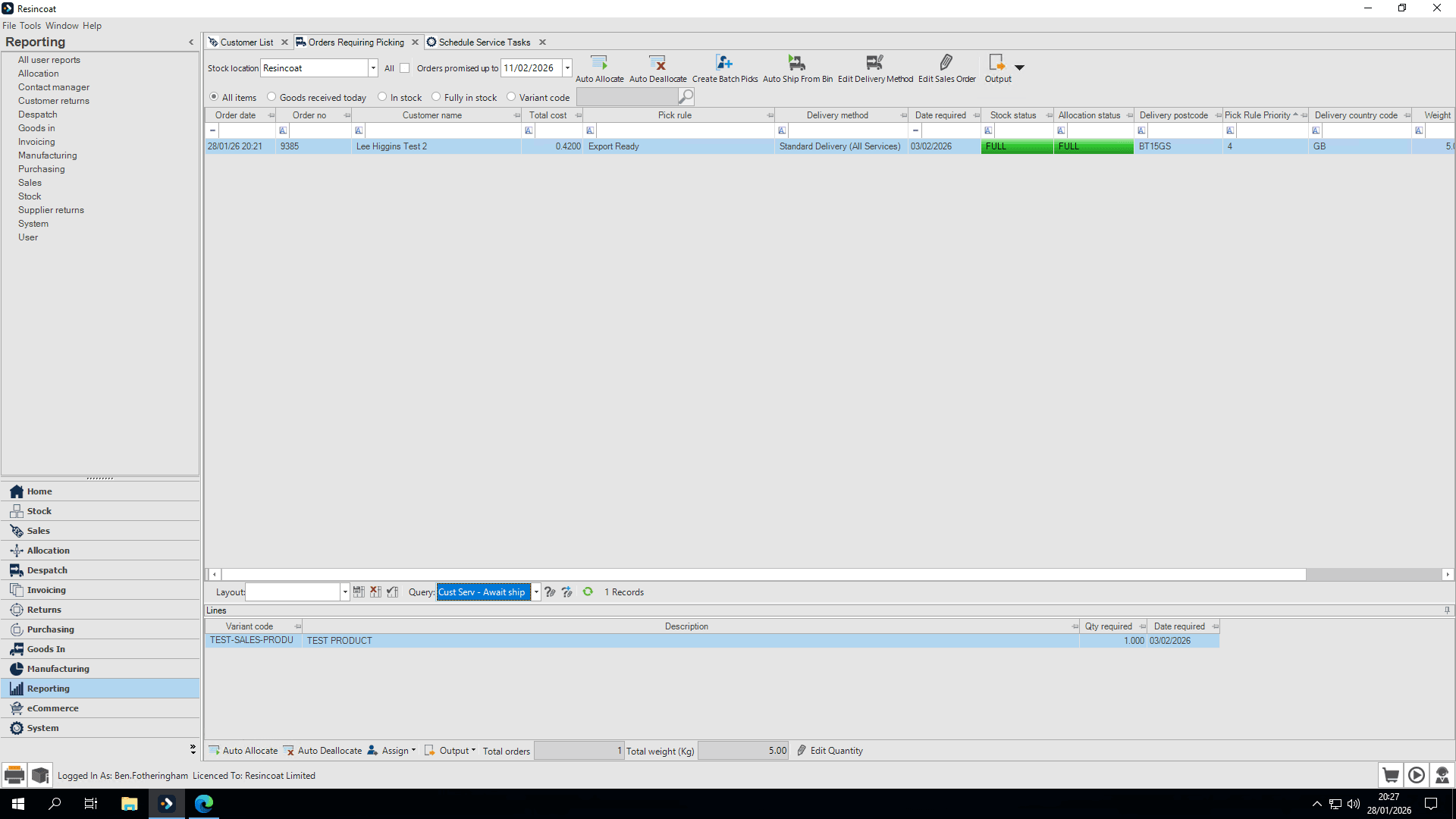
If we want we can only see the orders with documentation waiting to be shipped.
We are now at the stage where the warehouse team should begin picking. The warehouse staff can double-click the order.
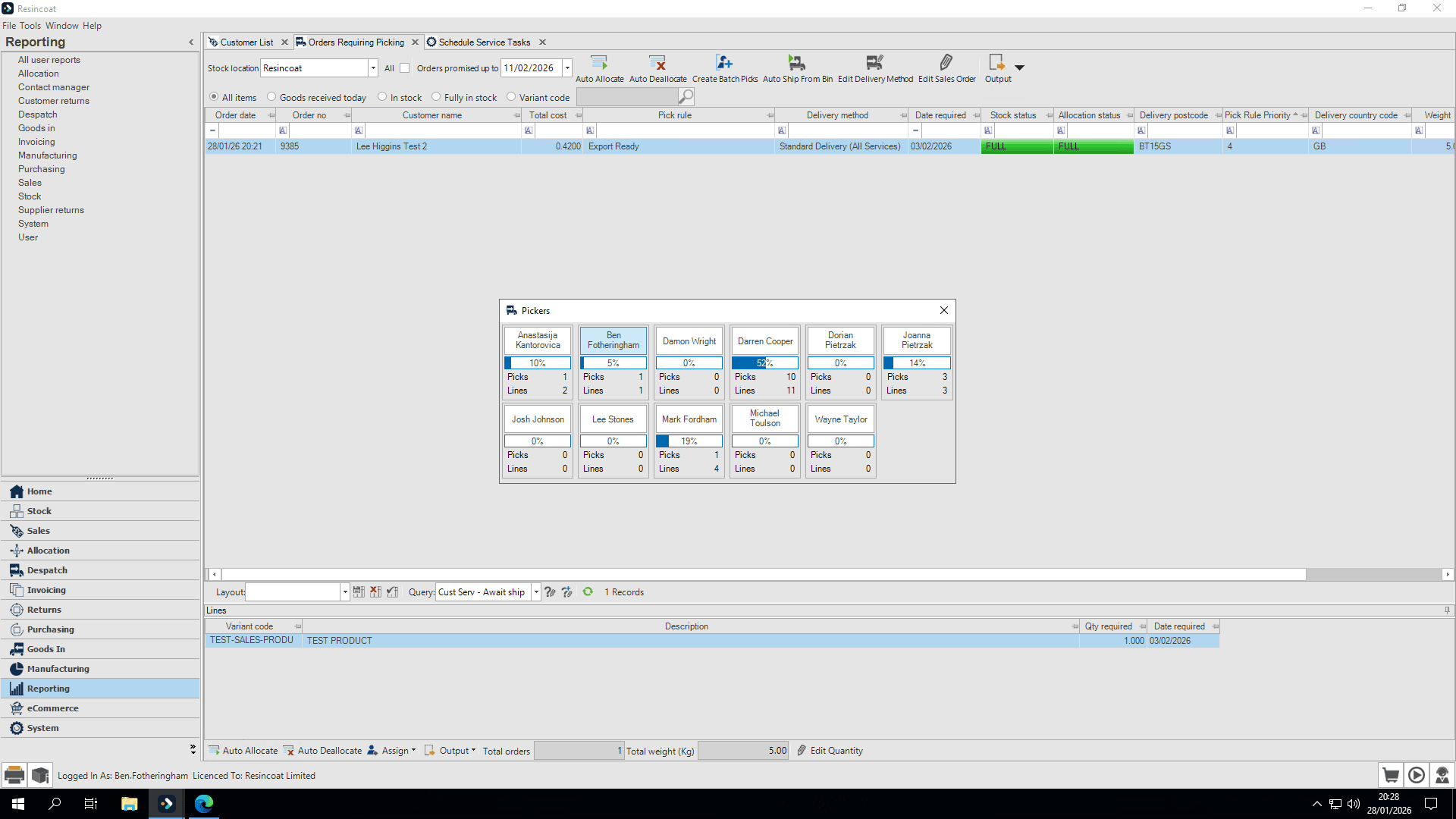
The order transfers to Open Picks section. Whilst the picker goes and prepares the order ready for the packer.
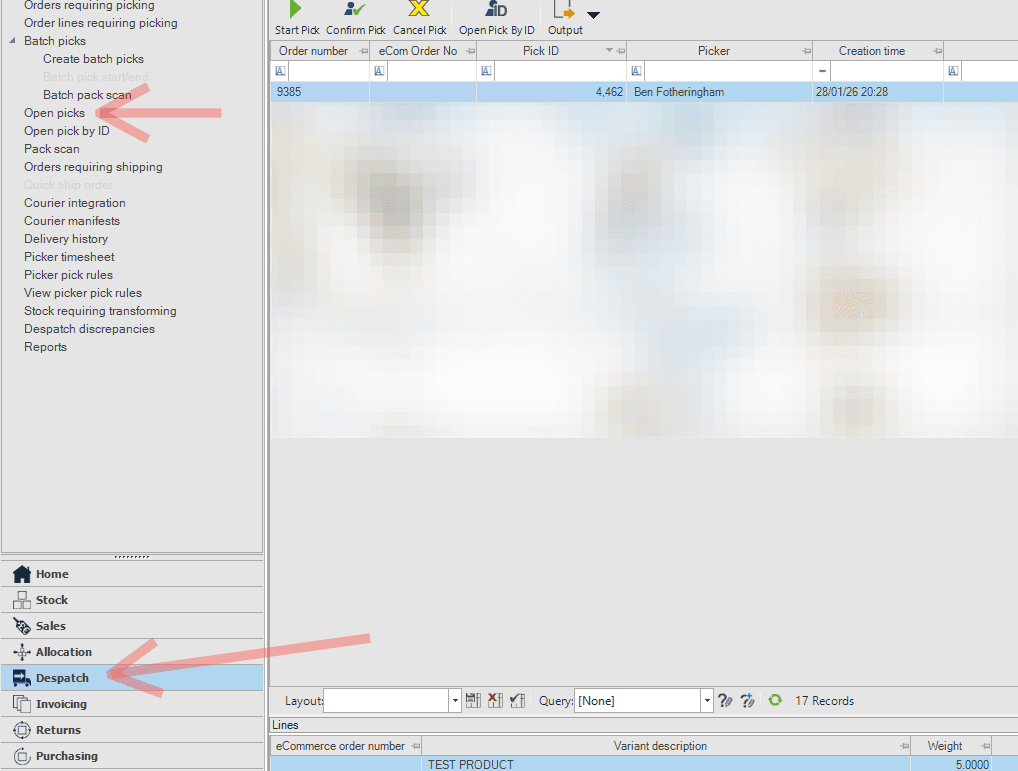
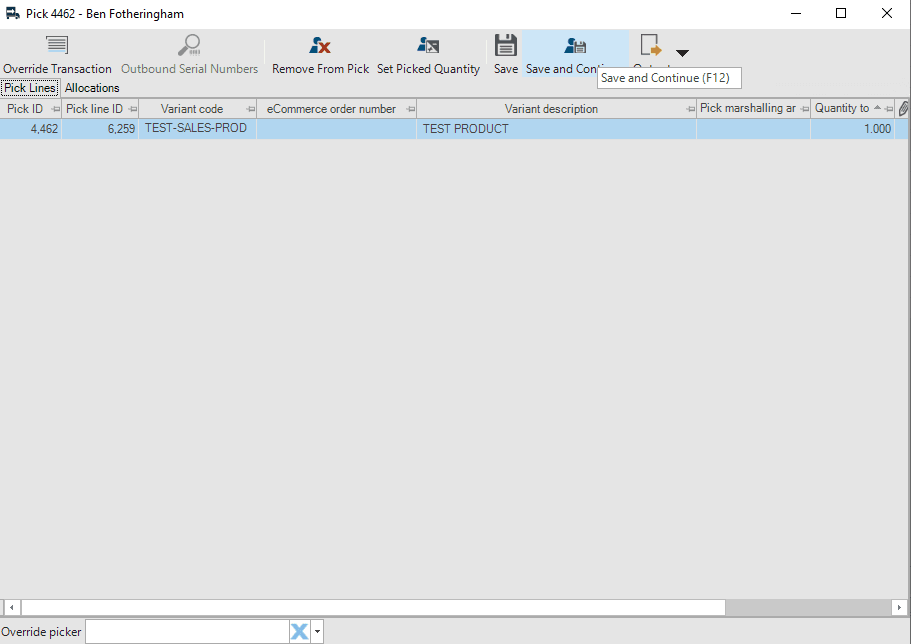
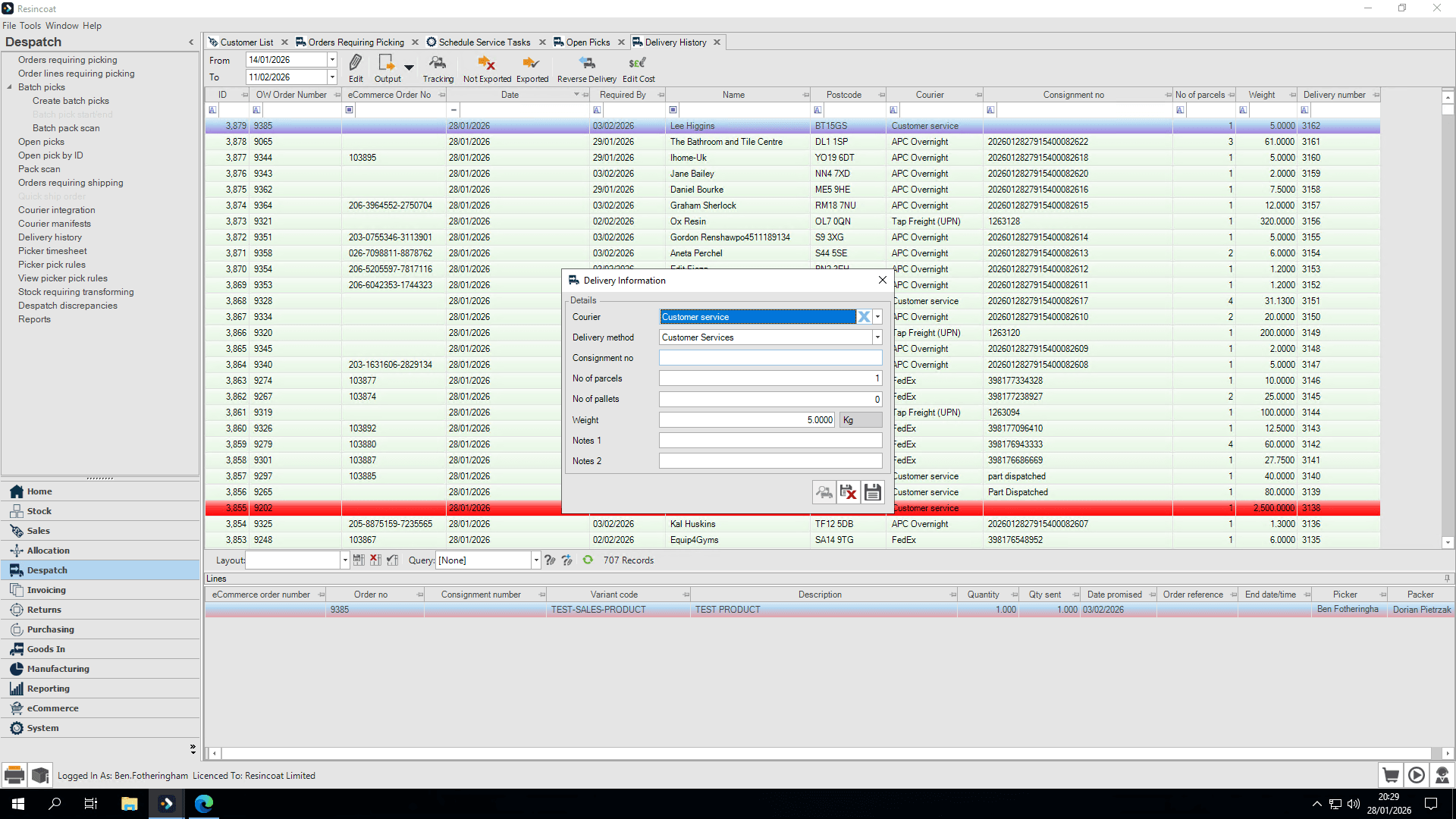
Our delivery rules detected that this order is going to Belfast. The system automatically set both the delivery method and the courier to customer services.
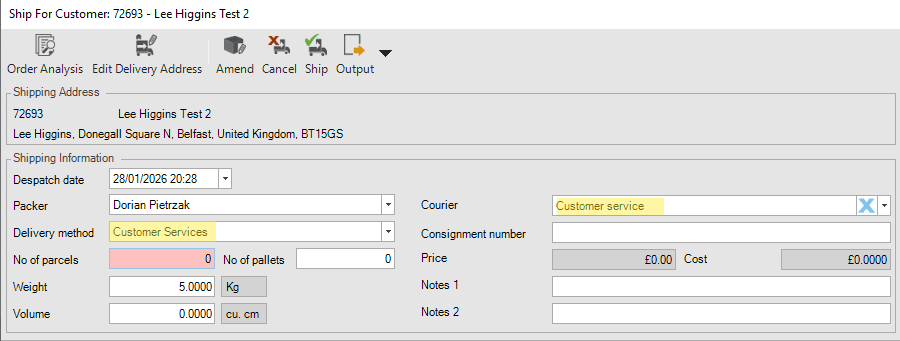
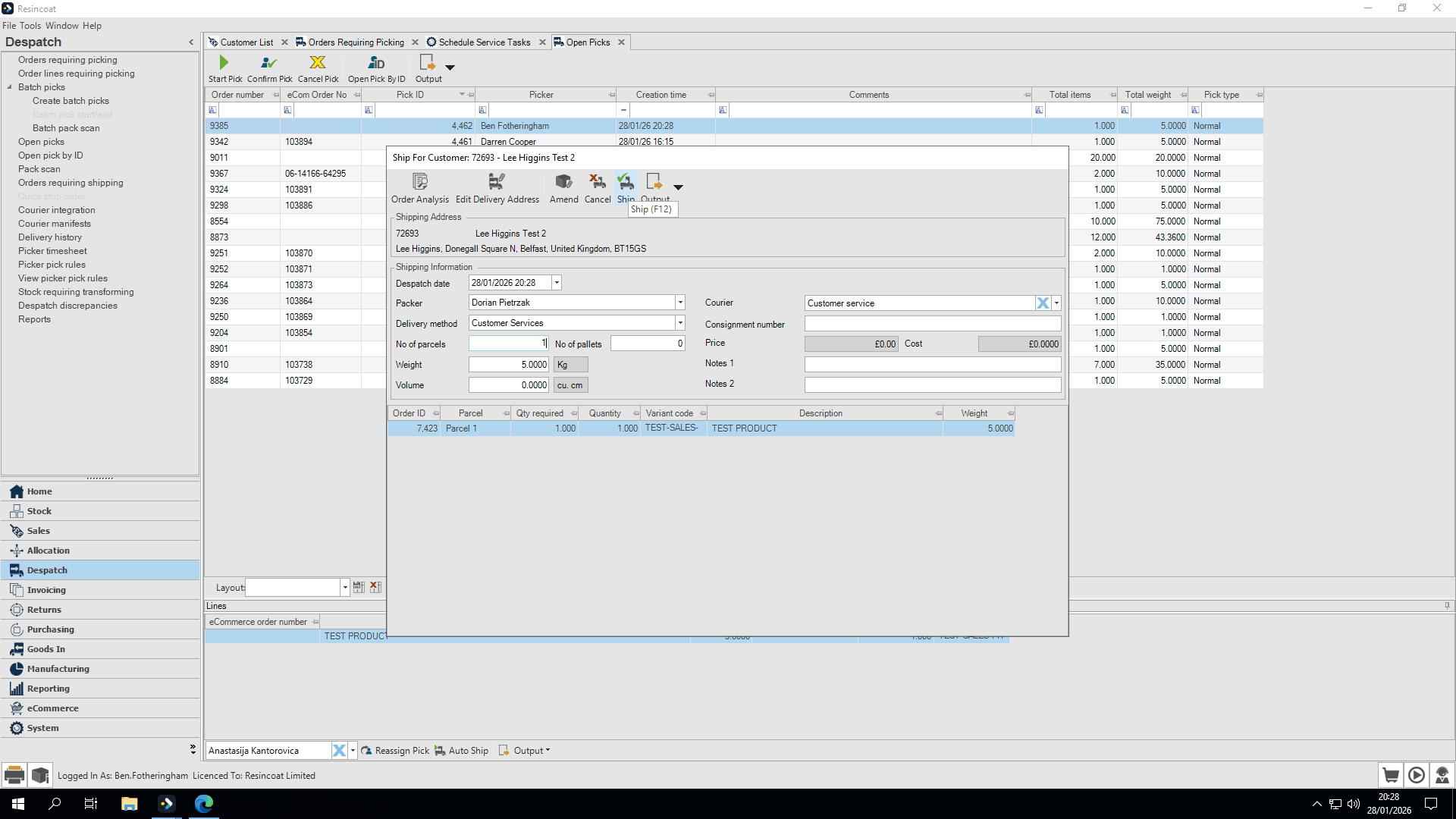
No label is printed because because Customer Services was selected. This alerts the warehouse staff to come to you to complete the order and paperwork.
At this point, if we go to the delivery history, we can see the order listed at the top.
We can book manually as usual and print the shipping label.
Don't forget to enter the consignment number for tracking