
SOP: Payroll Step 9
Learn the best practices for managing payroll approvals, making adjustments, and ensuring timely submissions. This guide covers unlocking payrolls, handling time card changes, and finalizing payroll by the Wednesday 2:00 PM cutoff.
In this guide, we'll learn how to manage last-minute payroll changes before the final approval deadline. This includes unlocking payrolls, updating time cards, deleting and re-adding specific worksheets, and validating changes to ensure accurate payroll processing. The objective is to help you handle adjustments efficiently and meet the Wednesday 2:00 PM cutoff.
Let's get started
Lastly, for payroll, once you have sent out all the cash requirements figures—preferably on Tuesday, but Wednesday is acceptable—email the cash requirements to the team. Once you have done that, keep them in Awaiting Approval mode until you are ready to submit on Wednesday by 2:00 PM. Wednesday at 2:00 PM is usually my cutoff. If any additional changes need to be made in between, you can do that. Currently, all payrolls are locked, so no one can make additional changes.
If additional changes are needed, such as missing hours on a time card, go to Manage All Time Cycles and unlock it here.
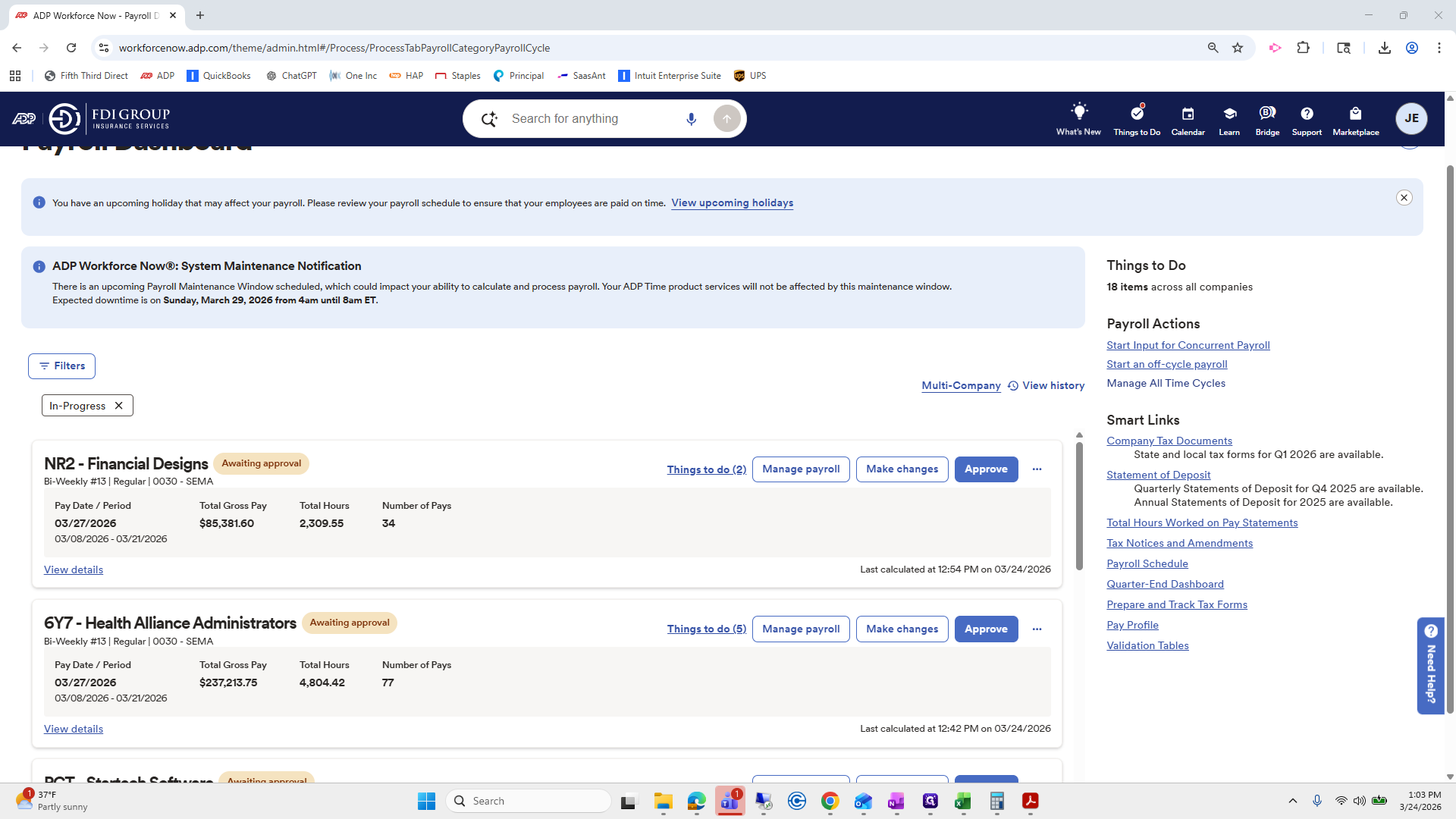
Click it. I won't click it now, but you would unlock it to allow them to make changes.
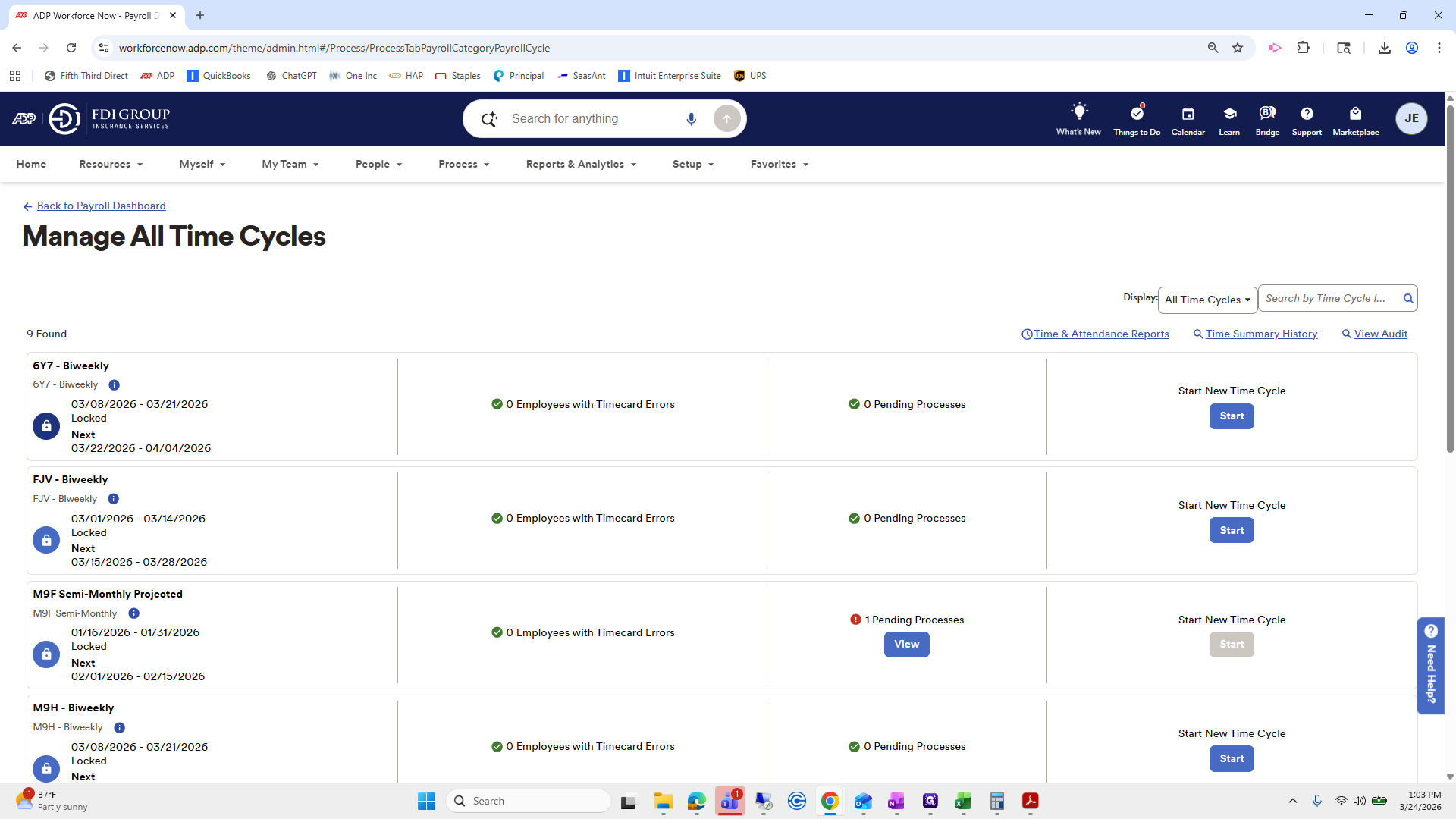
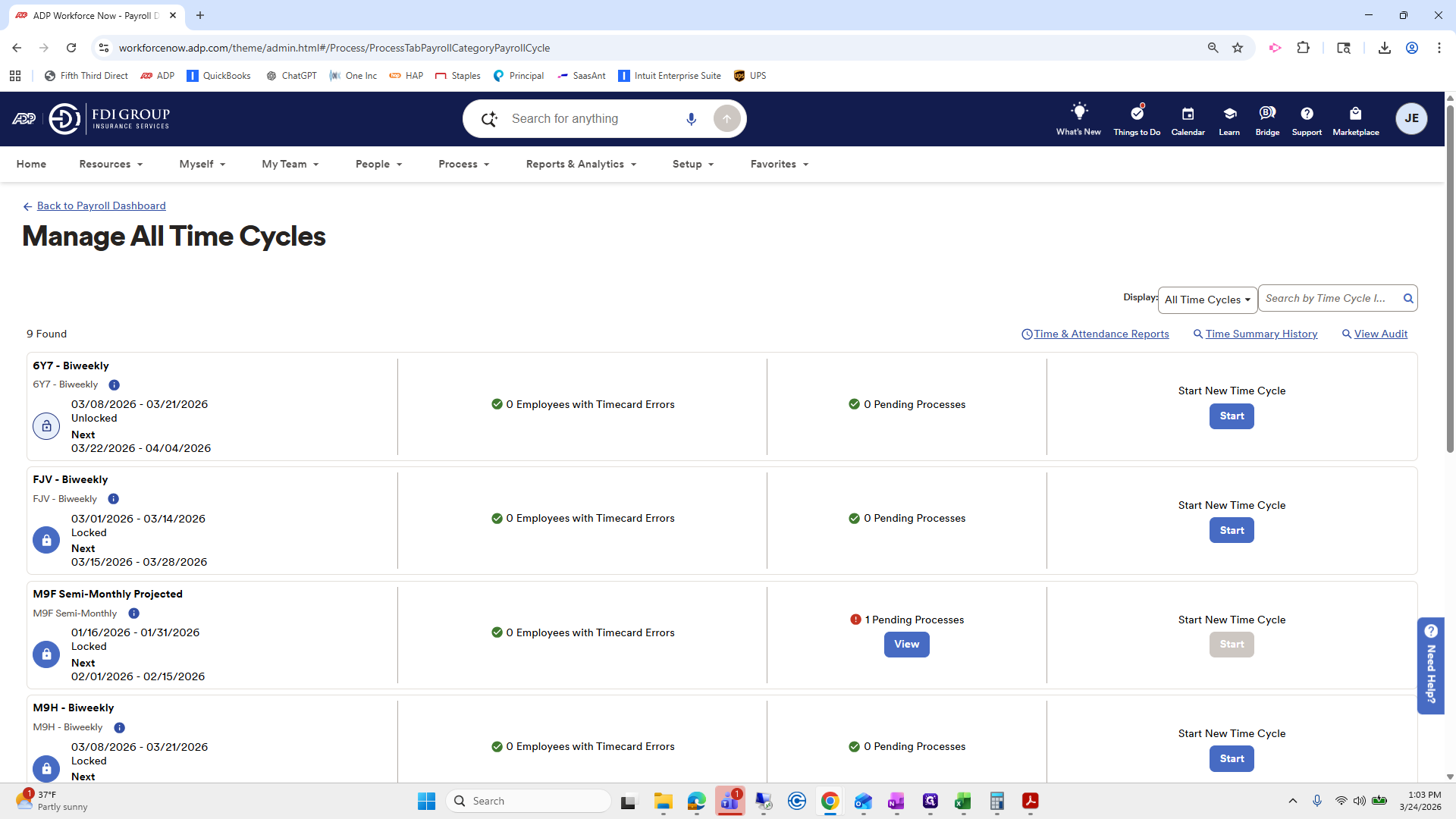
But make sure it stays unlocked. Once they've made the change, go back to that specific payroll.
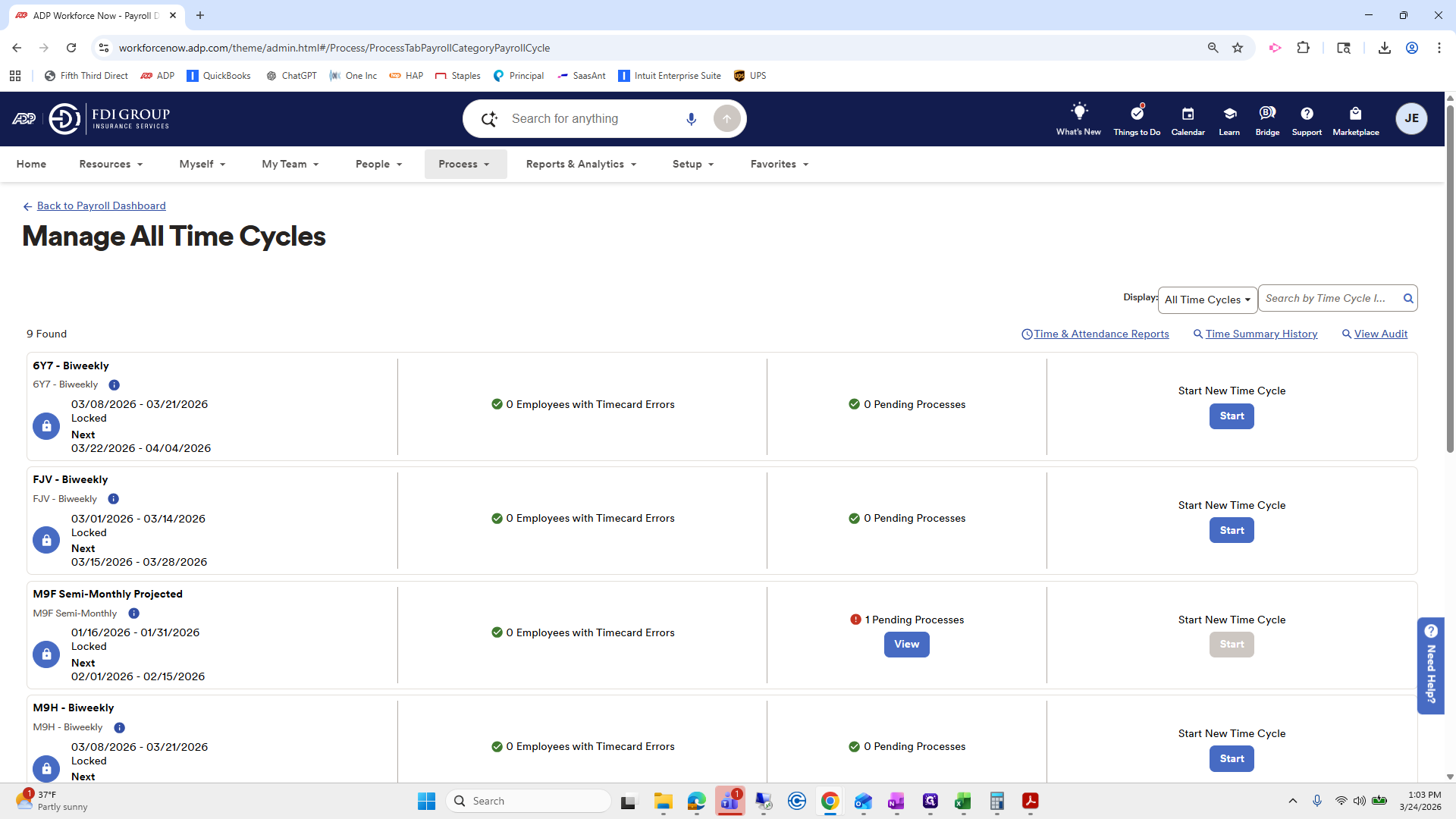
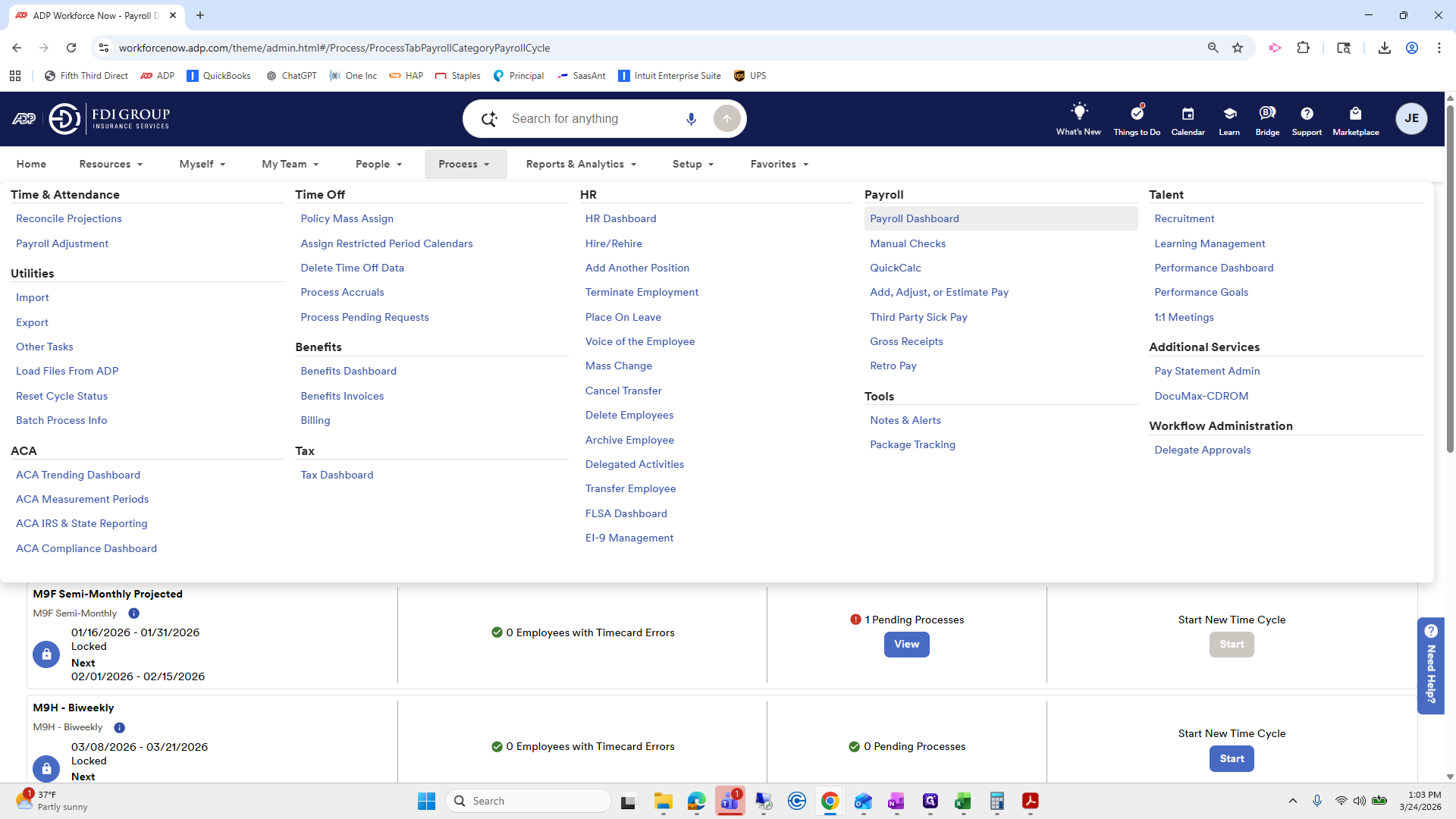
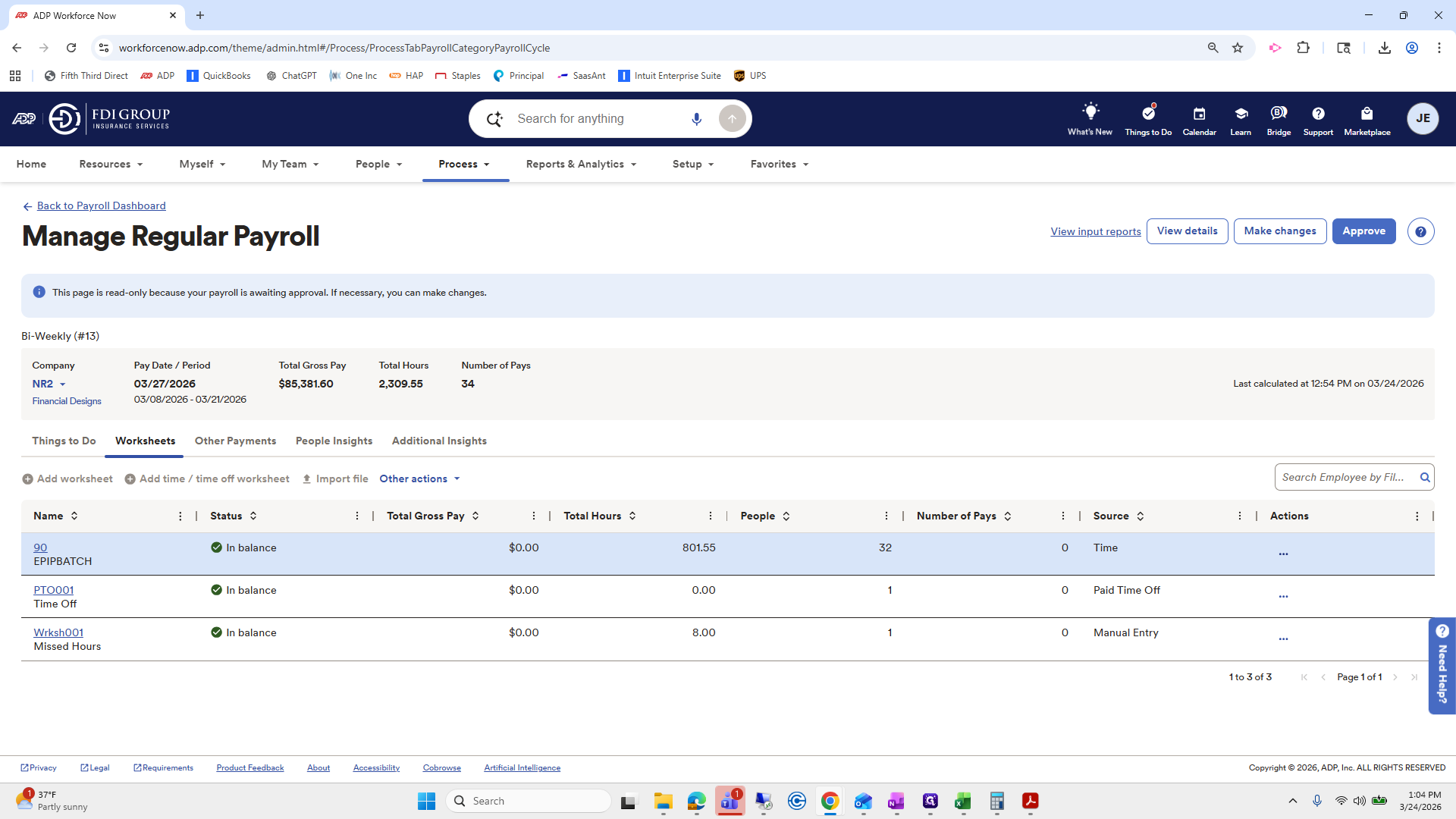
You need to click Make Changes. I'm not going to do it now because it will reopen, and I don't want that. Click Make Changes. Then go to Manage Payroll. Click here, then delete the PTO Time Off and the 90 Batch—these two items.
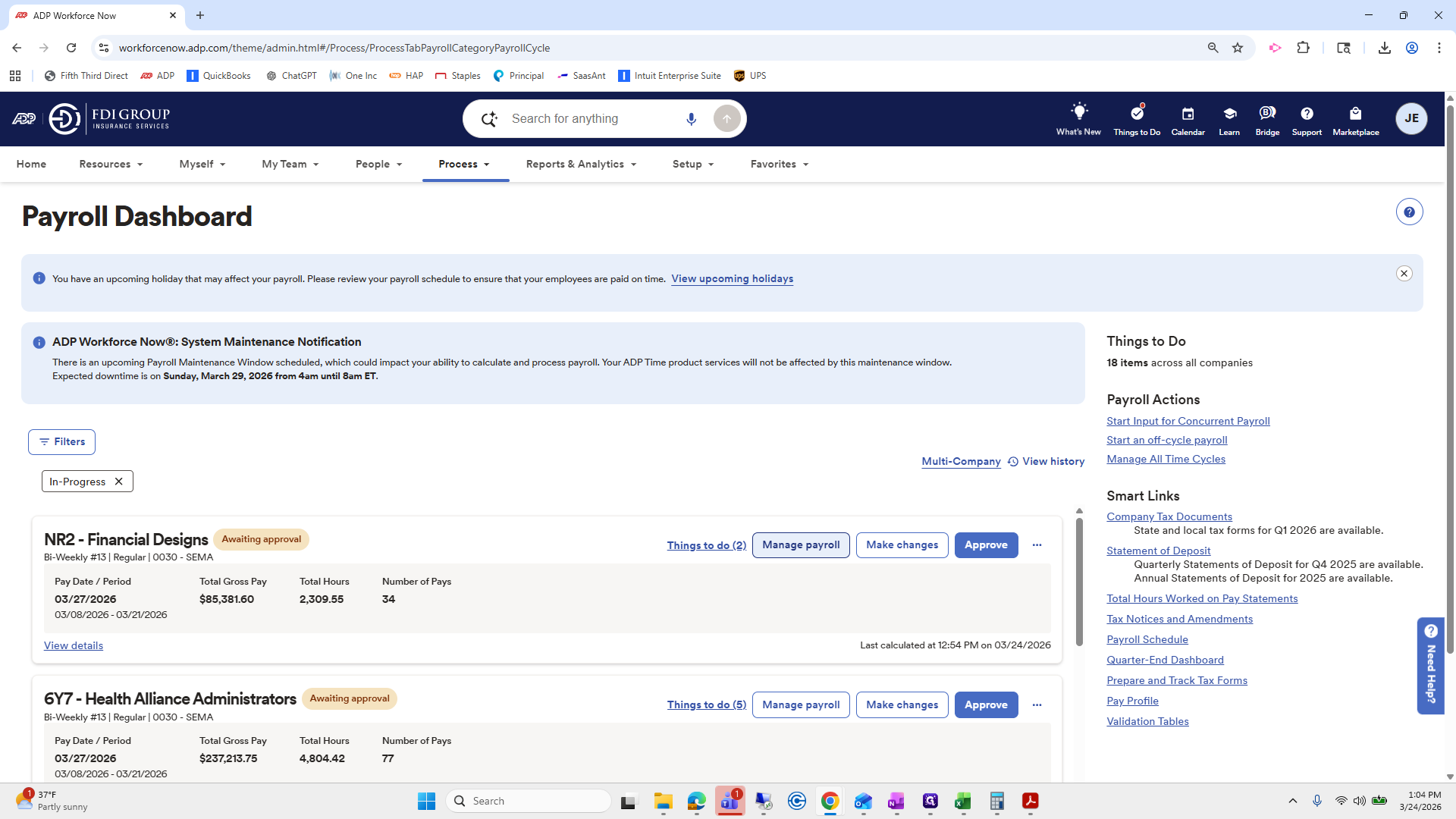
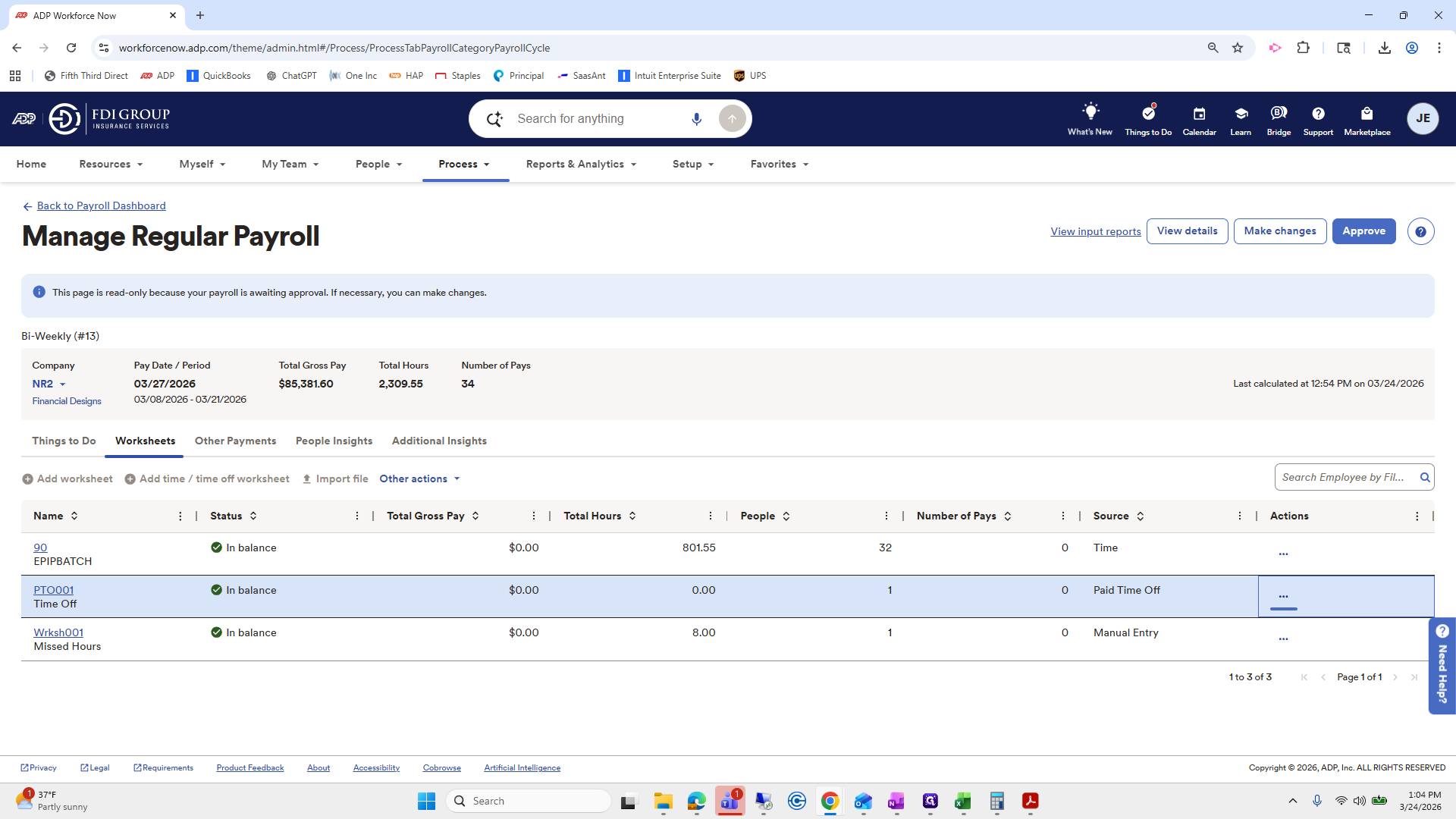
All your other worksheets can remain unchanged; you don't need to redo them. However, you need to delete these two, then go to the Add Time/Time Off worksheet as before and re-import them. Next, go to Actions and select Validate for those two spreadsheets. This will re-import their time cards.
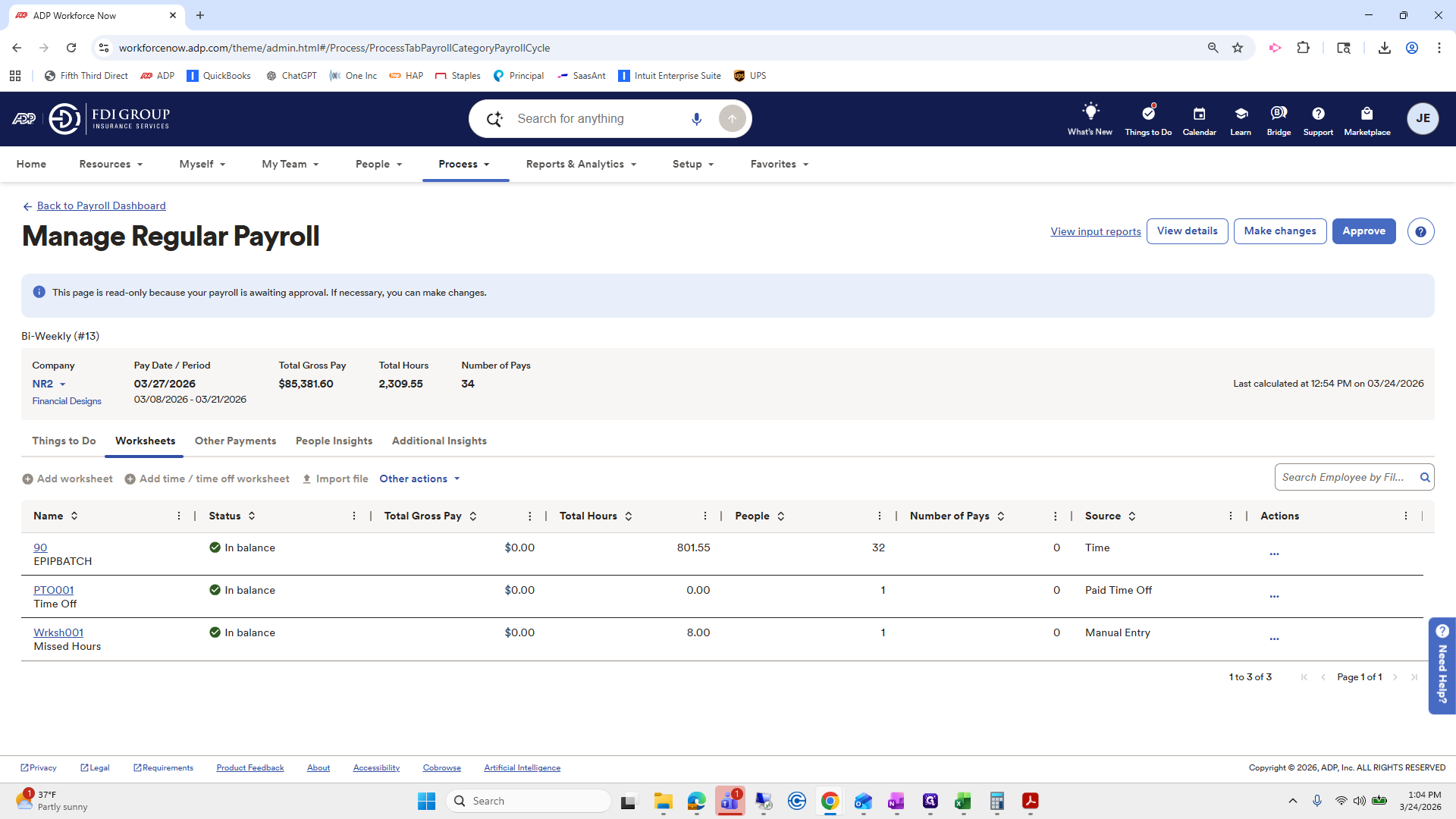
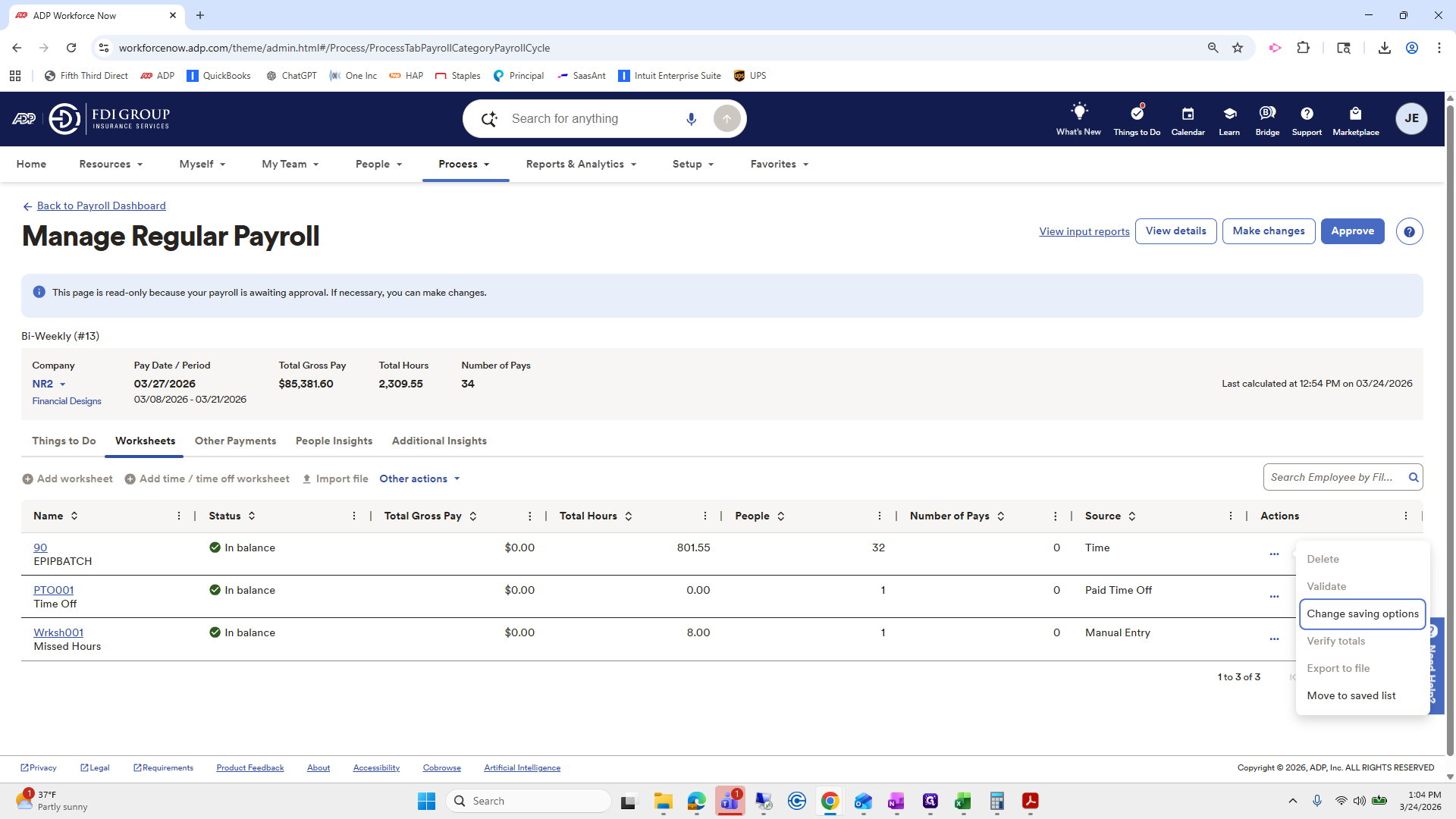
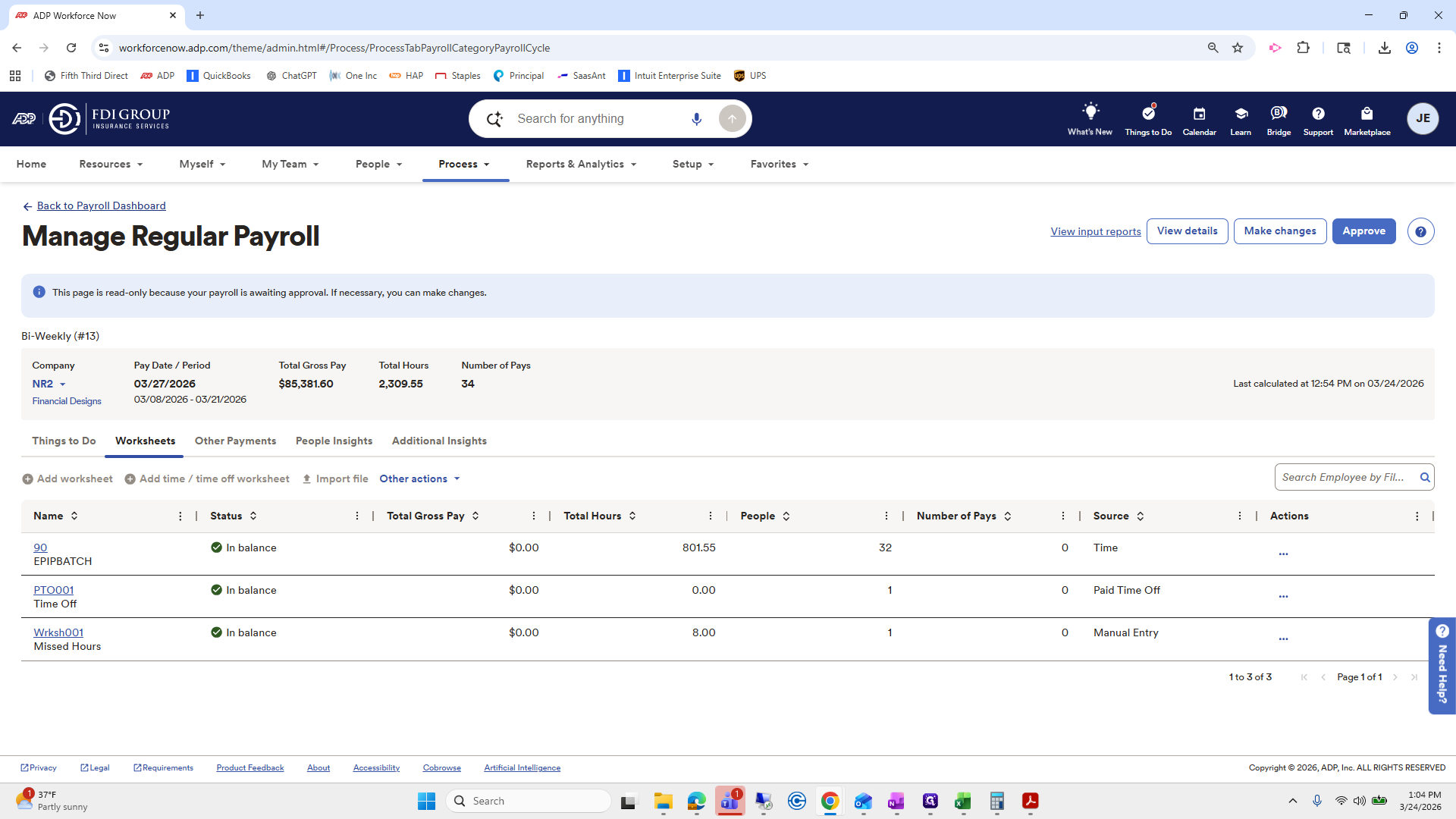
As you pull those in again, it will automatically re-lock. Then you can recalculate and make any necessary adjustments. By Wednesday at 2:00 PM, go to the Payroll Dashboard. Check in with Erica and Alyssa, or if you are Erica or Alyssa, check in with yourself or Amanda—whoever is handling payroll. Make sure there are no additional payroll changes needed. Then, approve the payrolls.
I was gonna say something else. Um, and that is... Completes payroll for processing. I will create a separate video on how to process payroll through journal entries. Most likely, Amanda will handle those.