
Gusto Payroll
Learn how to efficiently run payroll using Workyard, export to QuickBooks Online and Gusto, and handle salaried and commission employees.
In this guide, we'll learn how to process payroll using Workyard, QuickBooks Online, and Gusto. We will cover how to check time cards, export data between systems, adjust hours for different types of employees, and finalize payroll.
Let's get started
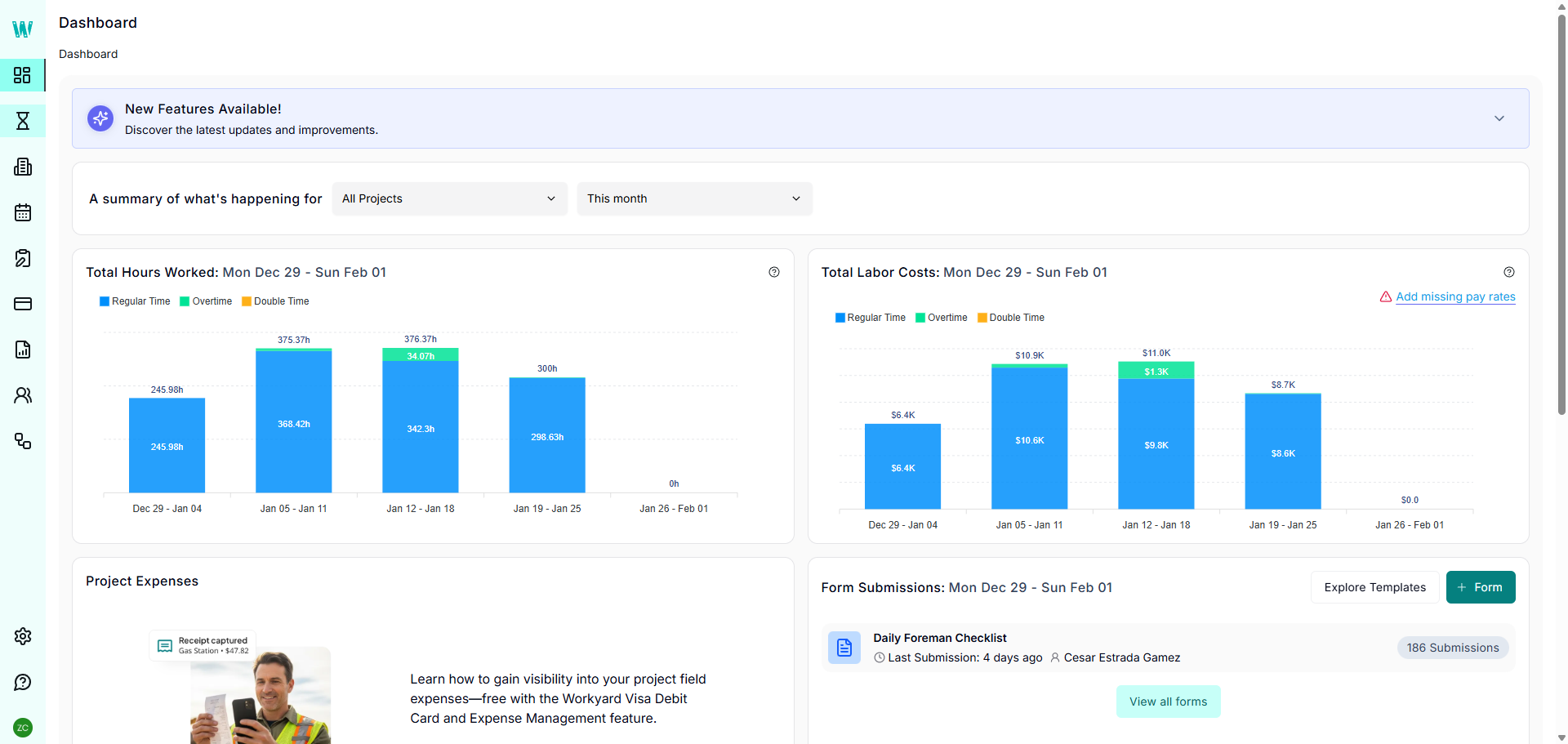
All right, to begin running payroll, we start in WorkYard. This is your home screen, your dashboard.
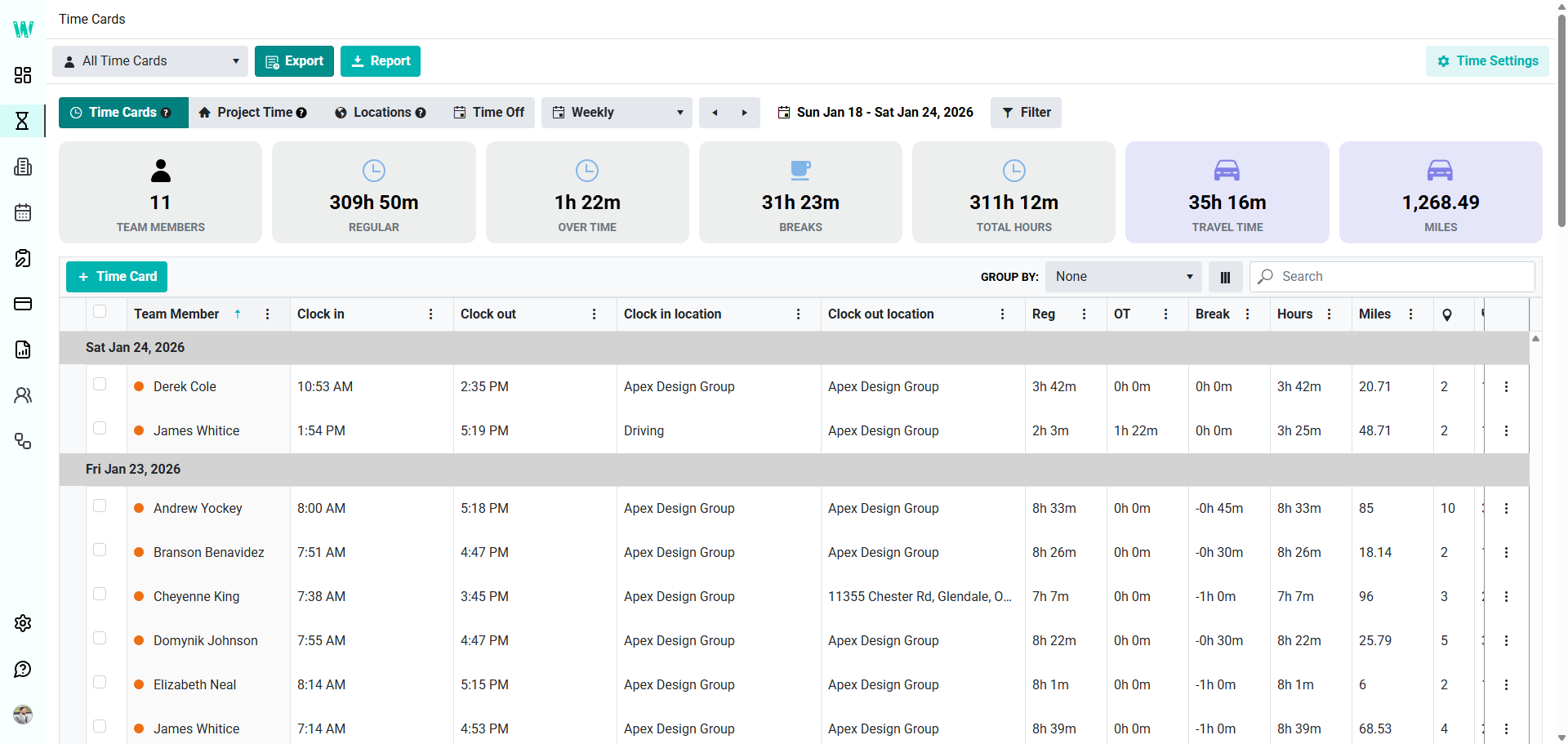
First, you'll want to click on Time Cards.
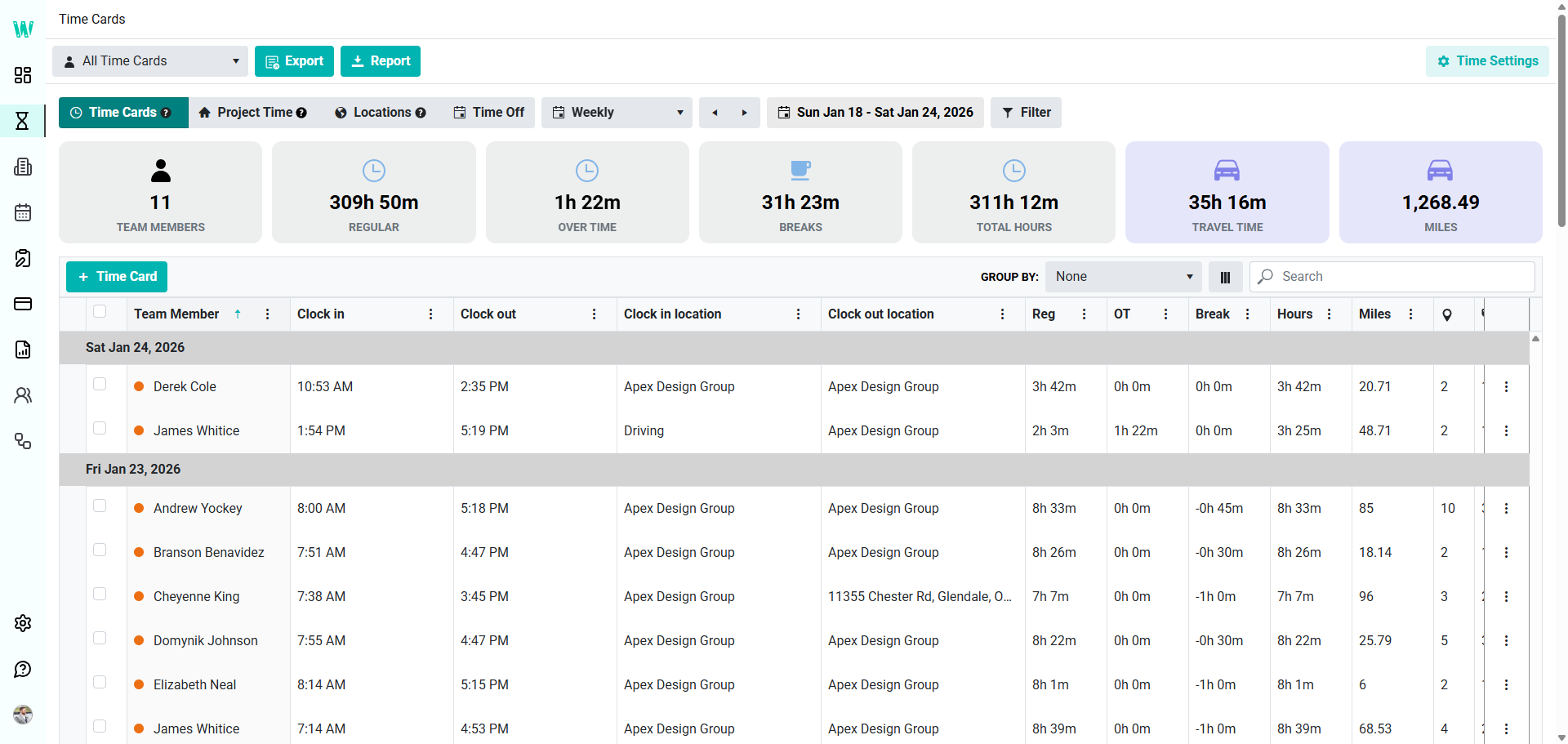
Make sure the Date Range matches the week you are processing payroll for.
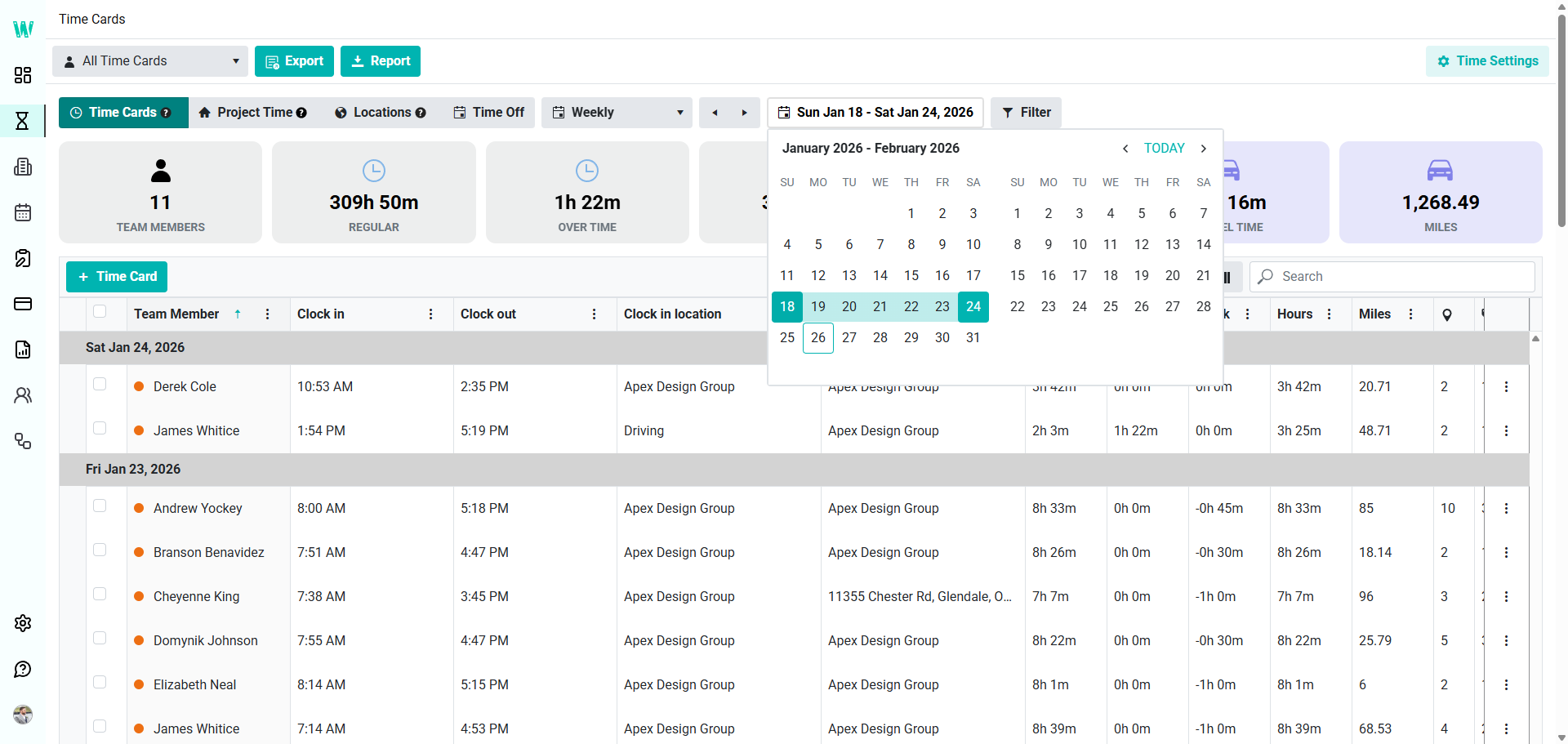
Today is the 26th, so we need the previous week, which is the 18th to the 24th. To choose the proper week, click any day in the week you are processing.
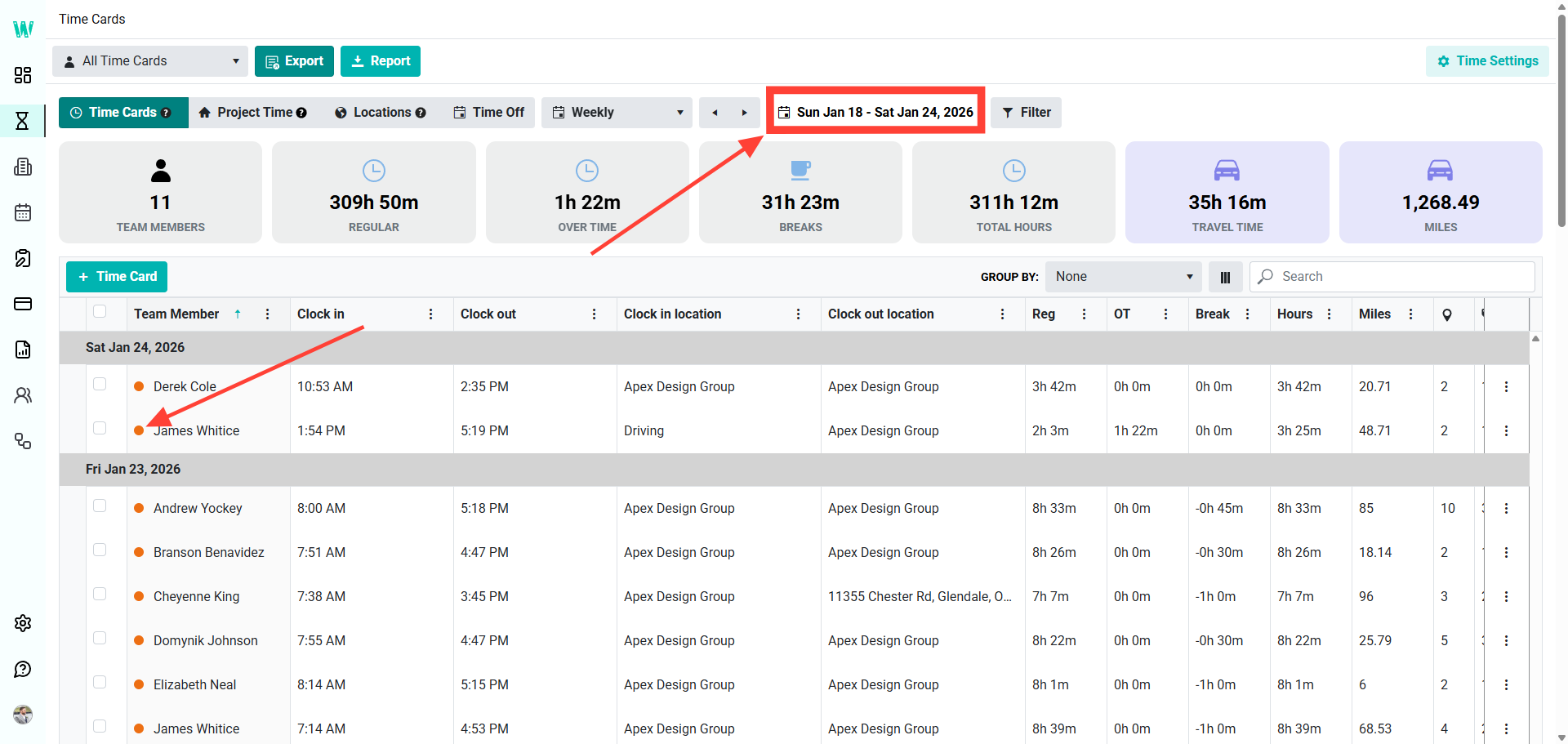
Check that each employee has an Orange Dot next to their name. This means their time has been approved.
If some of them are Blue, STOP processing payroll and wait until all employees Time Cards have been approved.
Export the Time Cards to Quickbooks Online.
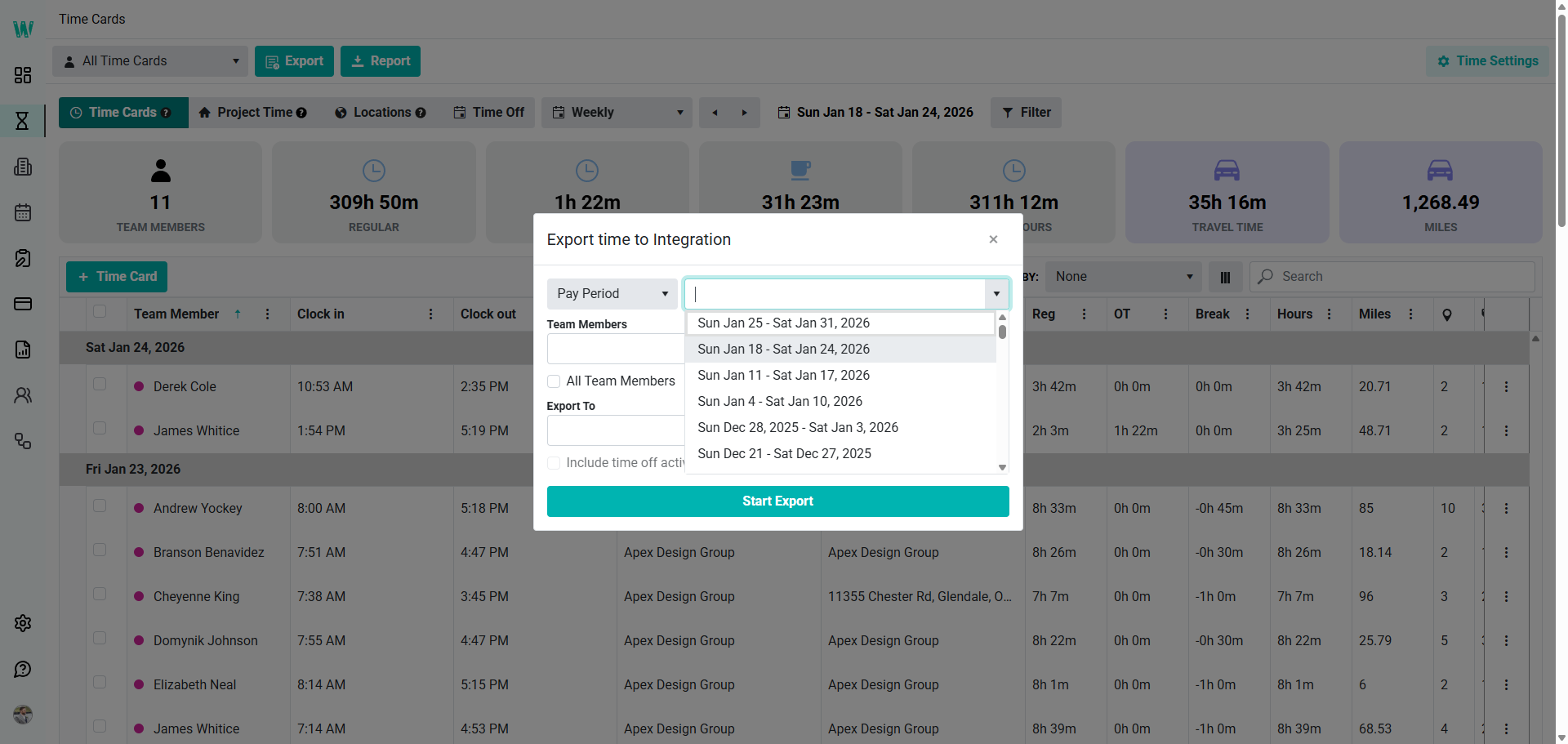
Choose the correct week.
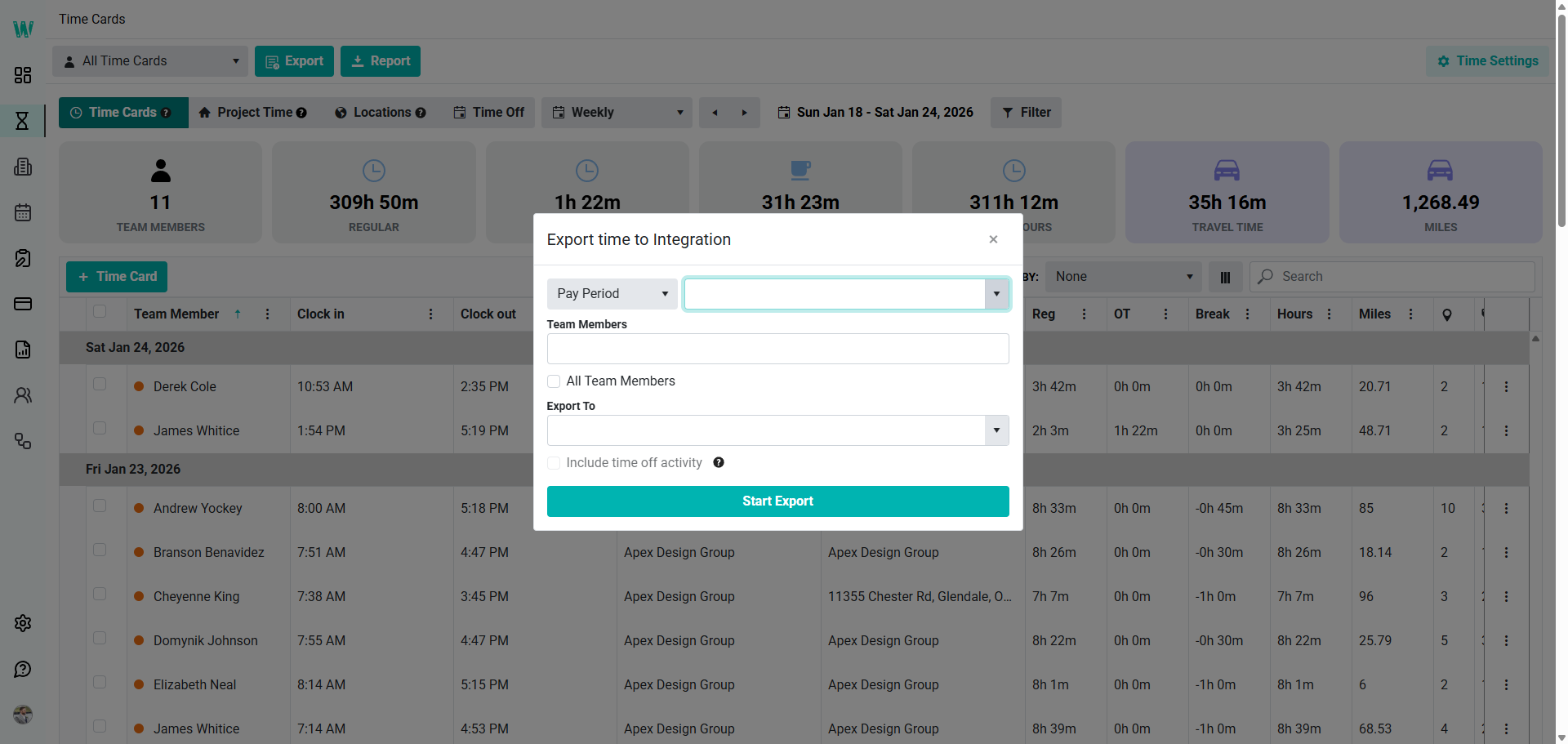
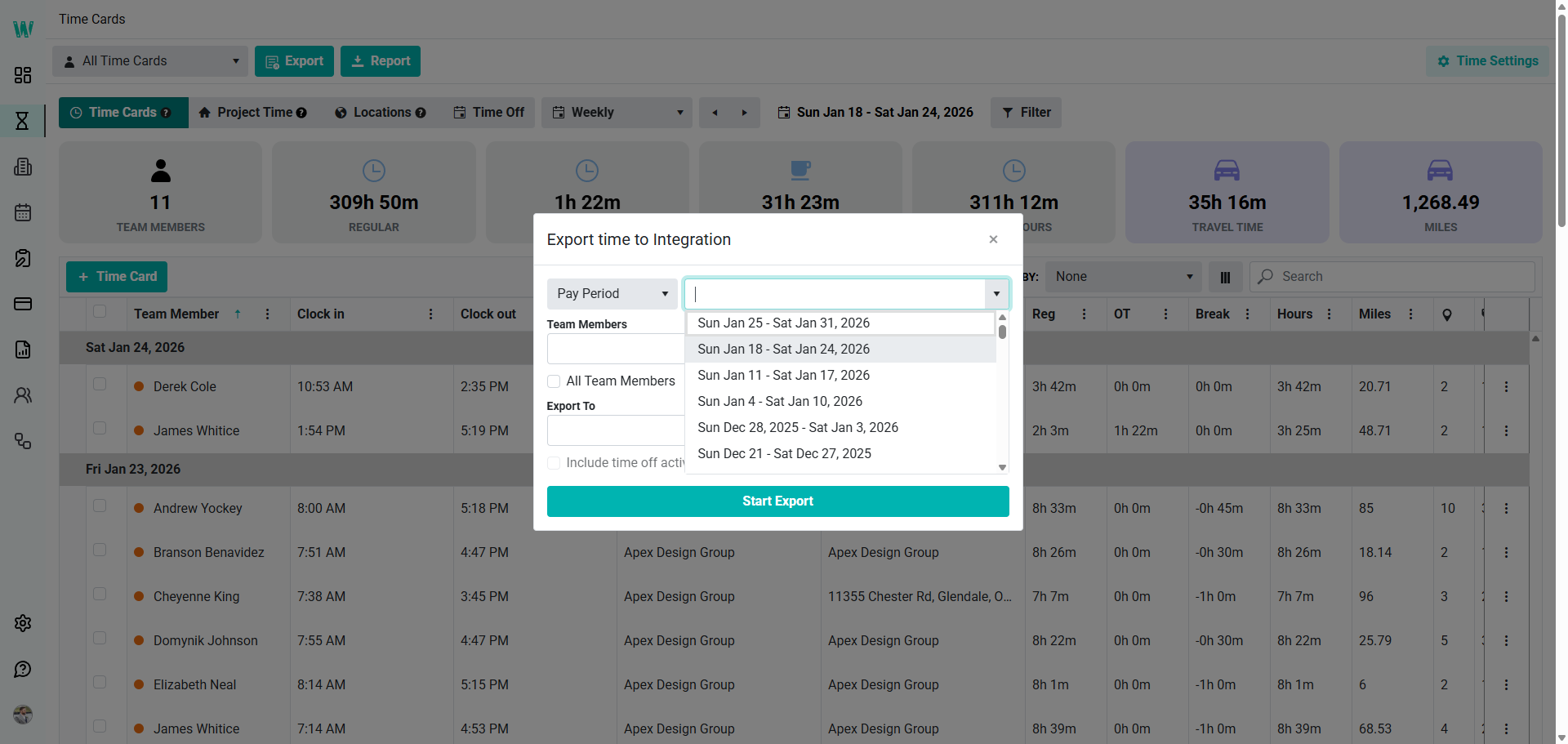
We will include all team members.
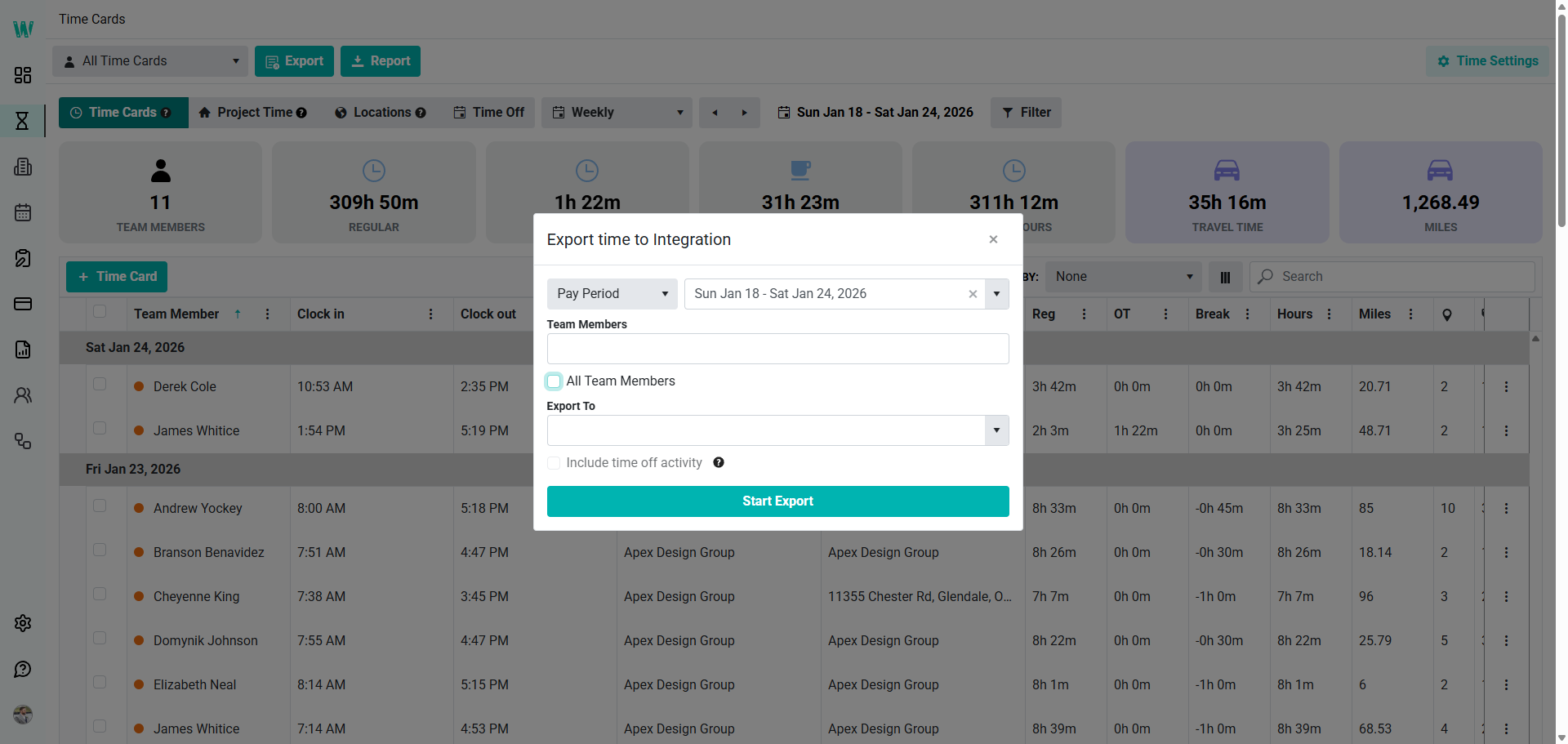
Then we'll choose the software we're going to export to.
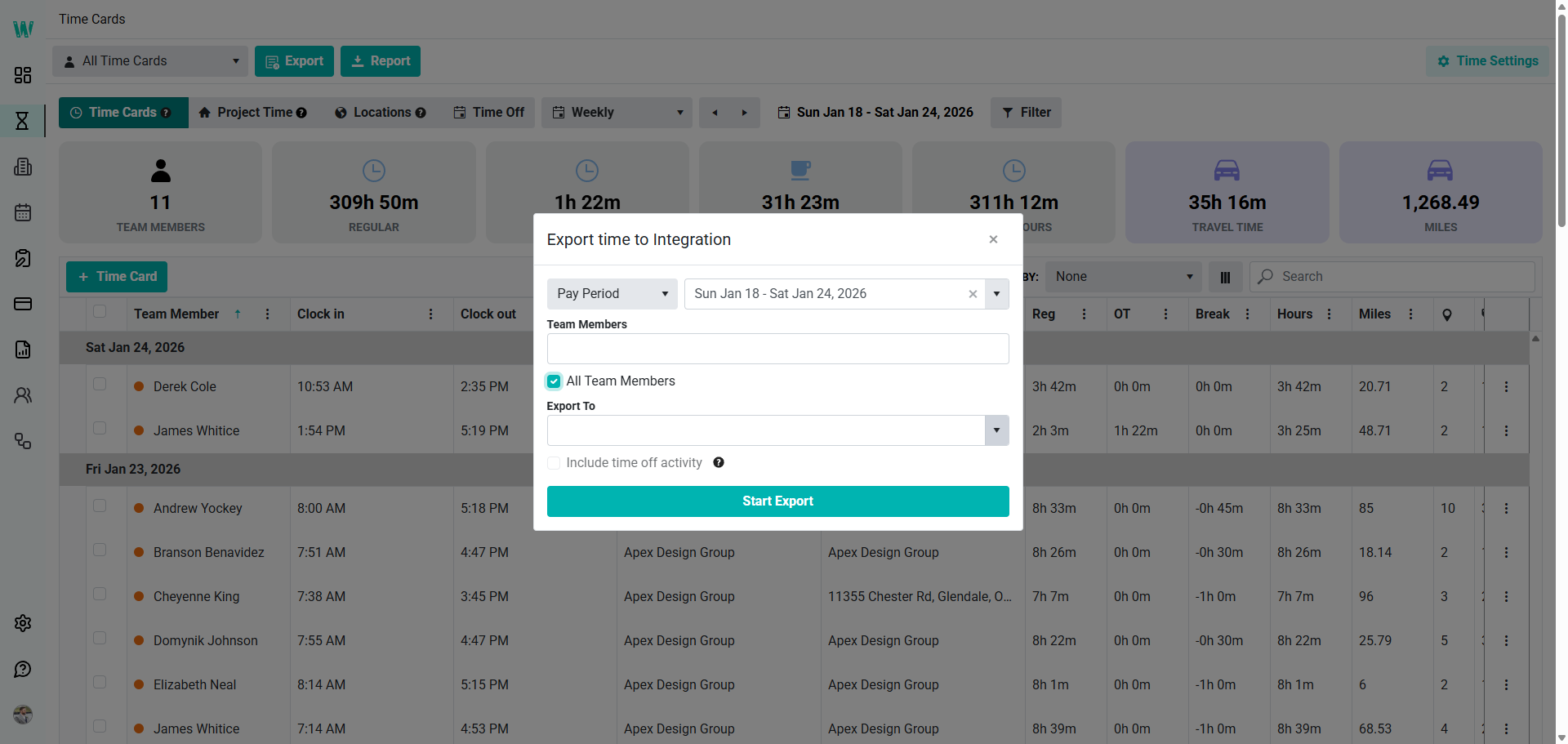
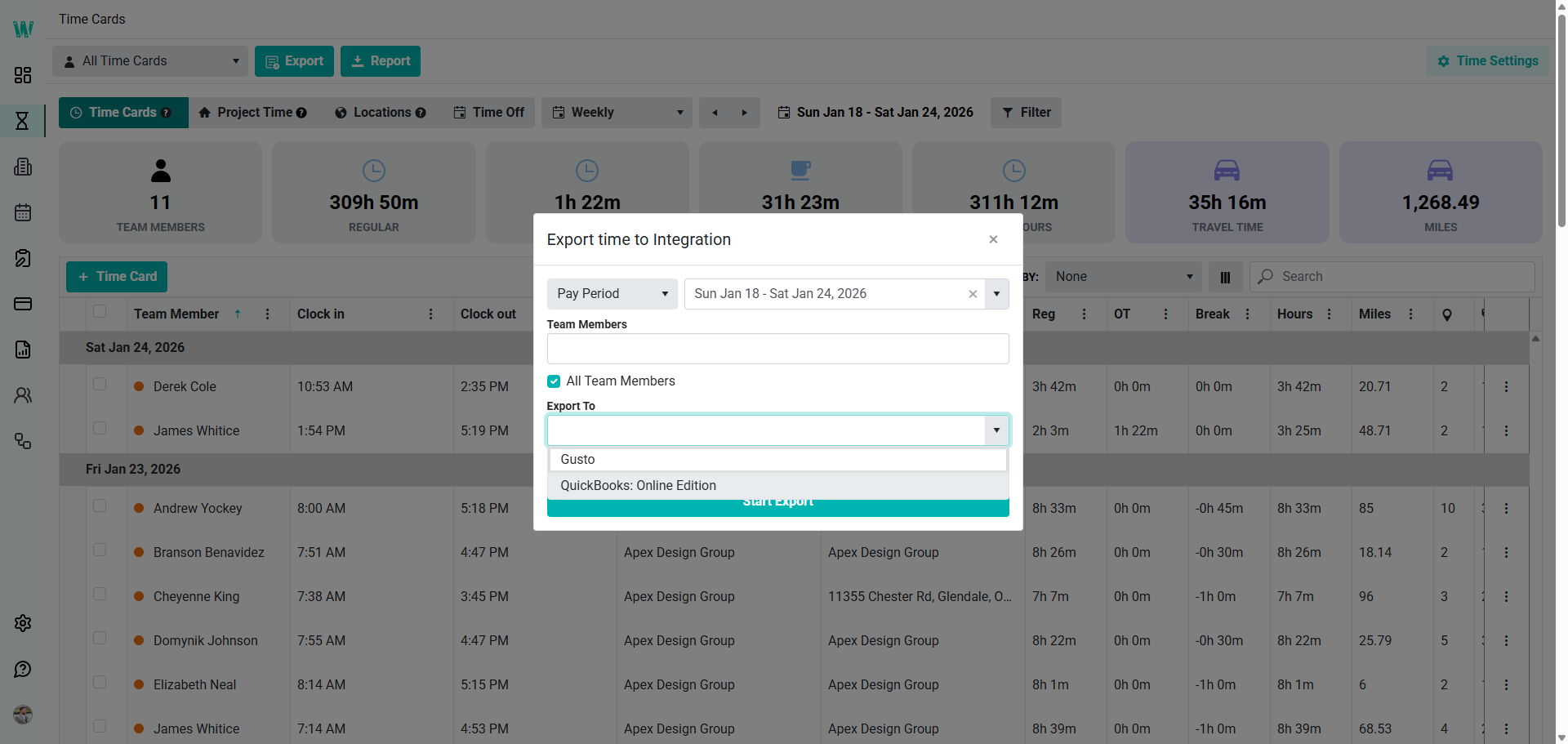
Next we'll start the export.
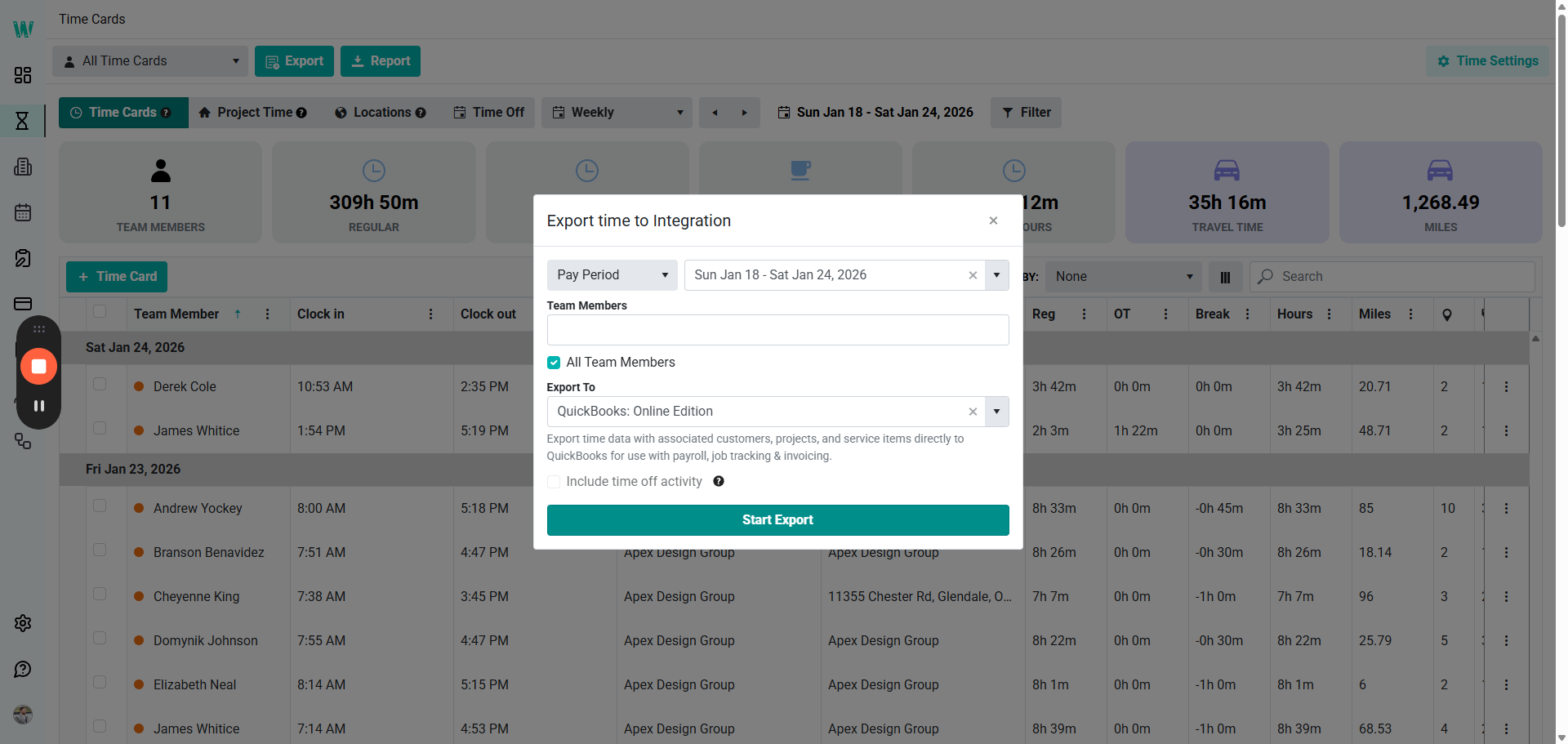
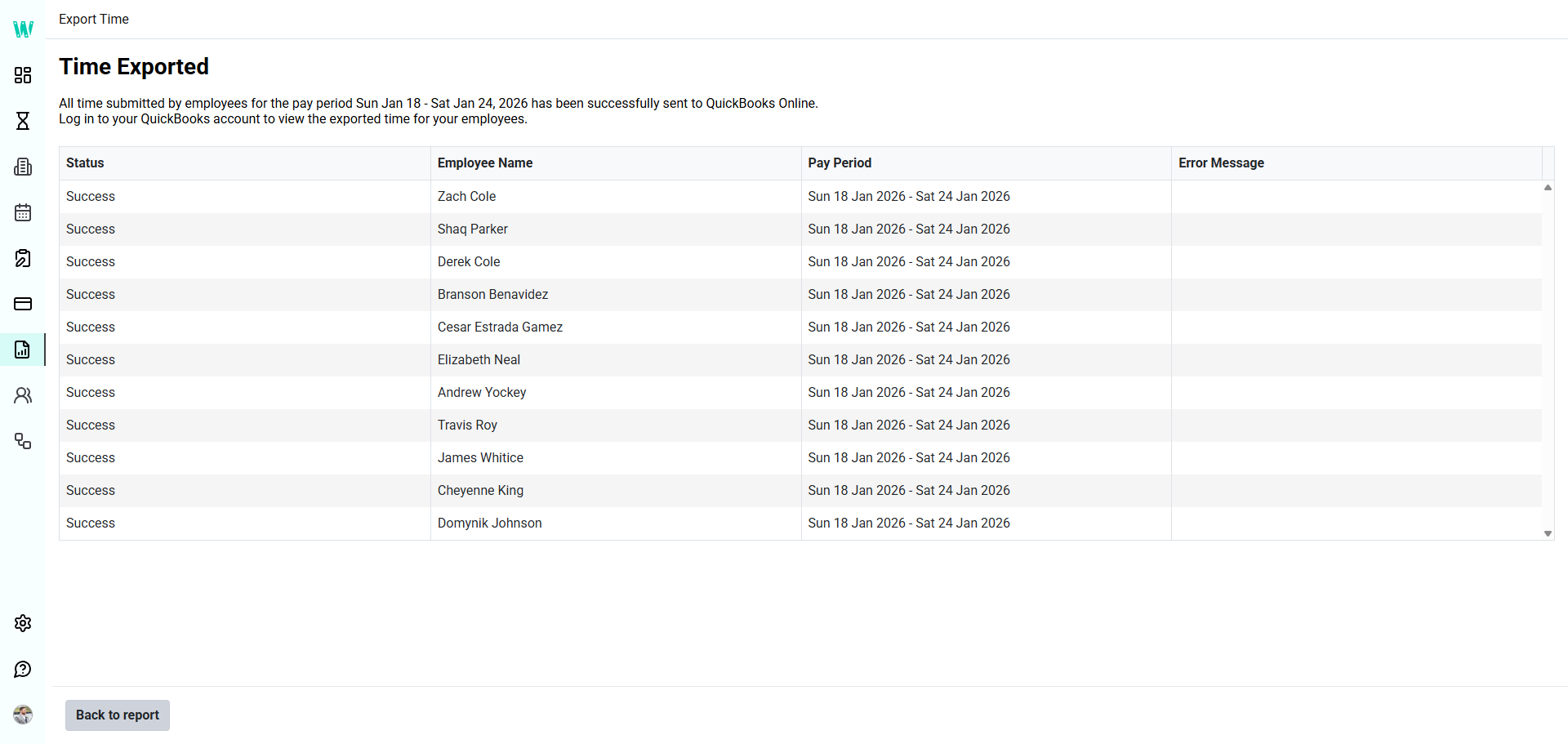
It may take a few minutes to appear on the screen. Once everything is successful and we have no error messages, we'll return to the reports.
Back in the Time Cards scree, you’ll see that all of the Dots have turned purple, which means they have all been exported.
Next we'll export again, this time to Gusto, our payroll app.
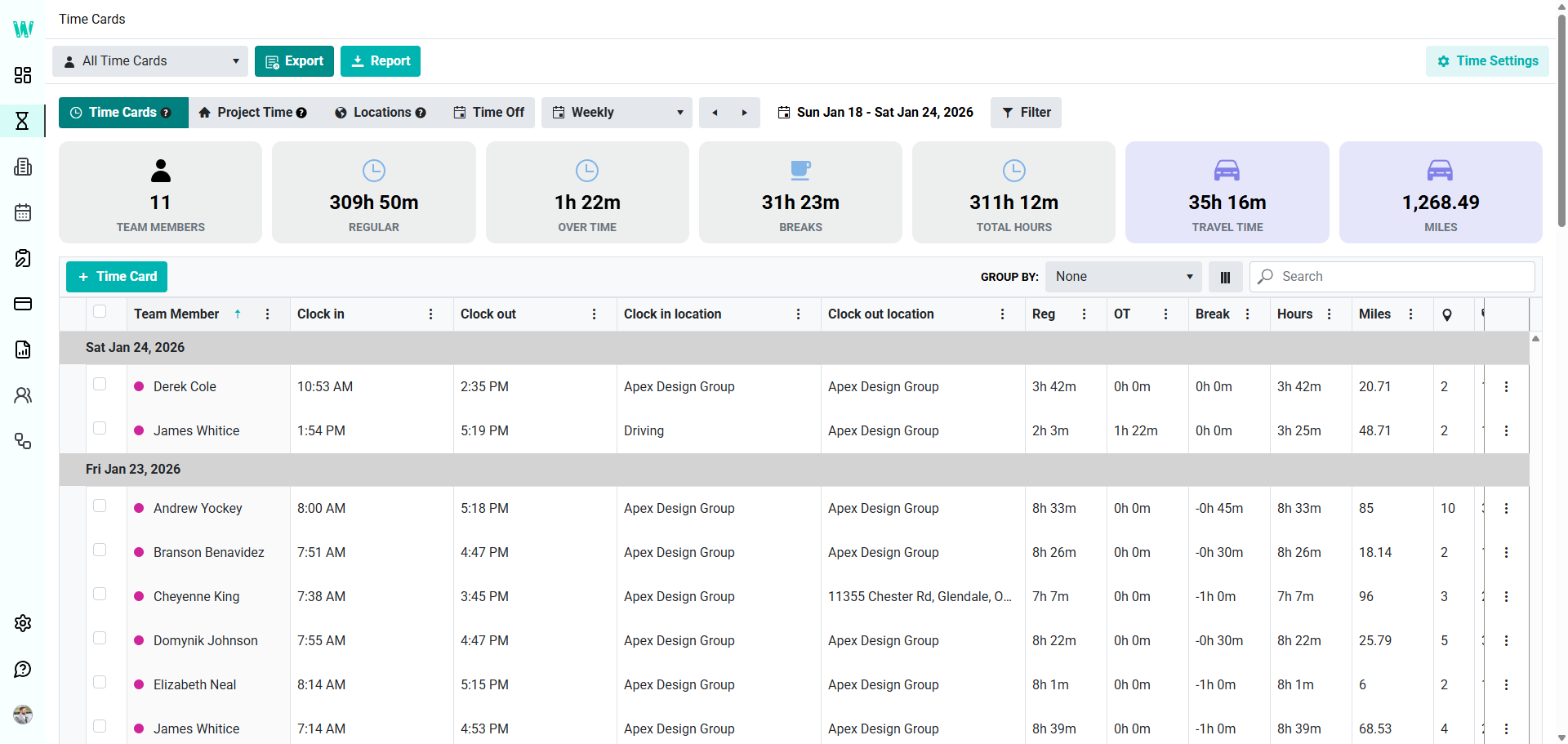
We're going to select the same Date Range.
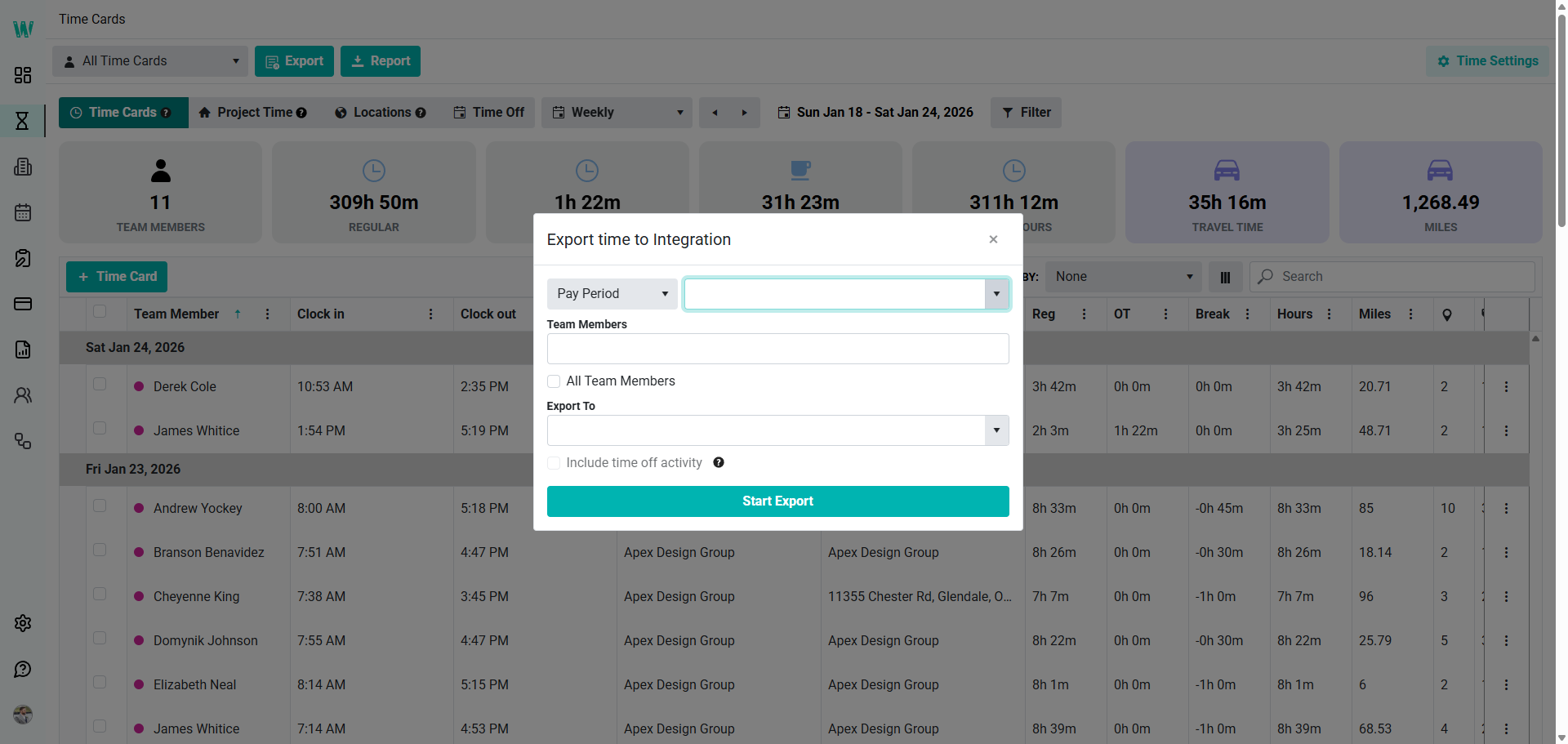
All team members need to be selected.
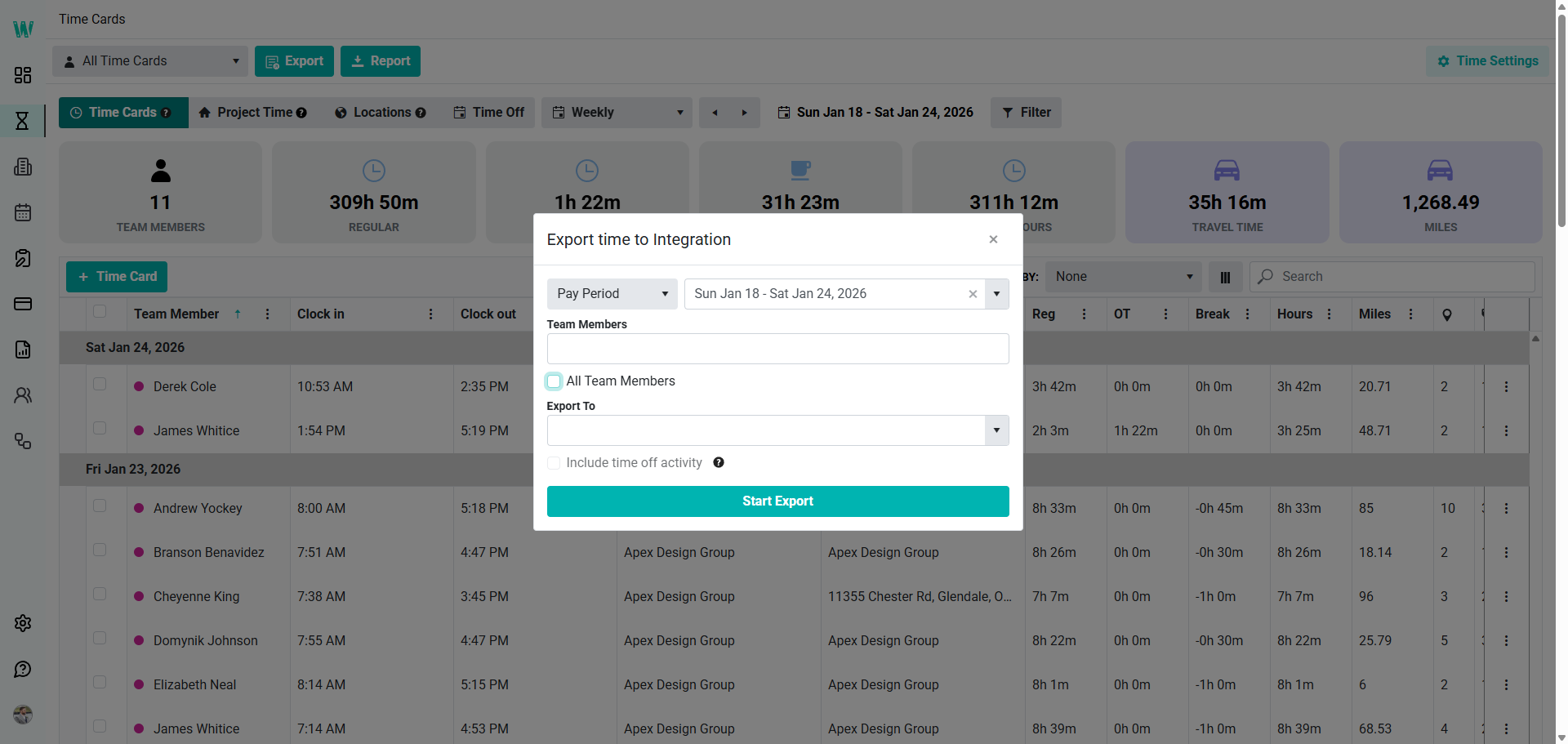
This time, we will export to Gusto.
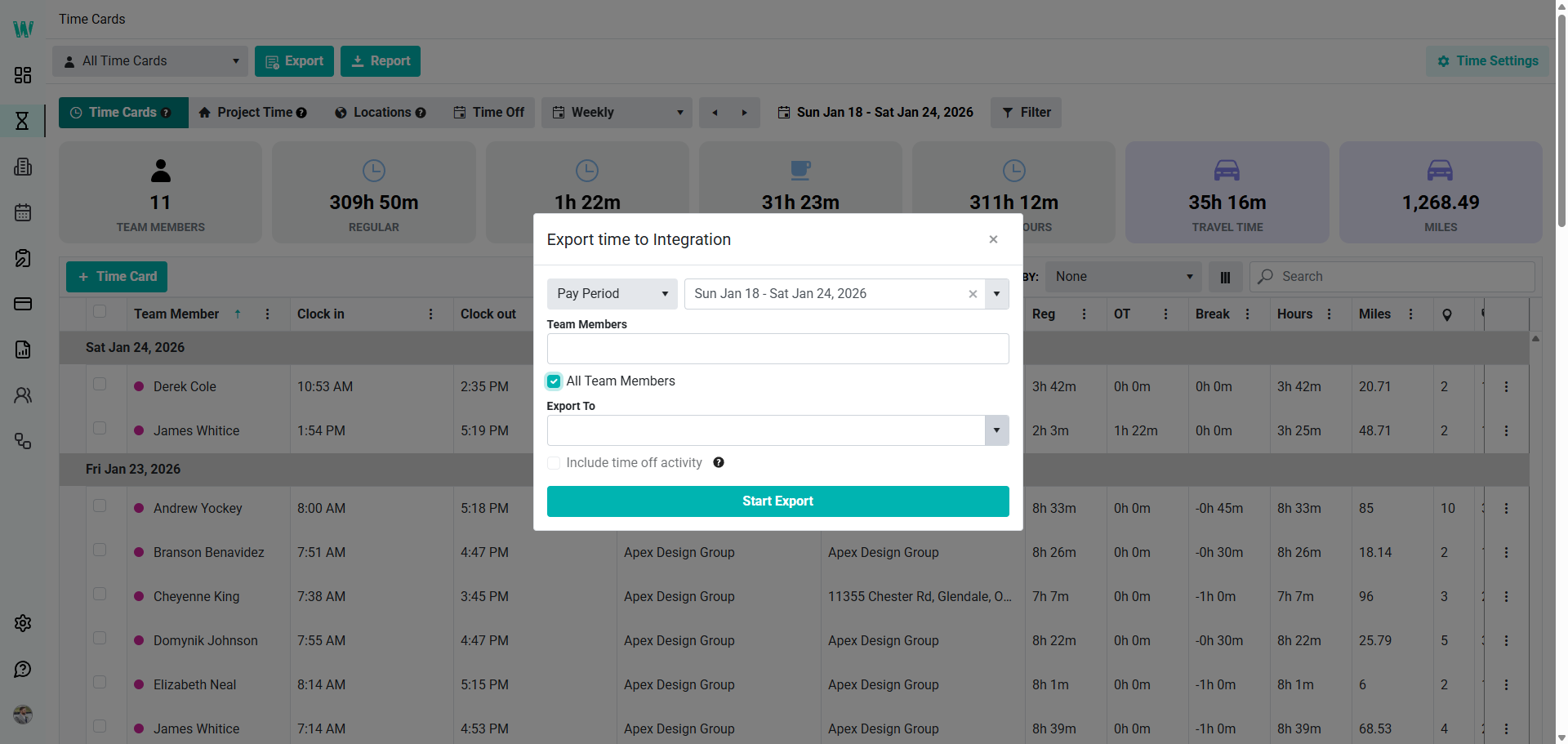
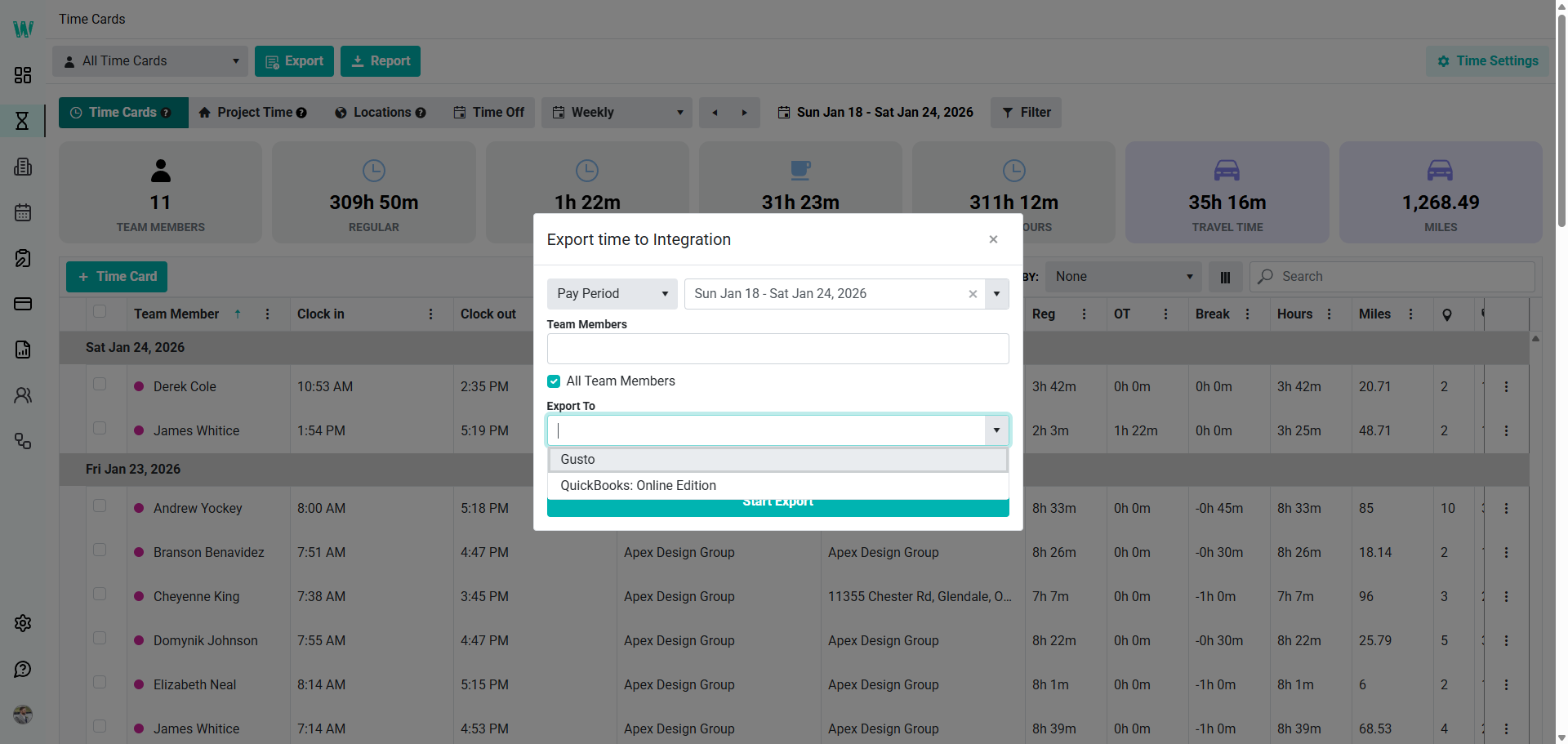
Start the export.
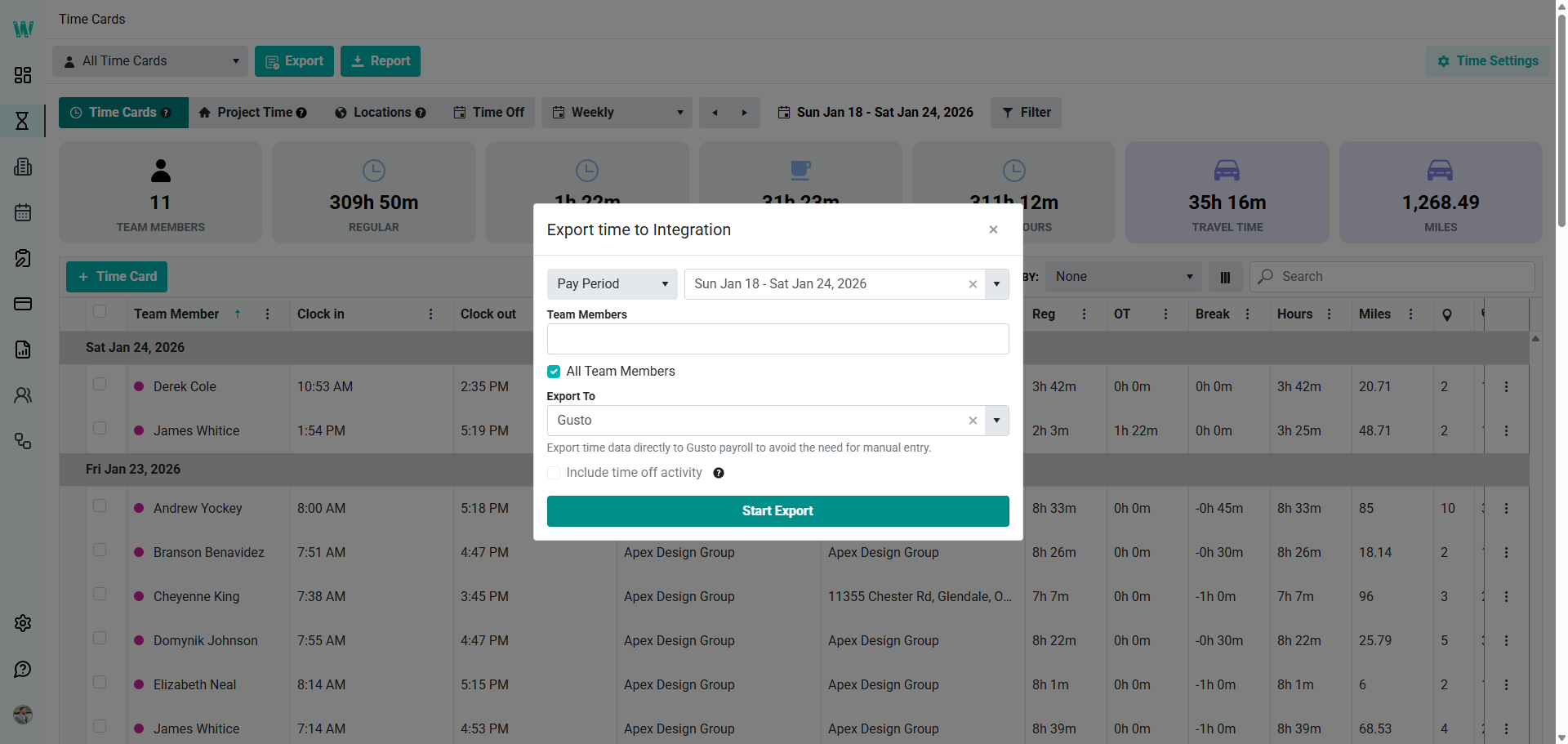
We're following the same process and waiting for the export to finish. It could take a few minutes. Once everything is successful, and there are no error messages. We have finished in Workyard.
Open a new tab and go to Gusto.
This is your home screen. Yours should look similar to mine. We are running payroll. The due date is the 28th. You'll see in the bottom right that today is the 26th. We have a few days left, so we're finishing early this week.
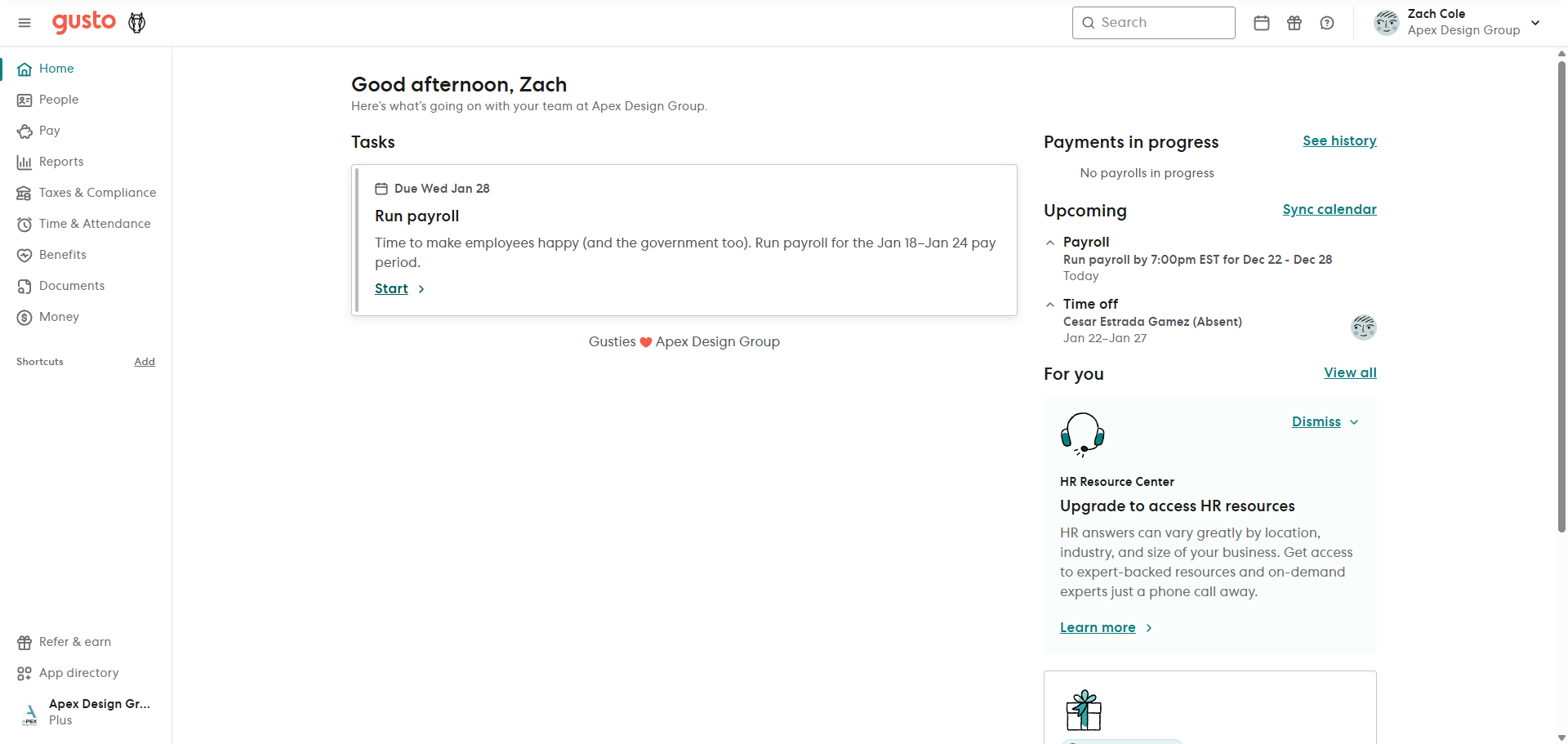
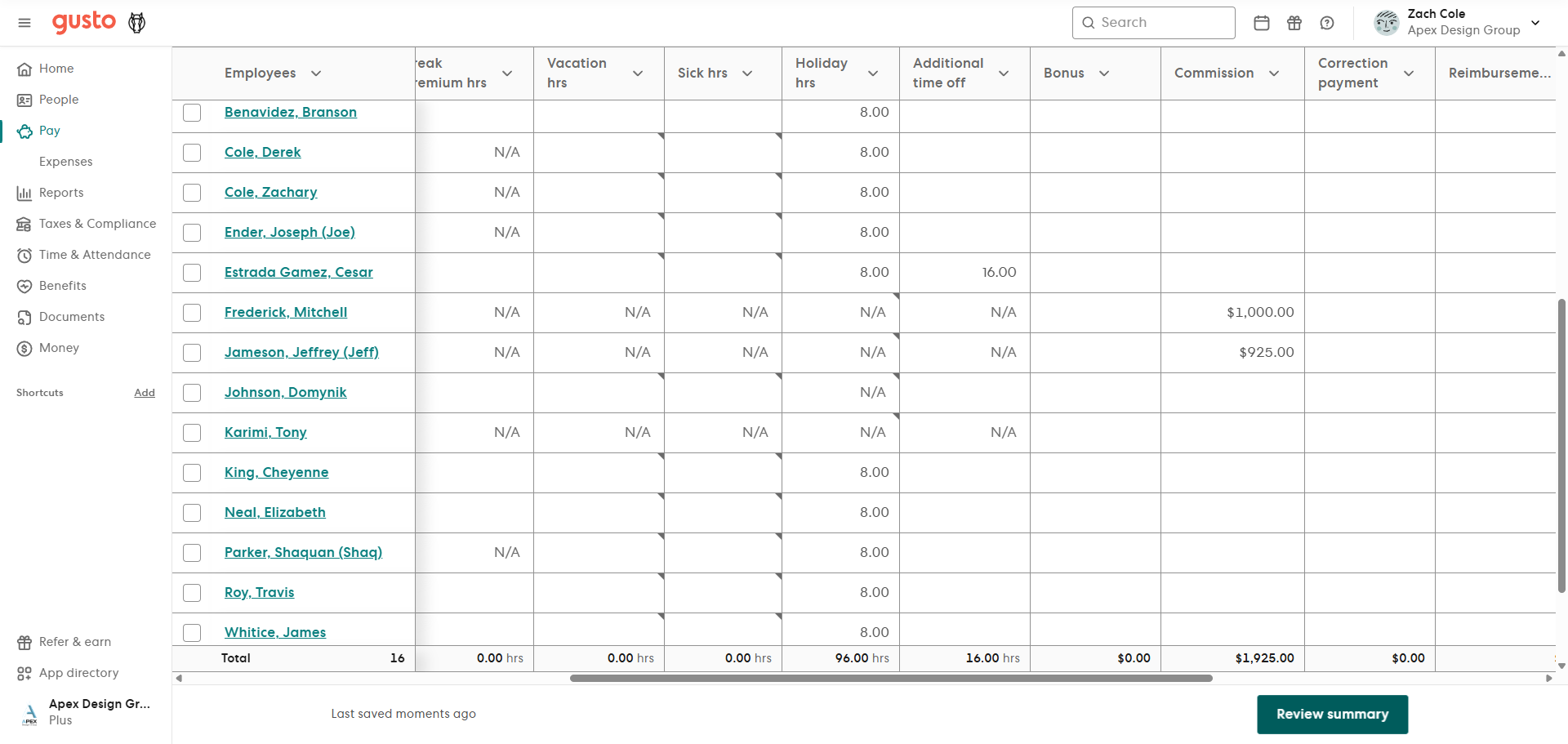
And this is the previous week, the 18th to the 24th. Monday was a holiday, so all eligible employees received eight hours of holiday pay.
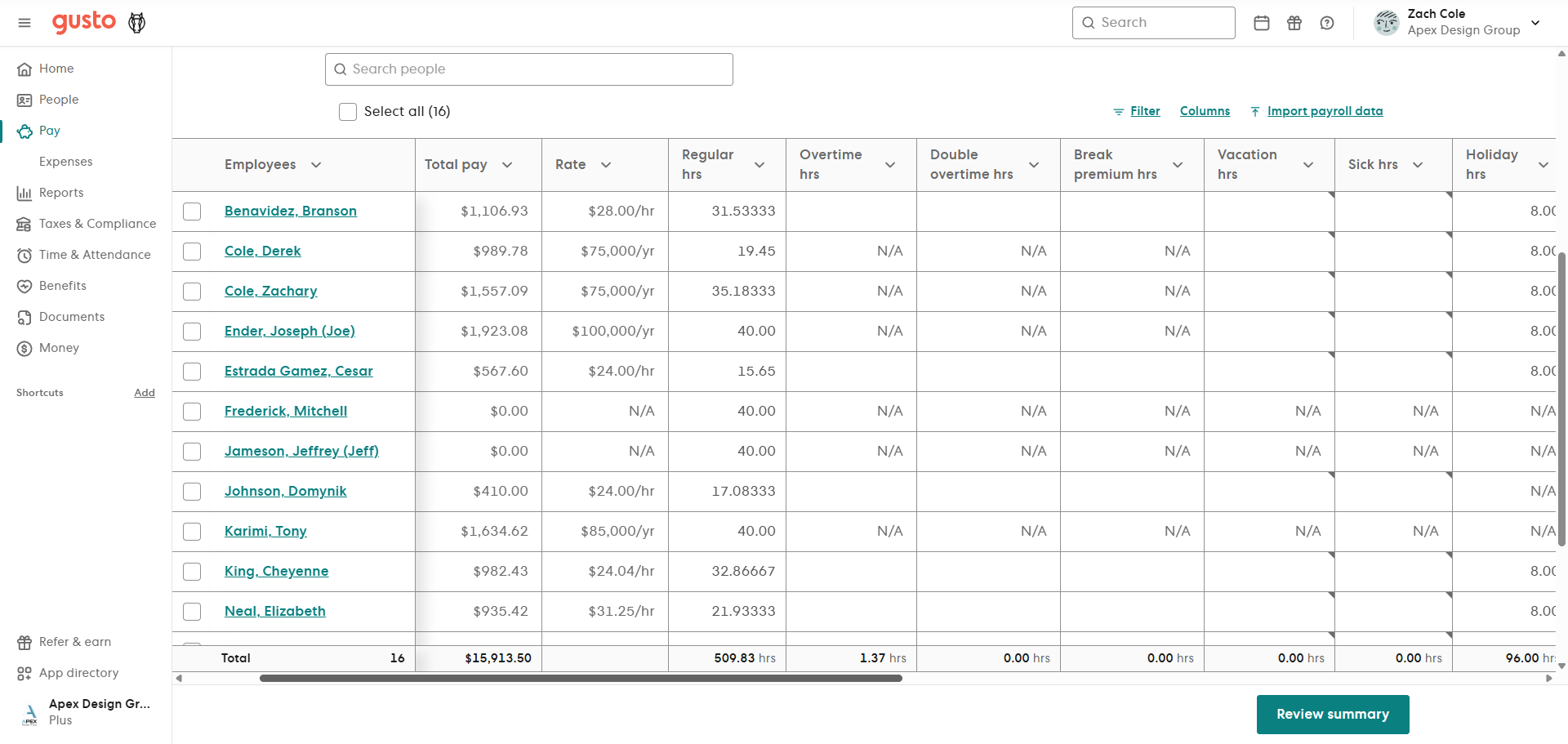
We have a few corrections to make. Because all employees are tracked via WorkYard, salaried employees time is not correct when exported to Gusto.
We have some employees who are salaried, which you can verify by their pay listed over a year.
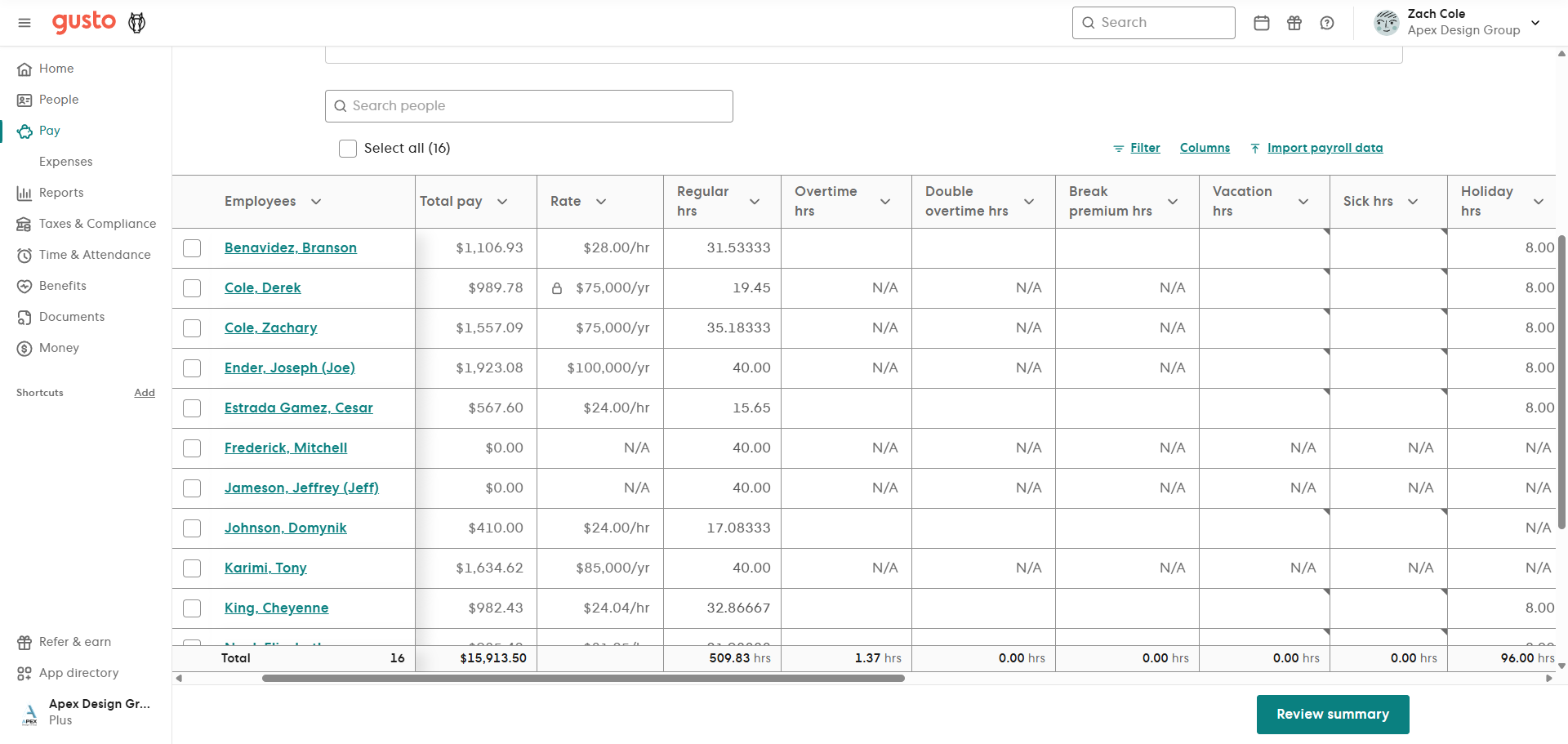
All other employees are paid hourly, which you can verify by their pay listed over the hour.
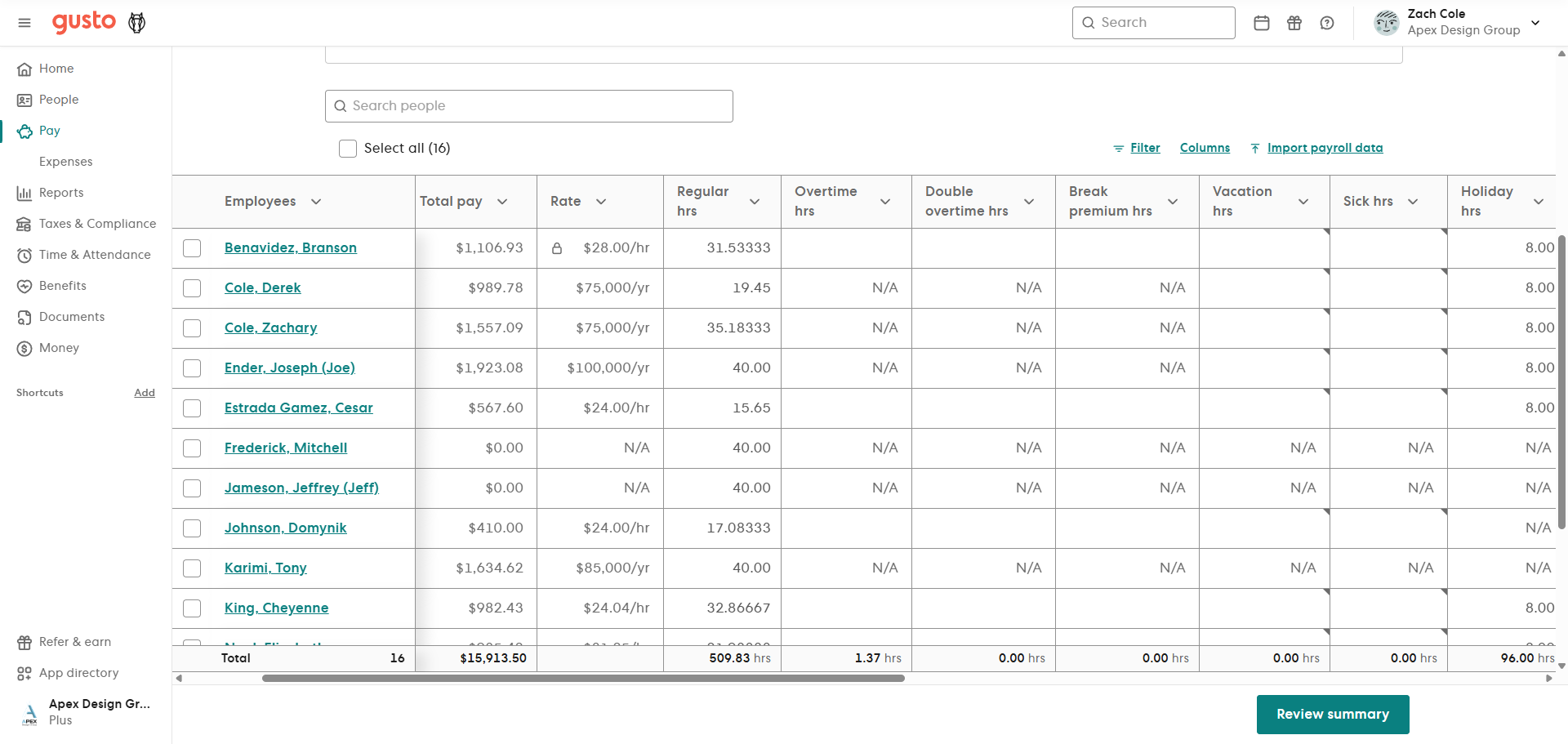
Hourly employees don't need any adjustments. The system will tell you if they have pending vacation or sick time. All of this is taken care of by their manager.
Salaried employees are where we encounter issues. Salaried employees often work extra hours, and even uncalculated hours outside the office. We want to ensure that salaried employees maintain a total of 40 hours each week. In this case, since we have 8 hours of Holiday Hours, all salaried employees should have 32 hours.
The current List of salaried employees are:
Tony Karimi, Derek Cole, Zachary Cole, Joe Ender, Shaq Parker, Scott Yager
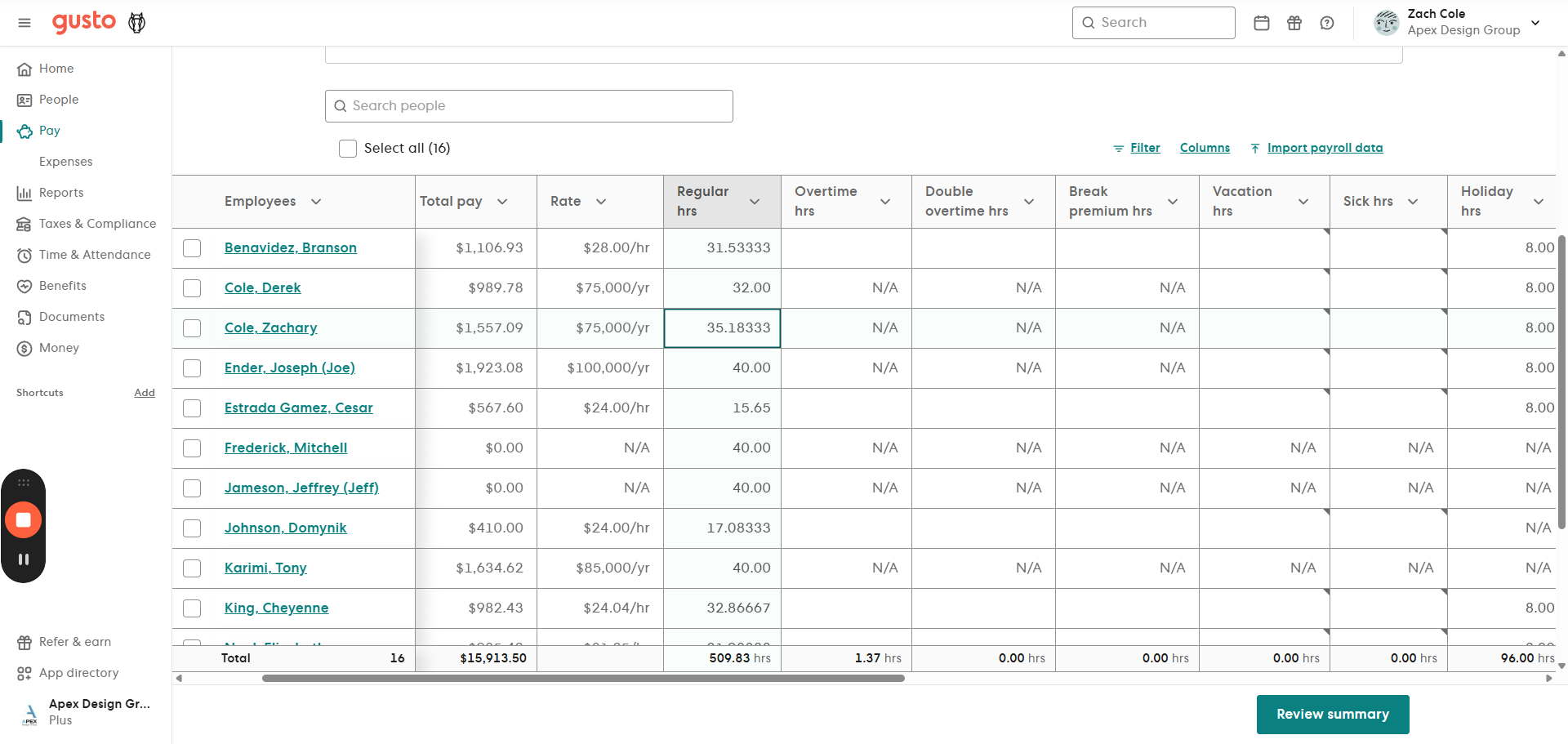
When looking at Tony (the owner), he has no vacation, no sick time, and no holiday pay. Always make sure he has 40 hours. This should always be the case, as his time is not tracked in WorkYard. All salaried employees should have 40 hours.
(40 hours - Sick Time - Vacation Time - Holiday Hours)
Next, make sure the payment type is correct for all employees. Sometimes this is adjusted, so use "Direct Deposit" if the employee has it.
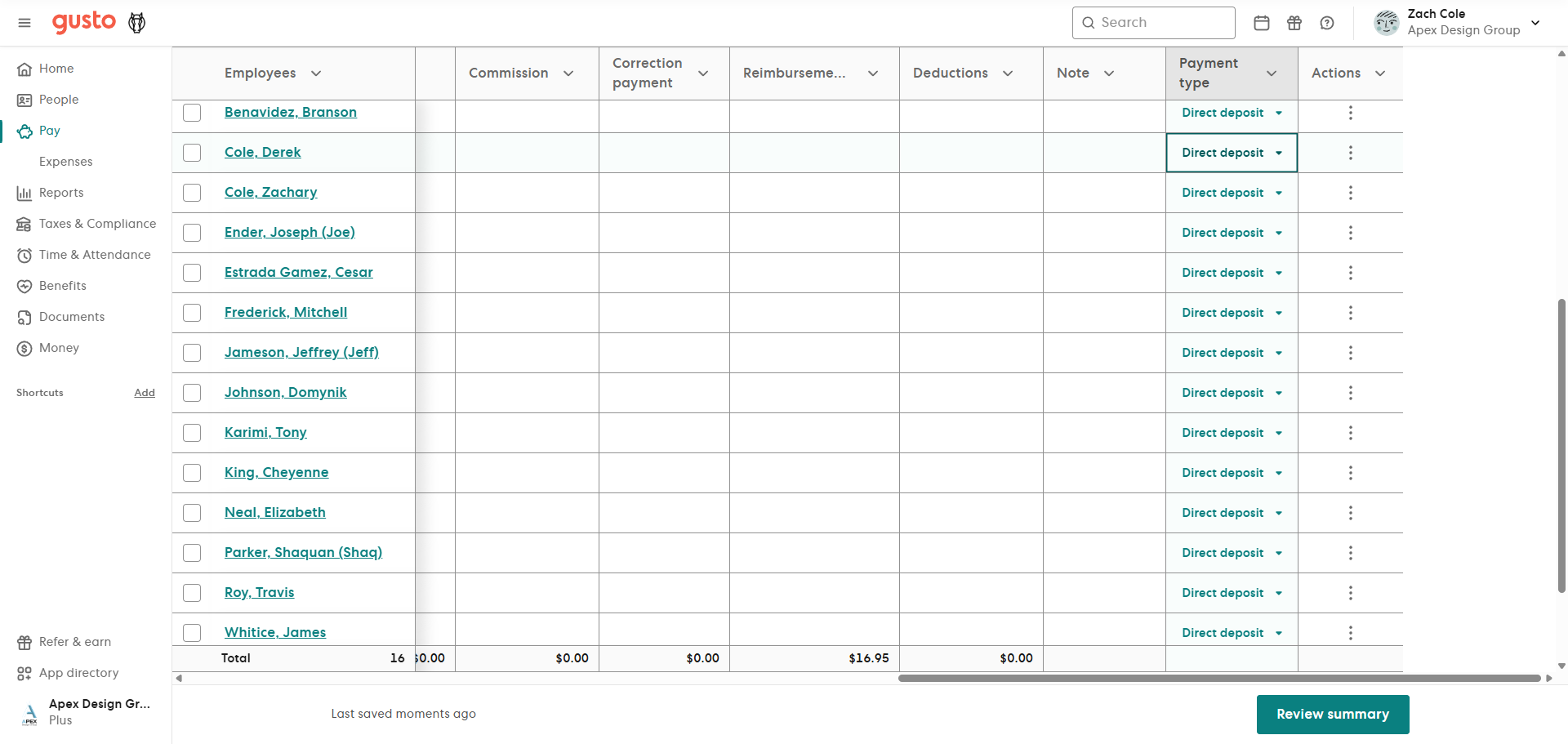
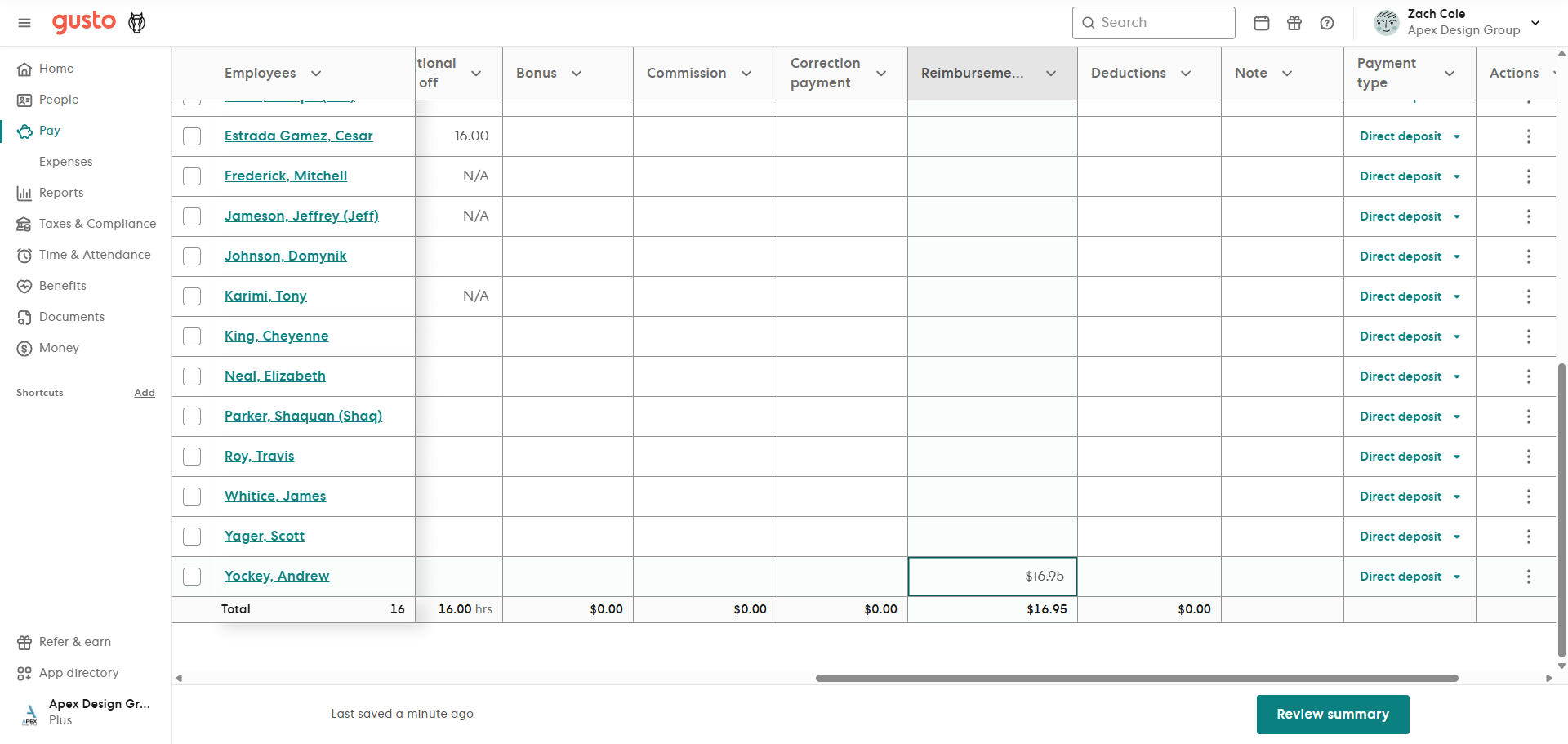
If there are Reimbursements, the managers will approve them. Reimbursements appear in the Reimbursement category.
Andy Yockey has $16.95 in reimbursements. He is the only reimbursement for this week.
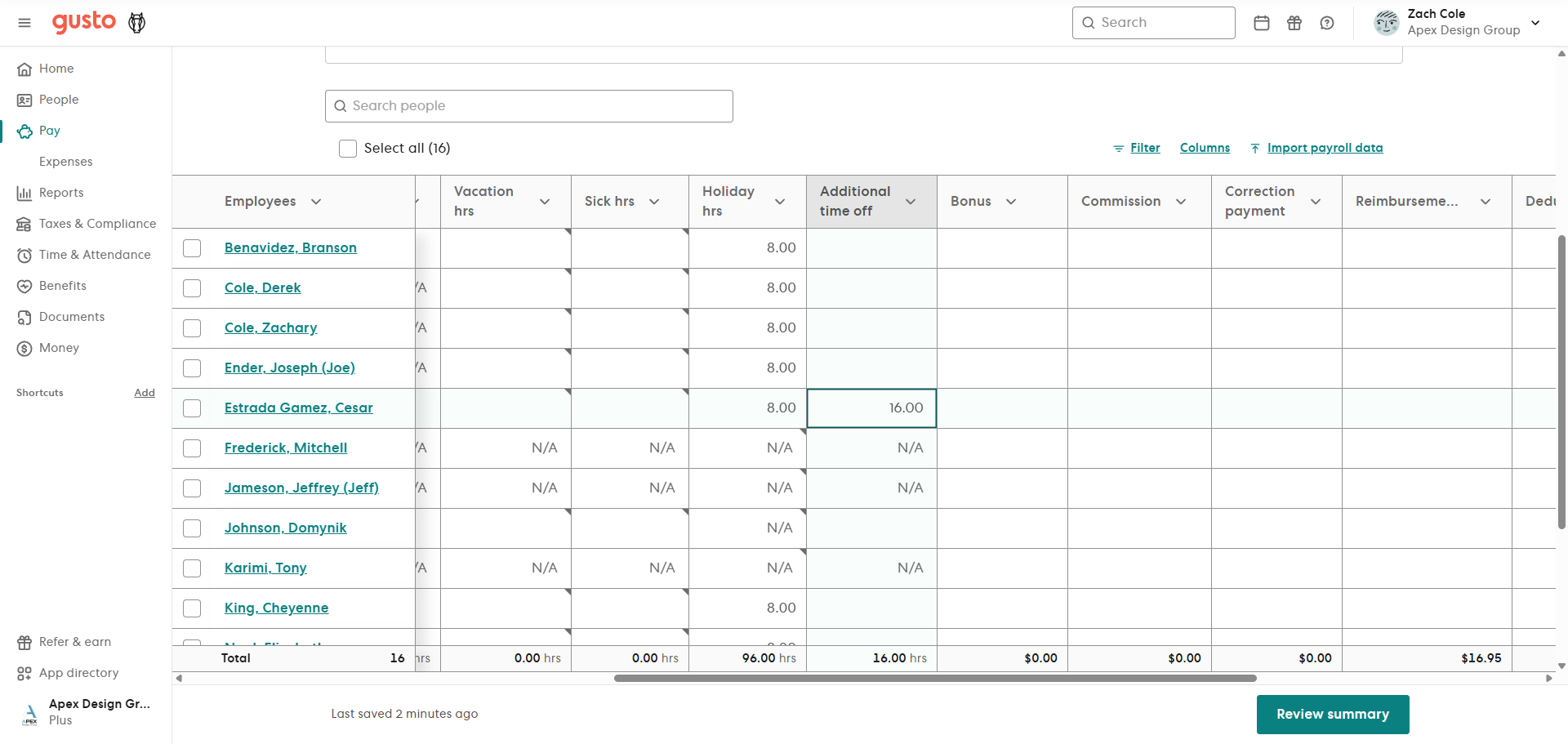
We also have another column: Additional time off. This is unpaid time off, but it is tracked. Cesar had 16 hours of unpaid time.
Mitchell Frederick and Jeff Jameson are our salespeople, and are 100% commission. We need to enter this week's commission pay for salespeople.
Next to Mitchell Frederick, in the Commission category, we will enter his pay.
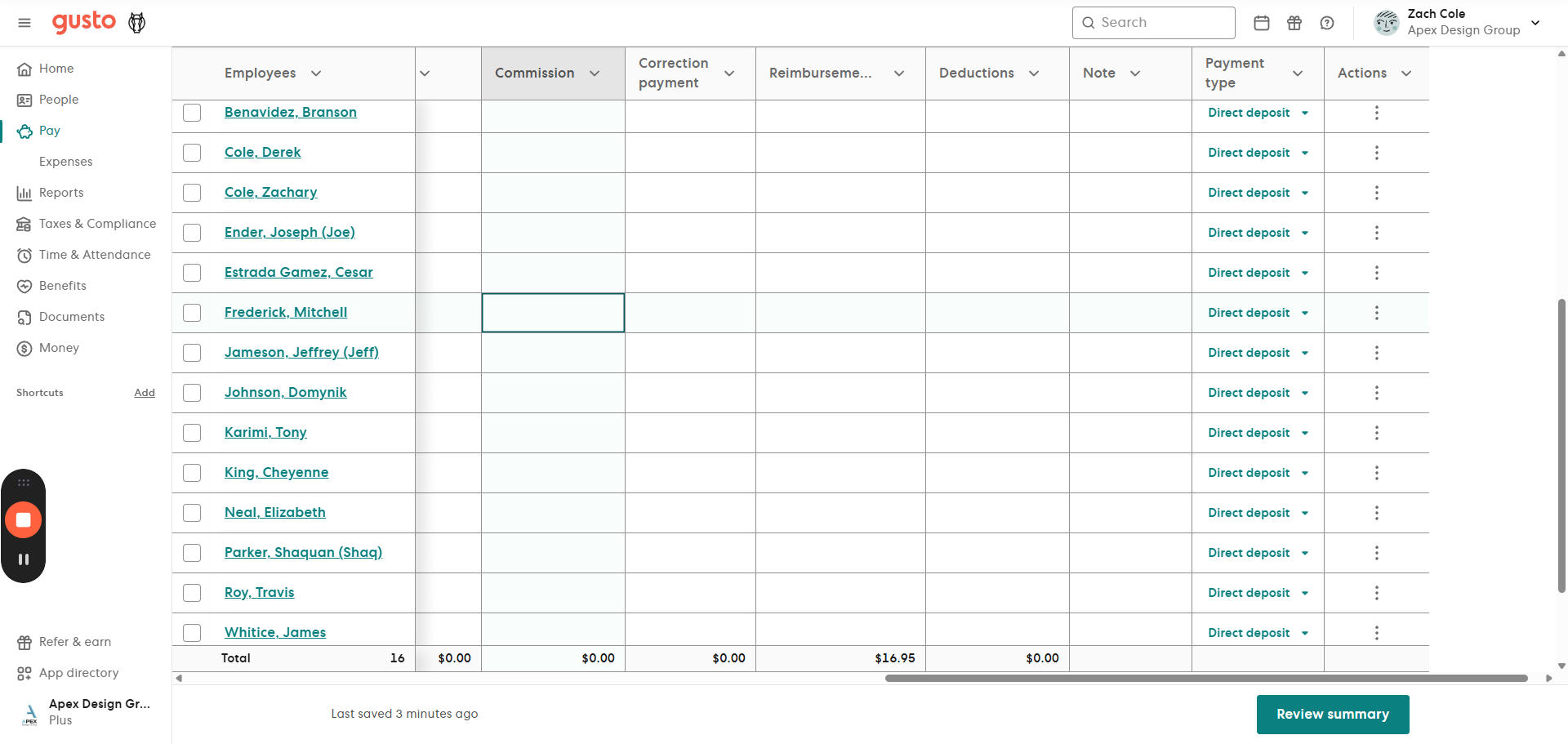
Next to Jeff Jameson, in the Commission category, we will enter his pay.
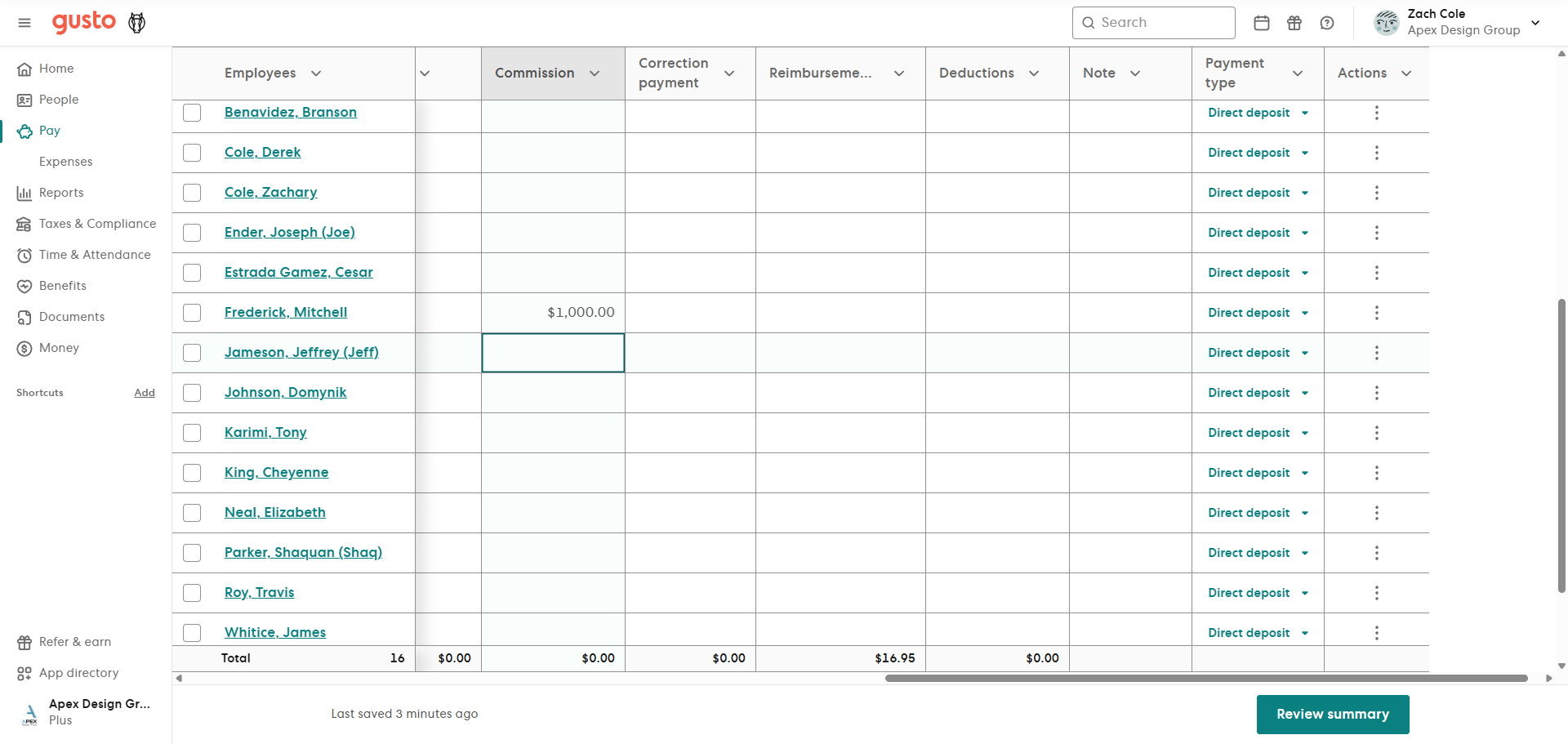
These are the only two people who are 100% commission. They do not have any time recorded in Workyard. They do not receive Vacation Time, Sick Time, or Holiday Hours. They work independently from other employees, thus their time and time off is their own.
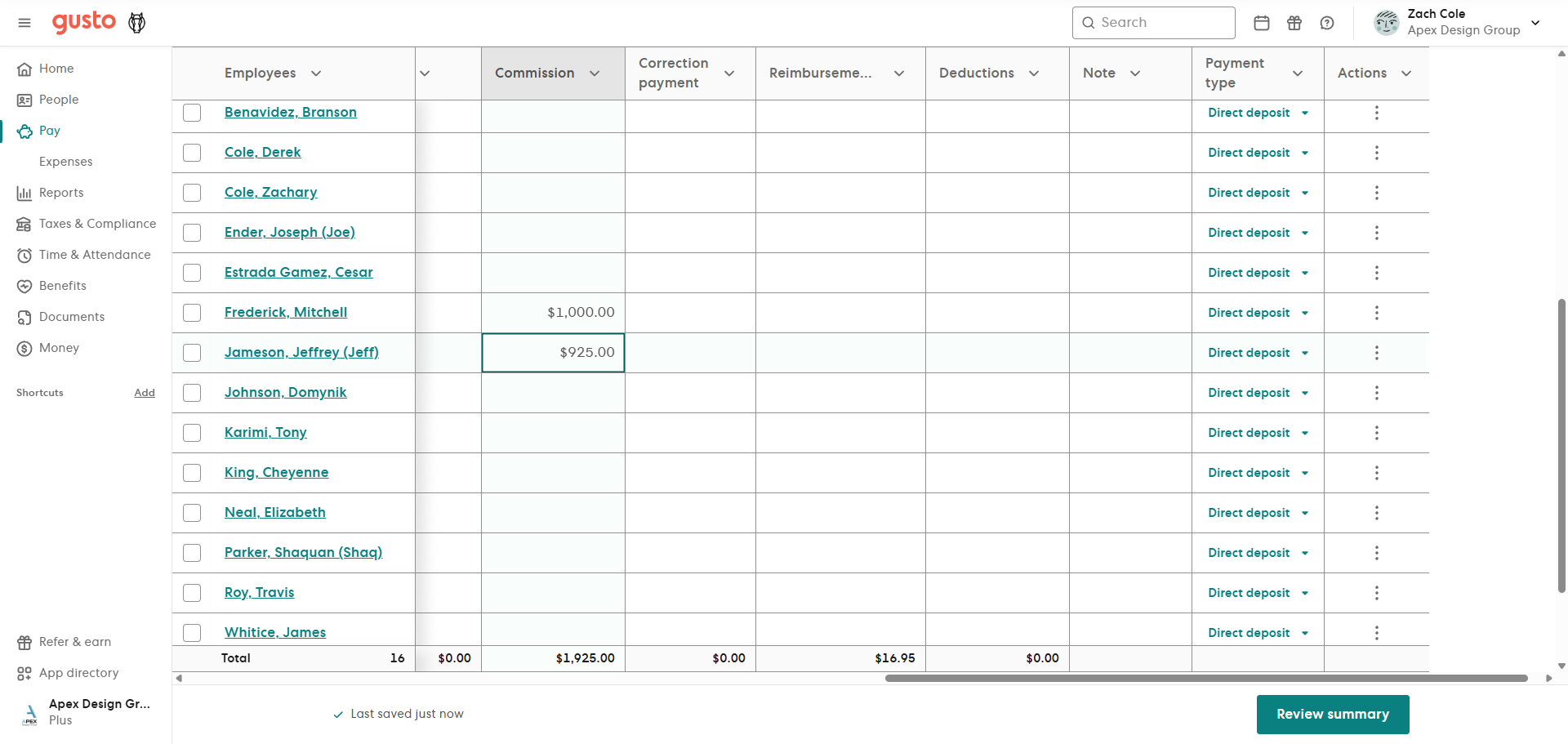
Now we will go to review the Payroll Summary.
Total payroll for this week is $20,662.73.
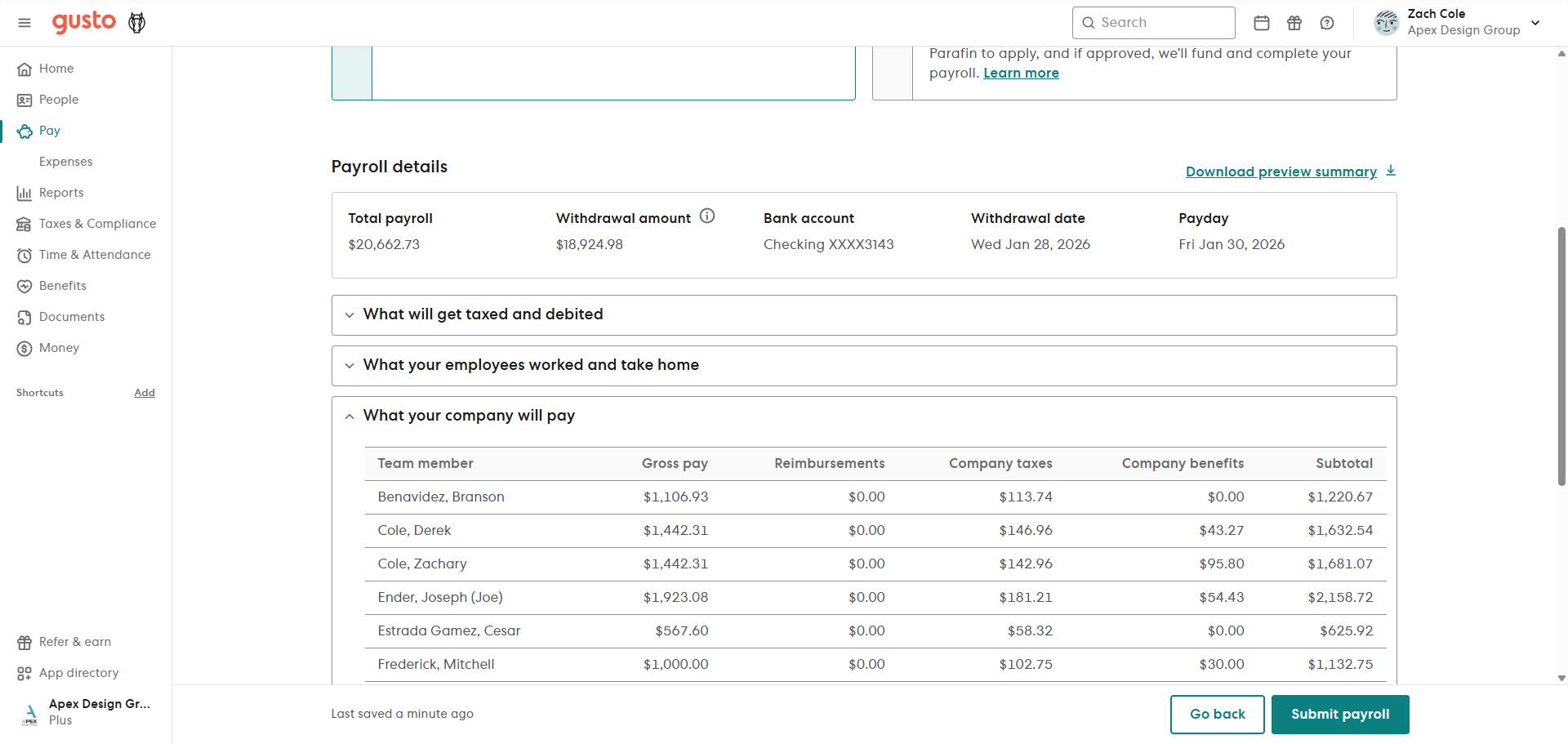
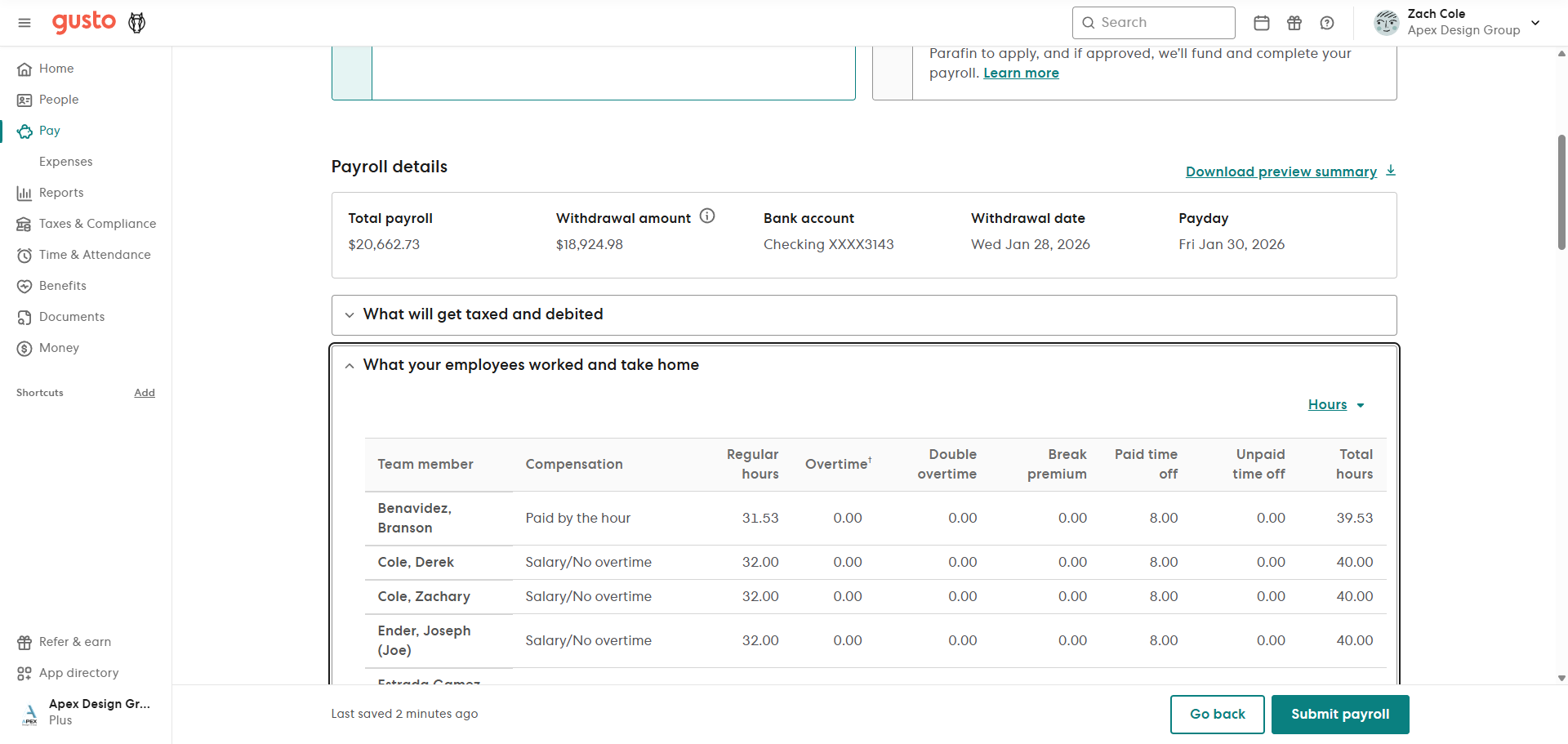
This is the main area to focus on. Double check pay and hours again before submitting. $20,662.73 is the correct amount. We are going to submit payroll.
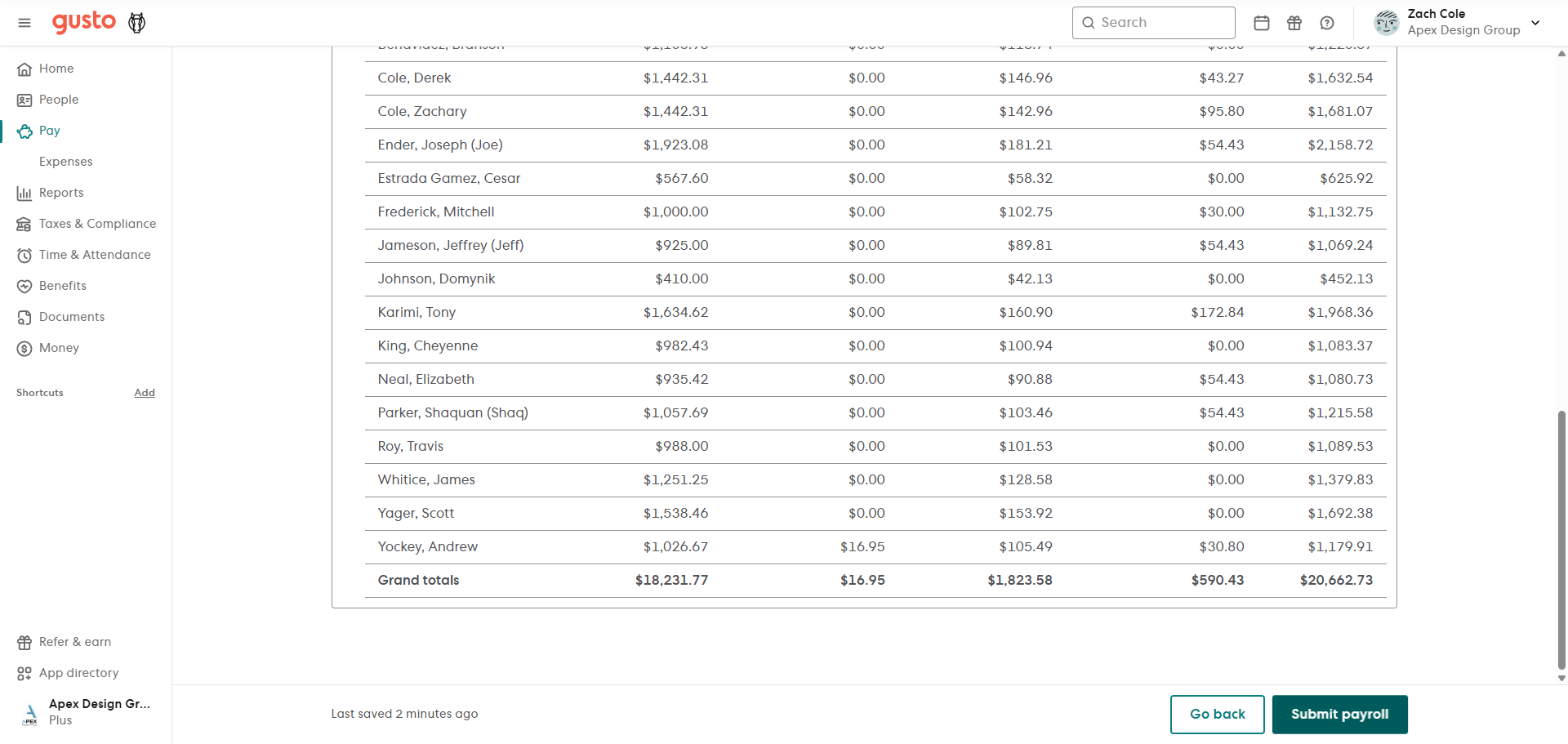
Payroll is complete. From here, we will run a few reports.