Icon

SOP: Payroll Step 3

A comprehensive guide to payroll processing, including how to add severance pay, PTO payouts, deduction adjustments, and manage employee terminations. Learn step-by-step payroll worksheet management for accurate and efficient payroll administration.

By Jessica Esslinger

In this guide, we'll learn how to manually update payroll records for employees, including adding severance pay, adjusting hours, processing PTO payouts, and handling benefit refunds. We will also review how to ensure all payroll changes are accurate before finalizing each batch.

This process helps maintain correct payroll data and ensures employees receive the right compensation and deductions.

Let's get started

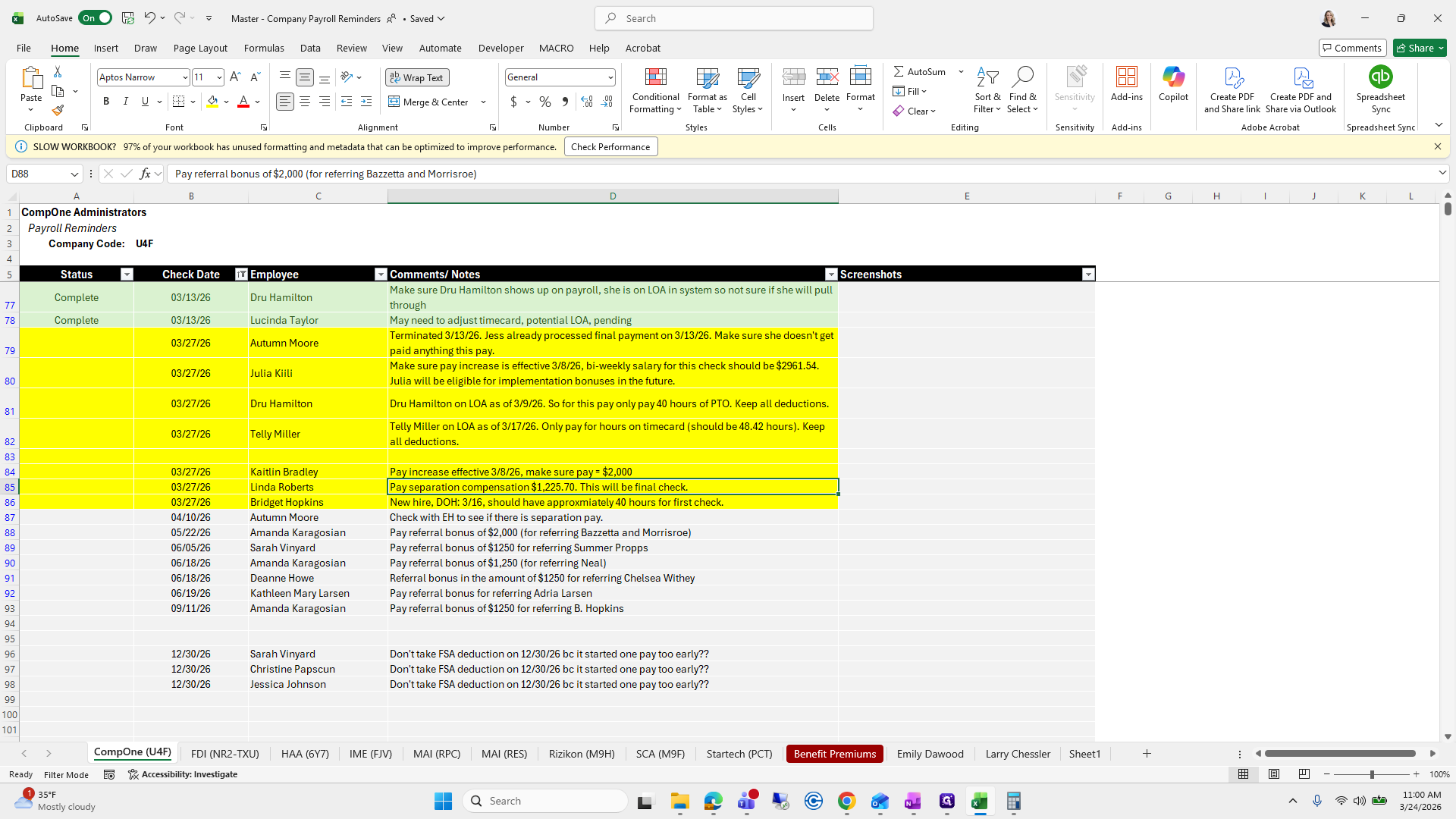
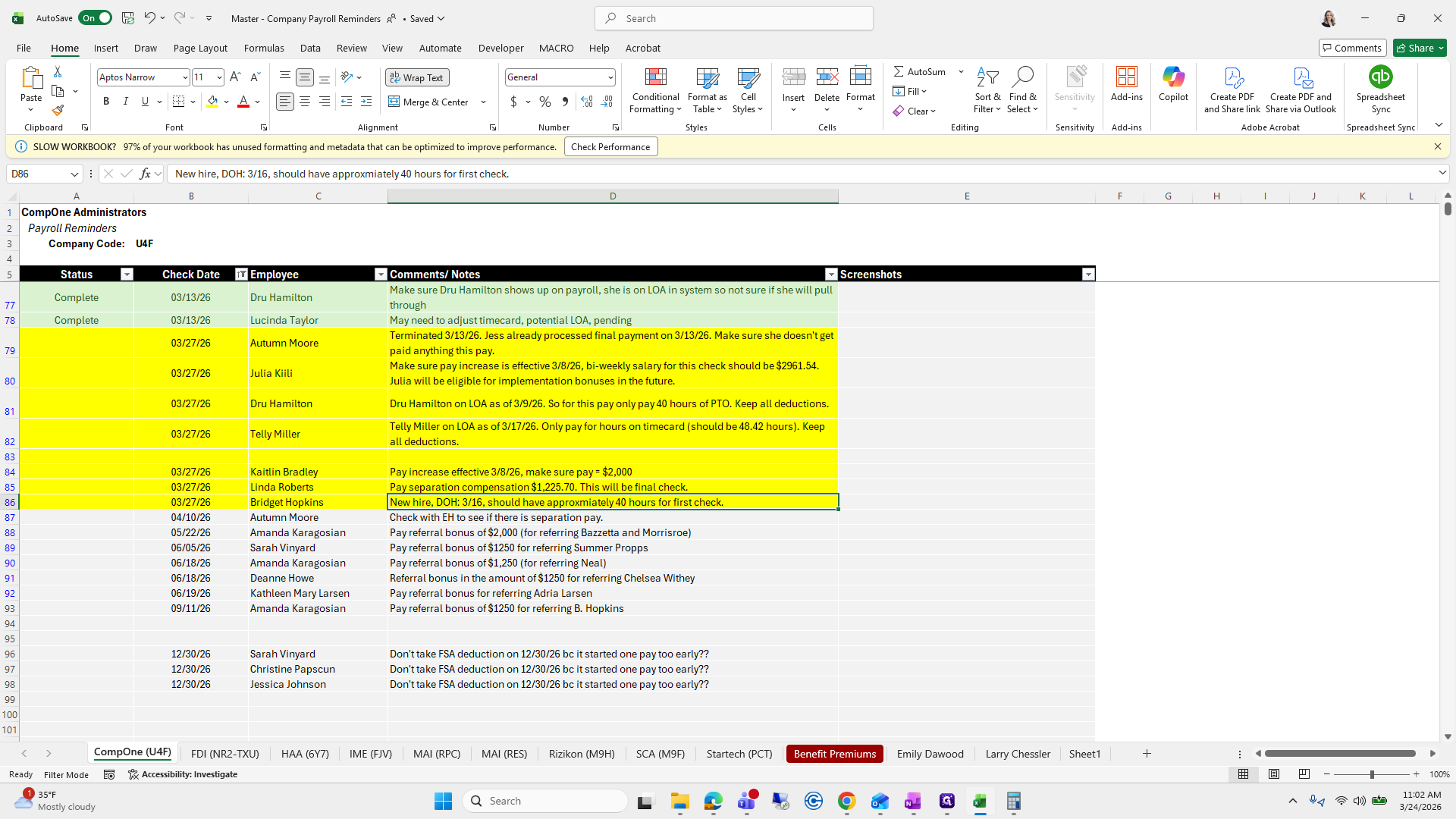
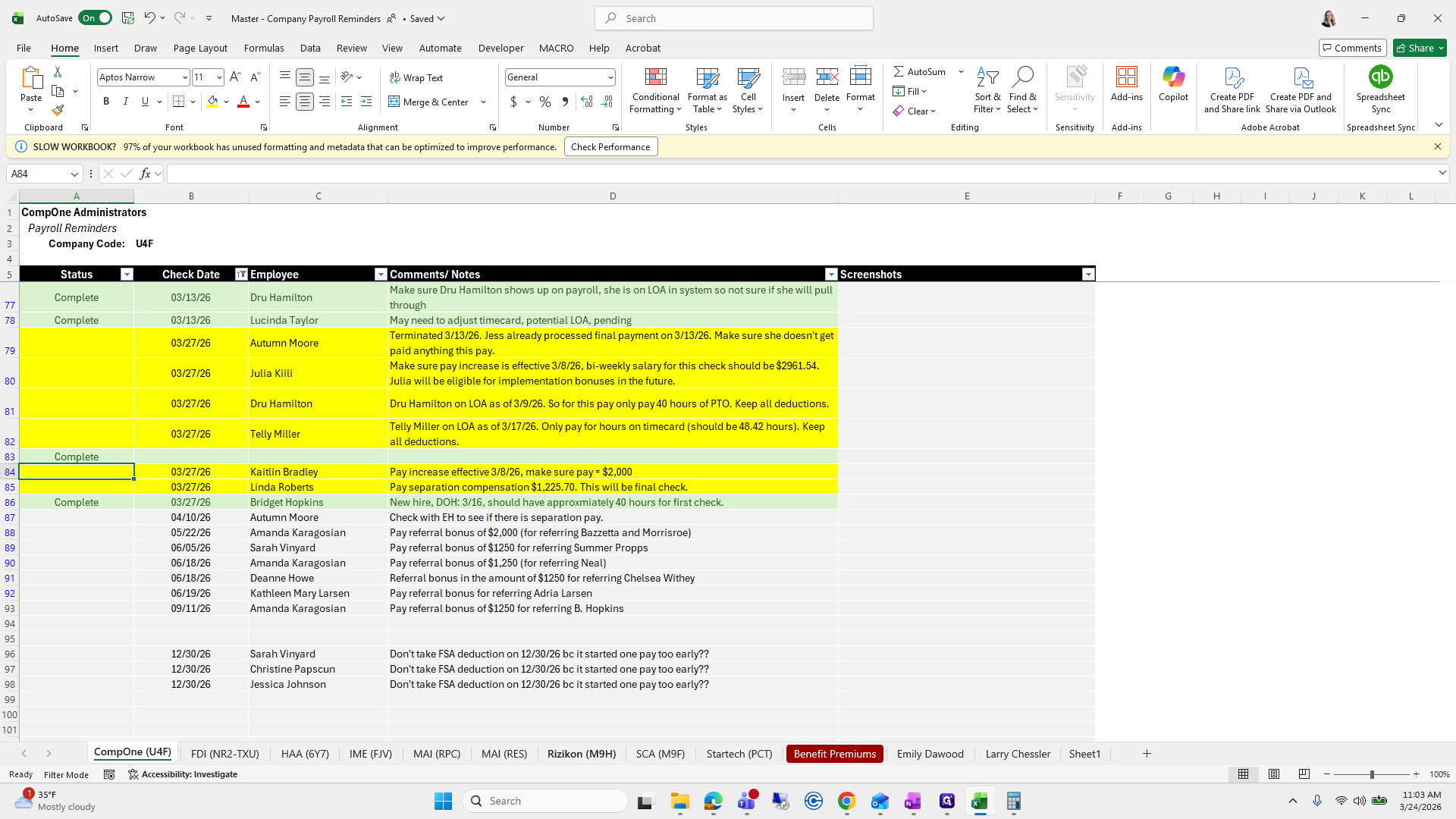
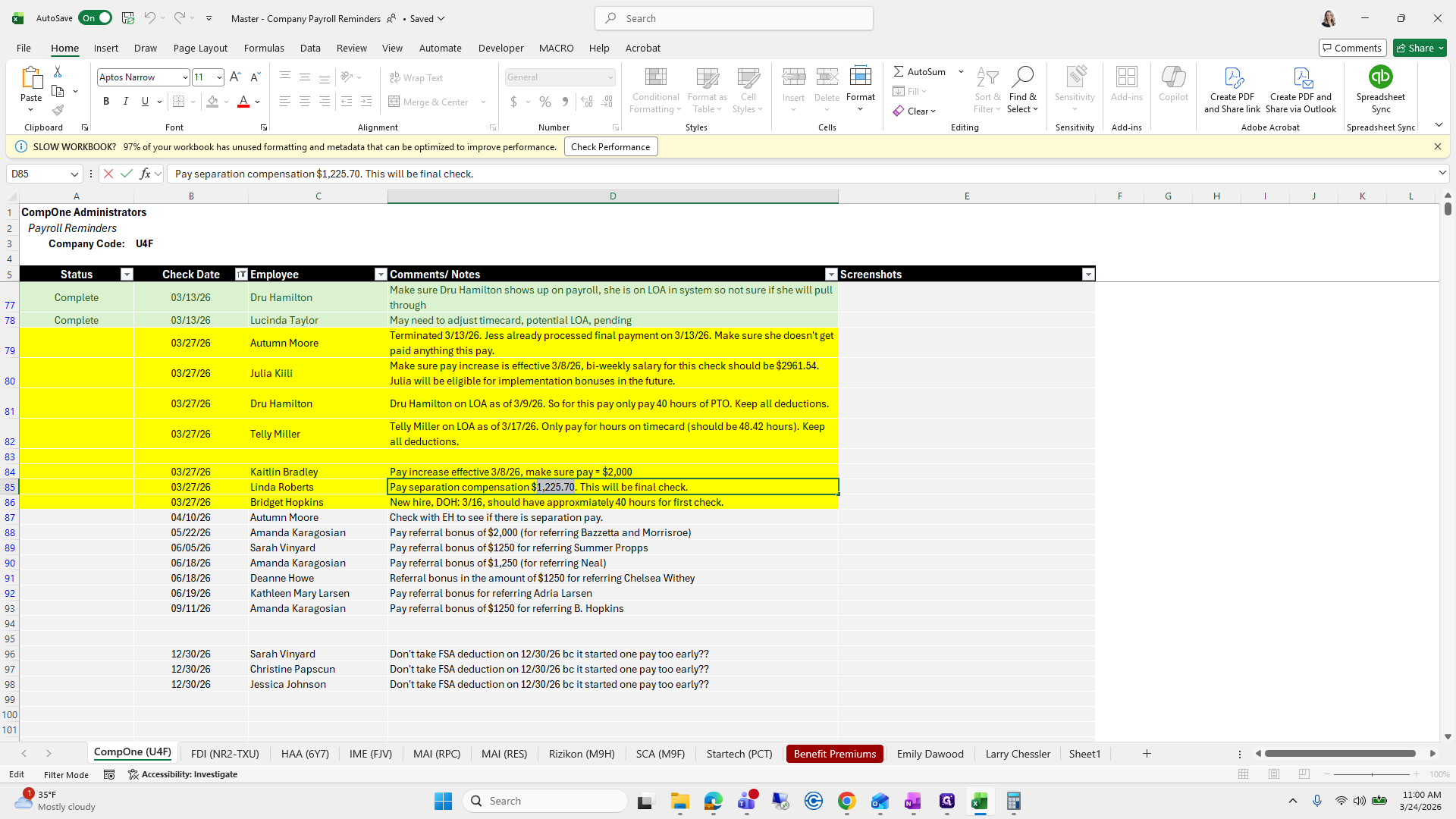
Okay. We were reviewing the Comp 1 tab to check for any additional payroll that needed to be added manually. We left off with Linda Roberts.
1
Click here
Step #1: Click here
2
Click here
Step #2: Click here
3
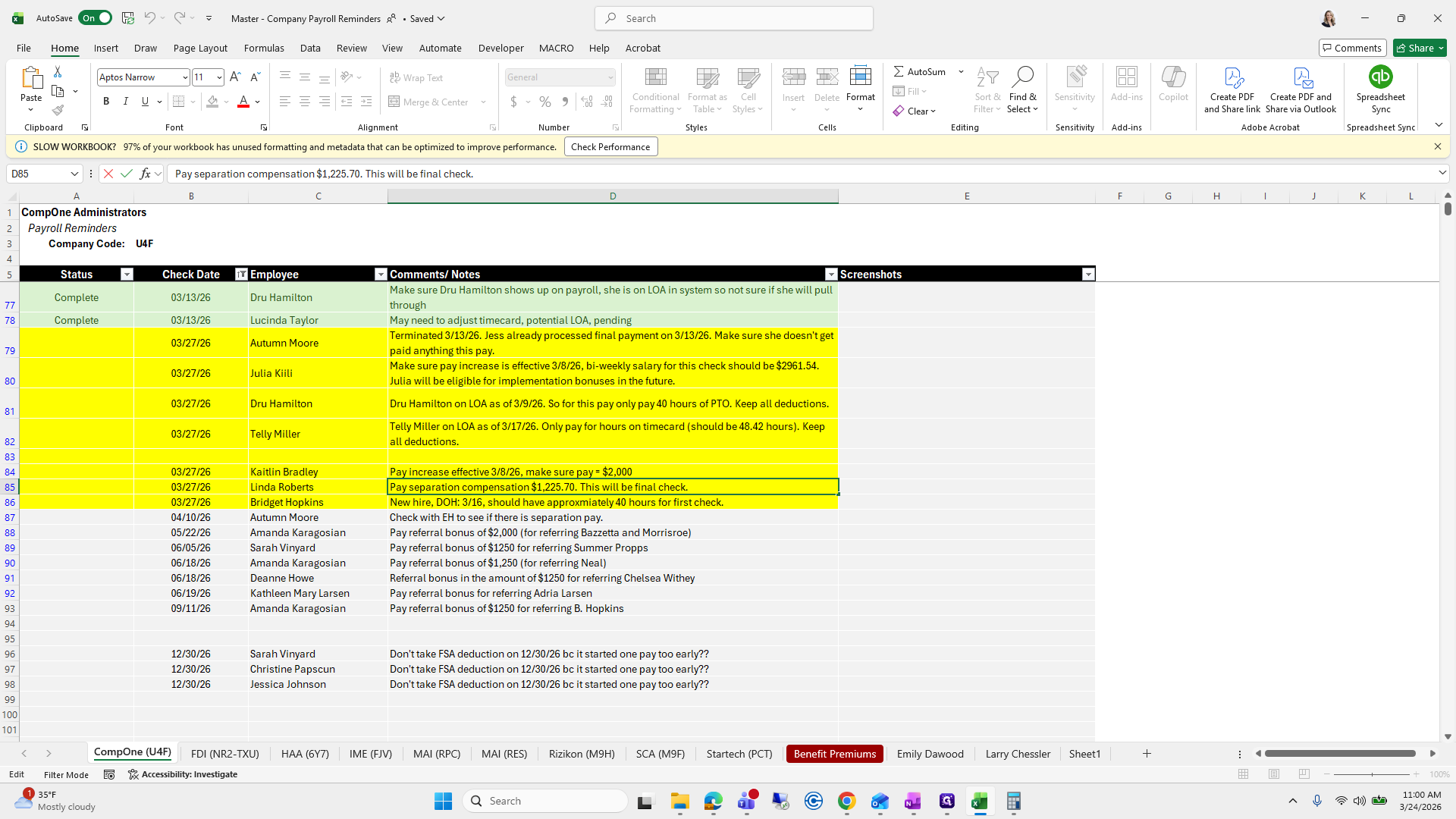
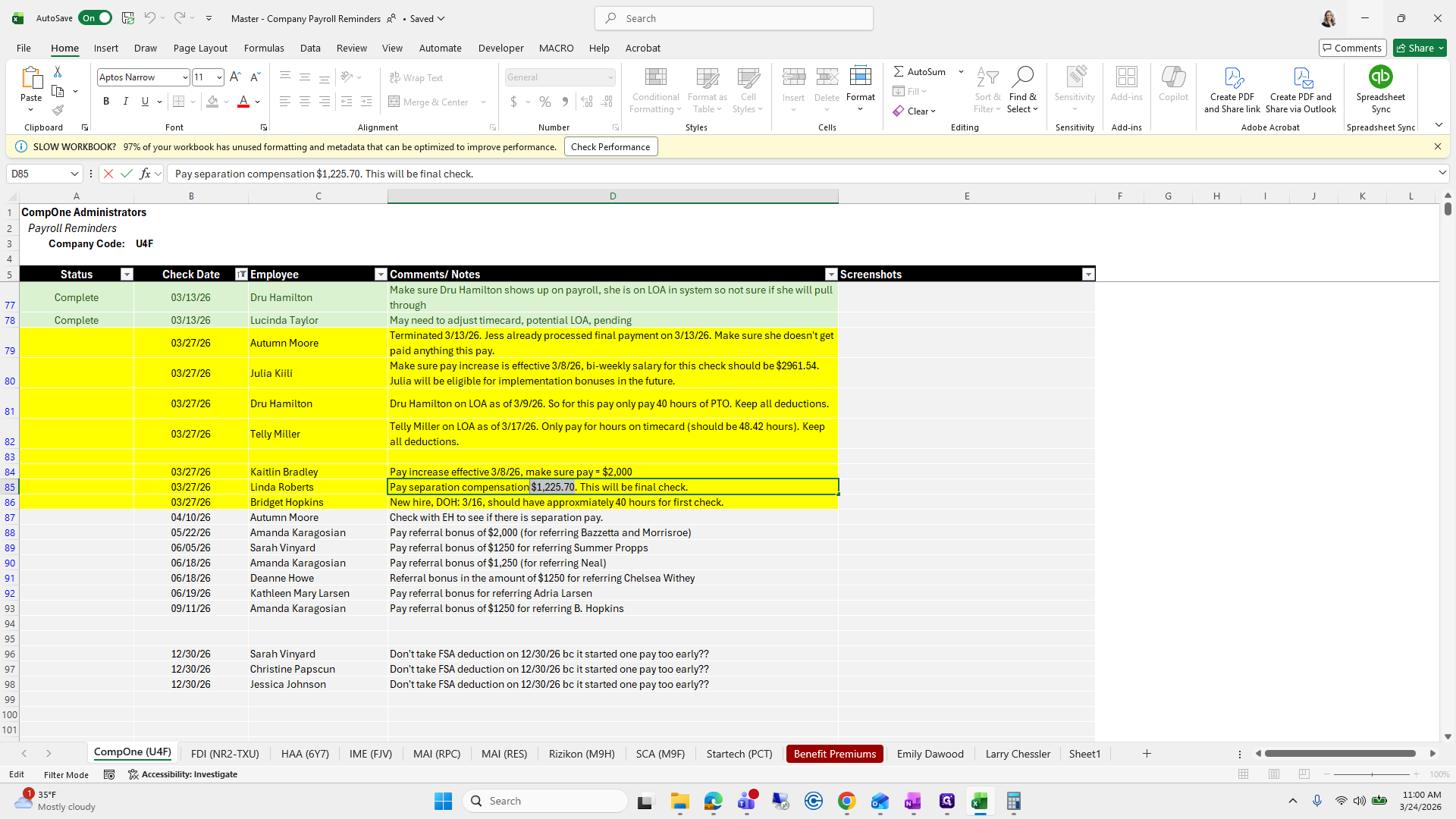
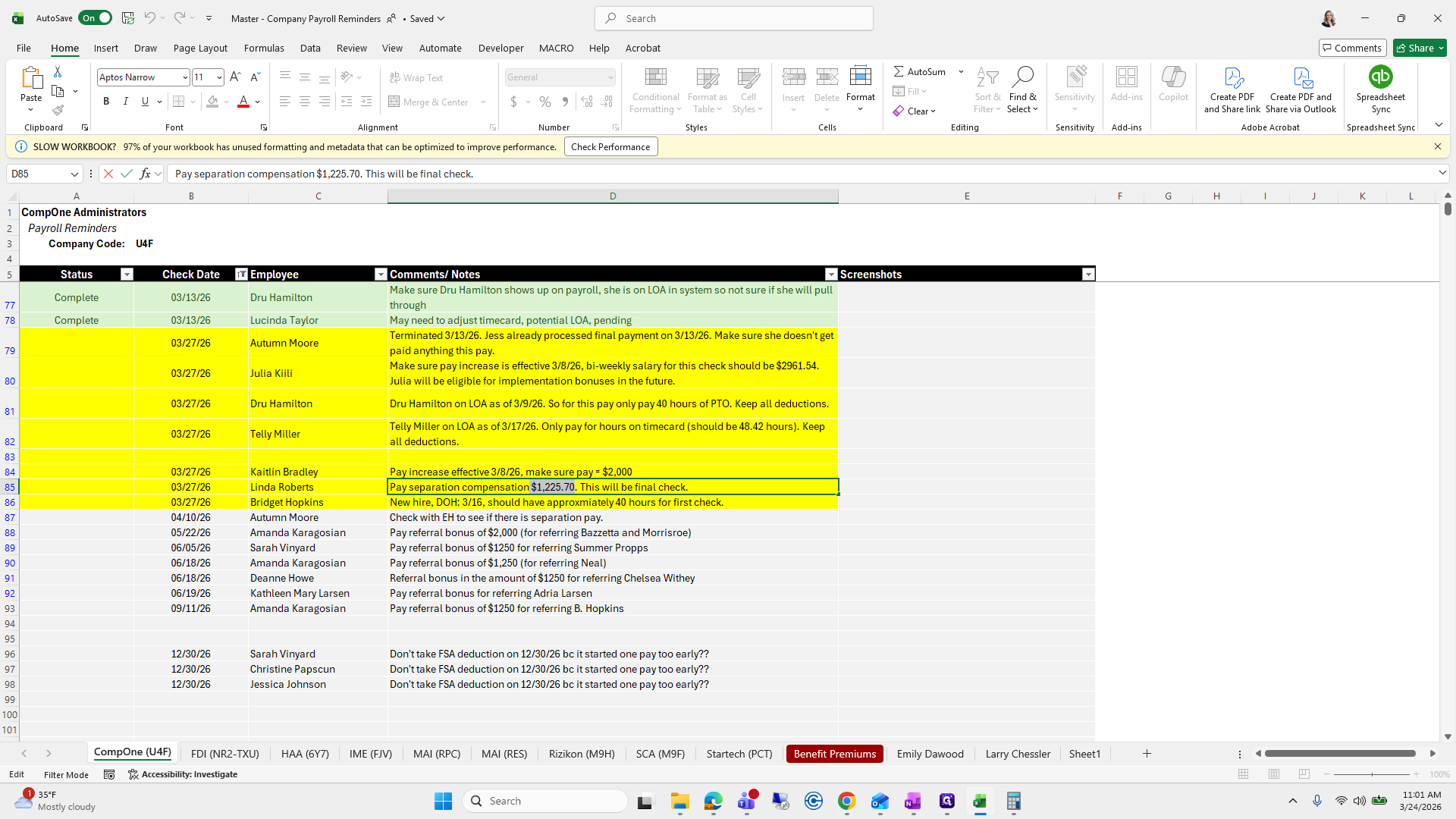
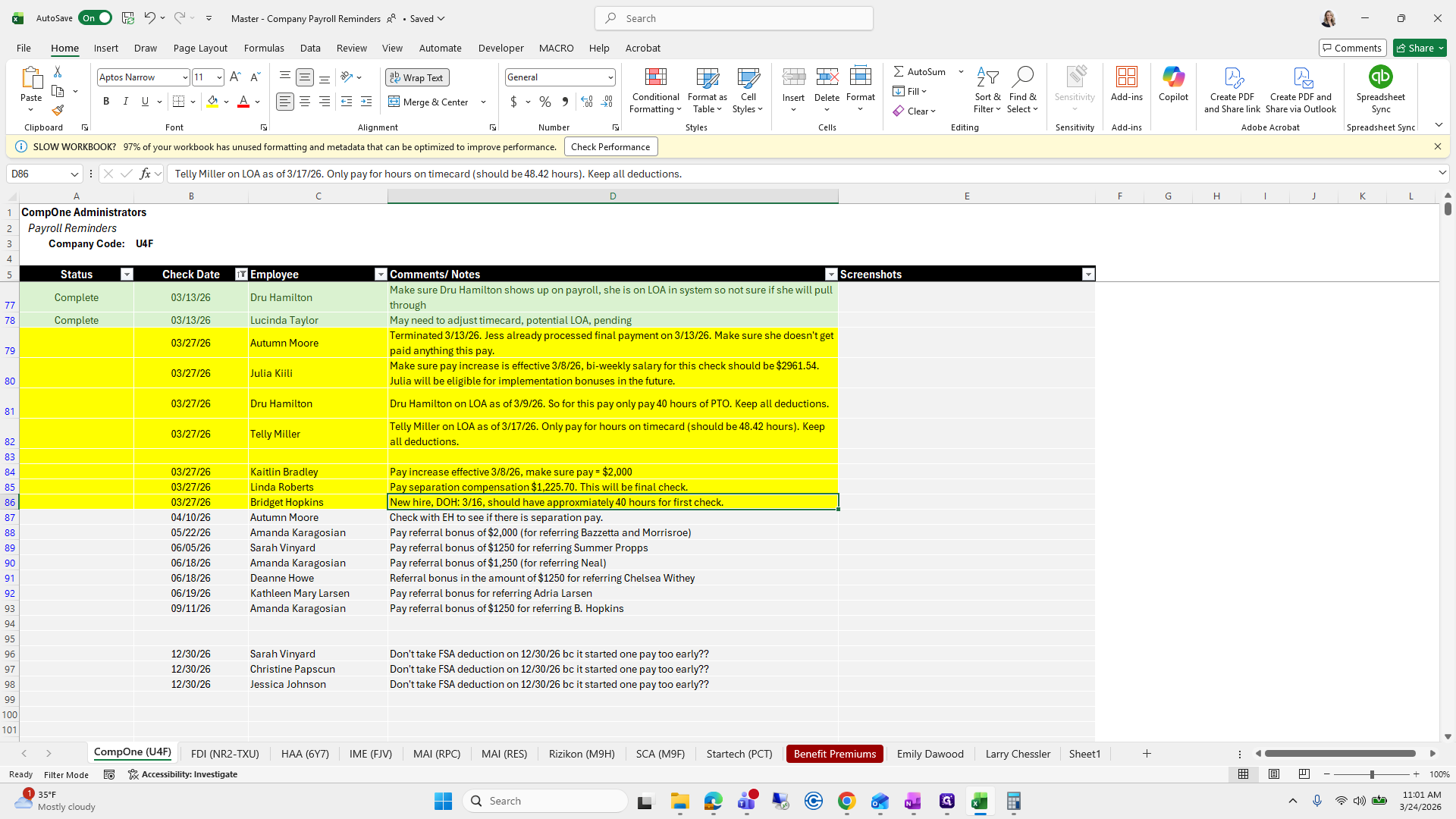
Click on "Pay separation compensation $ 1,225.70"
Step #3: Click on "Pay separation compensation $ 1,225.70"

We need to add pay separation compensation for 12/25/70.
4
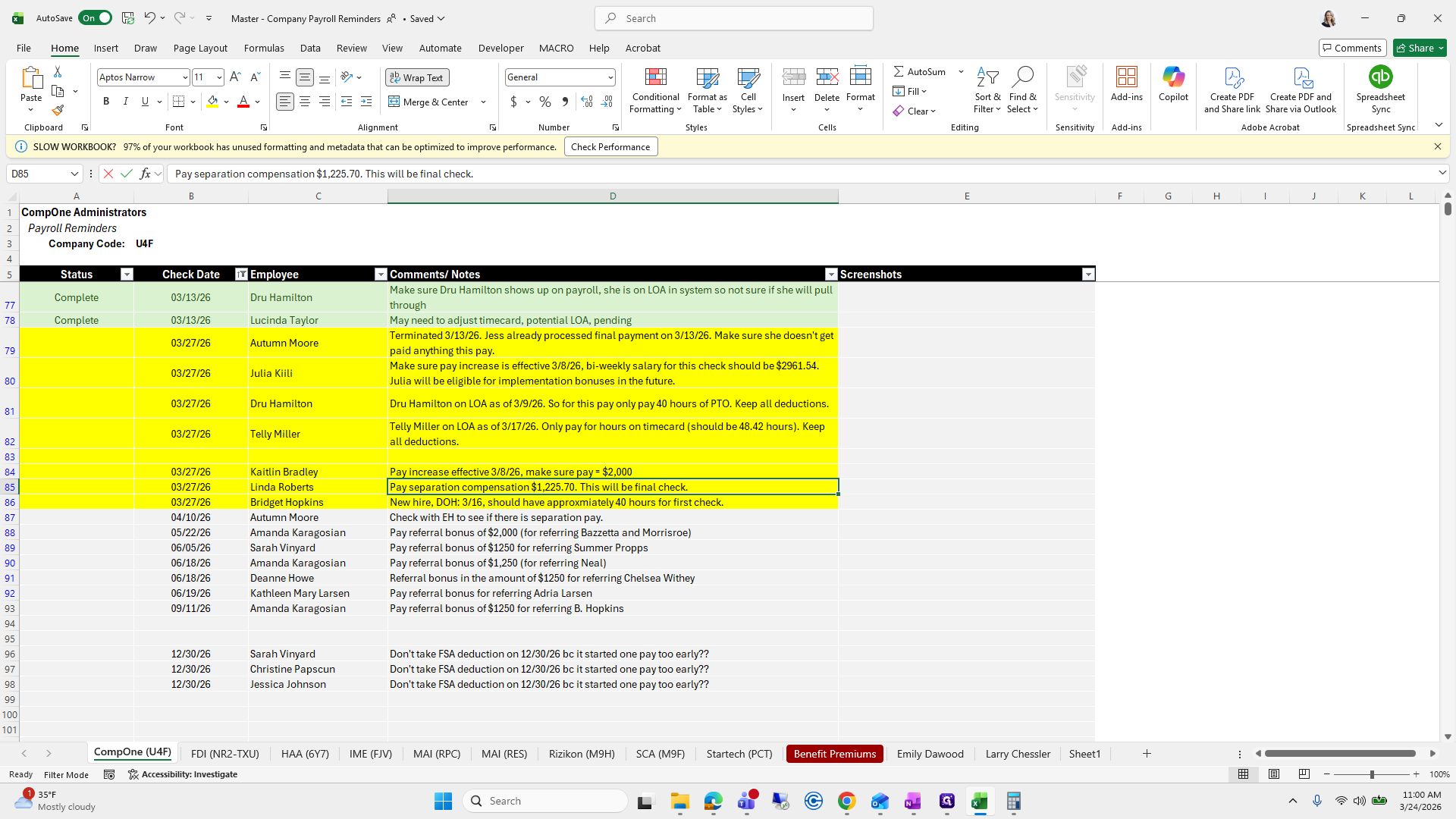
Double-click on "should have approxmiately 40 hours for first check"
Step #4: Double-click on "should have approxmiately 40 hours for first check"
5
Drag "should have approxmiately 40 hours for"
Step #5: Drag "should have approxmiately 40 hours for"

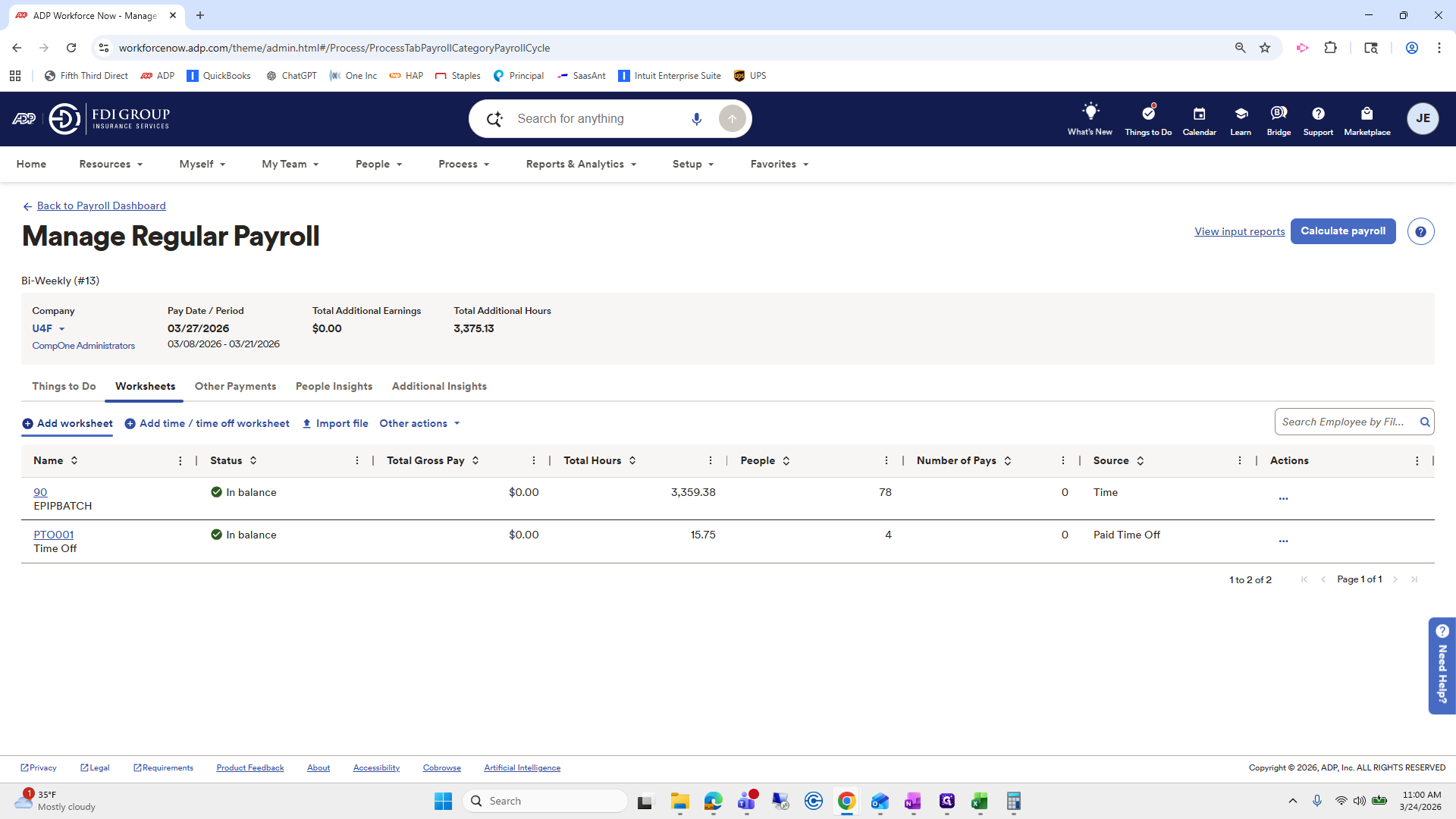
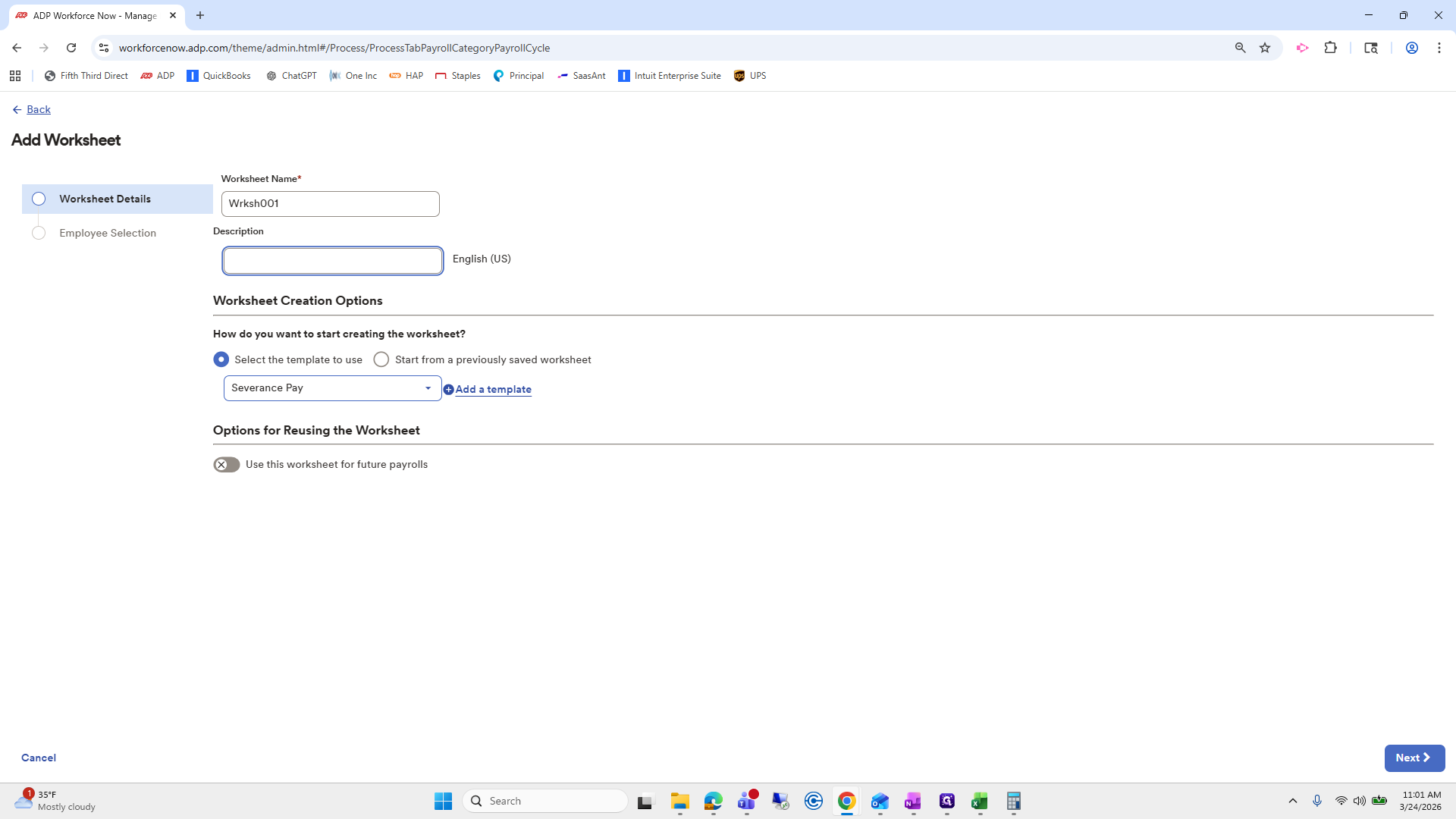
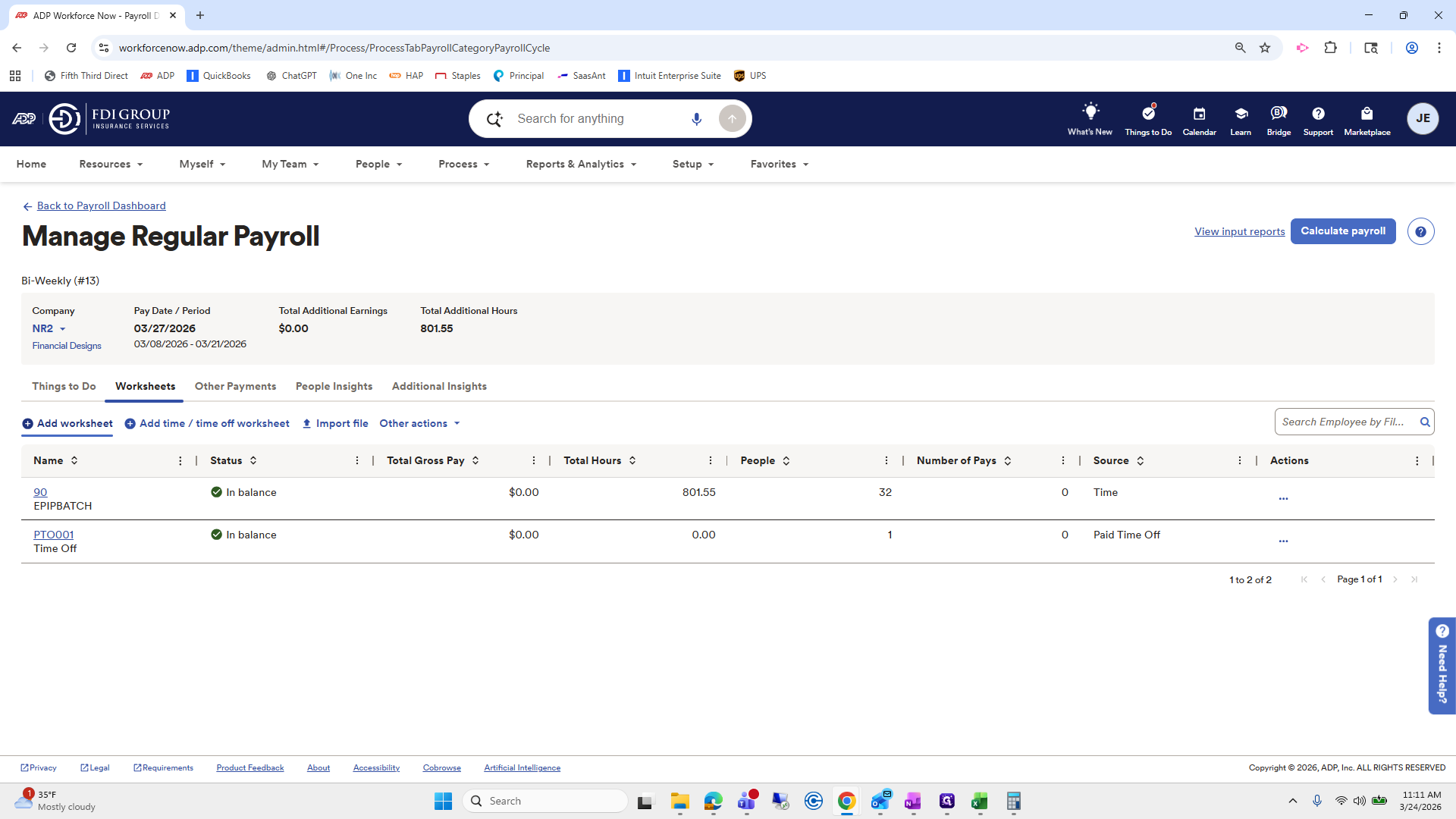
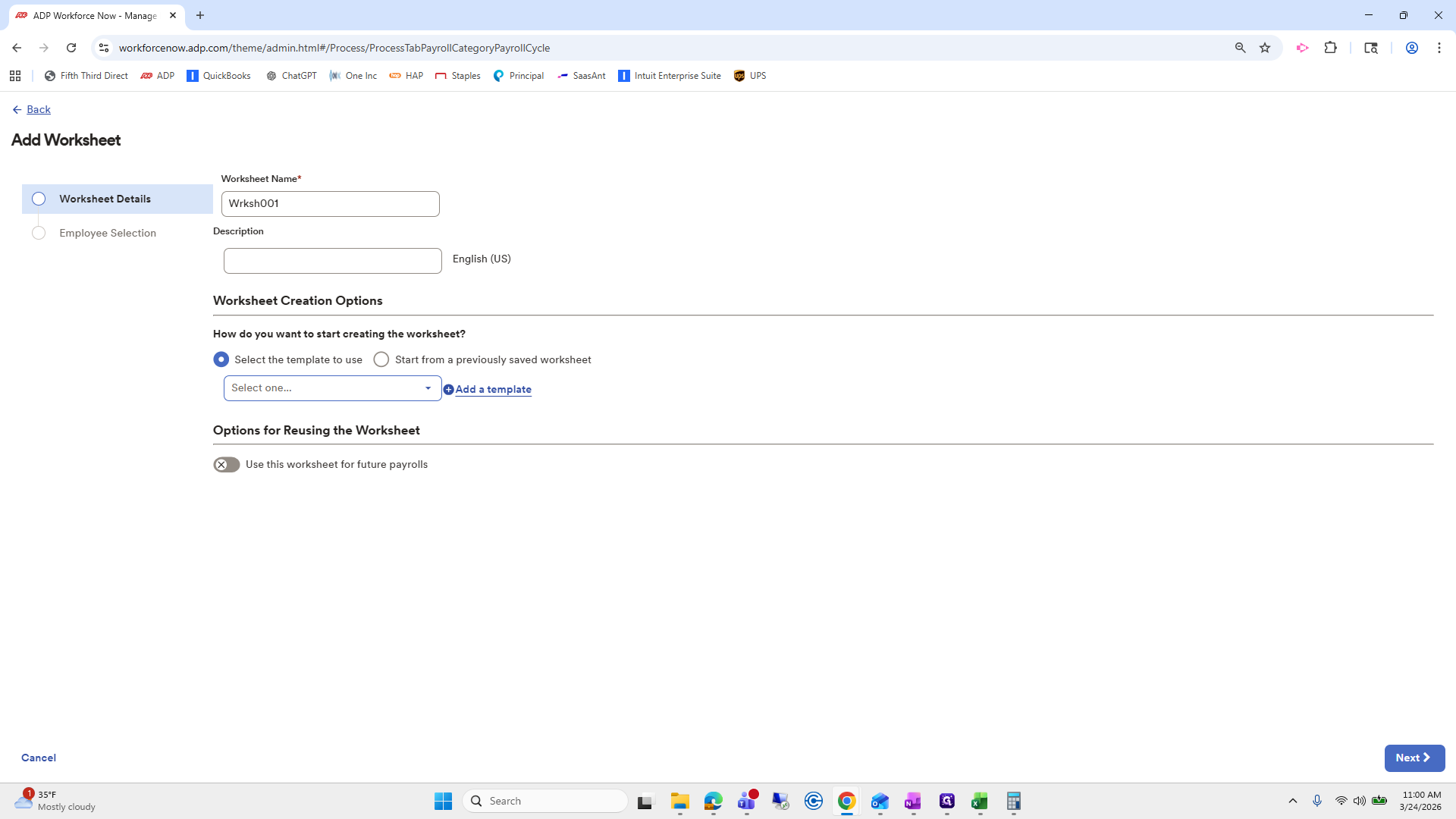
We will go to Add Worksheet.

6
Type "Ctrl + C"
7
Click here
Step #7: Click here
8
Click on "Add worksheet ①Add time / time off worksheet"
Step #8: Click on "Add worksheet ①Add time / time off worksheet"

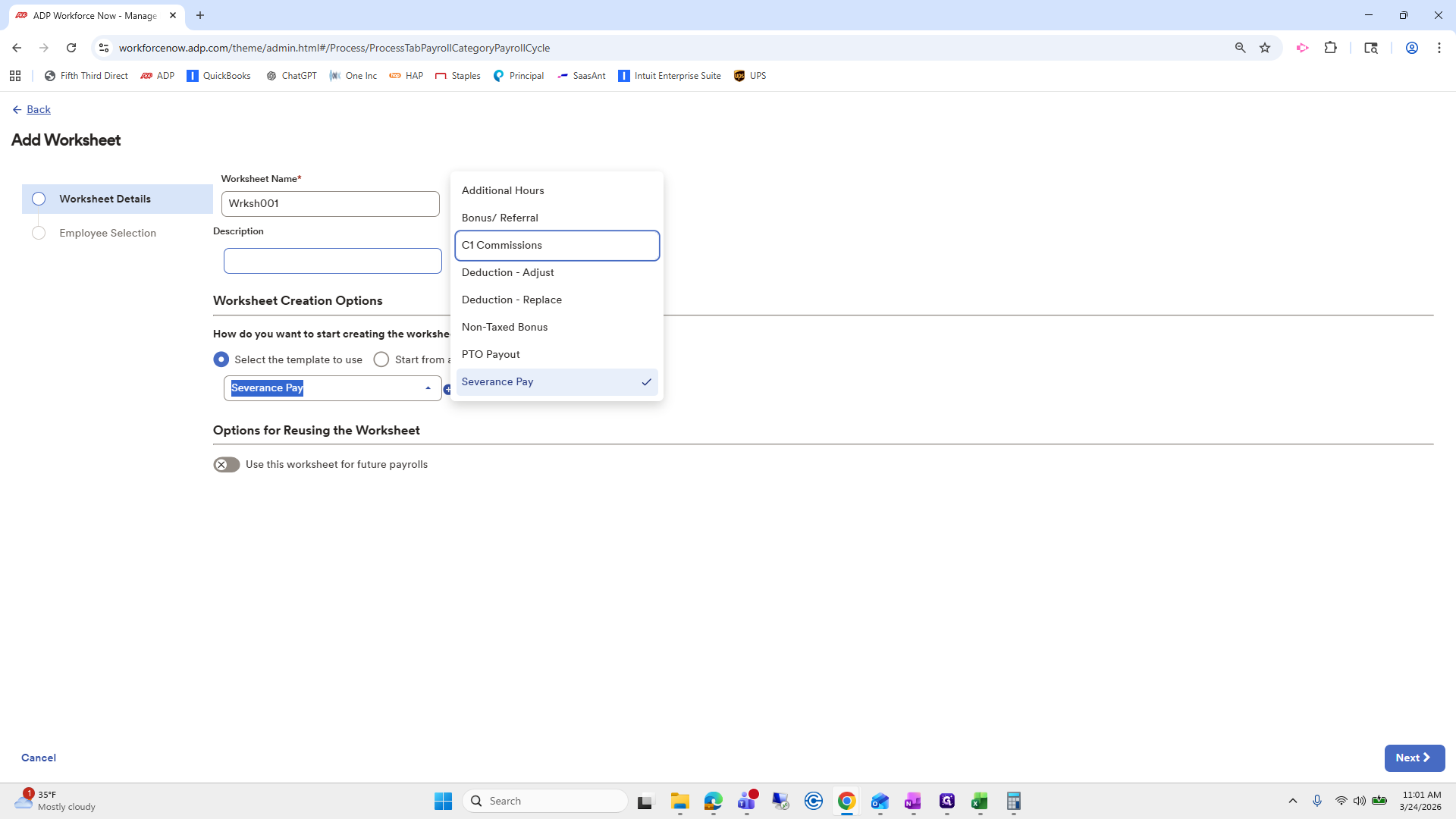
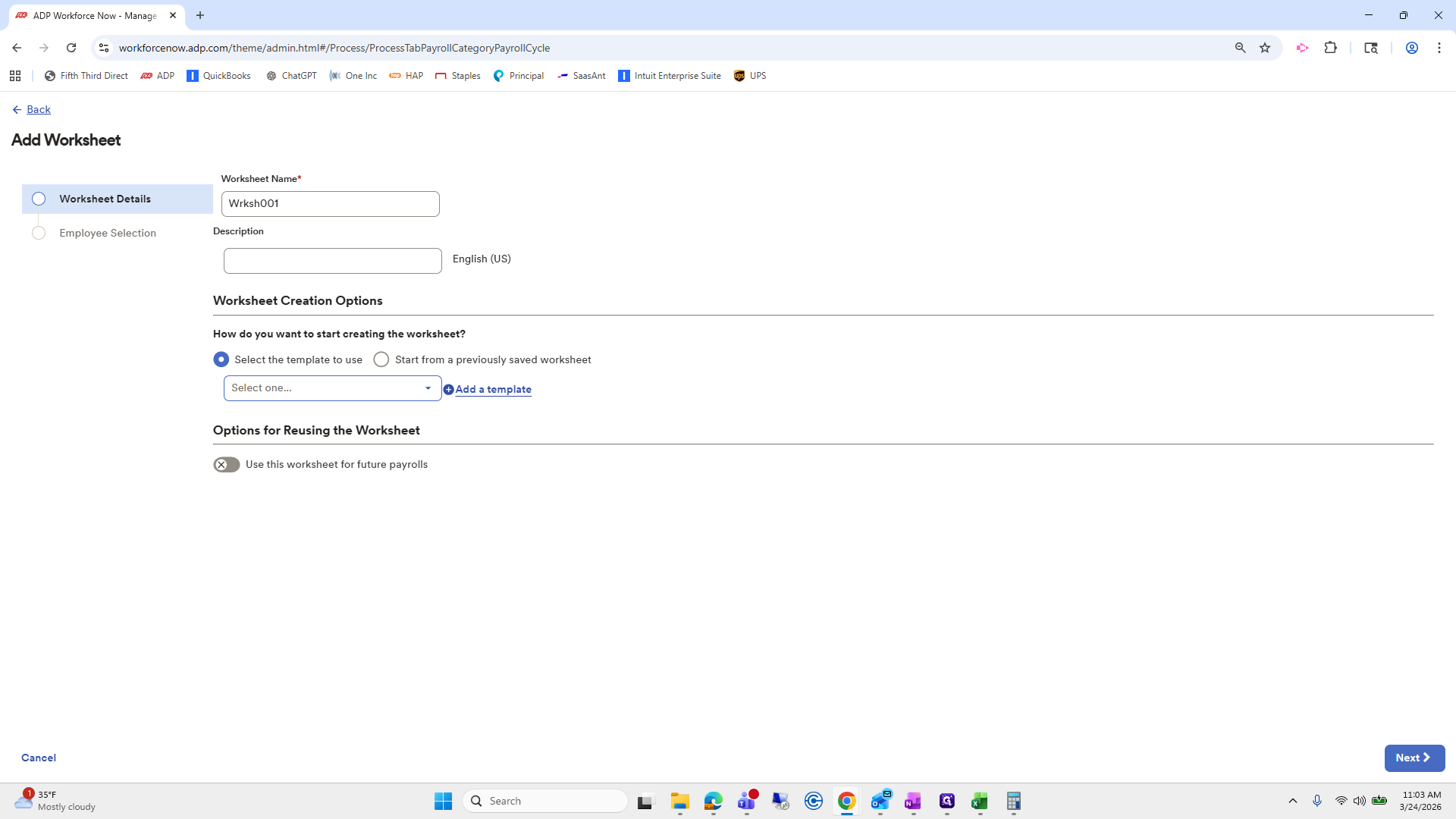
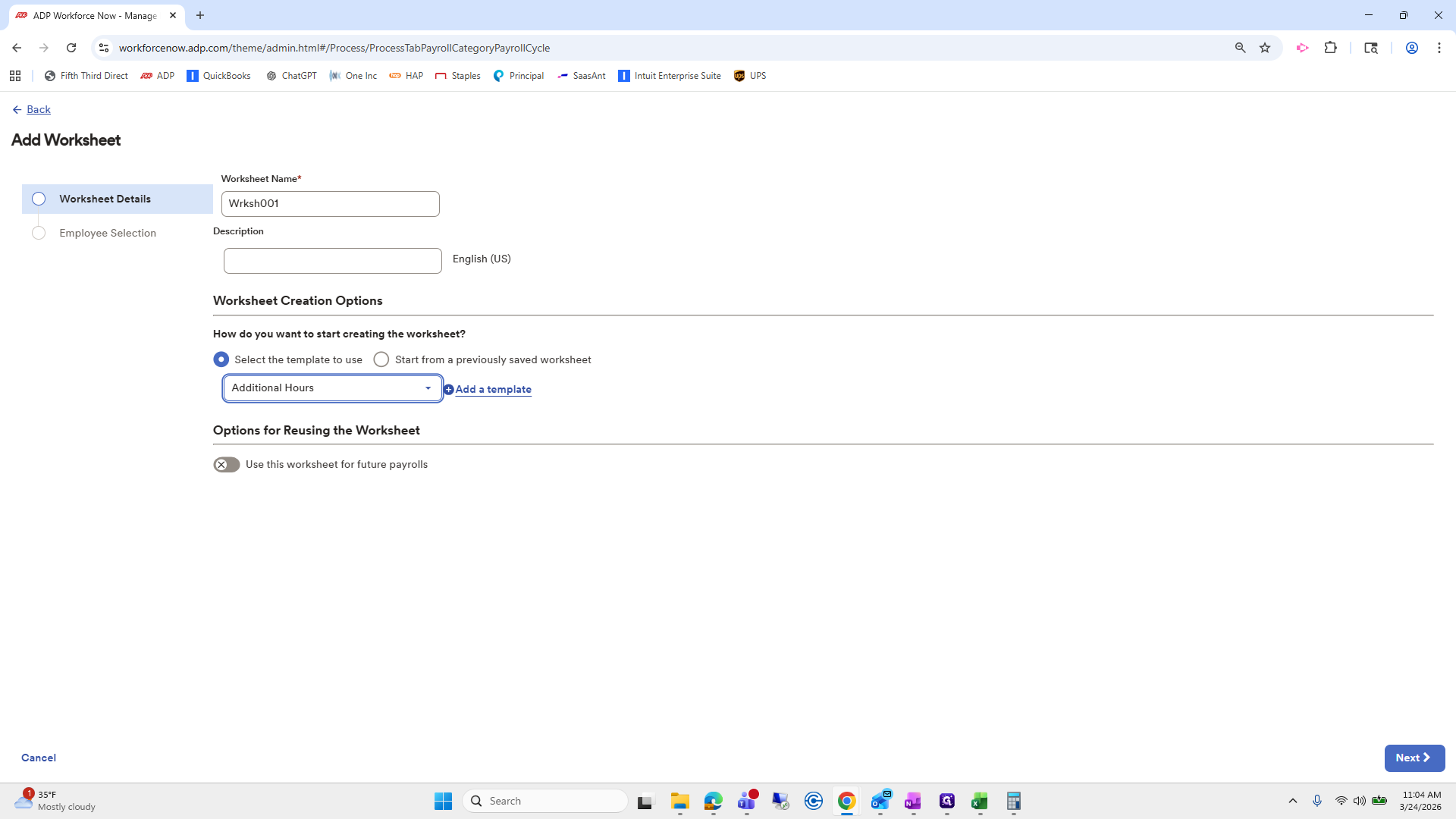
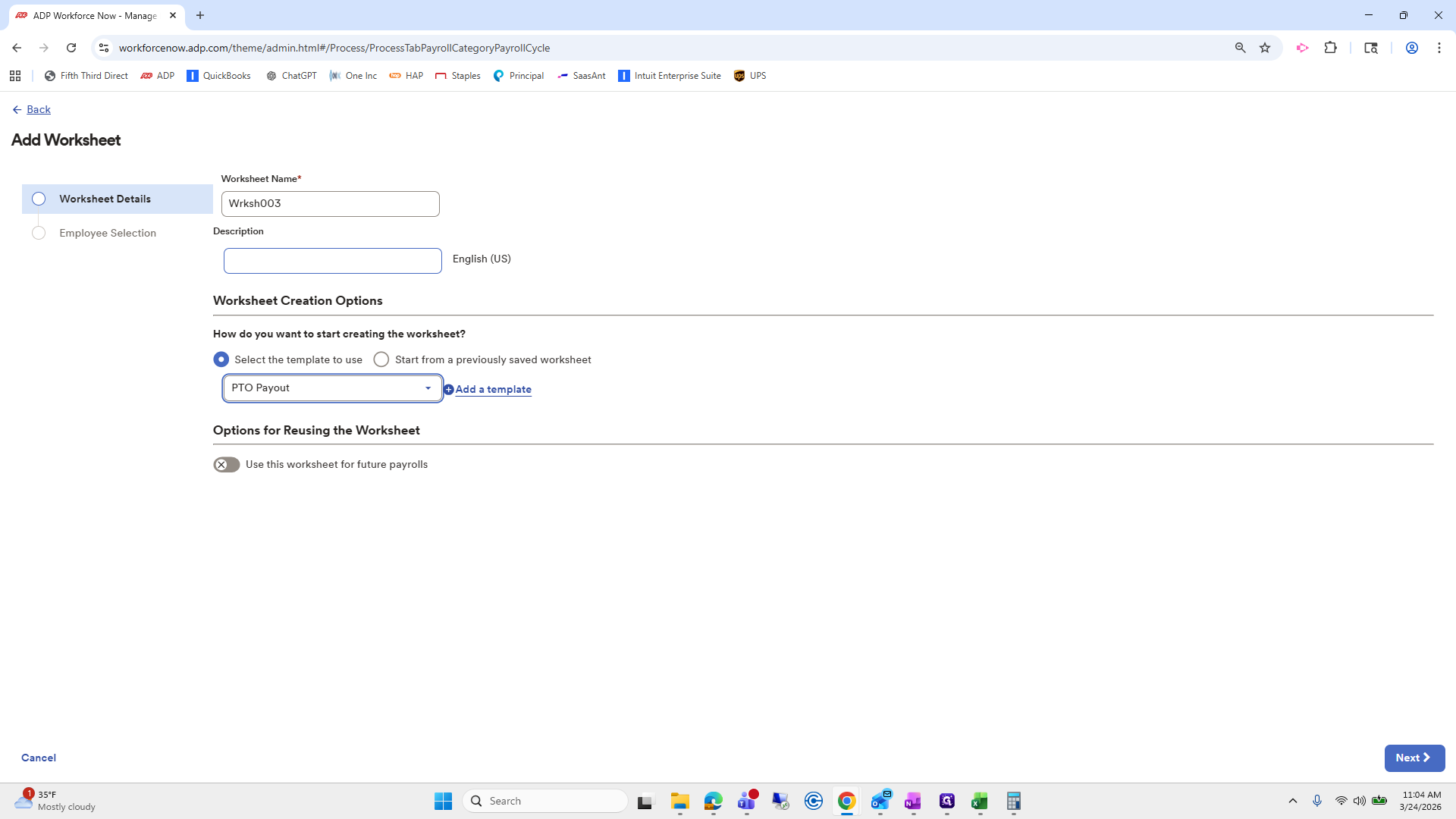
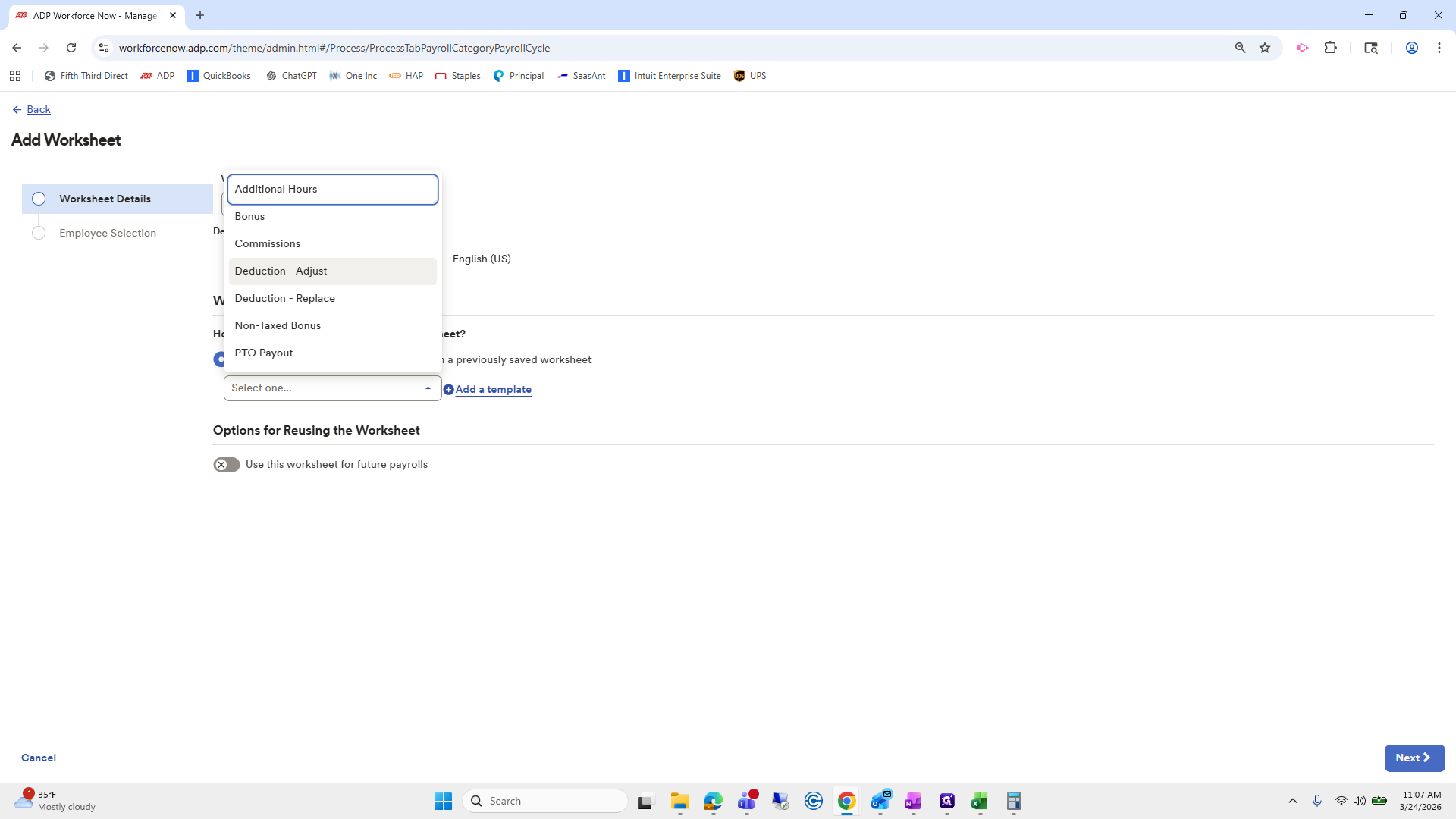
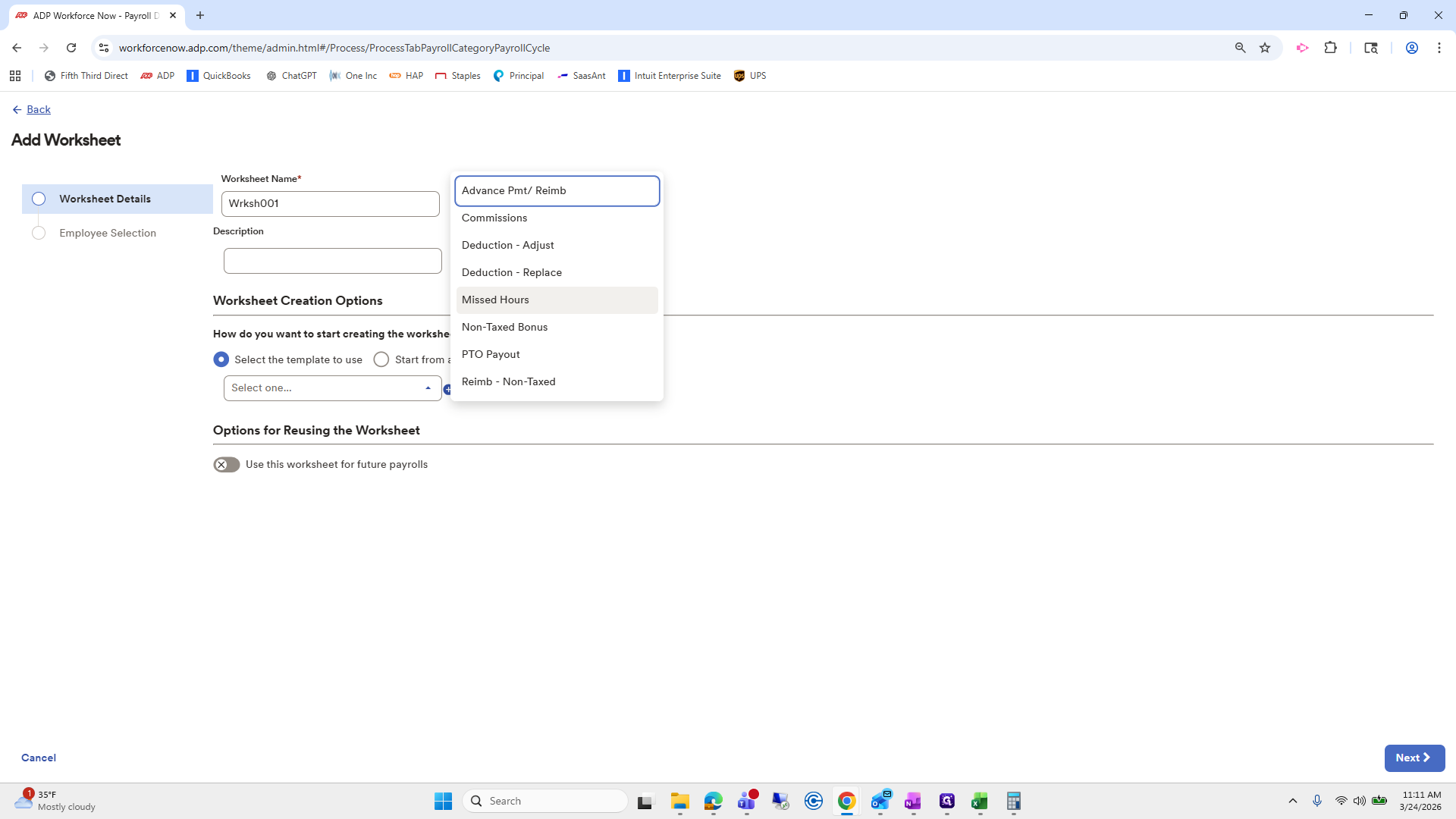
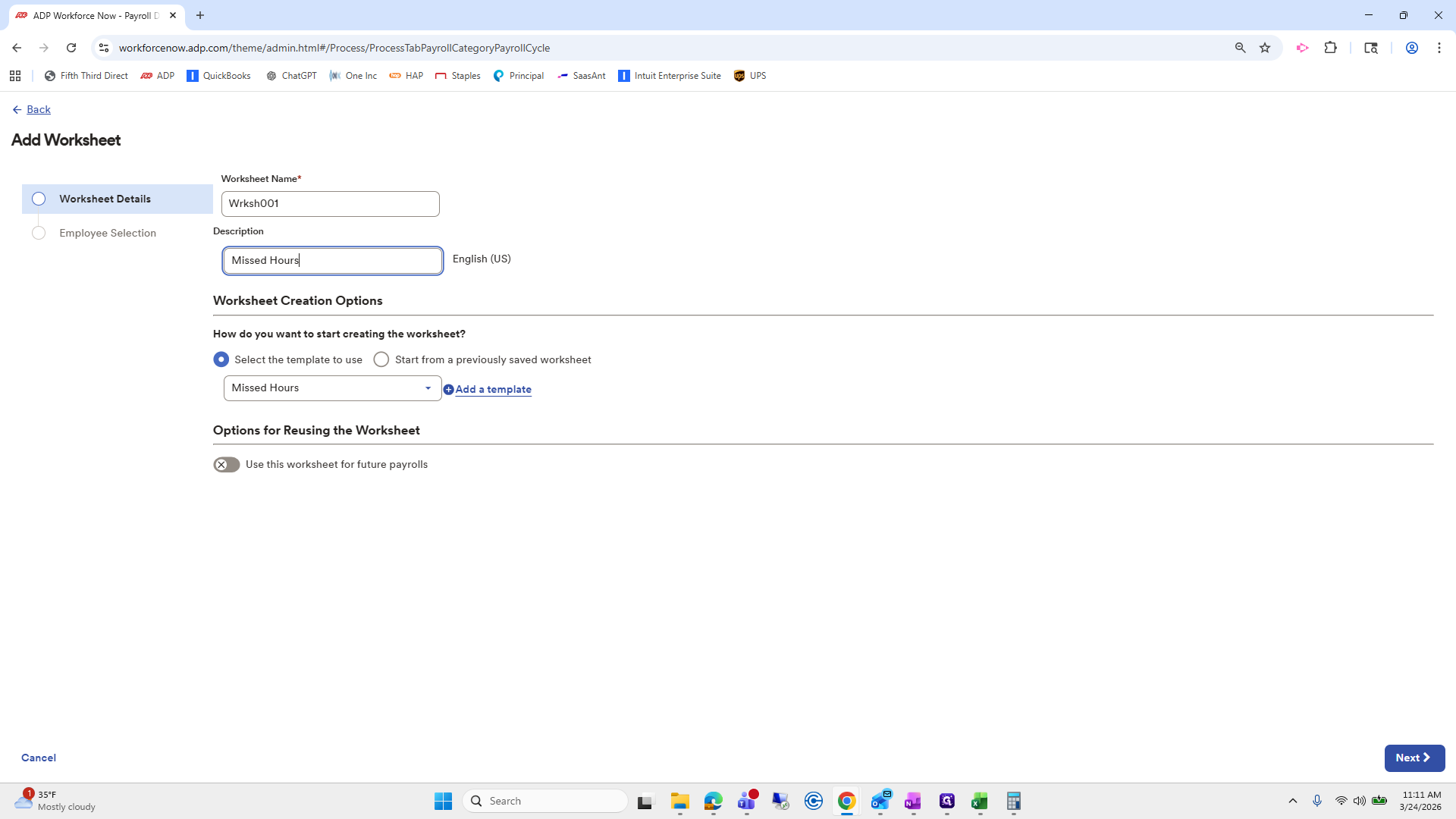
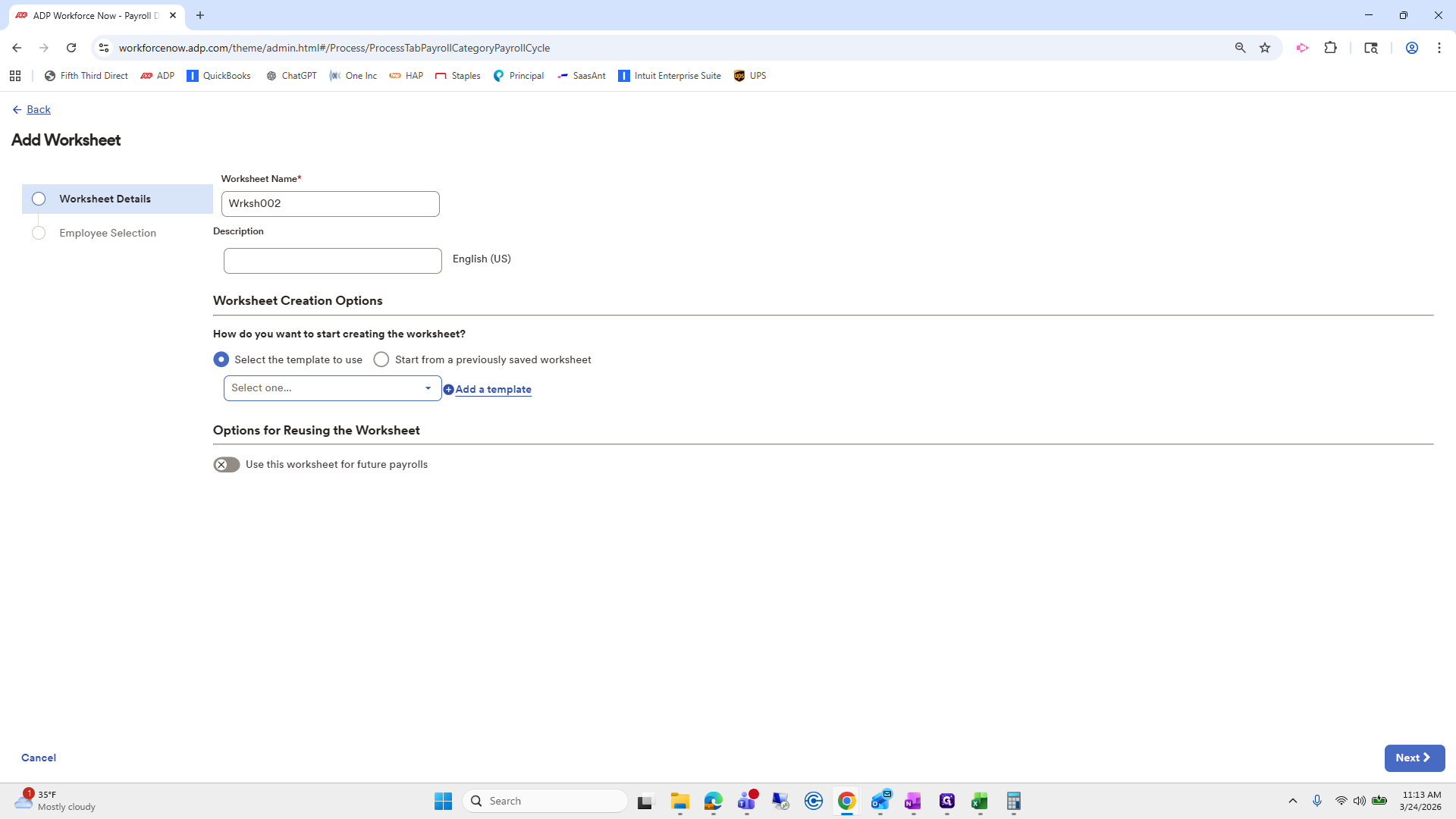
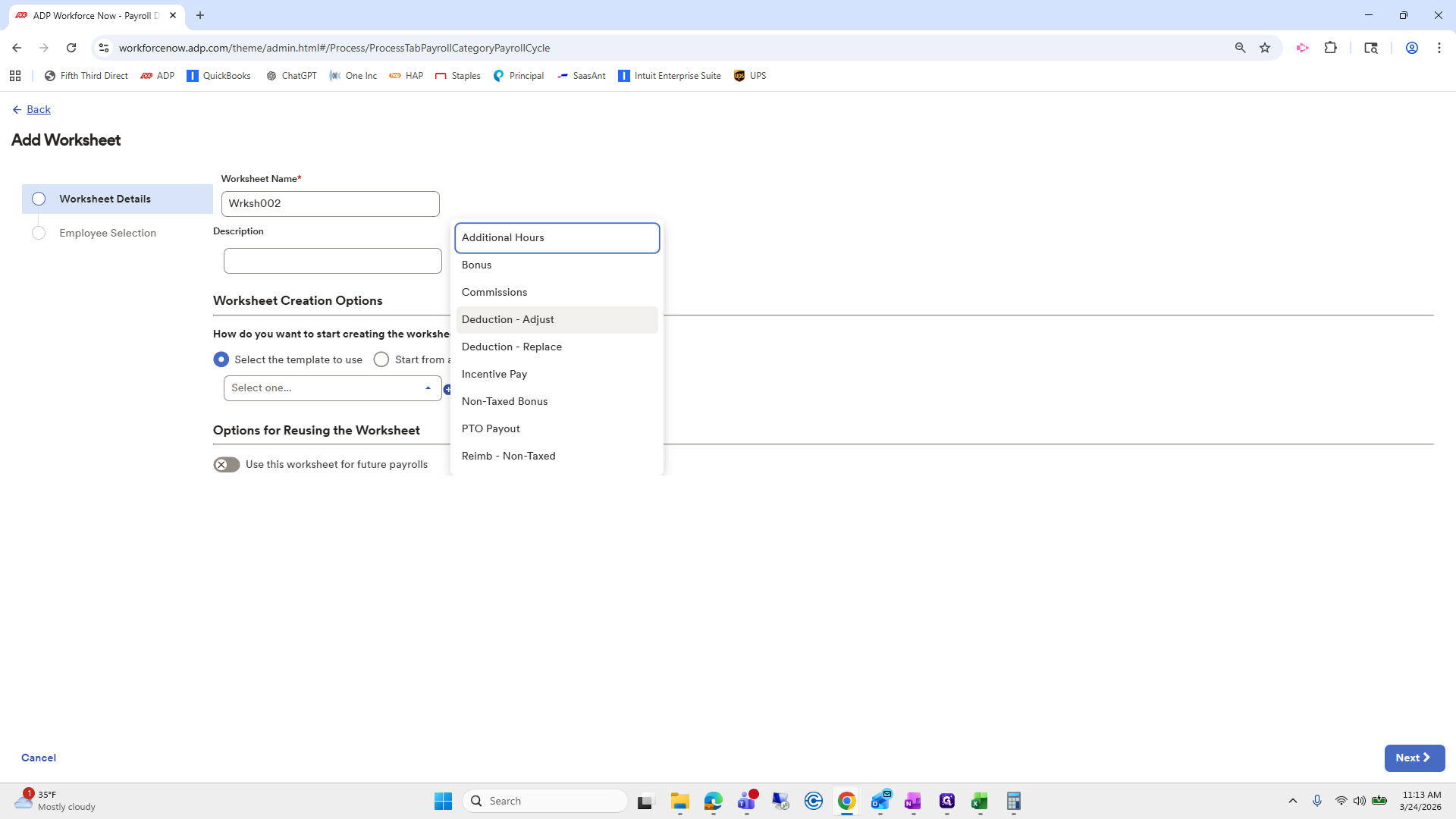
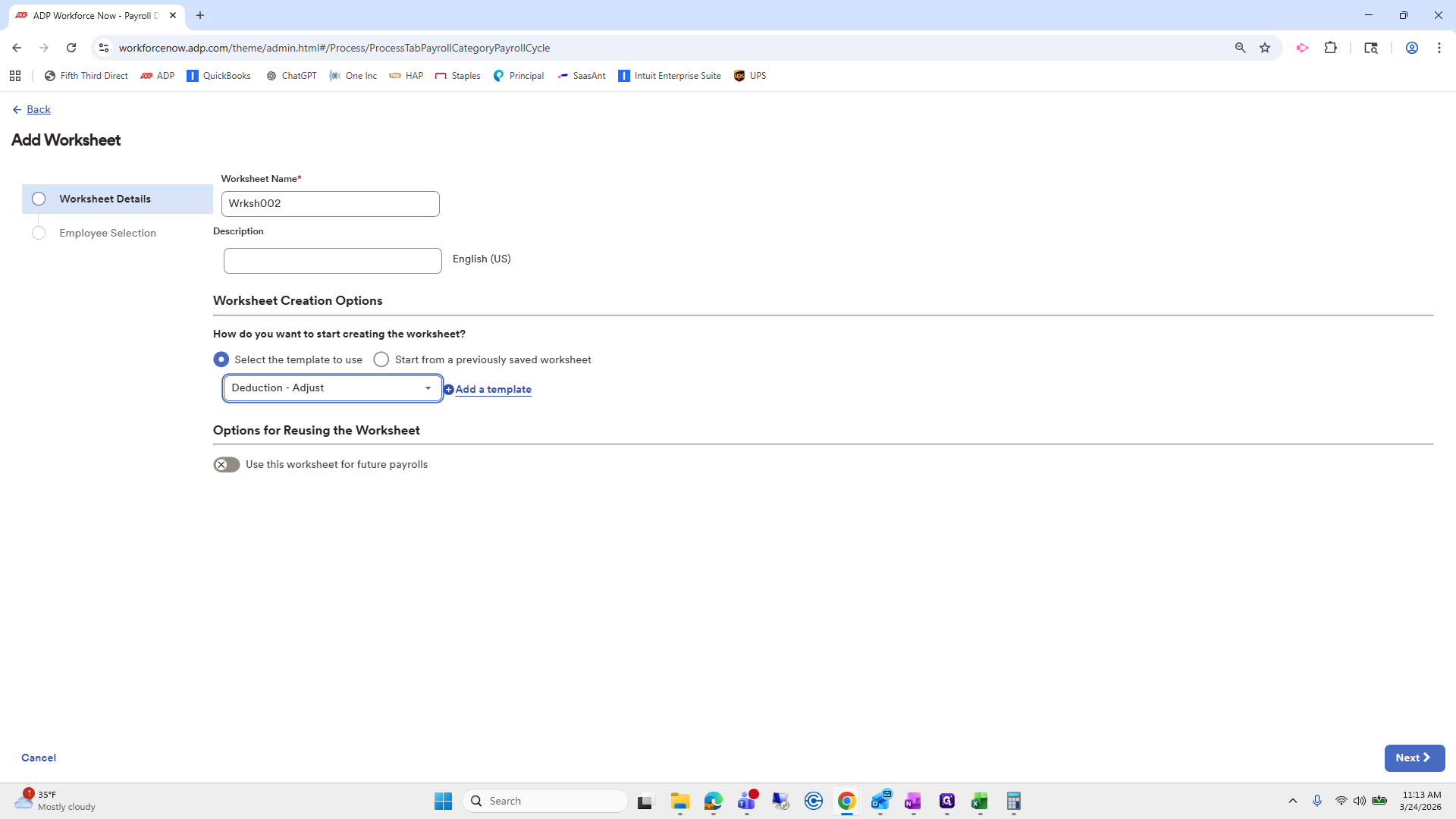
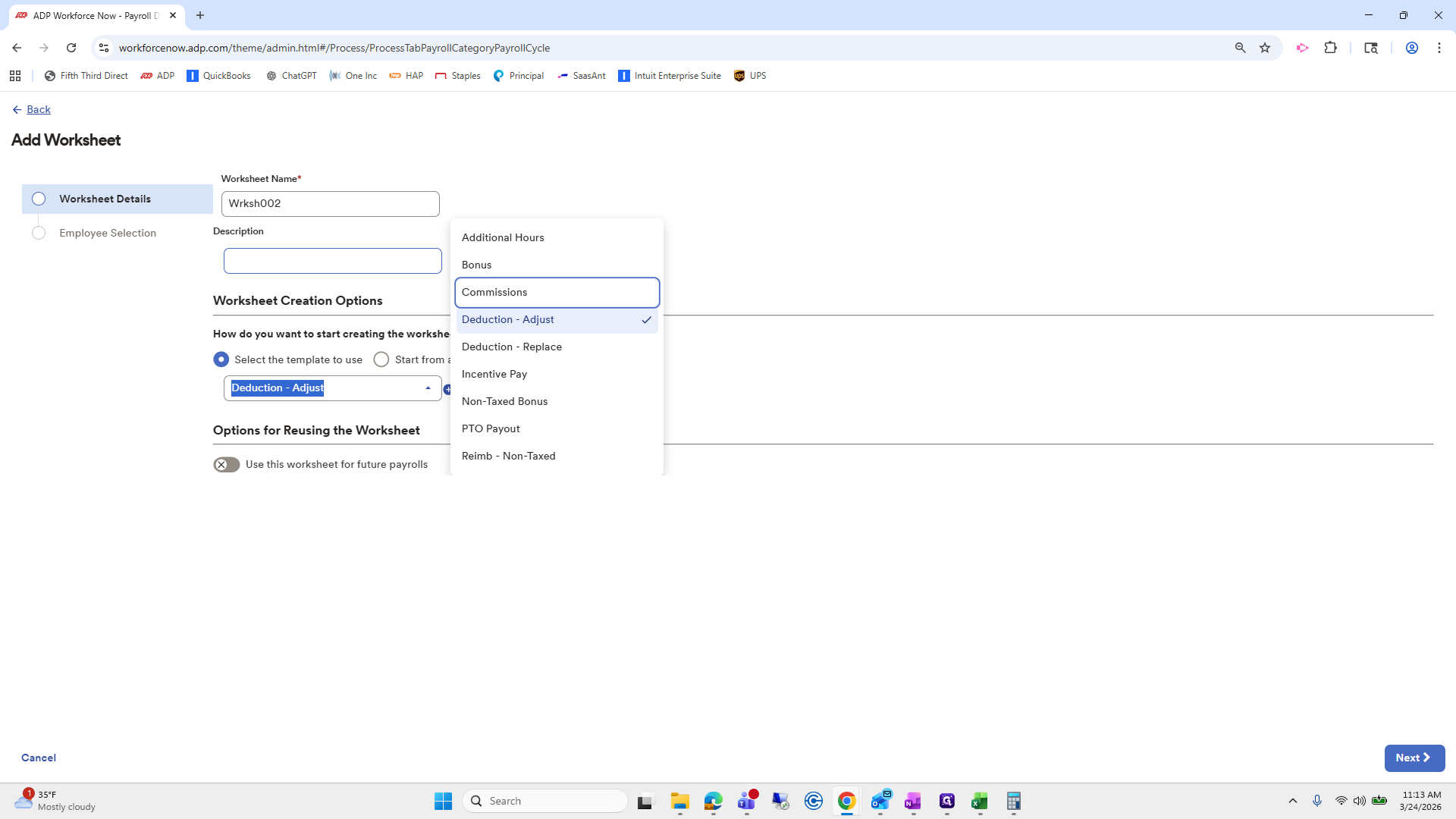
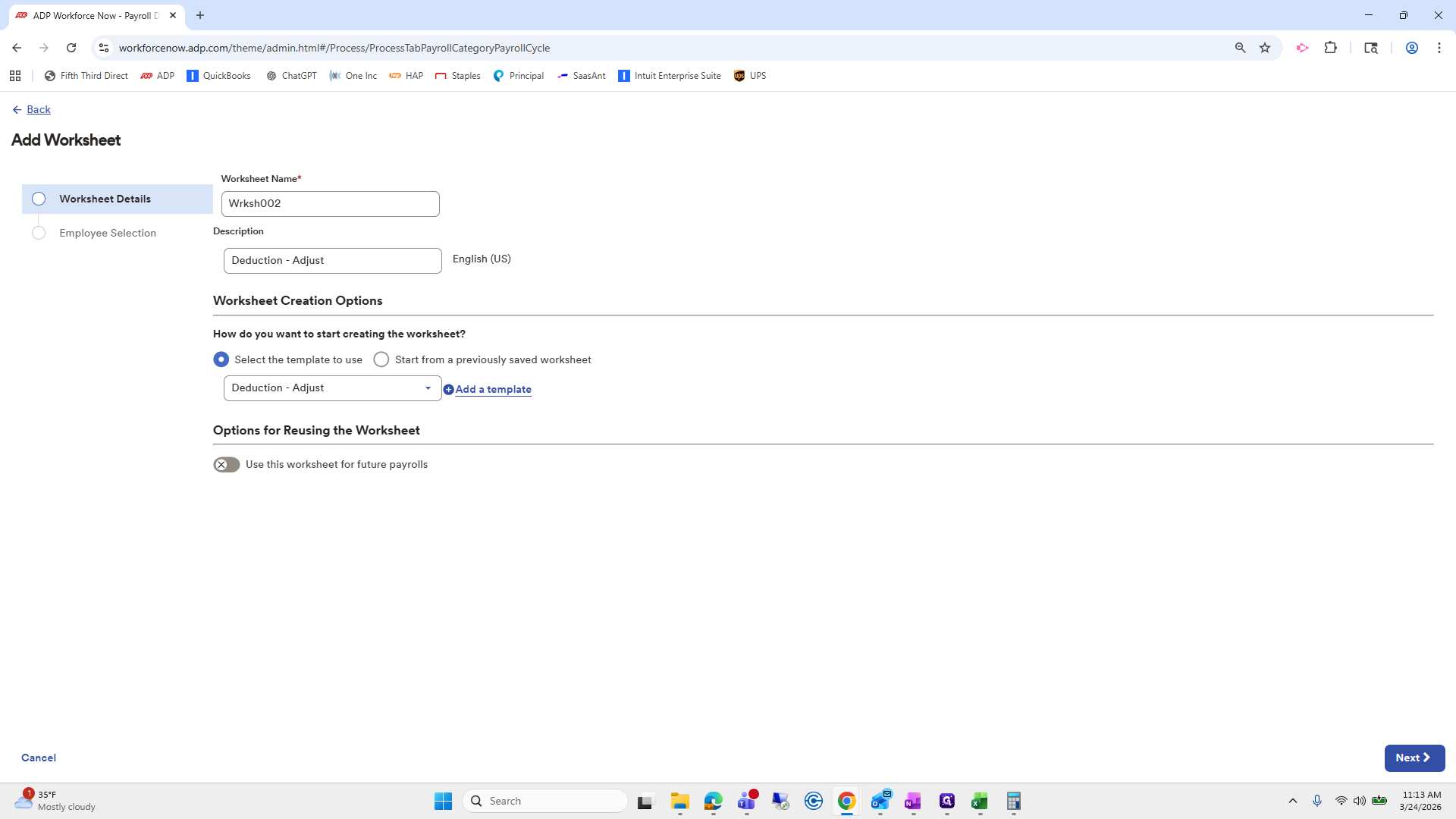
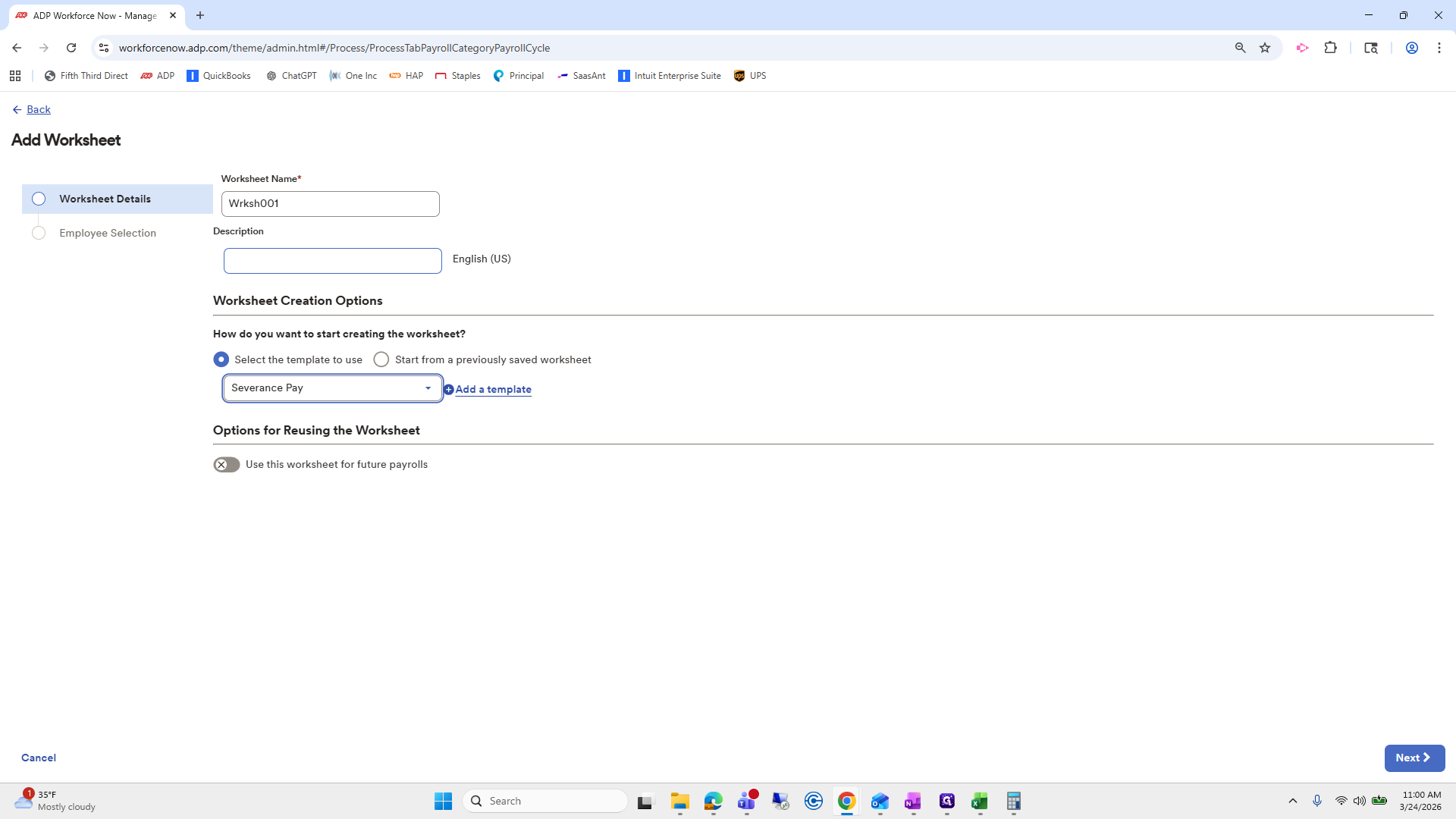
Go to Worksheet Creation Options and click the dropdown.
9
Click here
Step #9: Click here

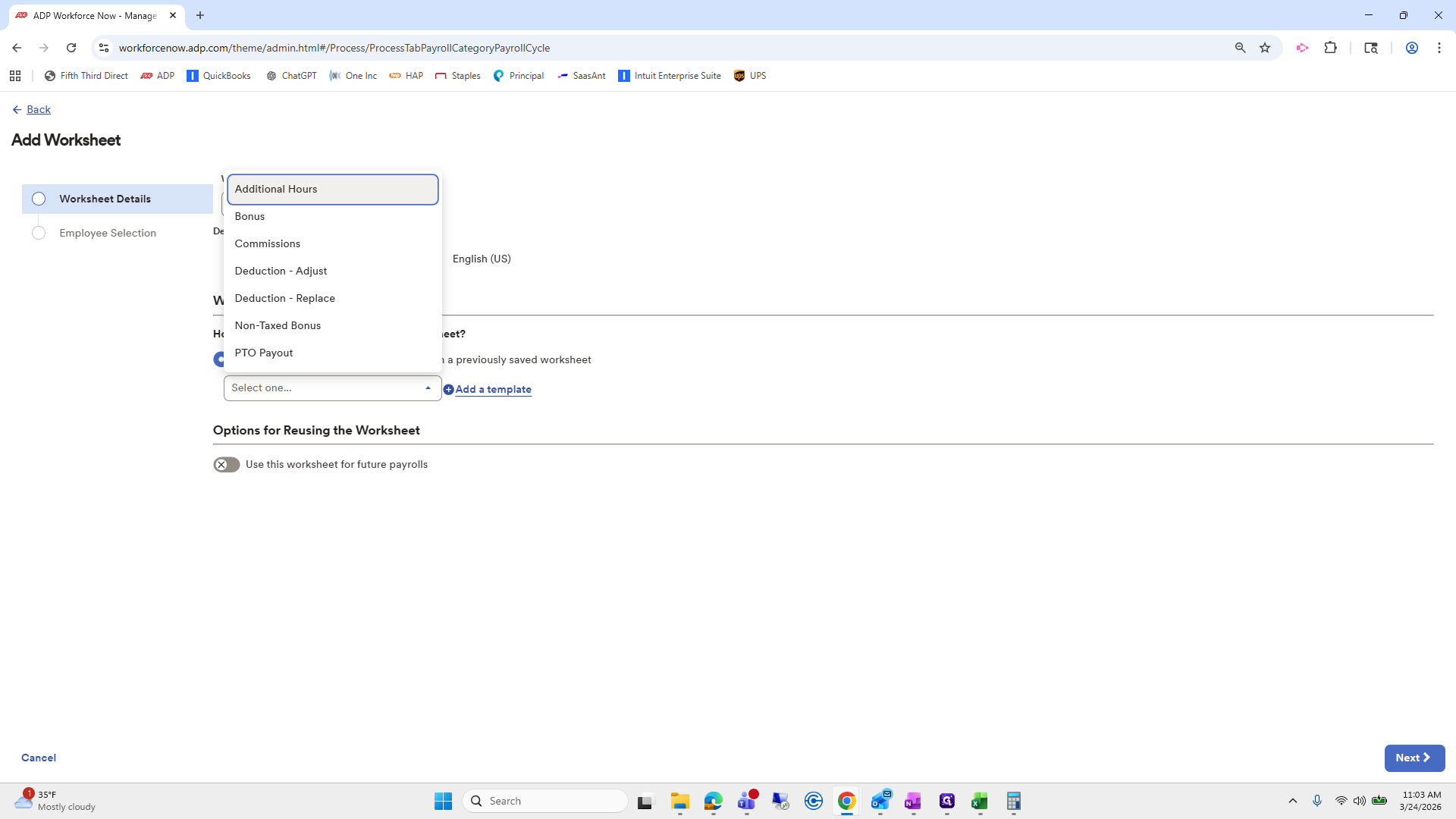
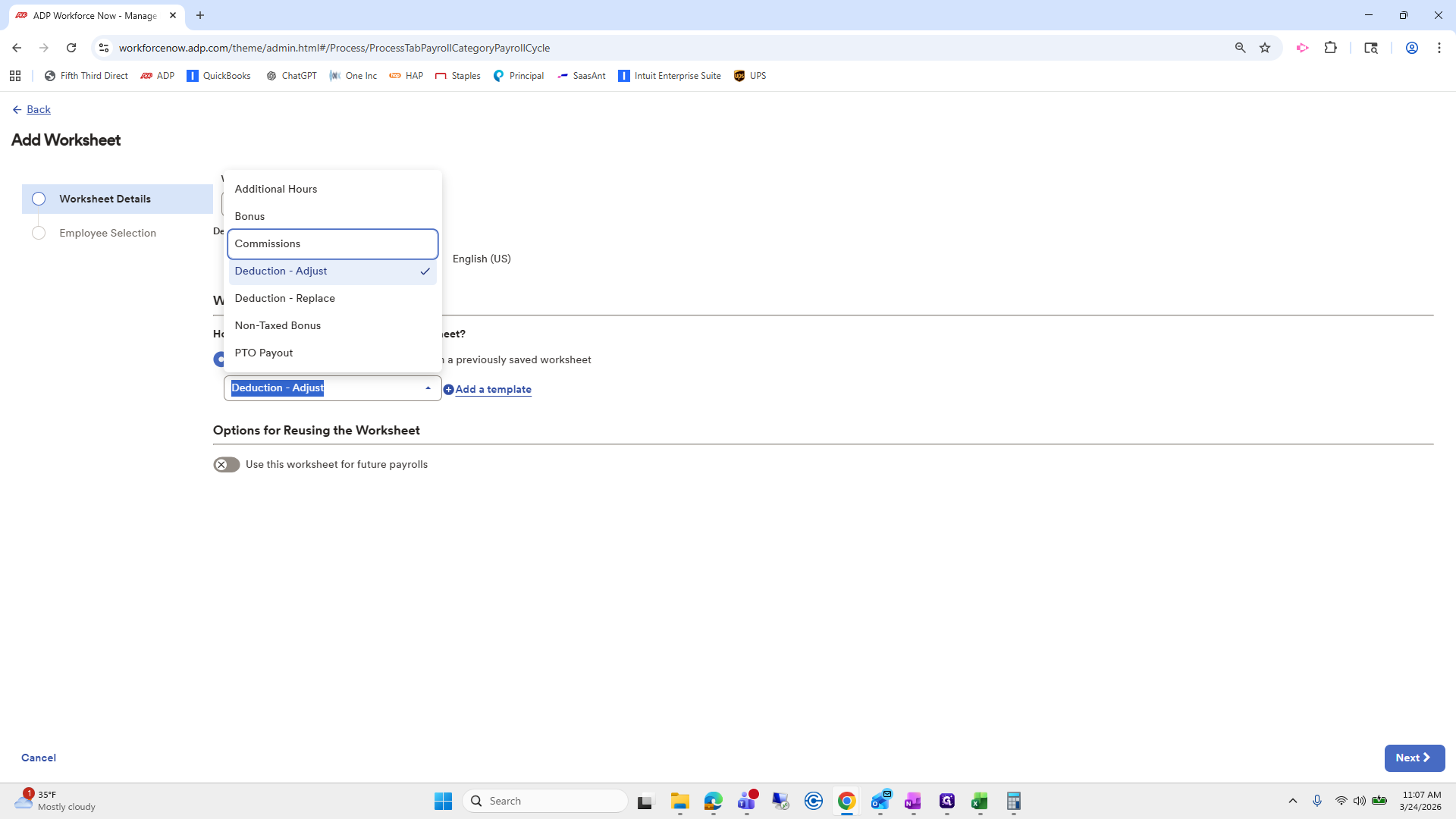
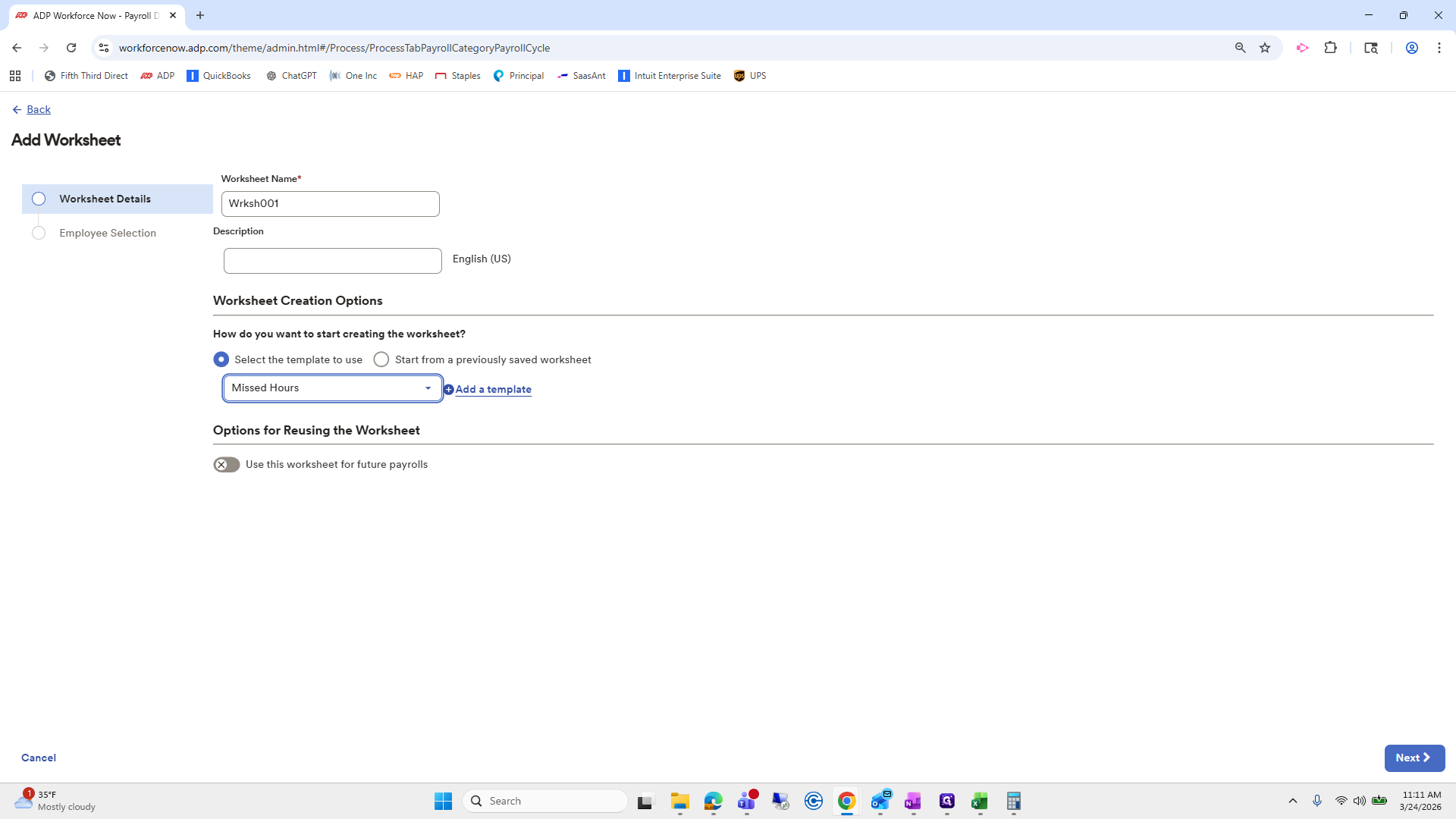
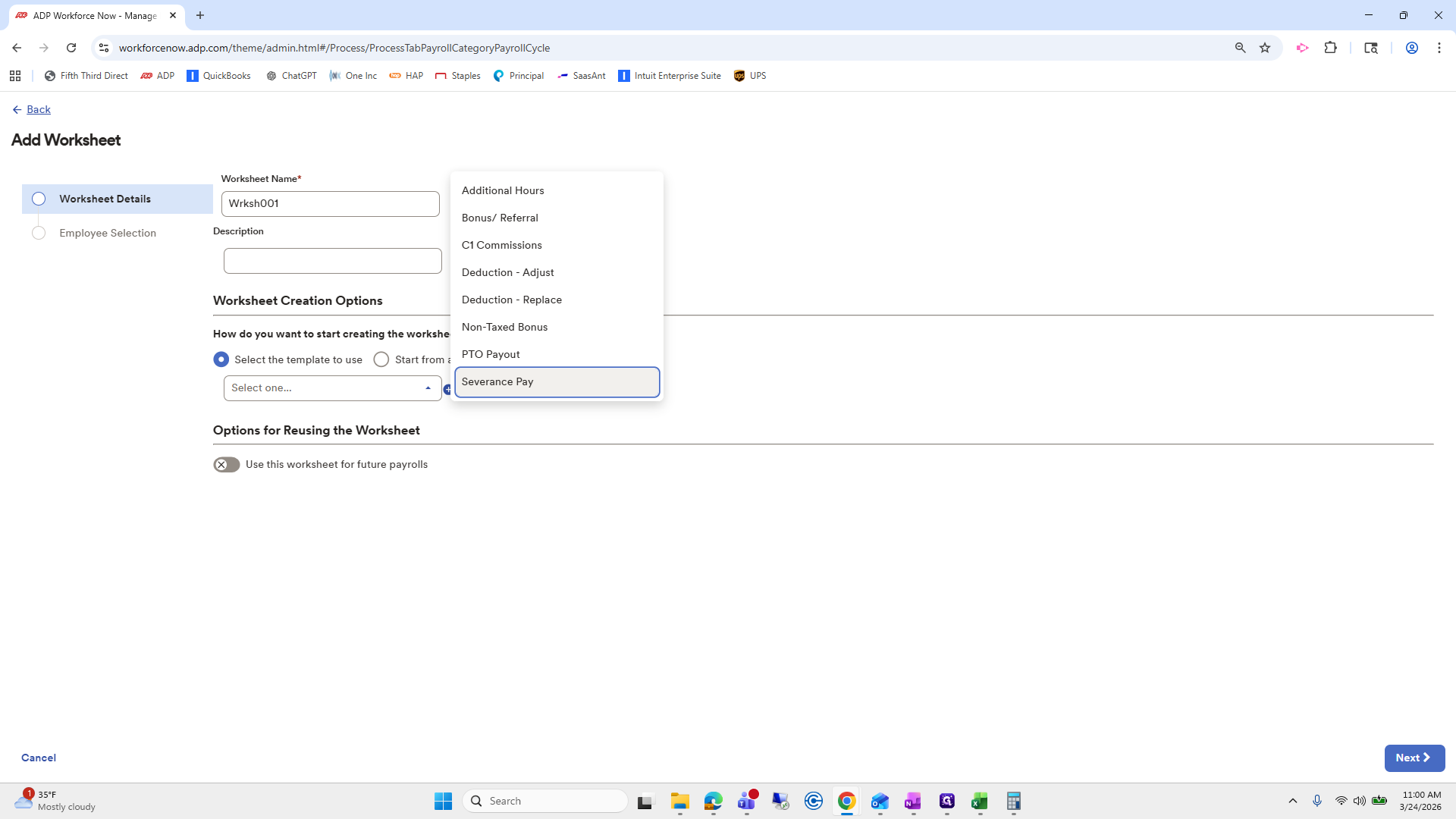
I already have several templates created. We will go to Severance Pay.
10
Click here
Step #10: Click here

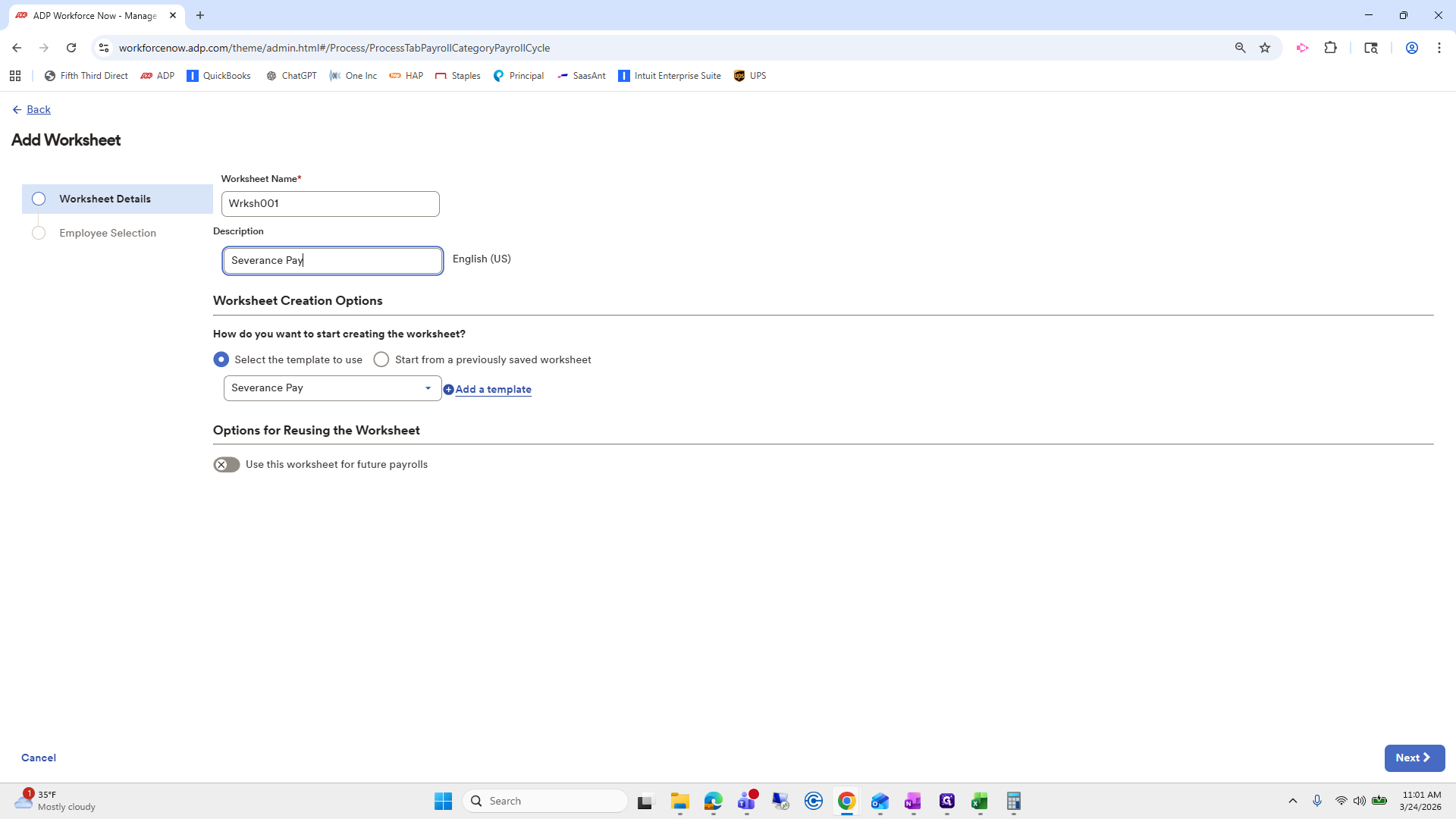
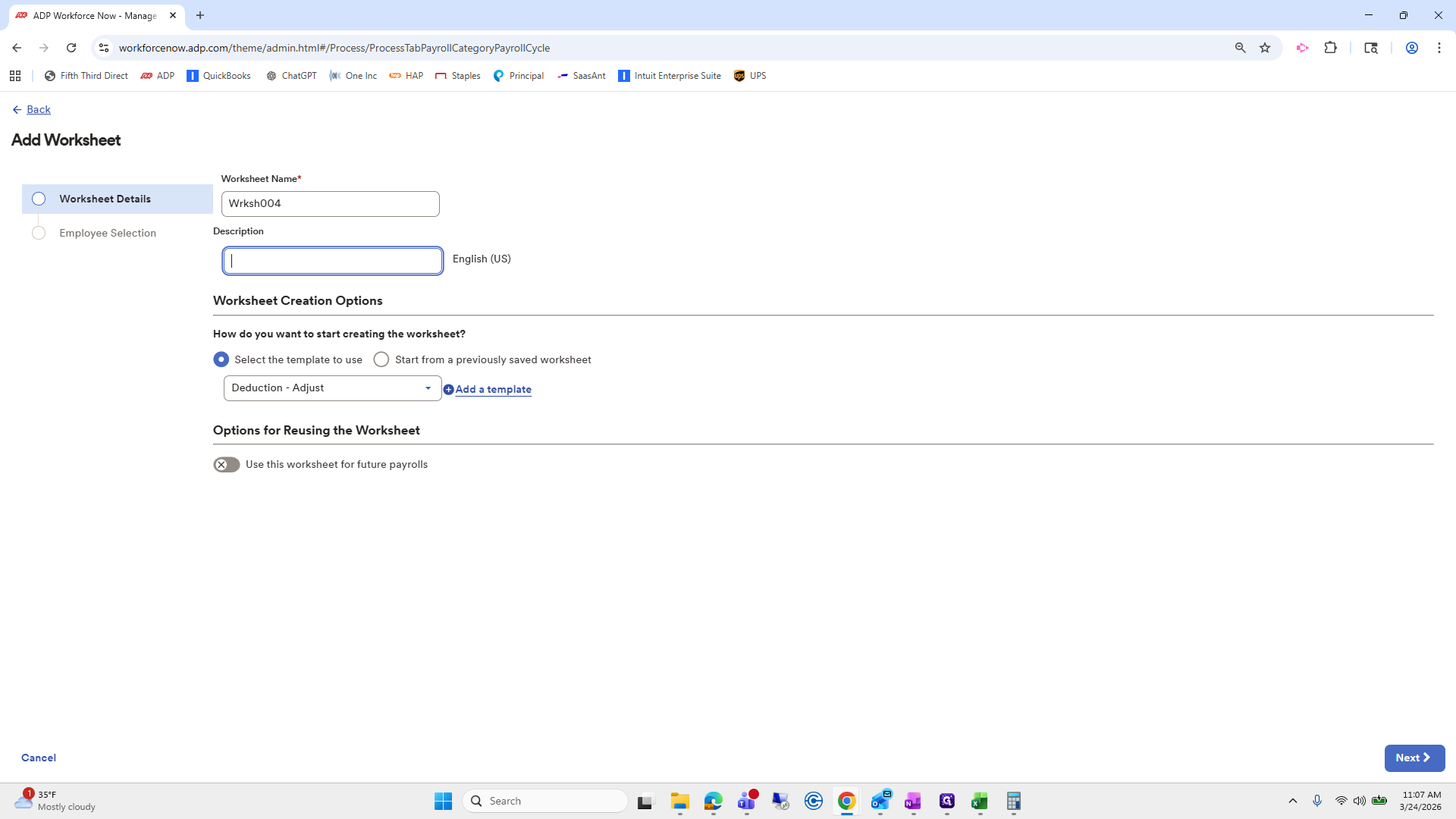
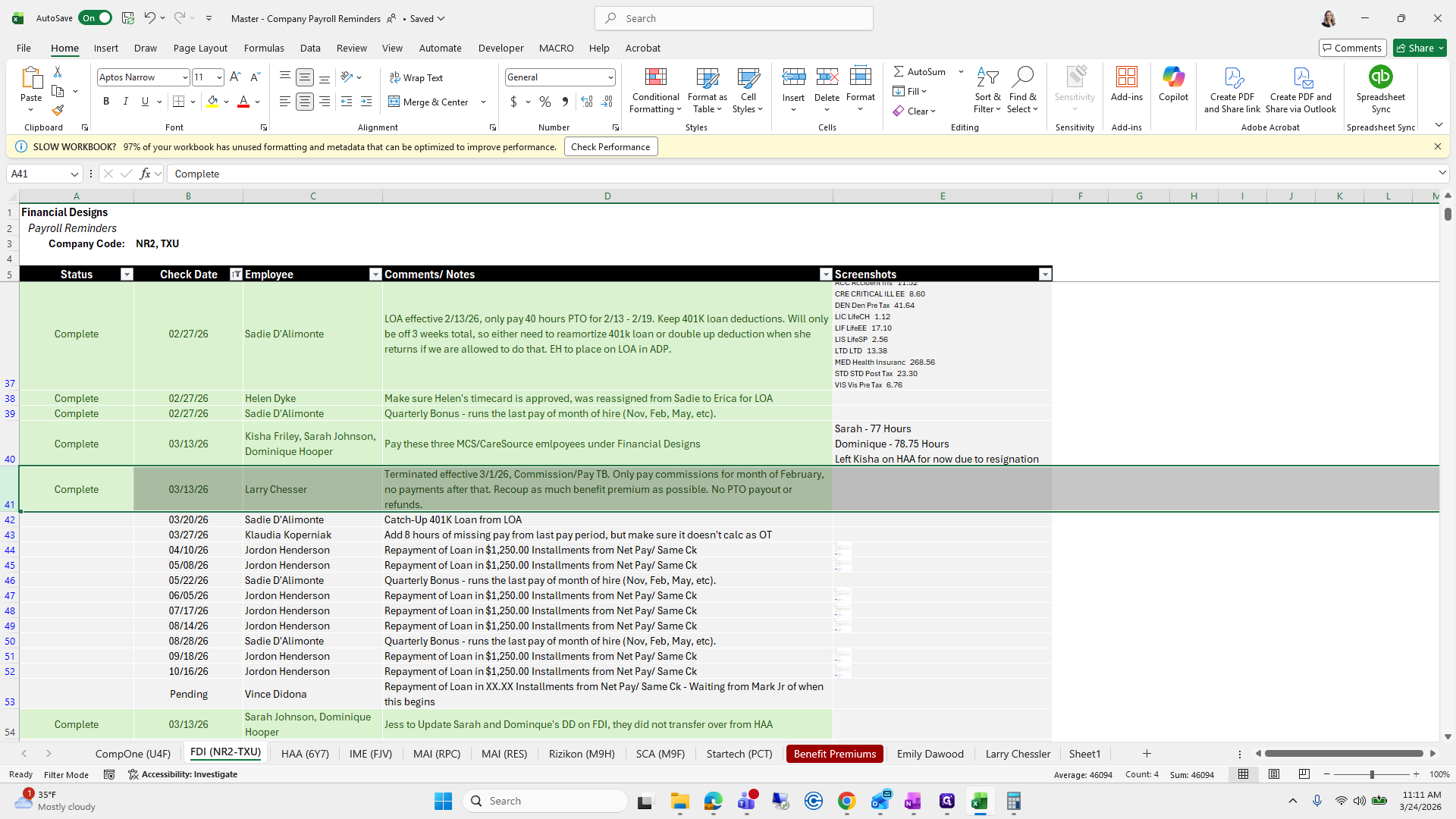
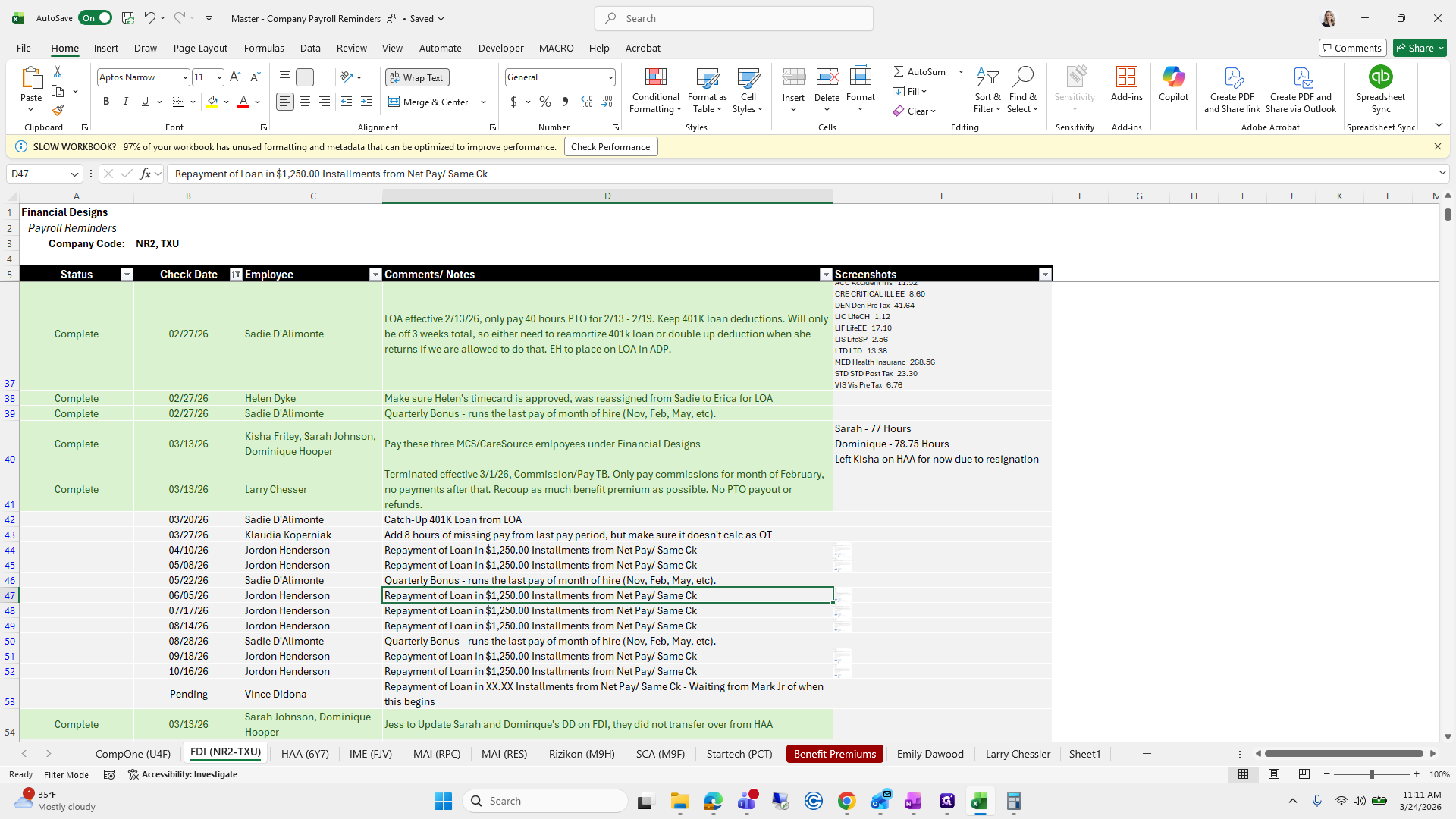
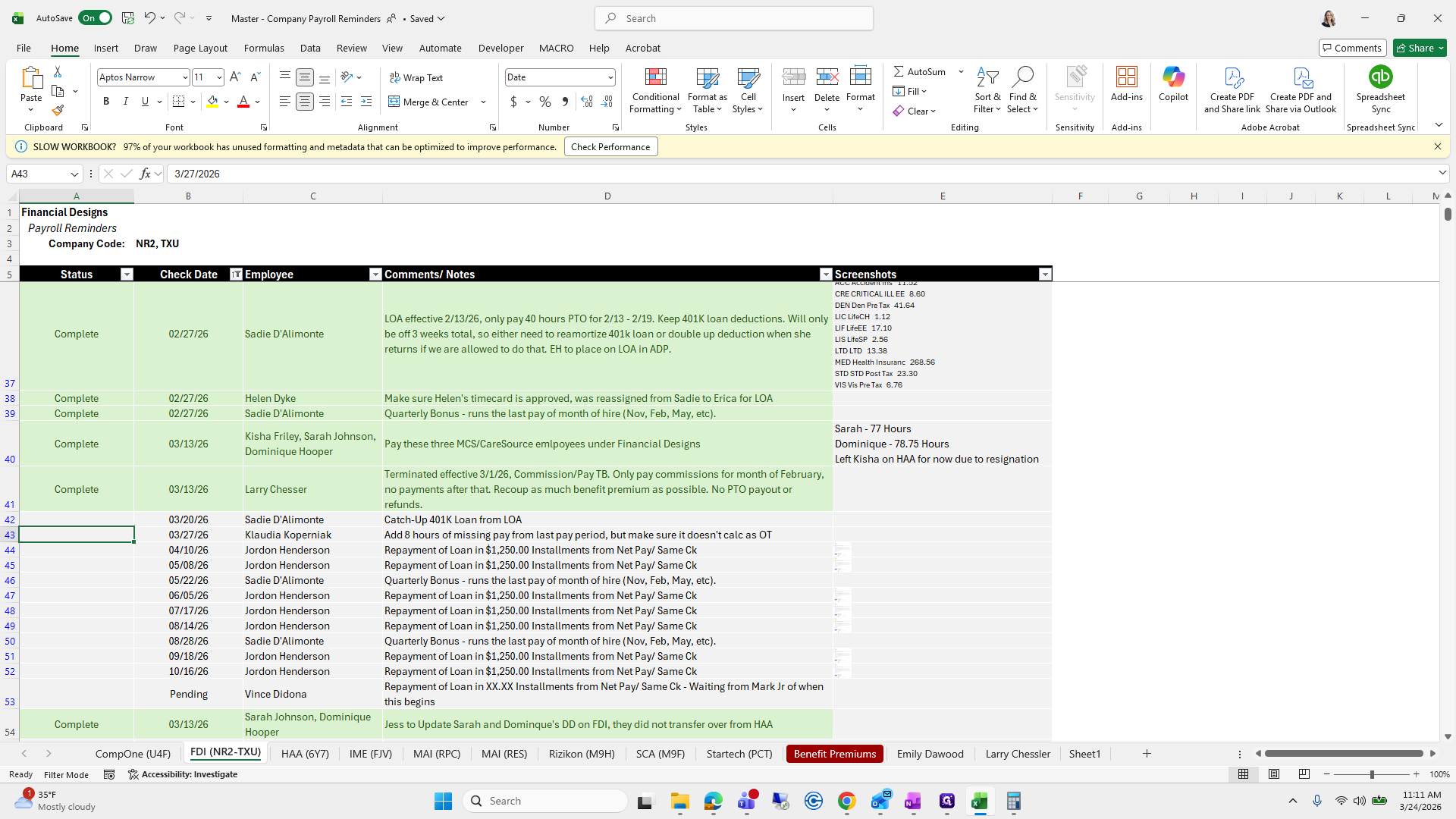
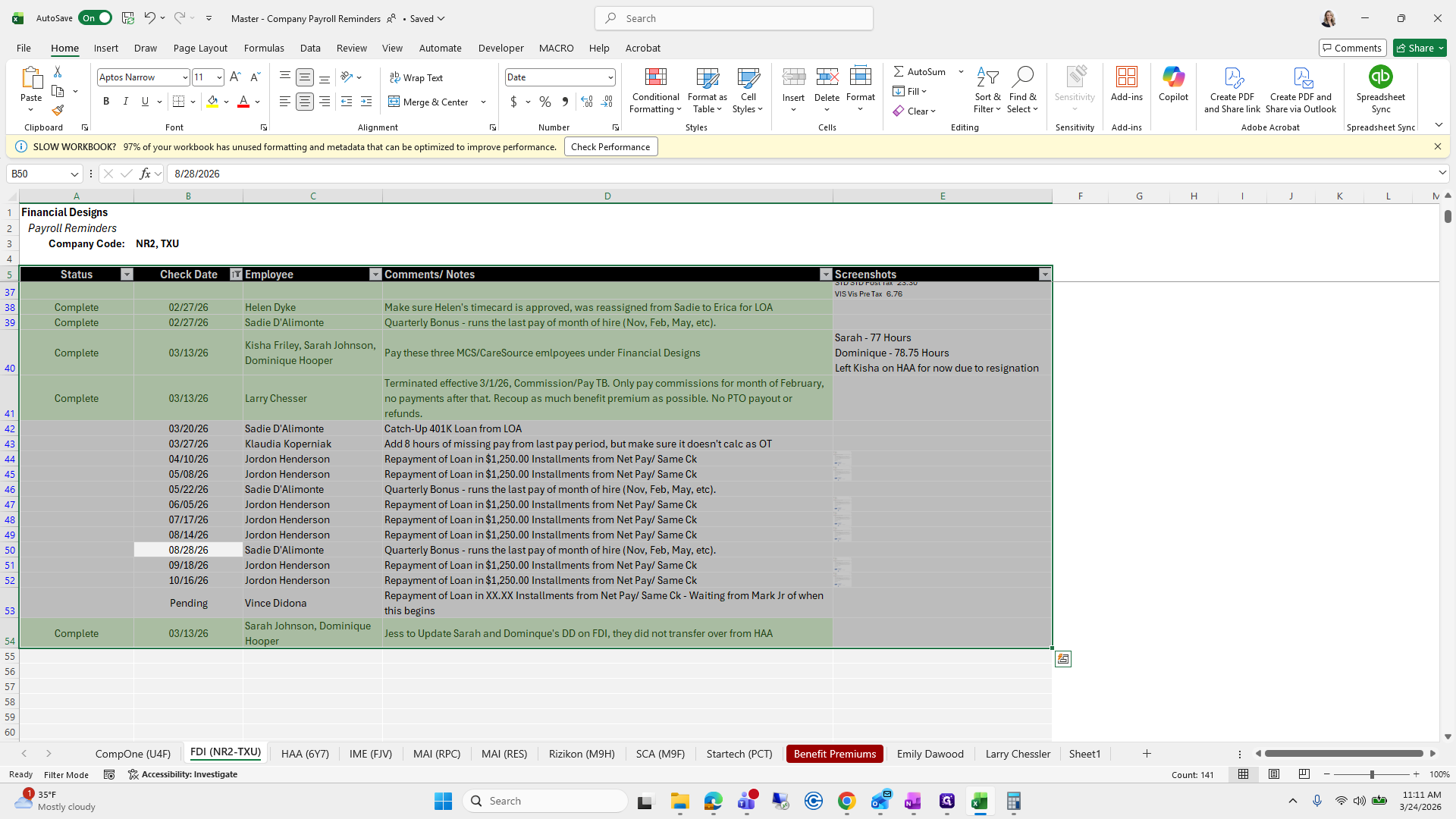
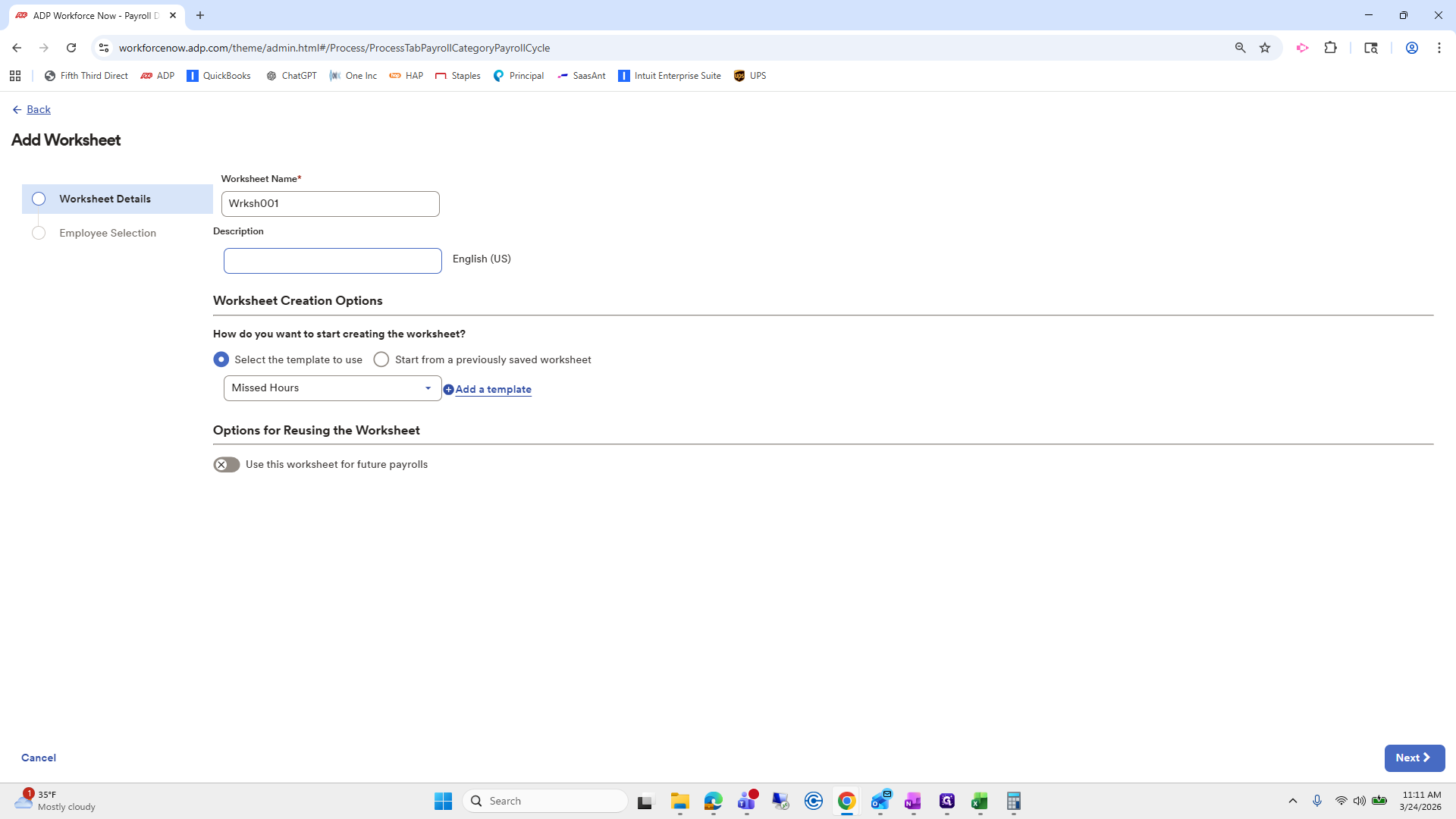
You can enter severance pay here if you wish.
11
Click here
Step #11: Click here

It's your choice; you don't have to.

12
Drag here
Step #12: Drag here

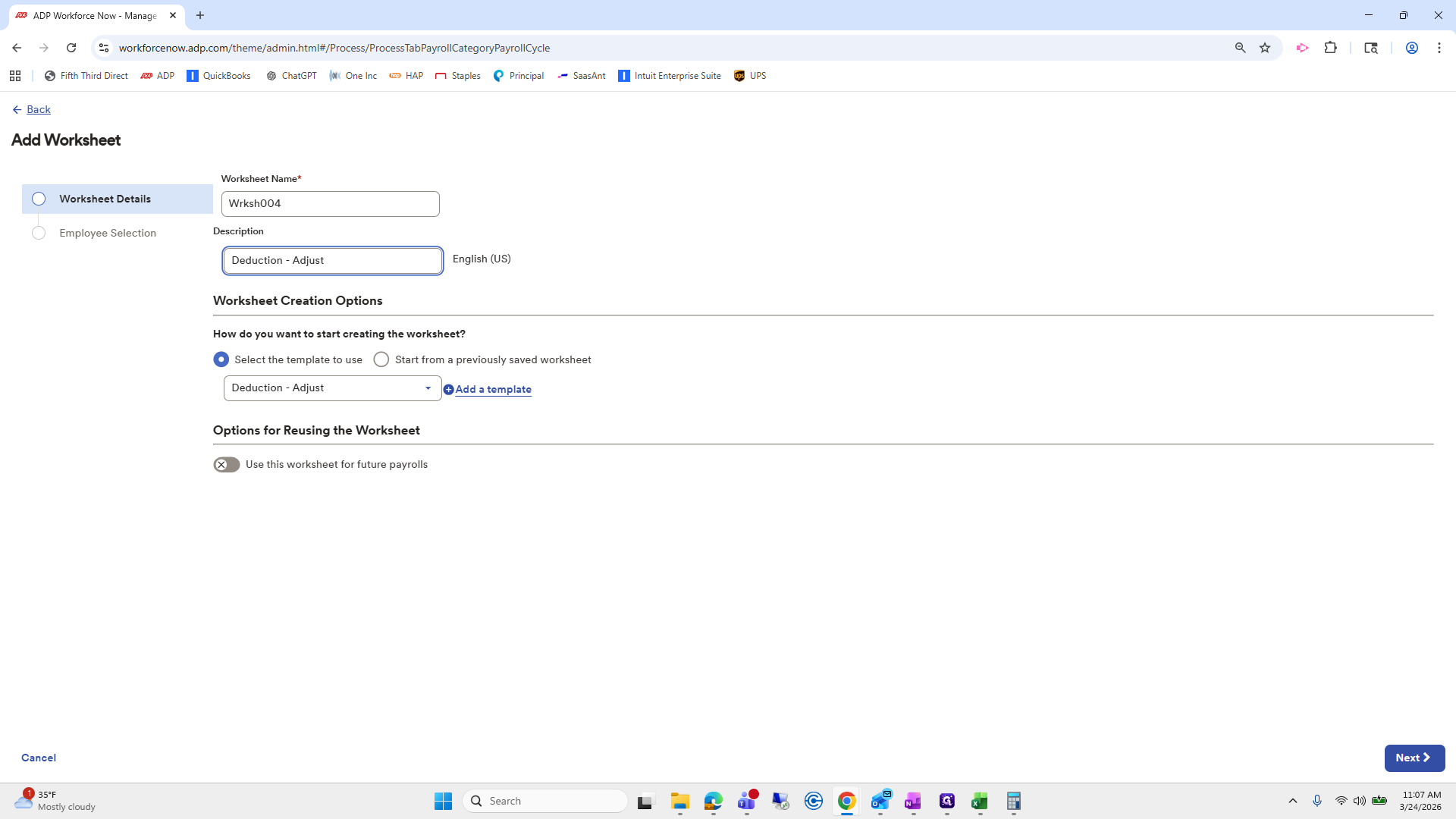
I will copy and paste it.

13
Type "Ctrl + C"
14
Click here
Step #14: Click here
15
Type "Ctrl + V"
16
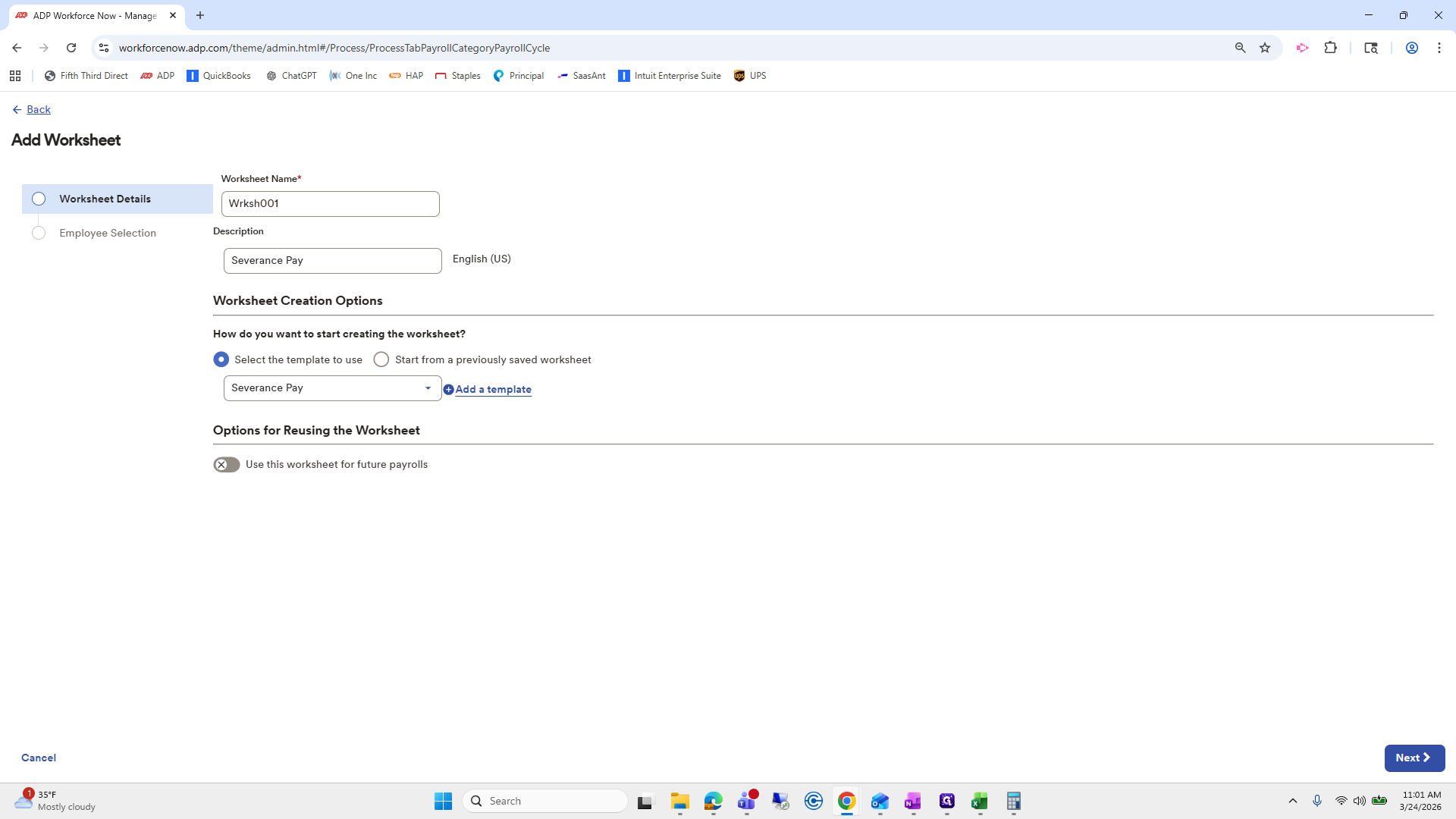
Click here
Step #16: Click here

Click Next.

17
Click on "Next >"
Step #17: Click on "Next >"

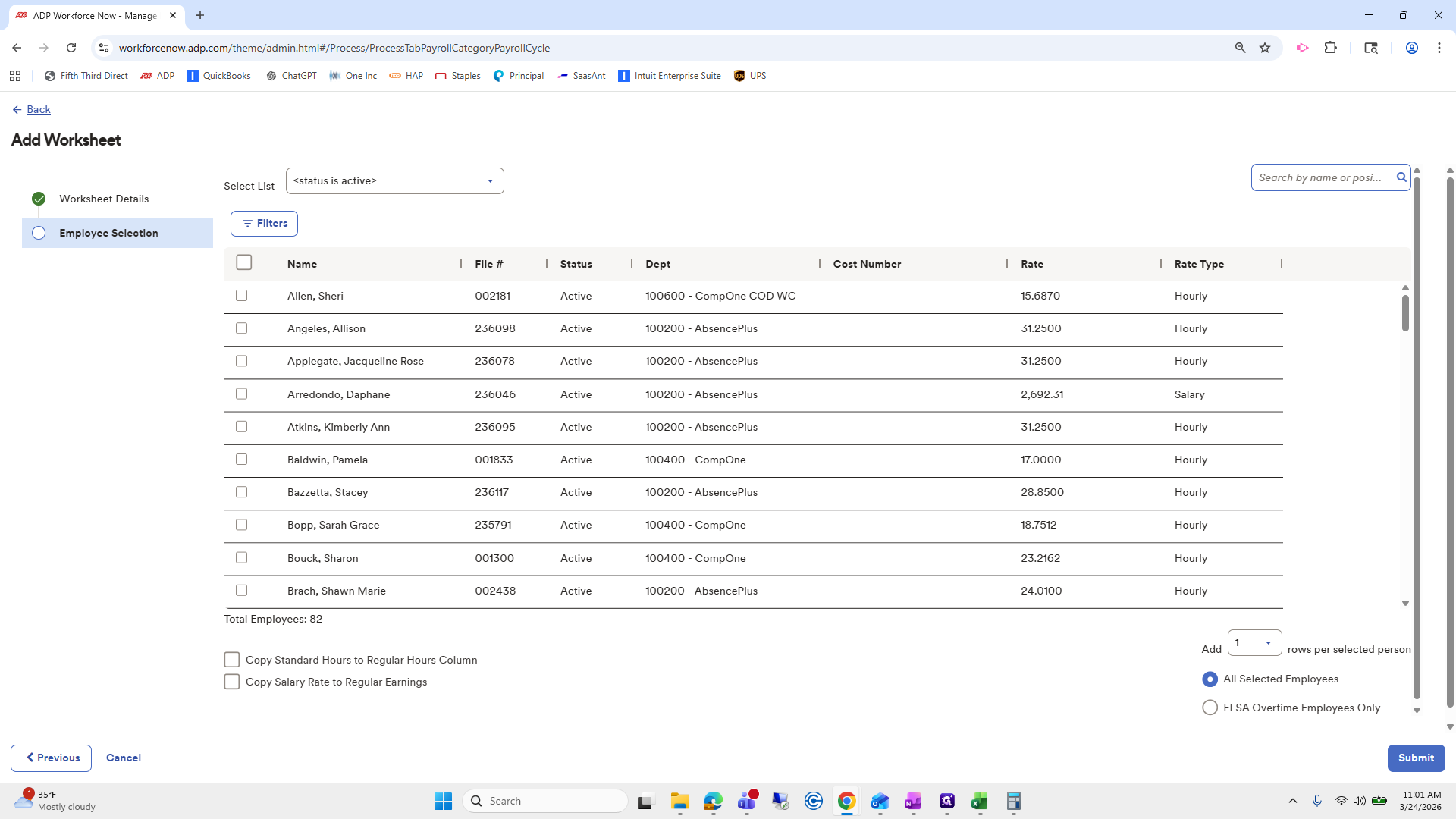
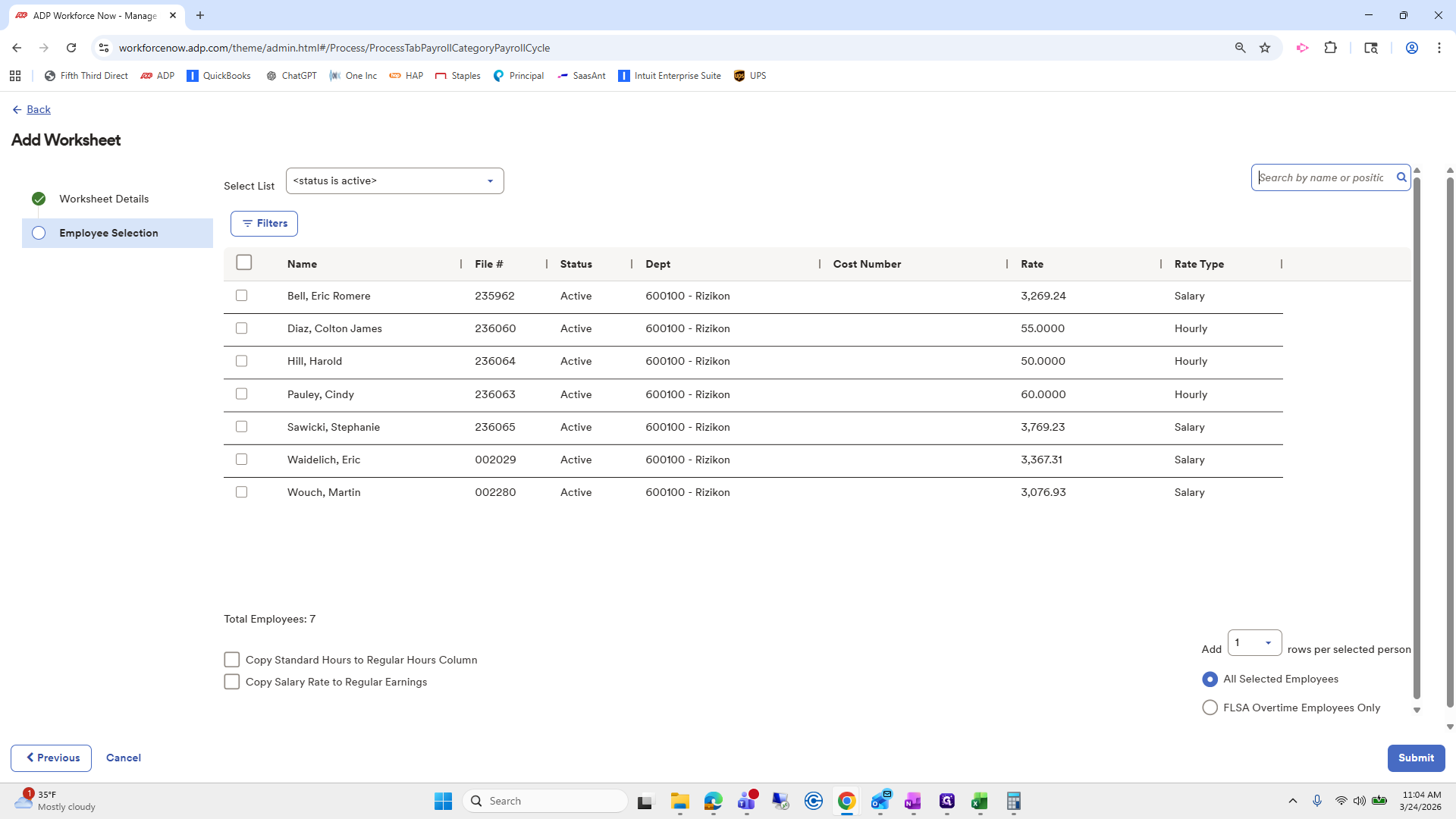
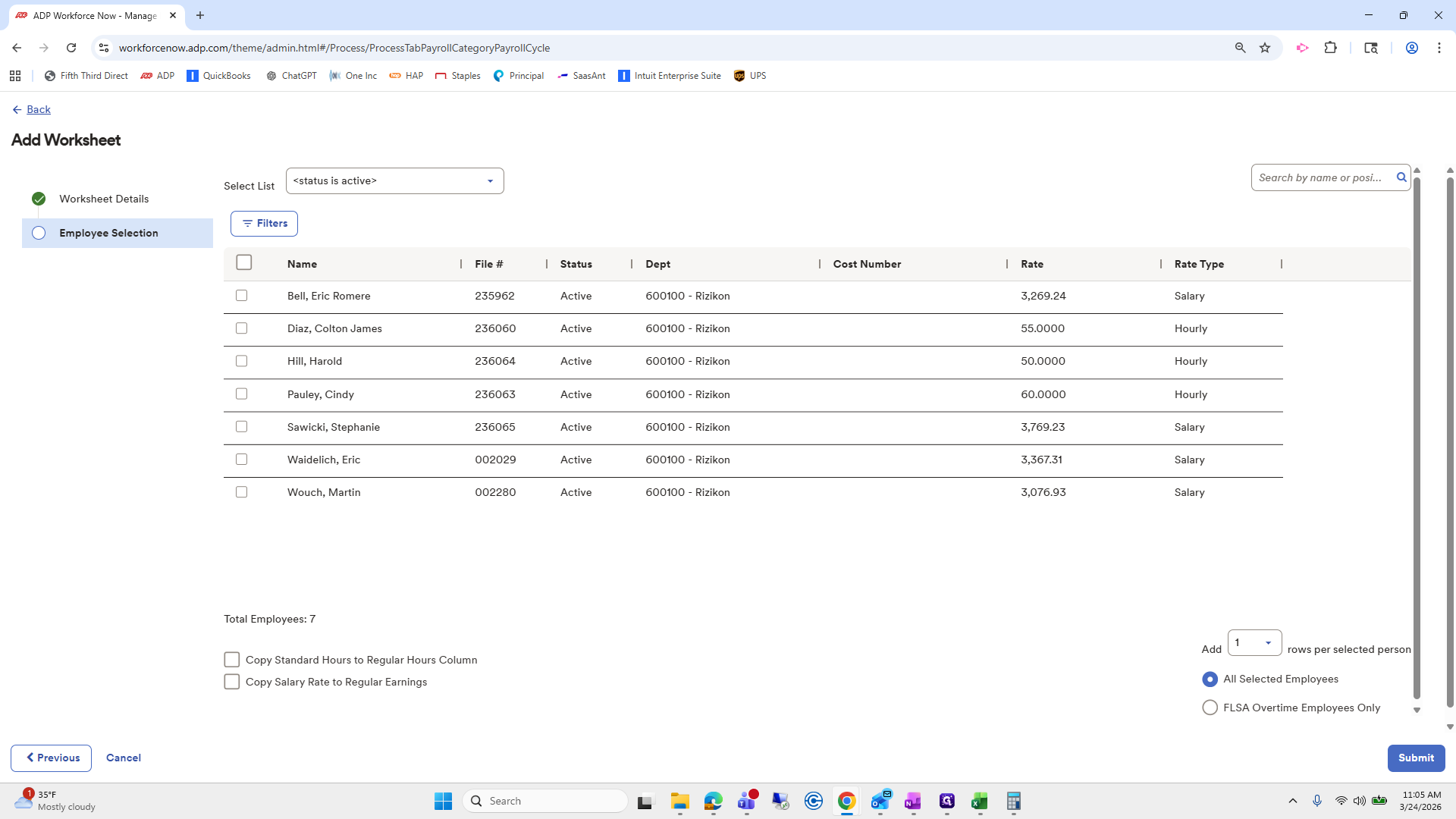
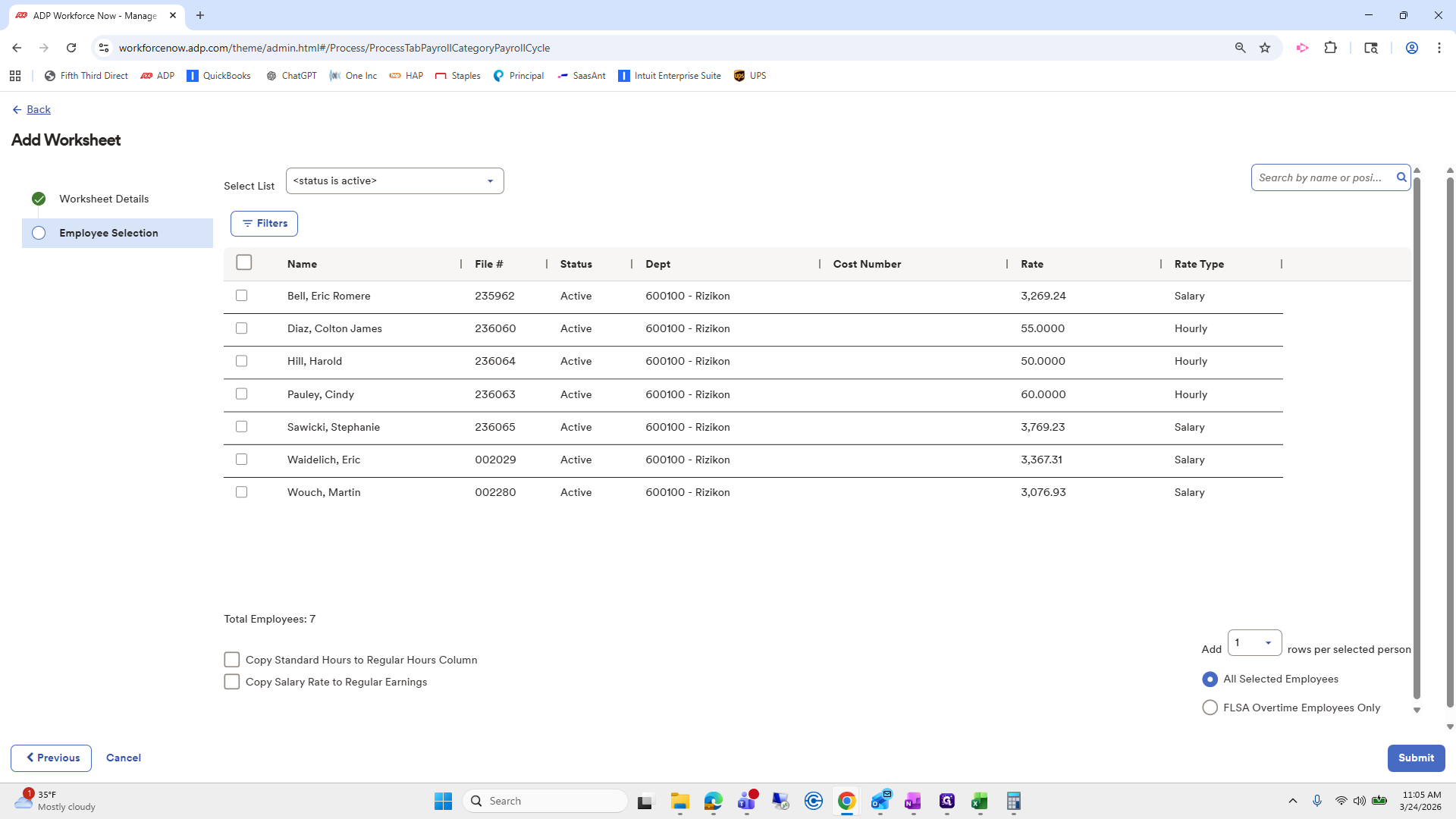
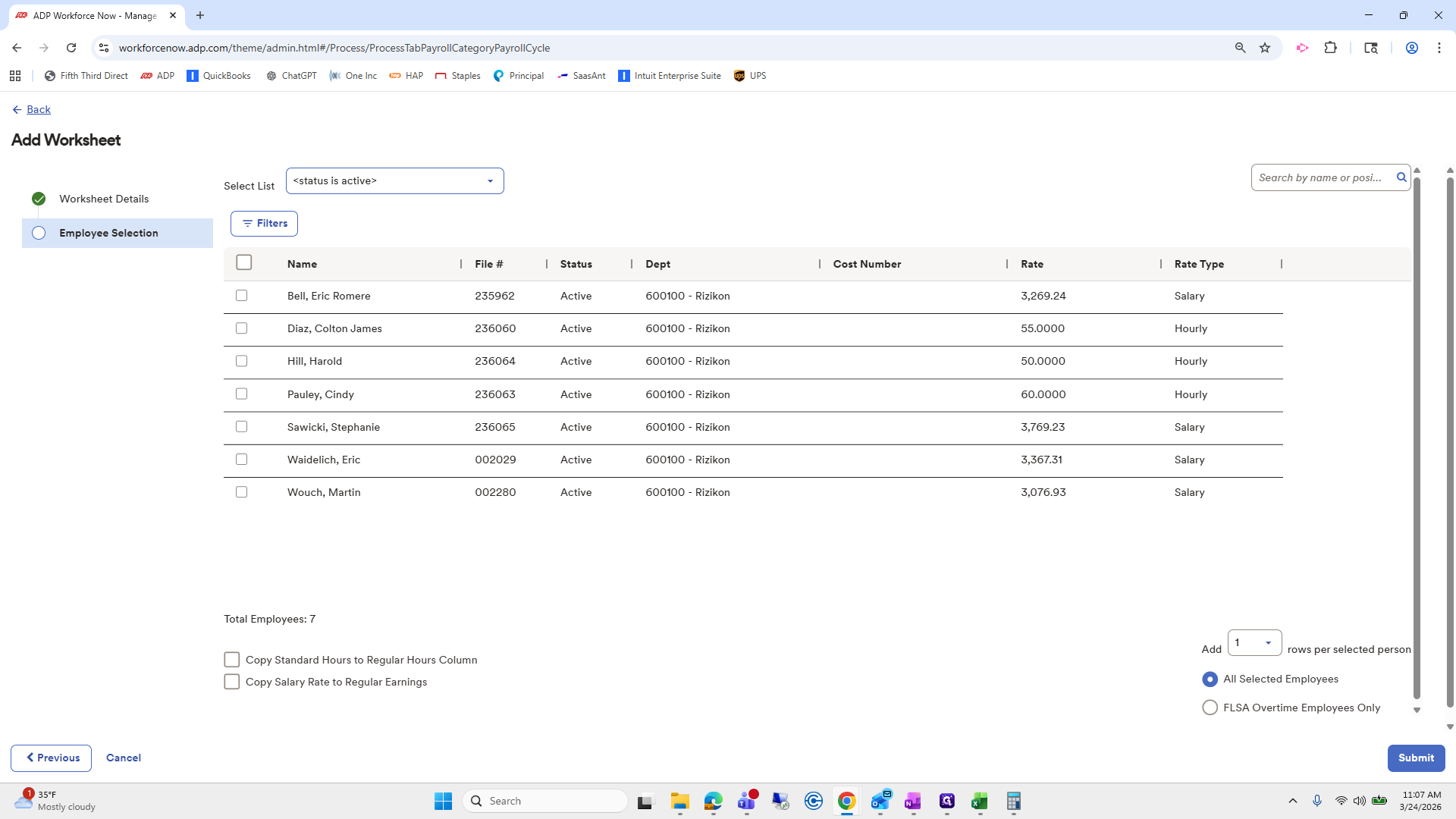
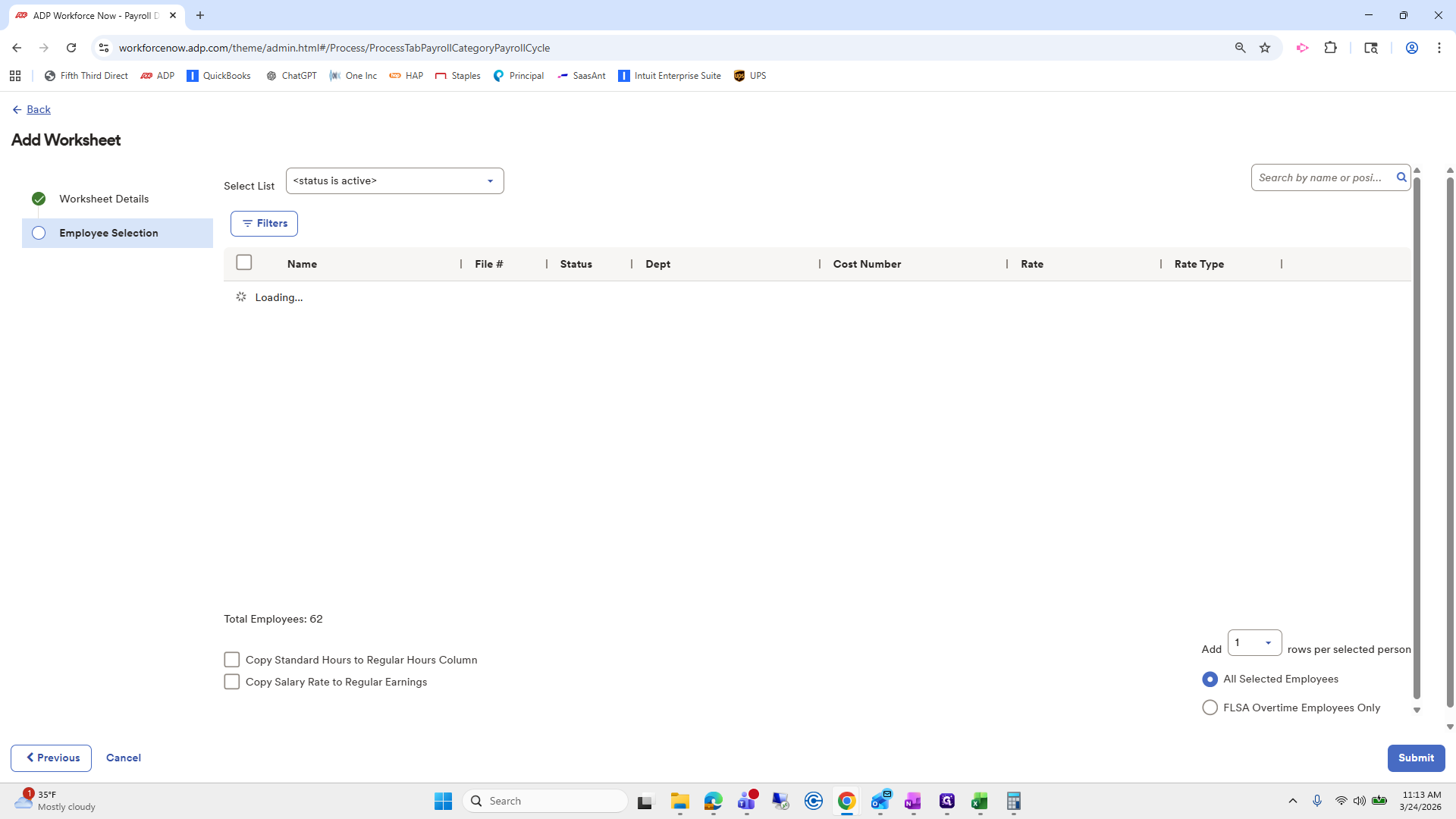
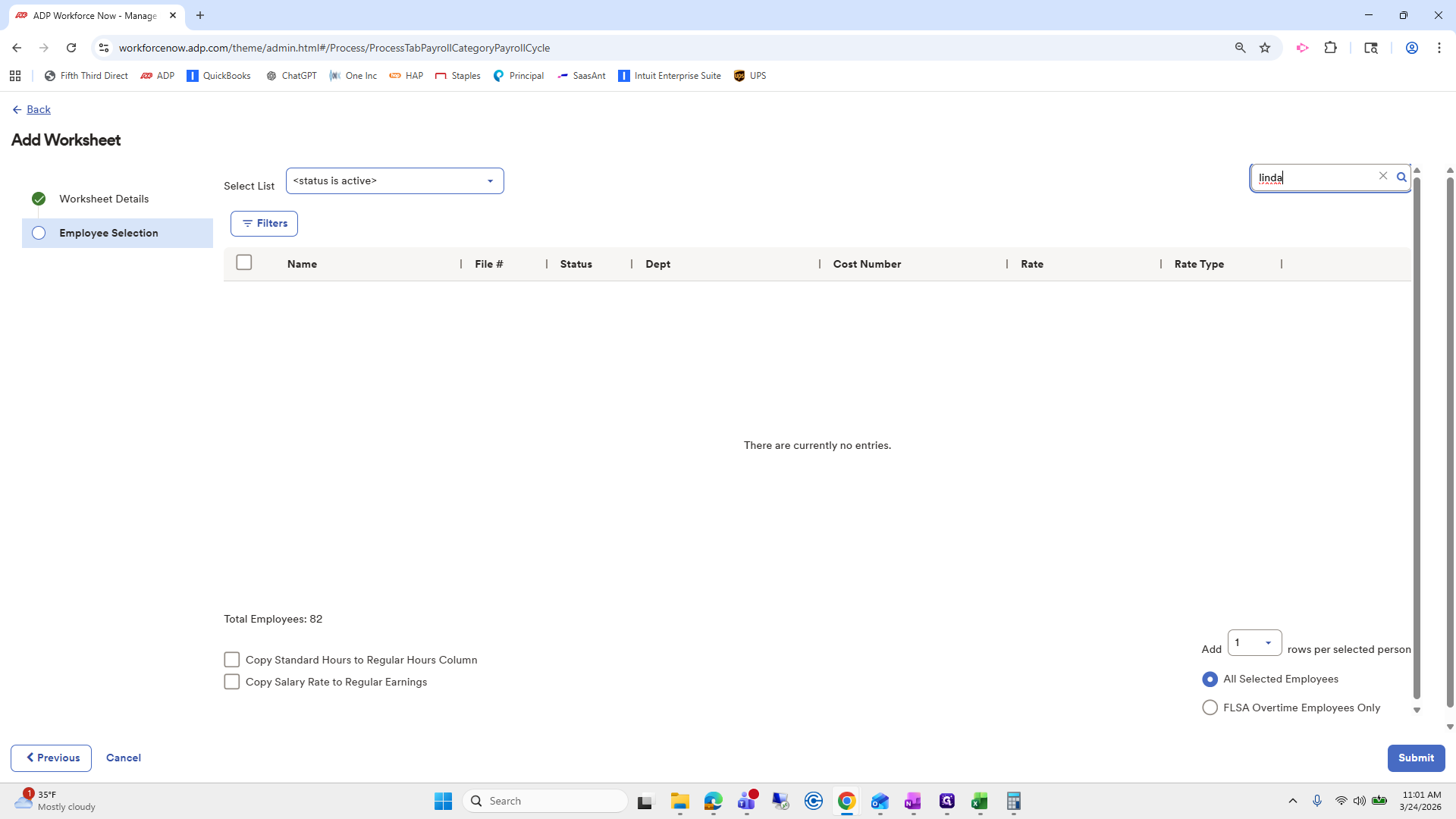
I am going to search for Linda.

18
Click on "Search by name or posi"
Step #18: Click on "Search by name or posi"

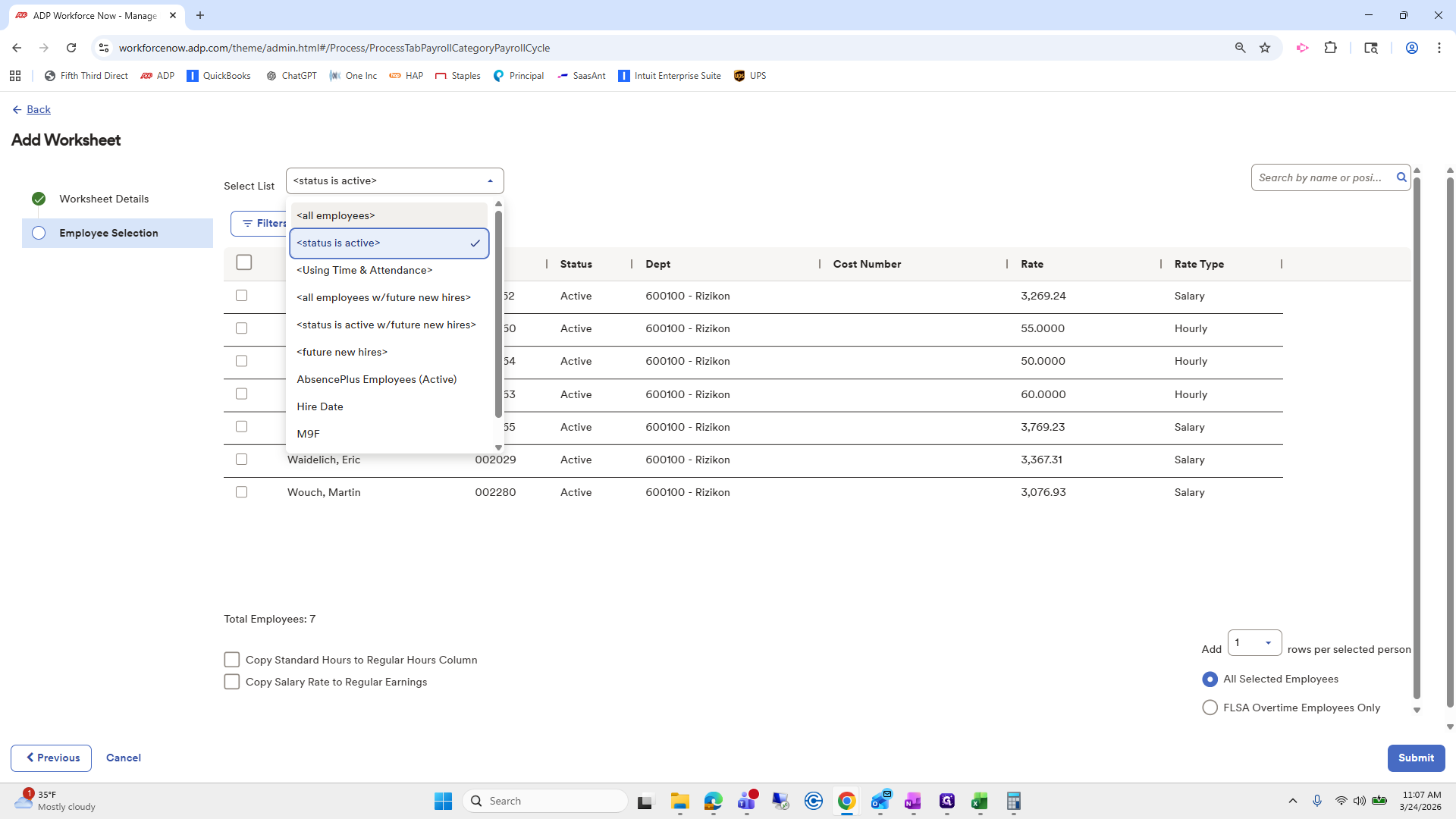
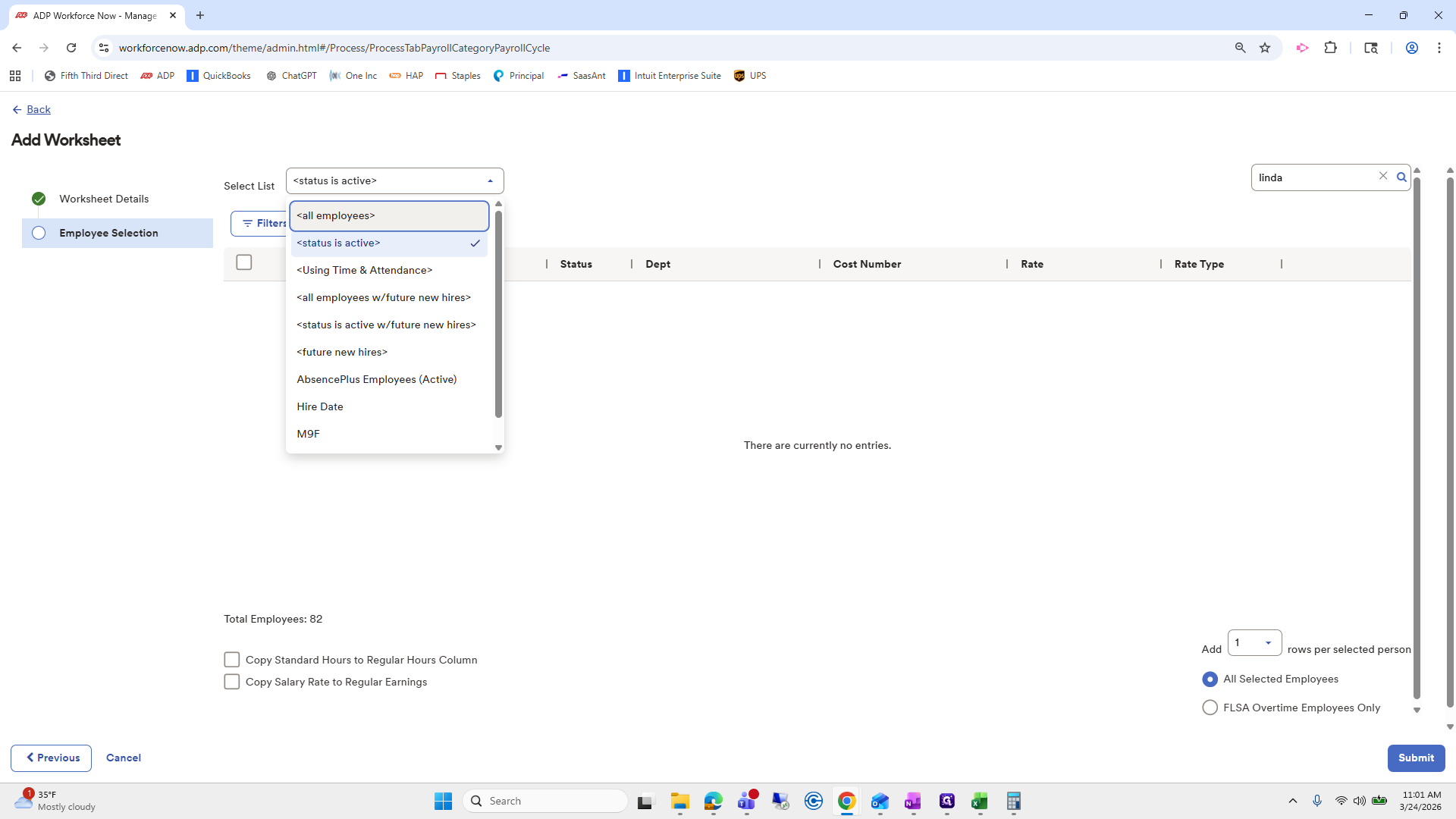
She did not appear here because the selected list is active.
19
Type "linda"
20
Click here
Step #20: Click here

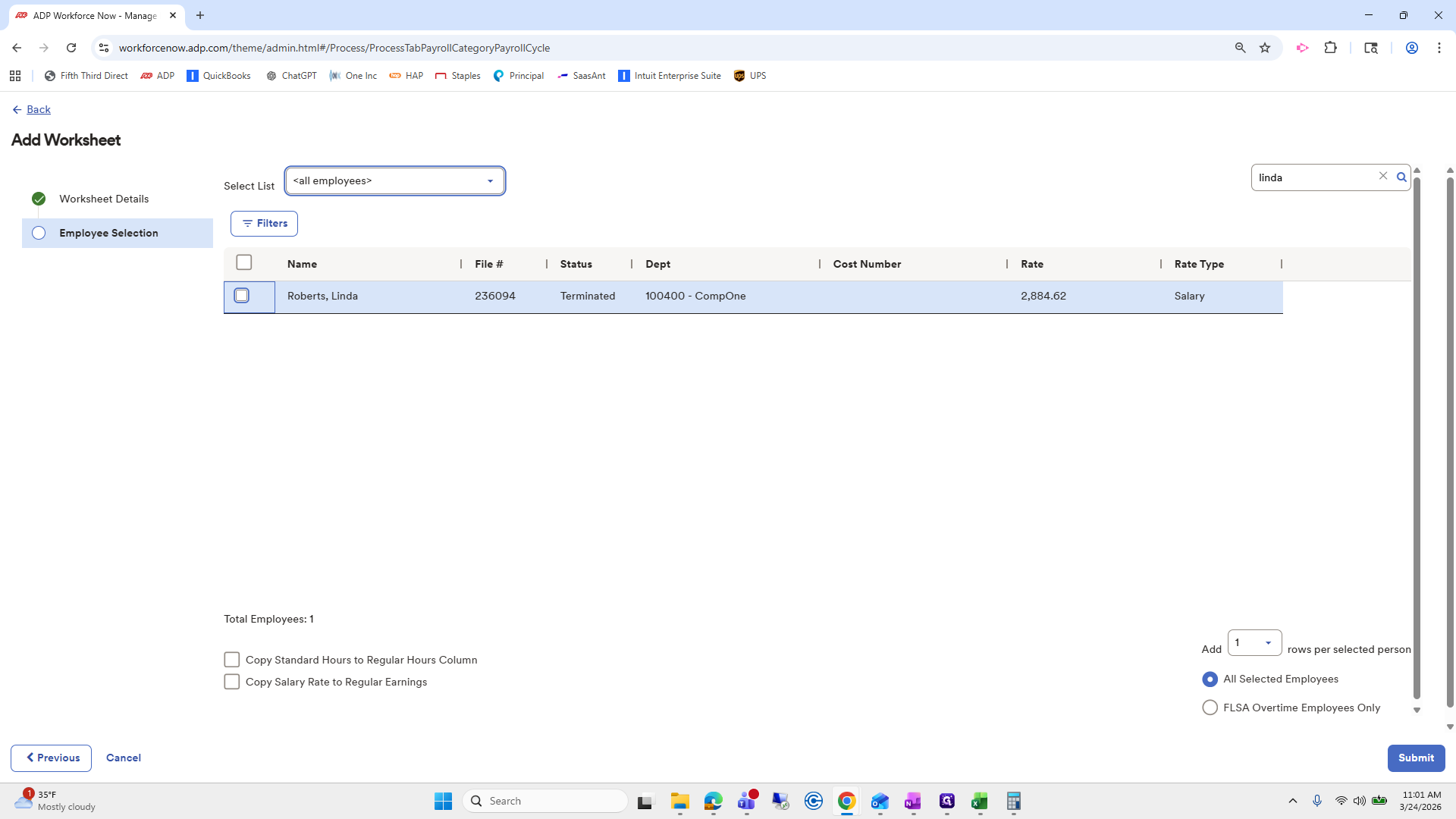
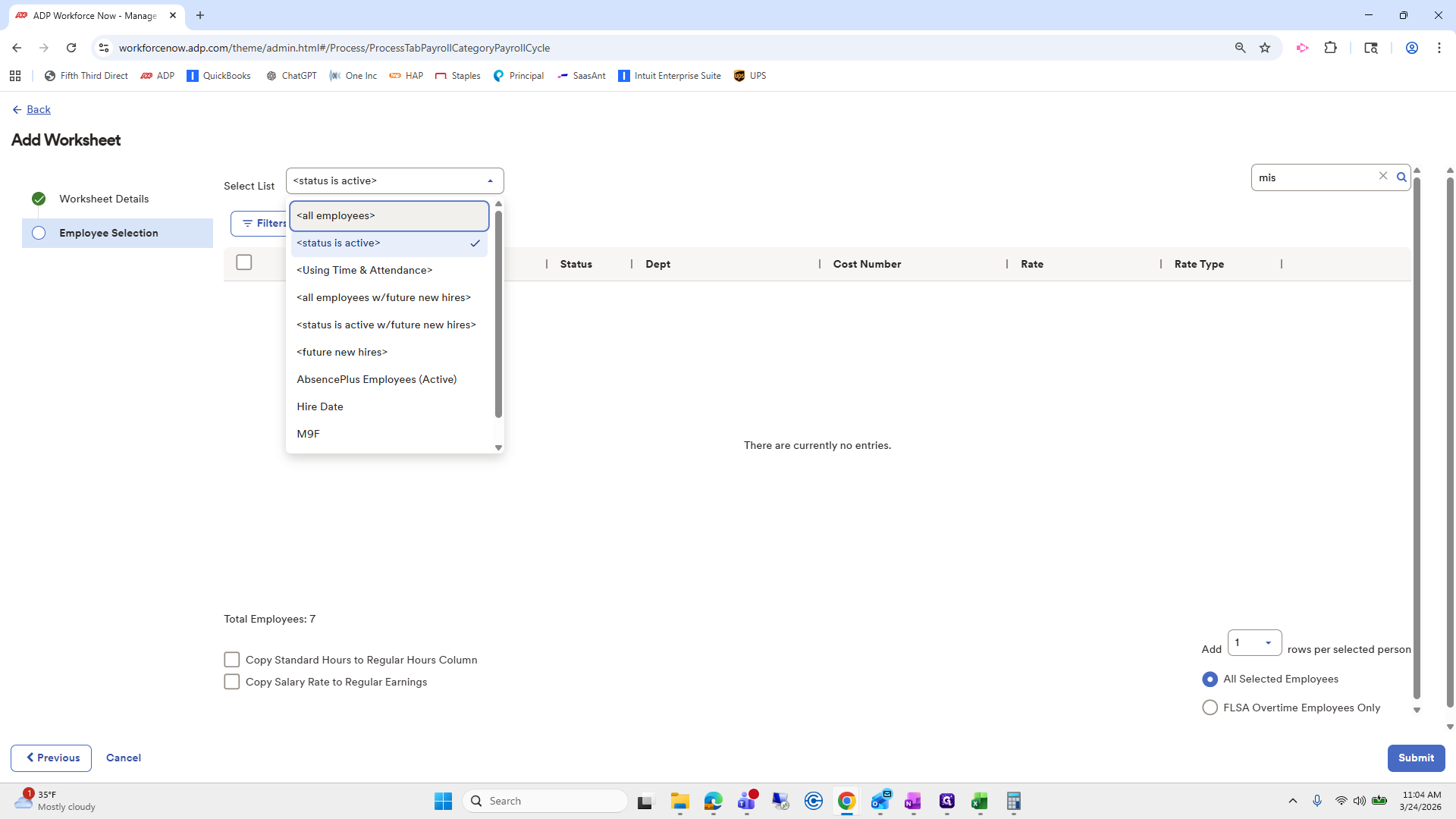
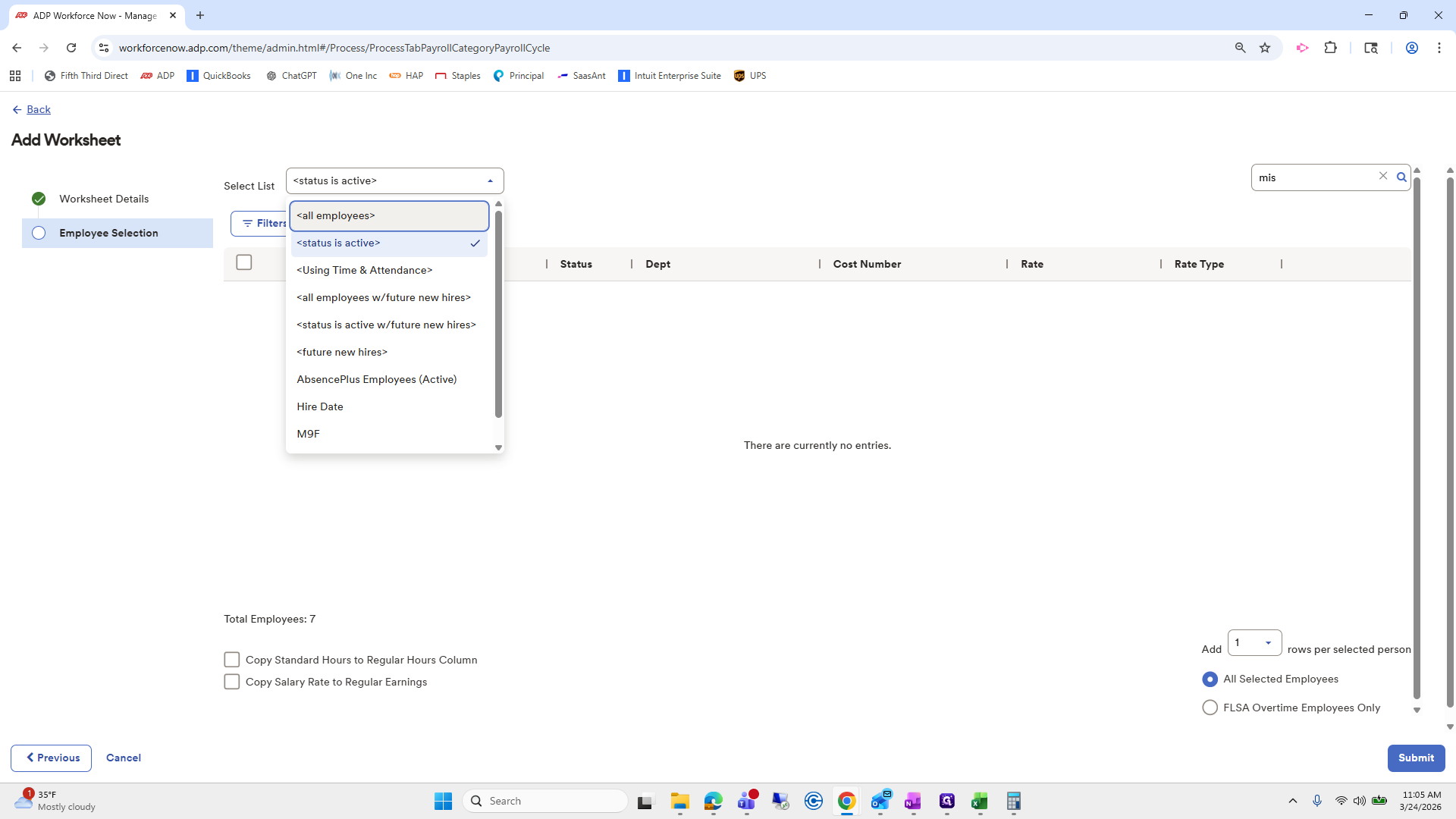
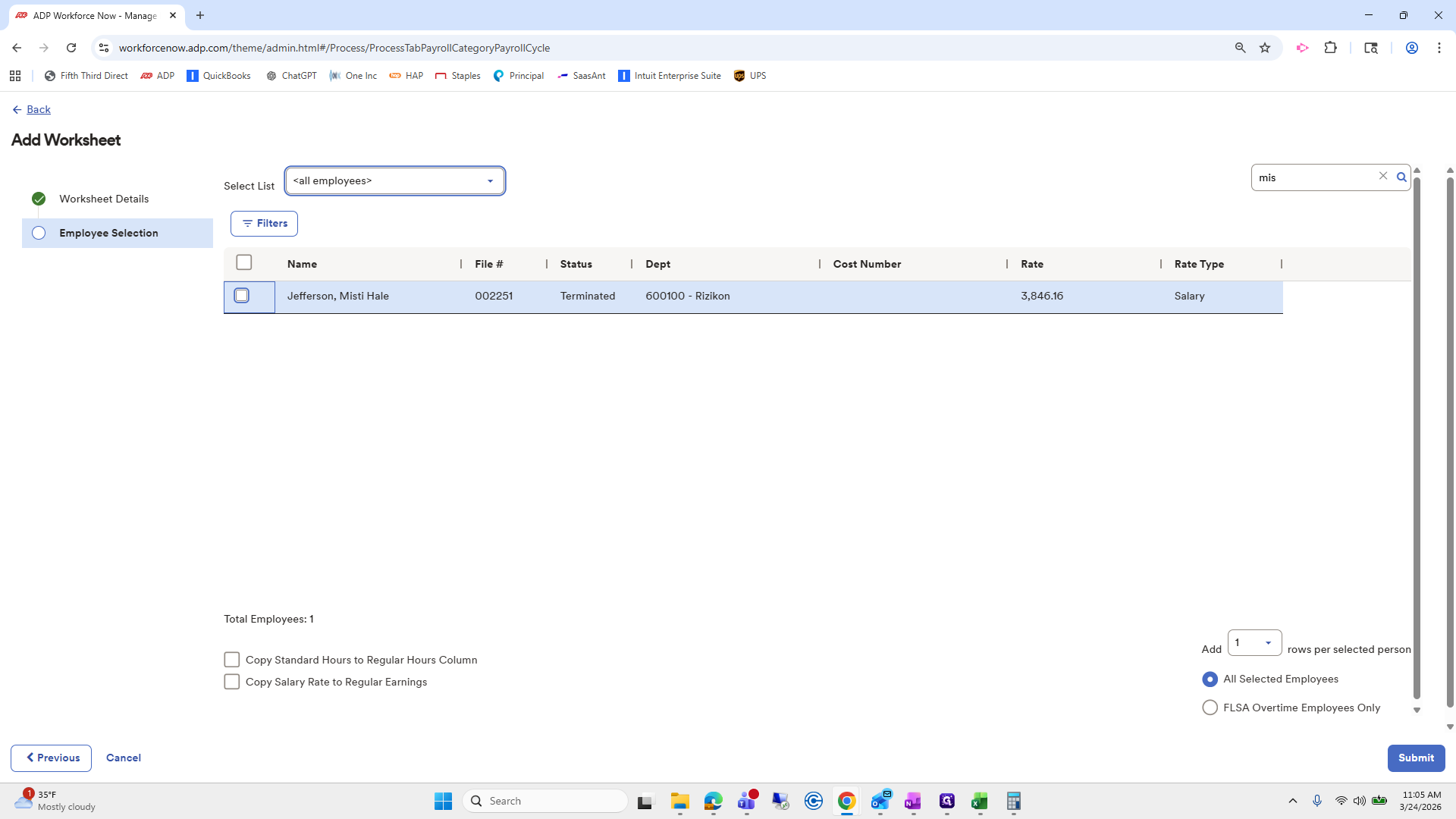
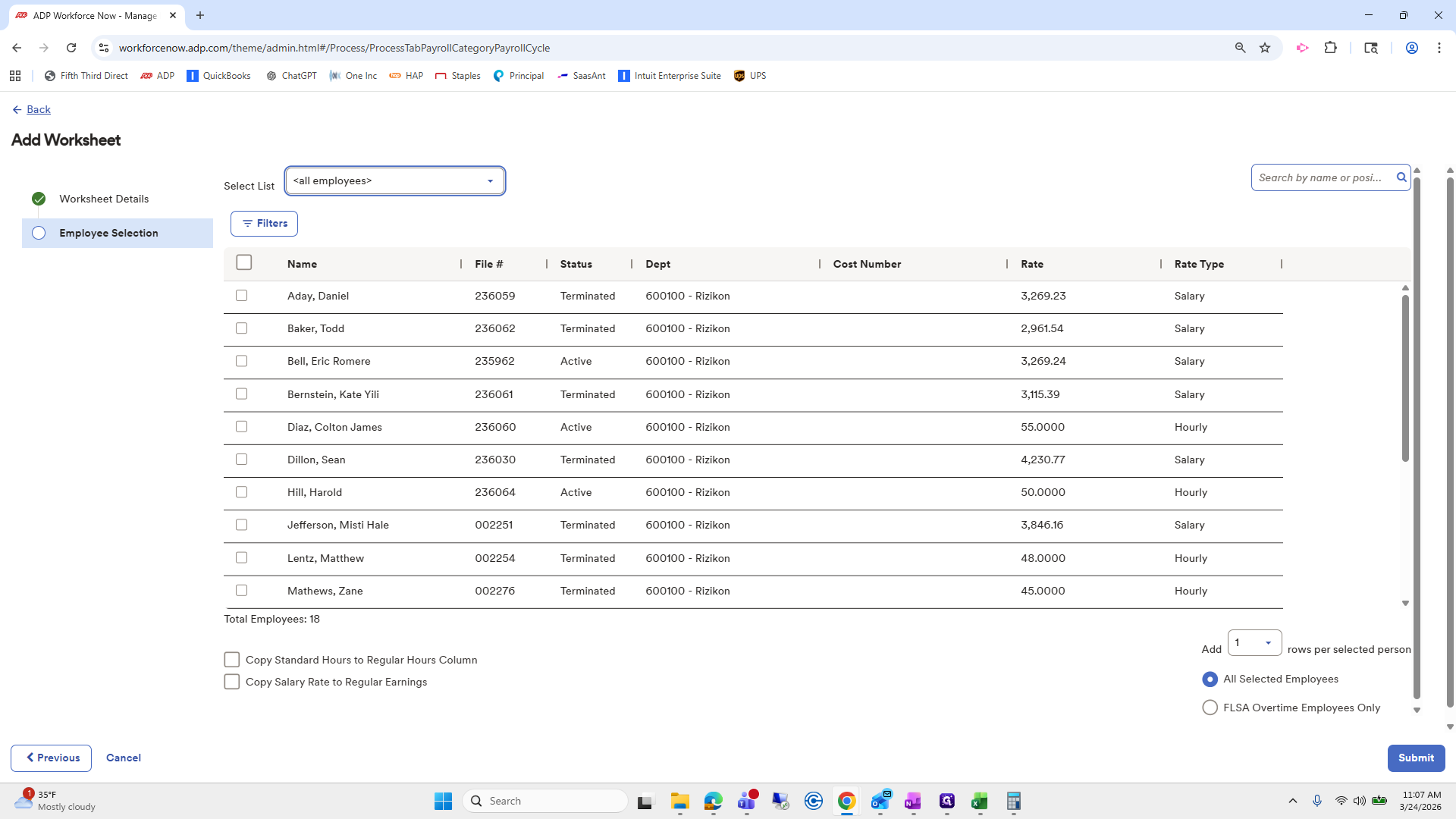
Open the dropdown, select All Employees, and you will see that she appears.
21
Click here
Step #21: Click here
22
Click here
Step #22: Click here

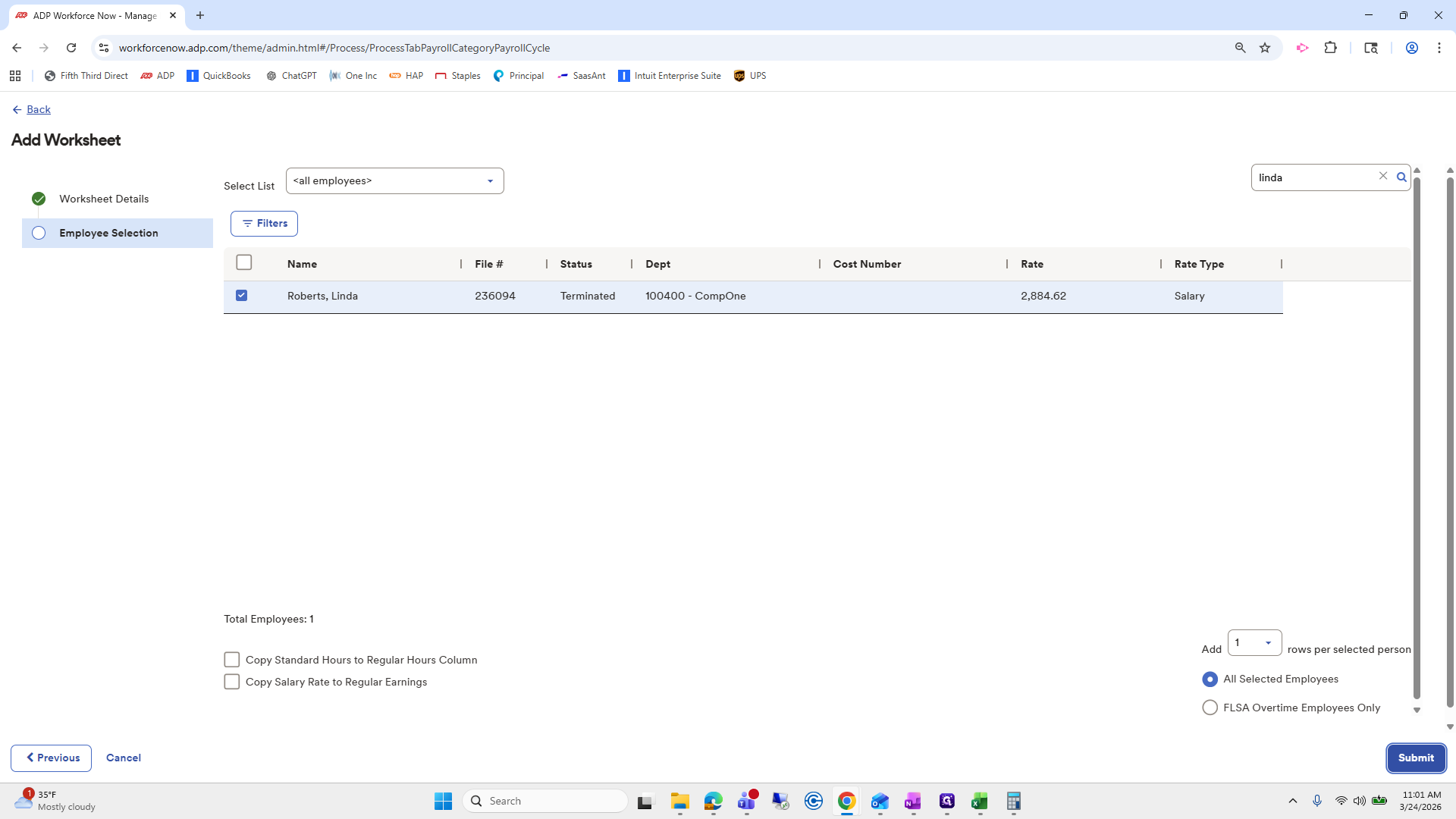
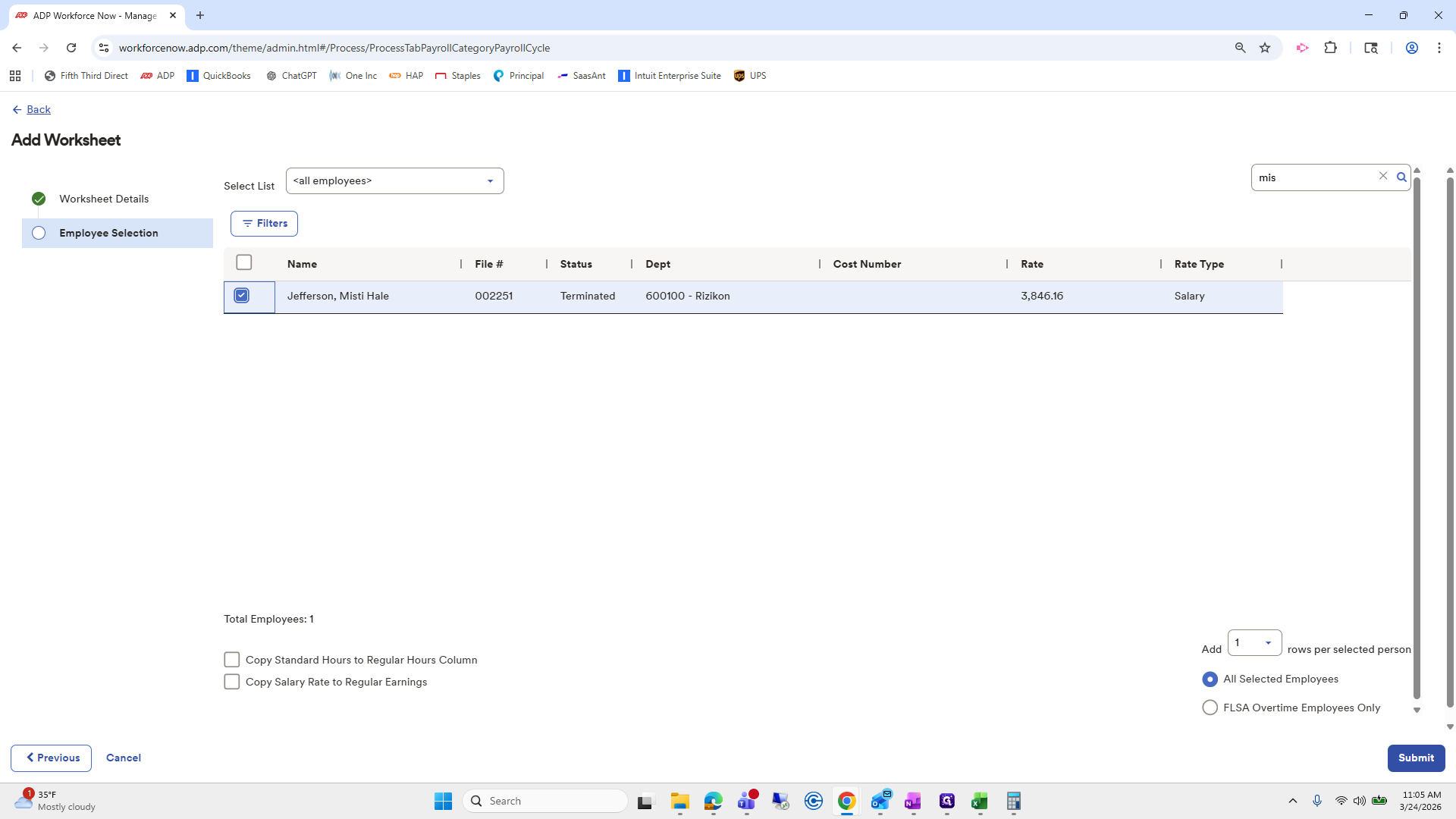
Check her, then click Submit.

23
Click on "Submit"
Step #23: Click on "Submit"

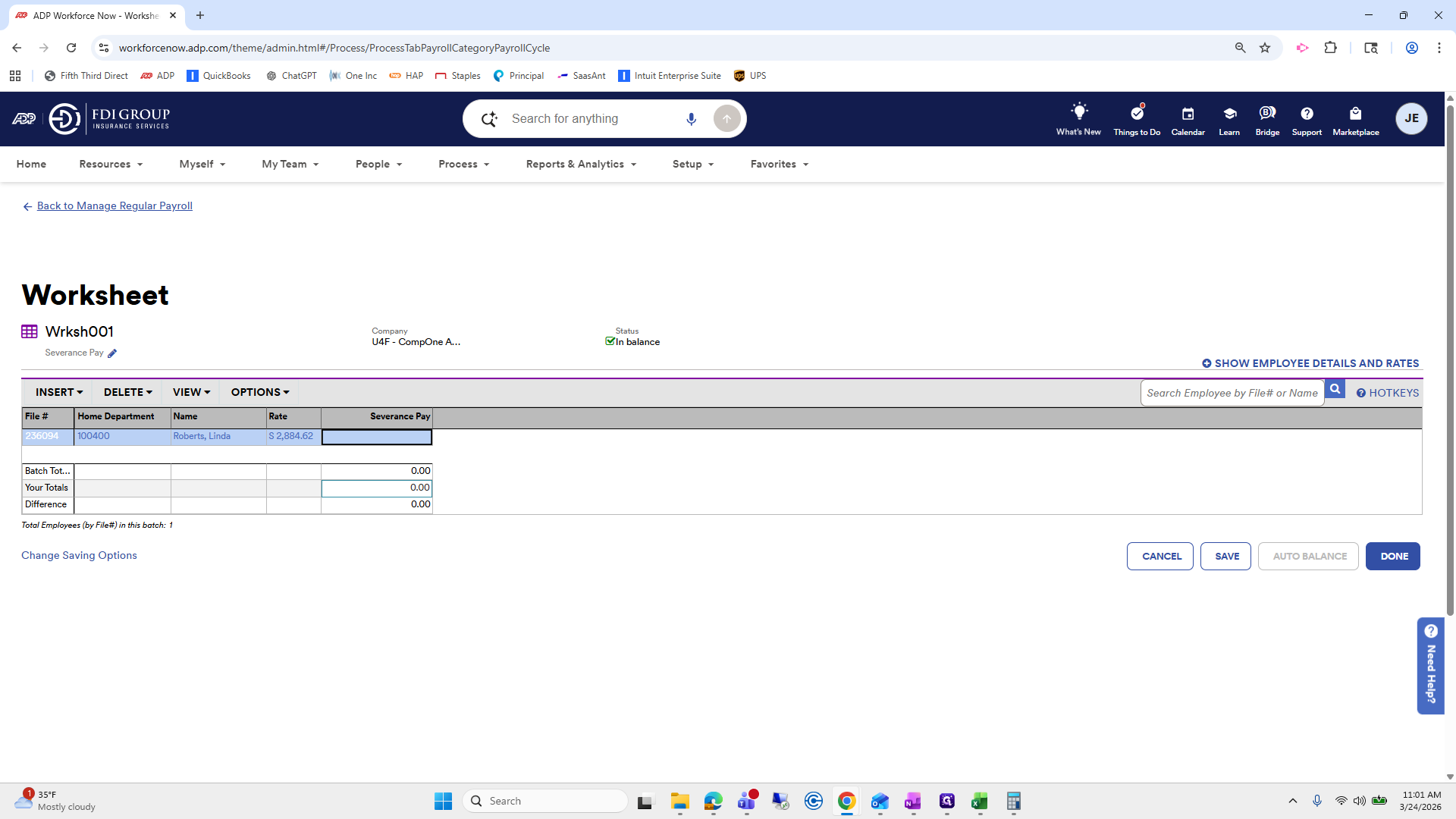
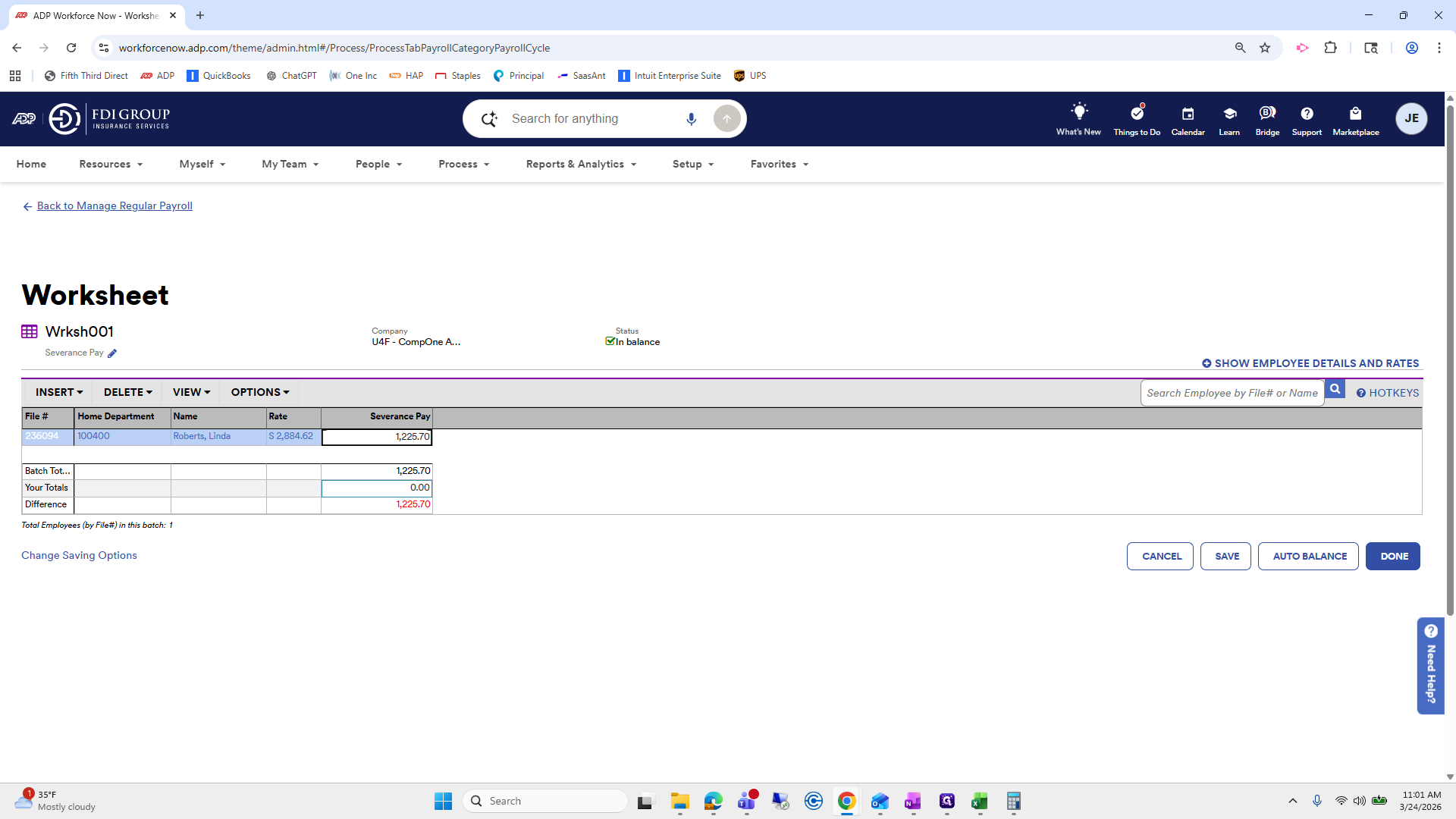
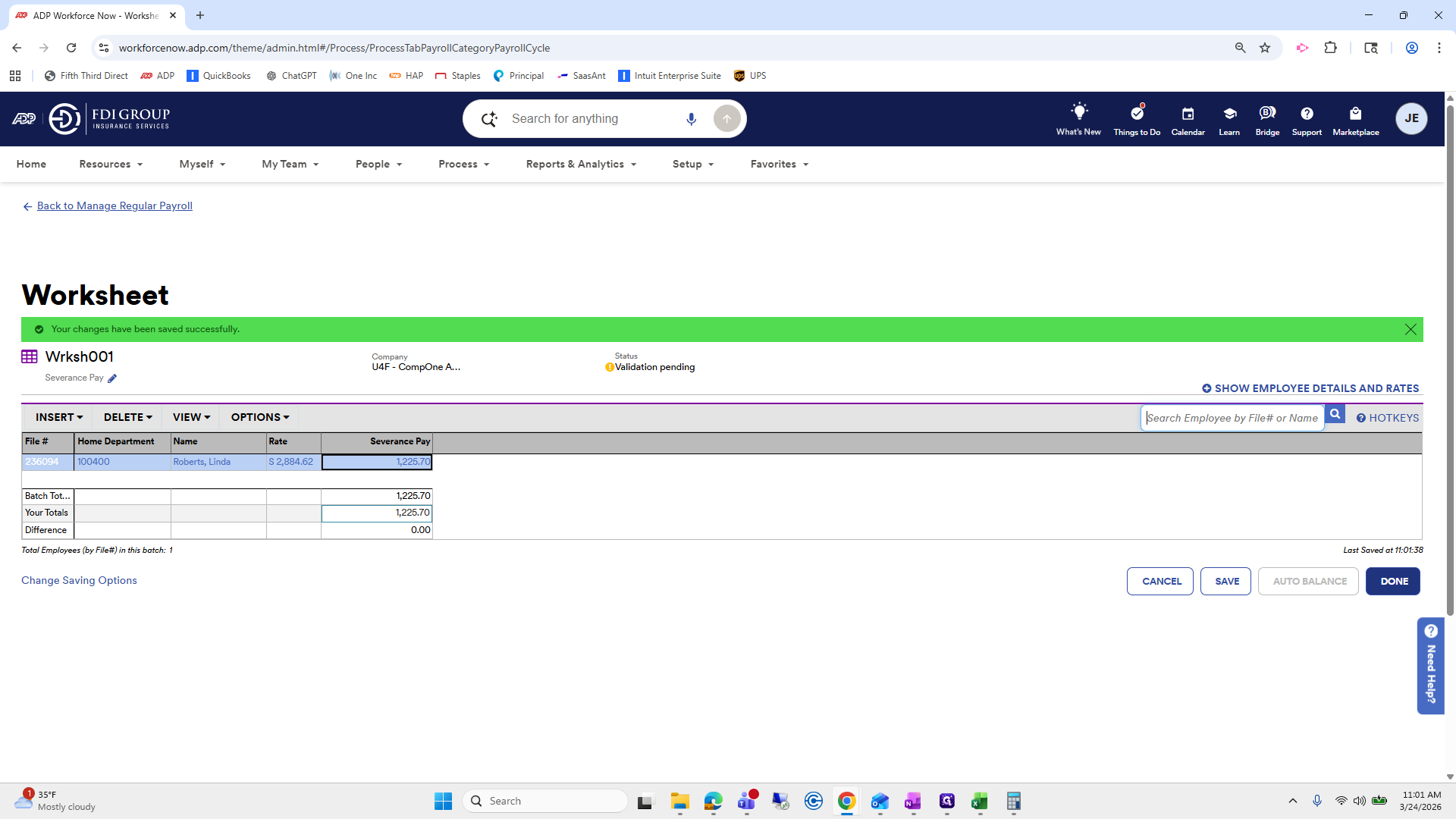
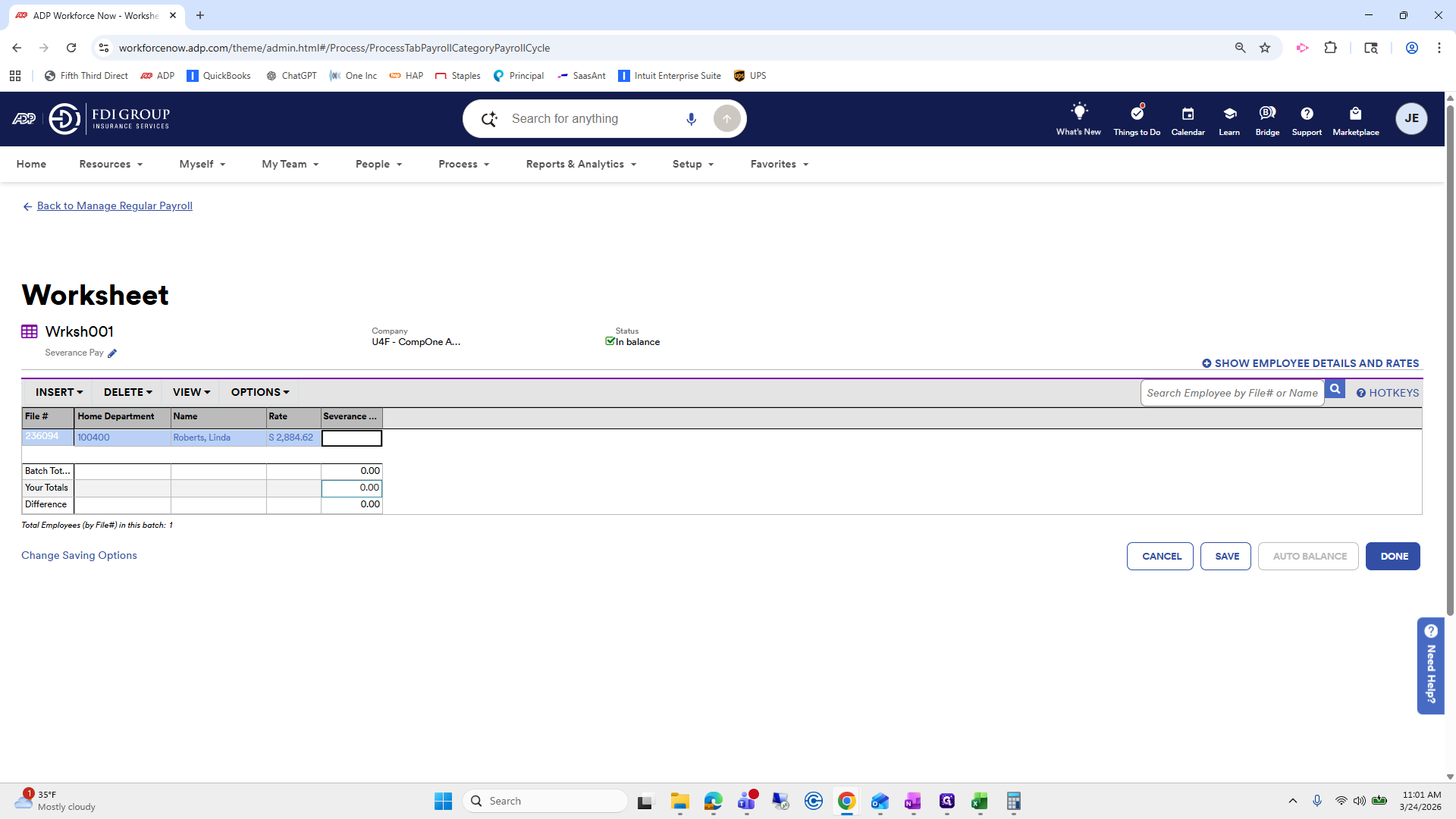
From here, you can see her severance pay amount. You would just...
24
Drag "..."
Step #24: Drag "..."
25
Click here
Step #25: Click here
26
Type "Ctrl + V"

Oops.

27
Type "Ctrl + A"

Enter her amount: 1,225.70.

28
Type "1225.7"
29
Click here
Step #29: Click here
30
Click here
Step #30: Click here

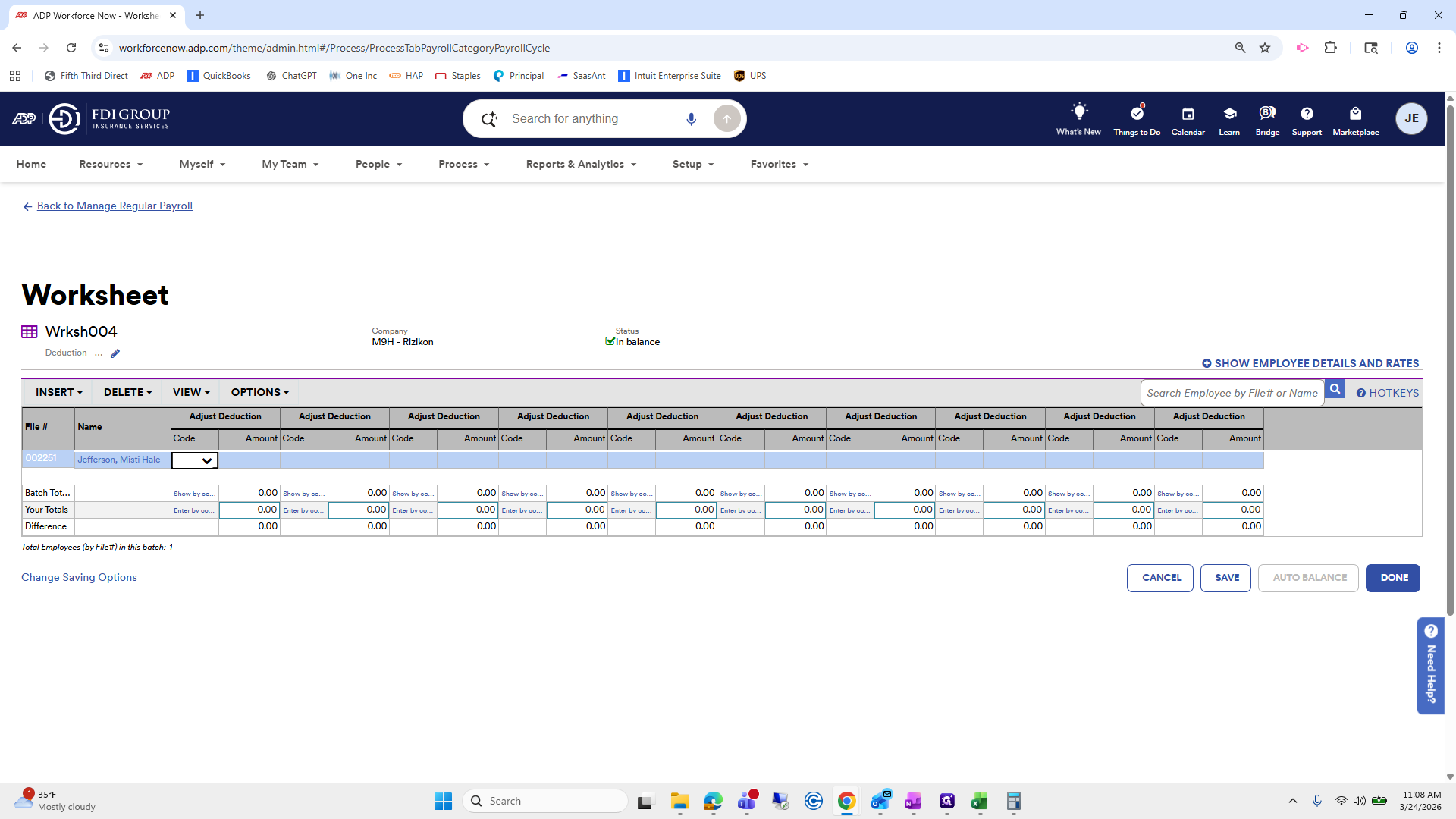
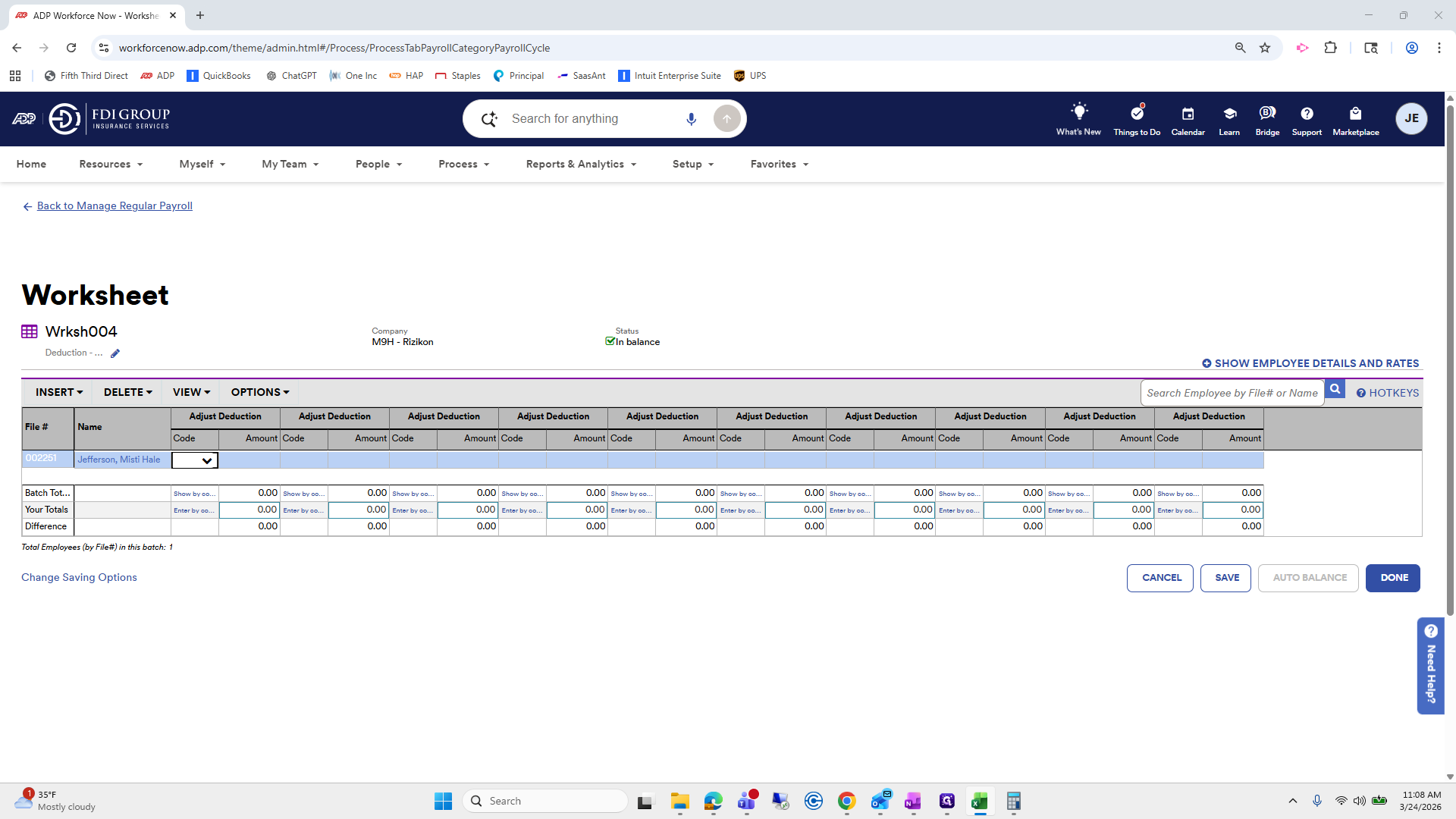
I'll double-check.

31
Click here
Step #31: Click here

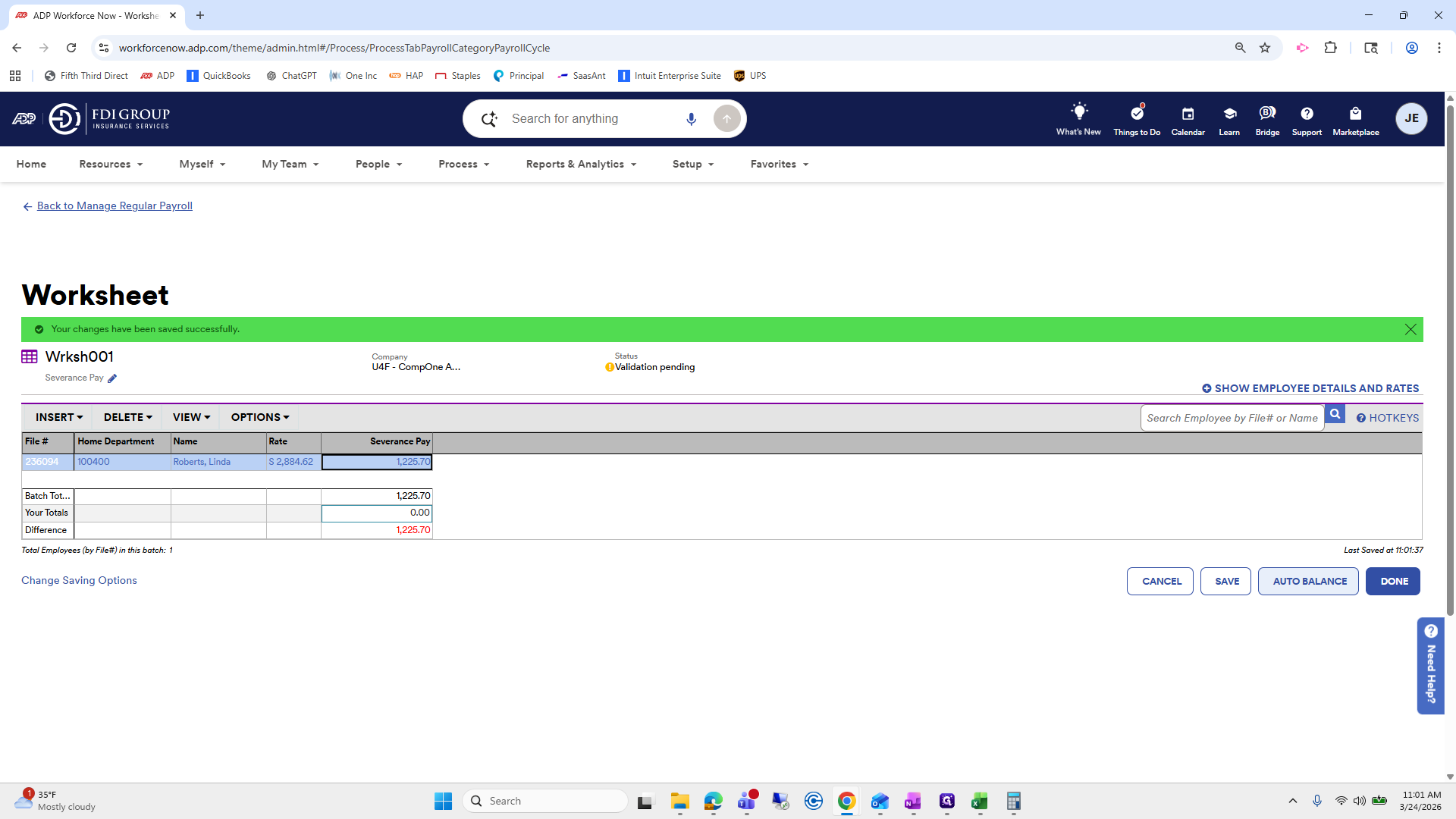
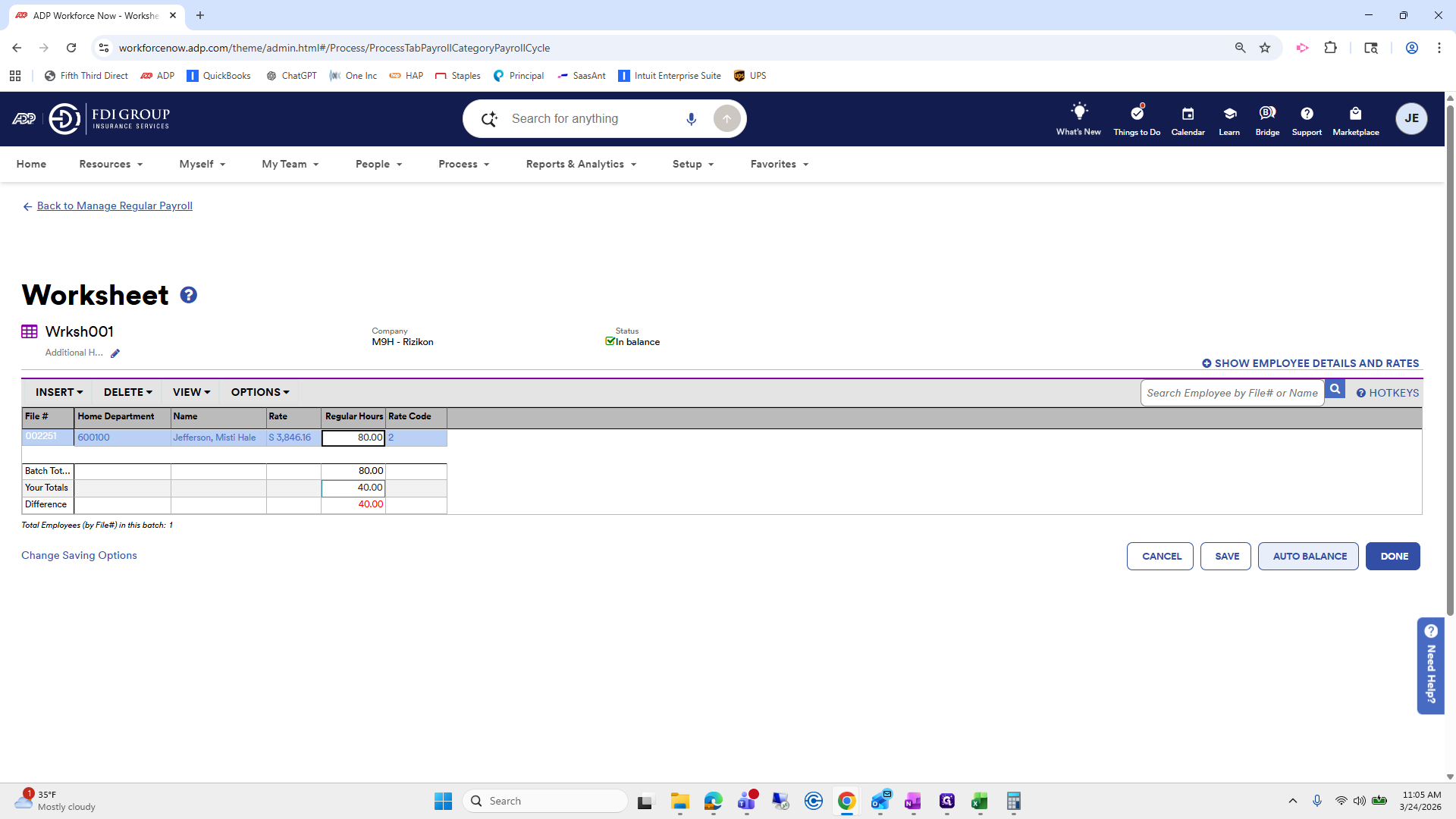
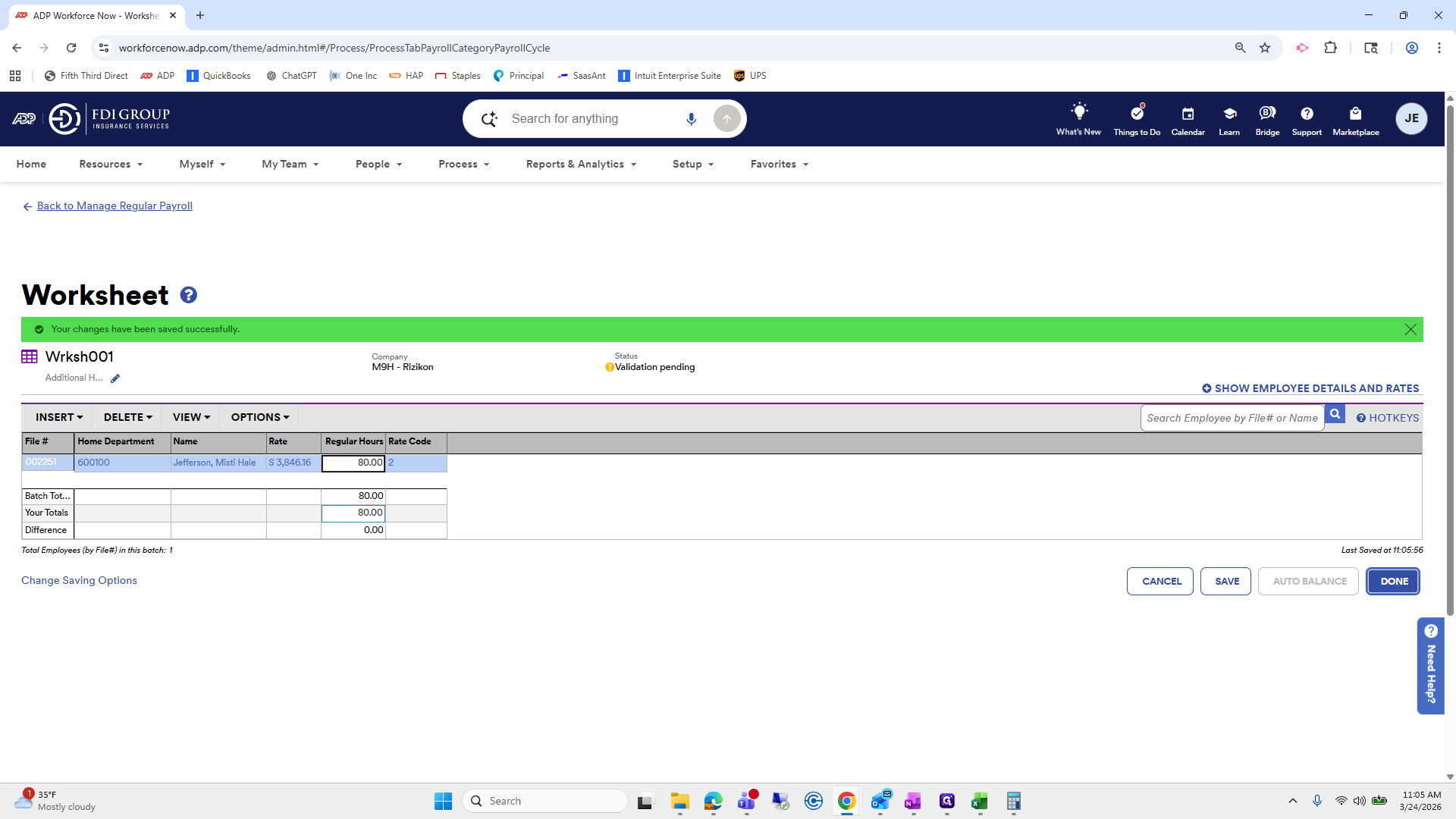
Click Save, then Auto Balance. This sets it to balance, so there is no difference.
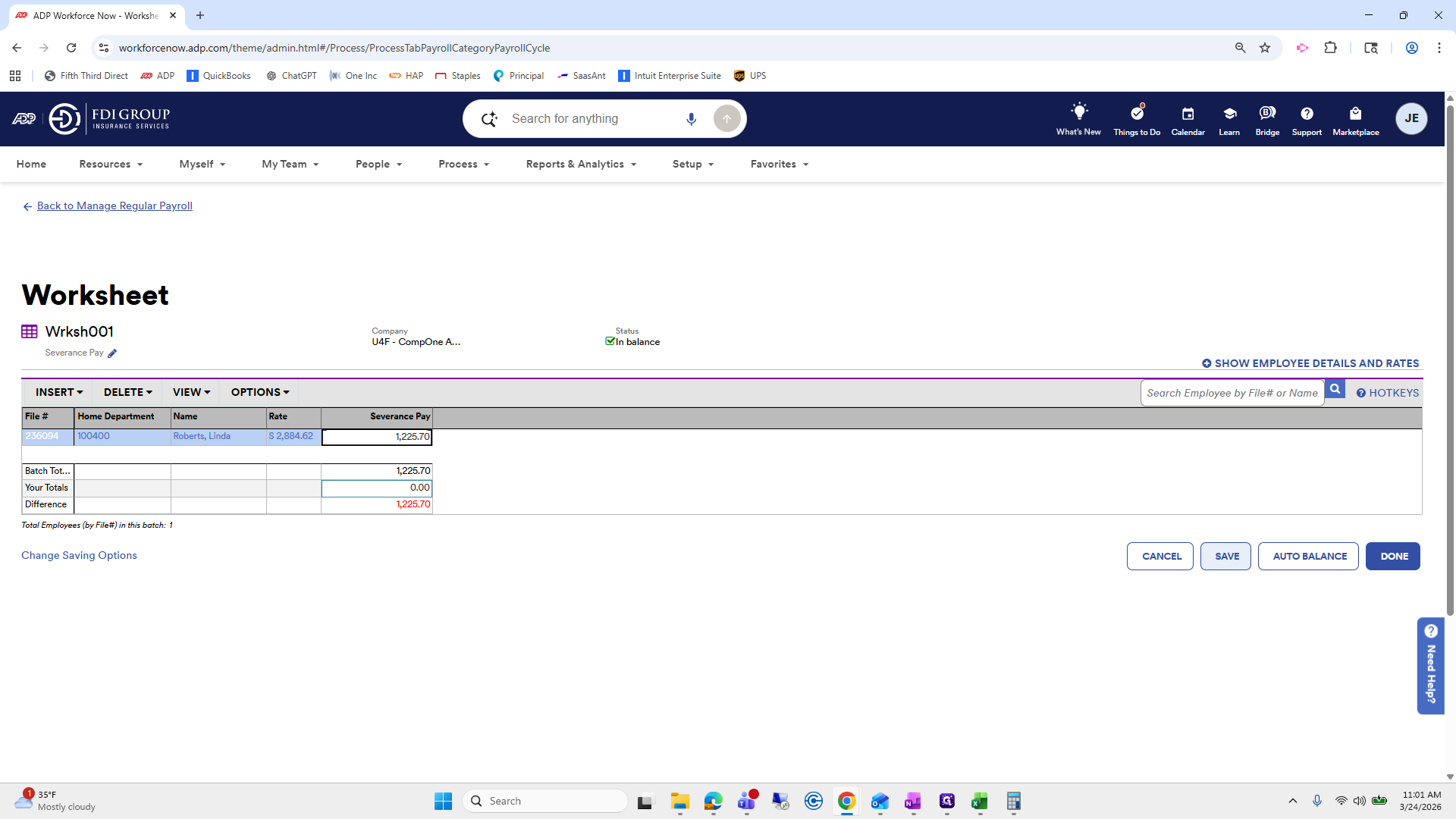
32
Click on "SAVE"
Step #32: Click on "SAVE"
33
Click on "AUTO BALANCE"
Step #33: Click on "AUTO BALANCE"
34
Click on "DONE"
Step #34: Click on "DONE"

Click Done. Okay. You can see that our severance pay is available. We will go back.
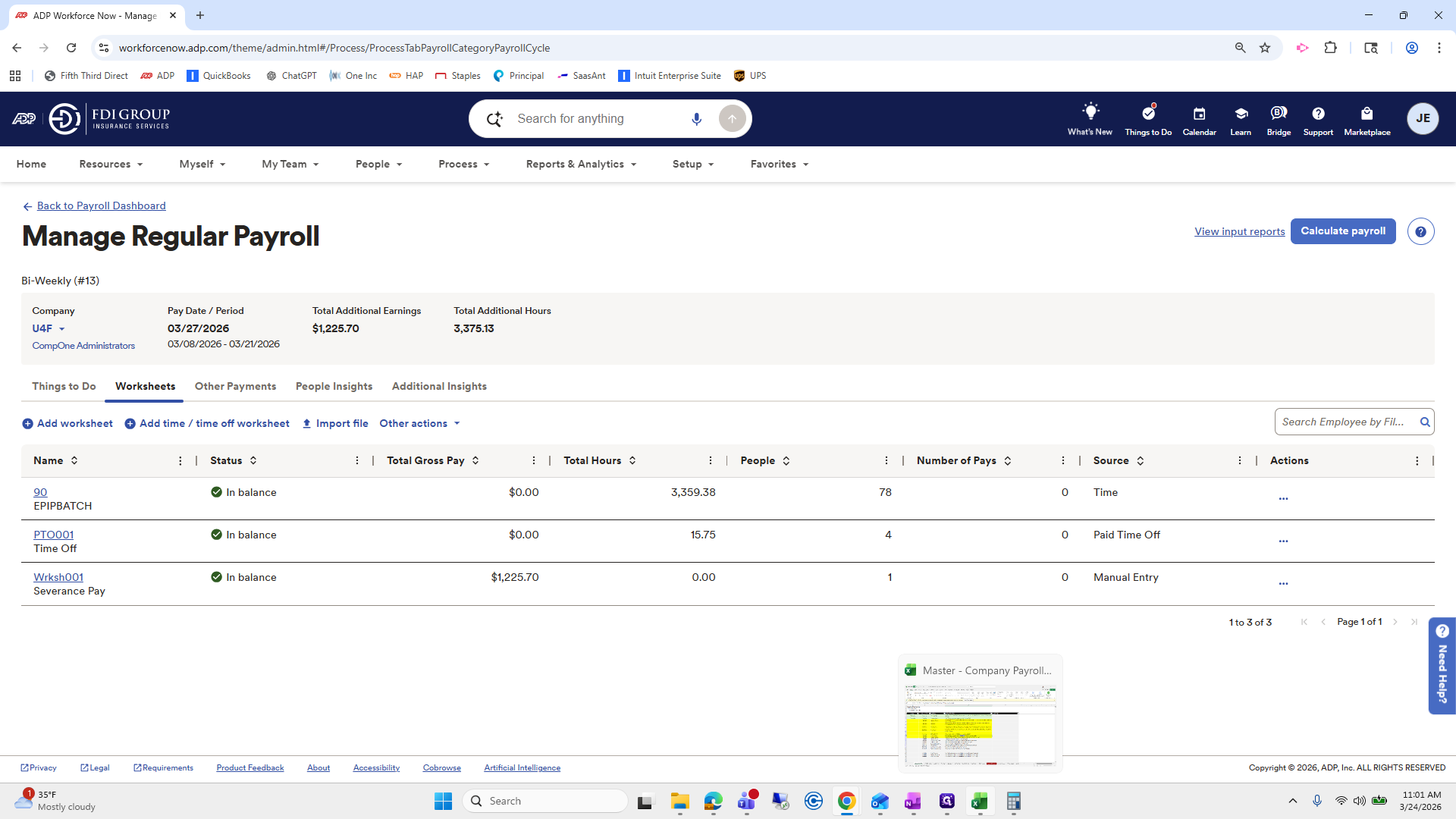
35
Click here
Step #35: Click here

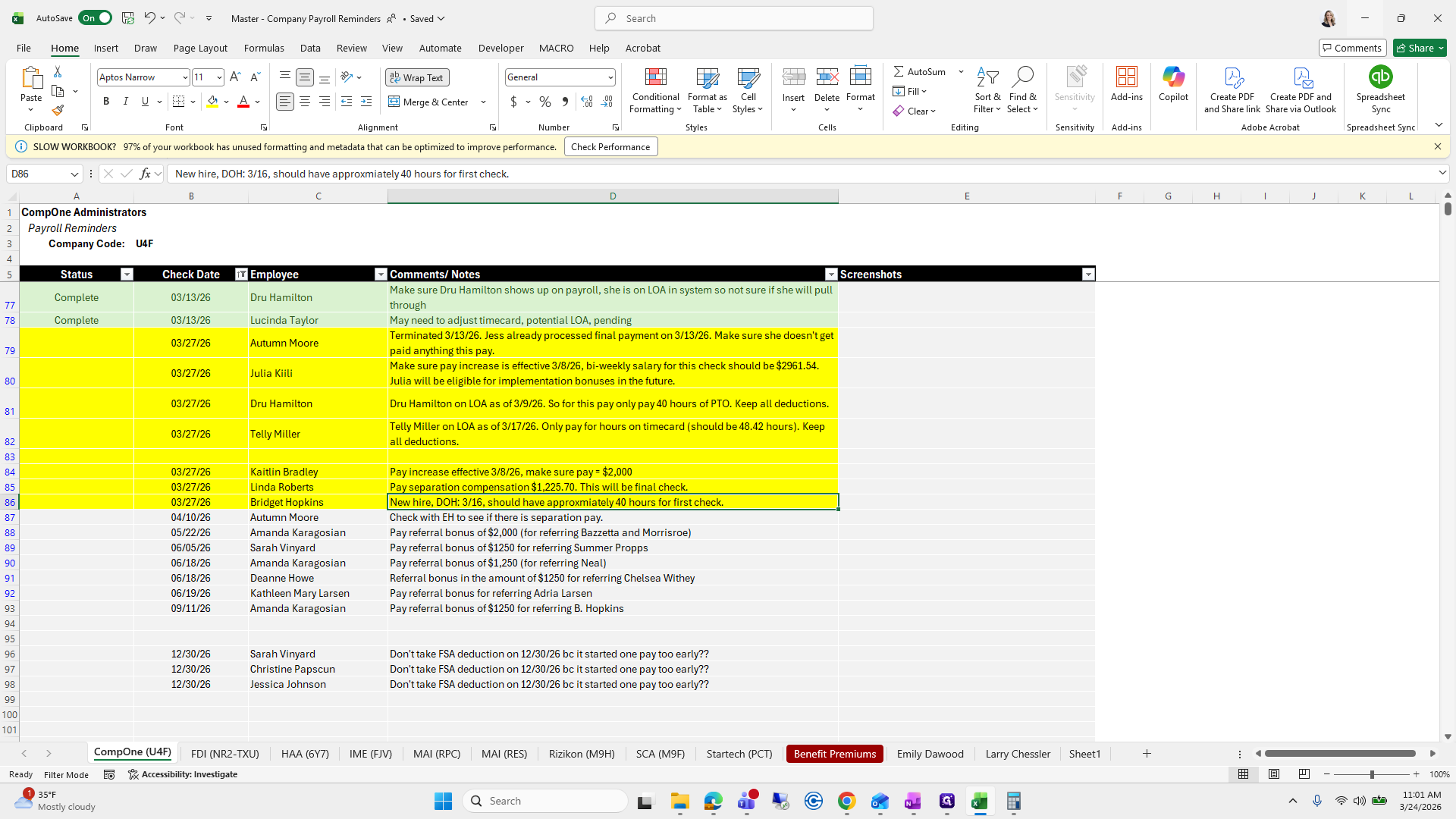
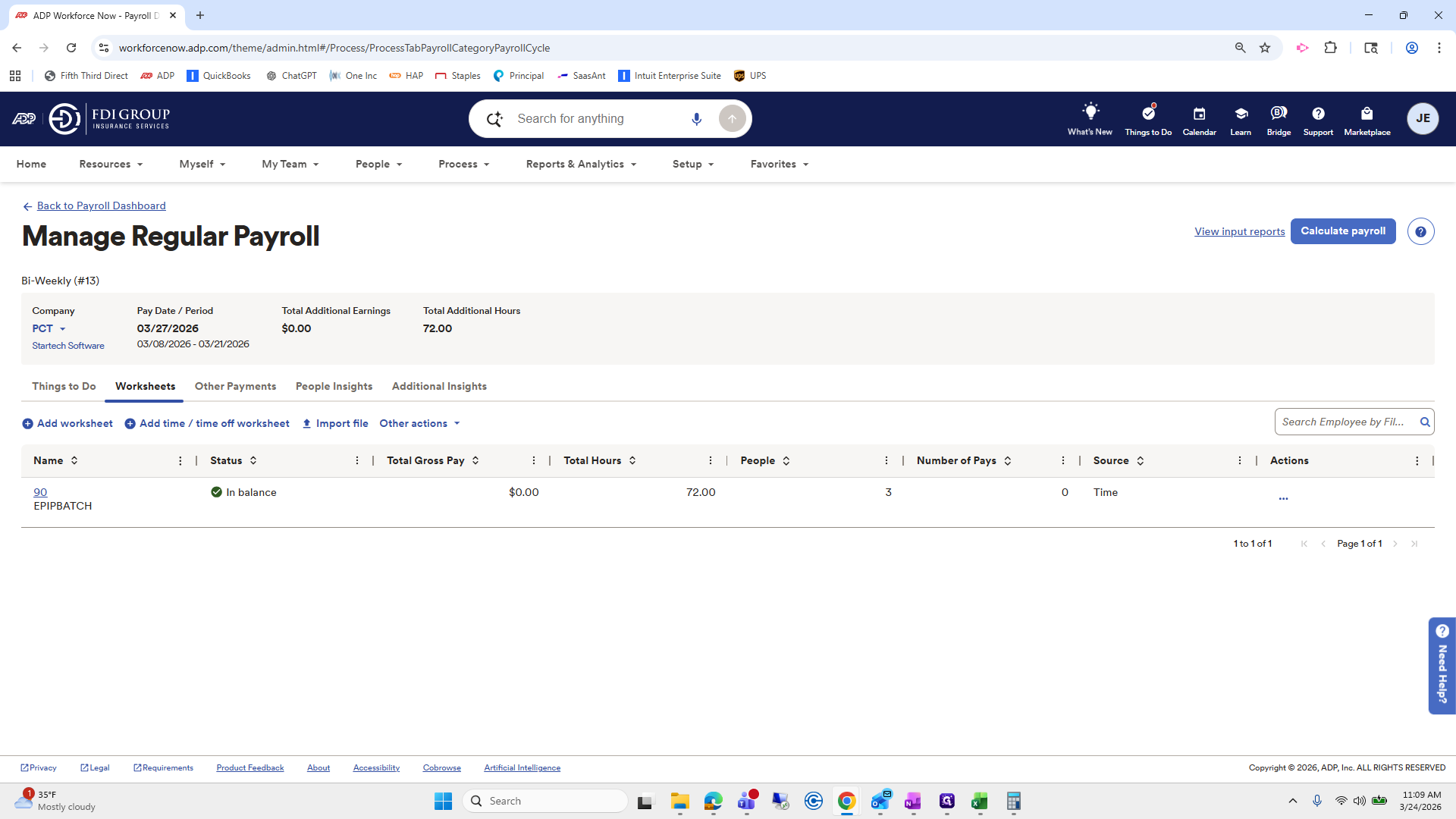
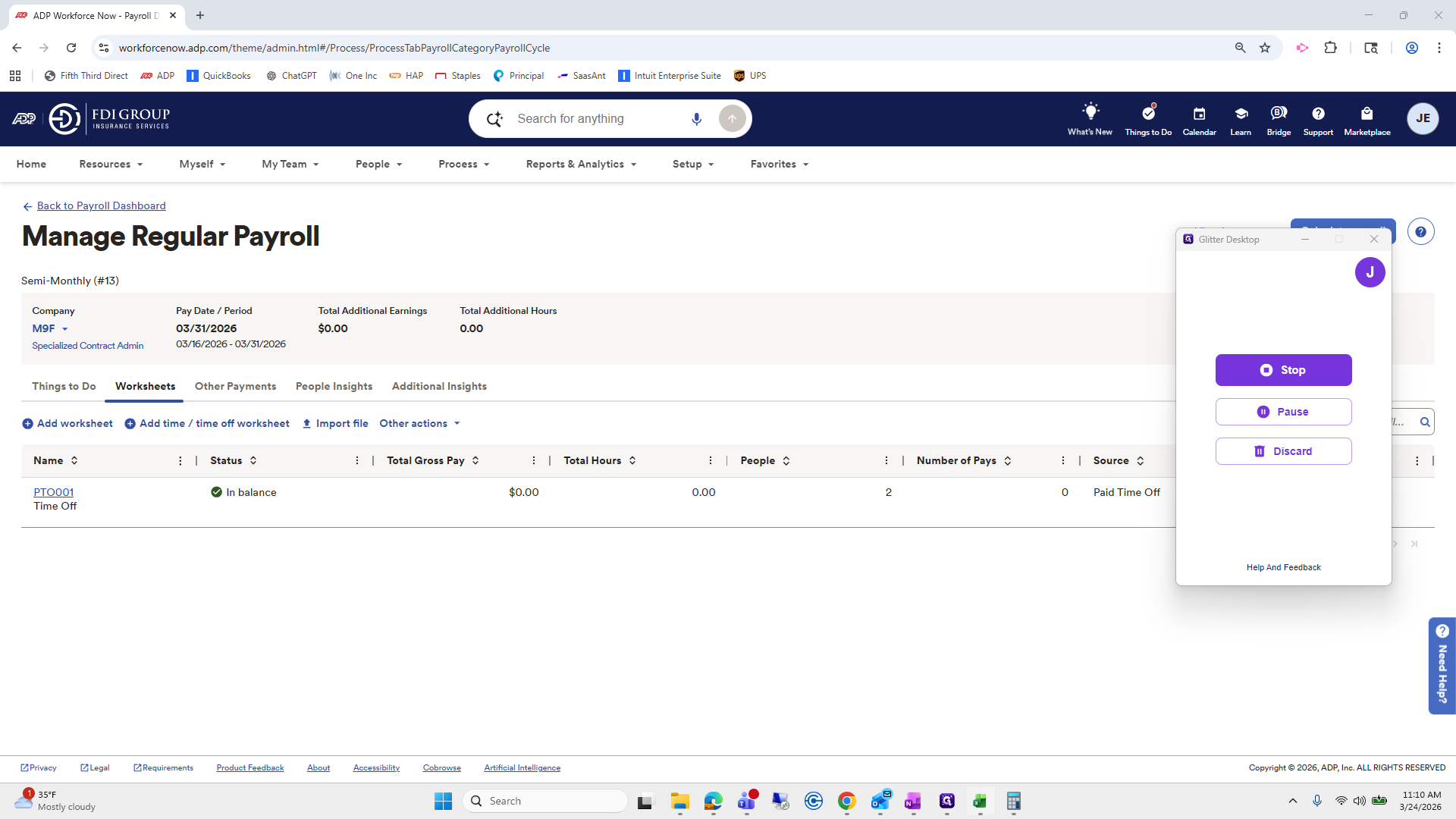
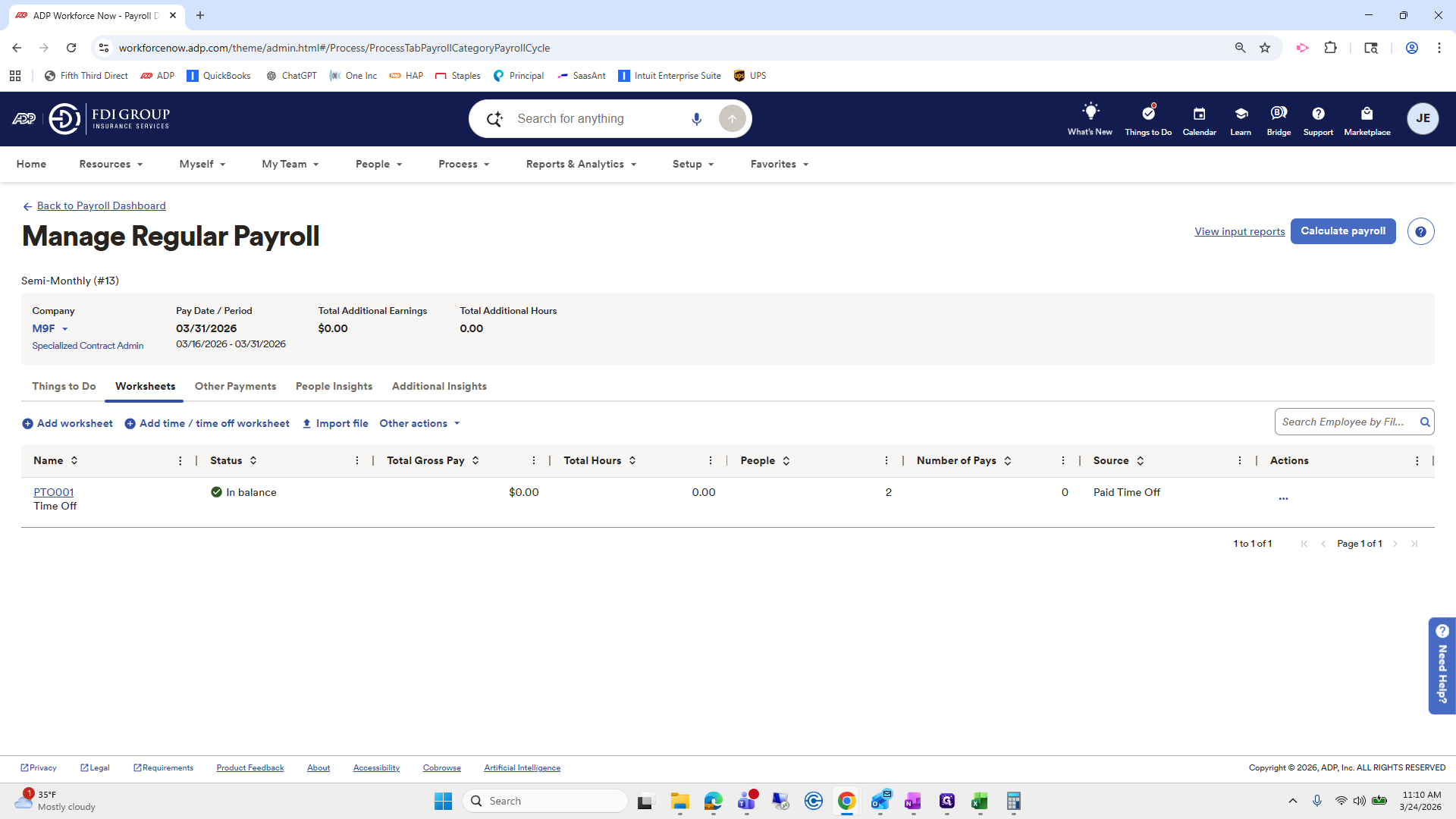
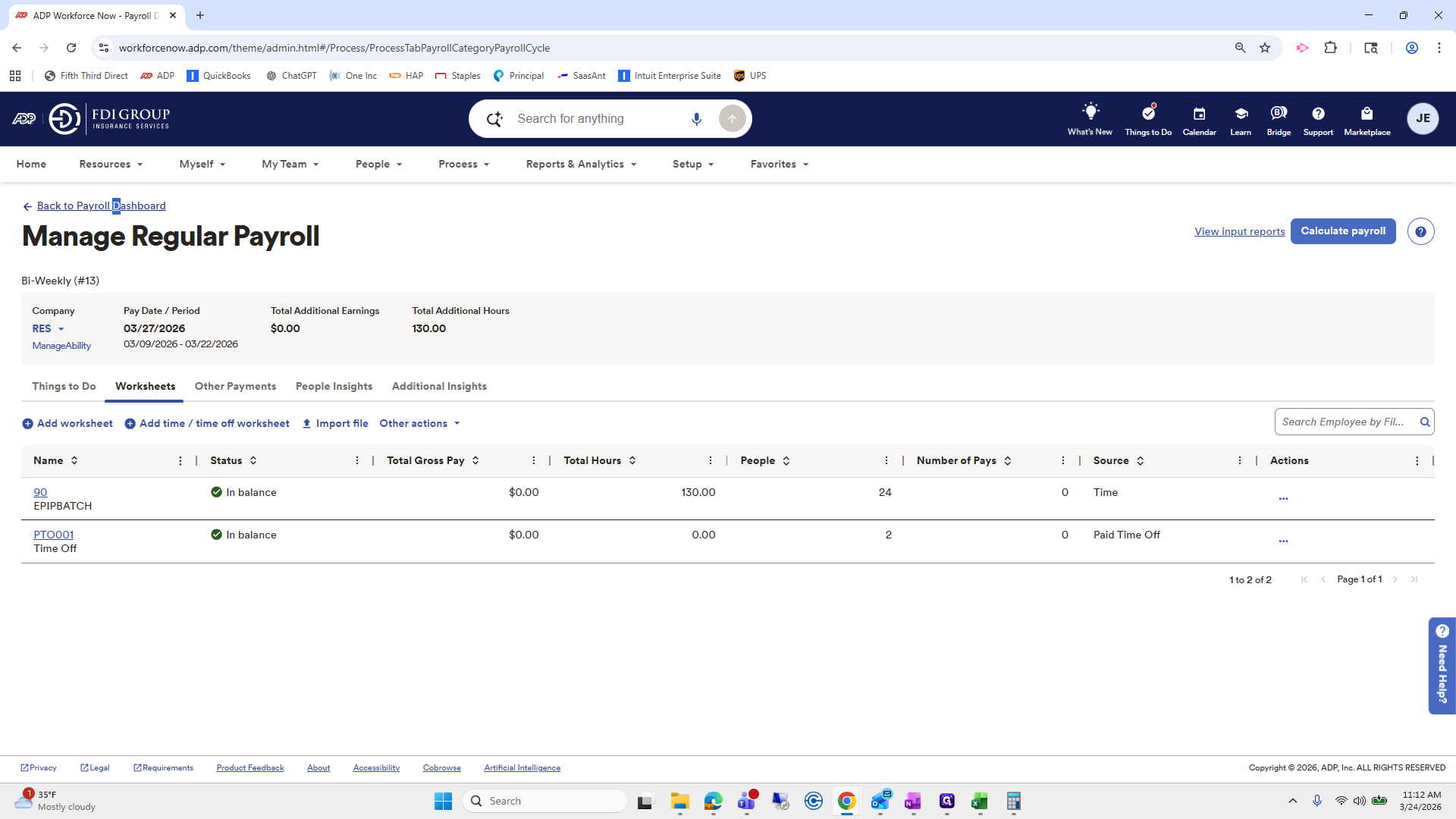
New hire Bridget's date of hire is 3/16. She should have about 40 hours for her first paycheck.
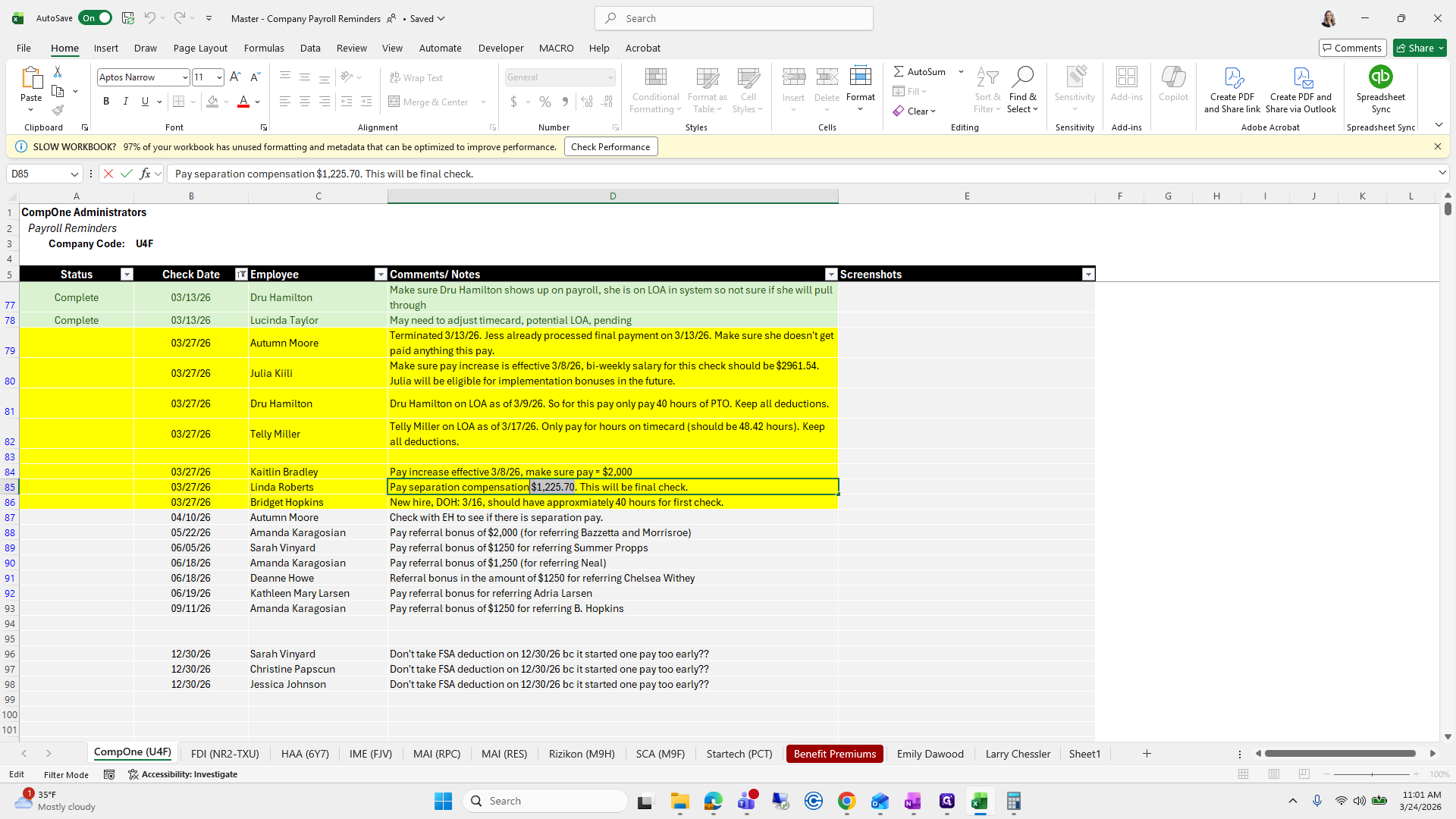
36
Click on "Only pay for hours on timecard"
Step #36: Click on "Only pay for hours on timecard"
37
Click on "Check with EH to see if there is separation pay ."
Step #37: Click on "Check with EH to see if there is separation pay ."
38
Click here
Step #38: Click here

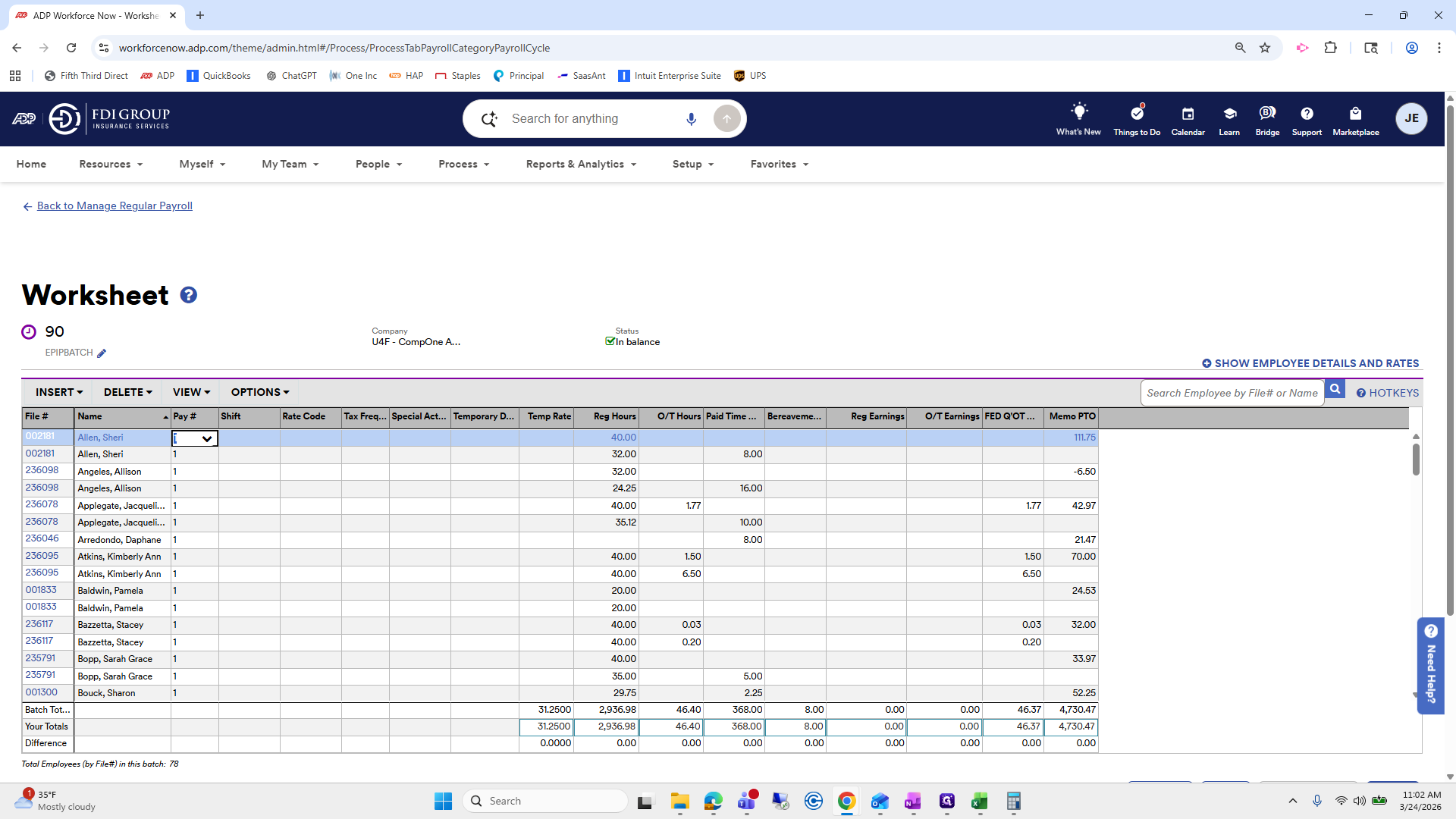
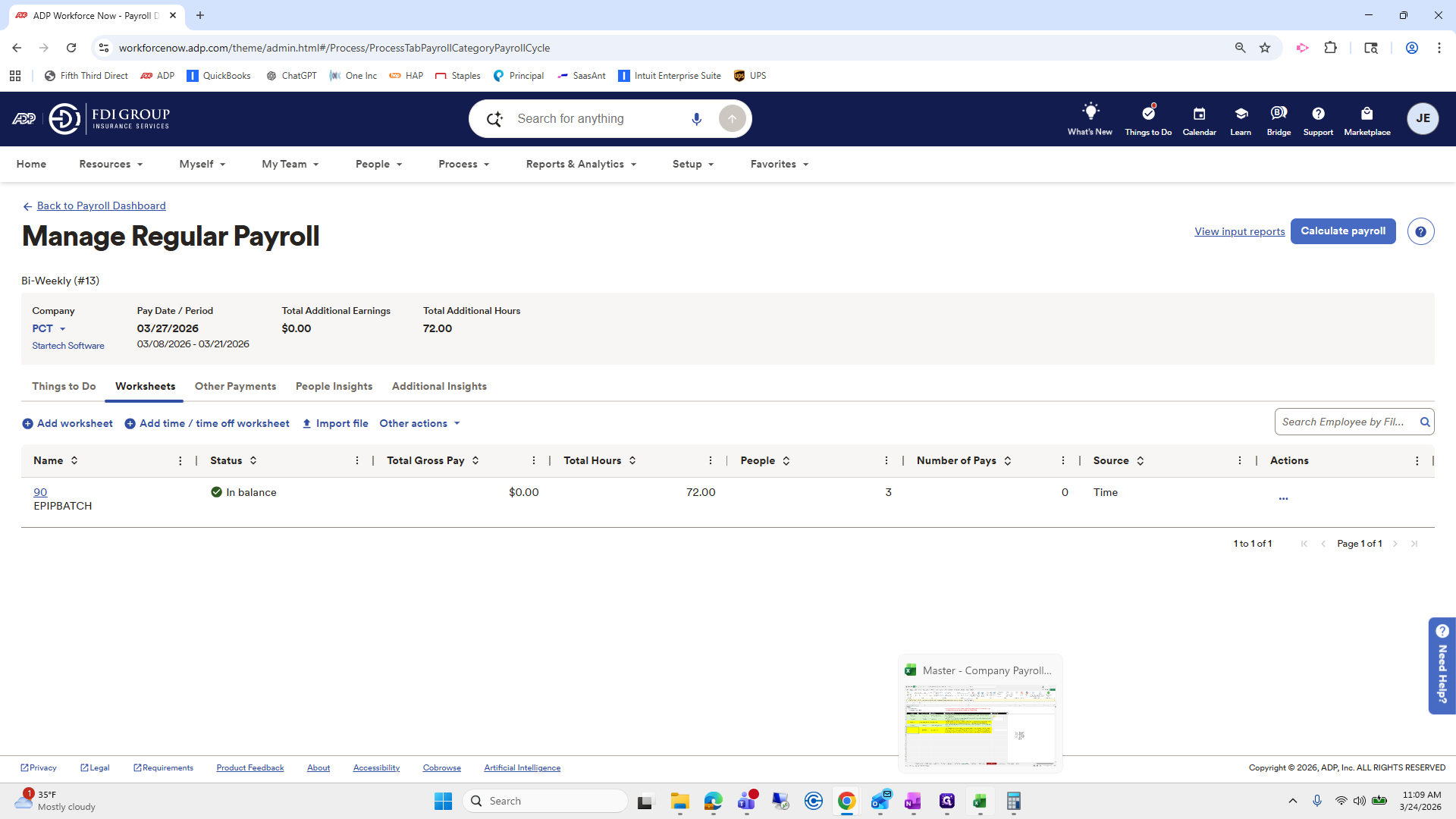
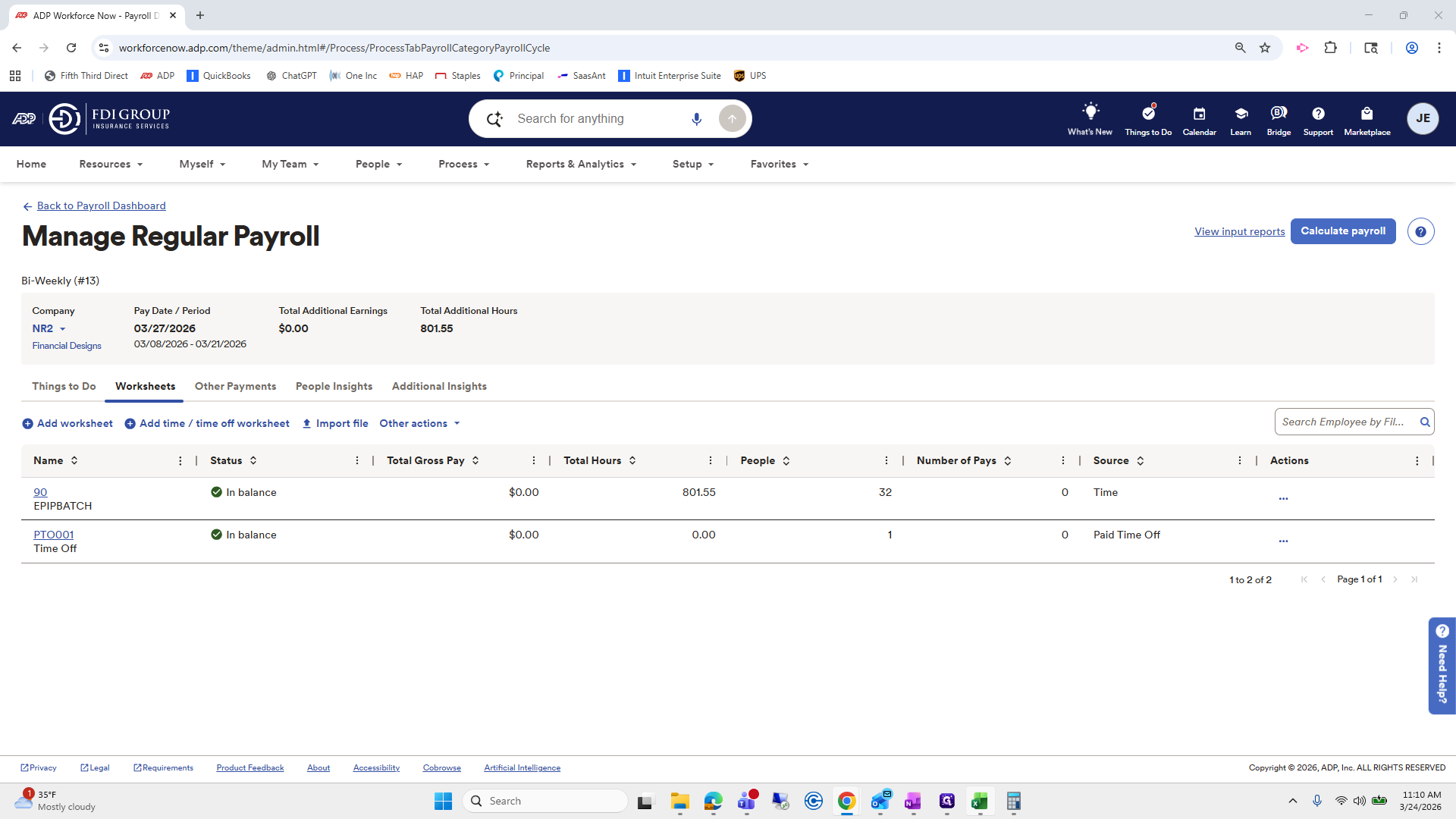
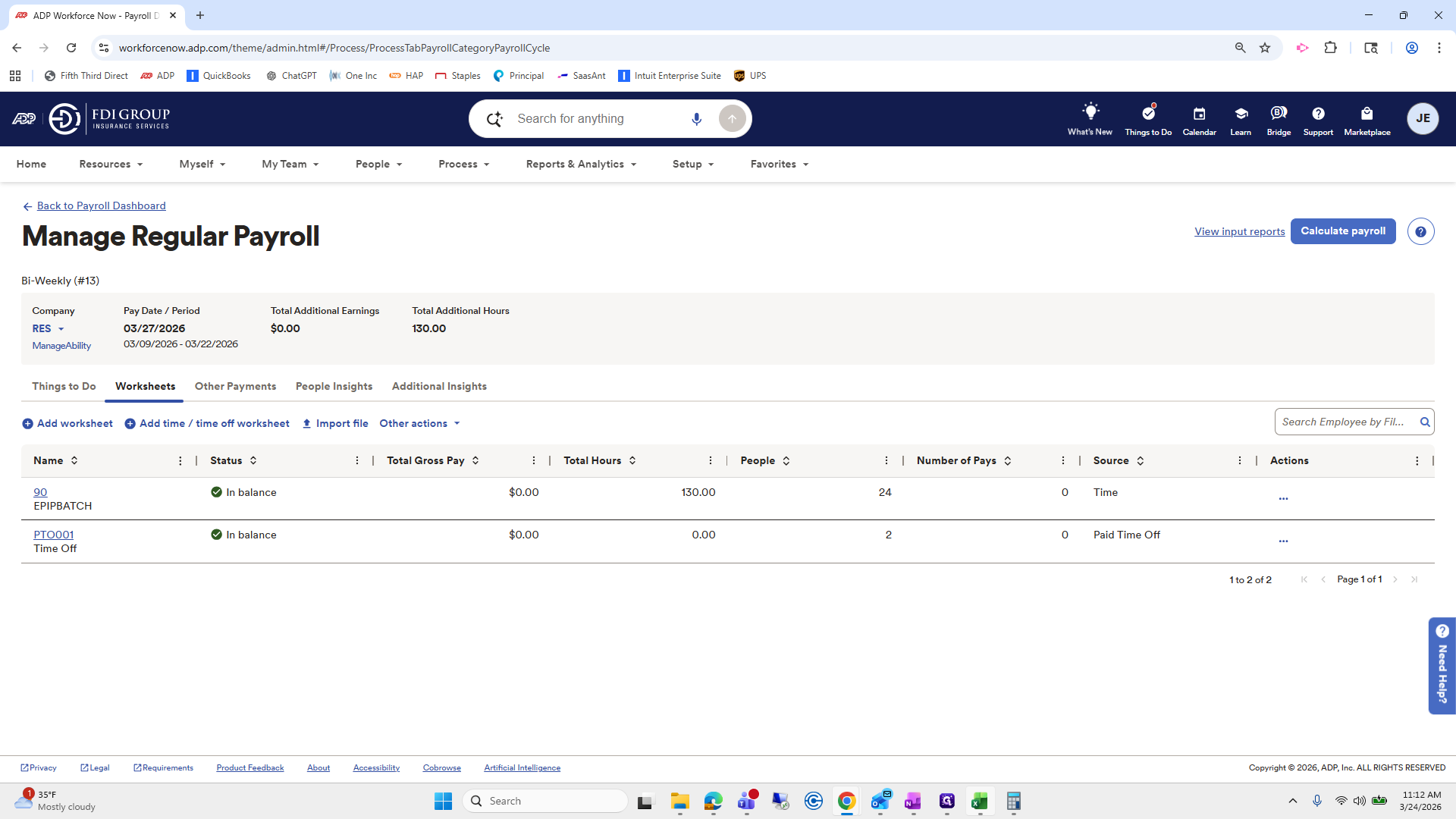
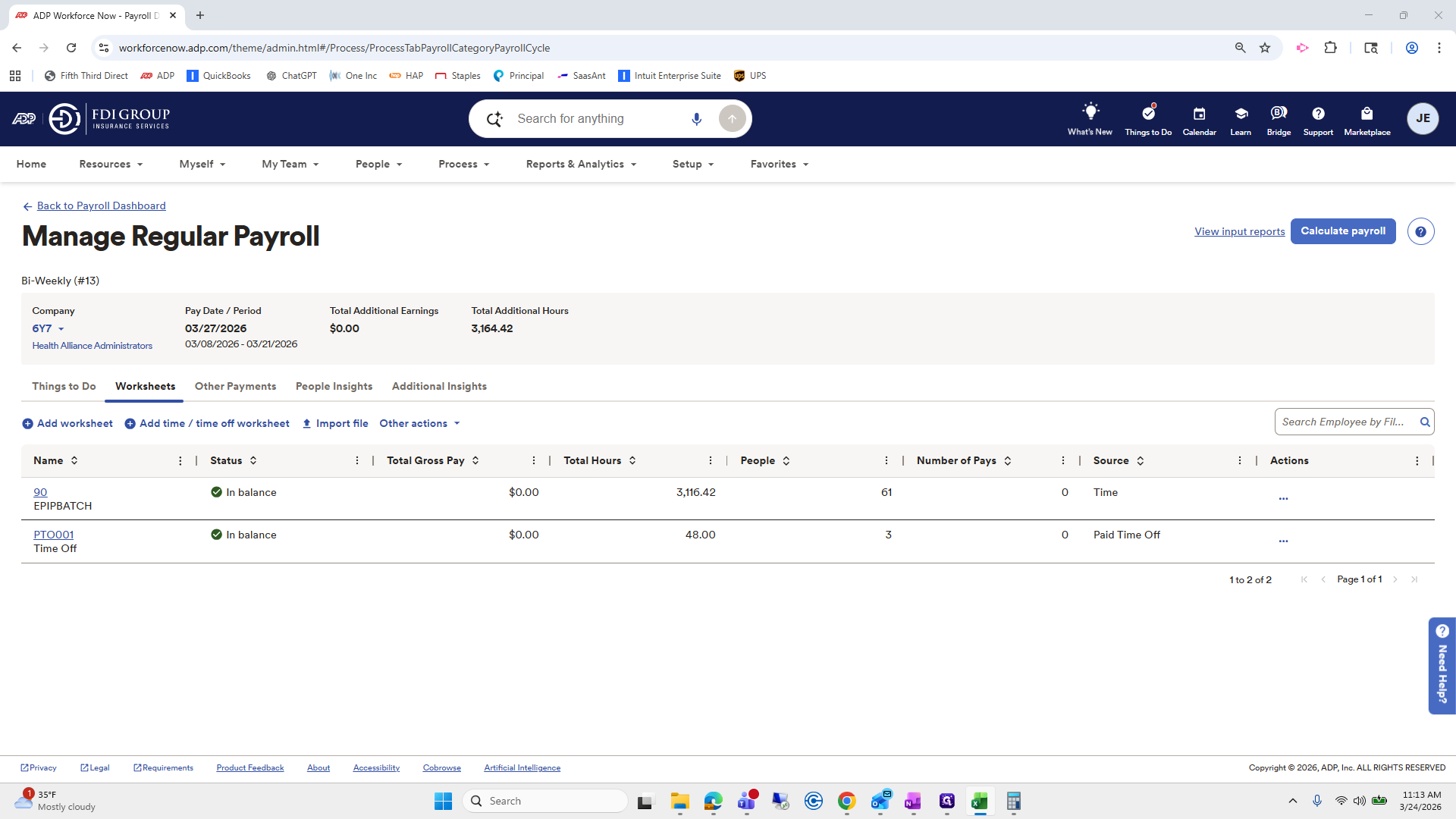
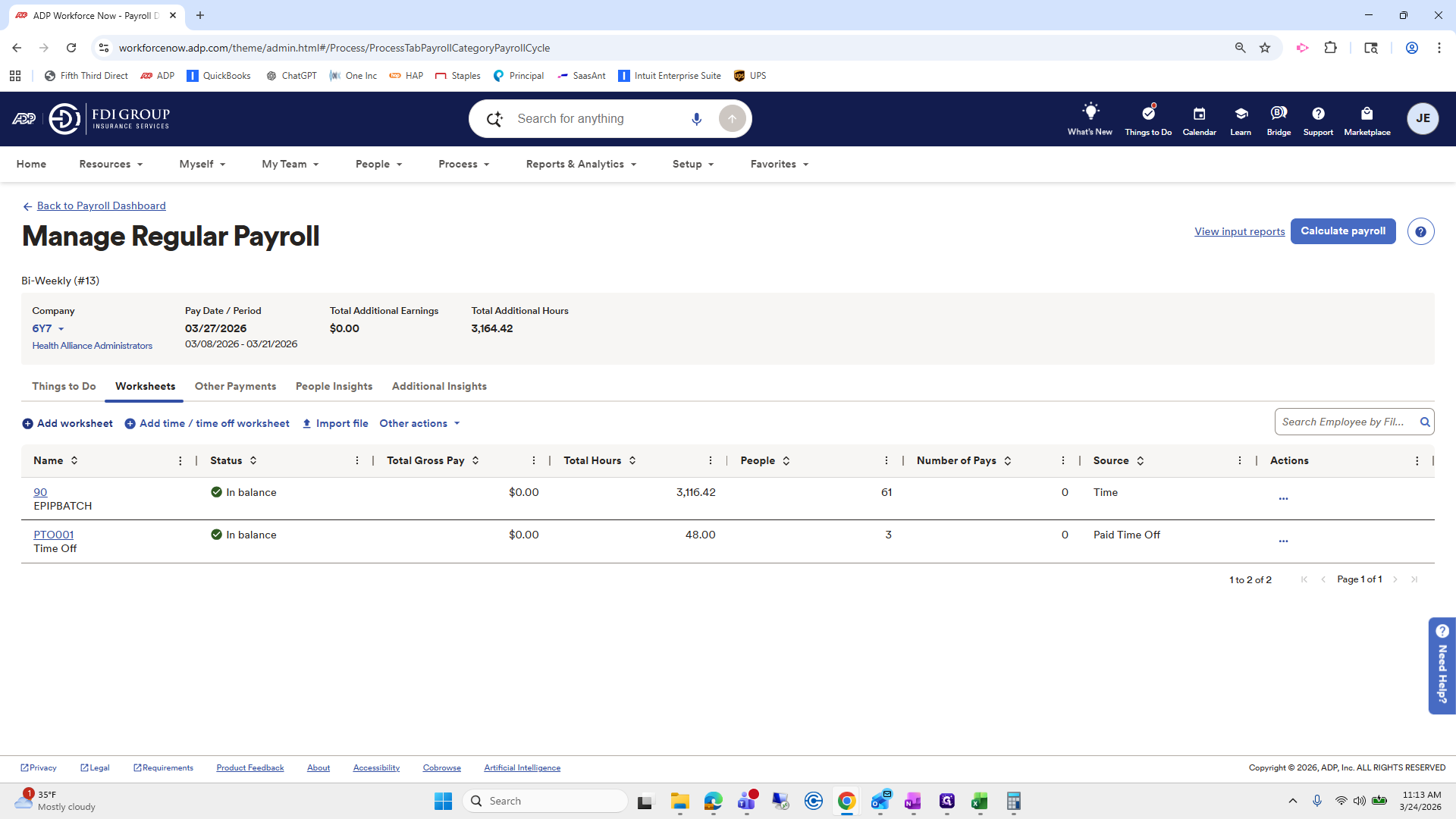
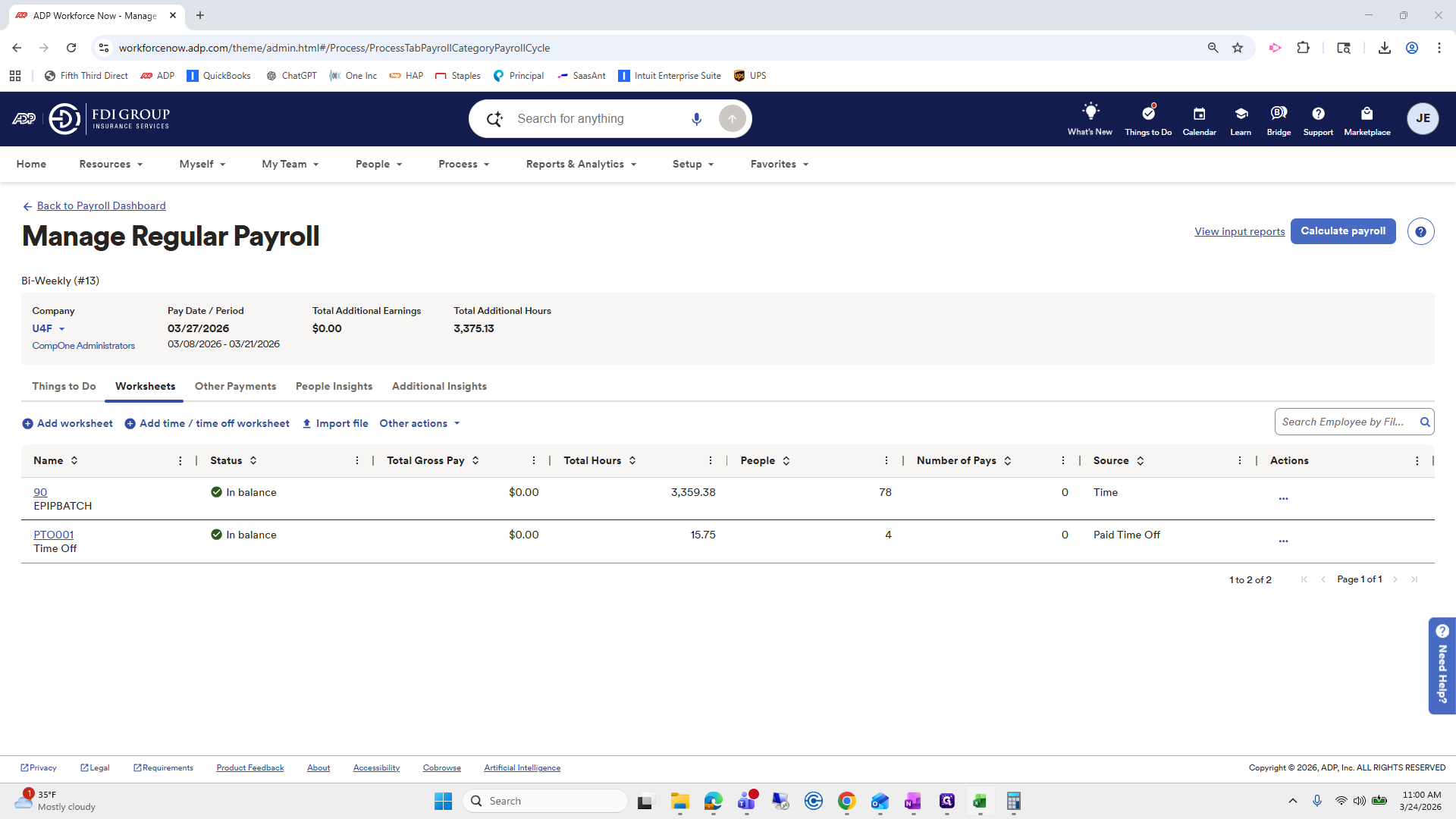
We're going to begin. My computer screen is going black again. We will go to the batch showing hours.
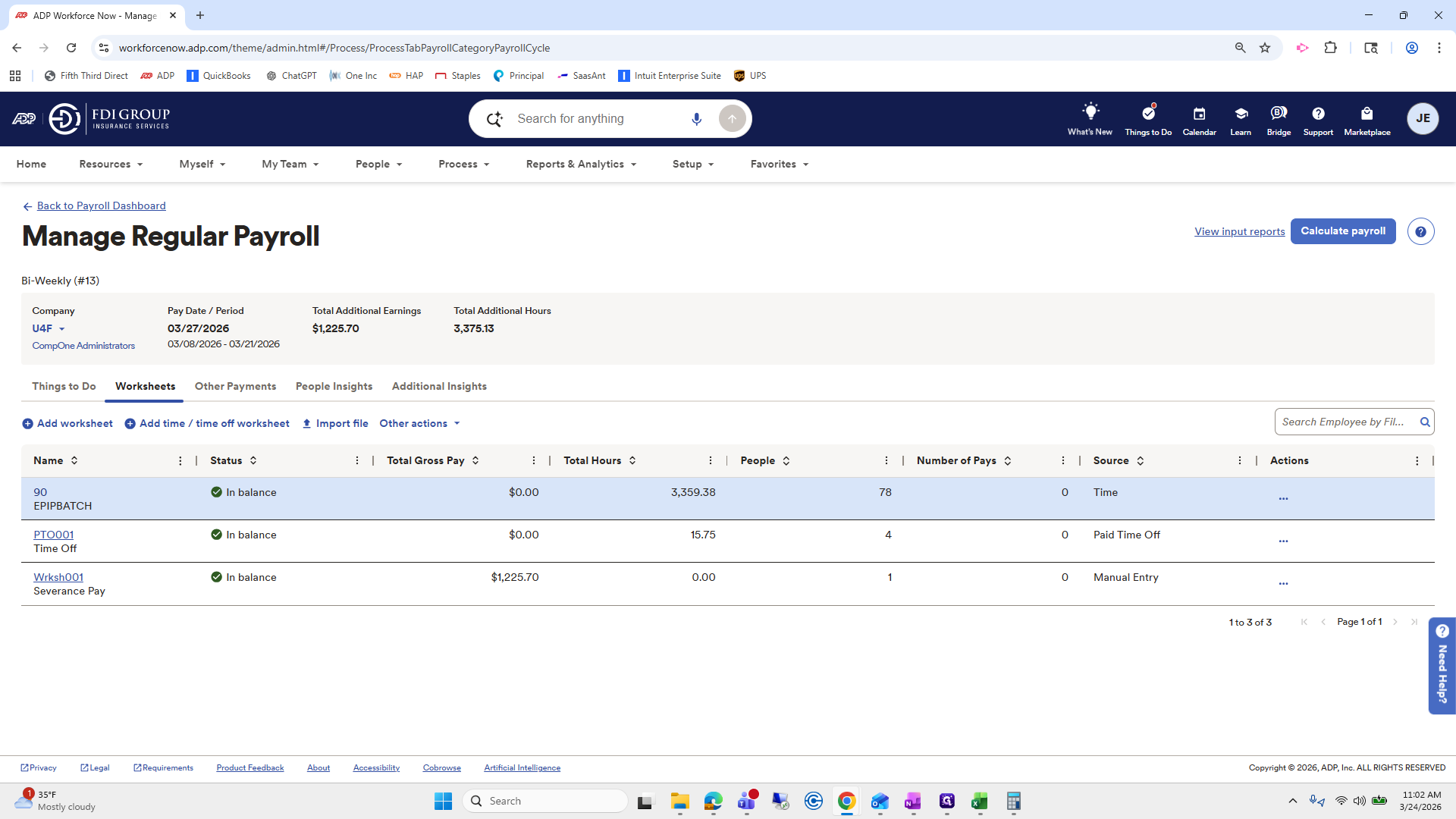
39
Click on "90"
Step #39: Click on "90"

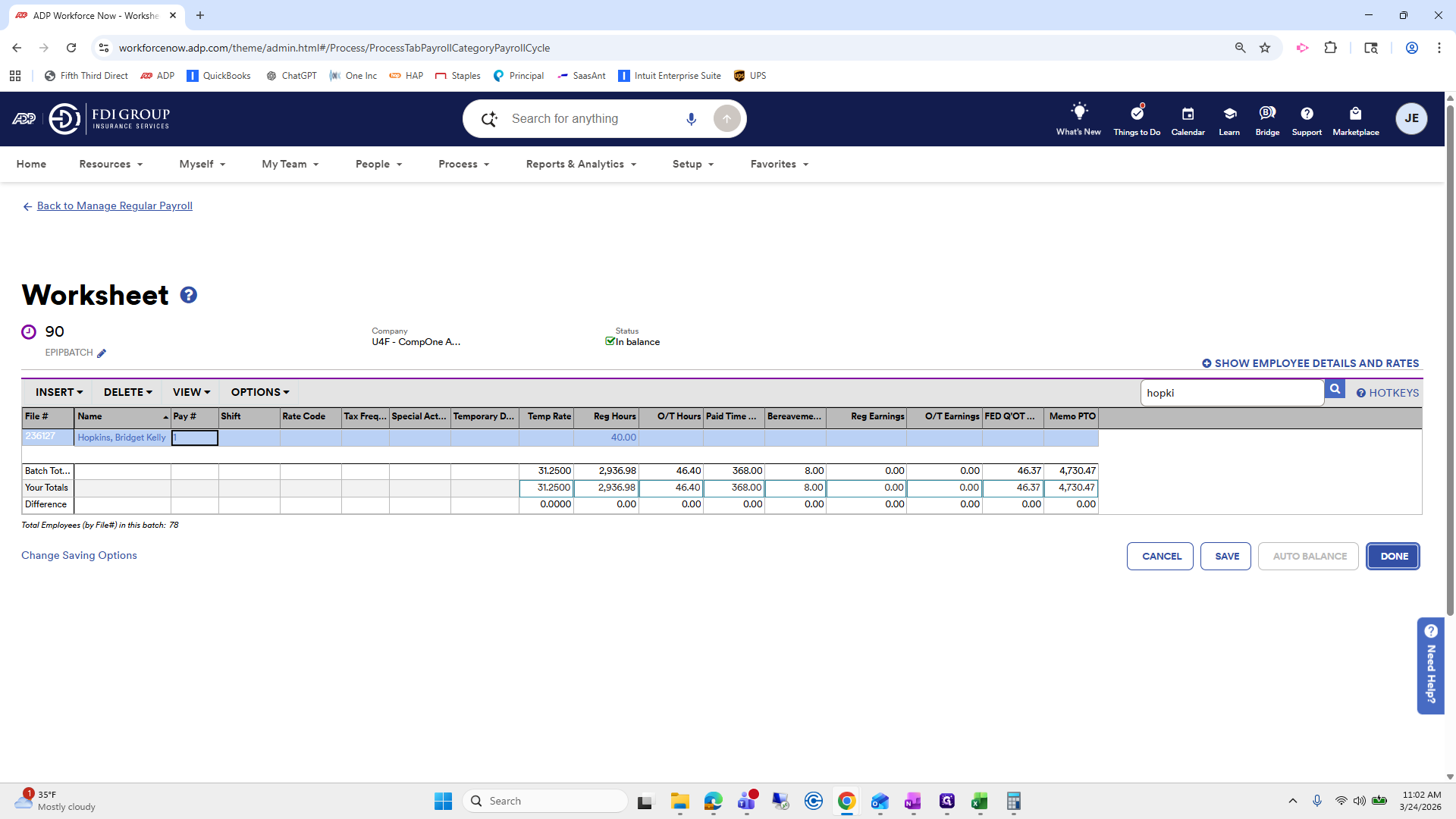
Her name was Bridget Hopkins.

40
Click here
Step #40: Click here
41
Click here
Step #41: Click here

She has approximately 40 hours.

42
Click on "Search Employee by File # or Name"
Step #42: Click on "Search Employee by File # or Name"

That looks great.

43
Type "hopki"
44
Click on "DONE"
Step #44: Click on "DONE"

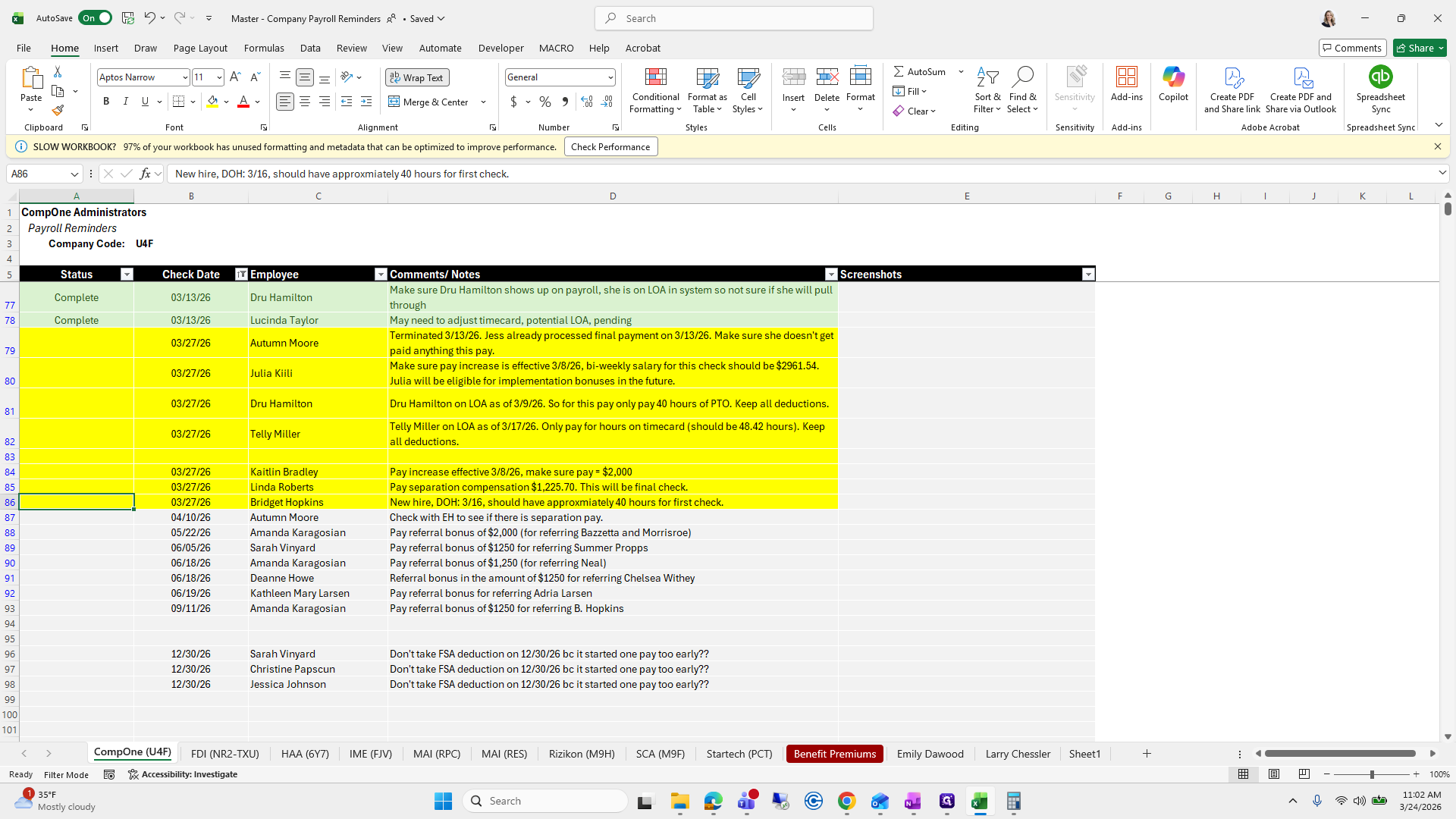
I will mark this one as completed because I know it is finished.
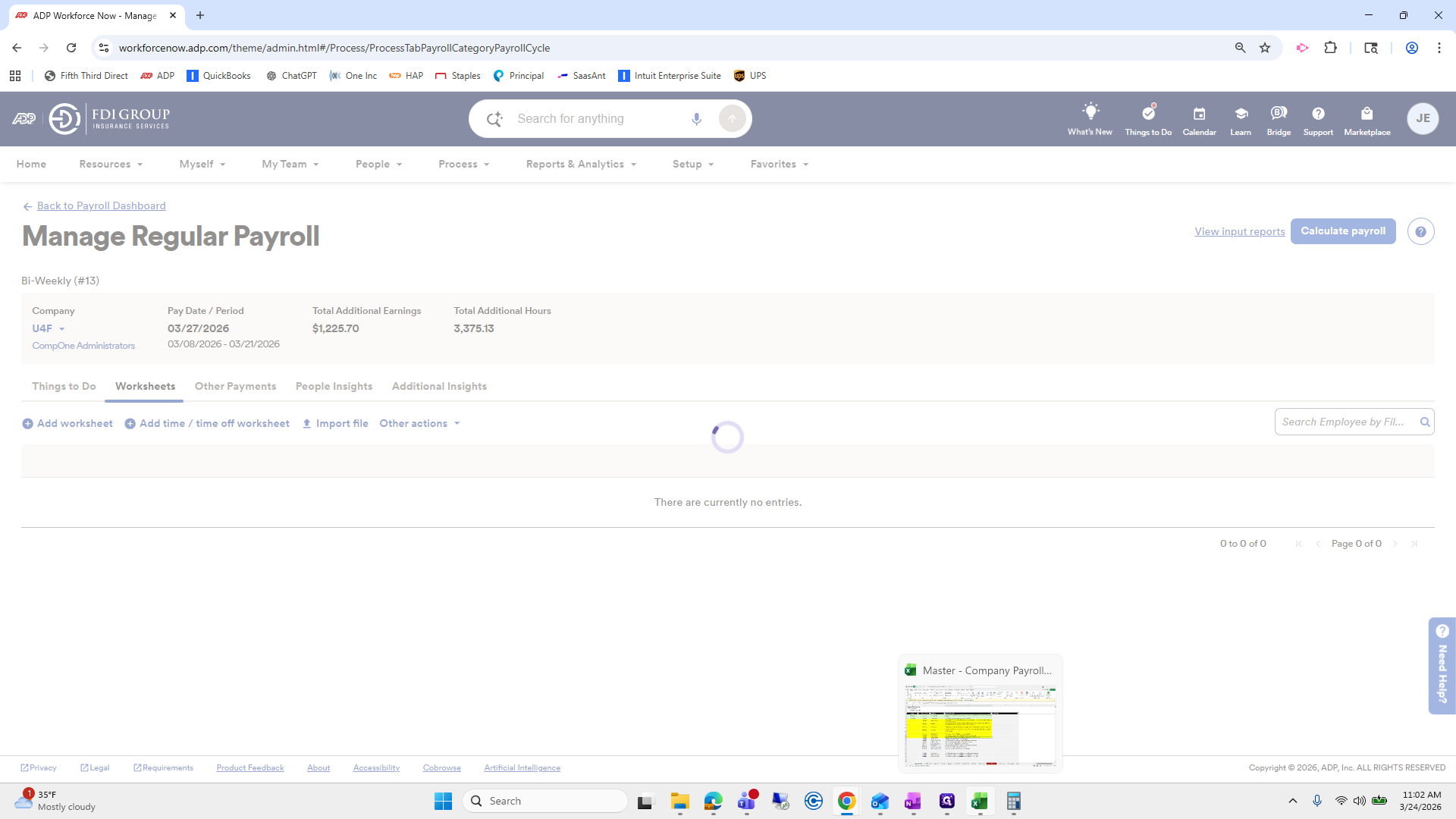
45
Click here
Step #45: Click here
46
Click here
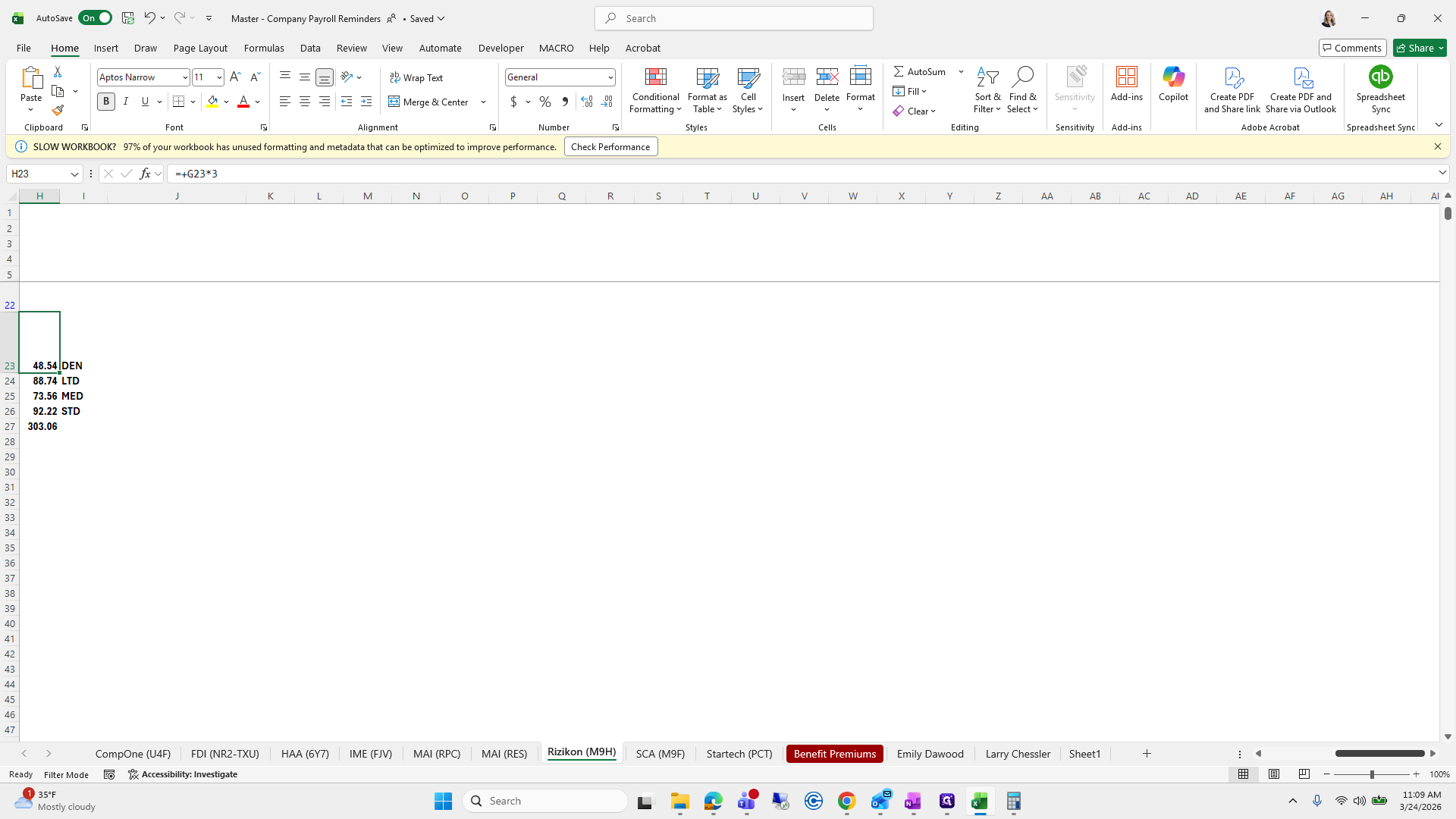
Step #46: Click here

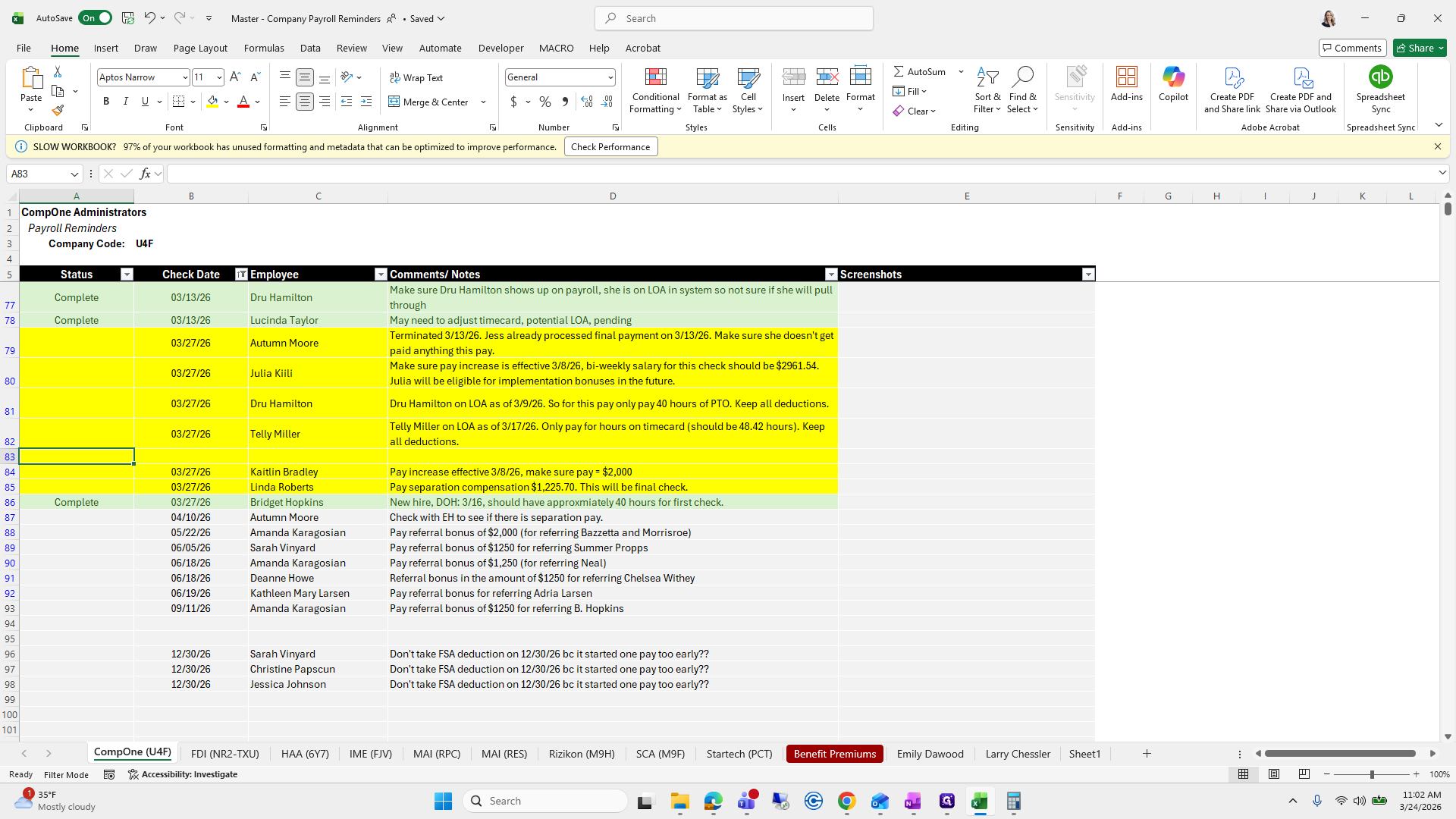
Once you mark it complete, it turns green, which is nice.

47
Type "Complete + Enter"

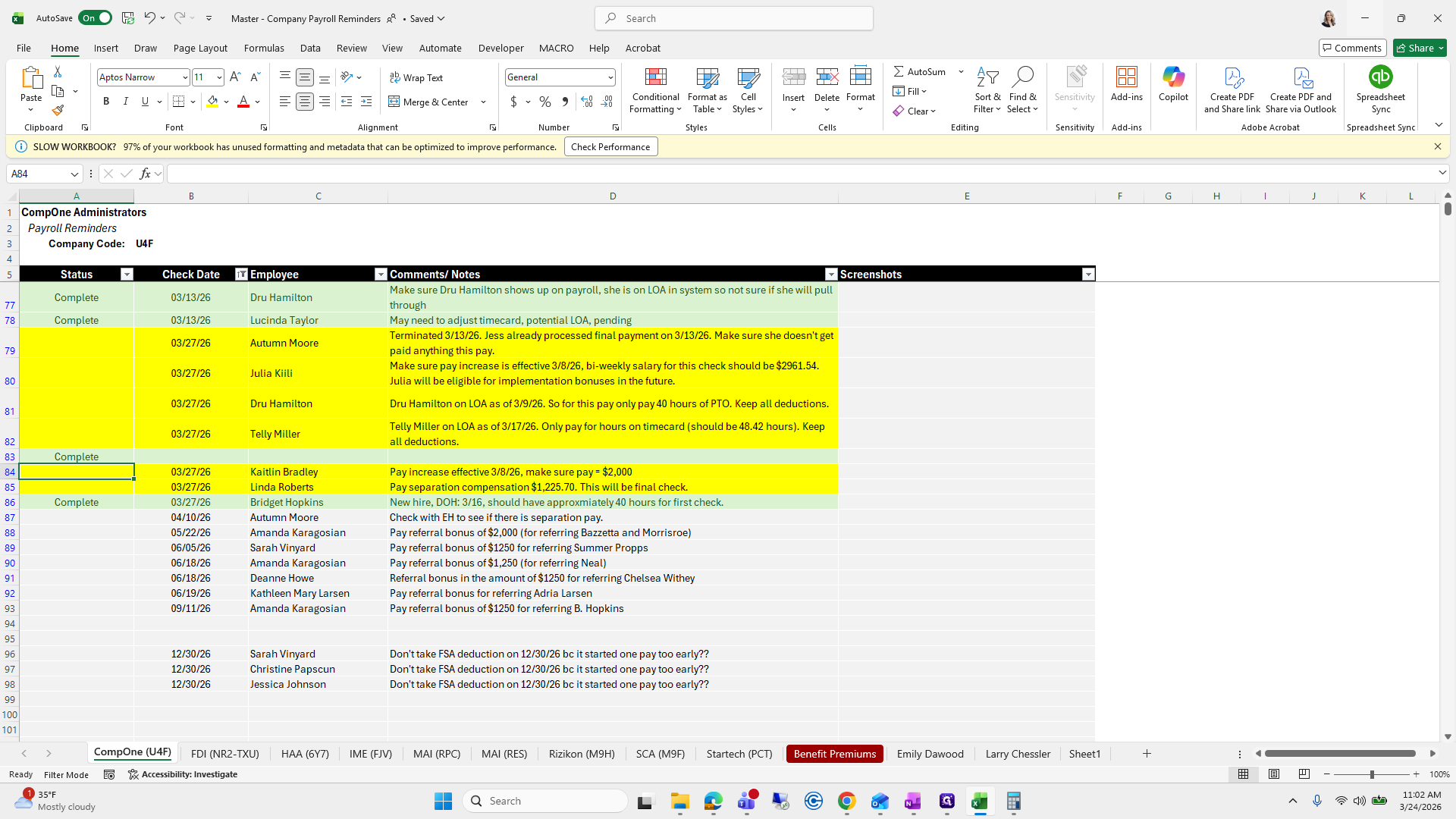
This is an extra row, so I'll mark it as complete.
48
Click here
Step #48: Click here
49
Type "com + Enter"

Okay. Everything here looks great. Um... Let's see. Doo, doo, doo, doo.
50
Click here
Step #50: Click here

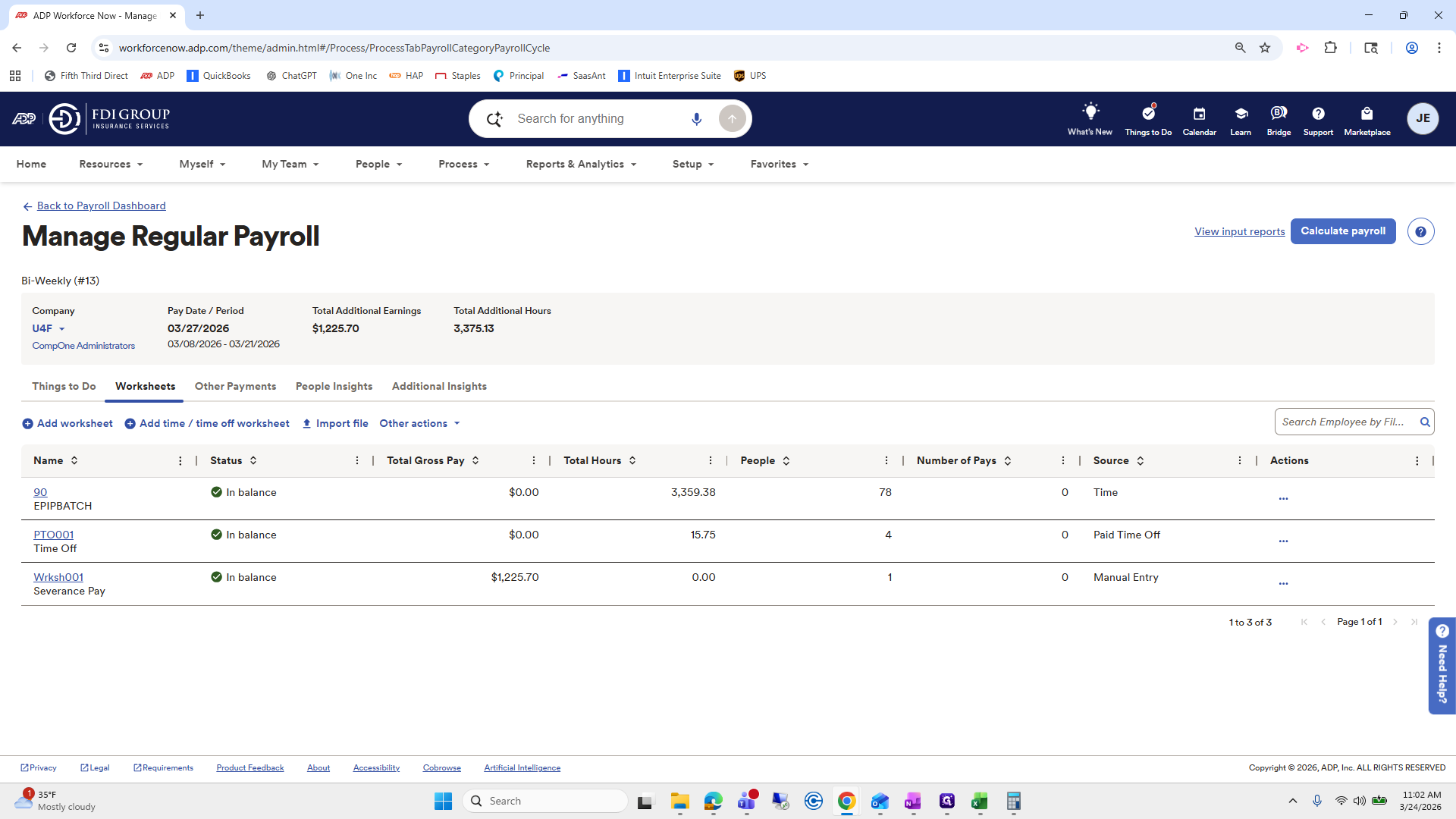
We will stop here because we need to add commissions, but I am waiting for commissions from Julie.
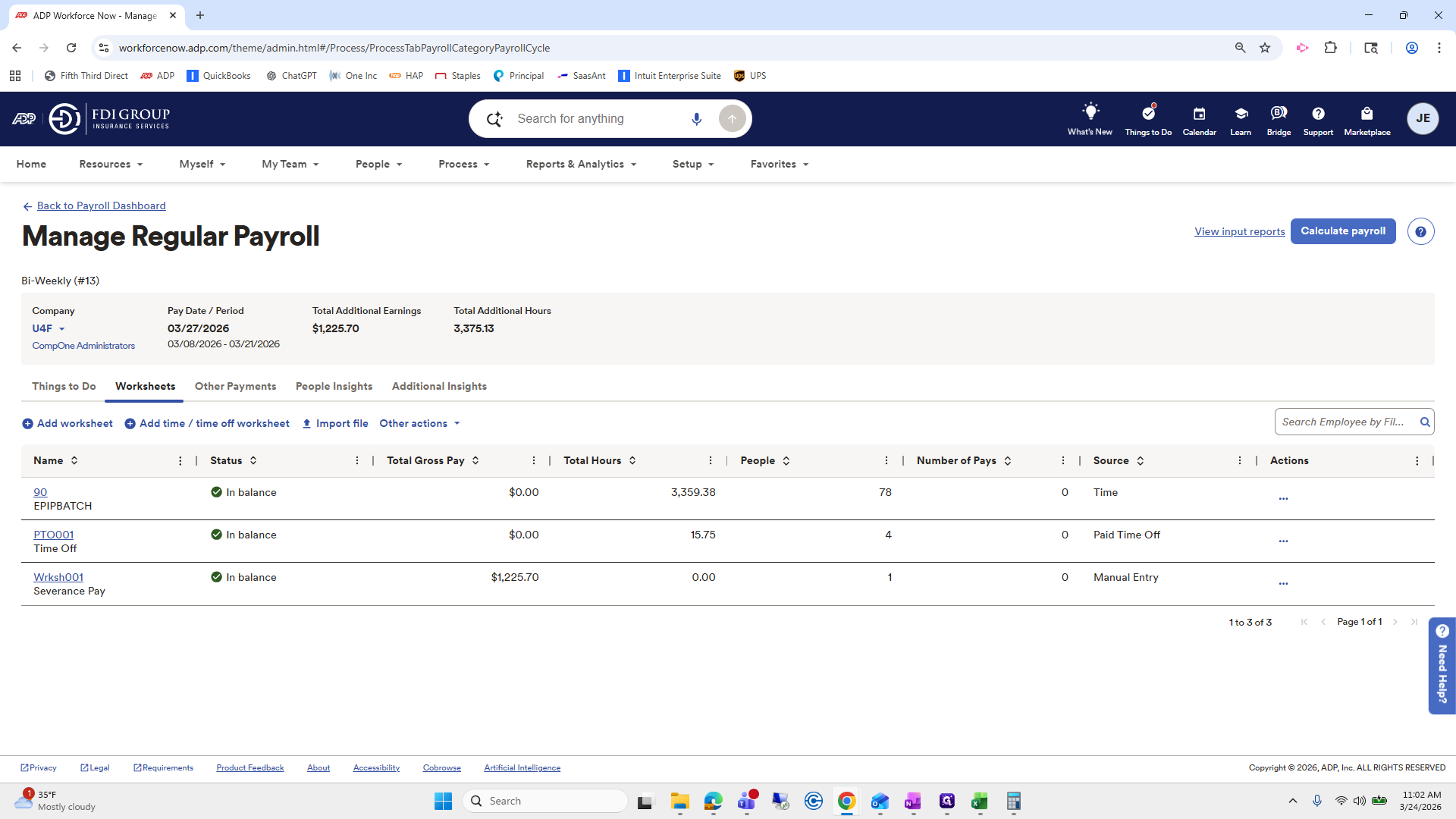
51
Click here
Step #51: Click here
52
Click here
Step #52: Click here

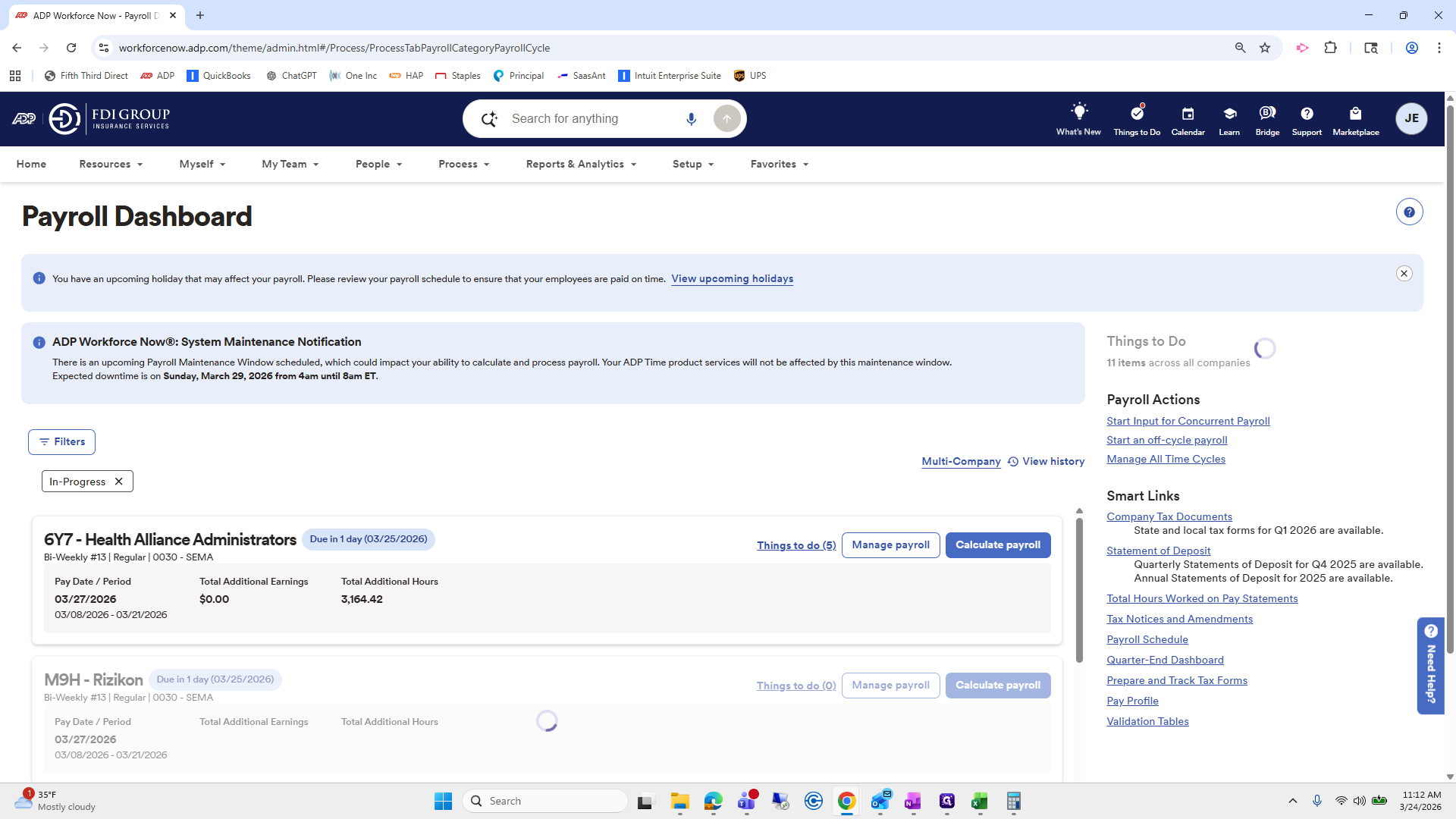
Commissions are usually paid with the second paycheck of each month at most companies. We will go back to the Payroll Dashboard.
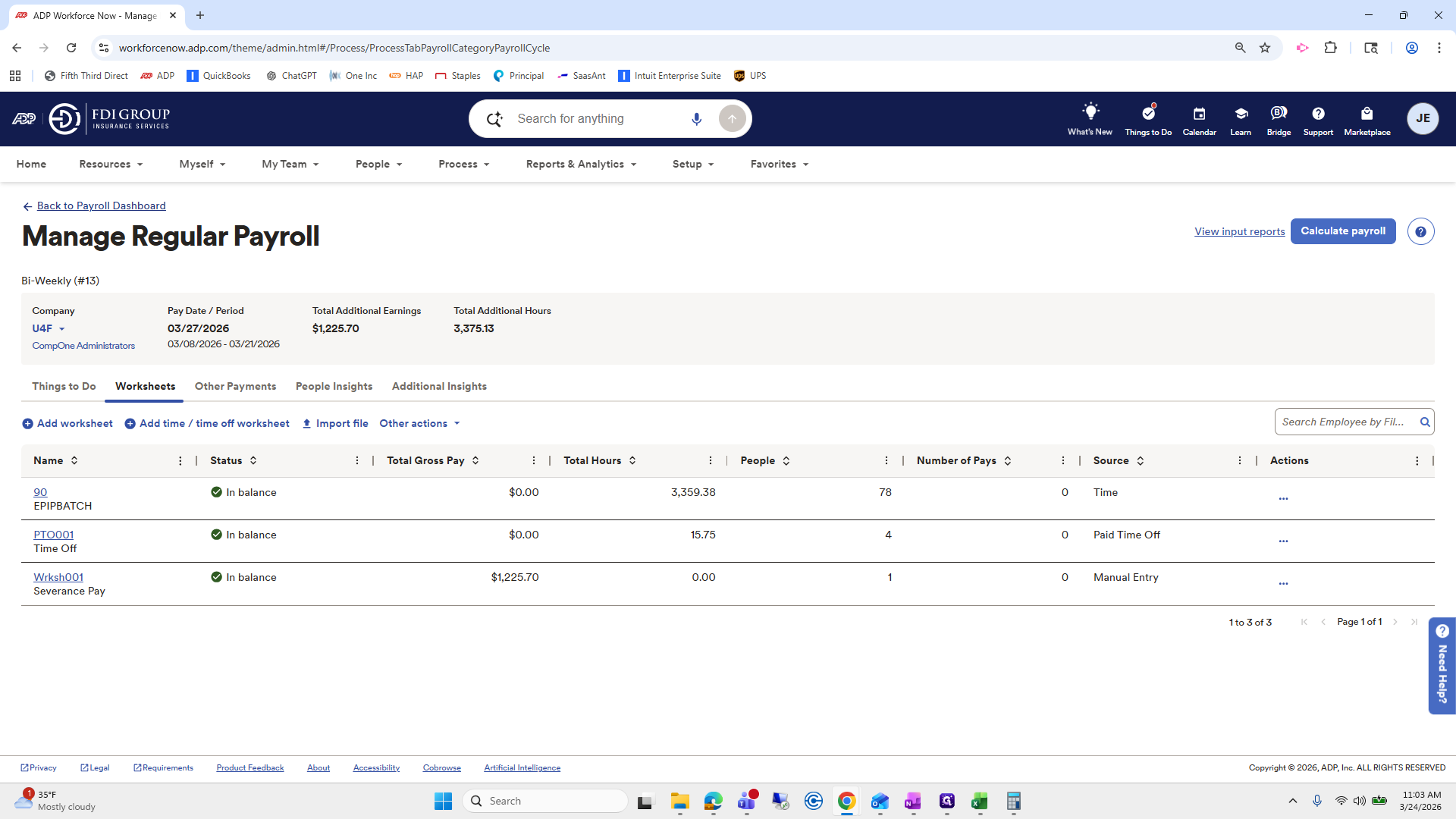
53
Click on "← Back to Payroll Dashboard"
Step #53: Click on "← Back to Payroll Dashboard"

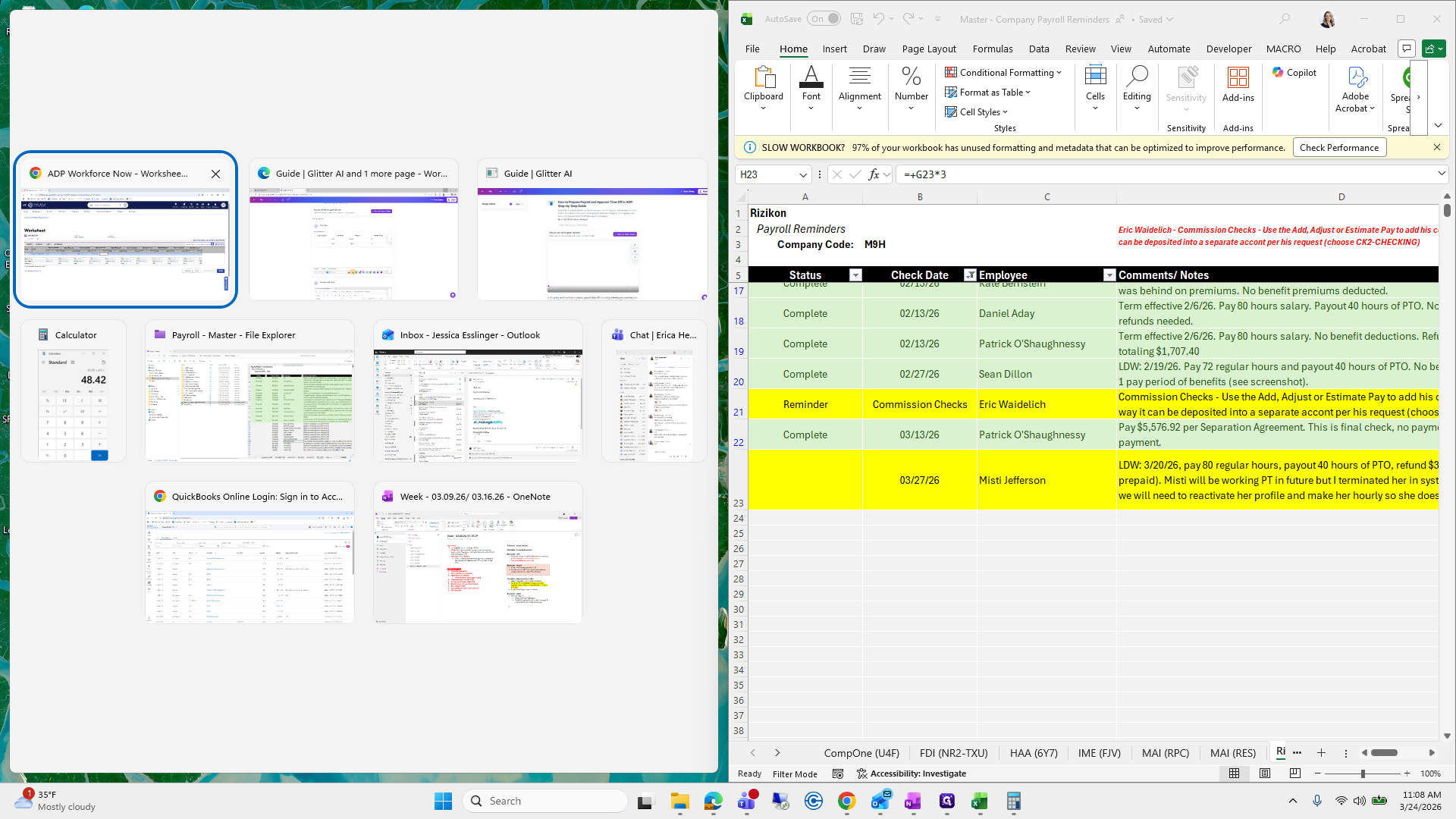
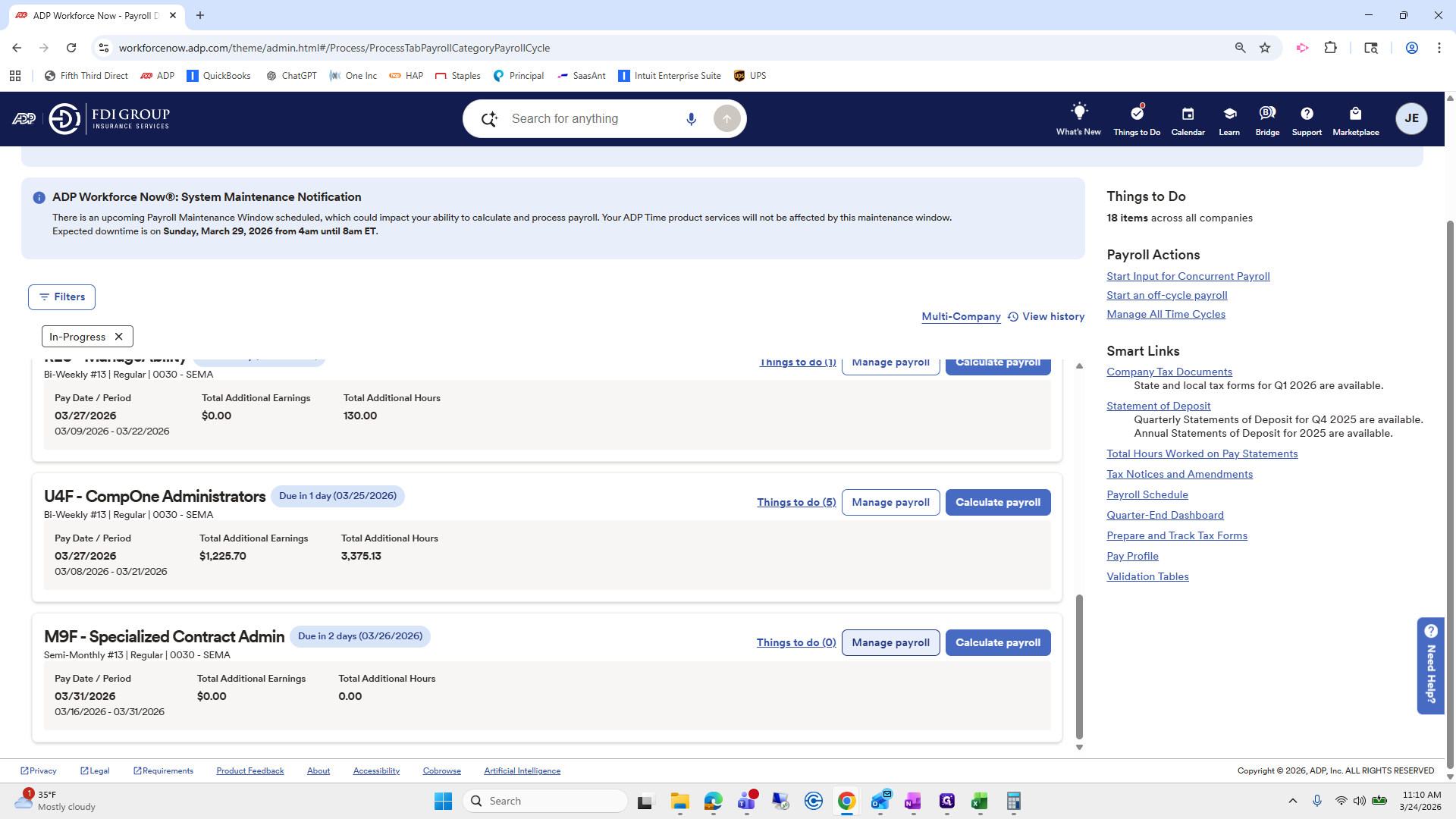
The next one we will do is Risikon. Go to Manage Payroll.
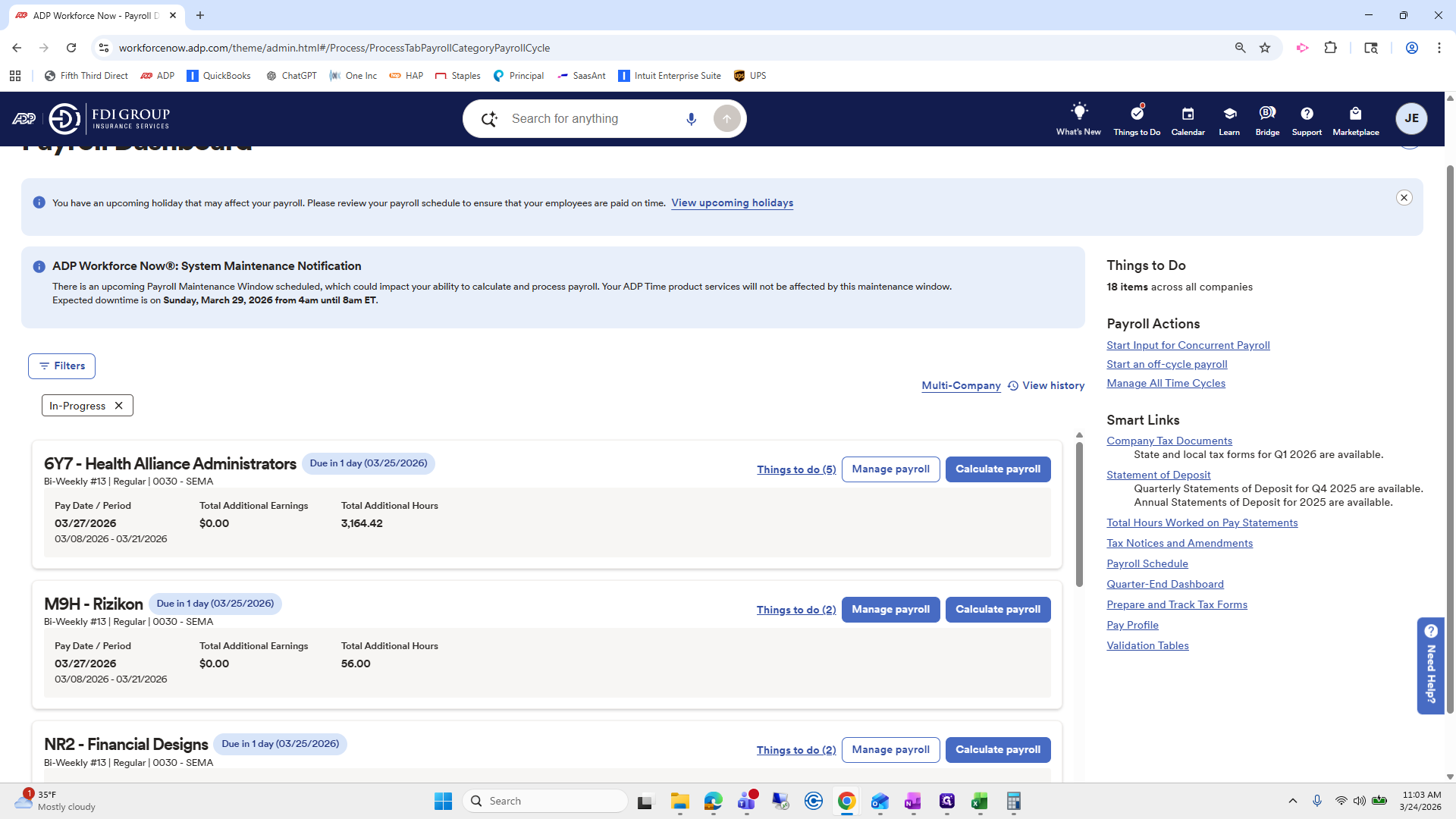
54
Click on "Manage payroll"
Step #54: Click on "Manage payroll"

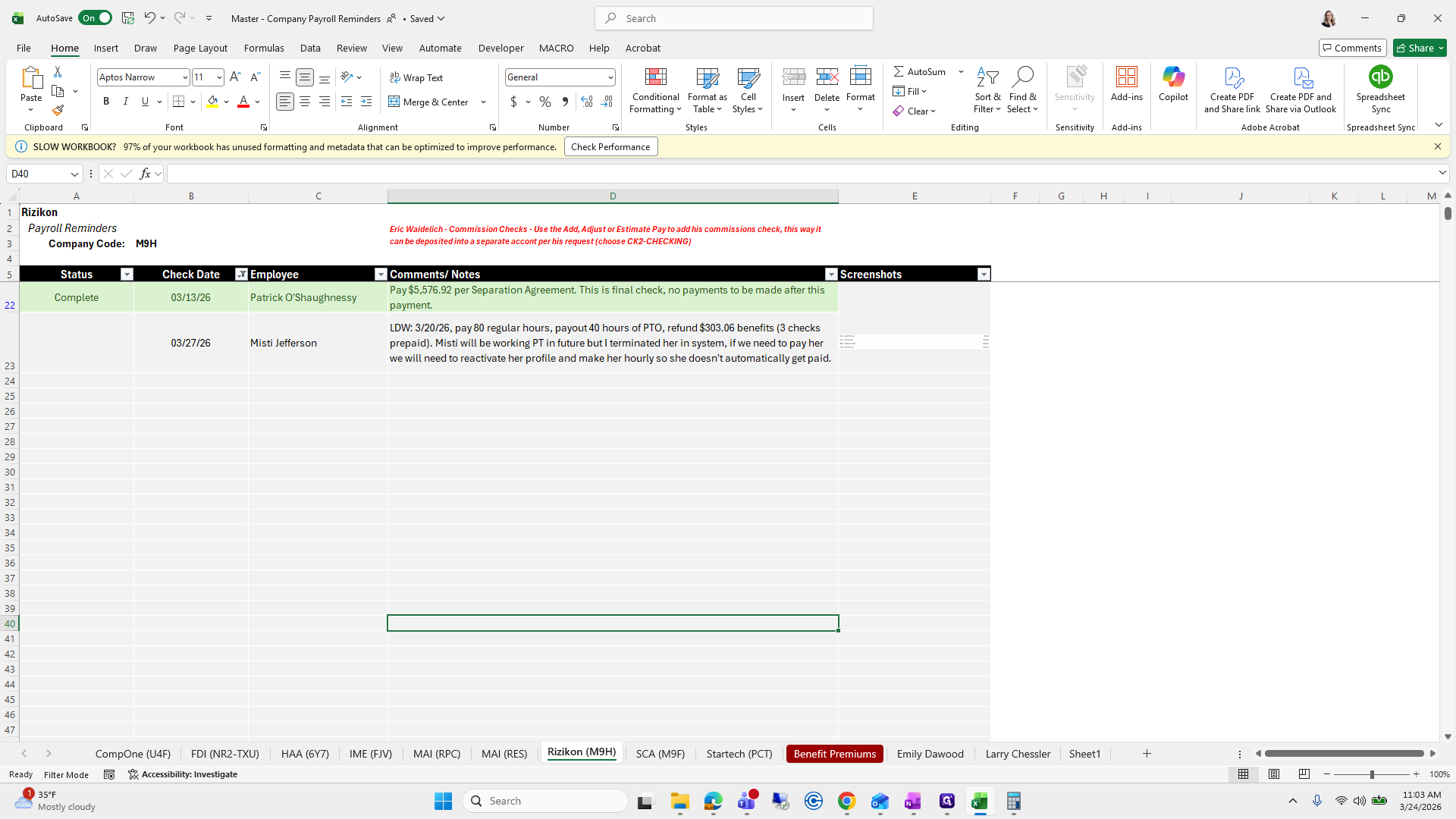
We will go to our worksheet and look at Risikon.
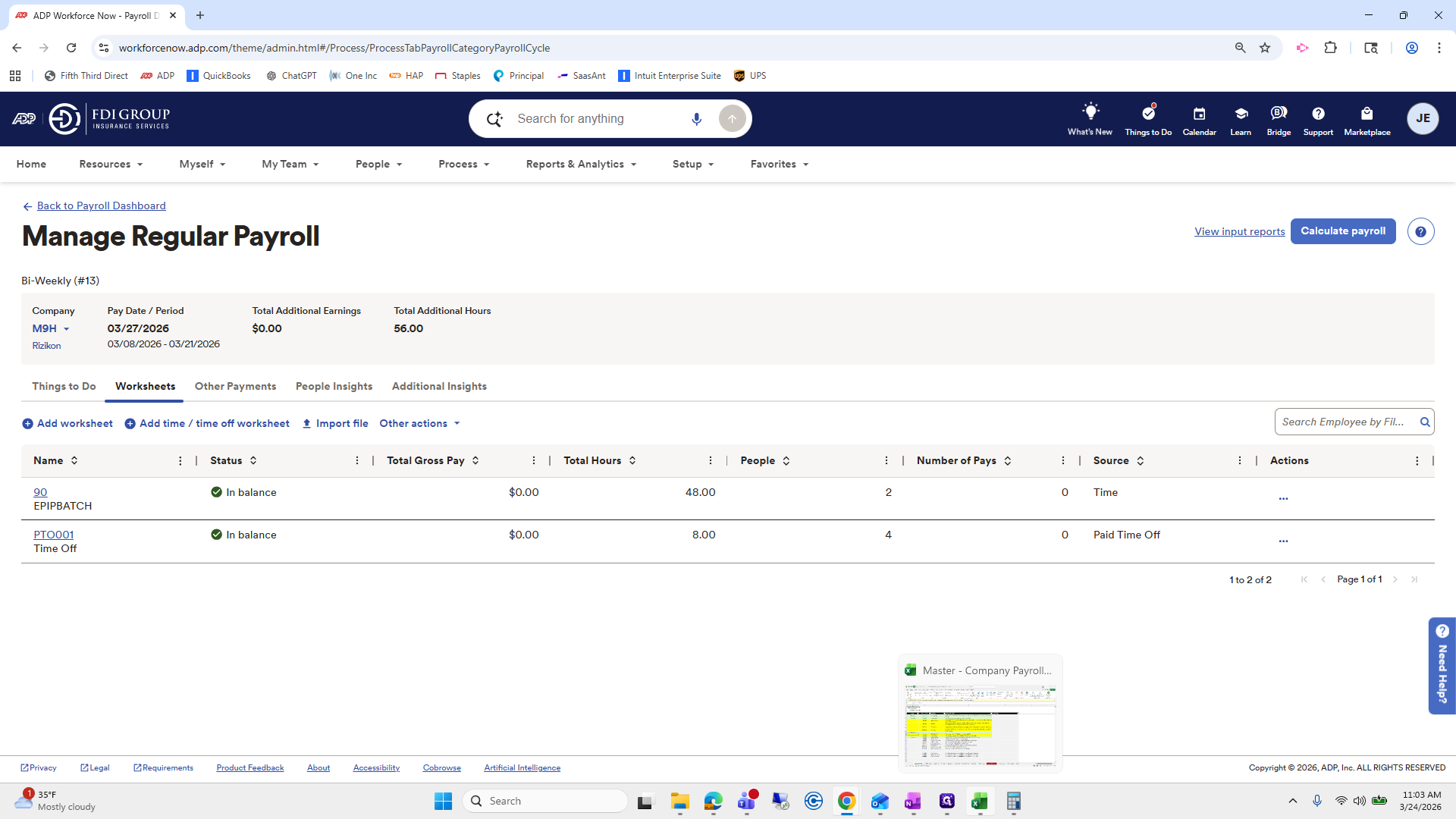
55
Click here
Step #55: Click here
56
Click on "Rizikon"
Step #56: Click on "Rizikon"
57
Click here
Step #57: Click here

There is one here.

58
Click here
Step #58: Click here
59
Drag here
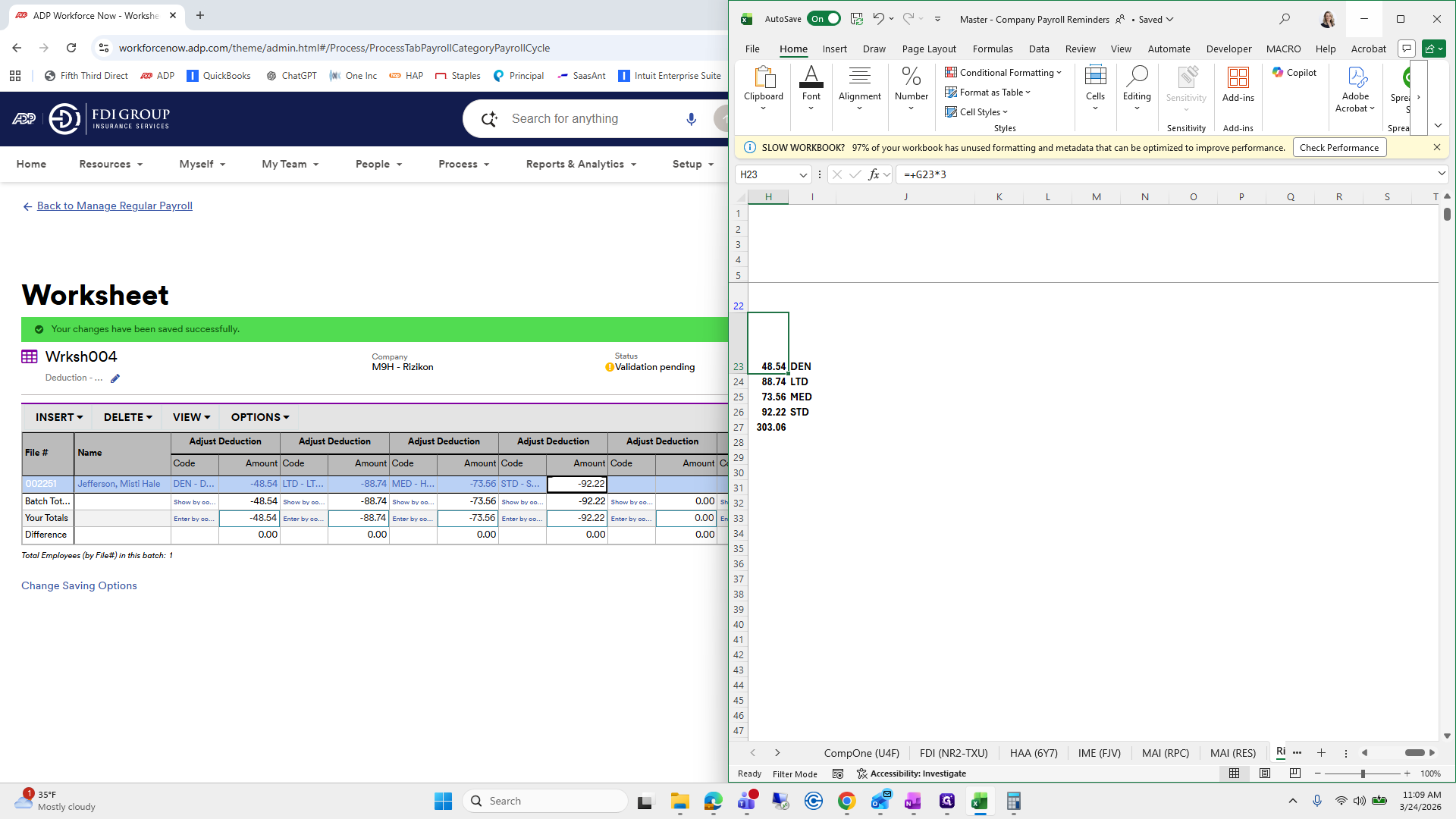
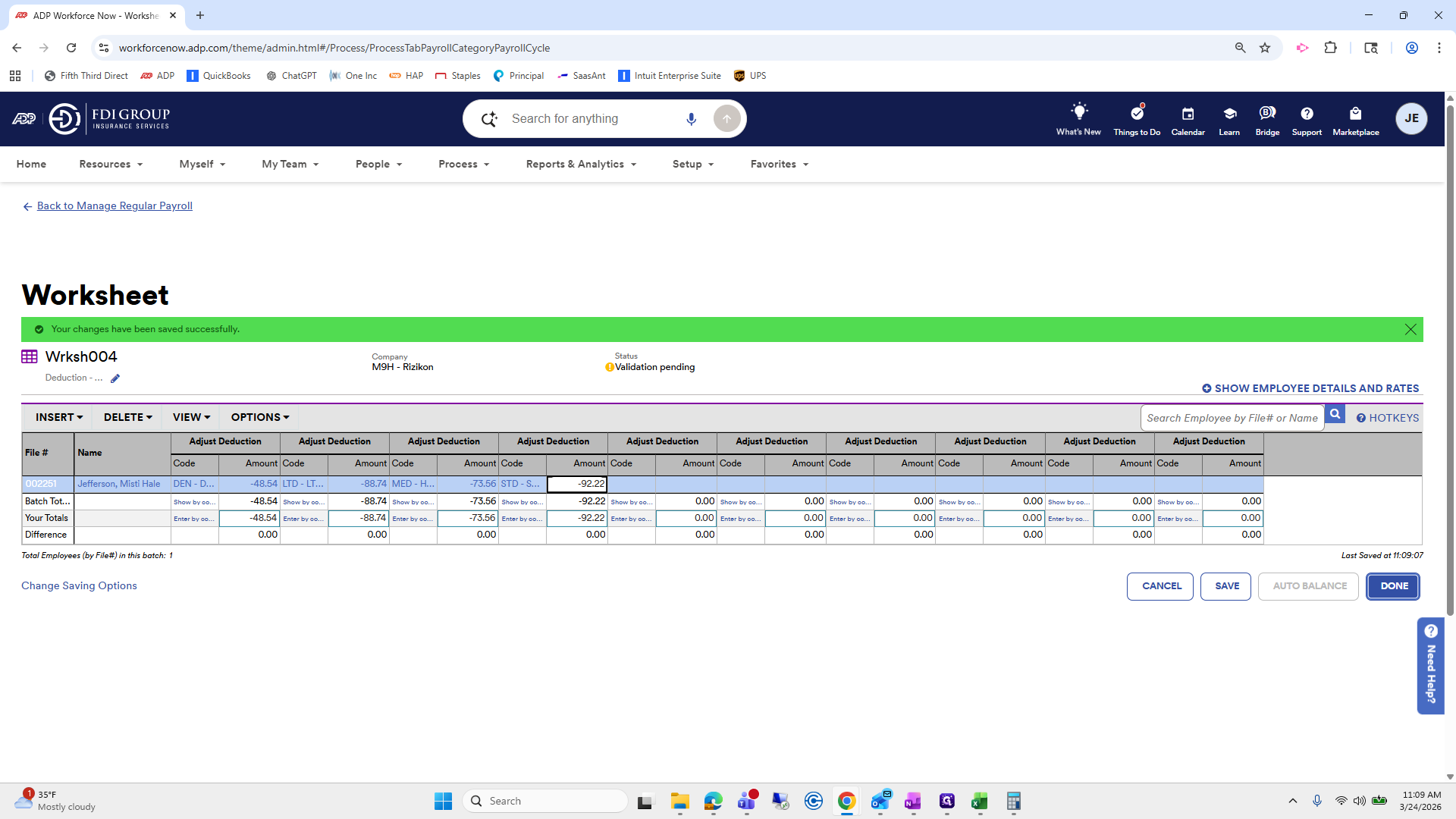
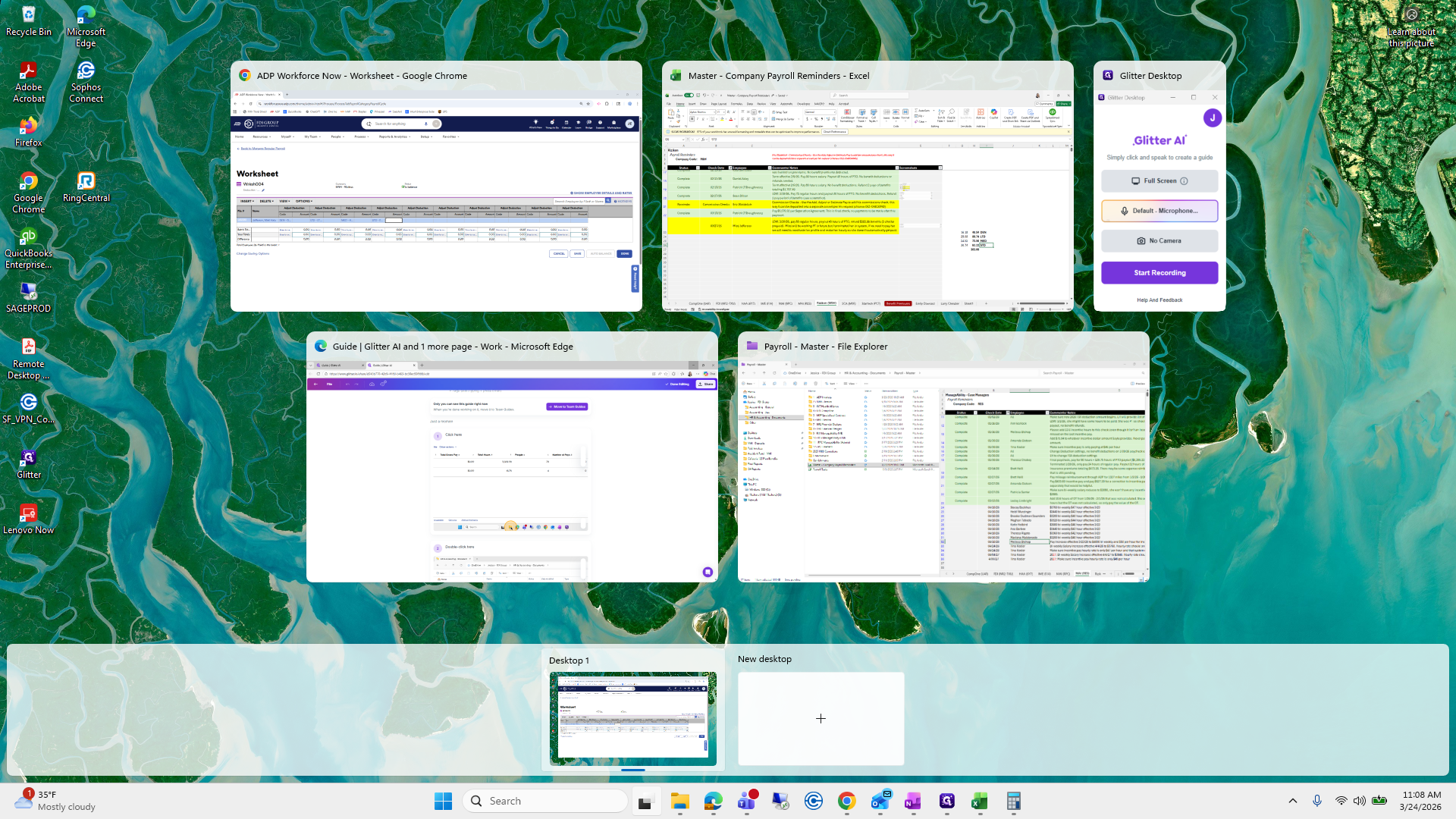
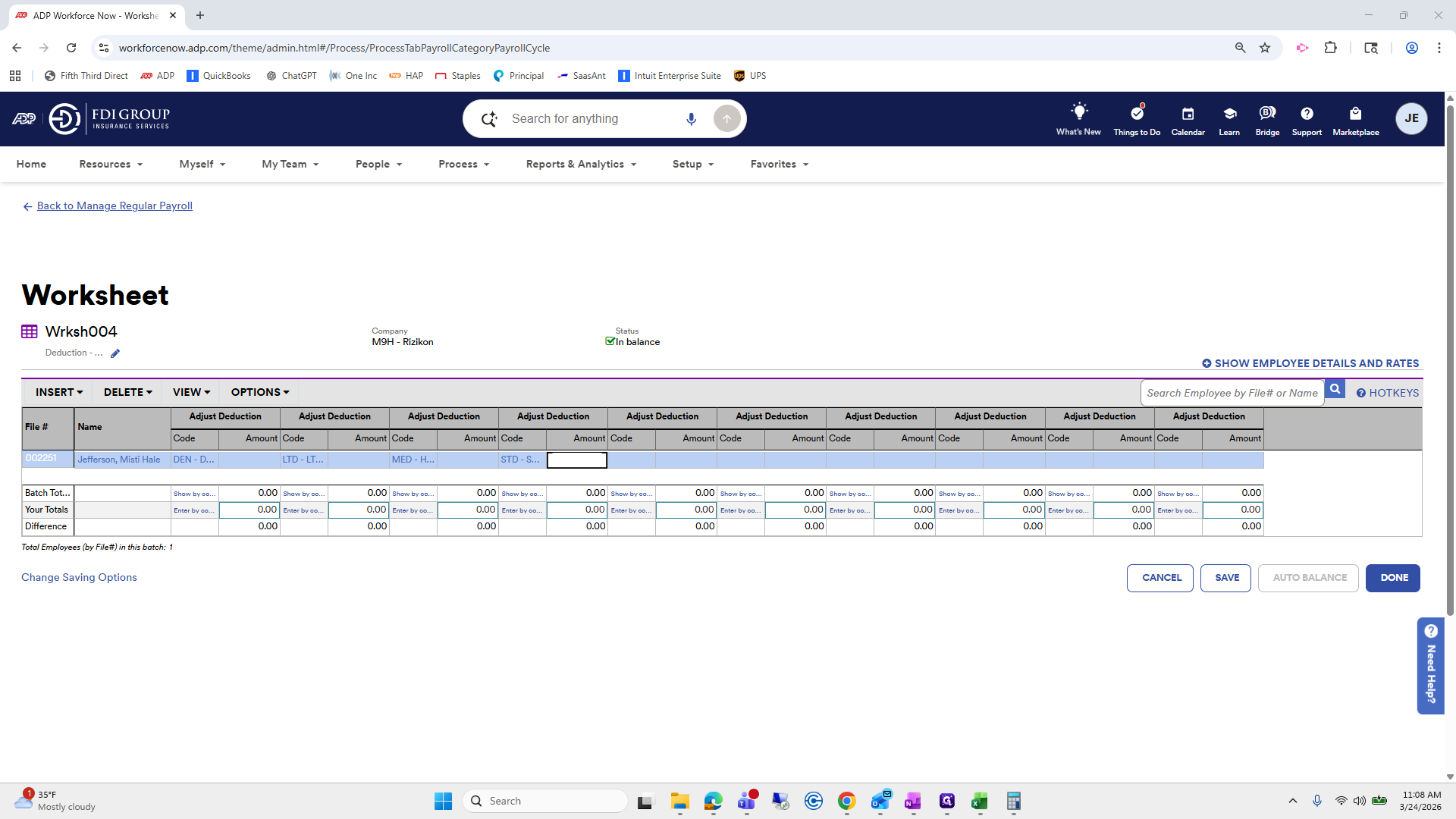
Step #59: Drag here

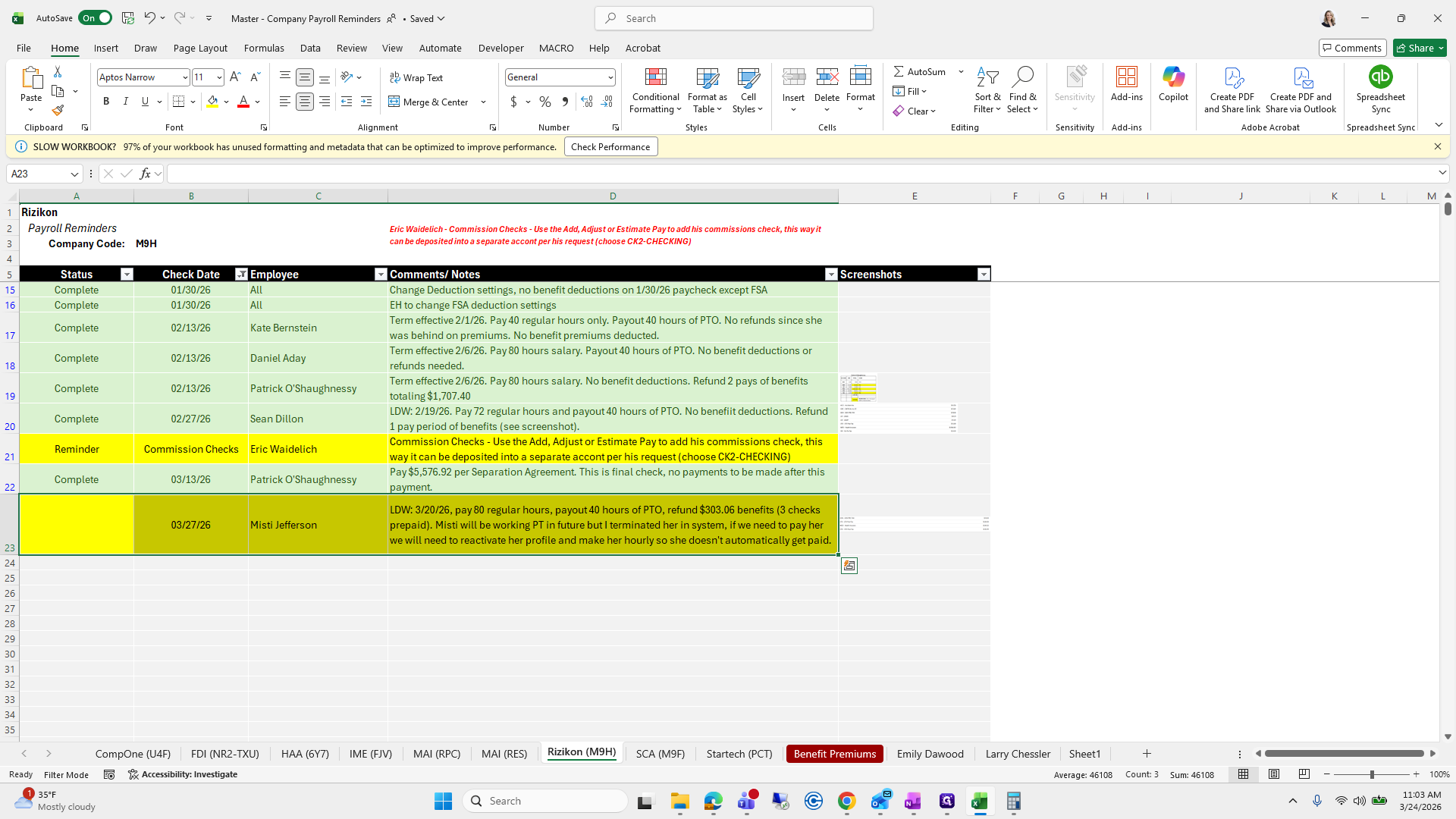
I will highlight it in yellow.

60
Drag here
Step #60: Drag here

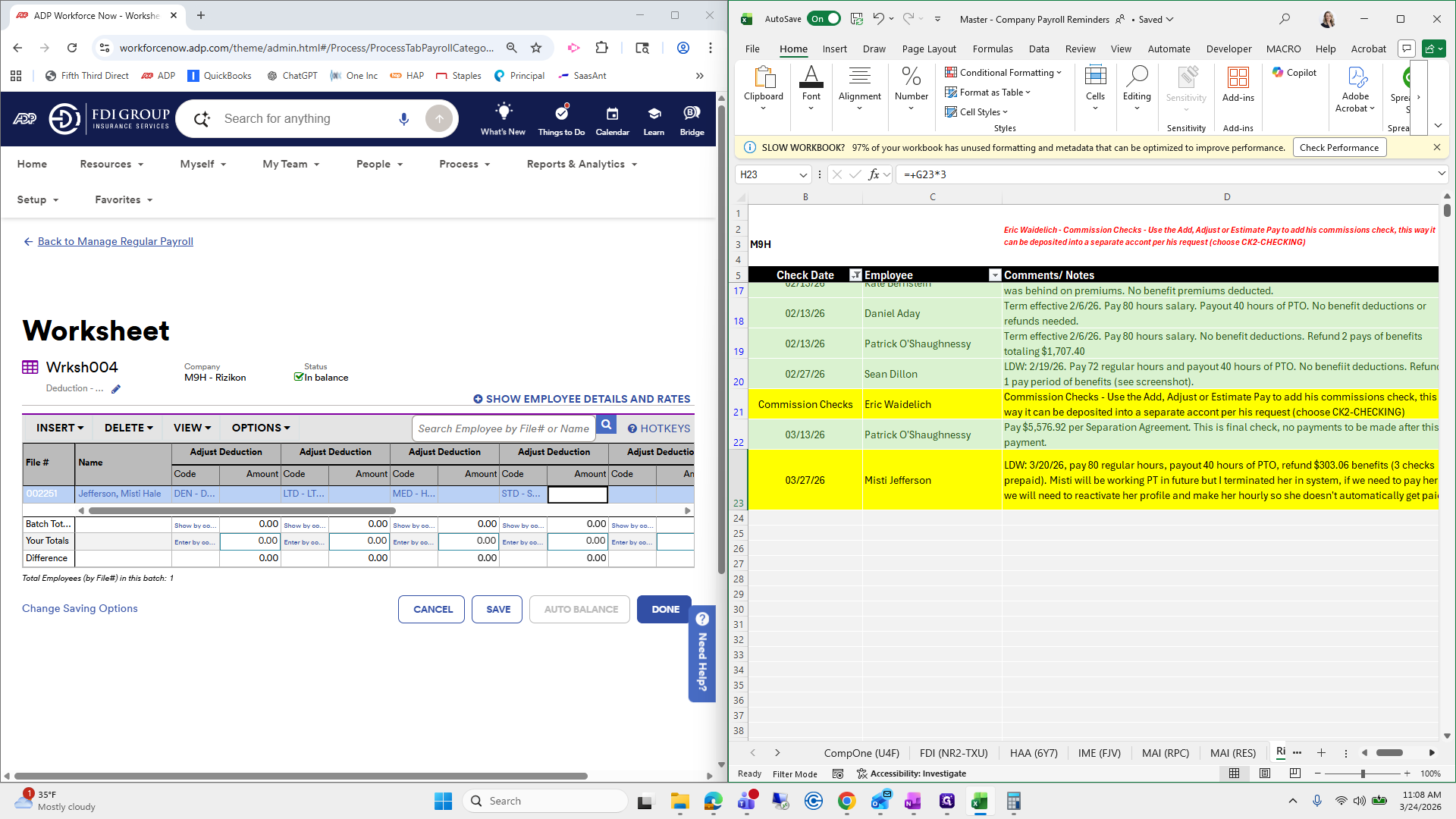
All right.

61
Click here
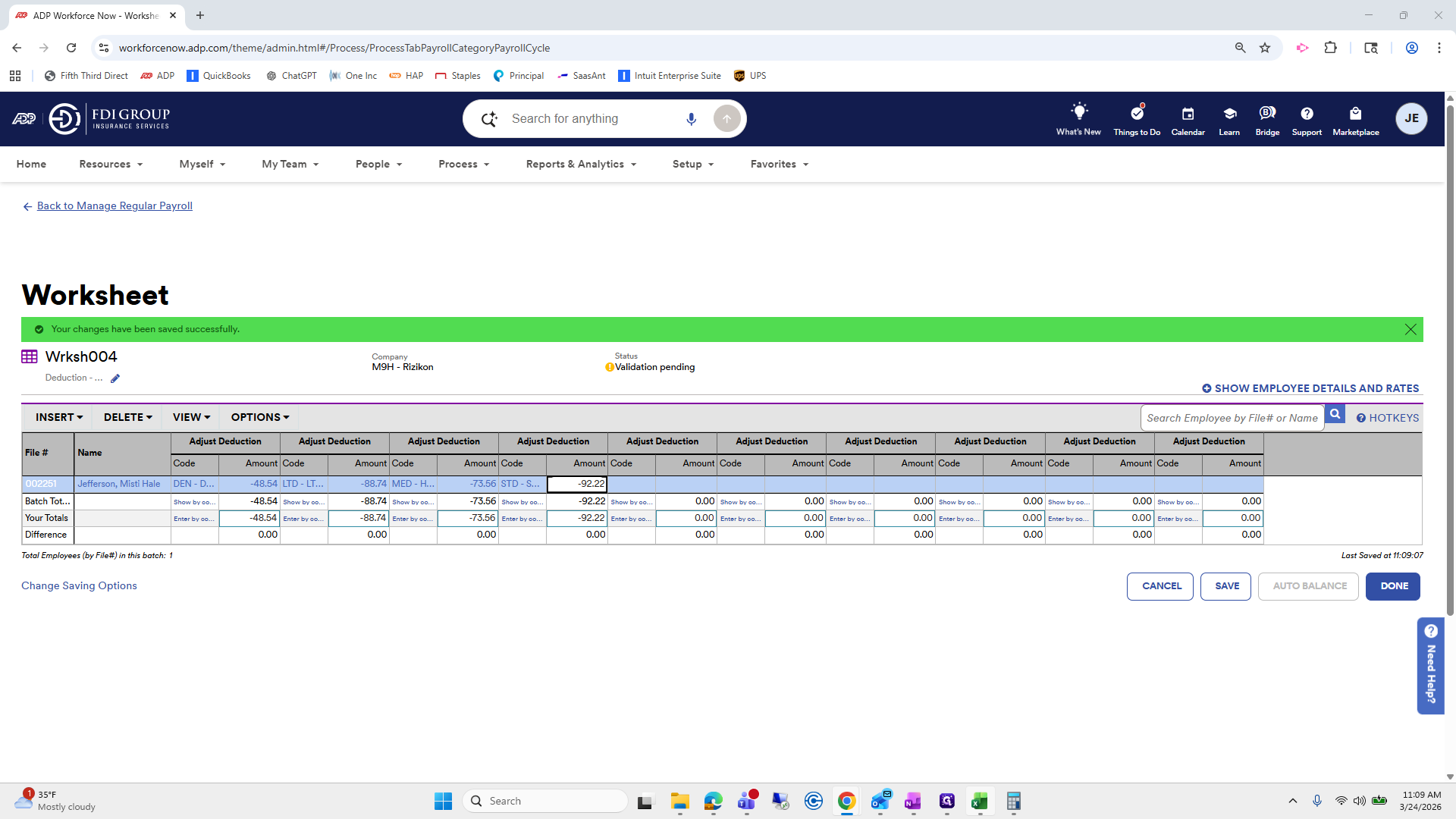
Step #61: Click here
62
Click here
Step #62: Click here
63
Click on "Dismiss"
Step #63: Click on "Dismiss"

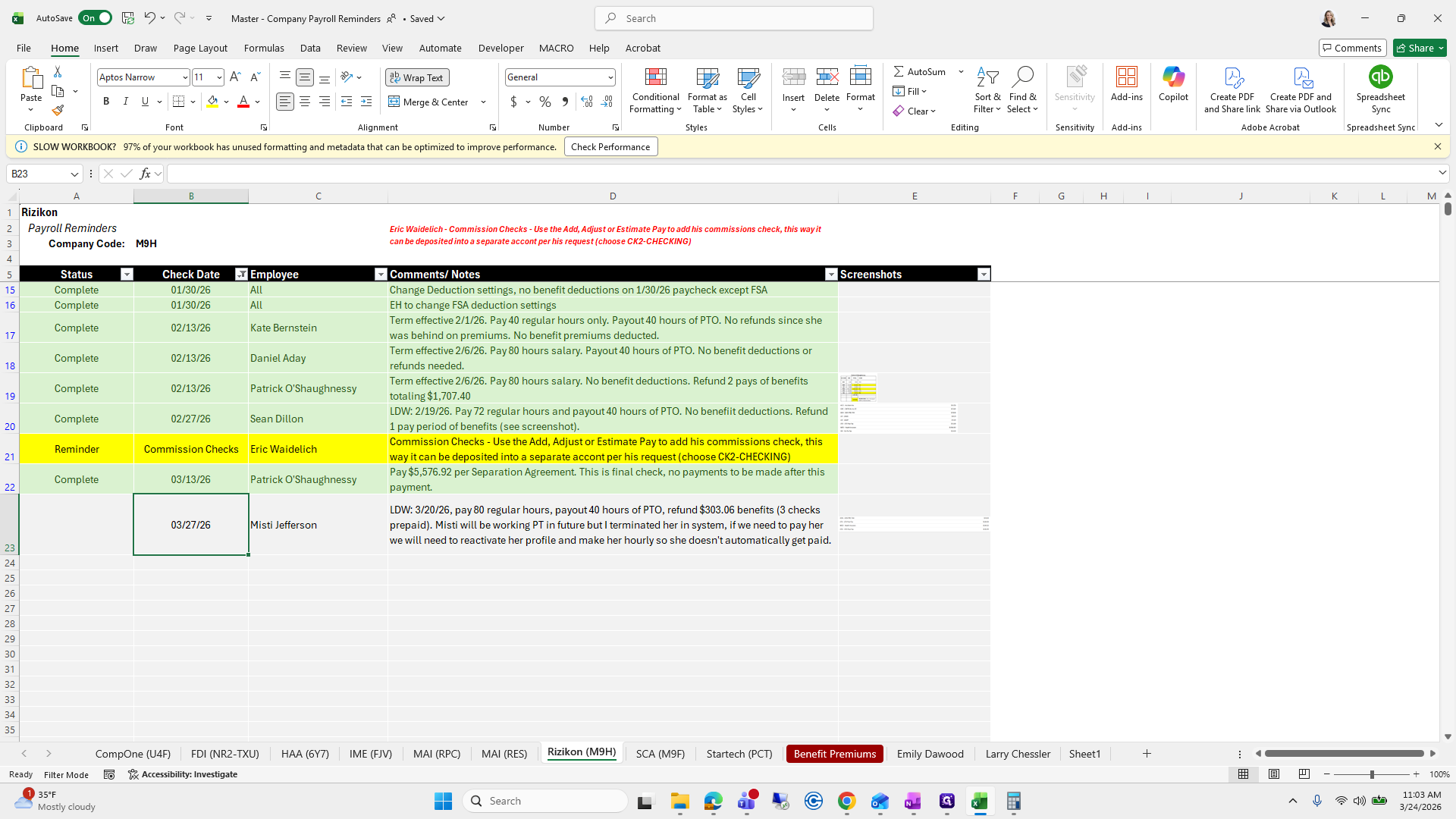
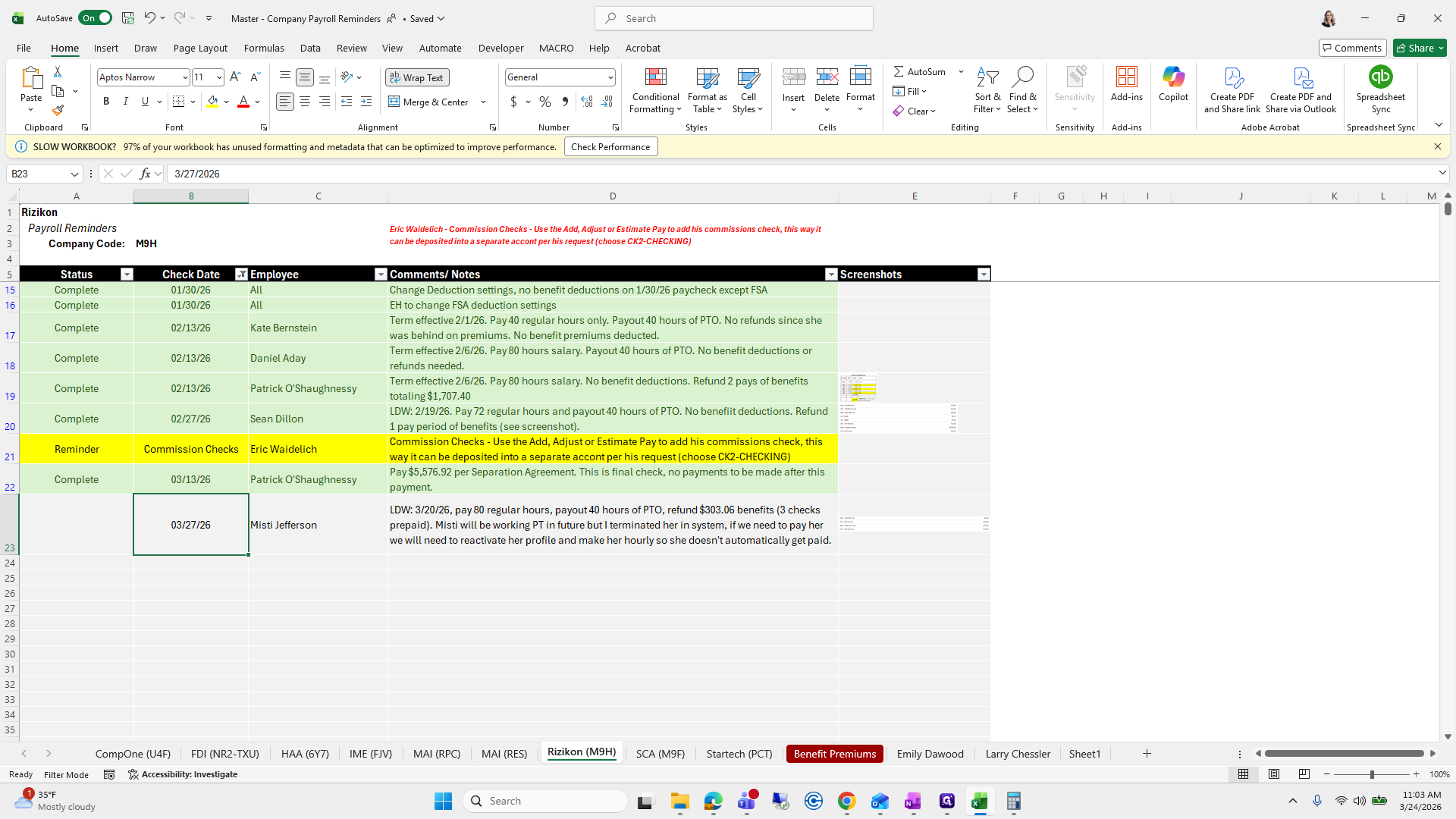
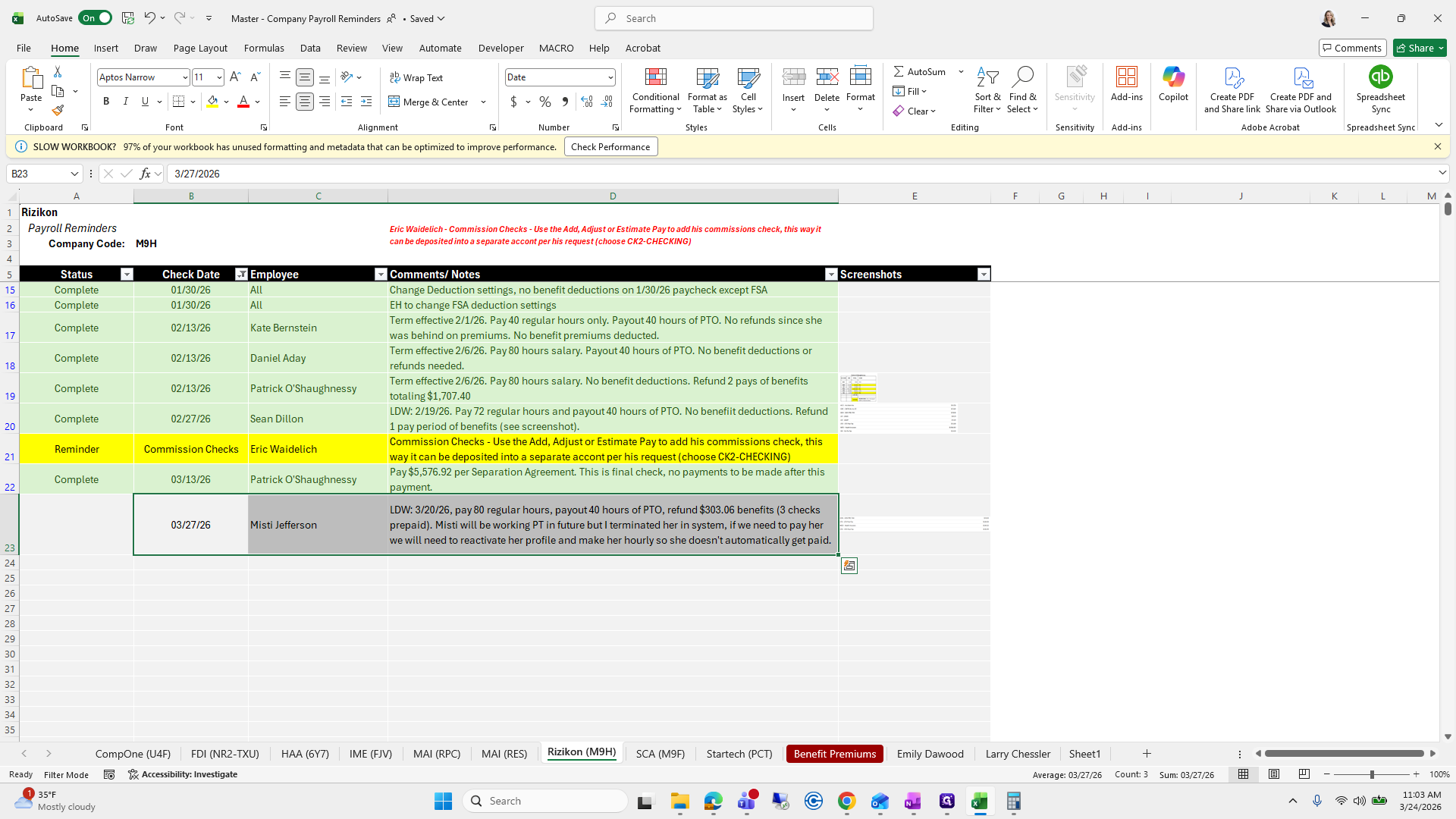
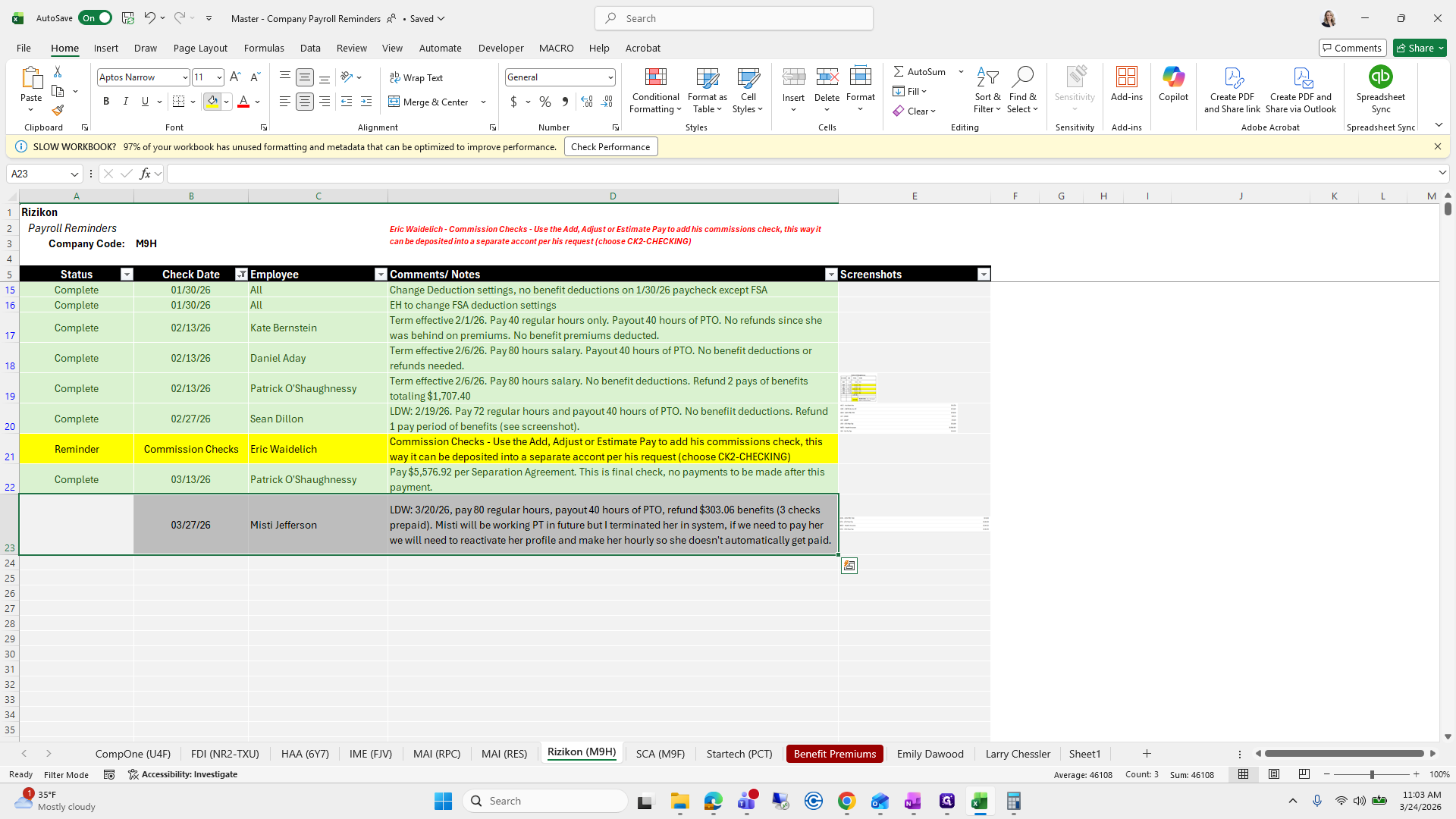
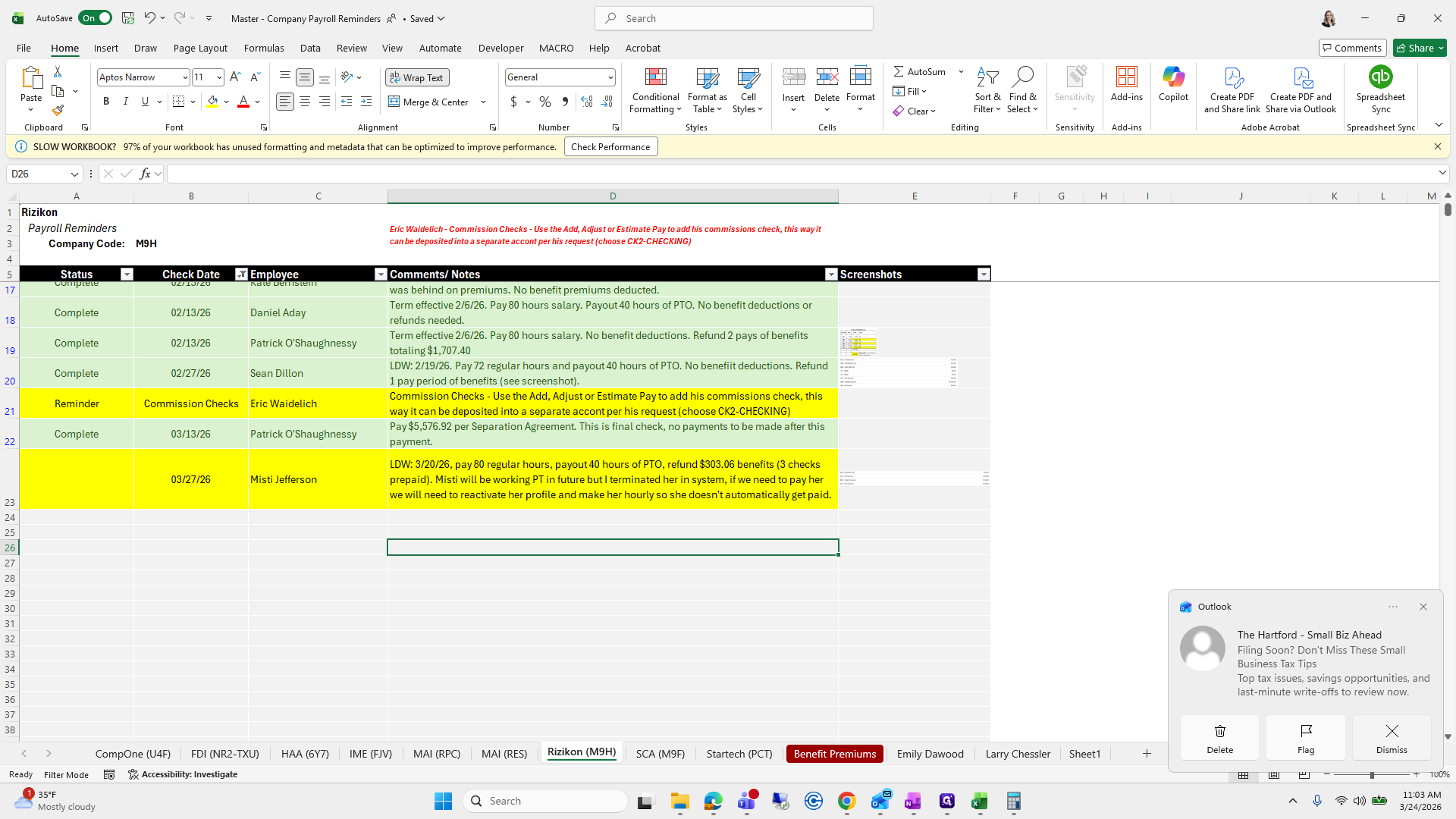
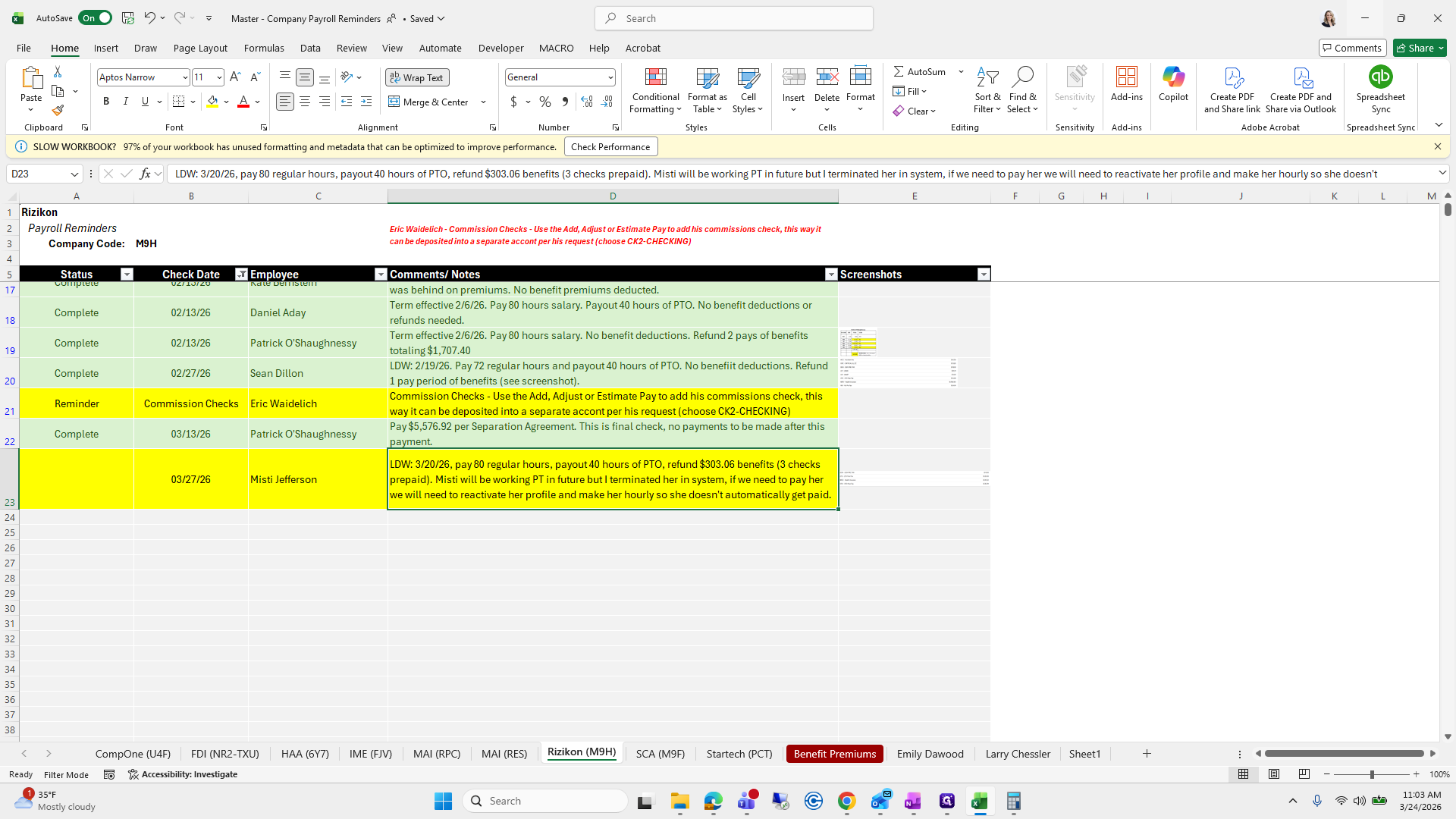
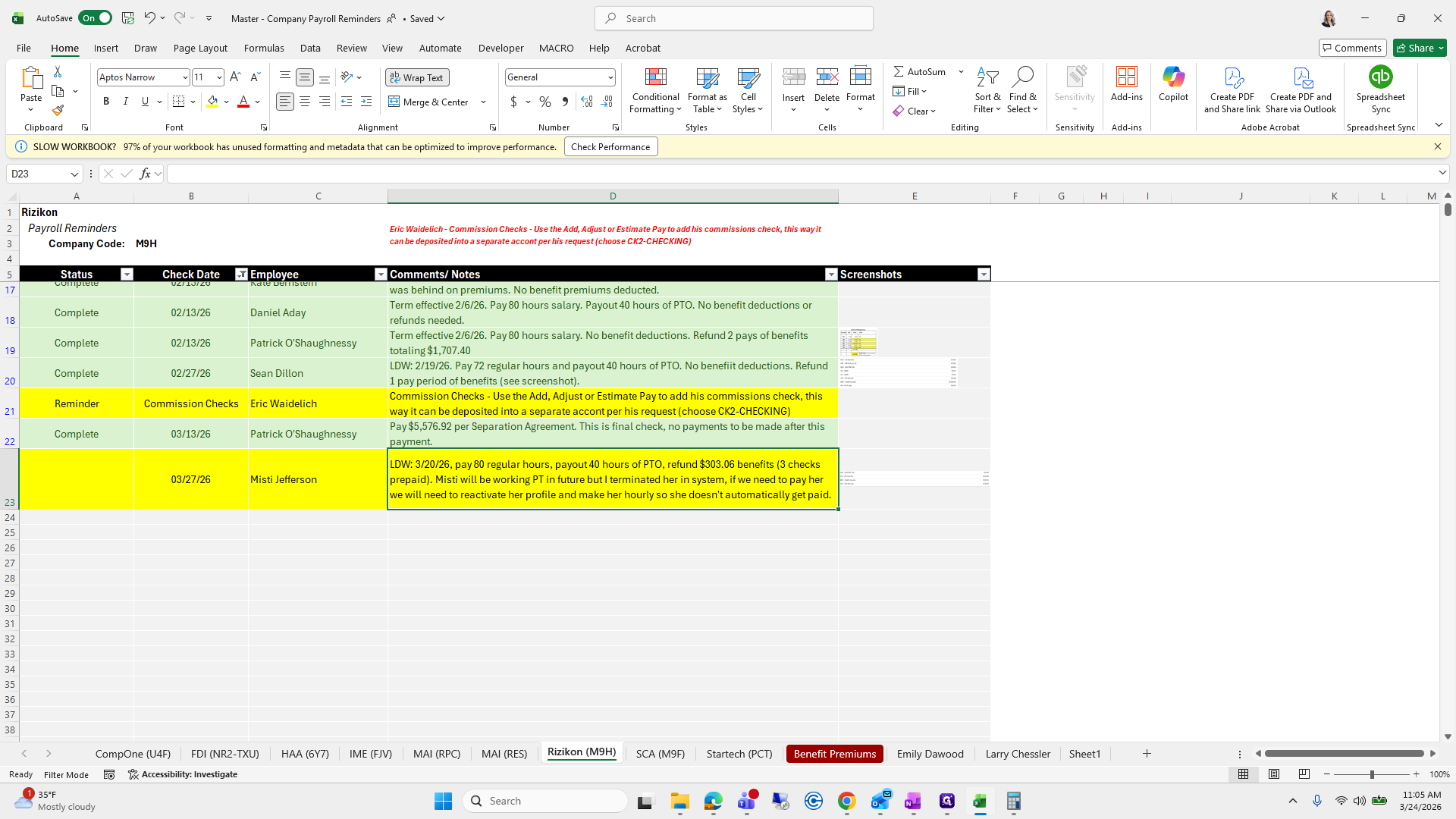
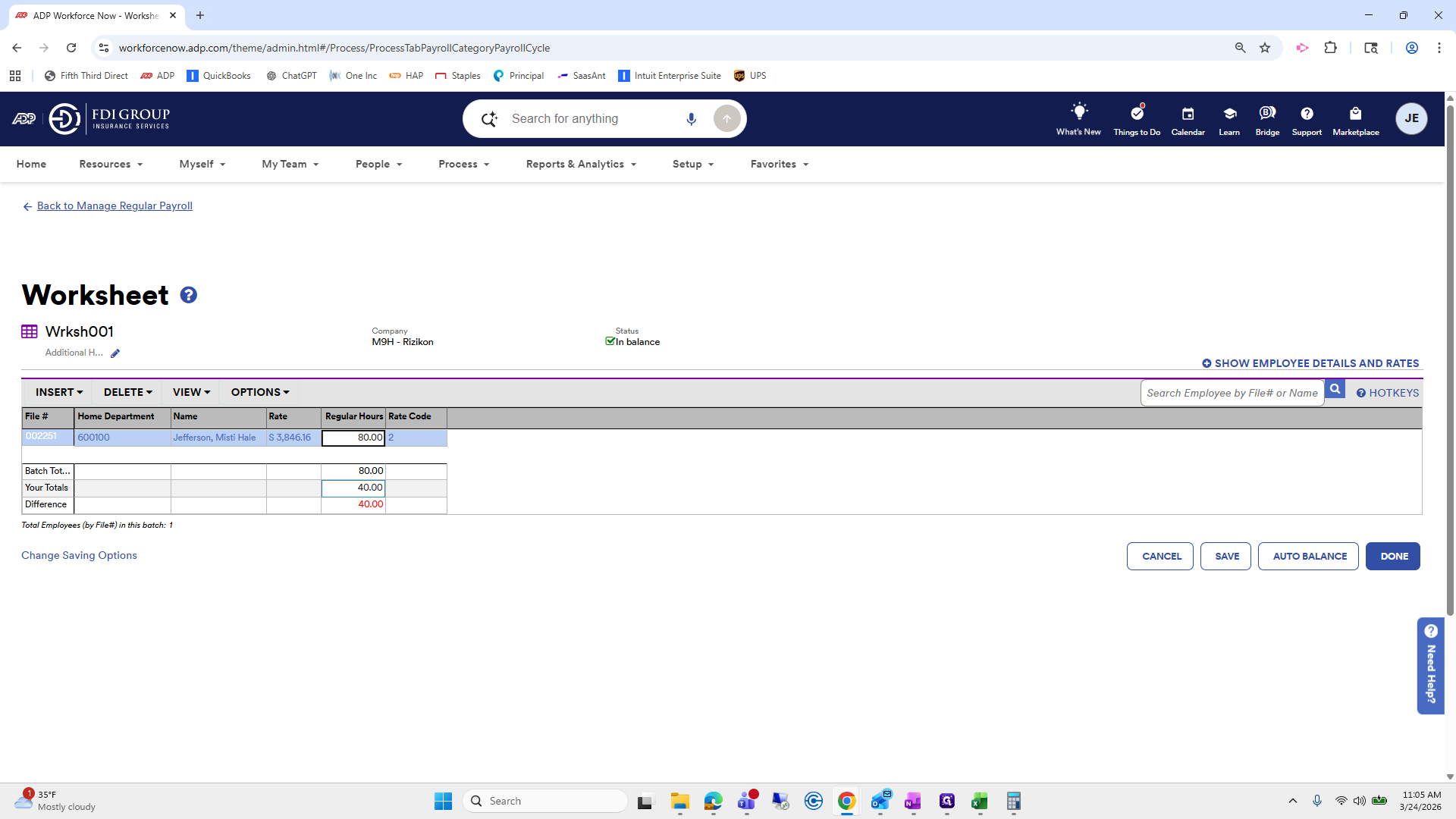
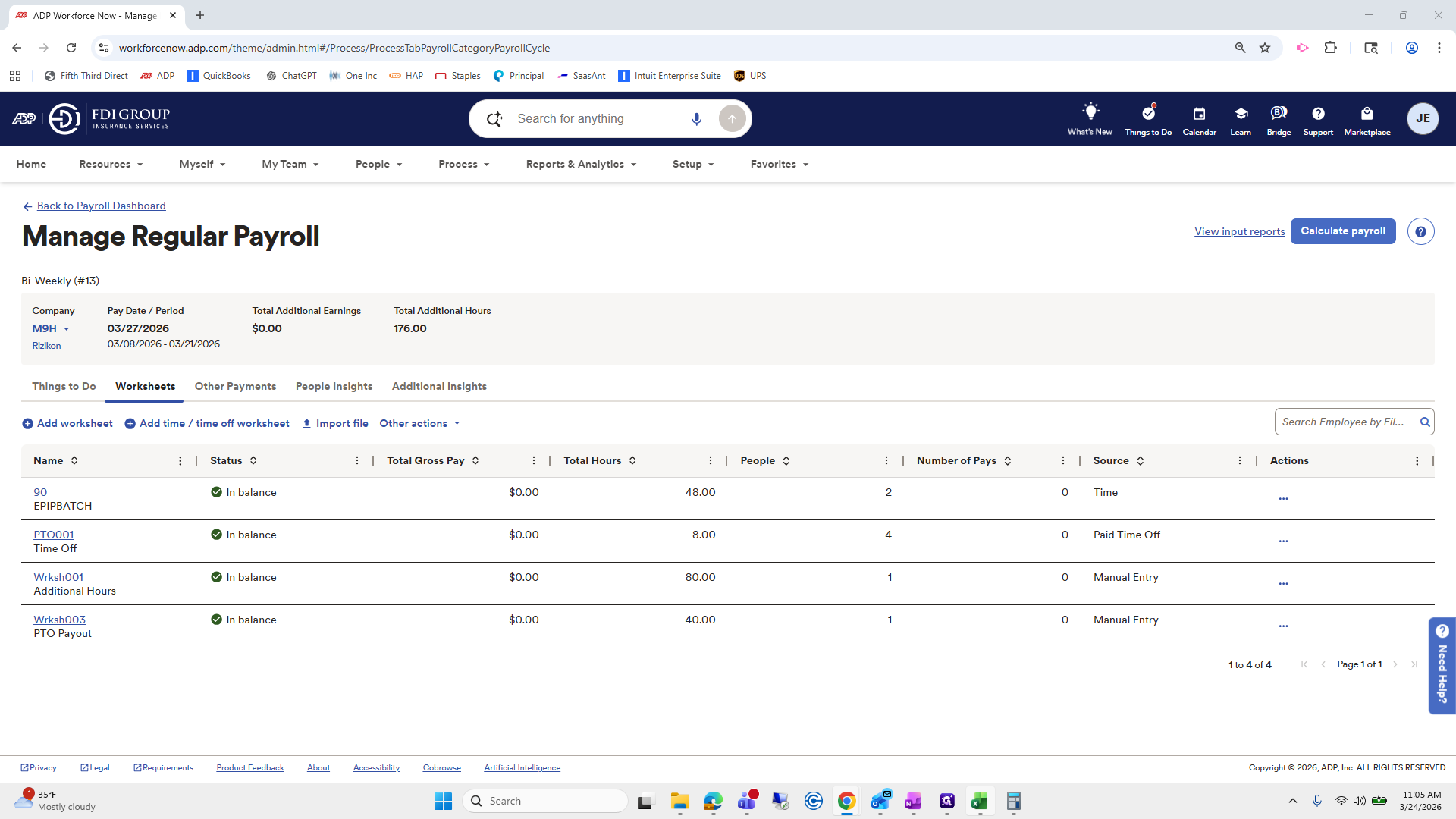
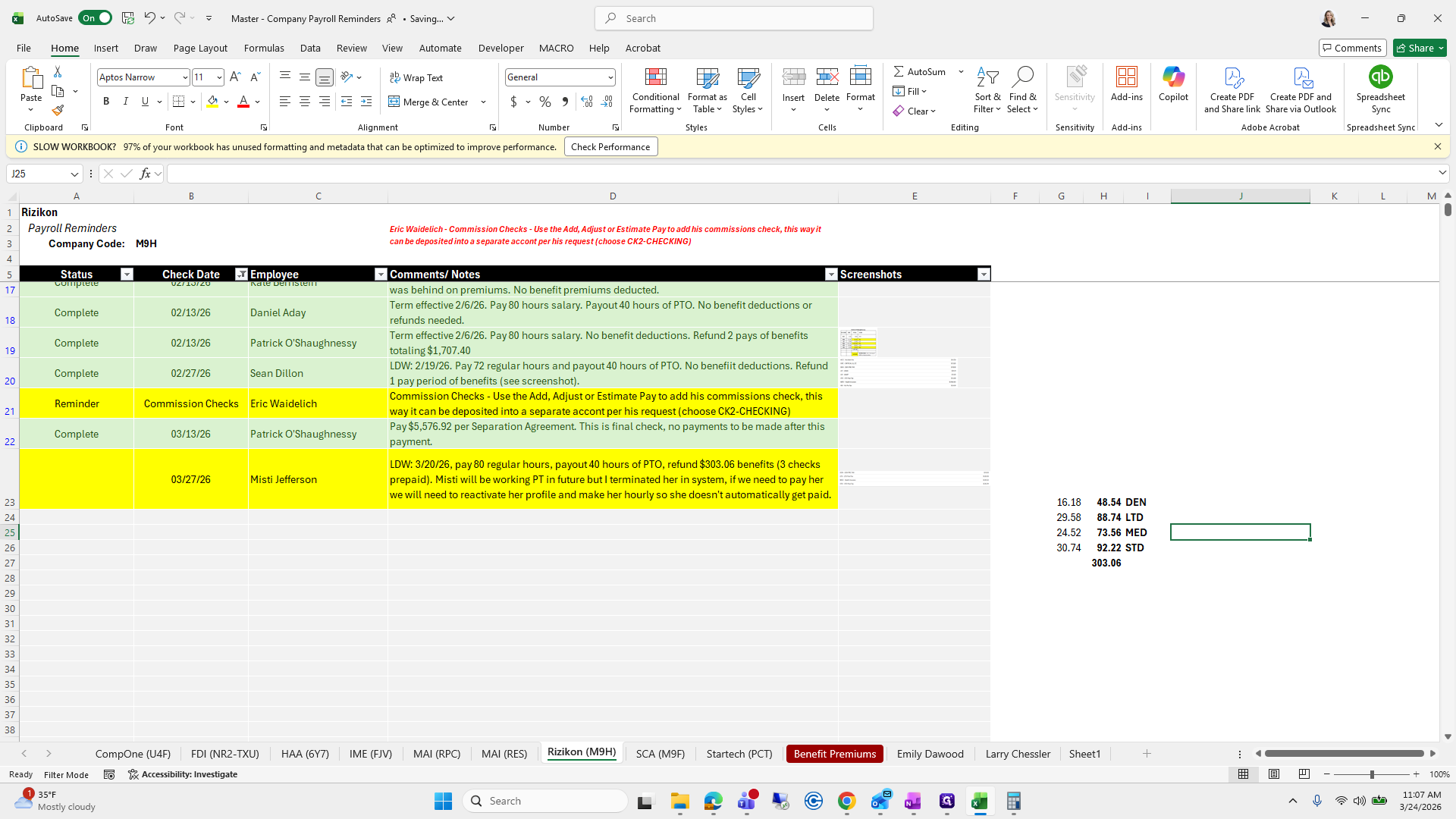
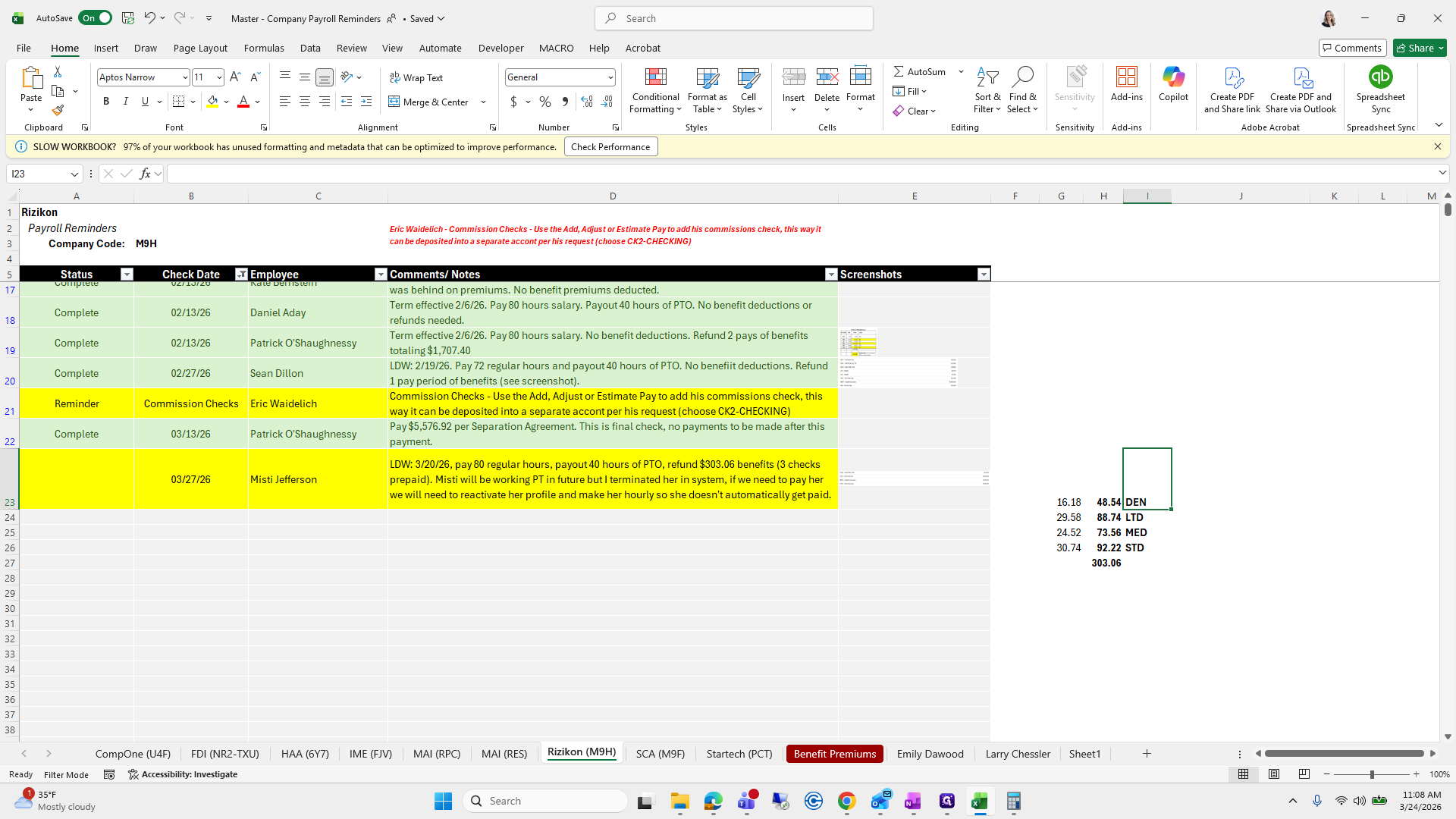
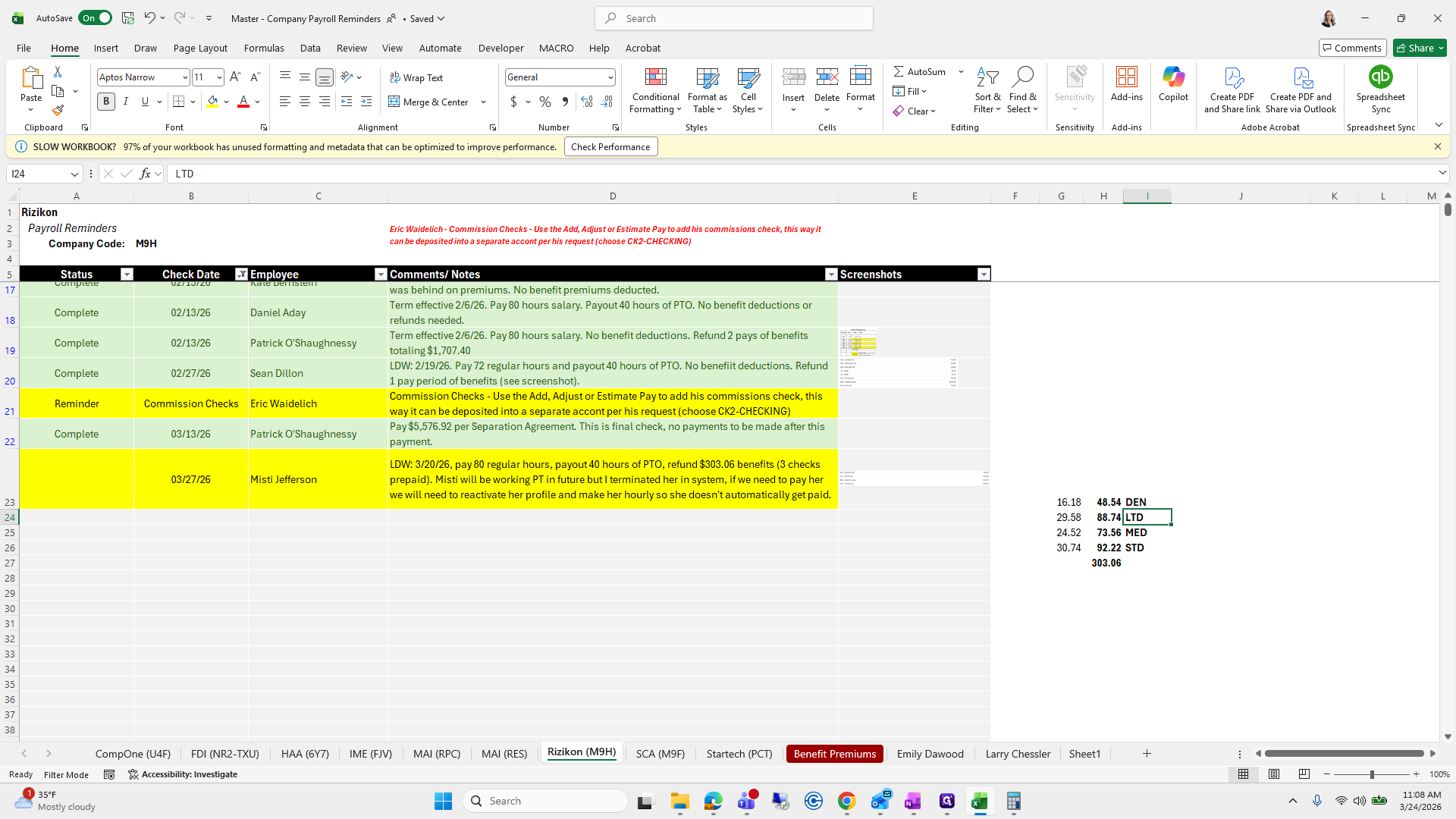
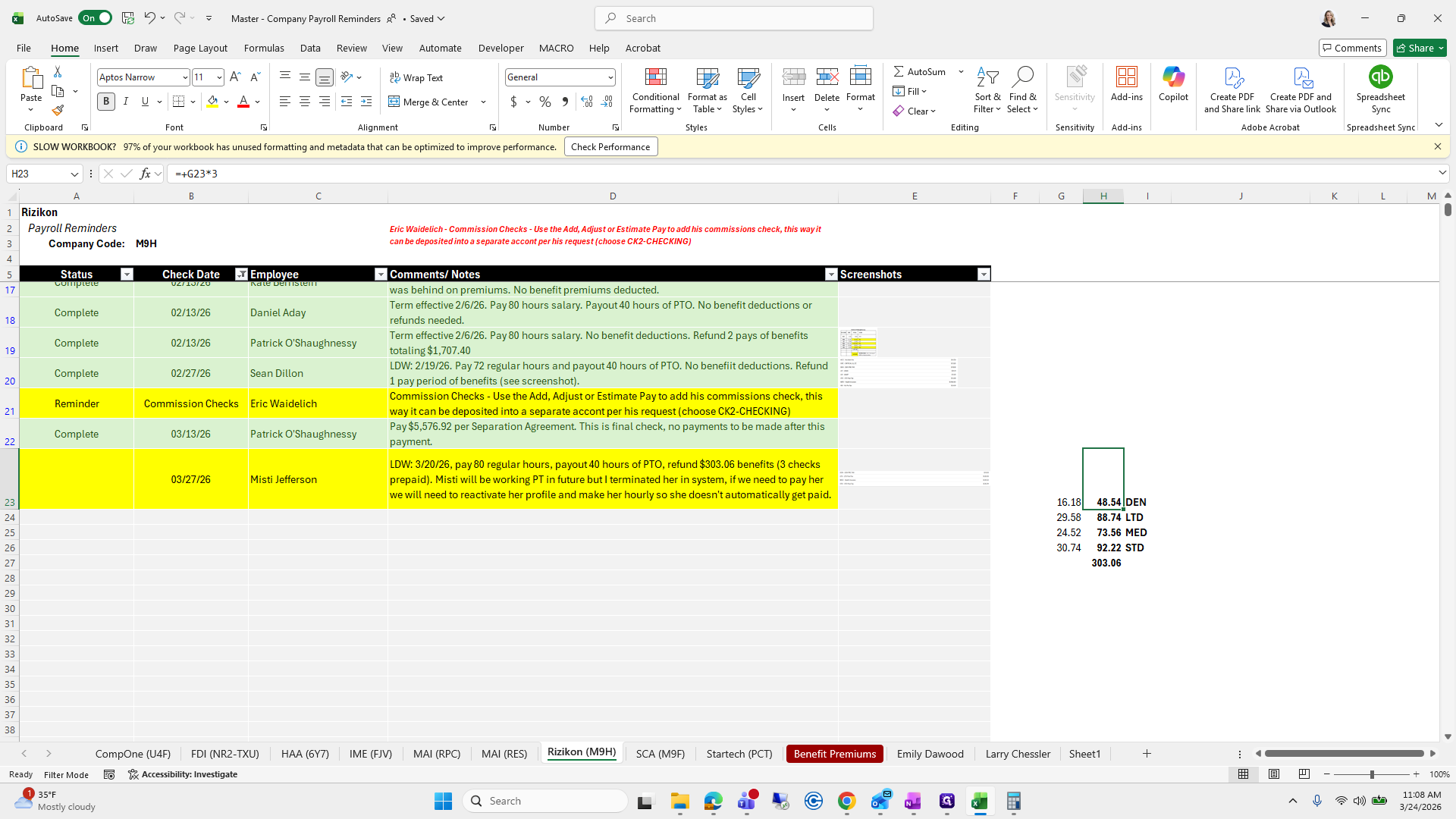
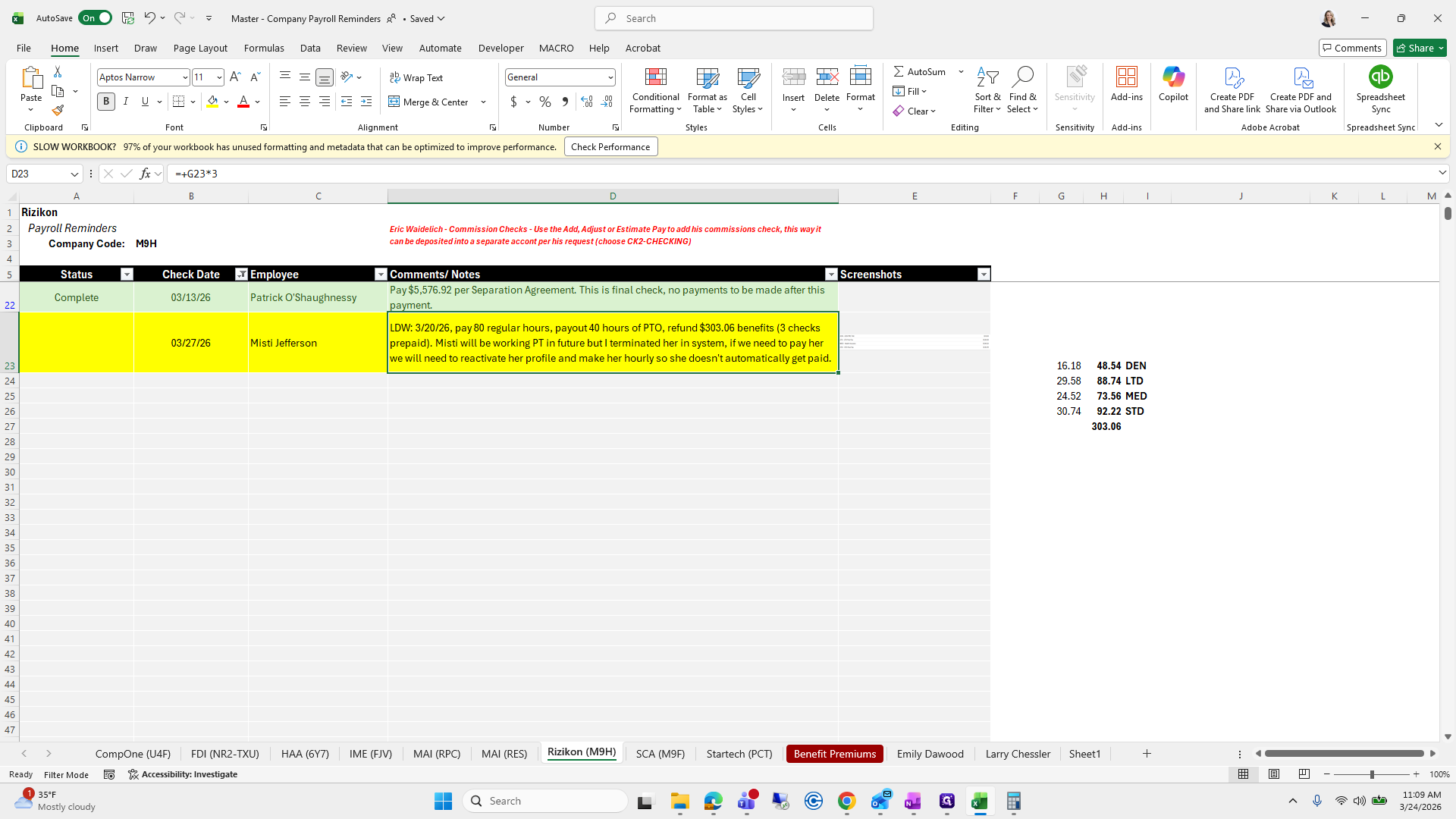
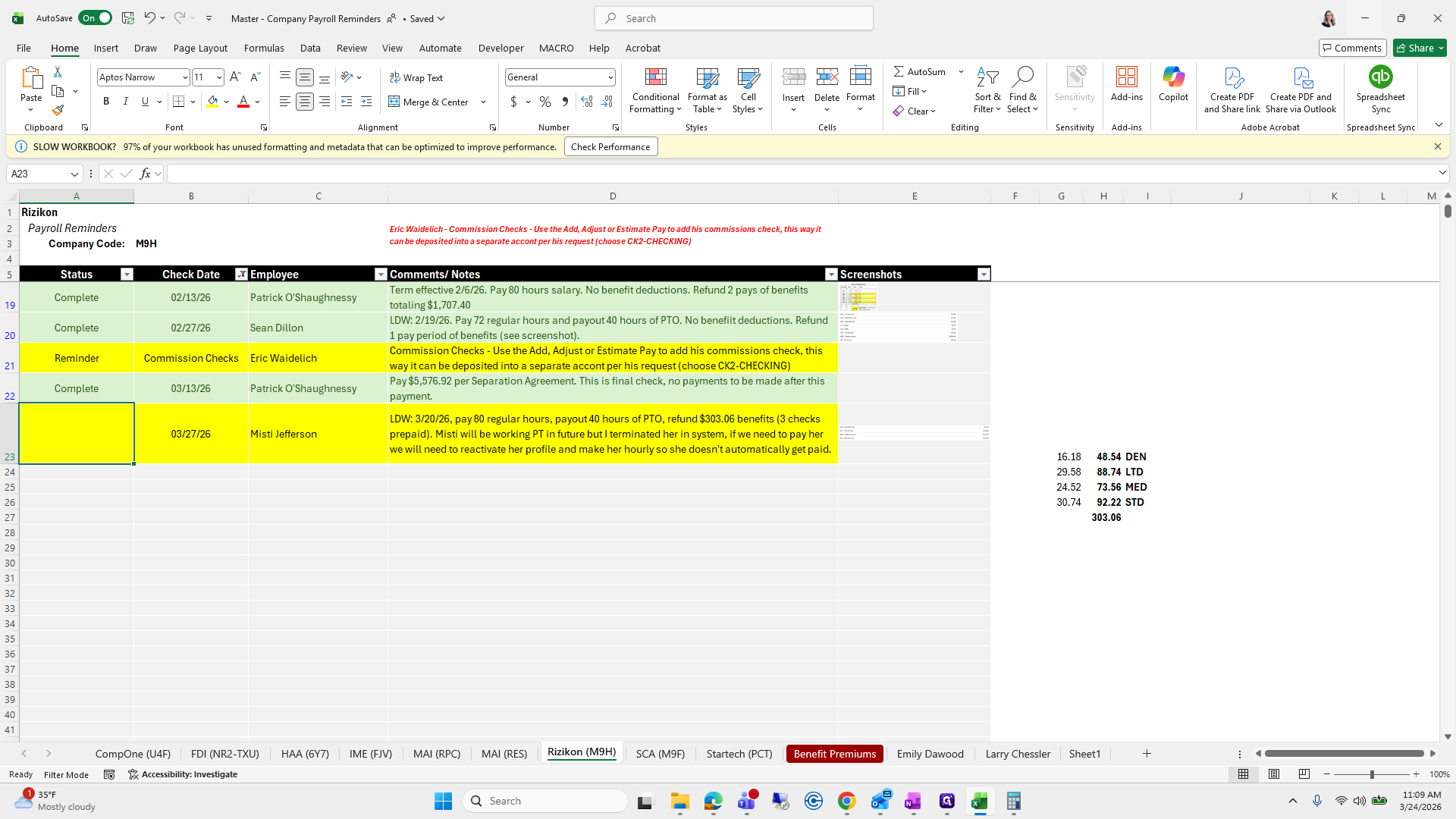
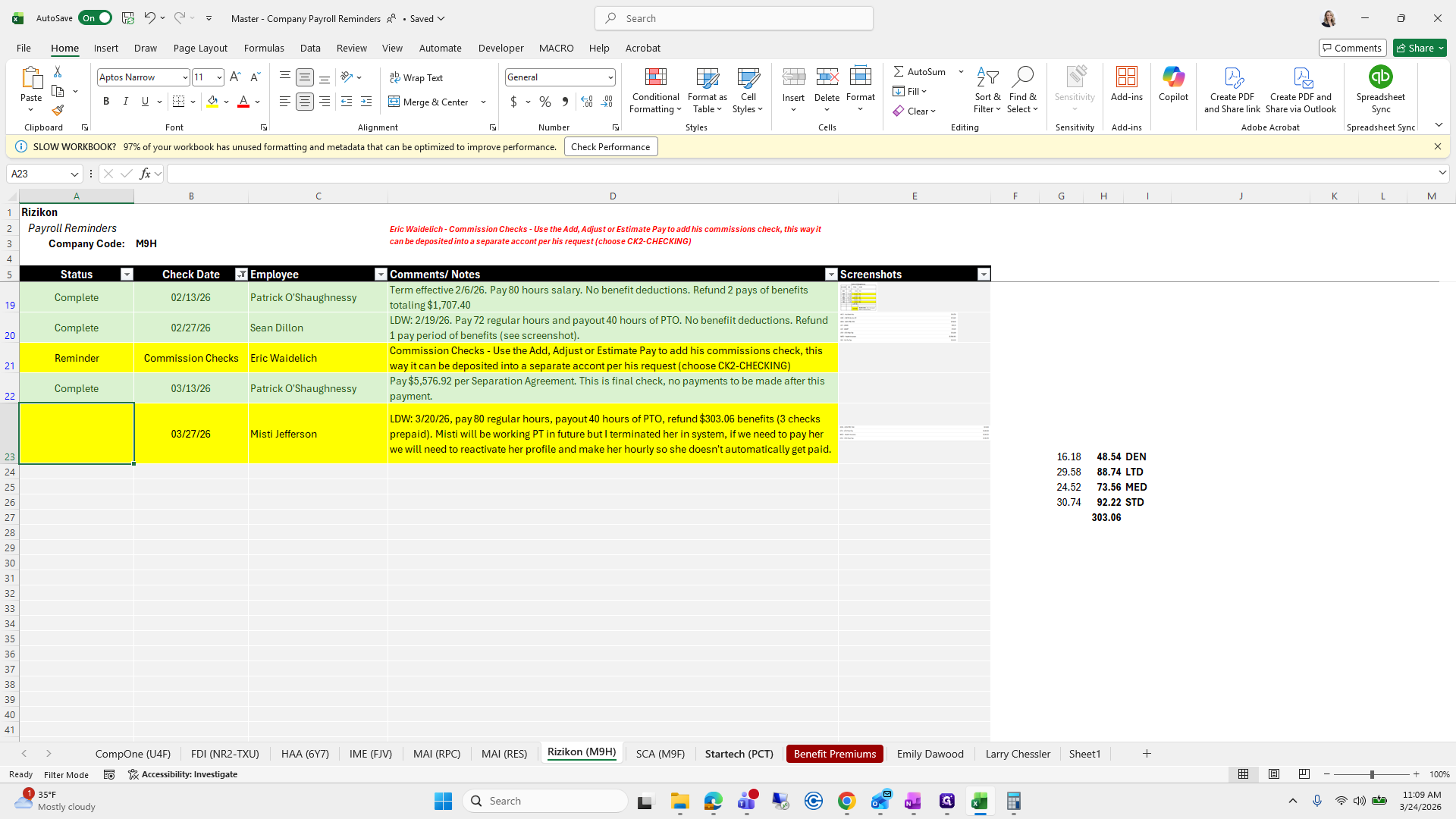
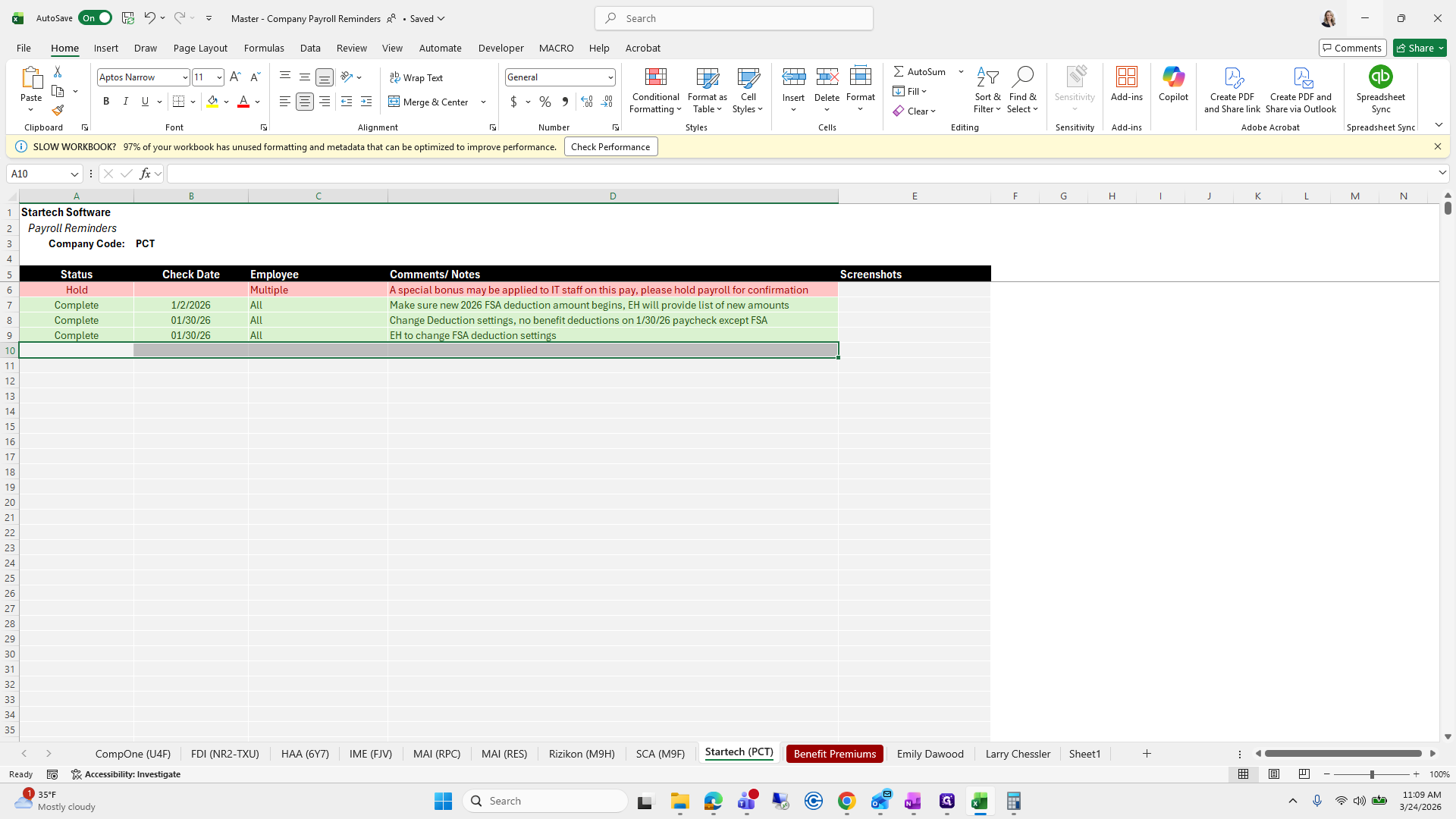
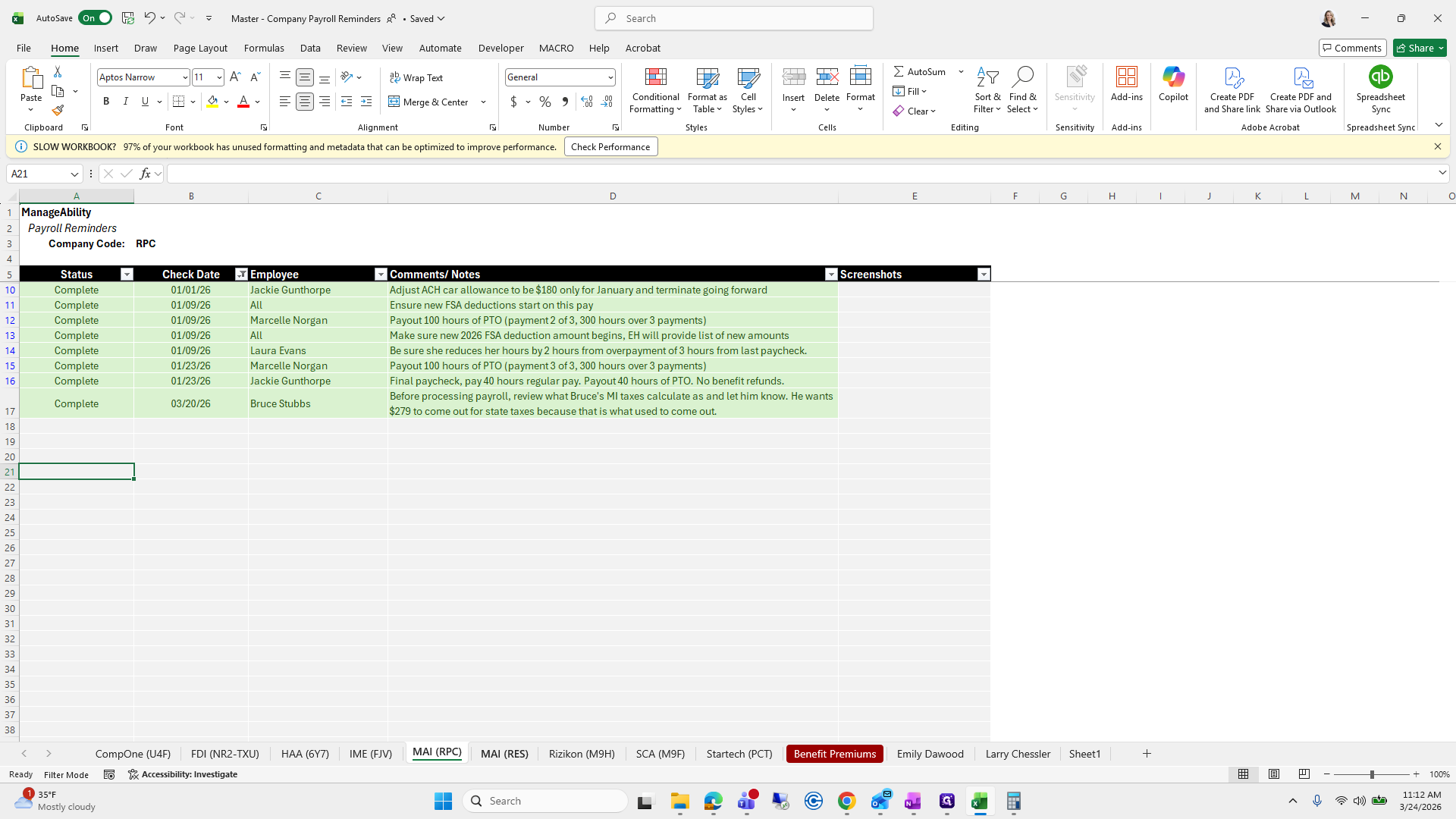
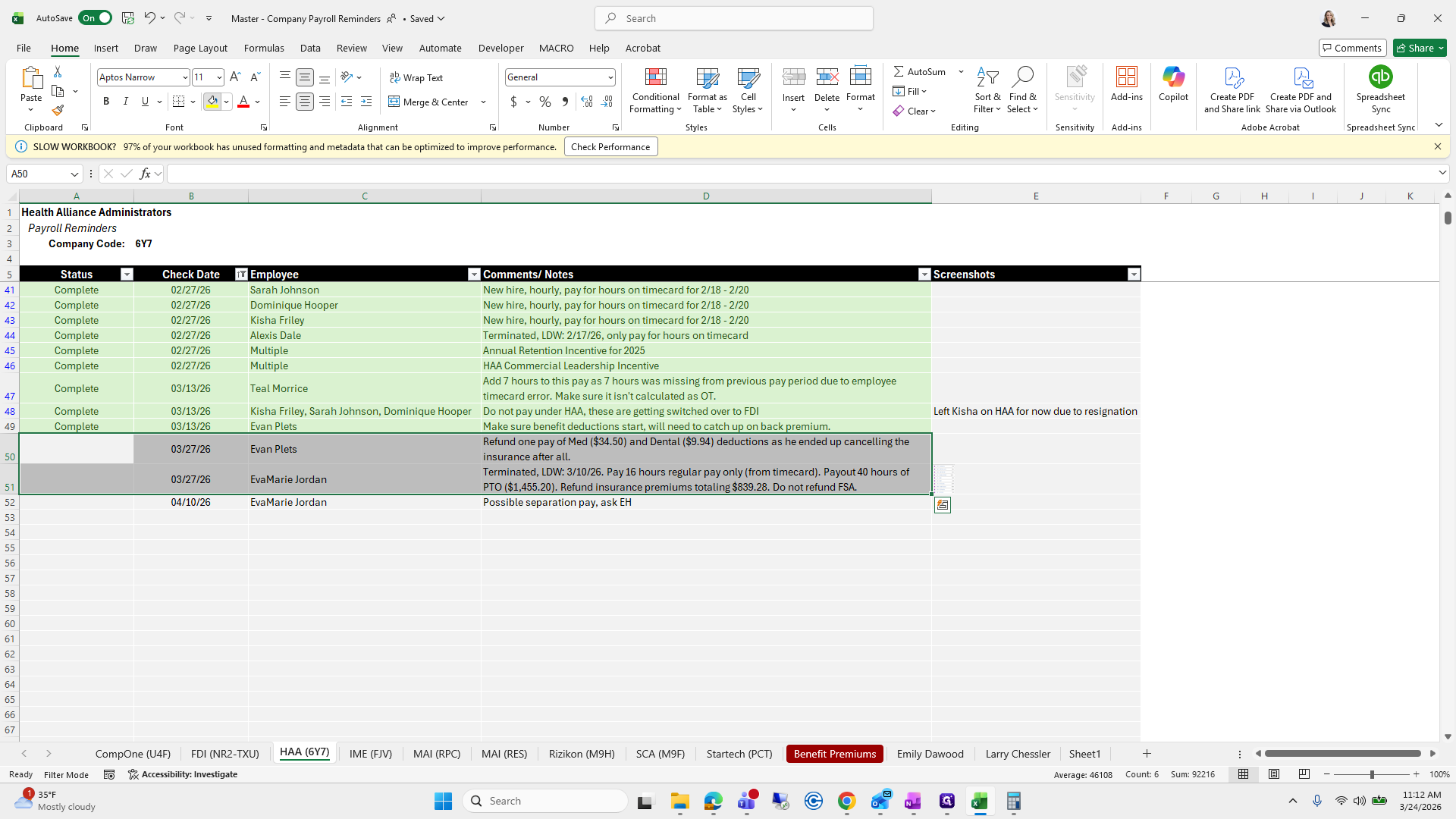
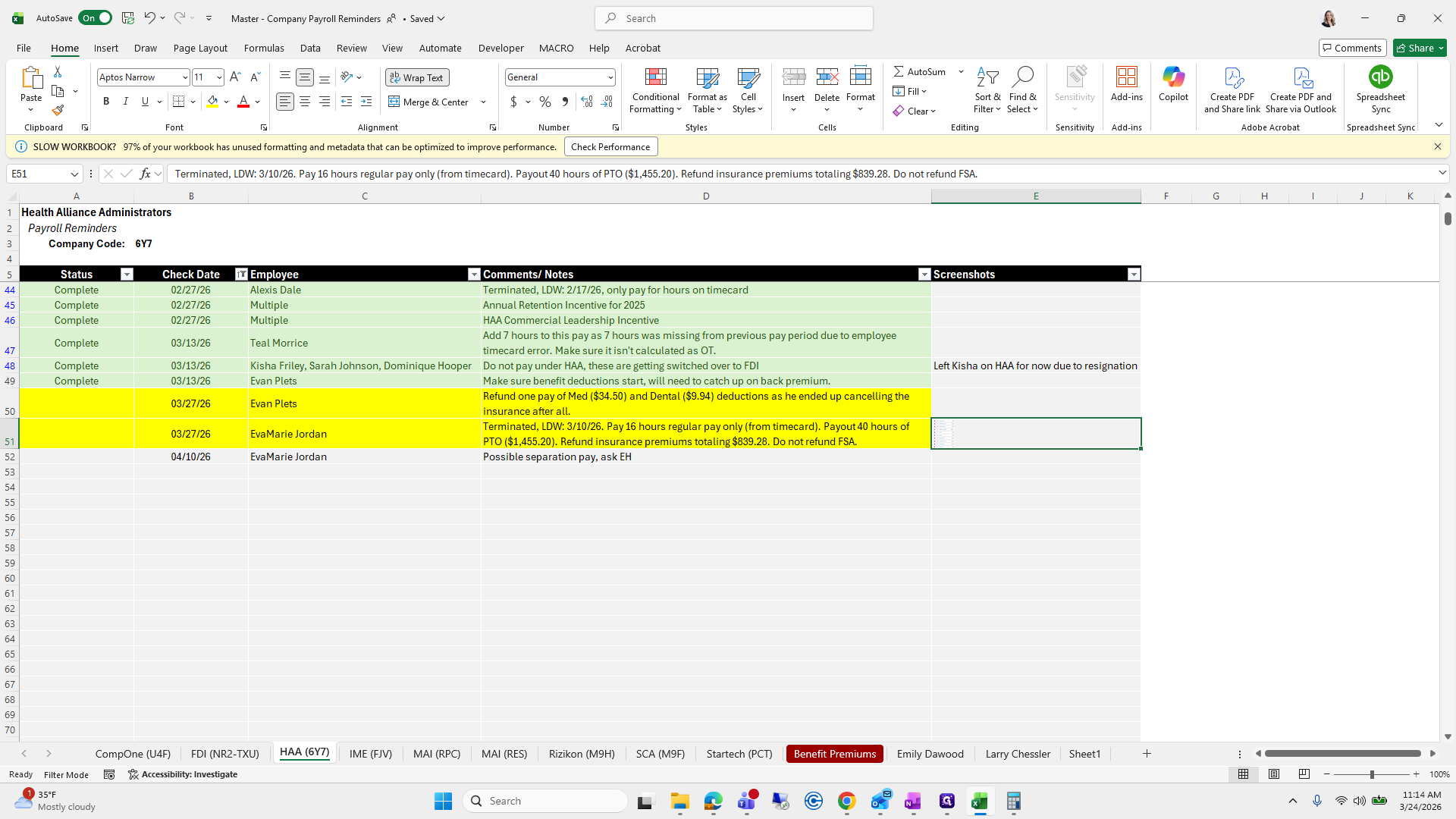
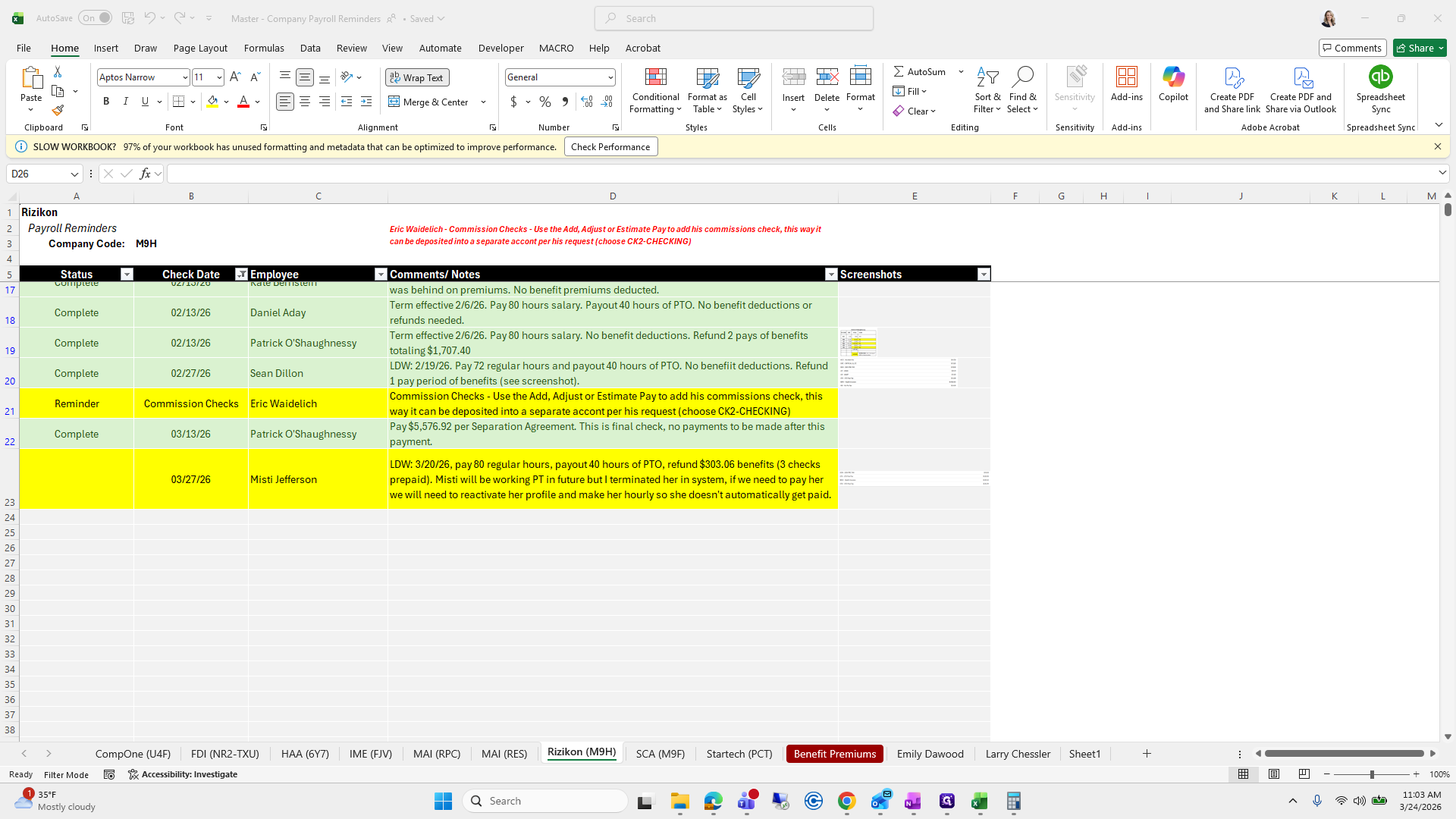
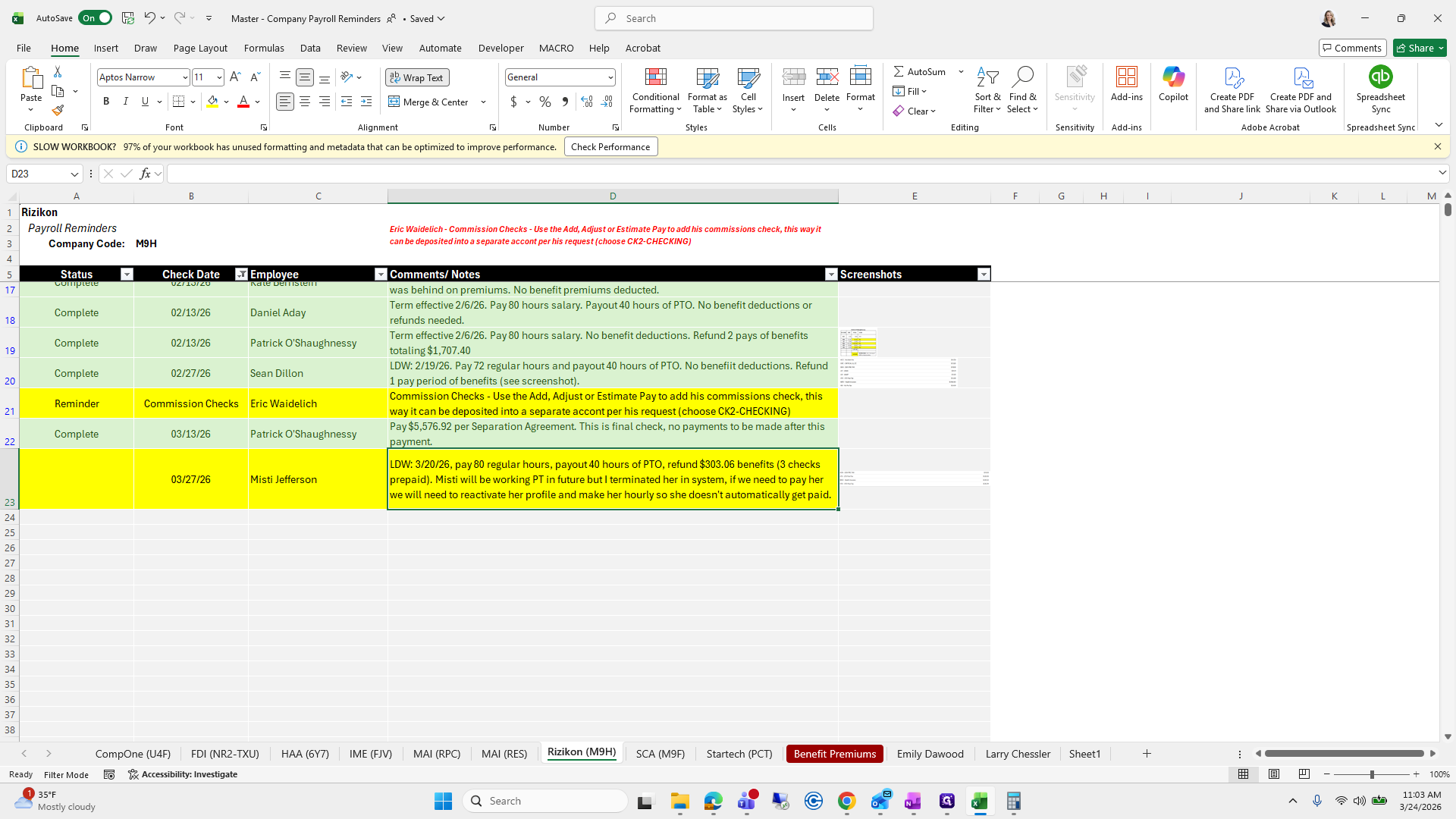
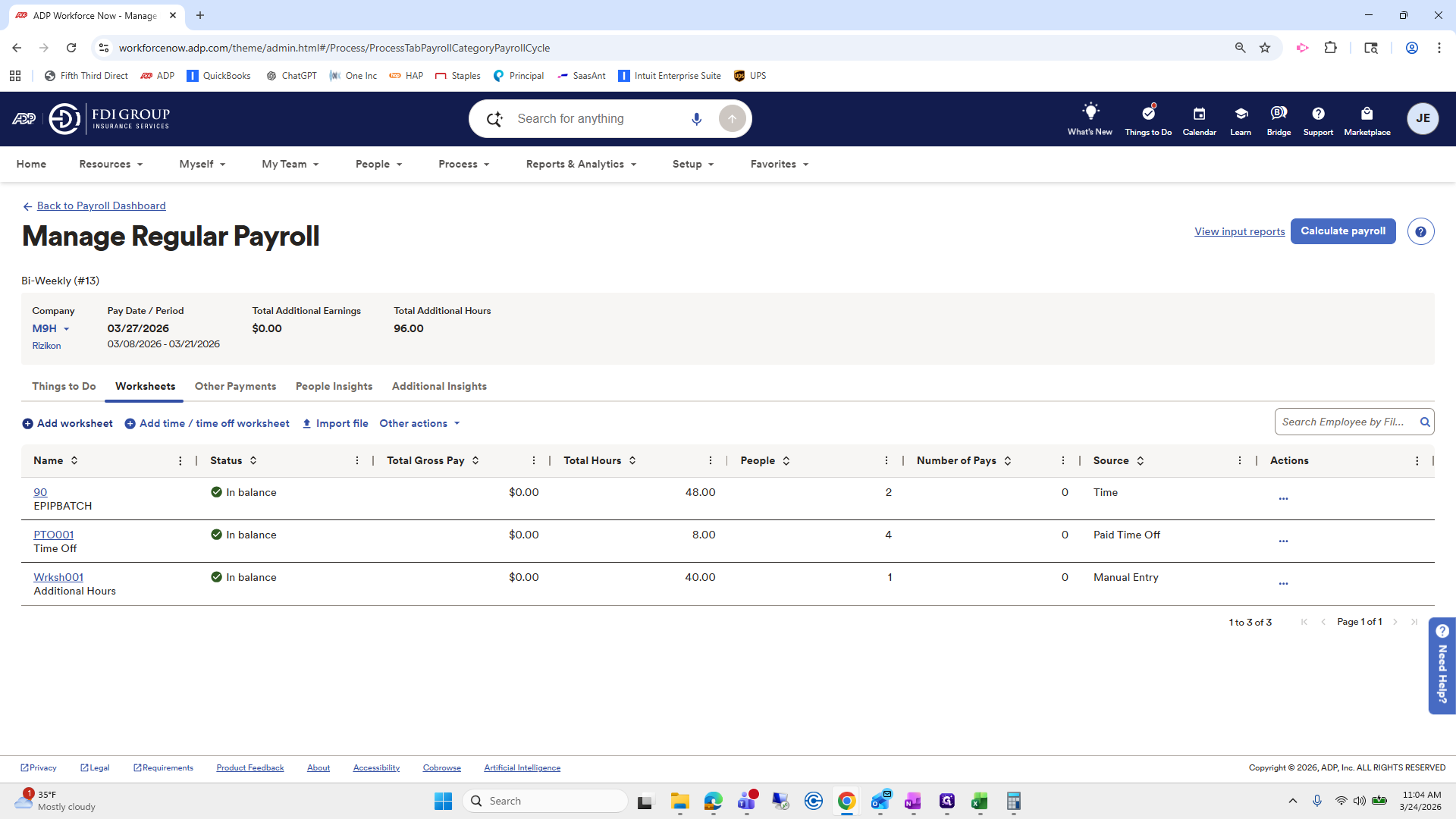
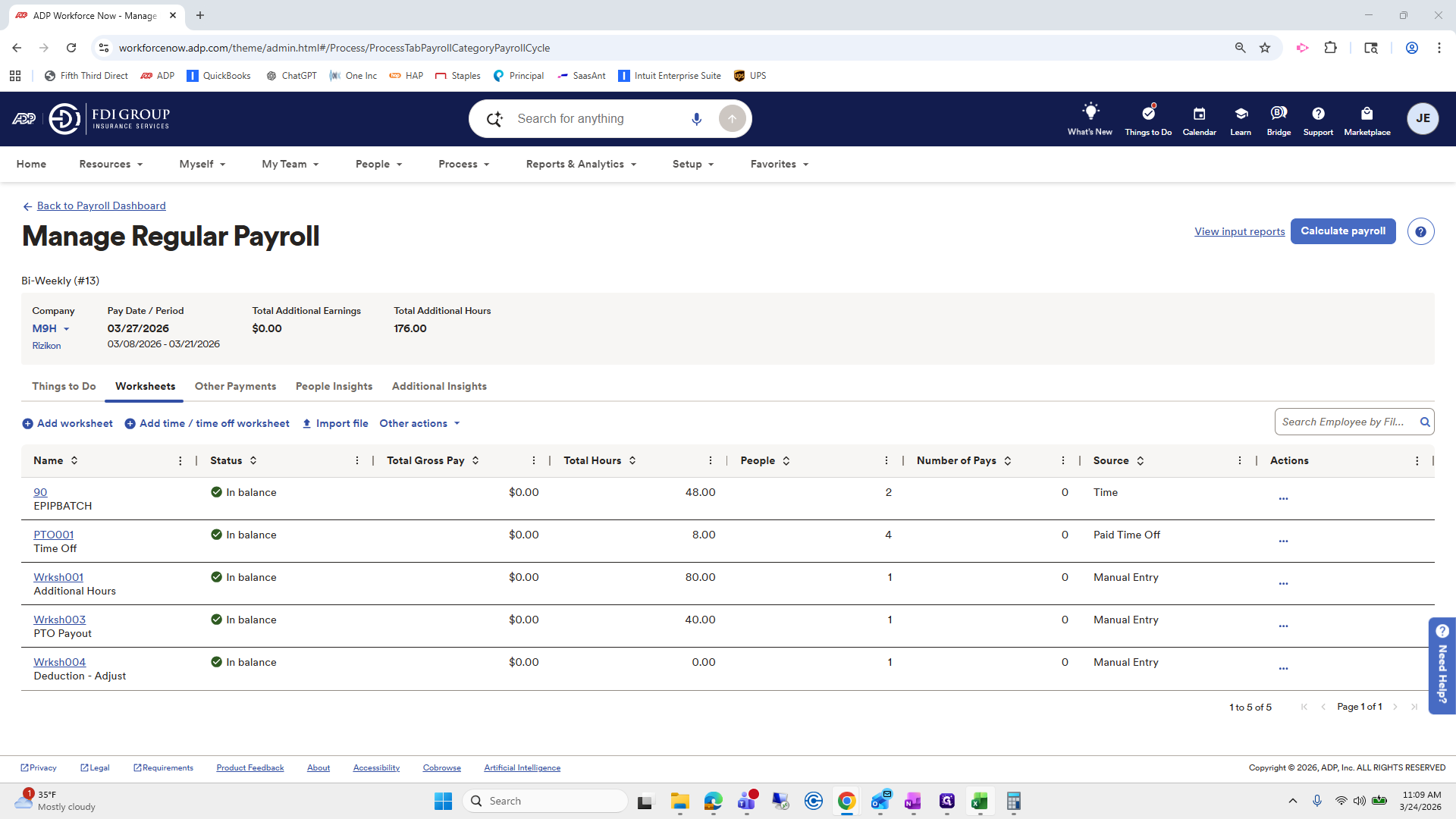
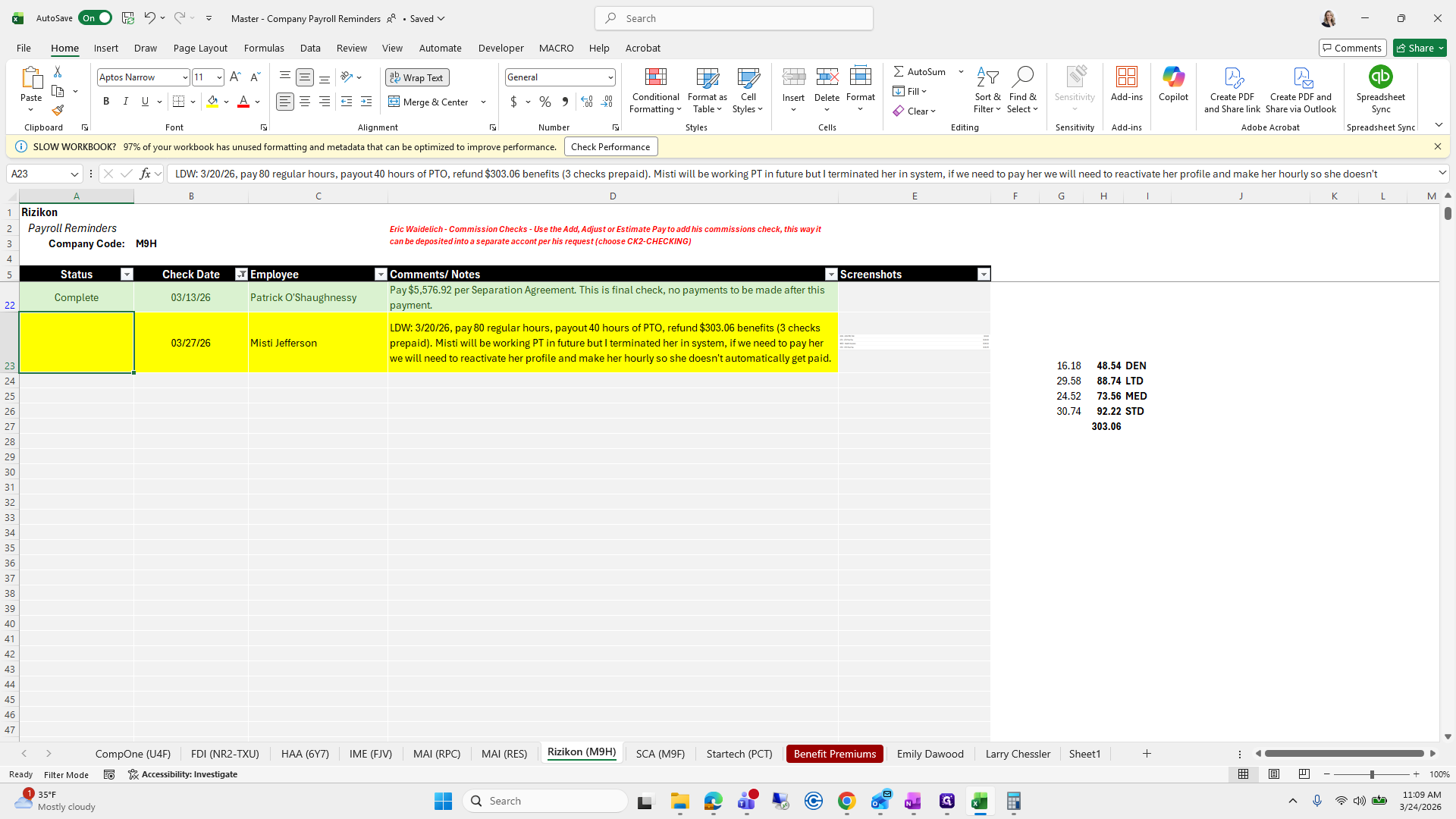
Last day of work was March 20. Paid for 80 hours, including 40 hours of PTO and refunded benefits. She will work part-time in the future, but she is currently terminated. If we need to reactivate her, we can. We need to ensure she is paid for 80 regular hours and receives a payout of 40 hours PTO.
64
Click on "Misti will be working PT in future but"
Step #64: Click on "Misti will be working PT in future but"
65
Click on ","
Step #65: Click on ","

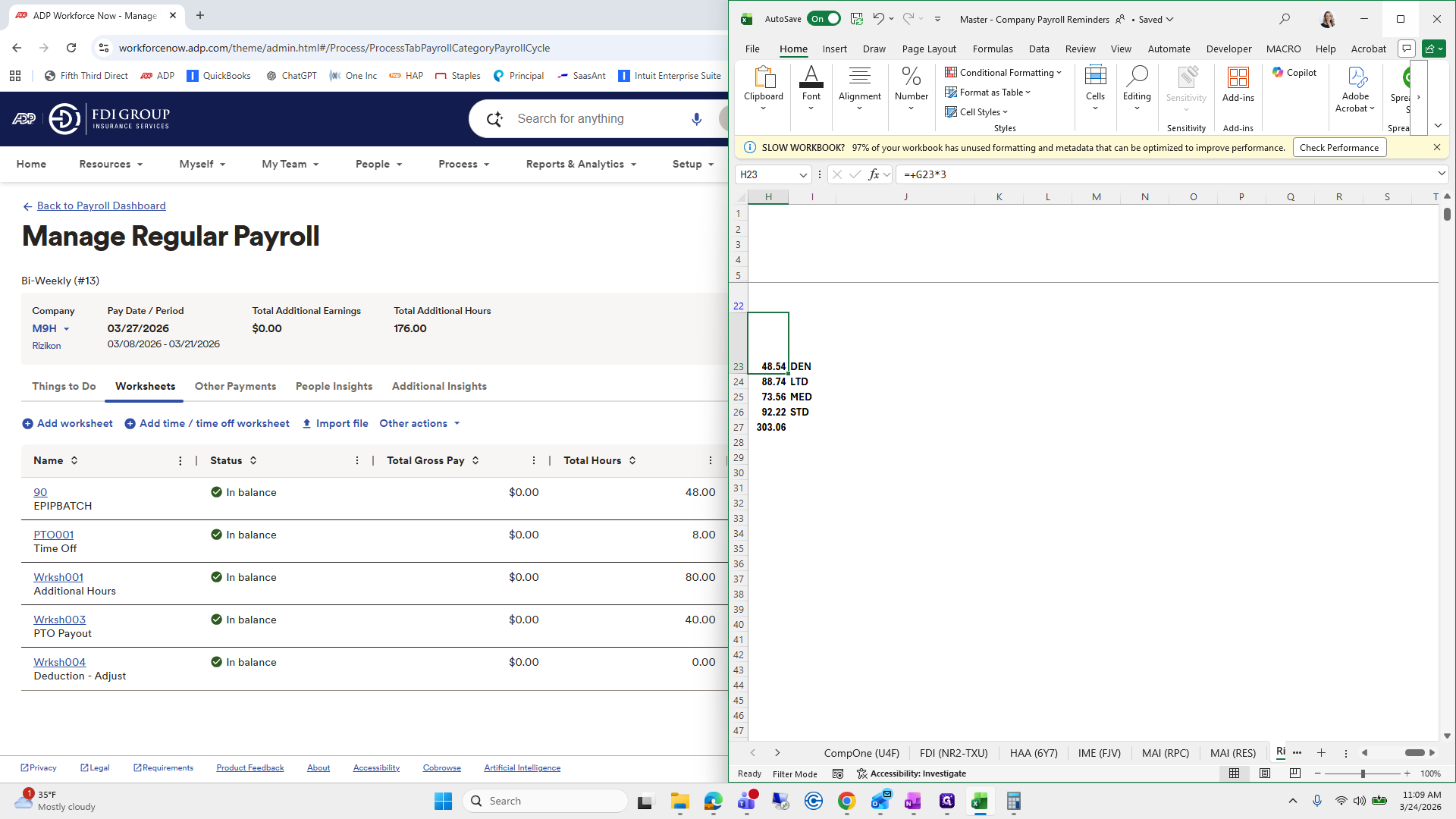
We'll start with those two.

66
Click here
Step #66: Click here

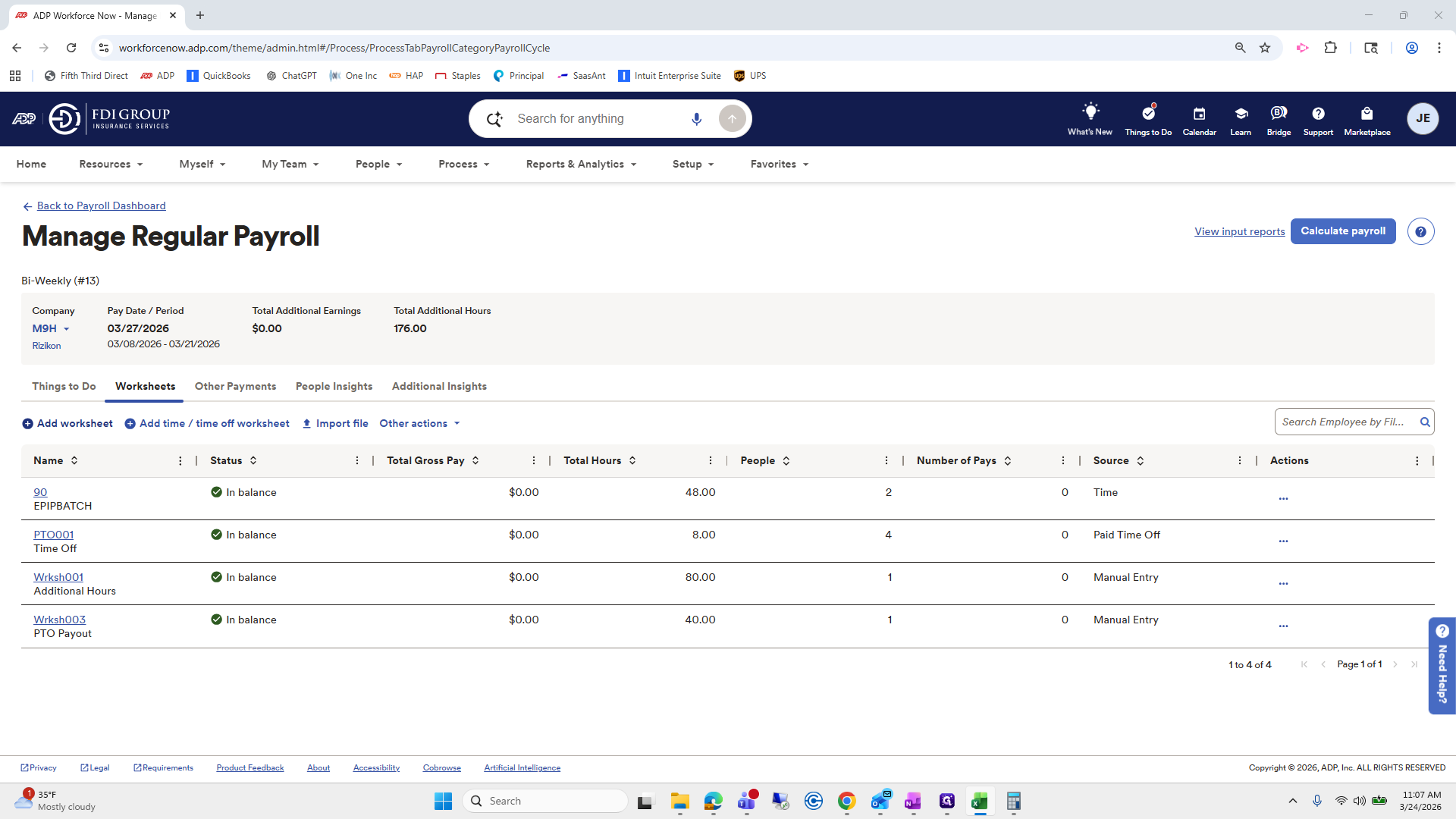
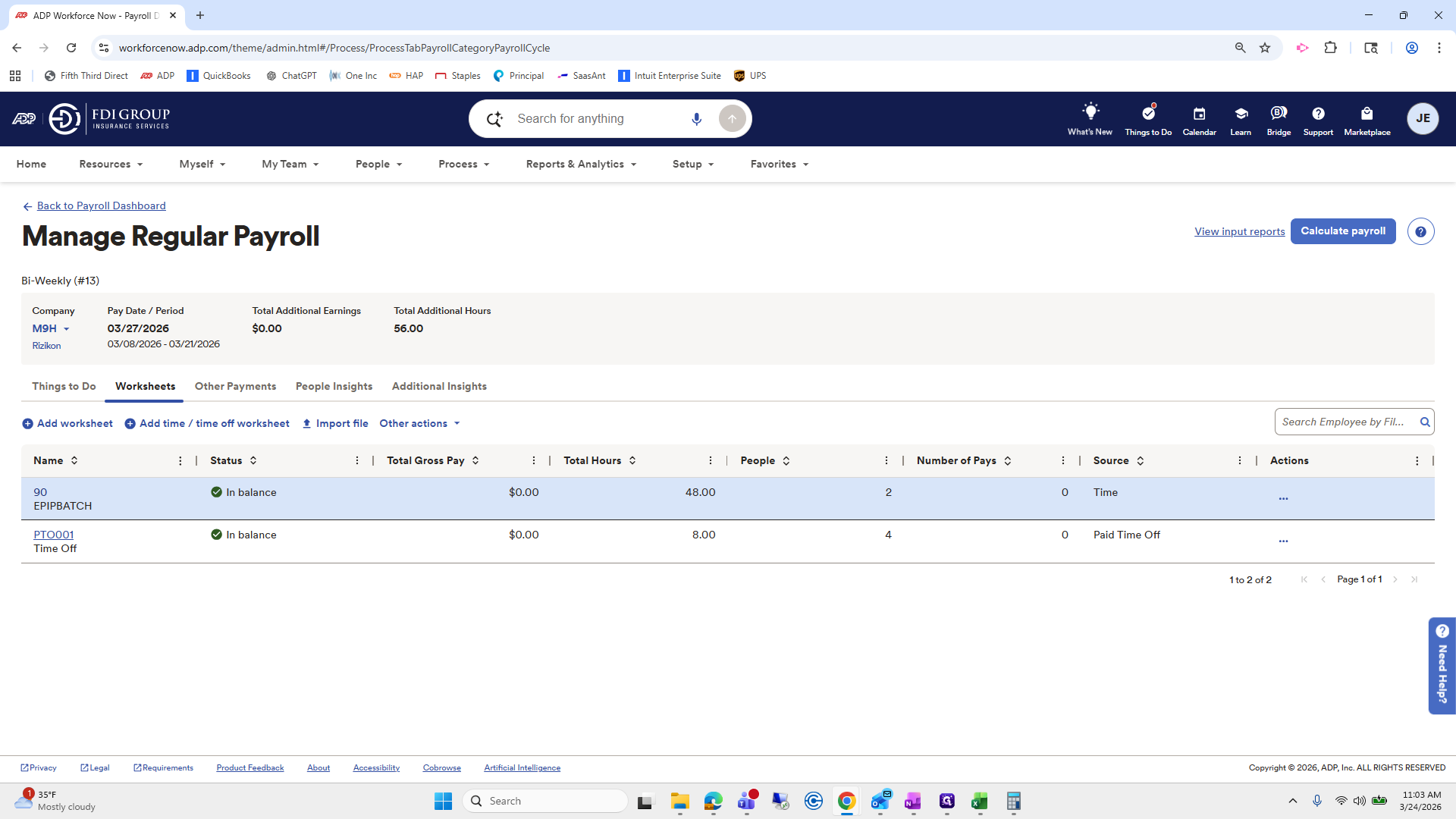
We will look at the batch first to see if she is included.
67
Click on "90"
Step #67: Click on "90"

I'm going to click it.

68
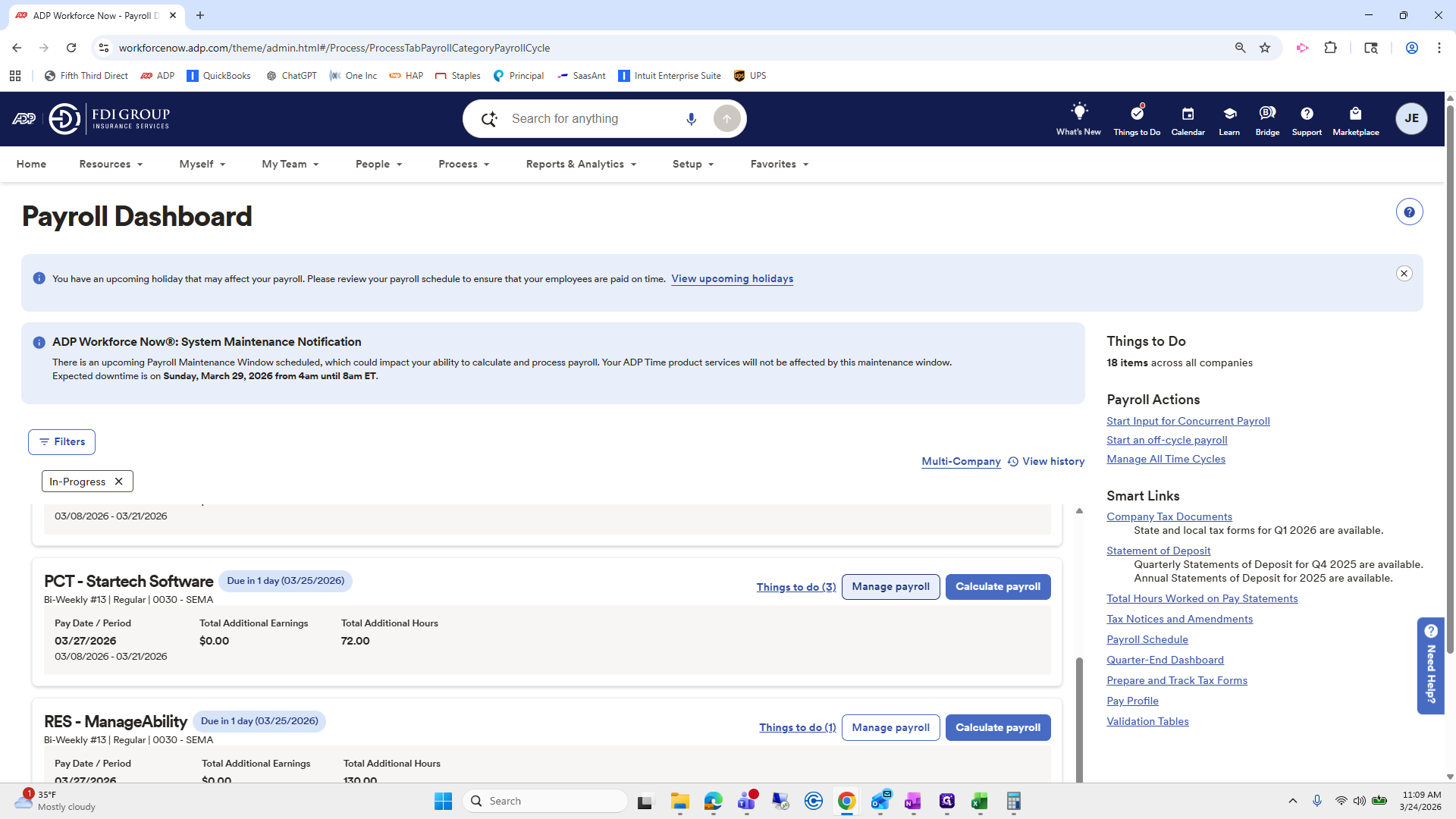
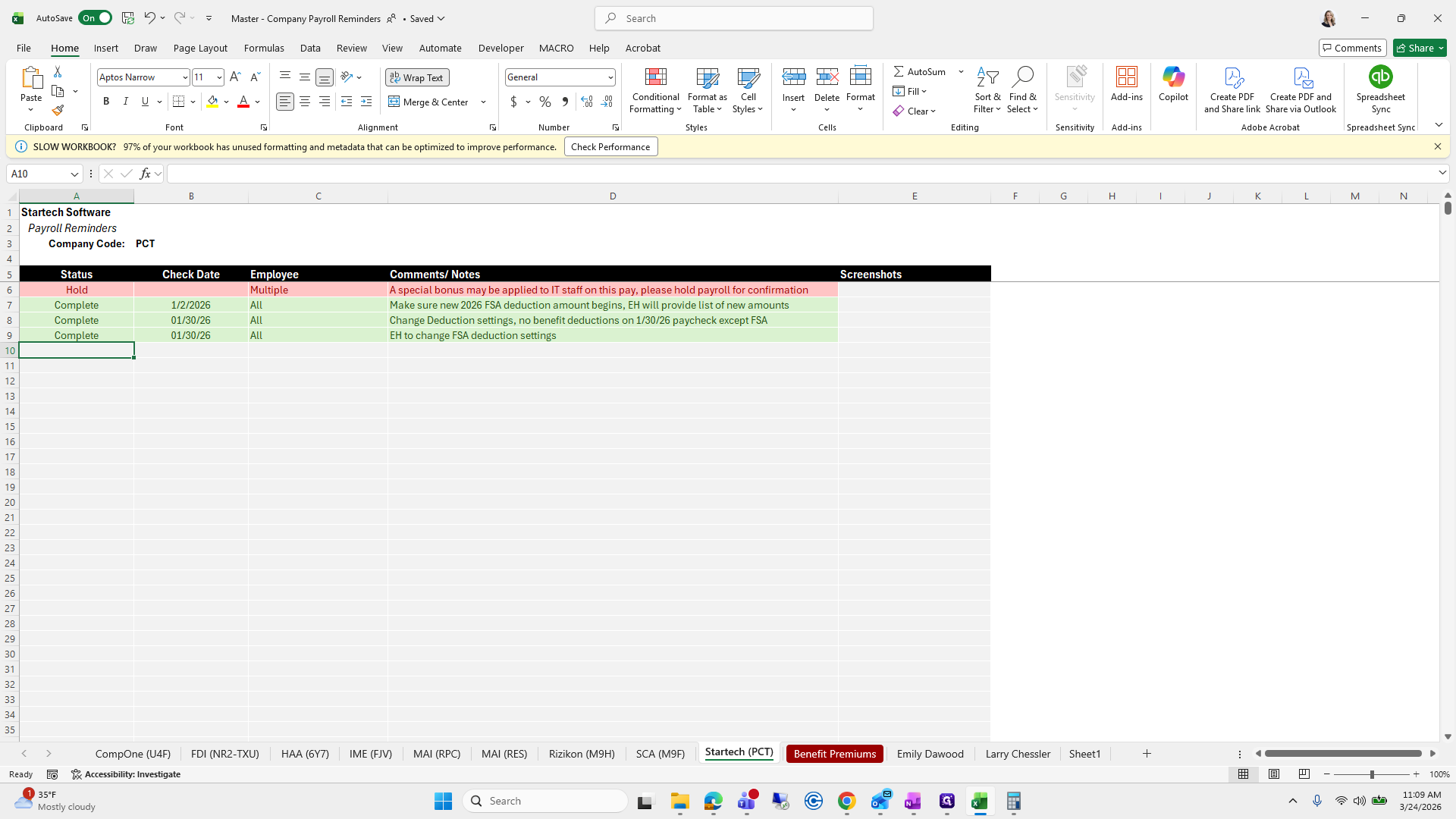
Click on "DONE"
Step #68: Click on "DONE"

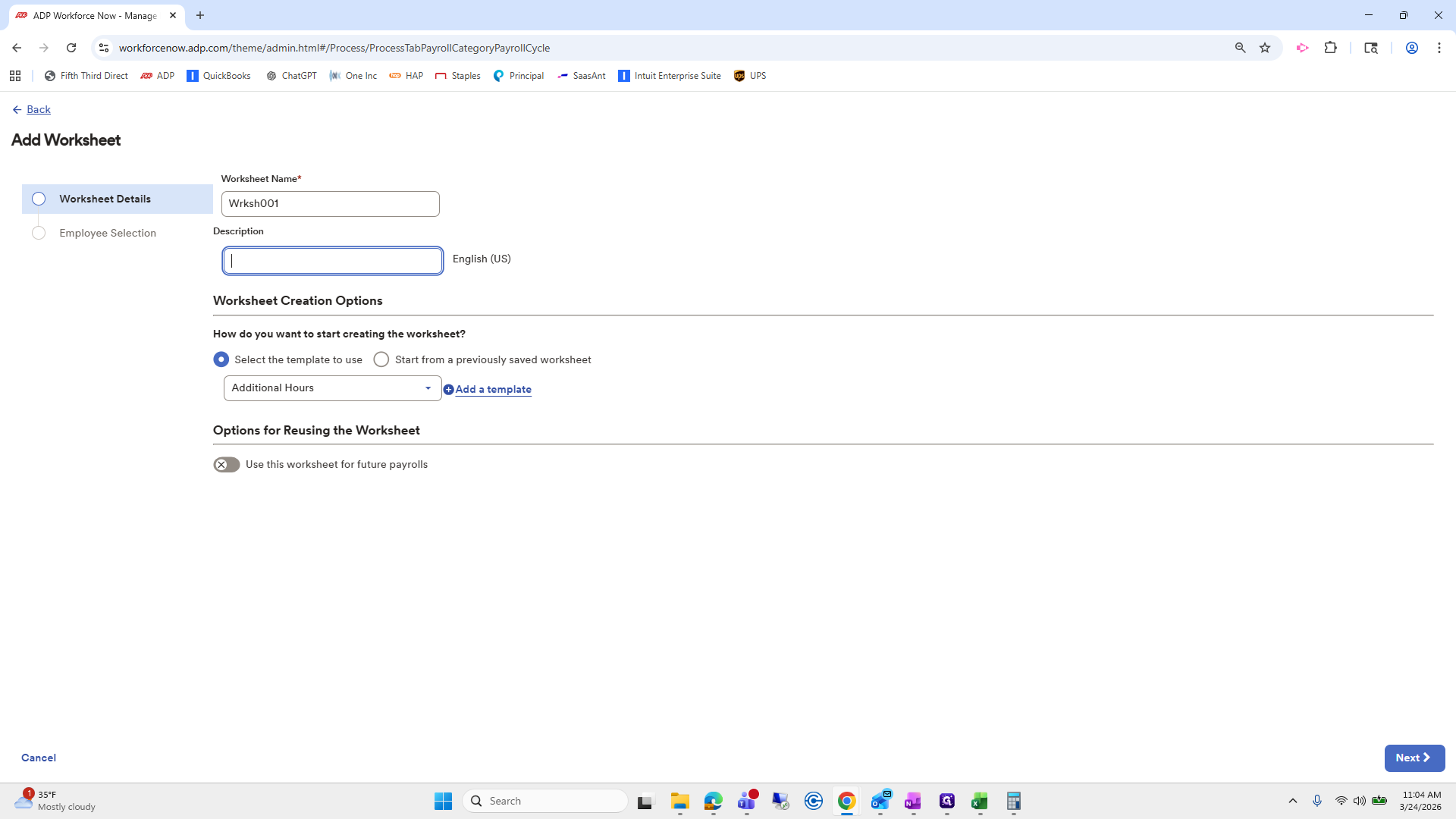
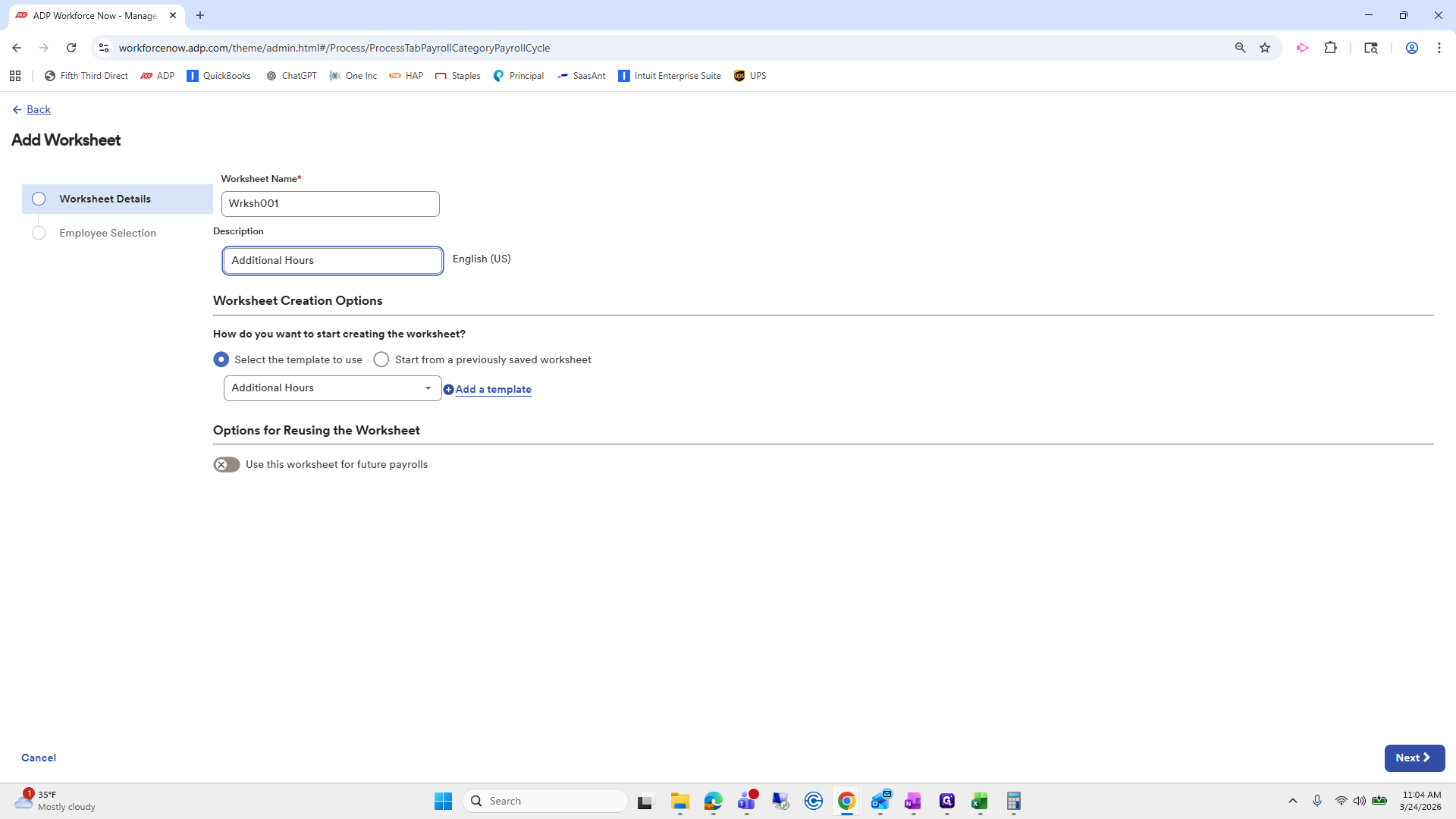
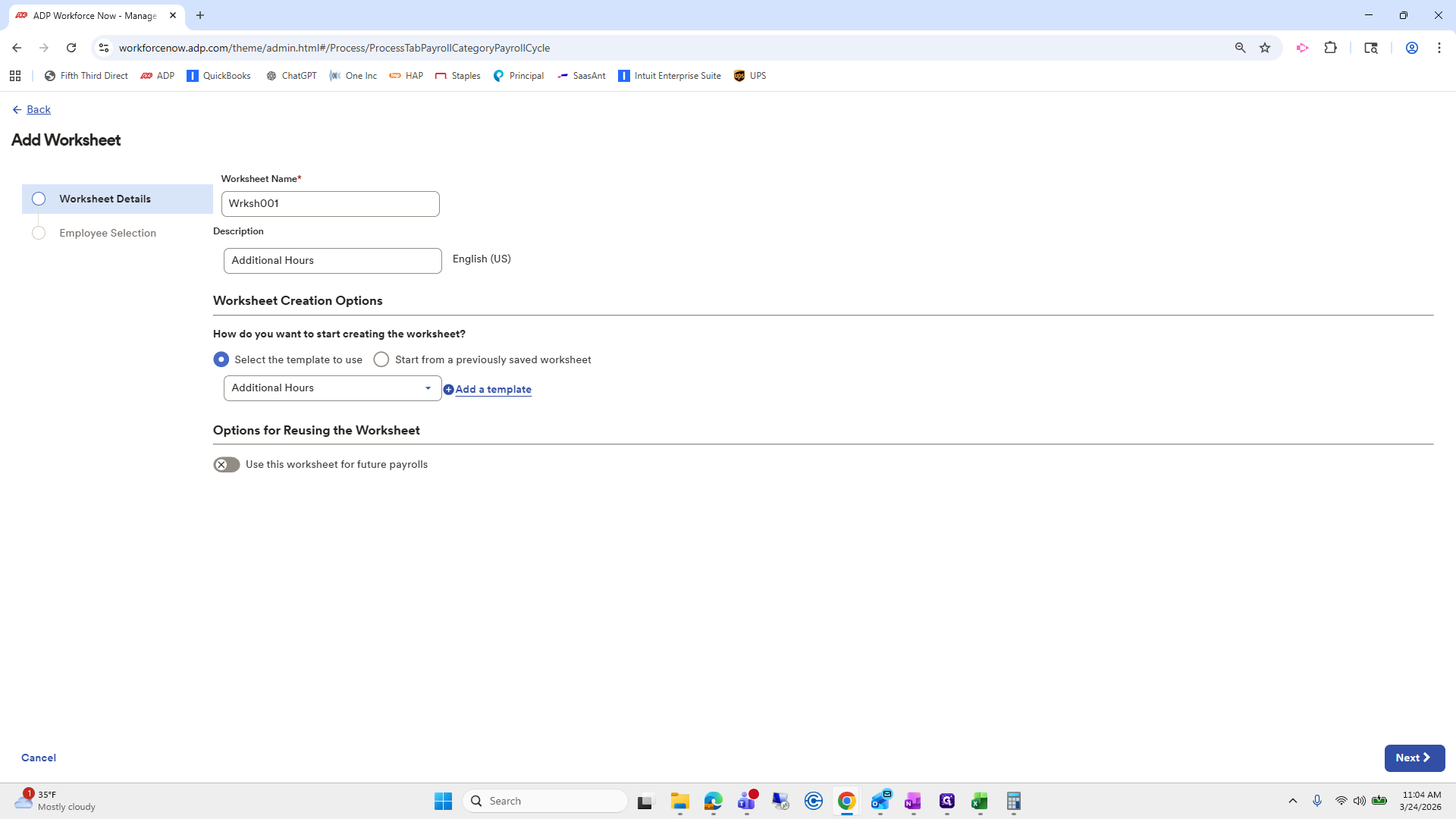
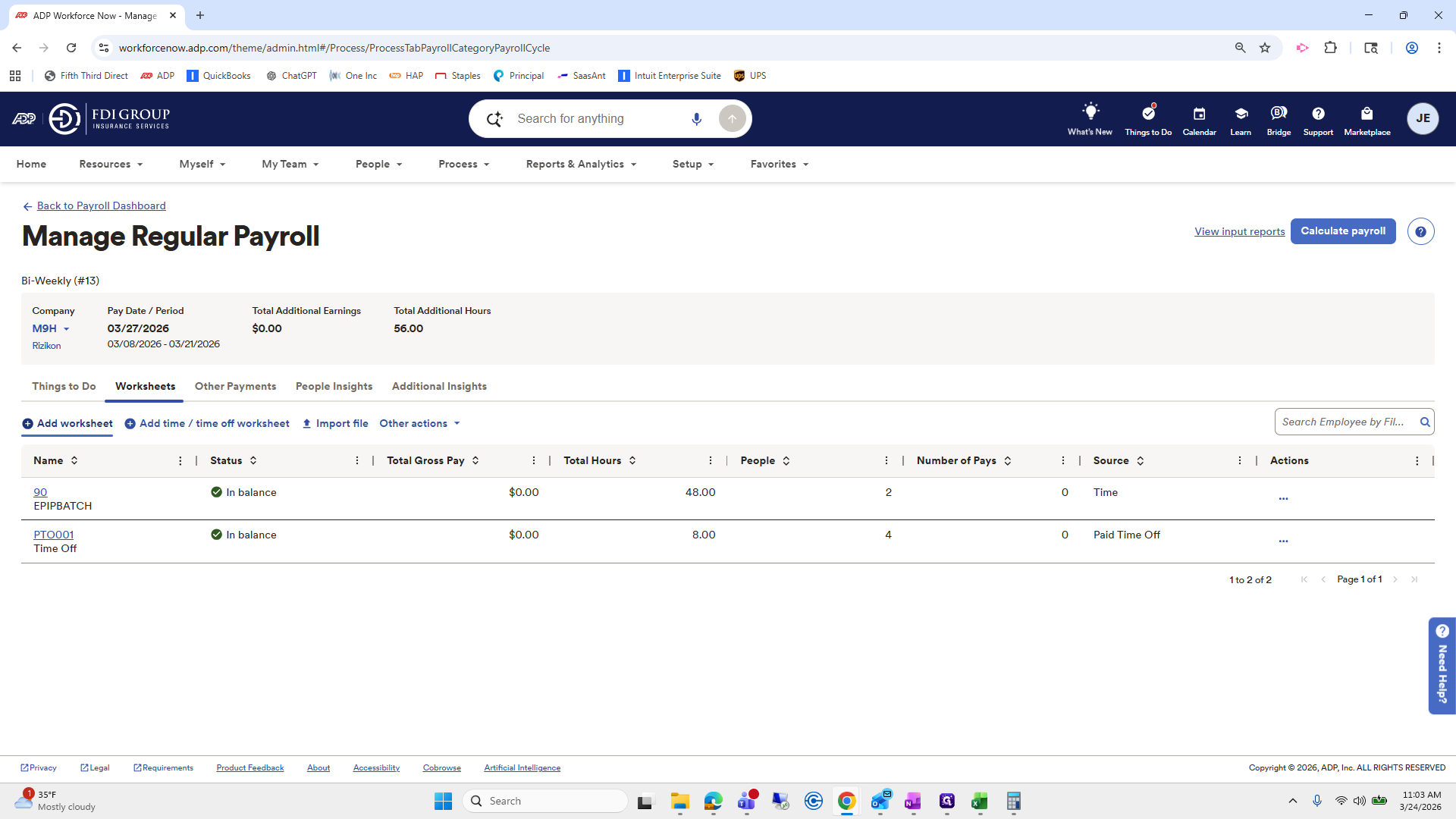
Go to Add Worksheet and click Additional Hours.
69
Click on "+ Add worksheet"
Step #69: Click on "+ Add worksheet"
70
Click on "How do you want to start creating the worksheet ? Select the template to use"
Step #70: Click on "How do you want to start creating the worksheet ? Select the template to use"
71
Click here
Step #71: Click here

I'll copy and paste that.

72
Drag "Additional Hours"
Step #72: Drag "Additional Hours"
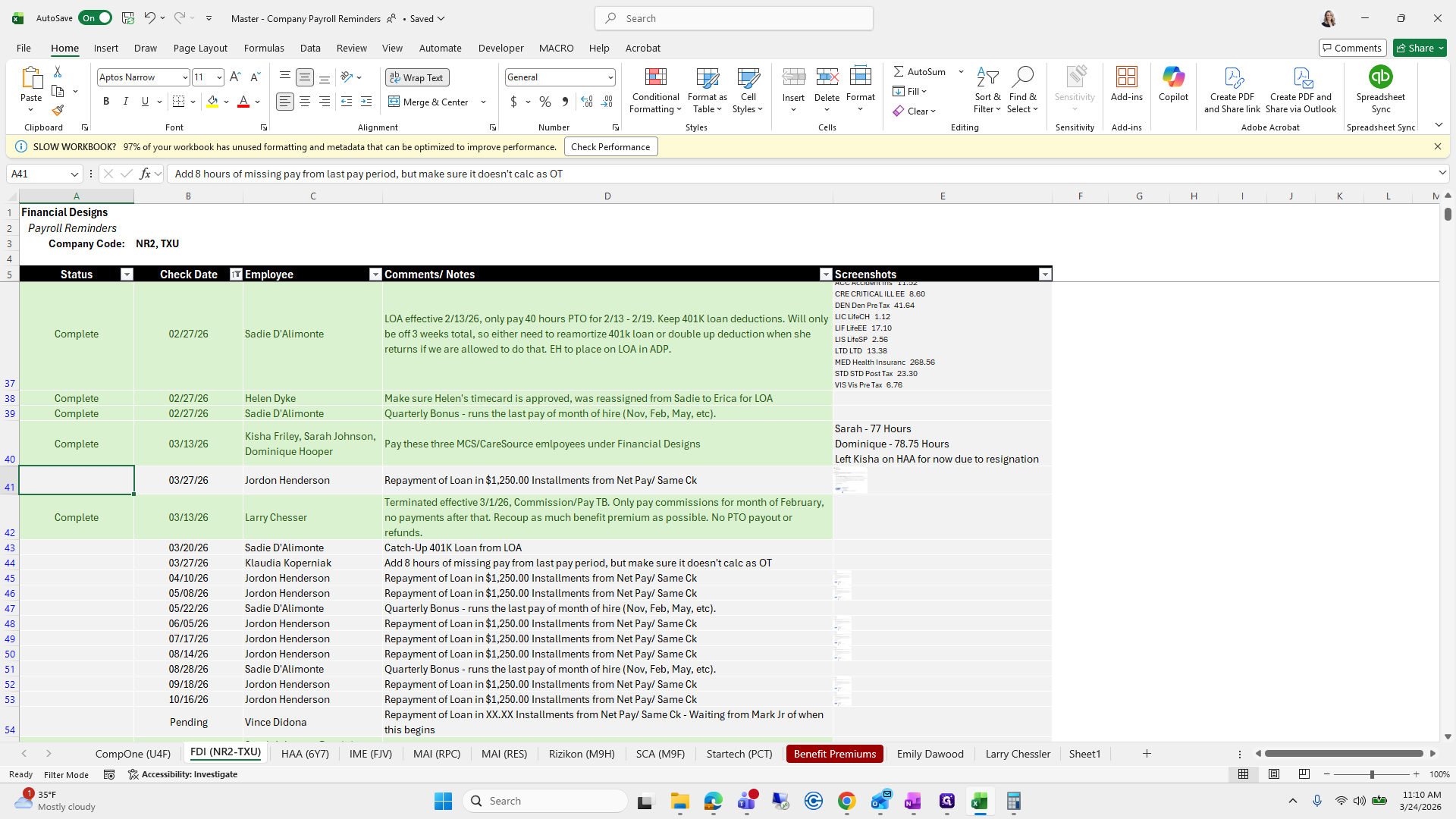
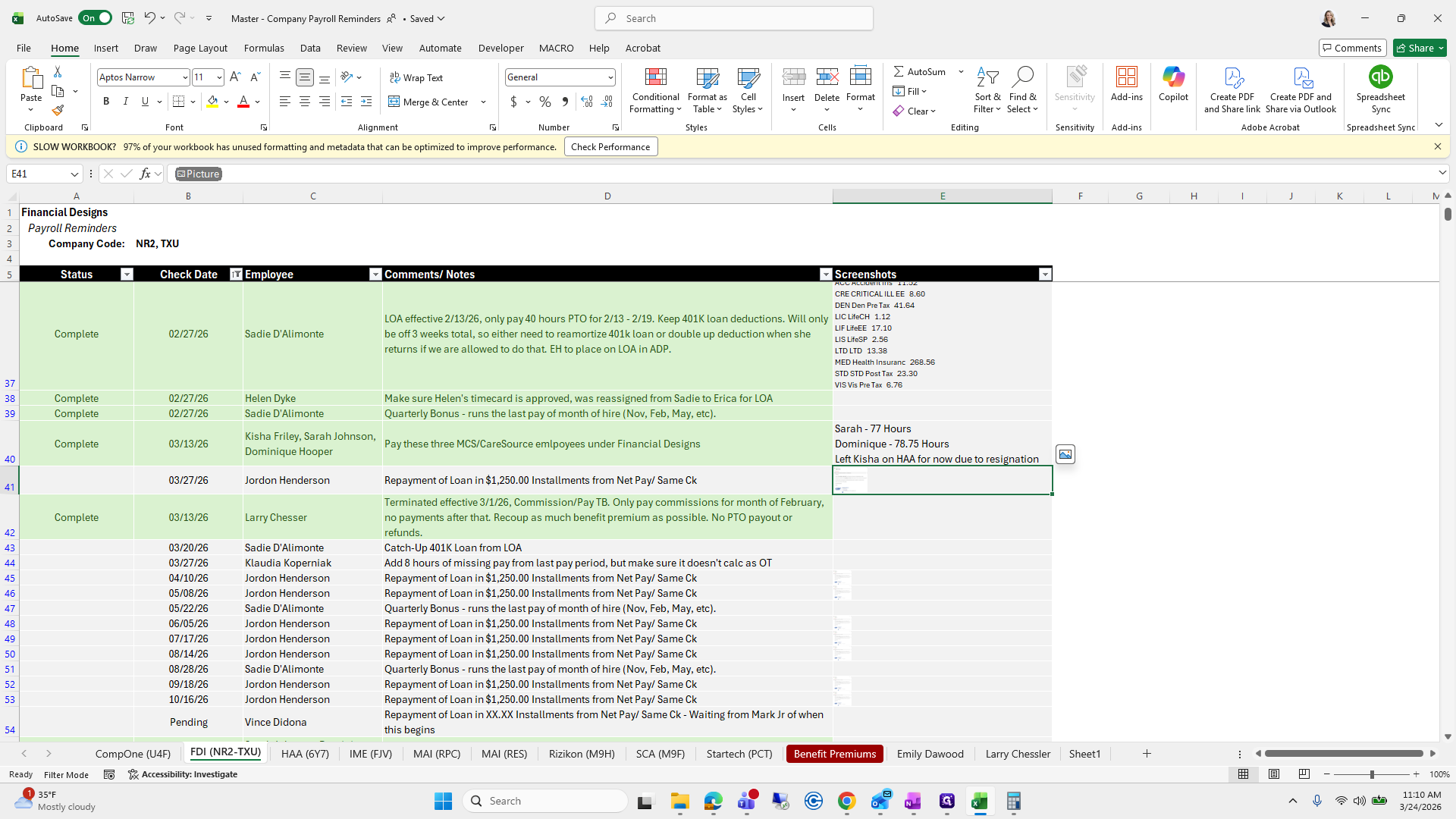
73
Type "Ctrl + C"
74
Double-click here
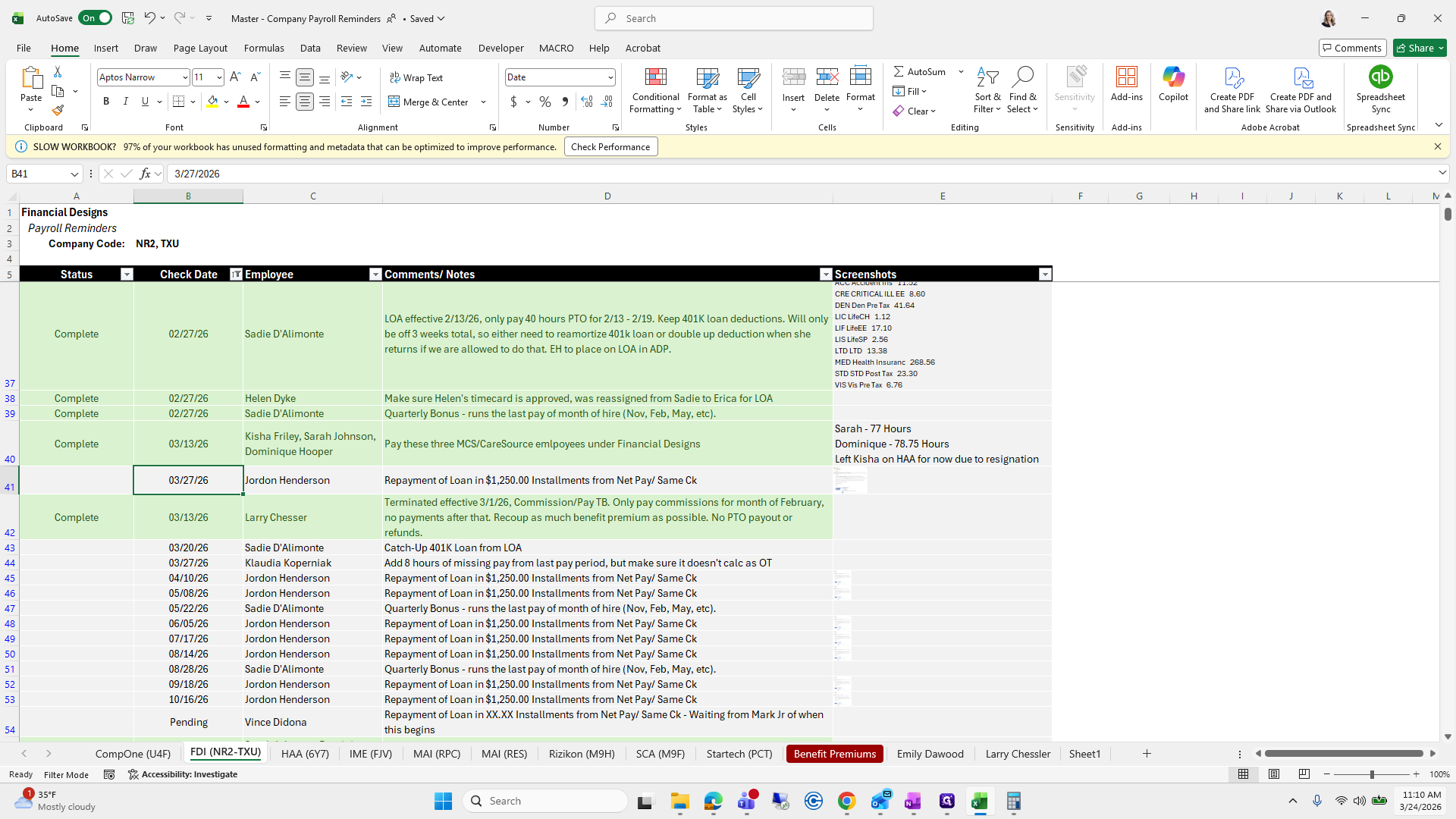
Step #74: Double-click here
75
Type "Ctrl + V"

We will choose Misty.

76
Click on "Next >"
Step #76: Click on "Next >"
77
Click on "Next >"
Step #77: Click on "Next >"
78
Click on "Search by name or positic"
Step #78: Click on "Search by name or positic"

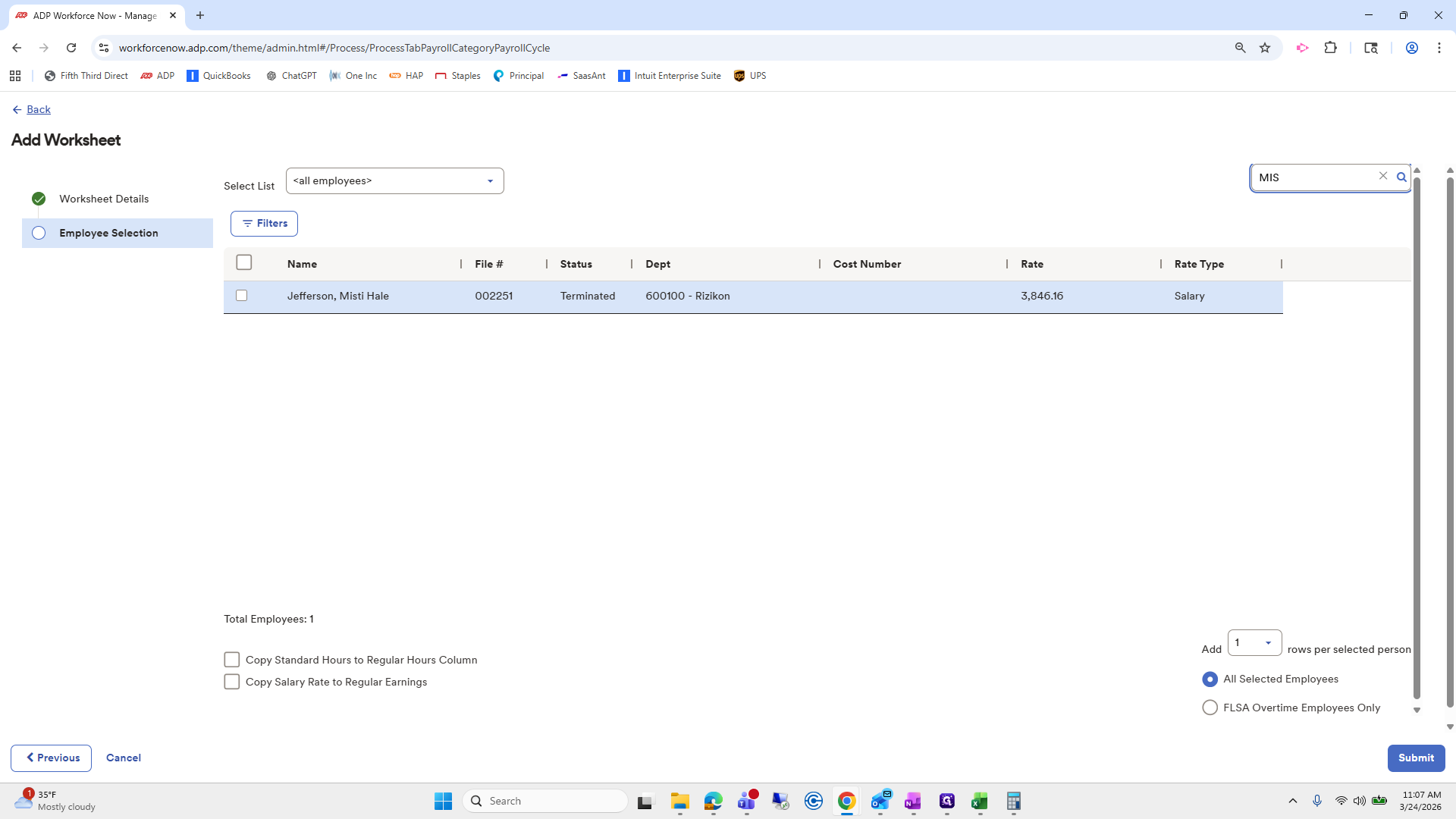
She isn't here because this is only an active list.
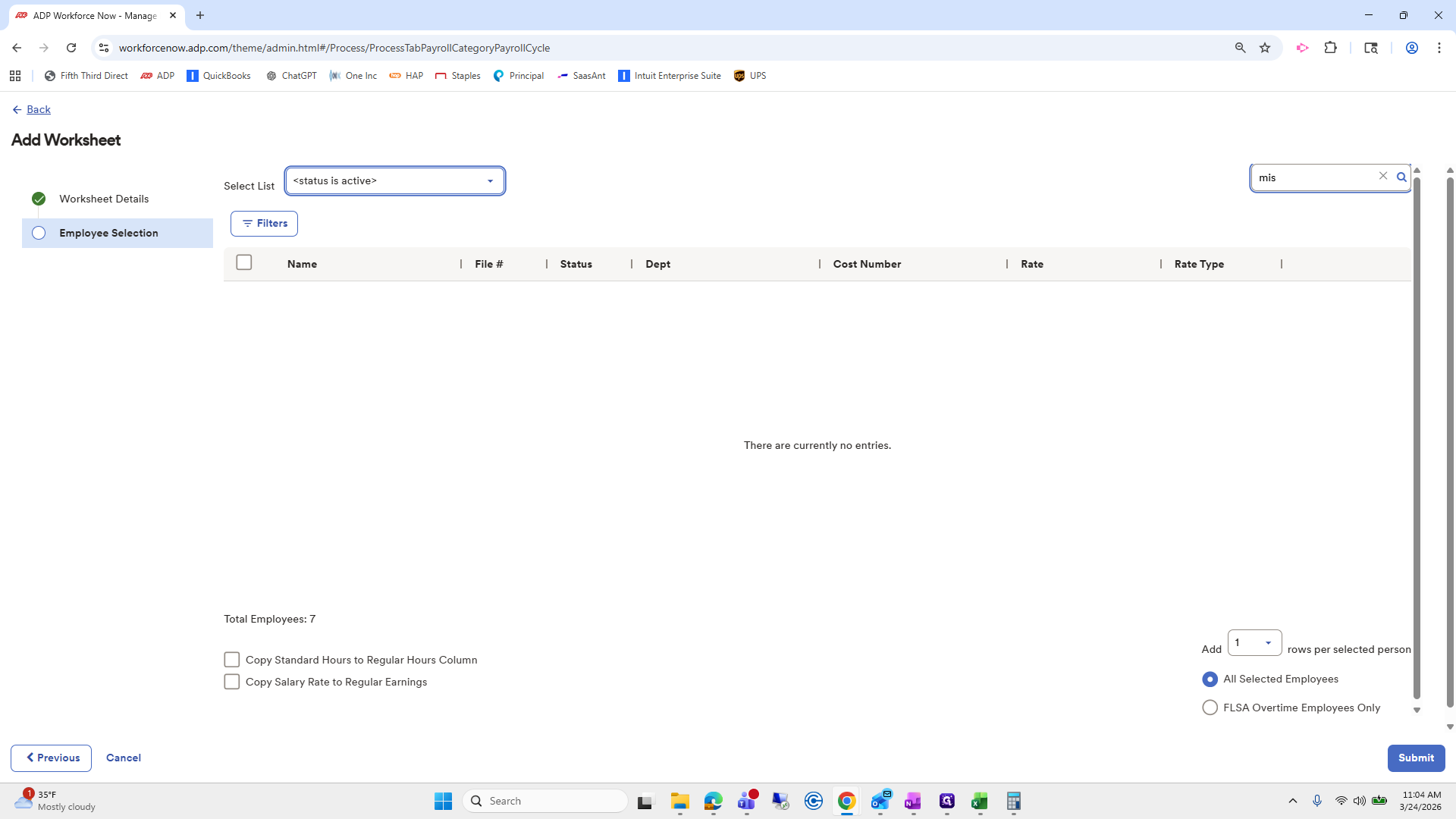
79
Type "mis"
80
Click on "< status is active >"
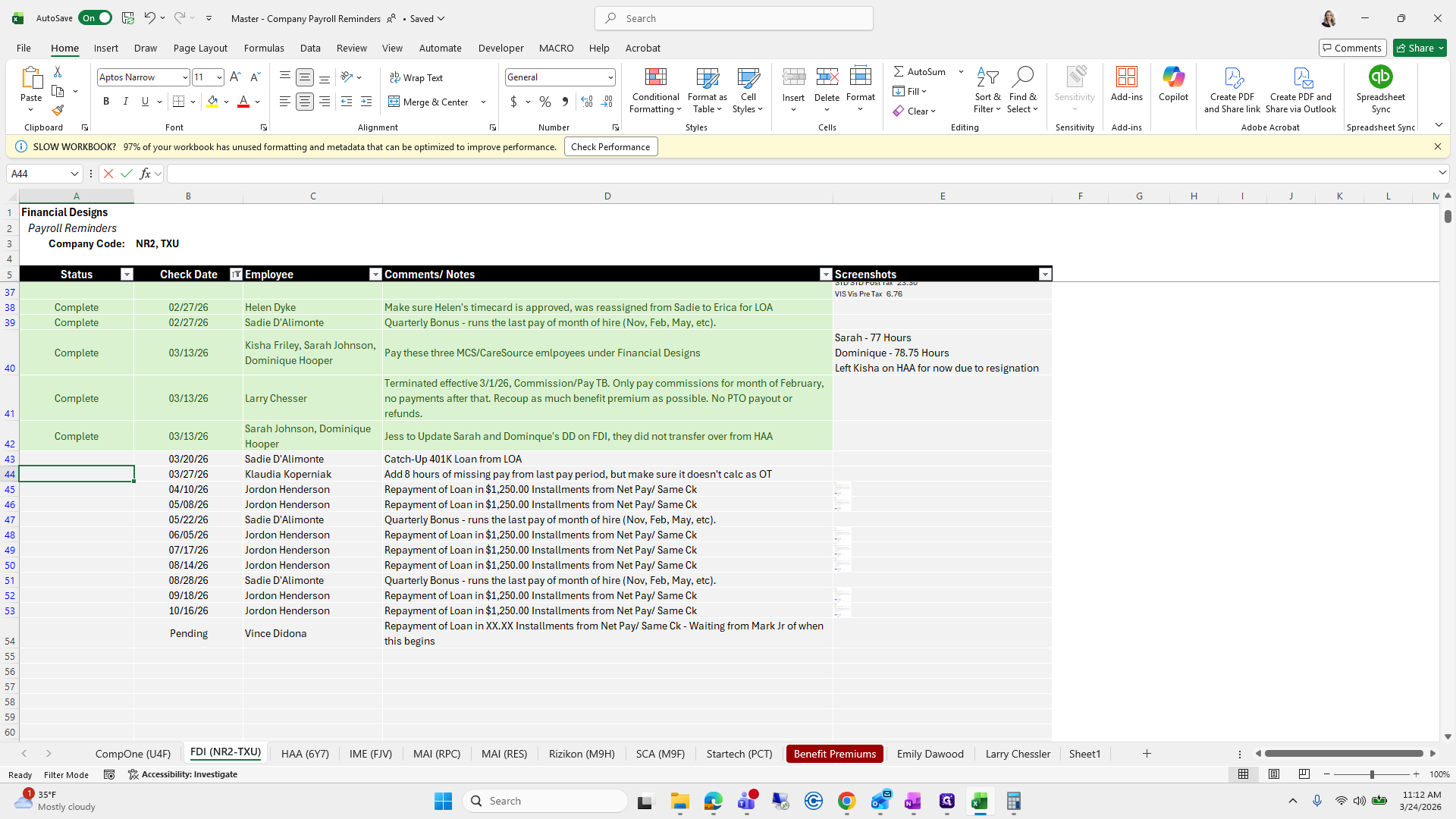
Step #80: Click on "< status is active >"
81
Click on "< all employees >"
Step #81: Click on "< all employees >"

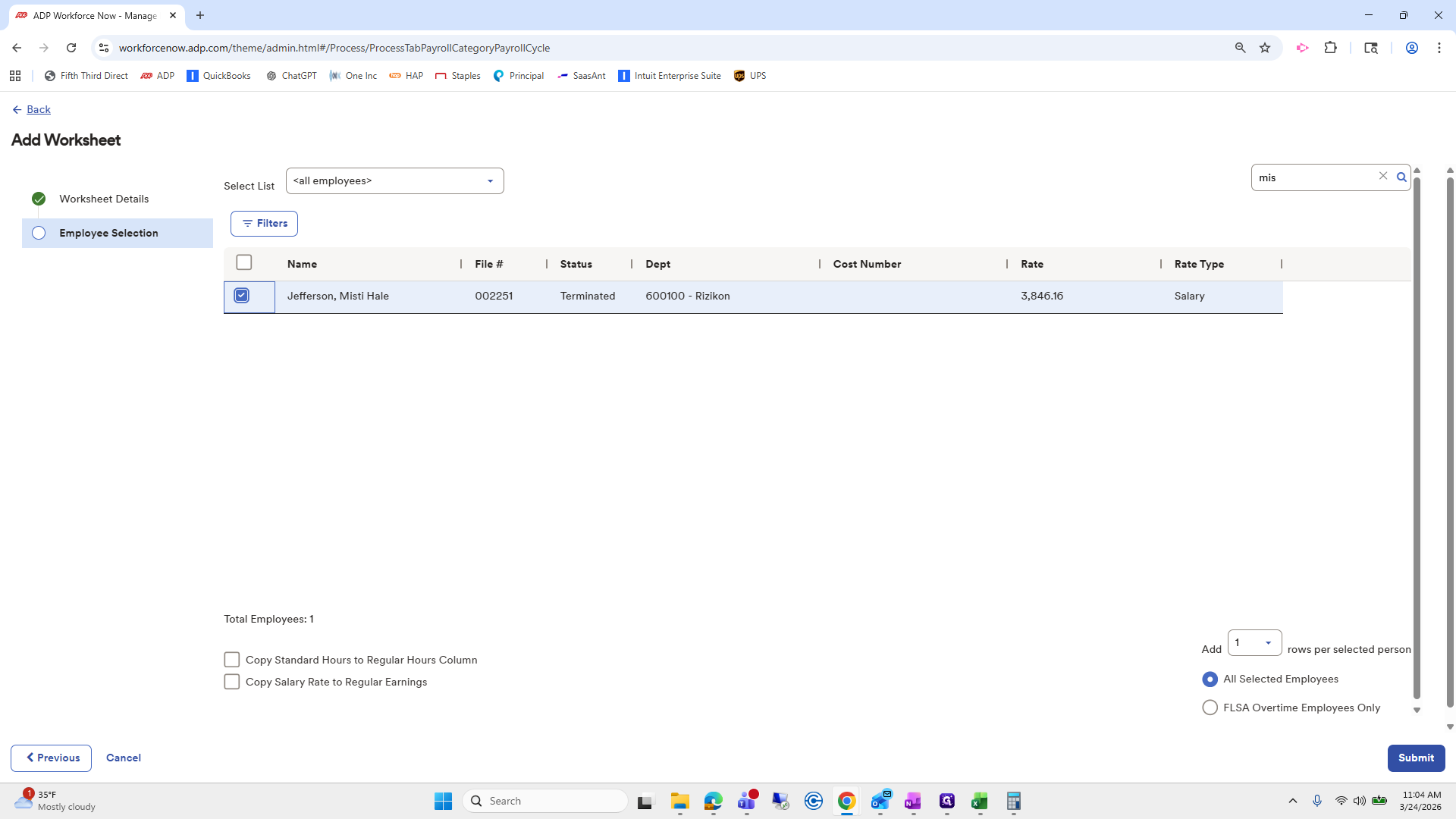
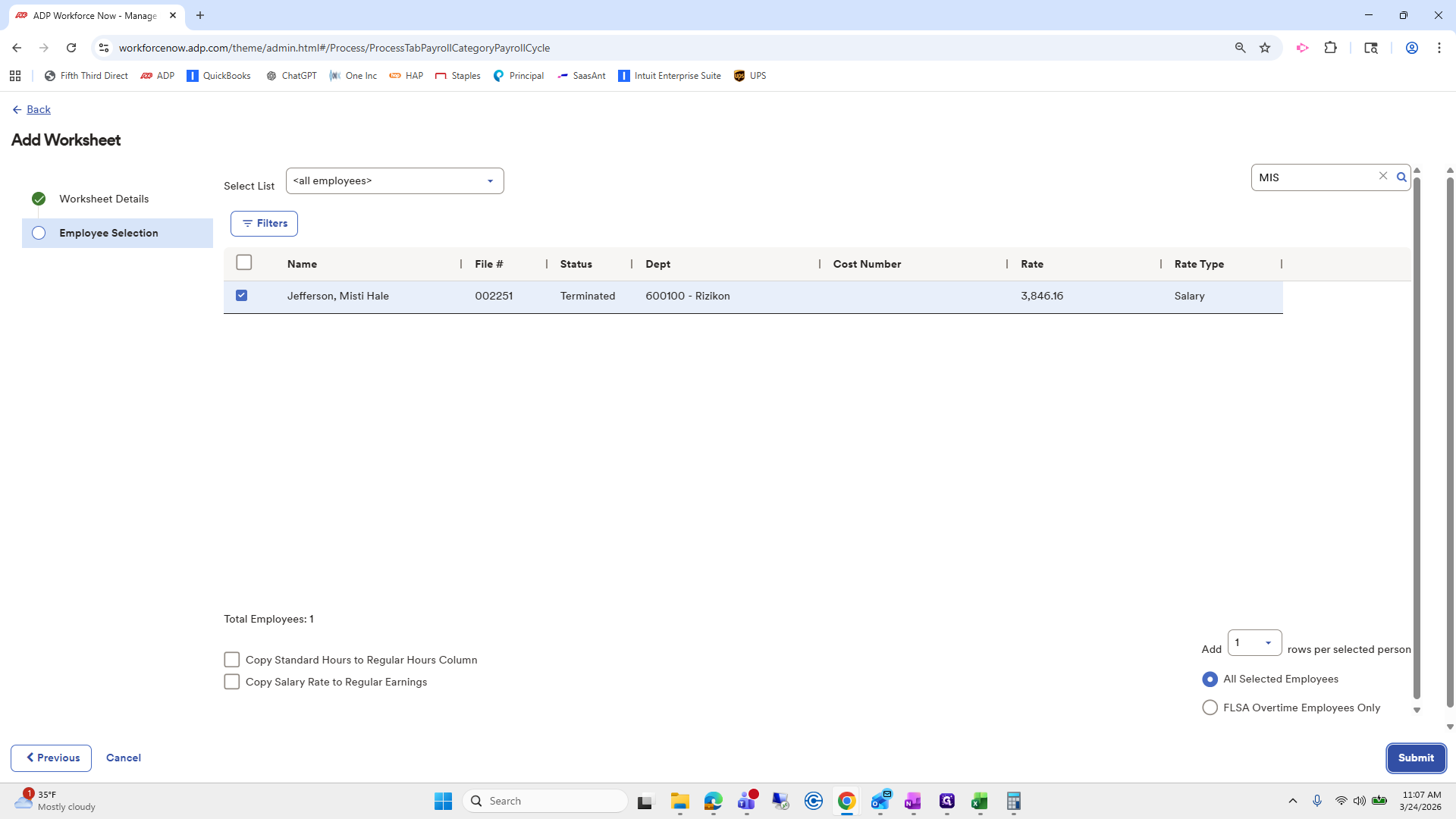
Go to All Employees, select Misty, review her details, and submit.
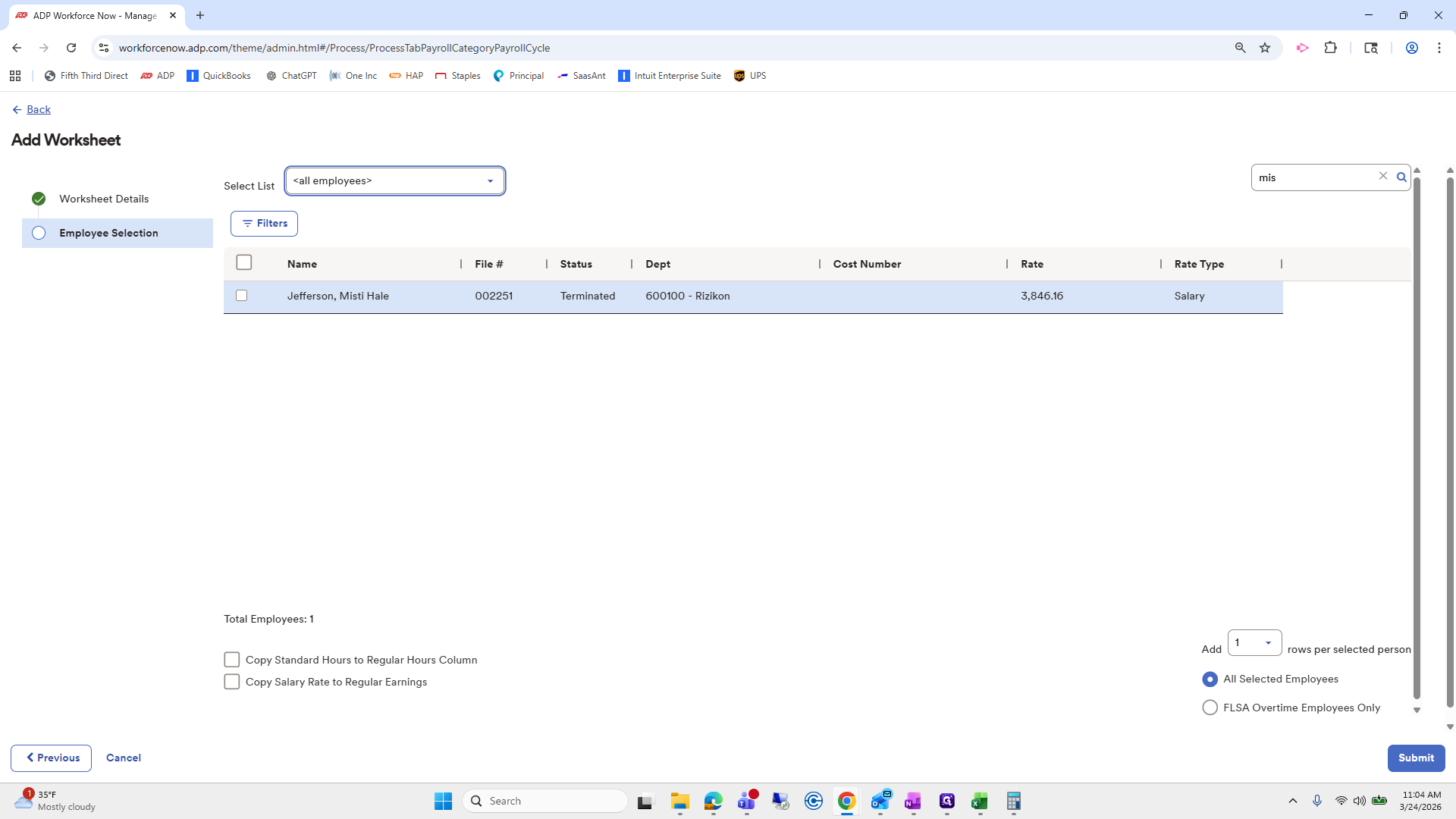
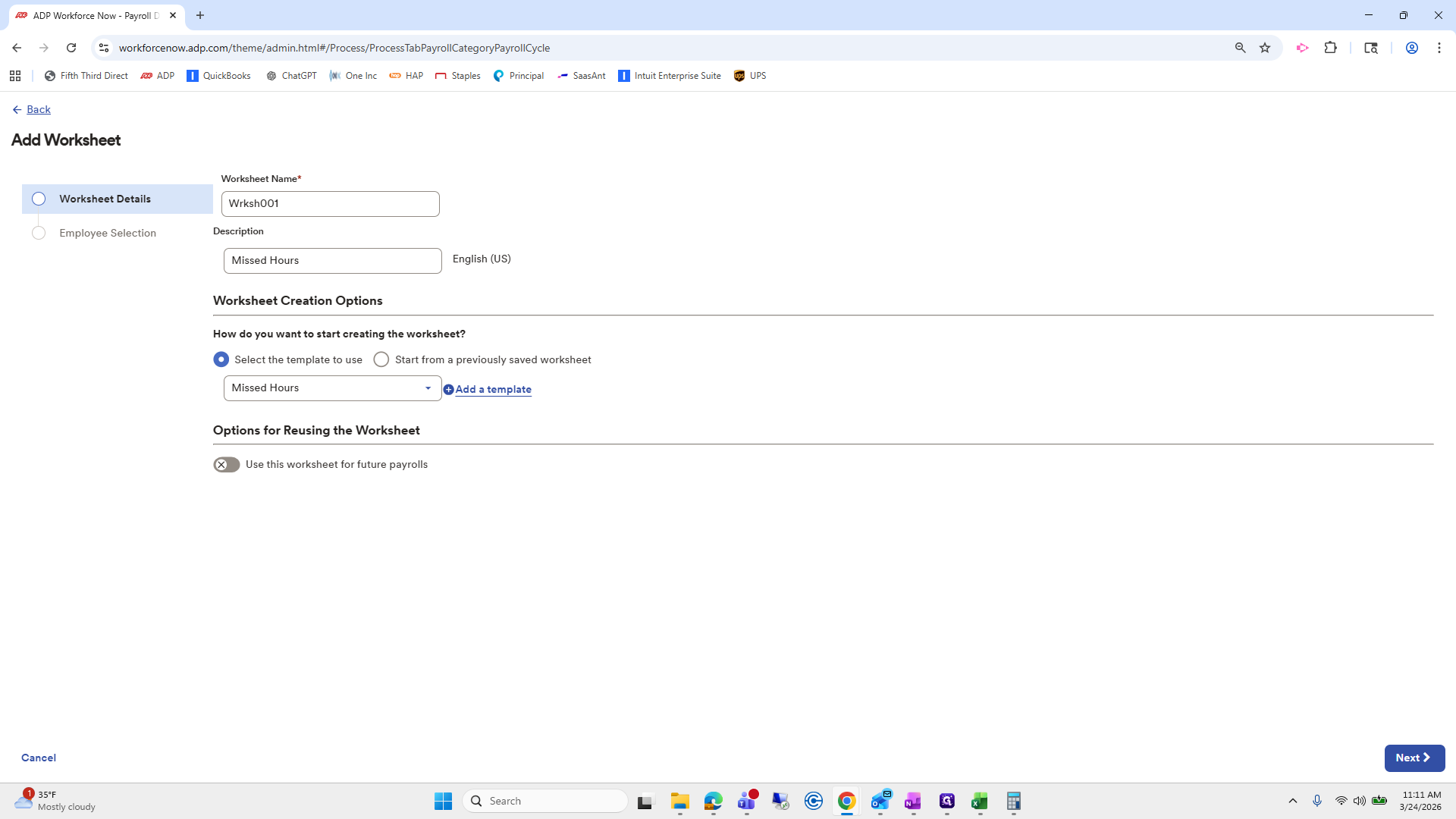
82
Click here
Step #82: Click here
83
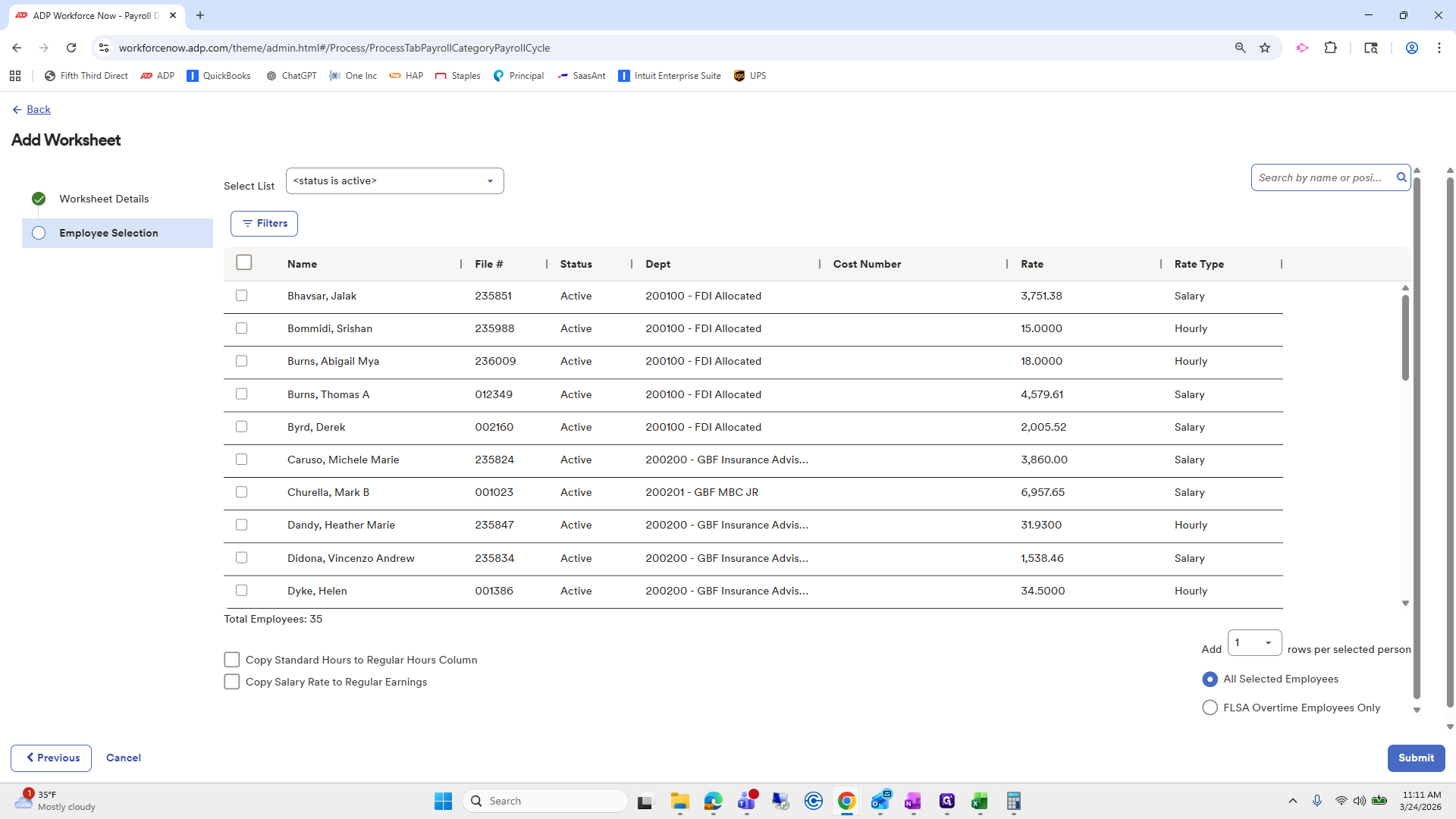
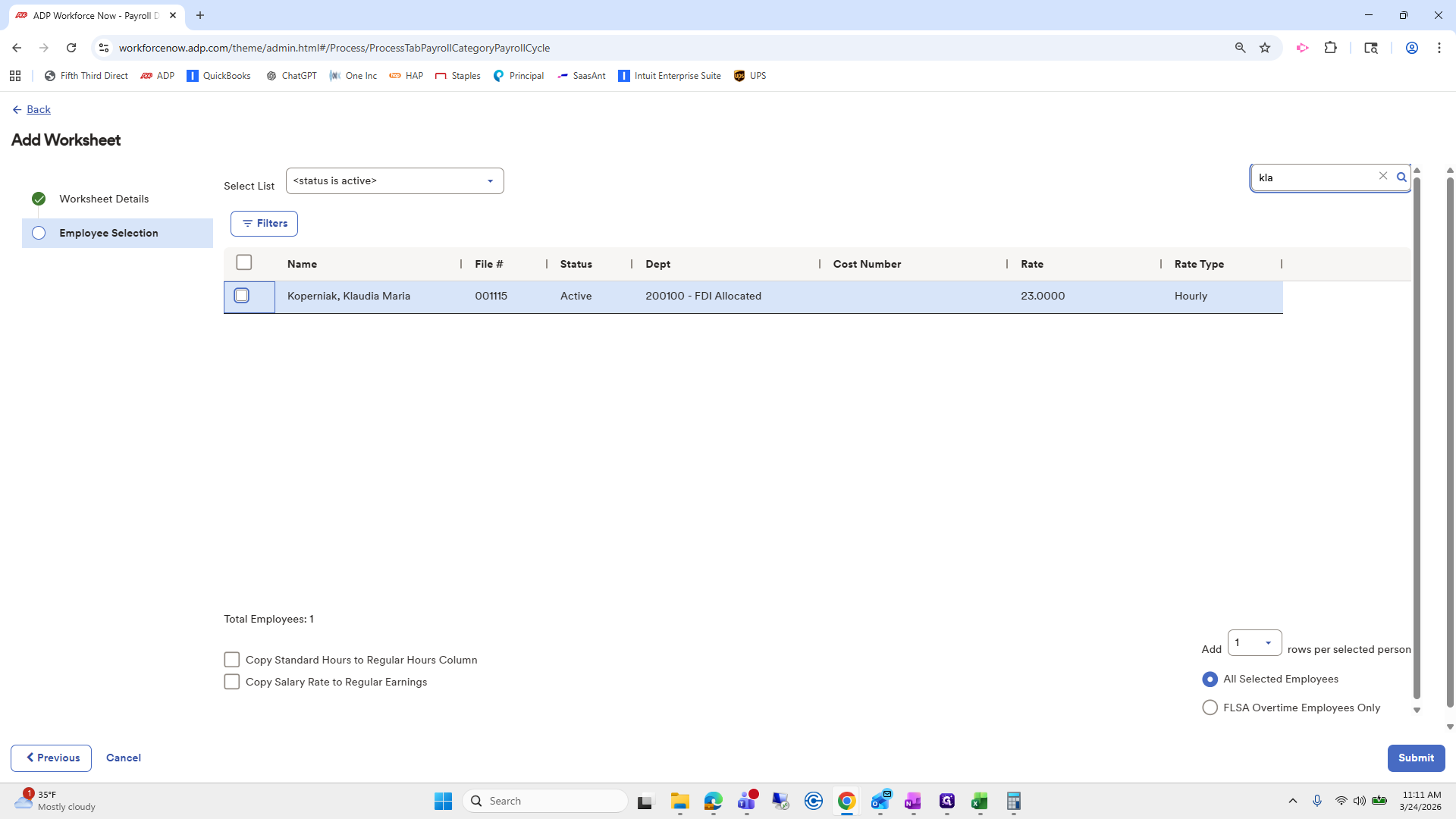
Click on "Submit"
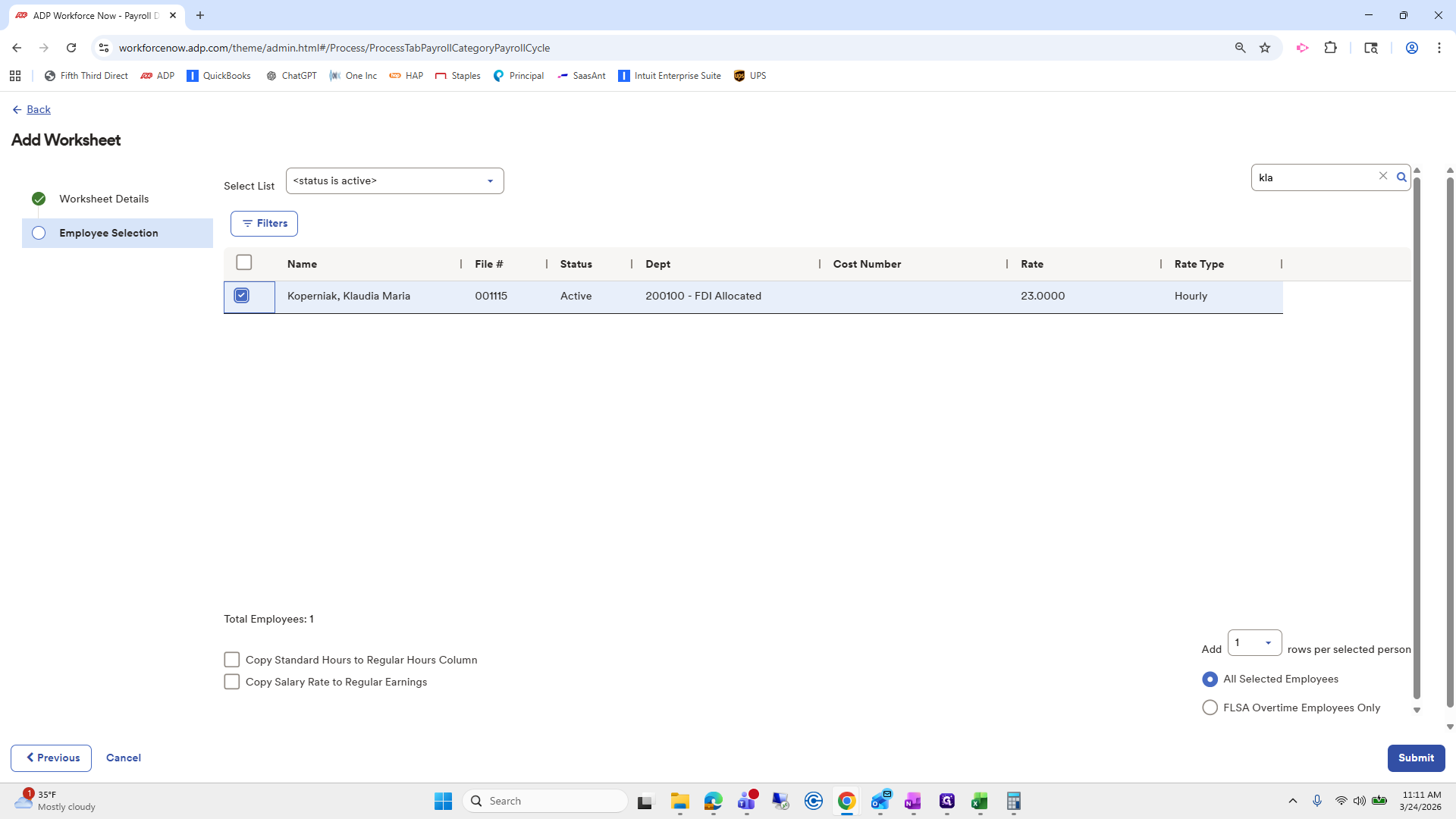
Step #83: Click on "Submit"

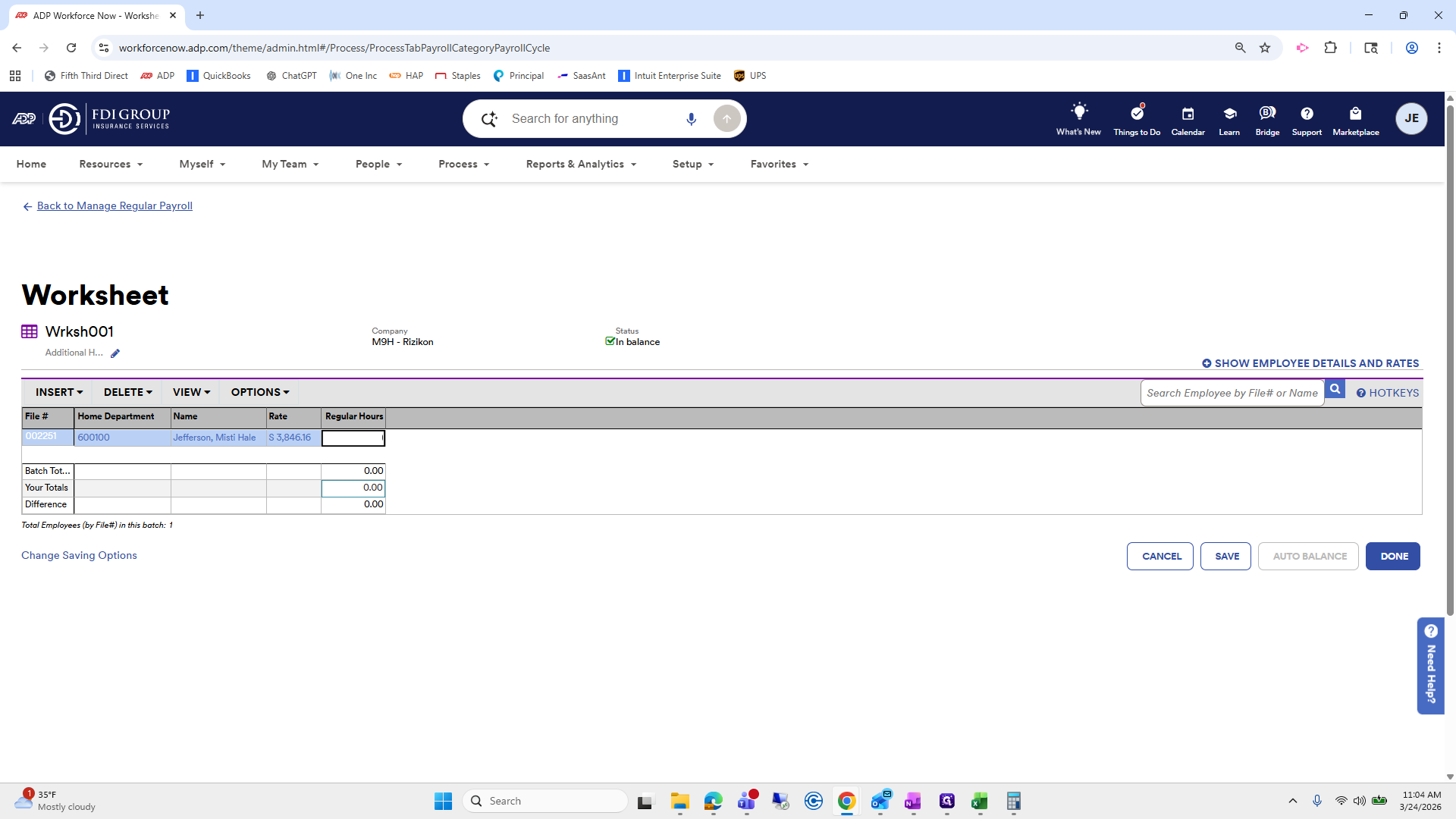
She should have 40 hours.

84
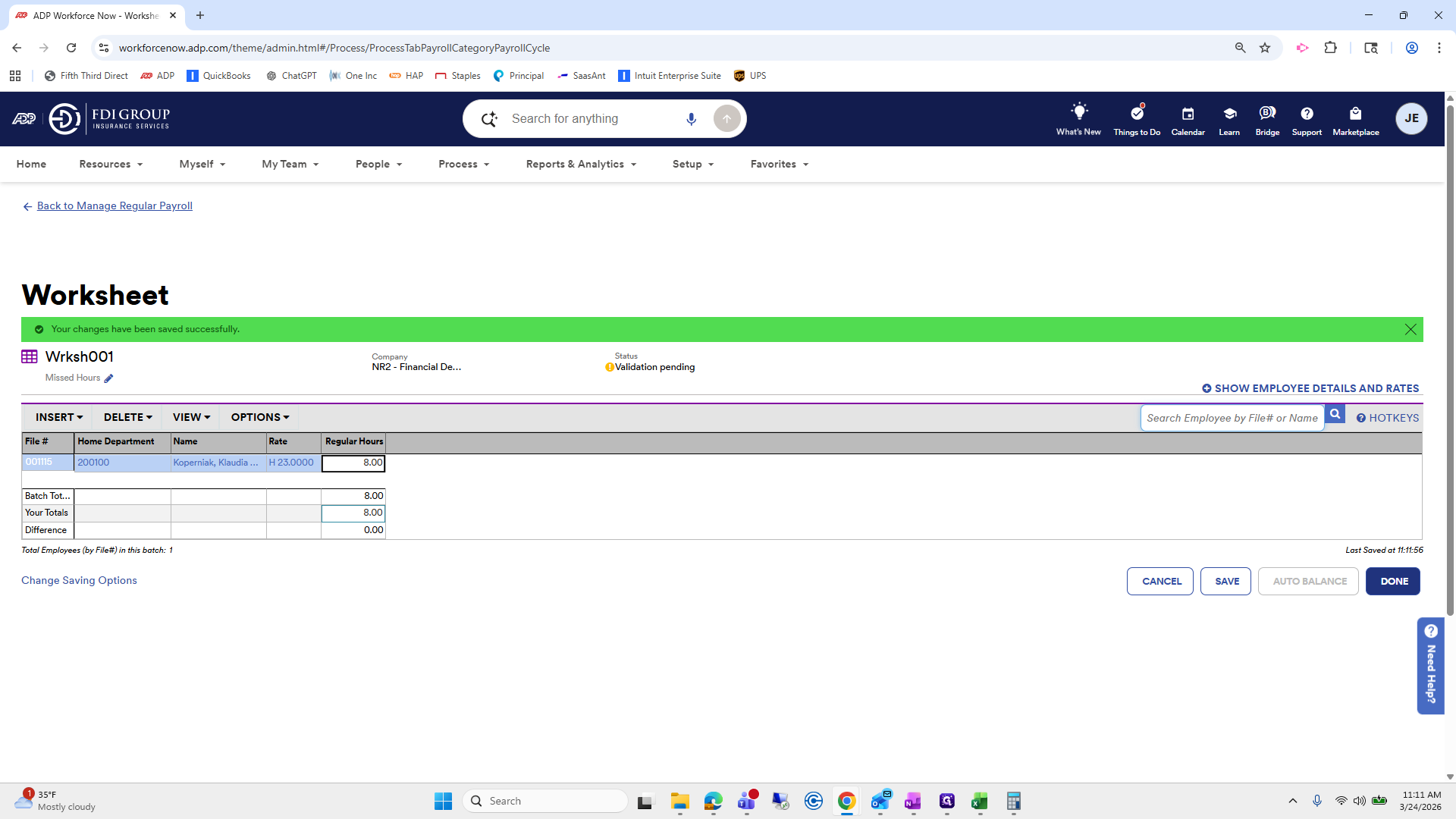
Click here
Step #84: Click here

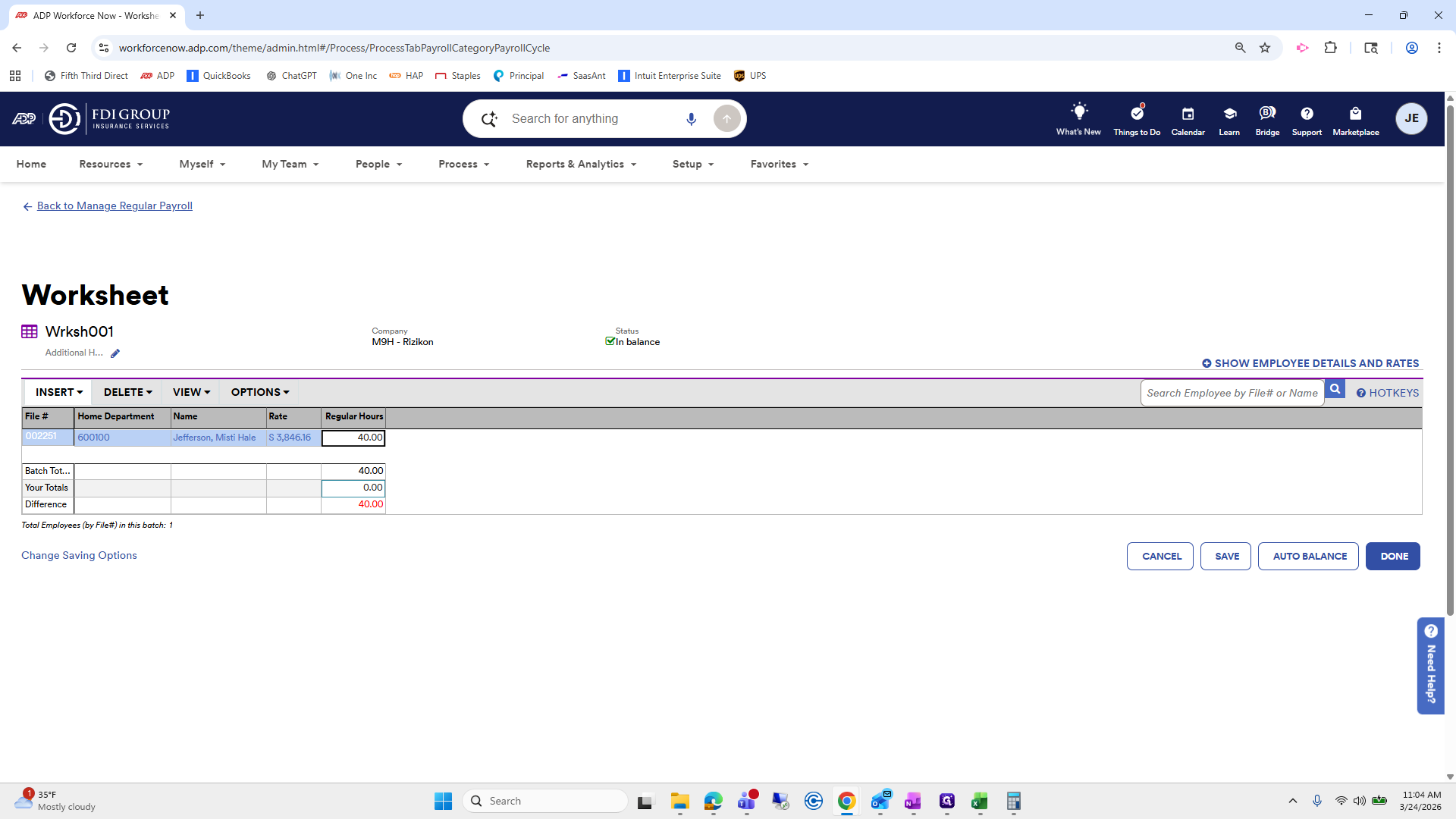
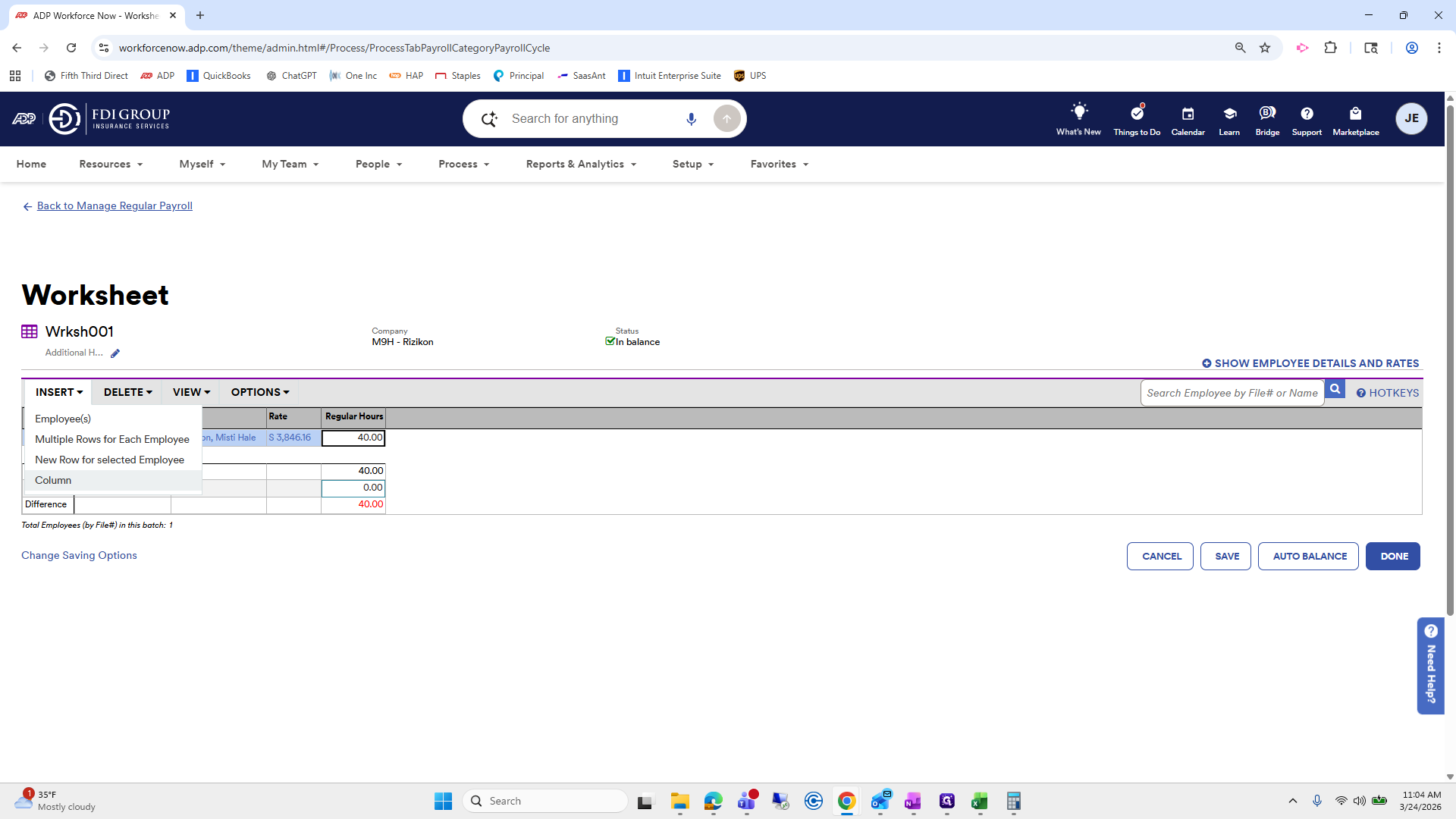
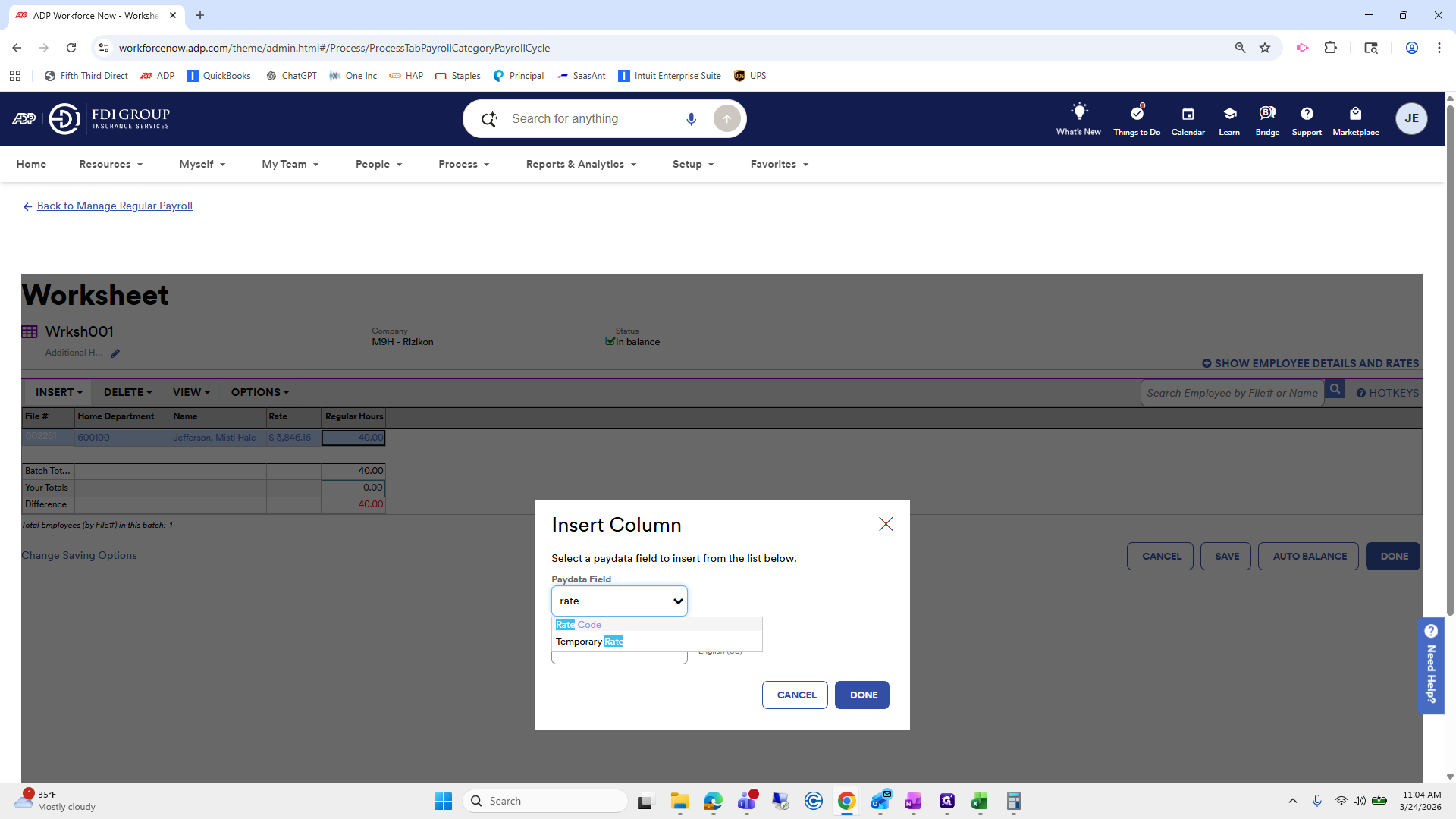
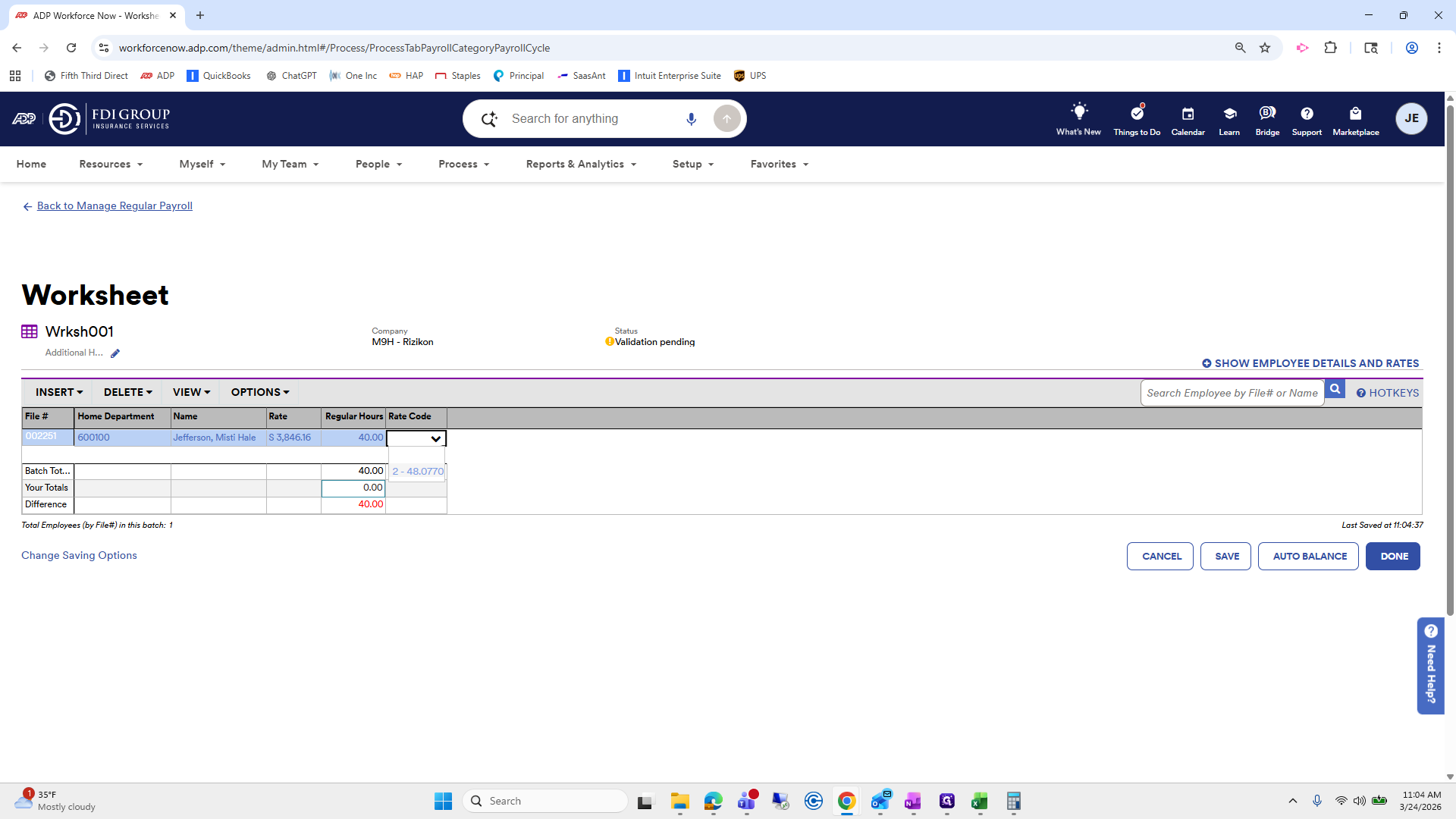
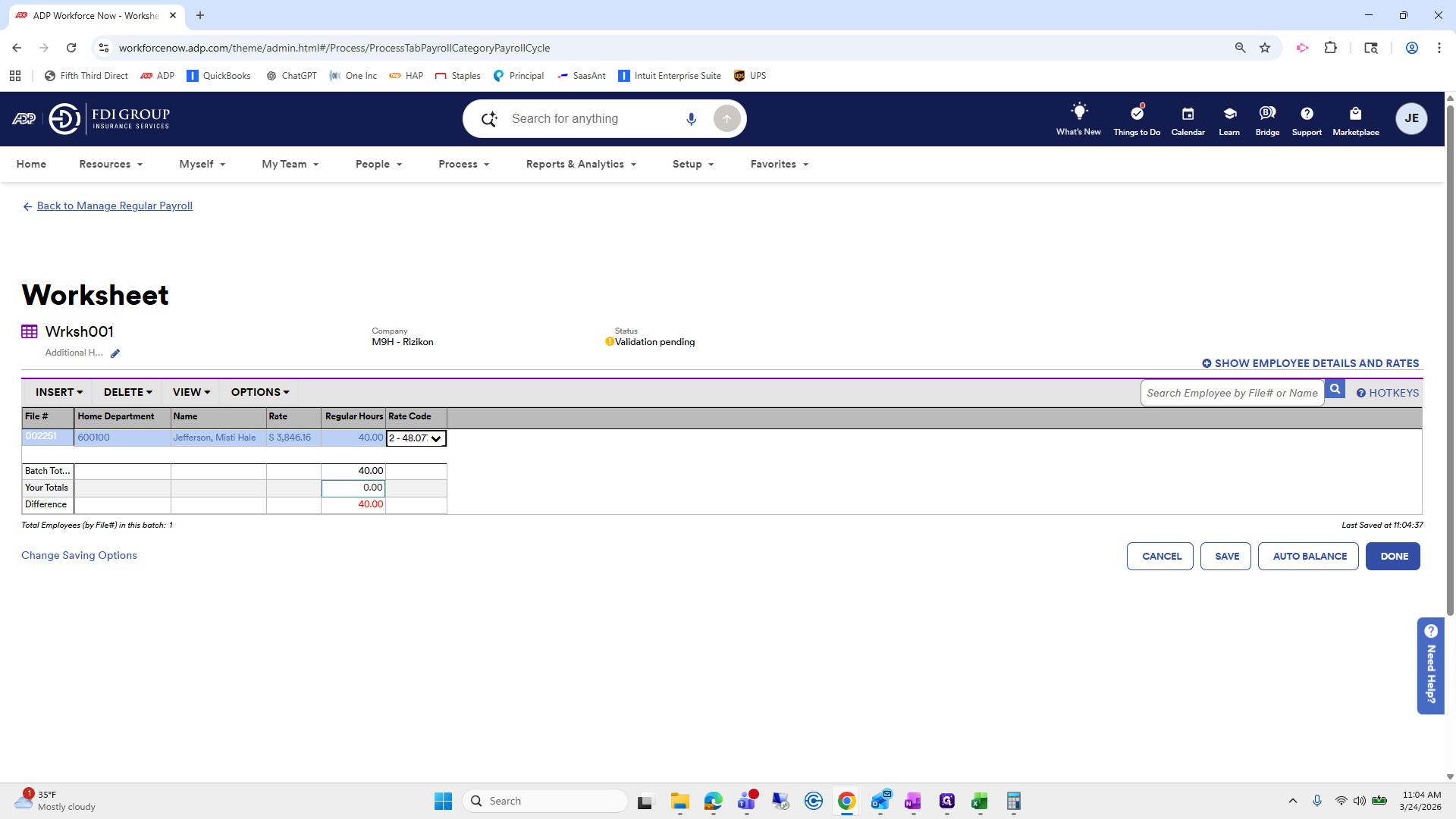
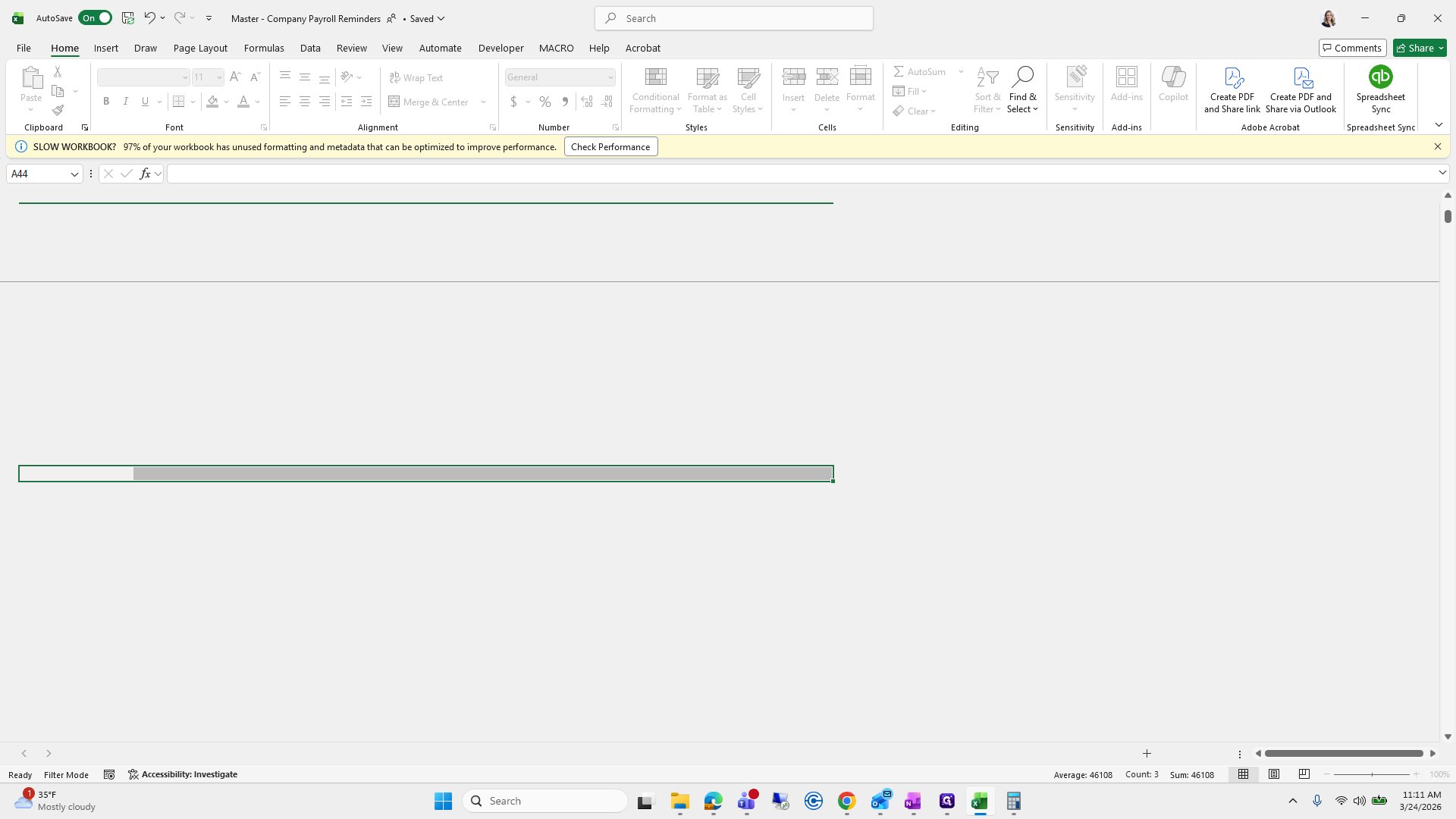
Next, insert a column for the rate code.
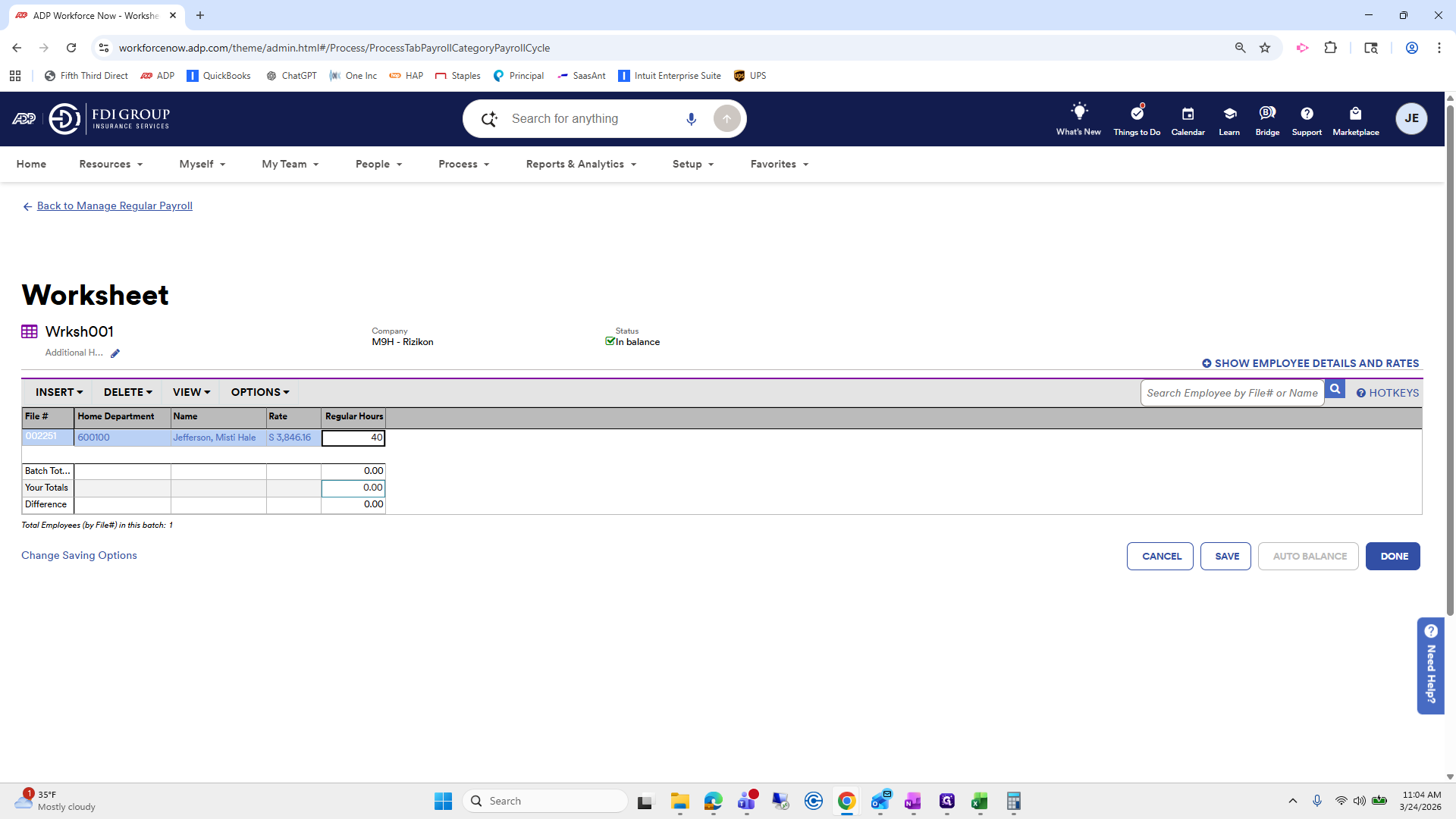
85
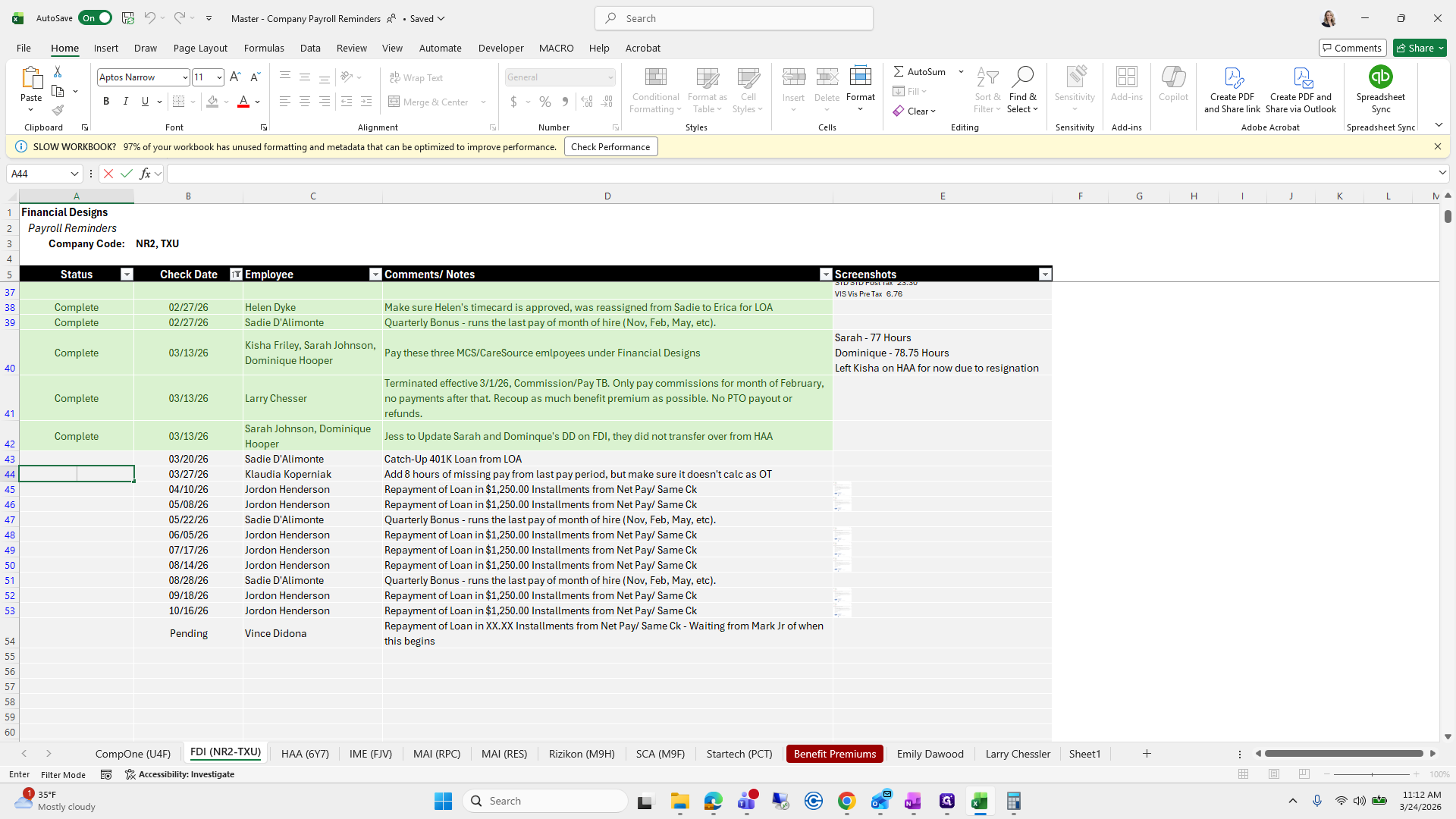
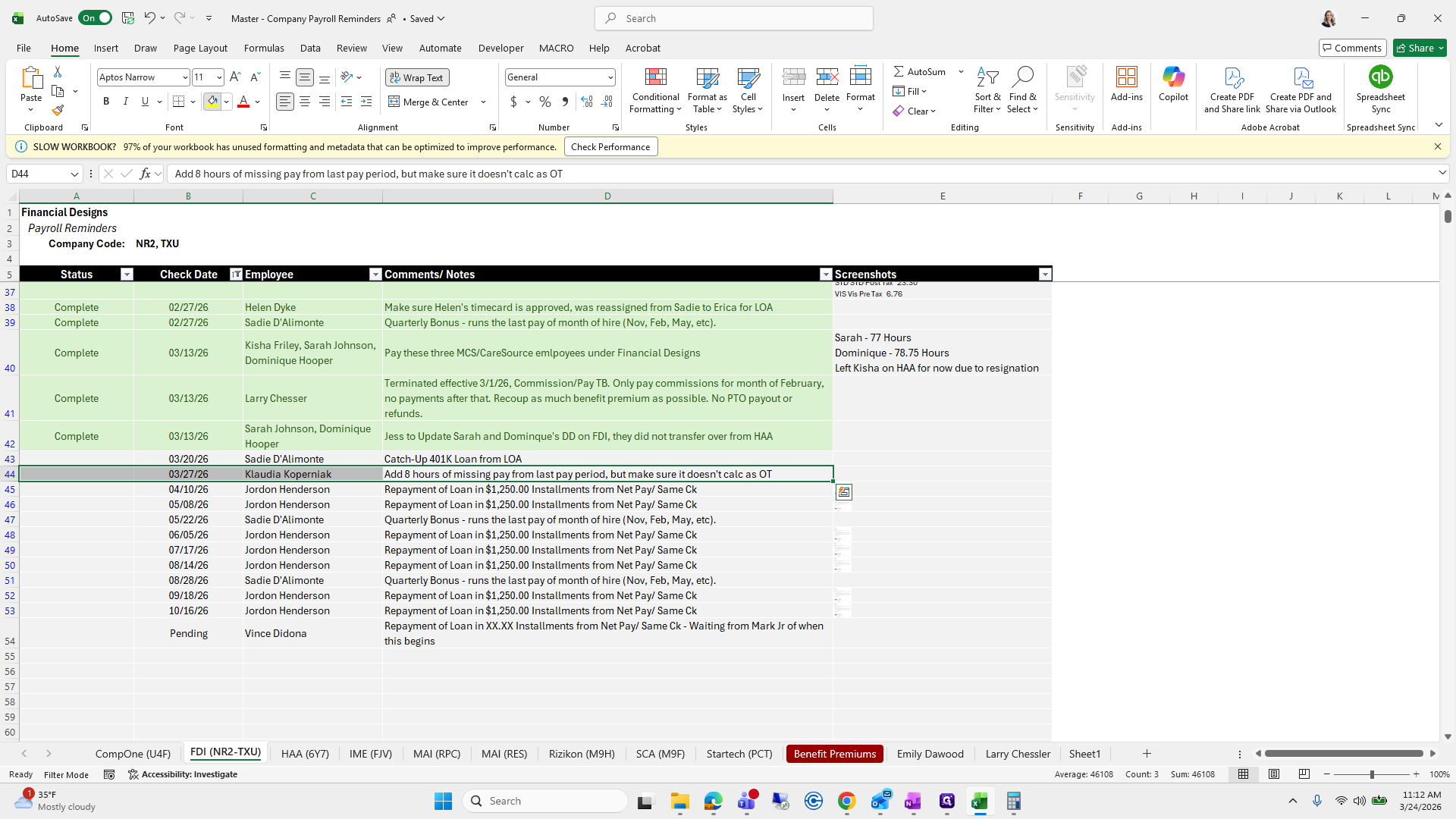
Type "40"
86
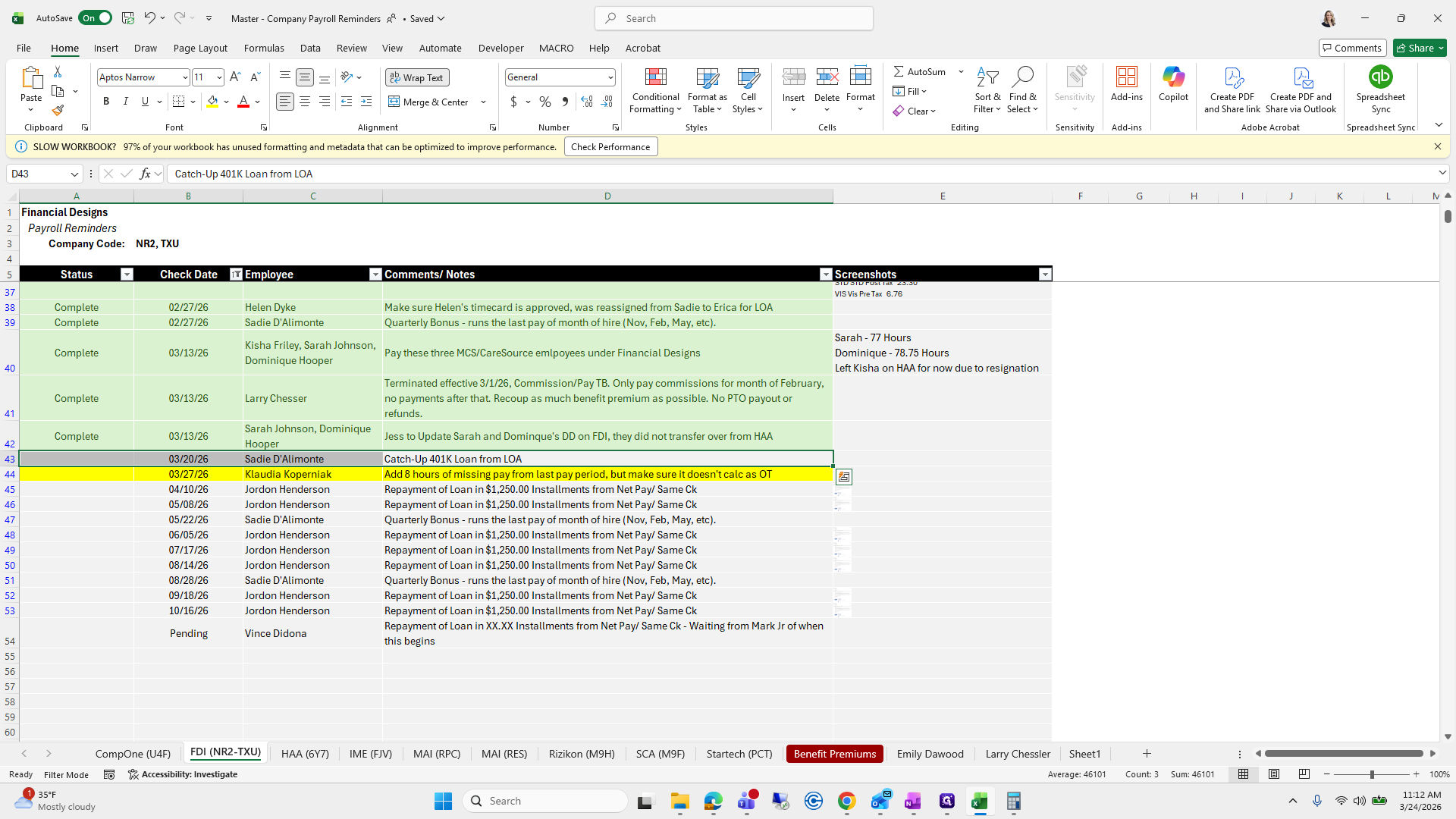
Click here
Step #86: Click here
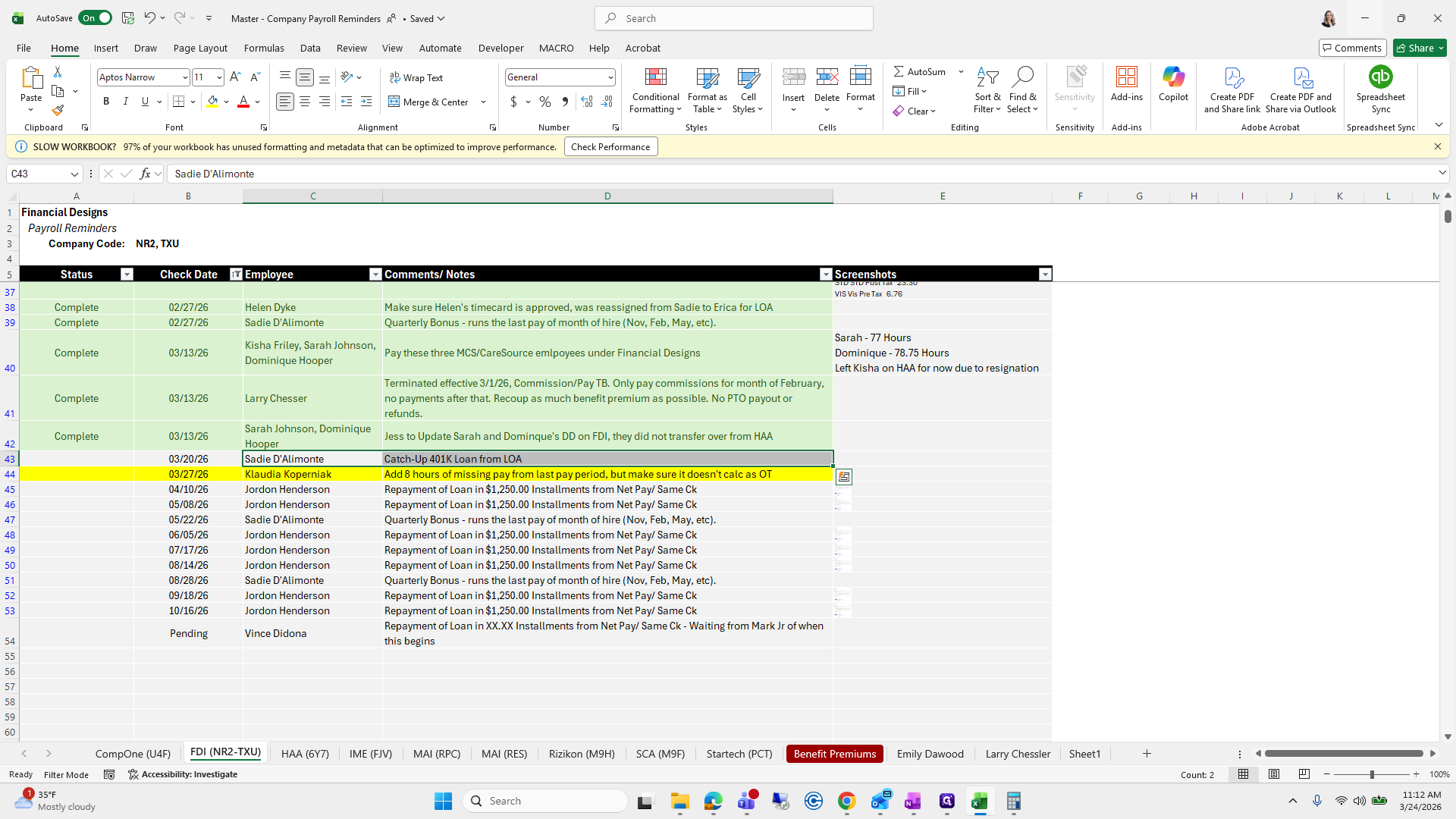
87
Click on "INSERT▾"
Step #87: Click on "INSERT▾"
88
Click on "Column"
Step #88: Click on "Column"

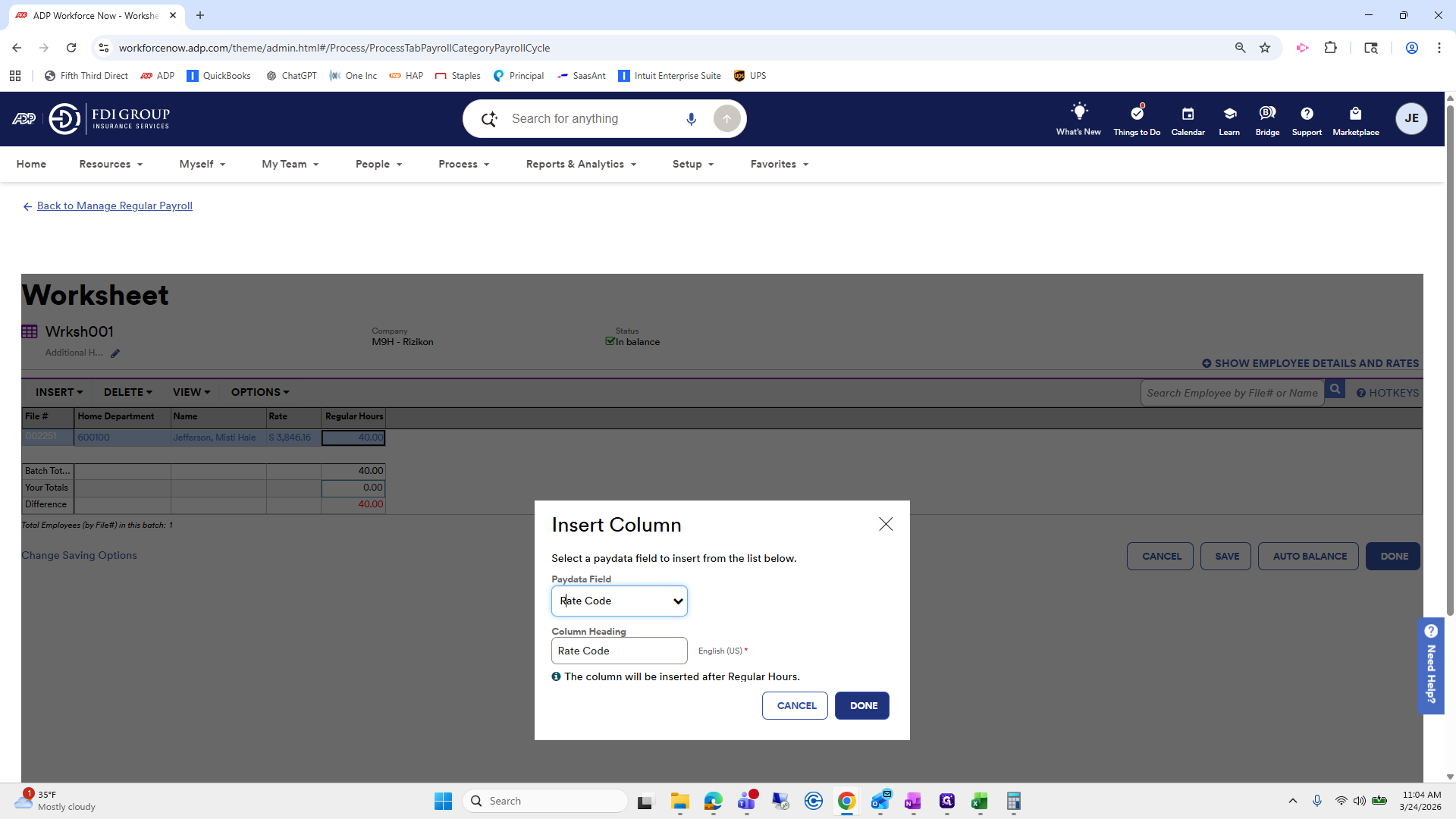
Click Done.

89
Type "rate"
90
Click on "Rate Code"
Step #90: Click on "Rate Code"
91
Click on "DONE"
Step #91: Click on "DONE"

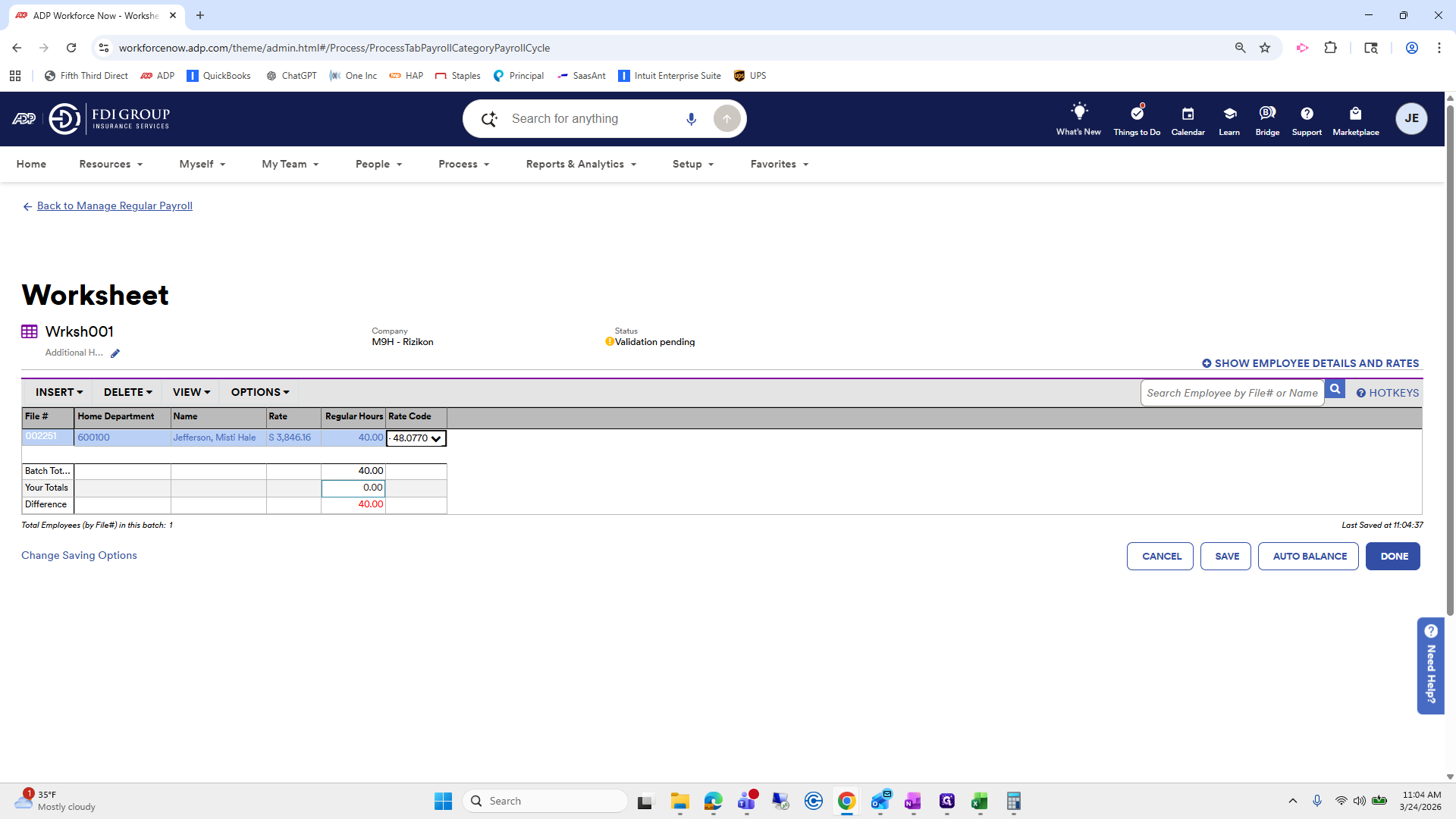
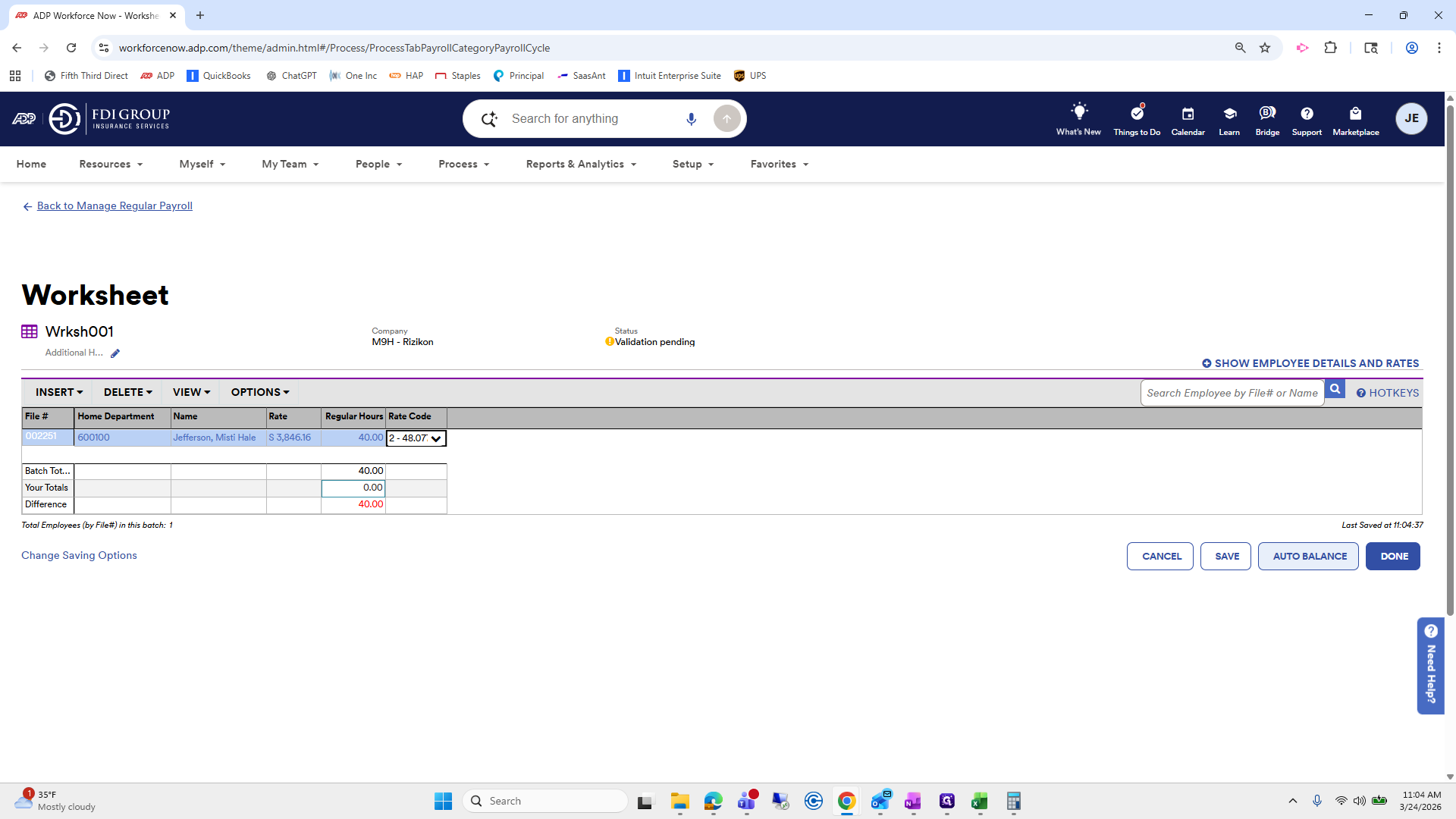
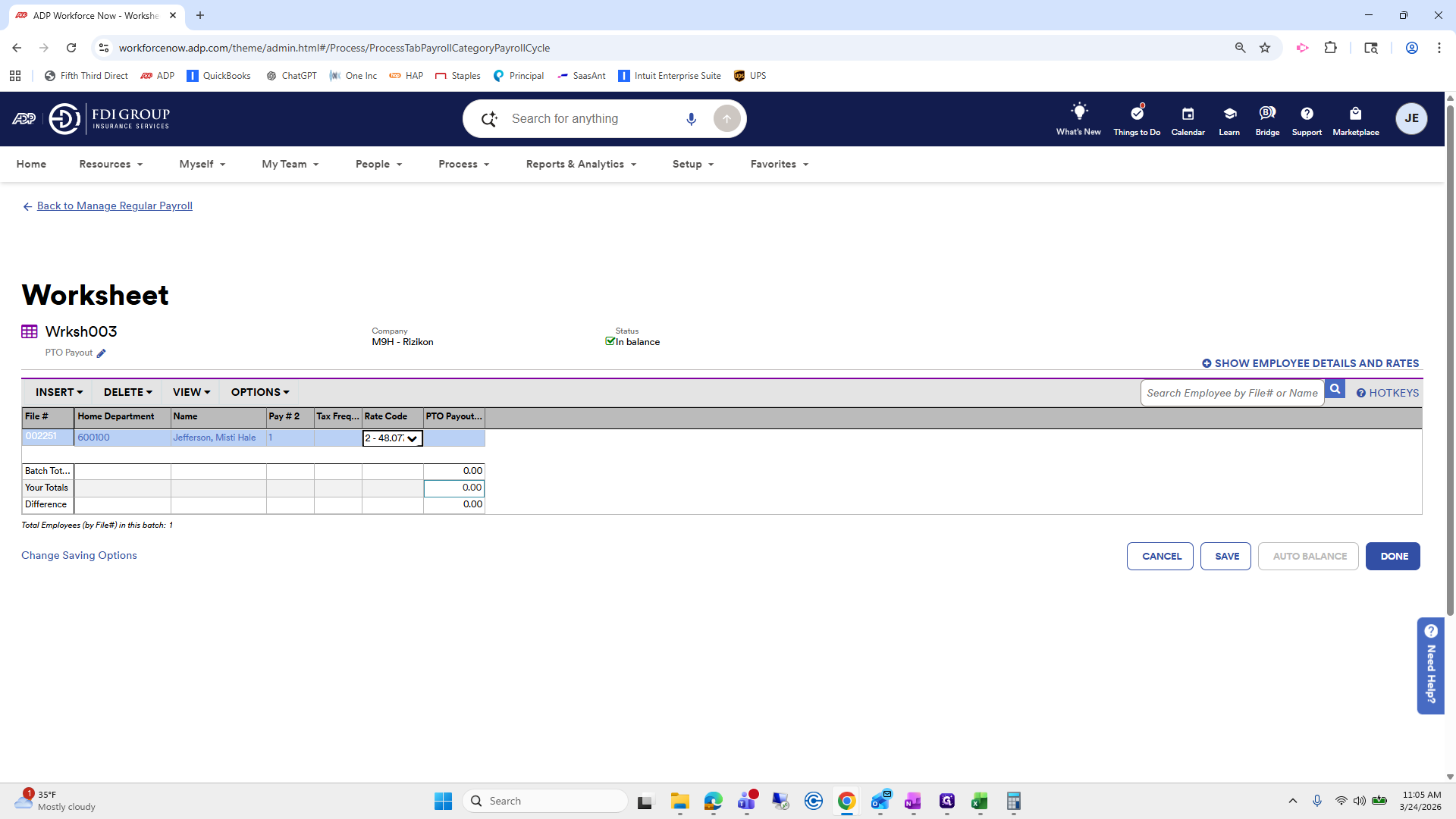
This way, we can select her rate for 40 hours instead of using the salary.
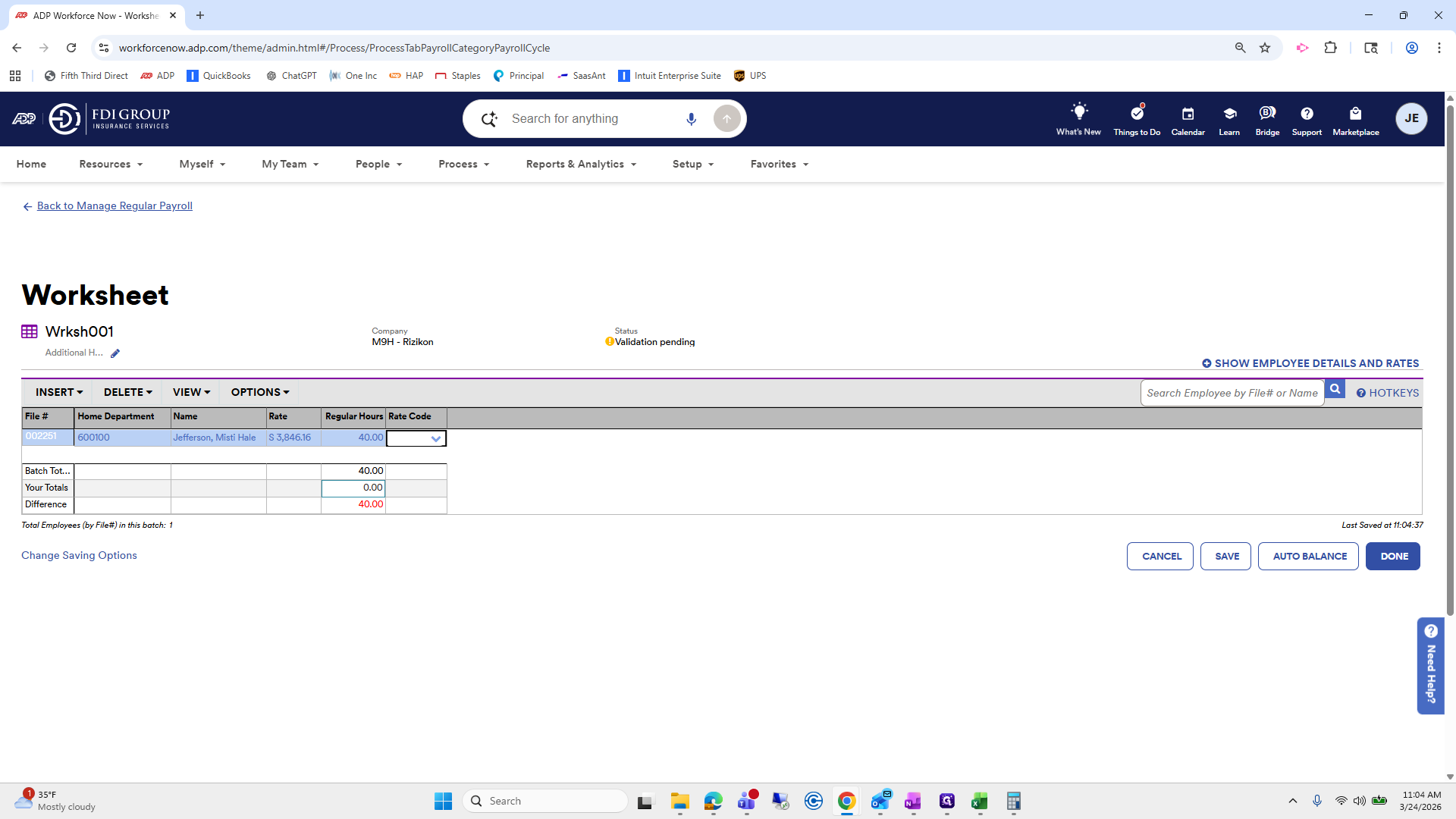
92
Click here
Step #92: Click here
93
Click on "2-48.0770"
Step #93: Click on "2-48.0770"
94
Click here
Step #94: Click here

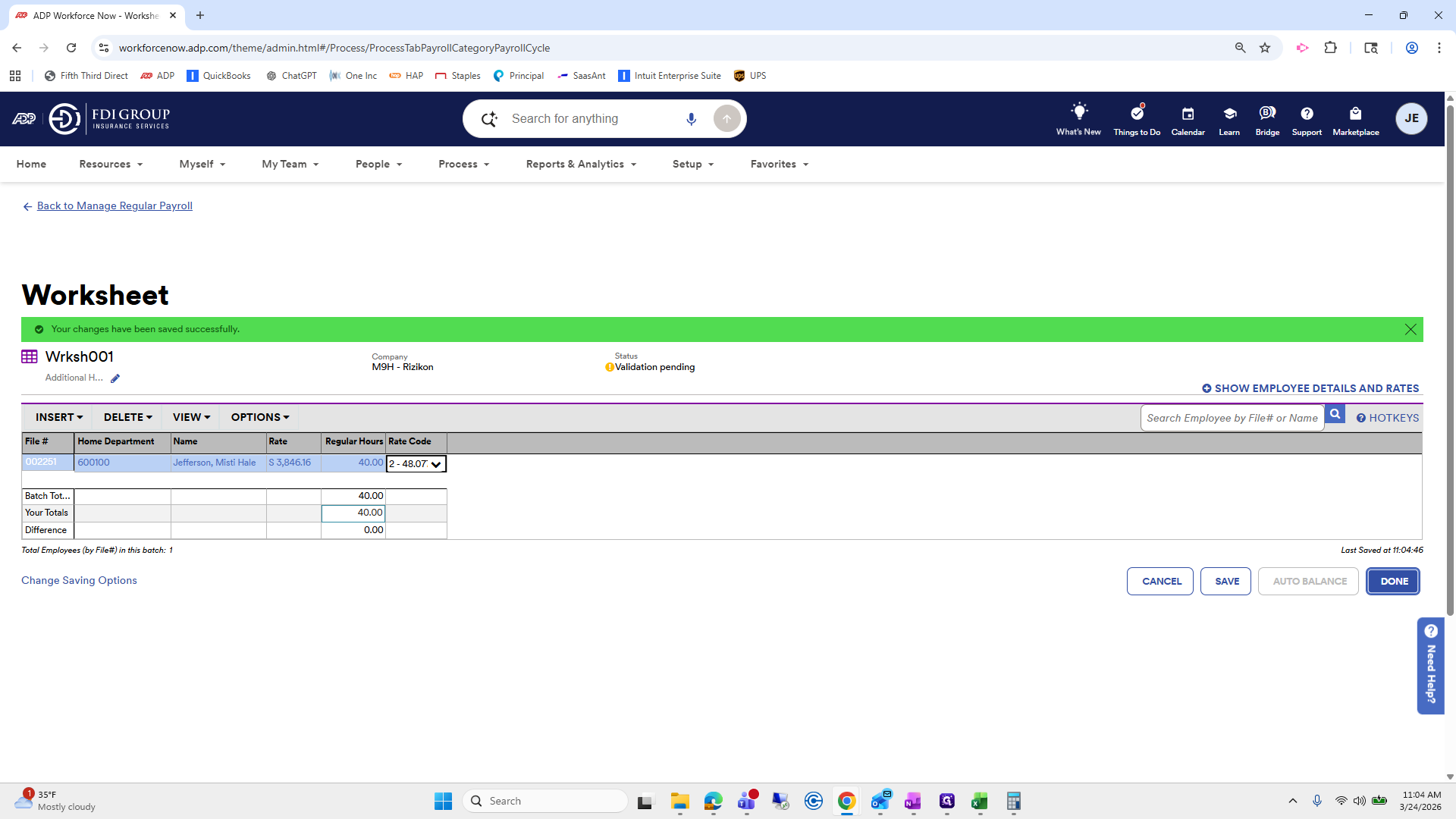
It will multiply 40 by her rate code.
95
Click here
Step #95: Click here

Auto-Balance complete.

96
Click on "AUTO BALANCE"
Step #96: Click on "AUTO BALANCE"
97
Click on "DONE"
Step #97: Click on "DONE"

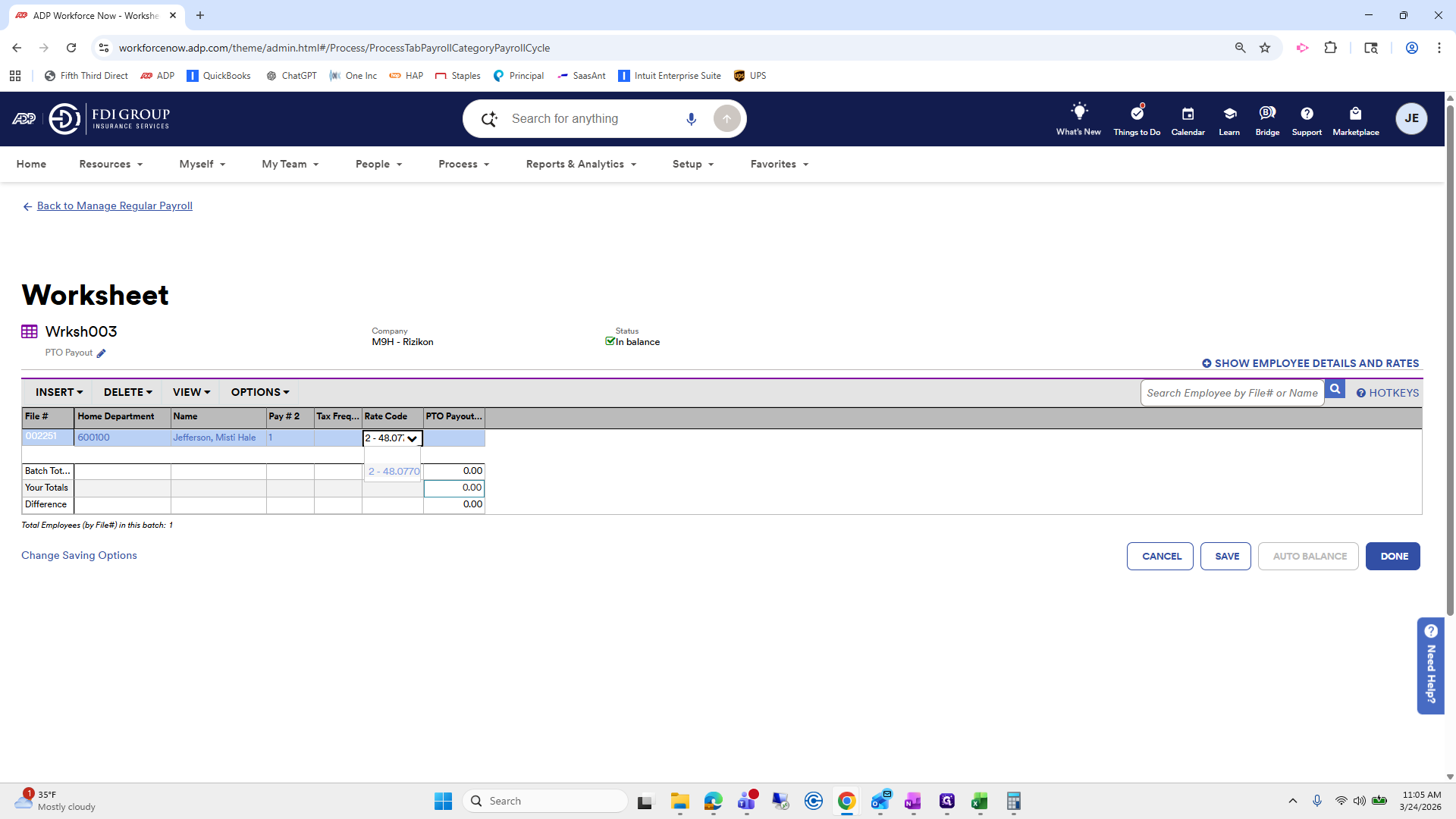
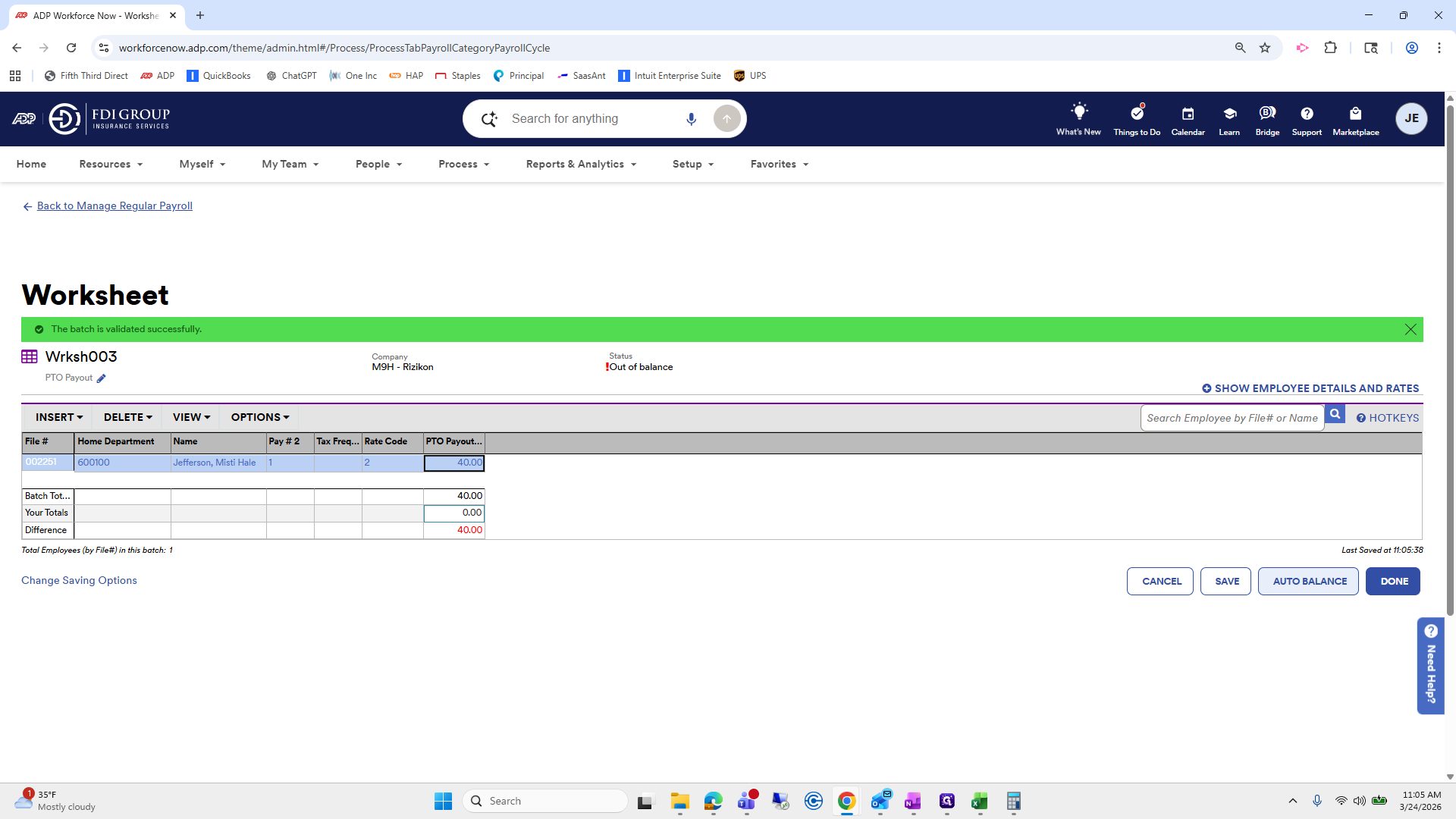
Next, we need to process her PTO payout.
98
Click on "+ Add worksheet + Add time / time off worksheet"
Step #98: Click on "+ Add worksheet + Add time / time off worksheet"

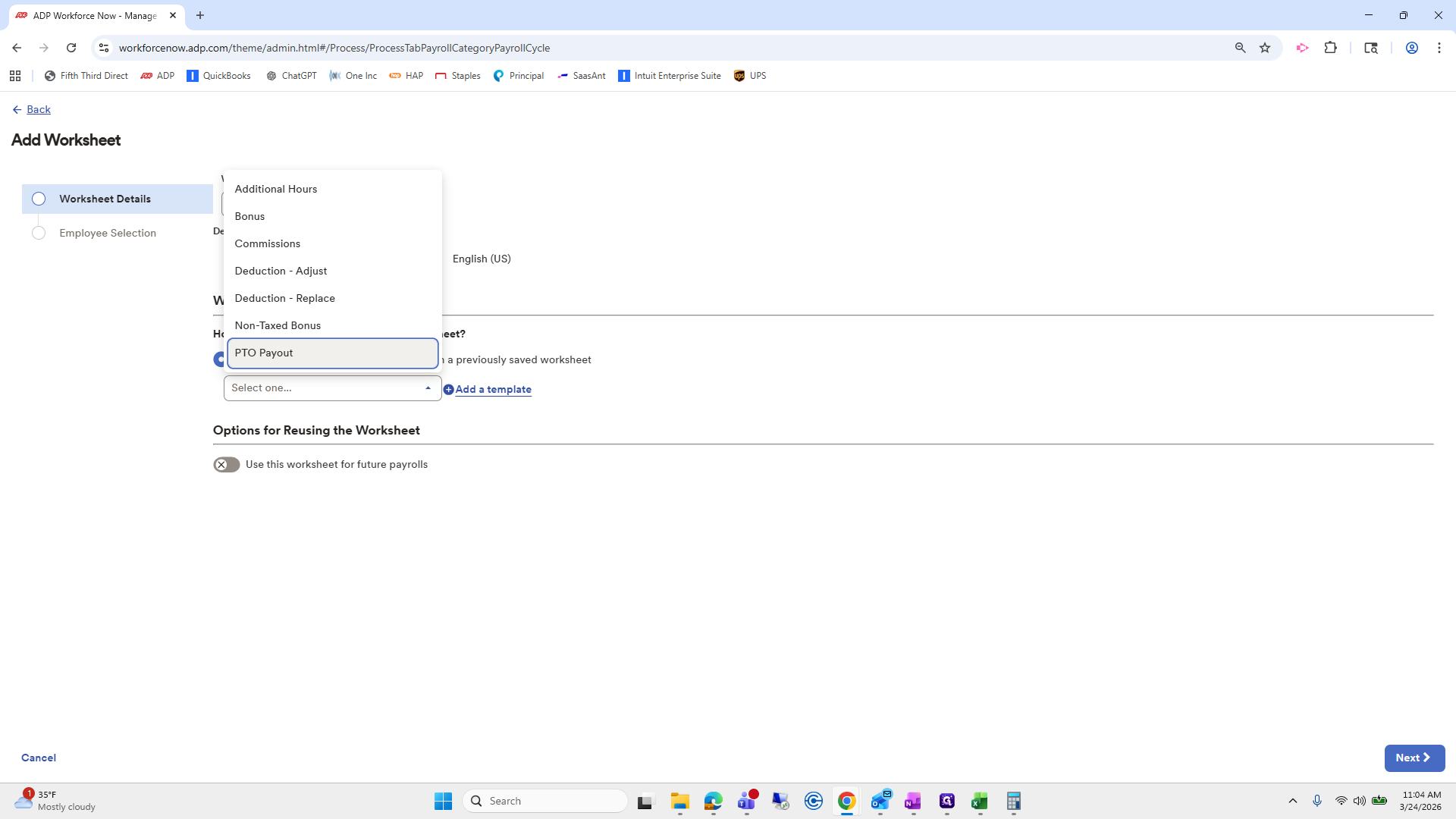
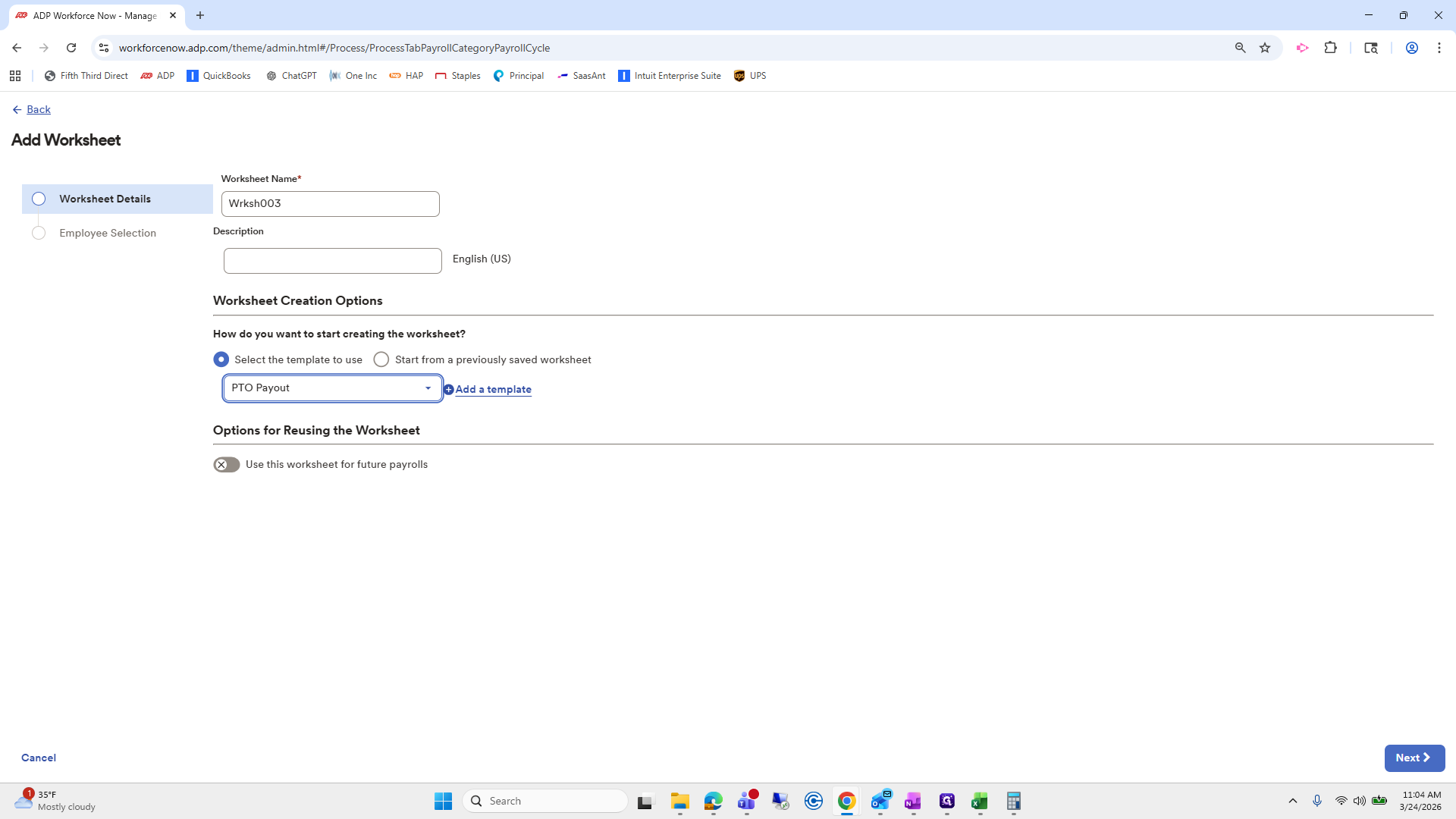
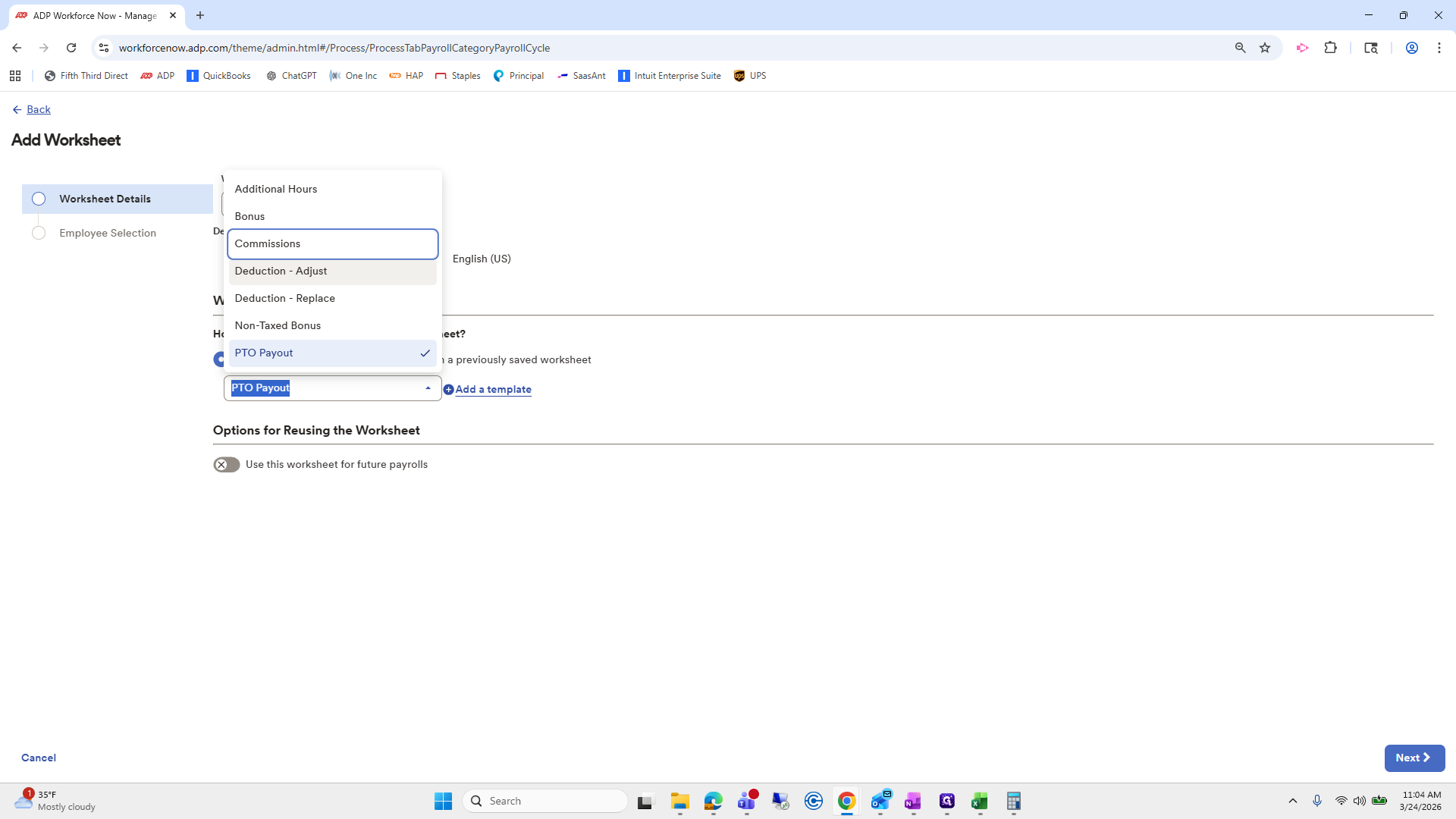
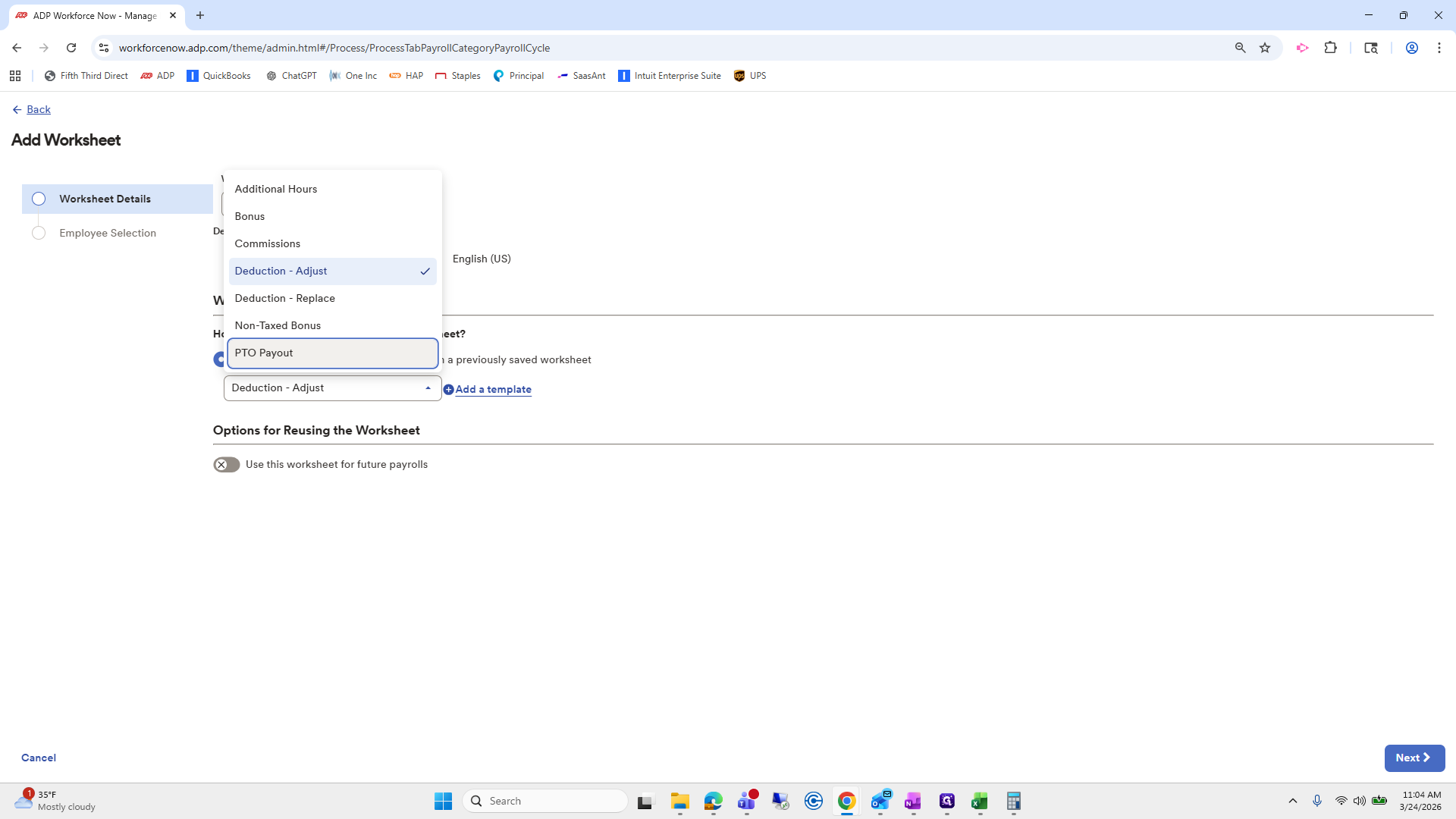
Go to Add Worksheet, then select PTO payout.
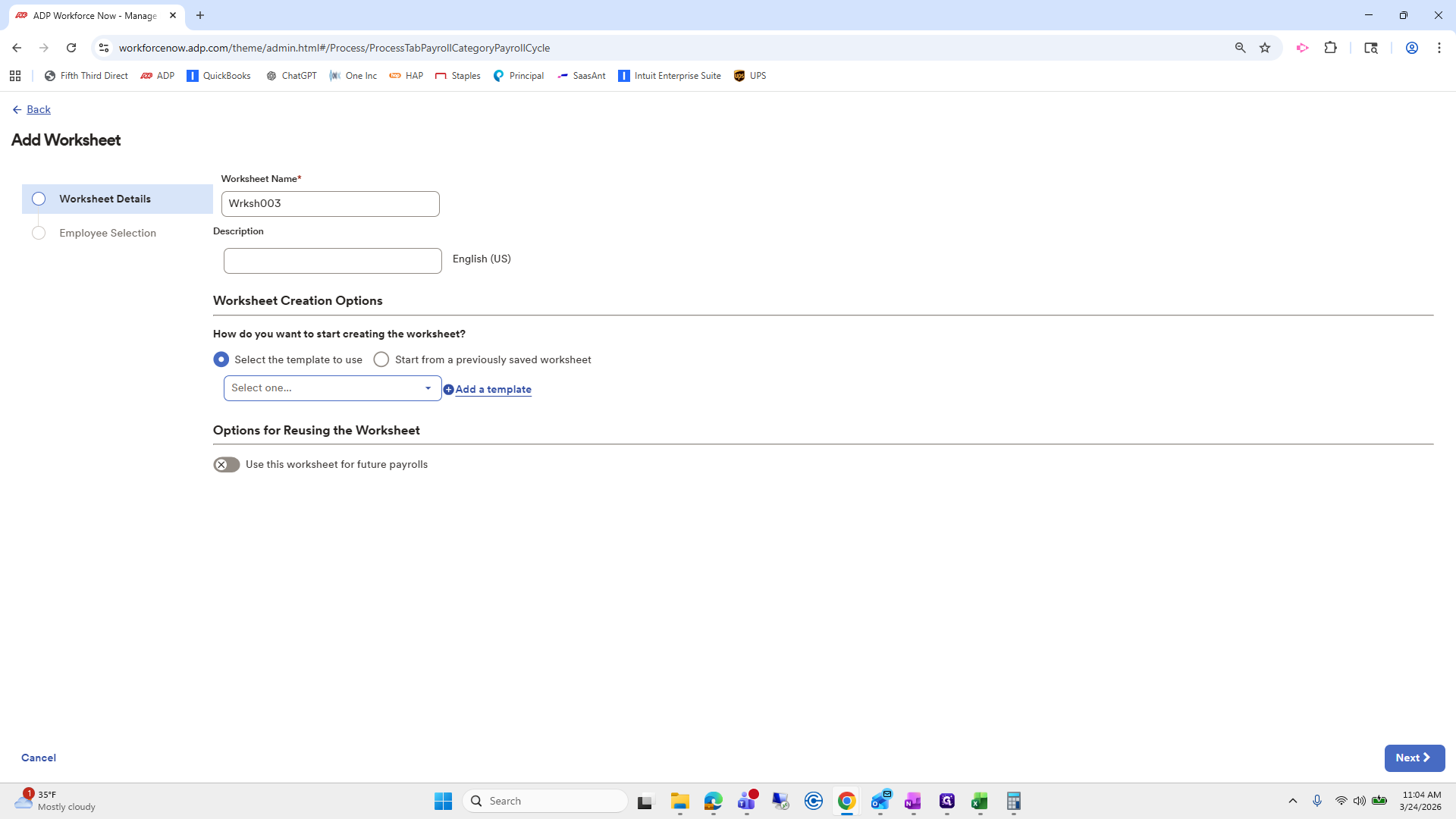
99
Click on "Select one"
Step #99: Click on "Select one"
100
Click on "PTO Payout"
Step #100: Click on "PTO Payout"

Oops.

101
Drag here
Step #101: Drag here
102
Type "Ctrl + C"
103
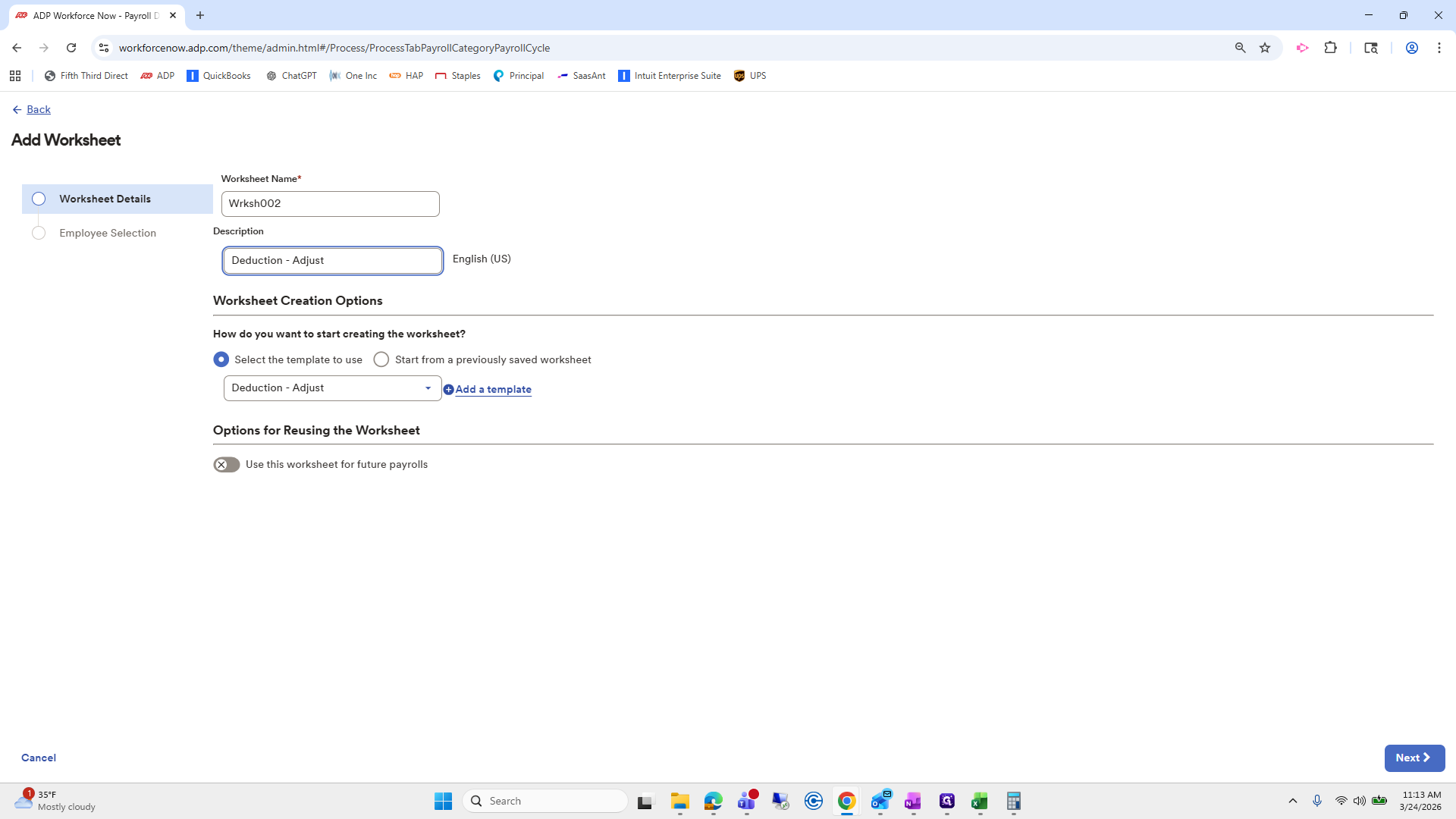
Click on "Deduction - Adjust"
Step #103: Click on "Deduction - Adjust"
104
Type "Ctrl + V"

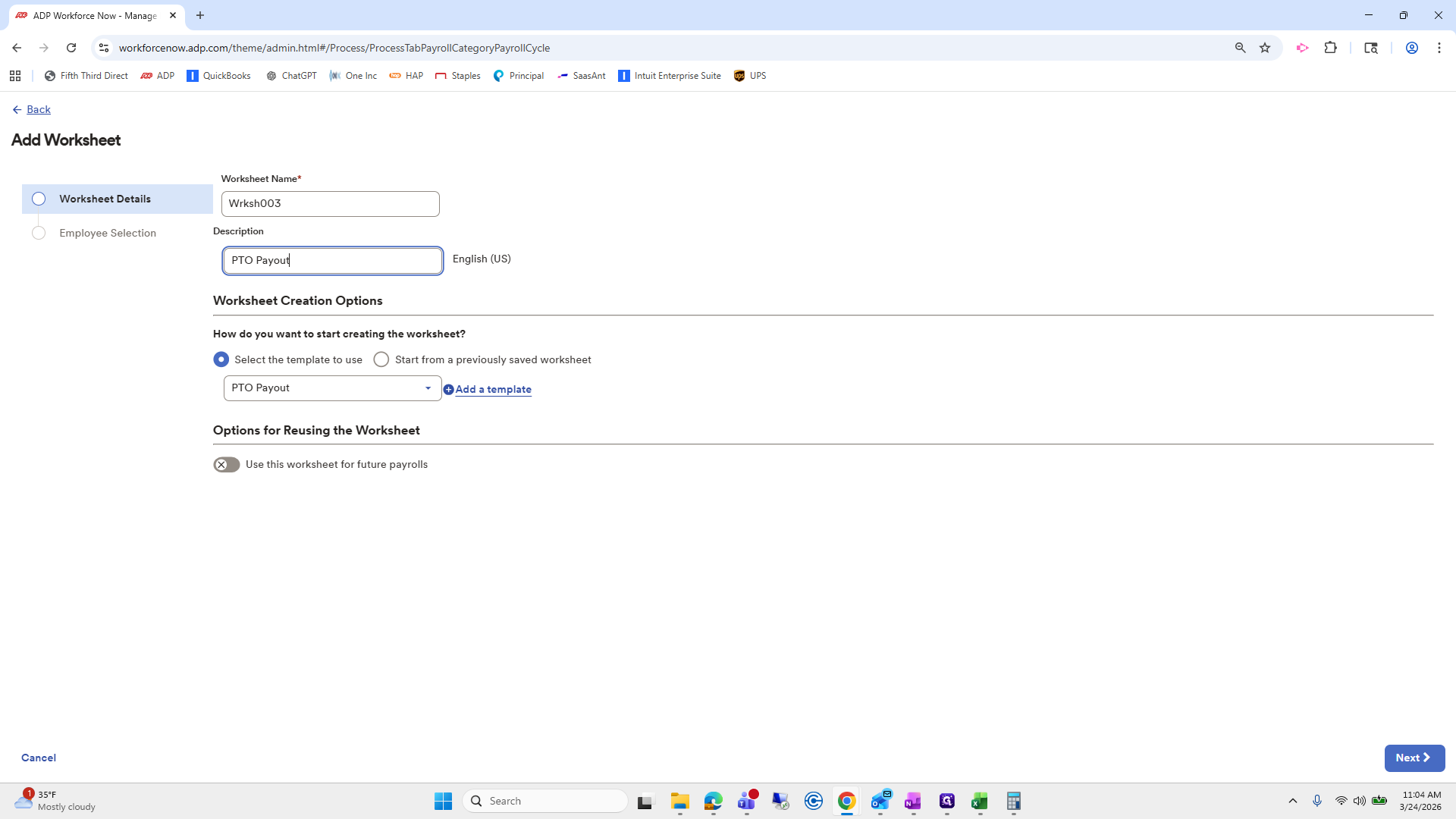
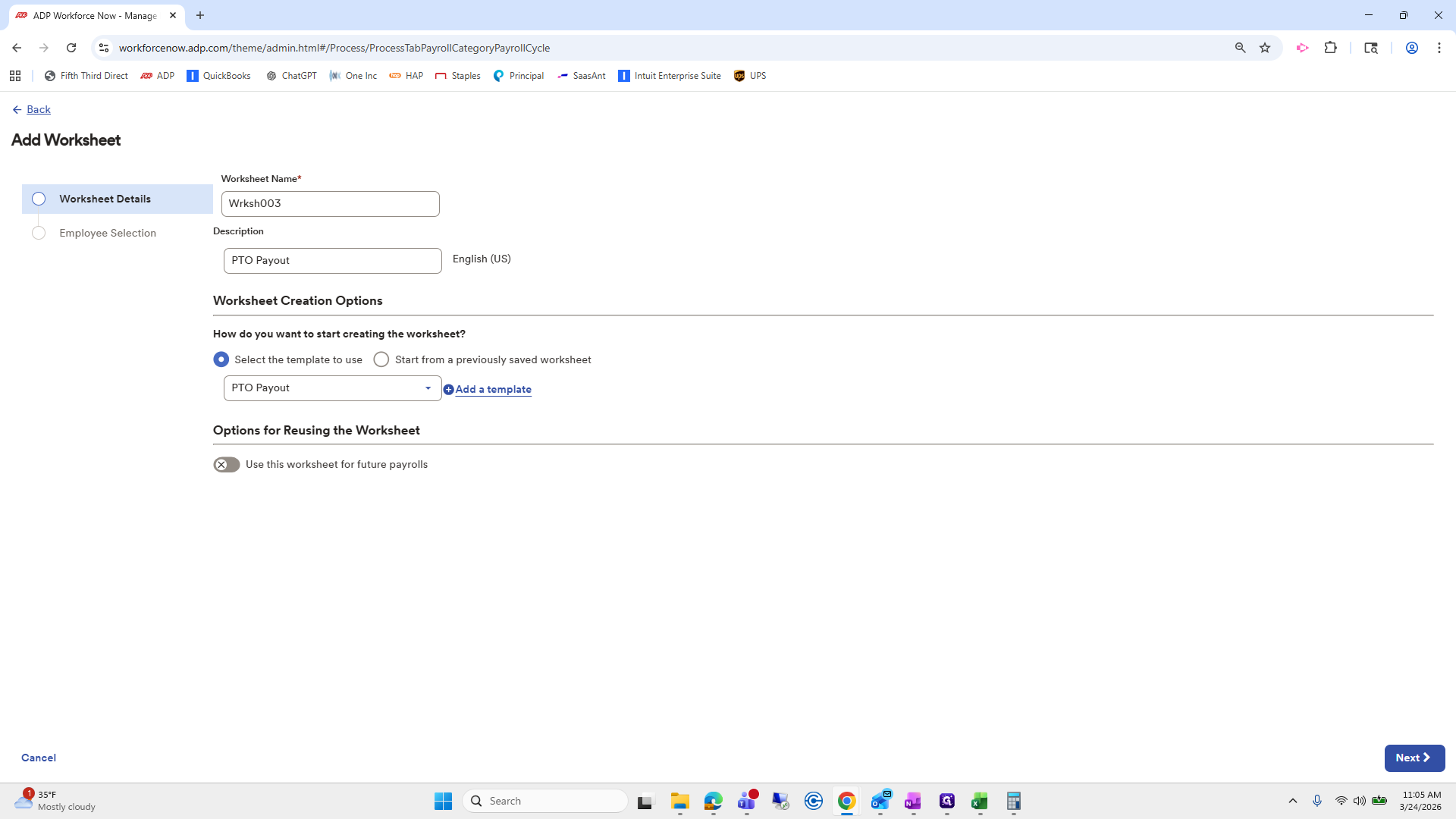
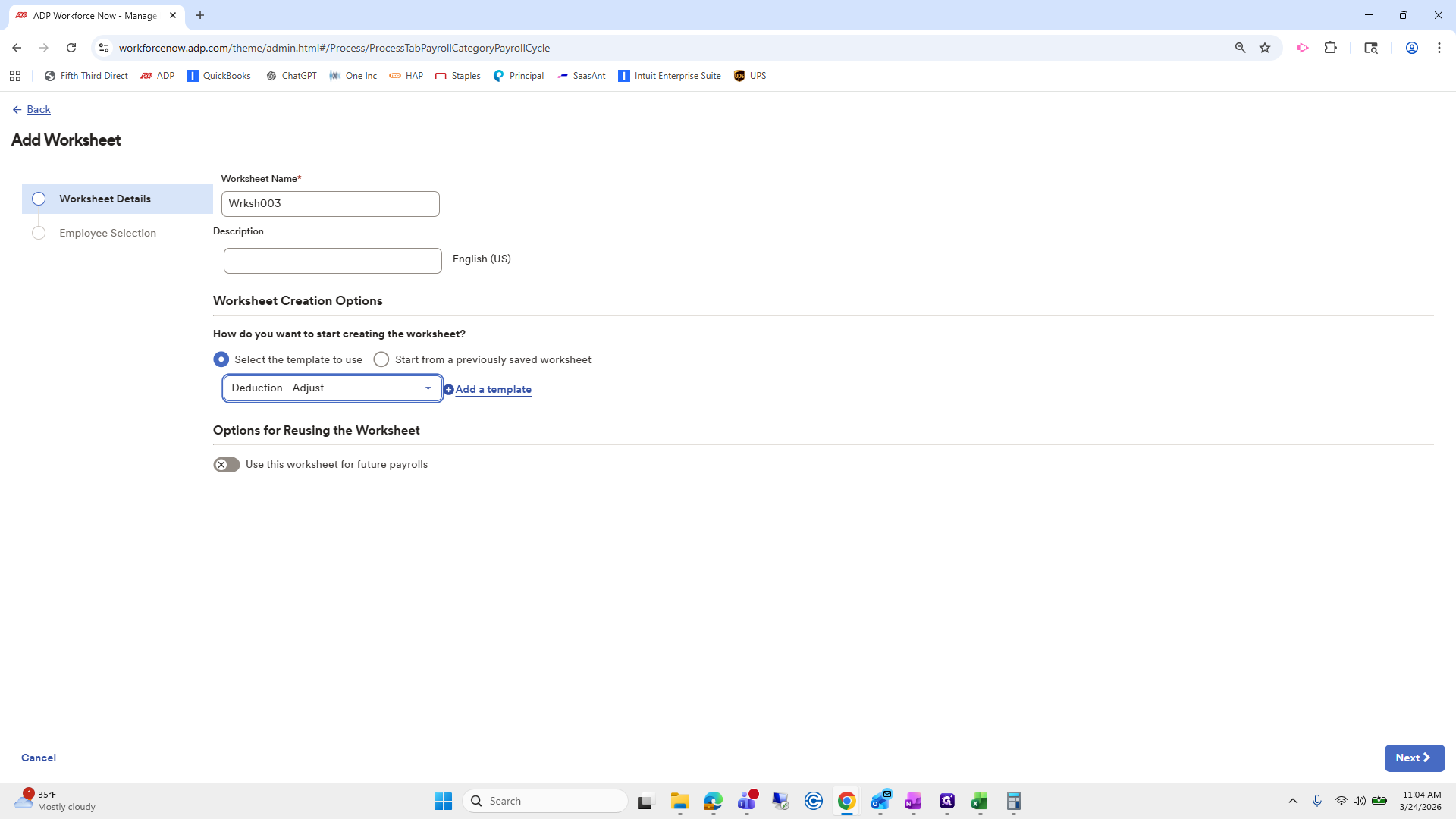
I will copy and paste the PTO payout here for reference, so I know which worksheet is which.
105
Click here
Step #105: Click here
106
Click here
Step #106: Click here
107
Click here
Step #107: Click here
108
Type "Ctrl + V"
109
Click here
Step #109: Click here
110
Click on "Next >"
Step #110: Click on "Next >"

Again, we will choose Misty.

111
Click here
Step #111: Click here
112
Click on "Search by name or posi ..."
Step #112: Click on "Search by name or posi ..."

She is not there. We need to go to All Employees.
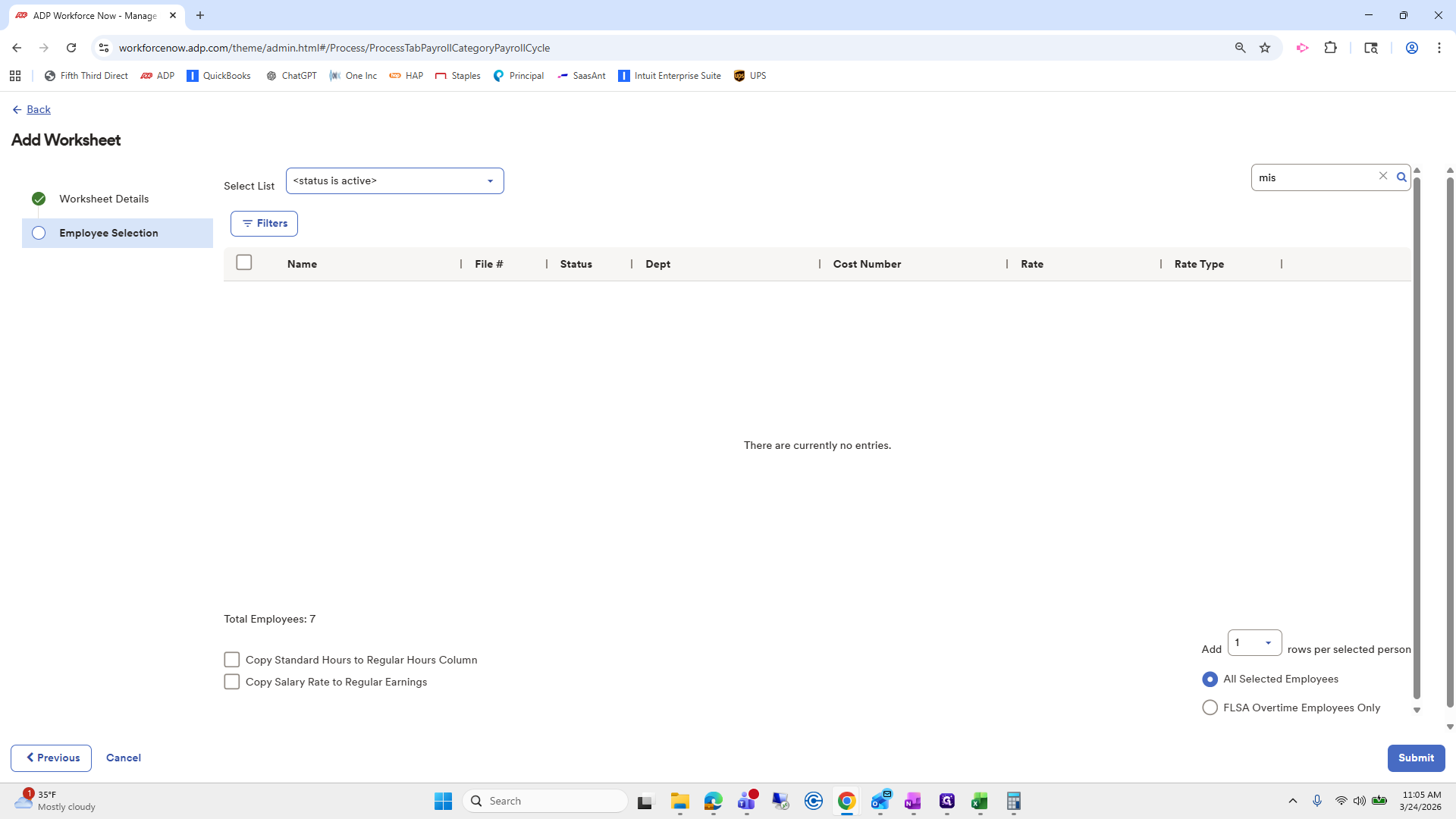
113
Type "mis"
114
Double-click here
Step #114: Double-click here
115
Click on "< all employees >"
Step #115: Click on "< all employees >"
116
Click here
Step #116: Click here

She is terminated.

117
Click on "Submit"
Step #117: Click on "Submit"

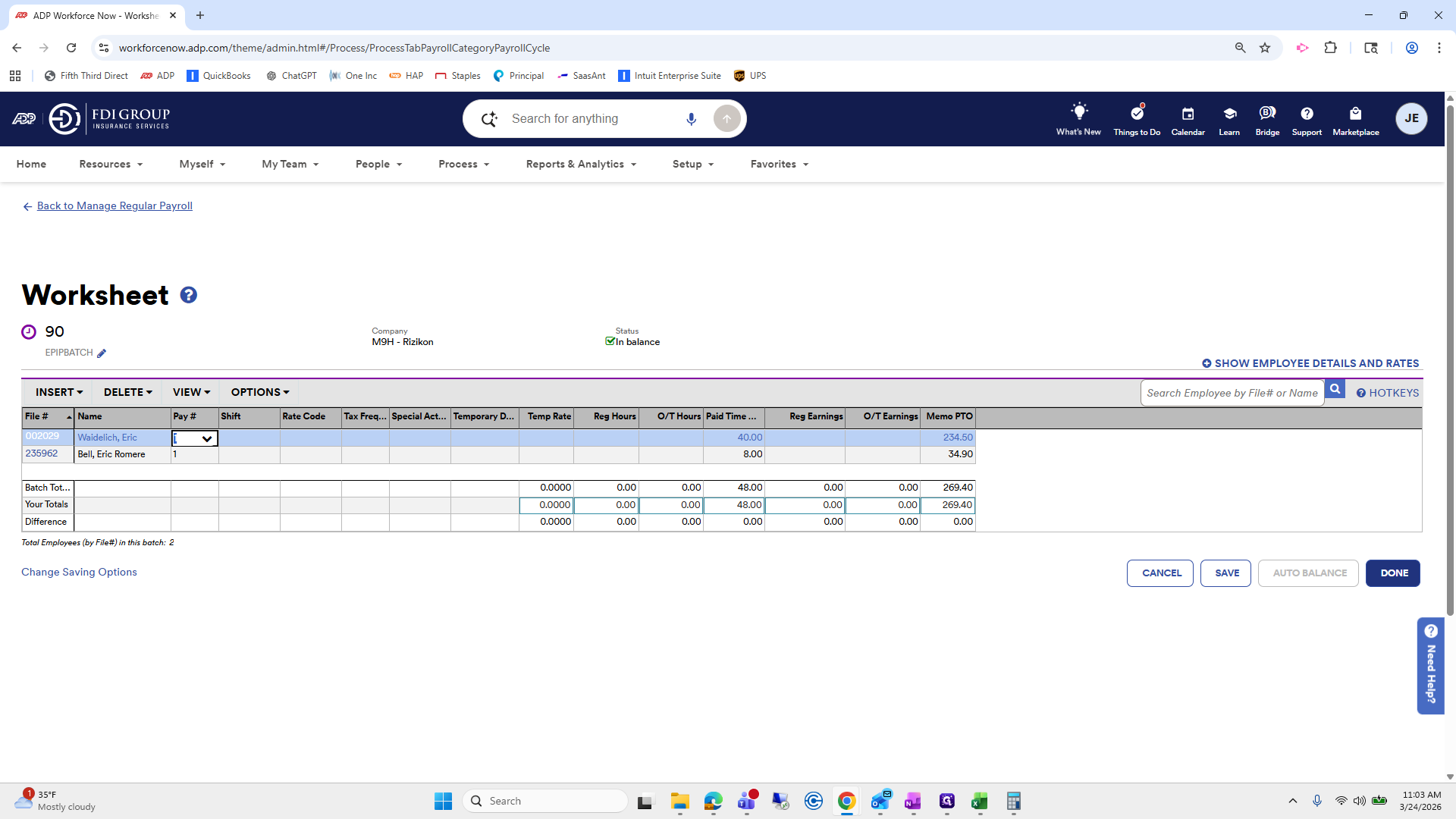
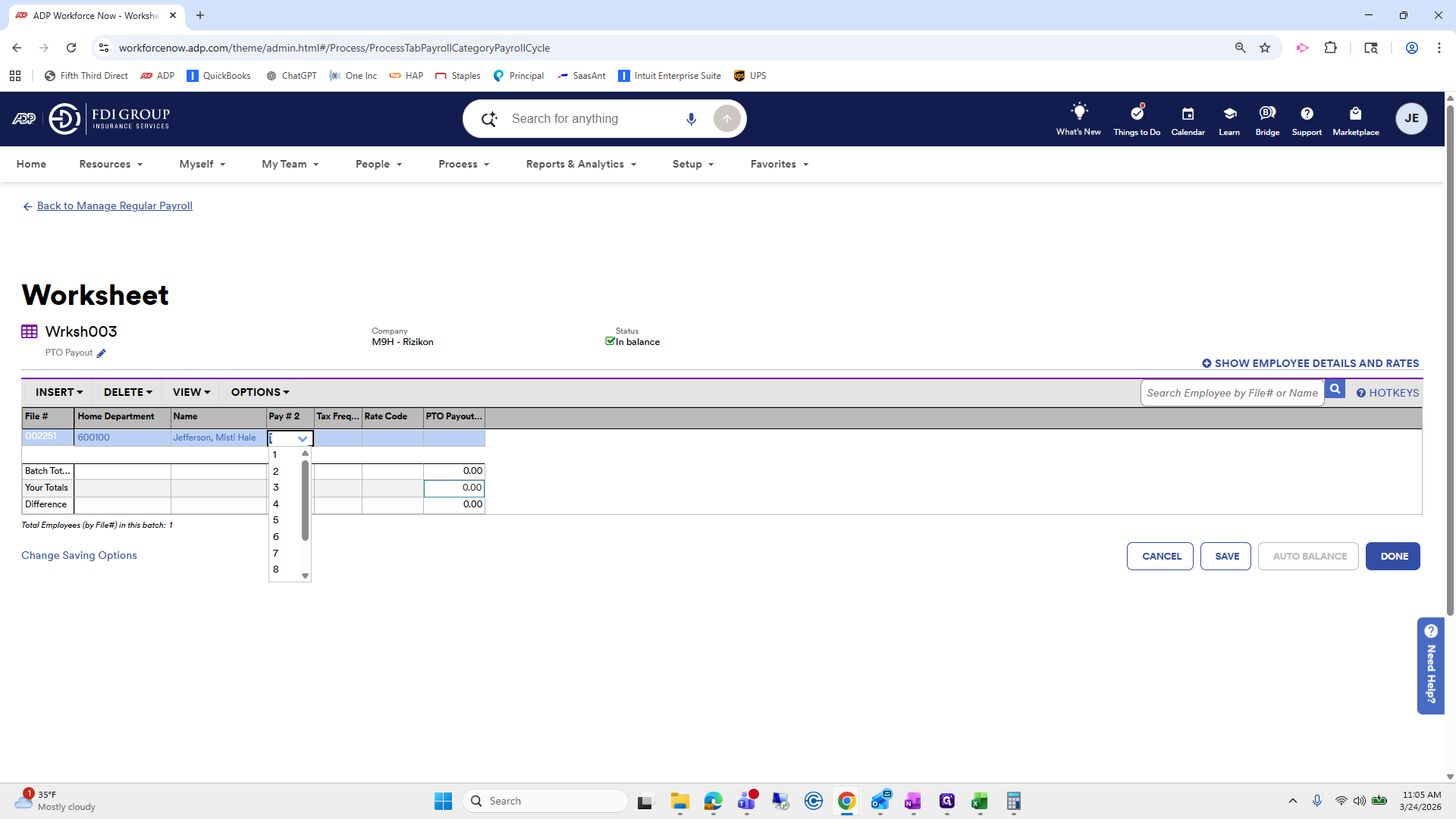
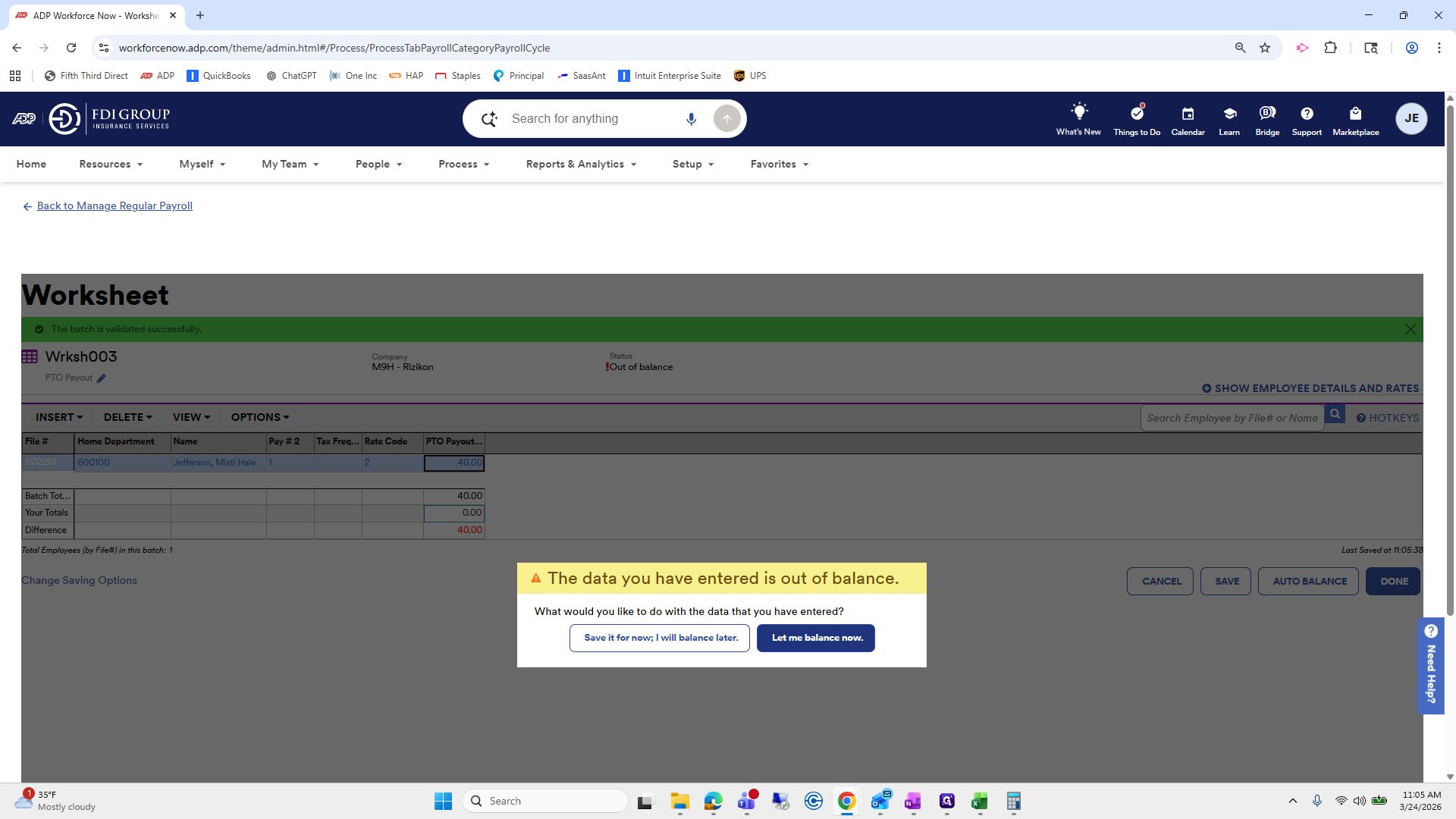
Submit. The PTO payout amount is 40 hours.
118
Click here
Step #118: Click here

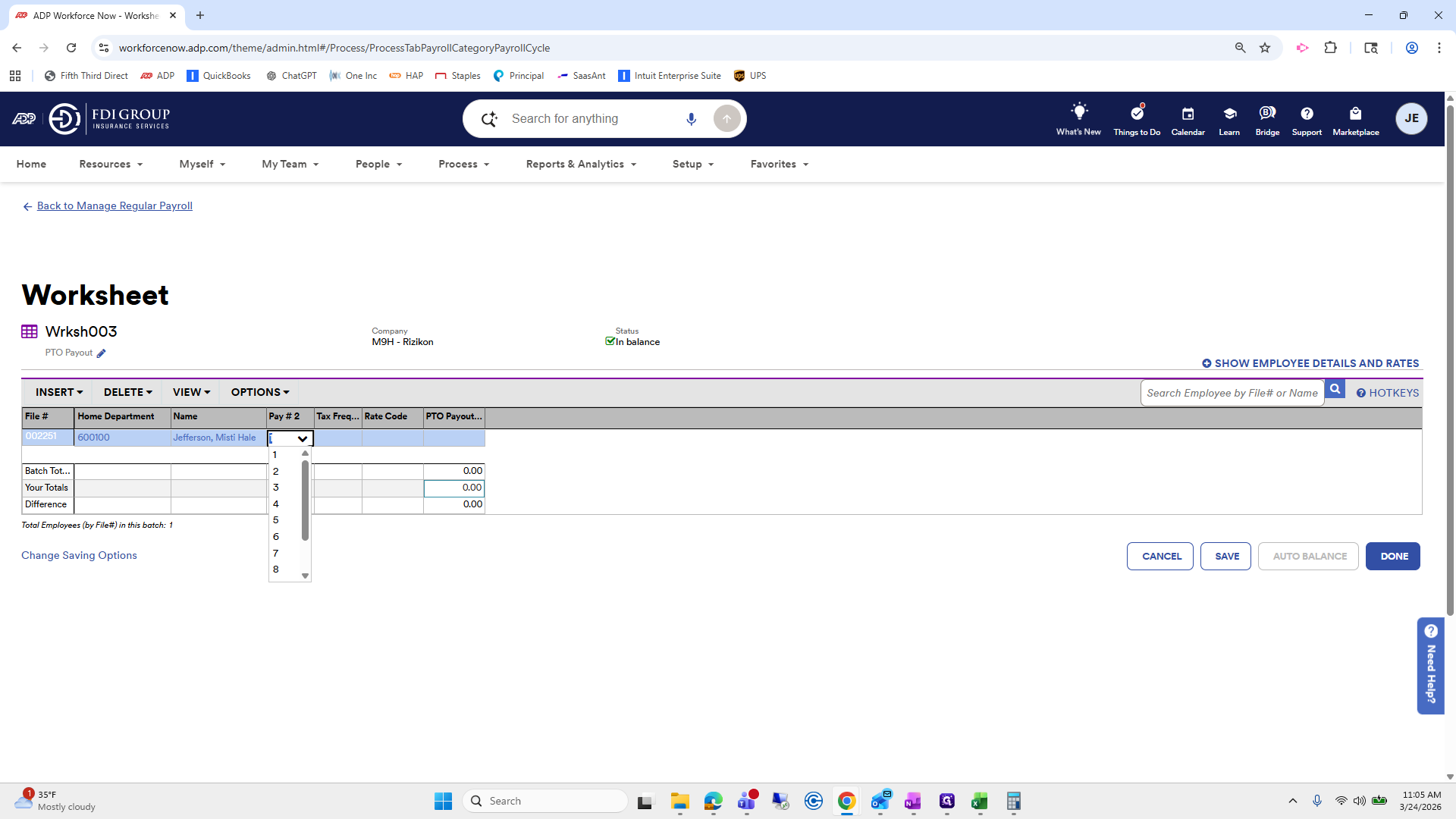
We will do pay-1. That's fine.

119
Click here
Step #119: Click here
120
Click on "✓"
Step #120: Click on "✓"
121
Click here
Step #121: Click here

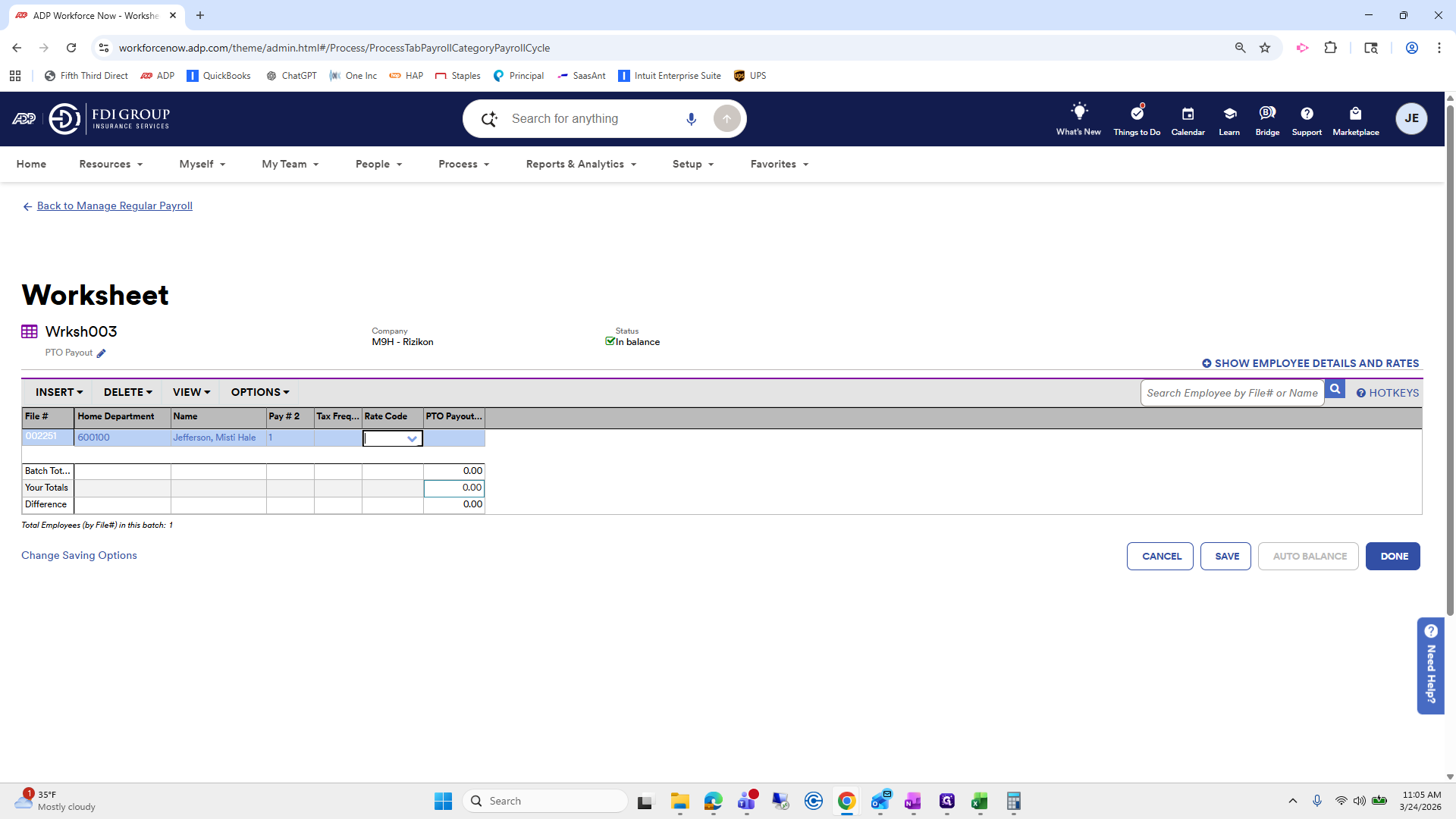
Rate code is 2.

122
Double-click here
Step #122: Double-click here
123
Click on "2-48.0770"
Step #123: Click on "2-48.0770"
124
Click here
Step #124: Click here

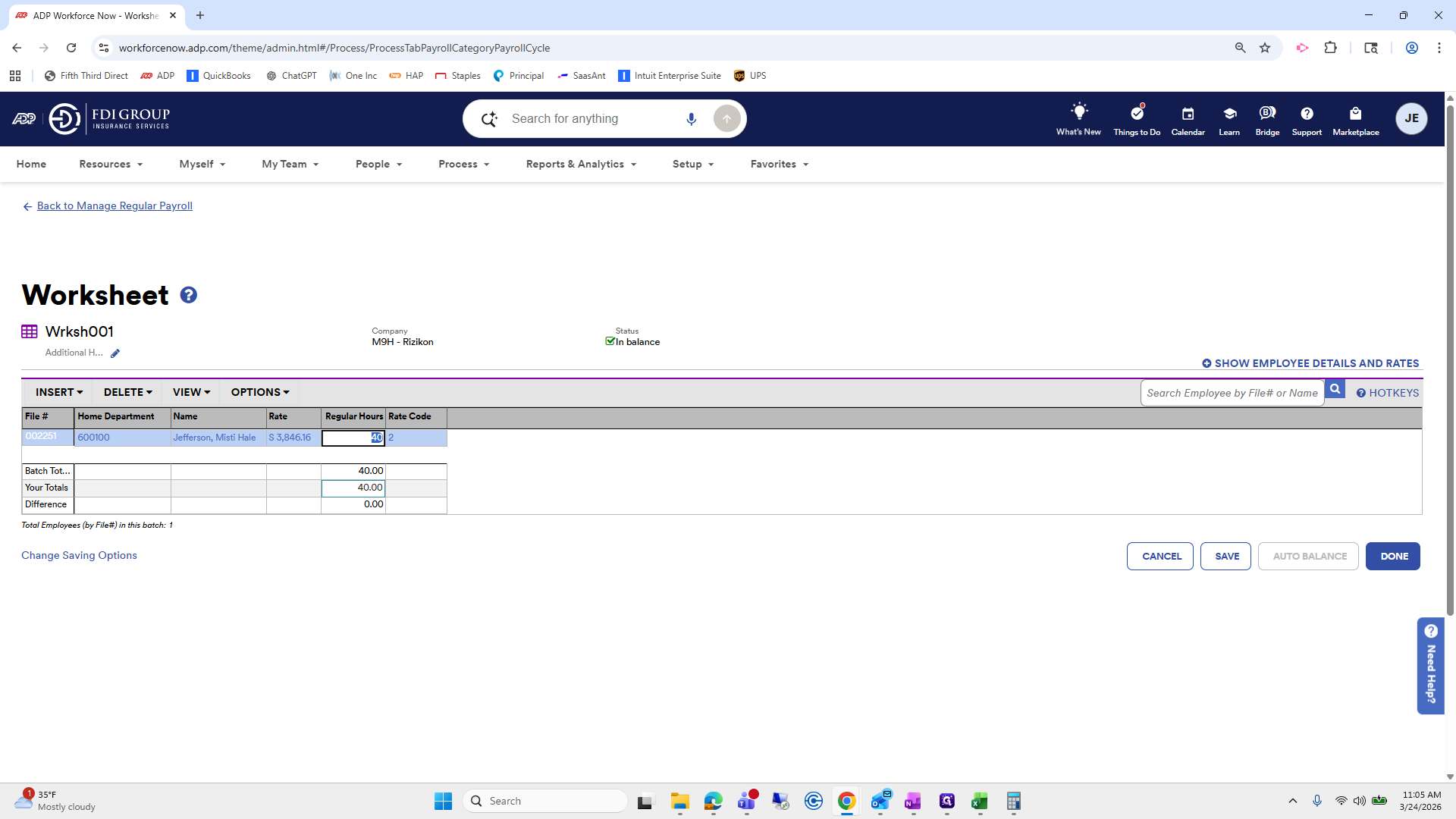
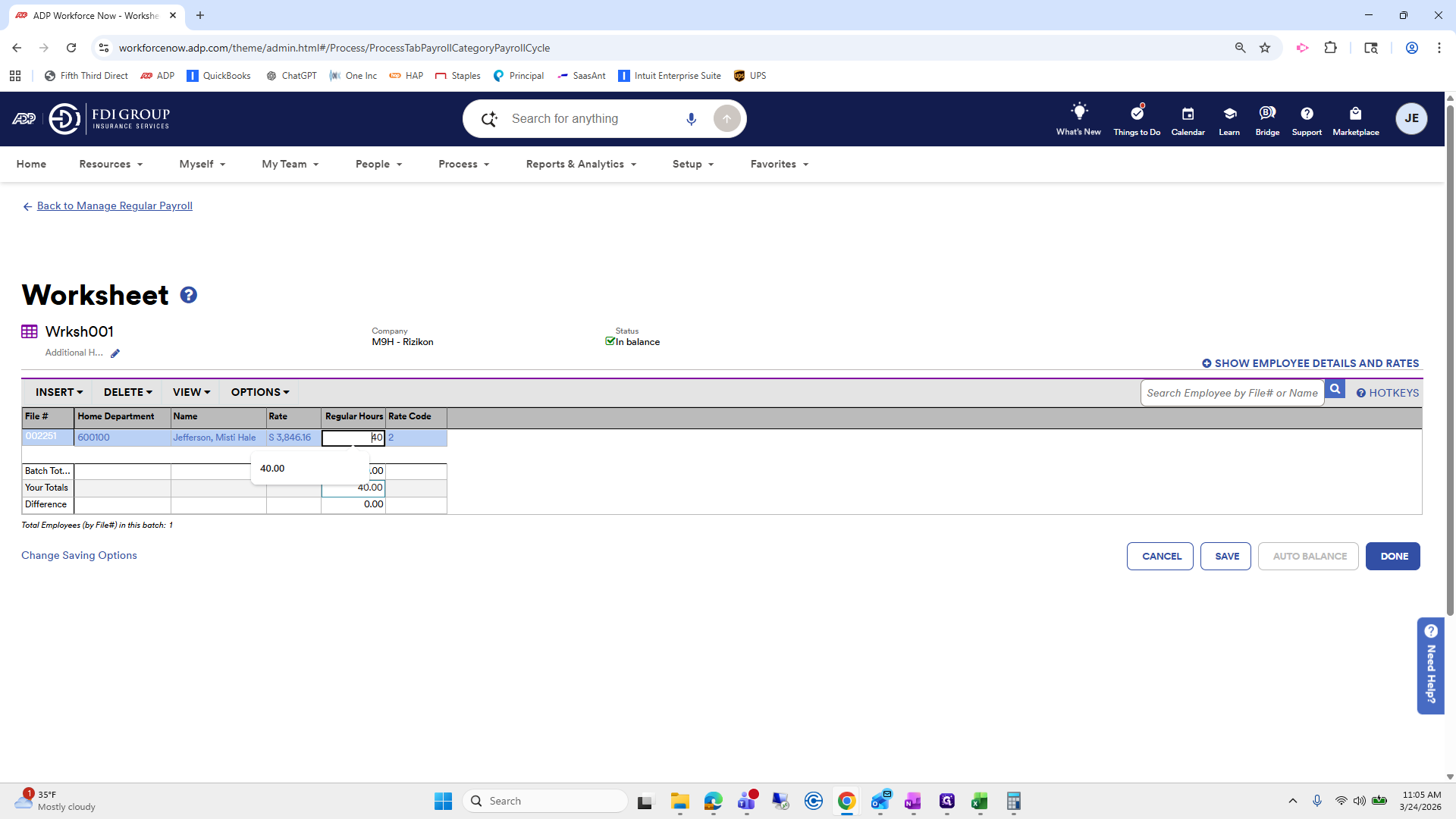
I just realized that on the other worksheet, I put 40 instead of 80.
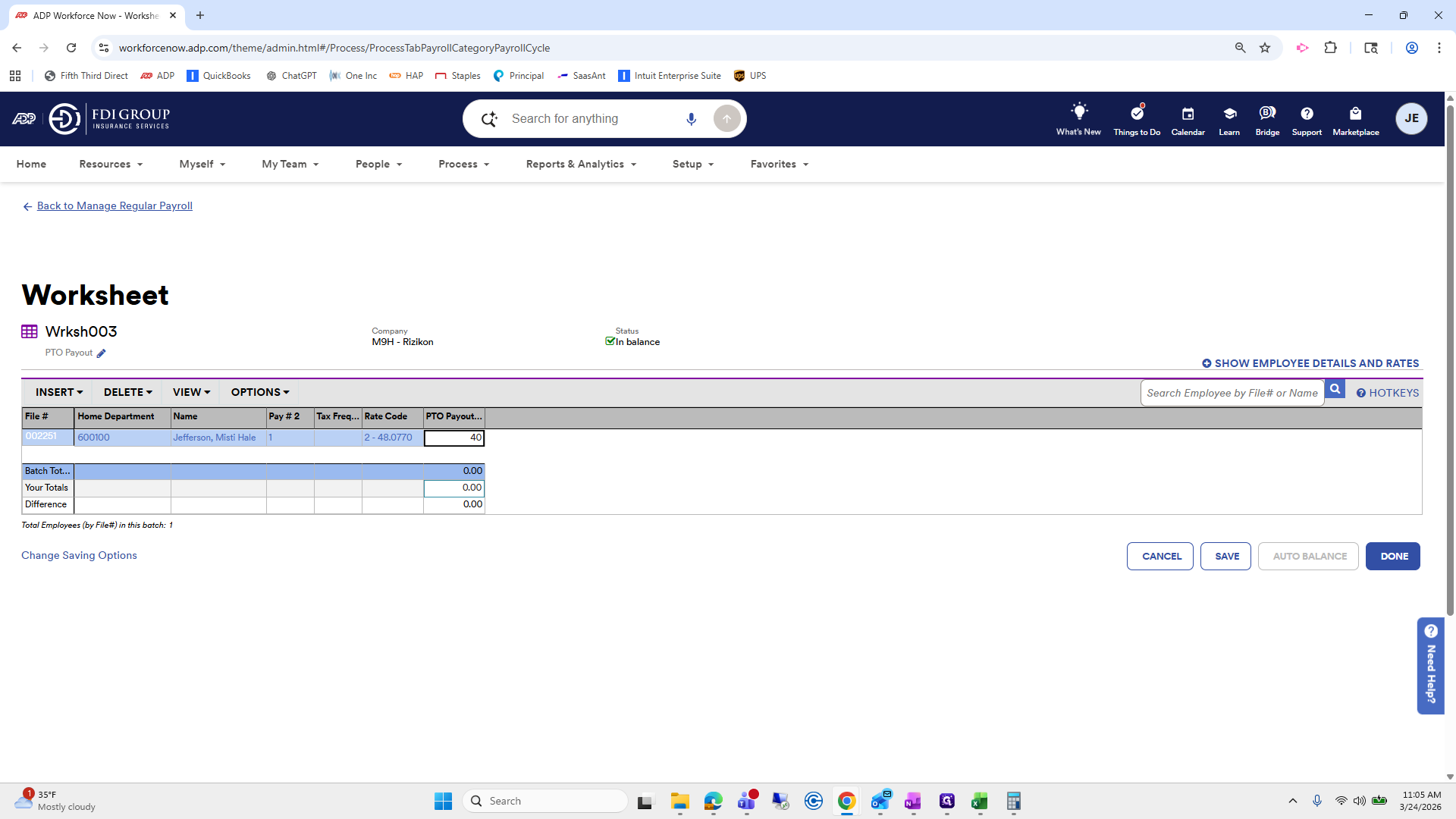
125
Type "40"
126
Click here
Step #126: Click here

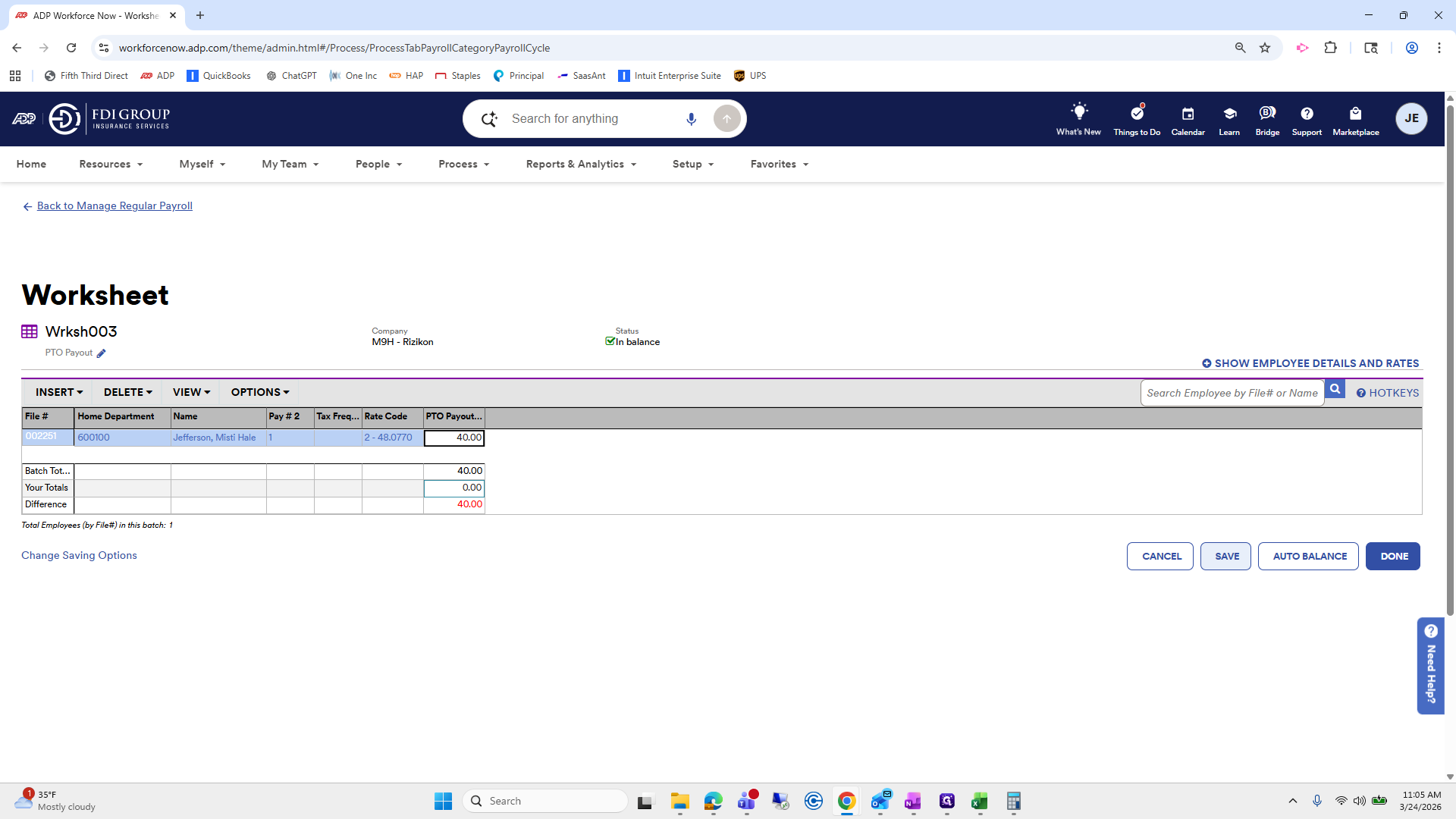
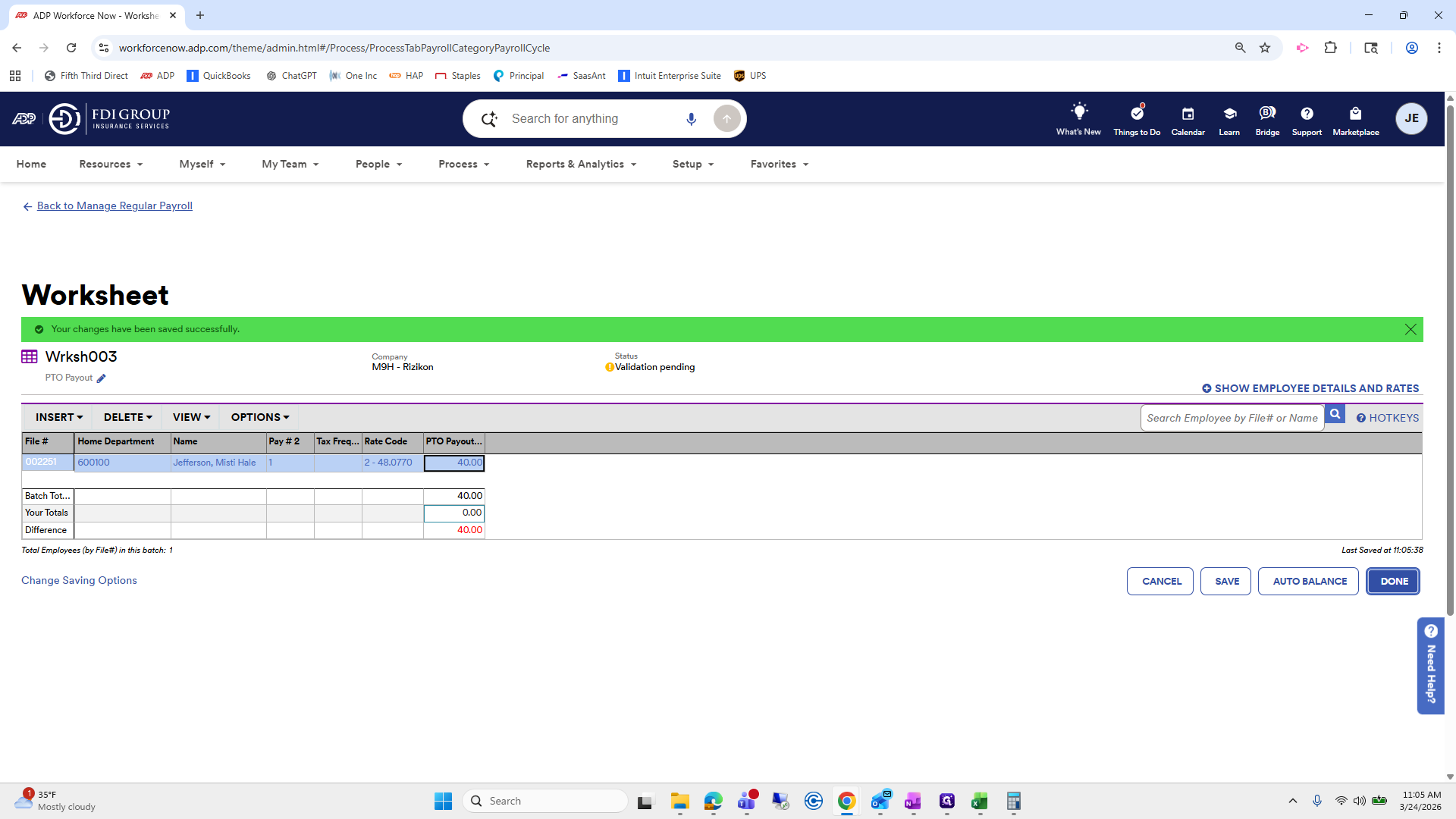
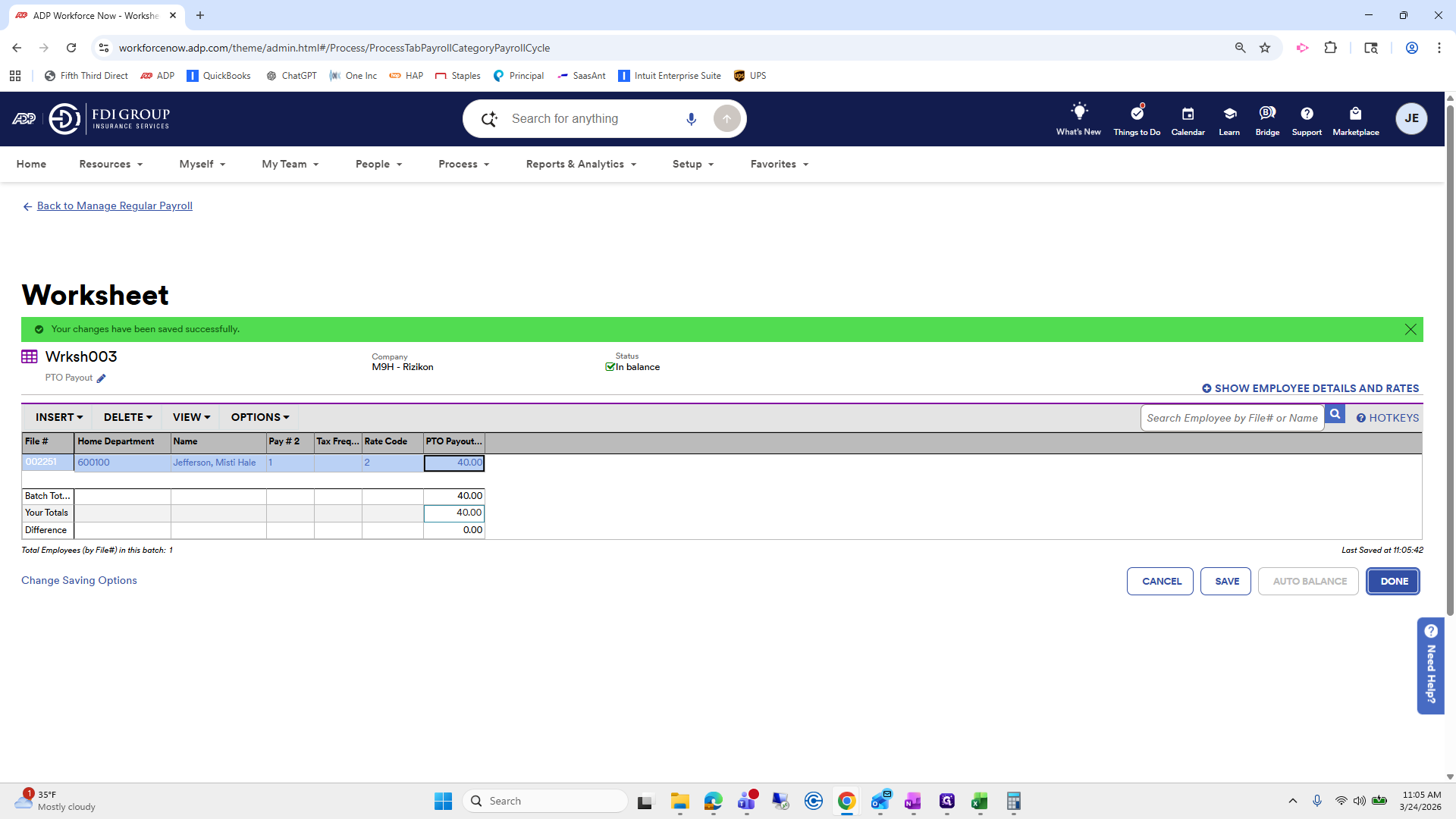
This pays her out for 40 hours of PTO.
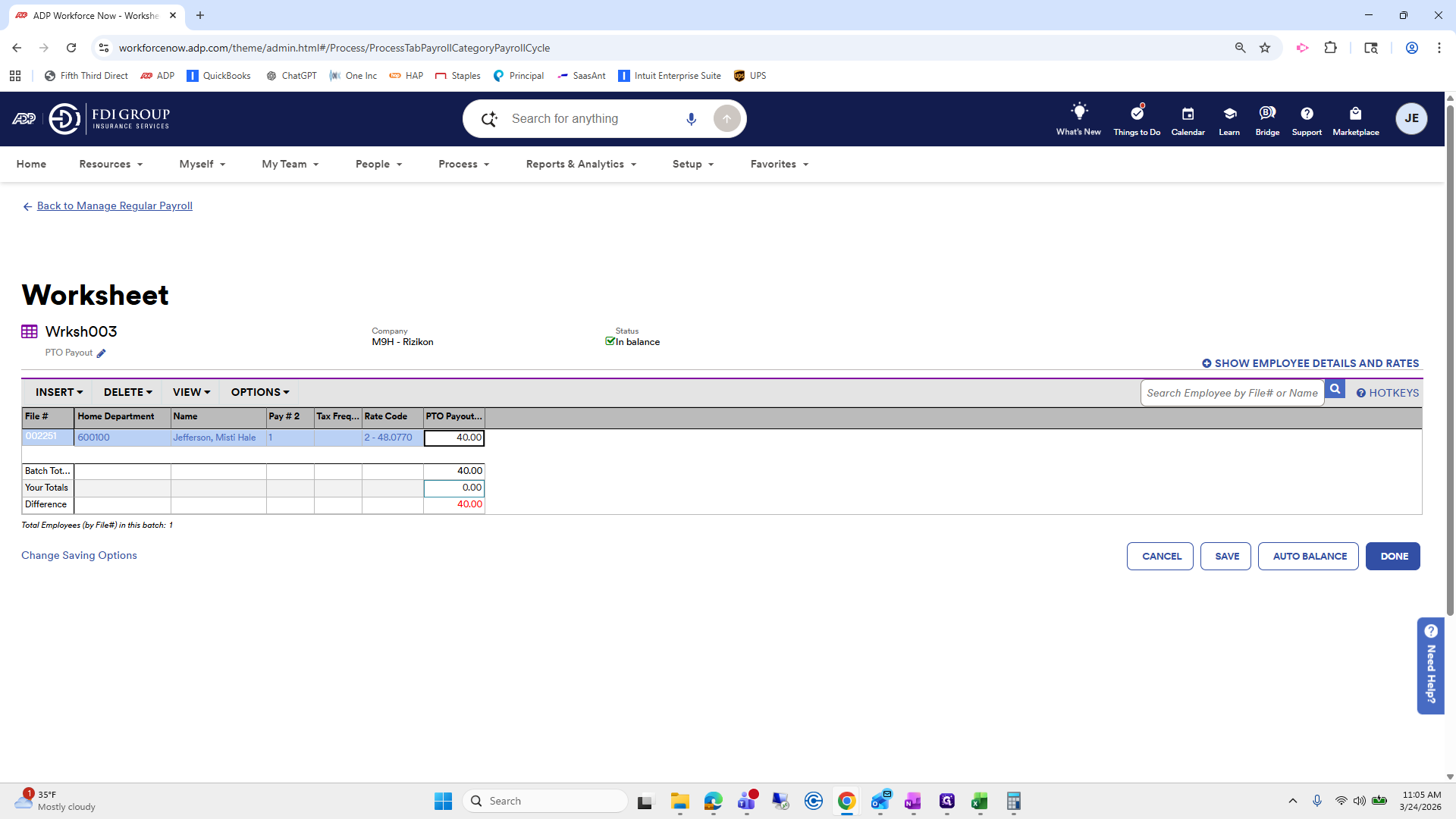
127
Click here
Step #127: Click here

Save. Done.

128
Click on "SAVE"
Step #128: Click on "SAVE"
129
Click on "DONE"
Step #129: Click on "DONE"

I forgot to auto-balance.

130
Click on "Let me balance now"
Step #130: Click on "Let me balance now"

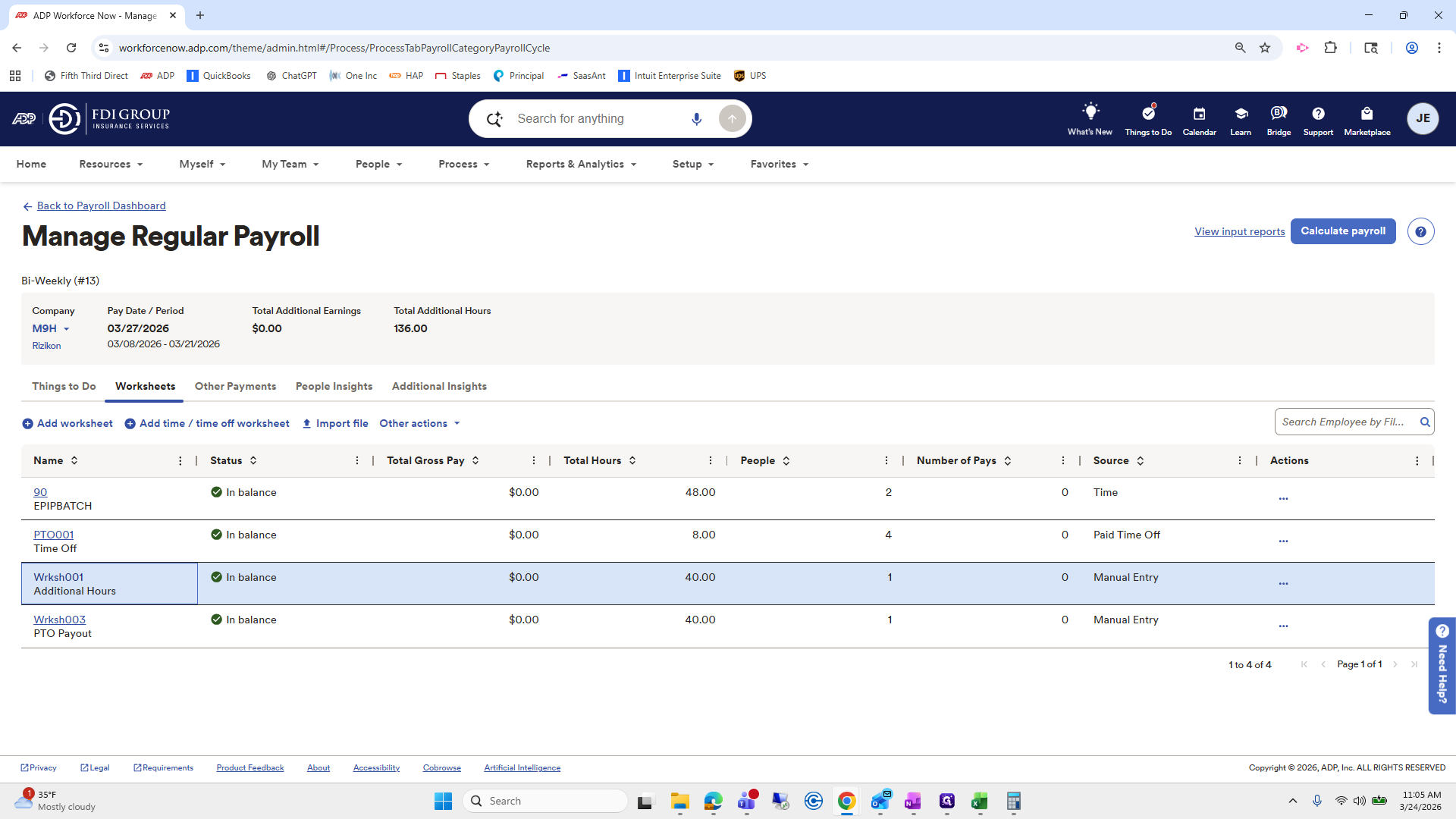
Now, I will go back into Additional Hours because I realized I only paid her 40, but she should have been paid 80.
131
Click on "AUTO BALANCE"
Step #131: Click on "AUTO BALANCE"
132
Click on "DONE"
Step #132: Click on "DONE"
133
Click on "Wrksh001"
Step #133: Click on "Wrksh001"
134
Click here
Step #134: Click here
135
Click here
Step #135: Click here

Auto-balance complete.

136
Type "80"
137
Click here
Step #137: Click here
138
Click on "AUTO BALANCE"
Step #138: Click on "AUTO BALANCE"
139
Click on "DONE"
Step #139: Click on "DONE"

Okay, we have those two done.

140
Click here
Step #140: Click here

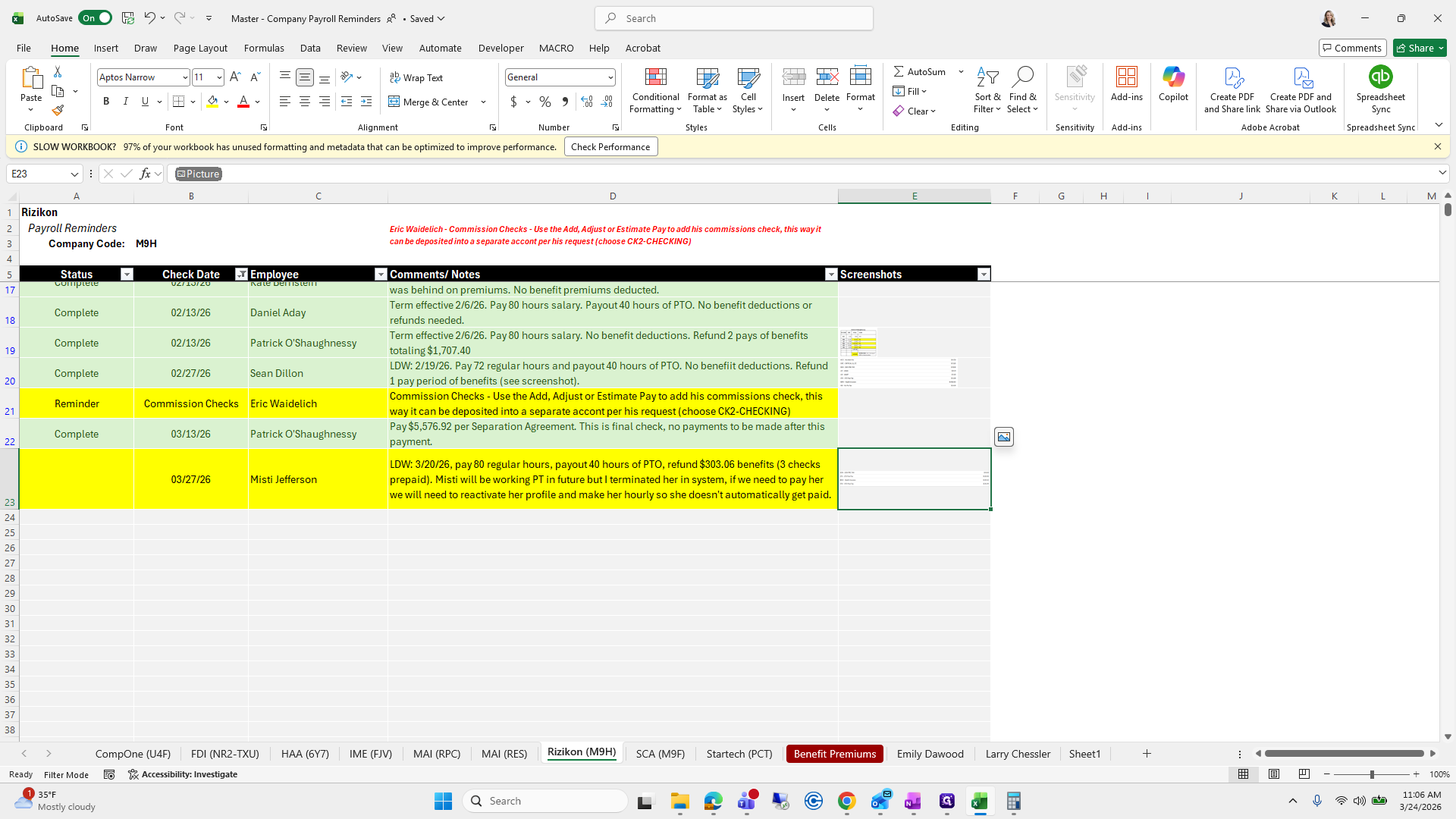
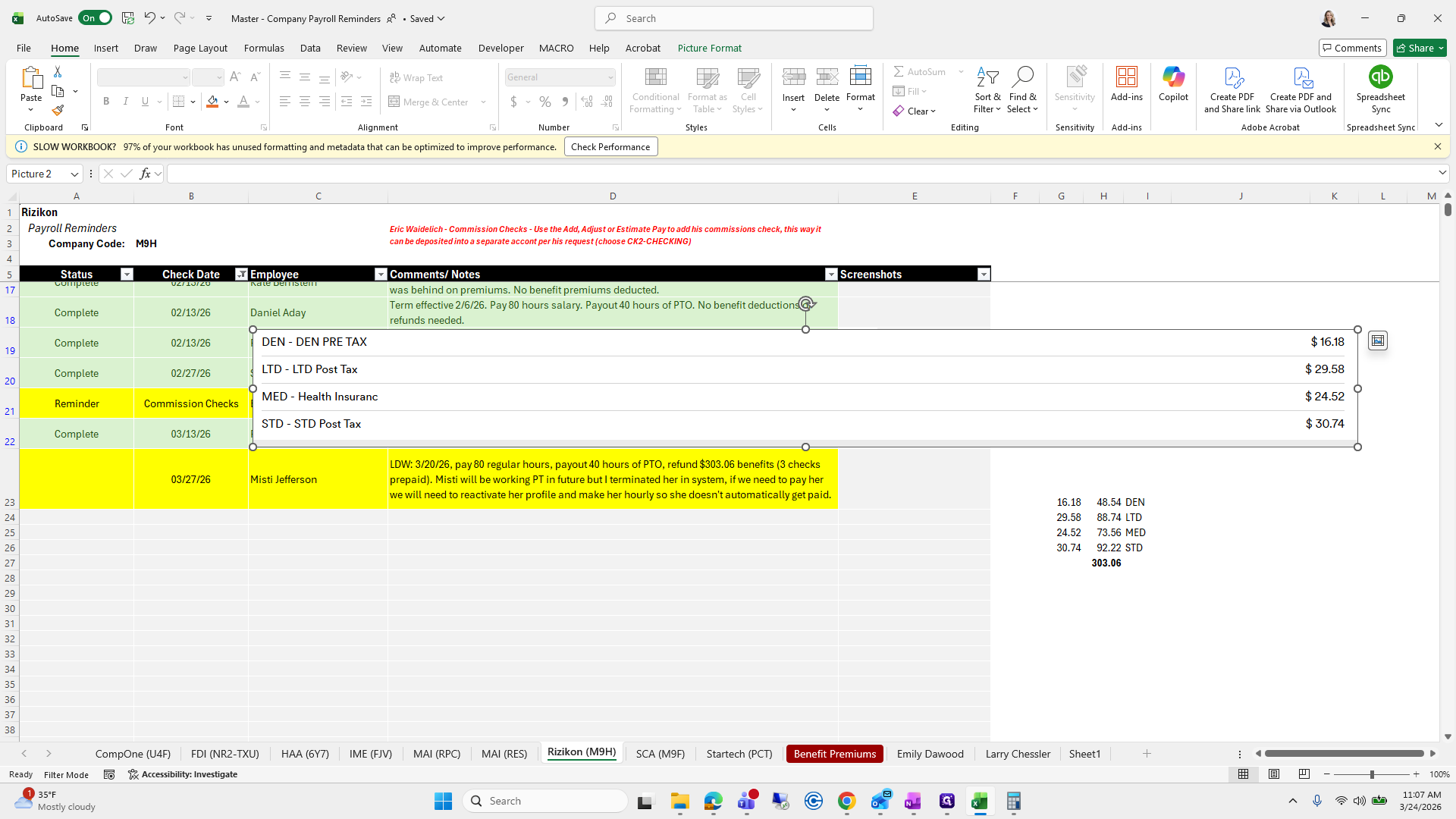
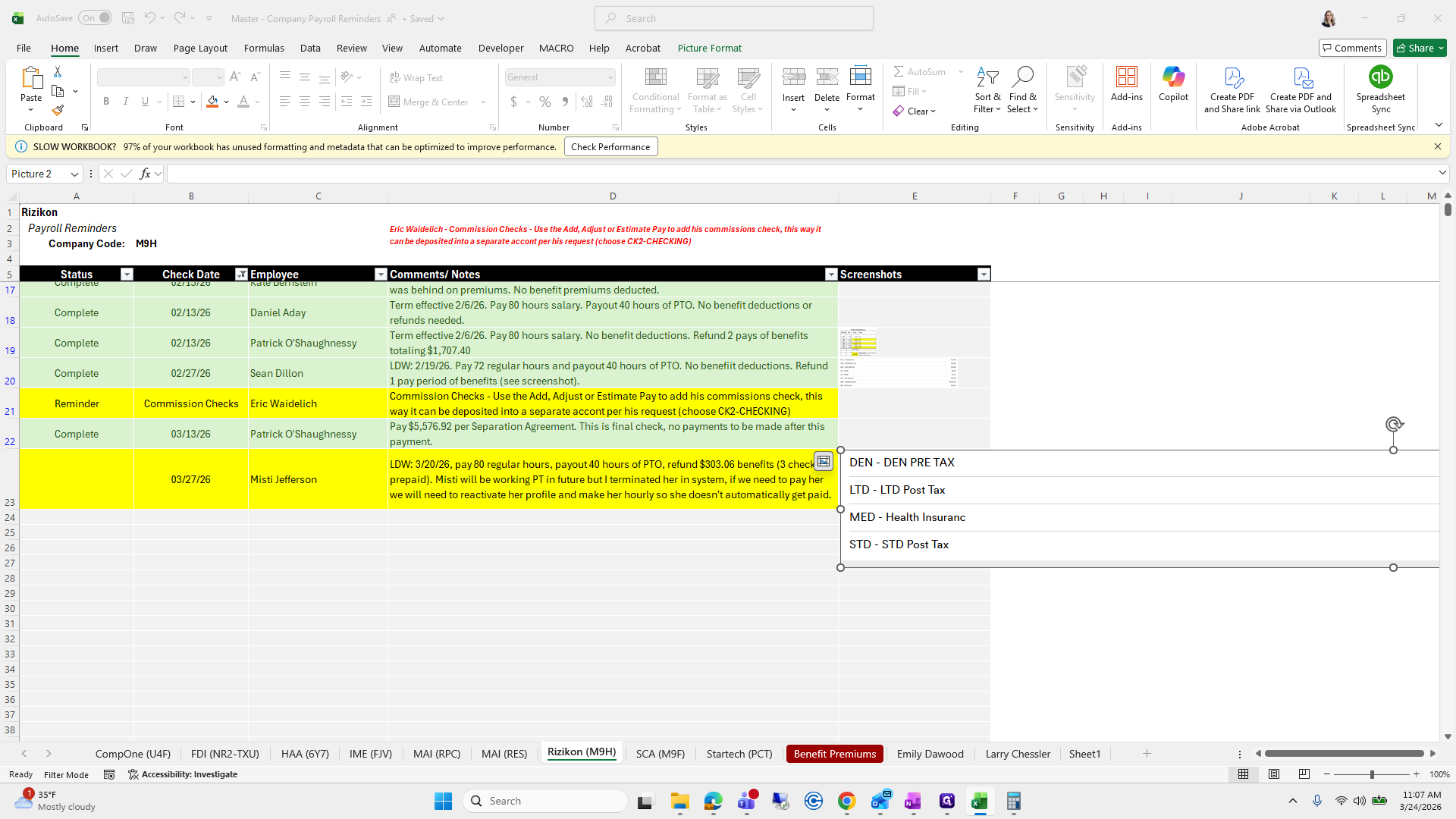
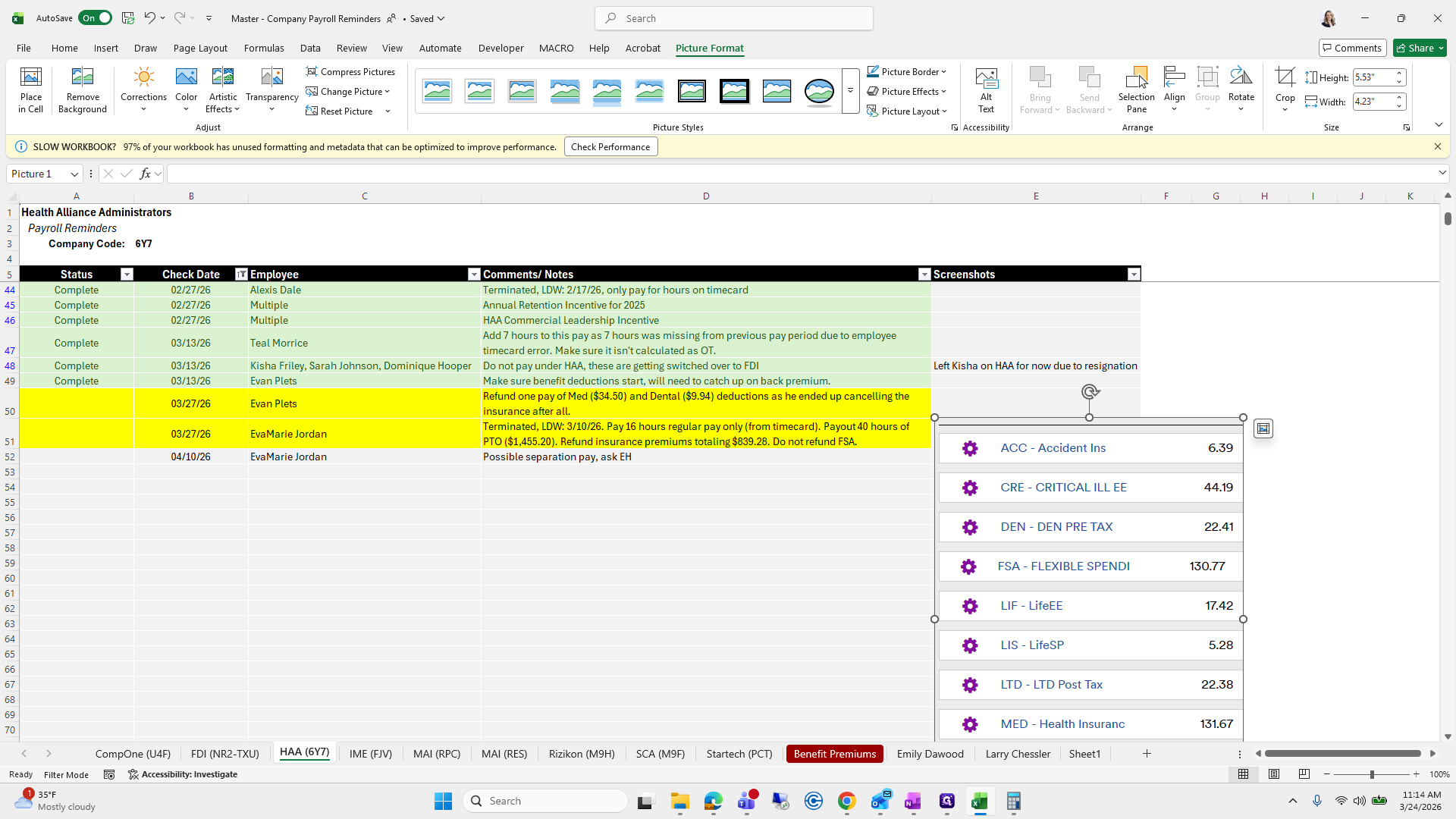
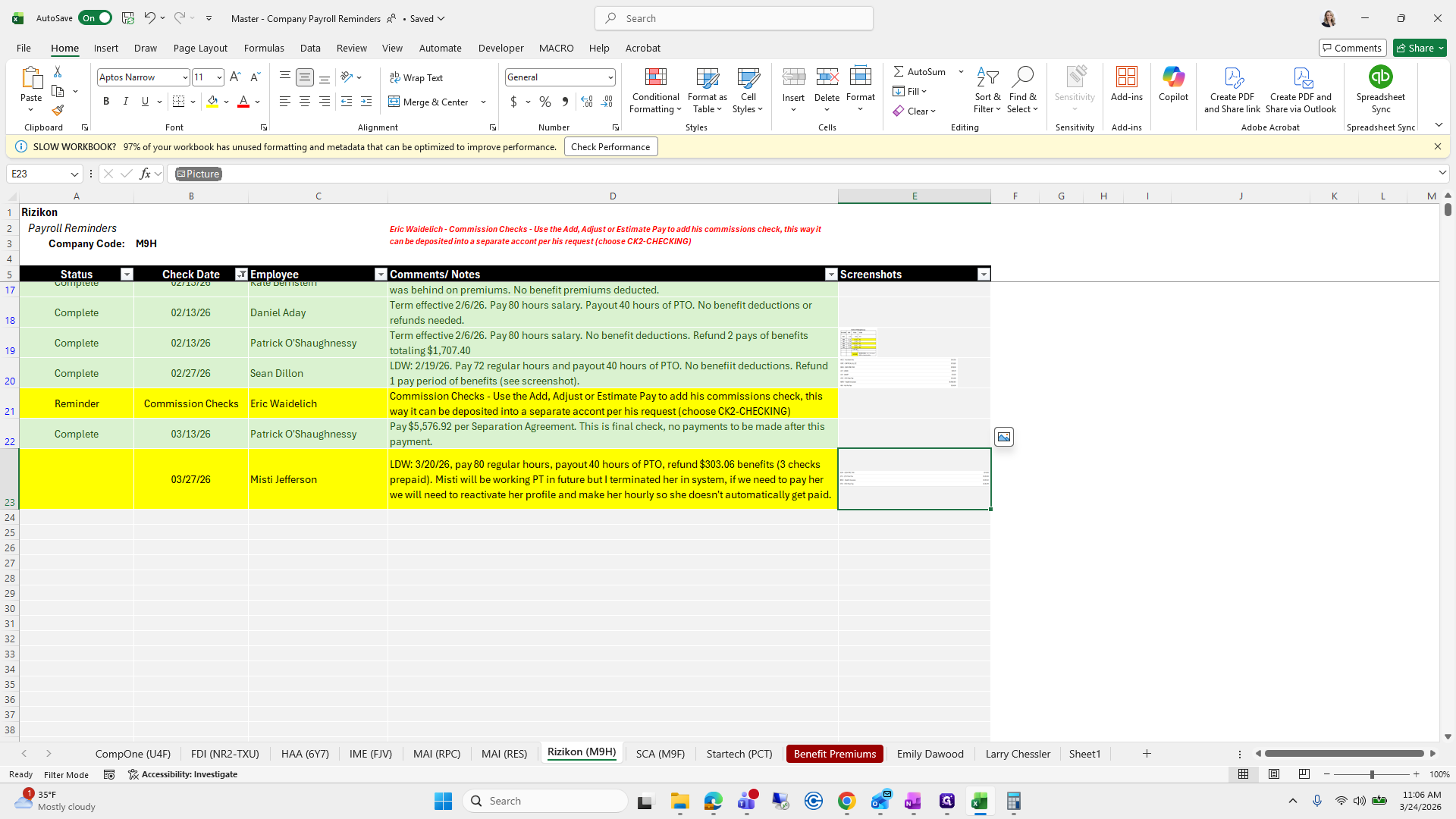
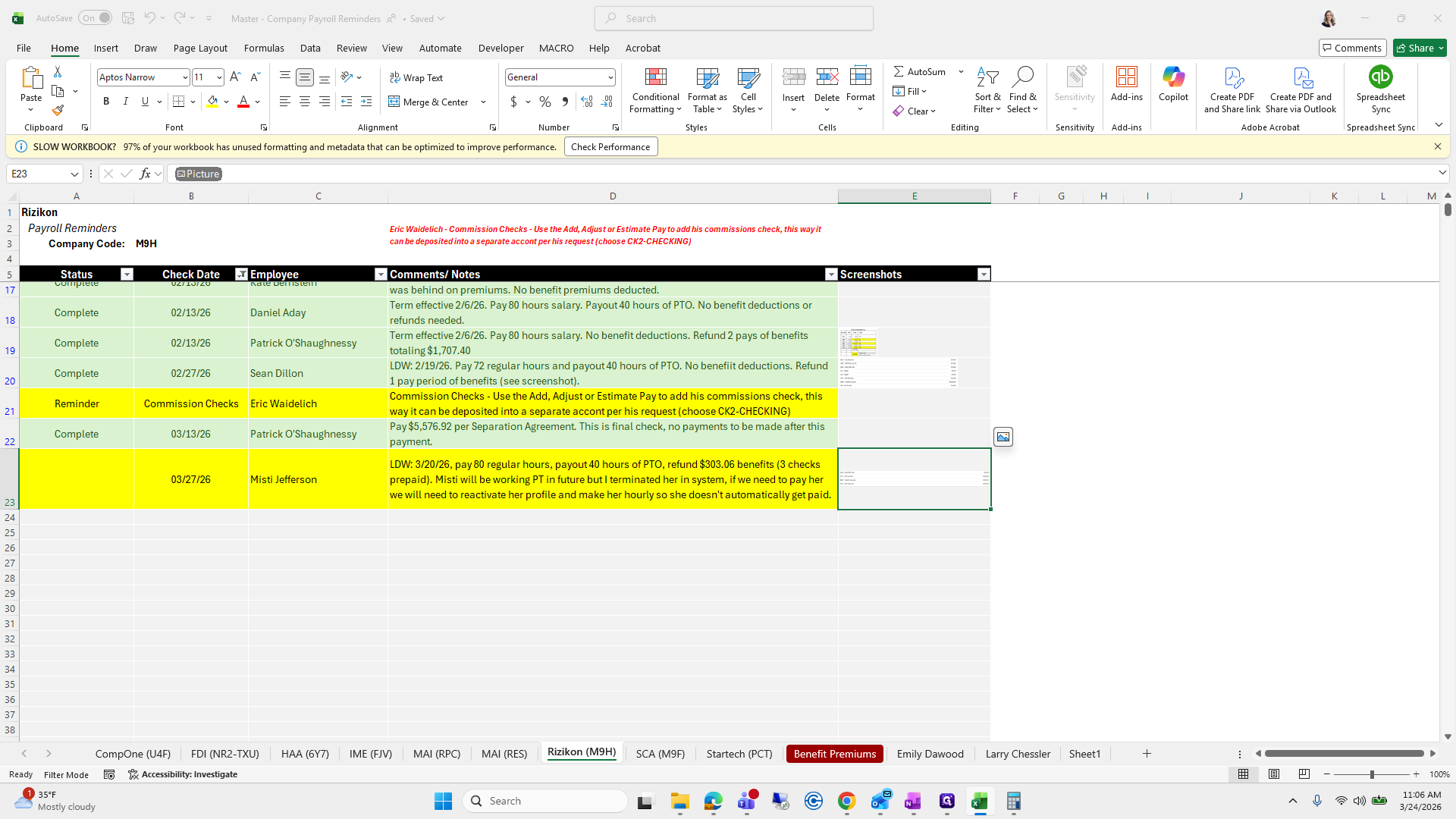
We need to refund her benefits for three prepaid checks. If you have a screenshot, you can easily add it to a cell. Simply insert the screenshot into the cell, then click the button to place it inside.
141
Double-click here
Step #141: Double-click here
142
Click here
Step #142: Click here
143
Drag here
Step #143: Drag here
144
Drag "LTD - LTD Post Tax"
Step #144: Drag "LTD - LTD Post Tax"
145
Click on "3 check"
Step #145: Click on "3 check"

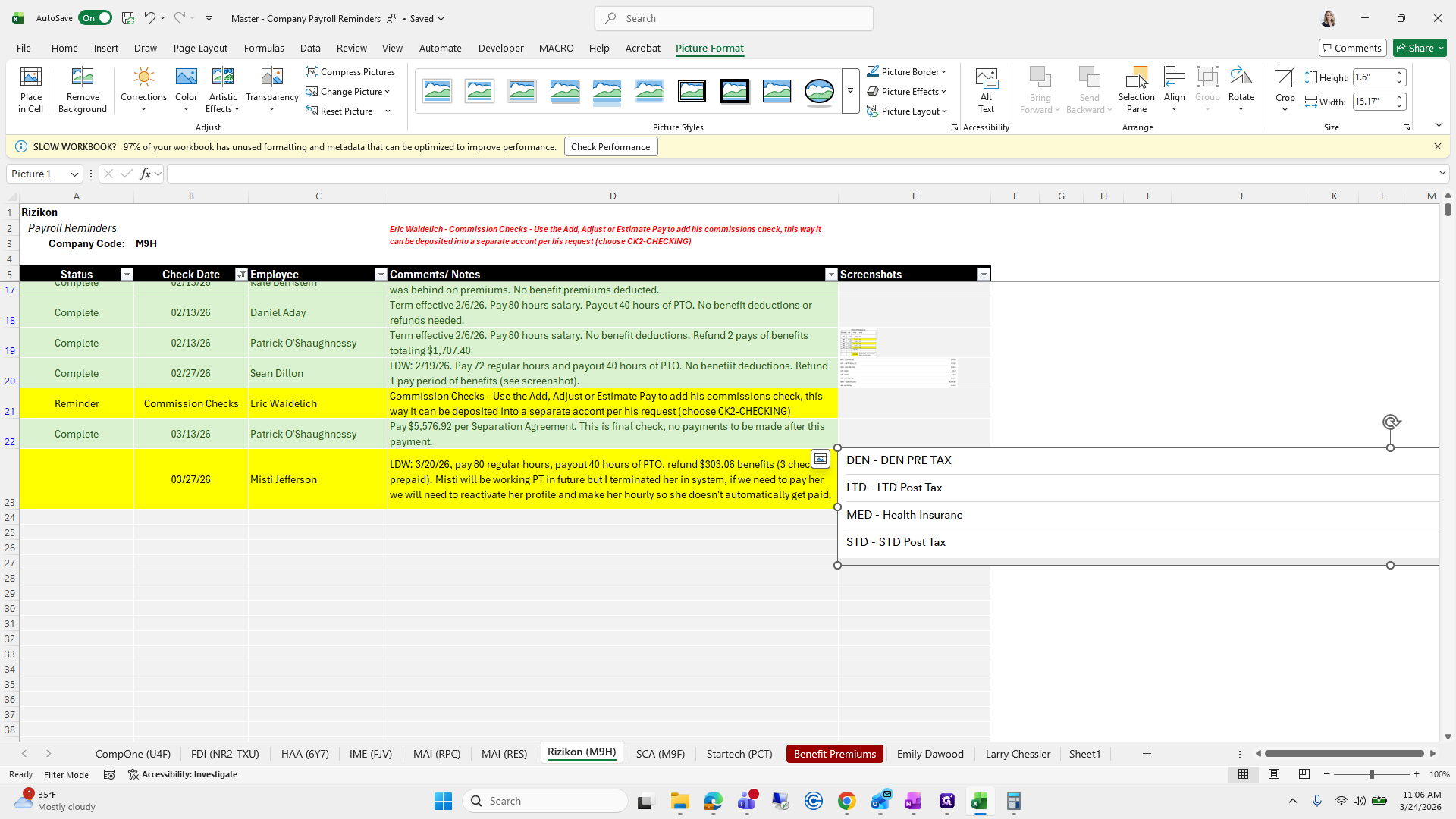
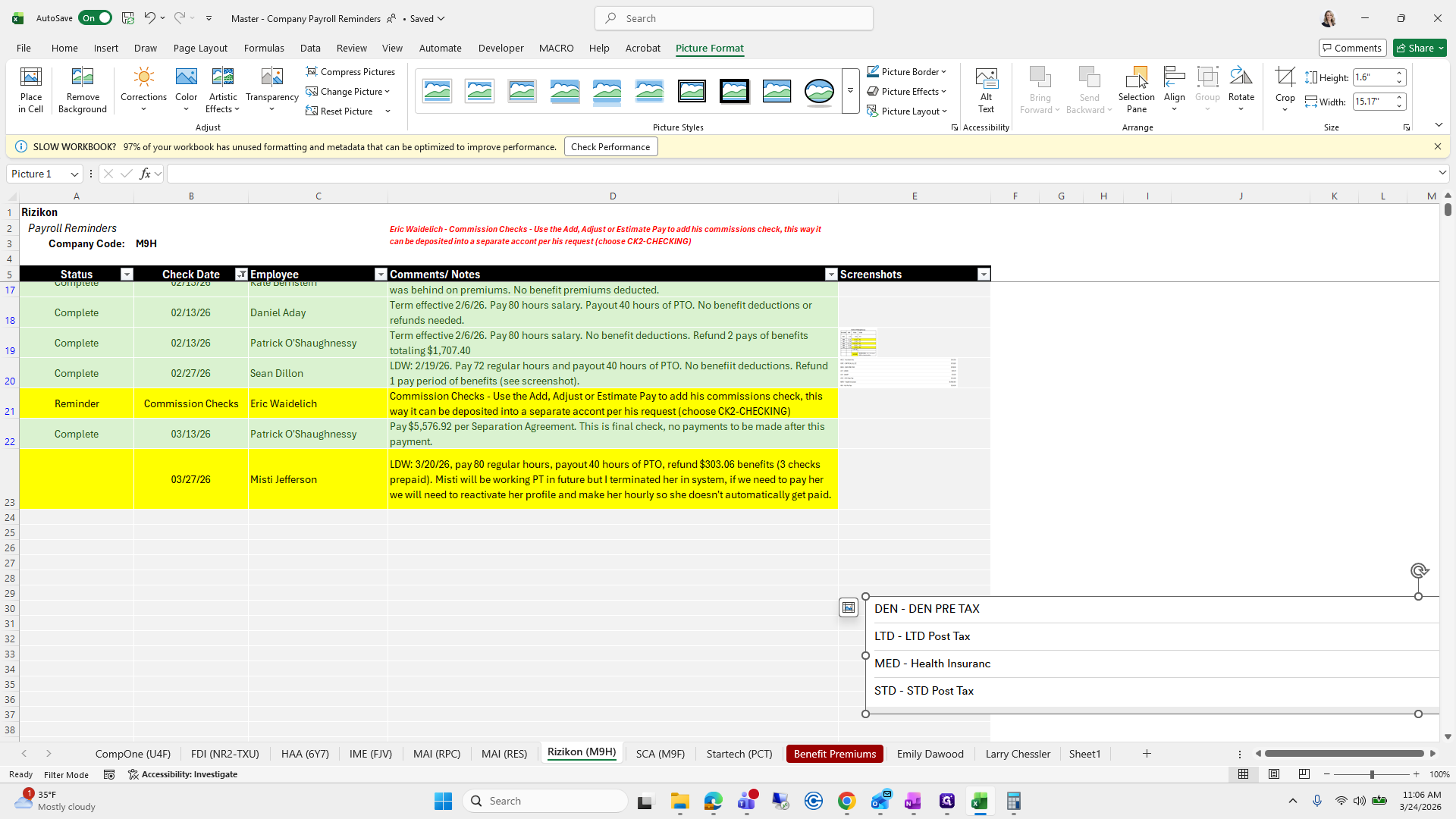
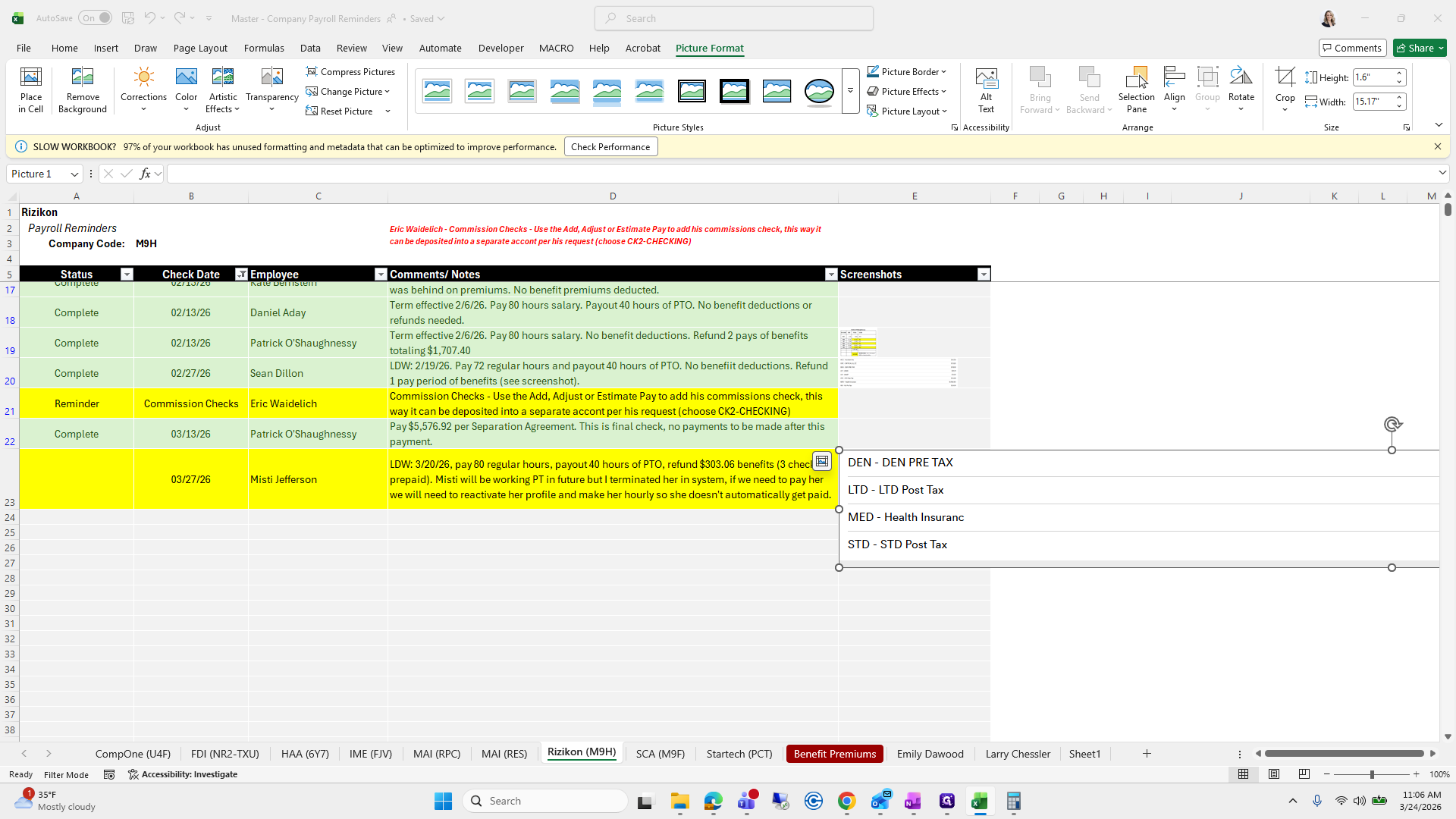
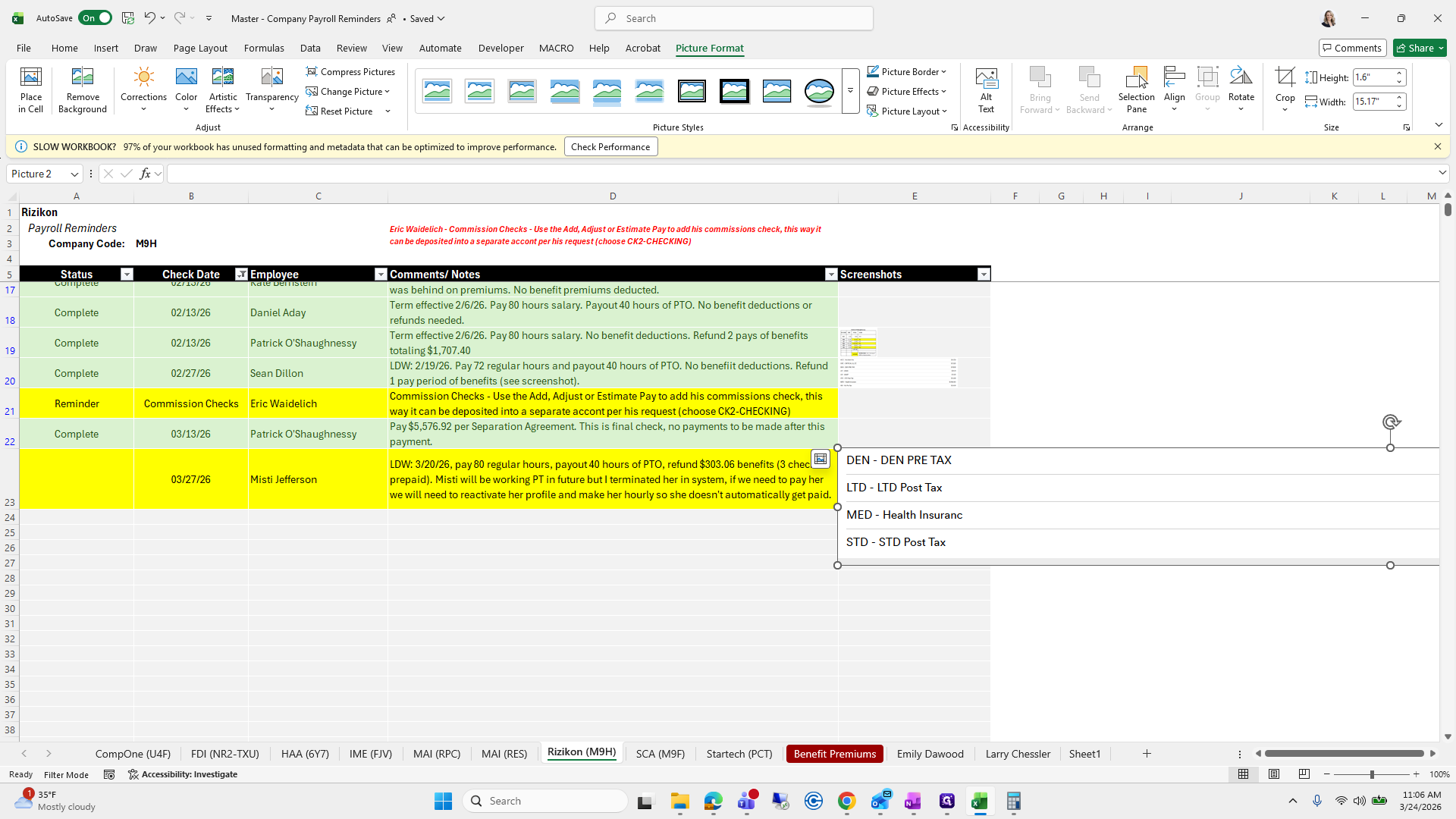
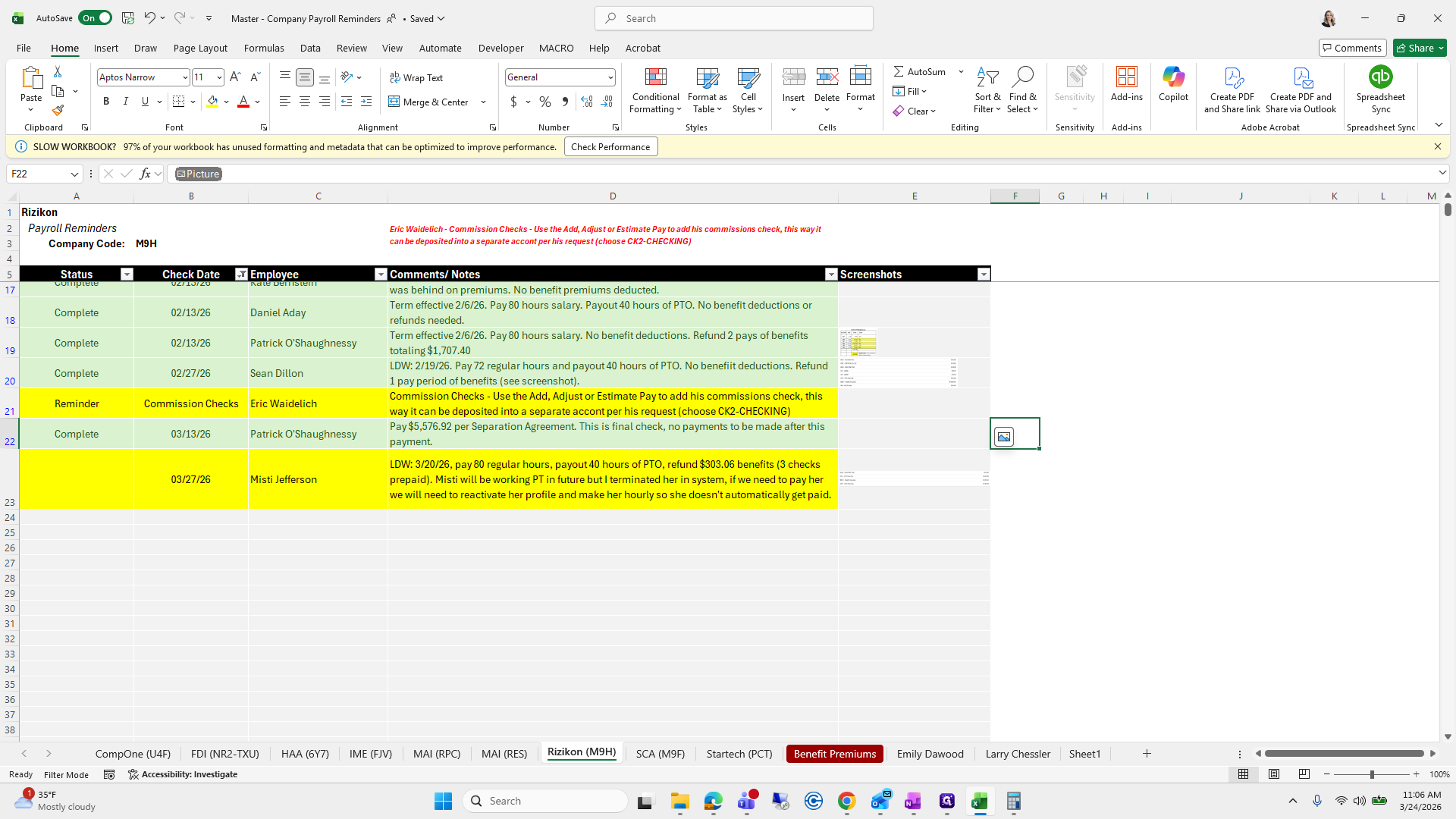
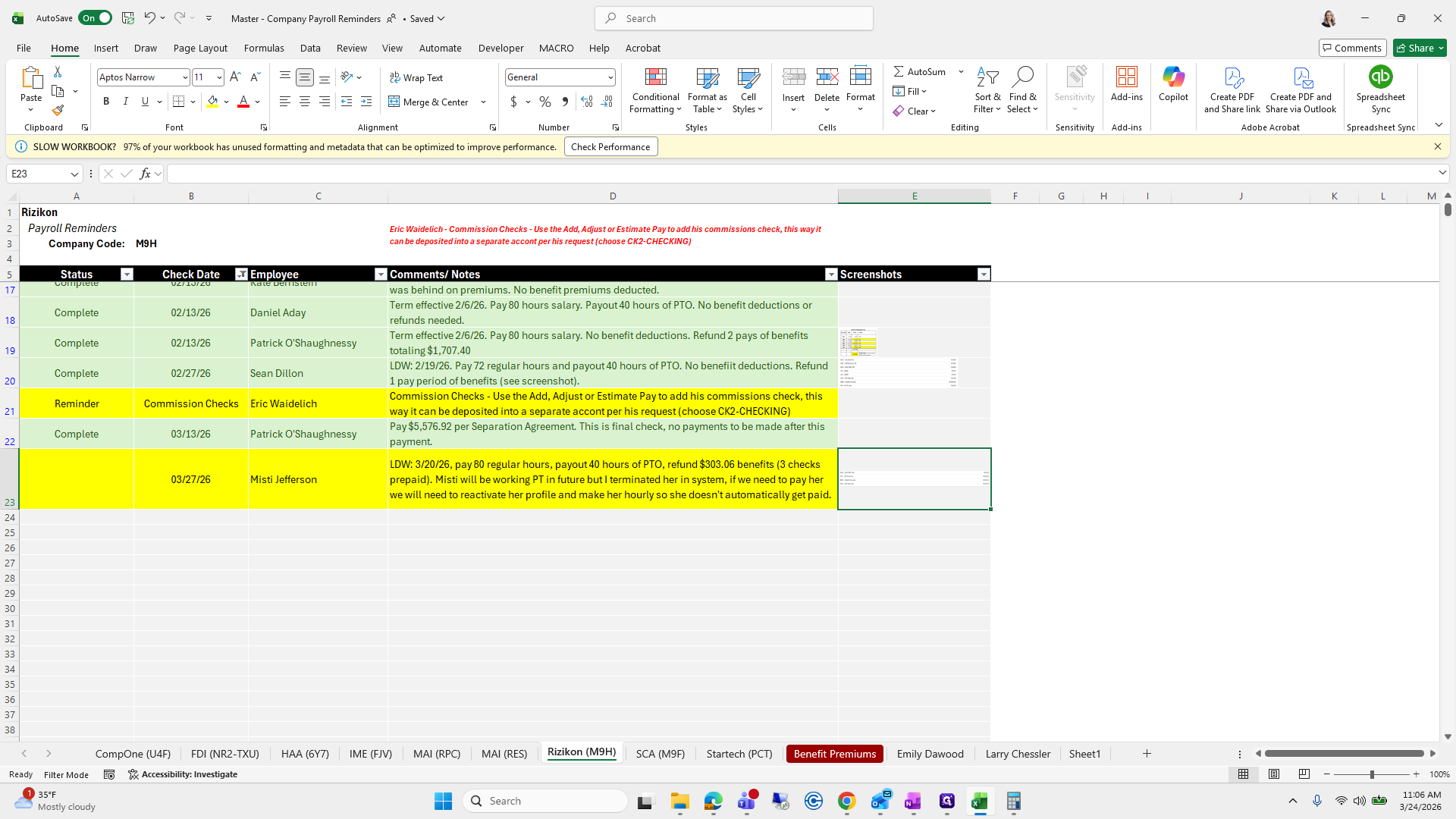
This way, when I want to view it, I can restore it to its original size. I need to process three refunds for three prepaid checks.
146
Click here
Step #146: Click here
147
Double-click here
Step #147: Double-click here
148
Click here
Step #148: Click here
149
Drag here
Step #149: Drag here
150
Click here
Step #150: Click here

Okay.

151
Click here
Step #151: Click here

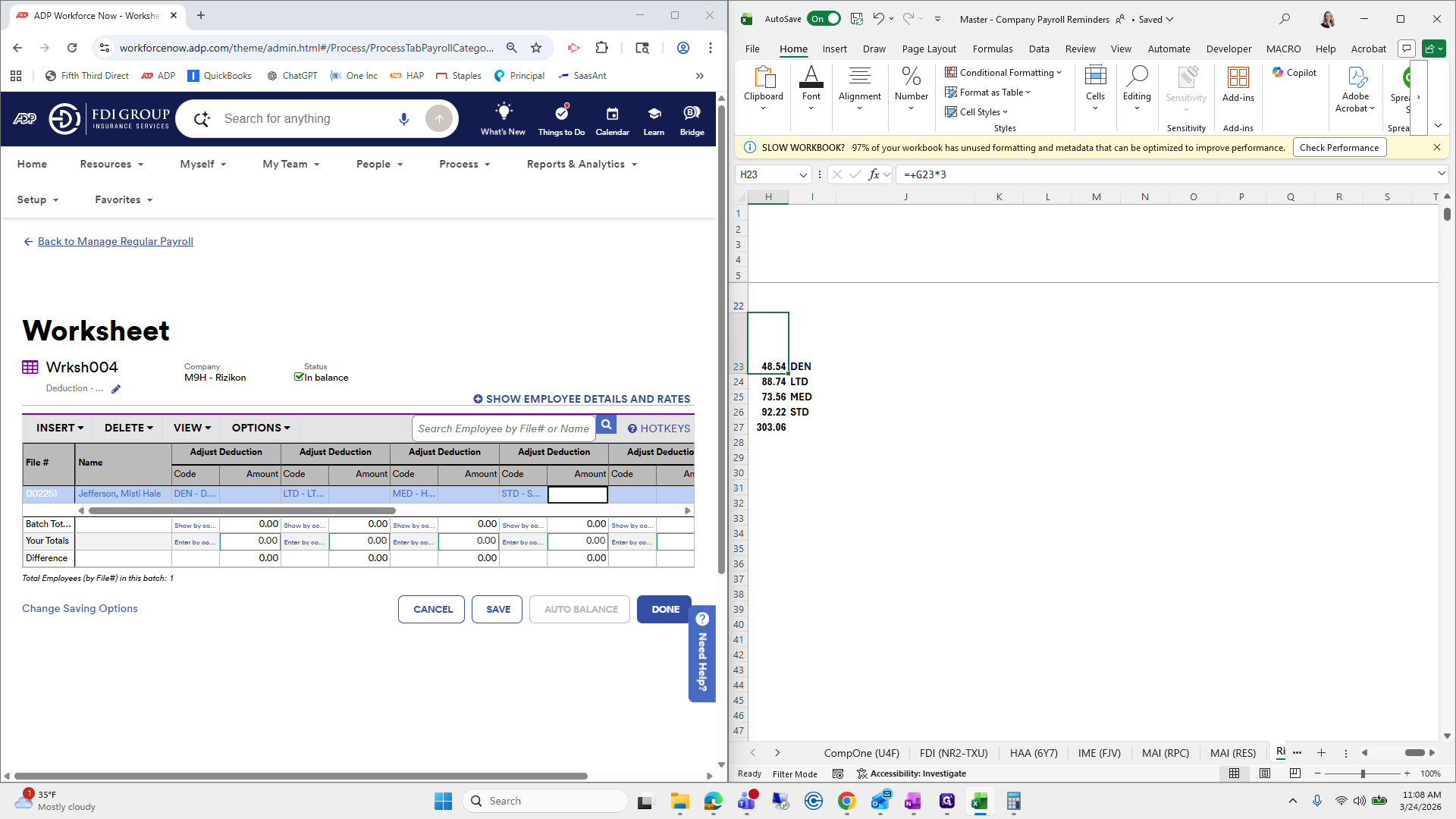
So, 303.

152
Click here
Step #152: Click here

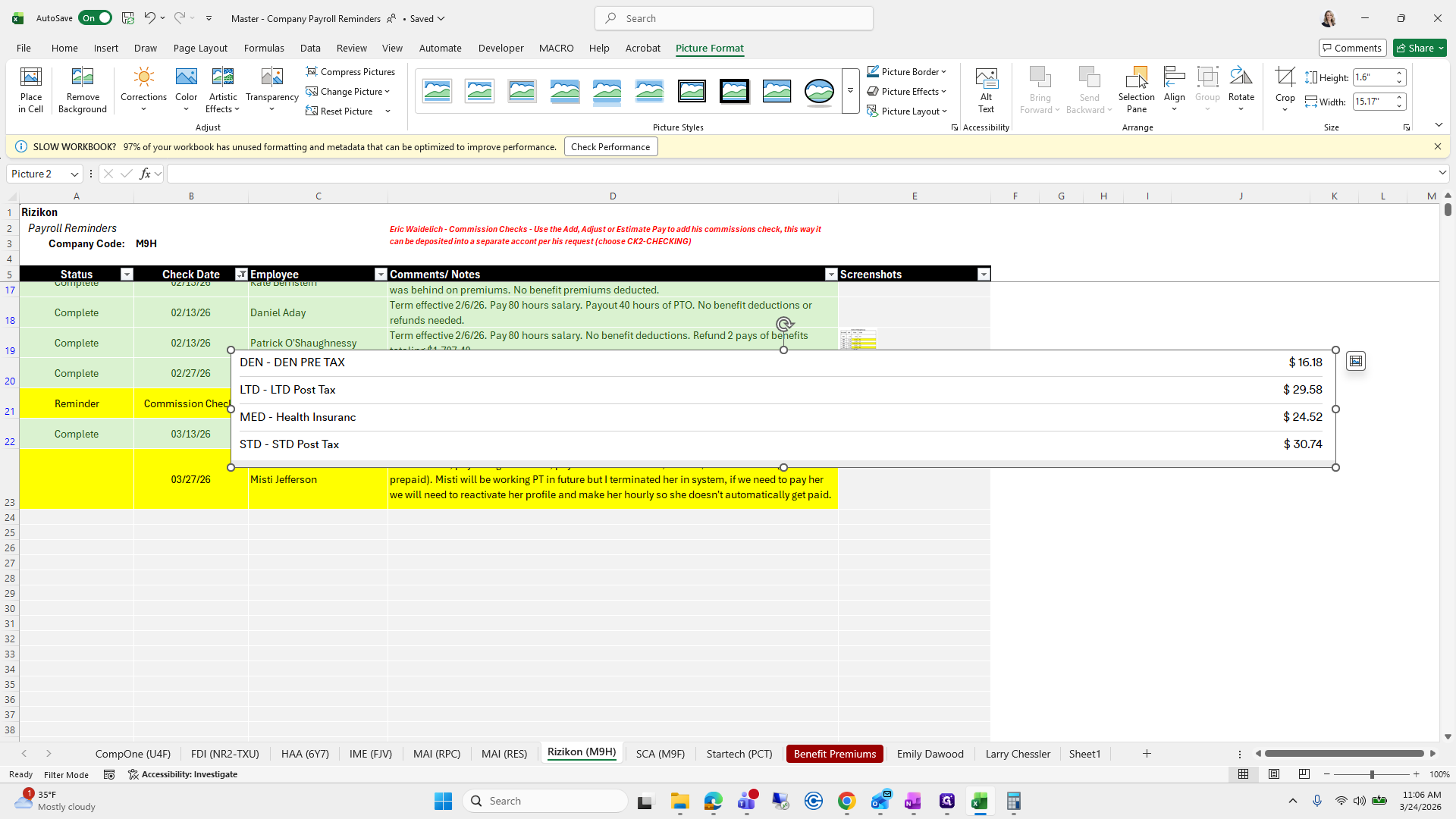
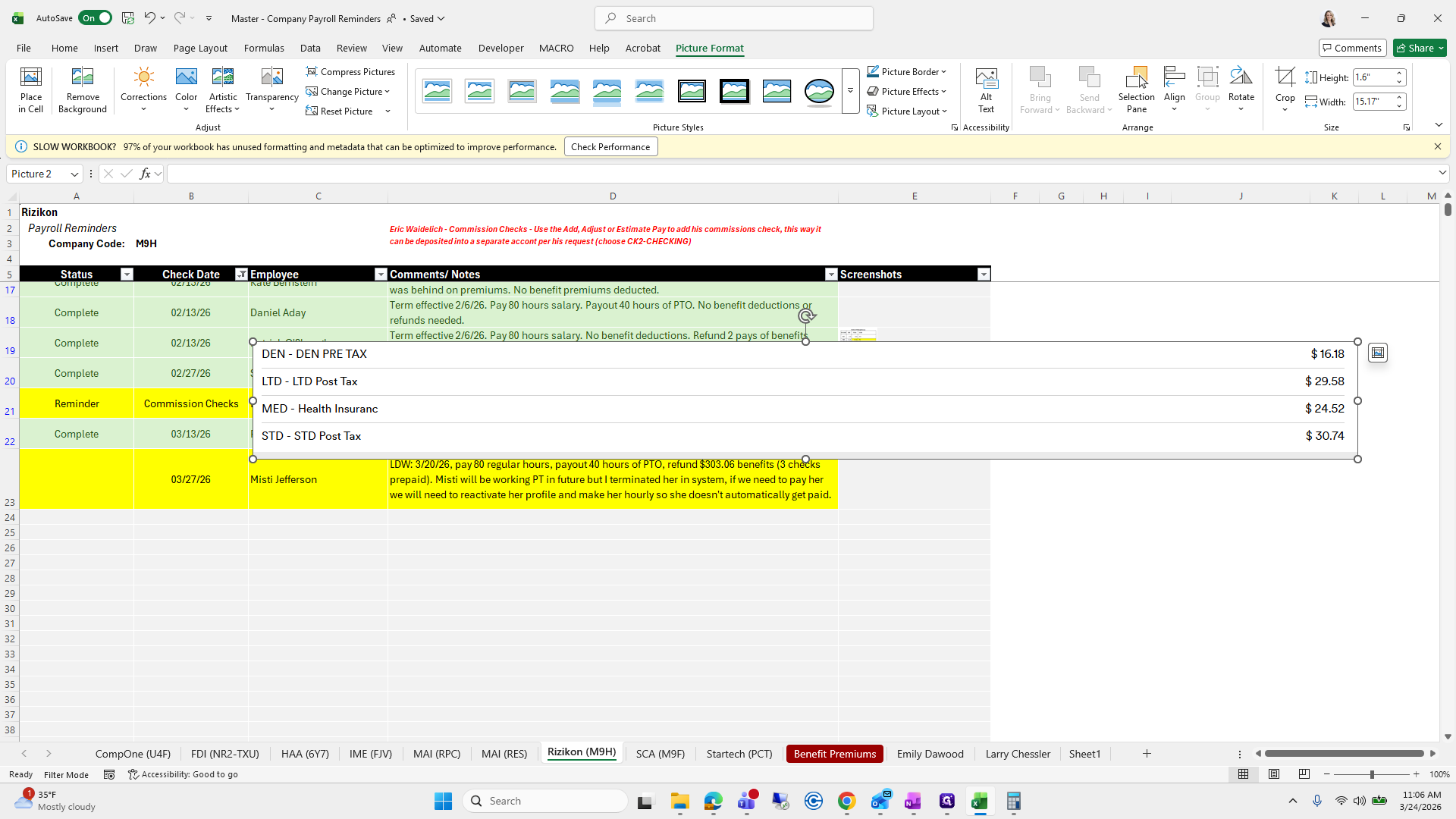
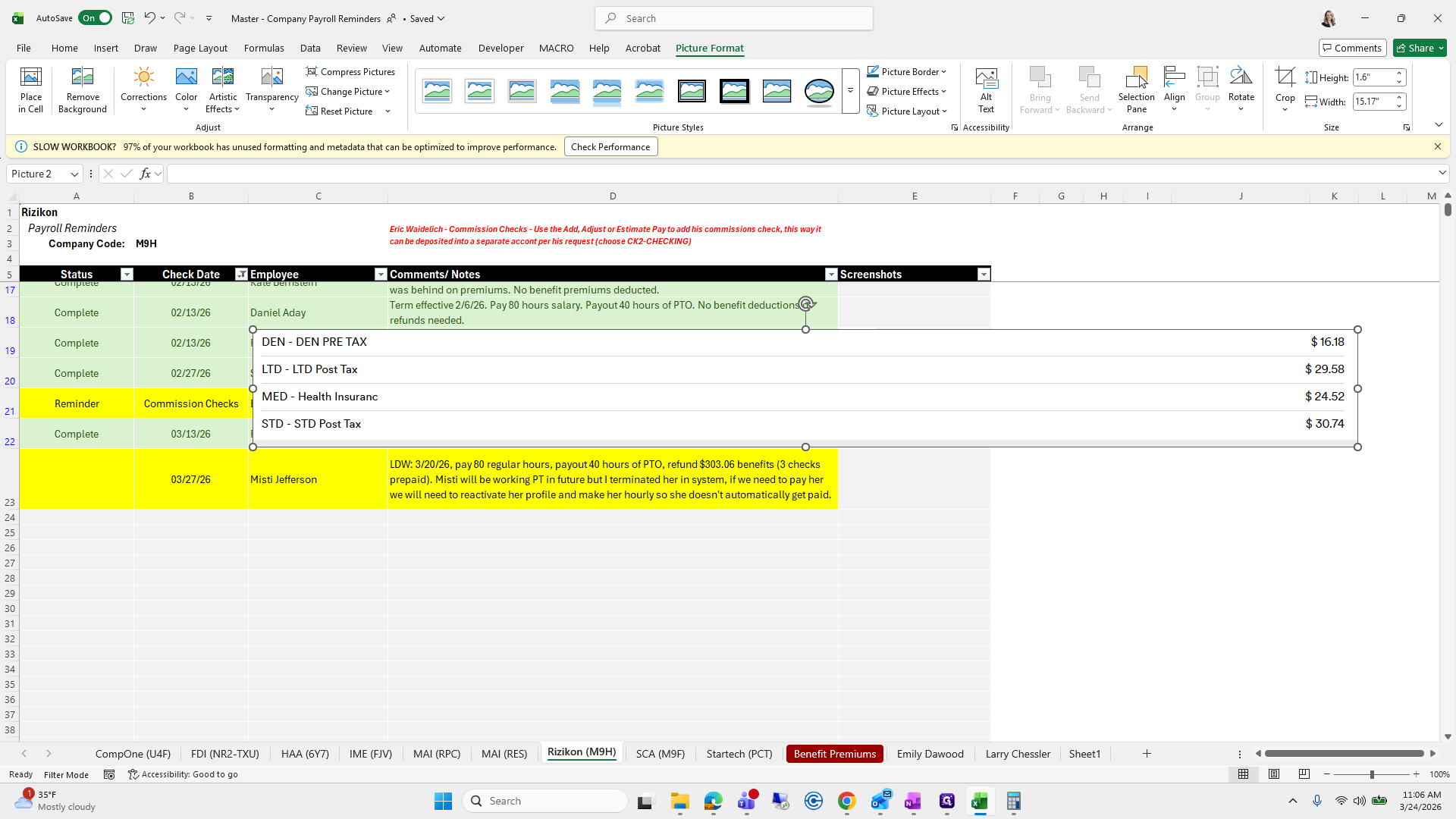
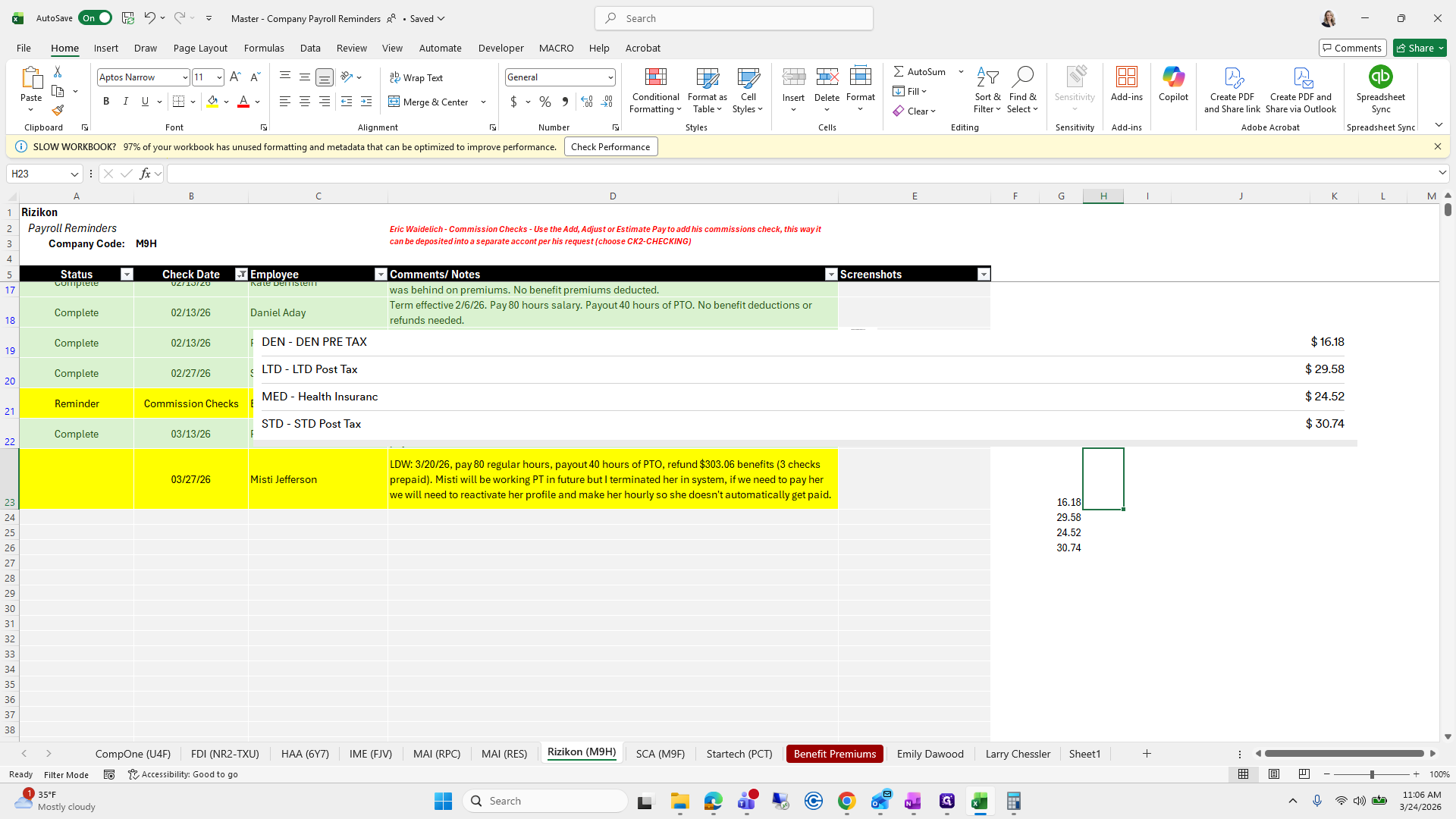
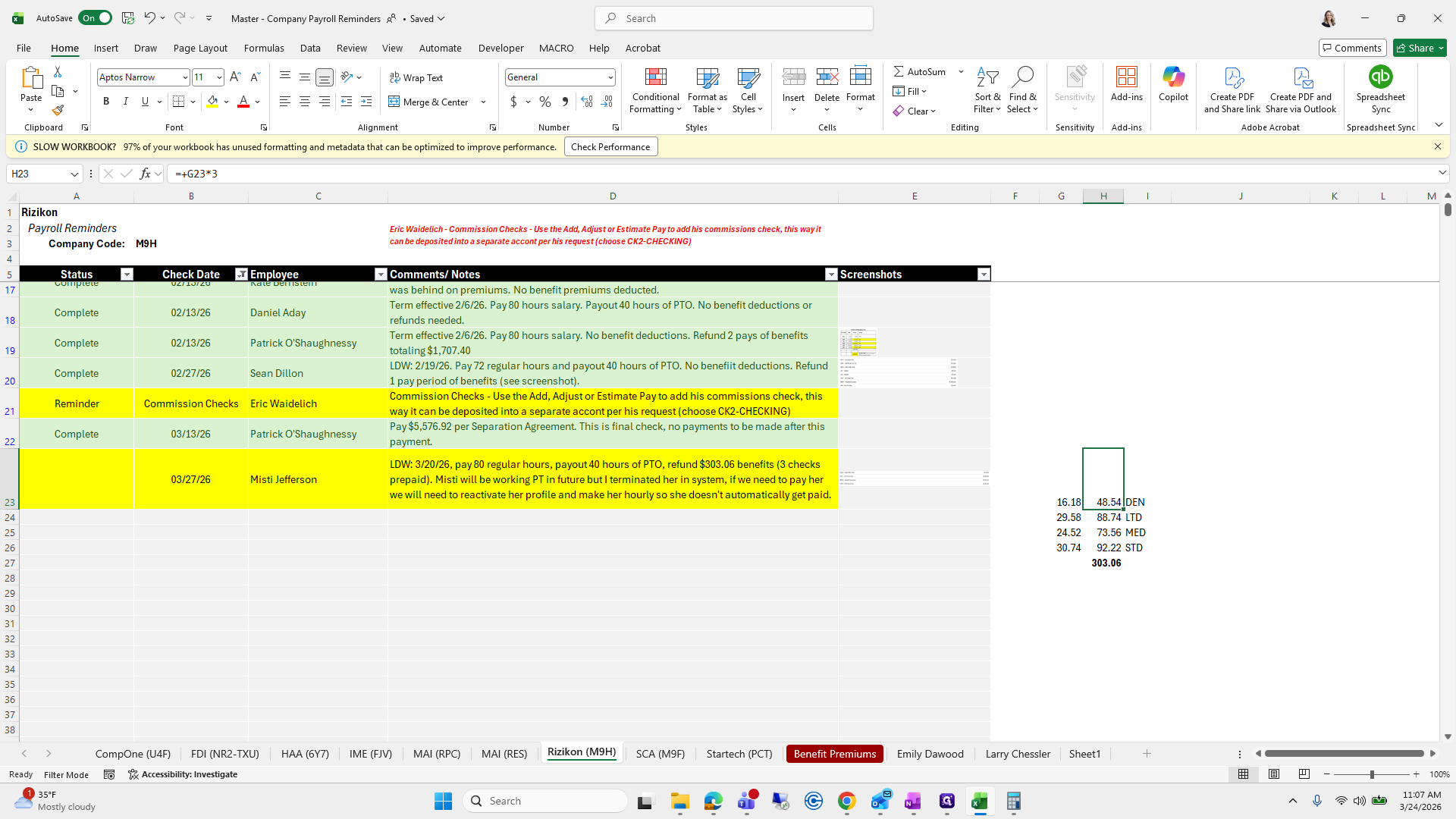
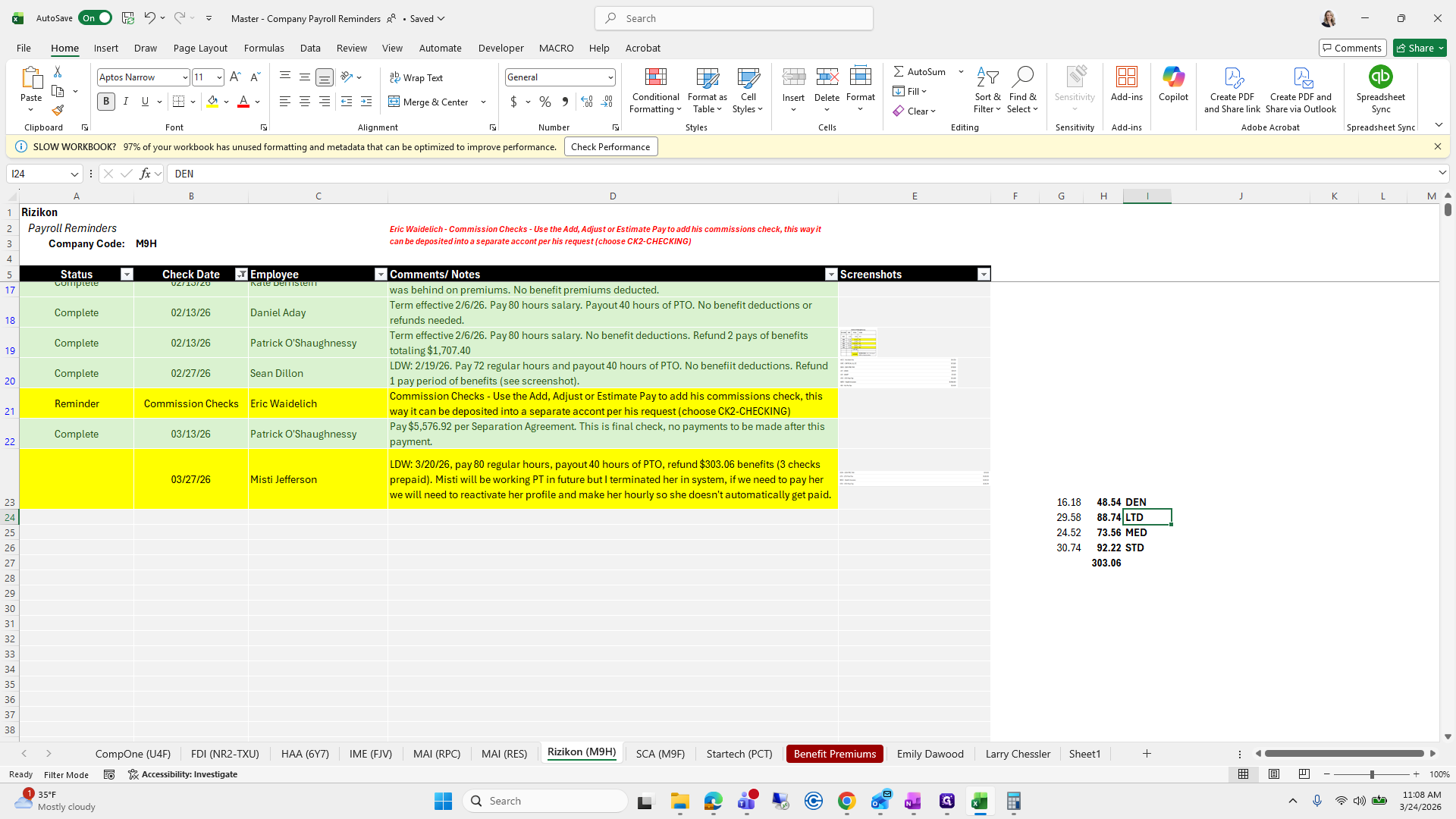
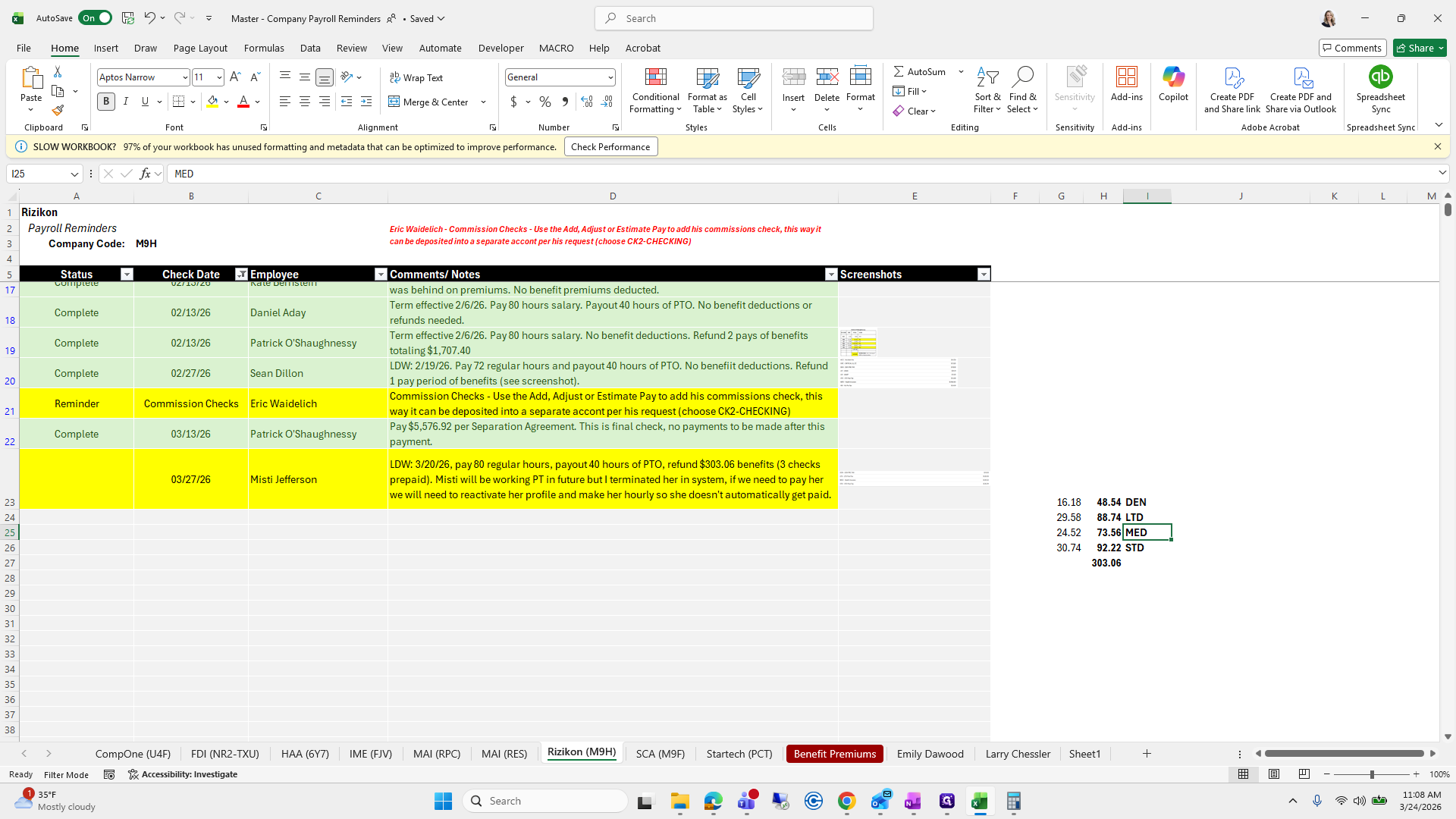
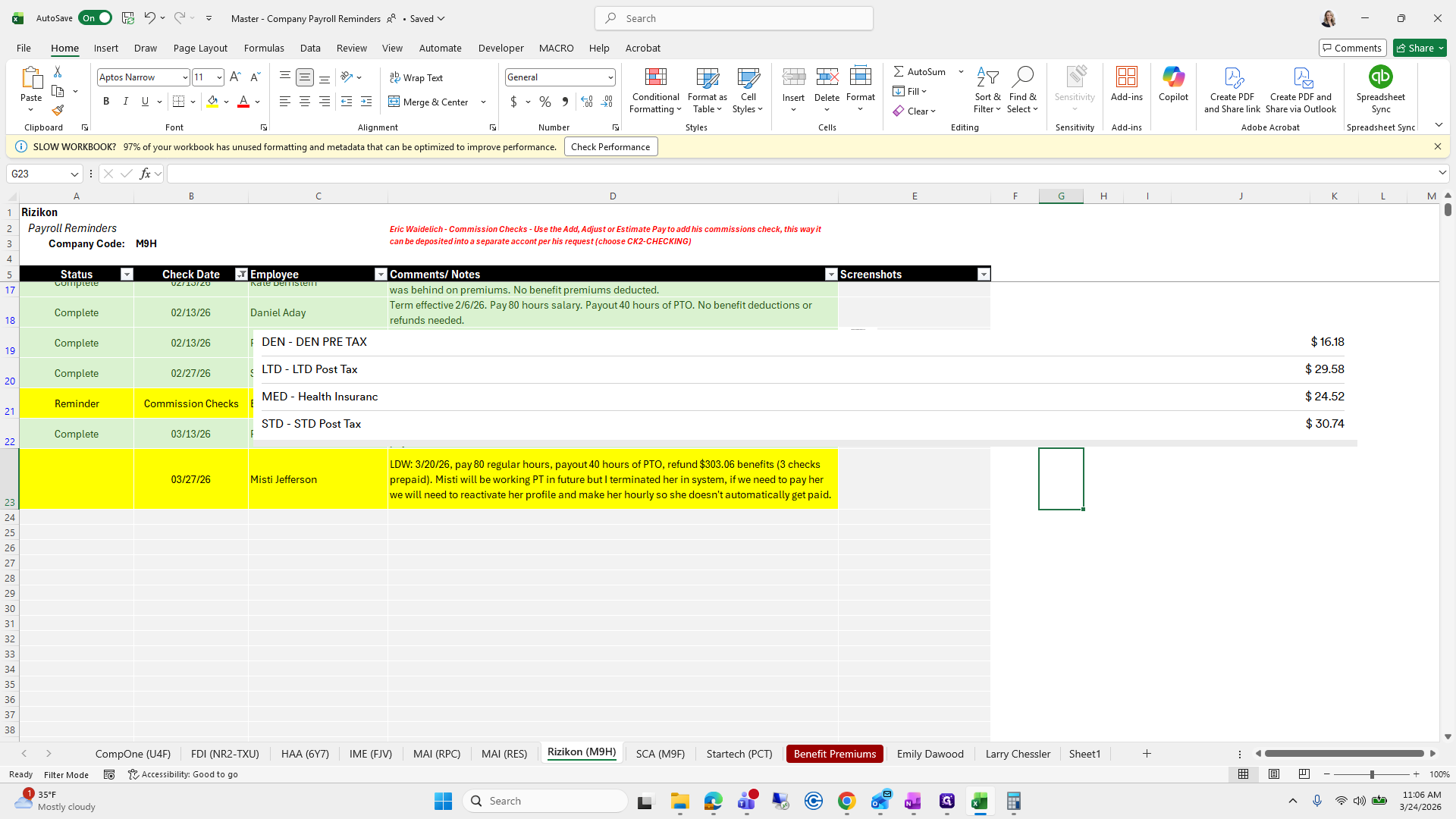
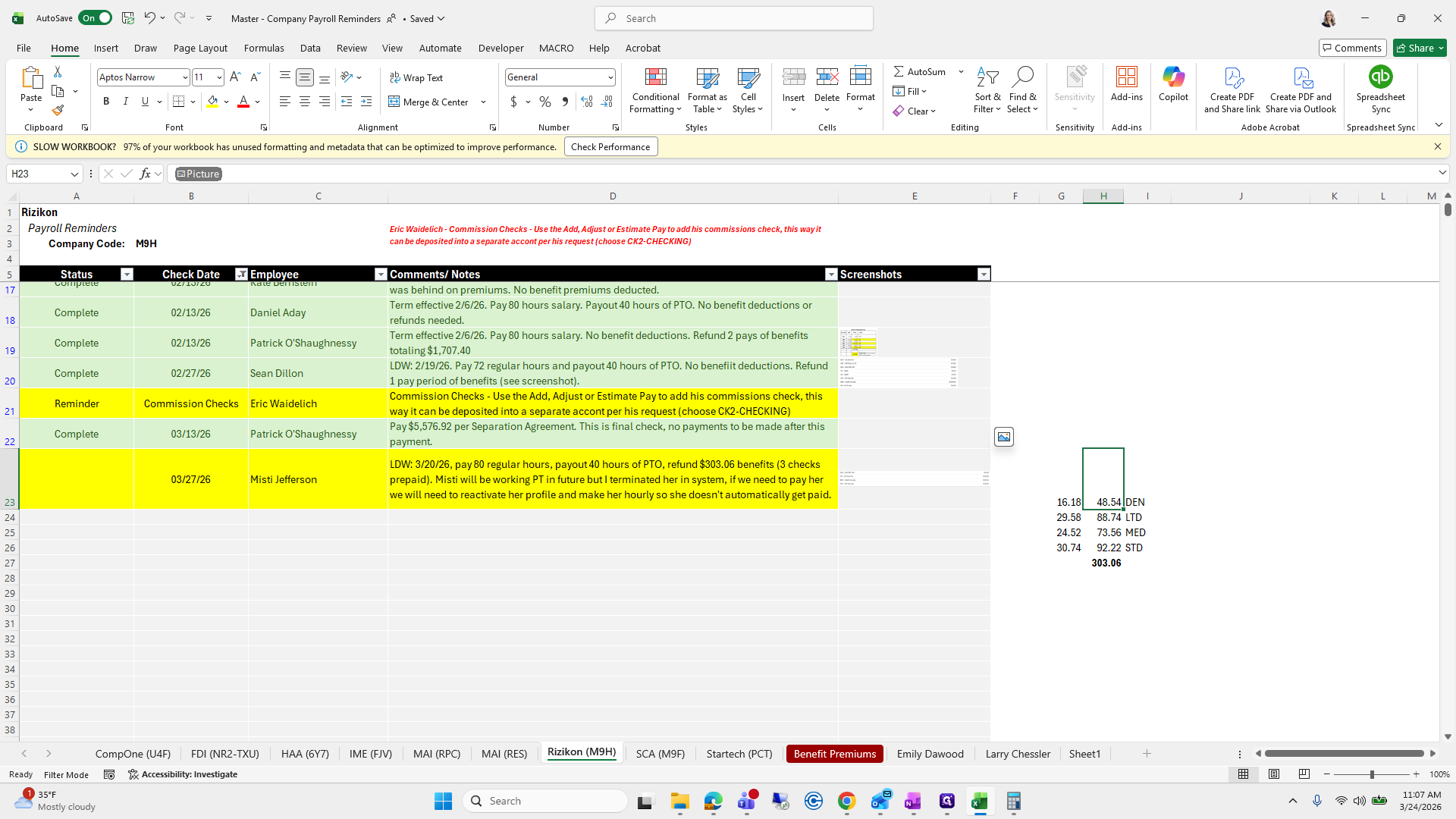
I will make quick notes on the side, such as 1618, 2958, and 3074.
153
Click here
Step #153: Click here
154
Type "16.18 + Enter"
155
Type "29.58 + Enter"
156
Type "24.52 + Enter"
157
Type "30.74 + Enter"
158
Click here
Step #158: Click here

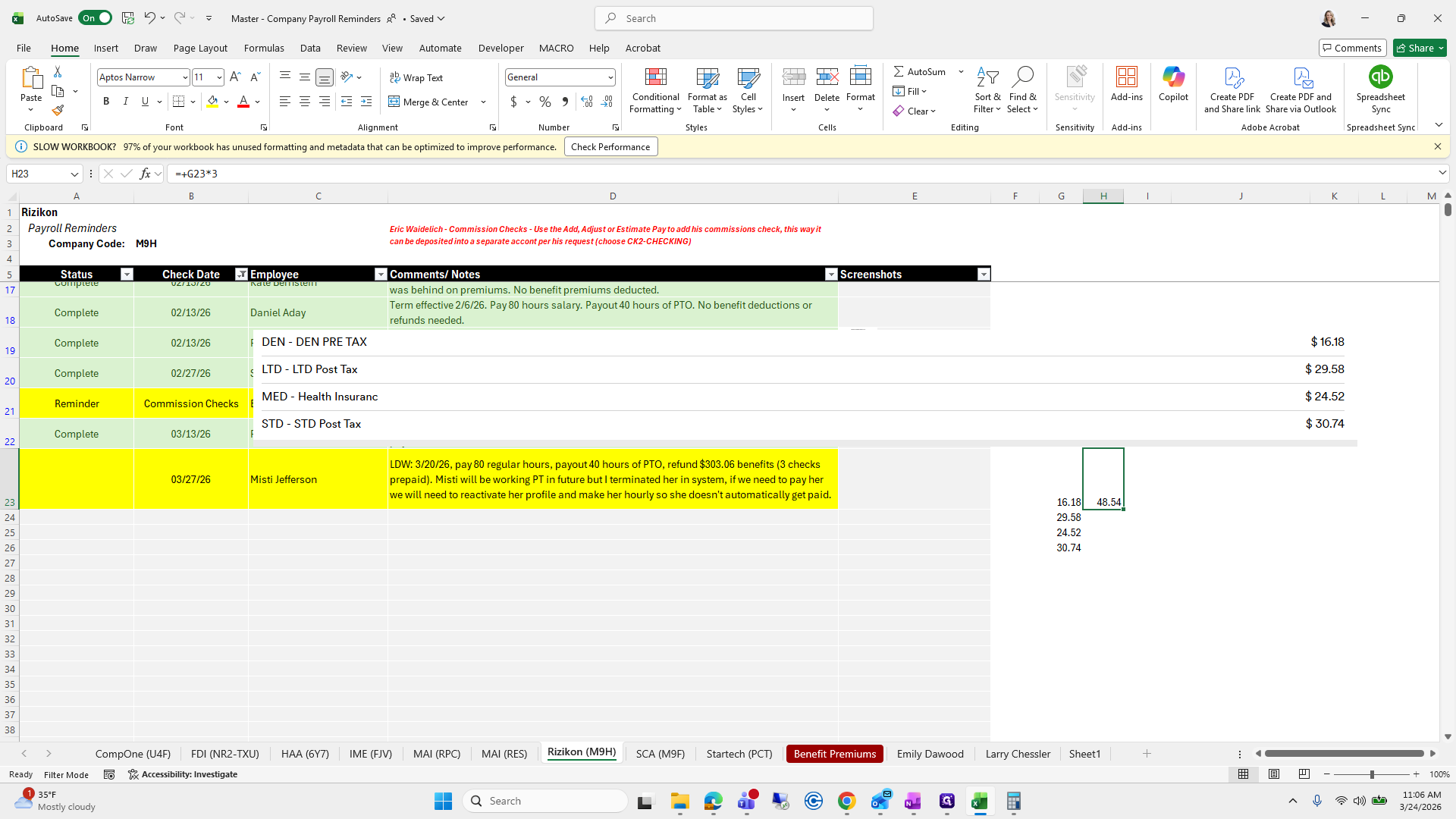
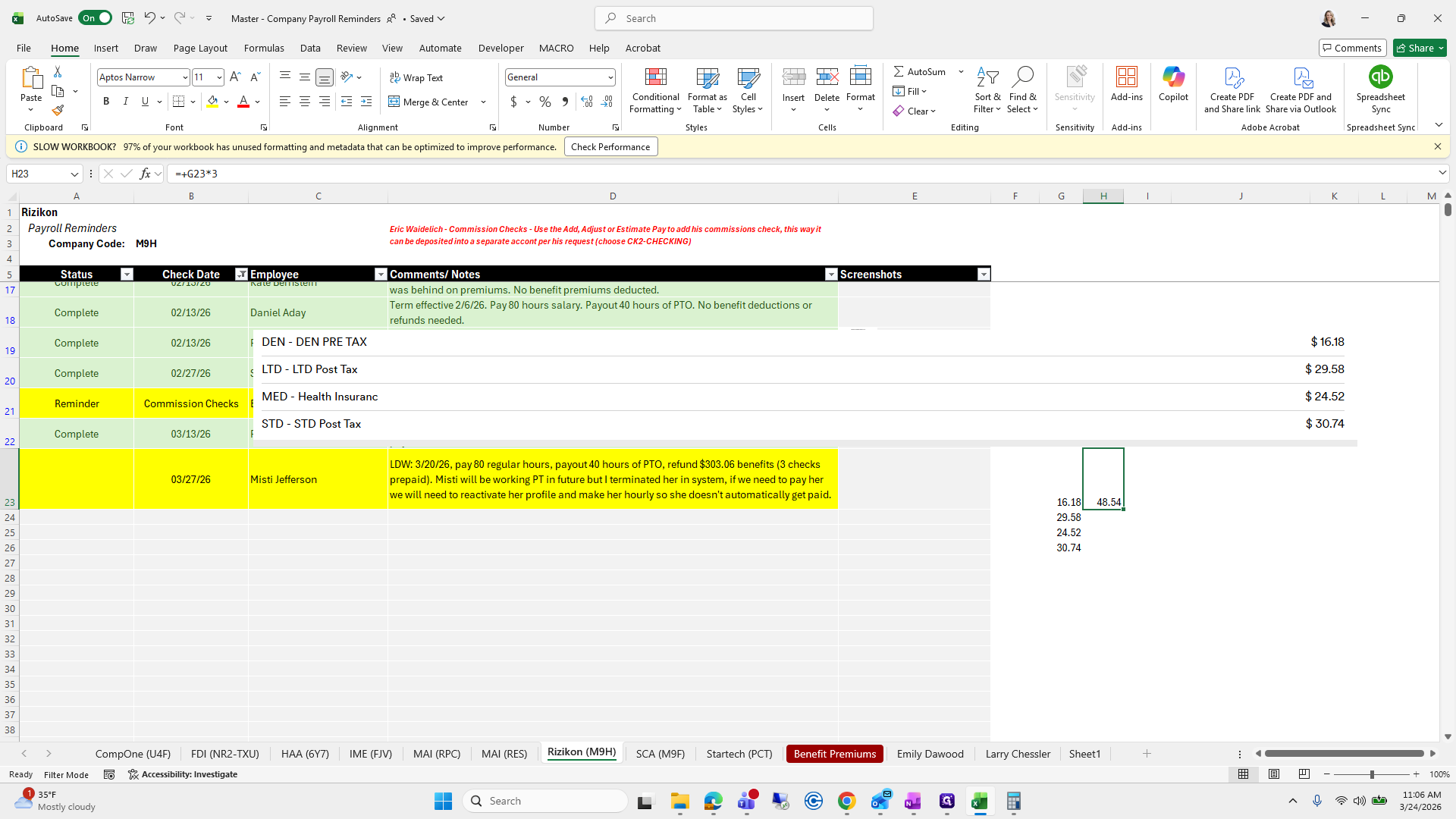
I will multiply this by 3. I will drag it down.
159
Type "+*3 + Enter"
160
Click on "48.54"
Step #160: Click on "48.54"
161
Drag "48.54"
Step #161: Drag "48.54"

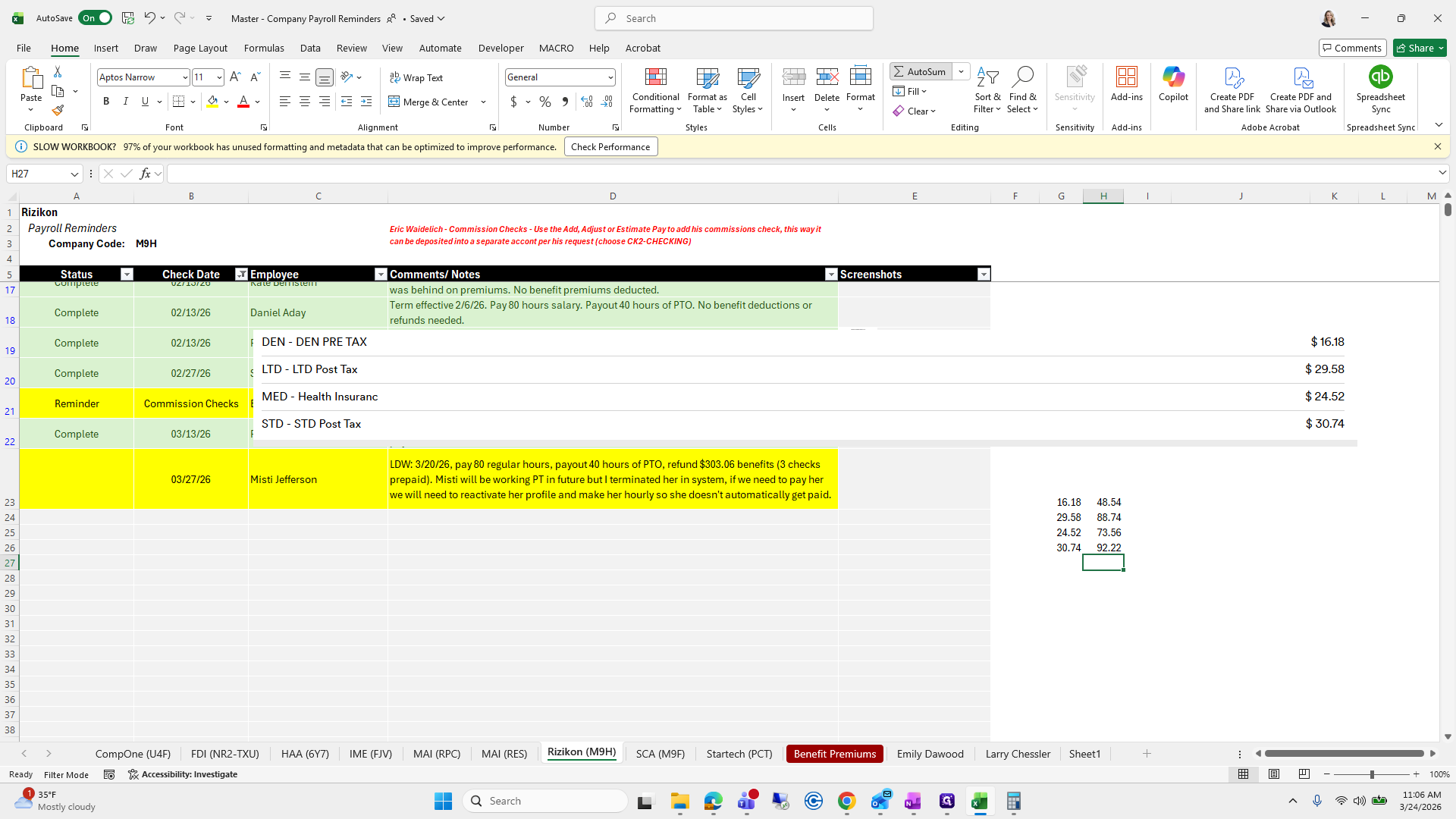
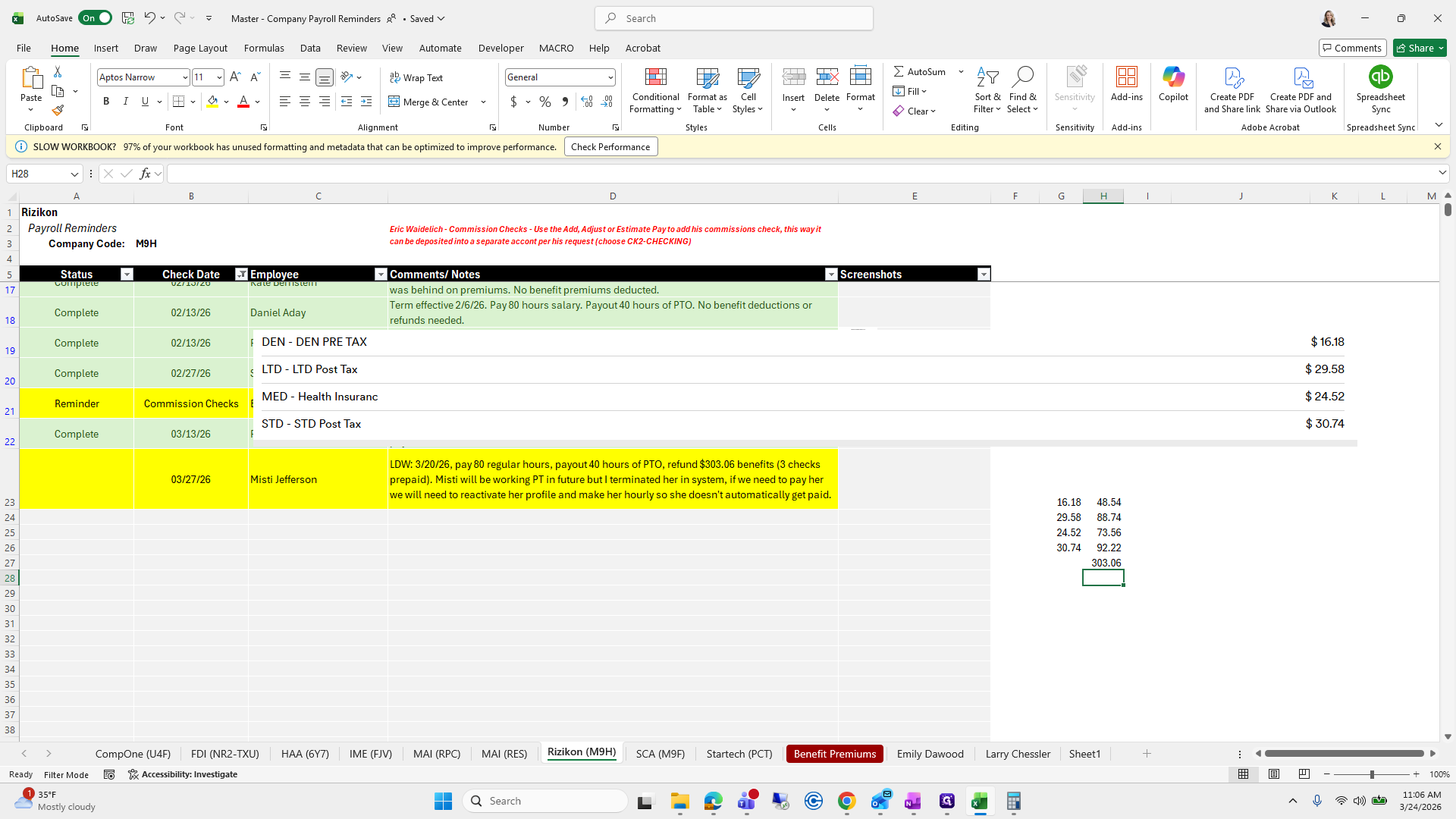
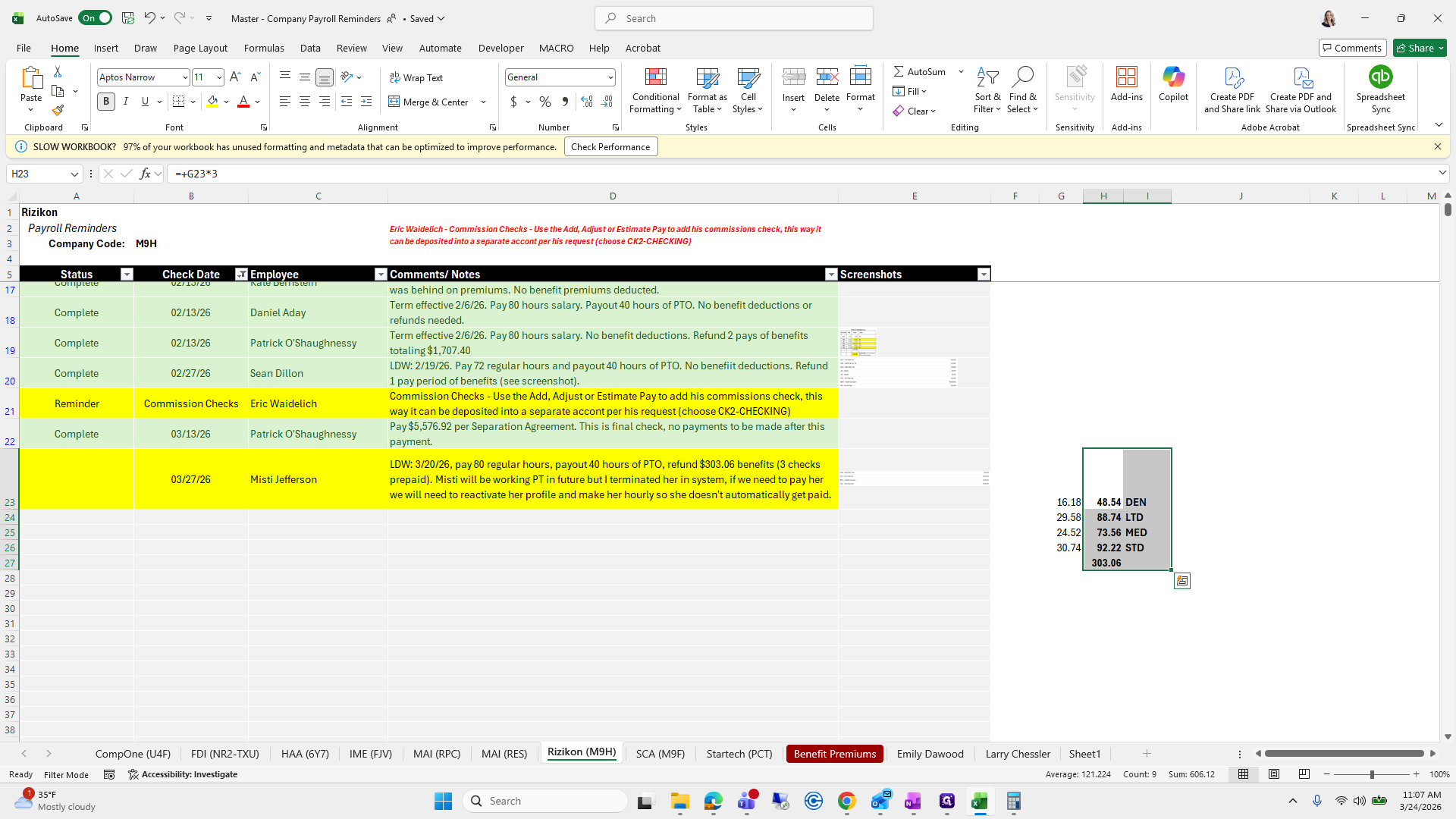
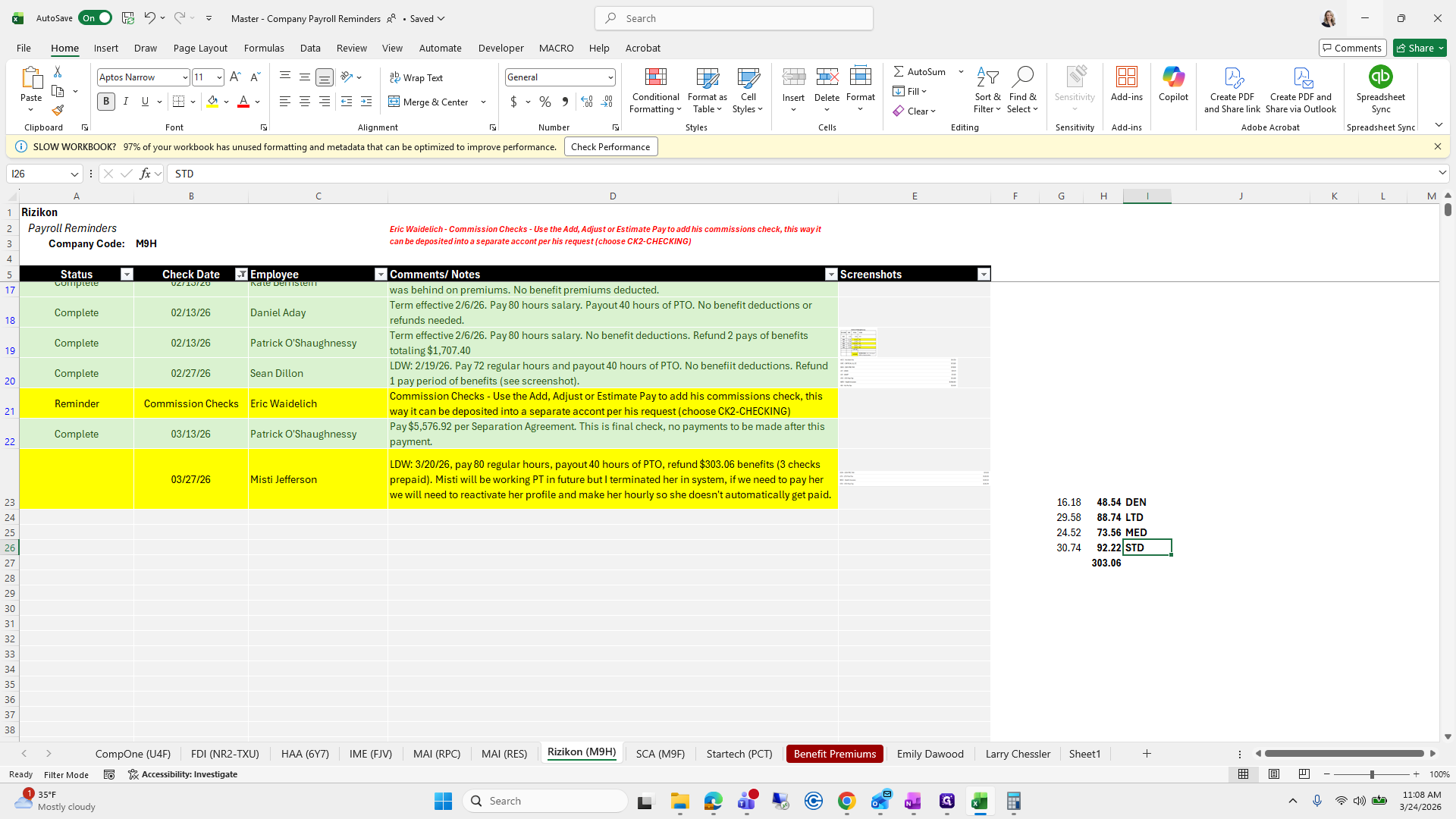
We will do a quick auto sum to ensure the amount matches what Erica or Alyssa have.
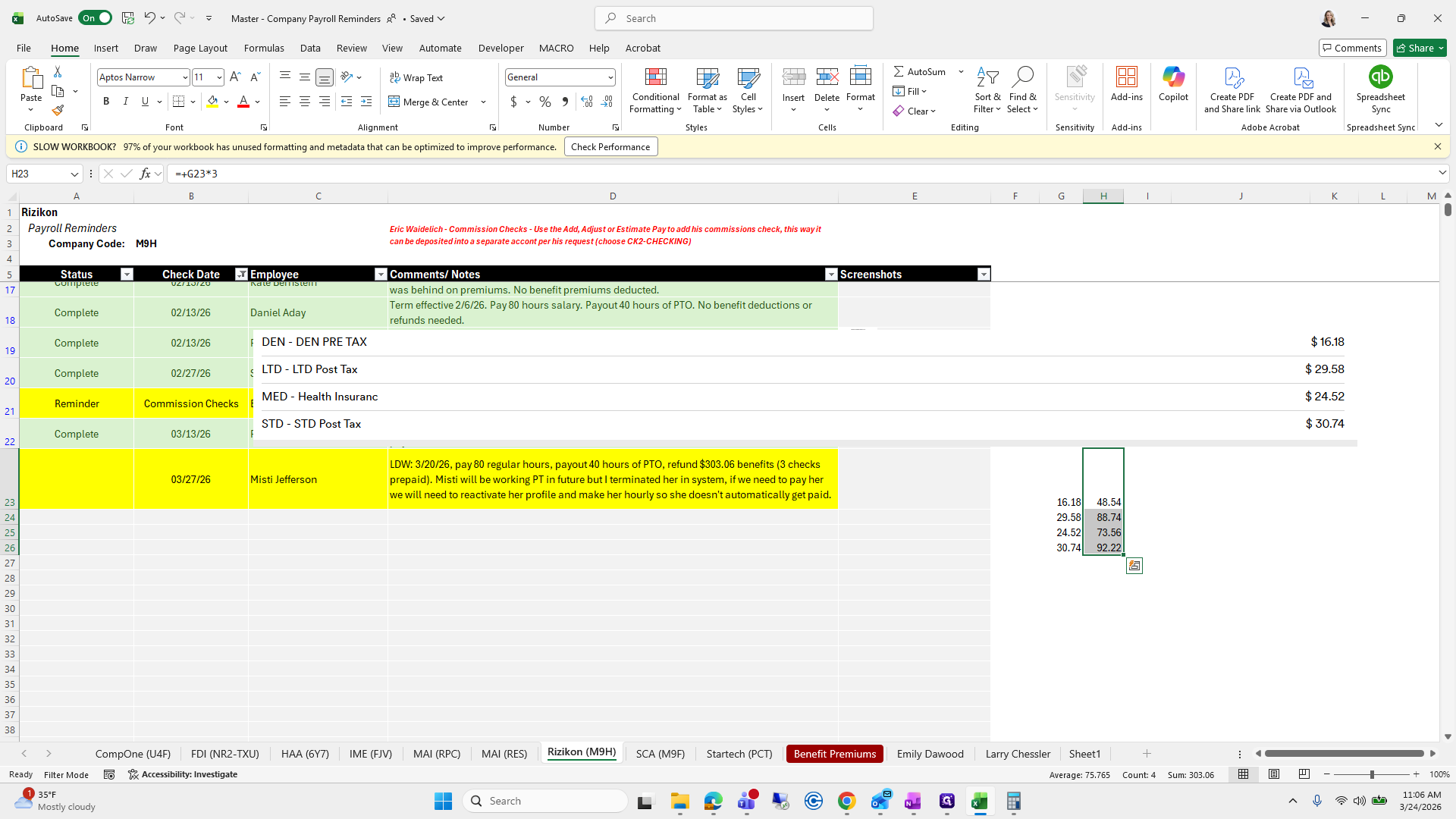
162
Click on "16.18 48.54 29.58 88.74 24.52 73.56 30.74 92.22"
Step #162: Click on "16.18 48.54 29.58 88.74 24.52 73.56 30.74 92.22"
163
Click on "AutoSum"
Step #163: Click on "AutoSum"
164
Type "Enter"
165
Click on "303.06"
Step #165: Click on "303.06"

It is.

166
Type "Ctrl + B"

For quick checks and balances when entering it, I will copy what it says, such as Dennis, Dental Ltd., Medicare, Medical, and STD.
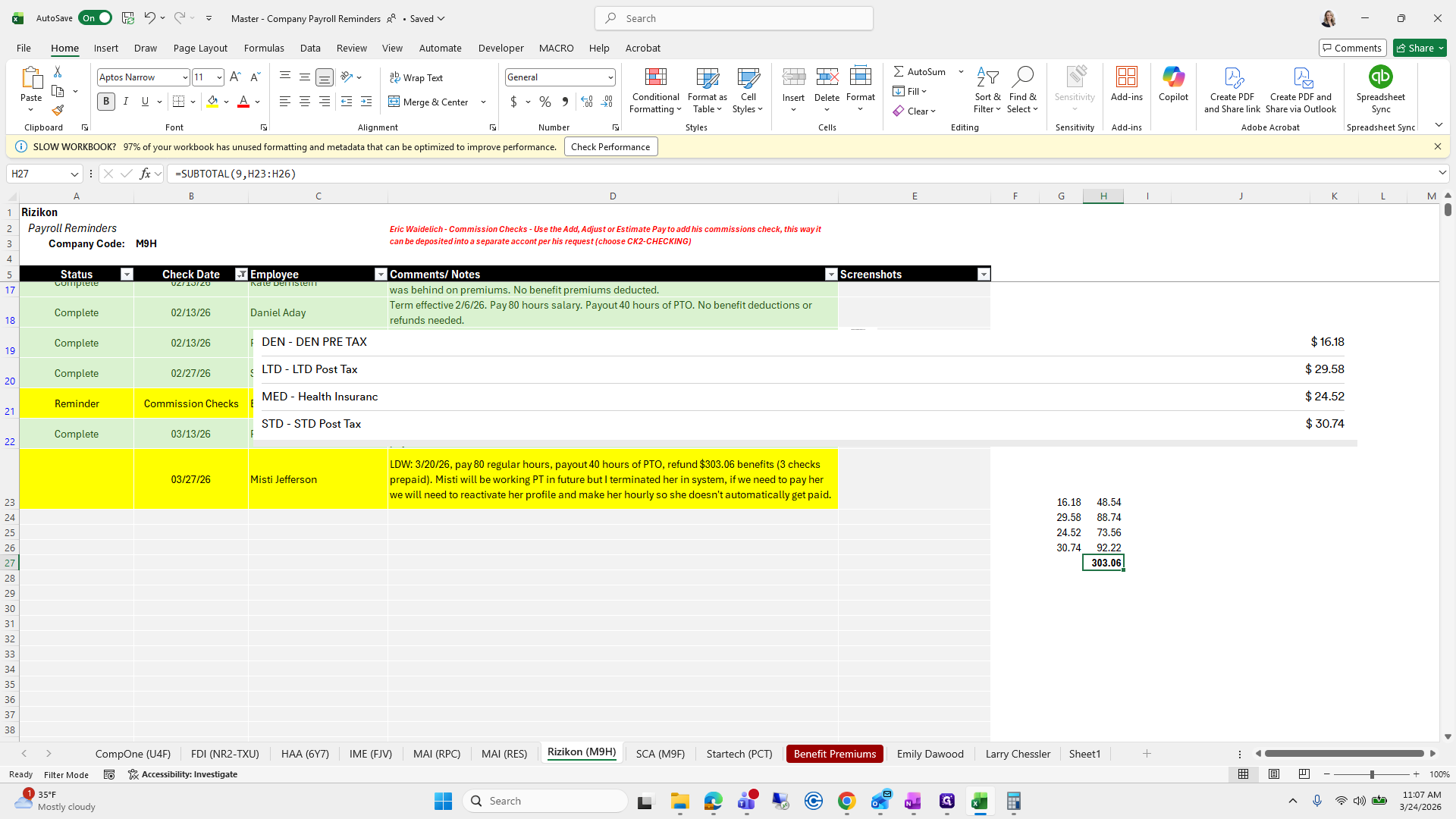
167
Click here
Step #167: Click here
168
Type "DEN + Enter"
169
Type "LTD + Enter"
170
Type "MED + Enter"
171
Type "STD + Enter"

I'm going to put that baby back in the box.
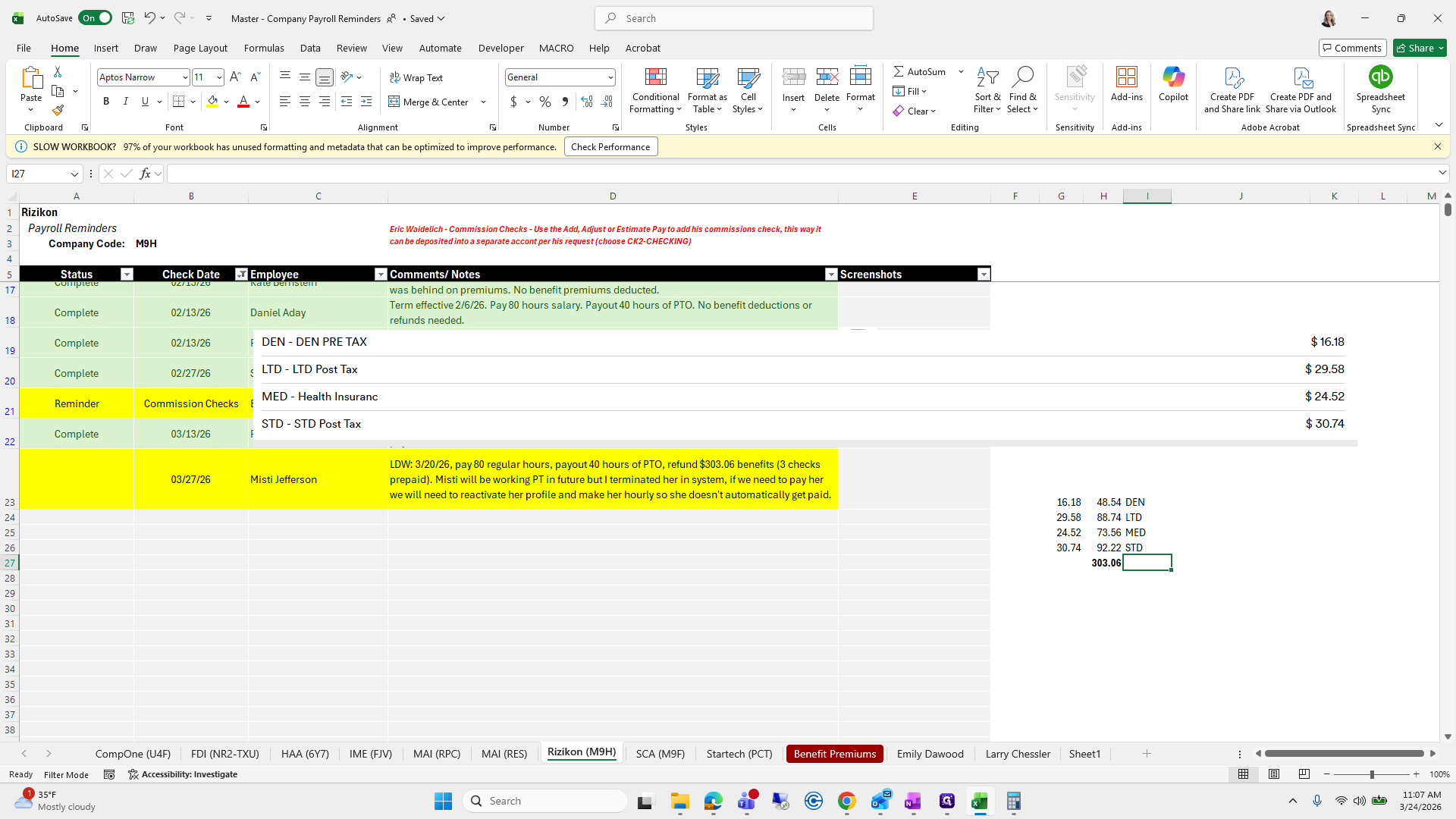
172
Click here
Step #172: Click here
173
Click on "Thi"
Step #173: Click on "Thi"

Oops. That way, we can save it for future reference.
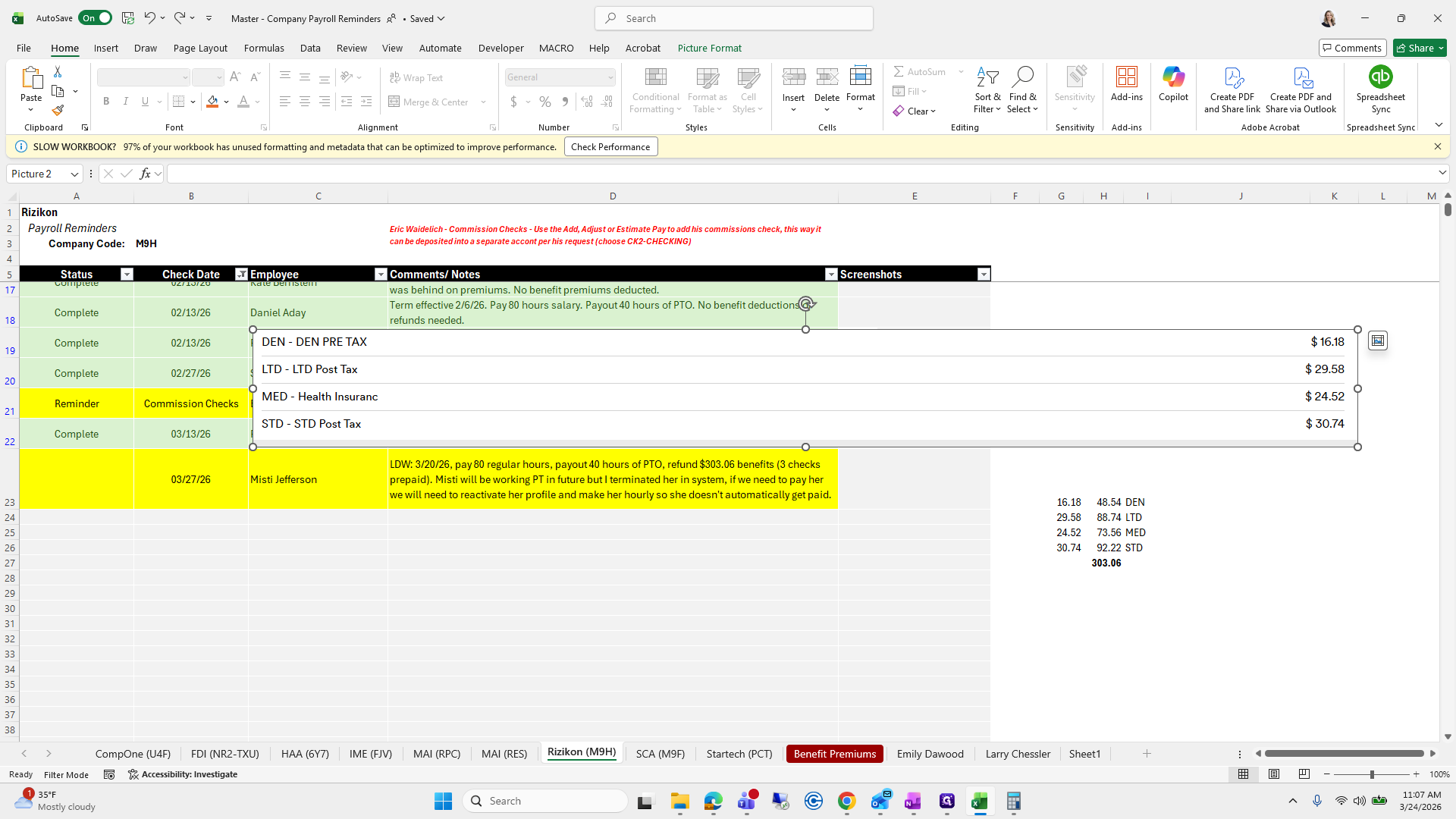
174
Type "Ctrl + Z"
175
Drag here
Step #175: Drag here
176
Click on "3 check"
Step #176: Click on "3 check"

These are the amounts I will pay out.
177
Drag "48.54"
Step #177: Drag "48.54"
178
Type "B"
179
Drag "16.18"
Step #179: Drag "16.18"

So...

180
Type "Ctrl + B"
181
Click here
Step #181: Click here

I'm going to add a worksheet.

182
Click here
Step #182: Click here
183
Click on "Add worksheet + Add time / time off worksheet"
Step #183: Click on "Add worksheet + Add time / time off worksheet"

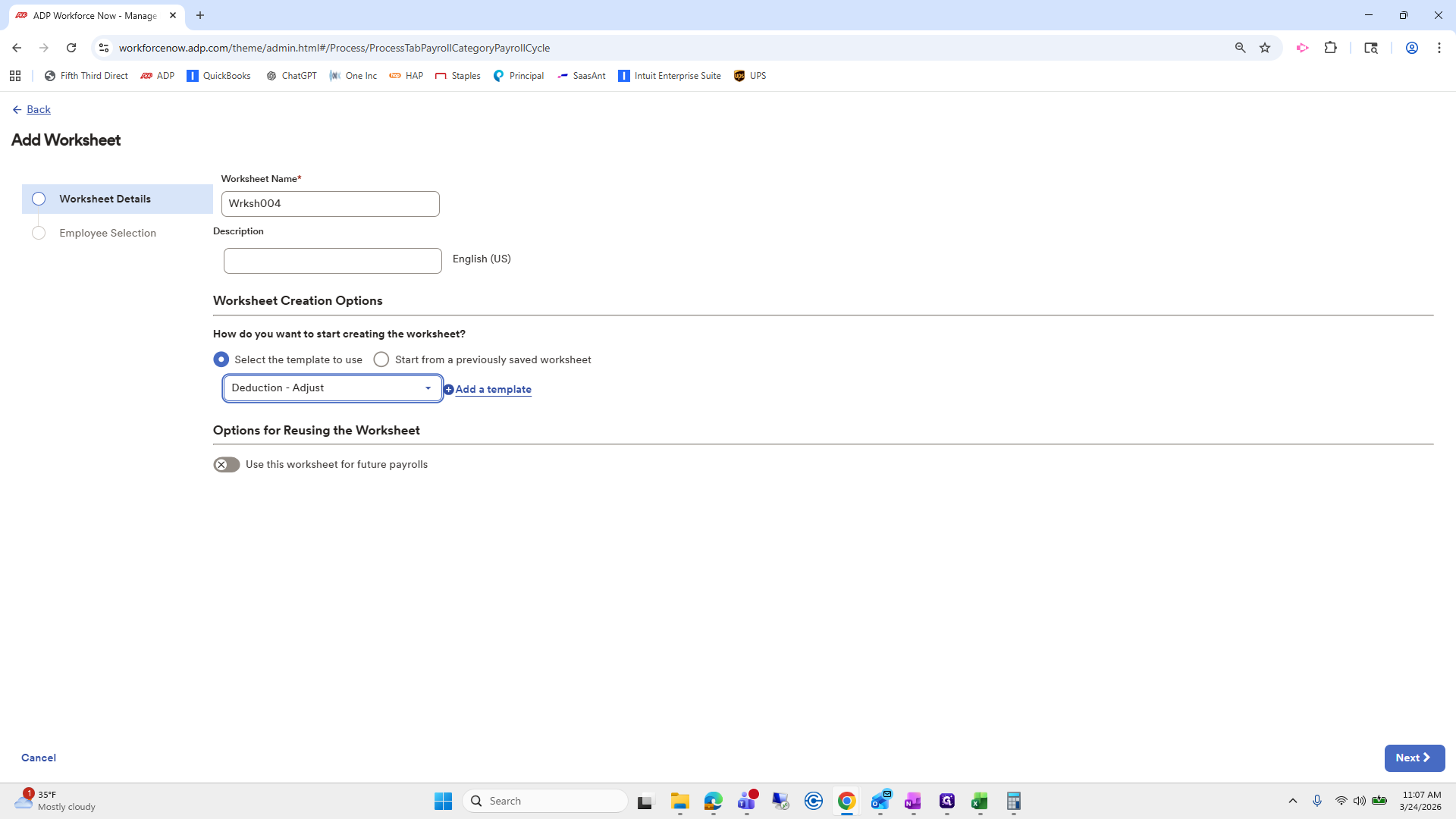
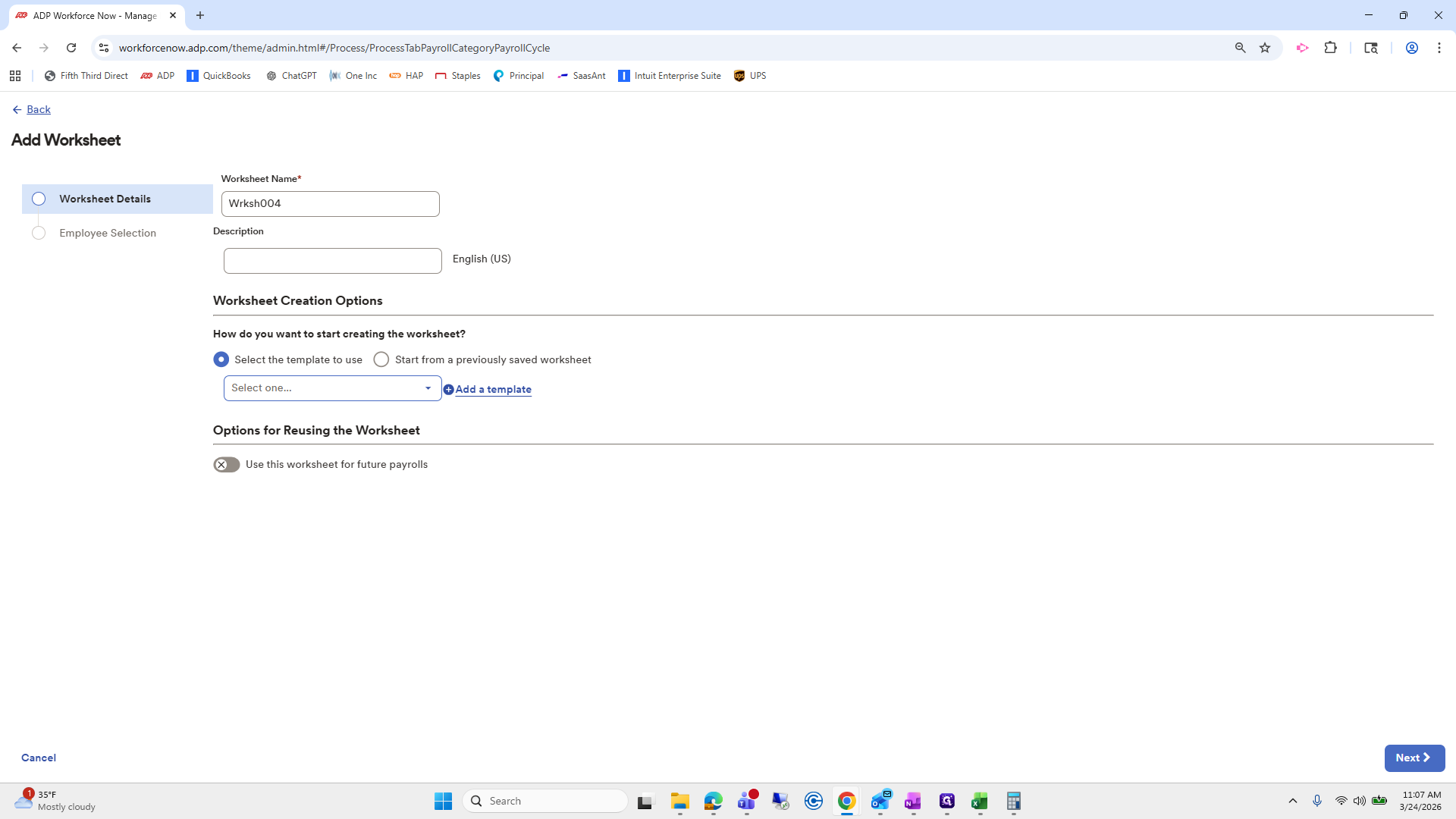
Going to make a deduction adjustment.
184
Click on "..."
Step #184: Click on "..."
185
Click here
Step #185: Click here

Next.

186
Drag here
Step #186: Drag here
187
Type "Ctrl + C"
188
Click here
Step #188: Click here
189
Click here
Step #189: Click here
190
Type "Ctrl + V"
191
Click on "Next >"
Step #191: Click on "Next >"

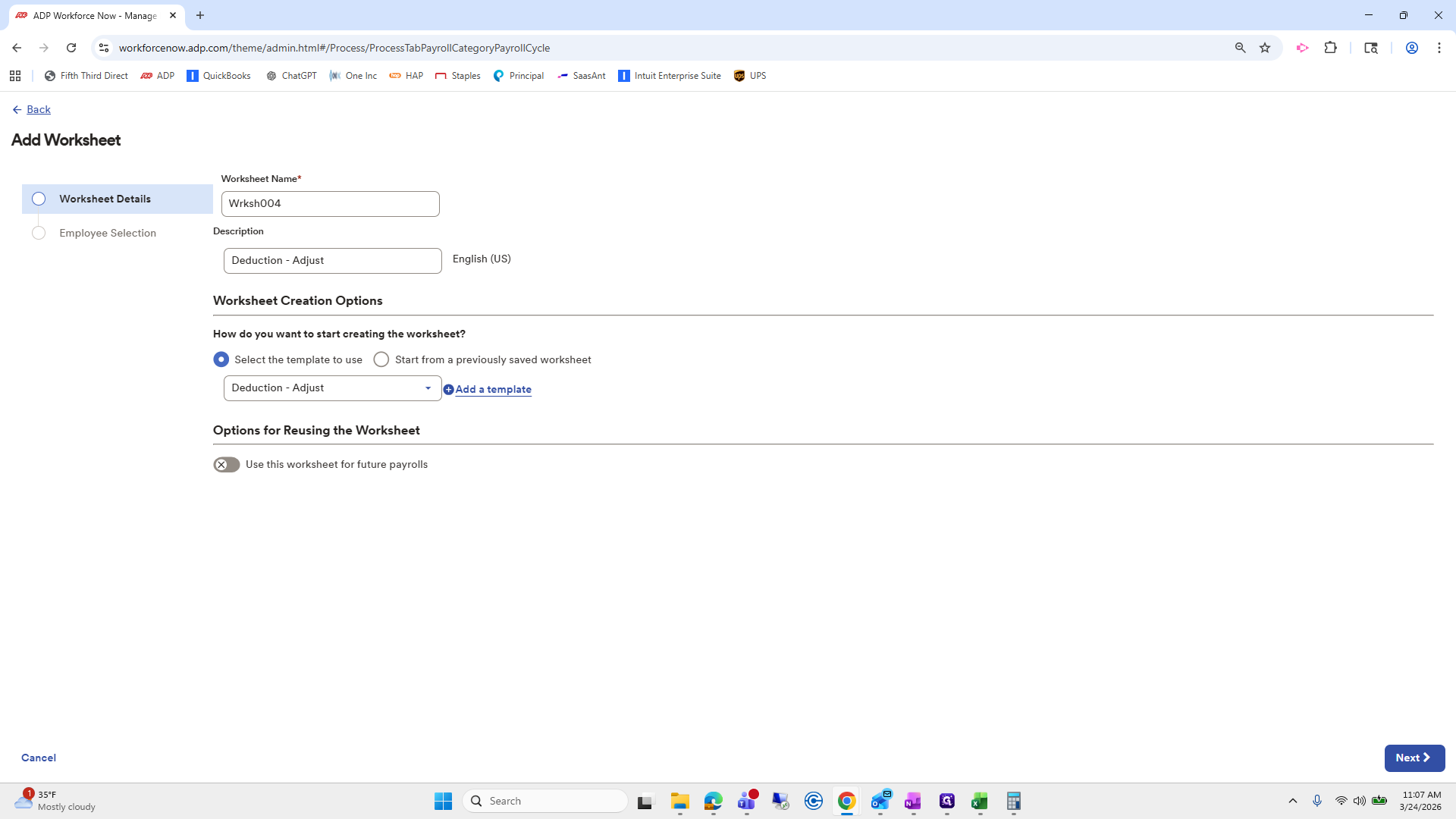
Next, select Misty. Go to "All Employees" so she appears in the list.
192
Click on "Next >"
Step #192: Click on "Next >"
193
Click on "< status is active >"
Step #193: Click on "< status is active >"
194
Click on "< all employees >"
Step #194: Click on "< all employees >"
195
Click on "Search by name or posi"
Step #195: Click on "Search by name or posi"

Click Misty, then submit.

196
Type "MIS"
197
Click here
Step #197: Click here
198
Click on "Submit"
Step #198: Click on "Submit"

Now, the first code here was...

199
Click here
Step #199: Click here
200
Drag here
Step #200: Drag here

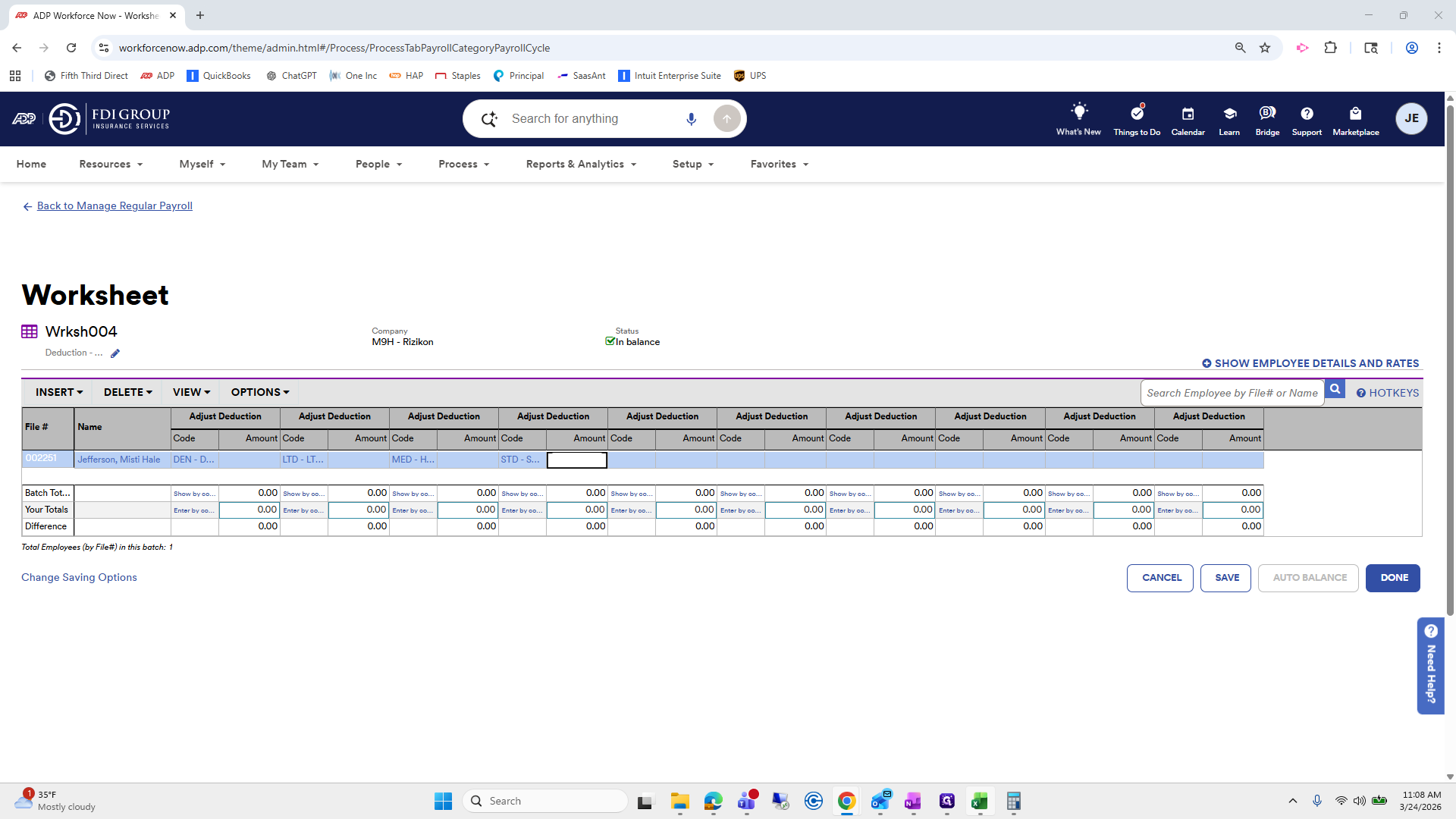
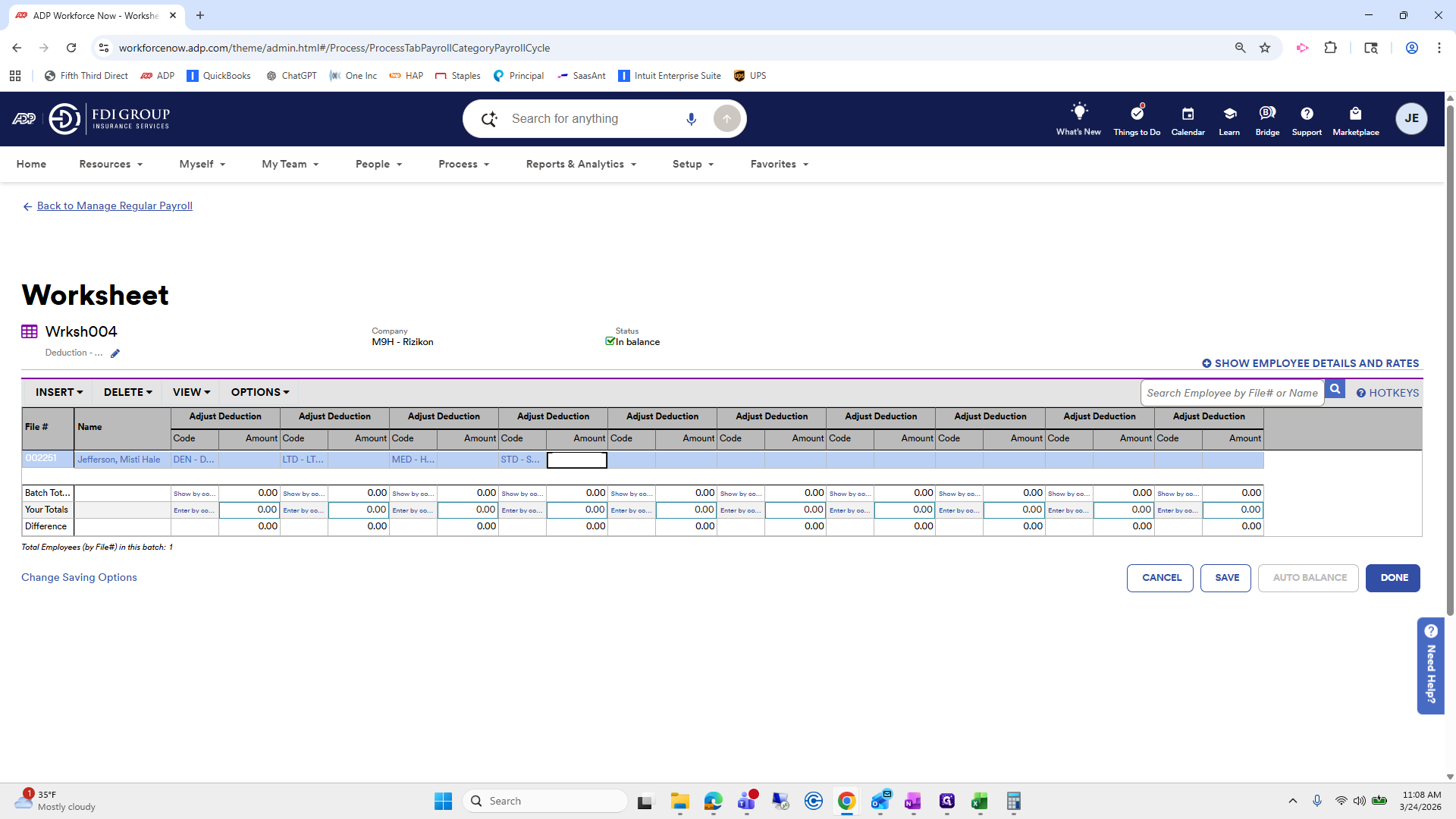
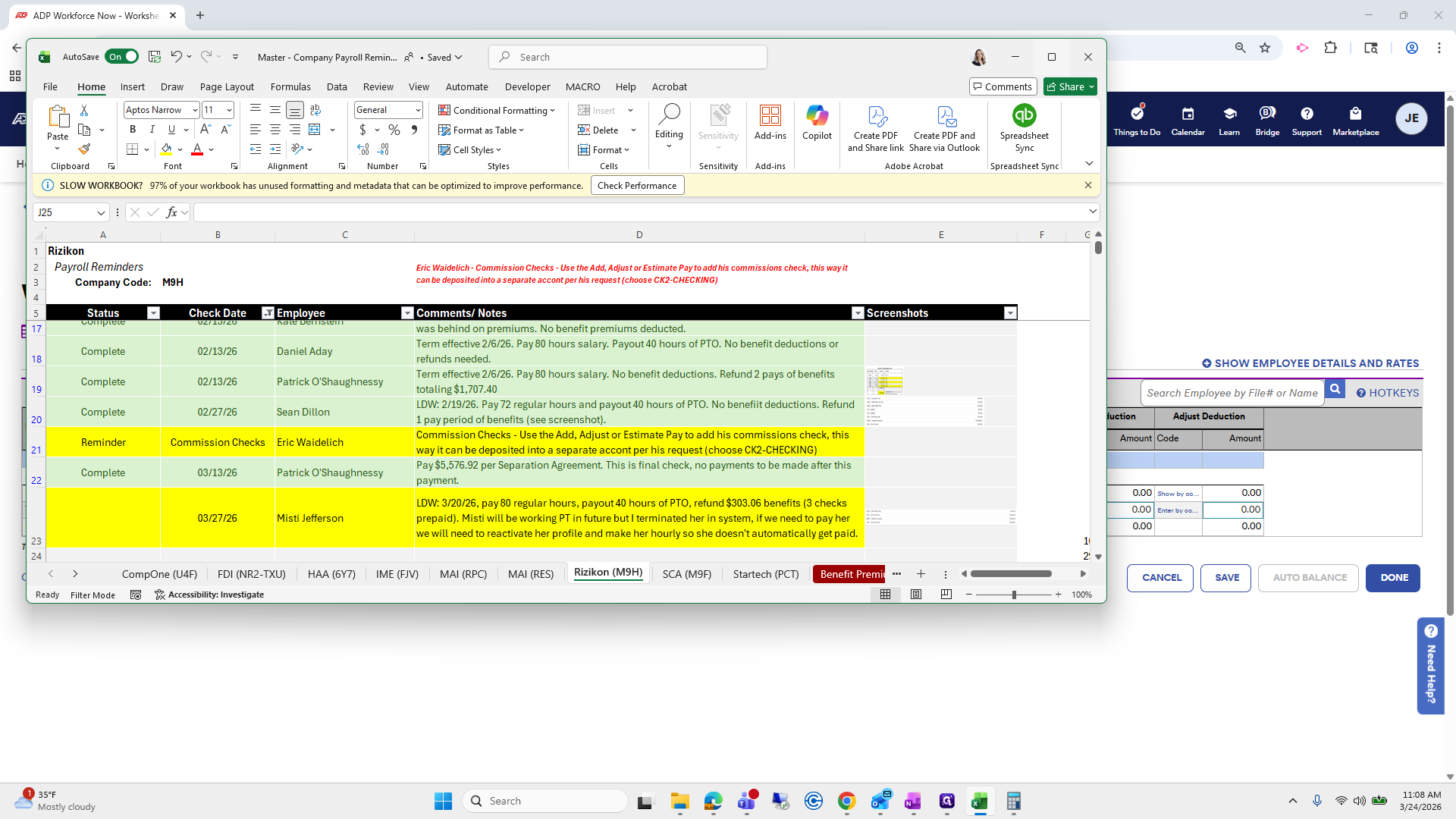
We need to add dental, LTD, medical, and STD.
201
Click here
Step #201: Click here
202
Click on "48.54 DEN"
Step #202: Click on "48.54 DEN"
203
Click on "73.56 MED"
Step #203: Click on "73.56 MED"
204
Click on "92.22 STD"
Step #204: Click on "92.22 STD"
205
Click on "92.22 STD"
Step #205: Click on "92.22 STD"
206
Click here
Step #206: Click here

The code will include dental, LTD, medical, and STD, each separated by a tab. Since it is a refund, we need to enter these as negative amounts.
207
Type "DEN + Tab + TabLTD + Tab + TabMED + Tab + TabSTD + Tab"
208
Double-click here
Step #208: Double-click here
209
Click here
Step #209: Click here
210
Click here
Step #210: Click here
211
Click on "88.74 LTD"
Step #211: Click on "88.74 LTD"

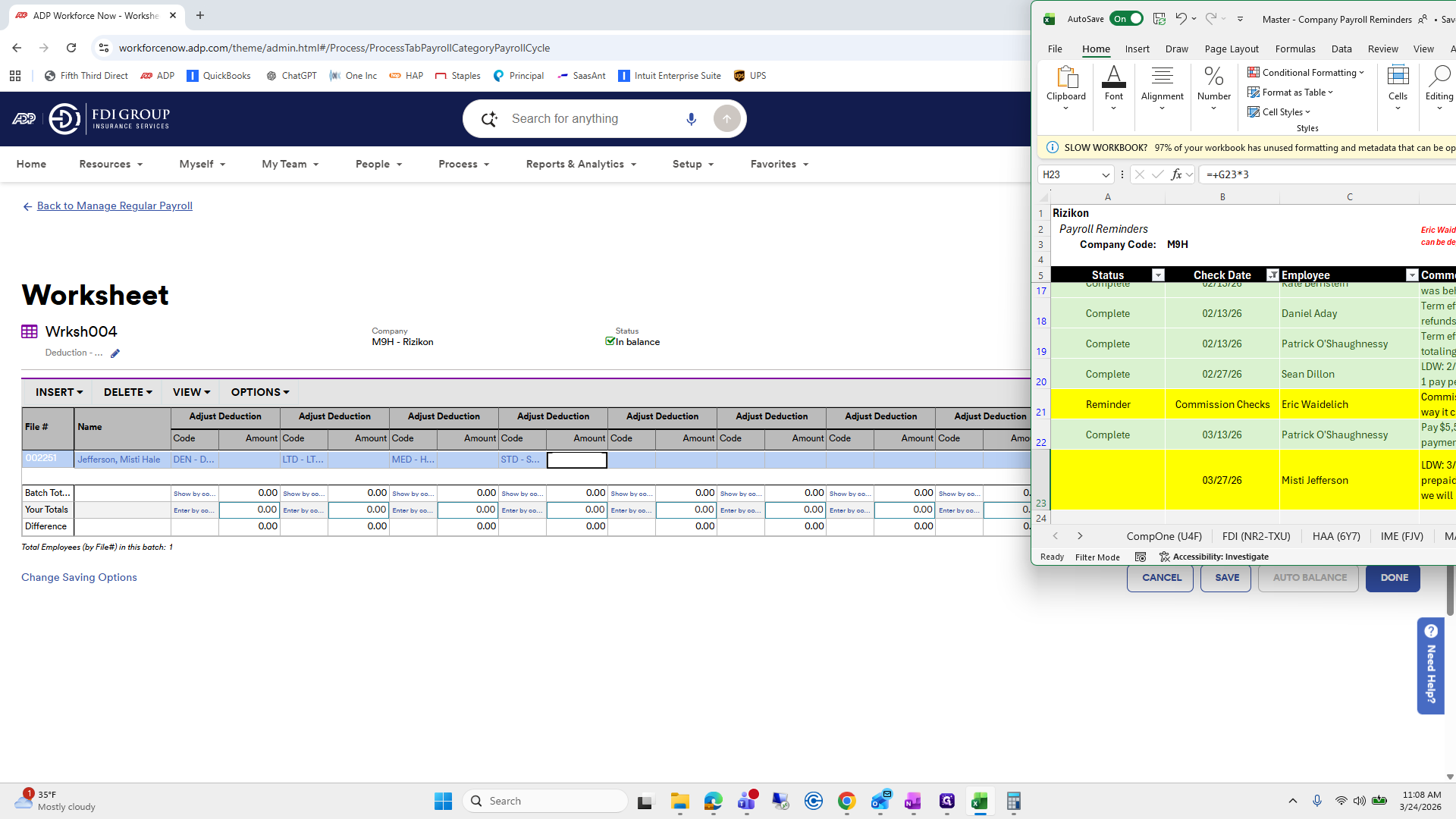
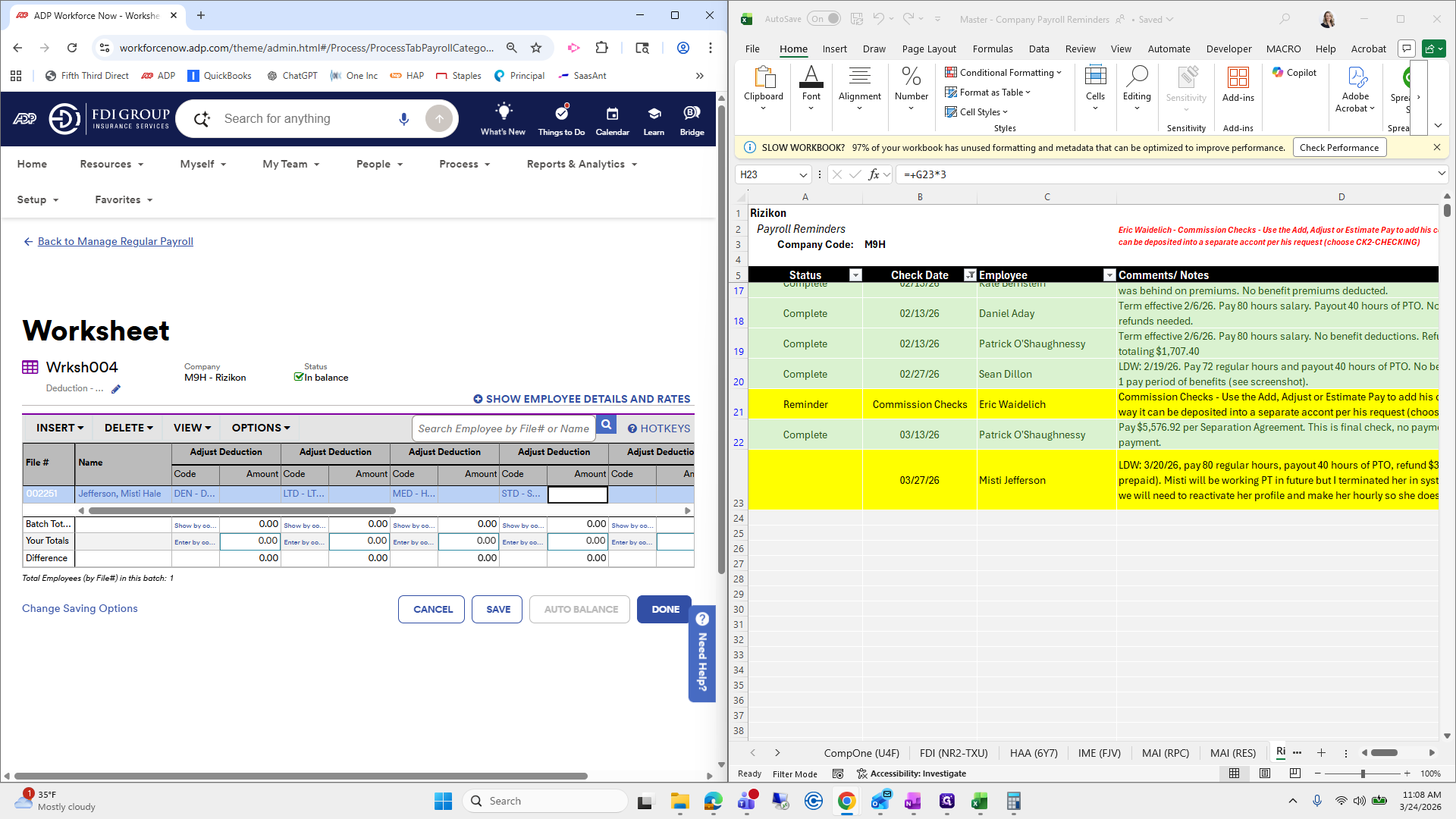
I'm going to split my screen.

212
Double-click here
Step #212: Double-click here

If I can do it appropriately.

213
Click here
Step #213: Click here
214
Drag "Editing"
Step #214: Drag "Editing"

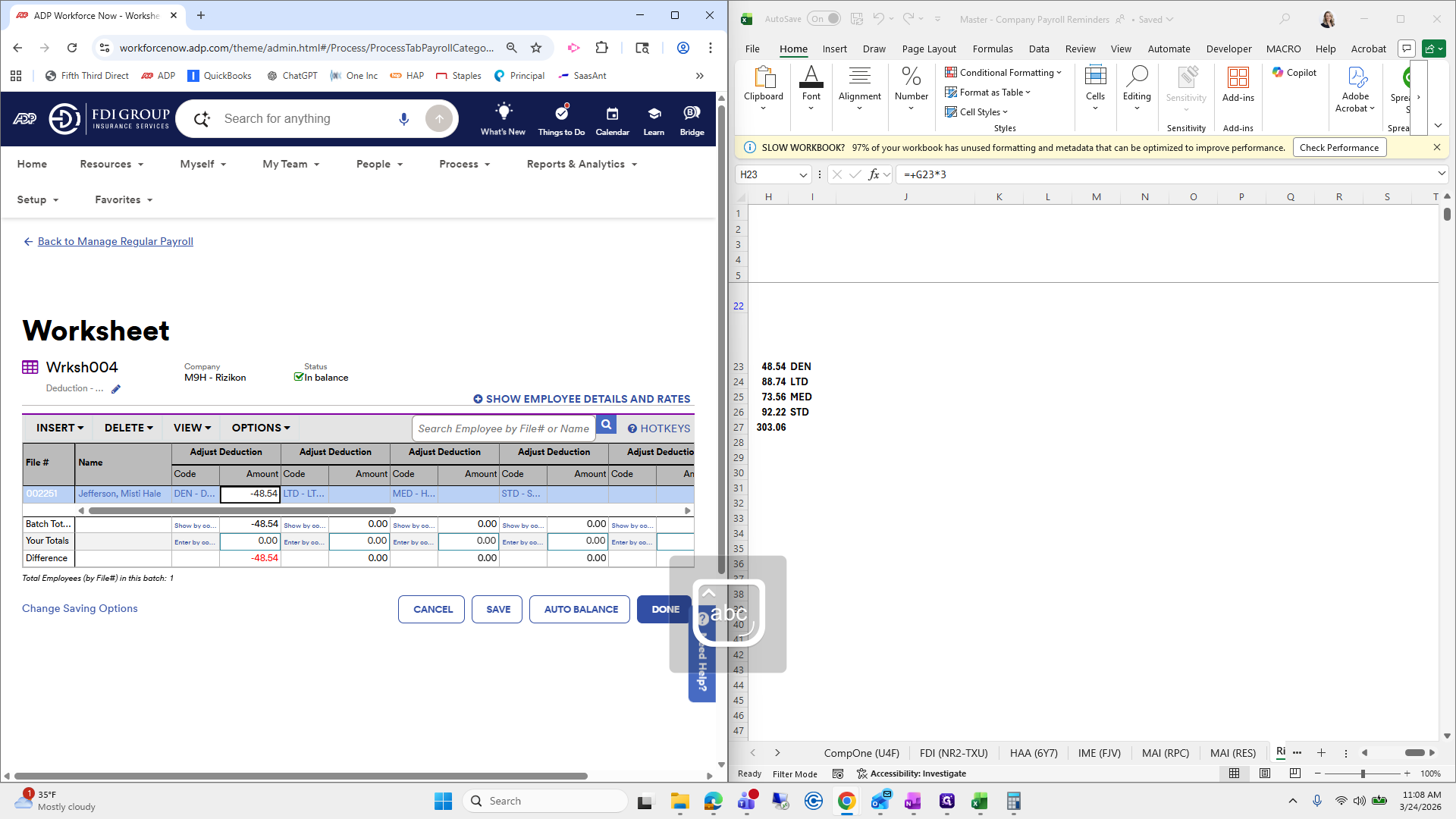
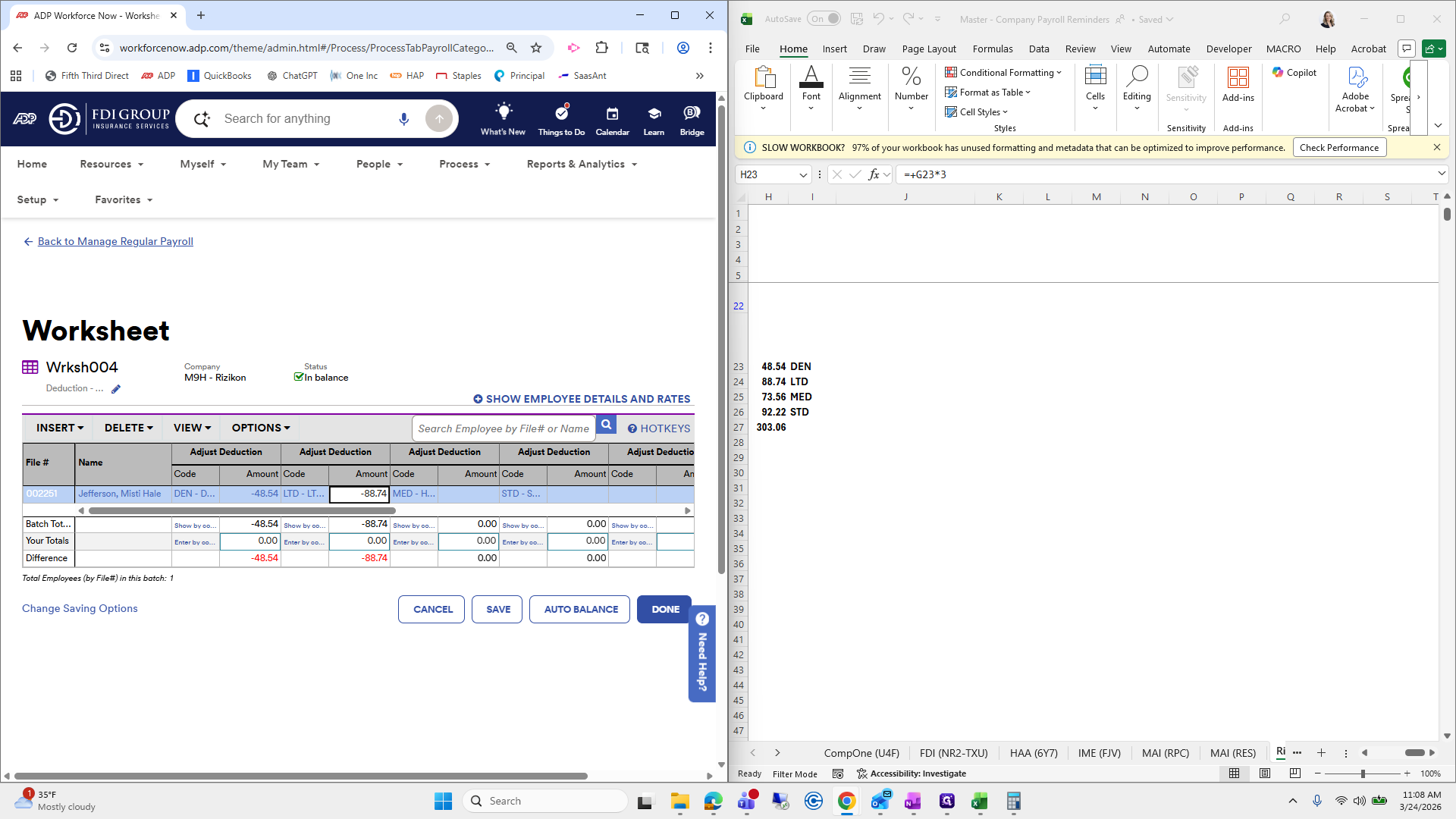
Okay, so dental is negative 48.54.
215
Click here
Step #215: Click here
216
Click here
Step #216: Click here
217
Double-click here
Step #217: Double-click here
218
Click here
Step #218: Click here

LTD is negative 88.74.

219
Type "-48.54"
220
Click on "Amount Code MED - H ..."
Step #220: Click on "Amount Code MED - H ..."

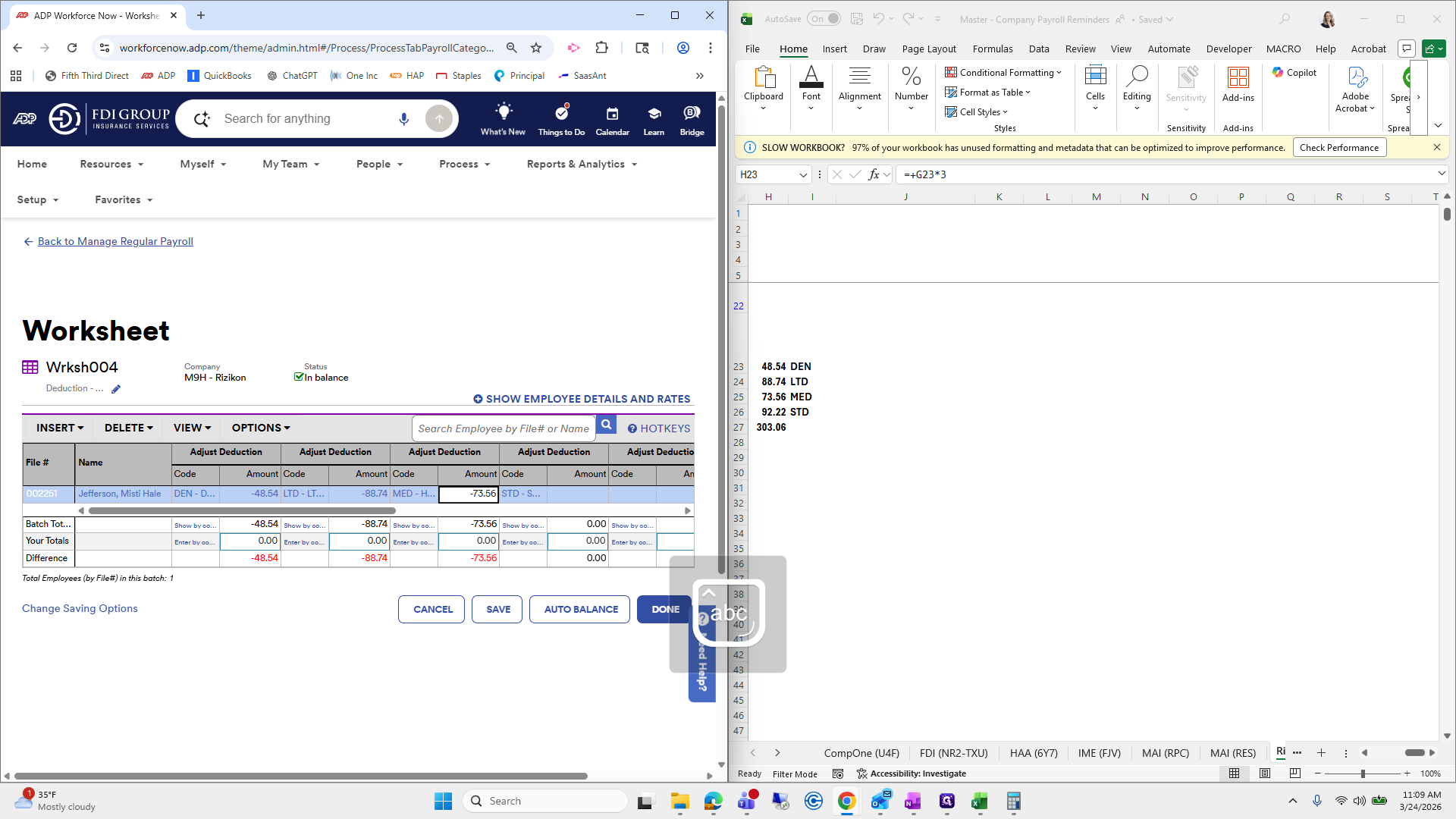
Medical is negative 73.56.

221
Type "-88.74"
222
Click here
Step #222: Click here

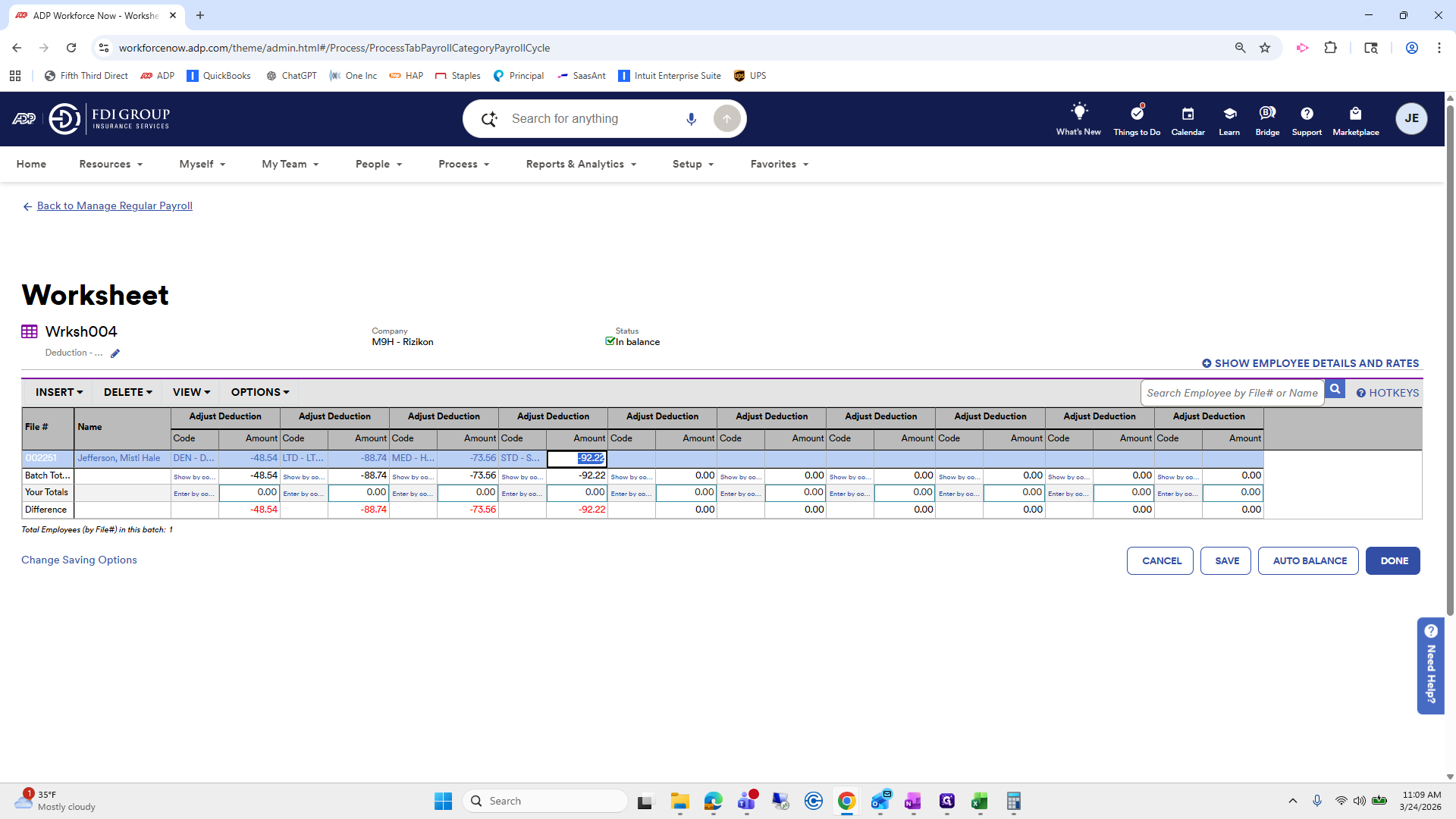
STD is negative 92.22.

223
Type "-73.56"
224
Click here
Step #224: Click here

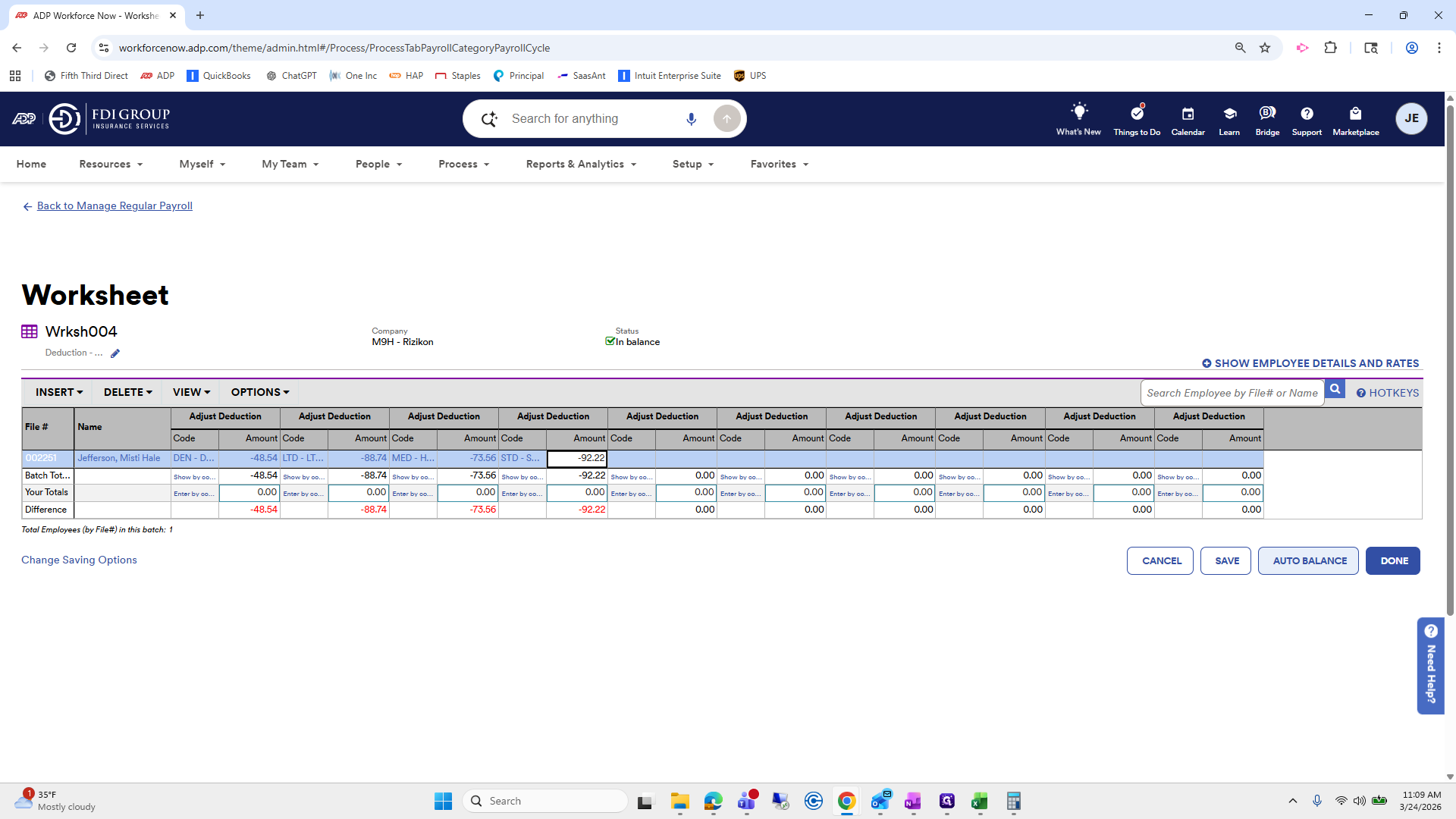
Now we will auto balance that.

225
Type "-92.22"
226
Click here
Step #226: Click here
227
Click here
Step #227: Click here
228
Click on "AUTO BALANCE"
Step #228: Click on "AUTO BALANCE"

We will double-check the figures from our work paper.
229
Click here
Step #229: Click here

That looks good. Then click Done.

230
Click here
Step #230: Click here
231
Click on "DONE"
Step #231: Click on "DONE"

Let's check if there are any additional notes we need to add.
232
Click here
Step #232: Click here
233
Click on "☐"
Step #233: Click on "☐"
234
Drag here
Step #234: Drag here

It looks good.

235
Click on "we will need to reactivate her profile and make her hourly so she doesn't automatically get paid"
Step #235: Click on "we will need to reactivate her profile and make her hourly so she doesn't automatically get paid"

I will not mark it complete until I run the final payroll reports and review them to ensure everything is correct.
236
Click here
Step #236: Click here

Risicon is good.

237
Click here
Step #237: Click here
238
Click here

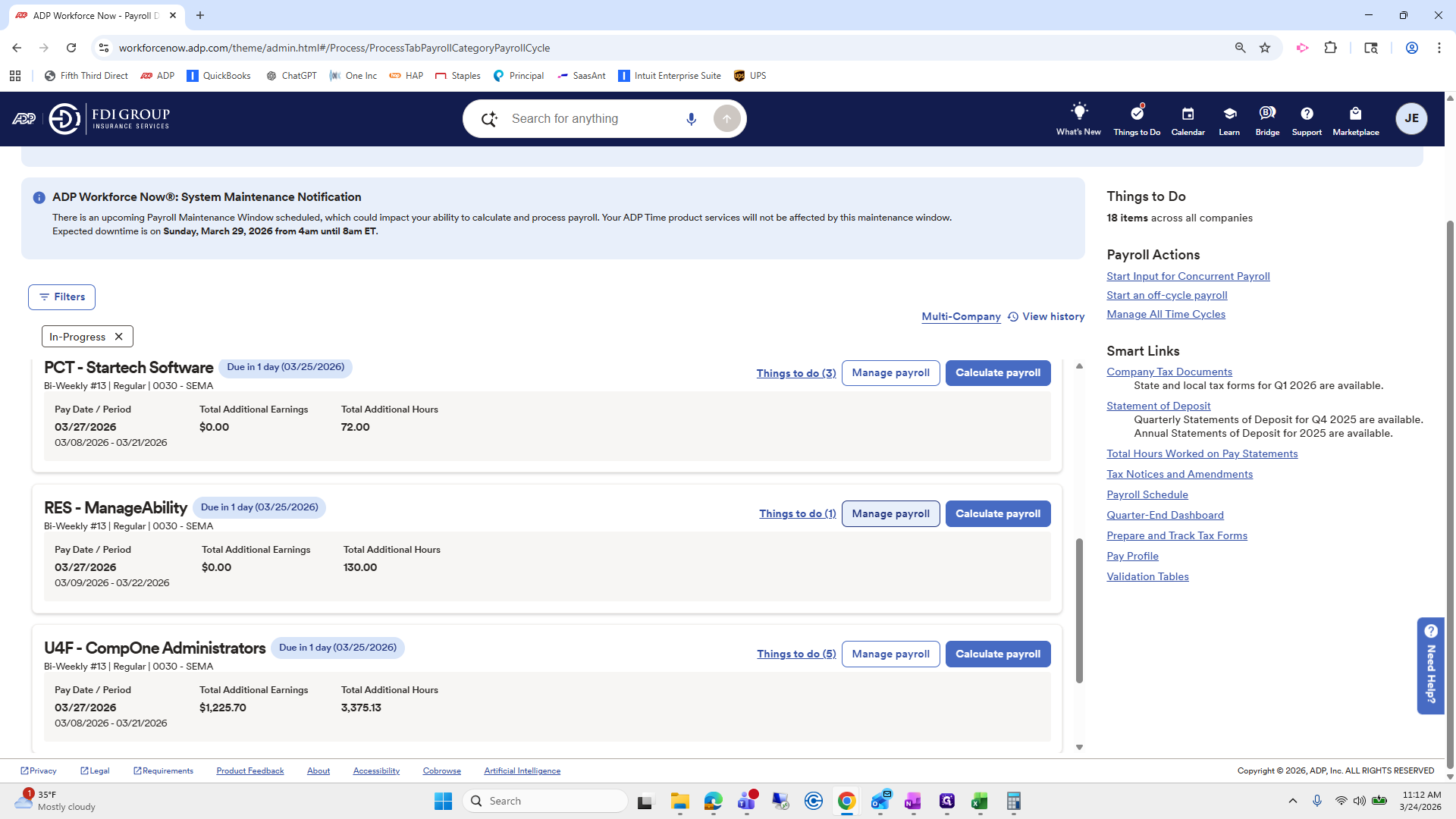
Next, we will do Star Tech. Manage payroll. Go to the work paper. Then, go to Star Tech.
239
Click on "Manage payroll"
Step #239: Click on "Manage payroll"
240
Click here
Step #240: Click here
241
Click on "("
Step #241: Click on "("

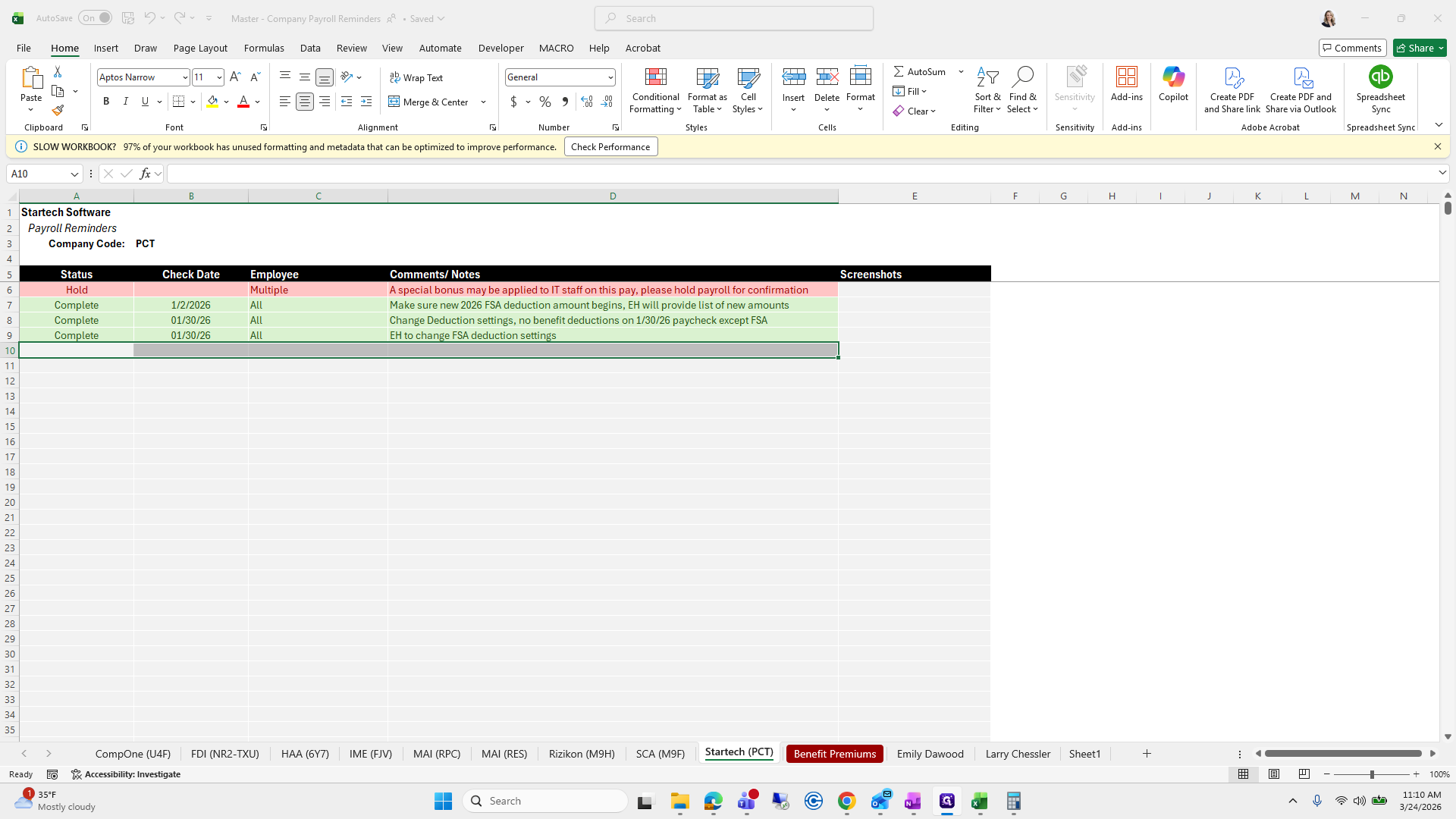
There are no notes, so Star Tech is good to go.
242
Drag here
Step #242: Drag here
243
Click here
Step #243: Click here
244
Click here
Step #244: Click here

The next one we can do is...

245
Click on "← Back to Payroll Dashboard"
Step #245: Click on "← Back to Payroll Dashboard"

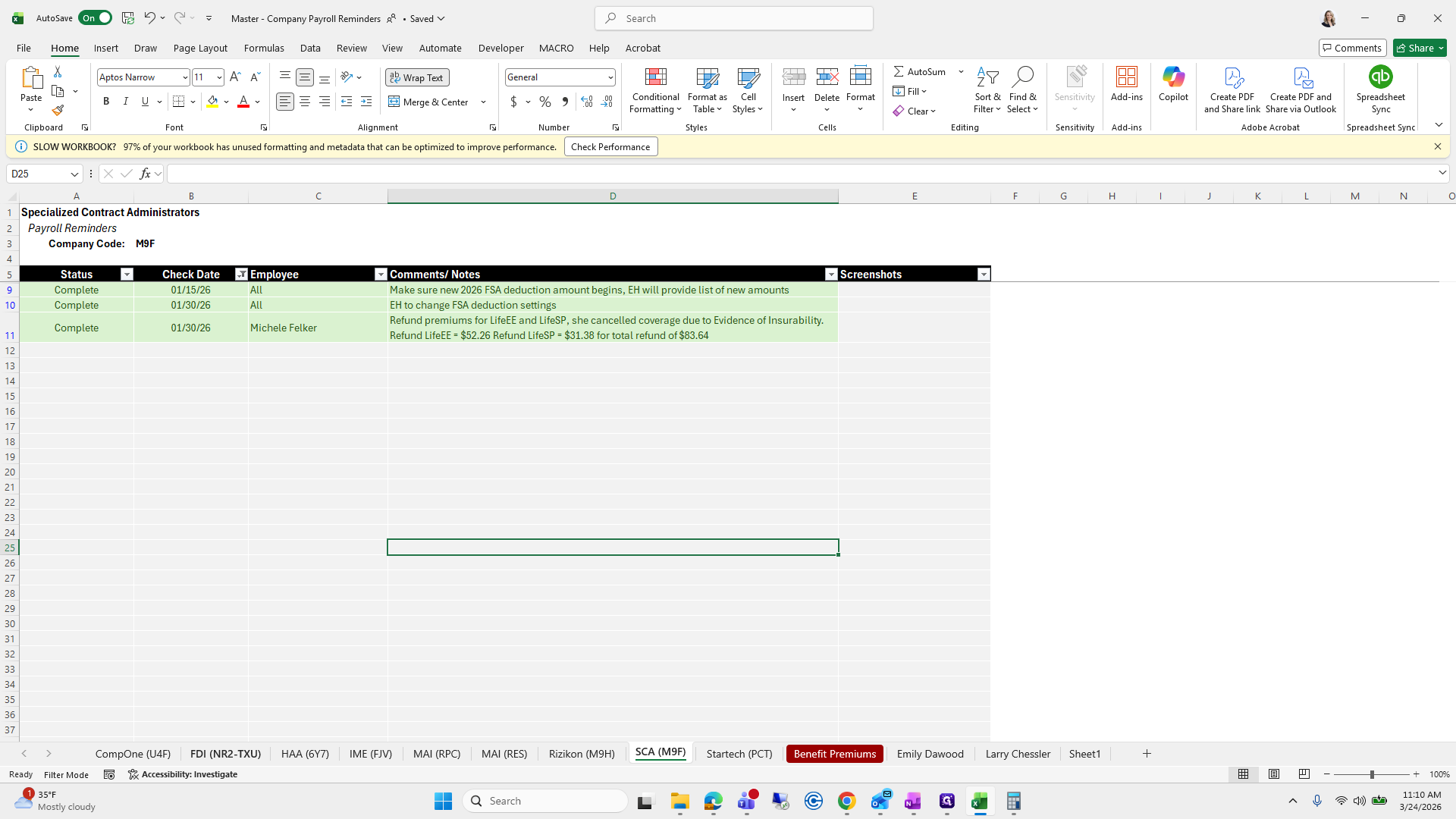
Let's do SCA.

246
Click on "Manage payroll"
Step #246: Click on "Manage payroll"

Are there any SCA notes?

247
Double-click here
Step #247: Double-click here
248
Click here
Step #248: Click here
249
Click on "SCA"
Step #249: Click on "SCA"

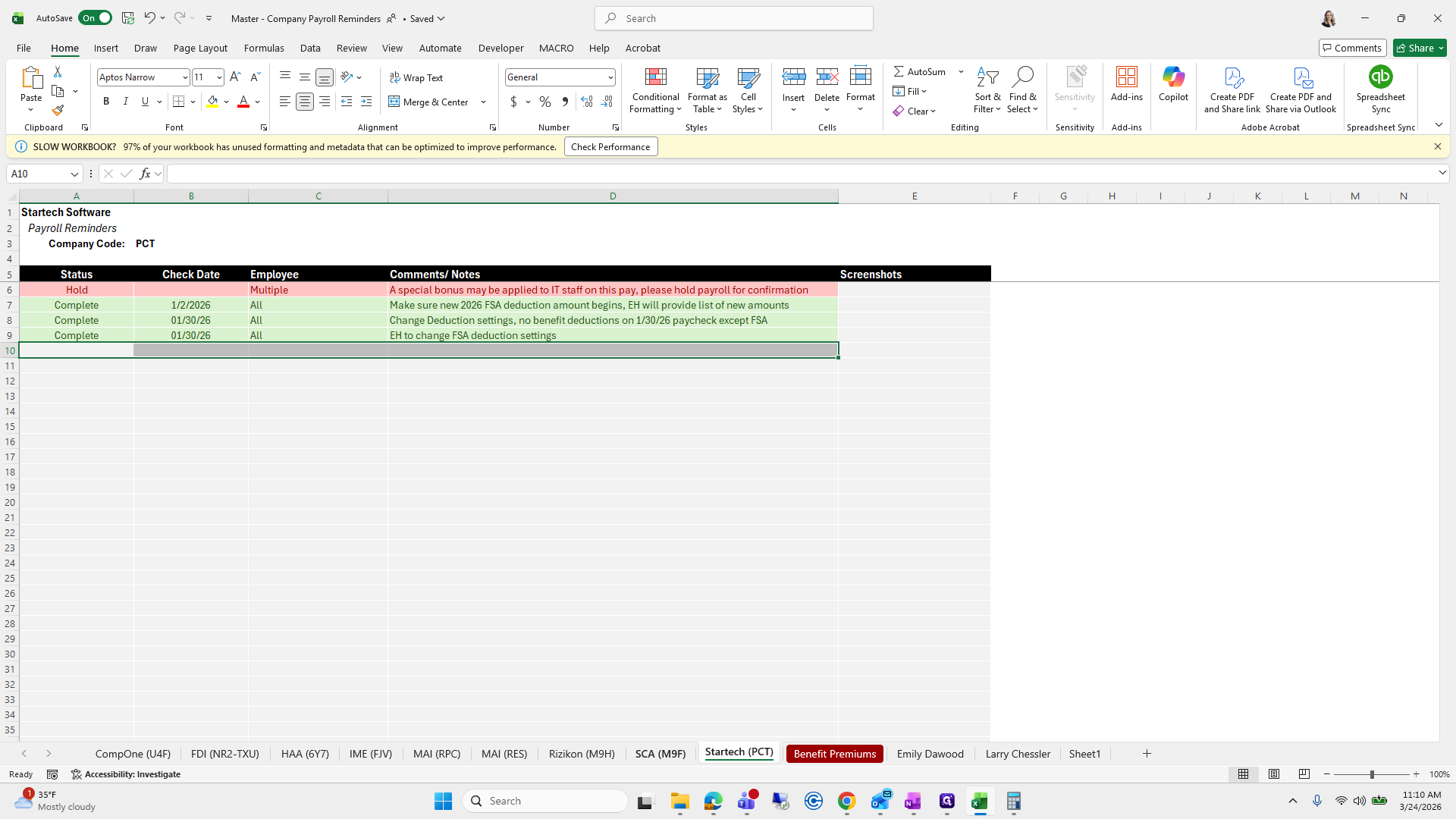
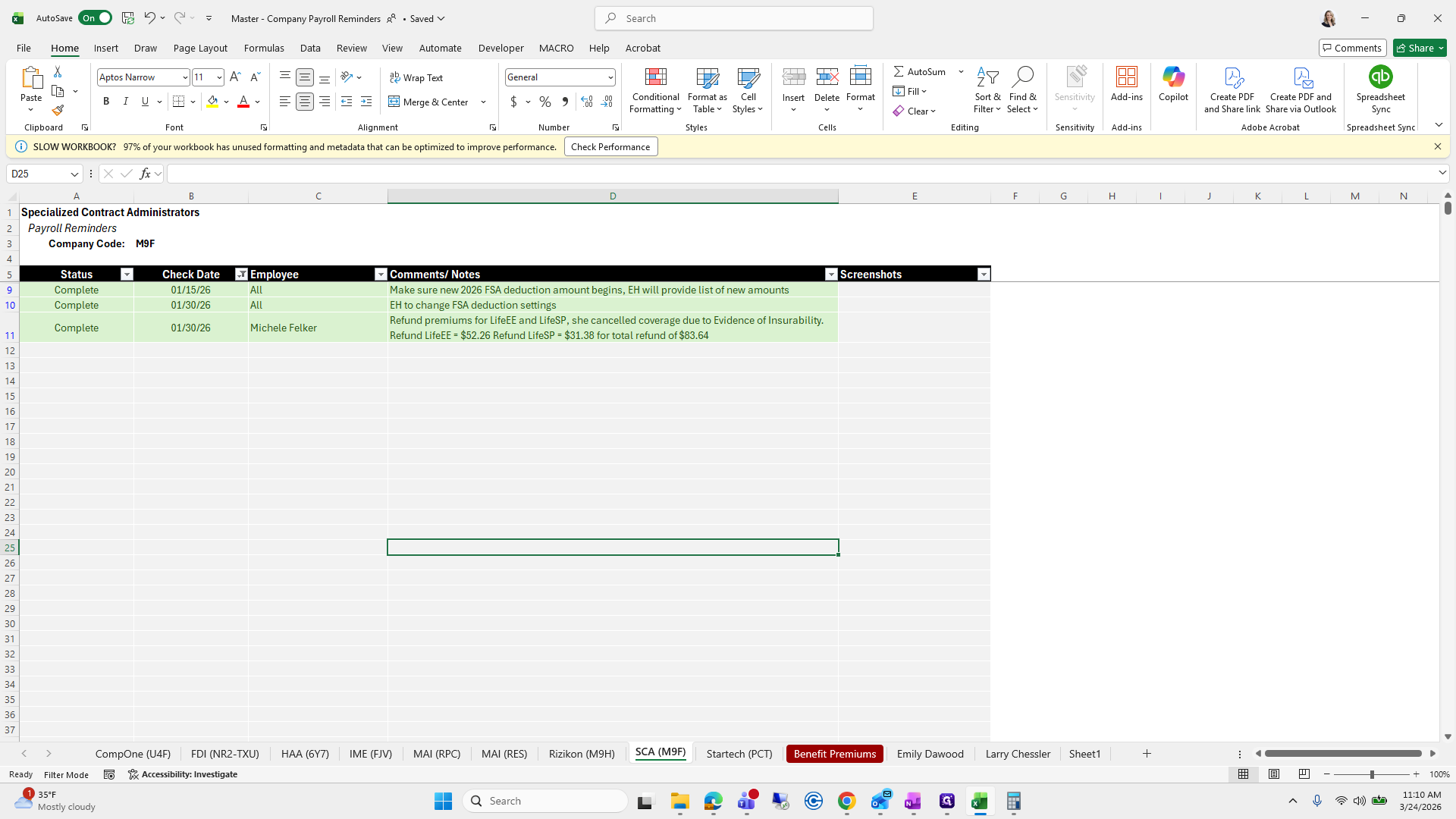
No SCA notes, which is good.

250
Click here
Step #250: Click here
251
Click here
Step #251: Click here

Next one we can do...

252
Click on "← Back to Payroll Dashboard"
Step #252: Click on "← Back to Payroll Dashboard"

I may need to make a new video for the next one. Let's check Financial Designs.
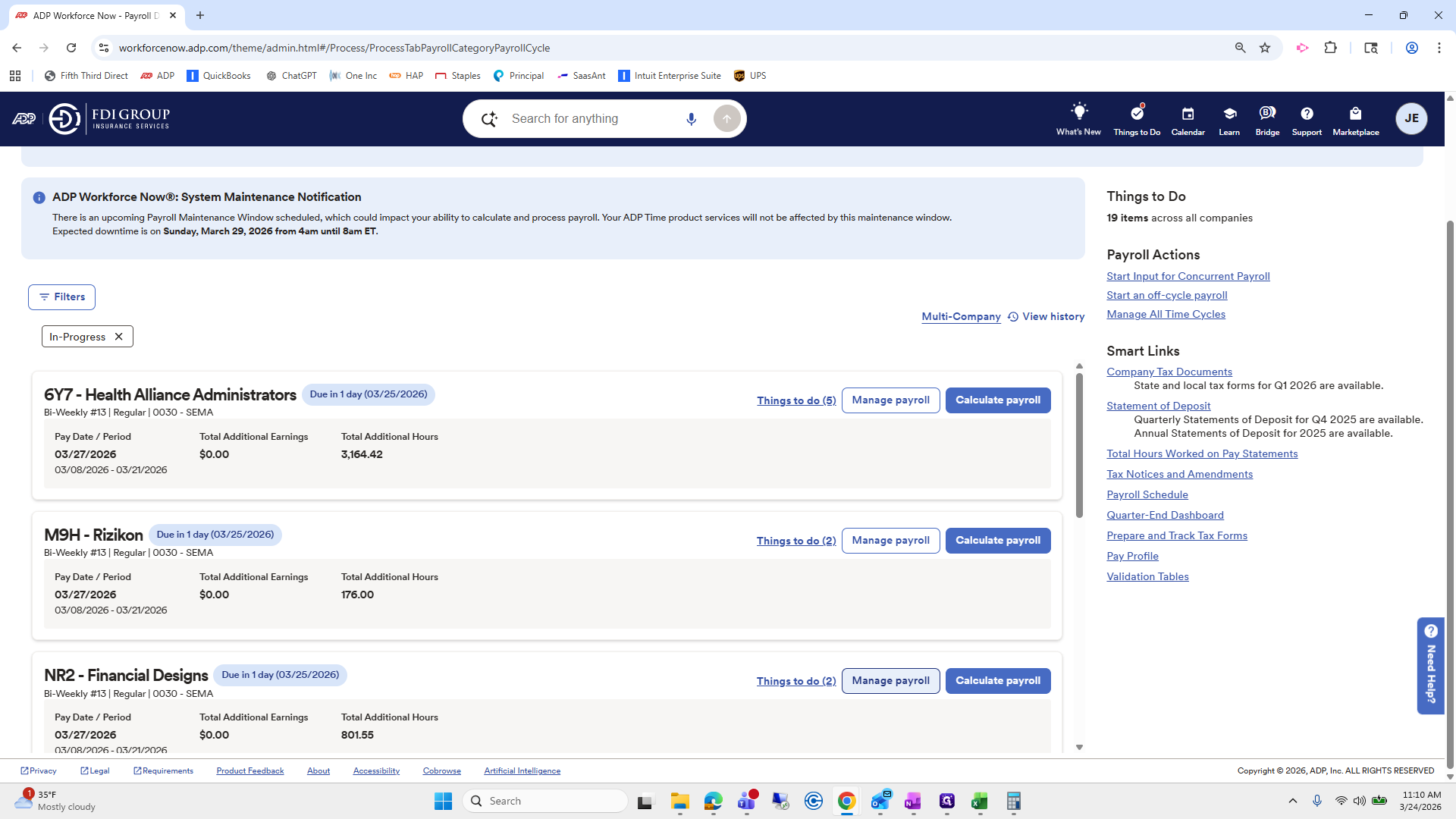
253
Click on "Manage payroll"
Step #253: Click on "Manage payroll"
254
Click here
Step #254: Click here

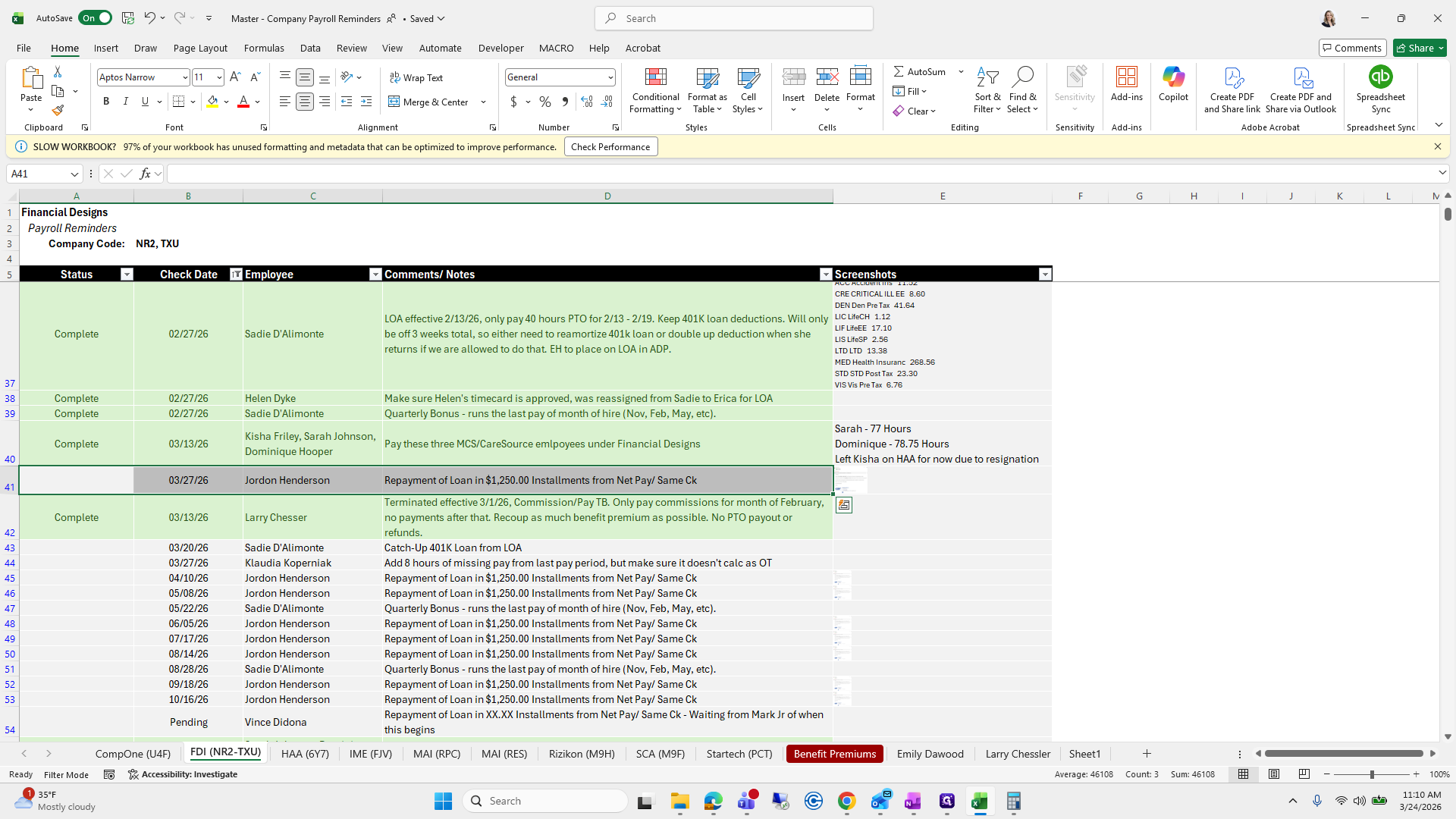
This one does have one.

255
Click on "FDI"
Step #255: Click on "FDI"
256
Drag here
Step #256: Drag here

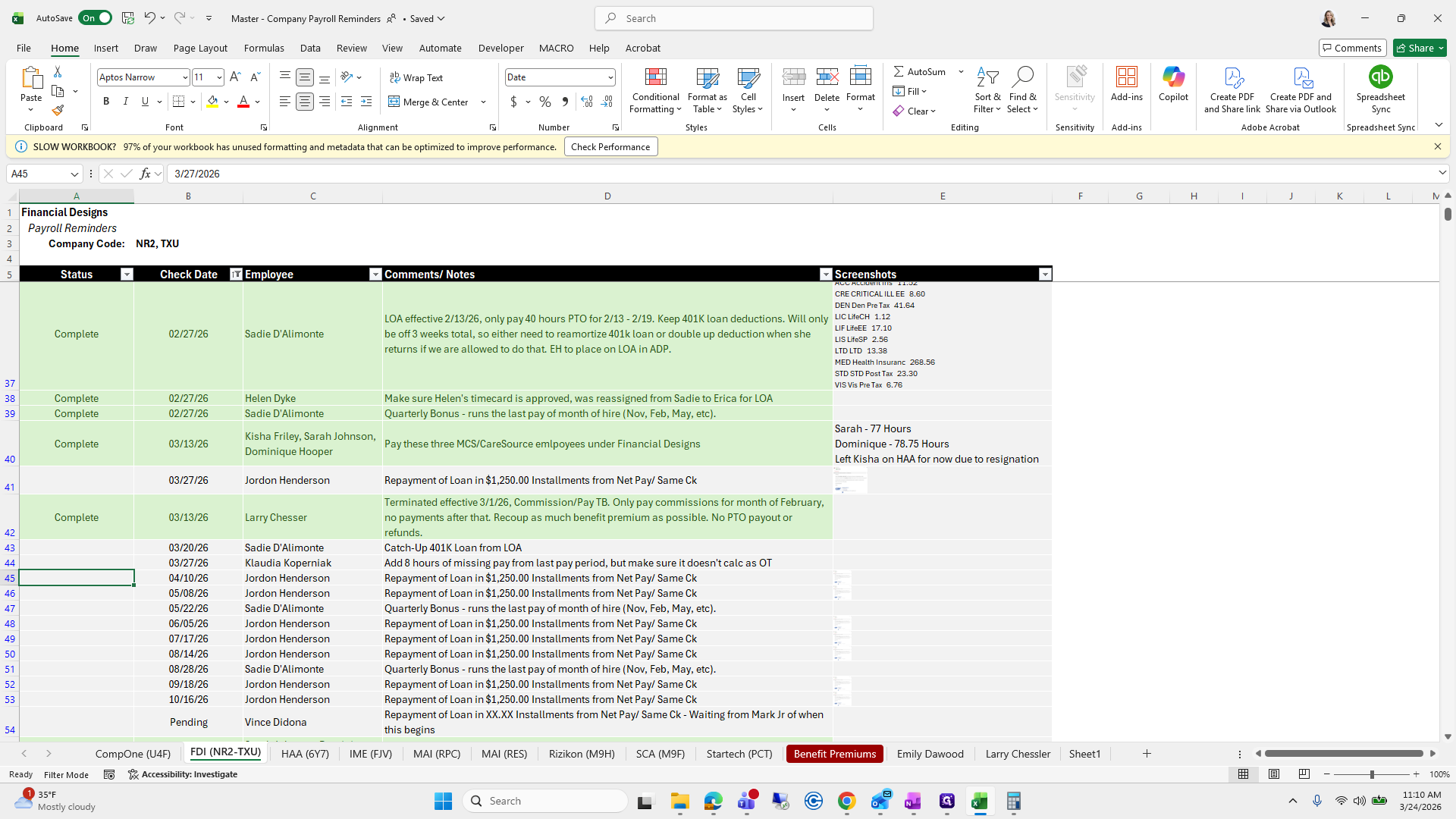
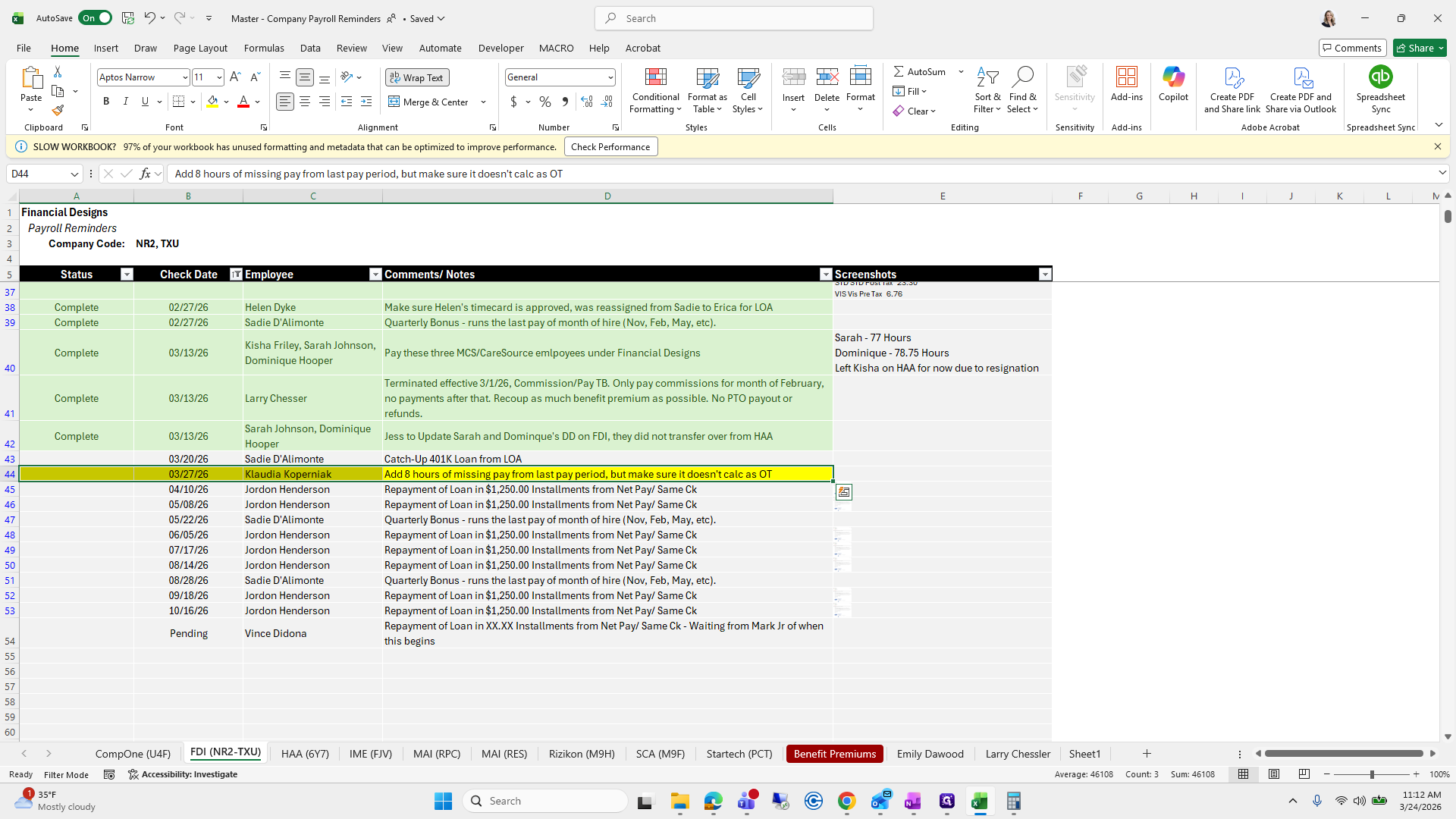
Jordan Henderson says a loan will be repaid in 12 to 15 installments, deducted from her paycheck, including commissions.
257
Click on "Left"
Step #257: Click on "Left"

Um, do, do, do.

258
Drag here
Step #258: Drag here

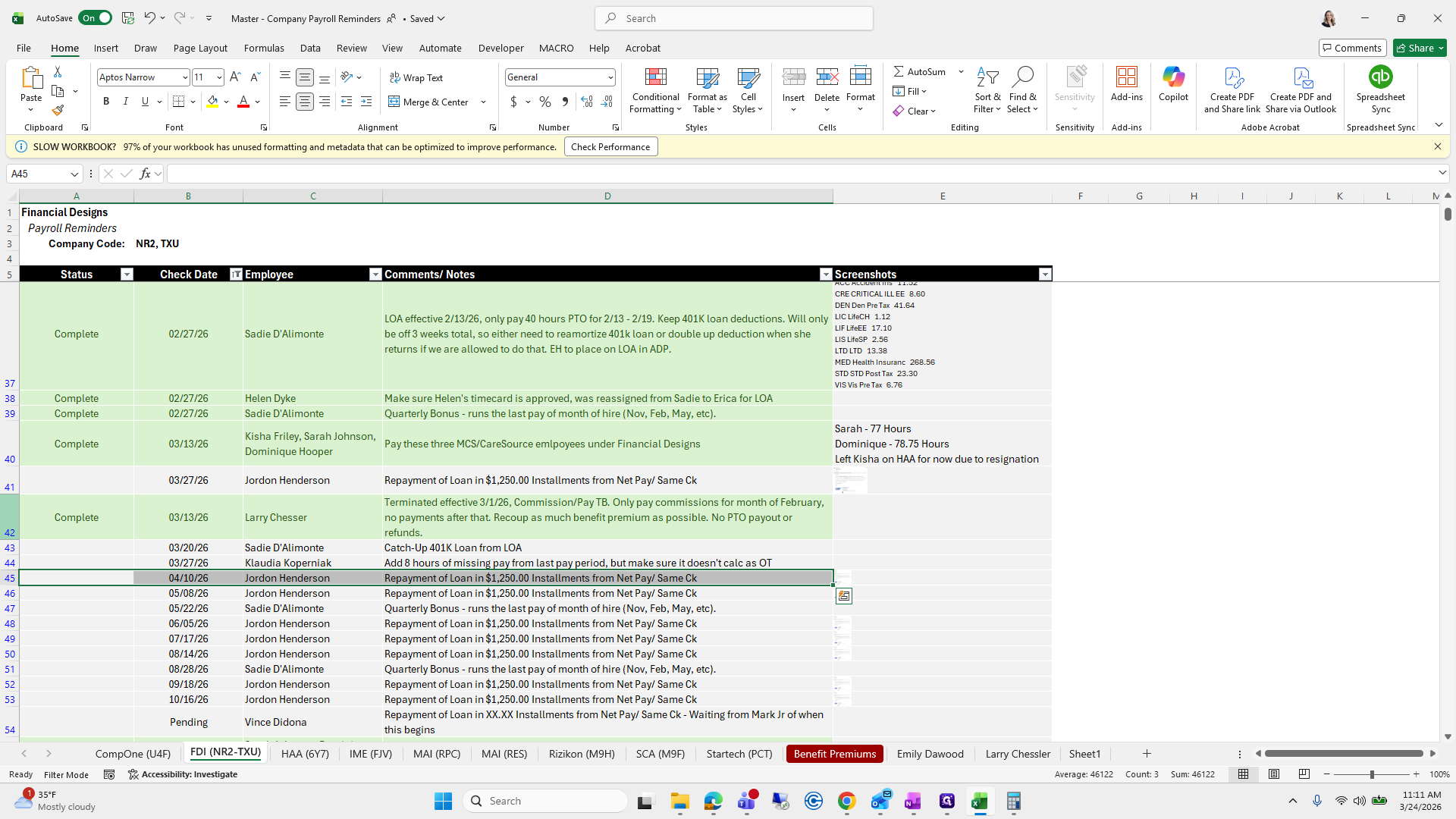
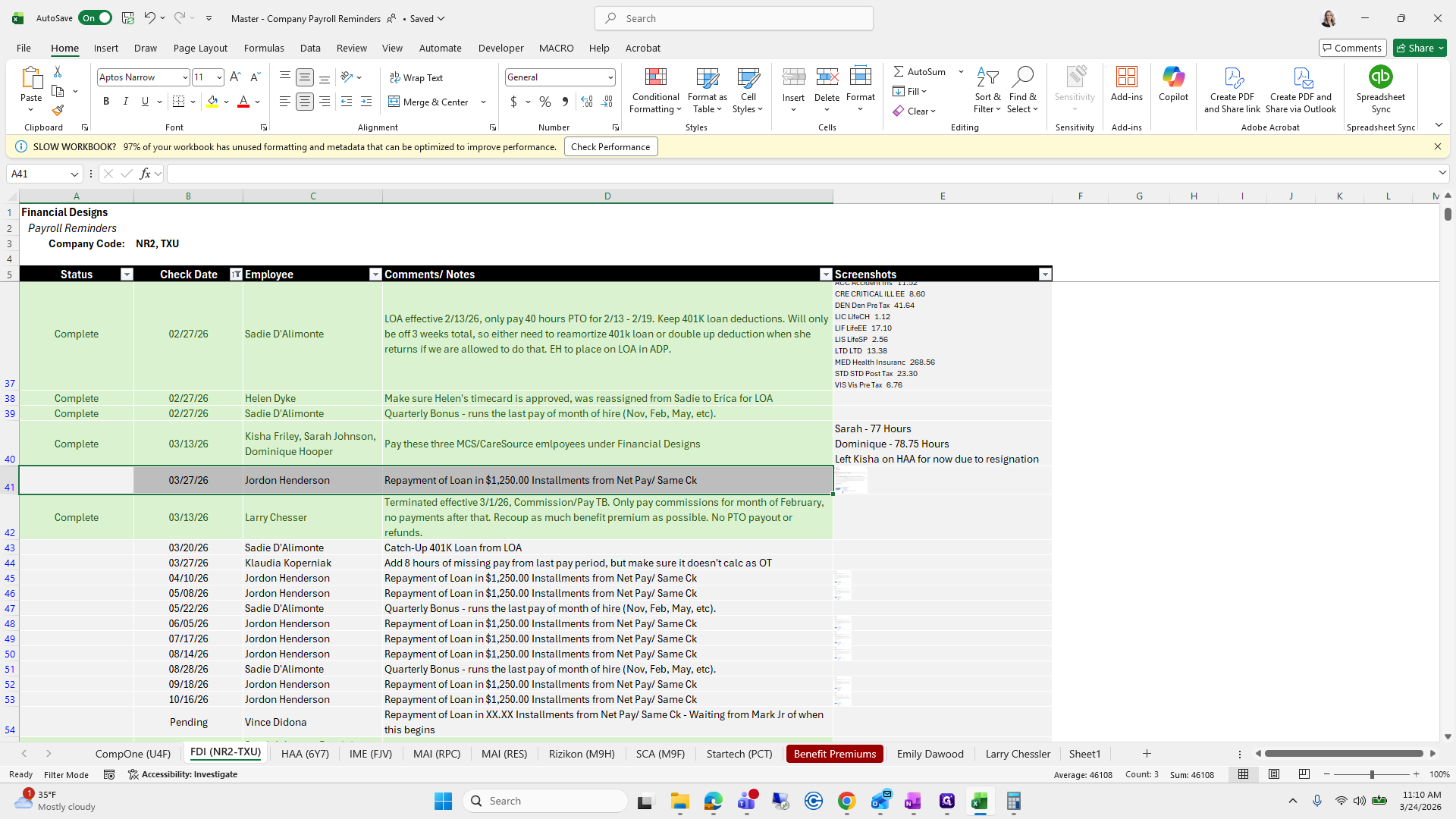
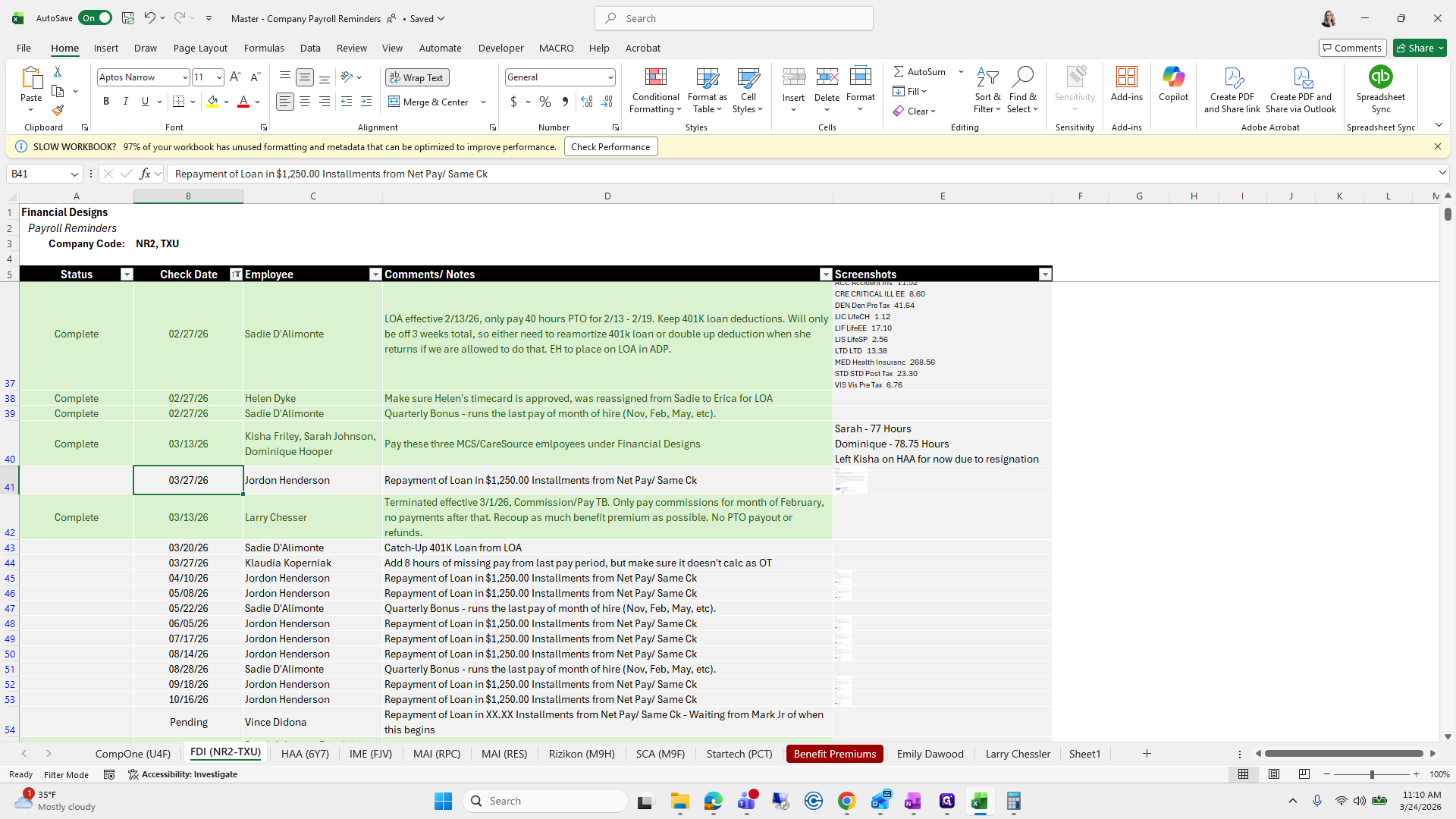
There are no commissions on this one, and she does not earn enough in her check to start the loan repayment. I will move this to the next paycheck on 4/10, which is already listed here.
259
Click on "in"
Step #259: Click on "in"
260
Click on "03/27/26"
Step #260: Click on "03/27/26"
261
Click on "3/24/2026"
Step #261: Click on "3/24/2026"
262
Click on "but make sure"
Step #262: Click on "but make sure"
263
Drag here
Step #263: Drag here

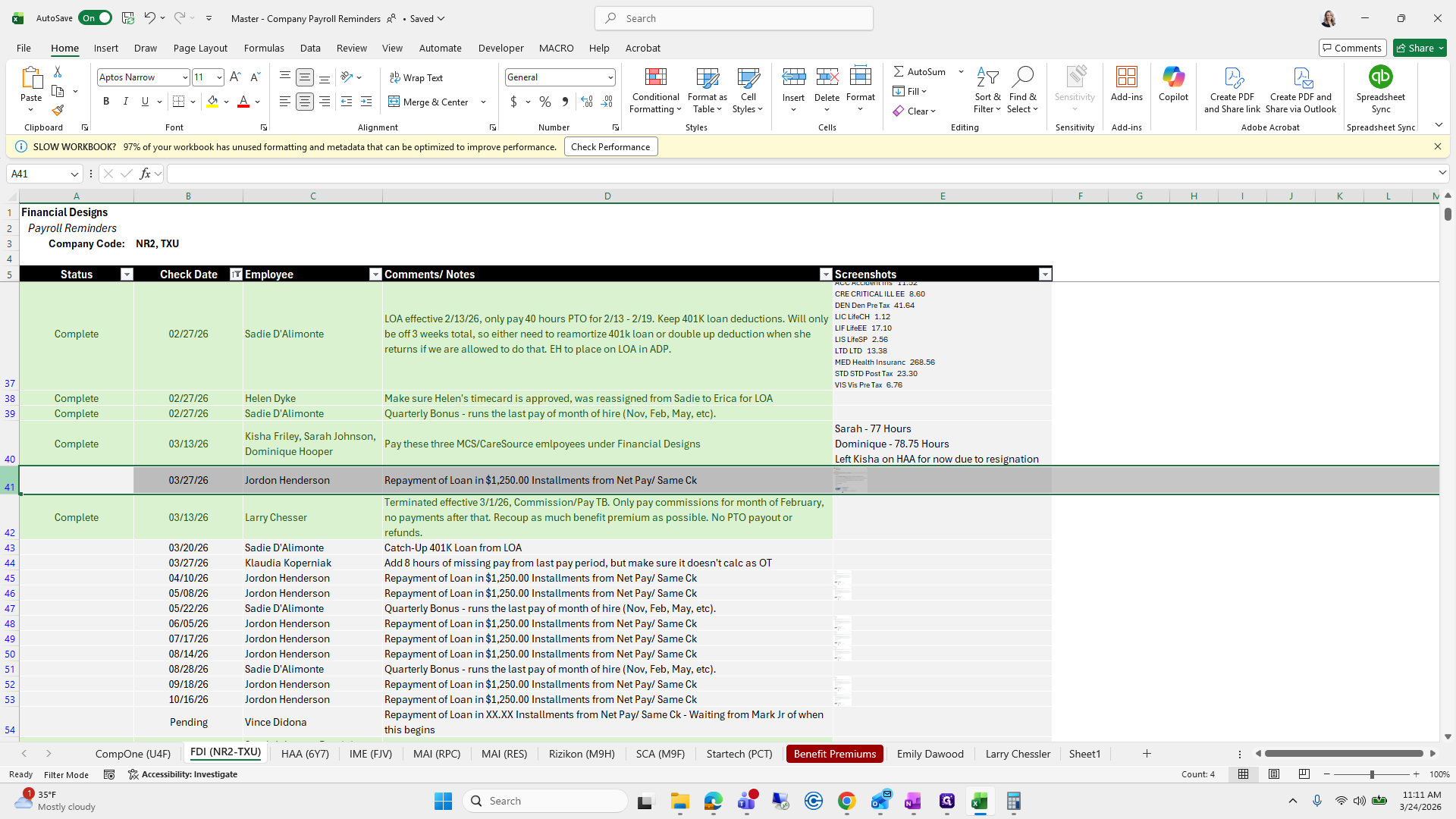
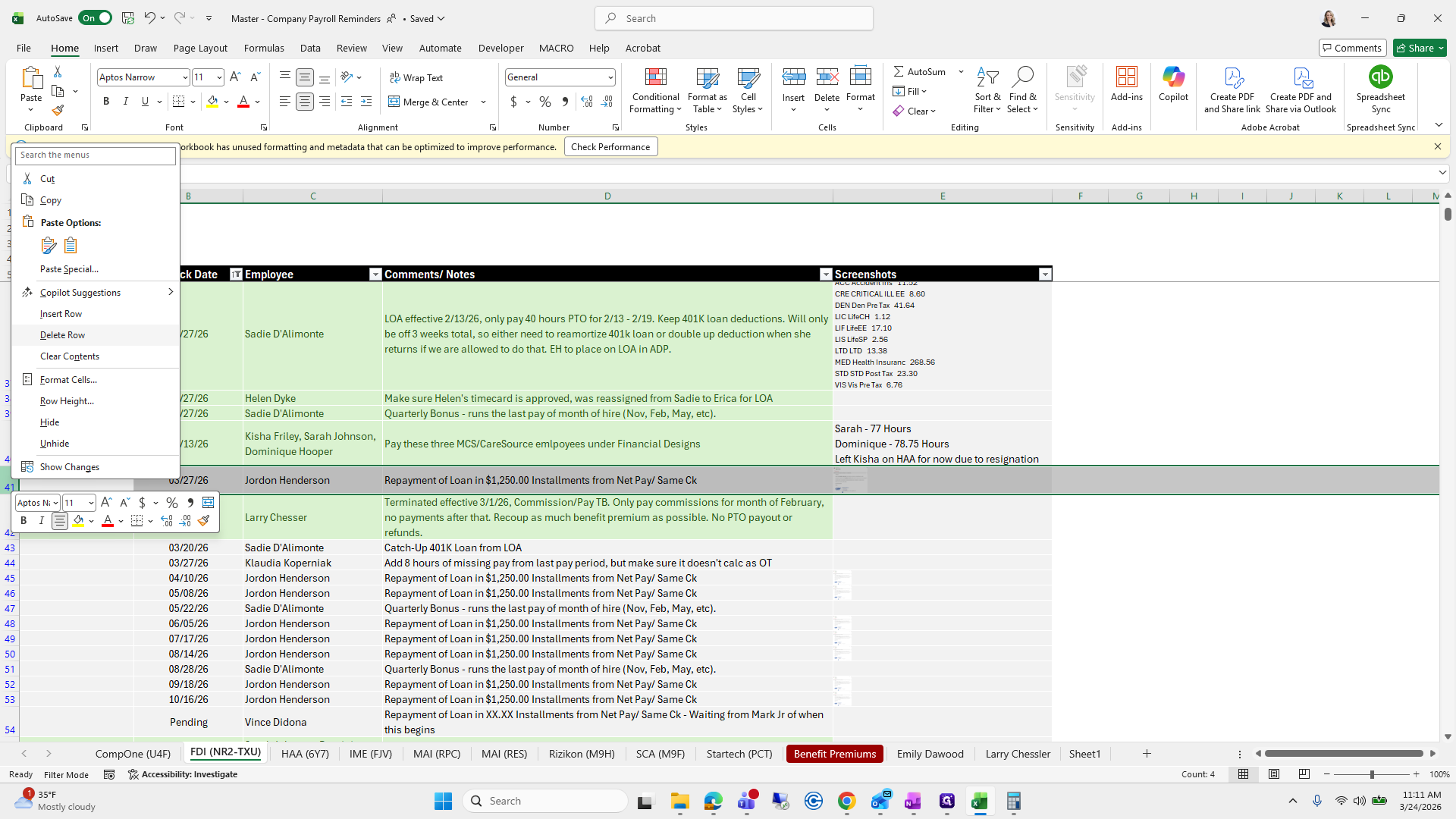
I will delete this one.

264
Click here
Step #264: Click here
265
Right-click on "41"
Step #265: Right-click on "41"
266
Click on "Delete Row"
Step #266: Click on "Delete Row"

There's really not much—oh, 327.

267
Click on "in $ 1,250.00 Installments from Net Pay / Same Ck"
Step #267: Click on "in $ 1,250.00 Installments from Net Pay / Same Ck"
268
Click on "03/27/26"
Step #268: Click on "03/27/26"
269
Drag here
Step #269: Drag here

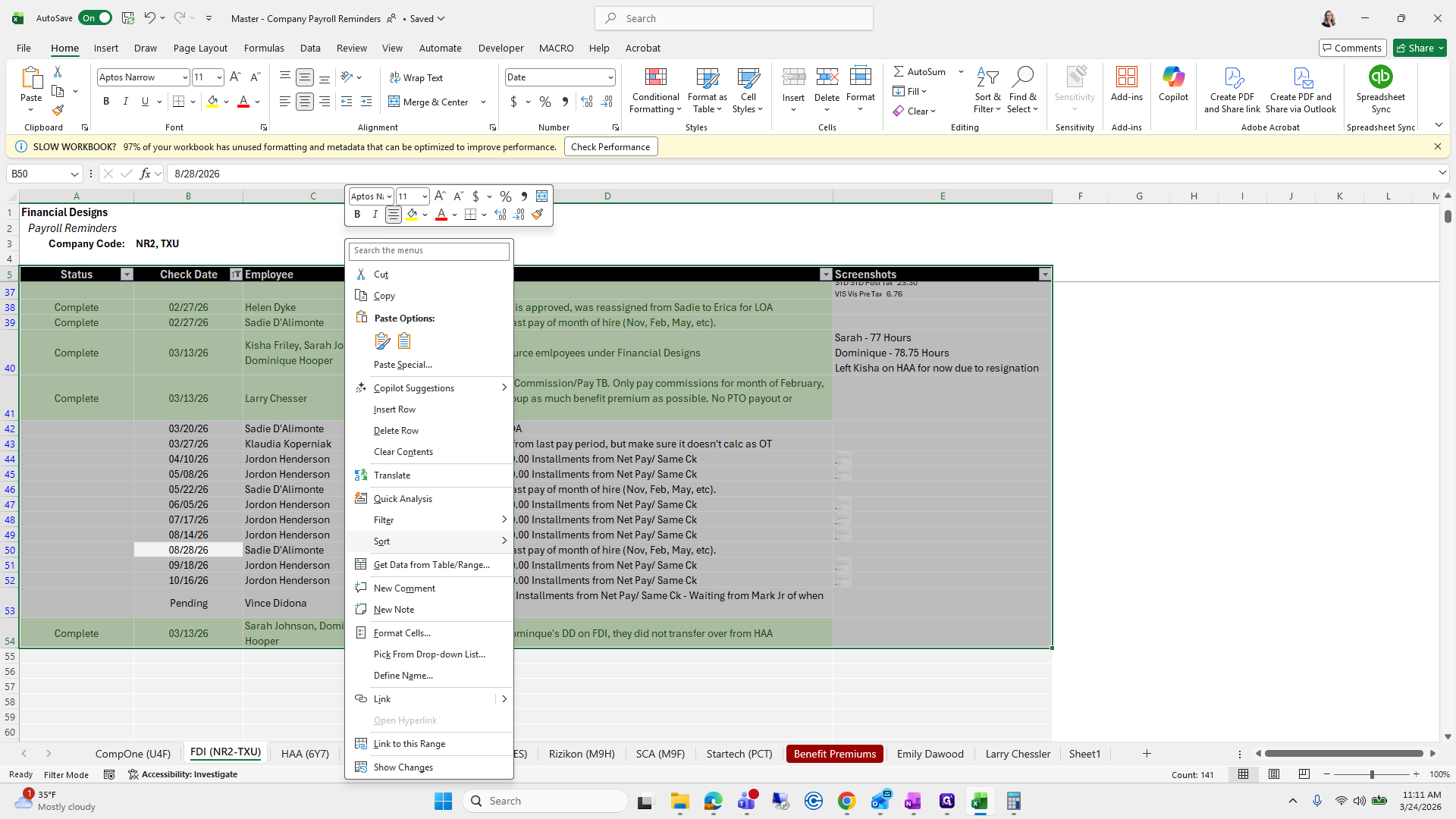
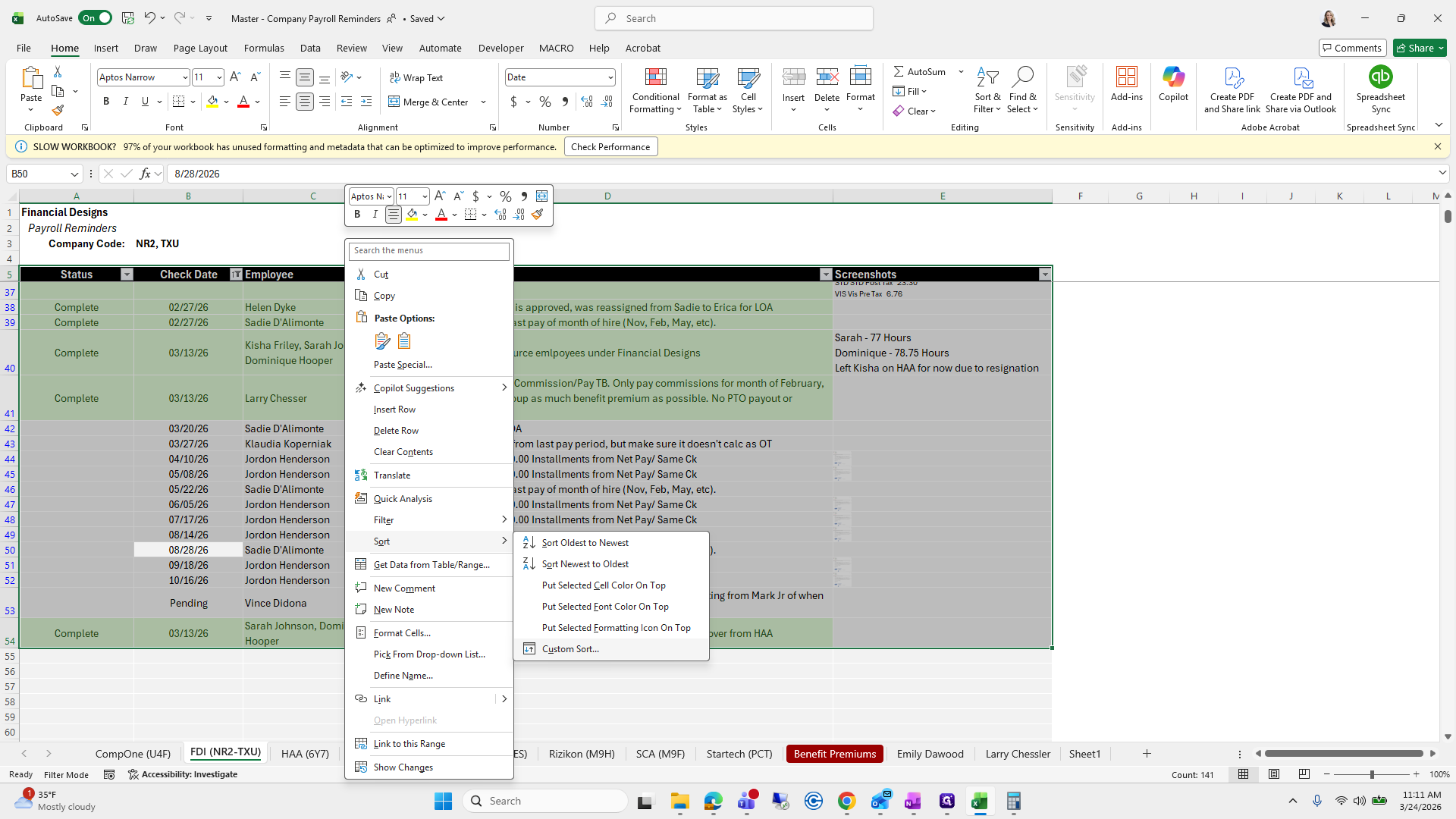
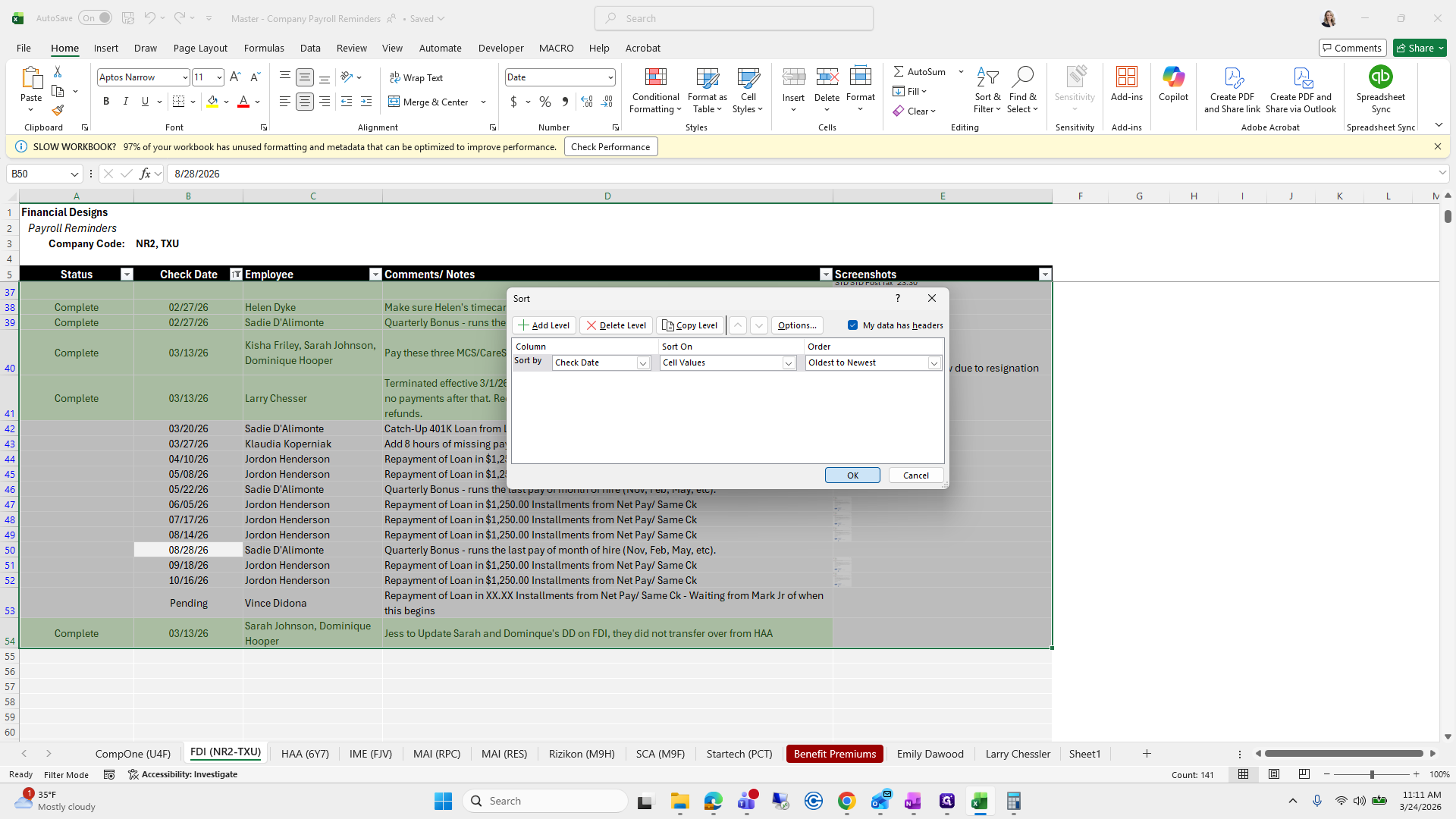
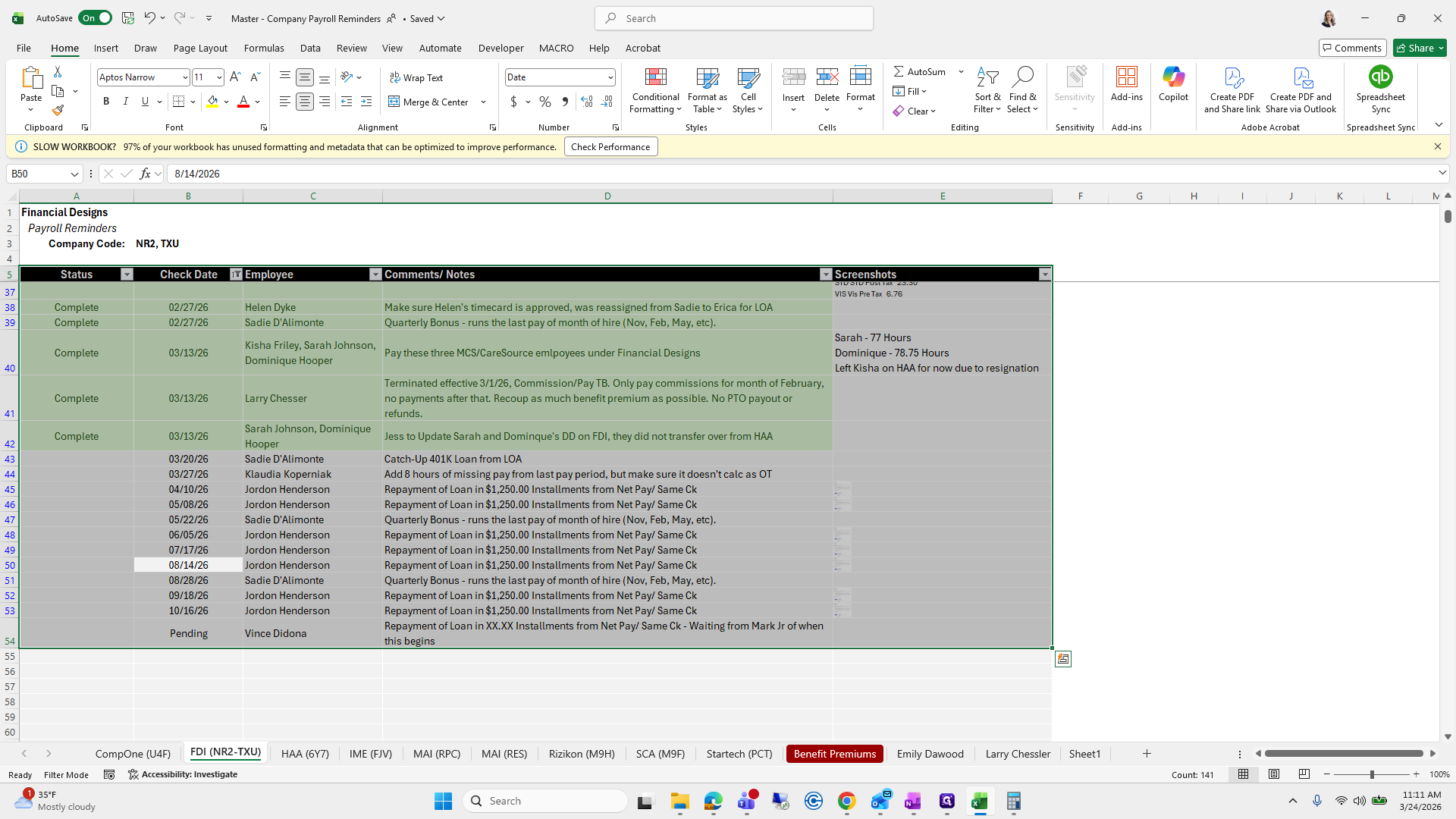
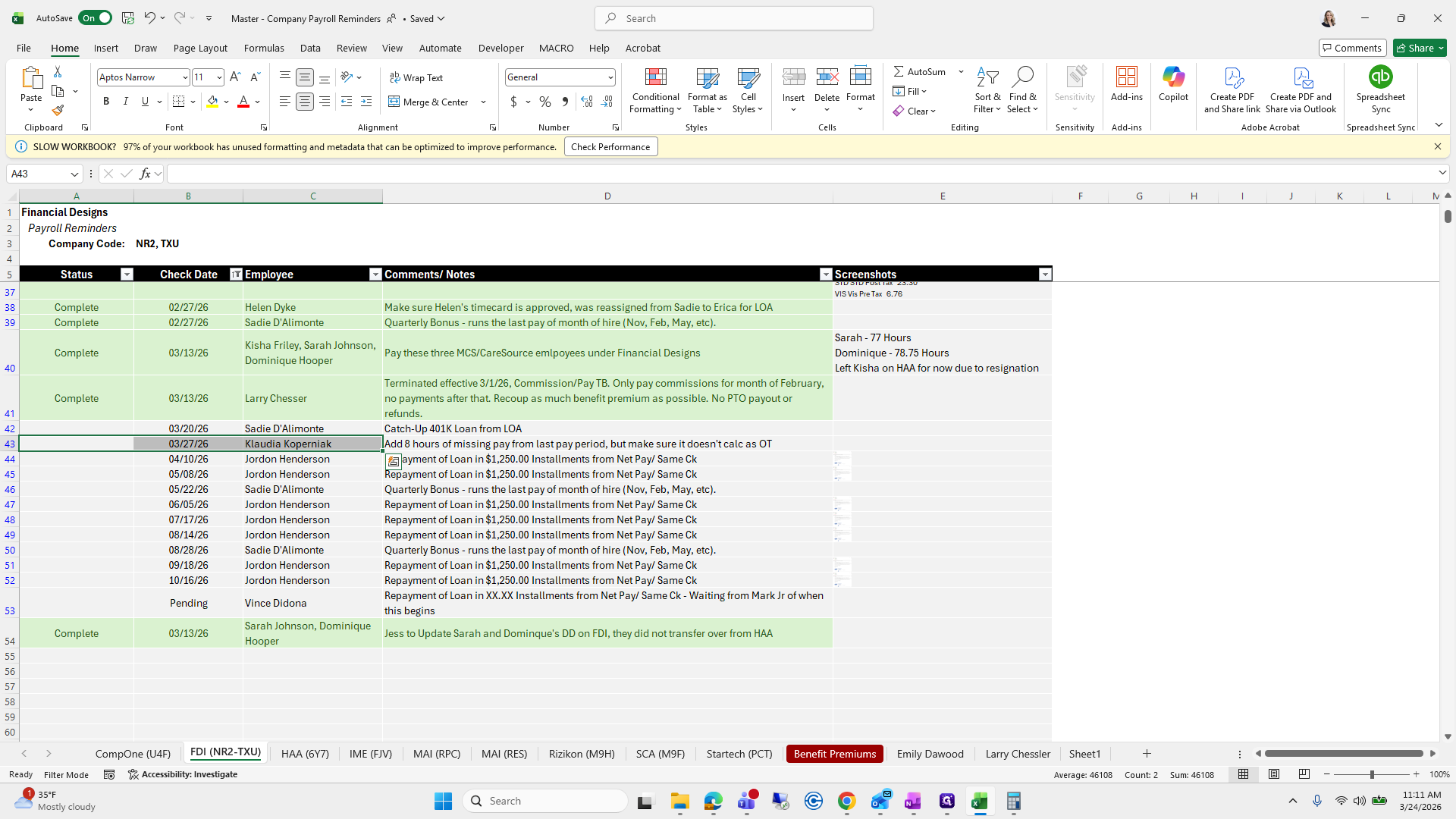
Sometimes I sort by check date to avoid missing anything.
270
Click on "Sadie D'Alimonte"
Step #270: Click on "Sadie D'Alimonte"
271
Type "Ctrl + A"
272
Right-click on "Klaudia Koperniak"
Step #272: Right-click on "Klaudia Koperniak"
273
Click here
Step #273: Click here
274
Click on "Custom Sort ..."
Step #274: Click on "Custom Sort ..."
275
Click on "OK"
Step #275: Click on "OK"

So 327...

276
Drag here
Step #276: Drag here

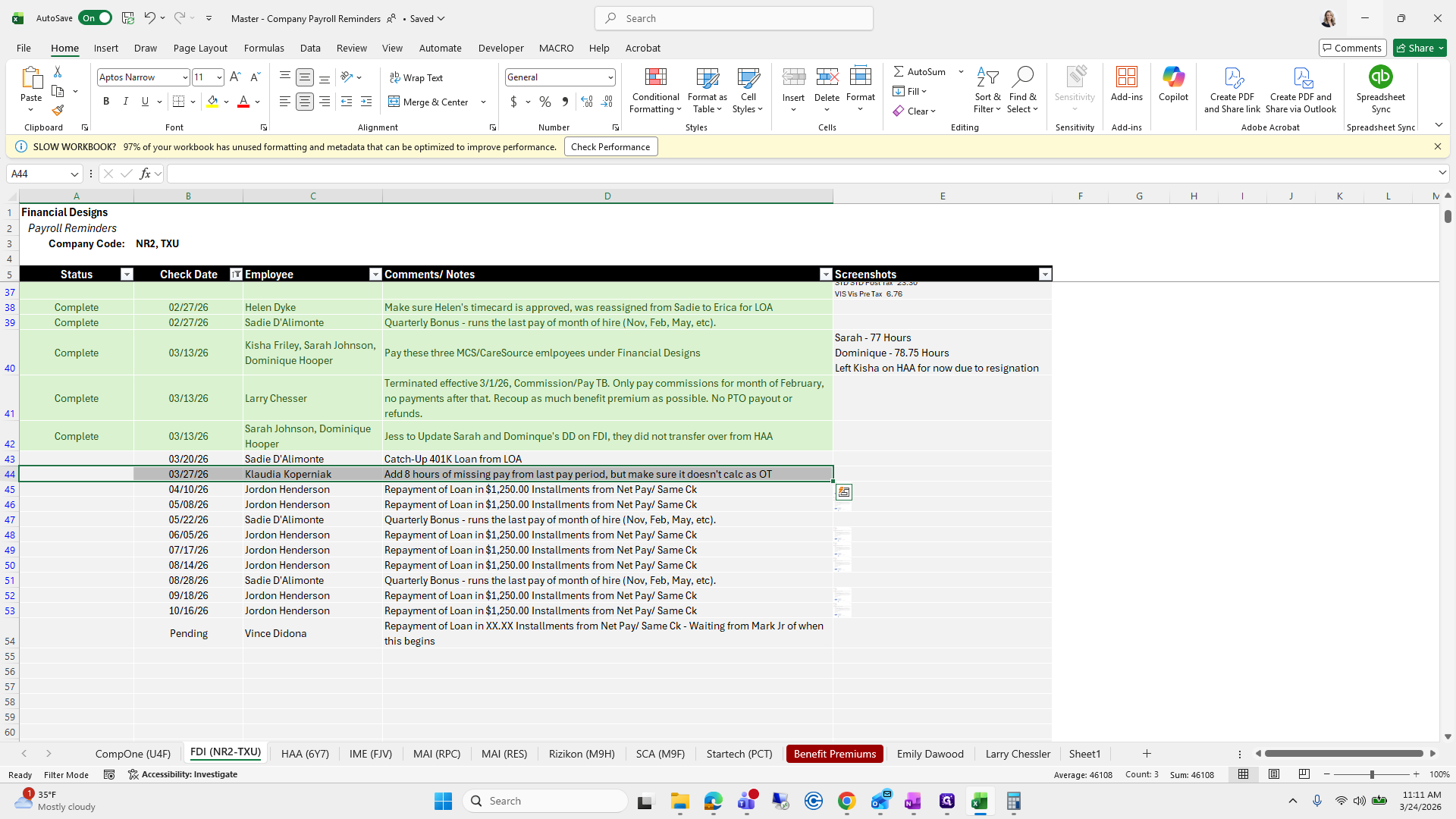
She needs to add eight hours of missing pay from the last period. We will go to Add Worksheet.
277
Click here
Step #277: Click here
278
Click on "Add worksheet + Add time / time off worksheet"
Step #278: Click on "Add worksheet + Add time / time off worksheet"

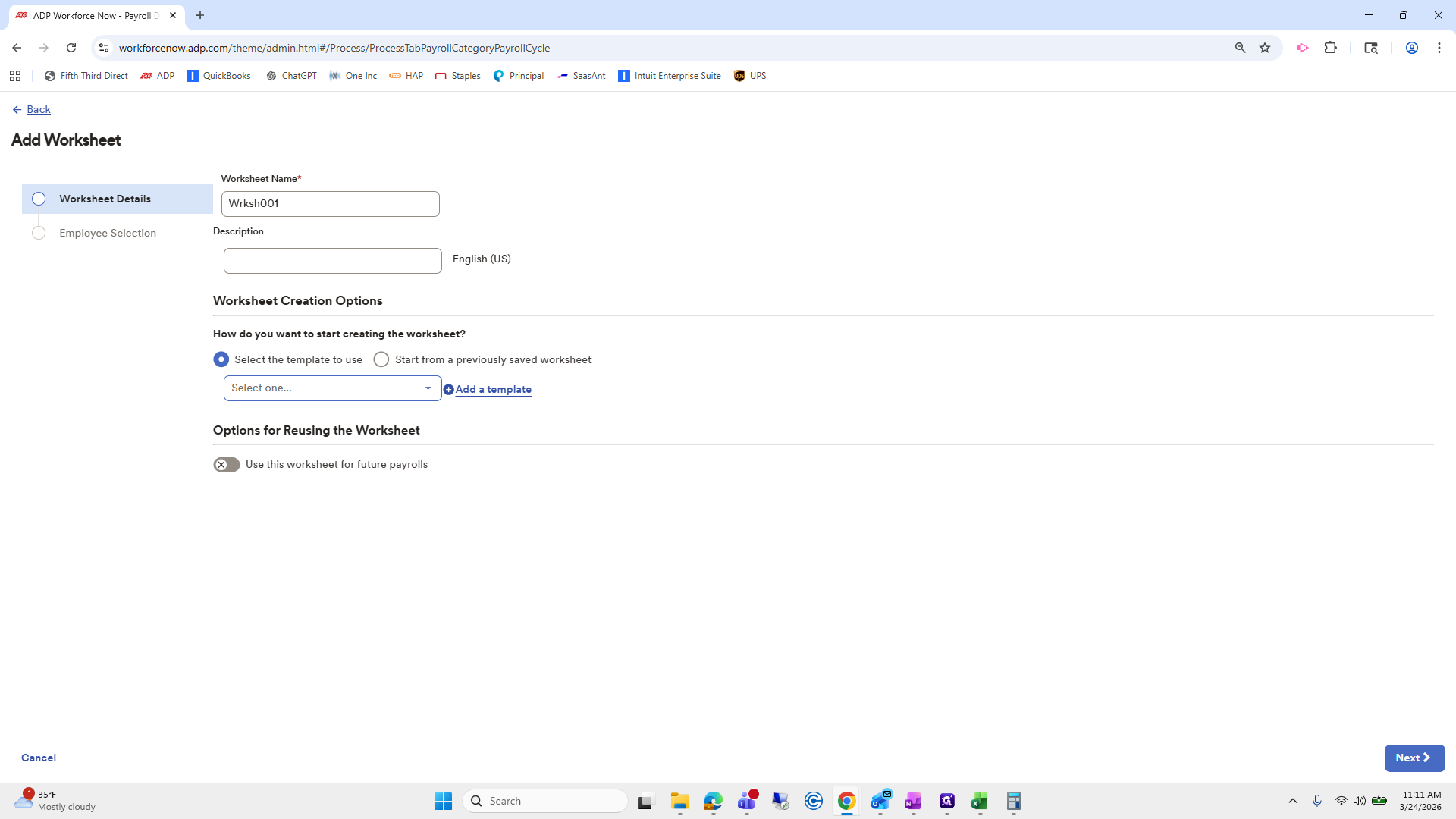
Let's see if there are additional hours.
279
Click on "Select one"
Step #279: Click on "Select one"

Missed hours, that works.

280
Click here
Step #280: Click here
281
Drag here
Step #281: Drag here

Click Next.

282
Double-click here
Step #282: Double-click here
283
Type "Missed Hours"
284
Click on "Next >"
Step #284: Click on "Next >"
285
Click on "Next >"
Step #285: Click on "Next >"

Choose Claudia.

286
Click on "Search by name or posi ..."
Step #286: Click on "Search by name or posi ..."

Submit.

287
Type "kla"
288
Click here
Step #288: Click here
289
Click on "Submit"
Step #289: Click on "Submit"

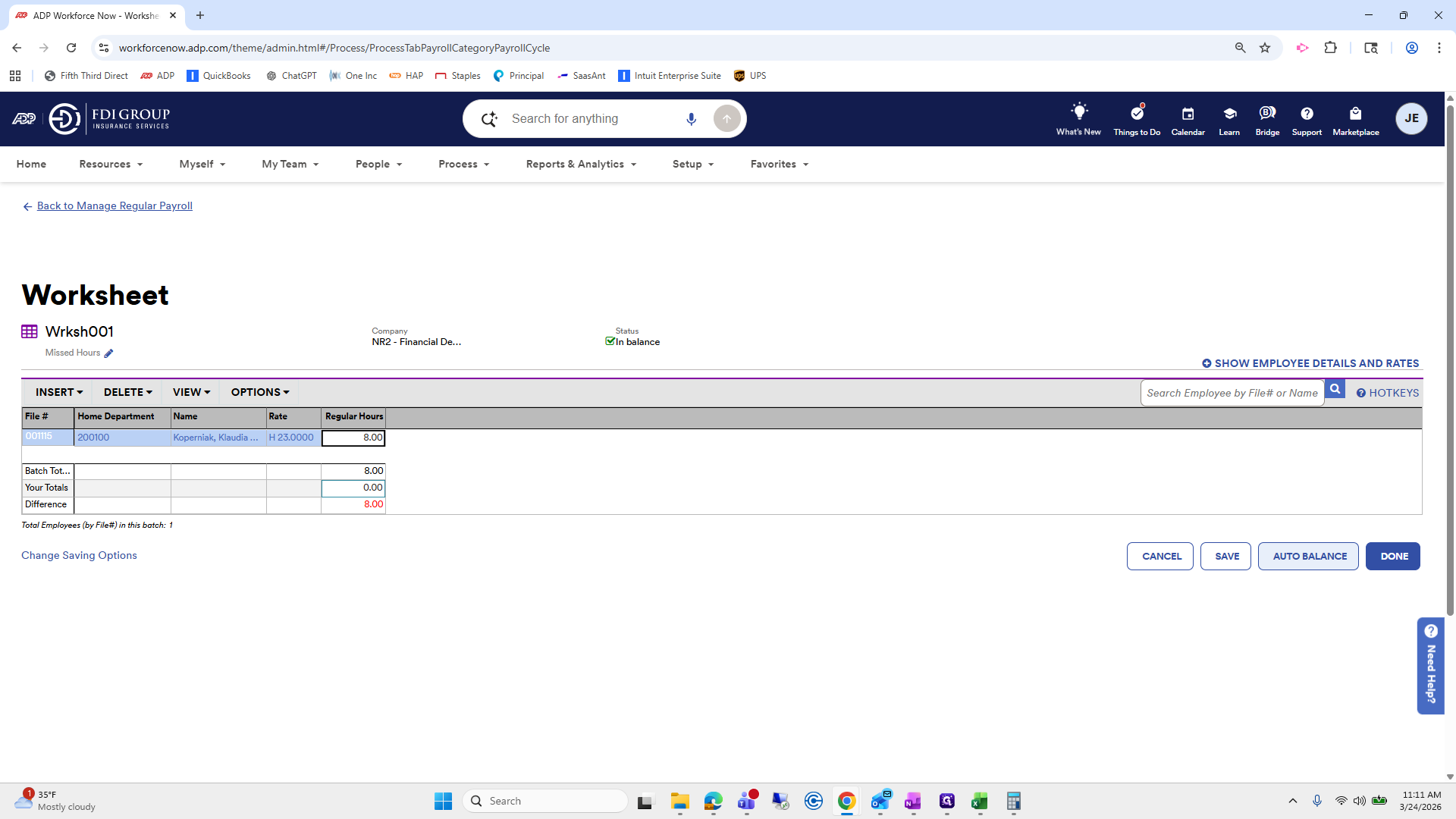
Add eight hours, auto balance, and done.
290
Type "8 + Tab"
291
Click on "AUTO BALANCE"
Step #291: Click on "AUTO BALANCE"
292
Click on "DONE"
Step #292: Click on "DONE"

I will highlight it in yellow again.
293
Click here
Step #293: Click here
294
Drag here
Step #294: Drag here
295
Drag "doesn't calc as OT"
Step #295: Drag "doesn't calc as OT"

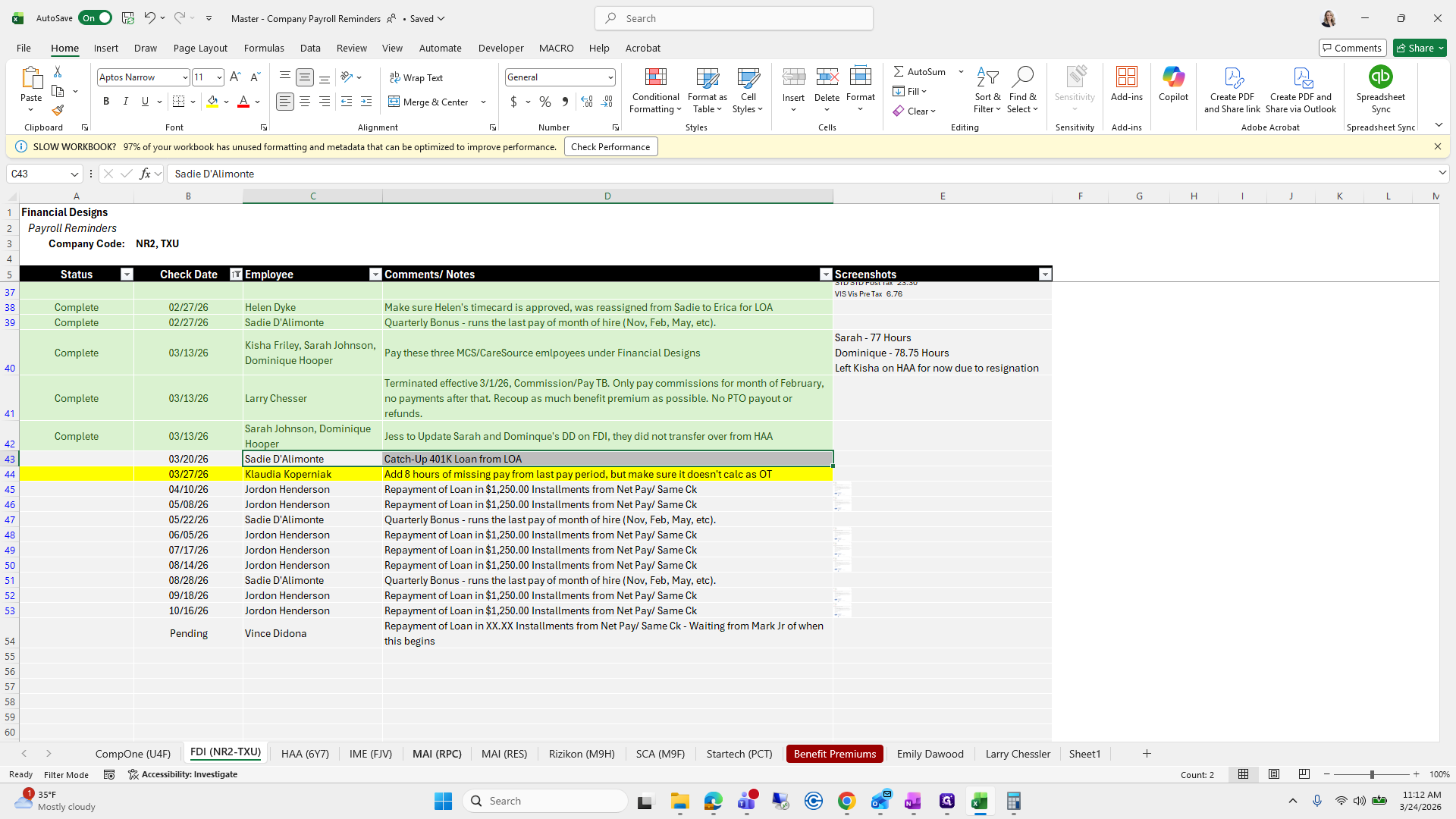
I don't recall doing a 401 loan catch-up for the last one, so I will reach out to Erica.
296
Click on "~ A ~"
Step #296: Click on "~ A ~"
297
Drag "- Up 401K Loan from LOA"
Step #297: Drag "- Up 401K Loan from LOA"

I'll reach out to her via Teams or comments to see what this looks like.
298
Drag "Sadie D'Alimonte"
Step #298: Drag "Sadie D'Alimonte"

I will do that on the side. Now, let's move on to the next one. We completed all of them except manageability.
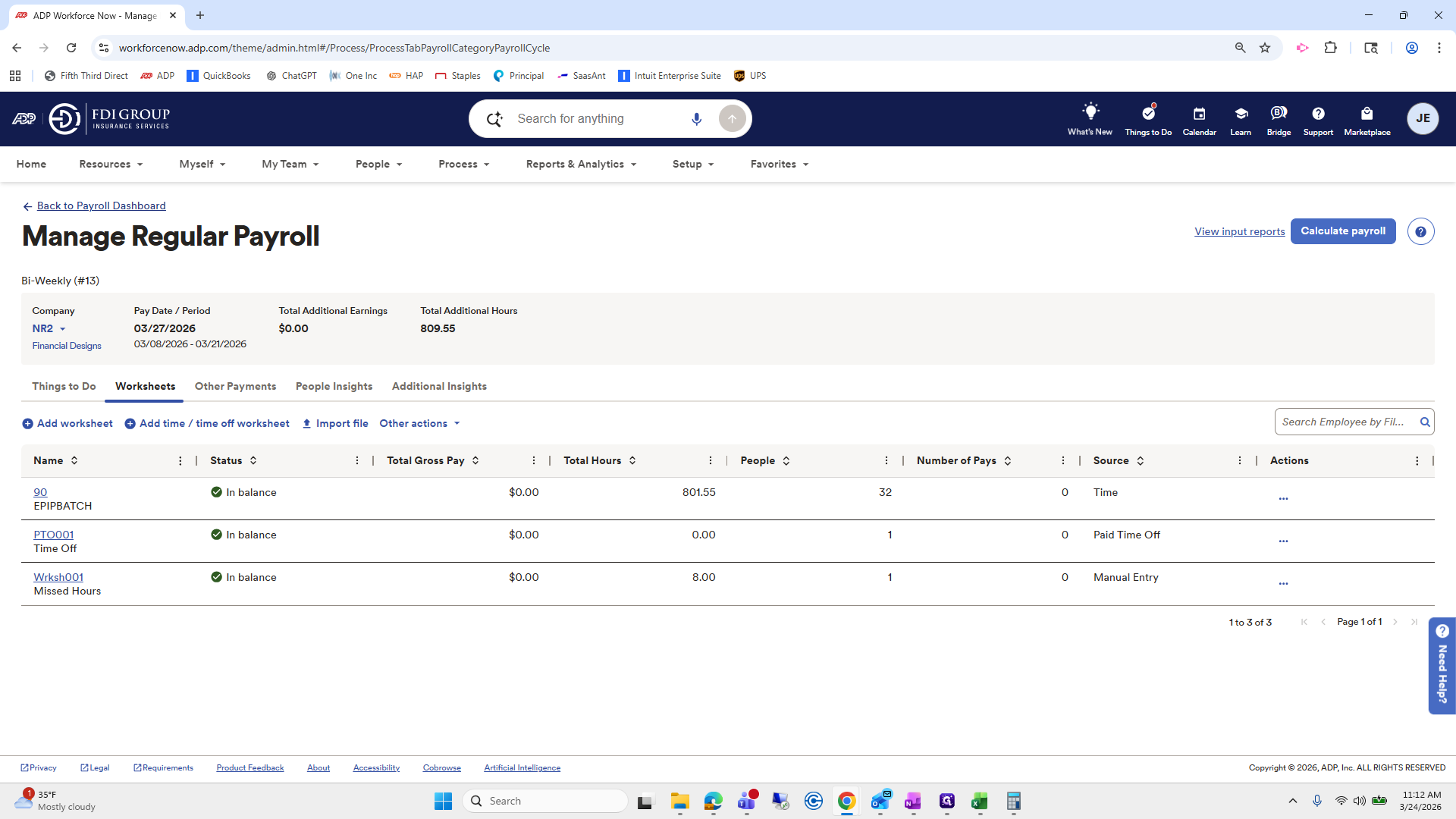
299
Click here
Step #299: Click here
300
Click on "Back to Payroll Dashboard"
Step #300: Click on "Back to Payroll Dashboard"
301
Click on "Manage payroll"
Step #301: Click on "Manage payroll"
302
Click here
Step #302: Click here
303
Click on "MAI ( RPC )"
Step #303: Click on "MAI ( RPC )"

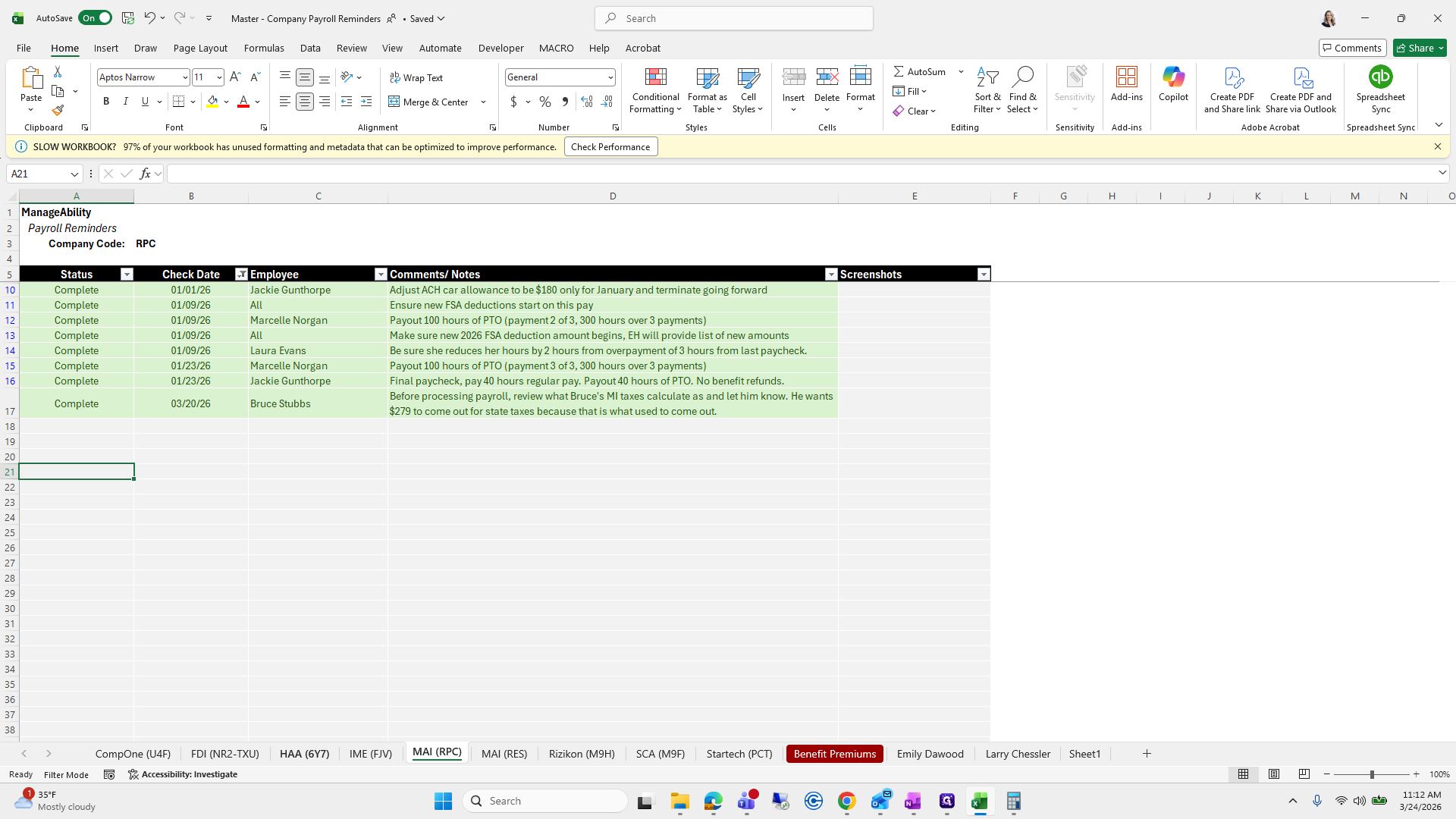
Where are...

304
Click on "MAI"
Step #304: Click on "MAI"

yes. Nothing for four.

305
Drag here
Step #305: Drag here

That looks good.

306
Click on "MAI ( RPC )"
Step #306: Click on "MAI ( RPC )"
307
Click here
Step #307: Click here

Let's look at Health Alliance.

308
Click on "← Back to Payroll Dashboard"
Step #308: Click on "← Back to Payroll Dashboard"
309
Click on "Manage payroll"
Step #309: Click on "Manage payroll"

Manage payroll. Review HAA. Take action as needed.
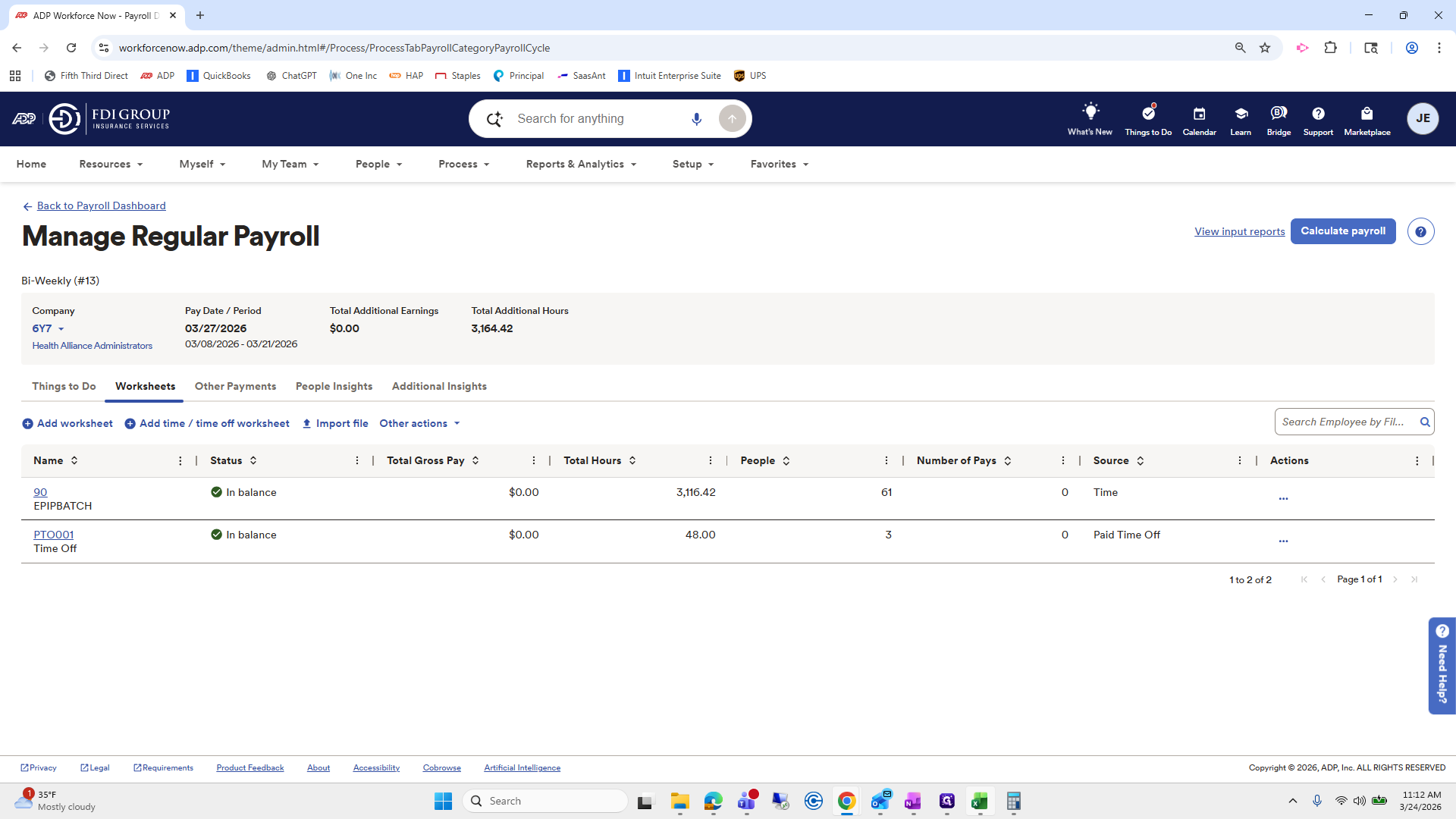
310
Click here
Step #310: Click here
311
Click on "HAA ( 6Y7 )"
Step #311: Click on "HAA ( 6Y7 )"

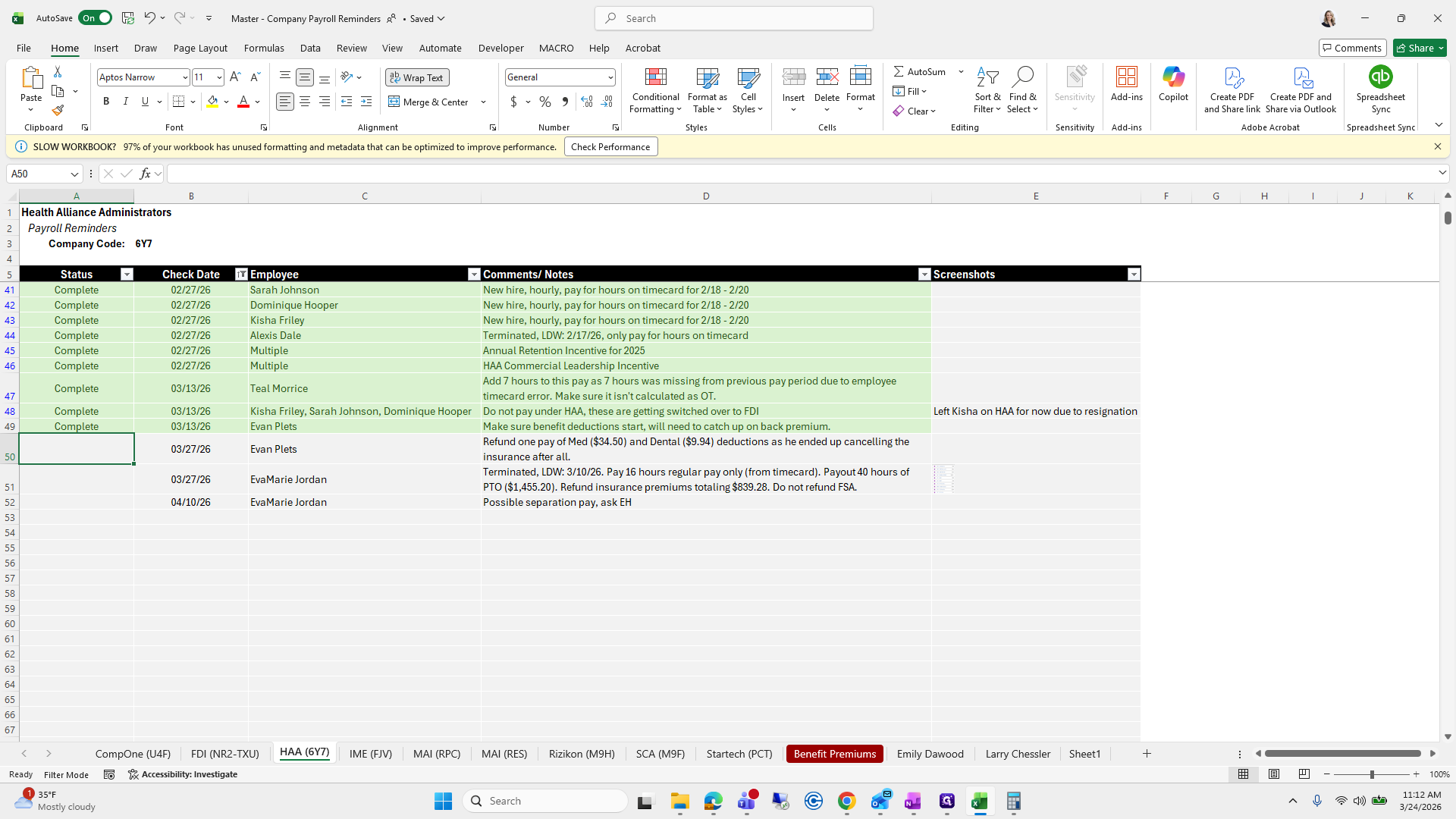
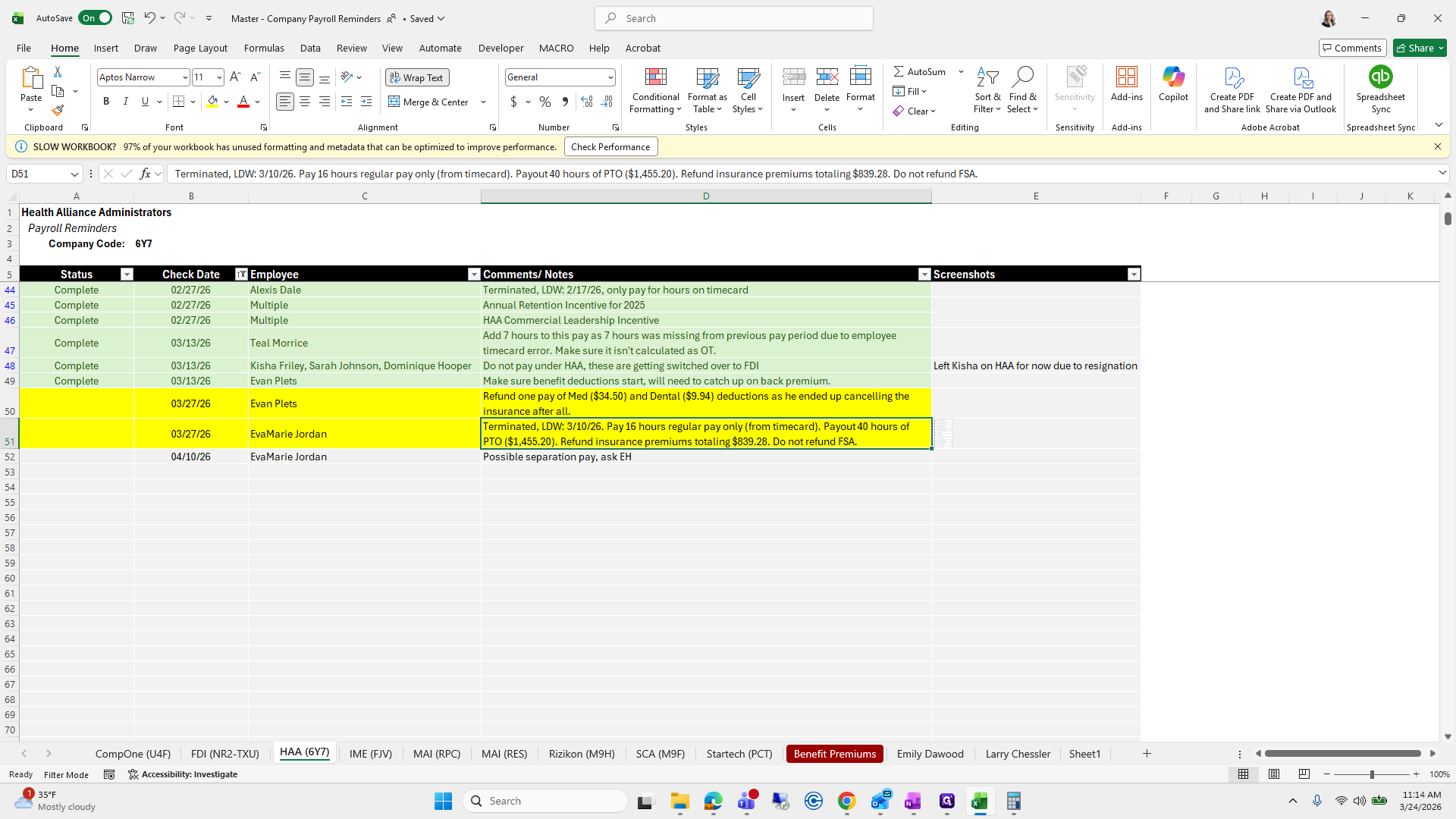
There are two here.

312
Drag here
Step #312: Drag here
313
Click on "B I U ▾ R☑"
Step #313: Click on "B I U ▾ R☑"

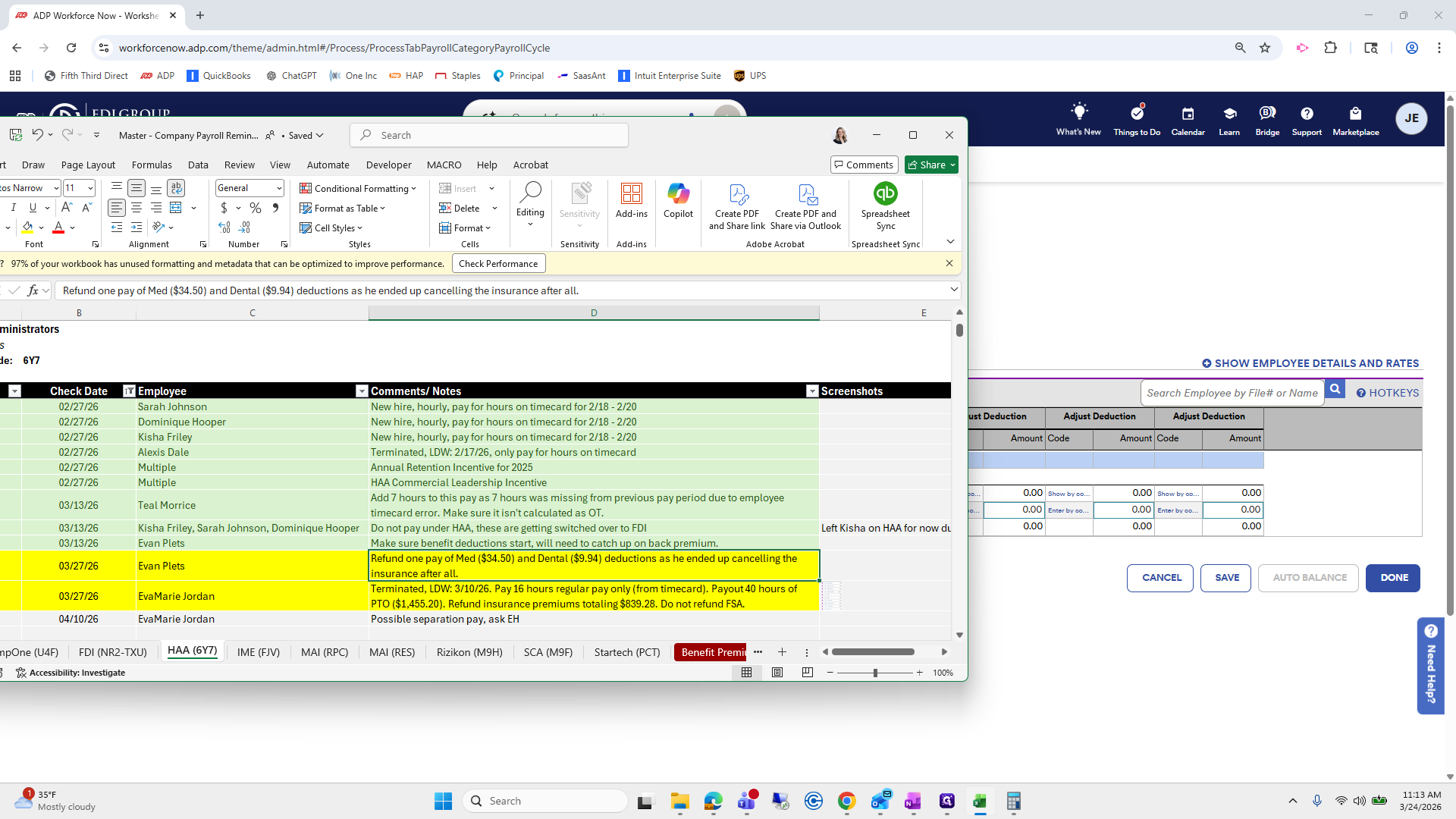
Refund a single payment of medical and dental deductions.
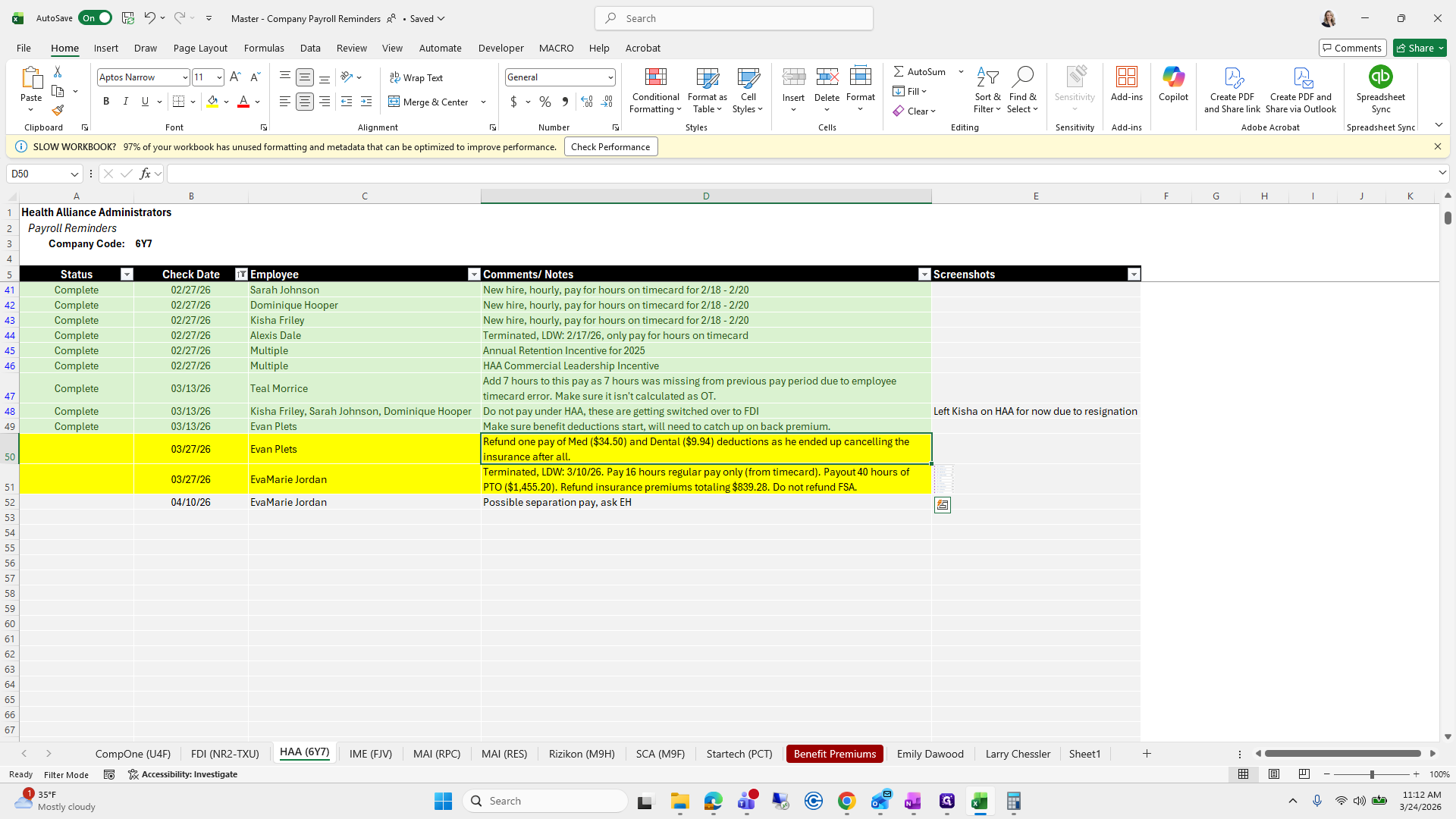
314
Click on "$ 34.50"
Step #314: Click on "$ 34.50"

We will go to Add Worksheet, then select Deduction Adjust.
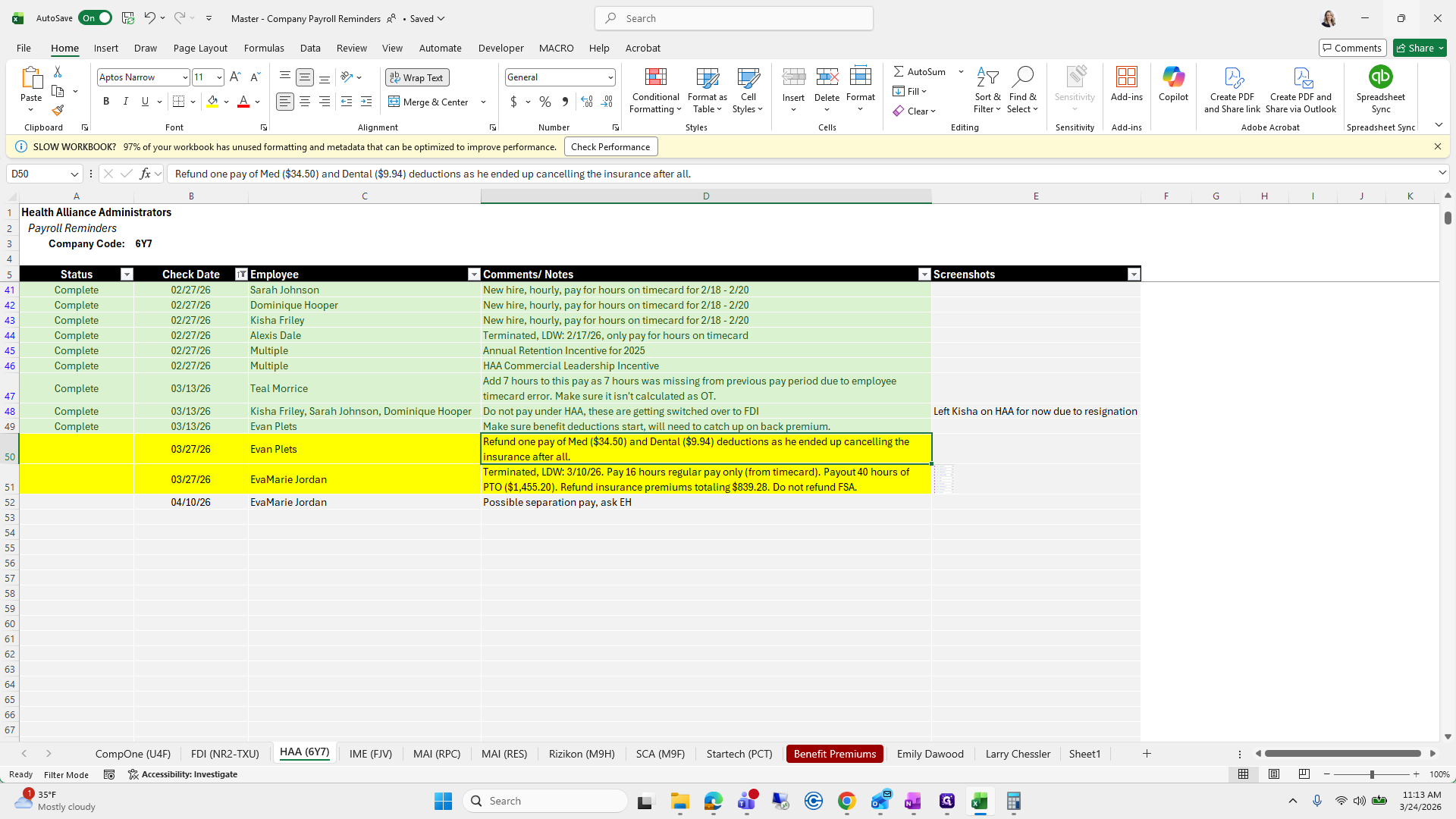
315
Click here
Step #315: Click here
316
Click here
Step #316: Click here
317
Click on "Add worksheet + Add time / time off worksheet"
Step #317: Click on "Add worksheet + Add time / time off worksheet"
318
Click on "..."
Step #318: Click on "..."
319
Click on "Deduction - Adjust"
Step #319: Click on "Deduction - Adjust"
320
Drag here
Step #320: Drag here

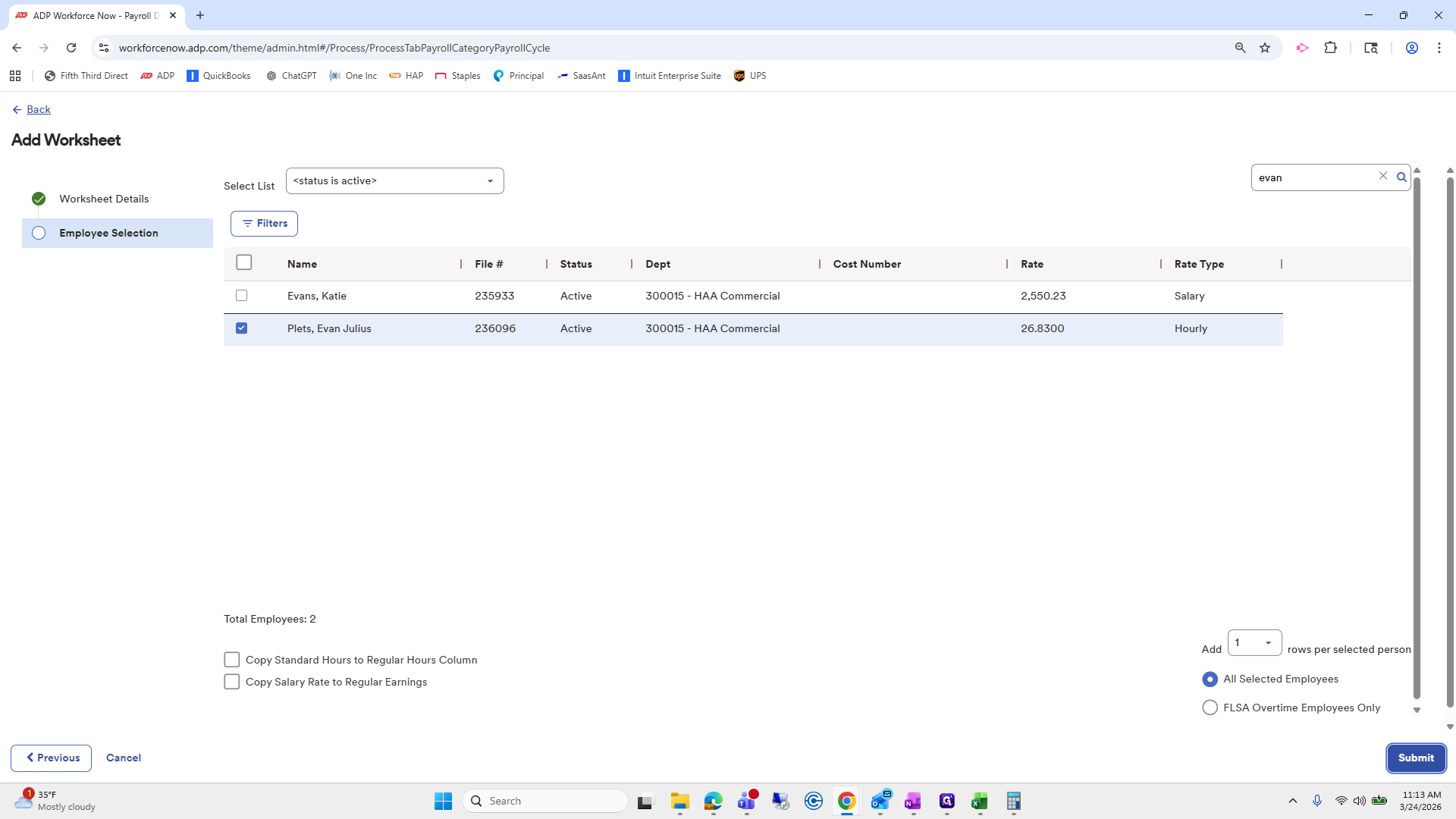
Next, we'll look up Evan.

321
Type "Ctrl + C"
322
Click here
Step #322: Click here
323
Type "Ctrl + V"
324
Drag here
Step #324: Drag here
325
Click on "Next >"
Step #325: Click on "Next >"
326
Click on "Search by name or posi ..."
Step #326: Click on "Search by name or posi ..."

Click his name, submit, and select medical and dental.
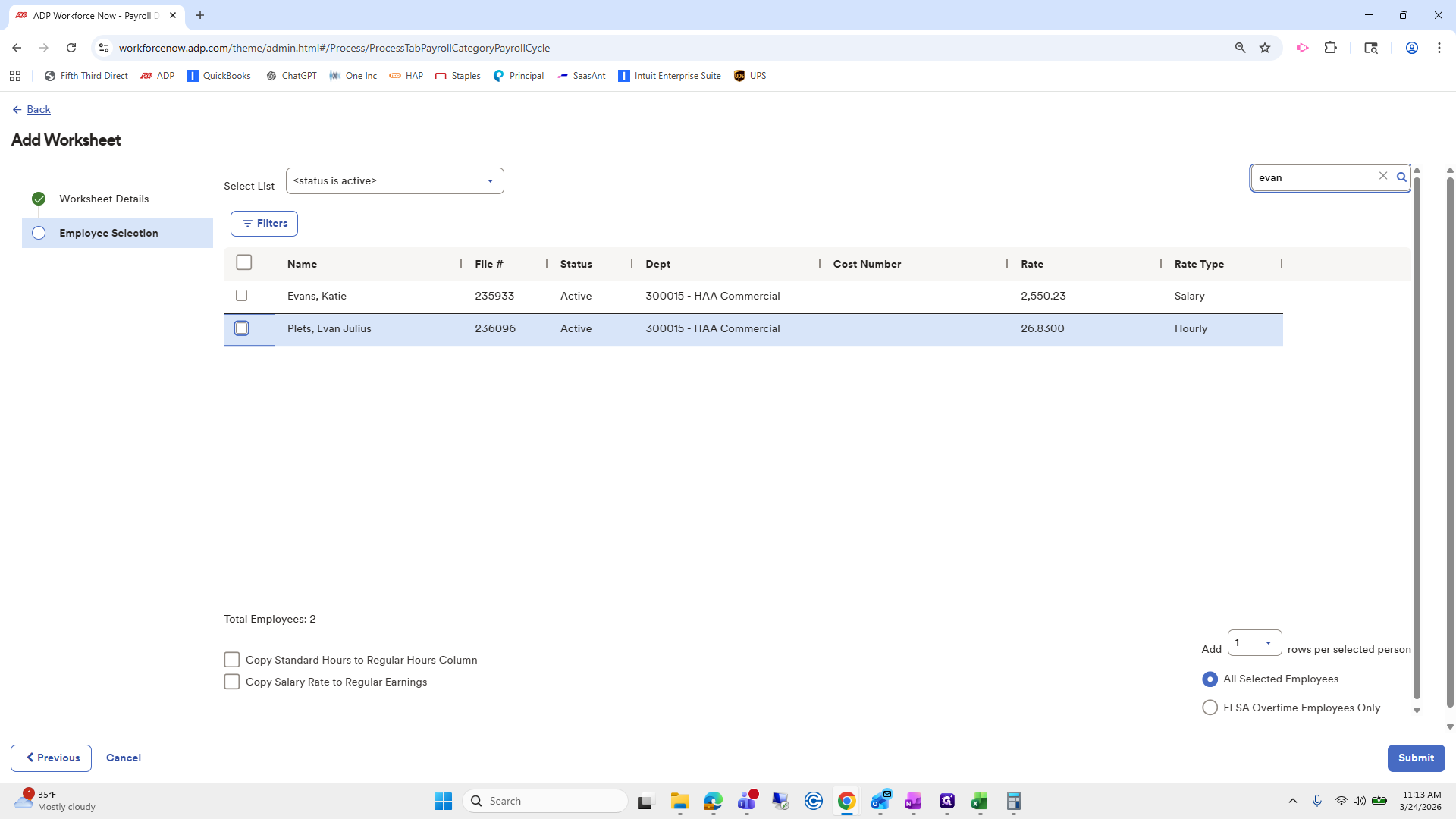
327
Type "evan"
328
Click here
Step #328: Click here
329
Click on "Submit"
Step #329: Click on "Submit"
330
Click here
Step #330: Click here
331
Click here
Step #331: Click here

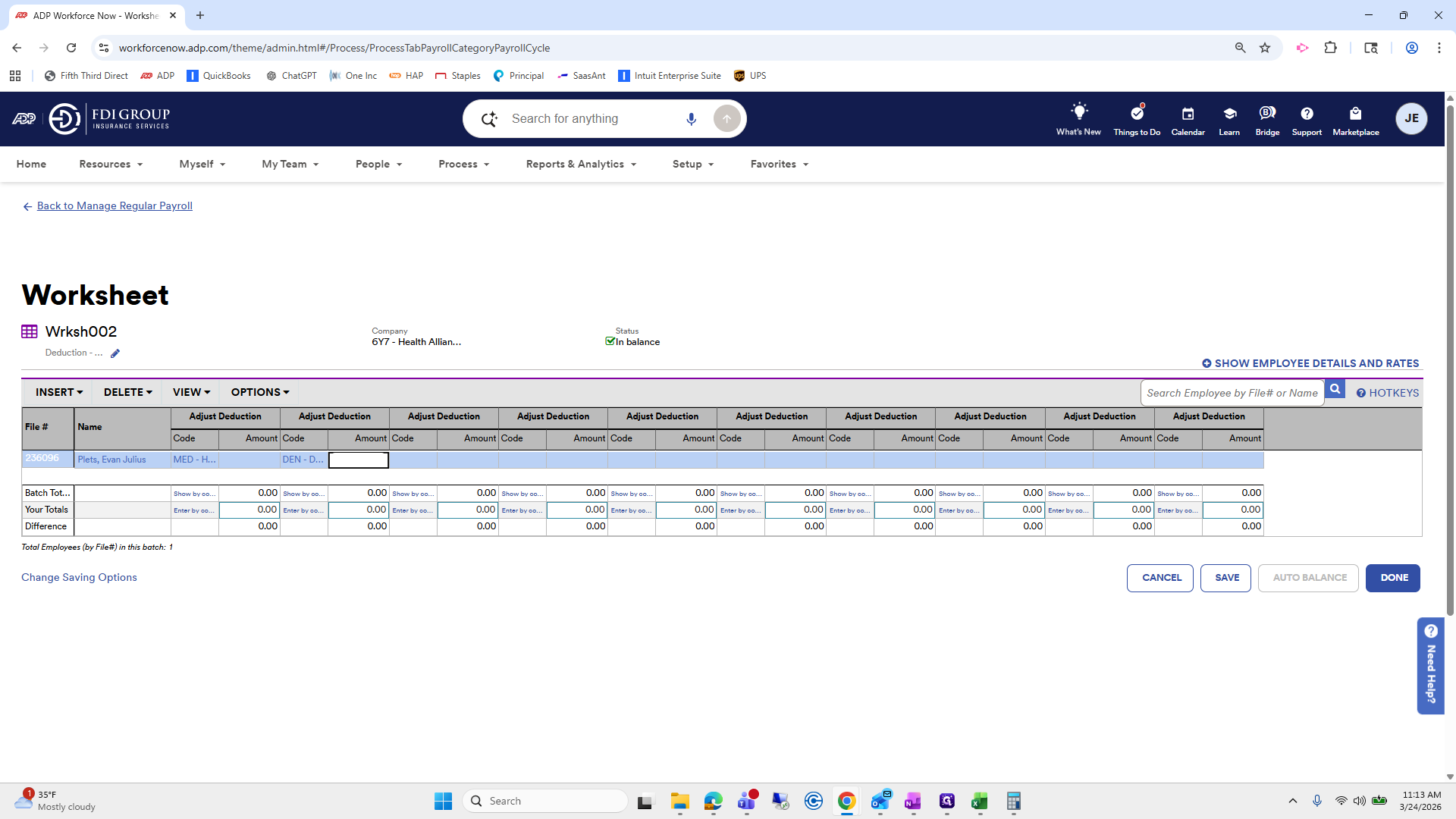
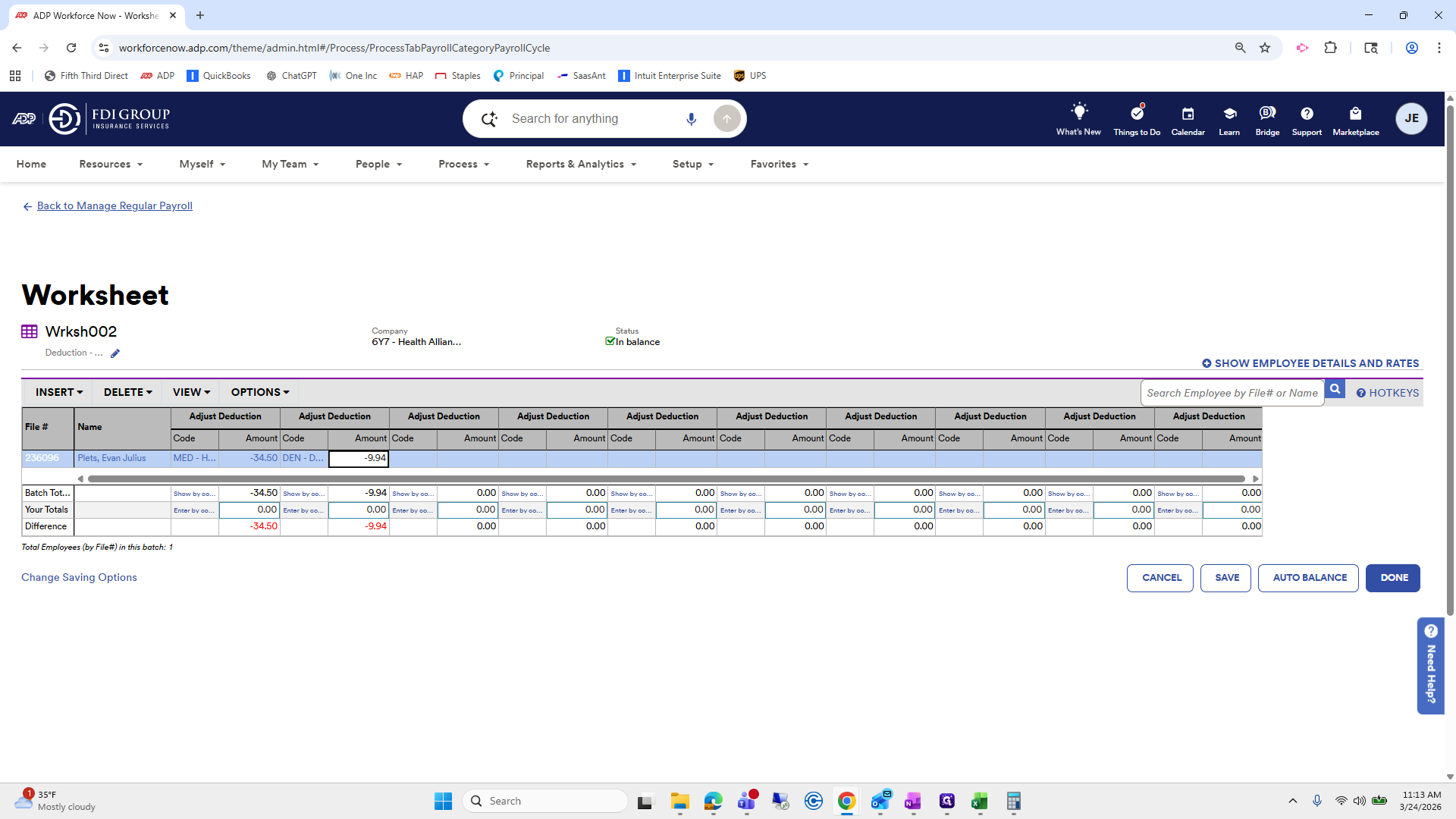
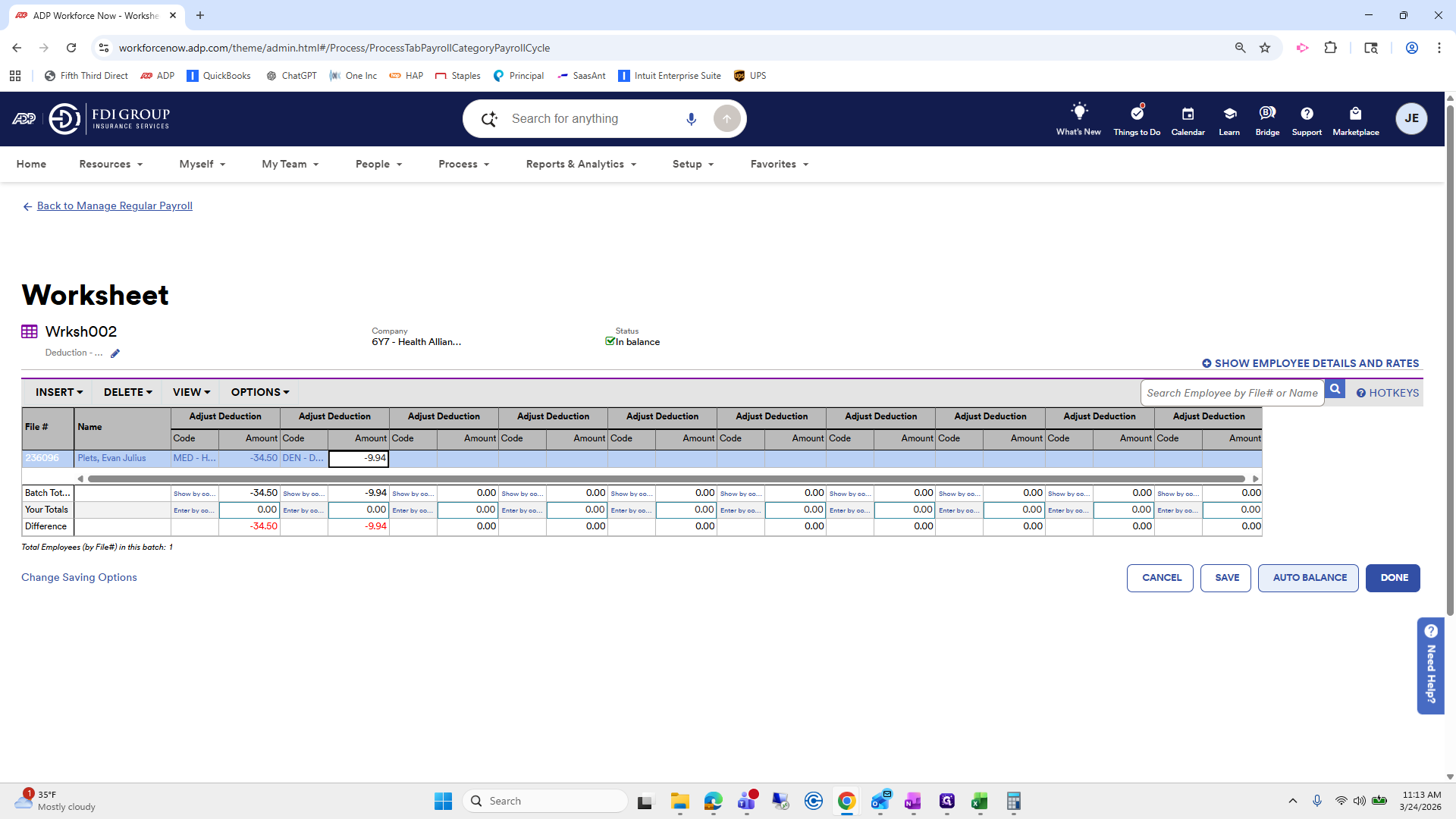
Medical and dental. Medical was $34.50, and dental was $9.94.
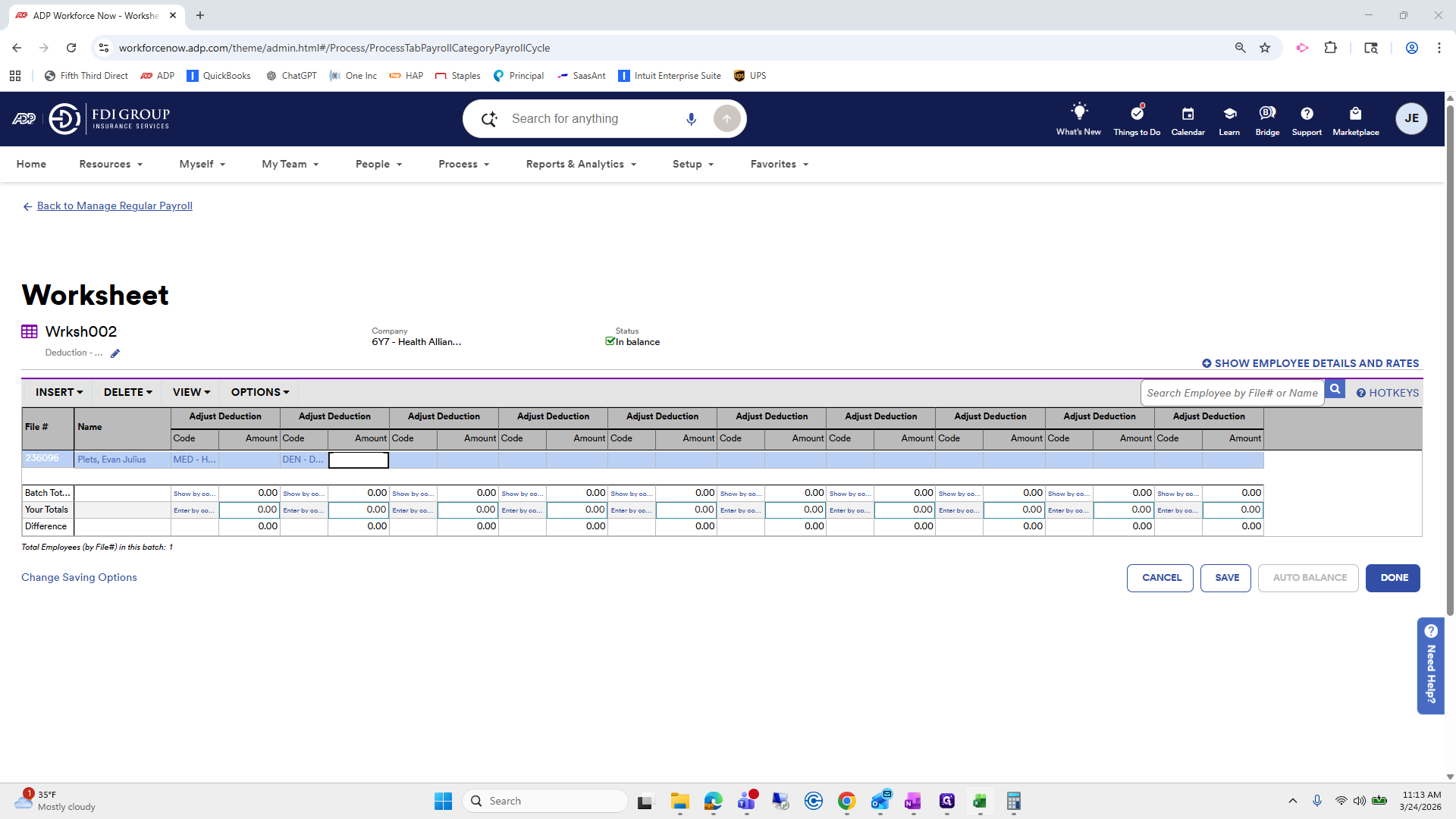
332
Type "med + Tab + Tabden + Tab"
333
Click here
Step #333: Click here
334
Click here
Step #334: Click here
335
Click here
Step #335: Click here

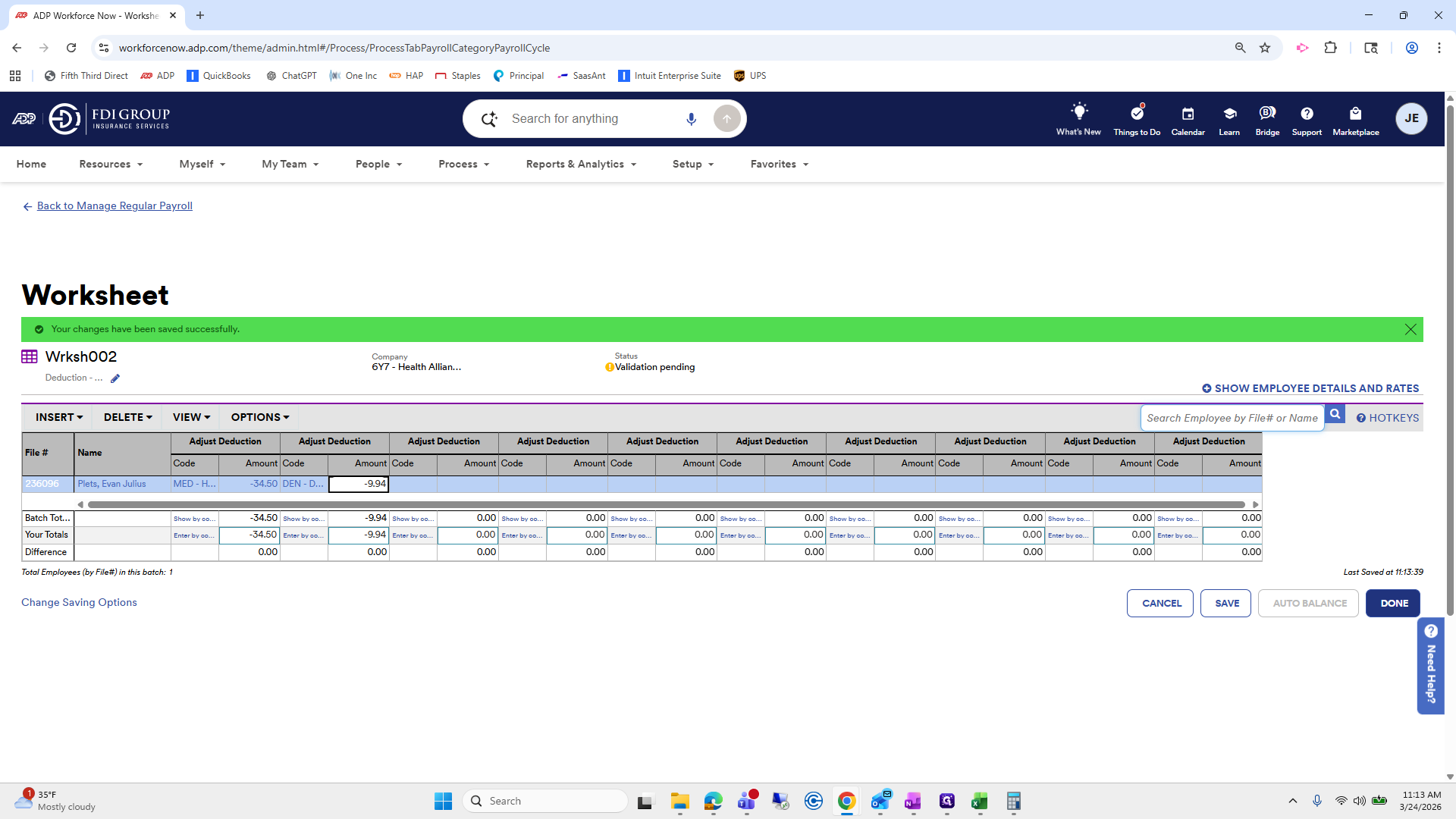
I will press auto balance. Done.

336
Type "-34.5 + Tab + Tab-9.94"
337
Click here
Step #337: Click here
338
Click on "AUTO BALANCE"
Step #338: Click on "AUTO BALANCE"
339
Click on "DONE"
Step #339: Click on "DONE"

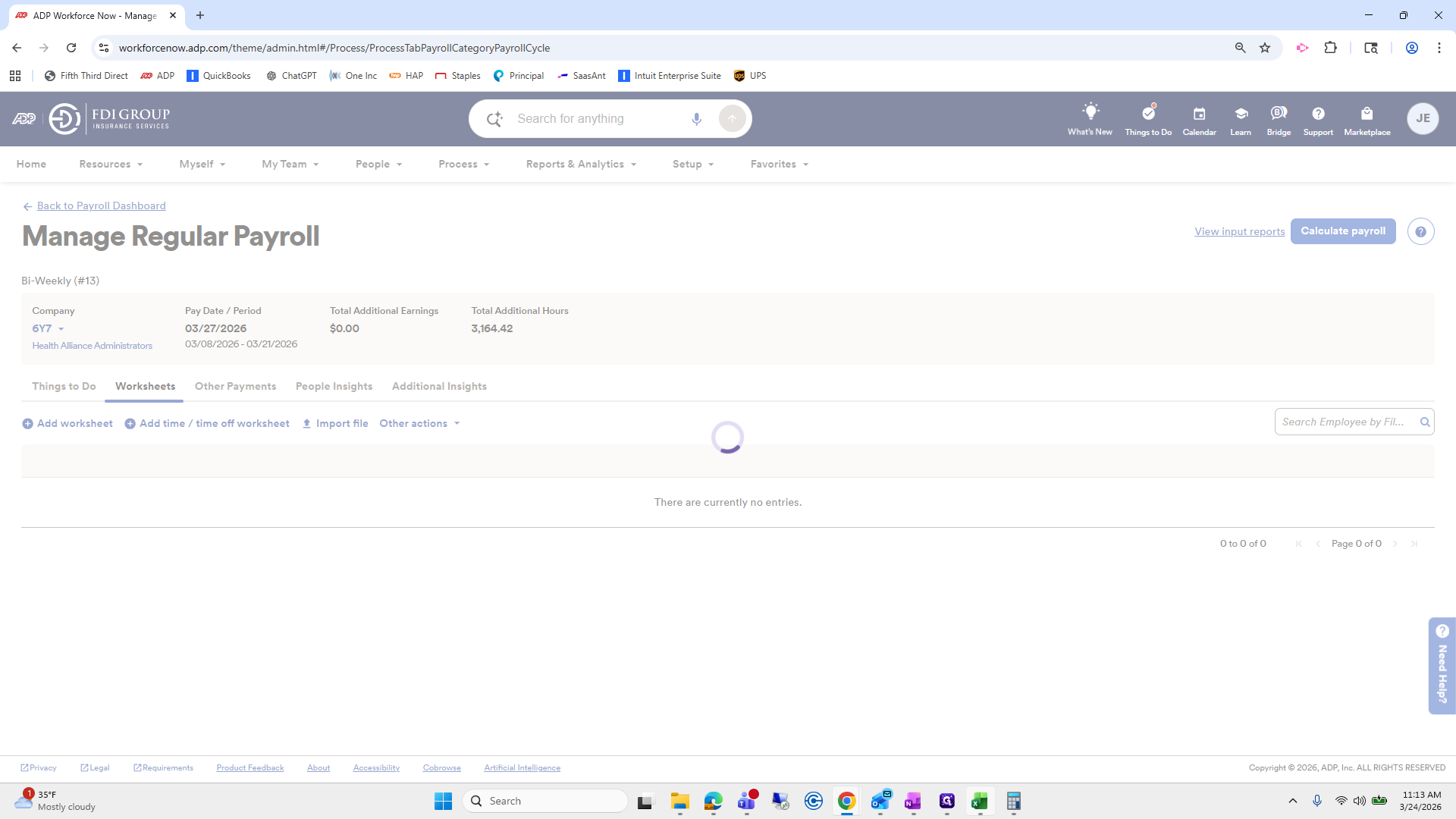
He is complete.

340
Click here
Step #340: Click here

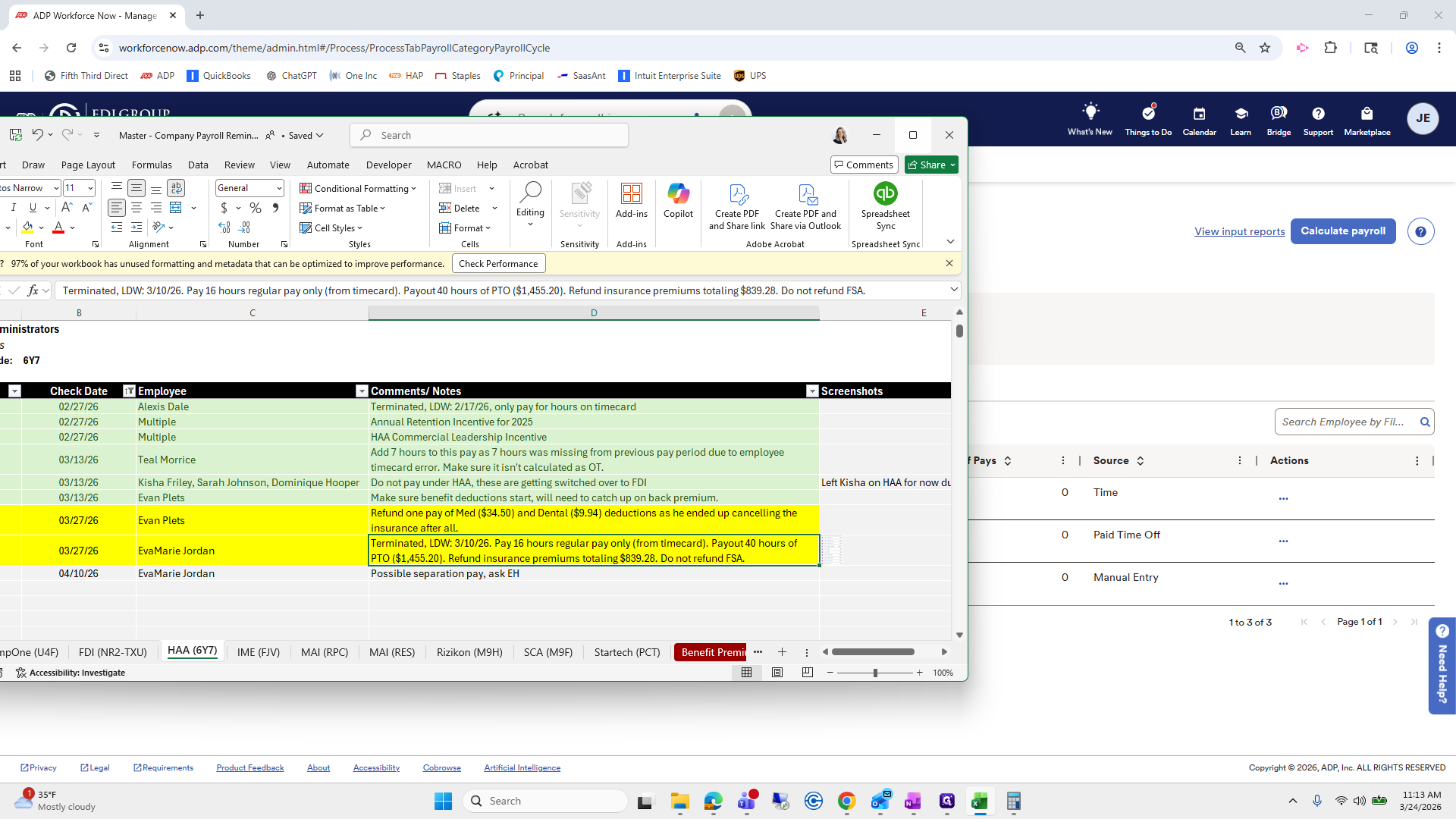
Ava Marie was terminated. We will pay her for 16 regular hours from her time card. We also need to pay out 40 hours of PTO.
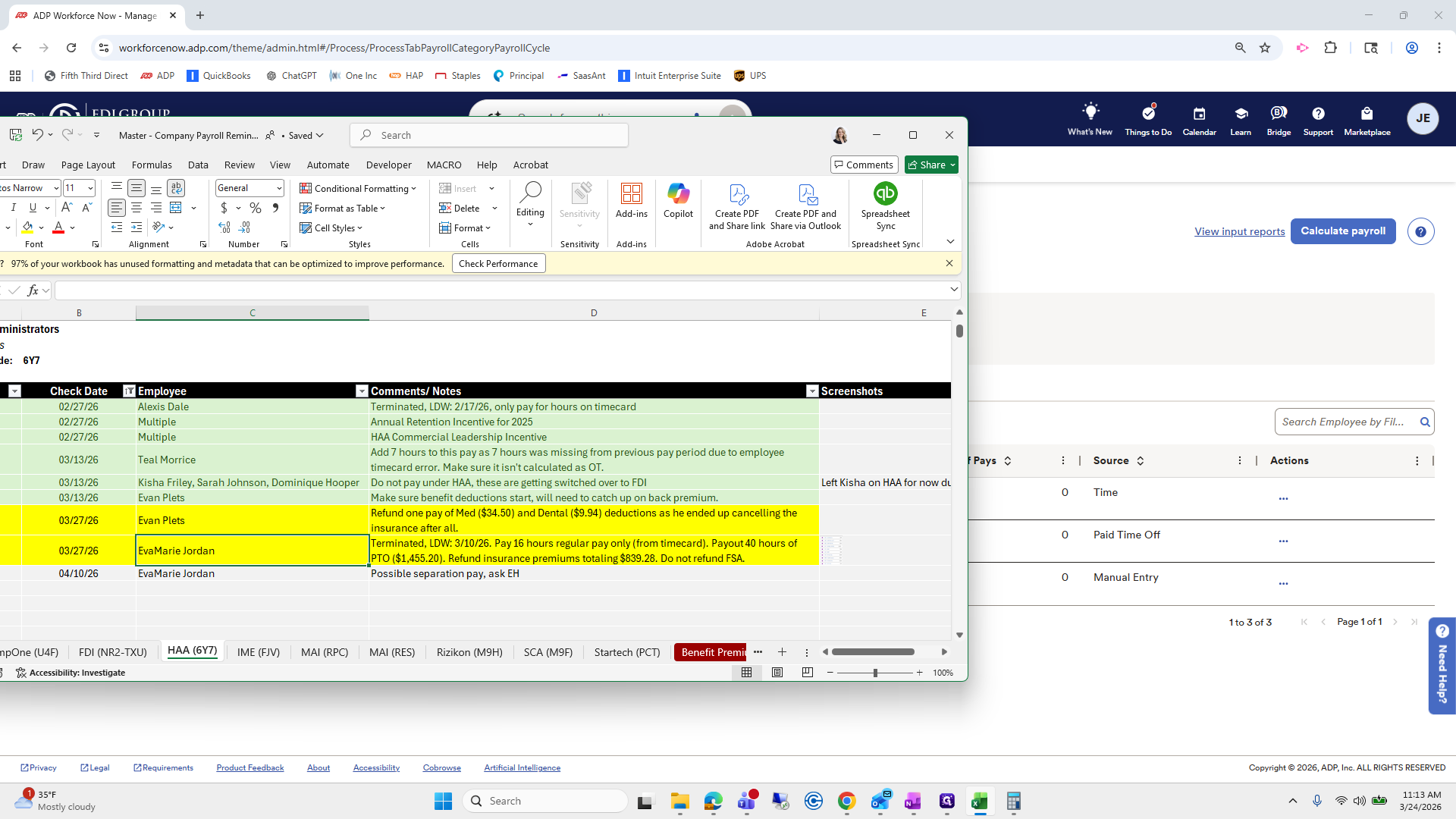
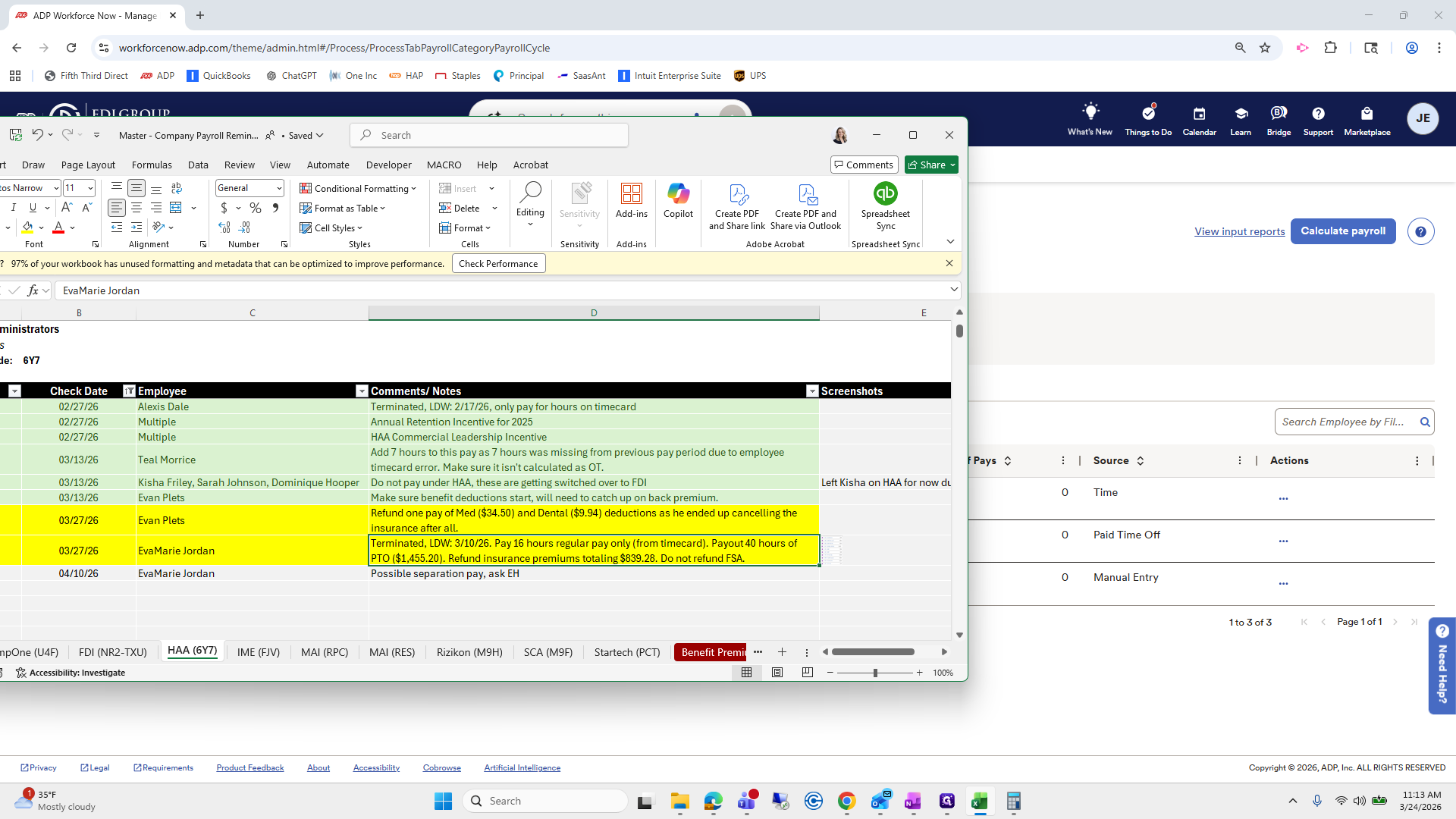
341
Click here
Step #341: Click here
342
Click on "$ 1,455.20"
Step #342: Click on "$ 1,455.20"

We will also refund her insurance premiums and ensure her FSA starts there.
343
Click on "☐"
Step #343: Click on "☐"
344
Click on "Payout 40 hours of"
Step #344: Click on "Payout 40 hours of"
345
Click here
Step #345: Click here
346
Click here
Step #346: Click here

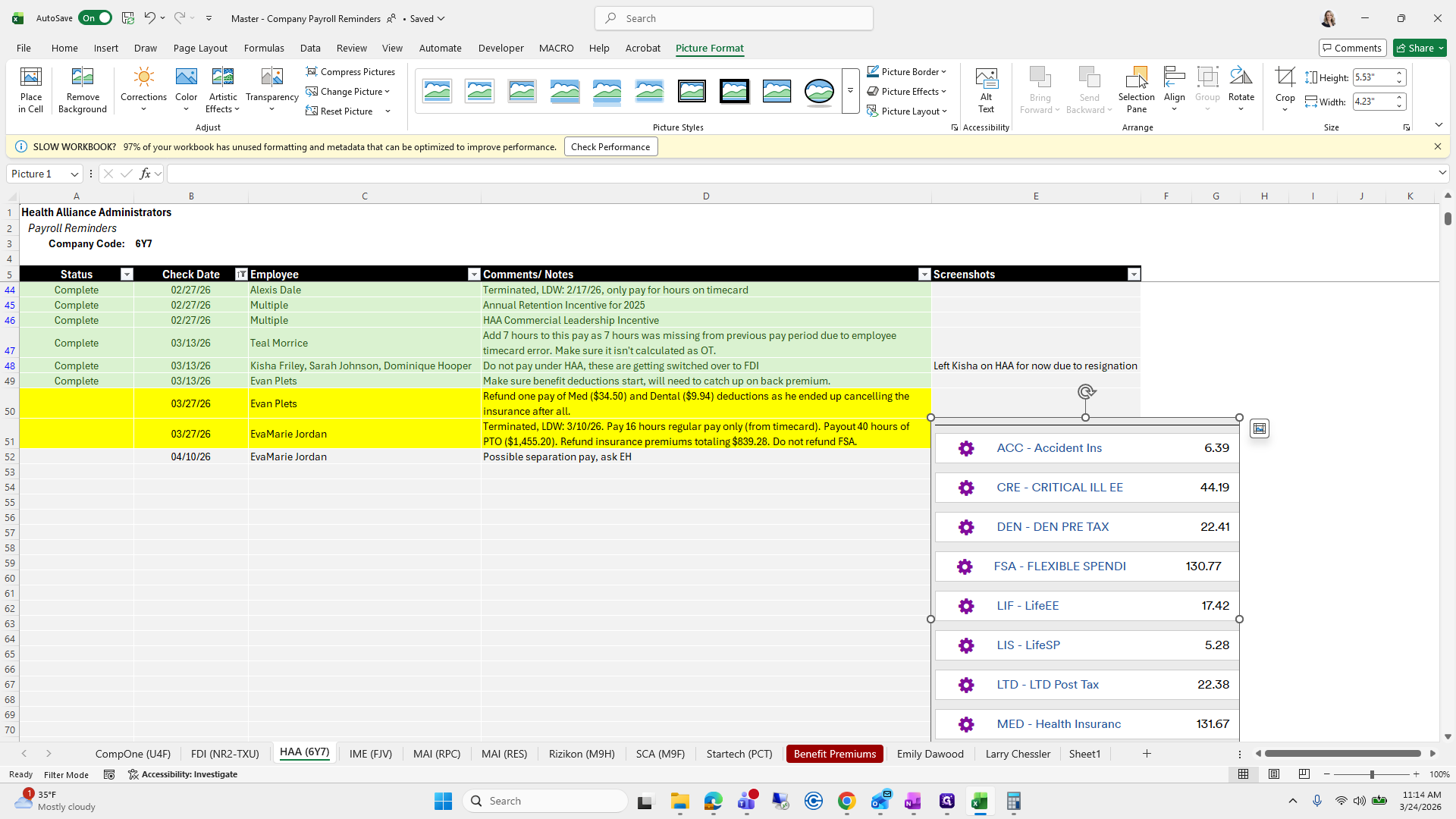
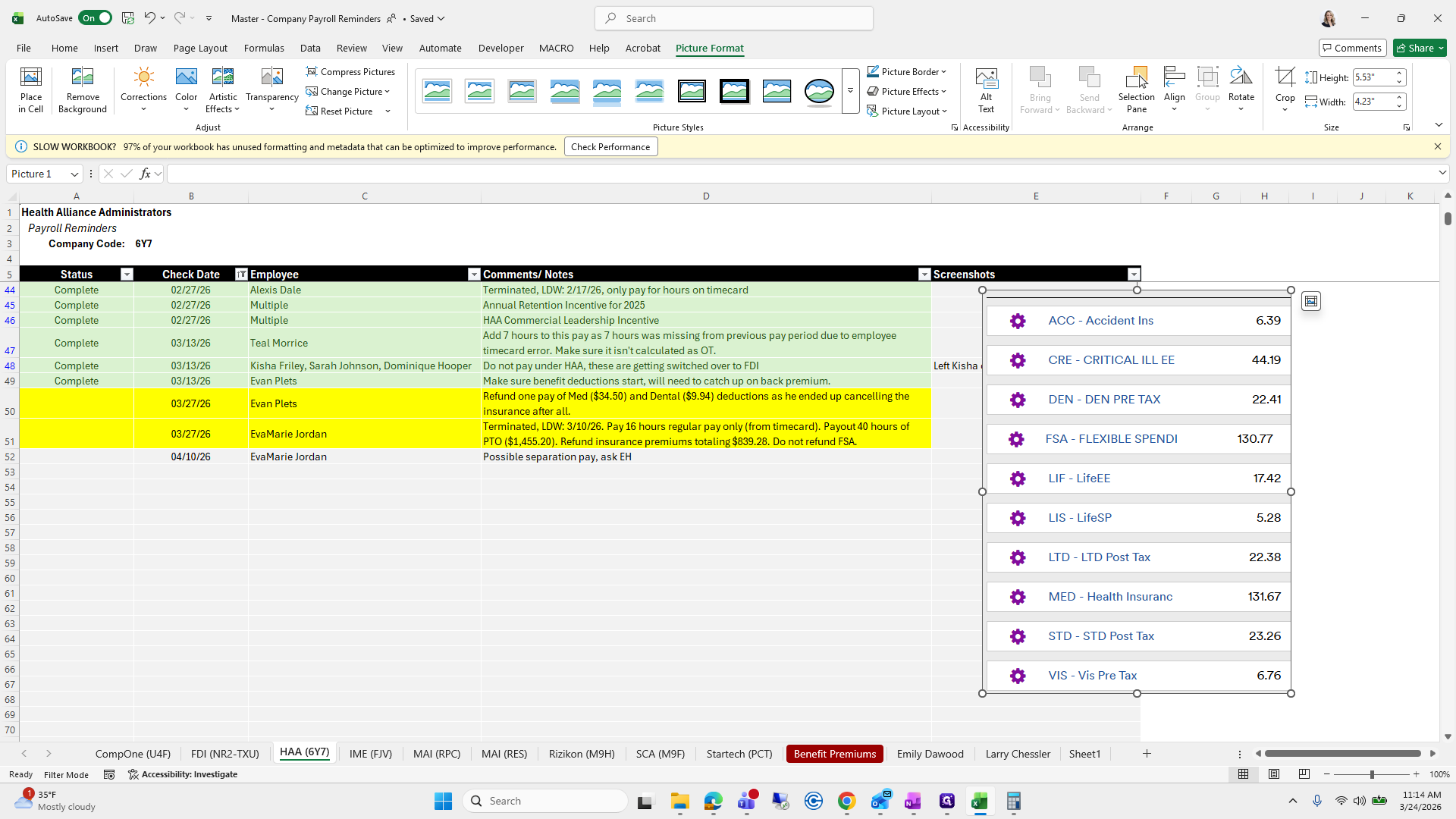
We have all her insurance premiums here.
347
Drag here
Step #347: Drag here

I'm running out of time, so we'll cover that and the next step in the following video.
348
Drag "DEN - DEN PRE TAX"
Step #348: Drag "DEN - DEN PRE TAX"
349
Click here
Step #349: Click here

SOP: Payroll Step 3