SOP: Payroll Step 6
Learn how to process payroll efficiently, including handling commissions, adjusting deductions, and managing PTO payouts. This guide walks you through common payroll scenarios, troubleshooting, and best practices for accurate payroll management.
In this guide, we'll learn how to review and process payroll, including handling commissions, adjusting deductions, and troubleshooting common issues that may arise during payroll calculation. We will also cover how to verify pay details for each employee and ensure all changes are accurately reflected before final approval.
This process helps maintain accurate payroll records and ensures employees are paid correctly for each pay period.
Let's get started
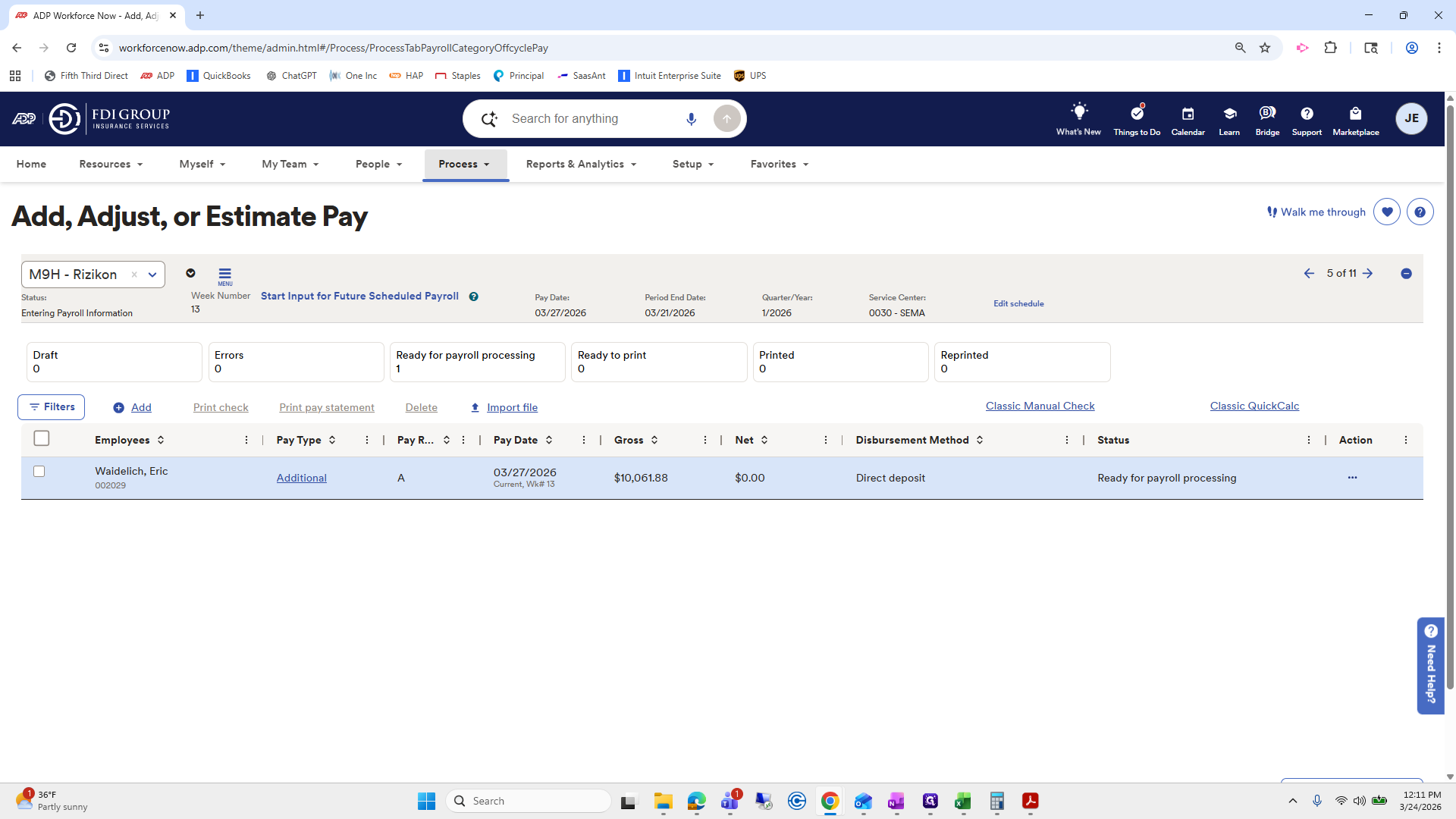
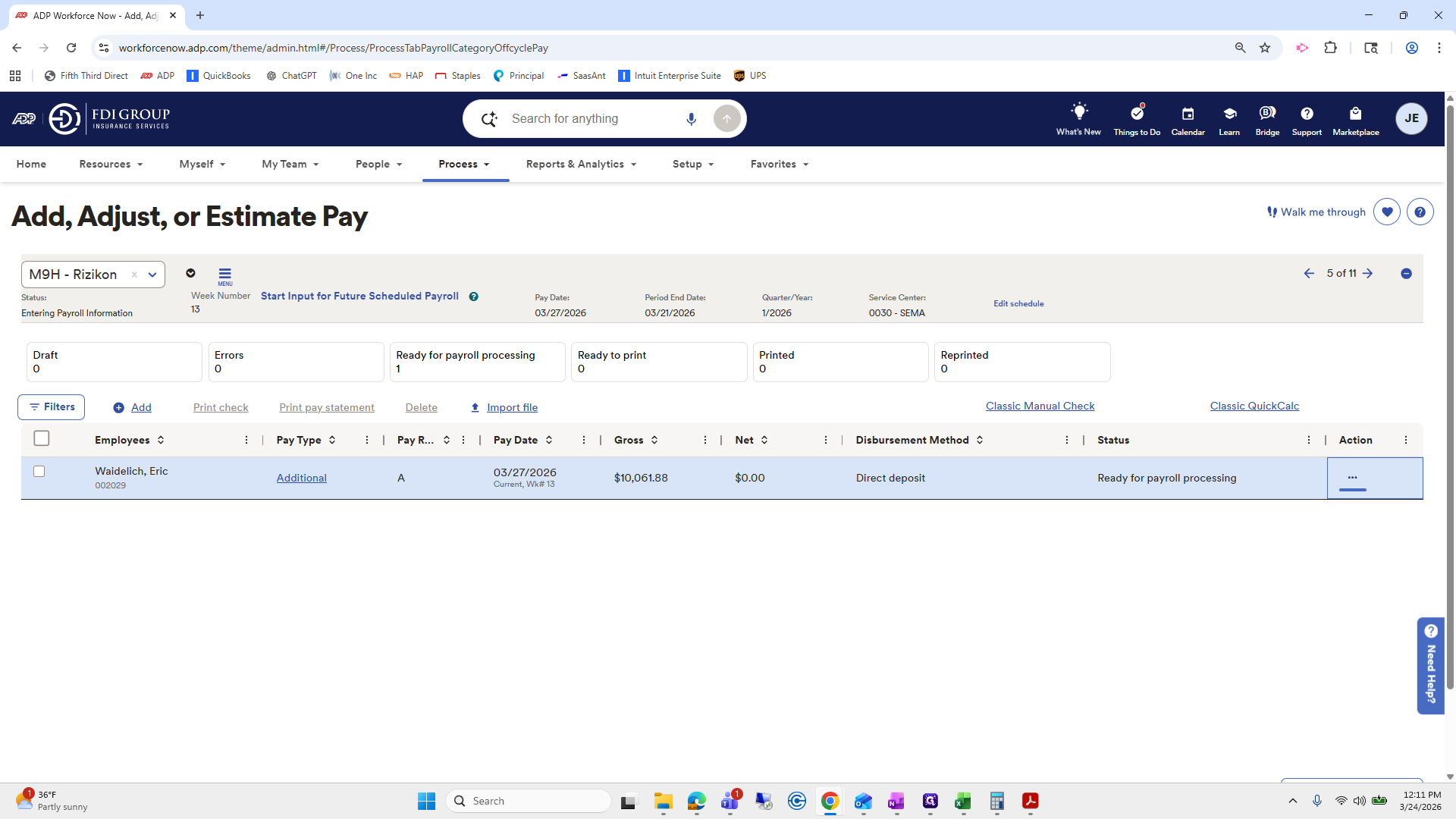
Okay. We left off with Eric handling his commissions differently so he can have them directly deposited into his preferred account. The reason we used the process to add, adjust, or estimate pay separately is because this functions as a "manual check," and it will...
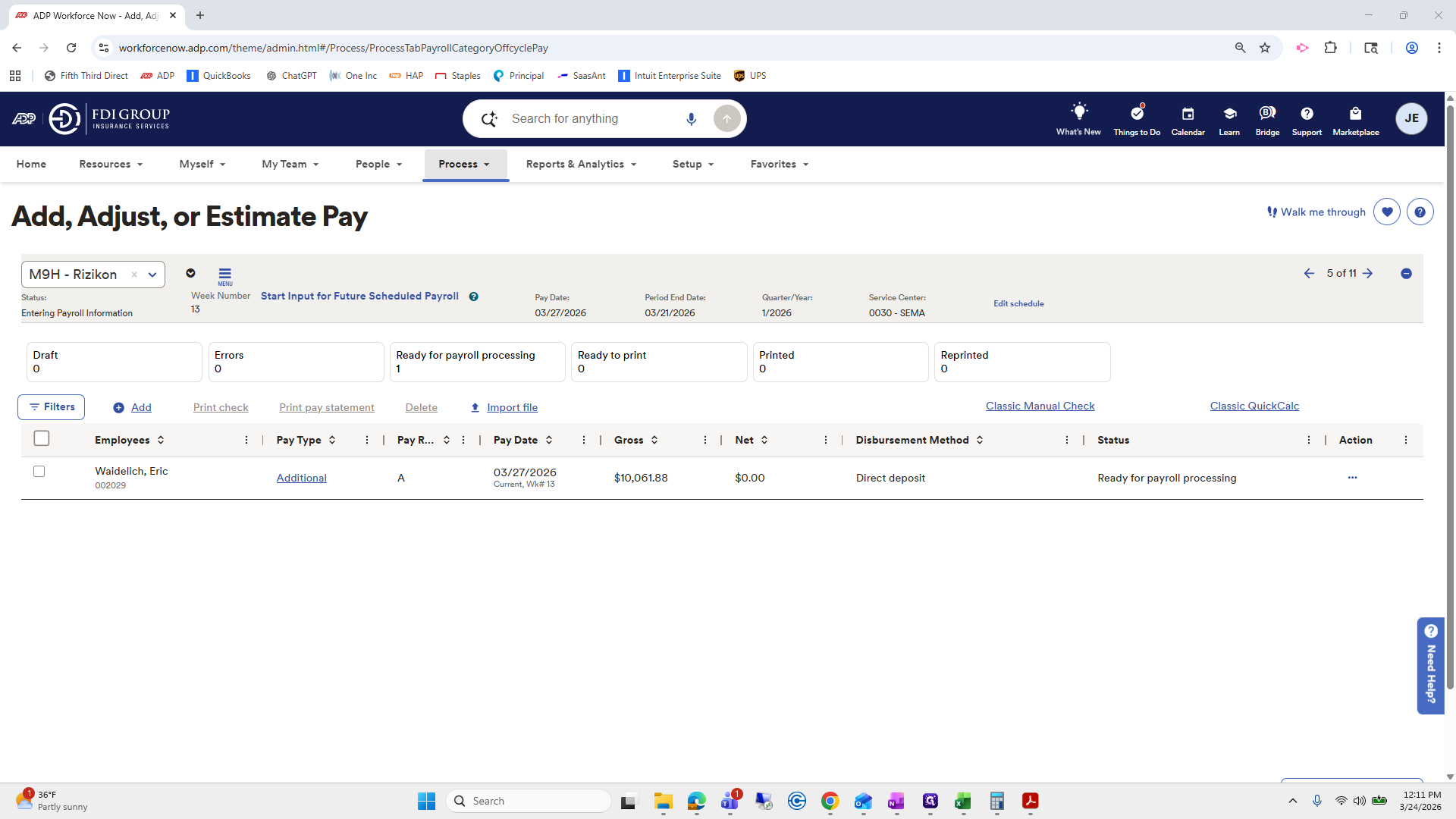
We need to ensure the pay date and week match the current pay date and week being entered. If you see an error message, you likely already clicked "Calculate Pay" on your payroll. If you're following along with me, you should be fine. We want to make sure it's the same week number. The pay date is the 27th, so it is included in that payroll.
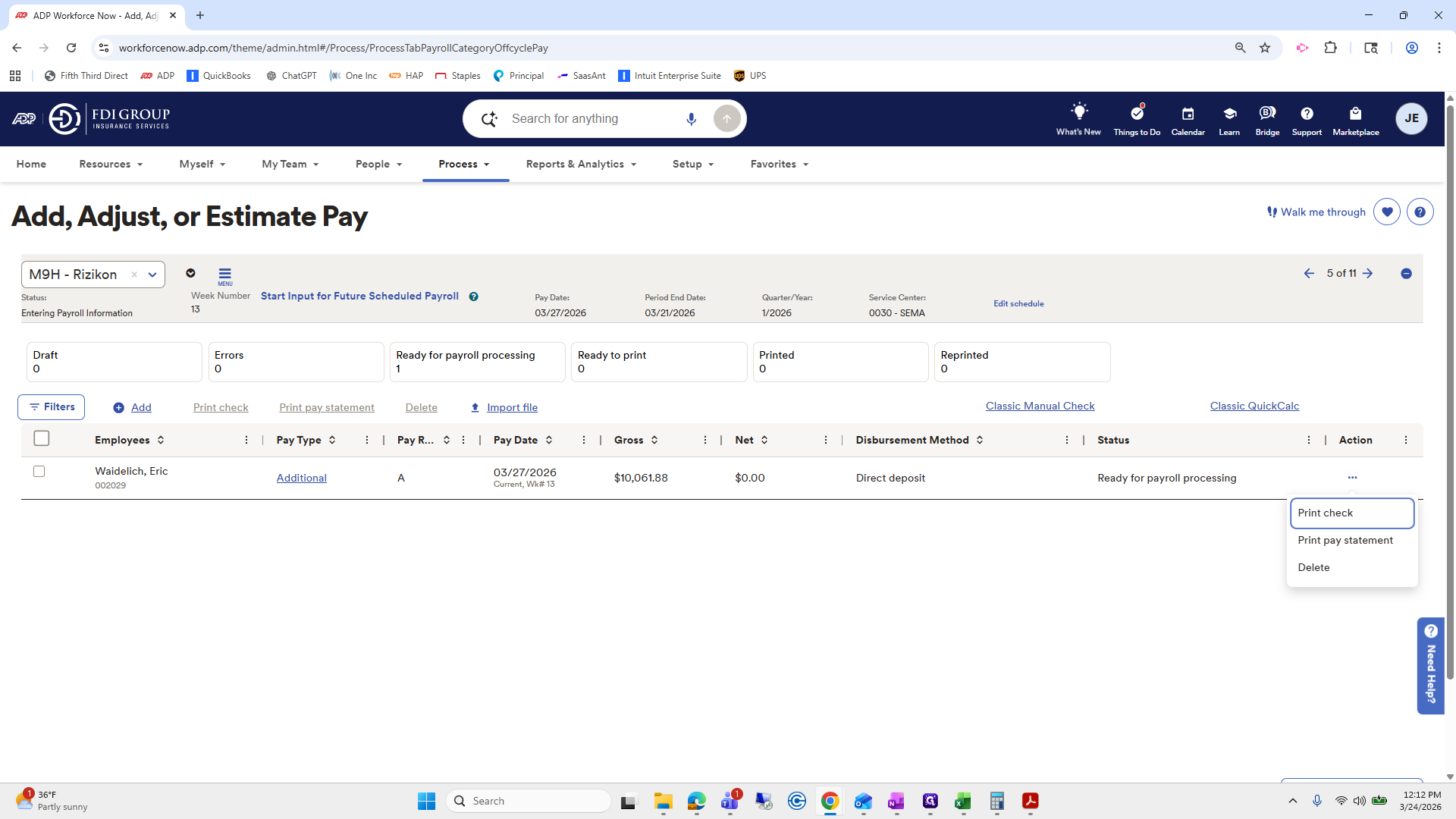
Now, we will go back to proc. If you want to review it, you can use print pay statement for a quick look at what it shows.
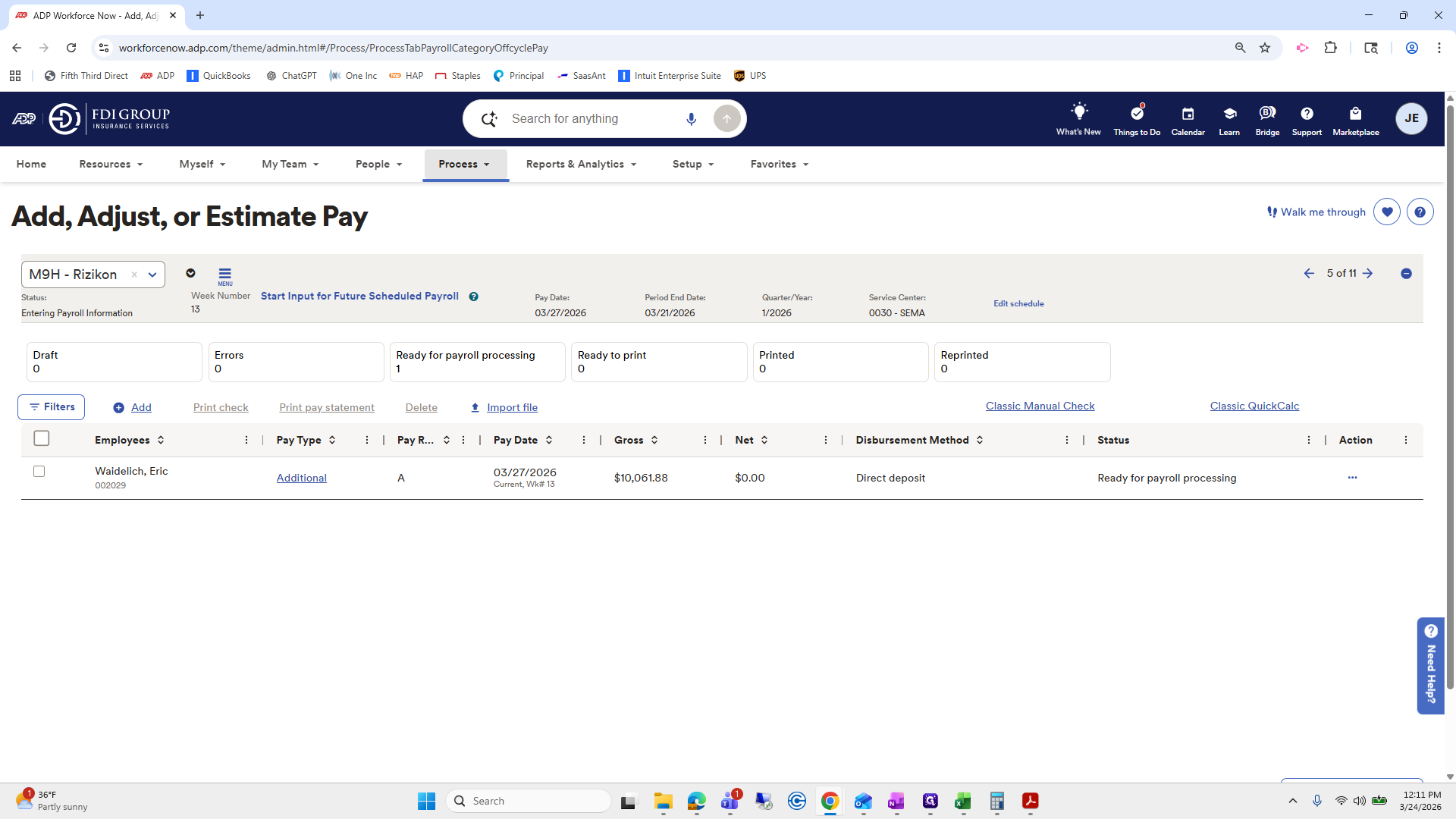
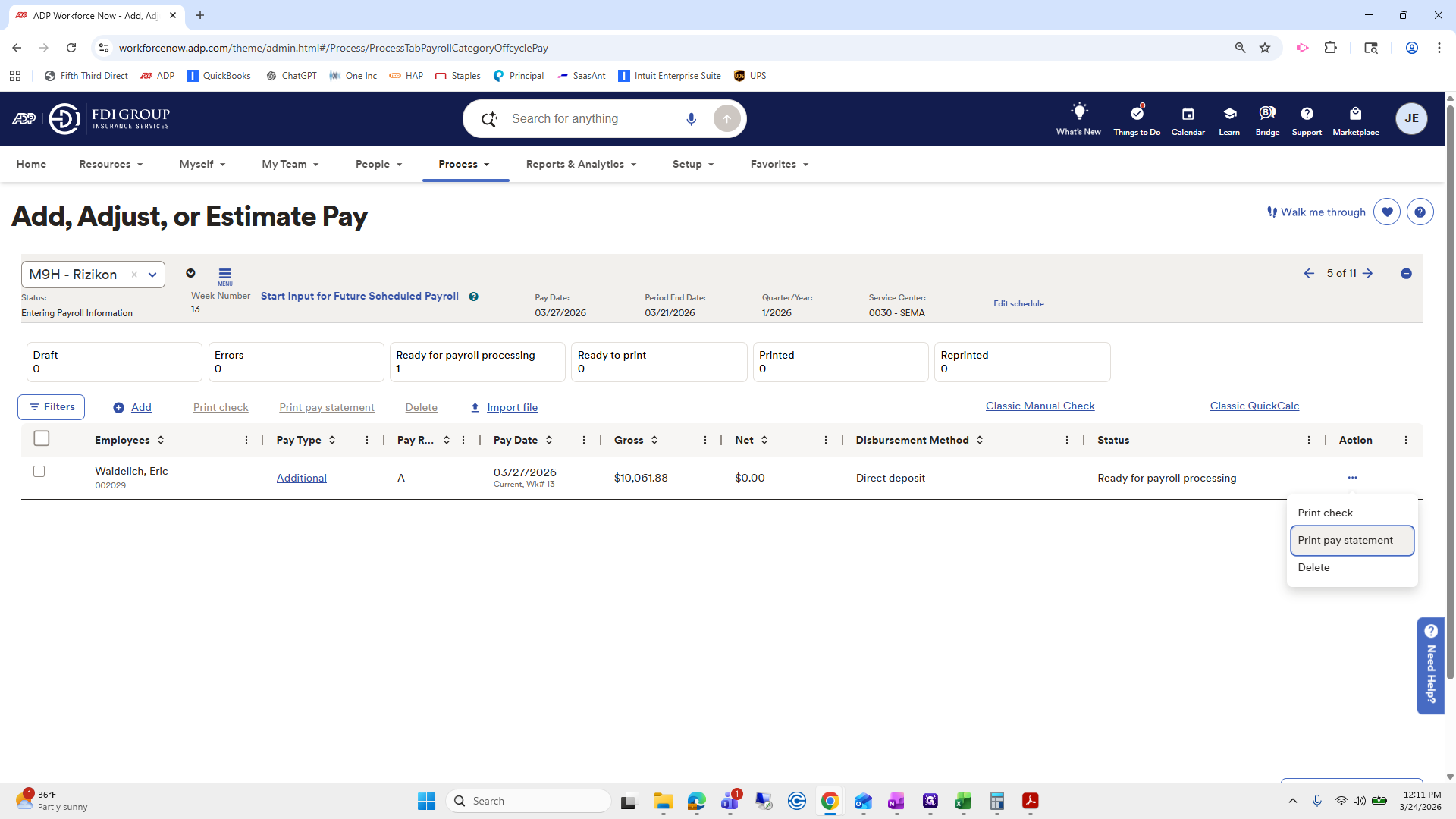
Here is the commission. Here are his deductions, 401, and the amount that will be deposited into his checking account. Okay.
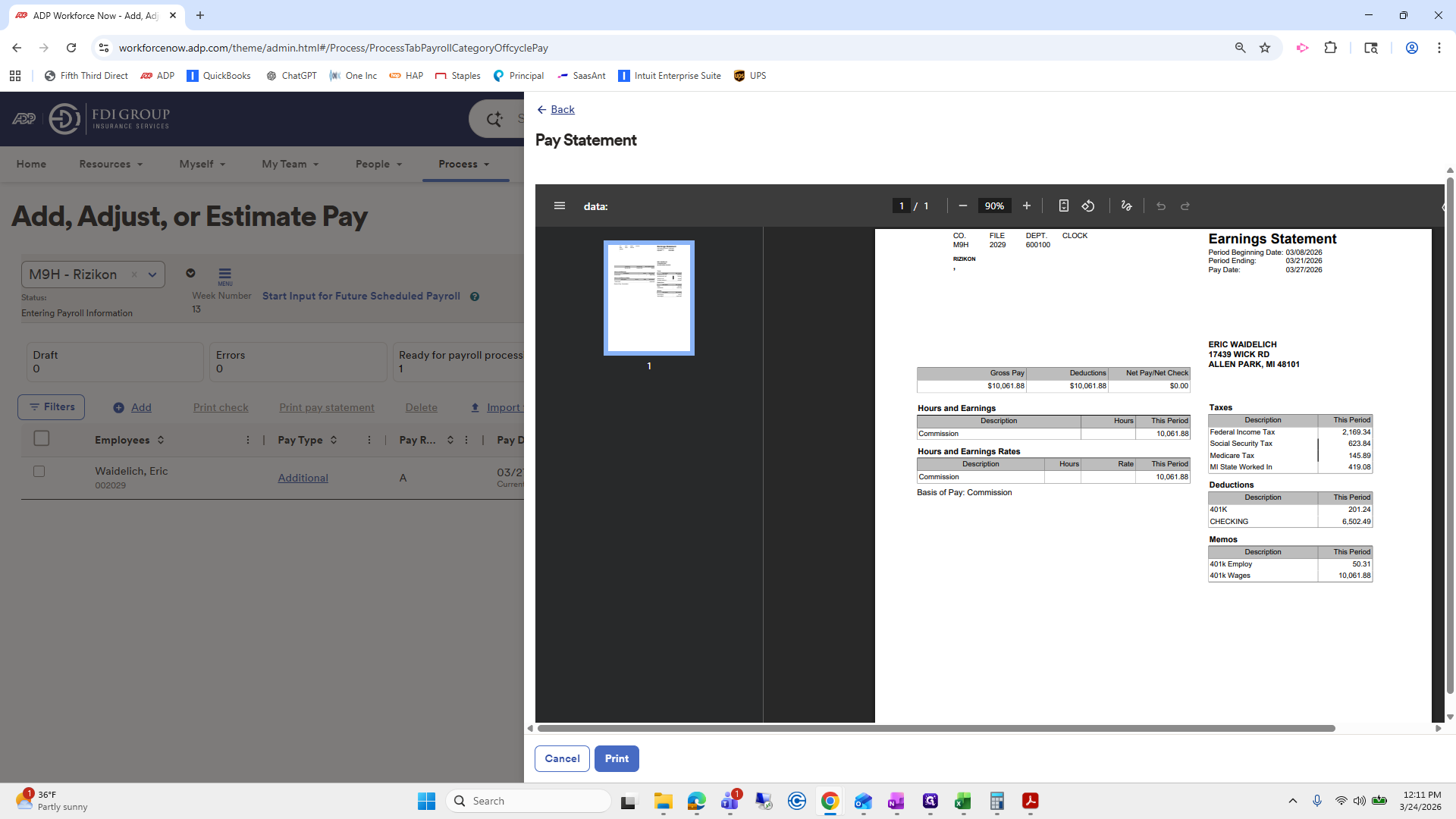
You can save that if you want, but it's not required.
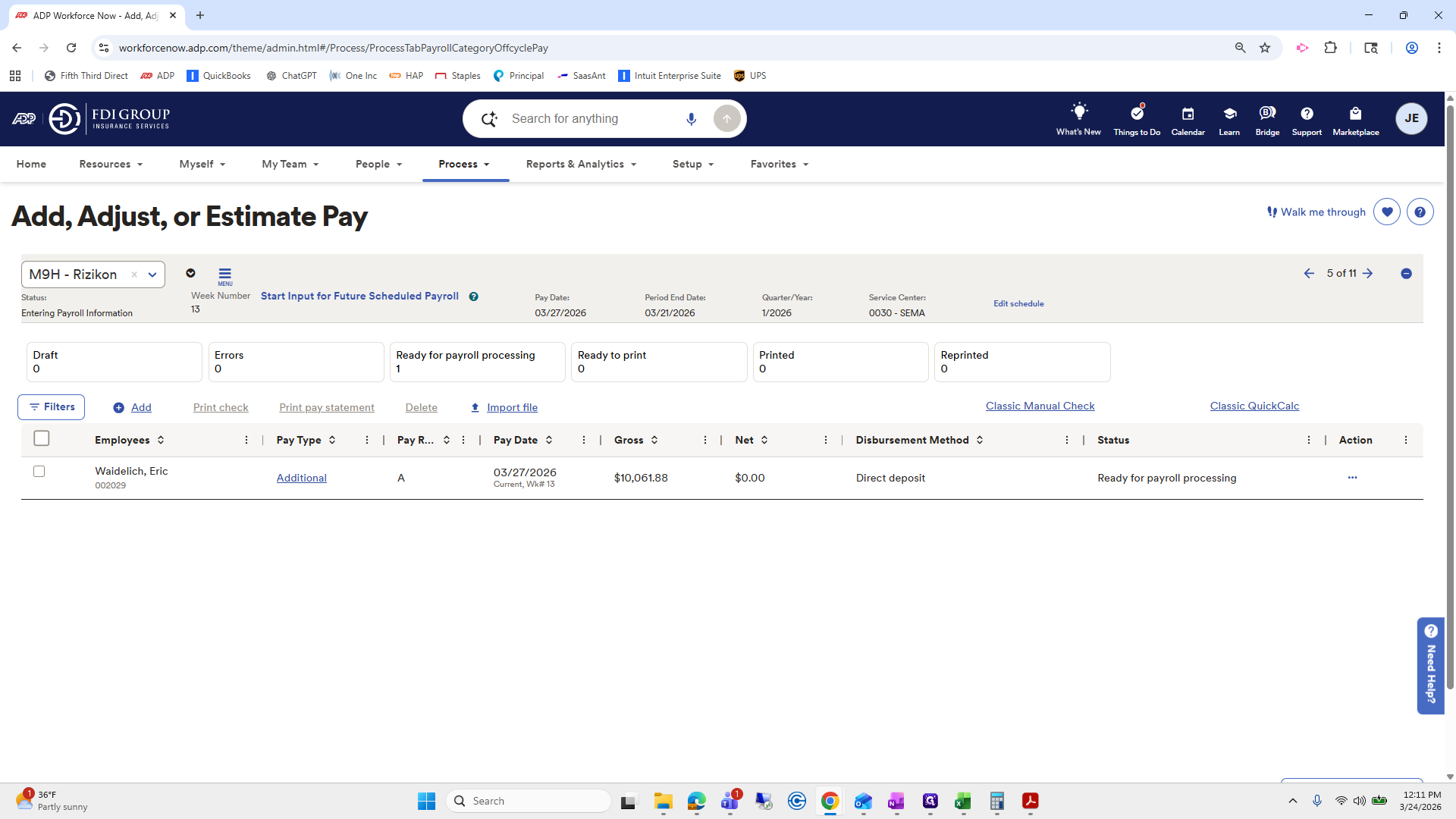
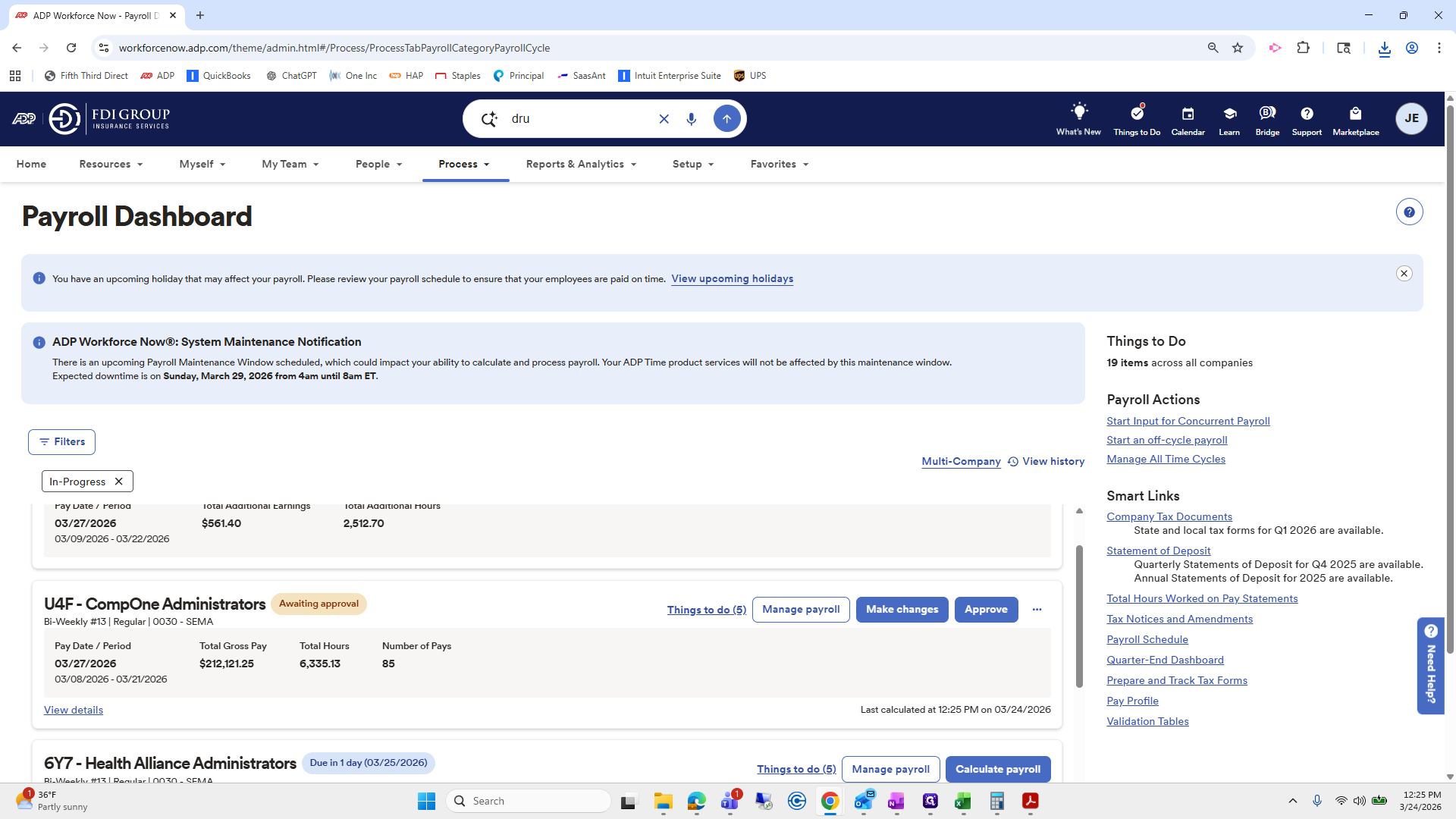
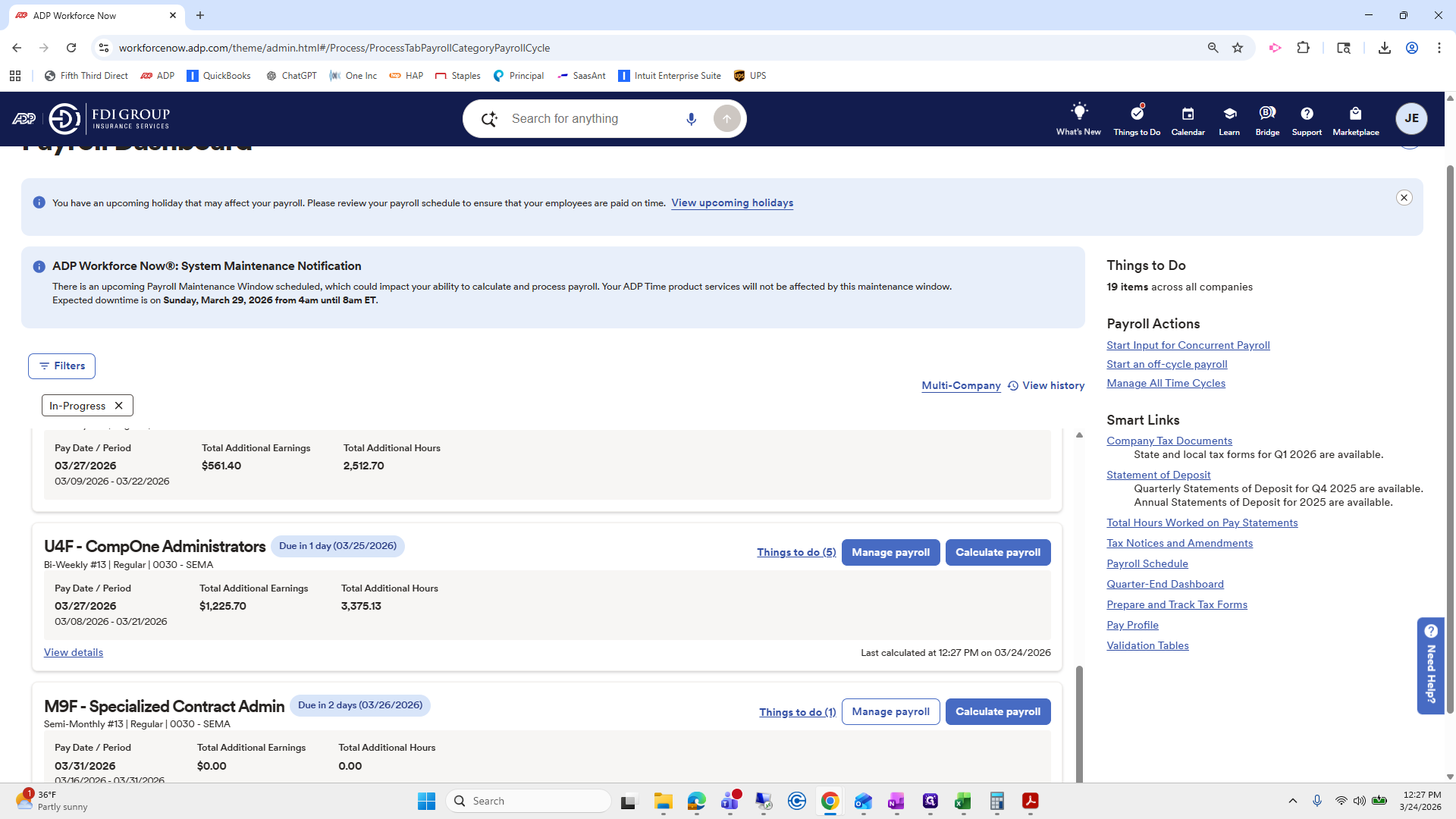
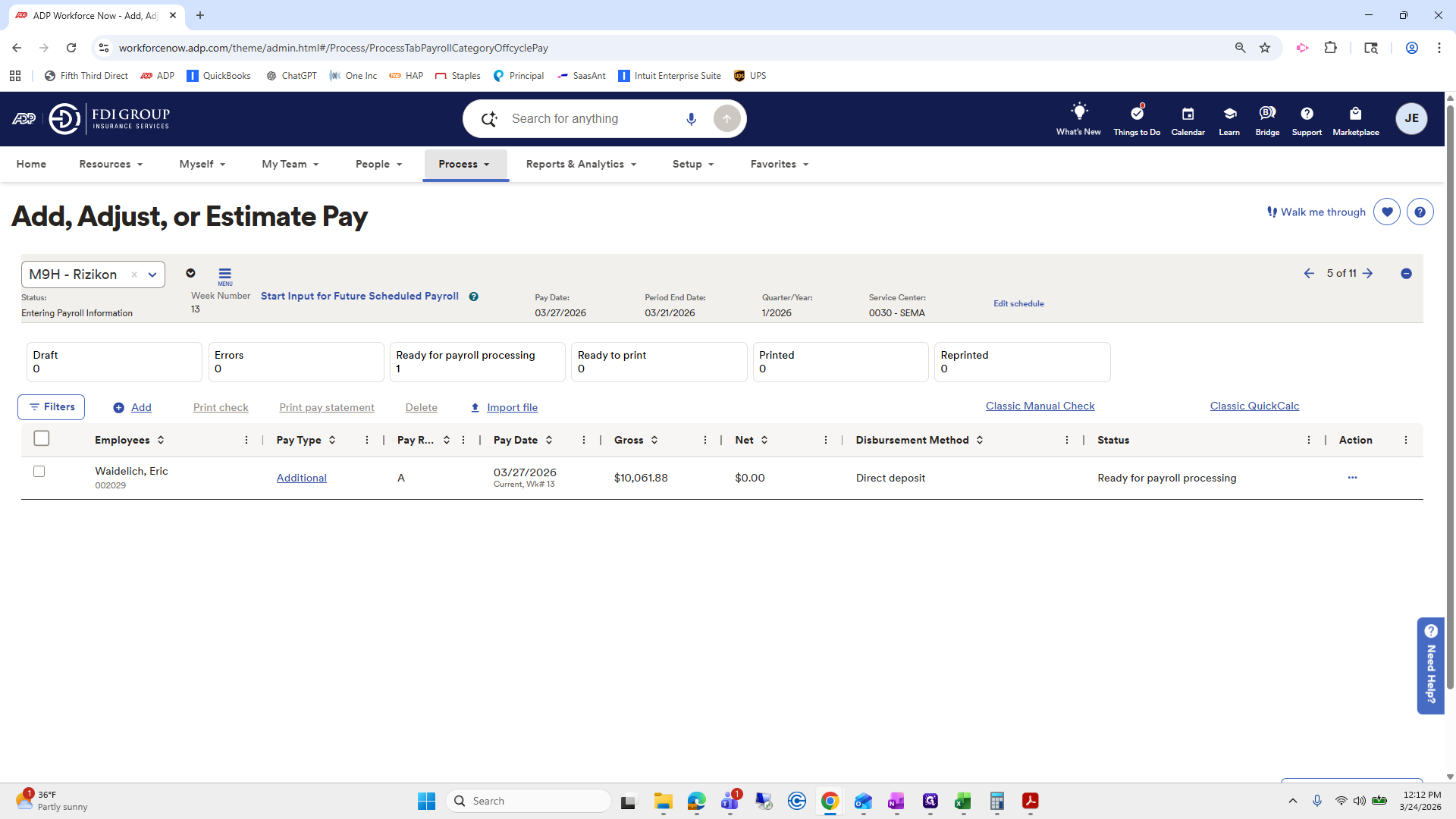
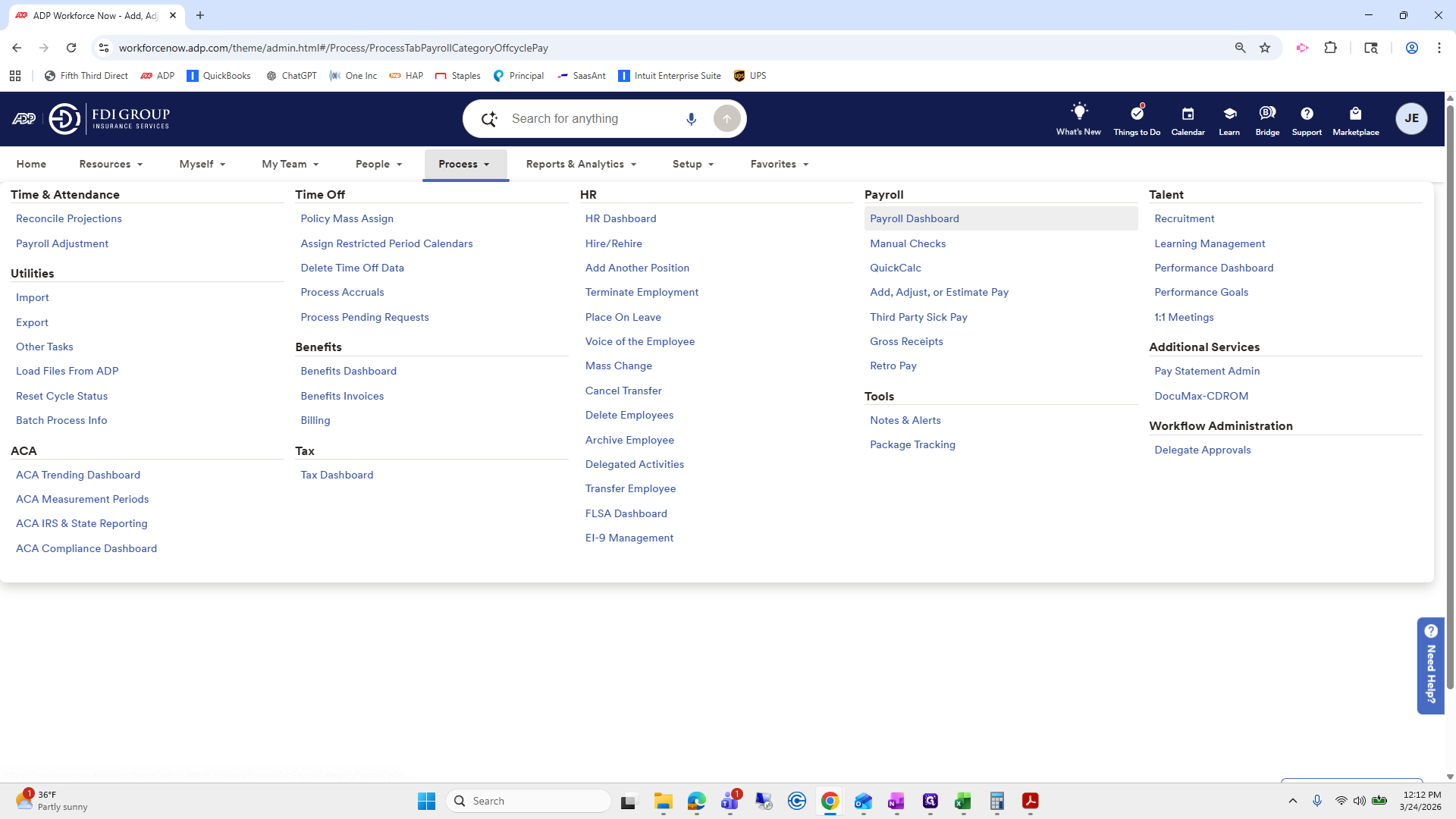
I will process the payroll dashboard.
We will go back to Resicon. We will go to Commissions.
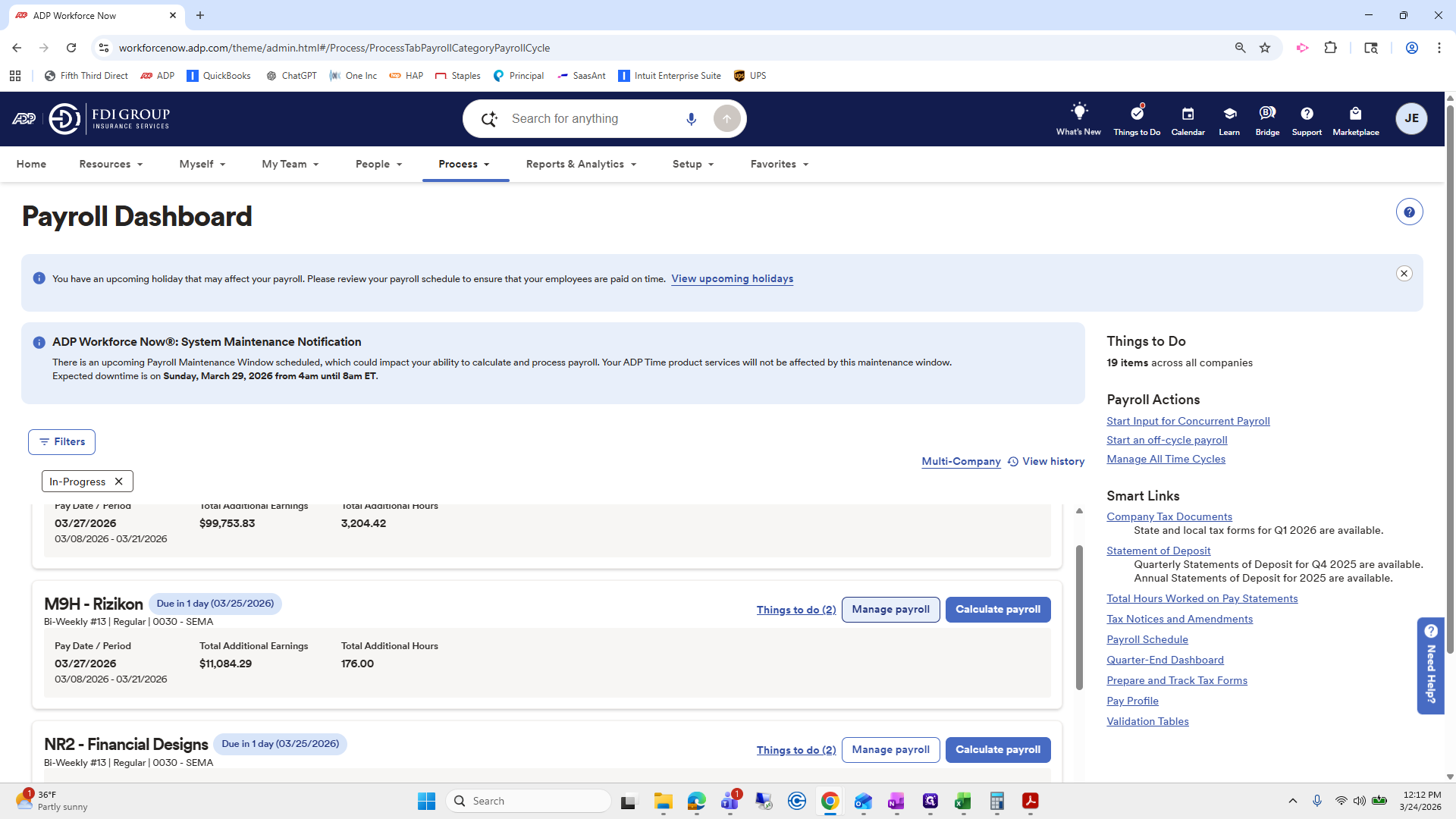
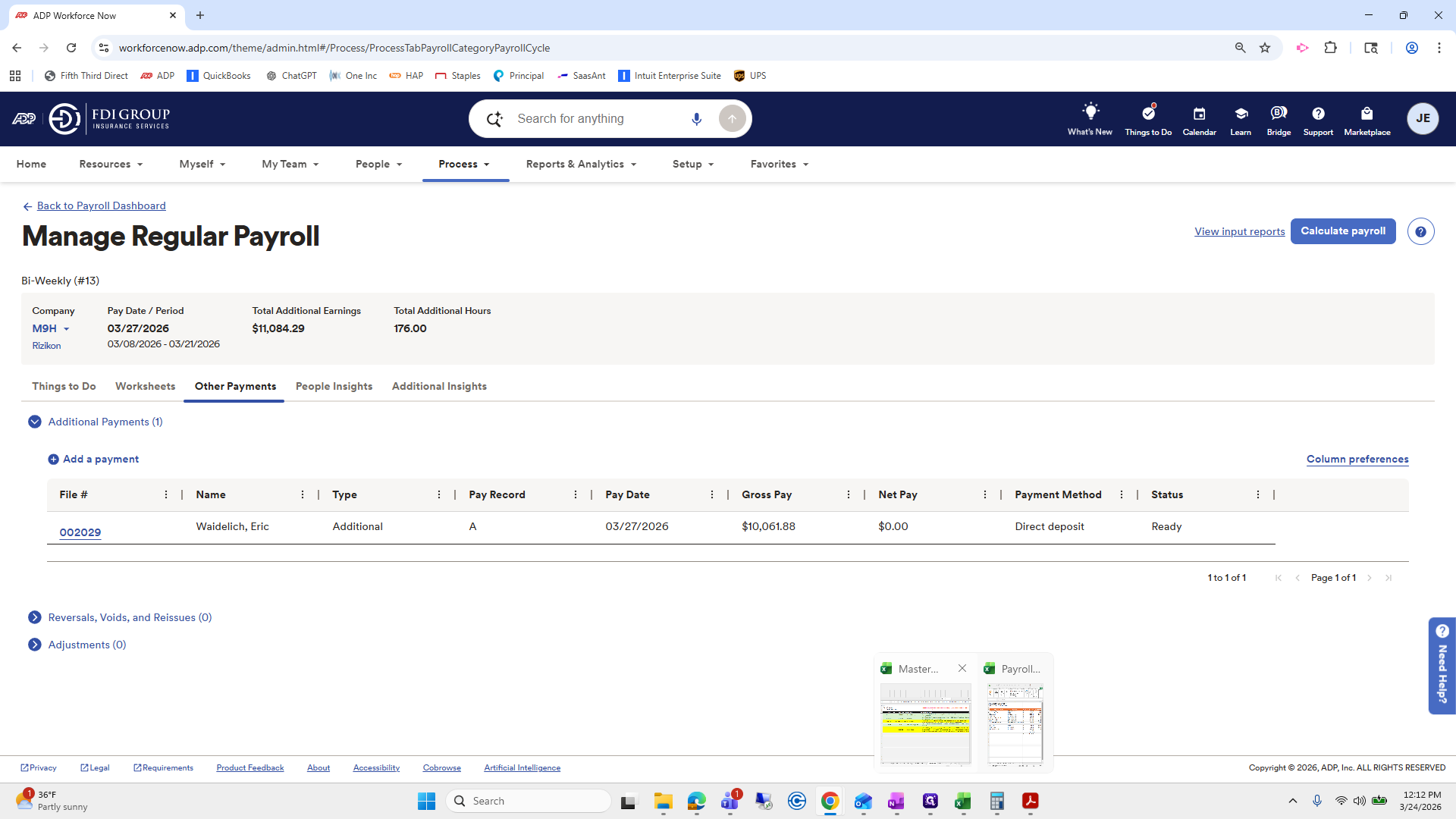
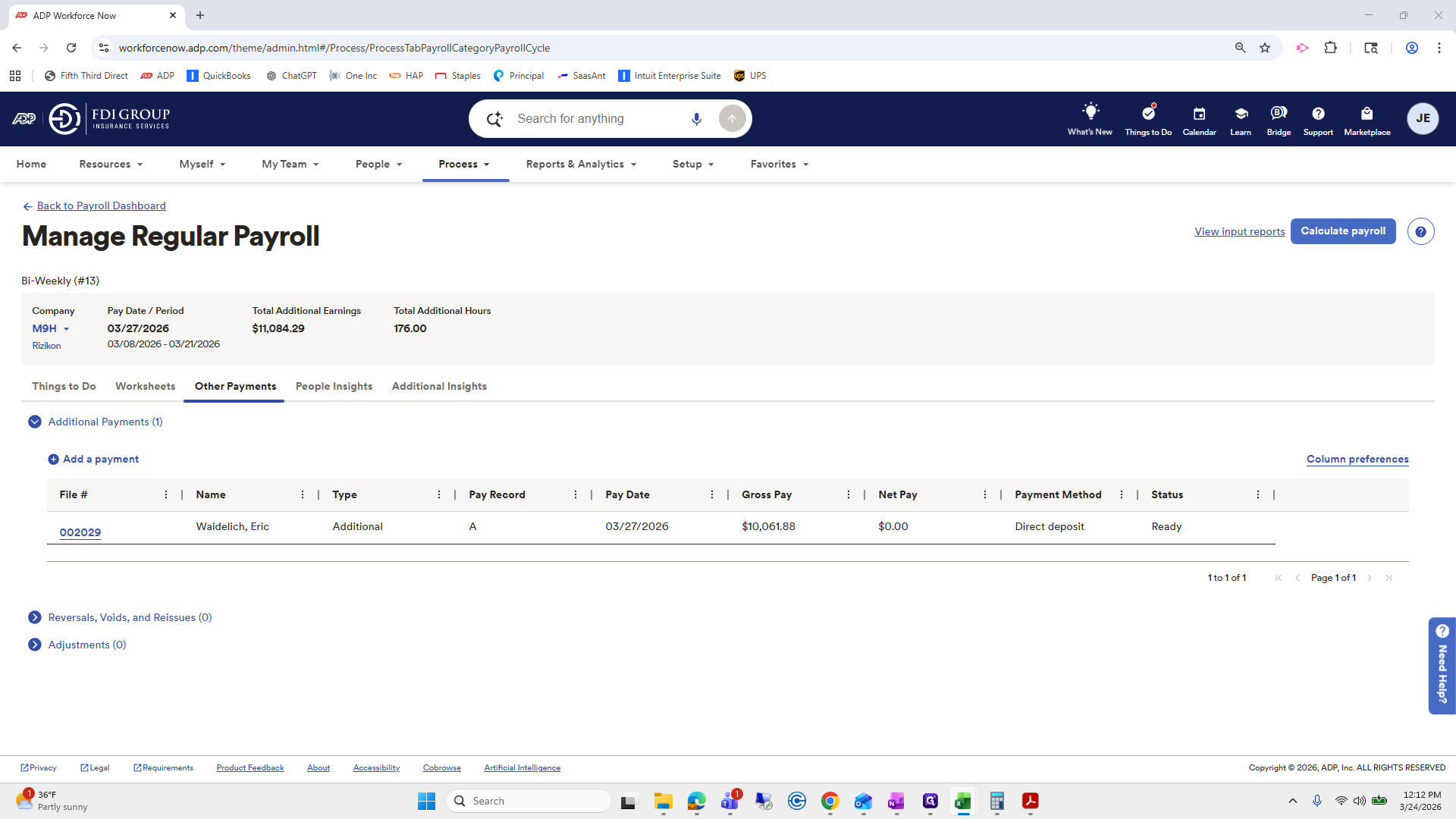
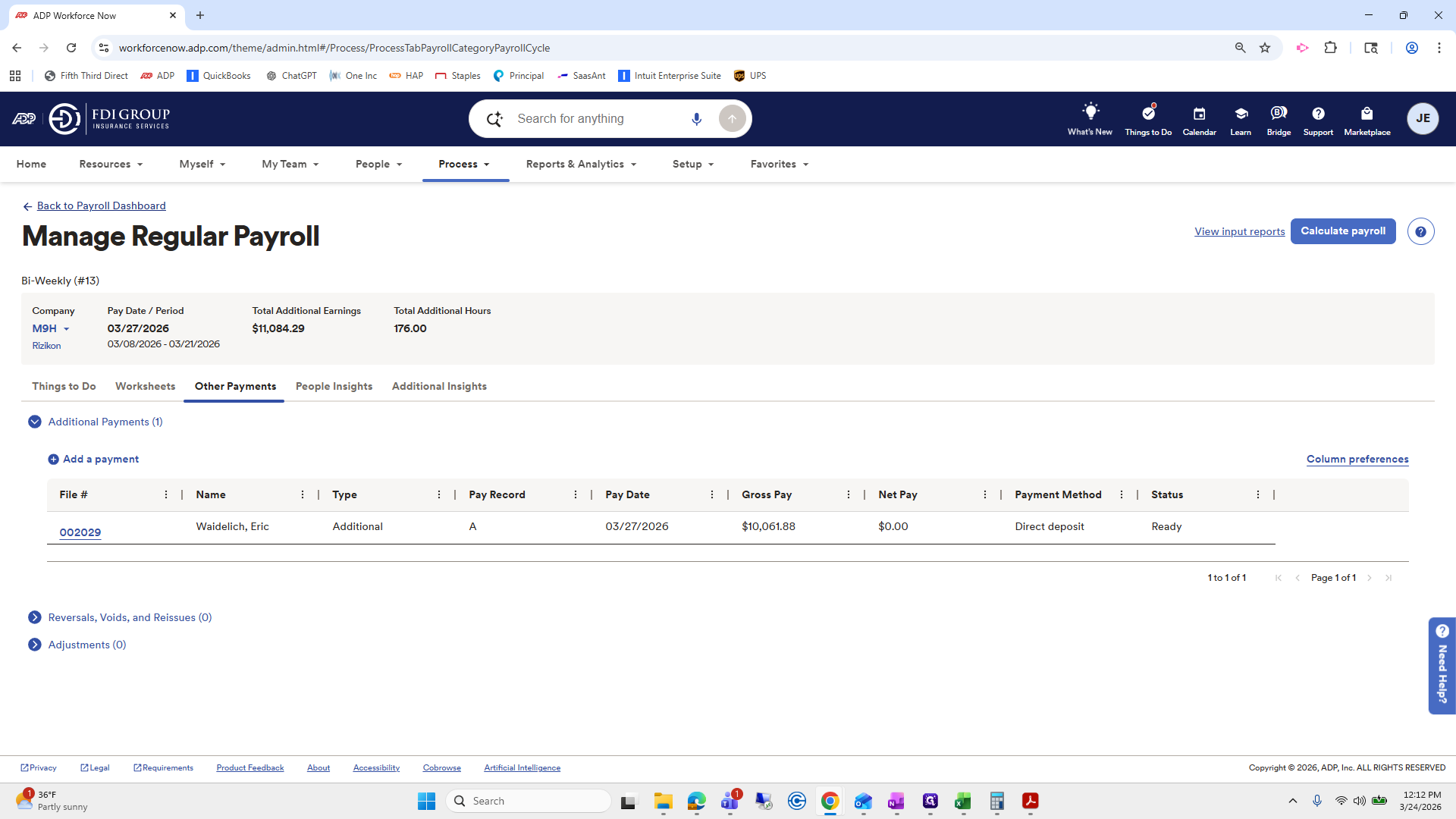
Oh, just kidding. If you go under Other Payments, you can see this is the additional payment we made to Eric.
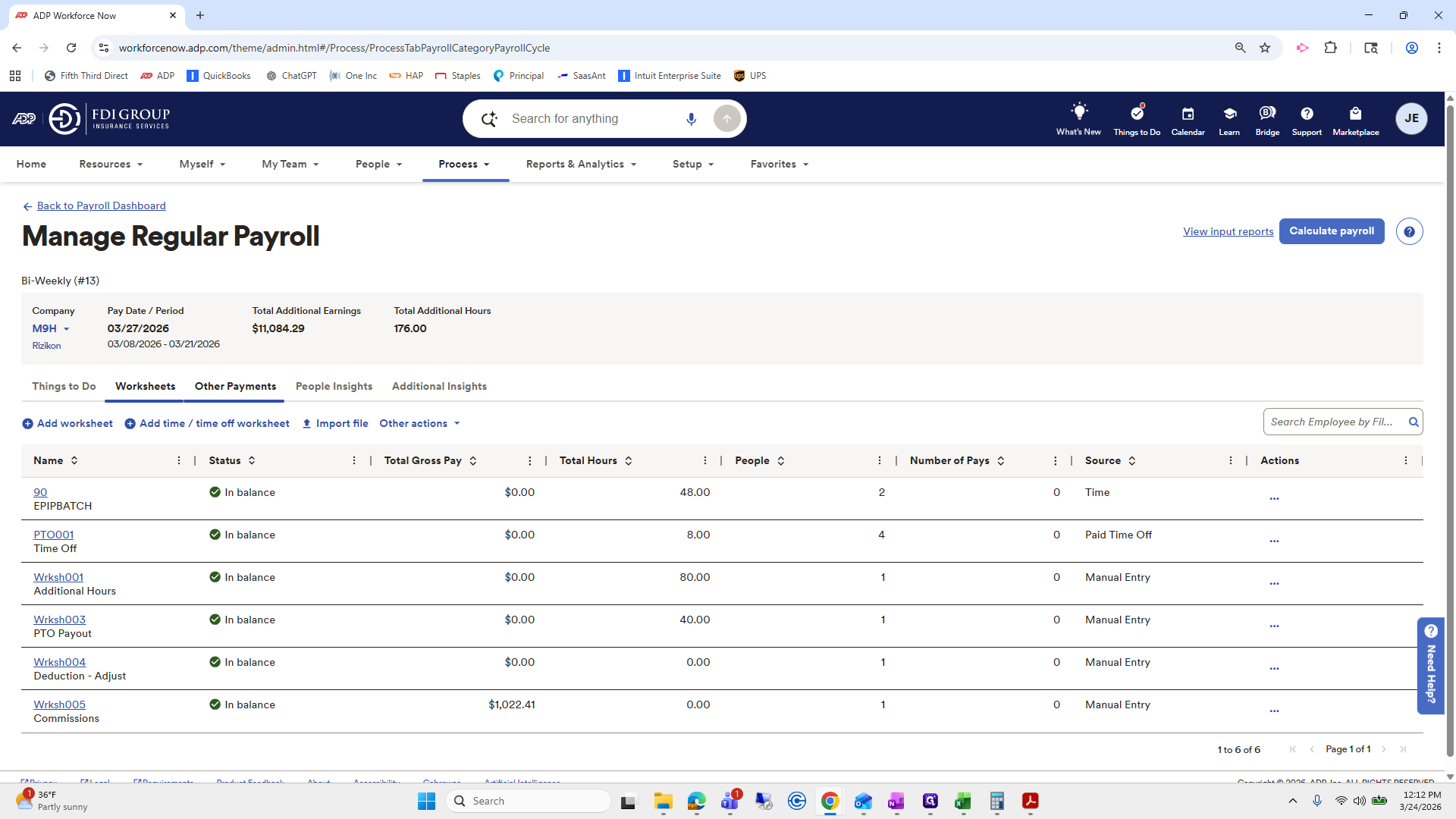
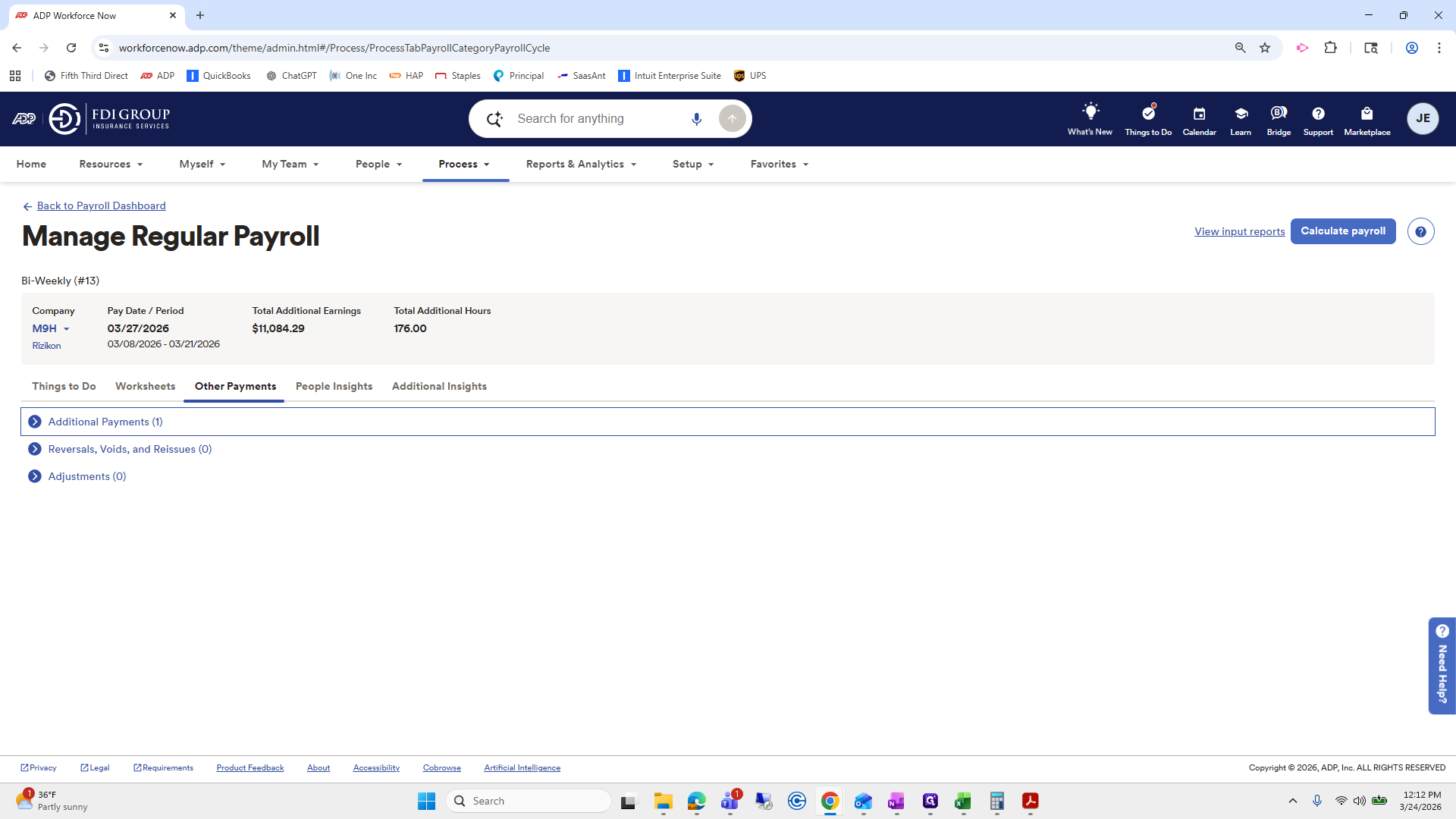
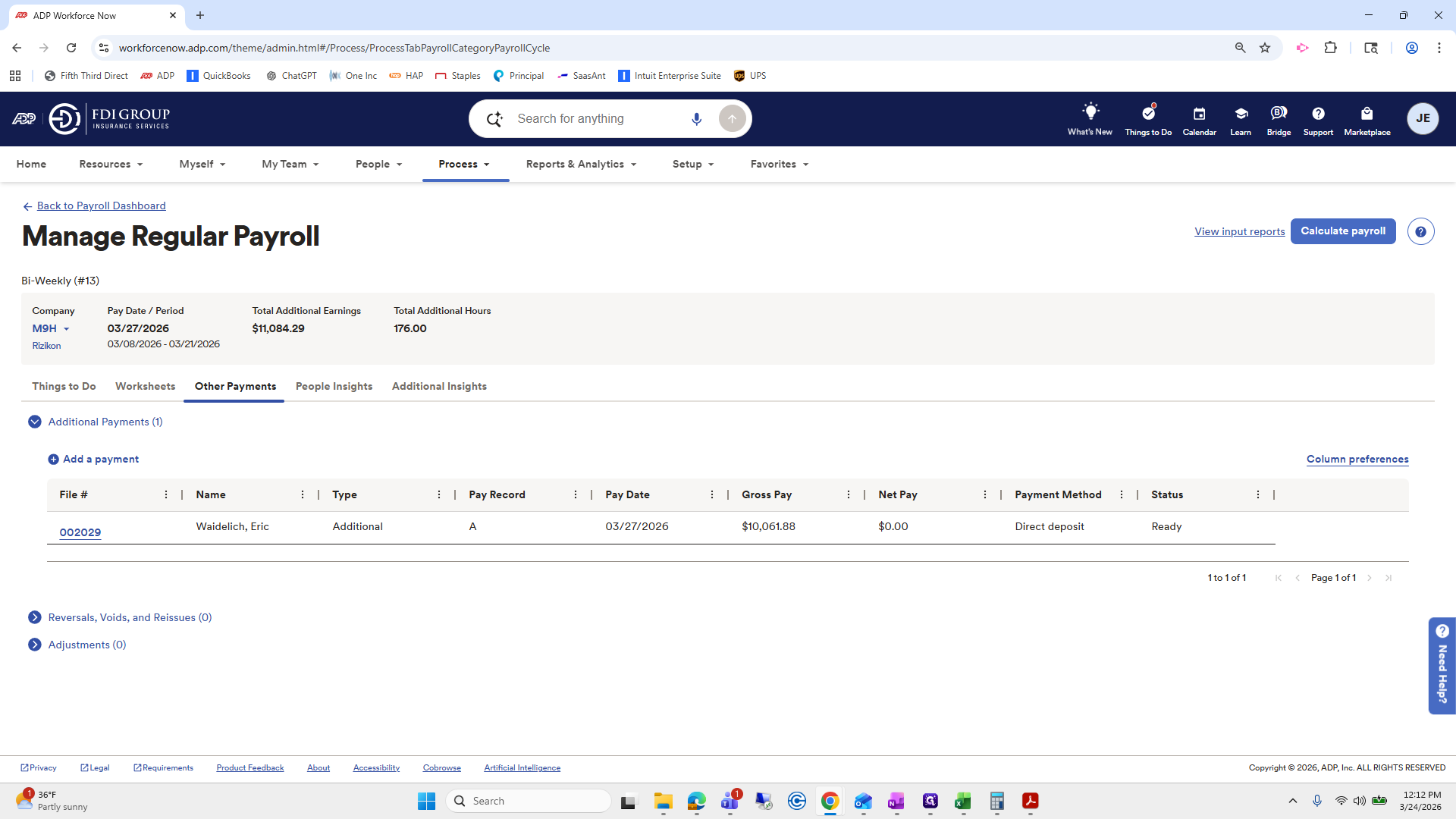
That will appear in the pay run when we review our checks and balances.
That one looks good. I think that might be it for everyone.
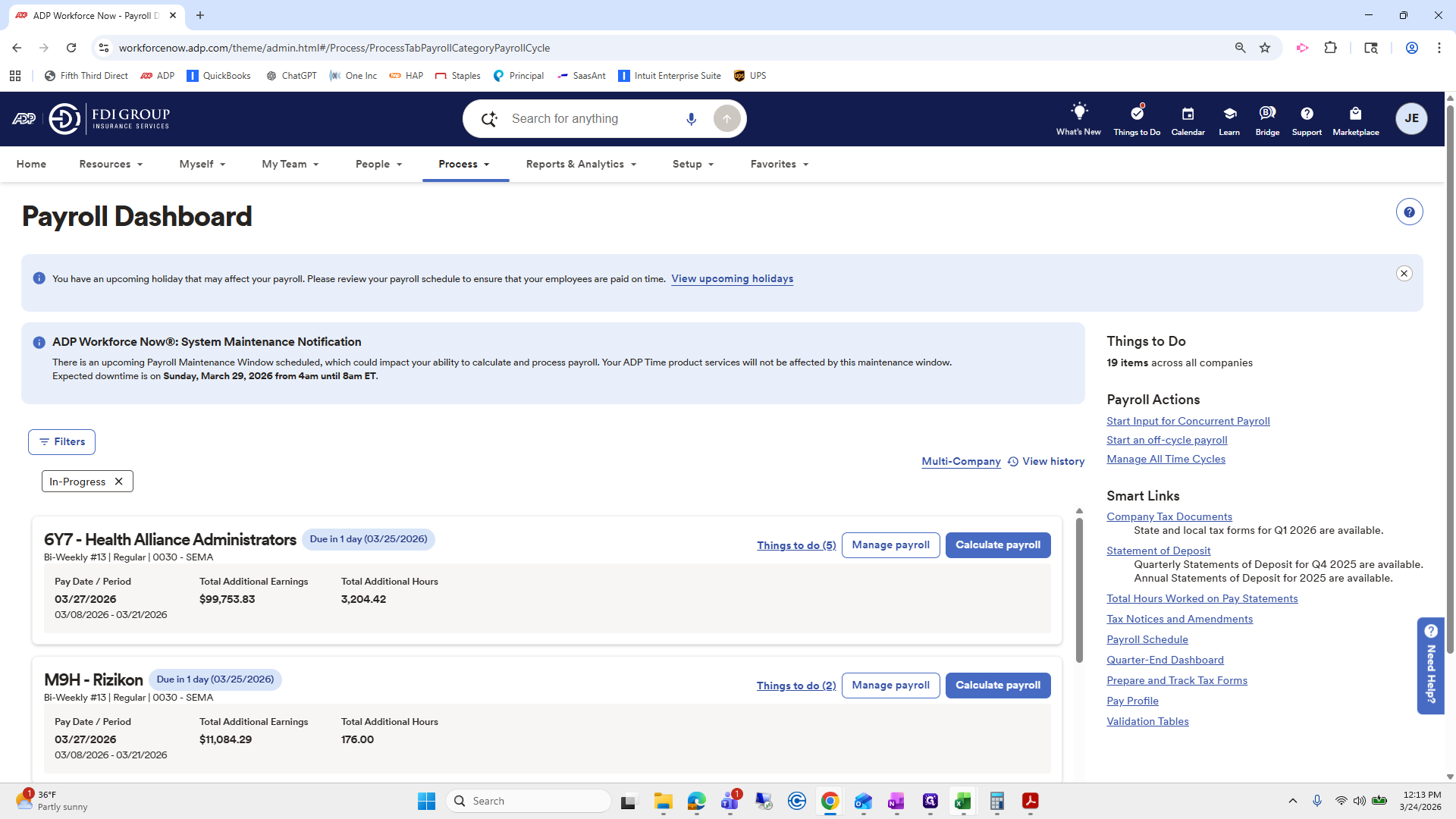
The only one I need to go back and update is Health Alliance. I have to add a code for the advance because it needs to be entered differently. And I'll probably do a separate... I think I will do a separate one. Video on each of the templates. Once that looks good, we can start calculating payroll for each of these.
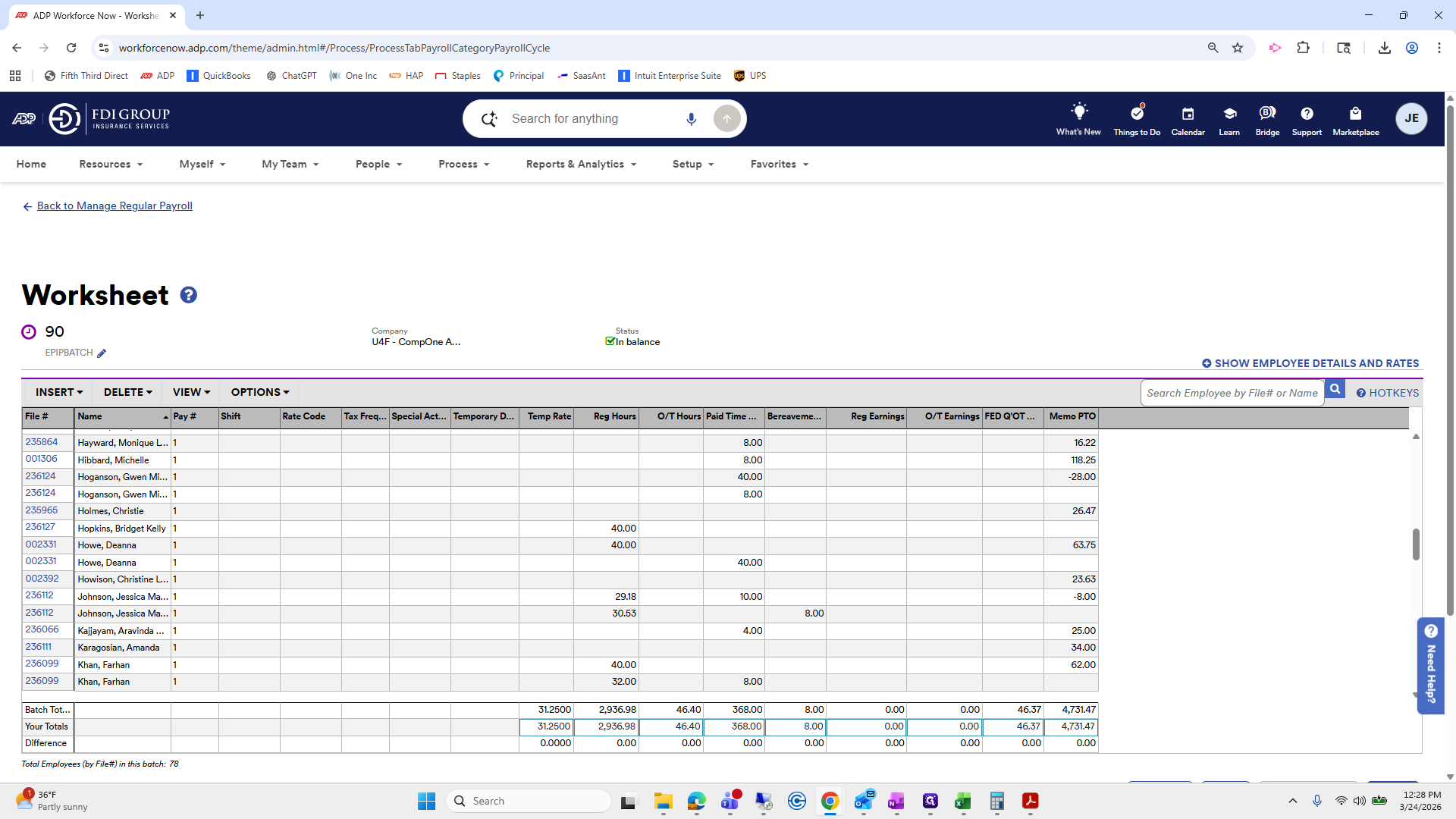
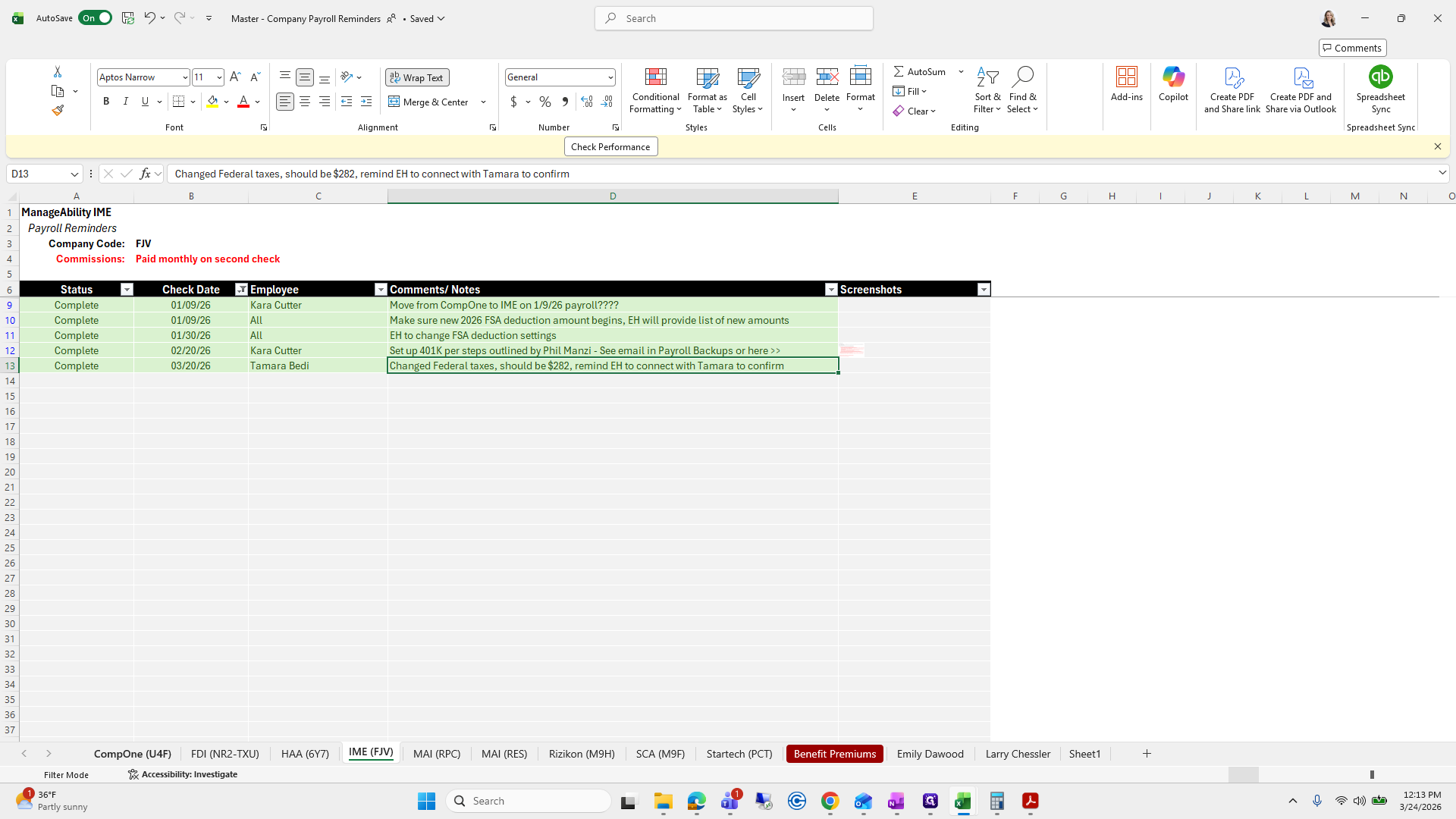
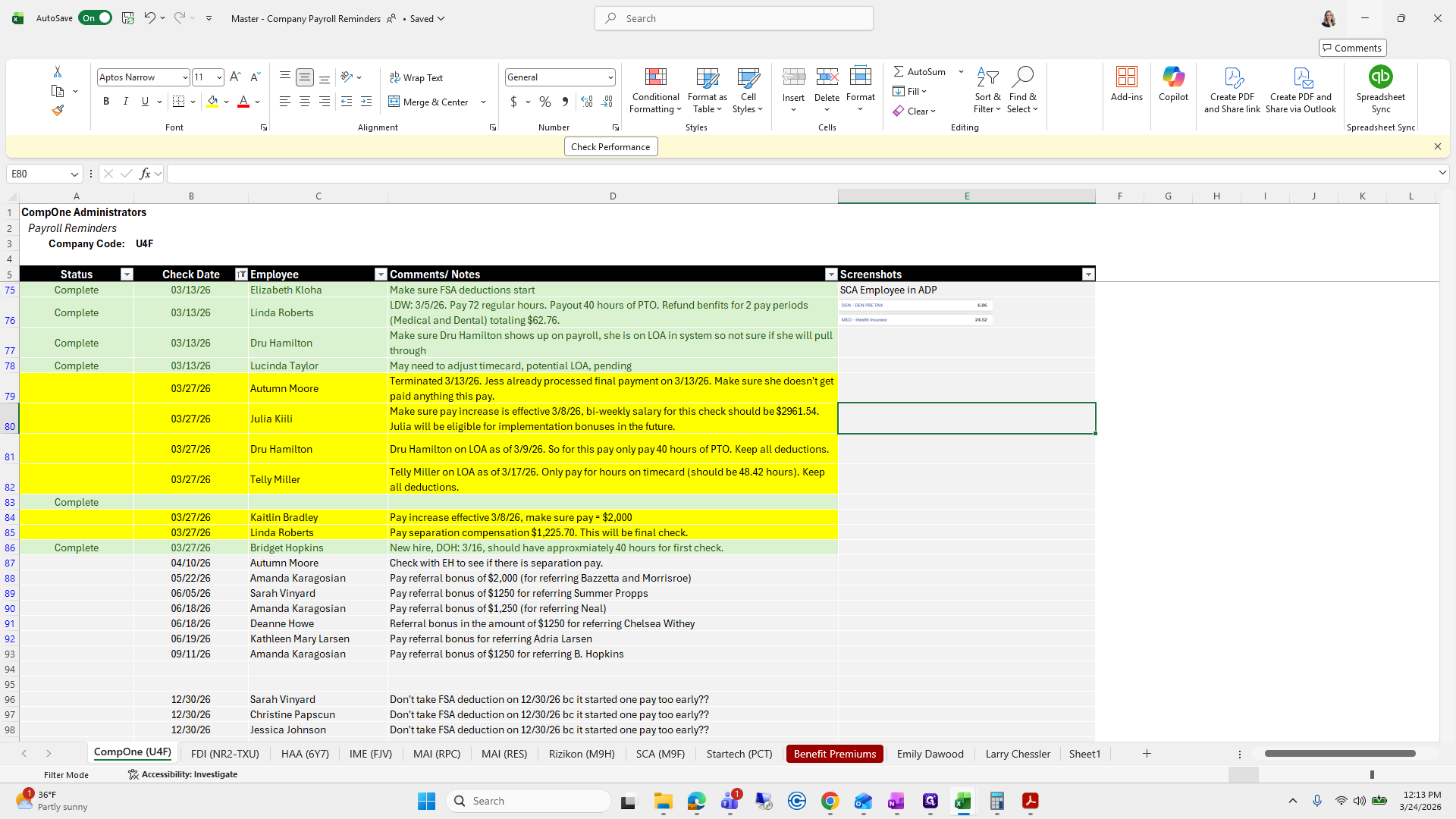
I like to review each item one by one and check the master work paper of our notes to ensure everything highlighted for that check date looks correct.
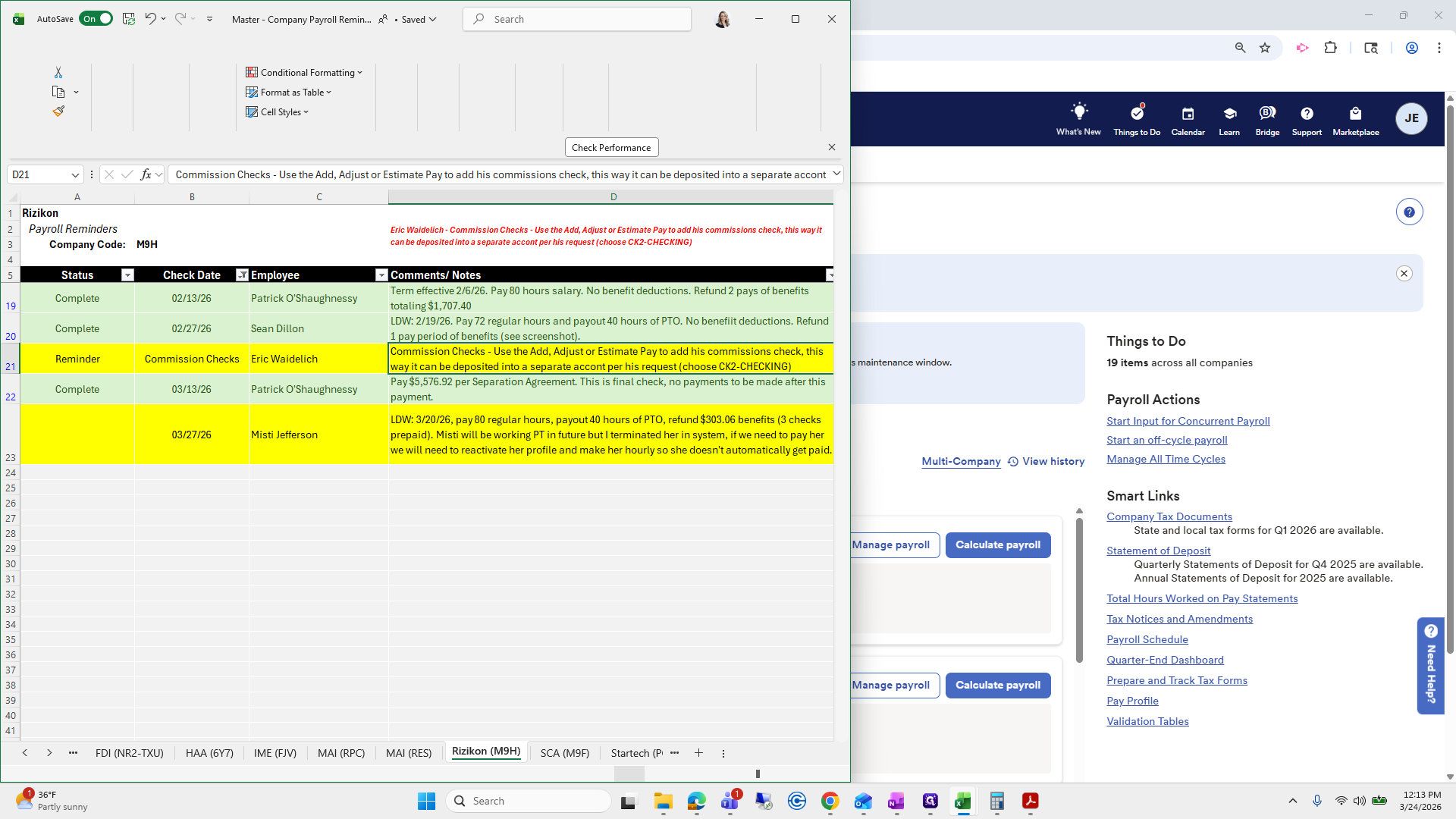
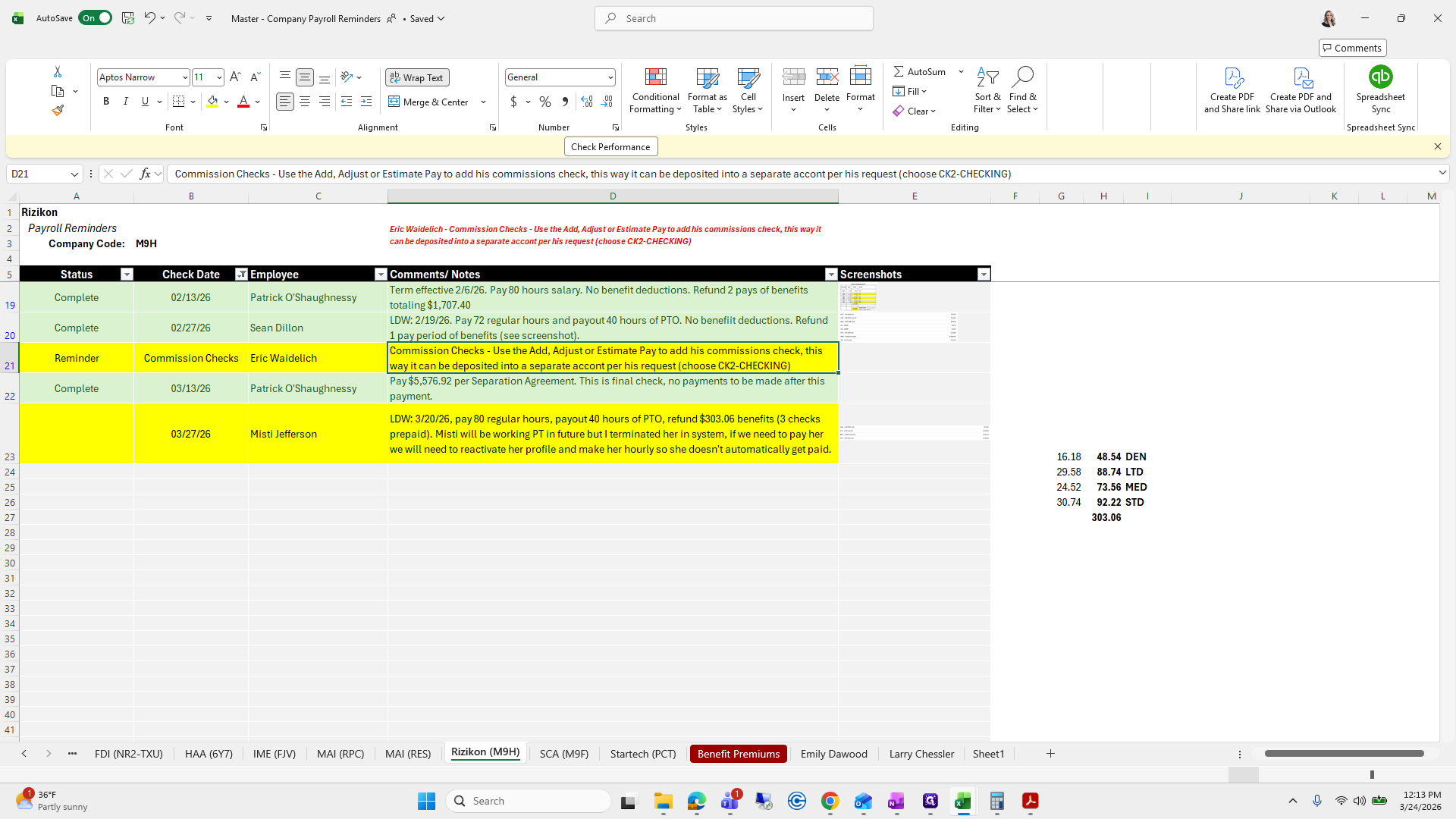
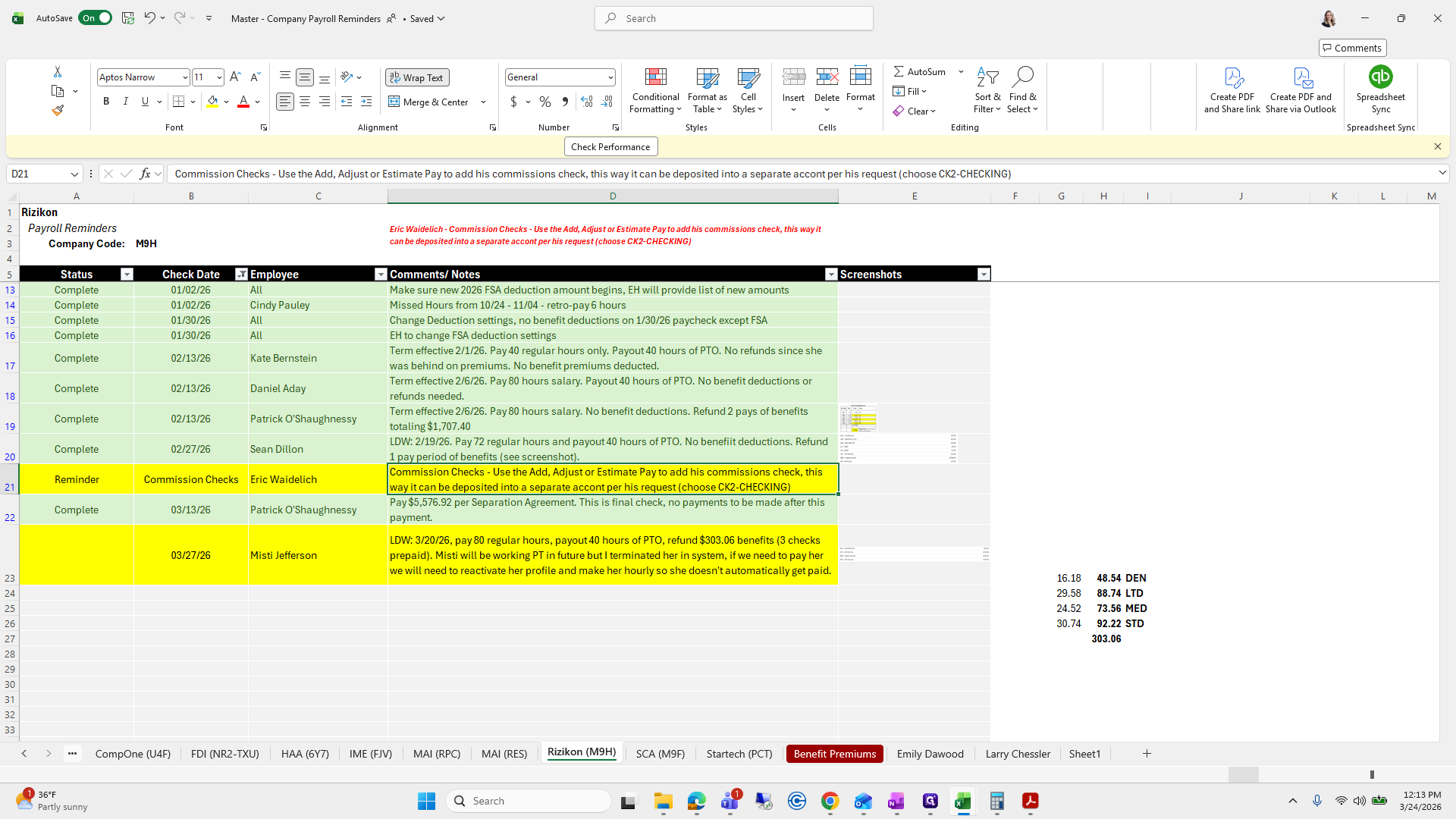
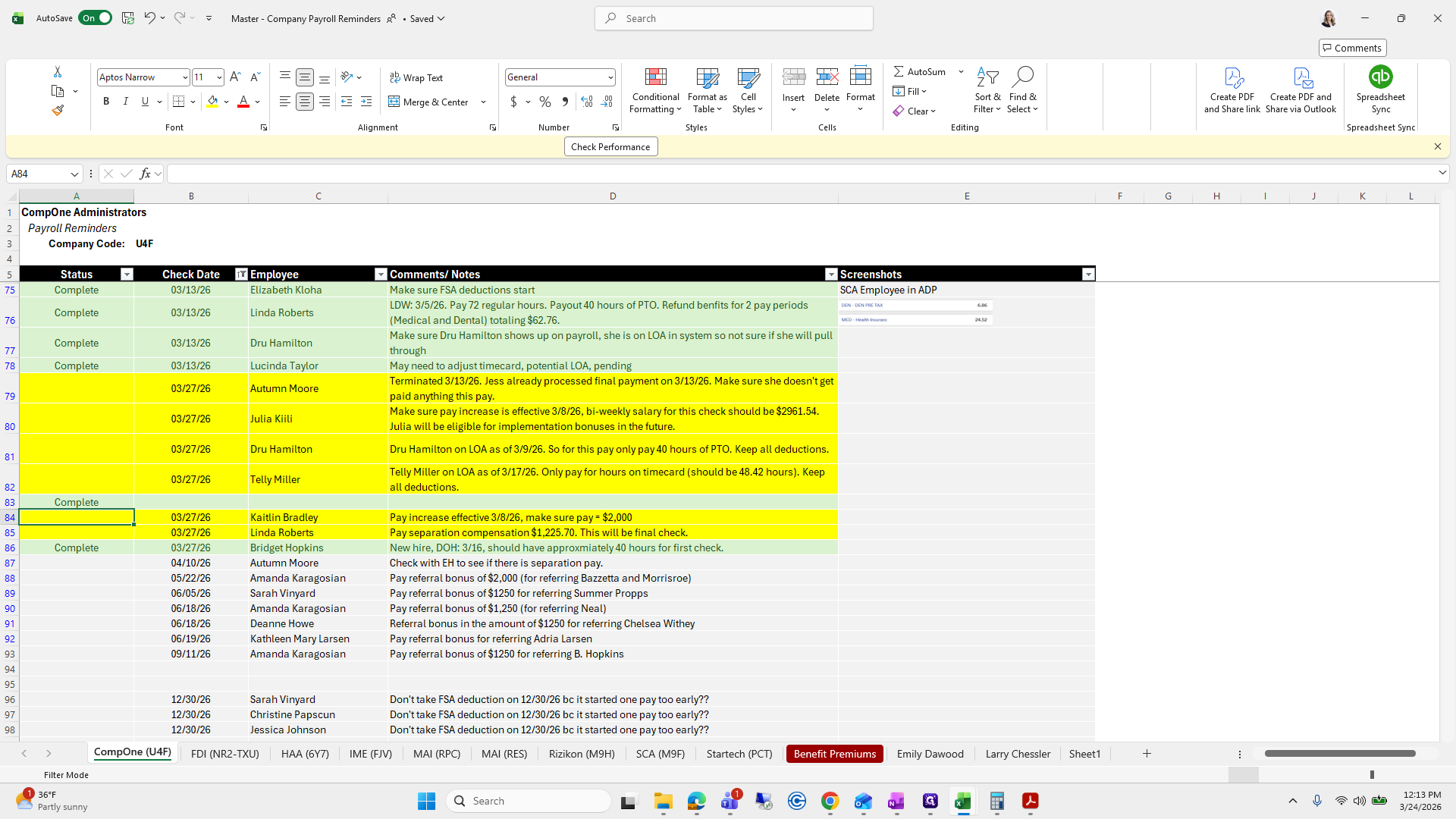
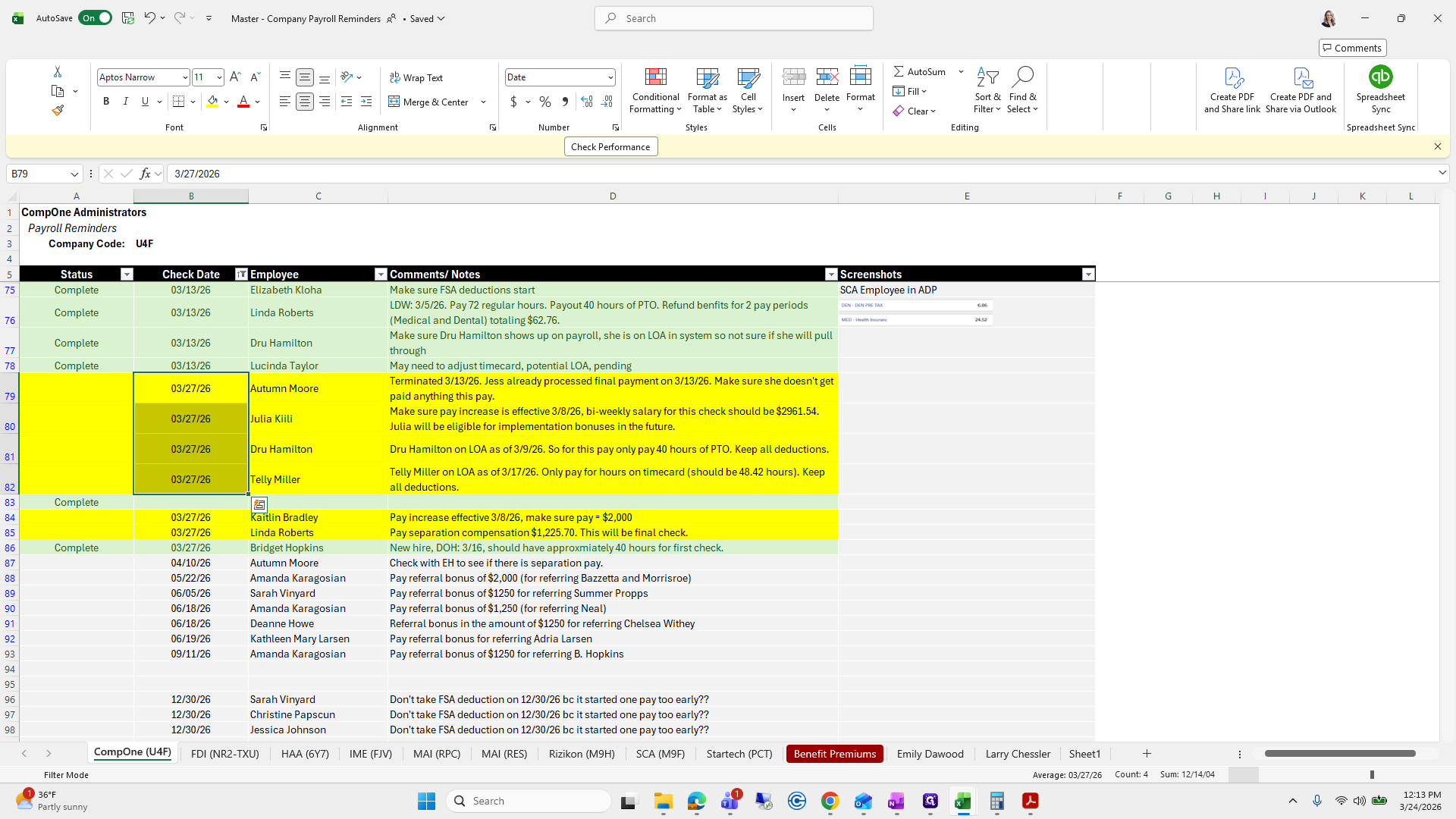

Let's start with that.
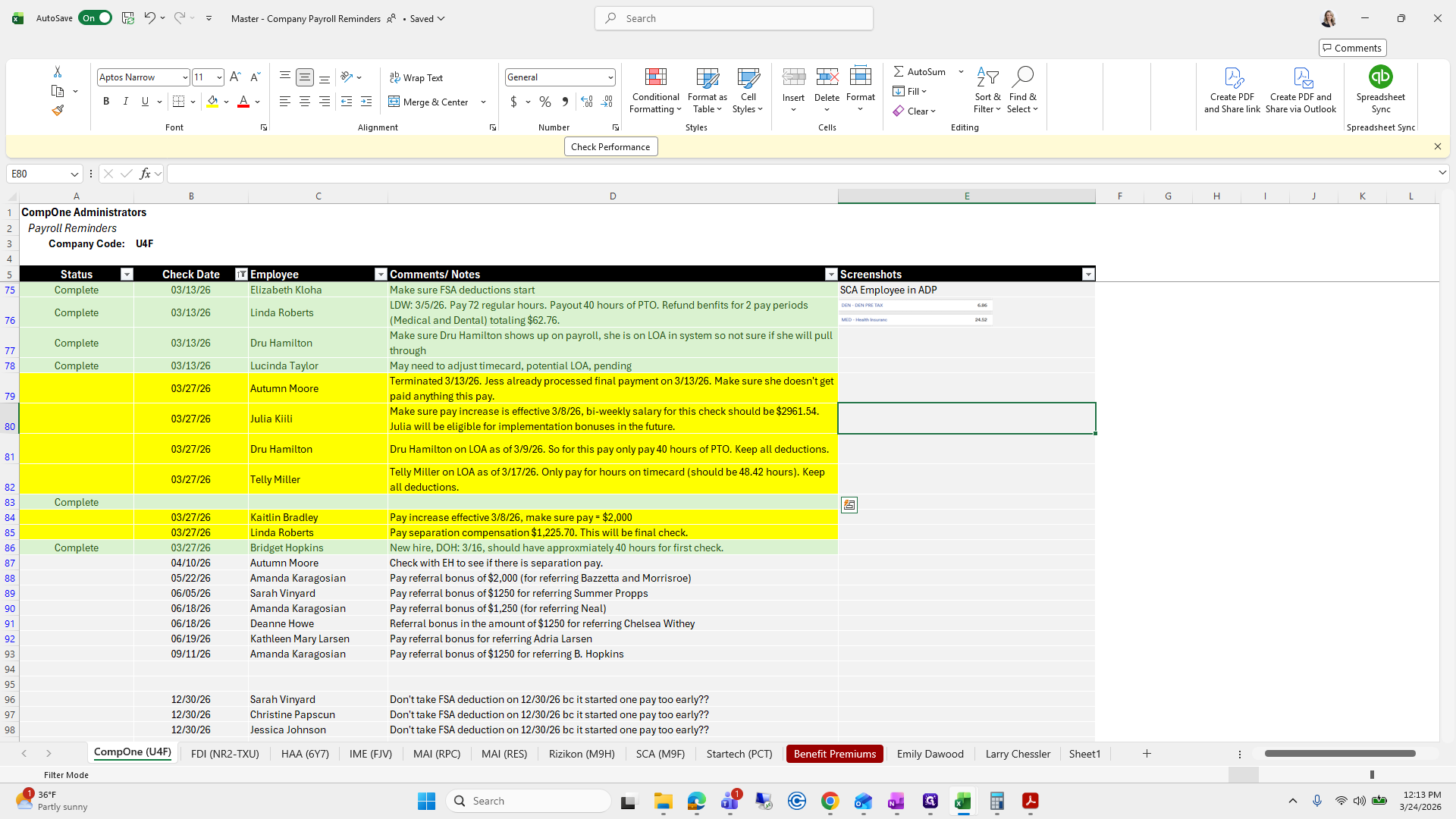
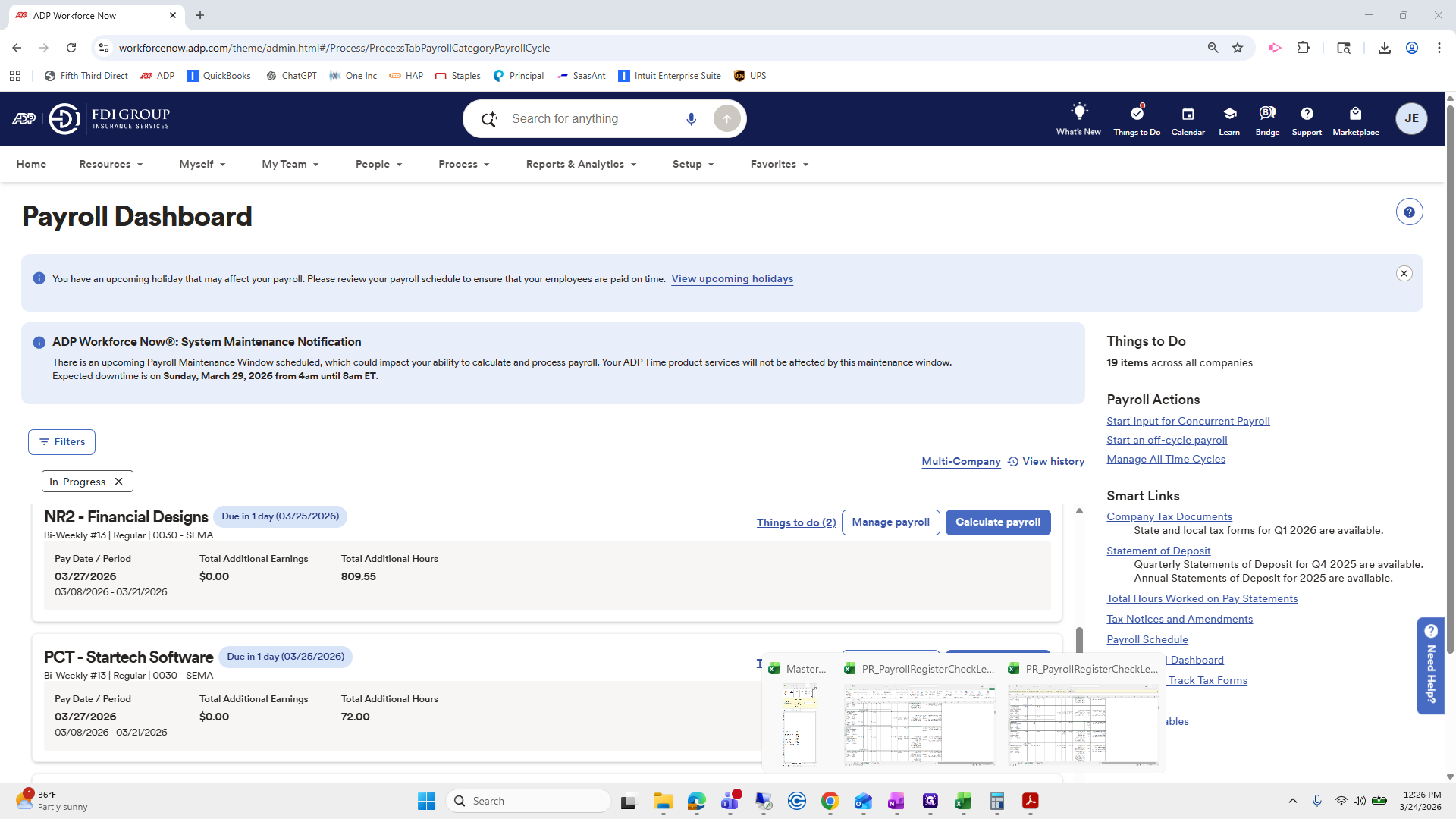
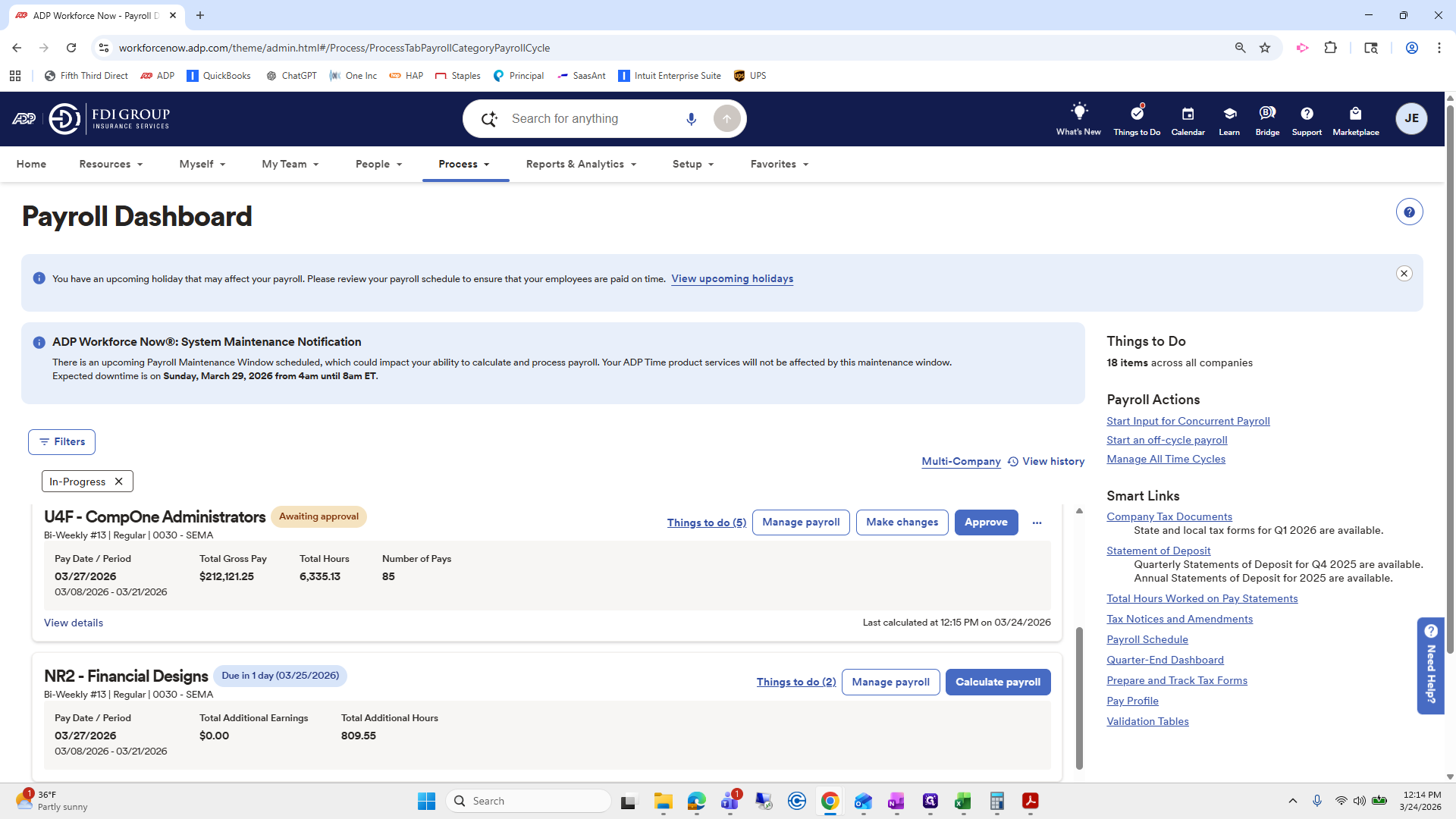
We will start with Comp 1 as an example. This will serve as a guide for the remaining codes.
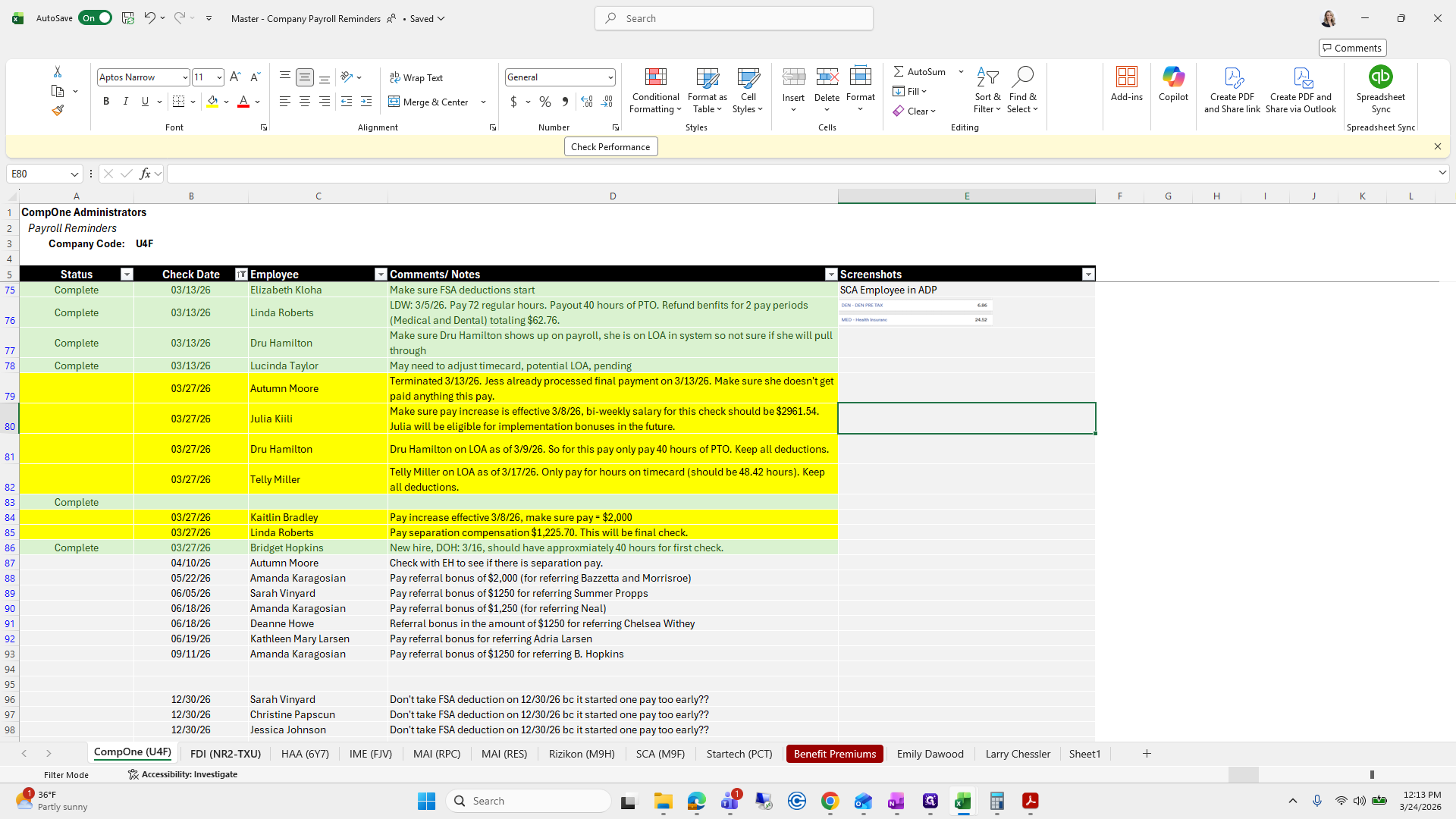
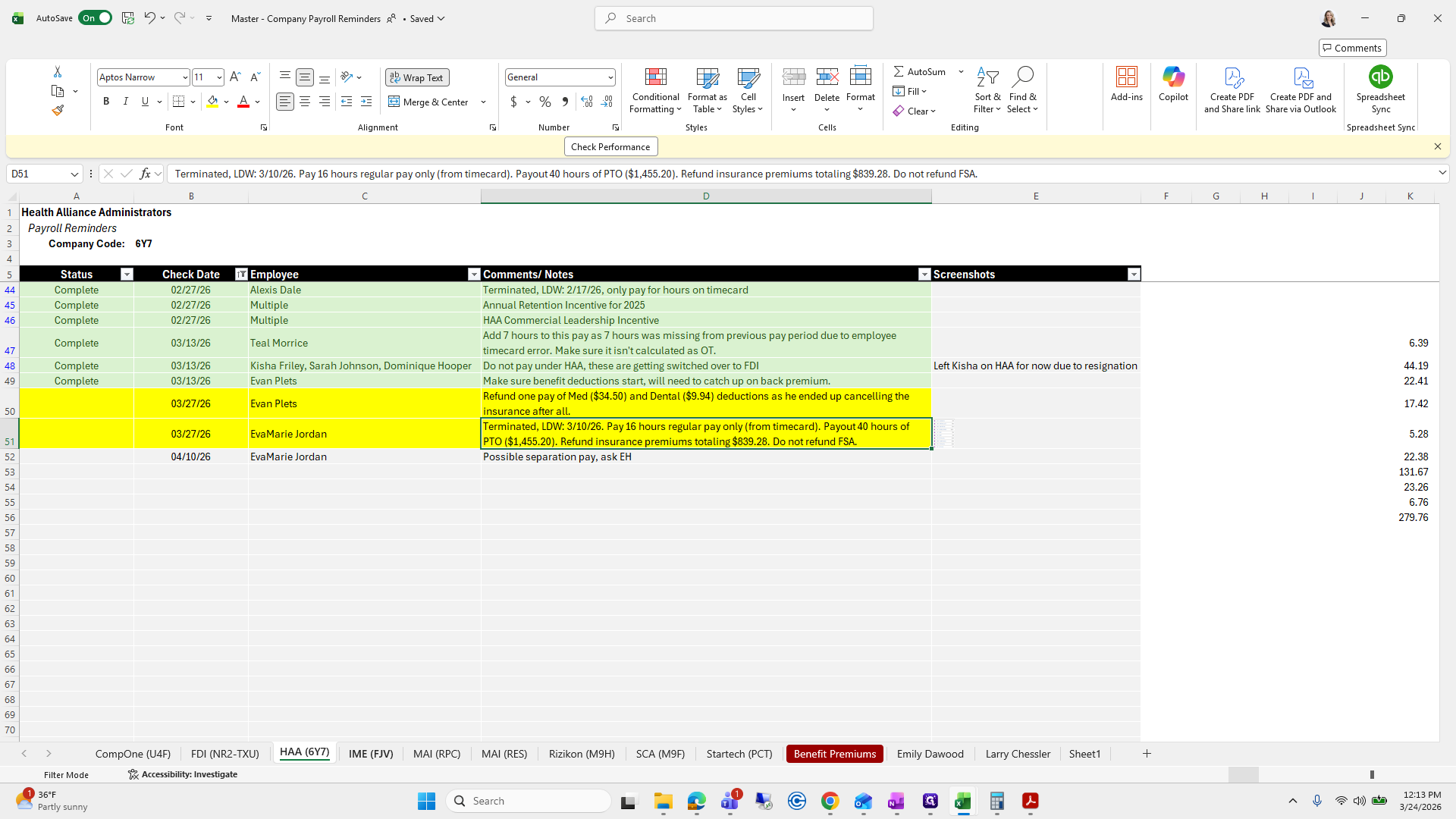
Comp 1, calculate payroll.

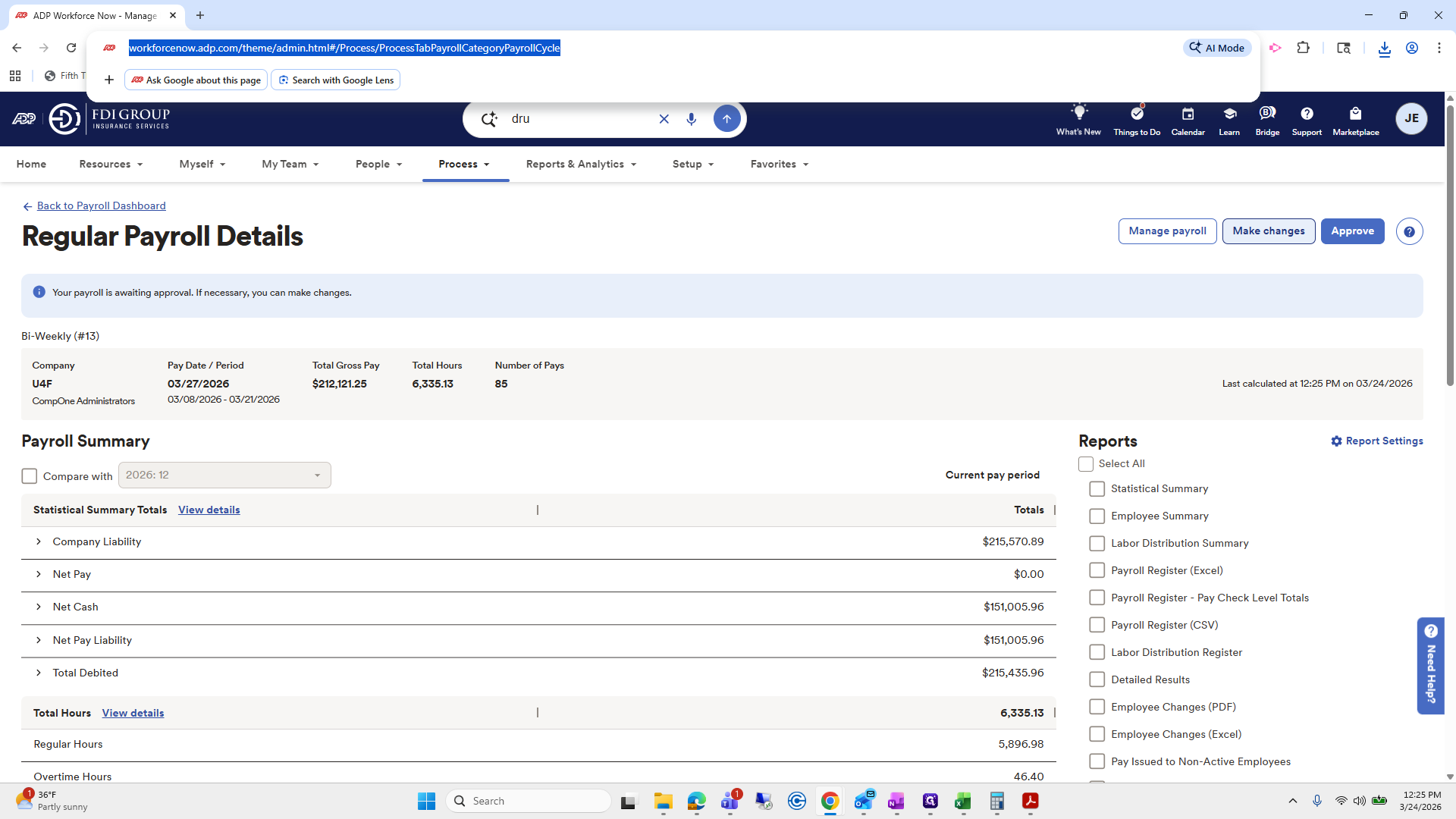
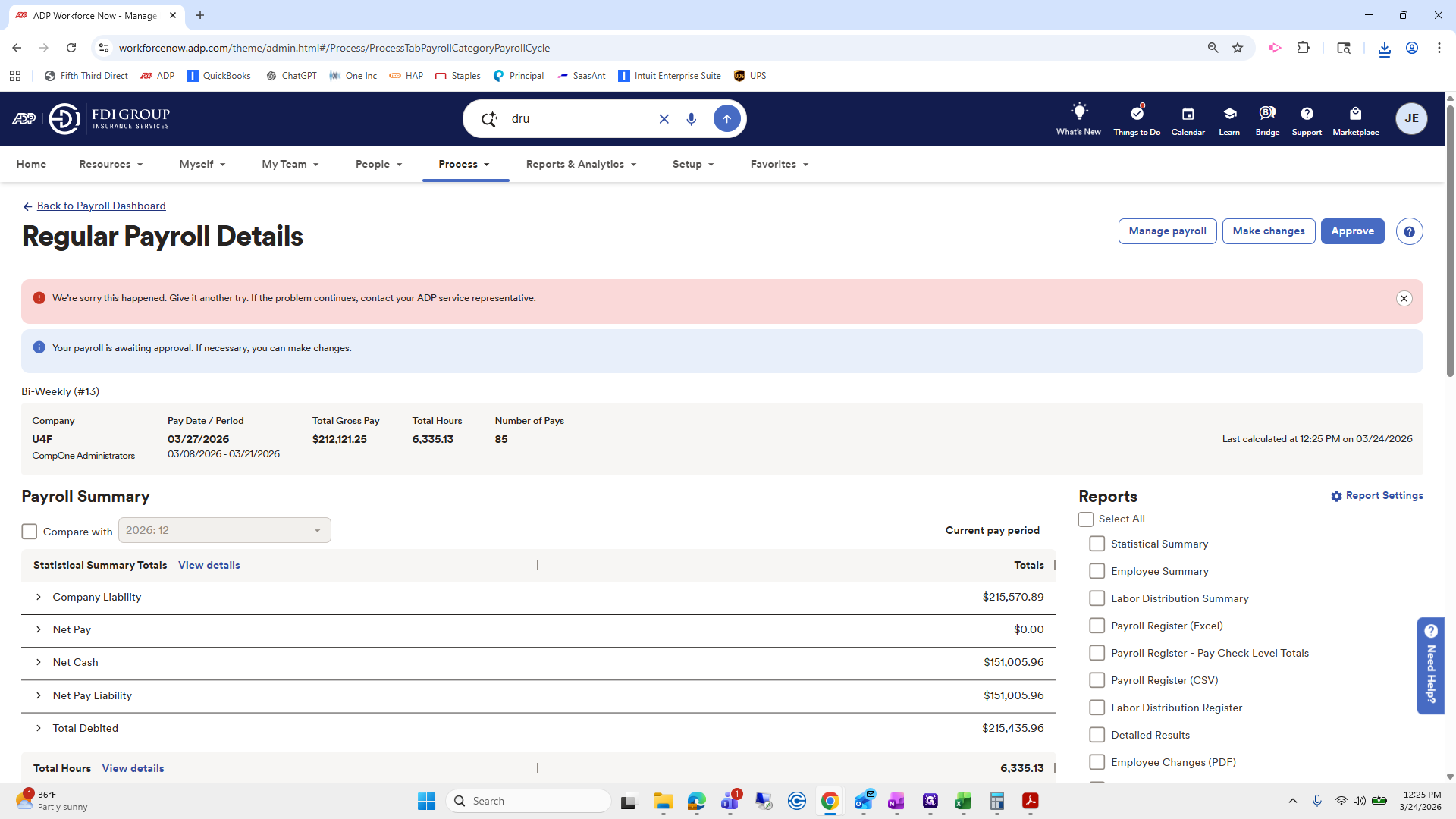
Once it appears, it will say "awaiting approval." Never hit approve until it is a Wednesday afternoon around 1:00 or 2:00 PM. Only approve after you have reviewed all necessary work papers to ensure everything looks correct.
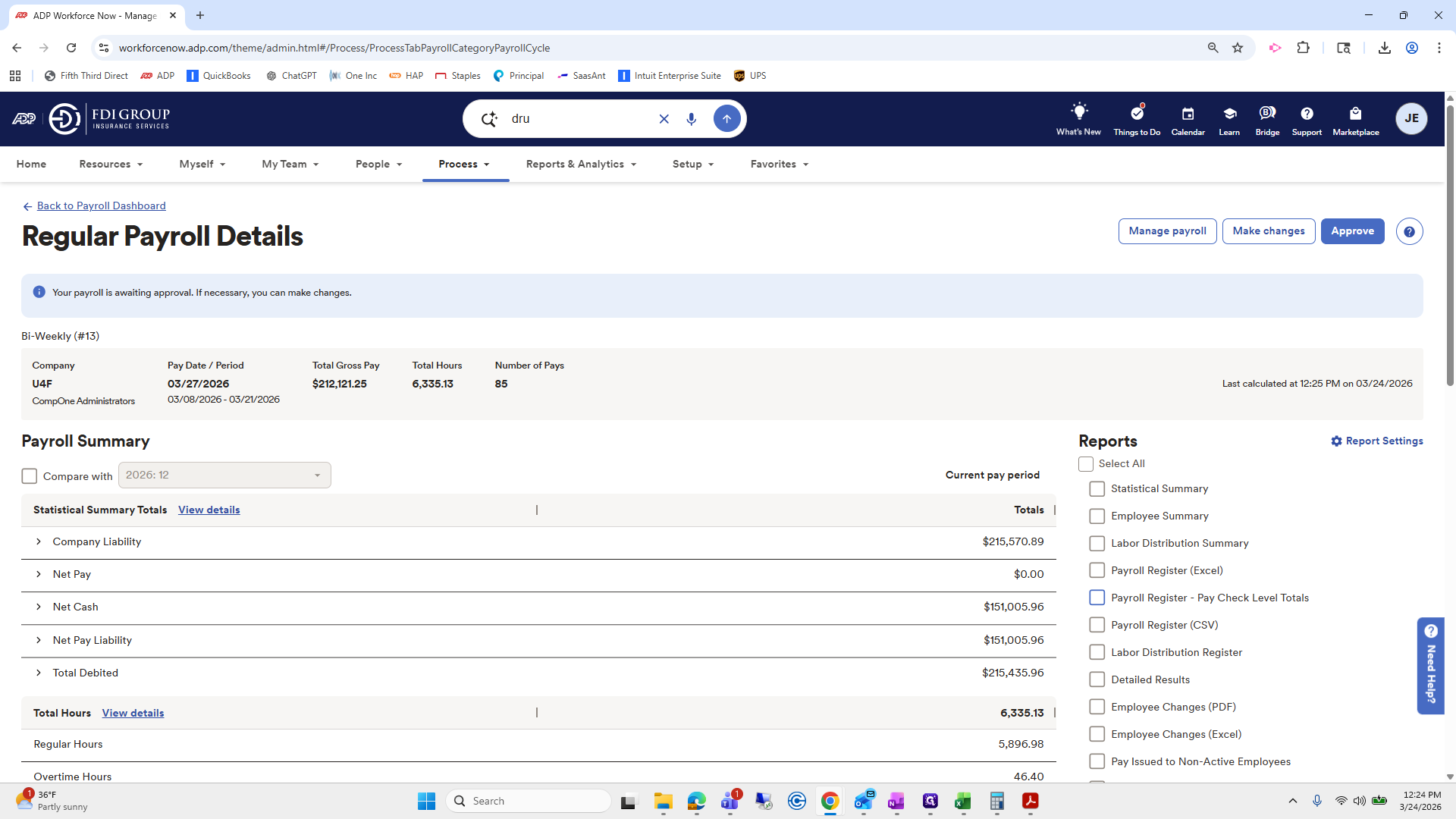
I like to review paycheck totals.
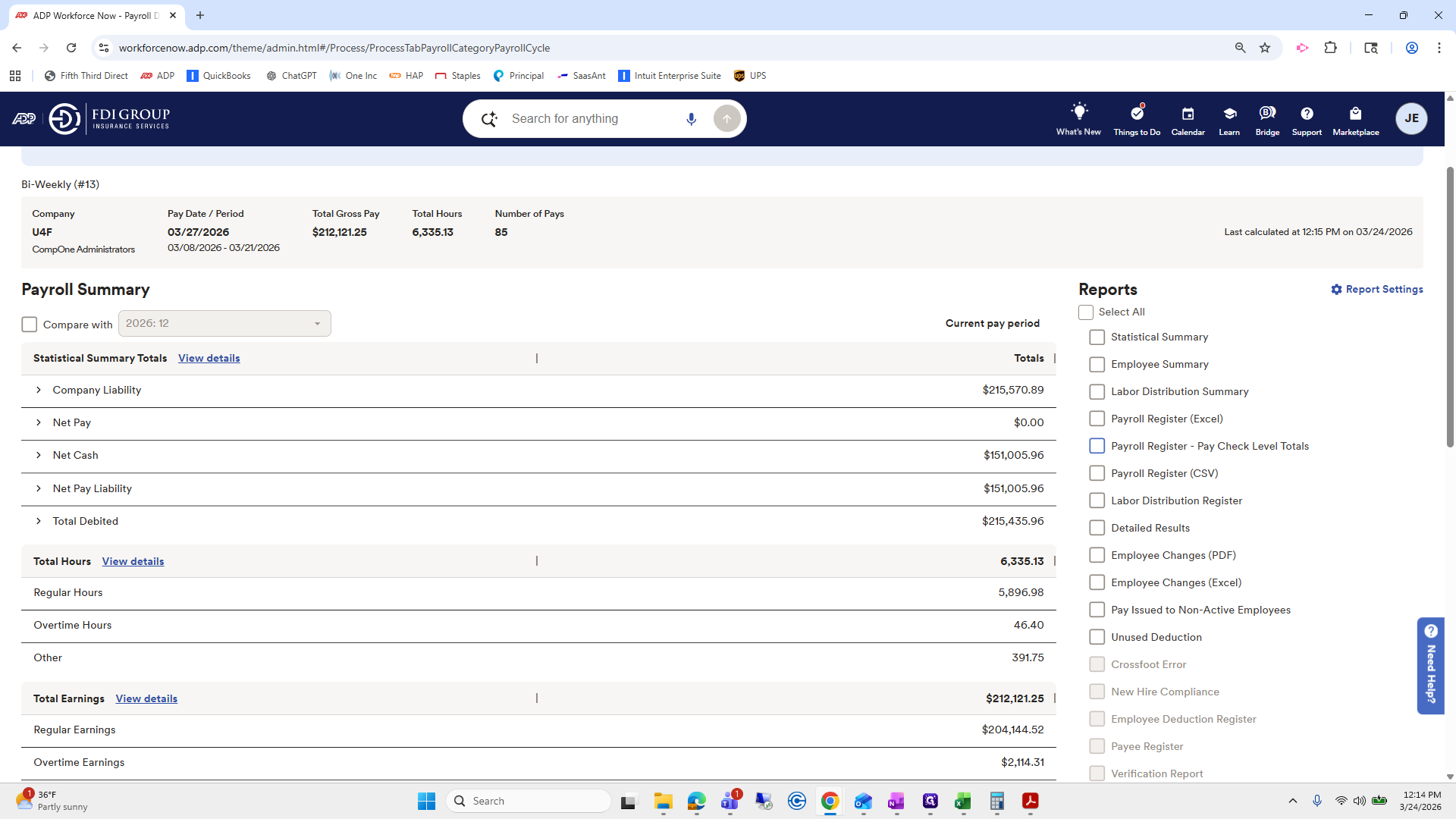
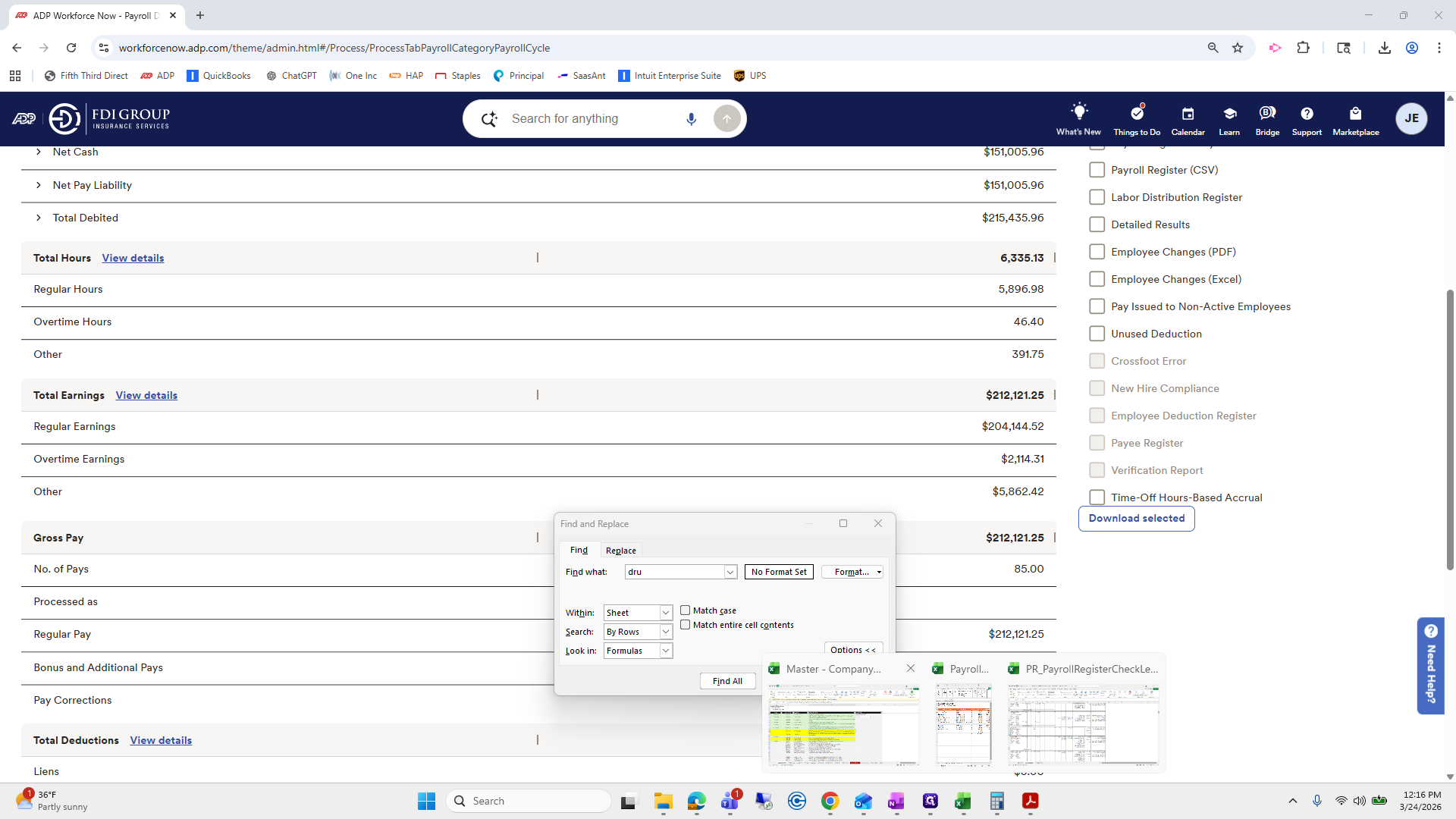
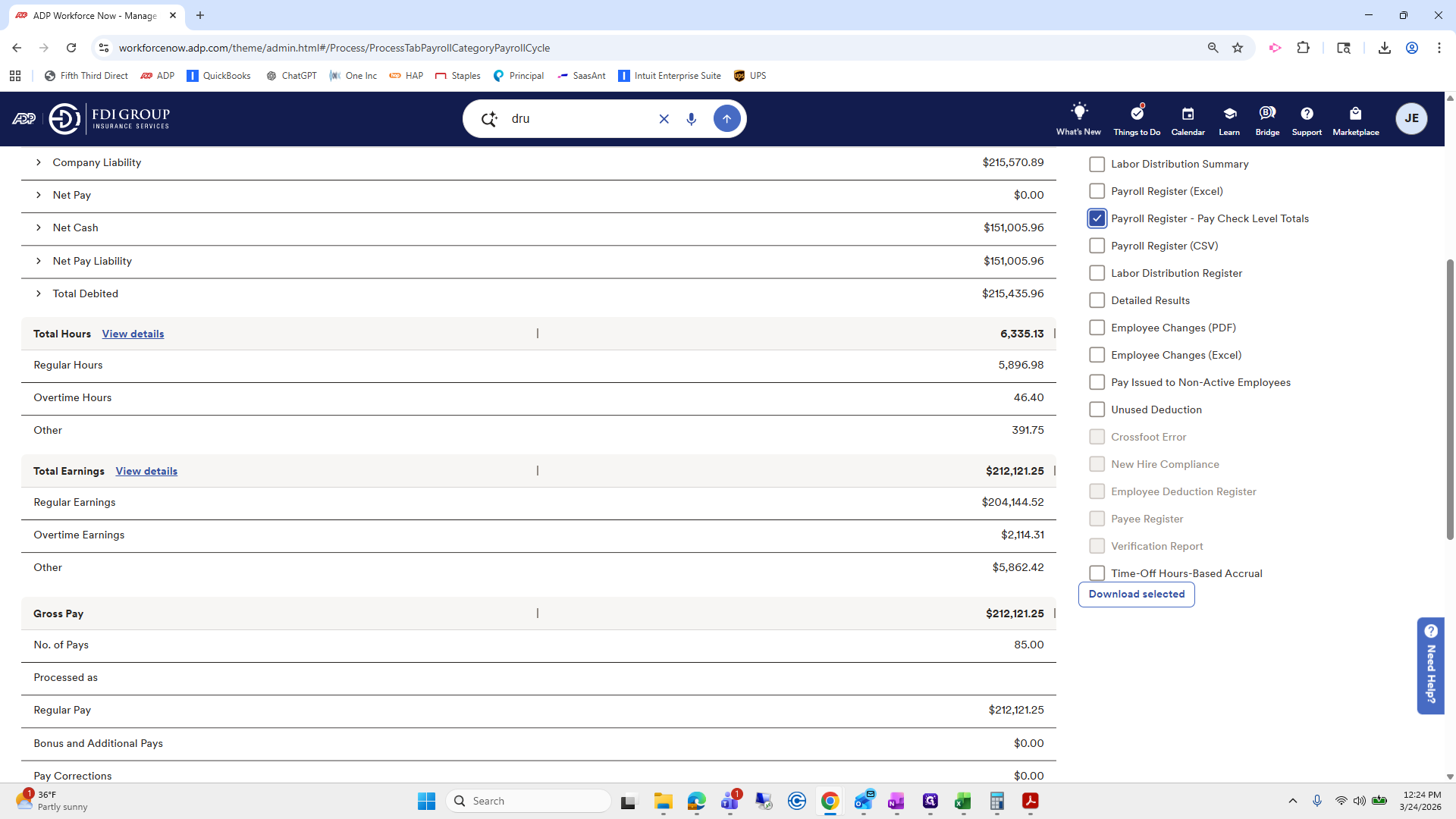
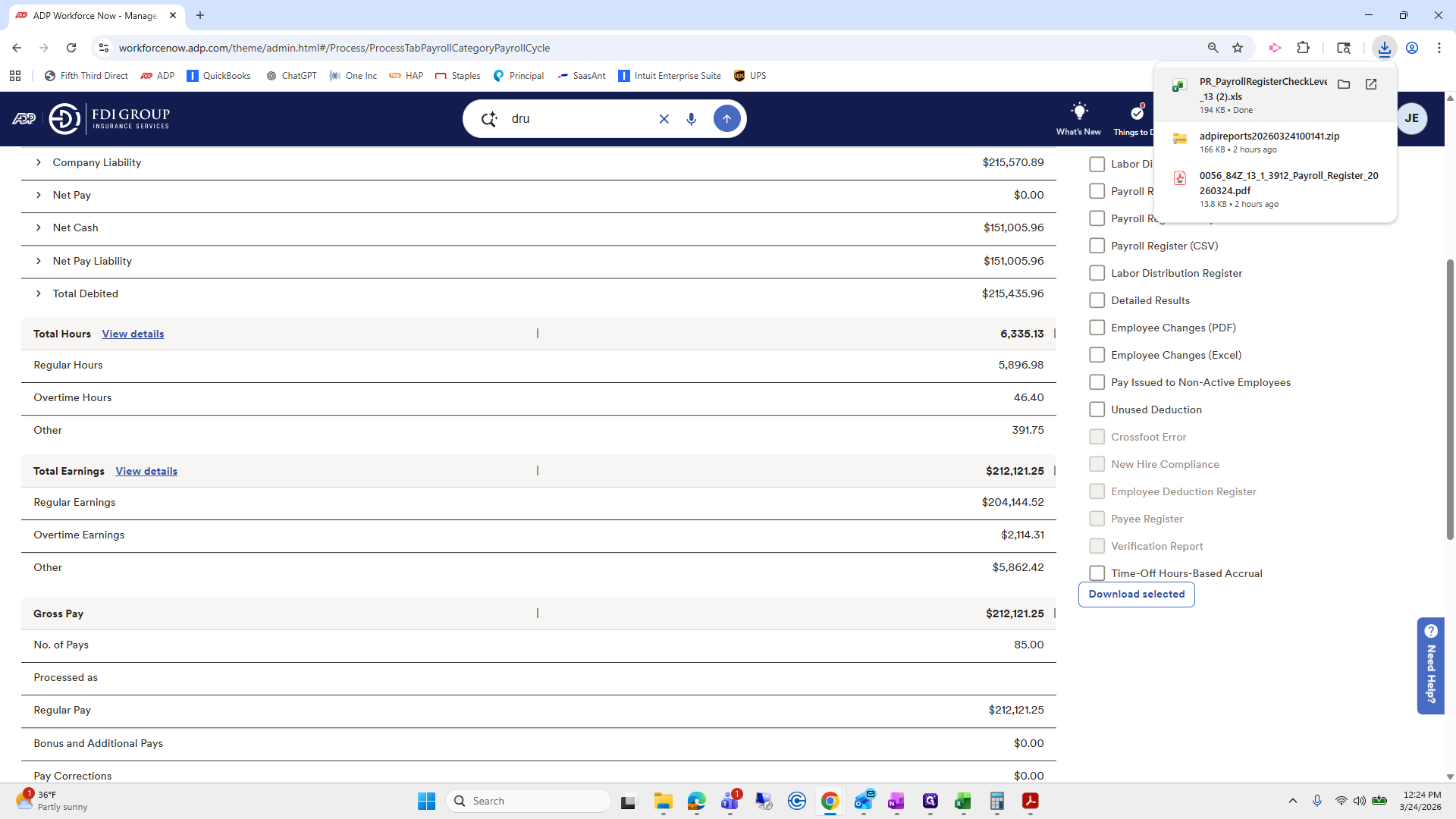
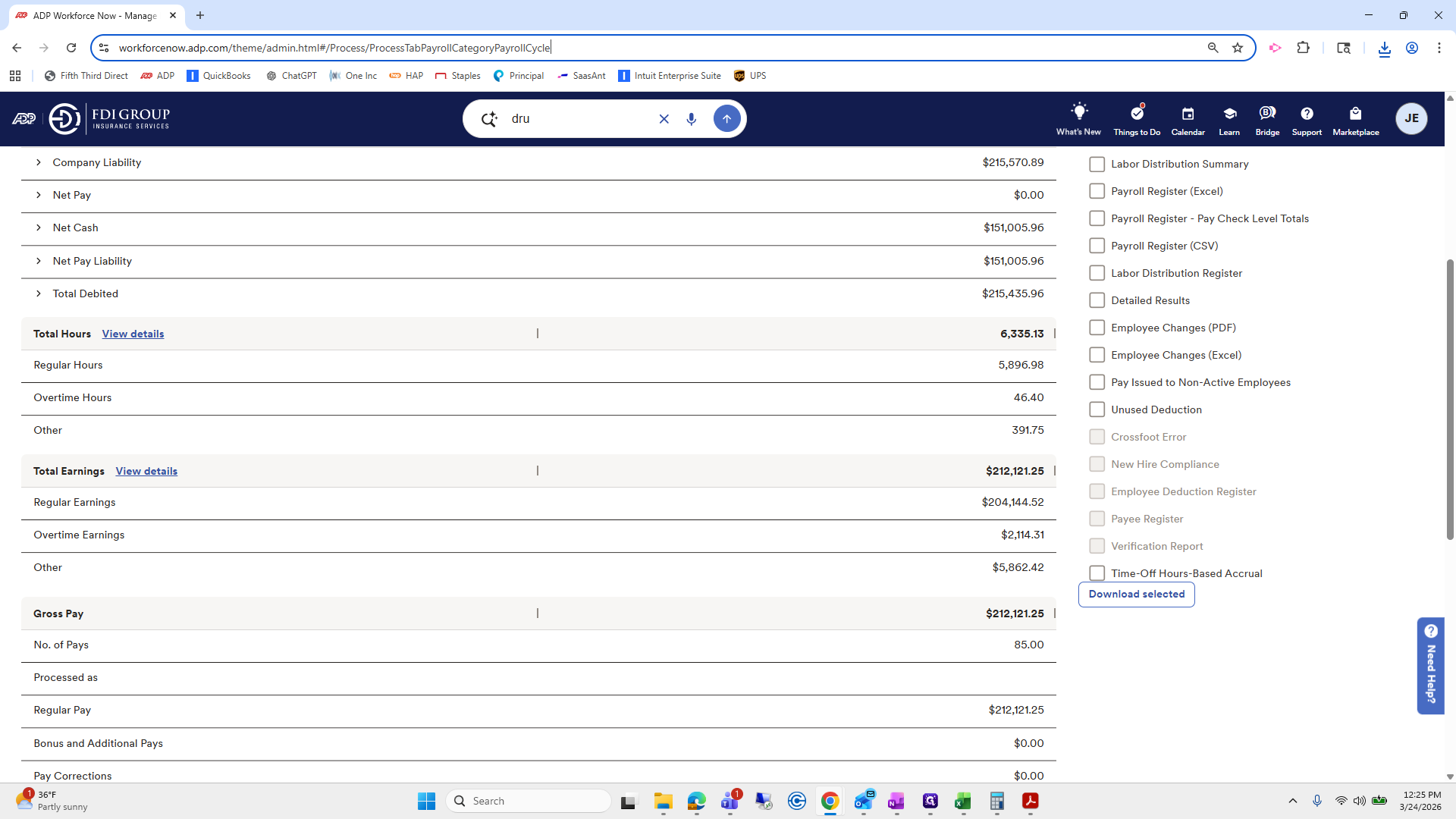
This is my main one and the statistical summary as well. The first one I will look at is the payroll register. I will download it.
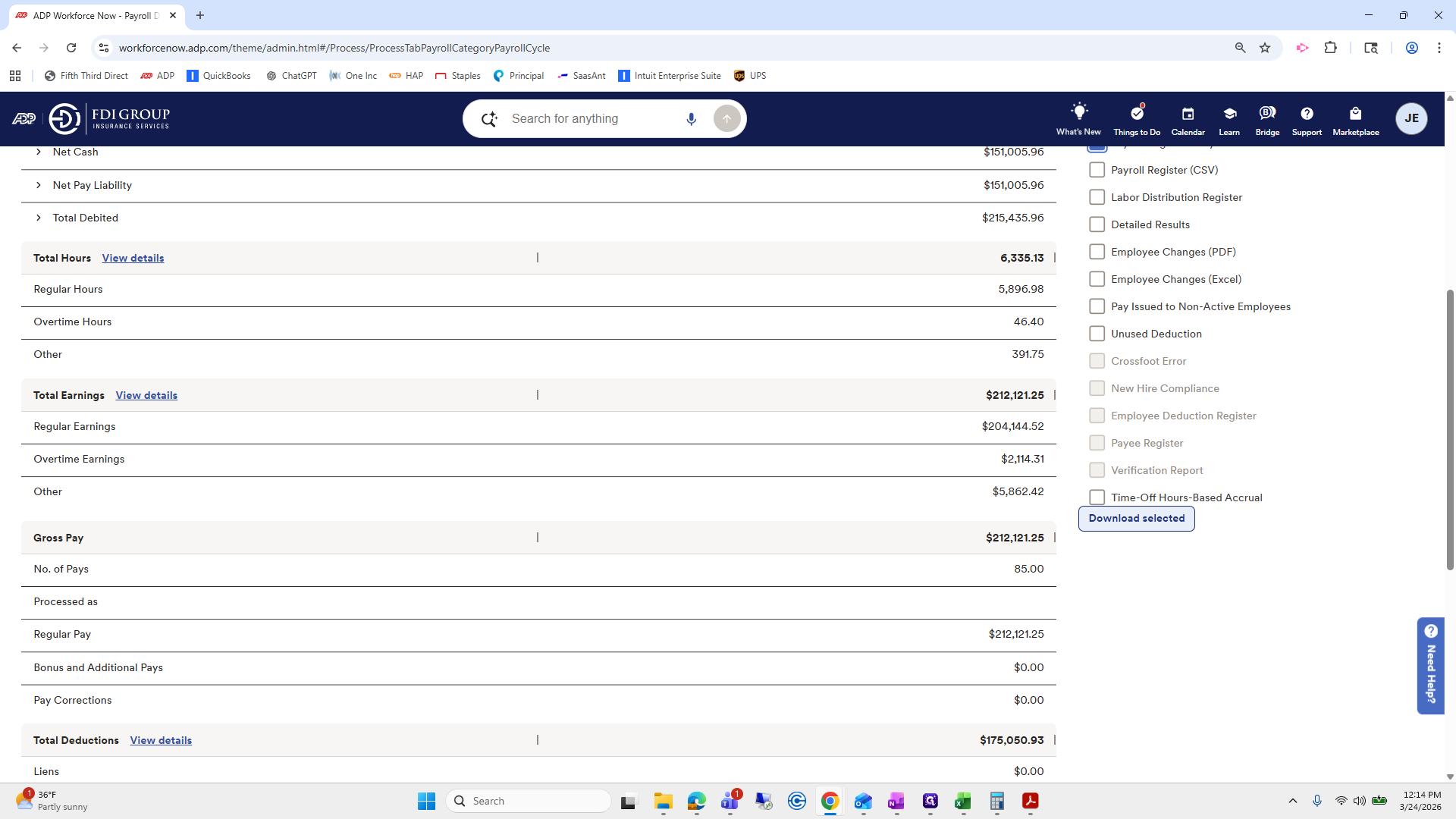
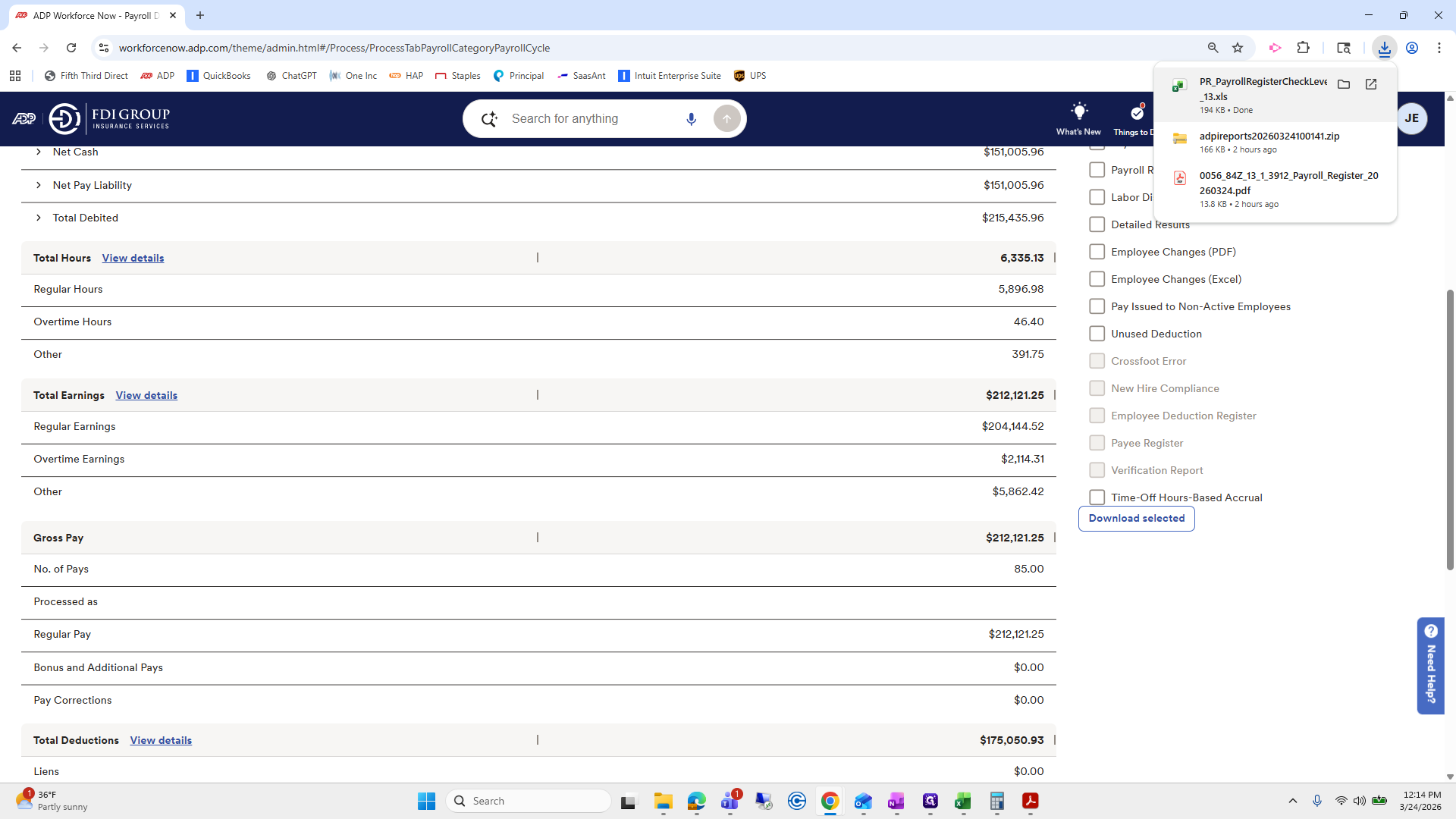
I will click that to open it and review.
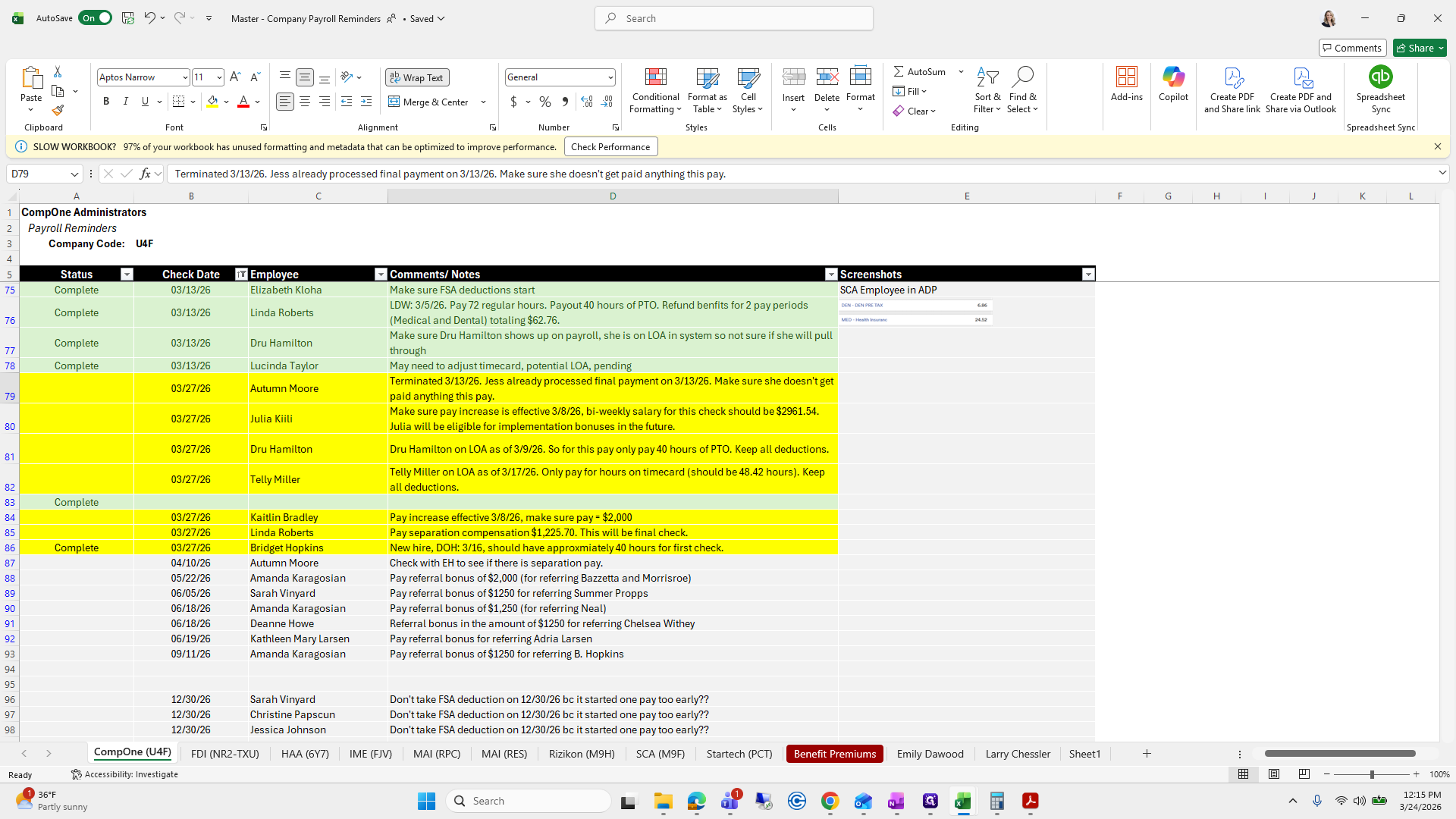
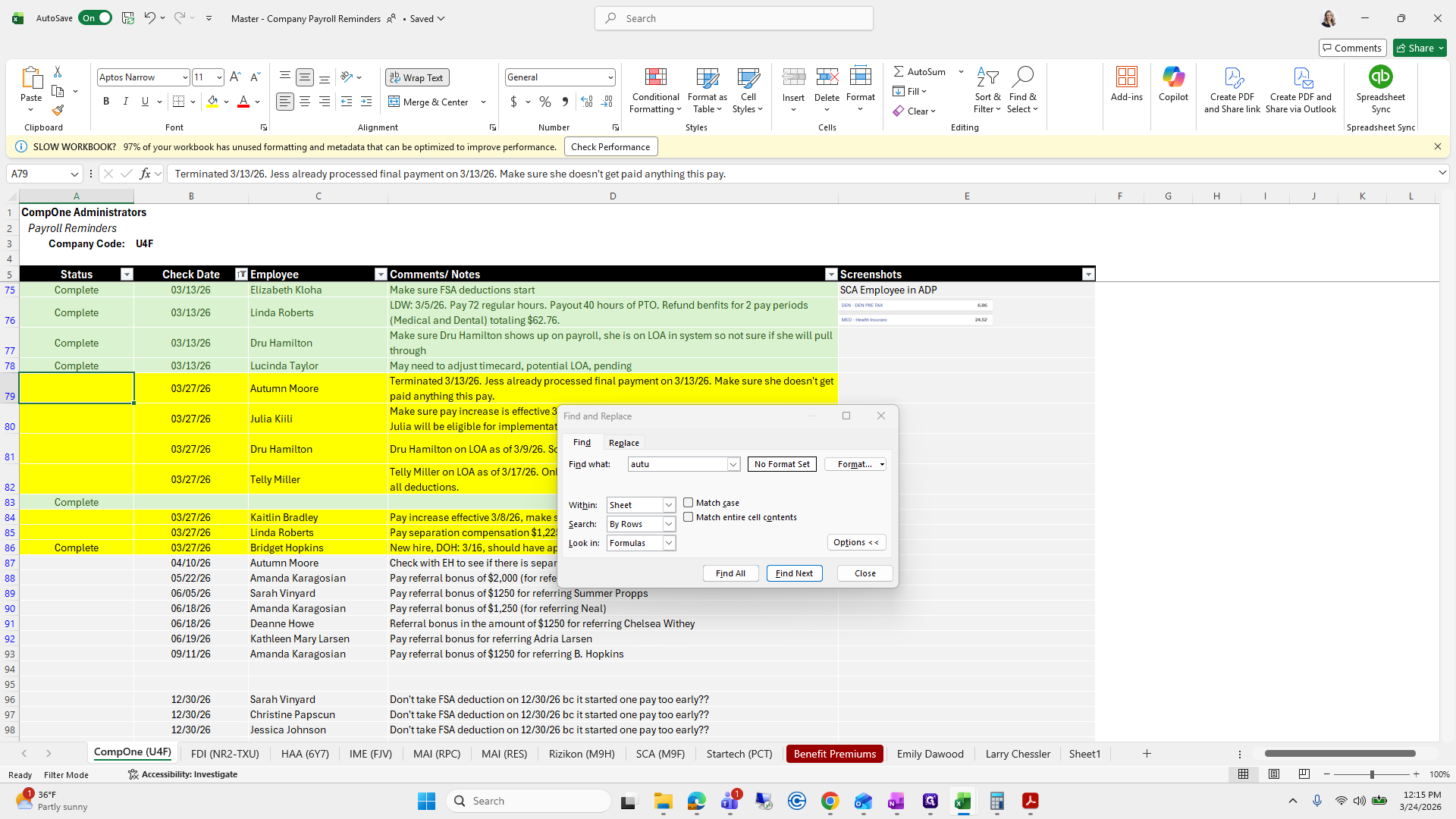
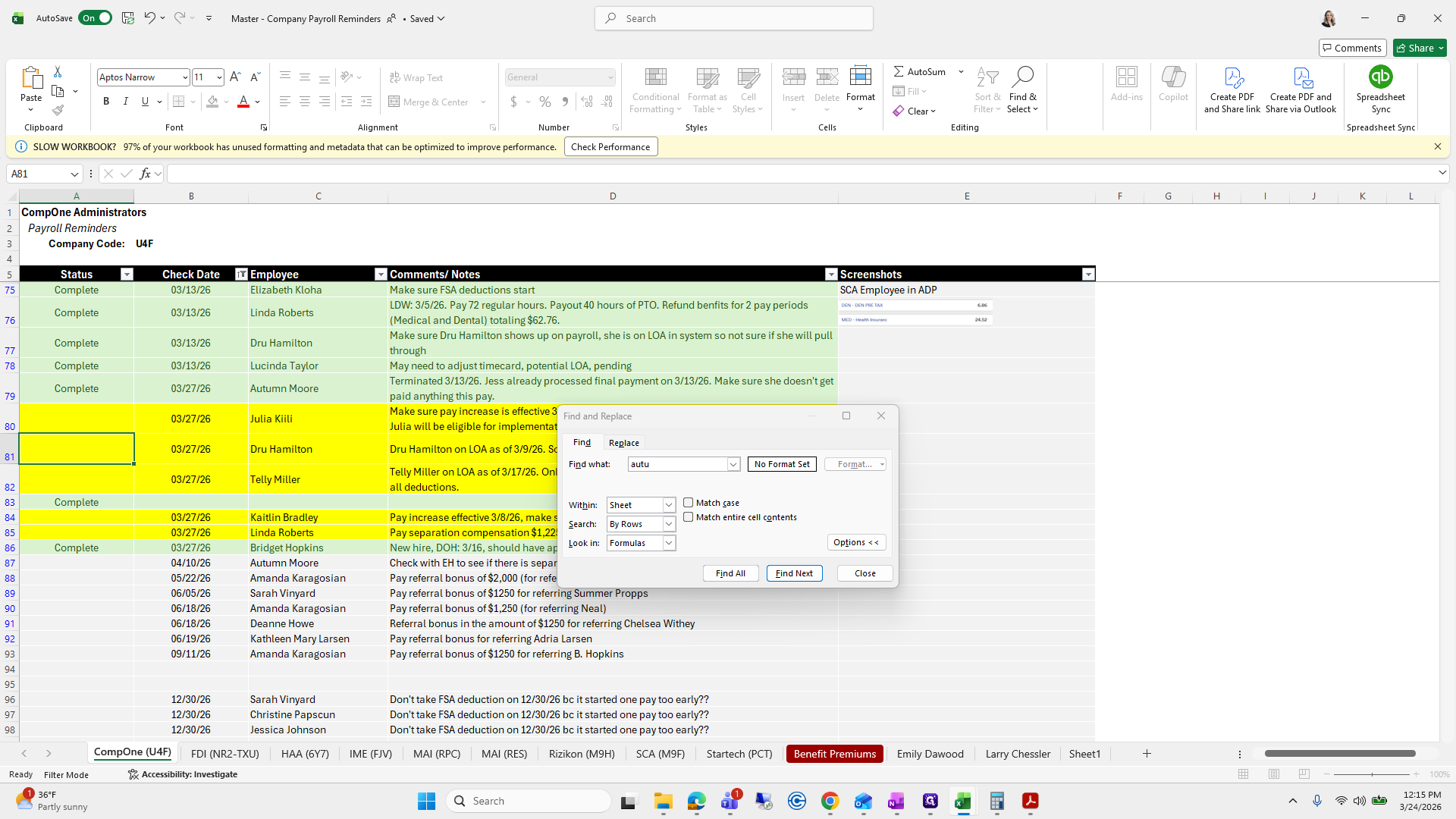
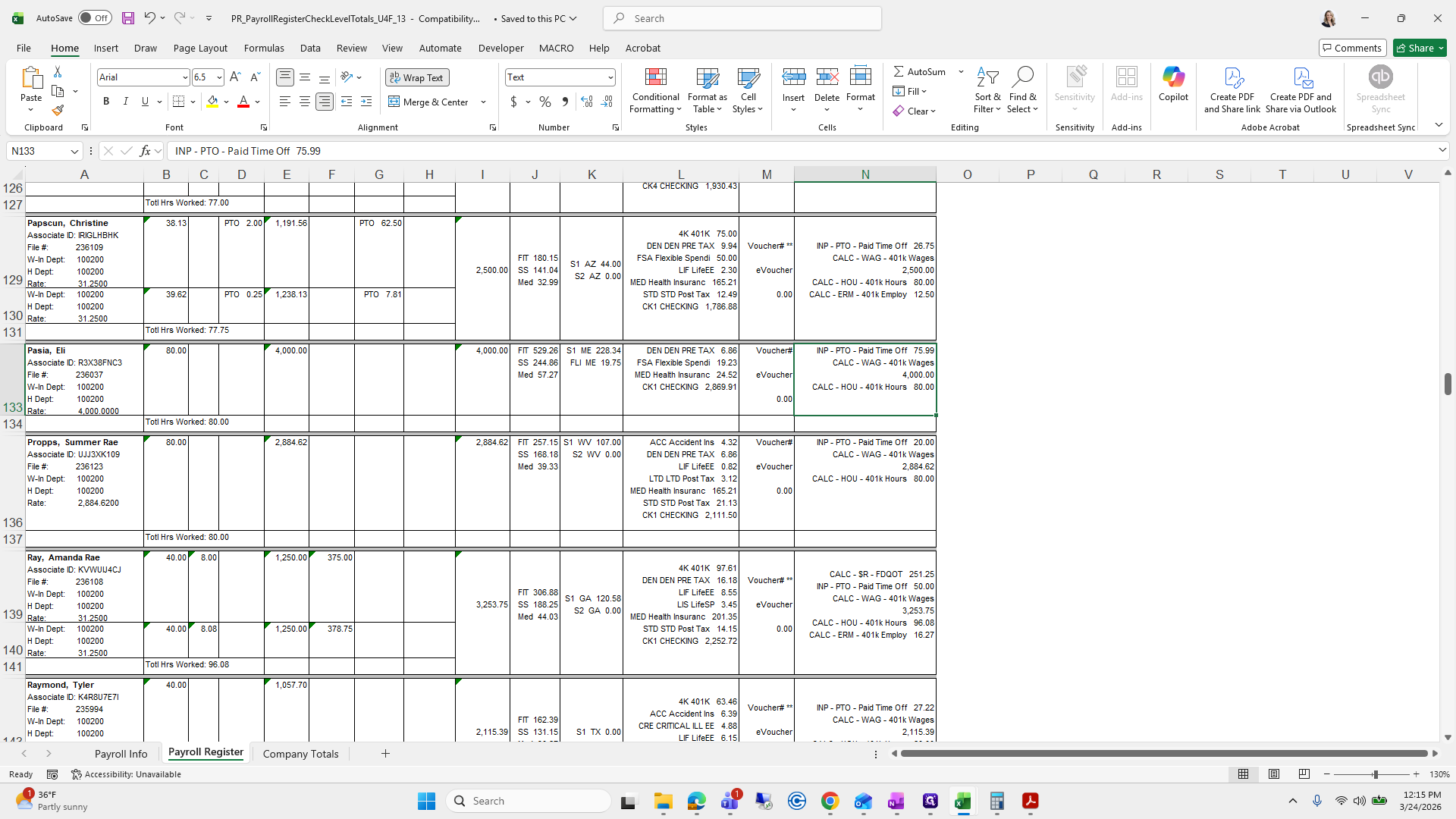
We have a few things to review. The first one is Autumn Moore.
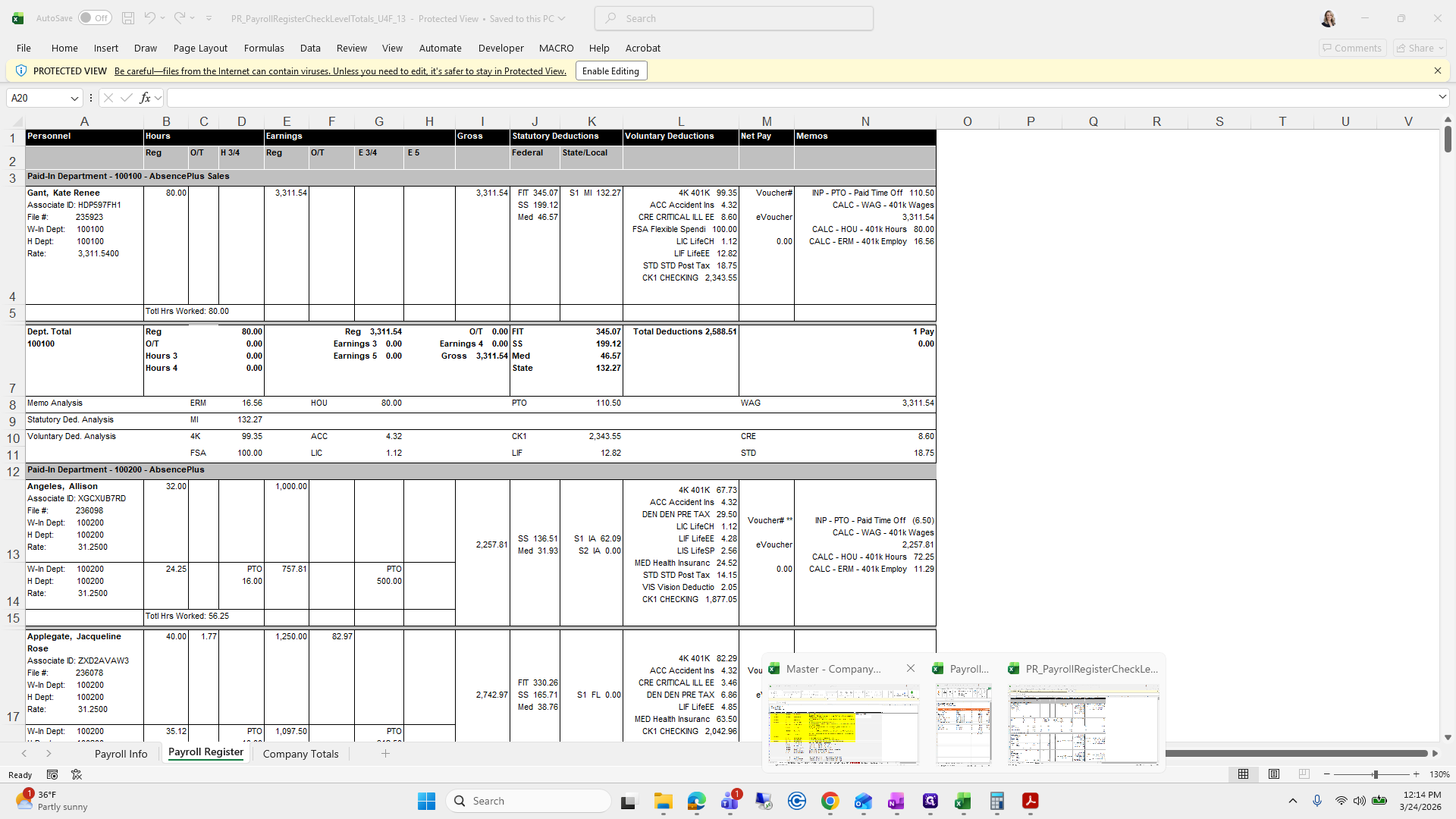
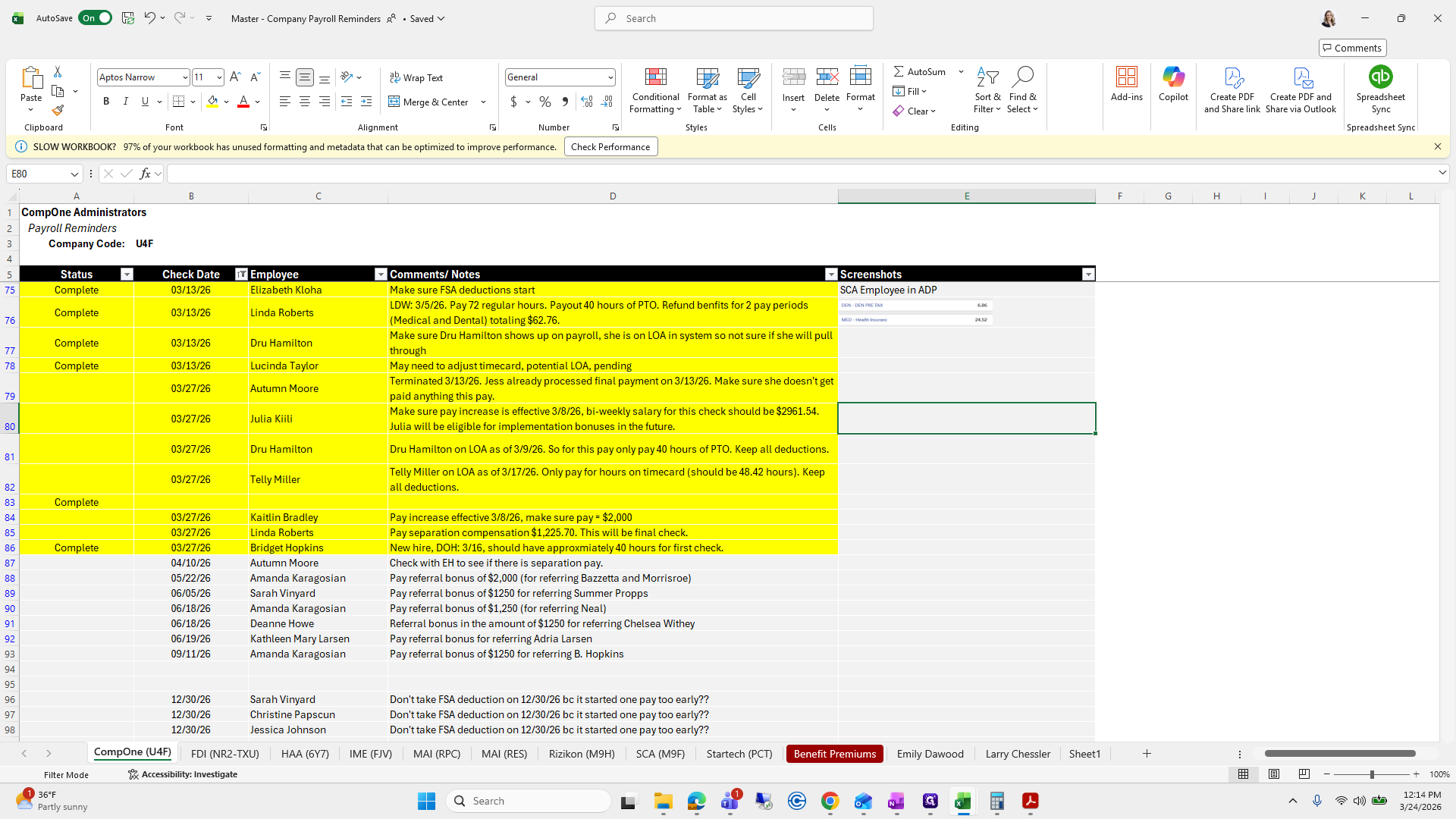
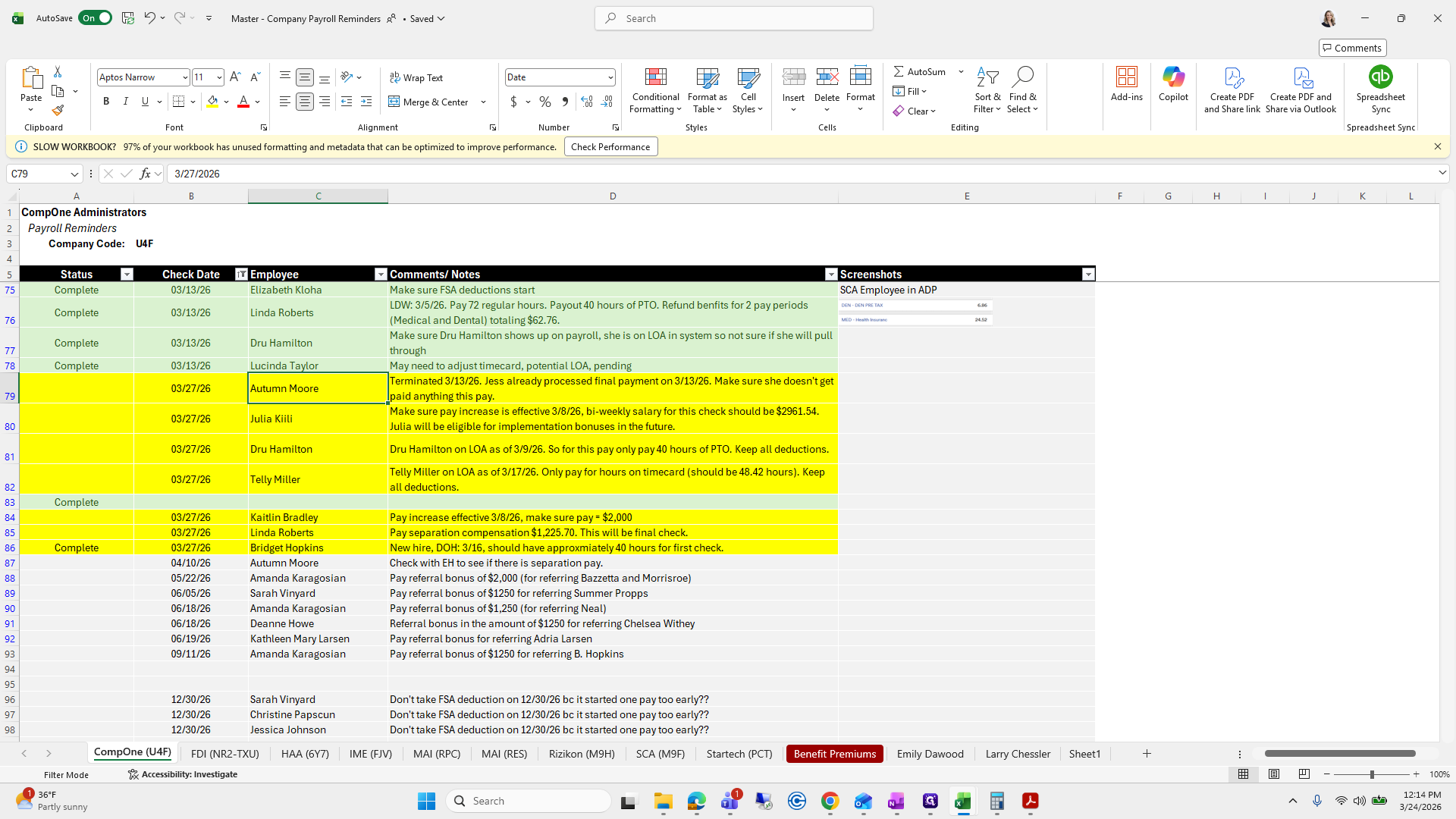
We need to ensure she has nothing in this paycheck.
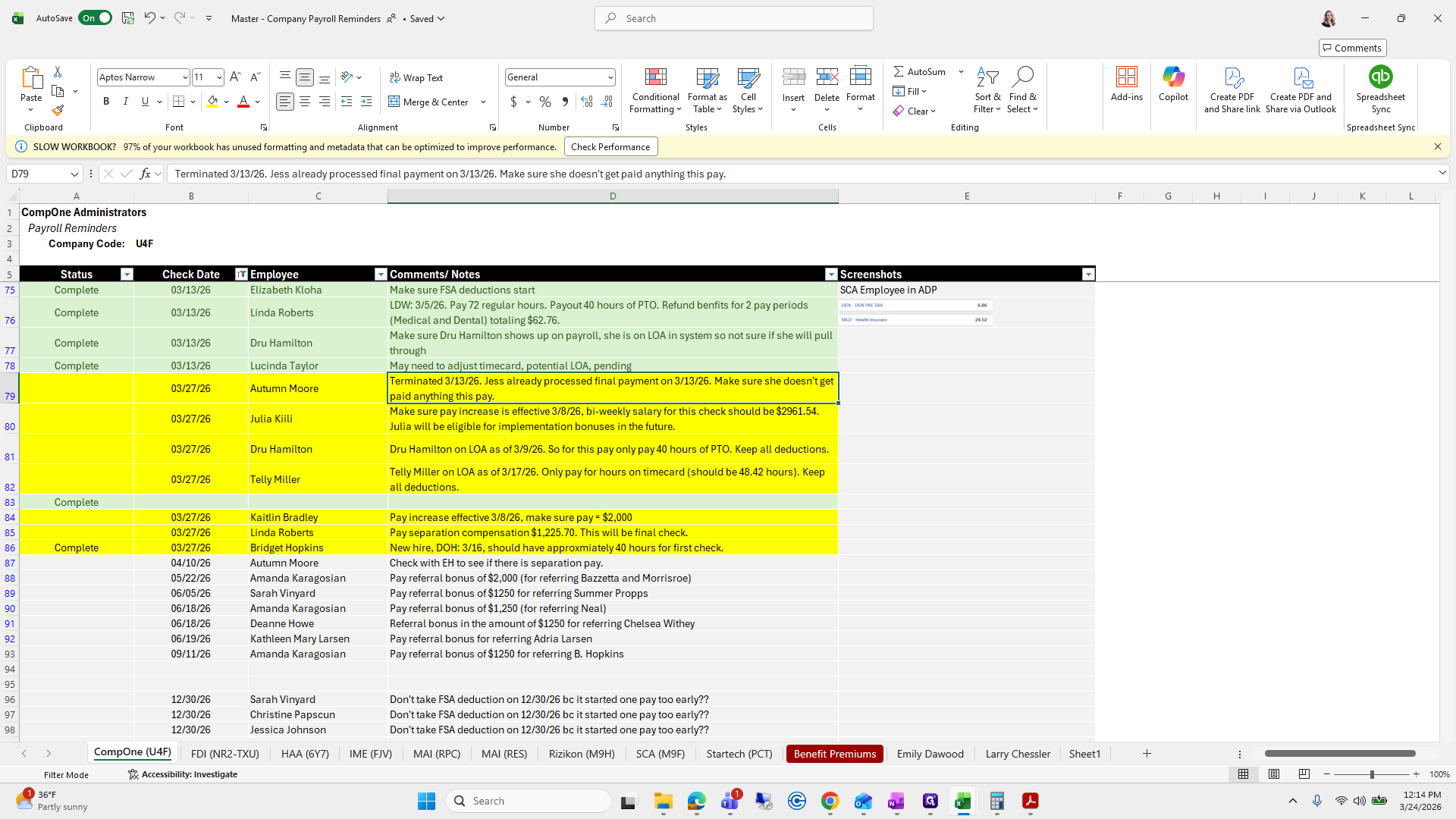
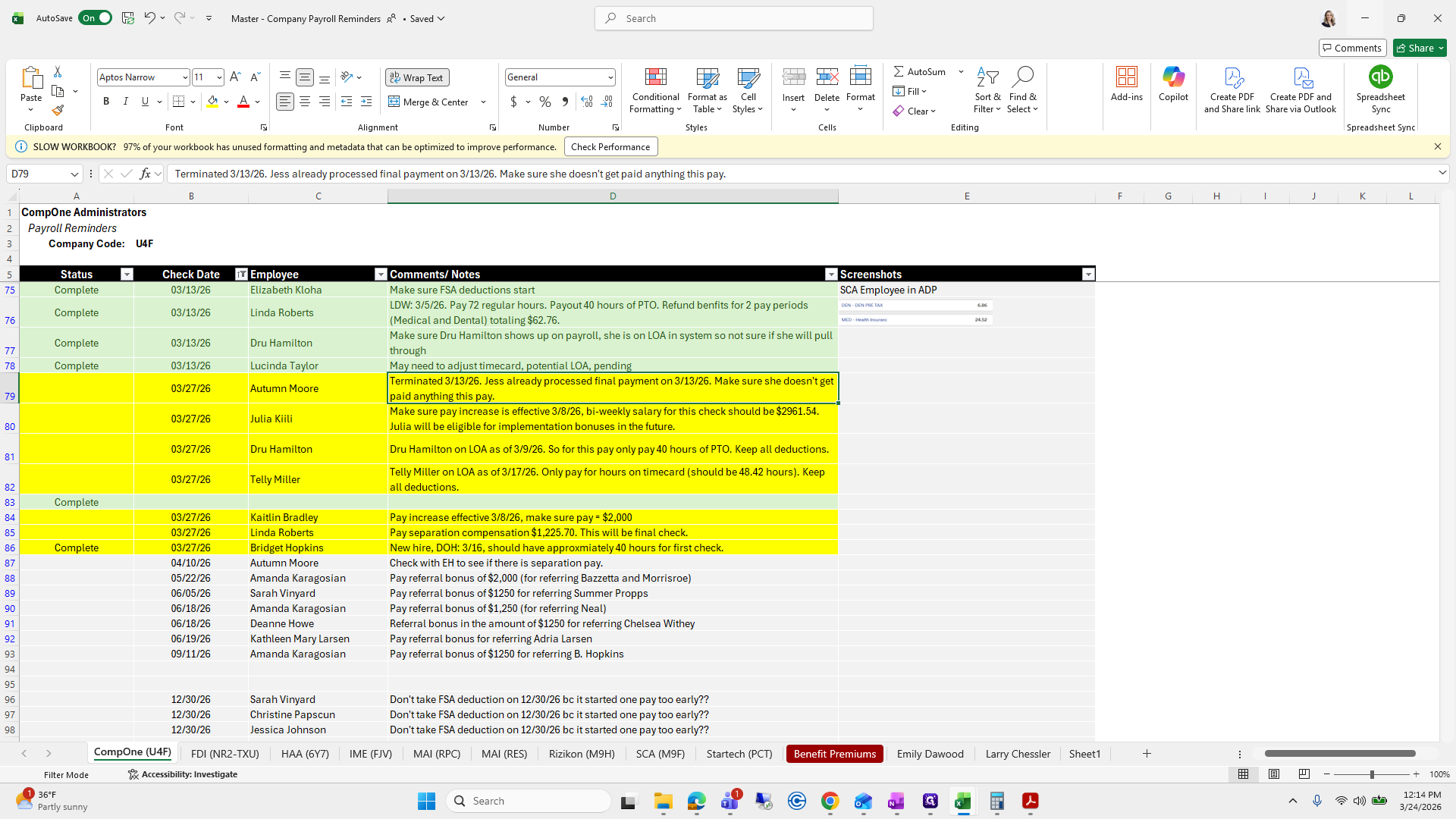
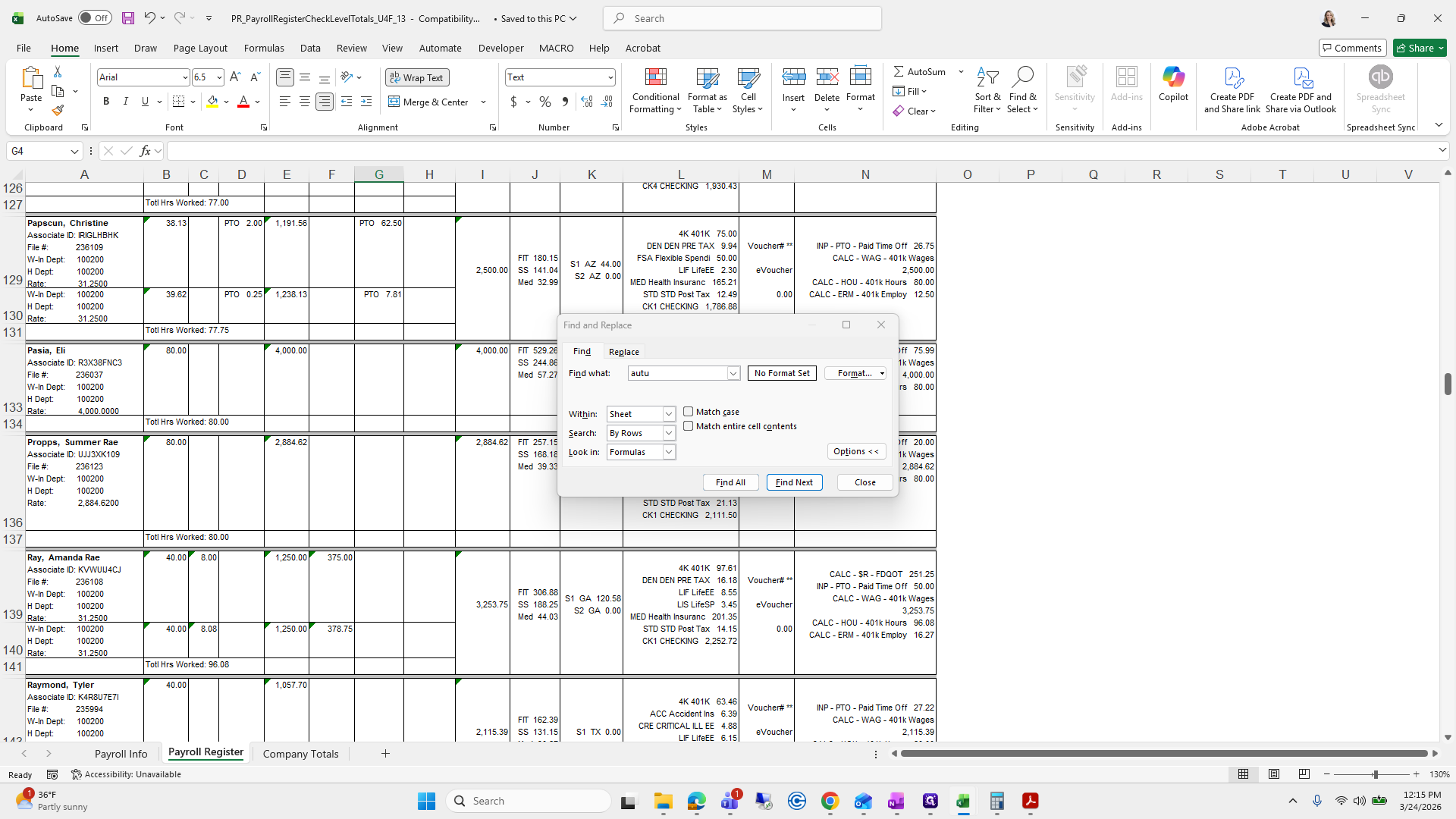
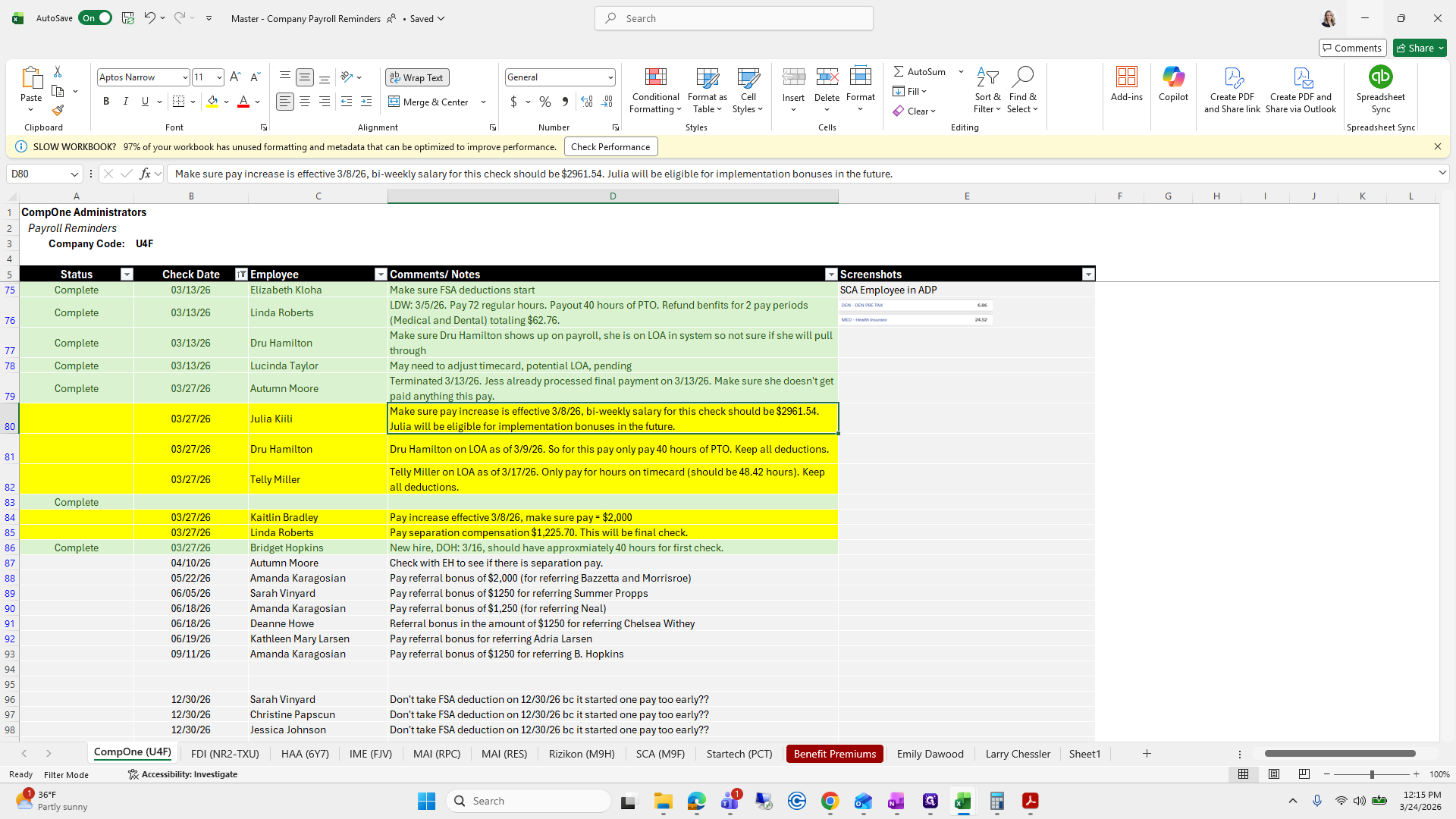
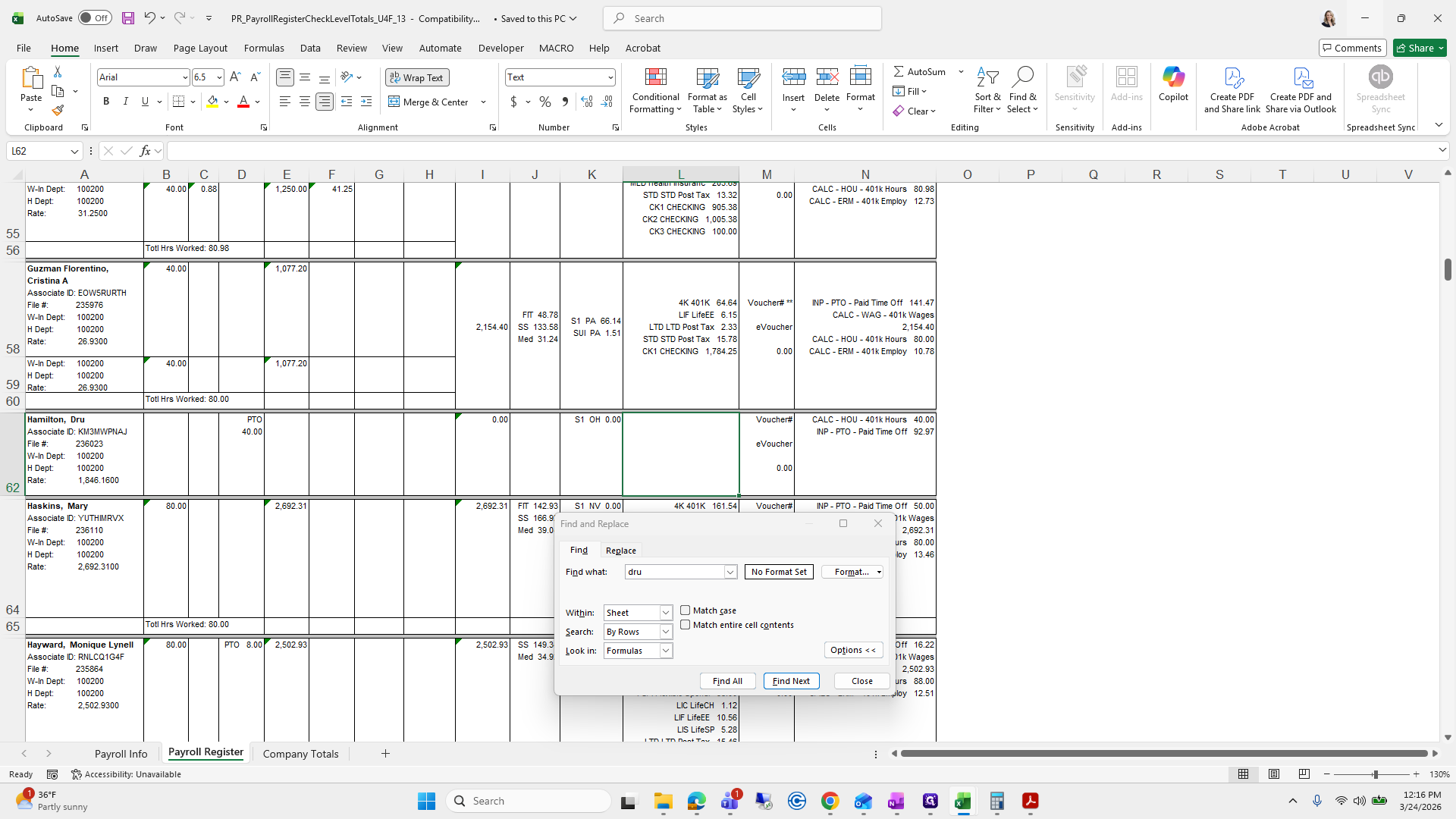
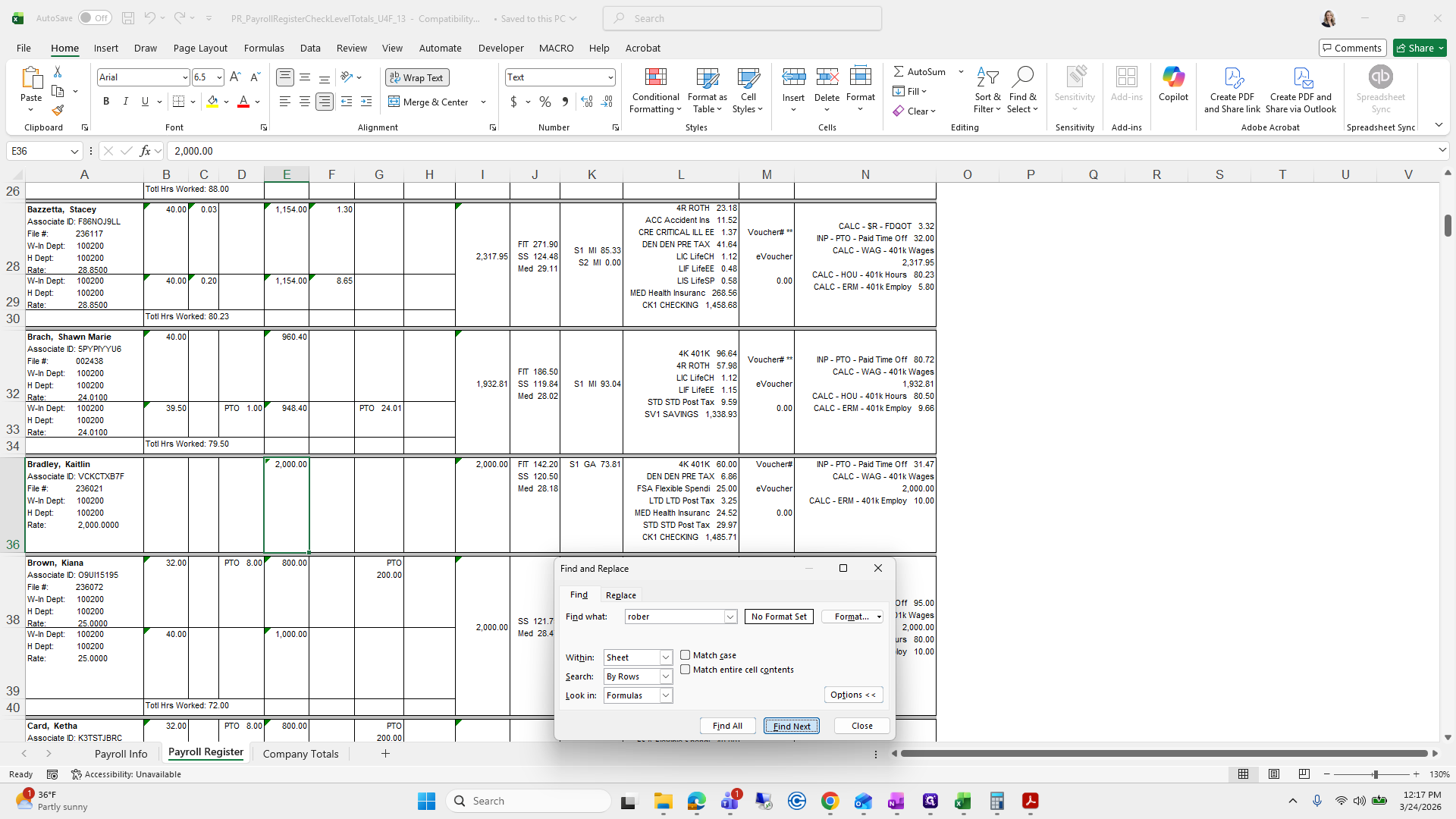
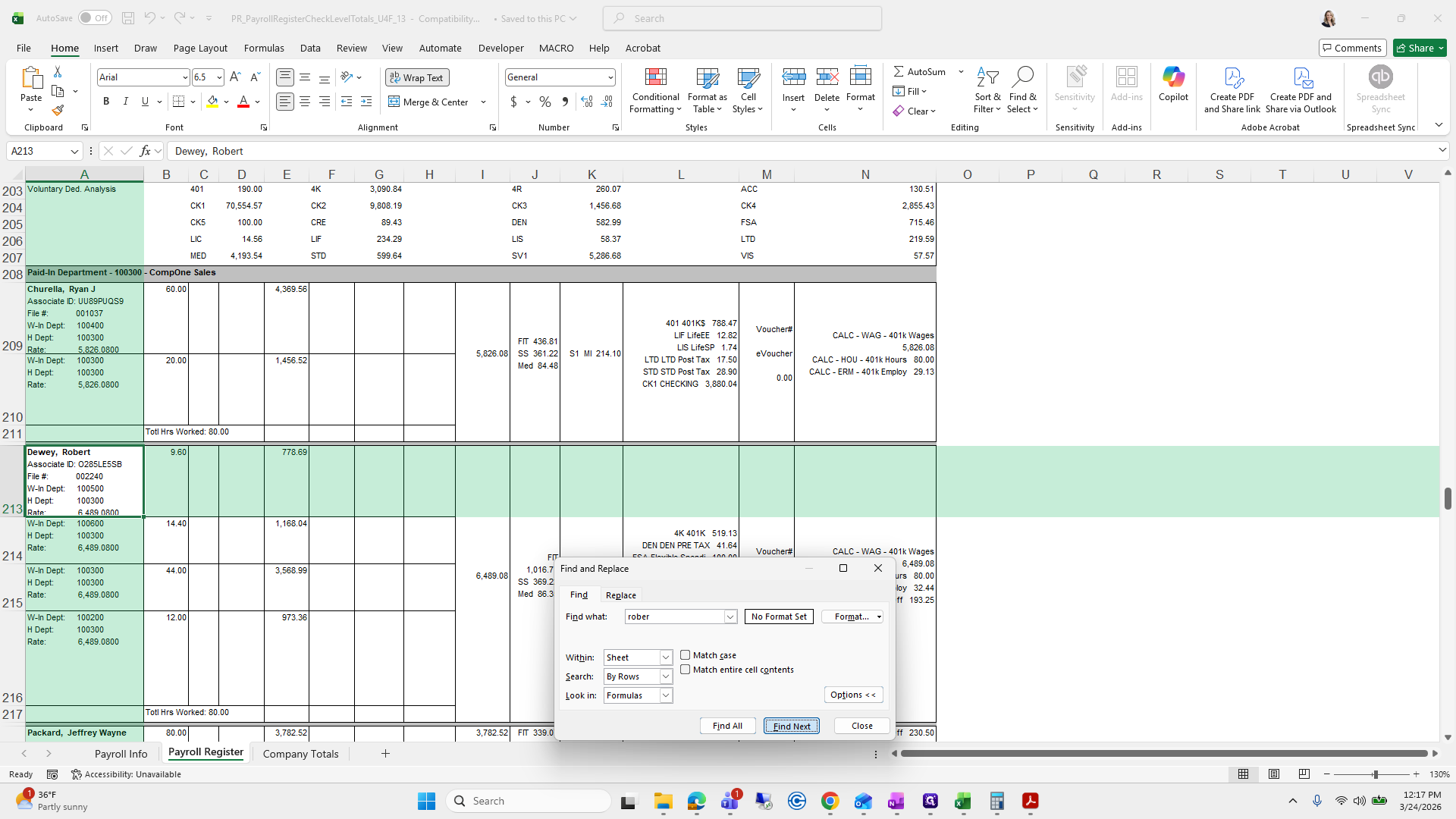
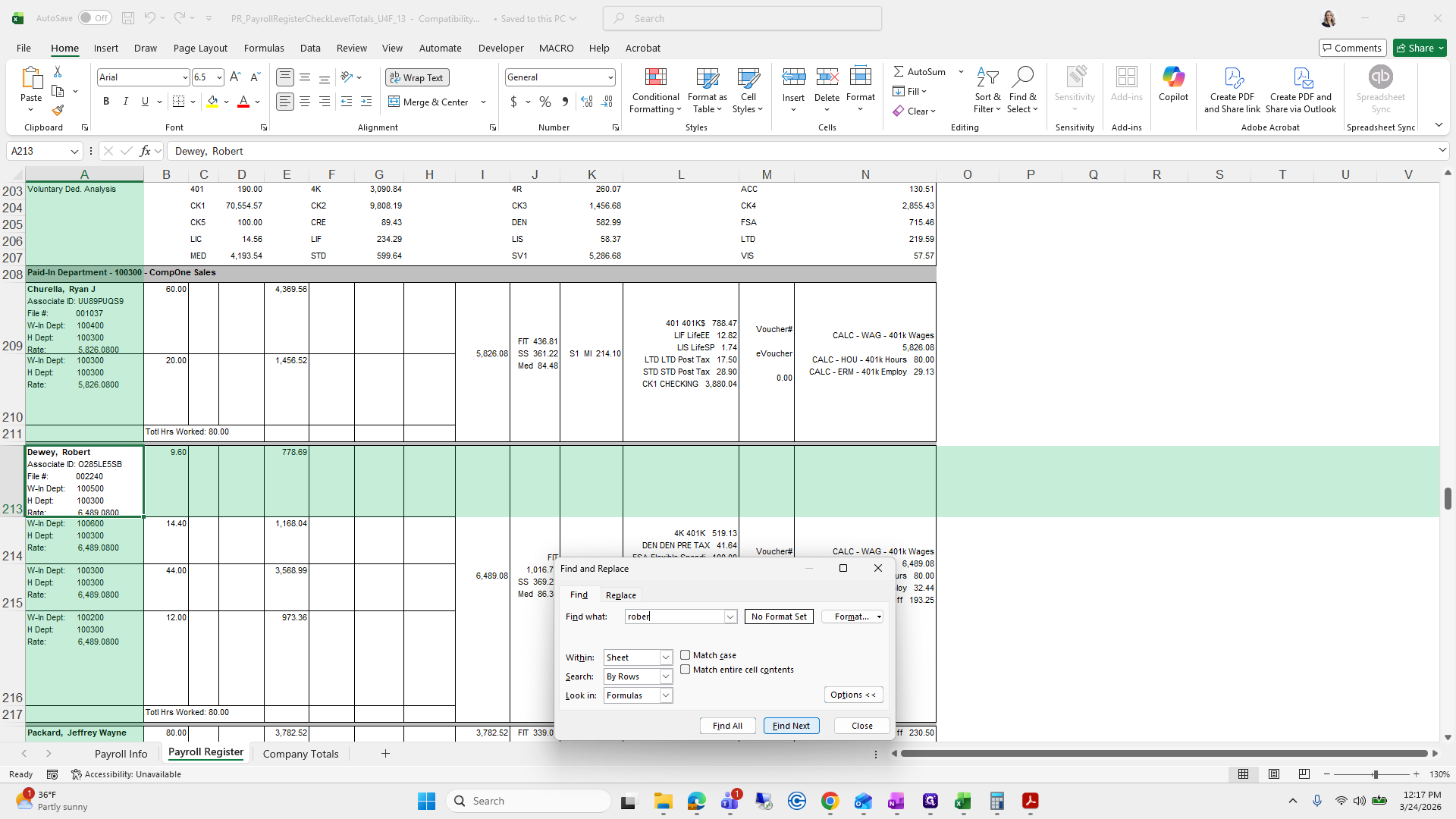
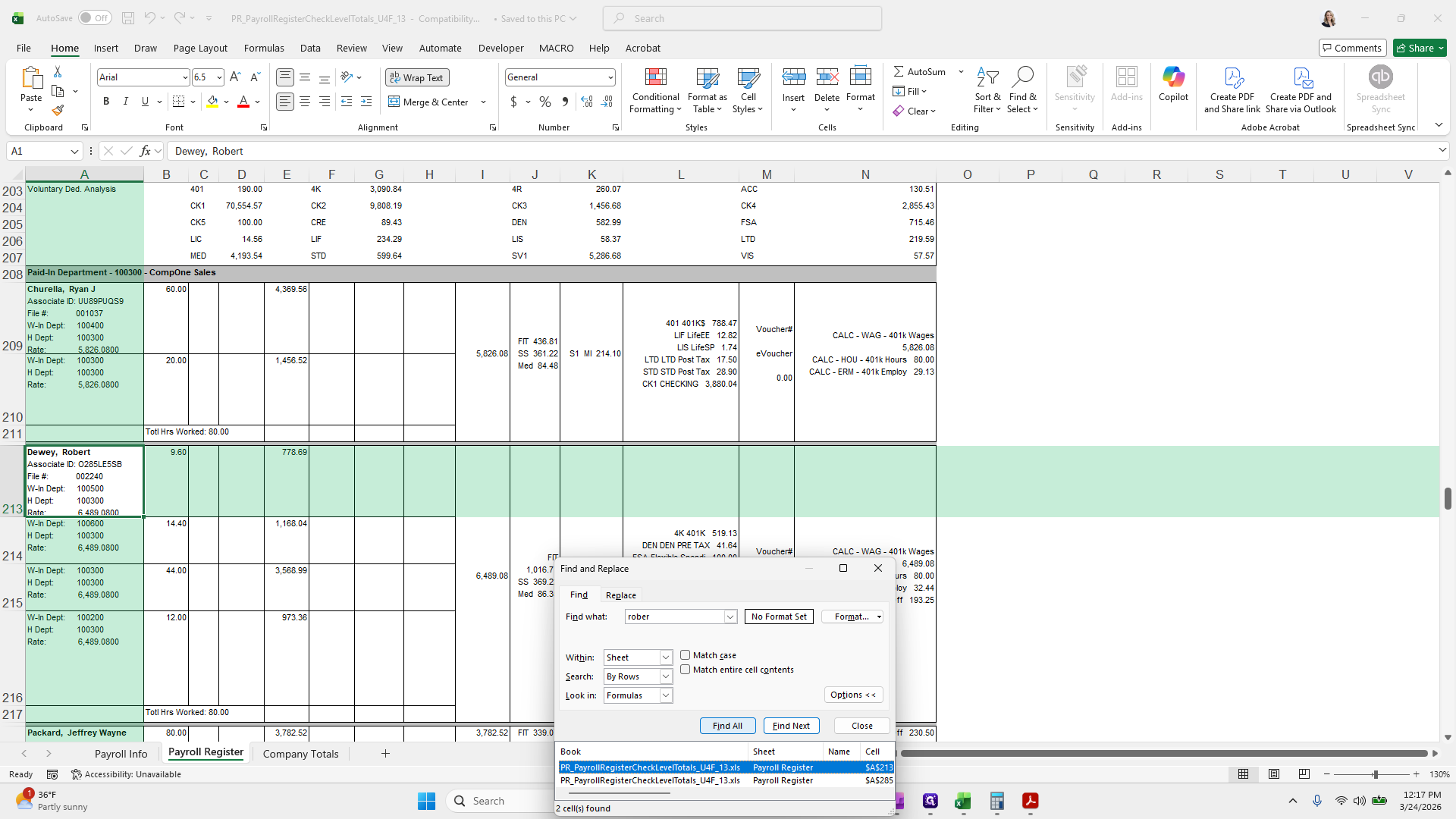
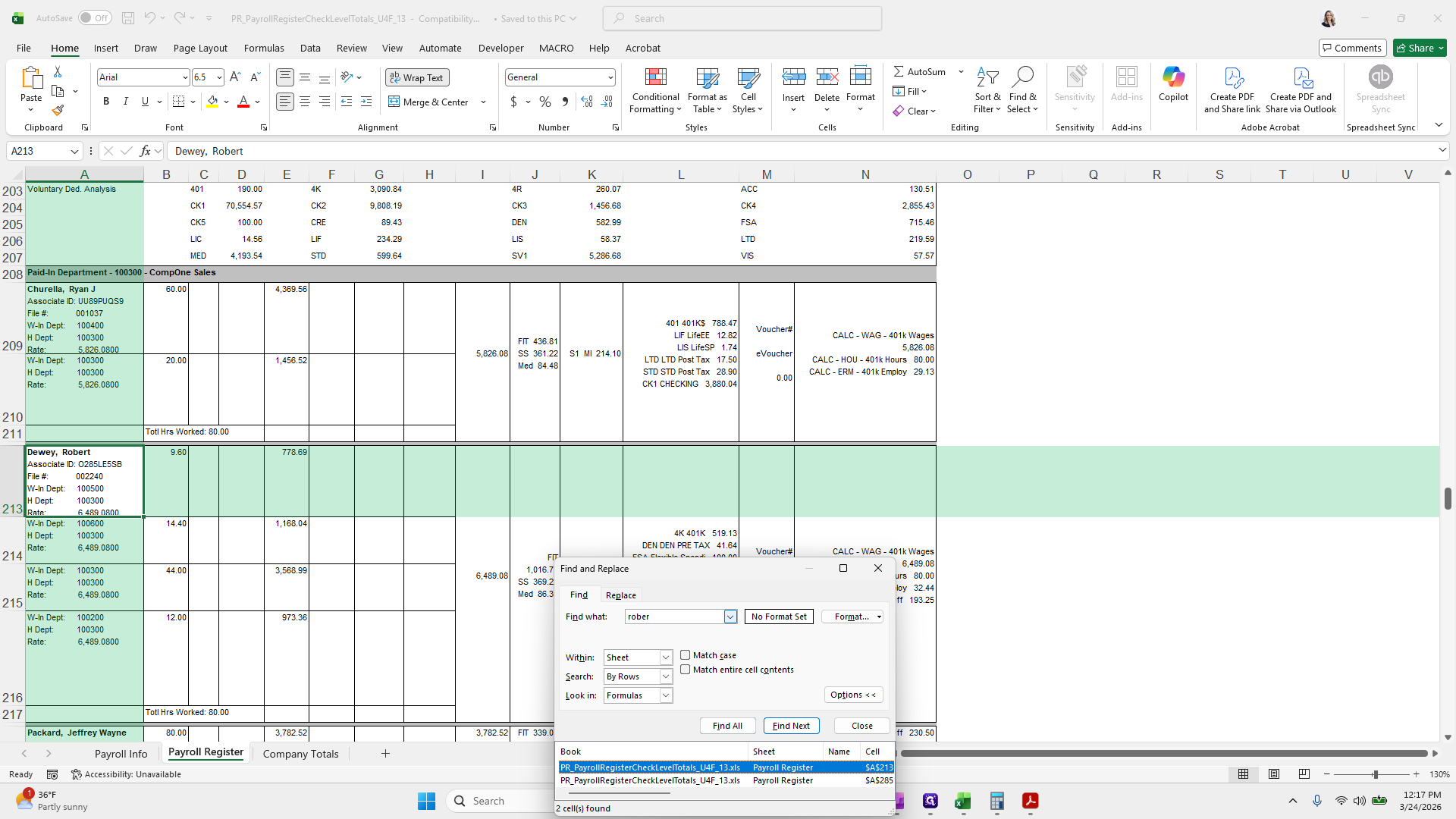
I like to quickly use Control + F to check if "Autumn" is present.
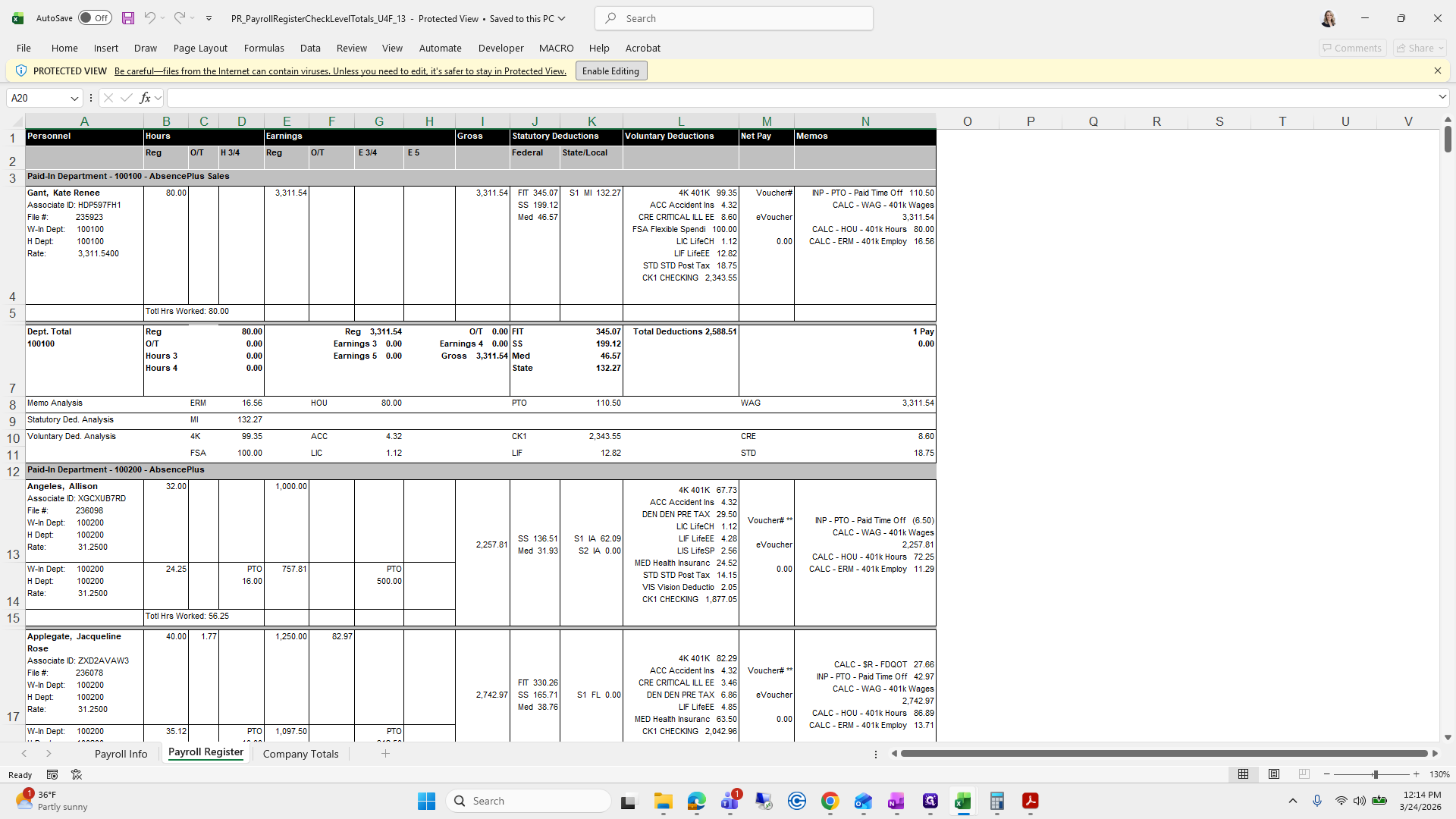
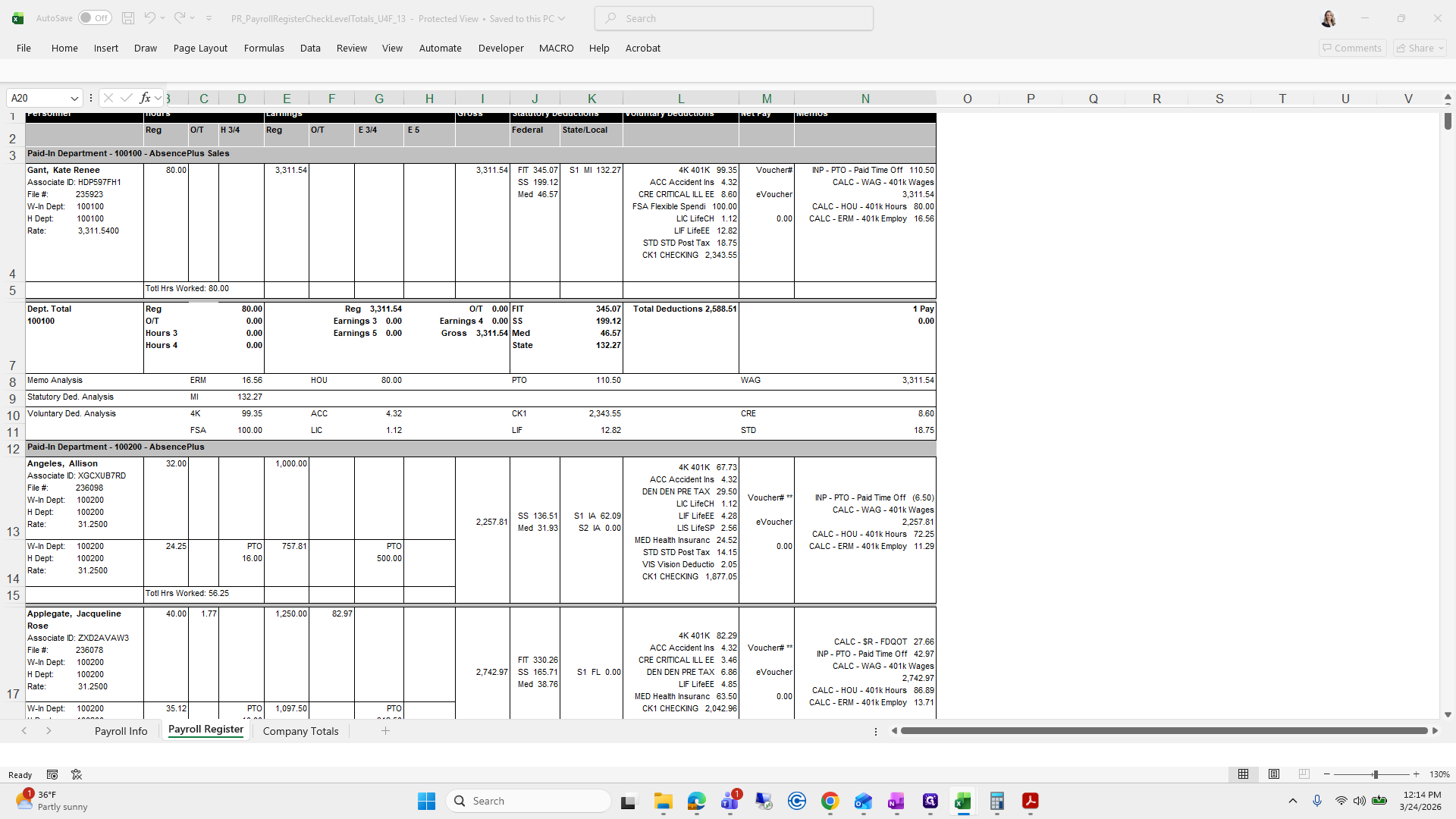
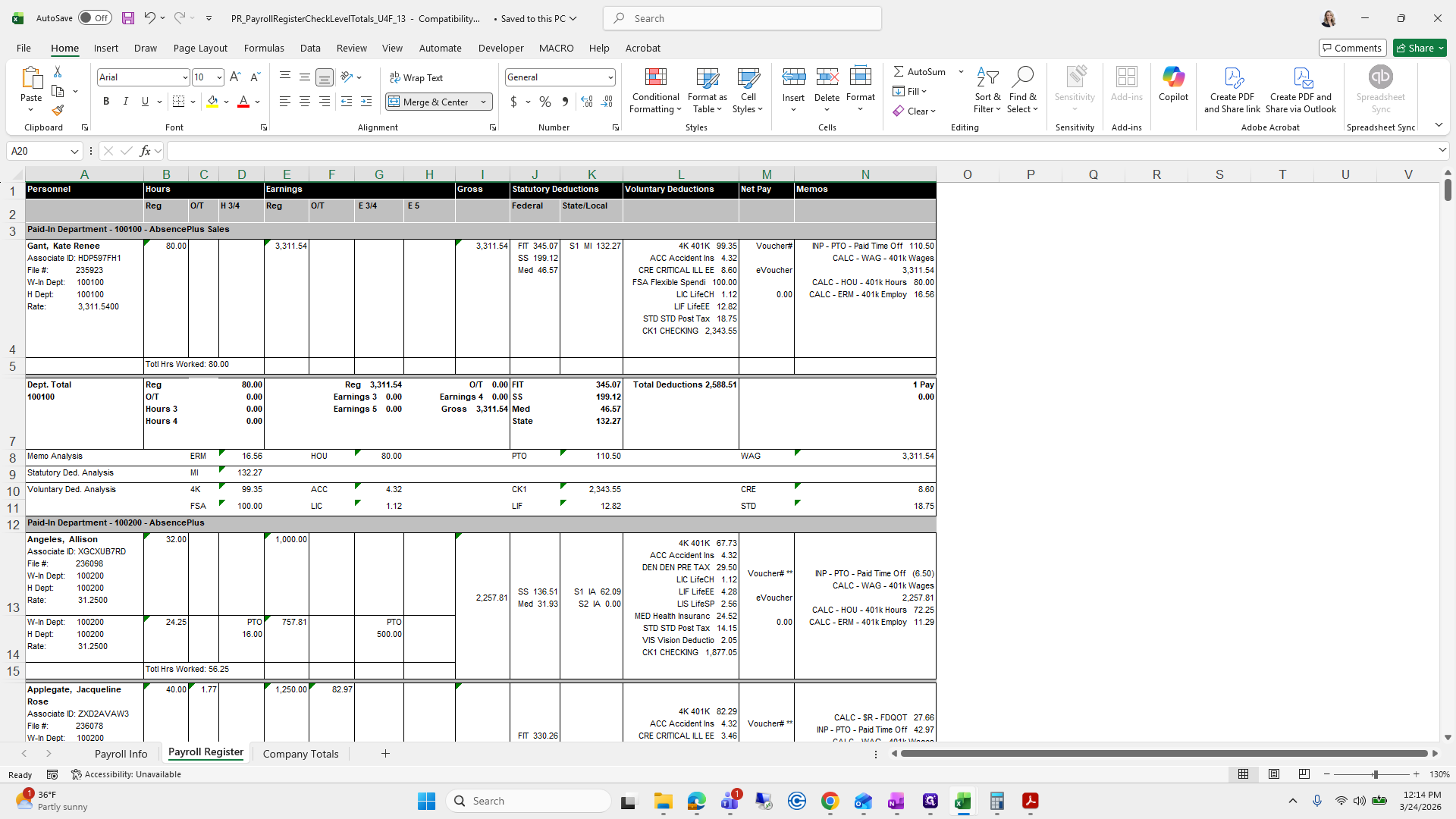
She is not.
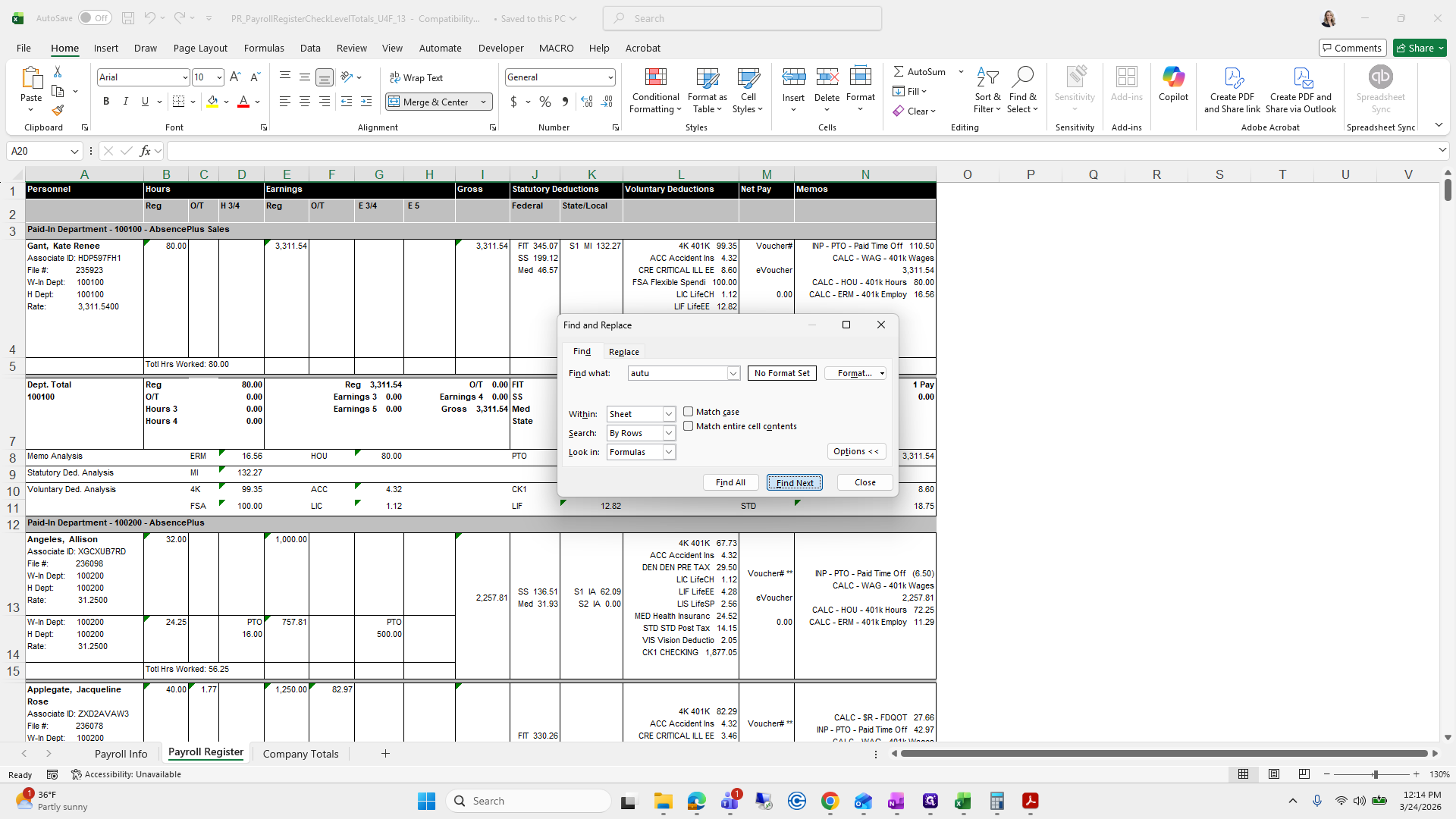
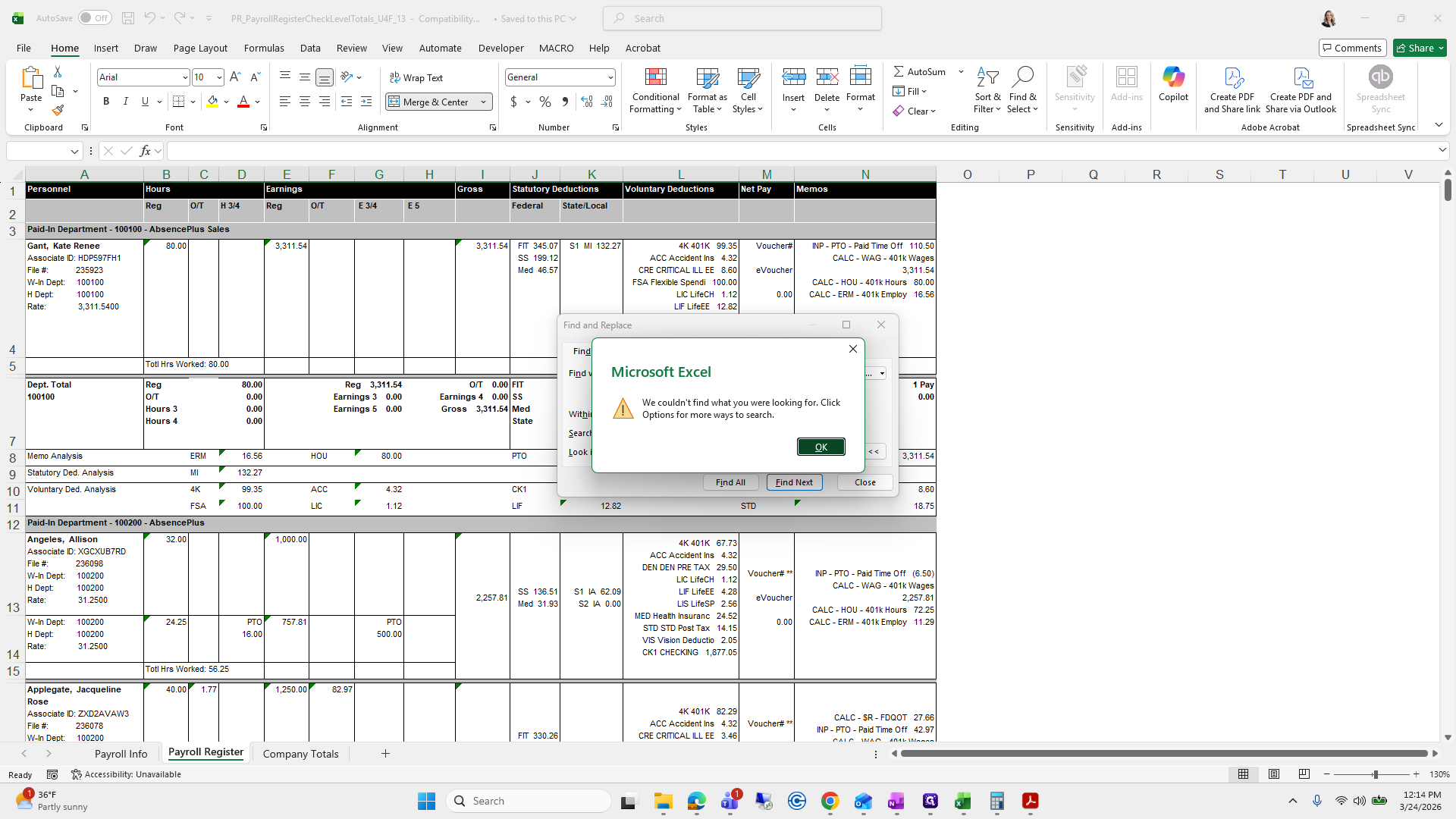
Okay?
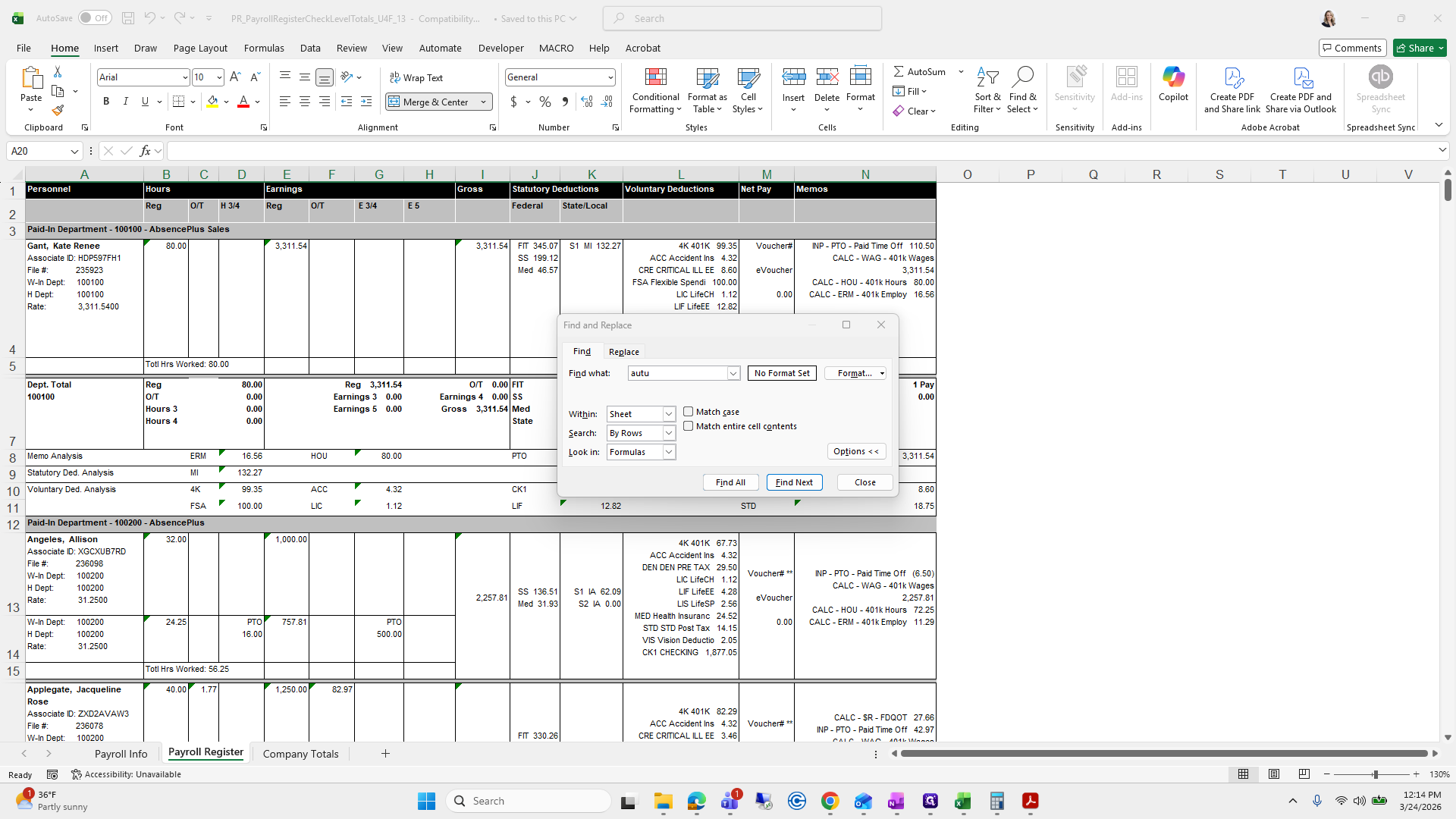
If you want to double-check, scroll down and look for her name in the Ms, but it is not there. Okay. We will go here and click "Complete."
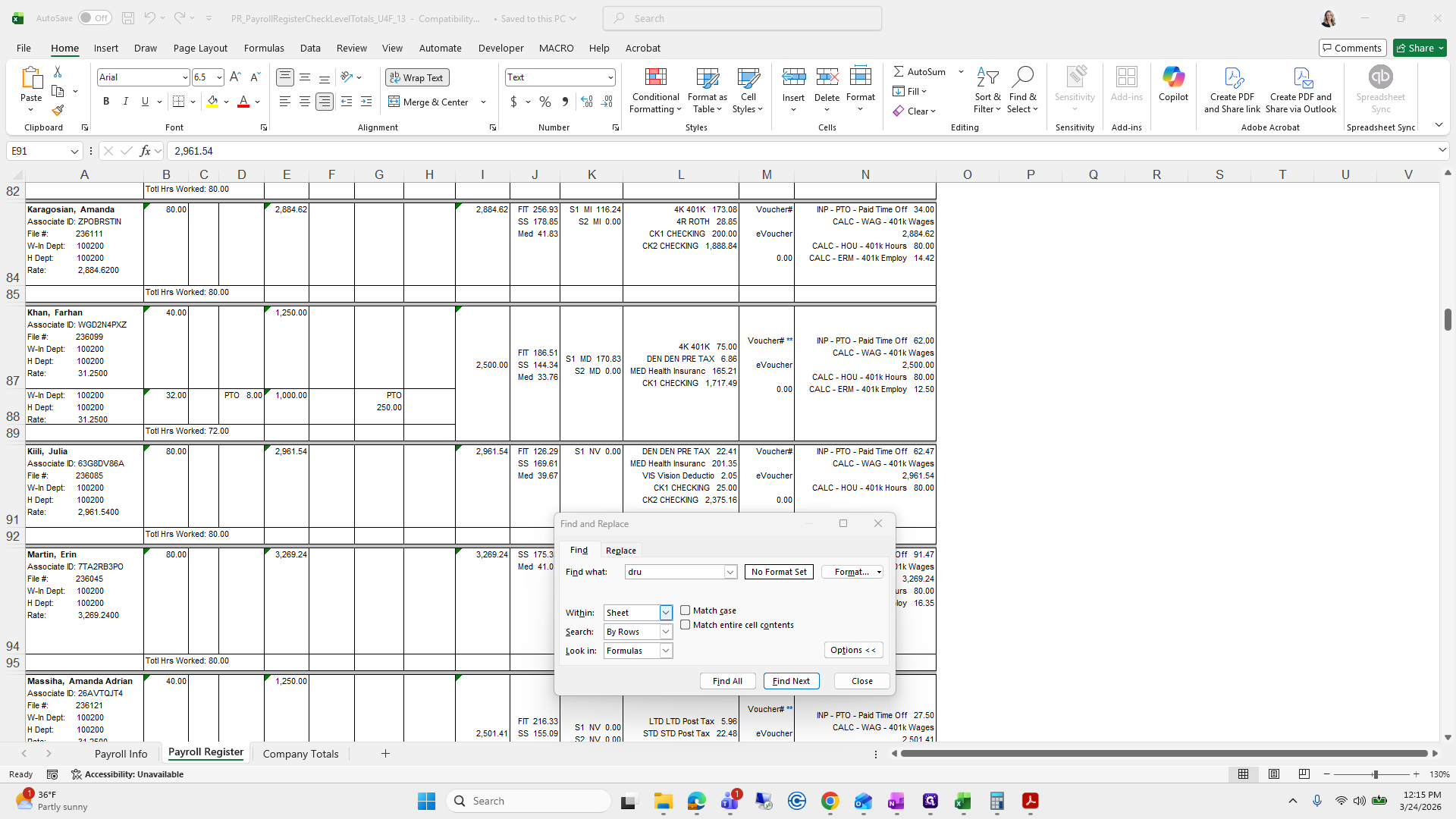
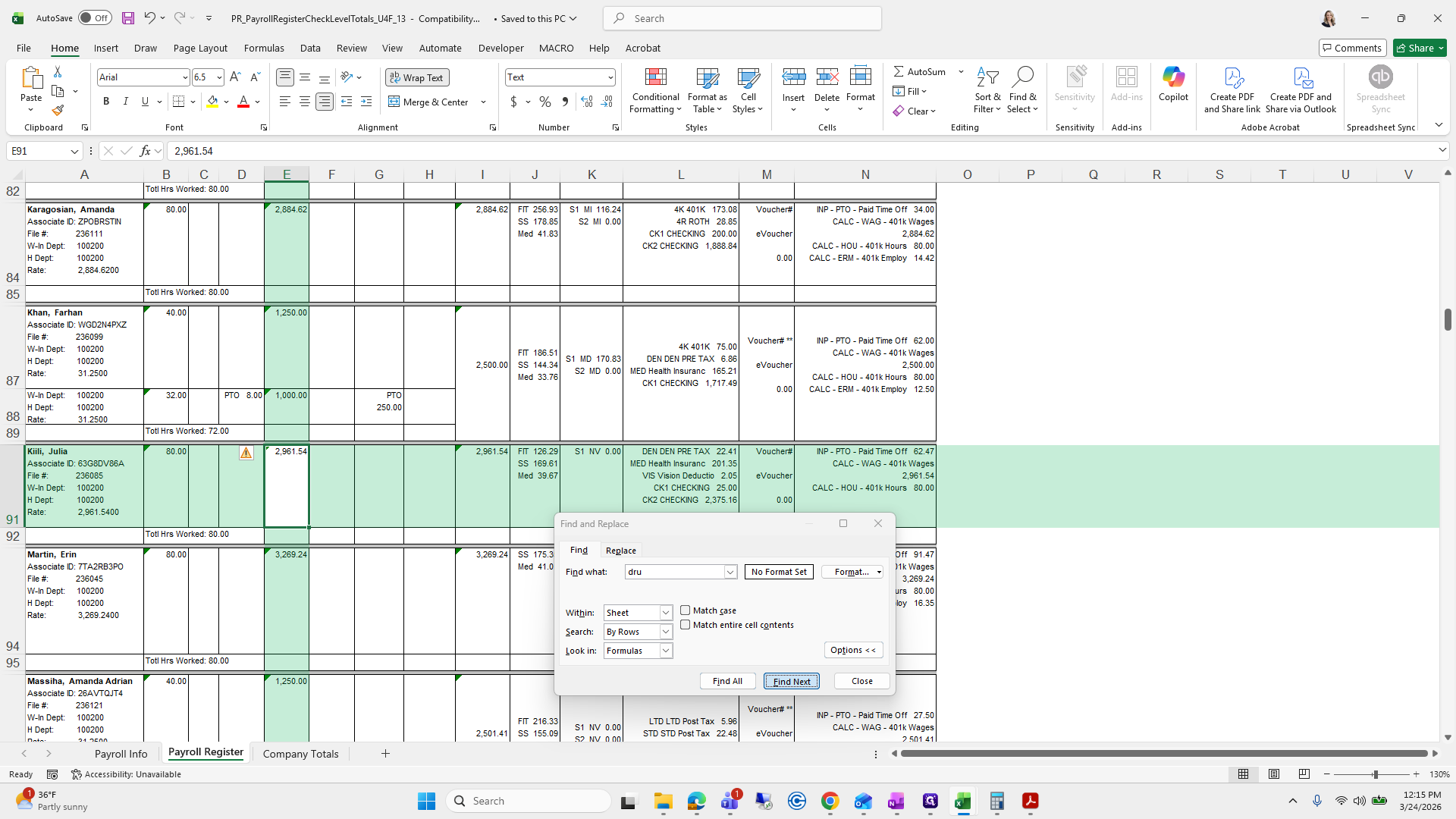
Next is Julia and her pay increase.
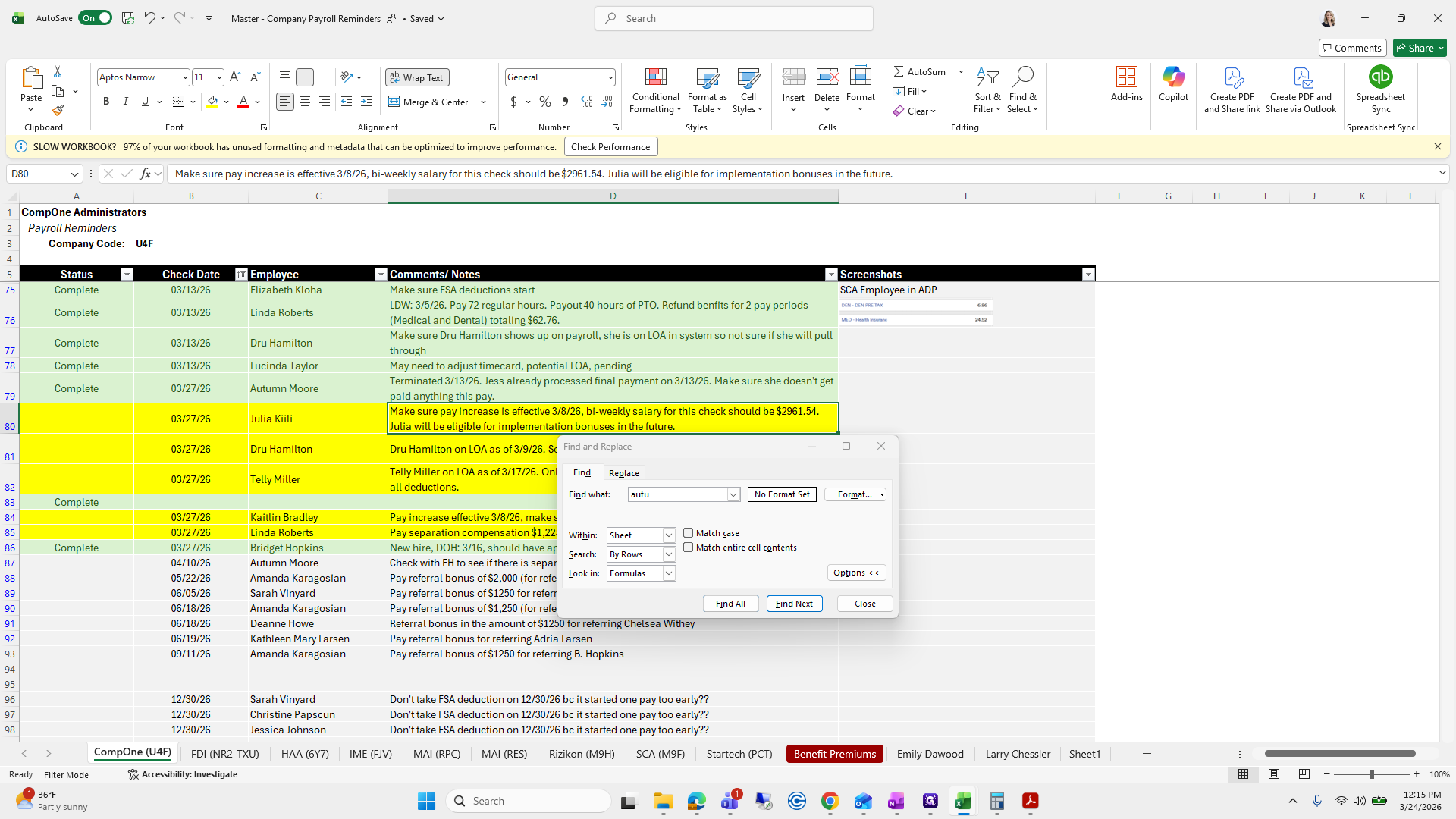
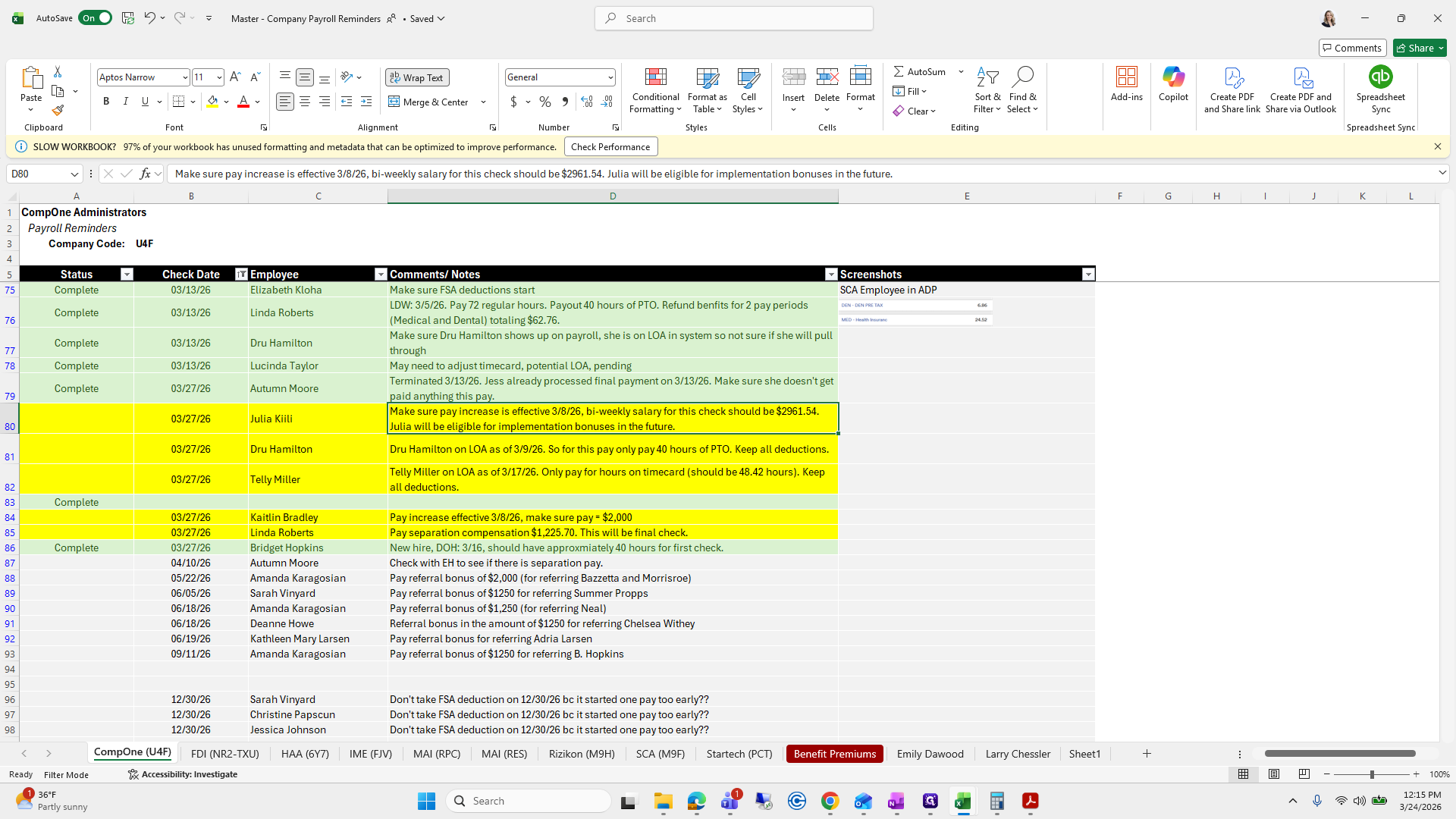
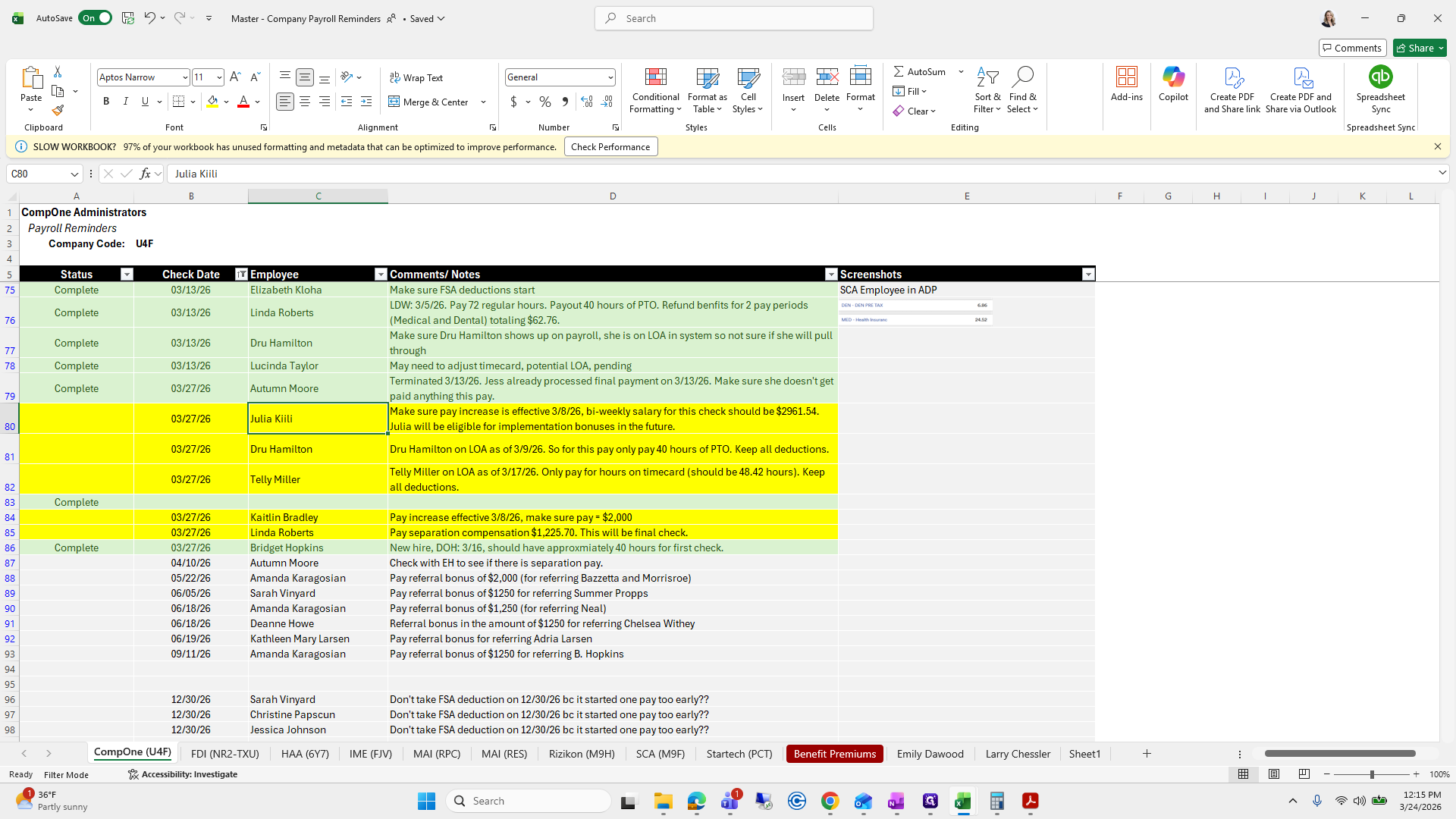
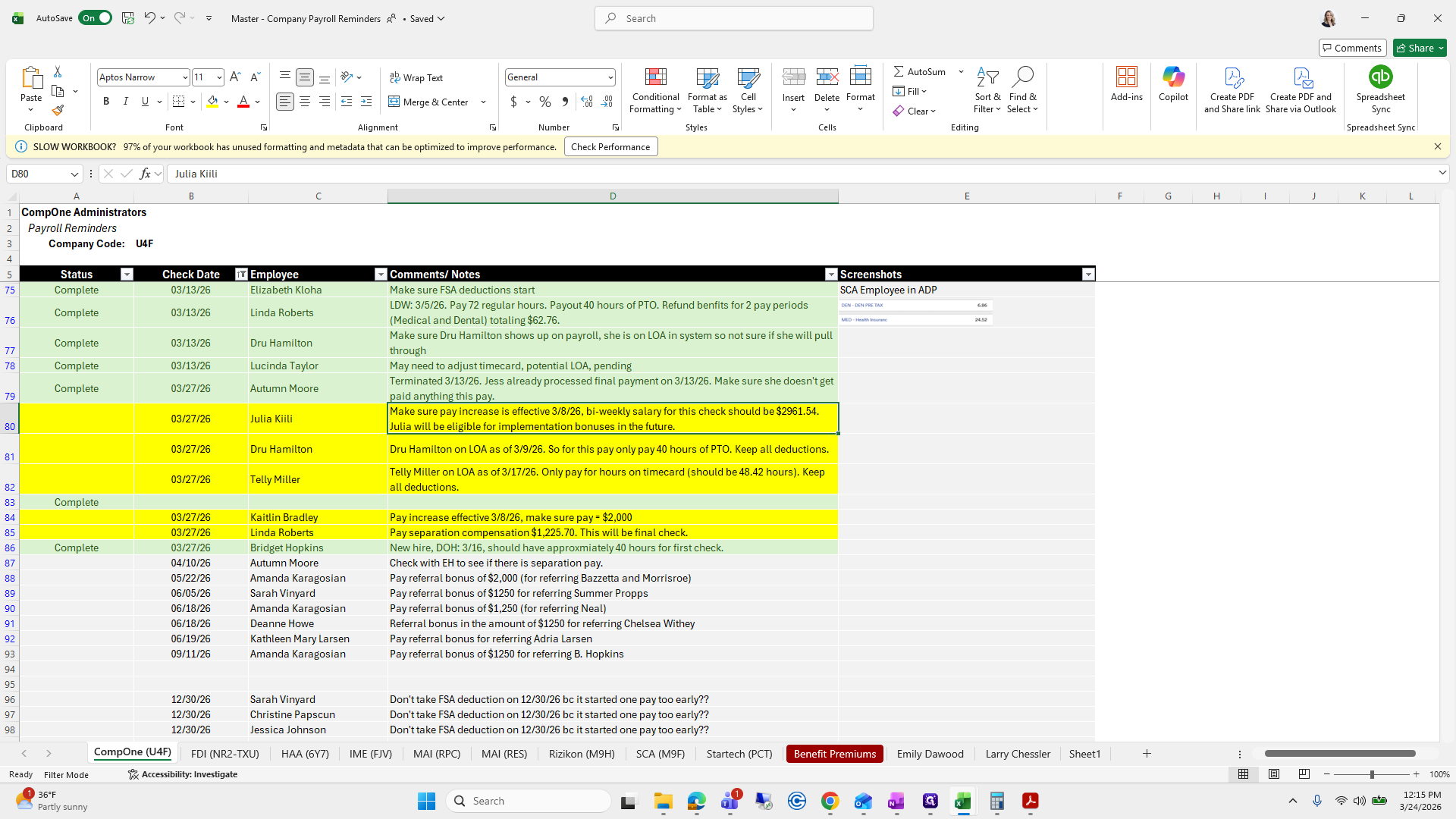
We need to ensure it is 2961.54.
So, Julia, 2961.54.
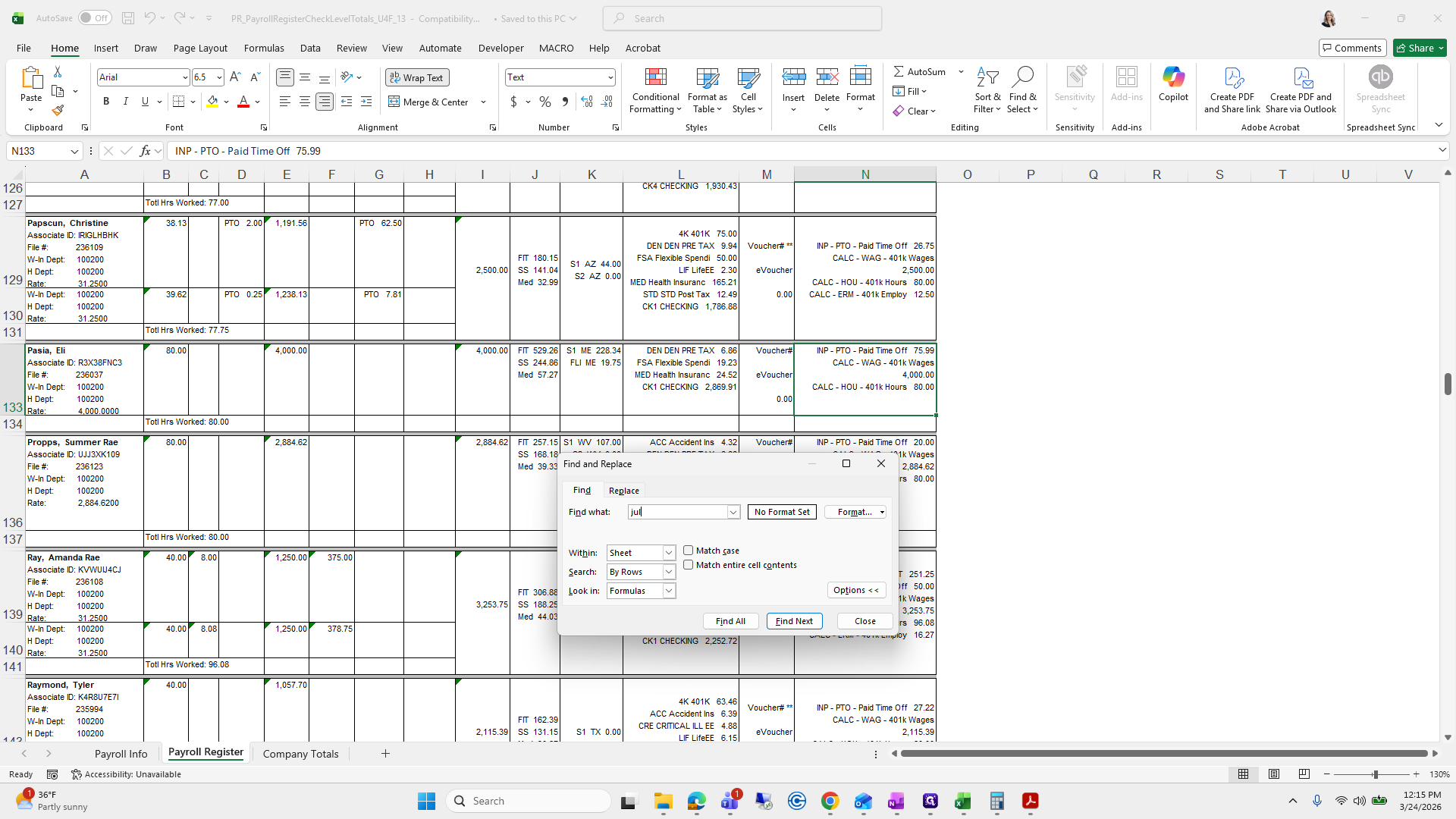
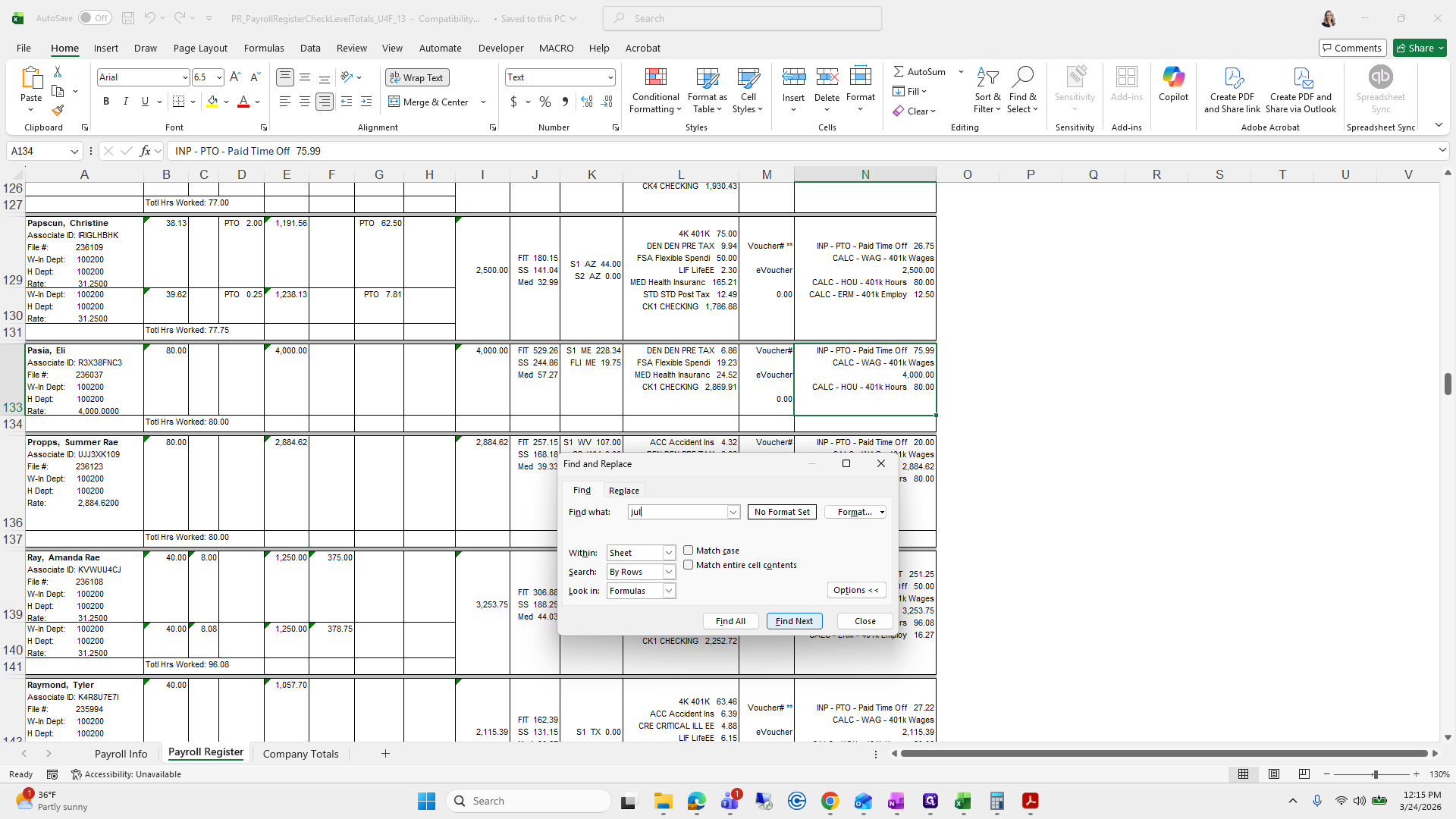
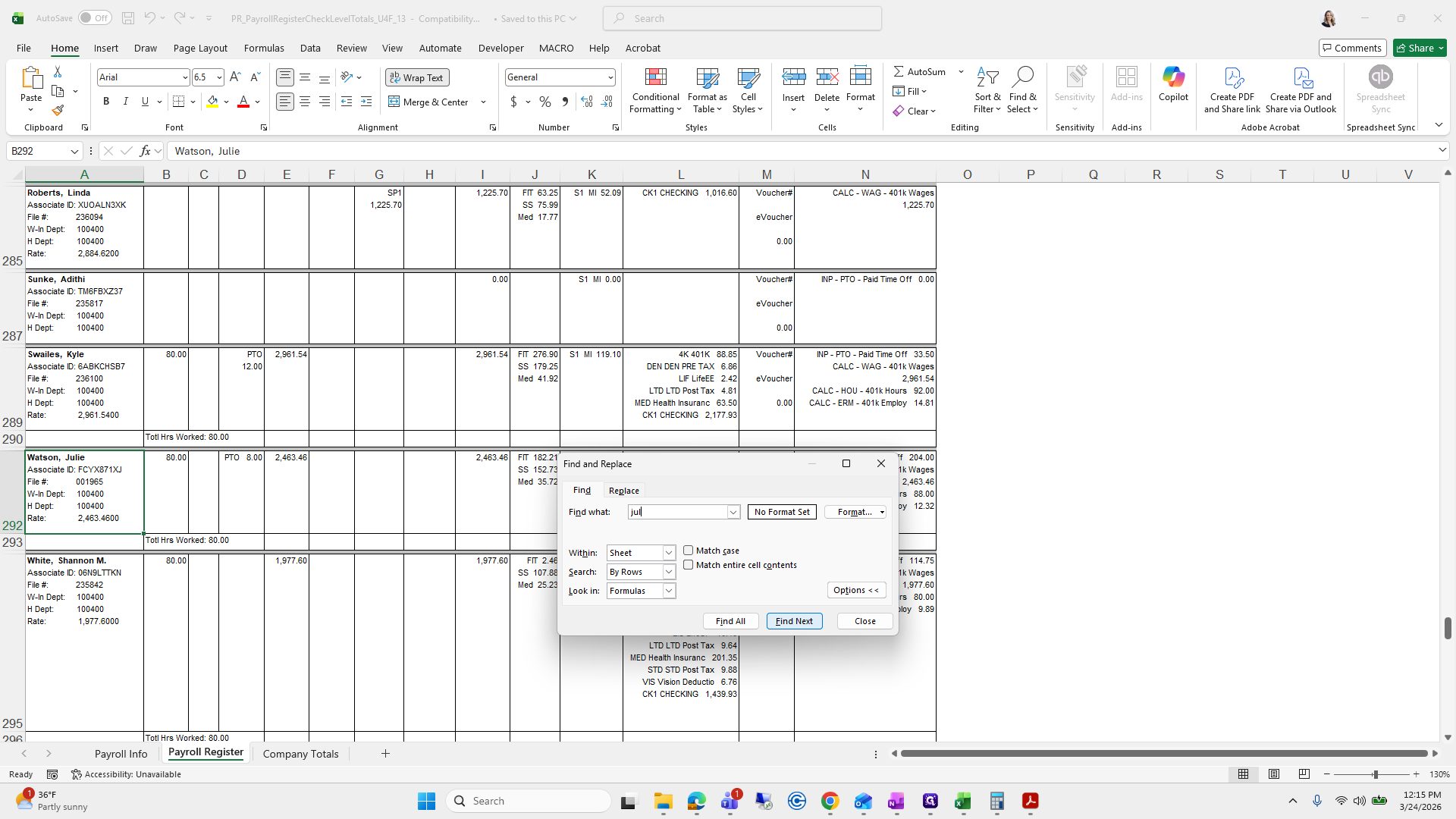
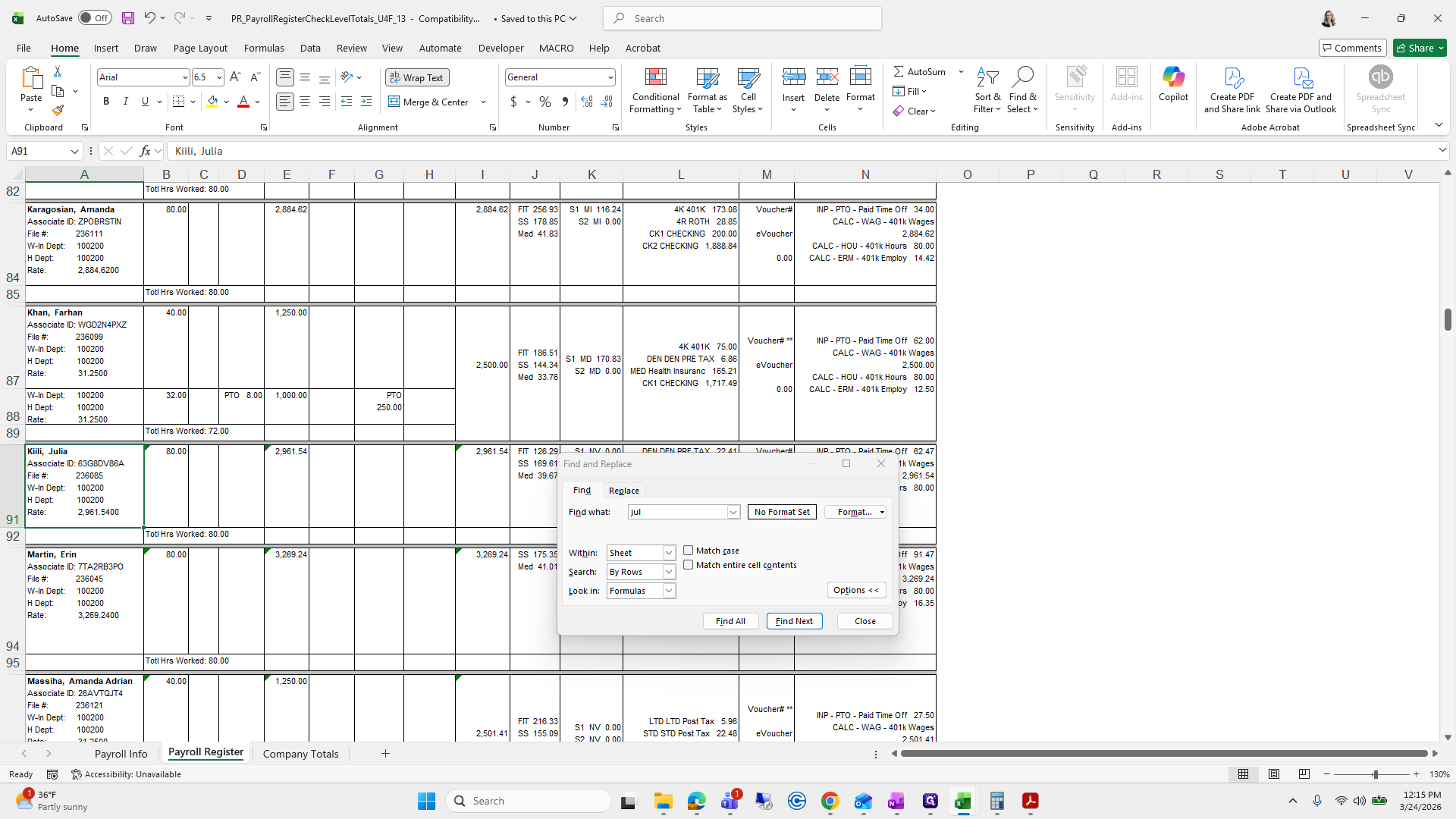
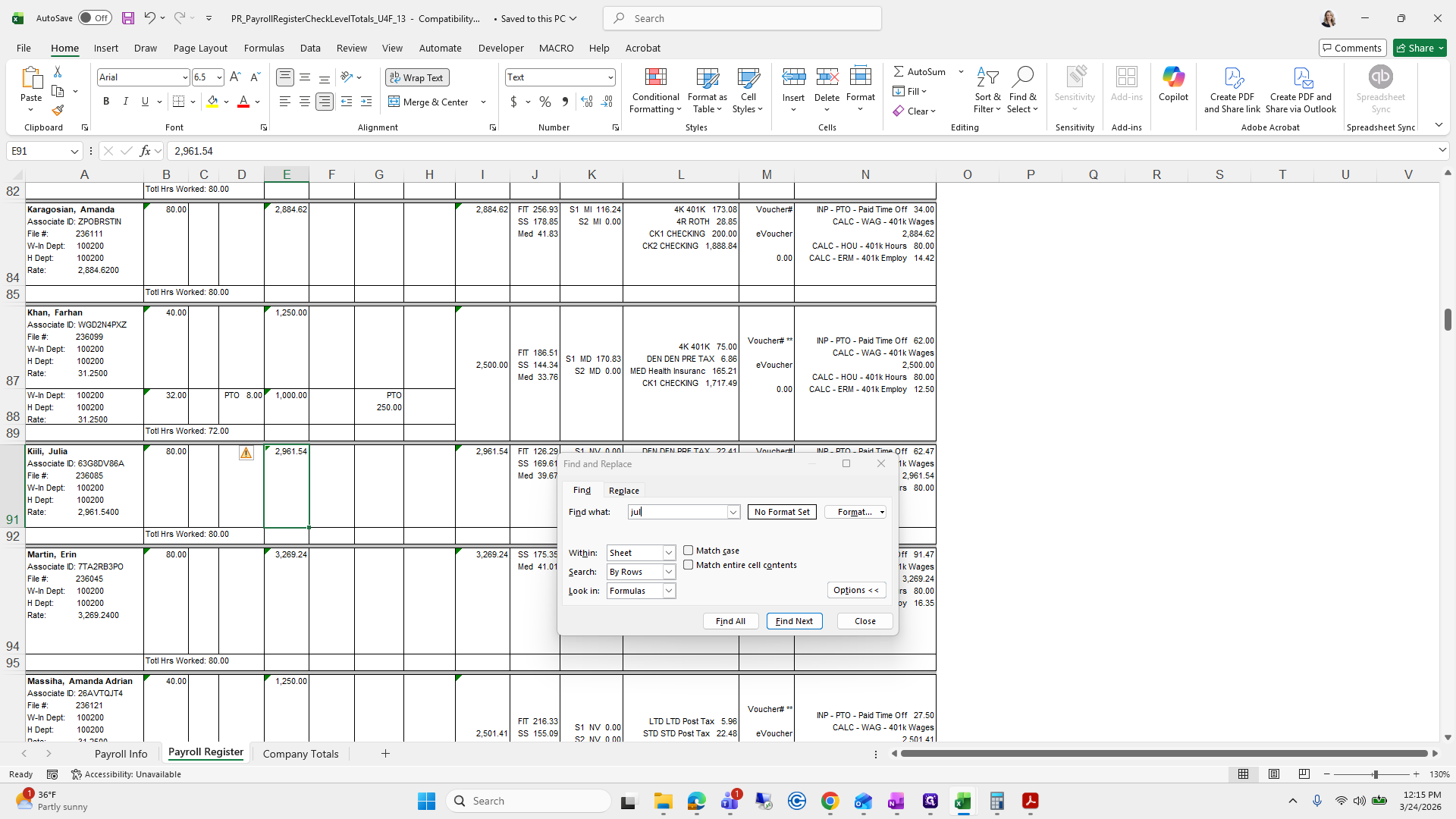
That looks good. We will mark it as complete.
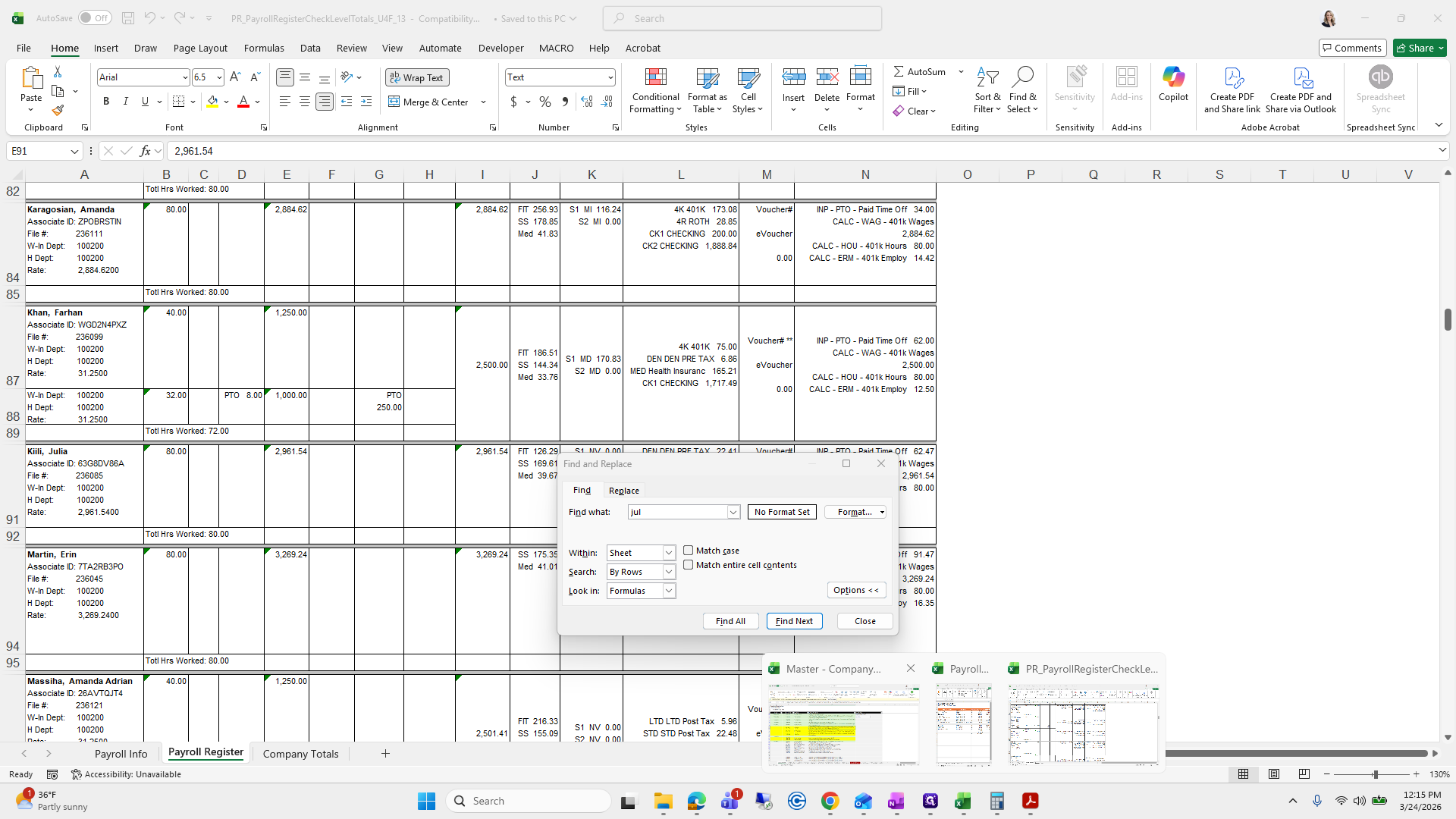
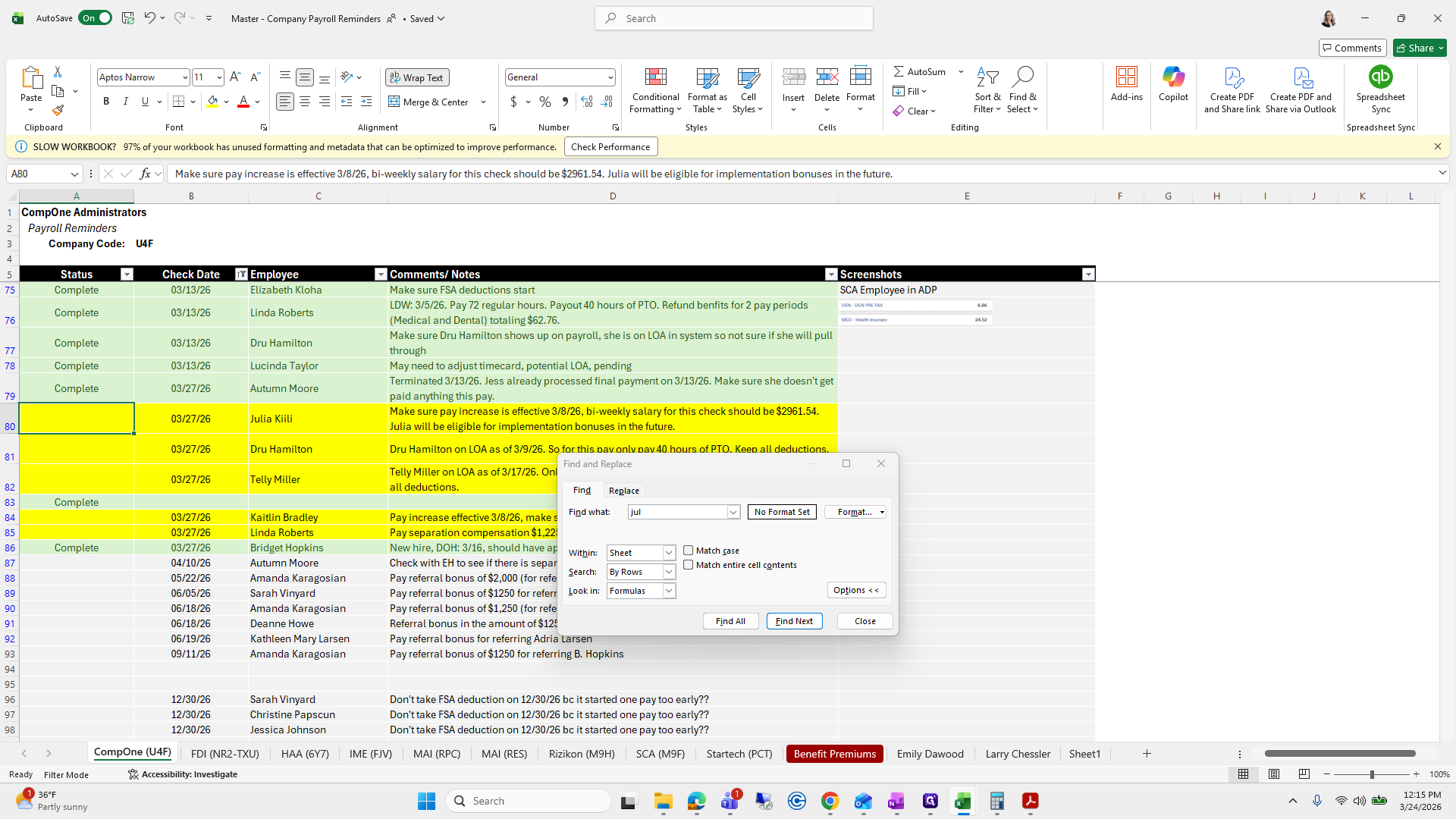
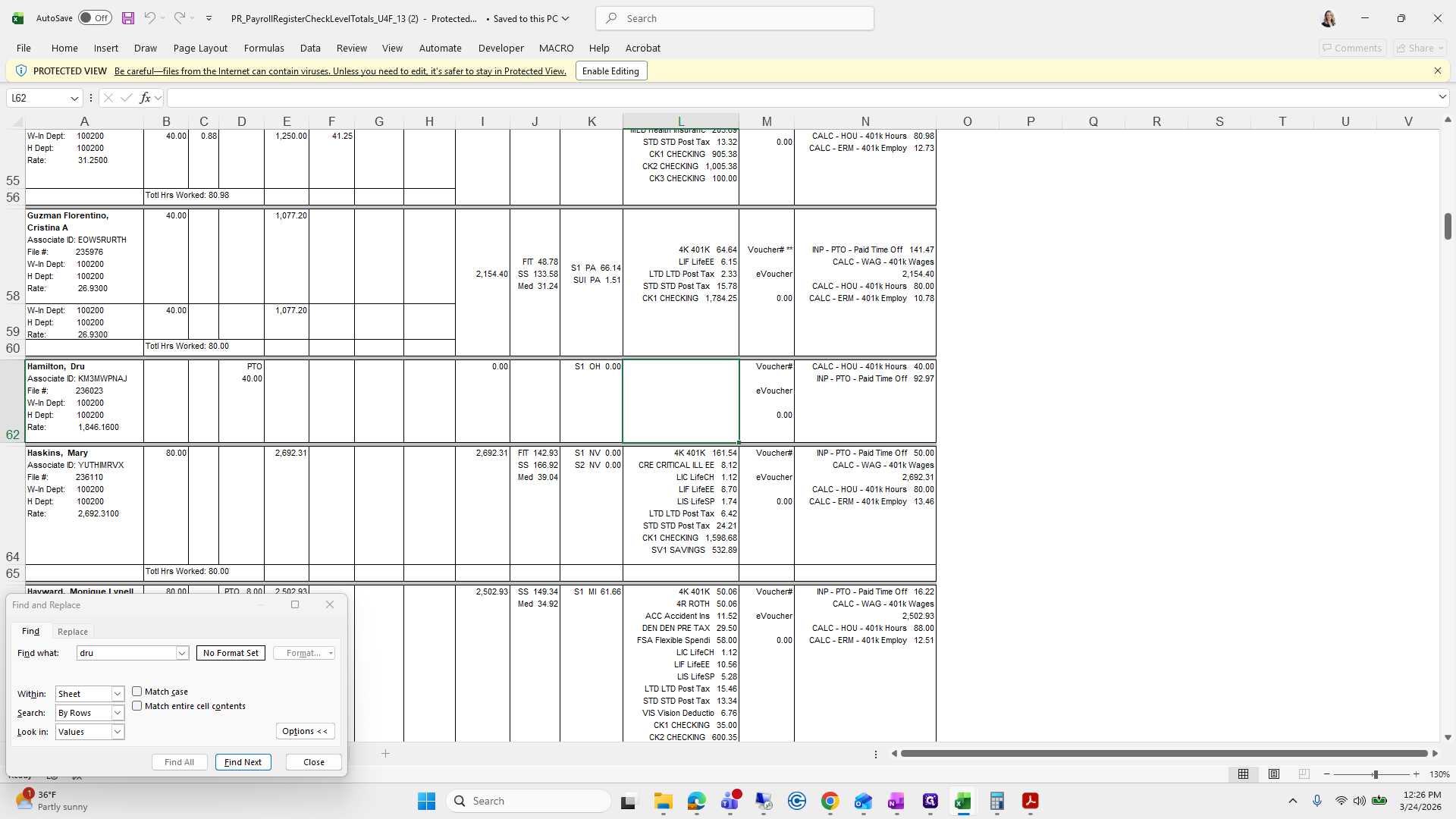
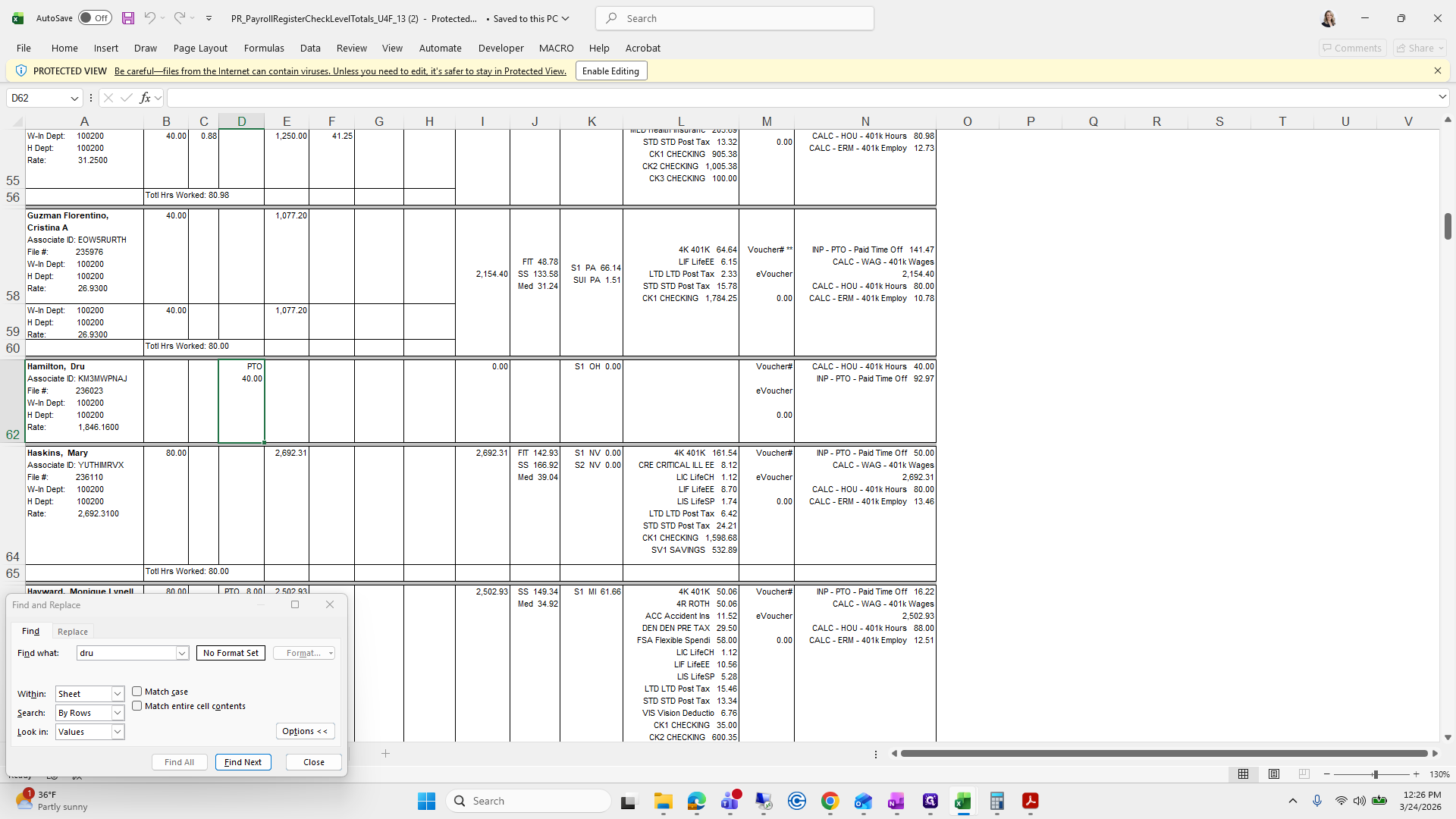
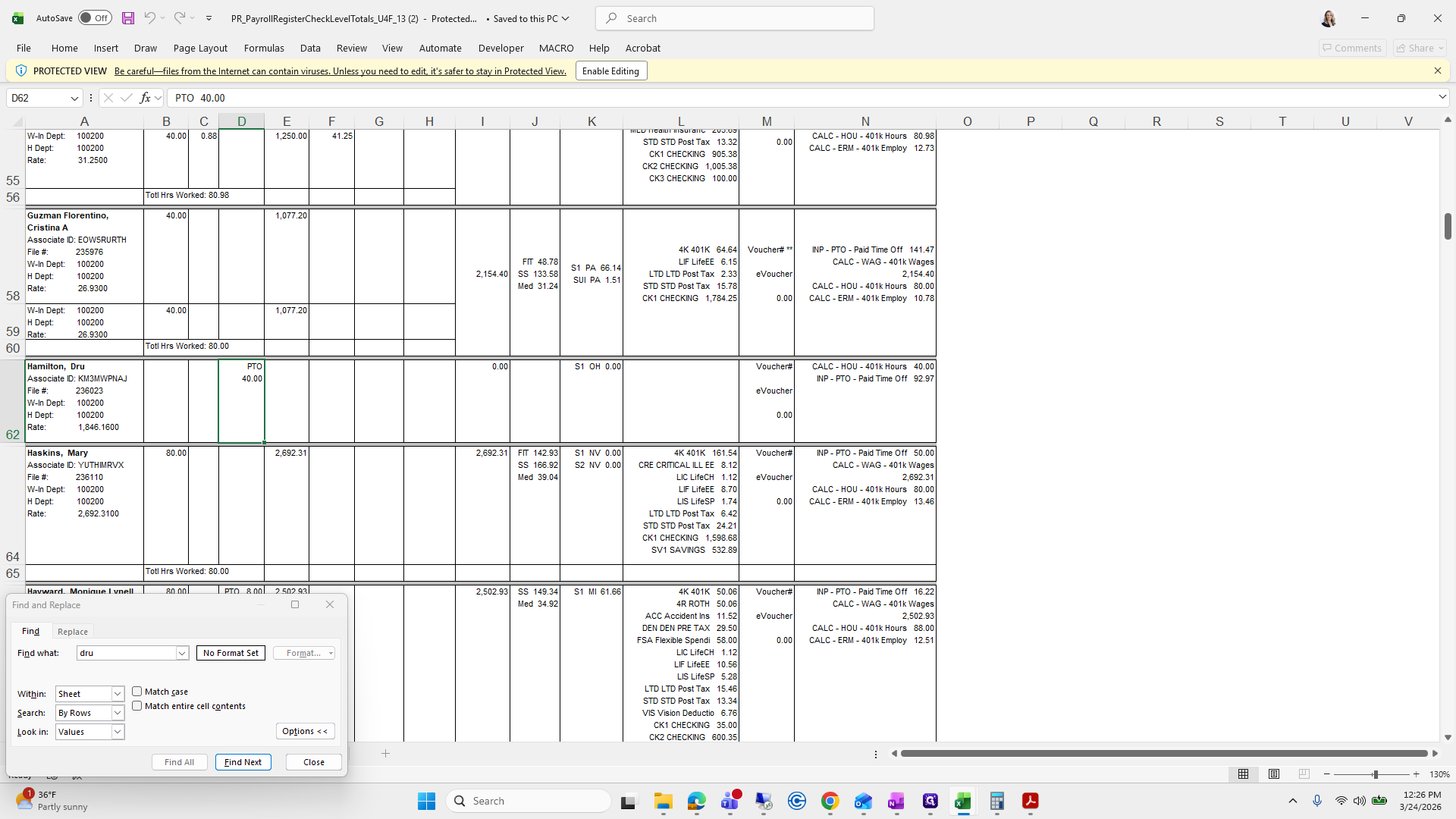
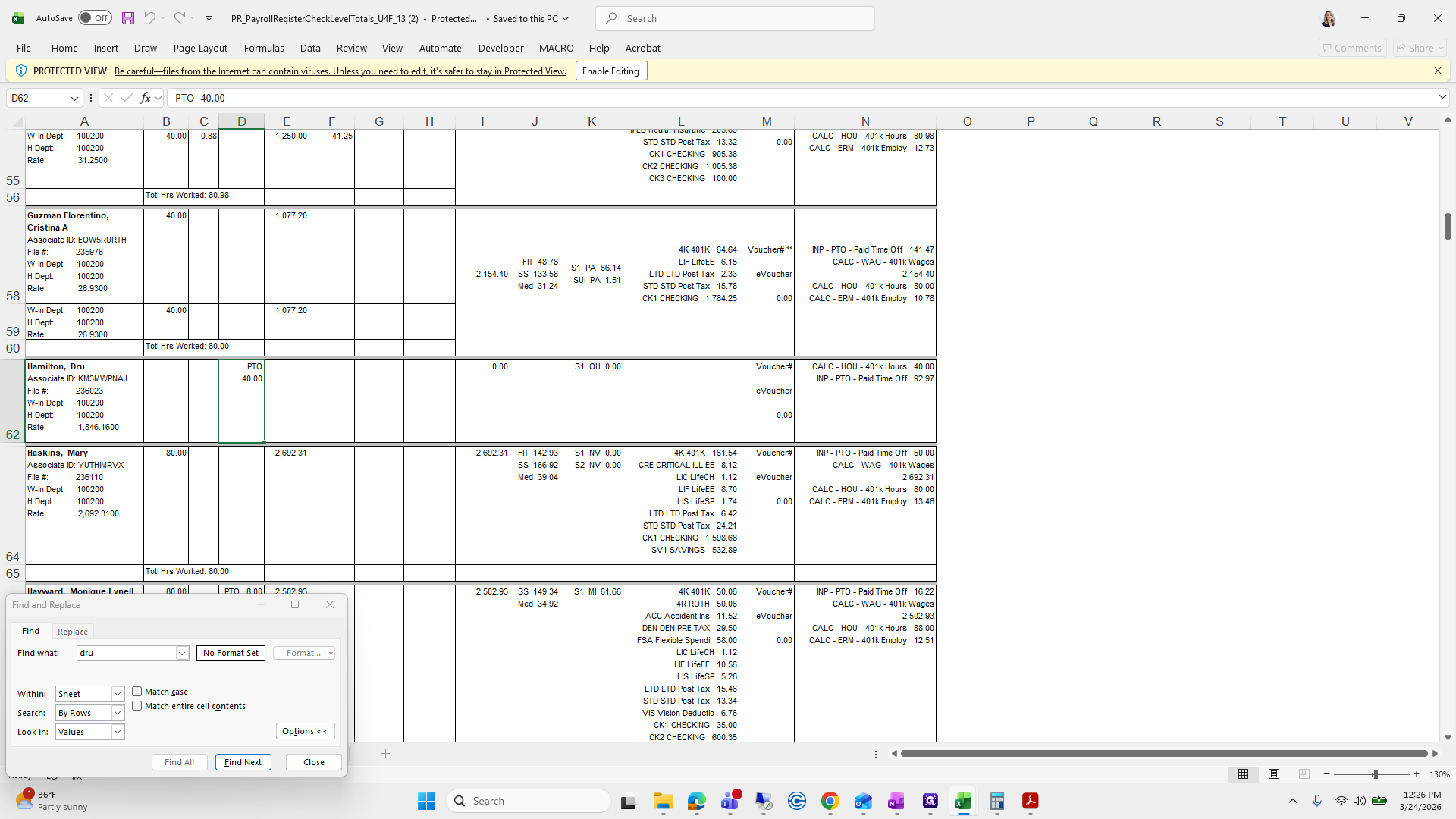
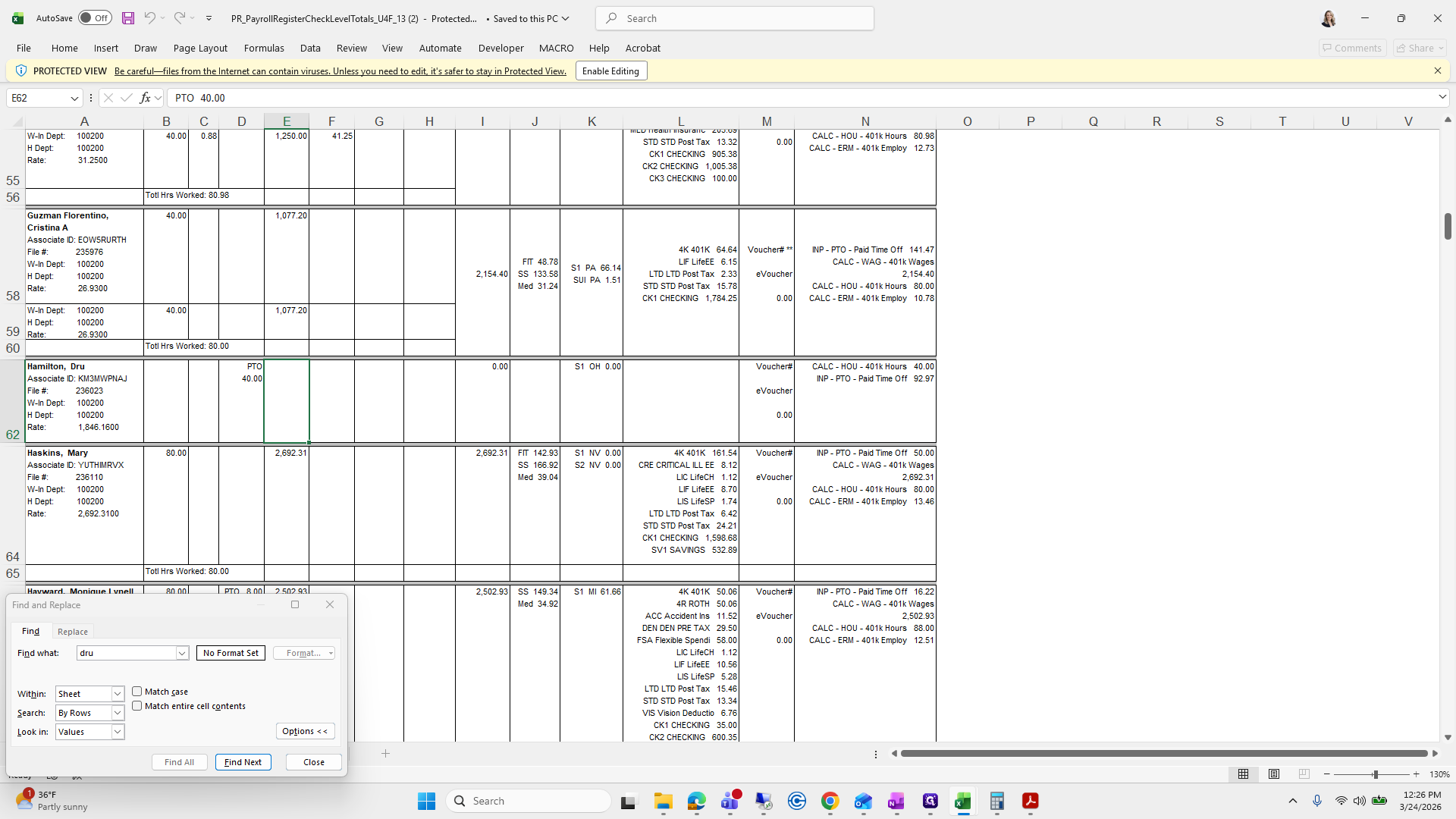
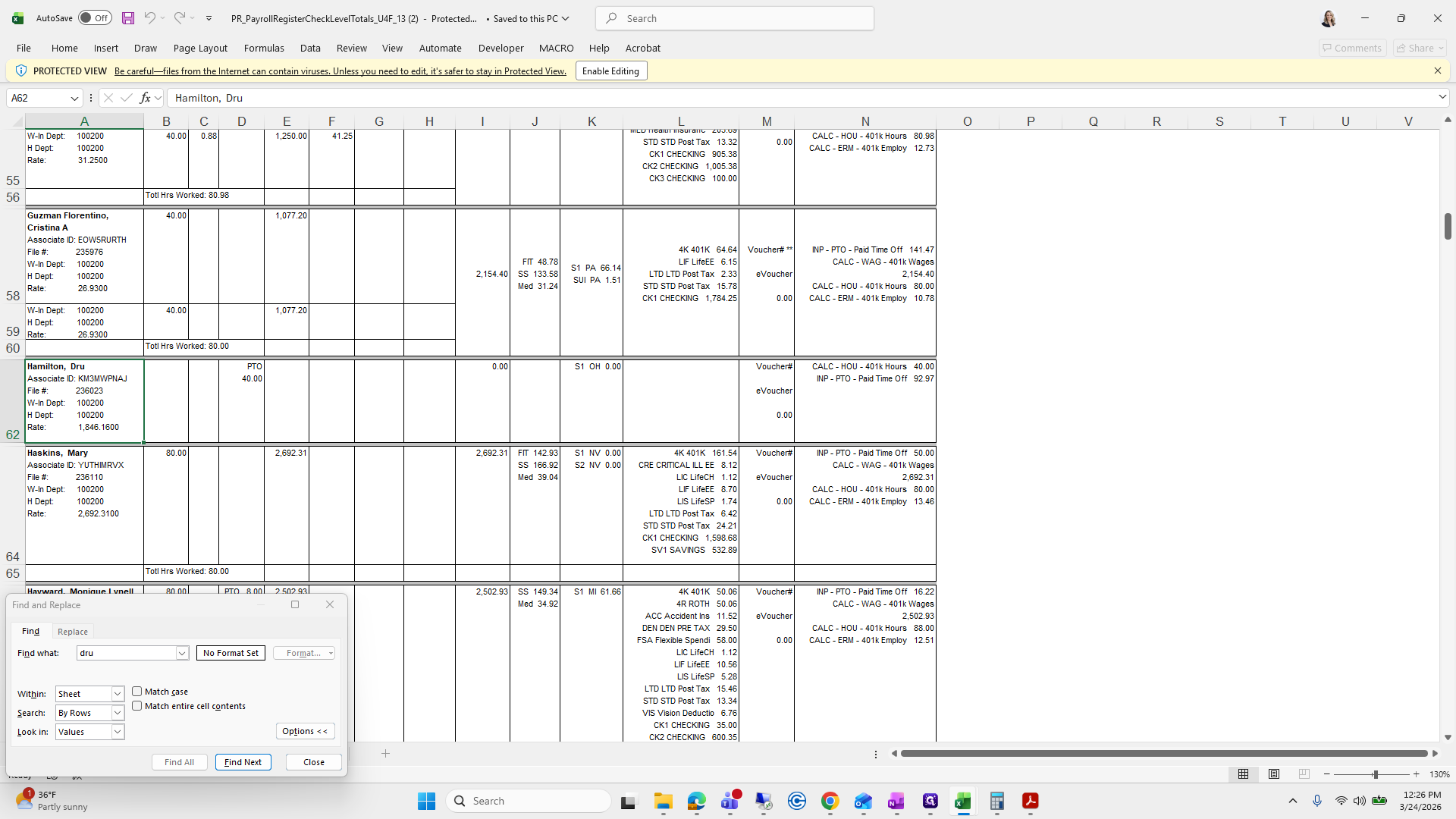
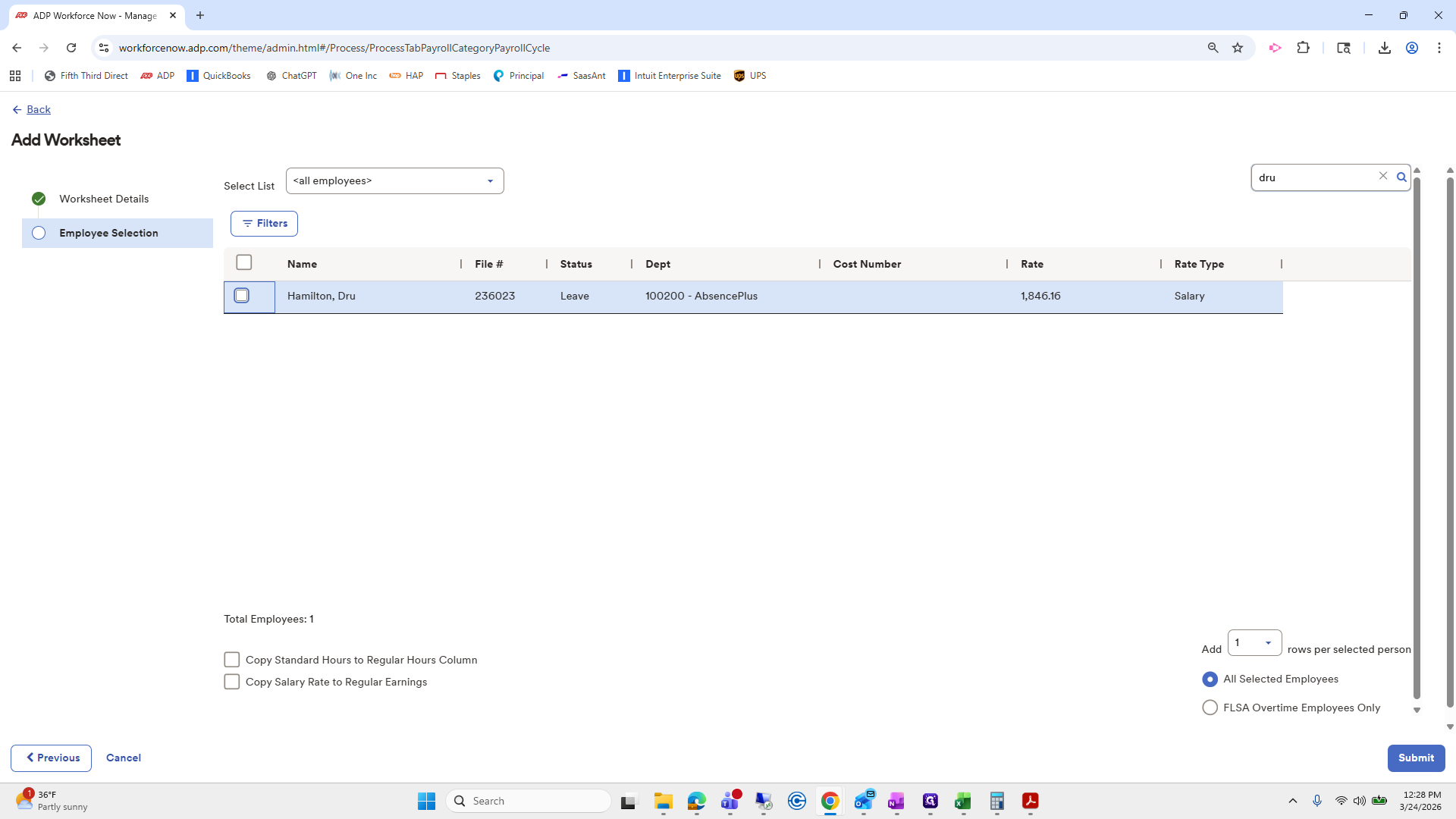
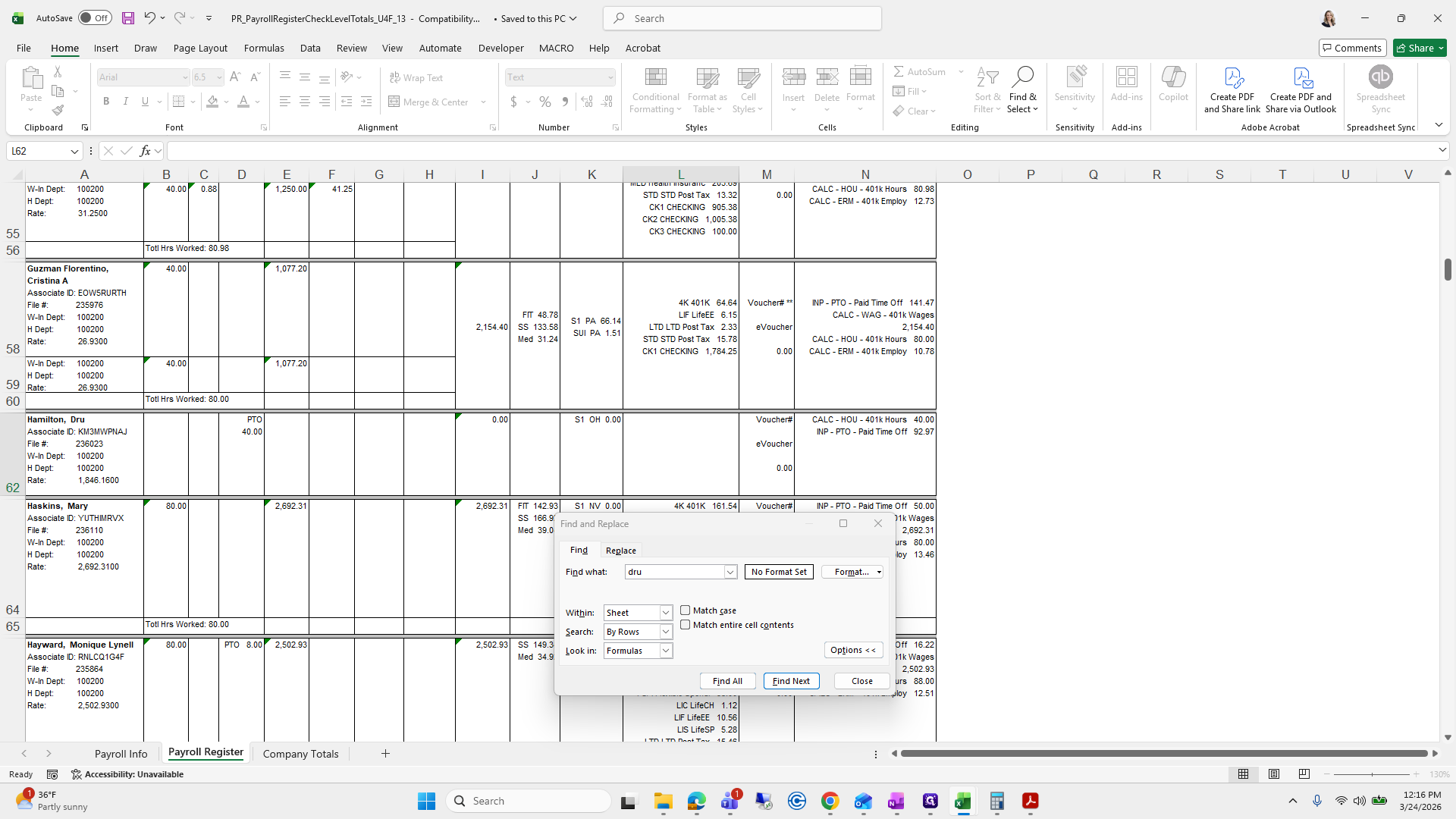
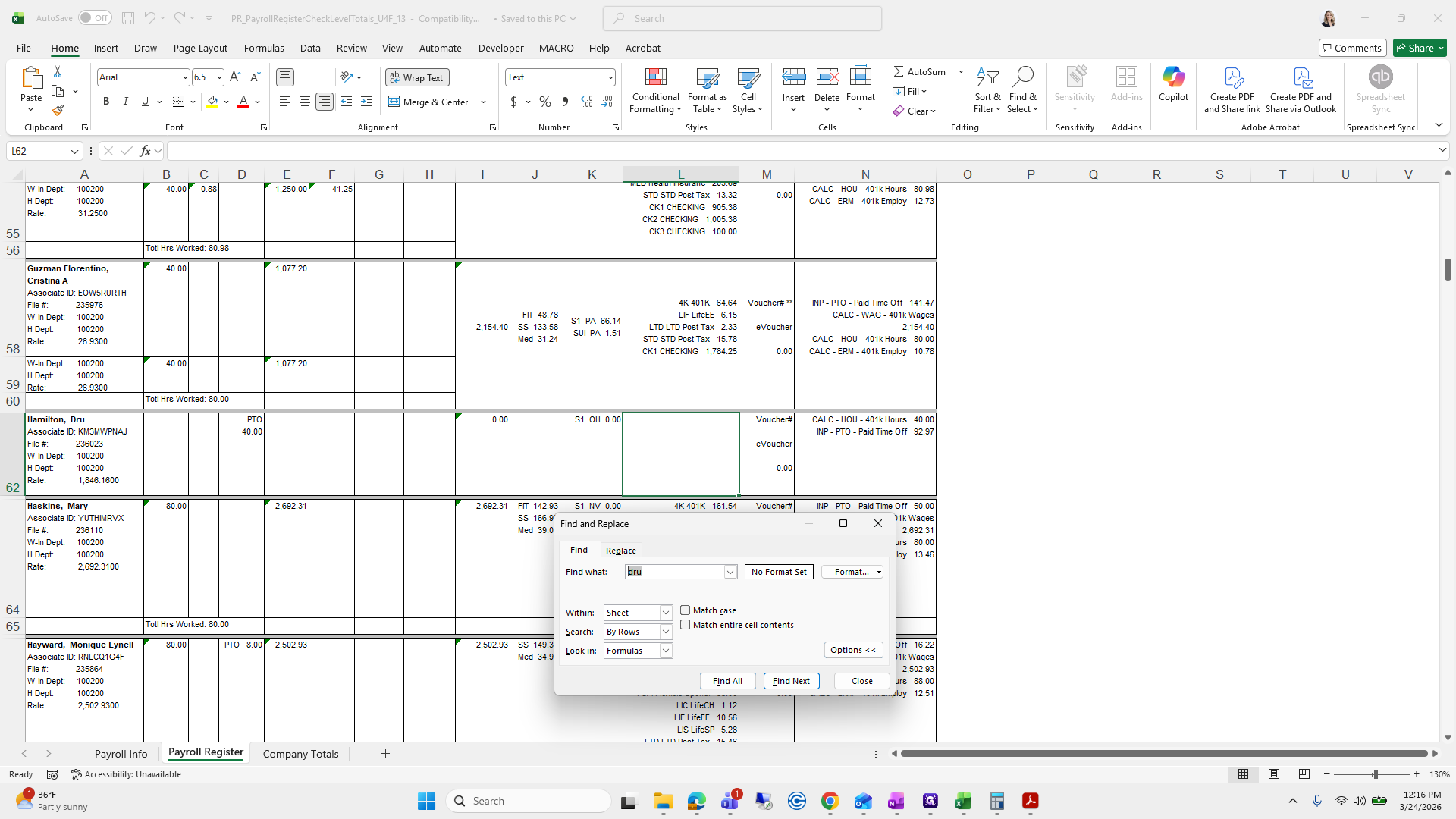
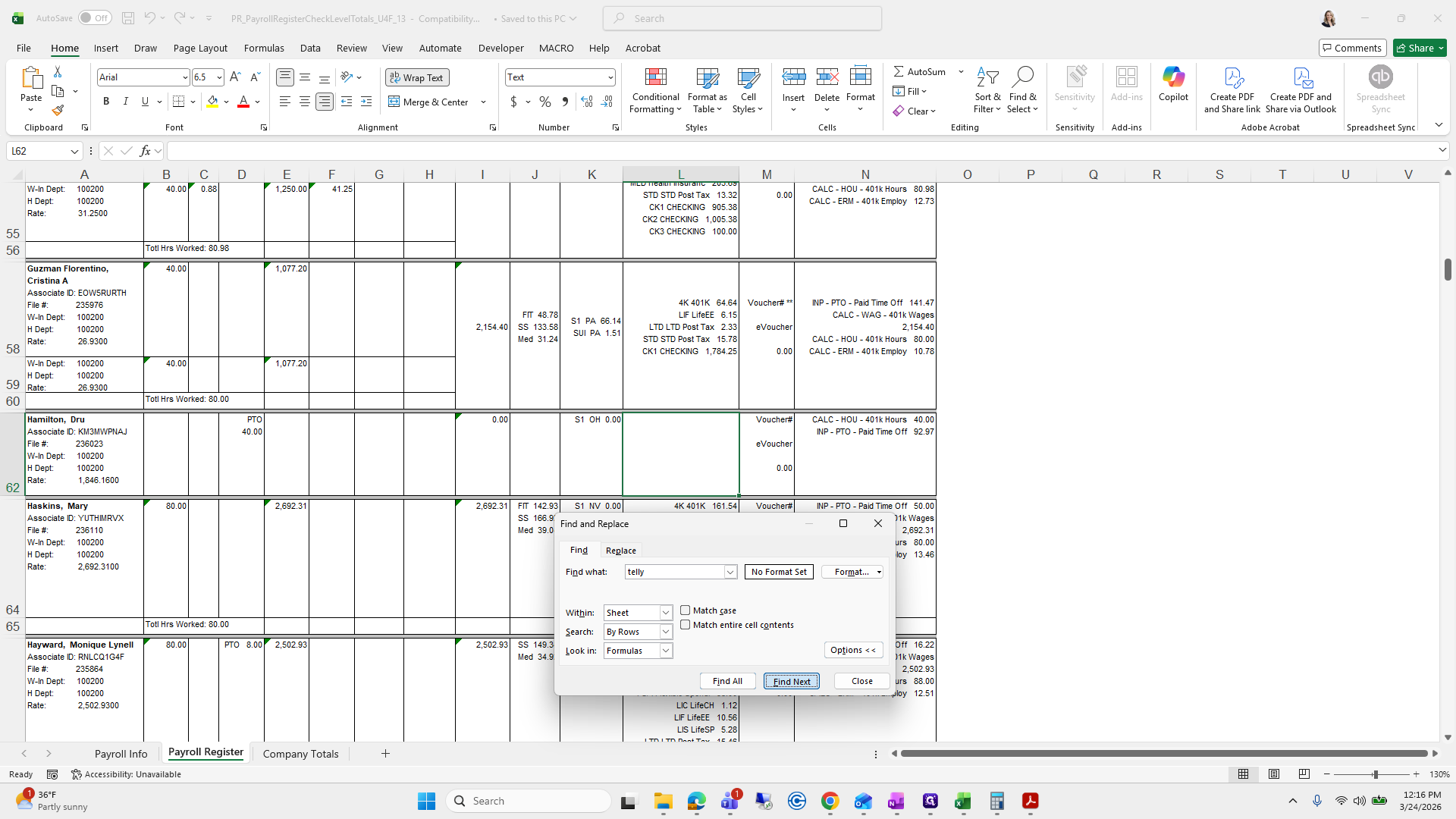
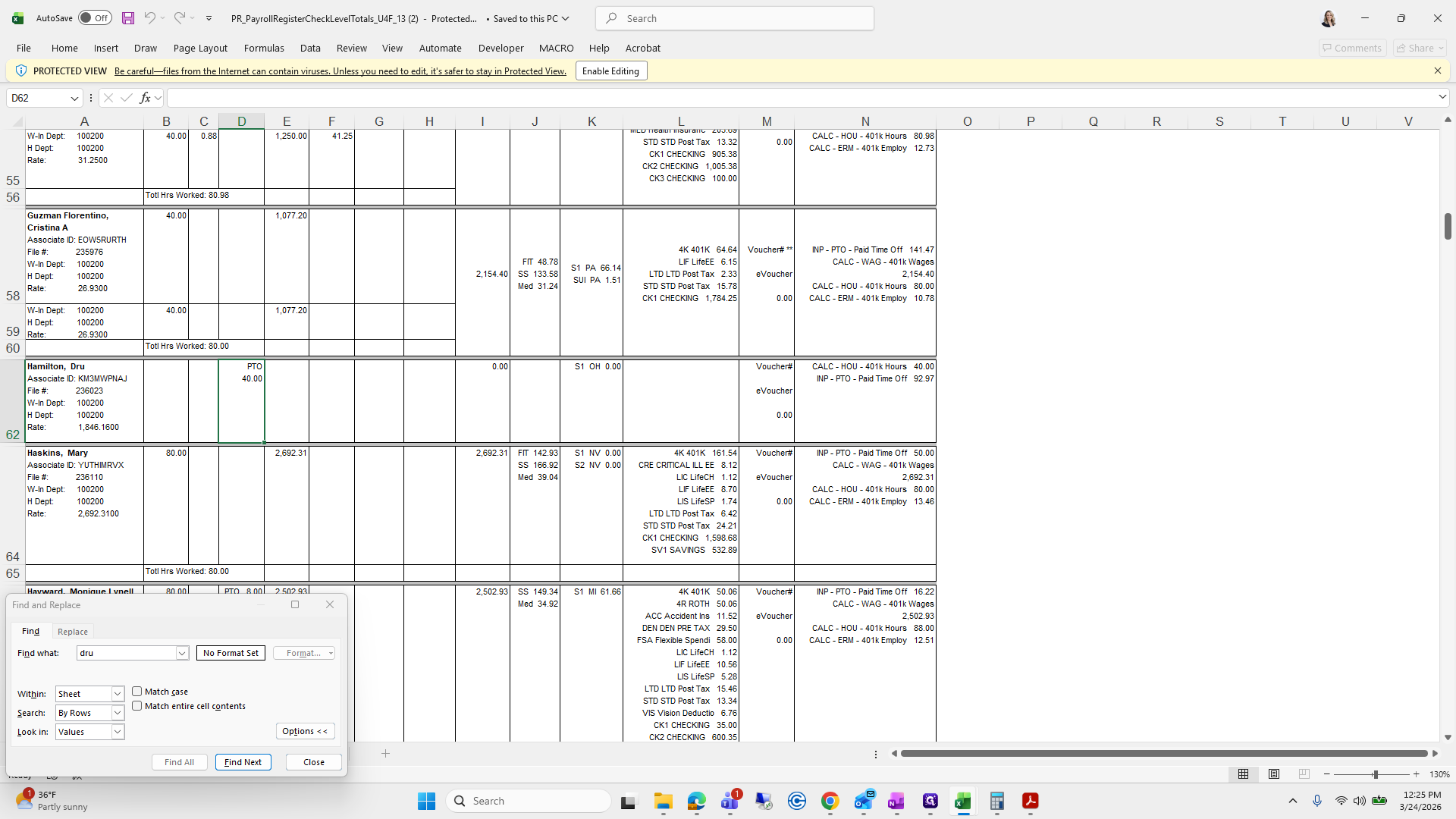
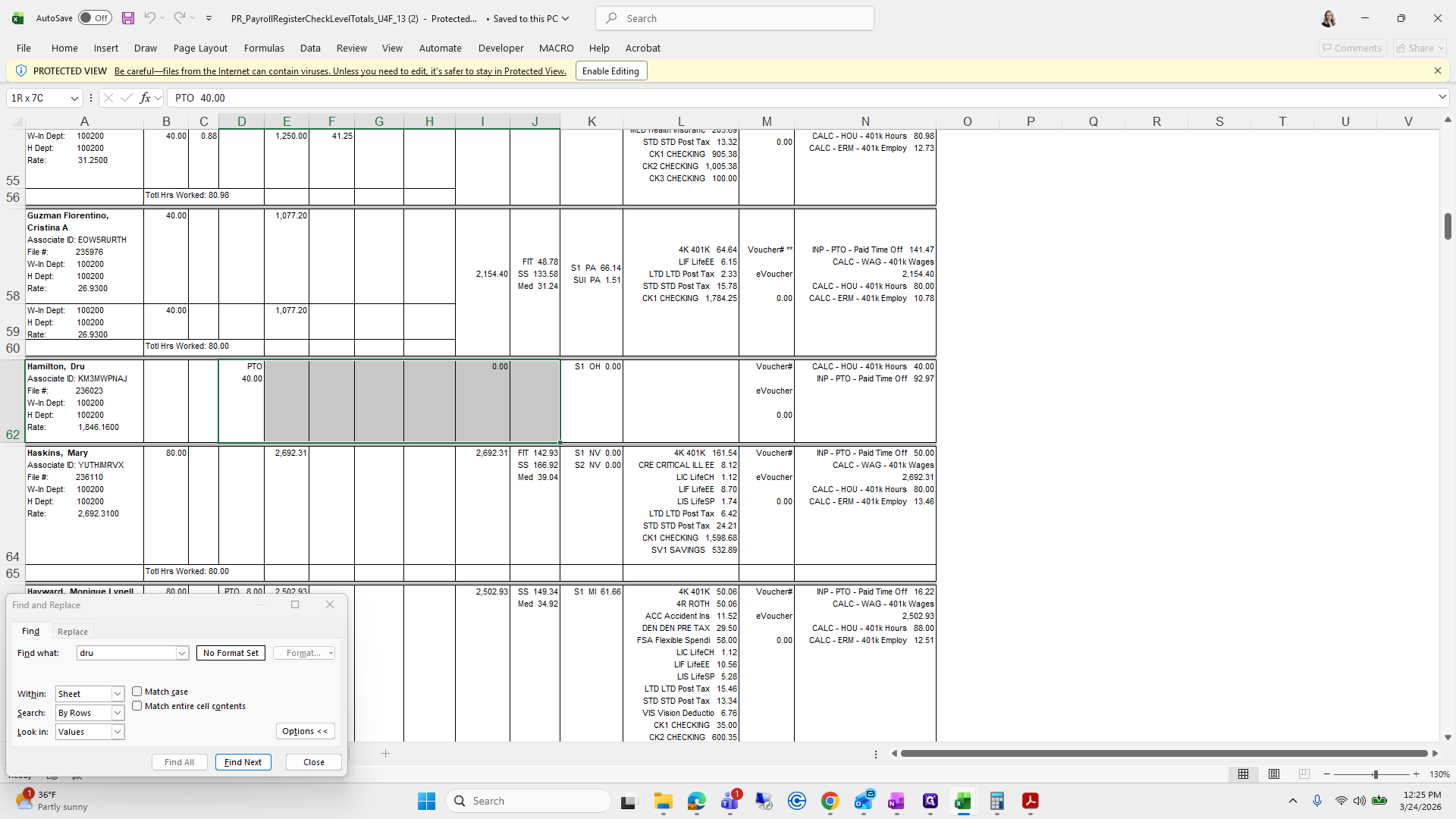
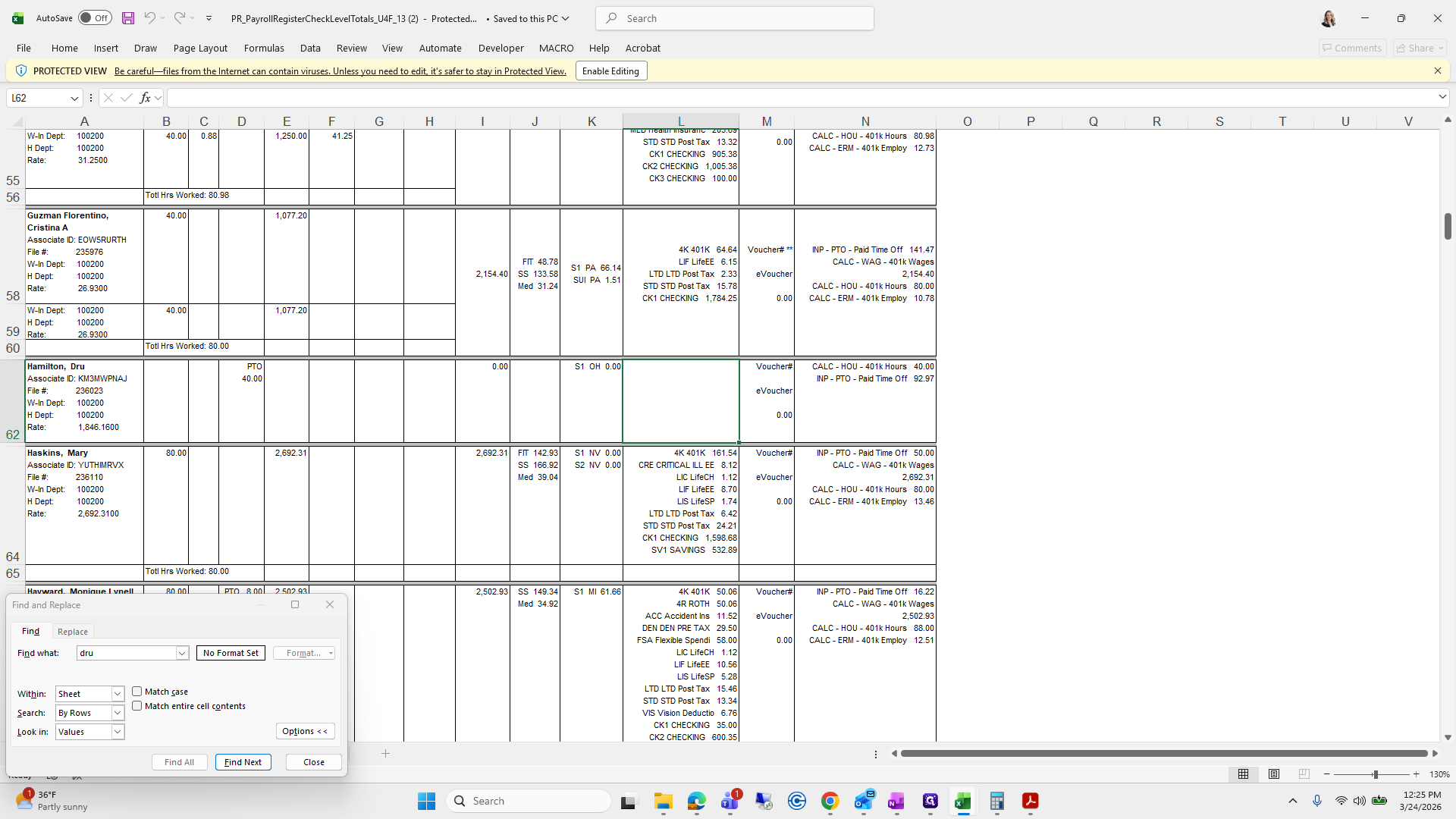
Drew Hamilton, ensure there are only 40 hours of PTO and that all these deductions are included.
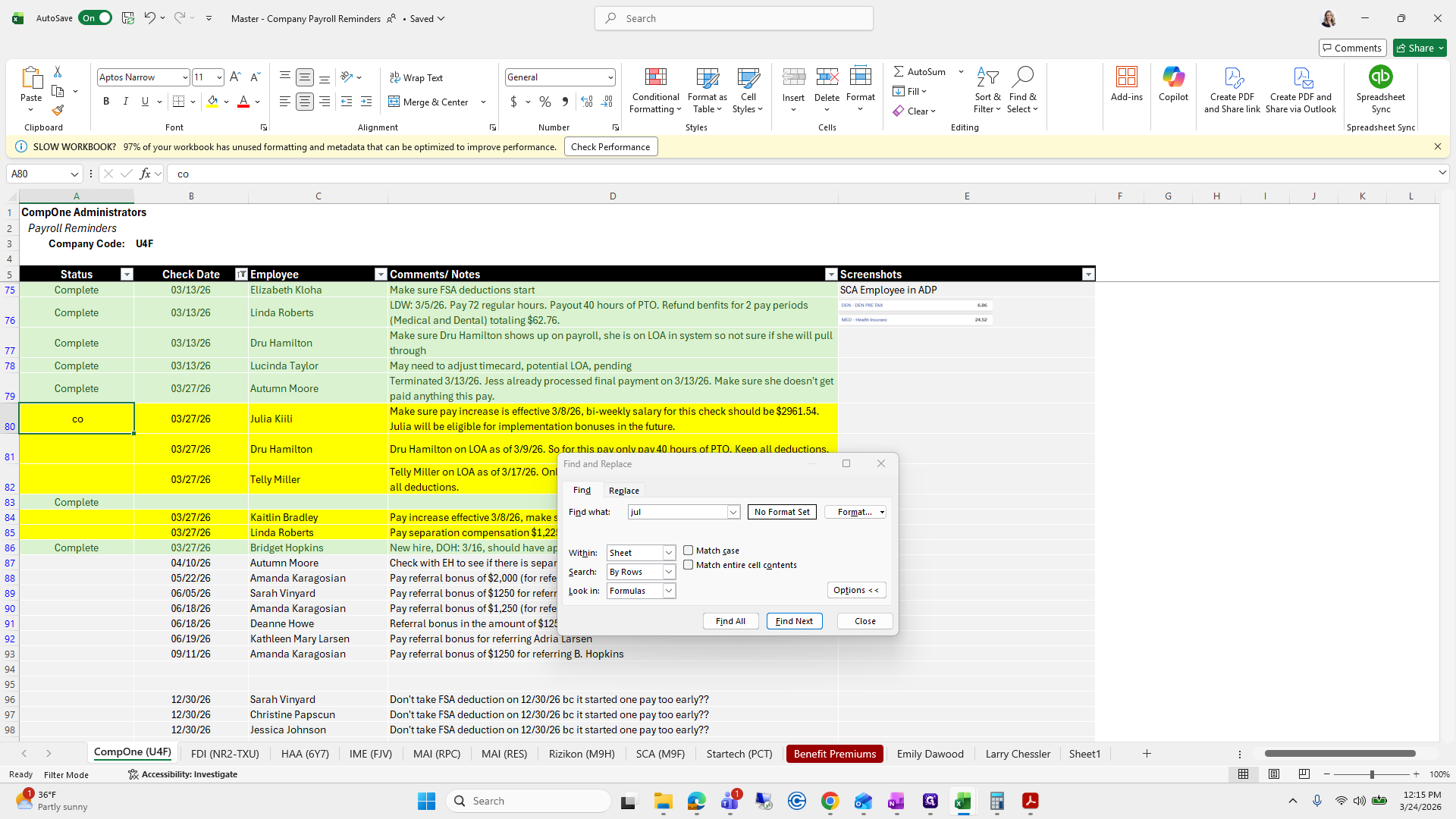
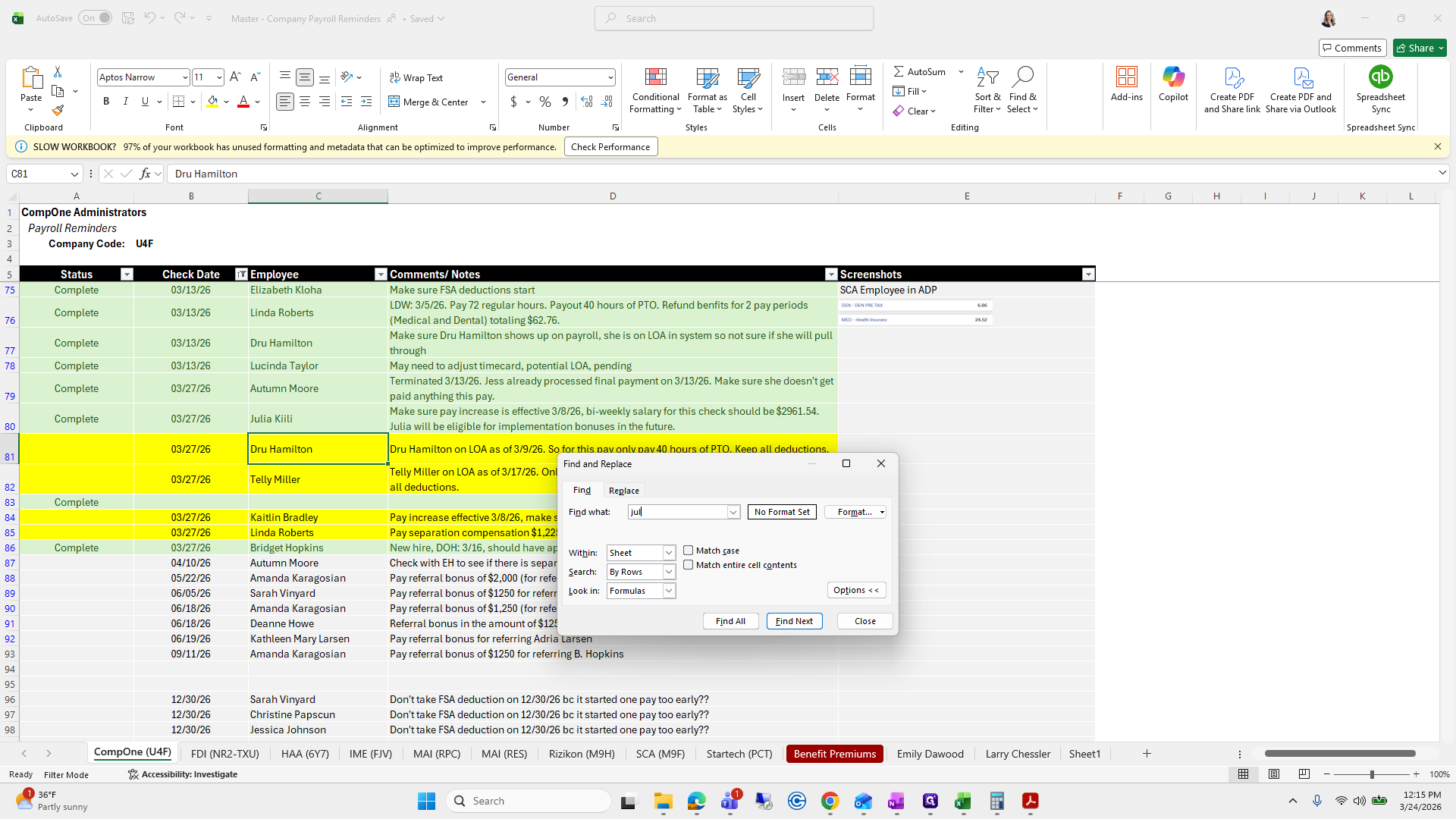
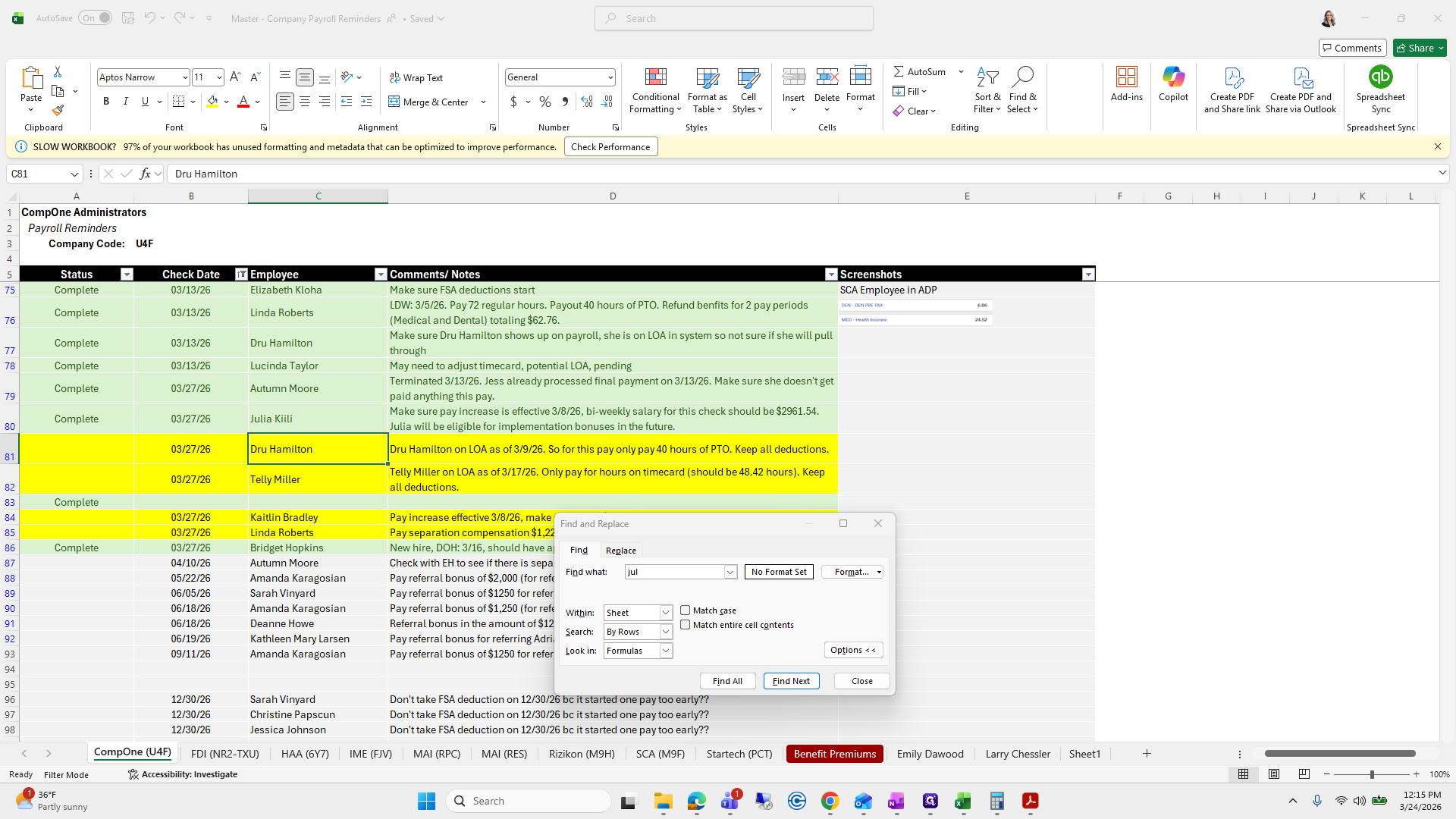
Drew, you have 40 hours of PTO.
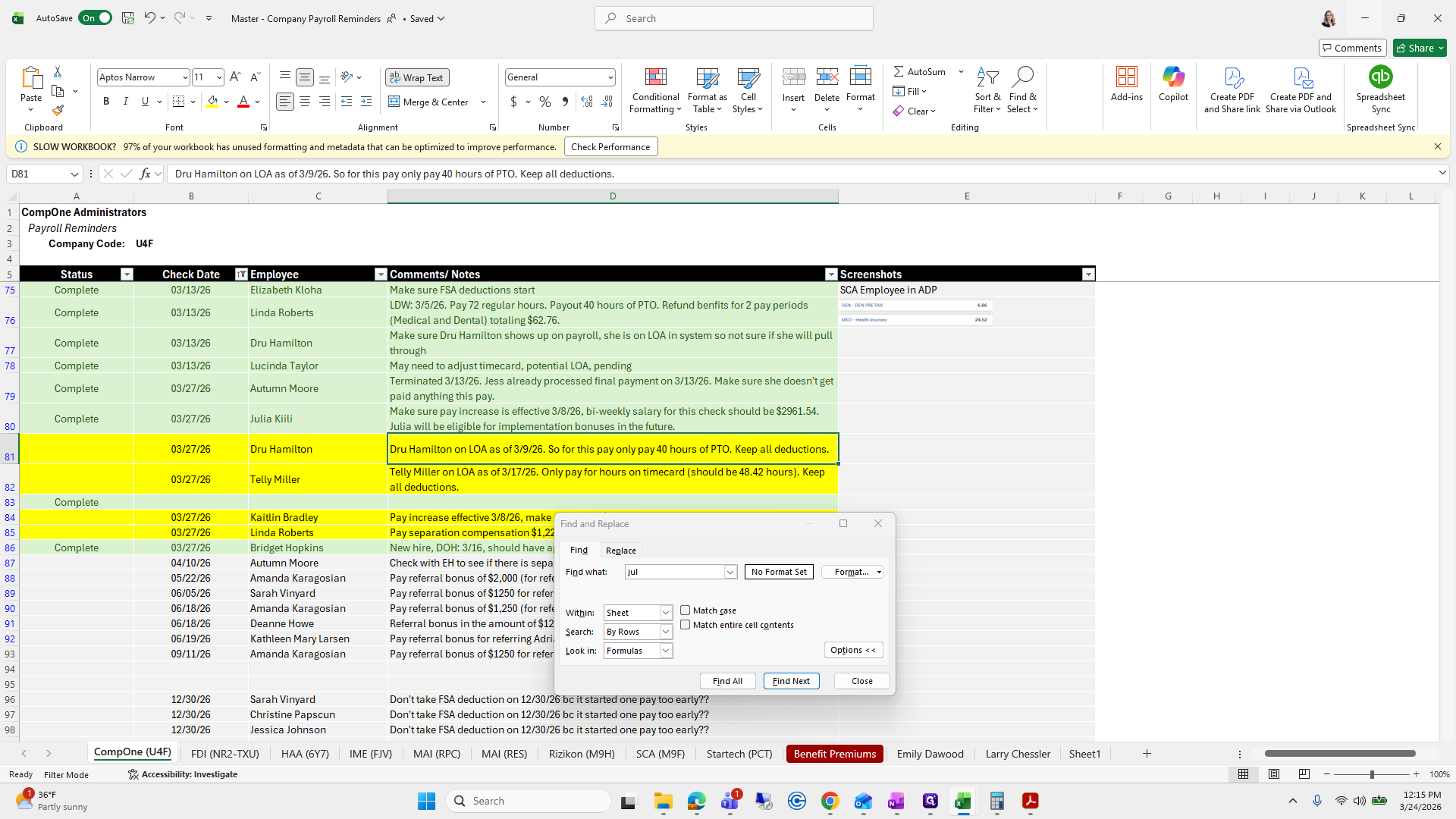
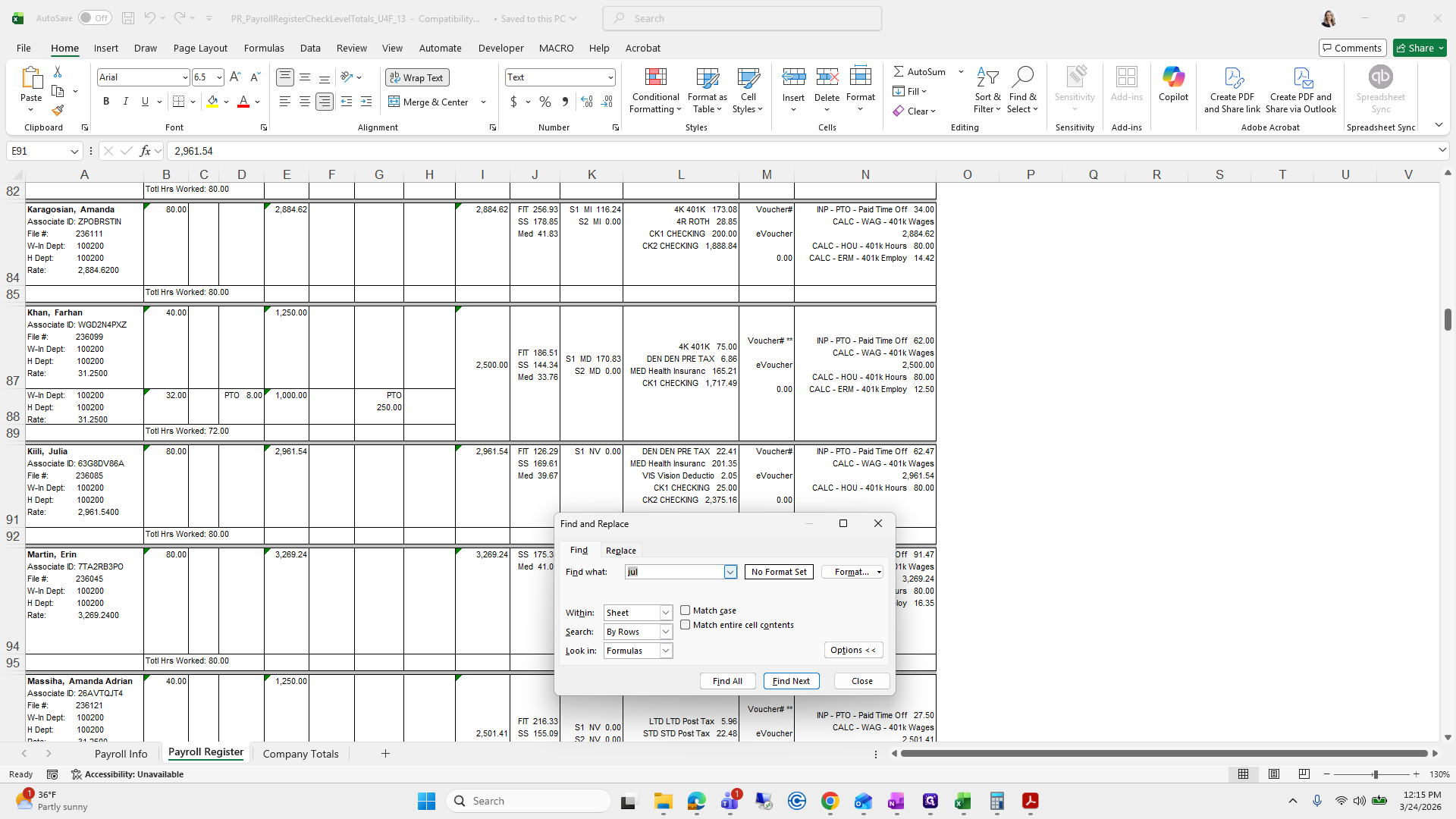
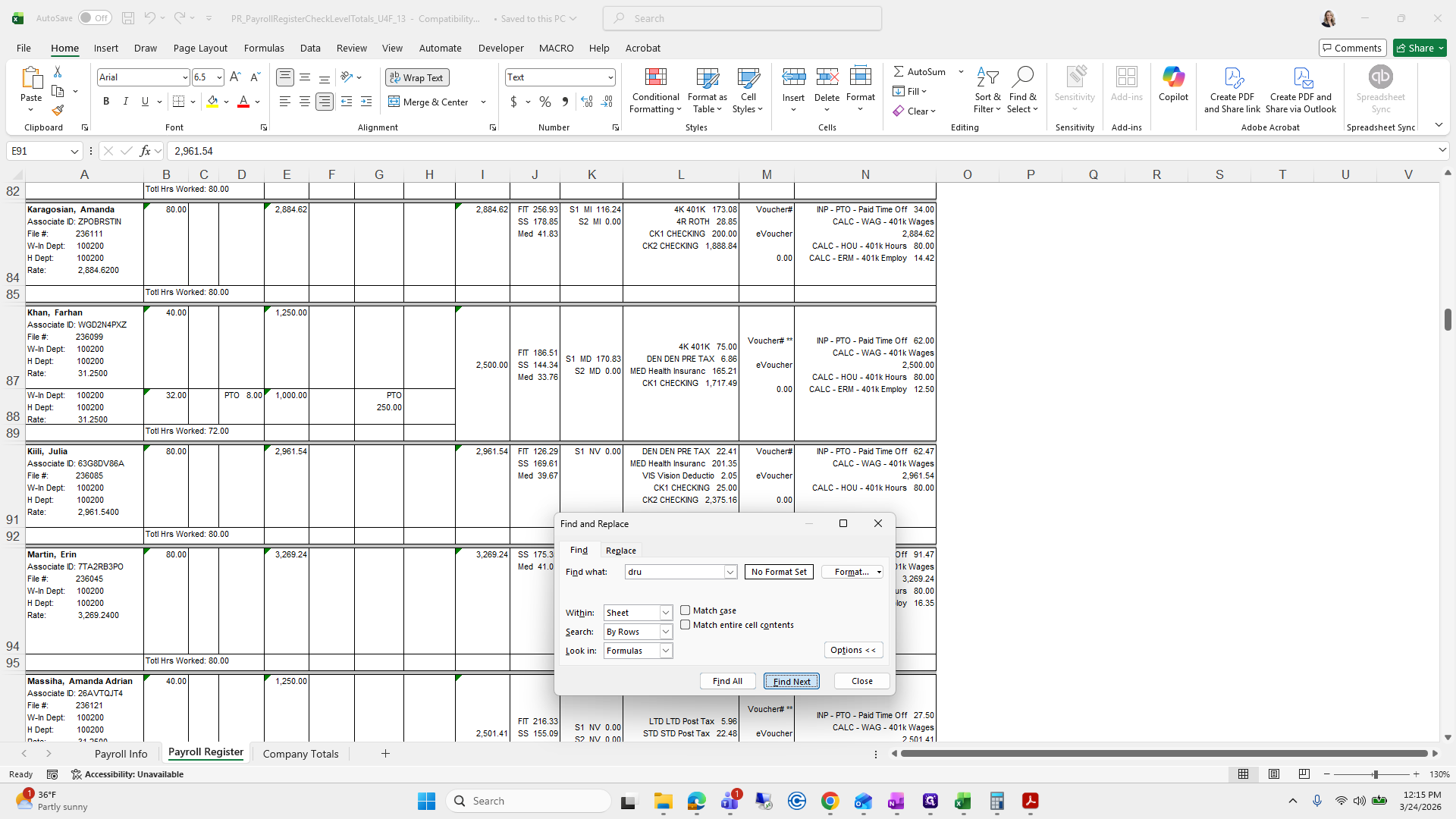
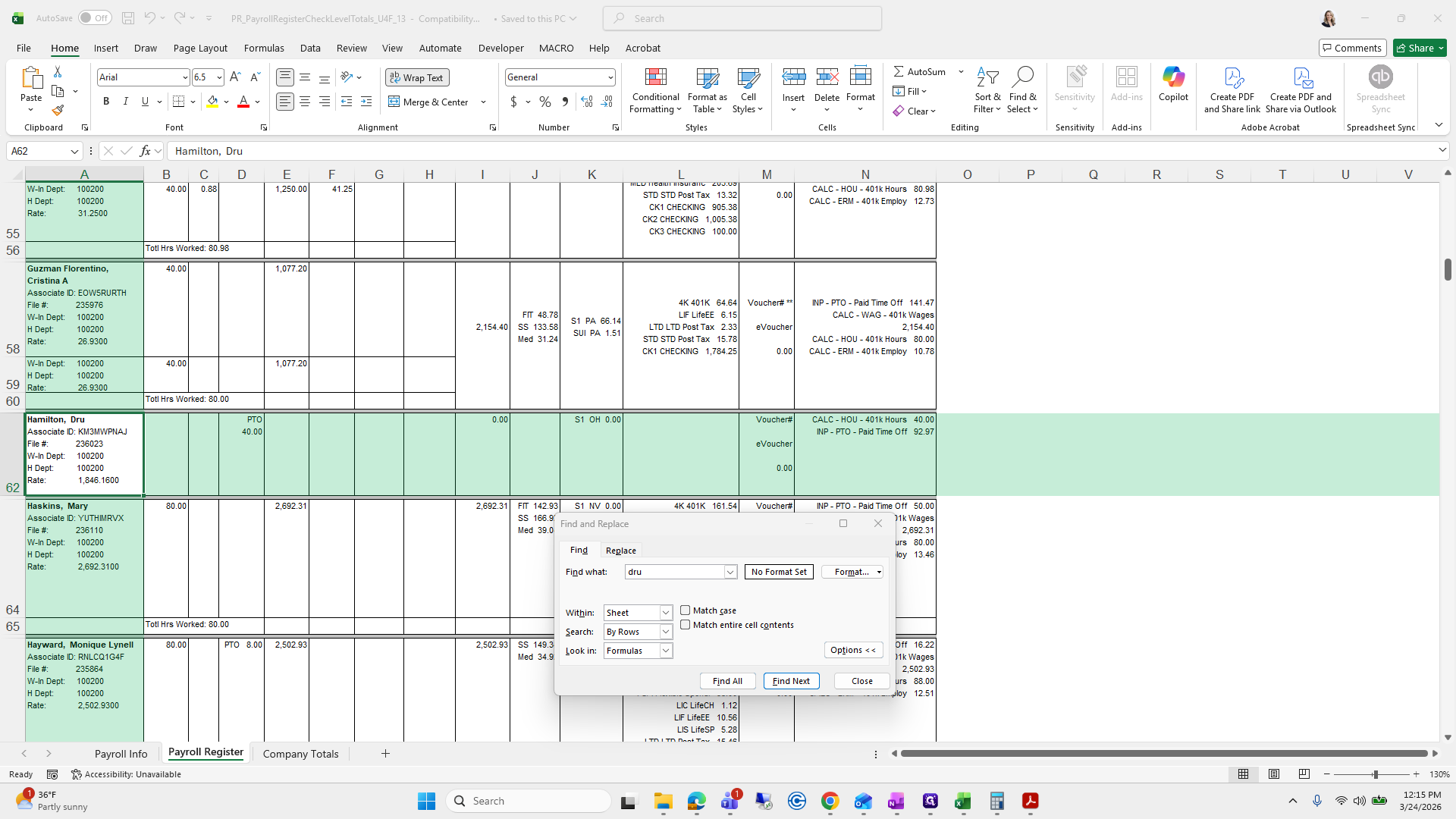
He has no deductions.
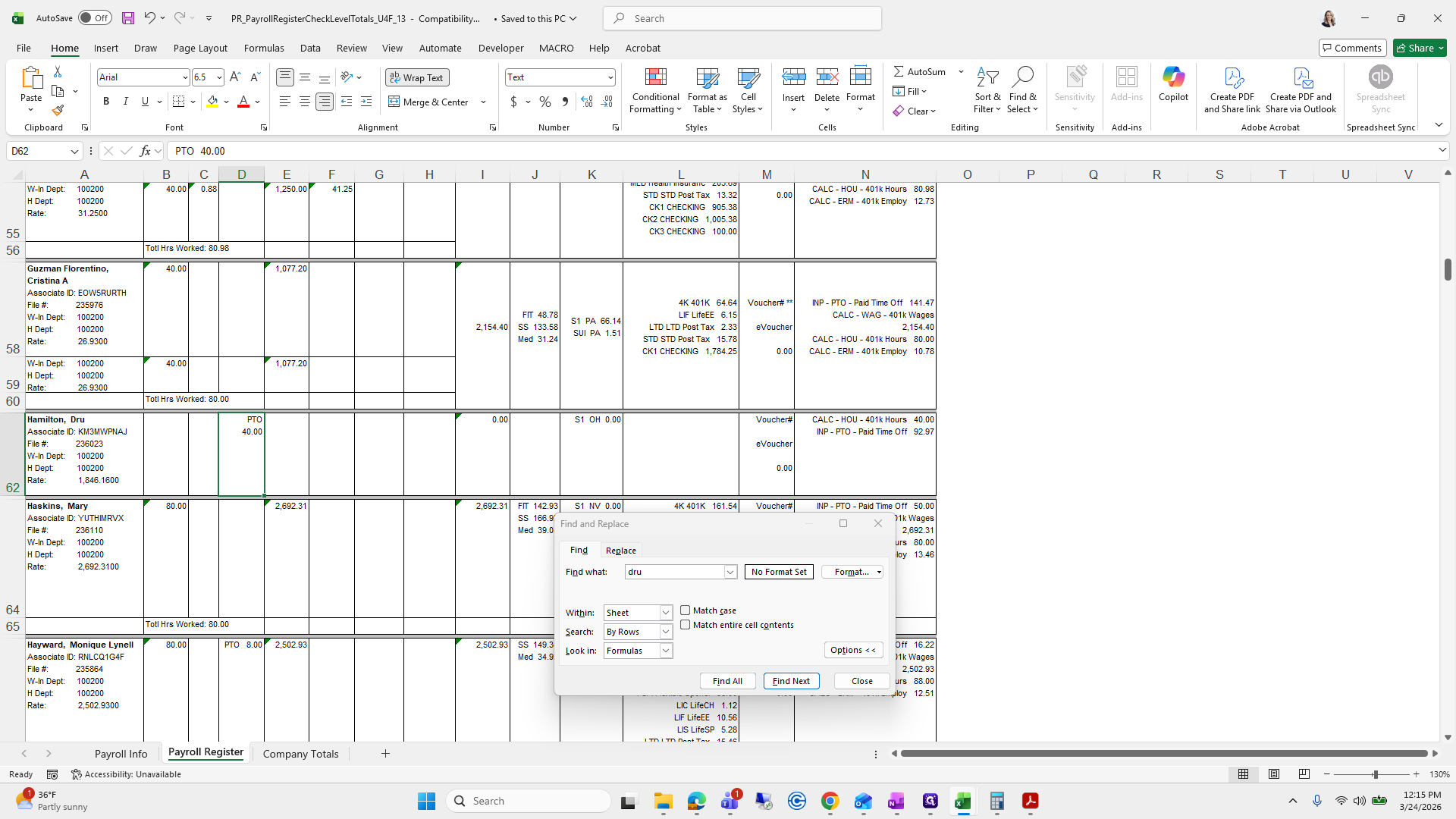
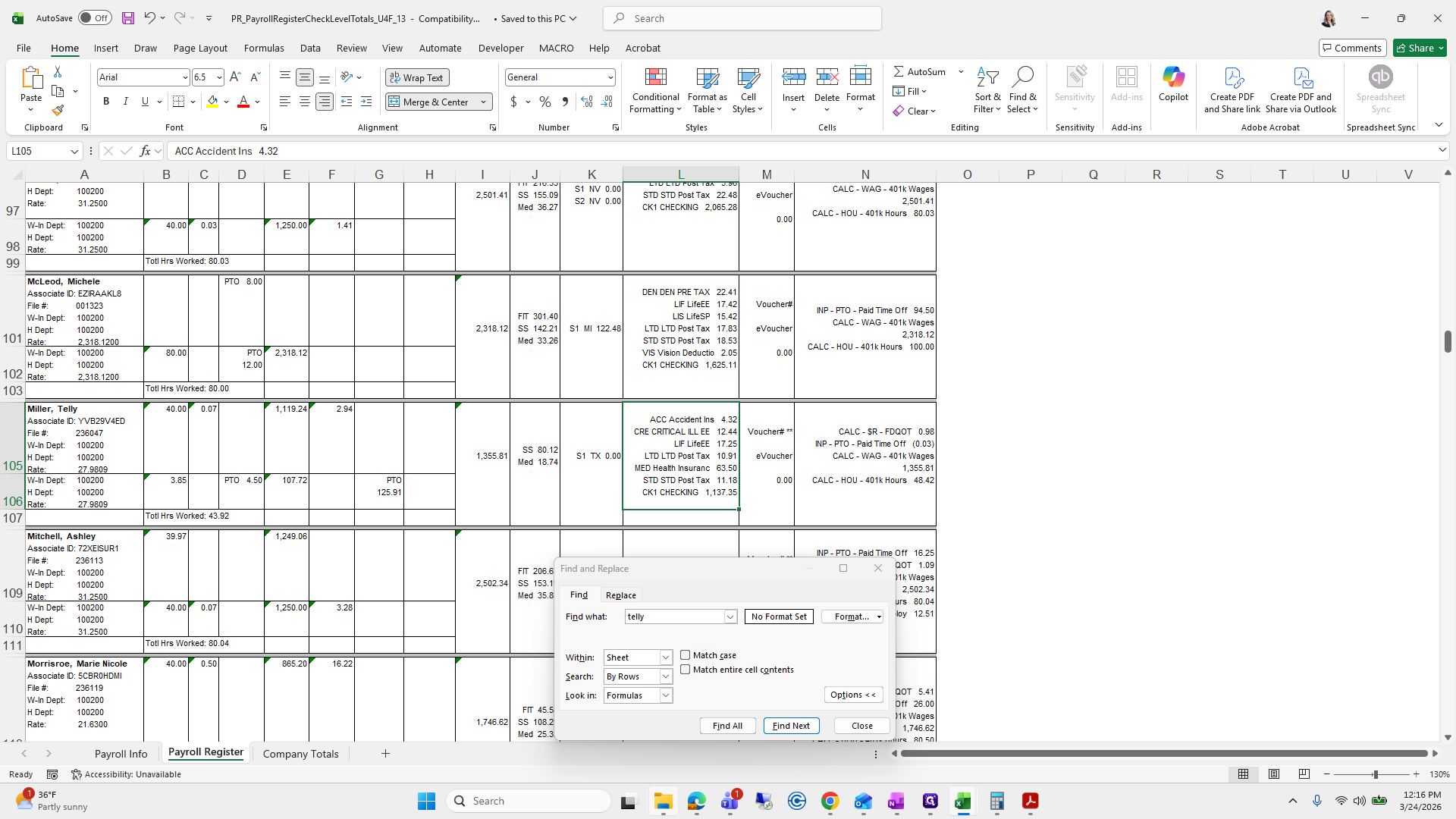
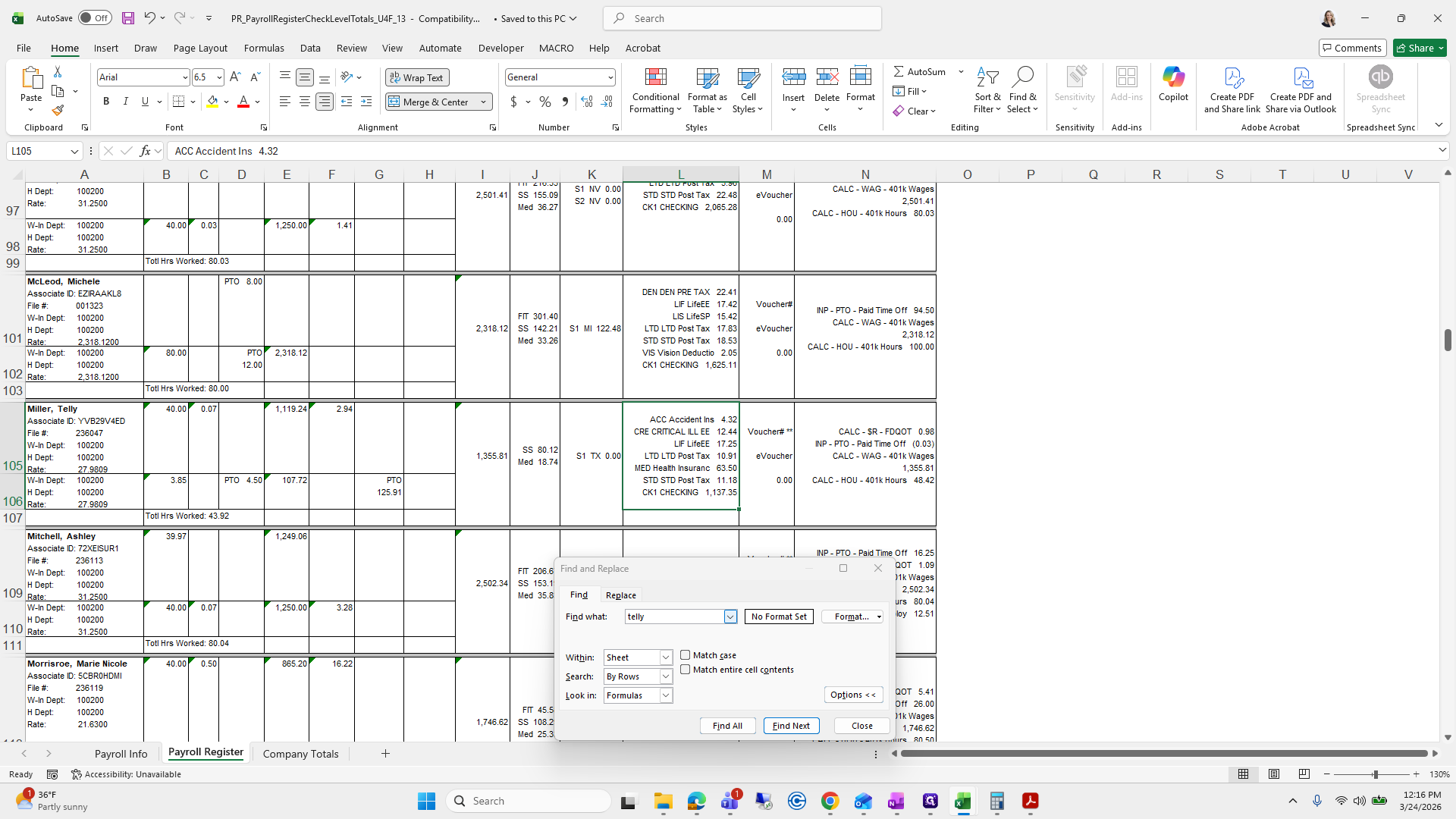
We need to go back and add a worksheet to adjust his deduction. I'll note that. Next is Telly Miller, who is only paid for the hours listed on the time card.
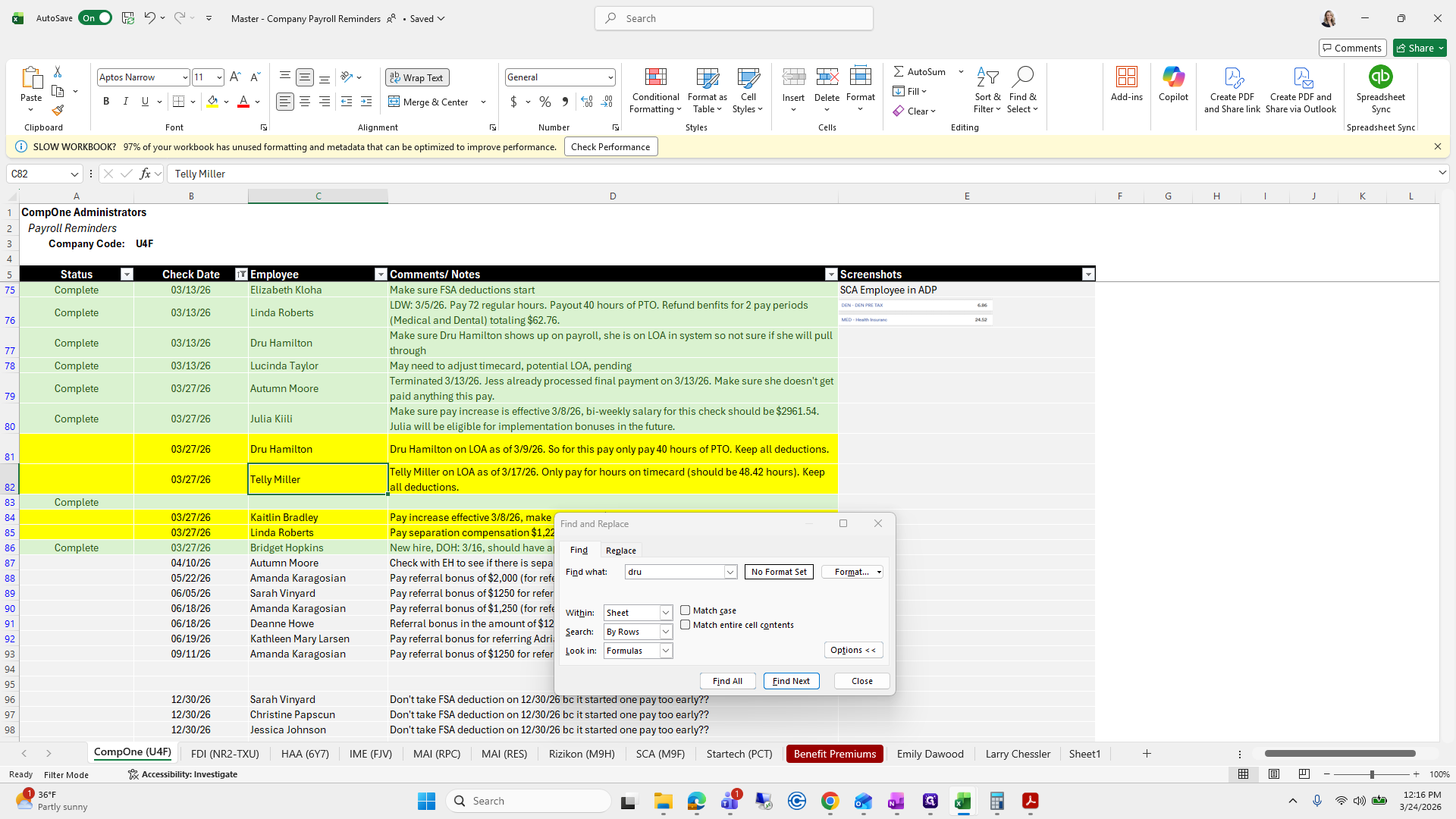
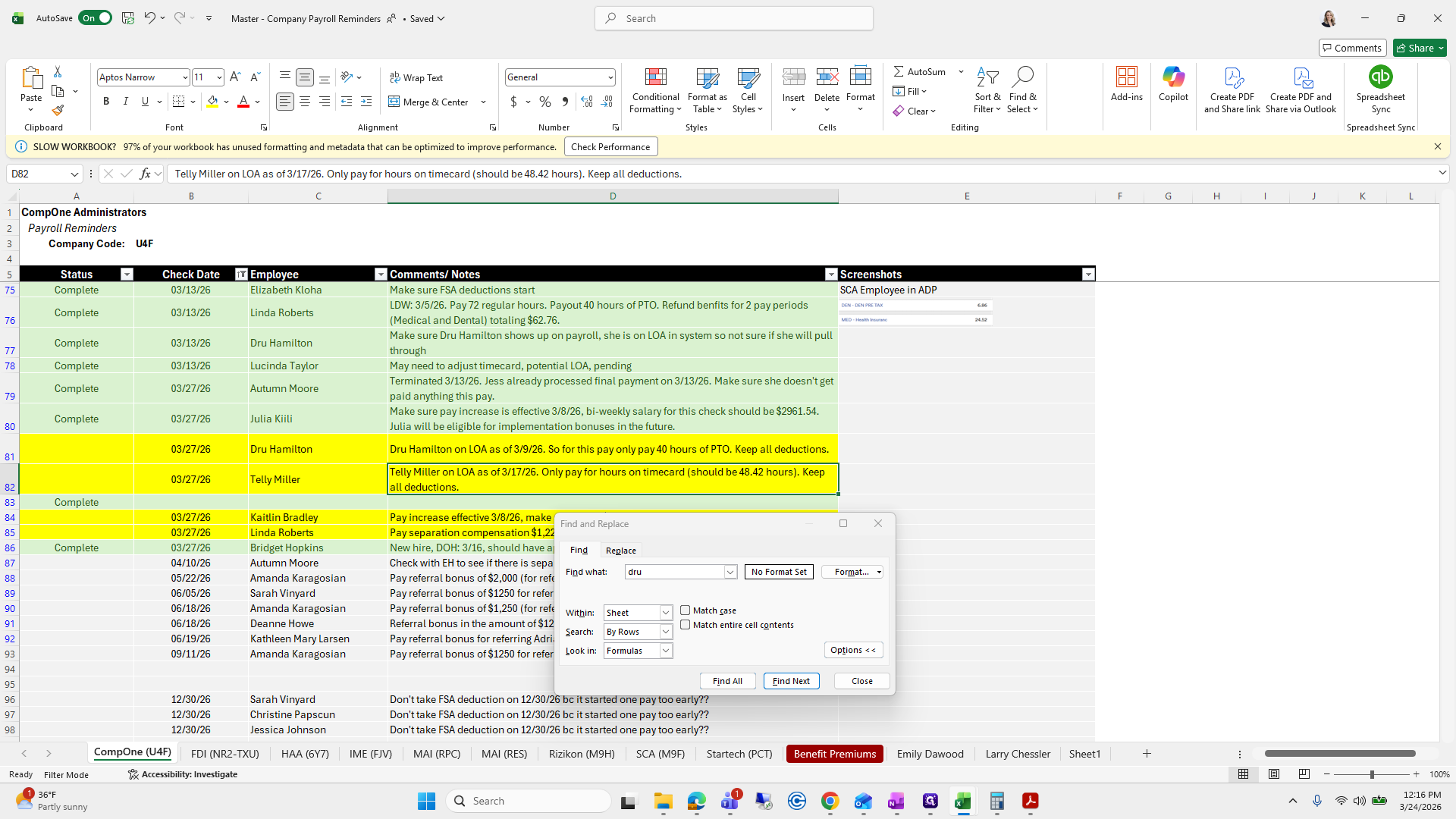
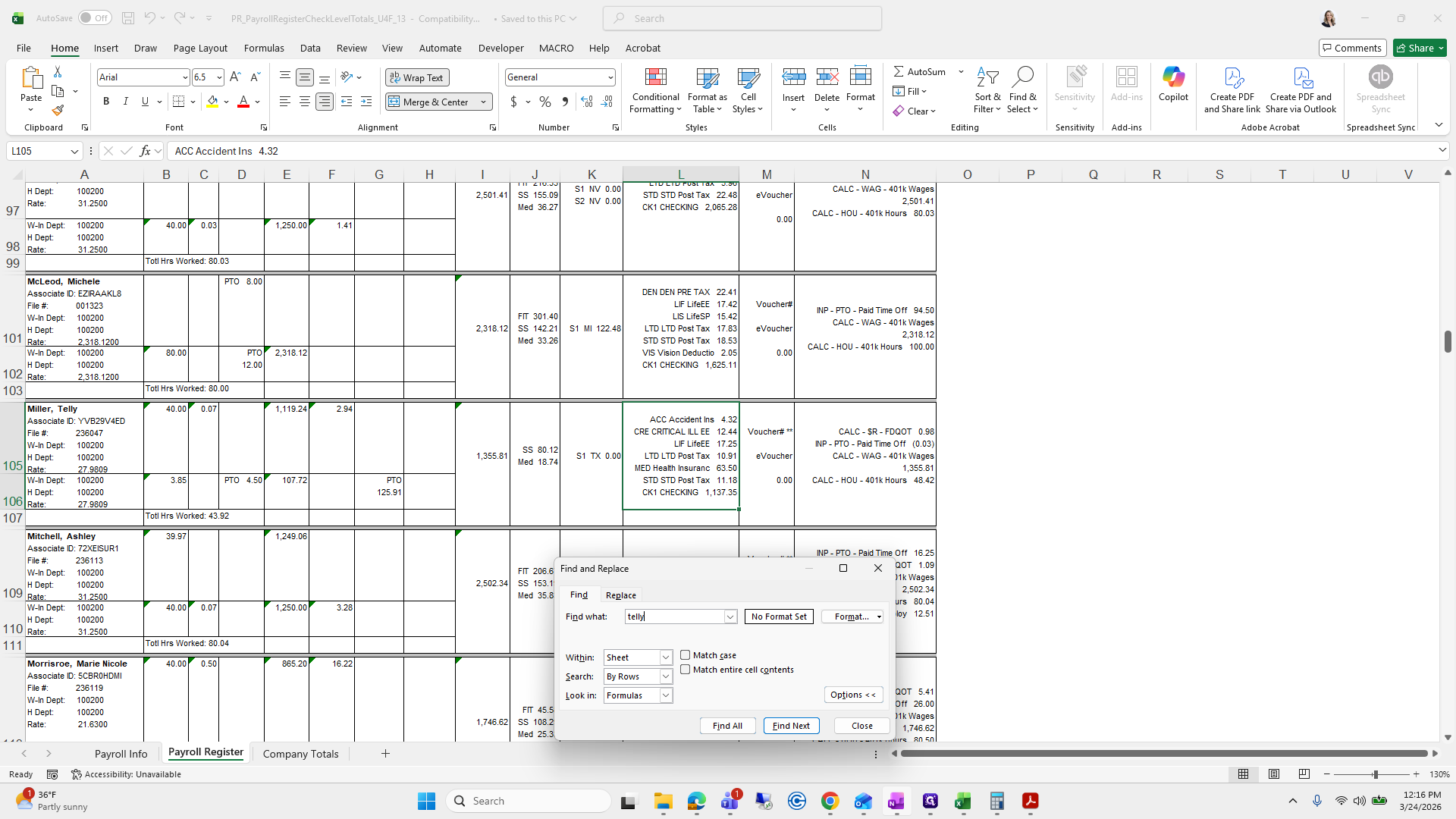
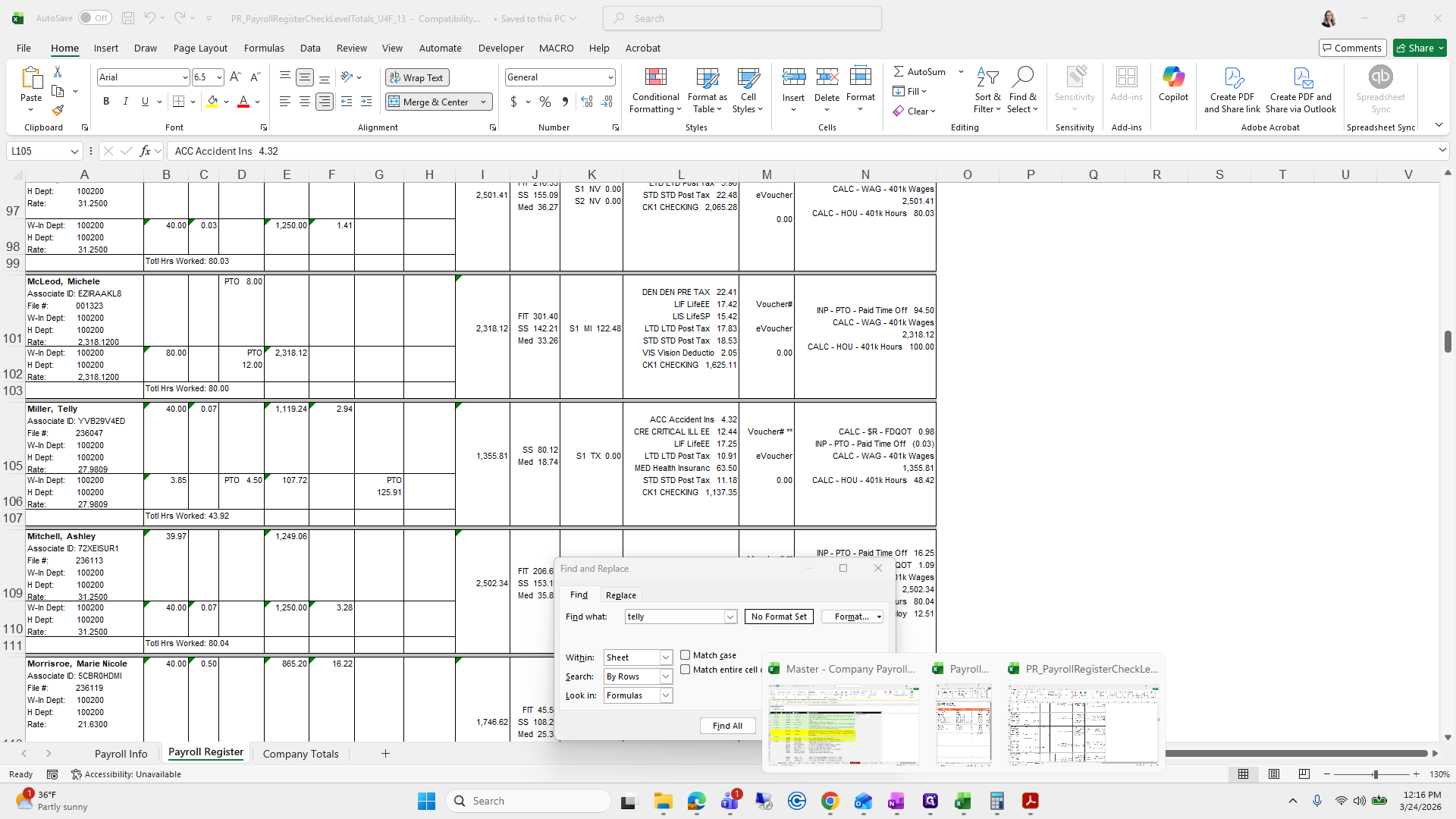
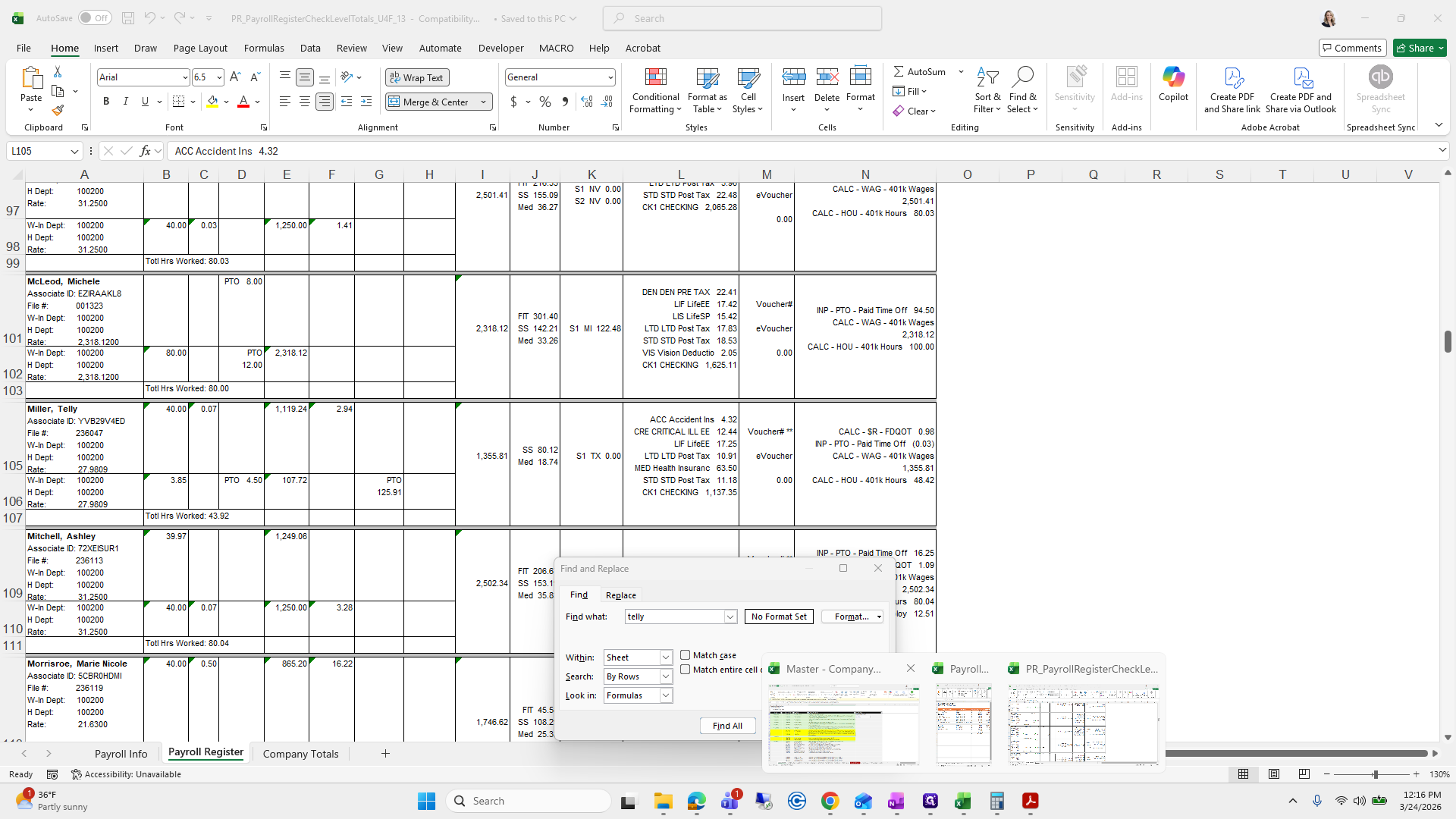
Should only be 48.42. We will look up Telly Miller.
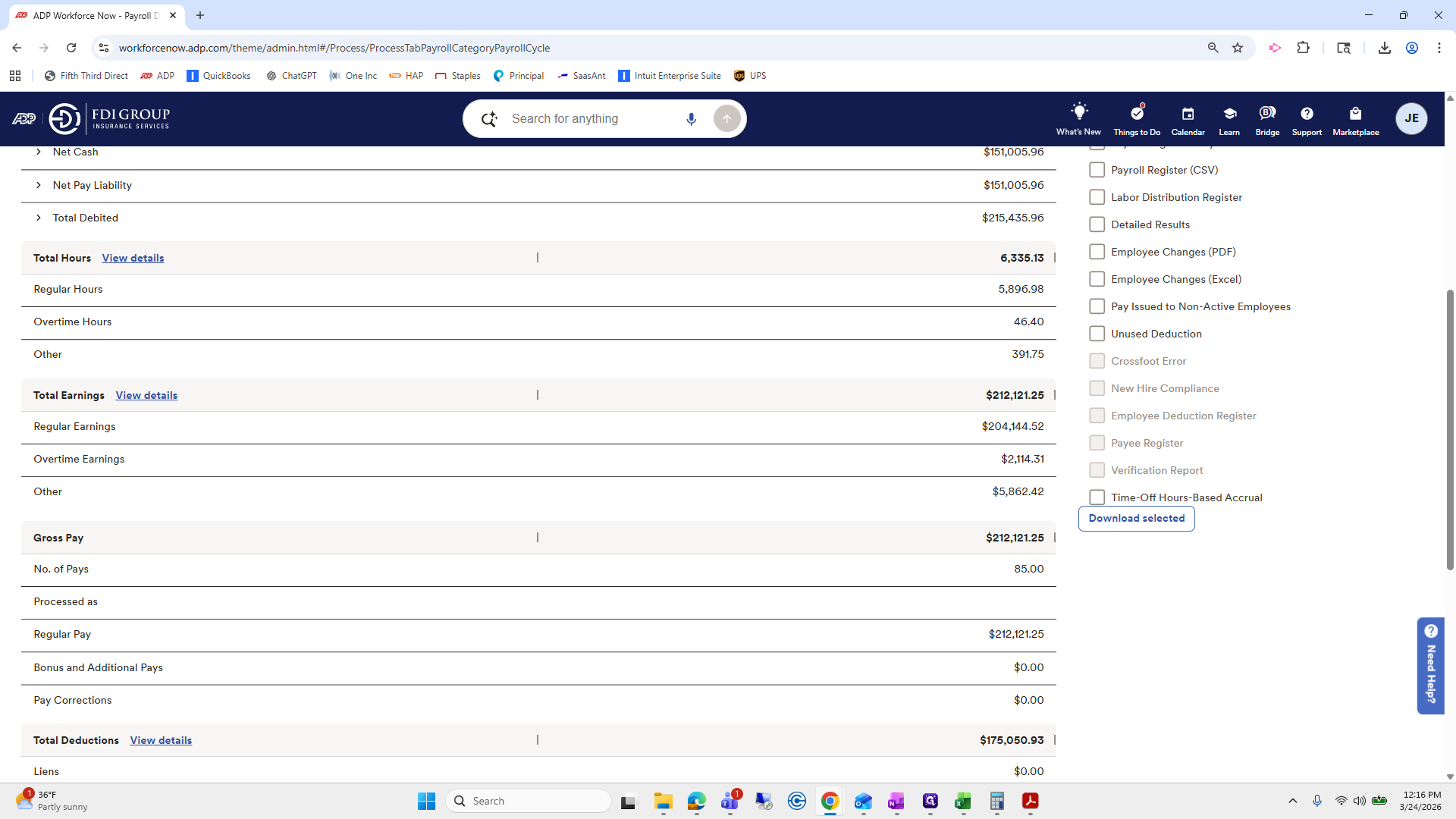
That was what appeared on her time card.
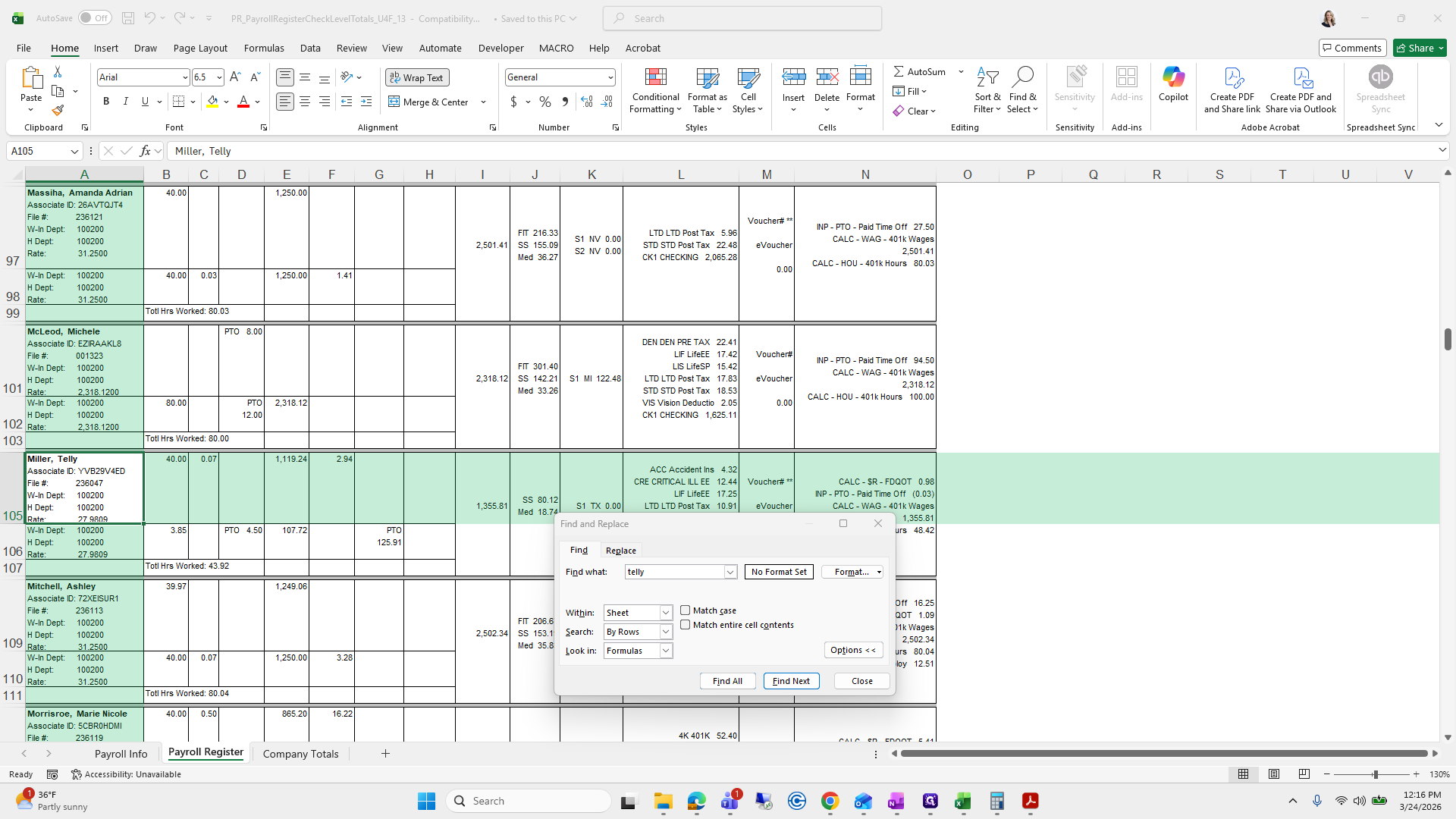
Everything looks good.
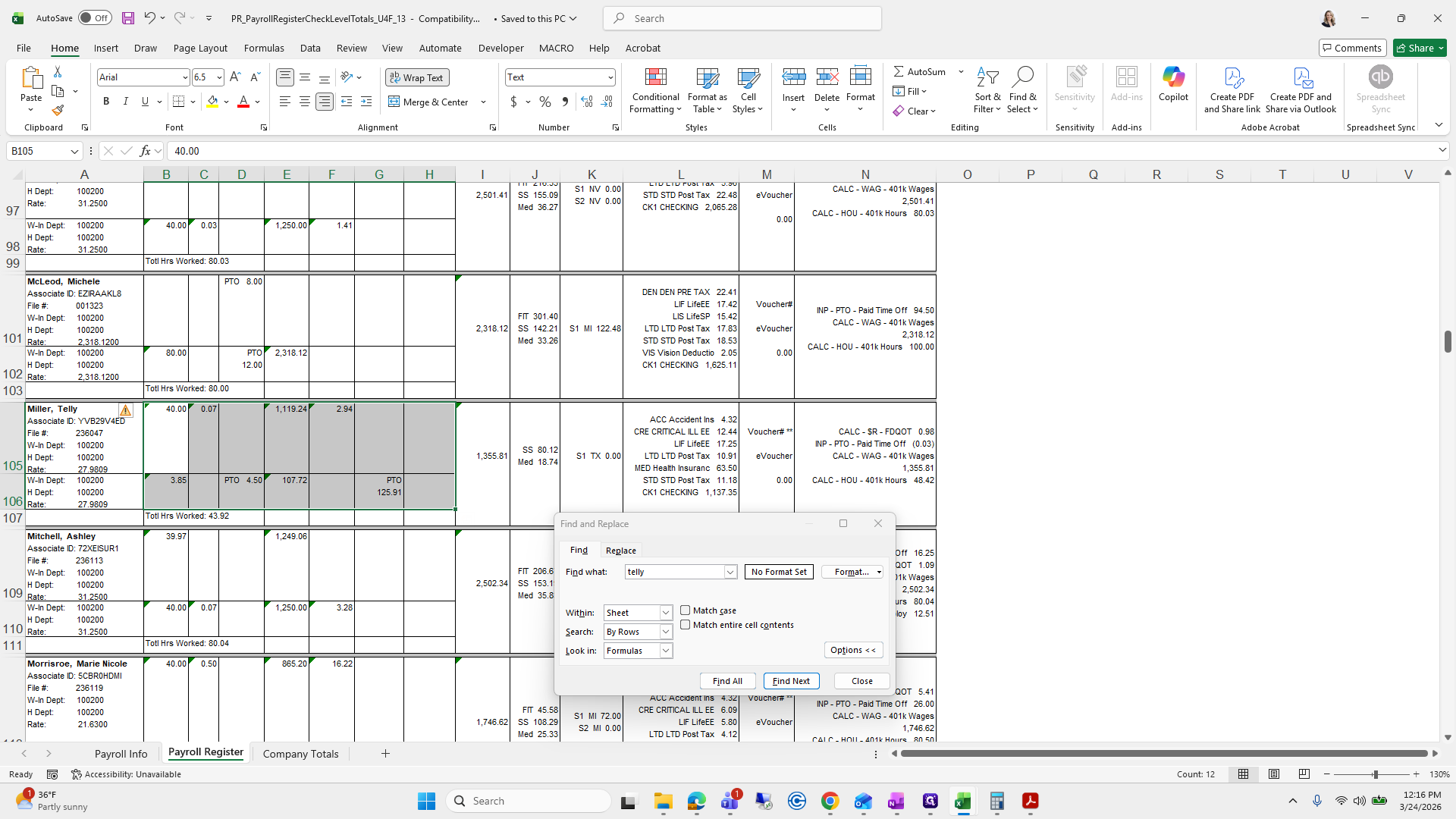
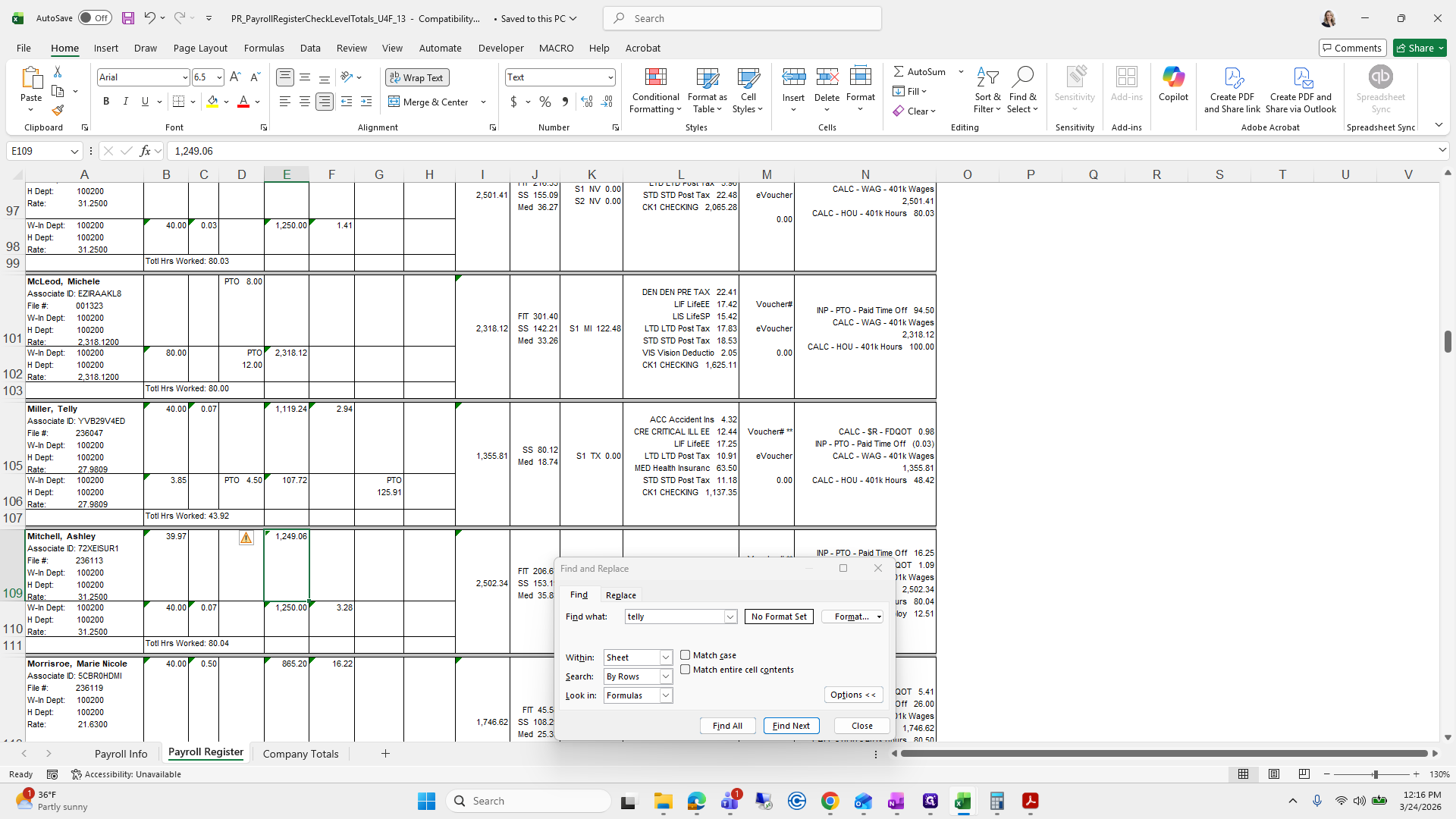
Okay. It didn't mention deductions.
If you're unsure, ask.
Okay, complete.
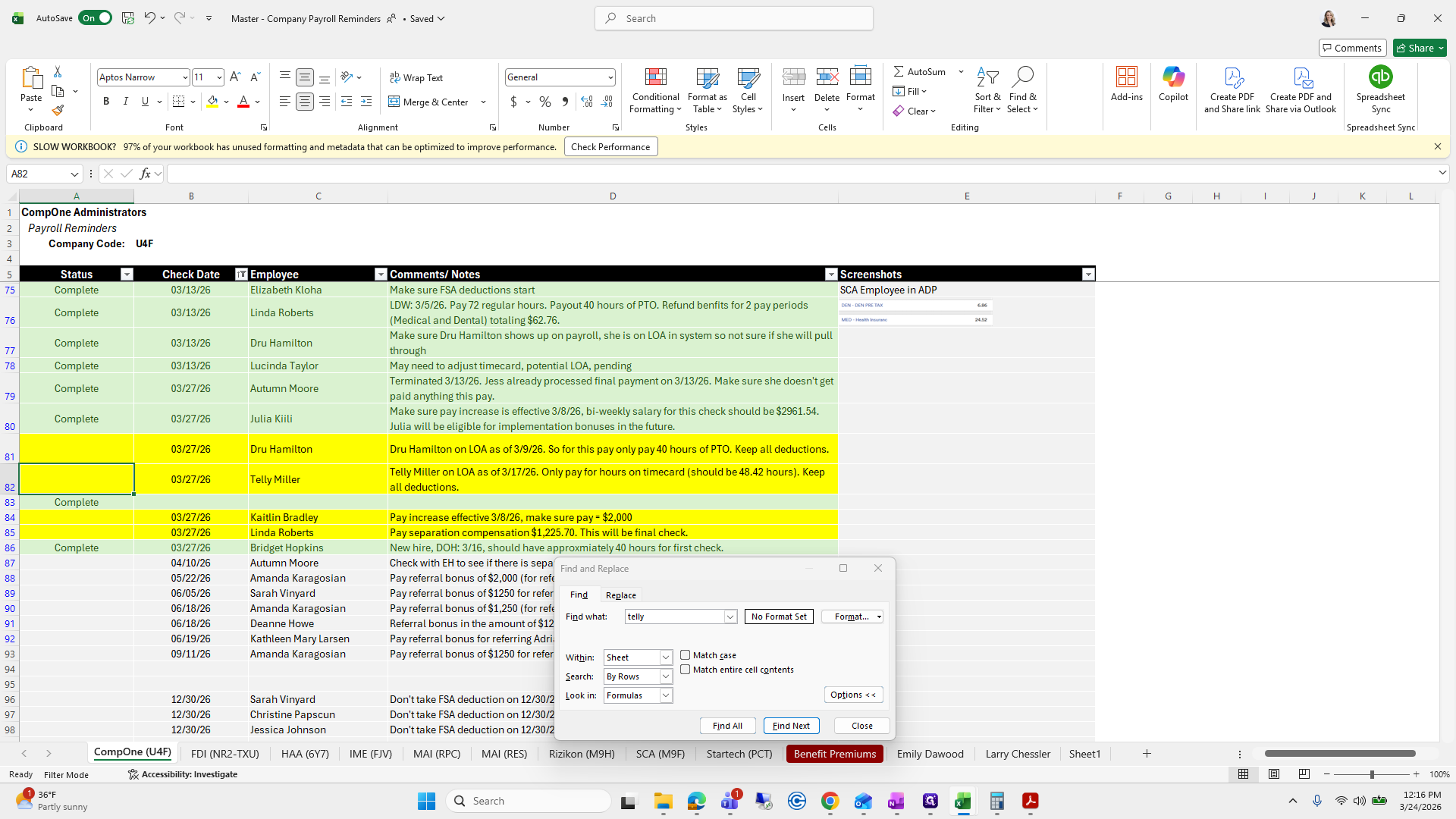
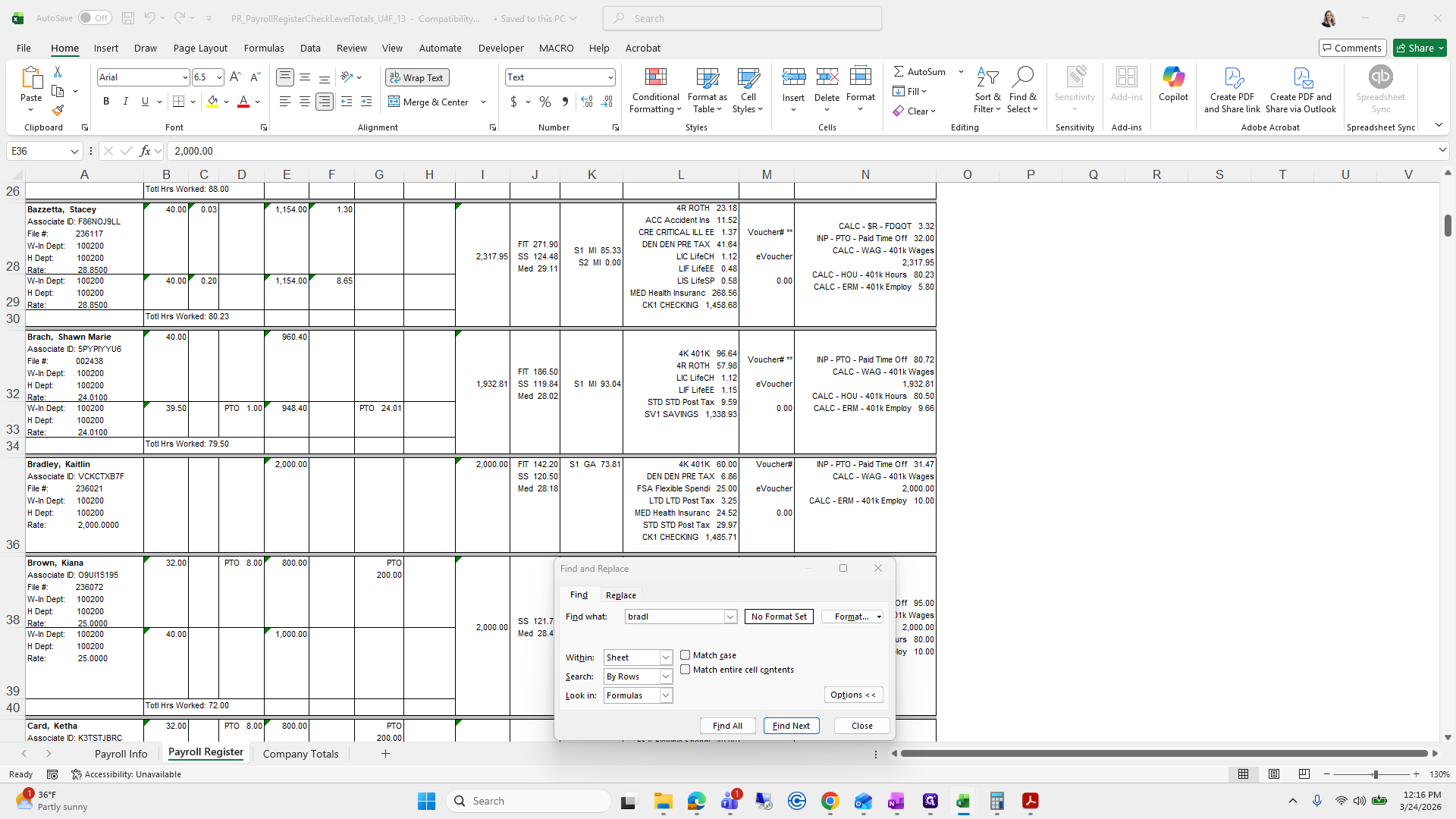
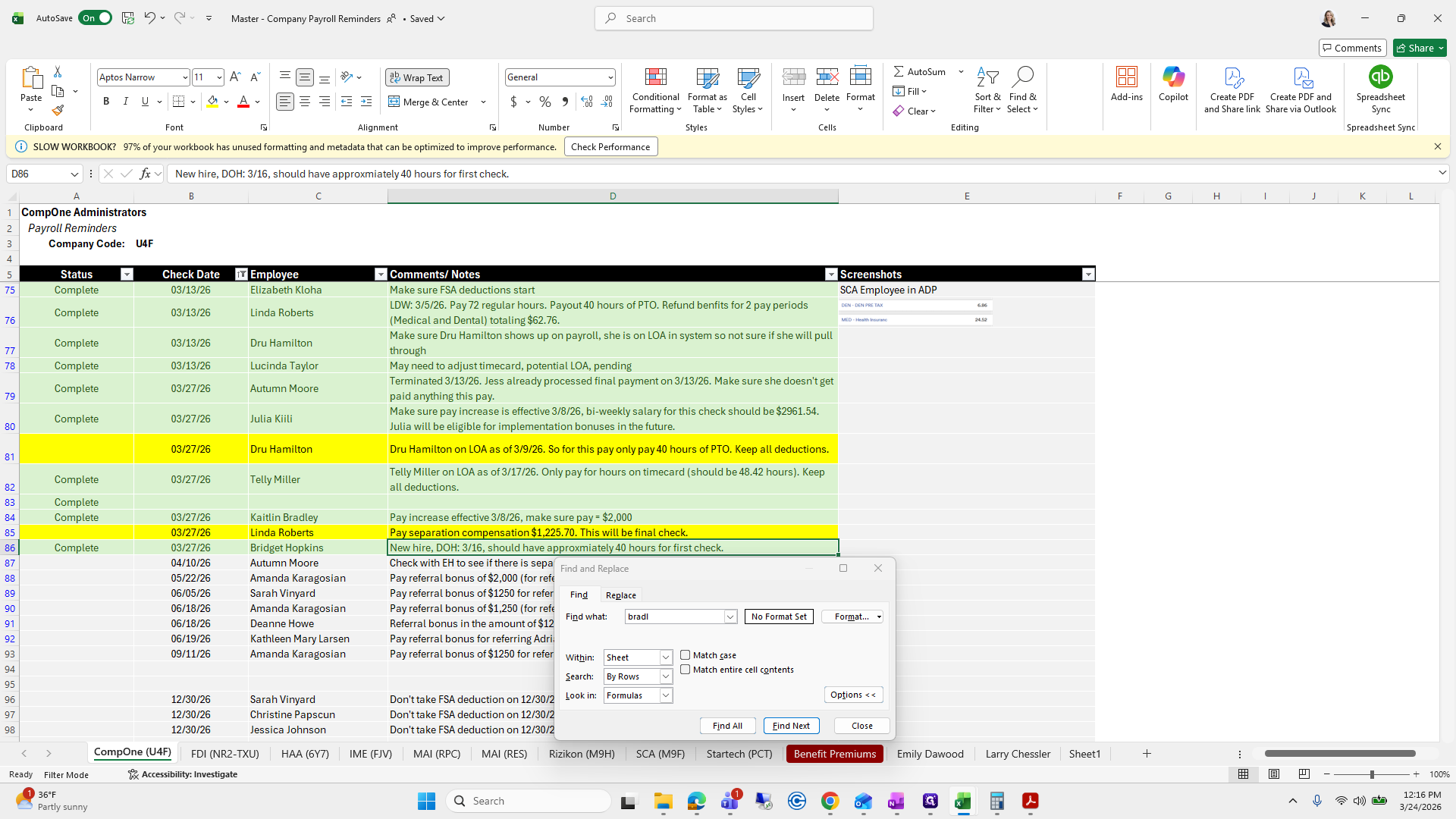
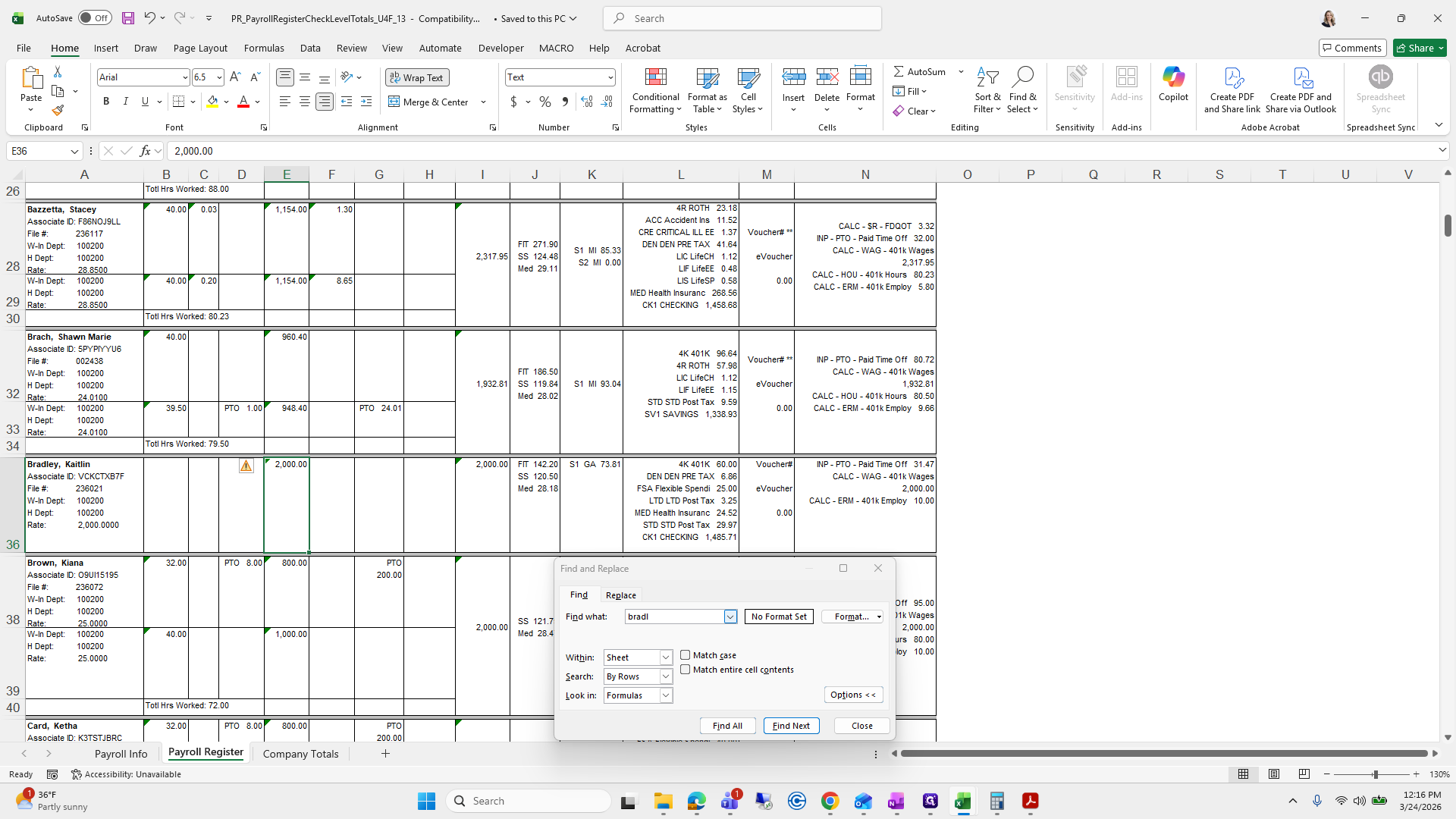
Kaitlin Bradley, ensure her pay is 2000.
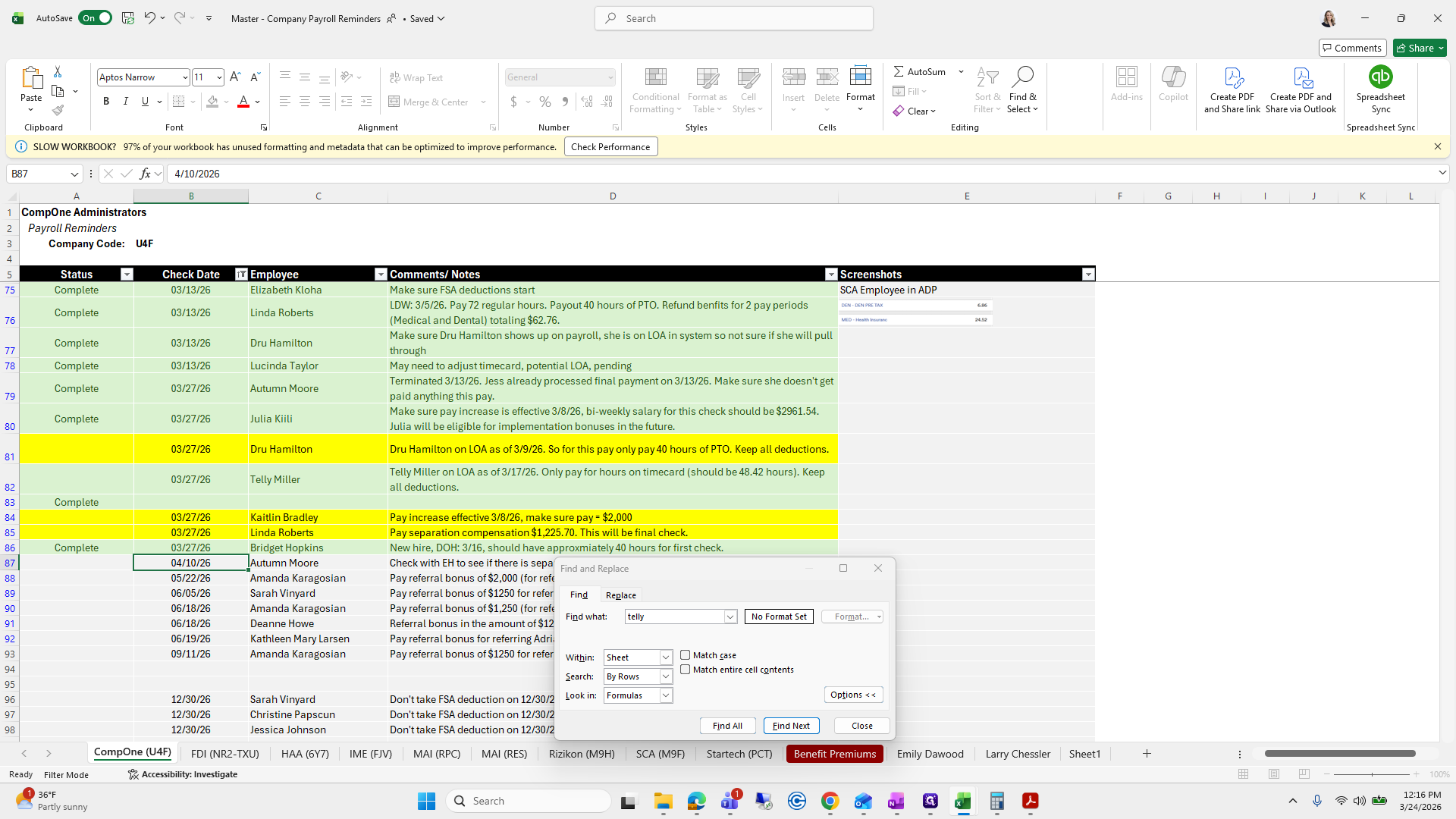
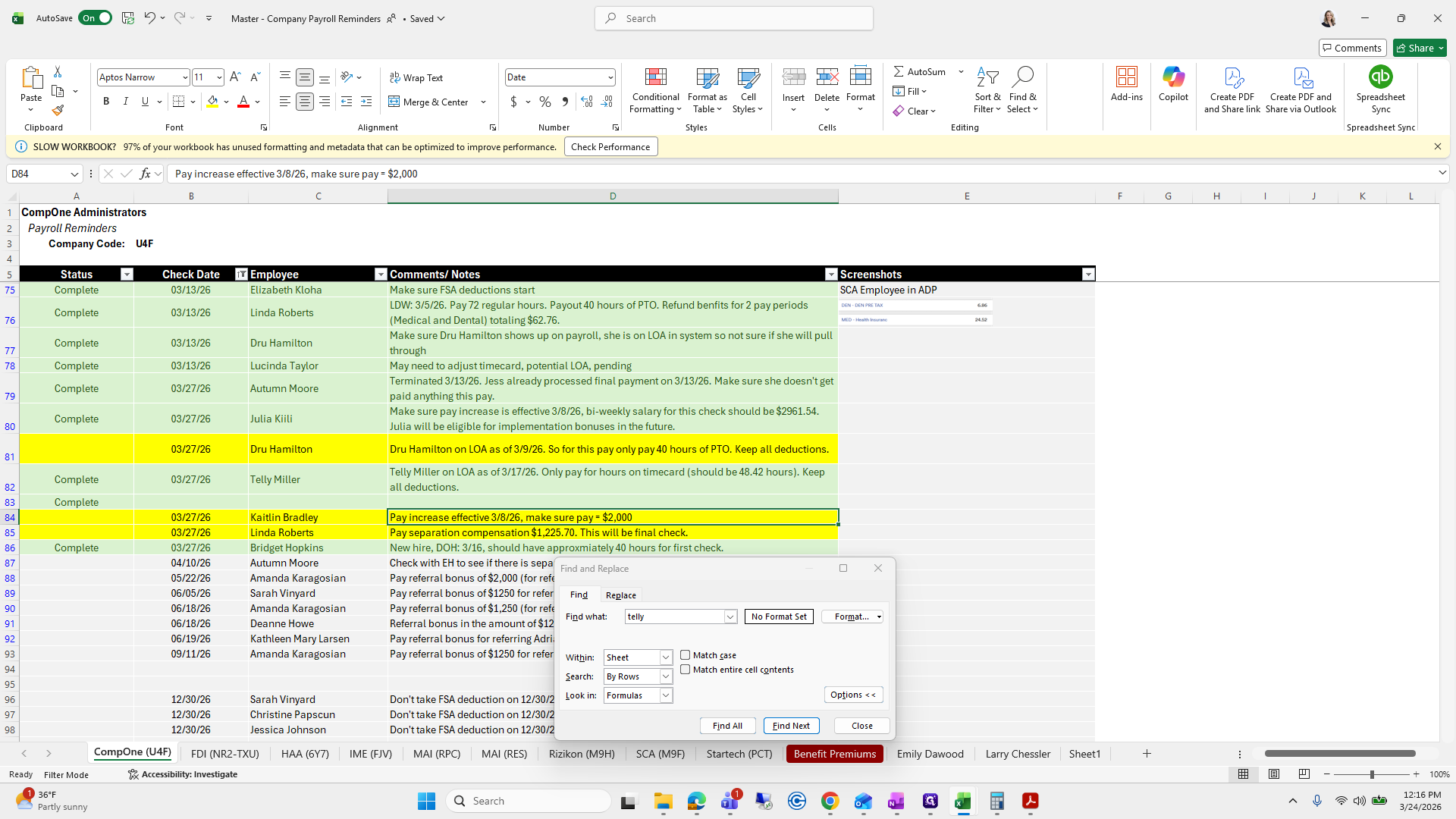
Her salary is 2000.
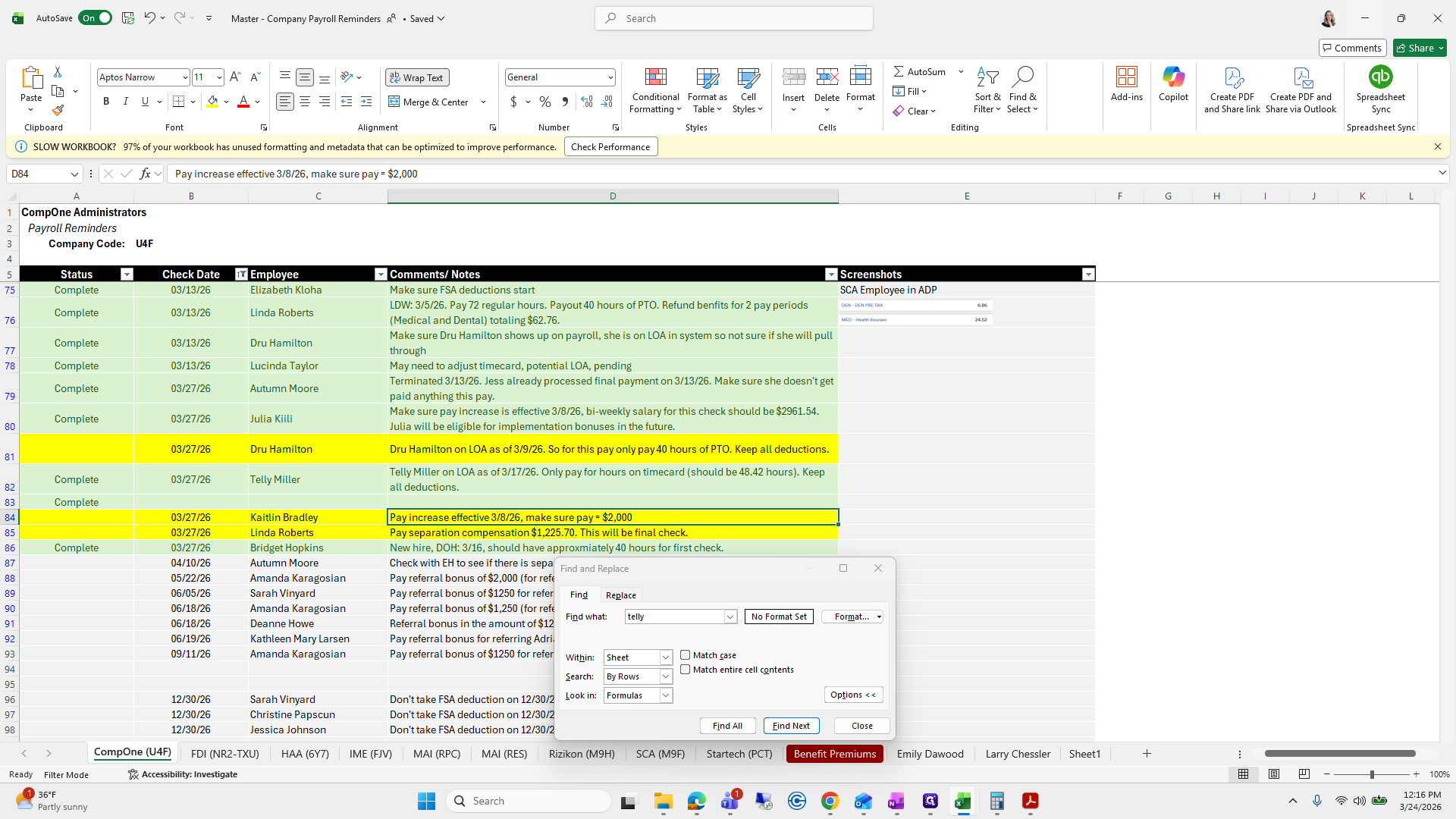
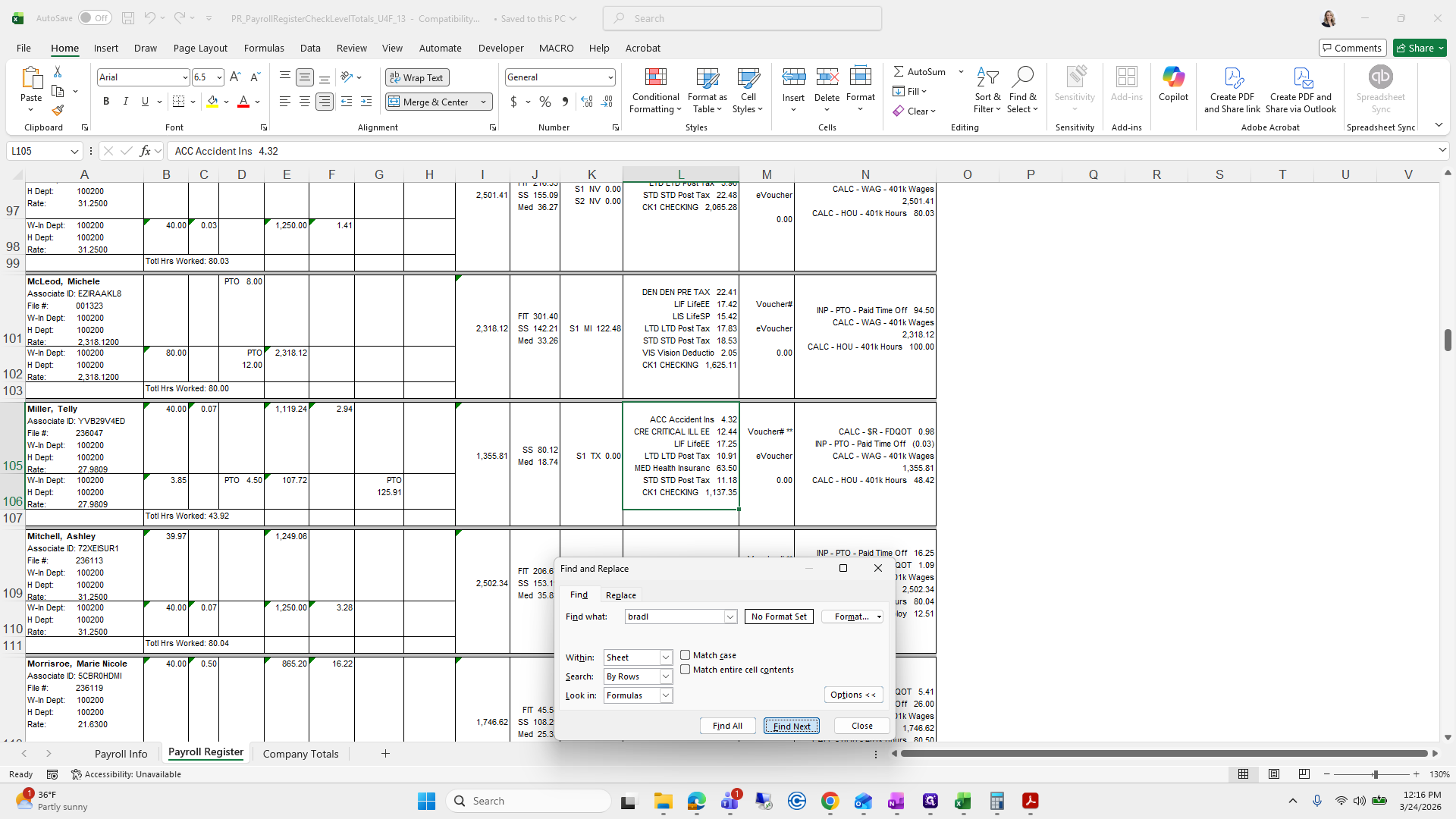
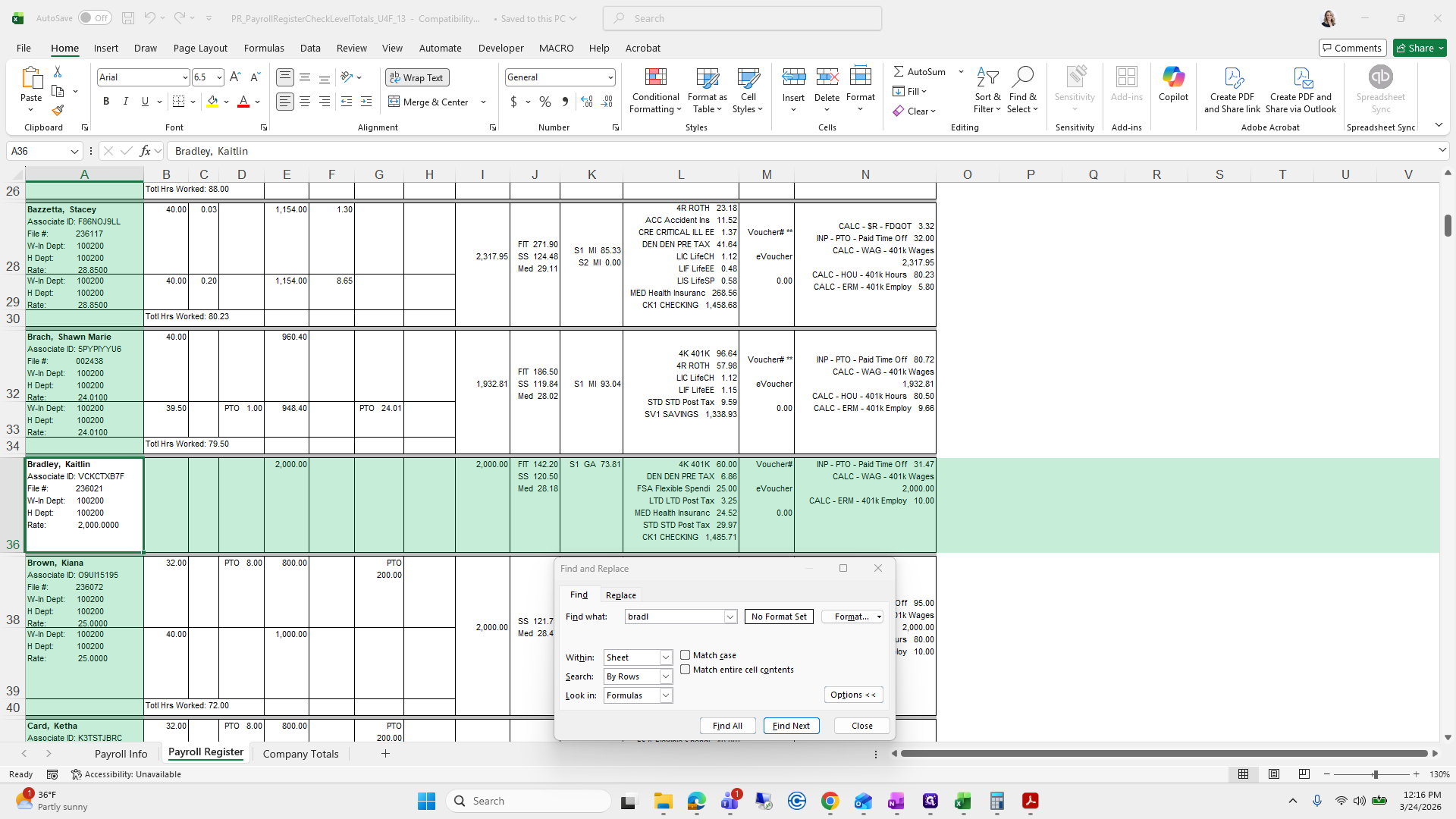
Mark it complete.
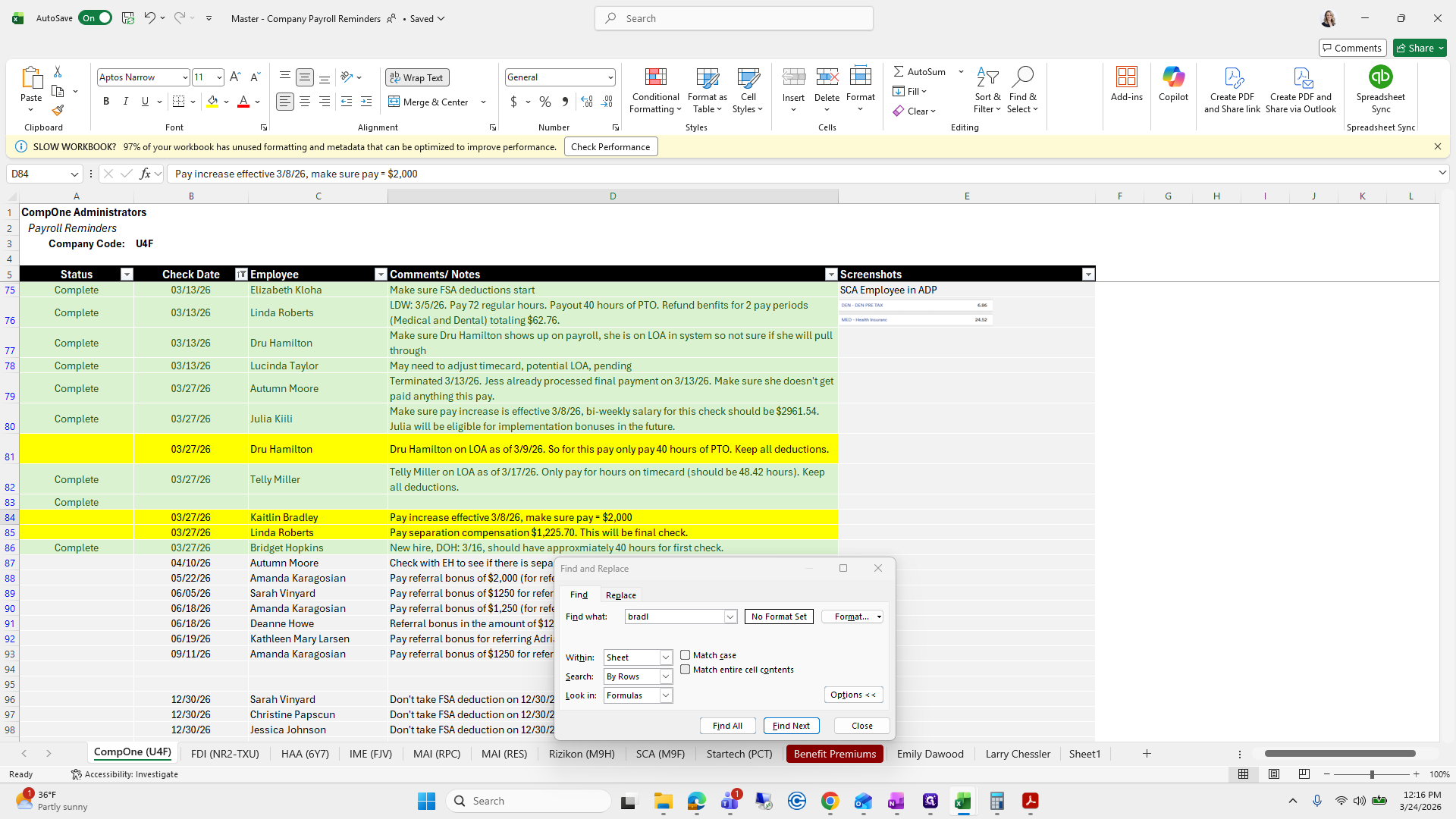
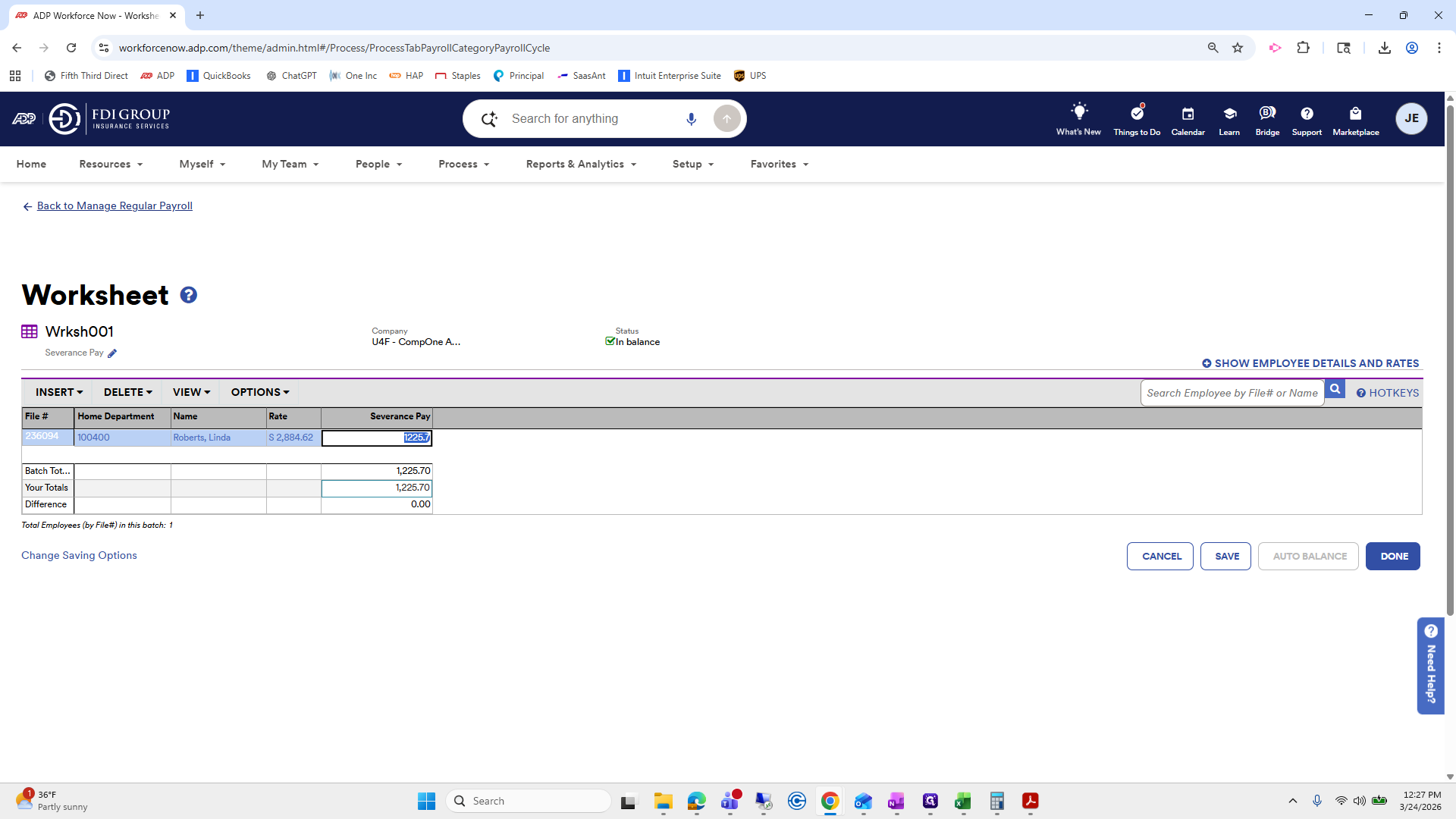
And Linda Roberts, severance pay...And Roberts'...
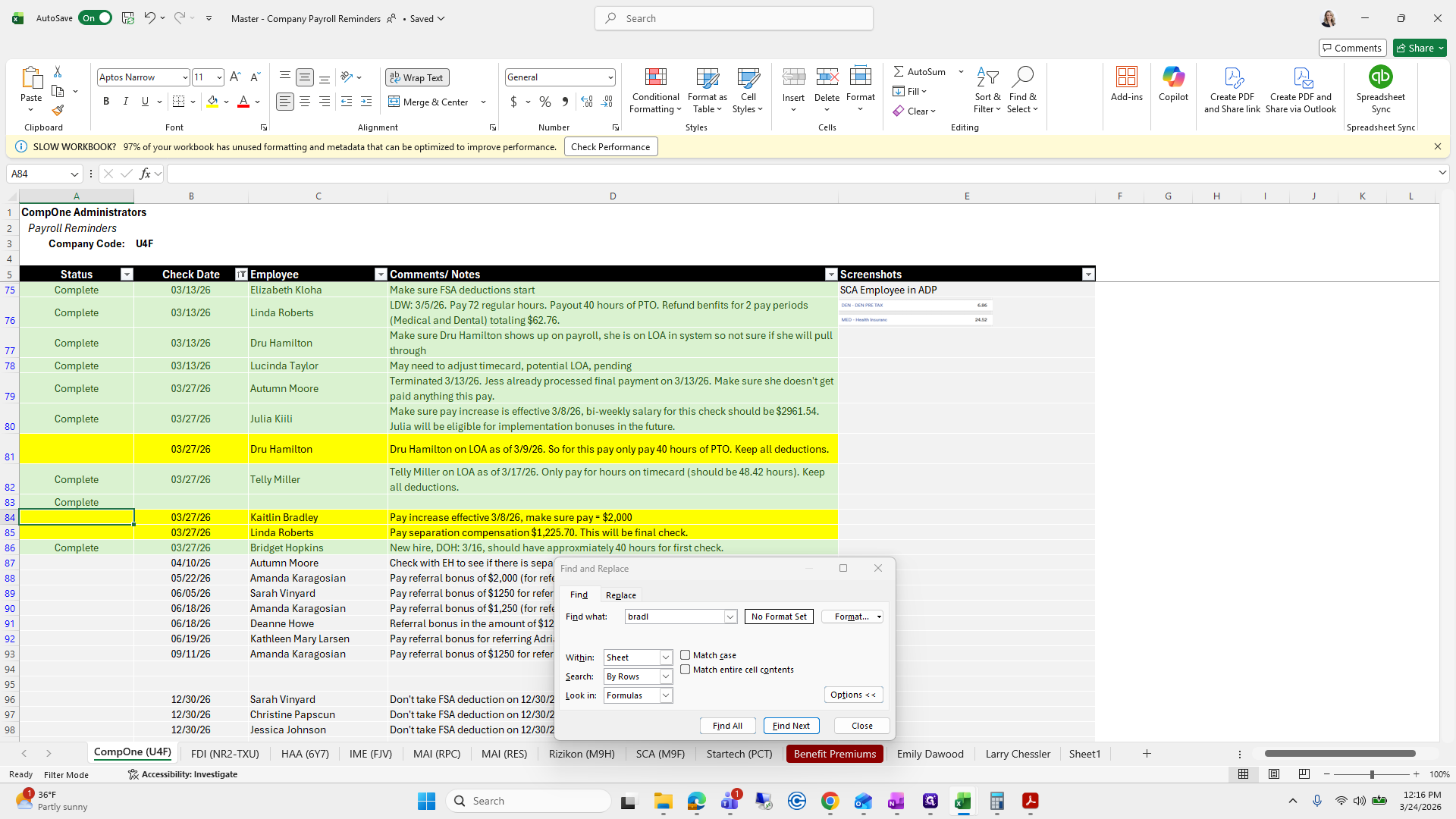
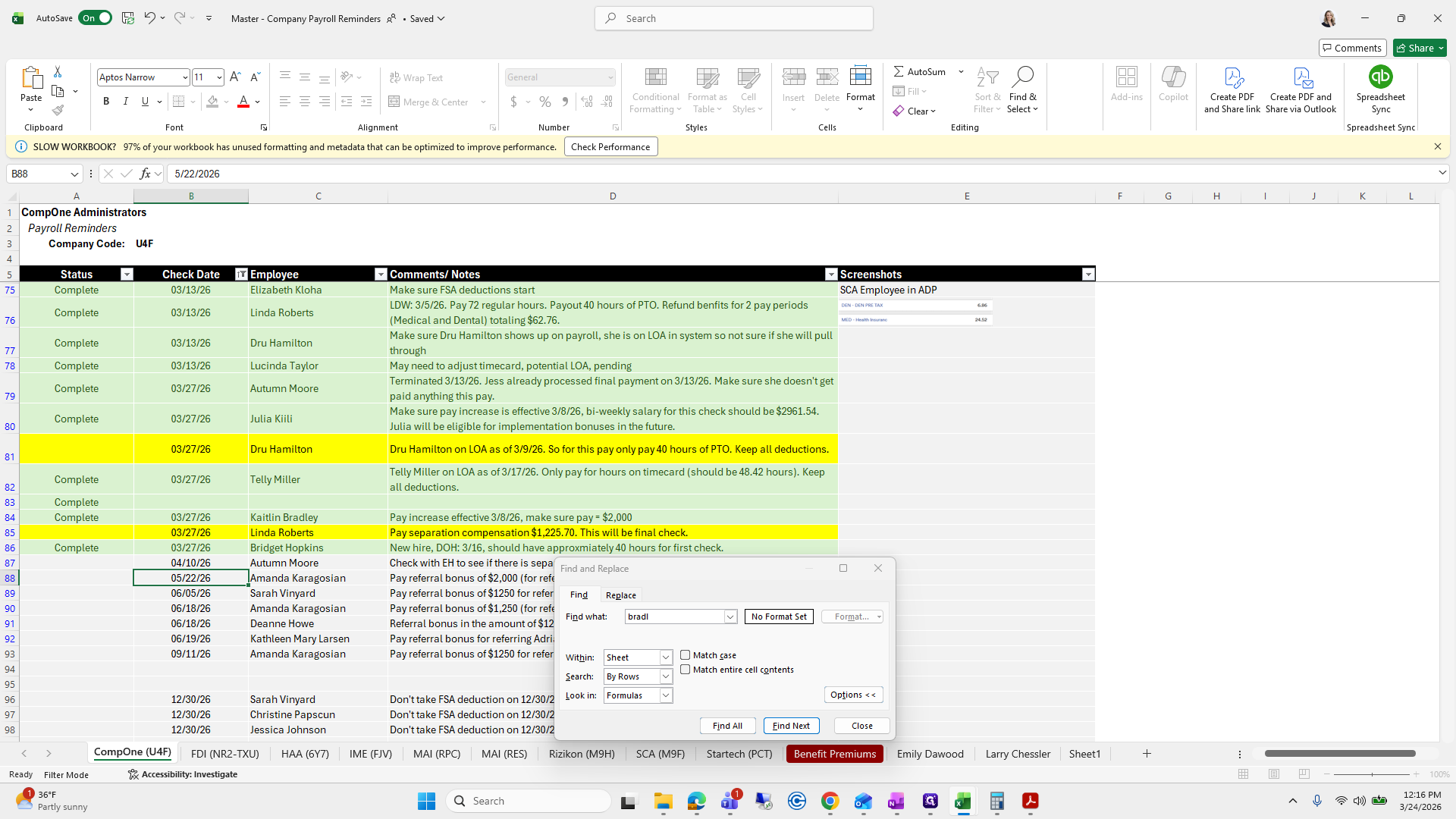
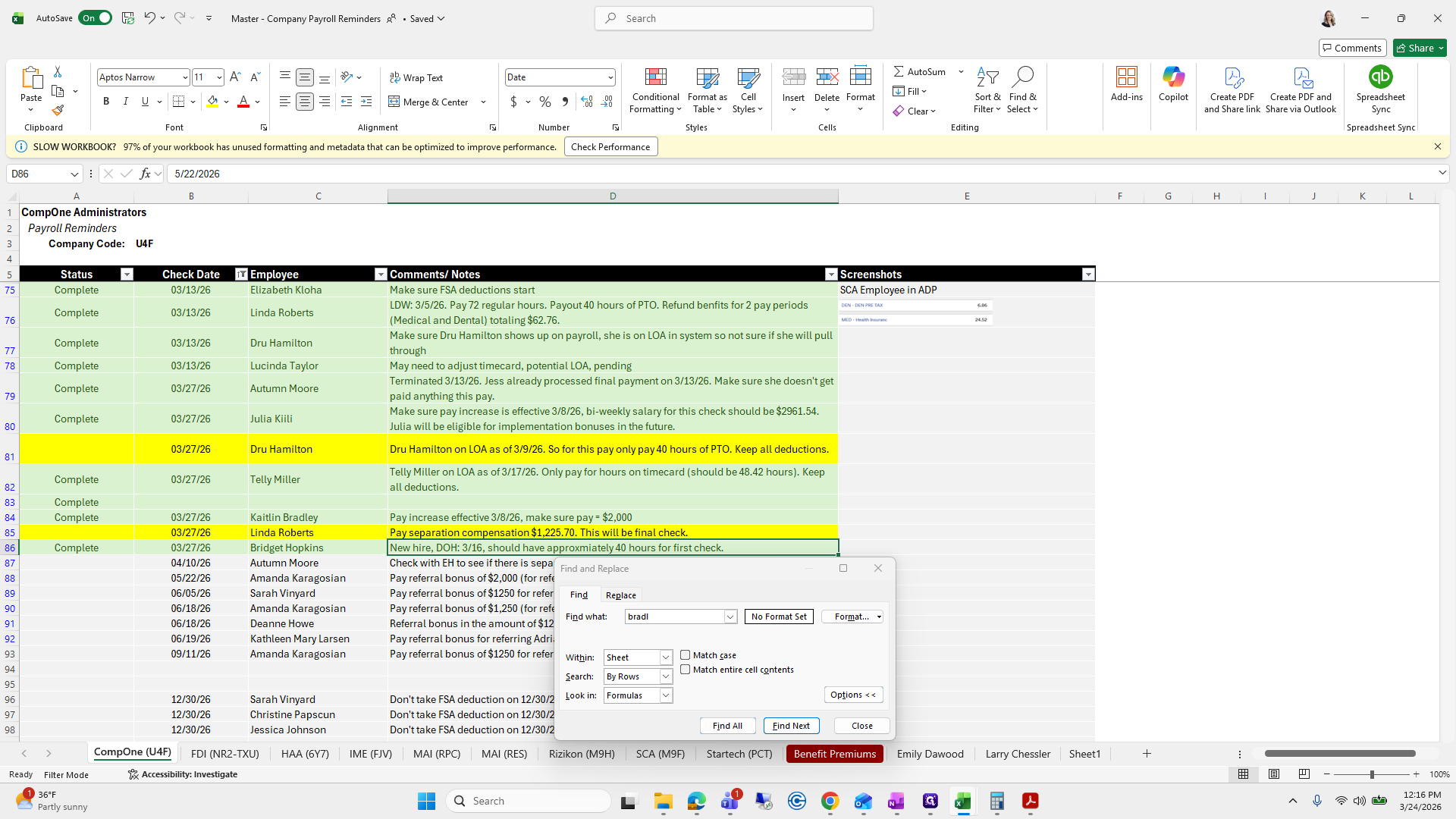
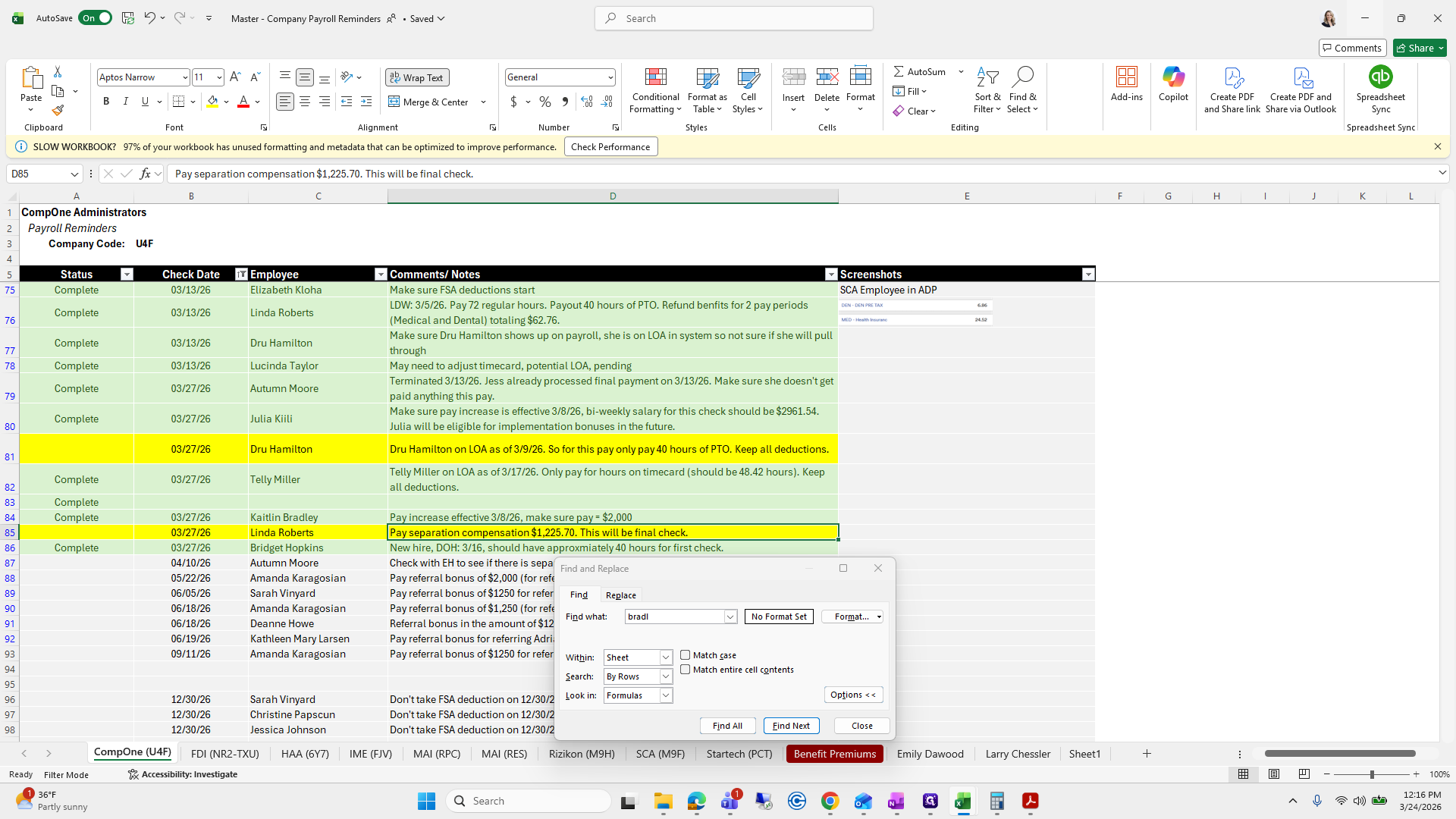
Severance pay looks great.
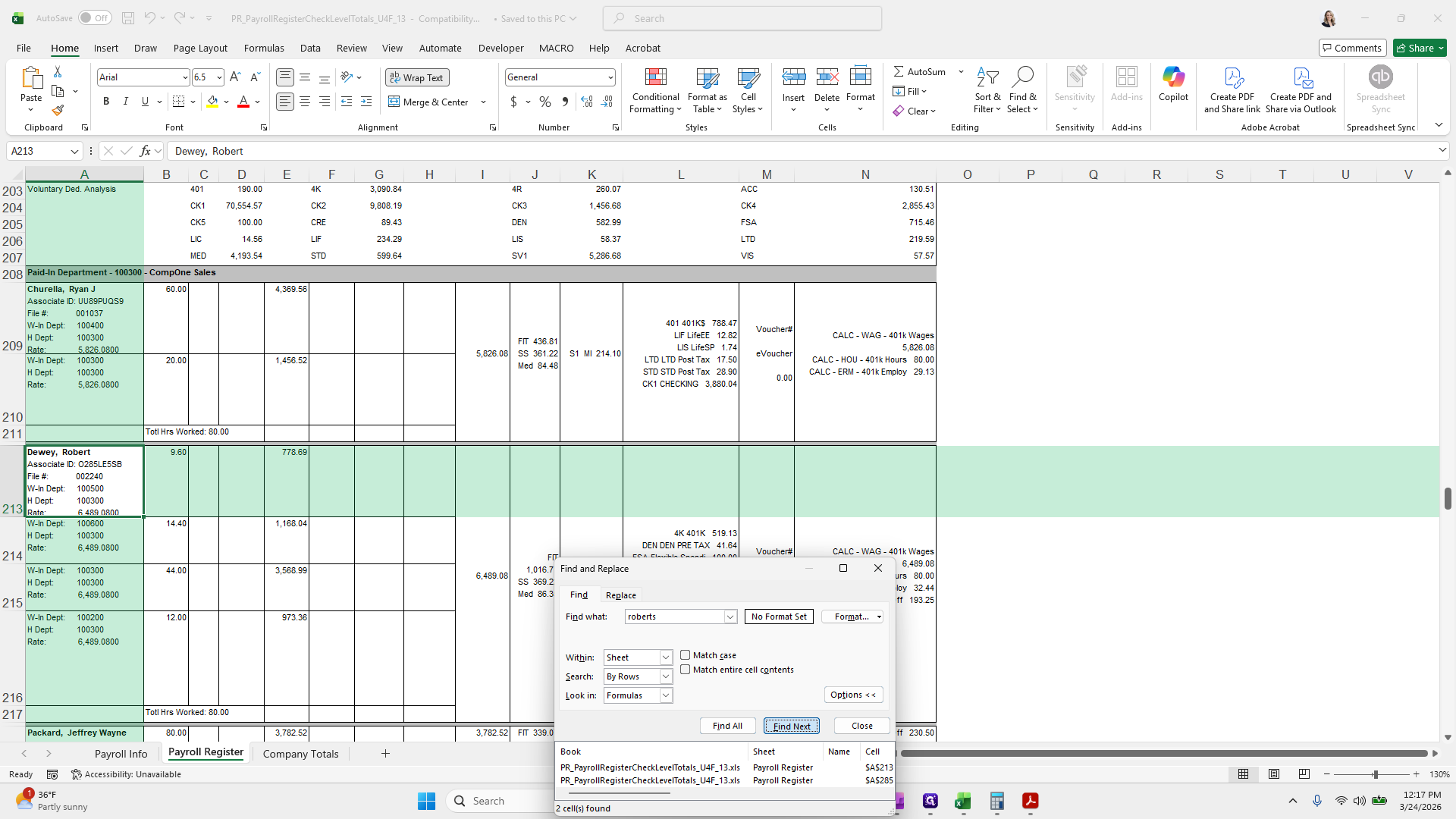
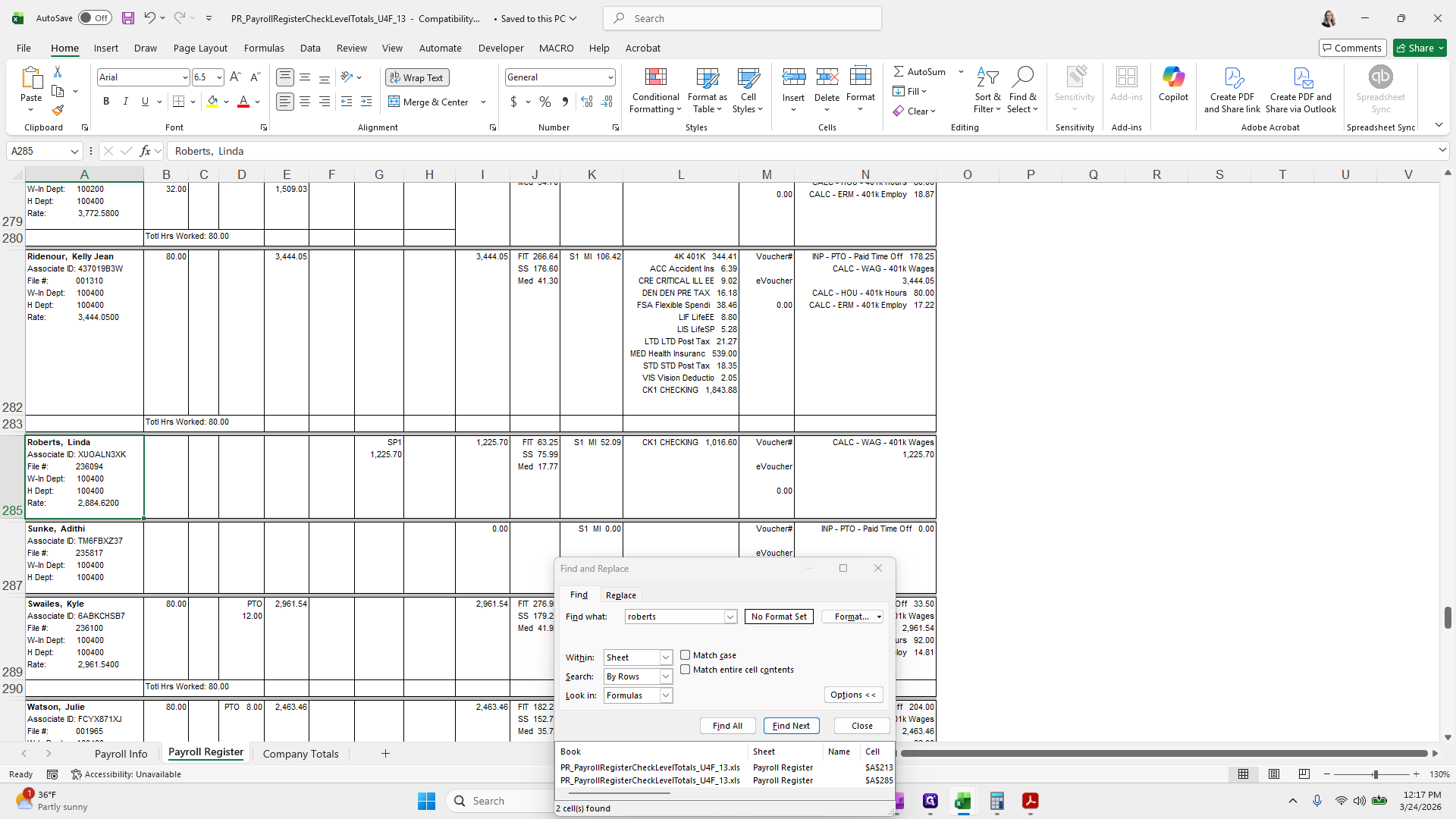
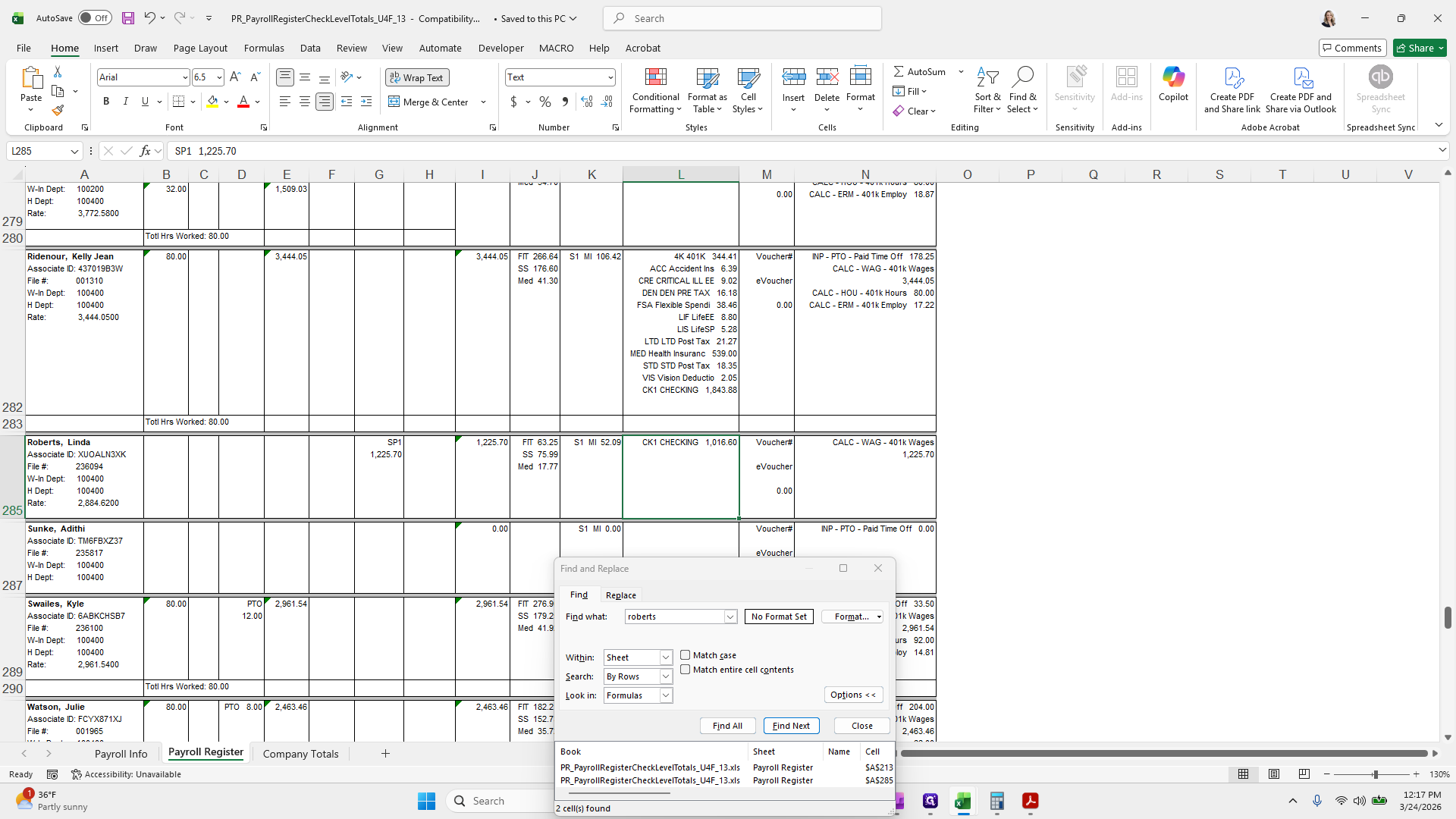
Okay.
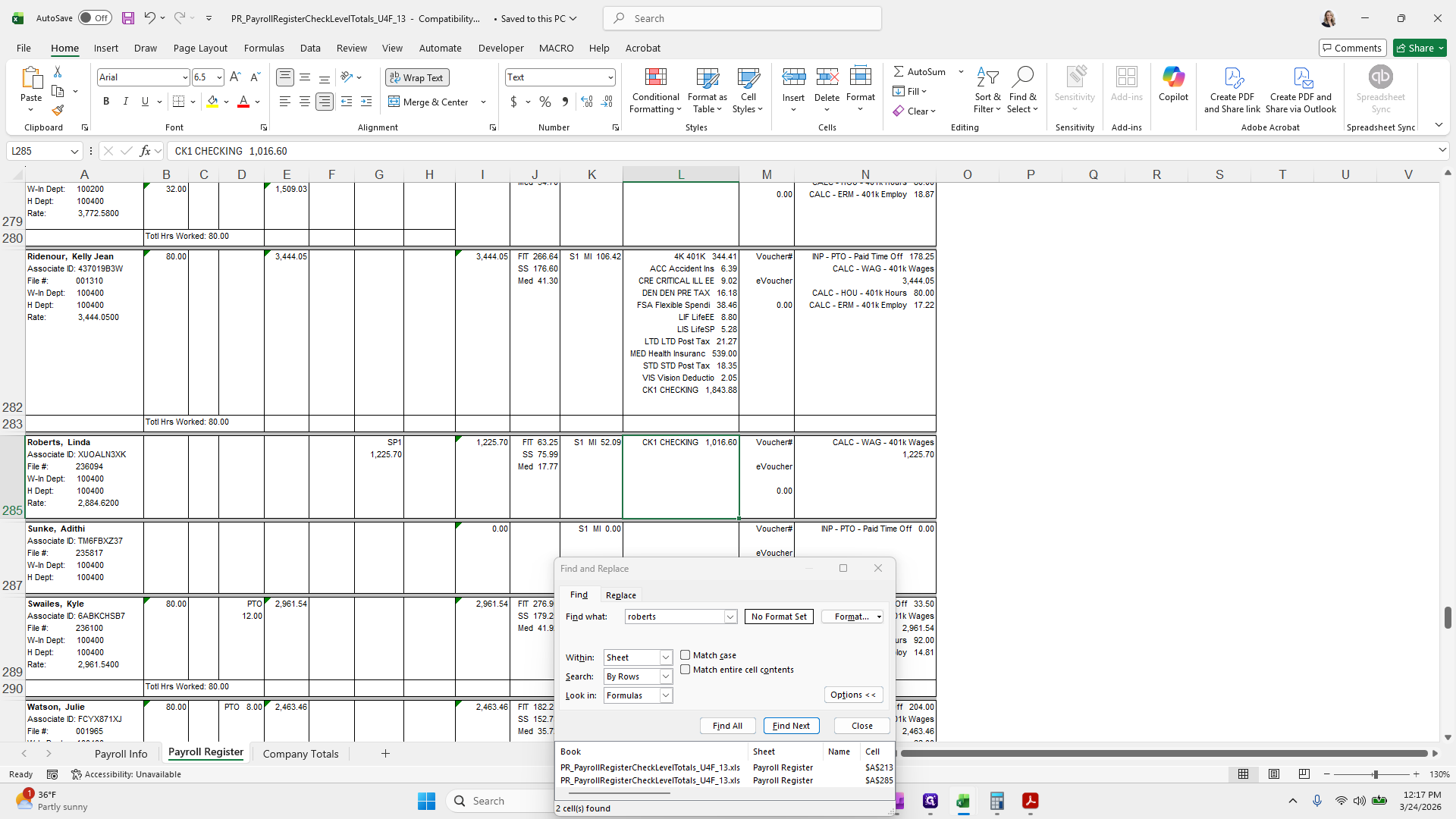
That's a great example.
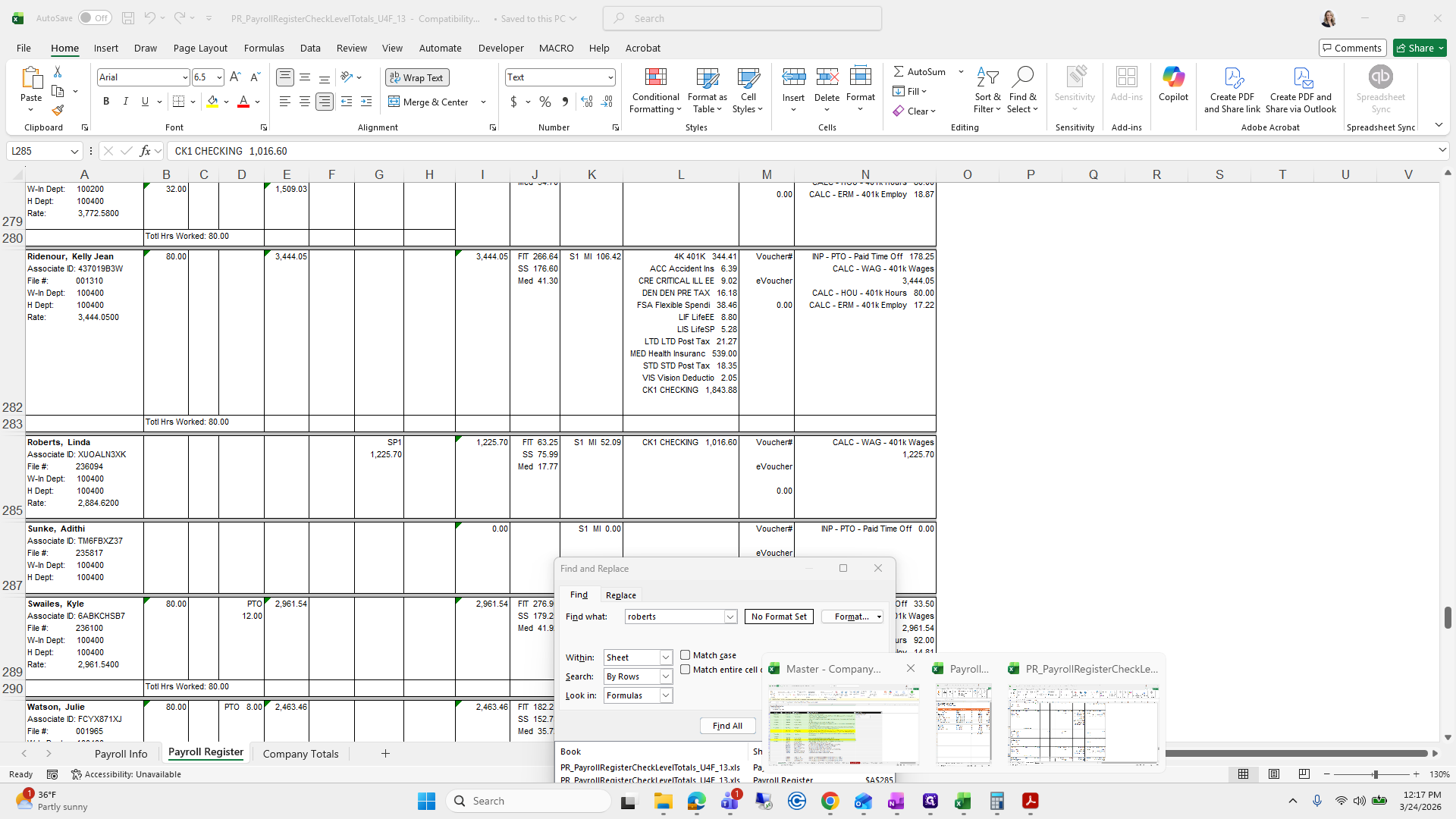
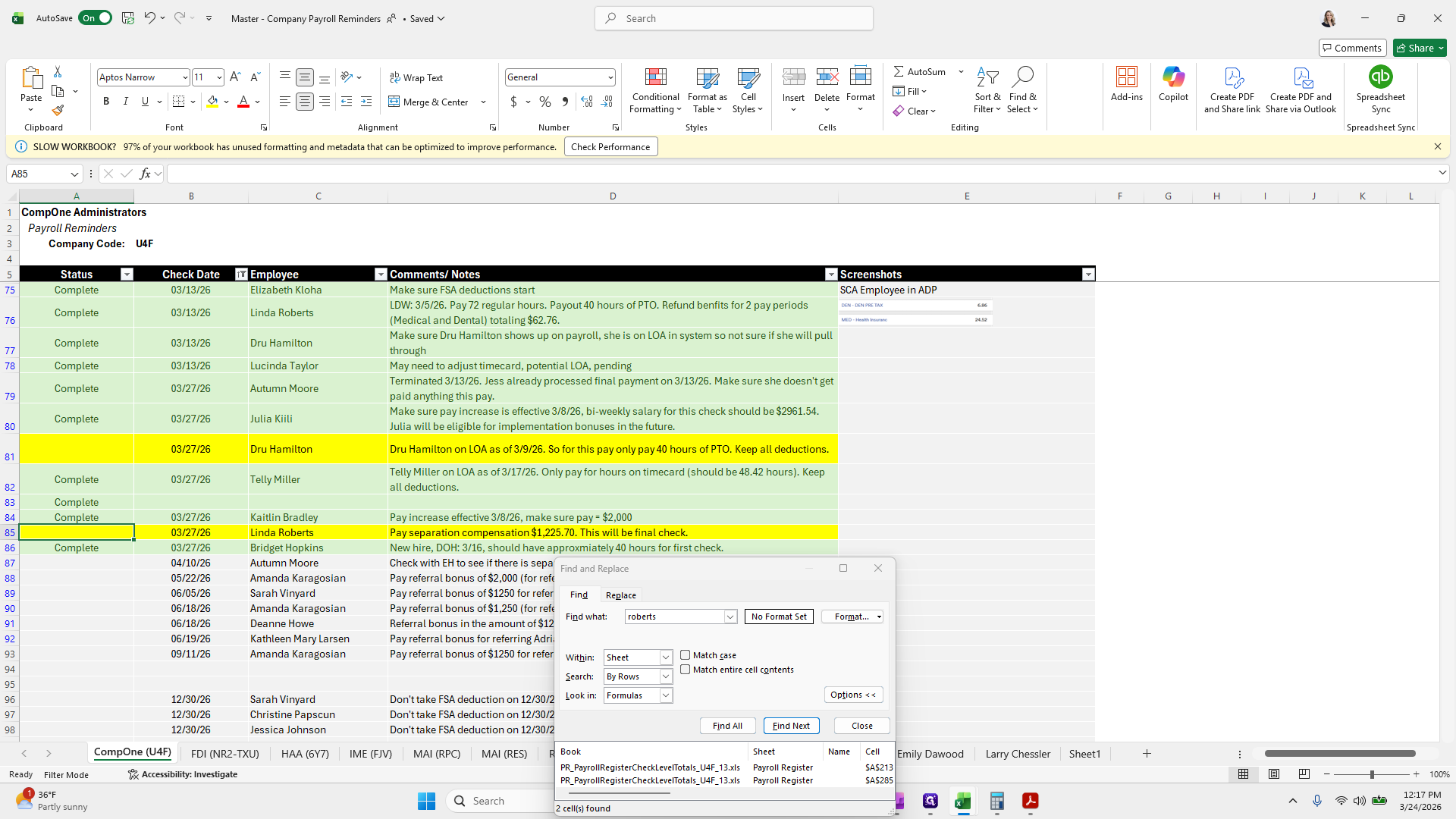
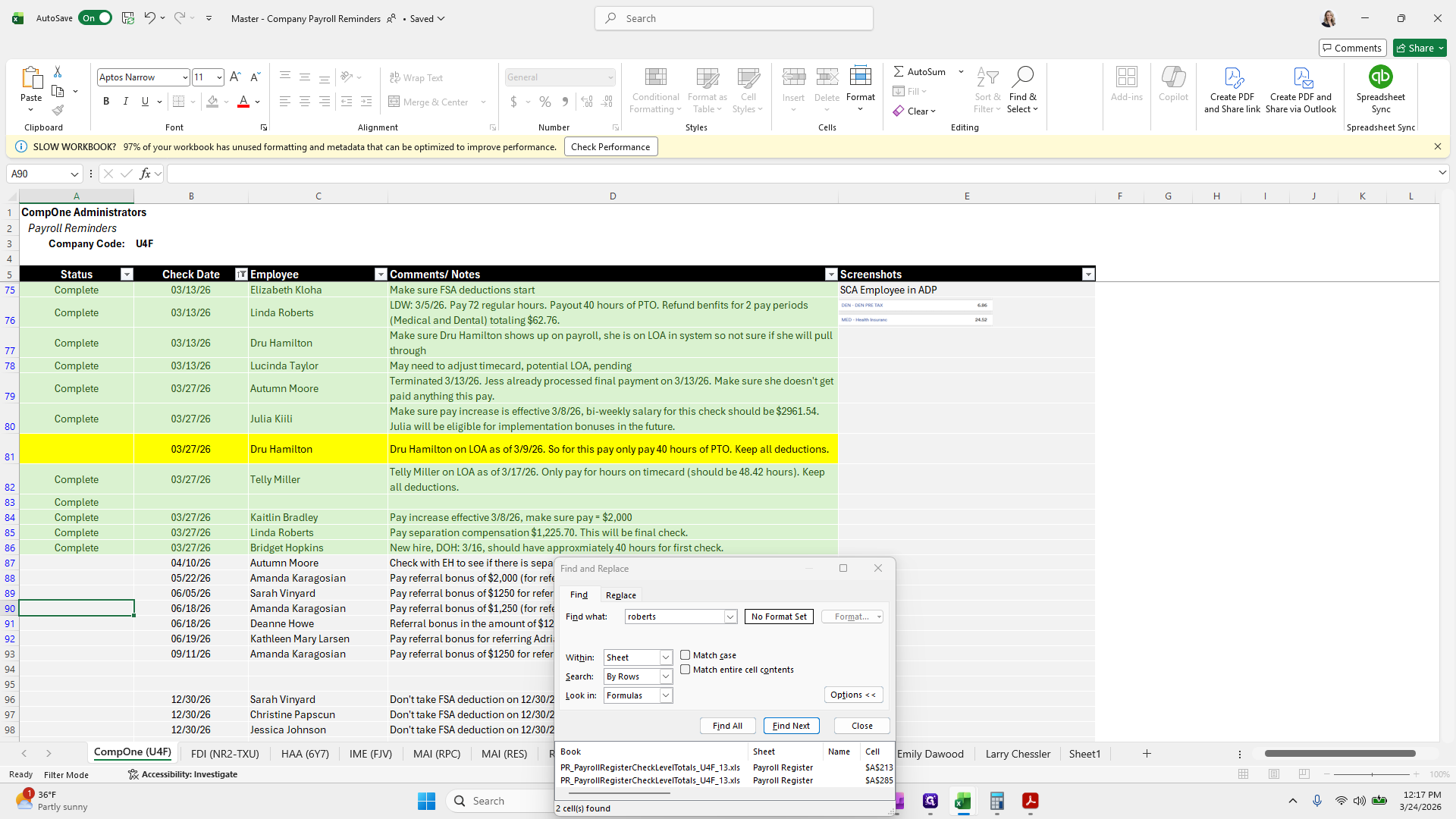
We will make this change and retrieve their deductions.
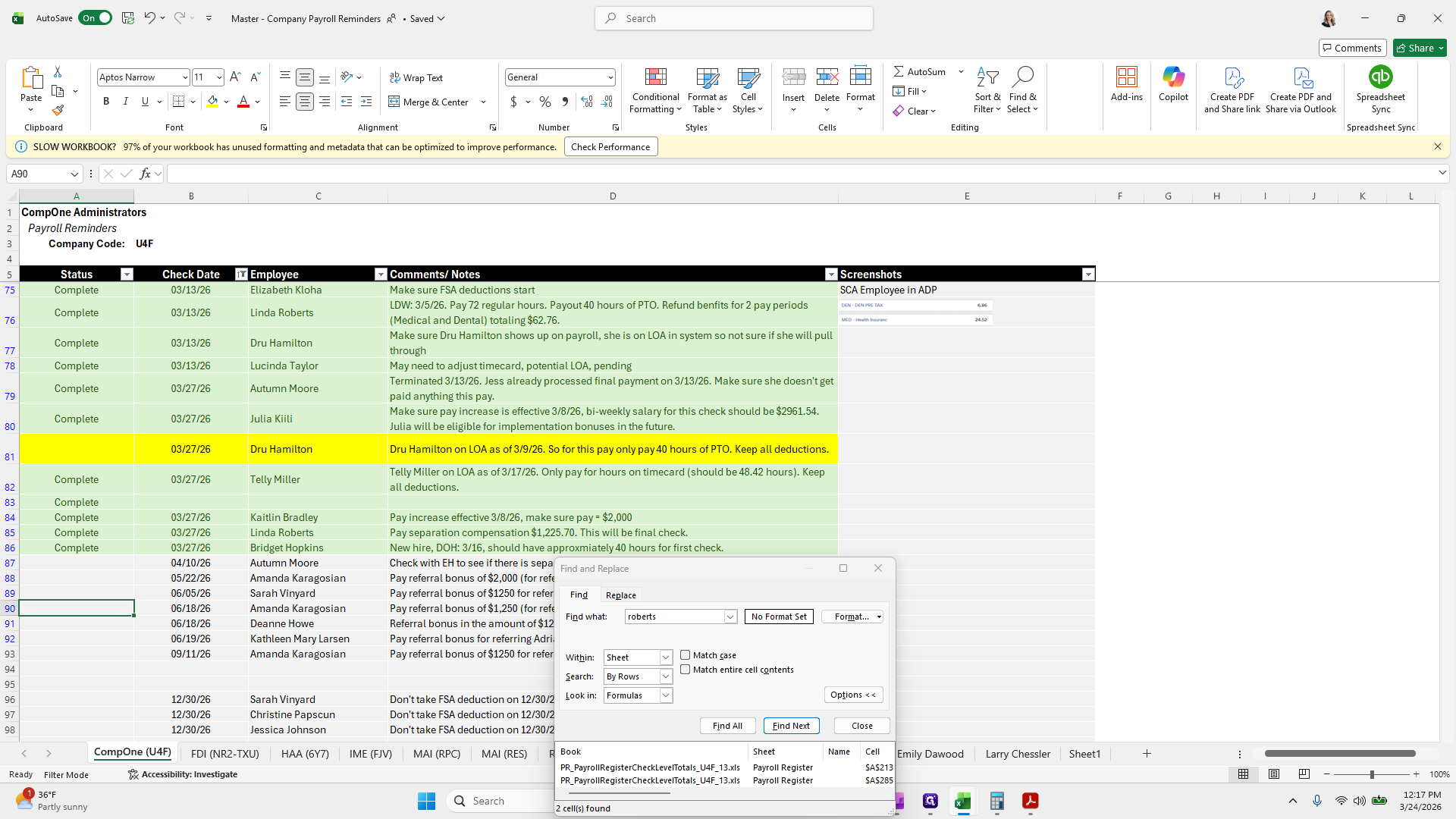
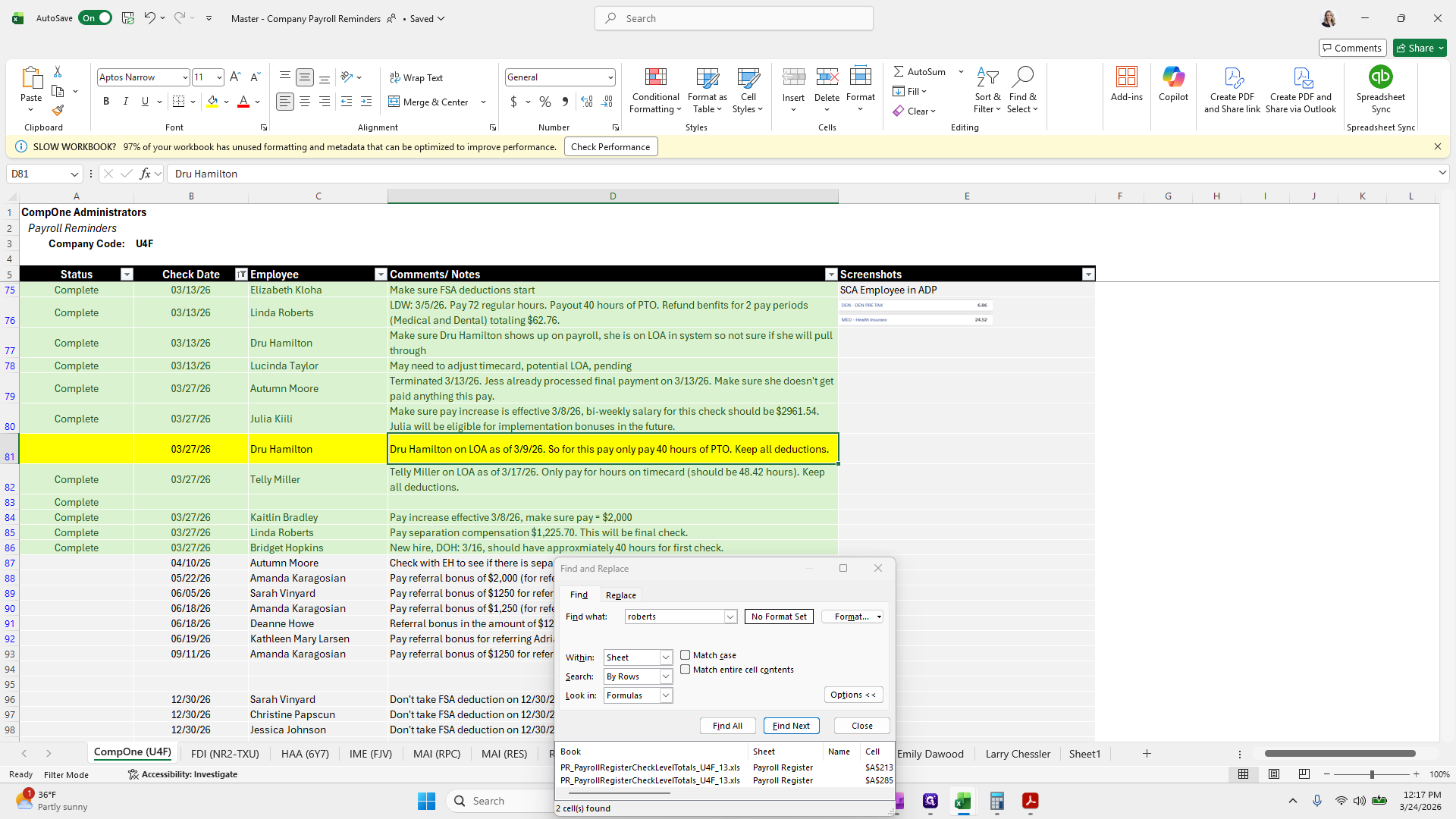
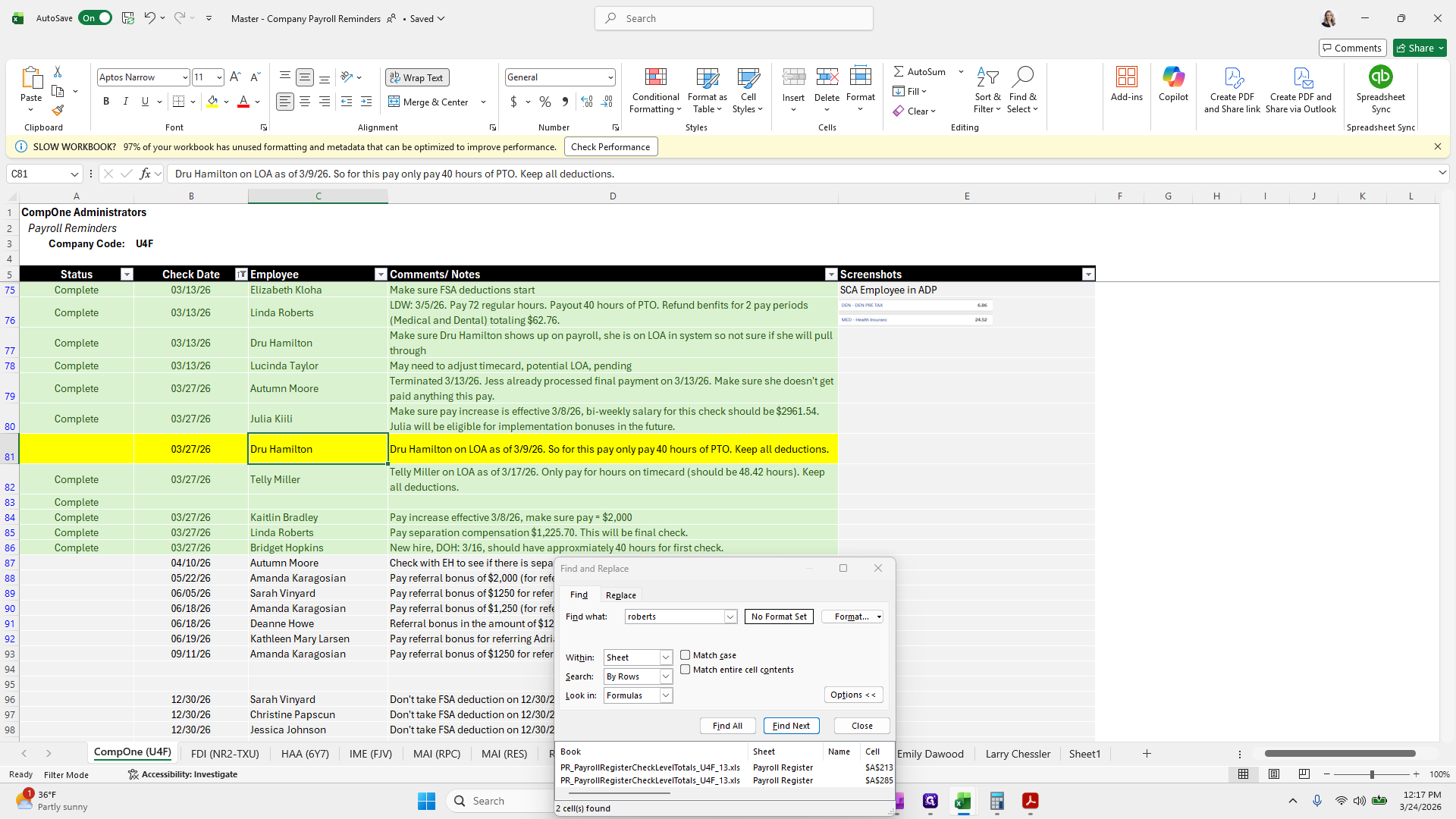
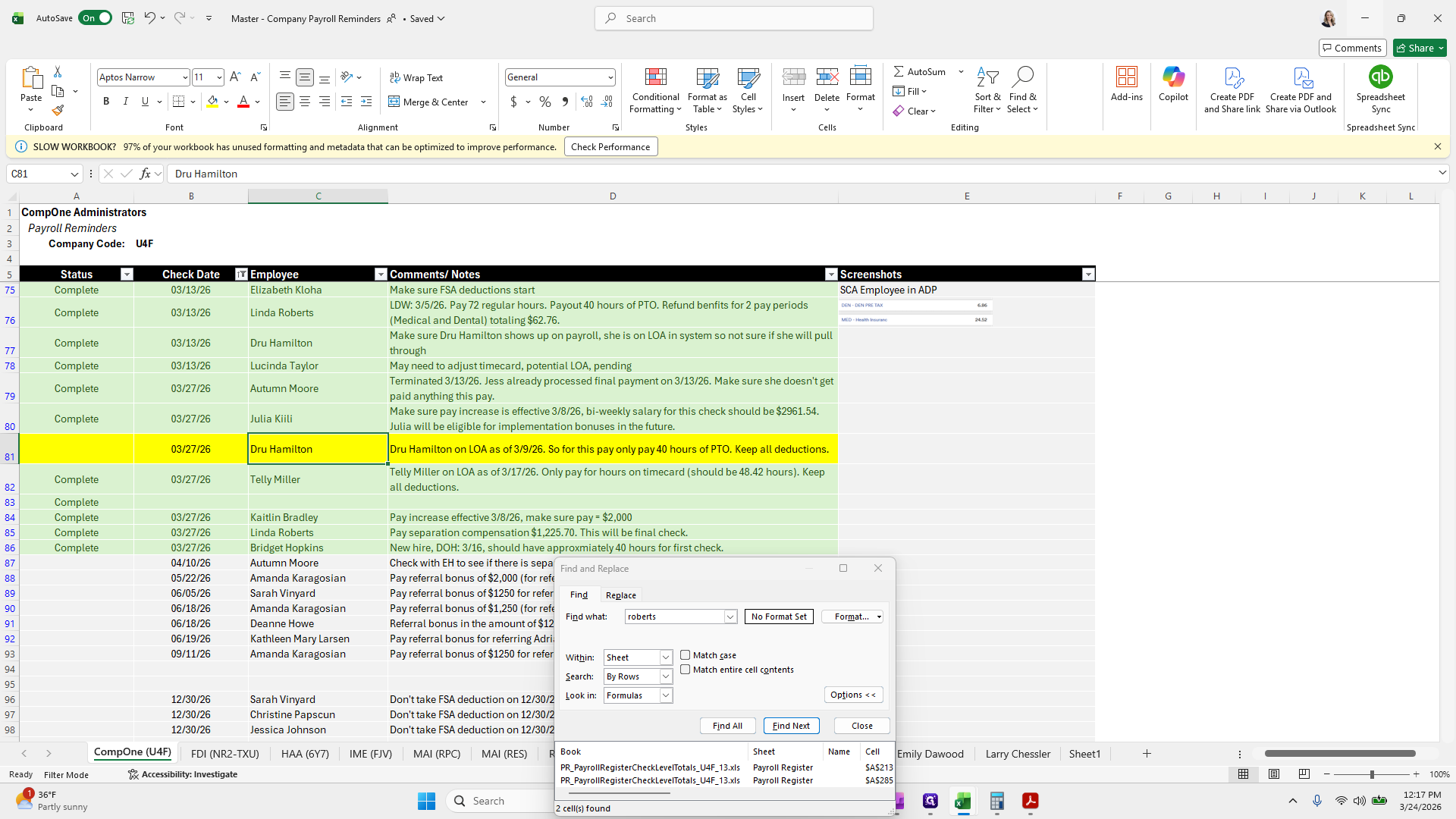
I will exit, make changes.
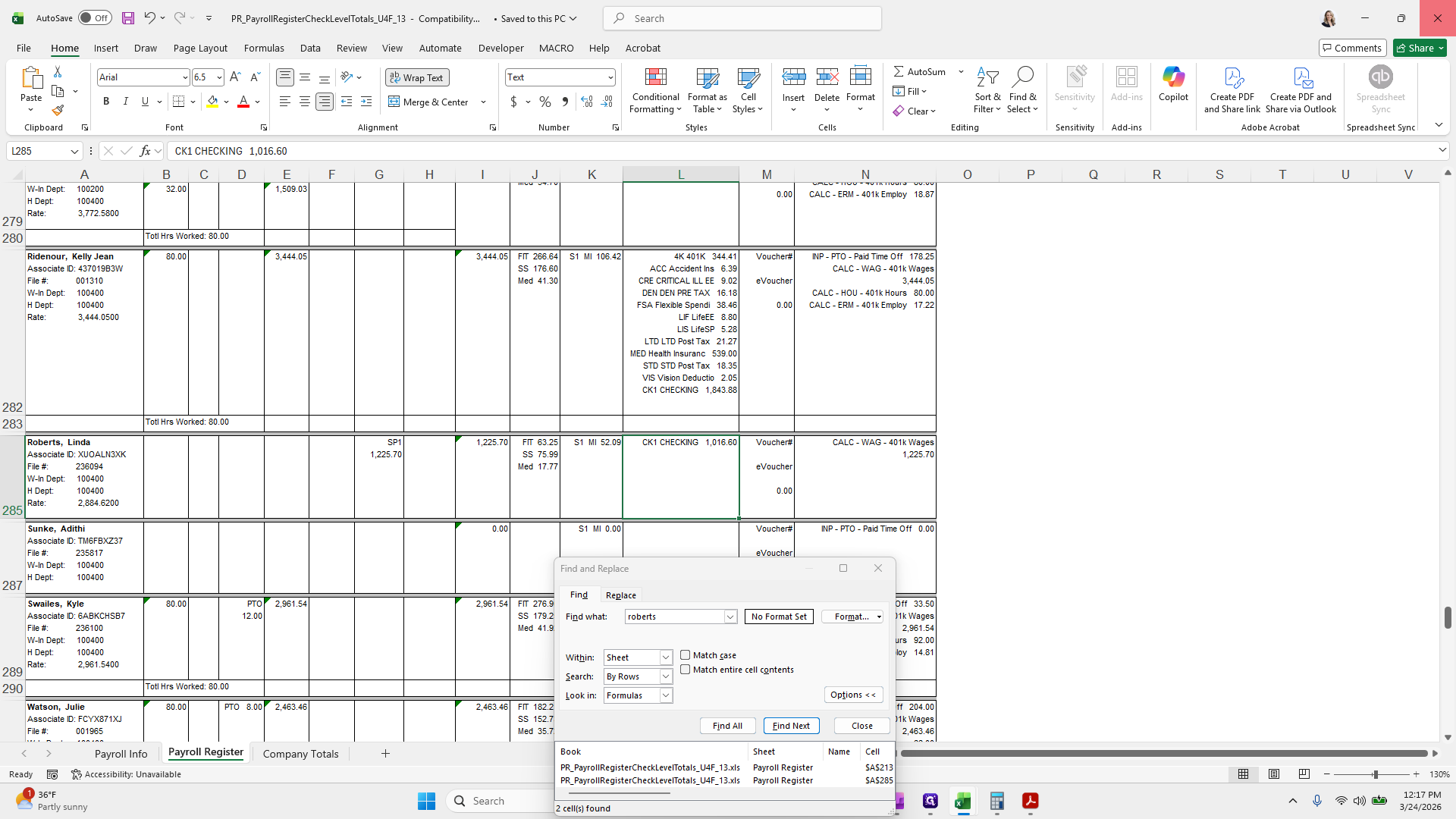
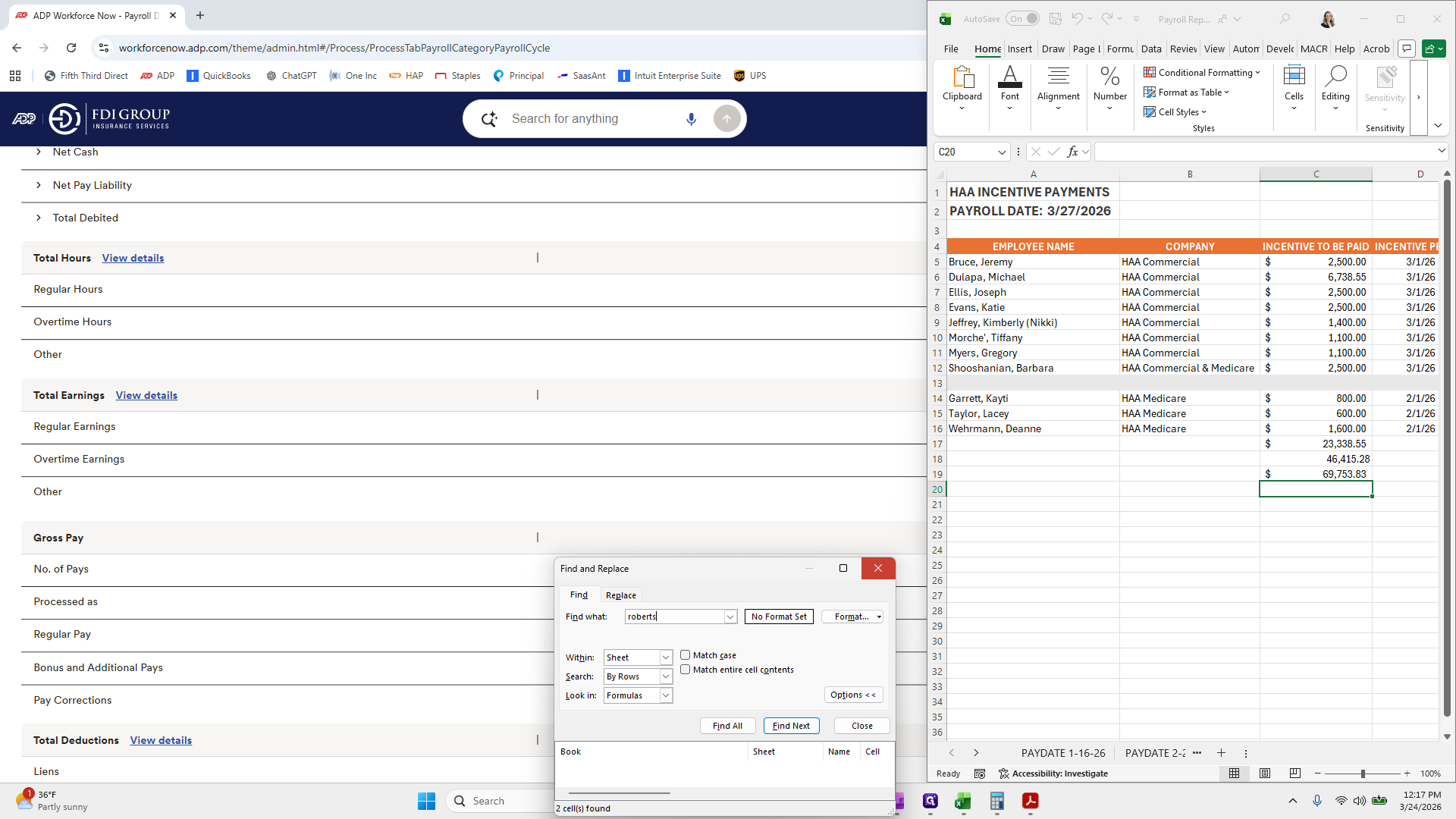
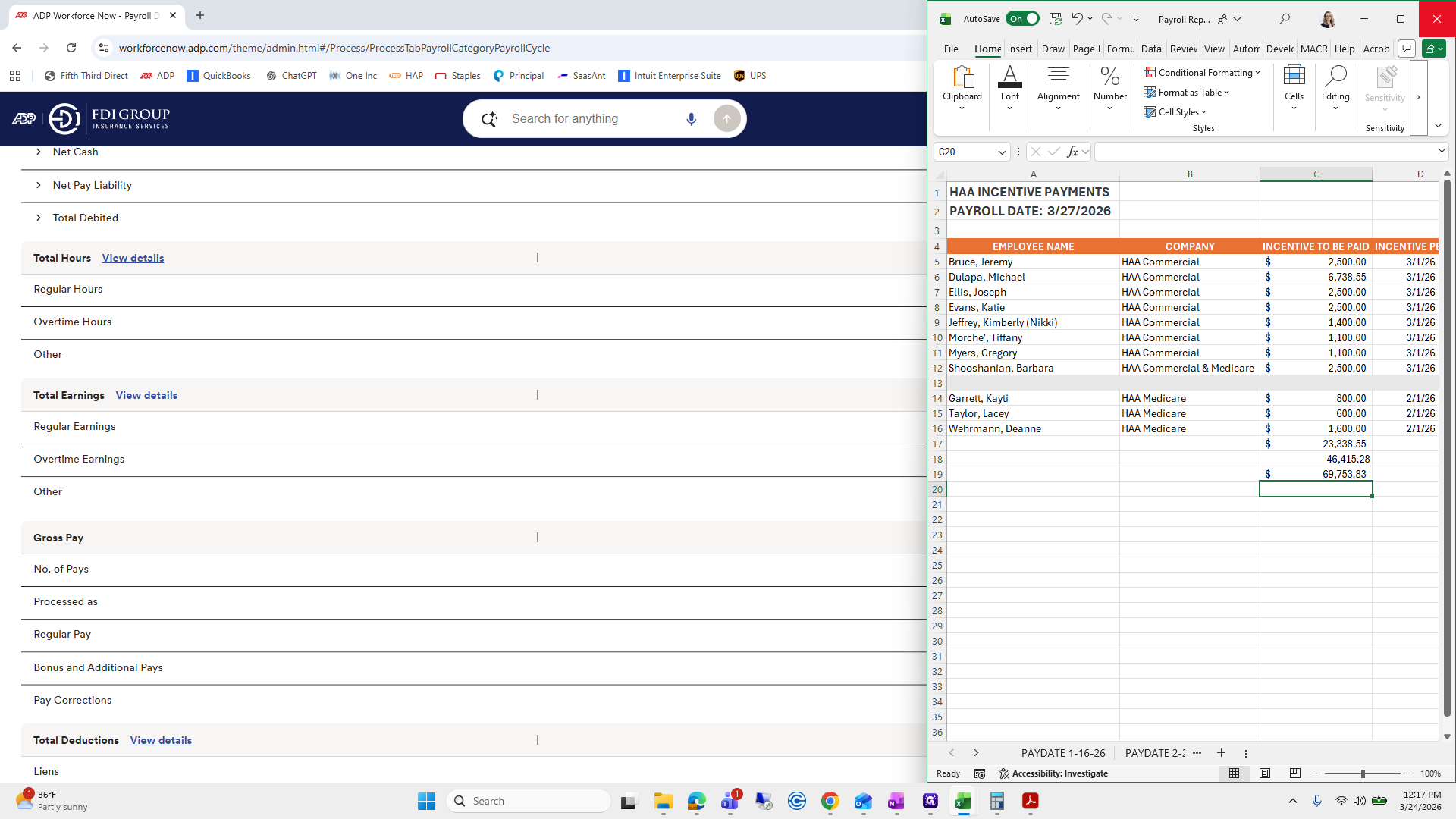
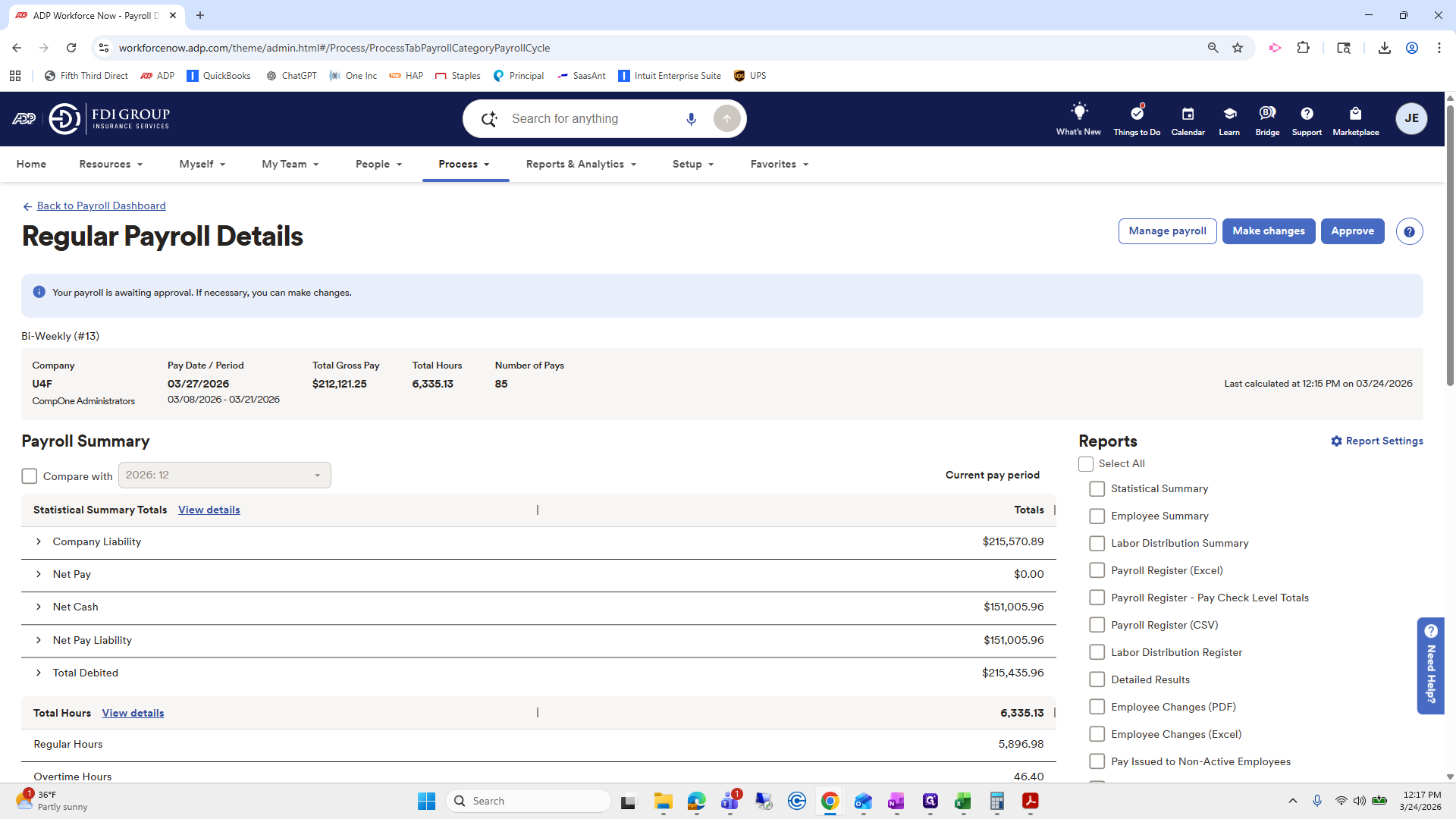
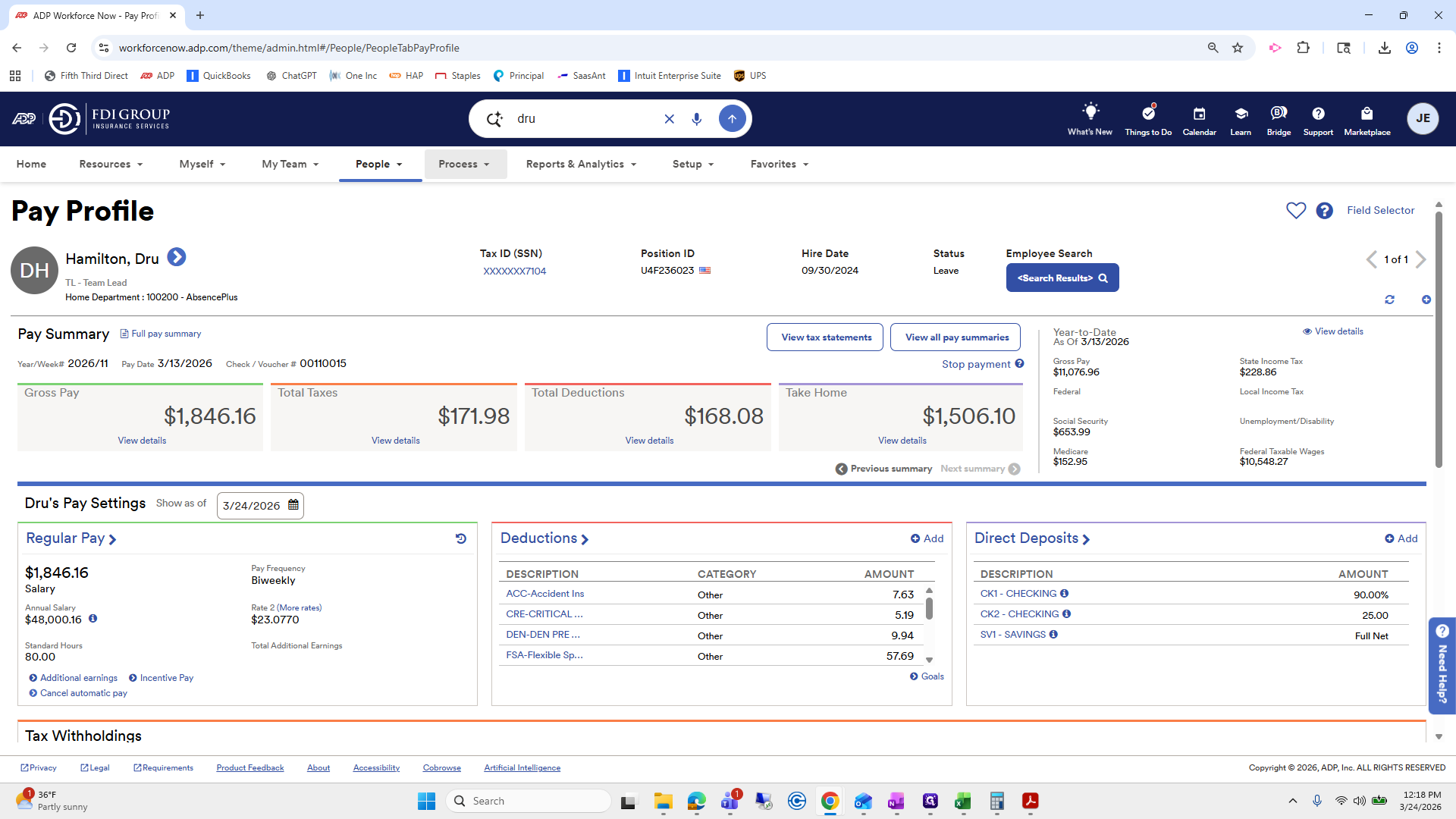
I will go to Drew's last paycheck.
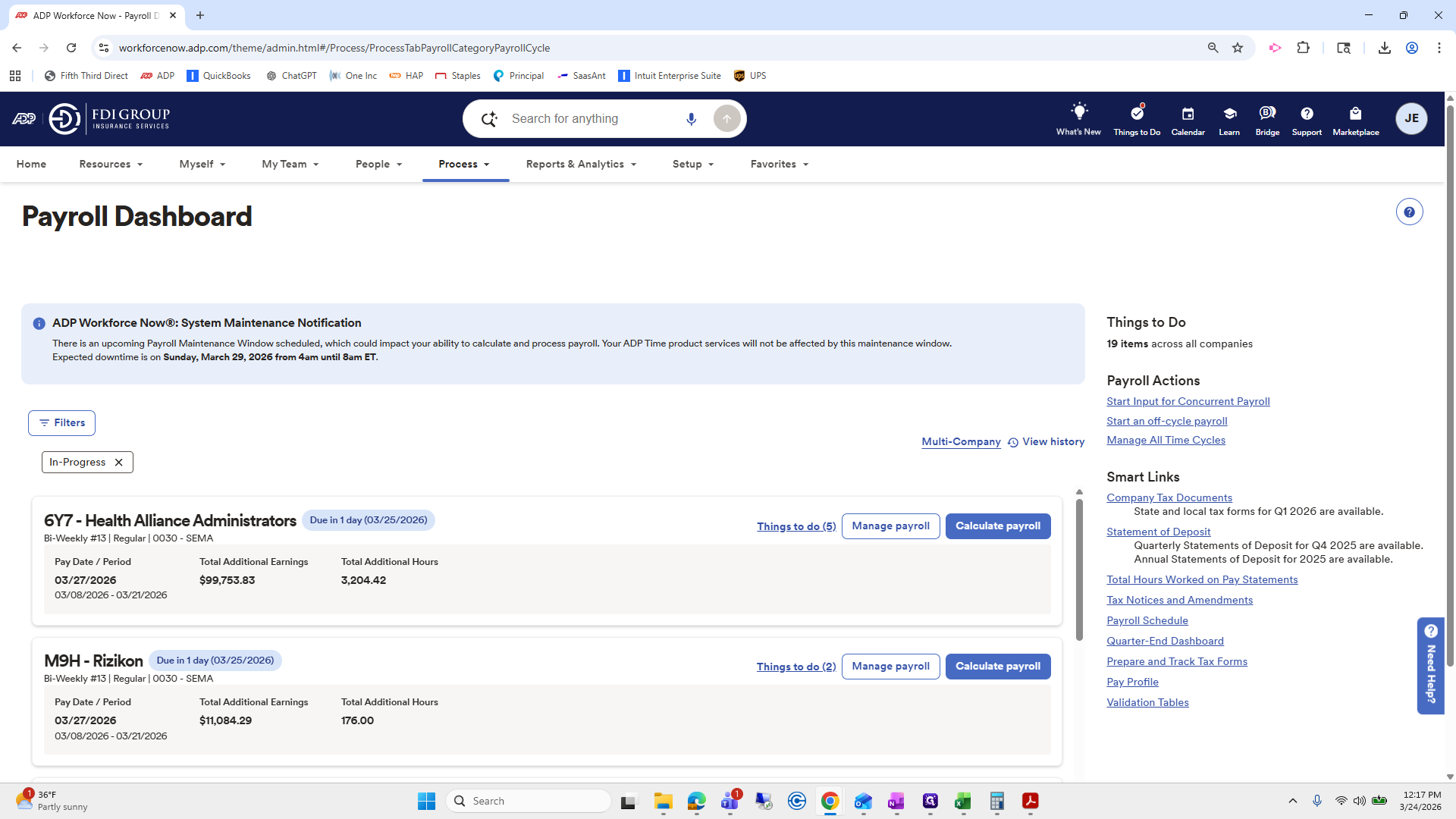
With profile, pay, and pay profile.
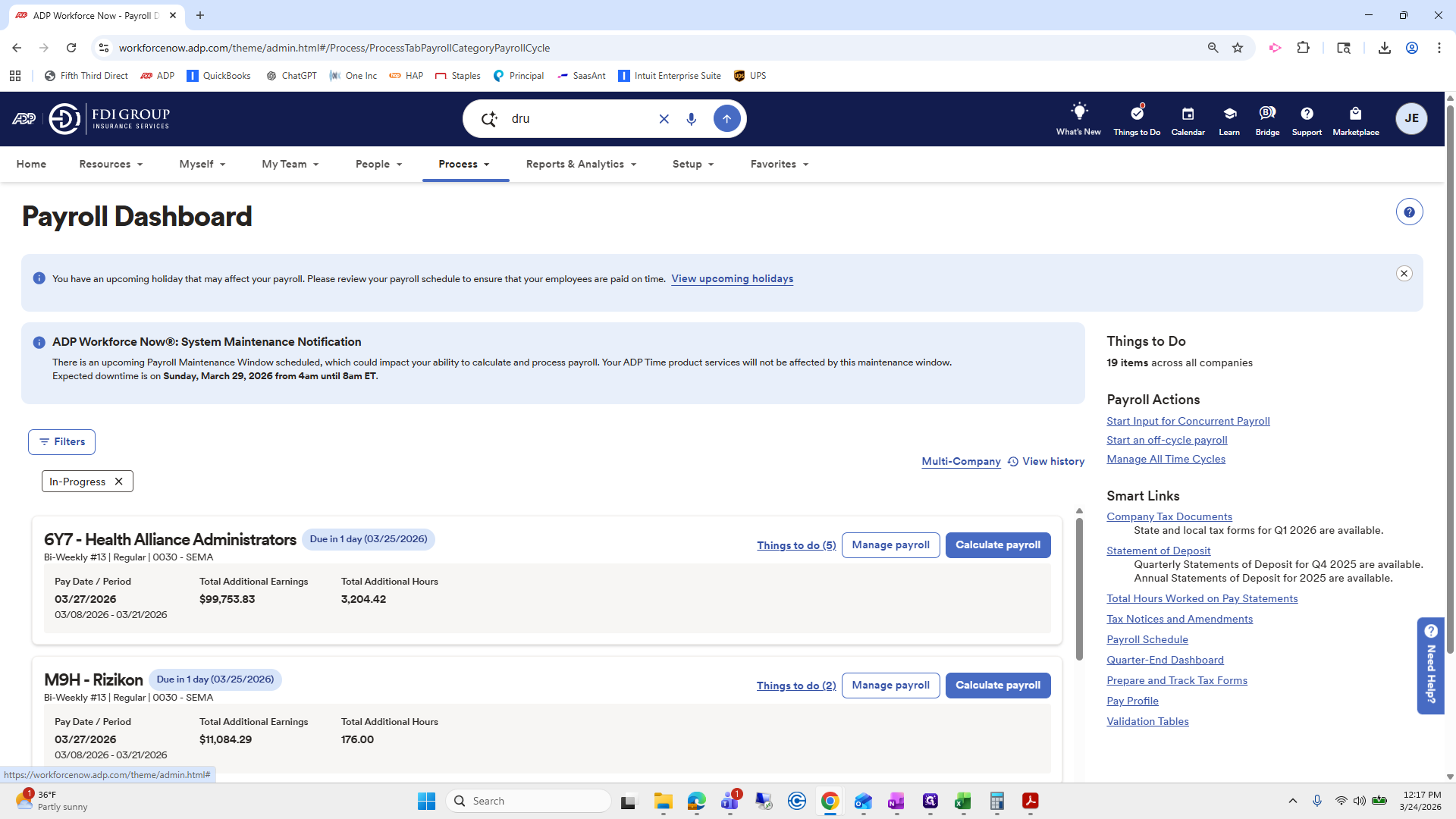
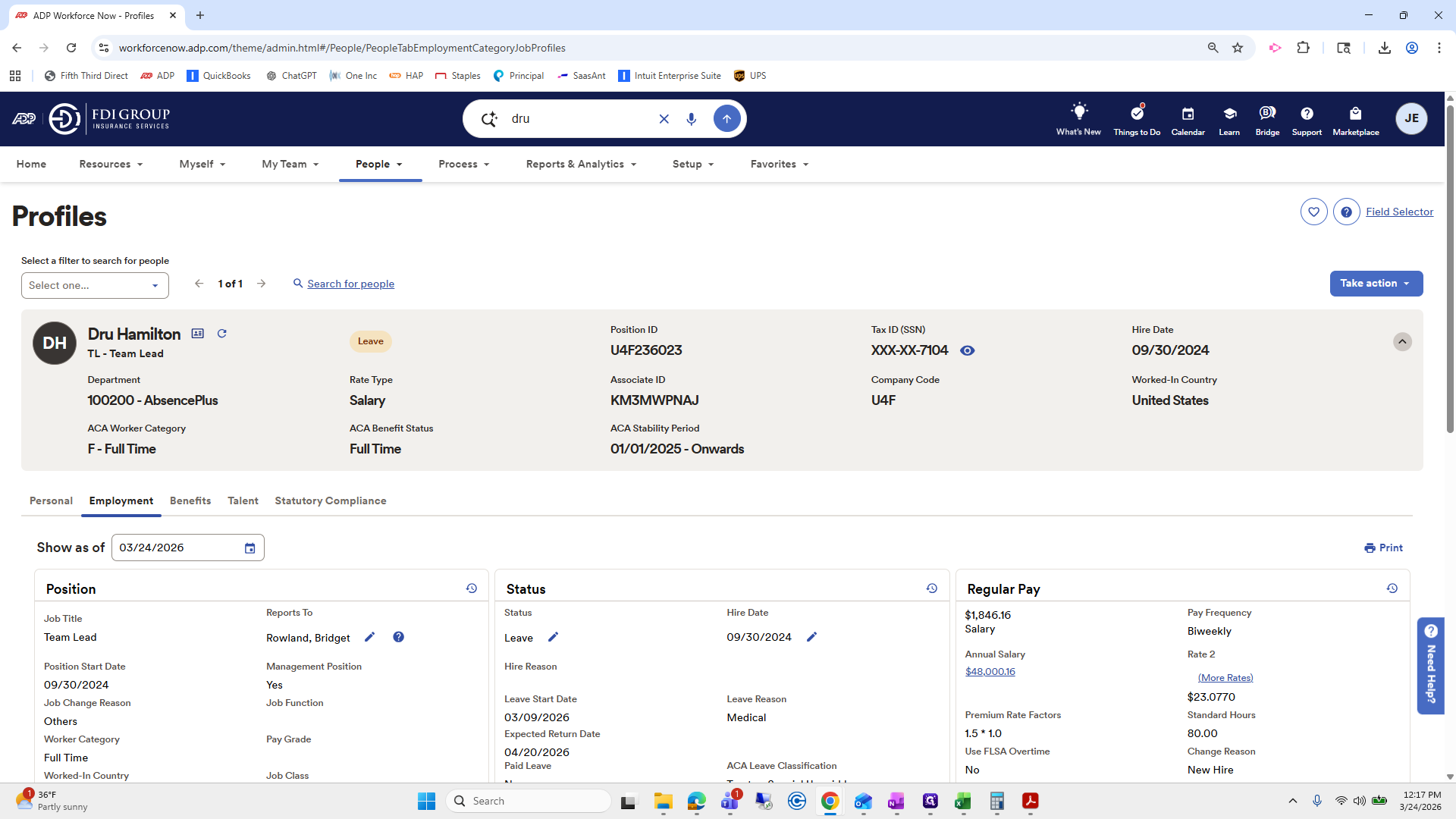
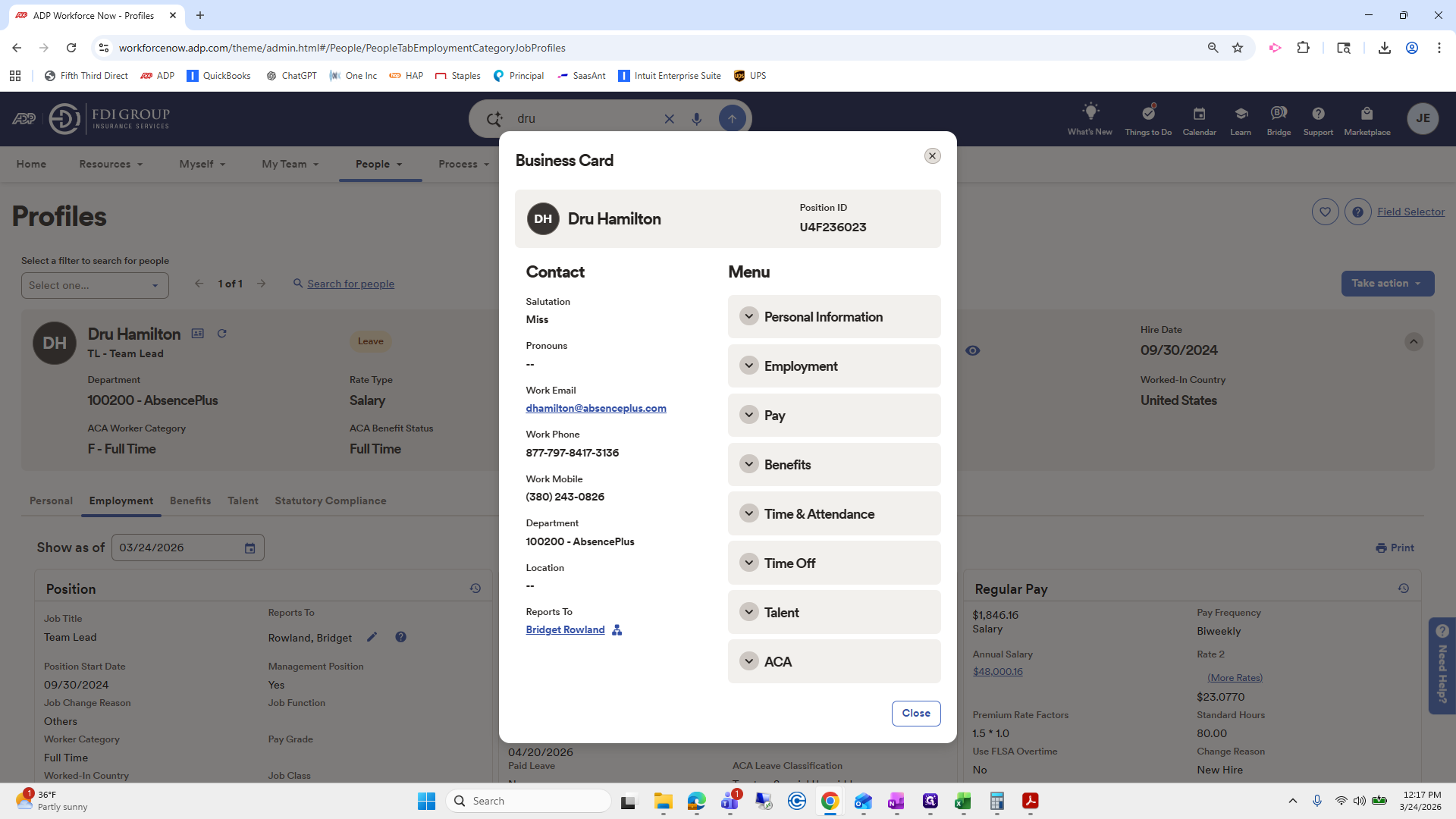
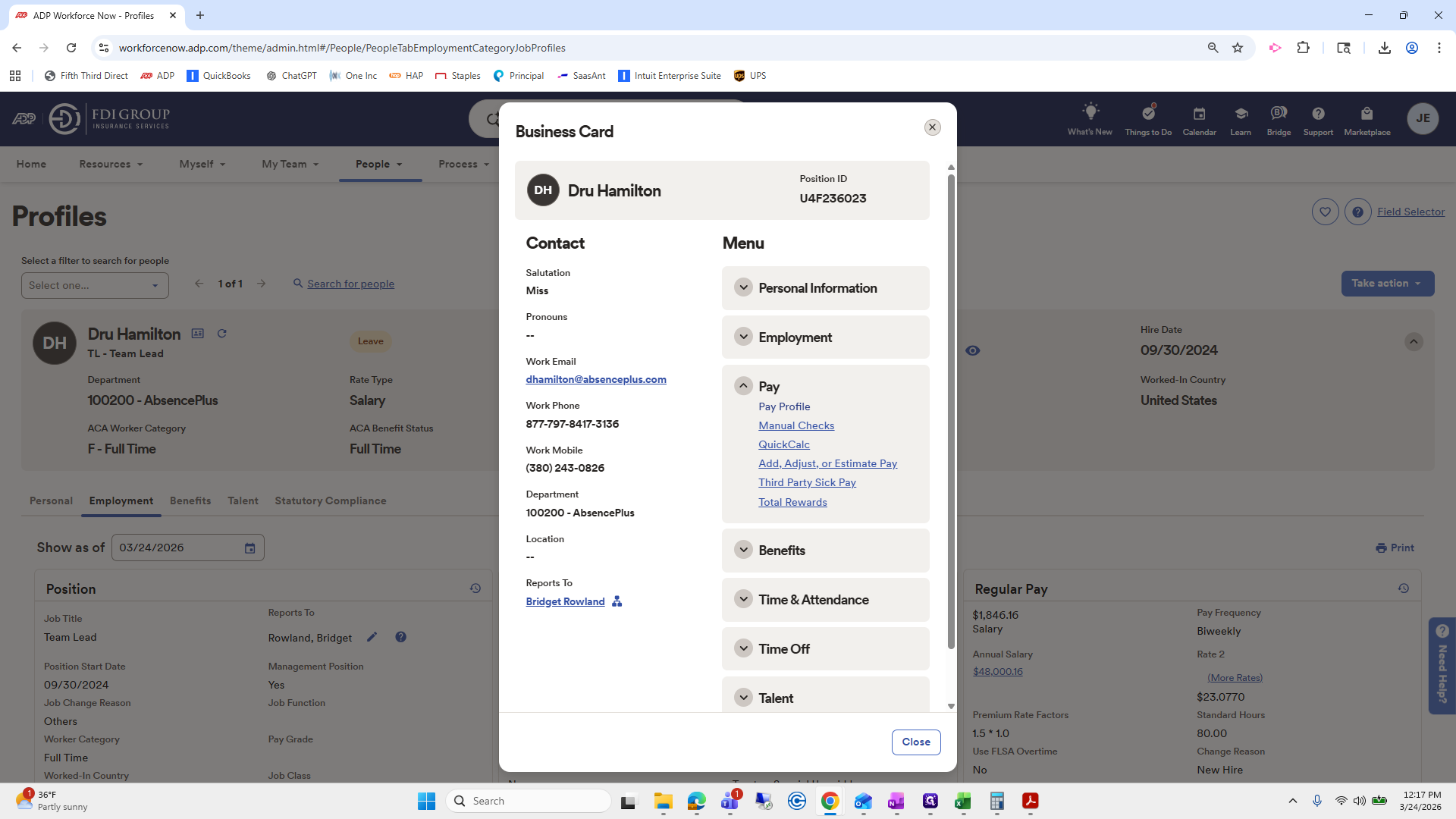
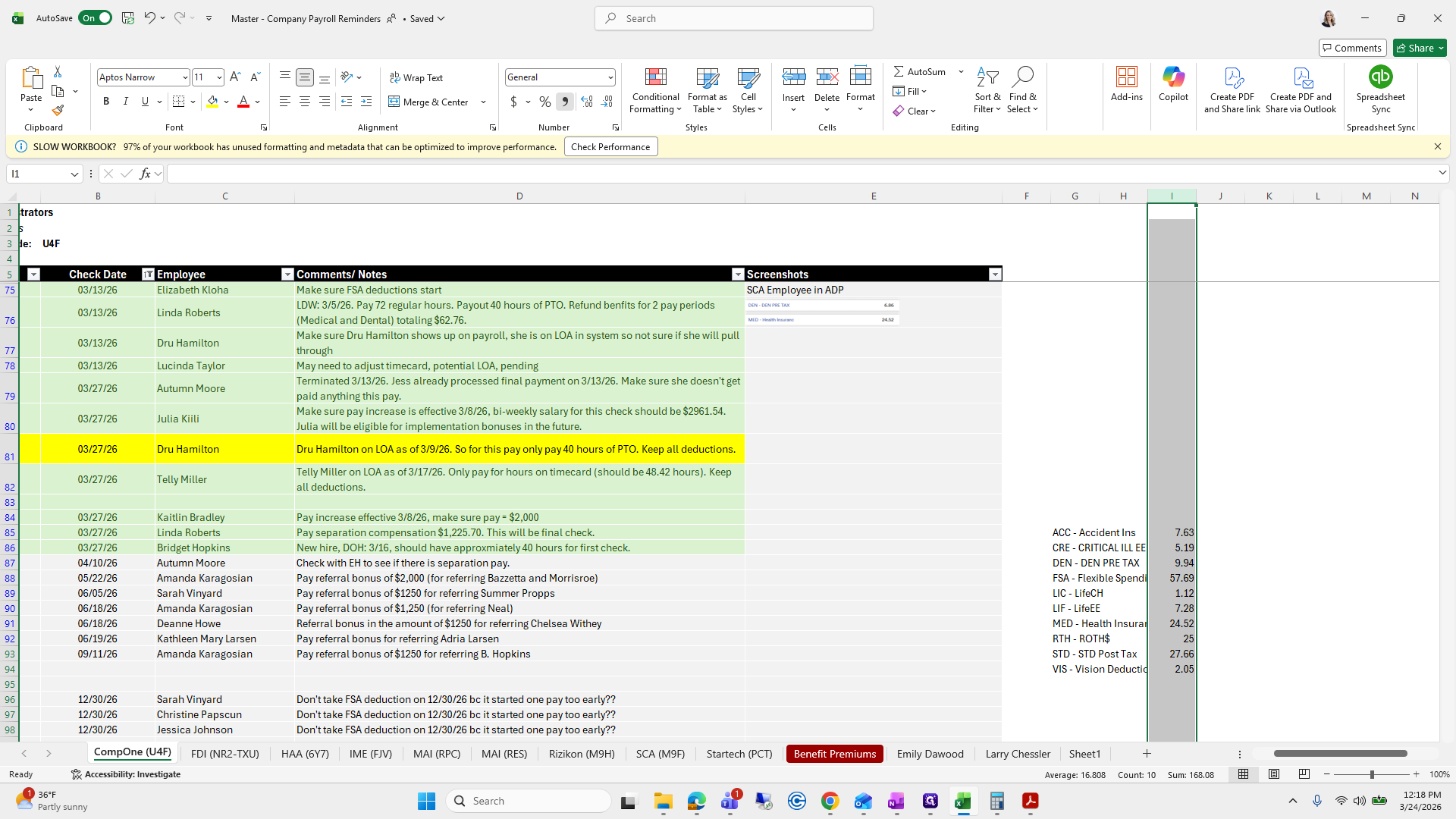
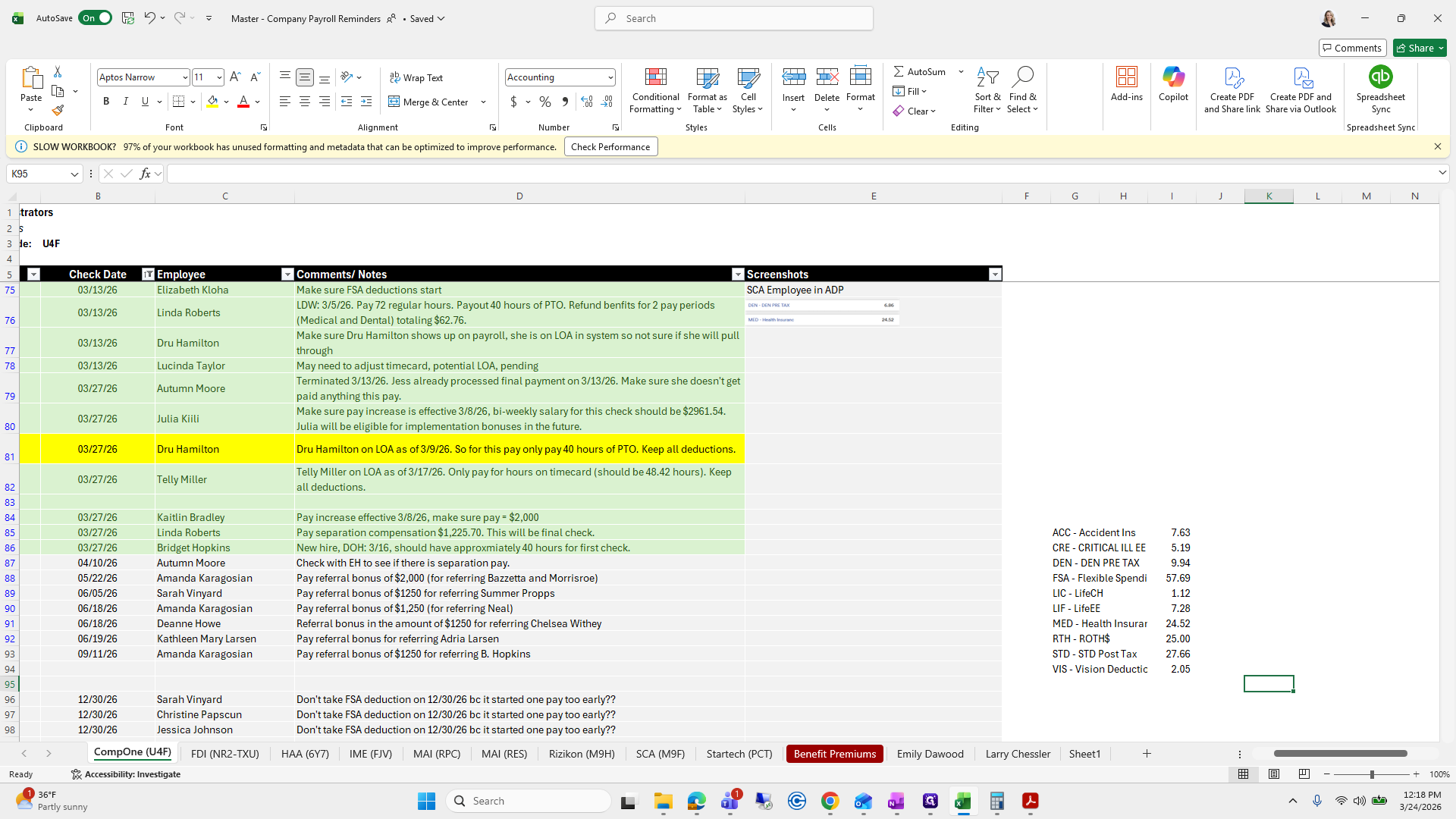
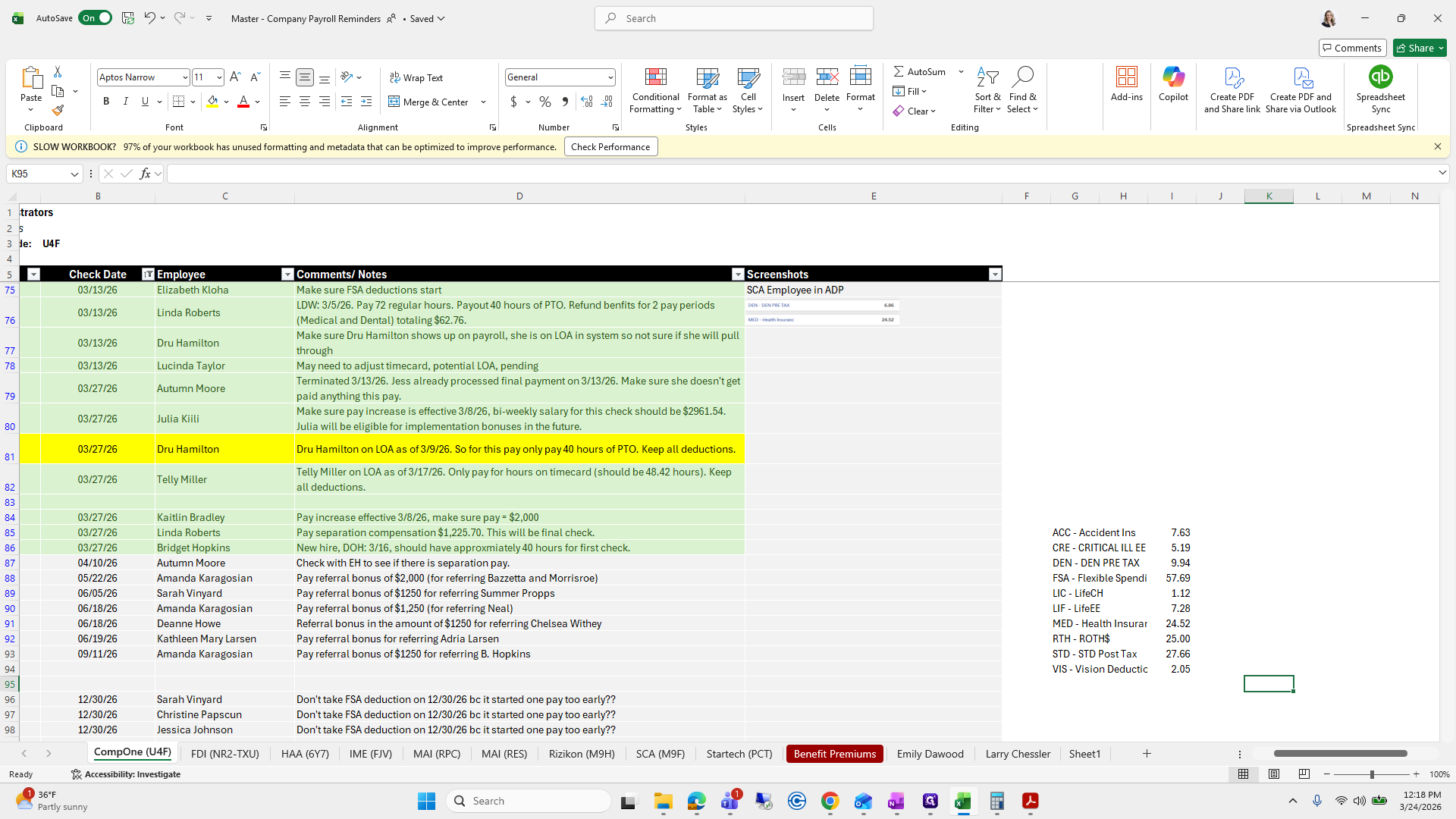
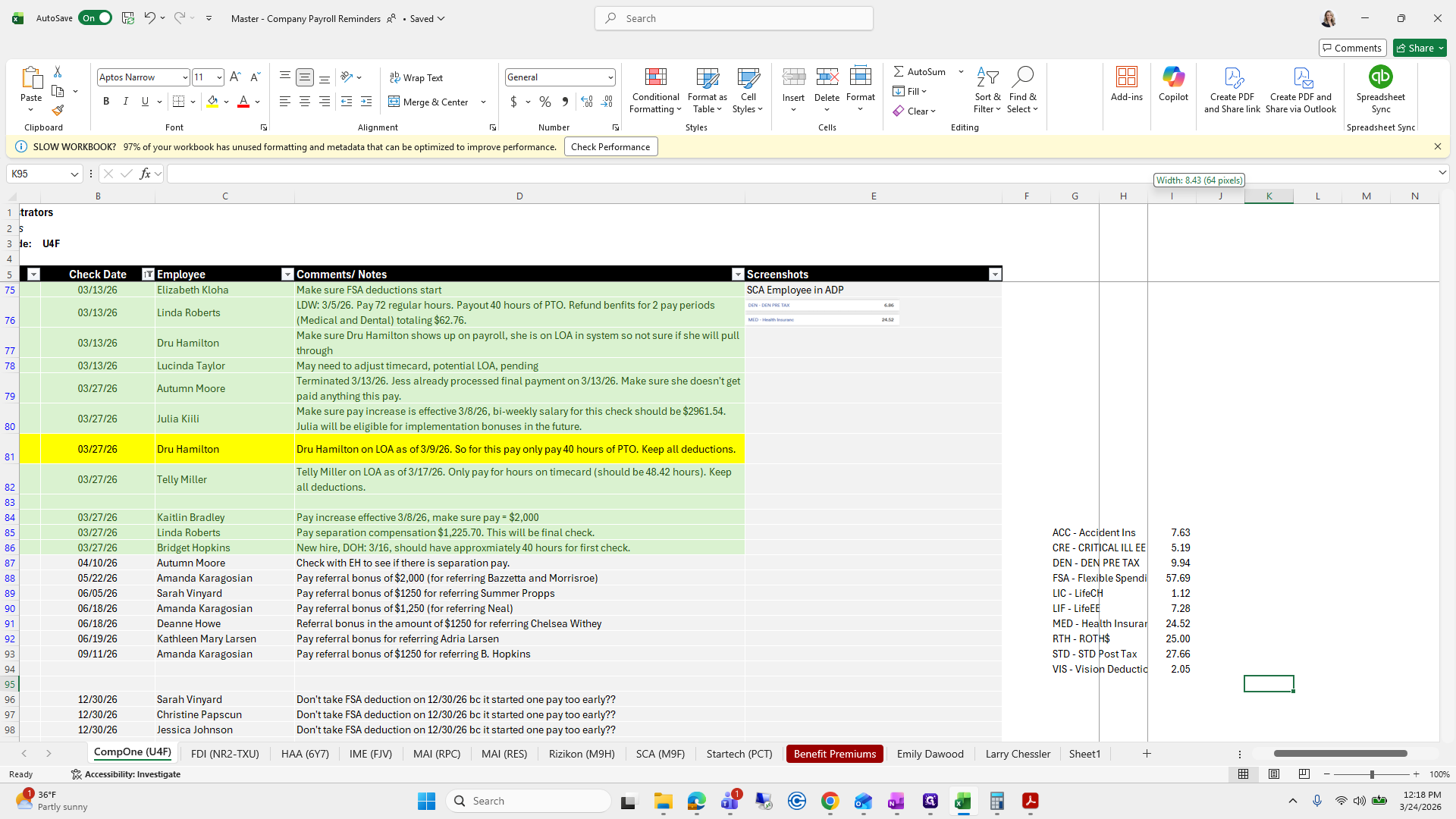
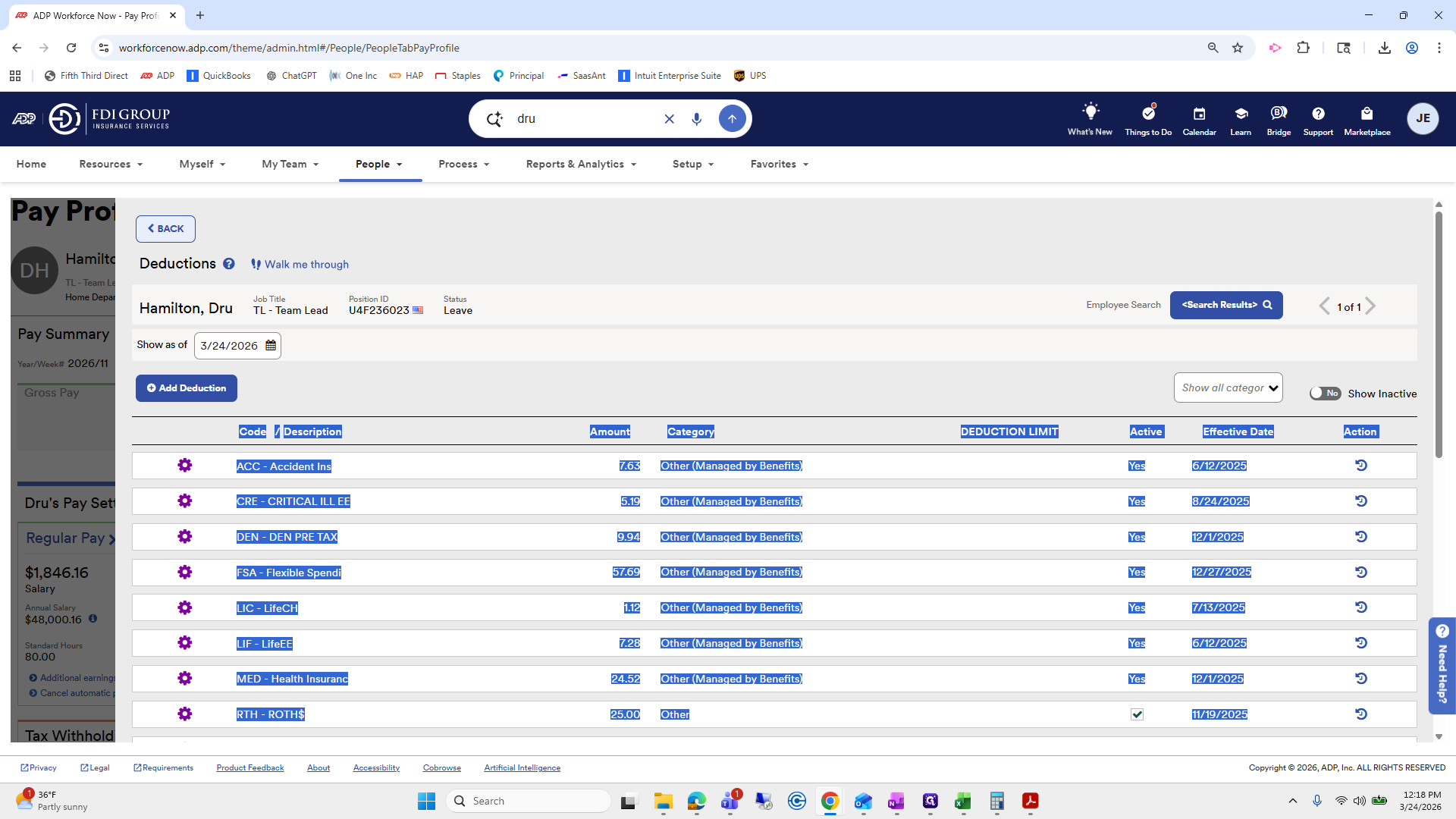
Here are the deductions. You can take a quick screenshot, or you can copy and paste.
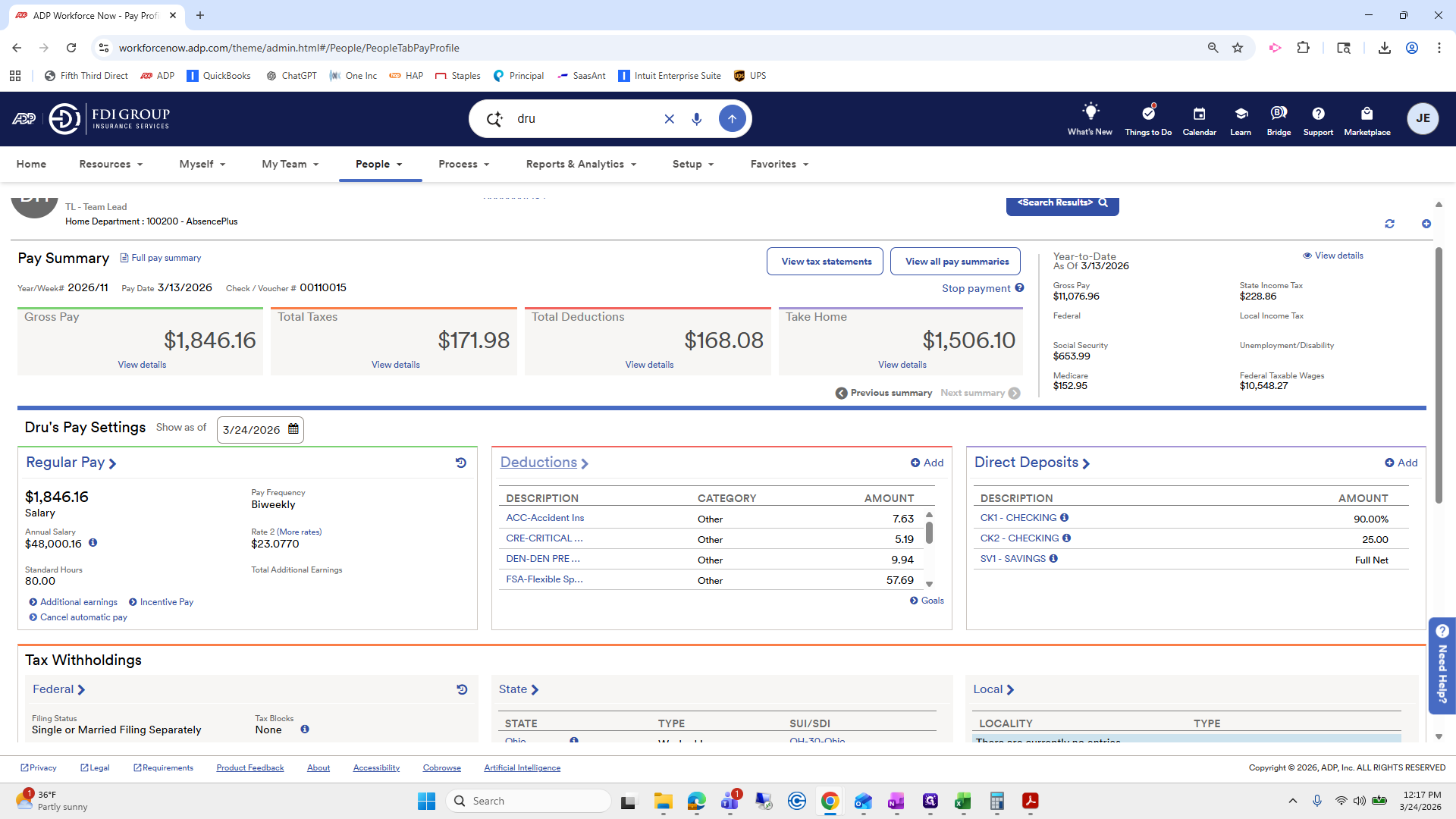
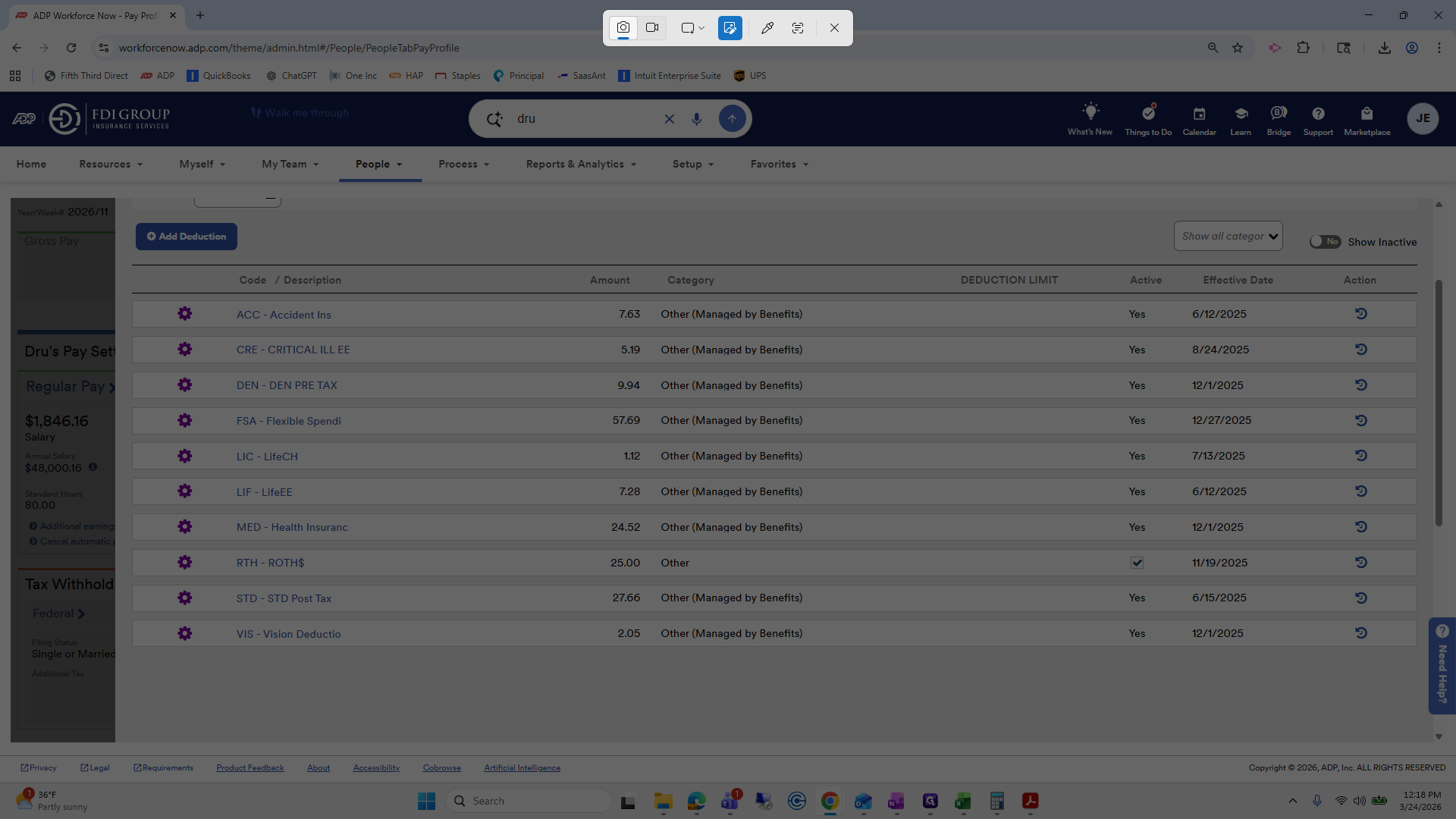
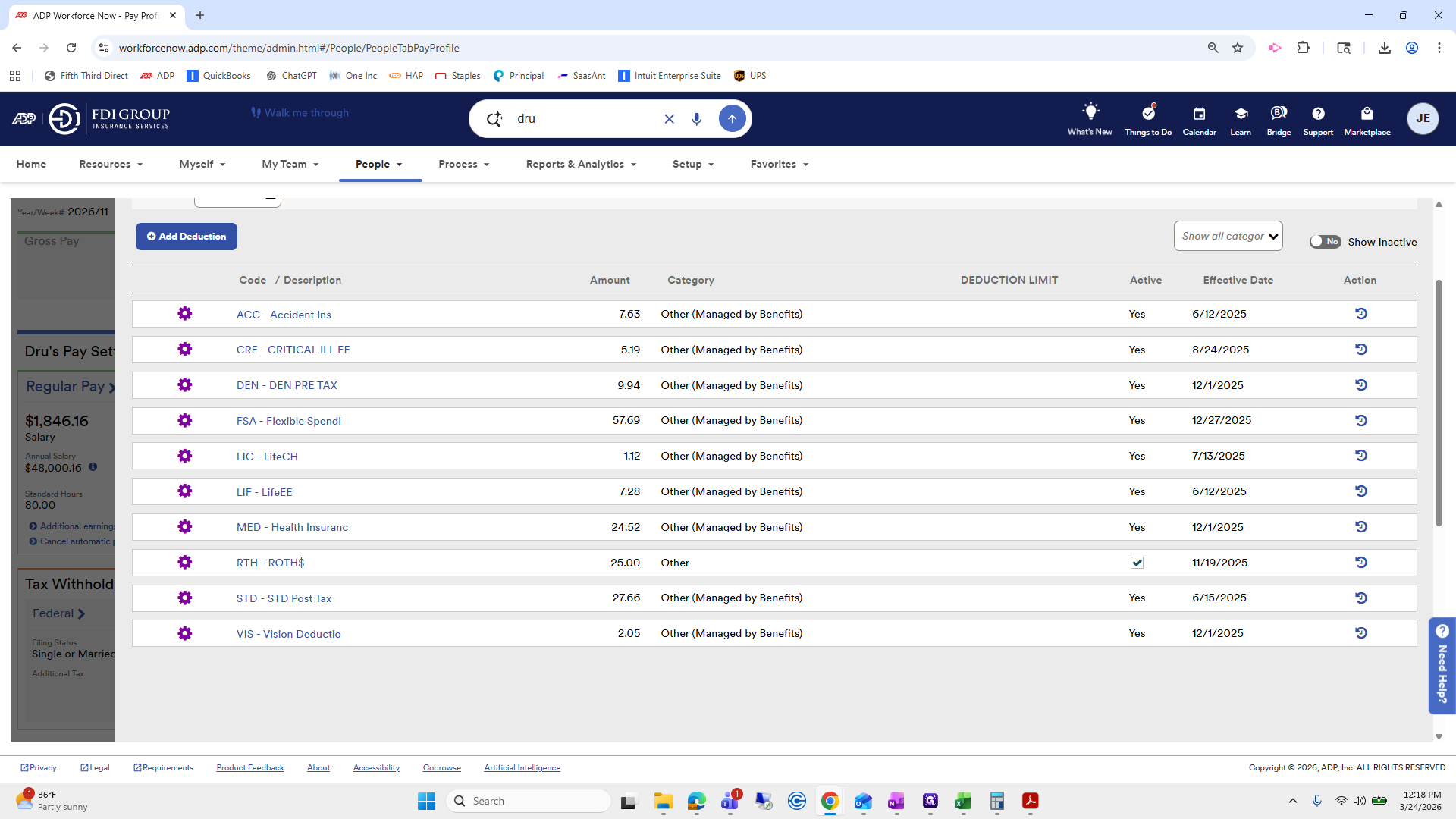
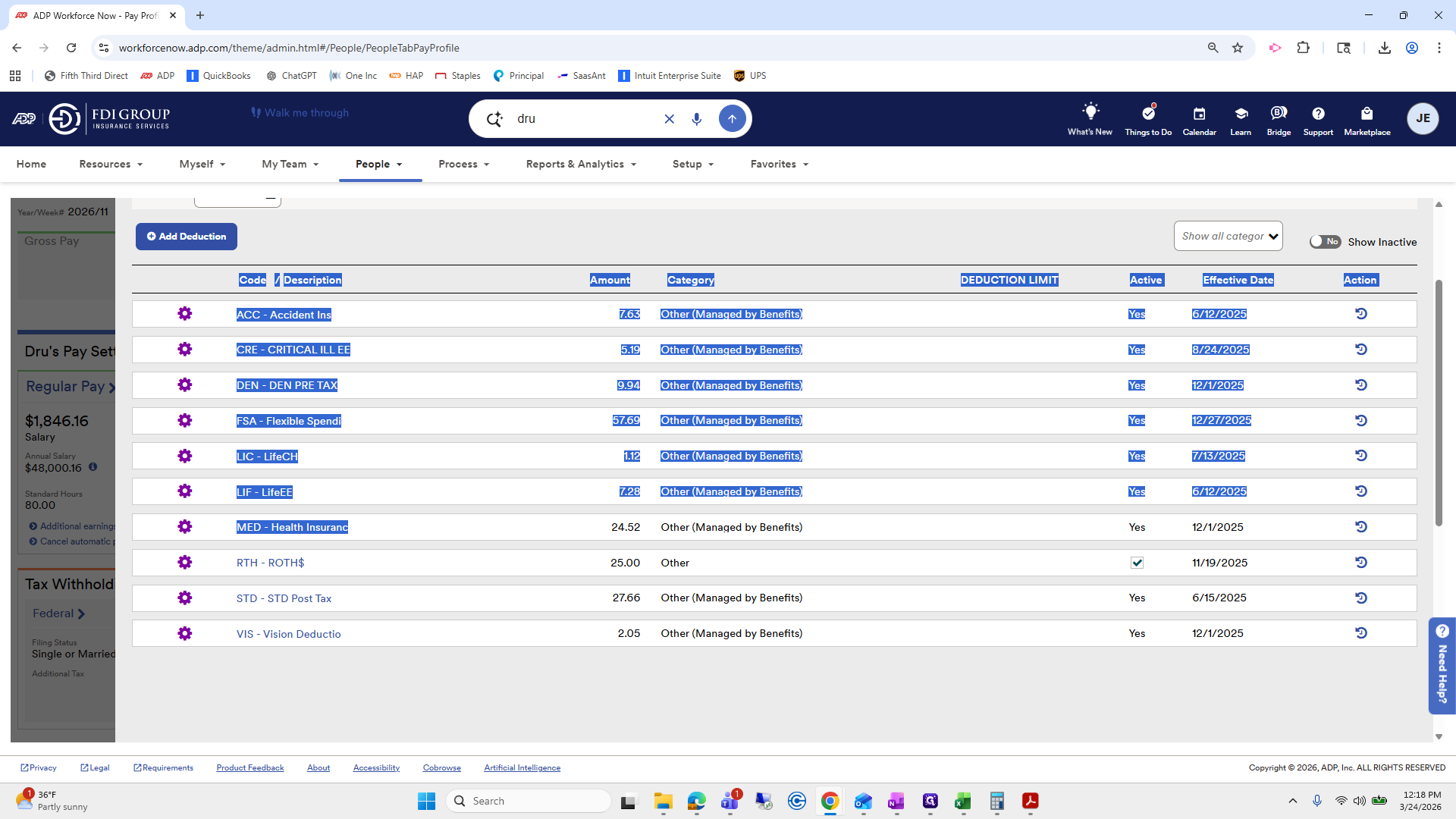
So then I'm going to...
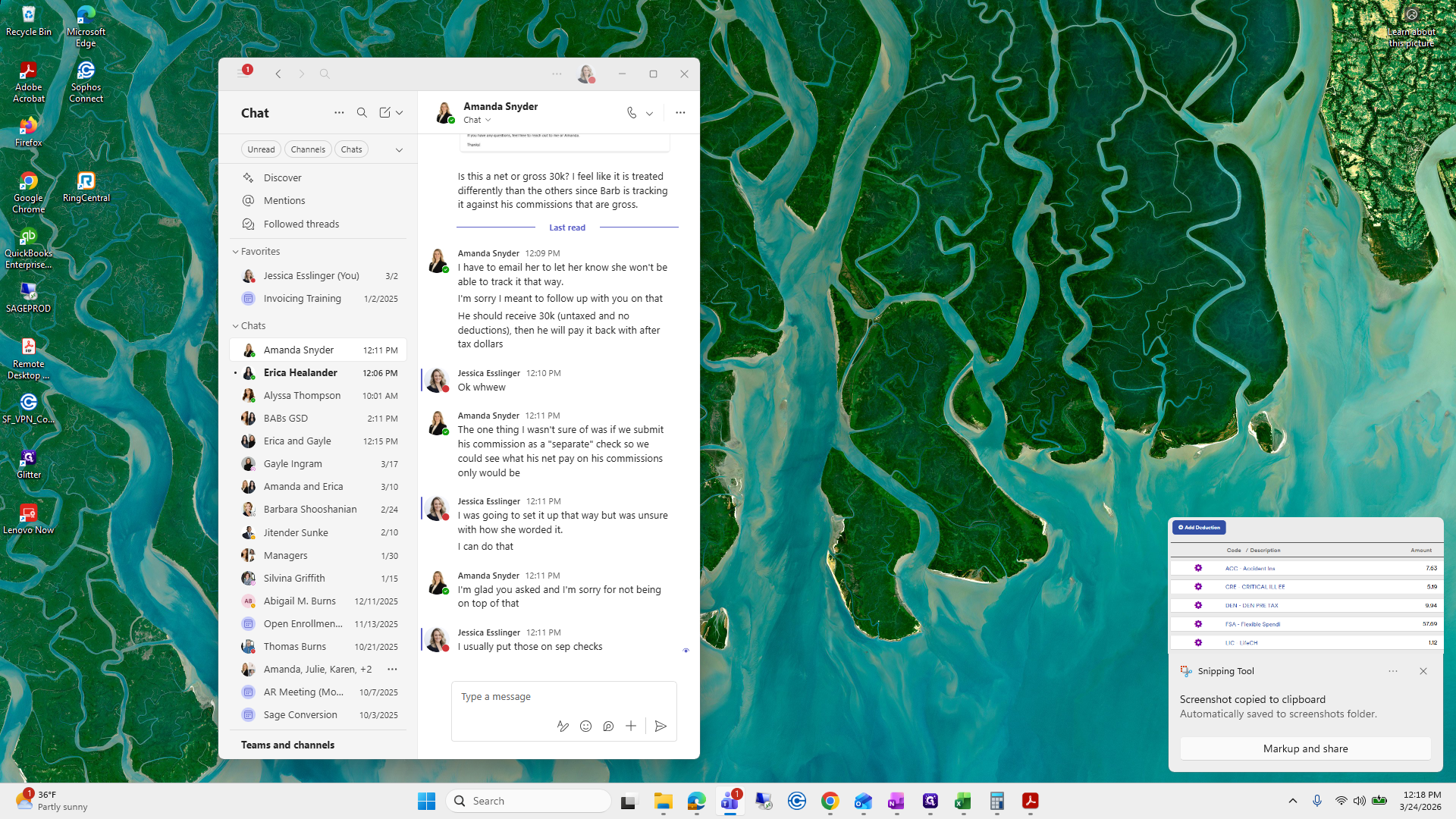
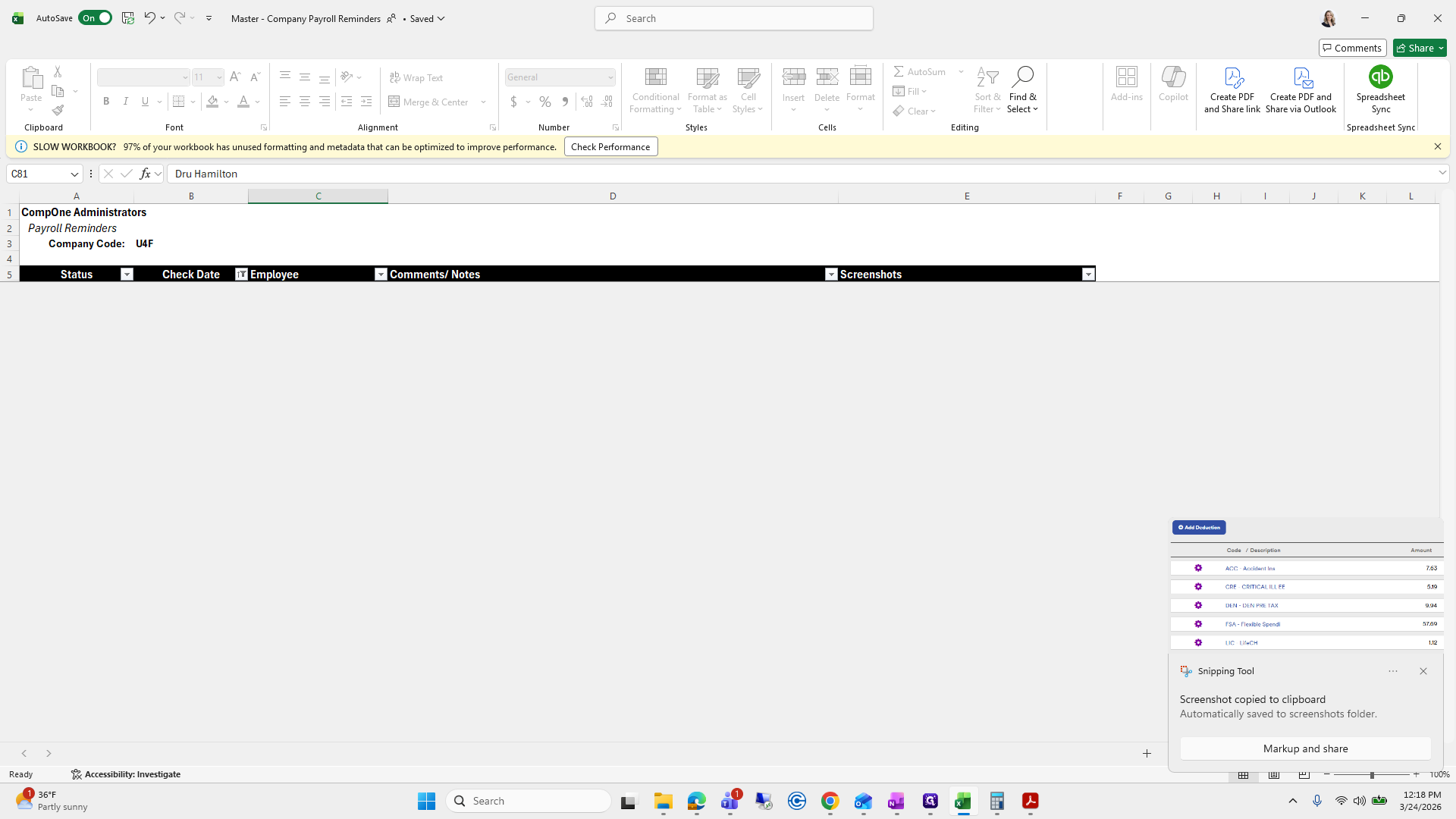
Let's see if that works.
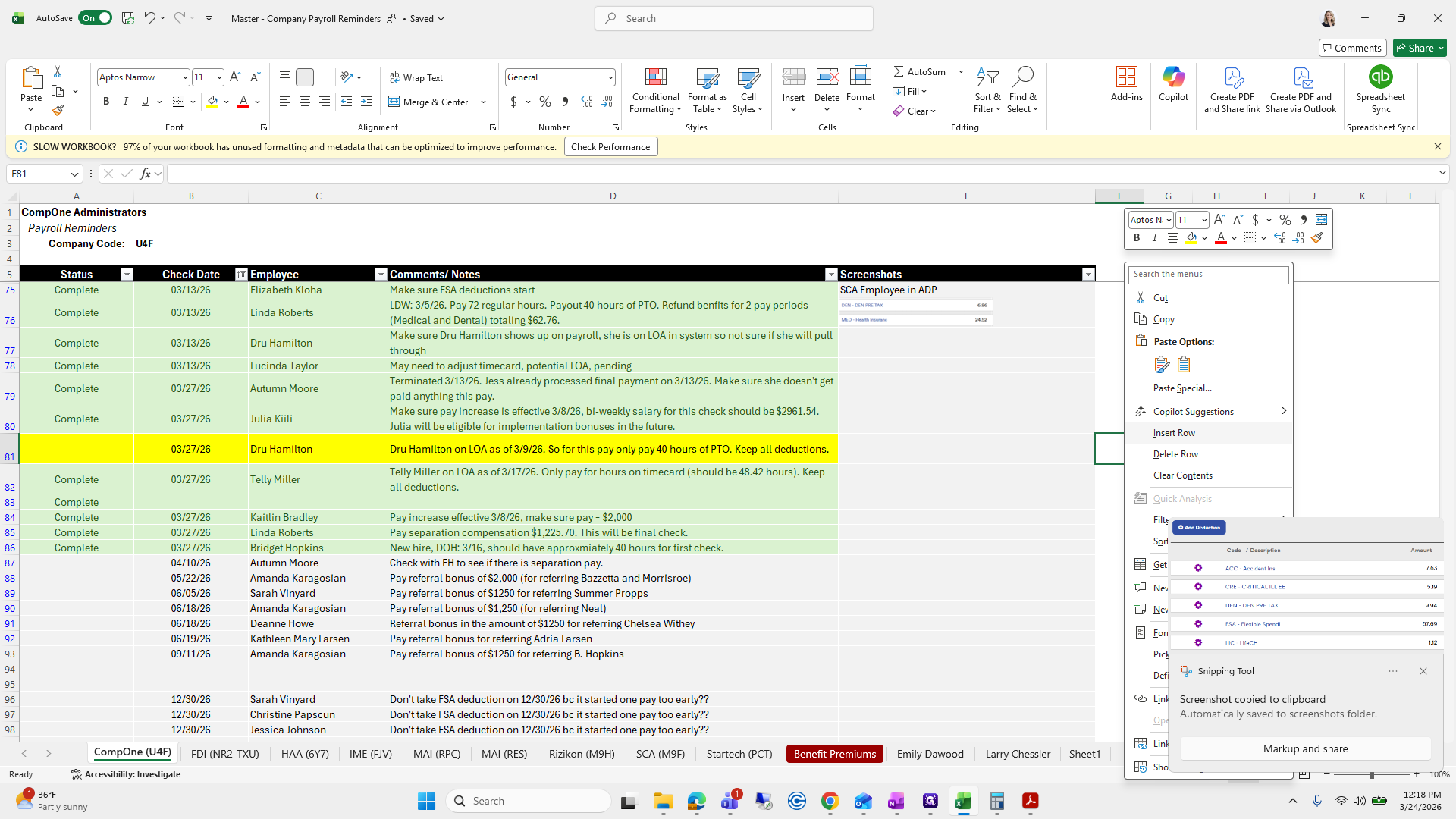
Paste special.
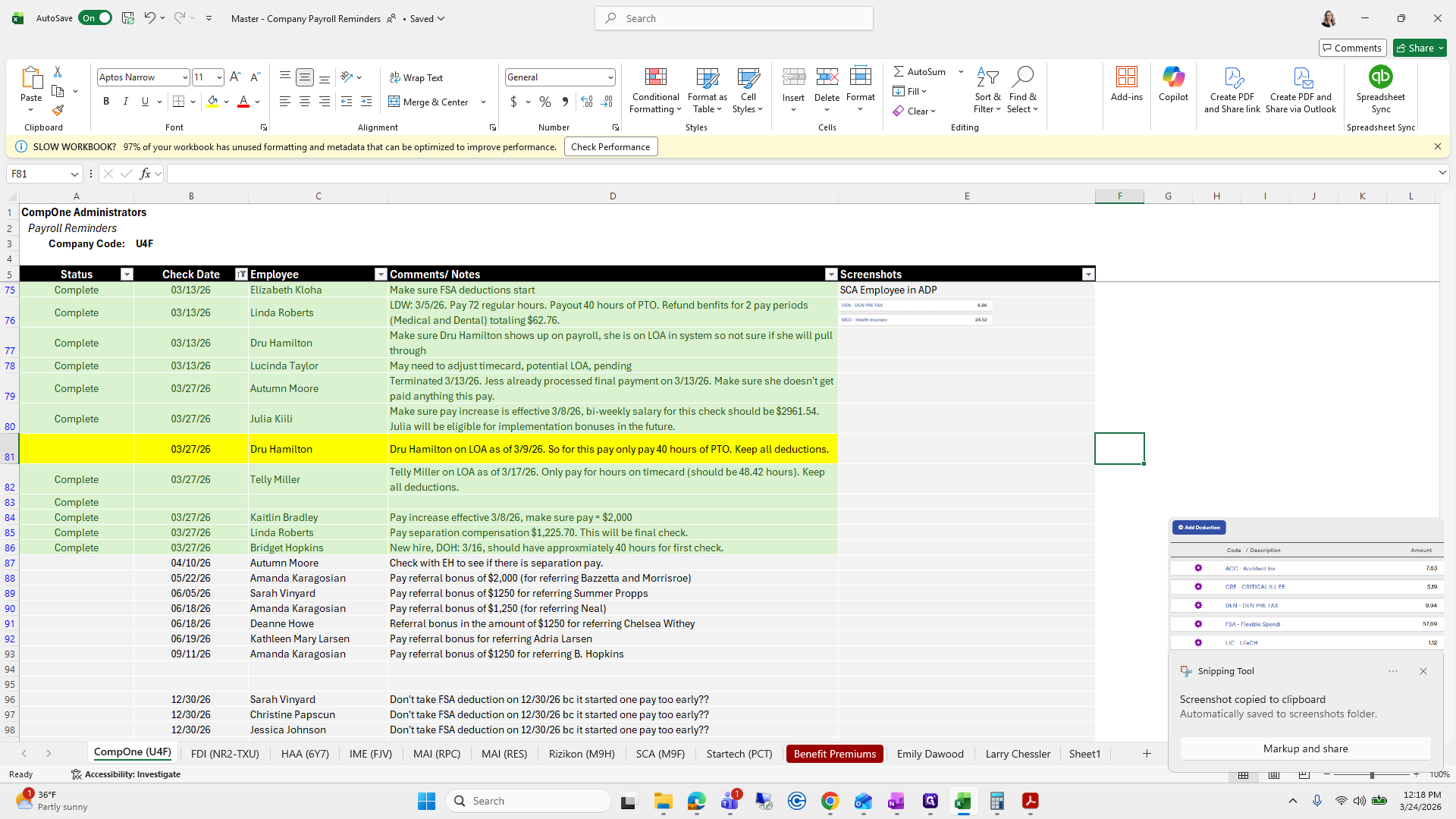
That worked better.
I'll remove that.
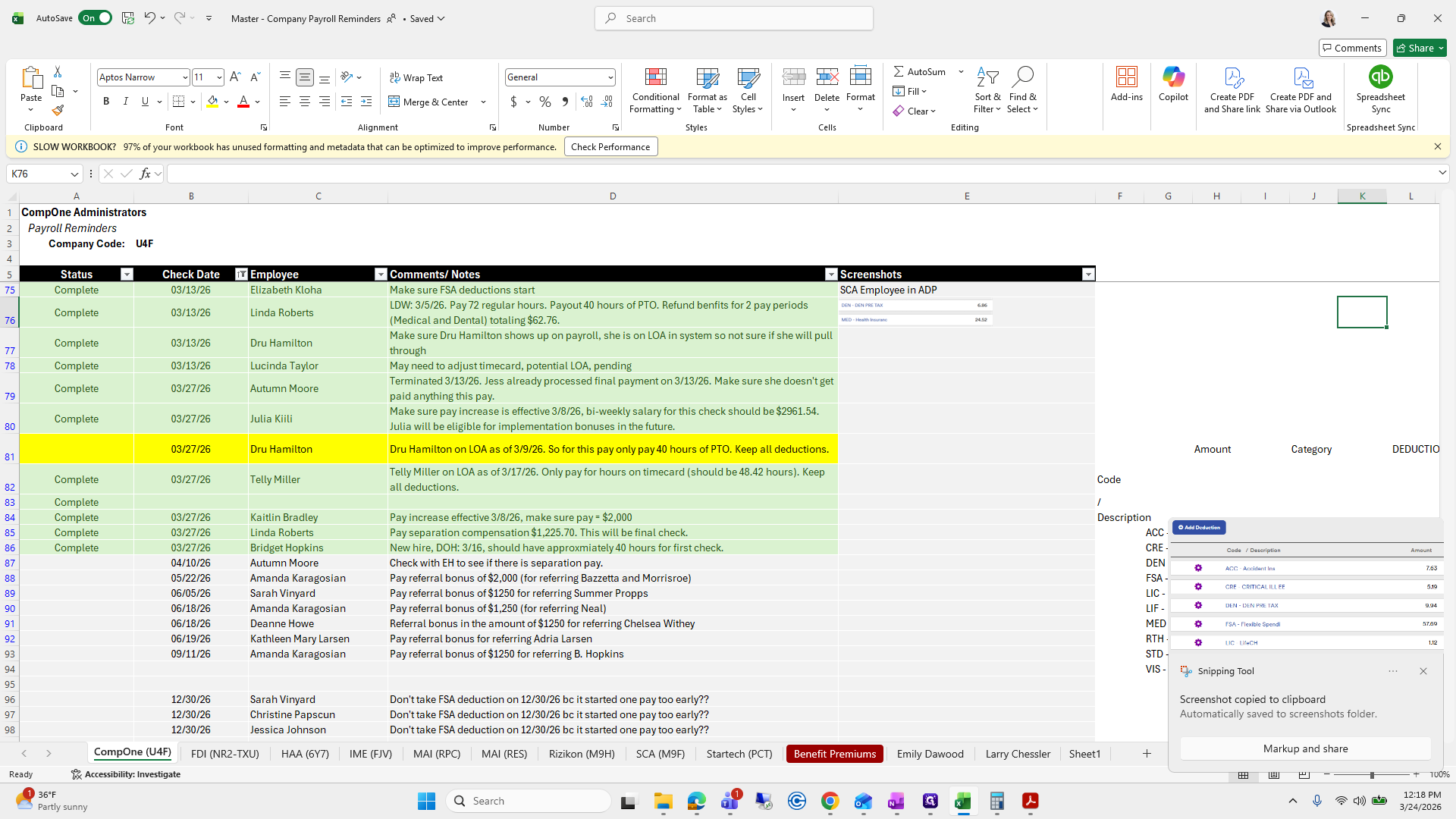
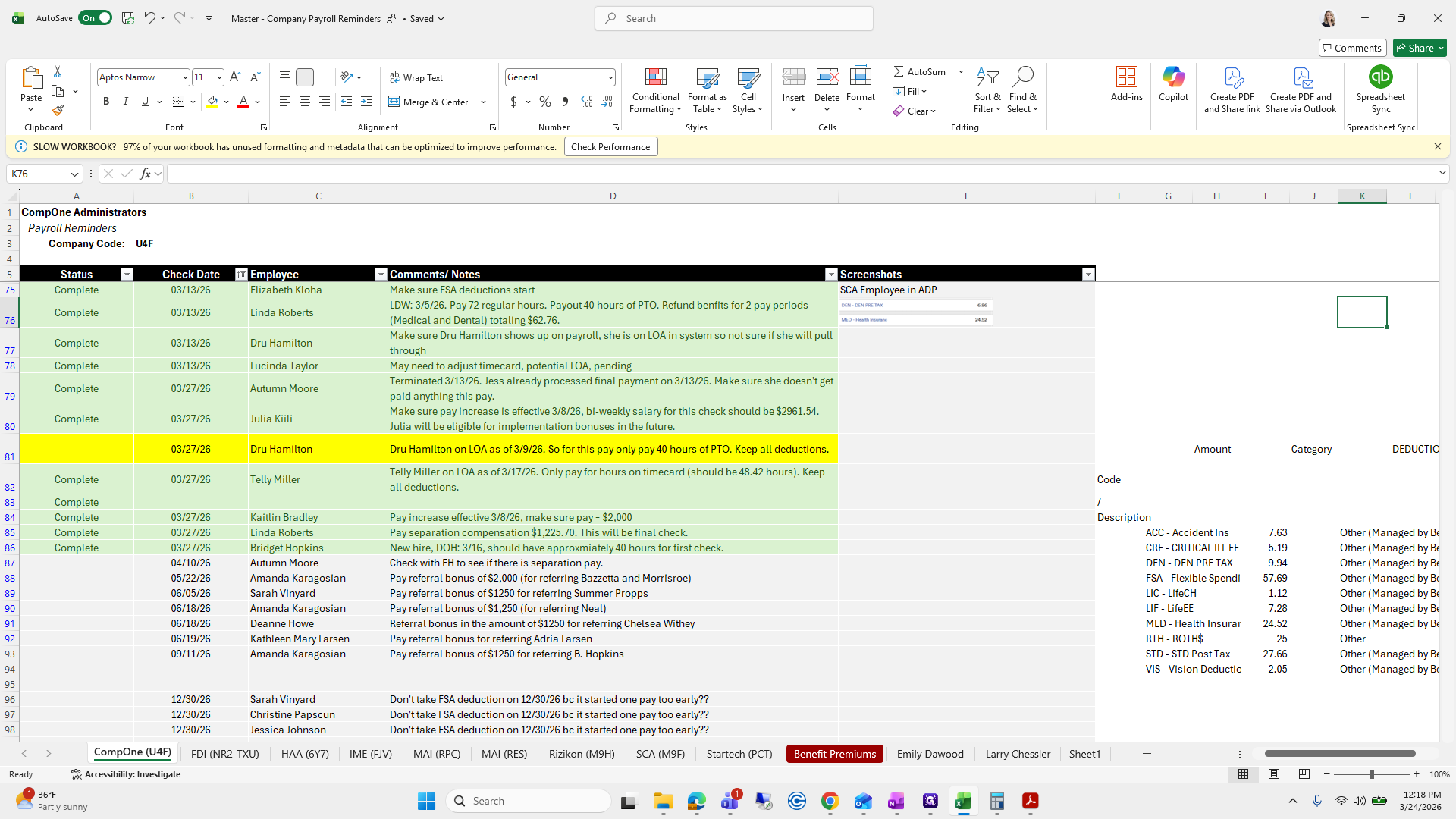
Okay.
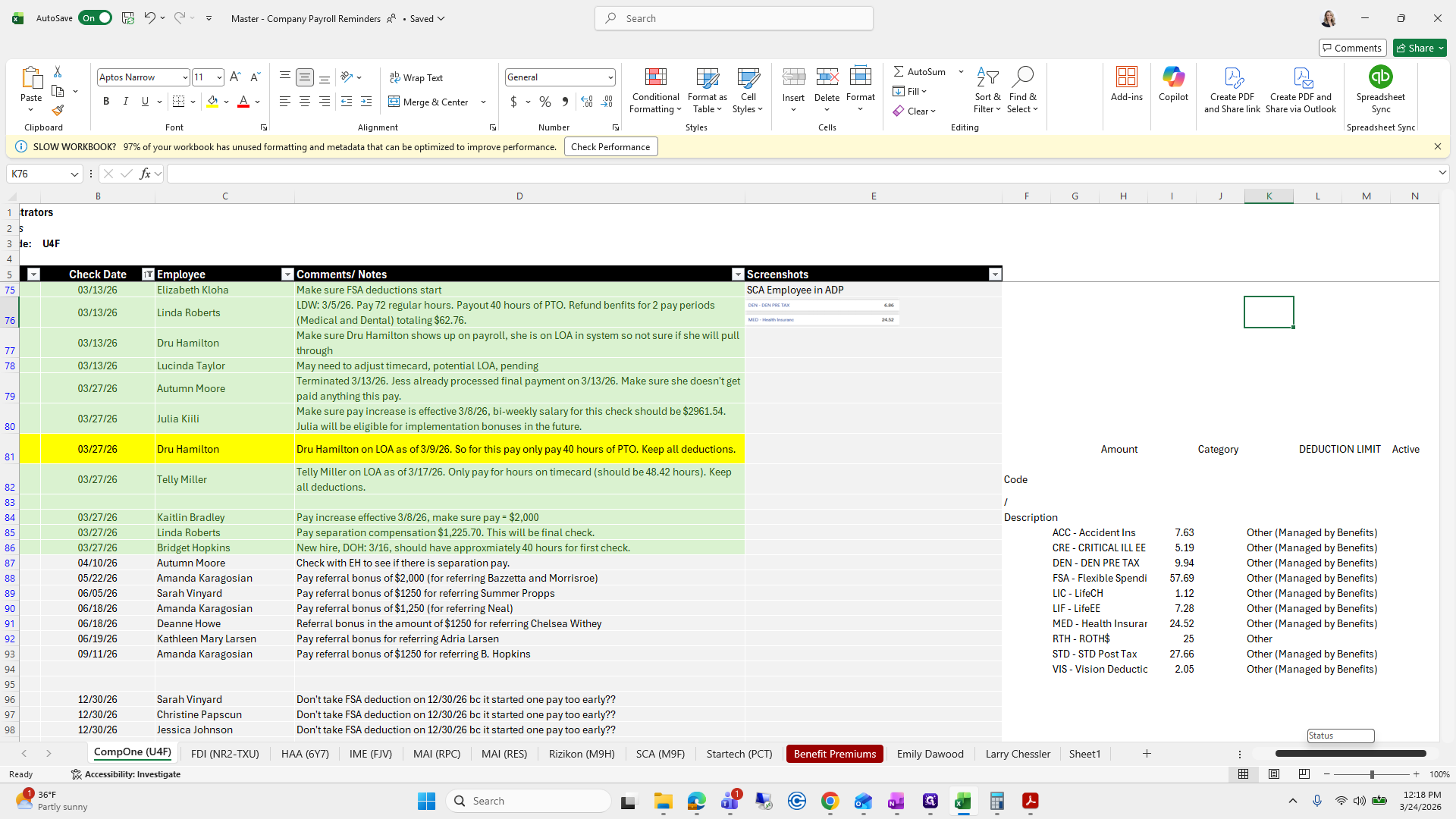
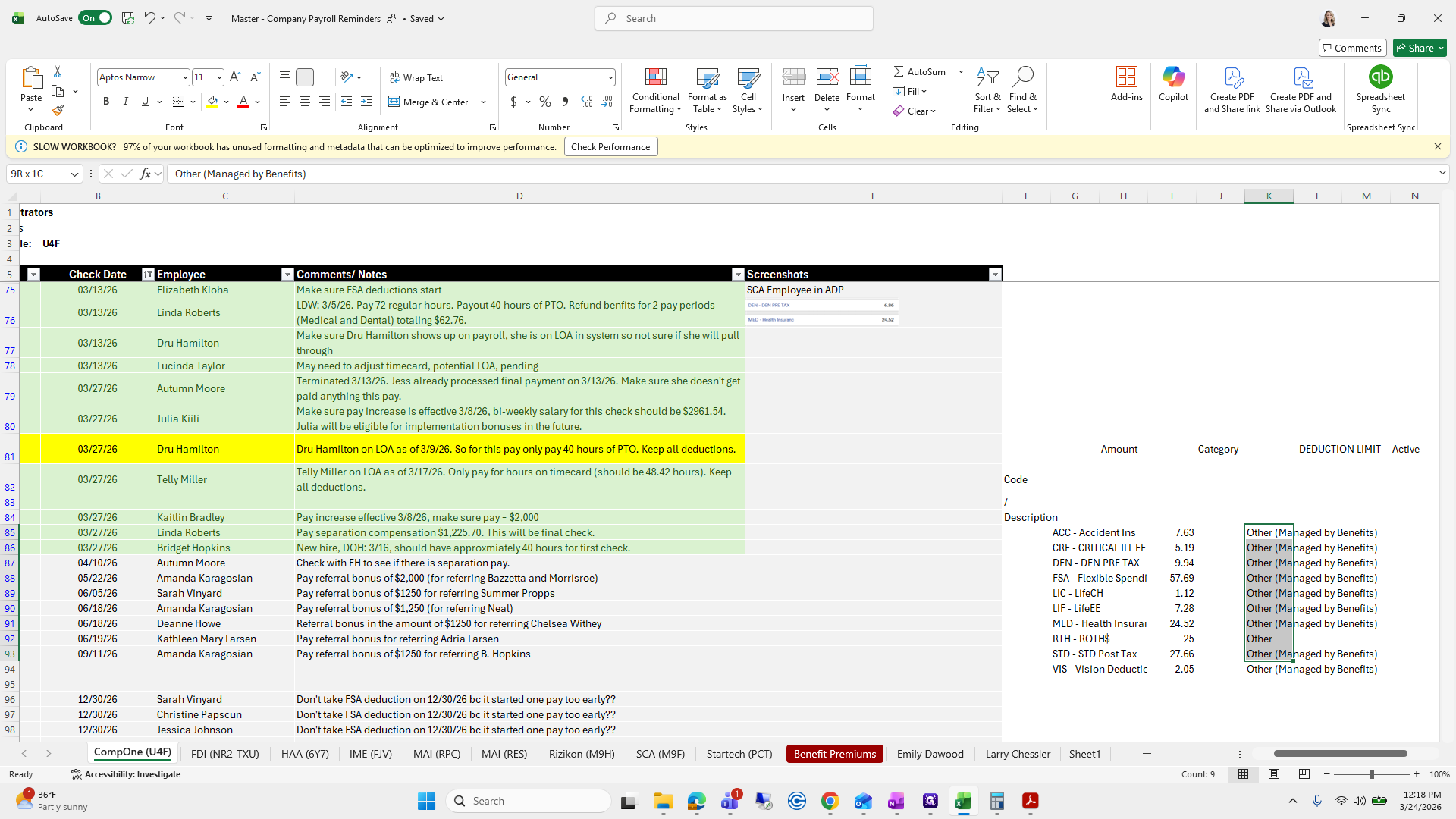
We need to keep these deductions and add those in.
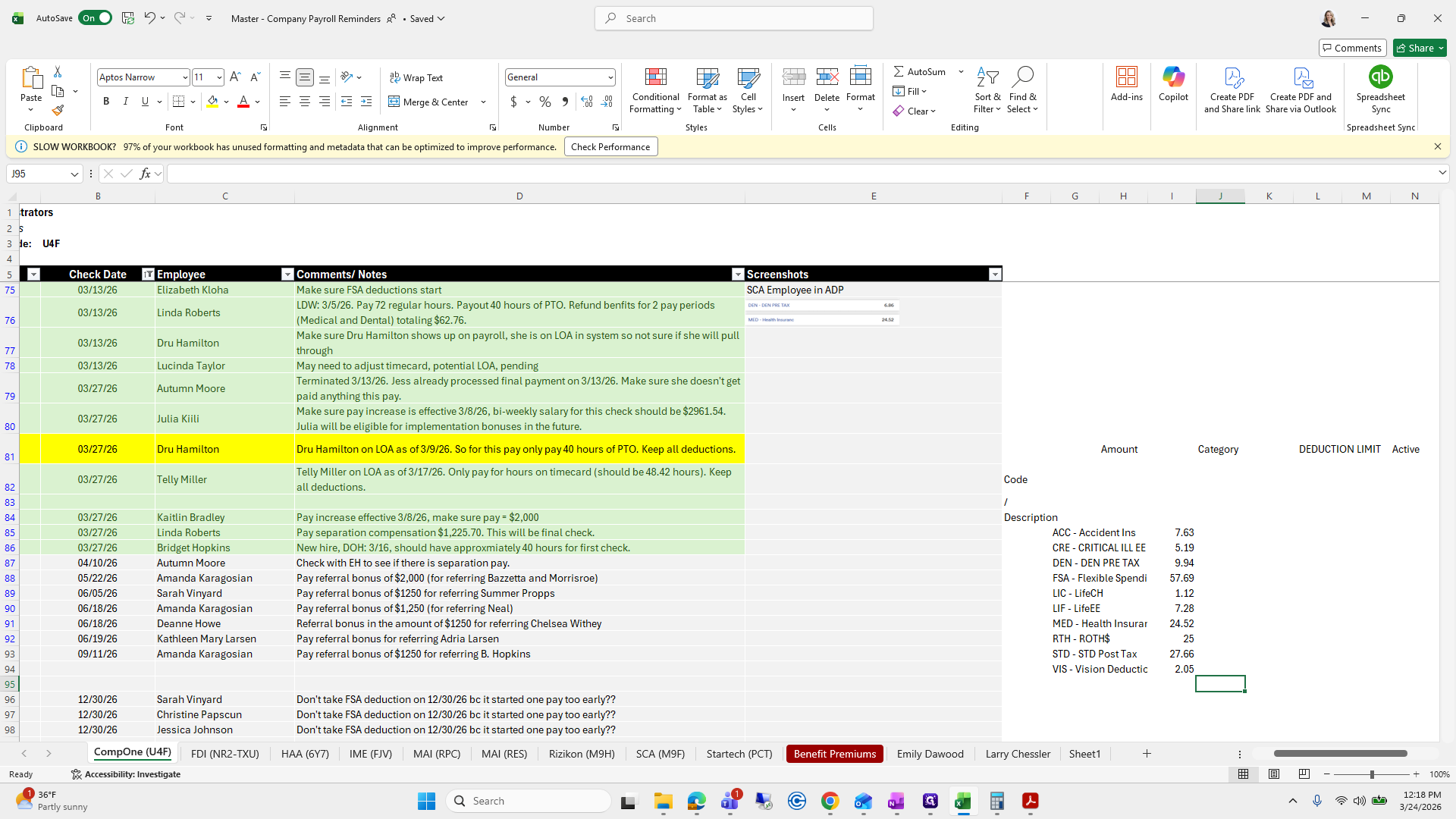
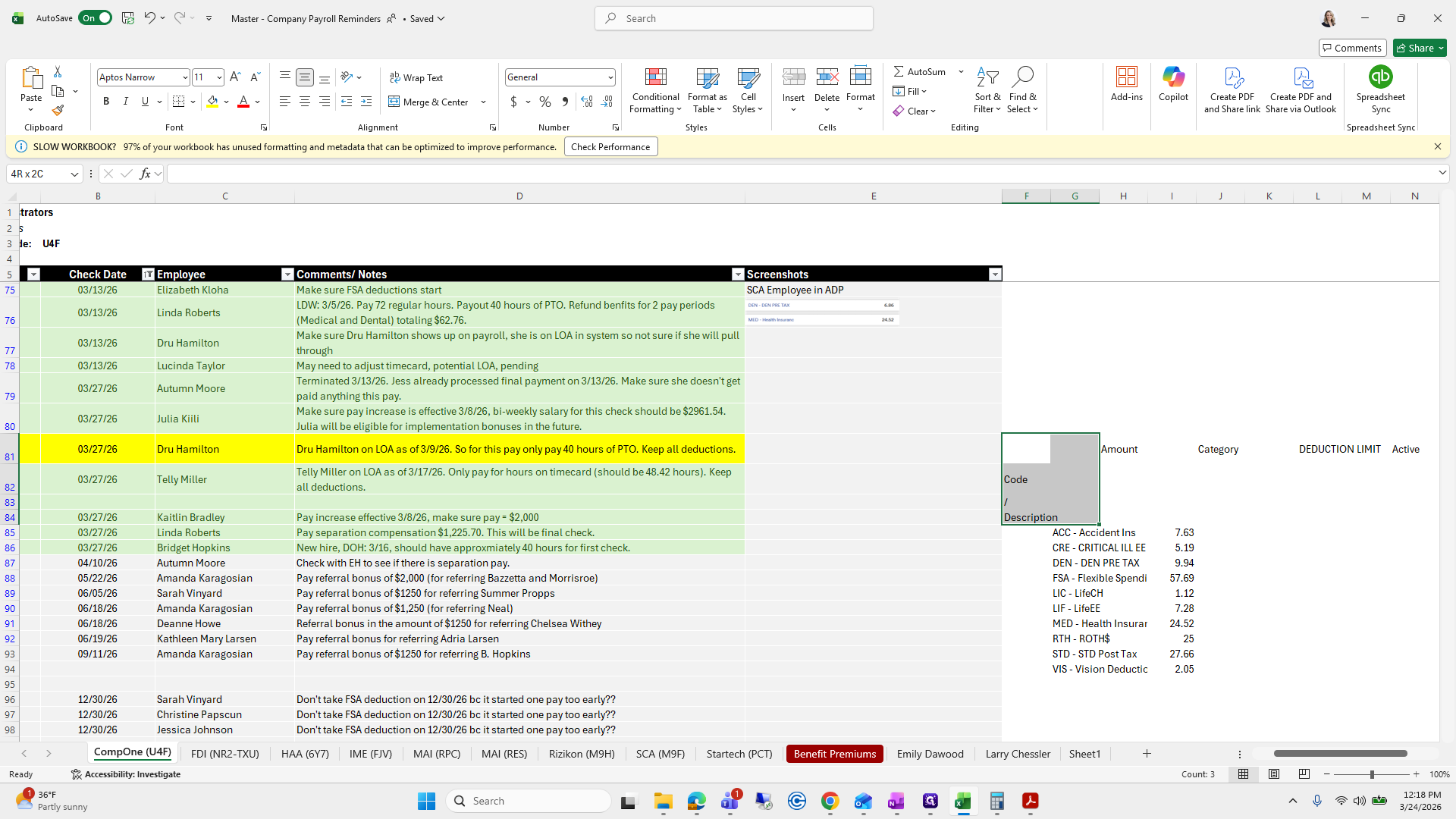
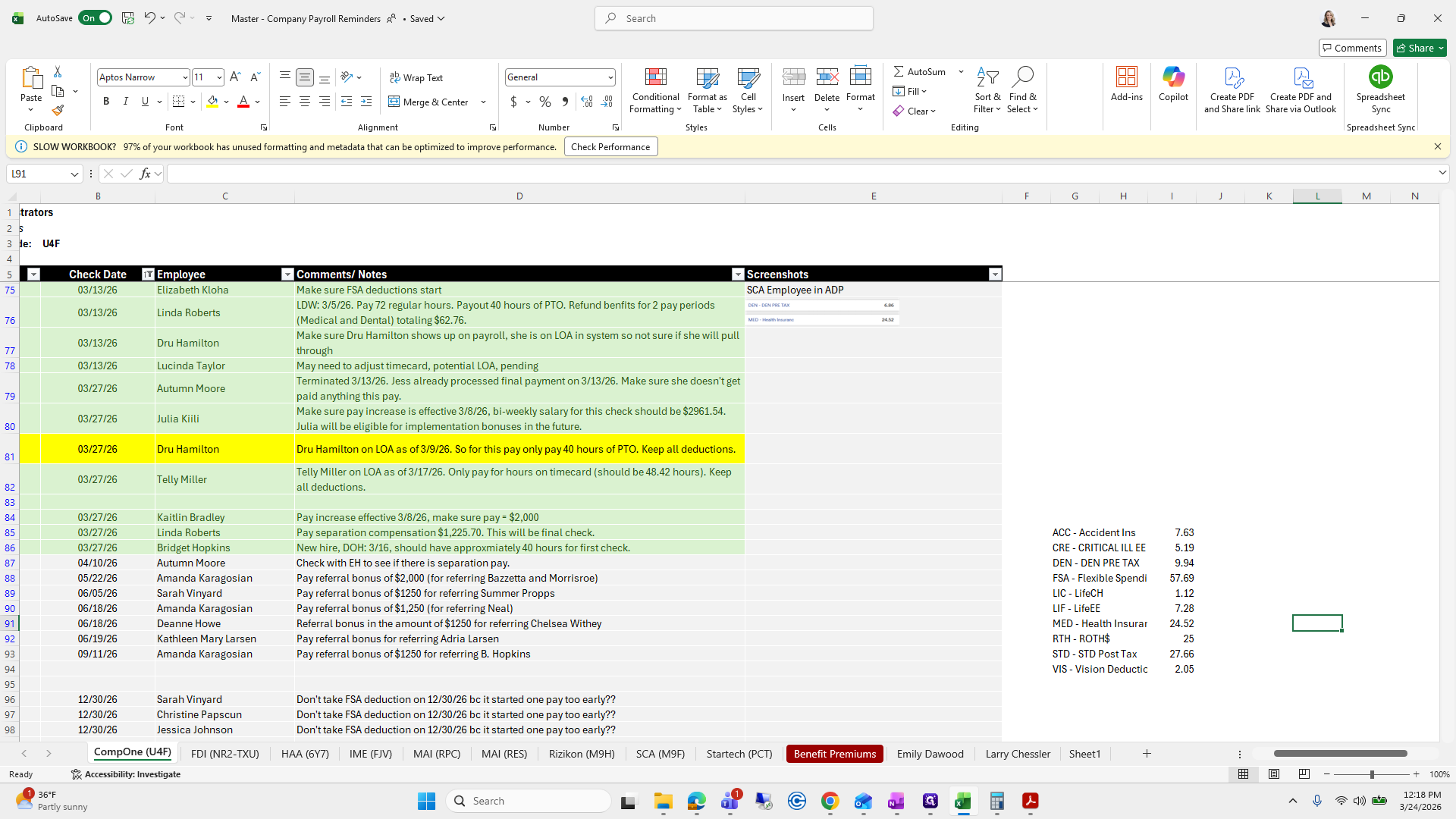
Okay.
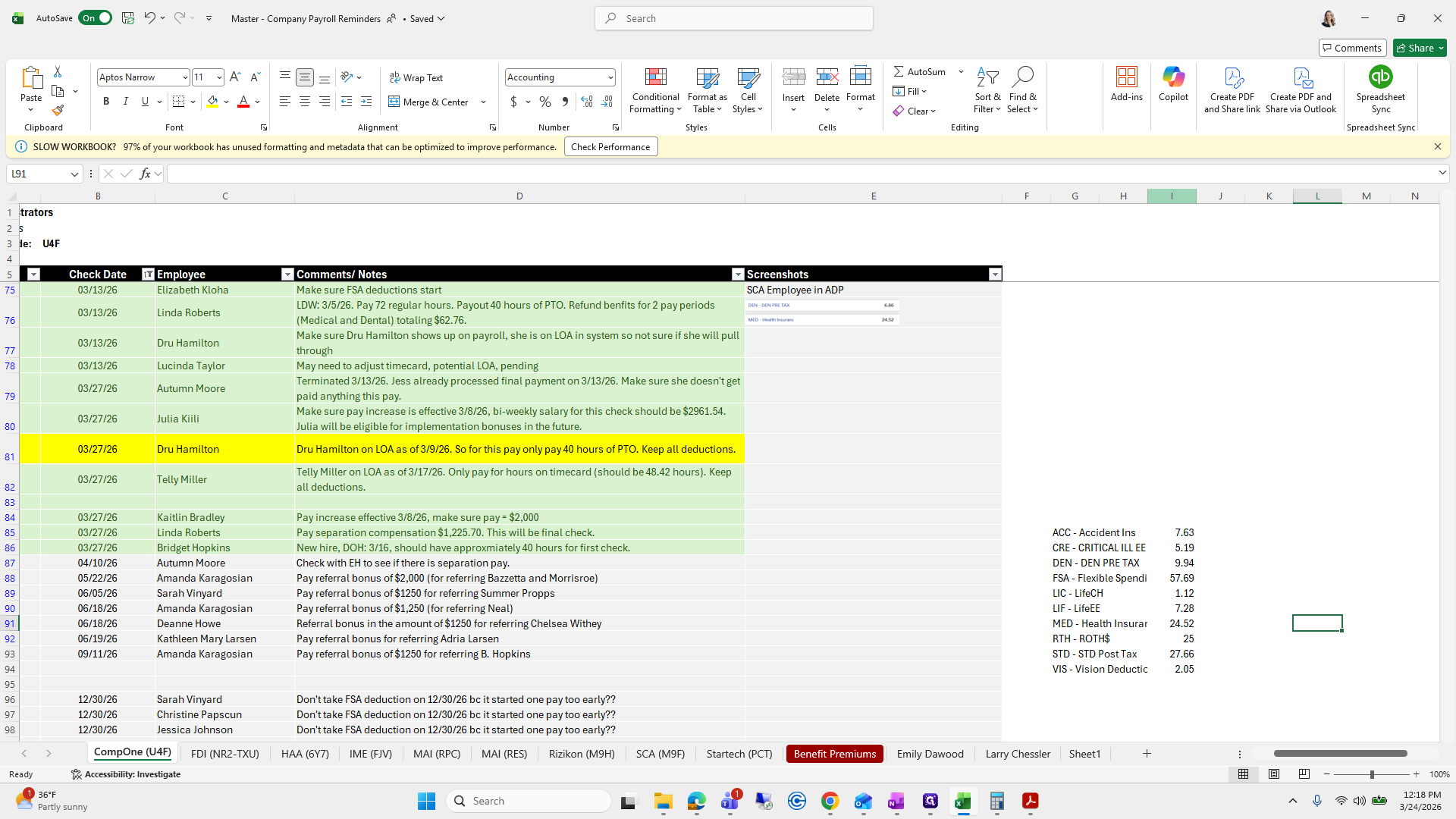
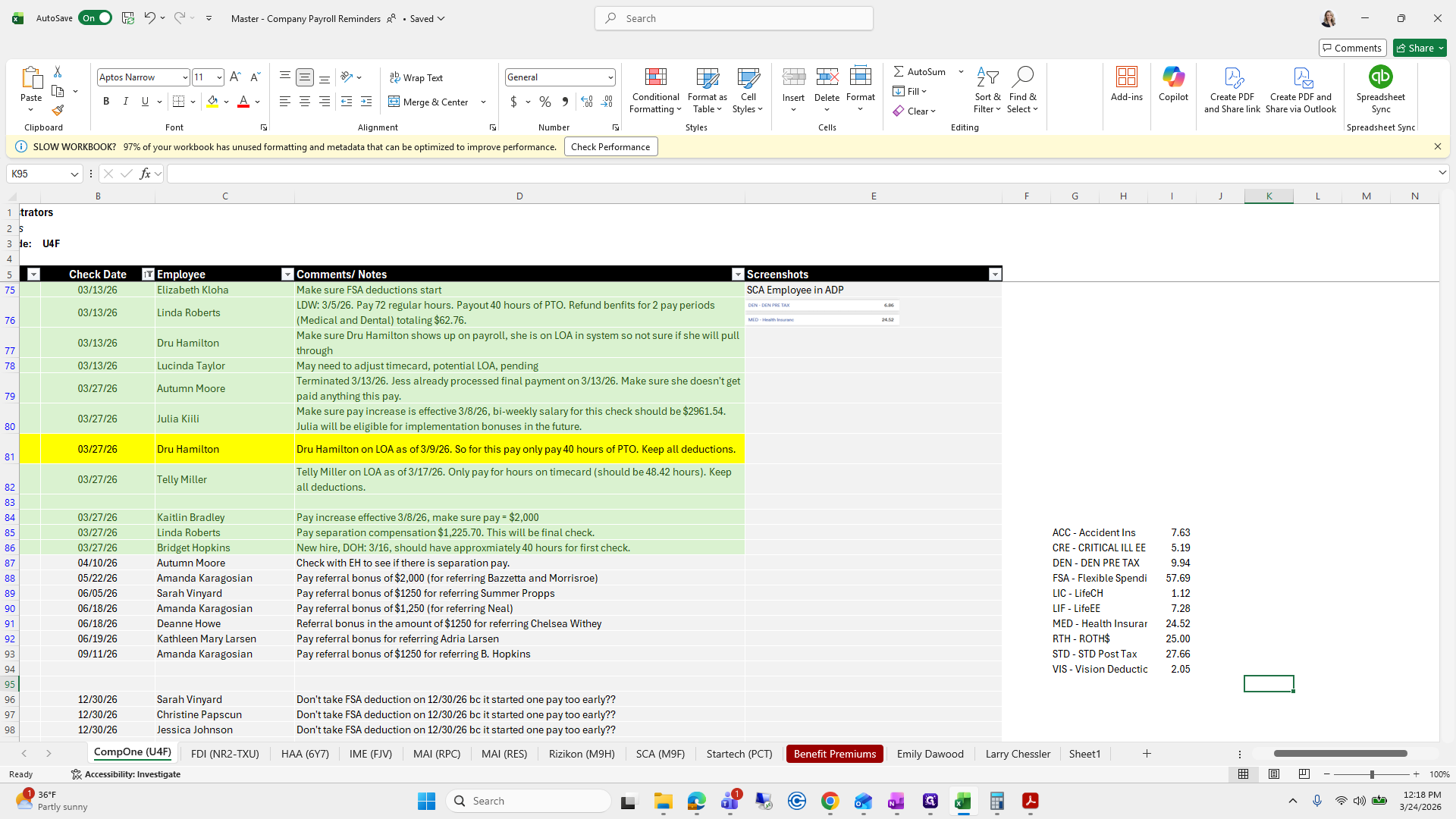
I need to go back.
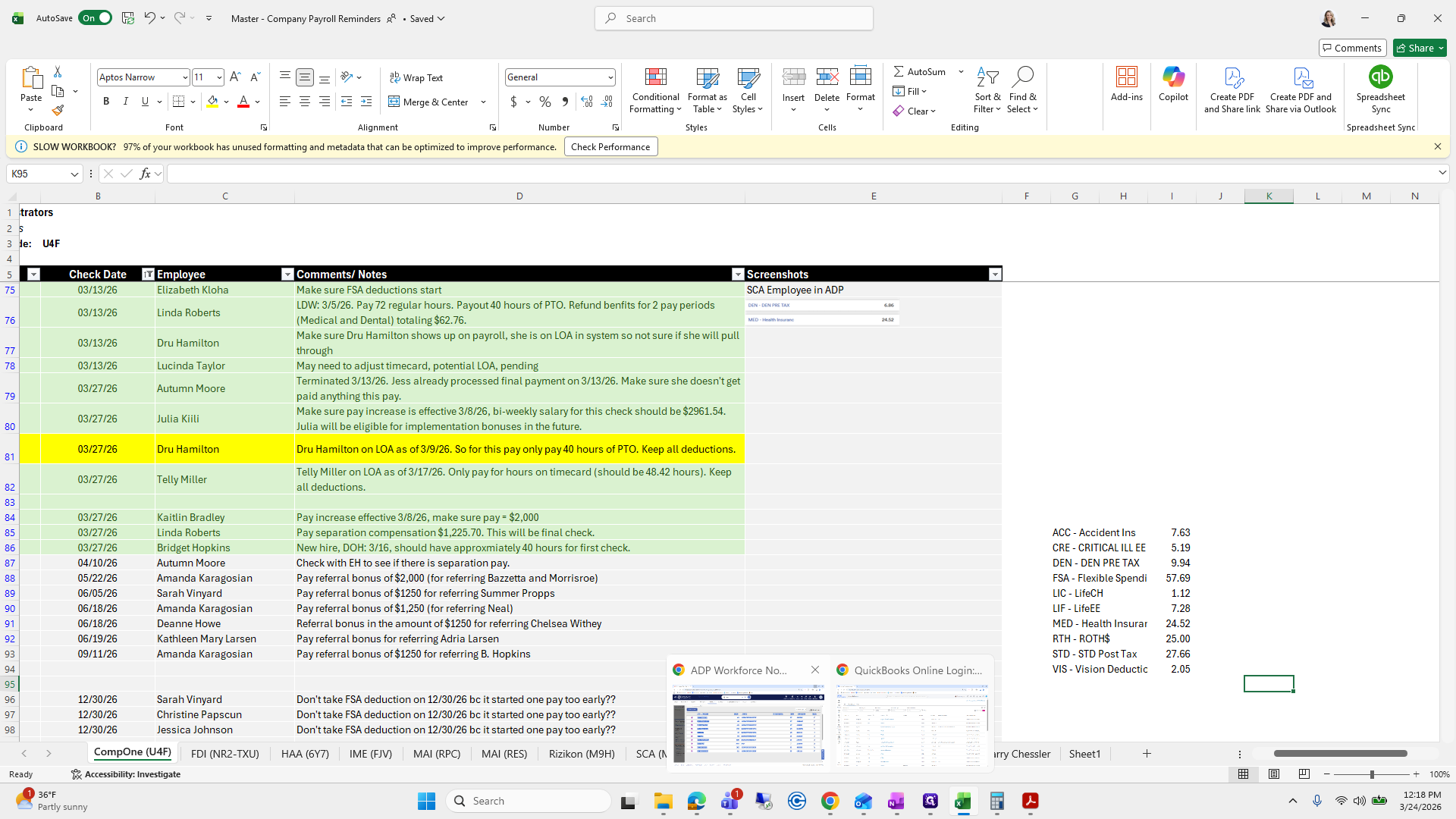
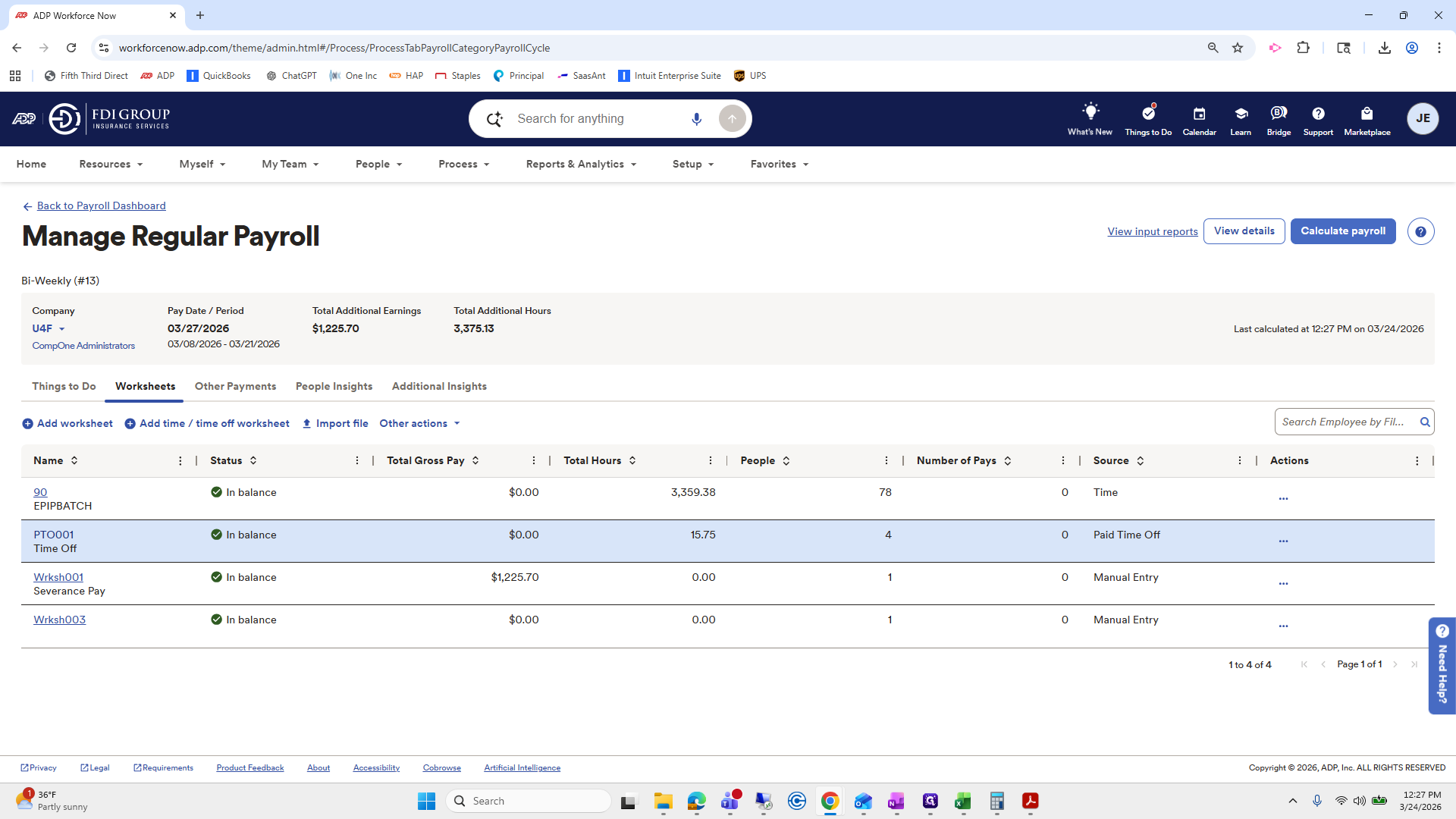
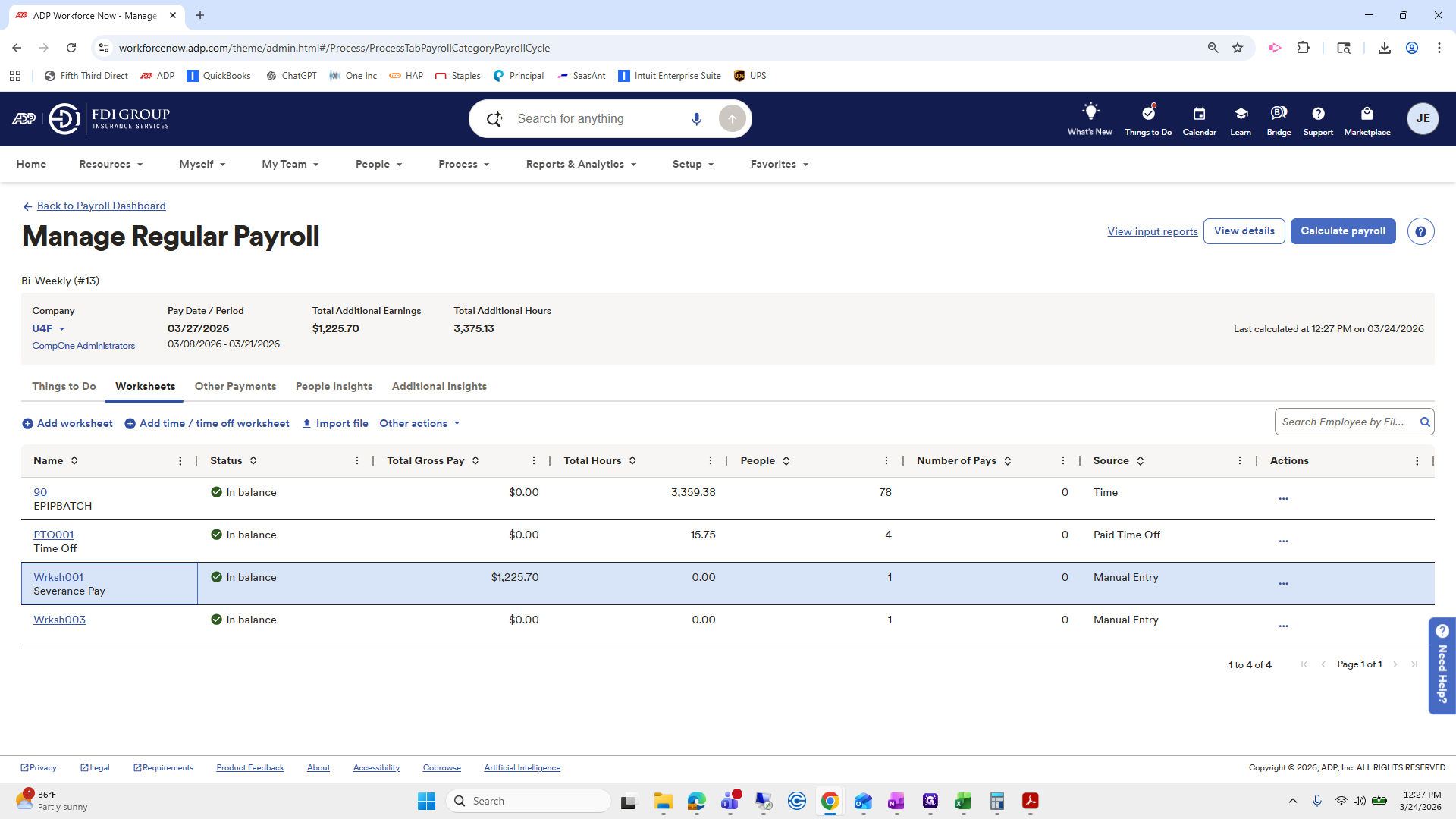
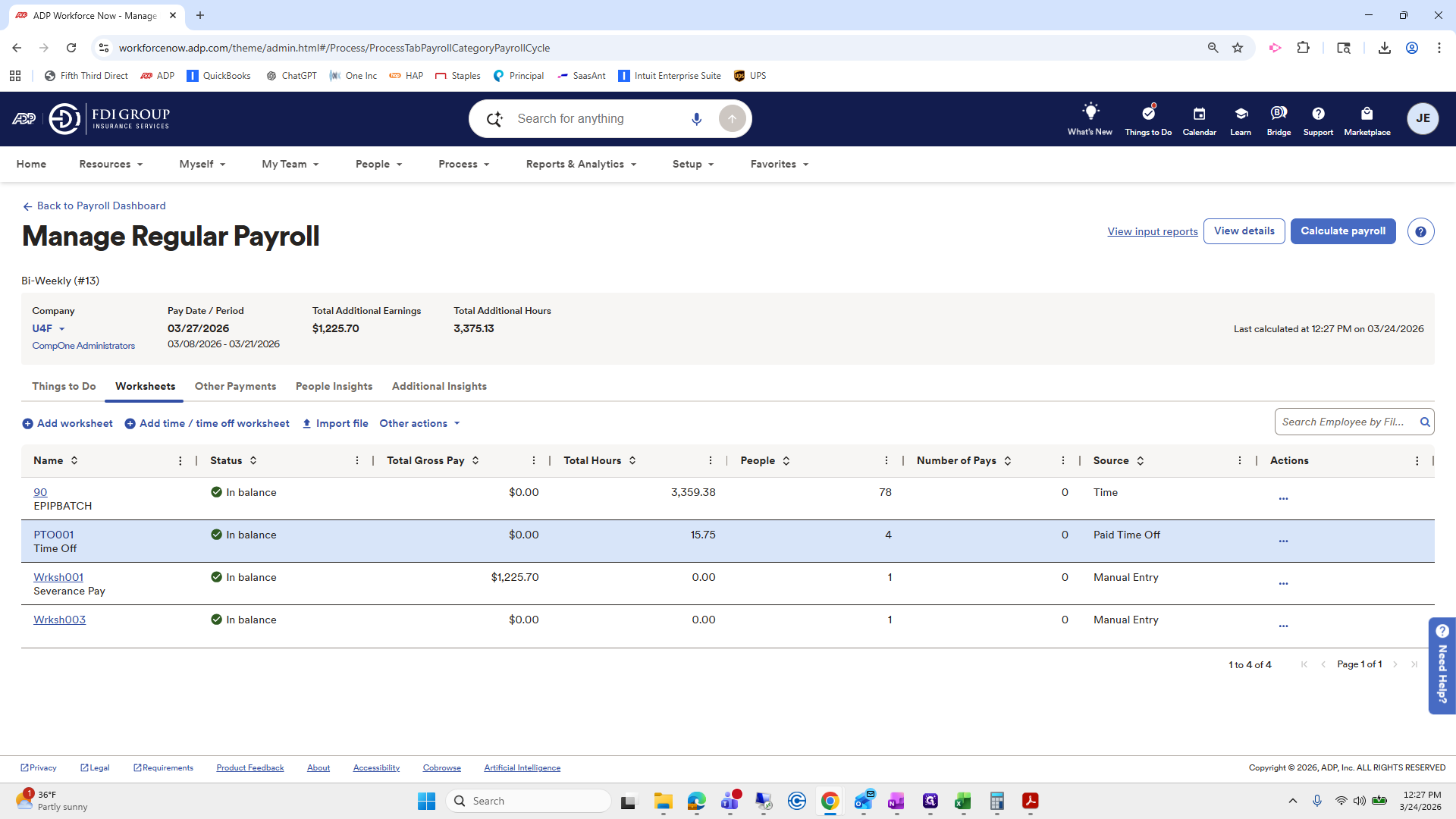
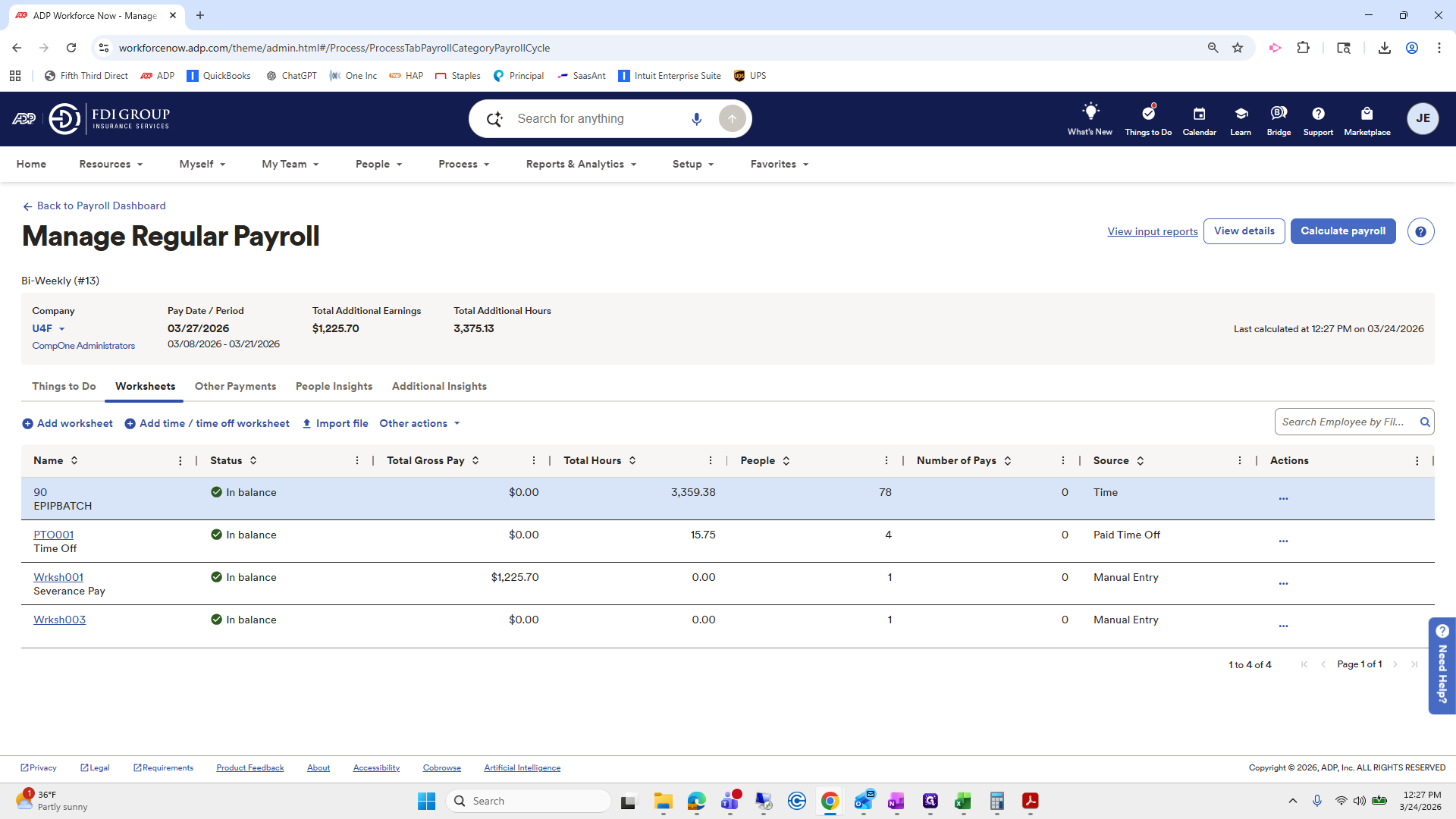
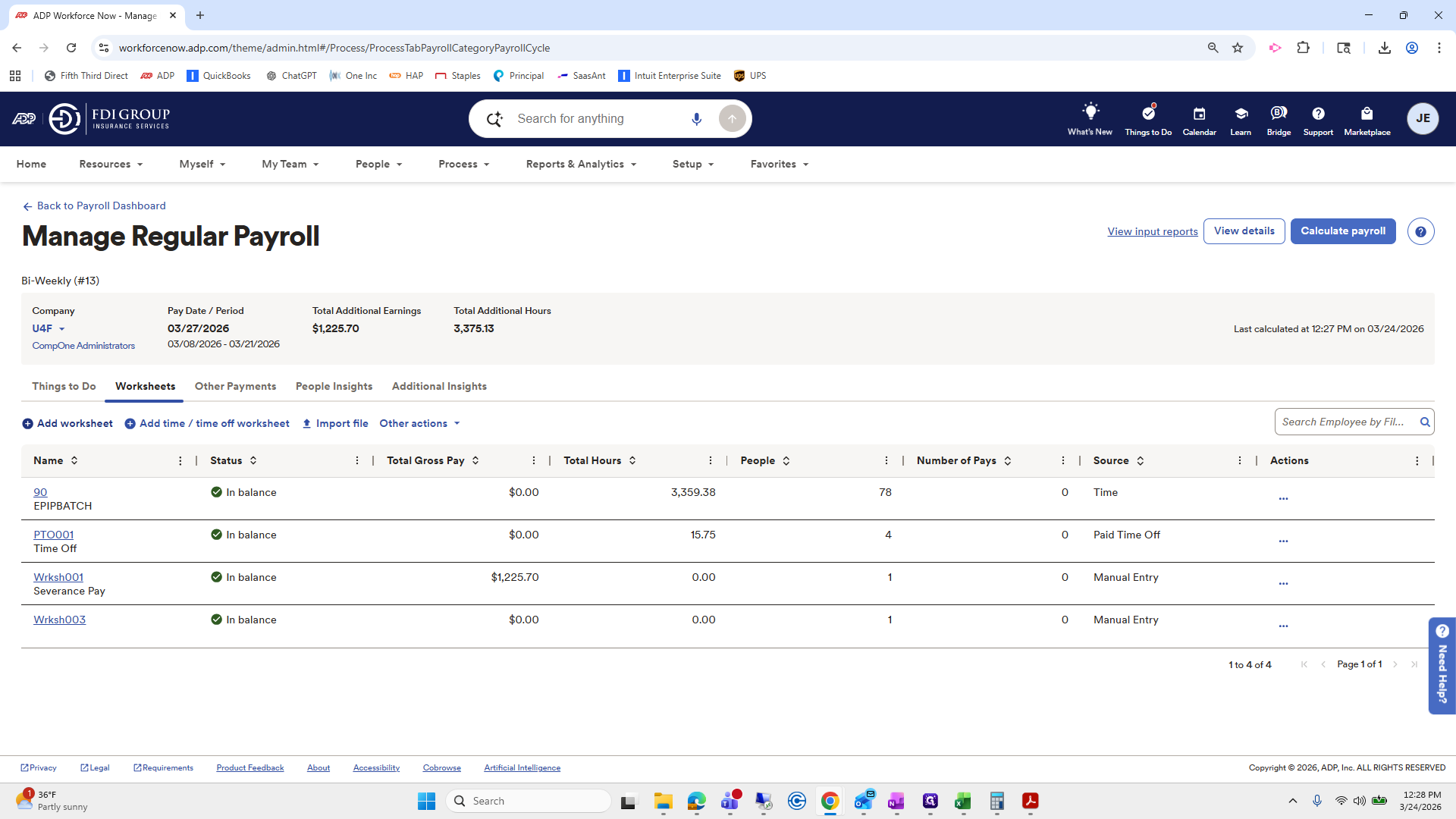
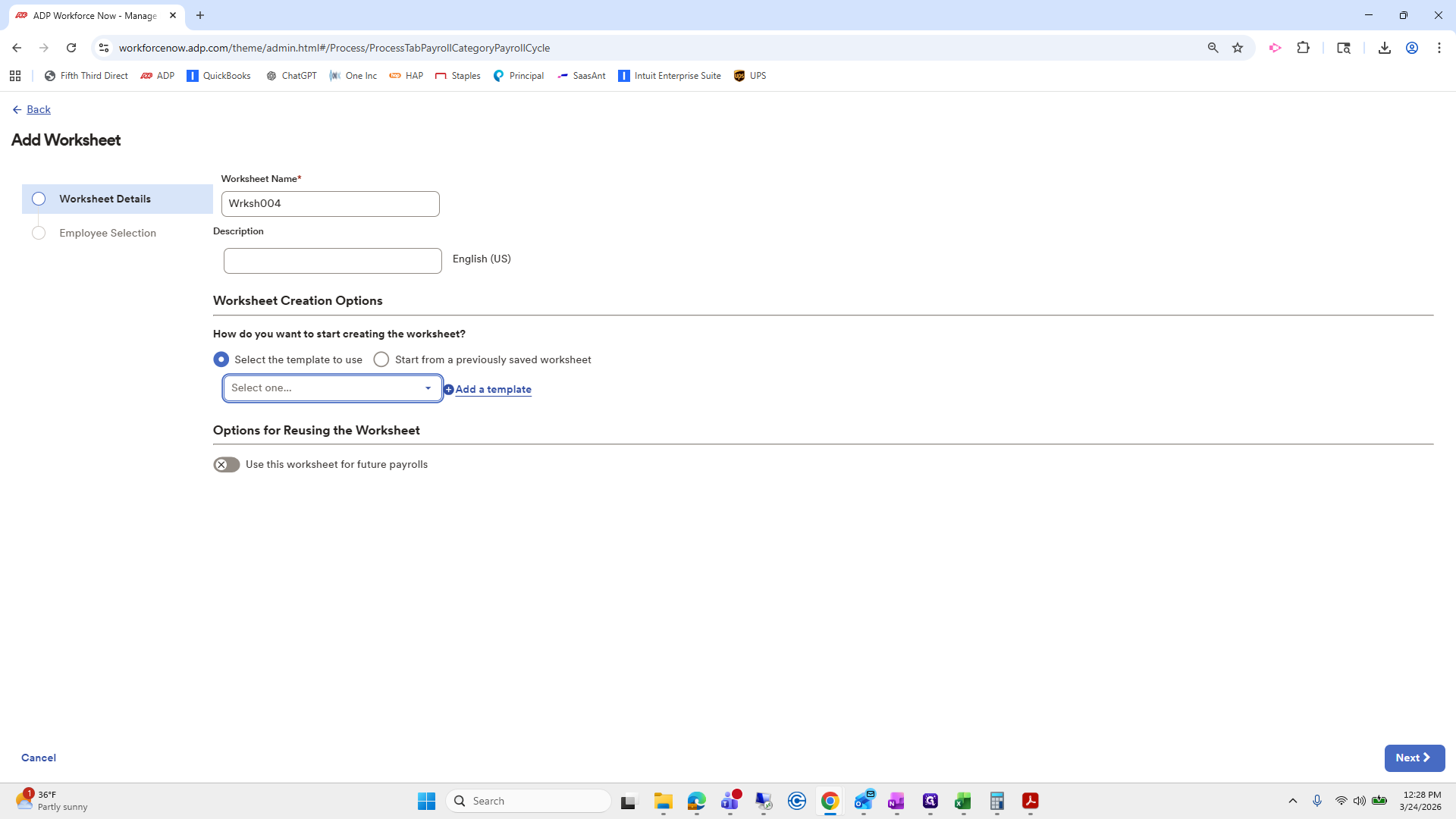
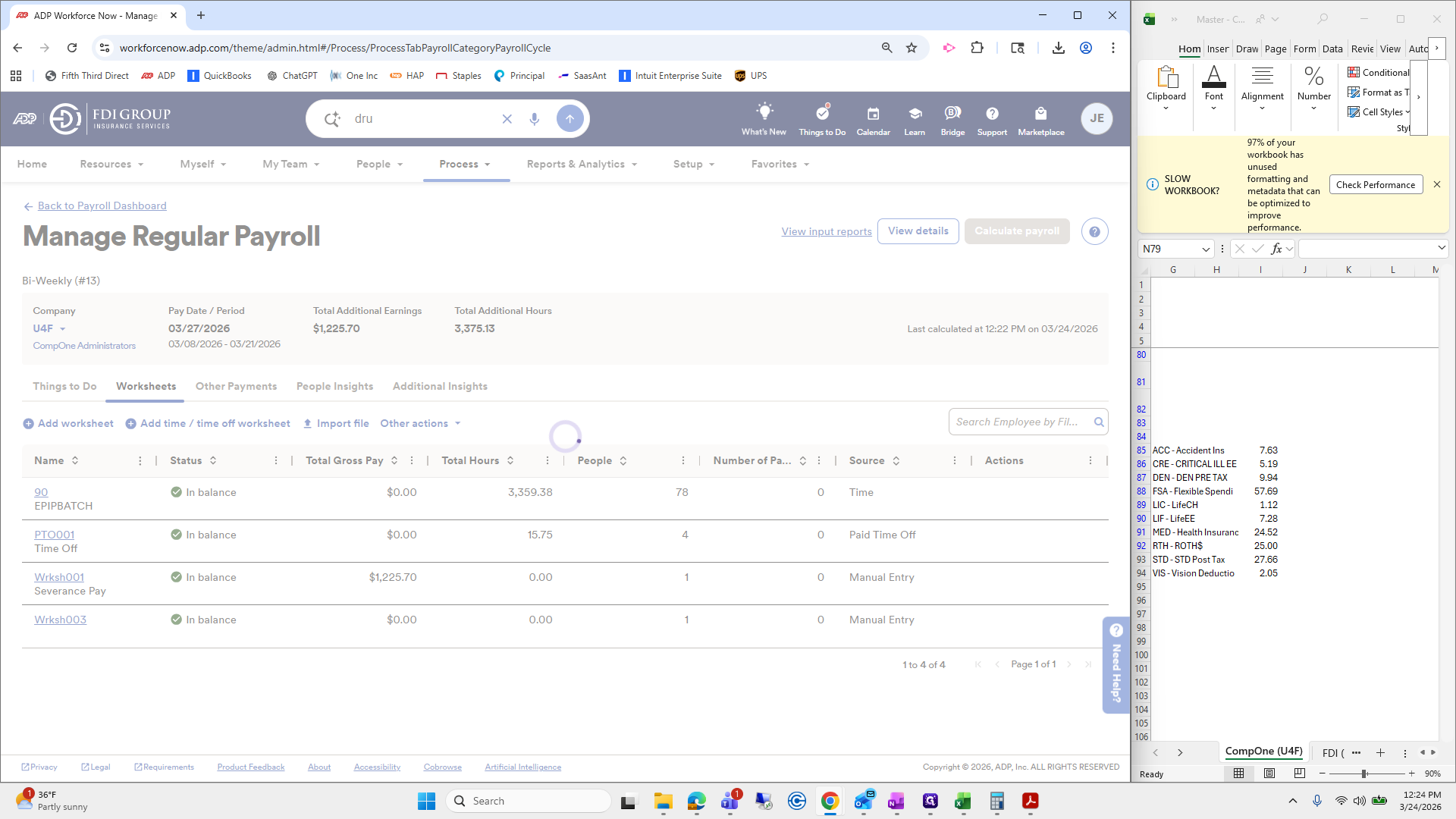
Process payroll dashboard. Manage payroll. Add worksheet.
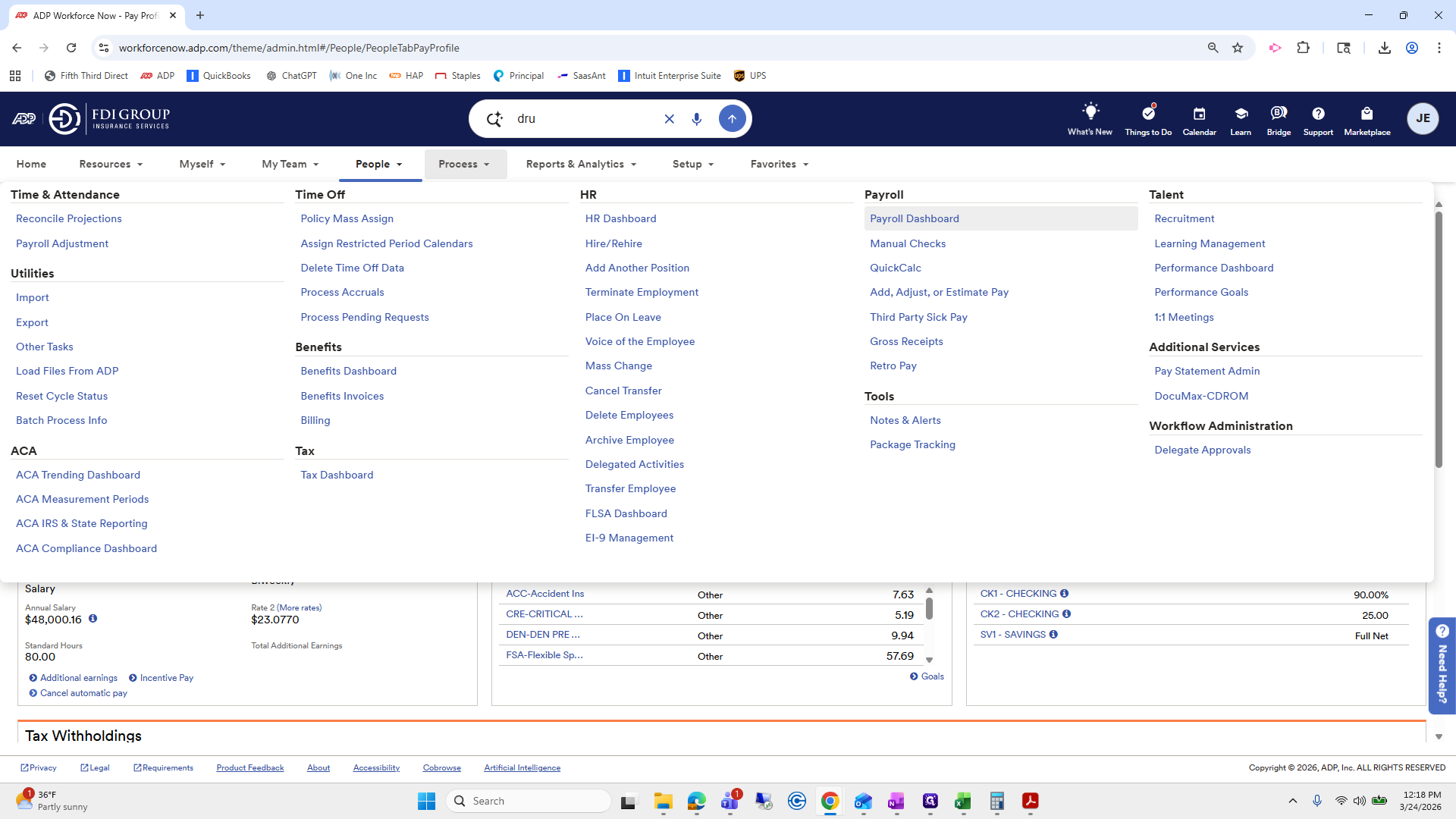
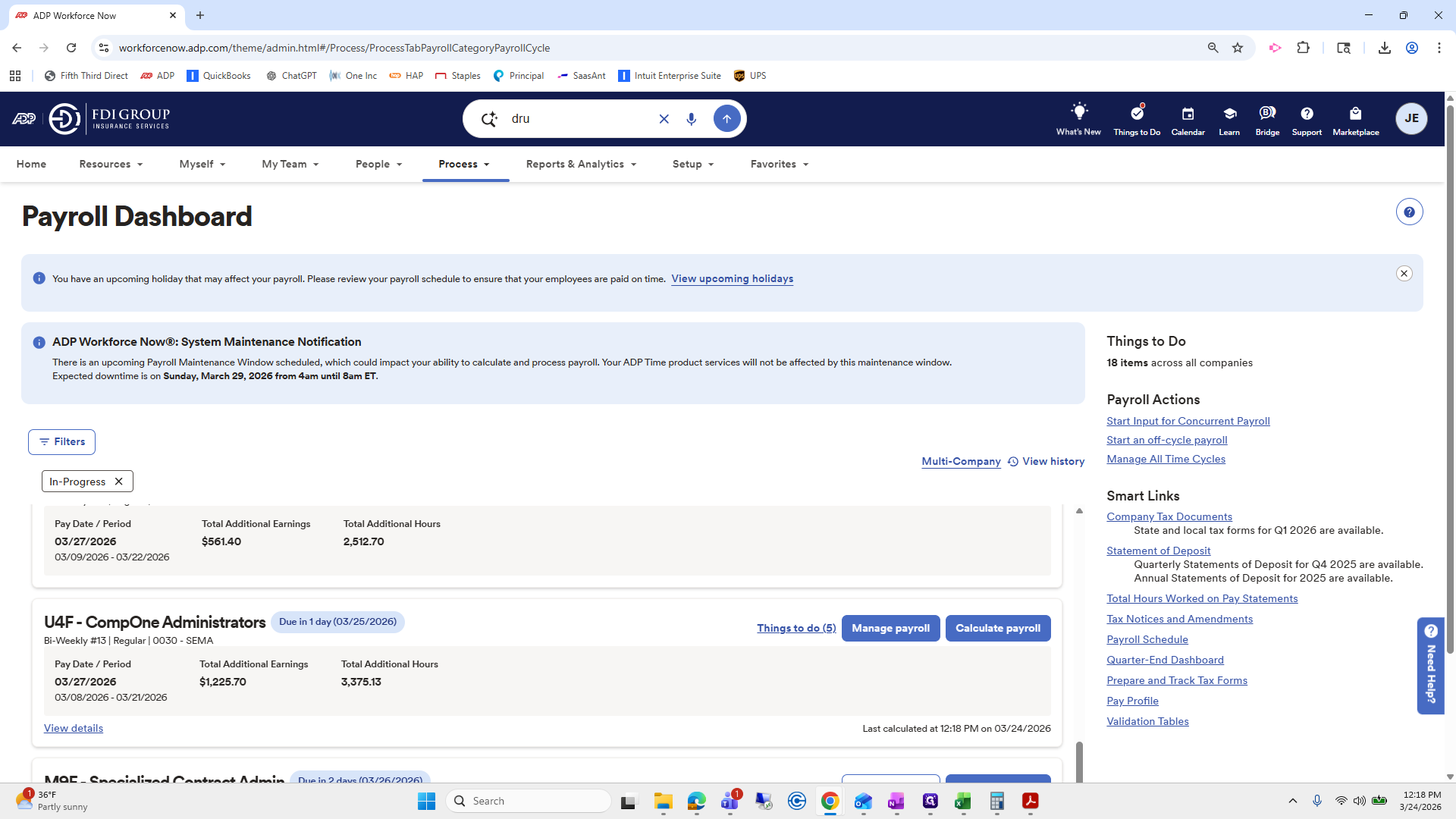
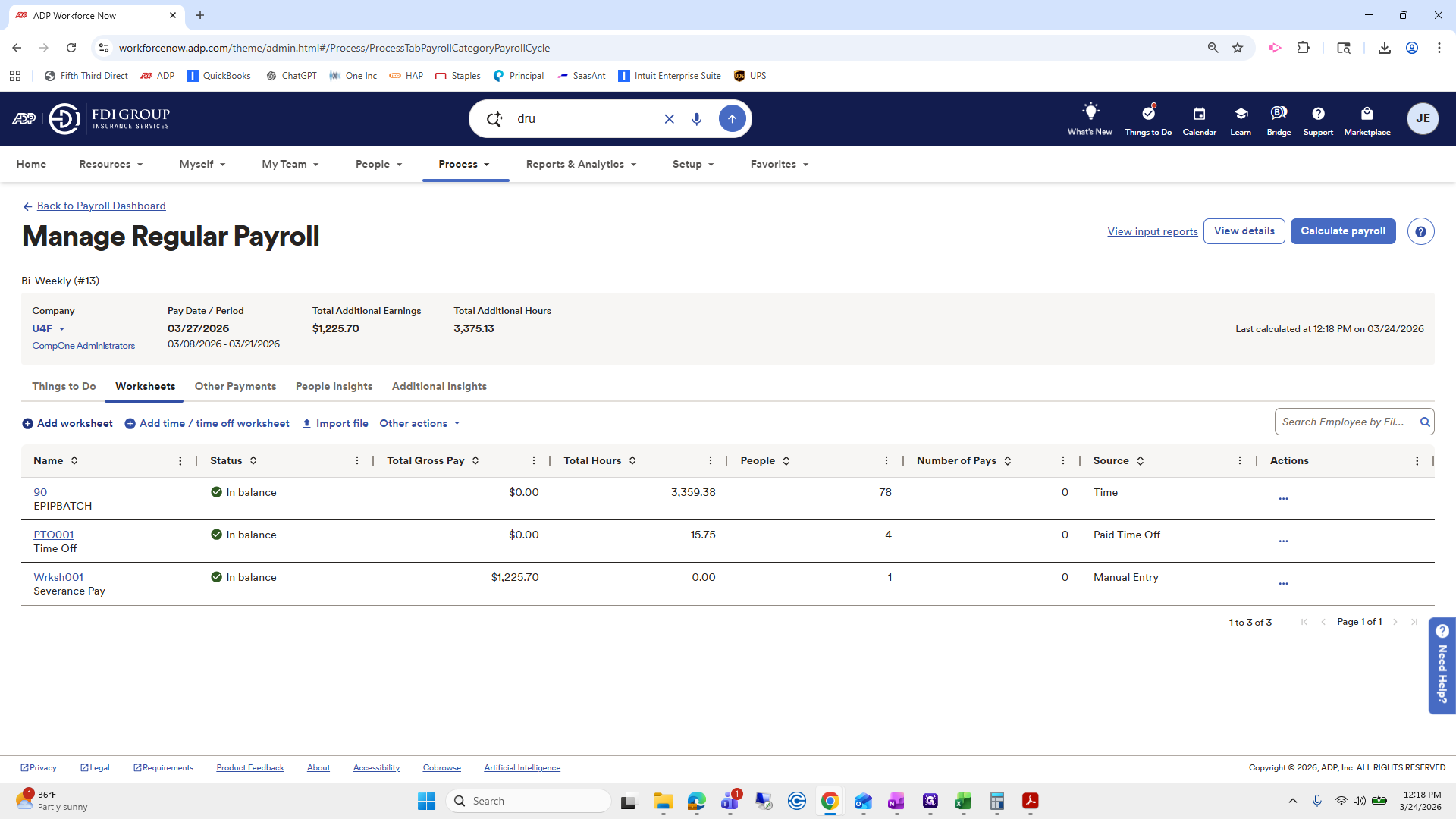
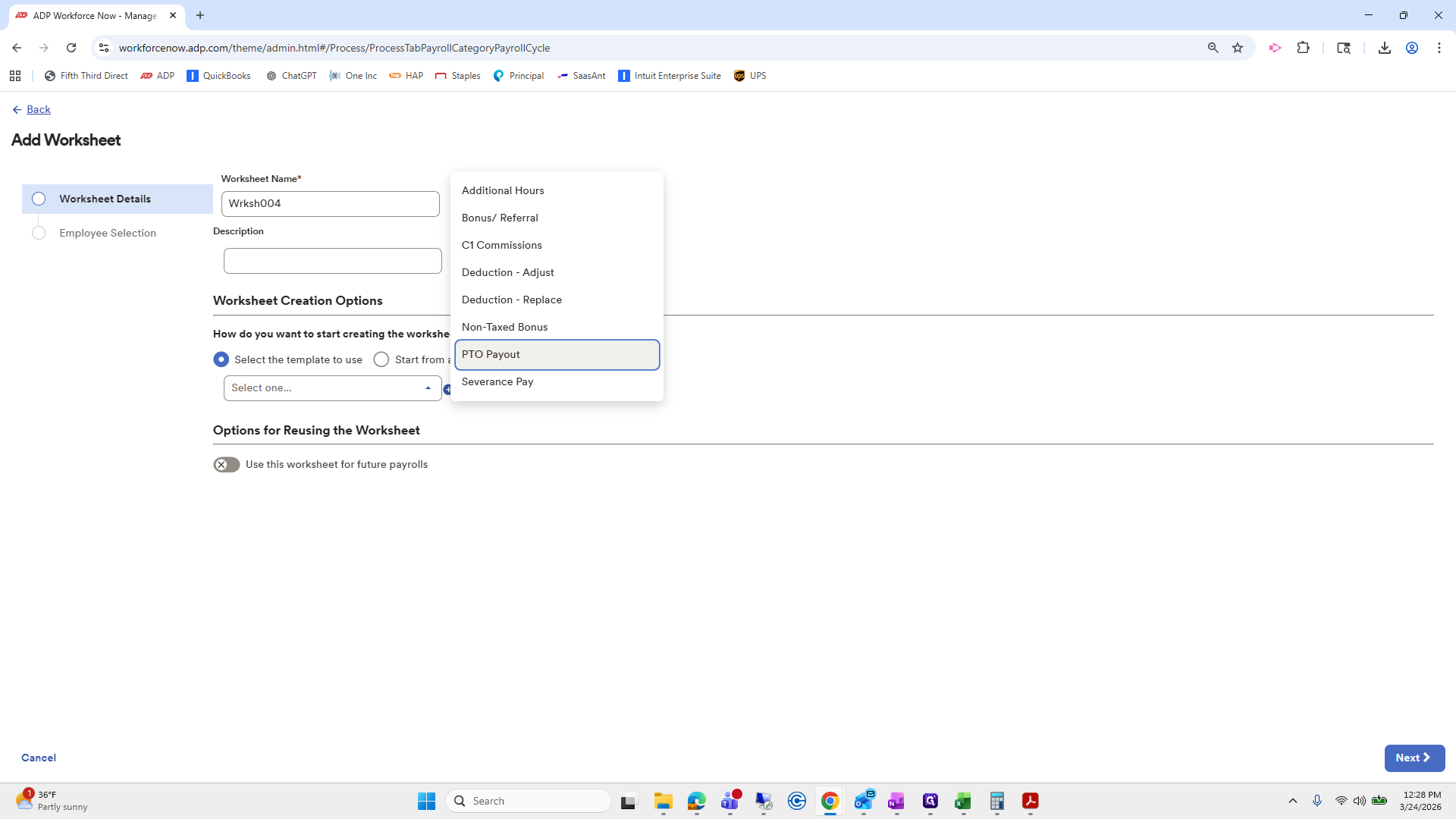
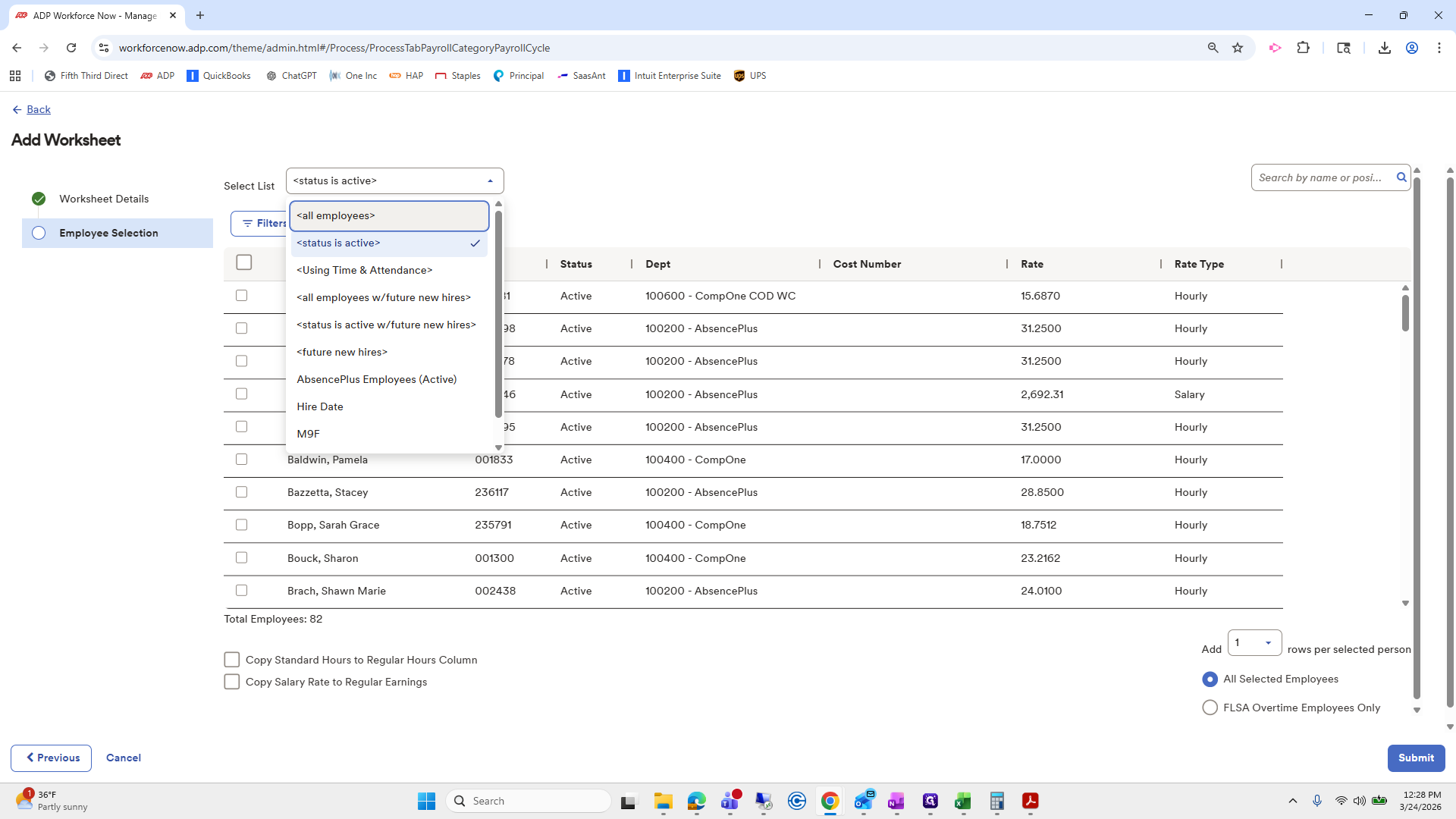
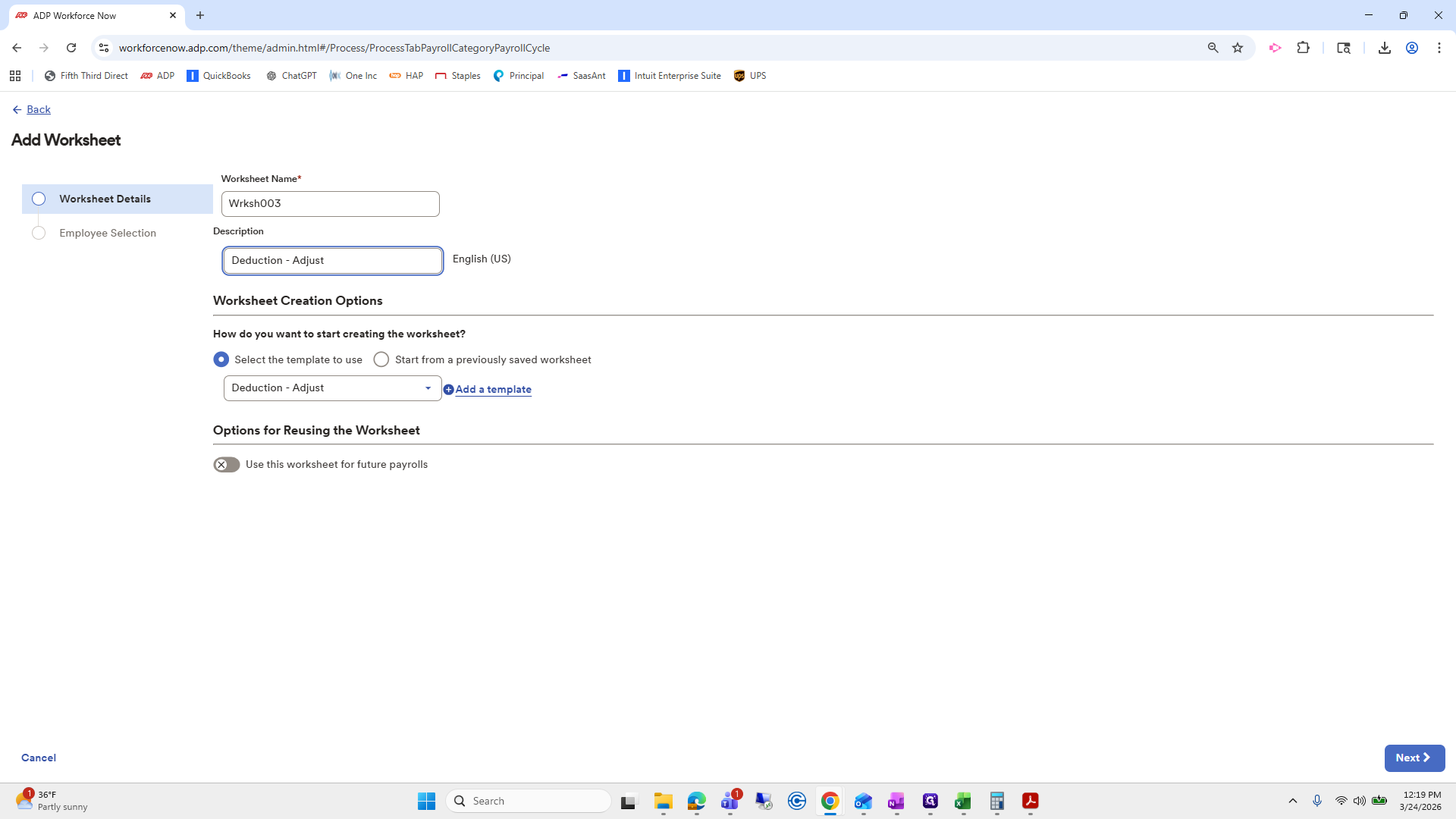
We will choose "Adjust Deductions."
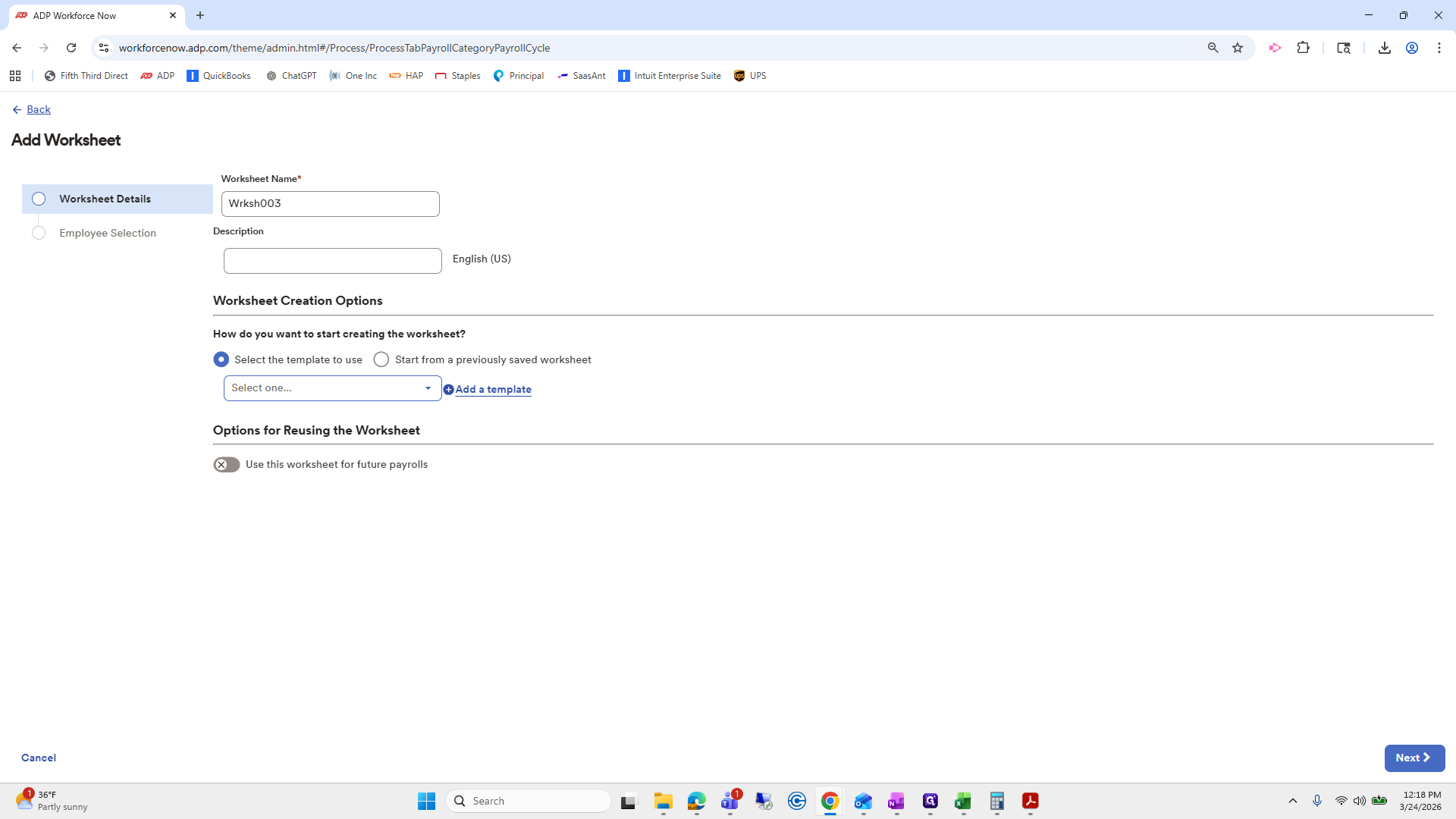
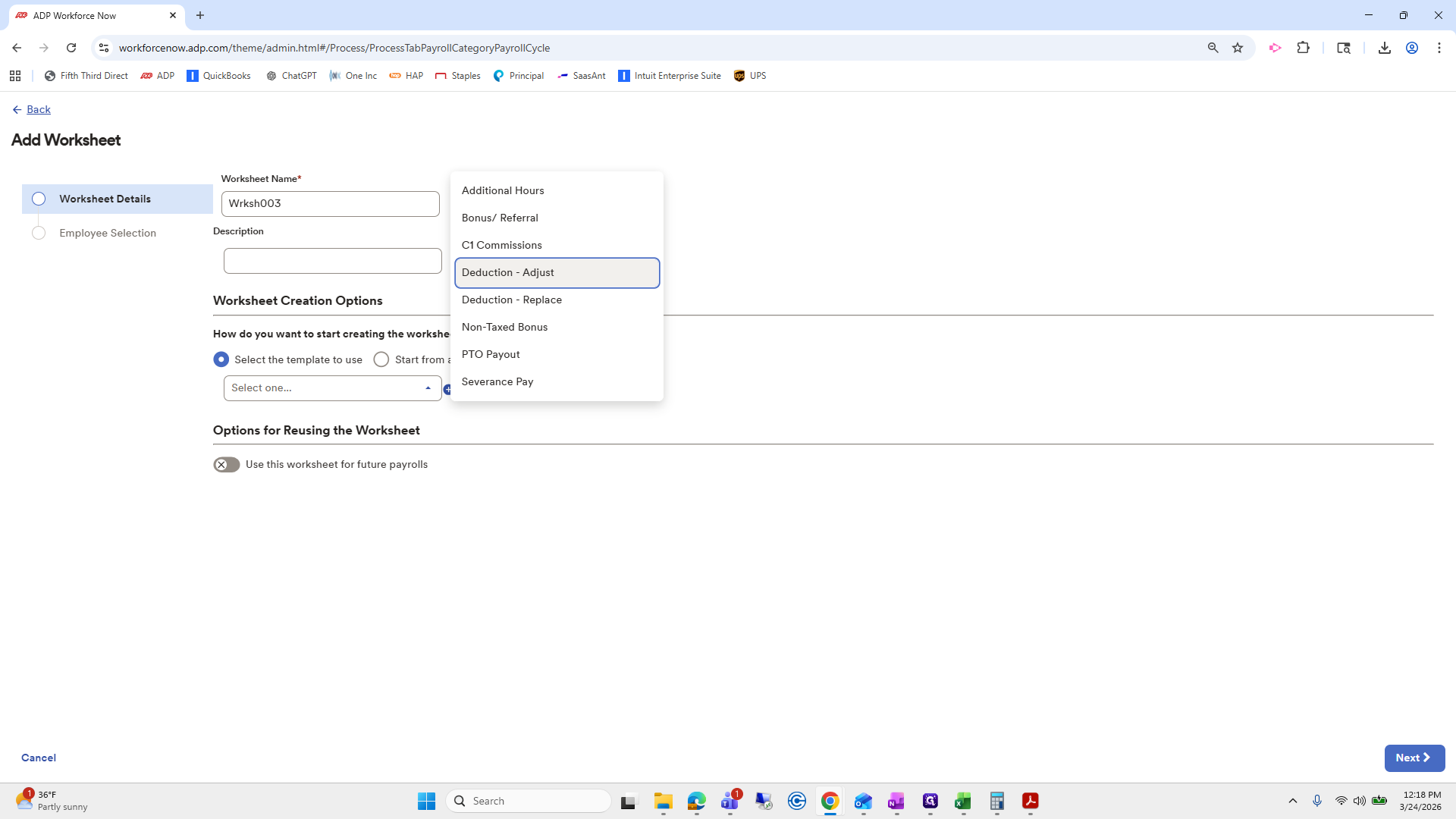
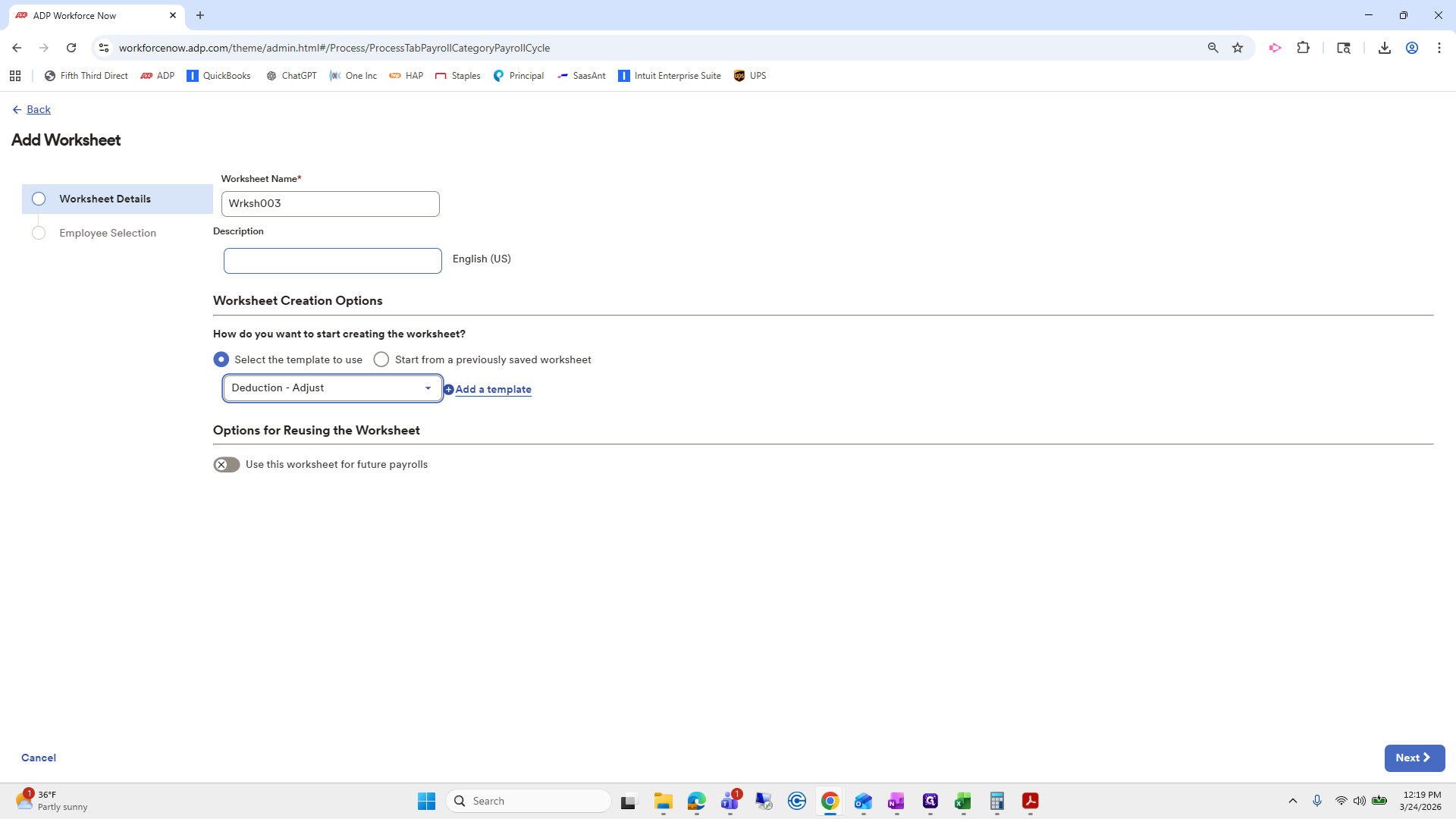
Next.
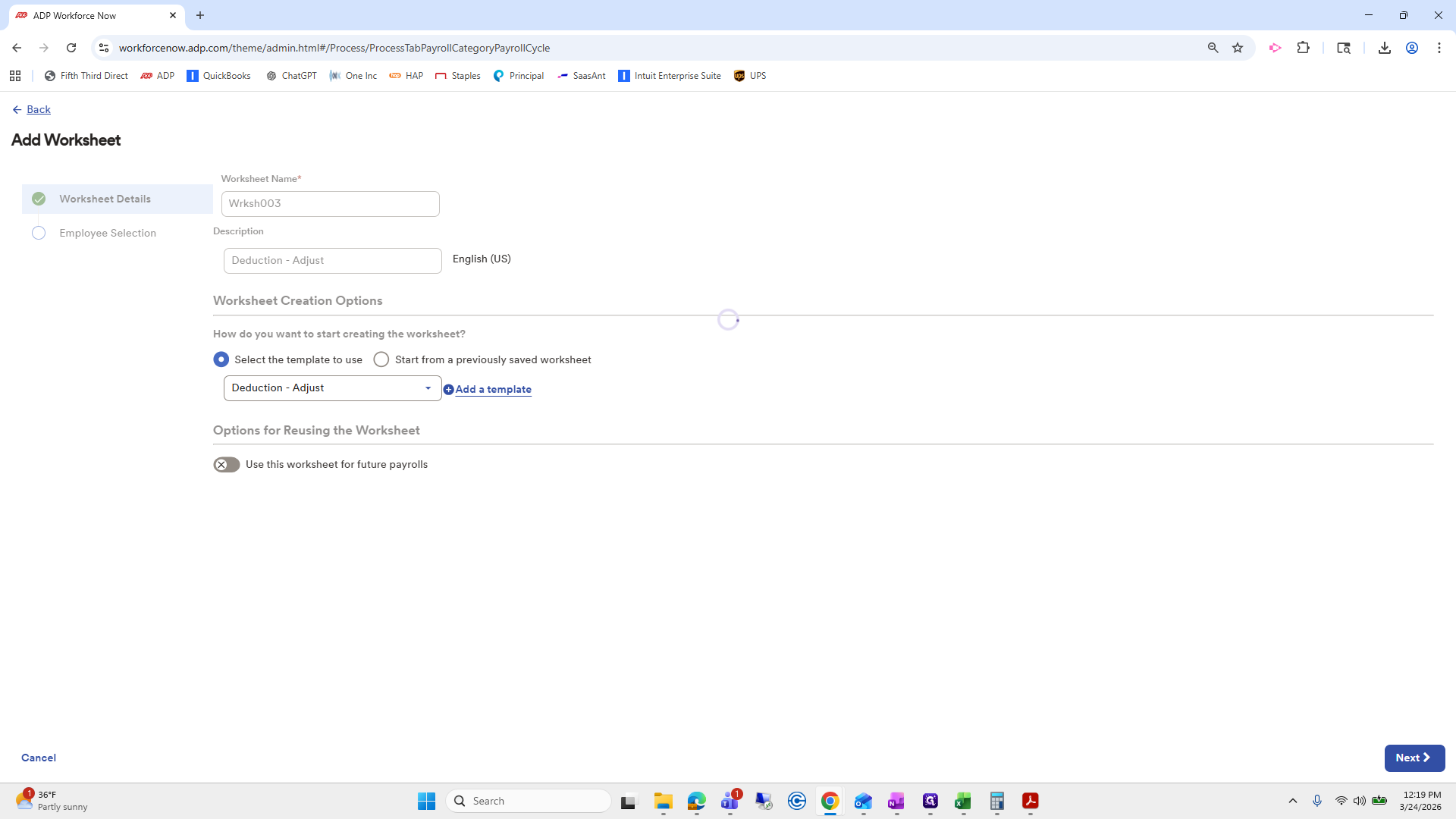
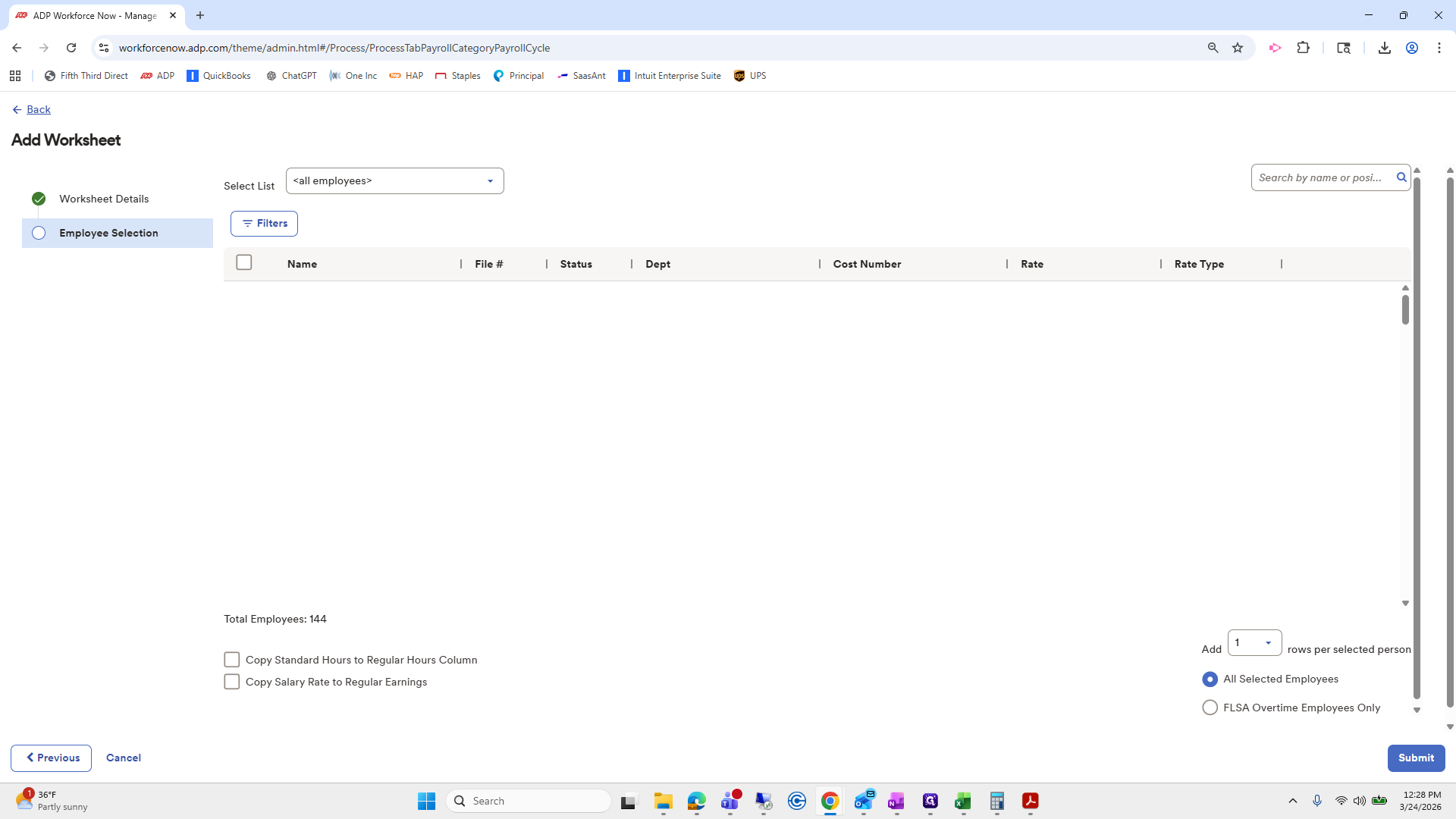
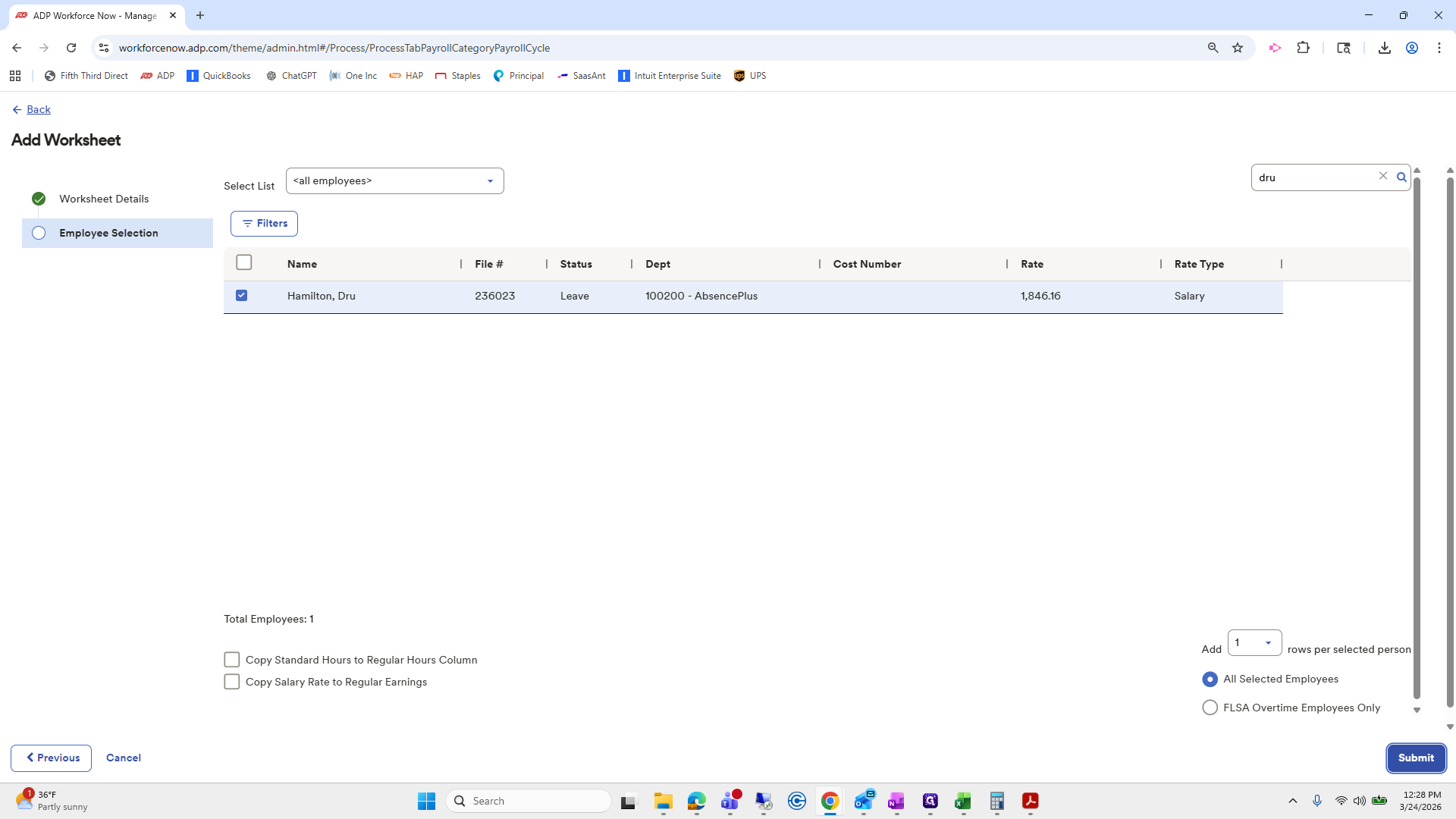
We will choose Drew.
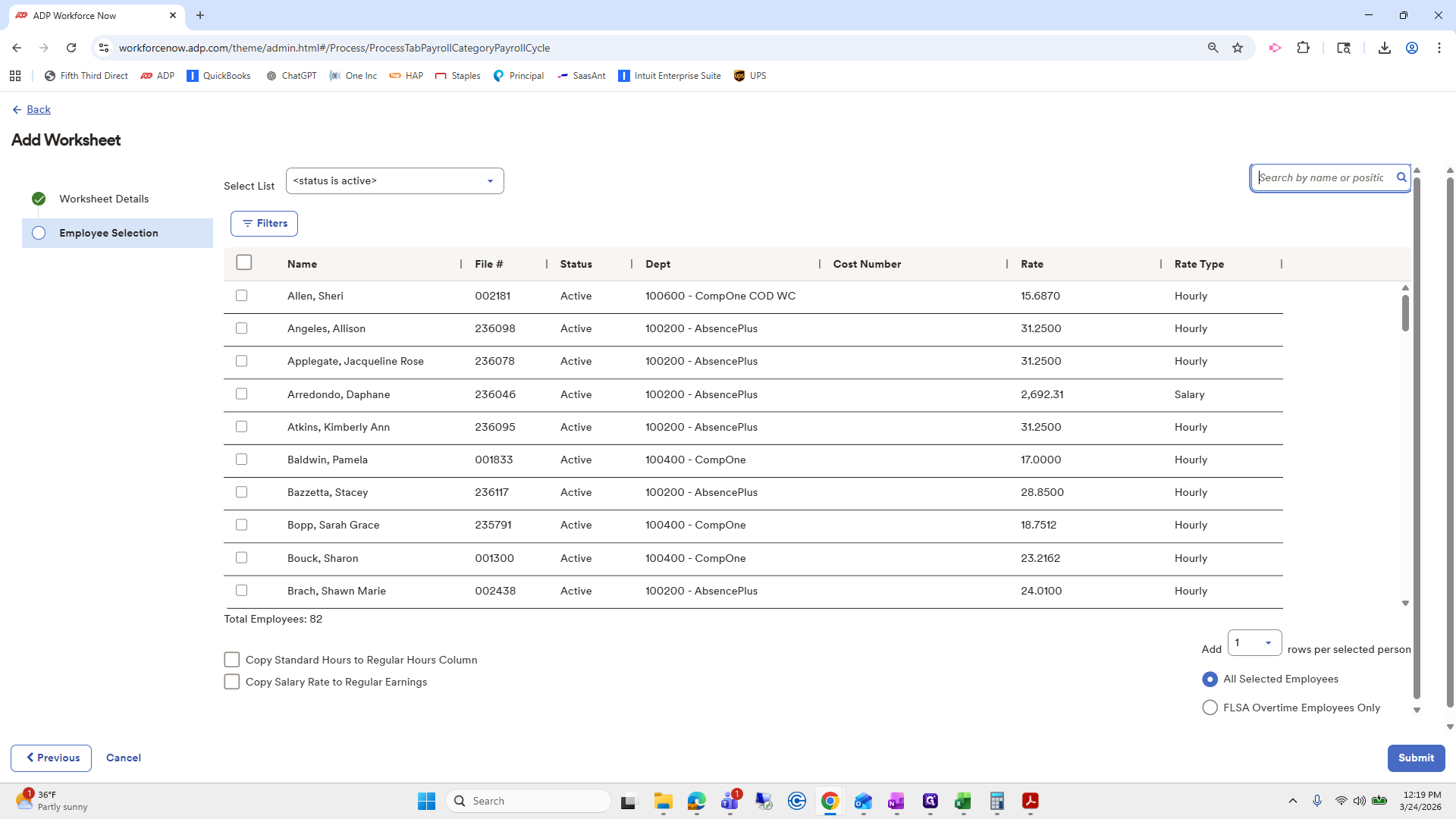
Okay.
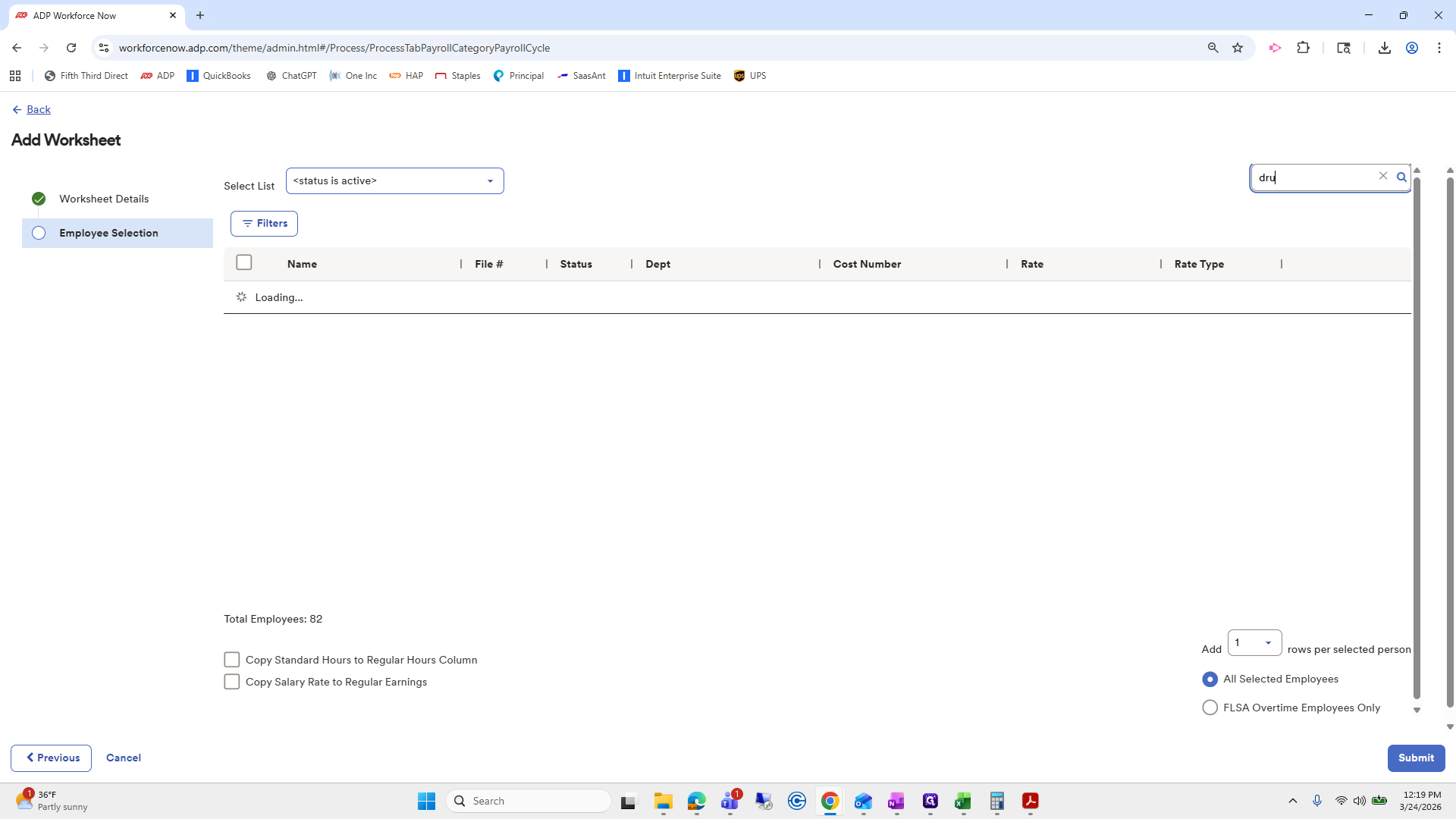
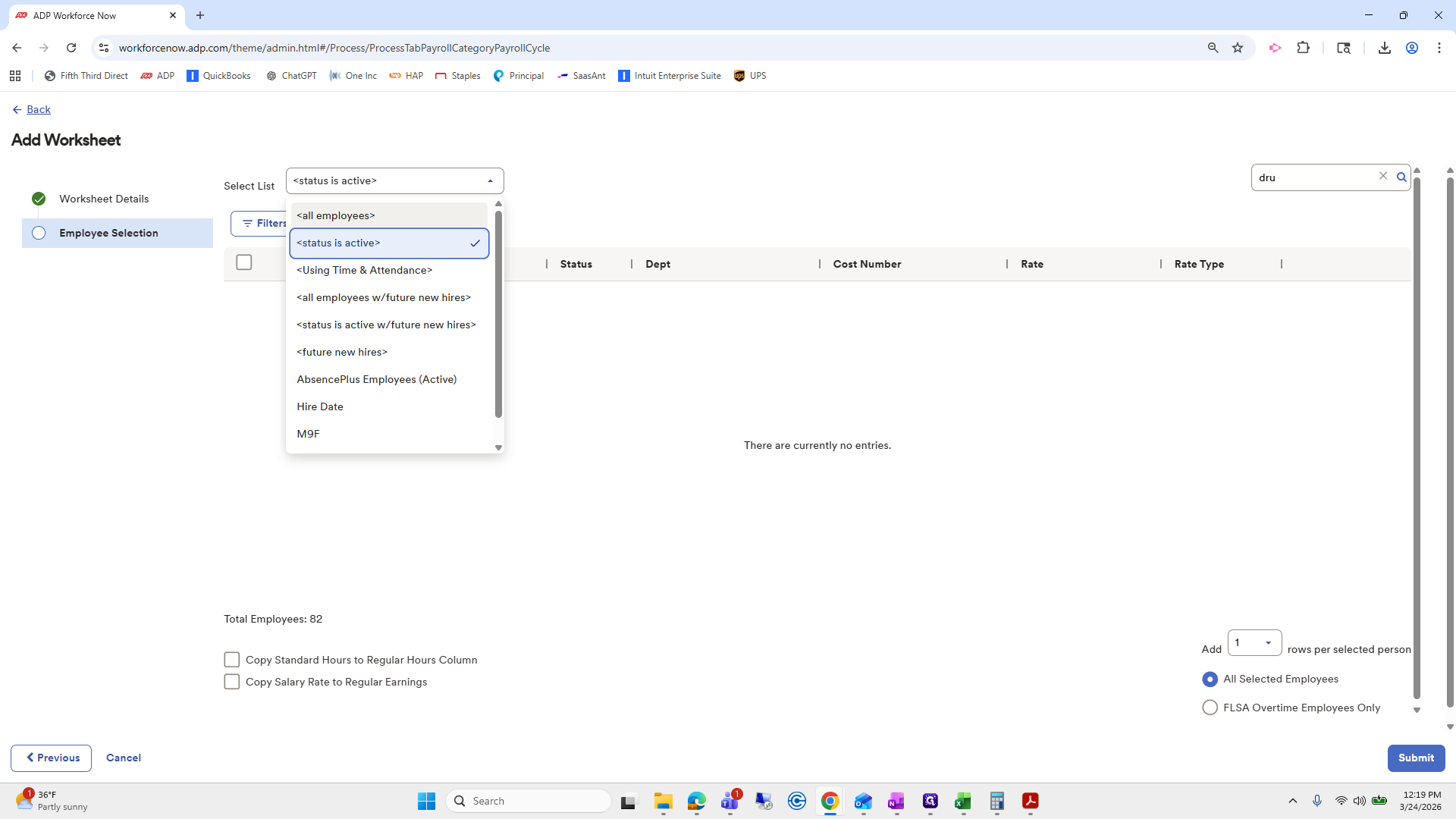
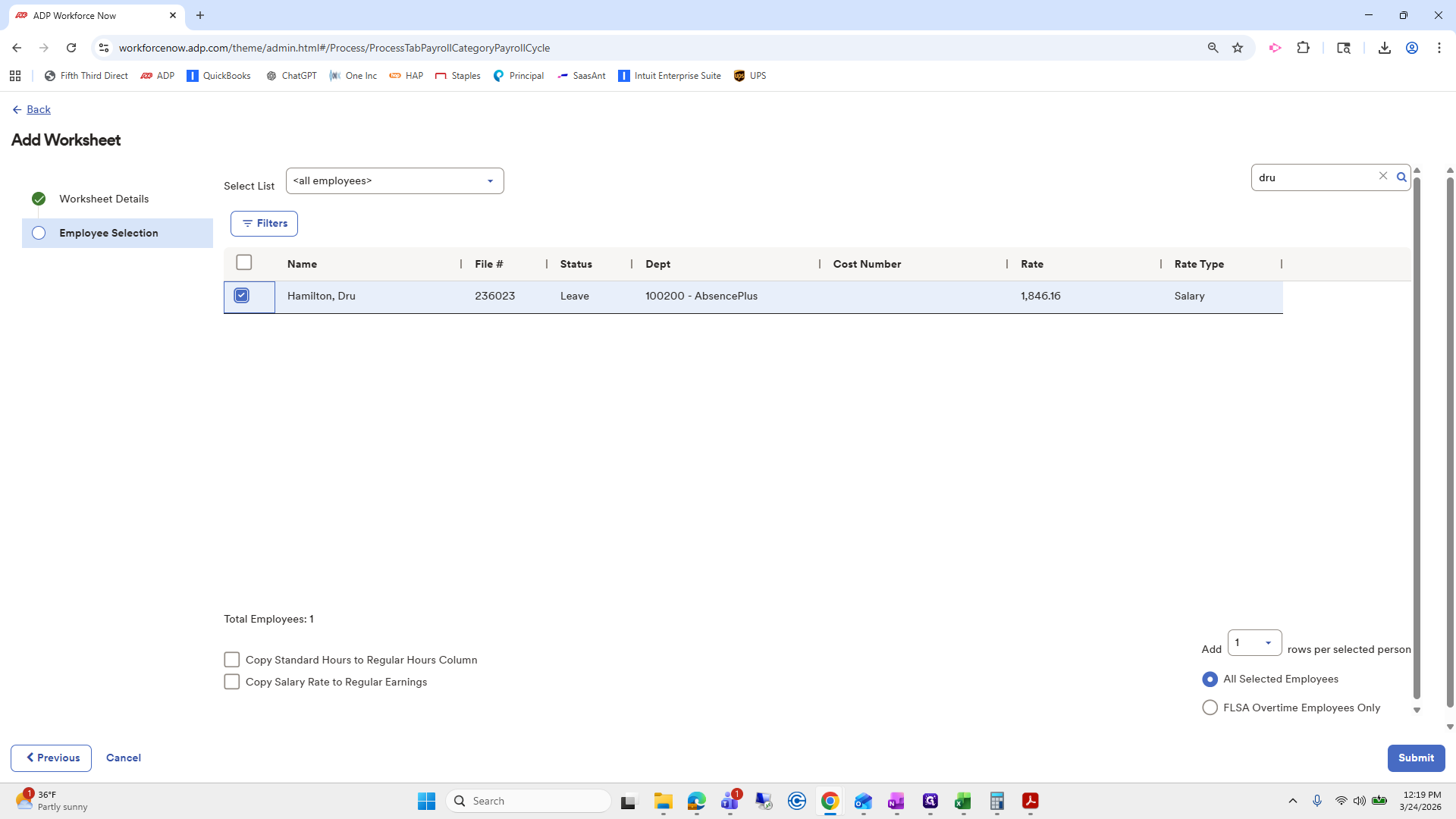

I'm going to do a... ""
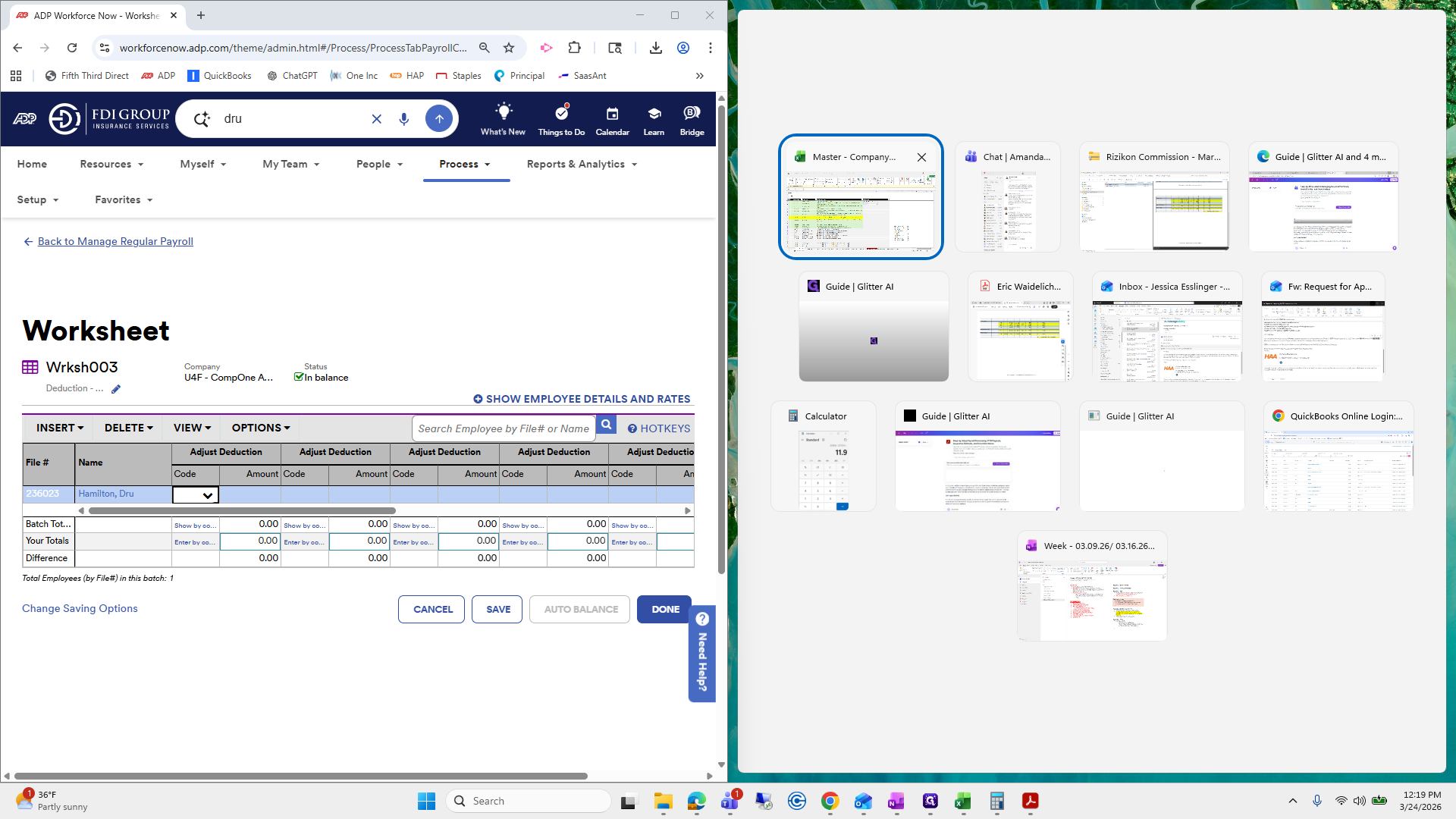
Oopsies.
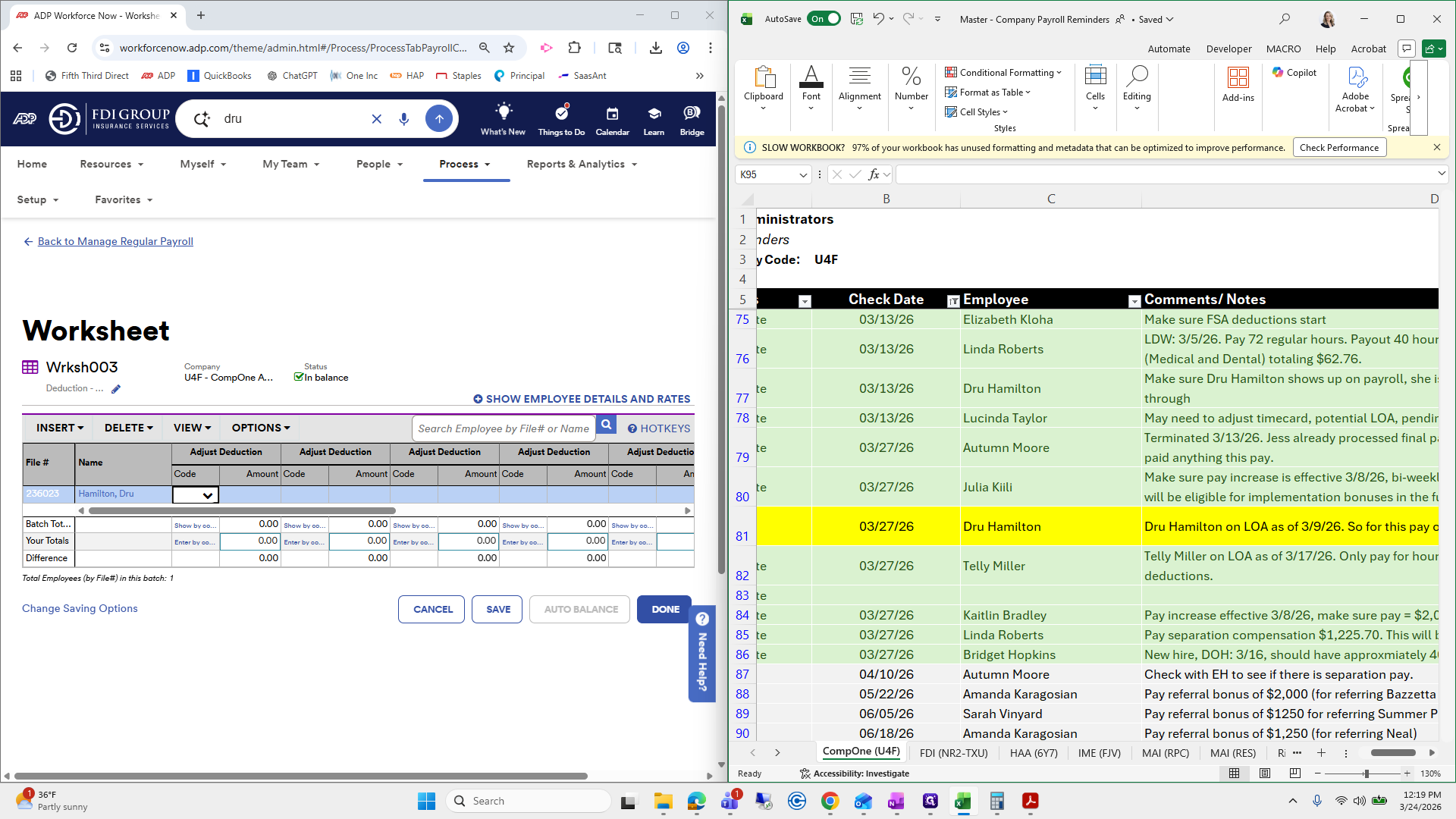
I meant to move to the side instead of zooming in.
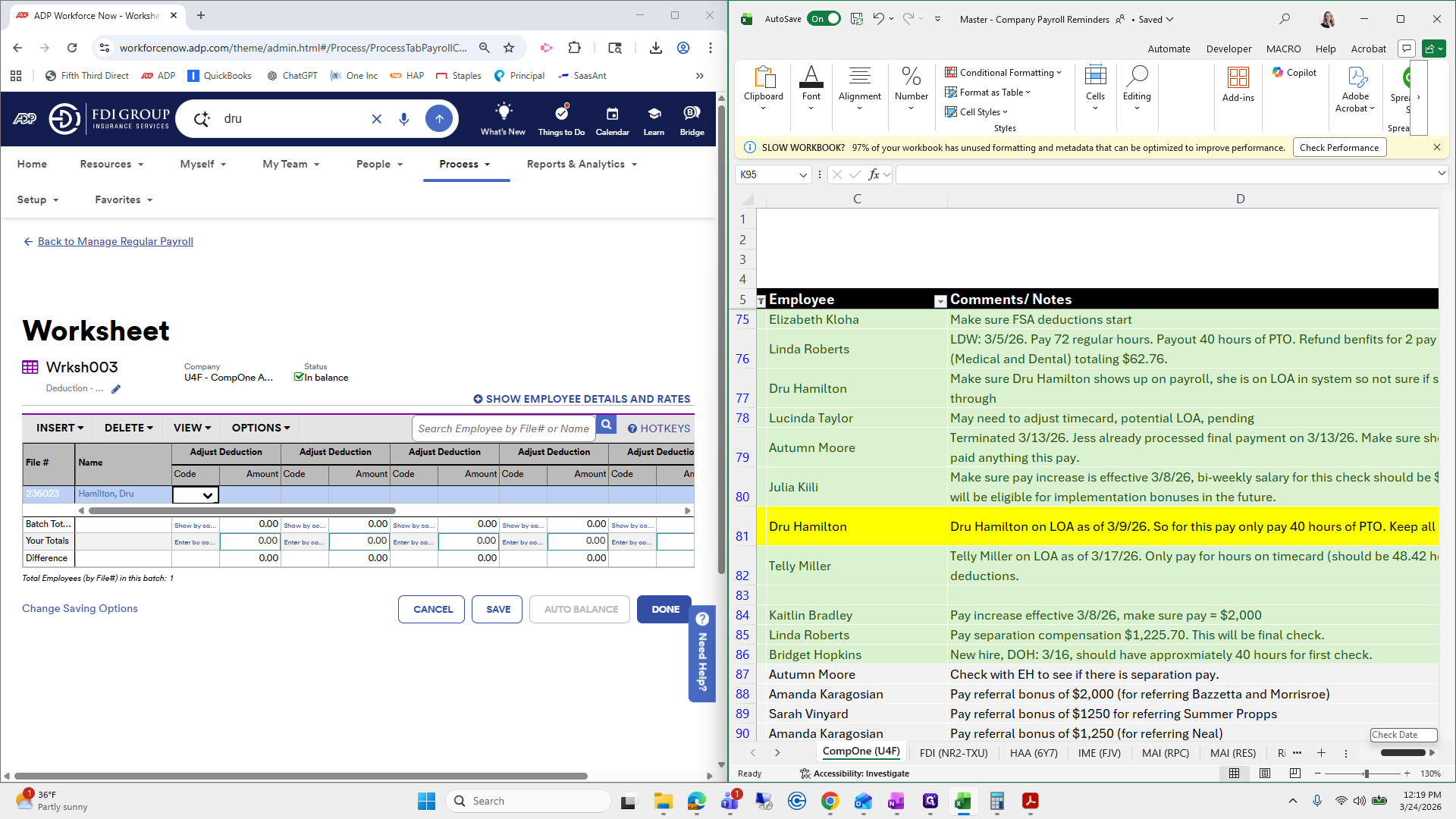
Okay.
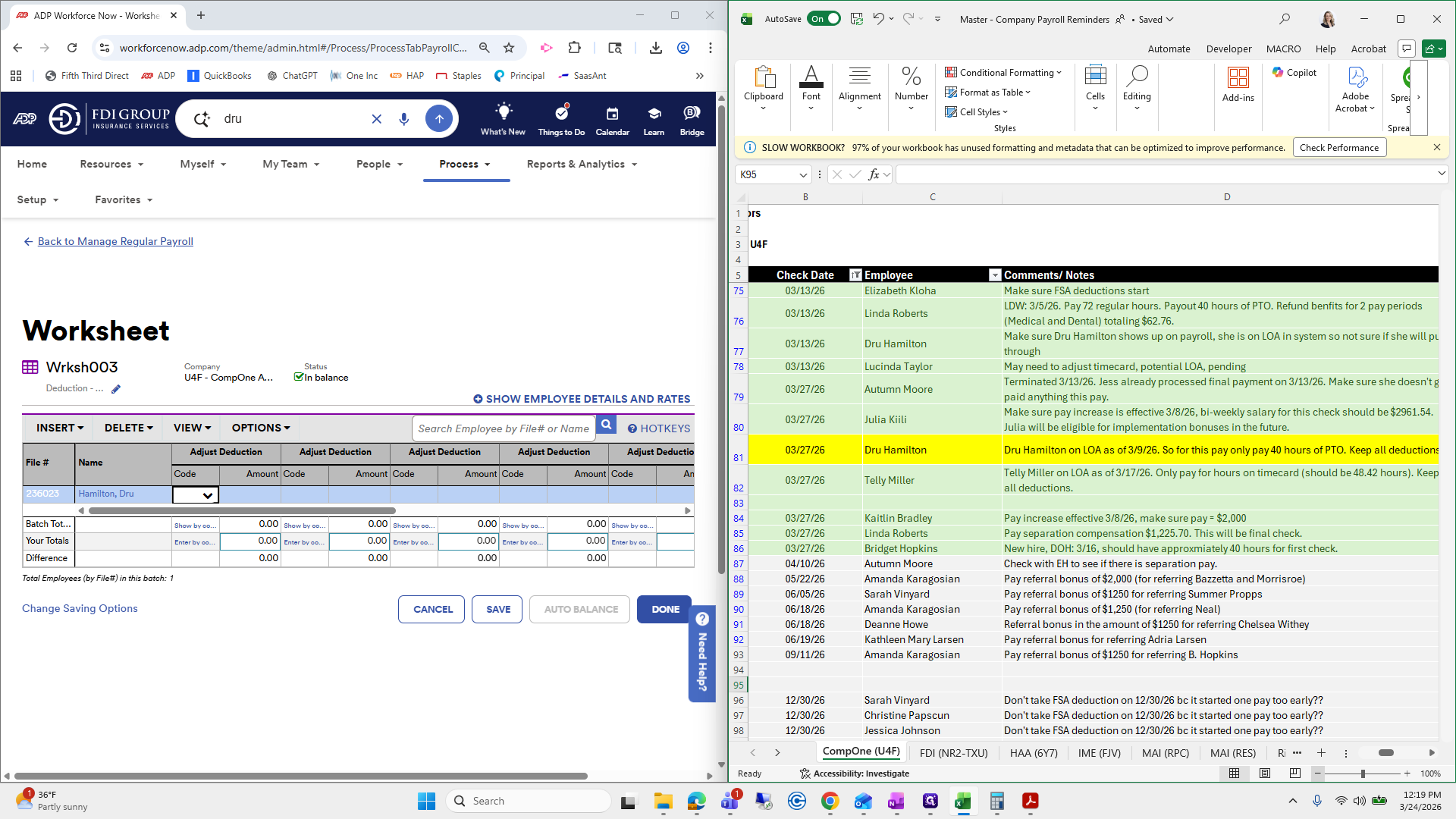
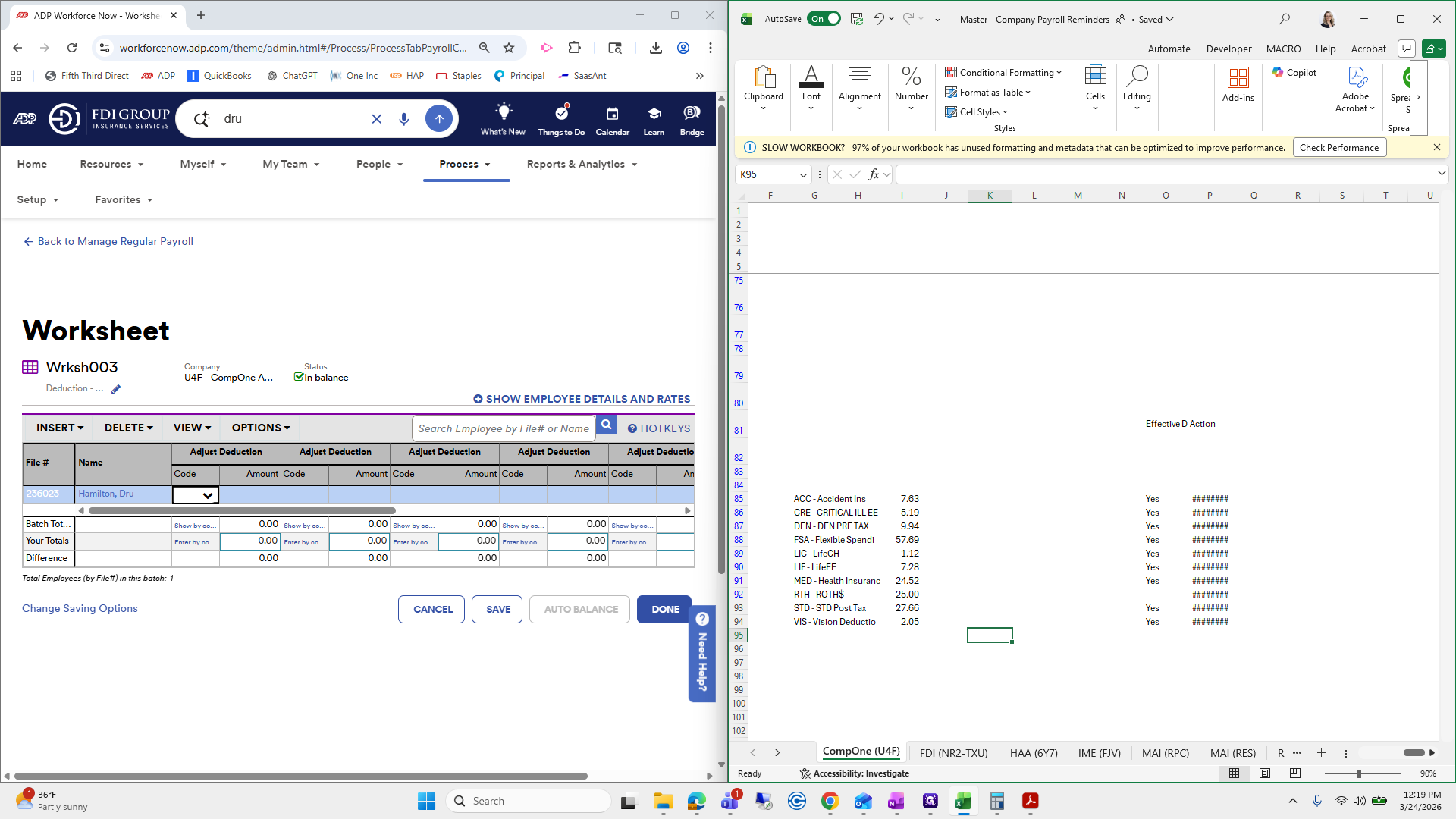
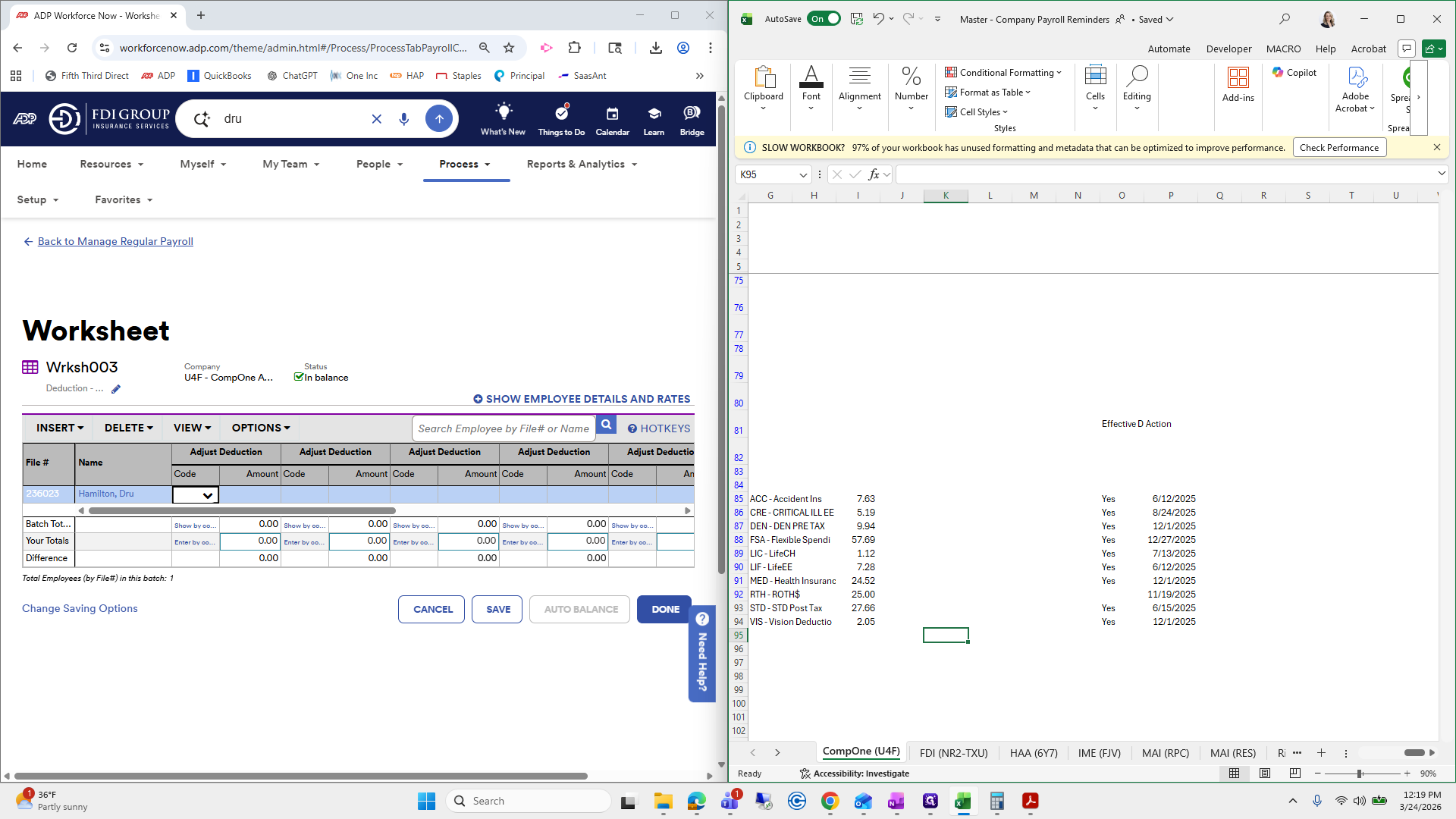
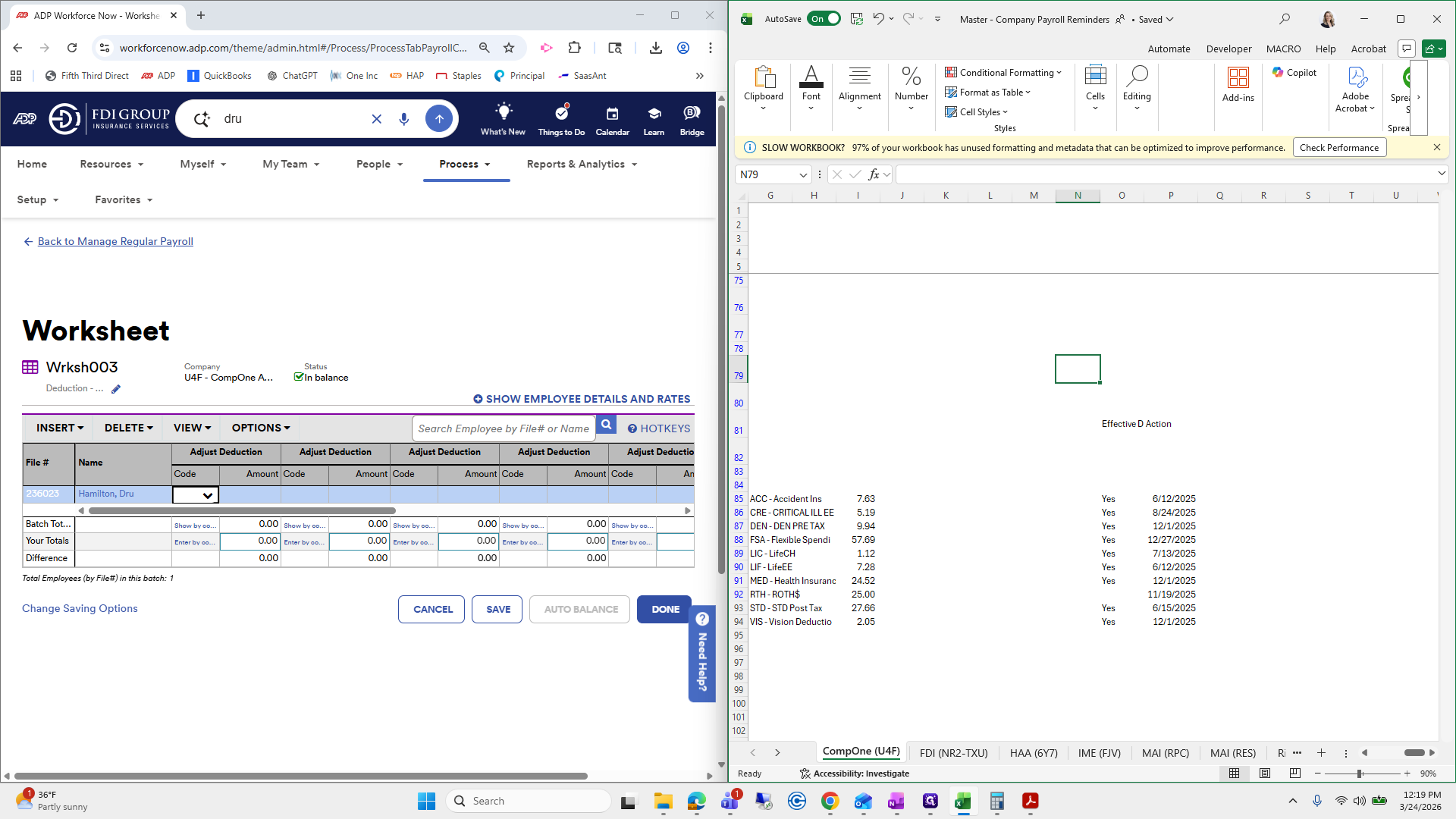
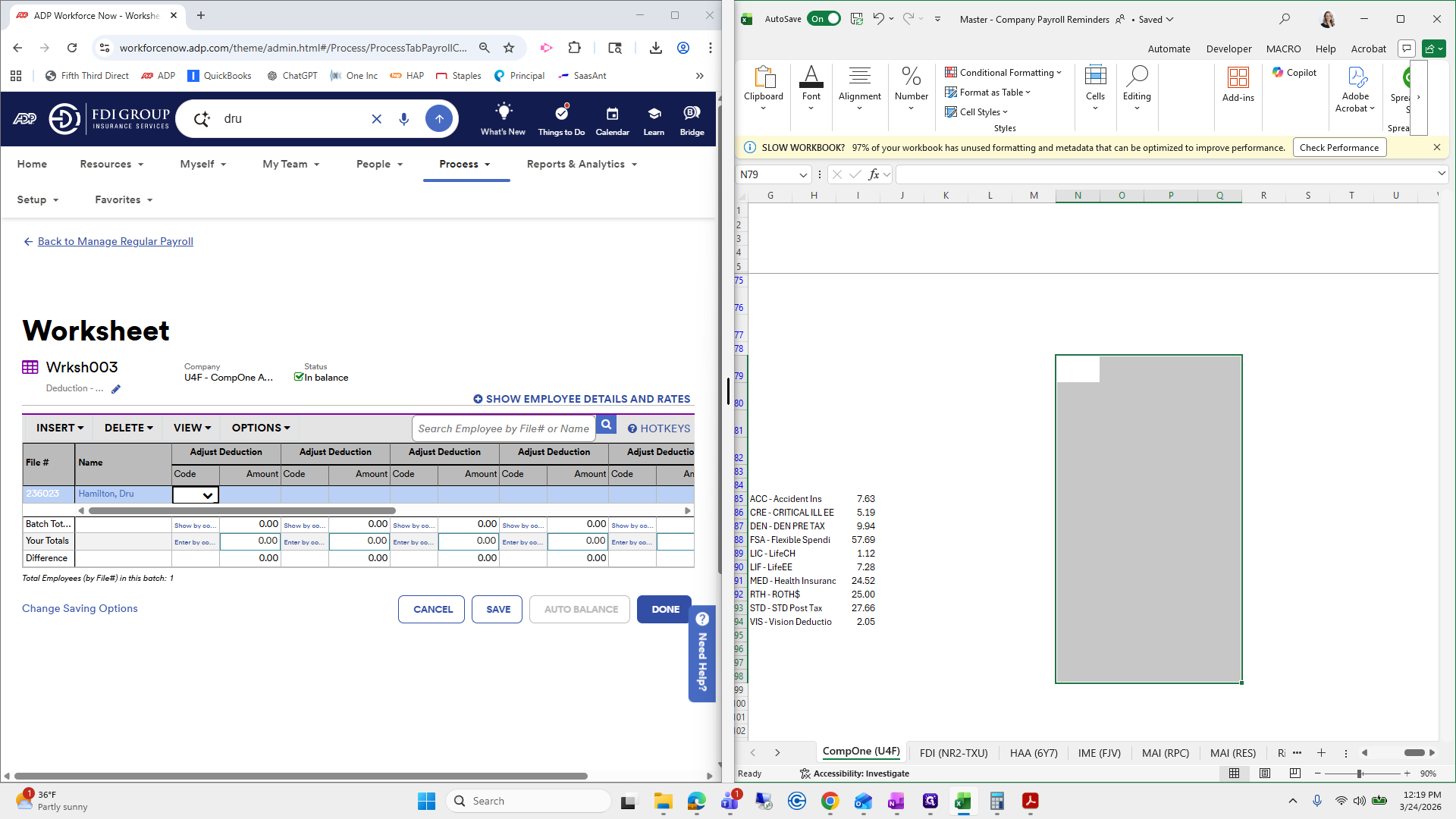
This will be a positive because we need to deduct it from the paycheck. Then, I will enter the information.
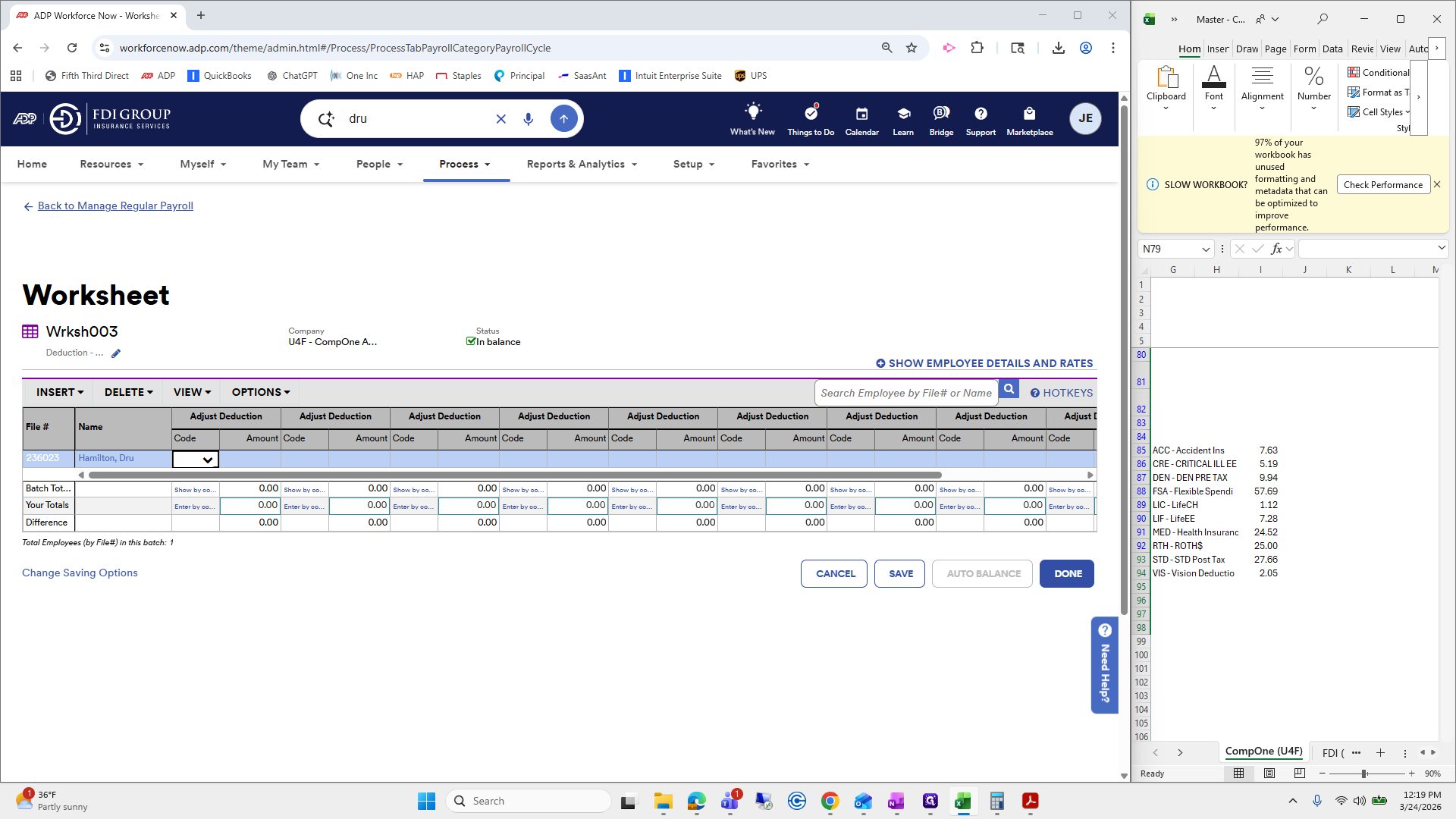
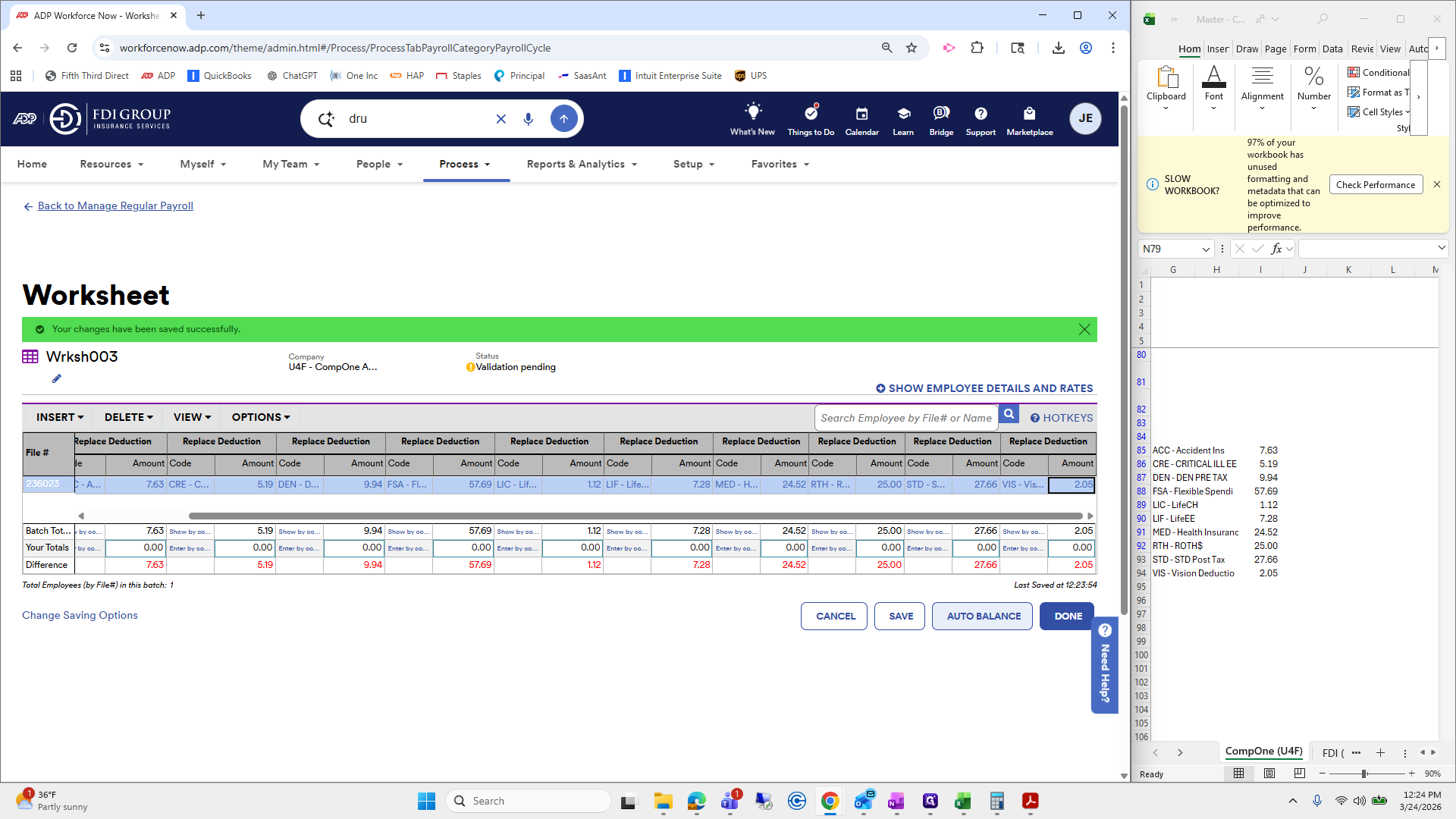
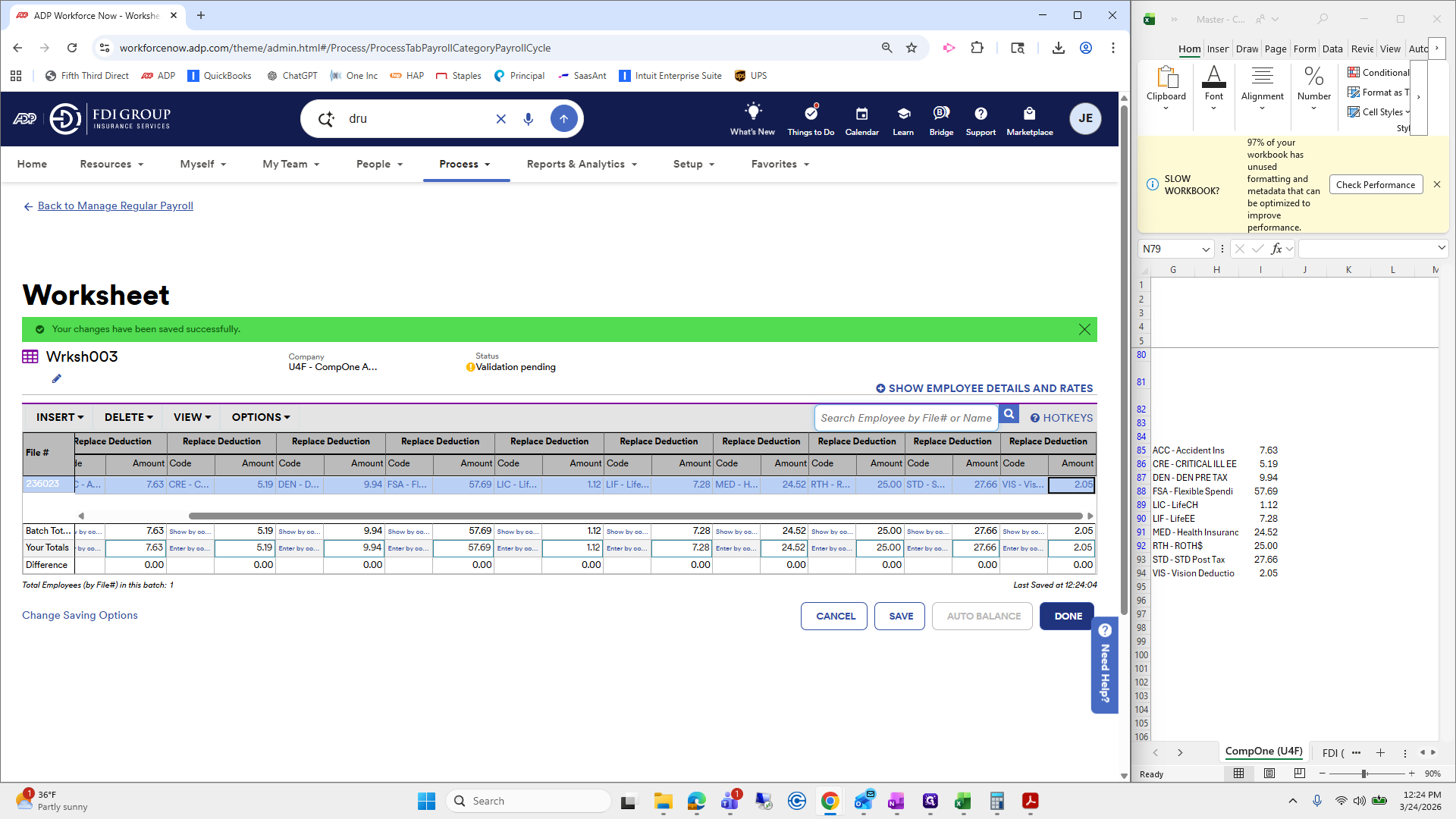
The first three letters are the code, which is helpful because you don't have to scroll through it. "" New Life Medical, Roth, STD, and vision. Okay.
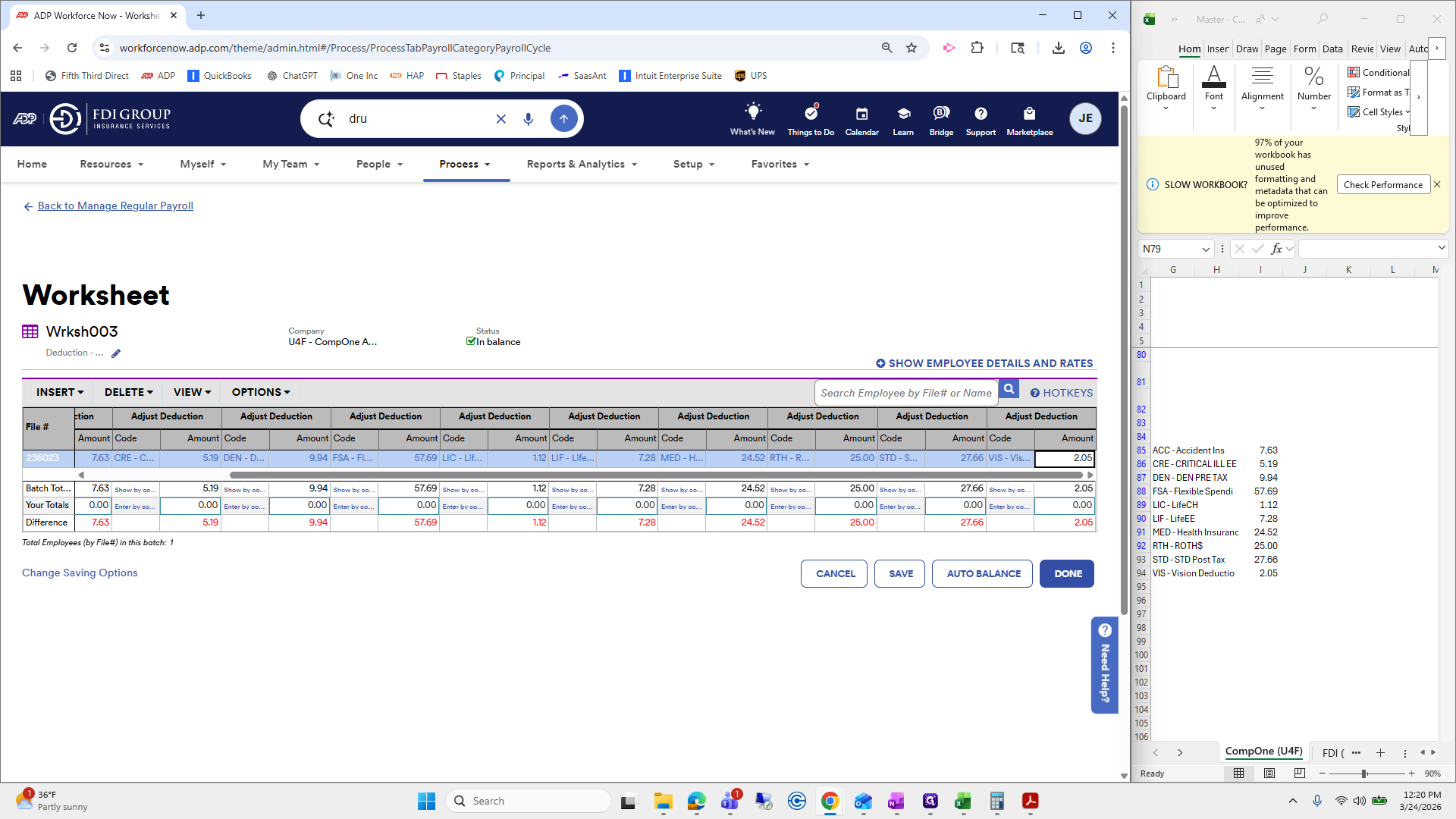
Next, double-check the numbers to ensure everything looks correct. Click auto-balance, then done.
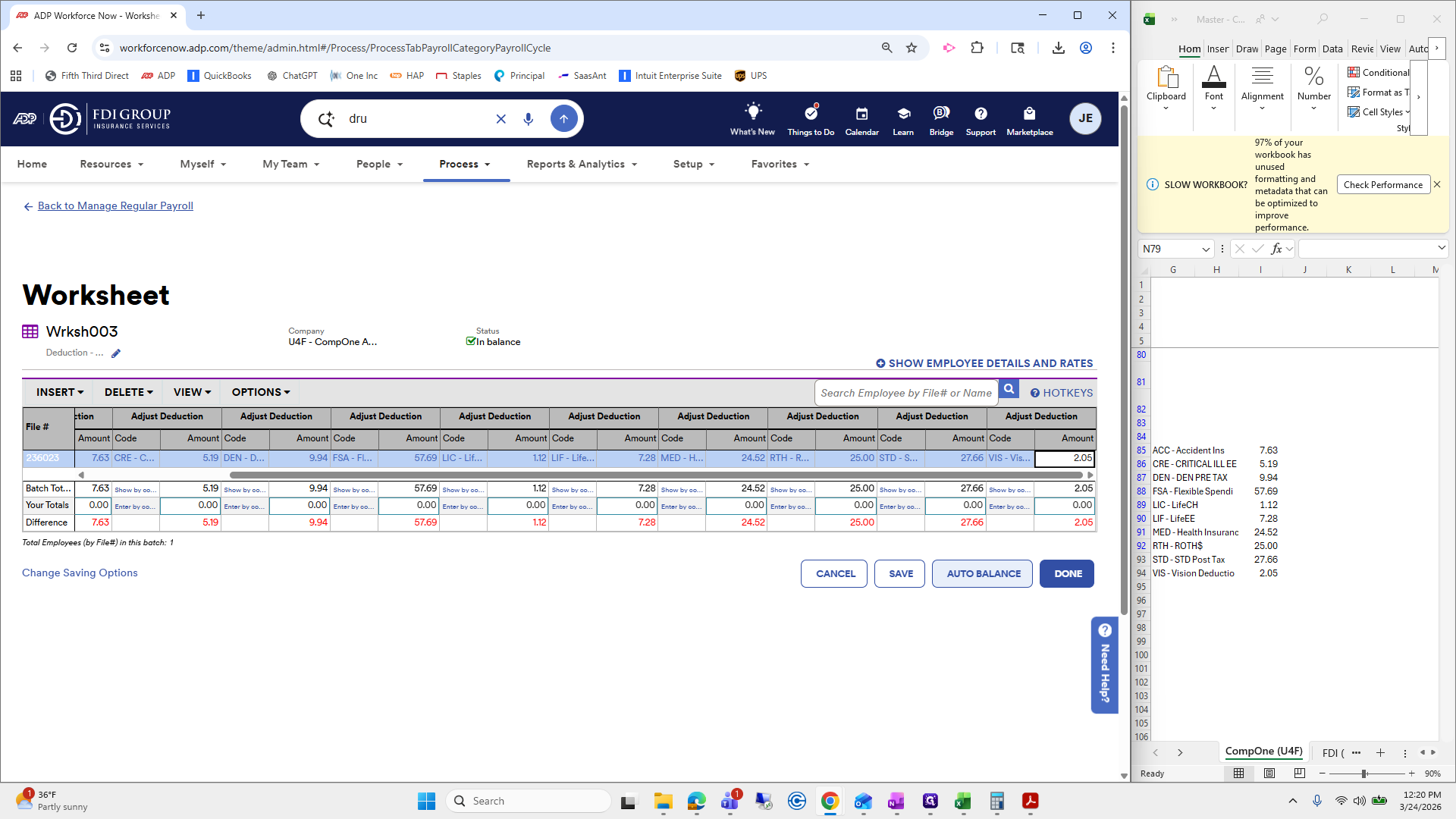
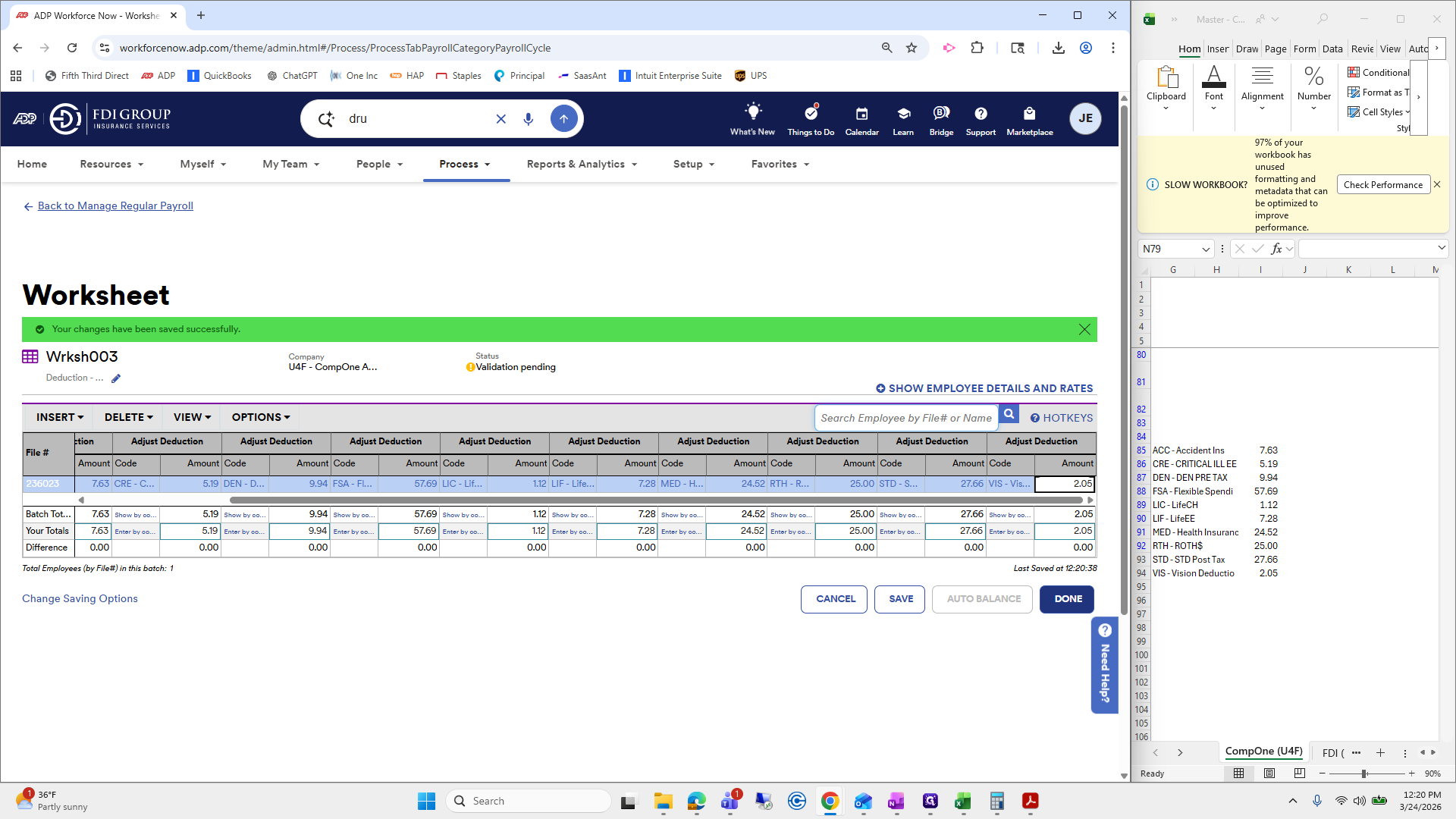
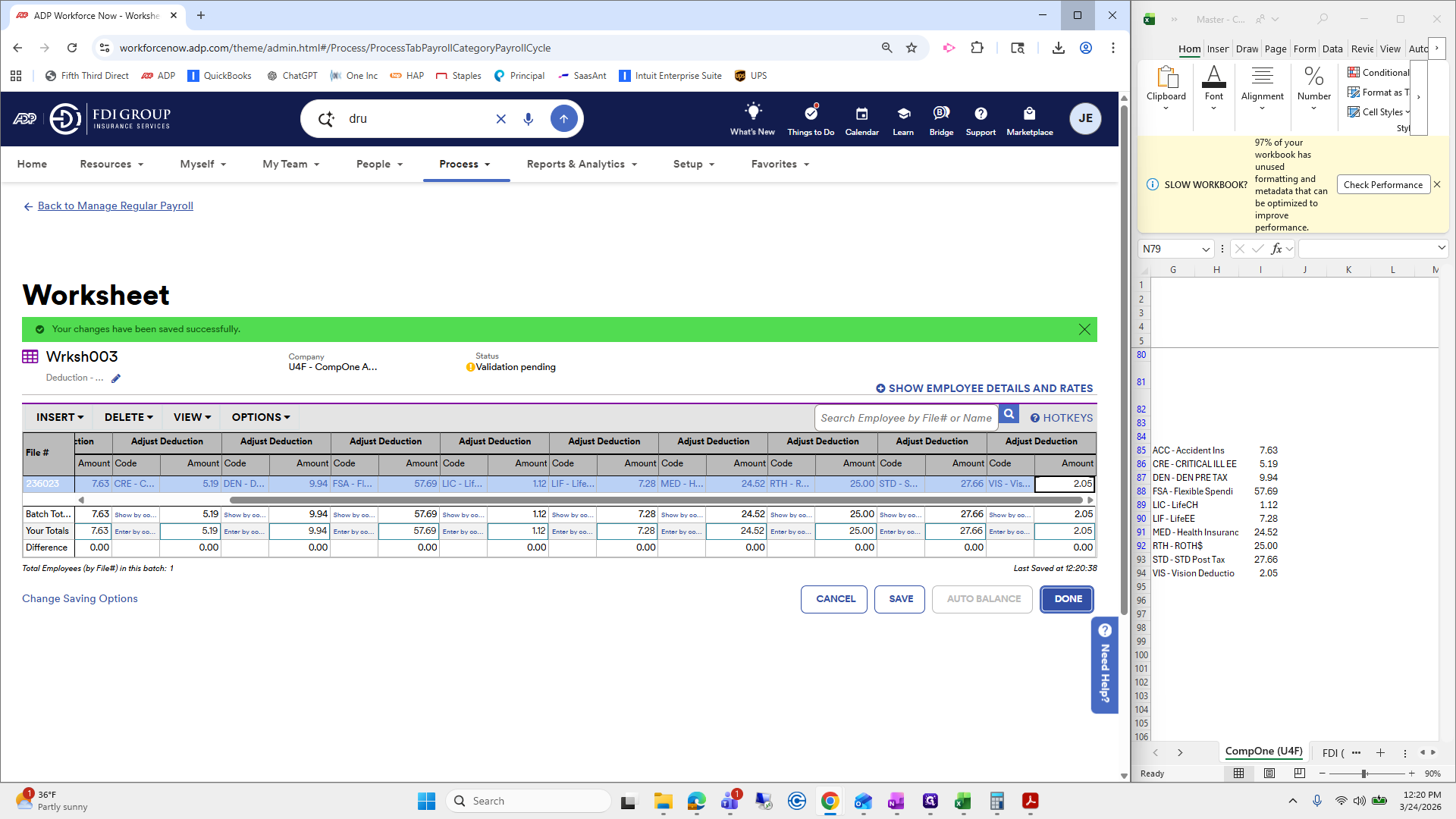
That is the only one left to double-check, so I will click calculate payroll.
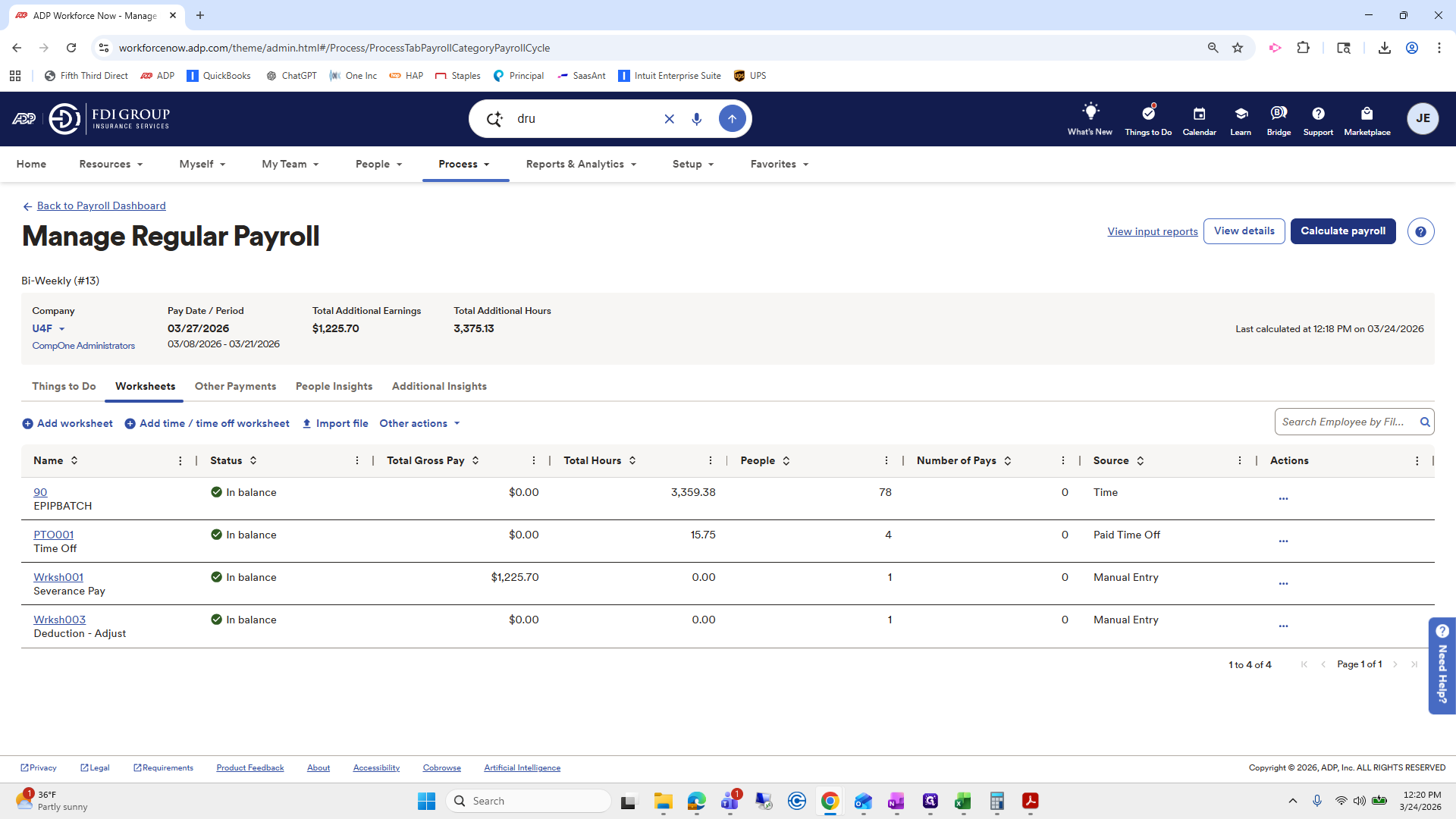
I will go to the same payroll register, download the selected file, and open it.
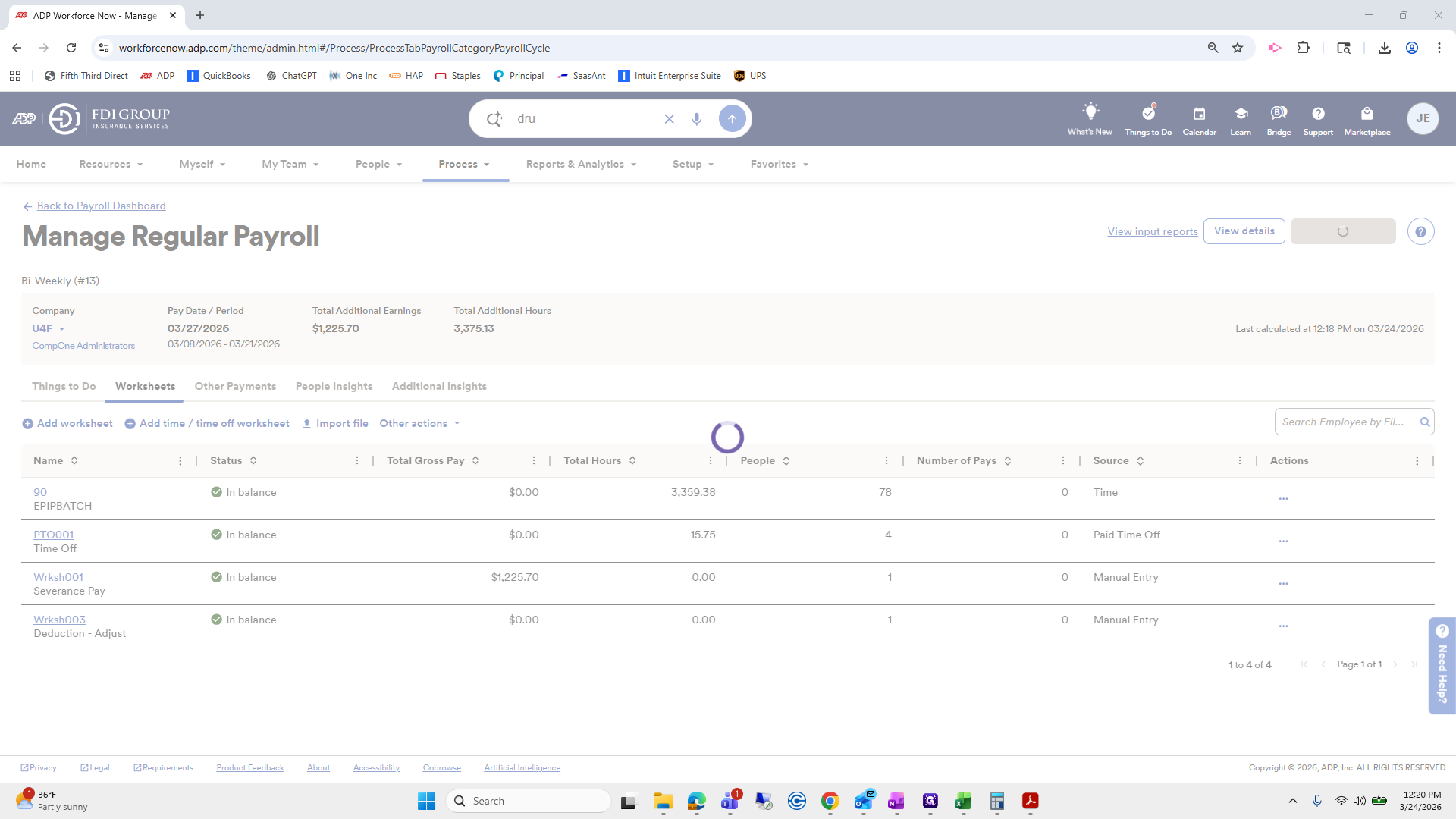
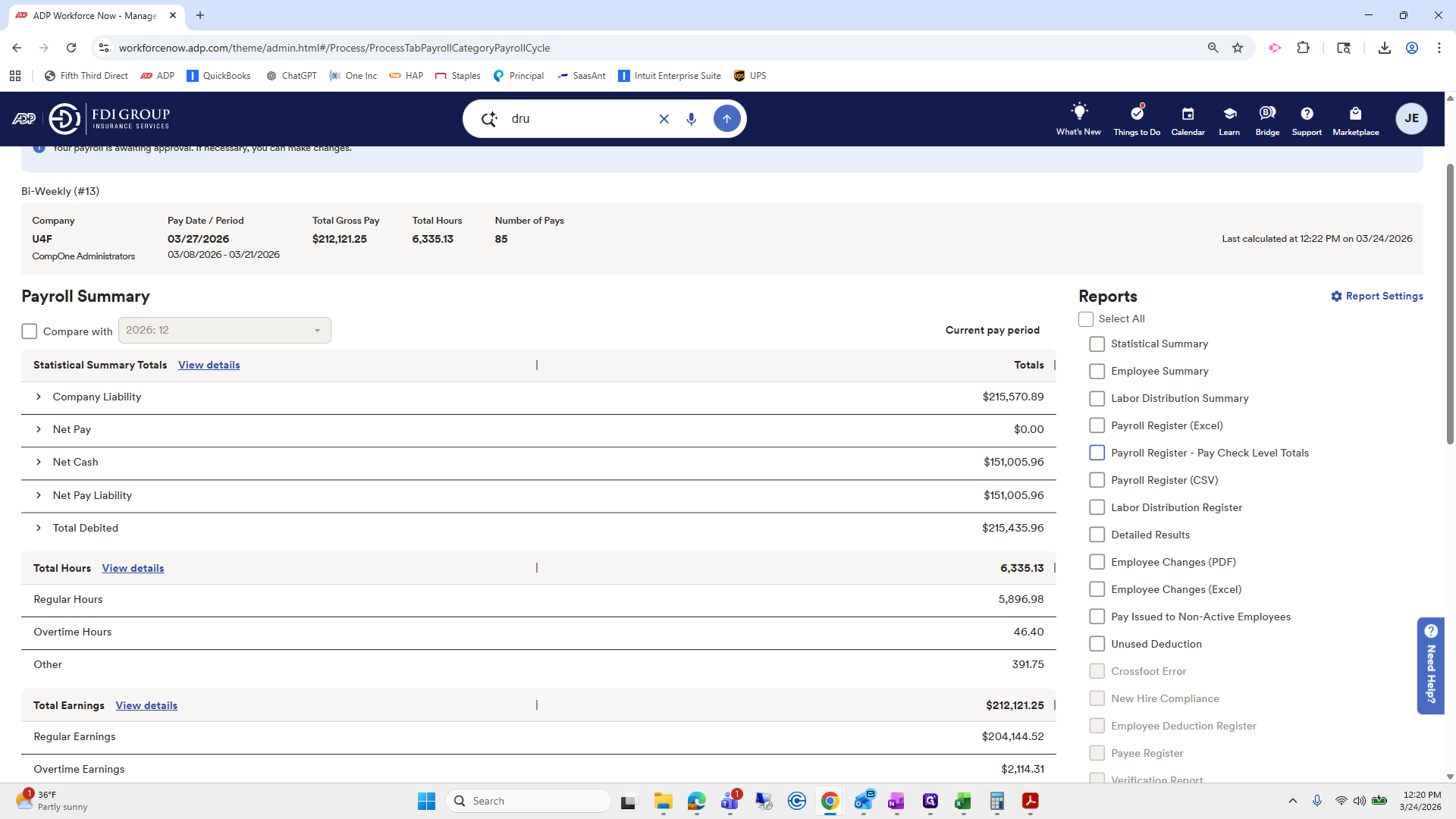
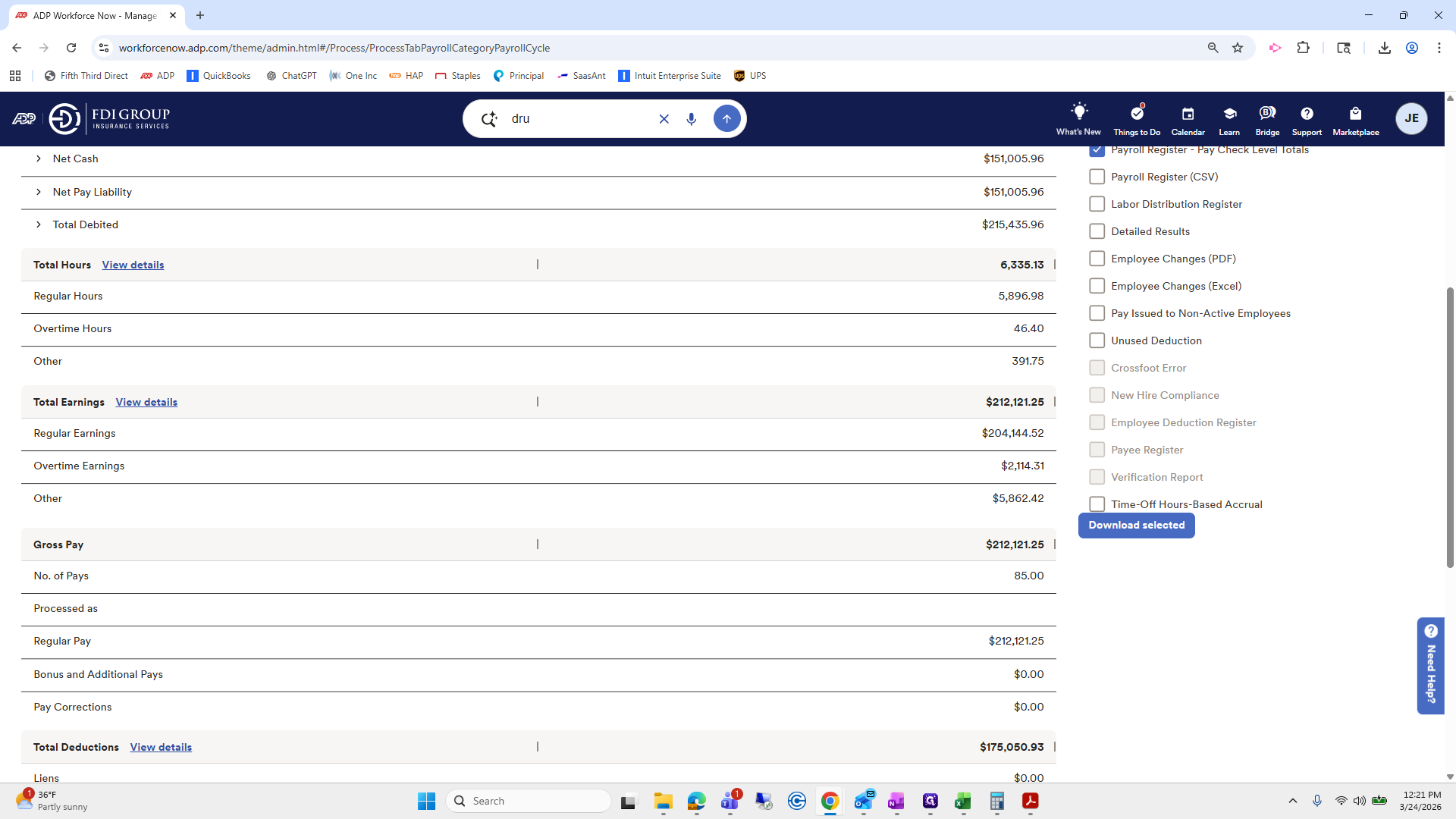
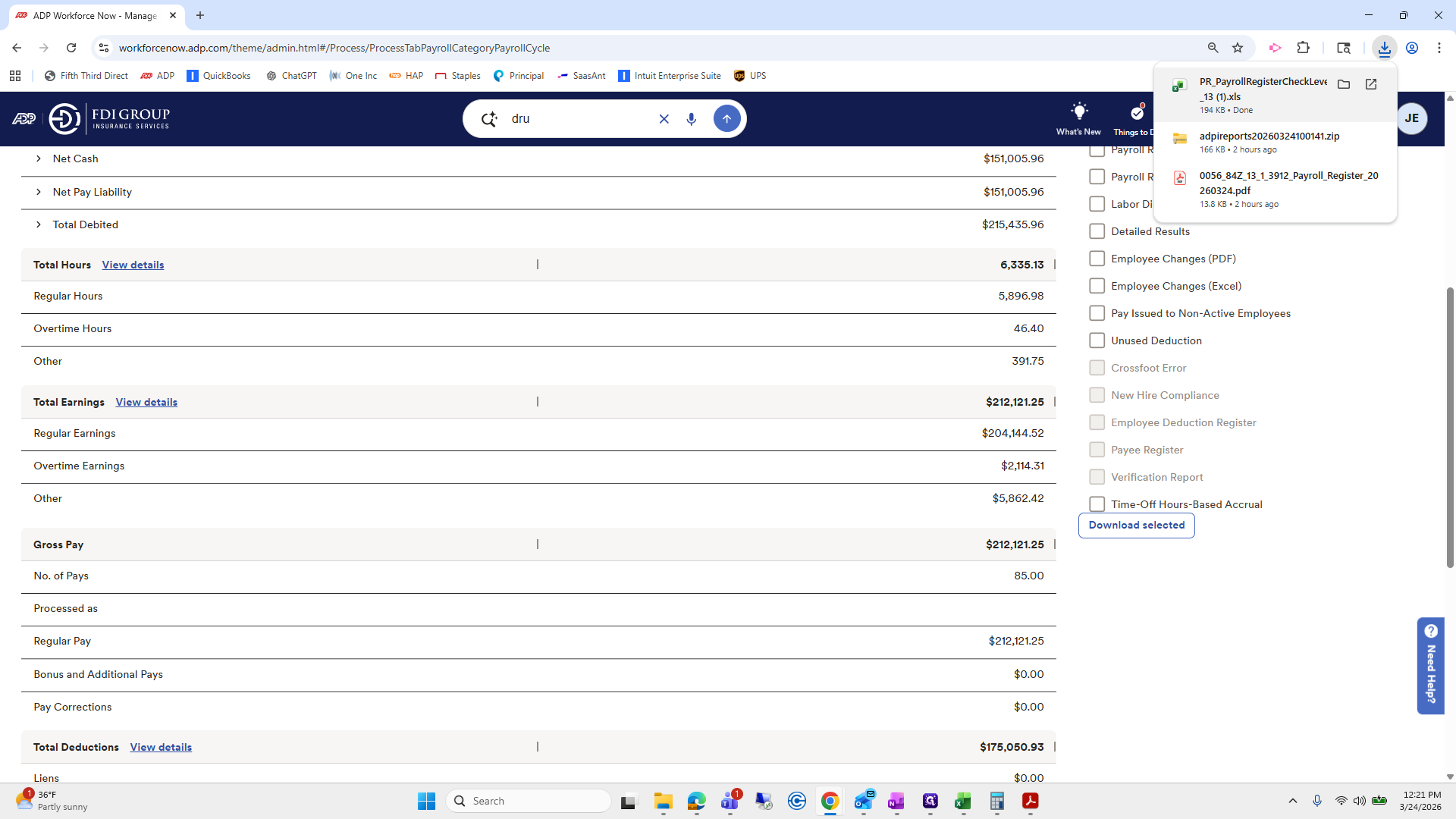
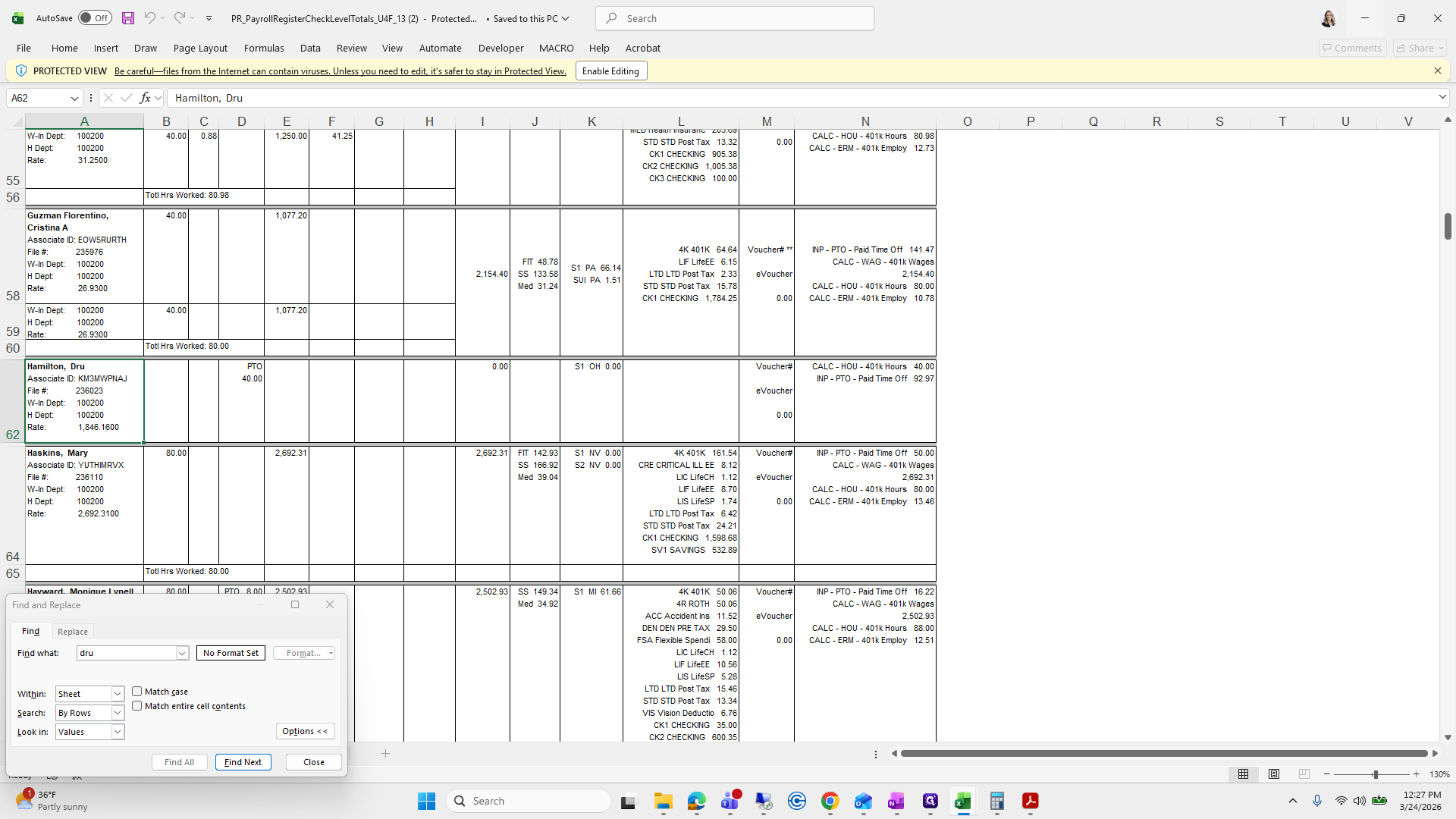
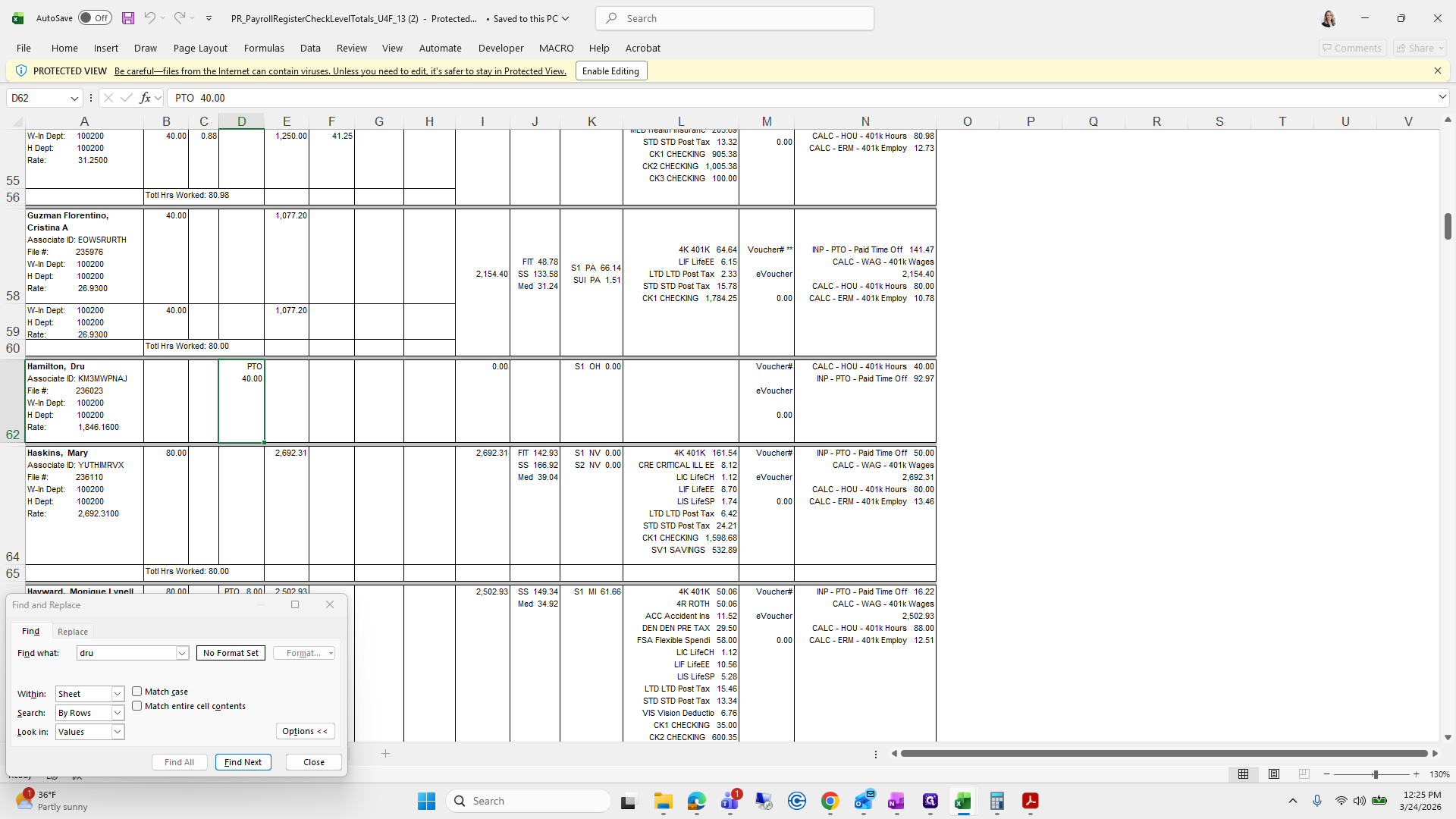
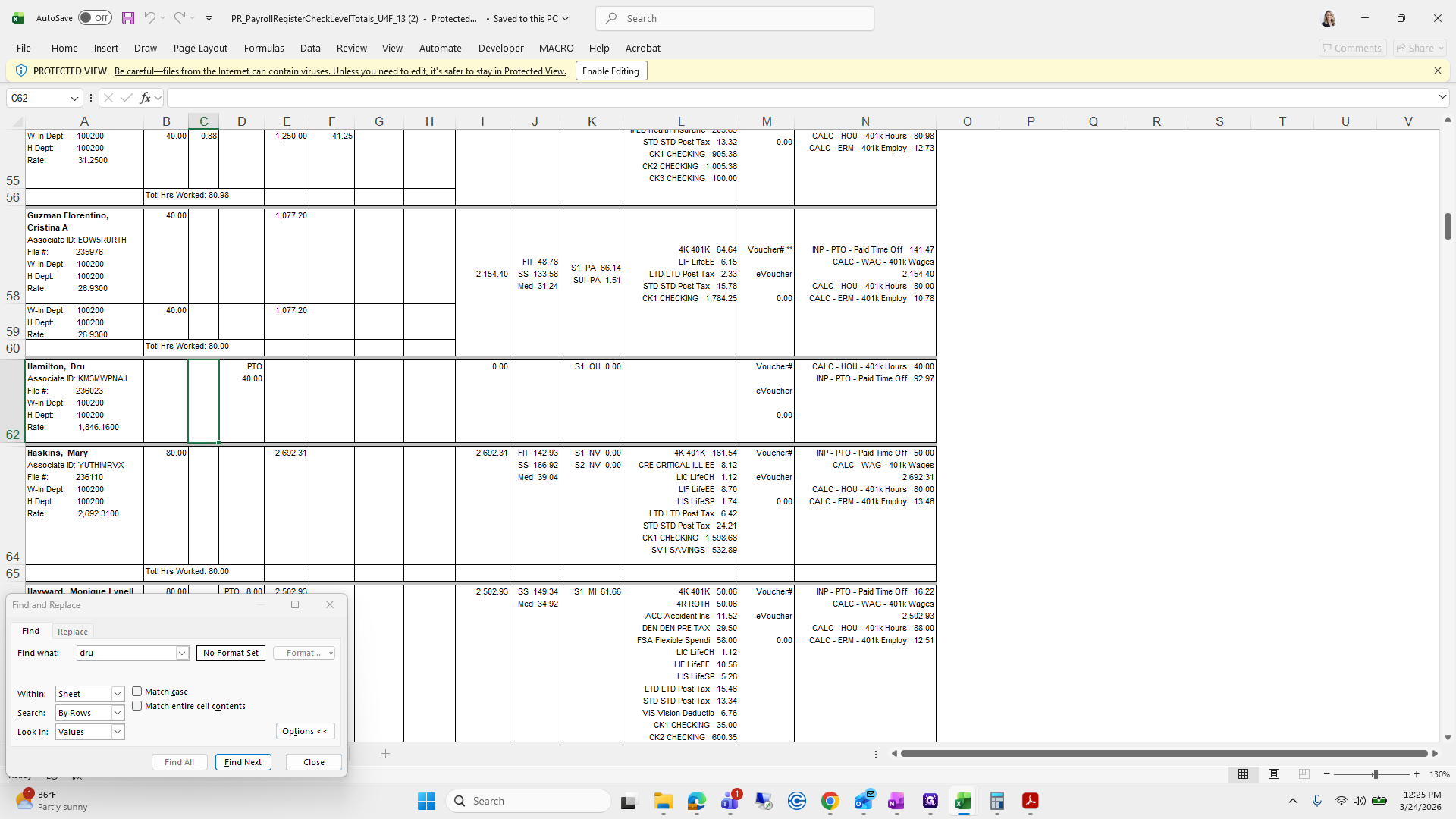
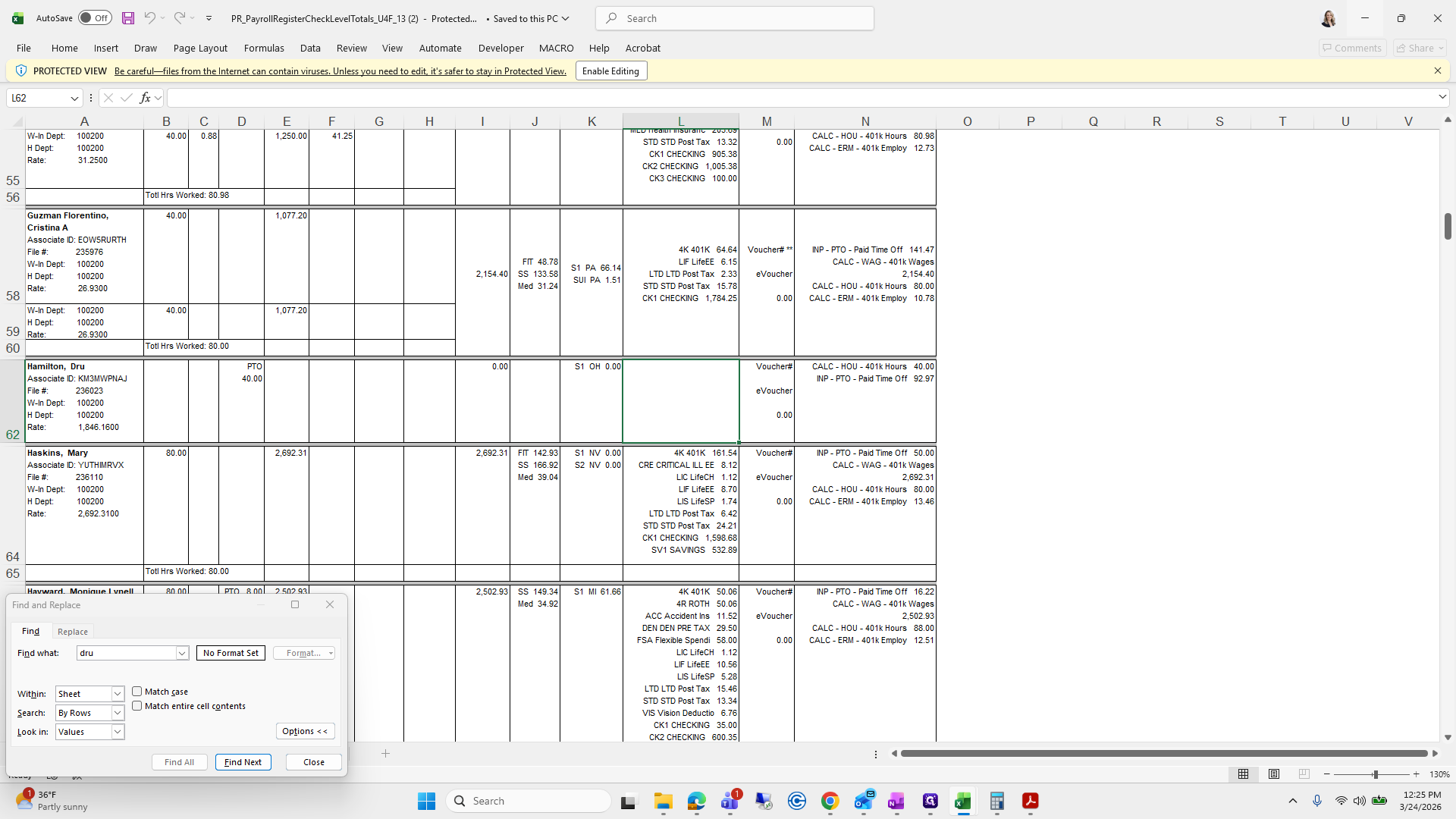
Control-F, Drew.
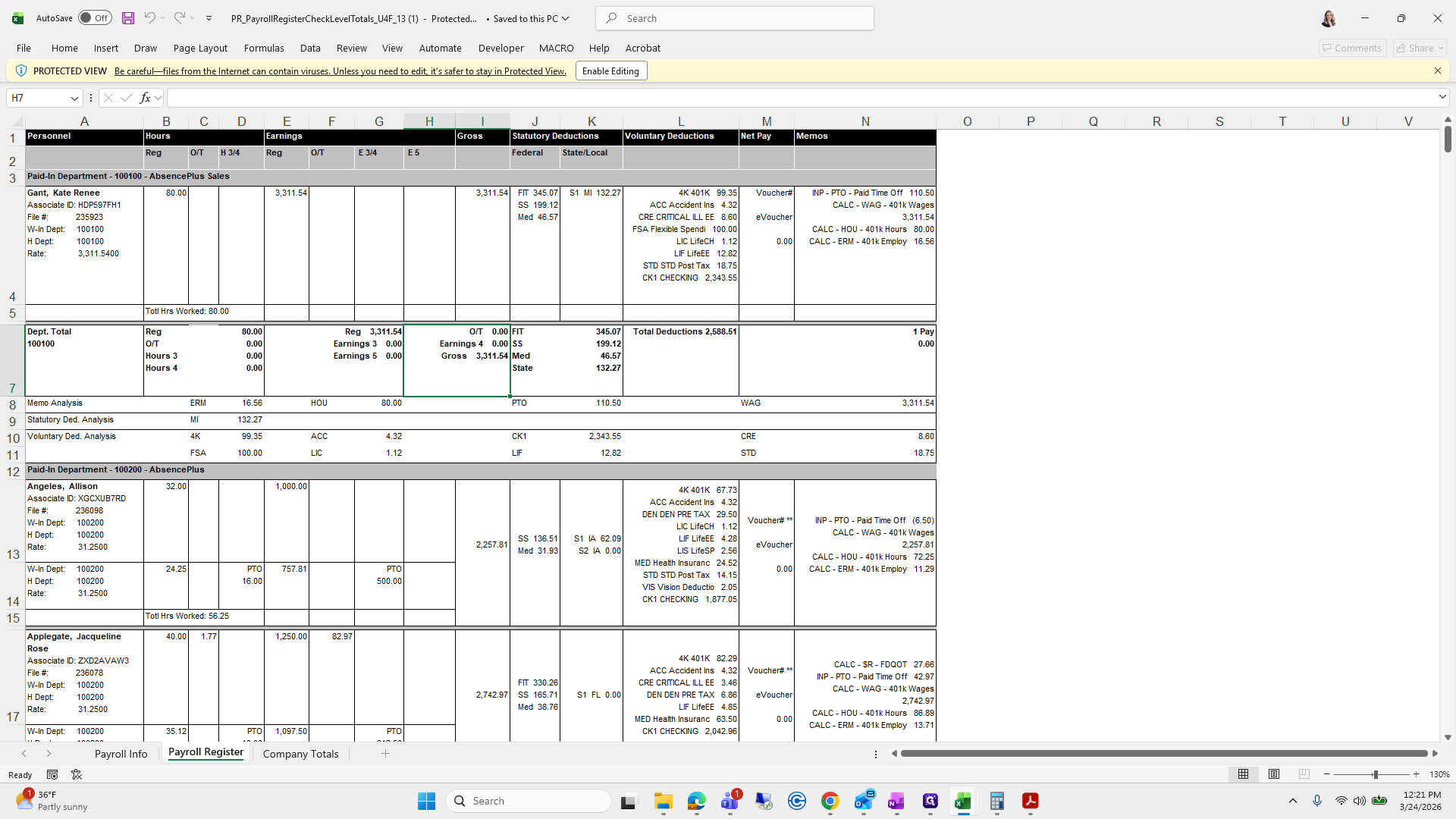
Still not showing up.
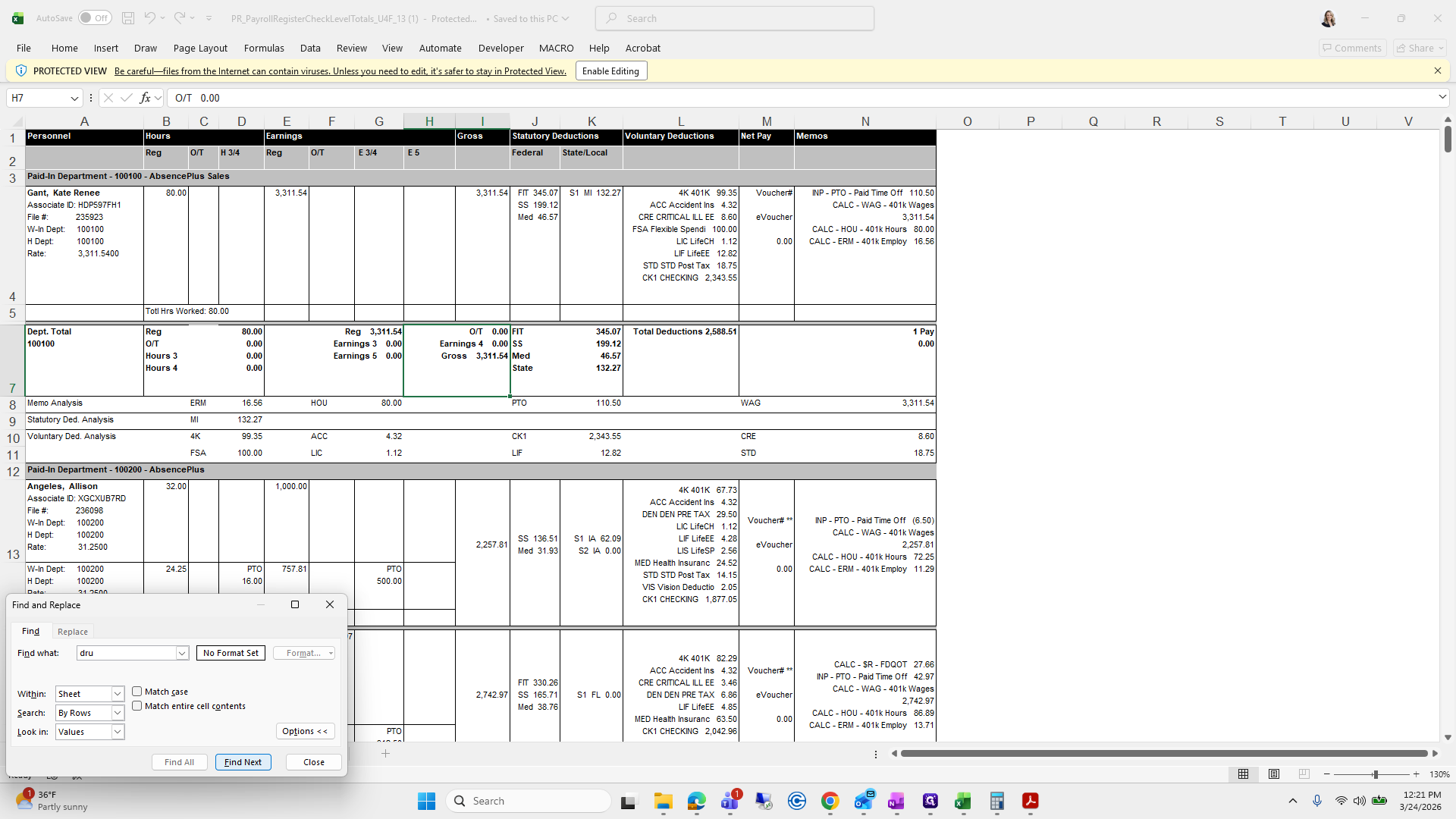
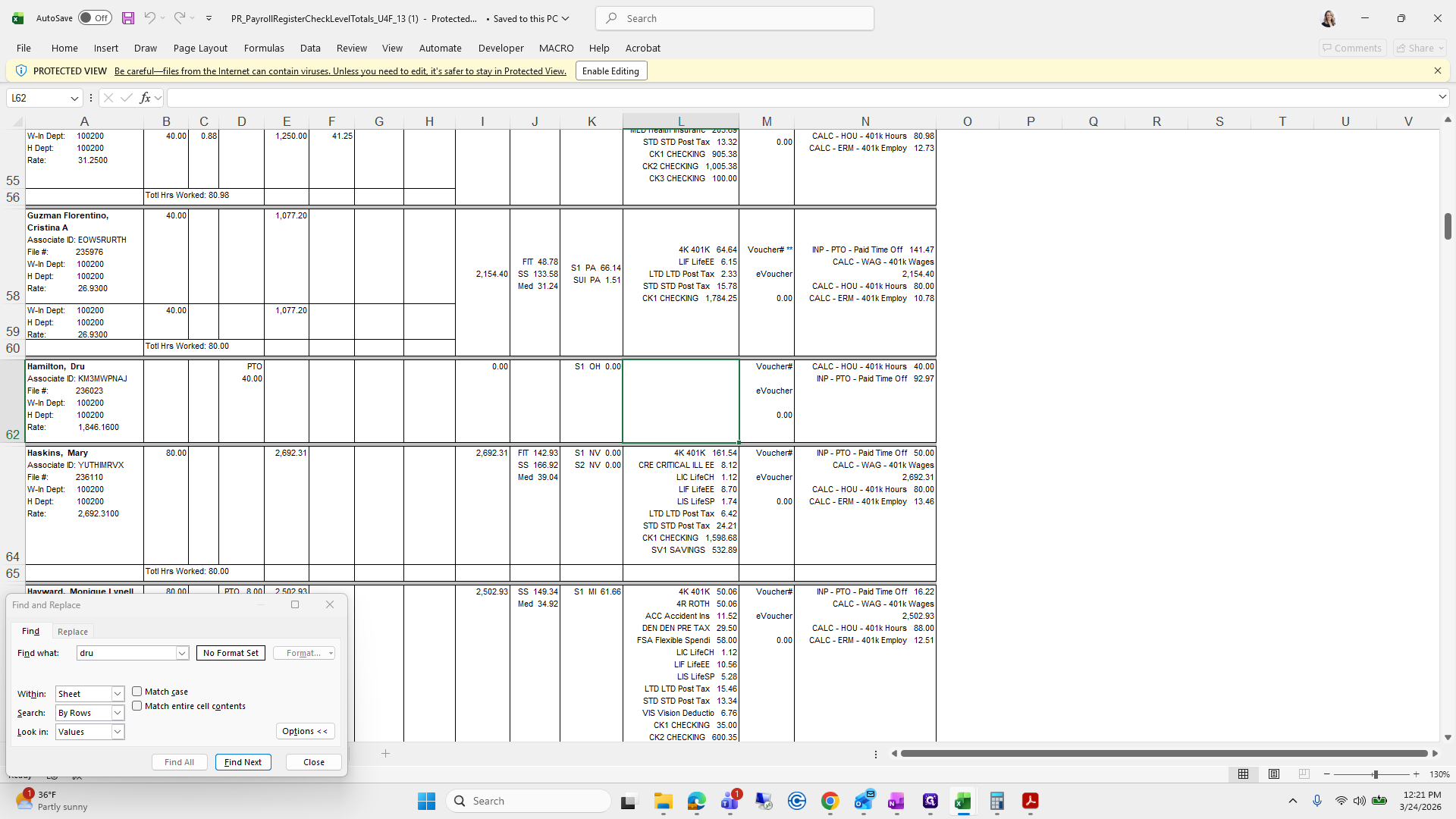
Huh. Let's begin troubleshooting.
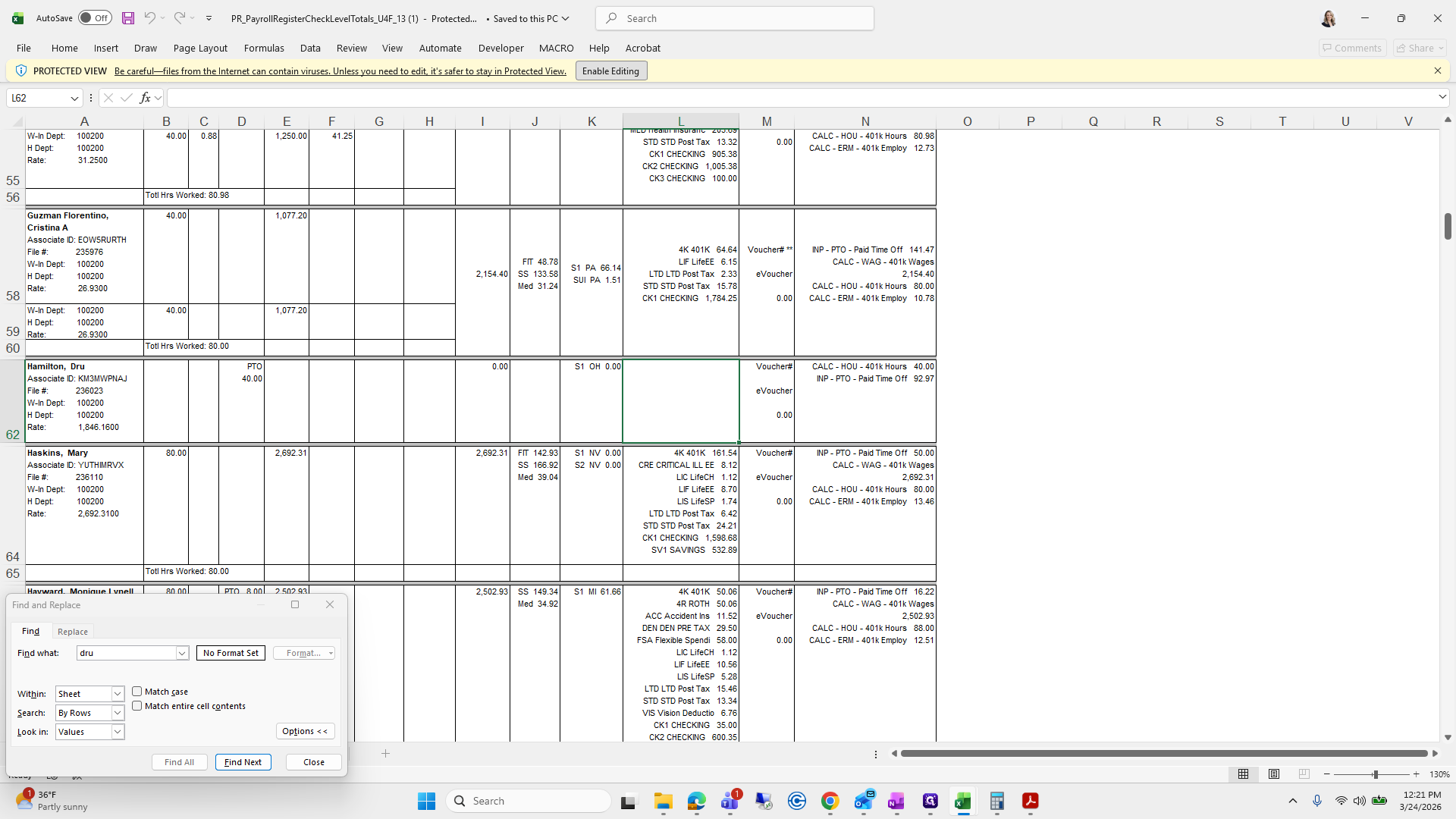
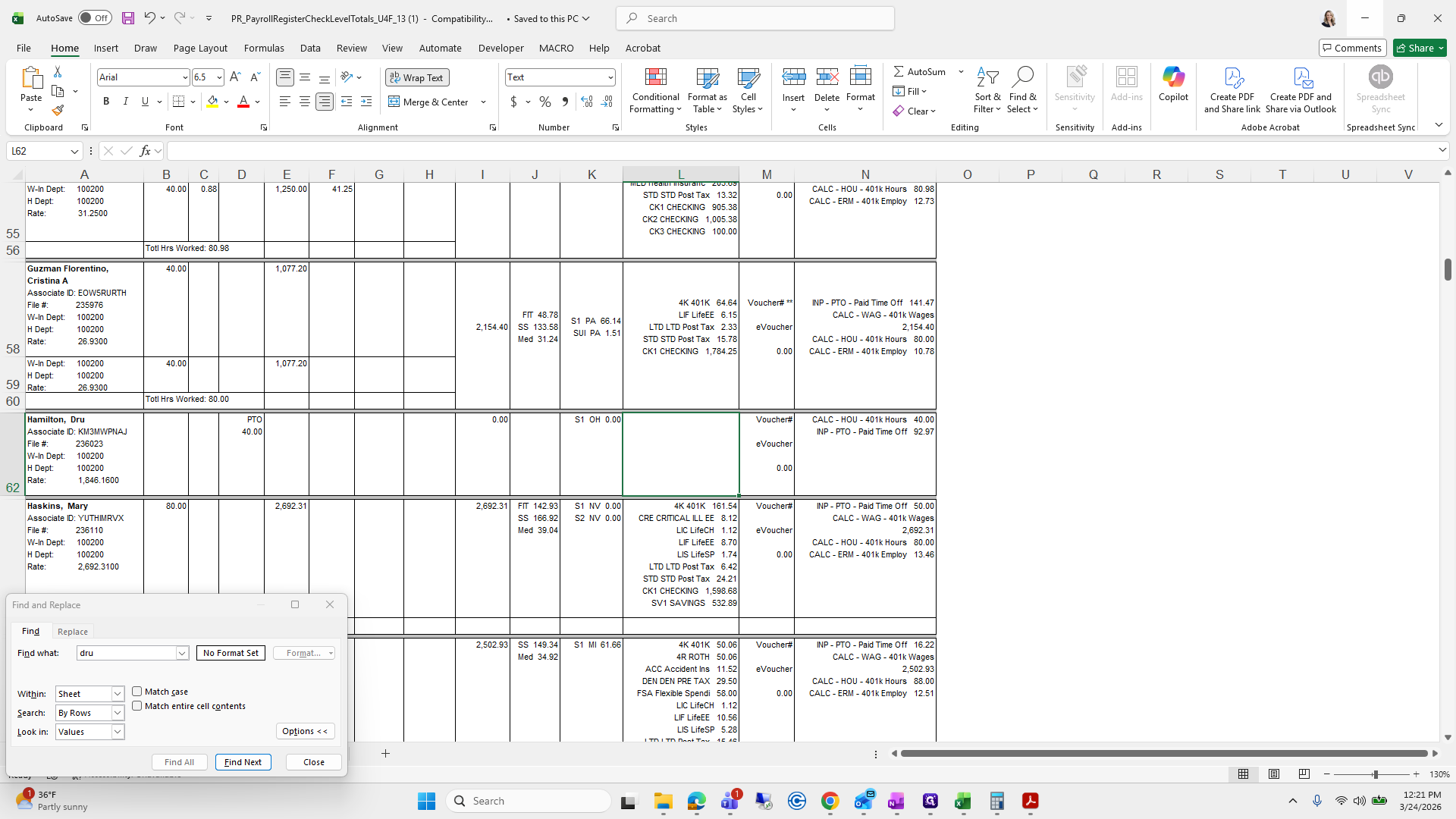
We are going to make changes.
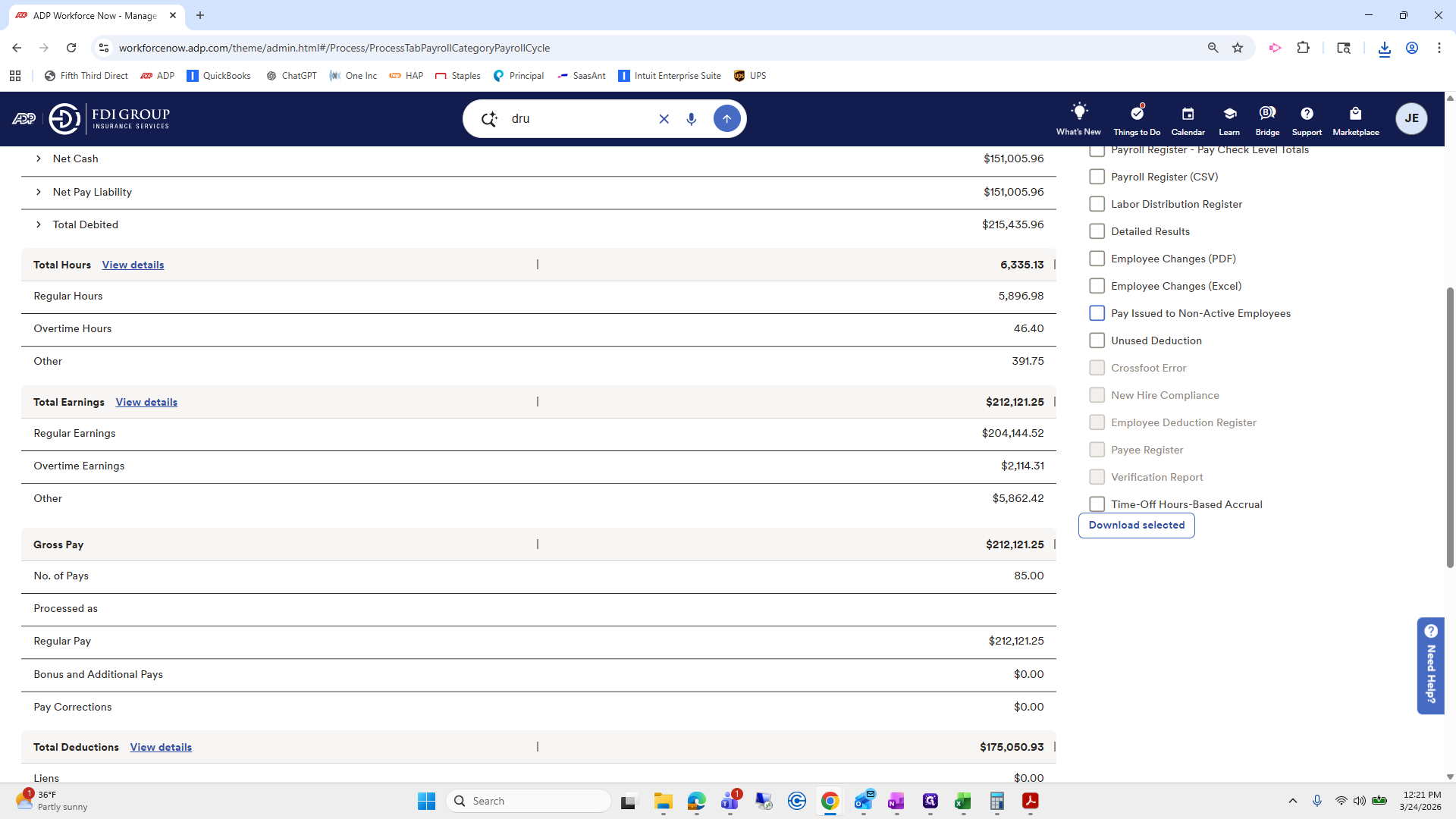
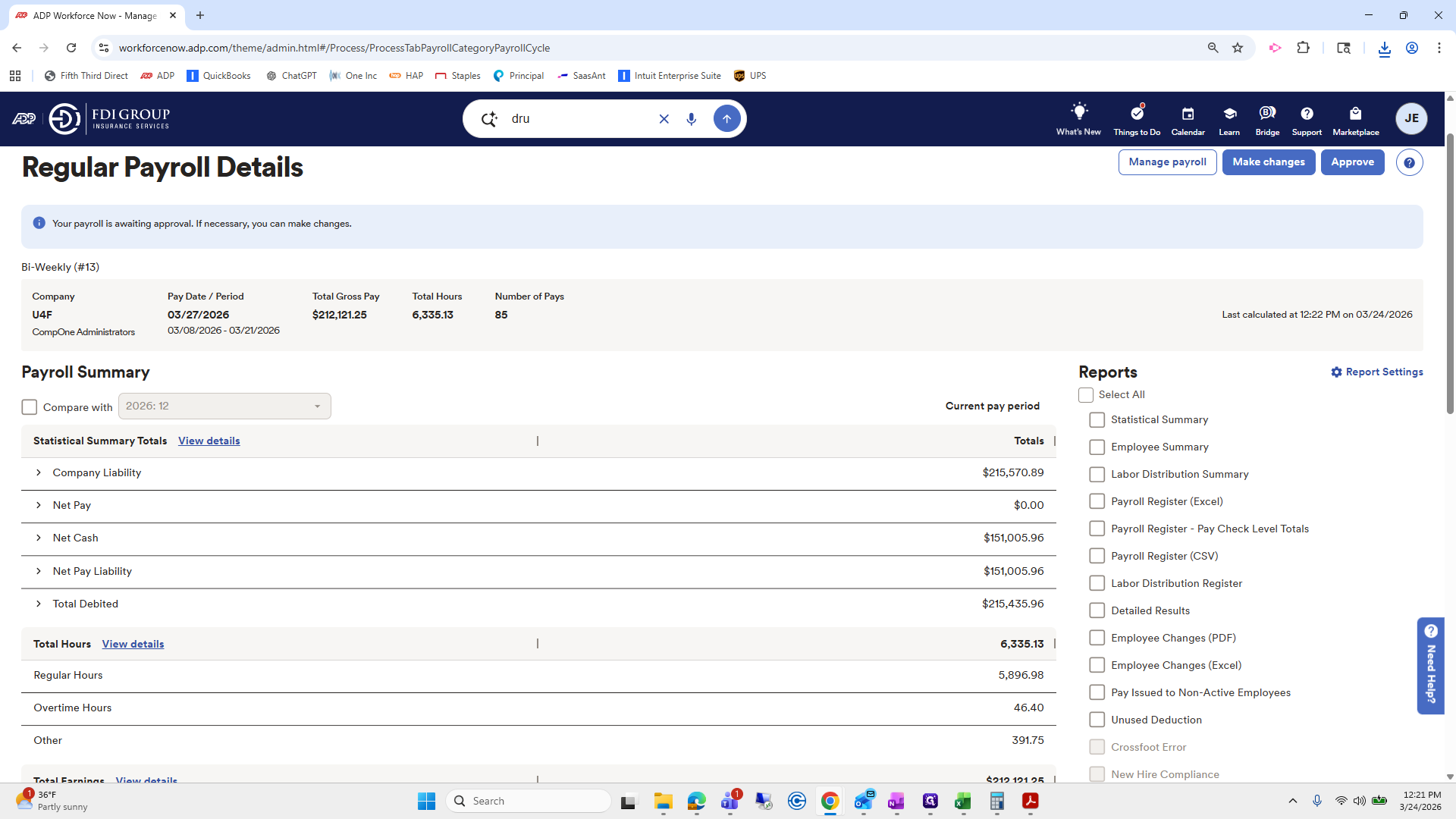
Hmm. We might need to select "replace" instead of "adjust."
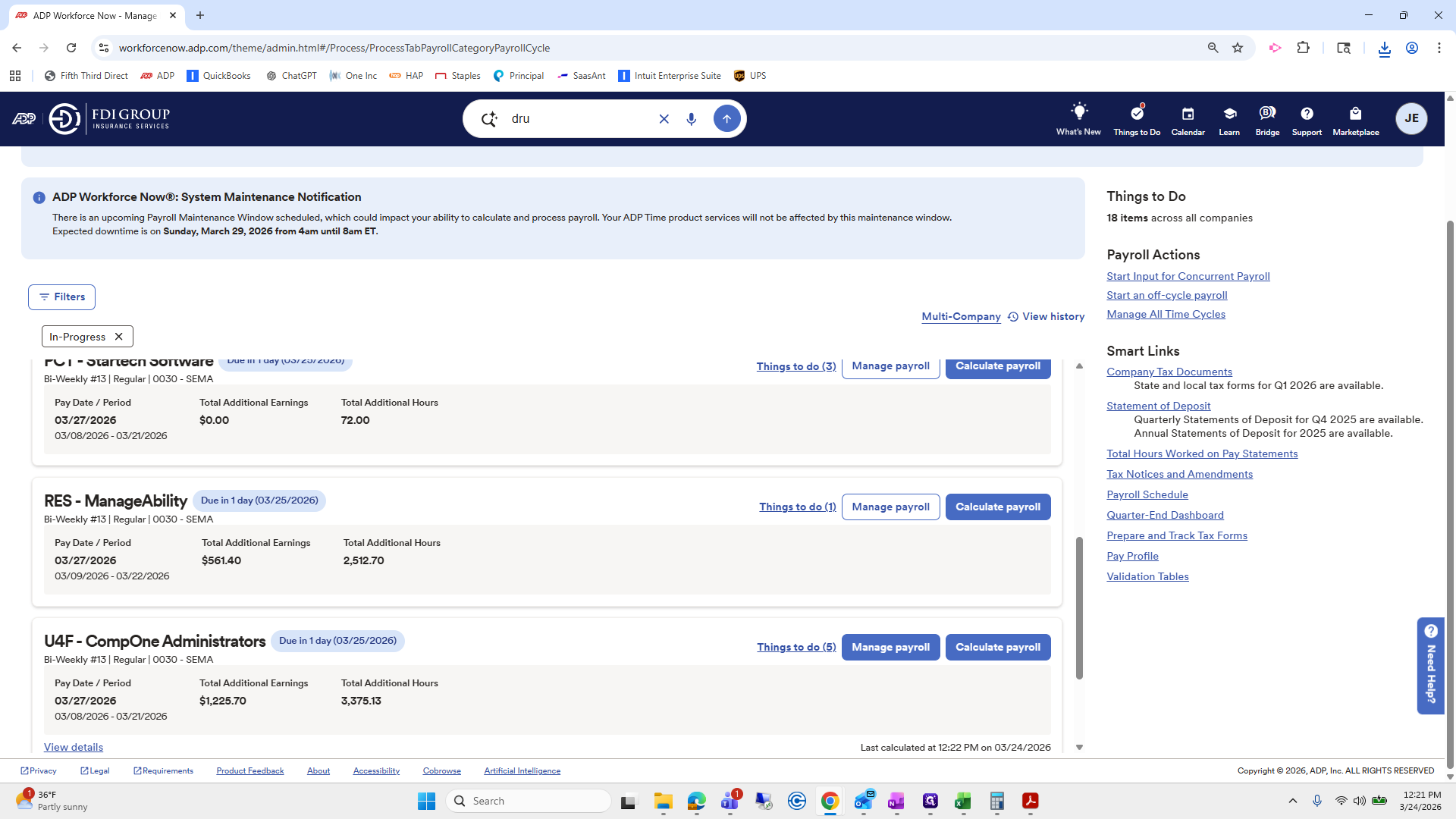
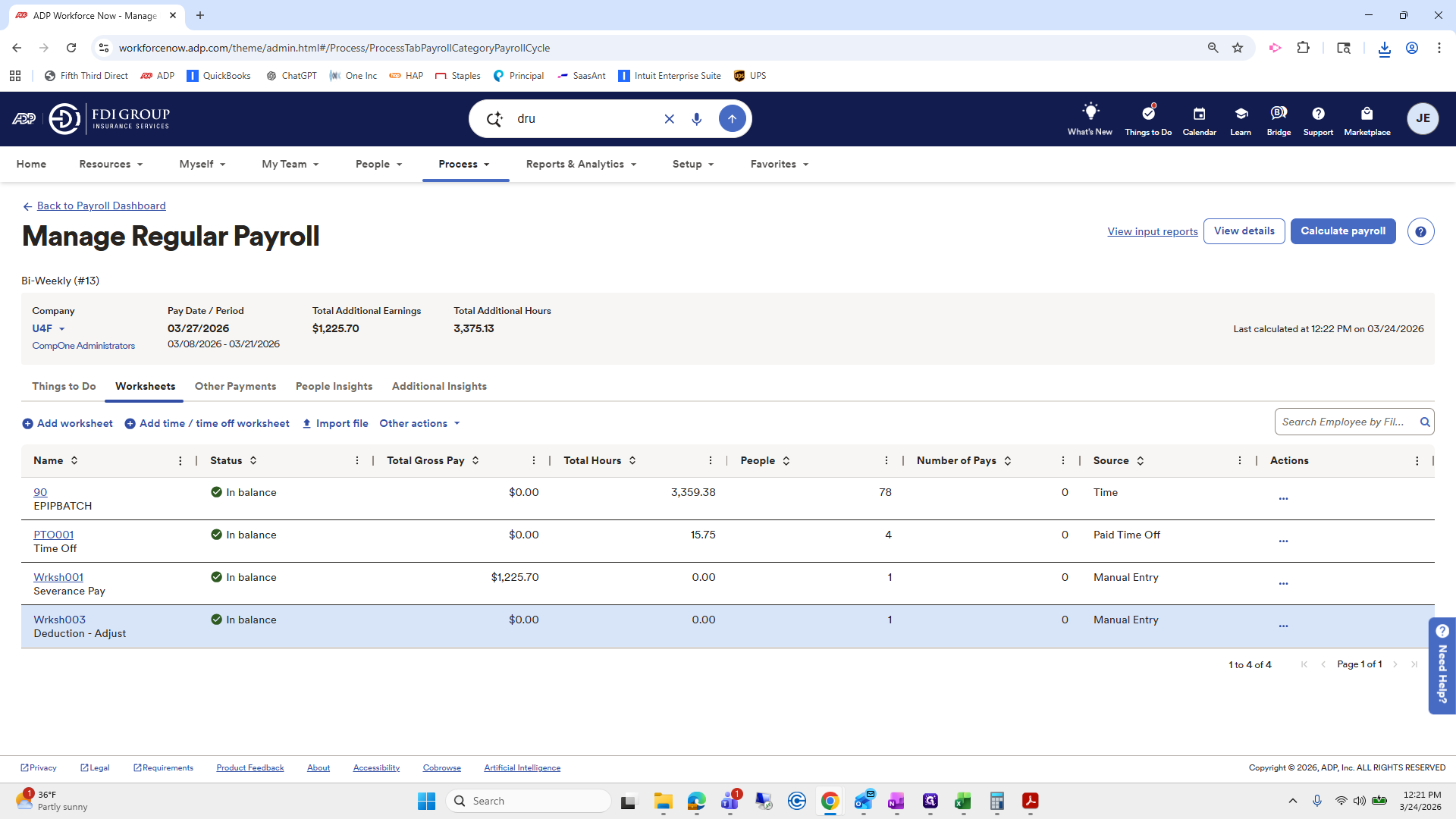
I will do a replacement one.
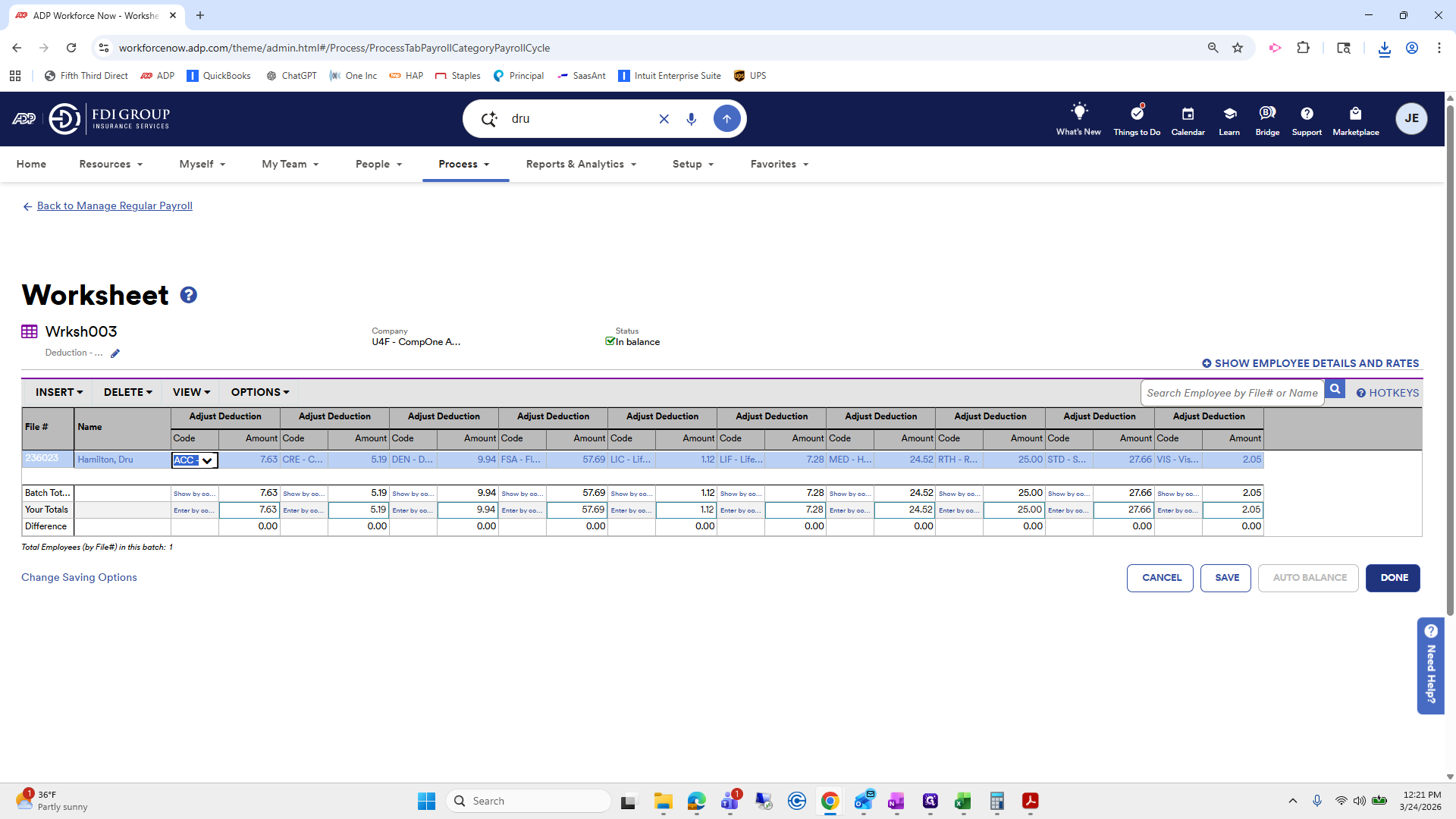
I will delete this one and add worksheet replace.
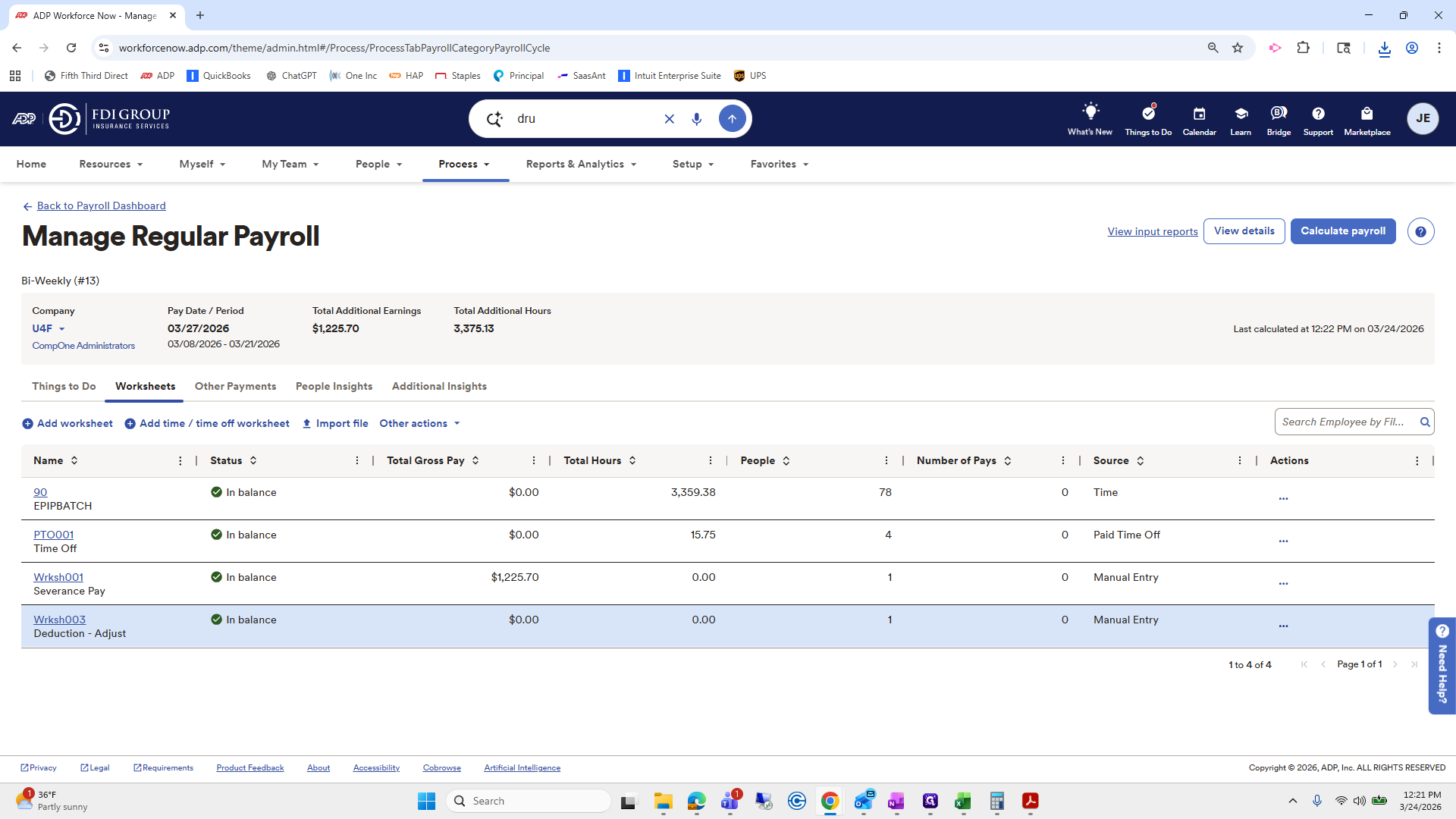
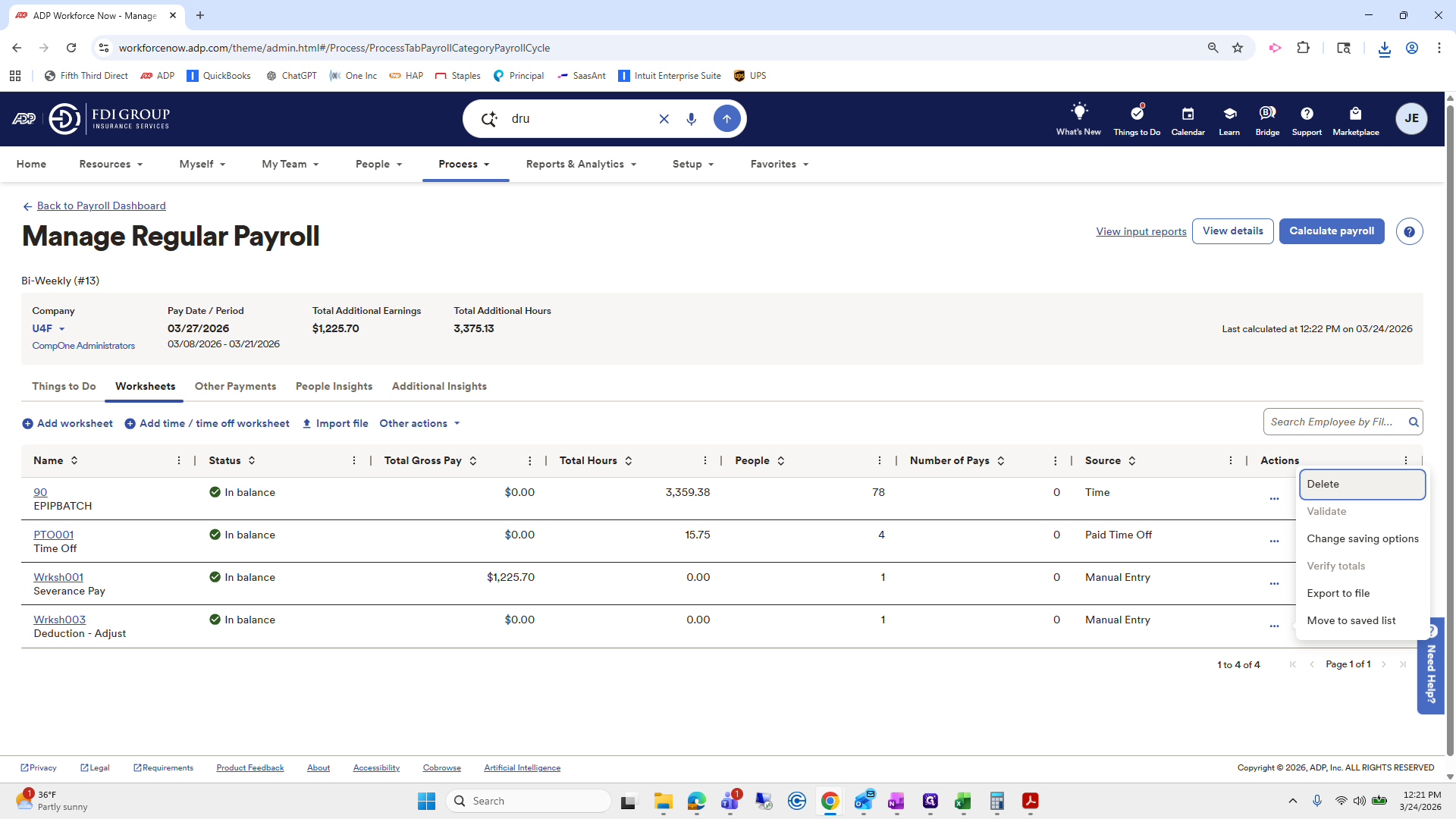
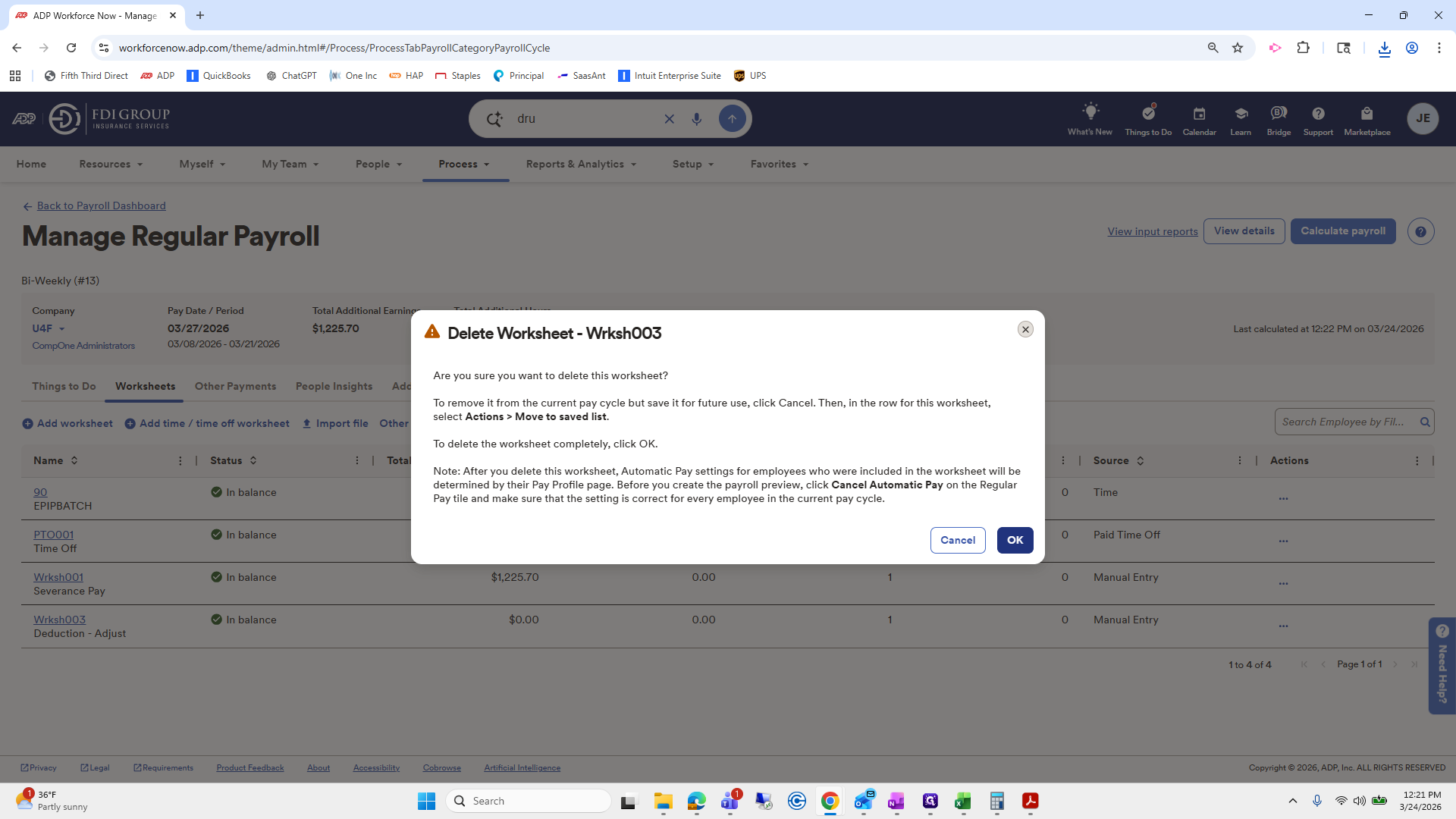
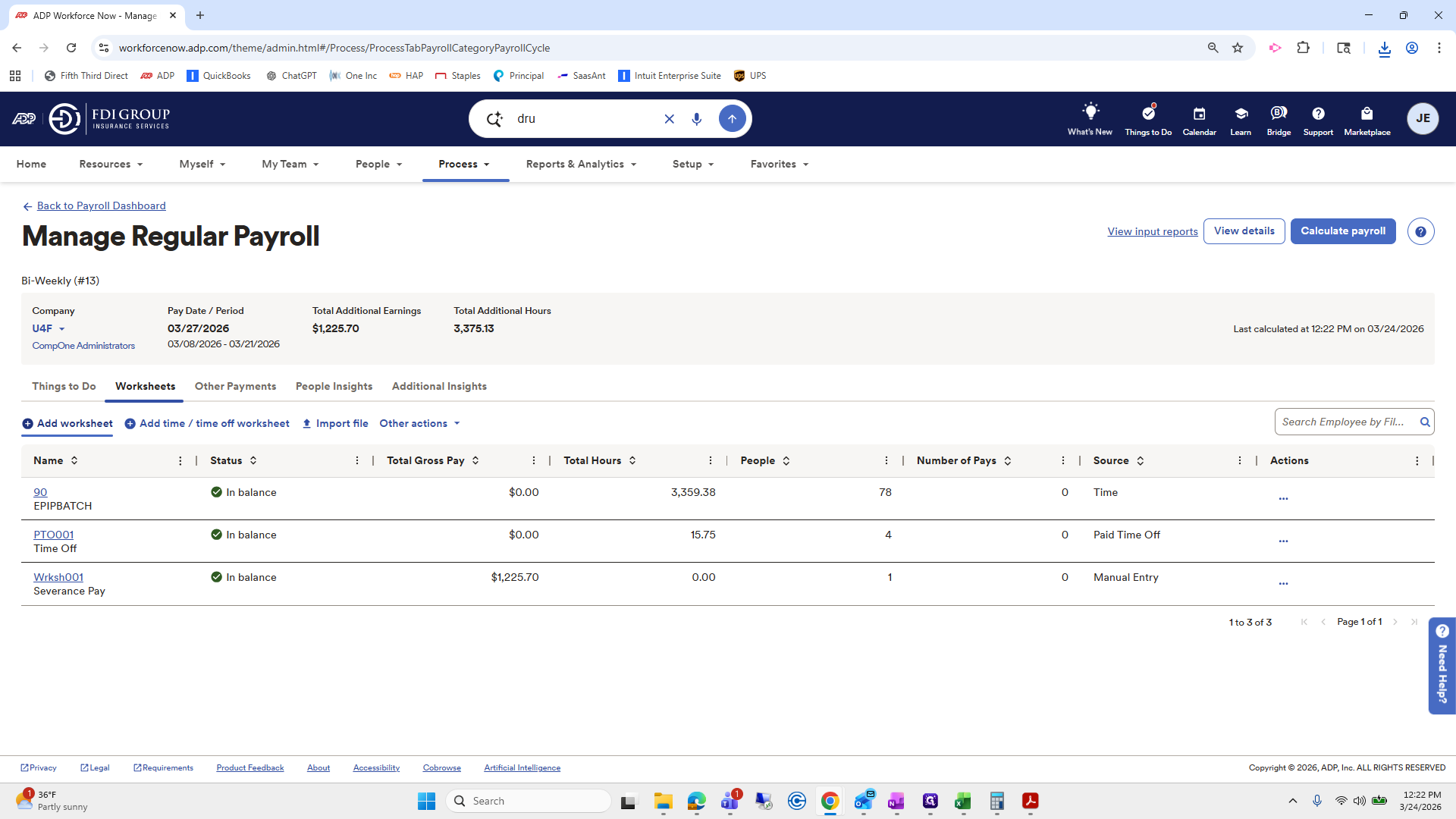
I will go through the same exercise to see if it appears quickly.
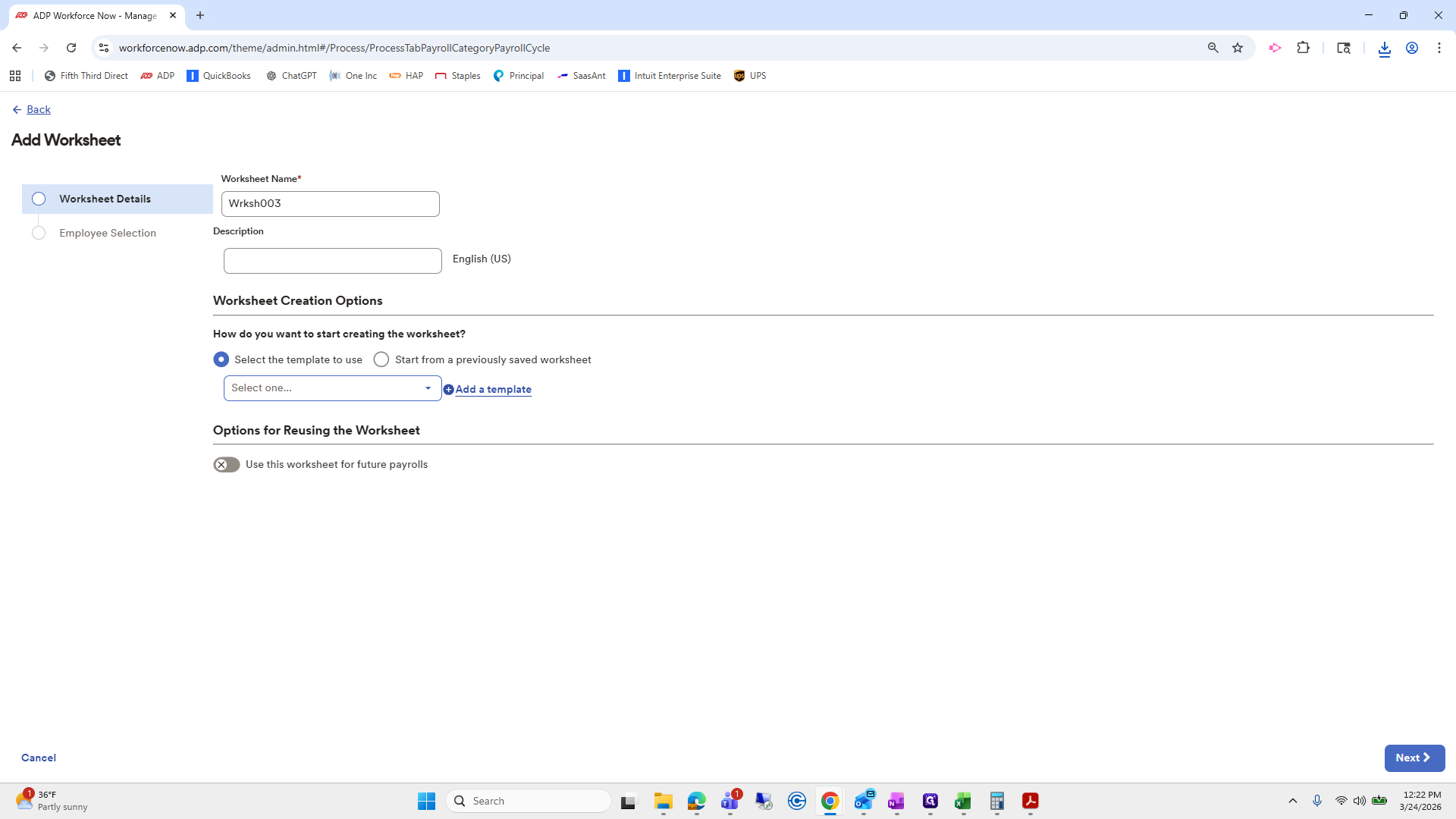
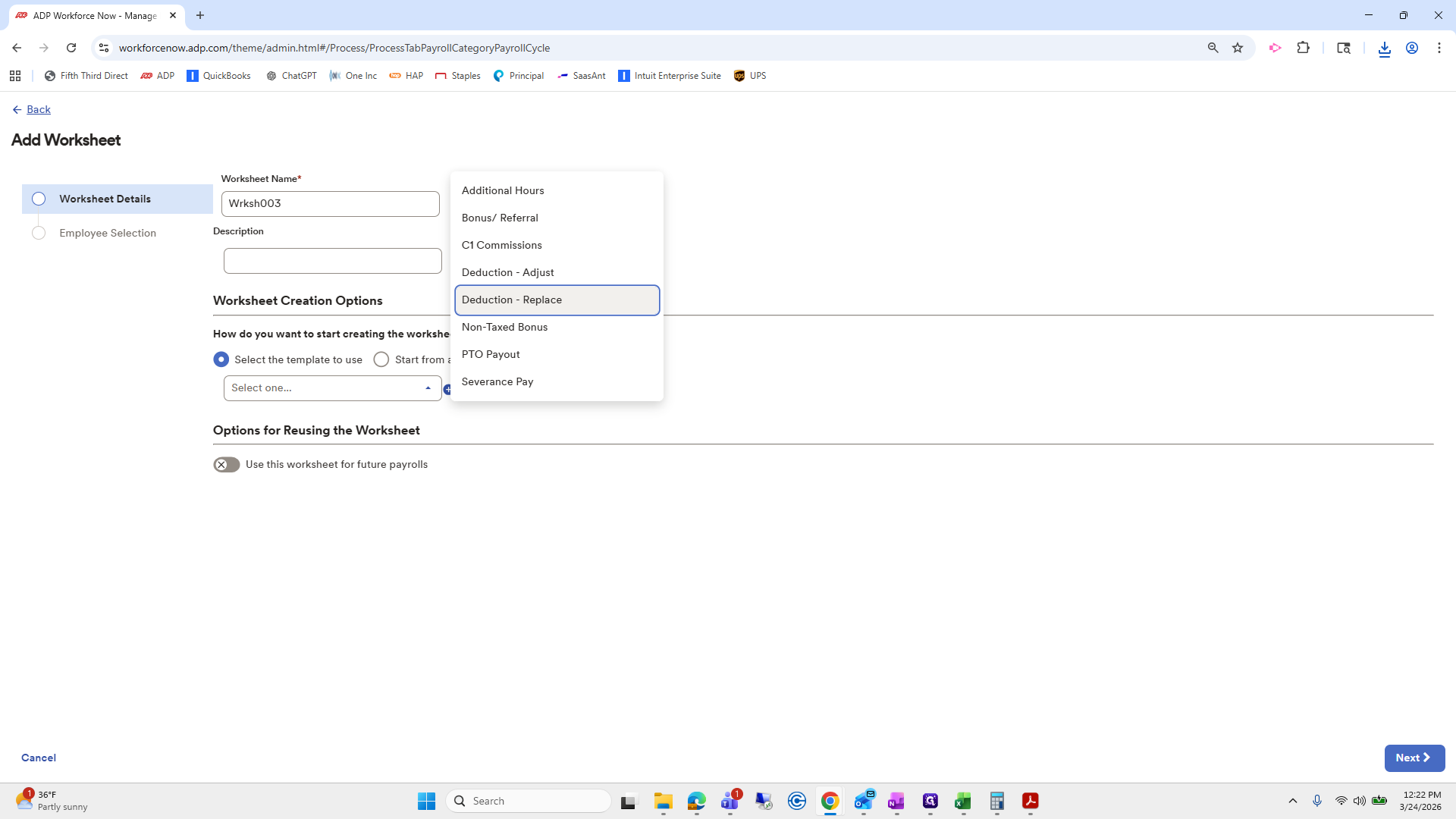
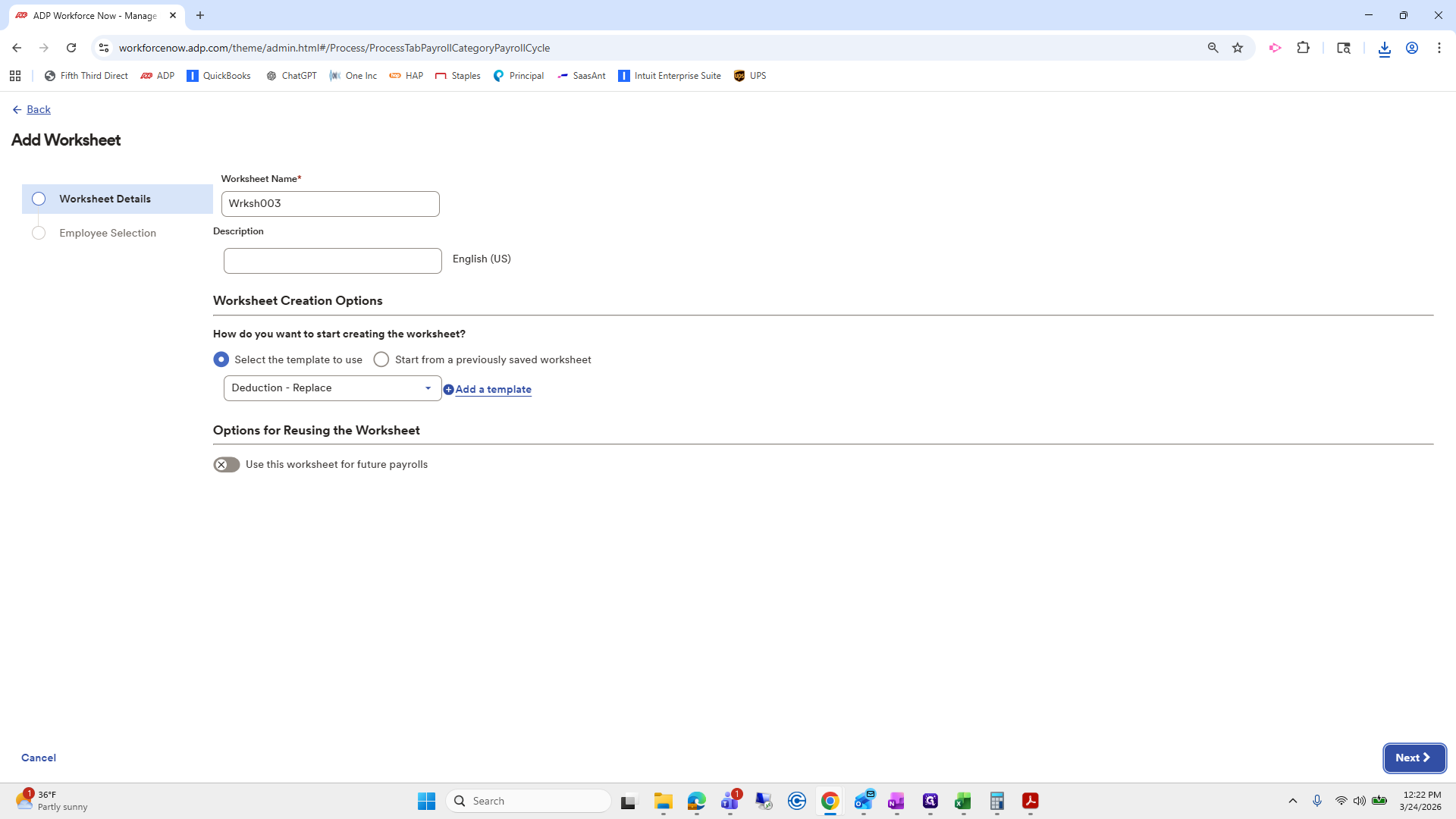
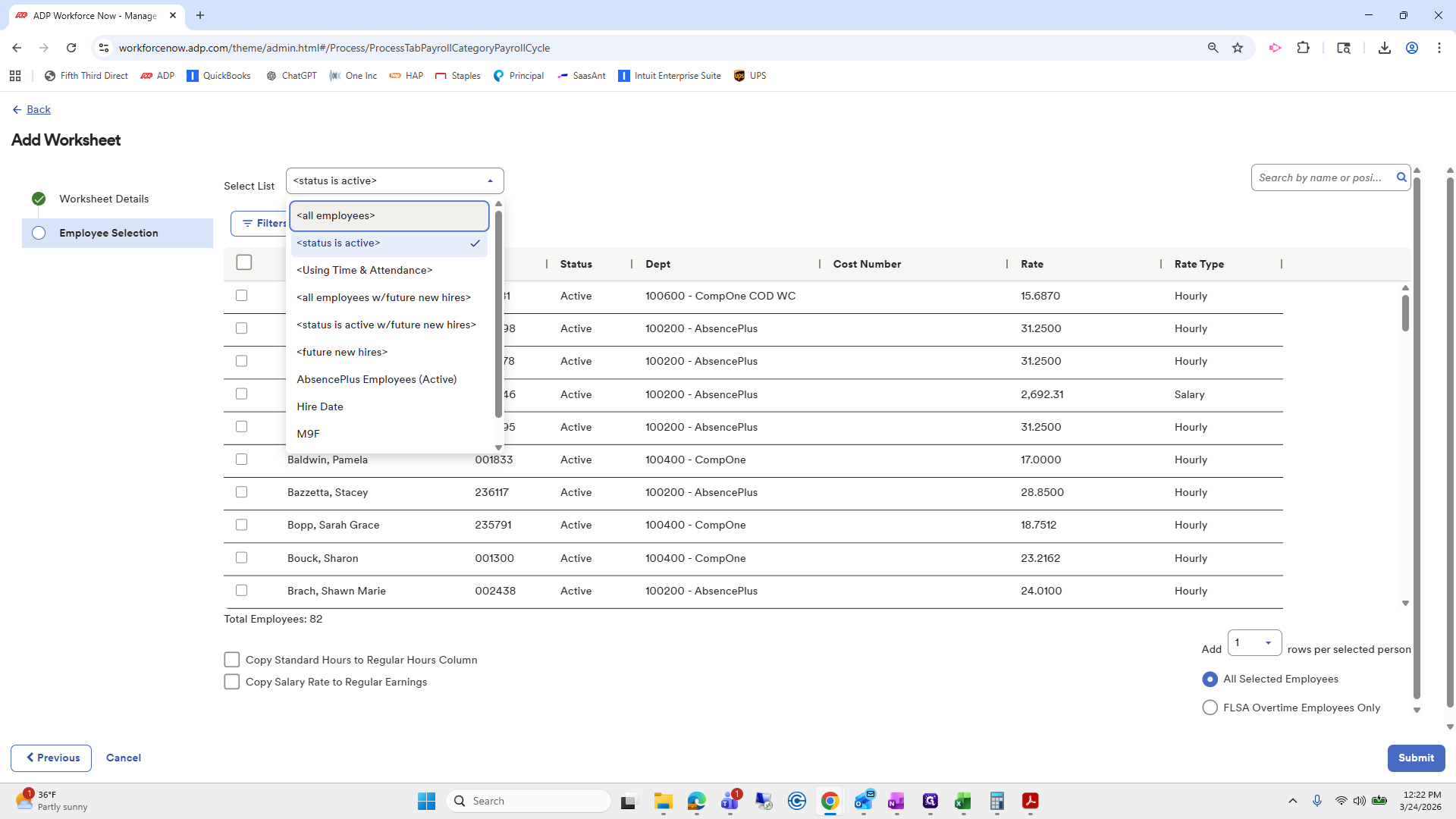
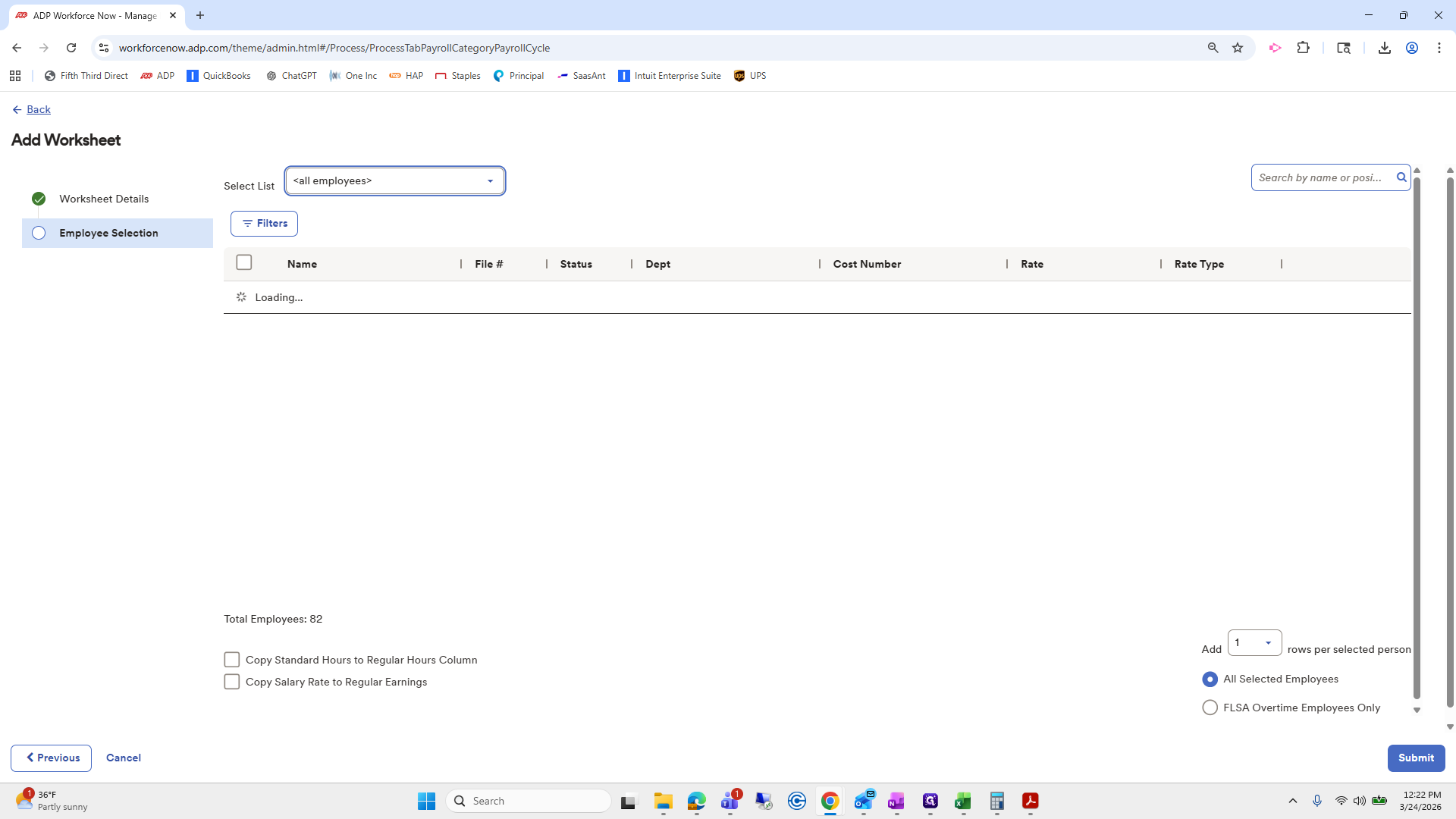
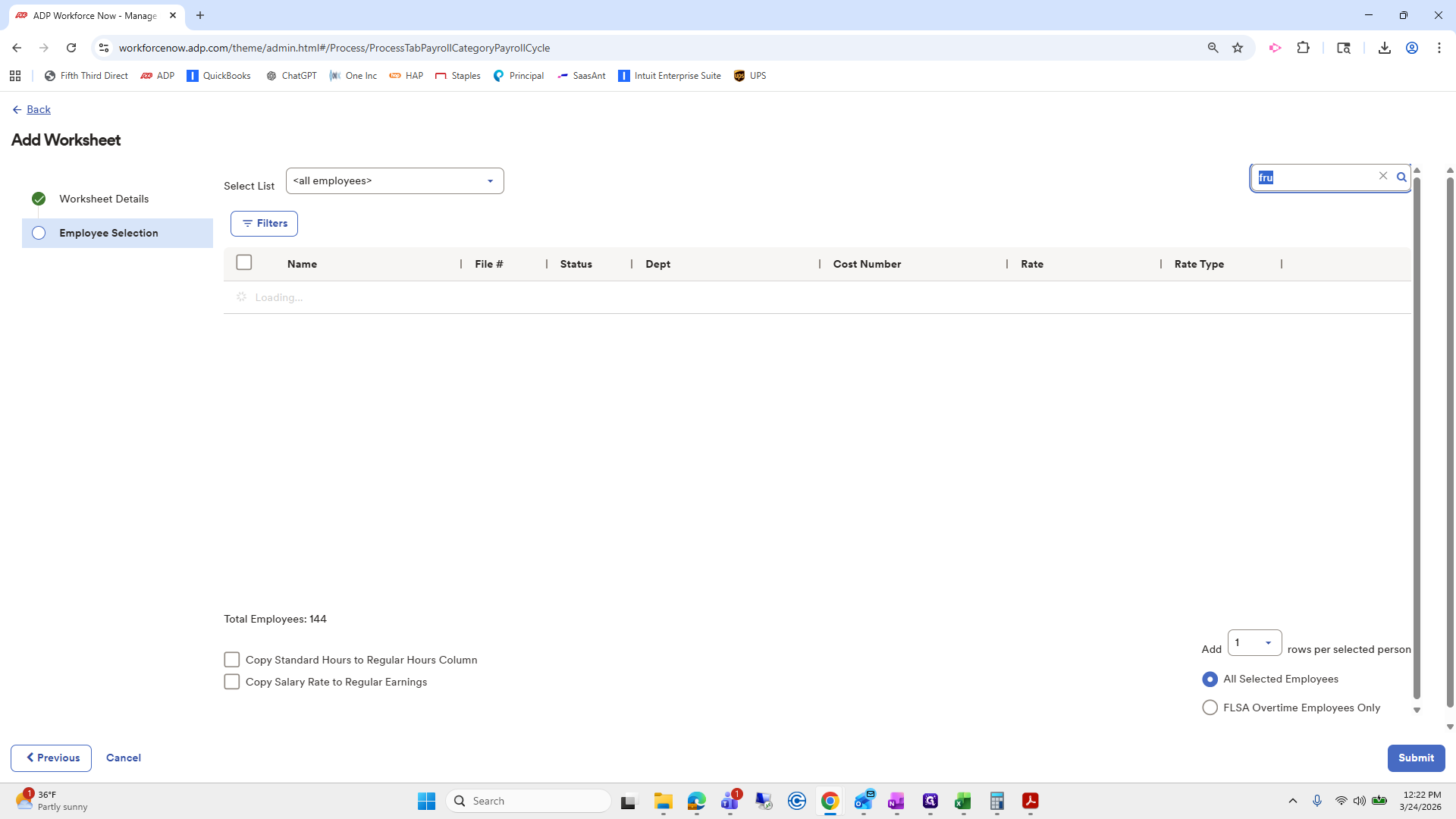
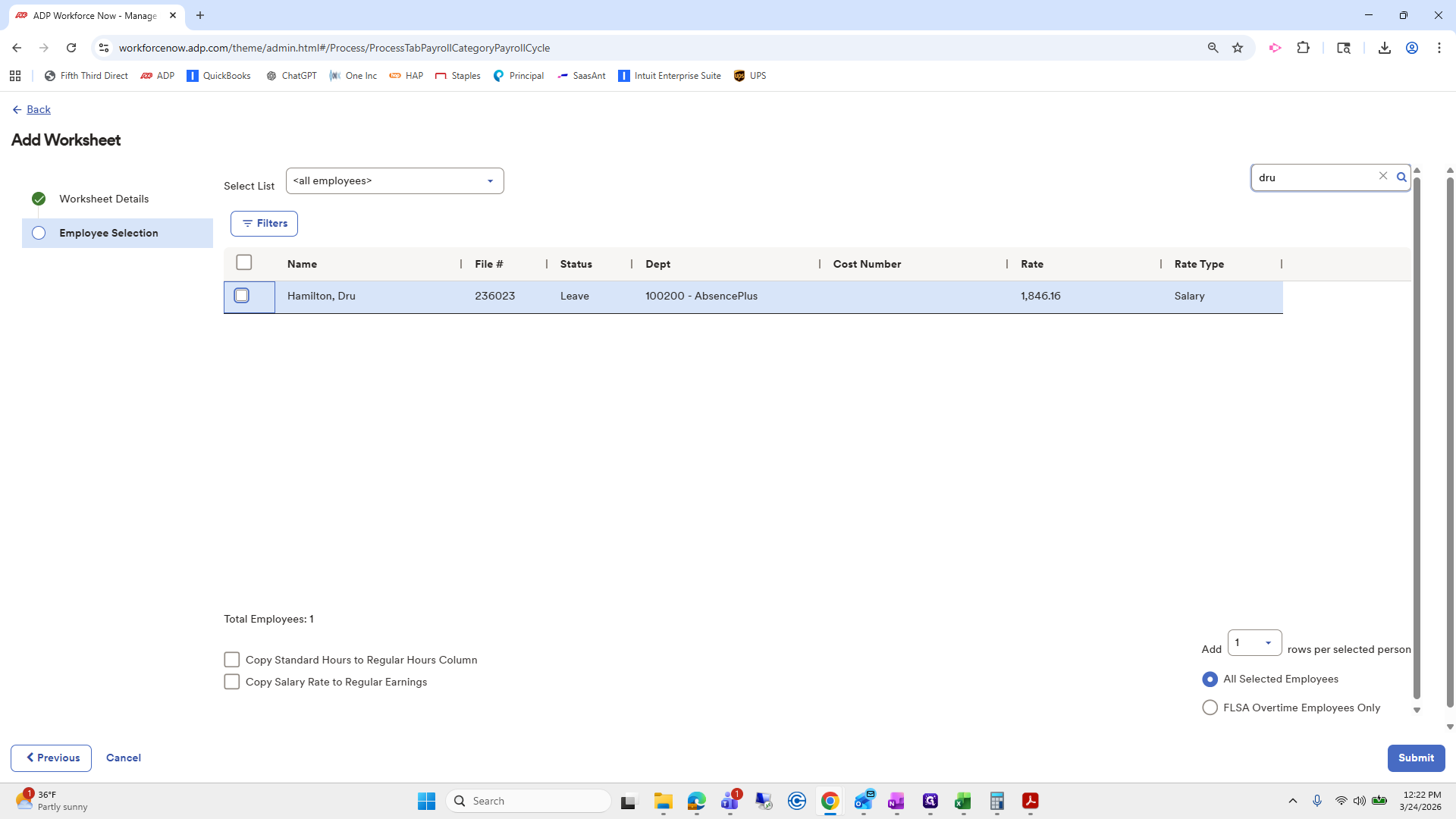
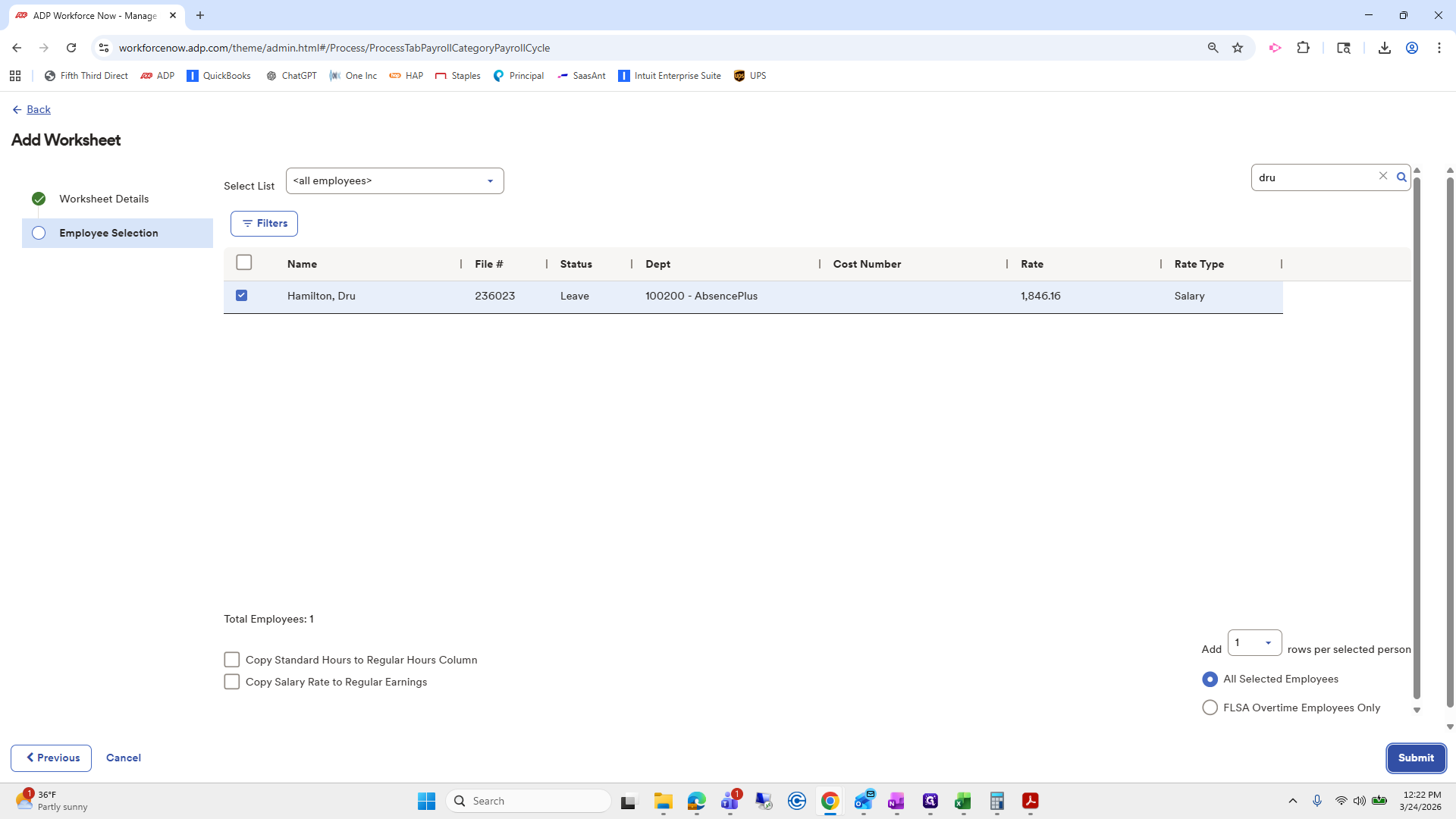
Okay. I completed the replace deduction worksheet instead. I have them here. I will auto-balance, press done, and then calculate the payroll again to see if it appears. It's still not there.
Since I have tried everything I can think of, we may have to see... Take Drew off leave. I will discuss this with Erica. In this case, we need to take him off leave to process the deductions. There should be a toggle or similar option for this. Um... Oh!
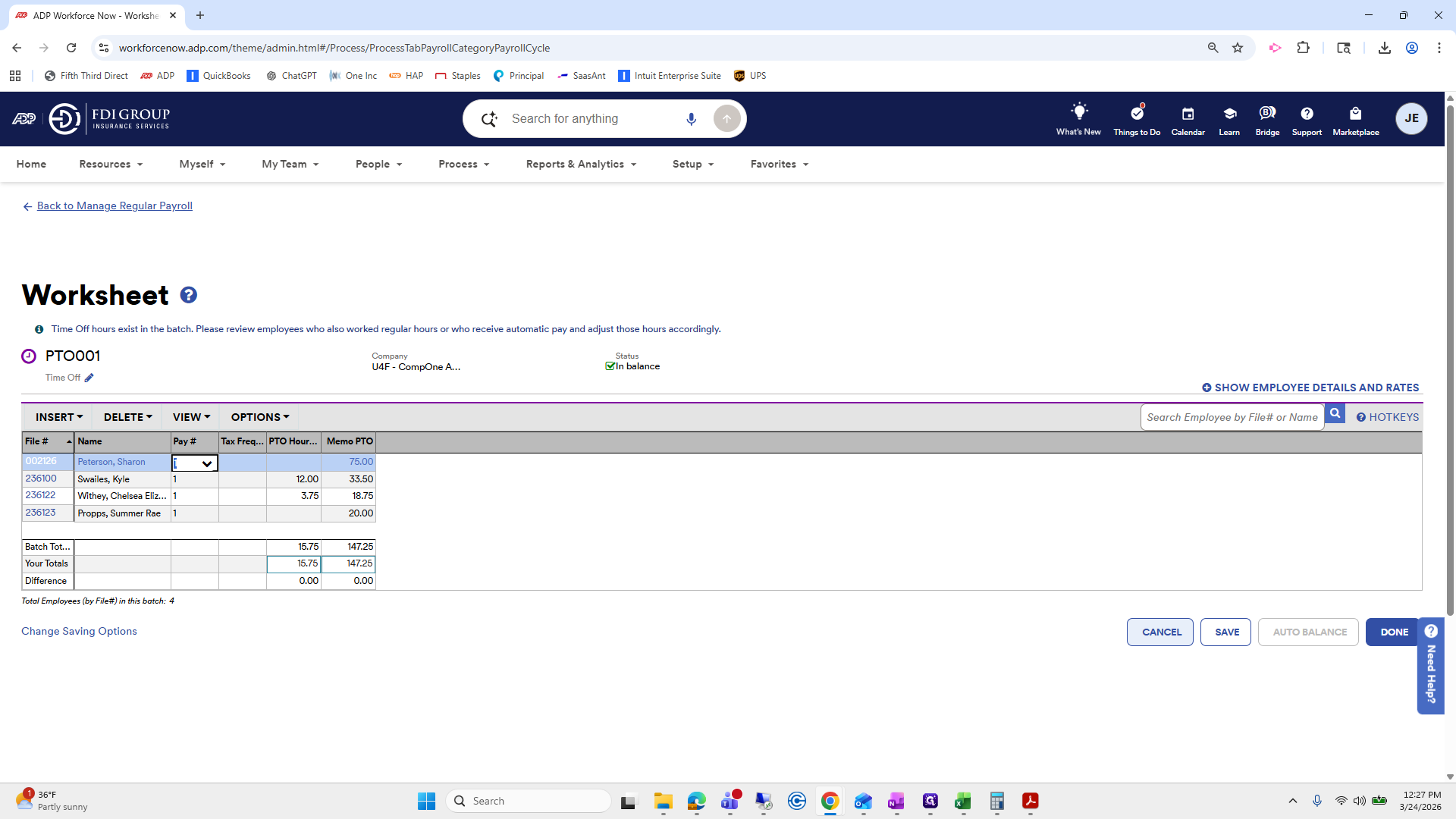
I know the problem. Just kidding. We recorded 40 hours of PTO, but since we didn't select a rate, it isn't being calculated or included. Okay. That's what it is.
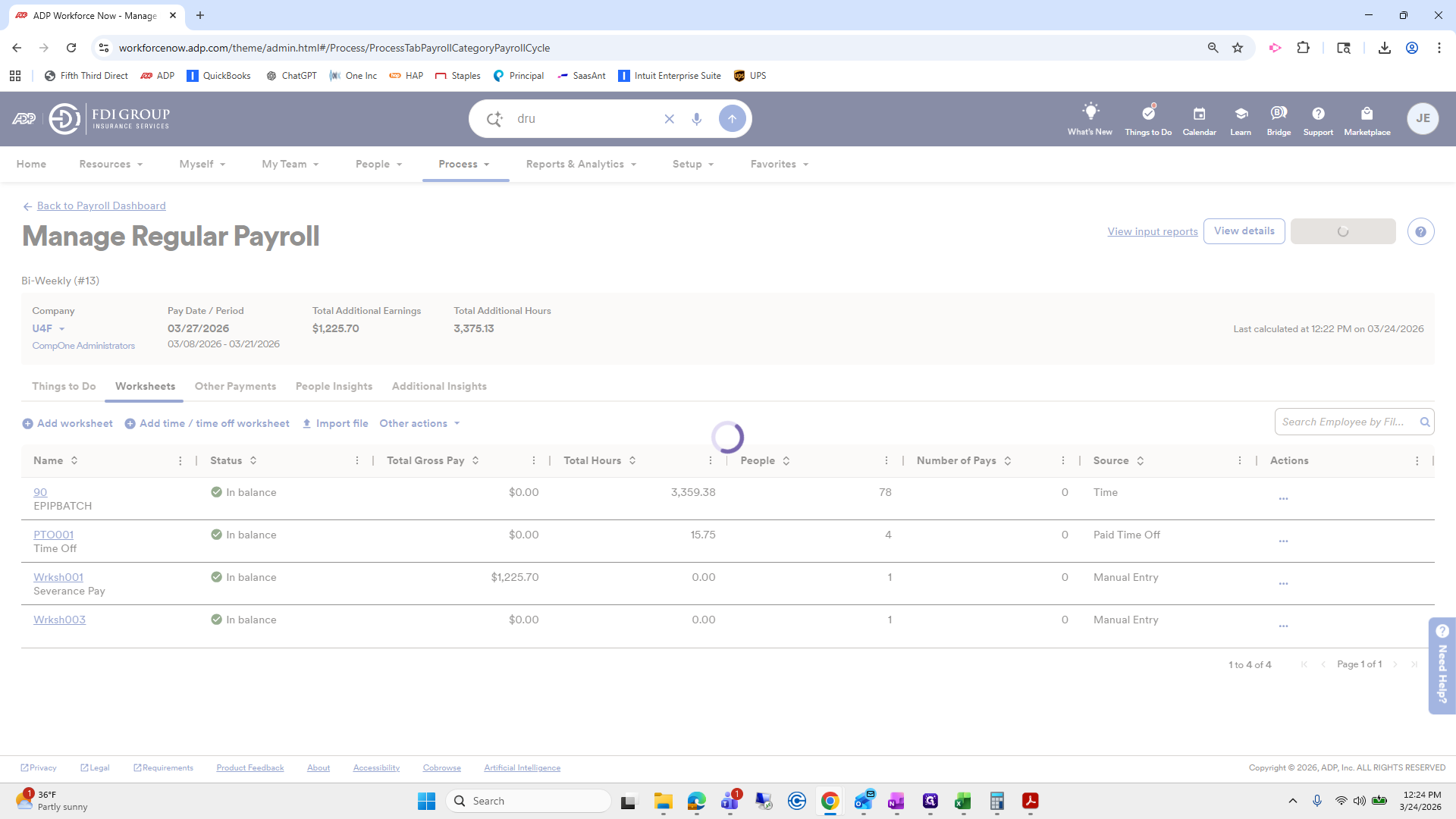
We will make changes. I made a mistake. Sometimes, if you make too many changes, it says we need to give it a second. We will wait for a few minutes. I will pause now and resume after a short wait. Okay.
Drew's deductions aren't showing up because I only entered 40 hours of PTO but did not enter a rate. Generally, this person is salaried.
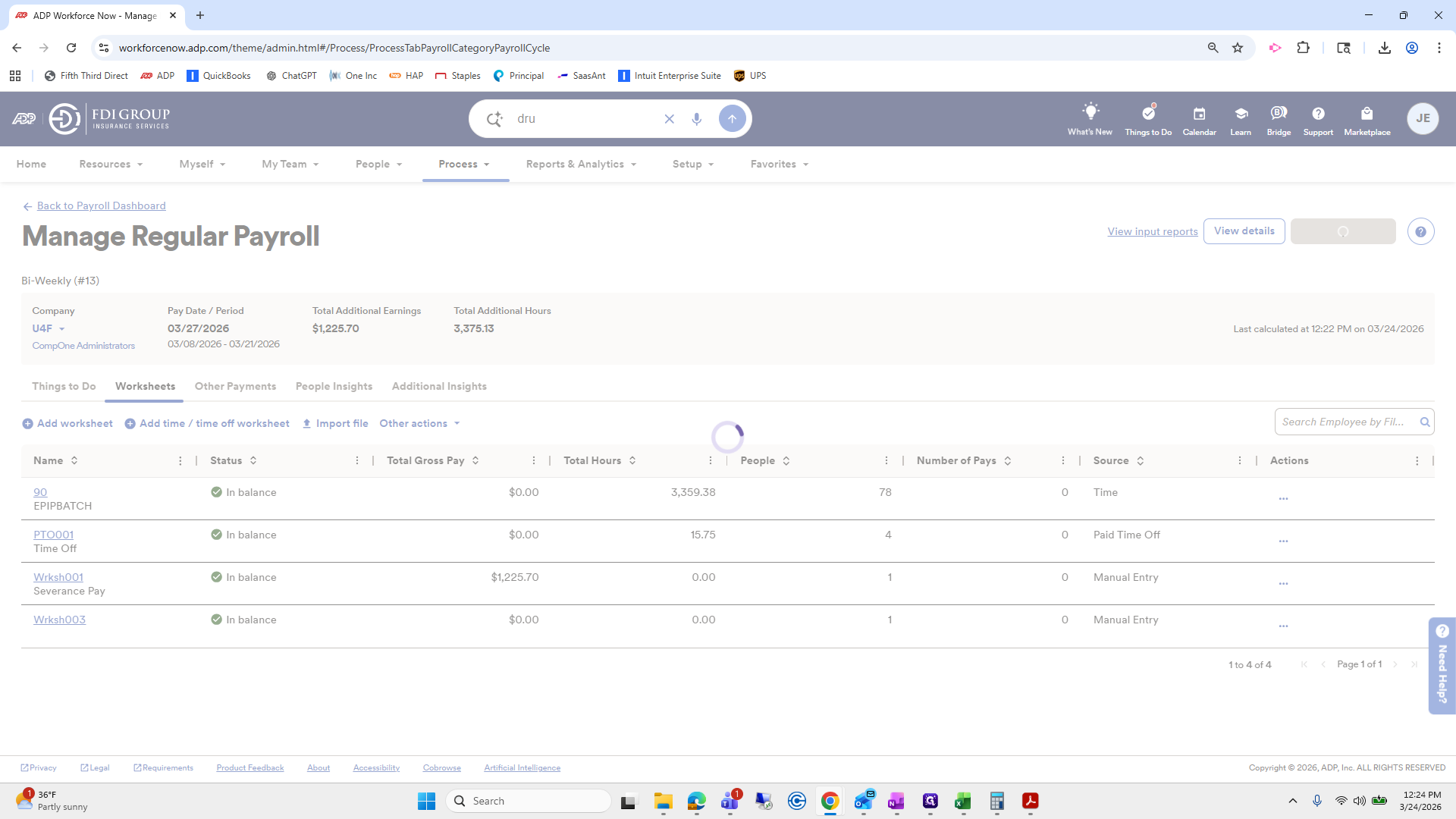
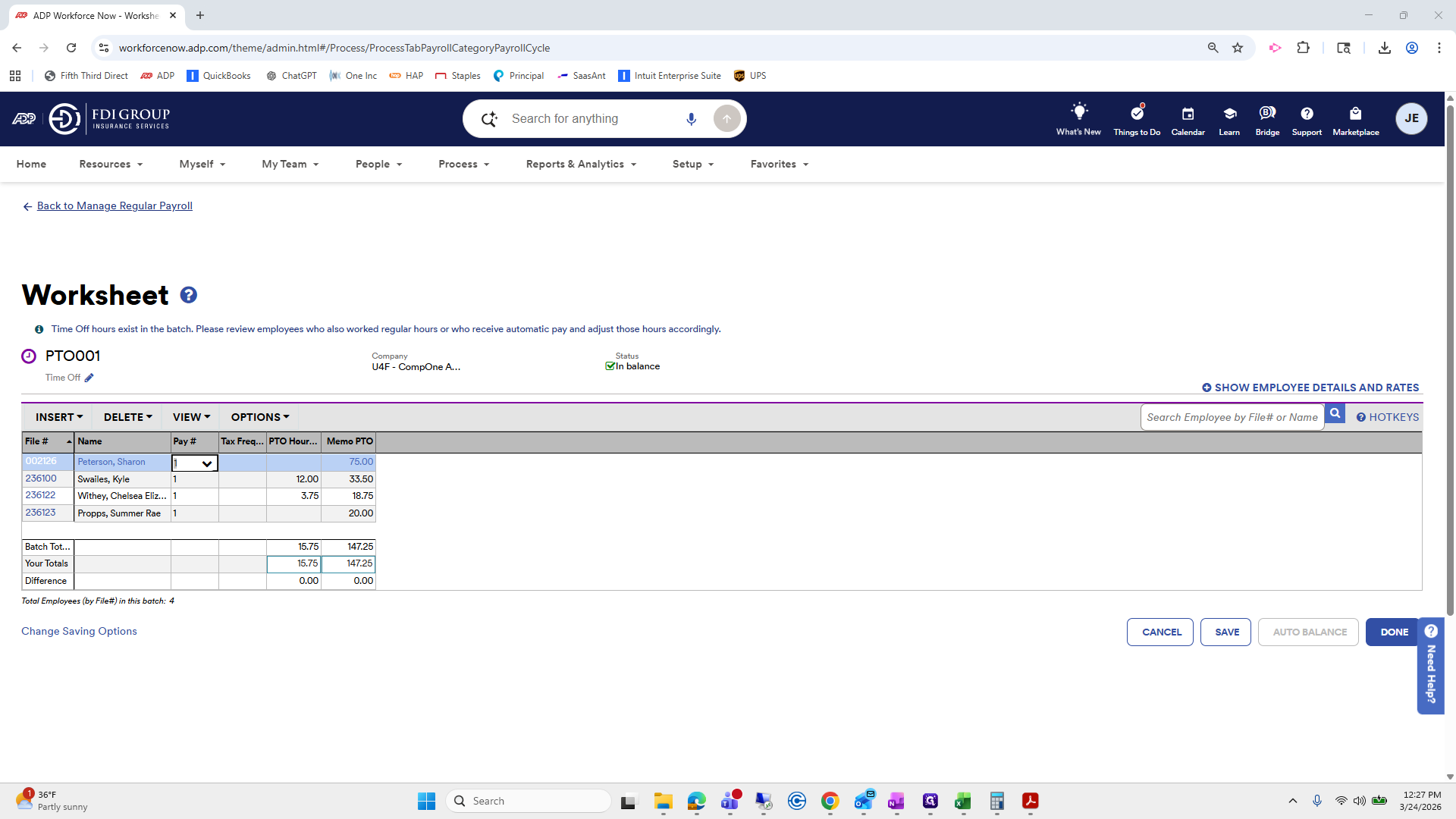
That was my mistake, but it's a good learning experience. Manage payroll. We will cover PTO and time off.
We have hours.
Oh wait, that was the wrong one.
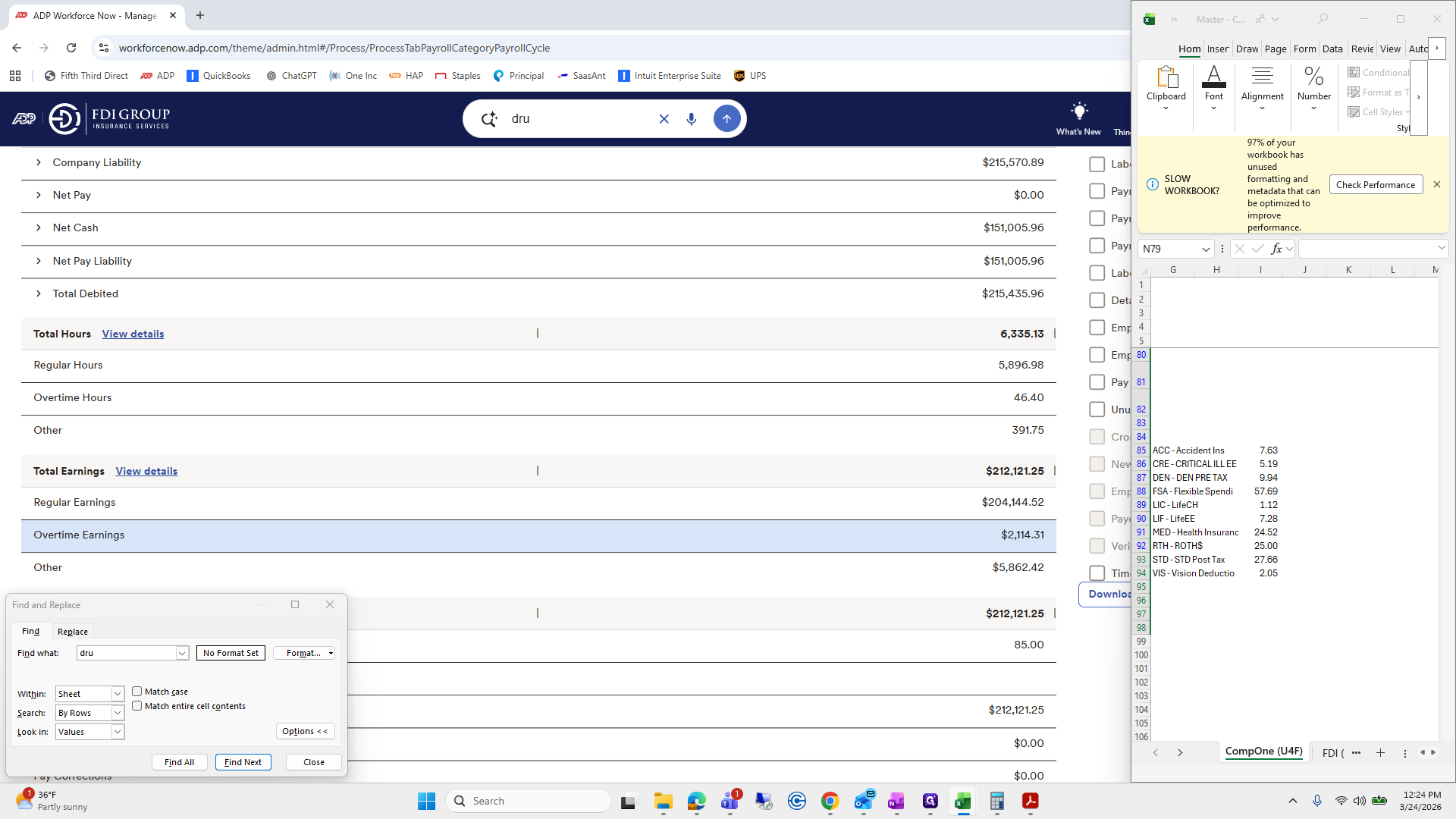
Let's check its status. Maybe I didn't add his PTO.
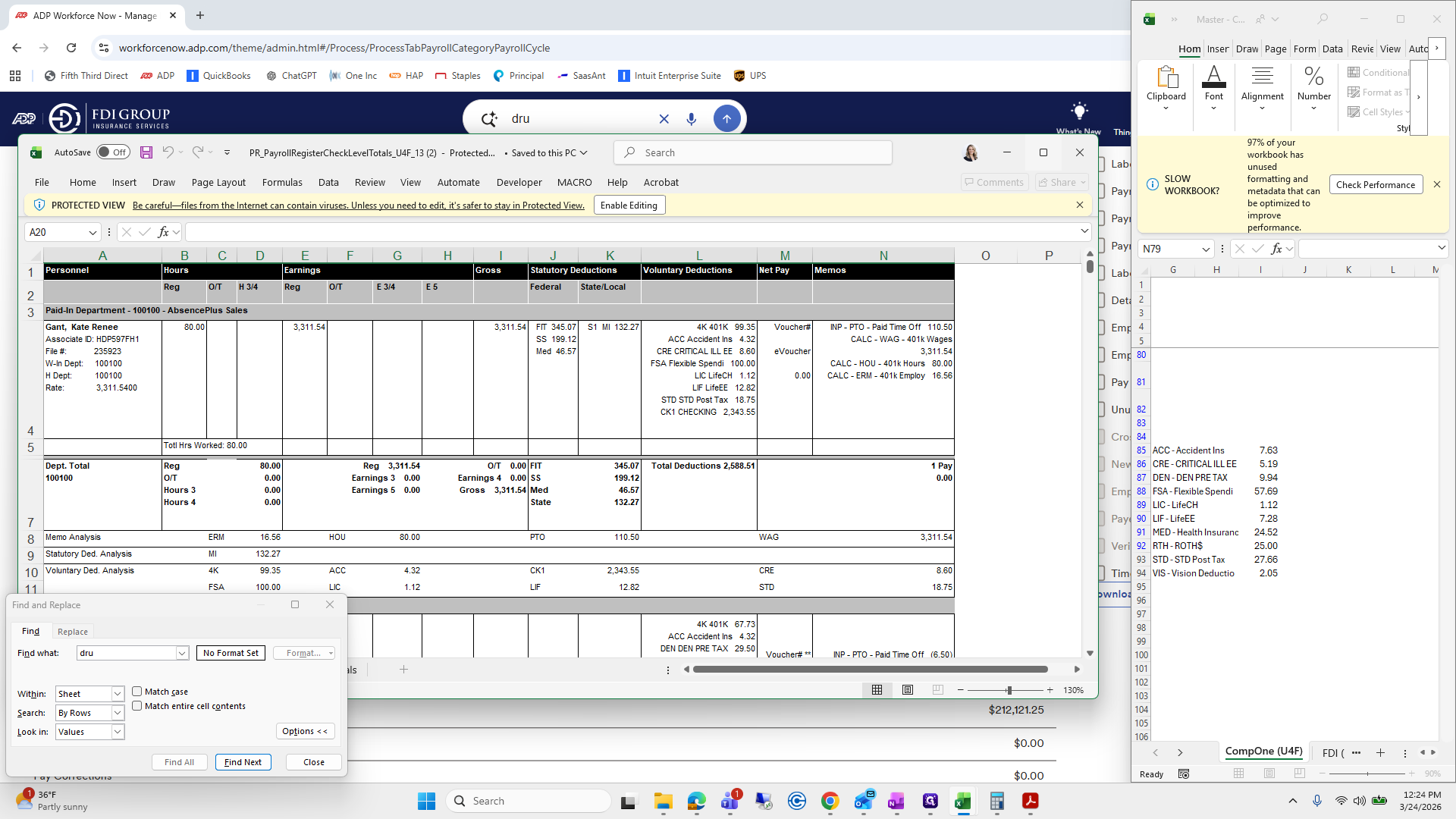
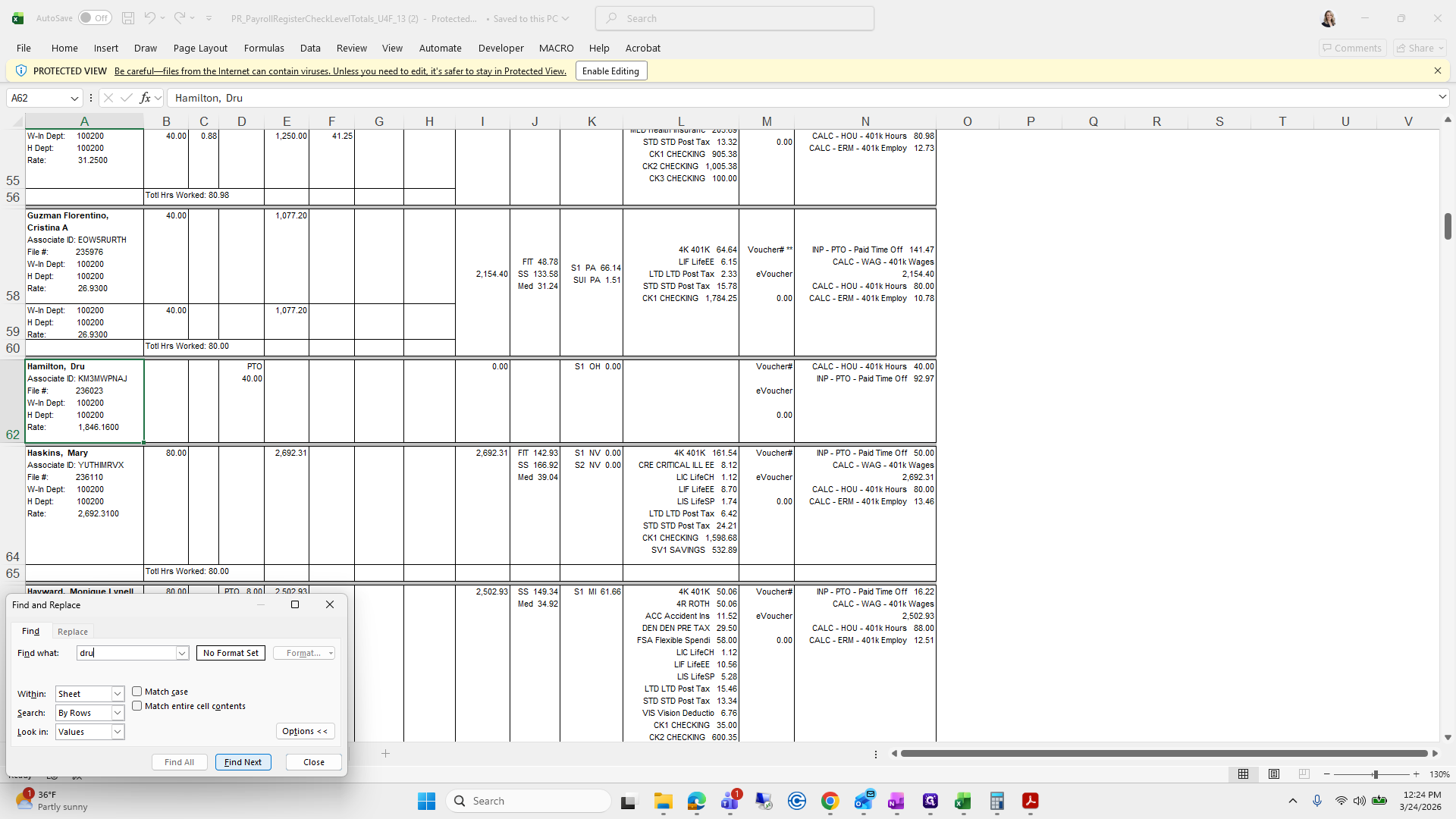
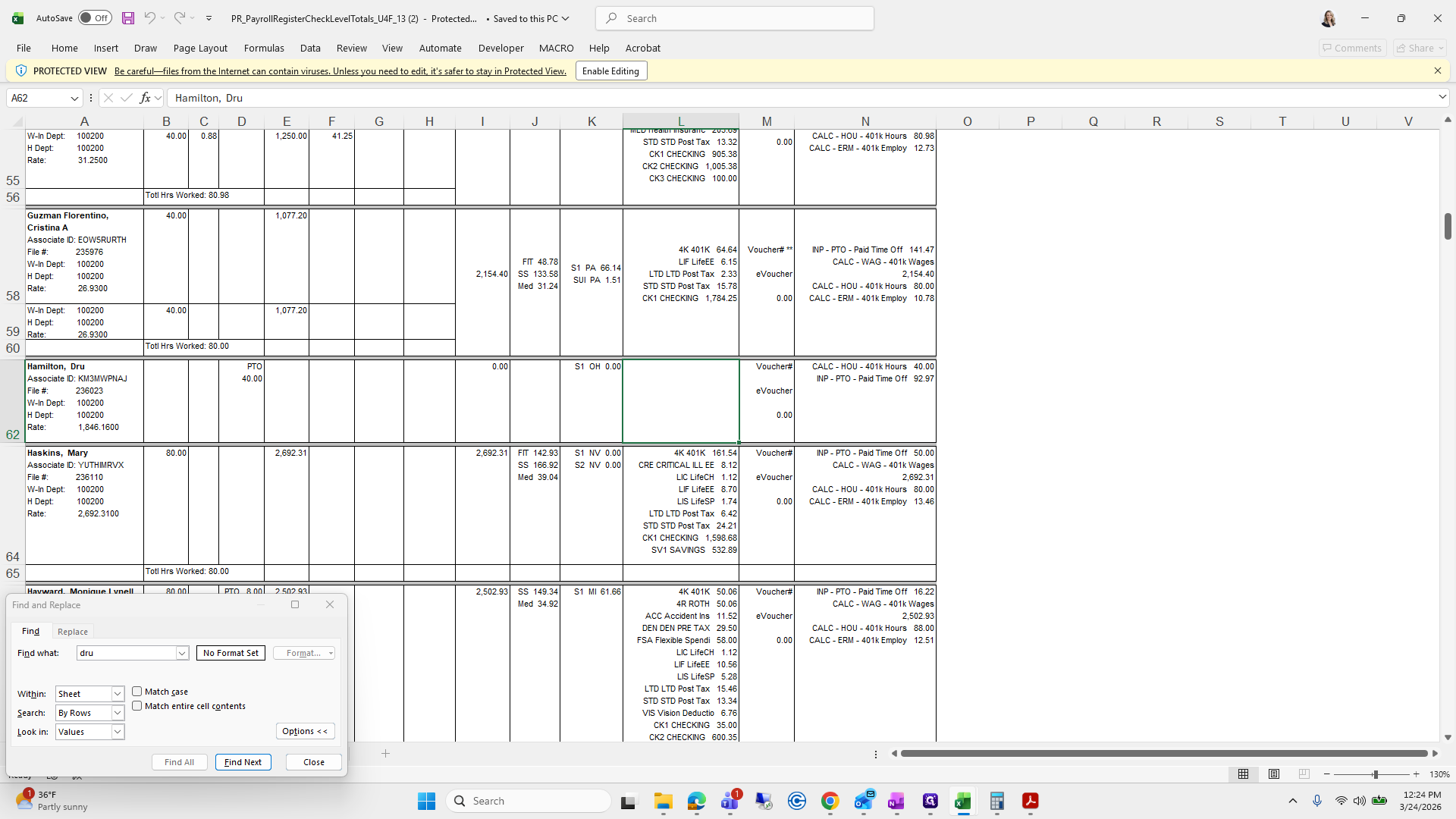
That's why—because he used PTO, I have to calculate it manually. Because his PTO is in the batch ready, it is deducted from his salary. However, since he is on a leave of absence, he is not receiving a salary.
So...
okay.
That makes sense. So I need to go...
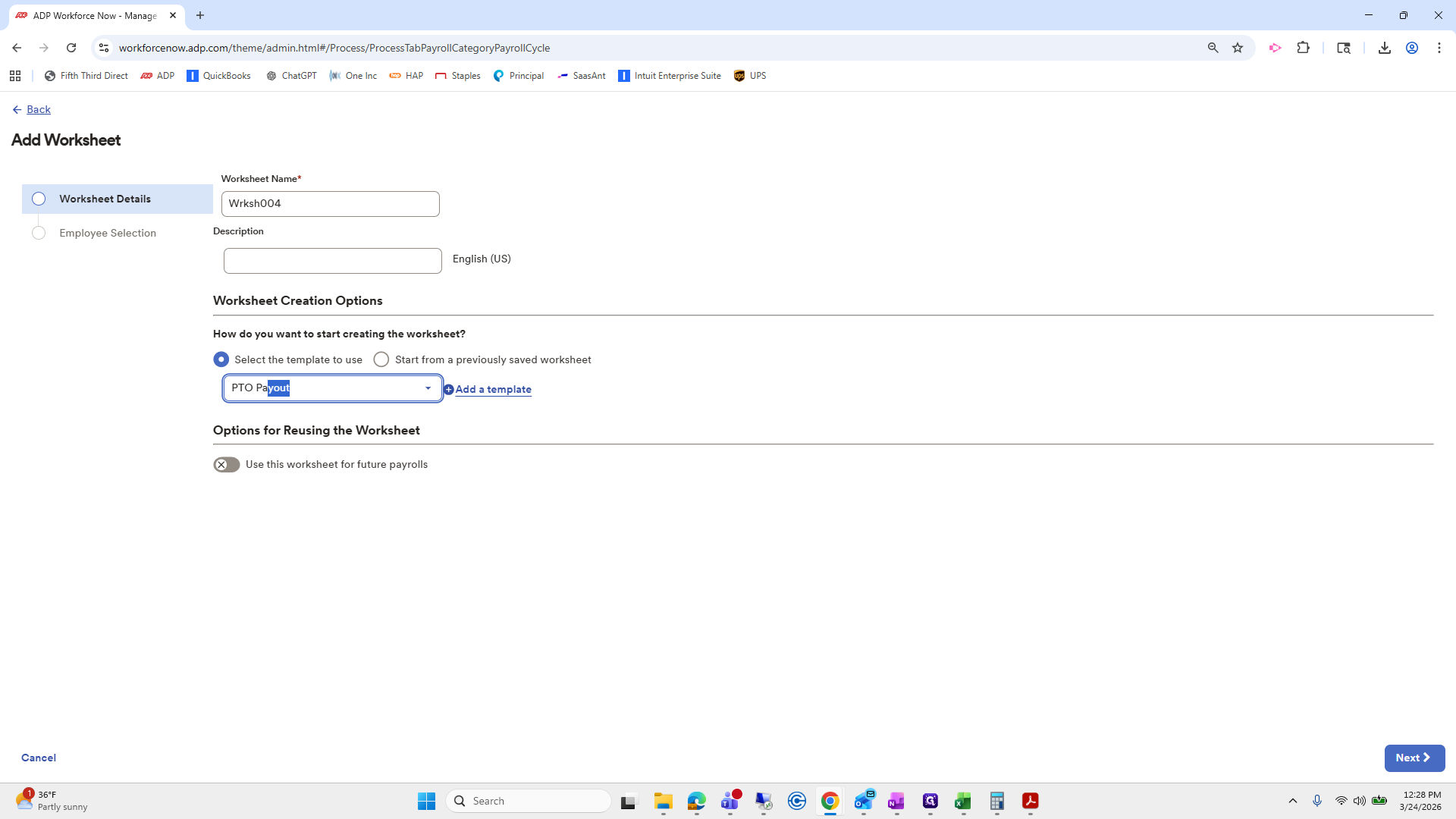
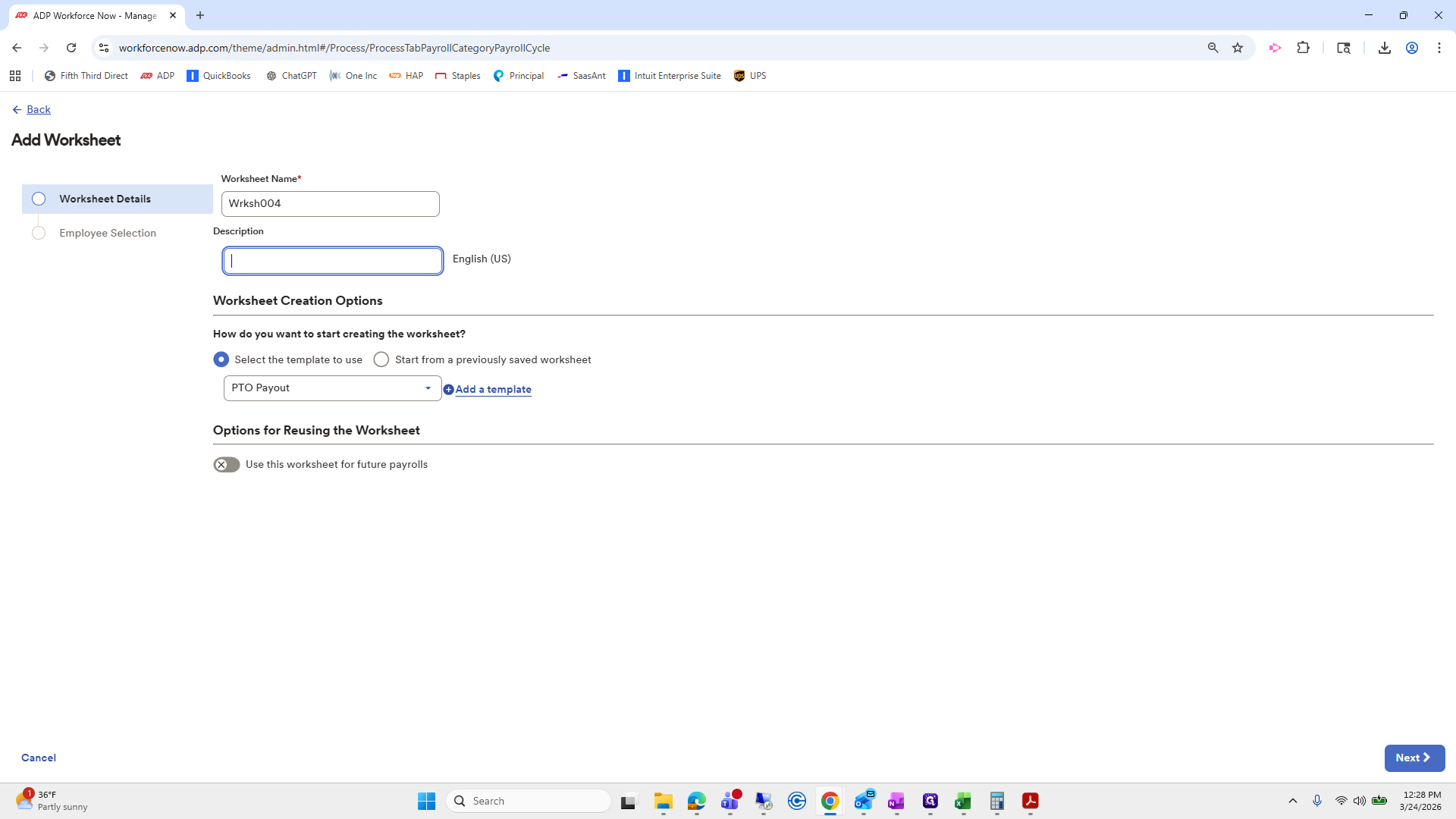
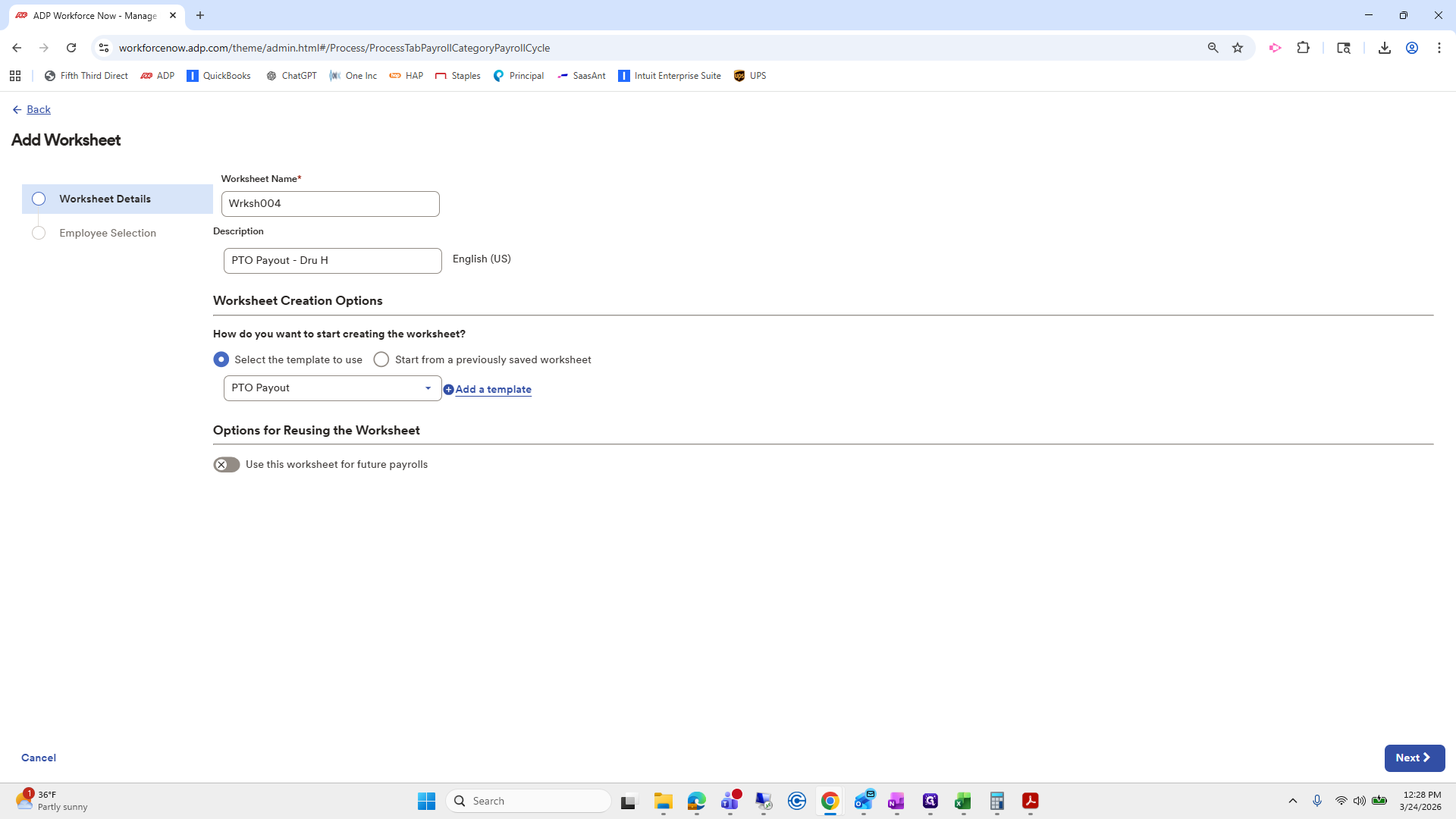
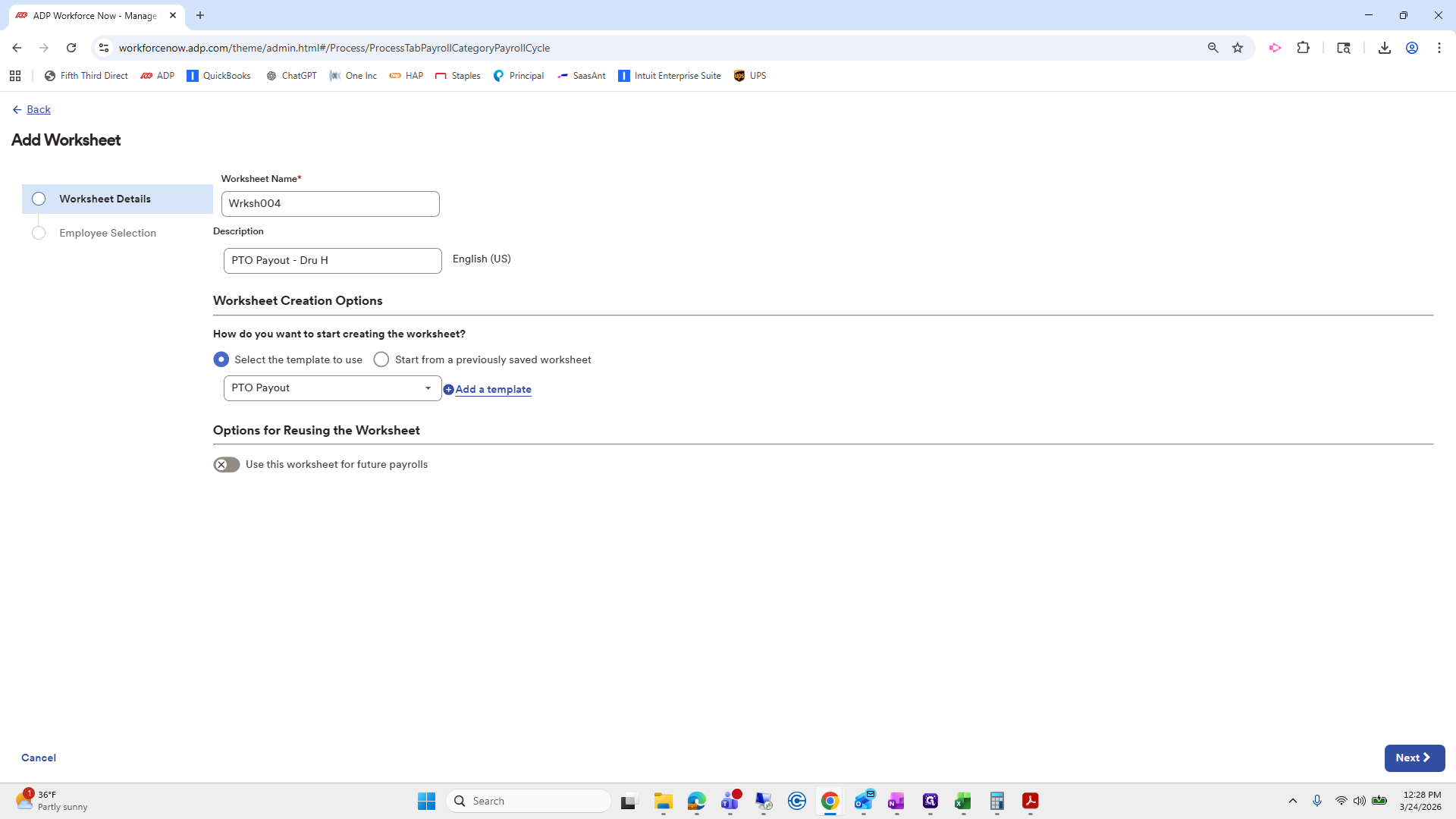
Add a new worksheet.
PTO payout. Here we will pick Drew.