SOP: Payroll Step 4
Learn how to process payroll including PTO payouts, insurance premium refunds, and incentive hours with detailed, step-by-step instructions. Perfect for payroll administrators and HR professionals.
In this guide, you’ll learn how to process regular hours, handle PTO payouts, and issue insurance premium refunds. It also covers how to enter incentive hours for case management and ensure all payroll adjustments are accurate. This step-by-step approach helps maintain accurate records and ensures employees are paid correctly.
Let's get started!
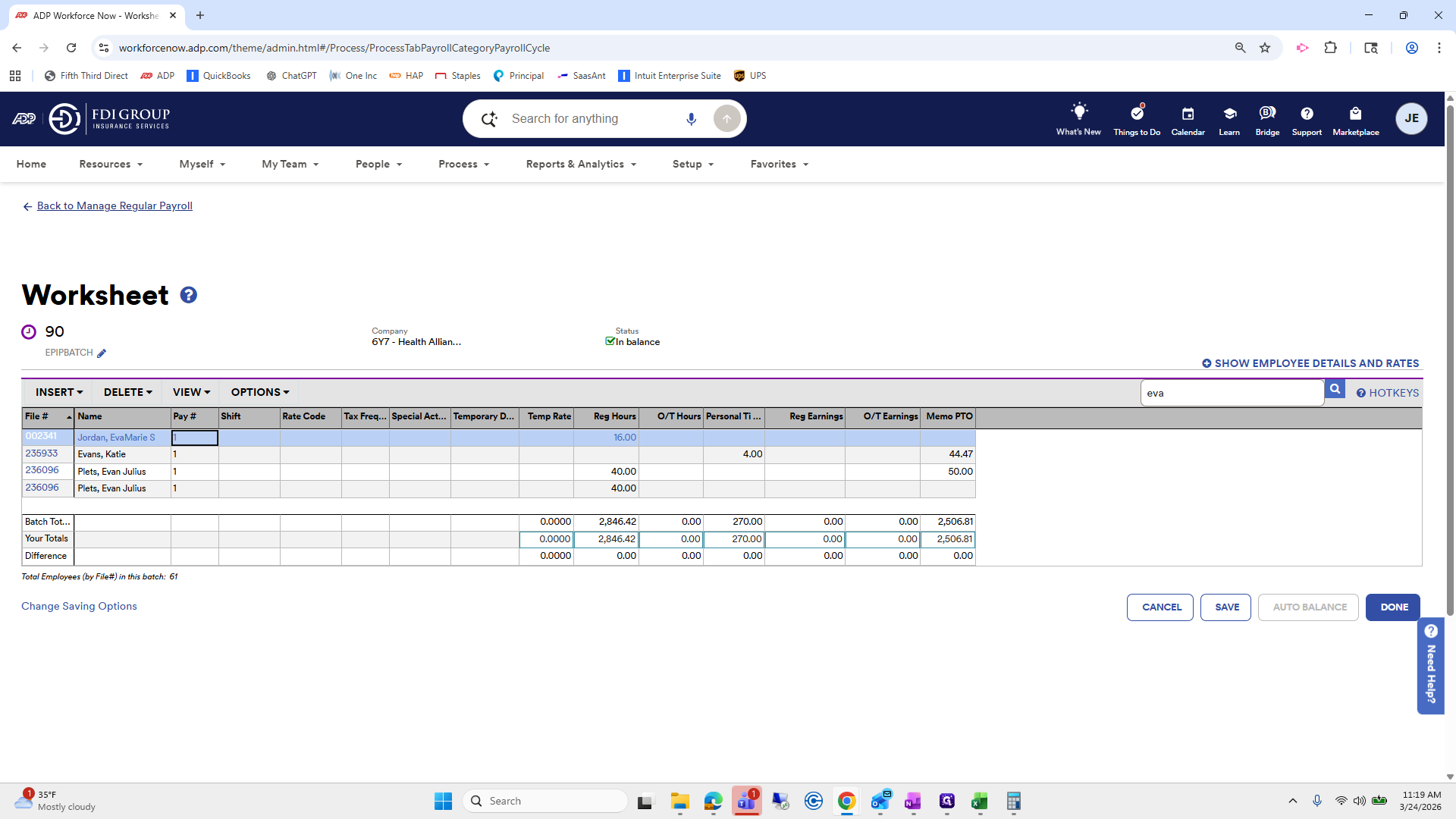
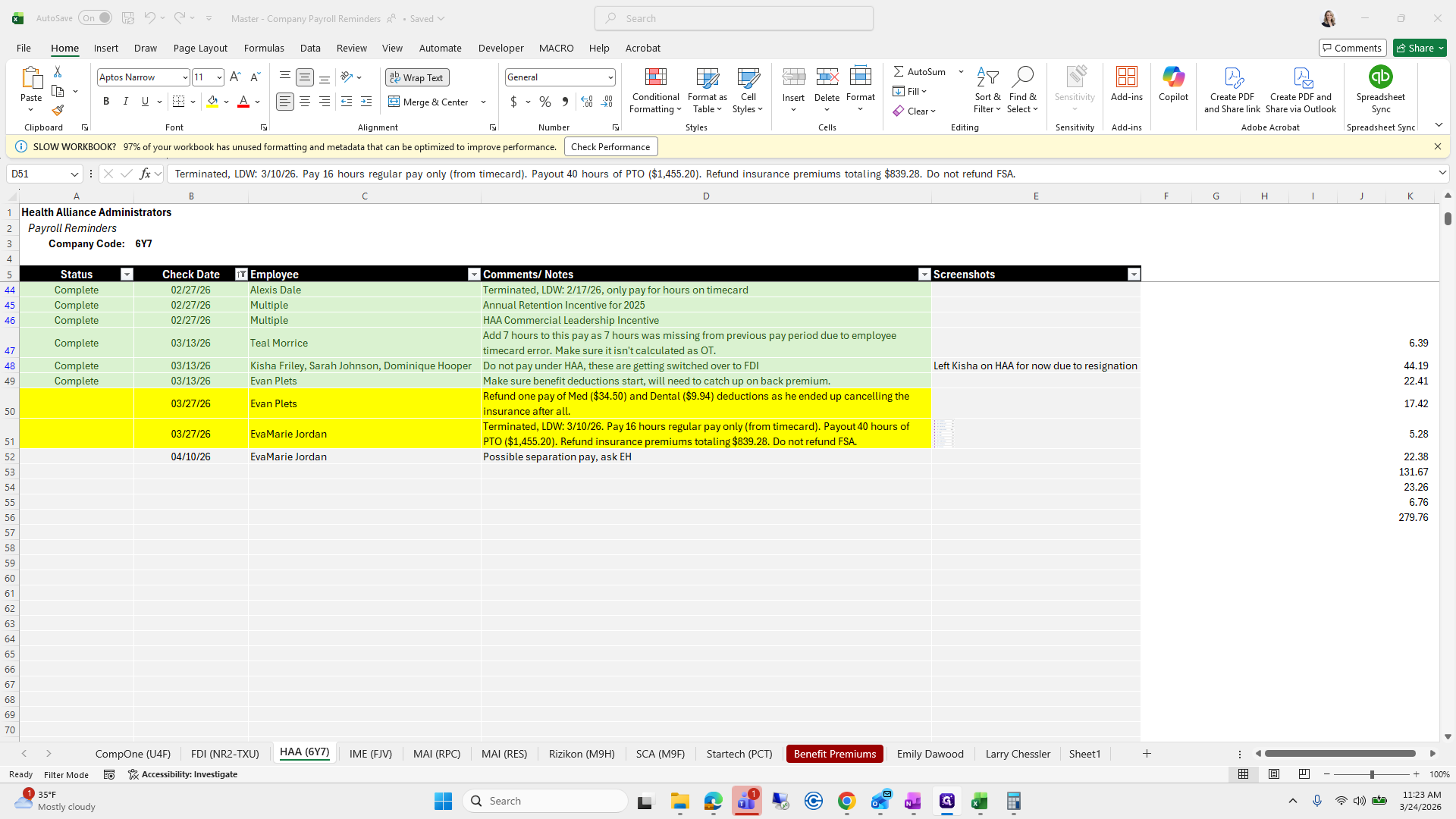
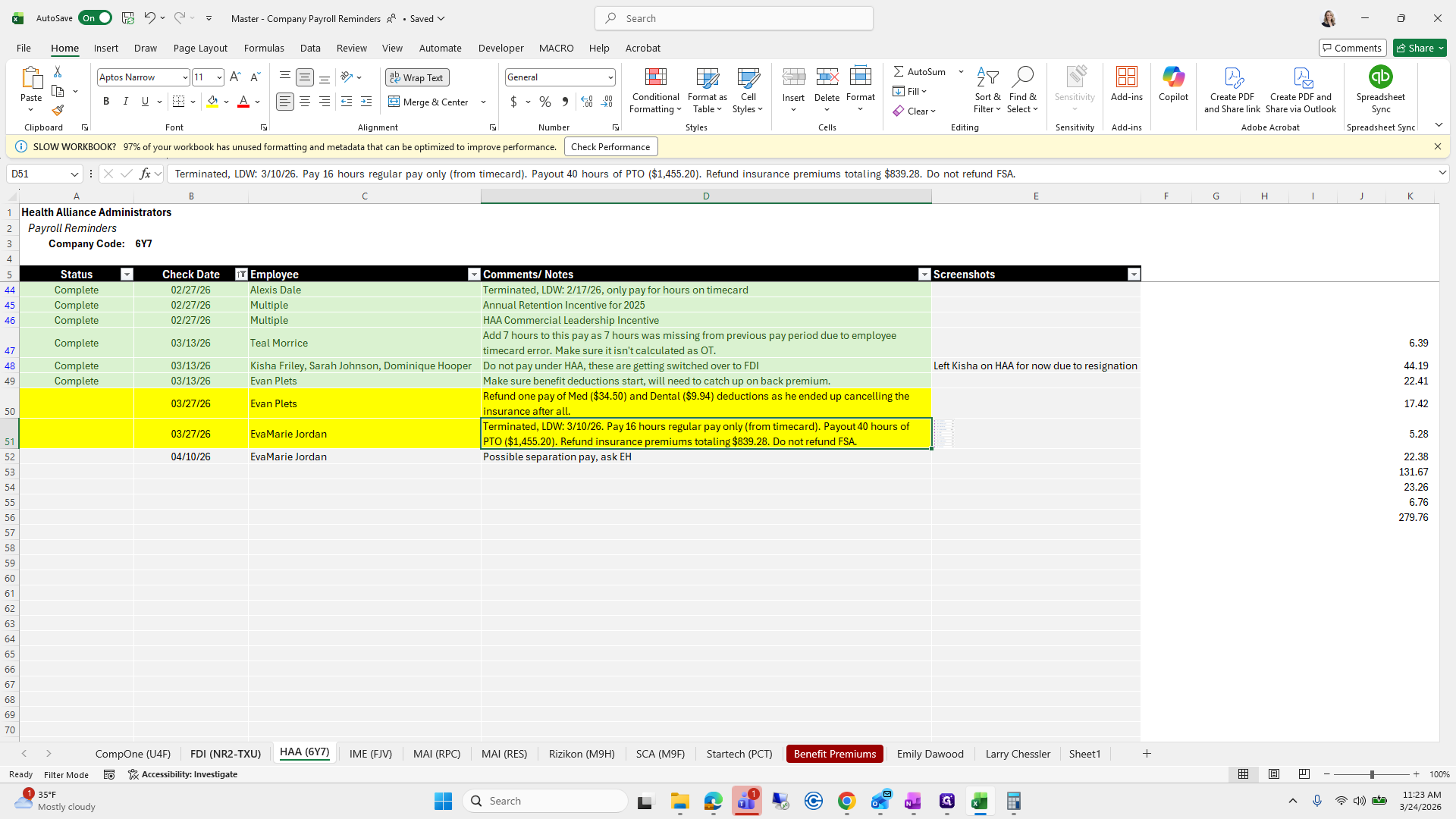
To continue our payroll training, we left off with Ava Marie Jordan. We need to pay her for 16 regular hours from her timecard and pay out 40 hours of PTO. We will return later to process the refund of insurance premiums.
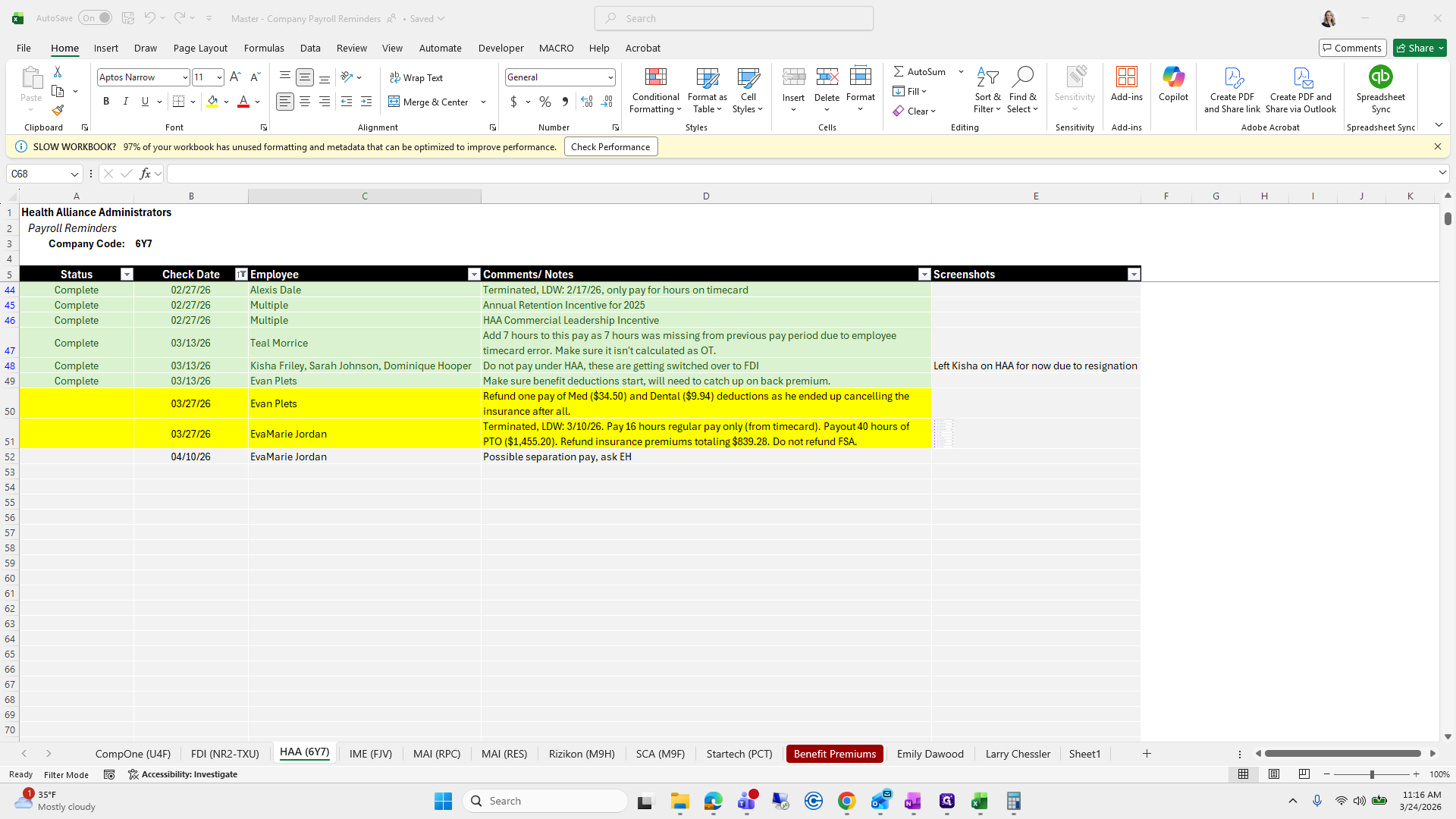
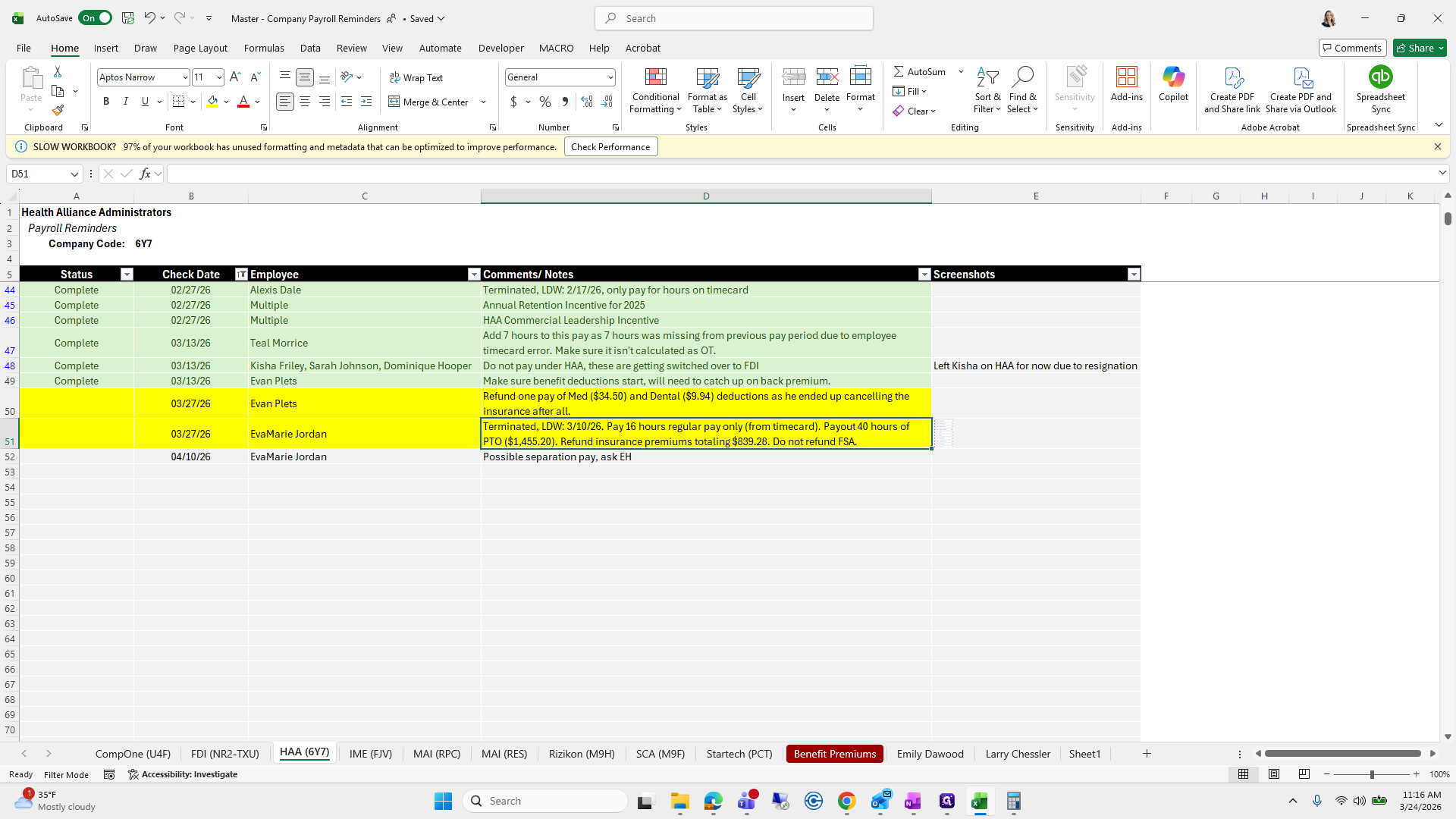
We will add a worksheet.
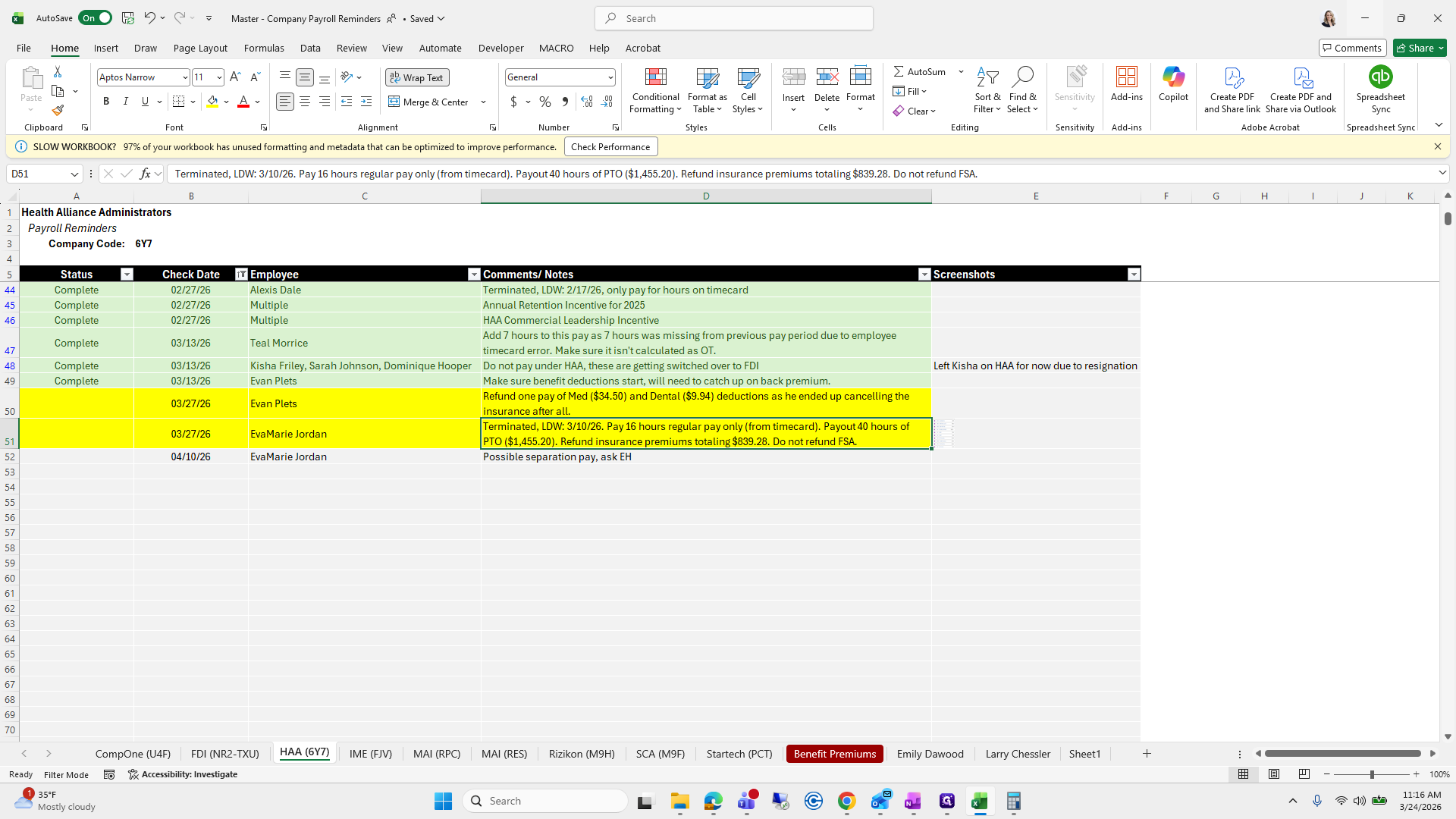
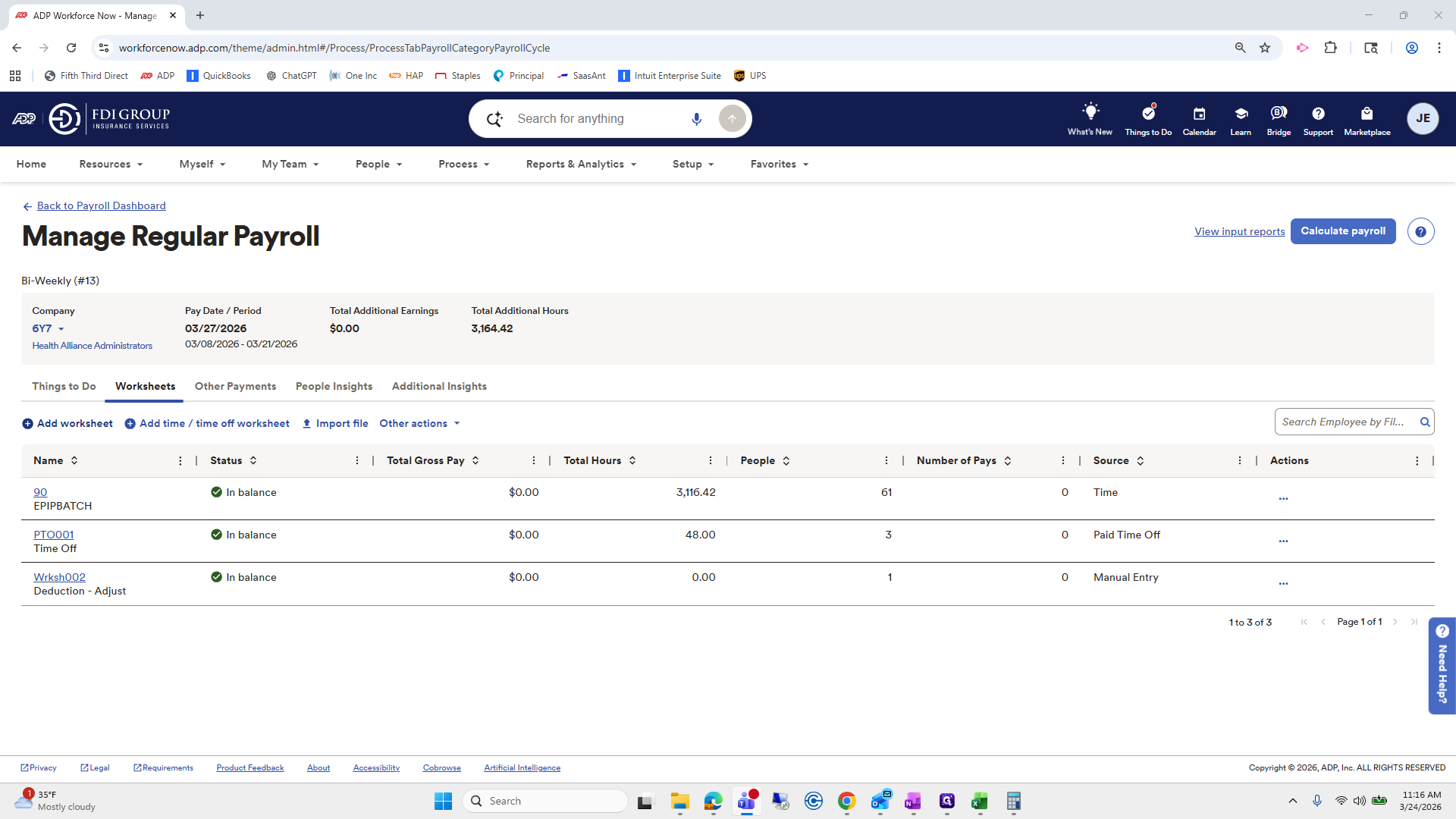
whoops... Read NHAA.
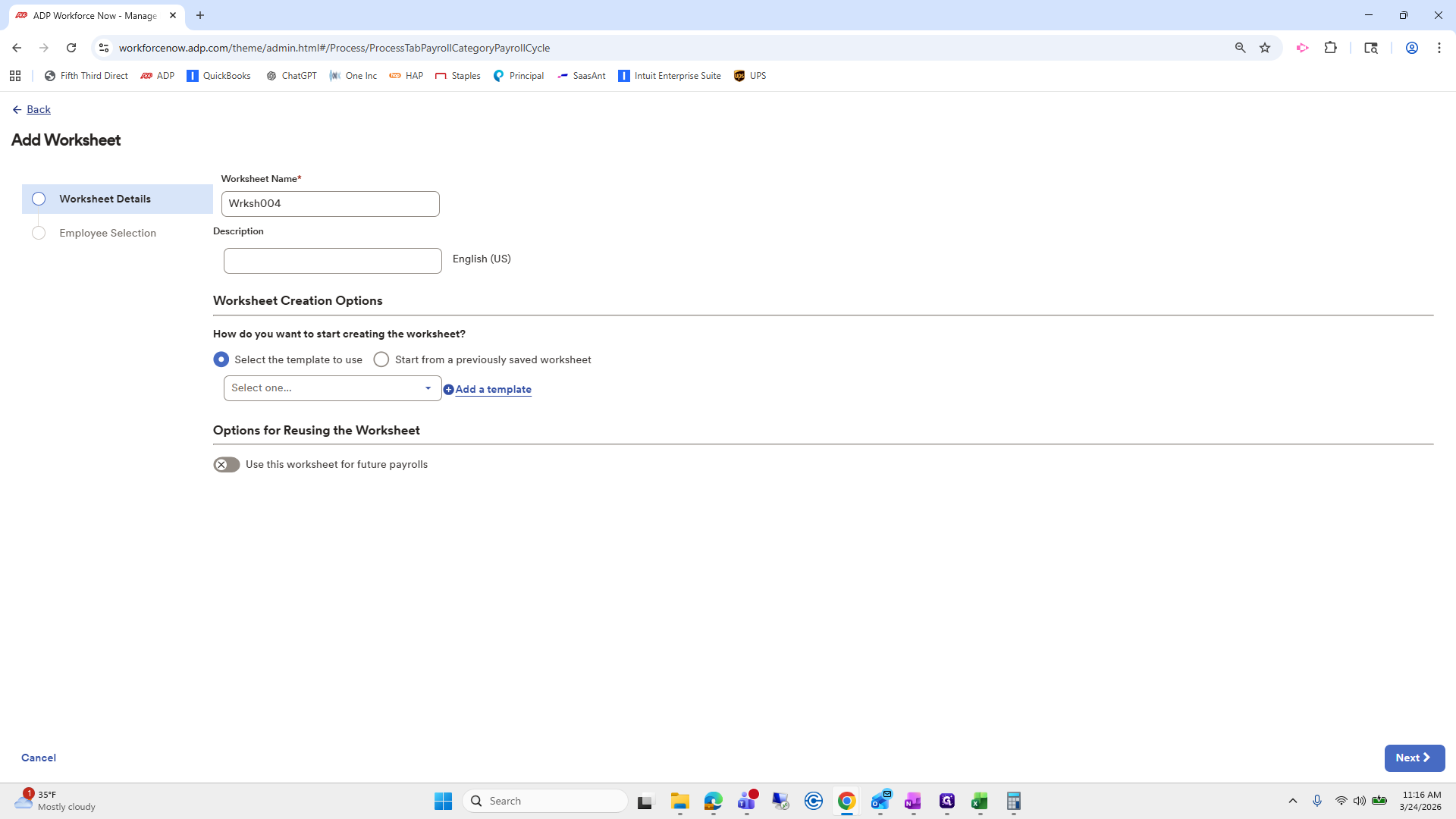
Yes. Add a worksheet. We will add PTO payout.
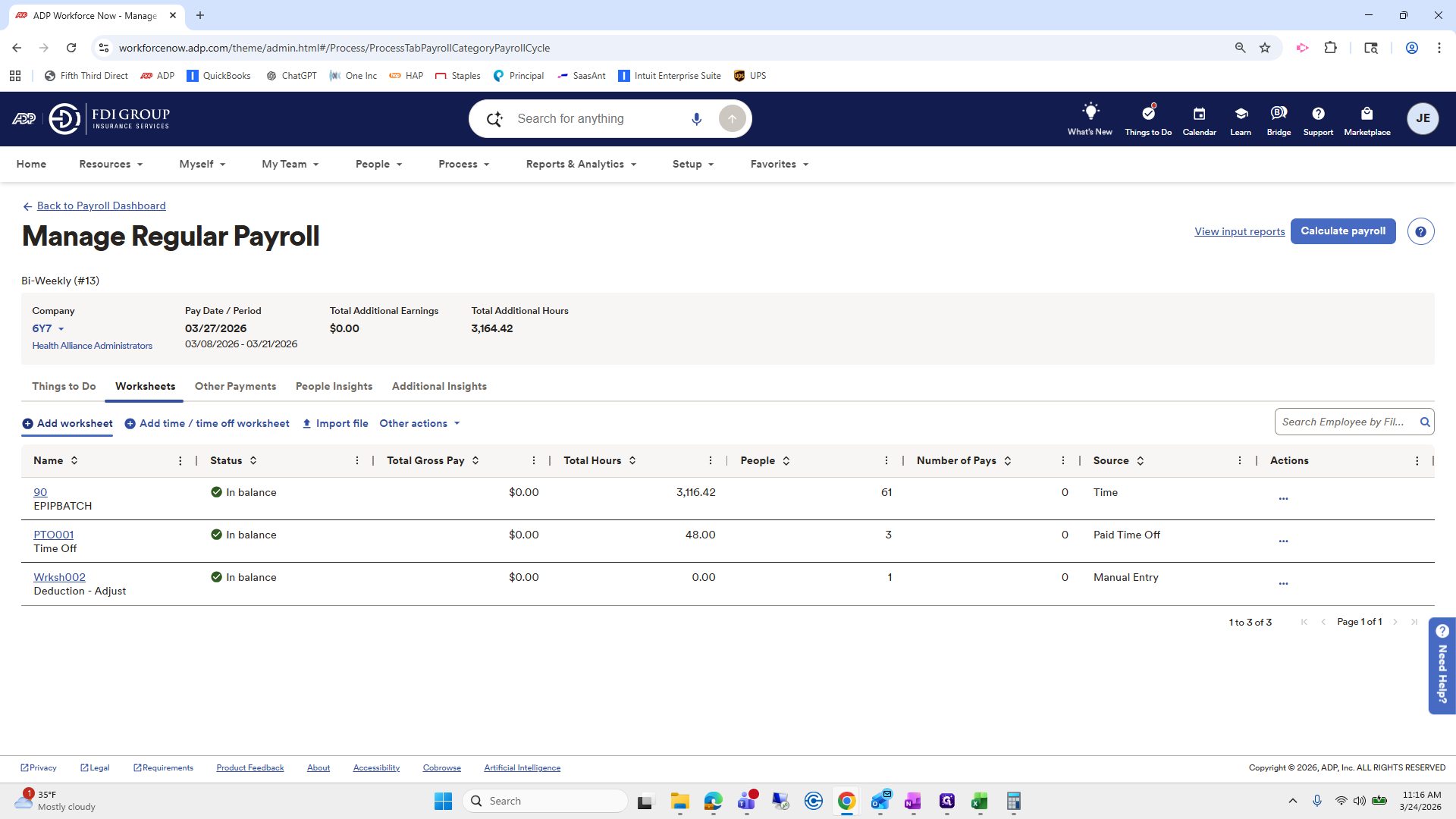
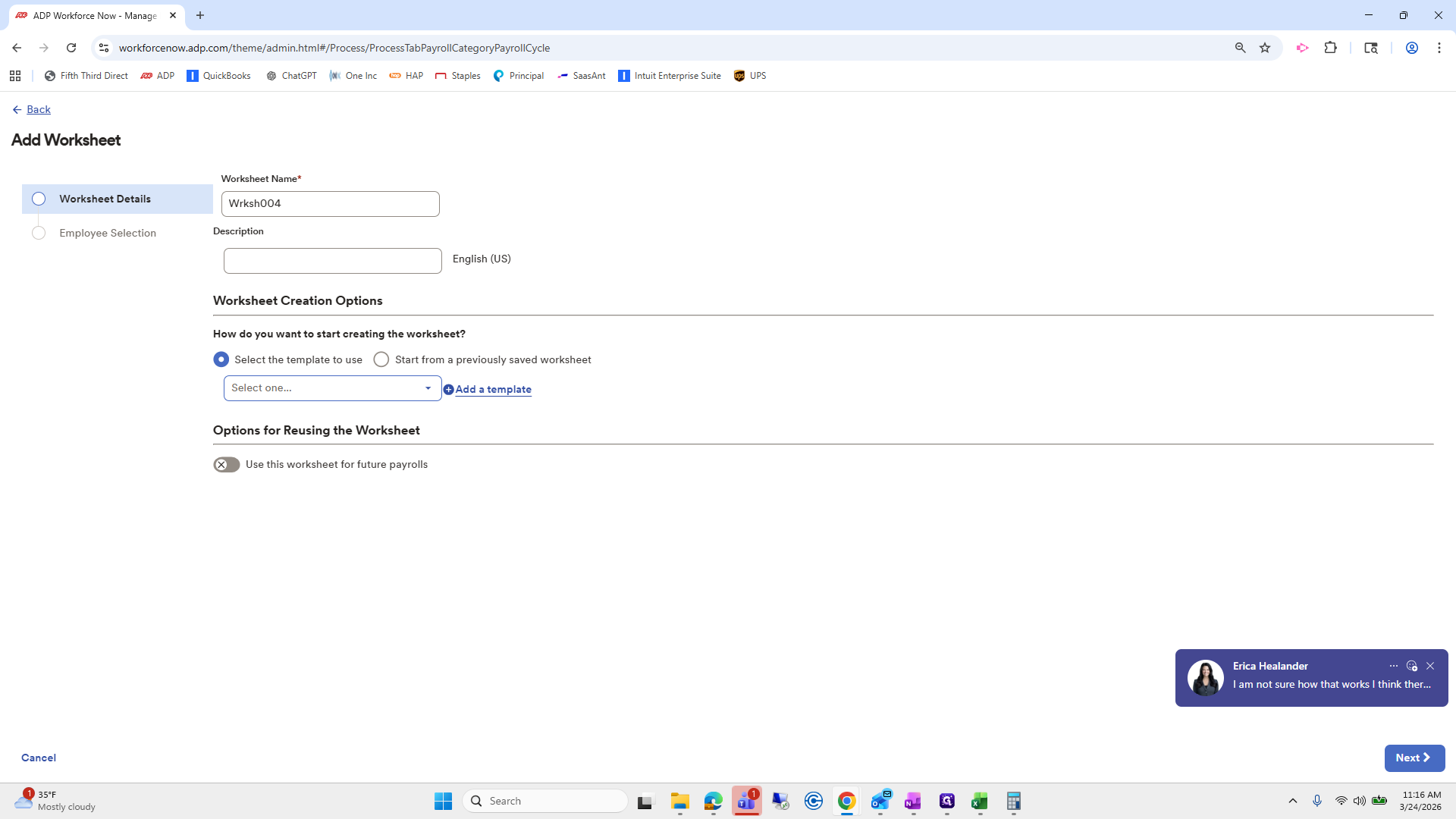
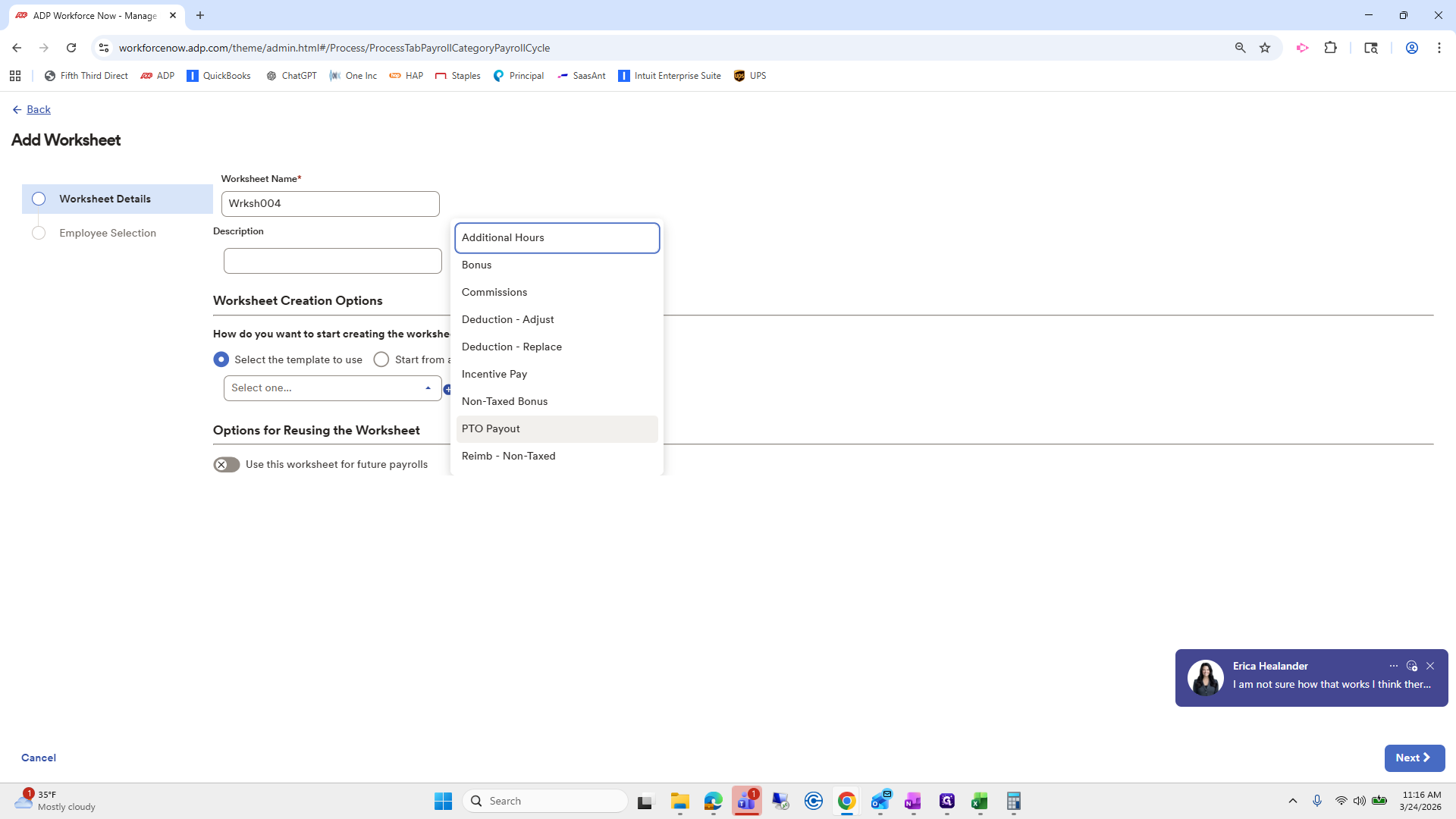
Next.
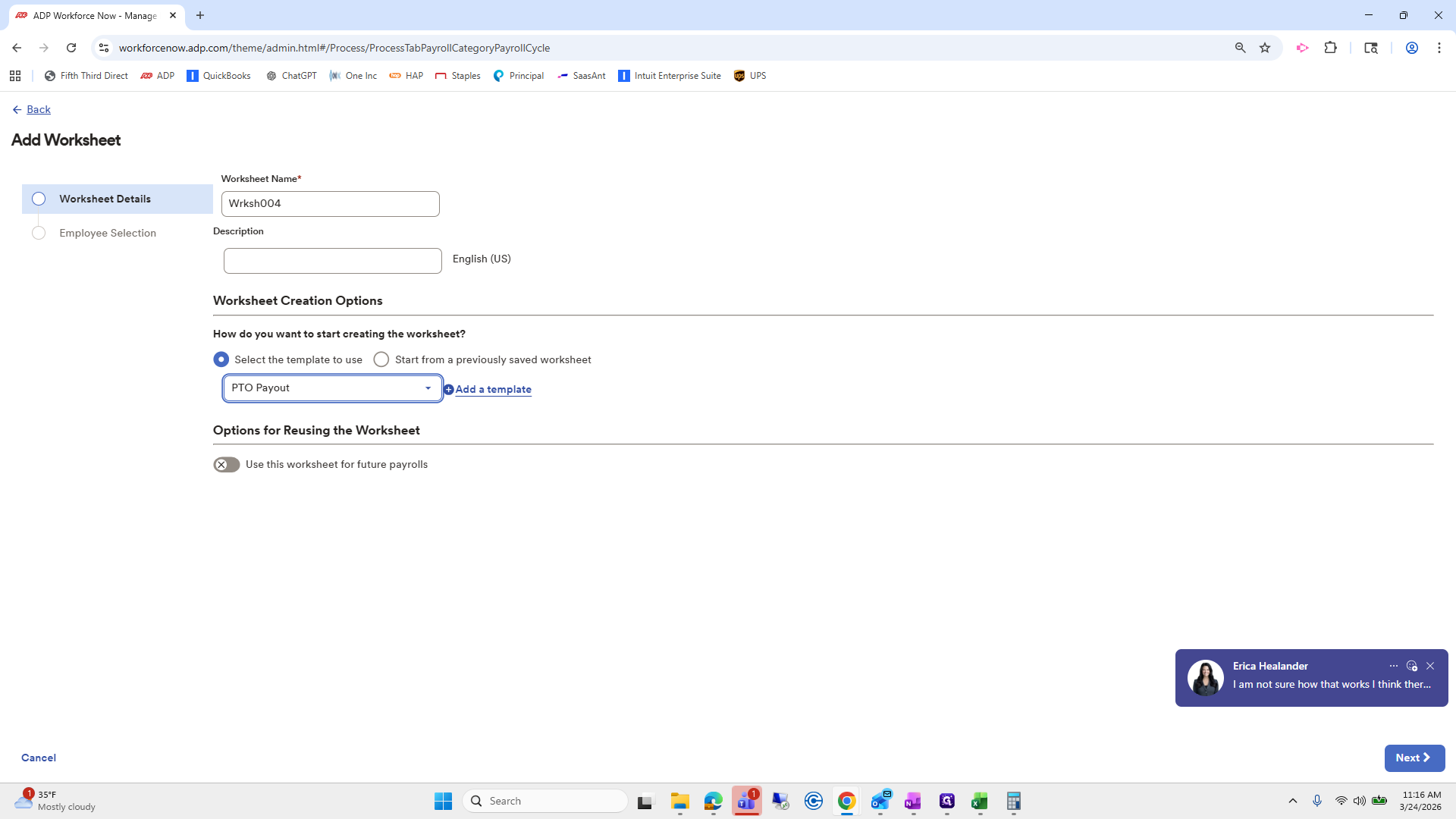
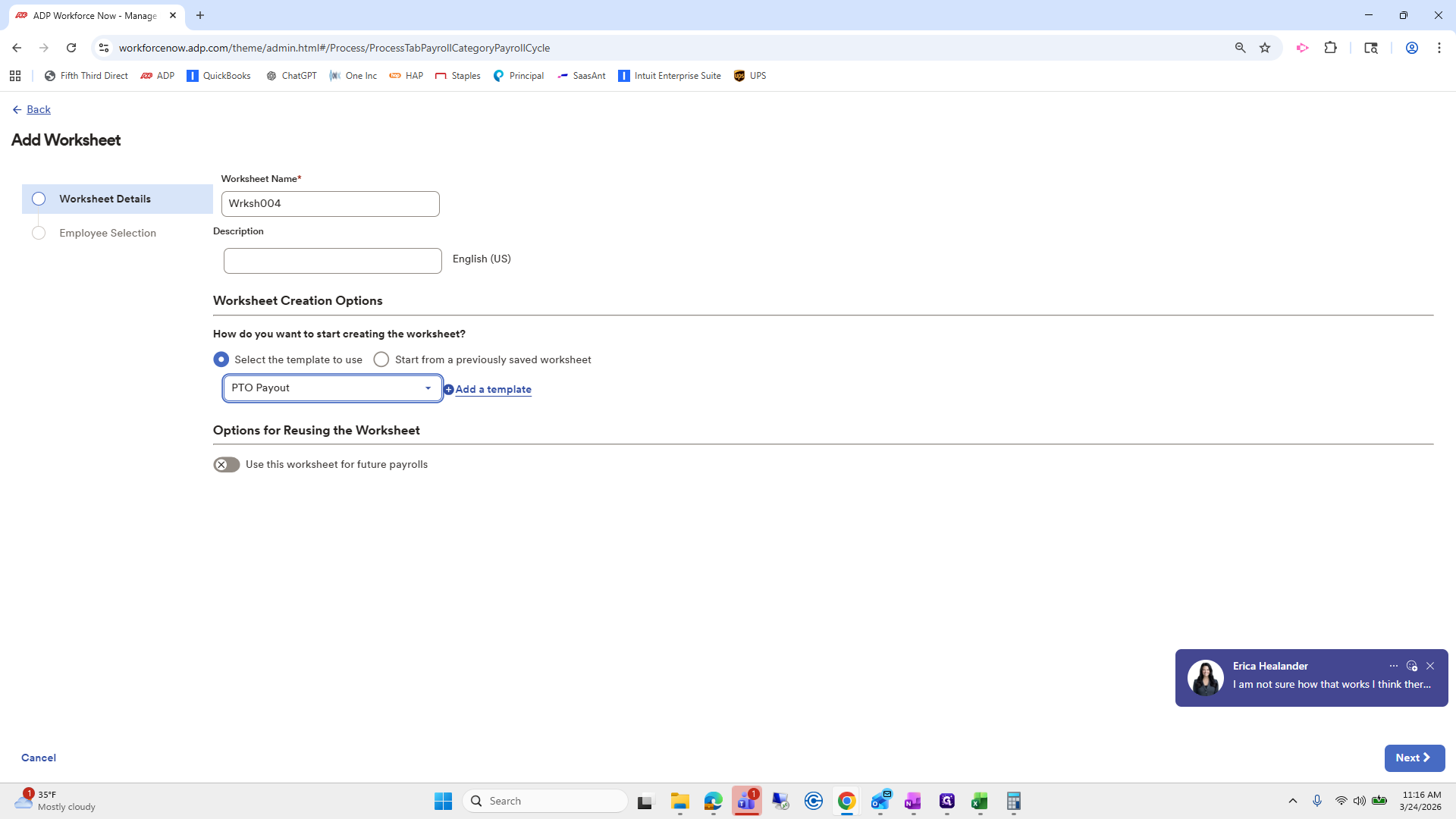
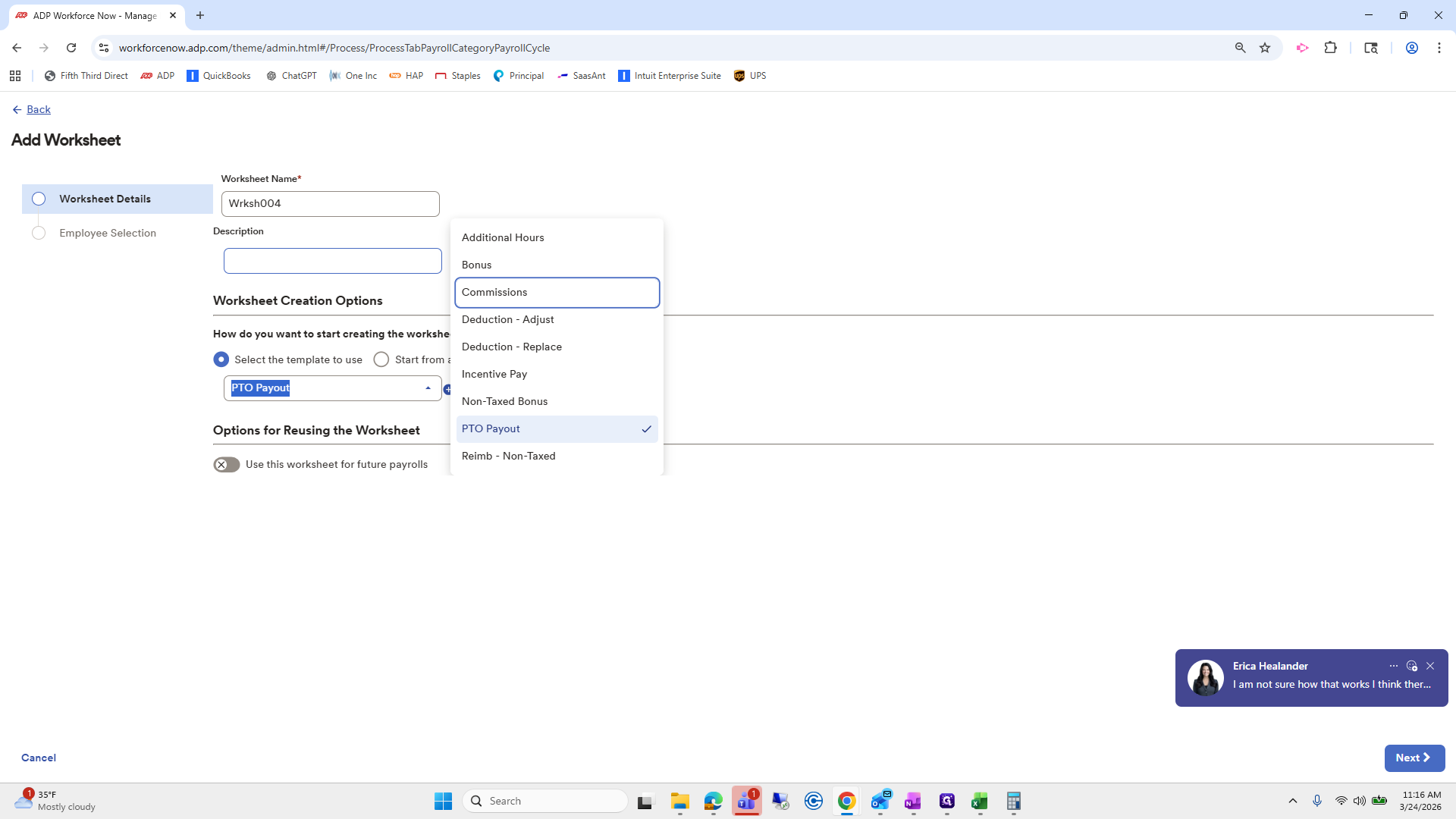
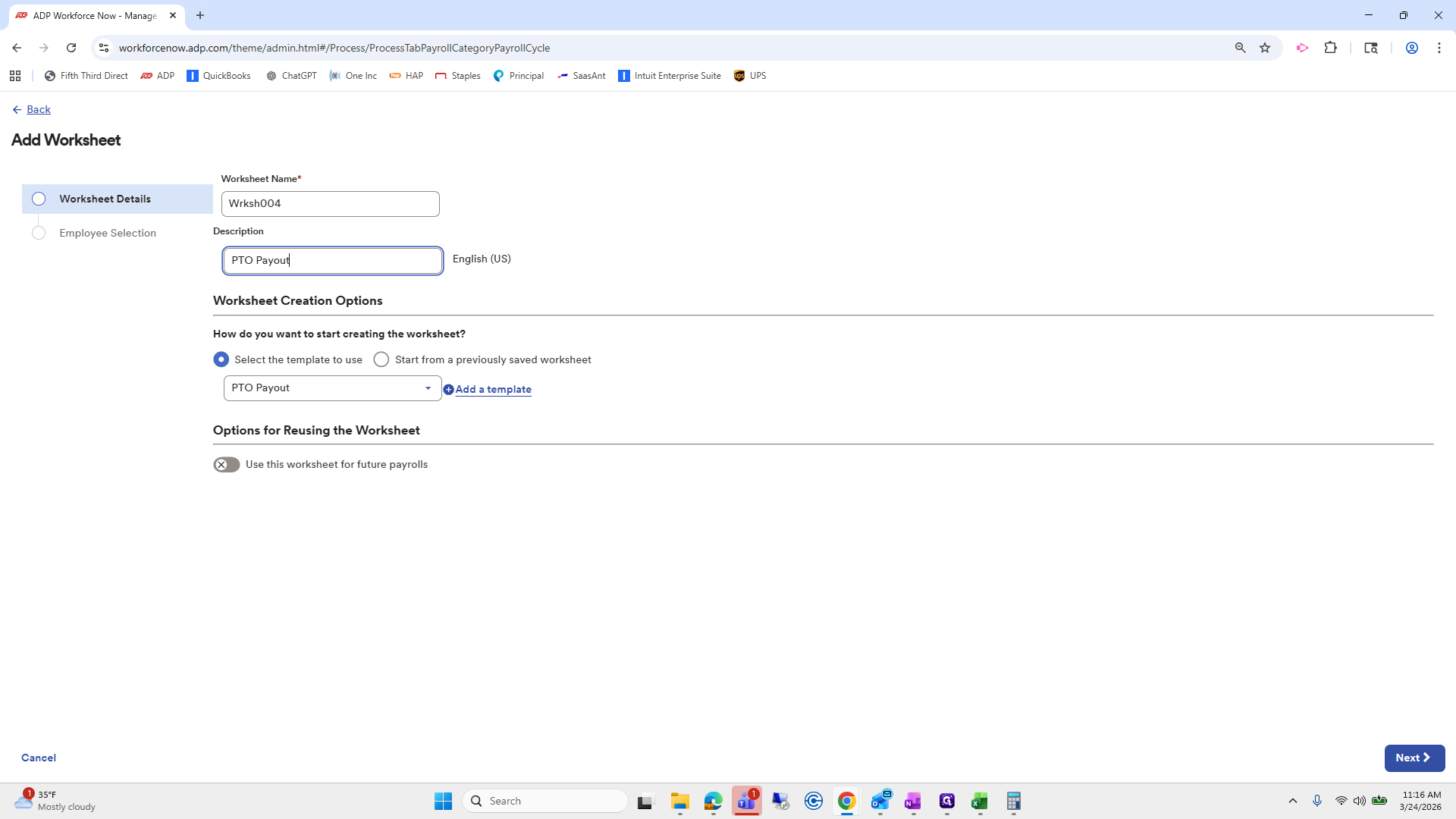
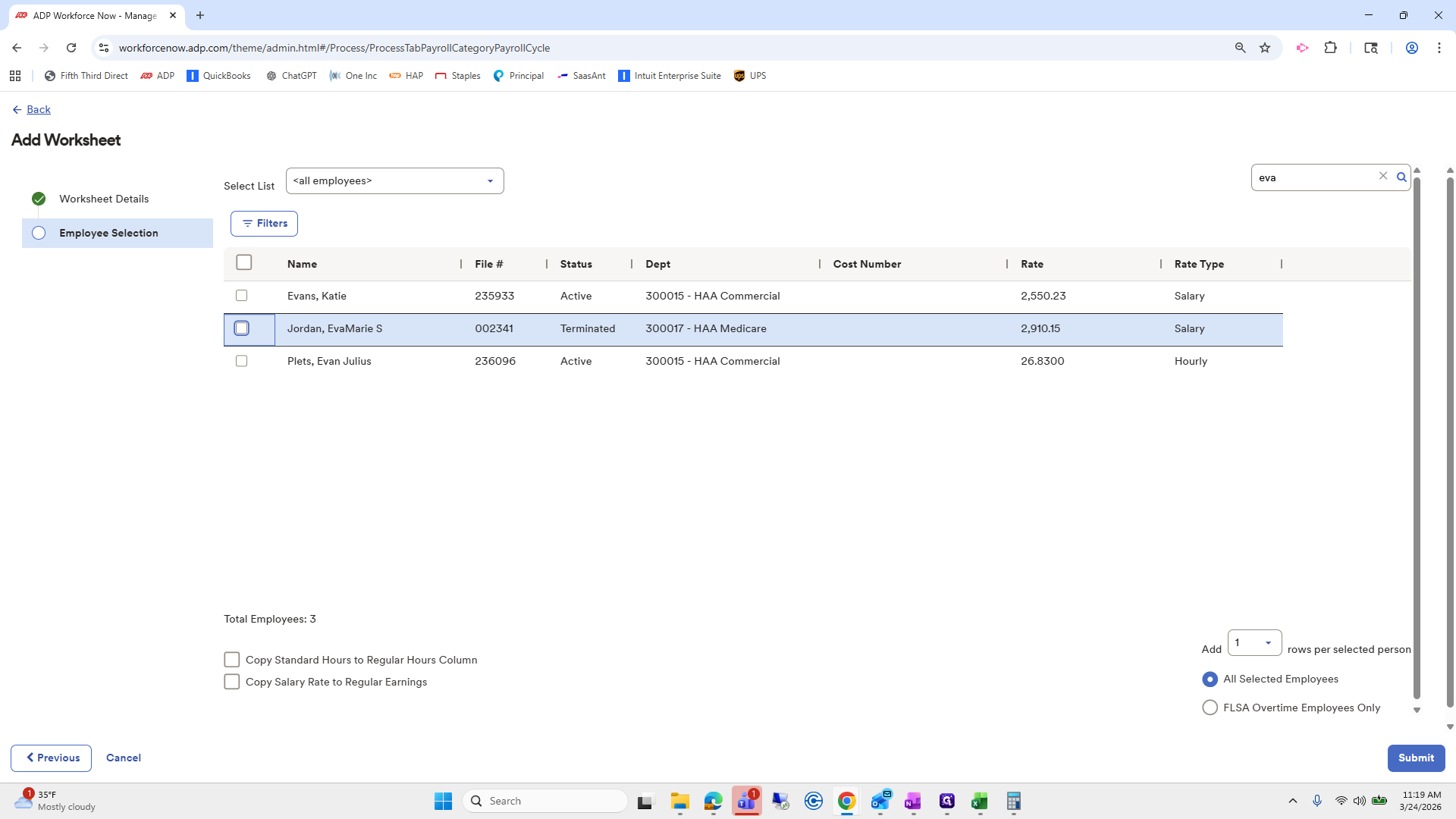
We are only in the in 'active employees.' We need to select all employees. Search for Ava Marie, submit.
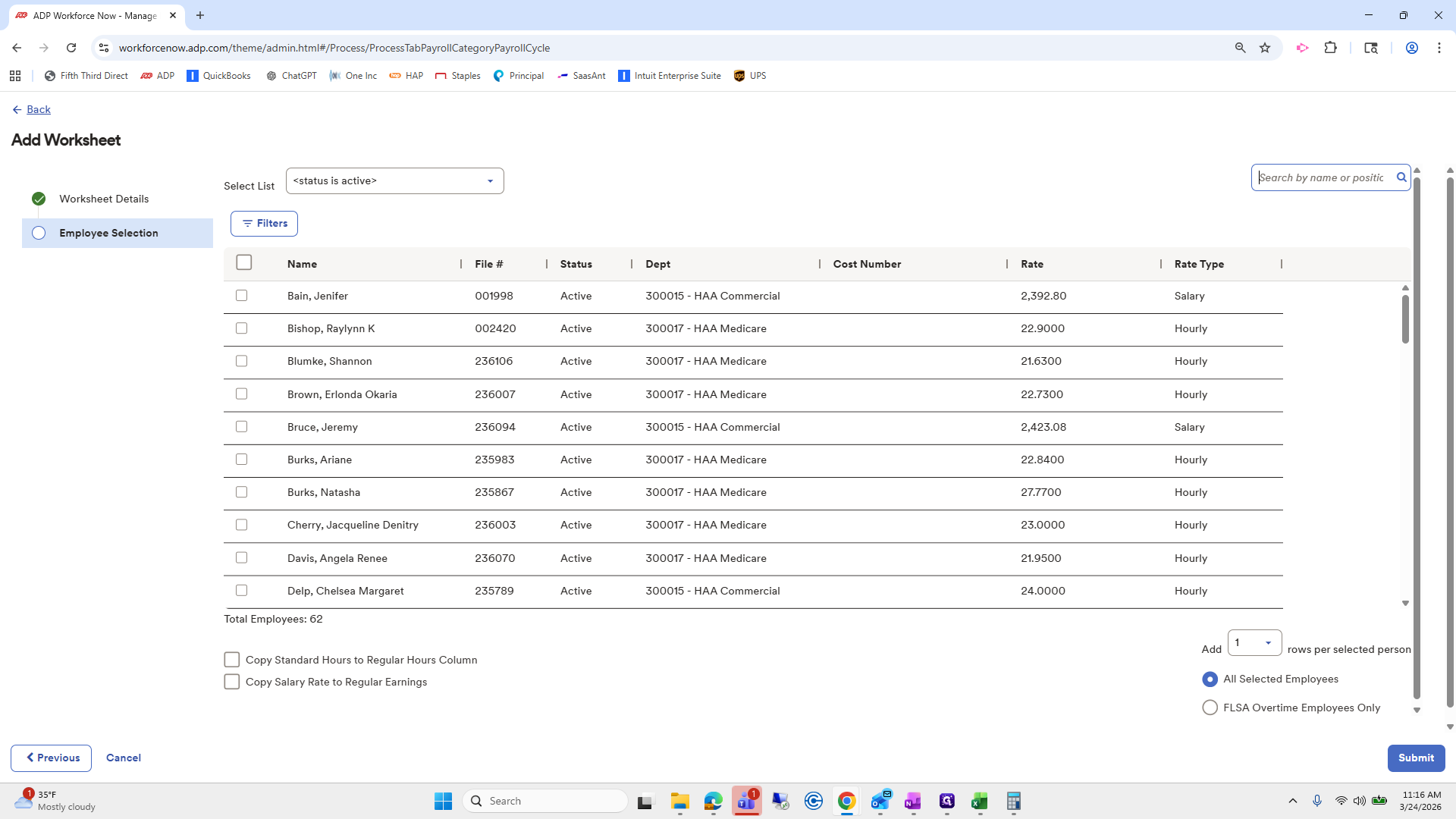
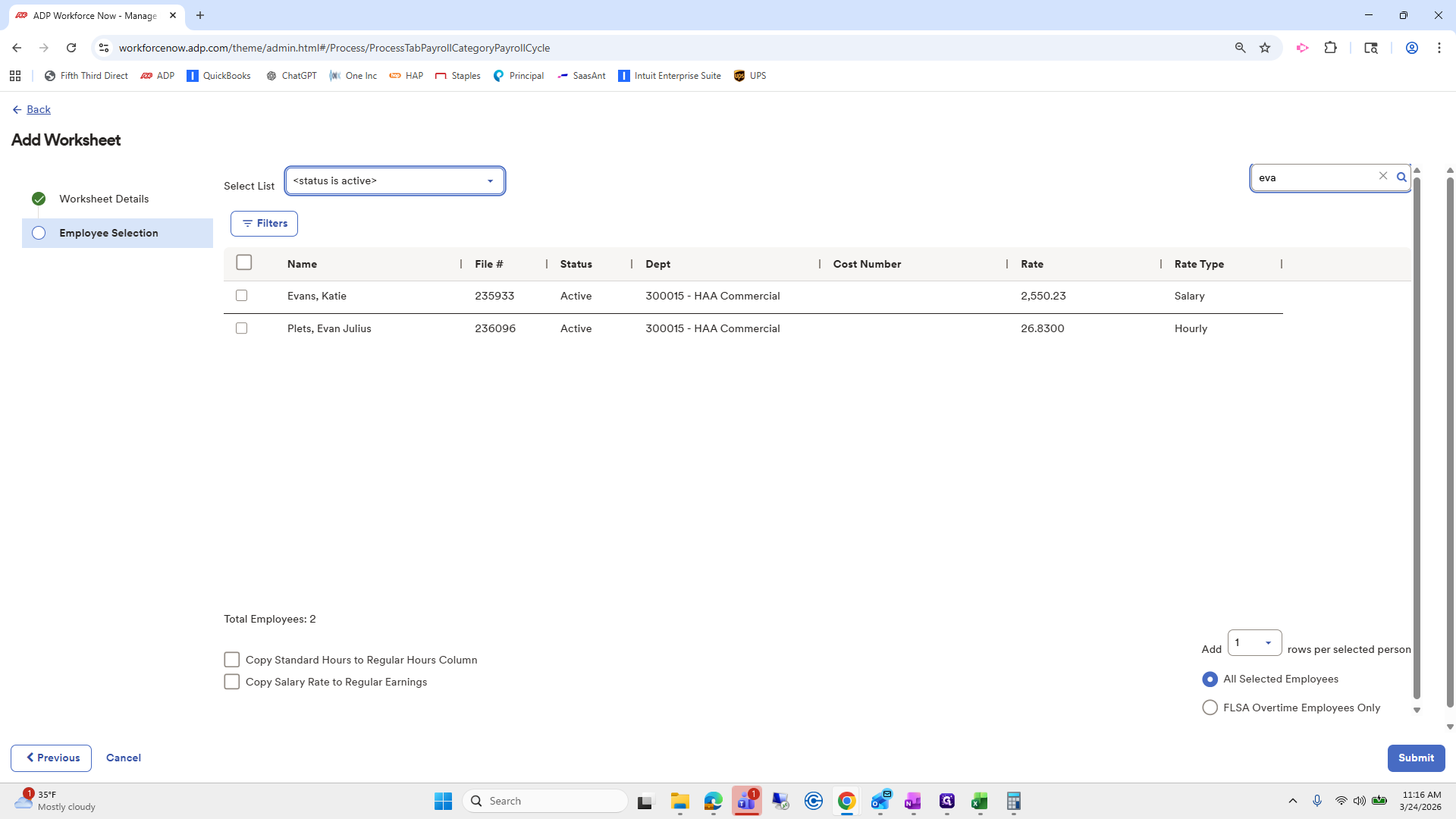
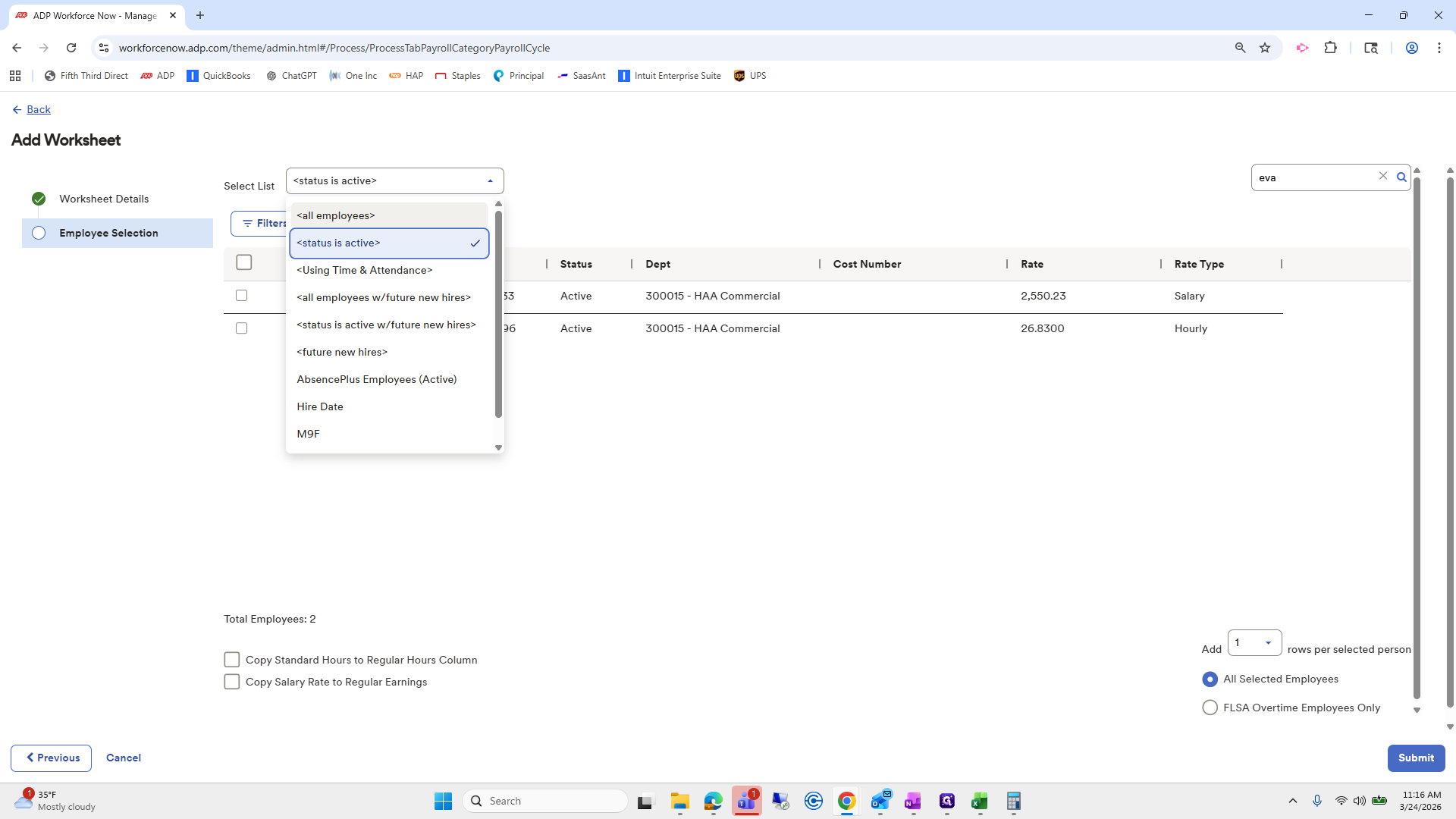
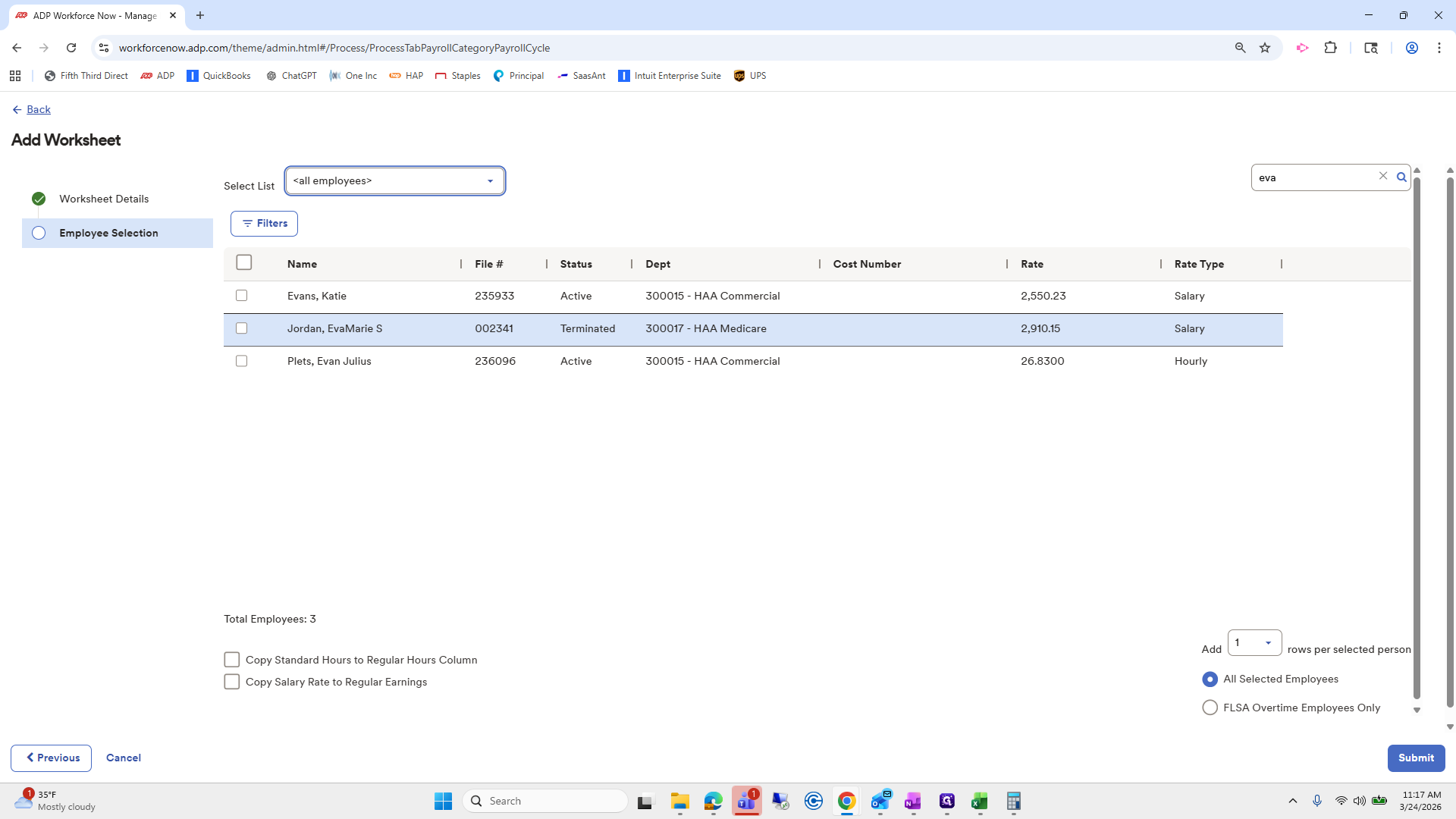
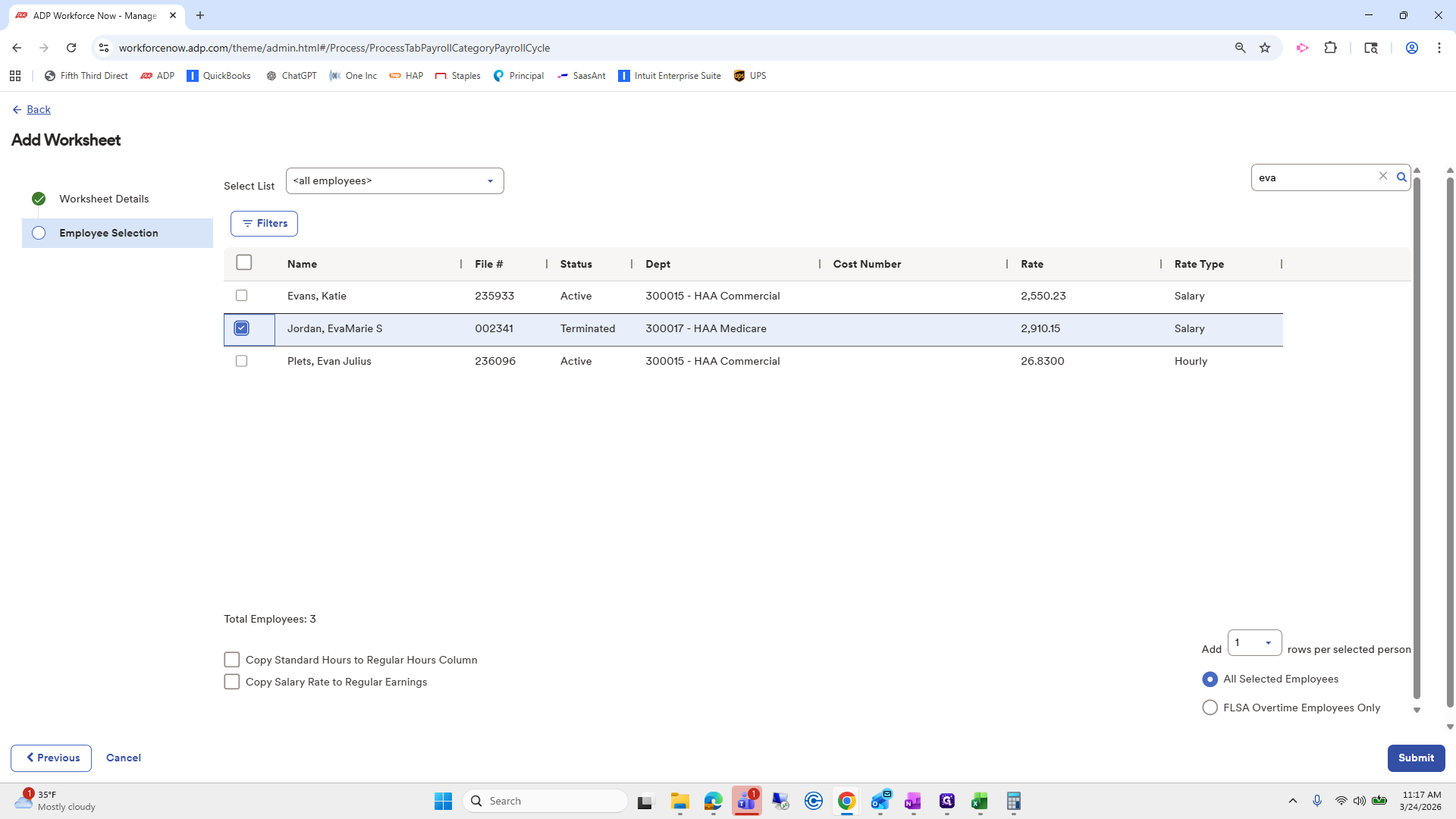
We can do 40 hours.
Her rate code—okay, so this is a good example.
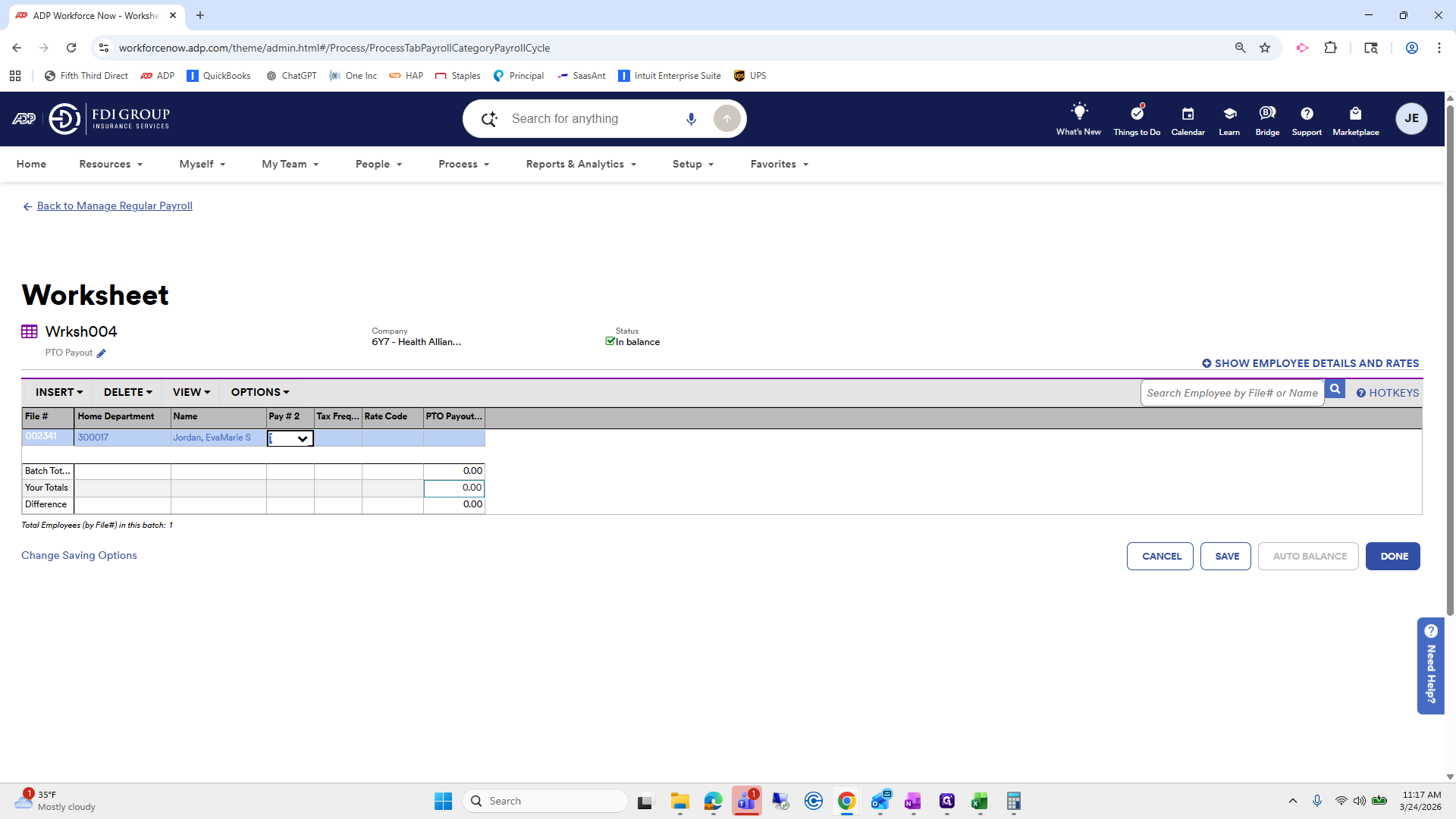
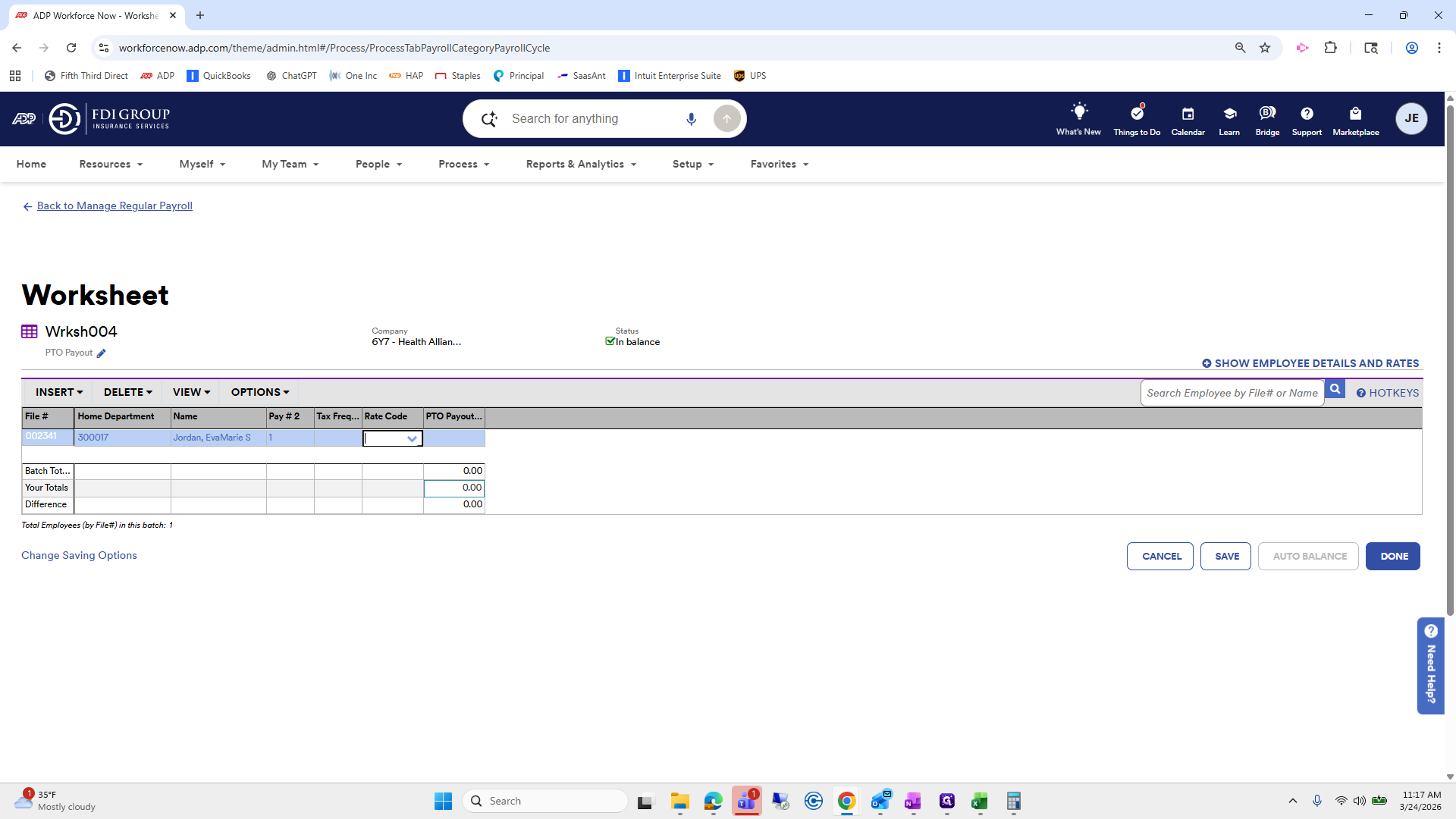
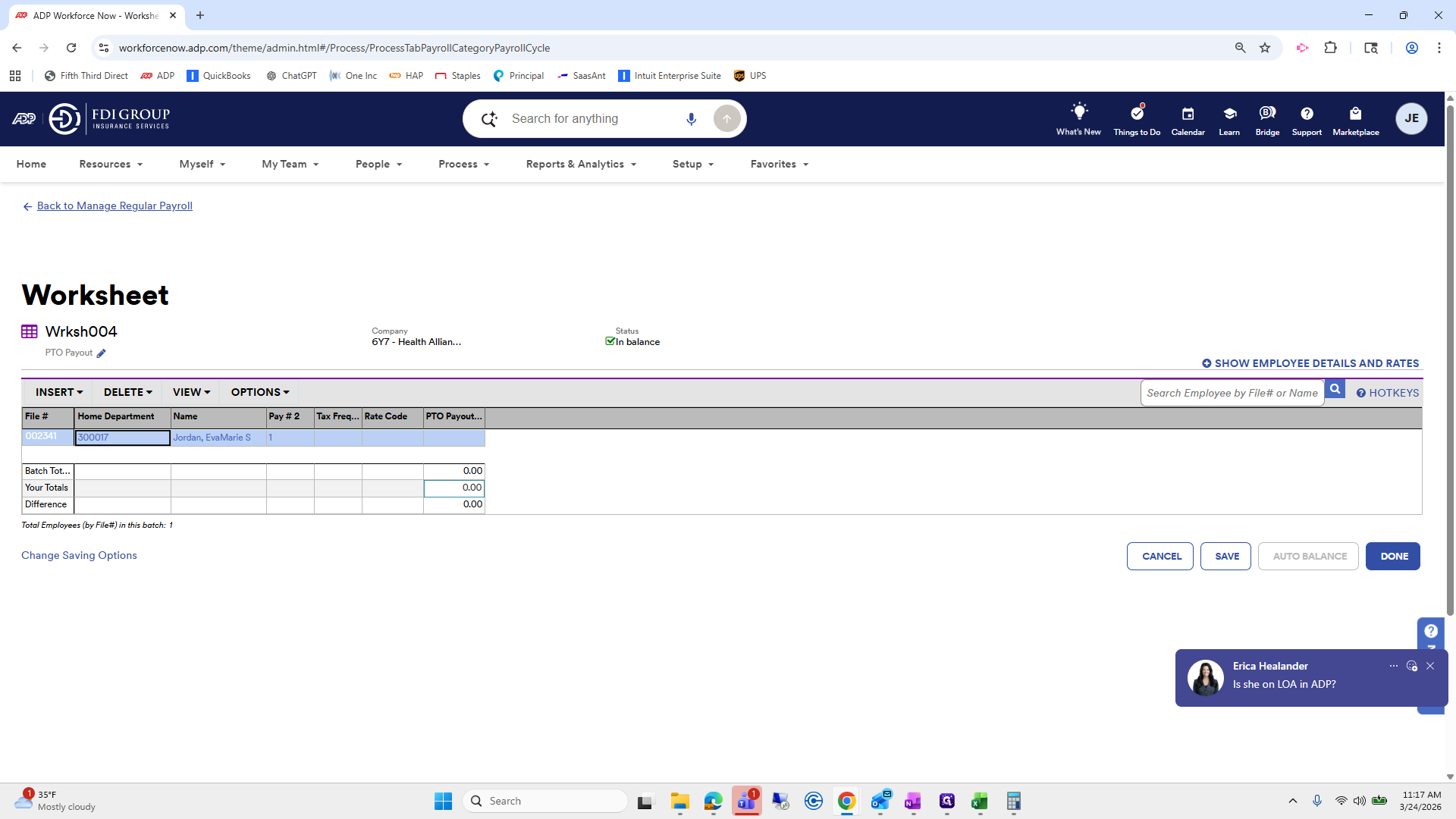
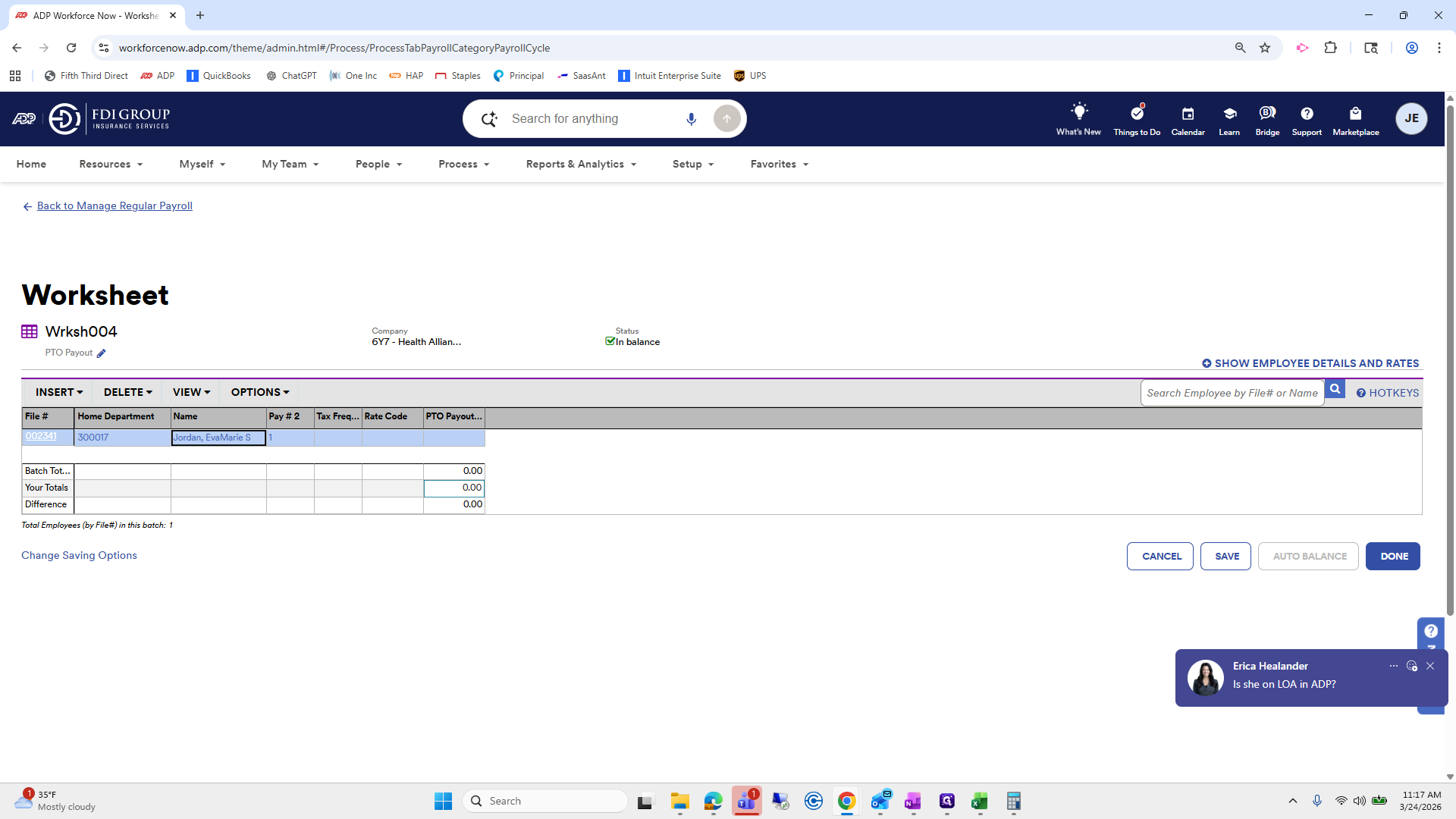
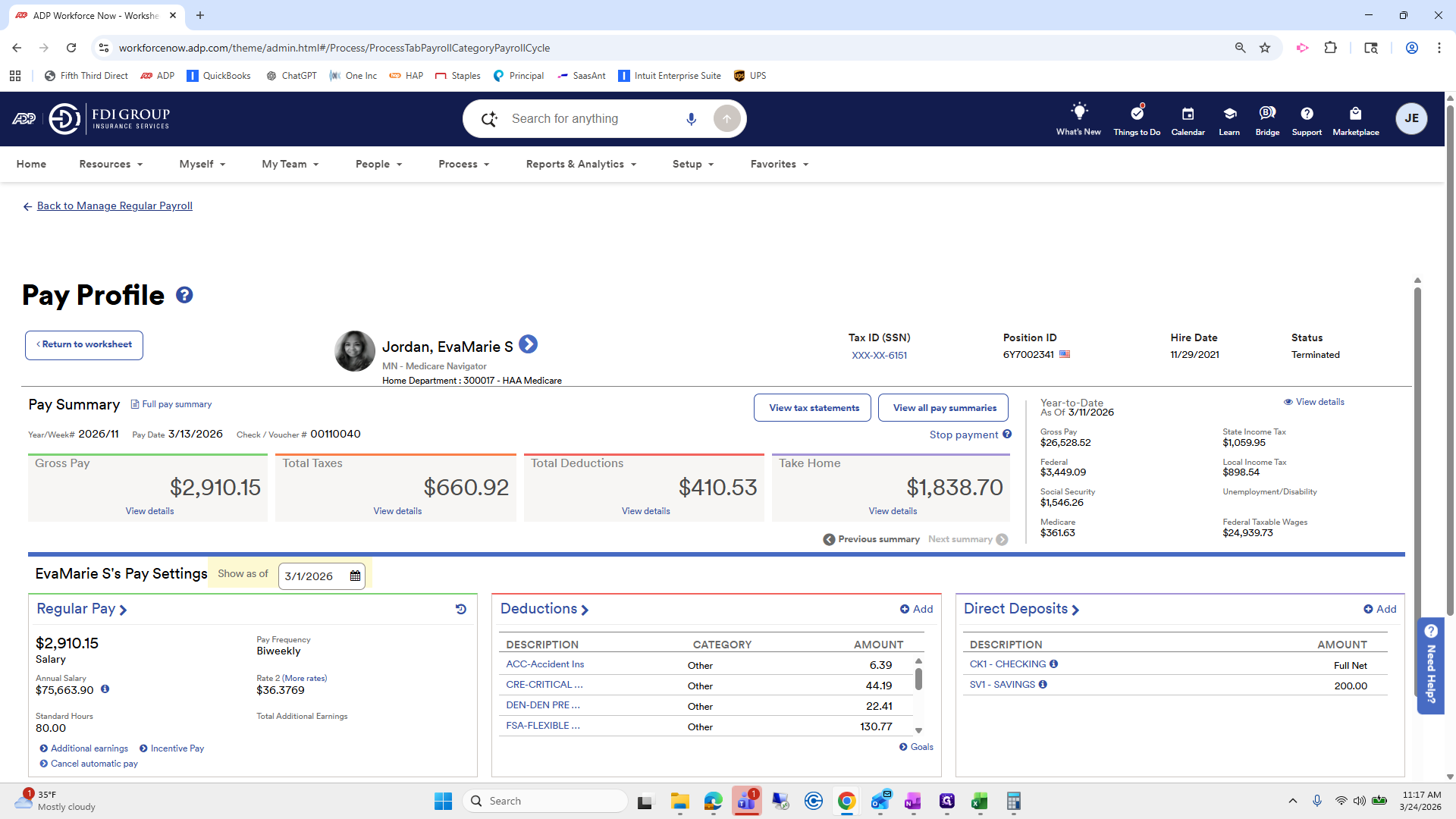
She does not have a rate code, which means her standard hours were not entered. This is okay. We will go to her profile quickly.
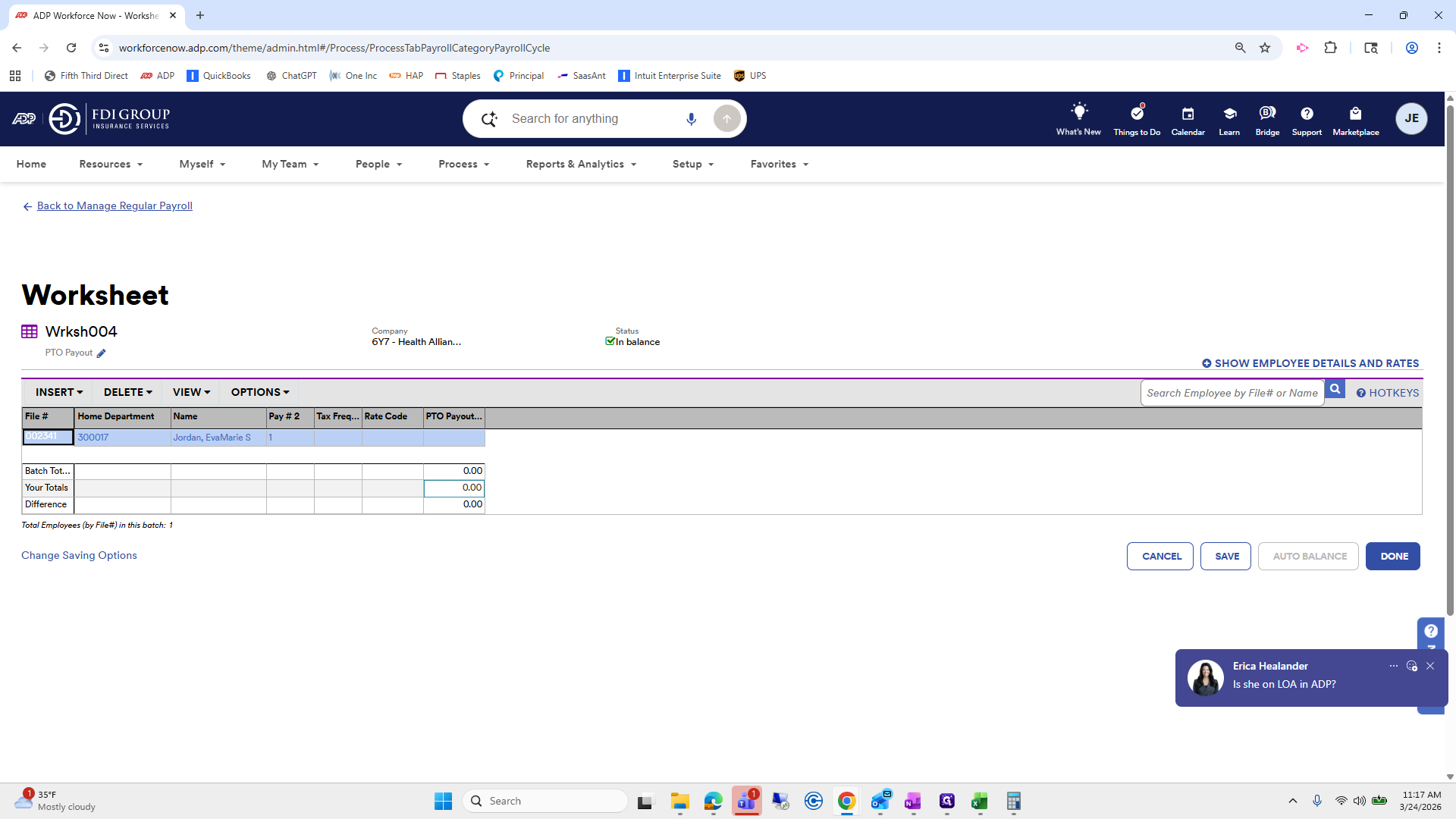
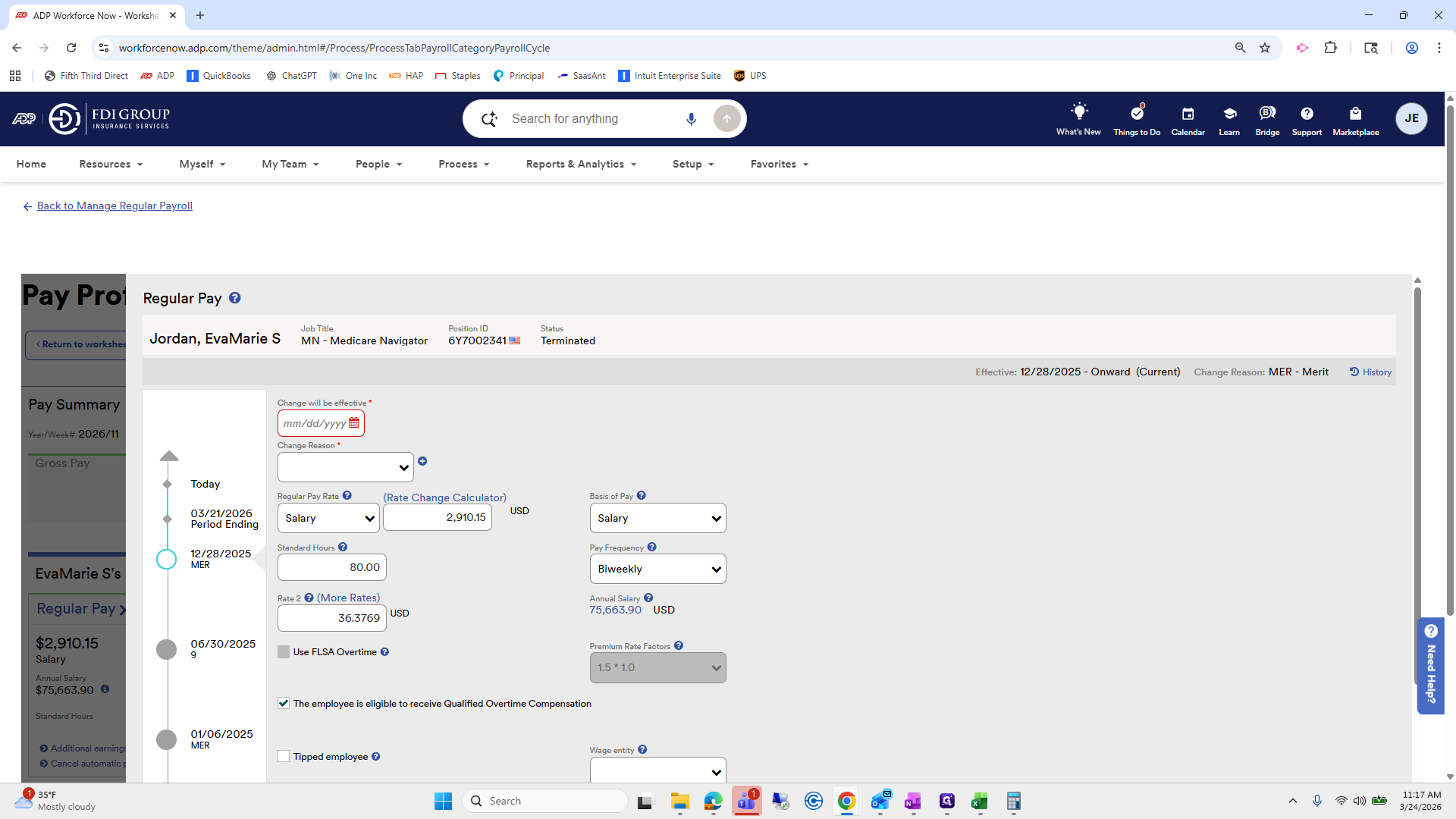
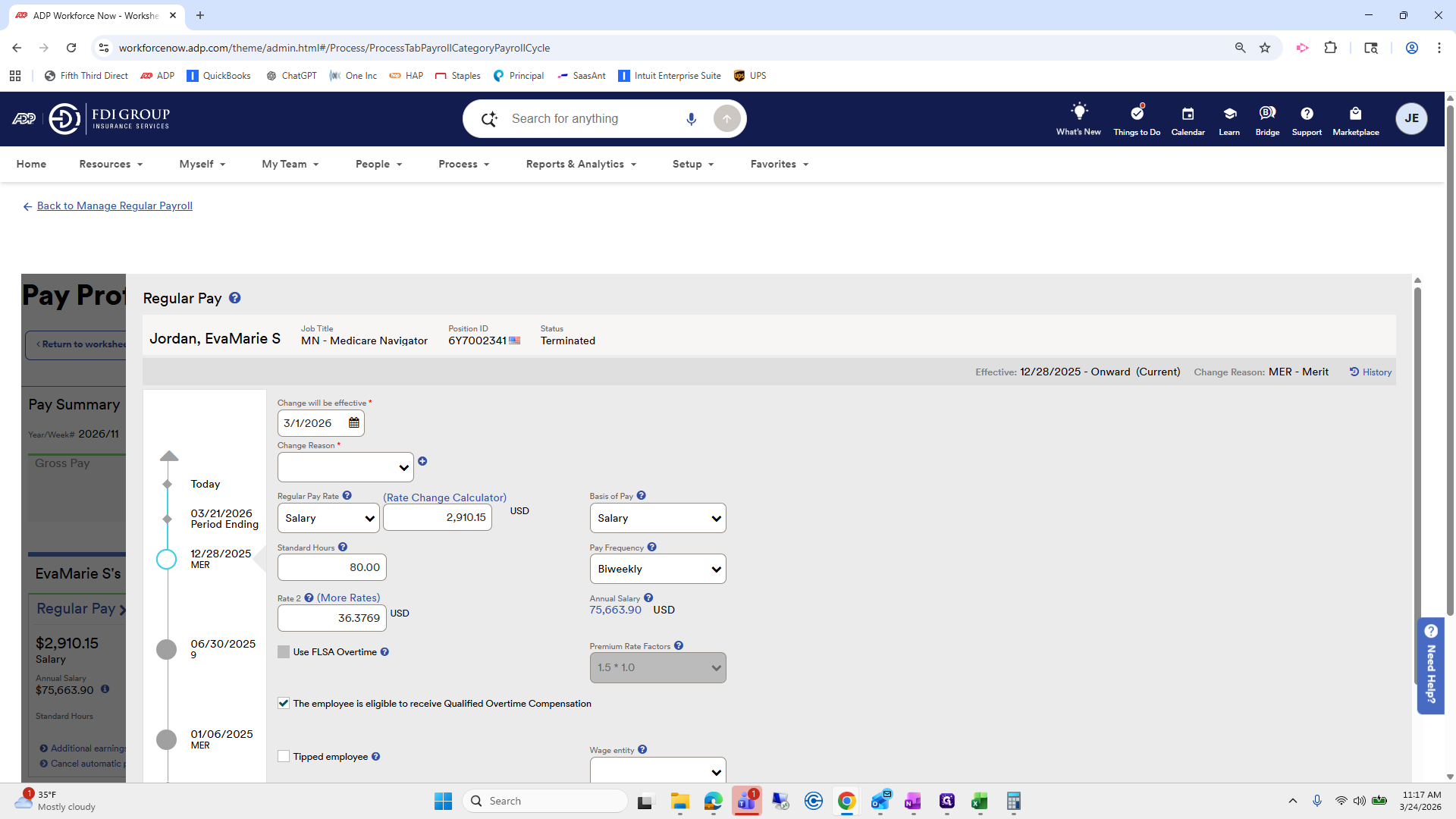
We need to ensure her standard hours are set to 80. Go to regular pay and enter 80.
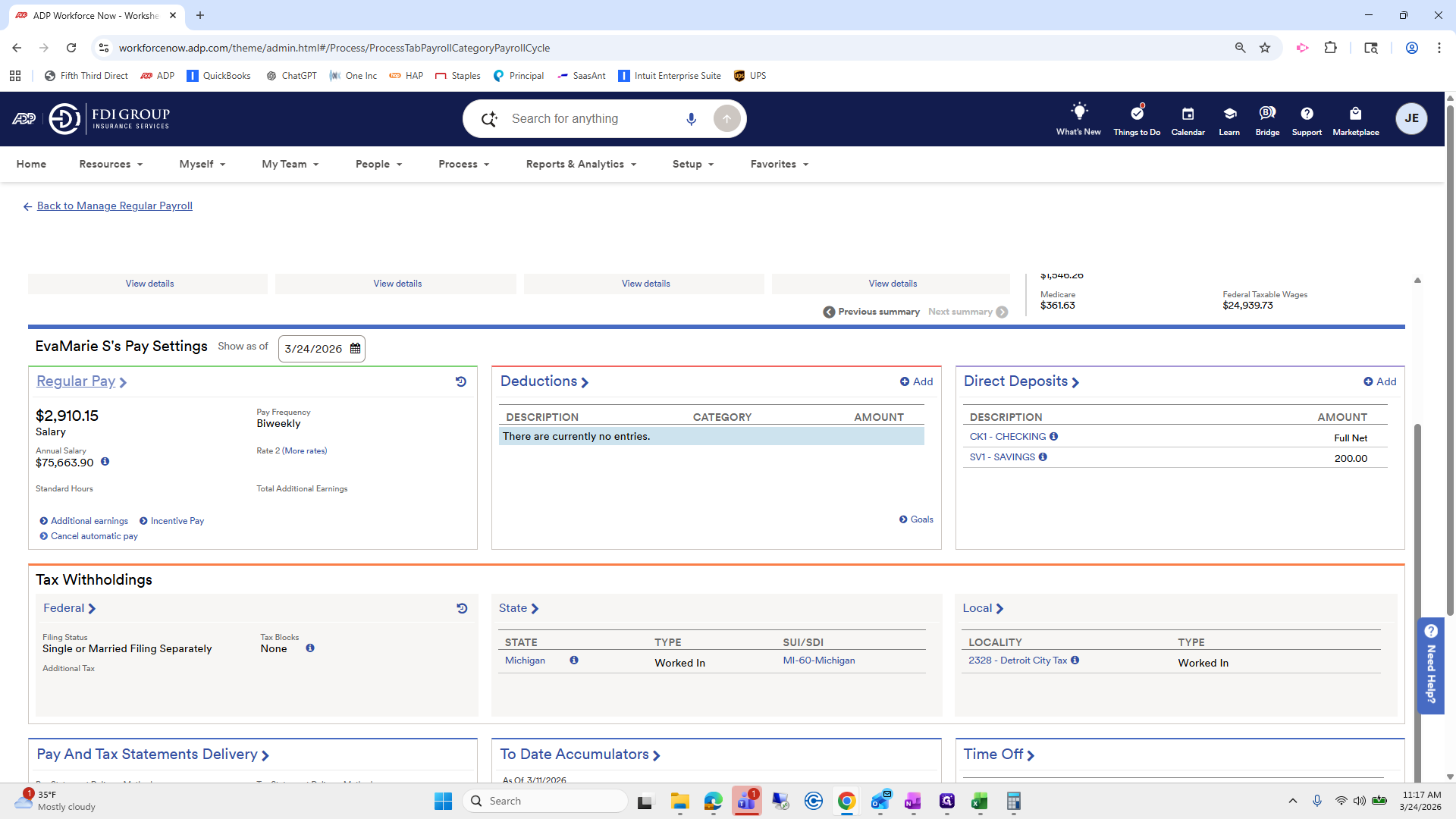
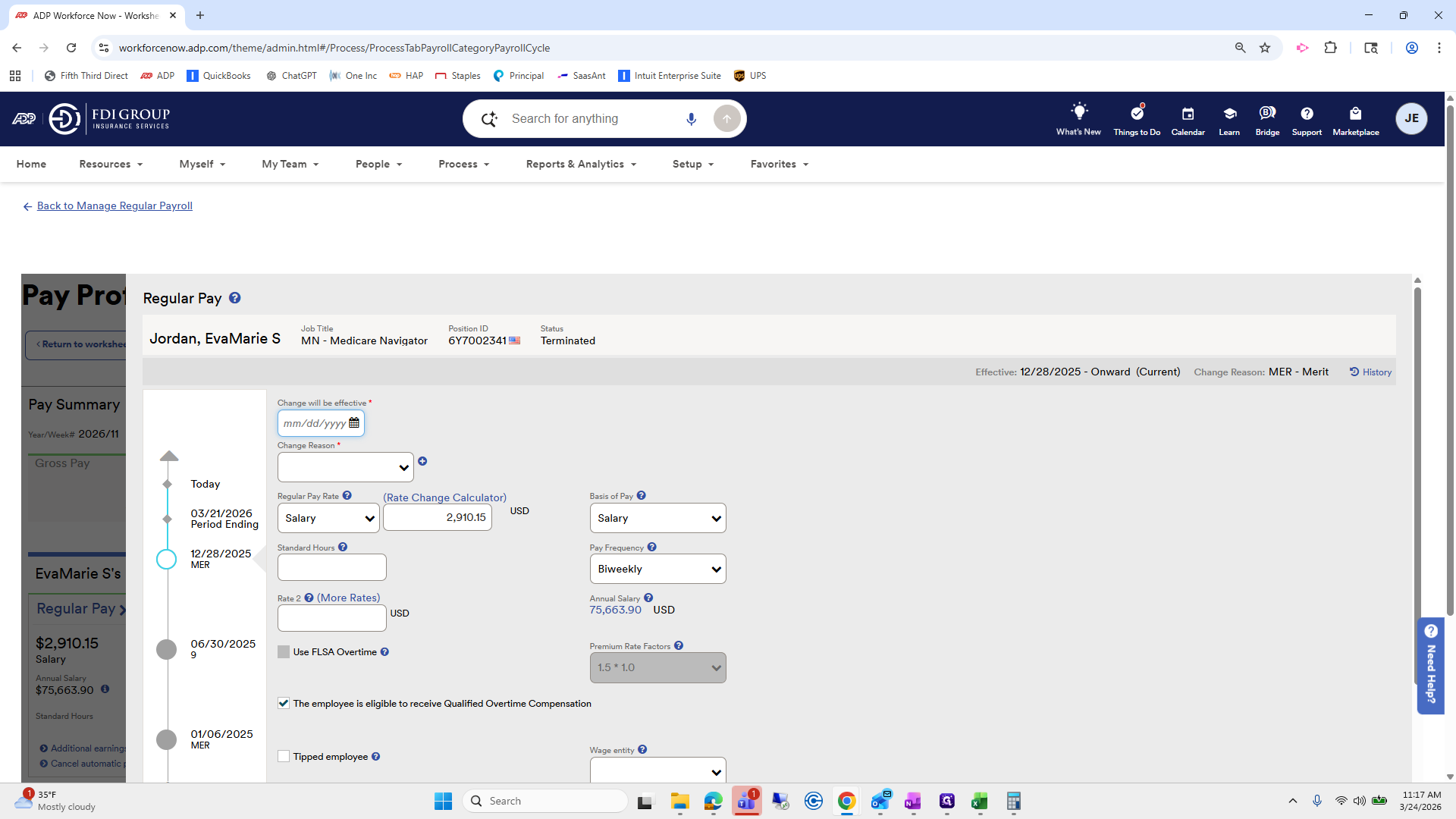
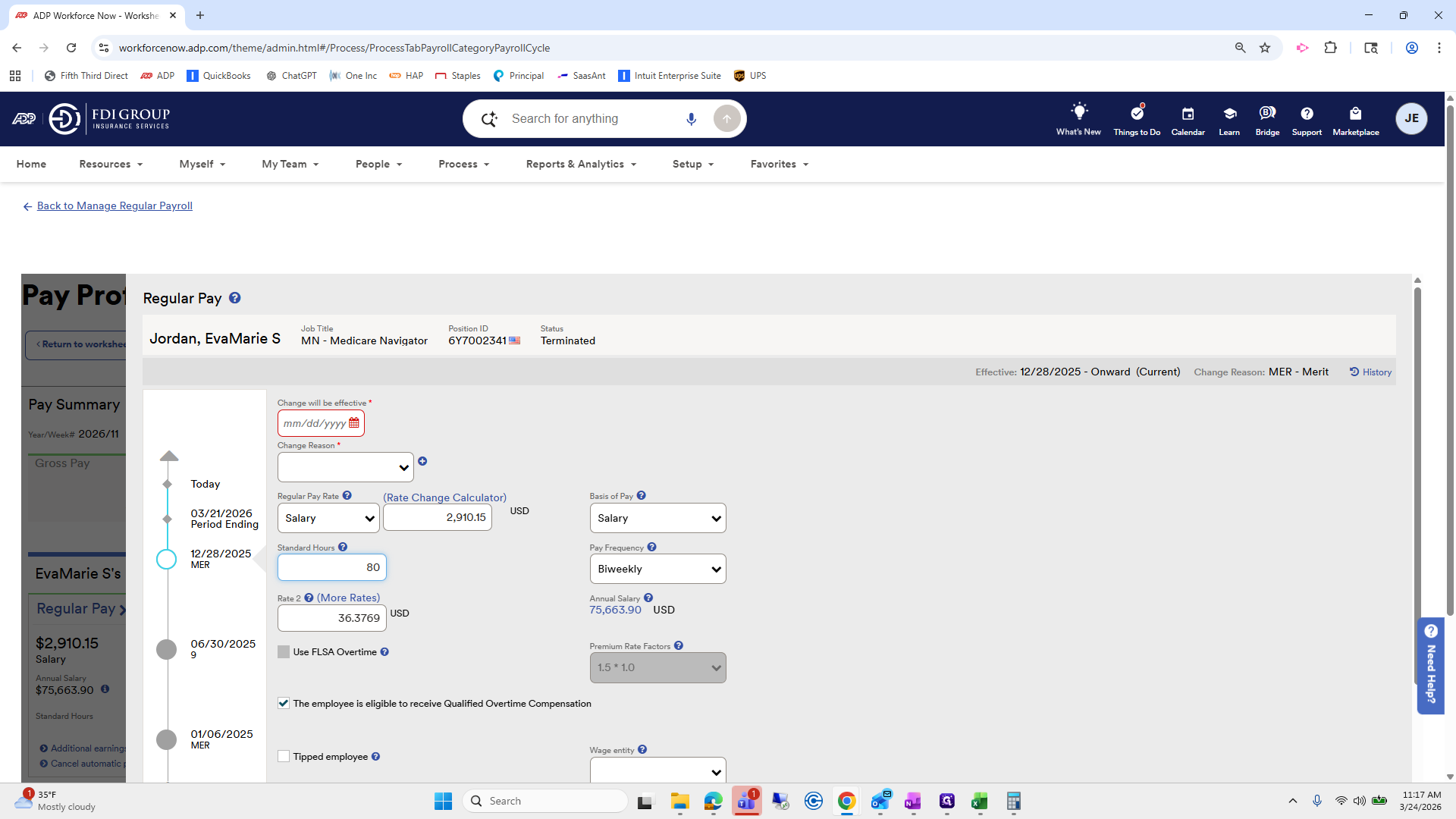
Effective August 1st, select the rate change reason as "adjustment," then click save.
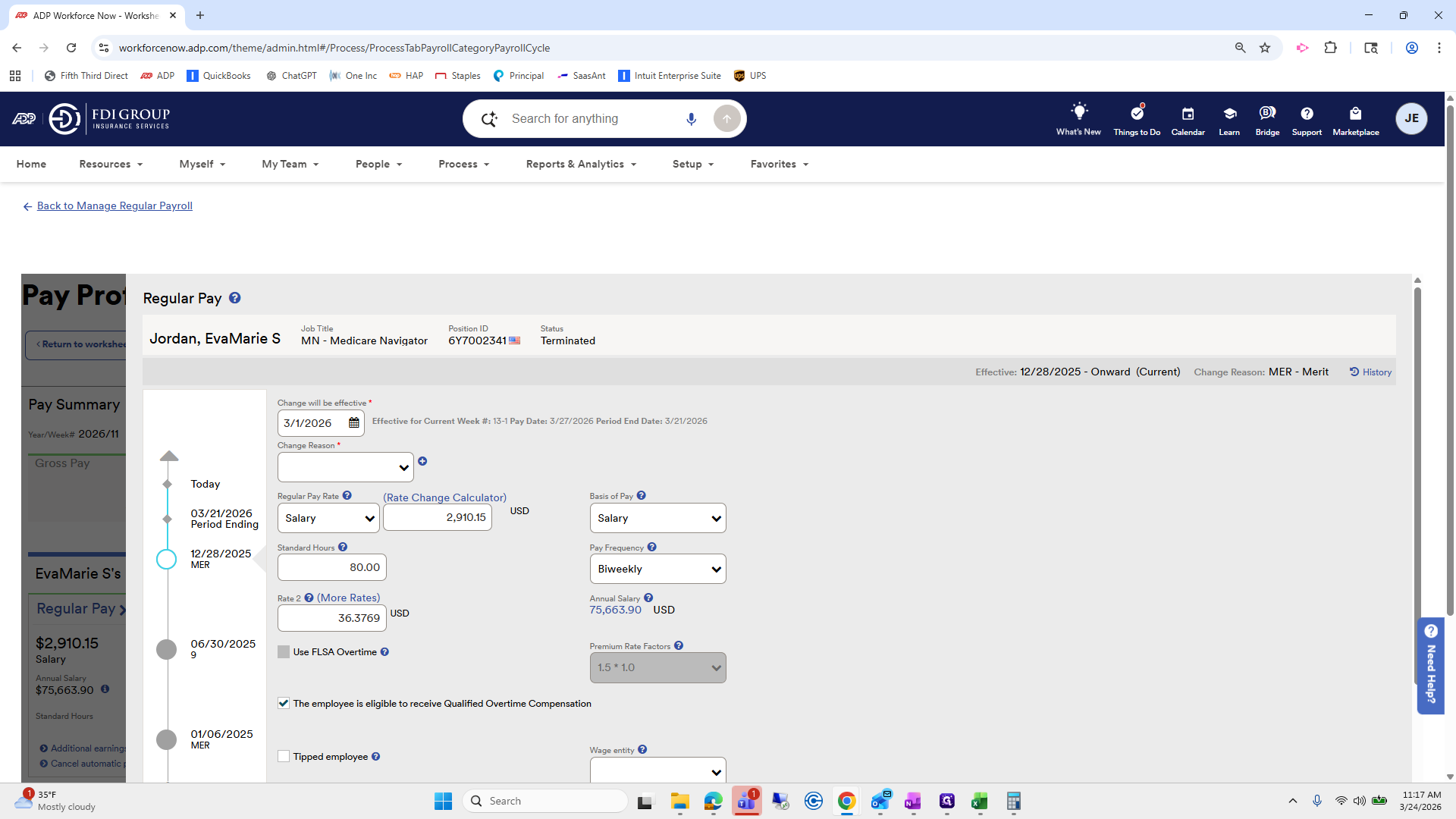
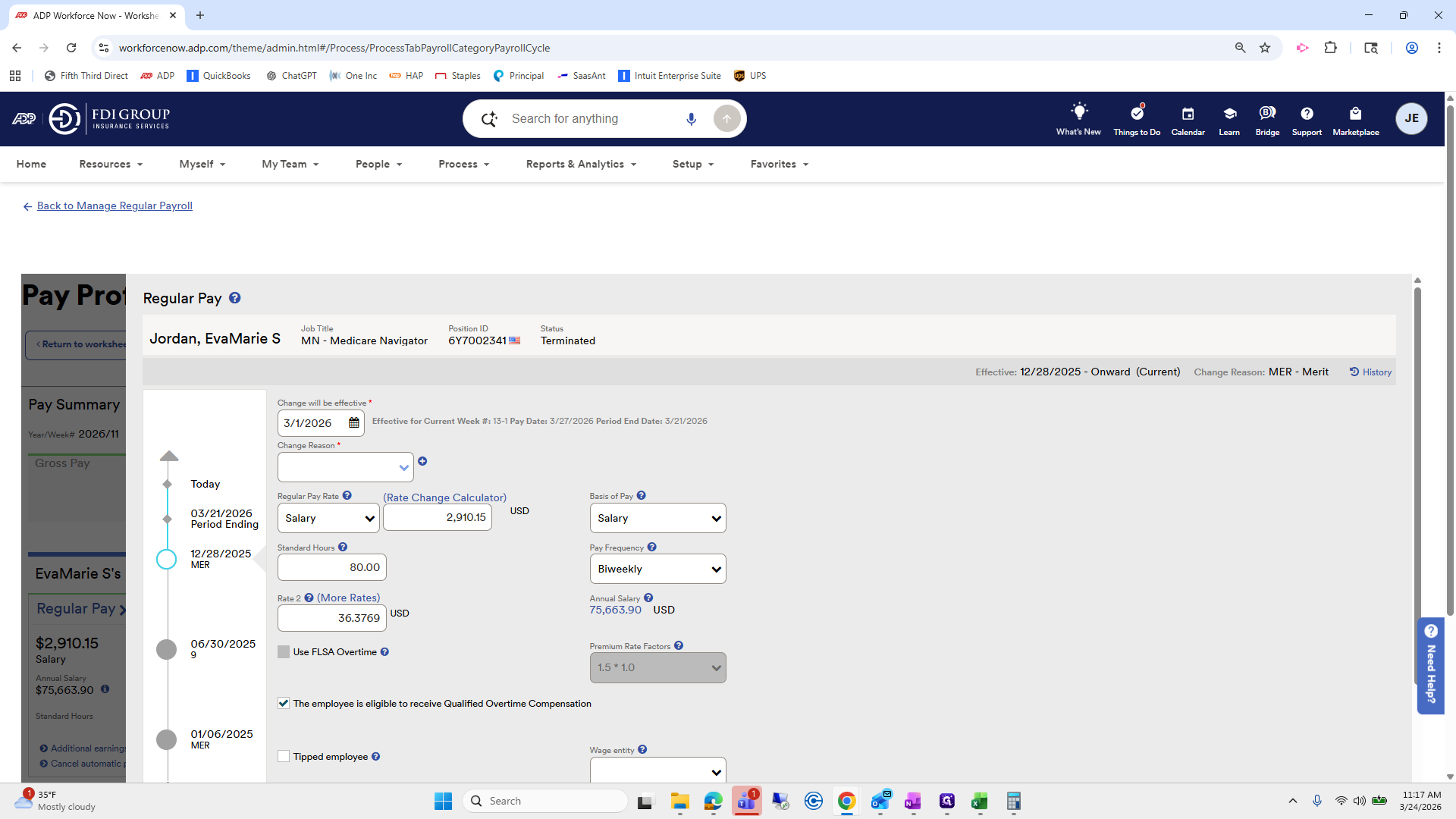
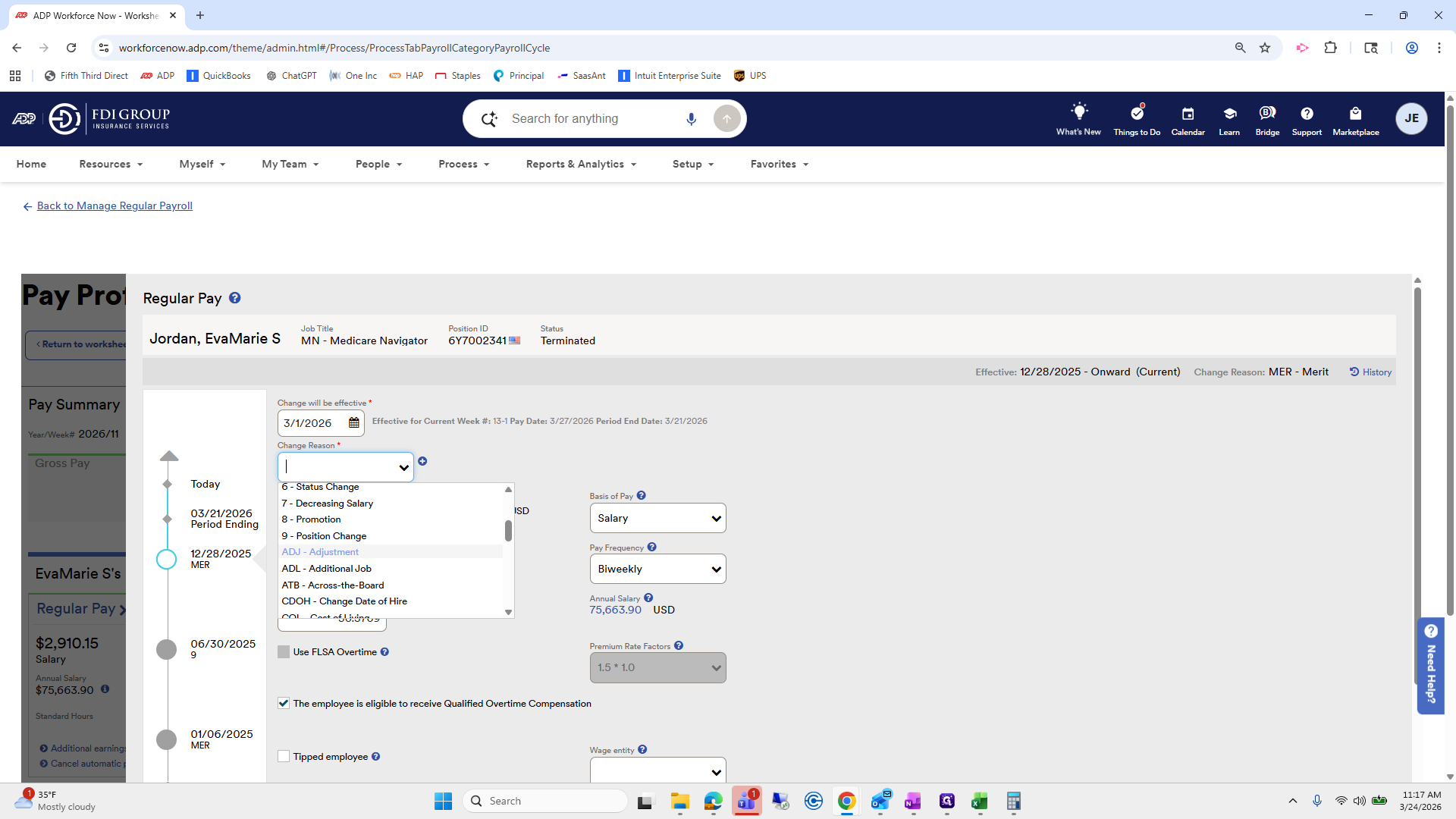
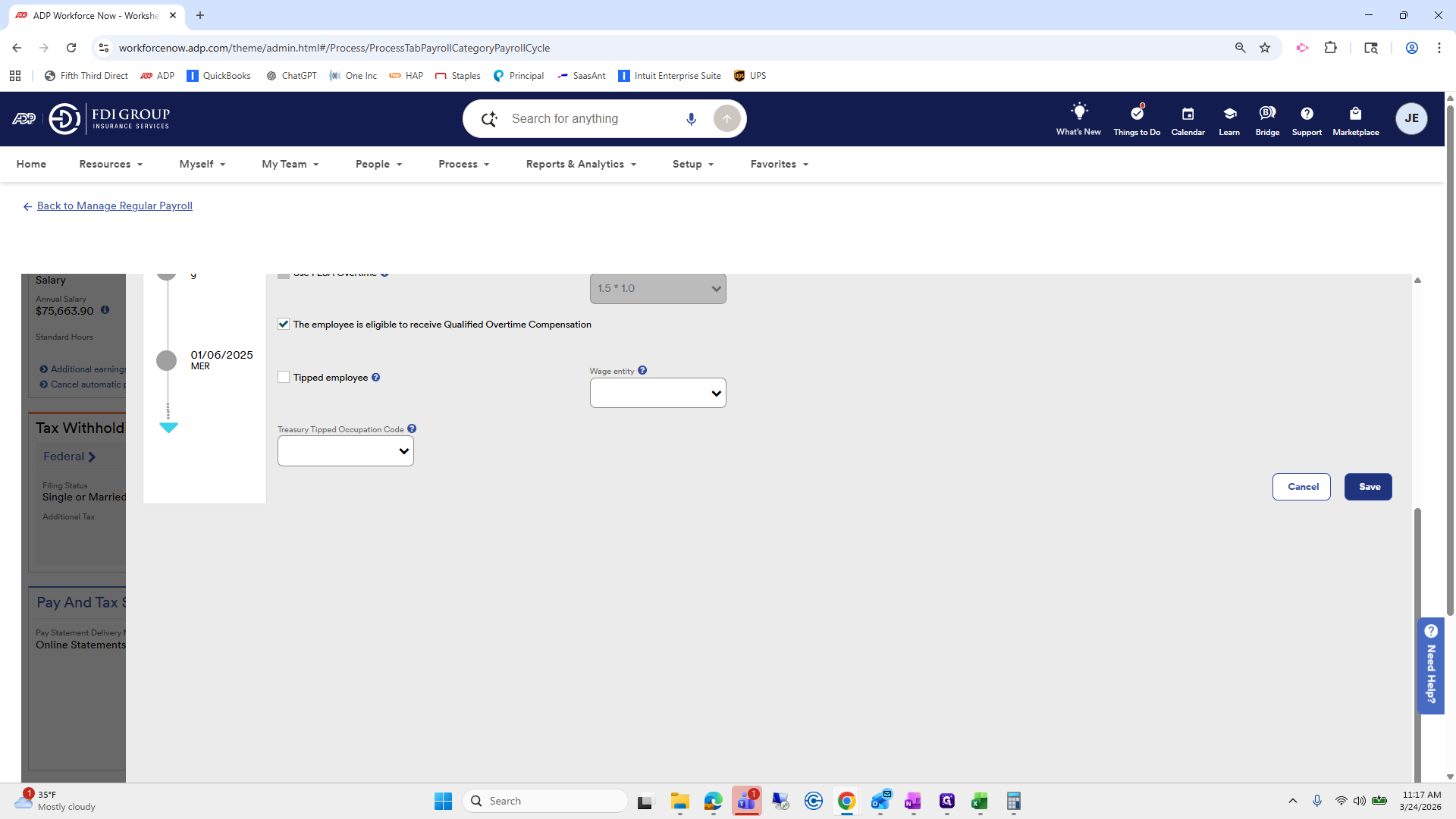
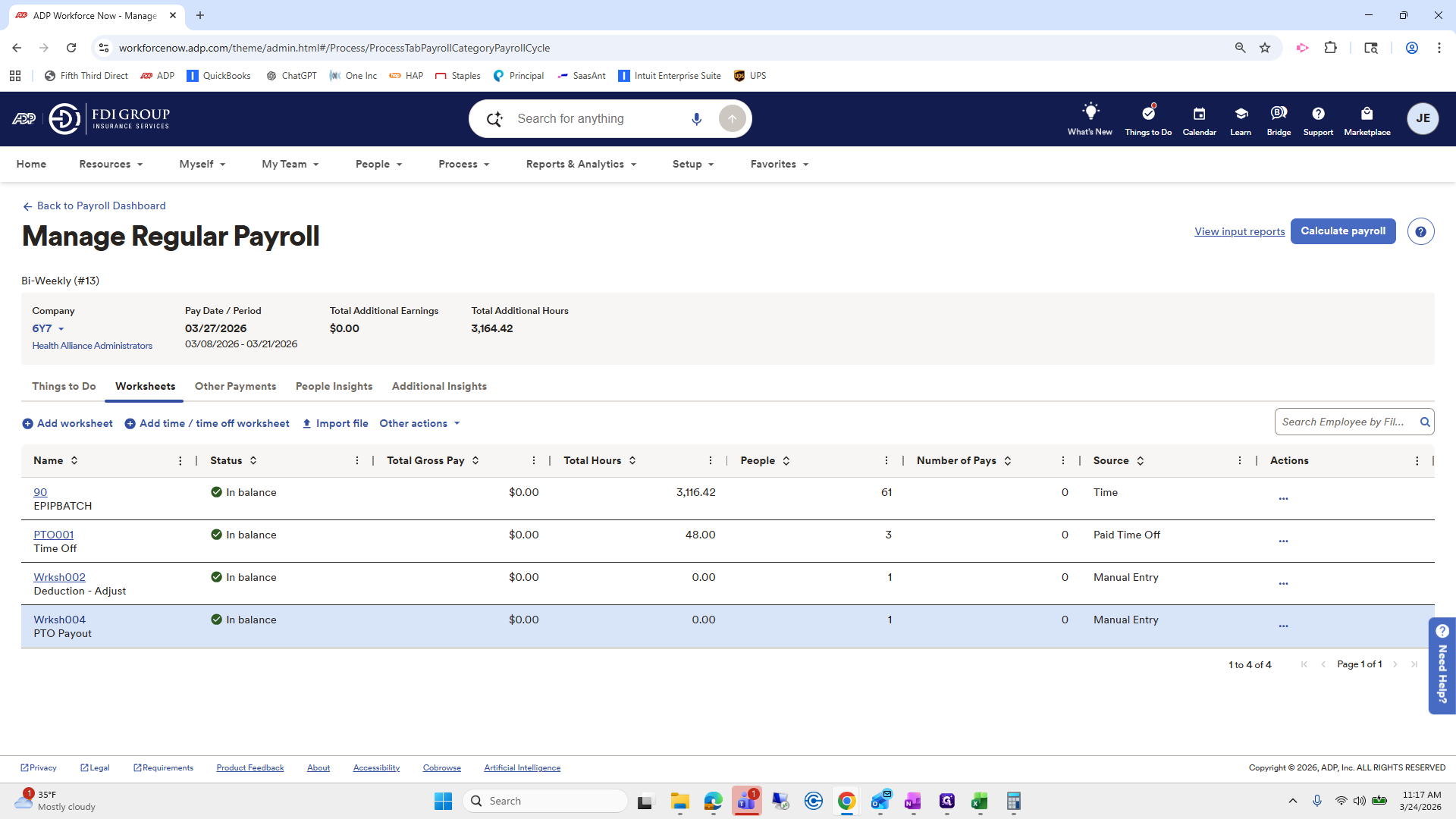
Go back to the manage payroll dashboard. Then, return to the PTO payout section. Here, you can see the rate code is two, and we will pay out 40 hours.
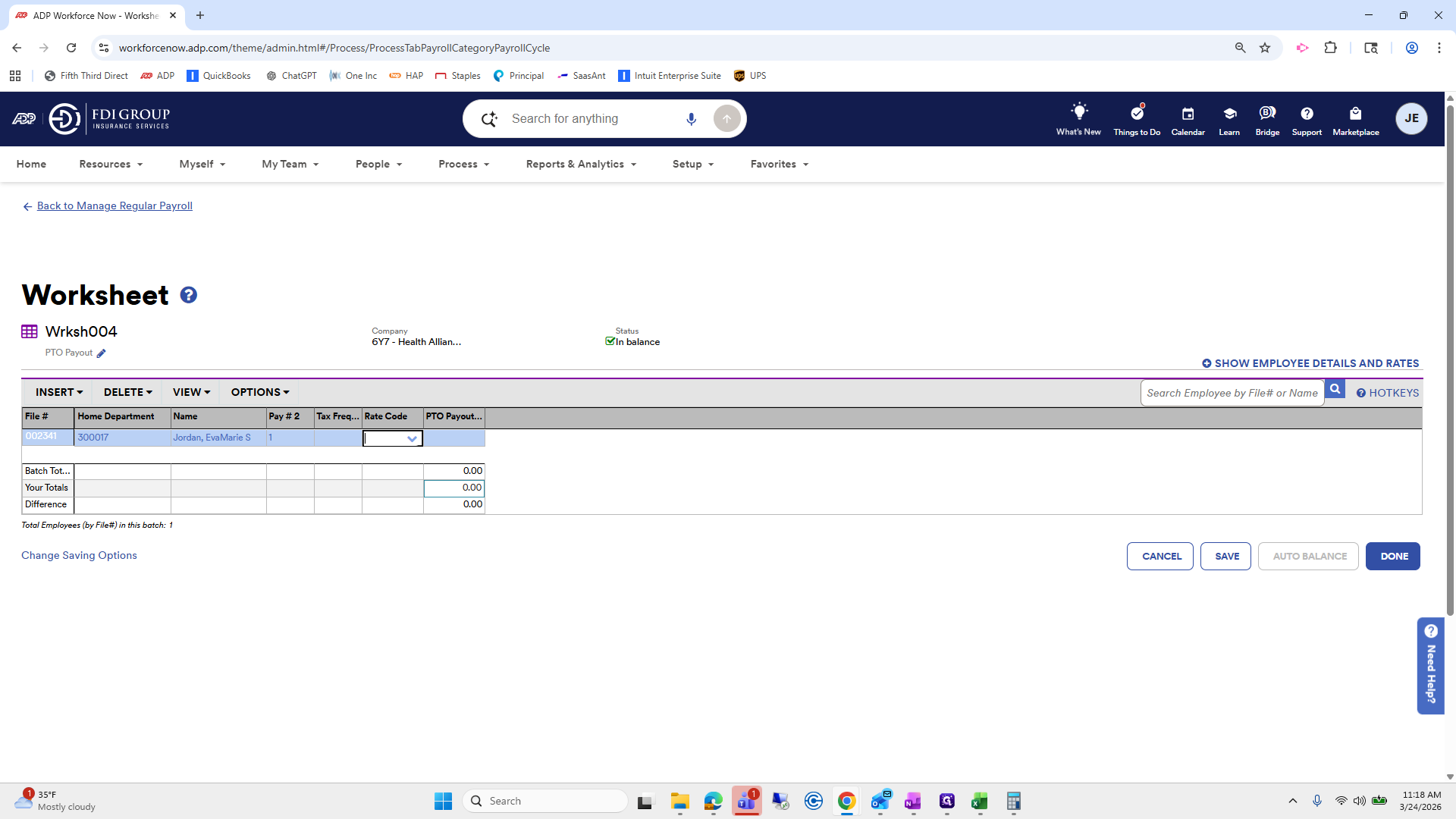
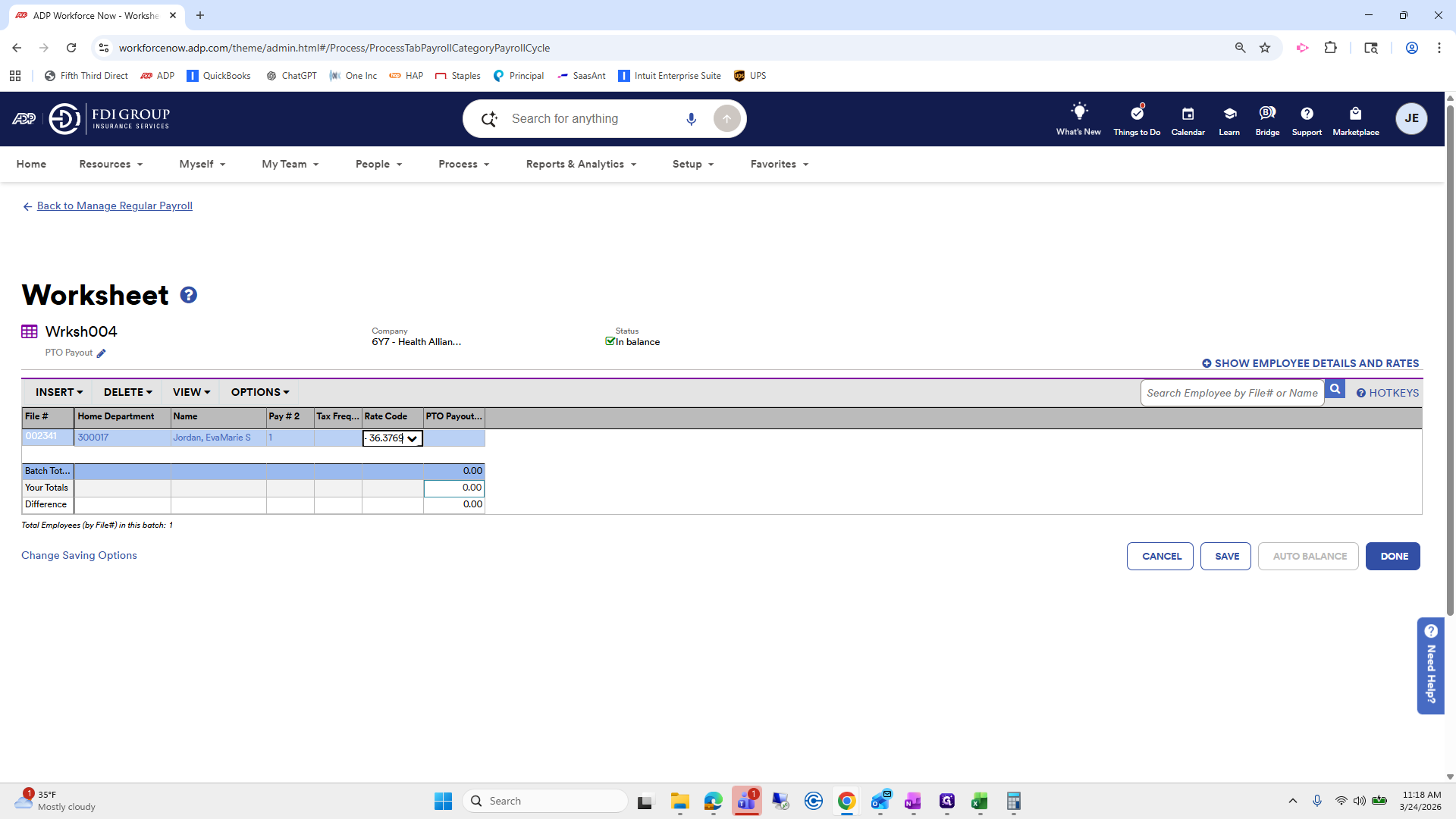
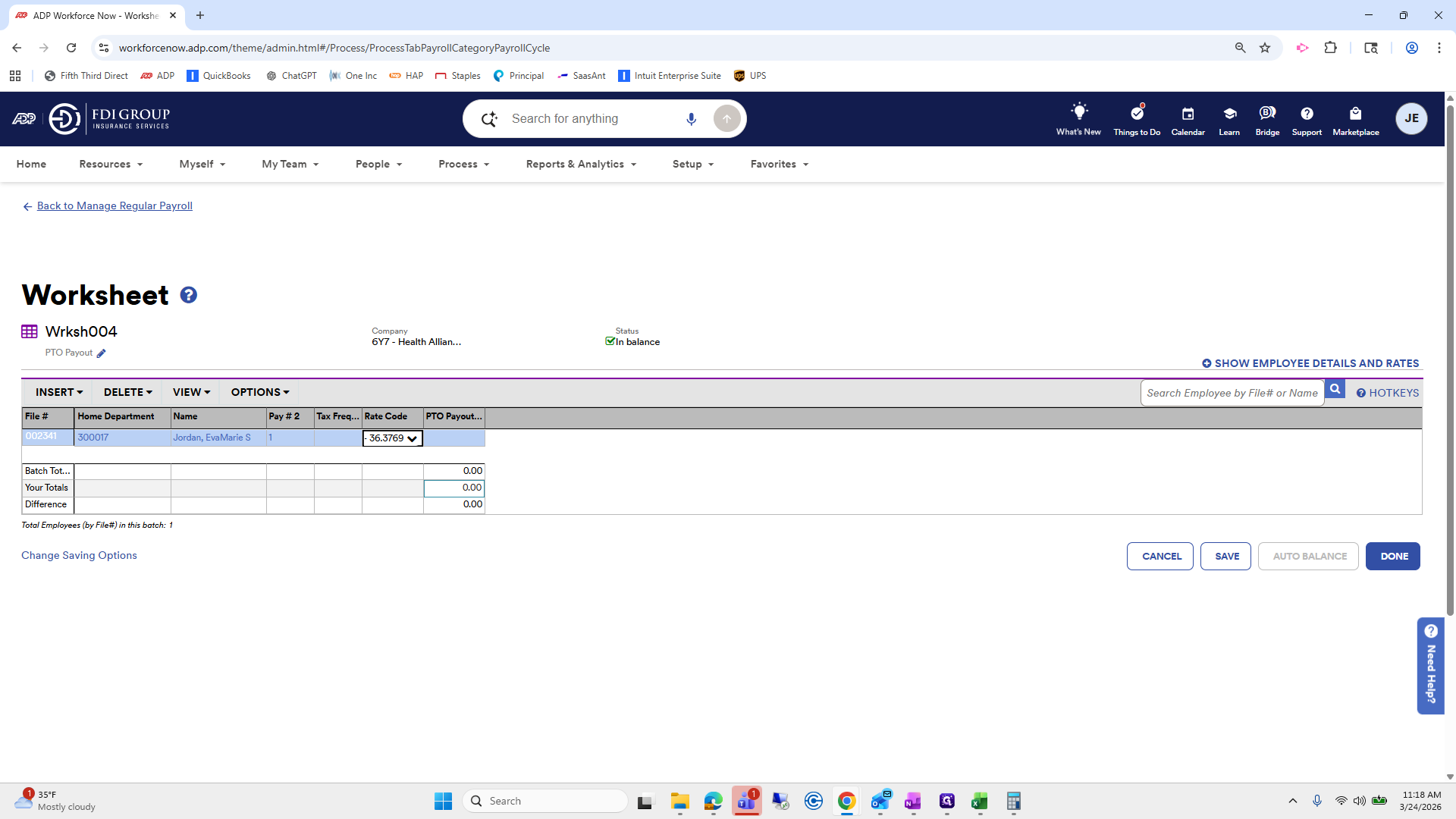
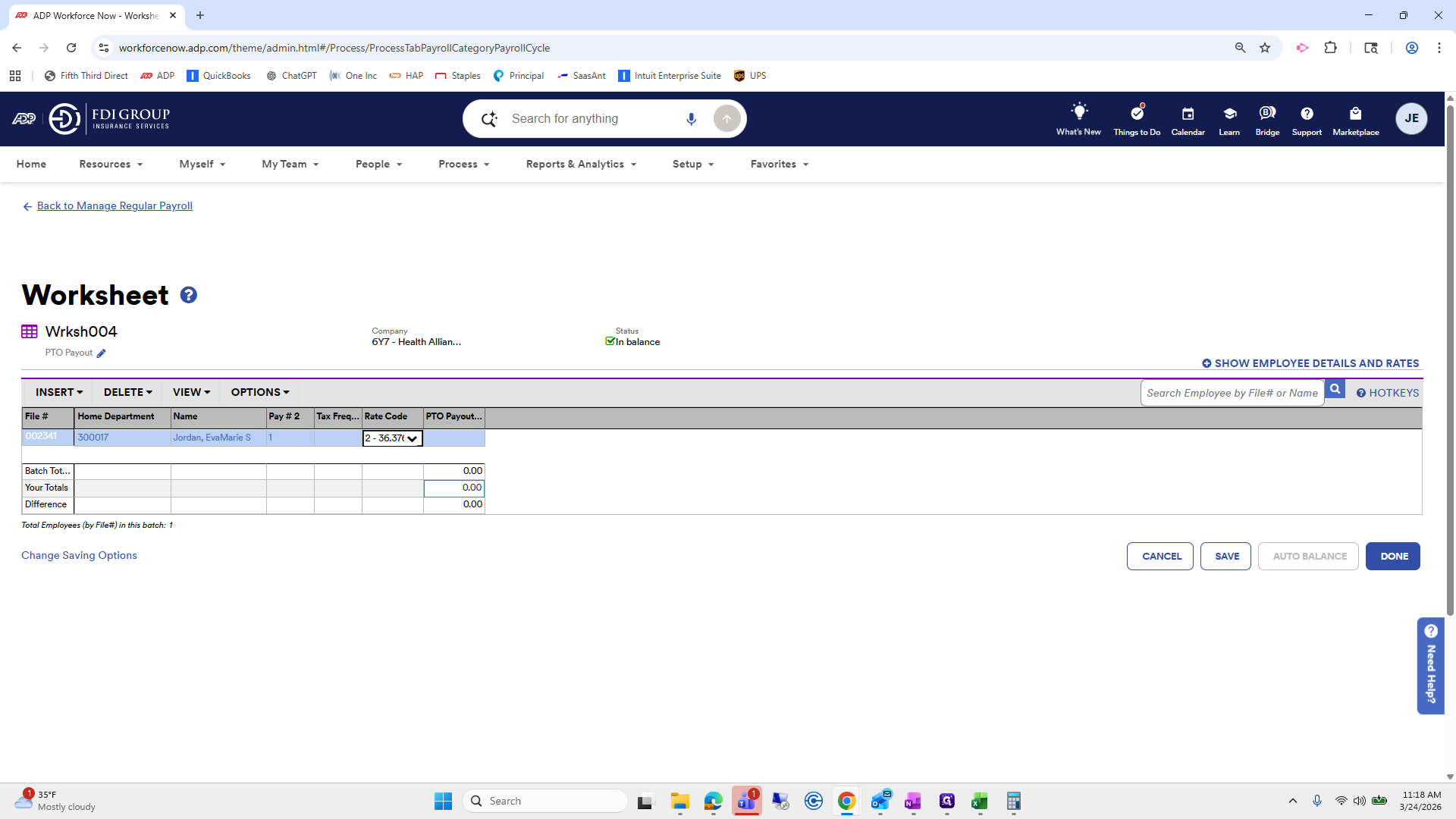
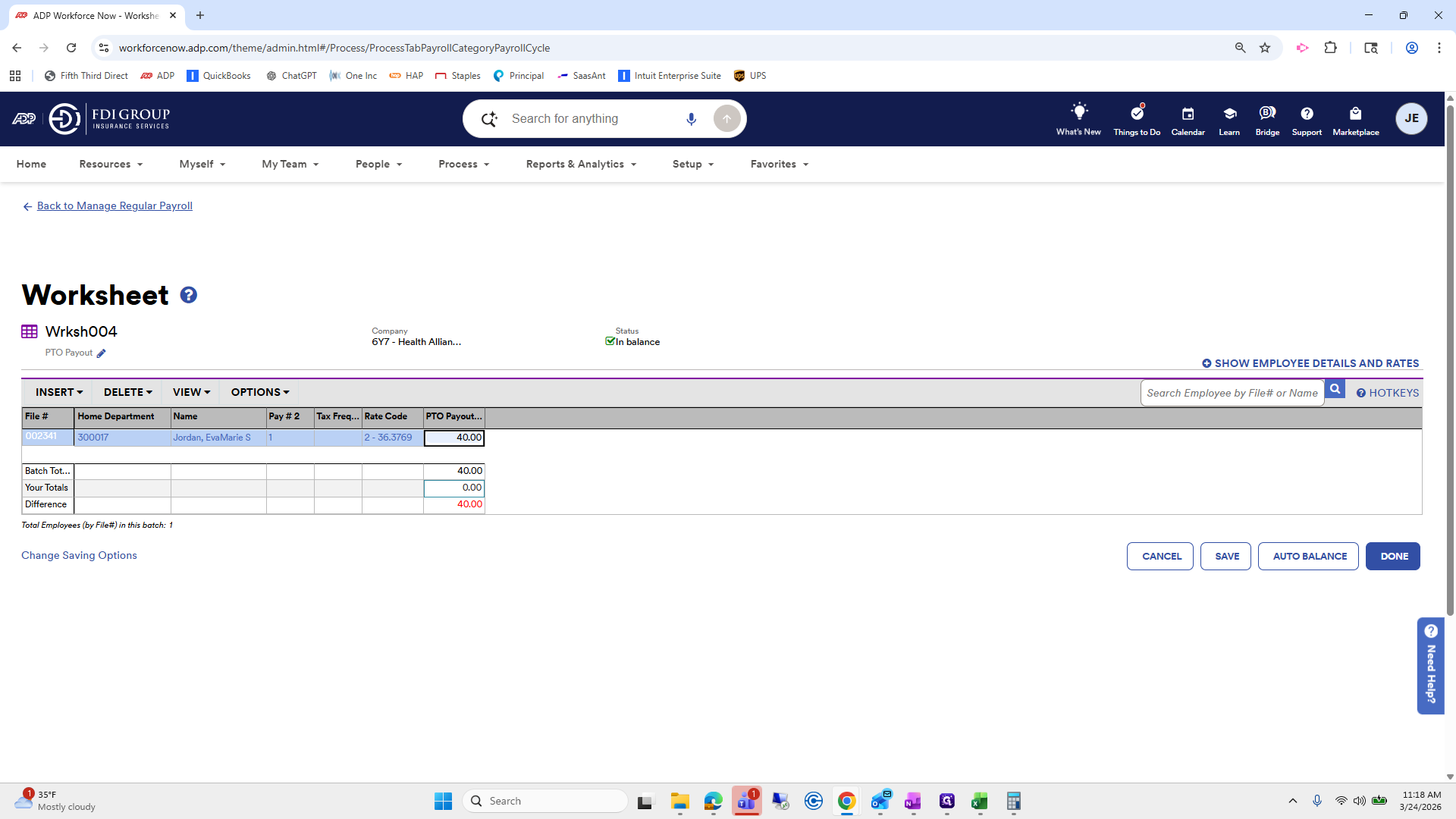
Save, auto-balance, and done.
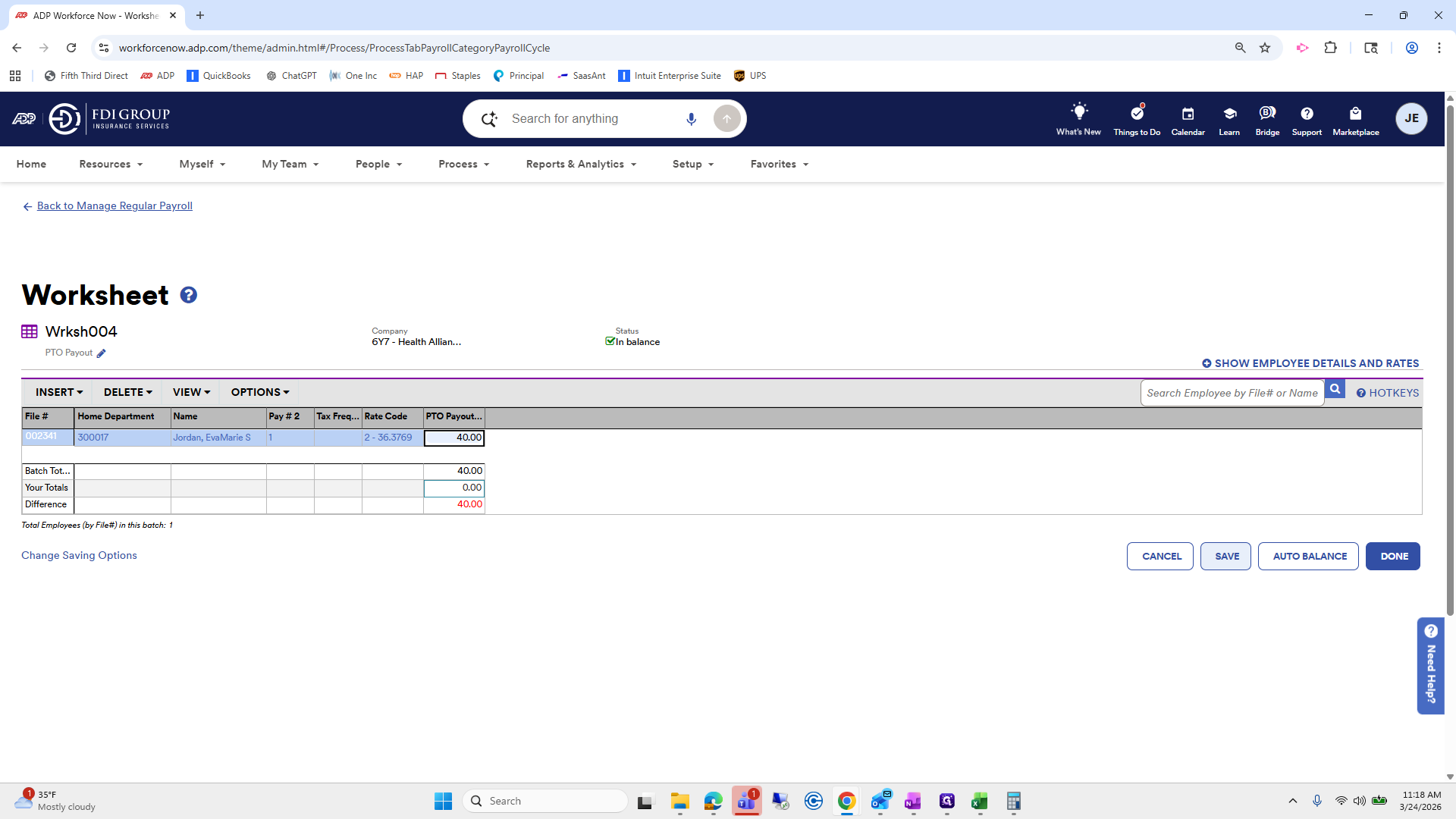
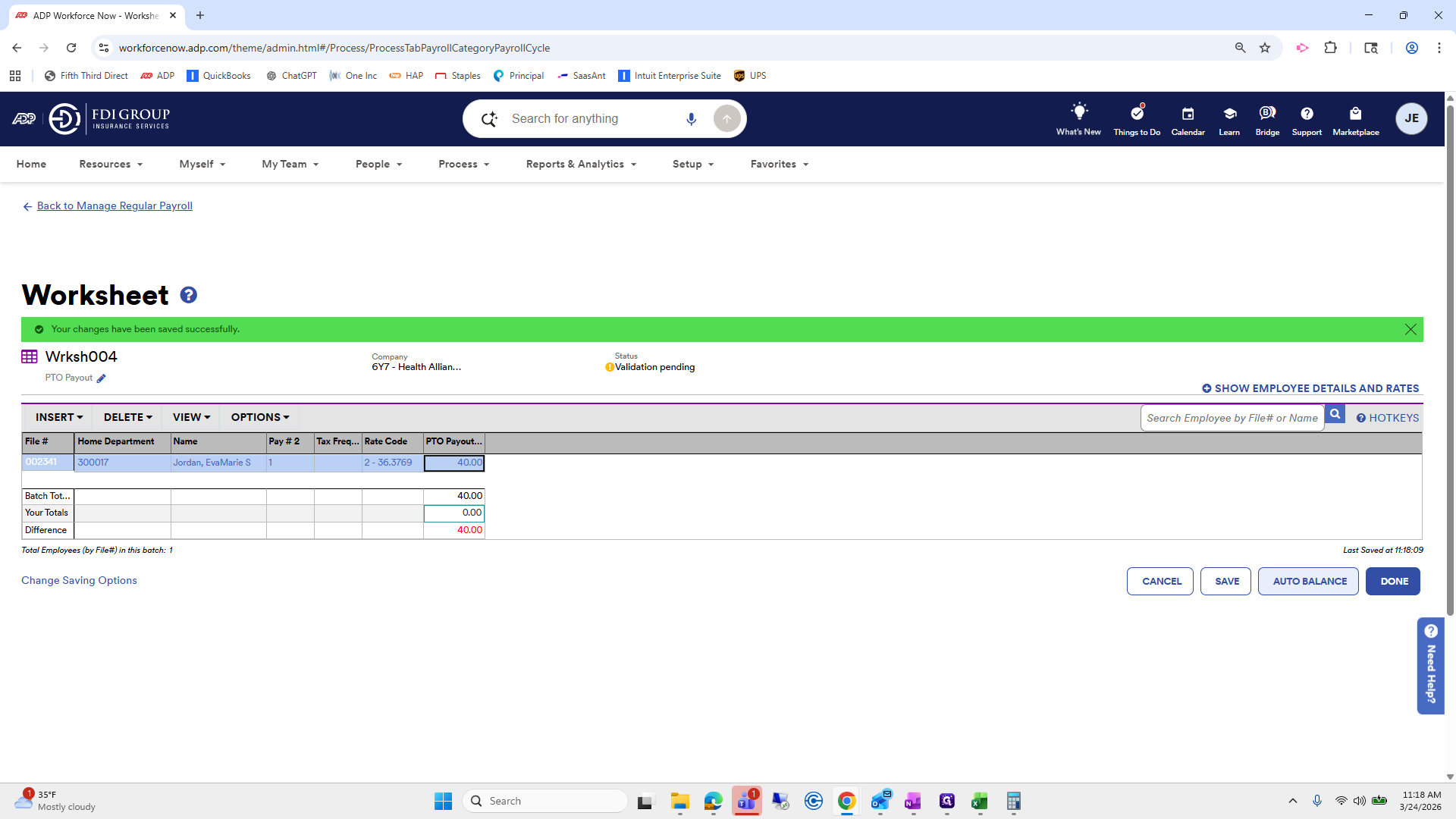
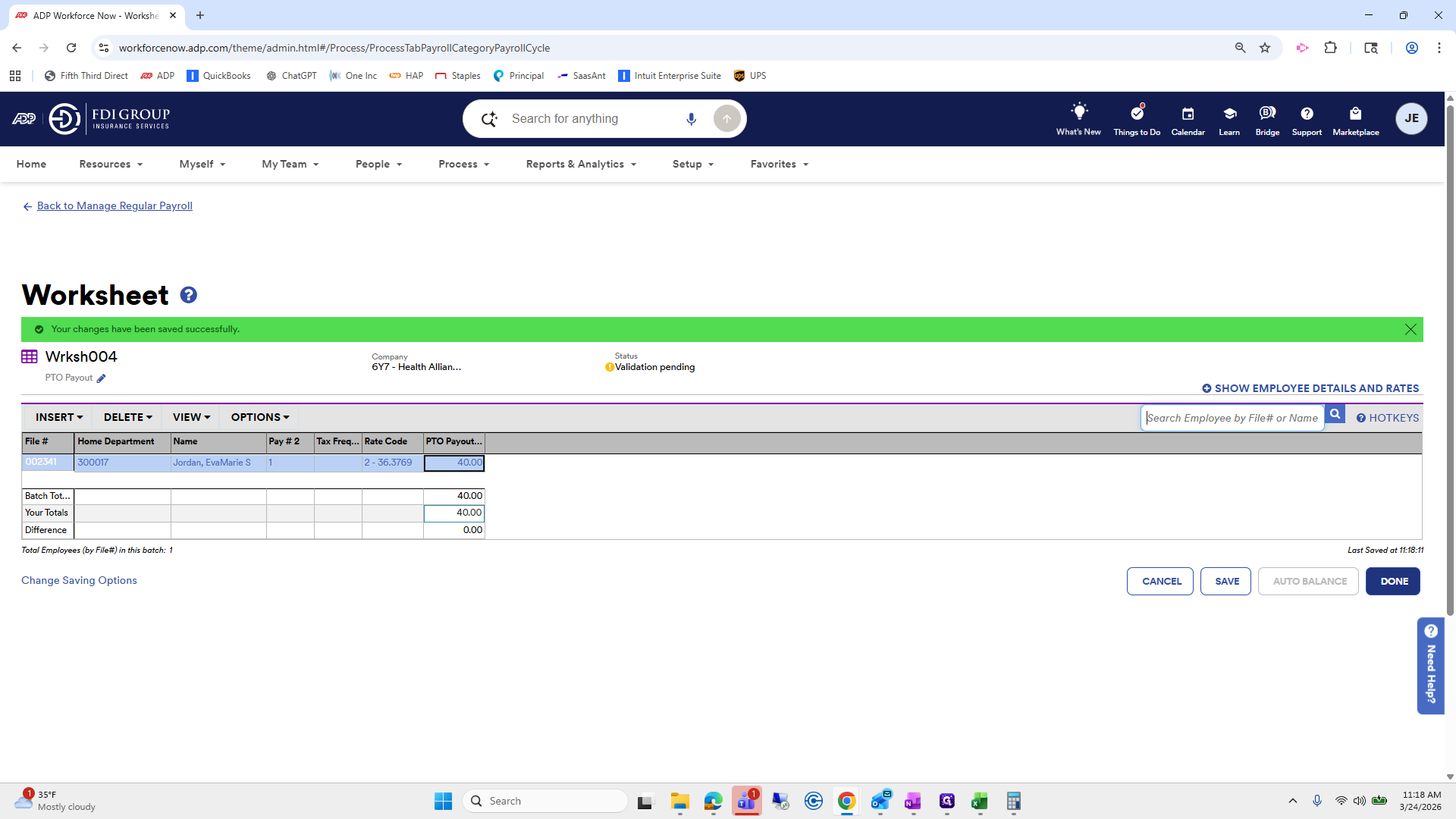
Next one is...
I just want to double-check, because sometimes a PTO payout is in hours or amounts.
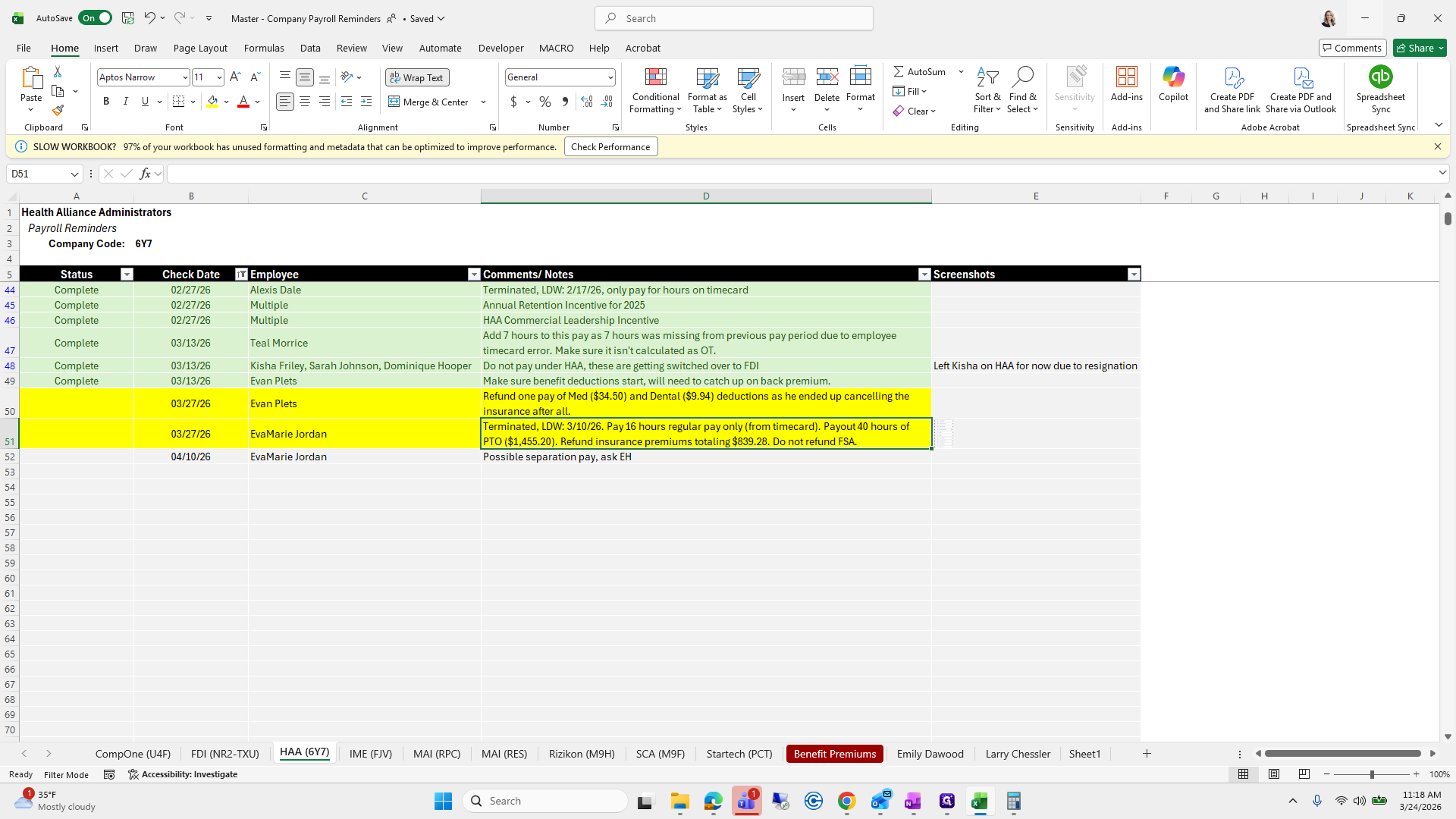
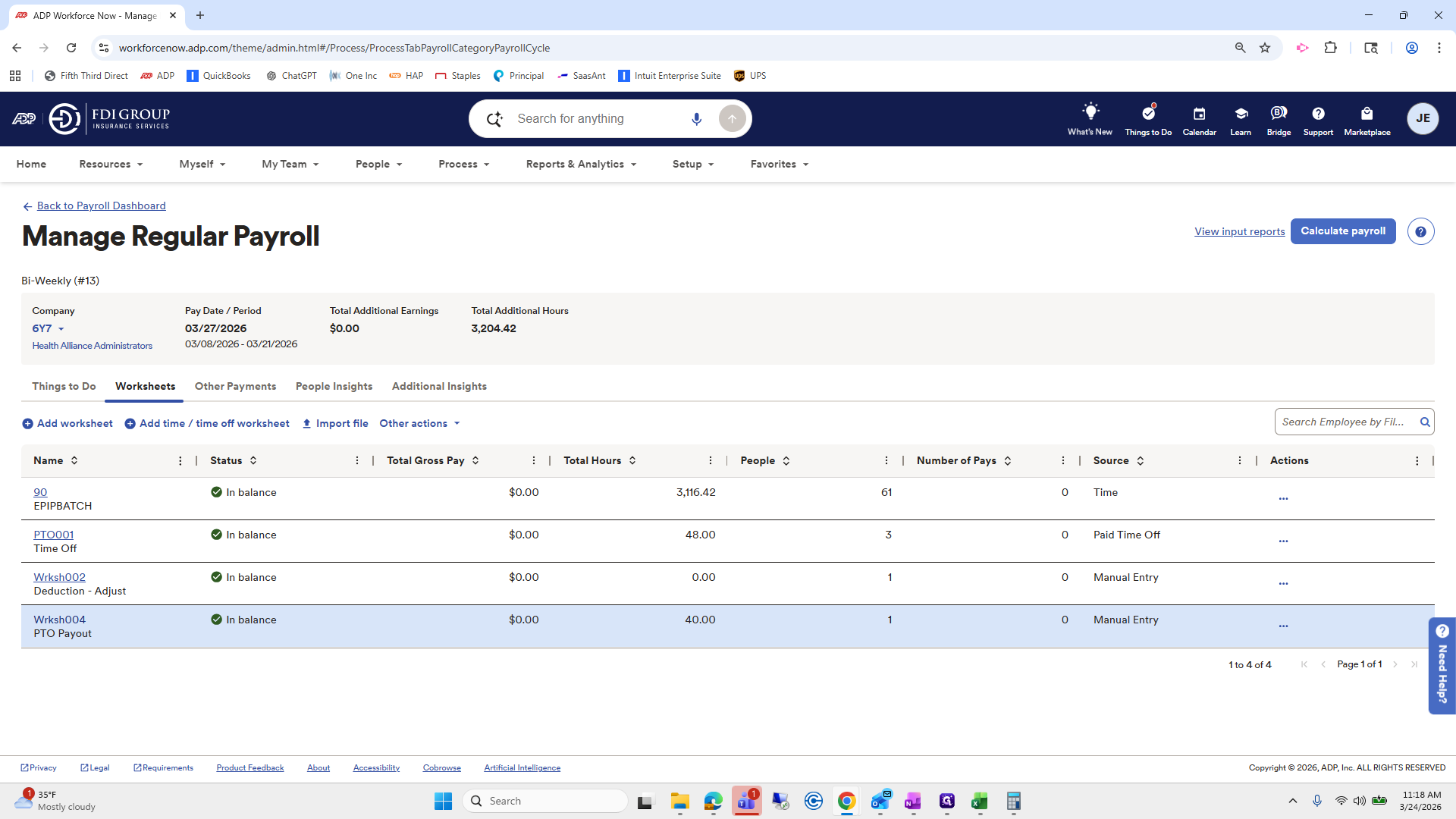
We want to double-check that this is correct. PTO payout hours.
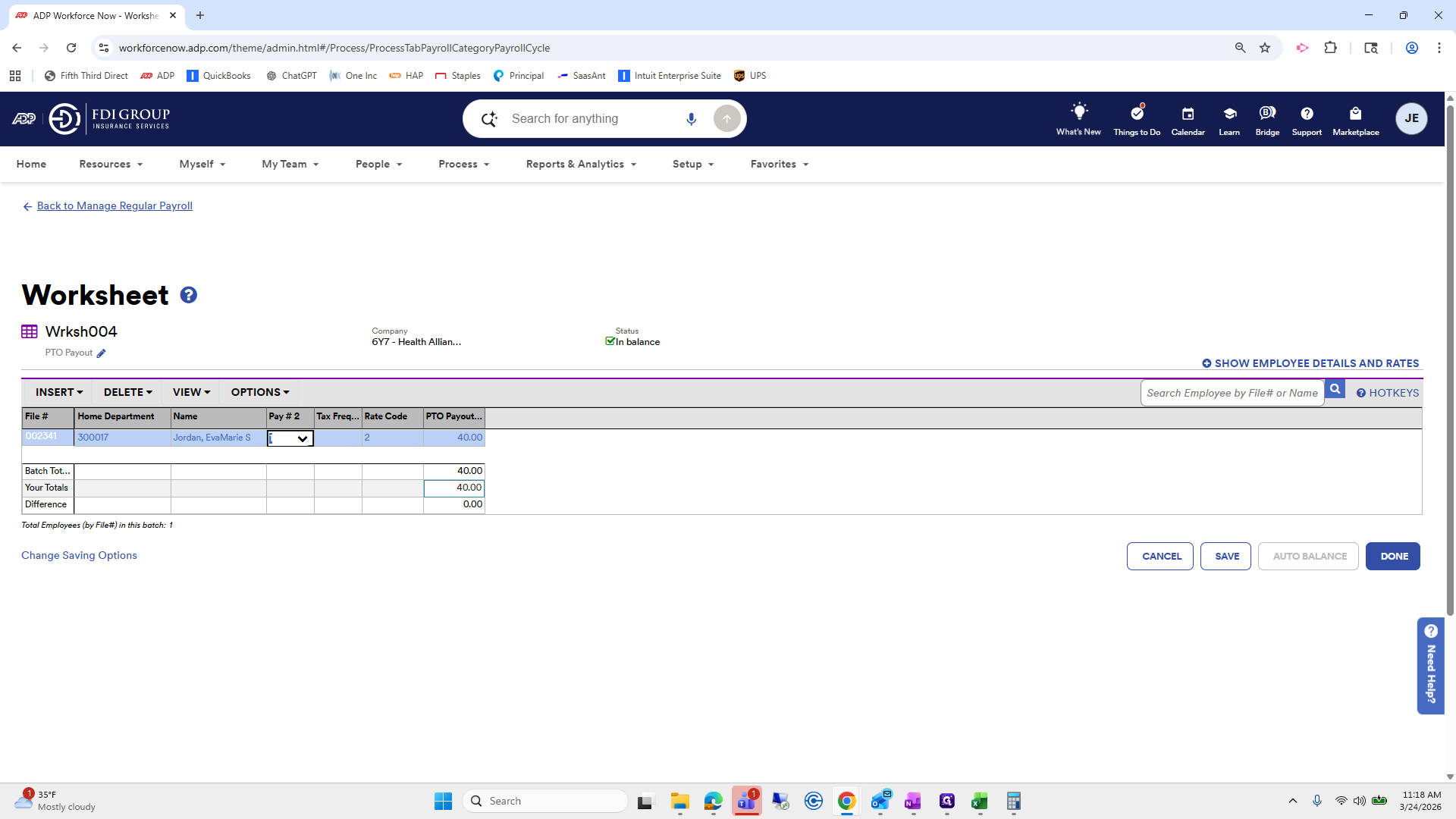
Okay.
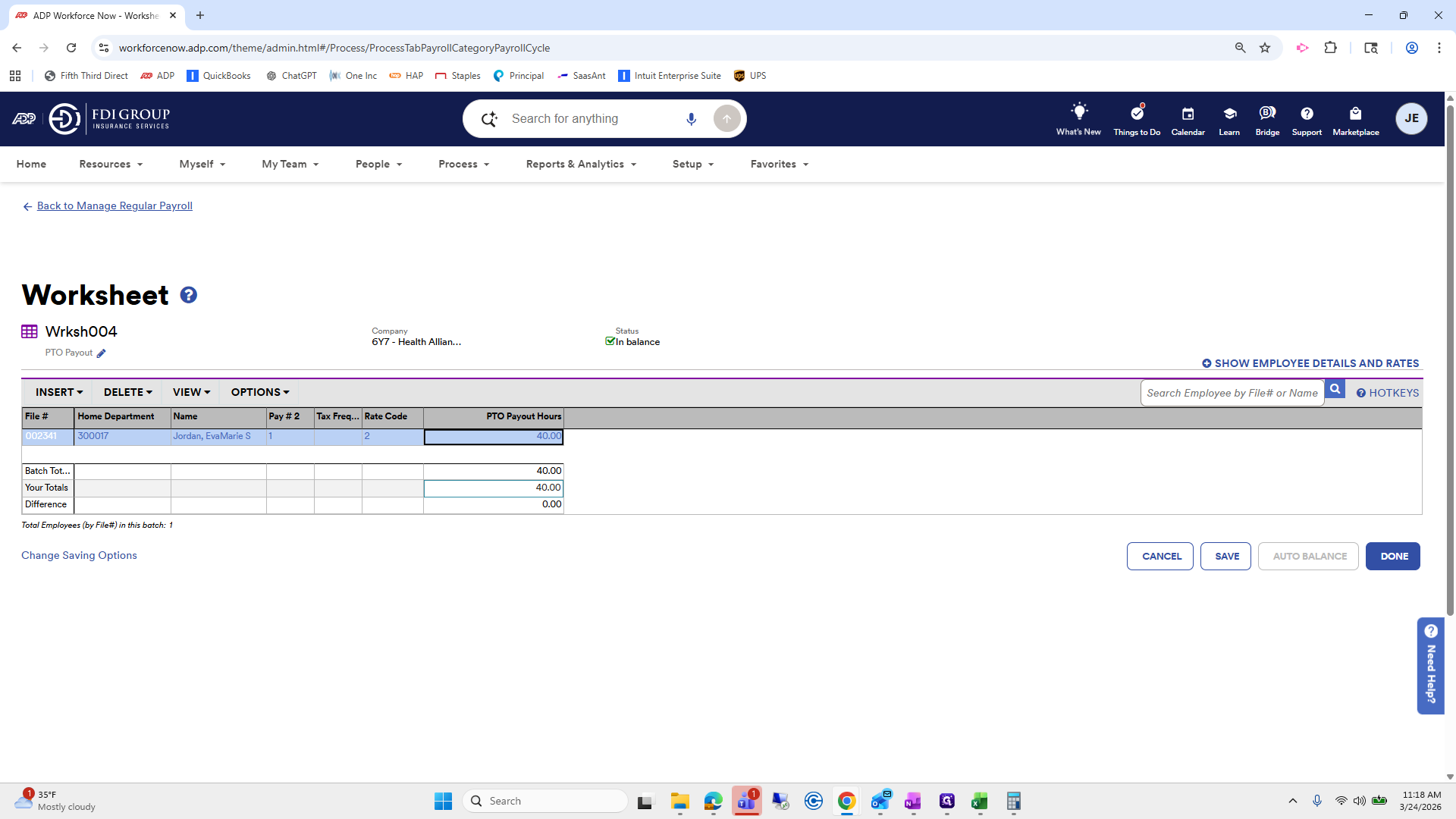
That looks good.
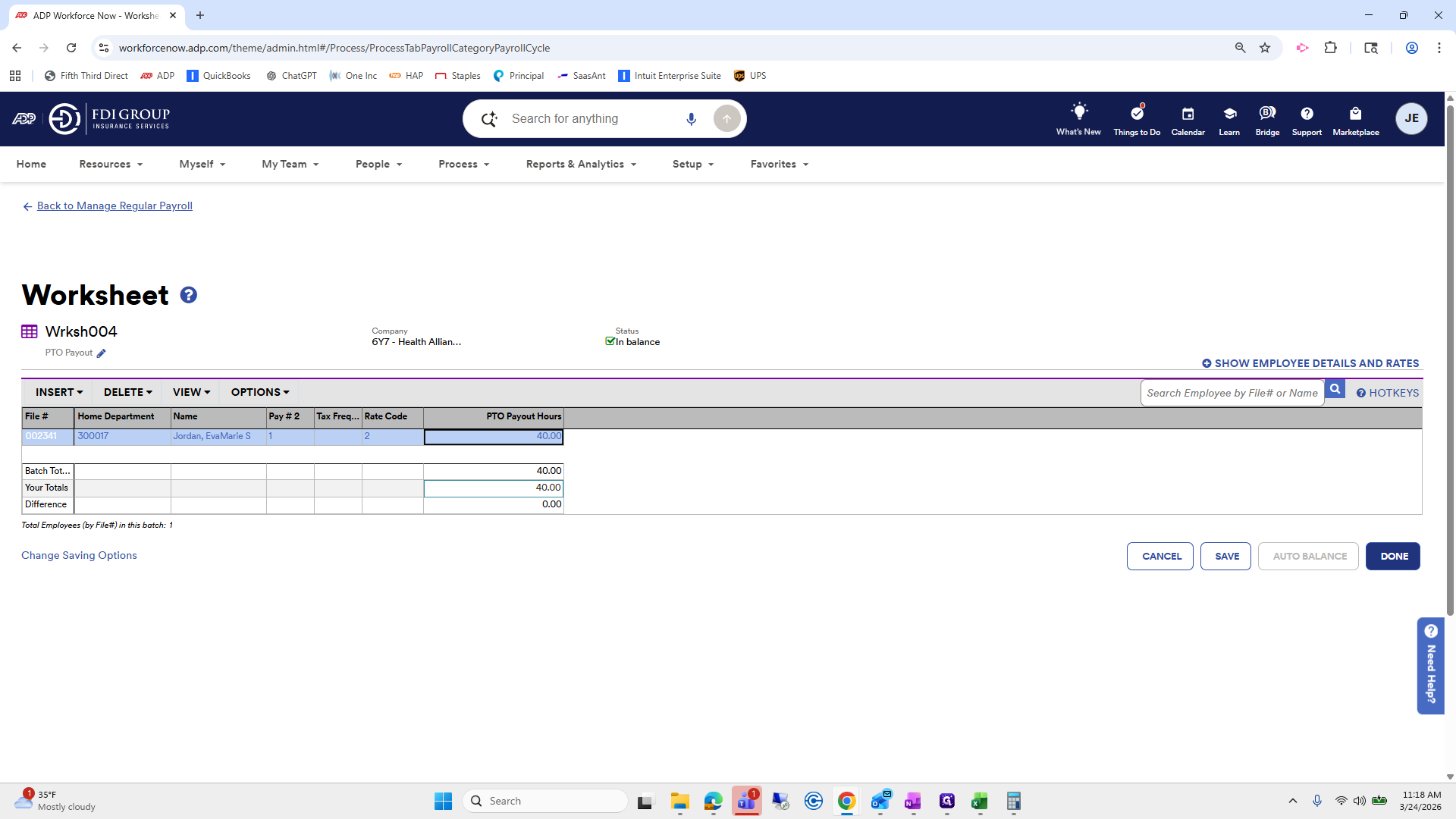
Next, pay 16 regular hours from the timecard.
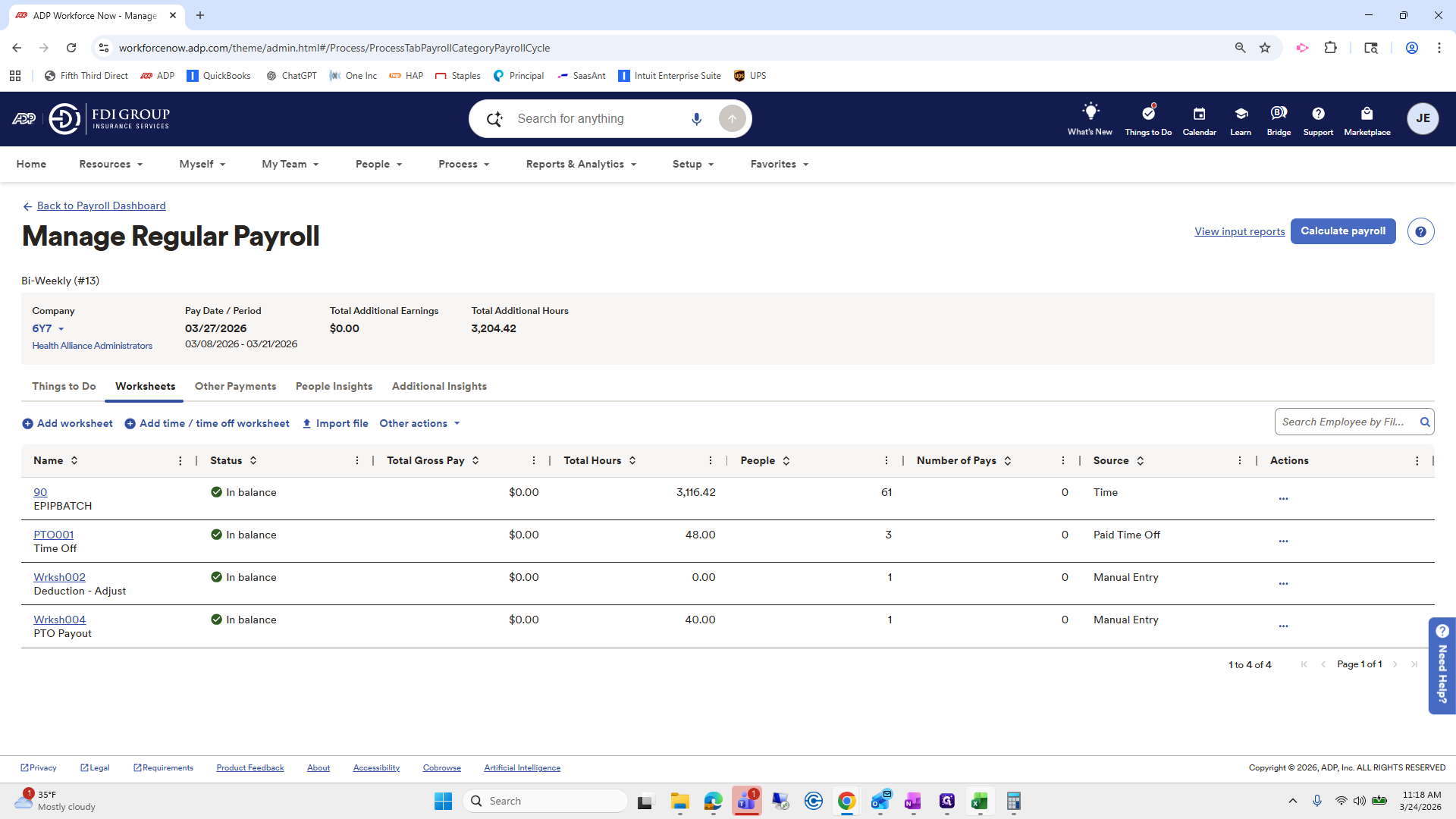
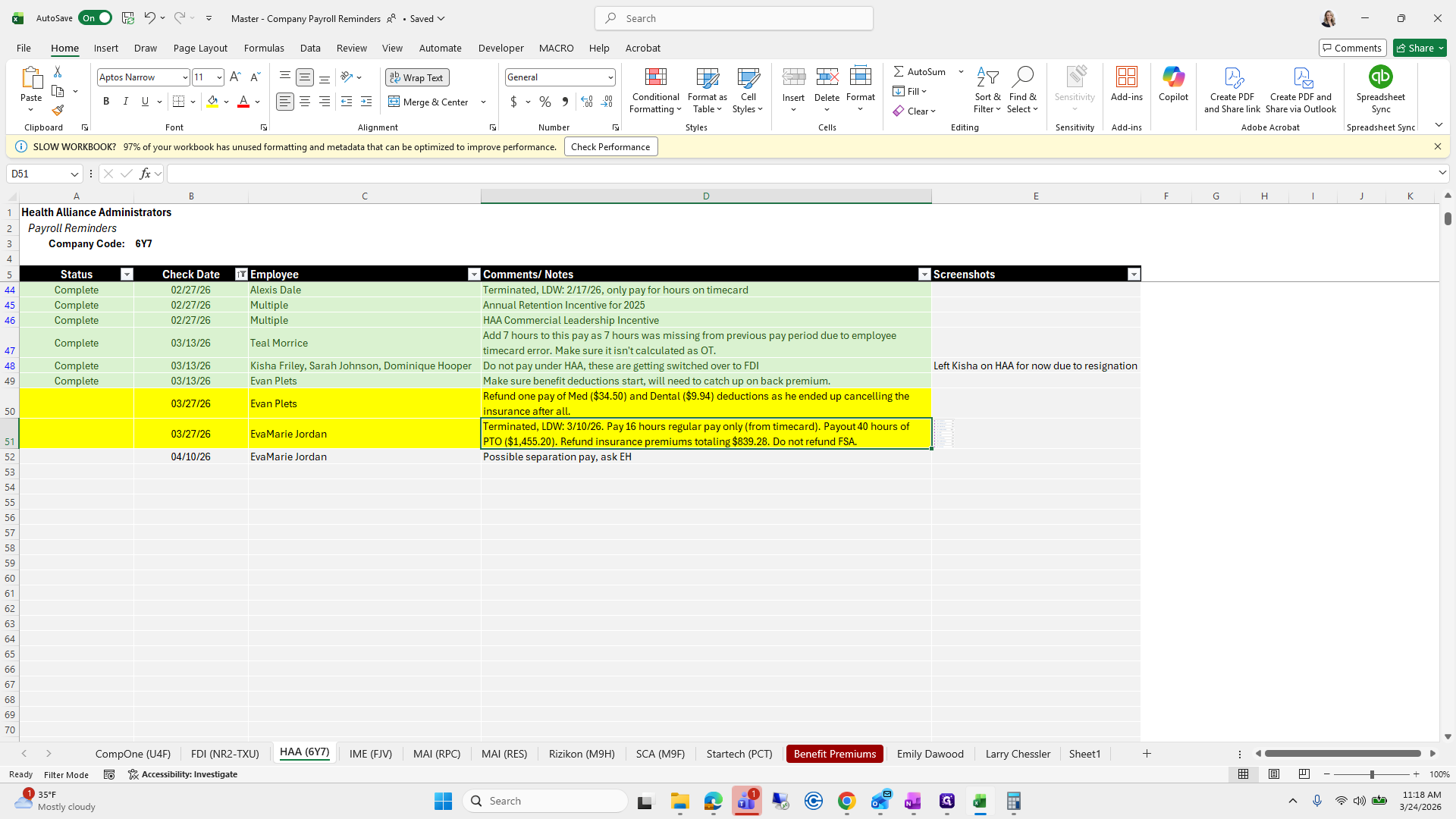
We will look at the timecard.
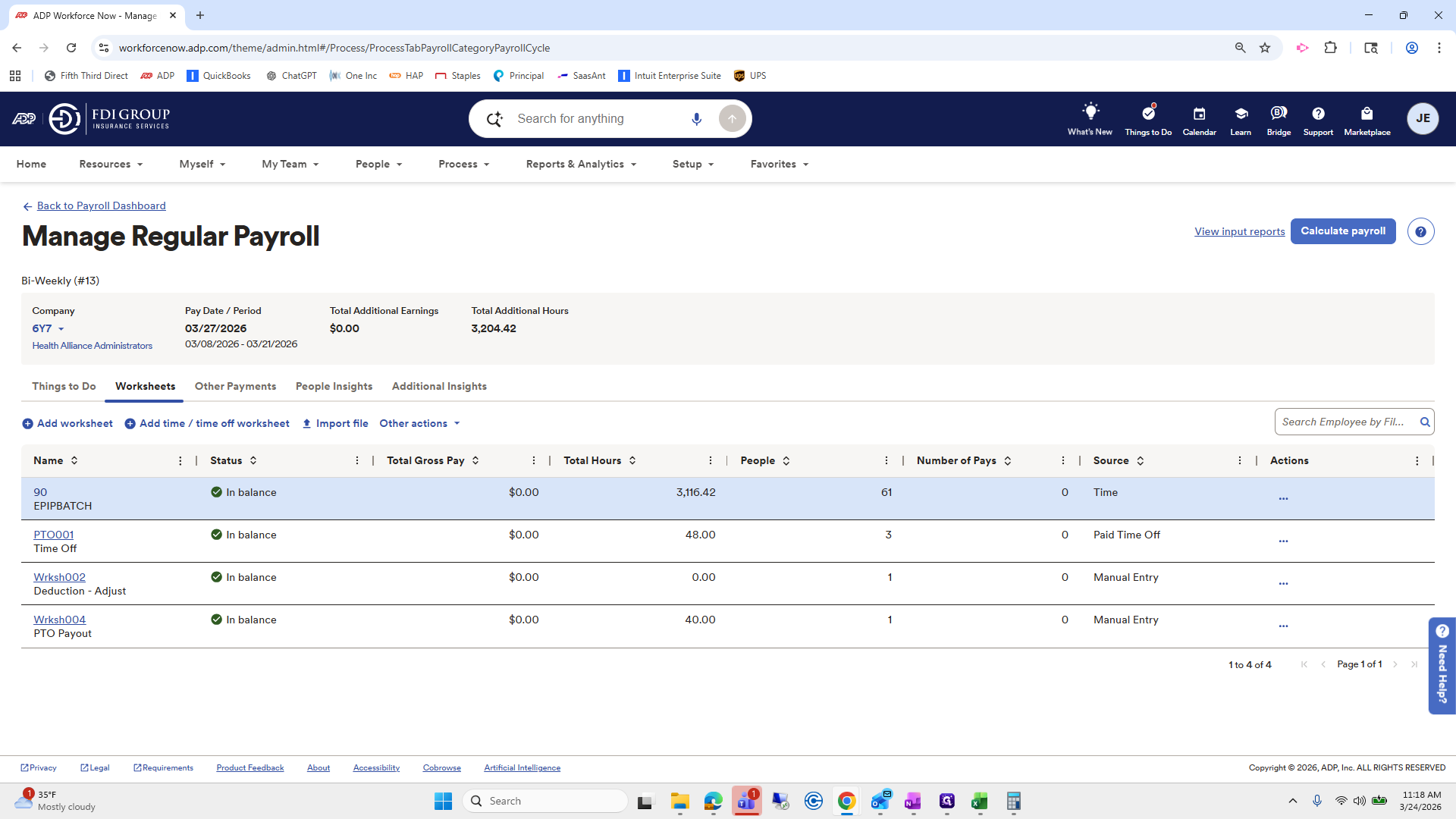
We will look at Ava Marie.
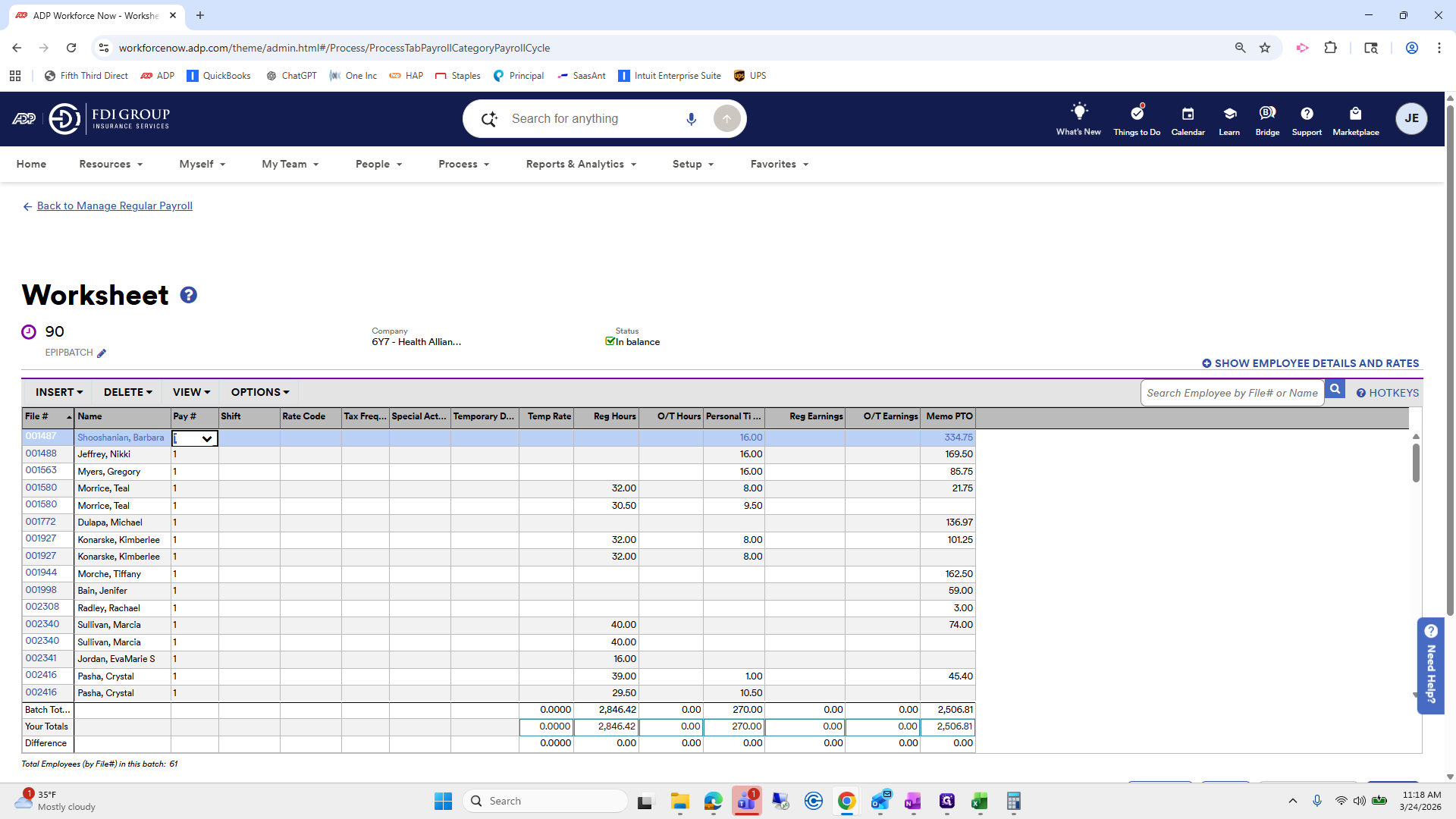
She has 16 hours. That looks great.
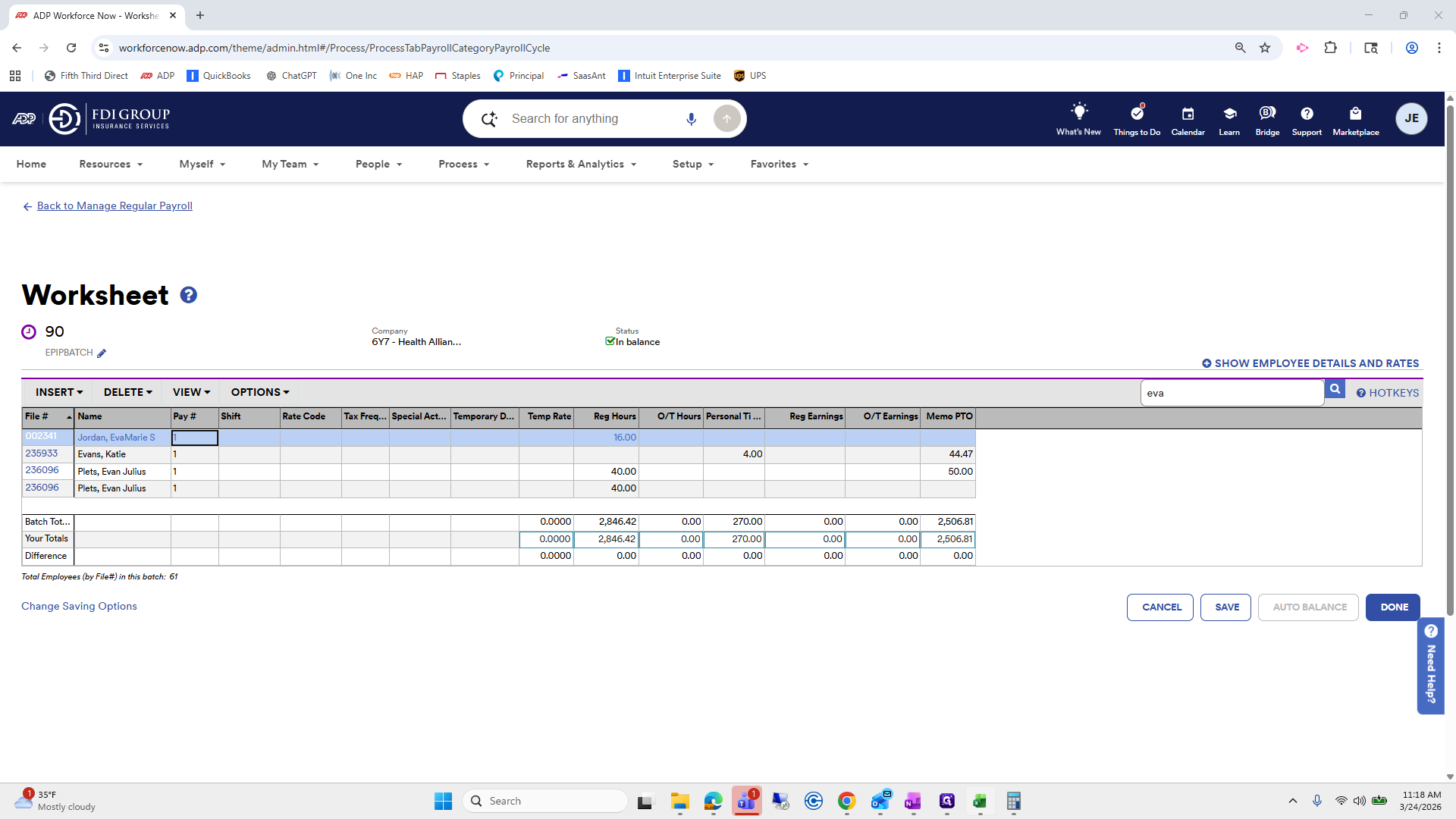
Next, we will refund her insurance premiums.
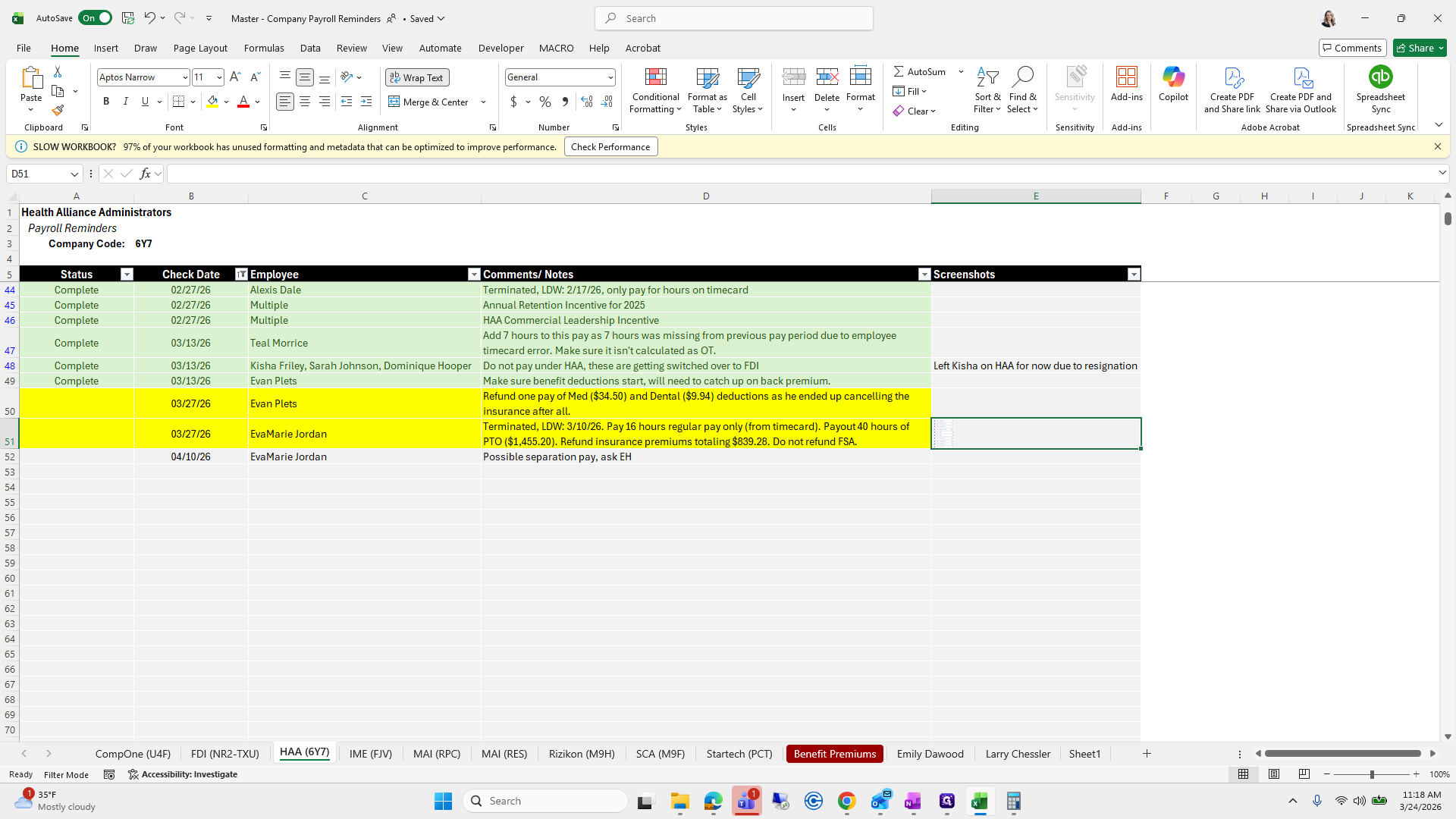
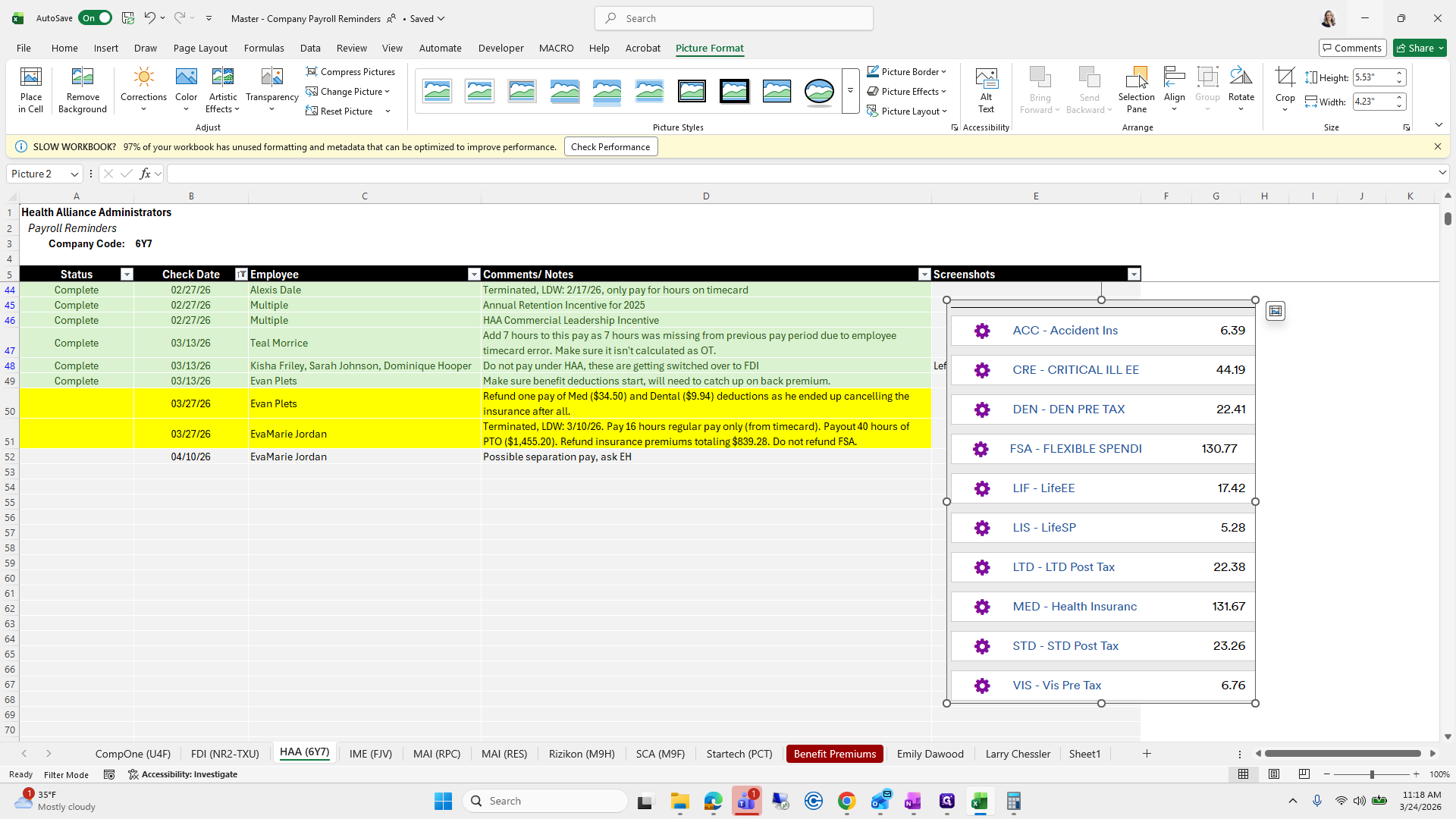
Here they are.
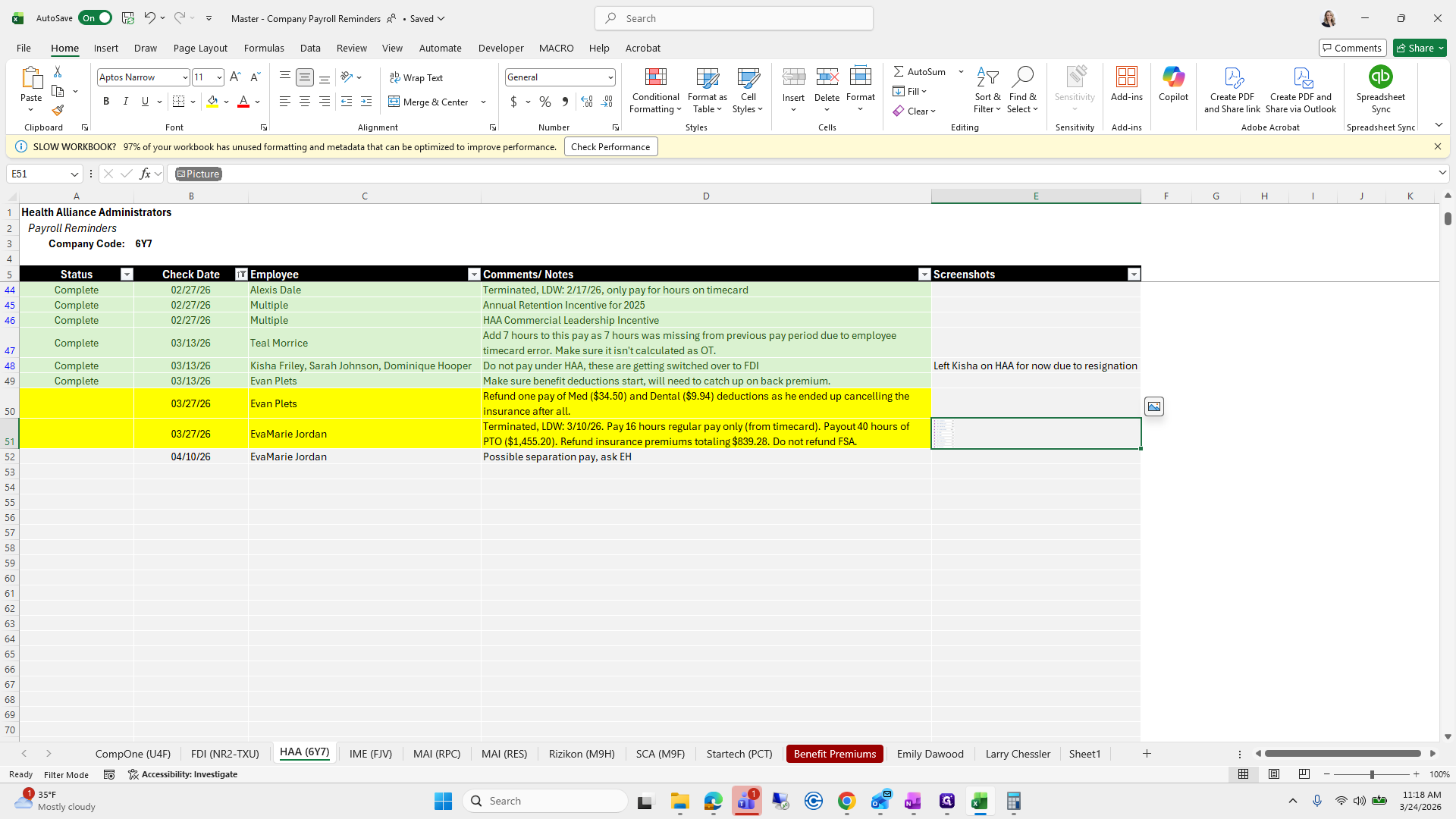
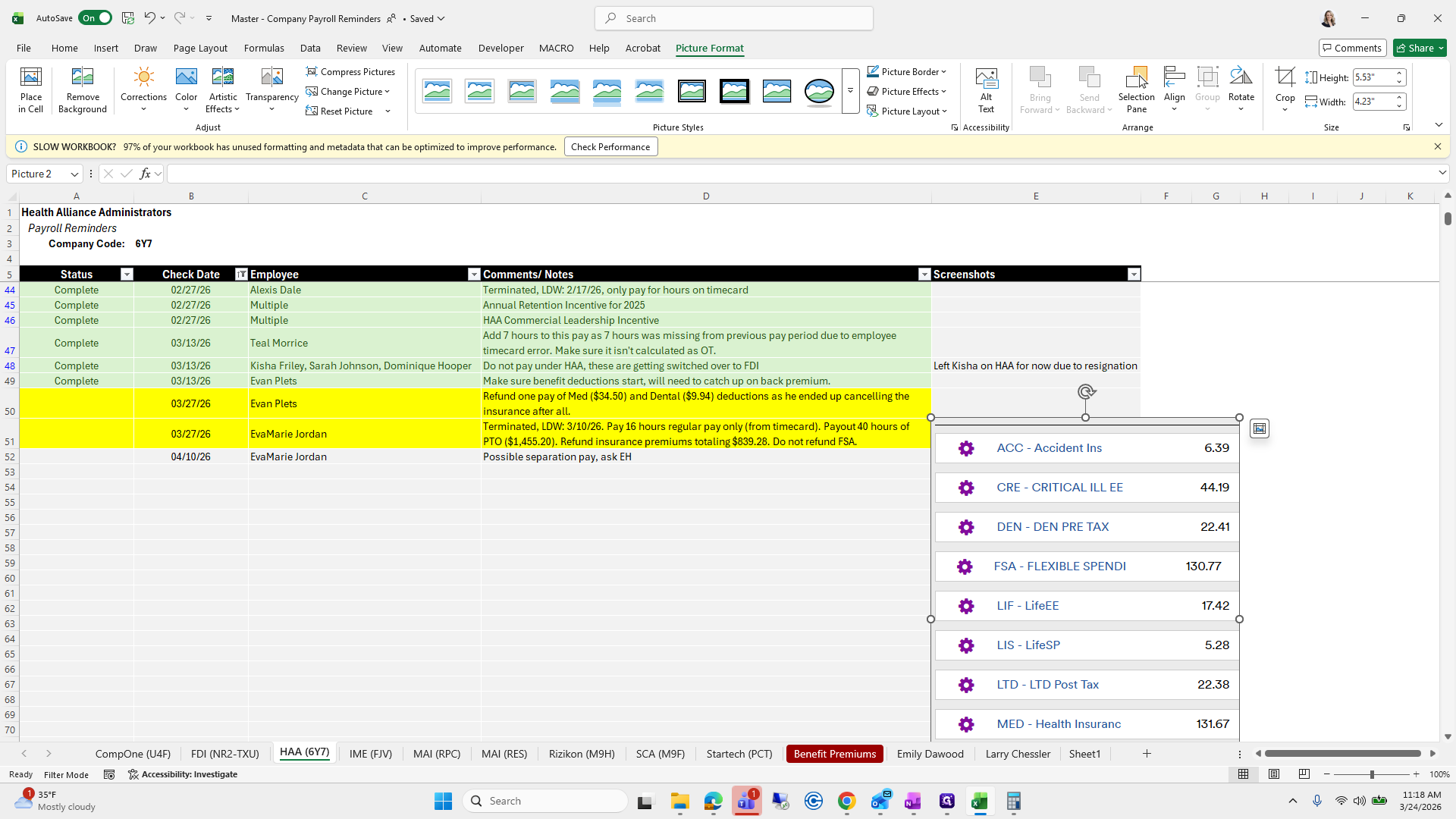
It's a lot, so get ready! Go back to Manage Regular and click Add Worksheet.
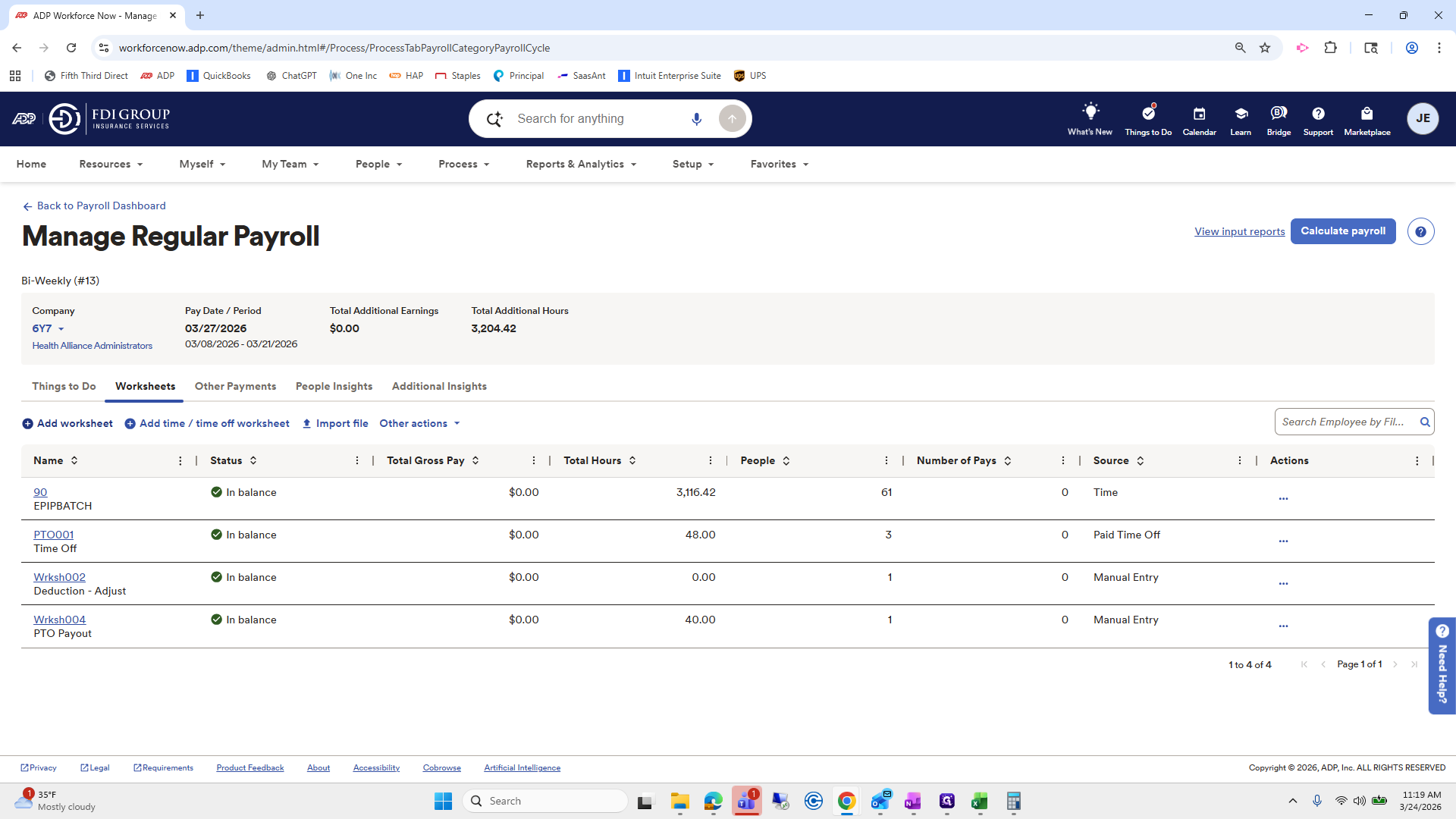
Go to adjust deduction.
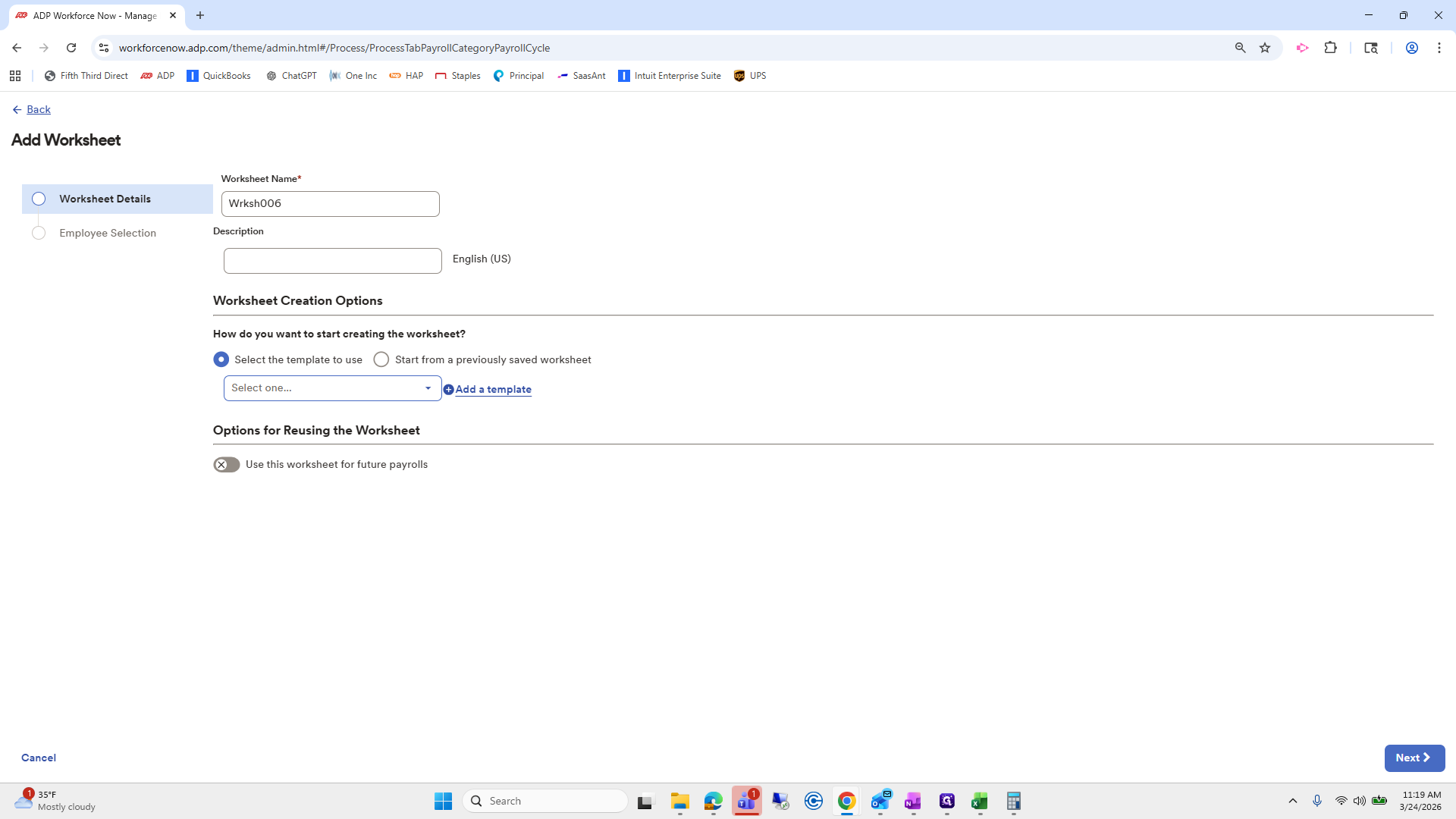
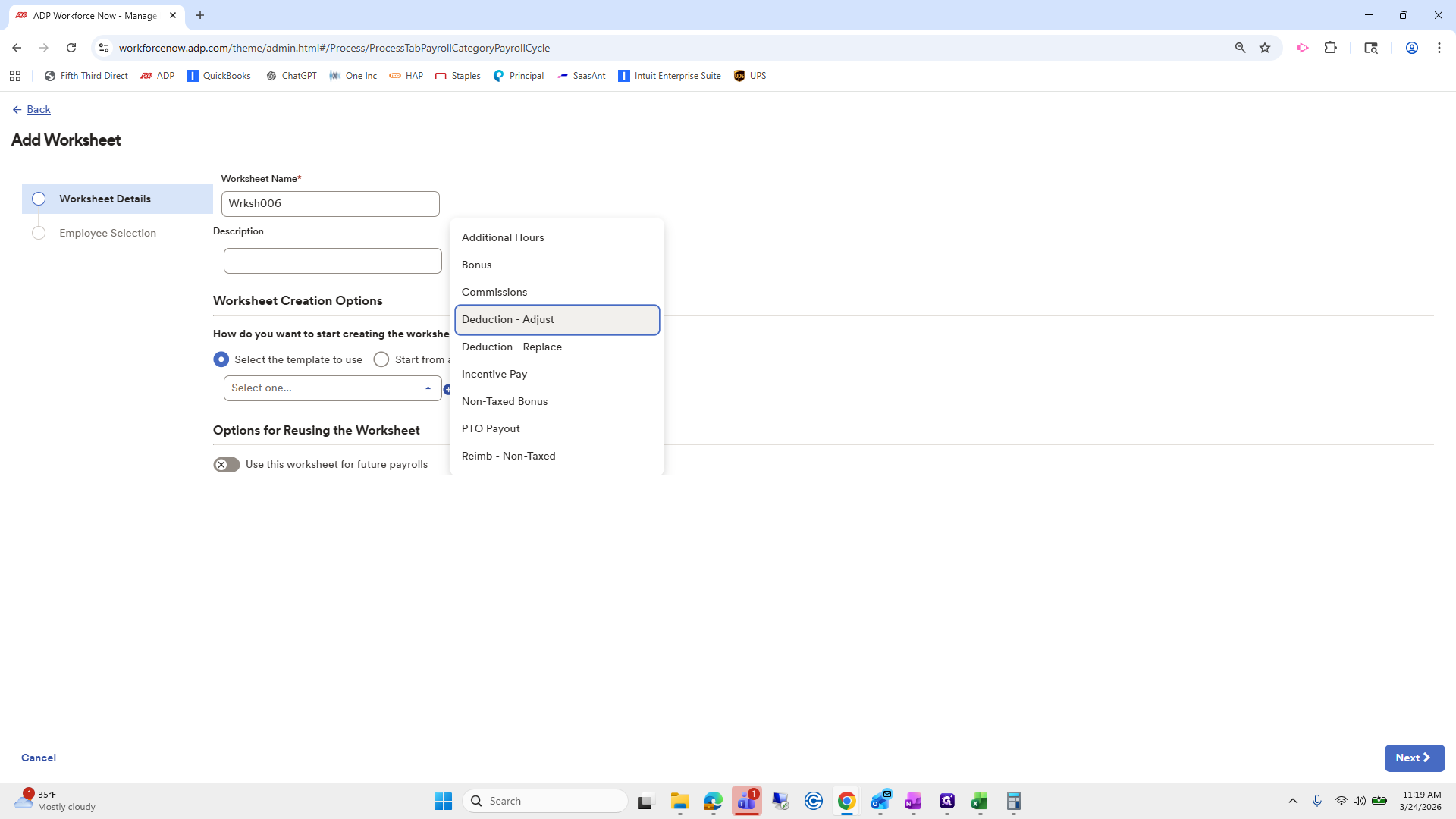
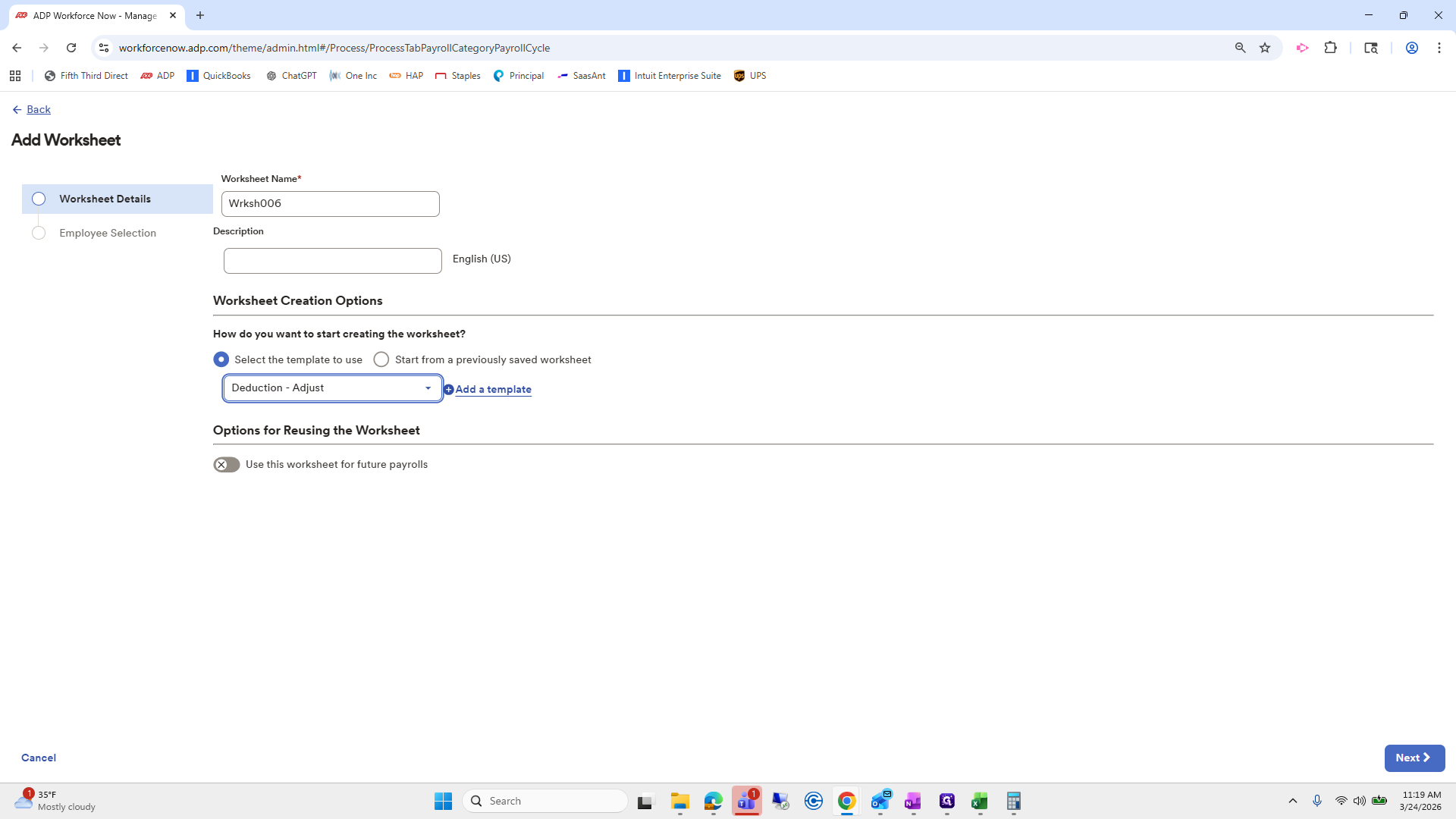
Click Next.
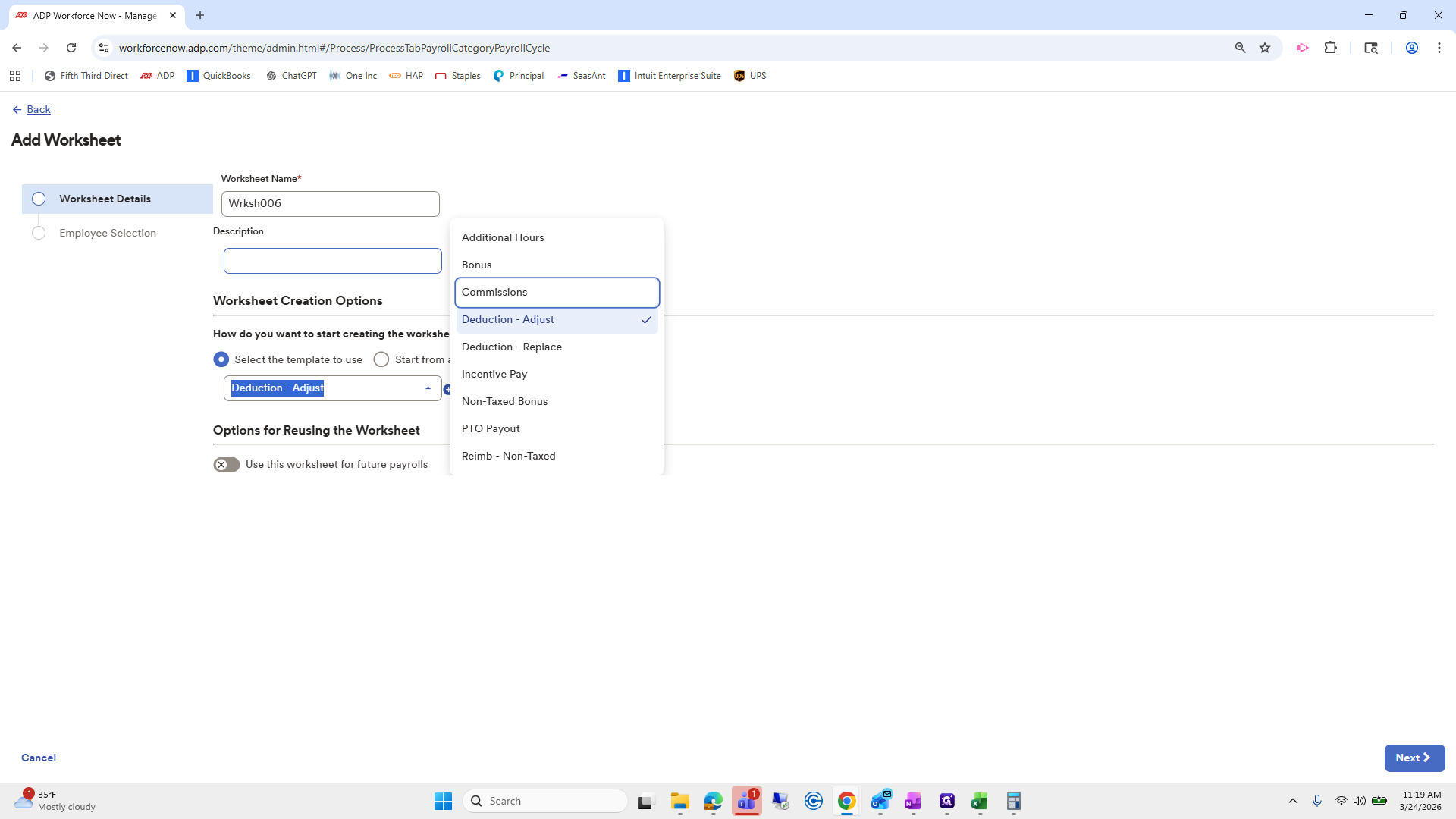
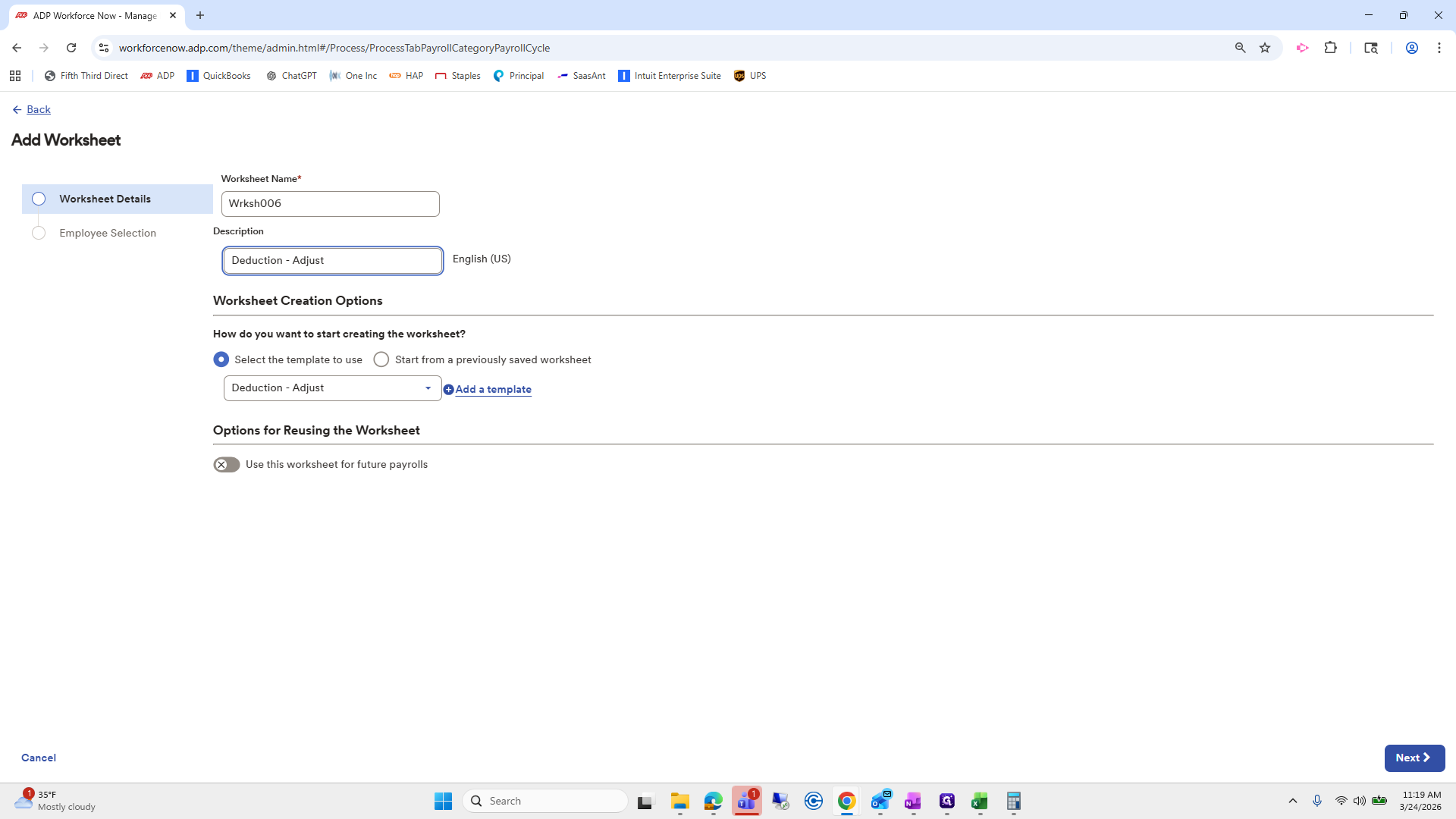
You could put all of this on one large worksheet if you wanted, but I find it easier to do it this way since everything is already created for you.
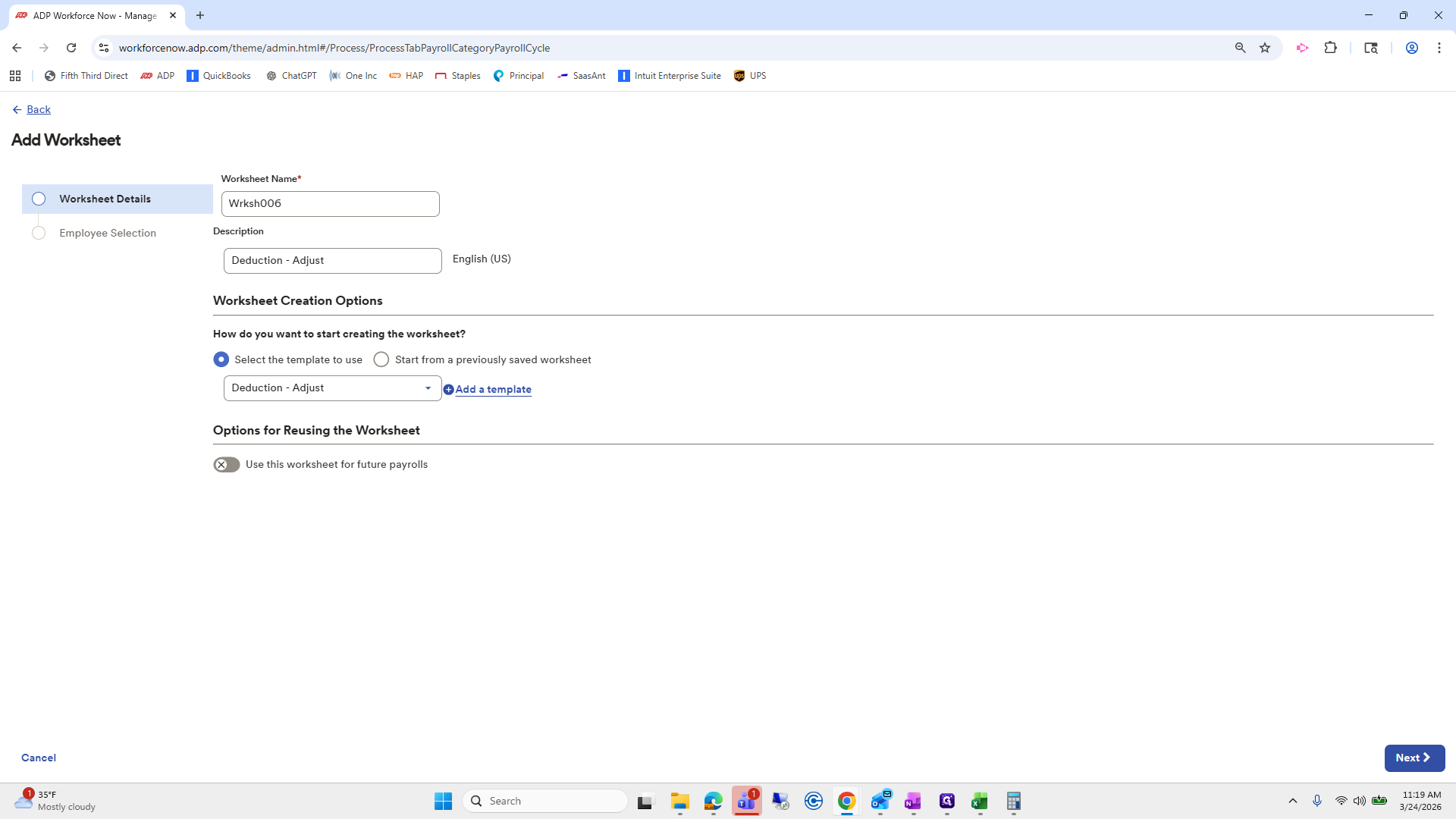
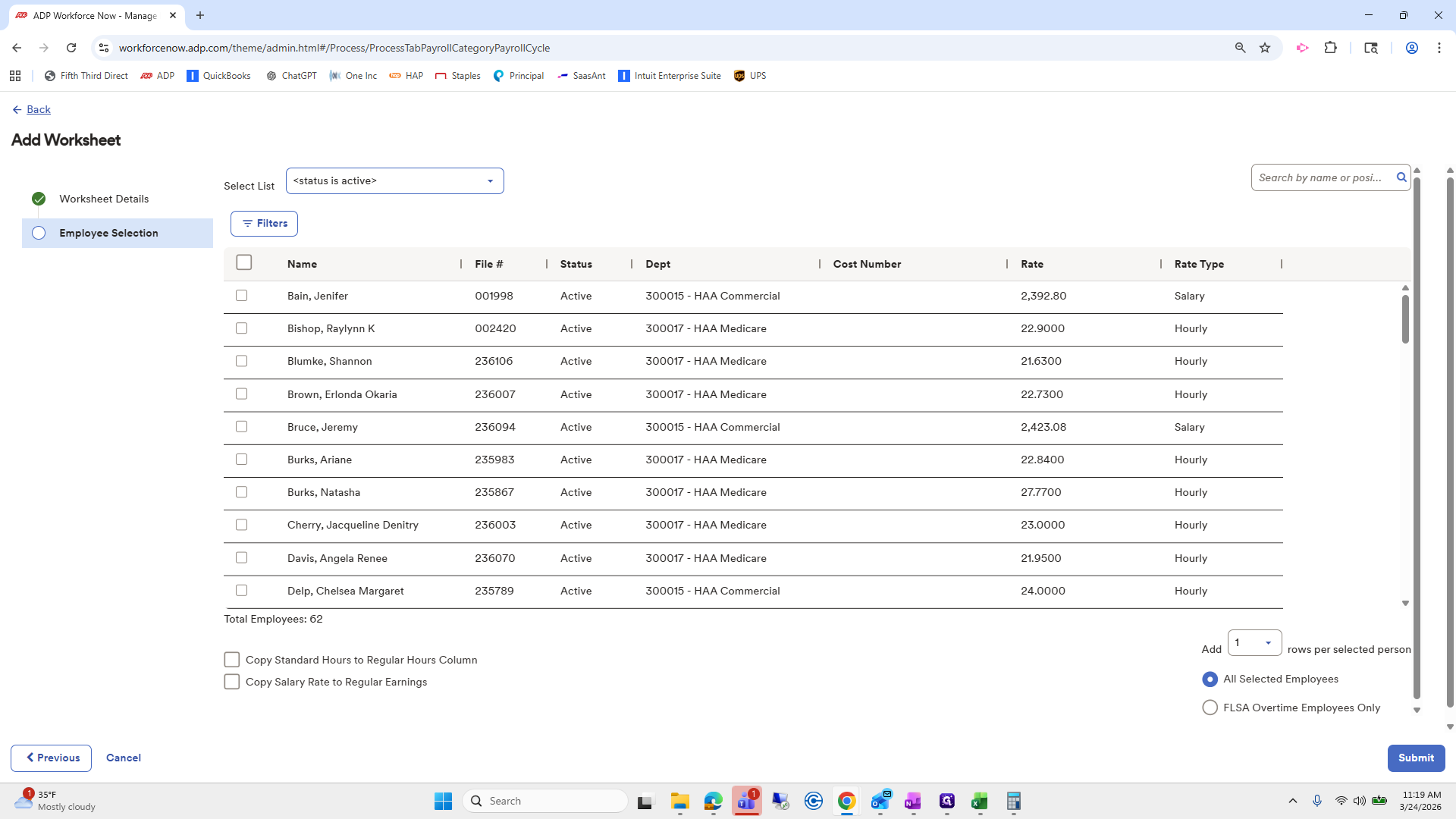
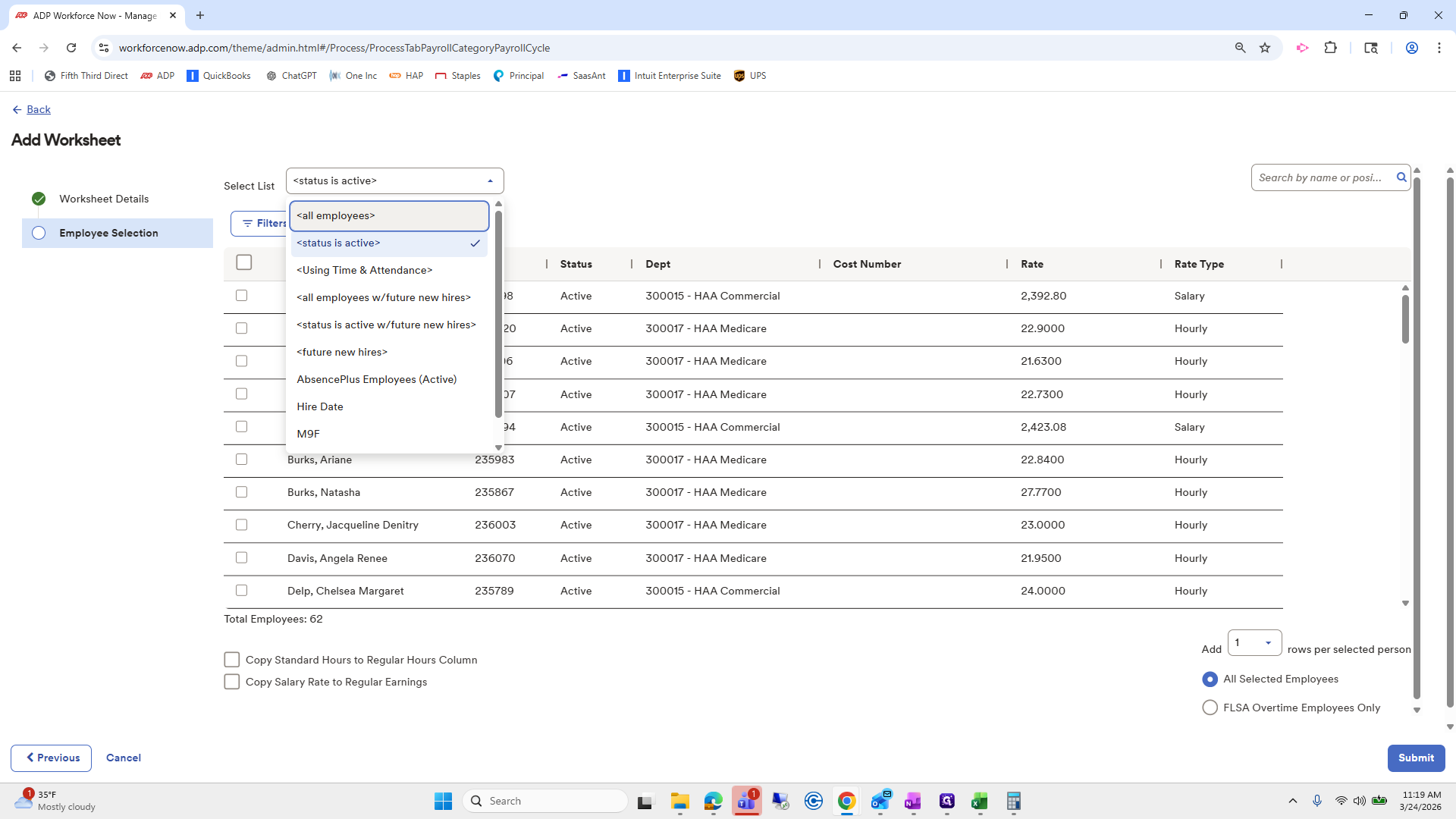
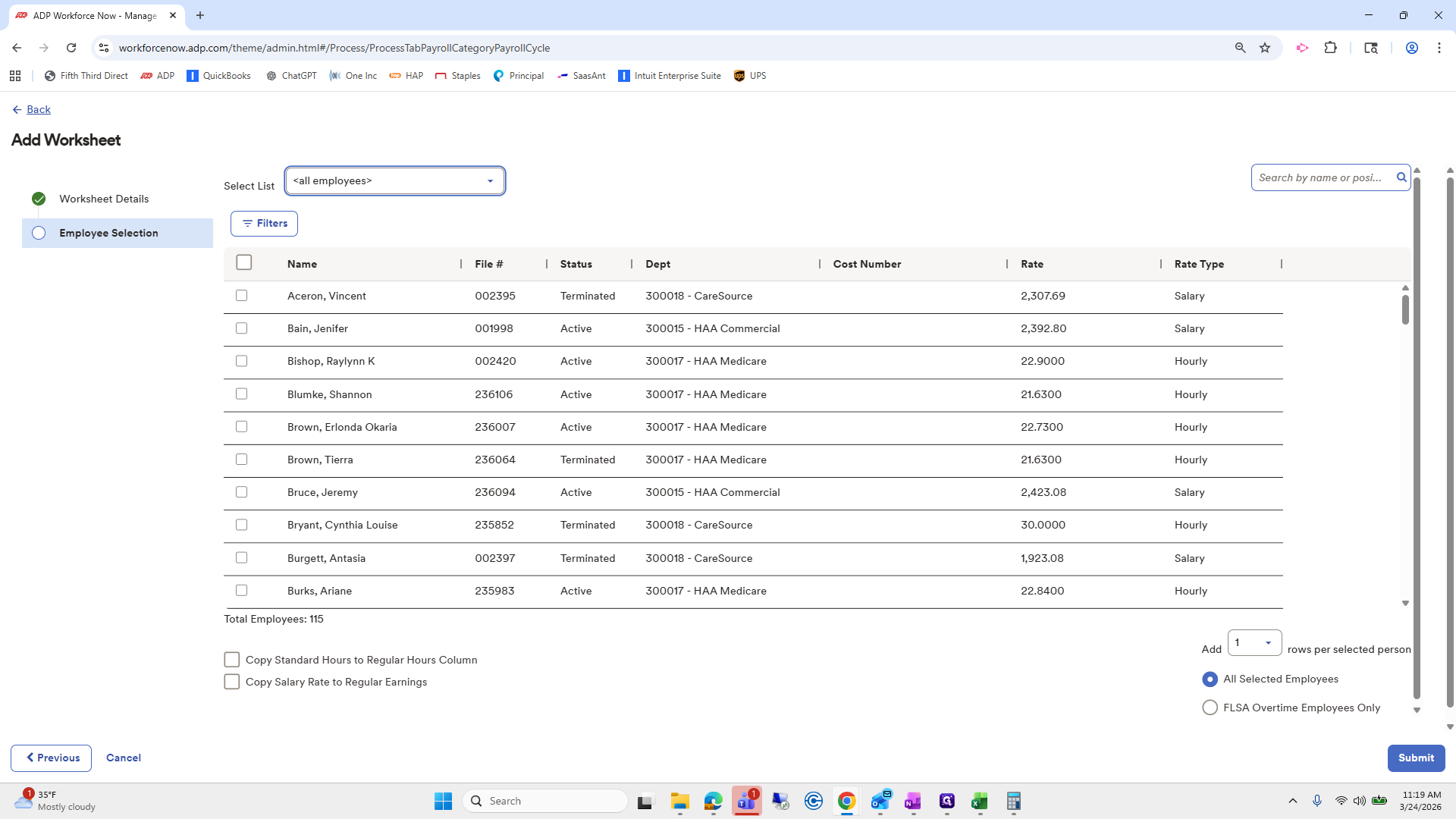
Ava Marie Jordan, submit.
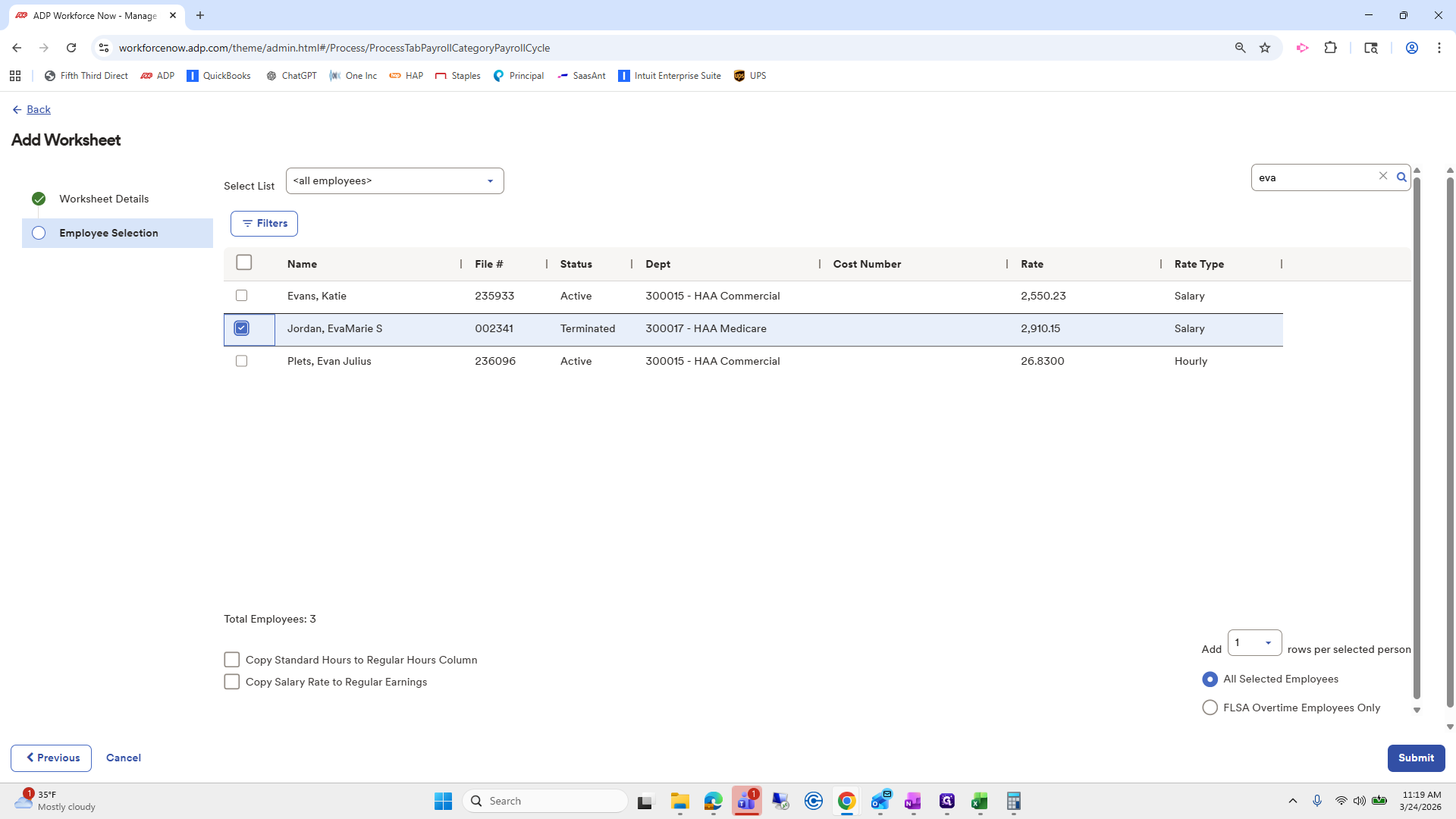
We have a lot to add, so I will...
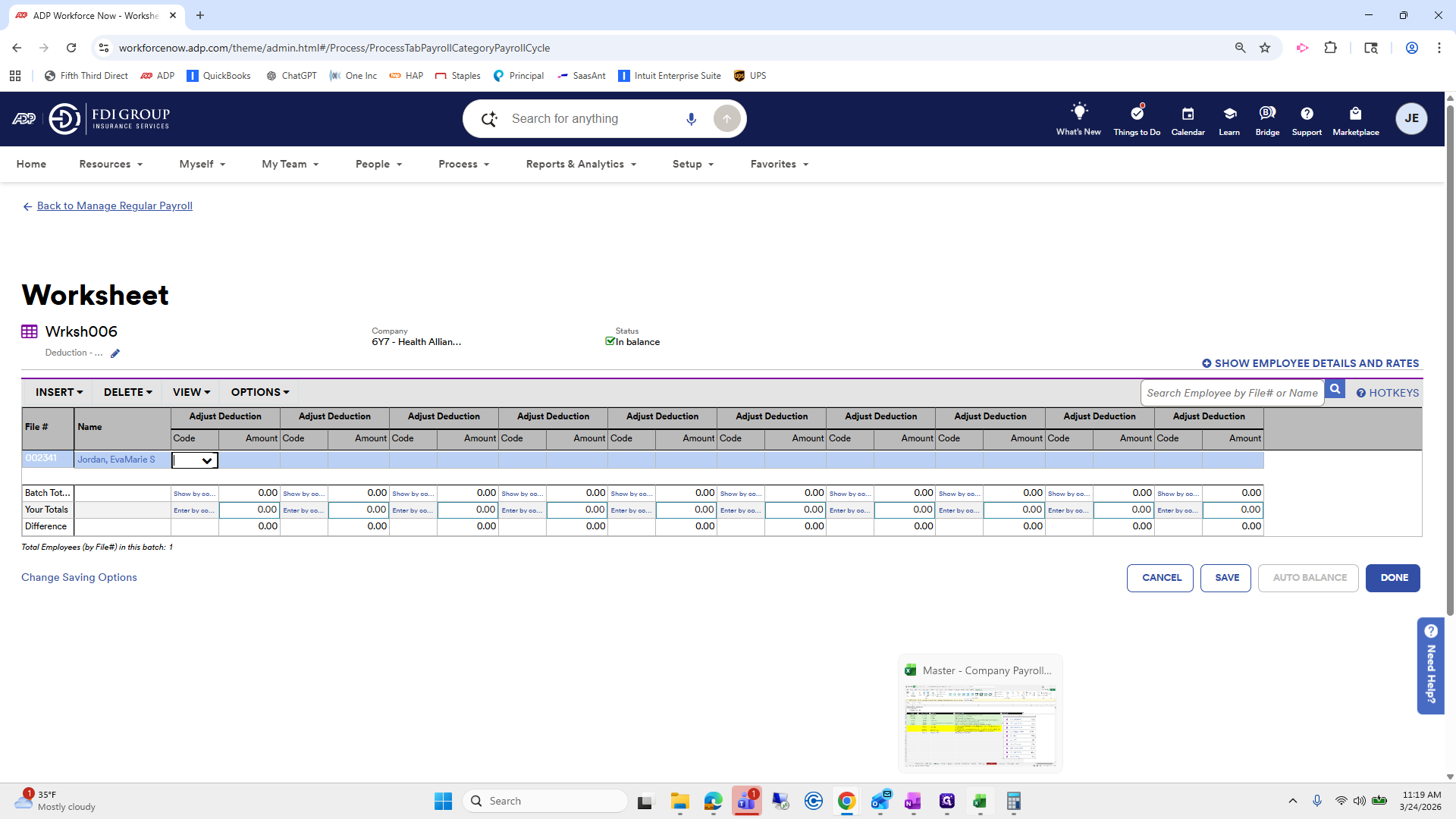
Flip the screen.
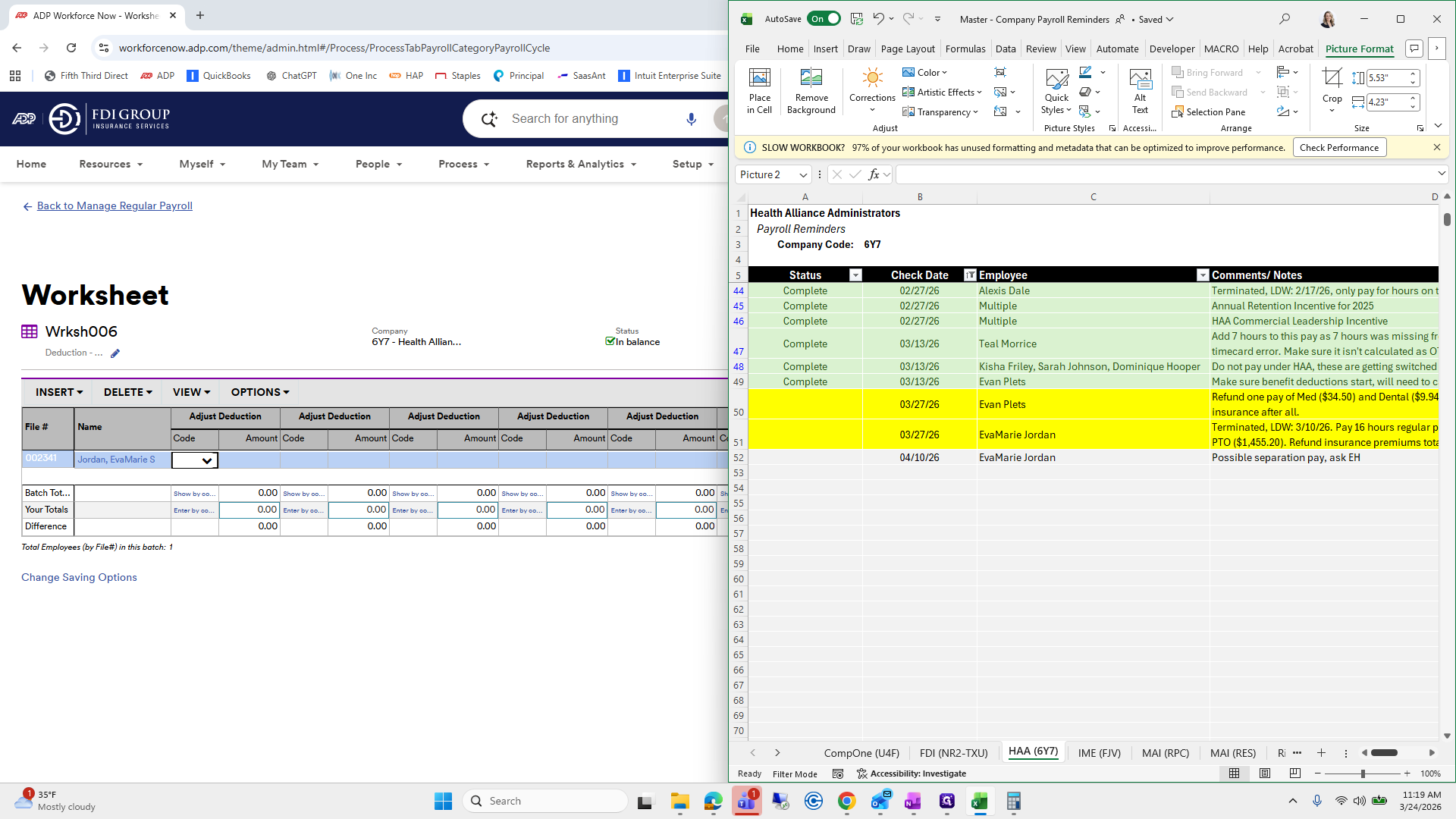
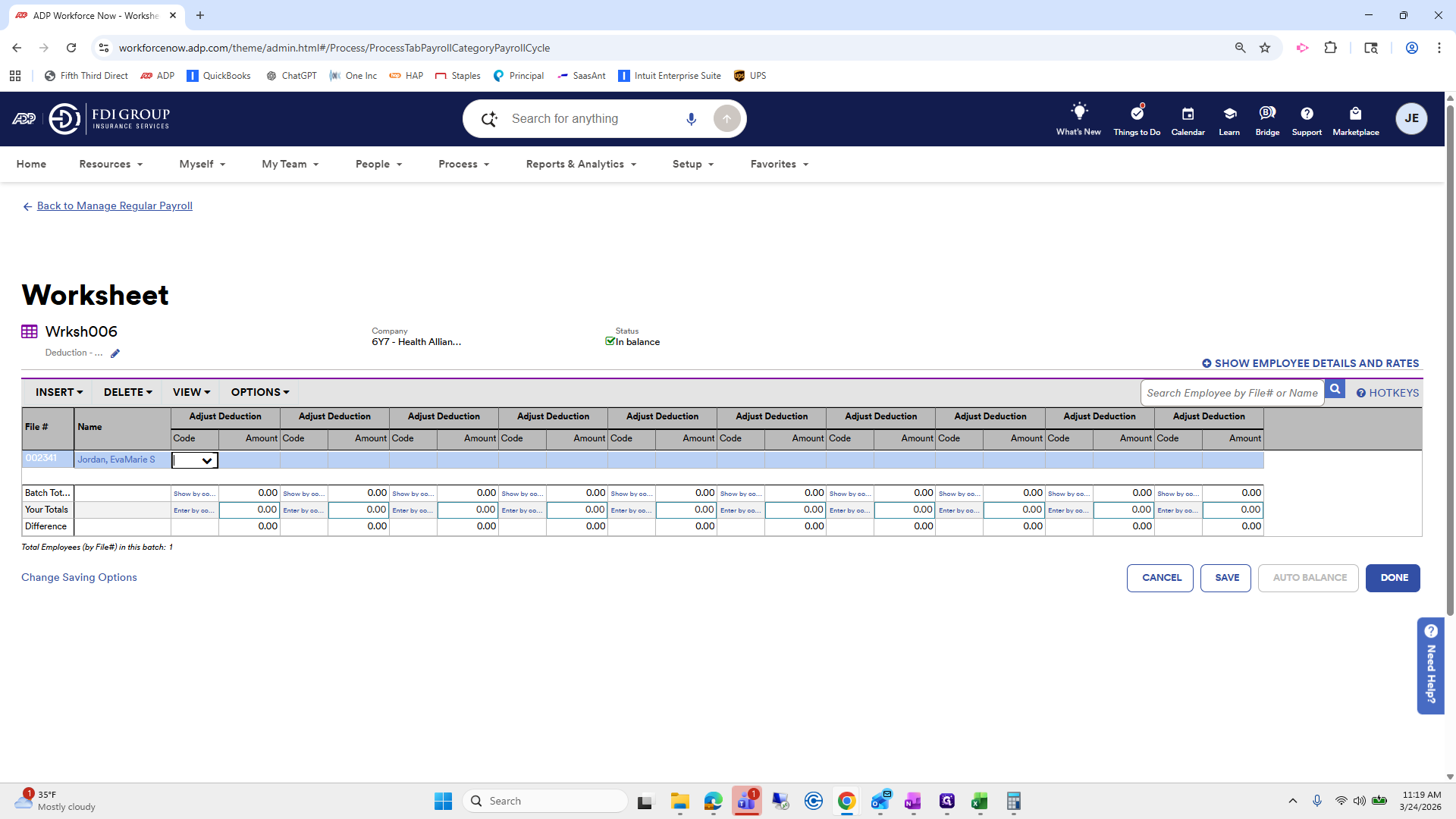
We need to select Accident, then Tab, then Tab, and finally Critical Illness.
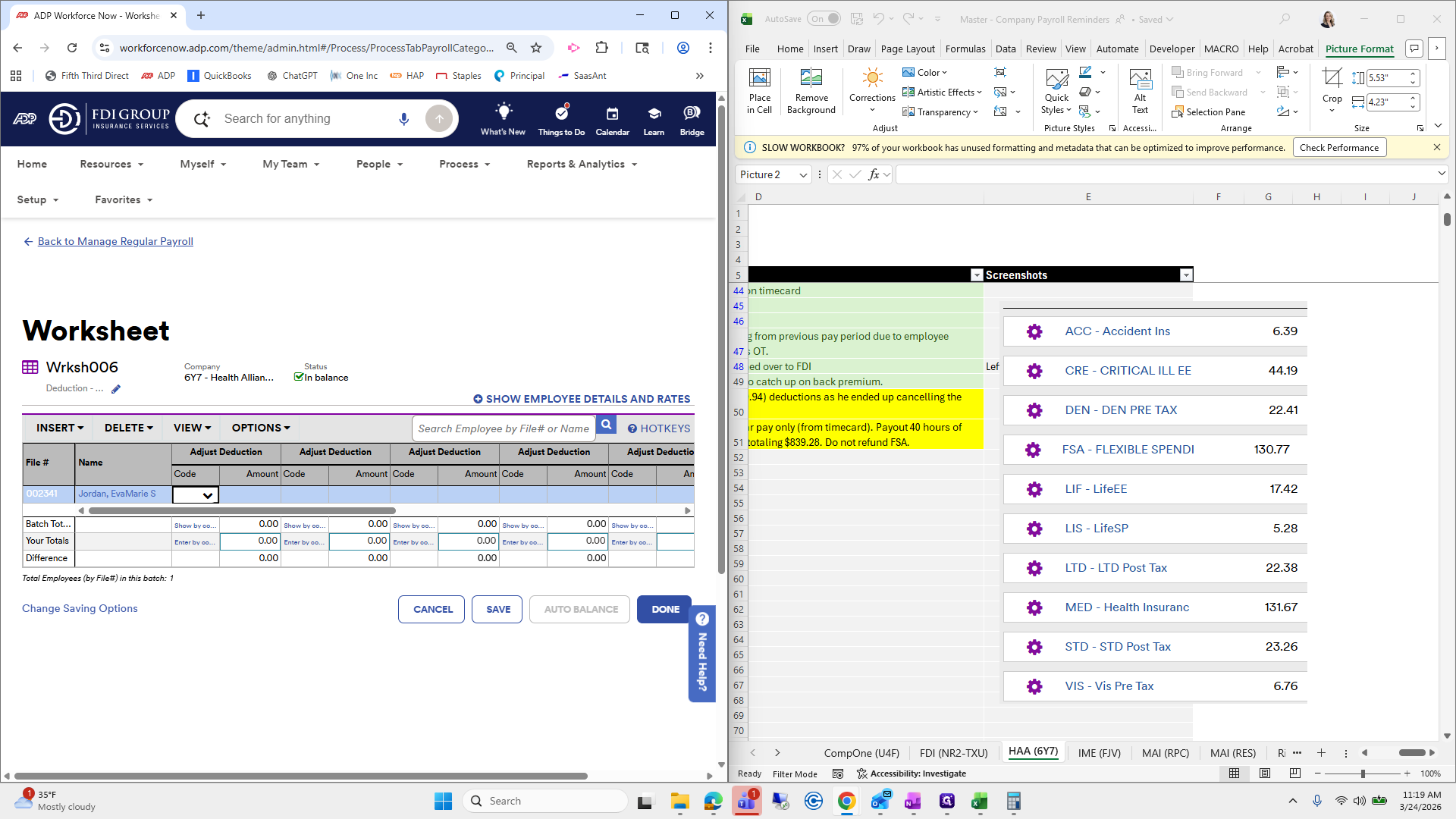
Dental FSA should be available, so we don't have to continue...
We don't have to do that one. Life, spouse life, LTD, medical, STD, and vision. We need to pay out a total of 839.
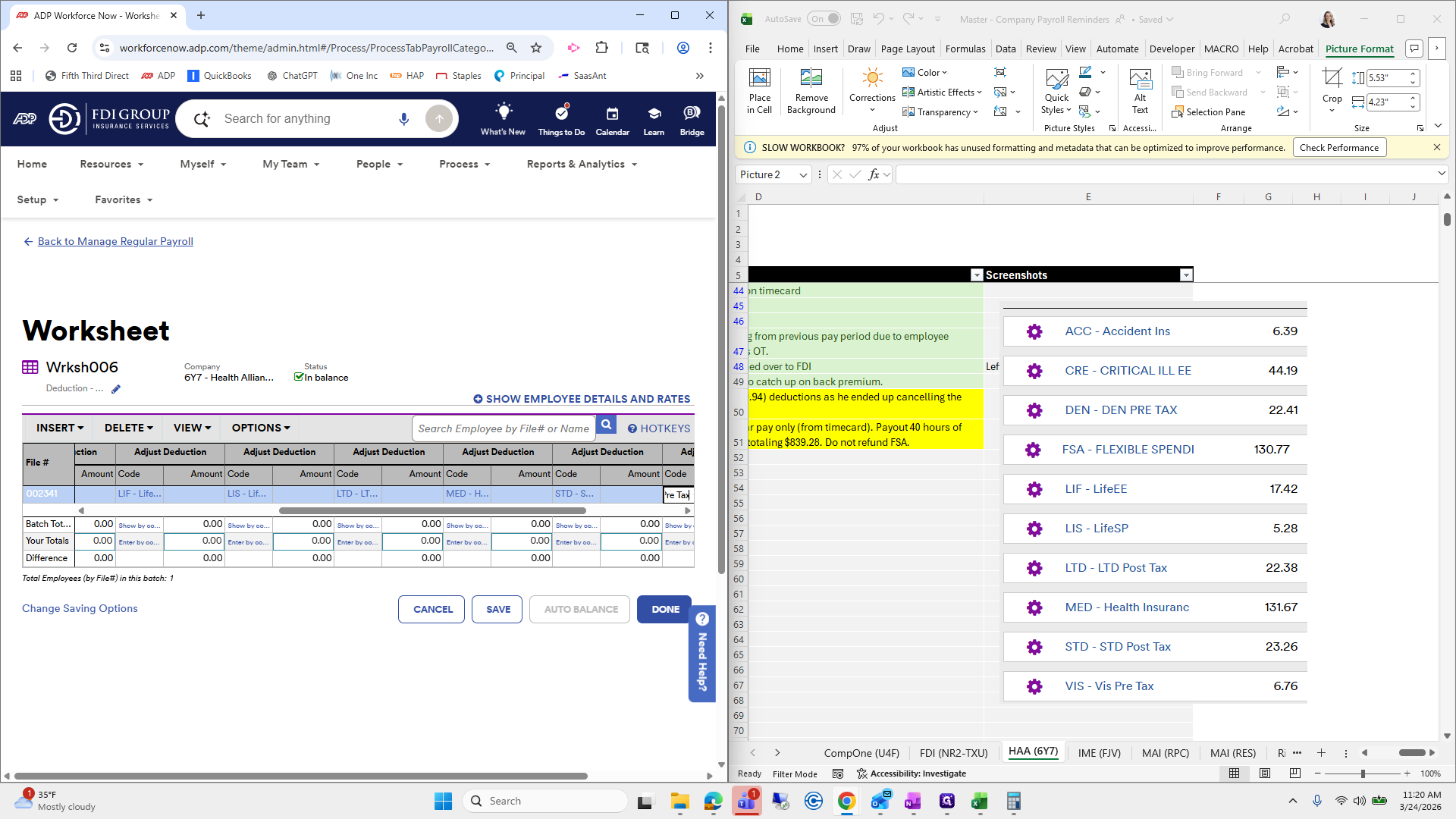
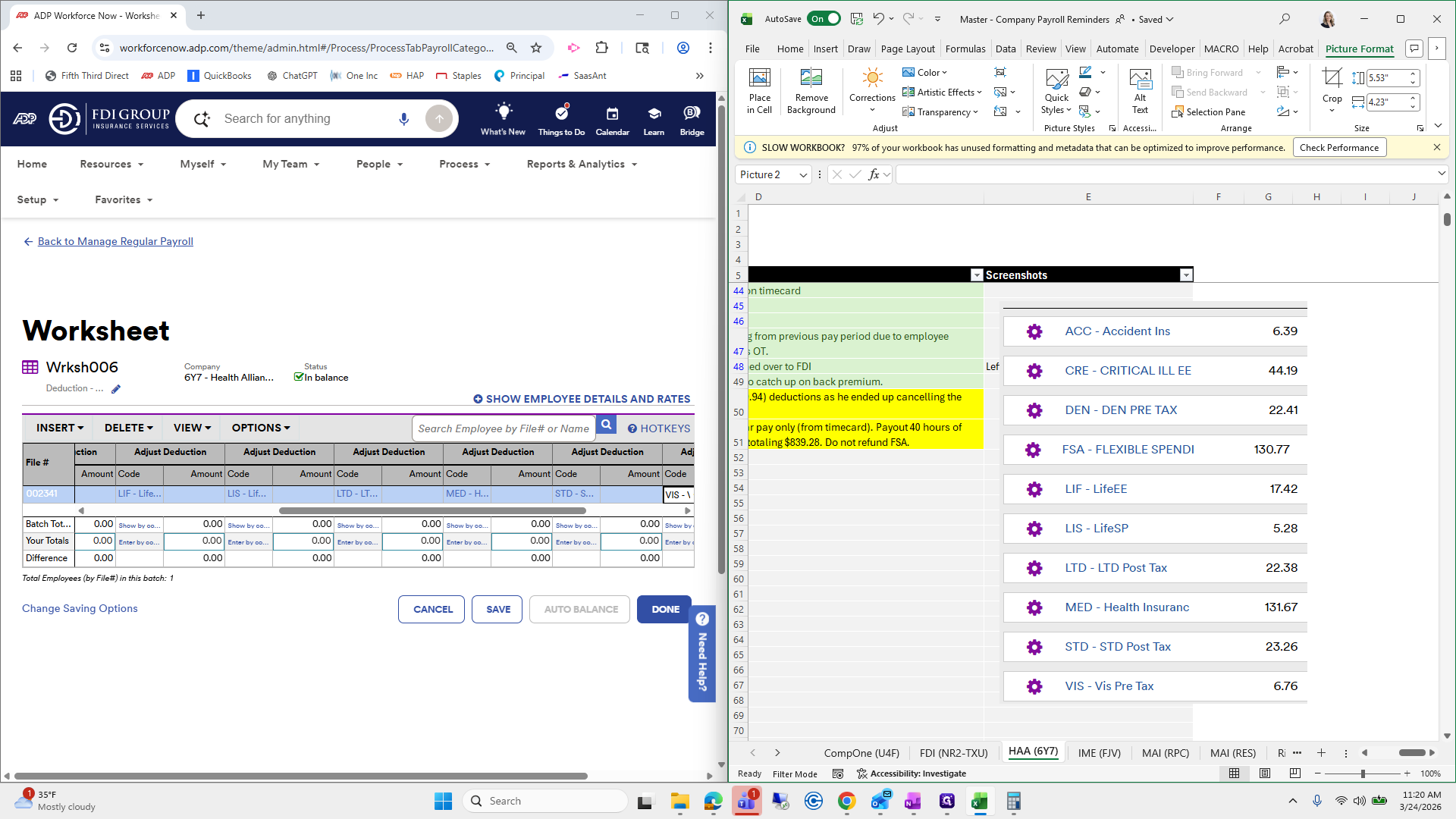
I'm going to do some calculations here.
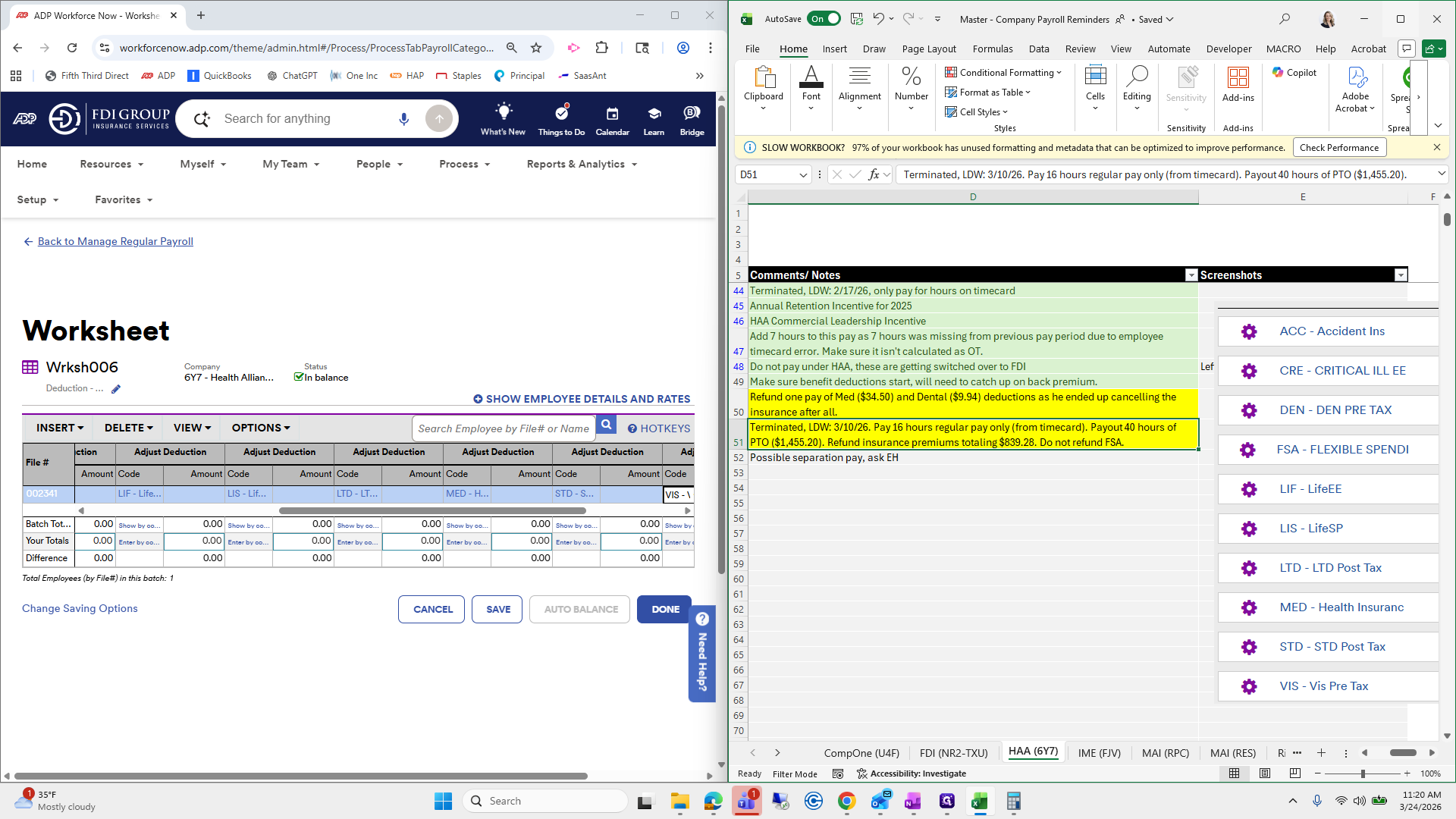
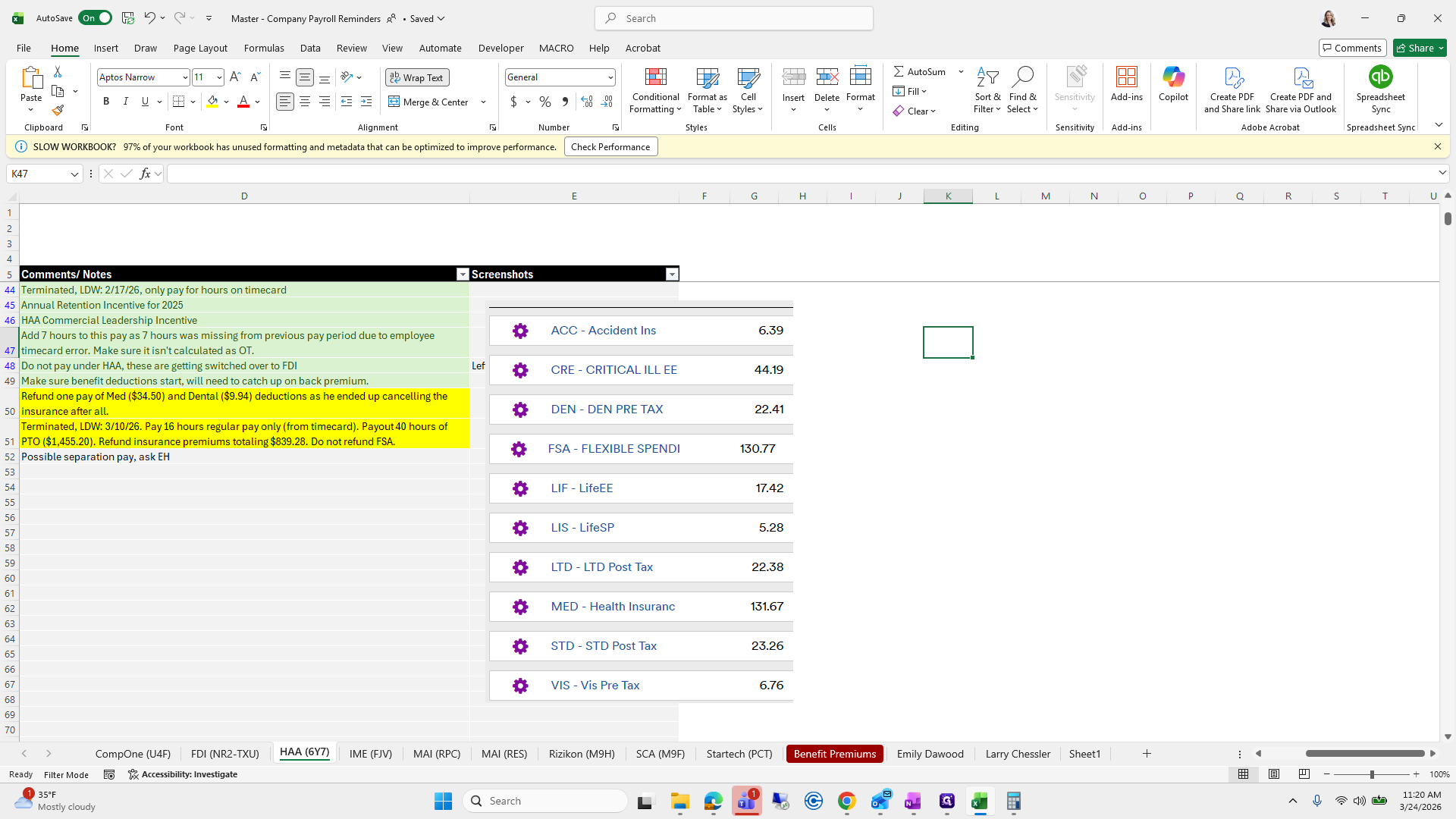
I am taking it line by line all the way down, then rooting down.
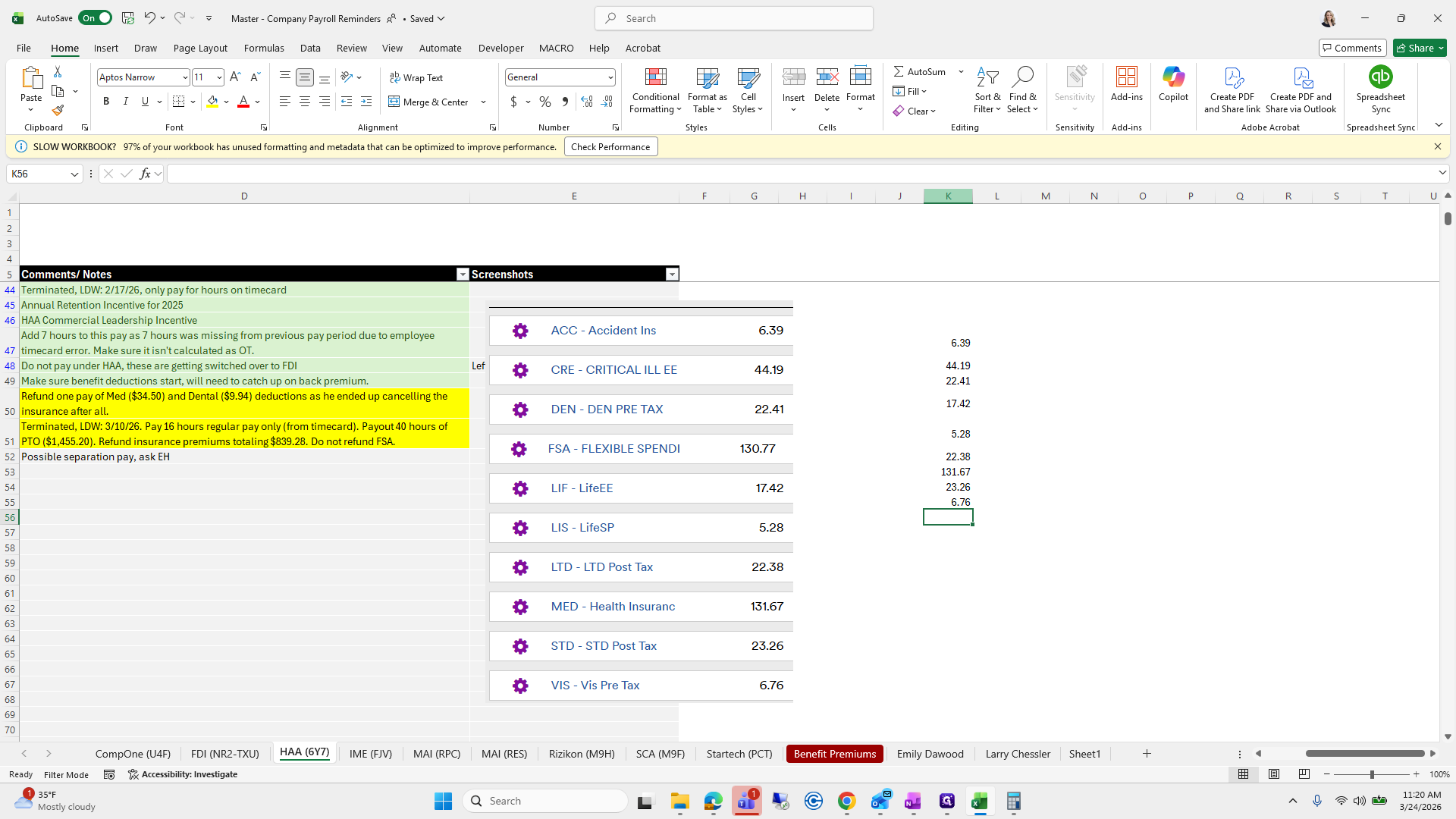
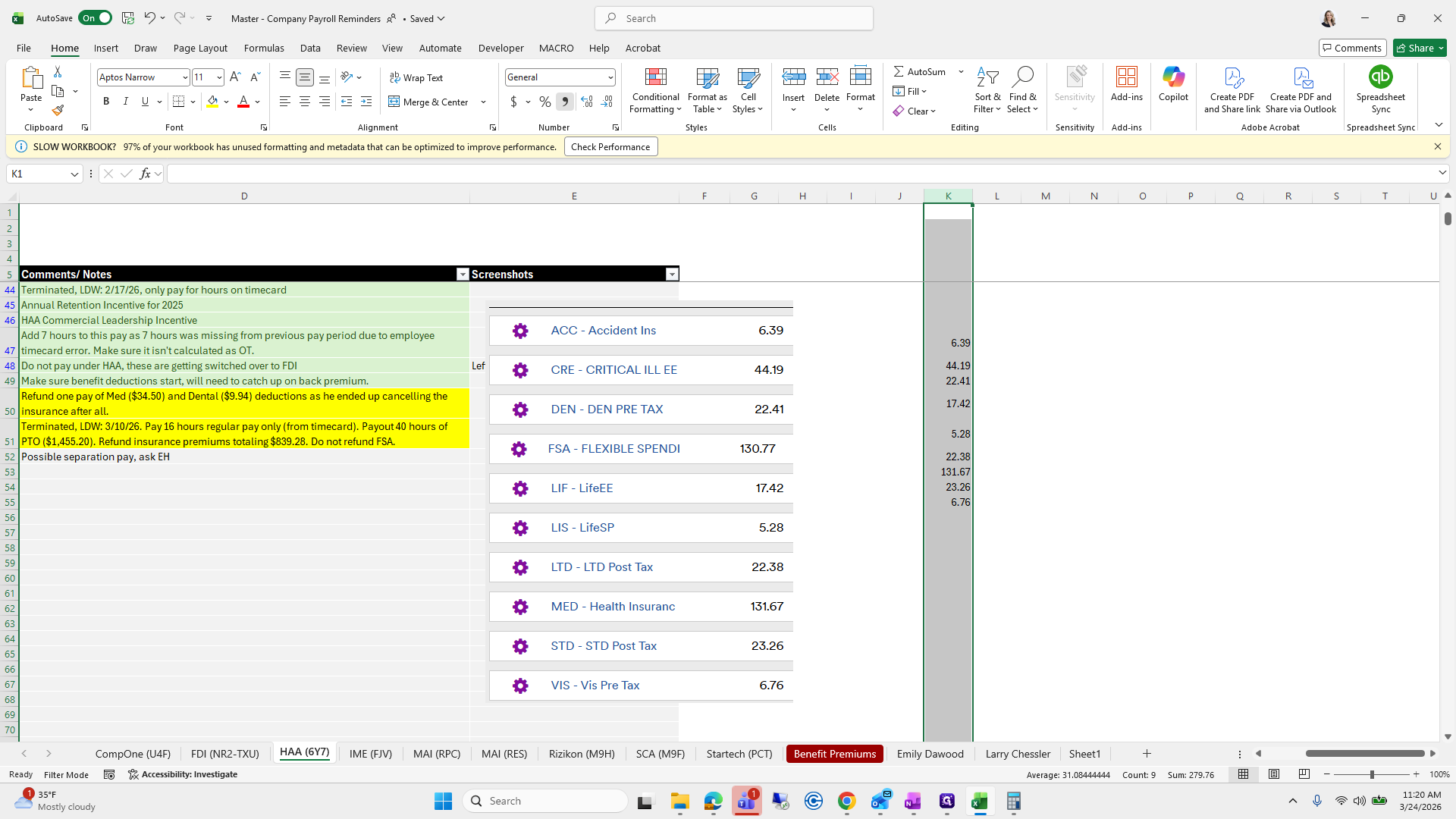
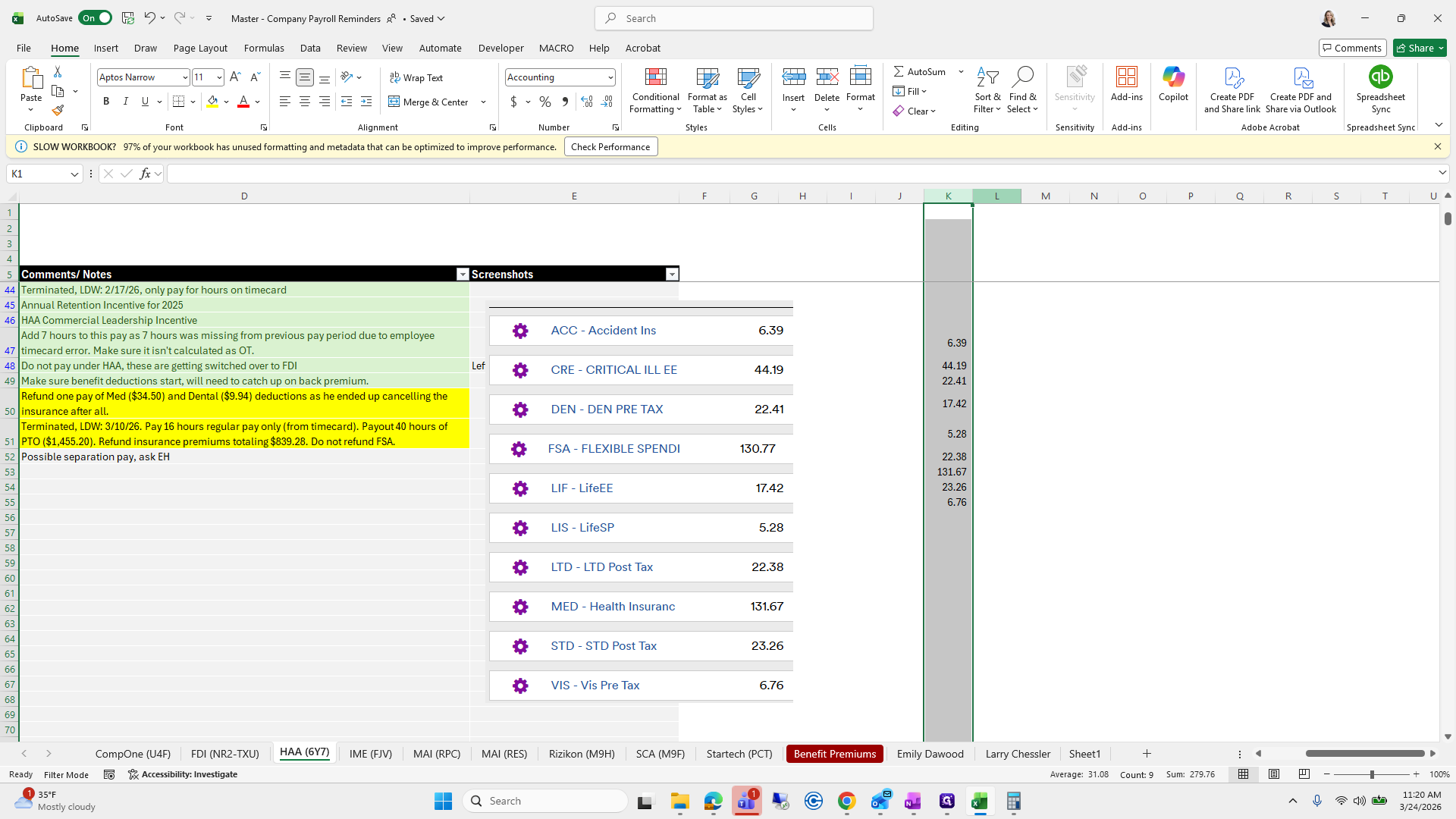
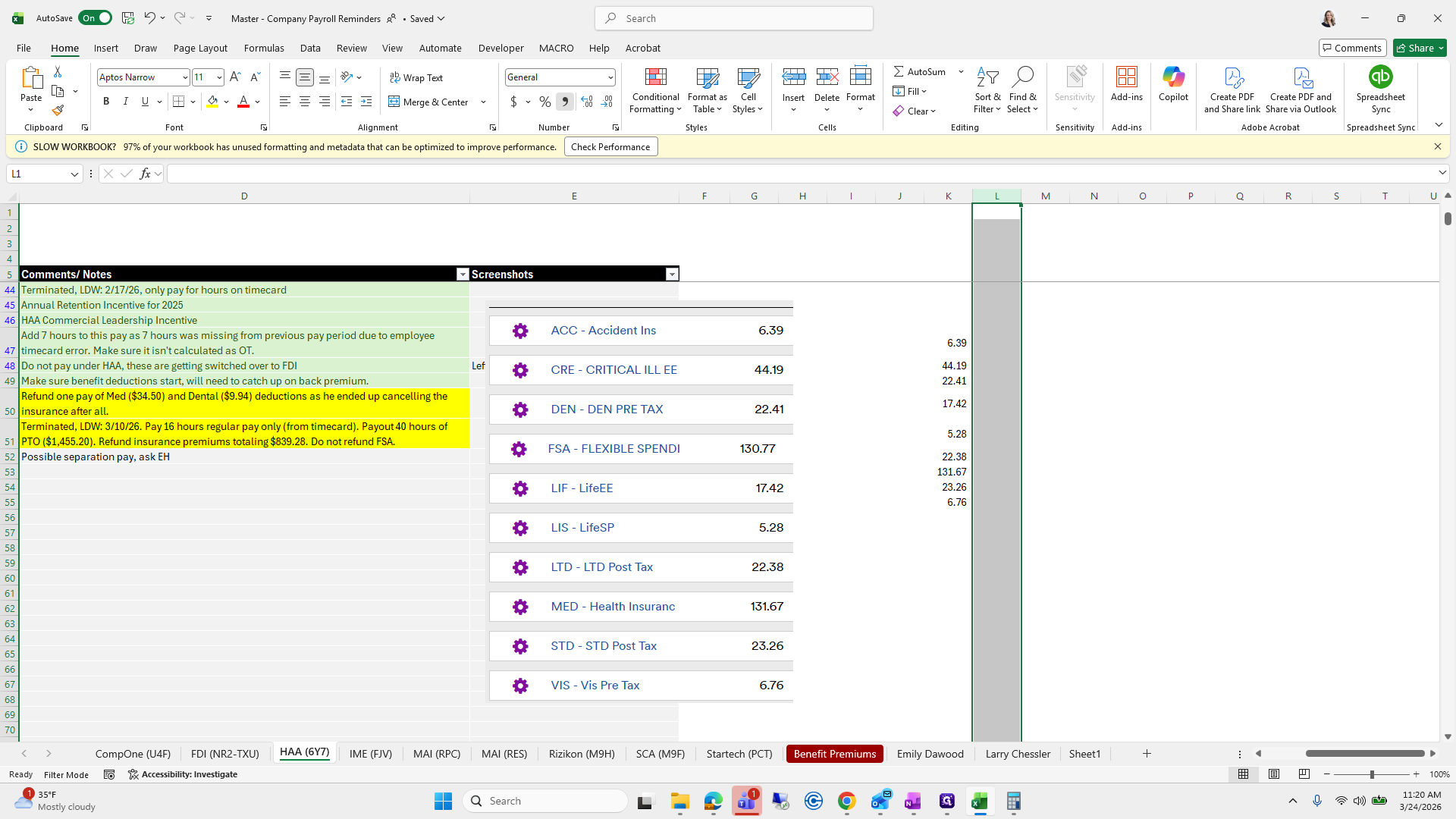
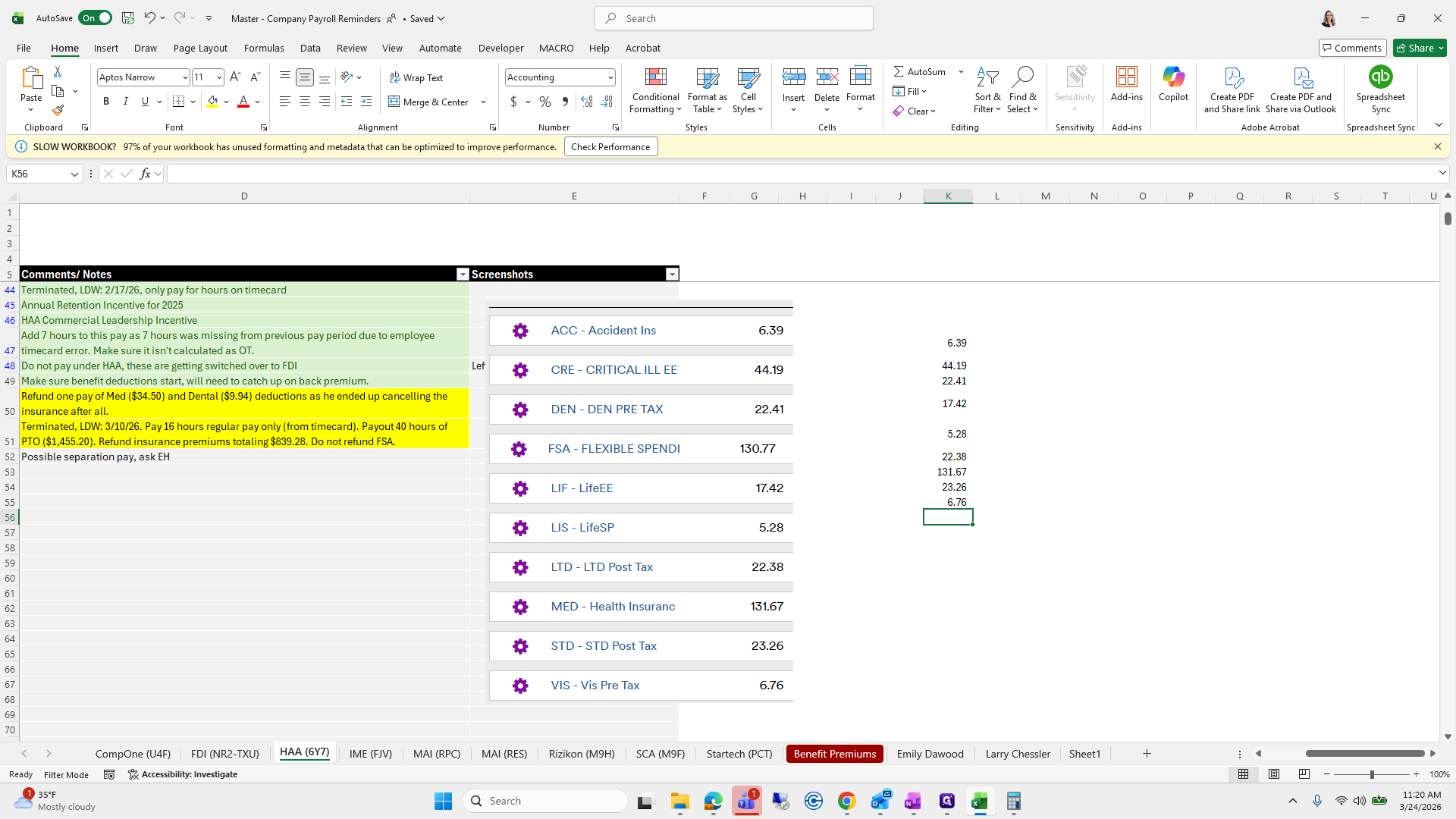
Subtotal is 279, 2, 4, 6, 8. She said about 800, so that's probably four.
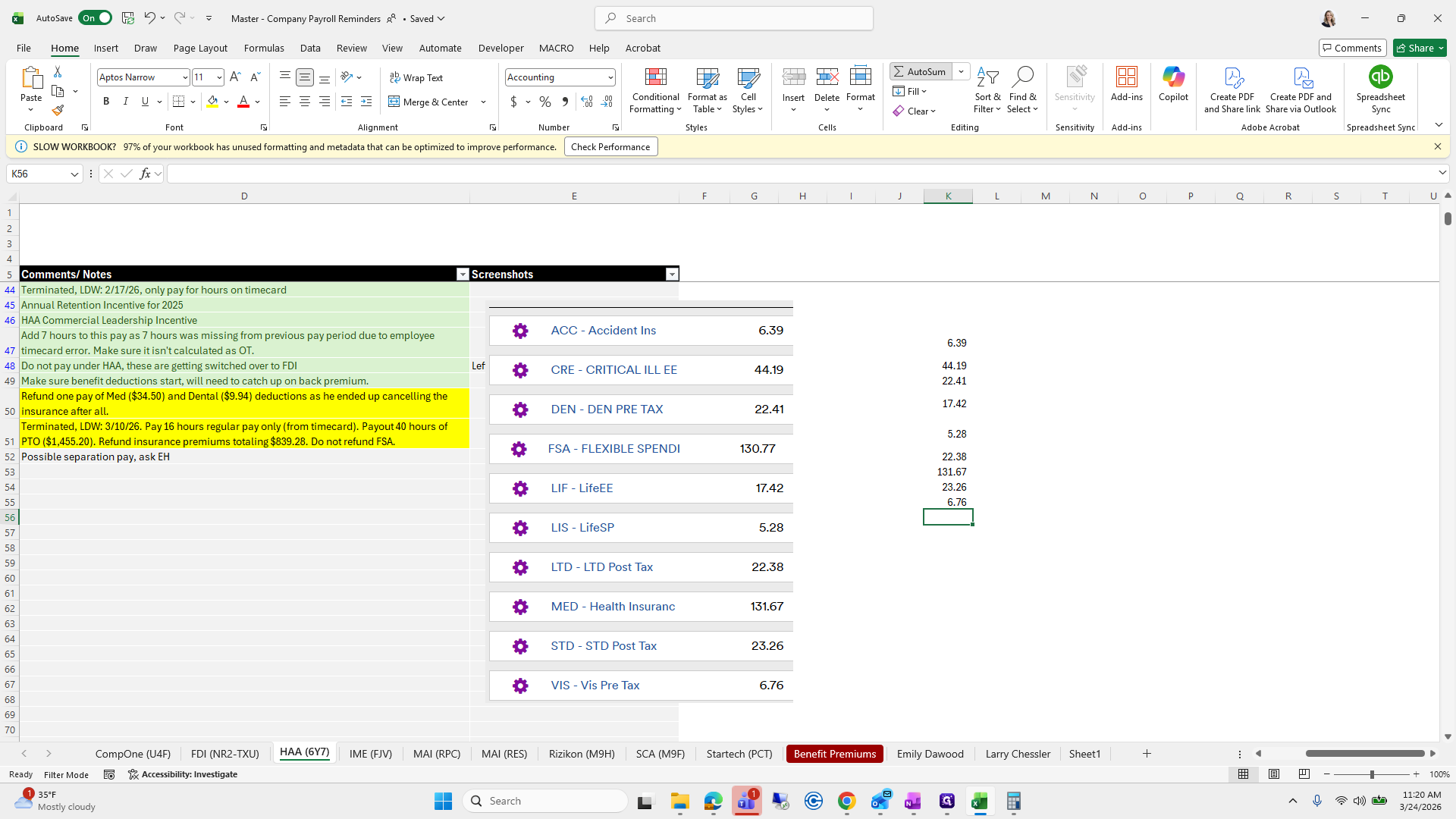
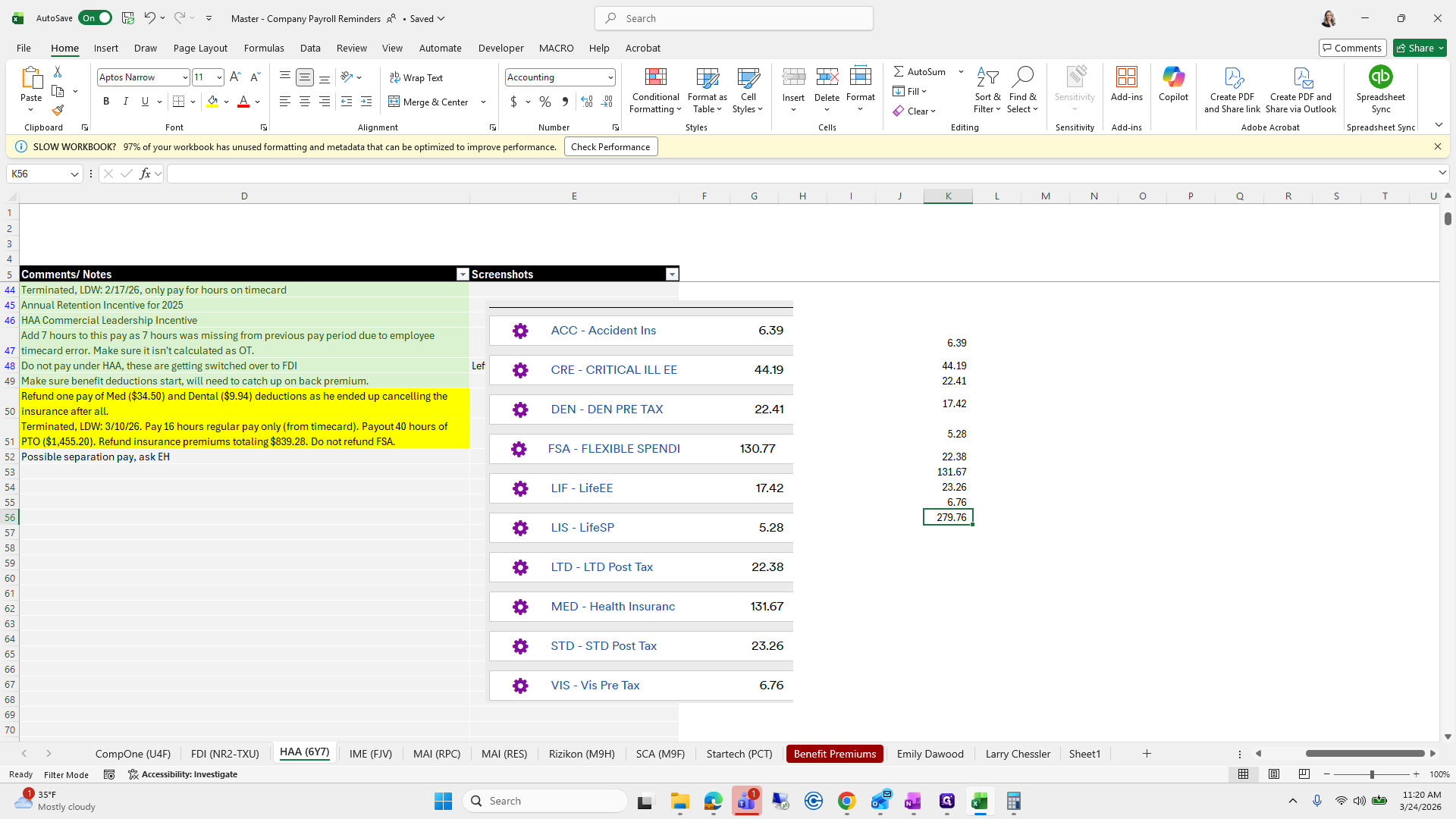
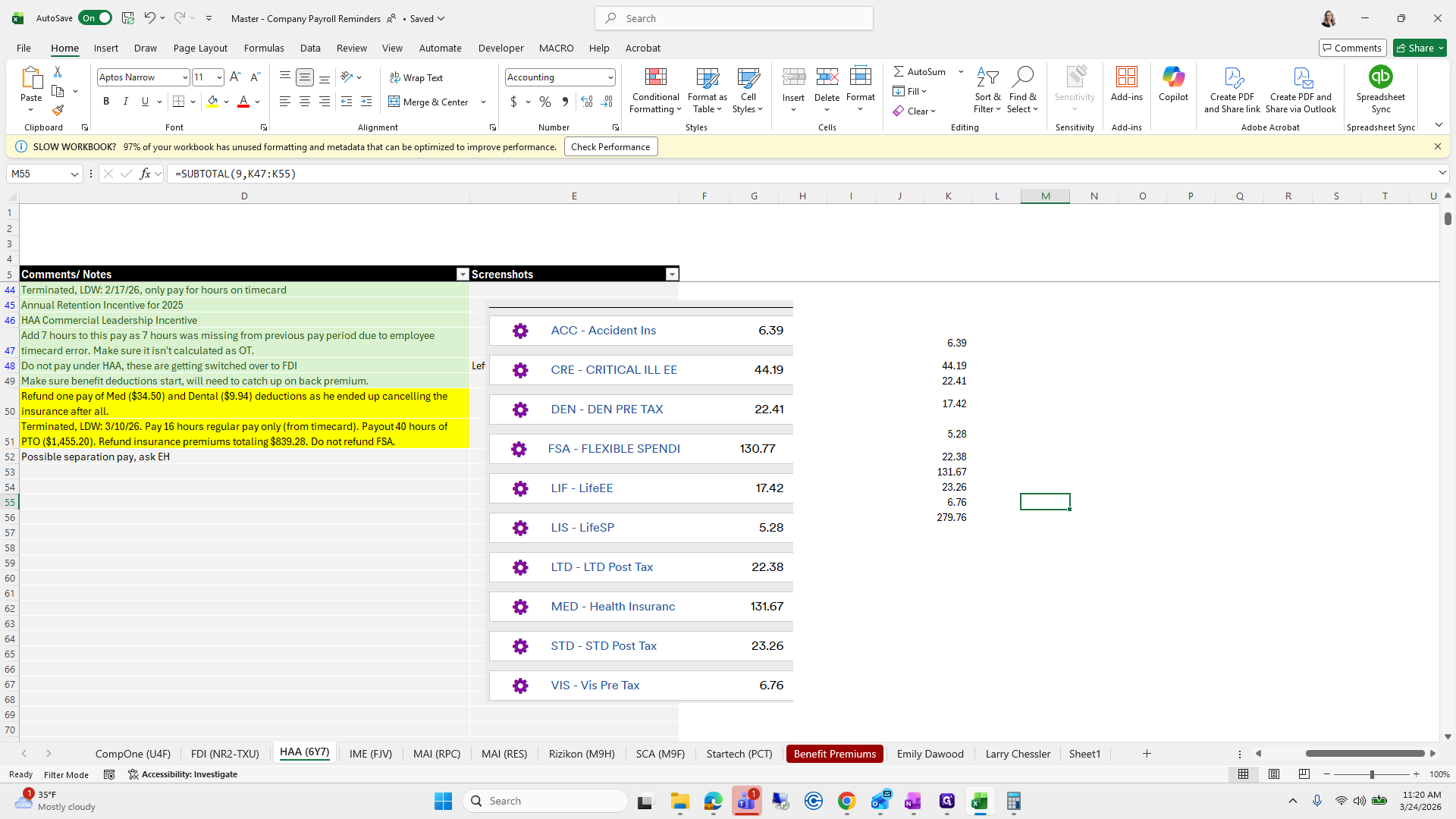
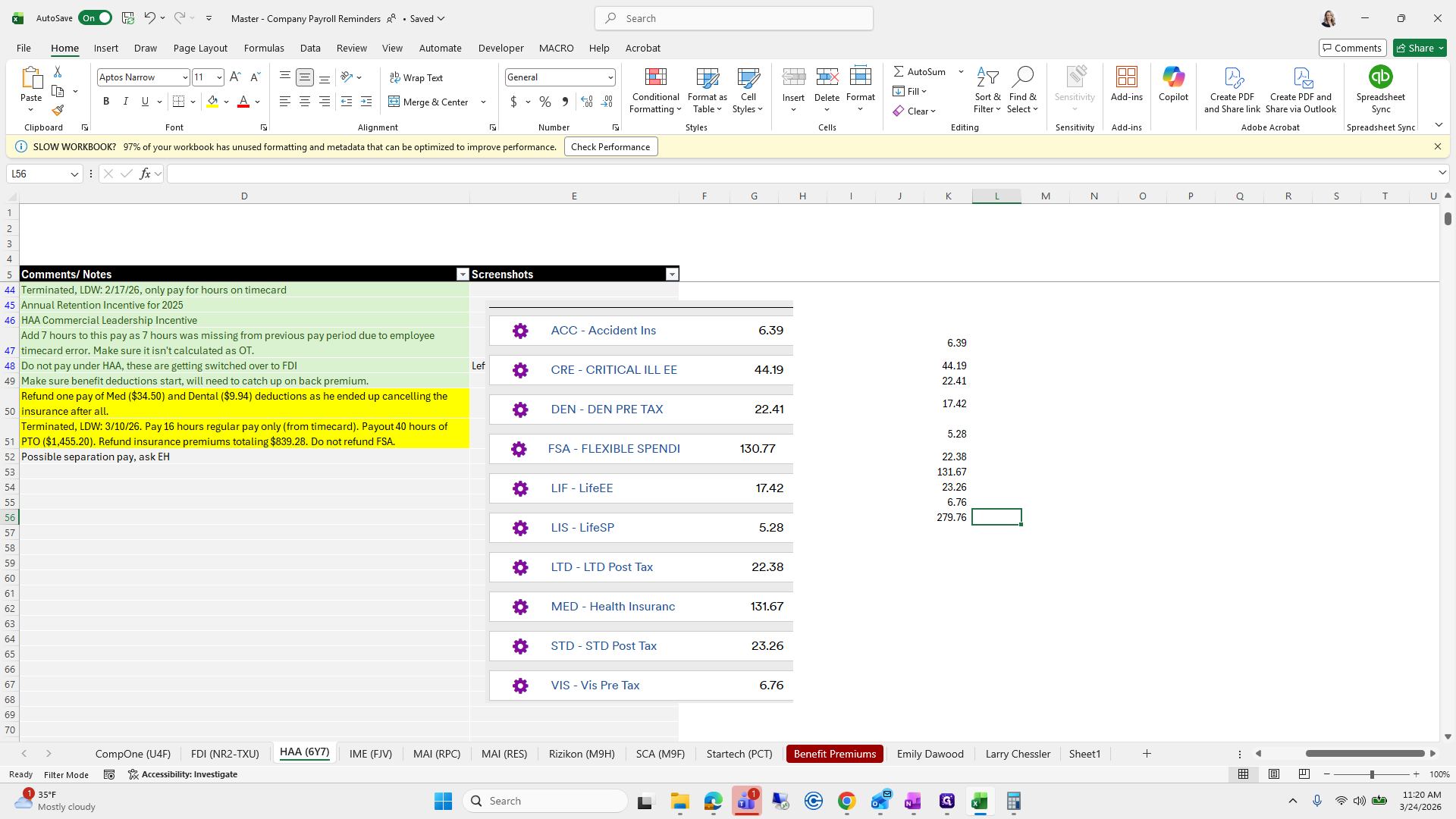
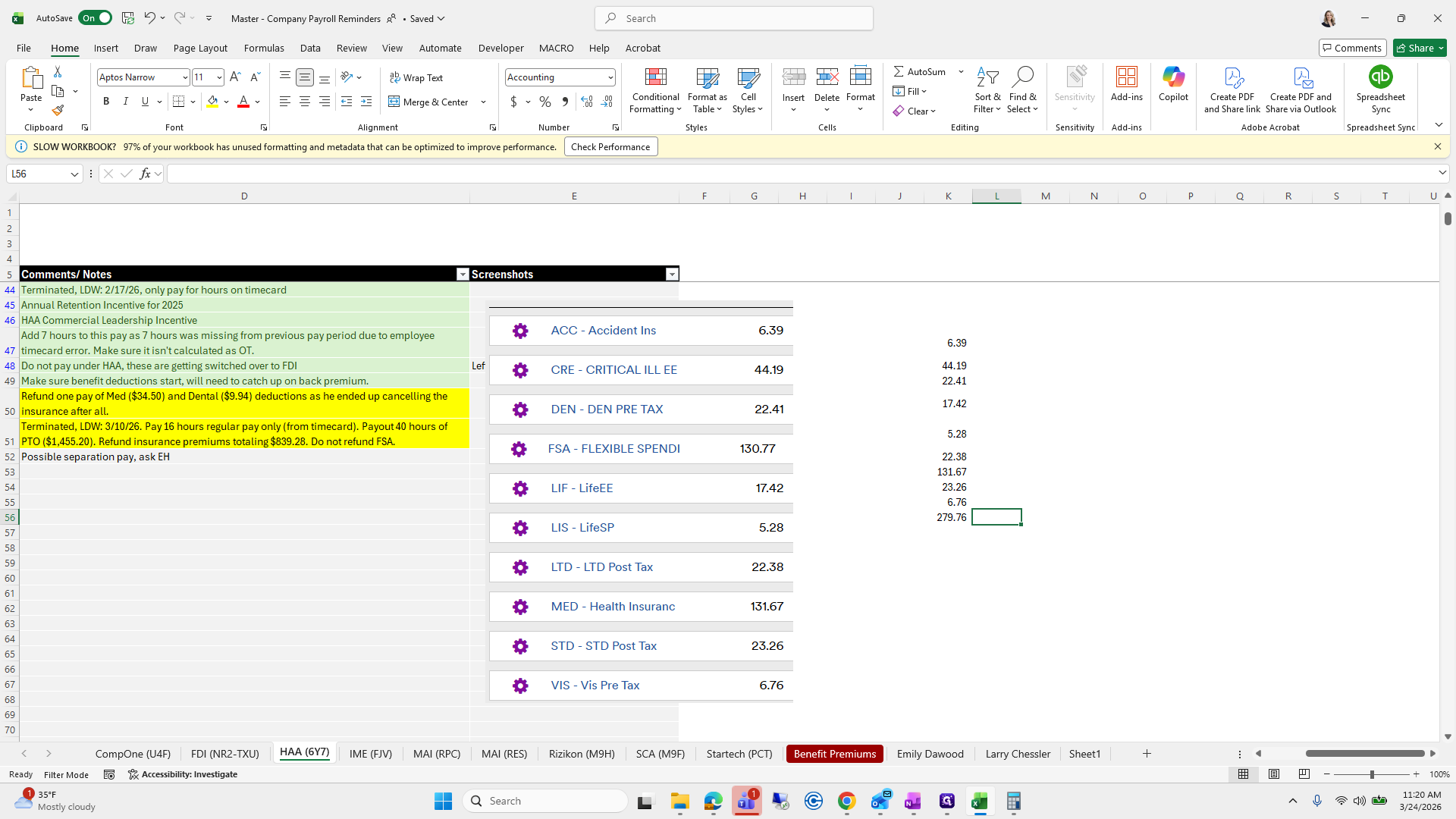
Let's see if it's four payments.
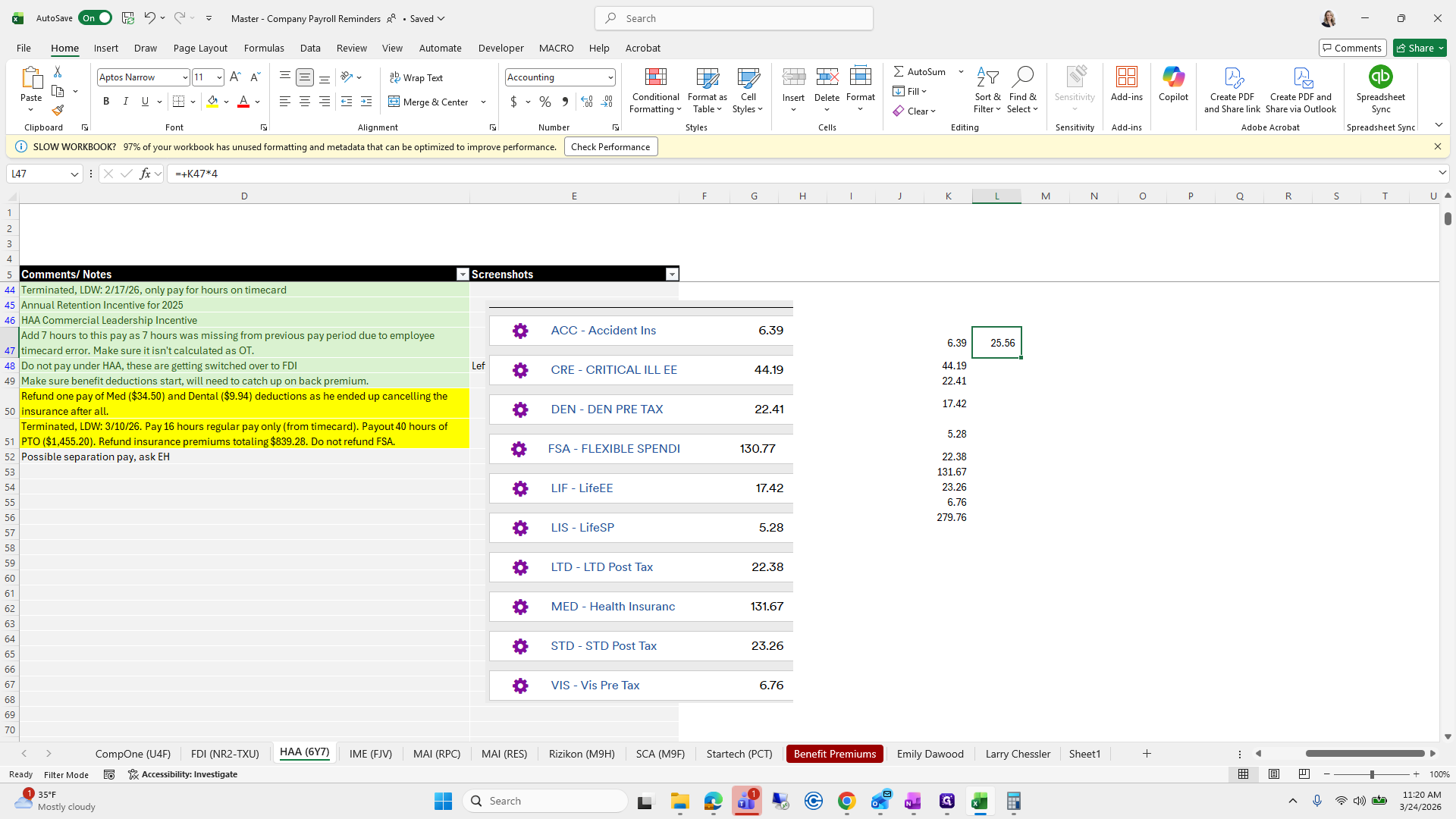
Scroll down to check if that is the correct amount.
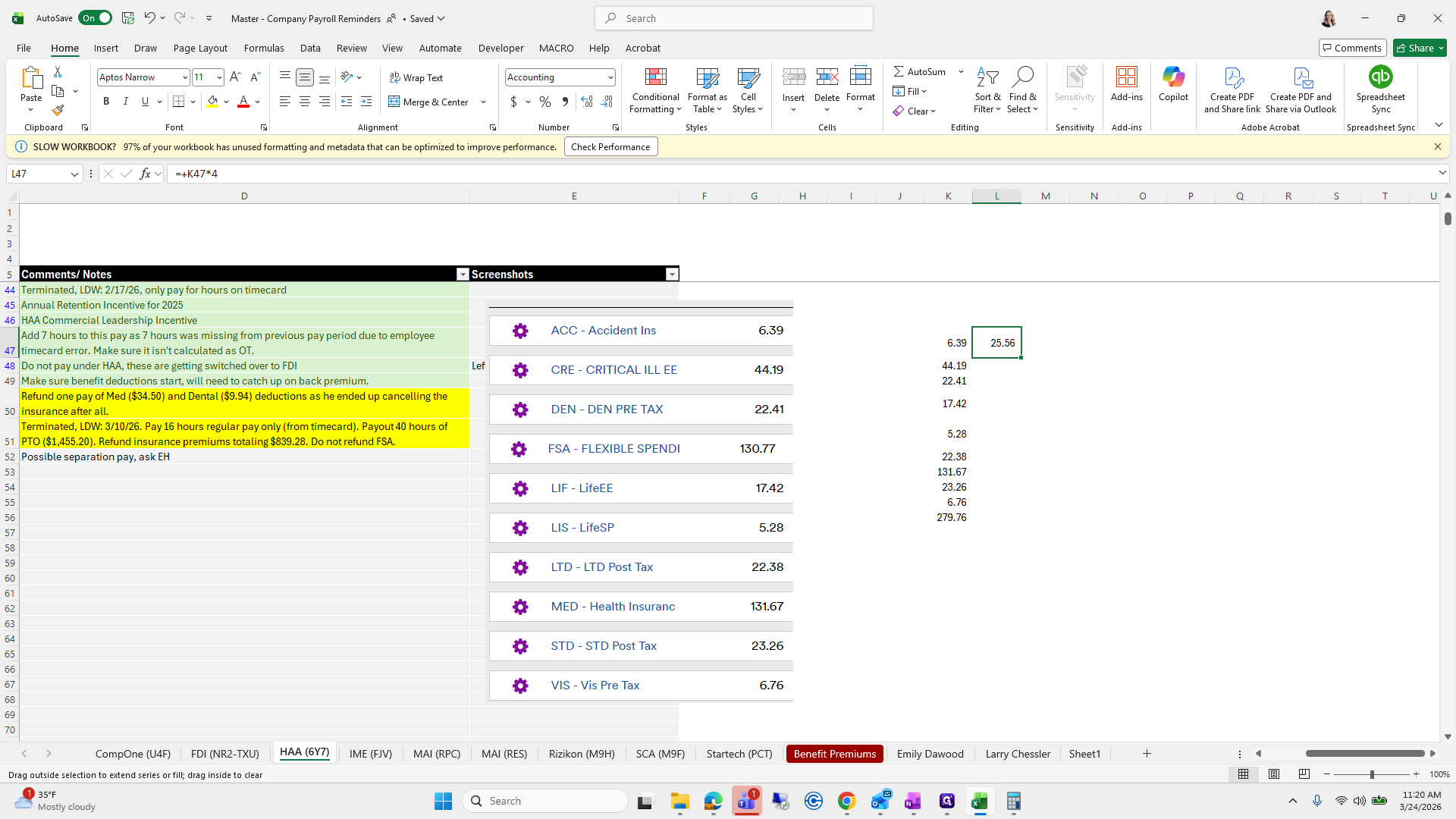
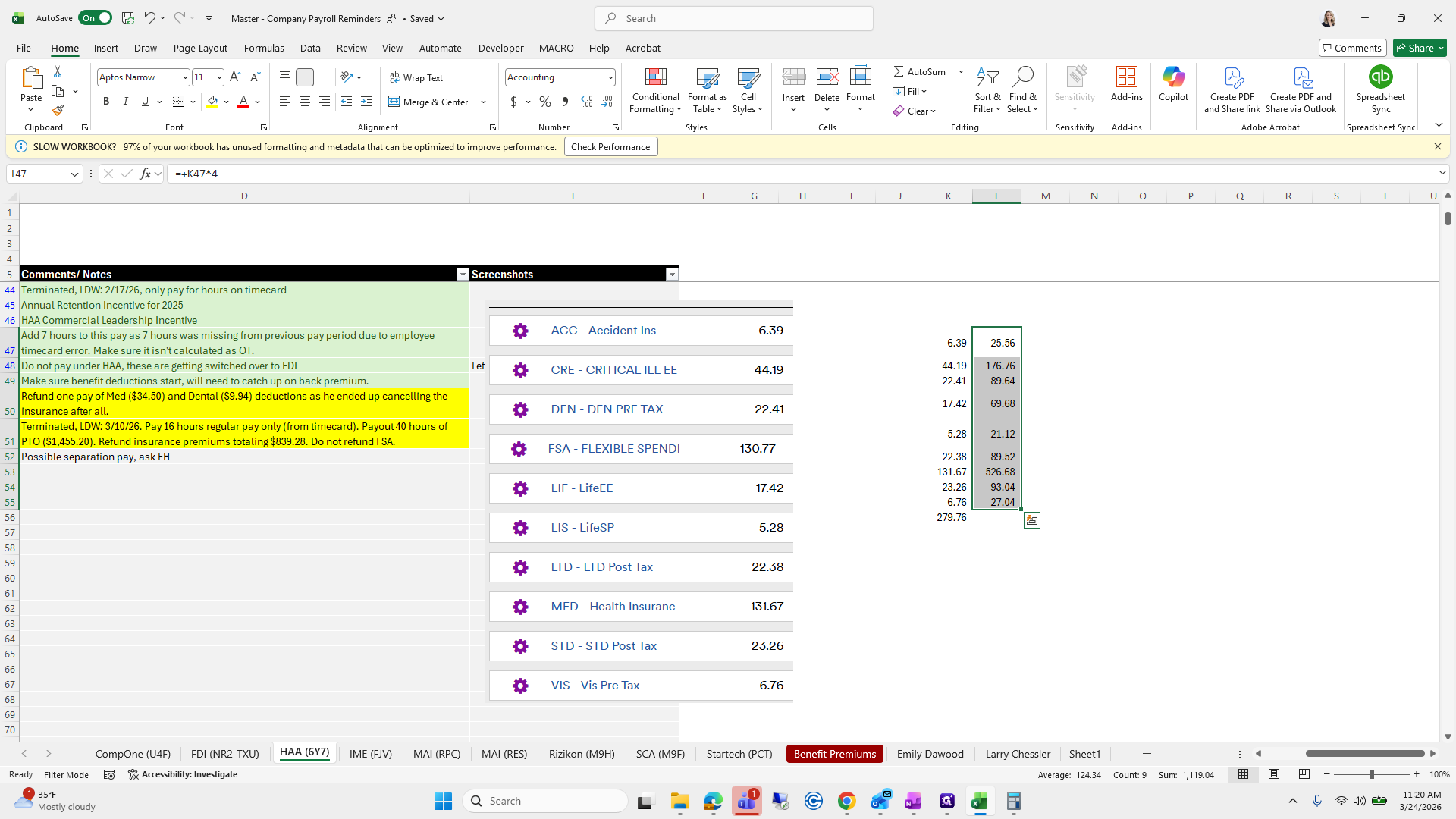
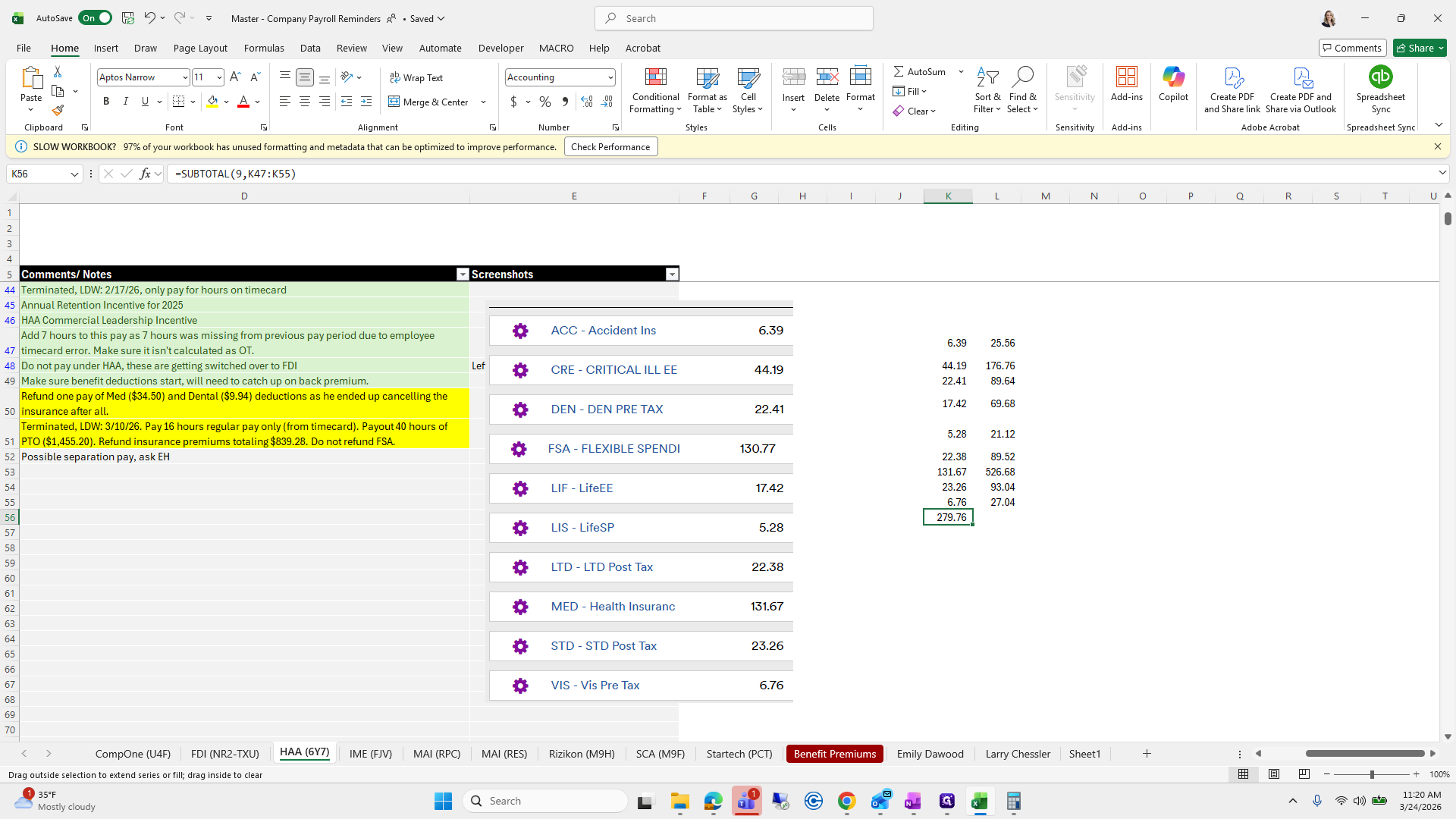
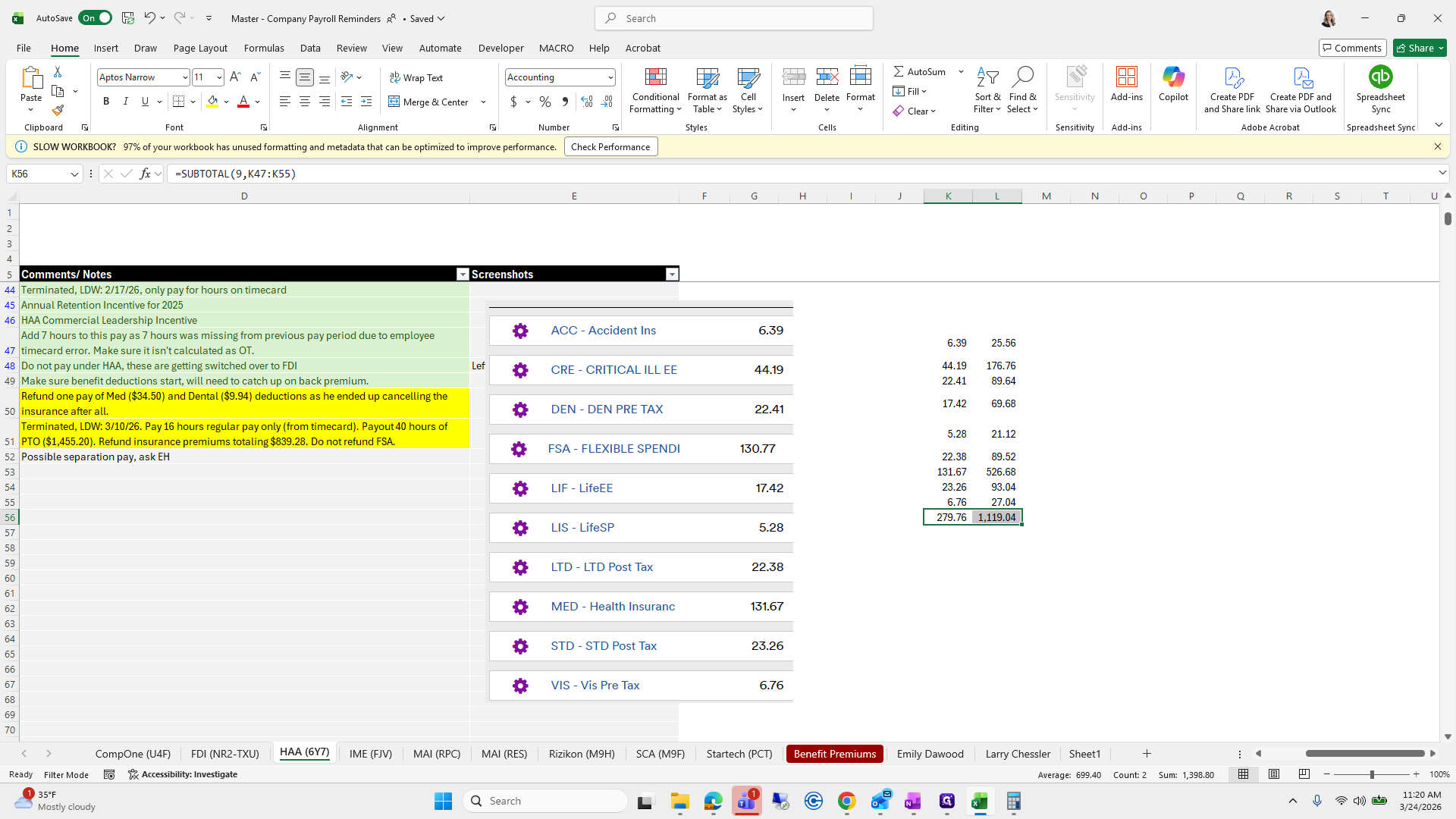
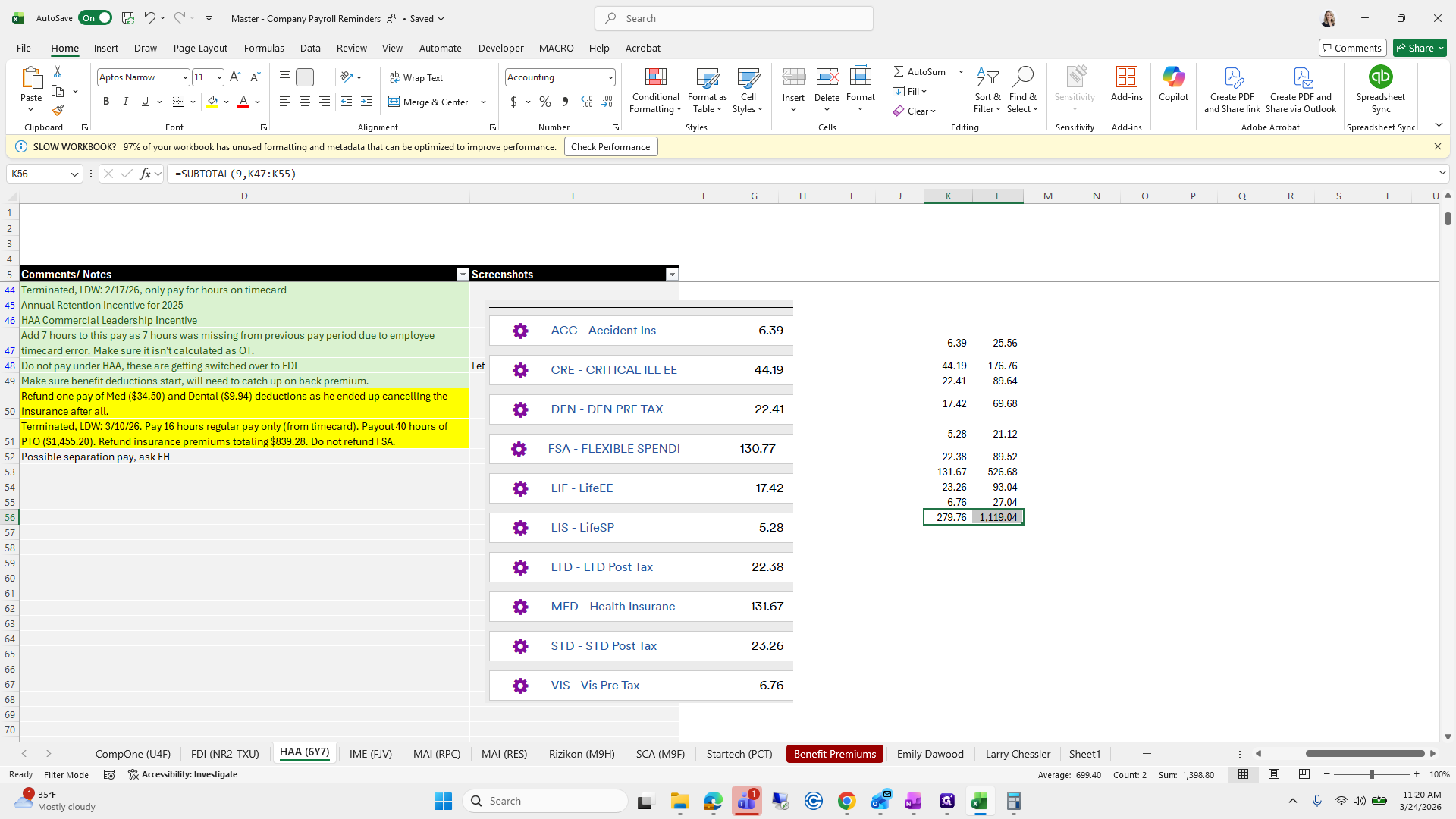
No, so we will try three.
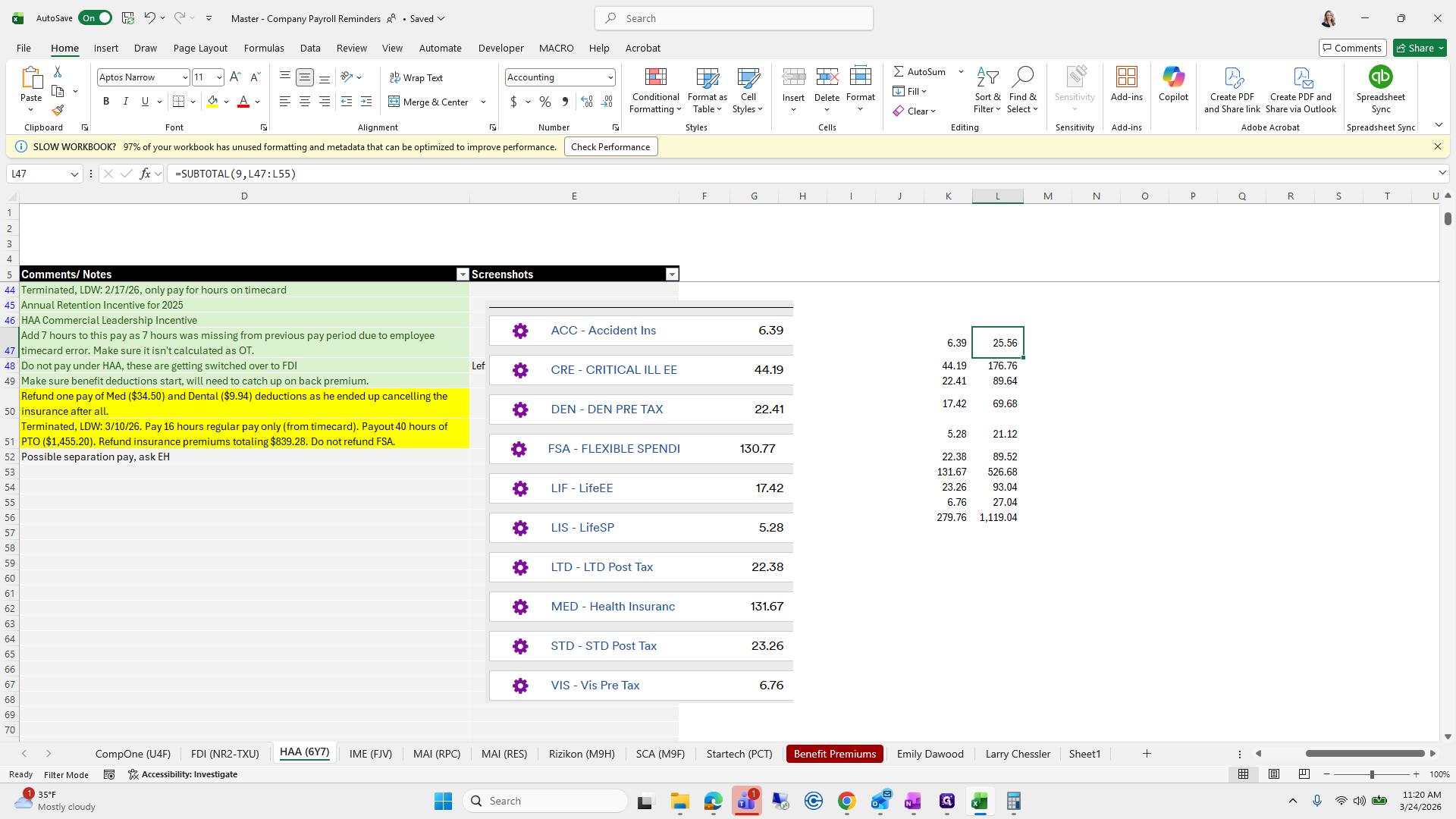
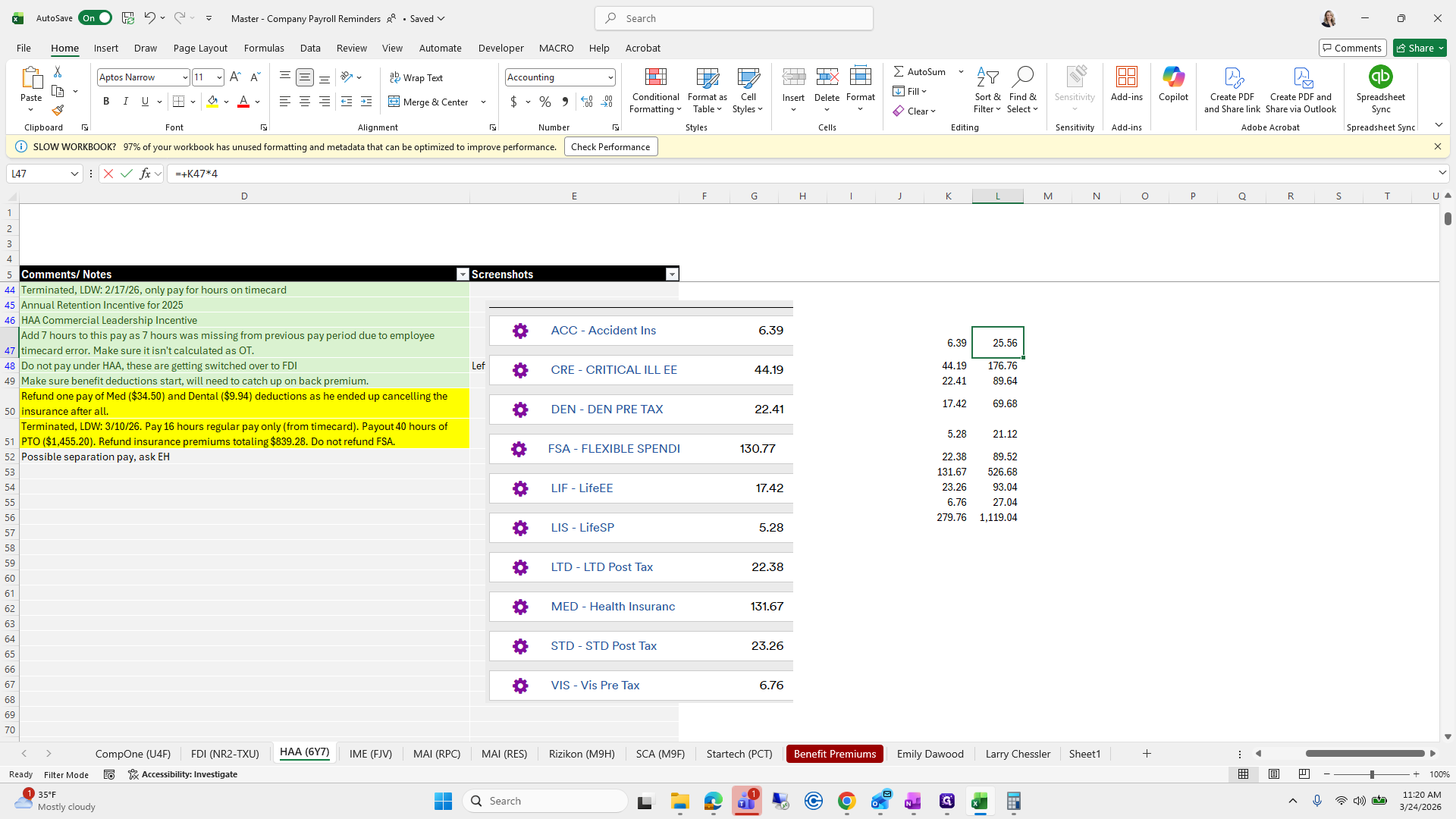
839.28, so that's three premiums.
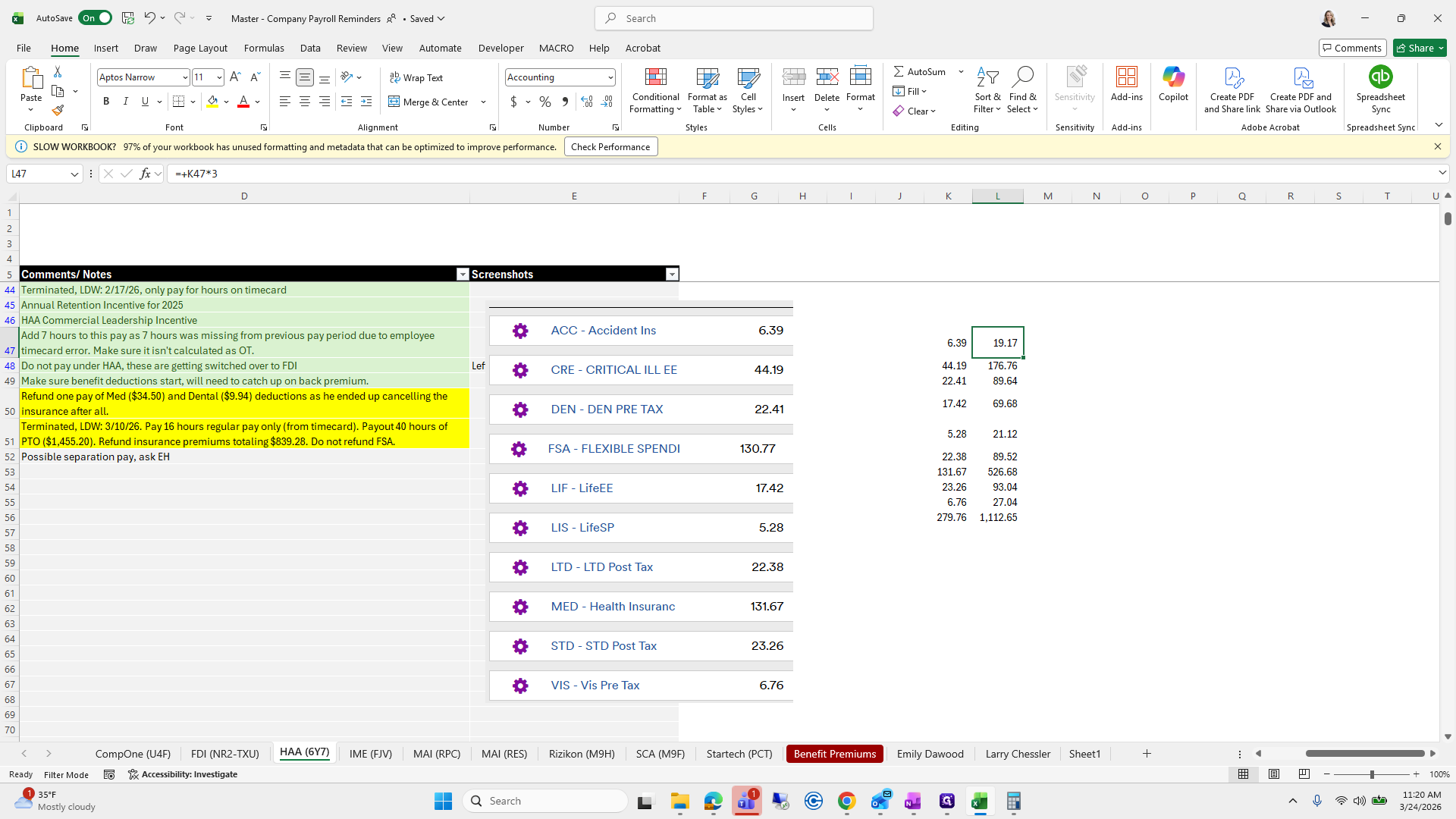
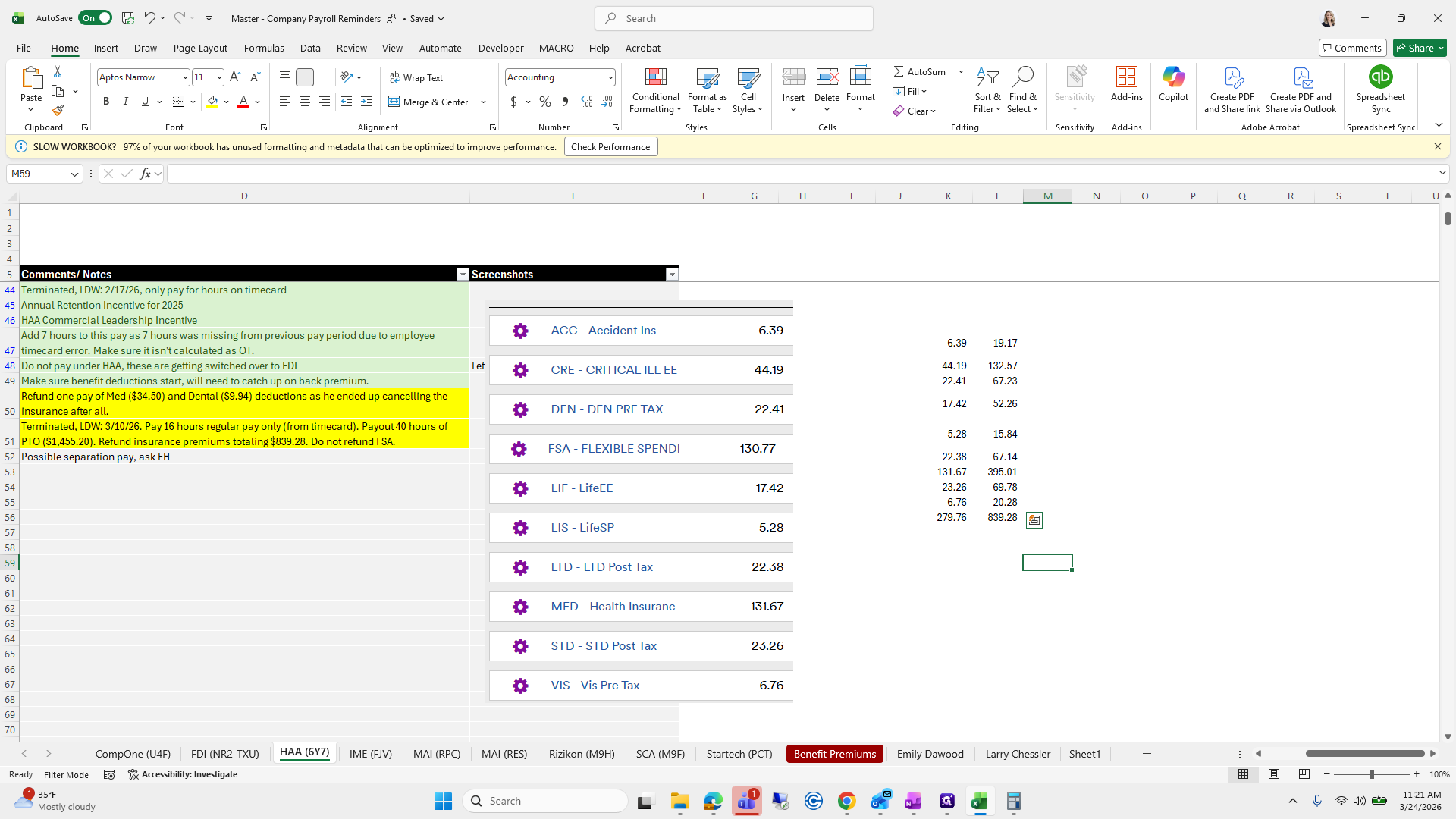
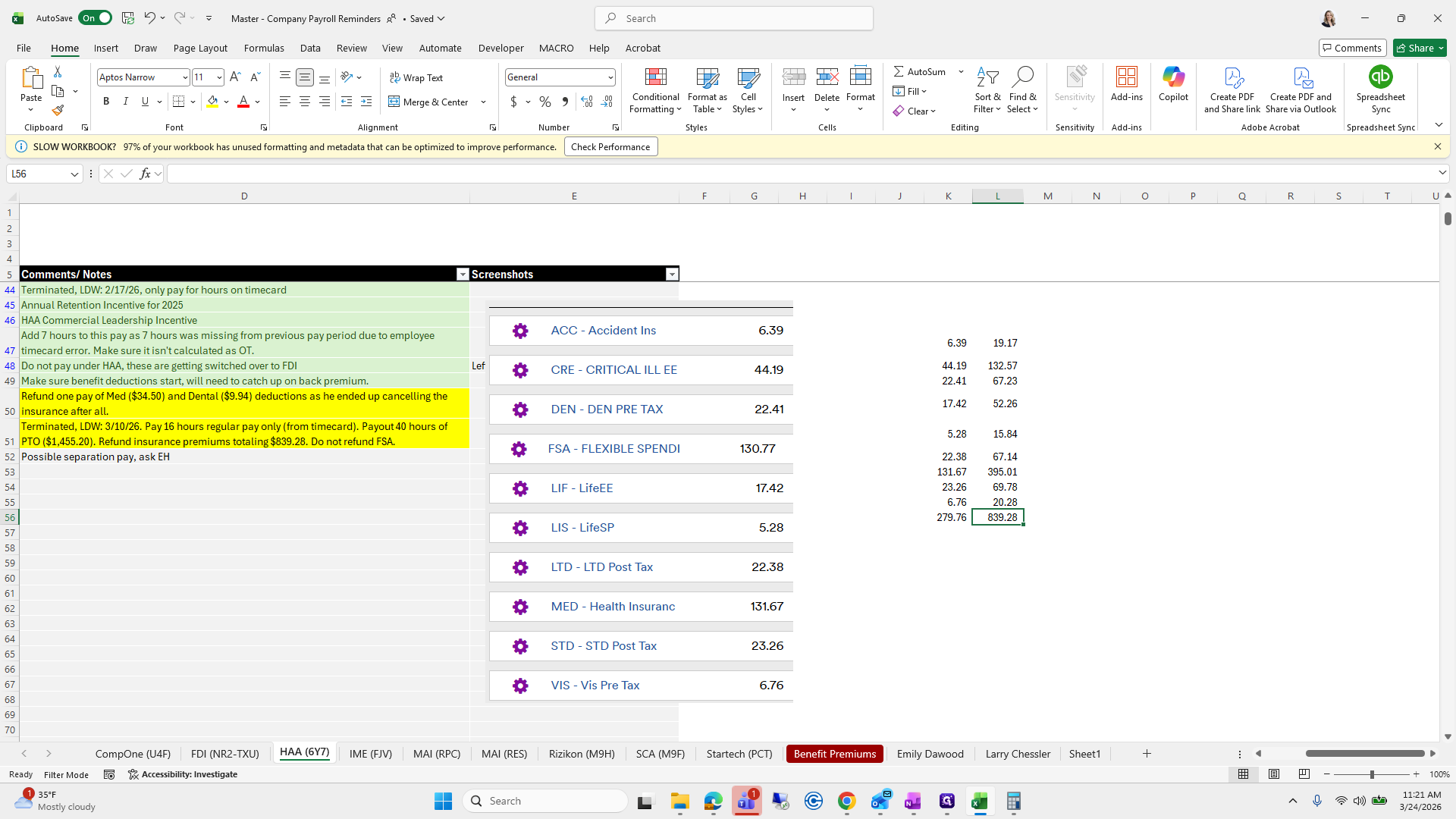
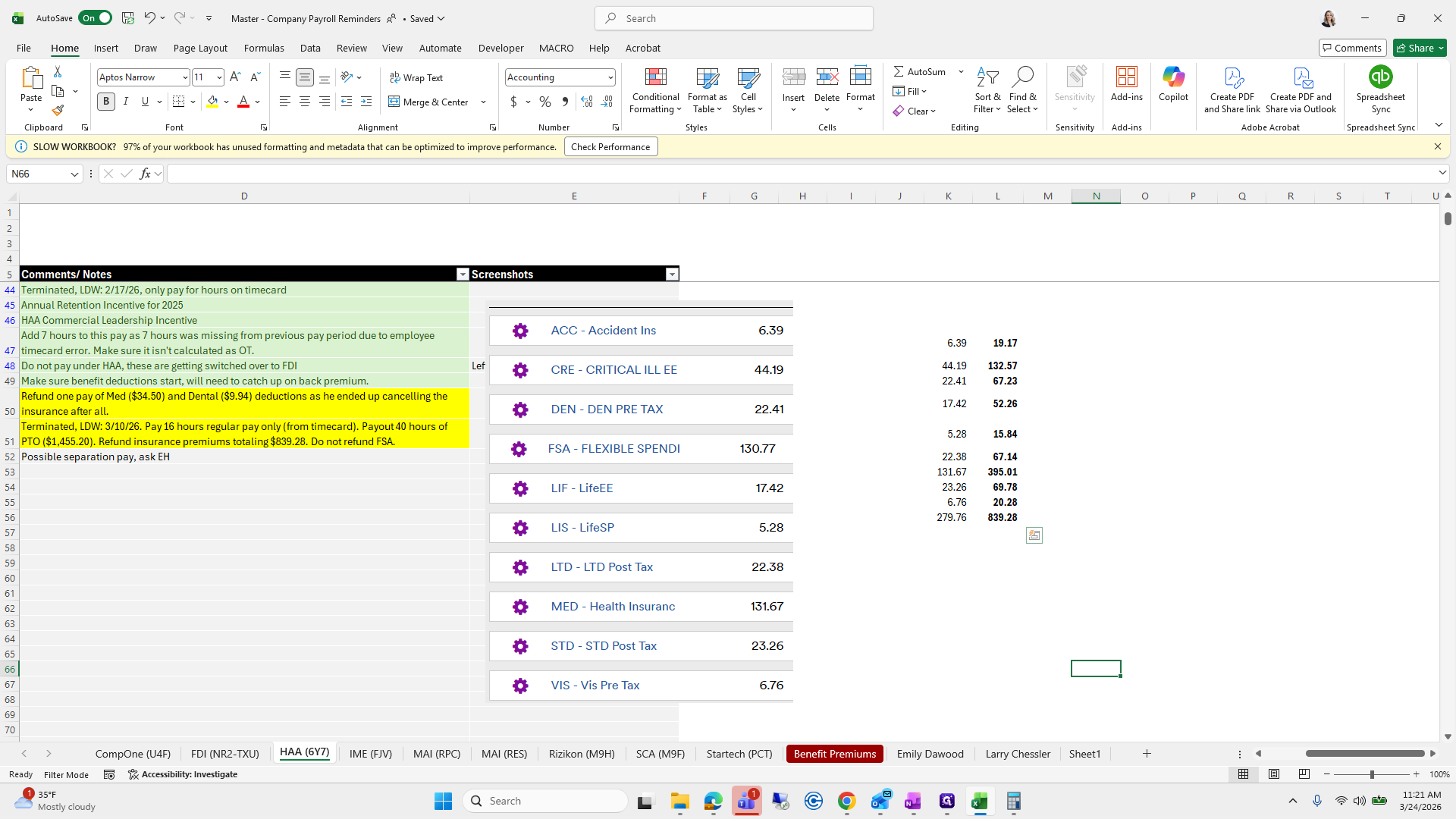
These are the amounts, and we know they are in order. Next, we will switch the screen, scroll over, and start entering our adjustments.
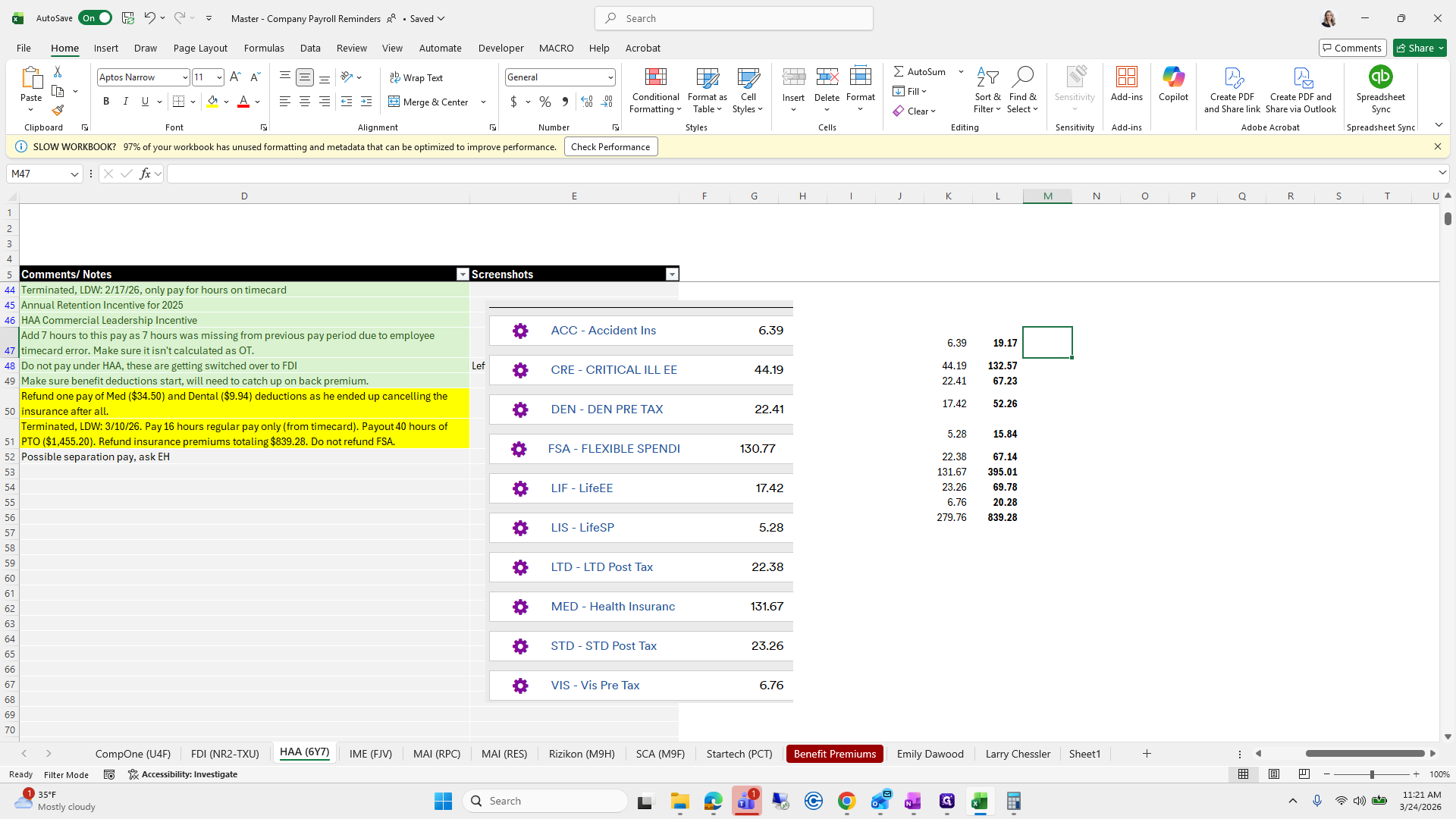
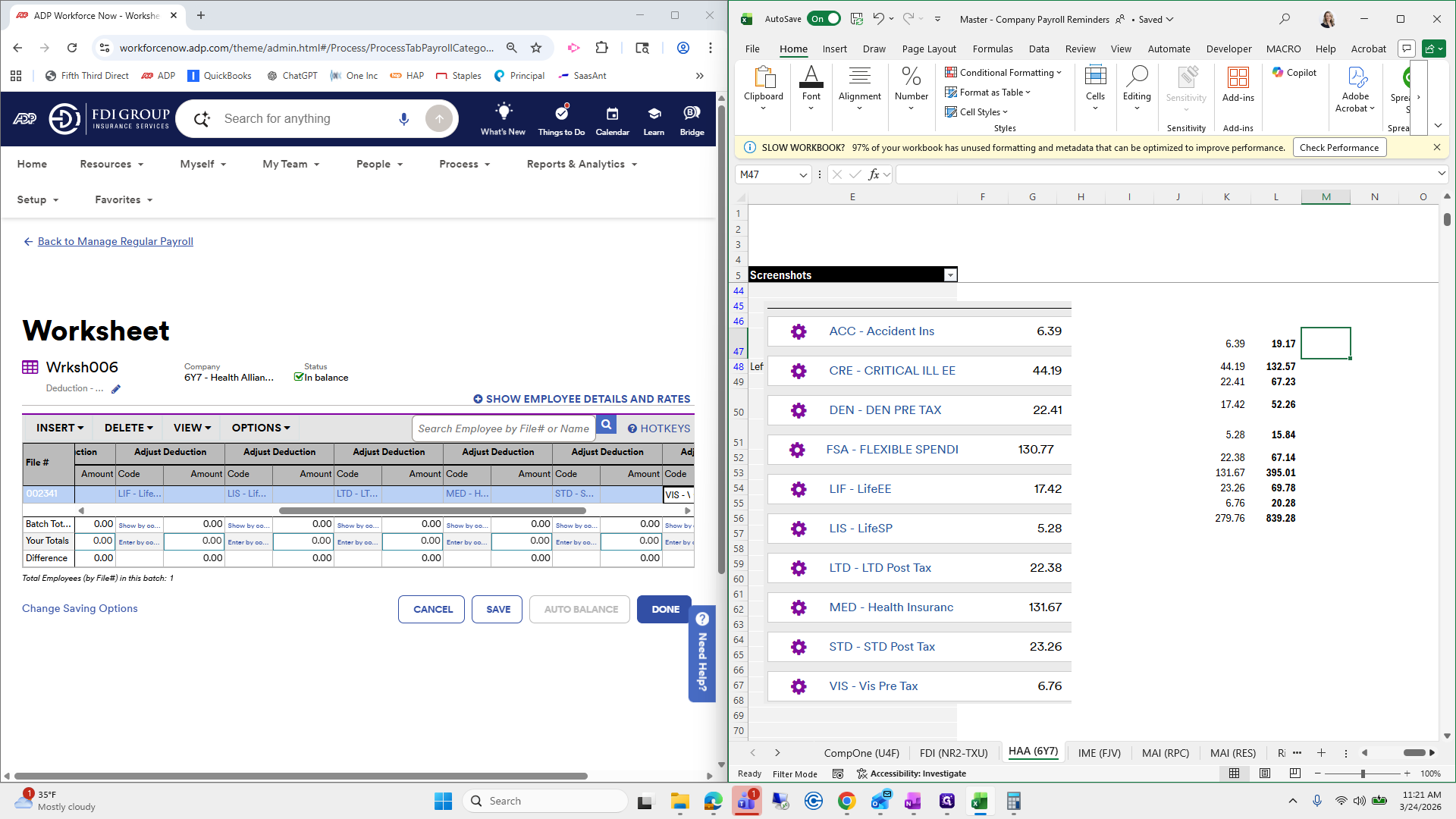
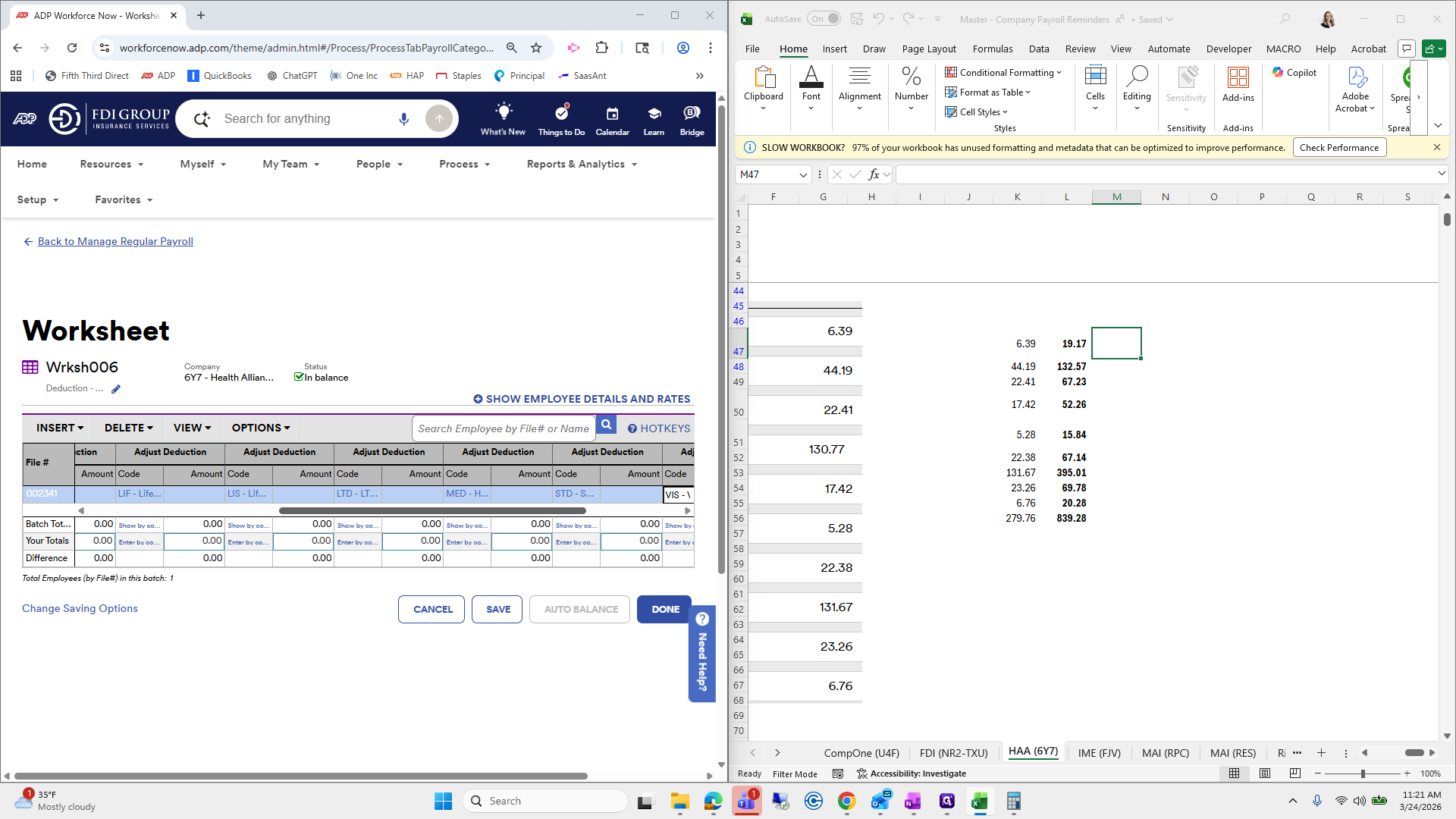
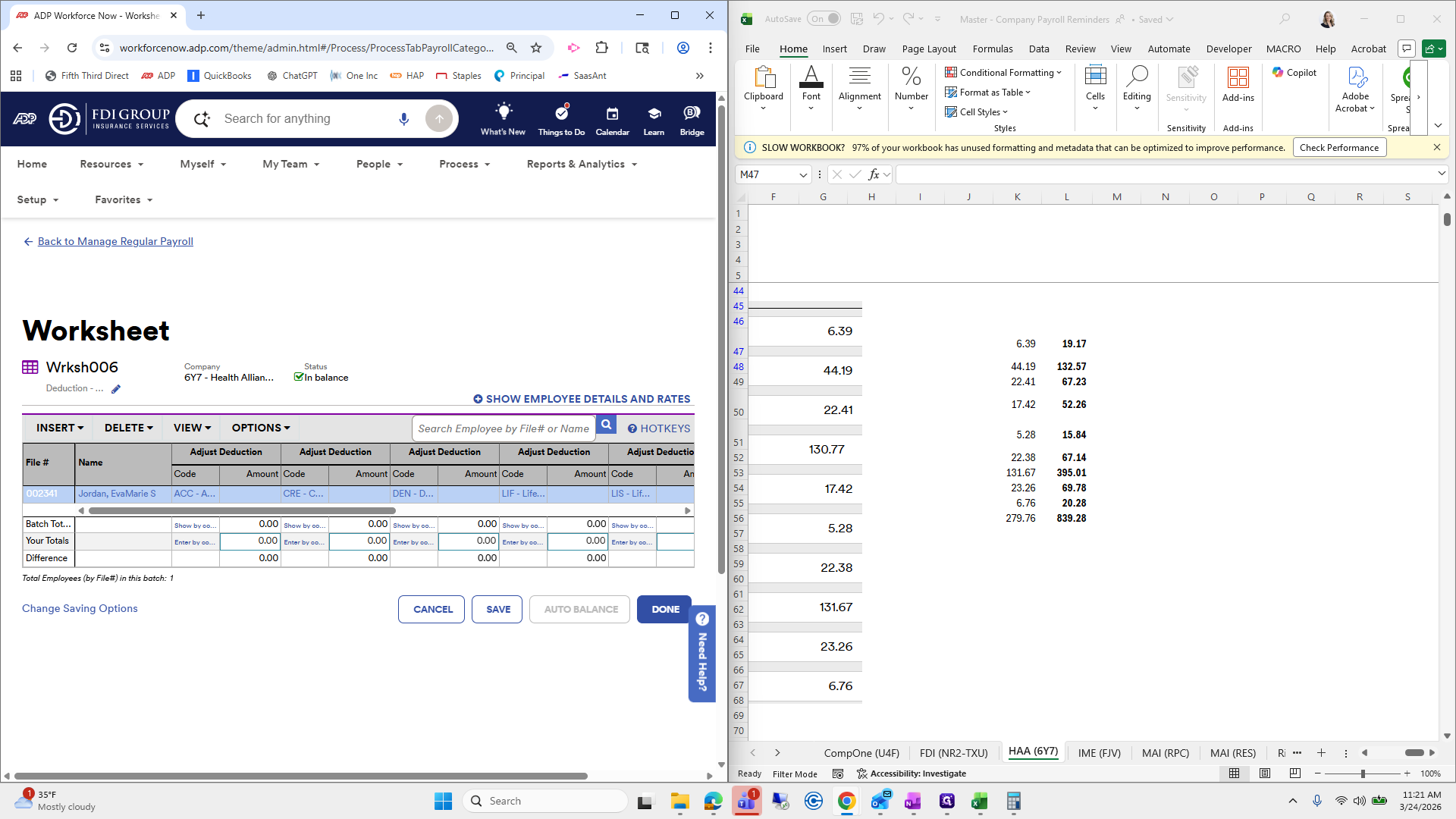
-19.17, -132.57, 23. If you want to place them next to it, you can, but I will trust myself. 84, negative 67.14. Whoopsies.
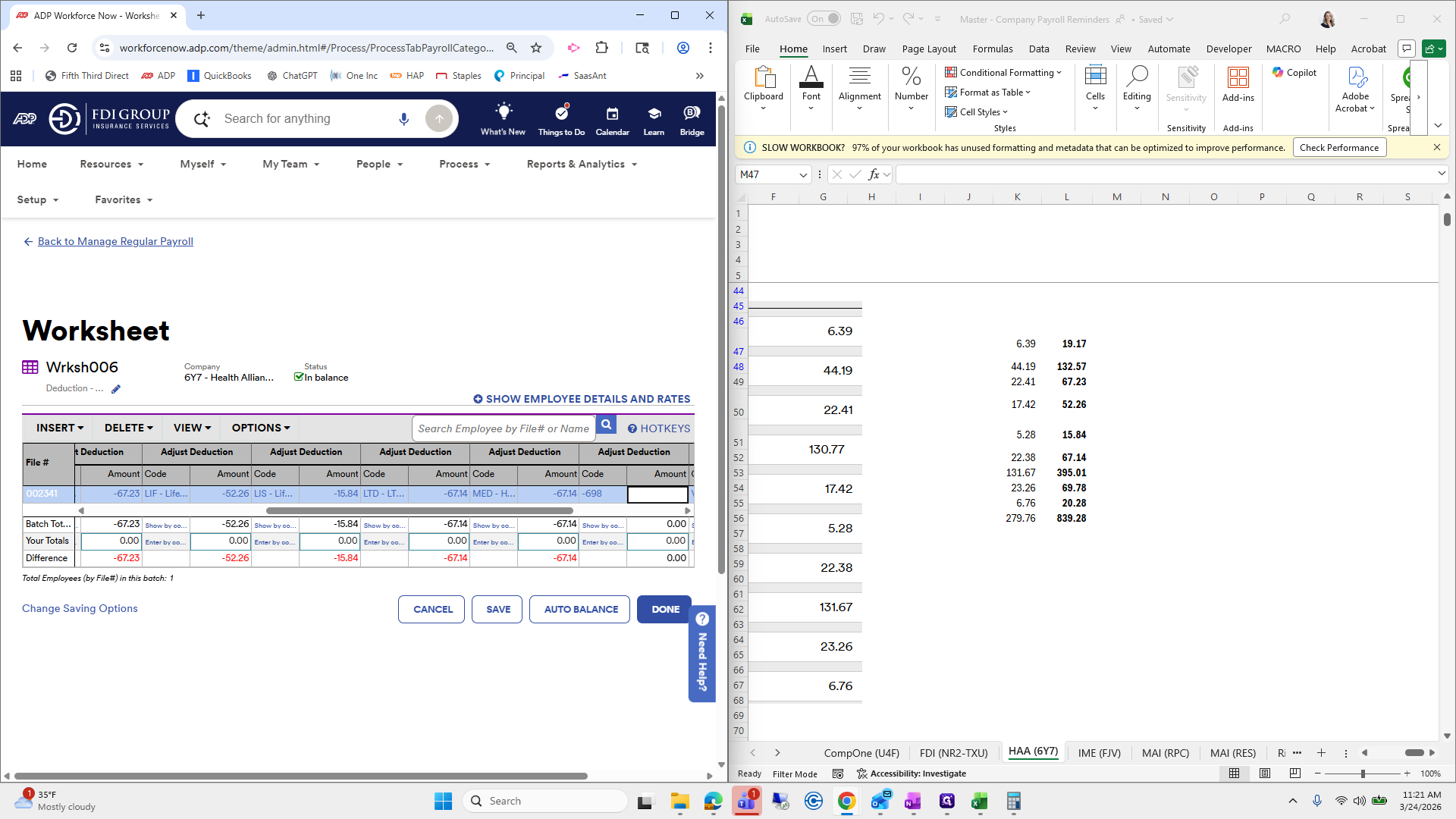
Something might be off. There we go.
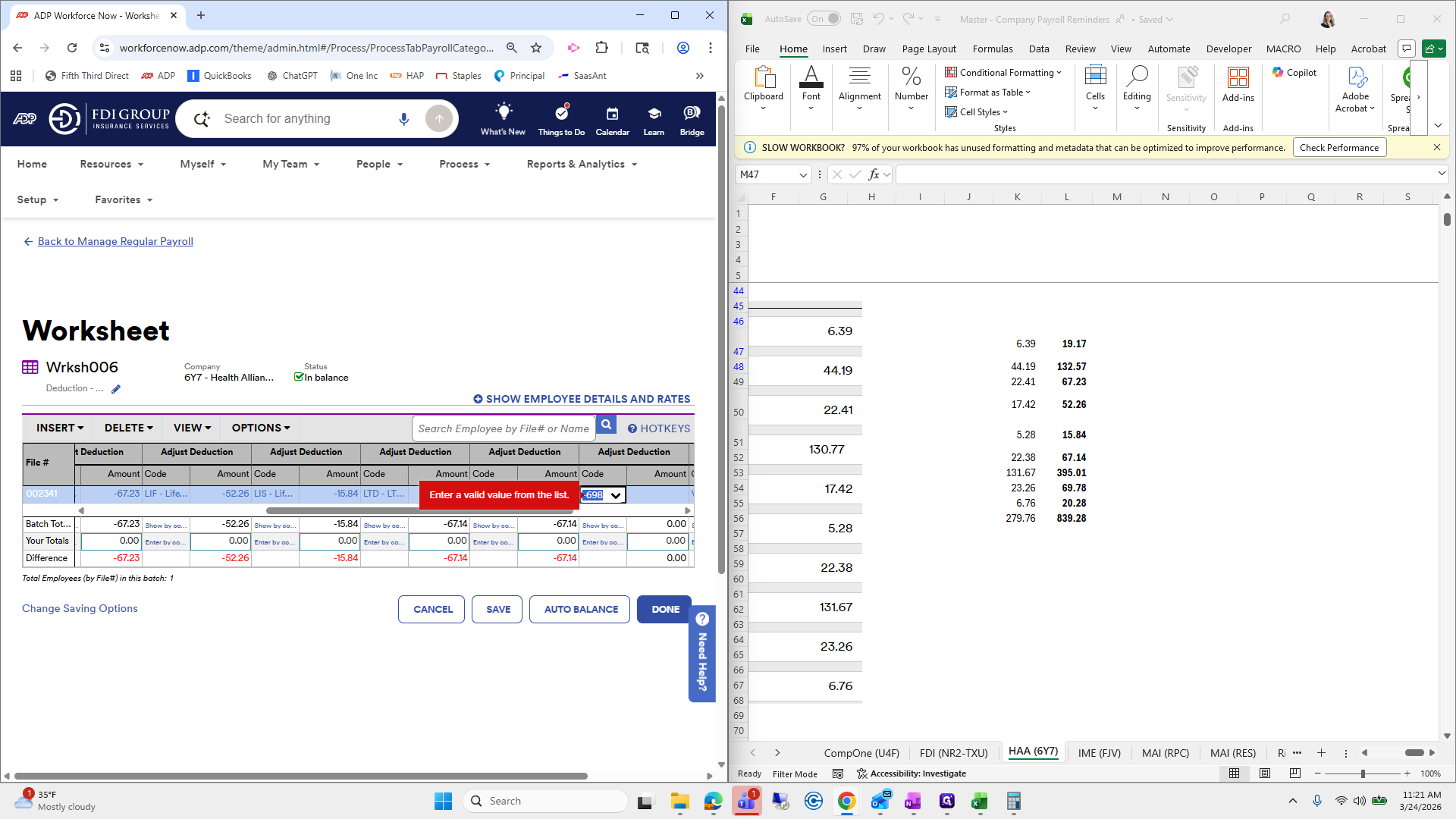
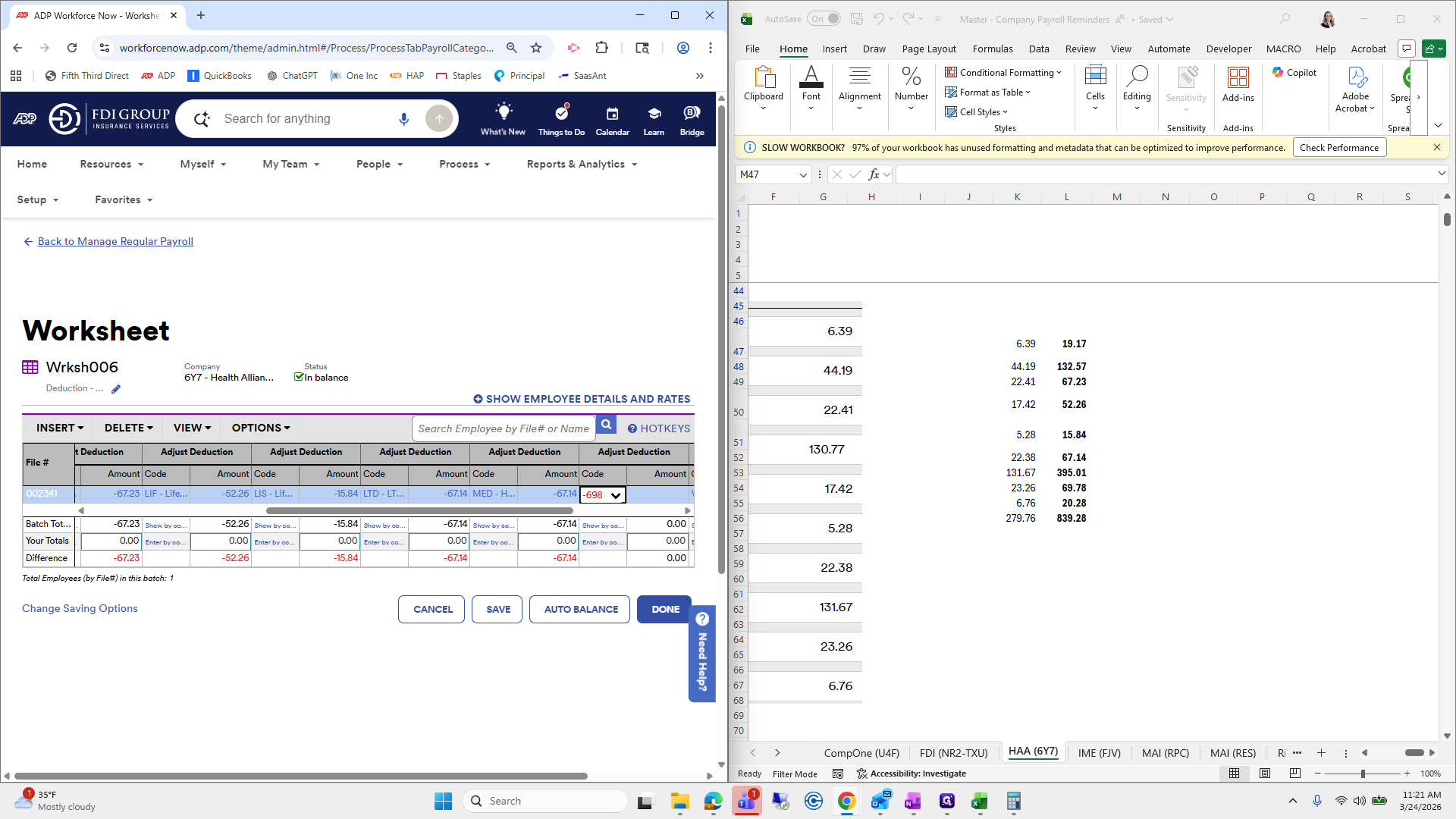
See, I just start...
I was going too fast. Okay.
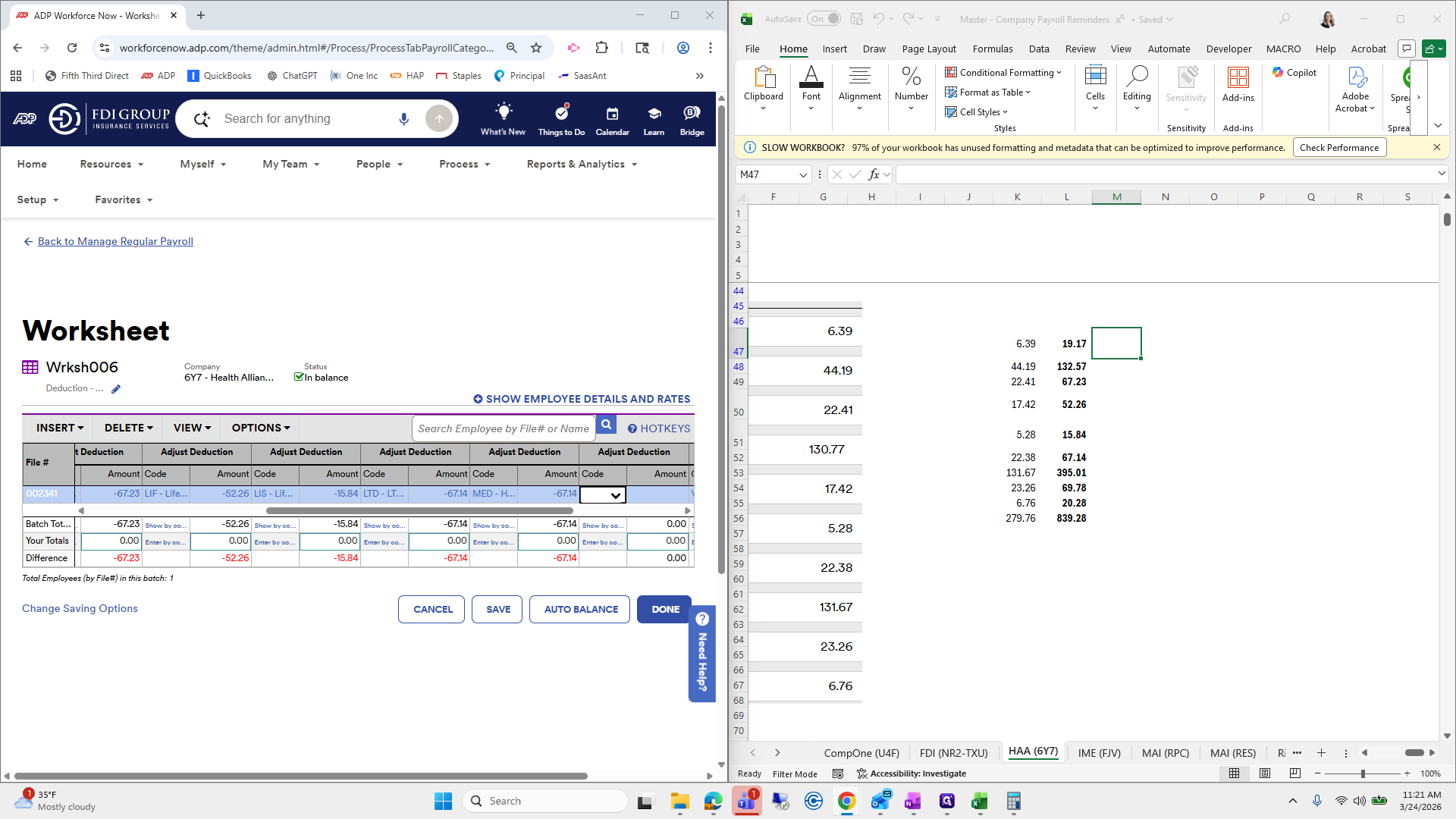
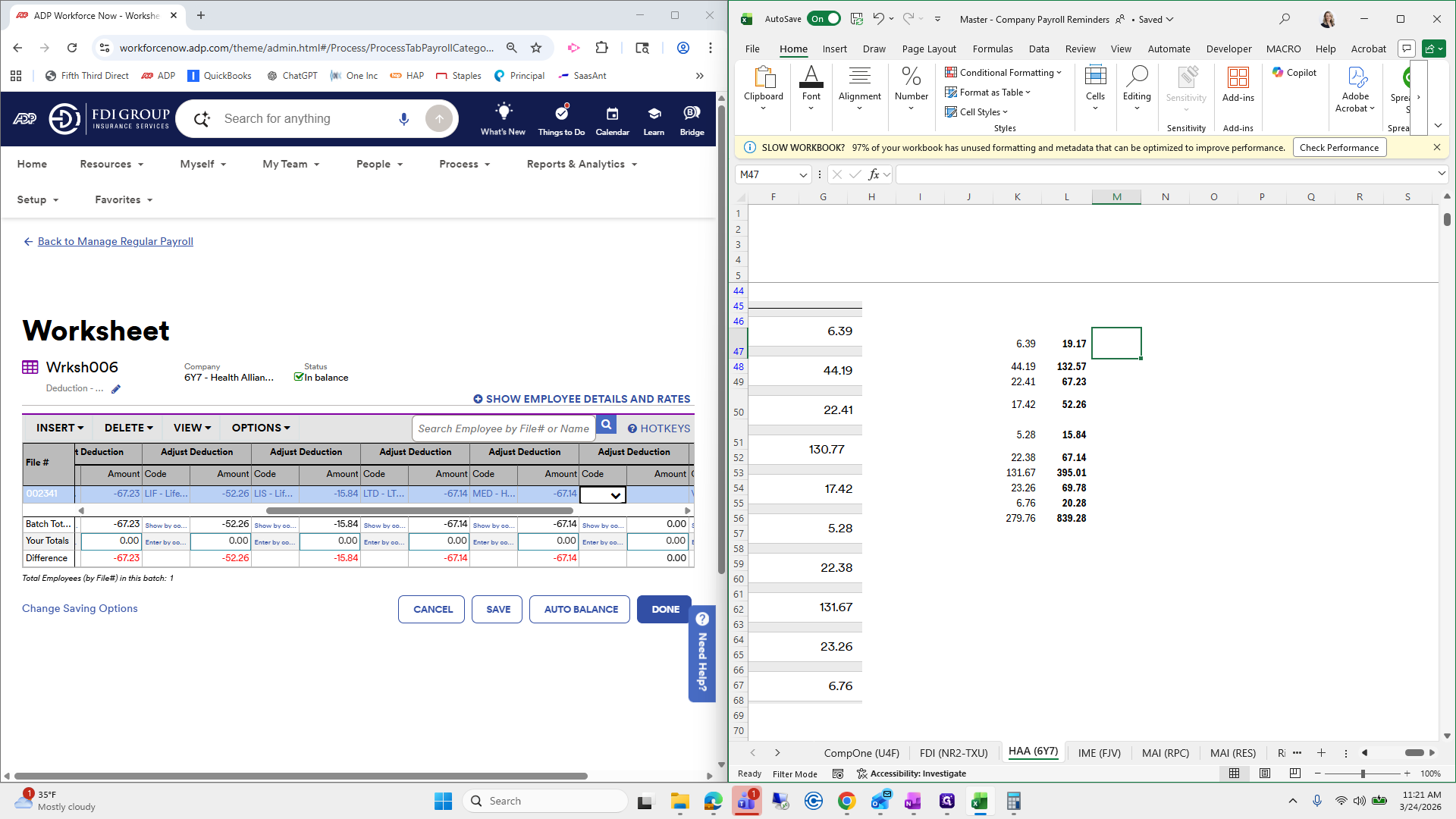
Let's see where I made a mistake. 60 medical is actually this one.
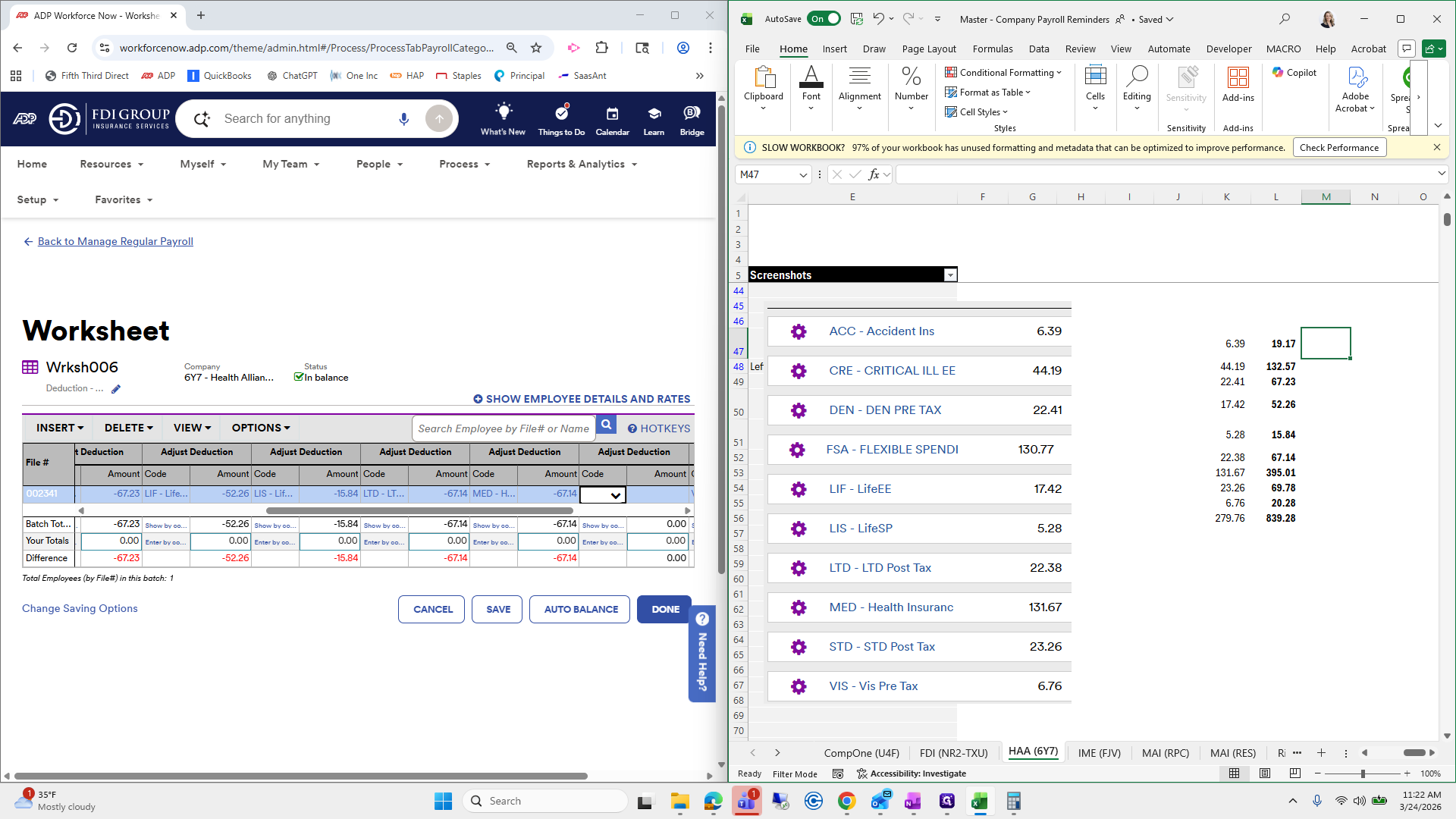
That's why you should not trust yourself.
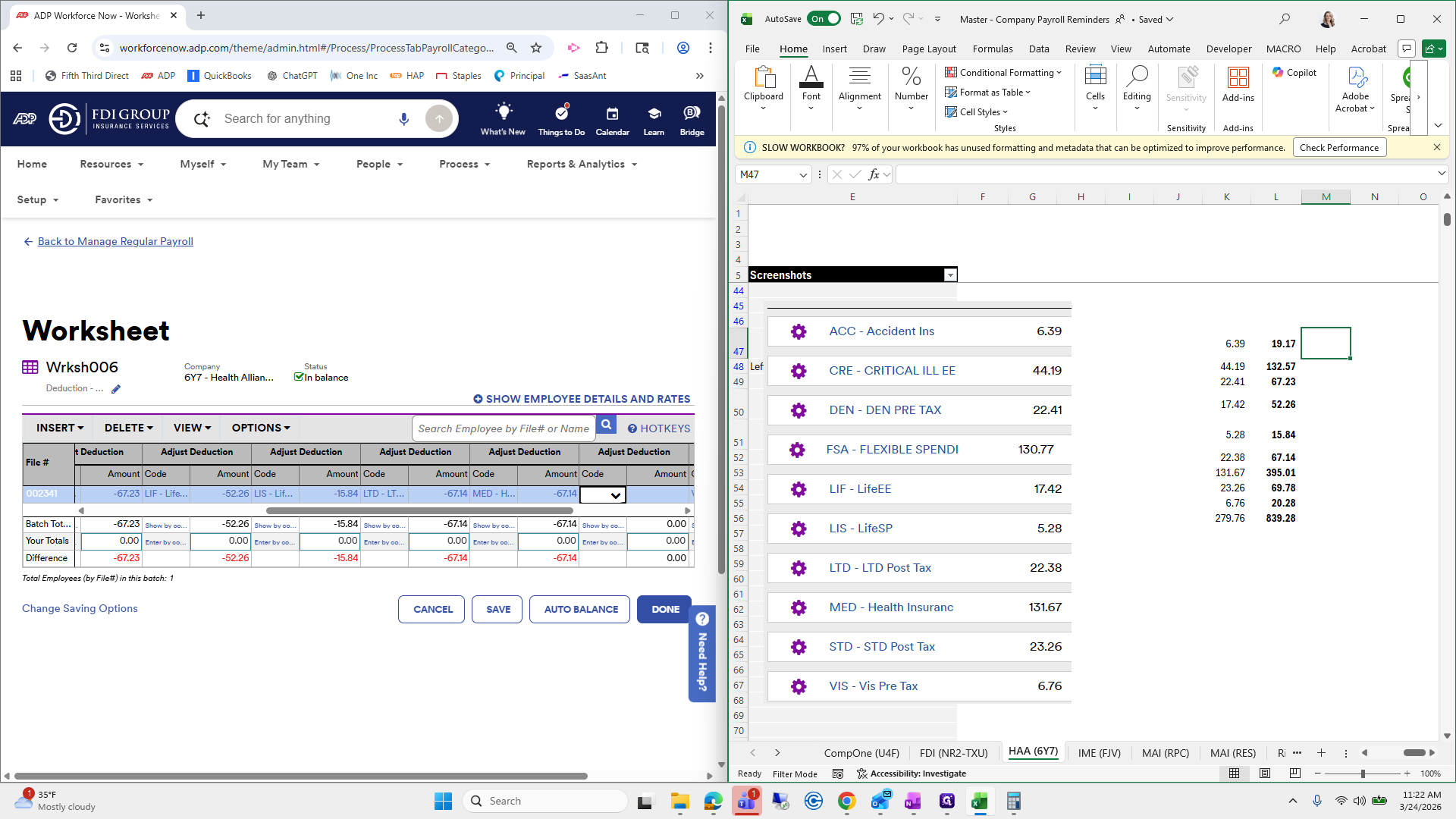
We have Accident, Clinical Illness, Dental, and Life at 1742.
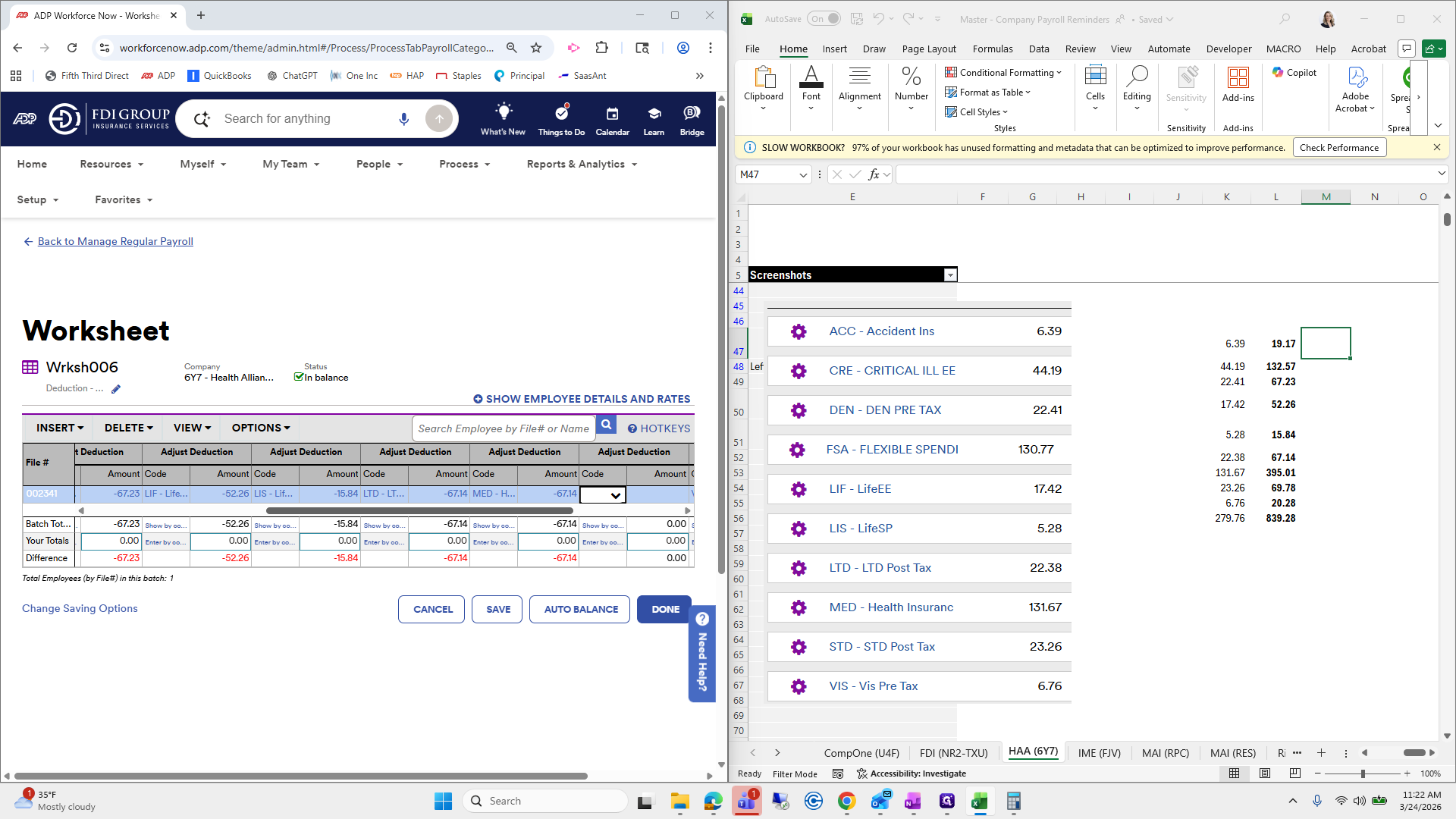
52. Next, we have Life Spouse, 1584.
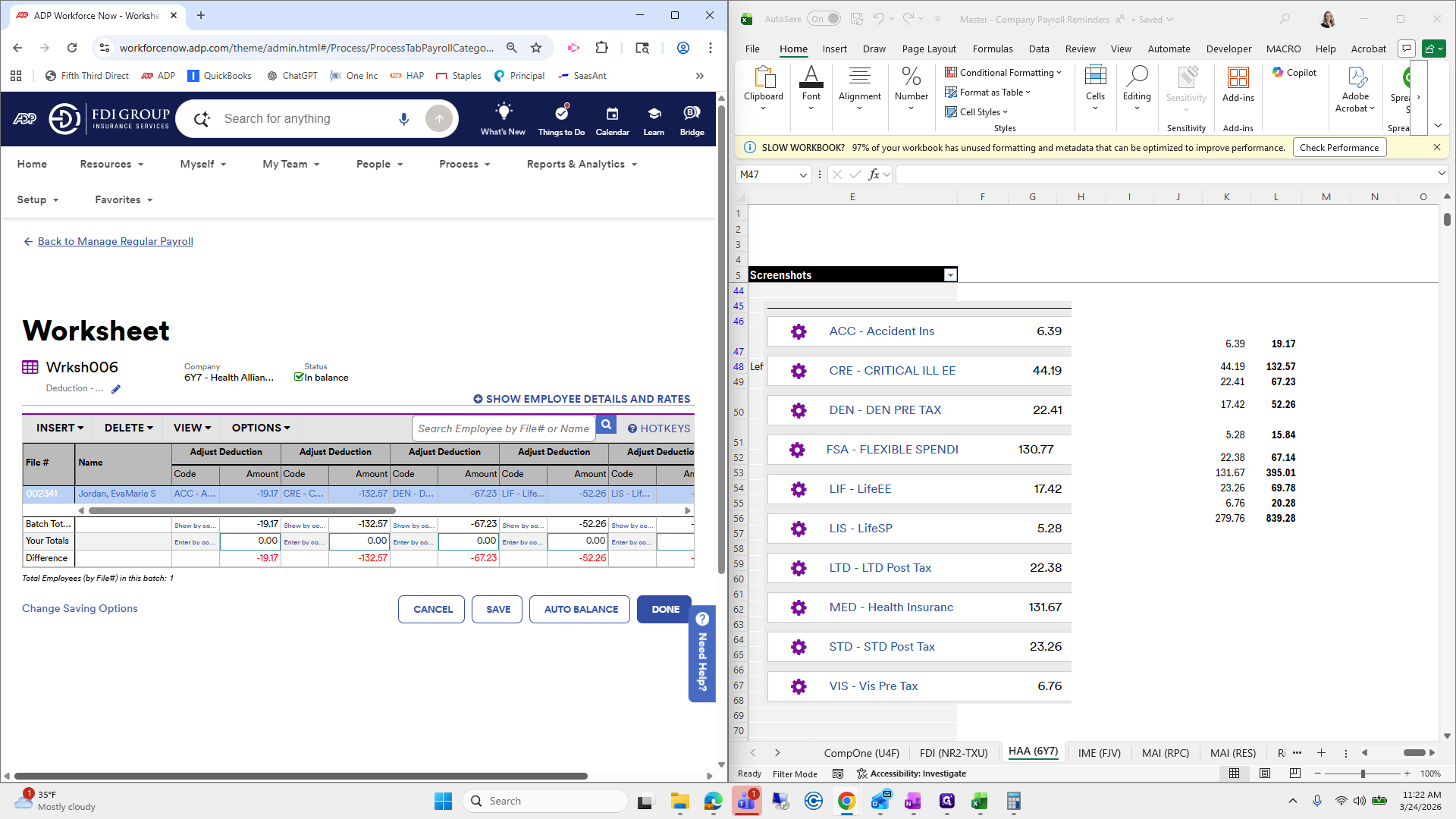
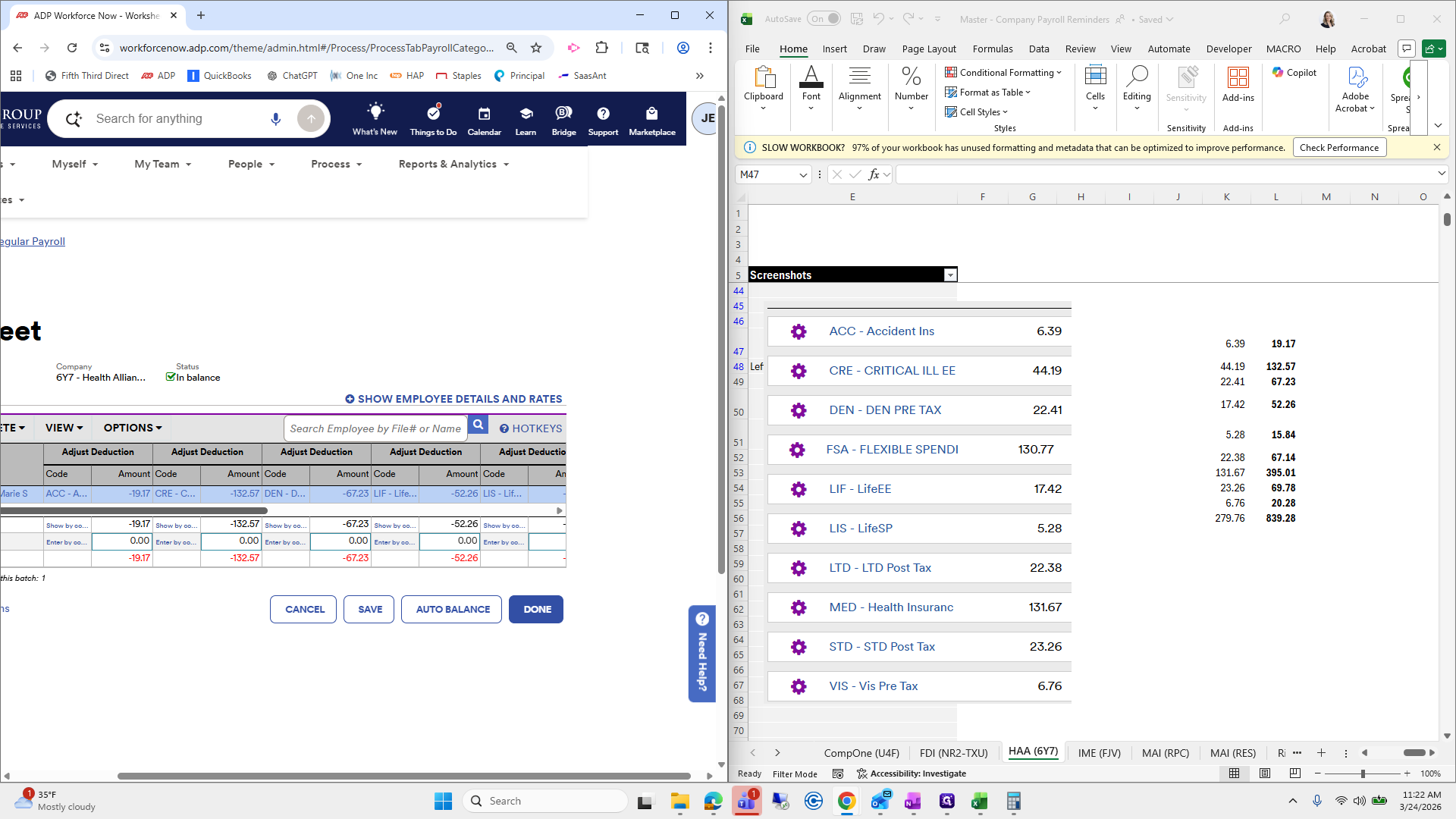
And then... Right. Yep. Then 6714—it looks like I tried to enter it twice.
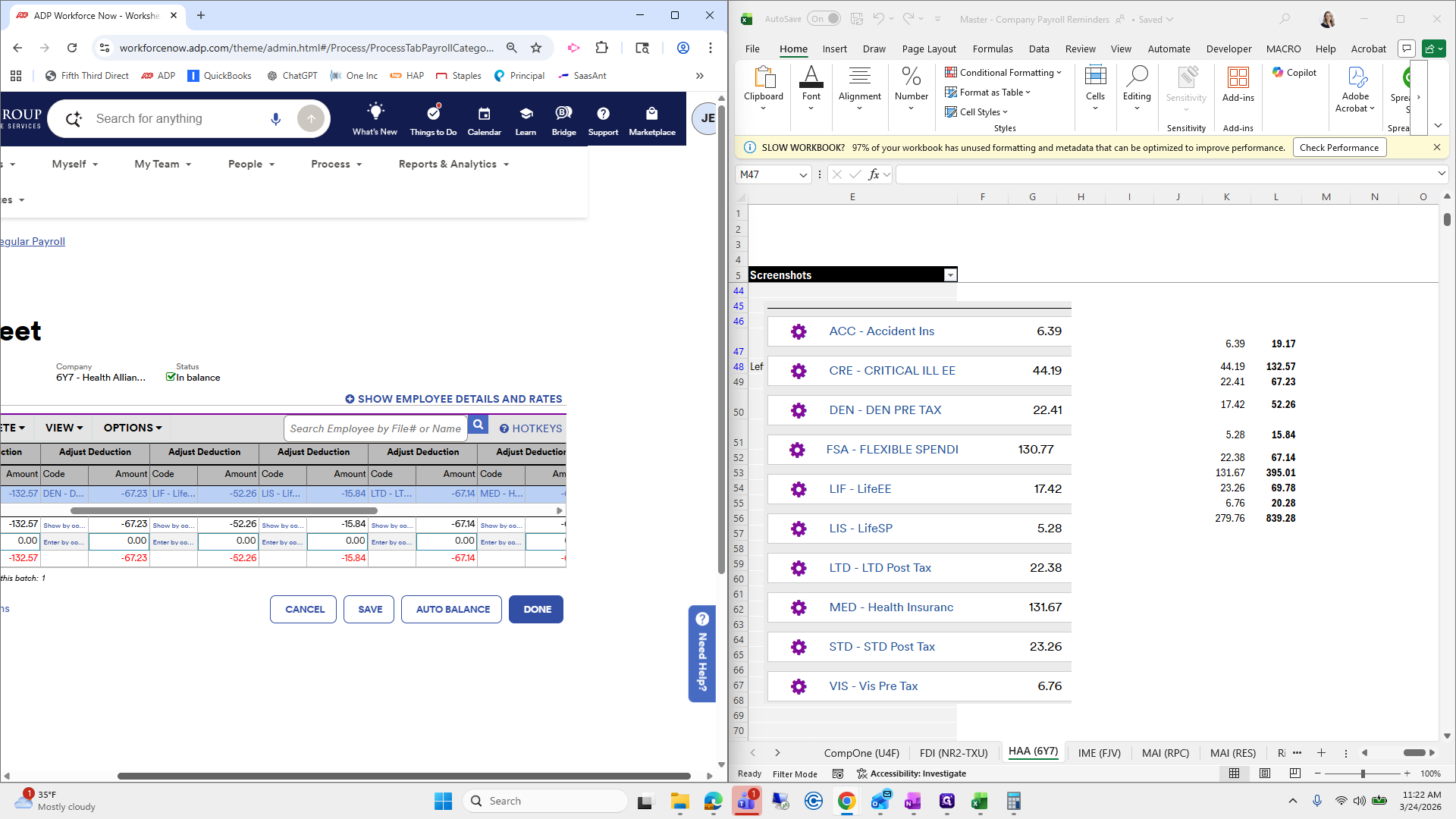
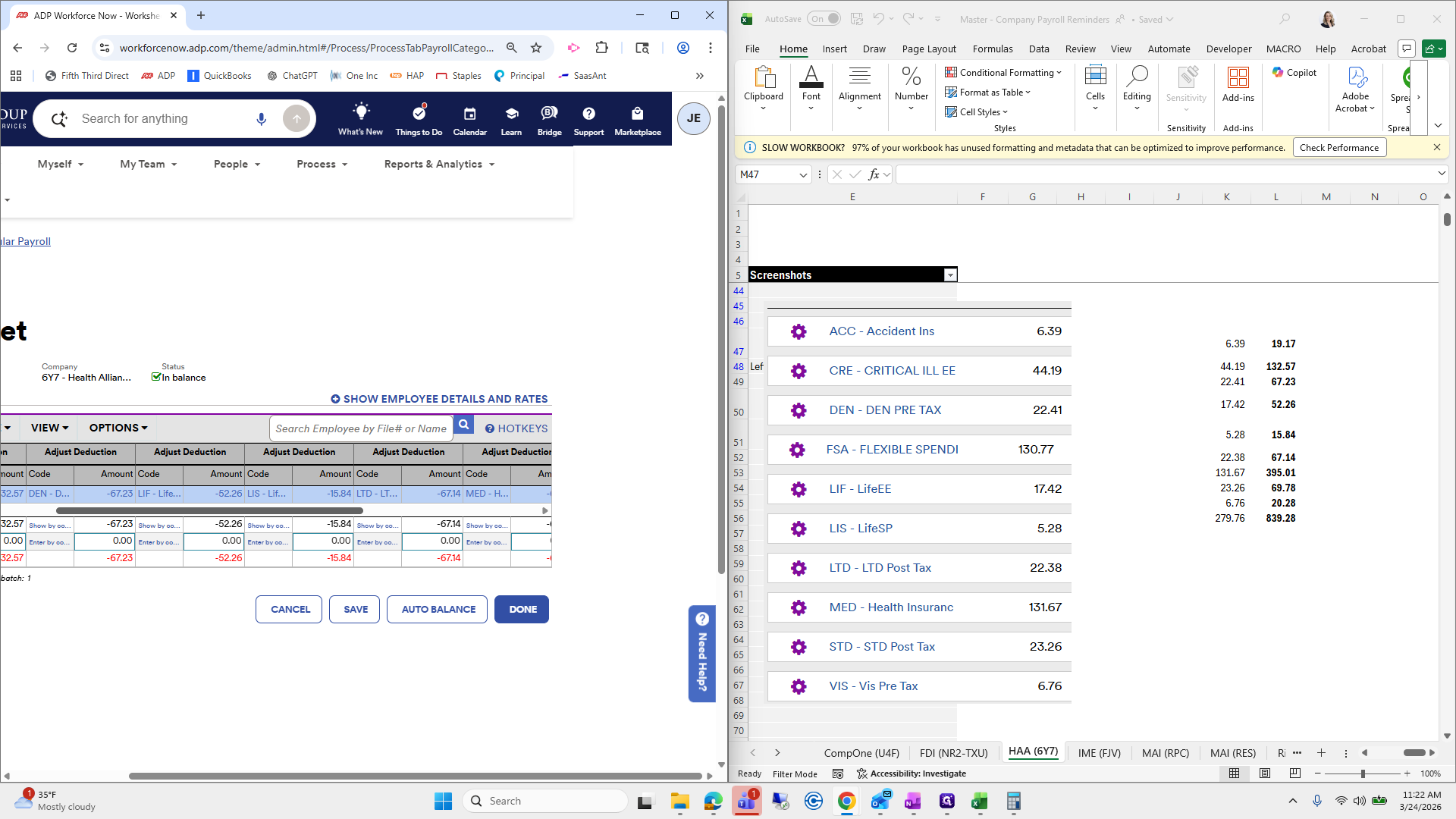
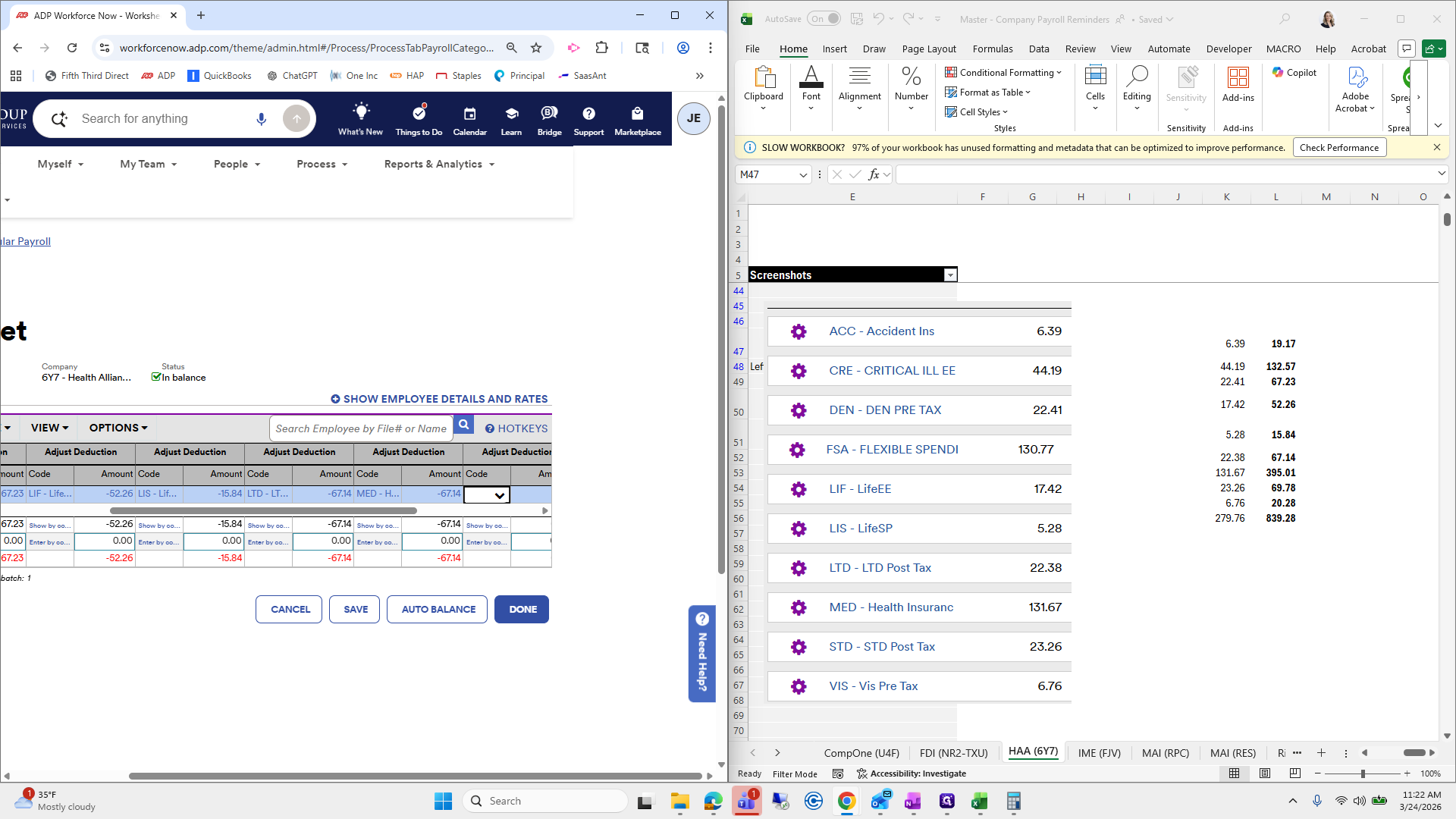
This is negative 395.01. After Medical was STD, which is negative 6978.
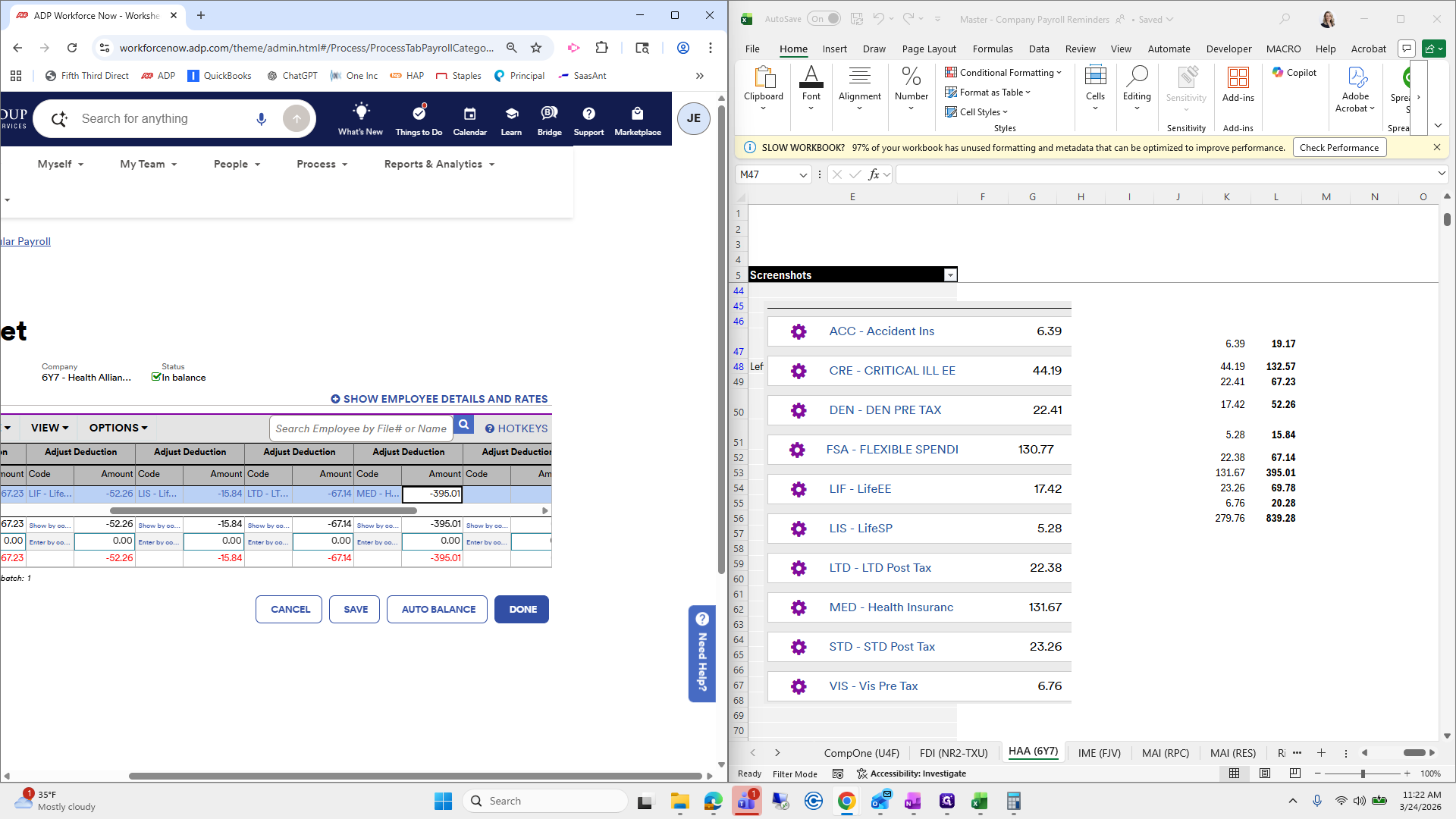
Vision is negative 2028. Now we will save and select Autobalance. Done.
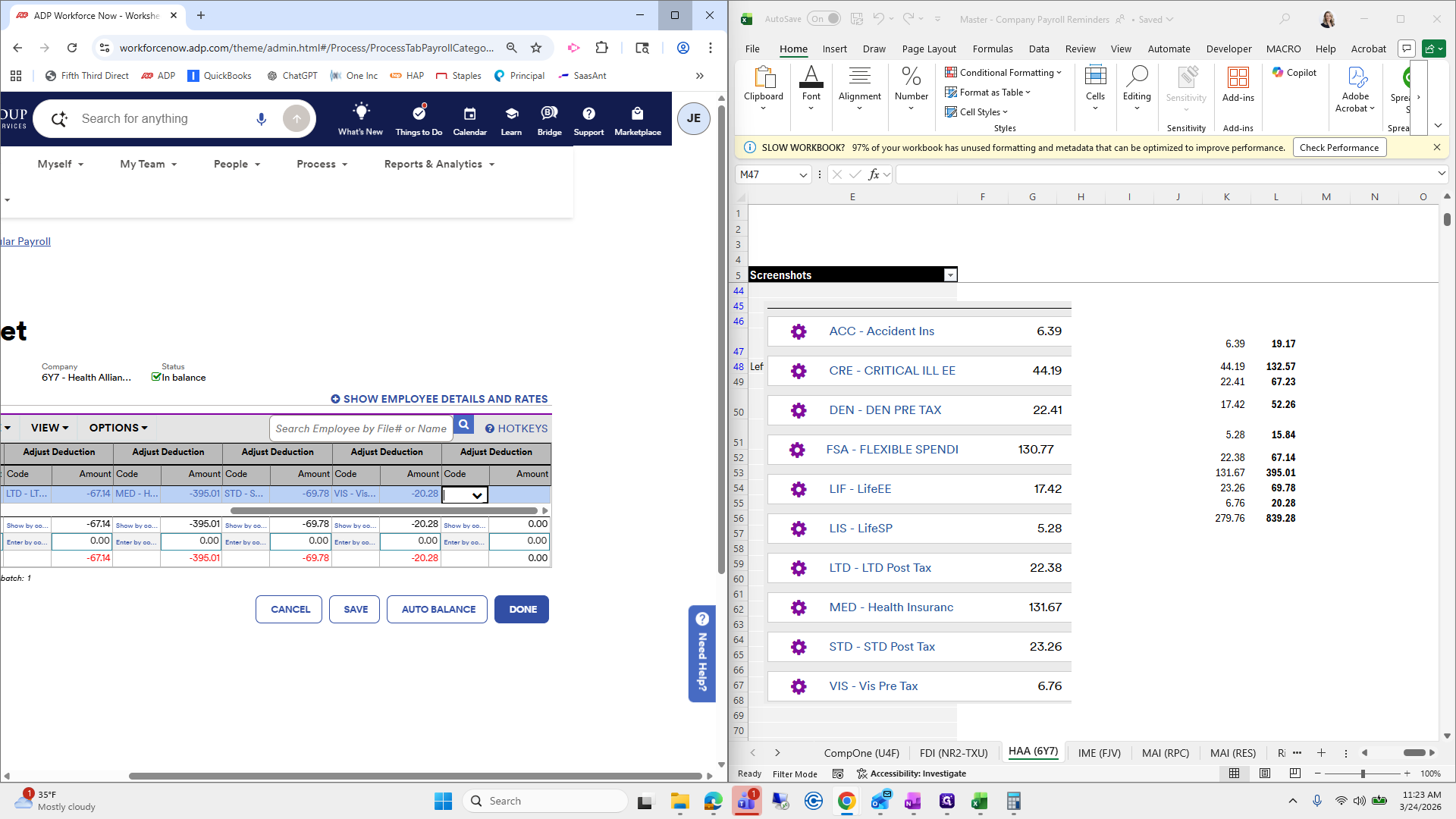
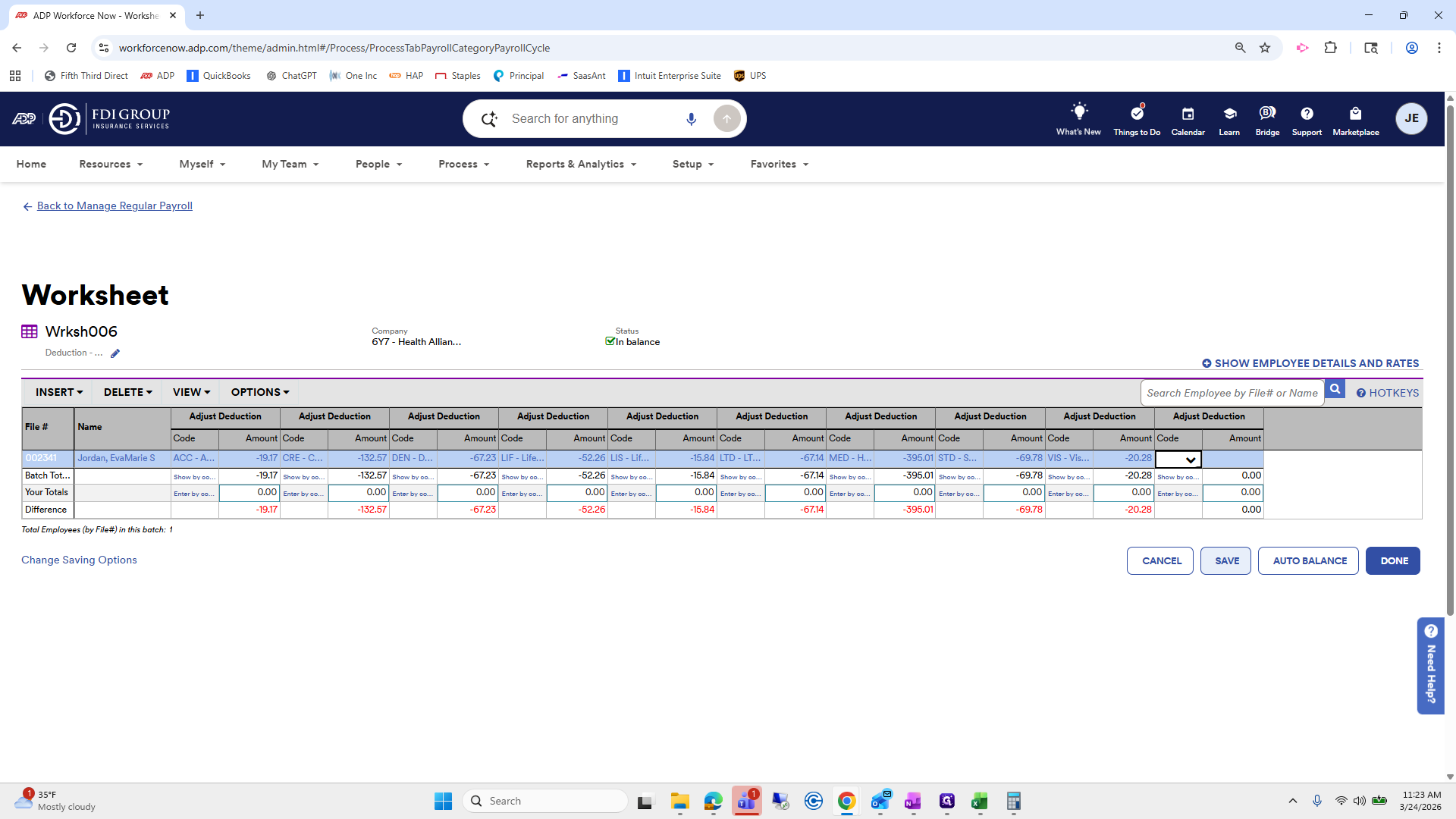
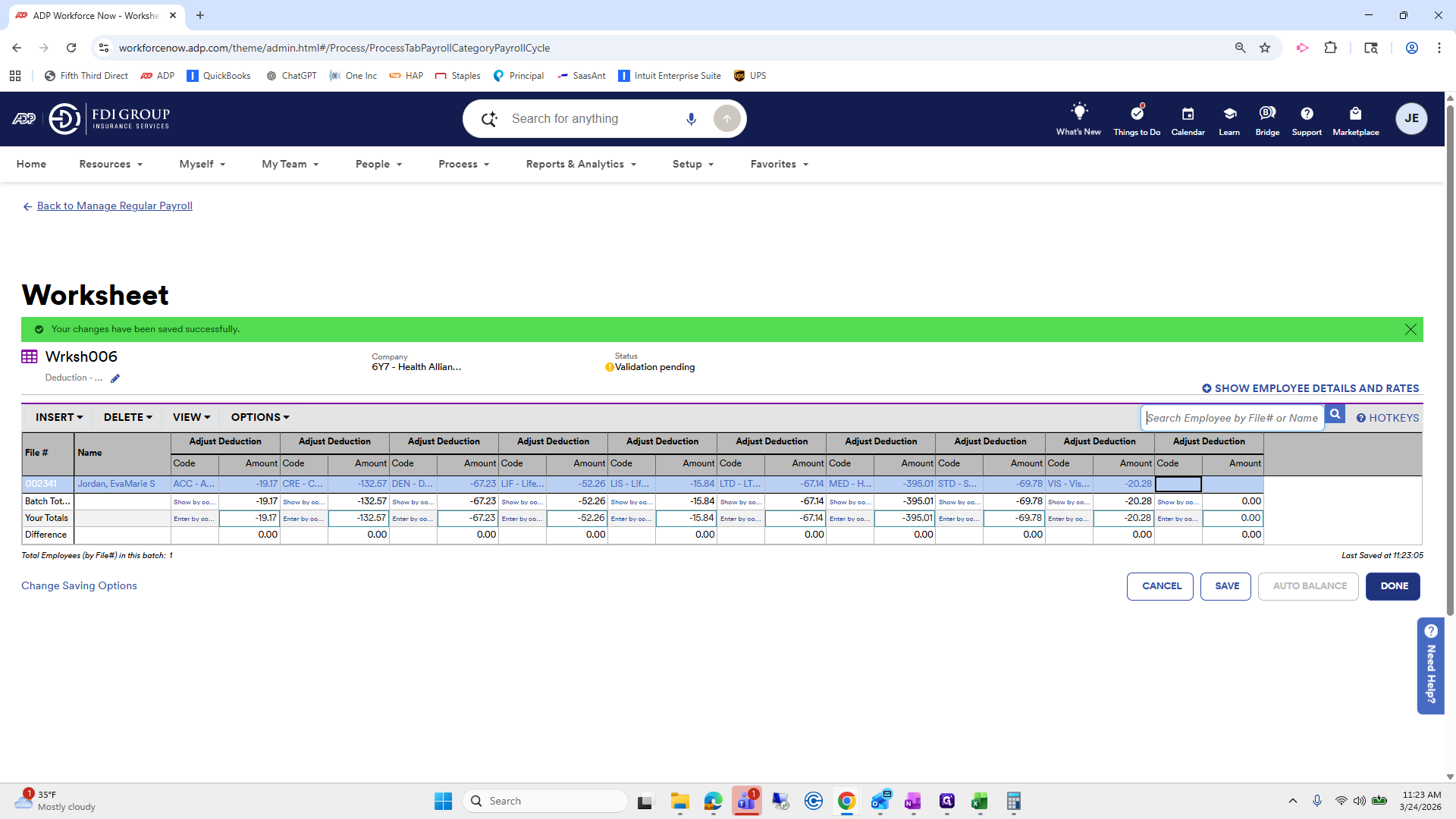
I always double-check at the end in our payroll report, so I won't triple-check it now. I'll review it at the end to ensure we are not double-dipping.
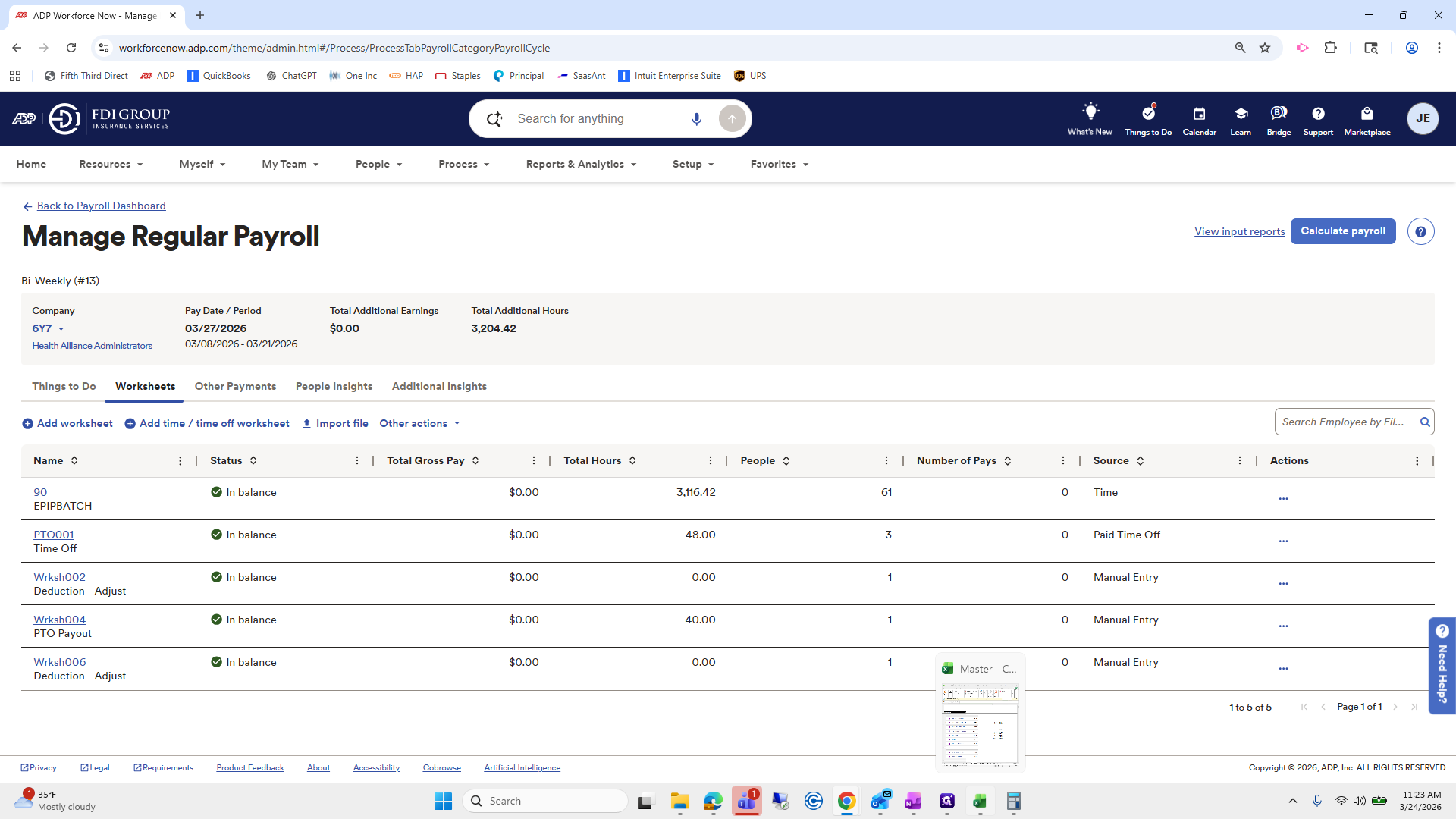
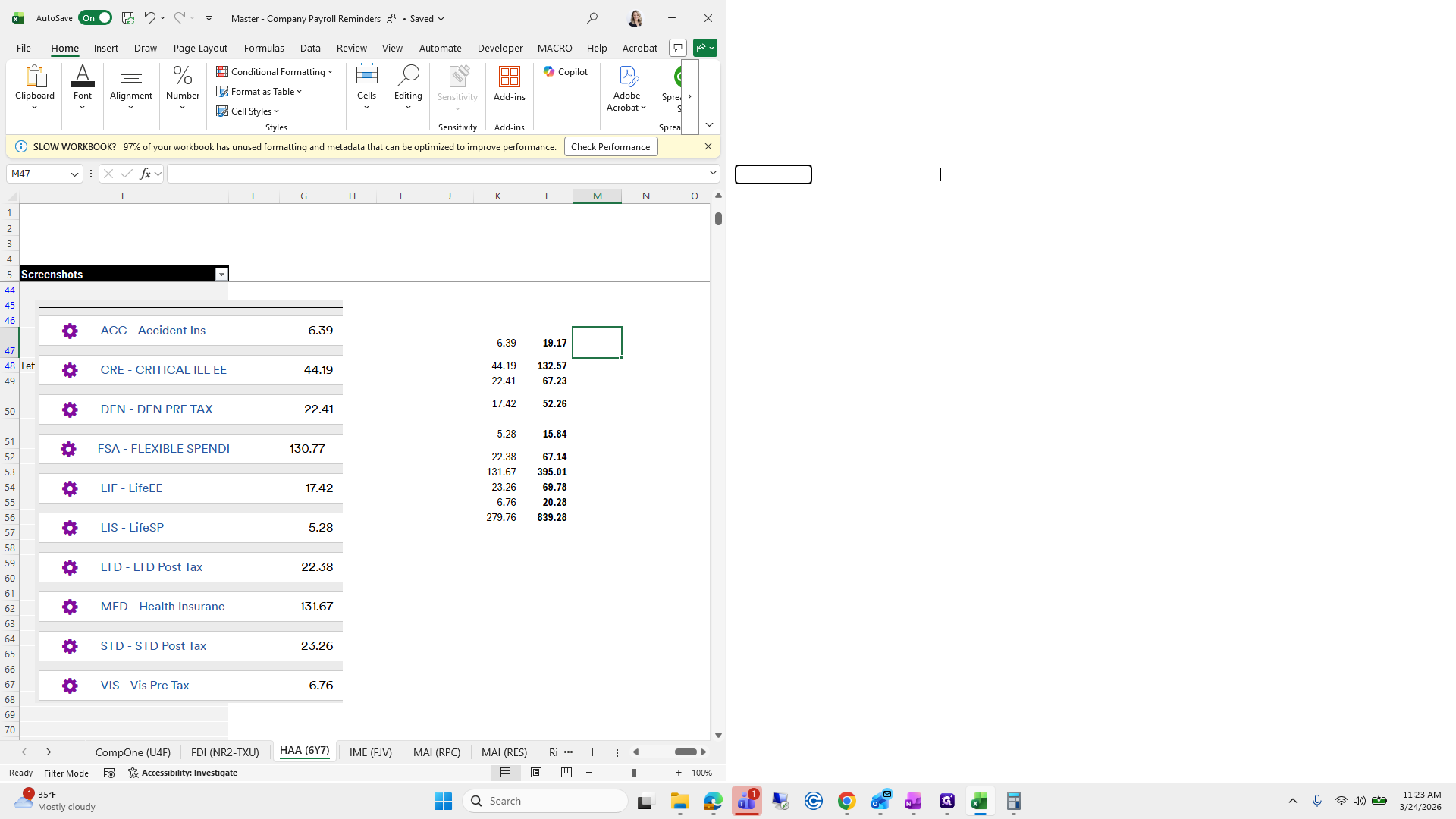
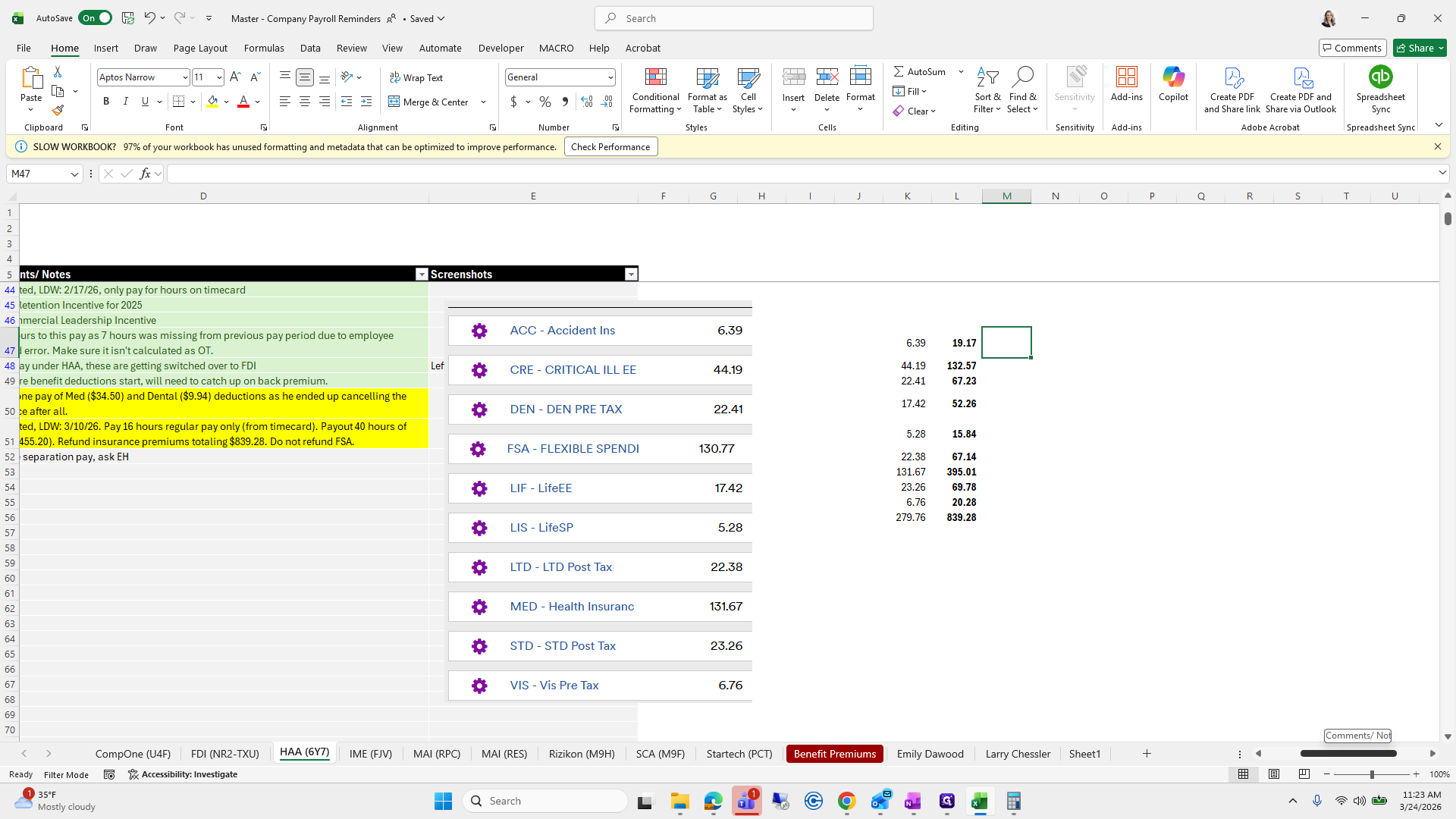
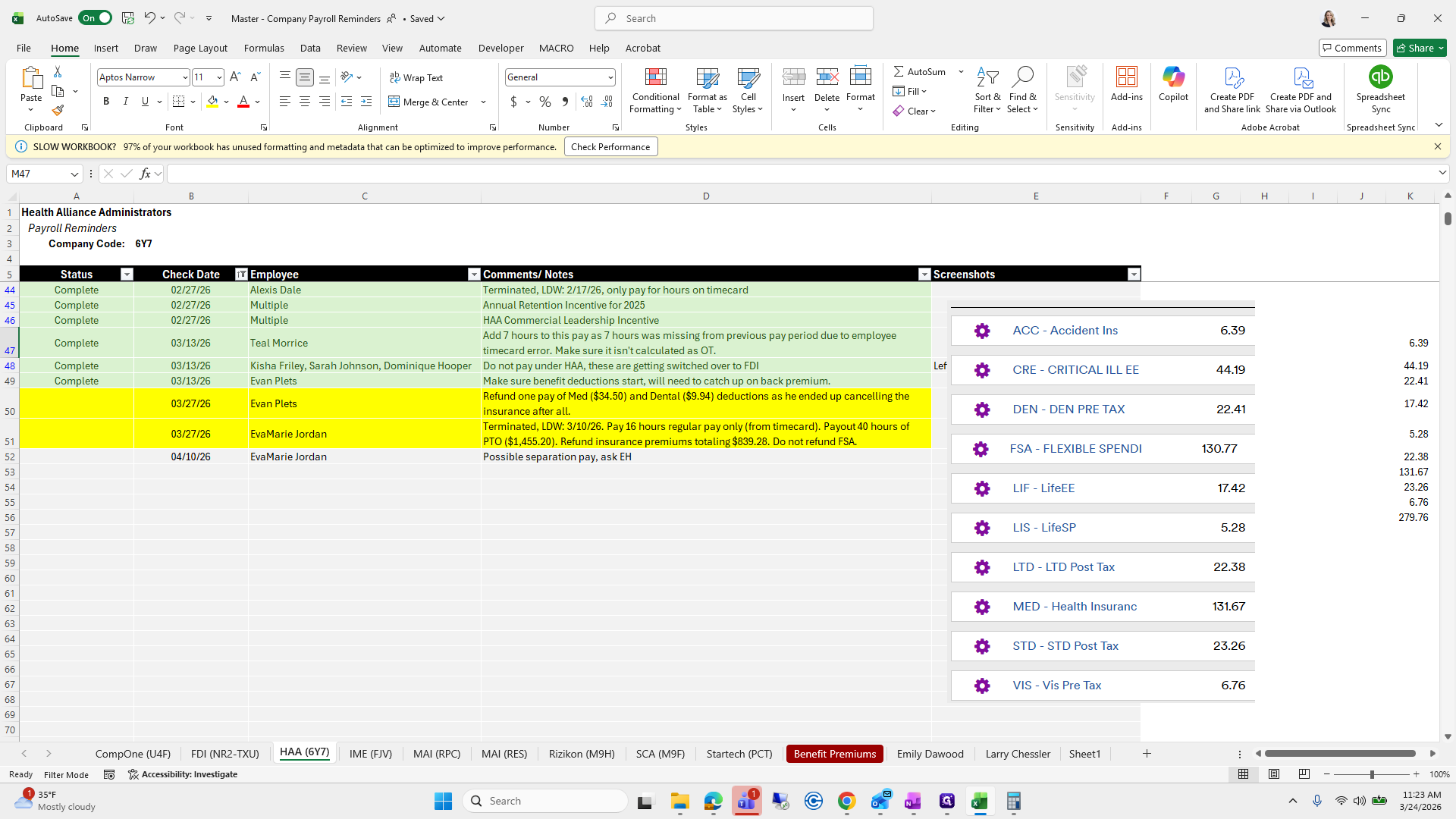
Put it back.
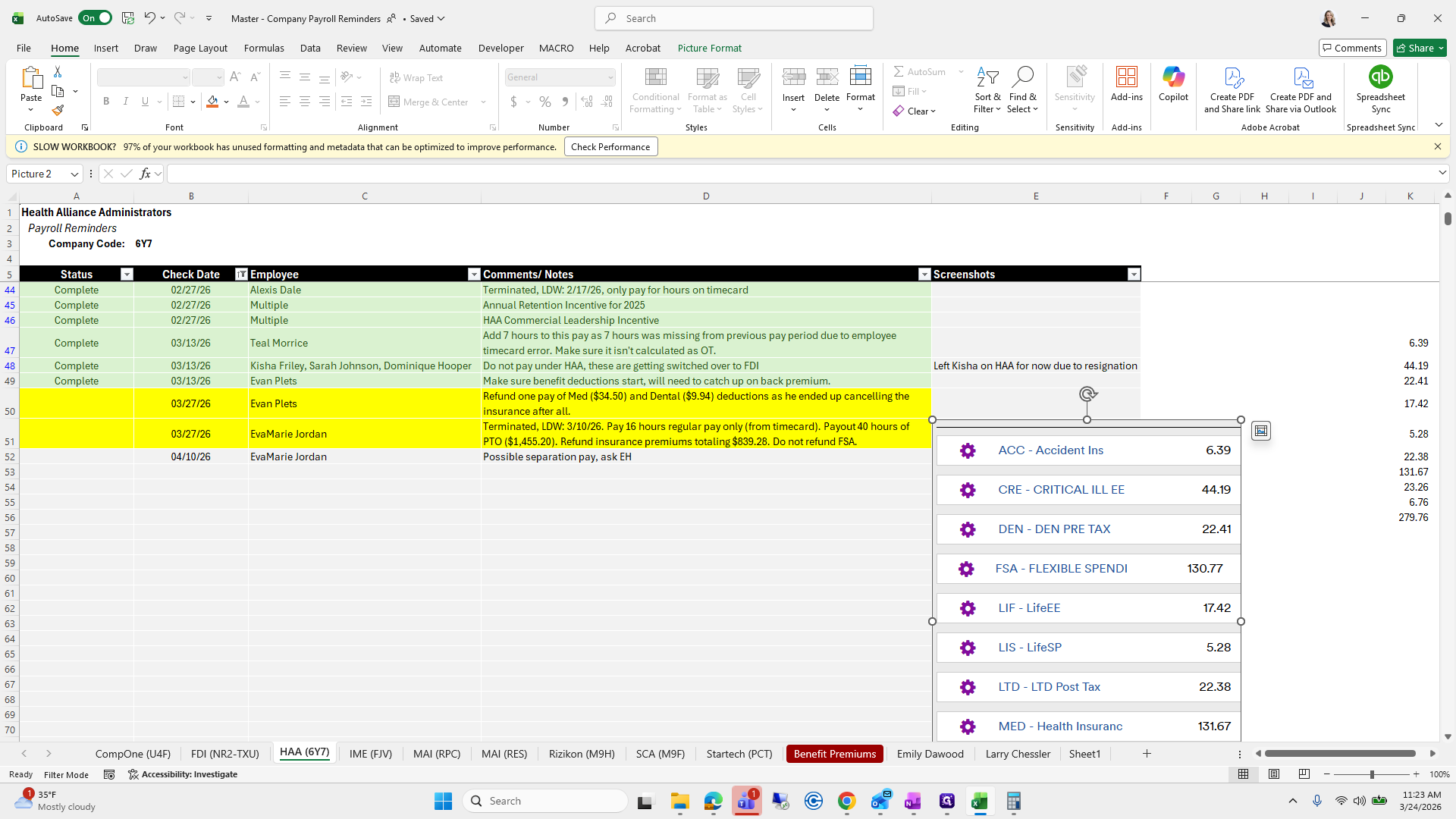
Okay.
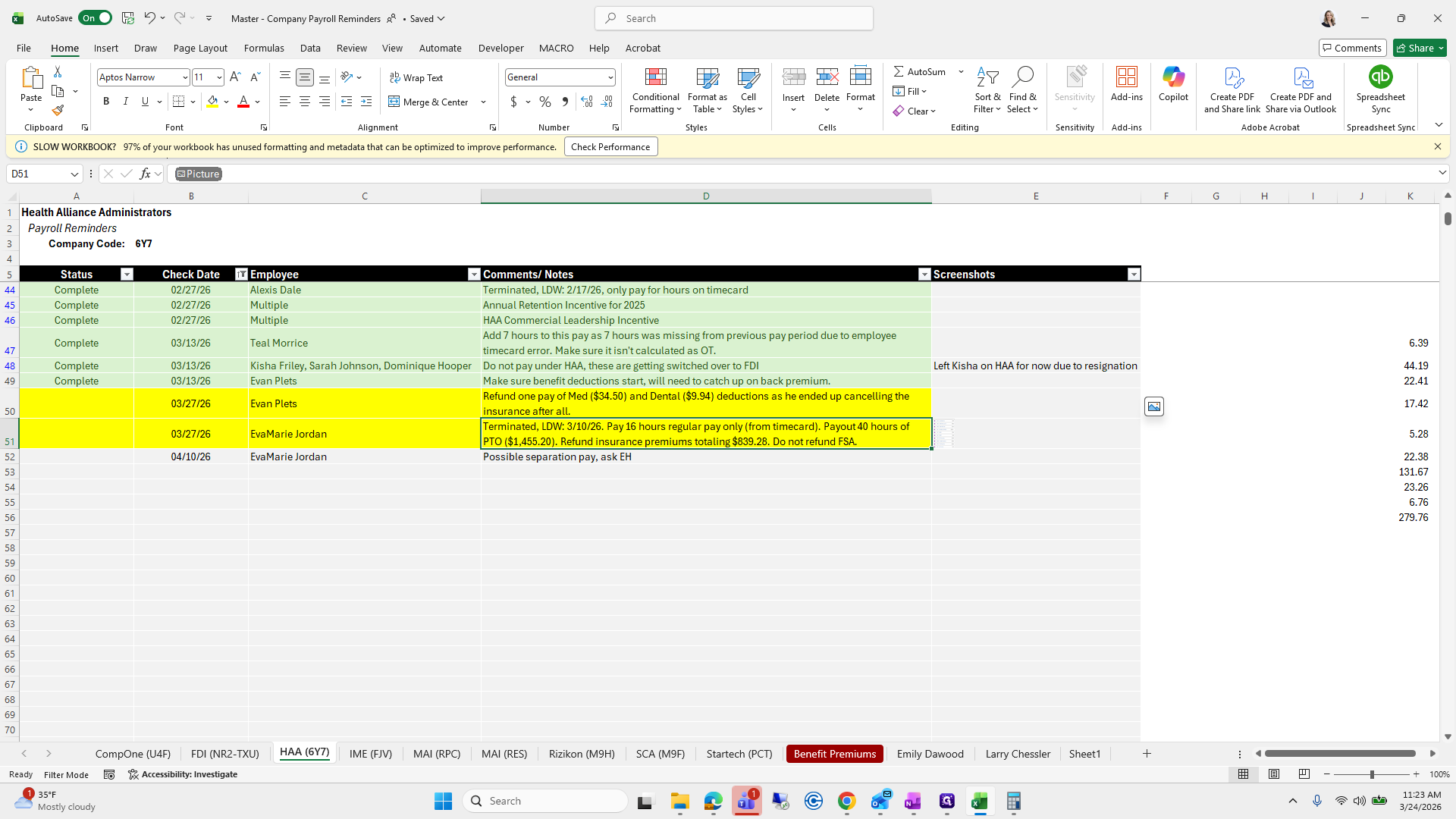
That looks great. We will not refund FSA for her notes. That looks good.
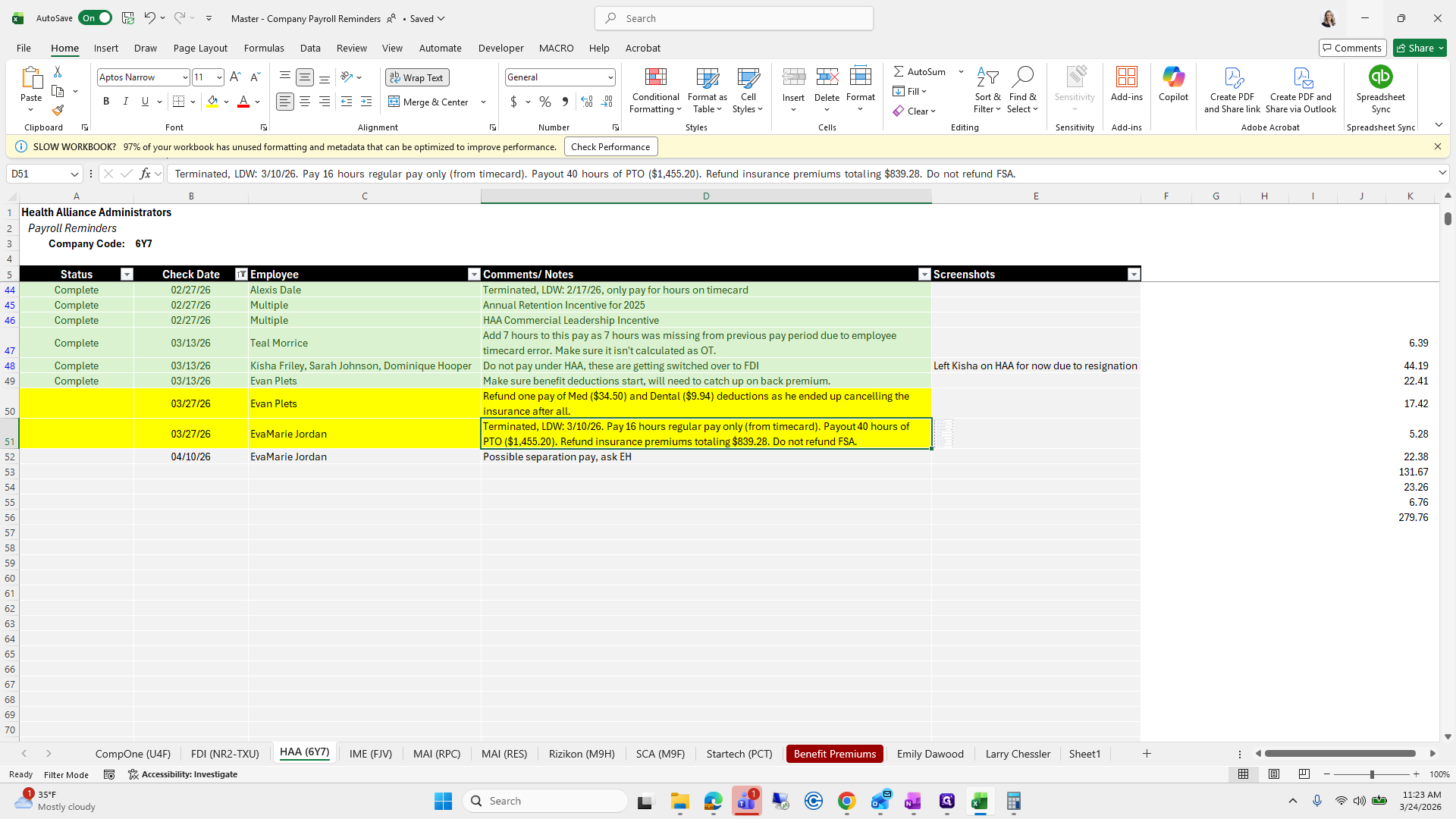
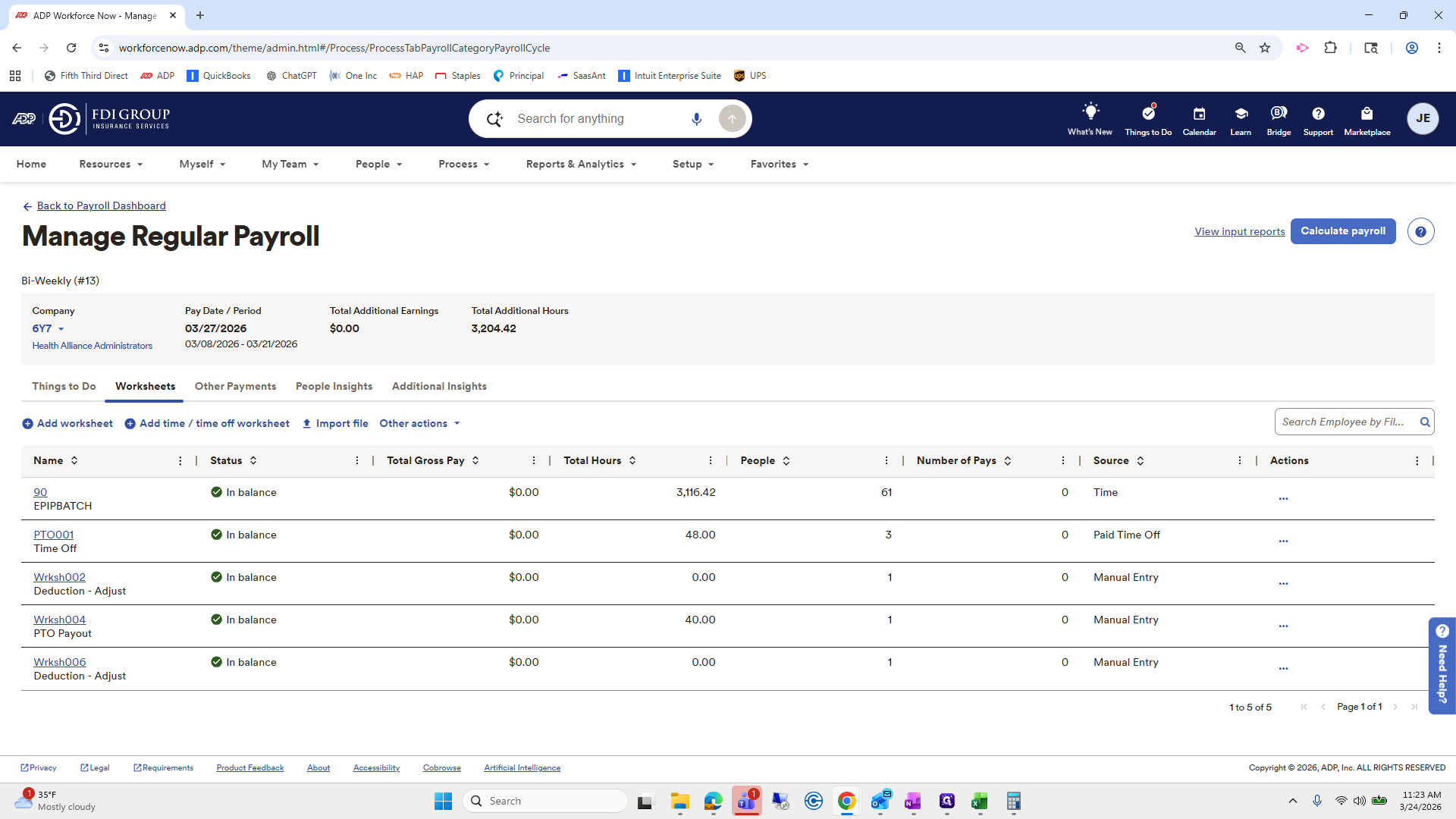
All right. Now that we have entered all the notes for Payroll, we will check if there are any hours for Case Management, which there usually are.
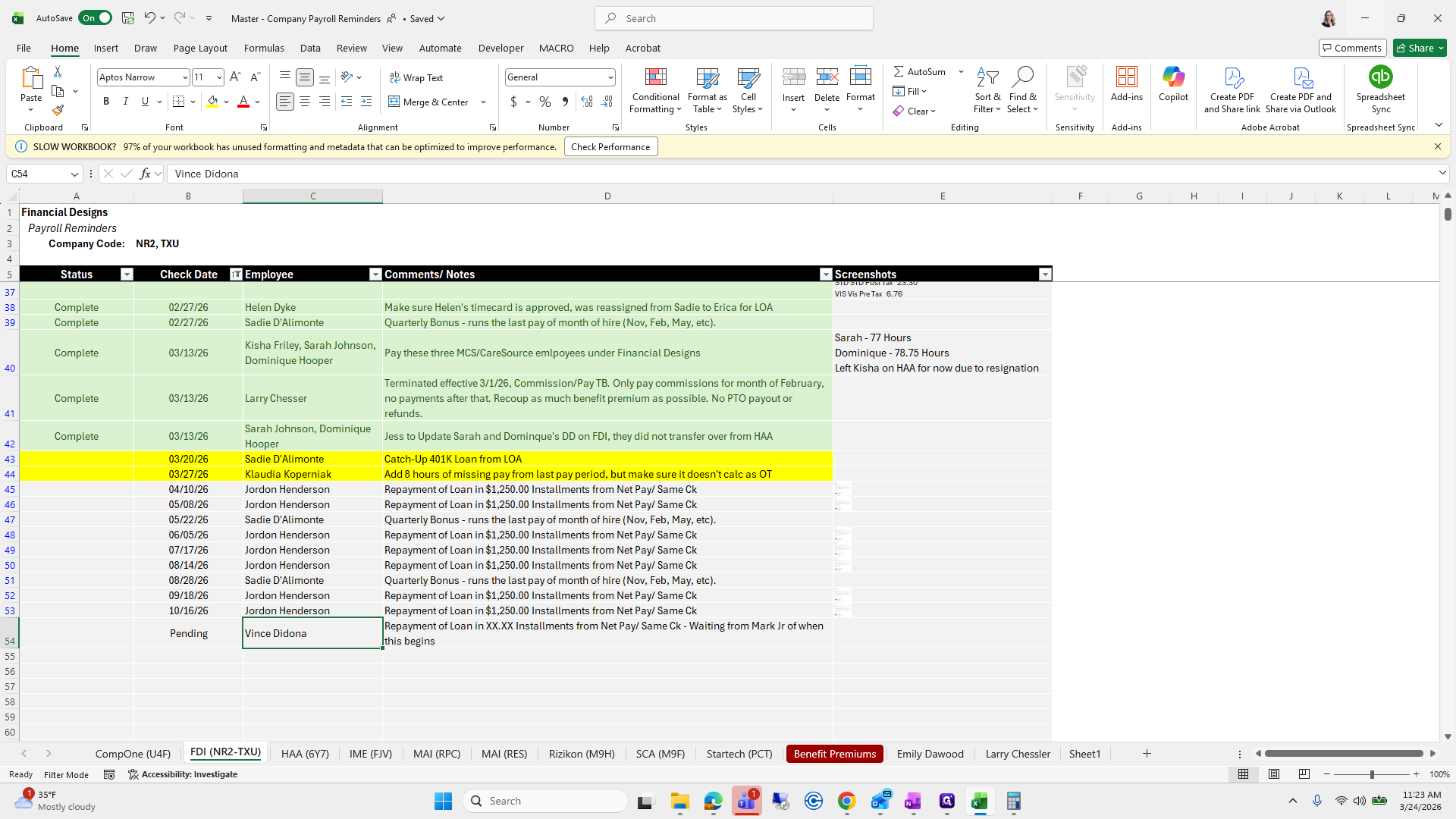
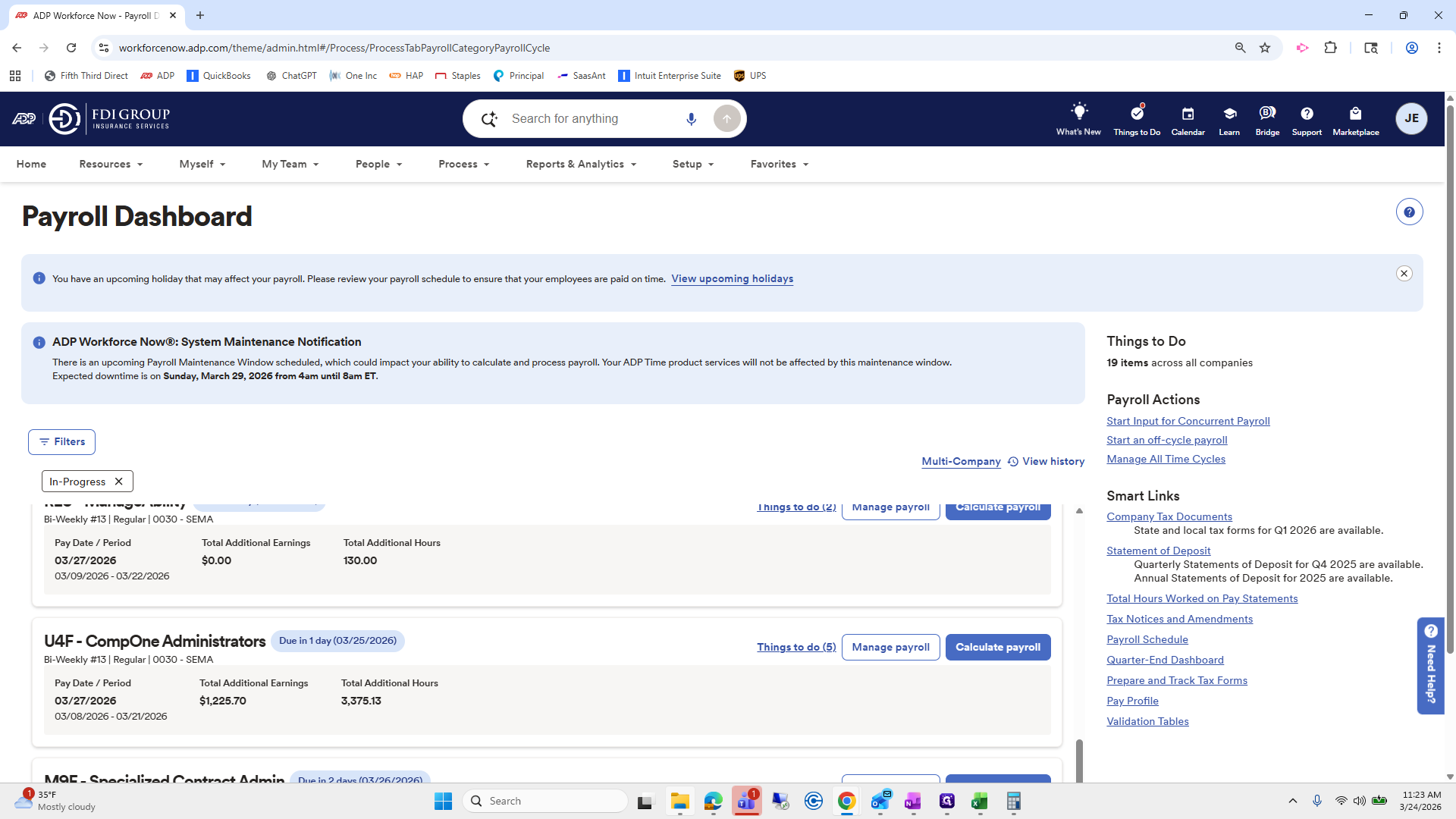
We will go to the folder where I saved it from Gail. That's what I think.
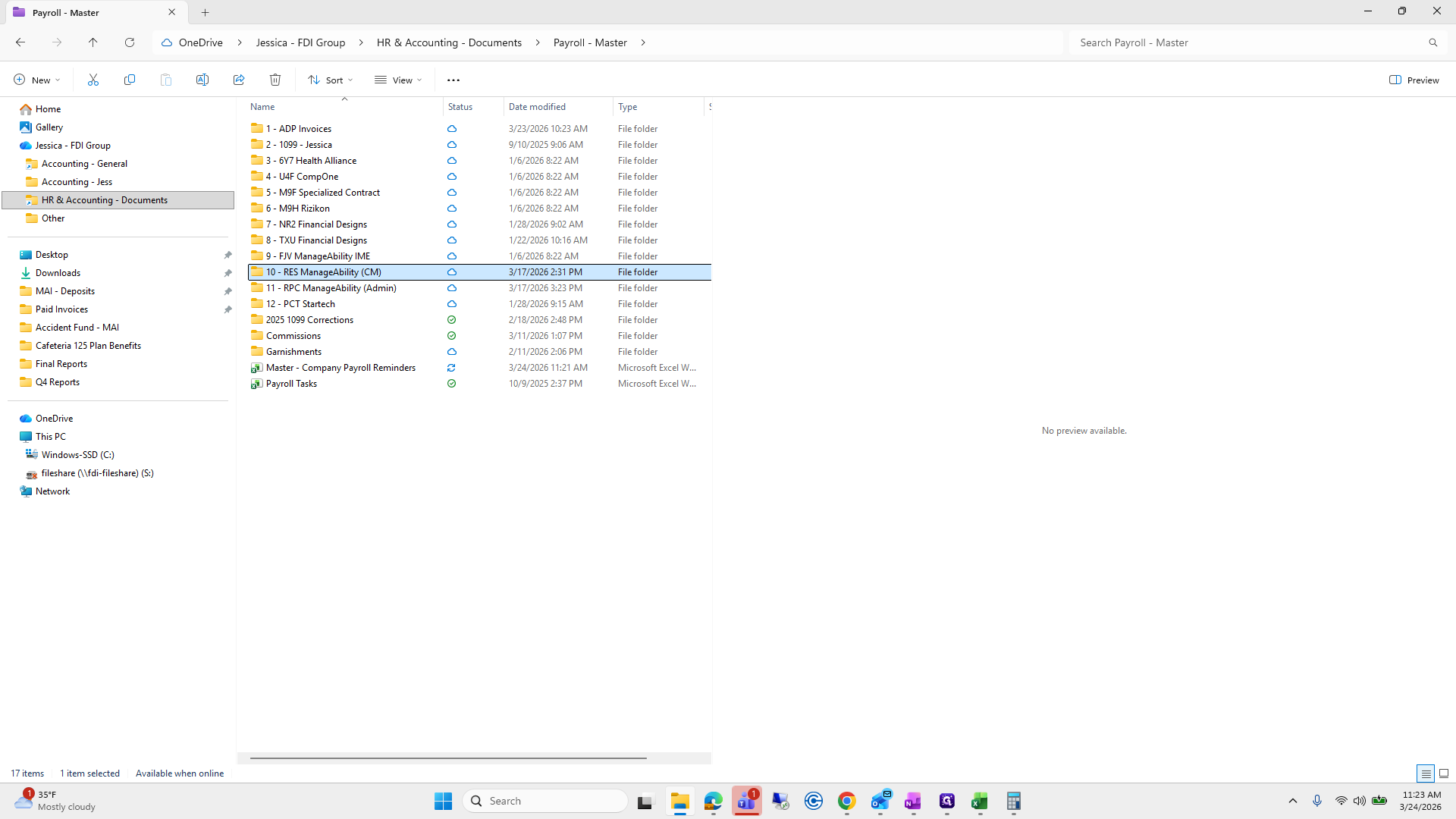
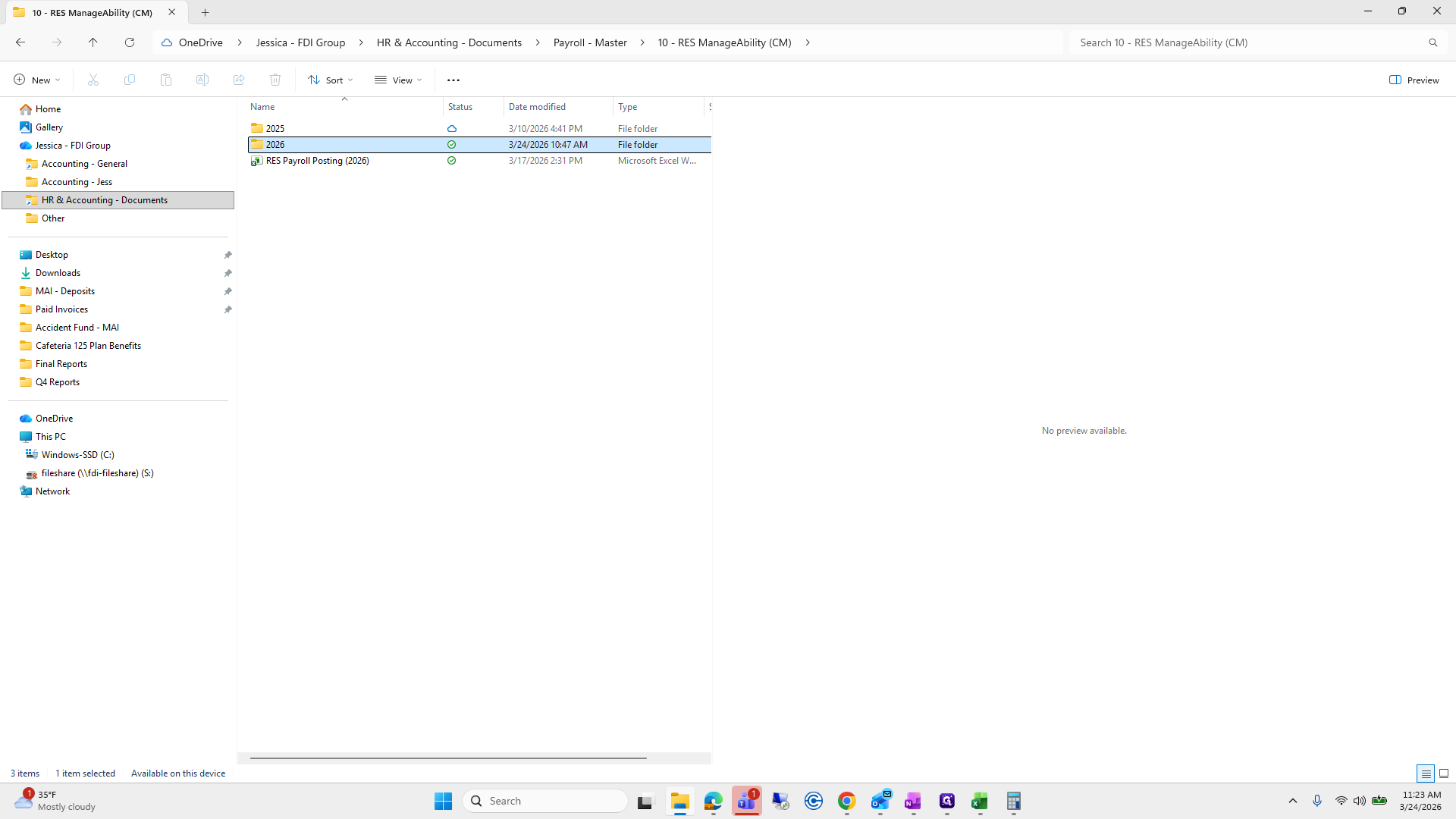
I'm going to open this up.
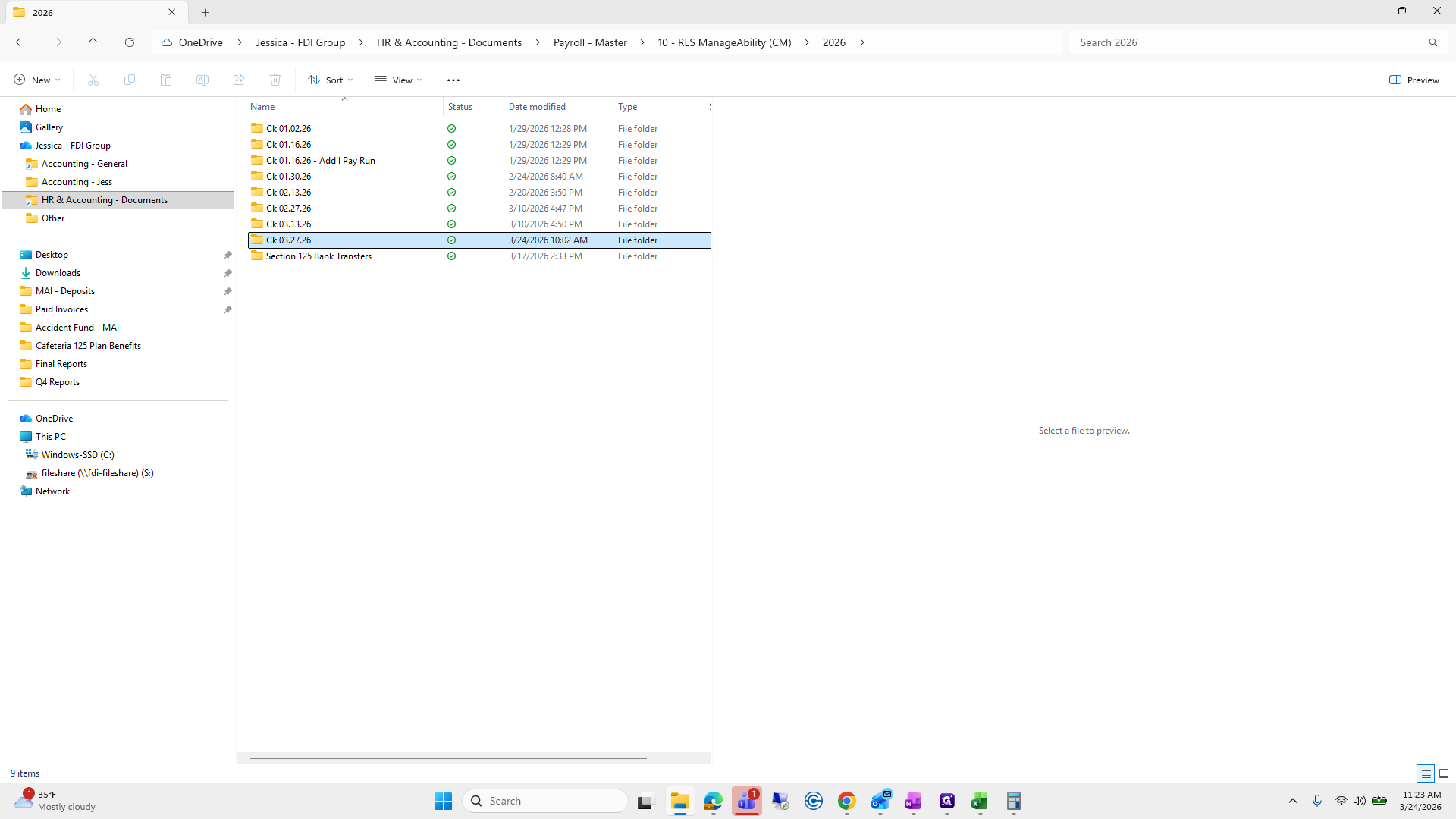
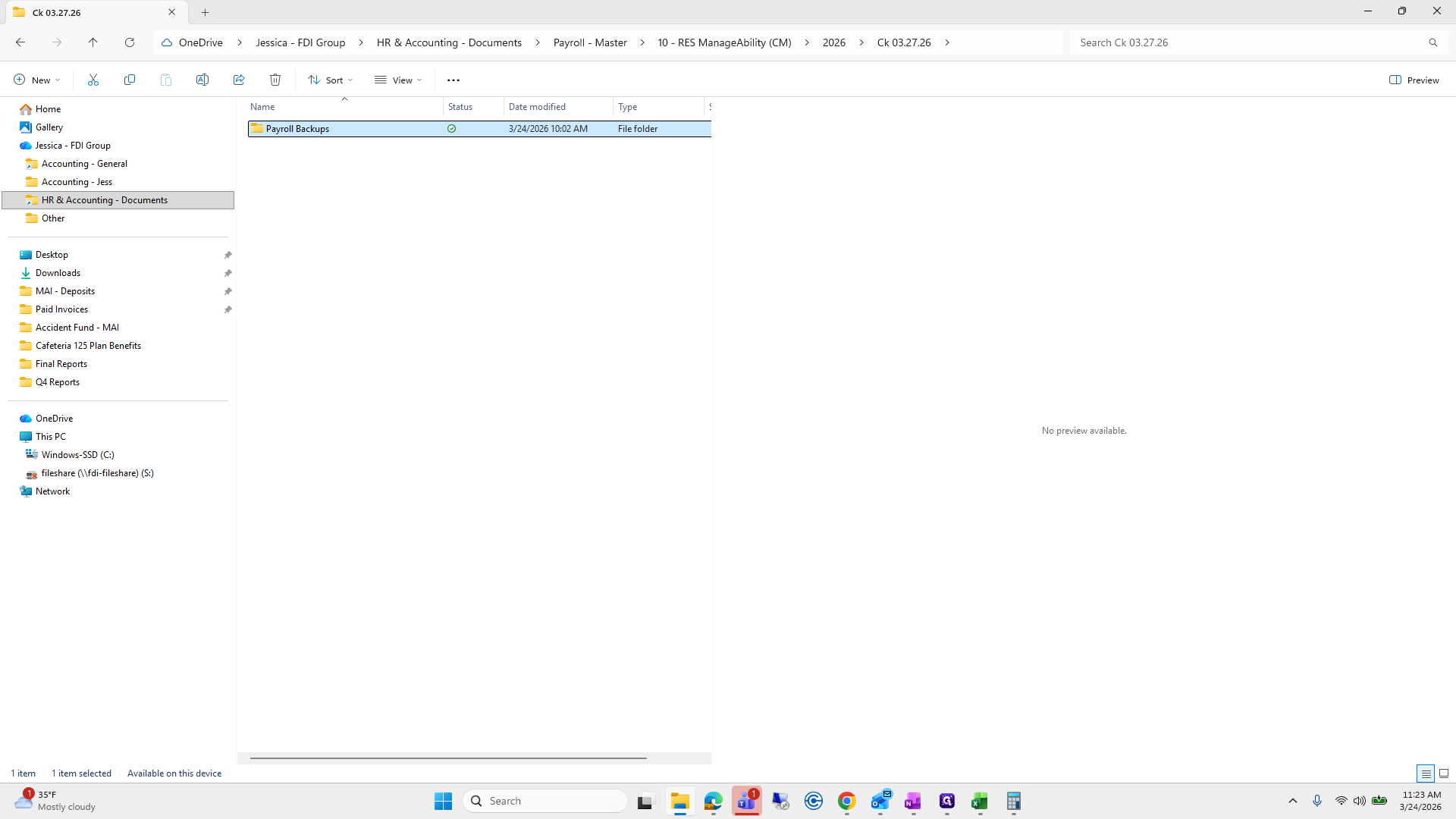
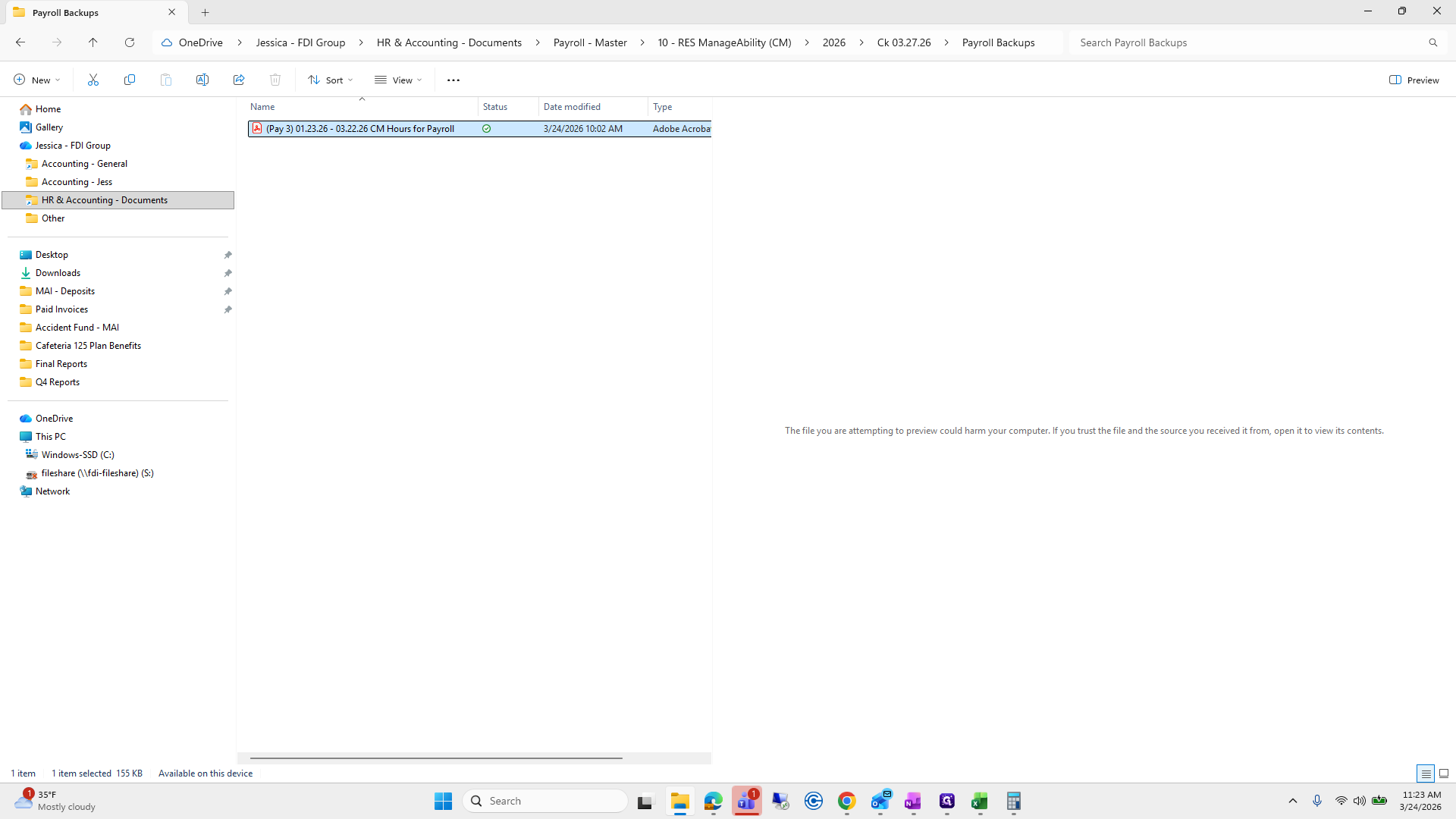
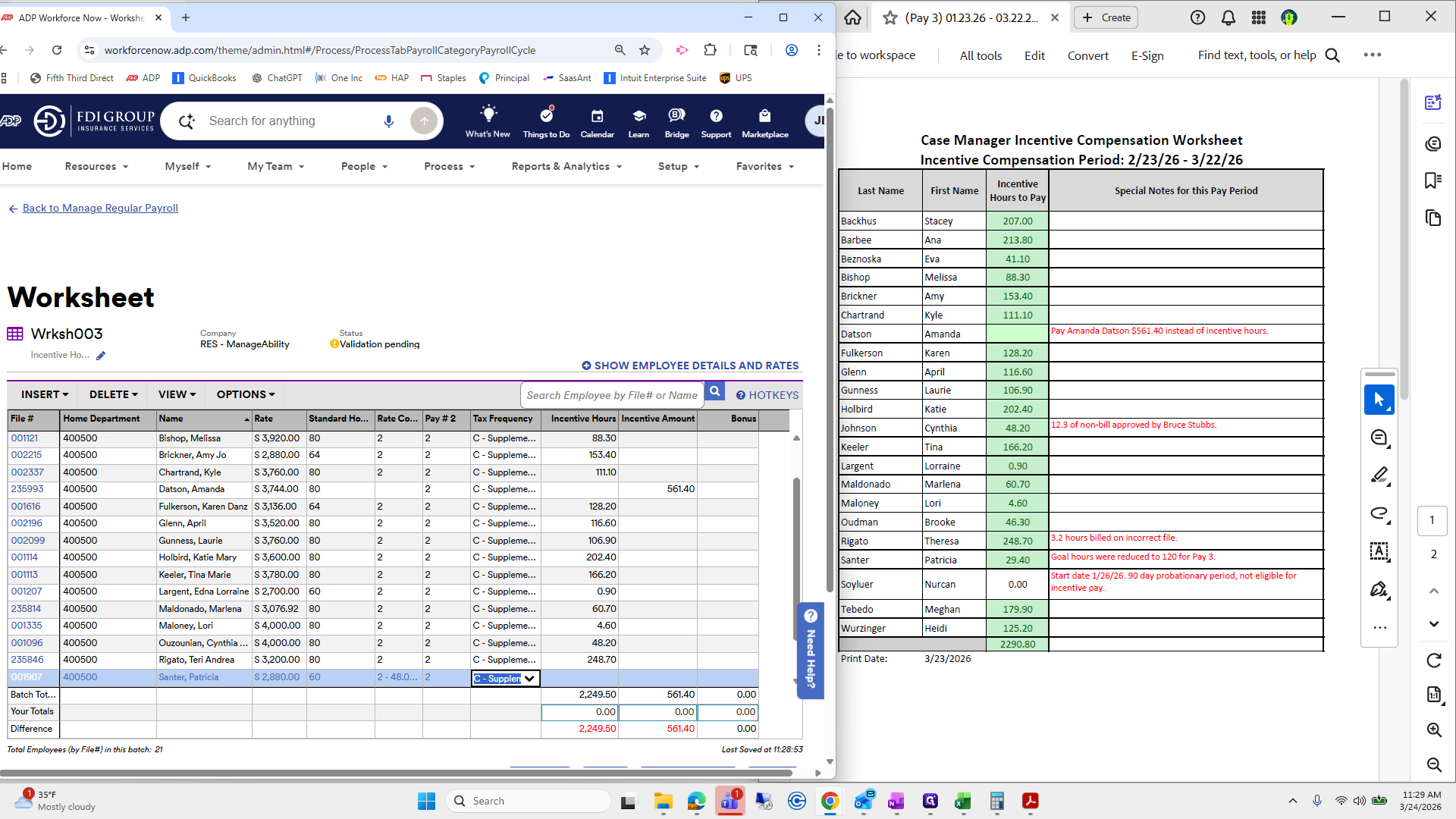
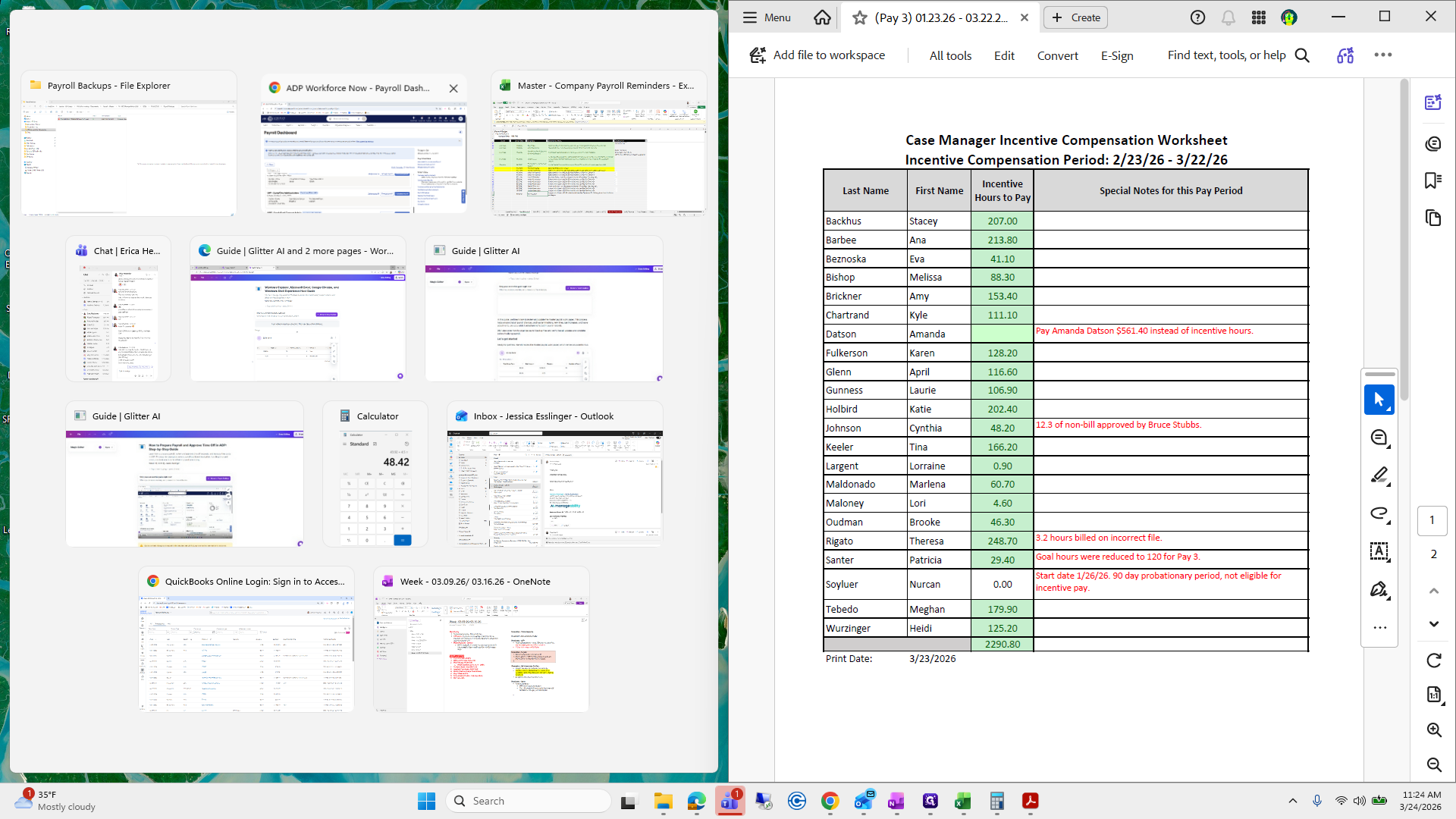
We will enter these incentive hours into Payroll. Let me try splitting the screen to make it easier. Okay.
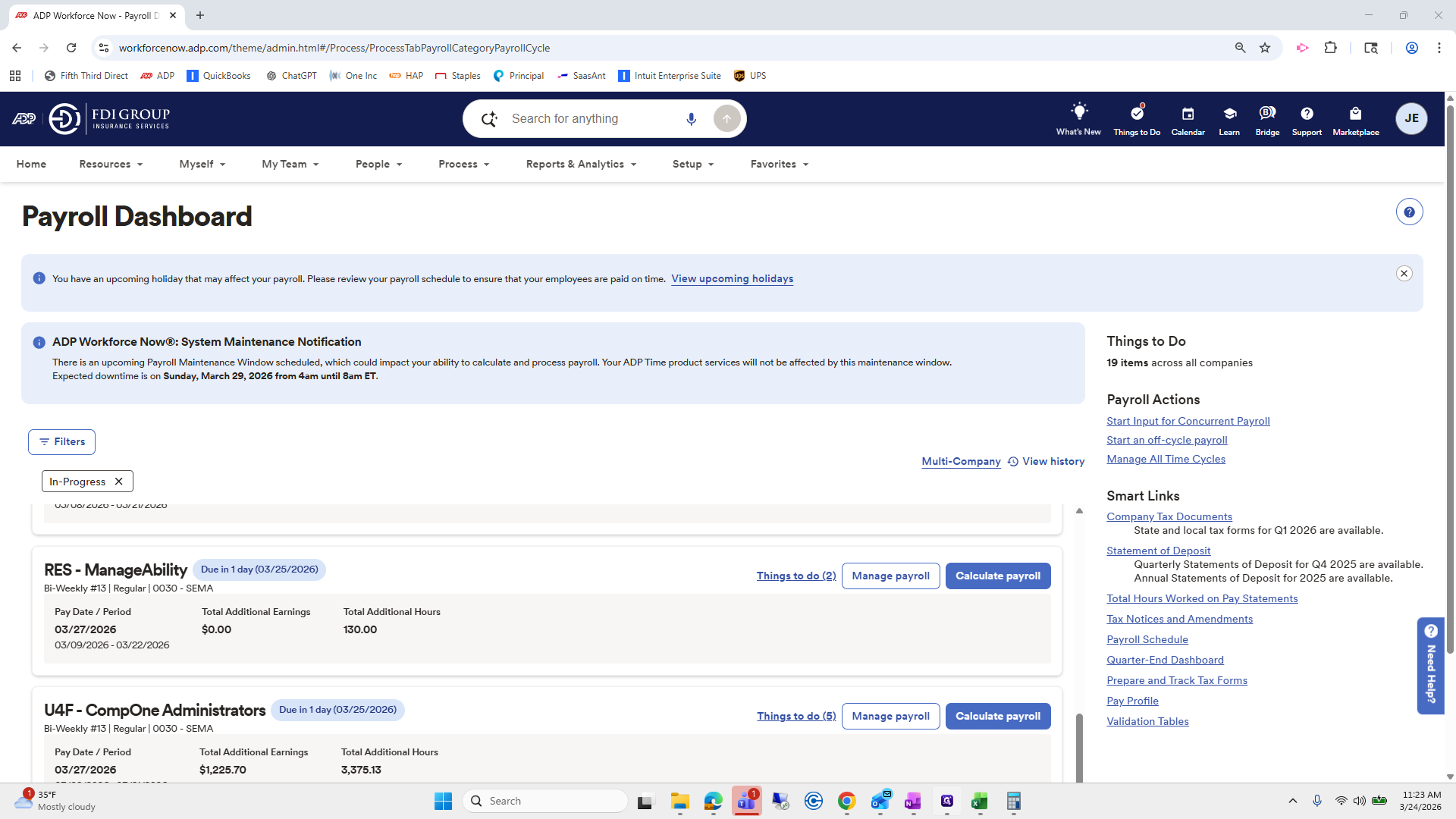
Go to Manage Ability, then select Manage Payroll.
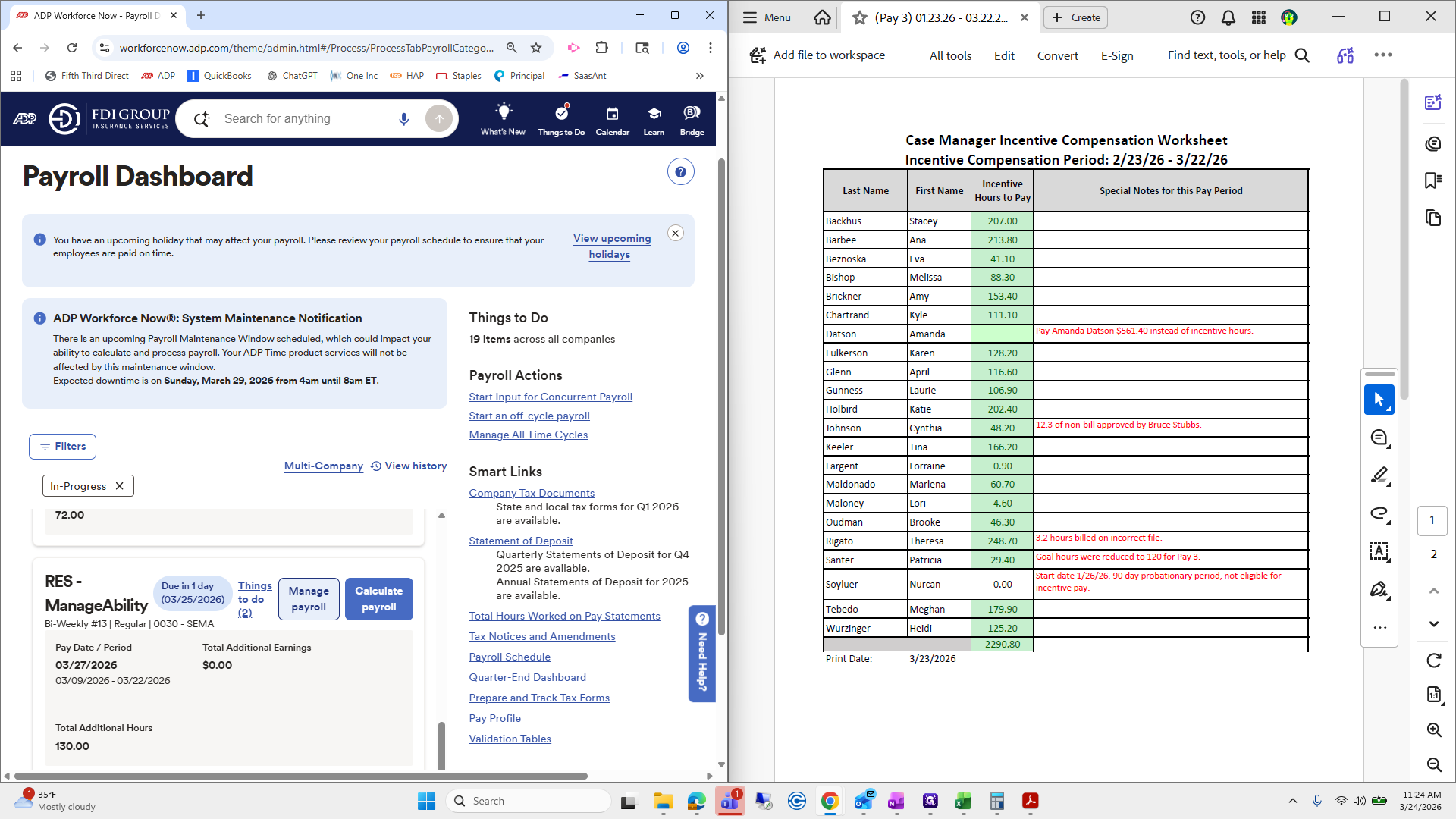
From here, select Add Worksheet.
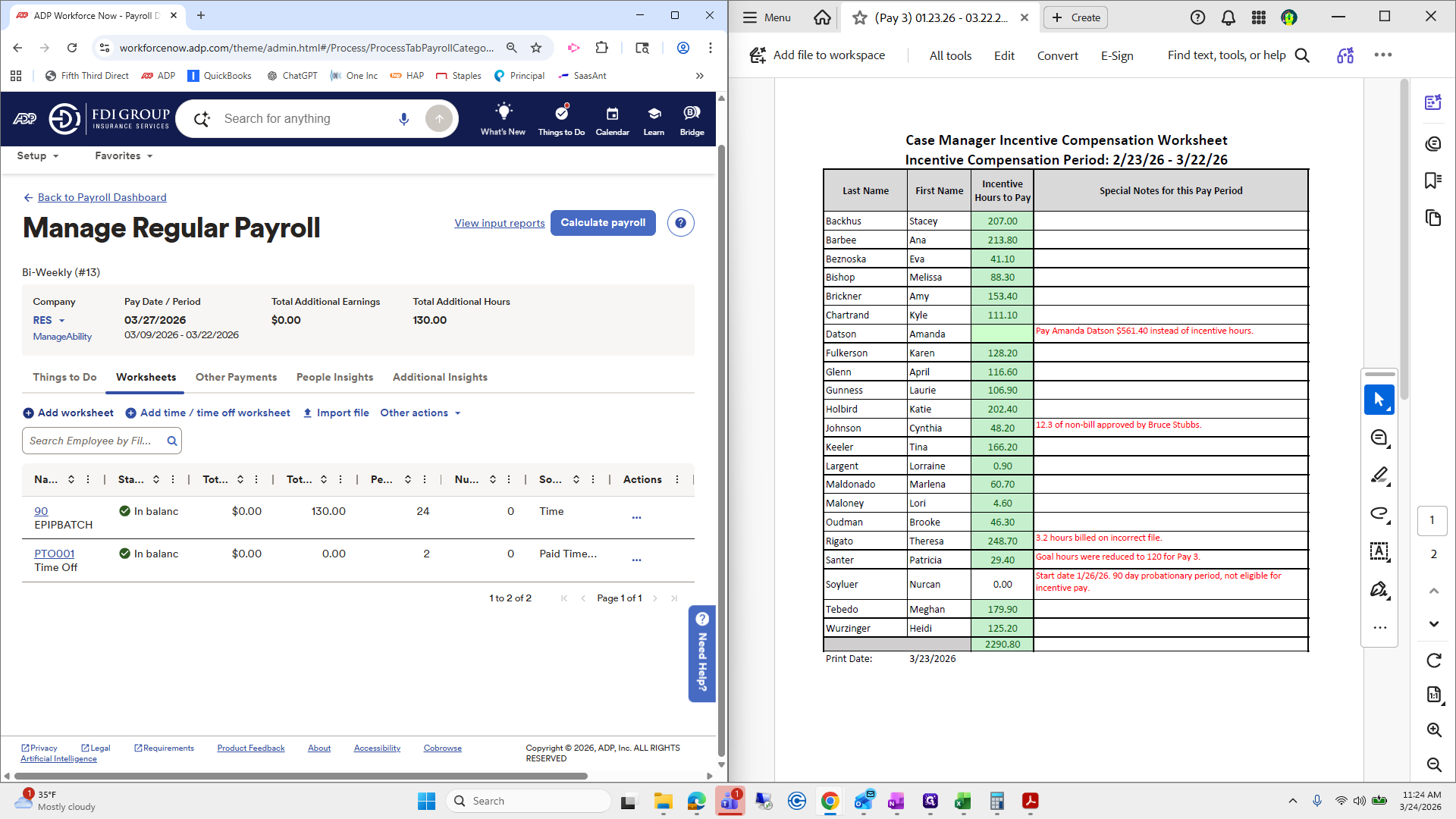
Do I have an Incentive Payment?
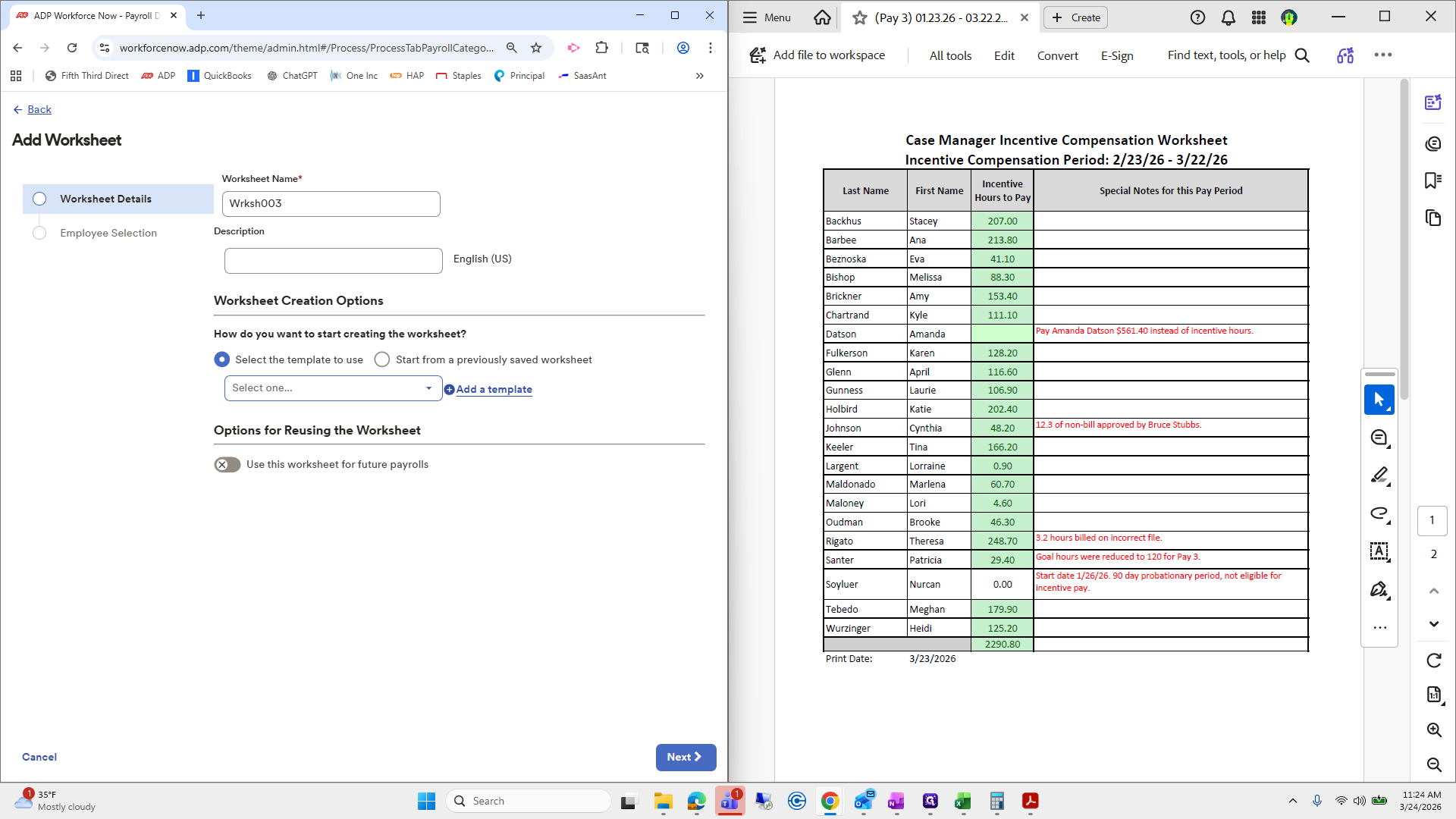
I lied.
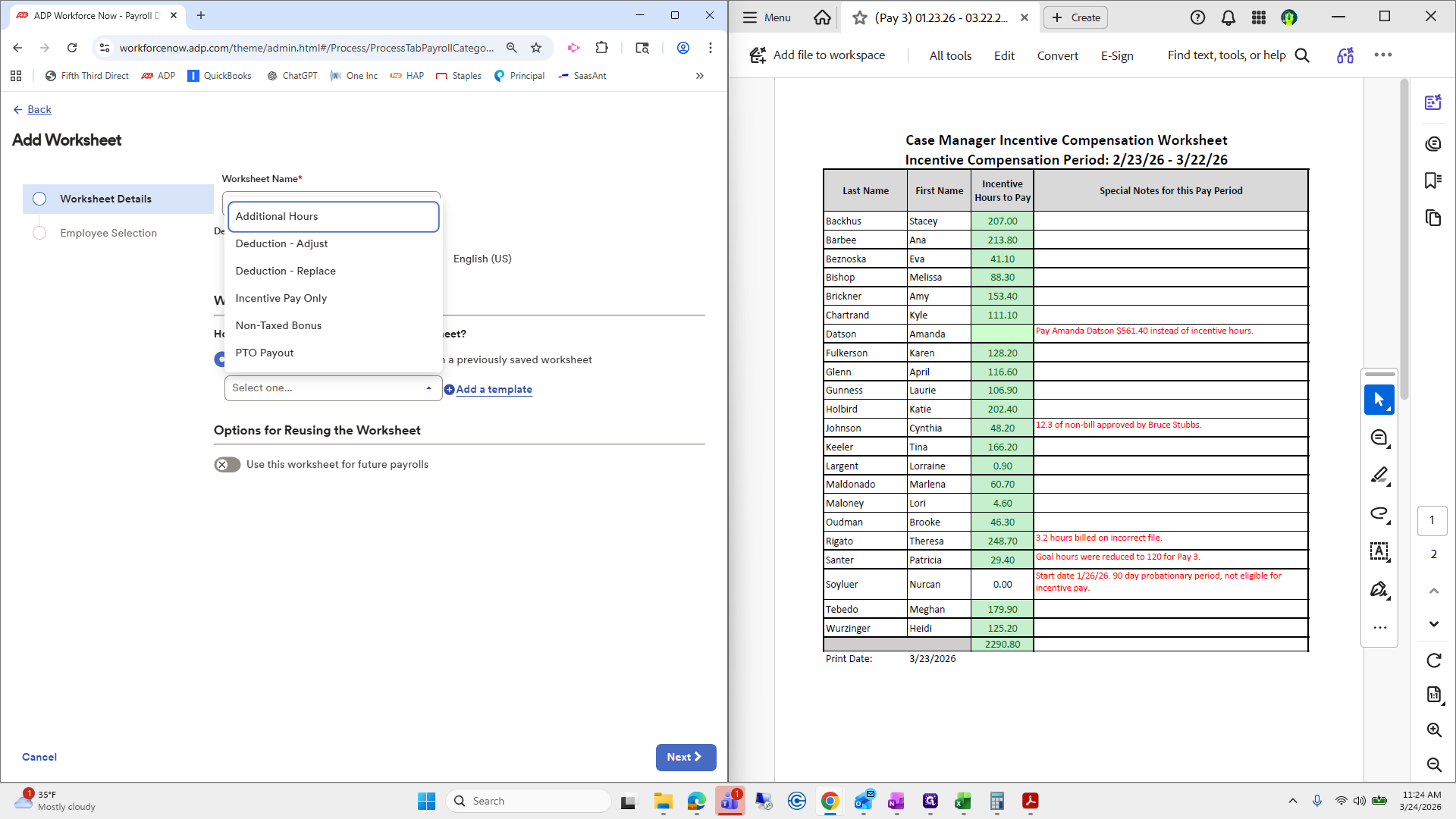
""
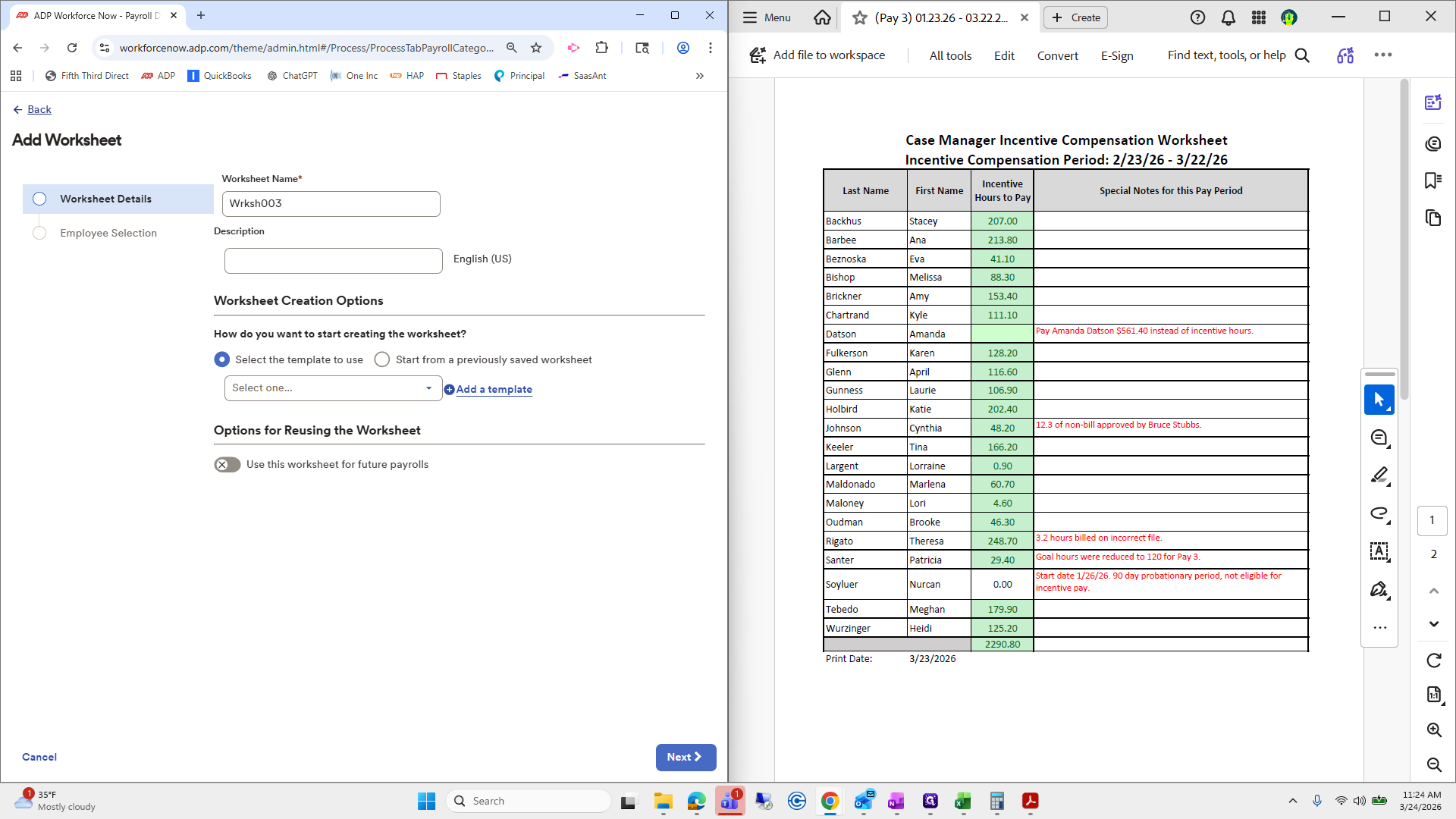
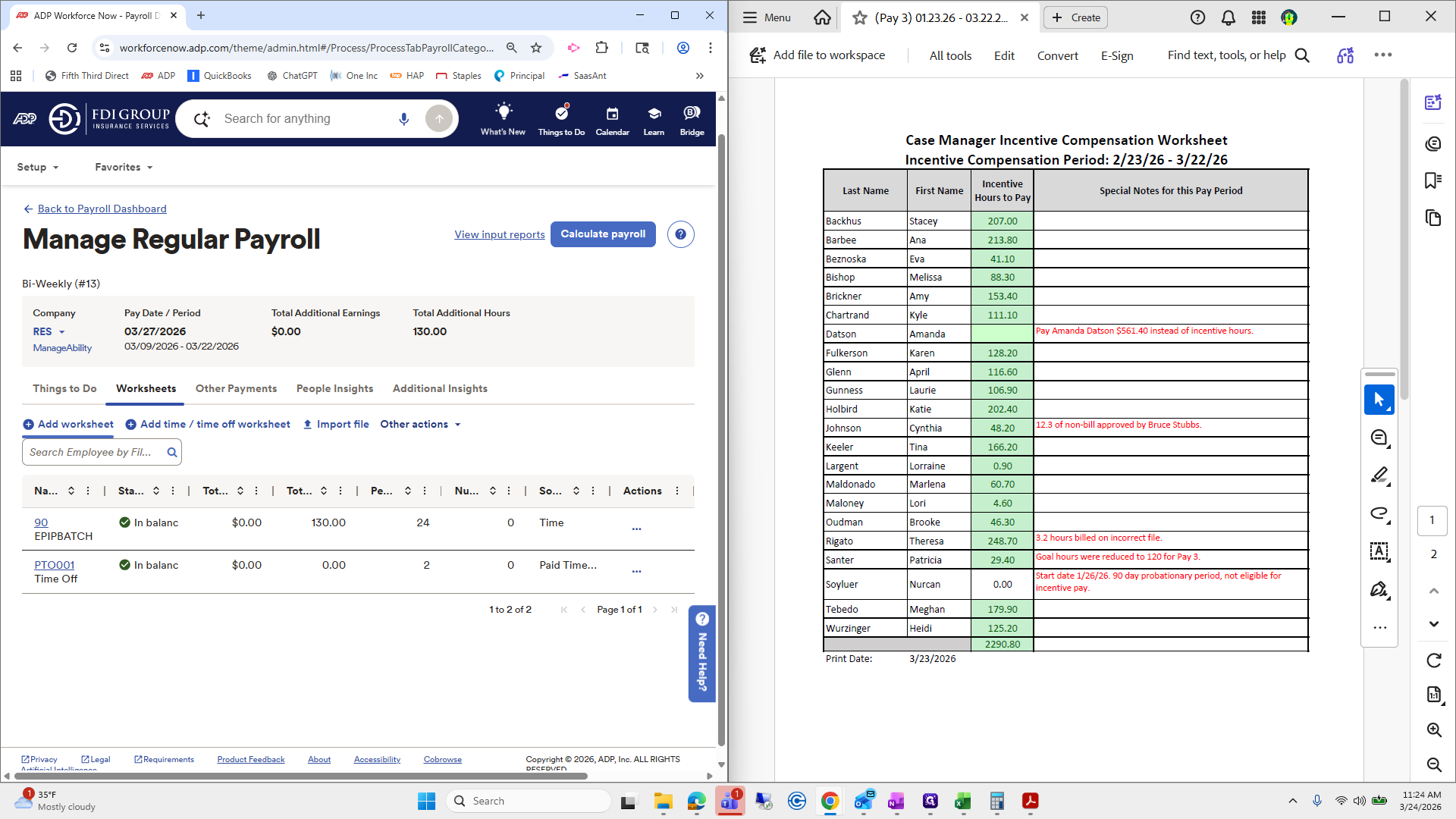
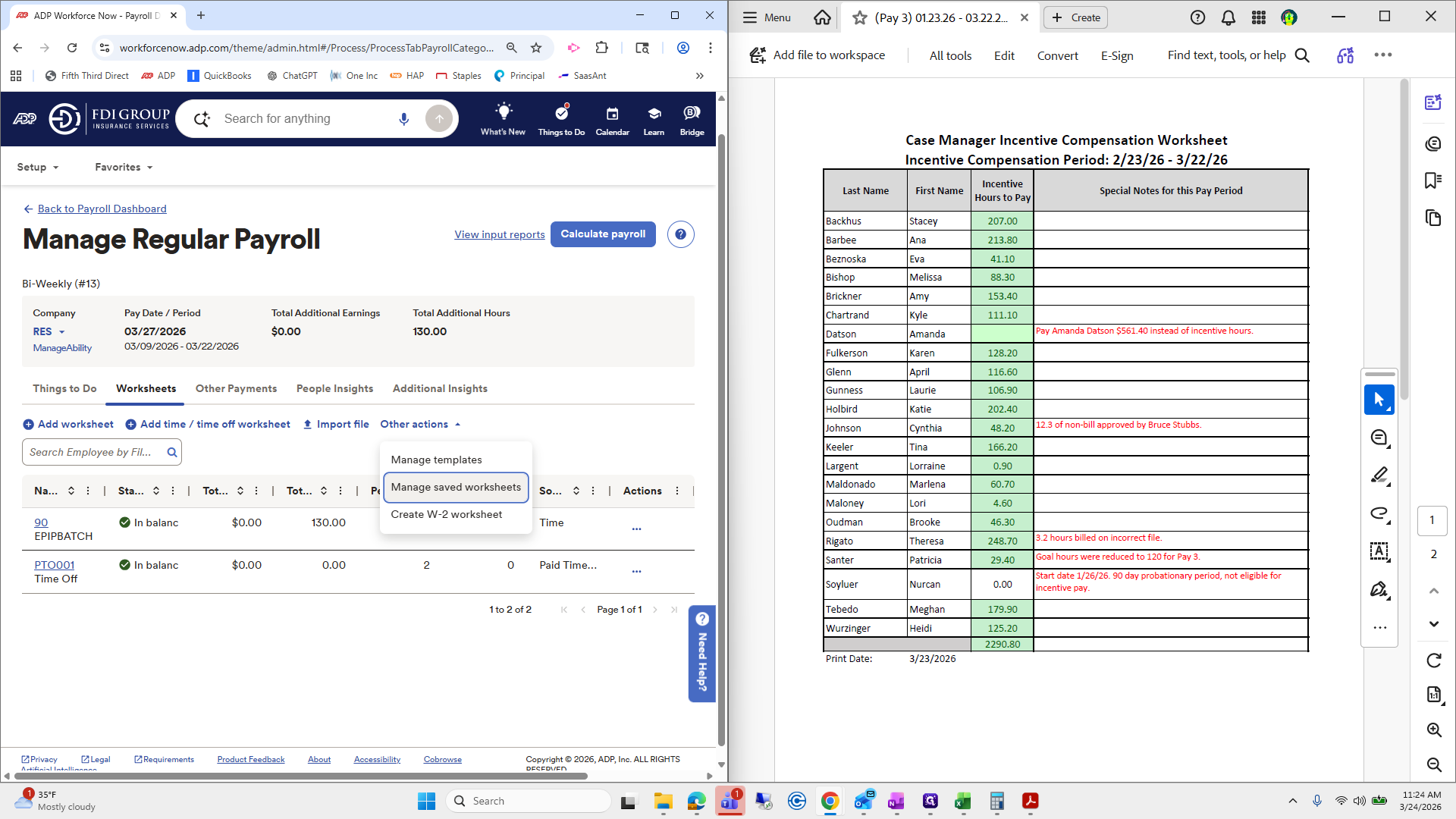
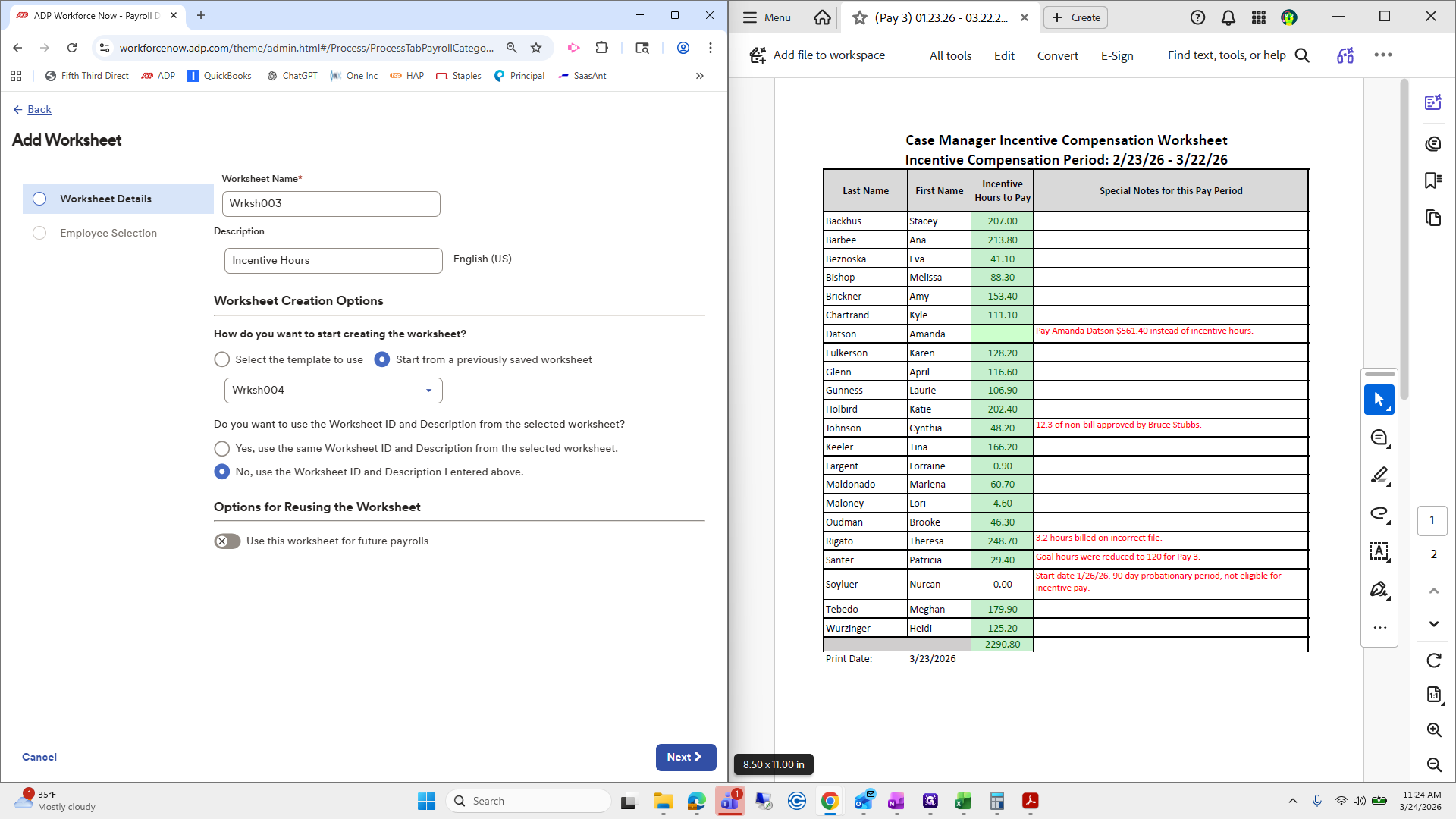
"" This one is a little different. Go to Other Actions, select Manage Saved Worksheets, then choose Incentive Hours Worksheet number four and click Create Worksheet.
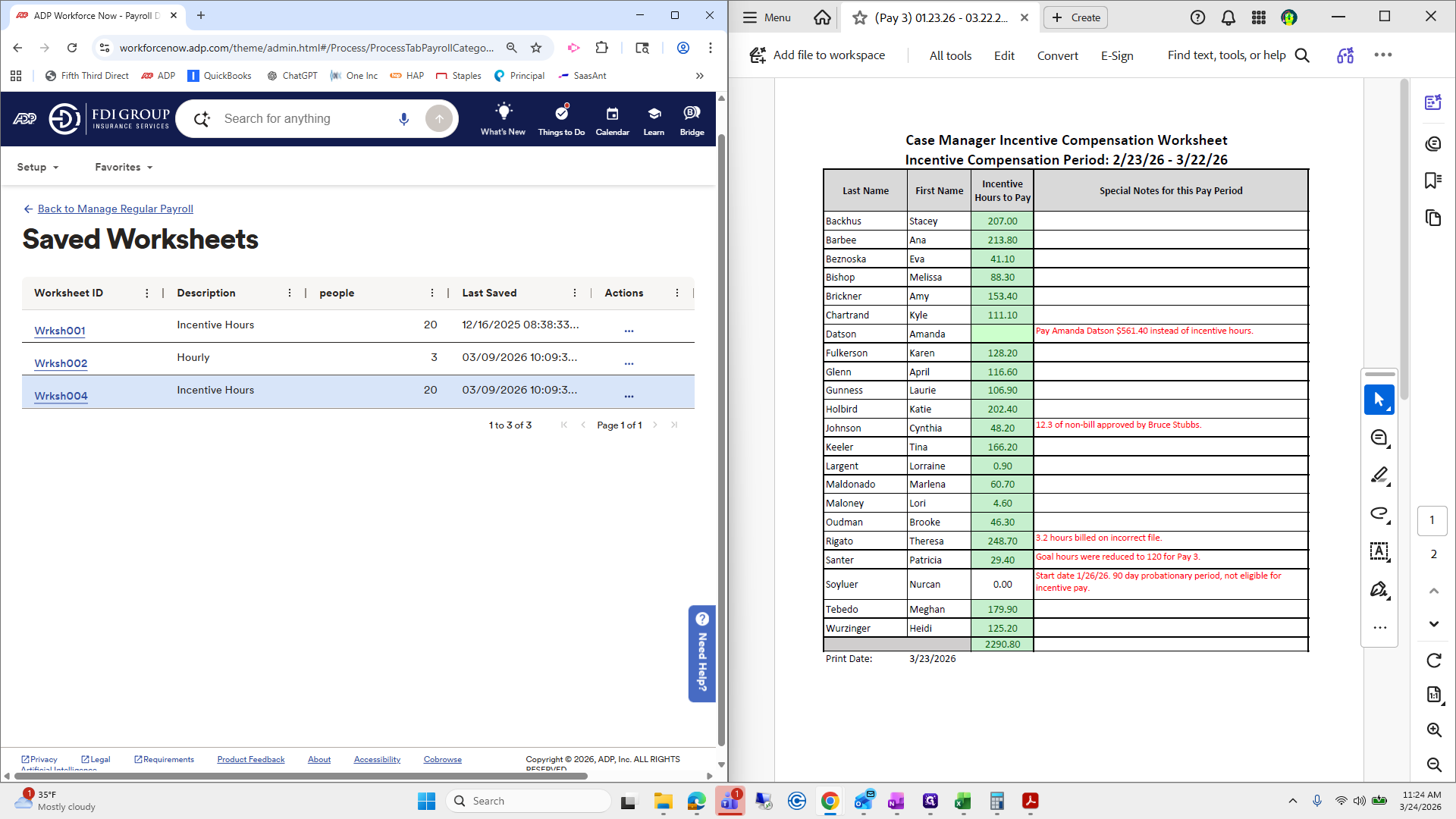
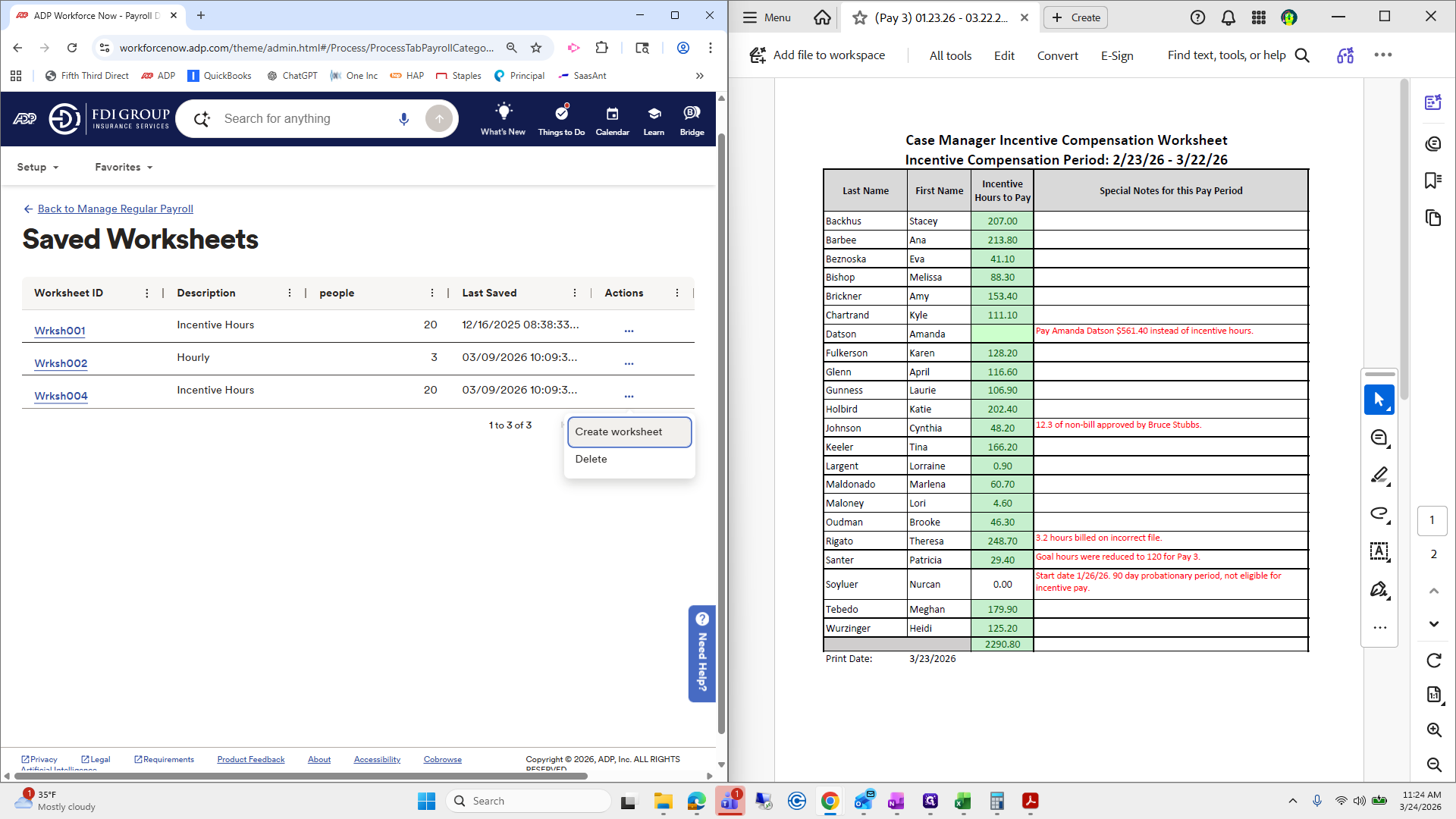
Label this as Incentive Hours.
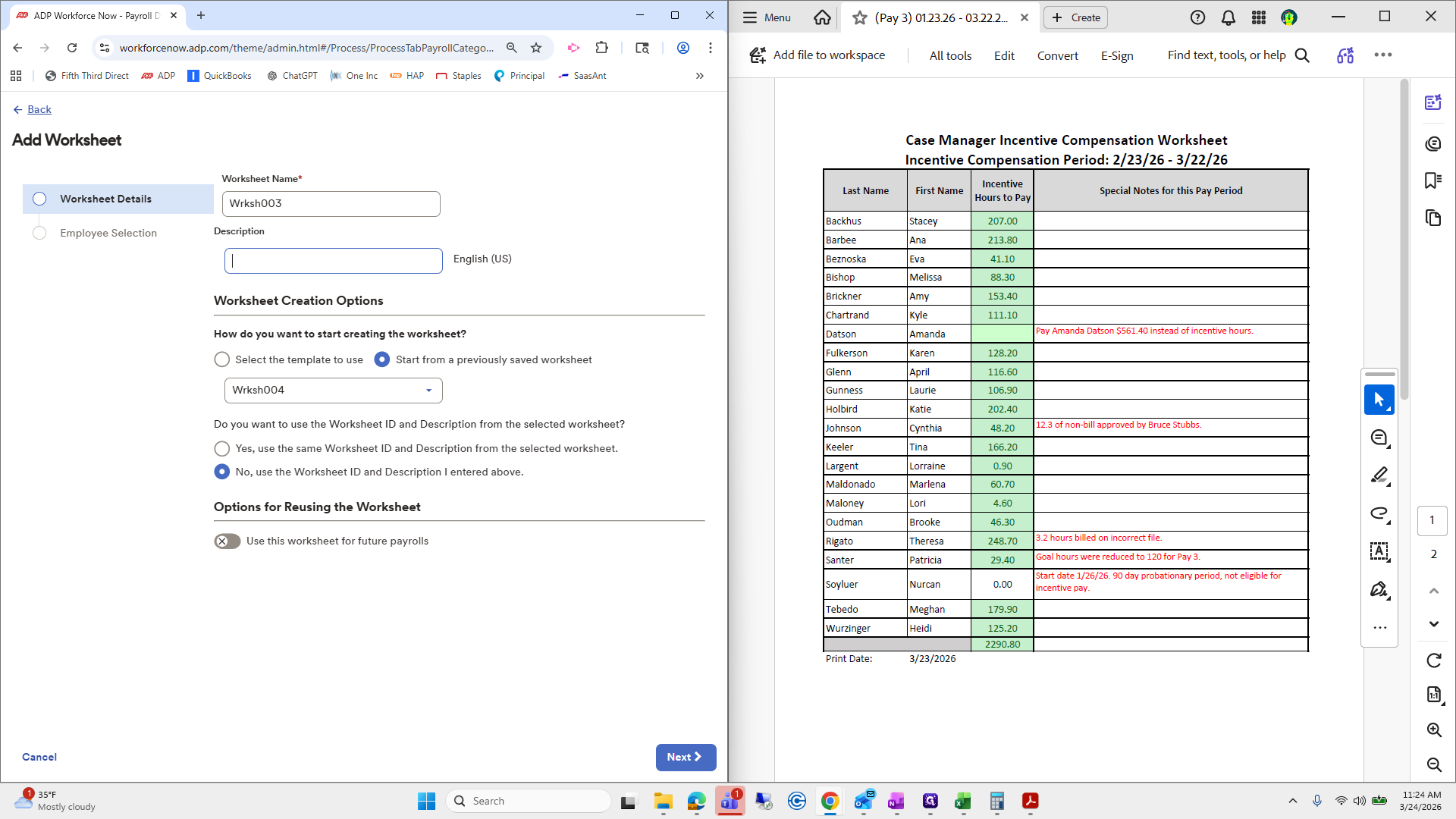
This saves everyone's name for us, so we don't have to click each name in the template.
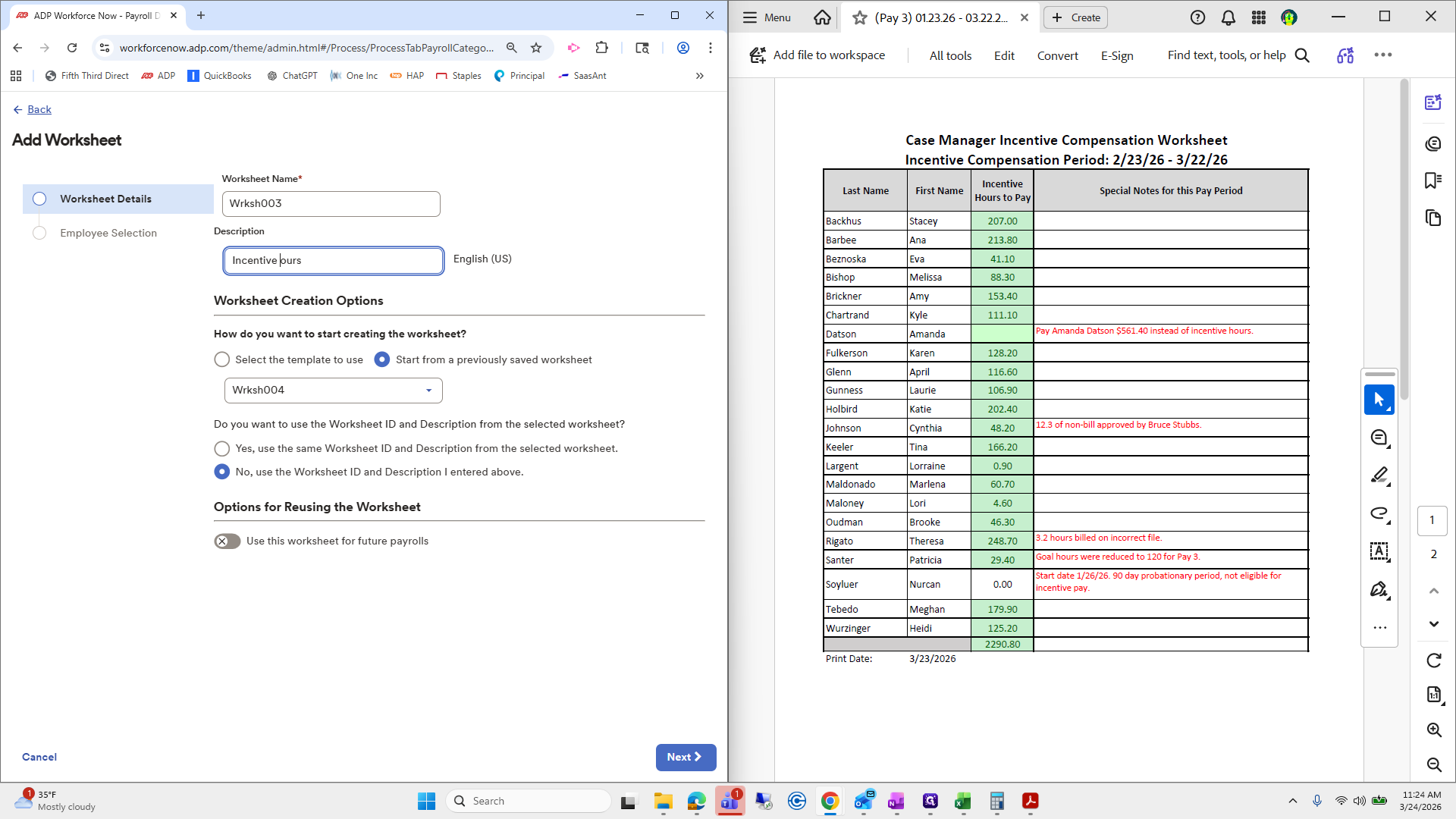
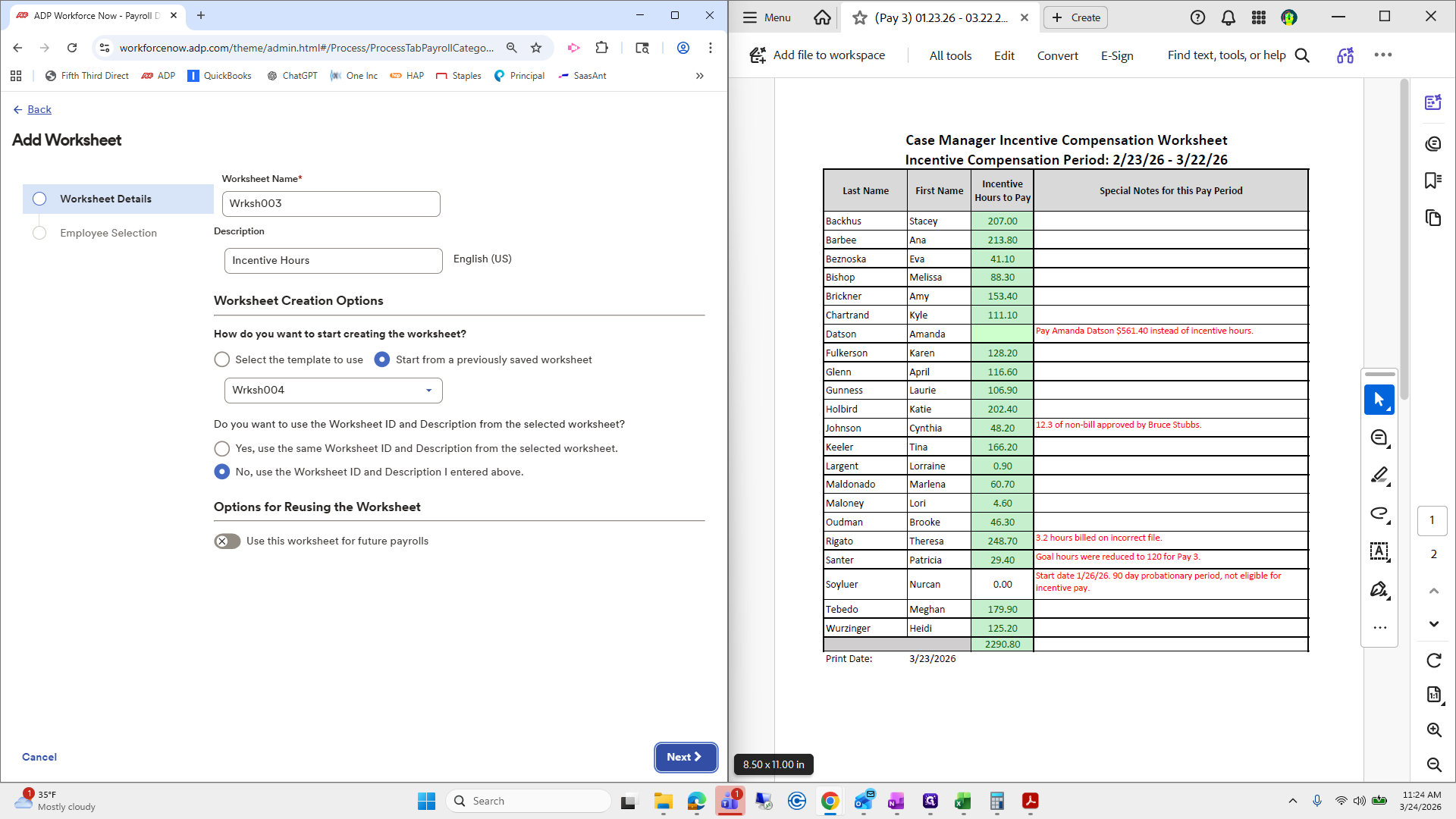
Click Next.
Because you chose to proceed with a previous worksheet, the employees were already selected. This is correct.
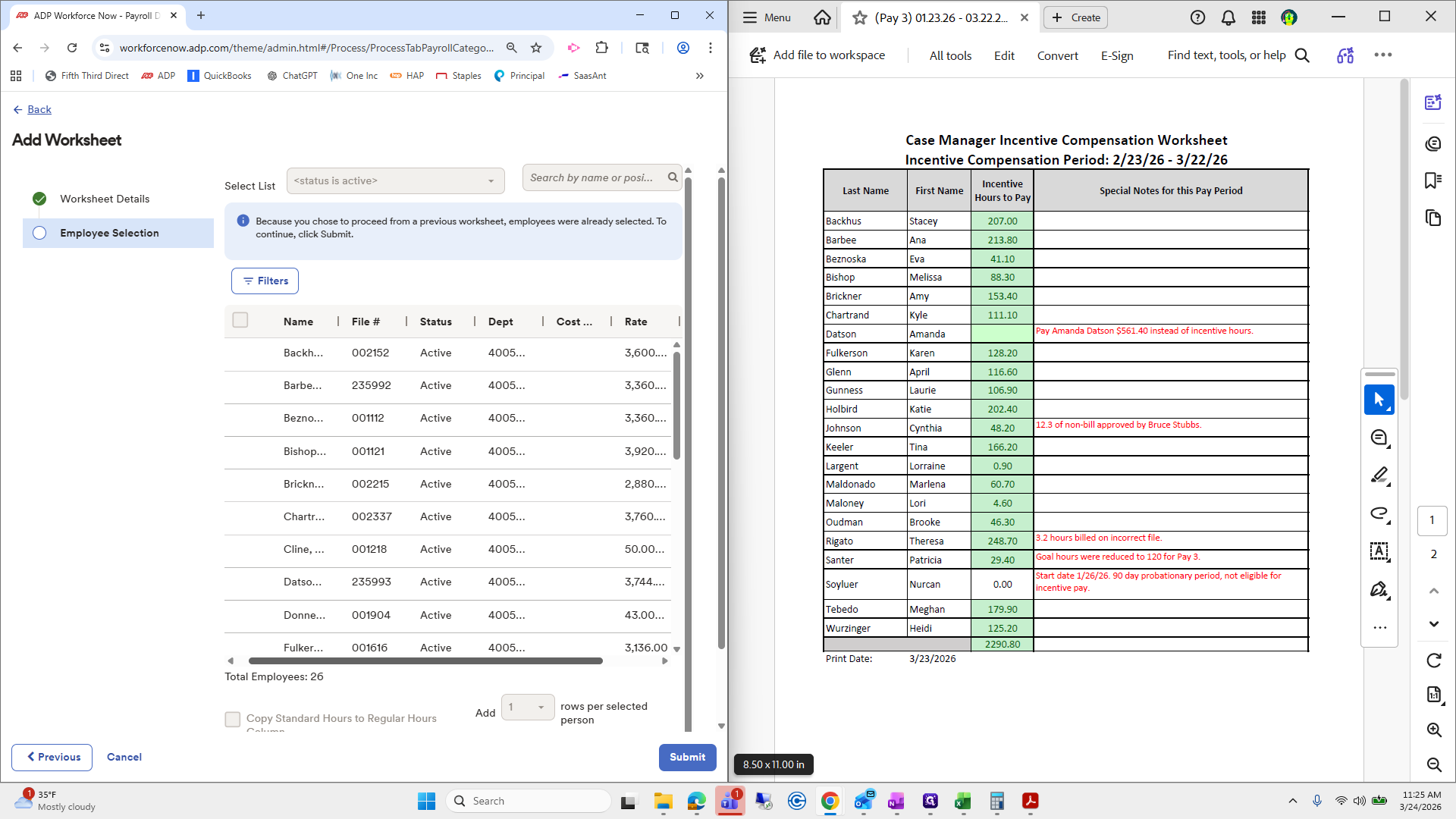
We will click Submit.
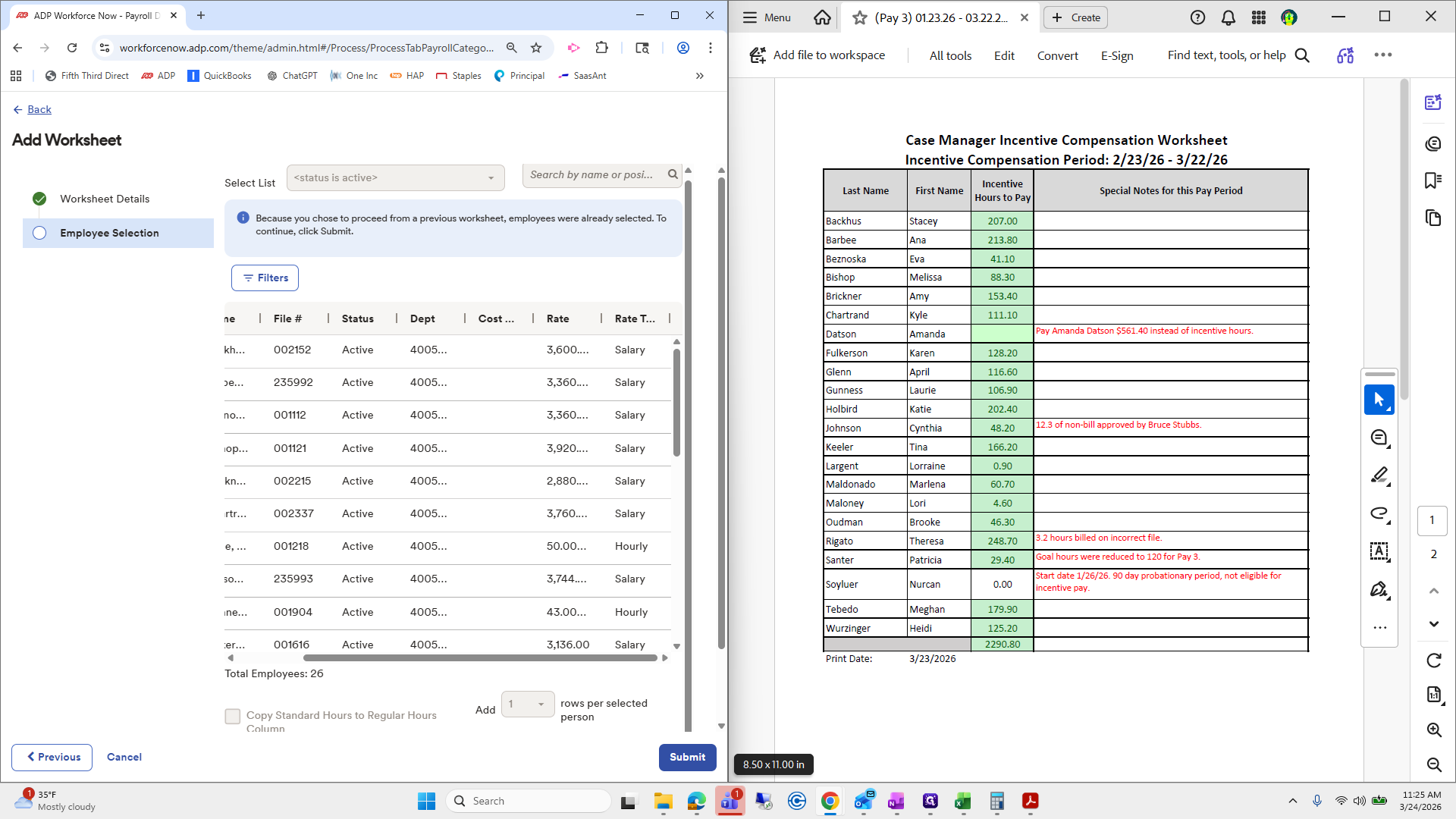
Okay.
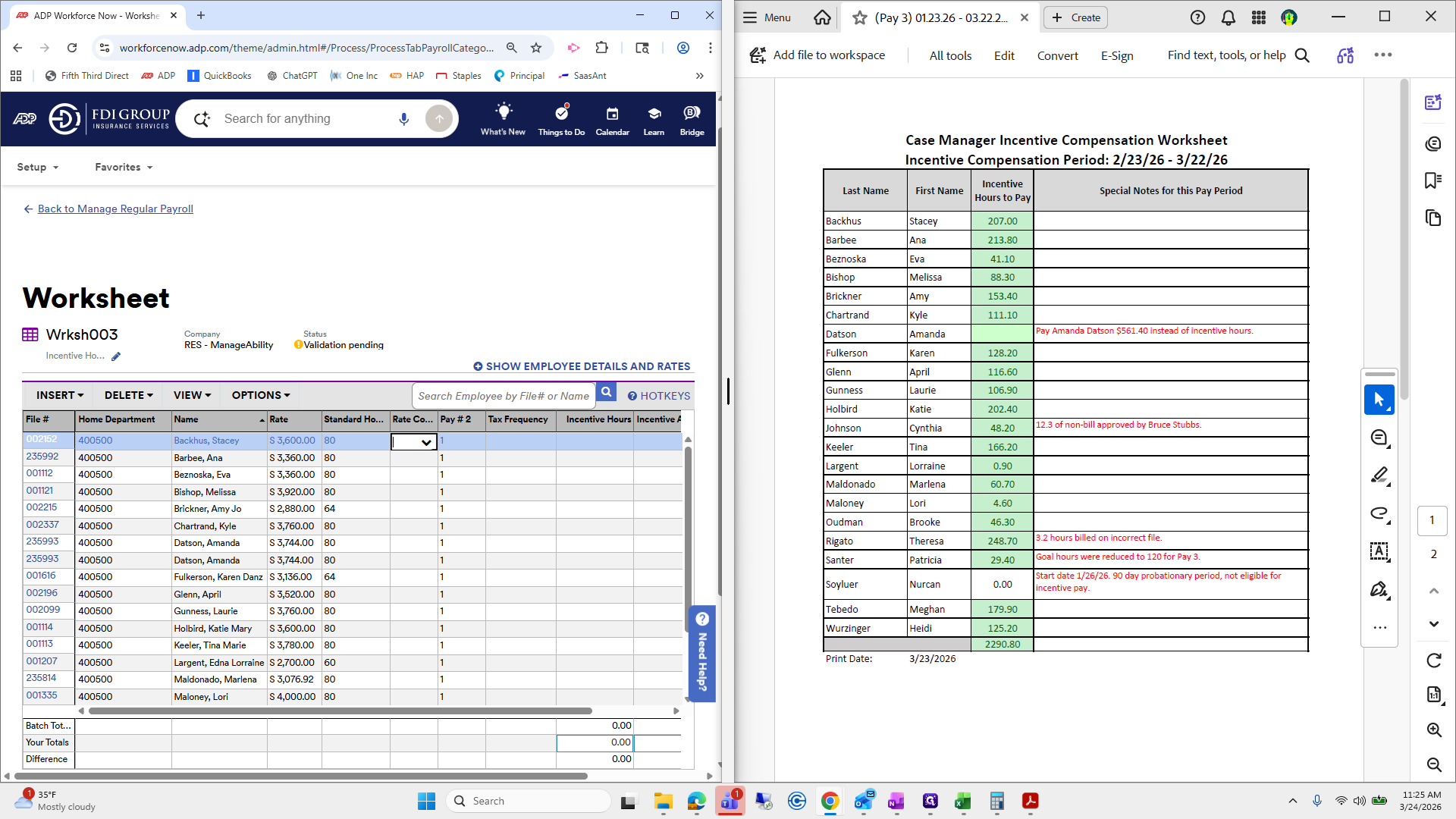
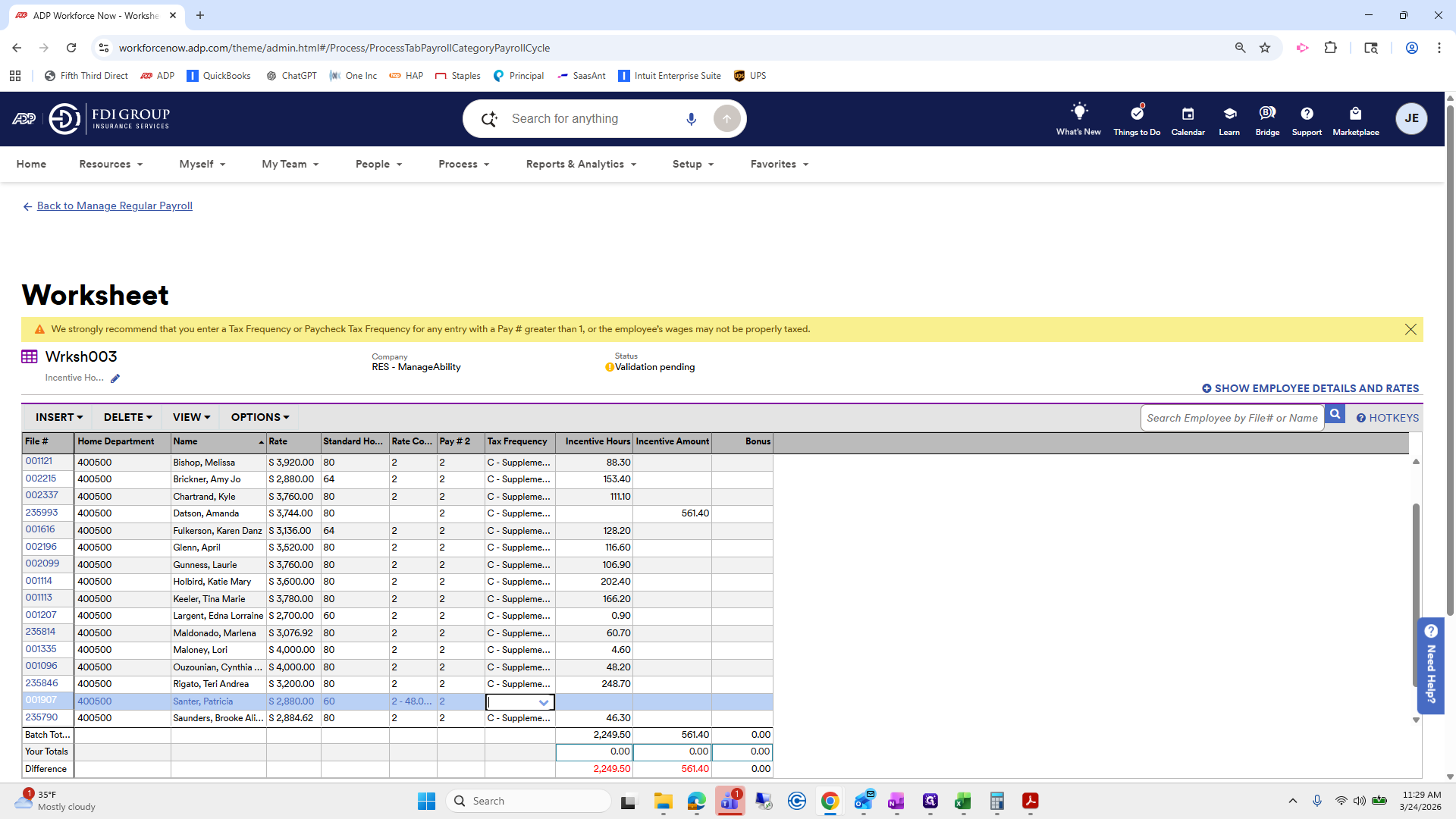
Here, we need to enter everyone's rate code, pay number two, and the tax frequencies first. To do that in bulk, go to Options and select Fill Column.
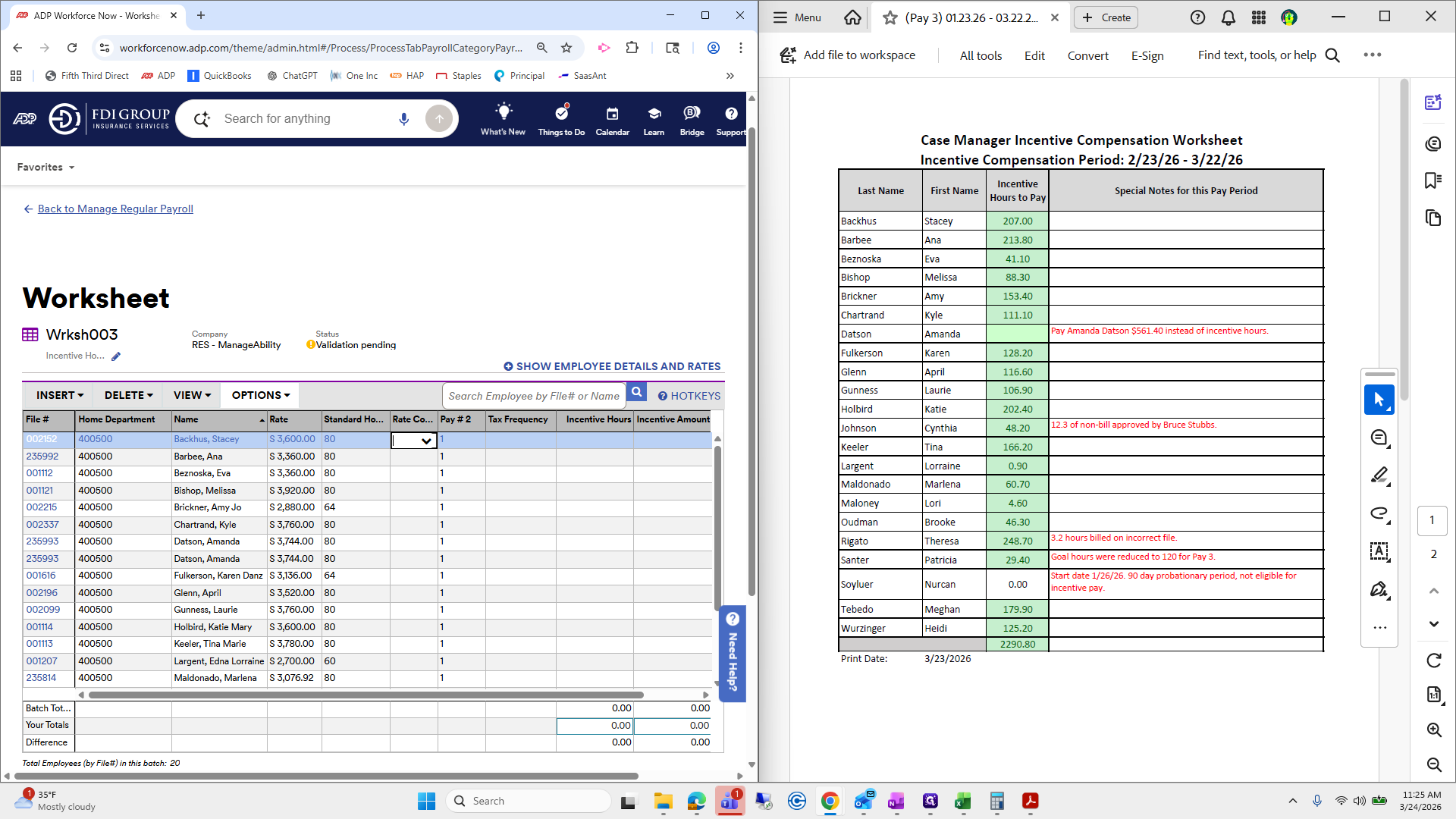
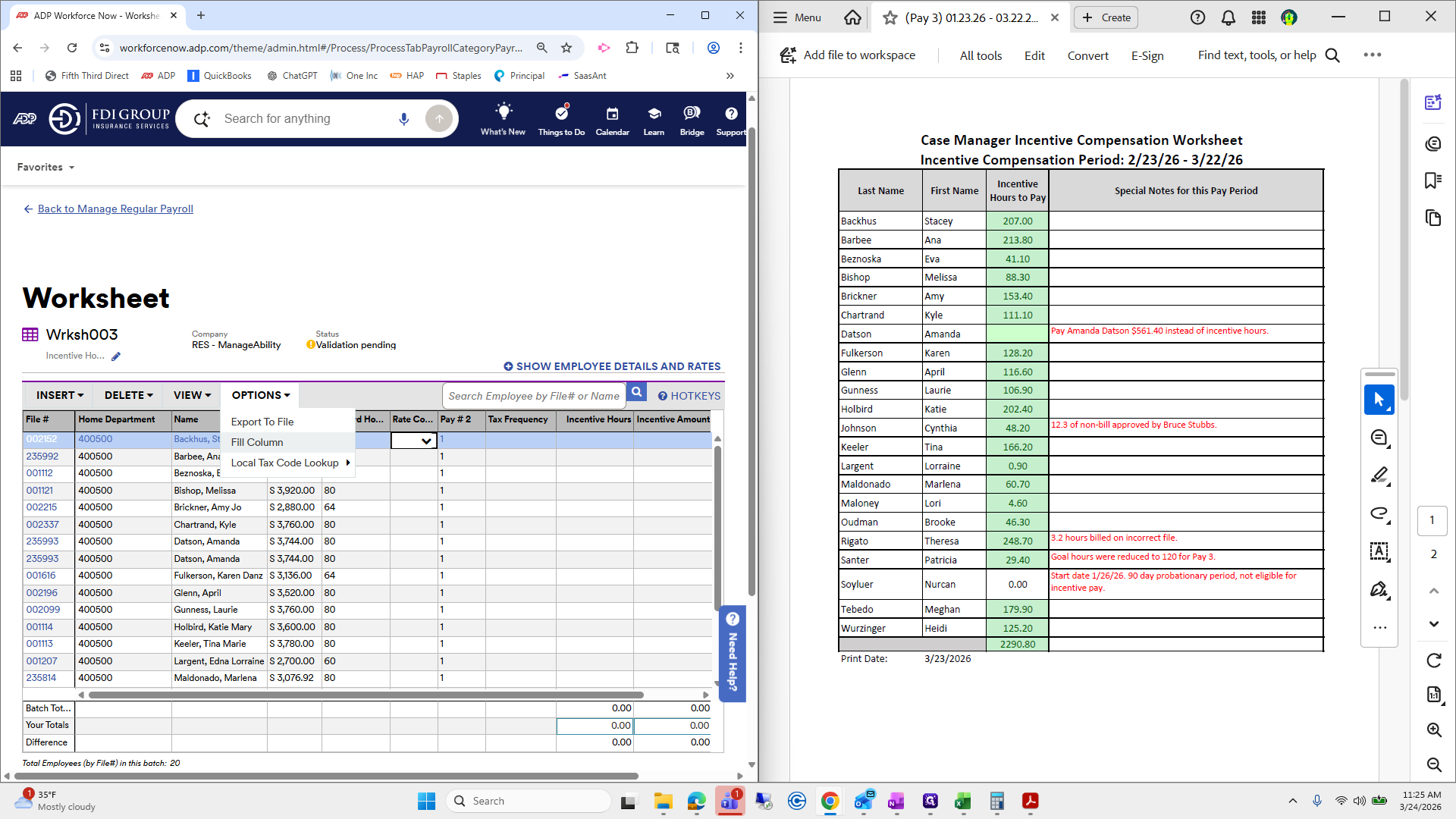
We will select Overwrite All Cells.
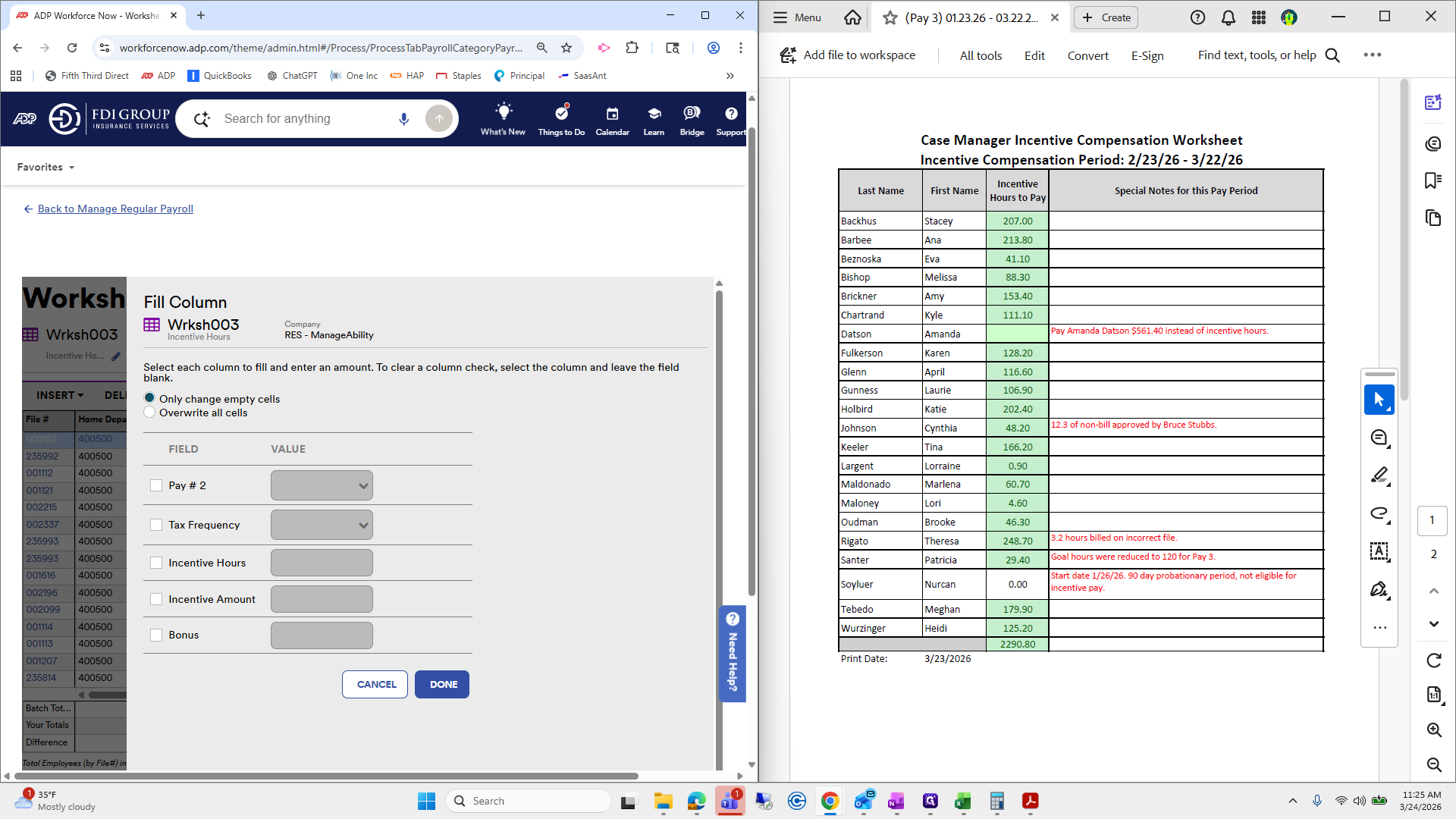
We will process pay number two, which will be issued on a separate paycheck.
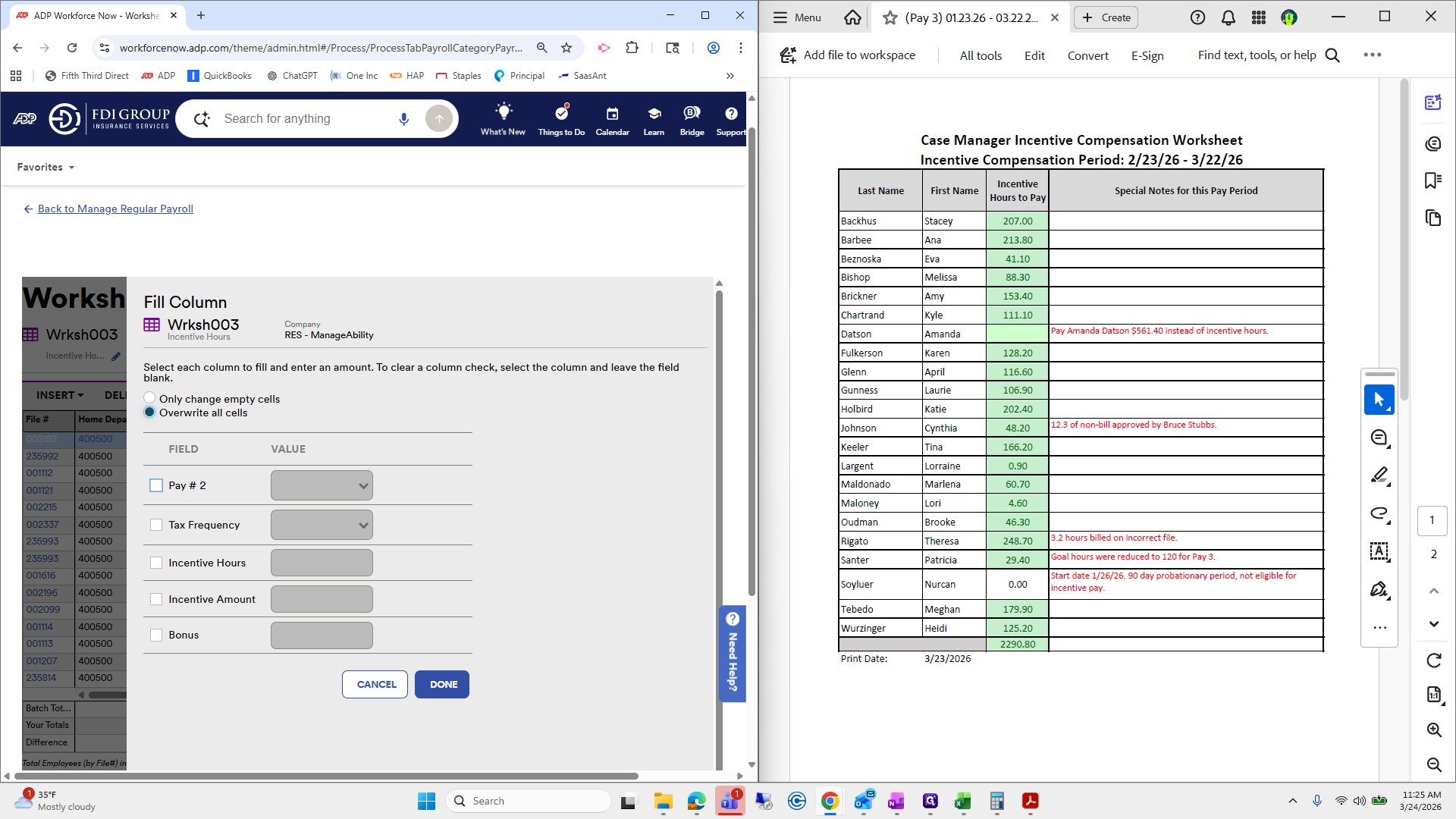
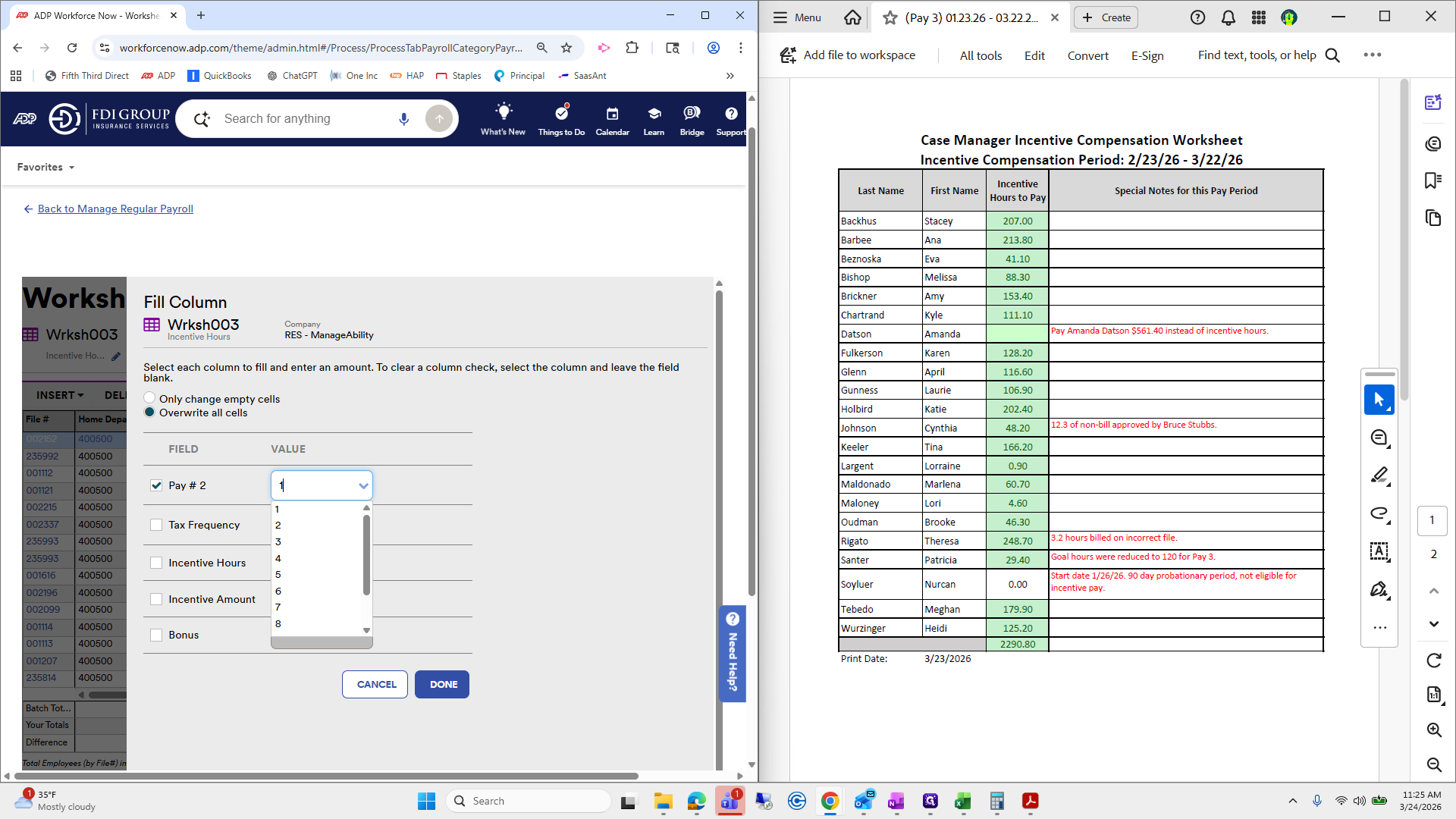
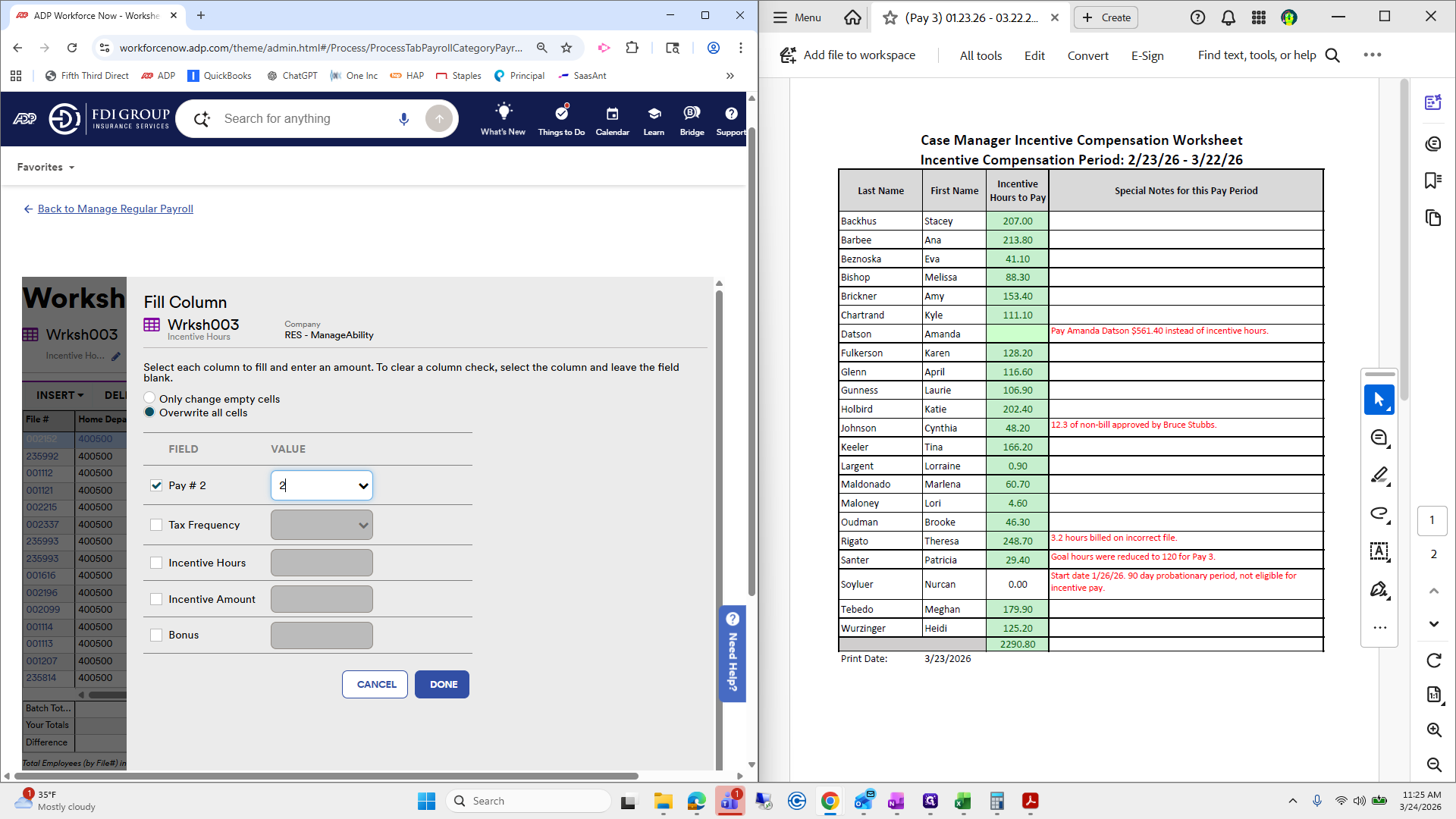
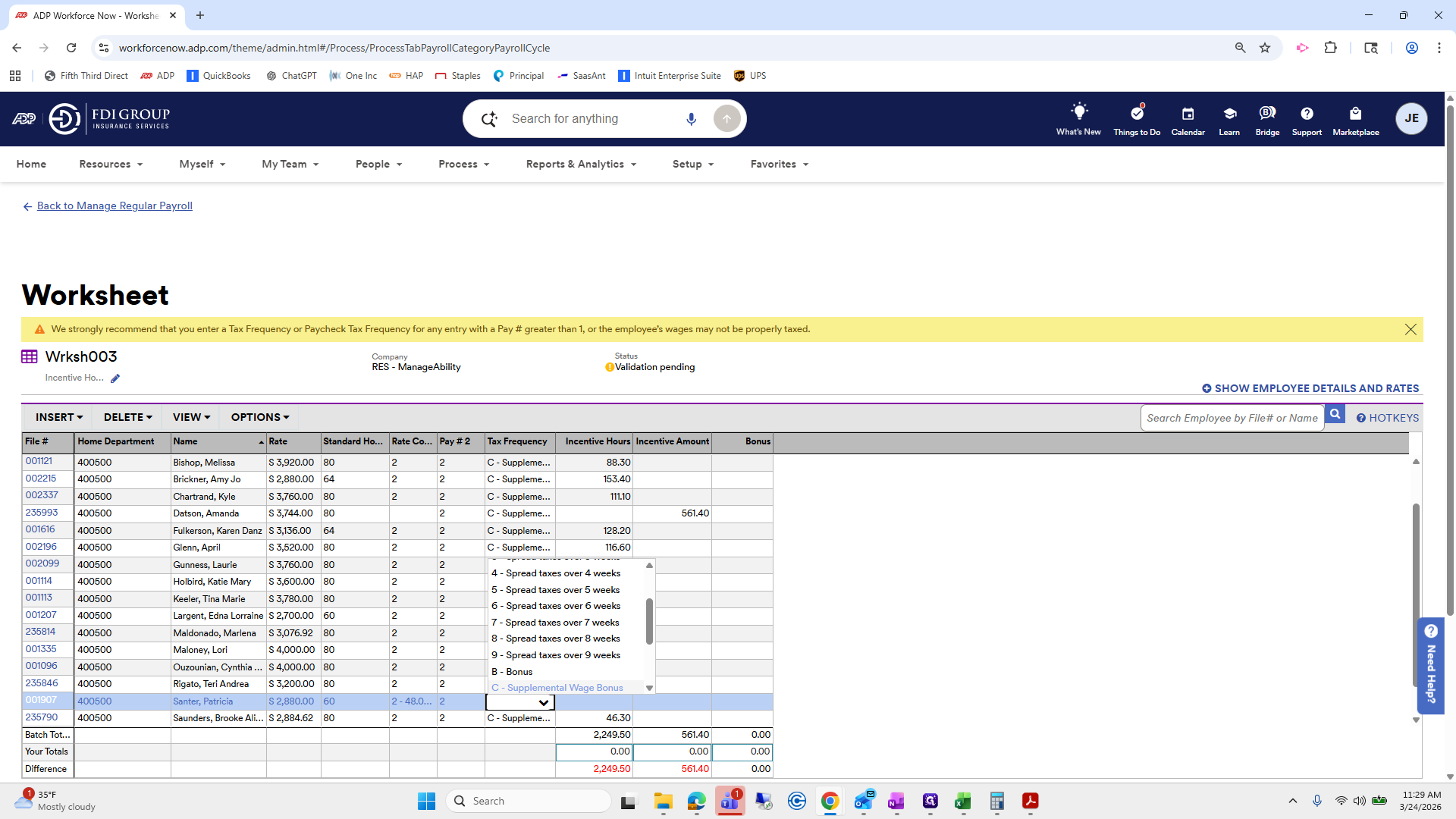
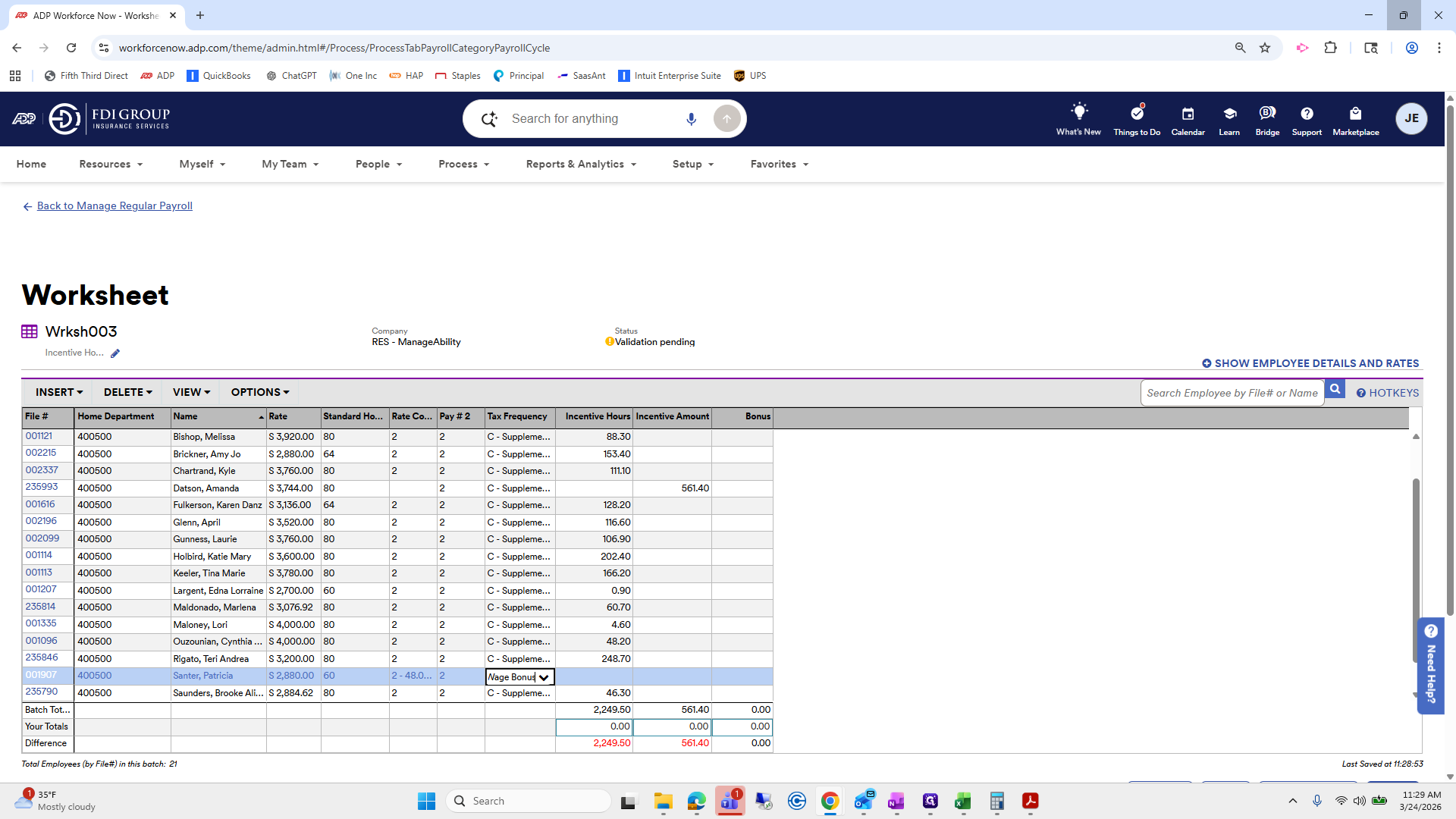
The tax frequency will always be C, which stands for supplemental wage bonus.
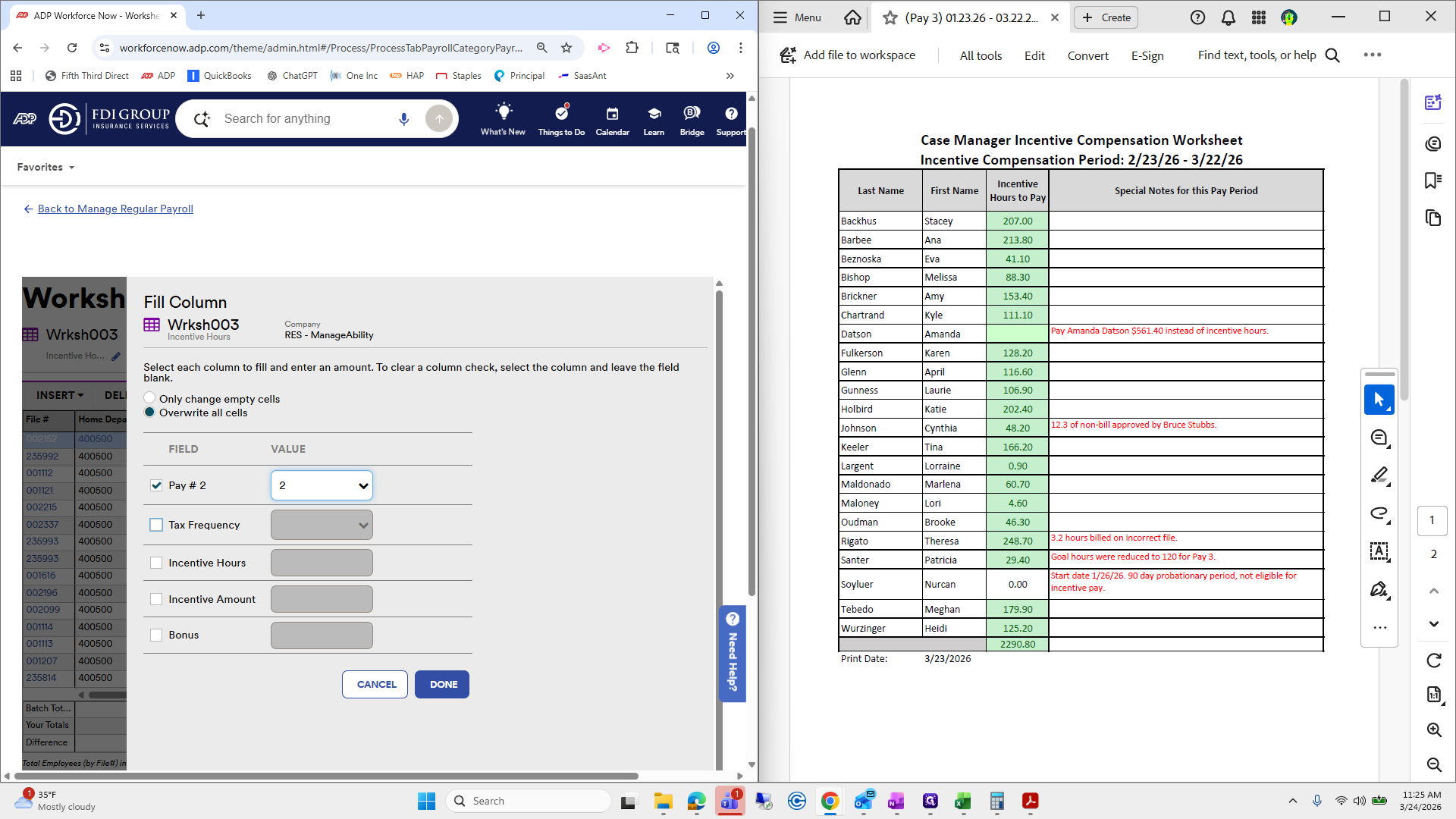
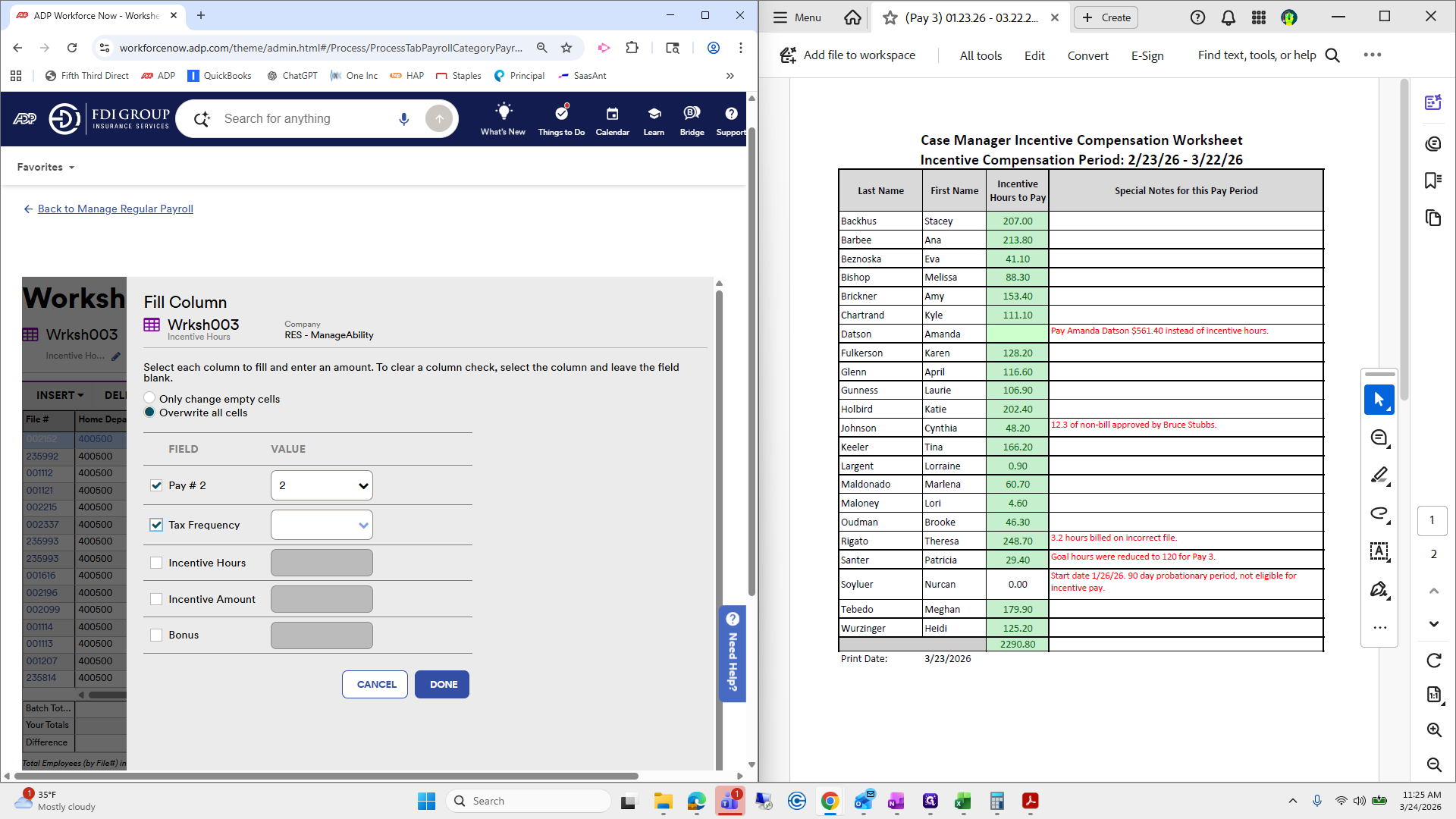
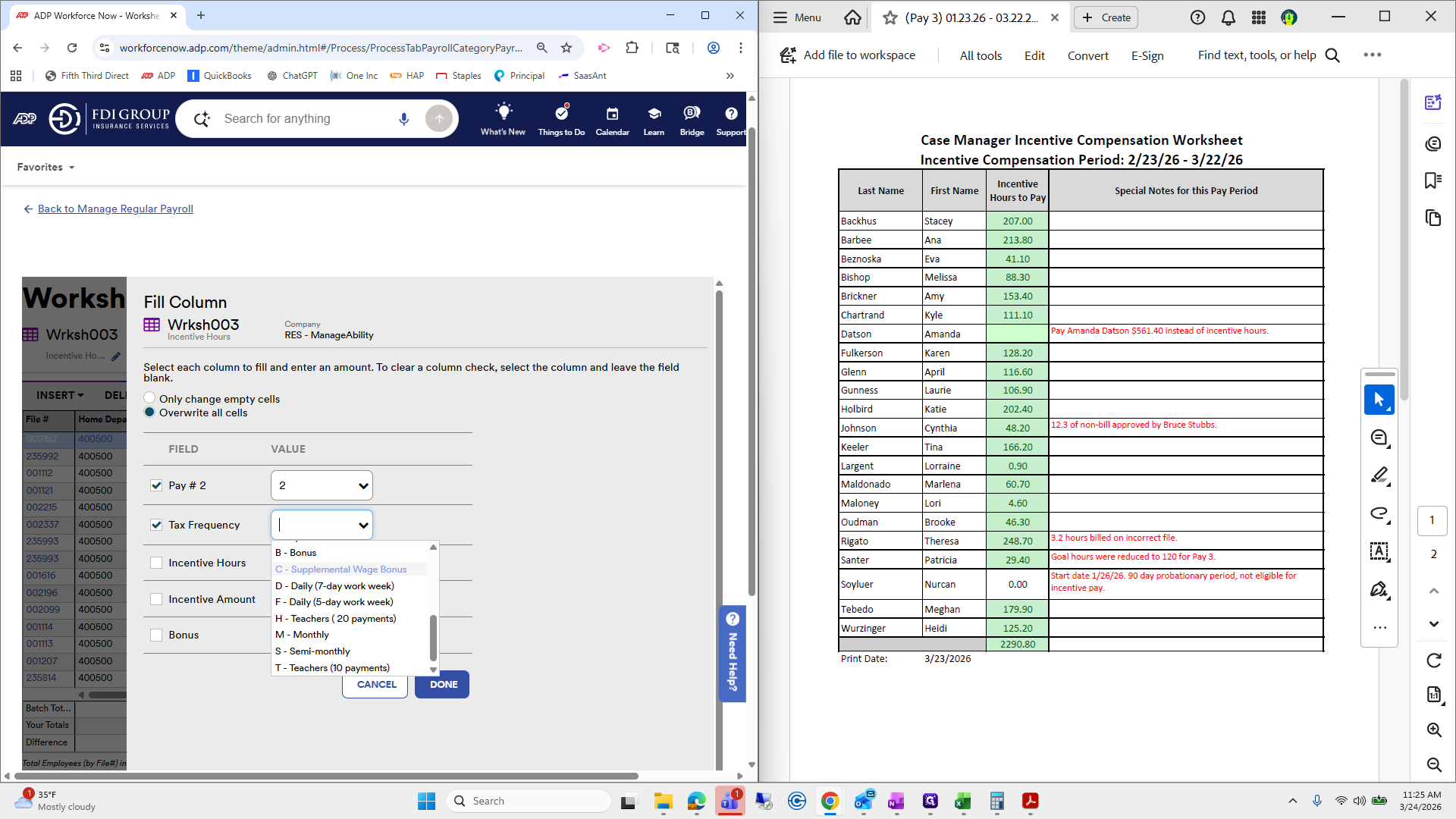
Don't make mistakes, as they will notice. From there, click Done.
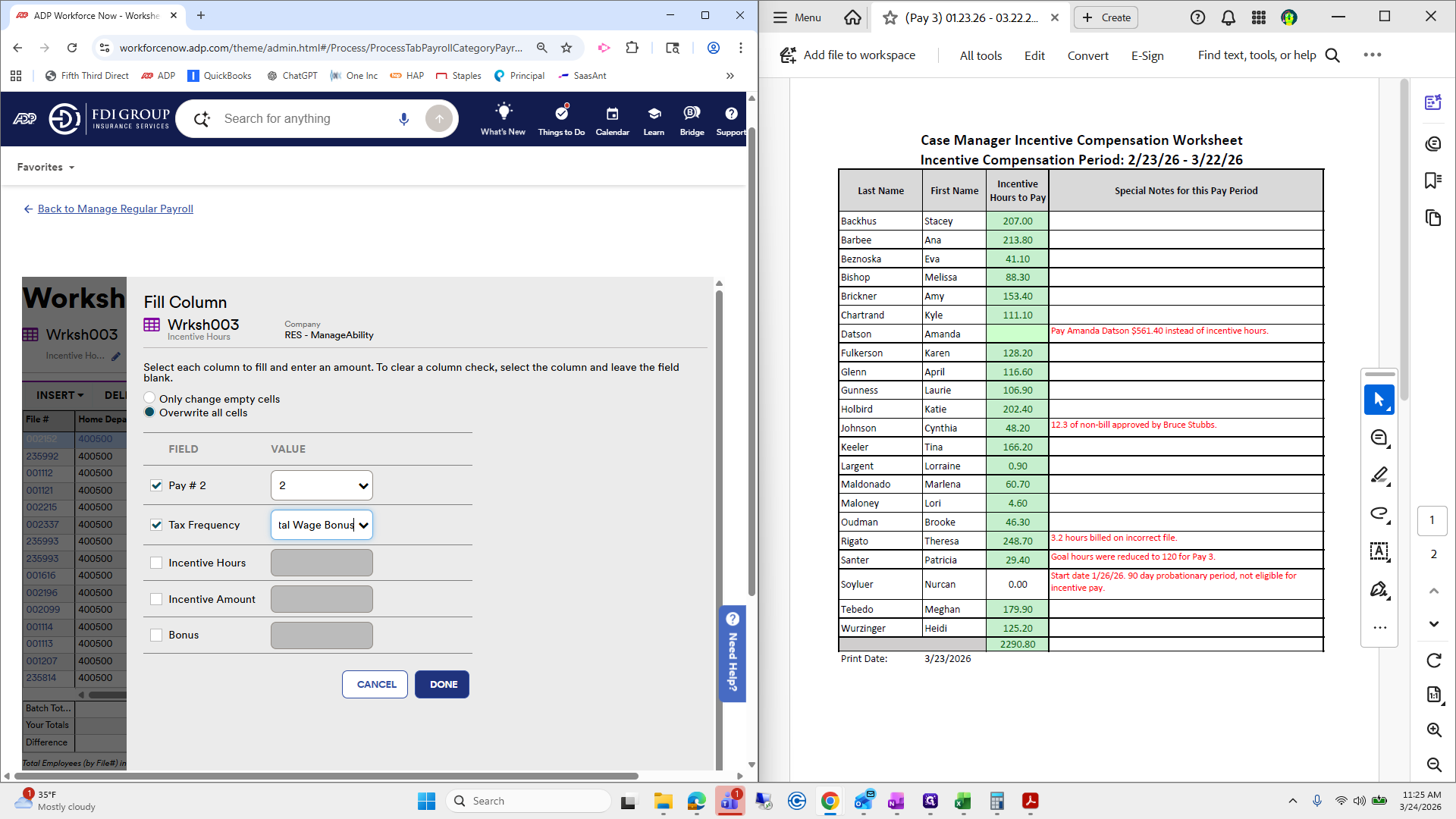
You can see it does everything for you. Rate code: we have to check or select each one individually. I prefer to do this all at once to see if anyone is missing a rate code, although everyone should have one.
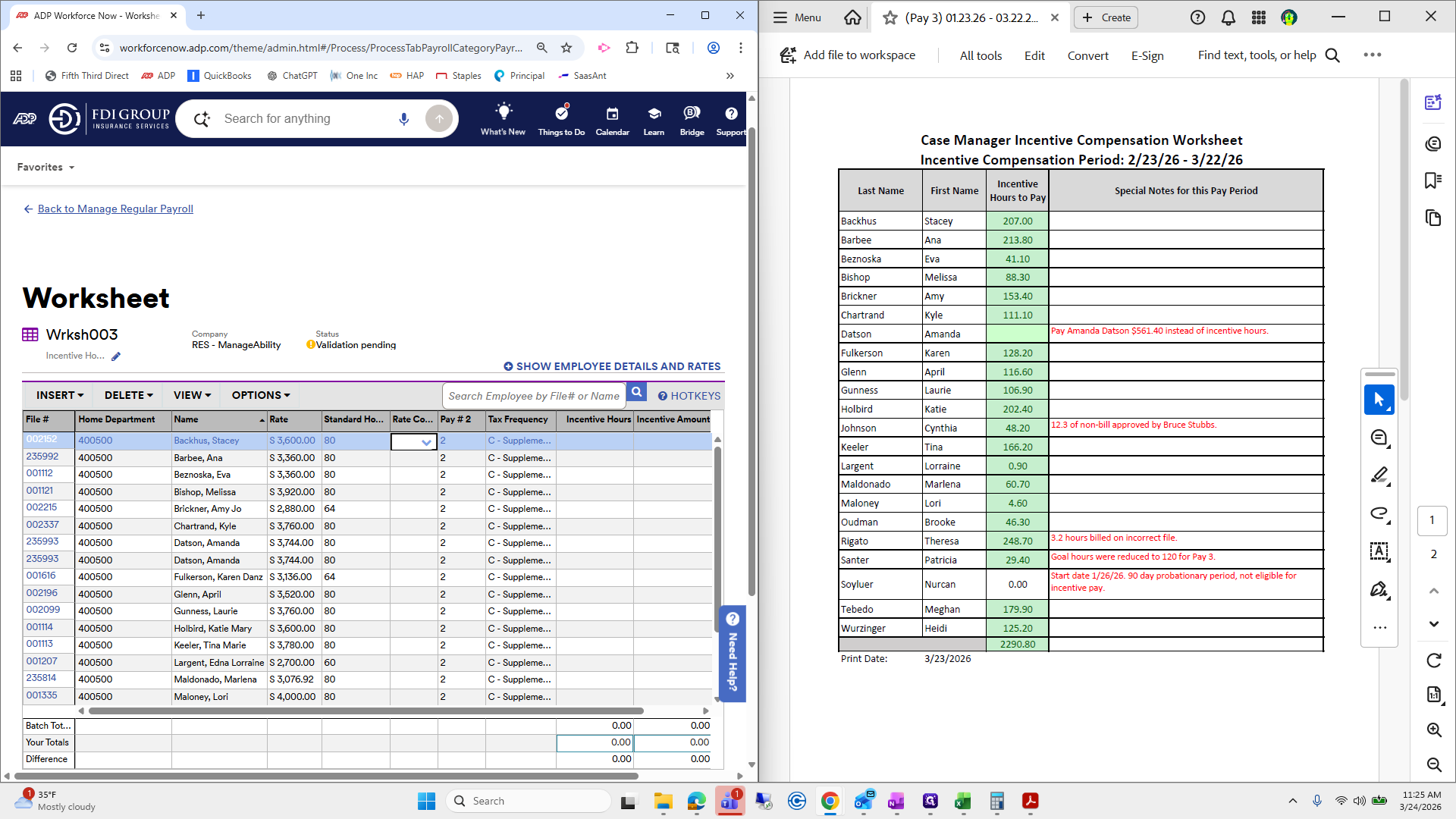
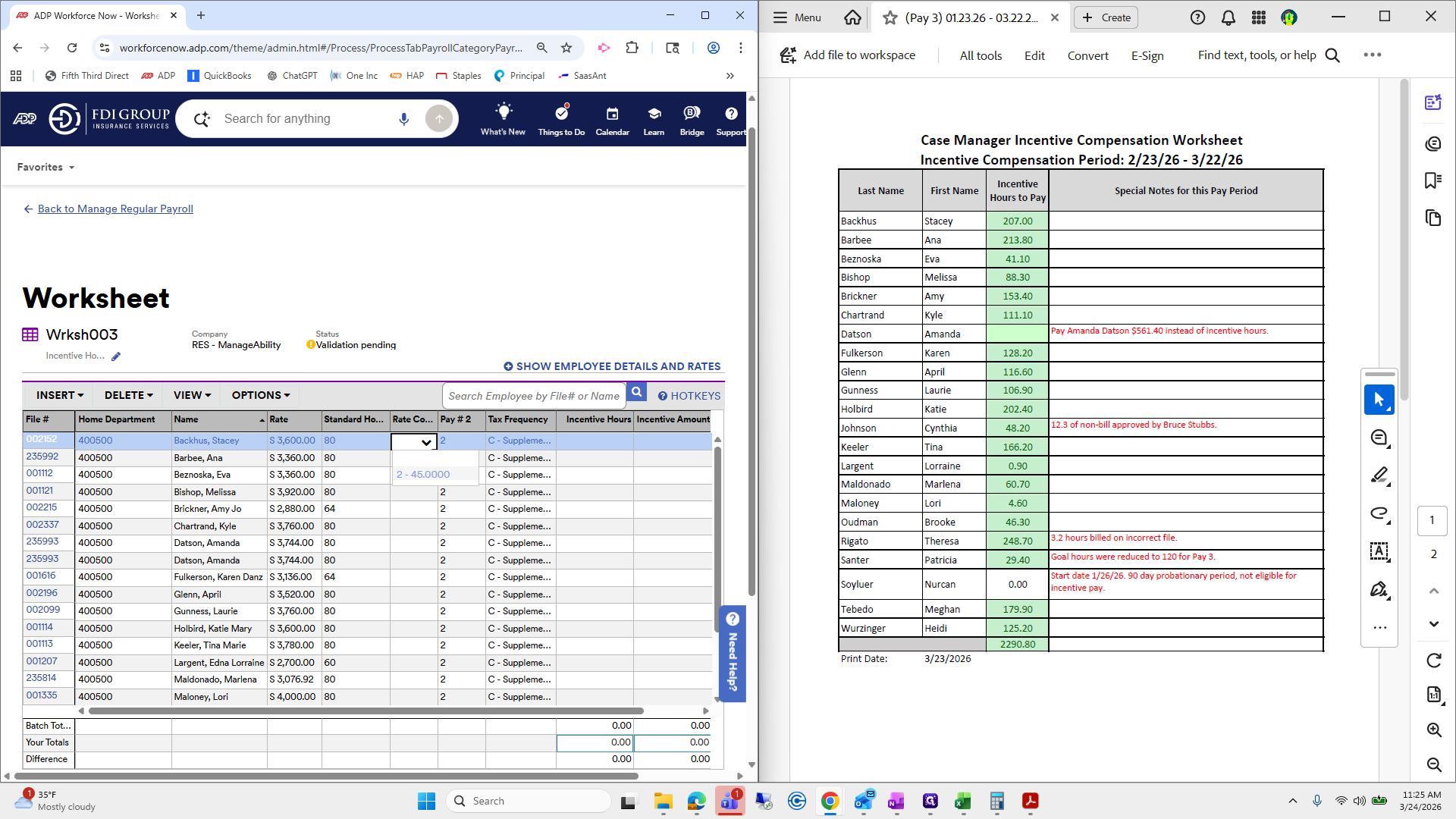
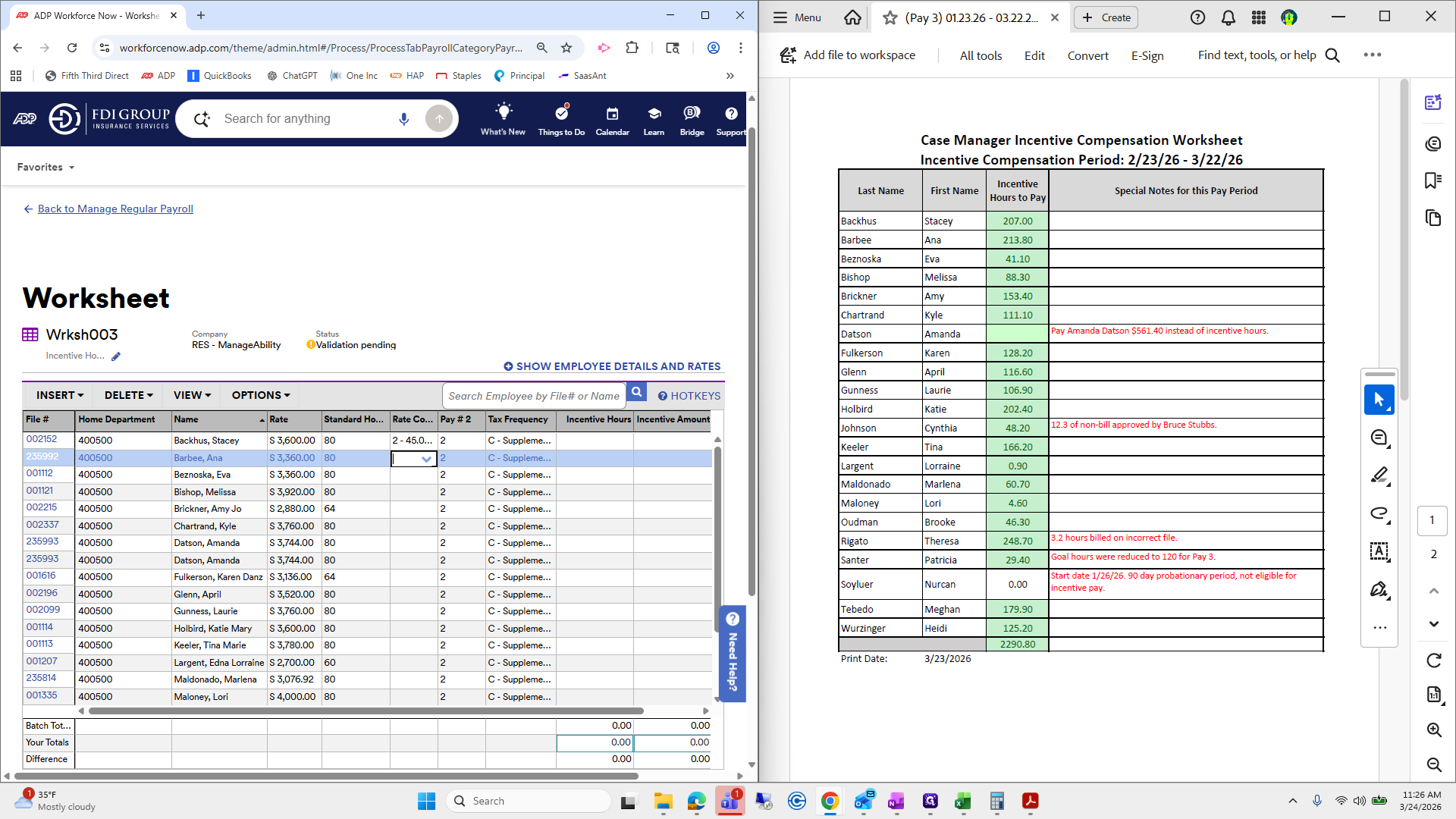
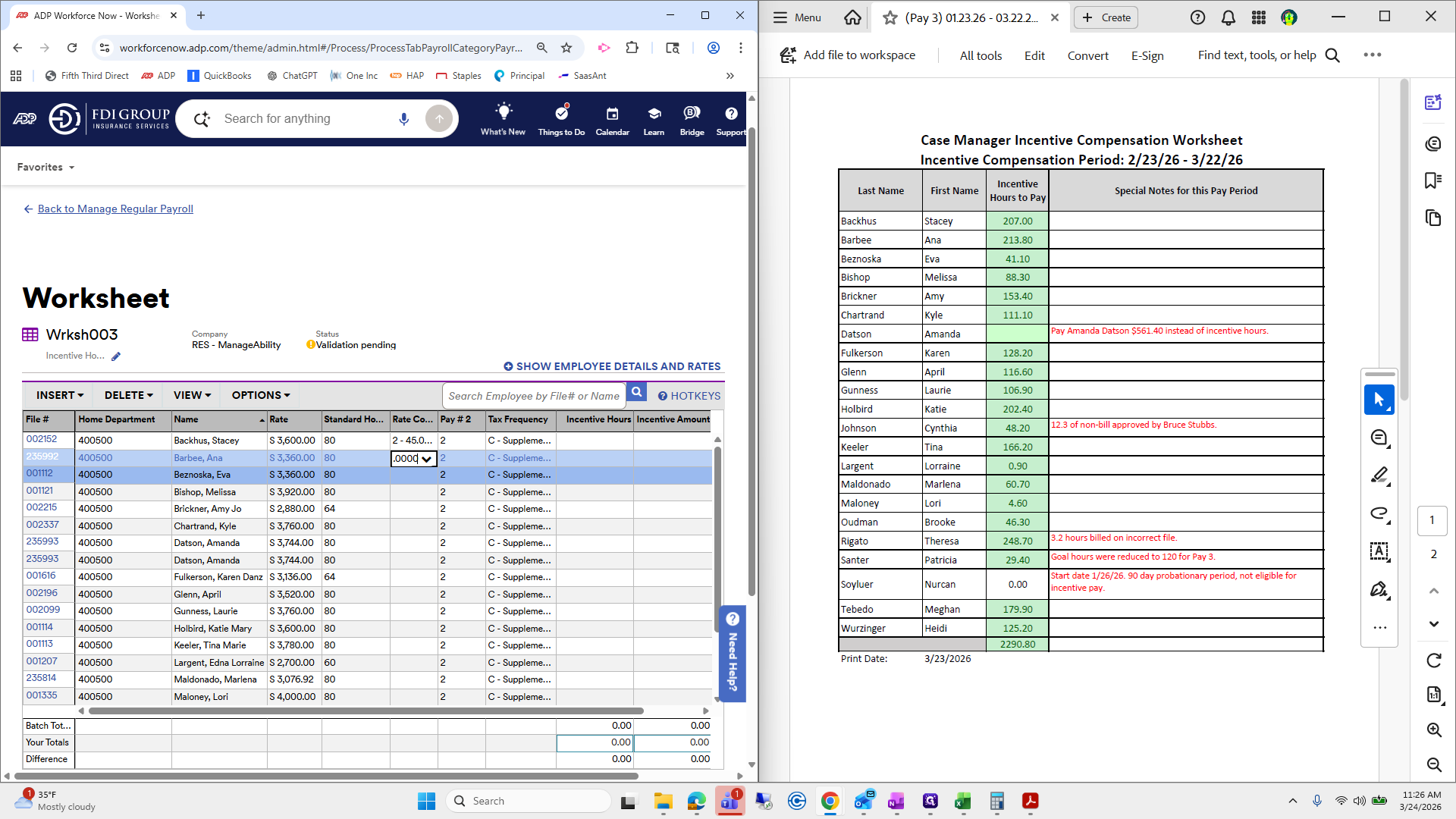
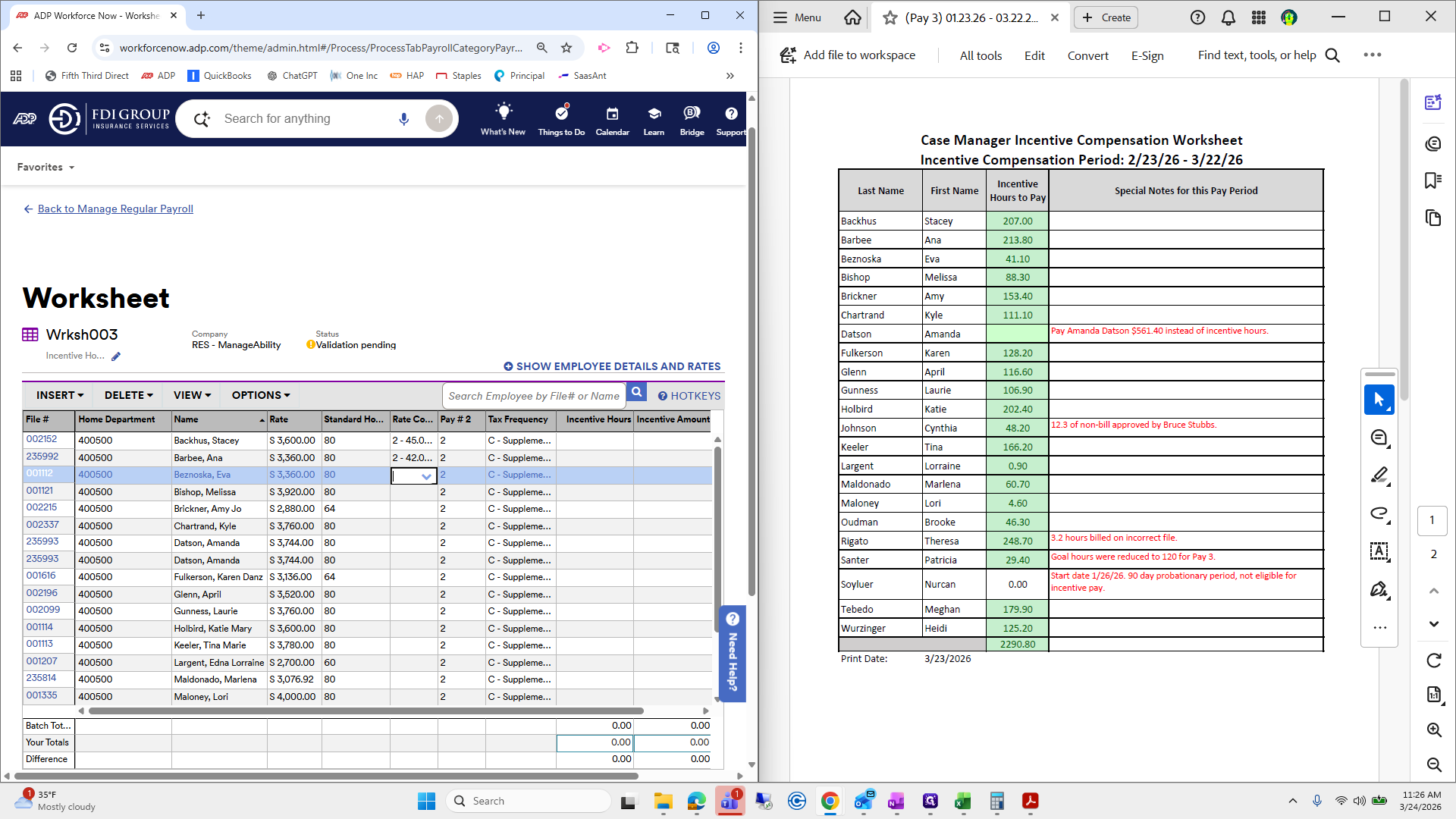
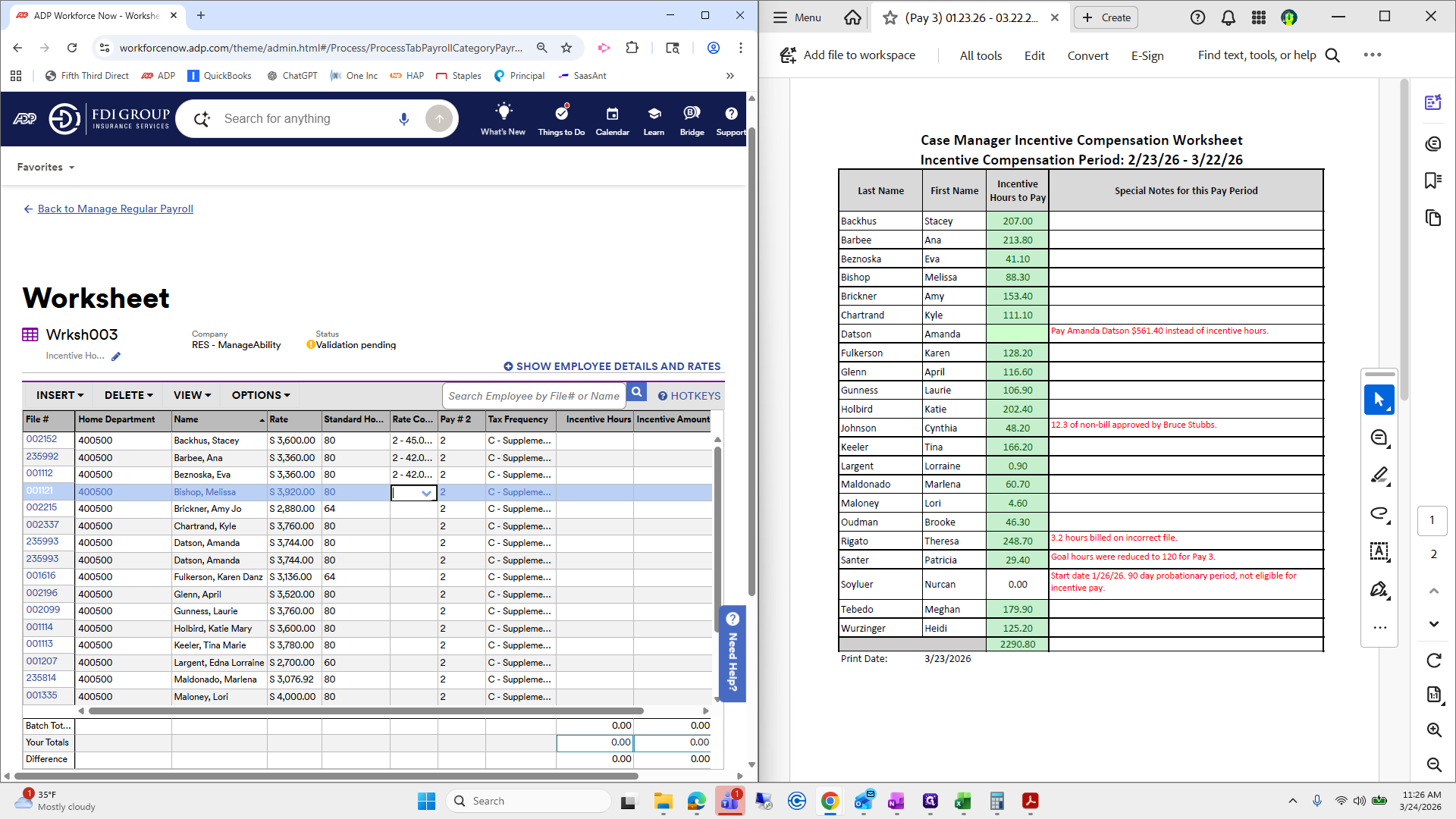
Datsun will not have a rate code because she is paid by an incentive amount instead of by the hour.
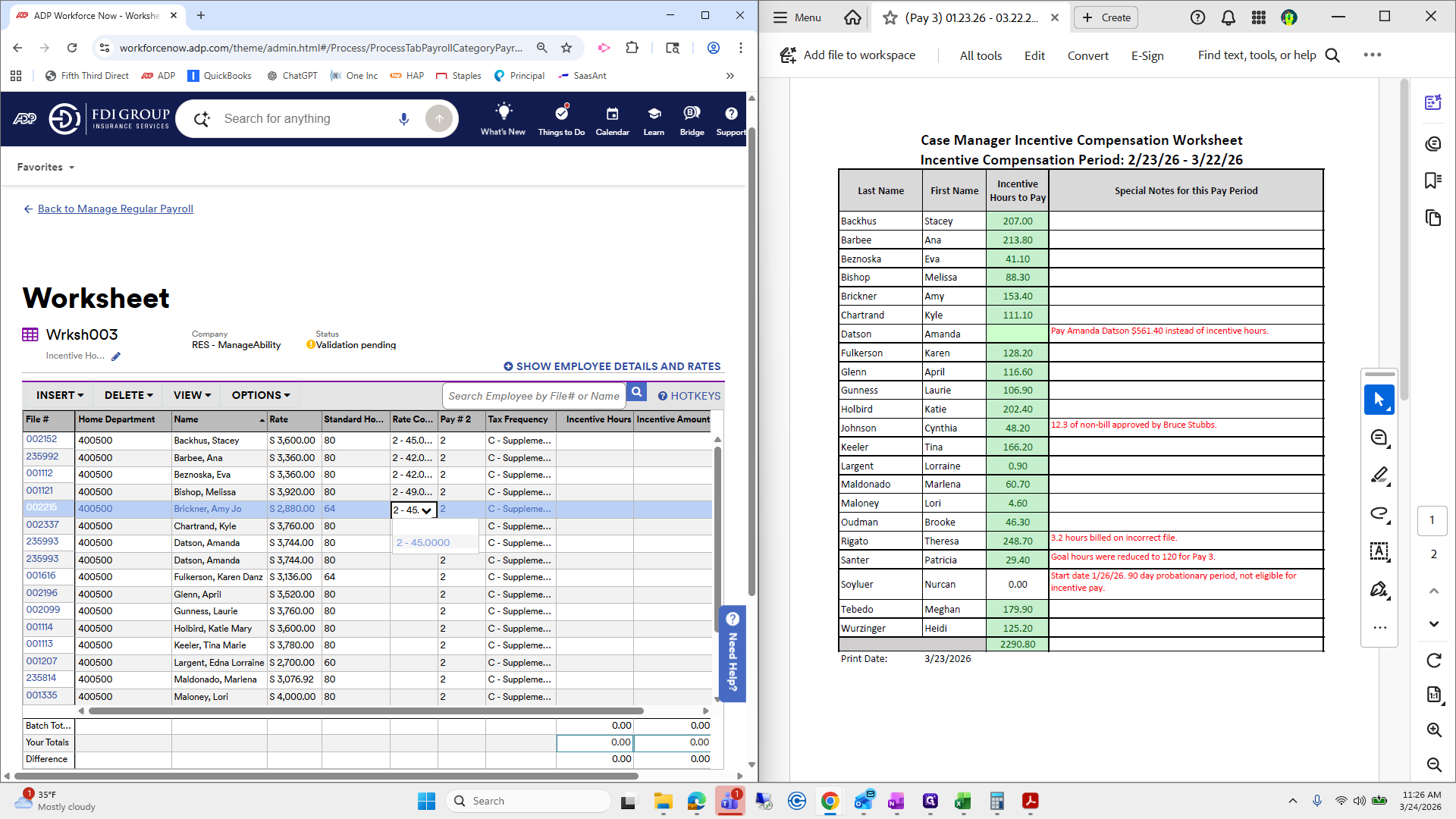
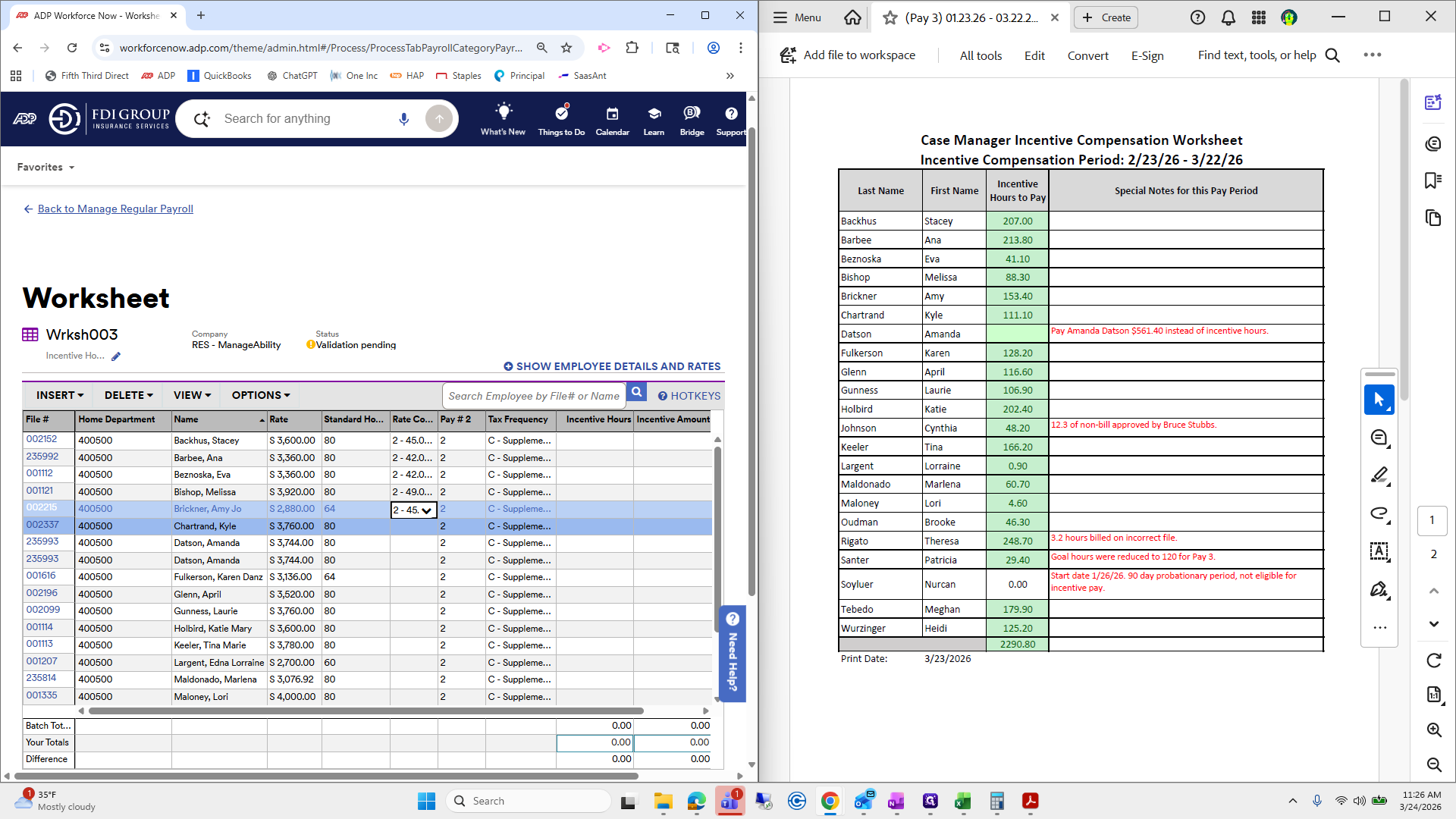
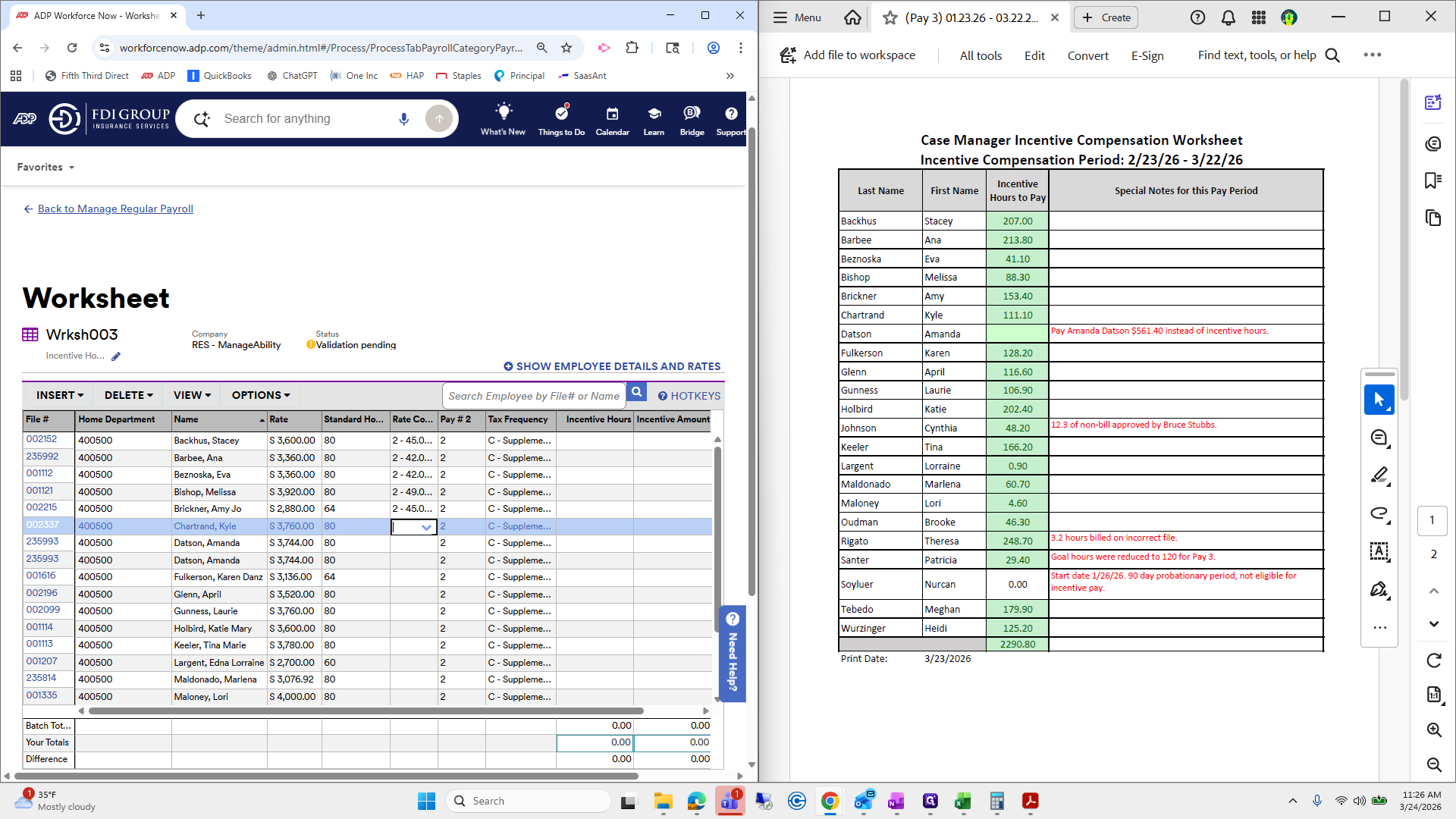
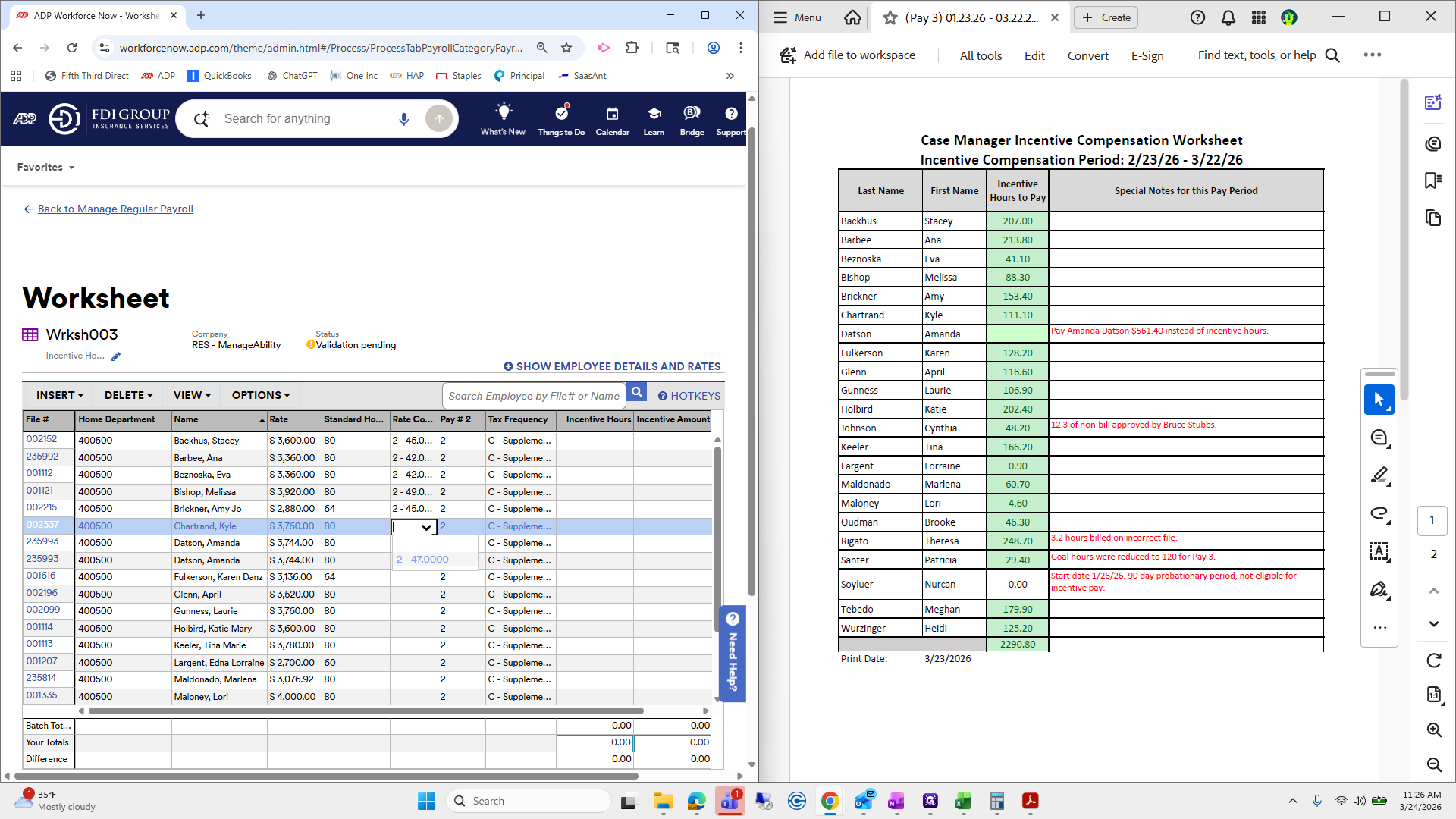
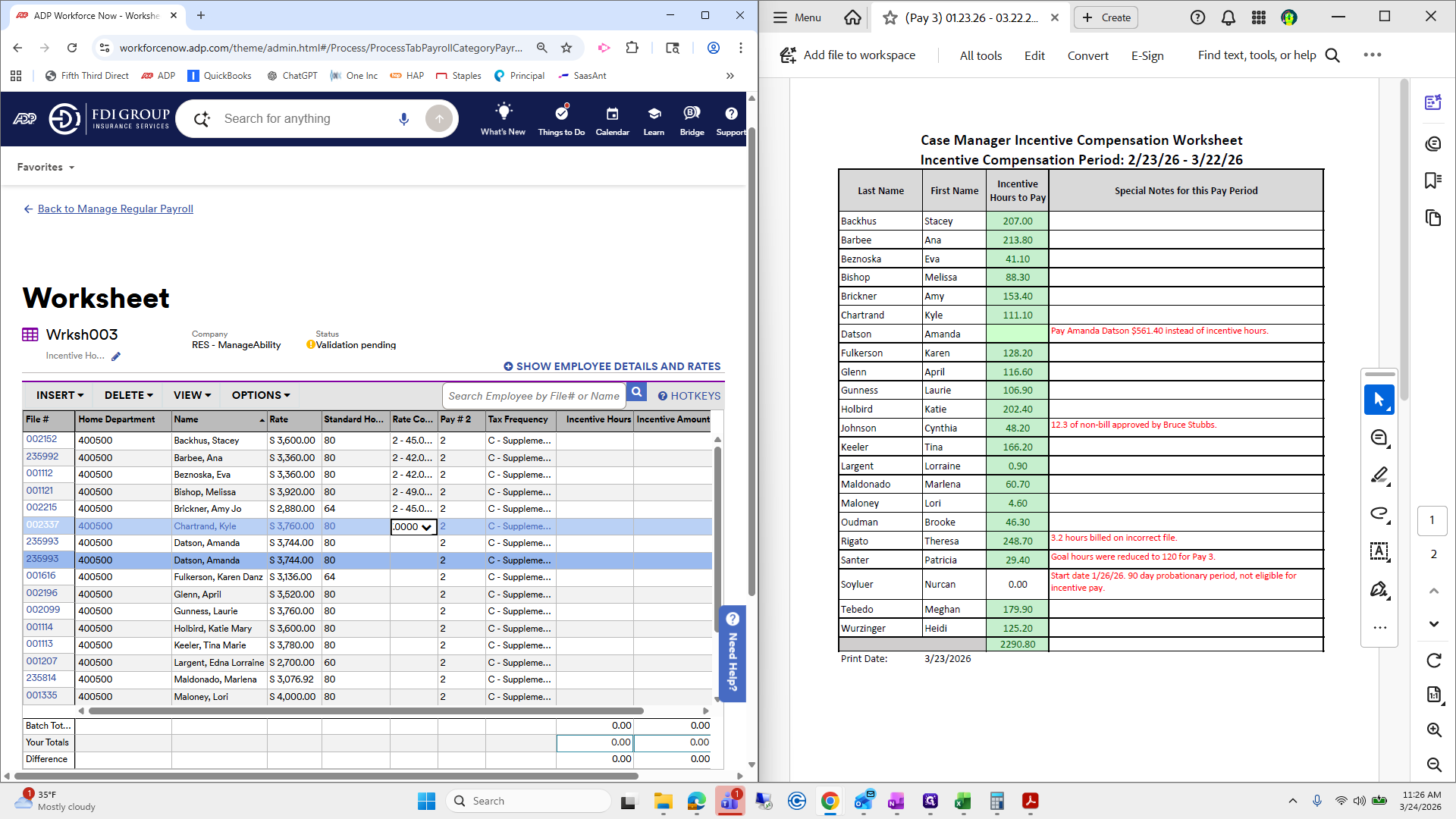
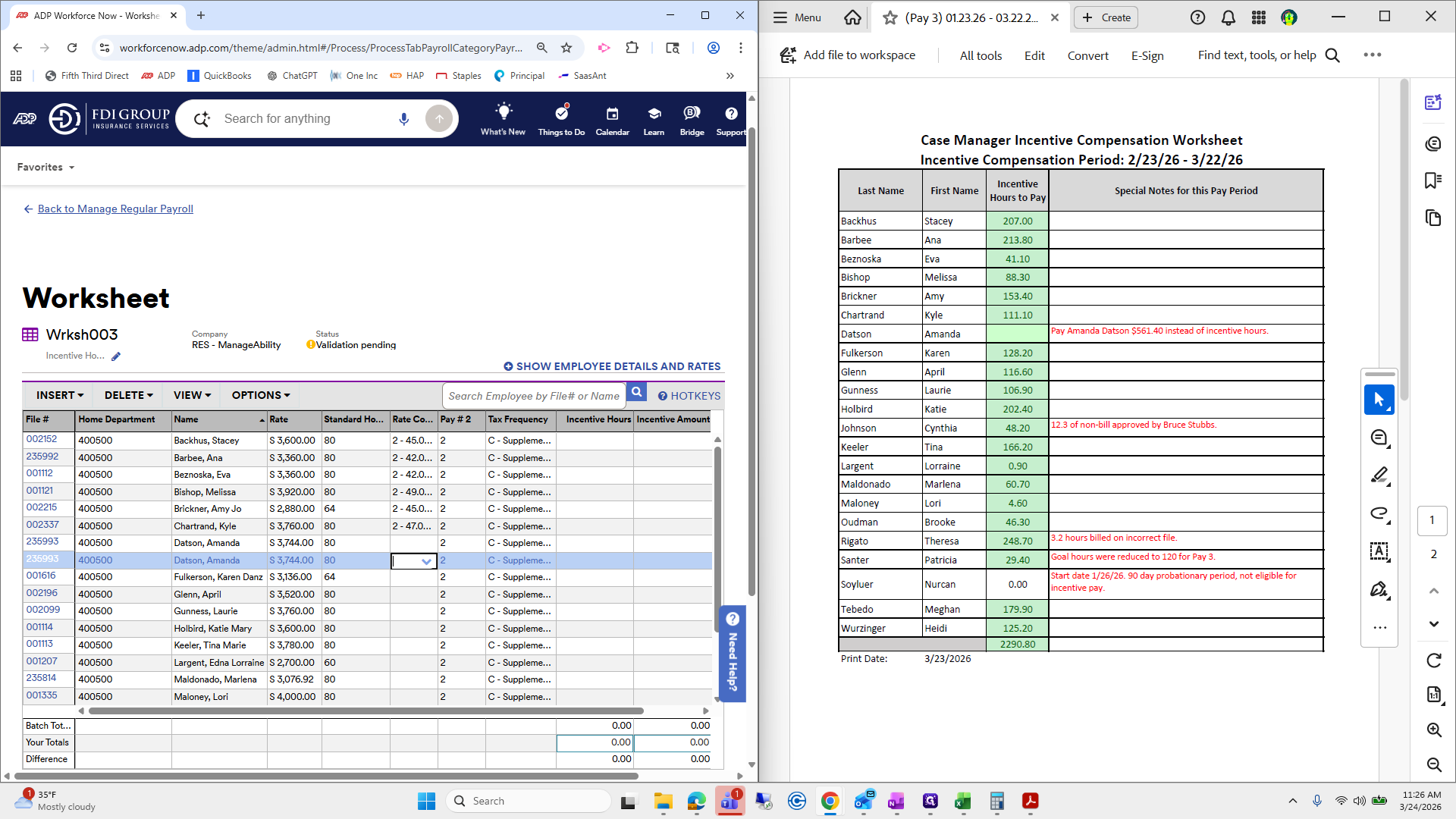
She appears twice, so we will delete her.
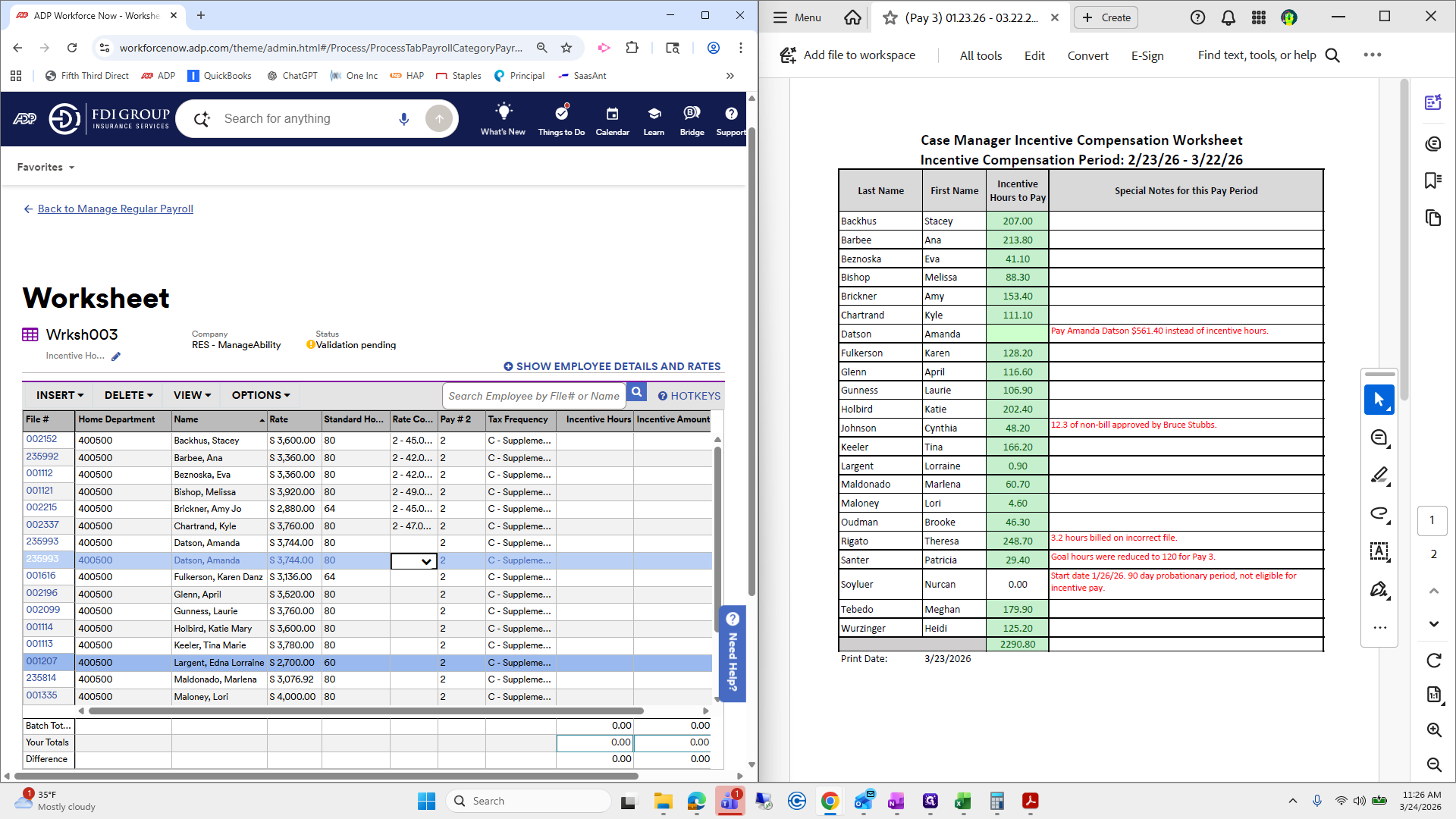
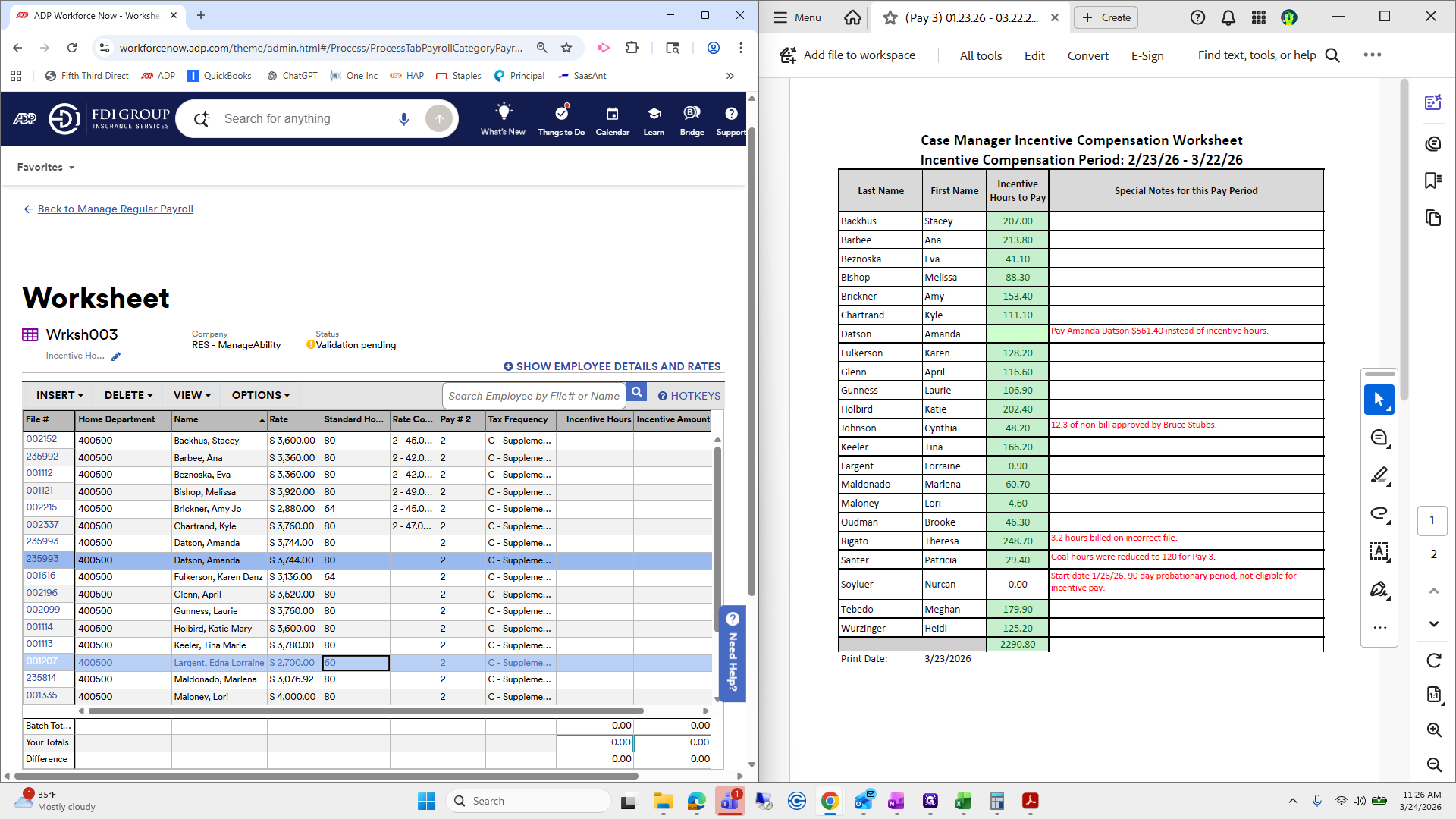
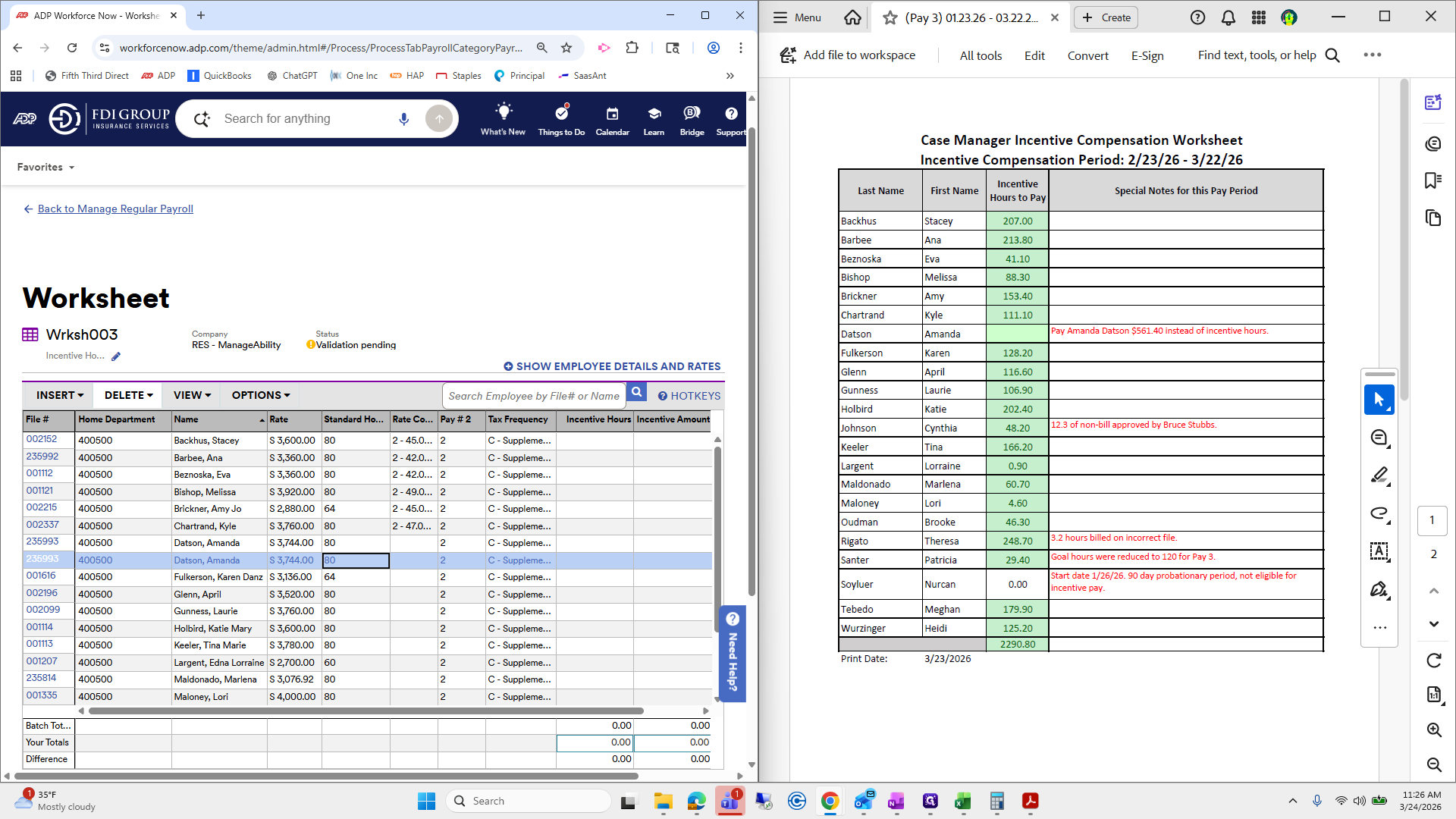
One row, yes.
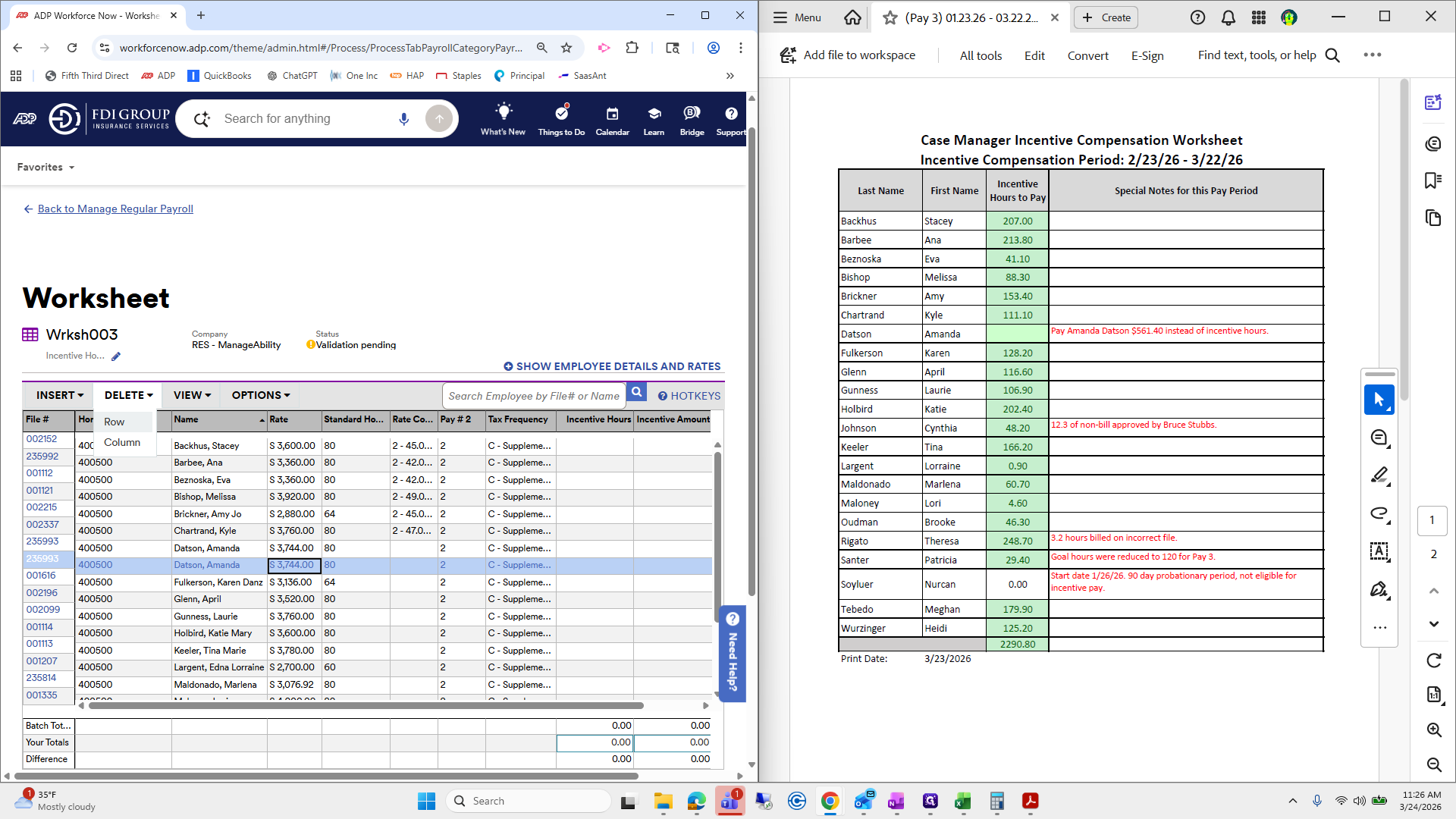
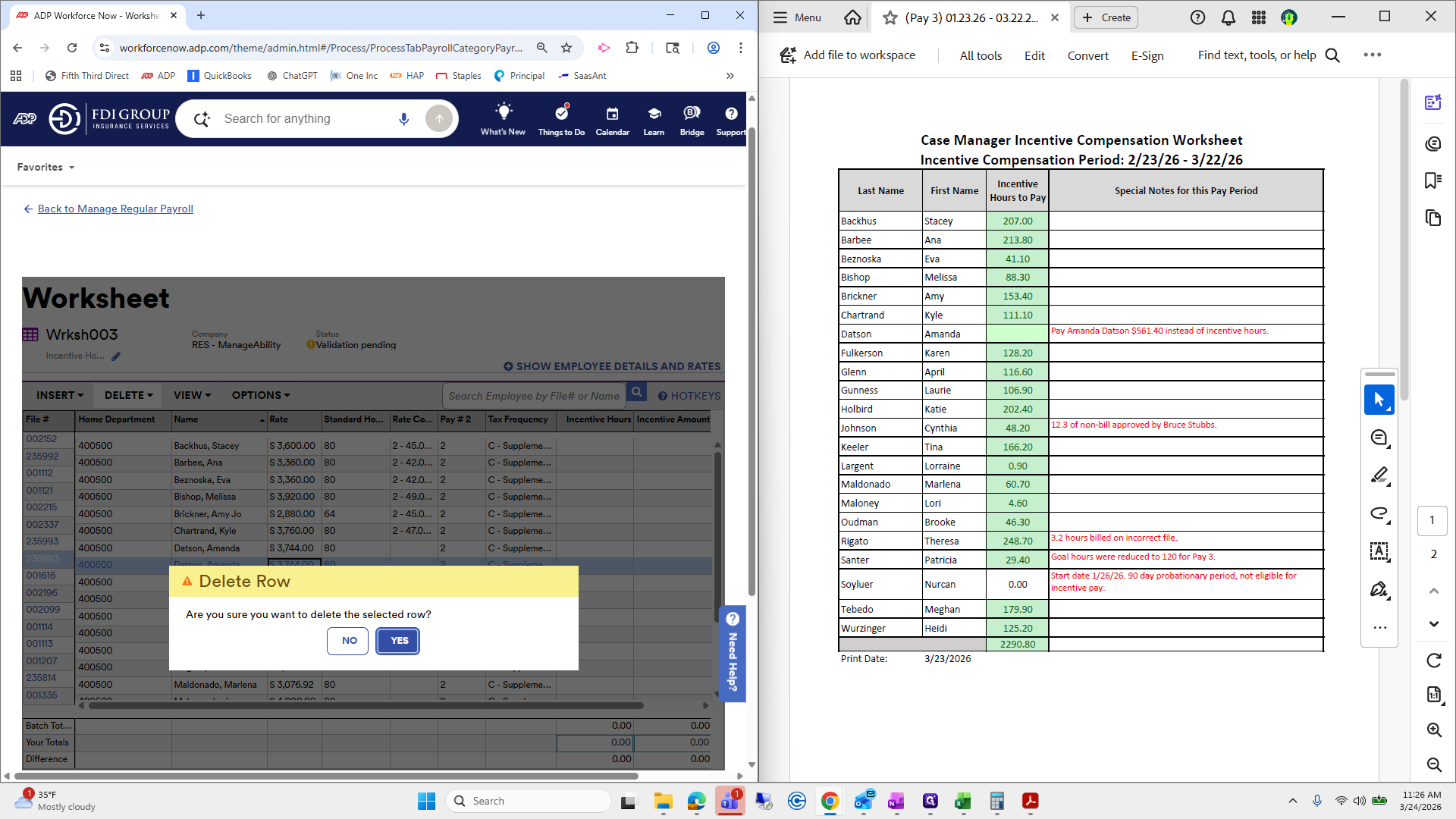
Okay. Focus on two.
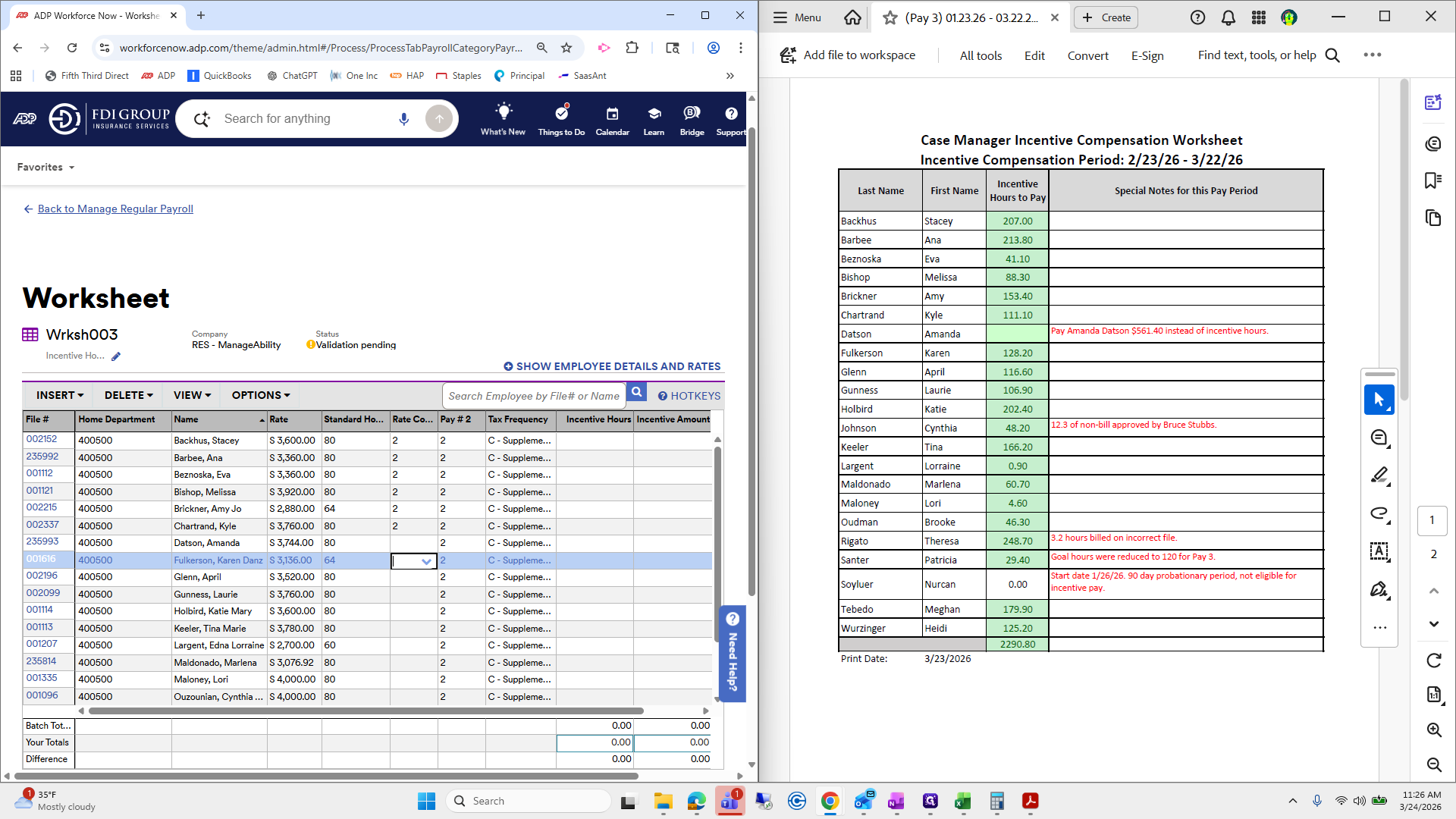
I know this is annoying. Please bear with it and go quickly.
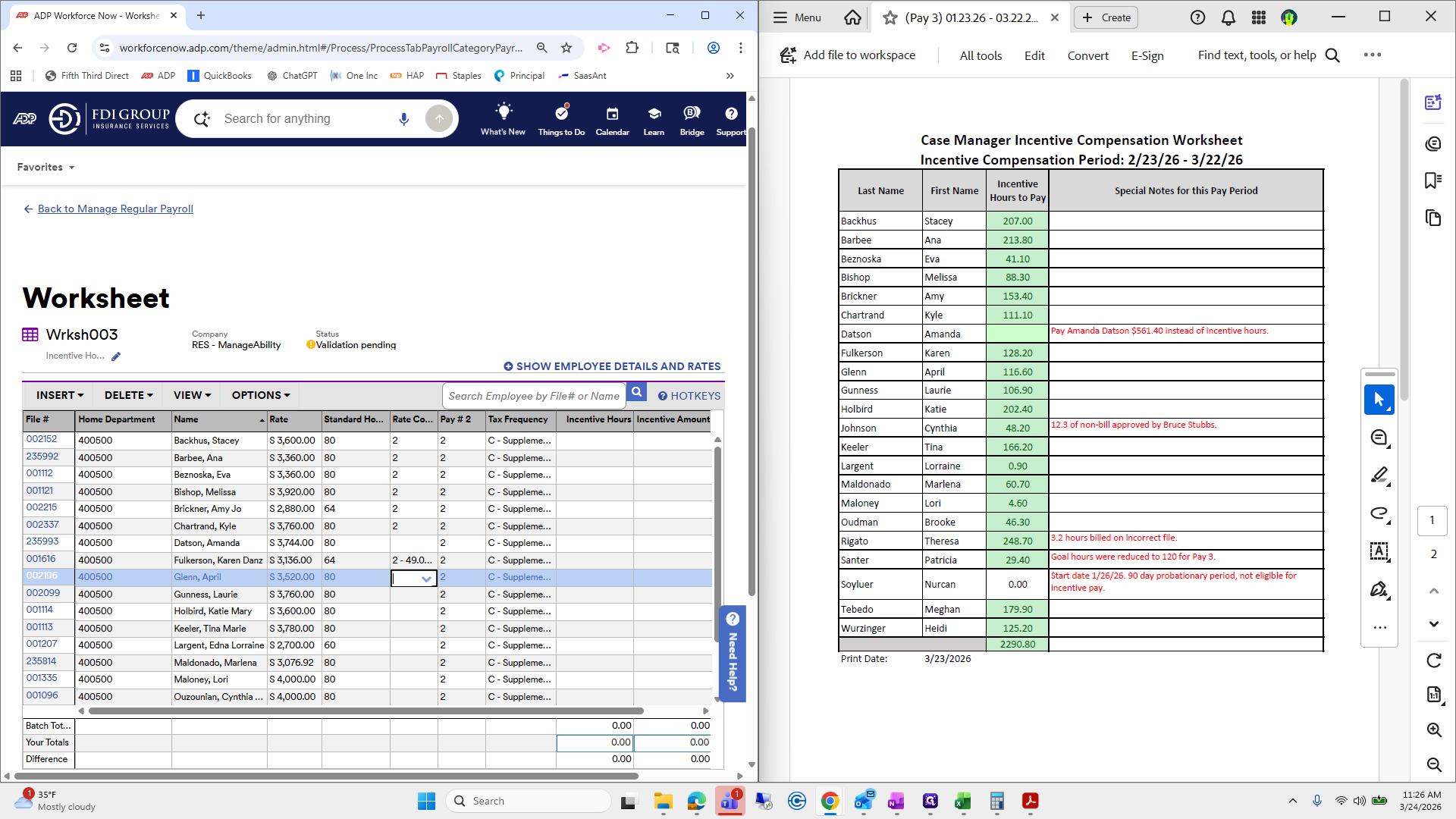
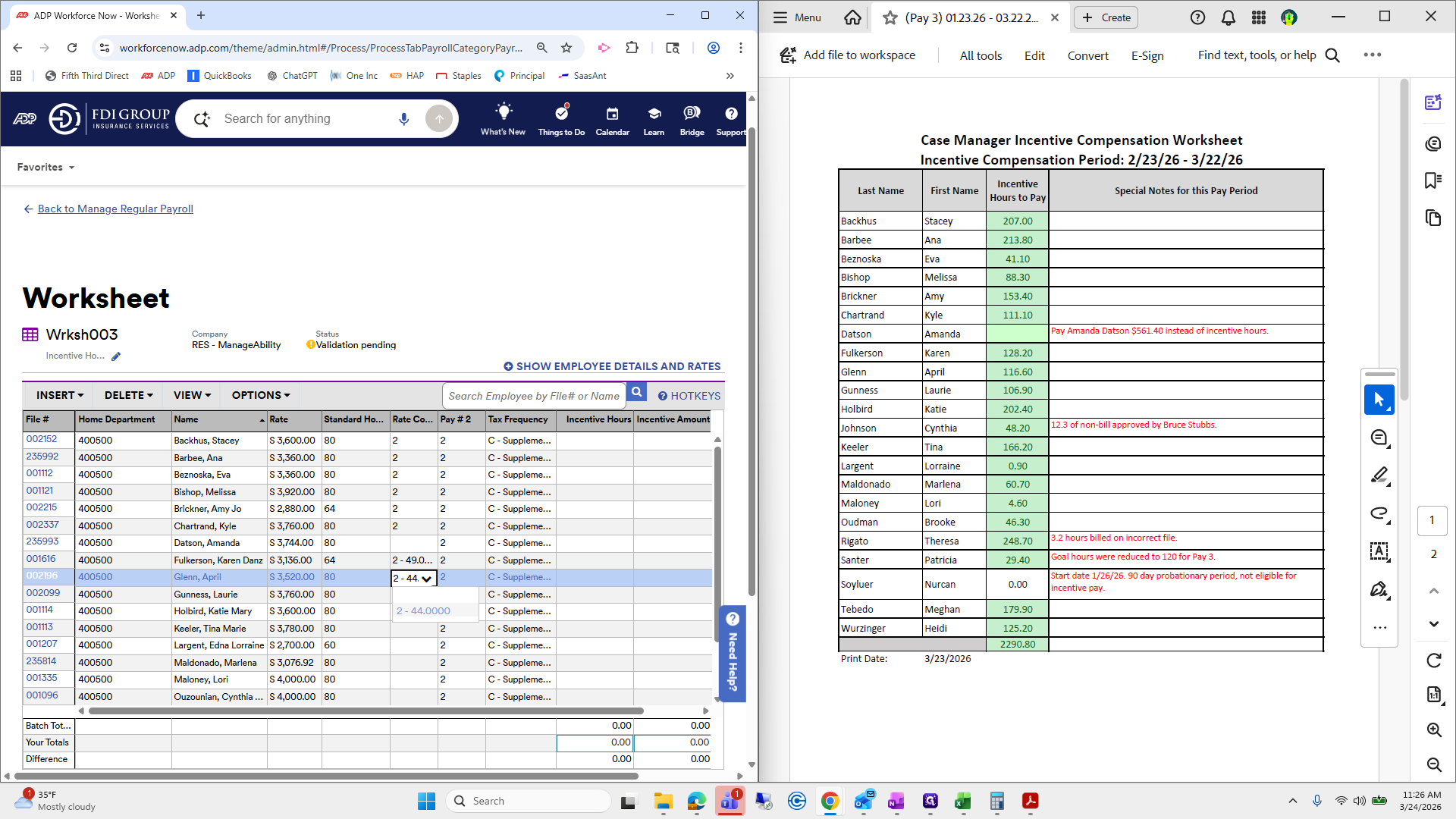
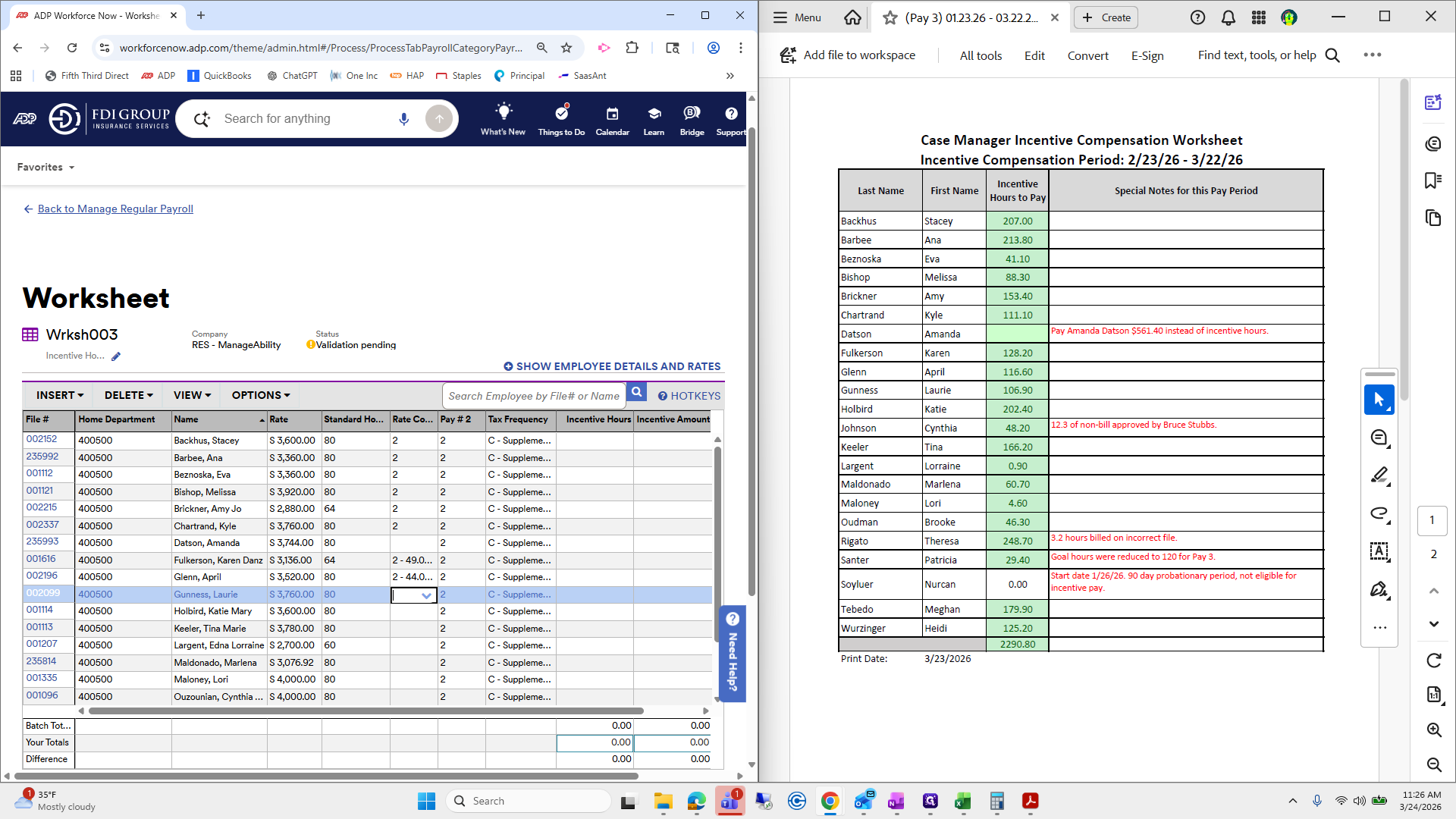
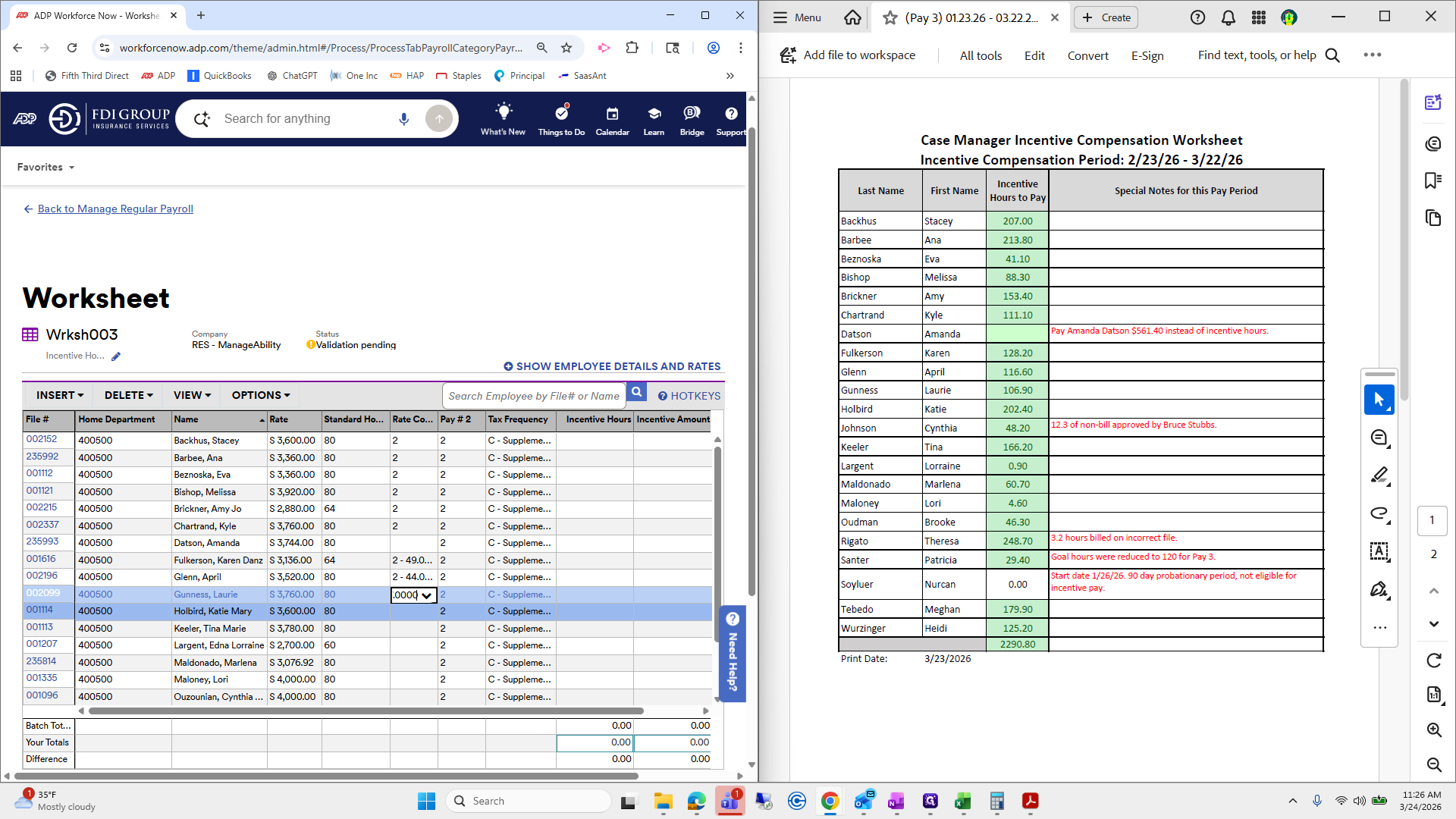
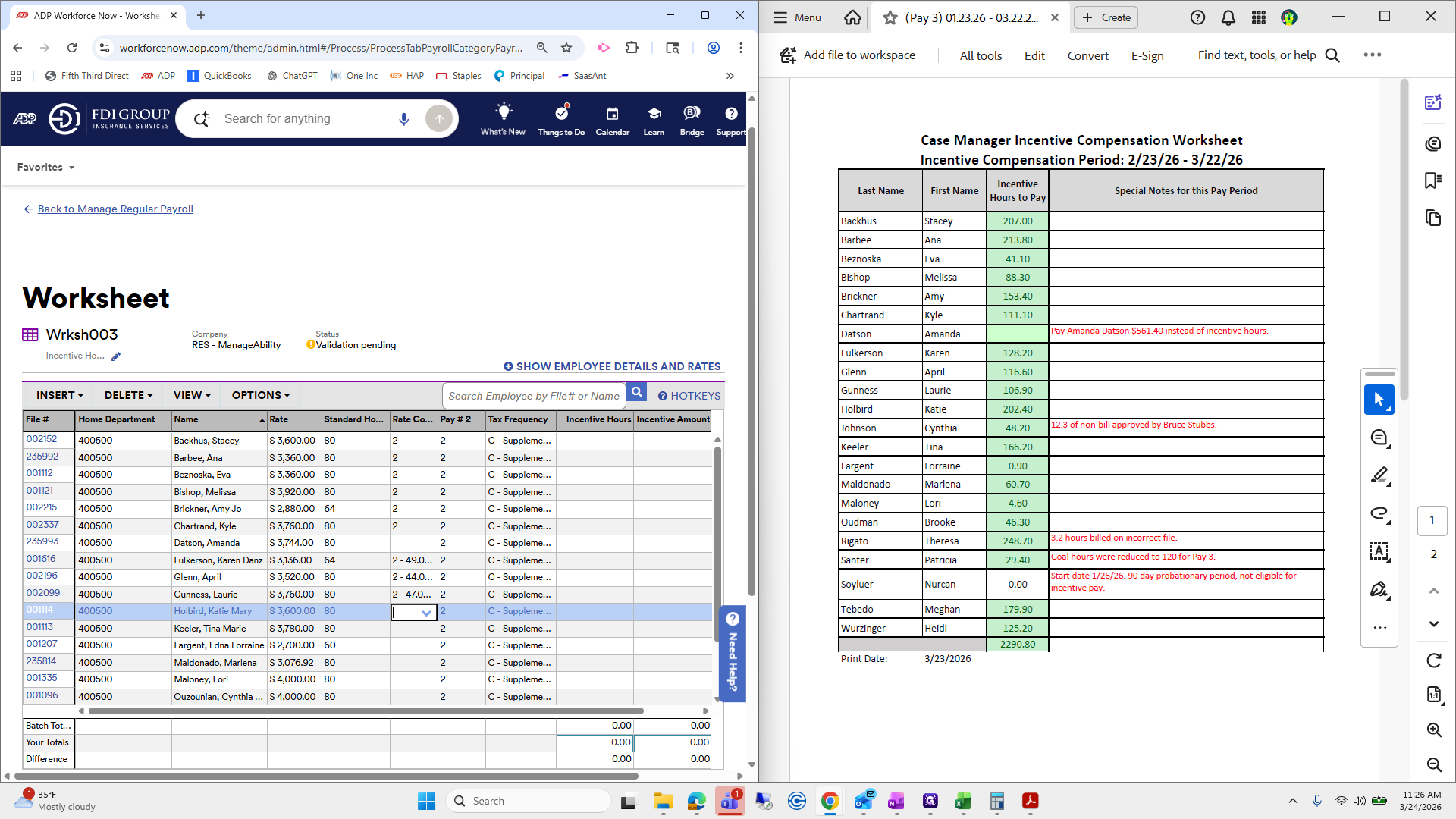
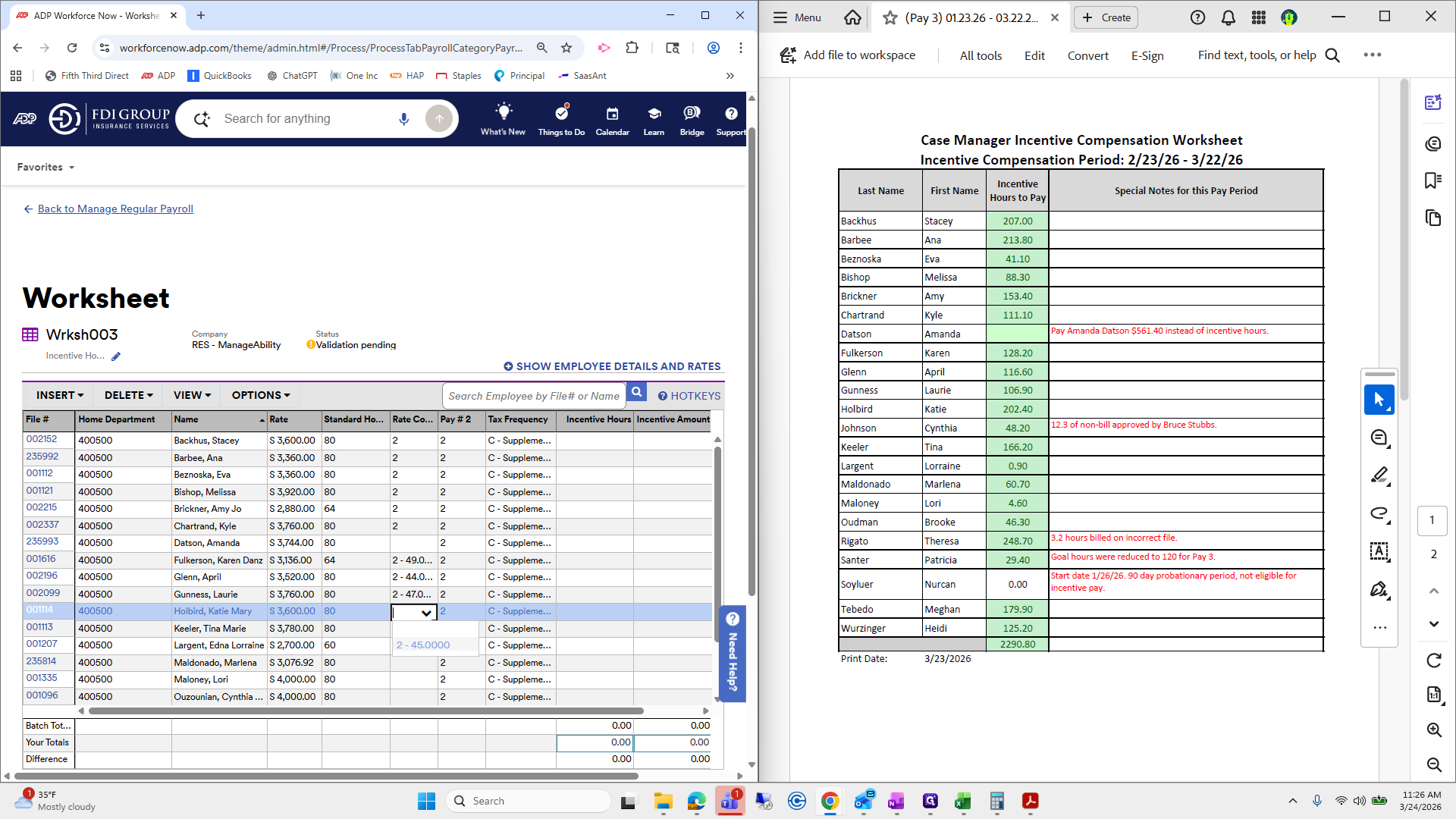
It won't be that bad. Two, two, two.
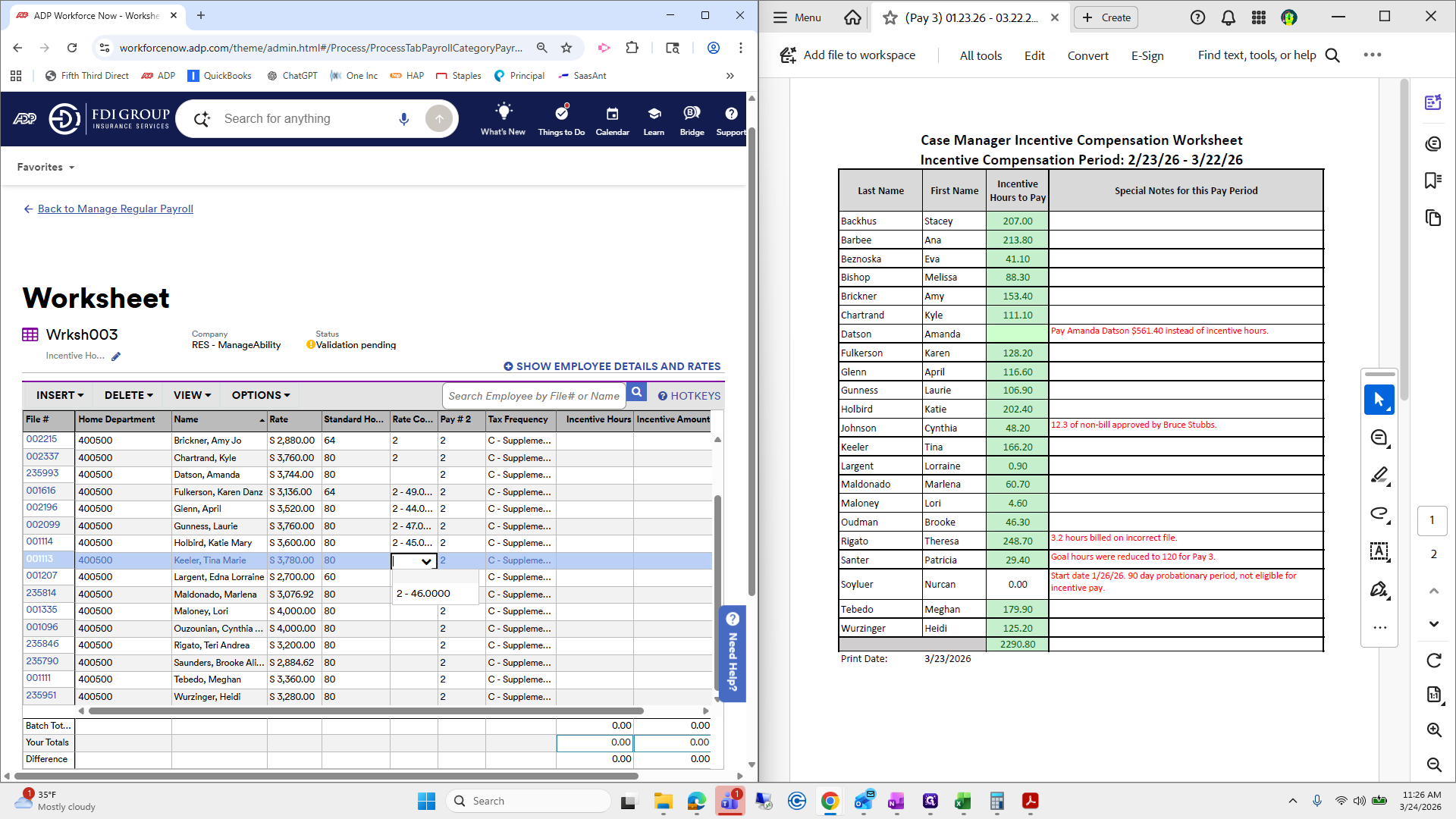
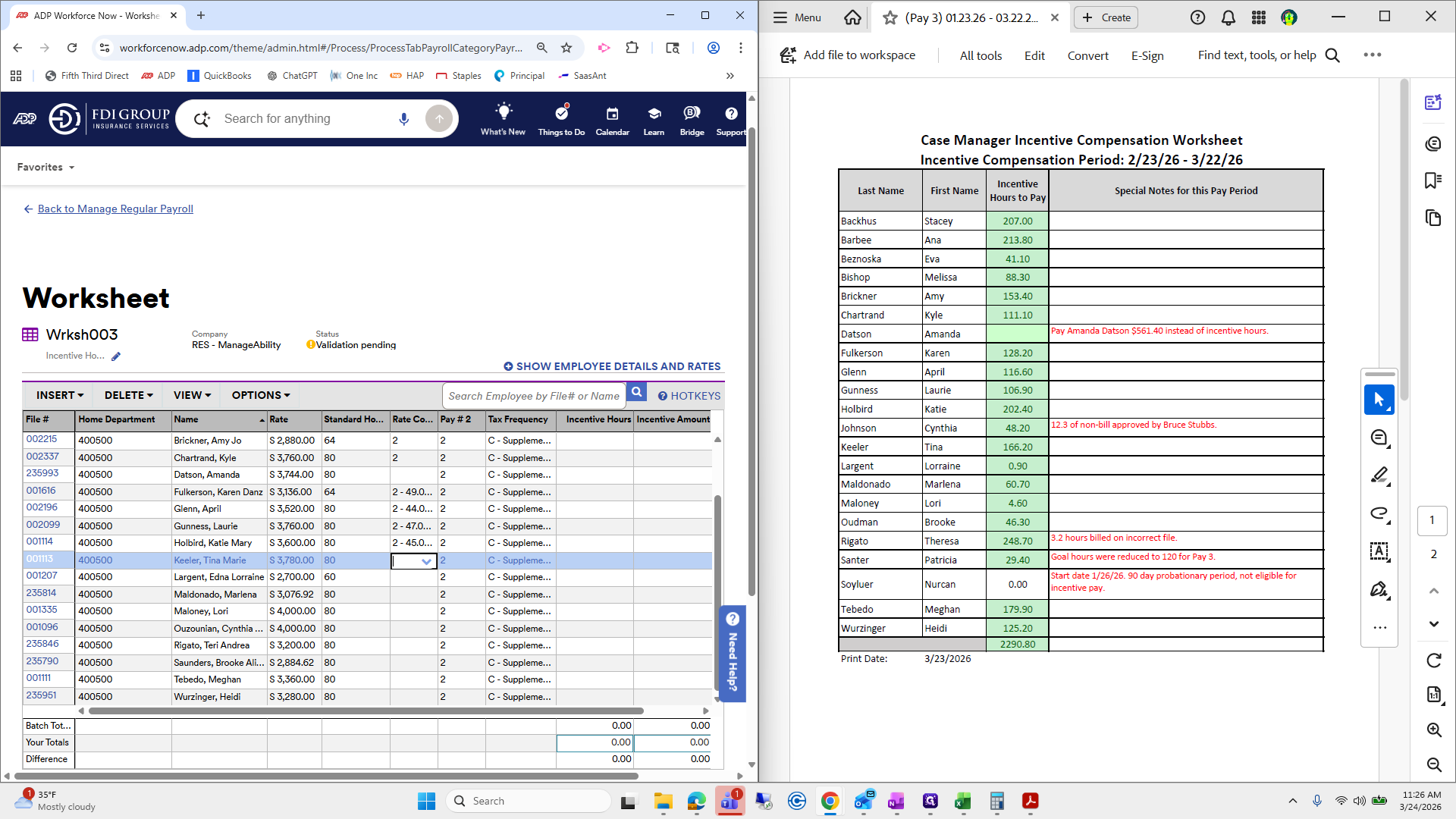
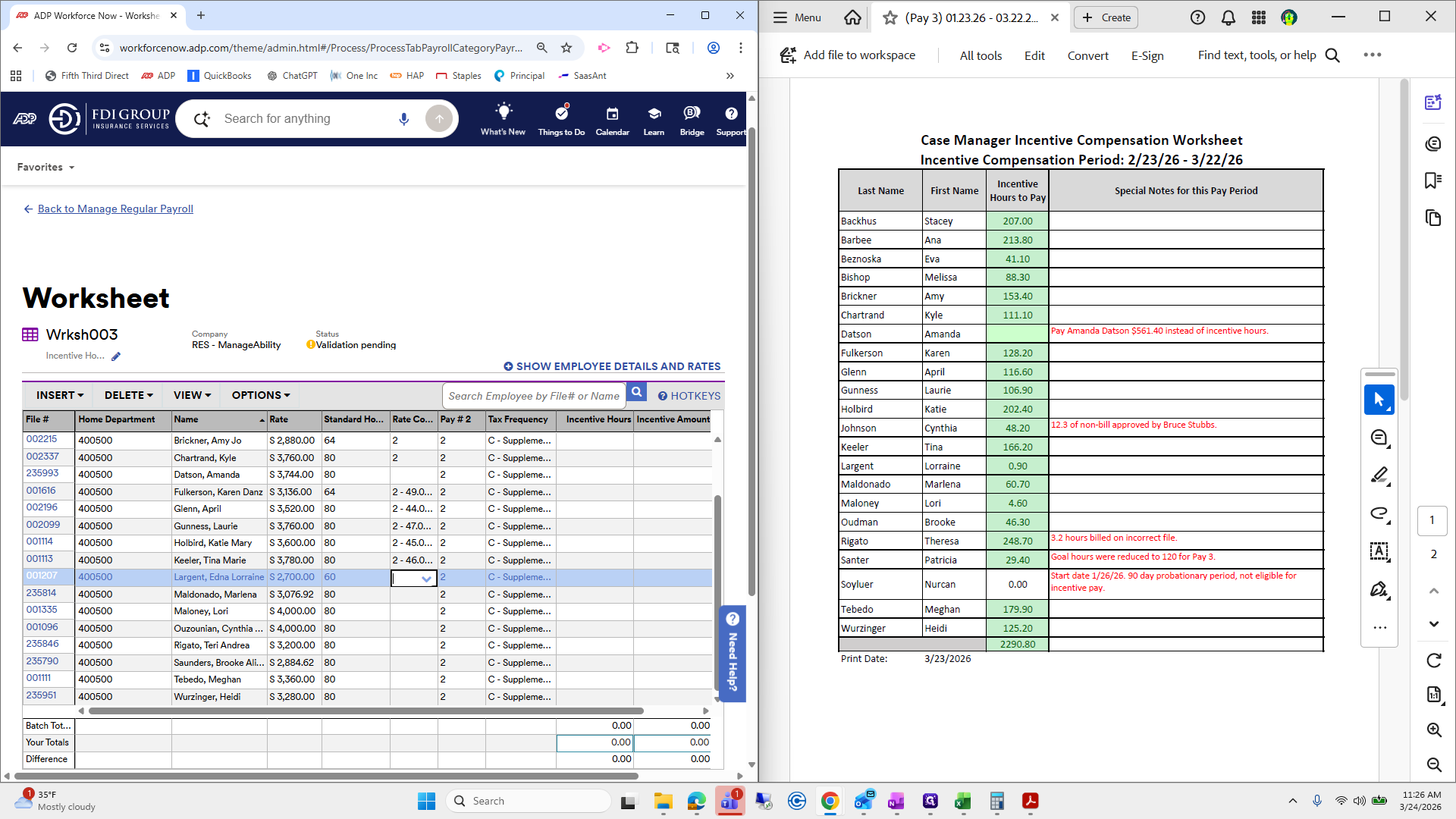
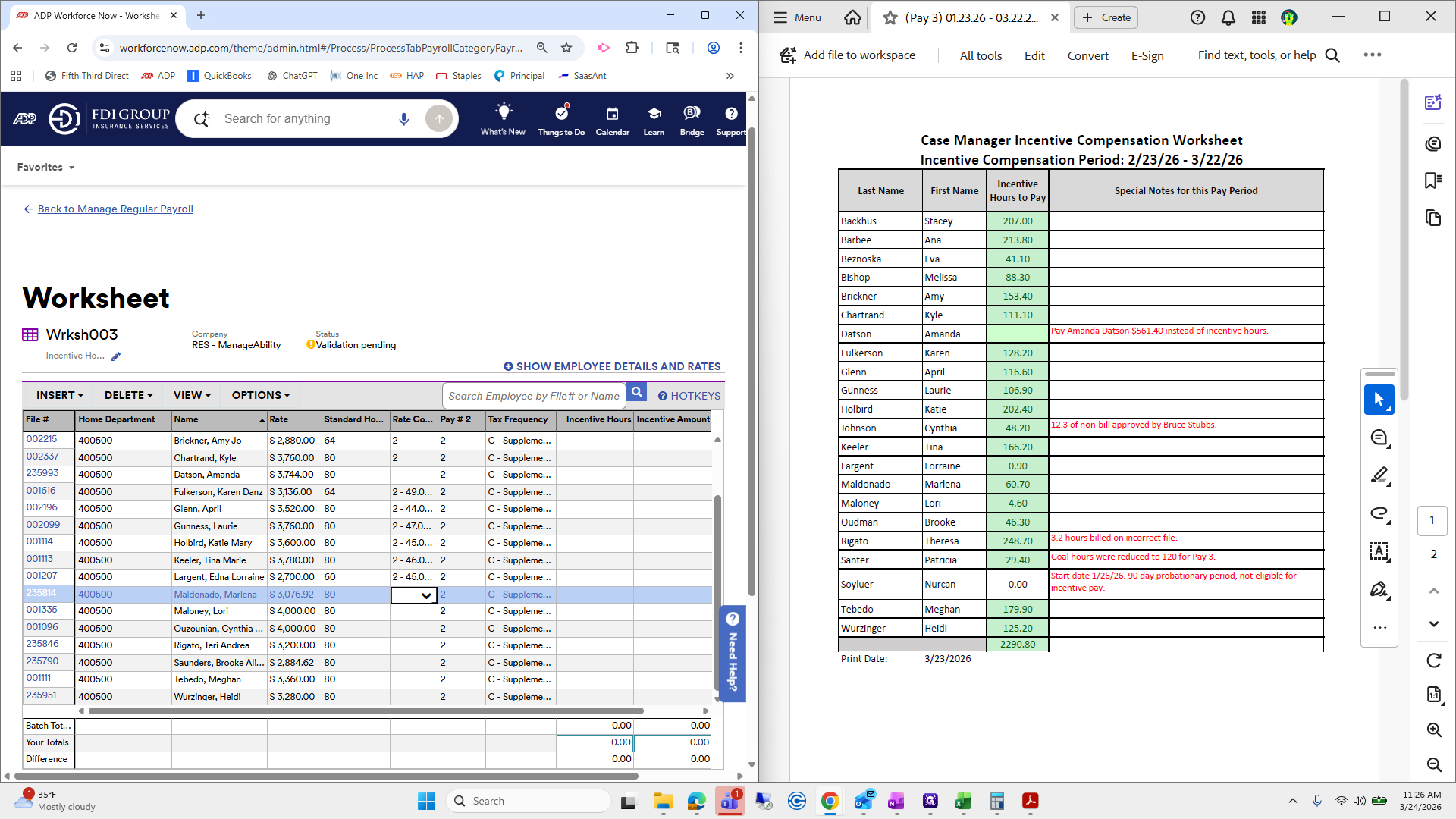
Okay.
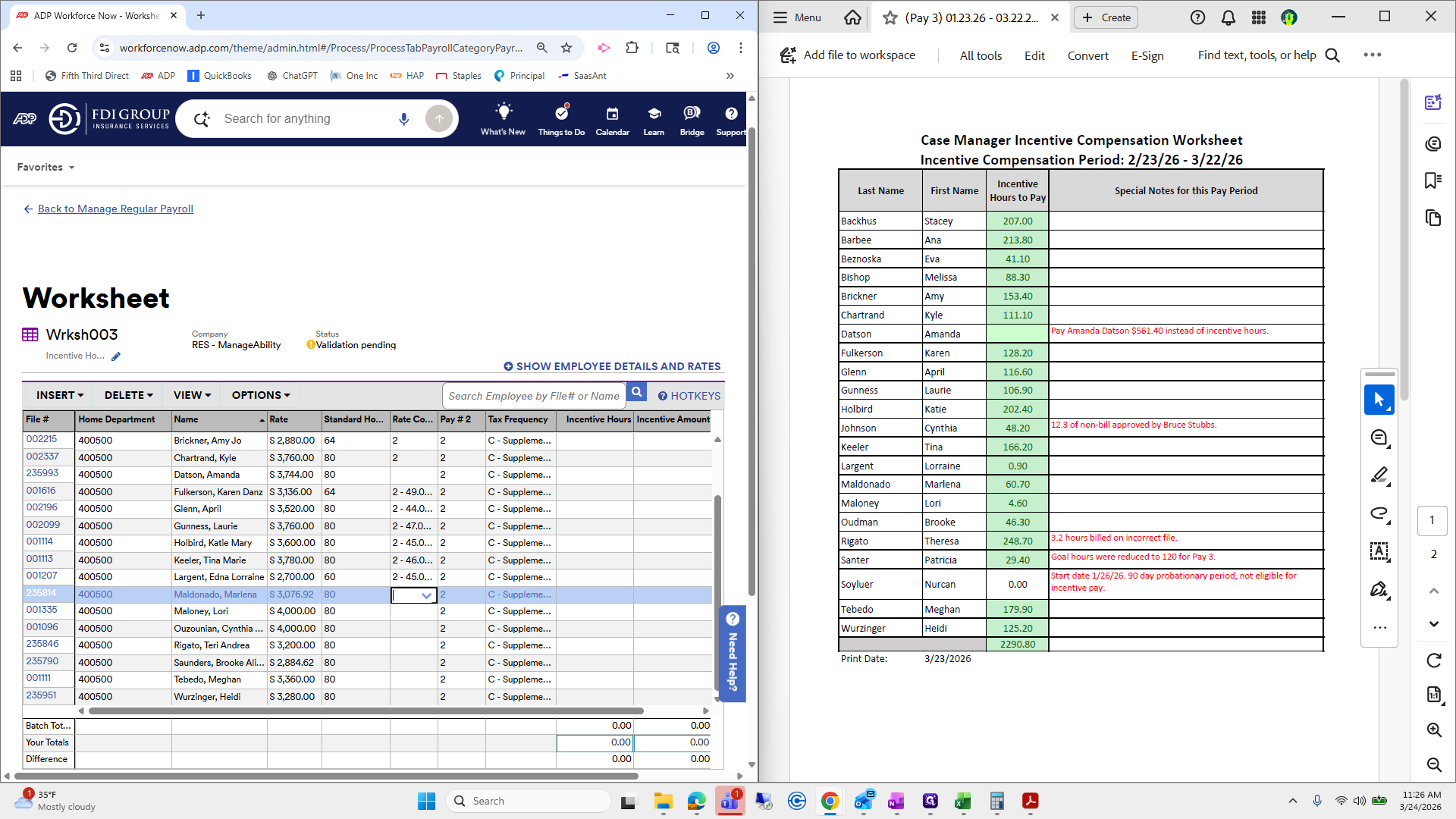
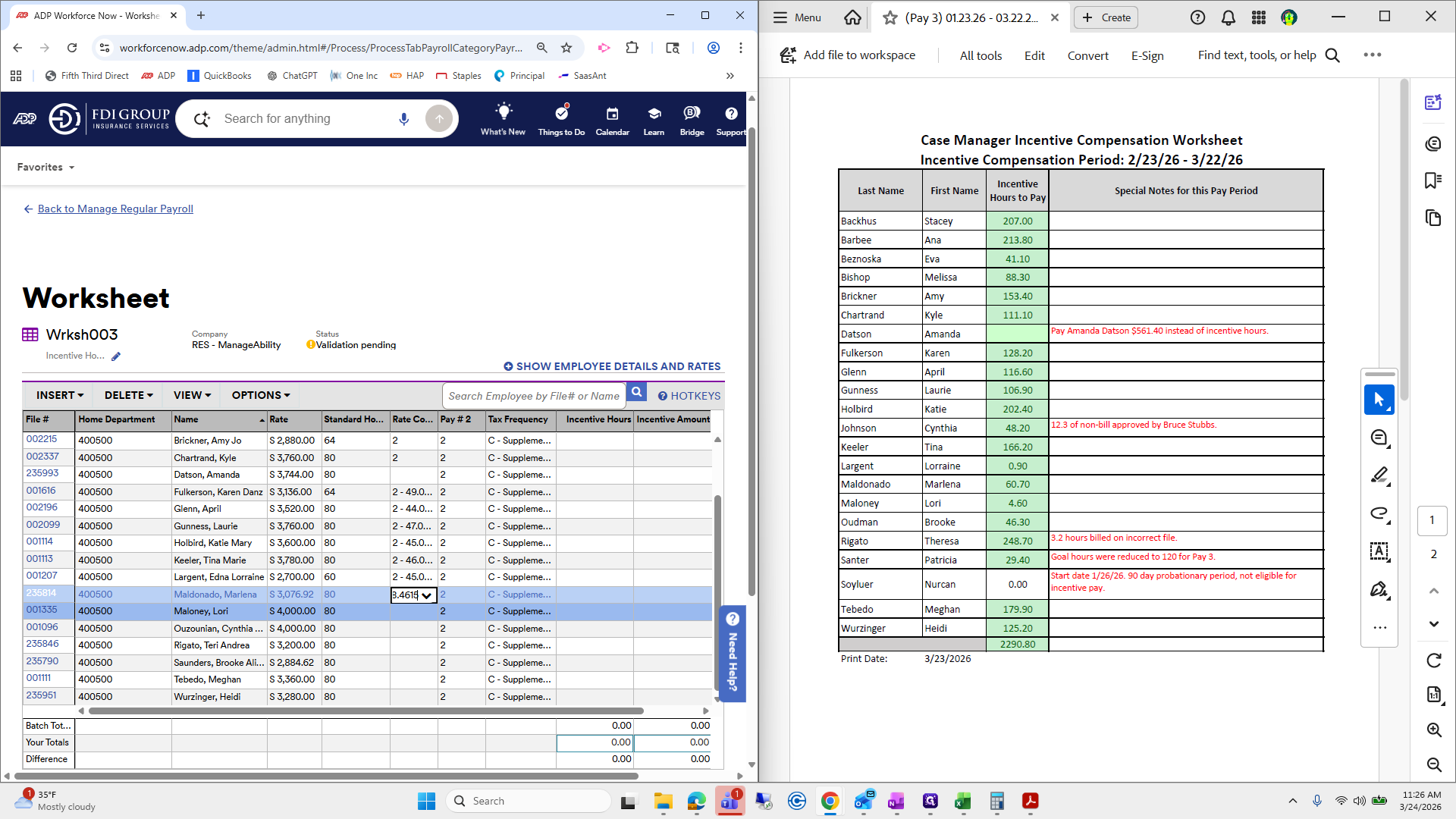
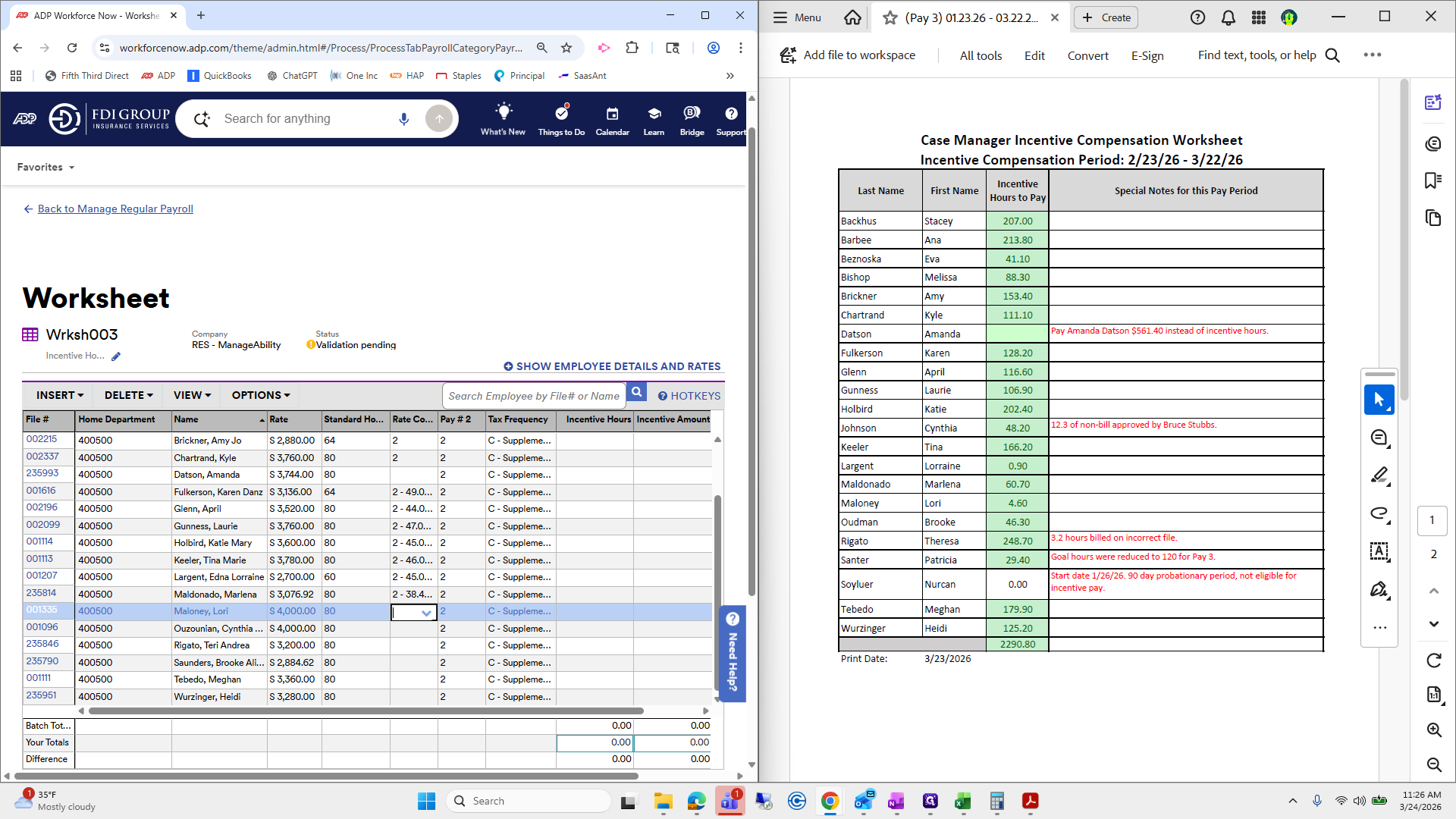
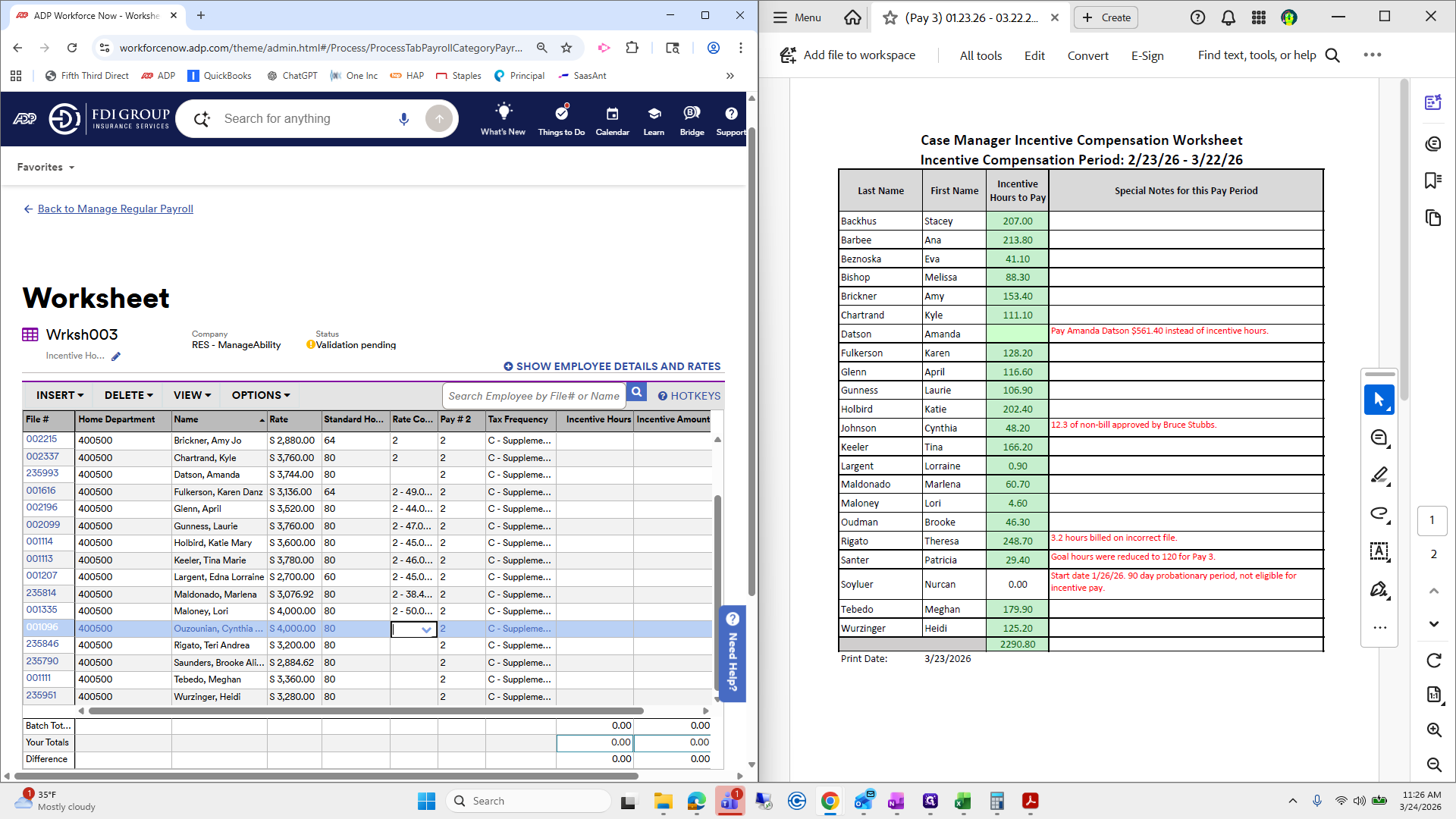
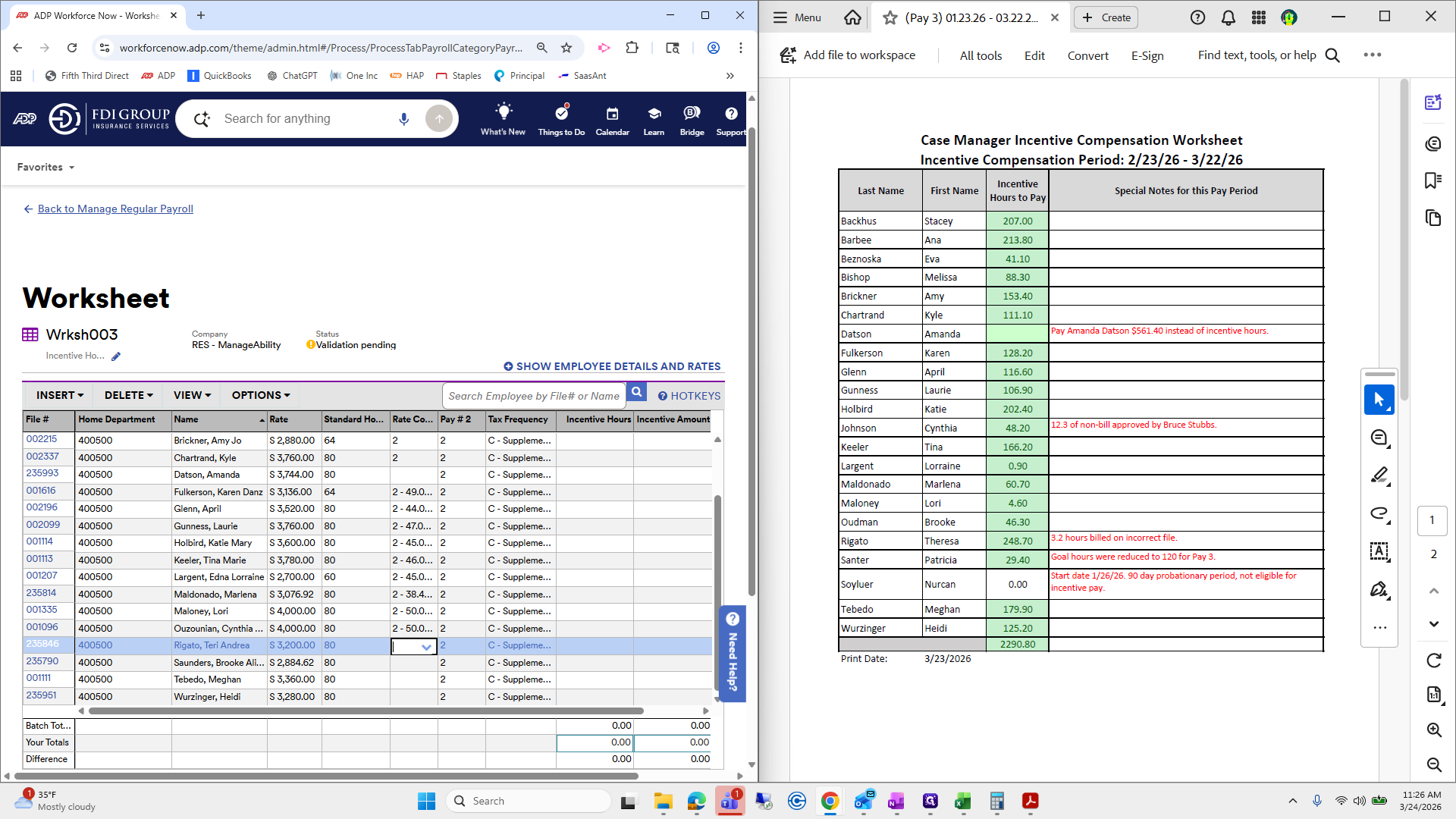
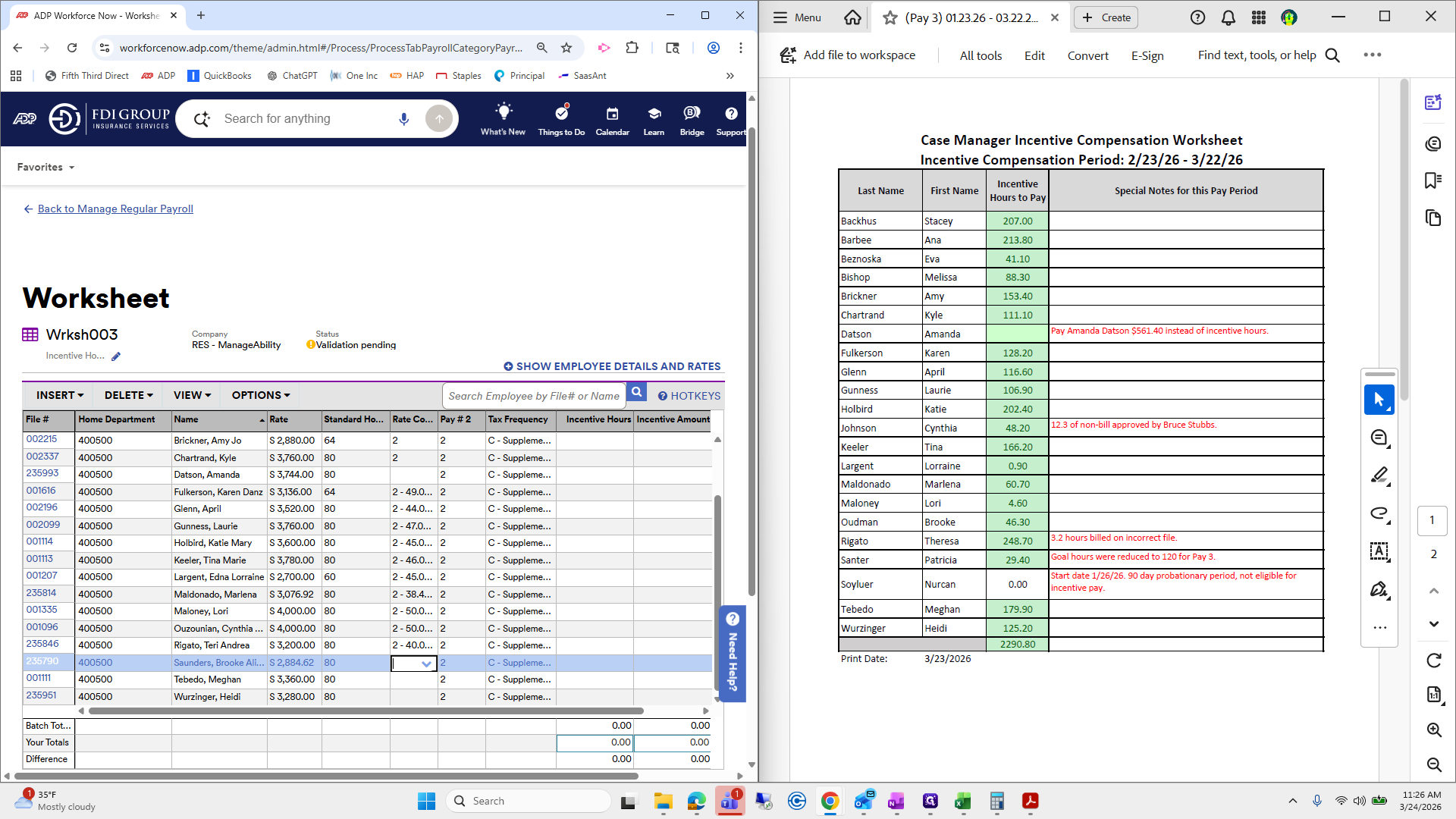
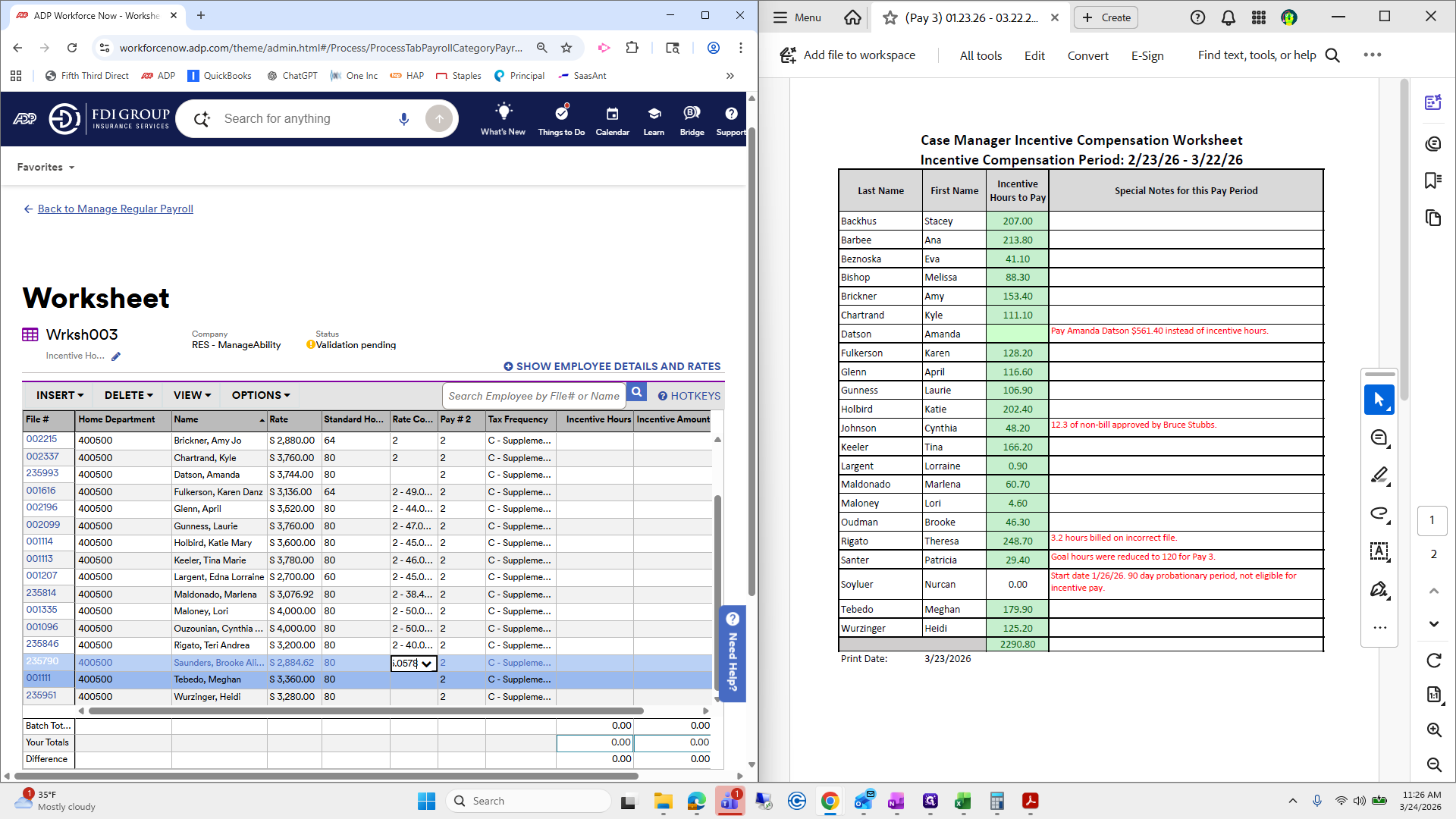
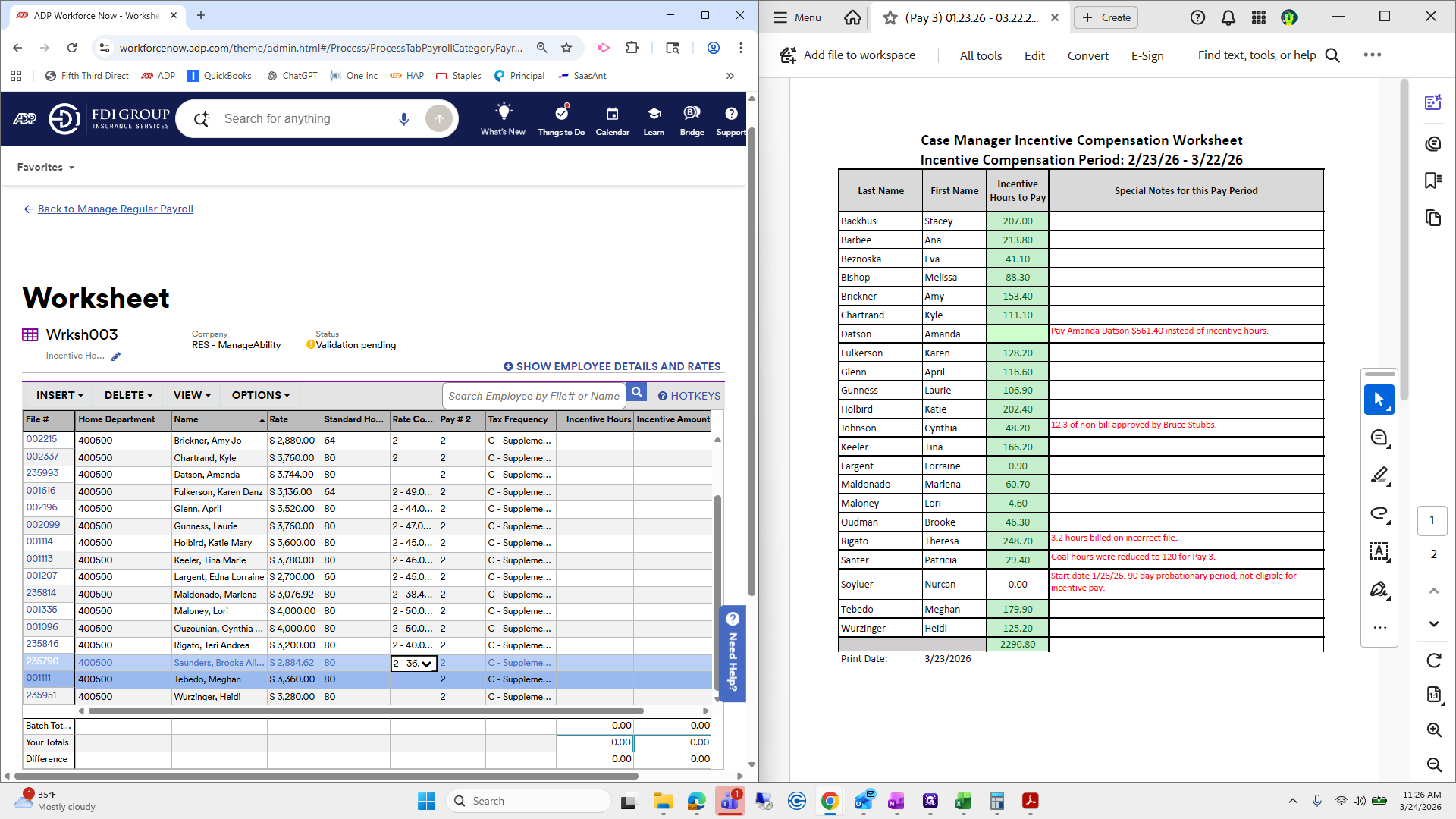
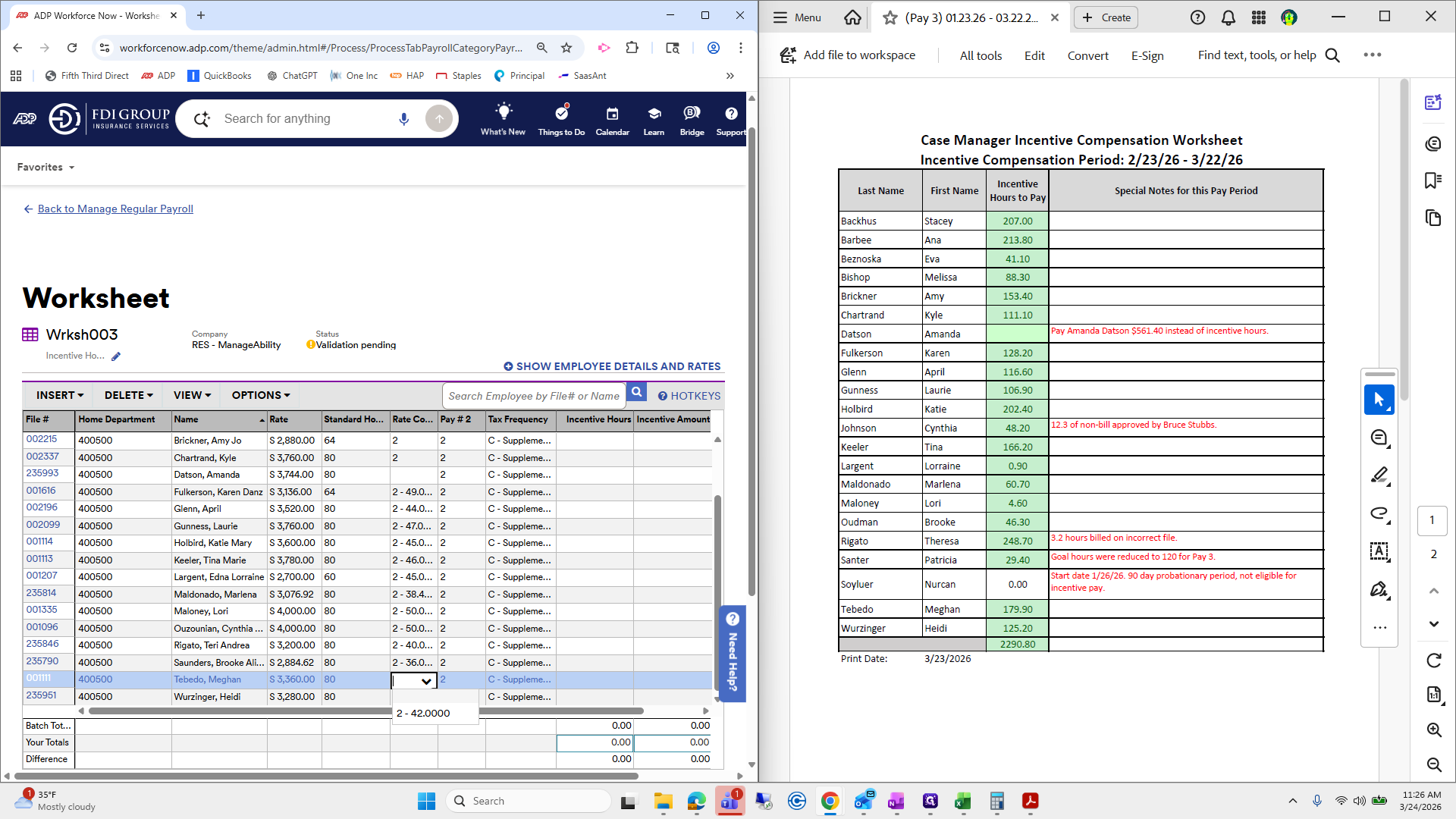
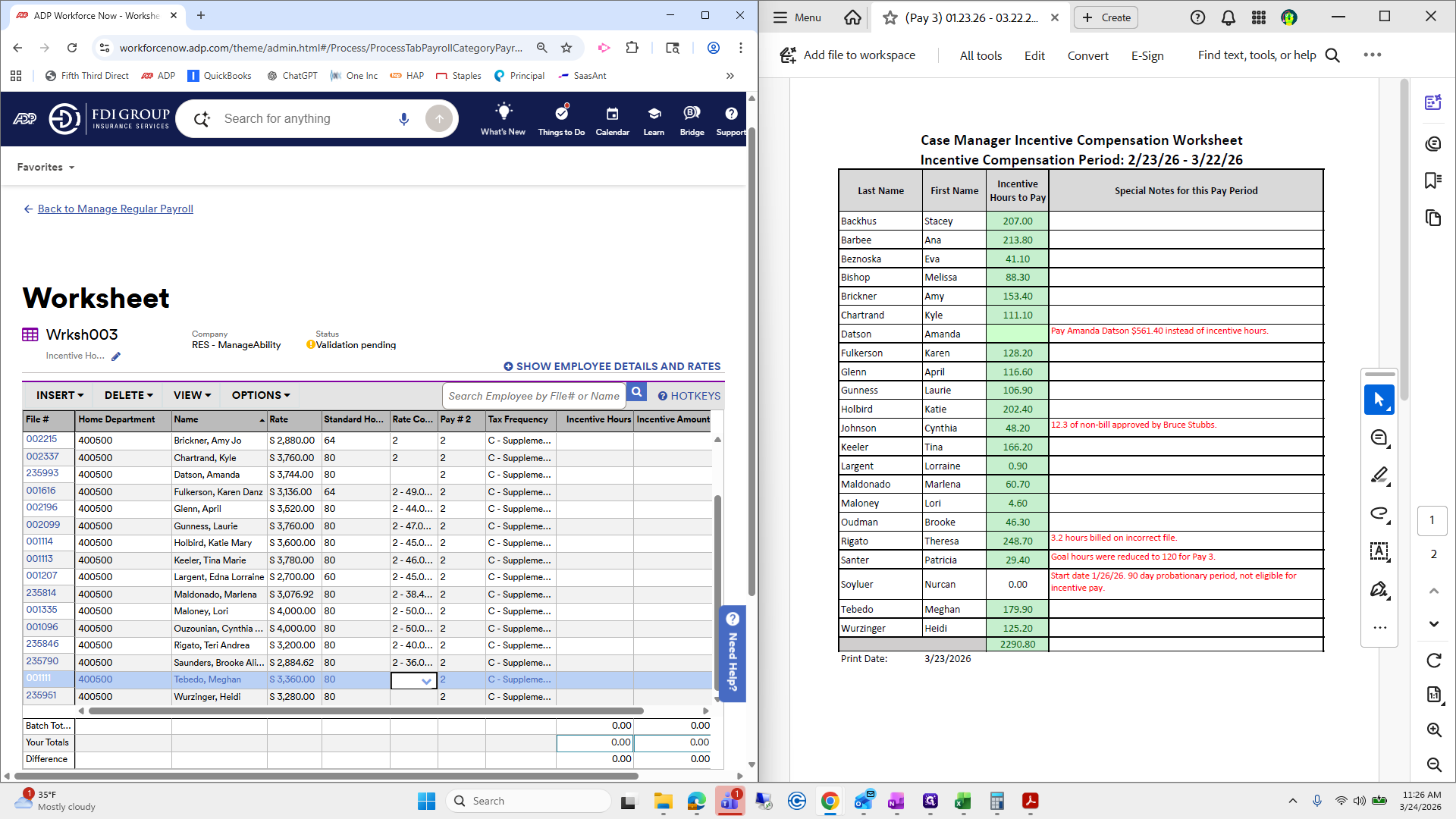
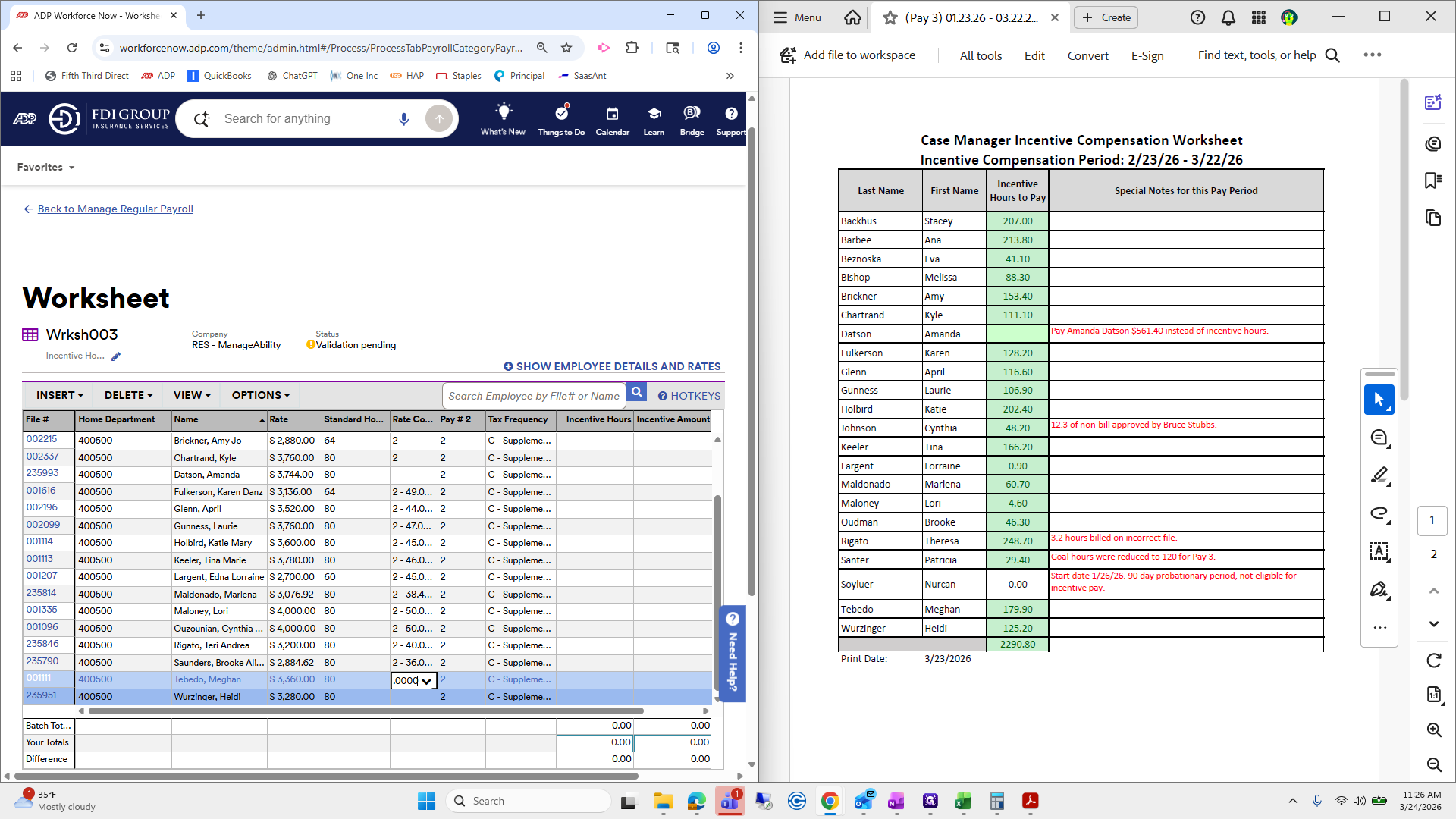
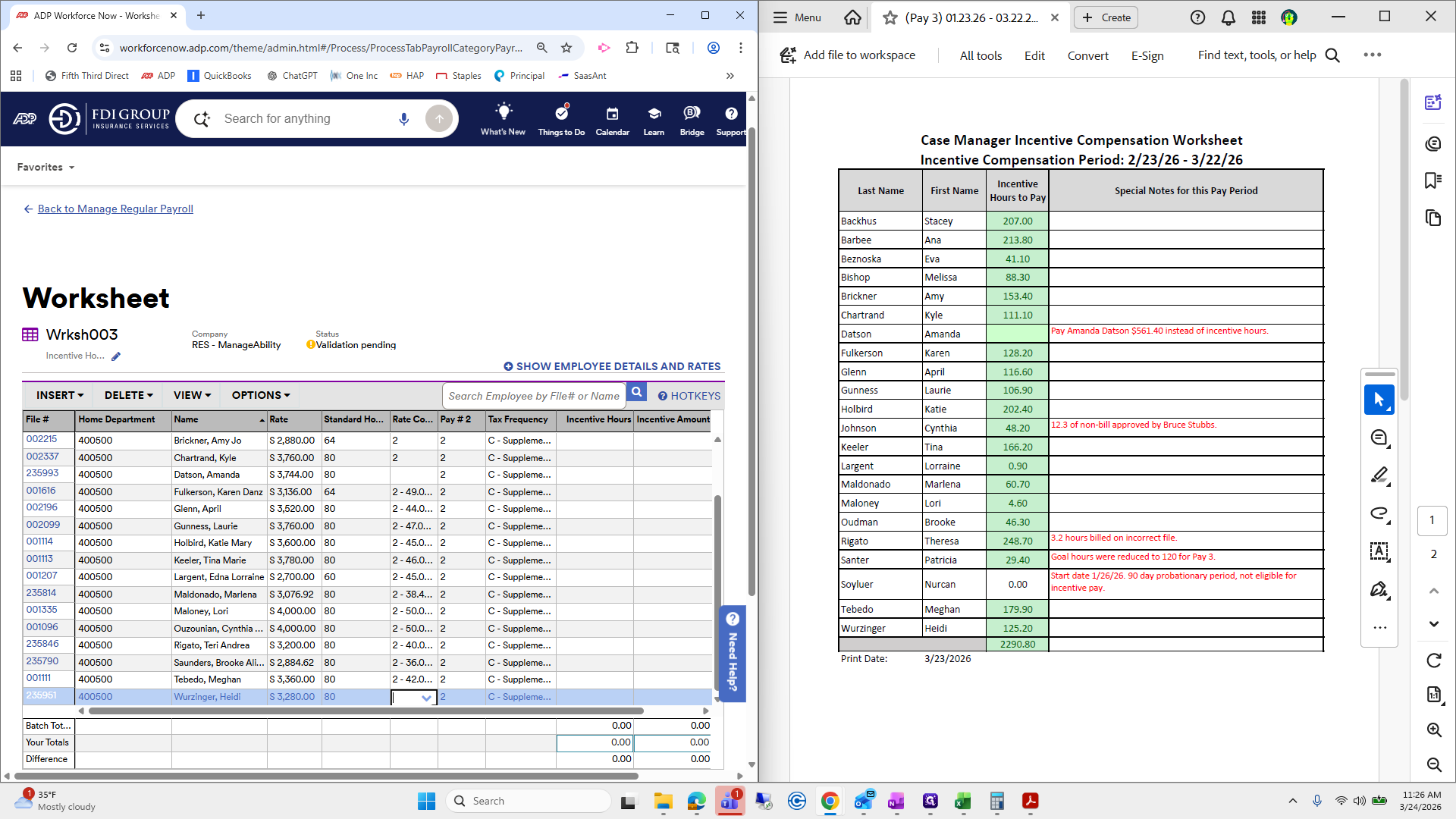
From here, we can enter our hours.
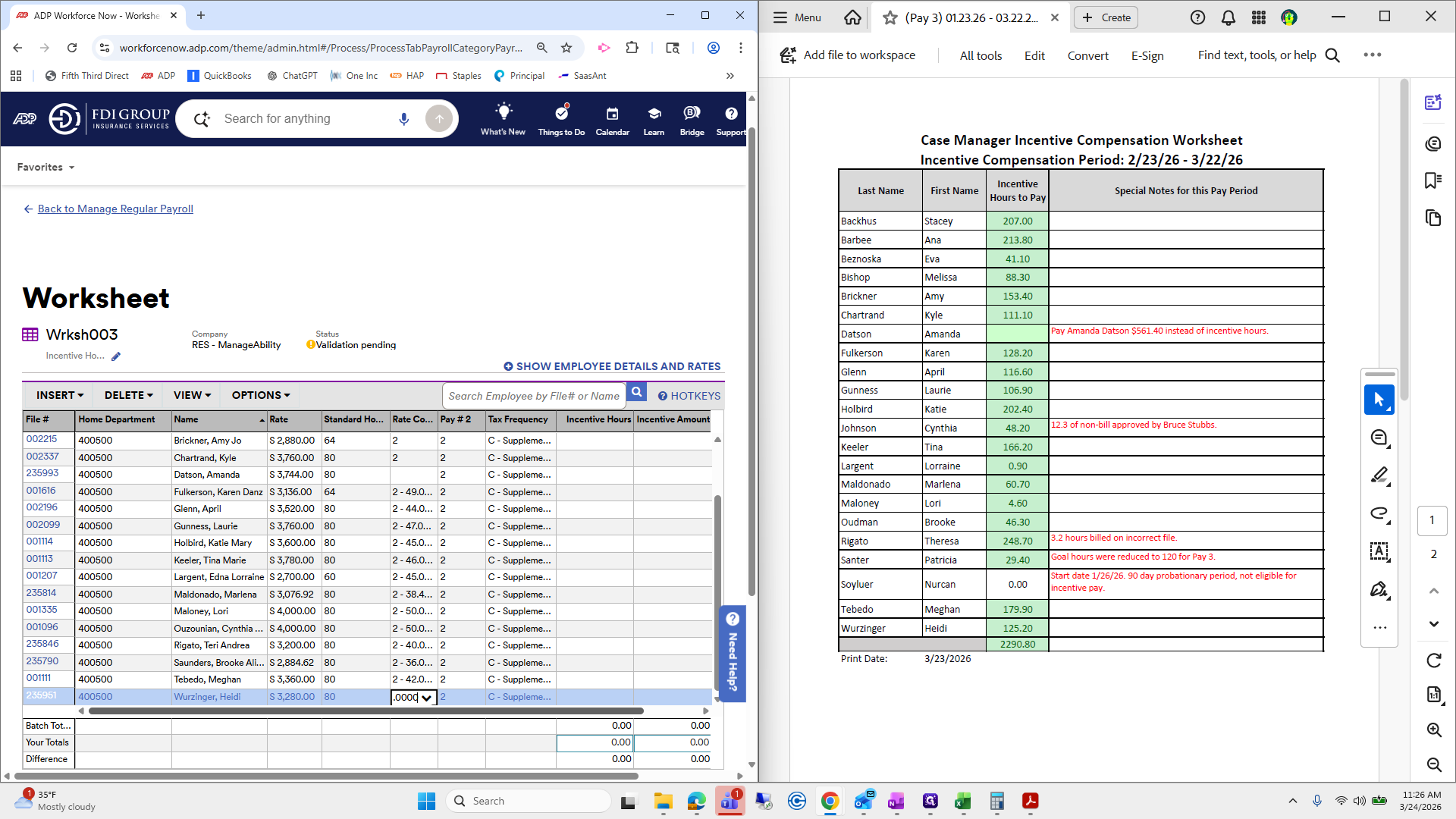
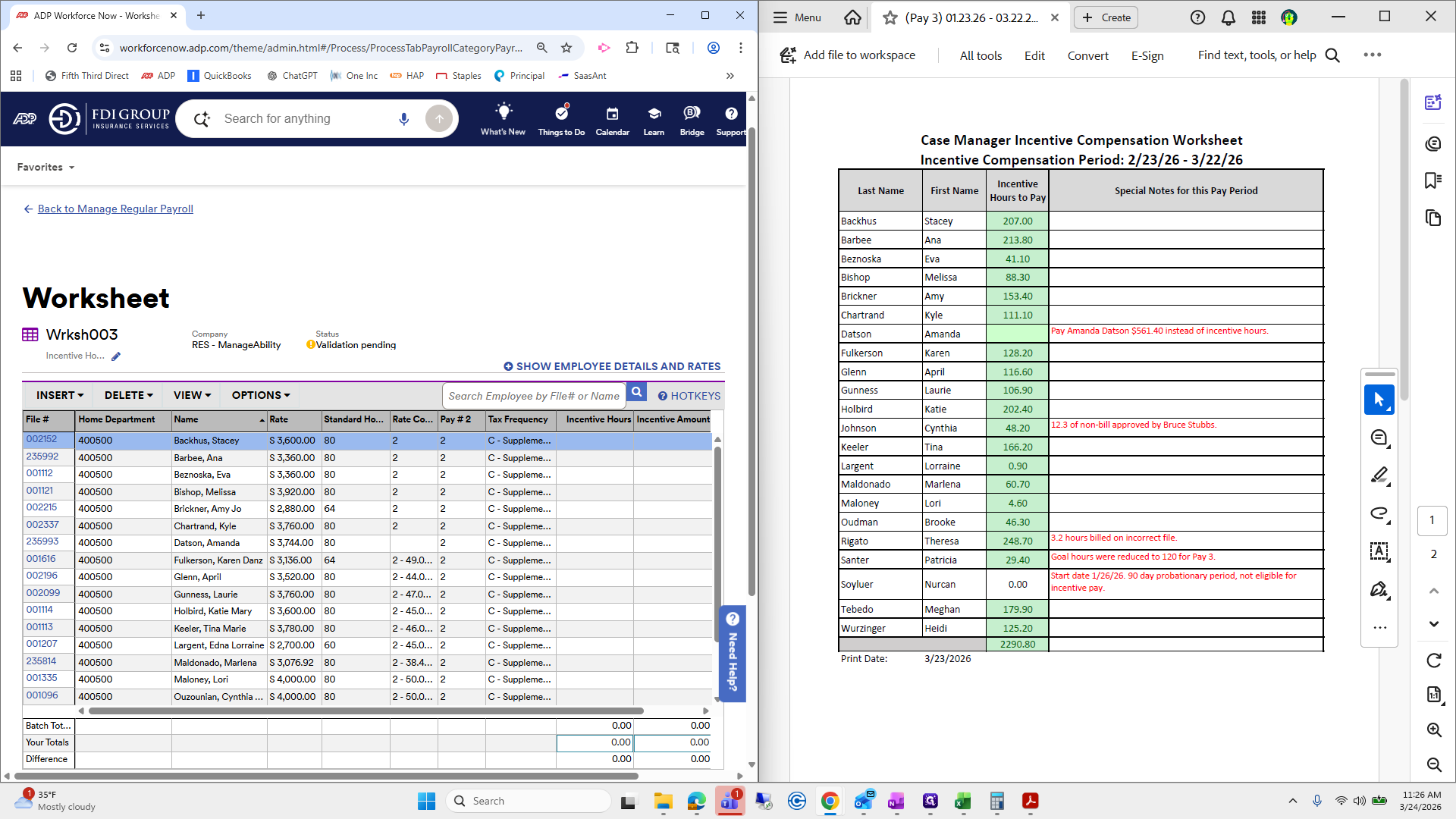
We always want to match the name to ensure the hours are correct.
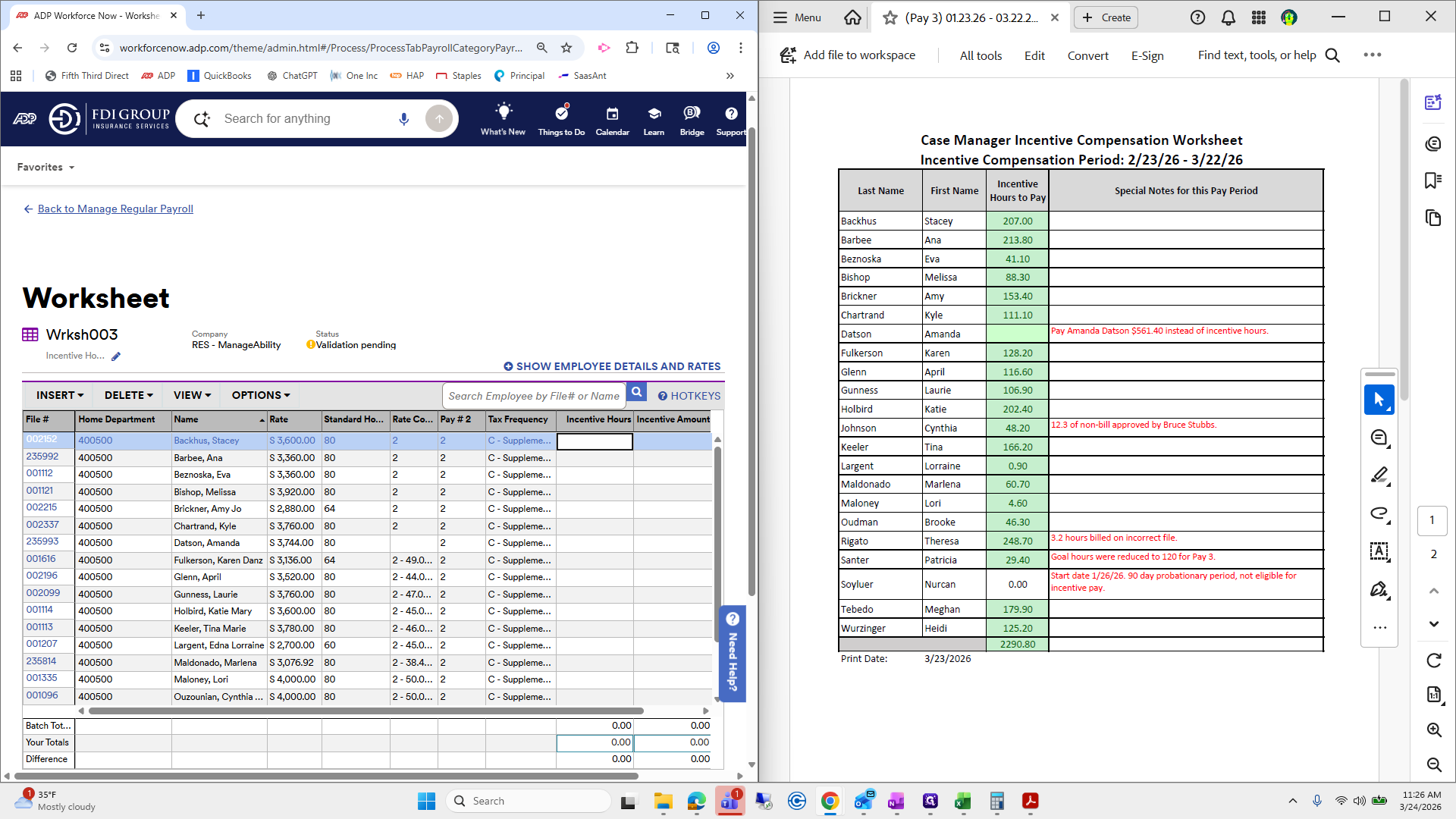
Incentive hours: 207.
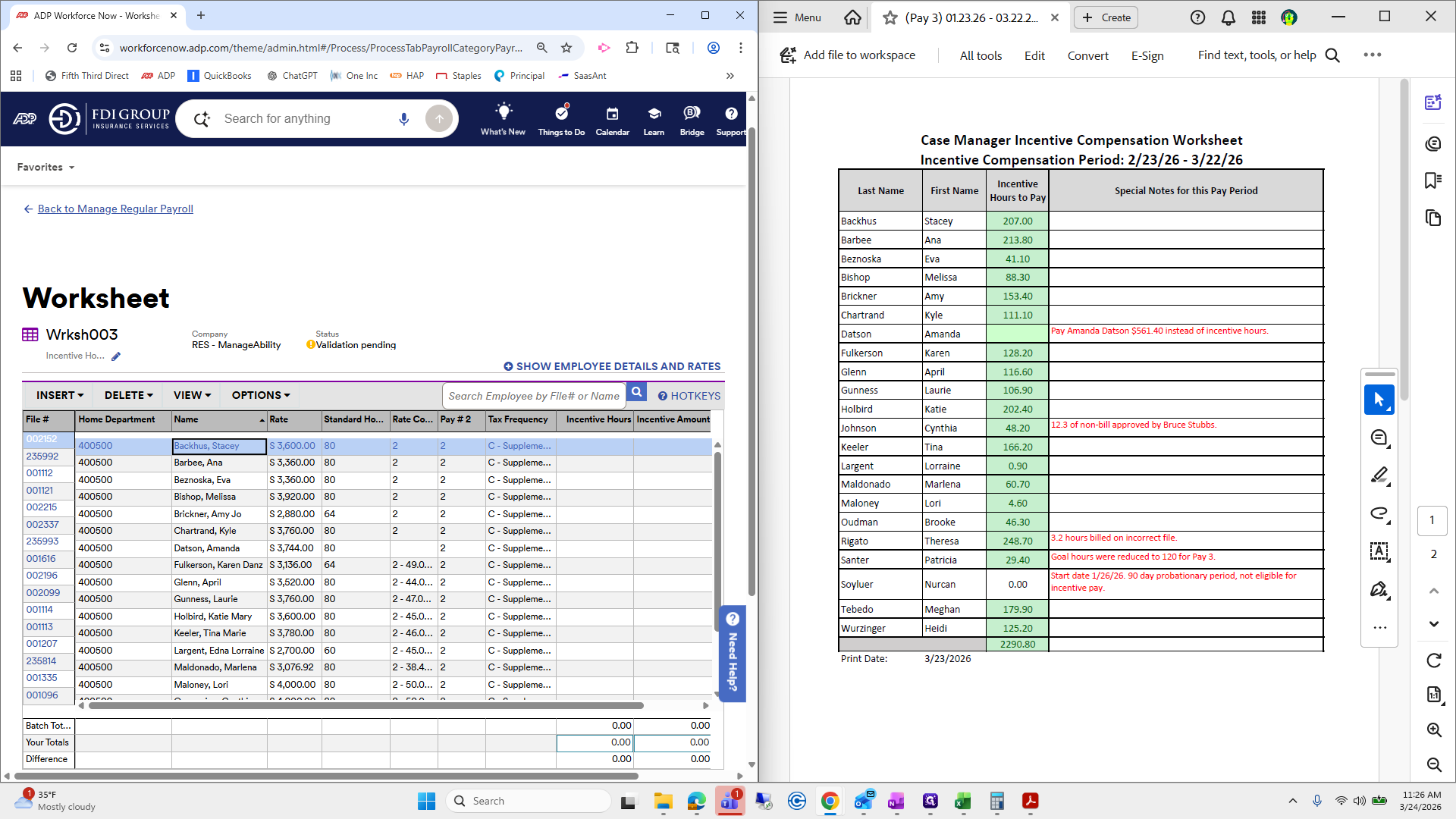
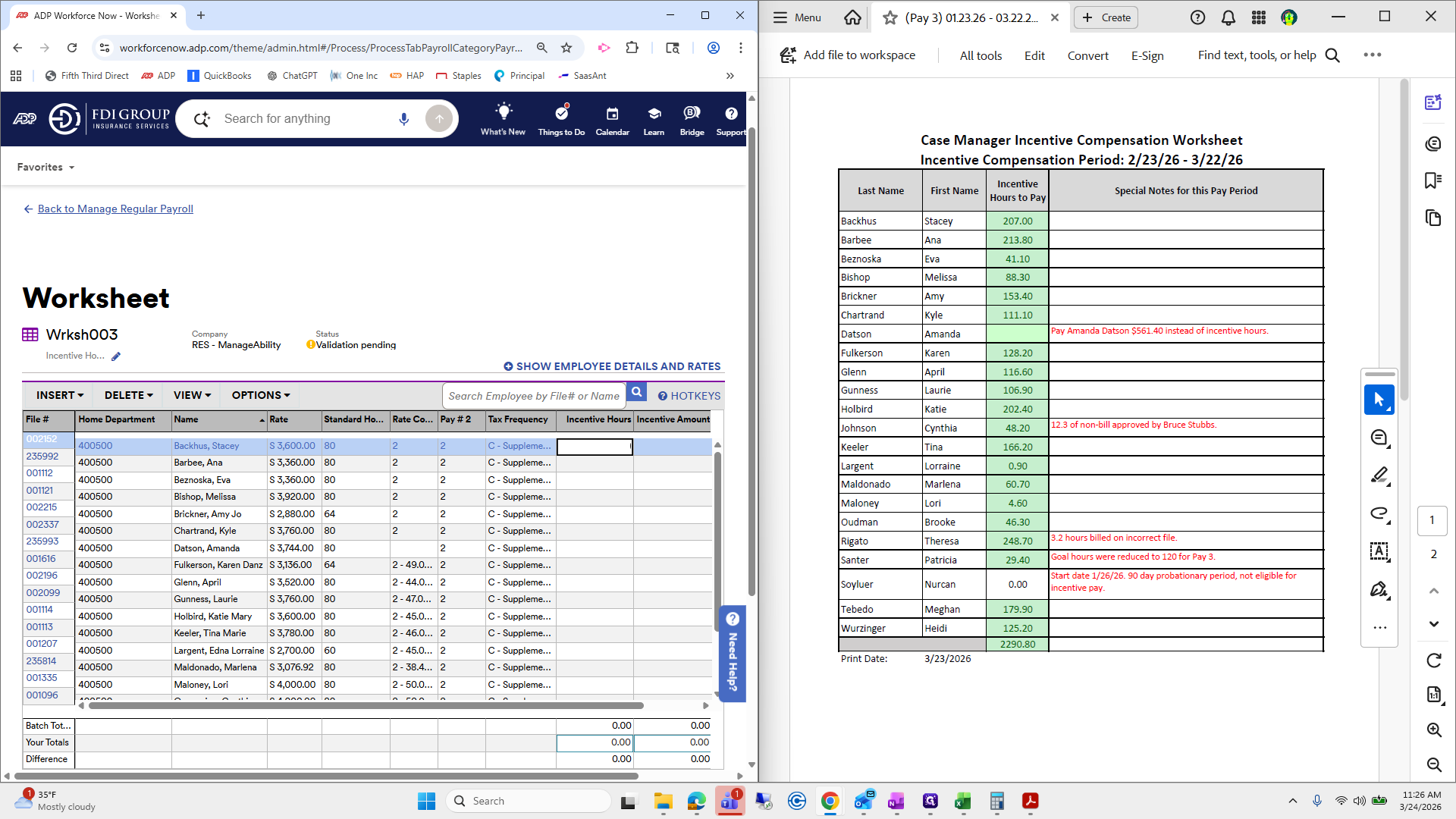
Anna.
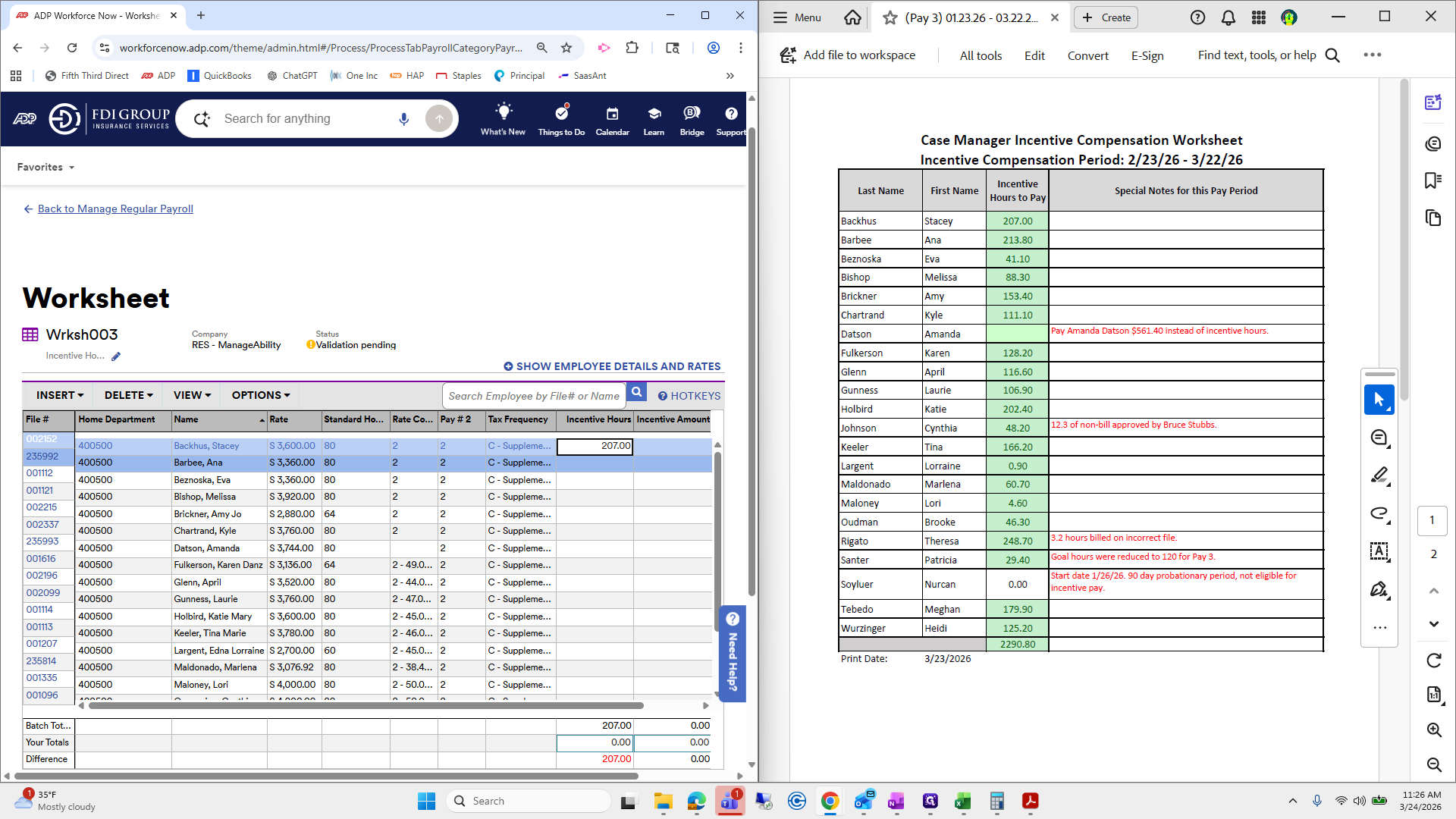
Anna.
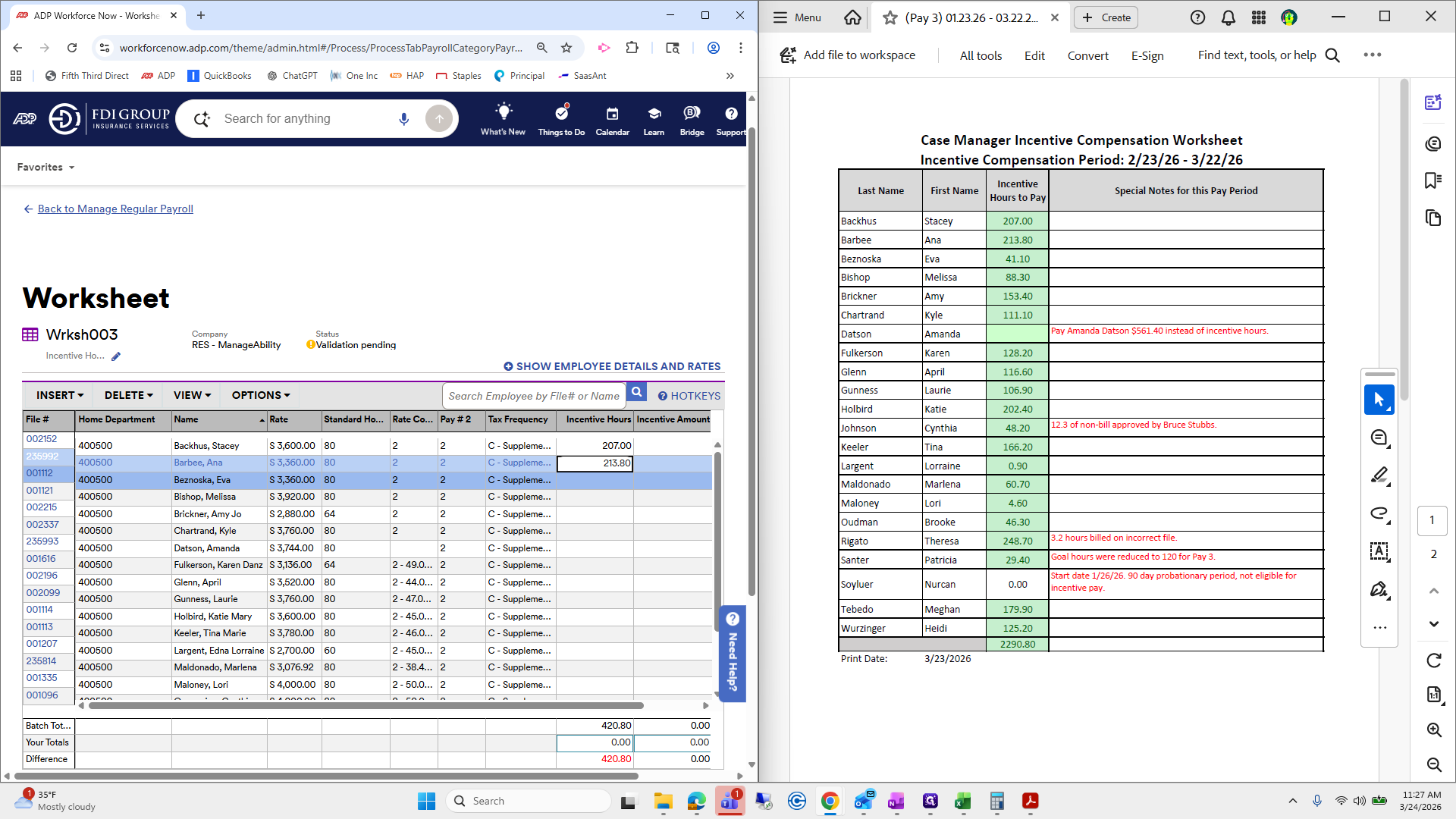
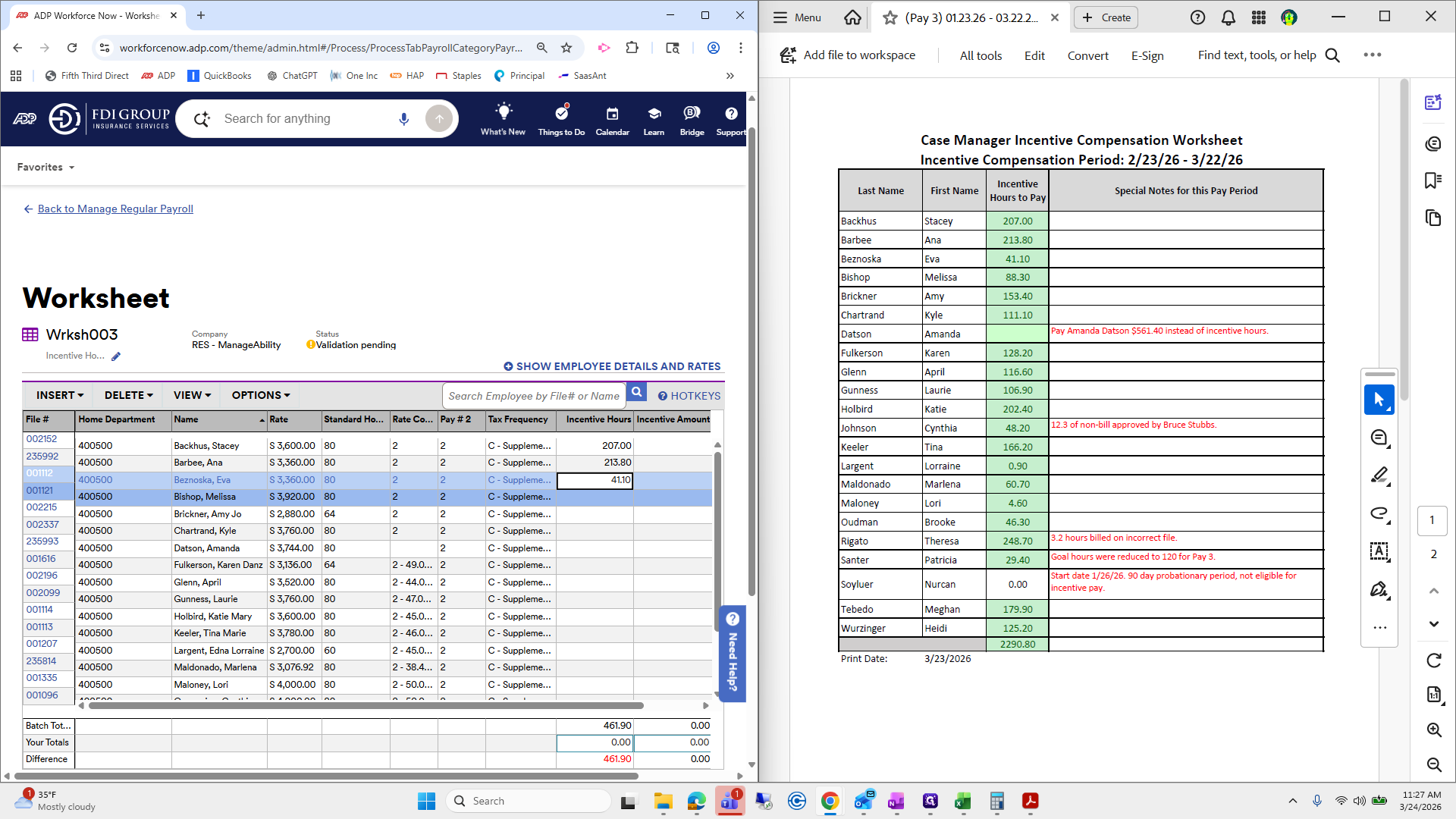
I will go down one by one. It is inconvenient because you have to click into the cell.
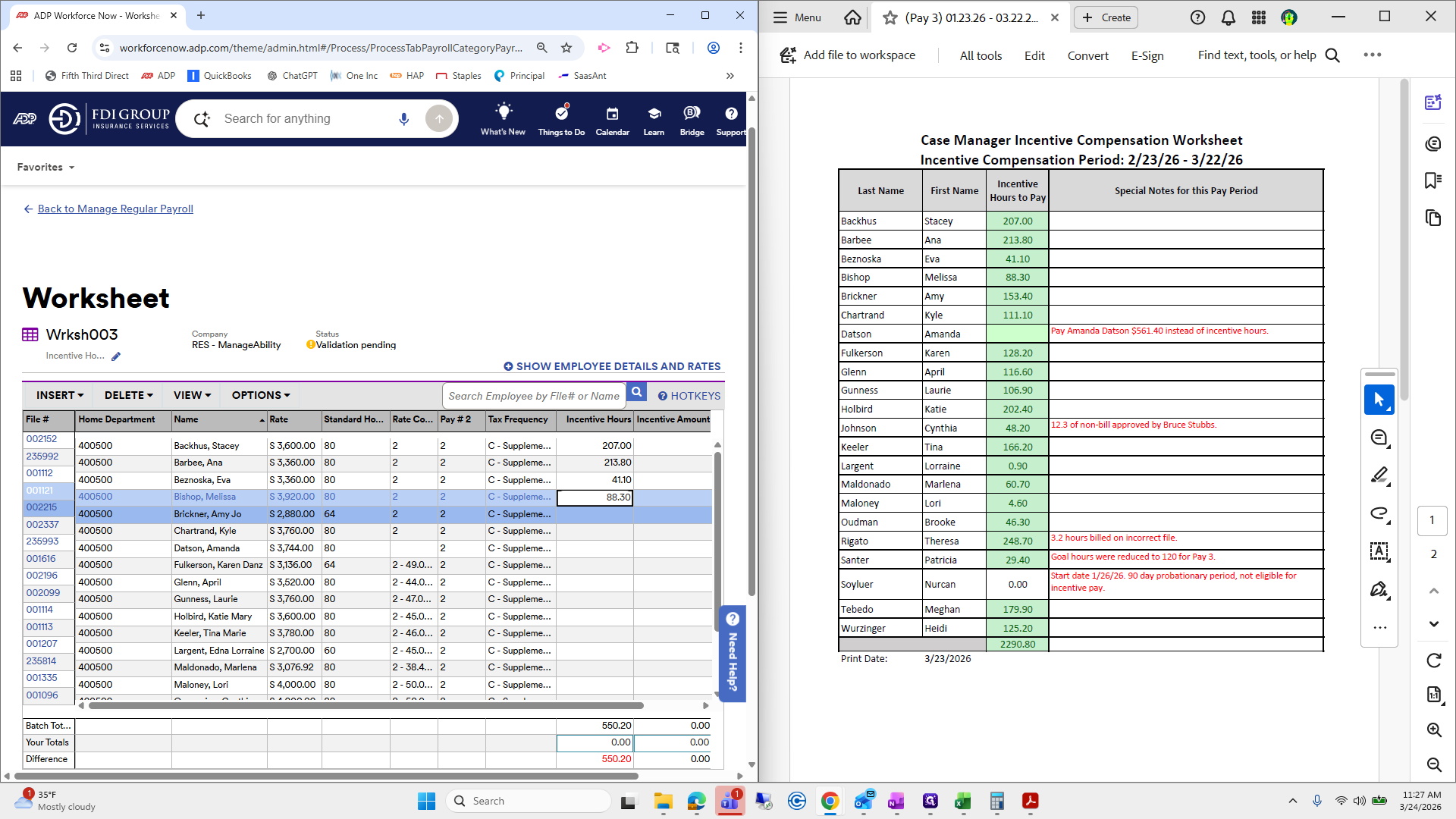
You can't just tab down, because that's one of the many features of ADP. Kyle.
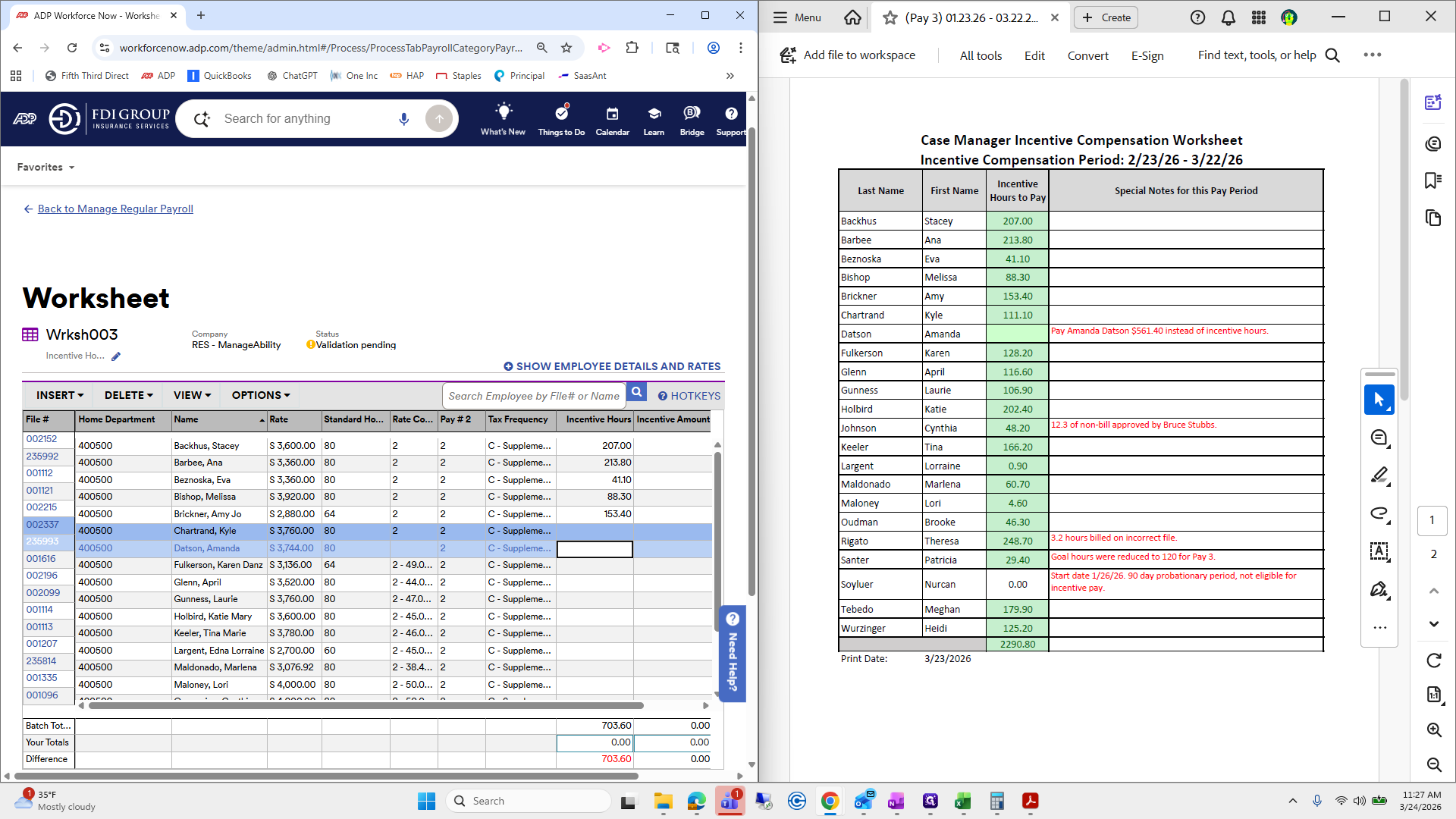
Amanda Datson is an...
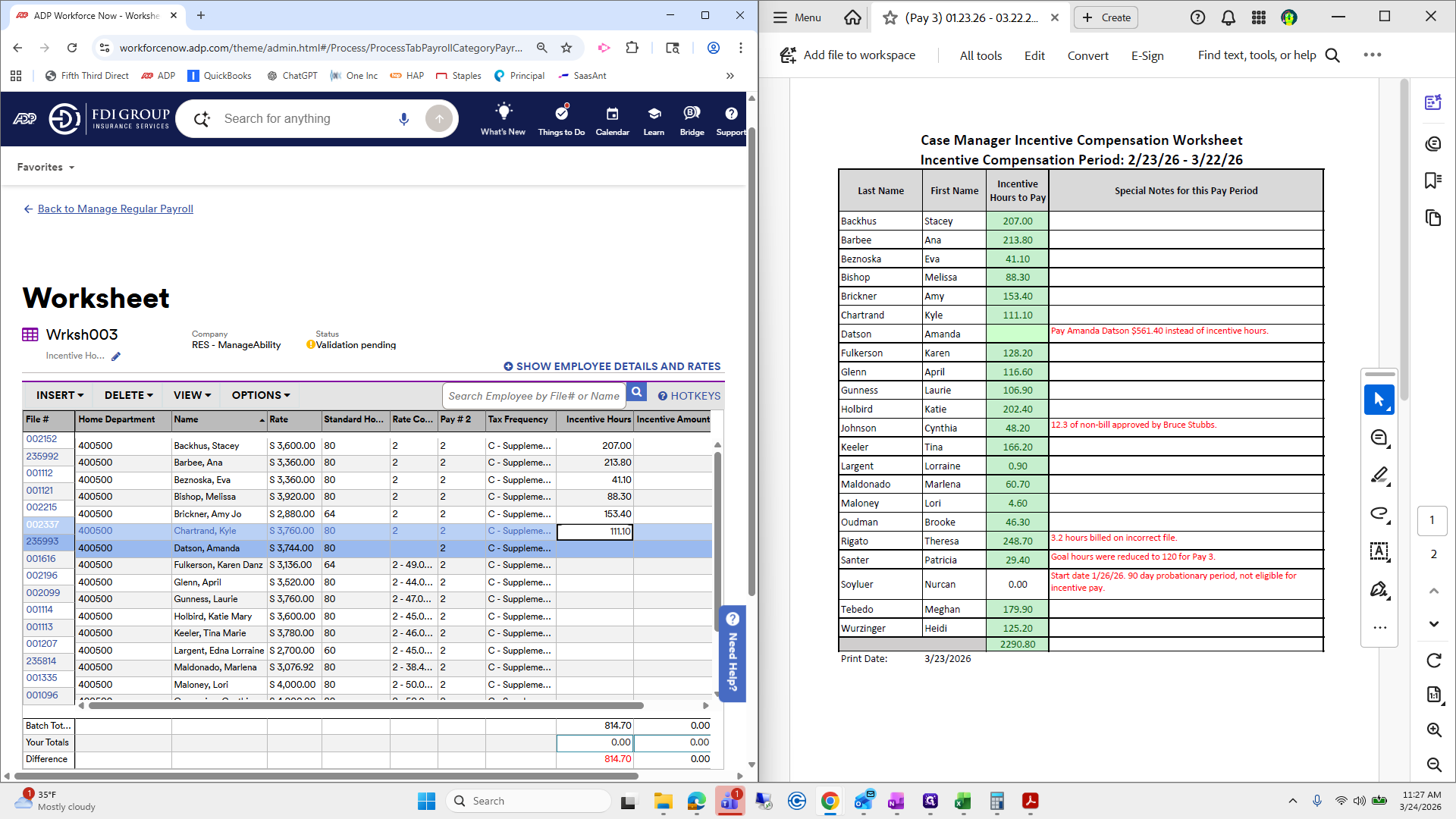
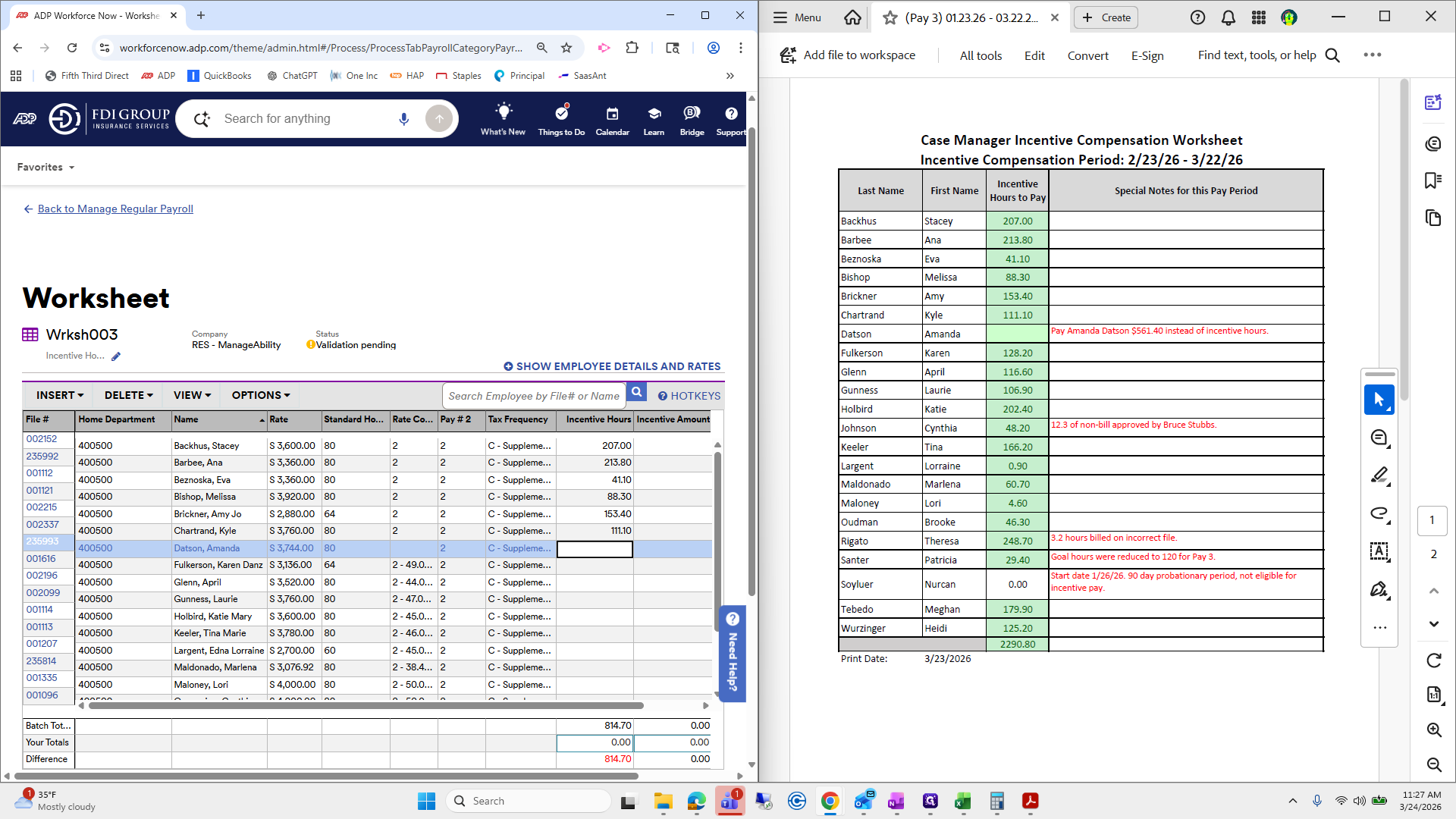
The note says to pay her a set amount instead of by the hour. We will place her on that side under Incentive Amount.
Fulkerson, Glen April.
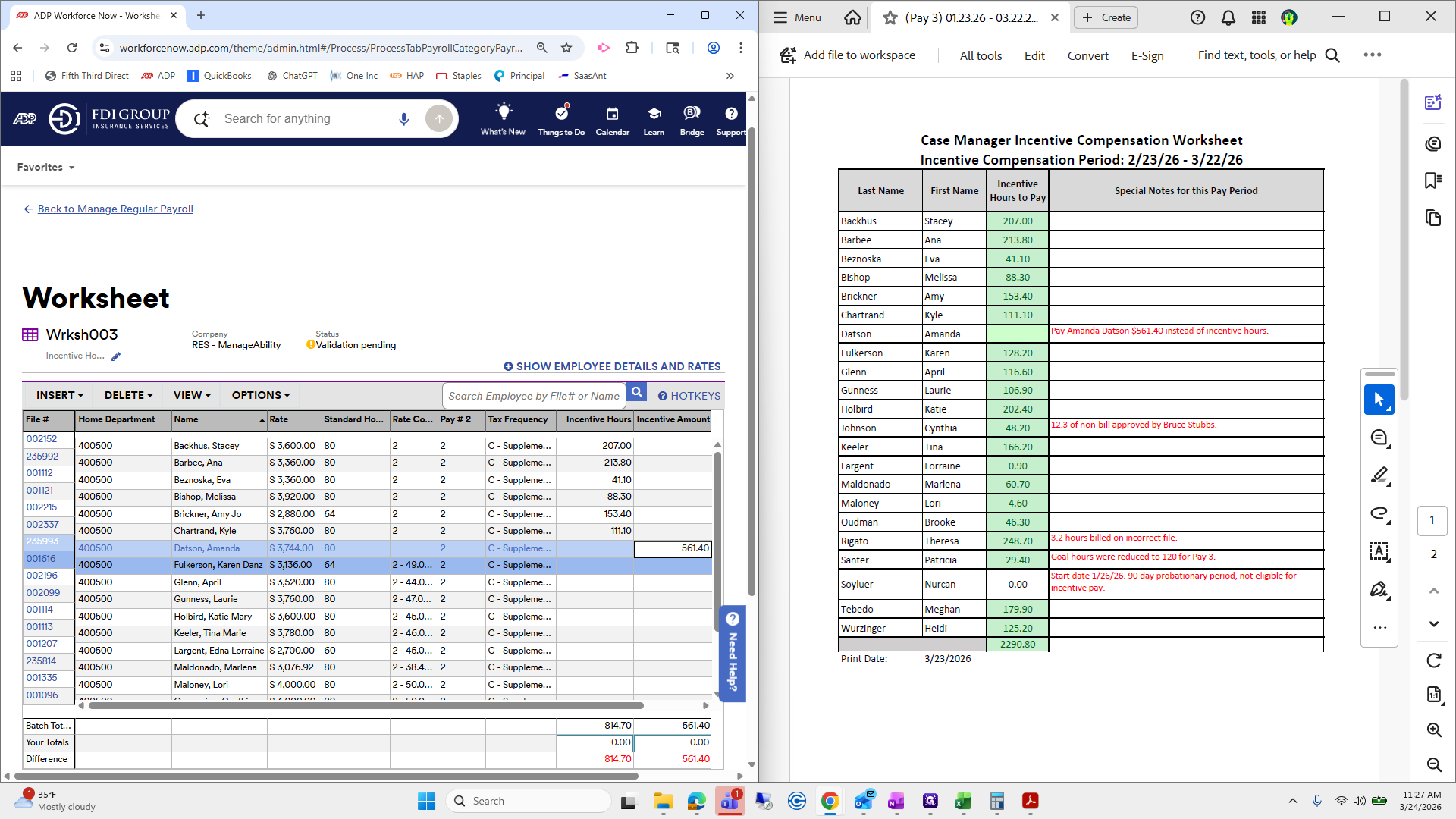
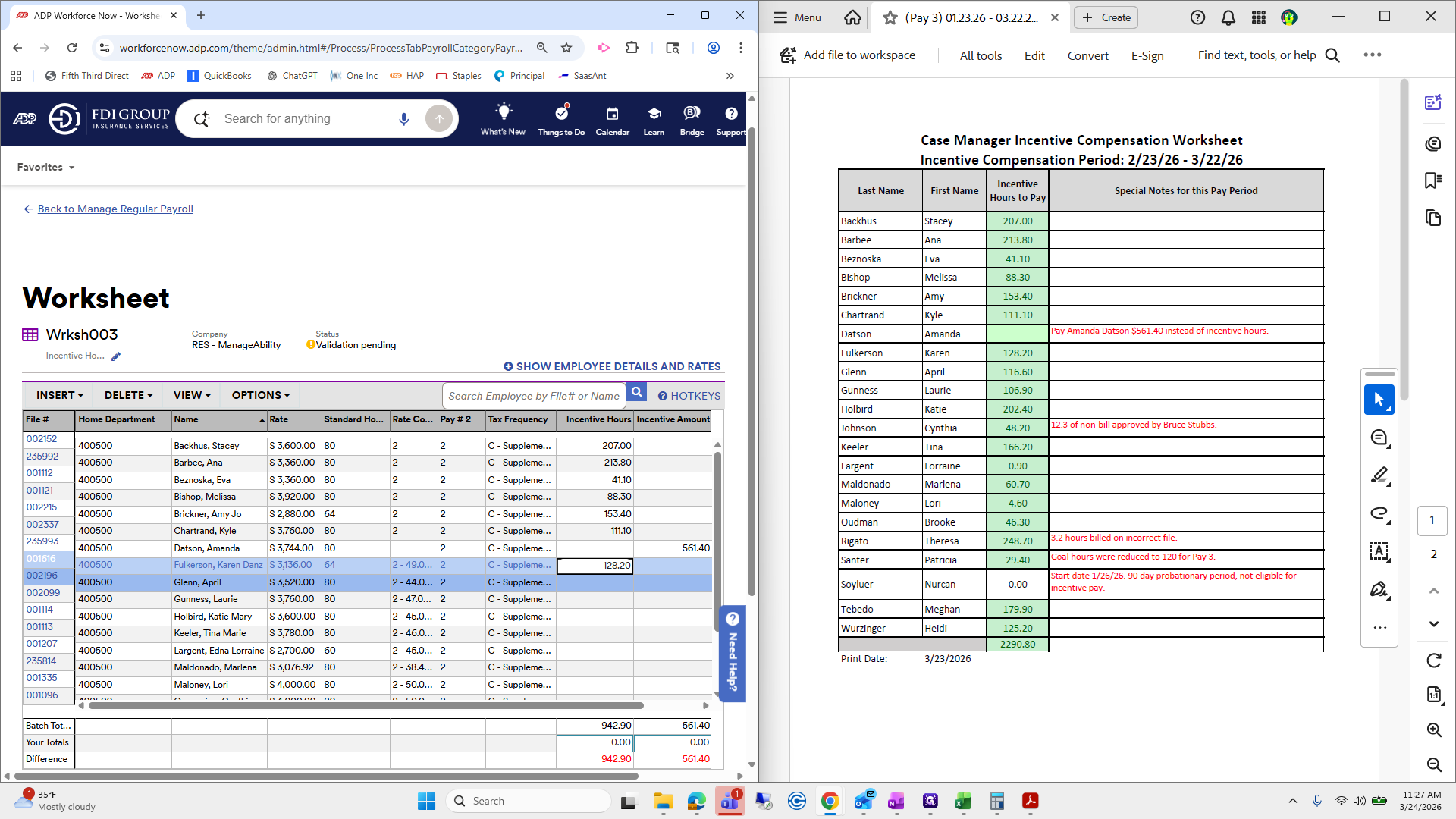
Montanez, Tina Keeler.
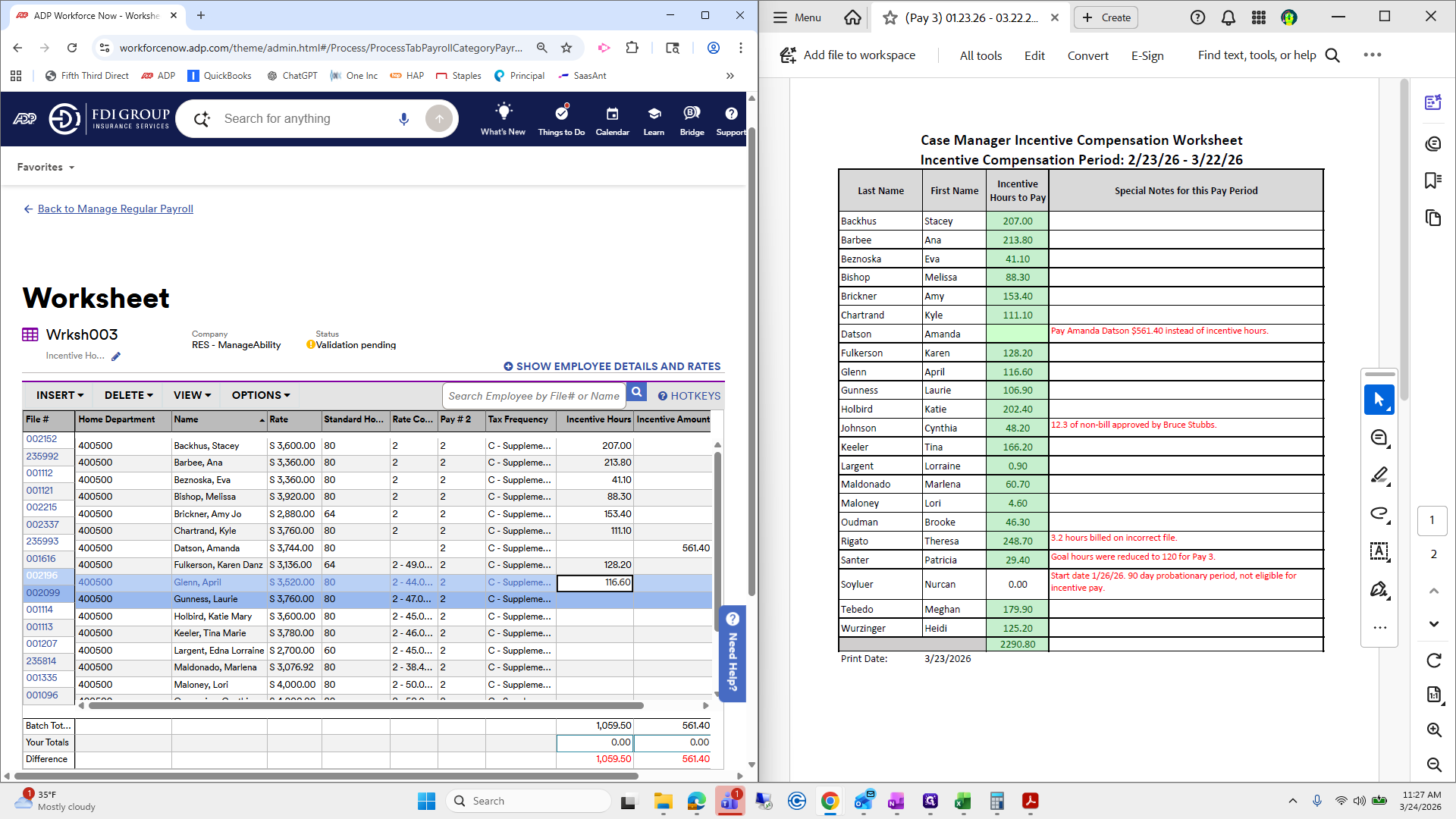
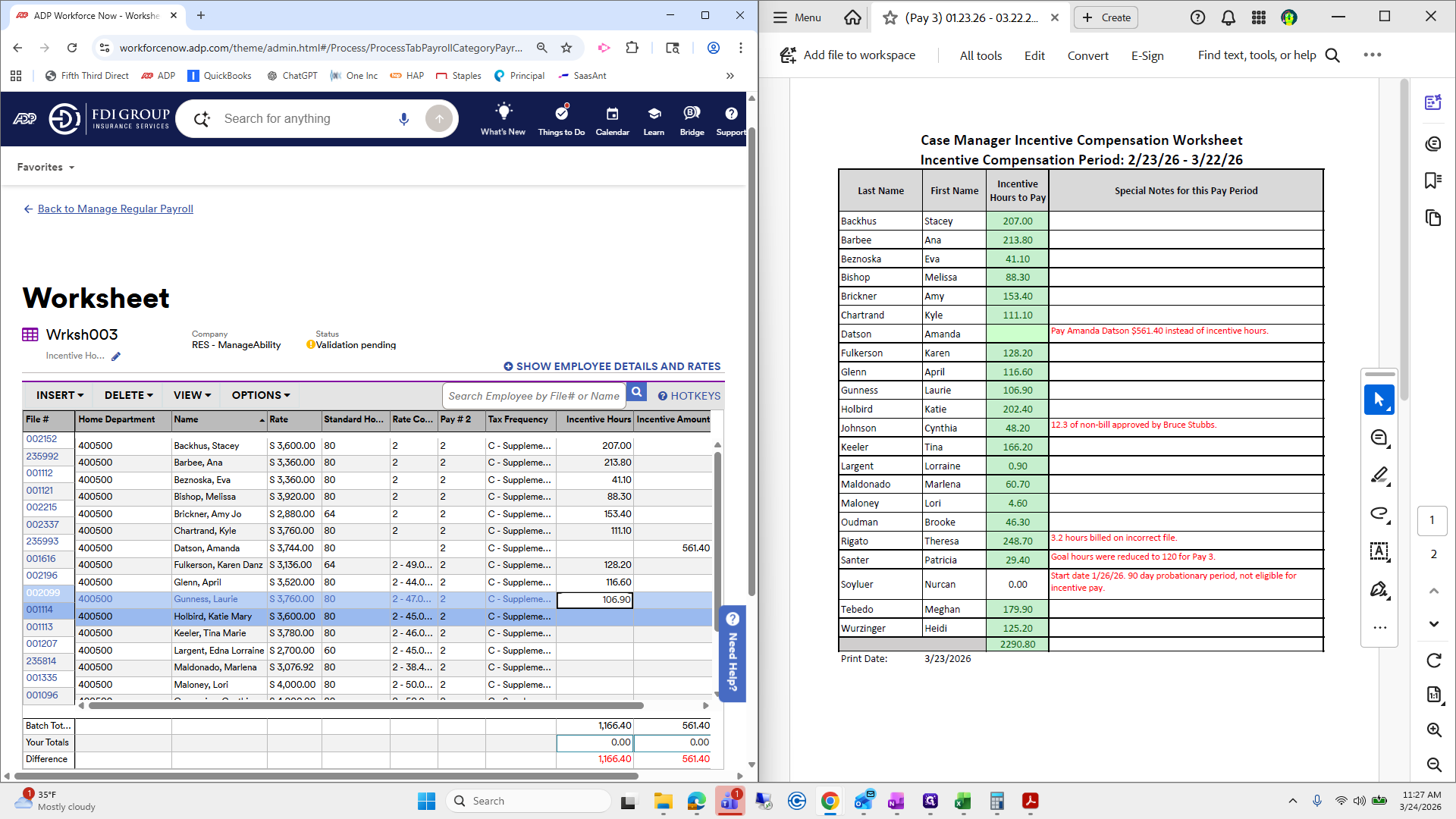
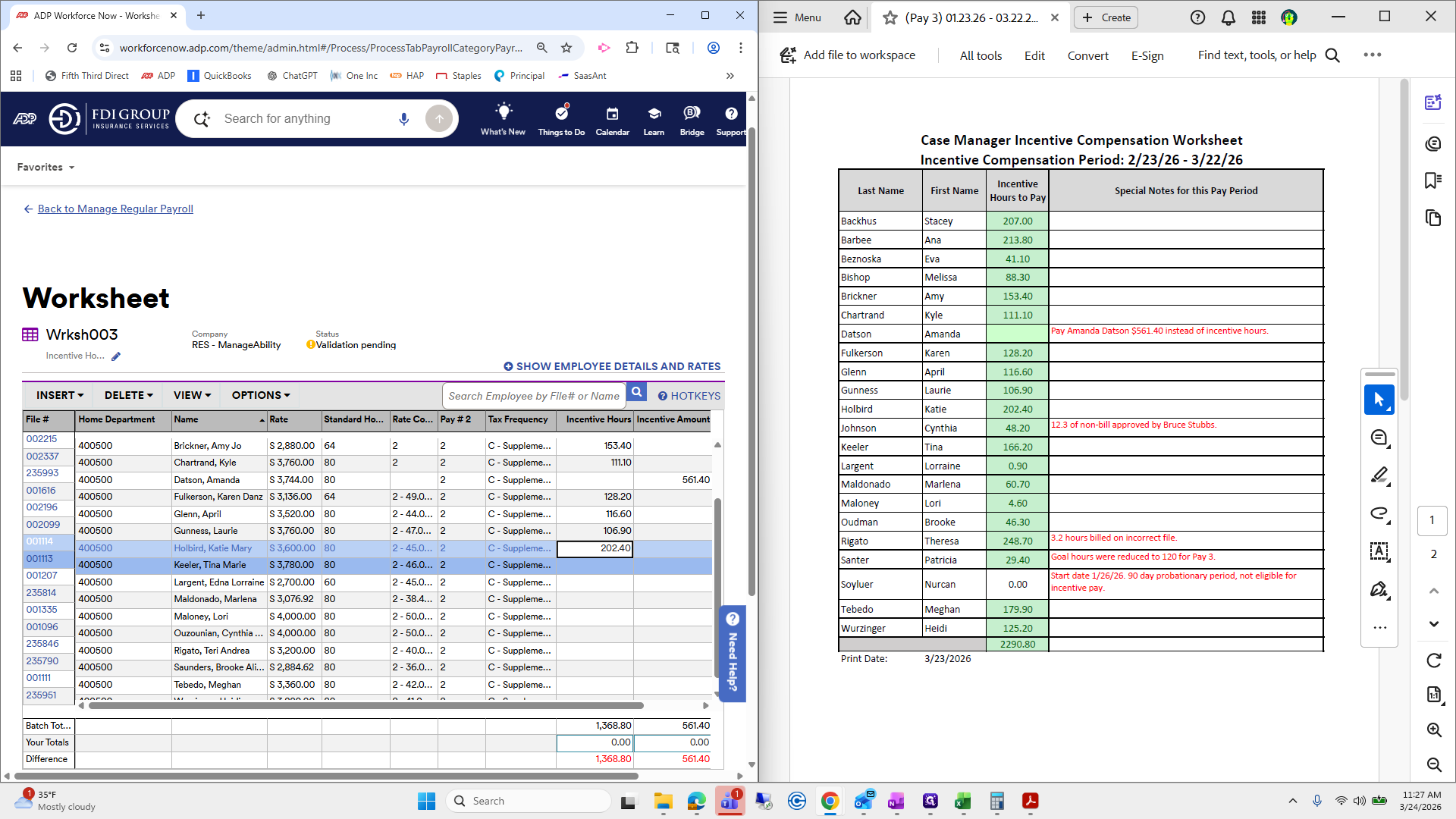
I skipped Cynthia Johnson because her name is actually Cynthia O., however you say that.
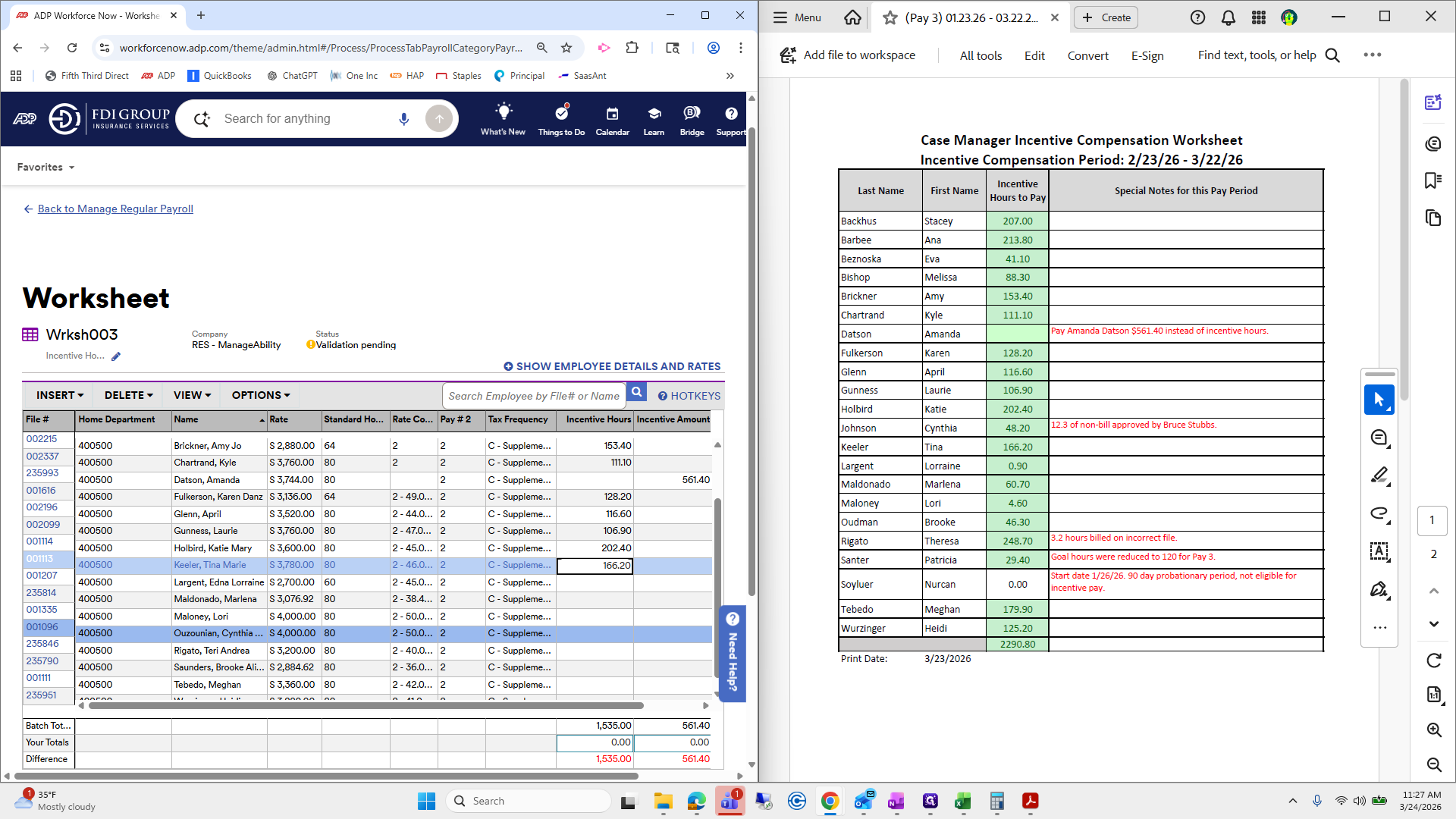
480.2. Okay. We will go back up to Largent.
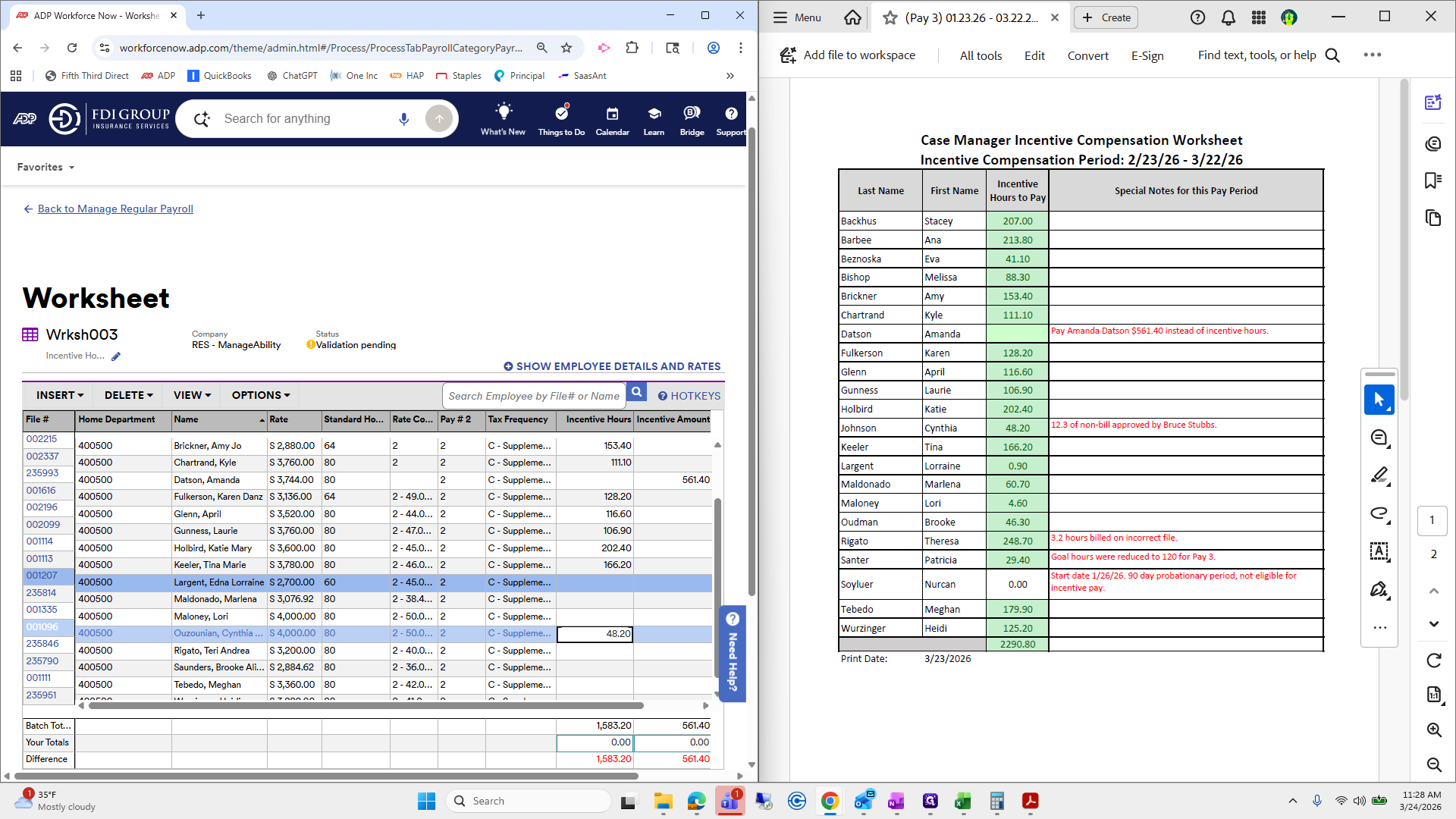
Lori.
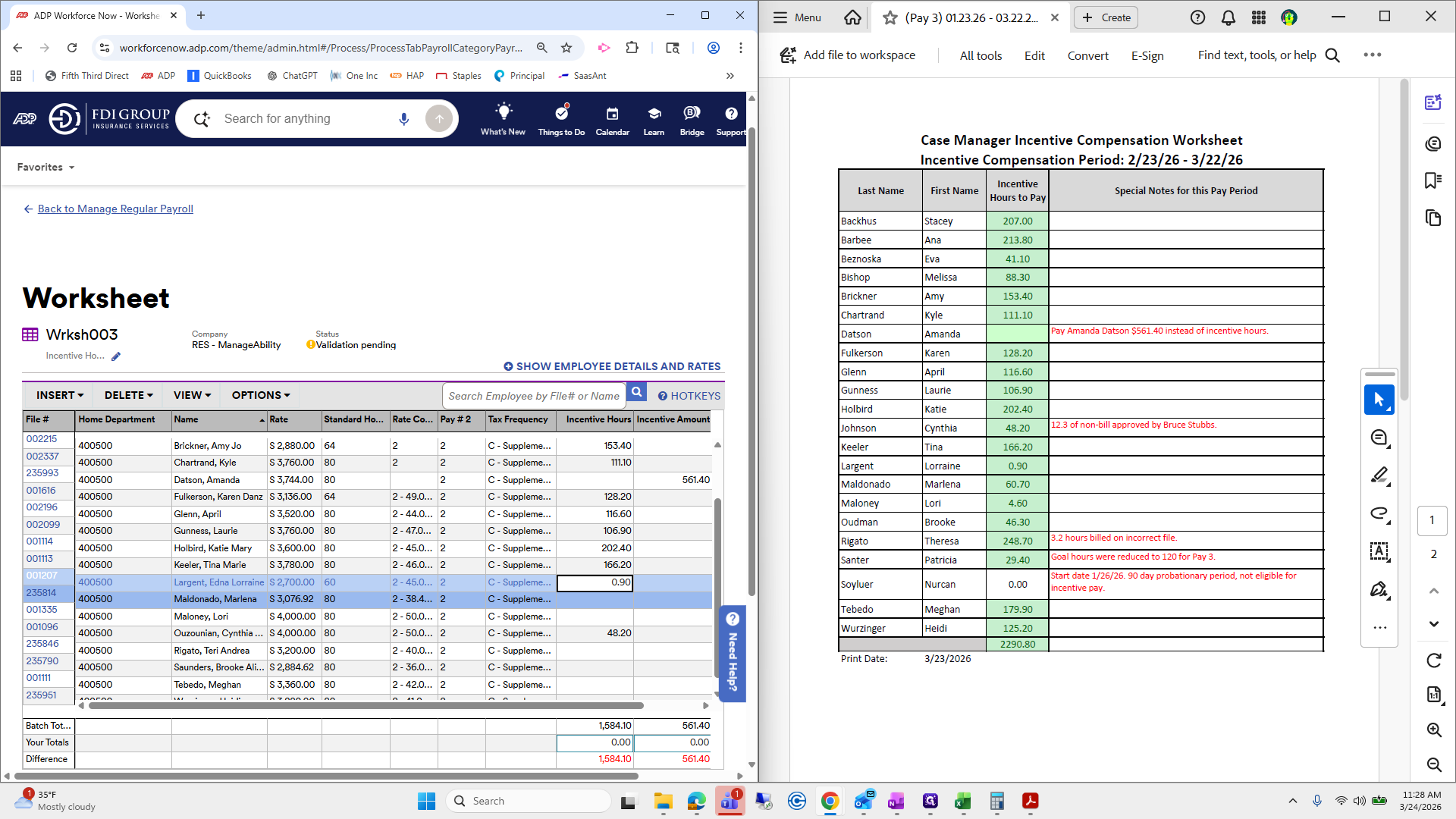
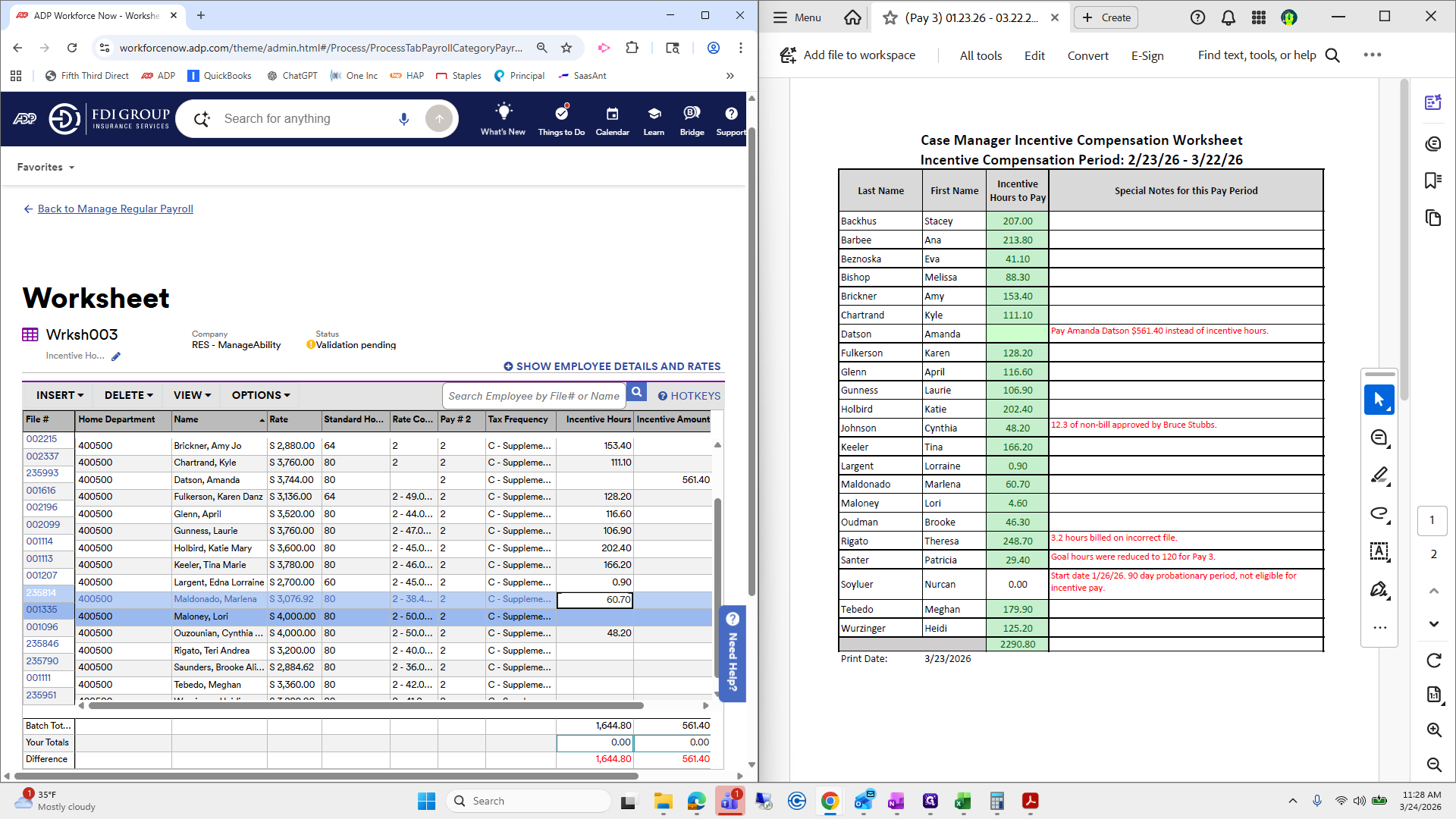
I skipped Brooke for a moment because her name is also Brooke Saunders, not Oman Megan.
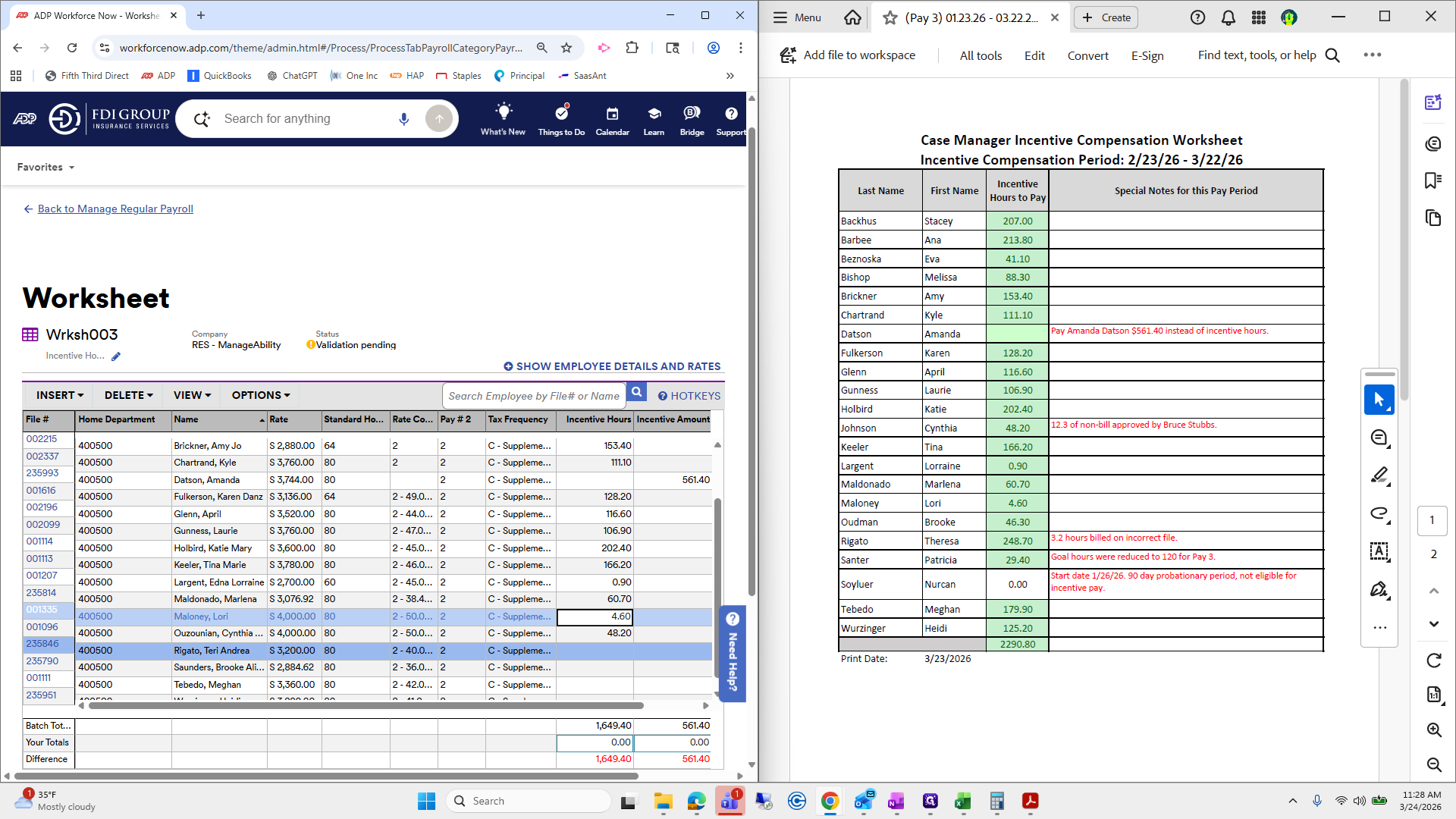
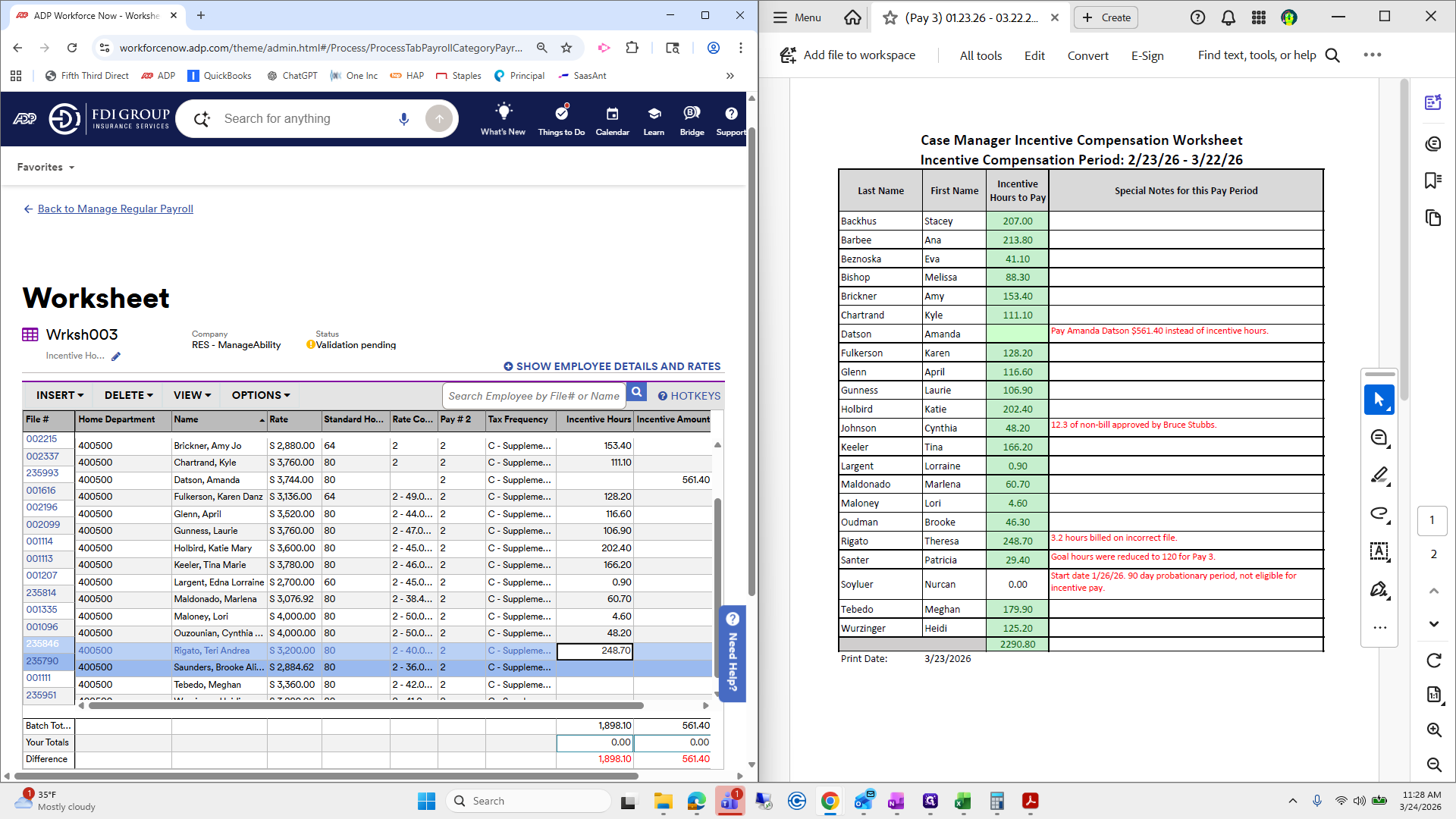
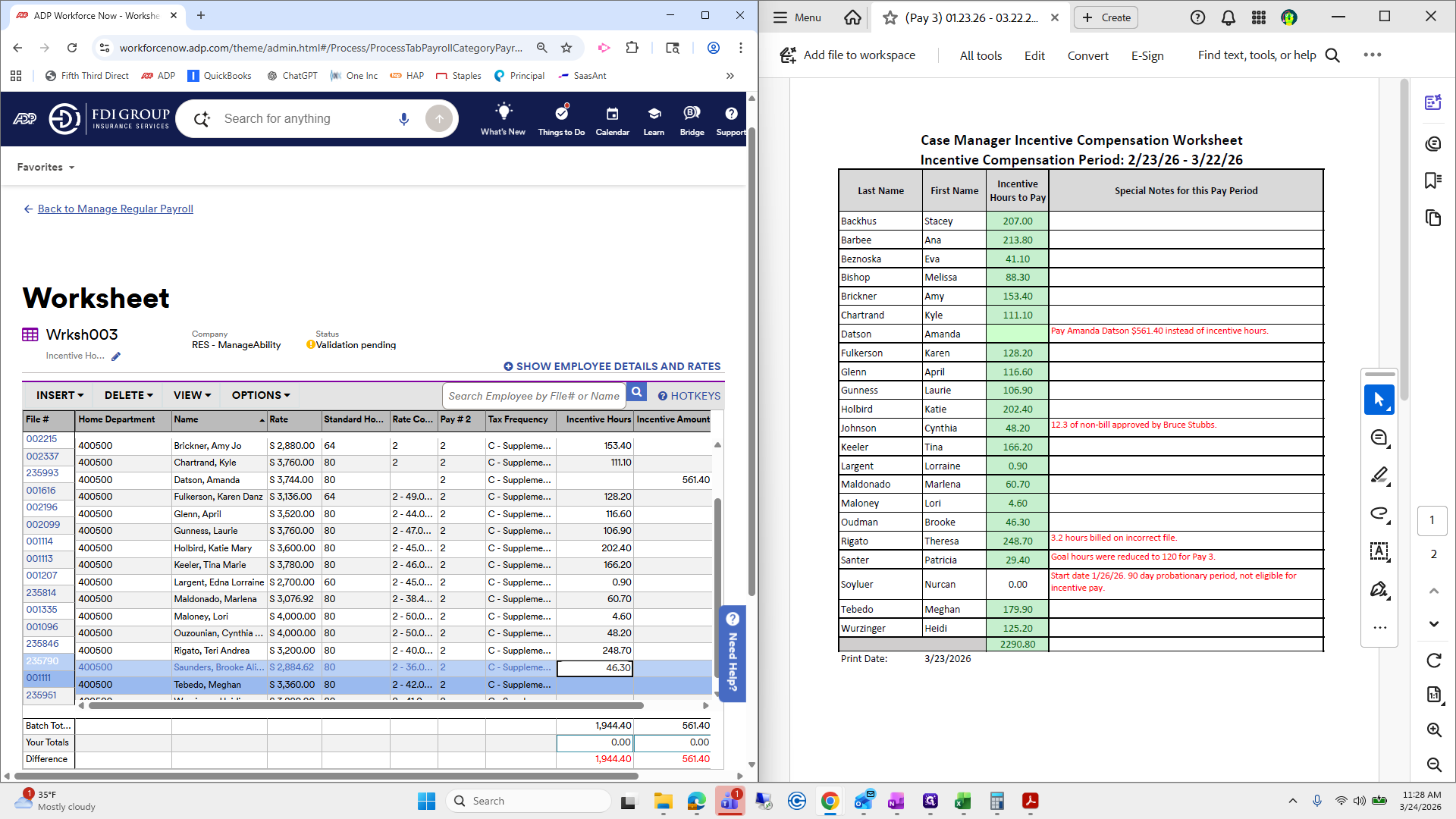
I don't want to open it in the center.
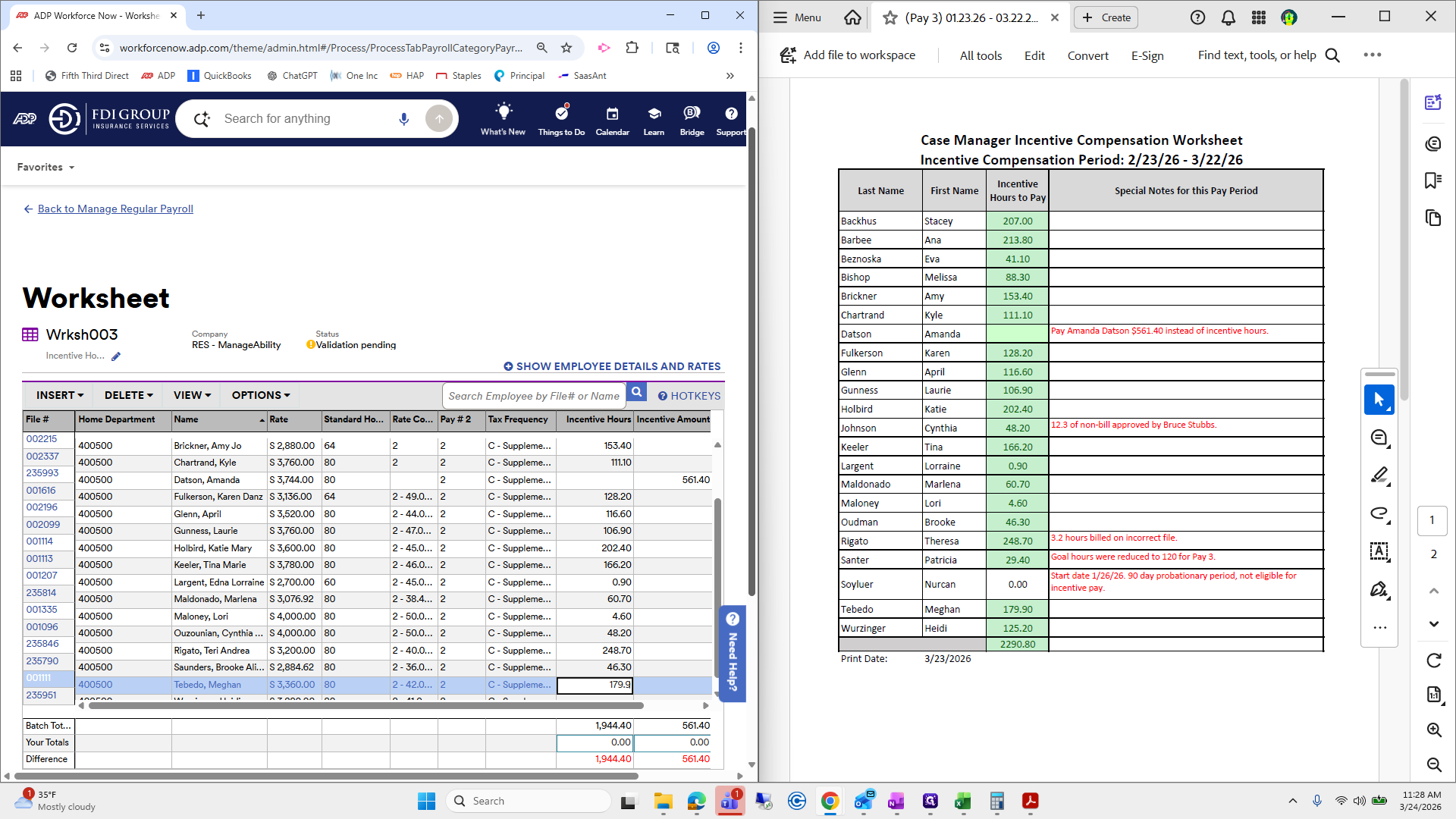
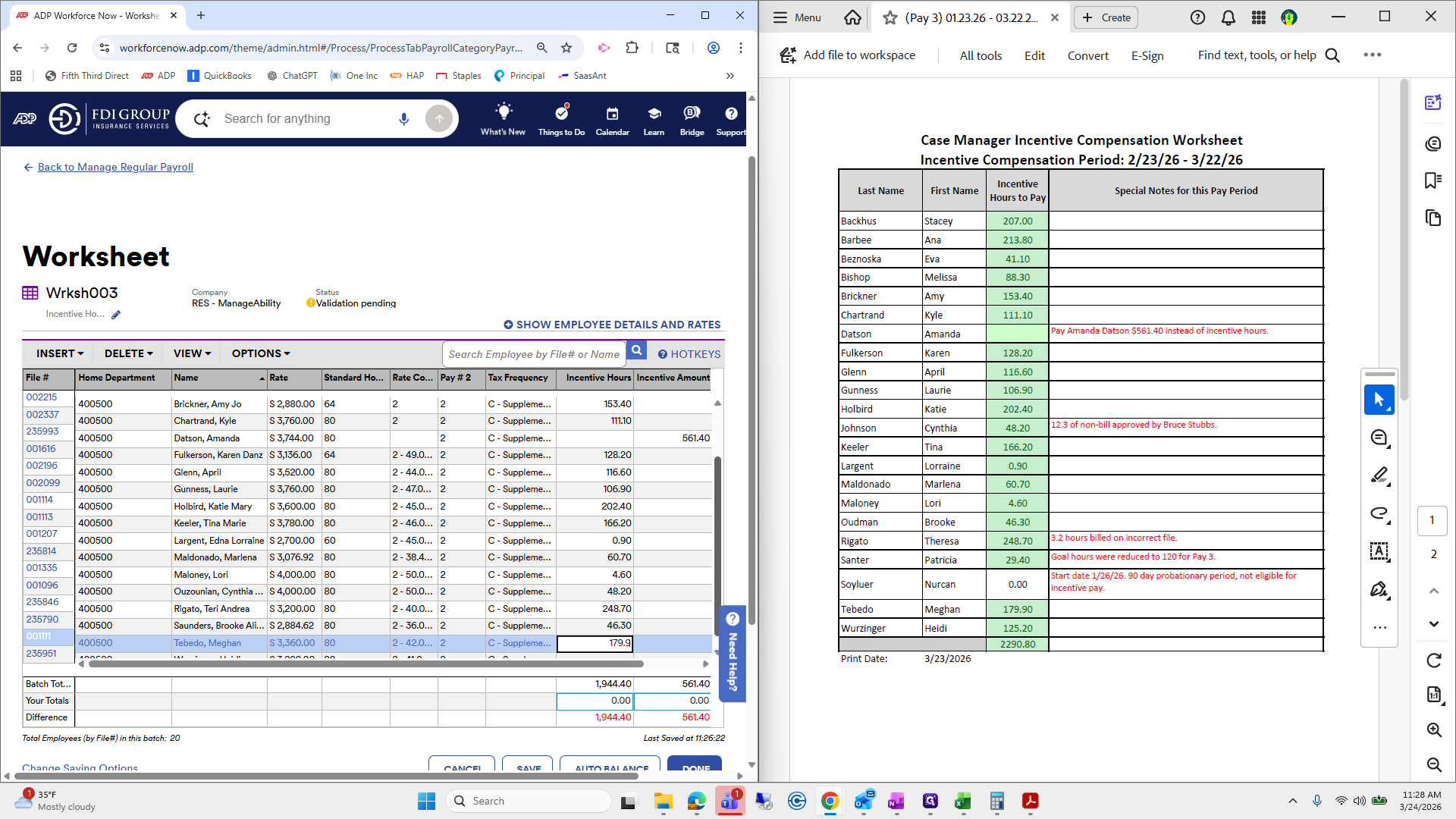
And then, Heidi.
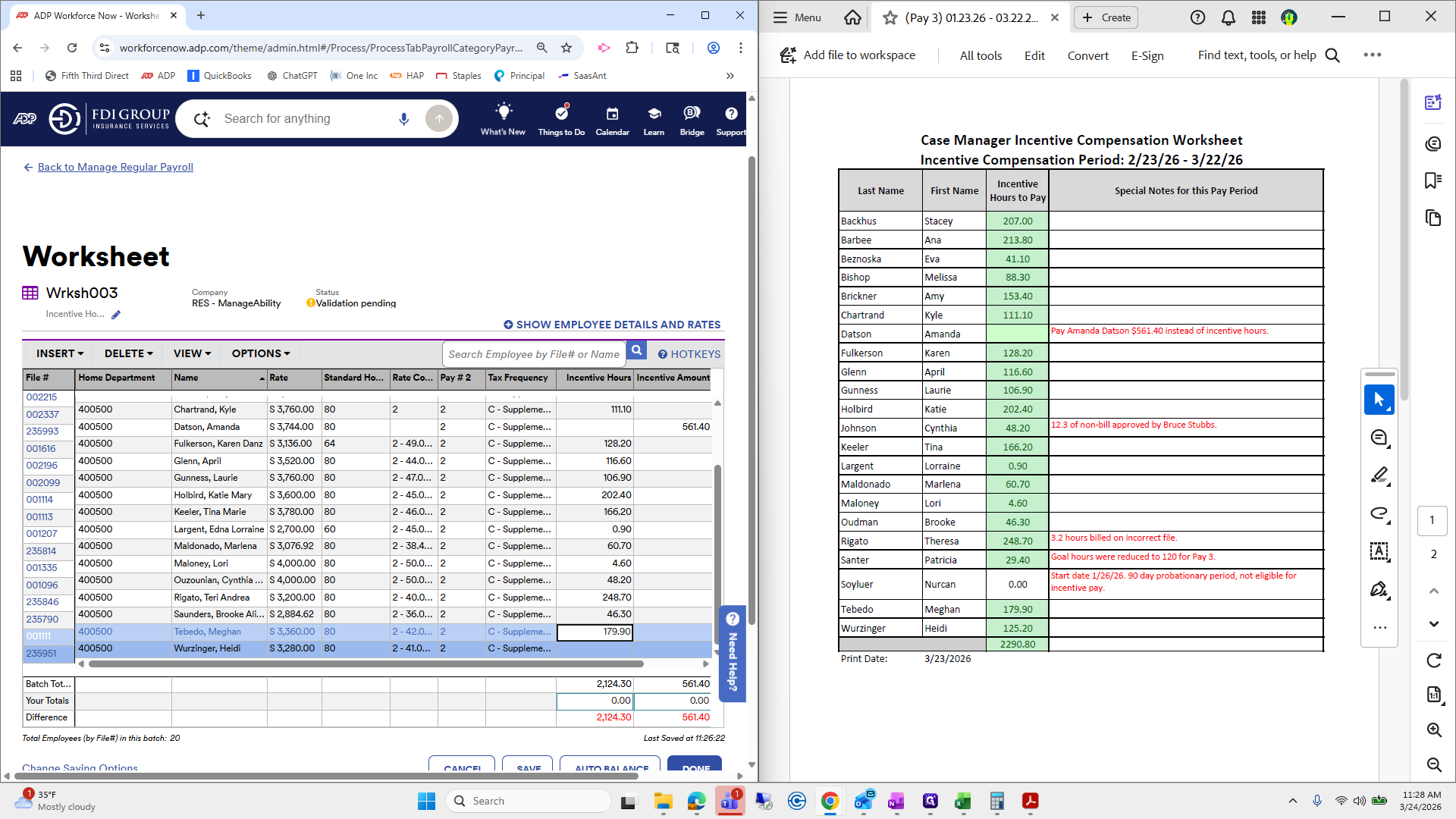
A good check and balance I use is to look here and here.
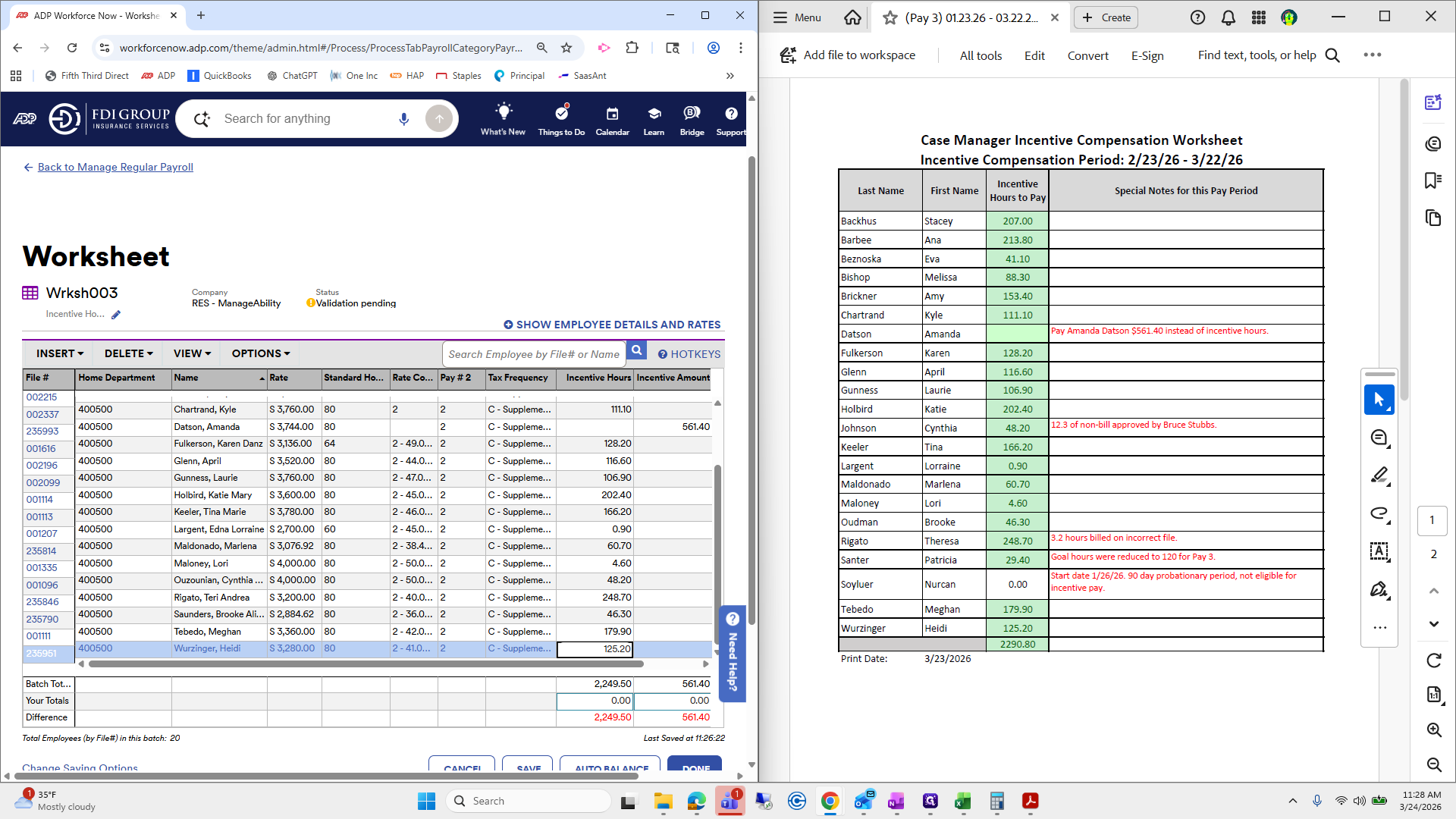
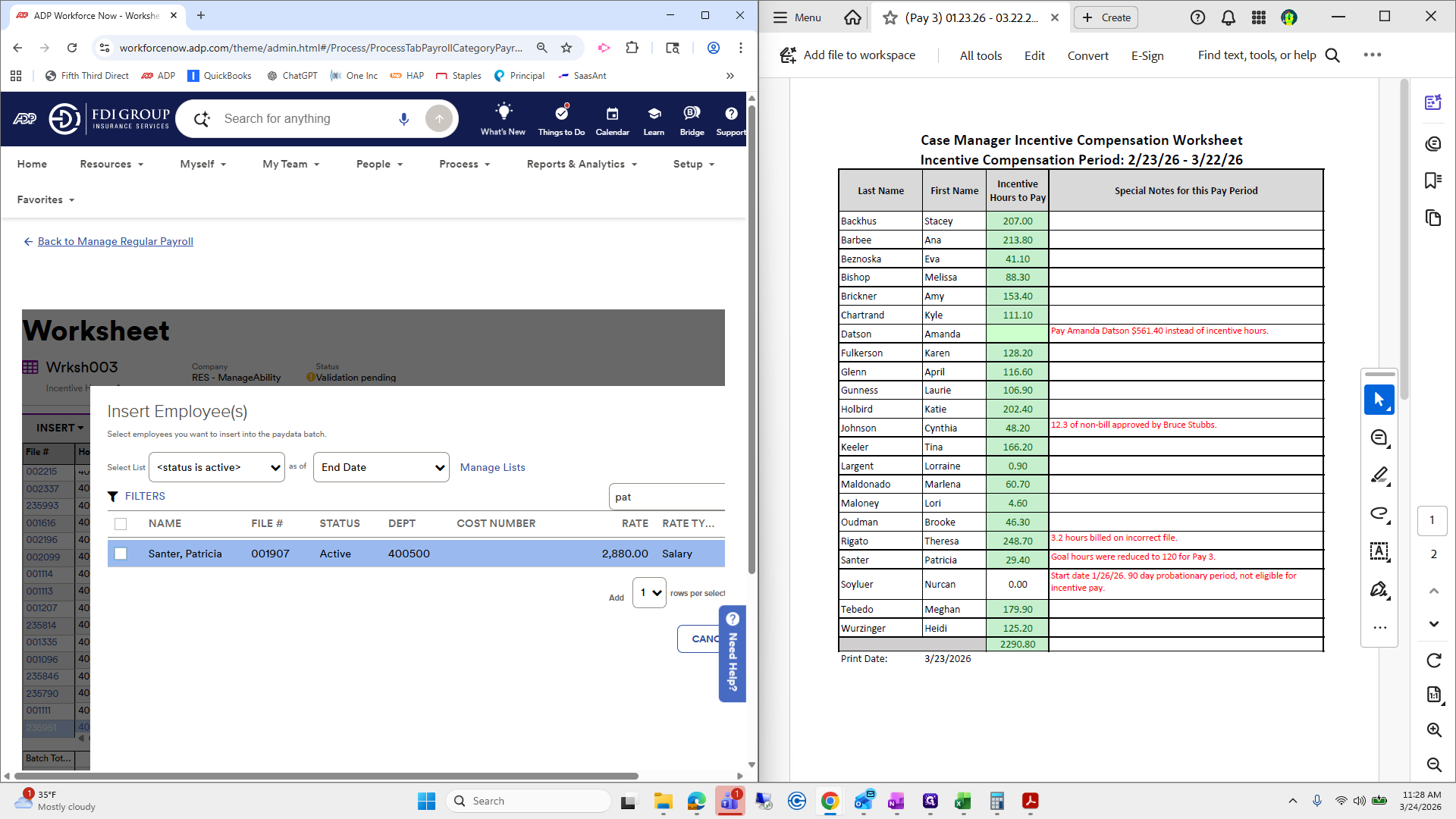
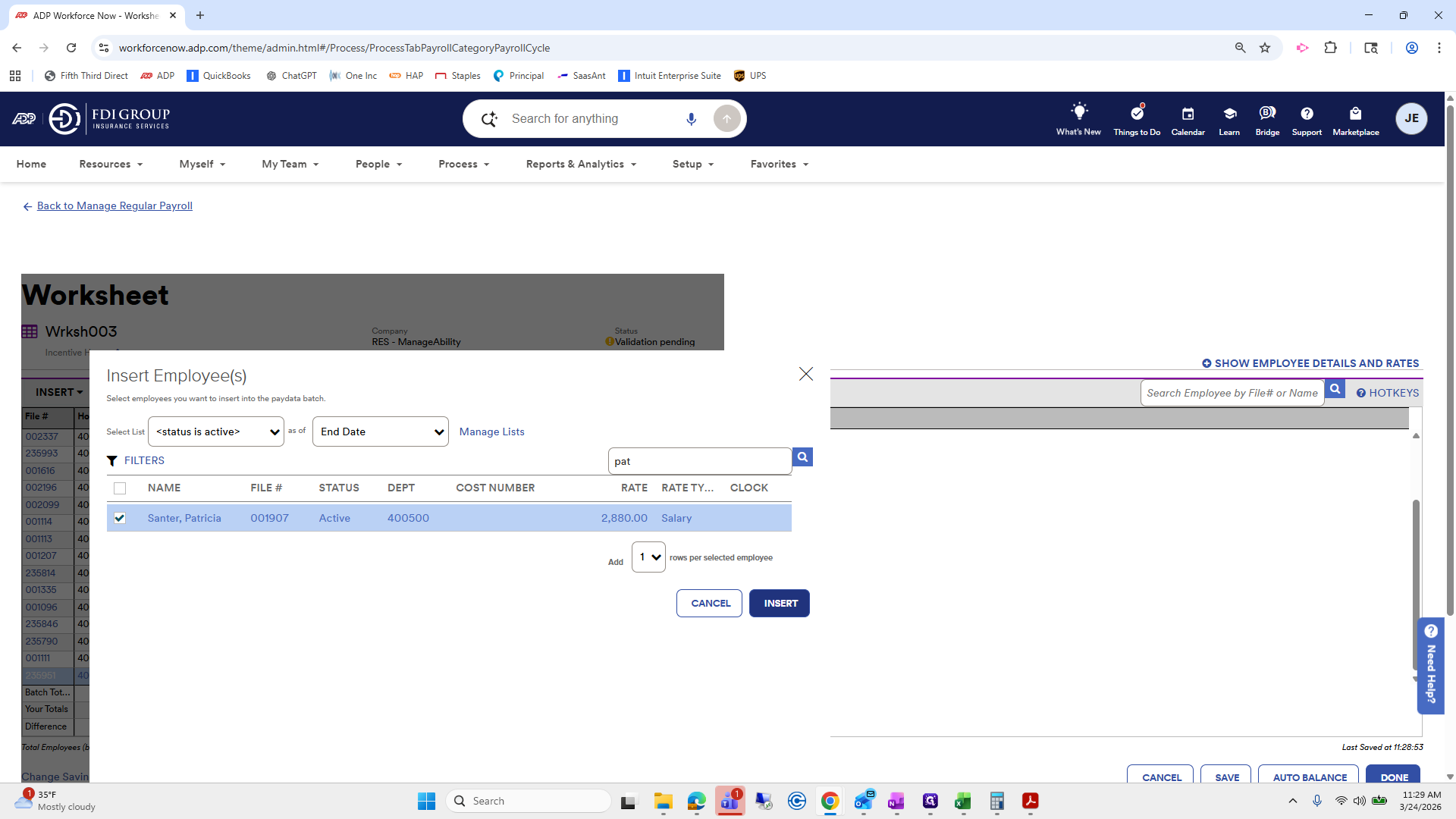
You can see it doesn't match, and I don't think Patricia is here. We will insert an employee.
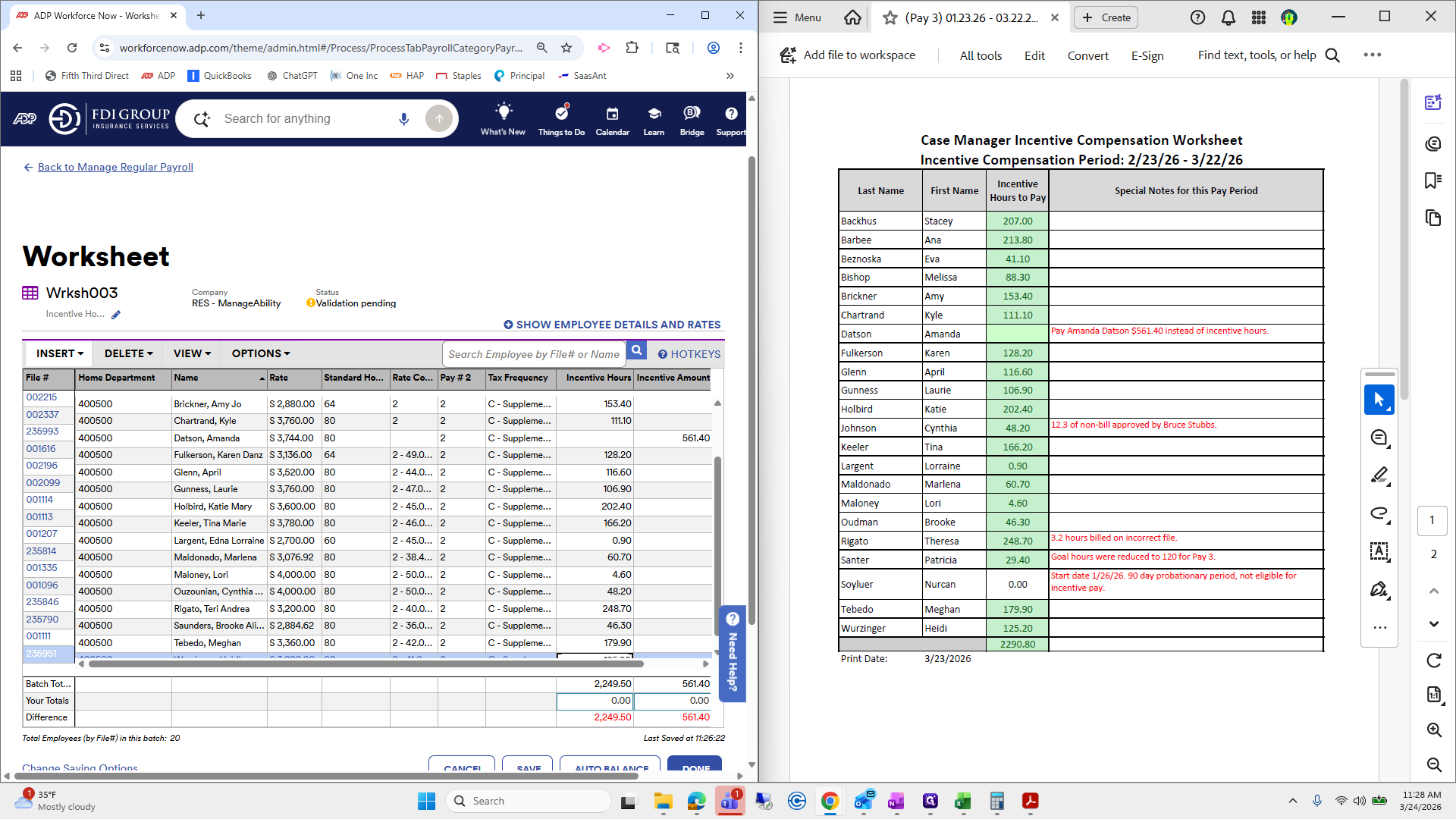
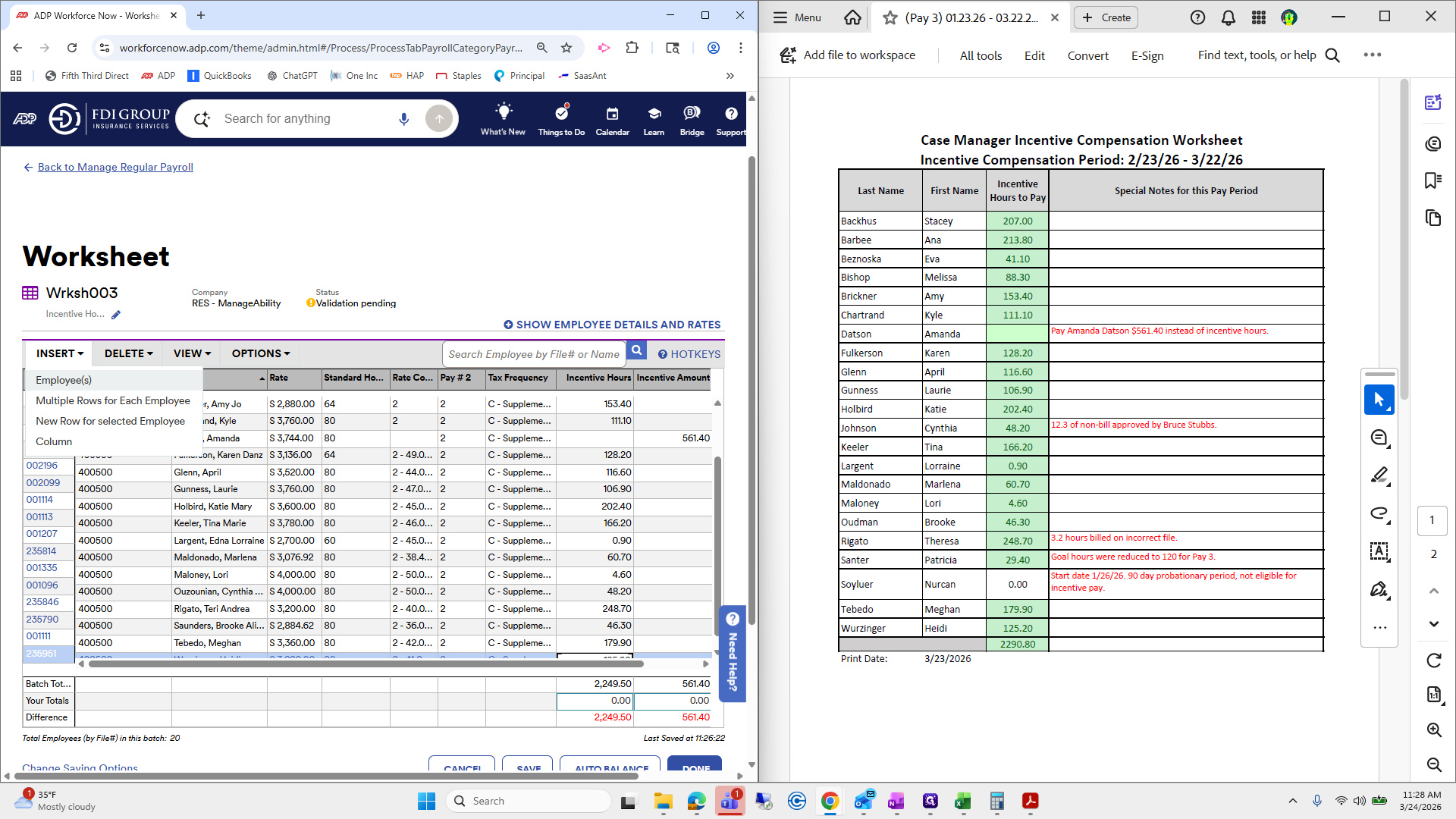
Patricia.
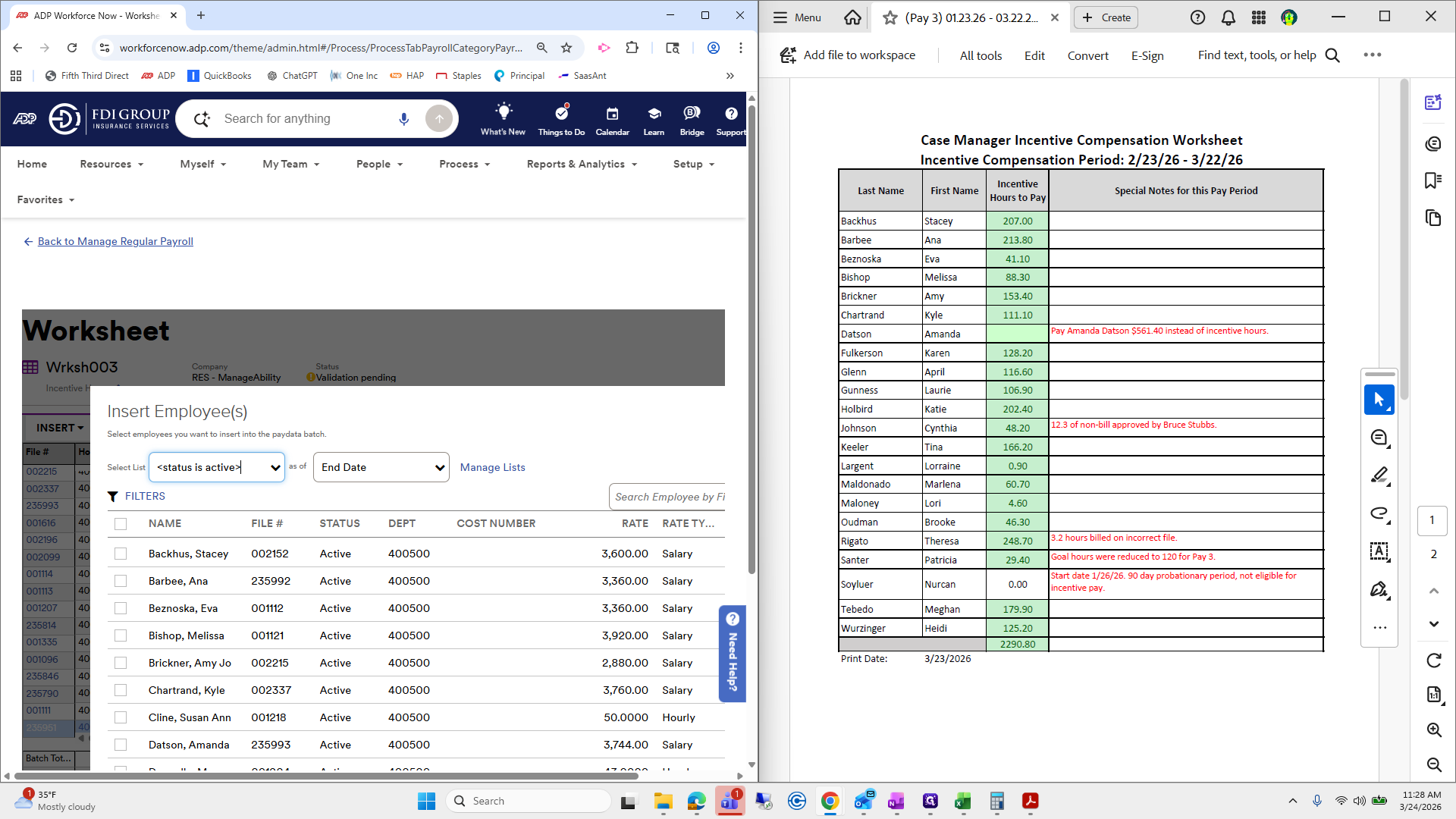
Adding her.
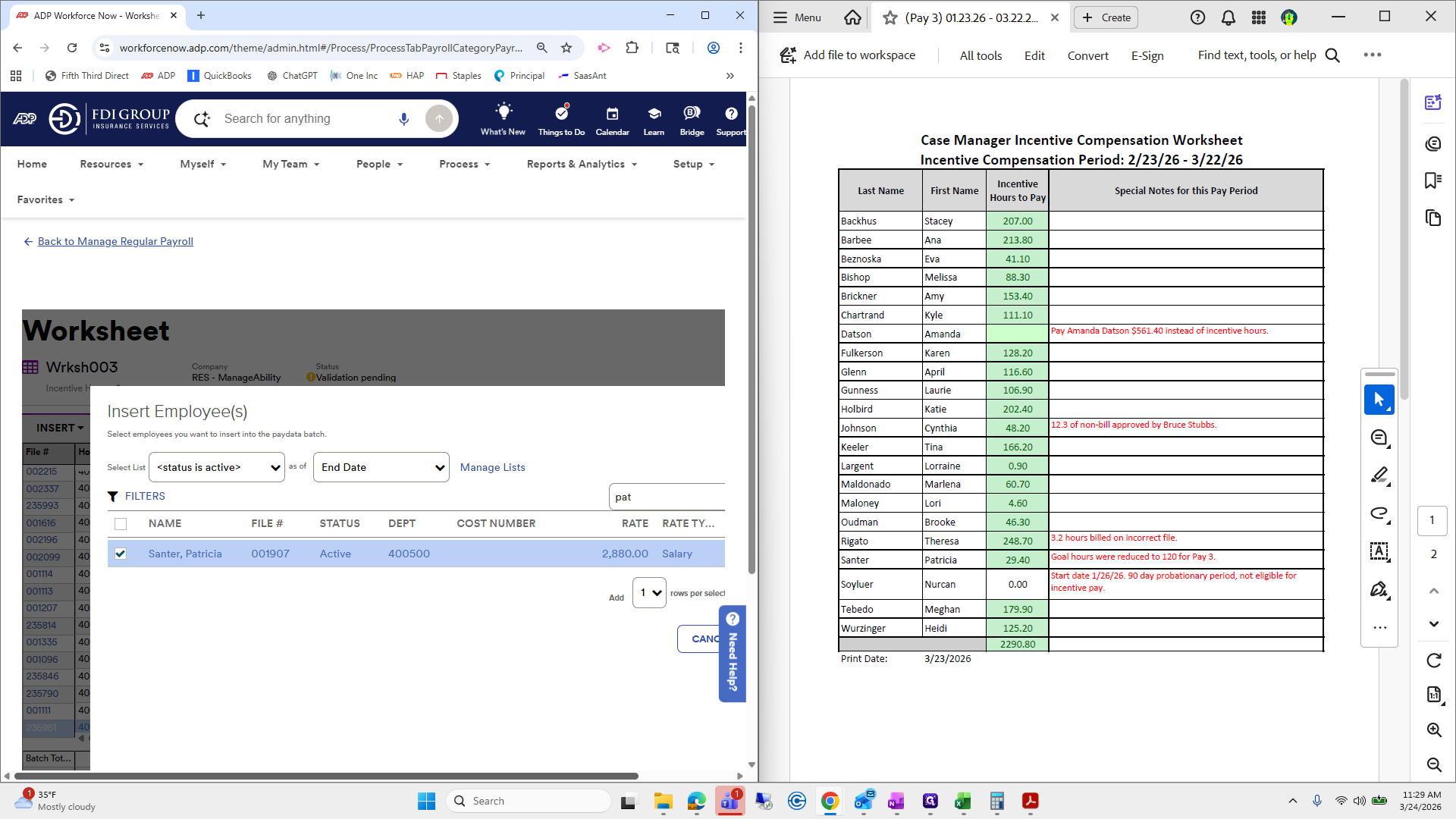
""
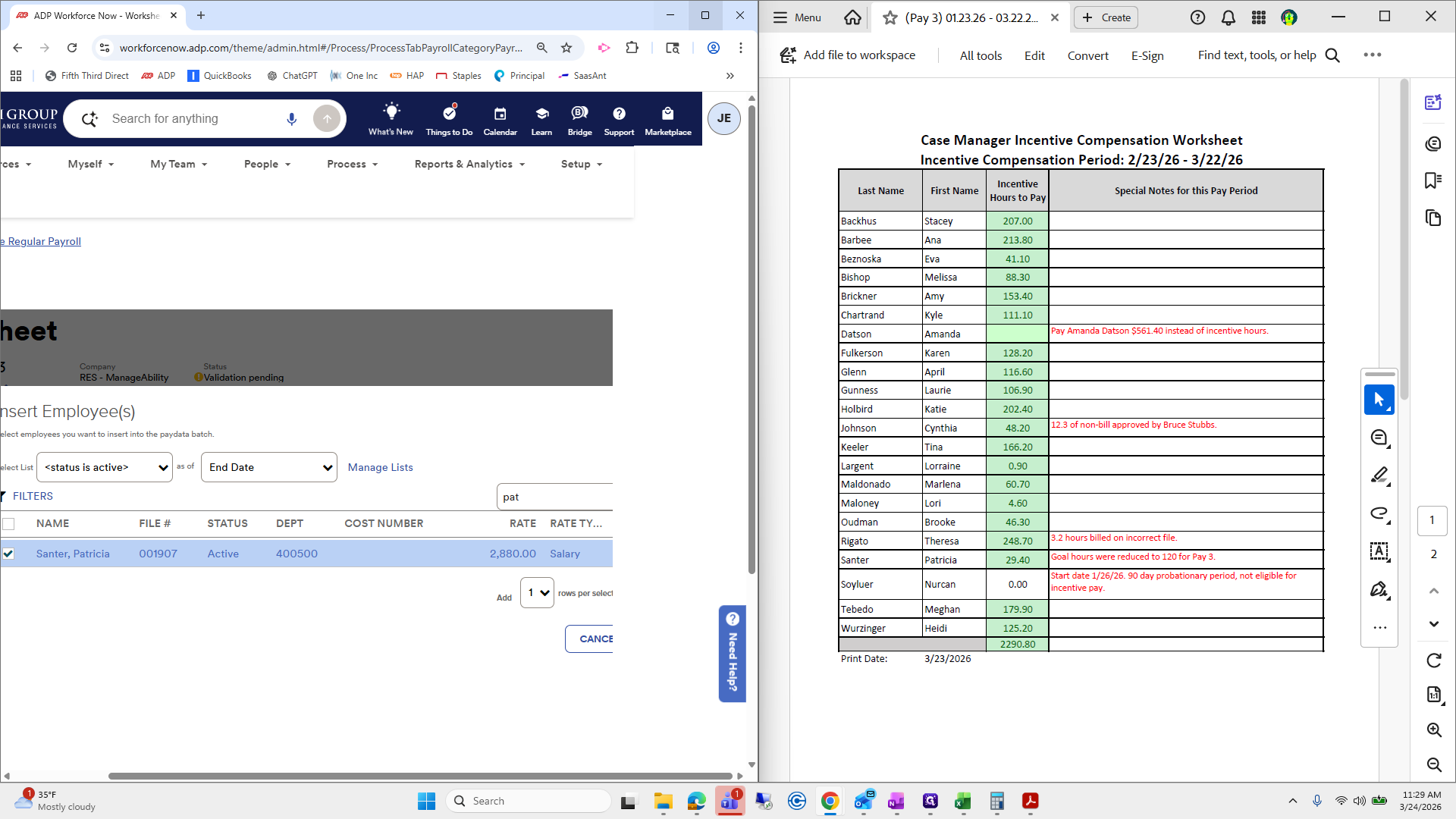
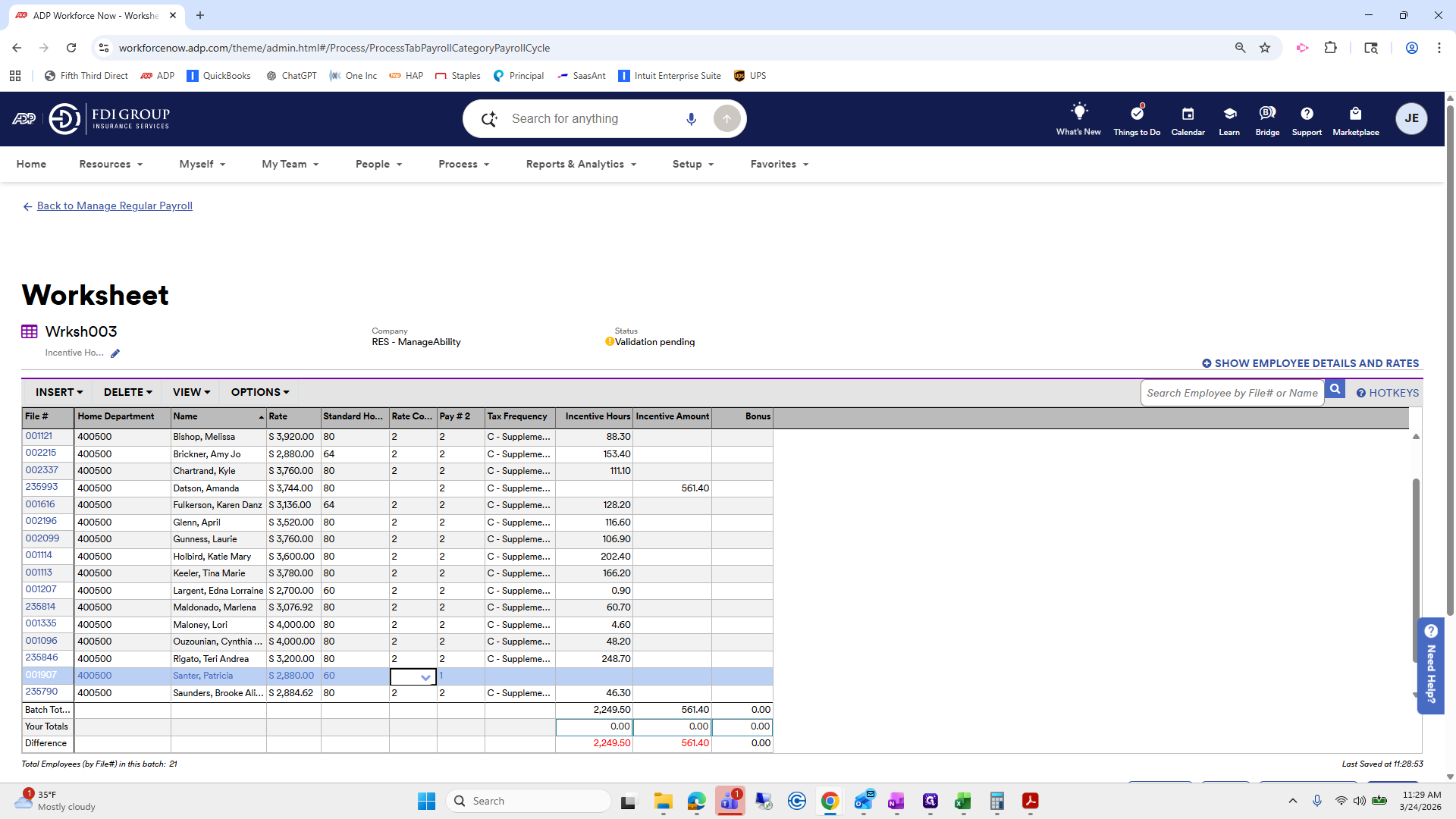
Okay. Again, we're going to do two, two.
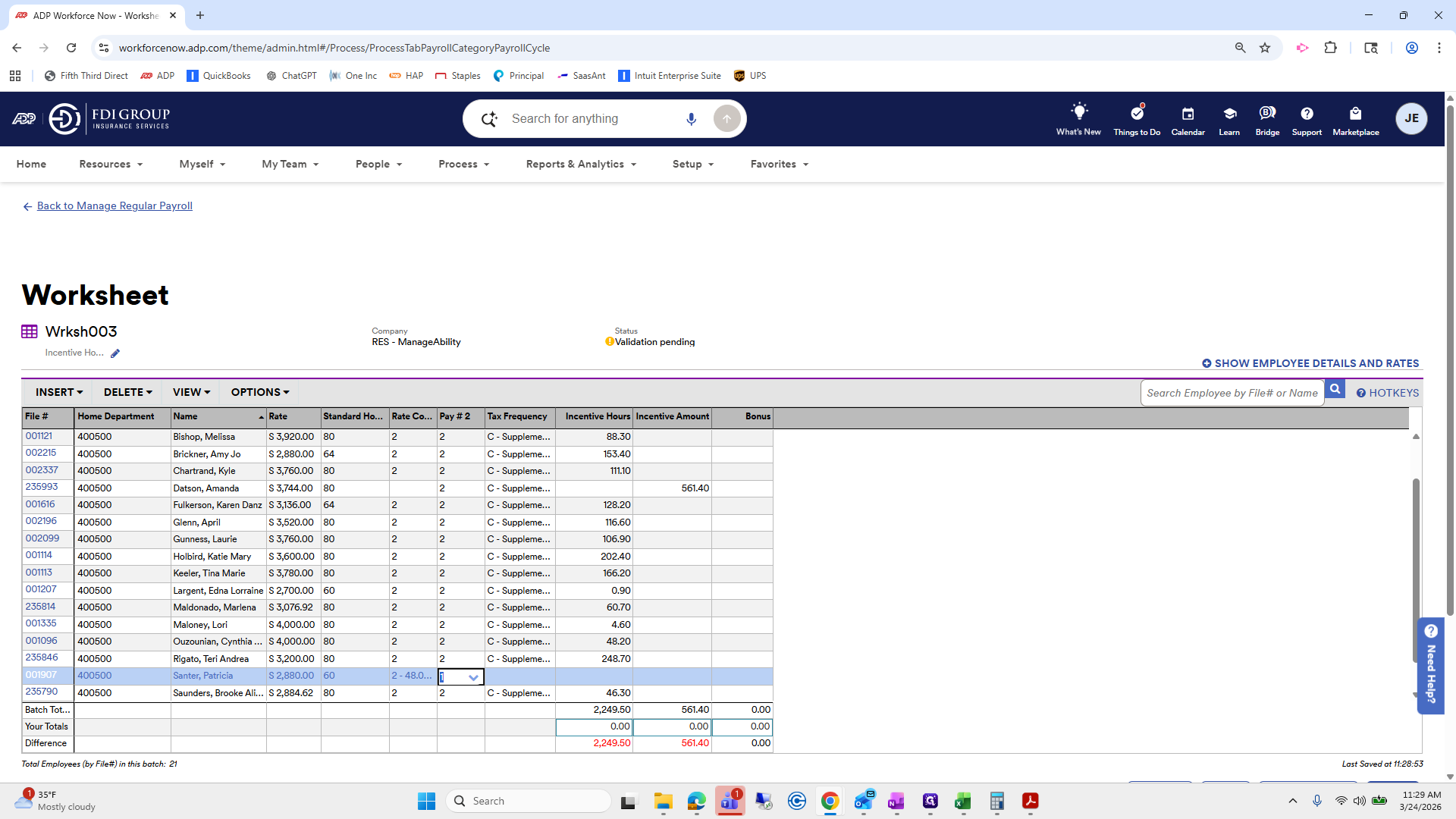
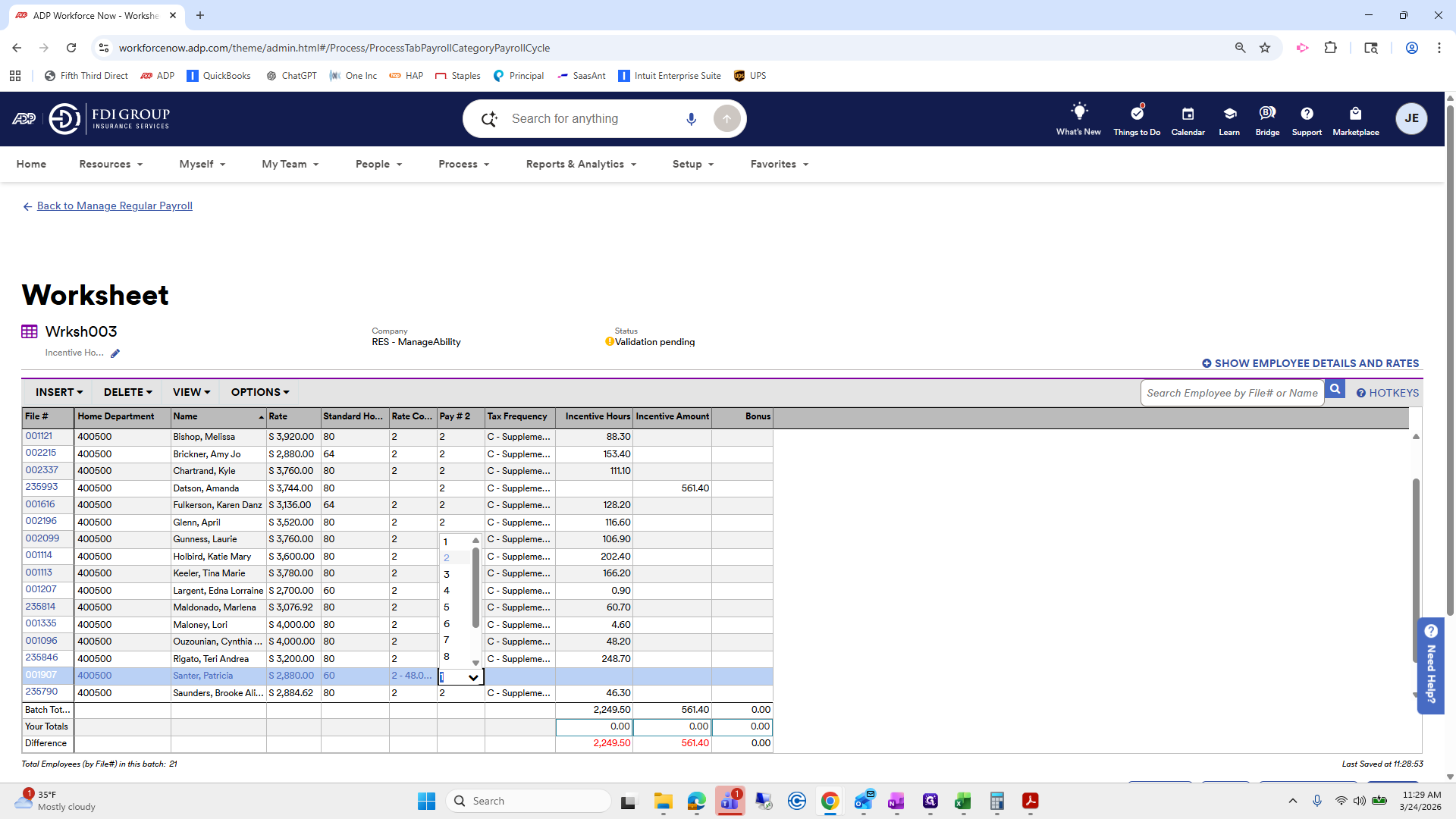
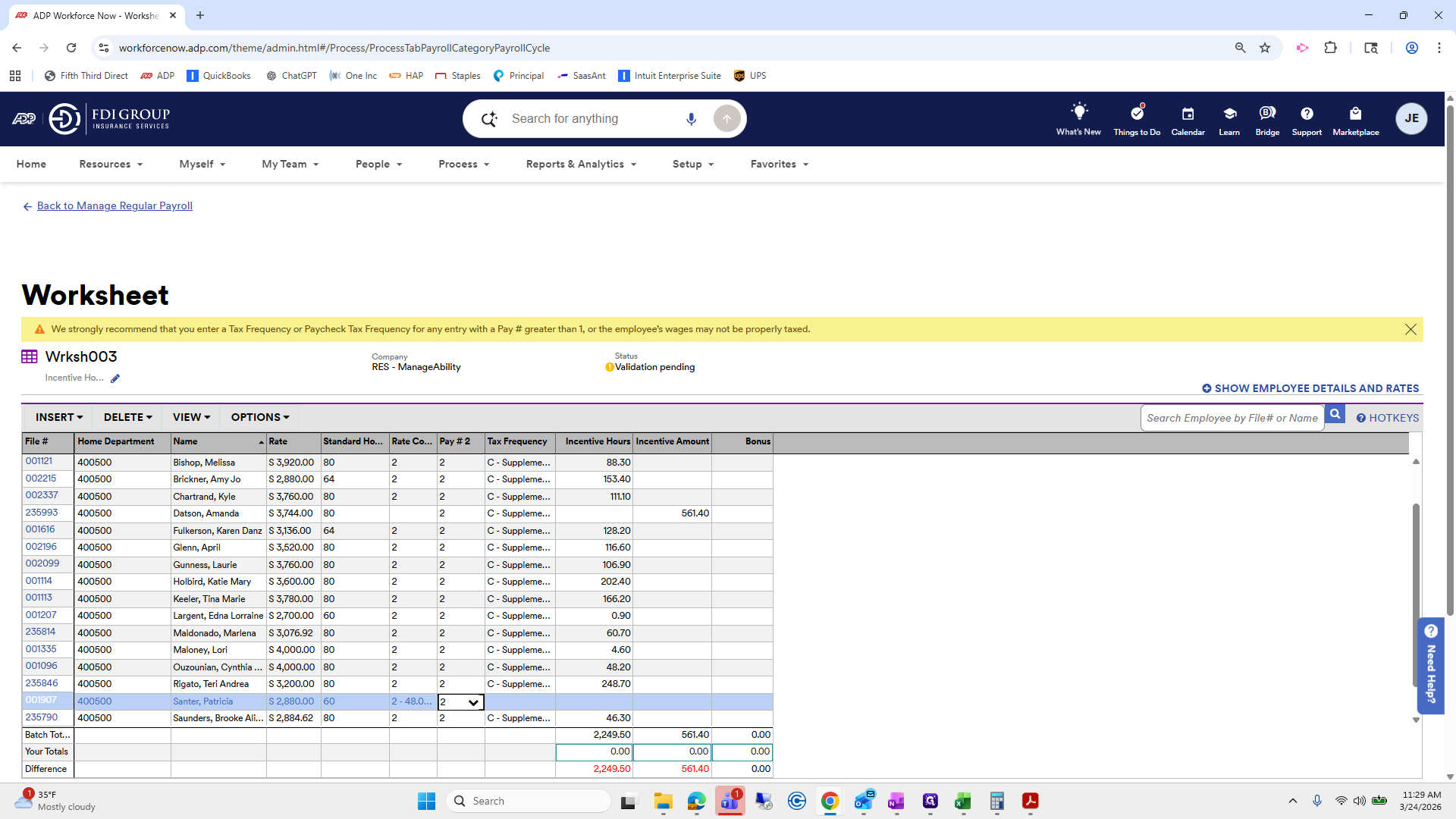
See, her hours were 29.4.