Creatify | How to create Avatar Ad Videos with Creatify

Learn how to create unique avatars by combining Nanobanana's image generation tools with Creatify's video and voice features. Follow this detailed workflow to generate custom avatars, edit backgrounds, and add personalized voices for engaging content.

By Eric Bork

In this guide, we'll learn how to create a new avatar using a workflow that combines image editing, prompt generation, and voice cloning. The process involves selecting a reference image, editing it with tools like Nanobanana, generating prompts, and then using Creatify to build the avatar and add a custom voice. This approach helps you make unique avatars with personalized visuals and audio.

Let's get started

Yo. Check it out. I will show you my workflow for creating new avatars.
1
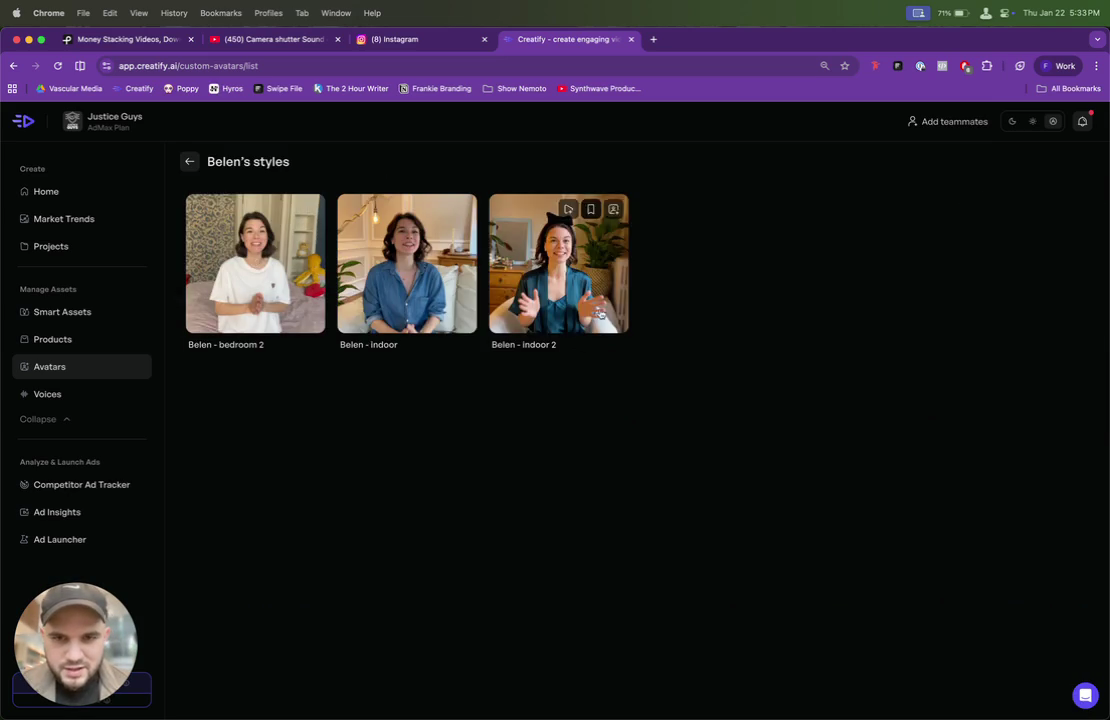
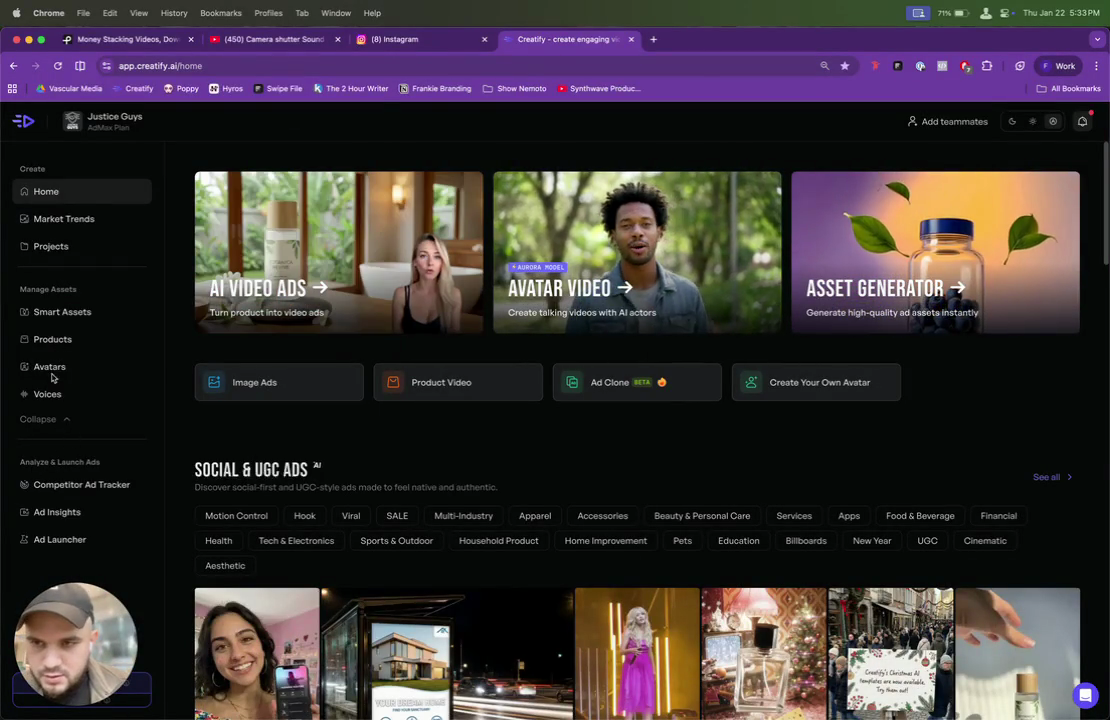
Click on 'Avatars' in the left sidebar.
Step #1: Click on 'Avatars' in the left sidebar.

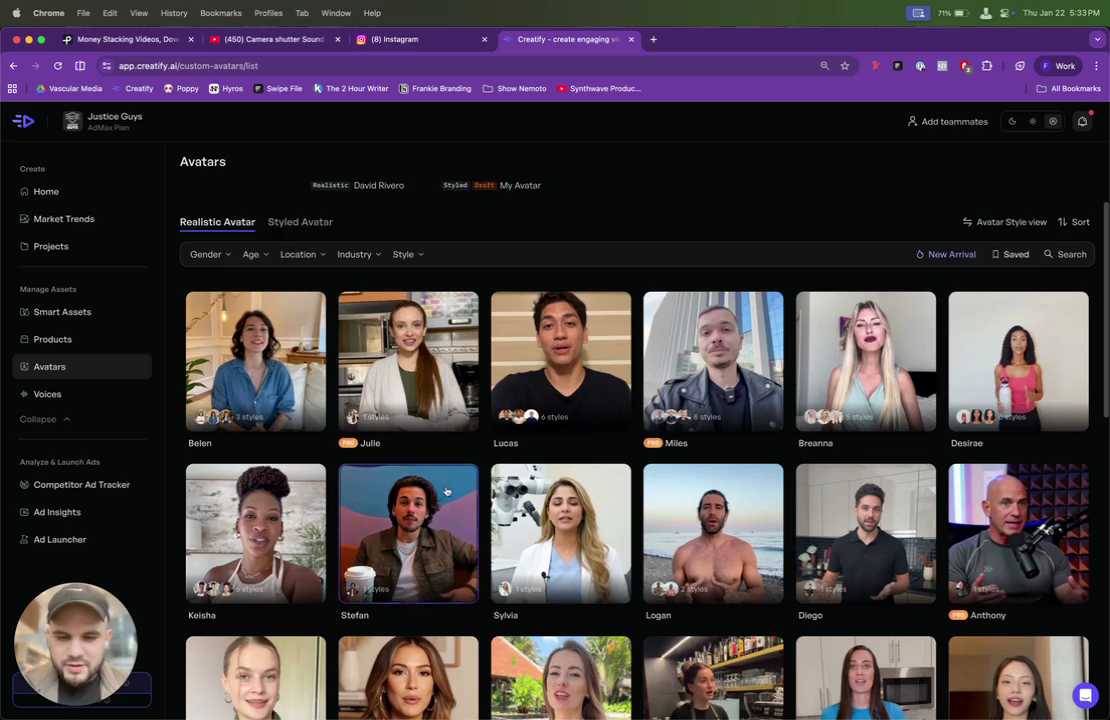
Usually, I don't search for someone new. Instead, I find someone I like.
2
Click on the avatar you want to use.
Step #2: Click on the avatar you want to use.
3
Click on the desired style for the avatar.
Step #3: Click on the desired style for the avatar.

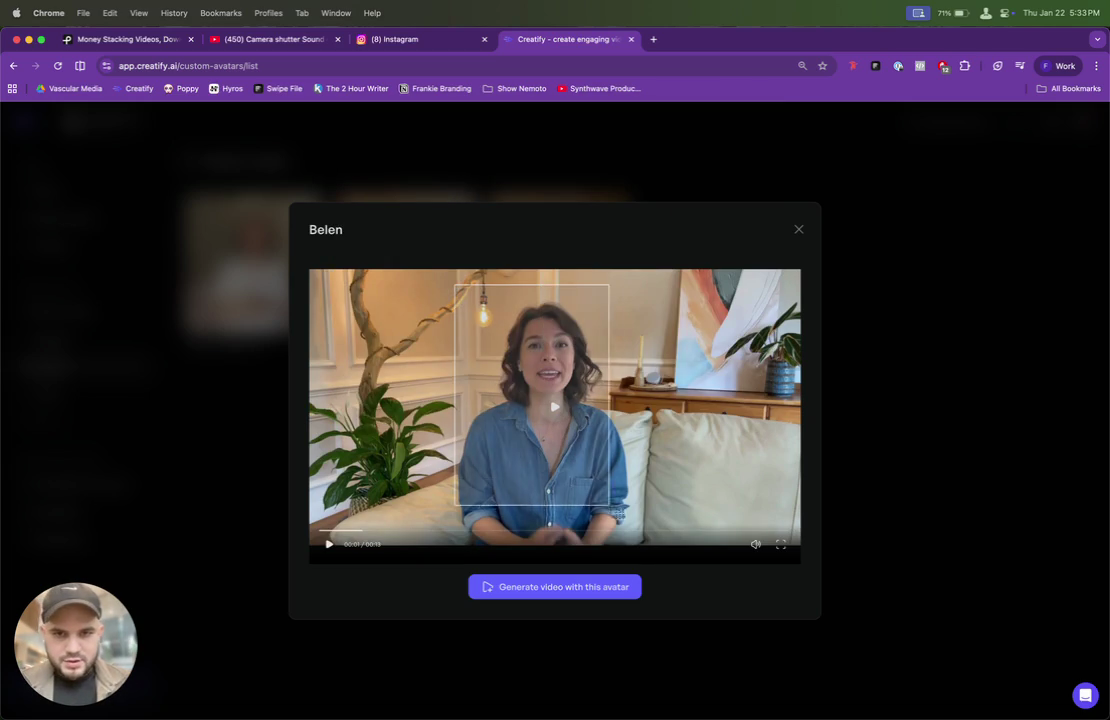
Maybe her. I'll take a picture of her. Take a picture of her.
4
Take a screenshot of the avatar image.
Step #4: Take a screenshot of the avatar image.

Then I go to Nanobanana.

5
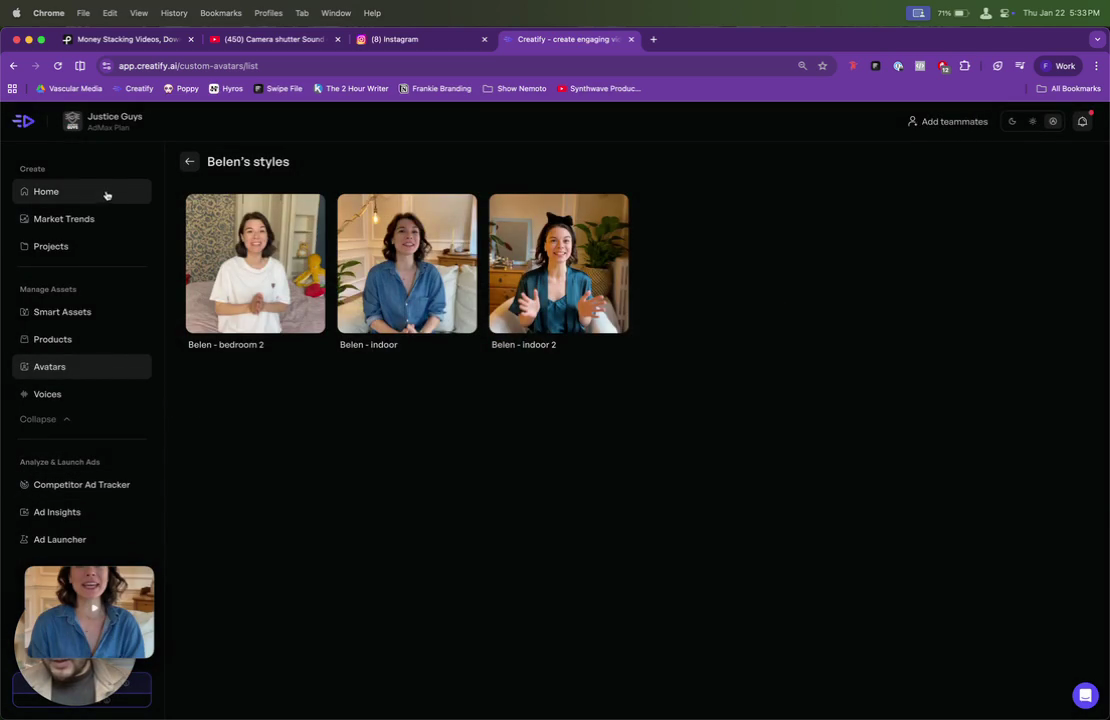
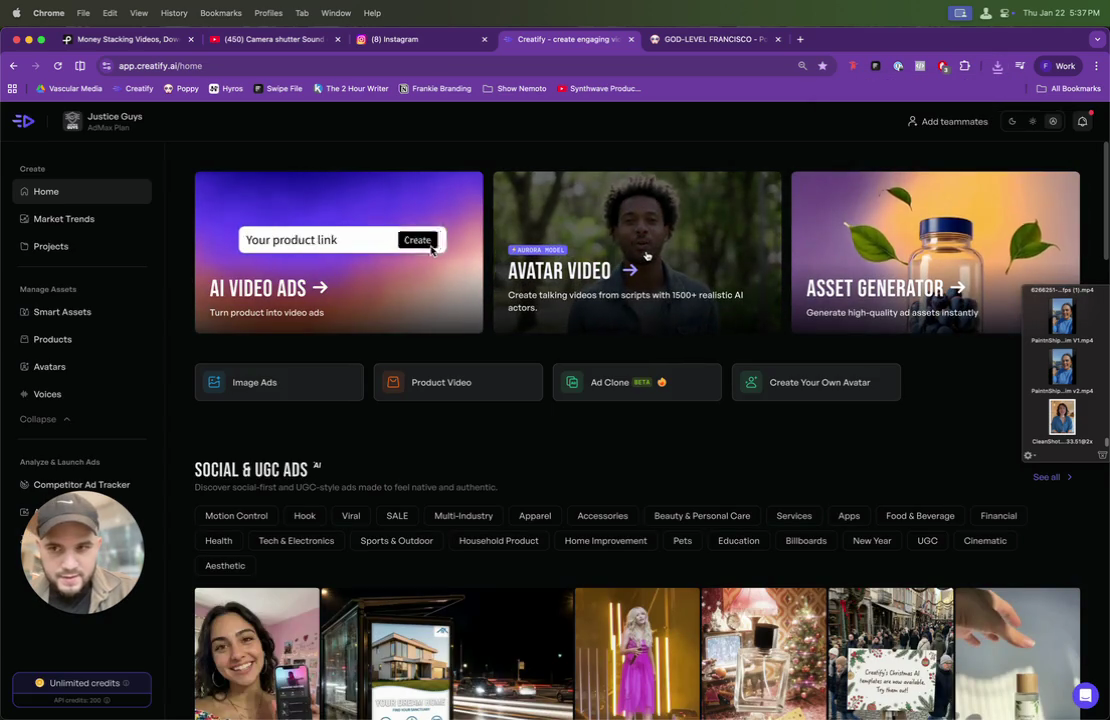
Click on 'Home' in the left sidebar.
Step #5: Click on 'Home' in the left sidebar.

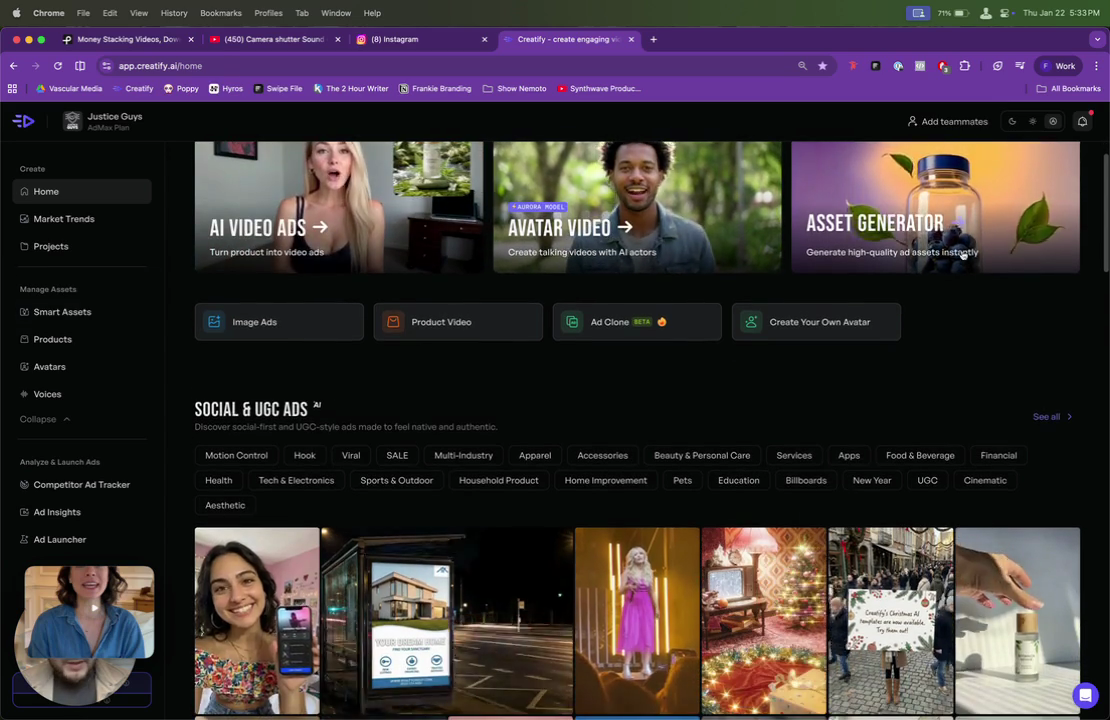
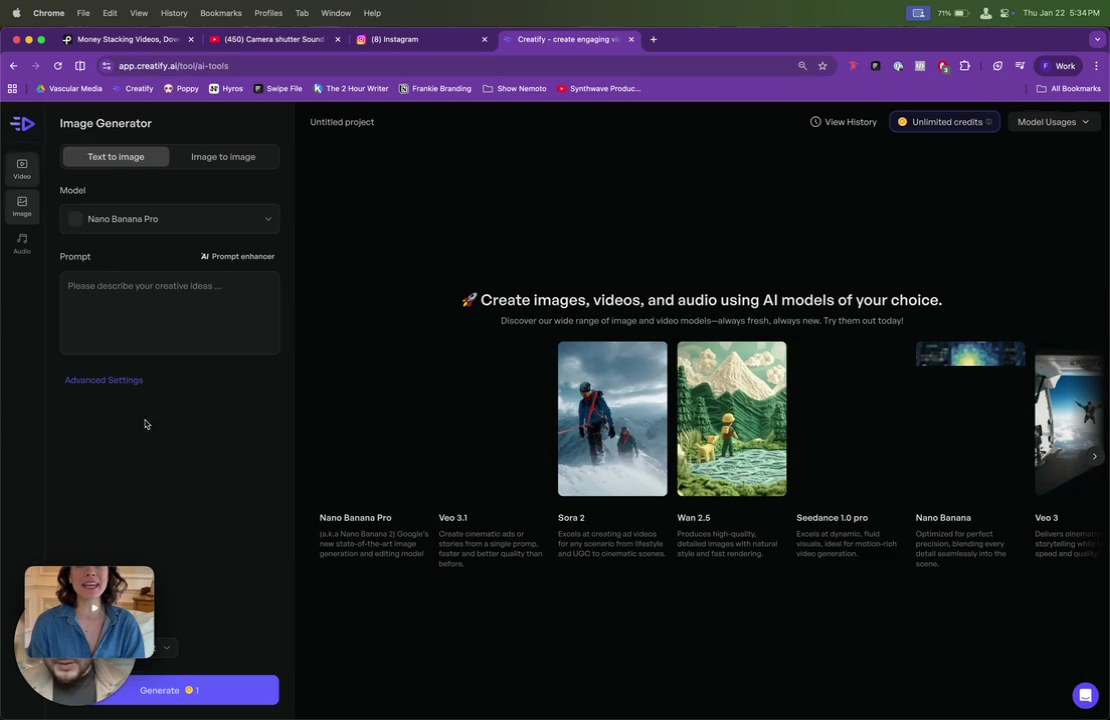
Nanobanana is here.

6
Click on 'Asset Generator'.
Step #6: Click on 'Asset Generator'.

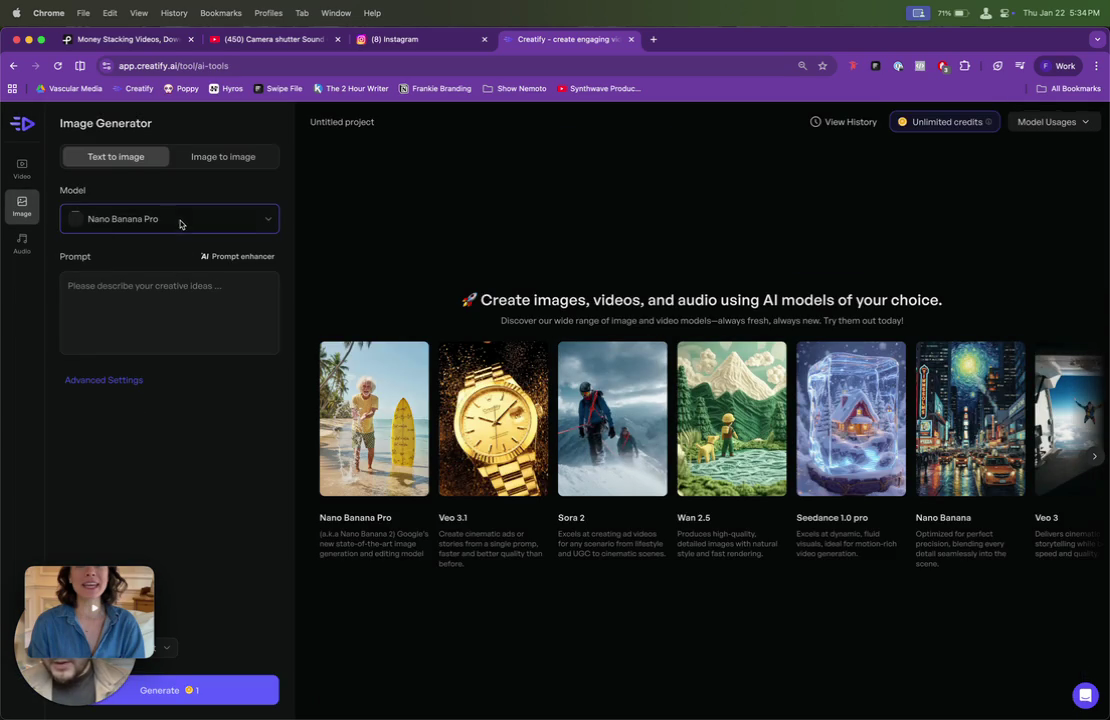
Content generator, Nanobanana Pro, and text-to-image features are available for you.
7
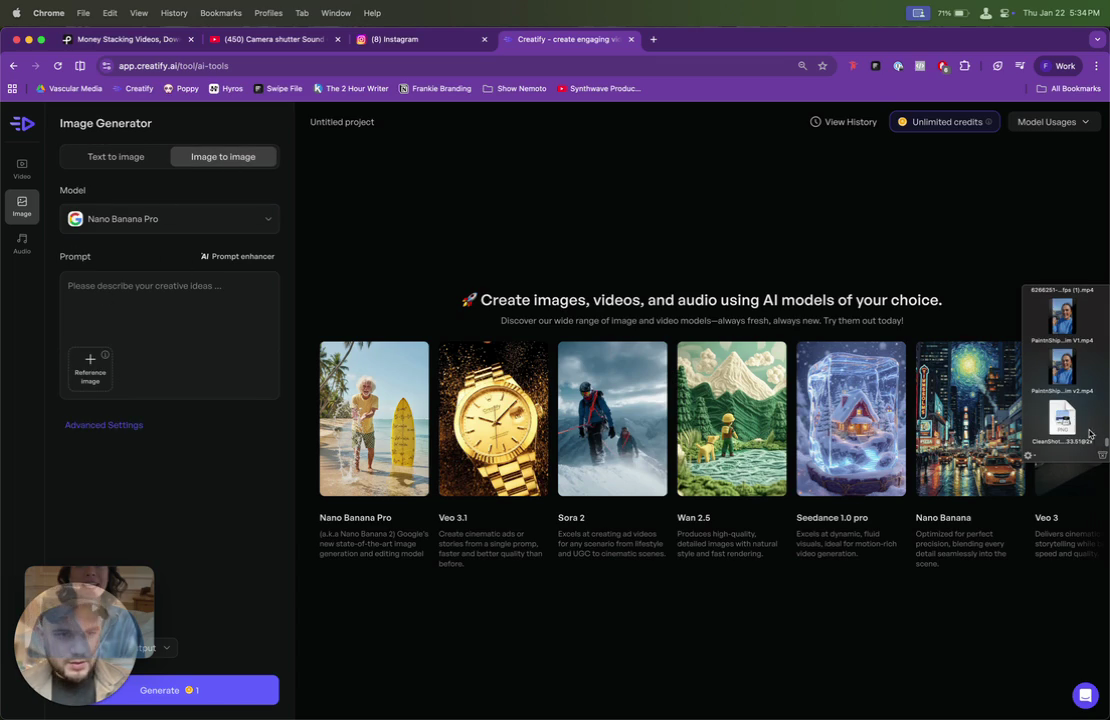
Click on the 'Image to Image' tab.
Step #7: Click on the 'Image to Image' tab.
8
Click on the 'Model' dropdown menu.
Step #8: Click on the 'Model' dropdown menu.
9
Click the Image to image tab
Step #9: Click the Image to image tab

It's image to image.

10
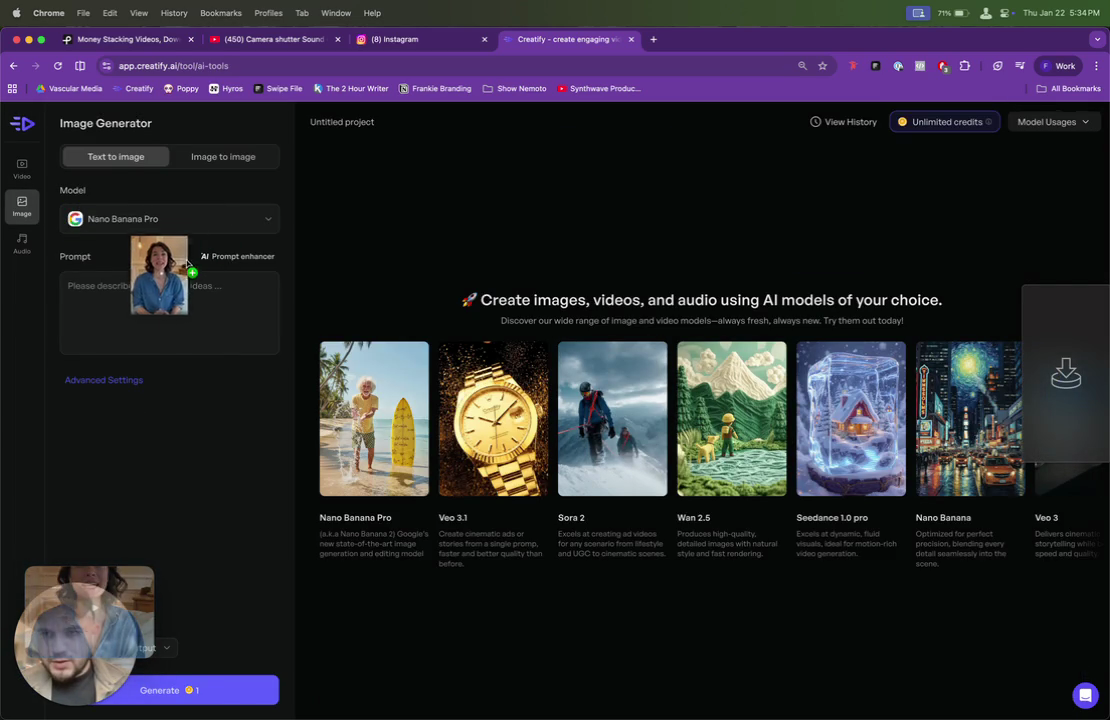
Drag the reference image into the reference image upload area
Step #10: Drag the reference image into the reference image upload area

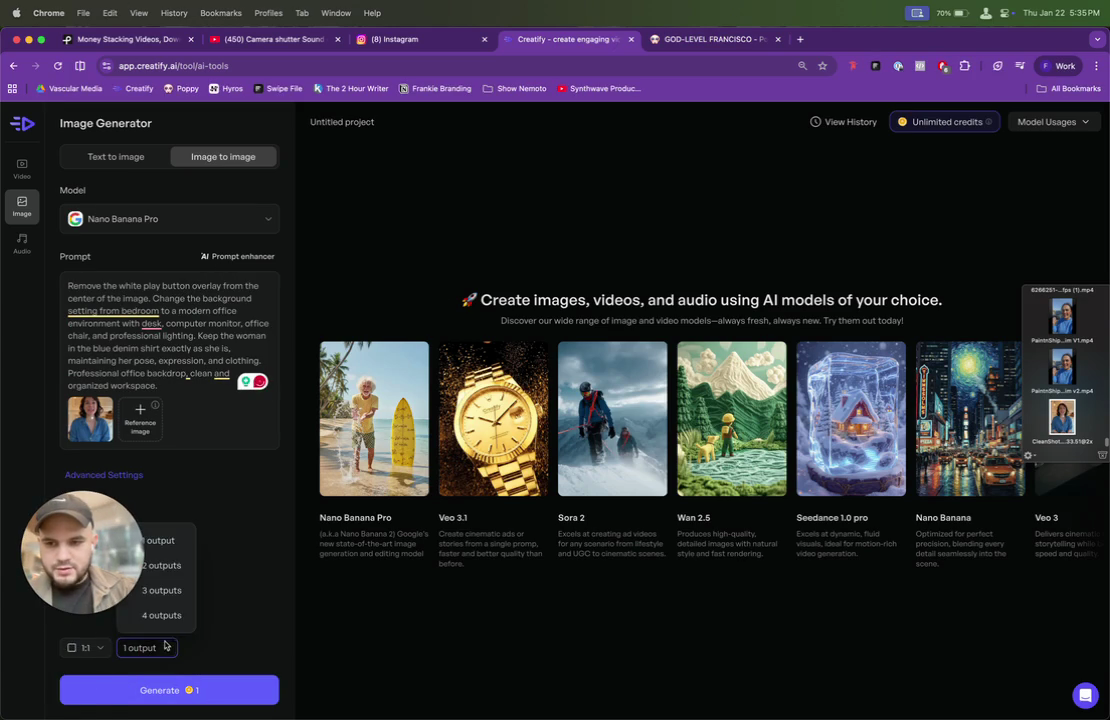
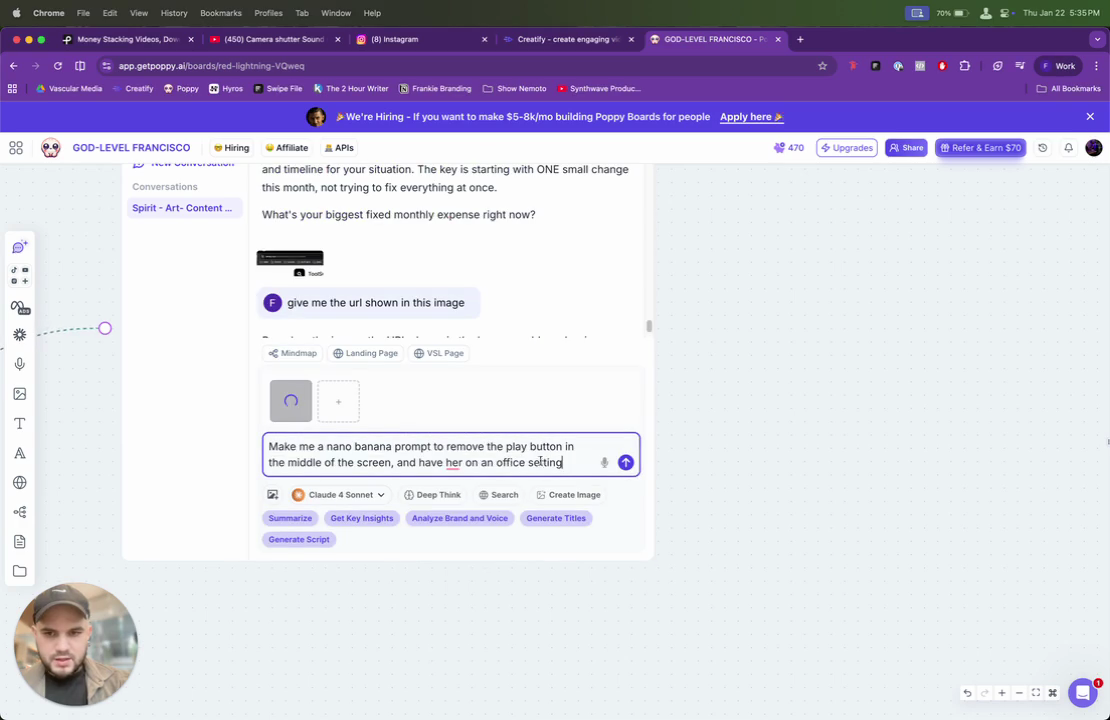
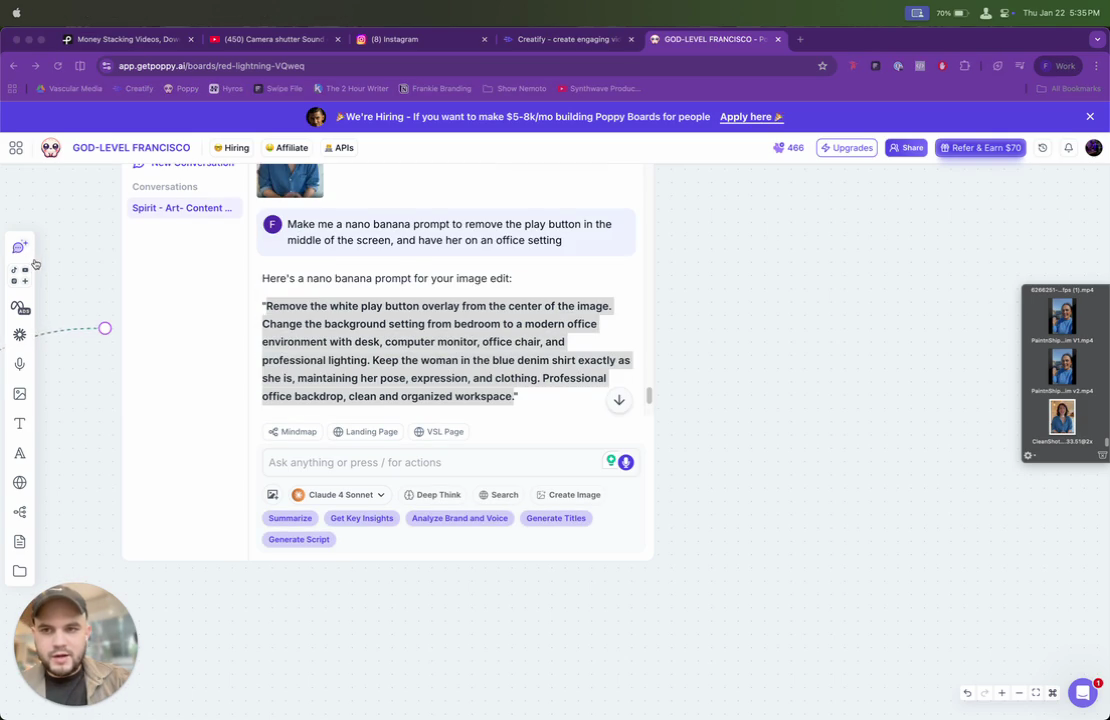
I'm going to lock it in case I need it. Bring it there. Then I'll ask ChatGPT for a prompt to remove the play button and change the background to an office setting. Let me do that quickly. I do that on Popy, so I'll just prompt it here. That's my prompt to keep it simple. I'll also provide the image so it can read it as well.
11
In the text input field, type 'Make me a nano banana prompt to remove the play button in the middle of the screen, and have her on an office setting.'
12
Click the send button
Step #12: Click the send button

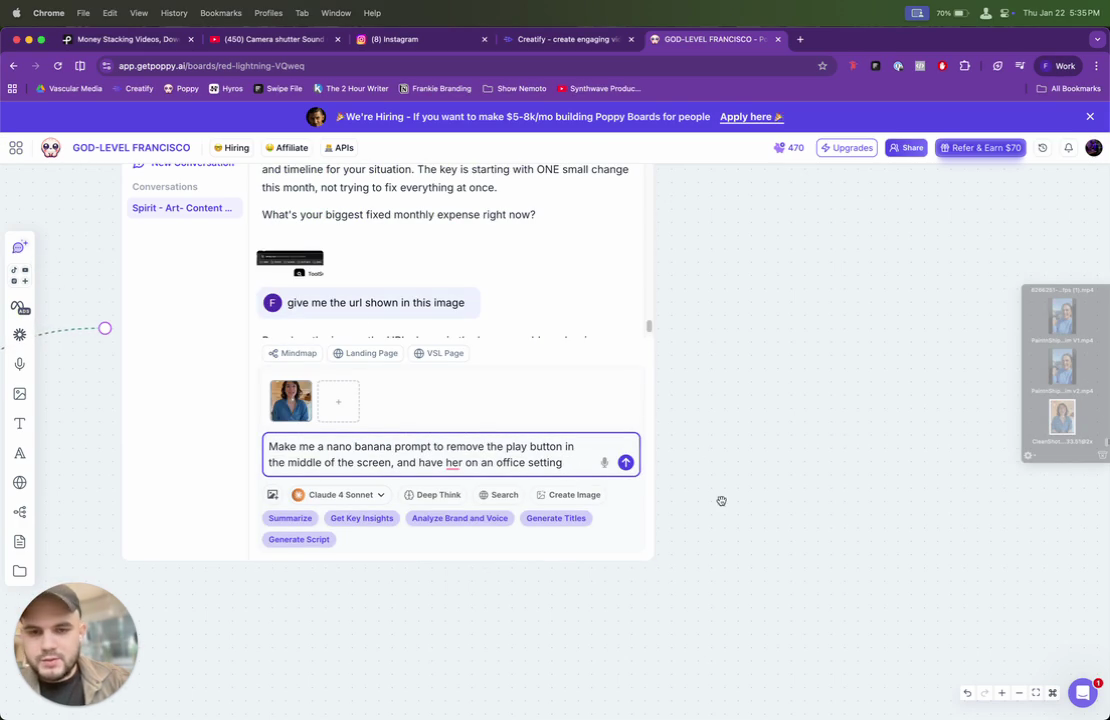
You can do it anywhere, such as in ChatGPT or other platforms.
13
Click the Create Image button
Step #13: Click the Create Image button

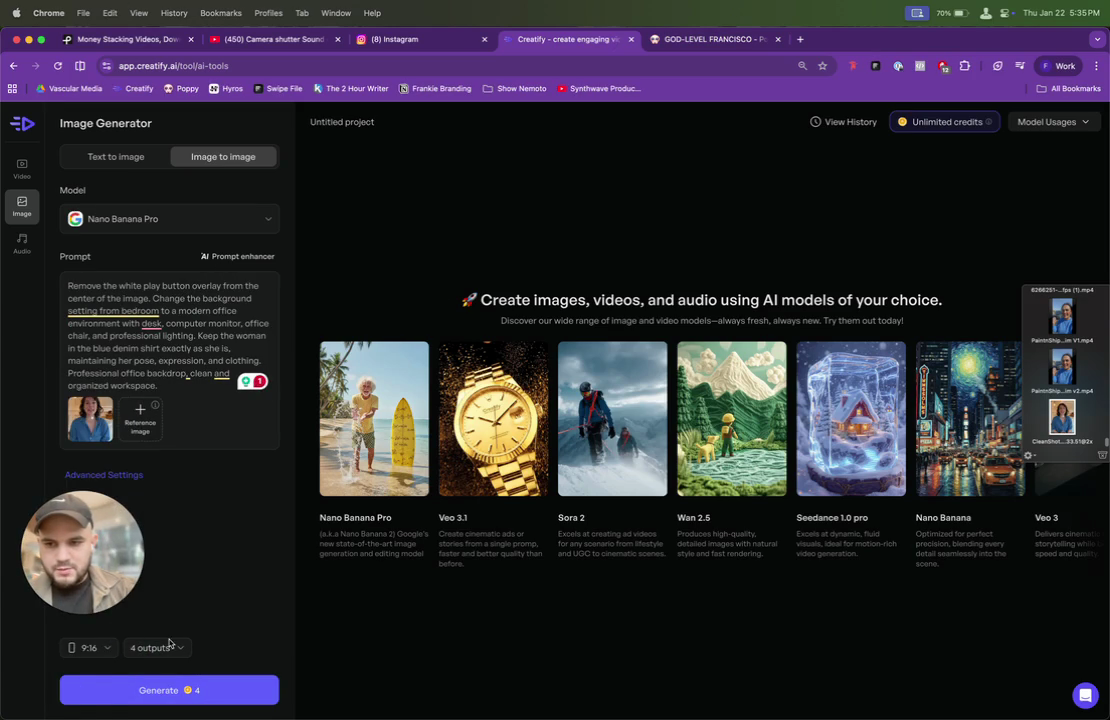
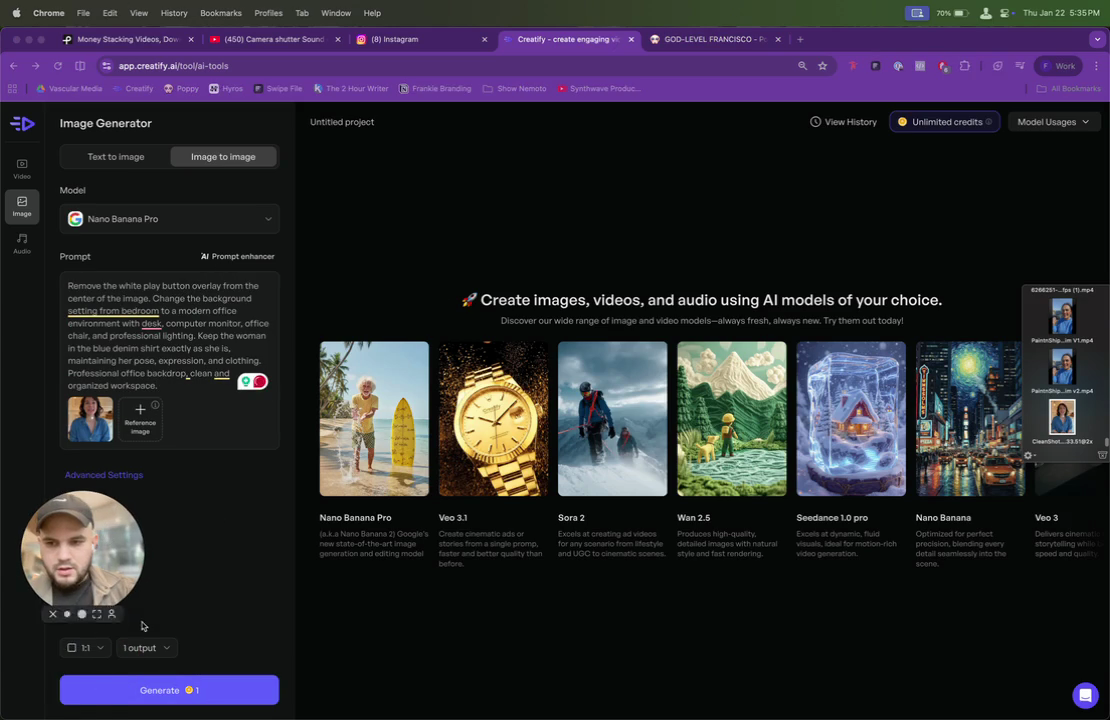
I'm using Pod right now in Popy. I have it here. I copy it, bring it to Nanobanana, and then create about four outputs.
14
Copy the generated nano banana prompt
Step #14: Copy the generated nano banana prompt
15
Go to Link
16
Paste the copied text into the Prompt field
17
Click the outputs dropdown menu
Step #17: Click the outputs dropdown menu
18
Select '4 outputs'
Step #18: Select '4 outputs'

I'll have sixteen.

19
Click the Generate button
Step #19: Click the Generate button

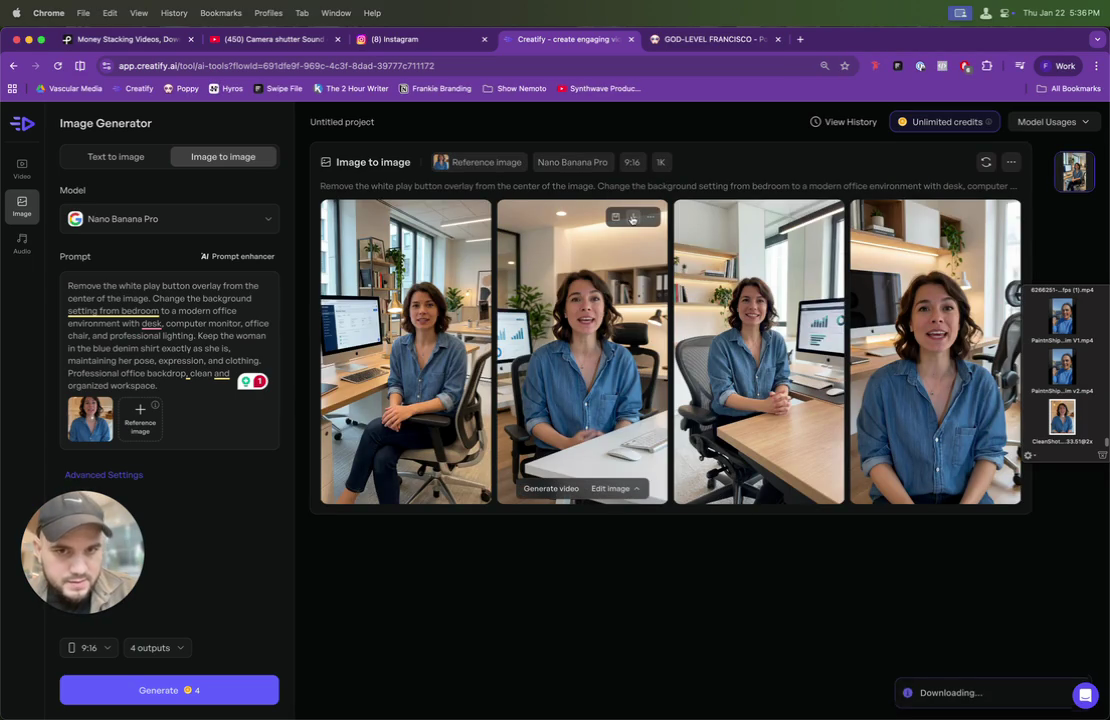
Take a look. She is now in an office setting. This one is great. I like it.
20
Click the download button on the desired image
Step #20: Click the download button on the desired image

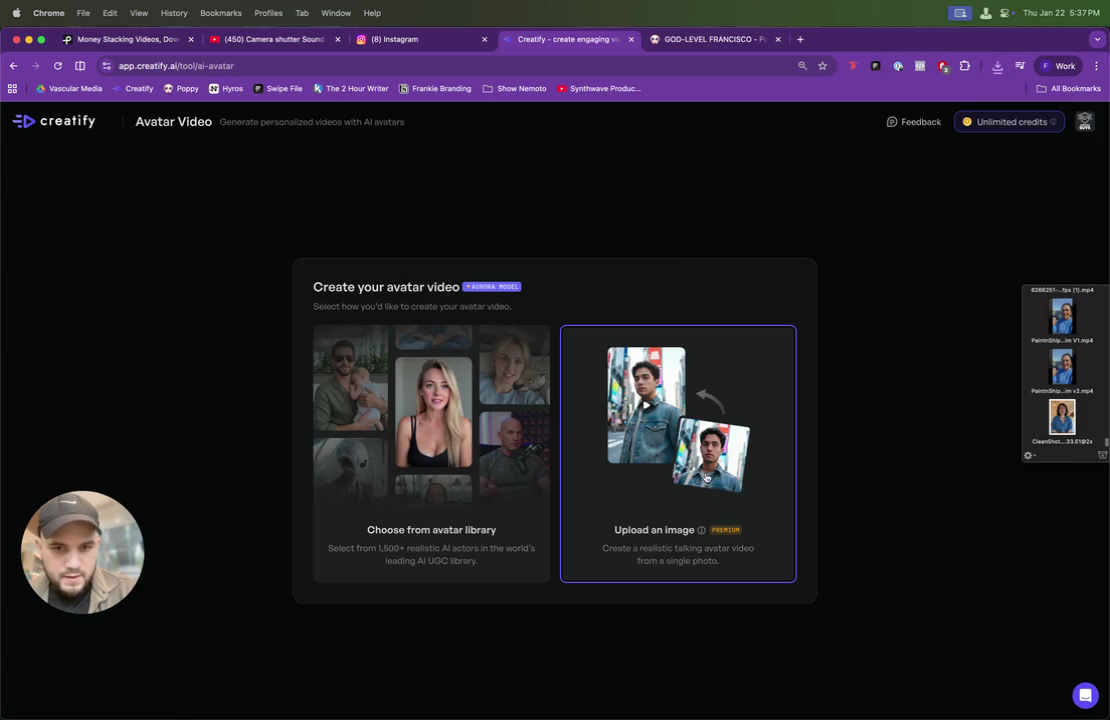
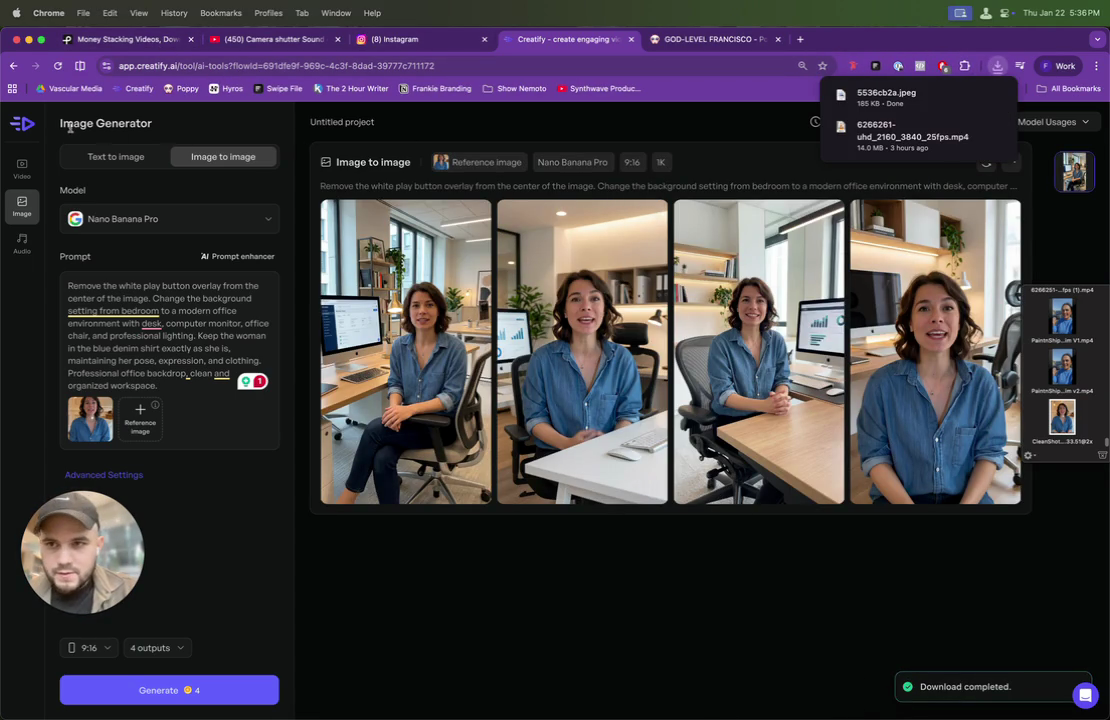
Download it. Go back to Creatify. Click on Avatar Video, then upload an image.
21
Click the Create icon in the left sidebar
Step #21: Click the Create icon in the left sidebar
22
Click on Avatar Video
Step #22: Click on Avatar Video
23
Click on the 'Upload an image' card.
Step #23: Click on the 'Upload an image' card.

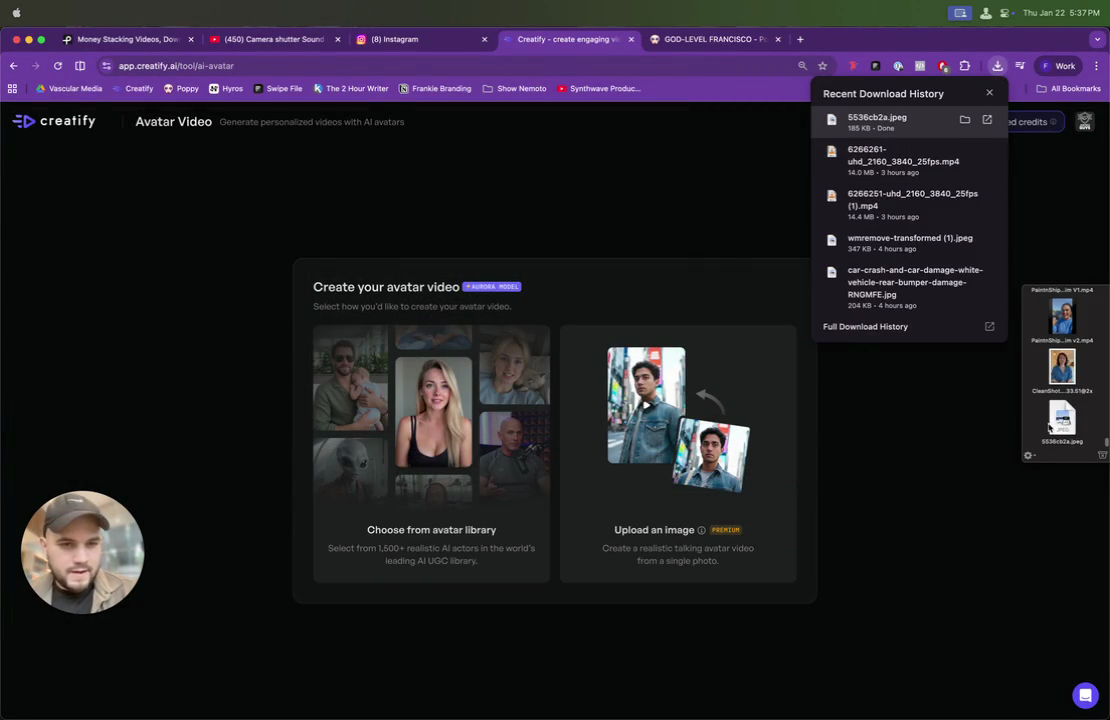
This is why Yeah. Yoink is useful. Check it out. I repeat that image.
24
Drag and drop the image file onto the 'Upload an image' area.
Step #24: Drag and drop the image file onto the 'Upload an image' area.

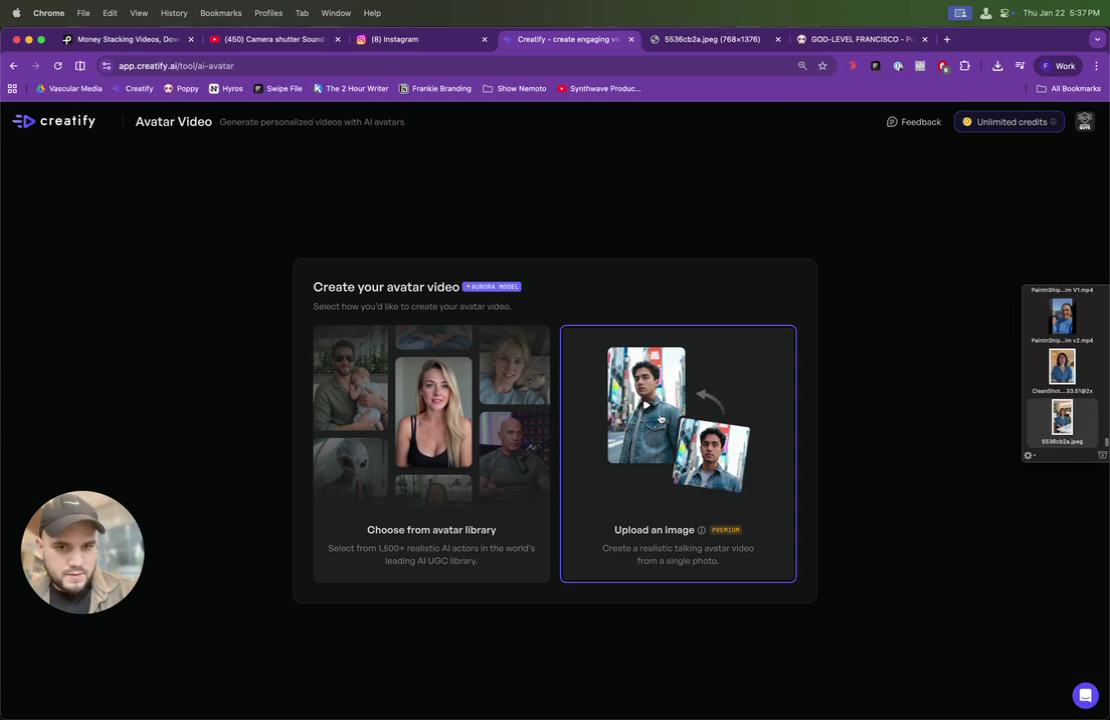
I can put it down.

I need to click it. I didn't save it. If that happens again, you can lock it.
25
Click the "Upload an Image" button.
Step #25: Click the "Upload an Image" button.

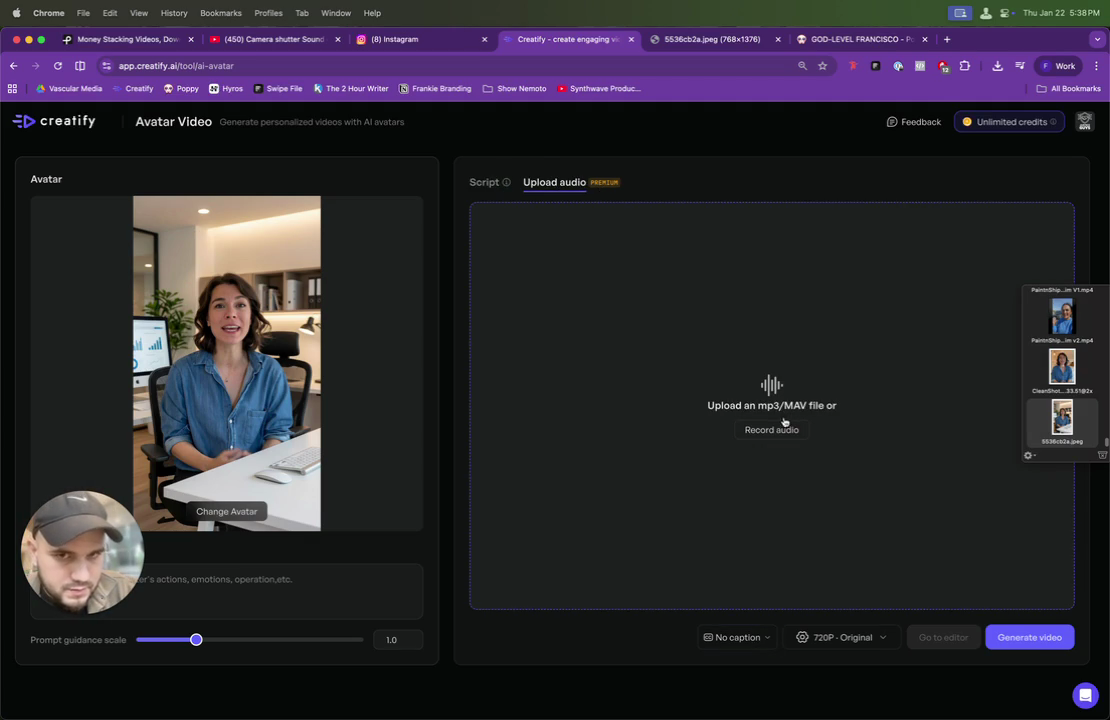
Now, repeat the process. Start creating the avatar and write the script here.
26
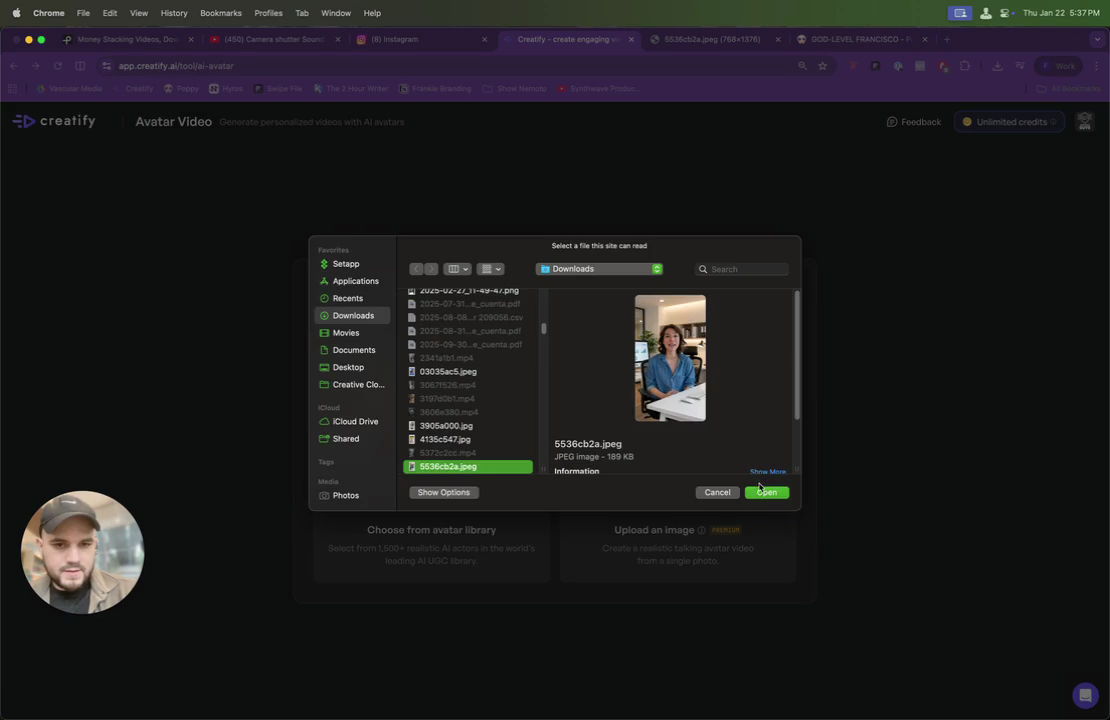
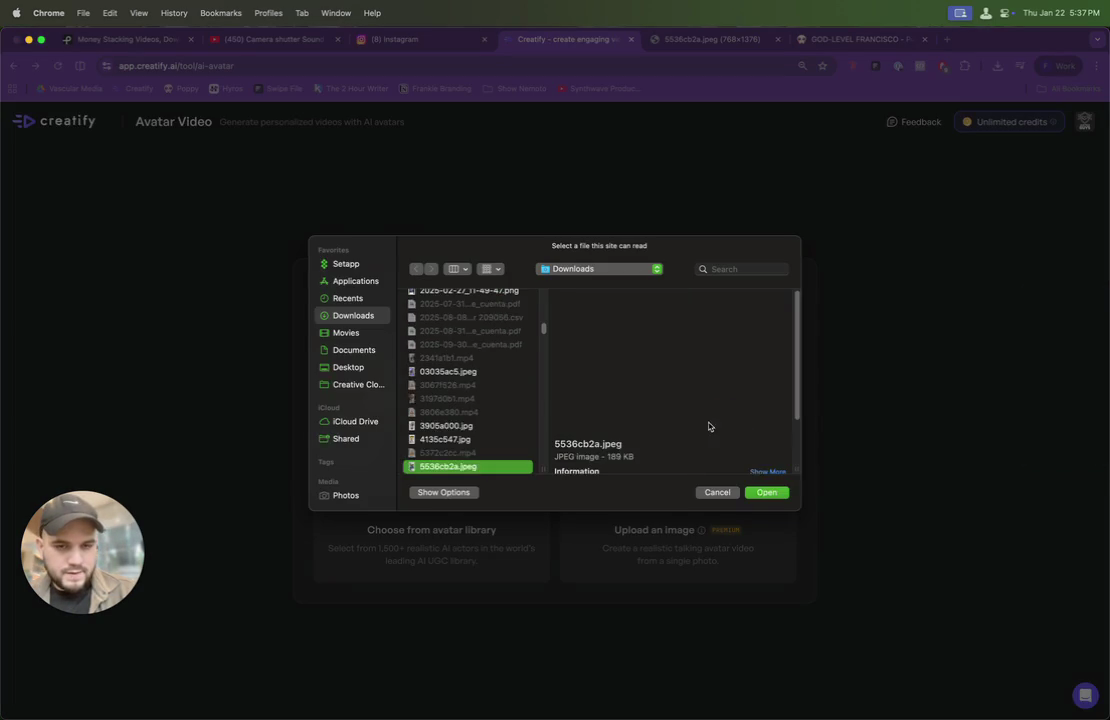
Select the image file to upload.
Step #26: Select the image file to upload.
27
Click the Open button.
Step #27: Click the Open button.
28
Type your script in the text field.

The script would be like... "" These are, uh... So, uh, you know what? Now I use the outfit for this. This is the pain and discomfort video script.

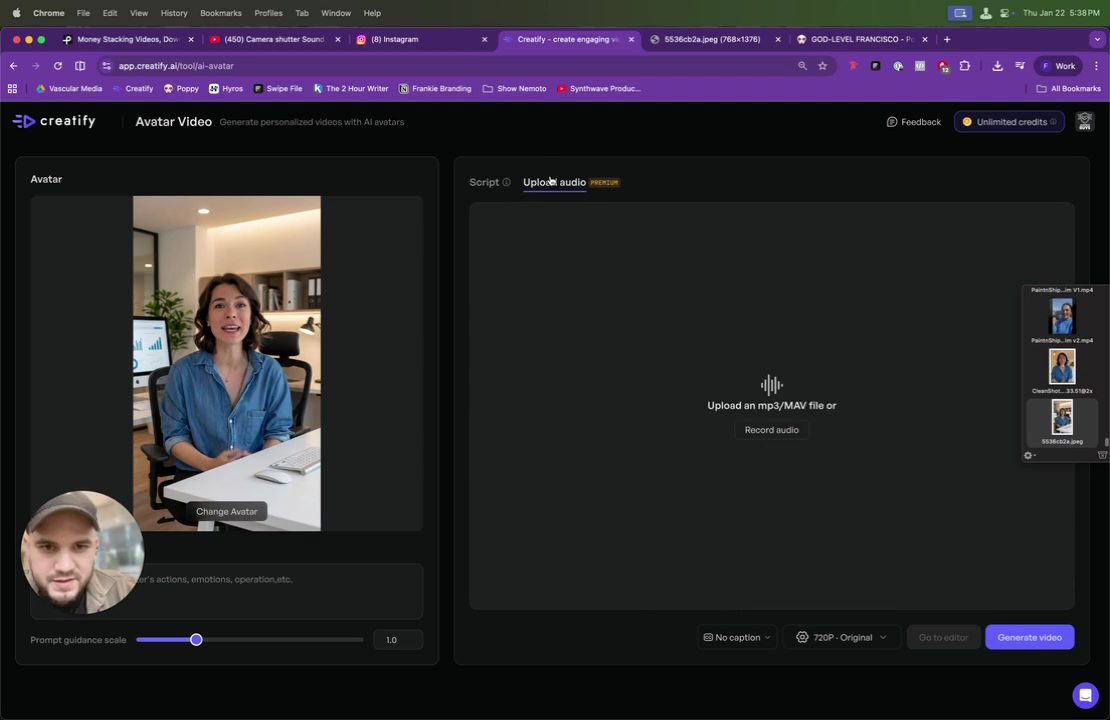
Click on "Upload Audio" and upload your audio file.
29
Click the "Upload audio" tab.
Step #29: Click the "Upload audio" tab.
30
Click the "Record audio" button.
Step #30: Click the "Record audio" button.

Then I thought you could duplicate the audio here. Give me a moment. Cool. I just found out.
31
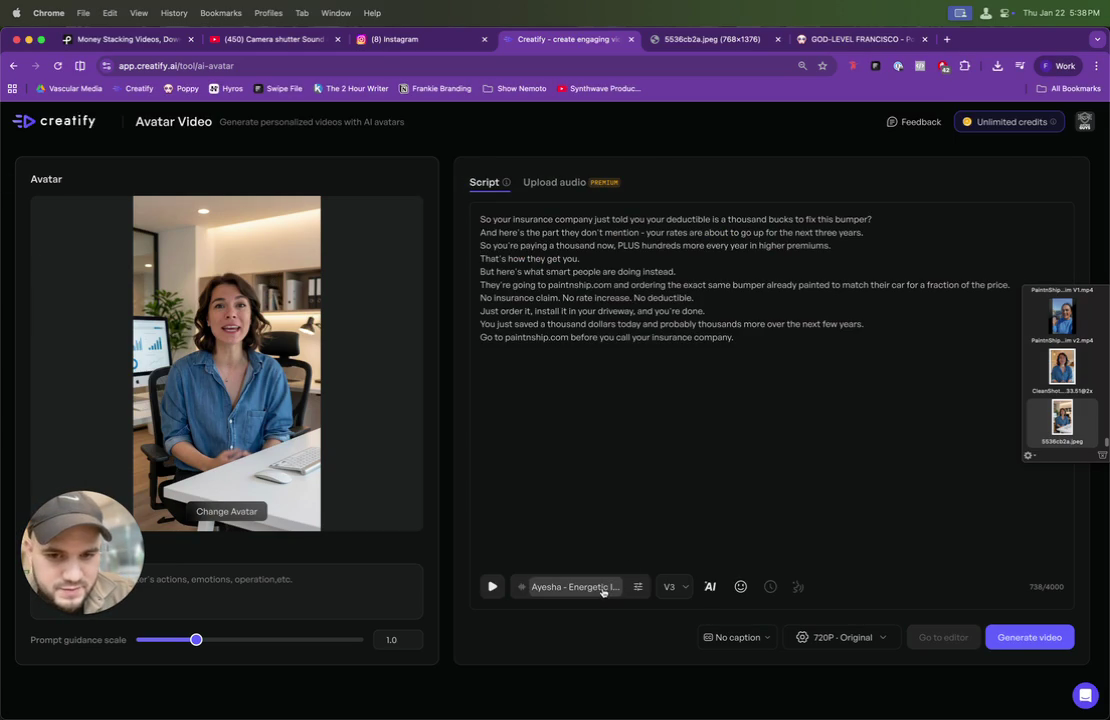
Click the Aysha - Energetic Indian Voice dropdown.
Step #31: Click the Aysha - Energetic Indian Voice dropdown.

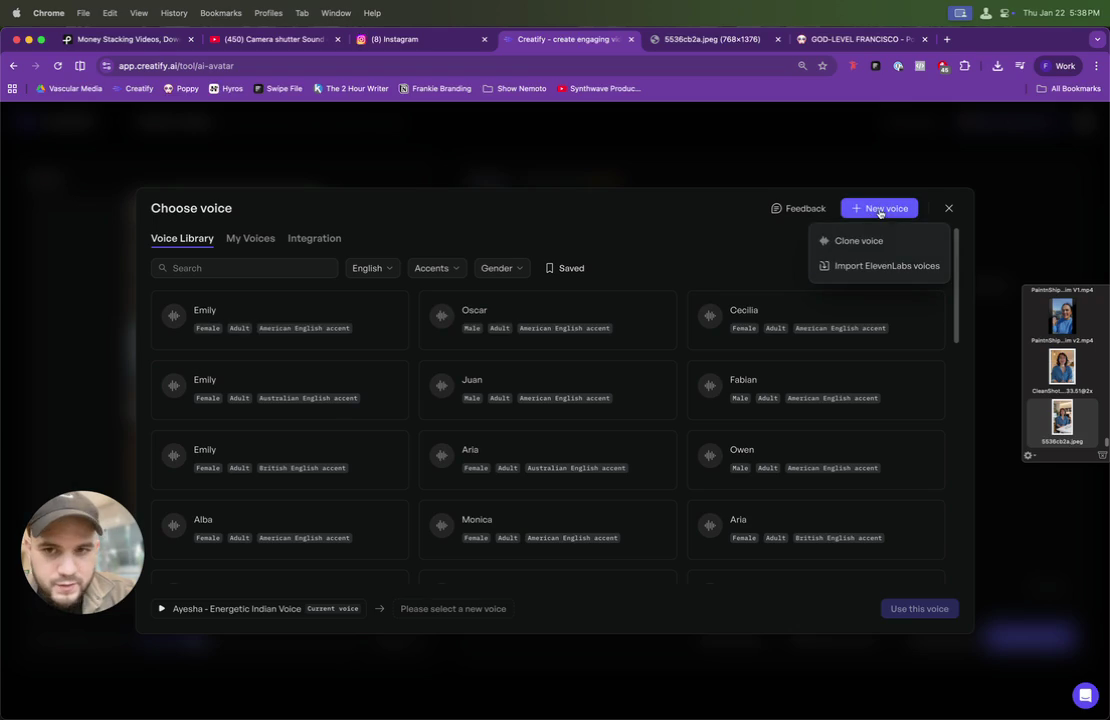
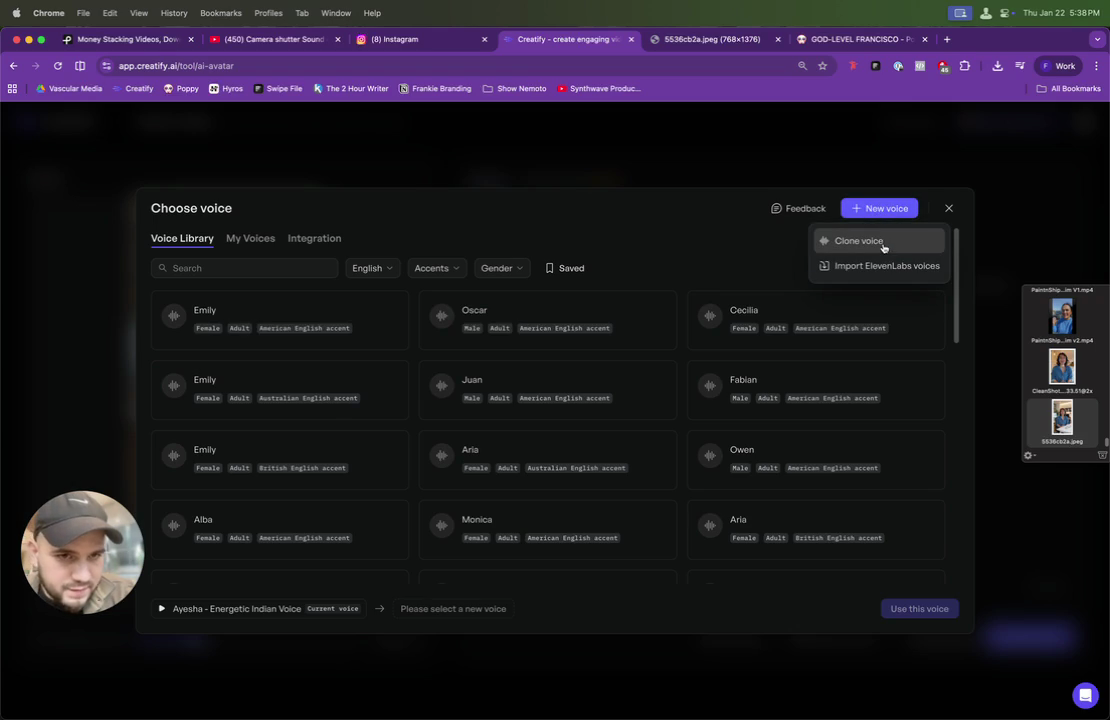
Click here, then select "New Voice." You can either clone a voice or import voices from 11 Labs.
32
Click the New voice button.
Step #32: Click the New voice button.
33
Click Clone voice.
Step #33: Click Clone voice.

You can simply go to Instagram. I'll show you.

34
Go to Link

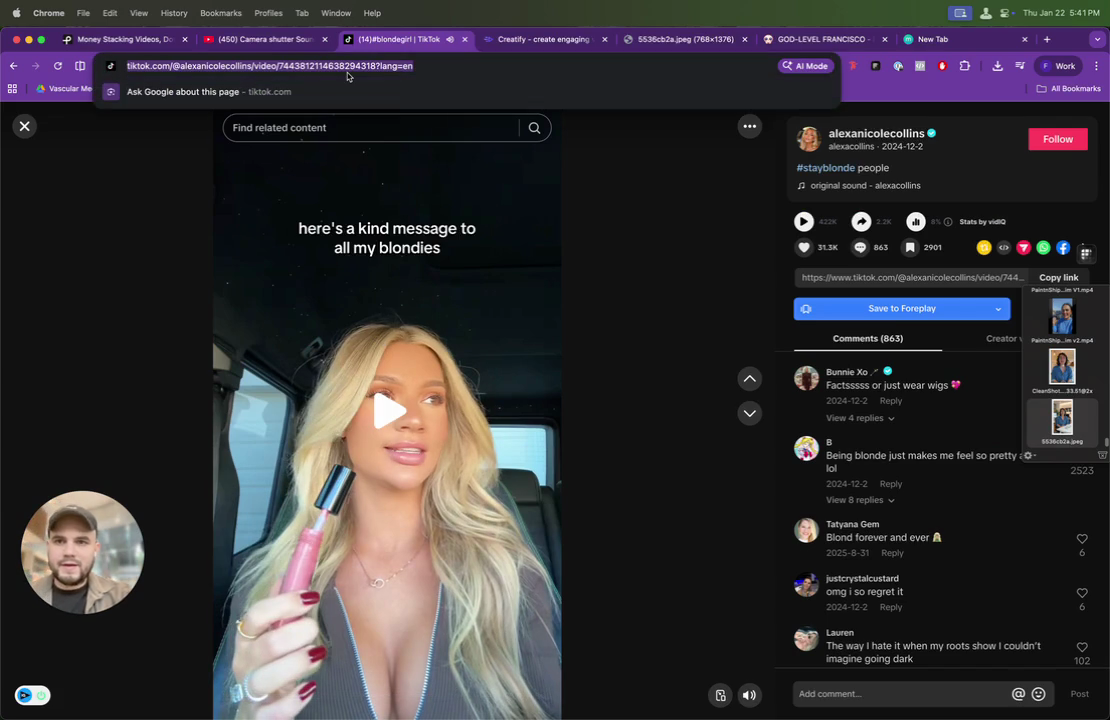
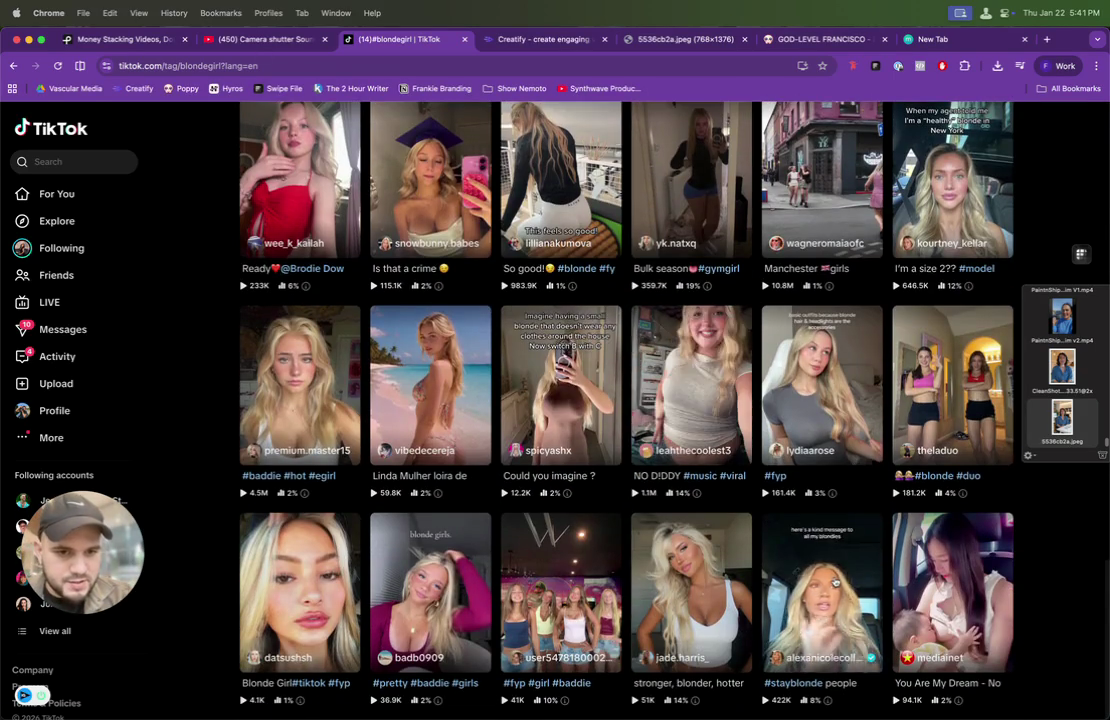
Go to TikTok or Google and search for a video with a blonde girl speaking, like this person.
35
Click on a video of a person speaking.
Step #35: Click on a video of a person speaking.

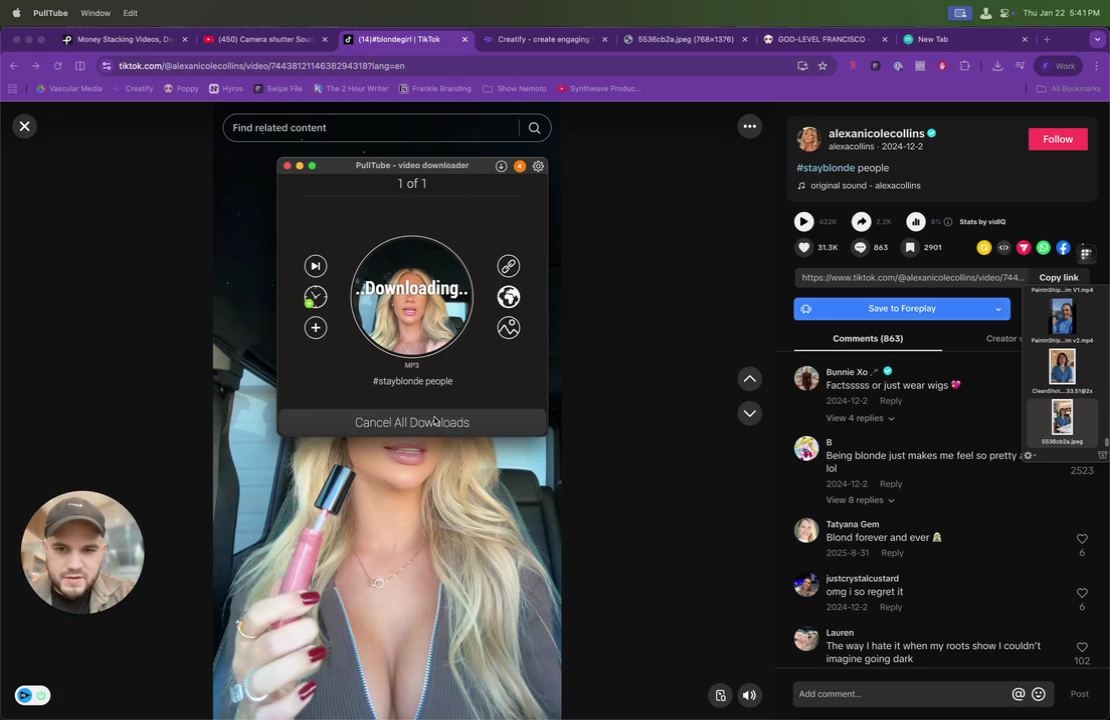
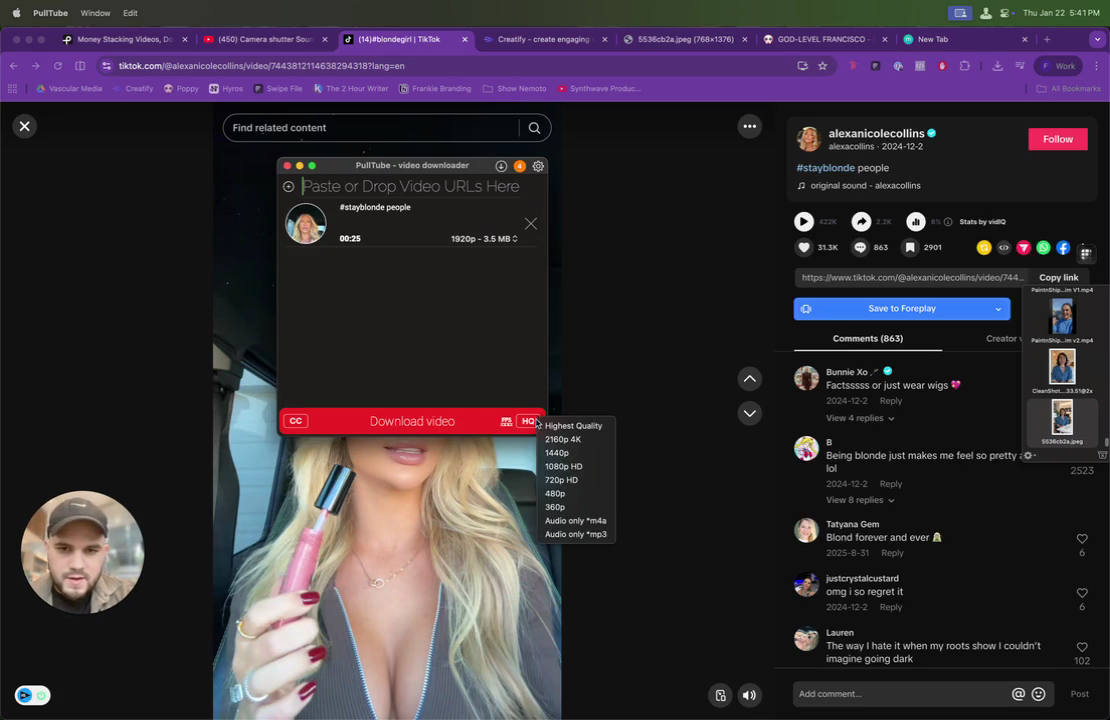
I use Pull2 to download the video.

36
Highlight the video URL in the address bar.
Step #36: Highlight the video URL in the address bar.
37
Paste the video URL into the PullTube downloader.

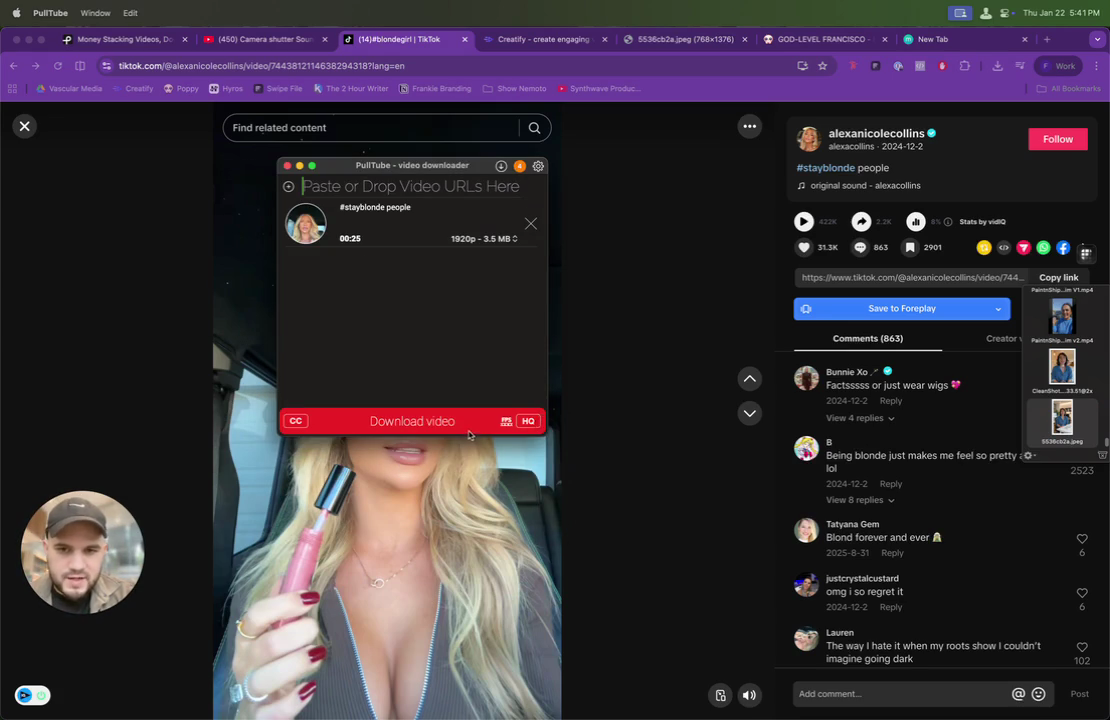
It seems I couldn't get it. I'll download a TikTok MP3 downloader. Give me a second. I tried it again with Pull2, and it worked. I'll download the MP3 for her.
38
Click the quality dropdown menu.
Step #38: Click the quality dropdown menu.
39
Select 'Audio only *mp3' from the dropdown menu.
Step #39: Select 'Audio only *mp3' from the dropdown menu.
40
Click the 'Download Video' button.
Step #40: Click the 'Download Video' button.

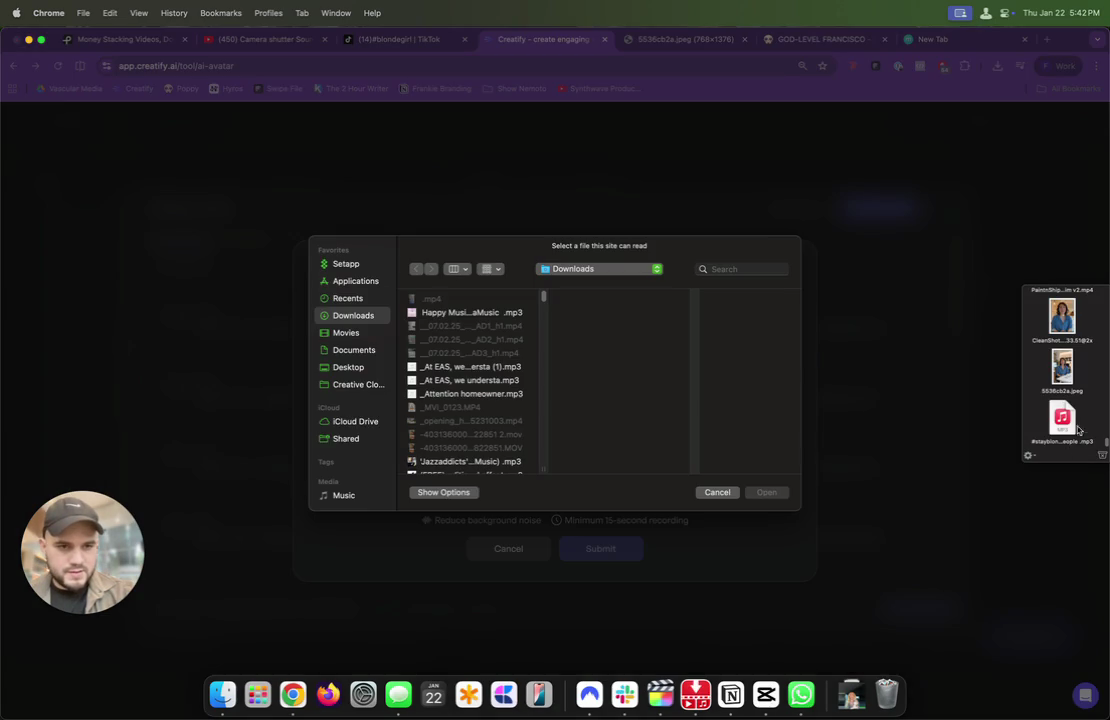
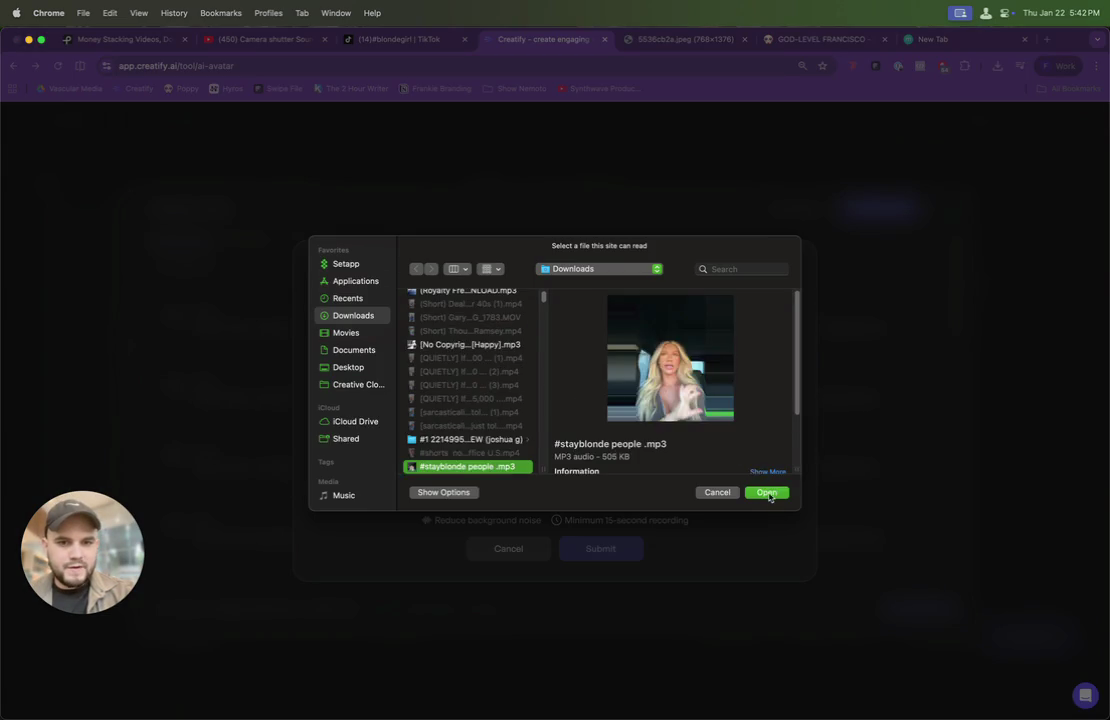
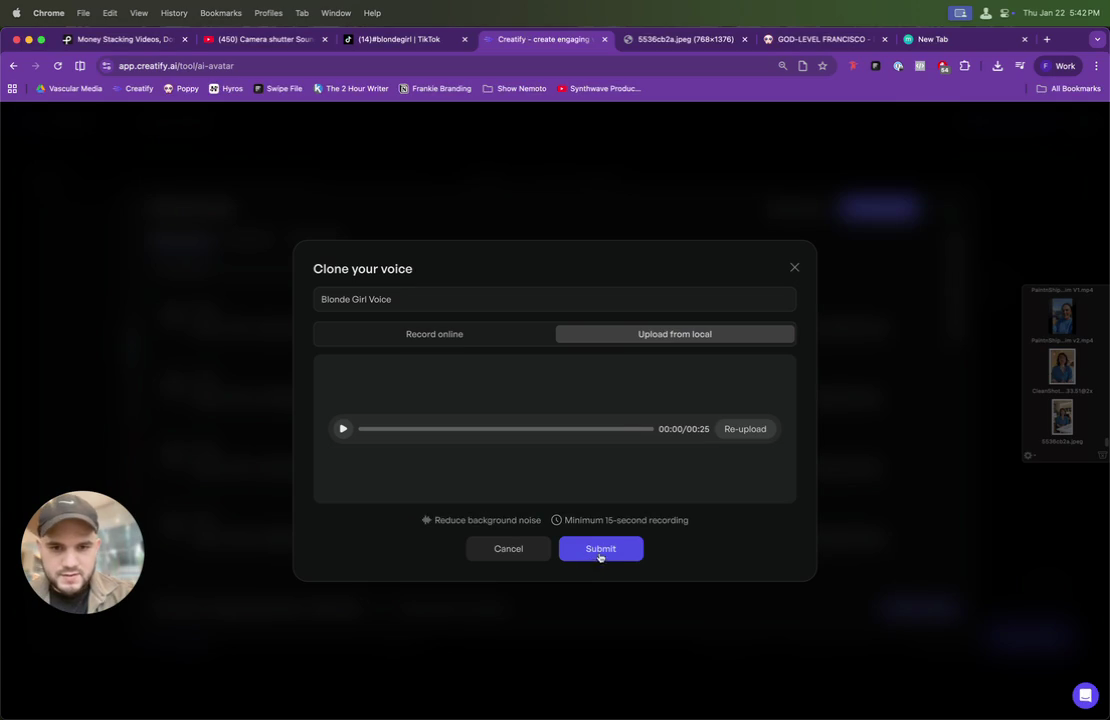
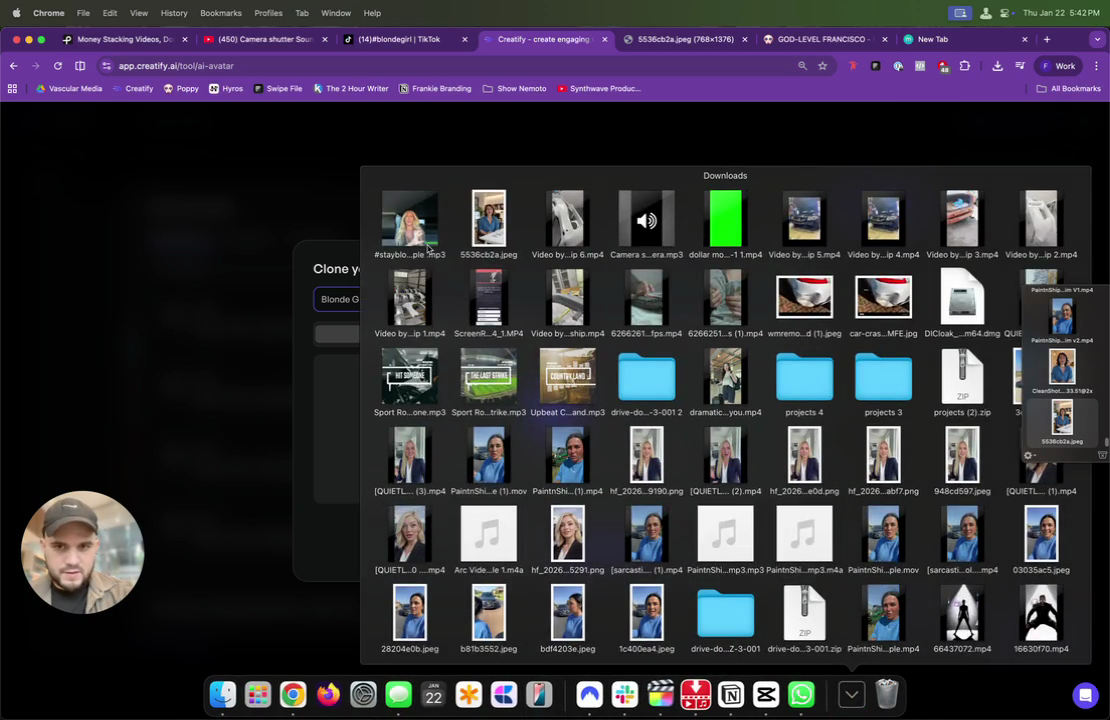
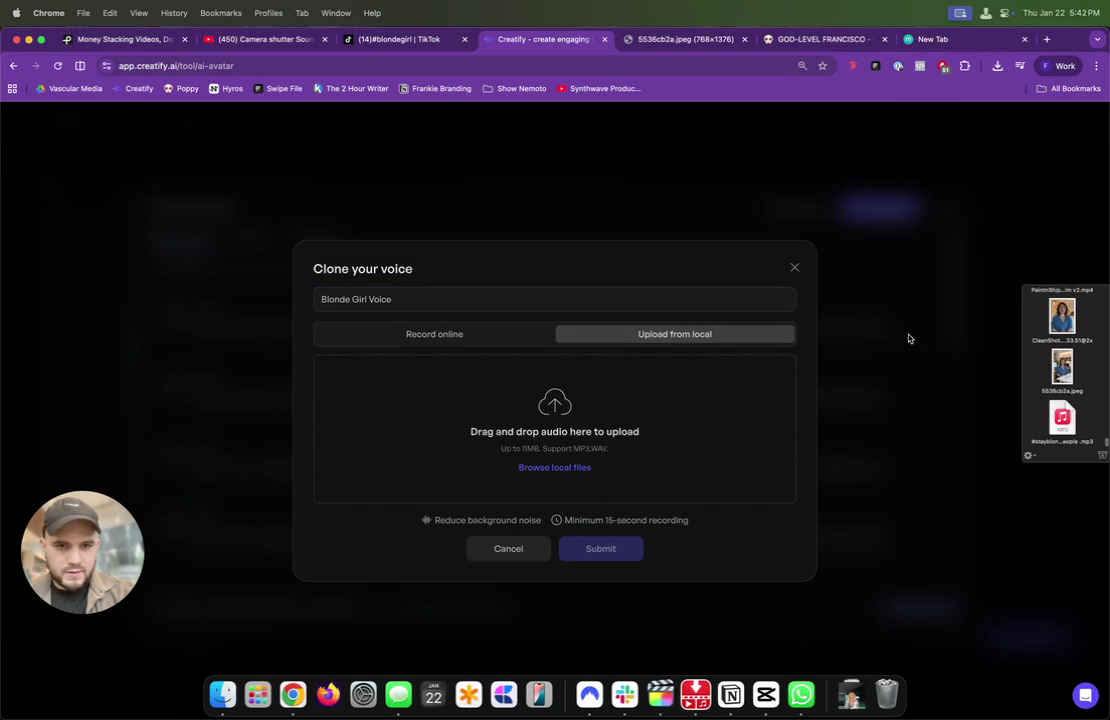
Now I return to Creatify. I select the blonde girl with the blonde voice, then download her voice as an MP3. Next, click "Upload to Local," browse for the file, and upload the voice. The system will then start generating the voice.
41
In the 'Clone your voice' window, type 'Blonde Girl Voice' into the text field.
42
Drag the downloaded MP3 file to the 'Upload from local' area.
Step #42: Drag the downloaded MP3 file to the 'Upload from local' area.
43
Click the Upload from local button.
Step #43: Click the Upload from local button.
44
Click the Browse local files button.
Step #44: Click the Browse local files button.
45
Click the Save button.
Step #45: Click the Save button.
46
Click the Submit button.
Step #46: Click the Submit button.

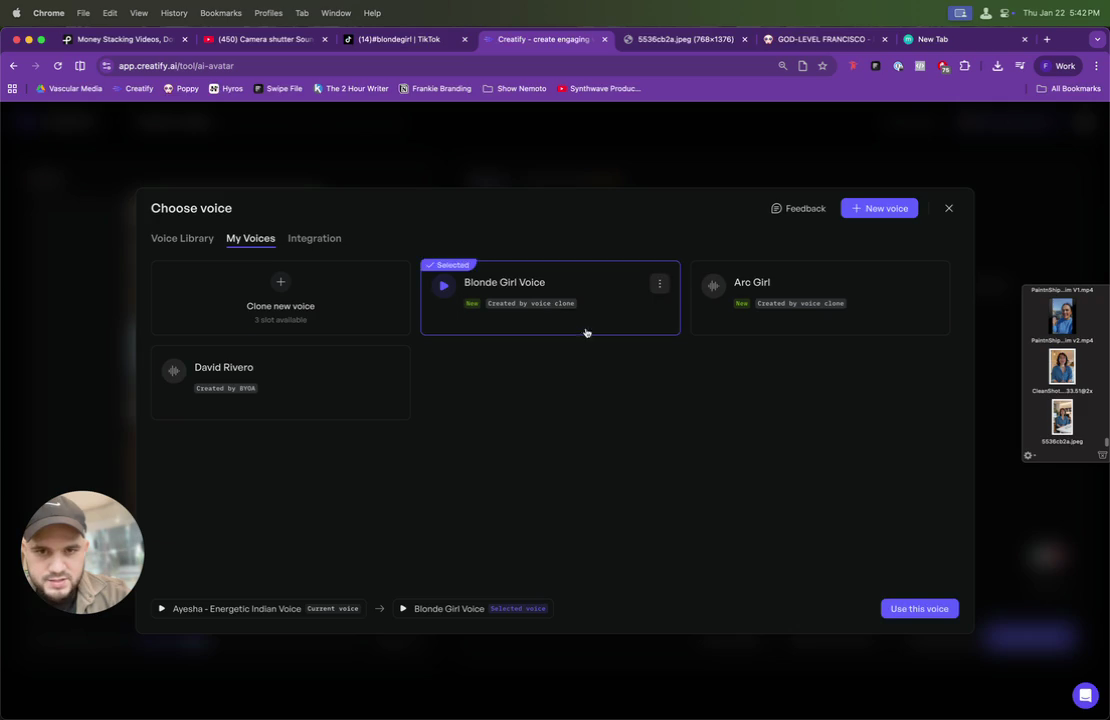
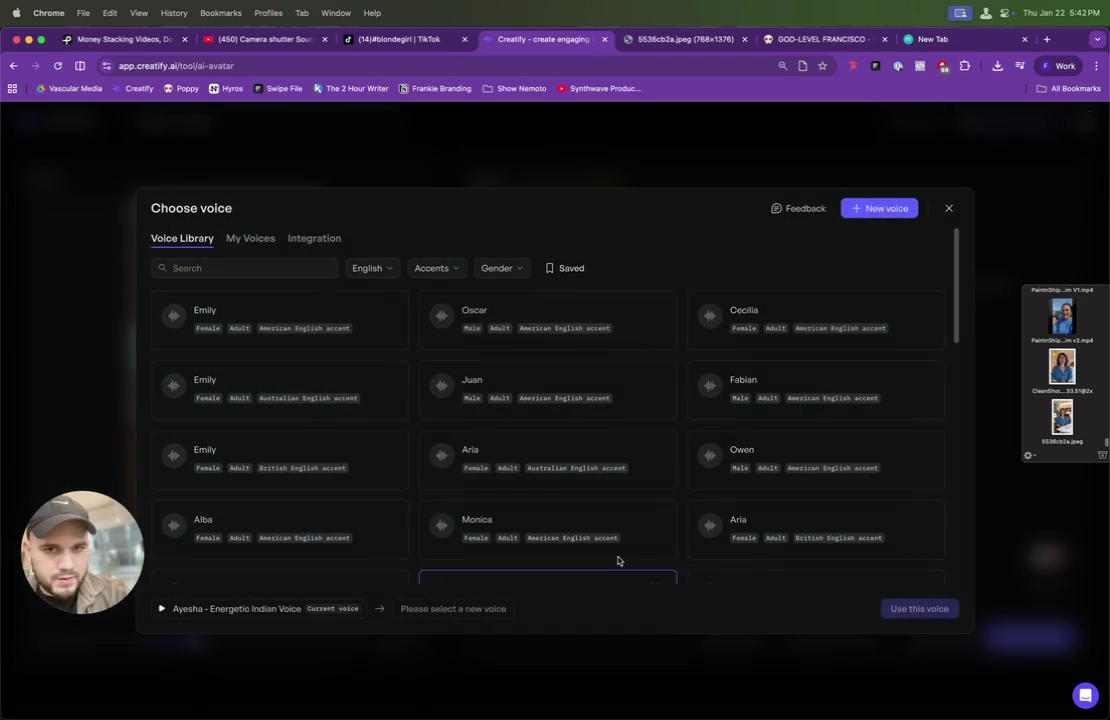
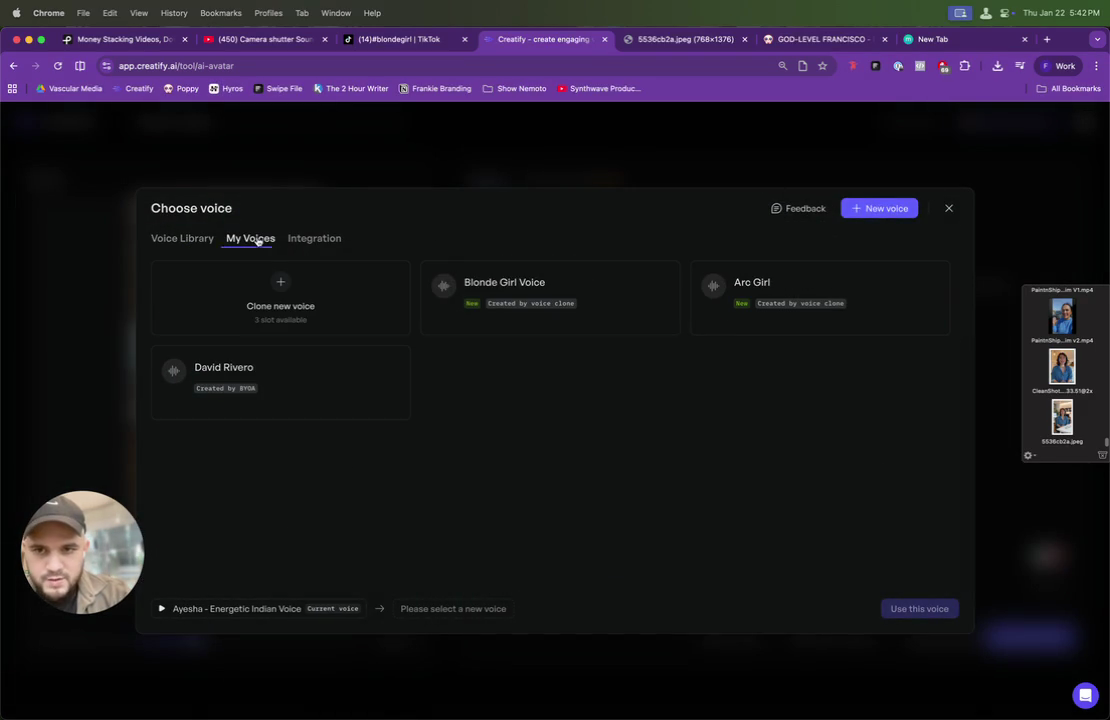
Now it's processing. You are now in Creatify with a new Nanobanana image and a new background. You have the script you want. Load it into Voices. Go to My Voices and select the blonde girl voice.
47
Click the voice selection dropdown.
Step #47: Click the voice selection dropdown.
48
Click on the My Voices tab.
Step #48: Click on the My Voices tab.
49
Click on the Blonde Girl Voice option.
Step #49: Click on the Blonde Girl Voice option.

It's still processing, so that's probably why it's not letting me.
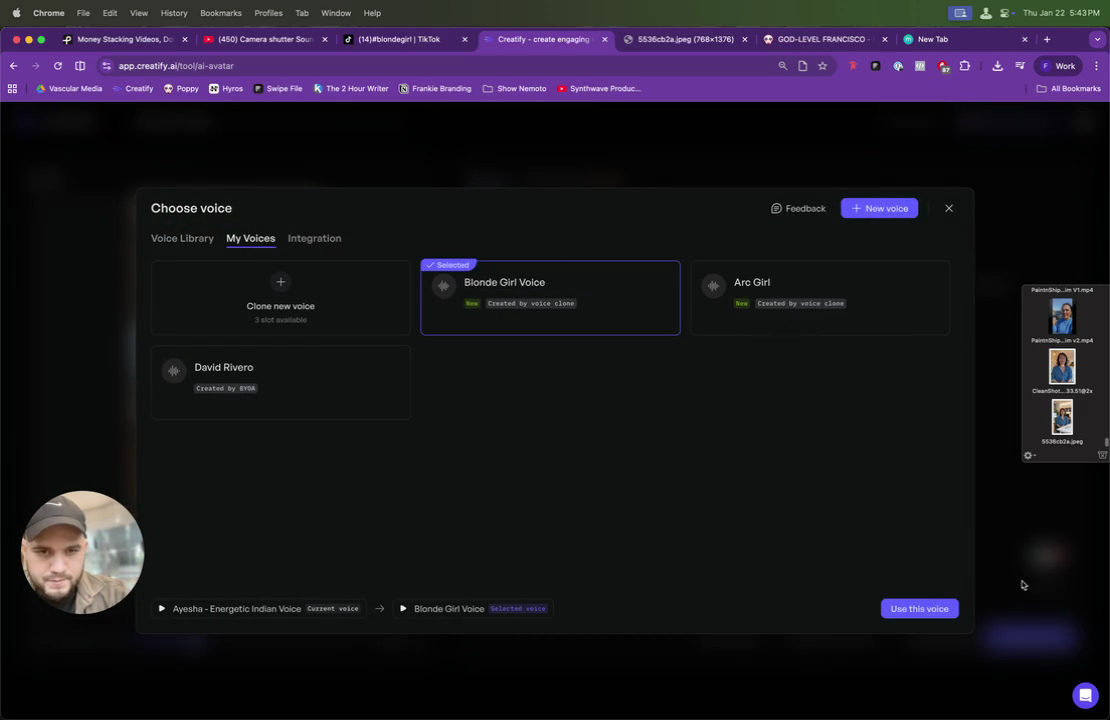
50
Click the Use this voice button.
Step #50: Click the Use this voice button.

There we go.

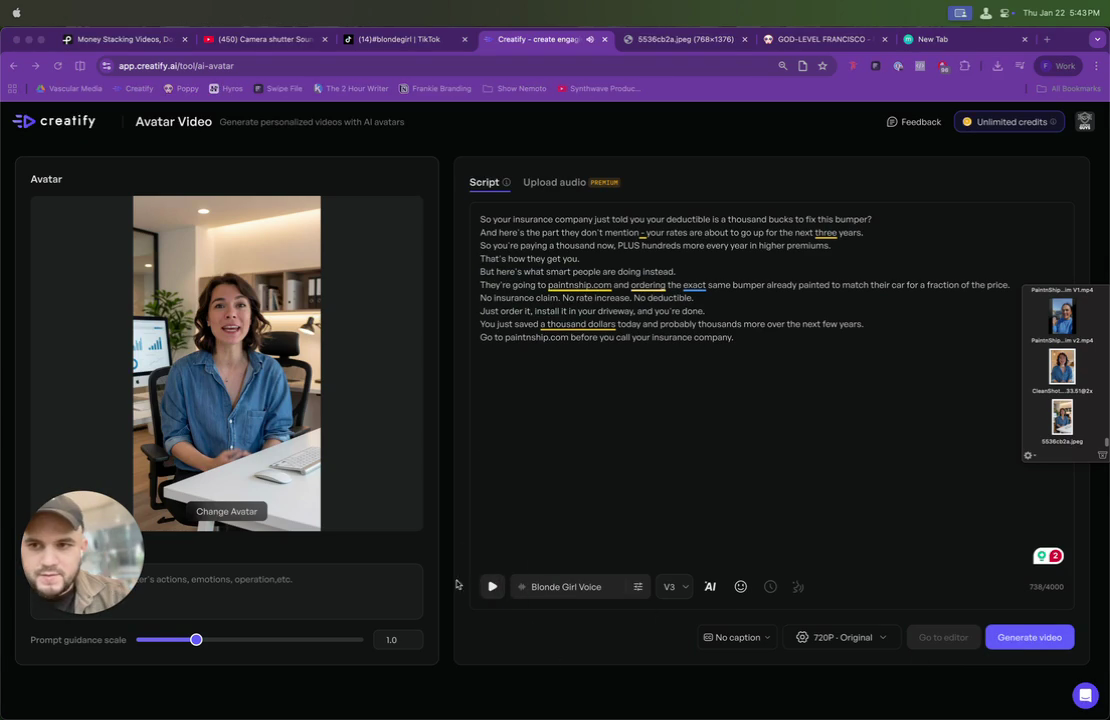
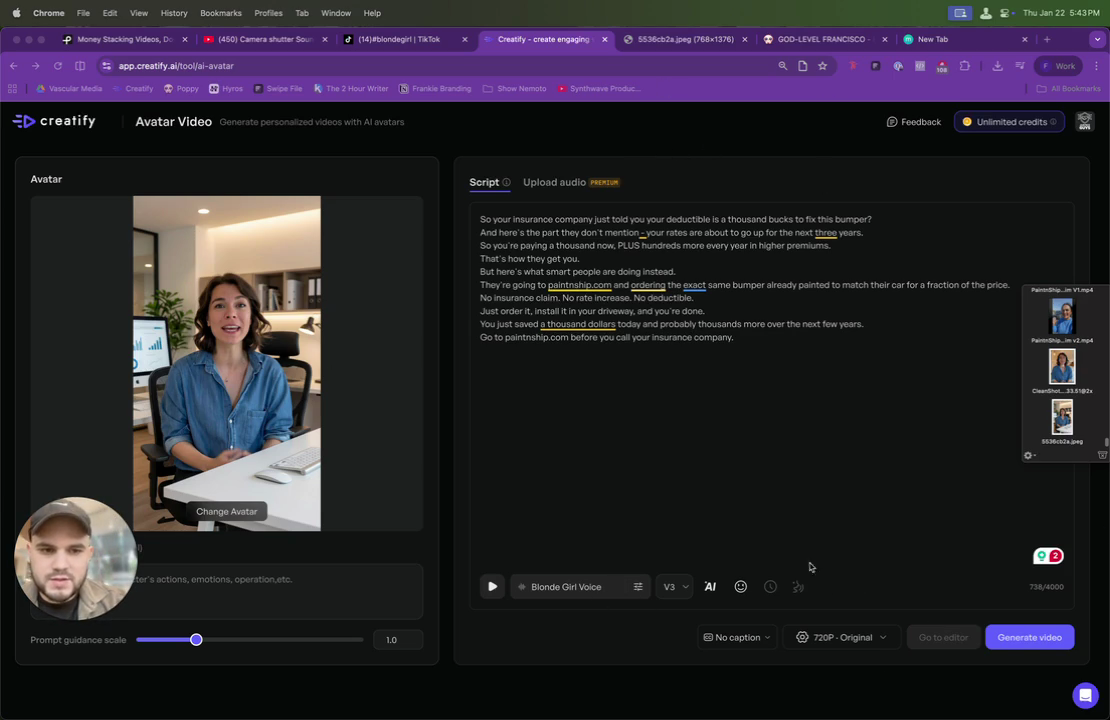
Then, simply click "Generate Video." The blonde voice should now be available if you want to listen to it.
51
Click the play icon to preview the audio.
Step #51: Click the play icon to preview the audio.

Take a look. Maybe the blonde voice doesn't suit her, but that's usually the workflow. Find someone who could match her, but I created this voice from scratch using Creatify.
52
Click the Generate video button.
Step #52: Click the Generate video button.

Now I generate the video, and it will be created. Cool. Great, we'll talk. Enjoy. Peace.