How to Submit an Additional Cellular Request
Learn how to successfully submit an additional cellular request for items not covered under the other request types.
By Michael Limberg
This guide demonstrates how to submit an additional cellular request through the internal SharePoint portal.
Submit your details via the SharePoint Additional Requests form to initiate your cellular device request. Follow these steps to ensure all required information is provided.
1
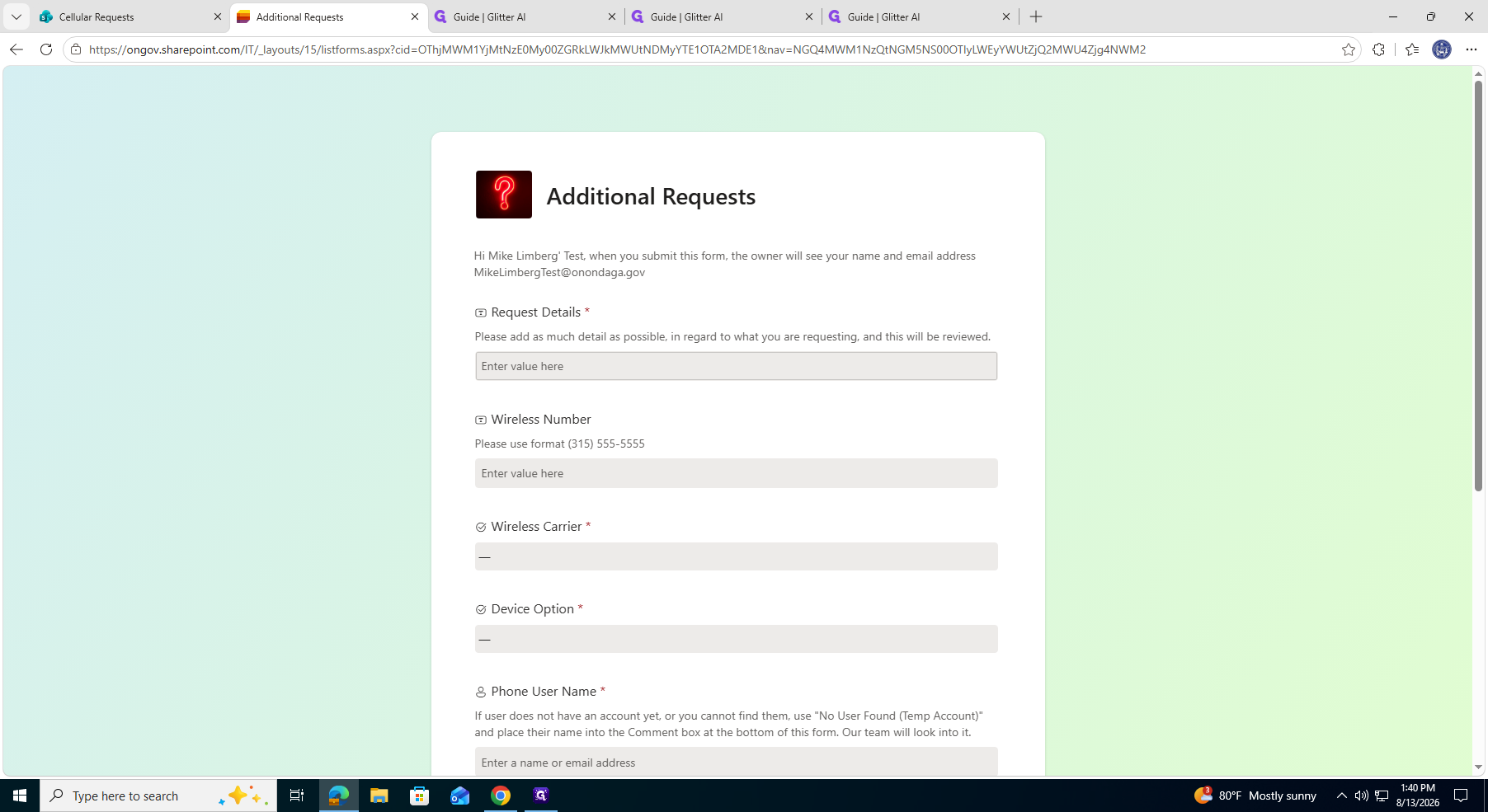
Click Additional Requests on the Cellular Requests page to open the request form.

2
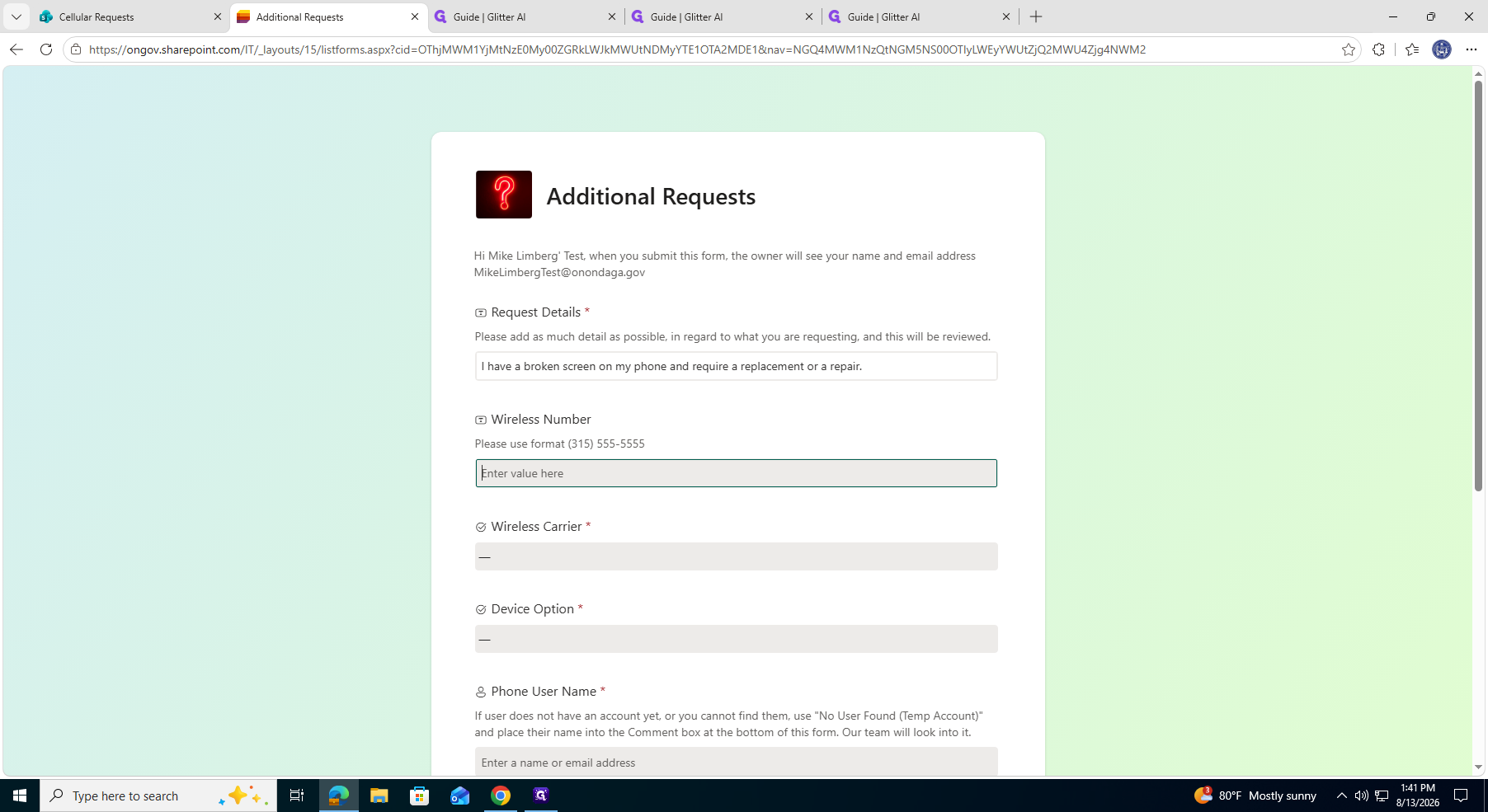
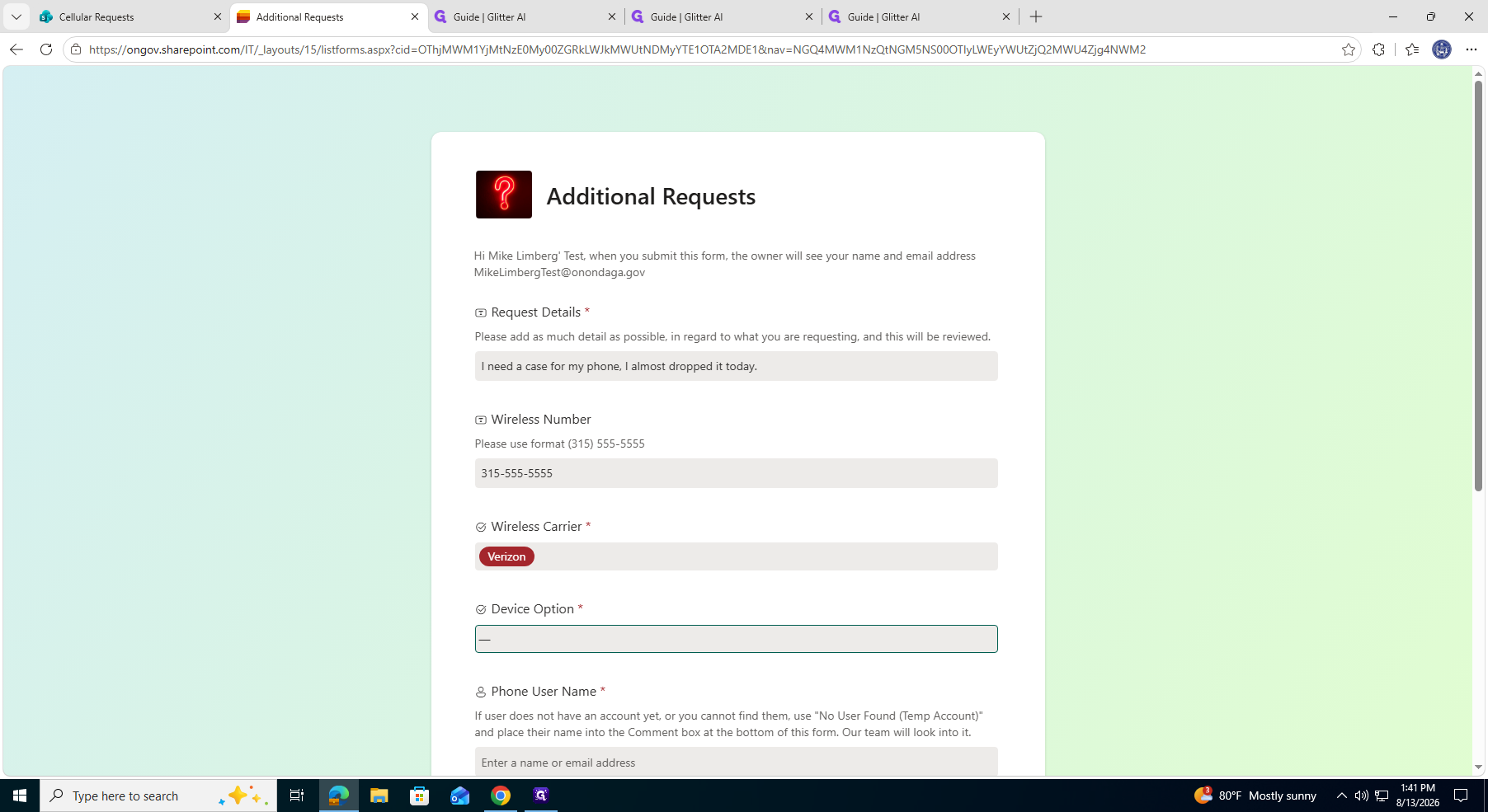
Click the request text field and describe your needs, such as a new phone case.
3
Click the Wireless Number field and type your ten-digit phone number.
4
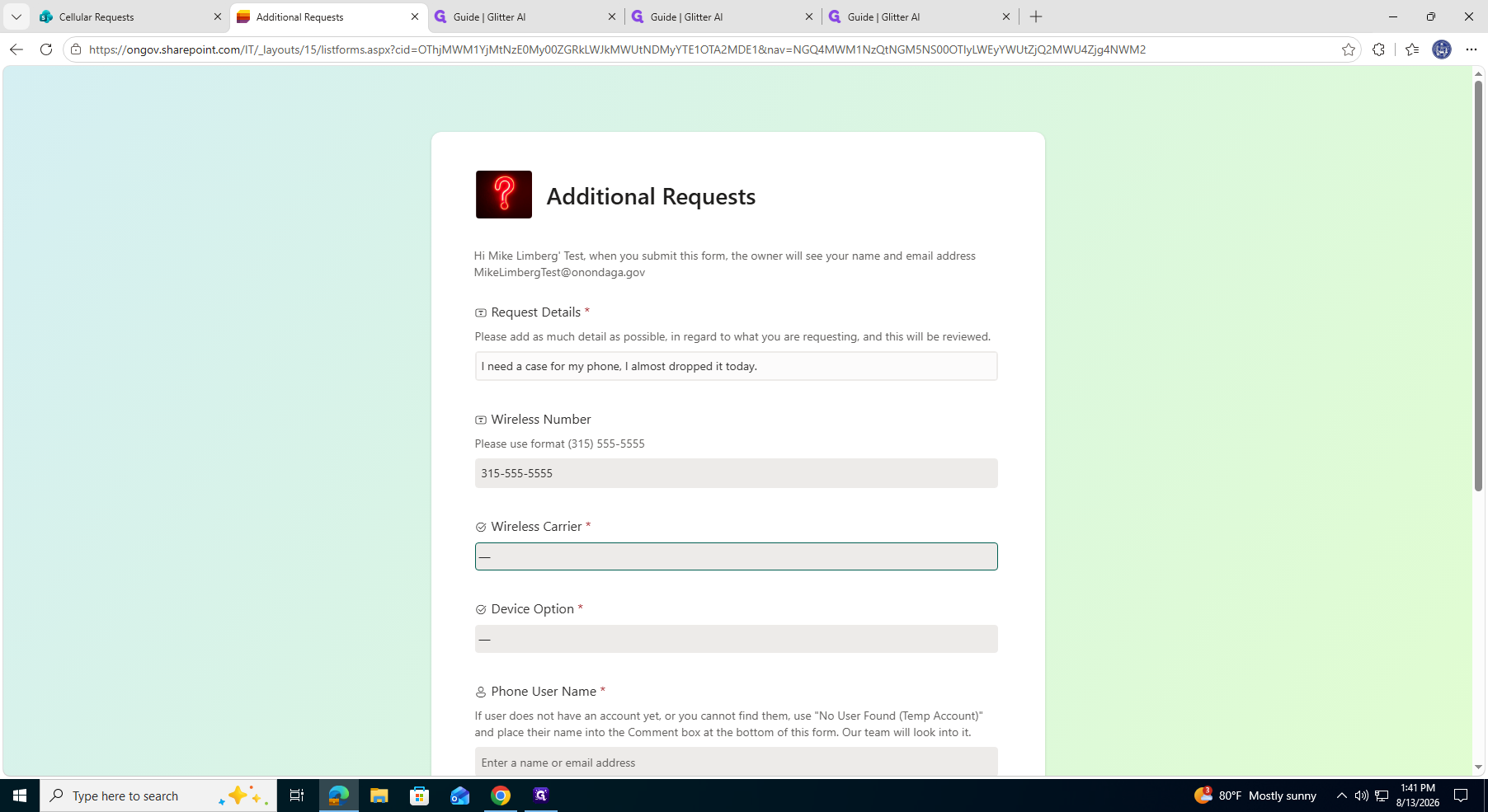
Click the Wireless Carrier dropdown menu and select your provider.
5
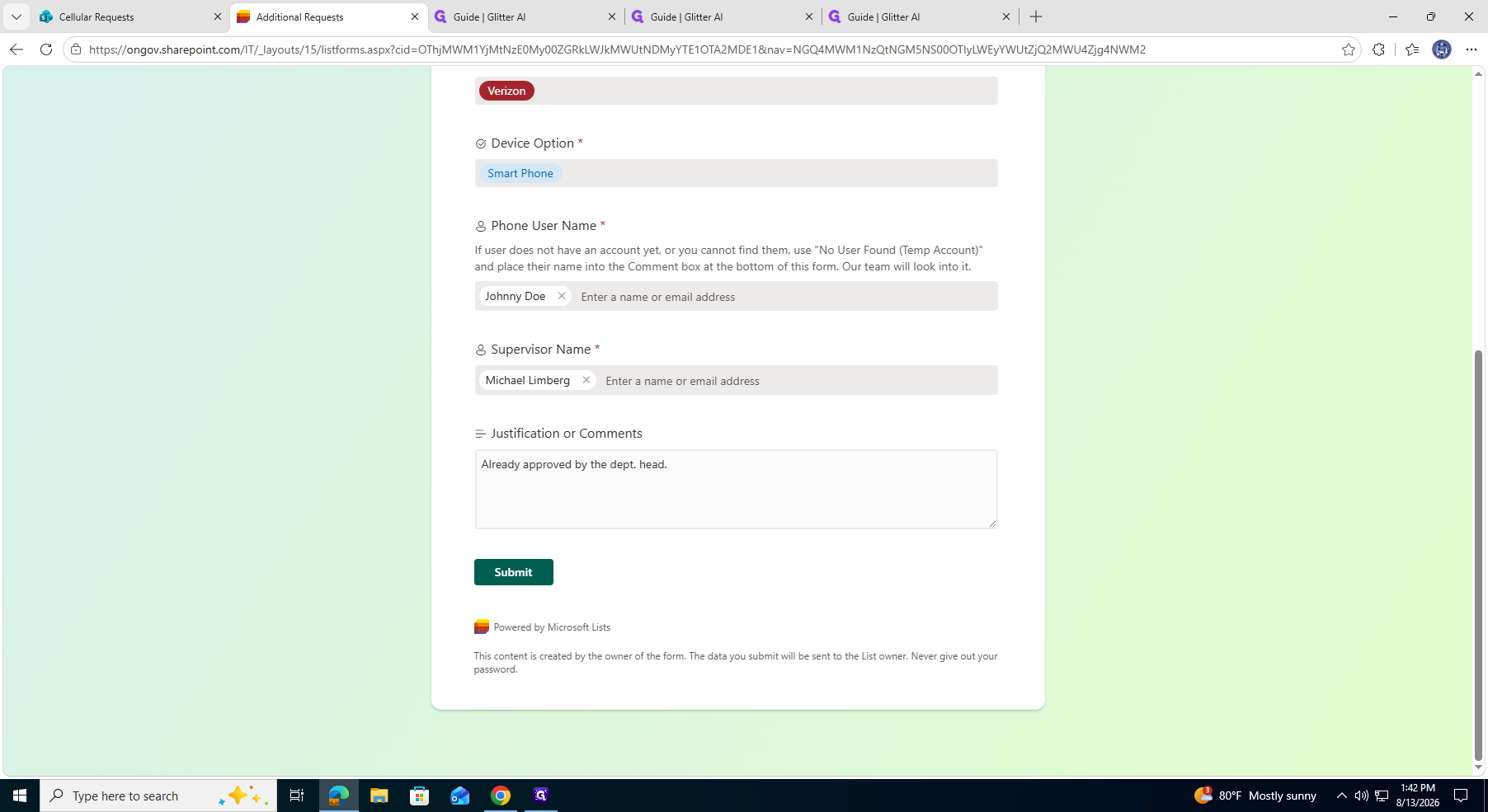
Click the Device Option dropdown menu and select Smart Phone.
6
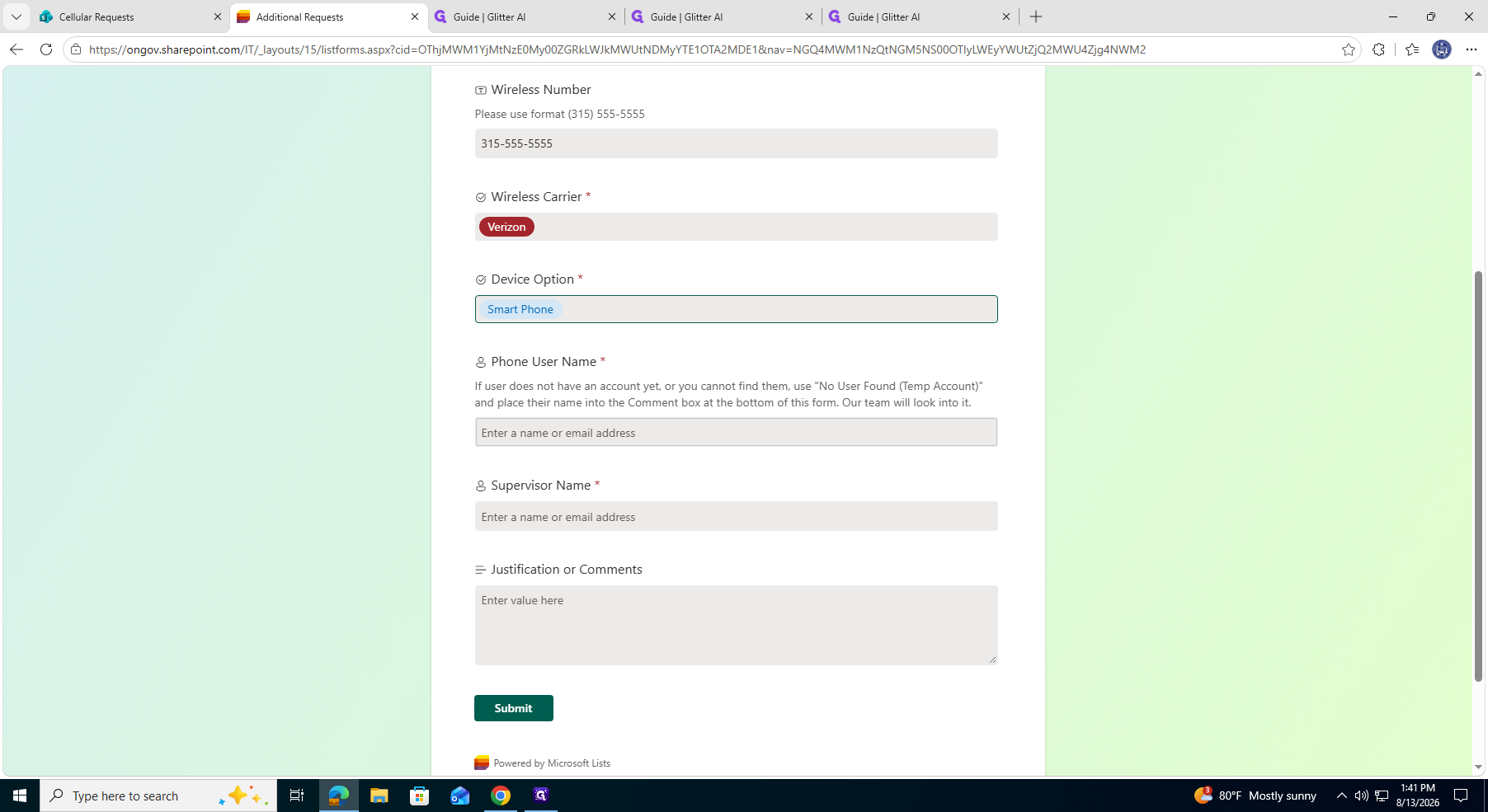
Click the Phone User Name field, type the employee's name, and select their profile from the suggested contacts.
7
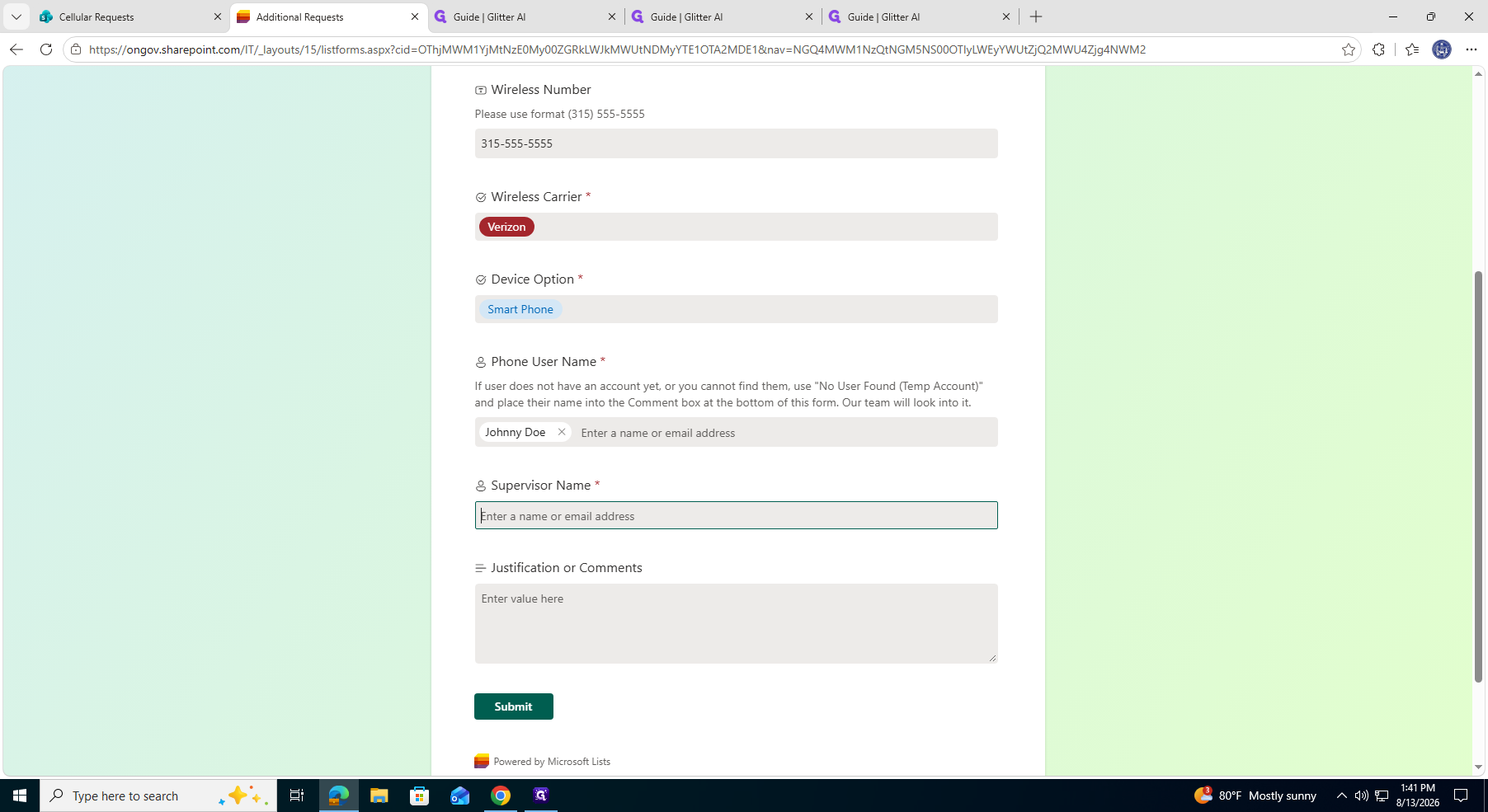
Click the Supervisor Name field, search for the appropriate manager, and select their name.
8
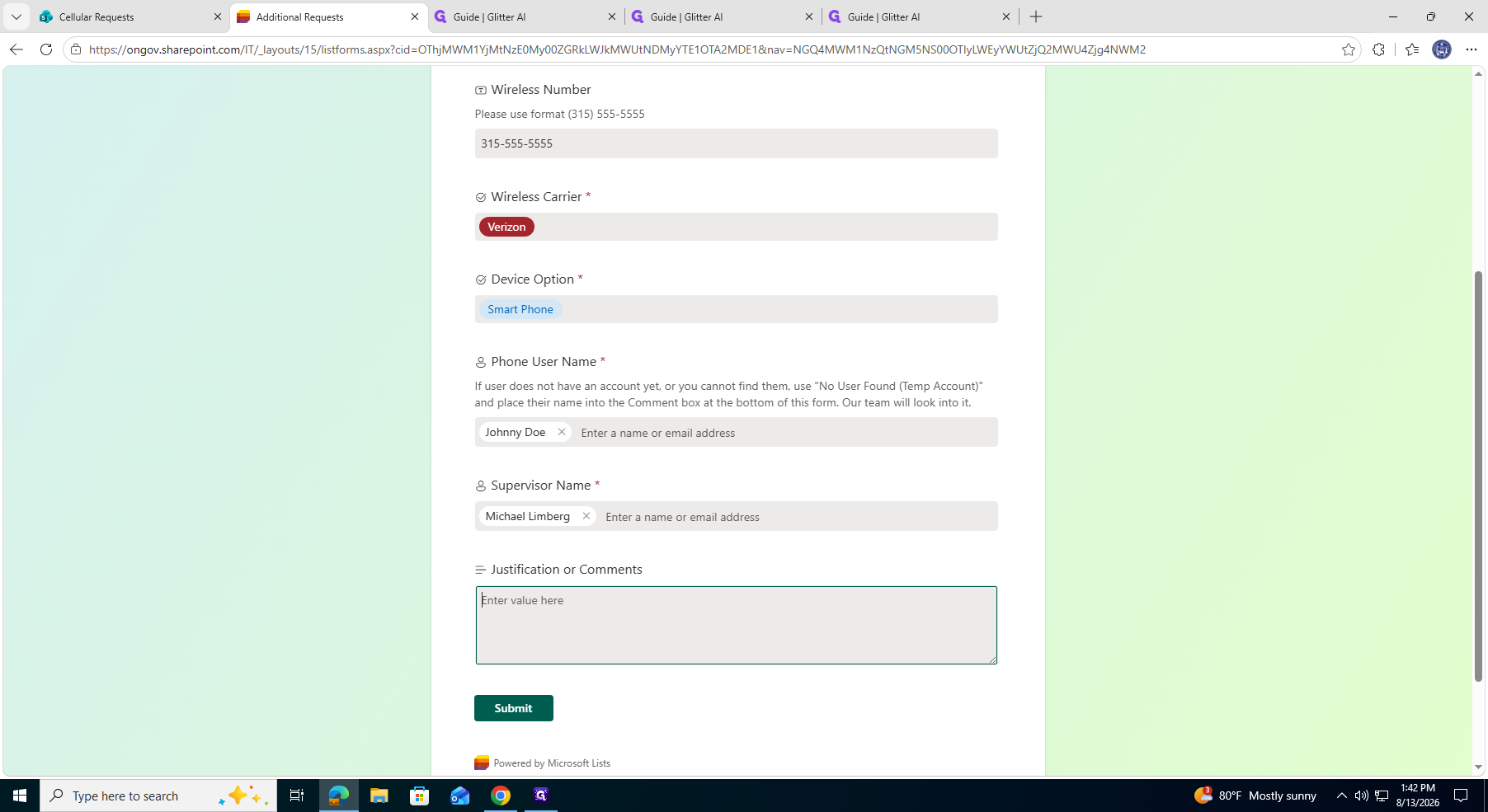
Click the justification text box and provide any necessary comments, such as noting departmental approval.
9
Click Submit to finalize and send your request.