
How to Submit Mechanical Supervisor Daily Reports
Learn how to update daily cell progress and submit team man-hours within the Smartsheet Mechanical Supervisor WorkApp.
This guide explains how to track your team's daily task progress and log man-hours using the Smartsheet WorkApps interface.
Mechanical supervisors use this process at the end of their shift to update the main tracker and ensure accurate labor and progress reporting.
Access the Mechanical Supervisor App
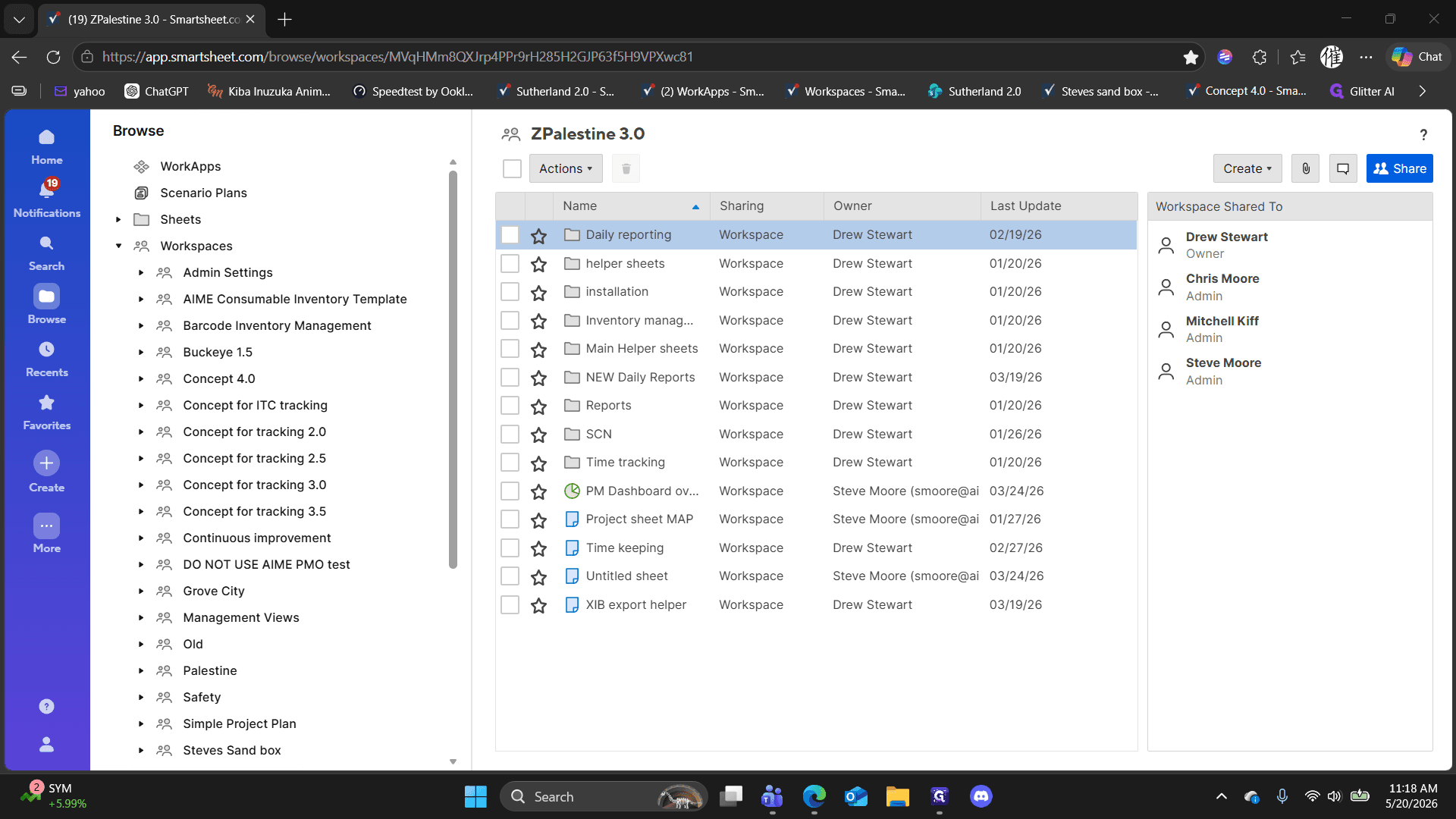
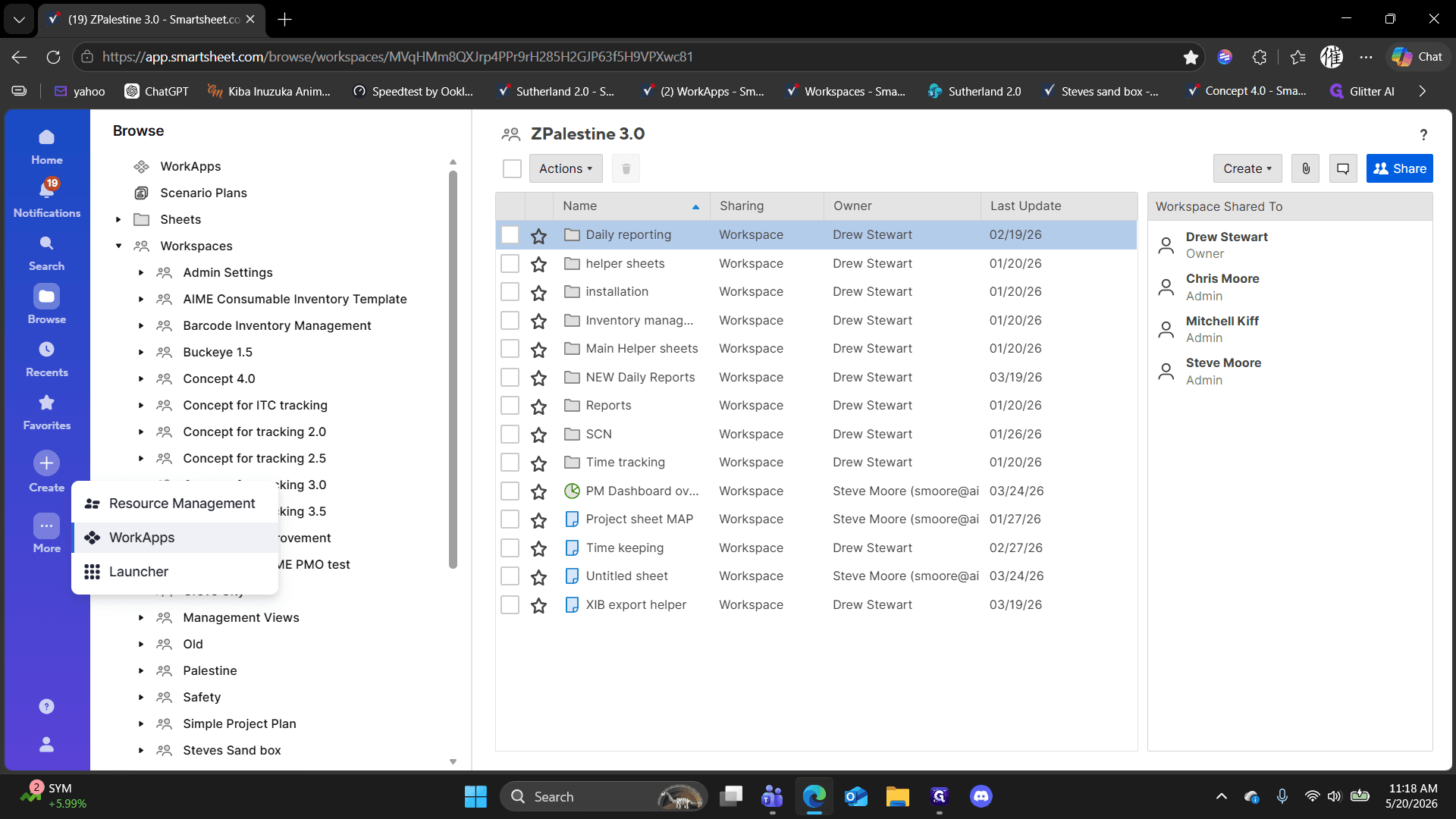
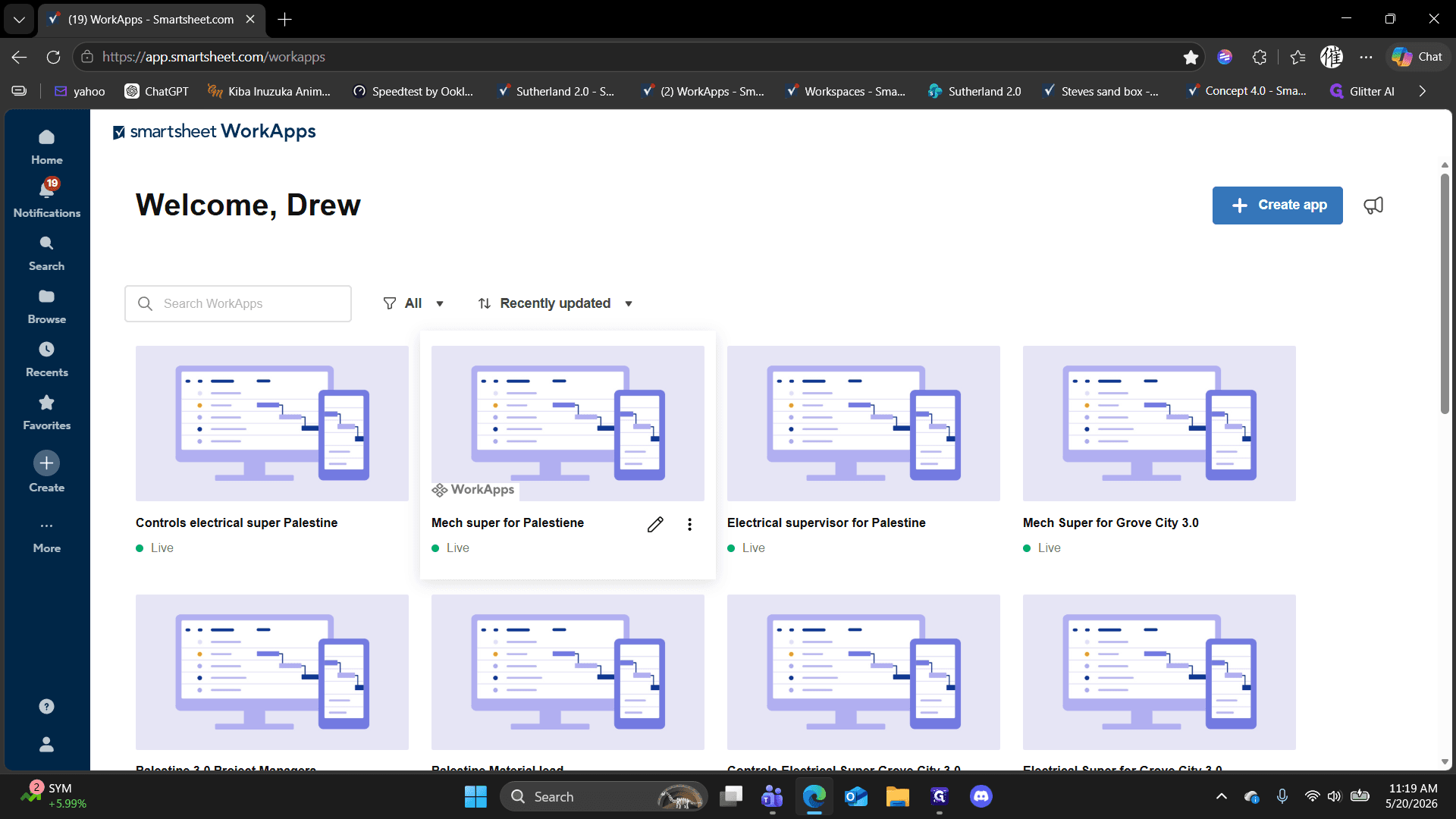
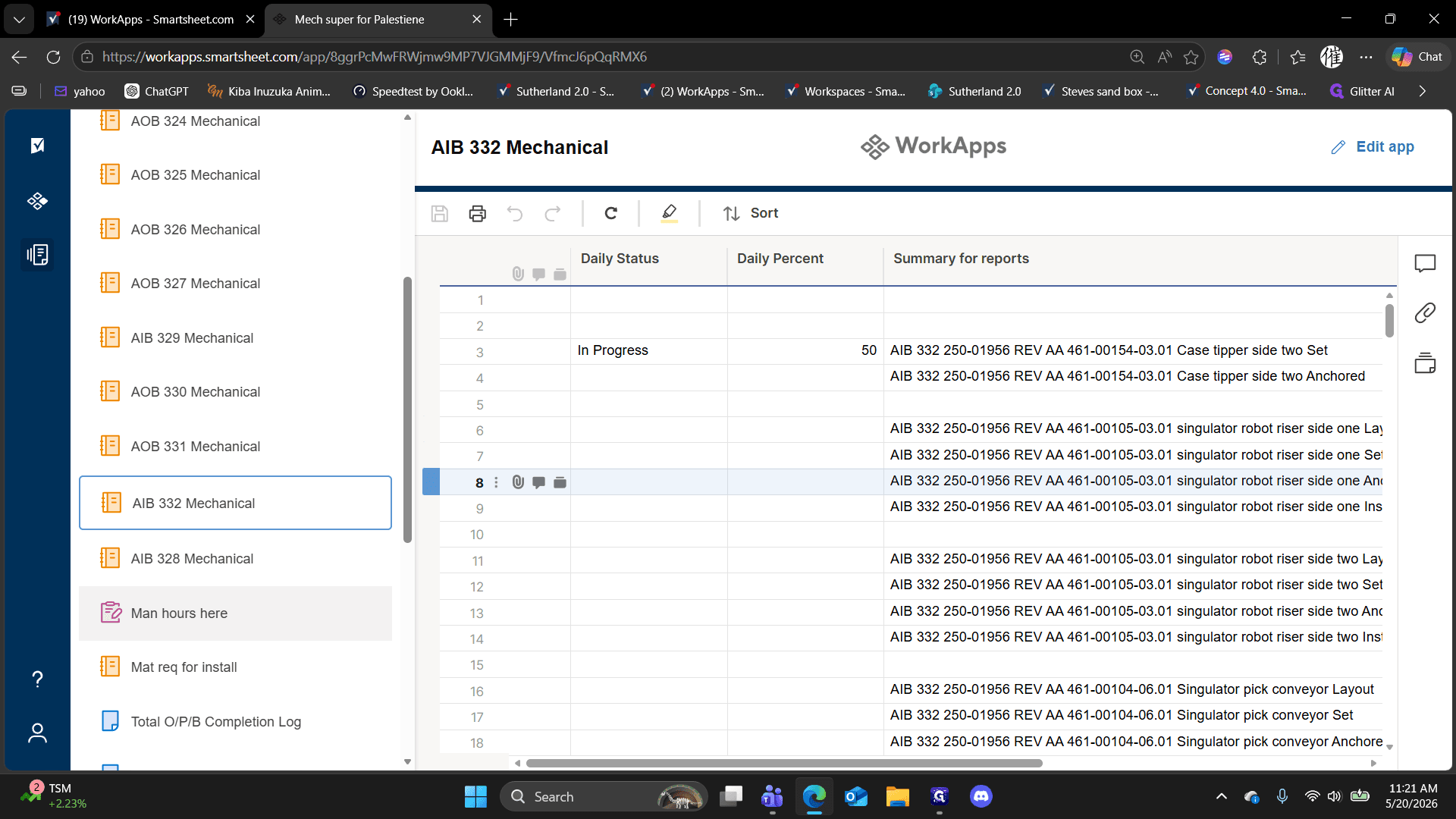
Update Daily Progress
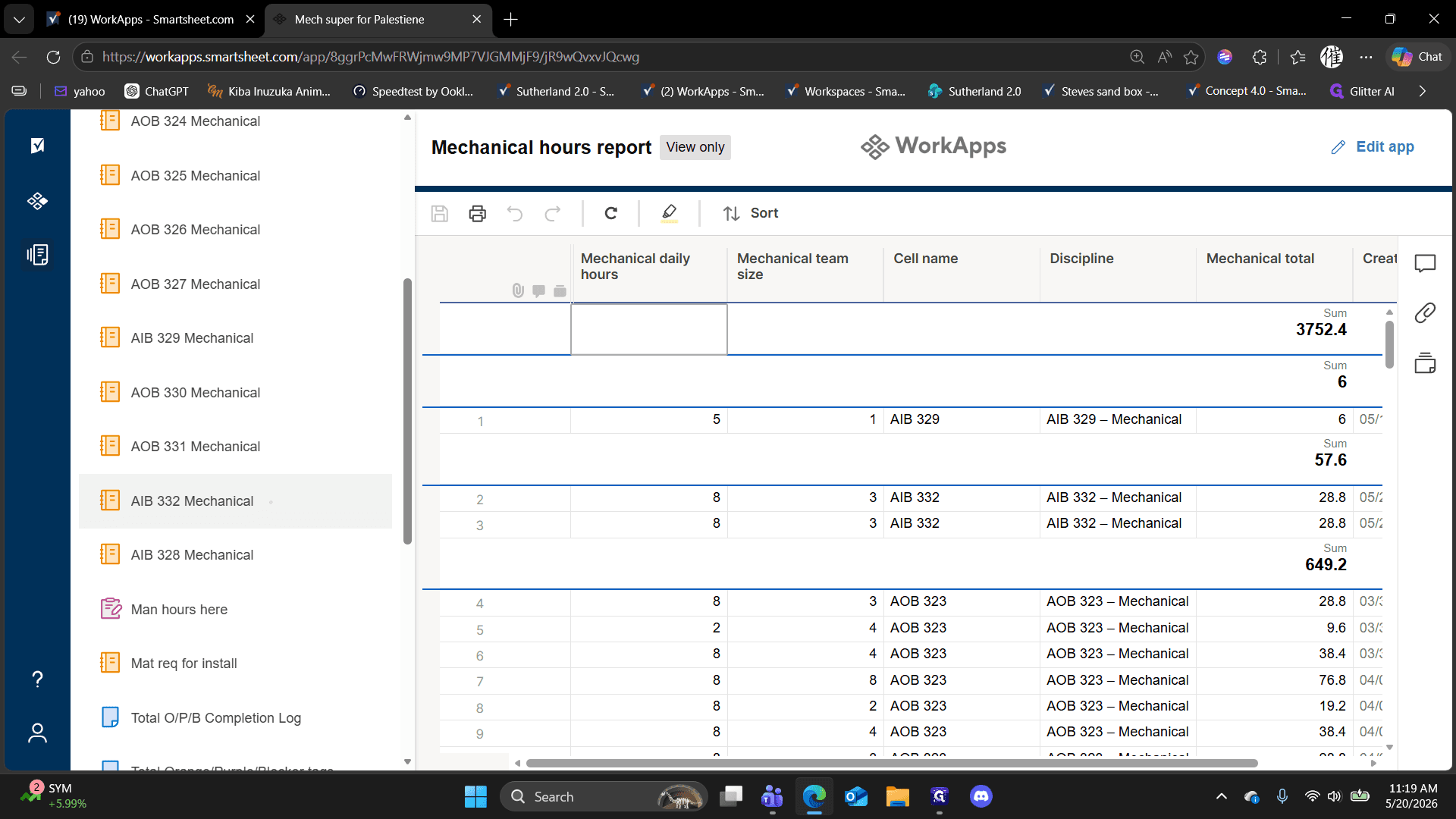
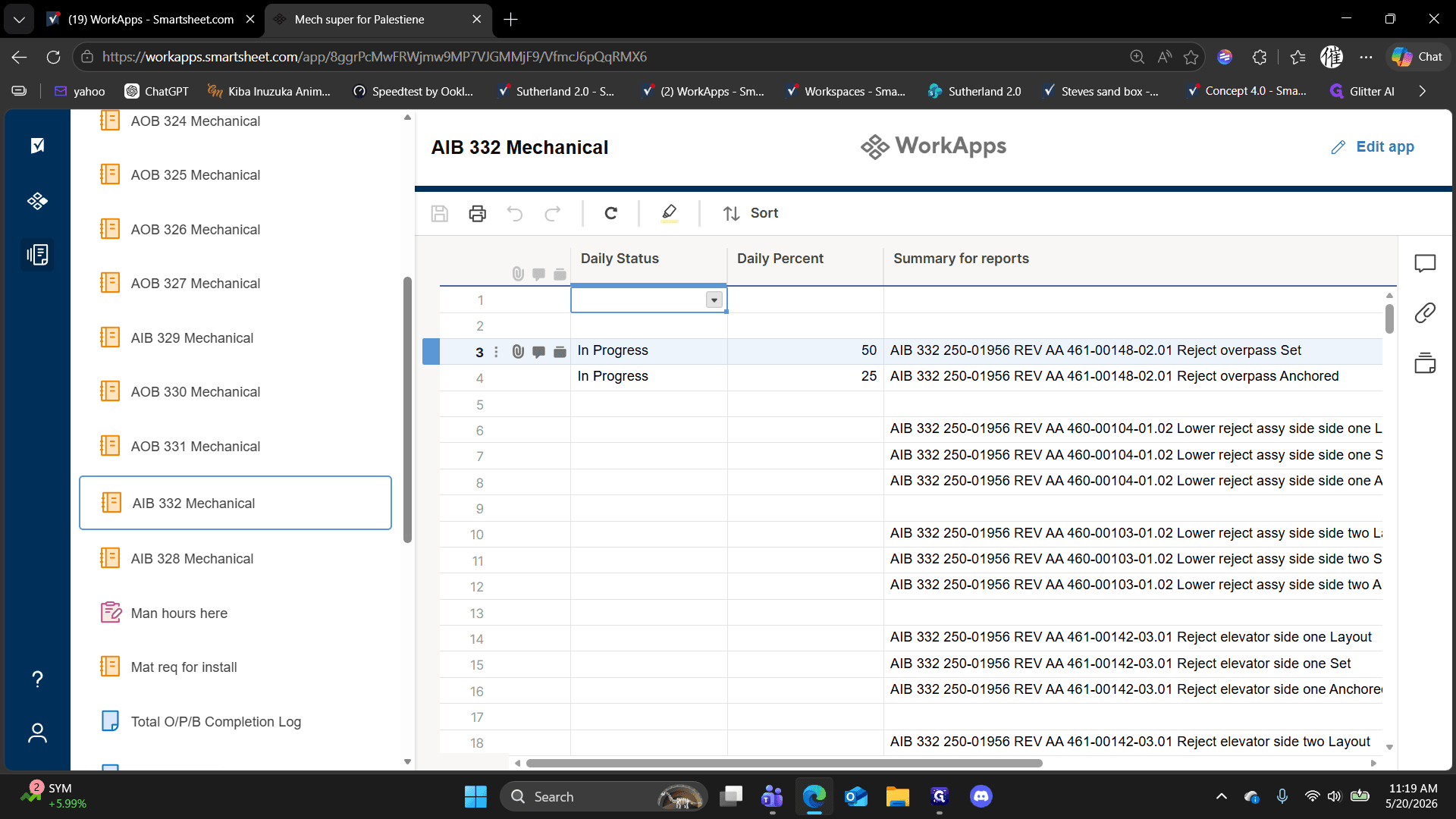
Use the following statuses depending on the task's condition:
Status Option | When to use | How it impacts the tracker |
|---|---|---|
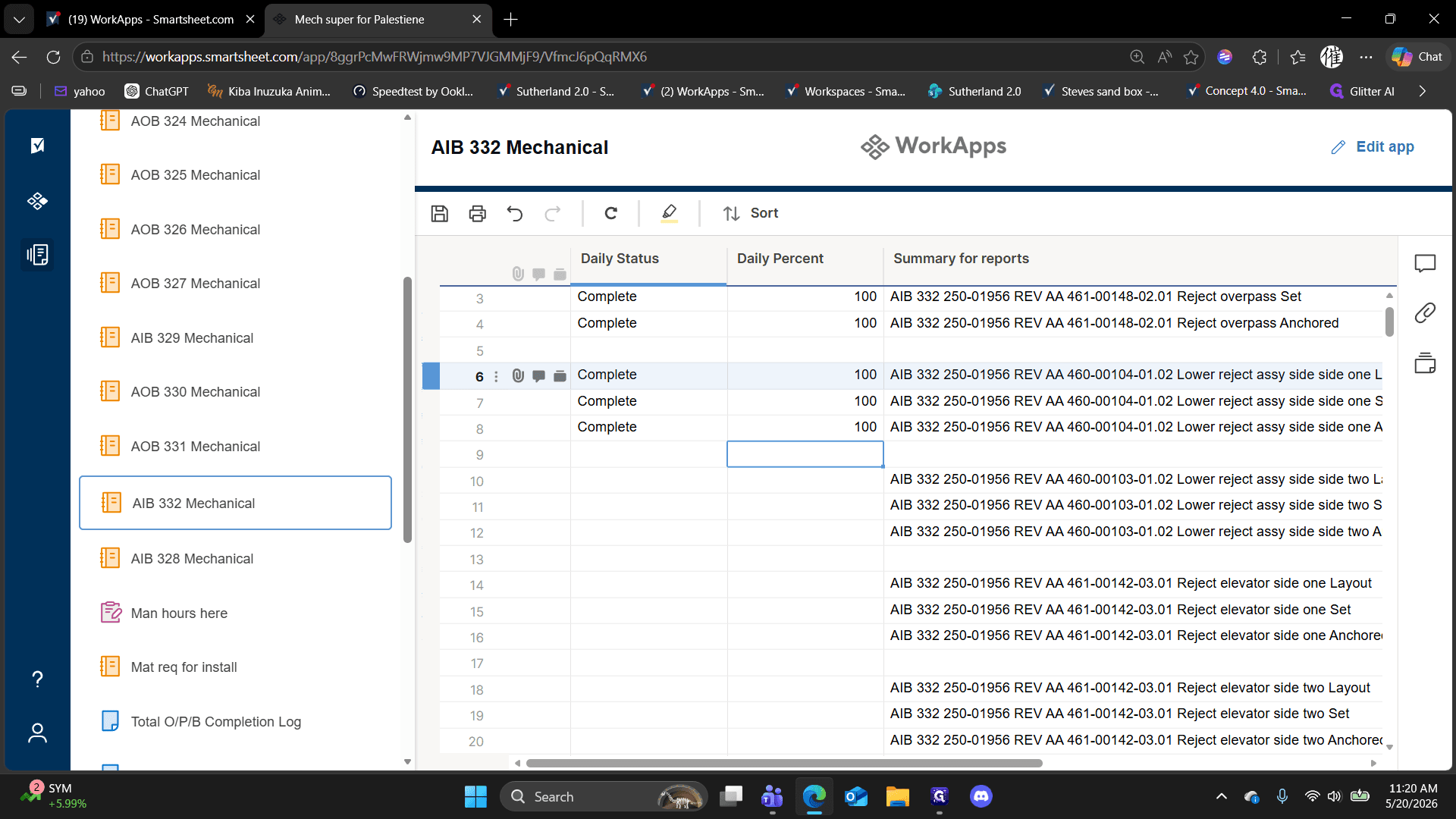
Complete | The task is fully finished. | Clears the task from your daily view after saving. |
In Progress | The task is partially completed. | Keeps the task visible for the next day. |
Missing material | Work is halted because parts are unavailable. | Flags the task for material fulfillment. |
100 or 50).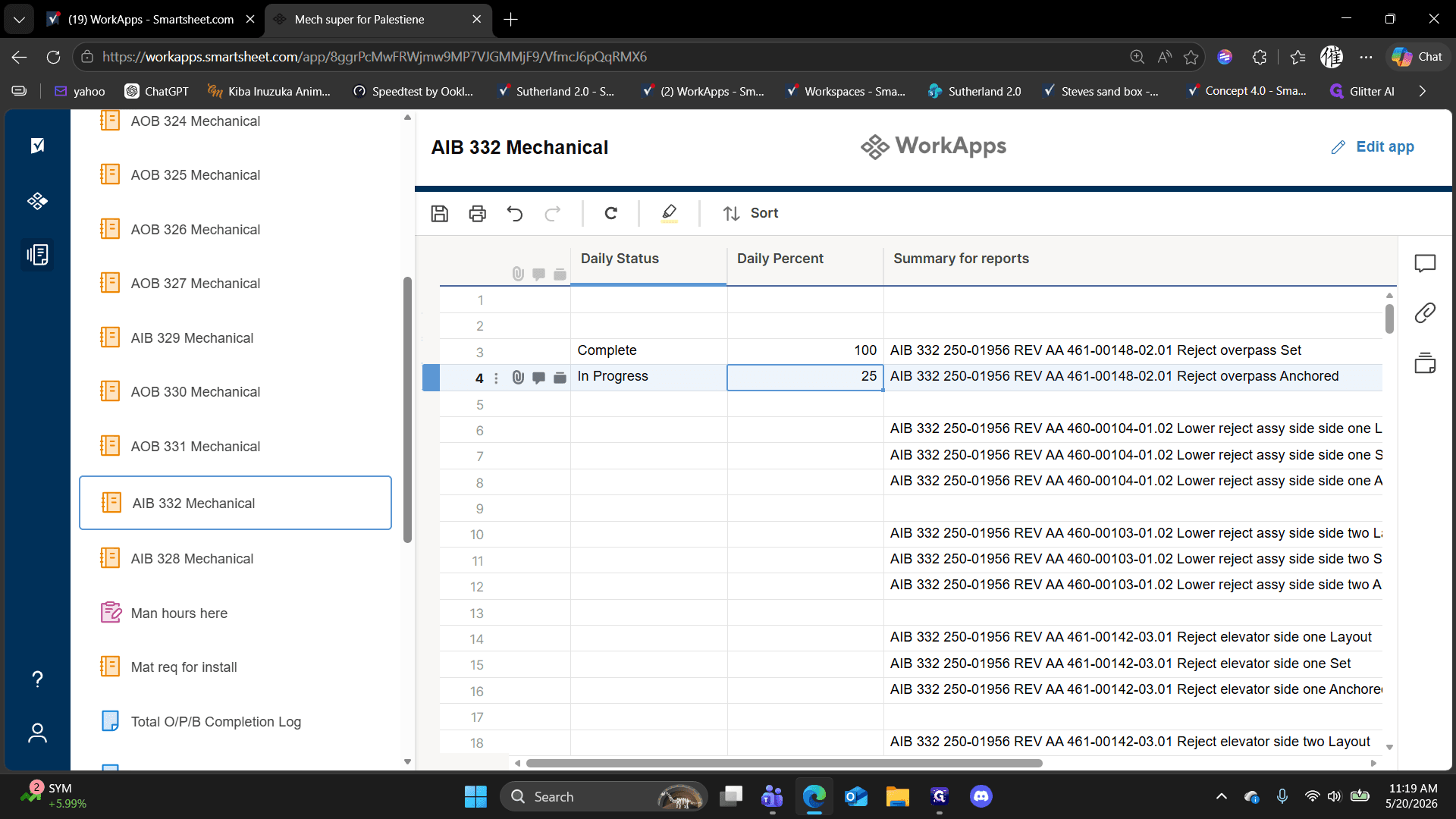
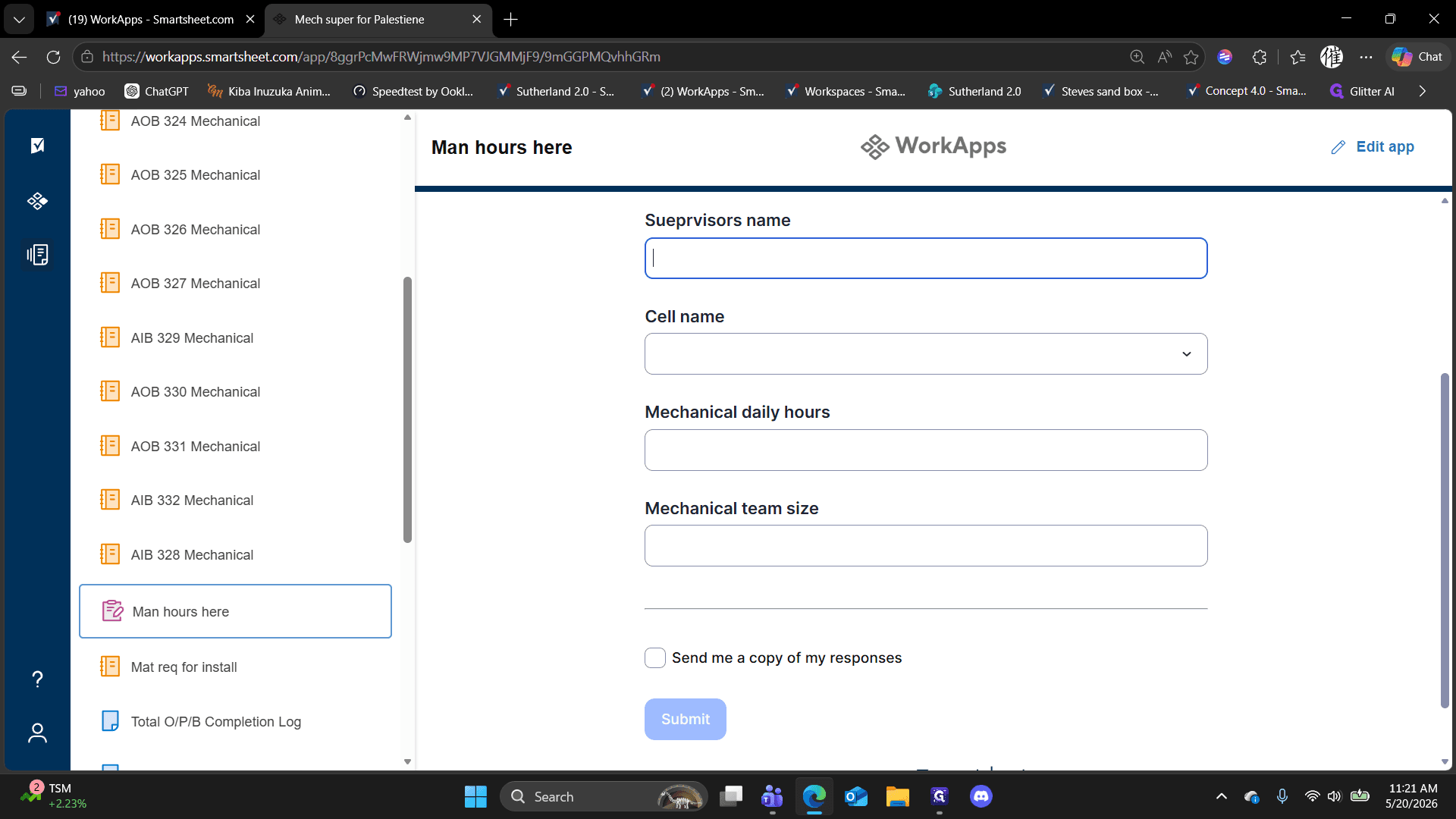
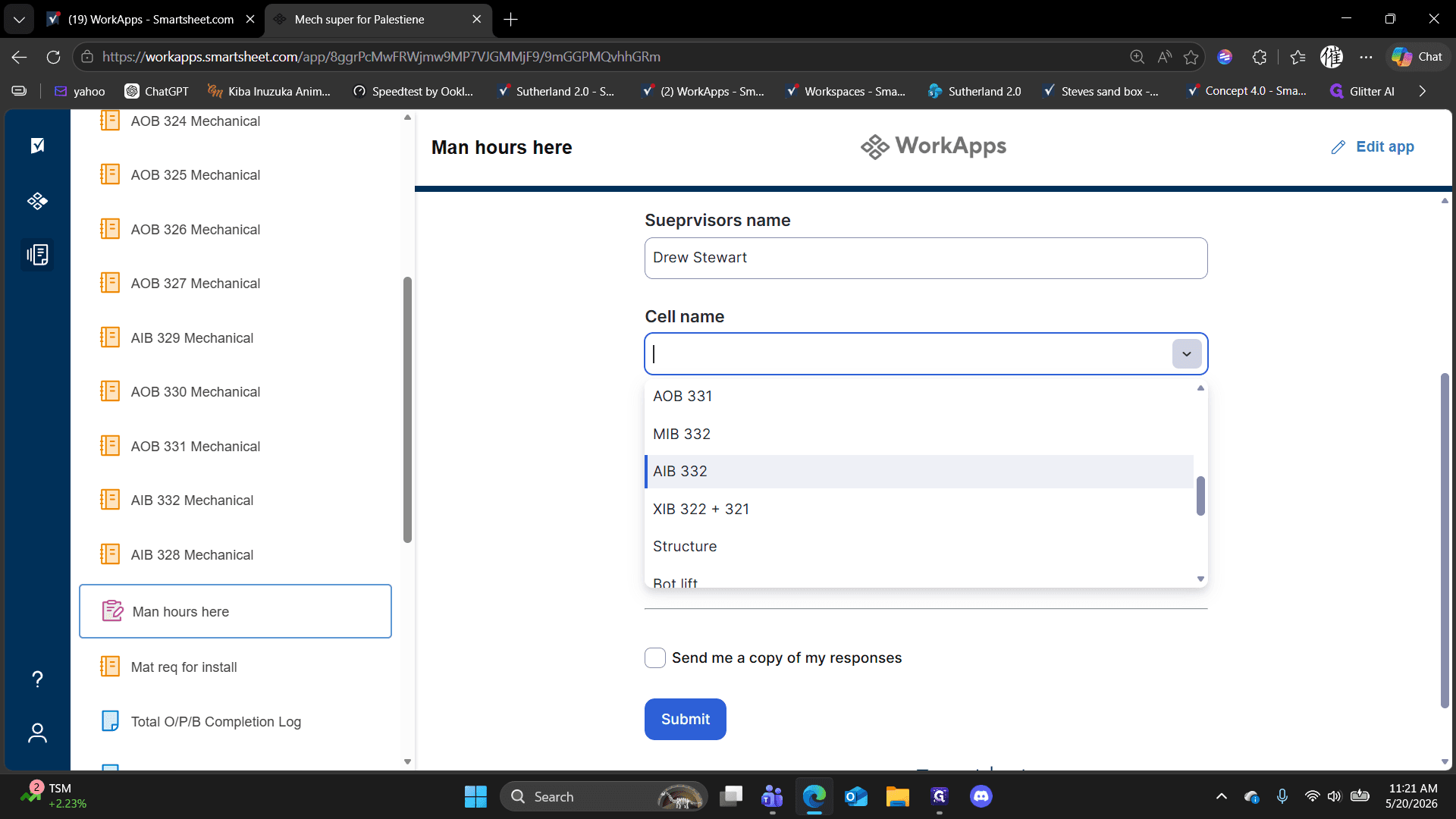
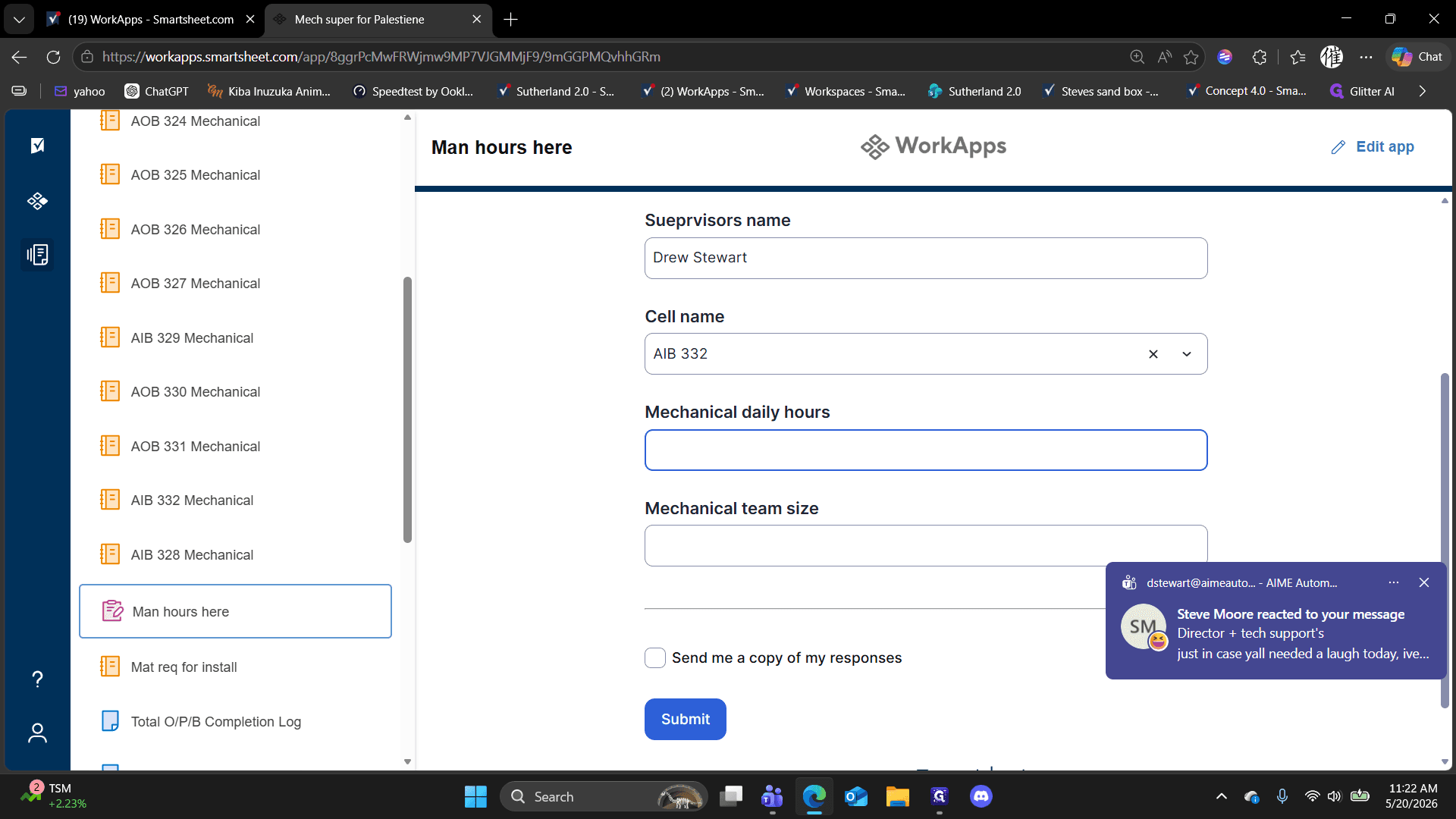
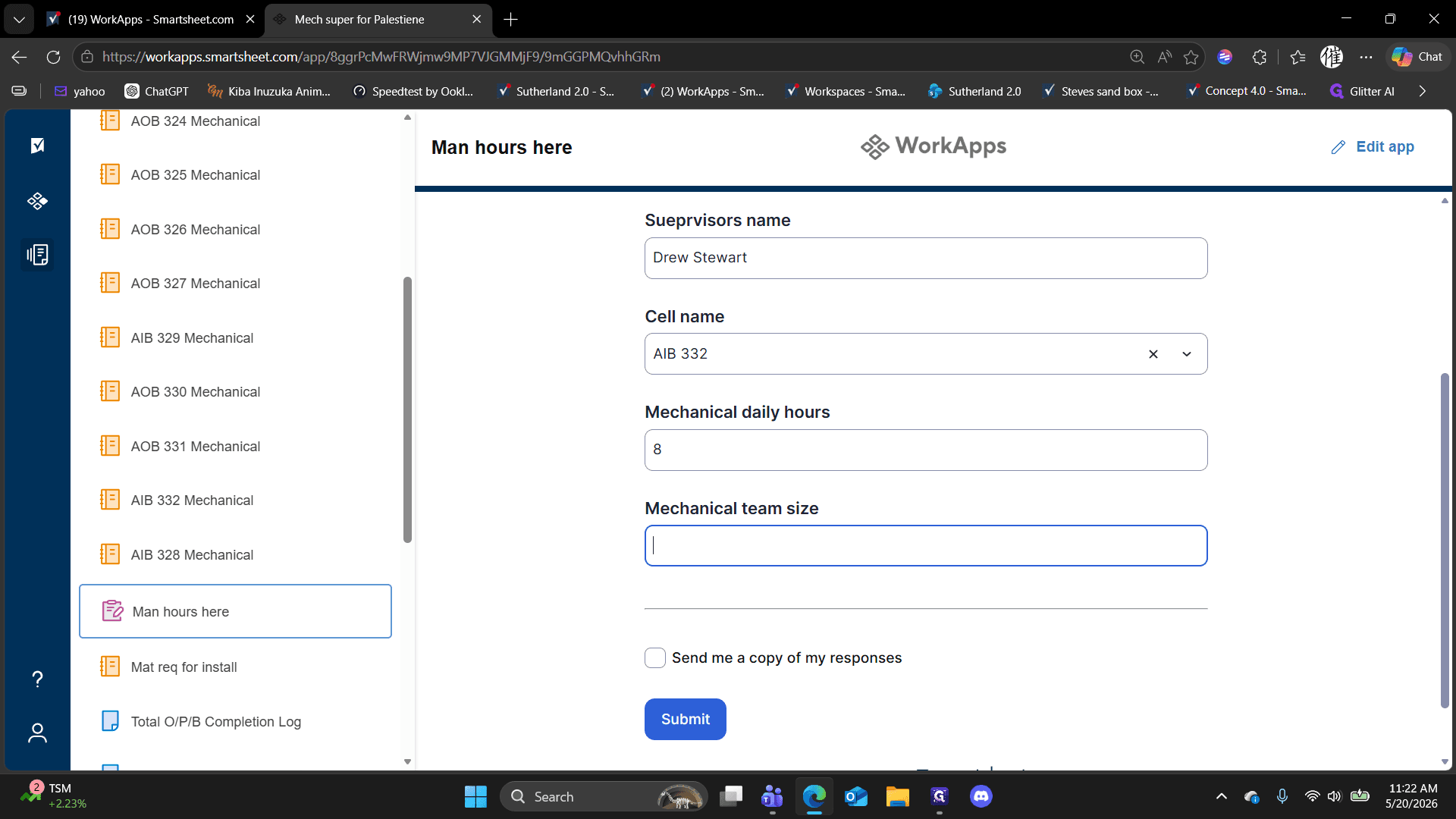
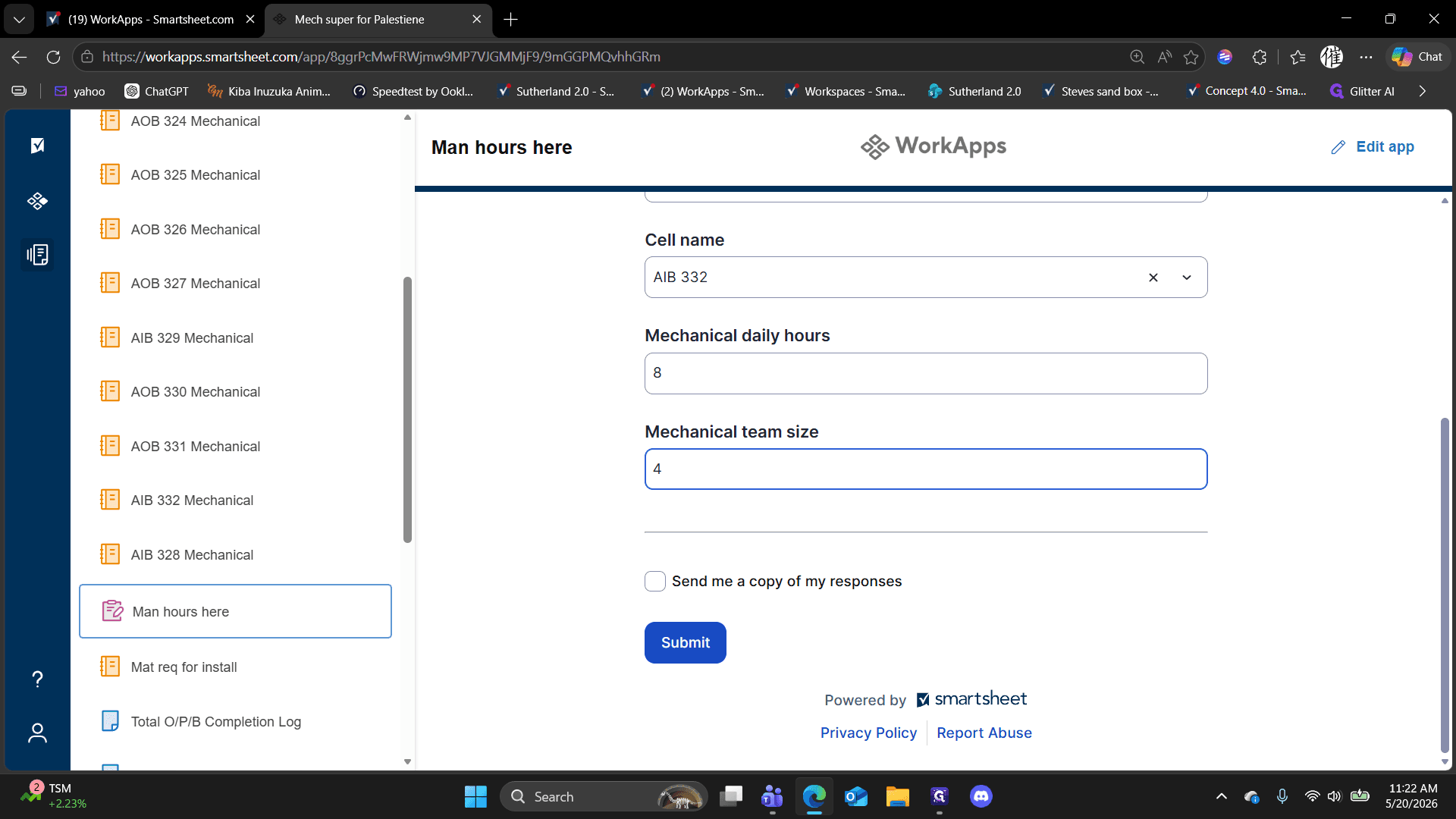
Submit Man-Hours
After updating task progress, log the total labor hours your team spent working on that specific cell.
FAQ
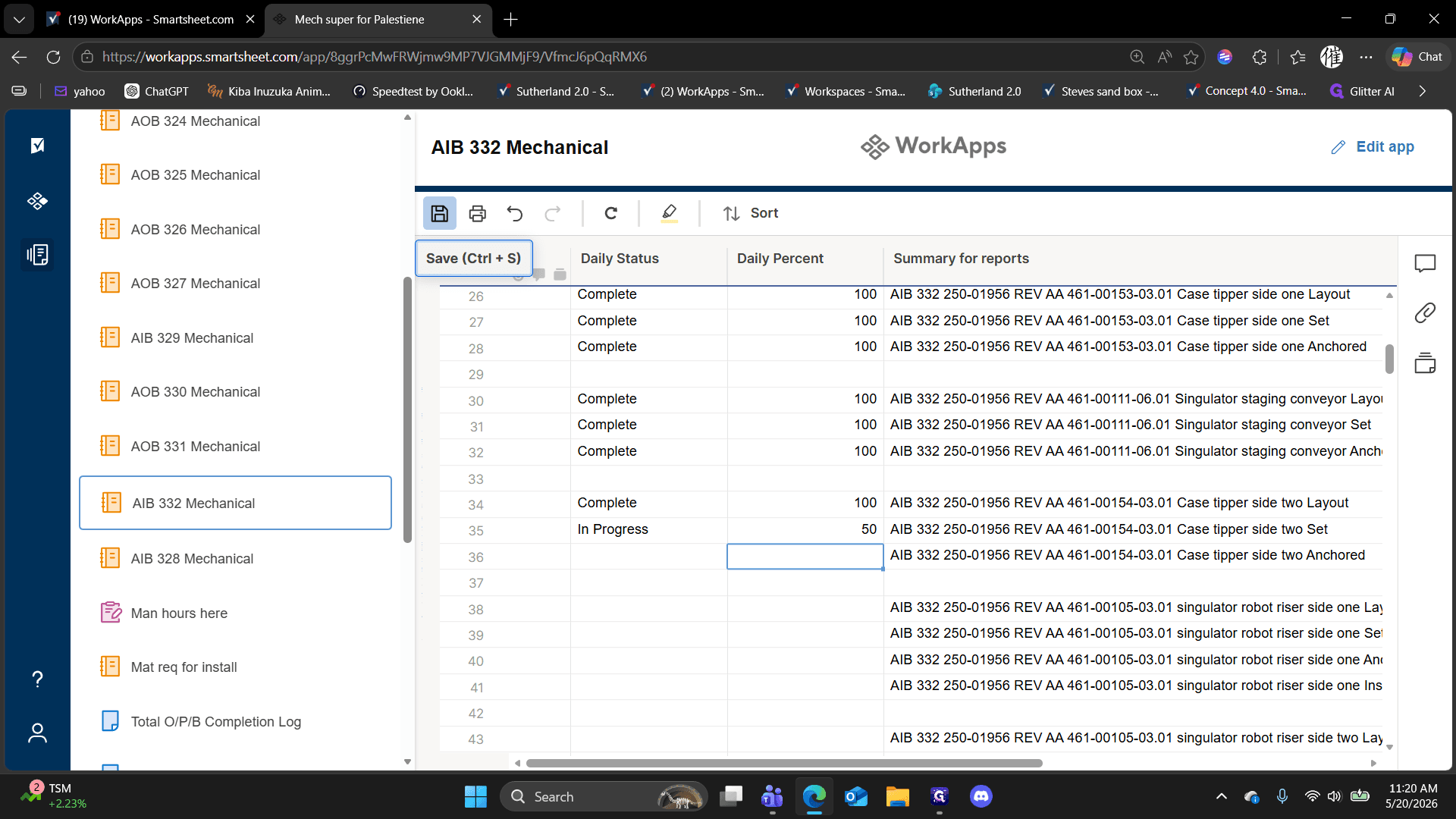
Q: Why does the sheet take so long to save?
A: The main tracker is a very large sheet that aggregates data from all supervisors. When you save, your information is porting over to that master document, which takes a moment to process.
Q: Where did my completed tasks go after I saved?
A: The system automatically clears out tasks marked as 100% Complete when you save and refresh. This prevents your sheet from getting bogged down and helps you focus purely on what is left for the next day.
Q: How do I report hours if my team split their time between multiple cells today?
A: Only input the hours spent on the specific cell you selected. For example, if a team worked a 10-hour day but only spent 6 hours on the current cell, enter "6" in the Daily Hours field. You will submit a separate entry for the other cell's hours.
Glossary
Term | Definition |
|---|---|
Cell | A designated work area or structural section of the project (e.g., AIB 332). |
Main Tracker | The central master Smartsheet where all daily updates and hours from individual supervisors are aggregated. |
WorkApps | Customized, role-based interfaces in Smartsheet that display only the tools and views necessary for your specific job. |