
How to Submit a Tax Invoice in Weel
Learn how to upload a tax invoice and reconcile pending expenses using the Weel mobile app to prevent your corporate card from being blocked.
This guide demonstrates how to submit a tax invoice for a pending expense in the Weel app. Completing this process ensures your expense records are complete and prevents your corporate card from being blocked.
This guide applies to employees and cardholders who need to reconcile their corporate expenses. Use this workflow whenever you make a purchase and need to attach a receipt to the transaction.
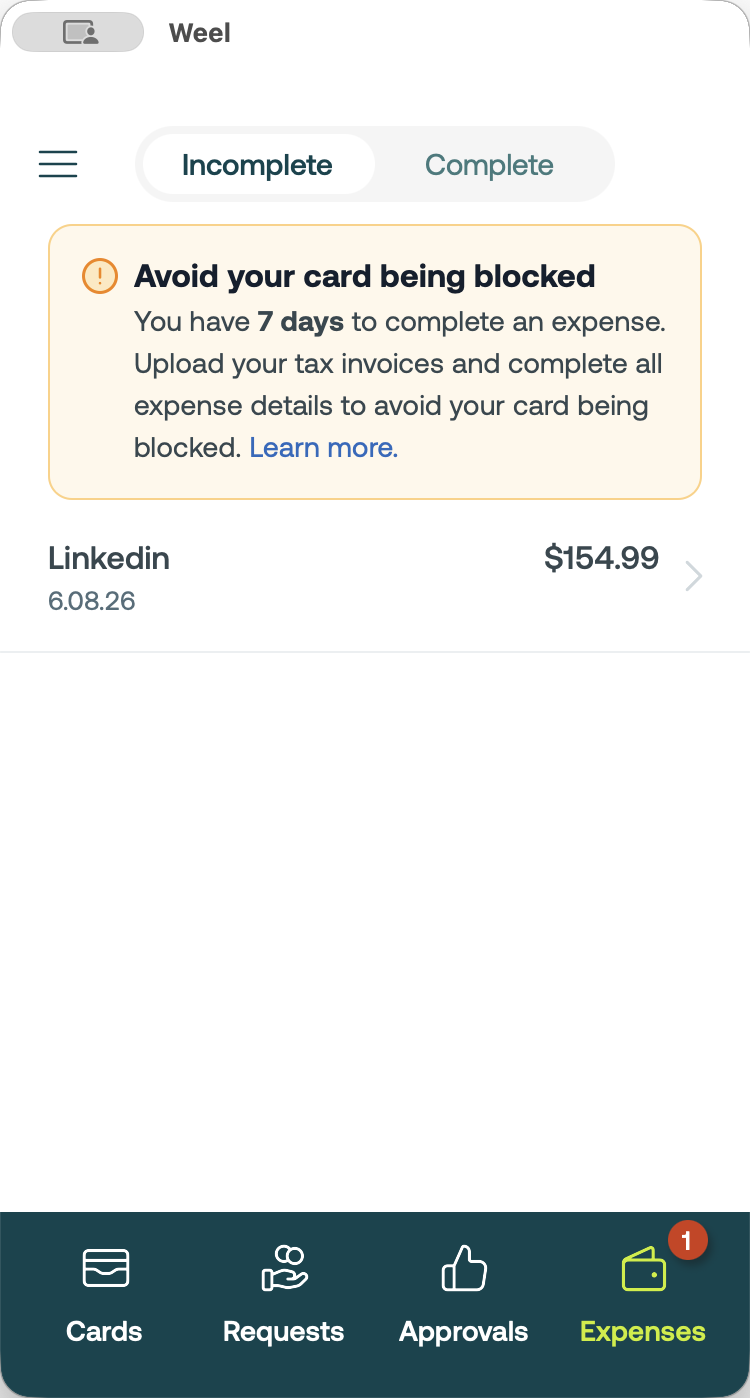
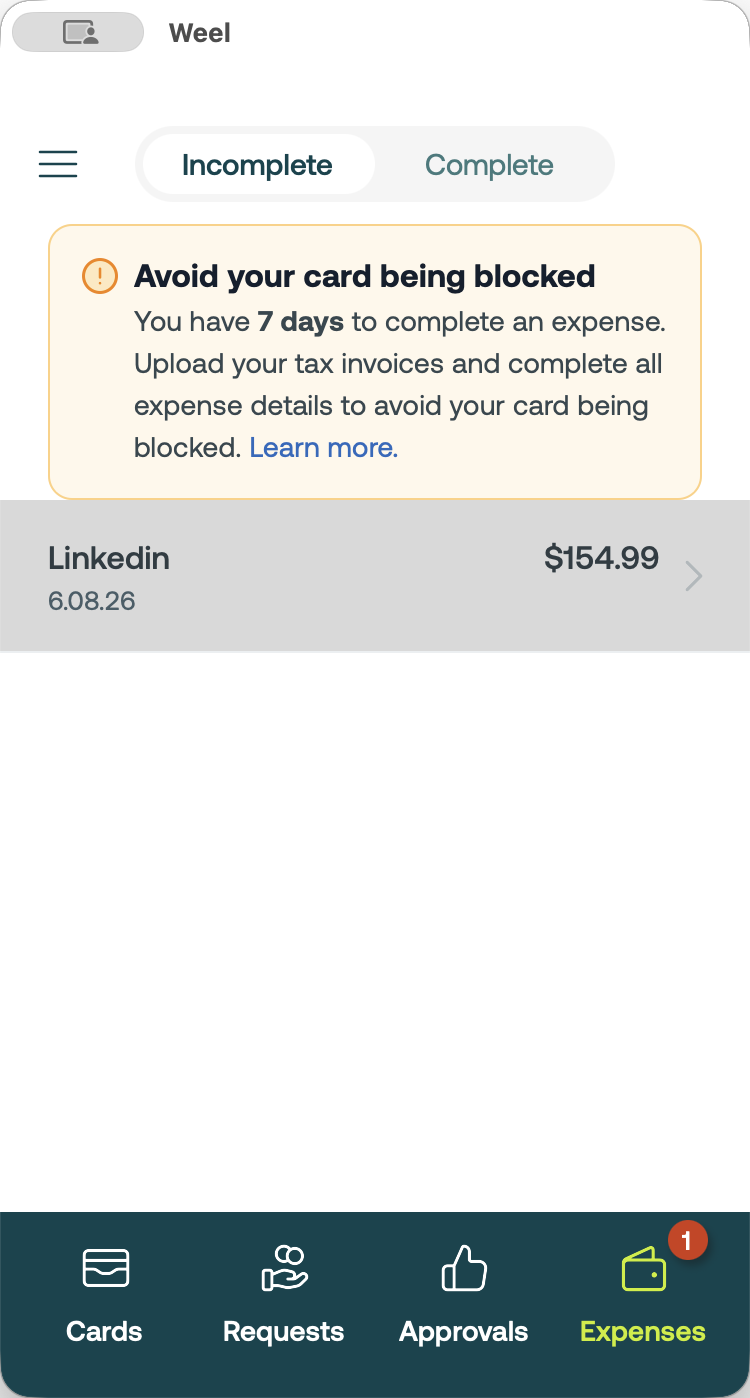
Navigate to the Expenses tab in the Weel app to review your incomplete transactions.

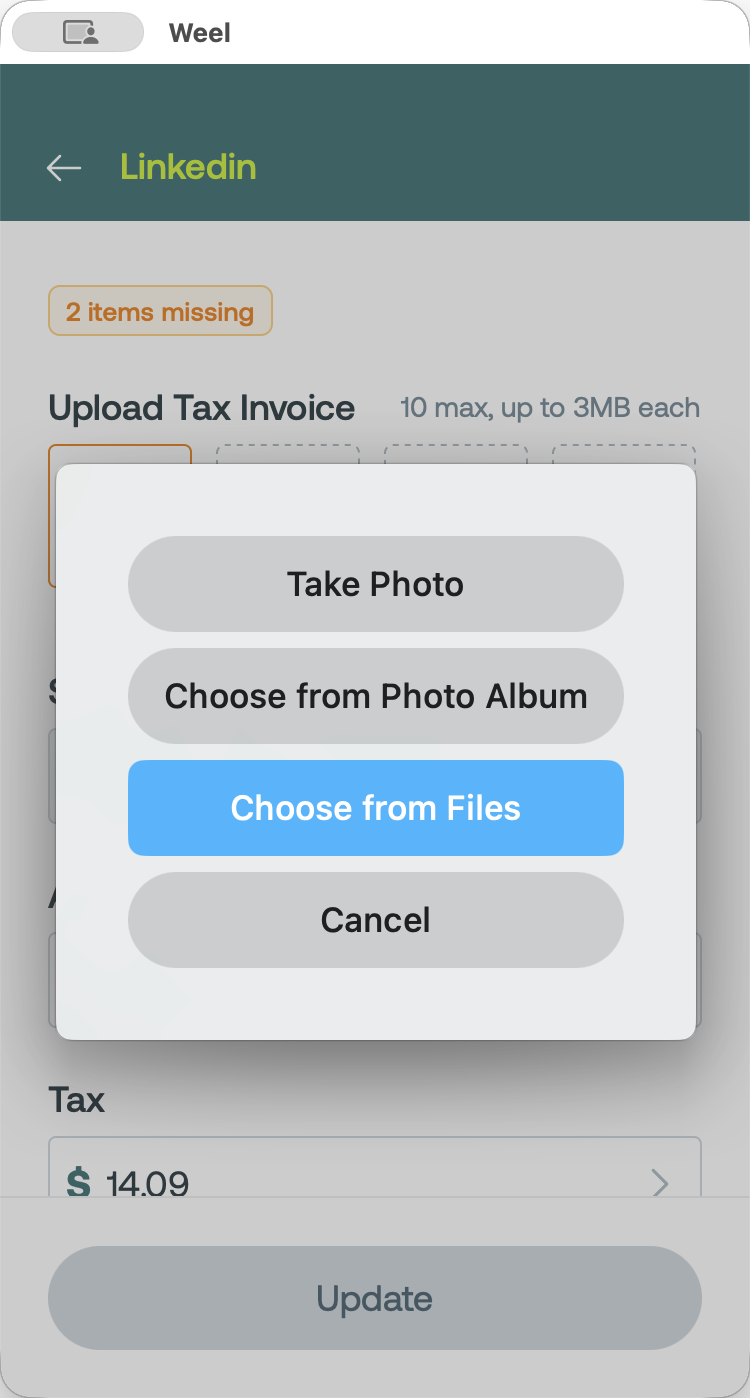
When adding a document, you can choose from three options:
Option | Description |
|---|---|
Take Photo | Use your device's camera to snap a picture of a physical receipt. |
Choose from Photo Album | Select an existing receipt image saved in your phone's gallery. |
Choose from Files | Browse your device storage to attach a digital document or PDF. |
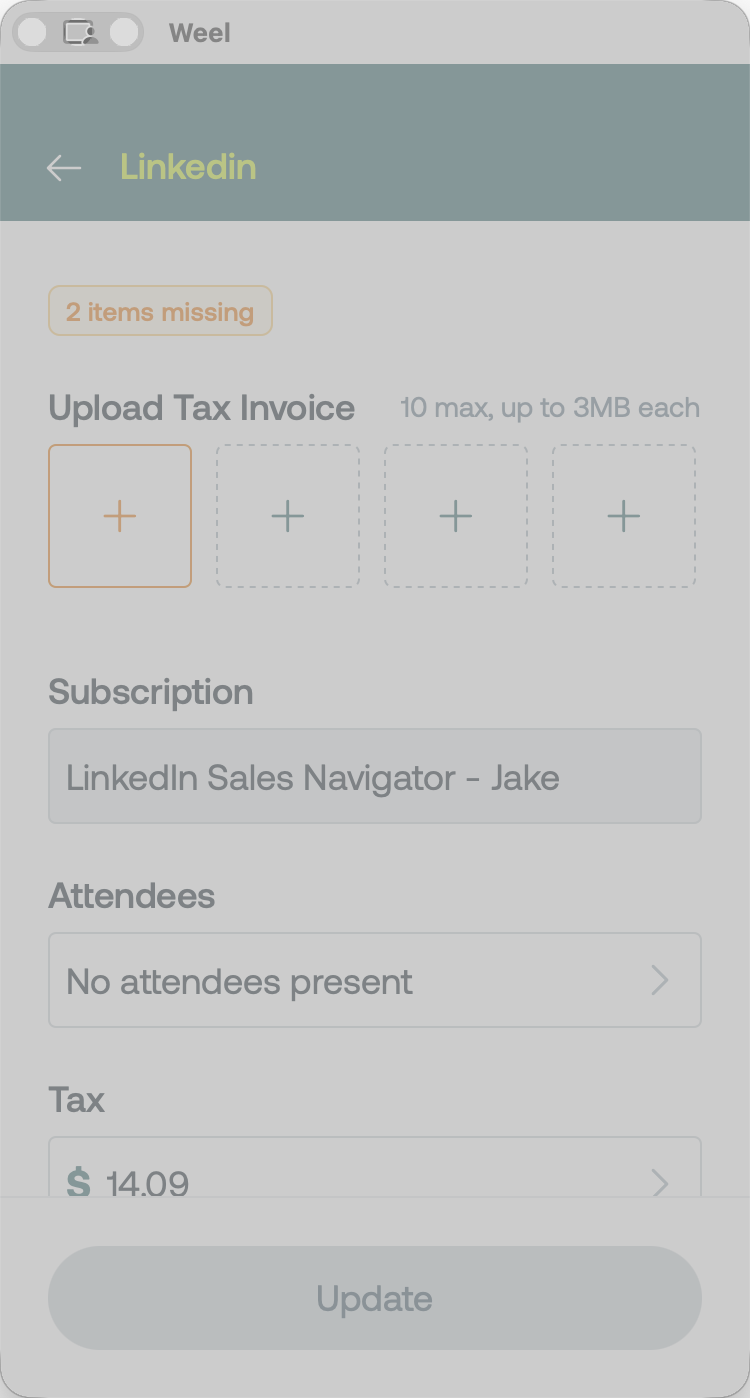
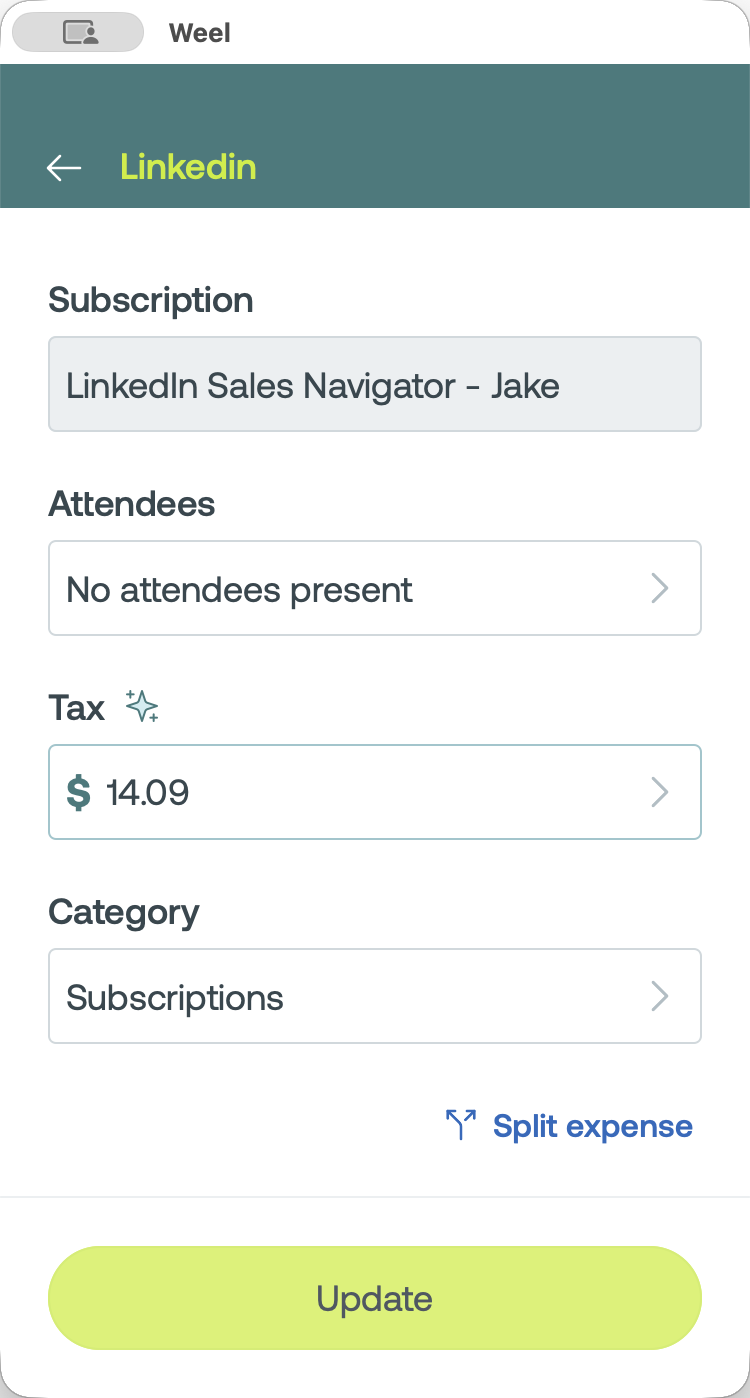
Q: Why am I unable to tap the "Update" button?
A: The update button remains disabled until you upload a valid tax invoice to the pending expense.
Q: Do I need to manually type in the receipt details?
A: No, once you upload the document, the system automatically scans and extracts the necessary receipt information.