Syncing Invoice and Order Data with QuickBooks

Learn how to copy invoice and order information from your business dashboard and update records directly in QuickBooks and tracking spreadsheets.

By Maria Cortinas

Managing invoices across different platforms ensures that your financial records and order tracking spreadsheets stay accurate. This guide covers how to locate invoice details in your dashboard, transfer that data to QuickBooks, and update your tracking sheets accordingly.

Copying Invoice Details
1
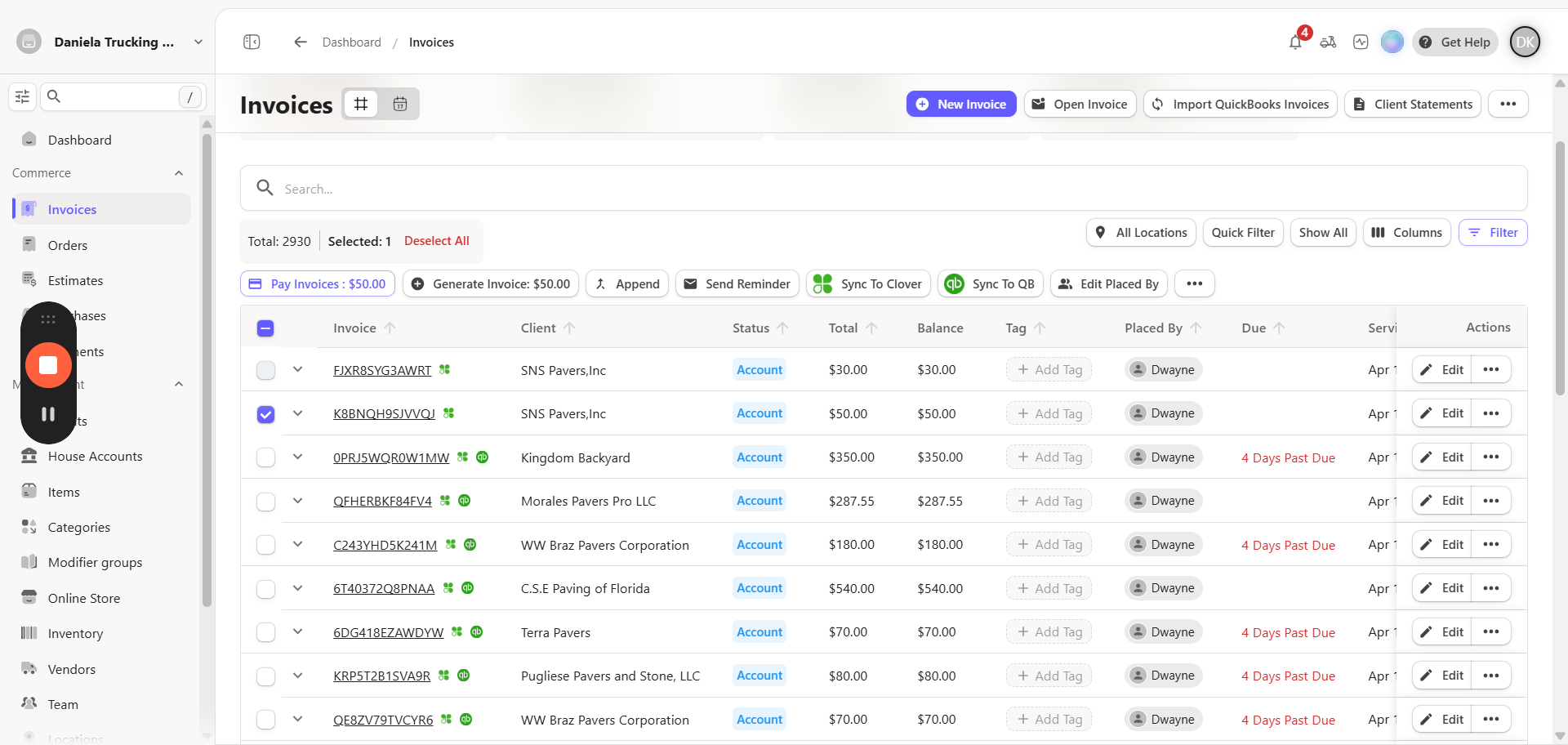
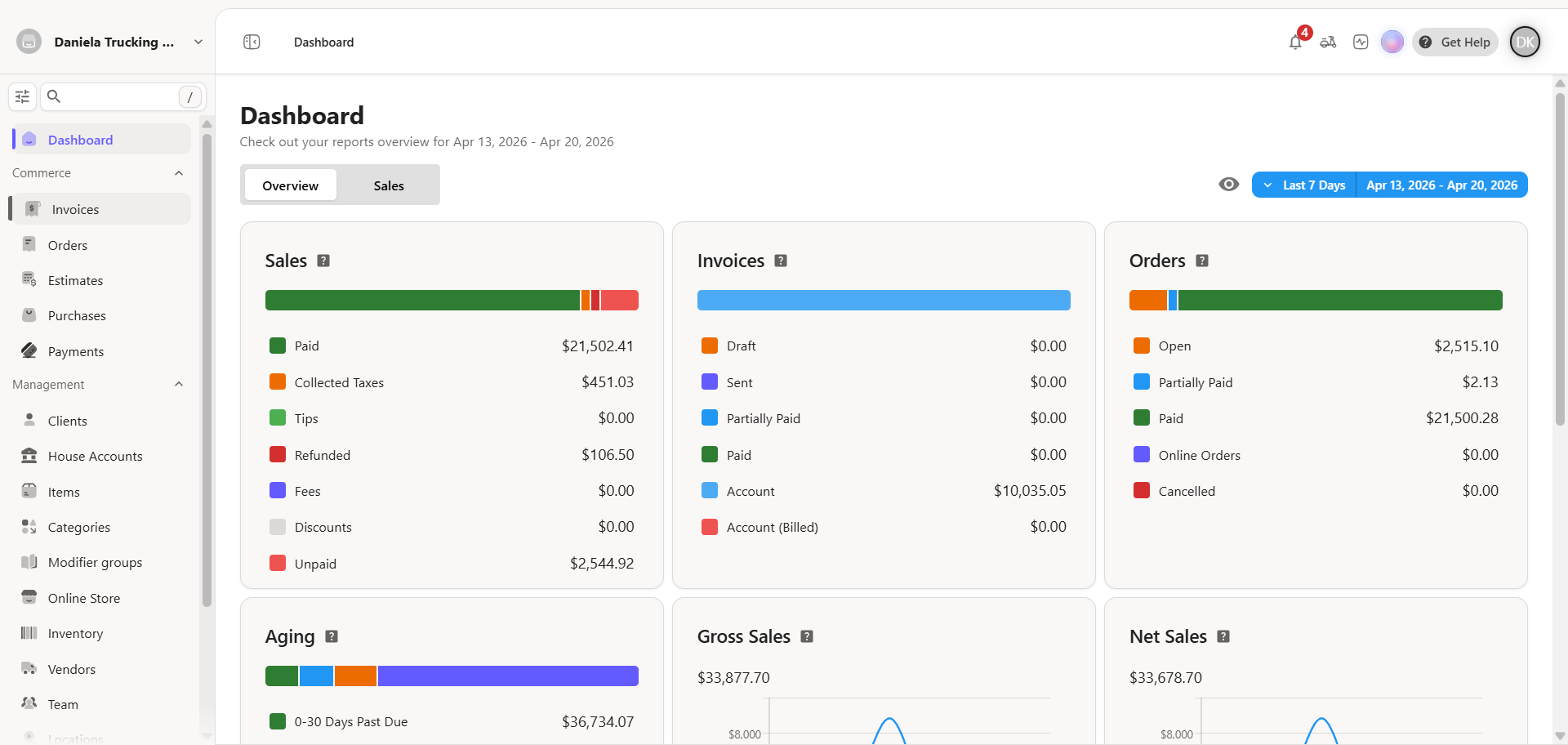
Click on the Invoices in your dashboard's left navigation menu
Step #1: Click on the Invoices in your dashboard's left navigation menu

2
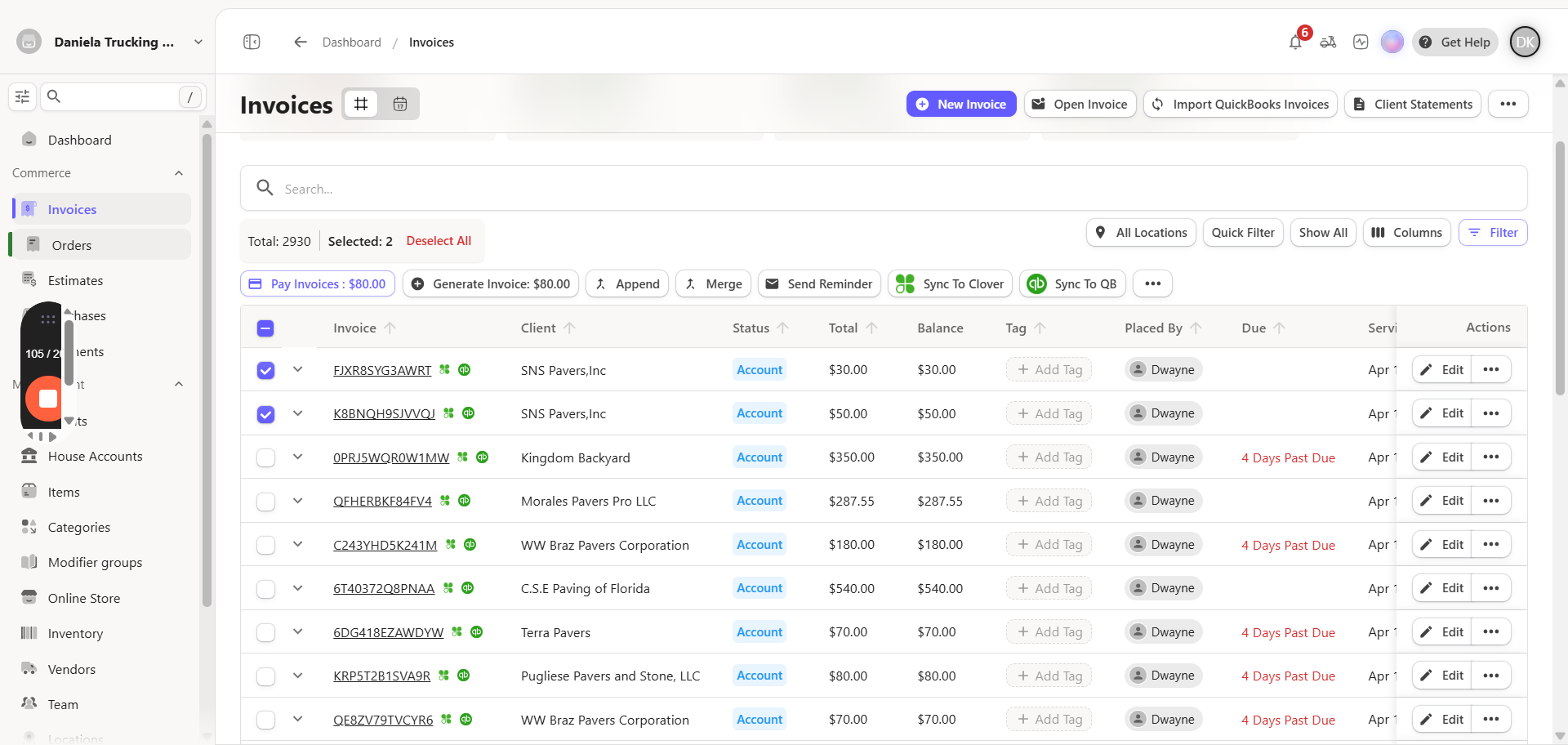
Click the row of the invoice checkbox
Step #2: Click the row of the invoice checkbox

After you select all the invoices to be exported Click the Sync to QB button.

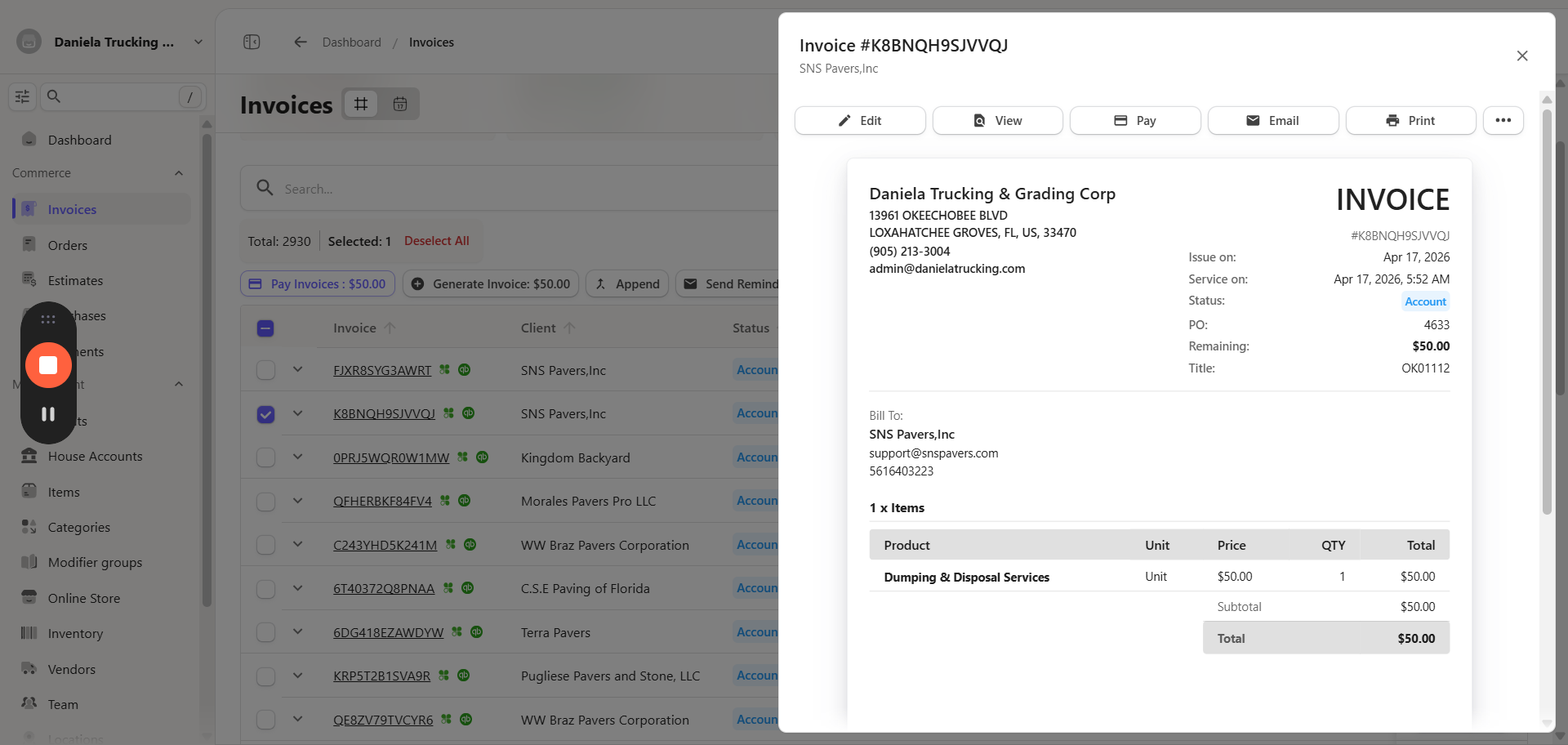
On QBO Go to the INVOICES area and for the drop down boxes select: This month (Date dropdown) and Unpaid (Status)
3
Use the main invoice number to search for the invoice on QBO
Step #3: Use the main invoice number to search for the invoice on QBO

Updating the Invoice in QuickBooks

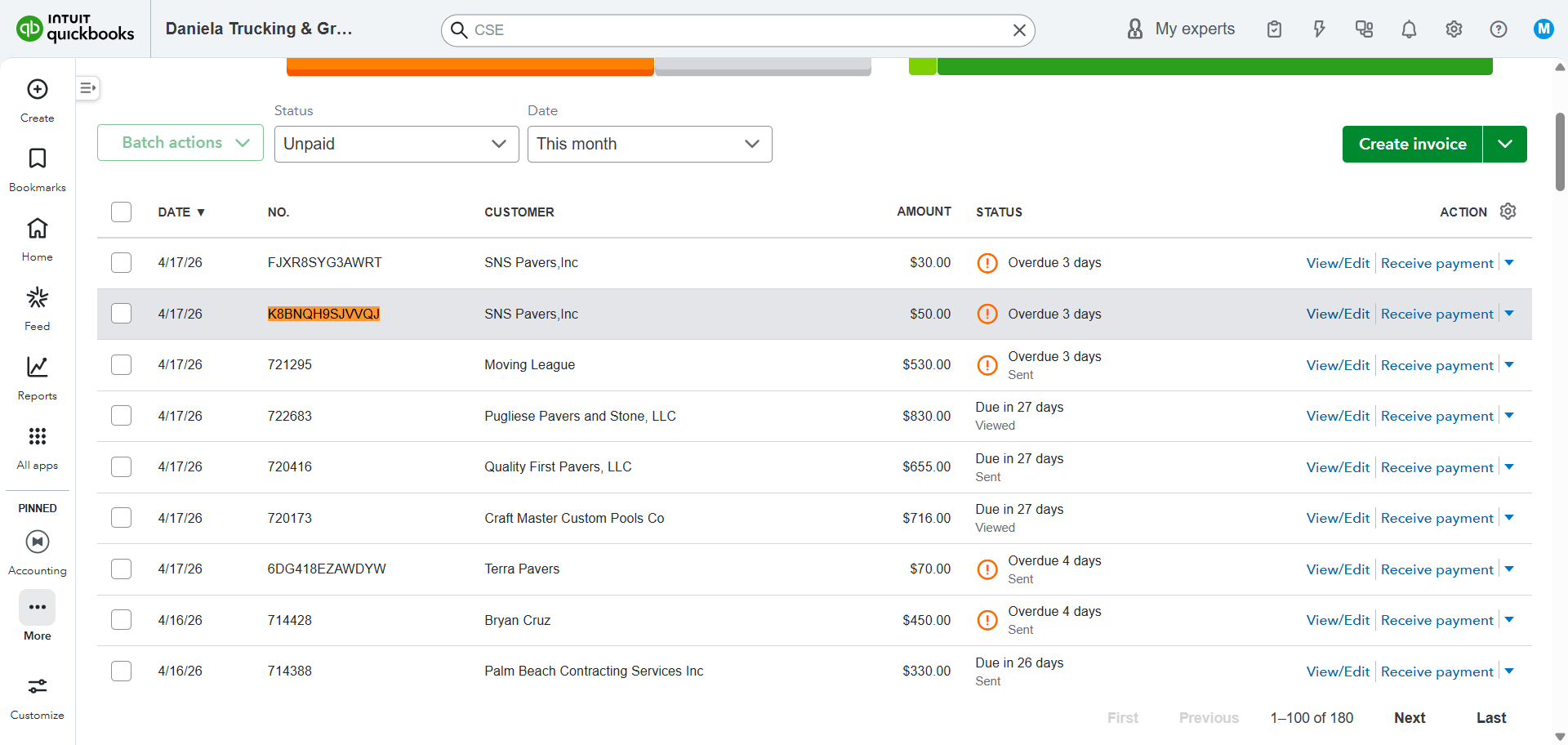
  1. Navigate to your QuickBooks invoice list and look for the corresponding entry.
4
click the View/Edit link
Step #4: click the View/Edit link
5
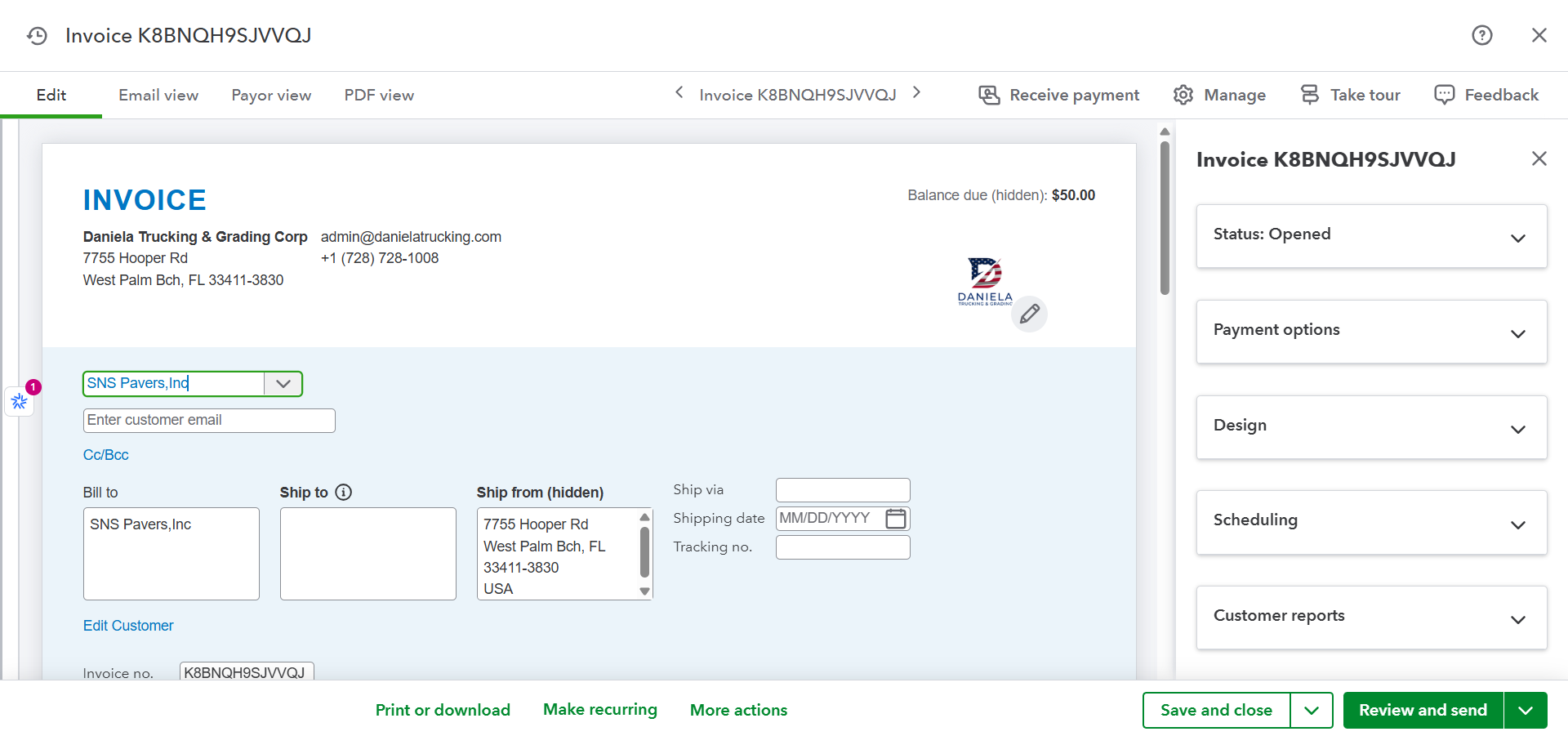
Click the customer dropdown menu and type the customer's name
Step #5: Click the customer dropdown menu and type the customer's name

. 3.

6
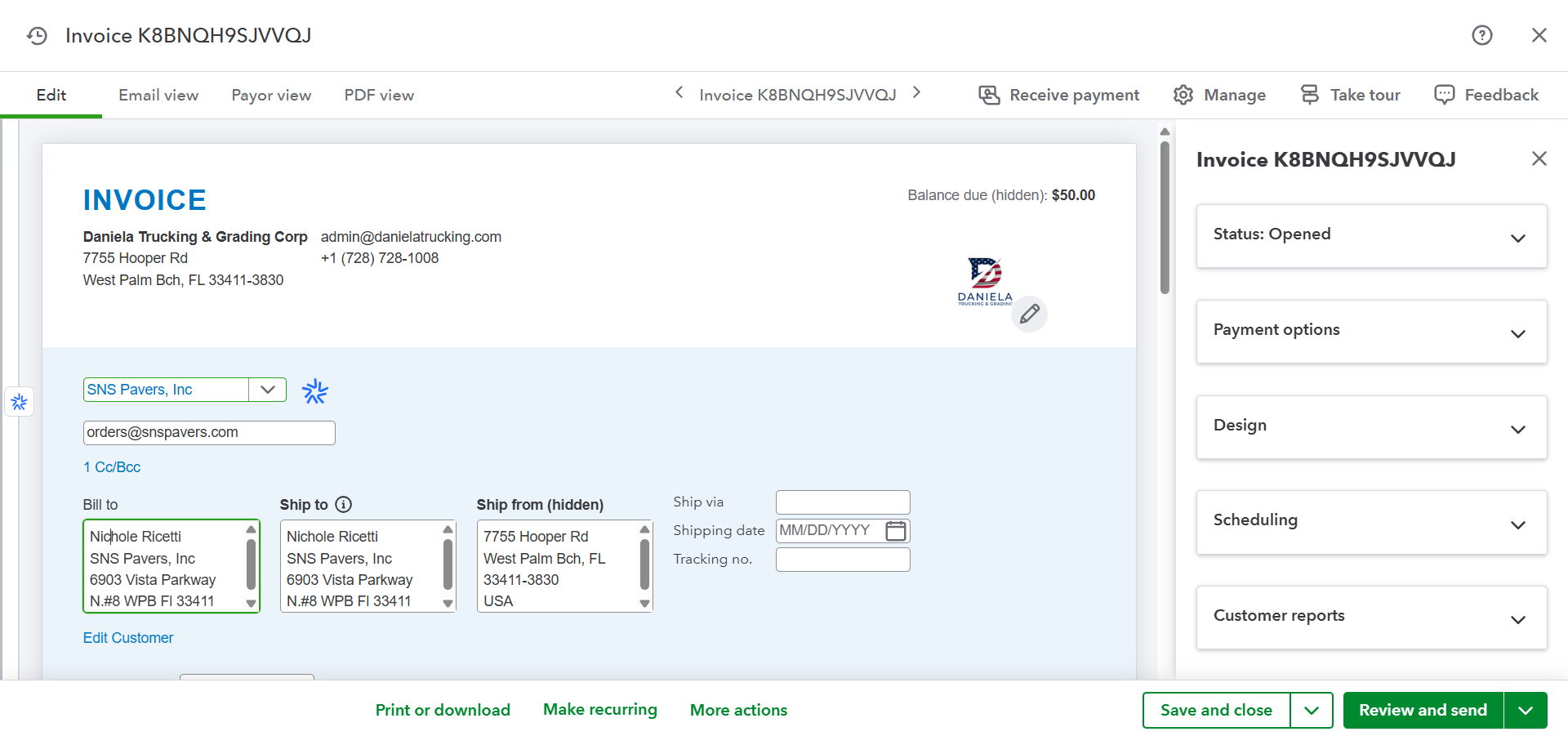
Select the correct customer contact from the list.
Step #6: Select the correct customer contact from the list.
7
Click into the Ship to field to paste the updated address or order details. You need to confirm if it was an order from Hooper or Okeechobee:
Step #7: Click into the Ship to field to paste the updated address or order details. You need to confirm if it was an order from Hooper or Okeechobee:

. 6. Address for Hooper:

ORDER#H0

Picked Up/Dumped at Our Yard

7755 Hooper Rd, West Palm Beach

FL 33411

Address for Okeechobee:
ORDER#OK00

Picked Up/Dumped at Our Yard

13961 Okeechobee Blvd, Loxahatchee FL 33470
8
If you have additional memos, copy them and paste them on the Notes to customer field. For Deck & Drive the PO should also be pasted into the Ship To field.
9
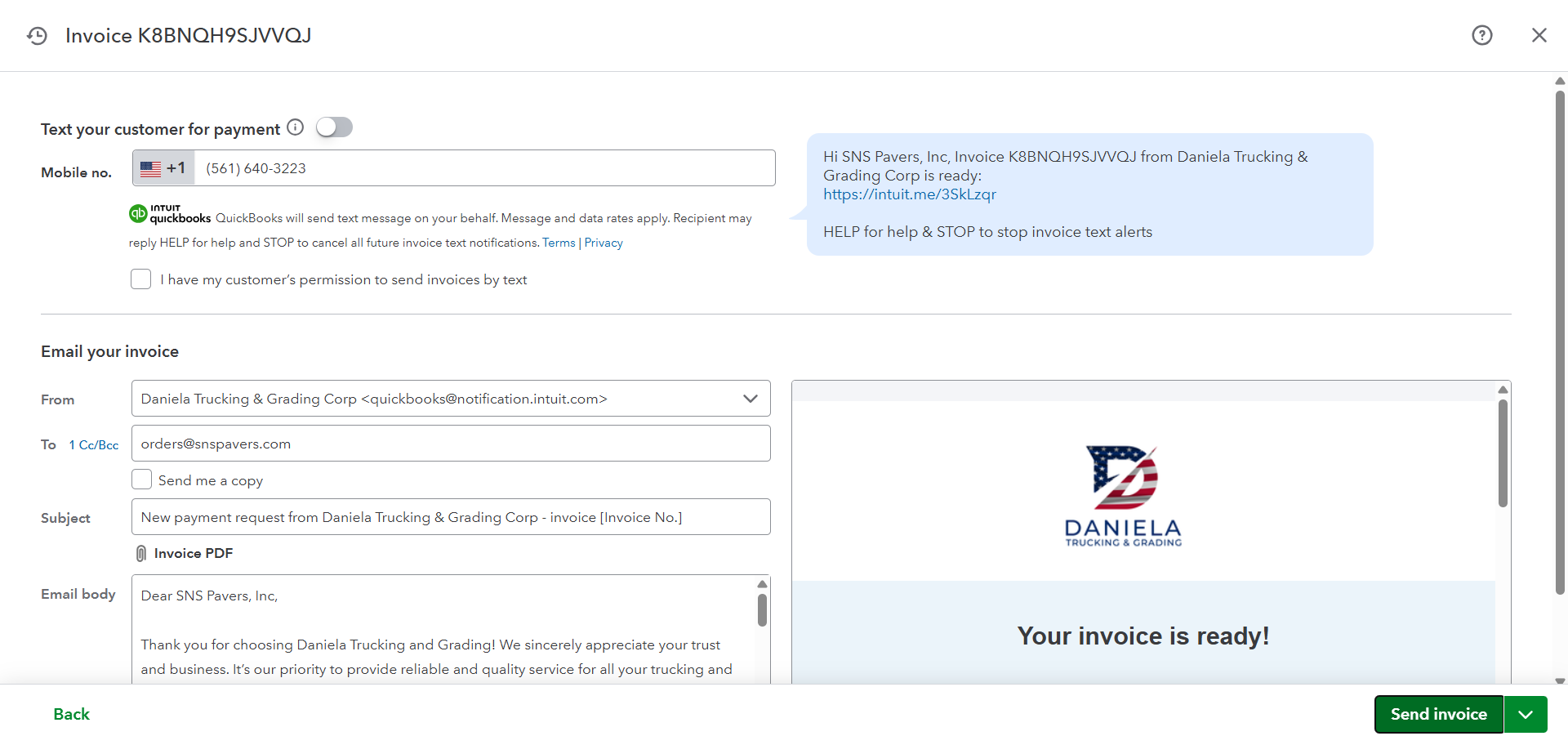
Review your changes and click Send invoice
Step #9: Review your changes and click Send invoice

.

10
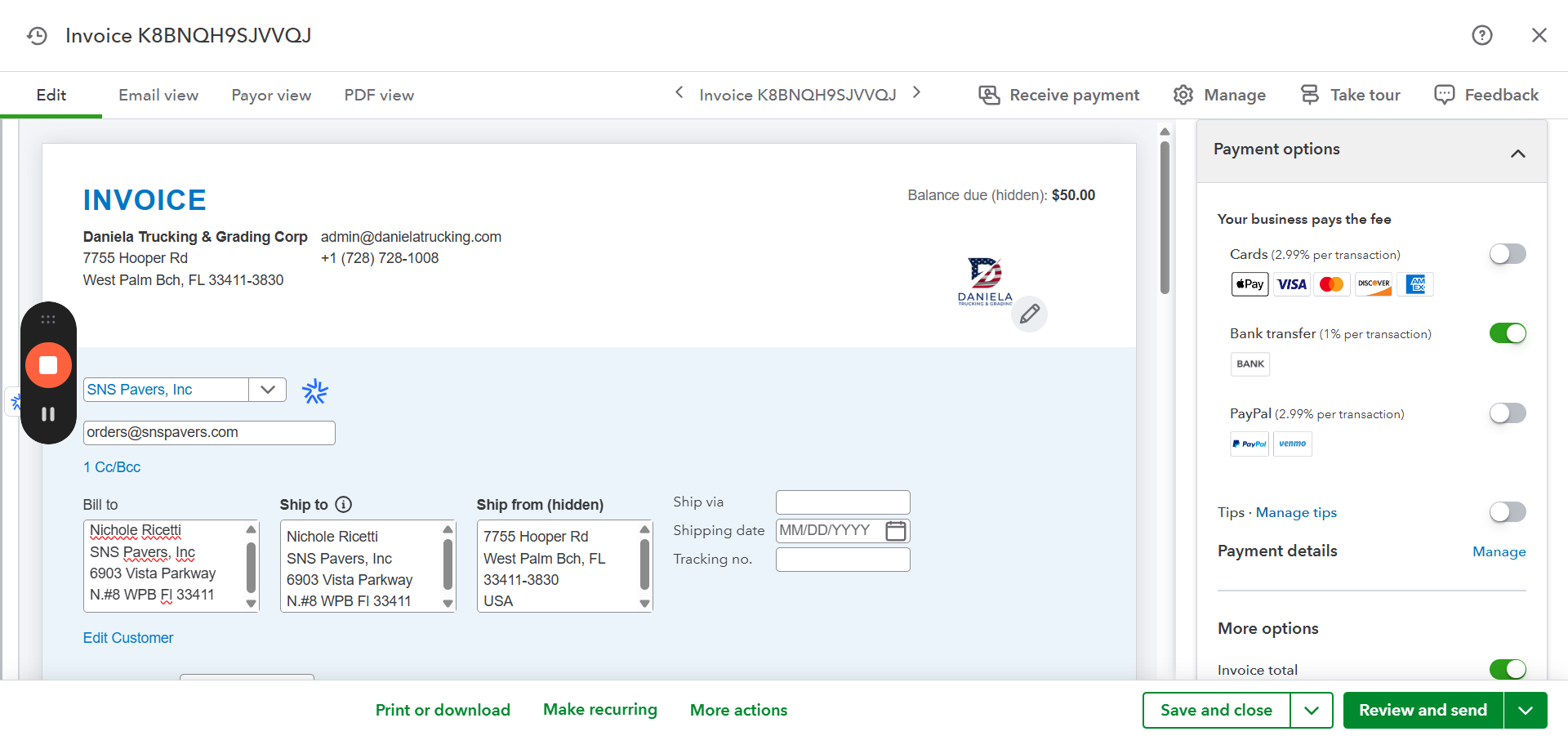
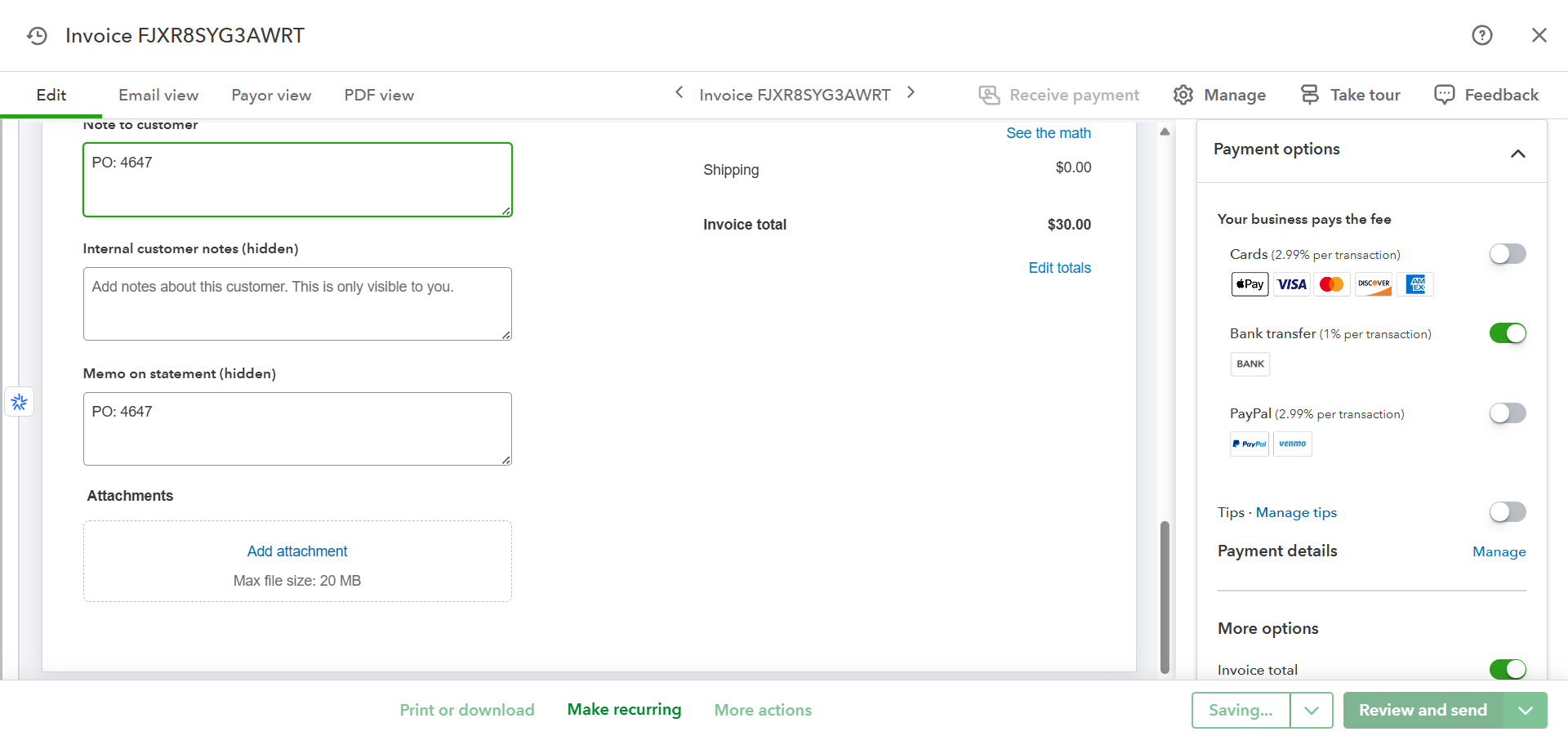
toggle the Bank transfer switch
Step #10: toggle the Bank transfer switch

depending on the allowed payment methods. 6.
11
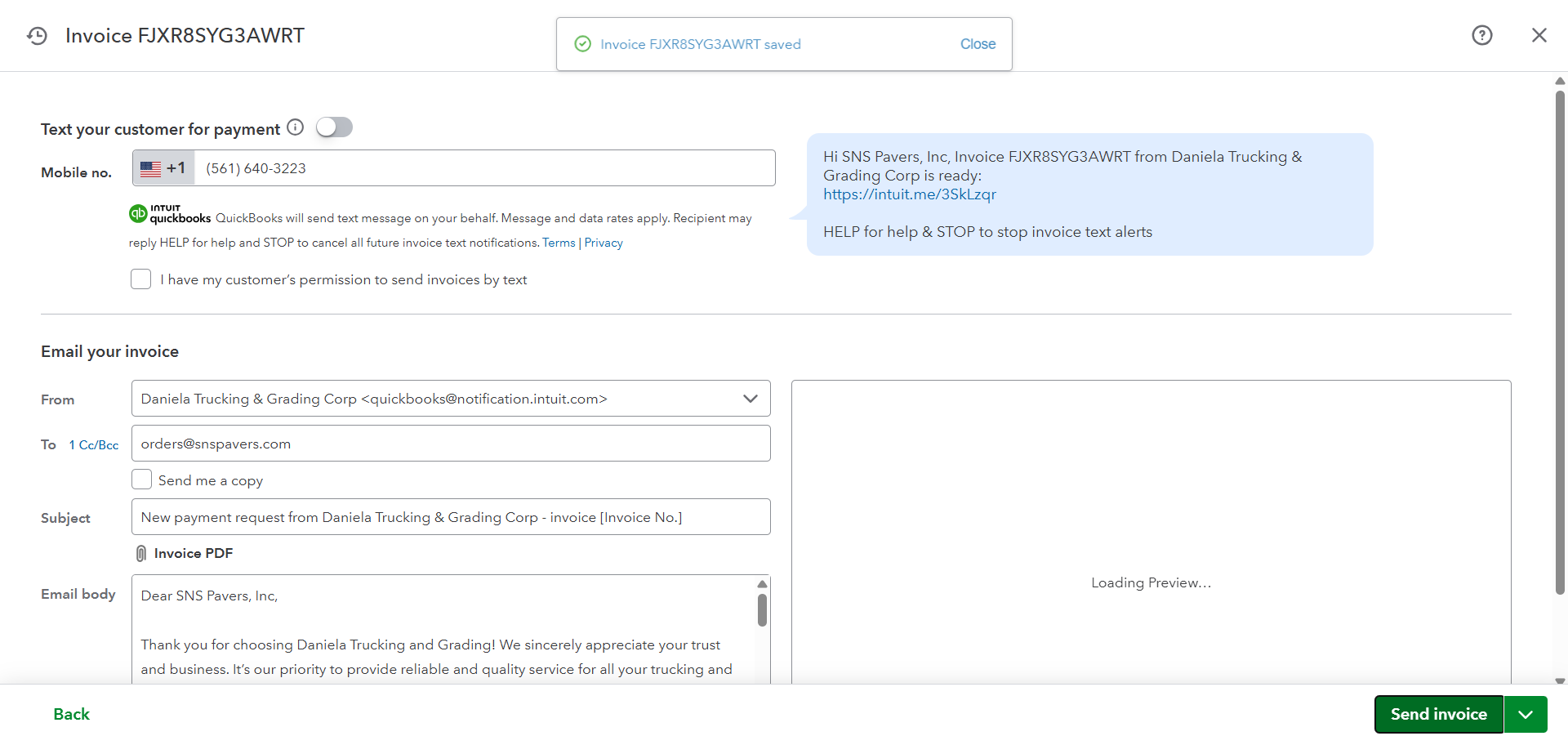
Click Send invoice
Step #11: Click Send invoice

.

Syncing with Missing Clover Invoices from the Spreadsheet
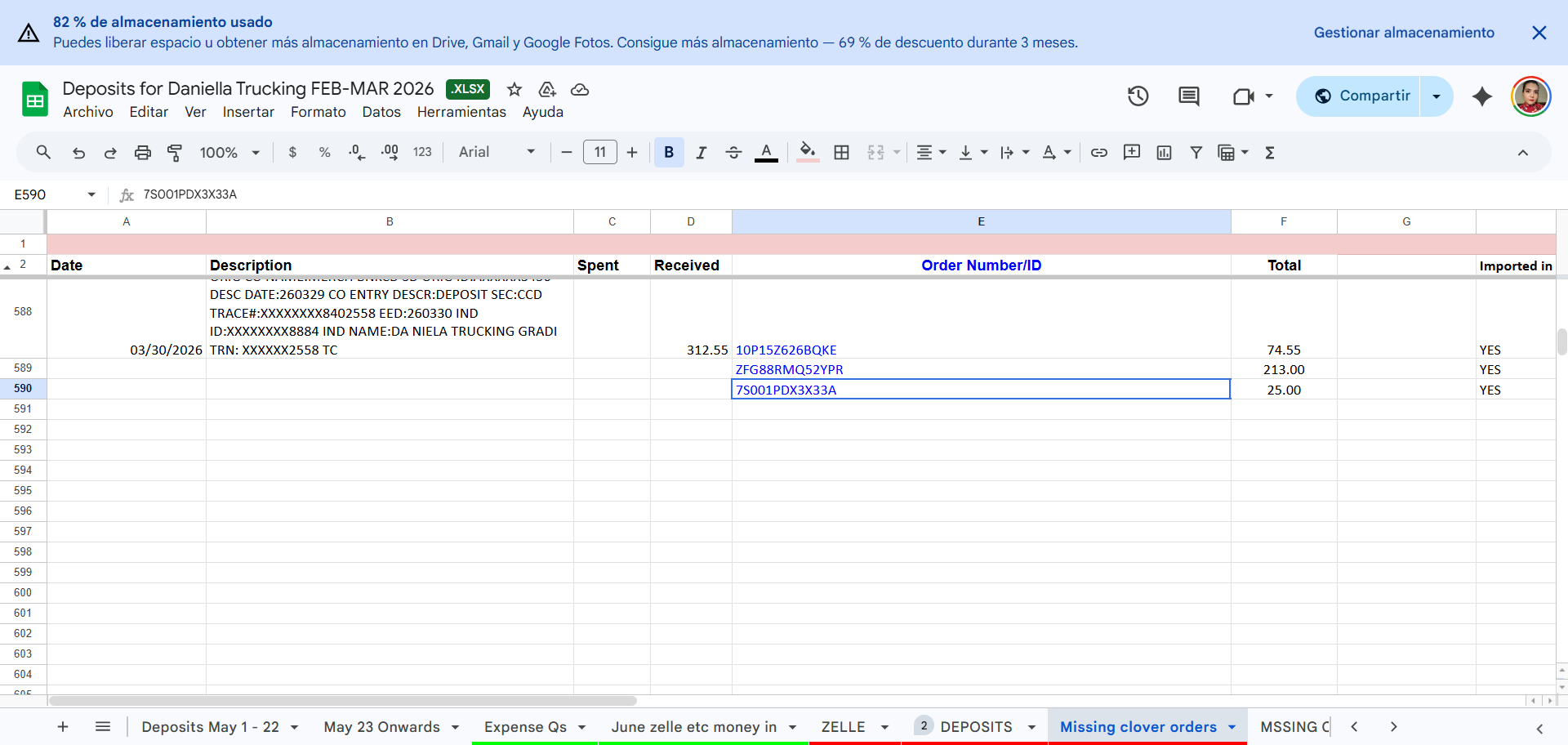
12
Copy the number from the Colum Order Number/ID

13
From the spreadsheet
Step #13: From the spreadsheet

.

14
Open INVOISS and click Invoices
Step #14: Open INVOISS and click Invoices

(or Orders). 5.

15
Press Ctrl + V on the search bar in the search filter to pull up the exact record

on the order row. 7.

16
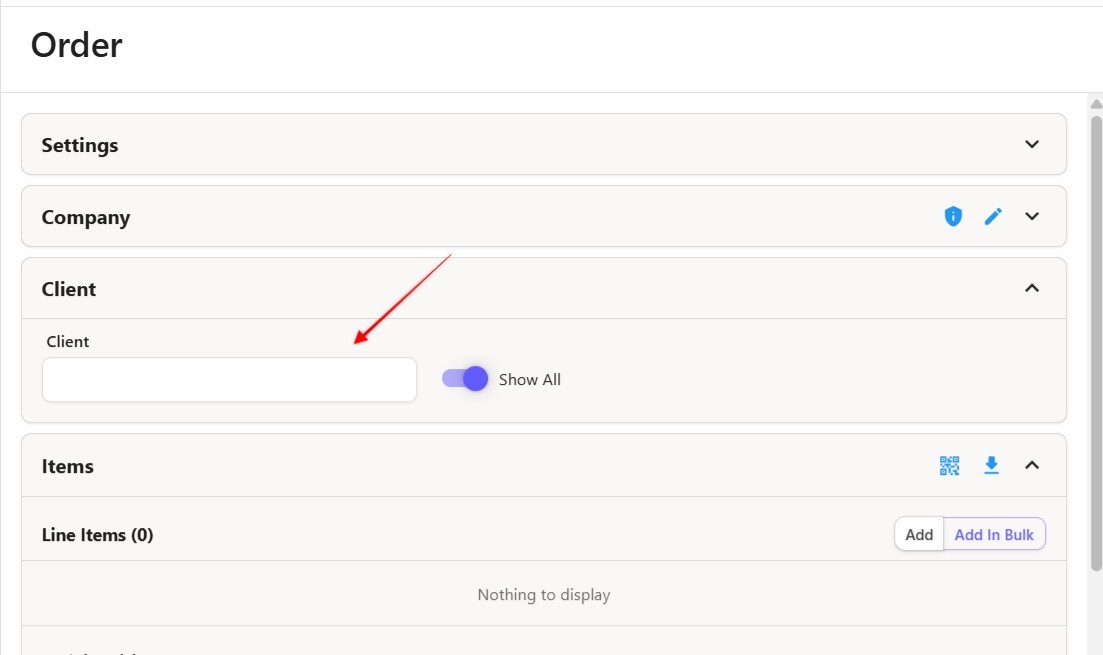
If the order is not linked to a client, click on the Edit button and next add the following on the client name search box: NO NAME
Step #16: If the order is not linked to a client, click on the Edit button and next add the following on the client name search box: NO NAME

the changes will be autosaved and you can return to the main Order screen and search the same ordder number again. The record should reflect now NO NAME. Next click the 3 dots next to the record
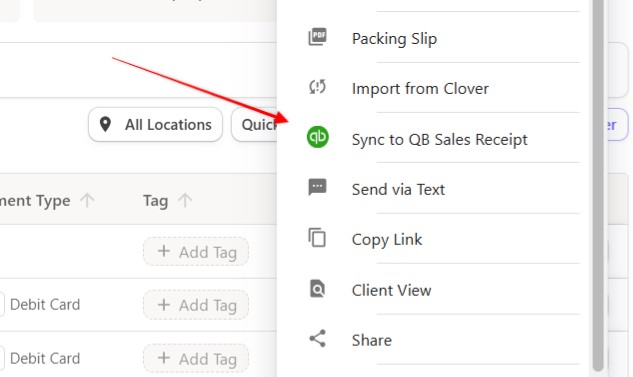
17
Select Sync to QB Sales Receipt from the drop-down

Step #17: Select Sync to QB Sales Receipt from the drop-down

After you click that option you may see a text box regarding the taxes, always select the 7% for West Palm Beach.
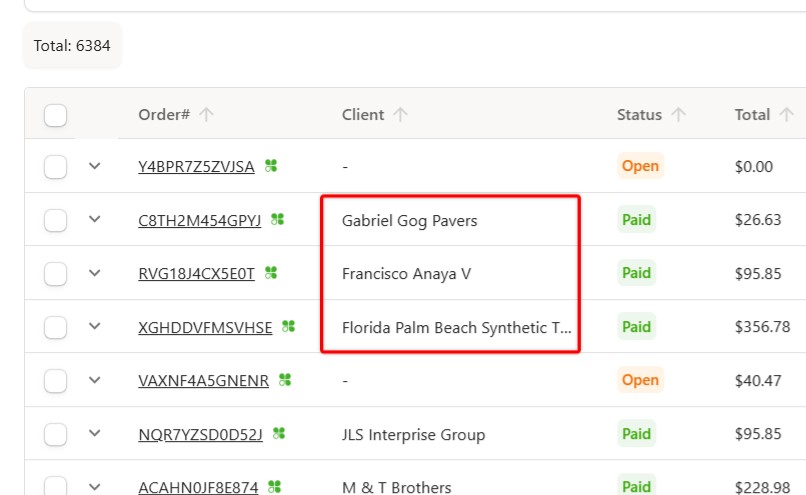
18
If the record comes back with a client name, you are to leave it as is and simply go directly to the Sync to QB Sales Receipt option.
Step #18: If the record comes back with a client name, you are to leave it as is and simply go directly to the Sync to QB Sales Receipt option.

Syncing Invoice and Order Data with QuickBooks