
Task Prioritization Guide for Innkeepers: Efficiently Manage and Reprioritize Tasks
Learn how innkeepers and property managers can efficiently reprioritize multiple tasks, update task notes, and manage cleaning schedules using color-coded priorities. This quick guide covers best practices for task management and prioritization.
In this guide, we'll learn how to quickly reprioritize multiple tasks and update individual tasks with notes, which is useful for innkeepers managing room turnovers. We'll look at how to select several tasks at once, adjust their priorities, and add comments to specific tasks to keep everyone informed. This process helps ensure that cleaning and preparation are done in the best order for guest arrivals.
Let's get started
Here's another quick demonstration. This guide is mainly for innkeepers, but anyone can benefit from it. This will quickly review a few things we've already covered. You can select multiple tasks to reprioritize them all at once. You can also update a specific task with a note to help prioritize it. Here, we have a situation at Presidents on Saturday the 16th. According to Eviivo, Rob Mackenzie is moving in. This isn't immediately obvious unless you know he was here this past week, but he hasn't been in the President's cabin someone else has.
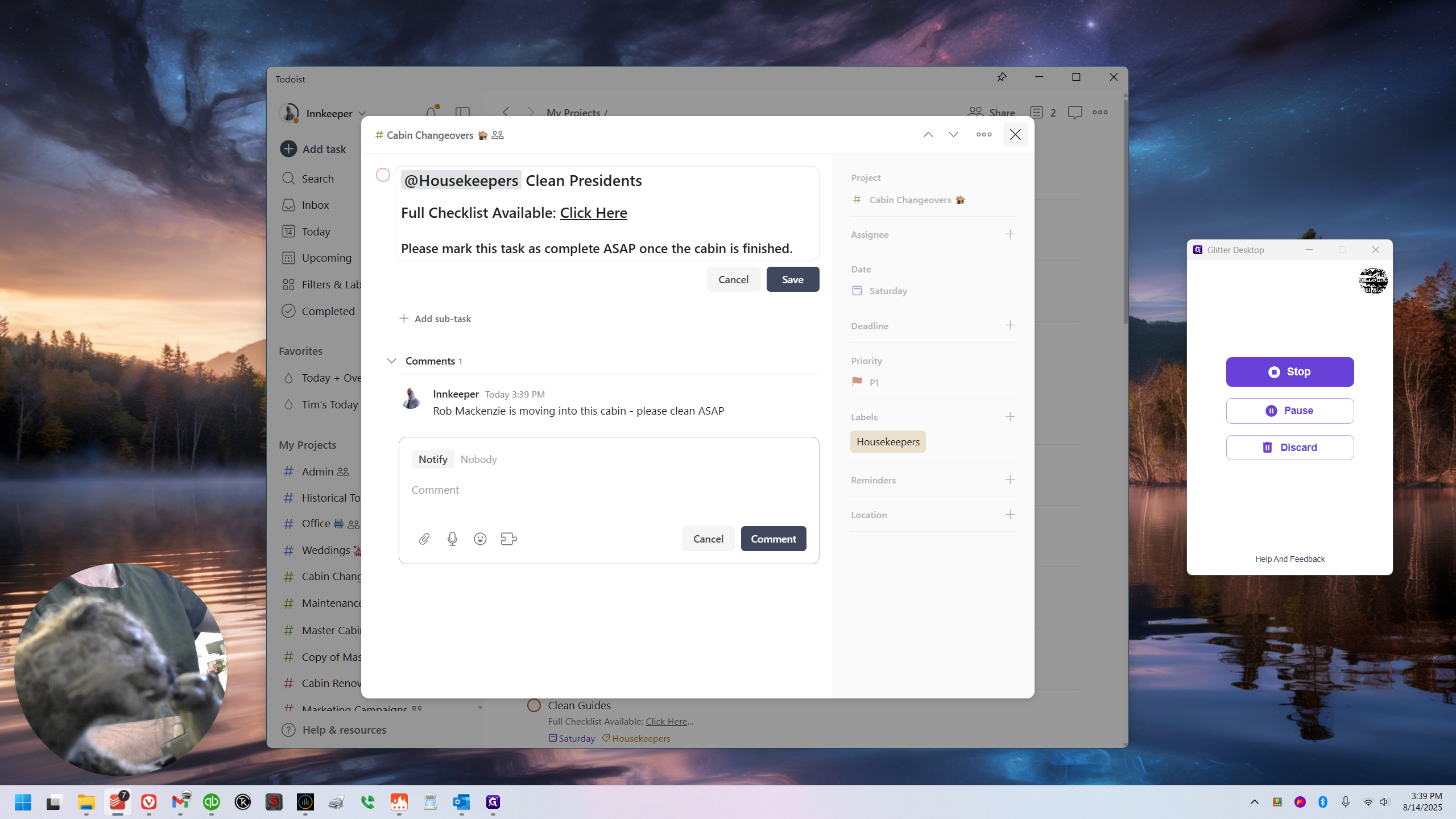
So Presidents needs to be cleaned before he moves there. This should be our top priority if possible. The order may depend on when people leave, but the prioritization is based on an ideal scenario. Since I know this should be number one, if possible, I will first open the task for President's. Then, I will leave a comment: "Rob Mackenzie is moving into this cabin."
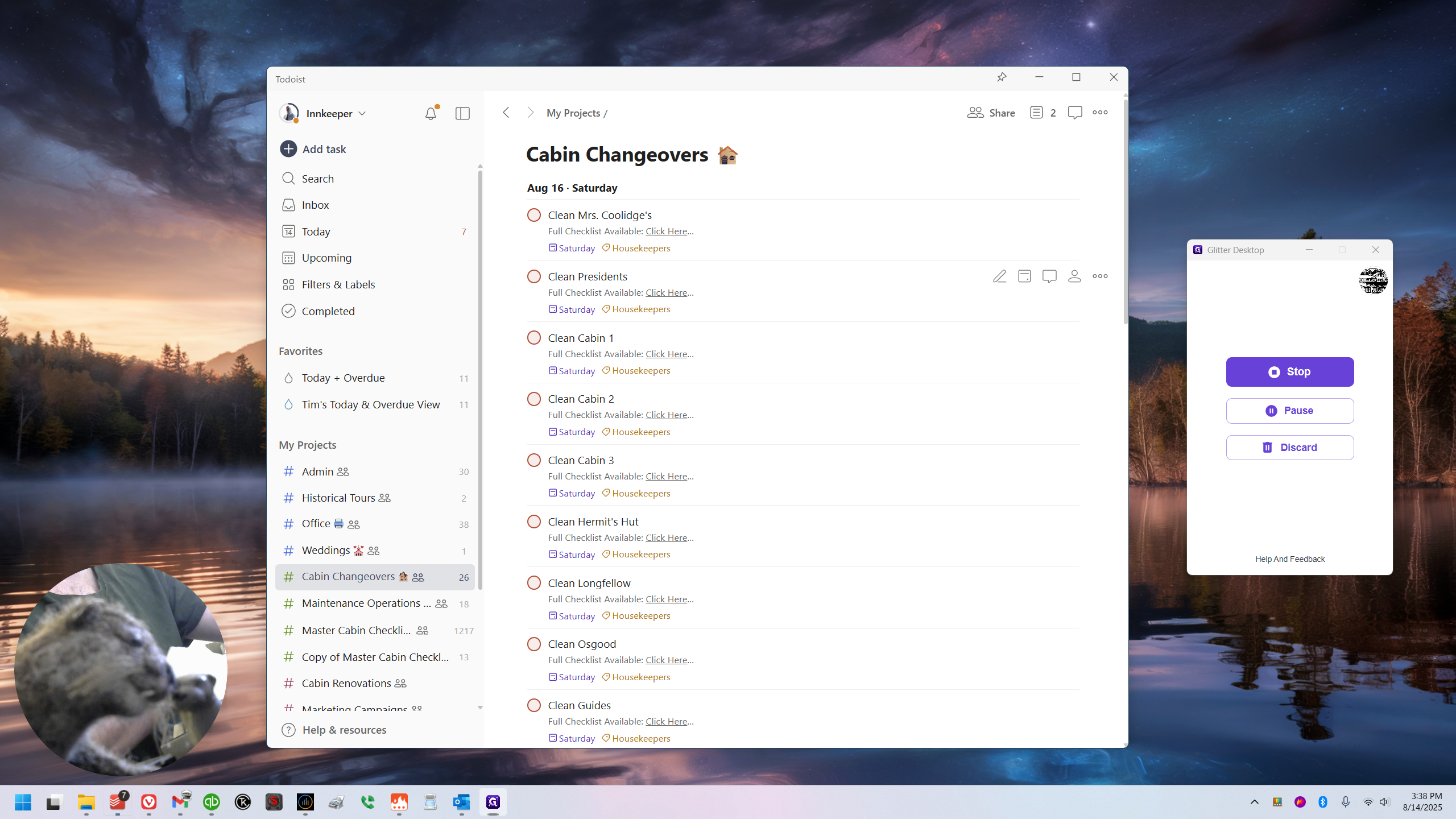
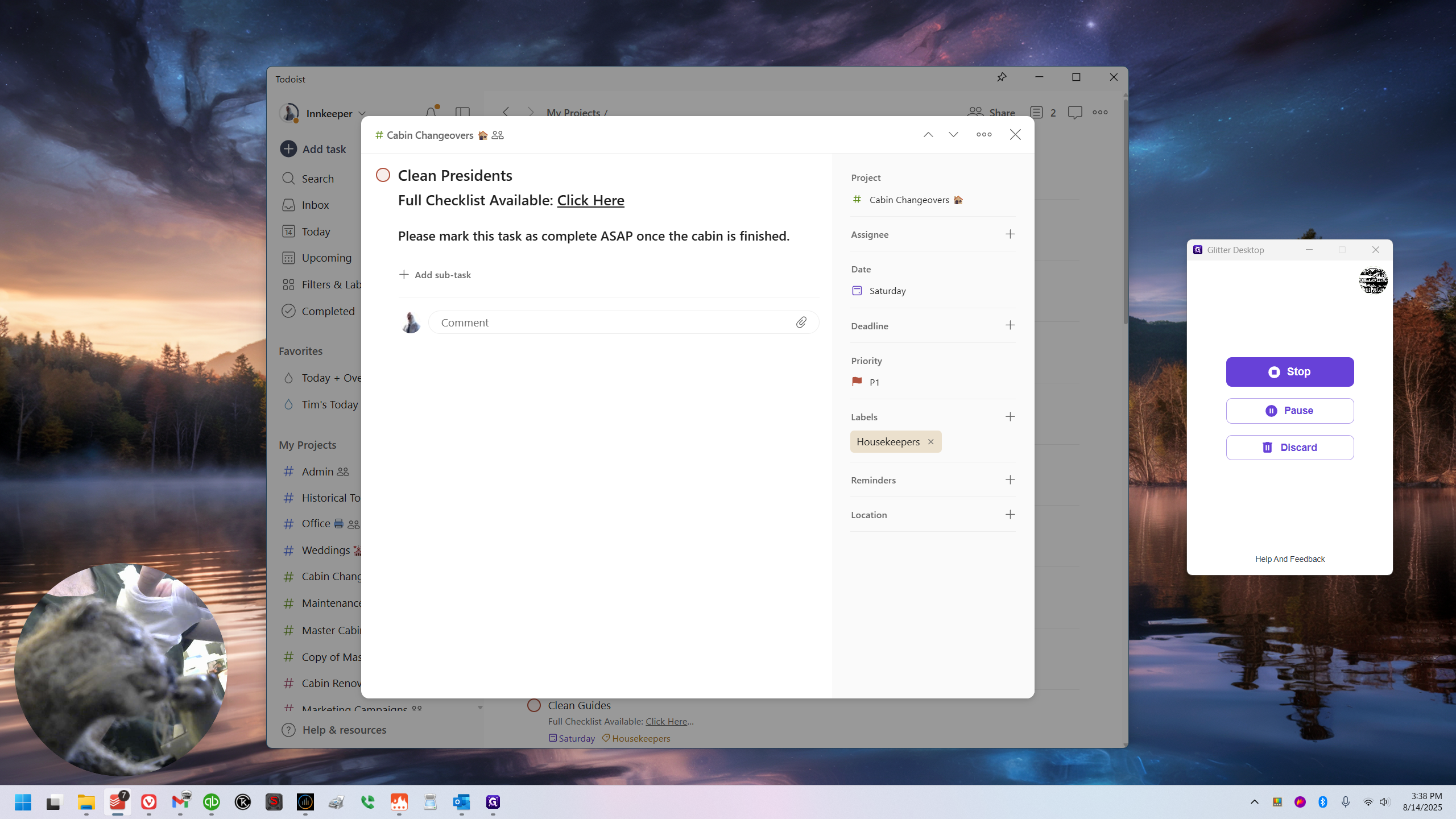
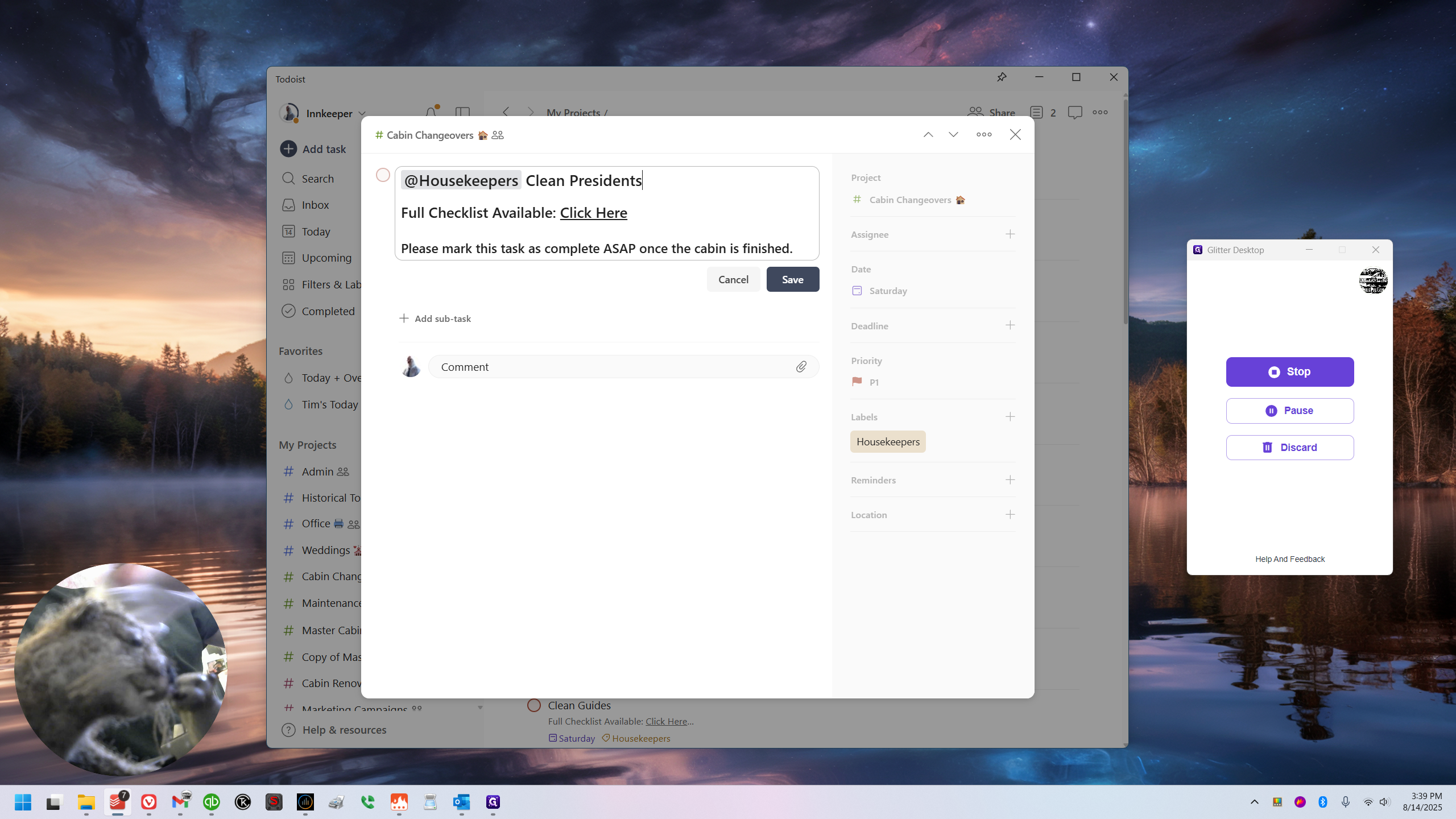
I don't feel the need to add anything to the title since it will be P1. I'm going to set everything else to a lower priority.
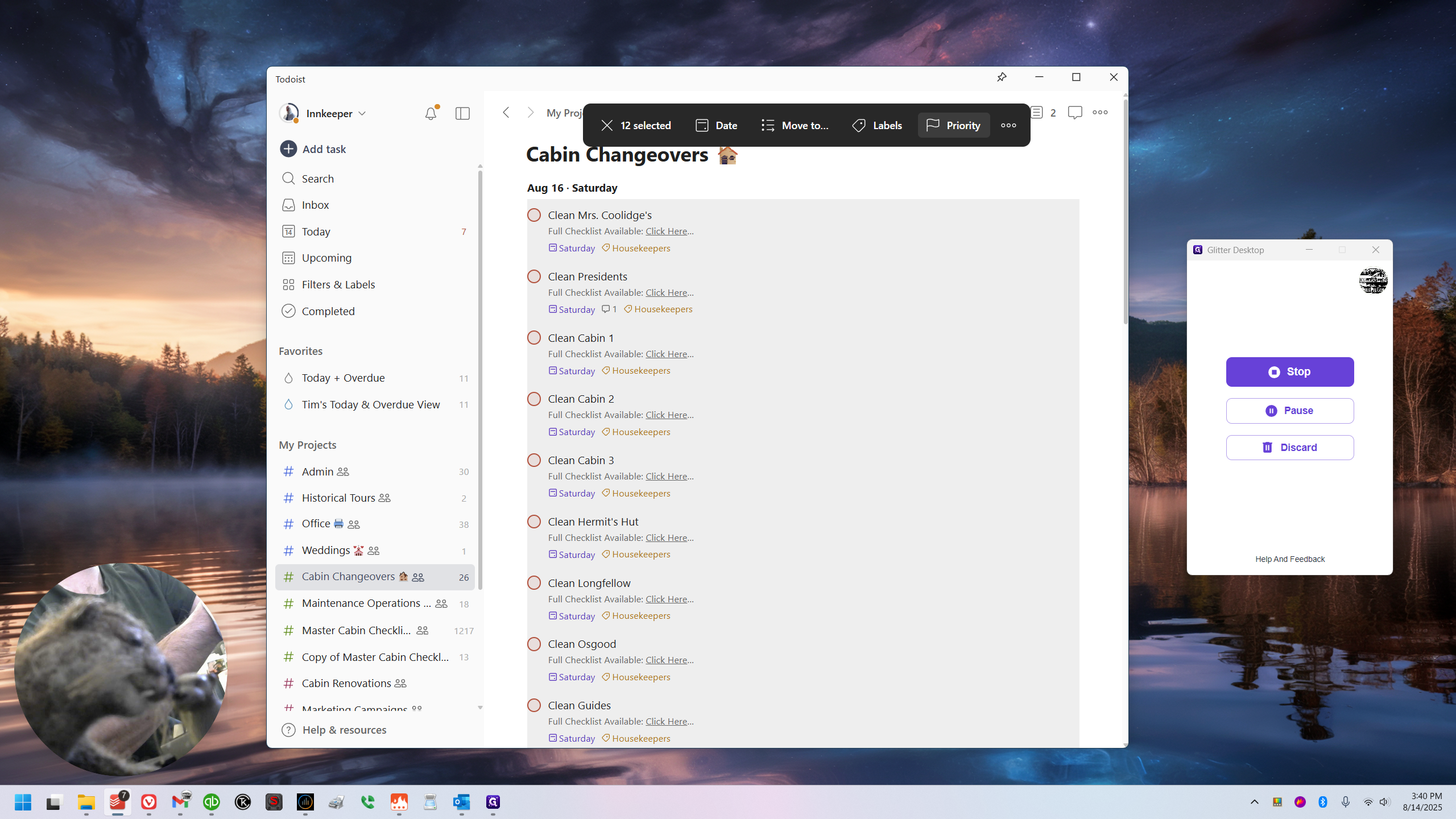
There are a few different ways you can do this. You can use the shift-click method I showed earlier. Hold shift and click on the top item, then scroll down, hold shift, and click on the bottom item.
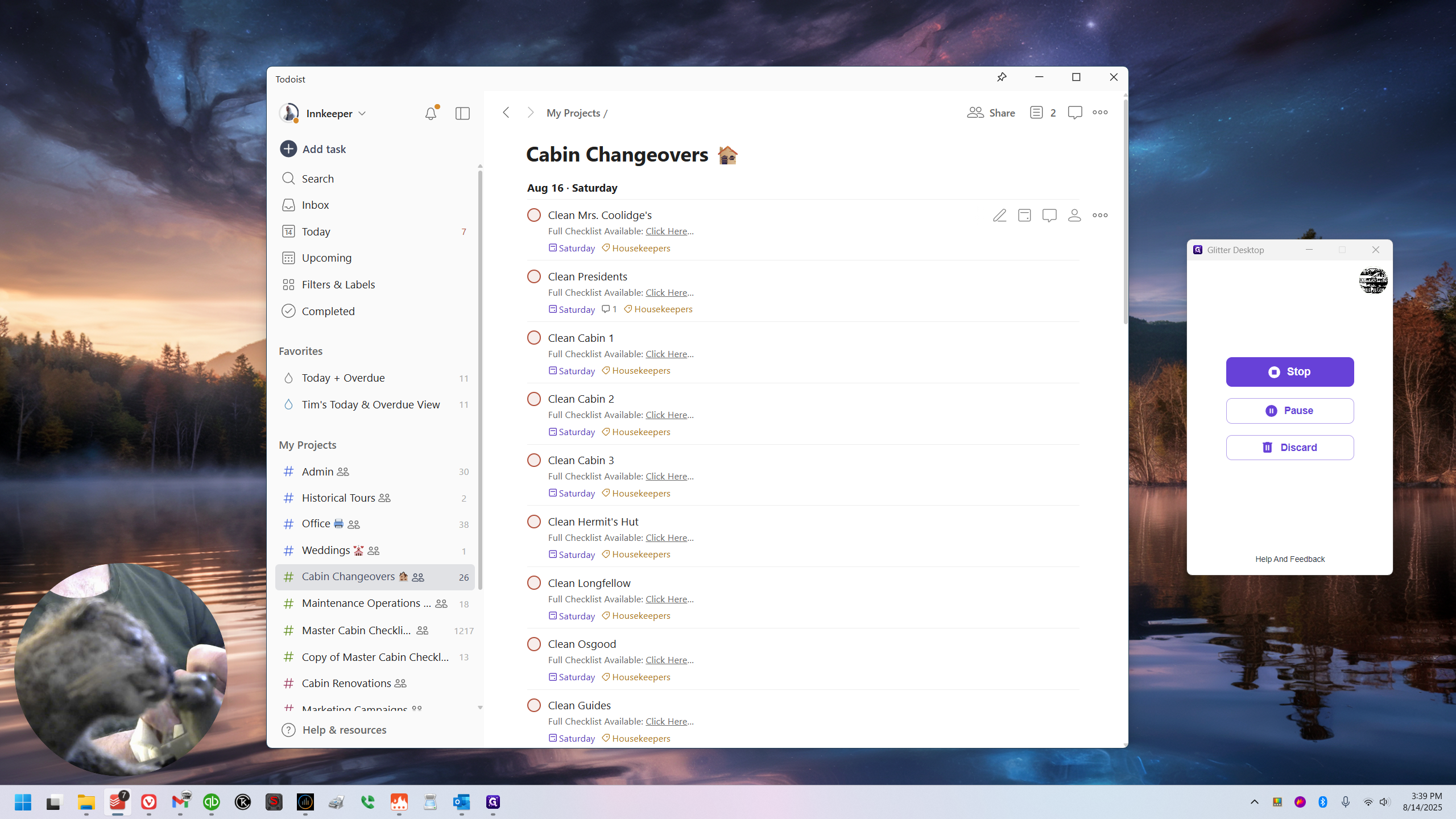
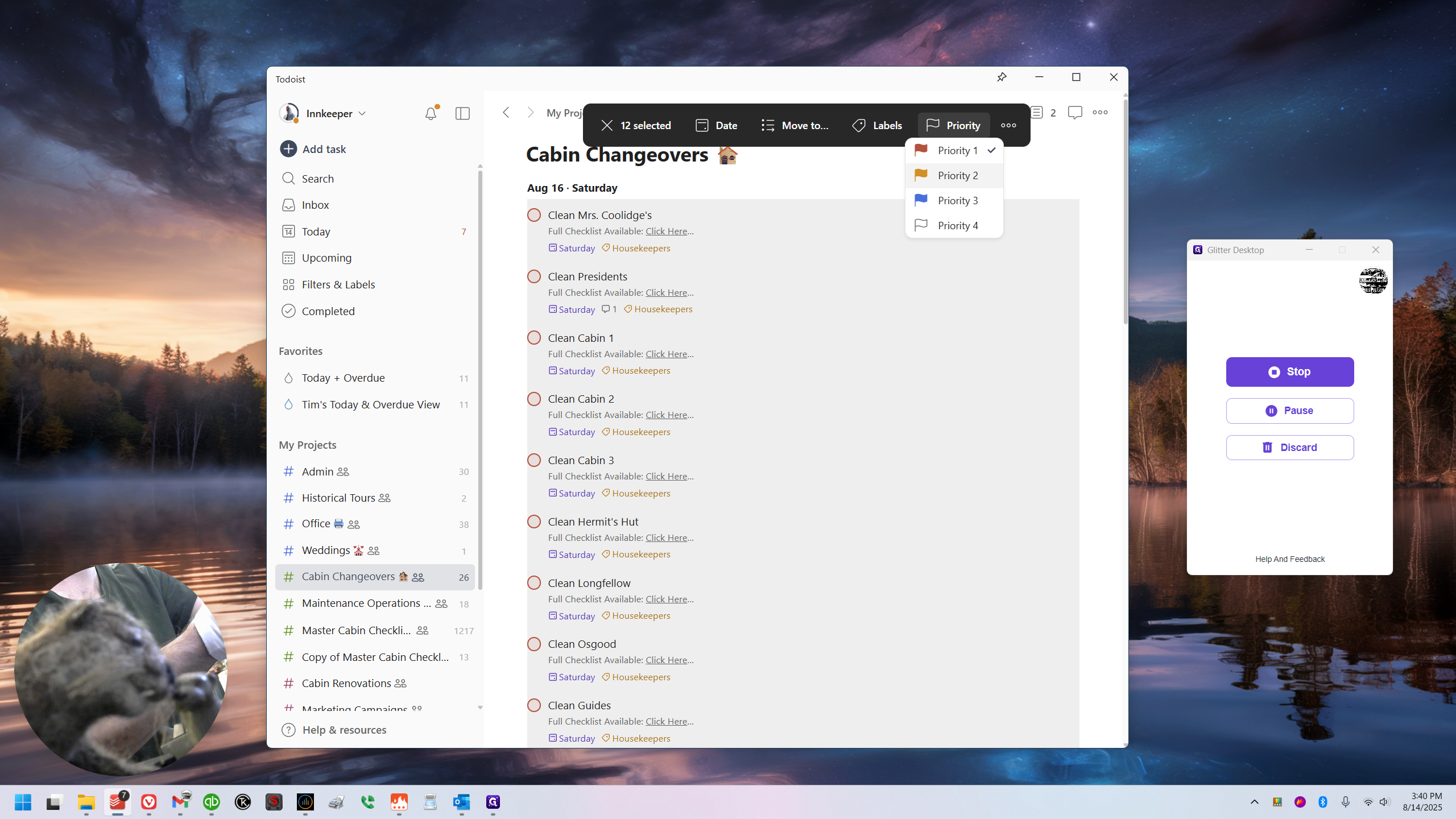
I'm going to click on Gardner's, second from the bottom. It has all 12 items currently listed as priority one. I'll change them to priority two.
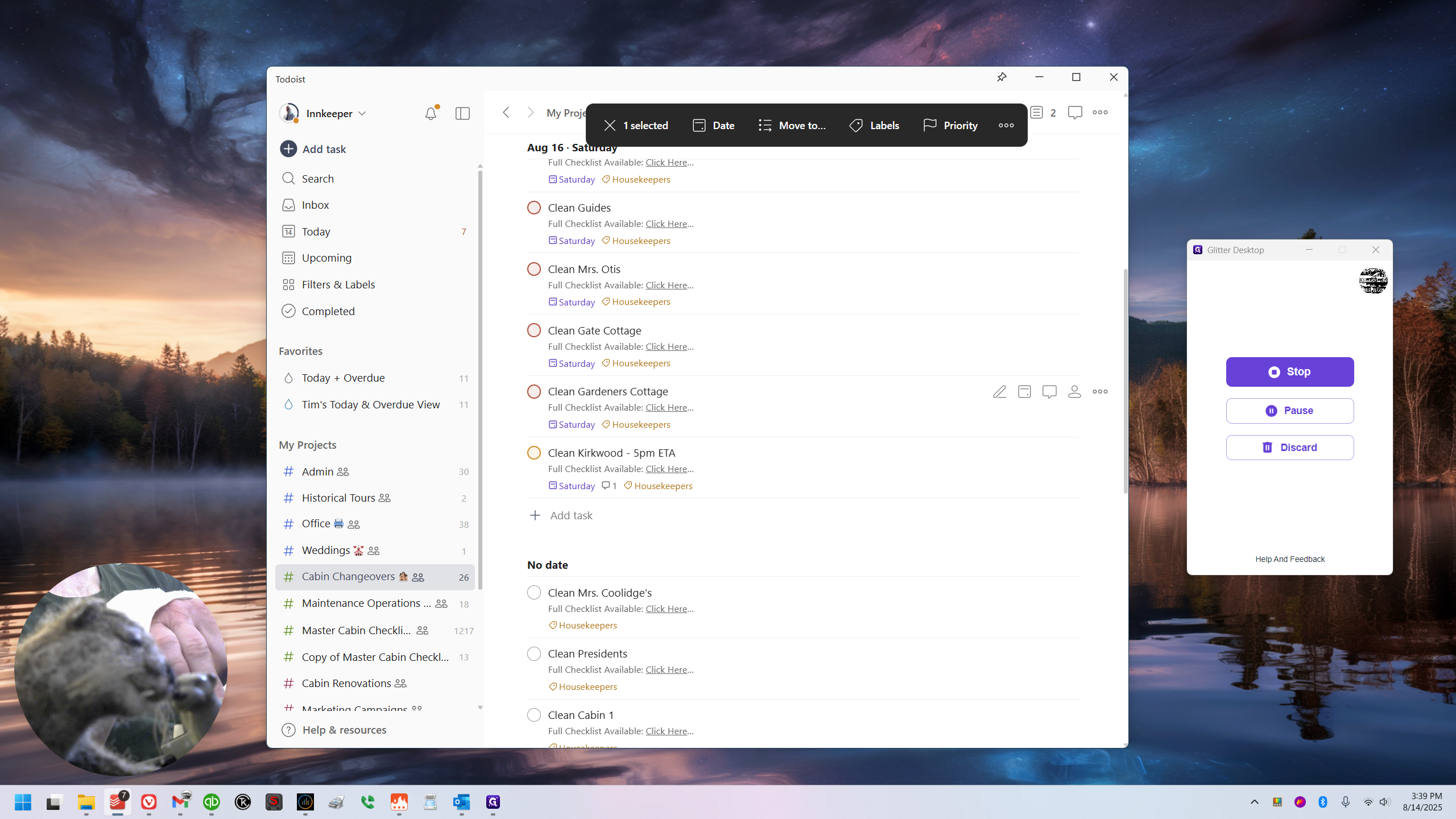
Click off of that, then go back into President's and set it as priority one. Next, scroll down to Kirkwood and set it as priority three. According to an email, they are not arriving until 5:00 PM. So, unless I learn that someone else is coming later, Kirkwood can be handled last.
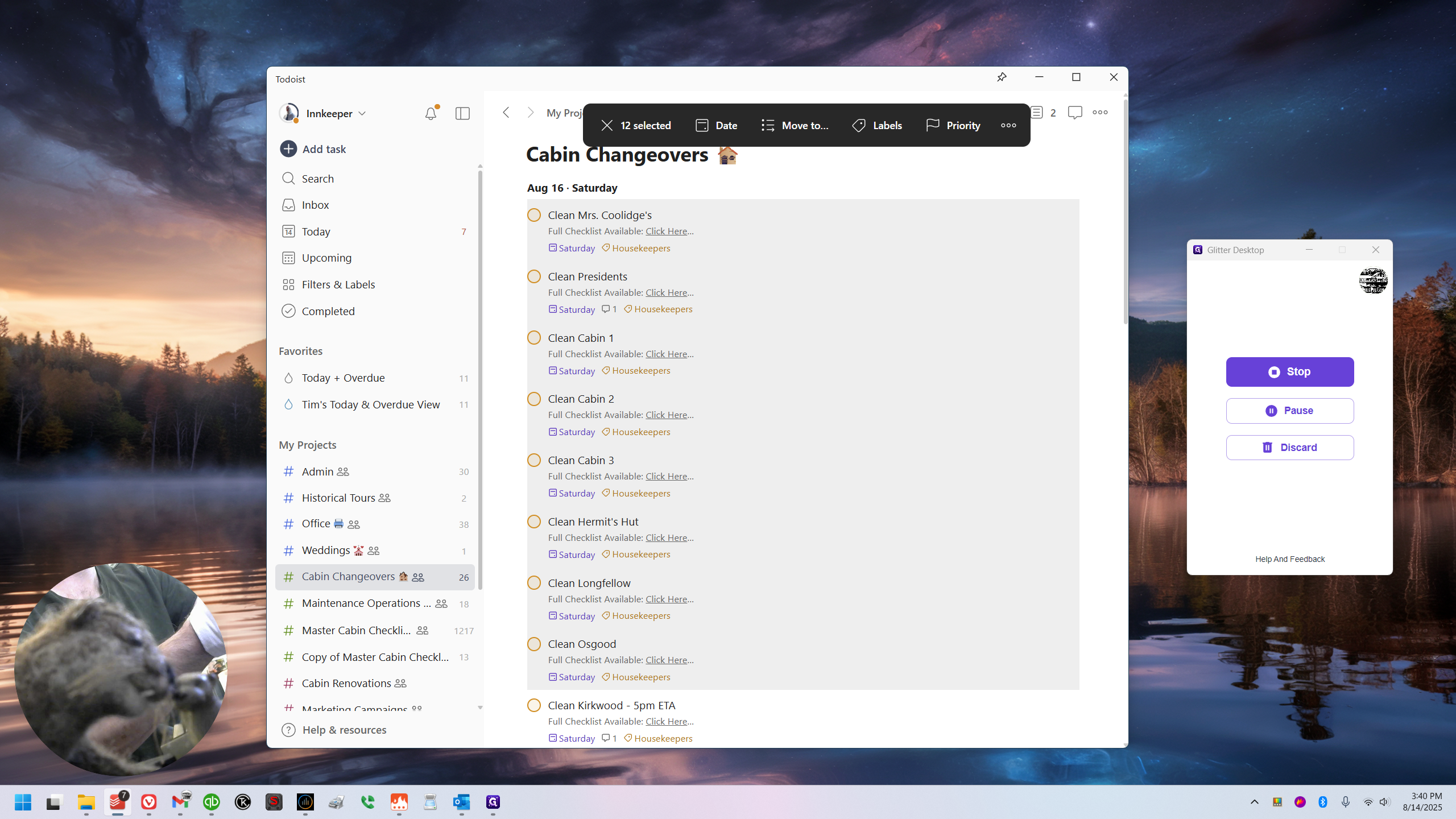
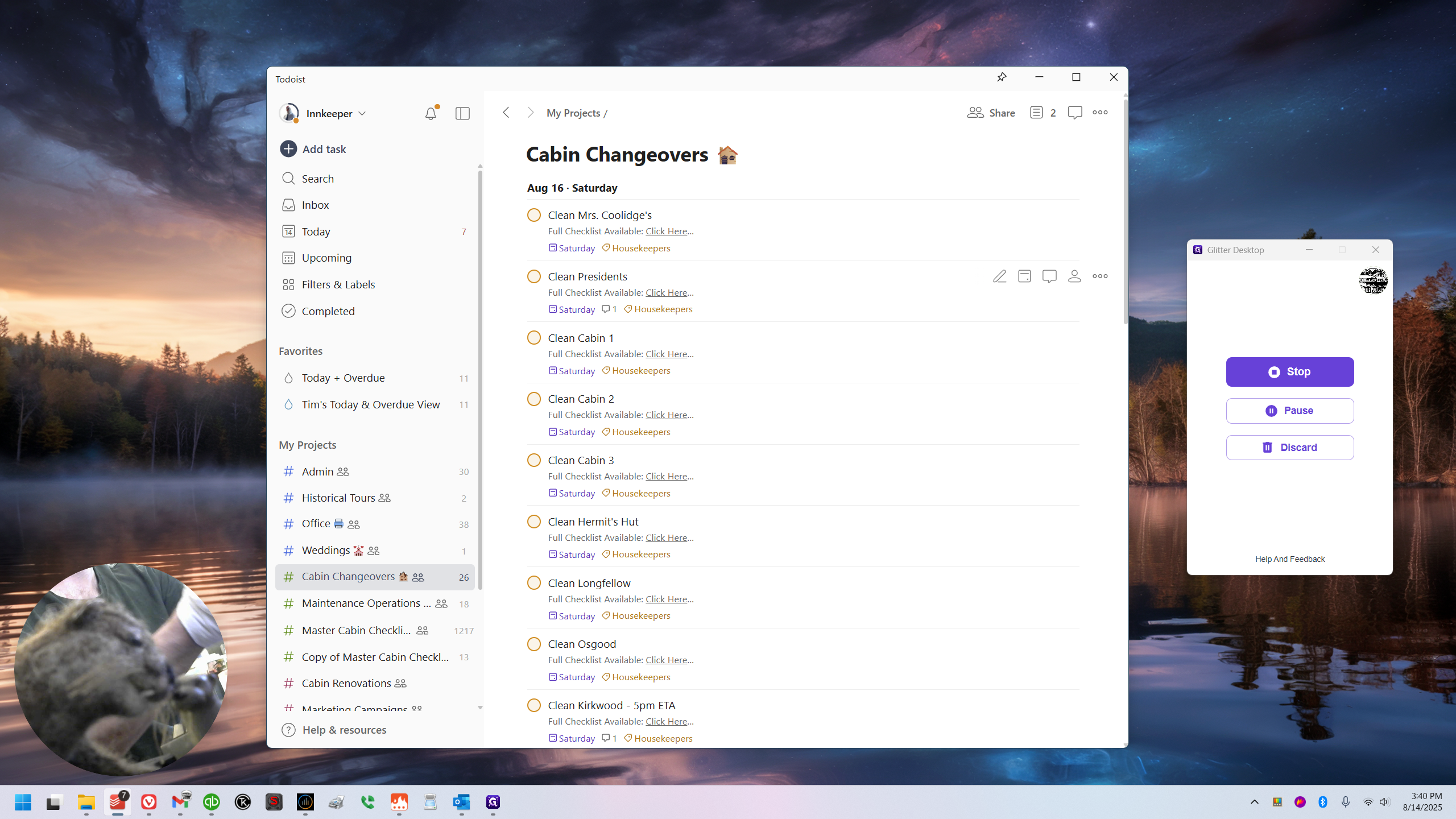
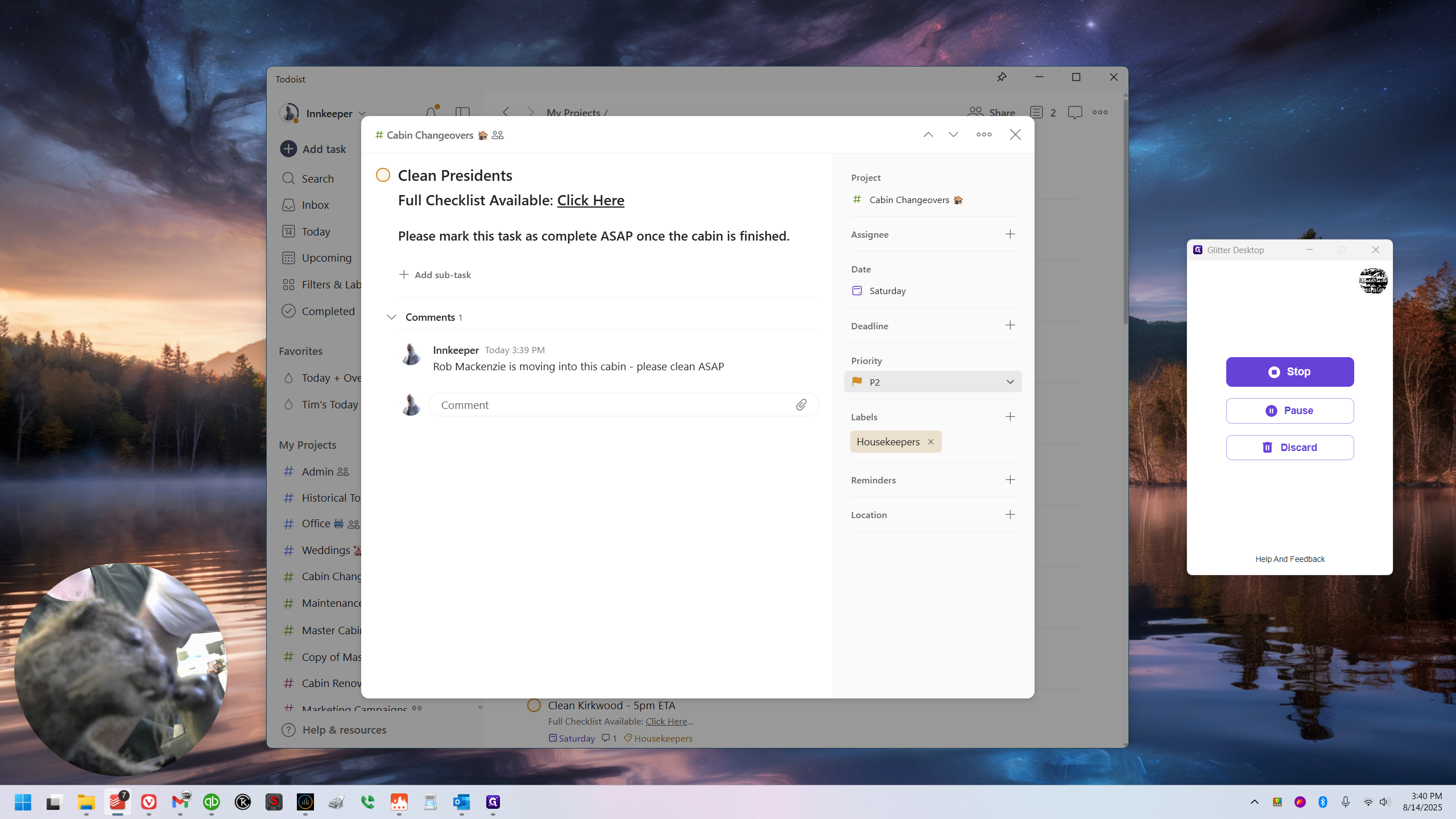
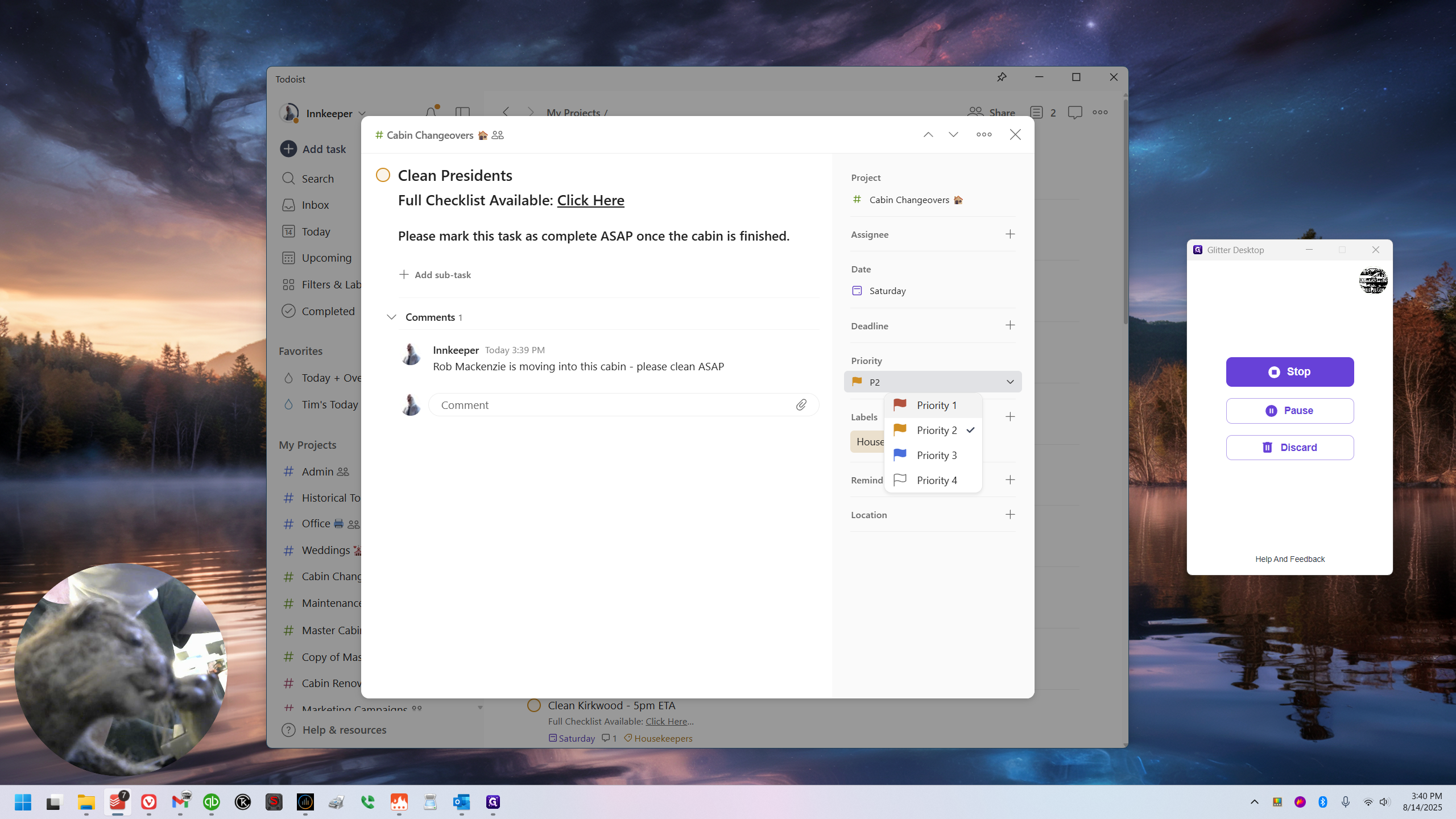
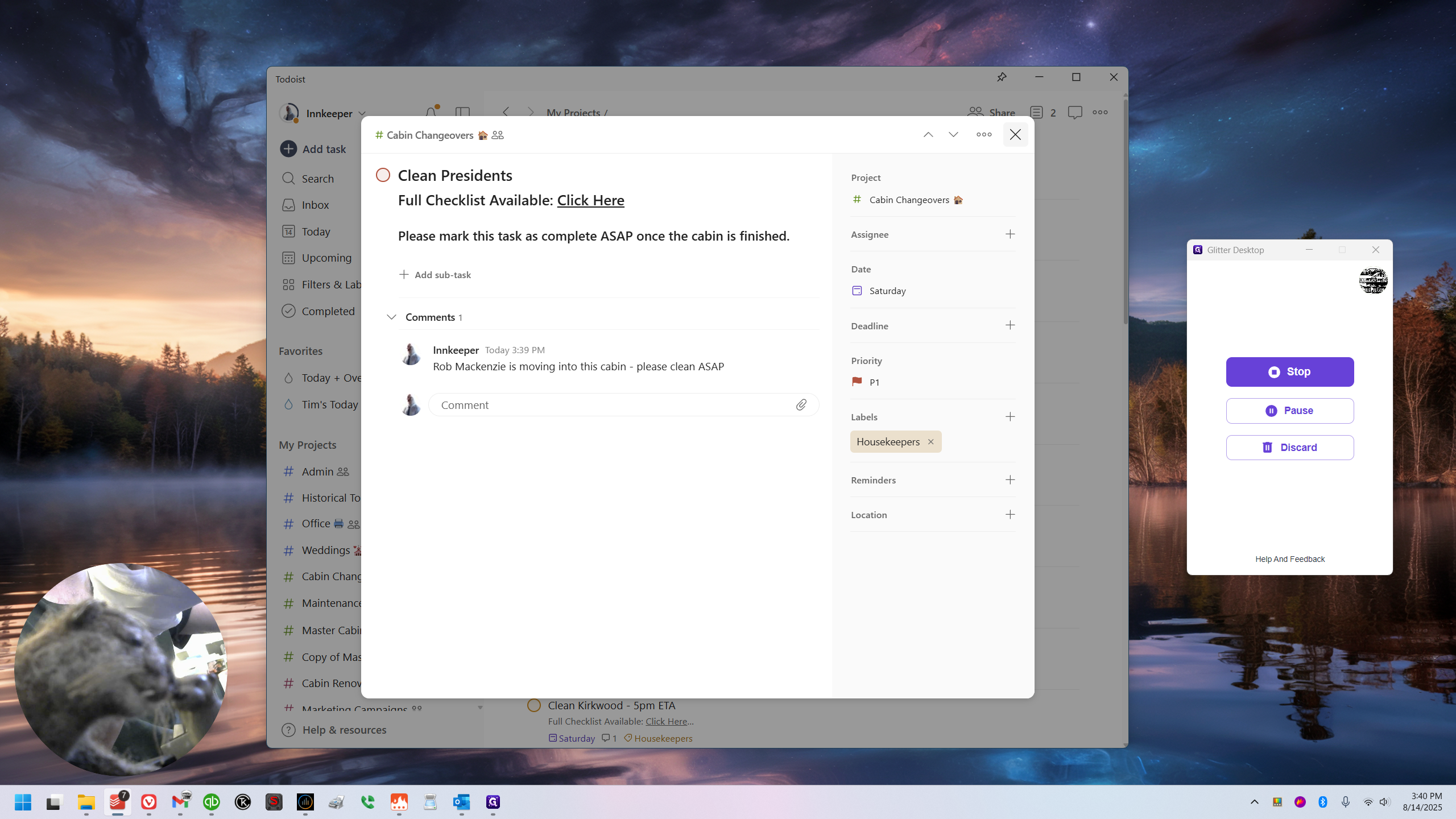
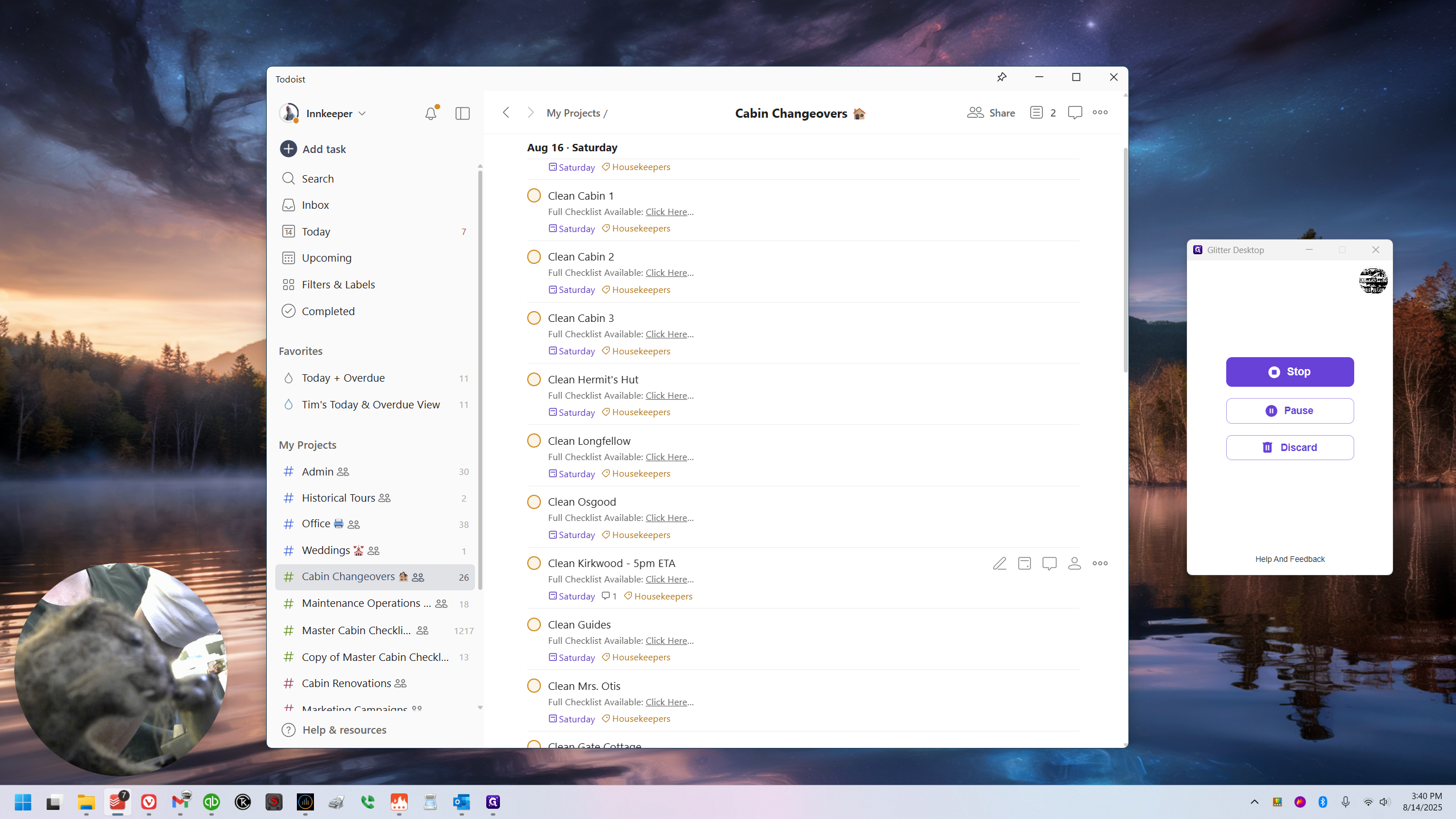
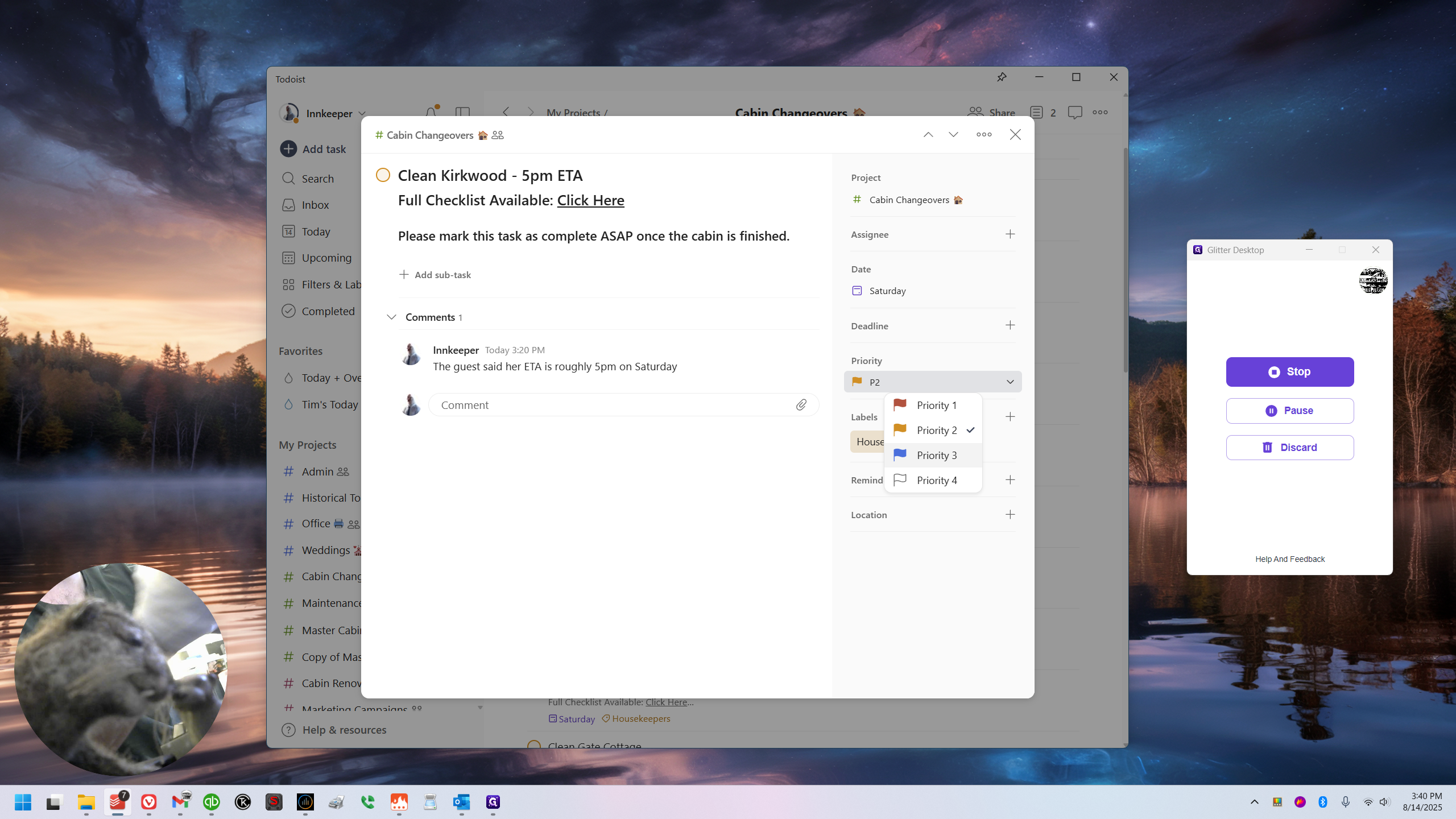
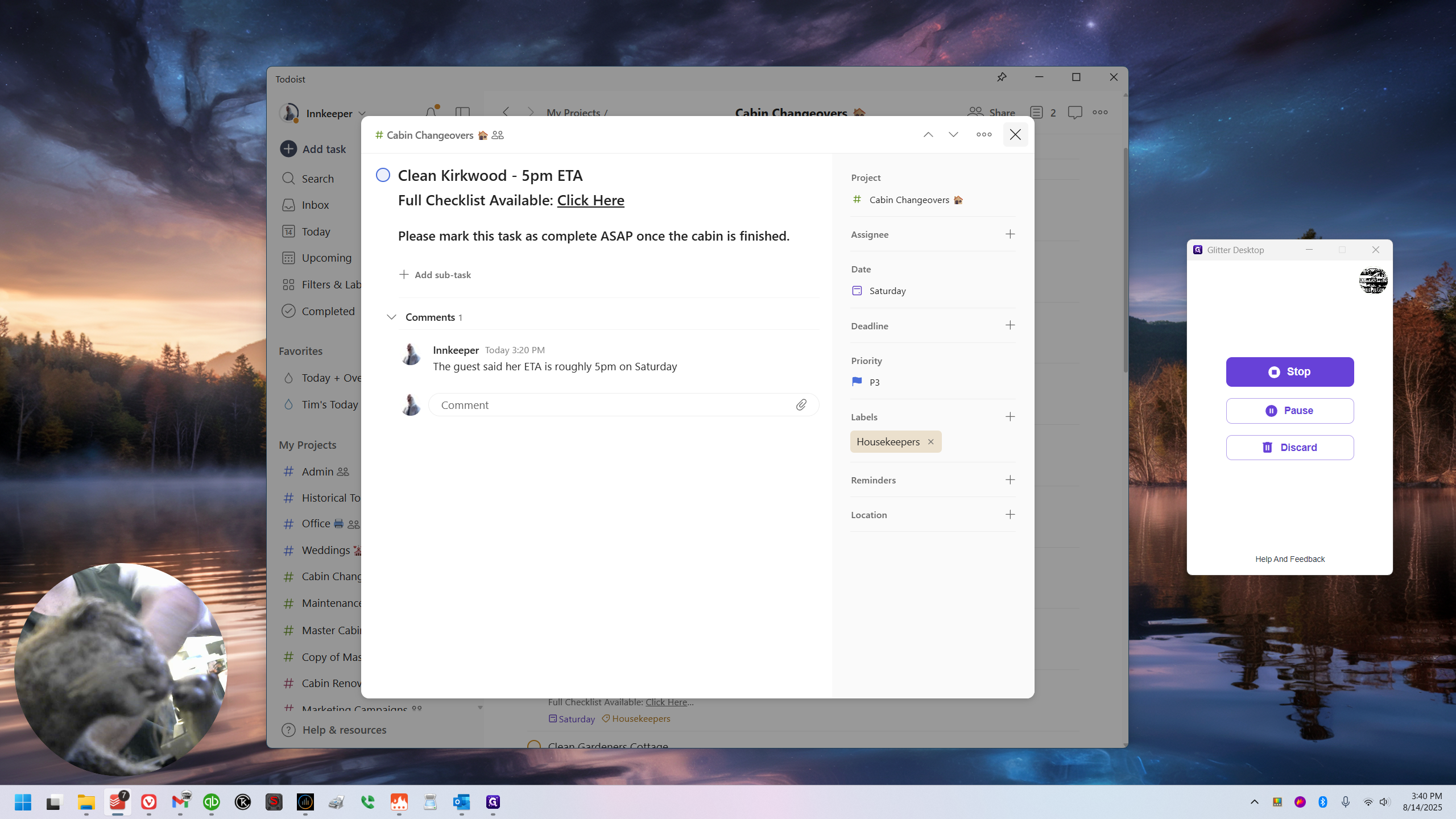
The priority depends on the day's schedule. If possible, handle President's tasks first and Kirkwood's tasks last. You can tell just by looking at the color of the checkbox.
Red is priority one.
Orange is priority two.
Blue is priority three.
White is priority four, which is undesignated and the lowest priority.
There are other ways you could have done it, but I thought that was the fastest.