
Timesheets - Logging Non-billable Time
Learn how to accurately log non-billable time, select the correct category buckets, and handle flexed time properly in your Harvest timesheet.
This guide explains how to properly log non-billable time for activities like internal meetings, training, and admin. By categorizing your time accurately, you ensure timesheet reviews are seamless and help the business track general operational bandwidth.
This process applies to all employees and contractors who track their time weekly. You will use this workflow anytime you engage in work activities that cannot be billed directly to a client.
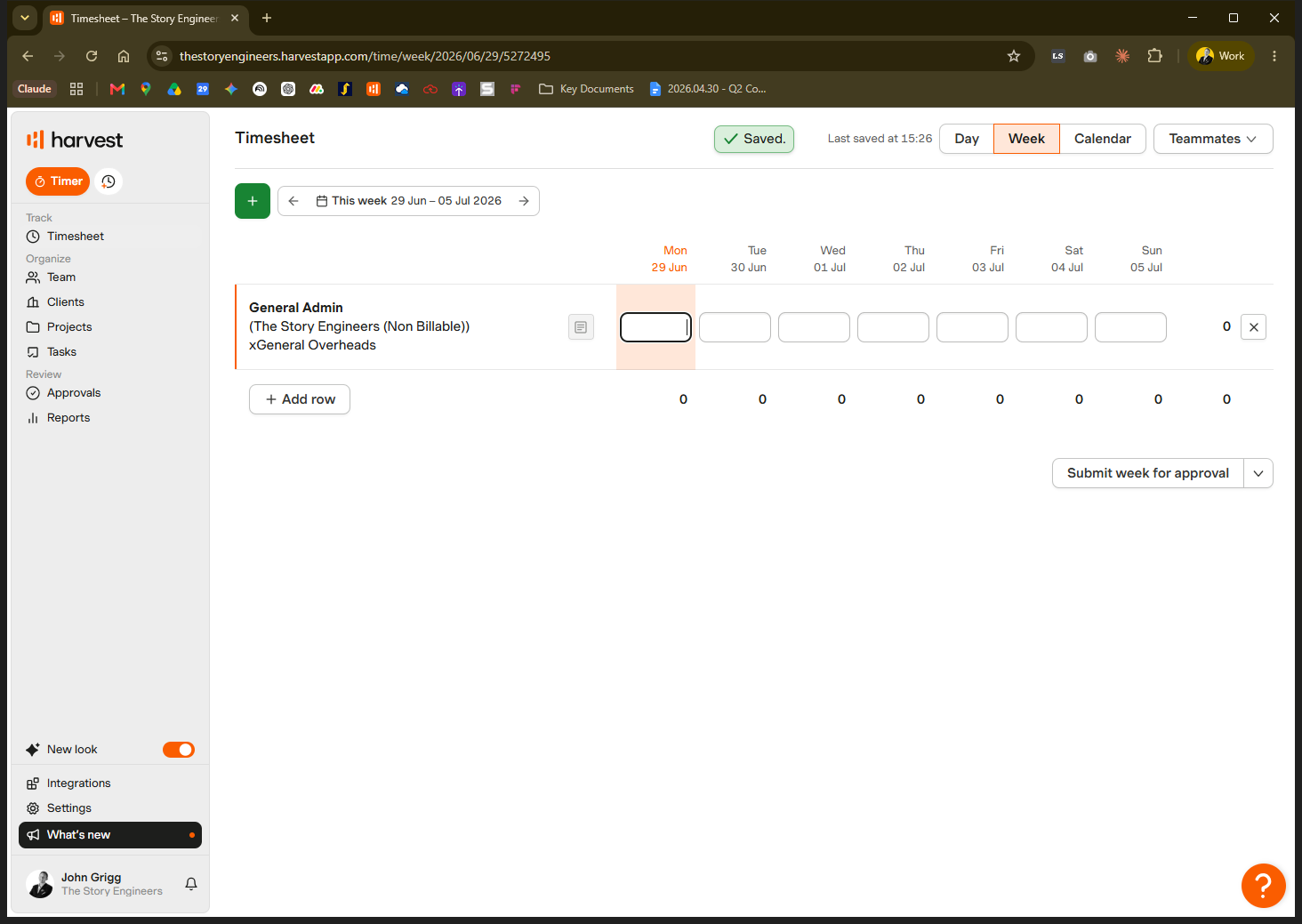
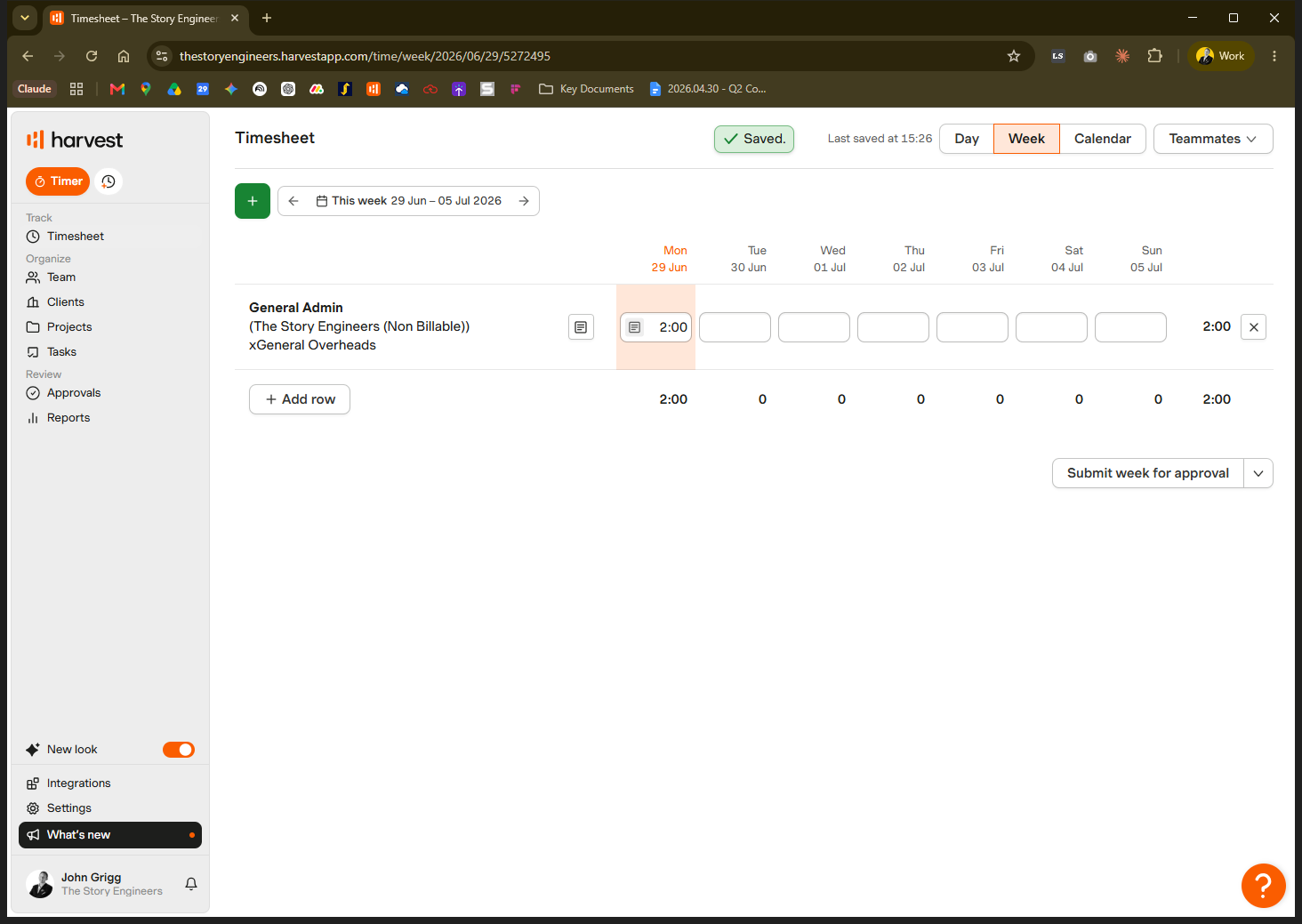
Adding a Non-Billable Row
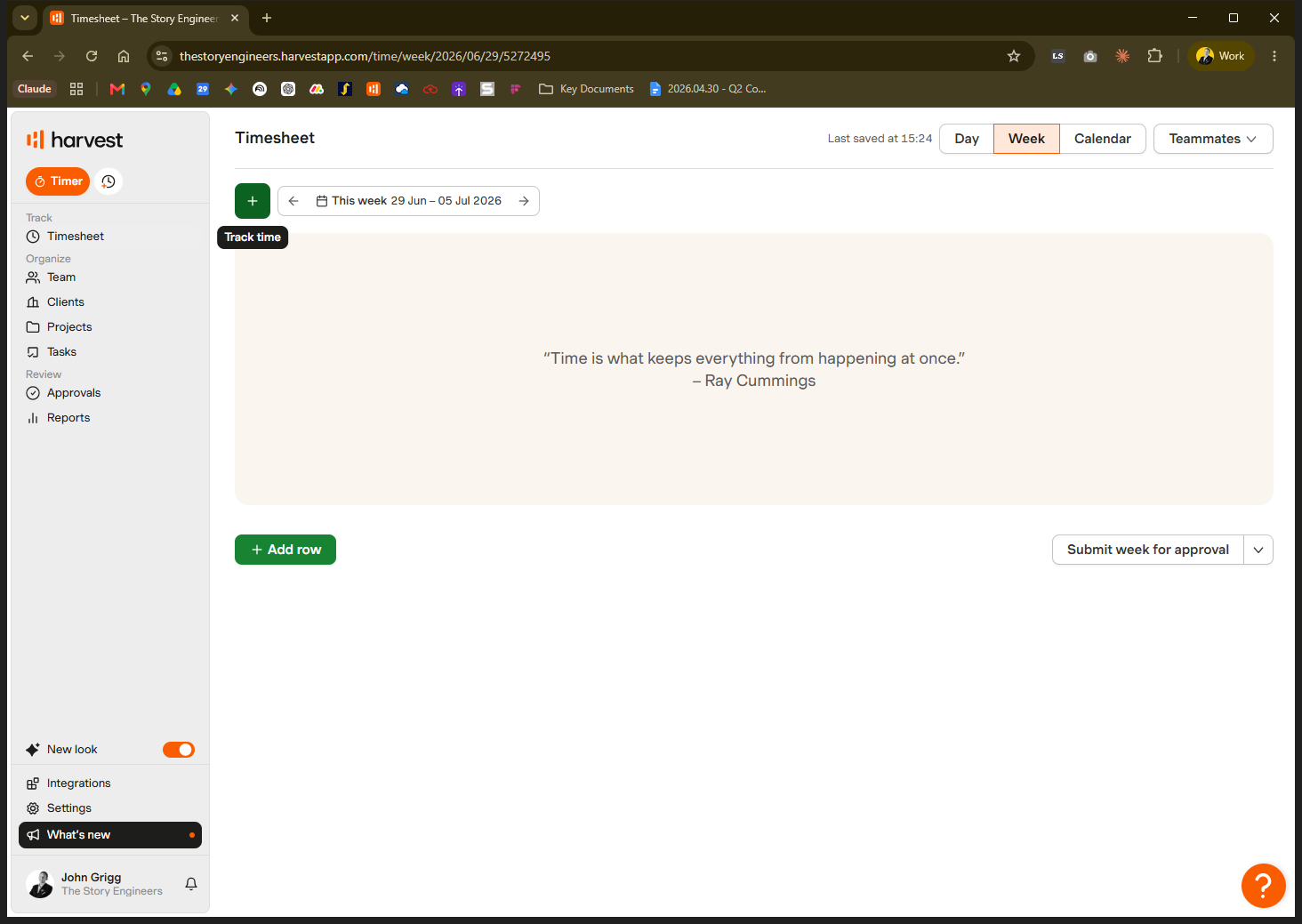
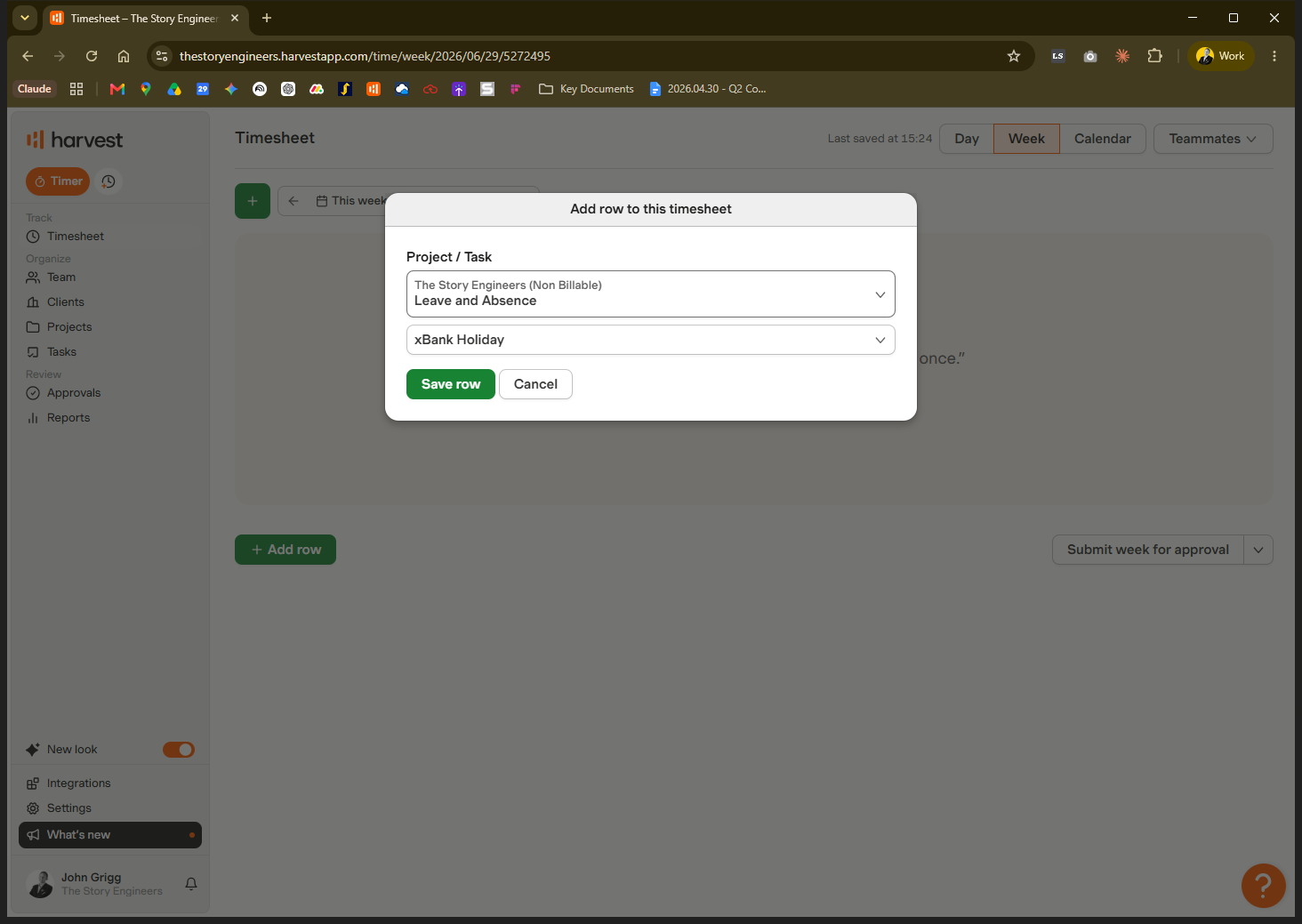
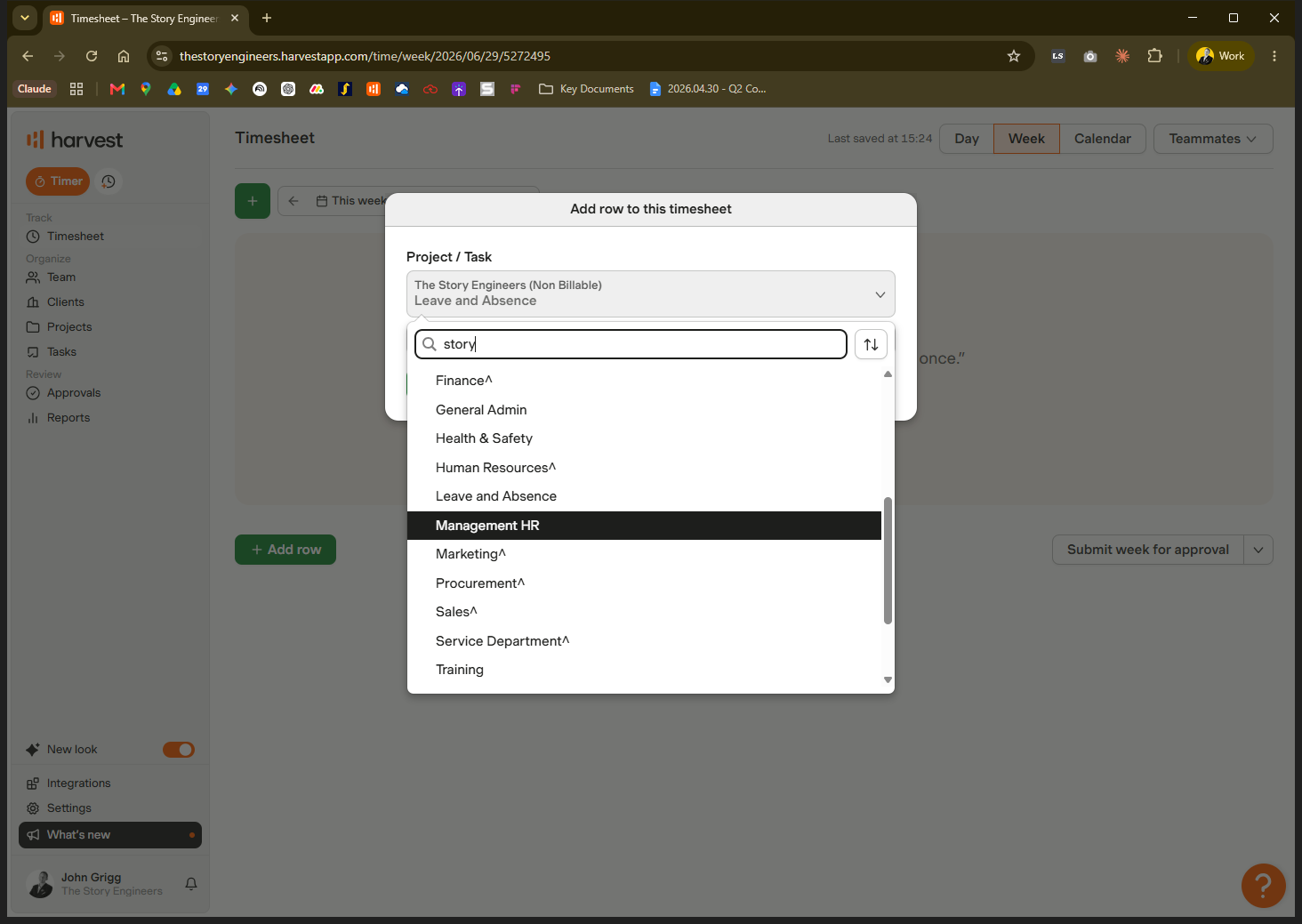
General Non-Billable Categories
If your time doesn't belong to a specific department, choose one of these standard buckets:
Category | Description |
|---|---|
Management HR | For managers and direct reports covering one-to-ones, employee reviews, and recruitment. |
General Admin | The most common non-billable category. Use this for expenses, filling out timesheets, internal meetings, external industry events, and general IT troubleshooting. |
General Overheads | A catch-all for non-billable time that doesn't fit anywhere else. You must include a note explaining your activity when using this bucket. |
Leave and Absence | Used to log approved time off or sick days. |
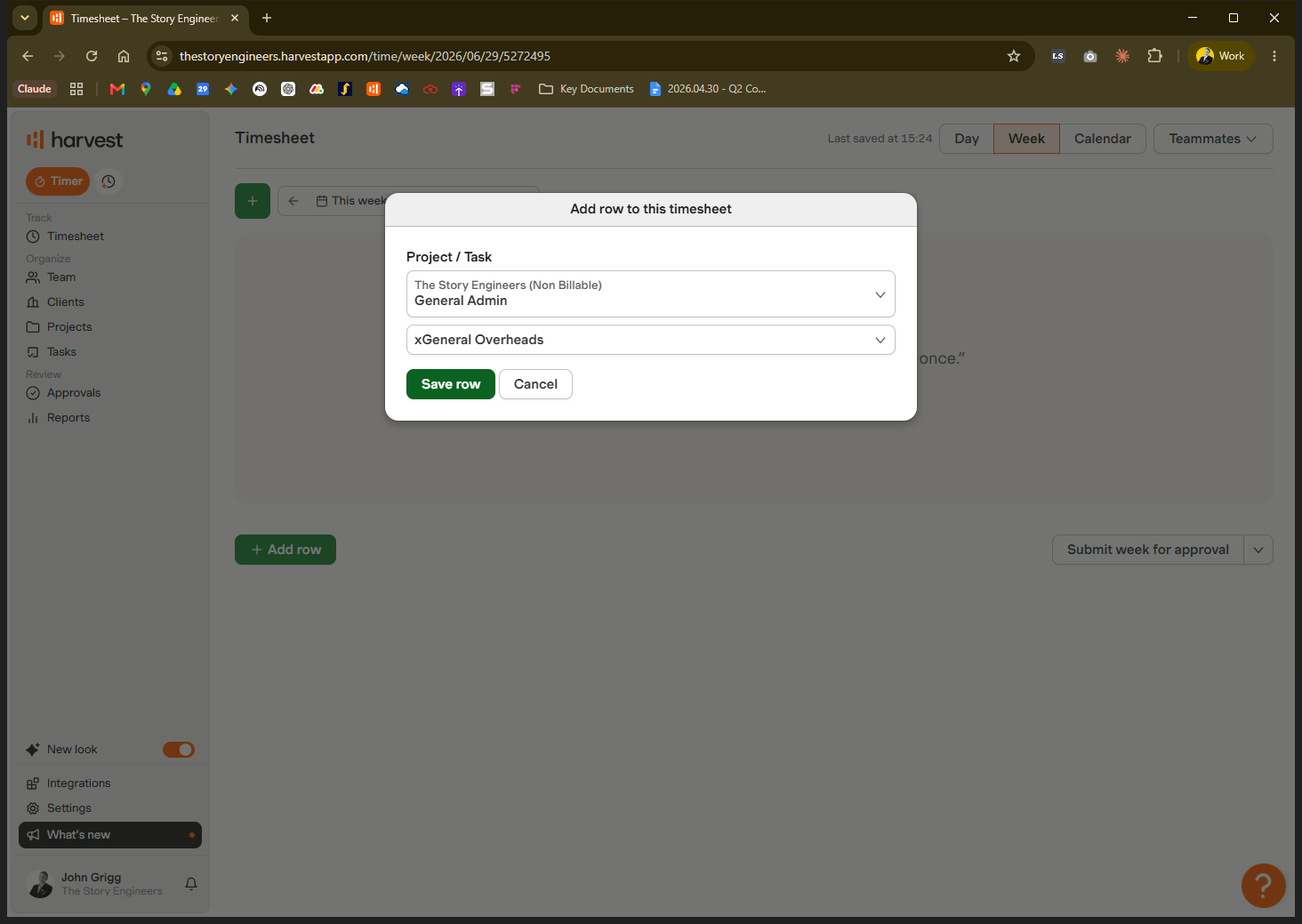
Logging Leave and Absence
When tracking time off, ensure you choose the correct absence type from the options available under the Leave and Absence category:
Leave Type | When to use it |
|---|---|
Annual Leave | For standard planned time off (must be booked in Breathe first). |
Bank Holiday | For national public holidays. |
Sick Leave | For when you are unwell and unable to work. |
Other Leave | For approved absences like unflexible medical appointments, compassionate leave, or emergencies approved by a manager/HR. |
Q: Should I add a "leave" row to top up a short day to 7.5 hours?
A: No. If you work a shorter day to flex your time after a busy period, only log the hours you actually worked. Do not artificially pad your timesheet.
Q: What if my non-billable task doesn't fit into any of the standard categories?
A: Log it under "General Overheads" and add a note explaining what you were doing. If the activity becomes common, the operations team can create a new category for it.
Q: Who can use the categories marked with an up arrow symbol?
A: The up arrow indicates department-specific buckets (like Finance or Business Operations). Only use these if you are a member of that specific department.
Q: Is it bad to have a lot of non-billable time on my timesheet?
A: Not at all. Training, admin, and internal meetings are a normal part of the job. However, if it makes up a disproportionately large portion of your week, your manager may want to review it with you to ensure your workload is balanced.
Q: Who should I ask if I am unsure where to log my time?
A: Ask your question in the timesheets Slack channel, or reach out to HR, your manager, or the operations director.
Term | Definition |
|---|---|
Non-billable time | Any work activity that isn't charged directly to a client, such as training, internal meetings, or admin. |
Bucket | A specific category or task line item used in Harvest to classify time entries. |
General Overheads | A catch-all timesheet category for non-billable tasks that do not fit into any other standard bucket. |
Flexing time | Working longer hours on some days and shorter hours on others to balance your overall work schedule. |
Breathe | The HR software system used by employees to formally book annual leave. |