
Timesheets - Logging Time to Service
Learn how to accurately log your time for SLA and non-SLA service jobs in Harvest, including selecting the right client buckets and roles.
This guide explains how to correctly log your time for service jobs in Harvest. By choosing the correct client categories and time buckets, you ensure accurate service reporting and help track efficiency against client agreements.
This applies to service technicians, coordinators, and account managers logging their weekly hours in Harvest for scheduled maintenance, reactive support, or out-of-hours service work.
Service work requires categorizing your hours accurately to ensure we deliver efficiently against our agreements.
Logging Time for SLA Clients
SLA clients have an ongoing contract with us. Their projects in Harvest follow a strict naming convention: [Venue] - SLA [Expiry YYYY.MM].
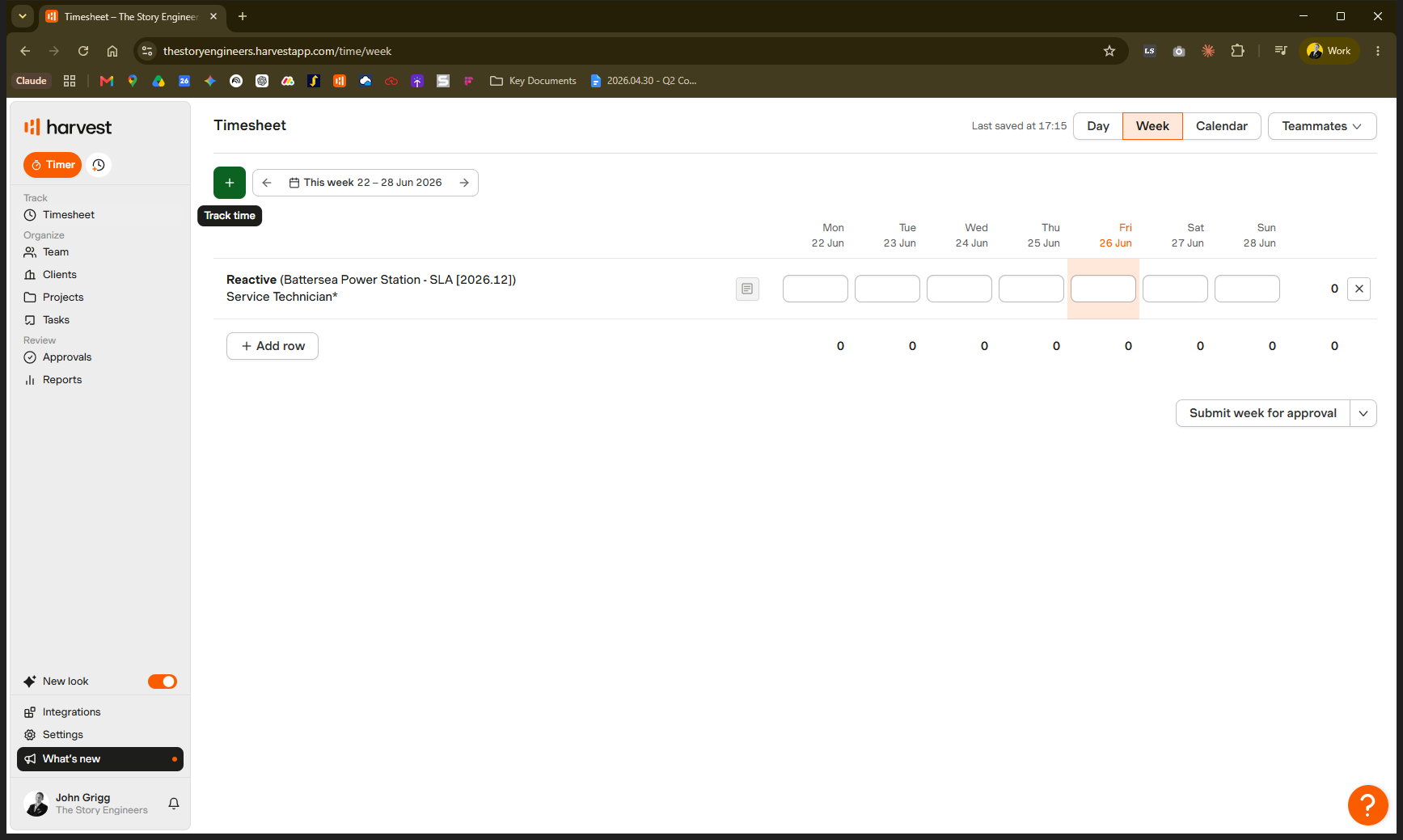
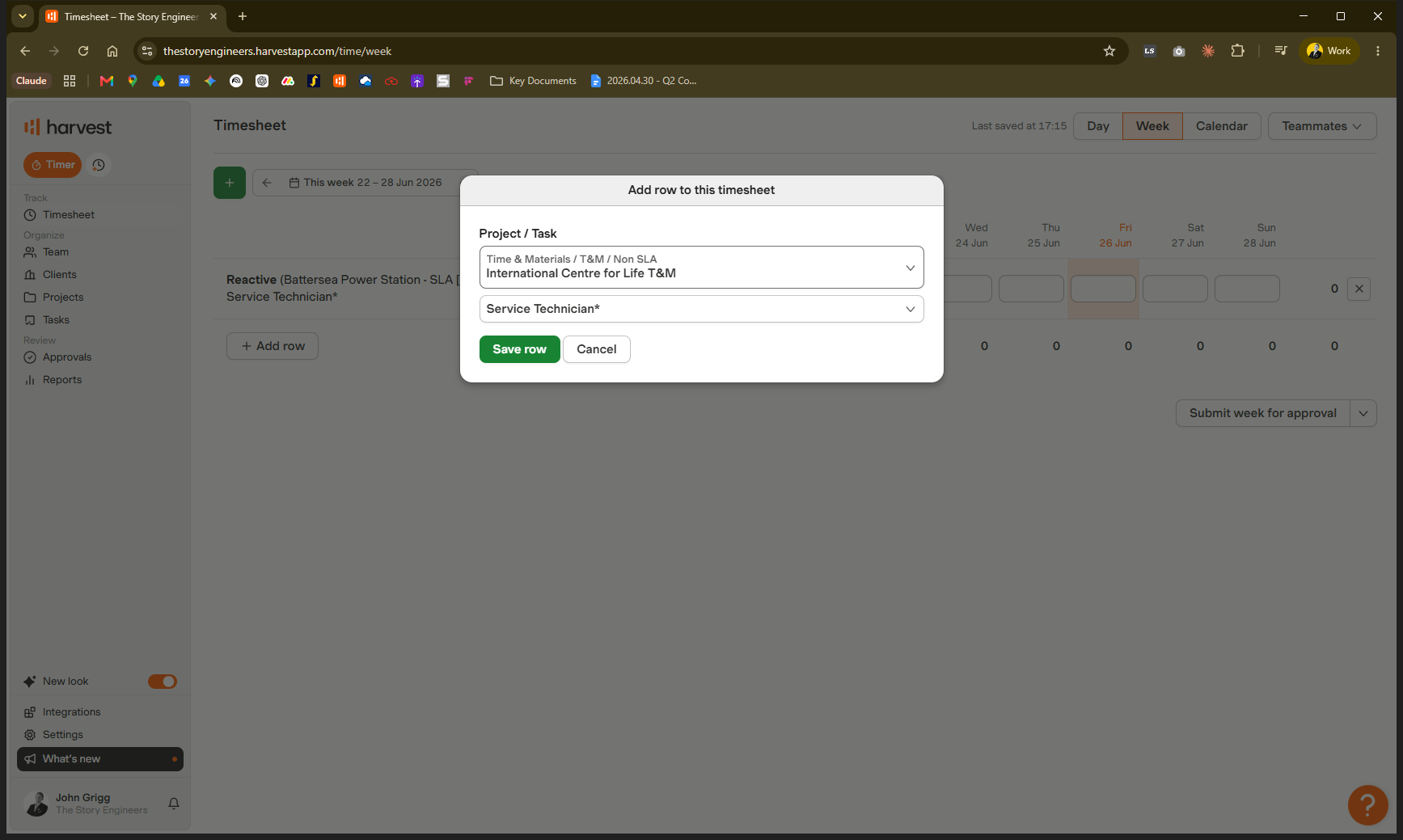
When logging SLA time, you must select the correct task bucket. Use this table to determine the right choice:
Task Bucket | Use Case |
|---|---|
Coordination & Account Management | Managing logistics, liaising with the client, wrangling site visits, or working on contract renewals. |
Proactive Maintenance | Scheduled maintenance visits planned in advance to keep the site in good shape. |
Reactive | Unplanned work to fix a problem, usually after the client raises a ticket or reports an issue. |
Out of Hours | Work completed outside of normal operating hours. |
Business Operations | Internal support tasks, such as booking accommodation for a service visit. |
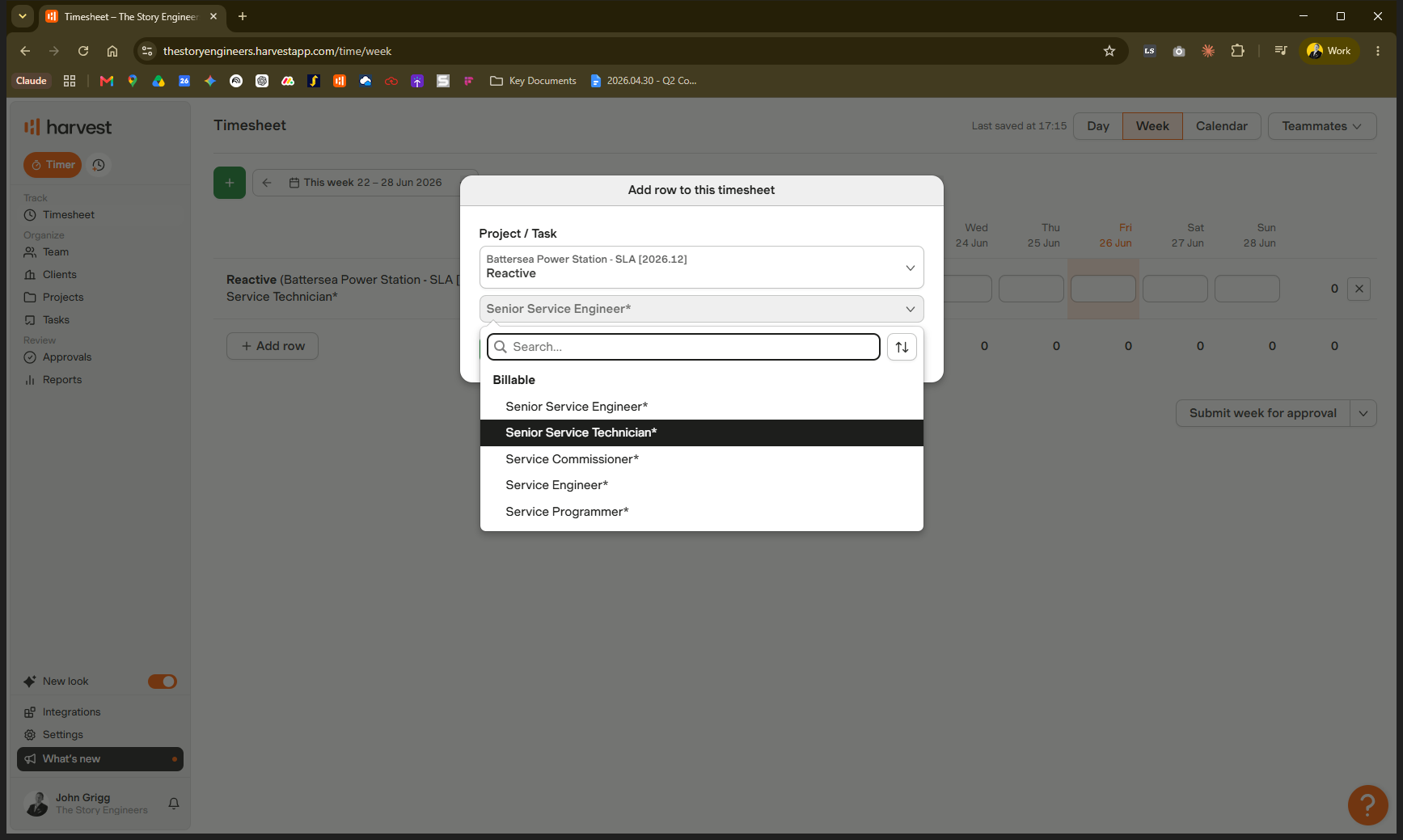
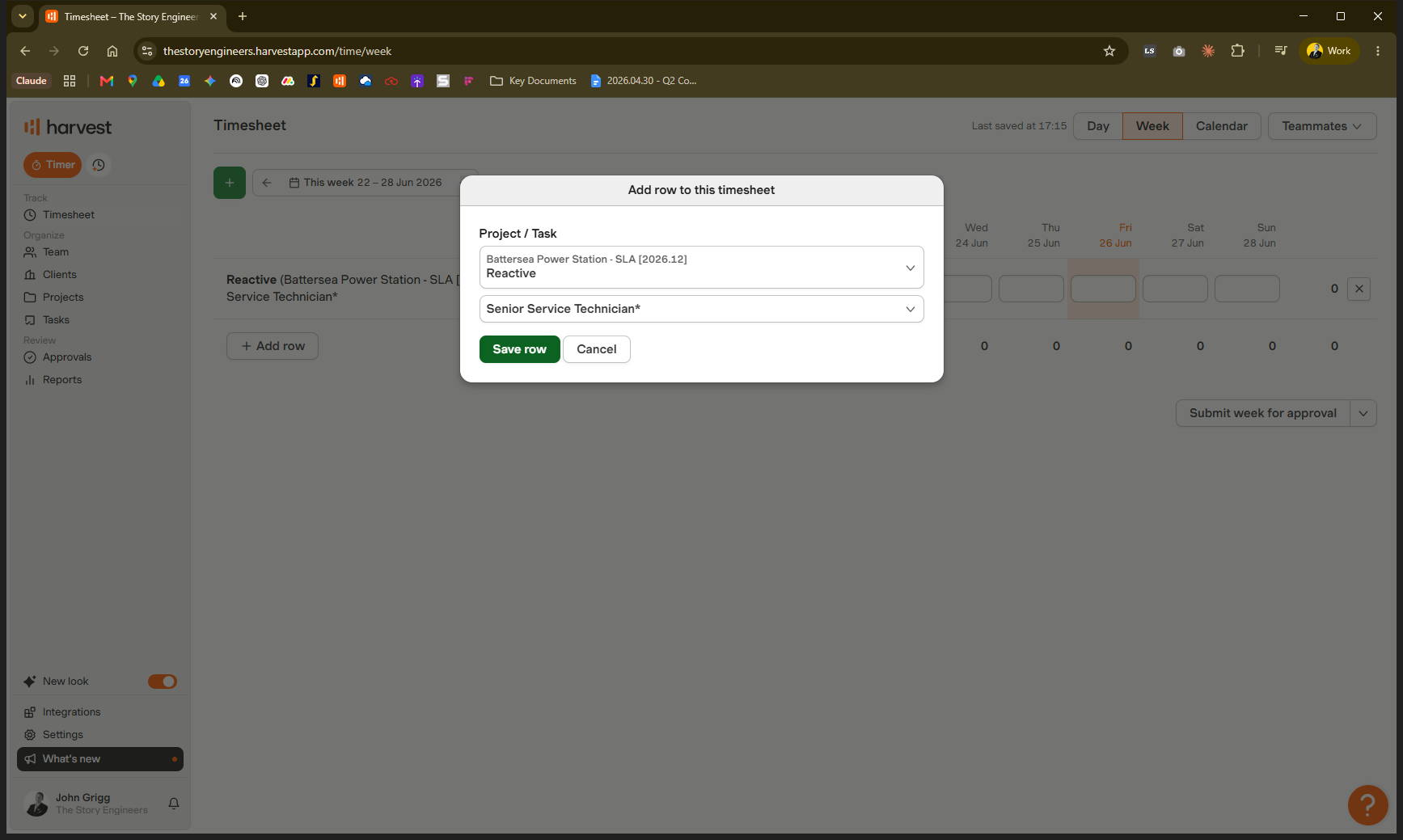
Logging Time for Non-SLA Clients (T&M)
Non-SLA work occurs when a service client doesn't have a standing agreement, or the specific work falls outside their existing SLA. These are marked as "Time and Materials" (T&M).
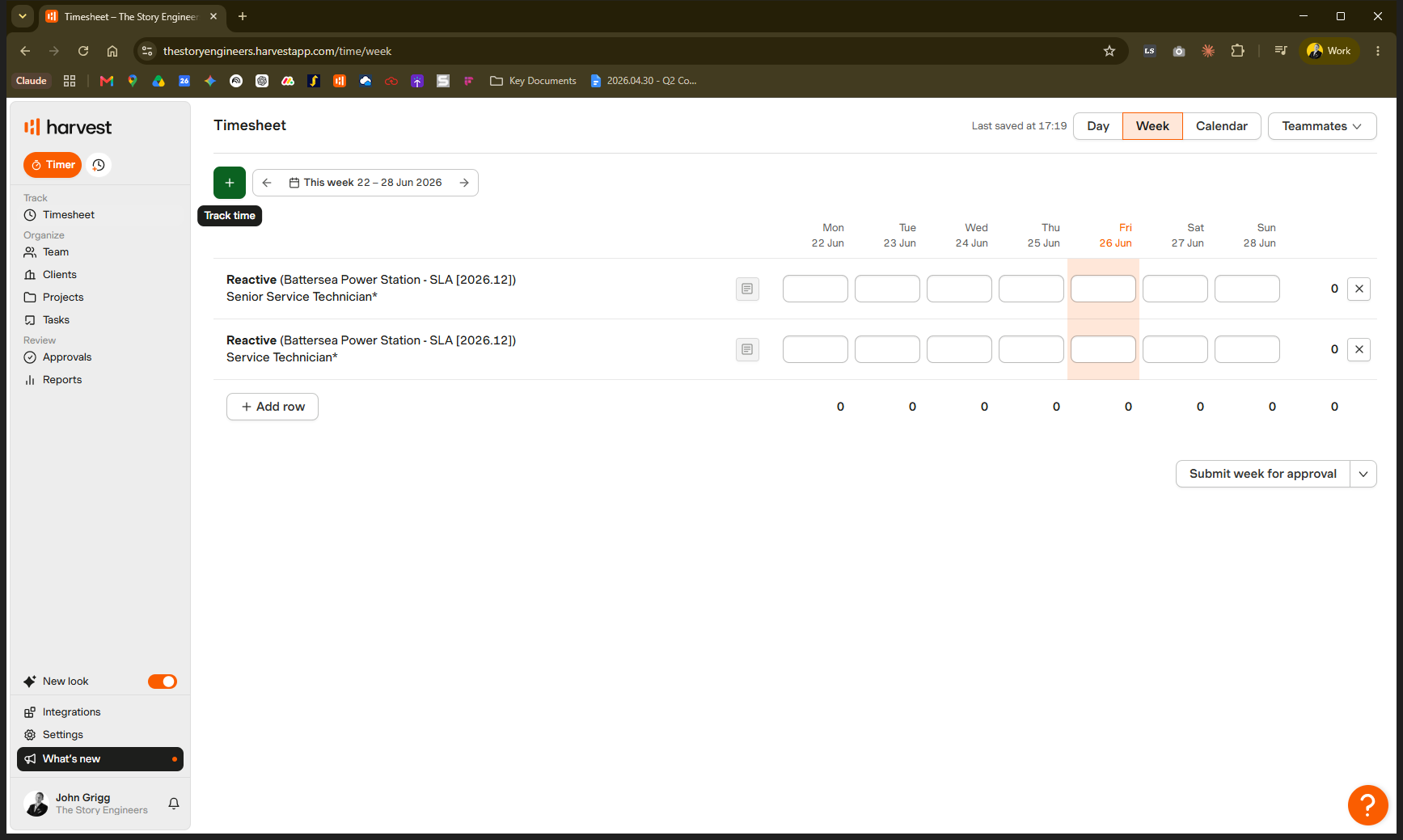
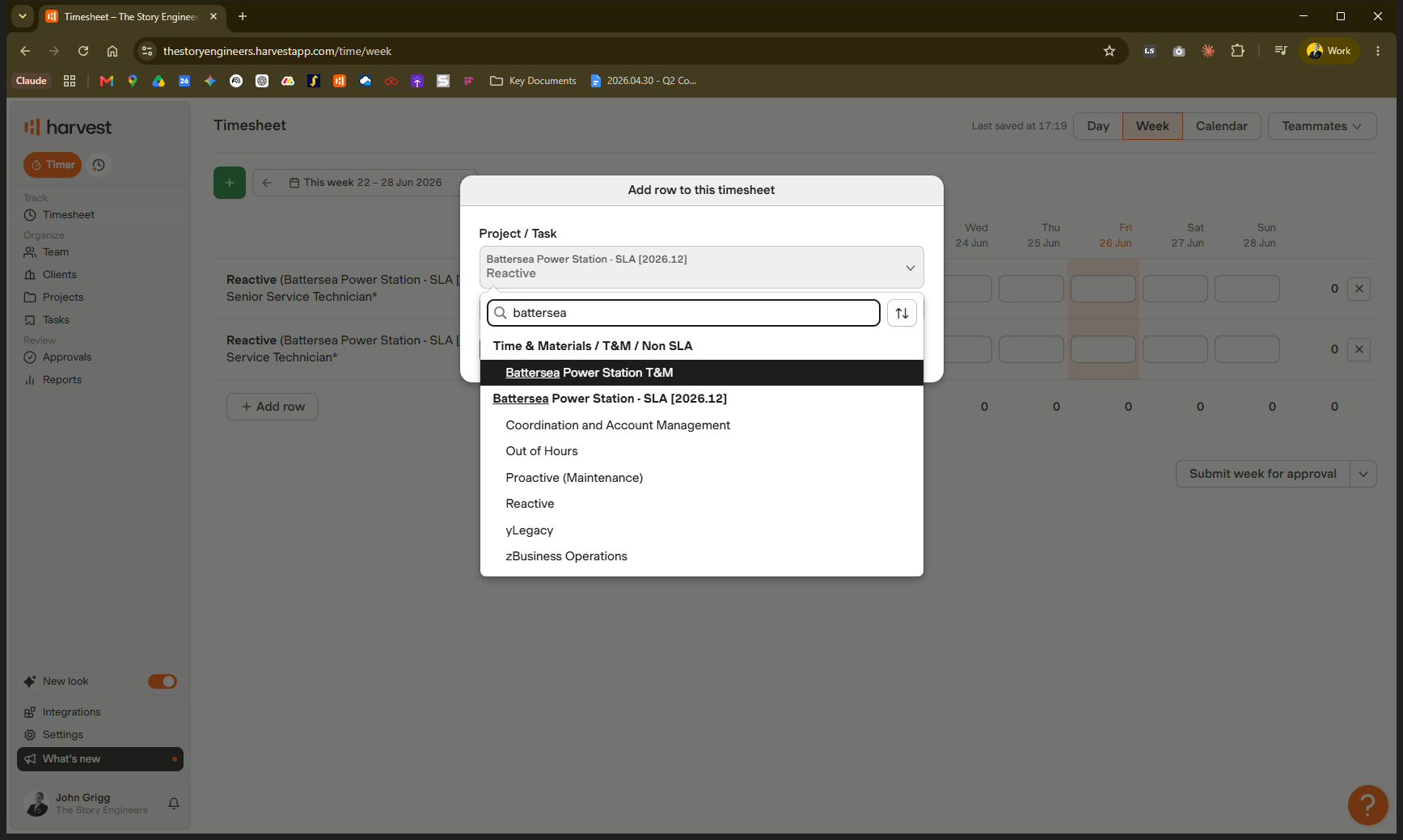
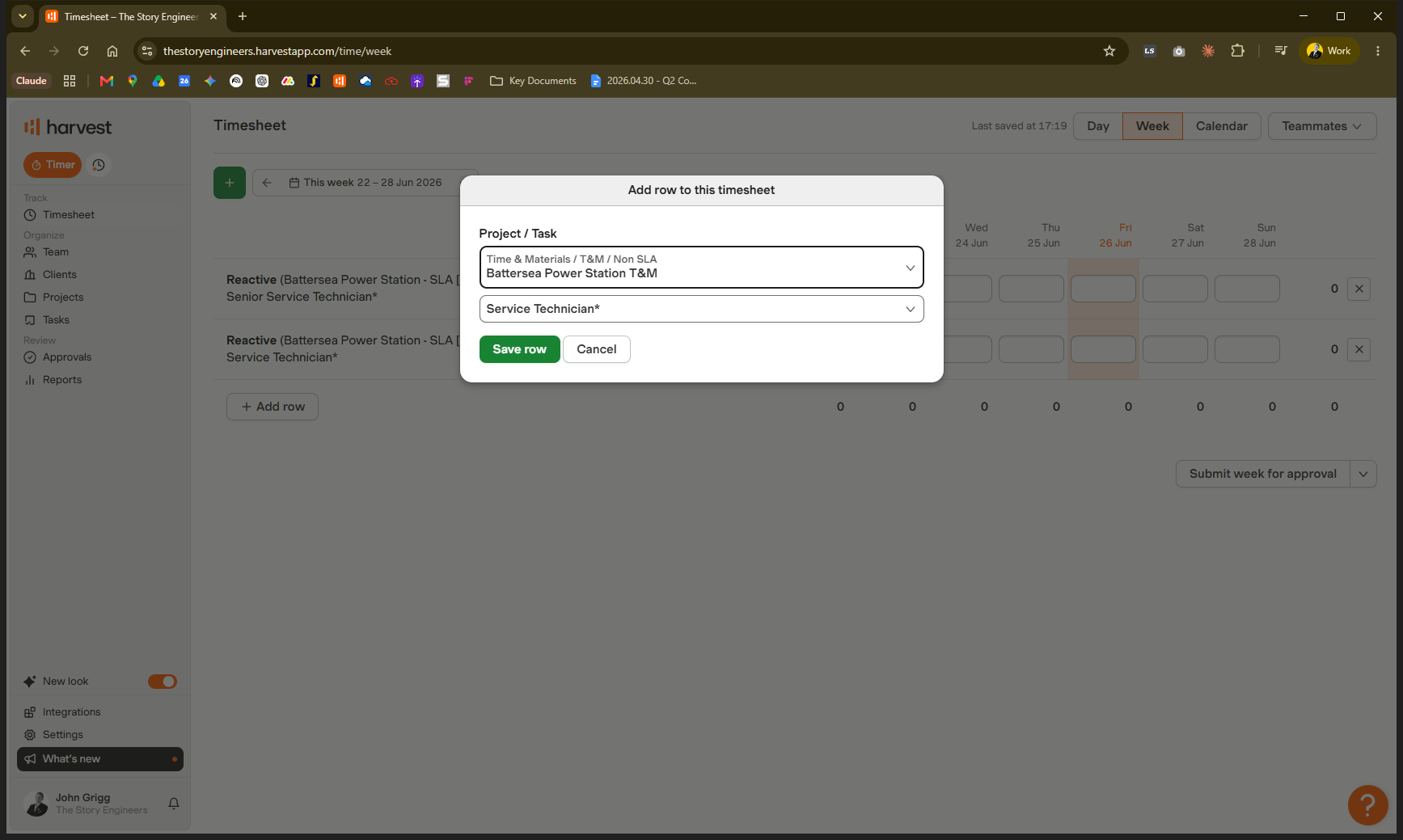
7.5 will format to 7:30).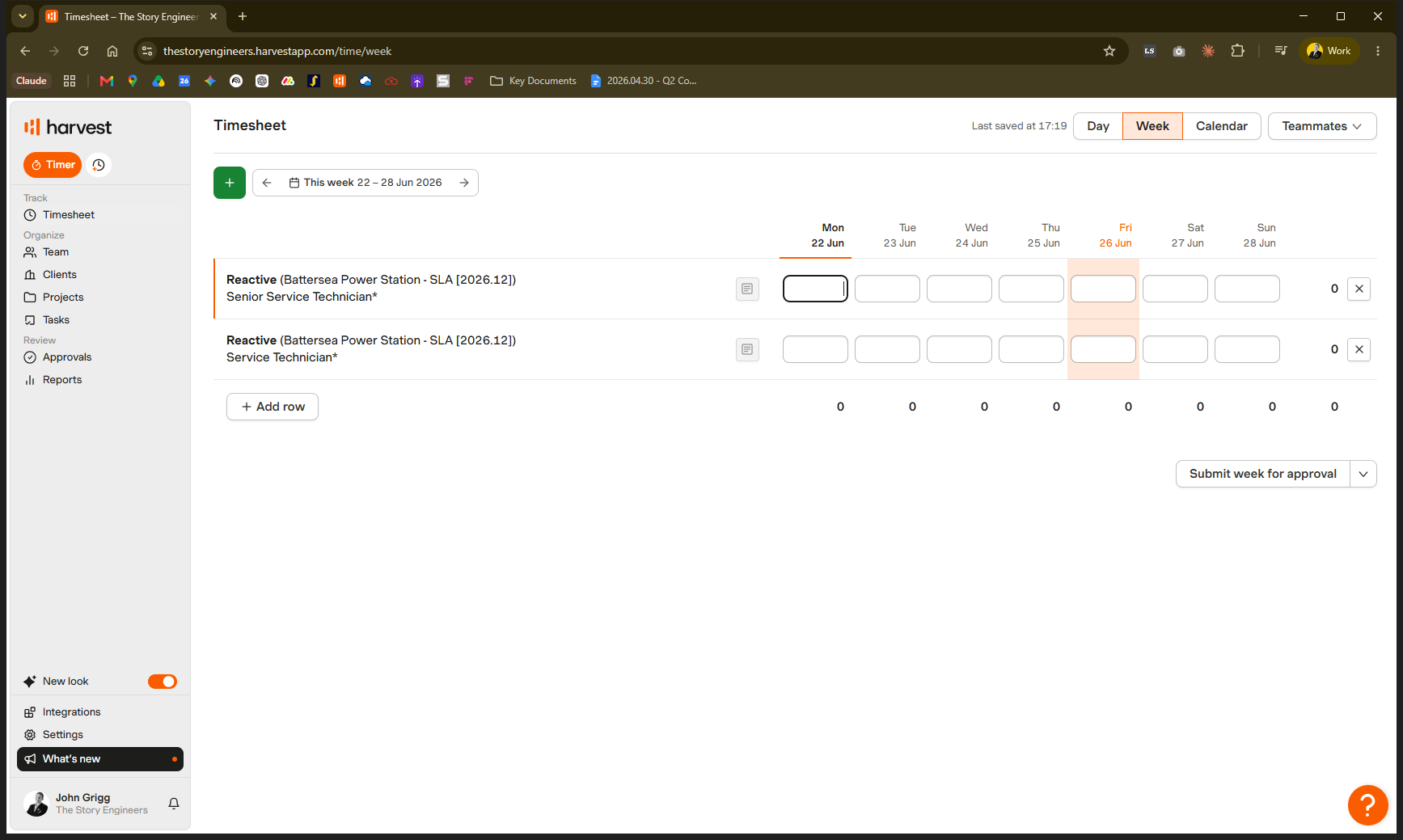
Q: How do I know if a client is an SLA client?
A: SLA entries follow a strict naming convention in Harvest containing the venue name, "SLA", and the contract's expiry month and year.
Q: What should I do if I am unsure which project bucket to use?
A: Do not guess. Ask your coordinator, contact the service manager, or message the #timesheets Slack channel before logging your time.
Q: How do I log hours for unplanned service fixes?
A: Log this time under the "Reactive" bucket, which is dedicated to unplanned work like fixing problems reported by the client.
Term | Definition |
|---|---|
SLA (Service Level Agreement) | An ongoing contract with a client to maintain and look after their site. |
T&M (Time and Materials) | An old name for non-SLA service work where tasks sit outside of a standing agreement. |
Proactive Maintenance | Scheduled visits and work planned well in advance to keep a site in good shape. |
Reactive Maintenance | Unplanned service work typically resulting from a client reporting a problem or raising a support ticket. |