
How to Track Automated Booking Email Workflows
Learn how the automated email workflow handles client booking confirmations, operational alerts, and team briefs for upcoming events.
This guide details the automated email workflows triggered when a client finalizes an event booking. It explains the purpose, timing, and audience for each automated notification so you can effectively monitor event preparations and client communications.
This applies to the events, operations, and catering teams responsible for reviewing booking statuses, identifying VIP returning clients, and fulfilling specific room and dietary requirements.
Automated Notification Types
Review the table below to understand the various notifications dispatched by the system throughout the booking lifecycle.
Email Type | Recipient | Trigger Timing | Key Information Included |
|---|---|---|---|
Client Confirmation | Client | Immediate upon booking | Reference number, booking summary, next steps, Ts&Cs, menus |
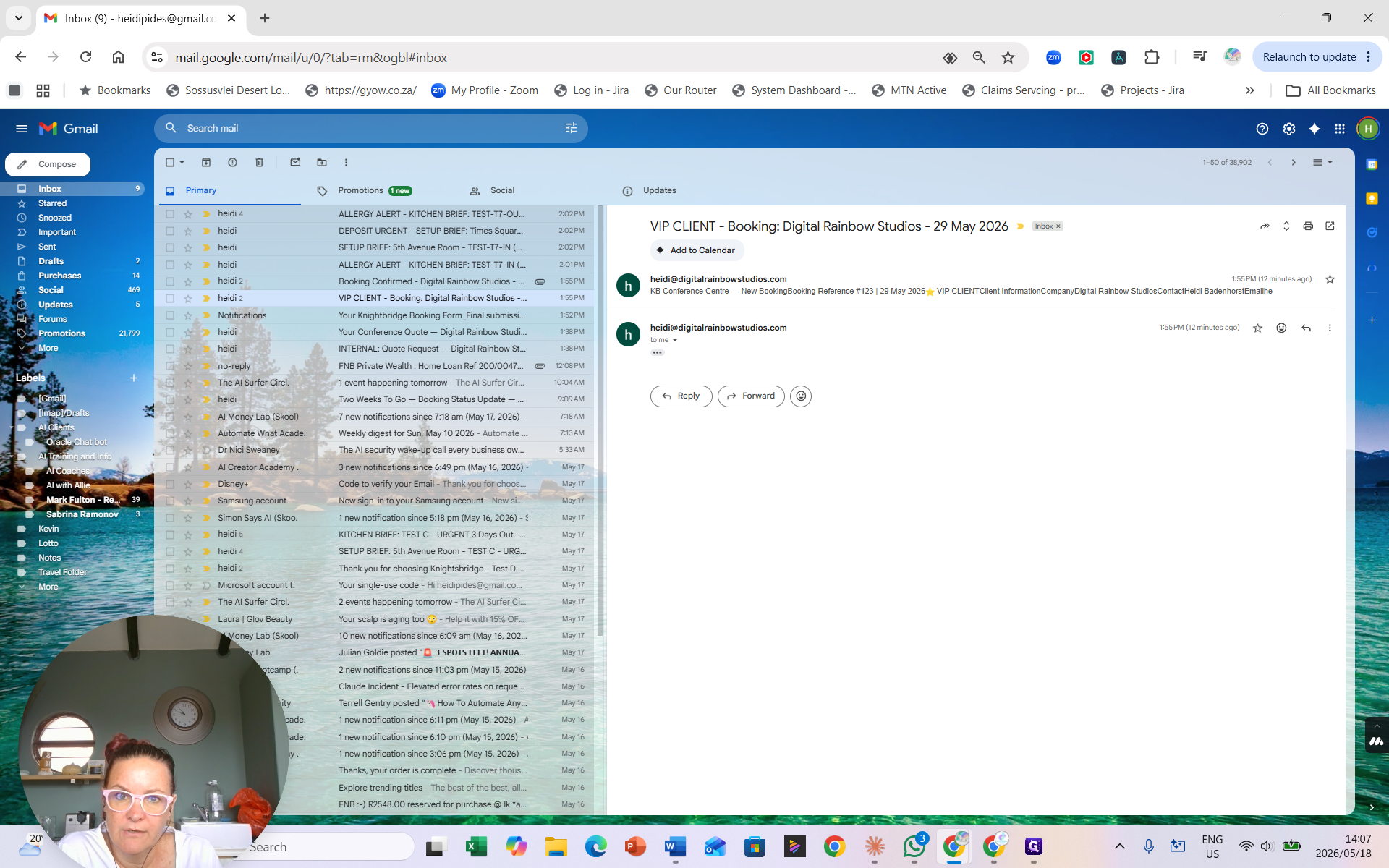
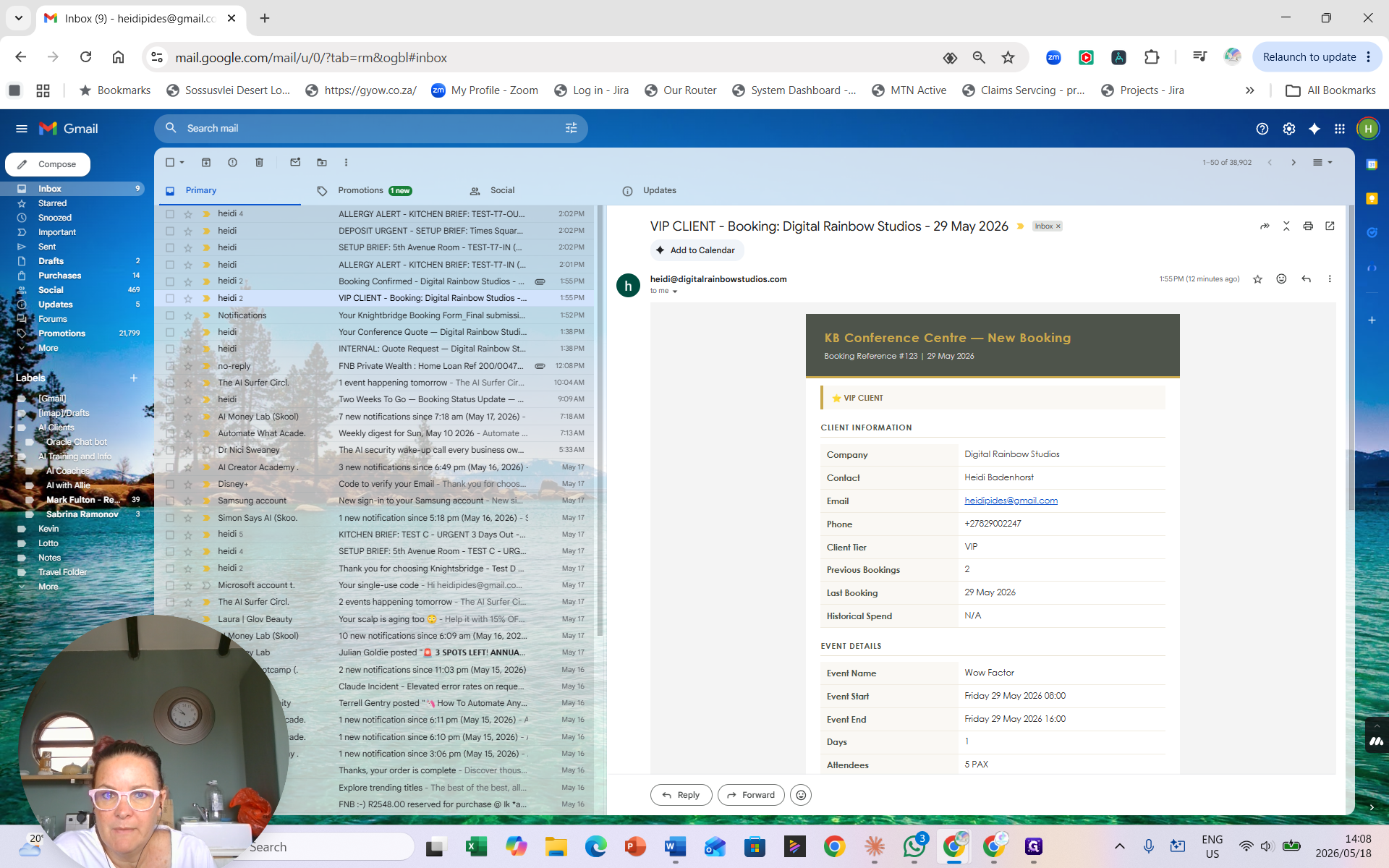
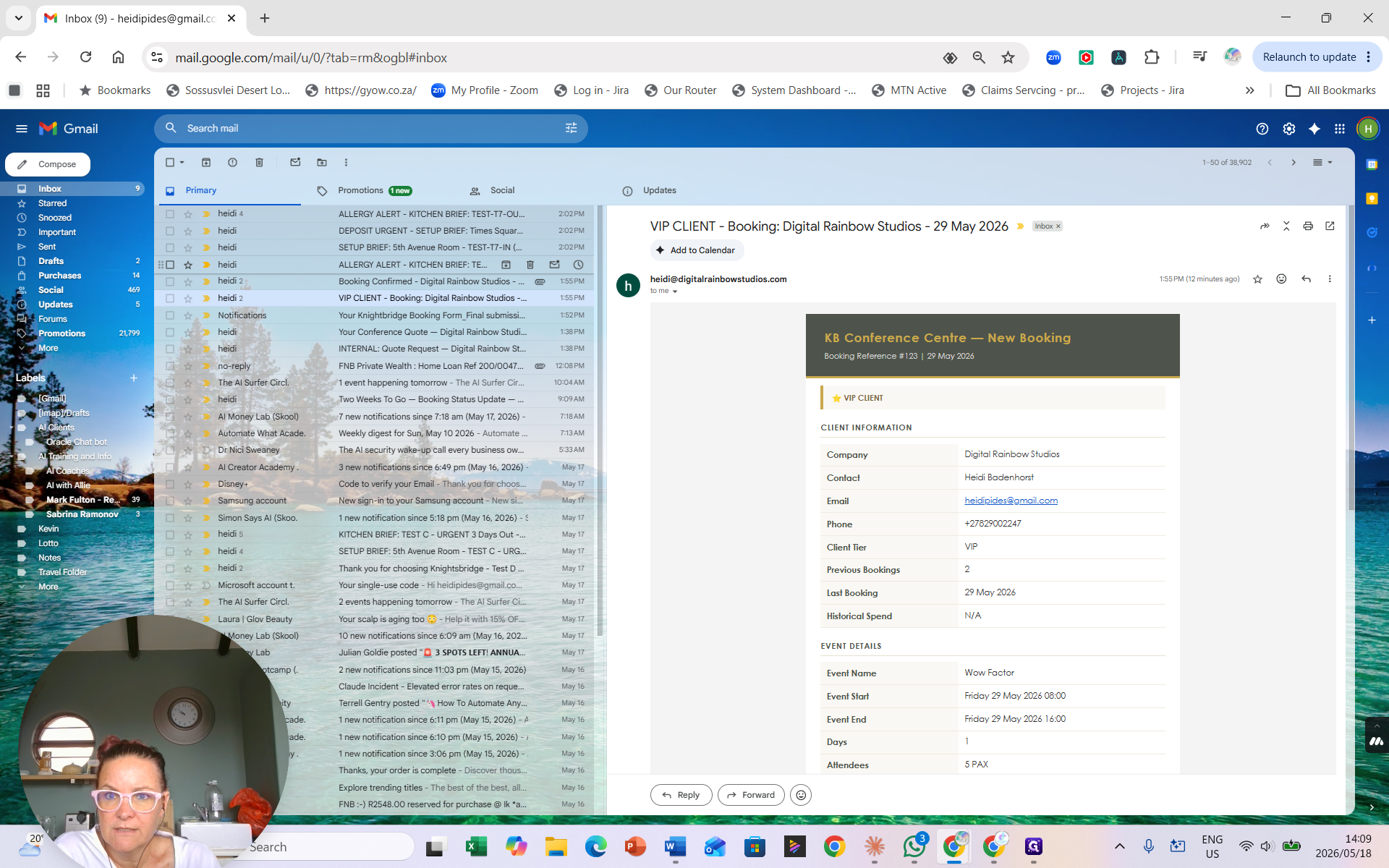
Operations Alert | Operations Team | 8:00 AM the day following a booking | Full event details, VIP client flag (via Zoho) |
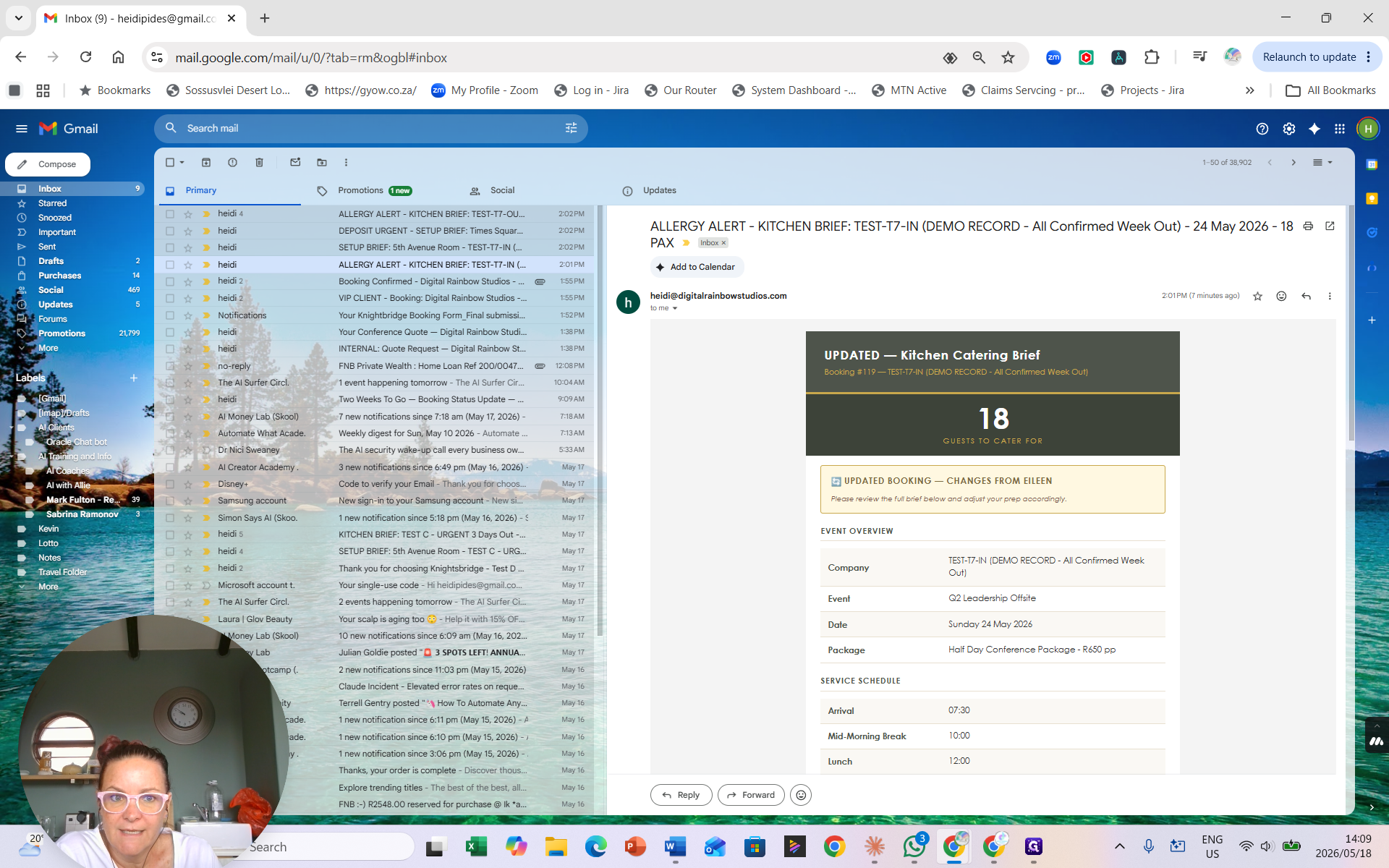
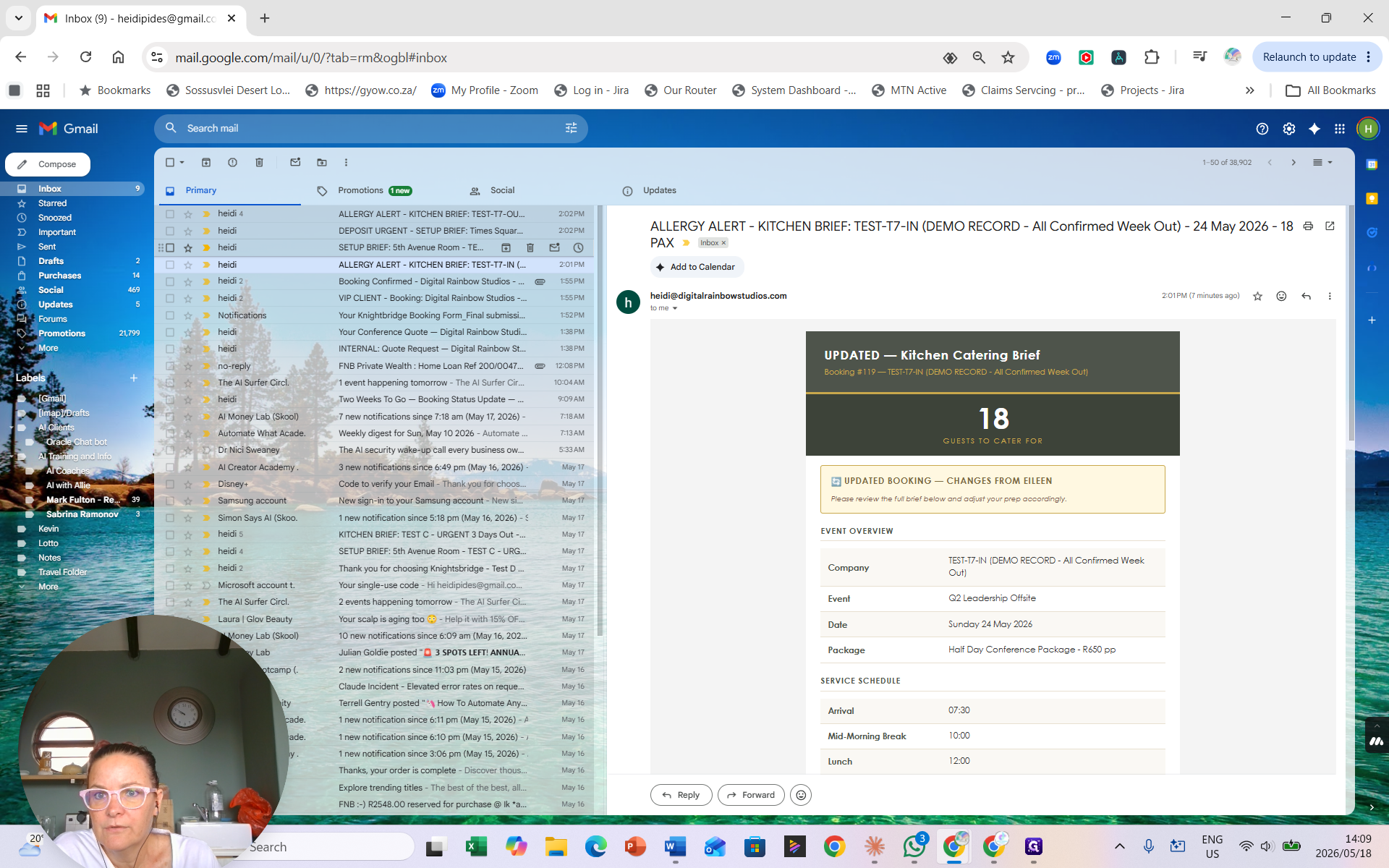
Kitchen Brief | Kitchen Staff | 7 days prior to event | Menus, allergy alerts, halal/vegetarian counts |
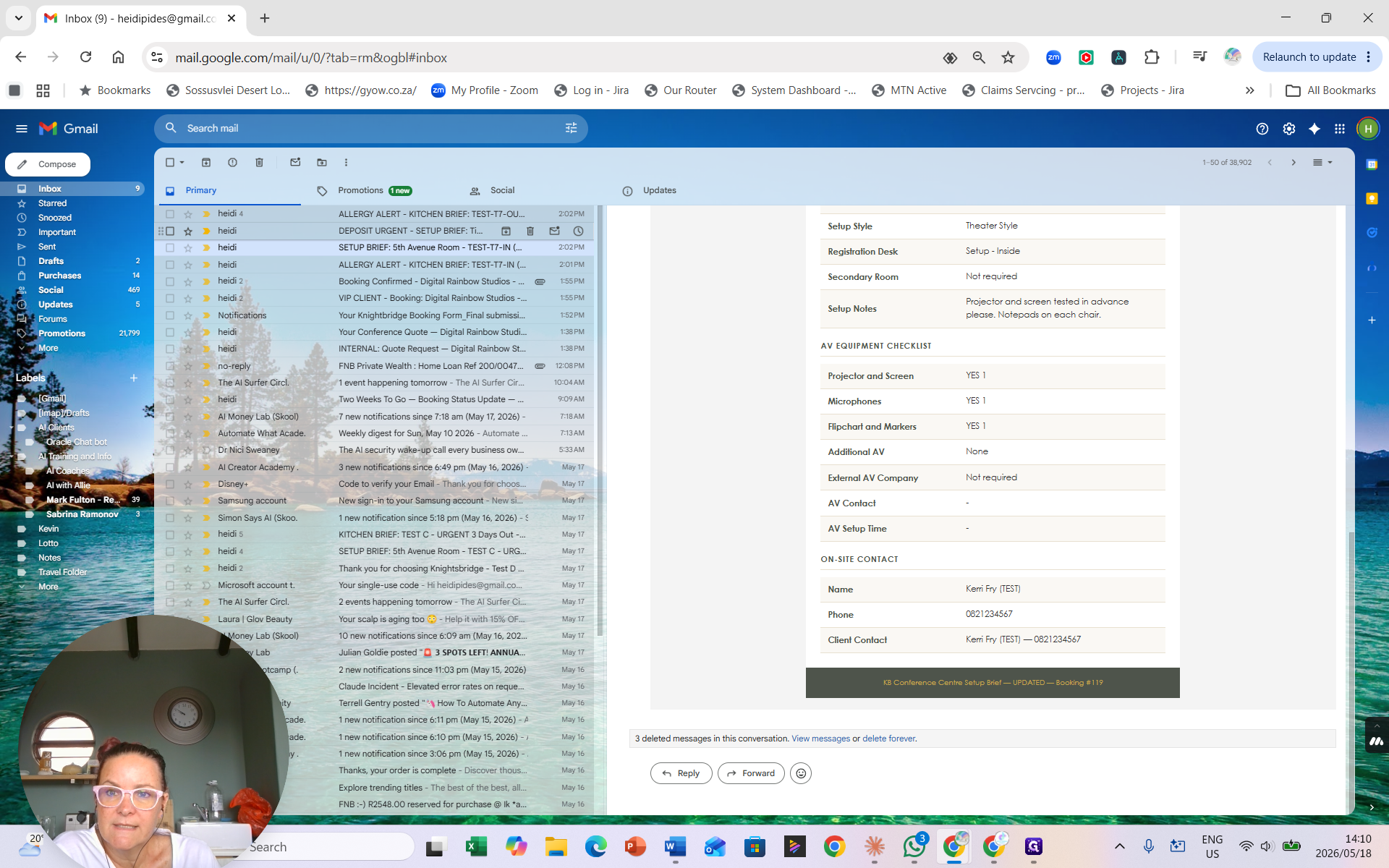
Setup Brief | AV & Setup Team | 7 days prior to event | Room location, projector needs, furniture layout |
Reviewing Client & Operations Emails
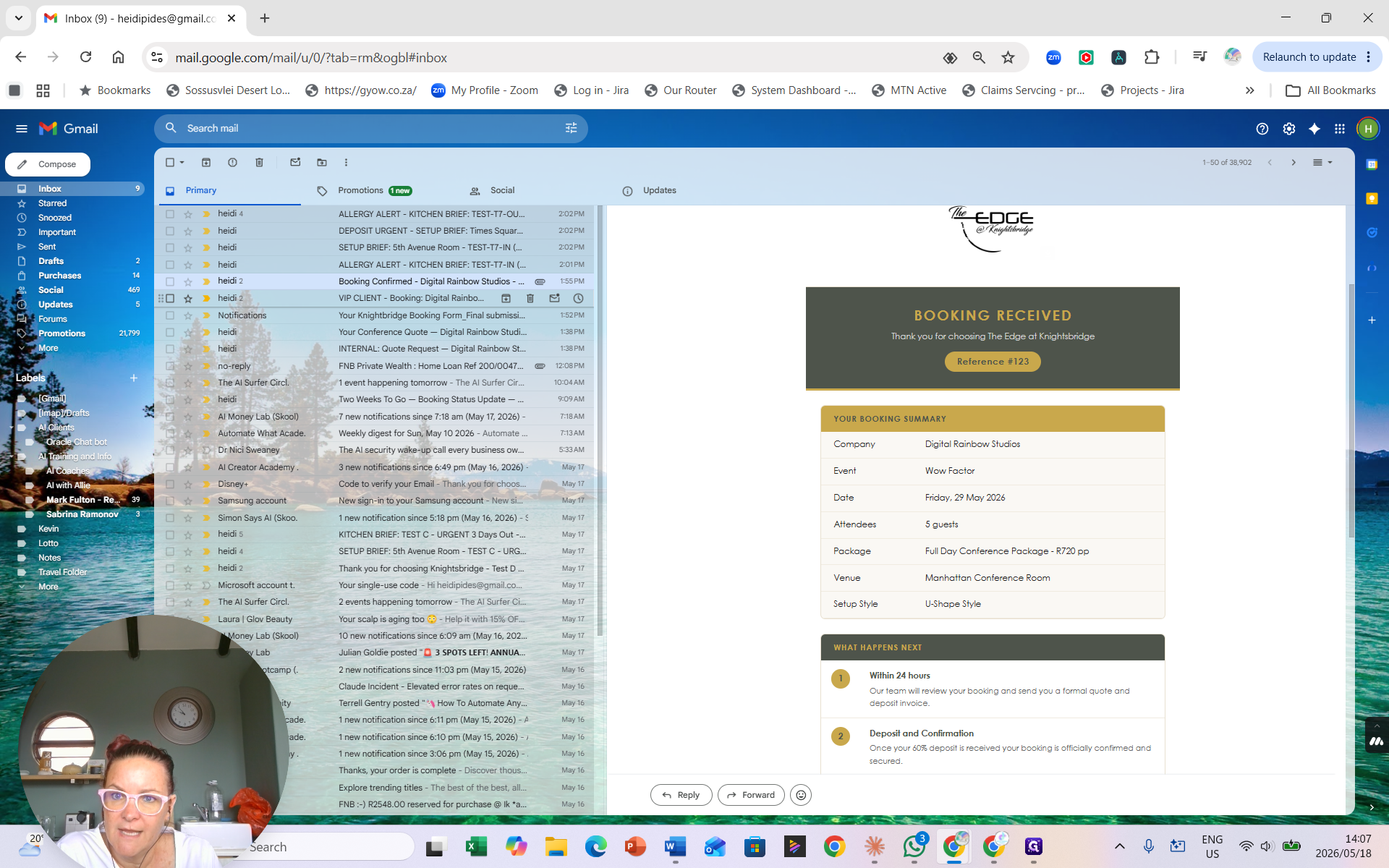
When a booking is confirmed, the client immediately receives a comprehensive summary, and the operations team receives a daily digest the following morning.
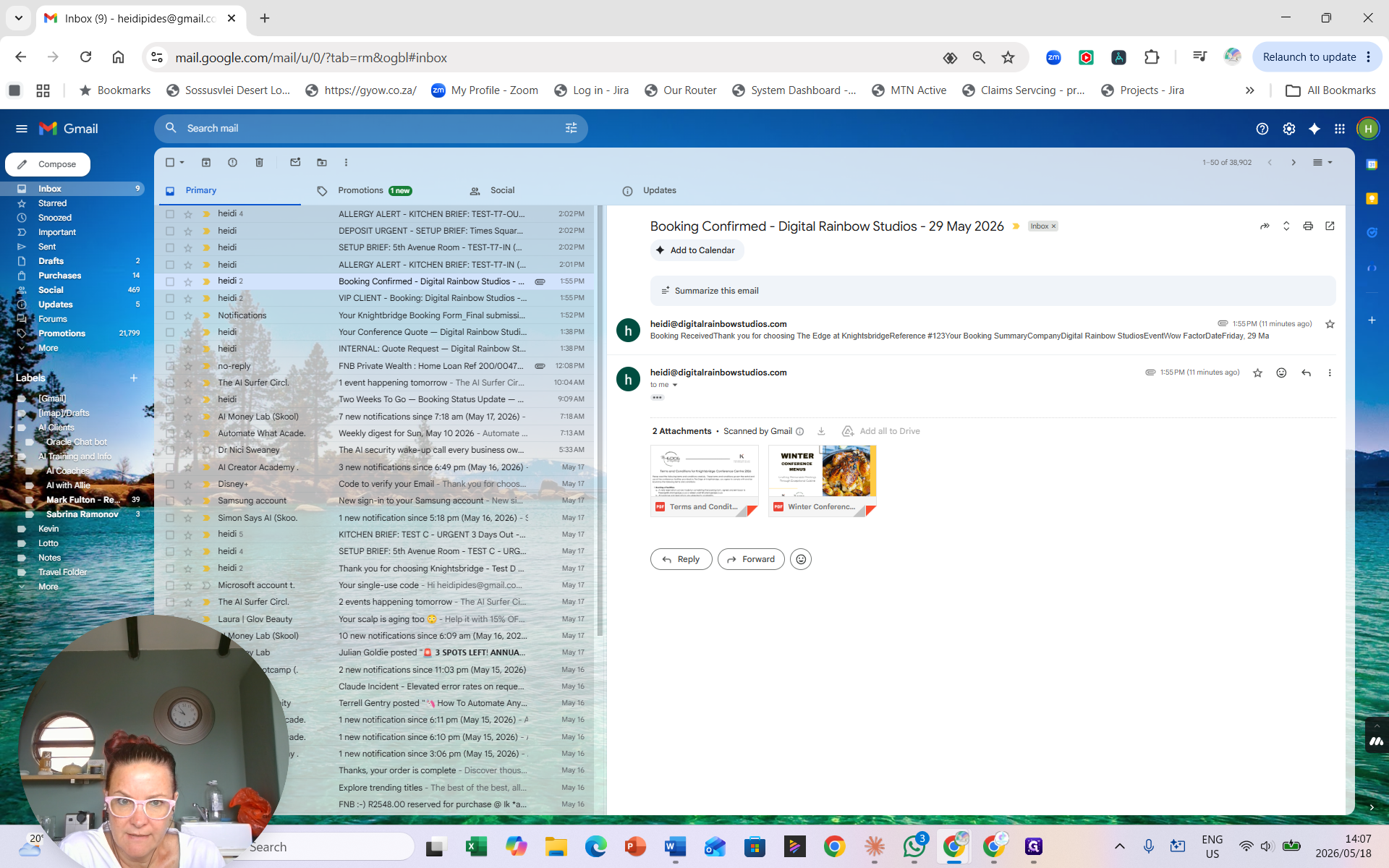
This confirmation contains their reference number, event summary, next steps, and attachments for Terms & Conditions and menus.
Reviewing Team Briefs (7-Day Triggers)
Seven days before the event, the system dispatches specific operational briefs to the kitchen and setup teams.
This email provides the kitchen with the venue details, selected dishes, and vital counts for halal, vegetarian, and allergy requirements.
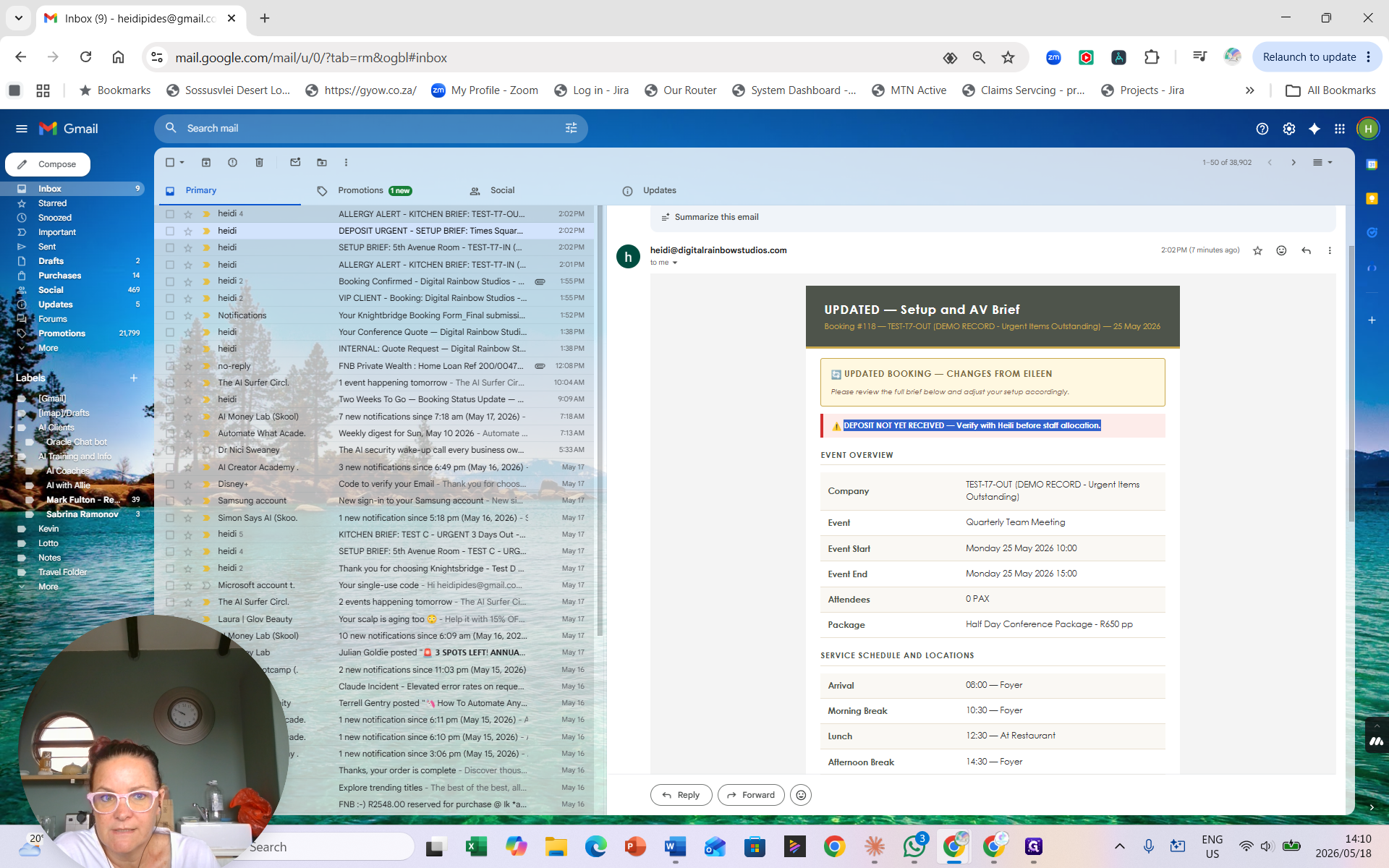
The setup brief instructs the operations team on the exact setup location (e.g., foyer, restaurant) and technical requirements like projectors.
Handling Missing Deposits
If the event is exactly 7 days away but the client's deposit is still outstanding, the automated briefs sent to the kitchen and setup teams will reflect this urgency.
FAQ
Q: When does the operations team get notified about a new booking?
A: Operational emails trigger at 8:00 AM every day, capturing and sending summaries for any bookings made the previous day.
Q: What happens if a client has booked with us before?
A: The system automatically checks the client against Zoho records. If a match is found, the operational email will include a "VIP CLIENT" banner in the header.
Q: Can event details be changed after the 7-day briefs are sent?
A: Yes. An administrator can edit the booking and resubmit it. The kitchen and setup teams will receive a new brief marked with an "UPDATED BOOKING" banner so they know changes occurred.
Glossary
Term | Definition |
|---|---|
VIP Client | A returning customer identified automatically via integration with Zoho client records. |
Kitchen Brief | An automated email detailing menus, halal/vegetarian counts, and allergy alerts sent 7 days prior to an event. |
Setup Brief | An automated email outlining room configuration and AV equipment requirements sent to the operations team 7 days prior to an event. |