
How to Track Work Hours and Navigate Time Doctor
Learn how to accurately track your work hours, manage client tasks, and review your personal productivity dashboard using the Time Doctor application.
This guide explains how to track your work hours and manage client tasks using Time Doctor.
This workflow applies to all team members who are required to log their daily activities against specific clients or internal projects. Use these features throughout your workday to start and pause timers as you switch between different tasks.
Finding and Selecting Tasks
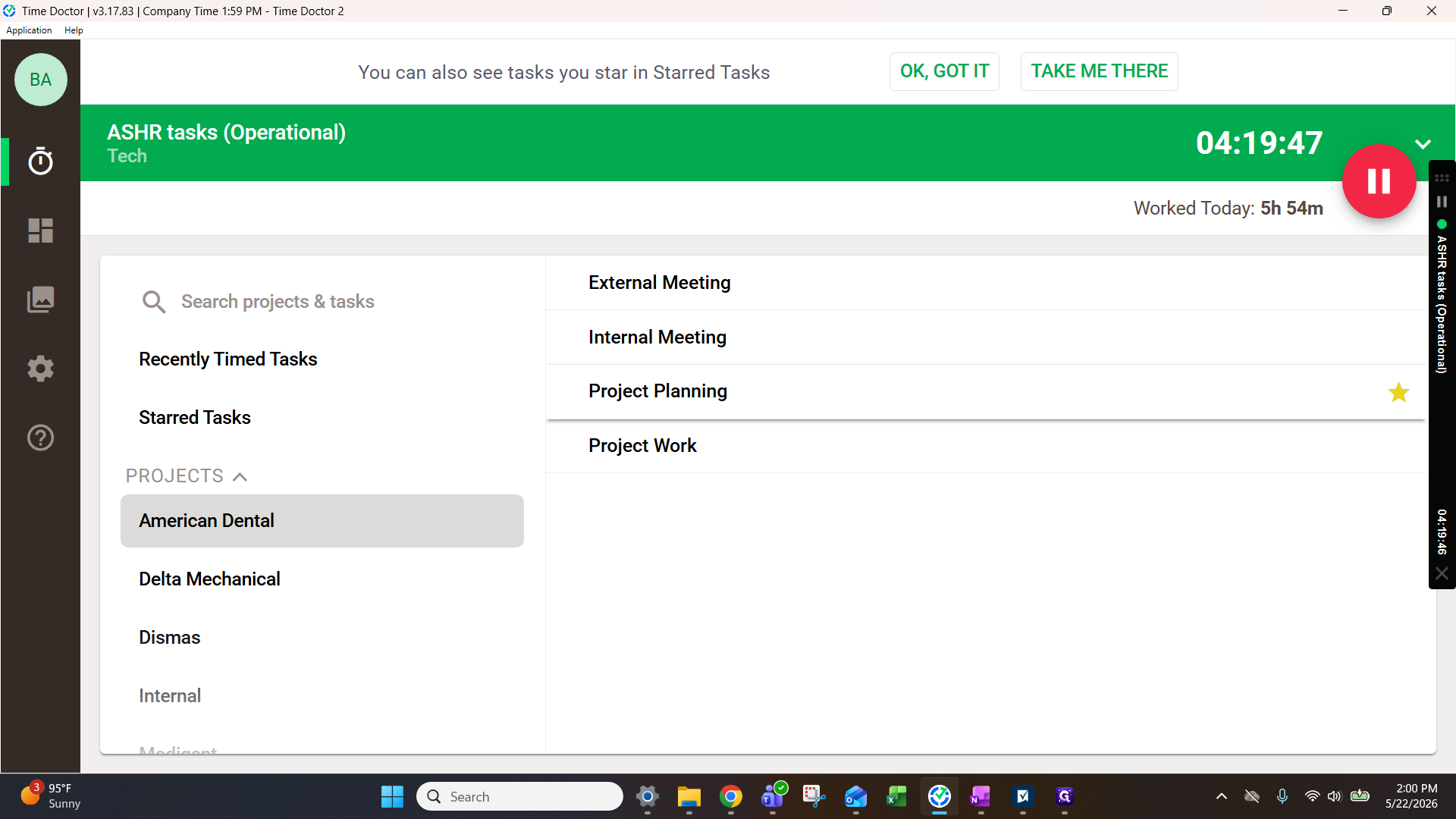
Your assigned clients appear under Projects in the left-hand navigation. Since clients can have many distinct tasks underneath them, searching and favoriting are a good way to keep your workspace organized.
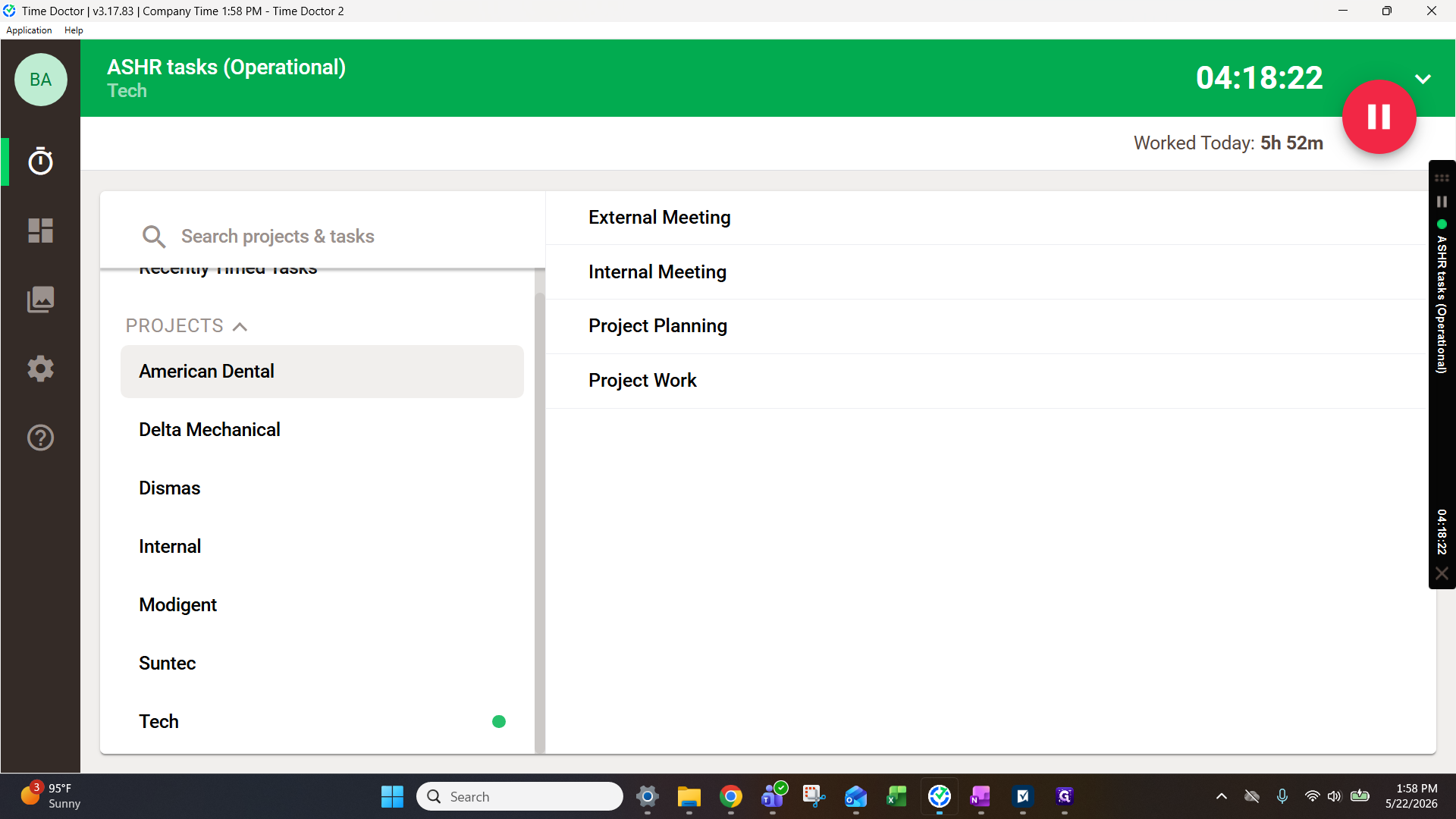
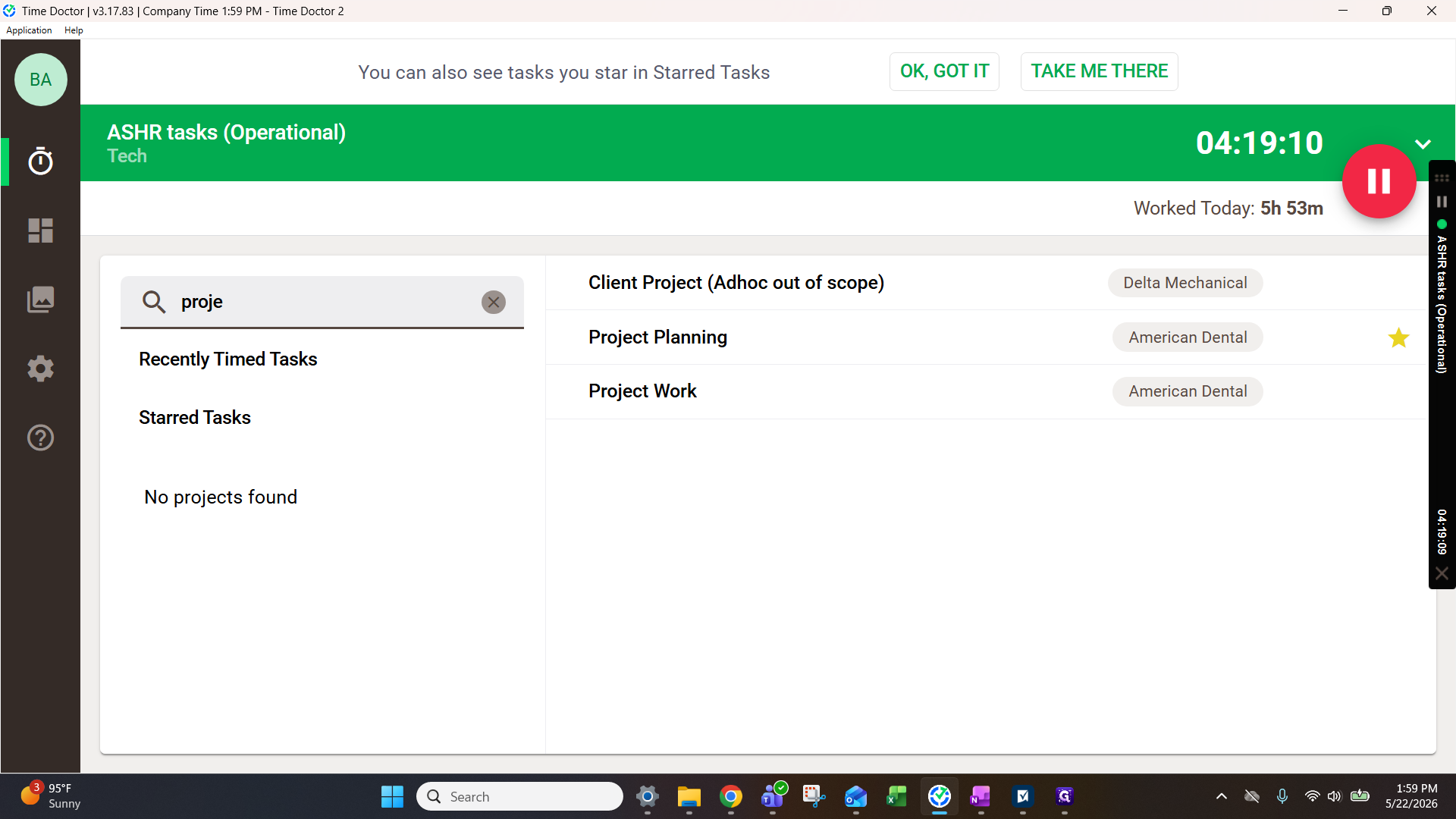
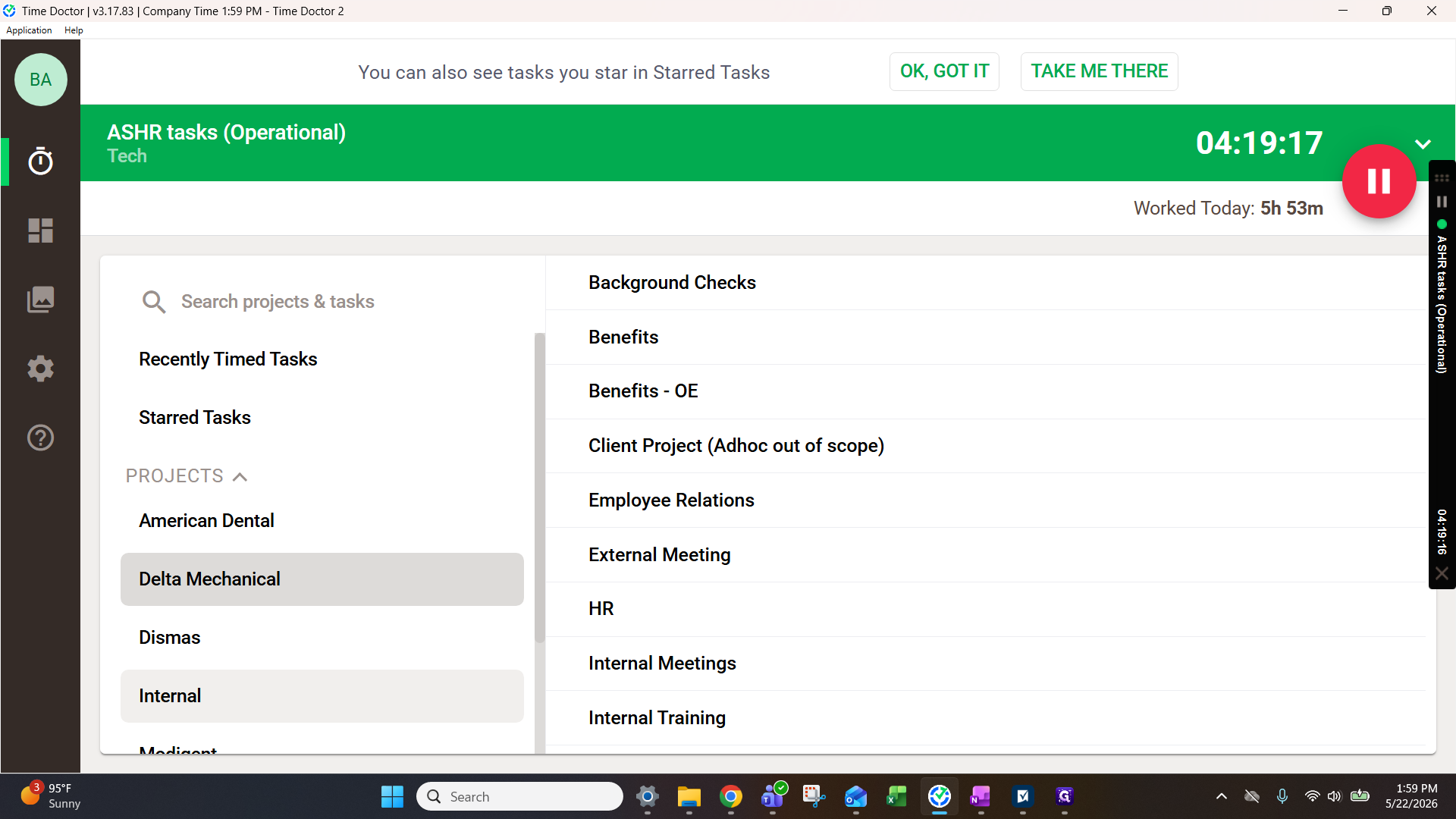
Tracking Client Hours
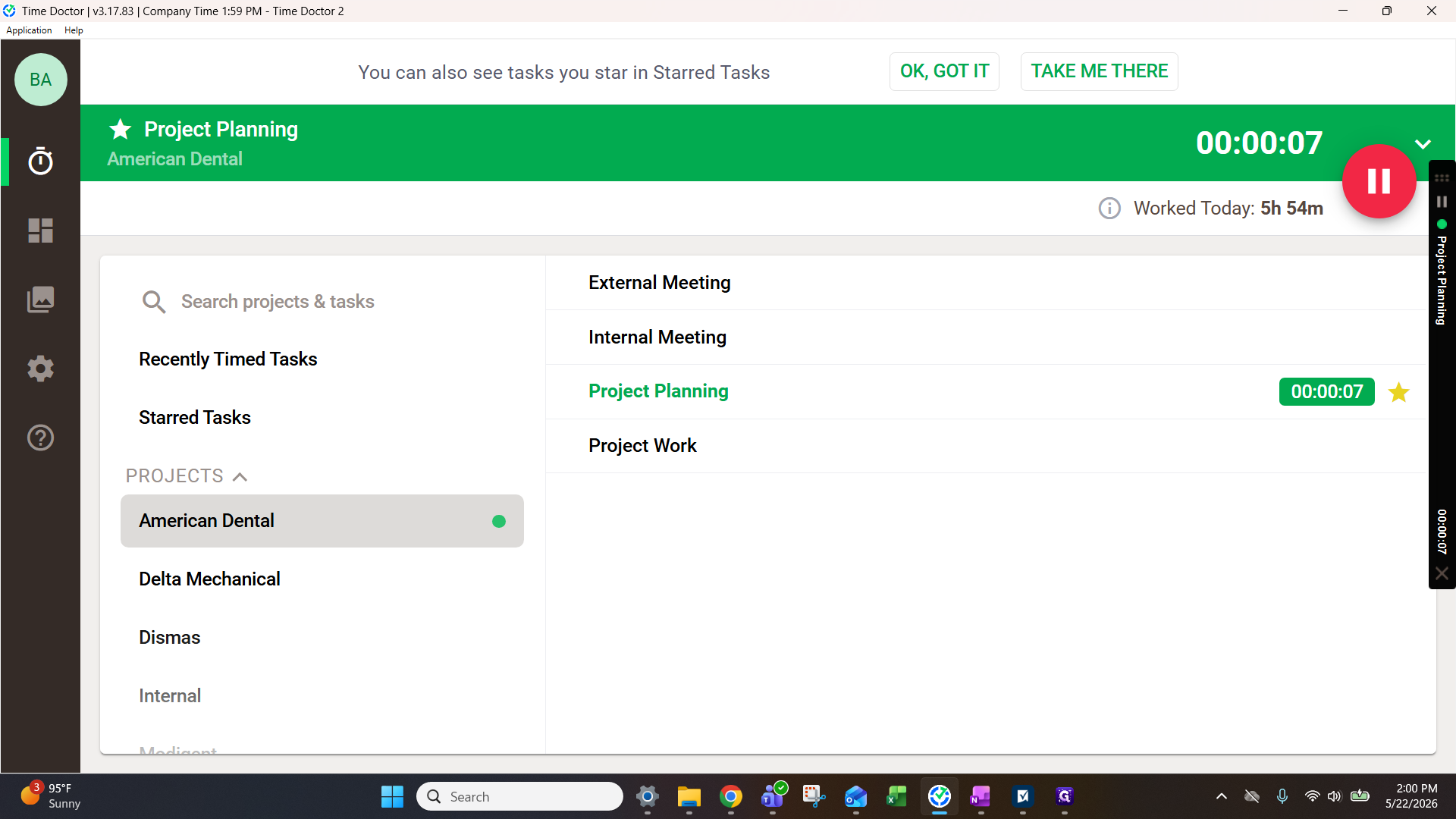
Reviewing Your Productivity Dashboard
Your dashboard provides a breakdown of where you've spent your time, including your start and end times, breakouts of activities, and top-used websites. The leadership team uses this to see a general summary of time spent & to put together client billing, not to micromanage your activities minute-by-minute.
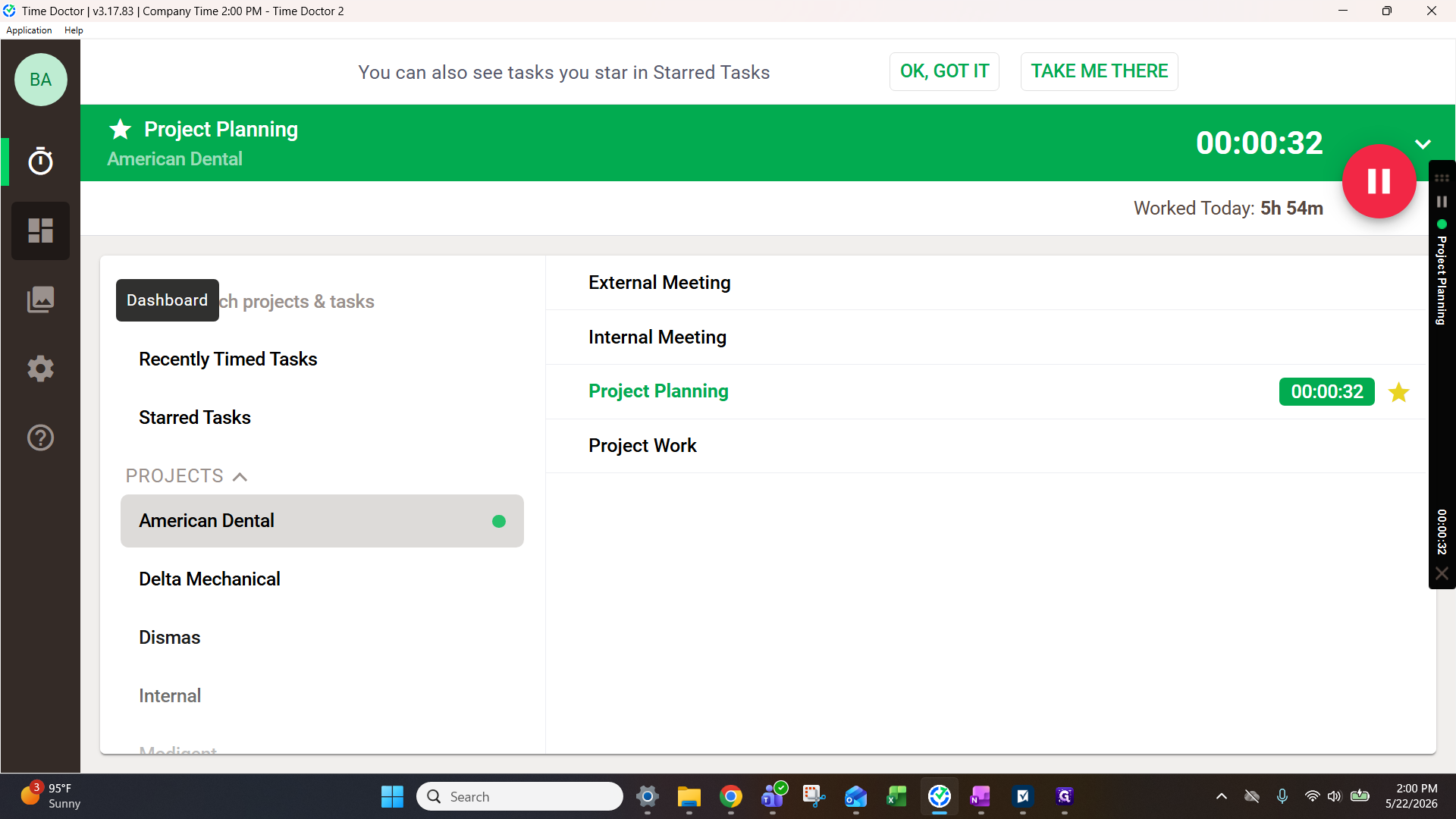
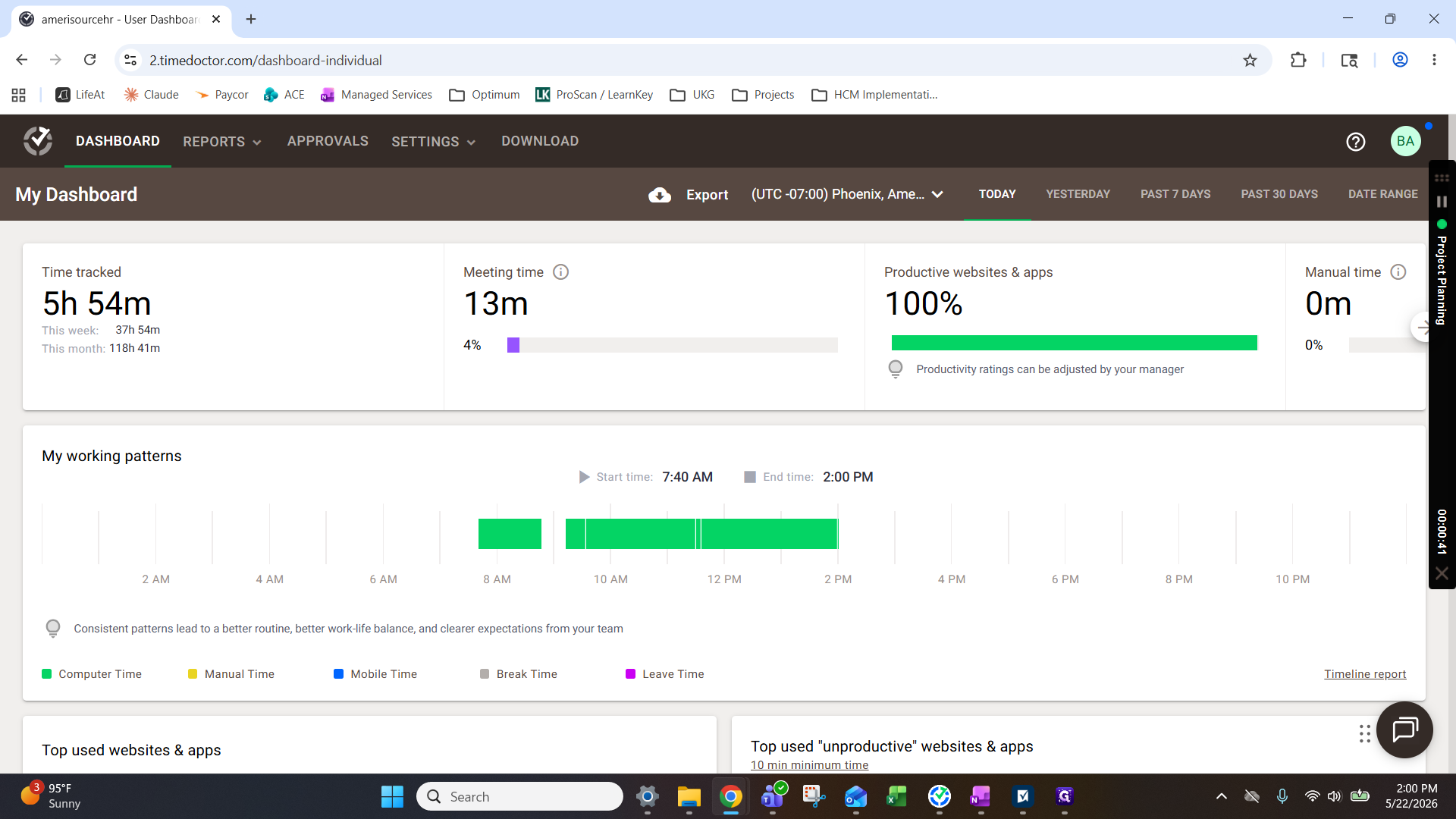
You can review your productivity across several different timeframes:
Filter Option | What it shows |
|---|---|
Today | Time tracked and working patterns for the current calendar day. |
Yesterday | Data logged from the previous calendar day. |
Past 7 Days | A weekly view of your productivity and hours. |
Past 30 Days | A monthly overview to observe long-term trends. |
FAQ
Q: What happens if I forget to log time or need to edit my hours?
A: Only the leadership team can make manual edits to time logs. If you forgot to track a task or a client meeting, reach out to Krista Barrett to adjust your record.
Q: What if I need a new project, client, or category added to Time Doctor?
A: Contact Krista to have the new clients or task categories added to your available list.
Q: What should I do if a work-related website is flagged as "unproductive"?
A: Don't worry, this happens occasionally with neutral or necessary sites (like watching a YouTube video for a product demo, or using Snipping Tool). If you are concerned, you can ask Krista Barrett to see if she can recategorize the website.
Q: Is Time Doctor tracking my activities all the time?
A: No, nothing is tracked when you pause tracking.