Icon

Tracking Job Applicants

Learn how to organize job applications, upload resumes to Google Drive folders, and track applicant details and feedback in Google Sheets.

By Dana Peck

This guide explains how to track and organize incoming job applicants. Completing this process ensures candidate documents are securely stored in Google Drive and their key details and highlights are easily accessible in a centralized Google Sheets tracker.

This workflow is designed for hiring managers, recruiters, and project coordinators who need to process new job applications and share candidate profiles with the broader hiring team.

1. Share the Hiring Folder

Before logging applications, ensure your team has access to the tracking materials.
1
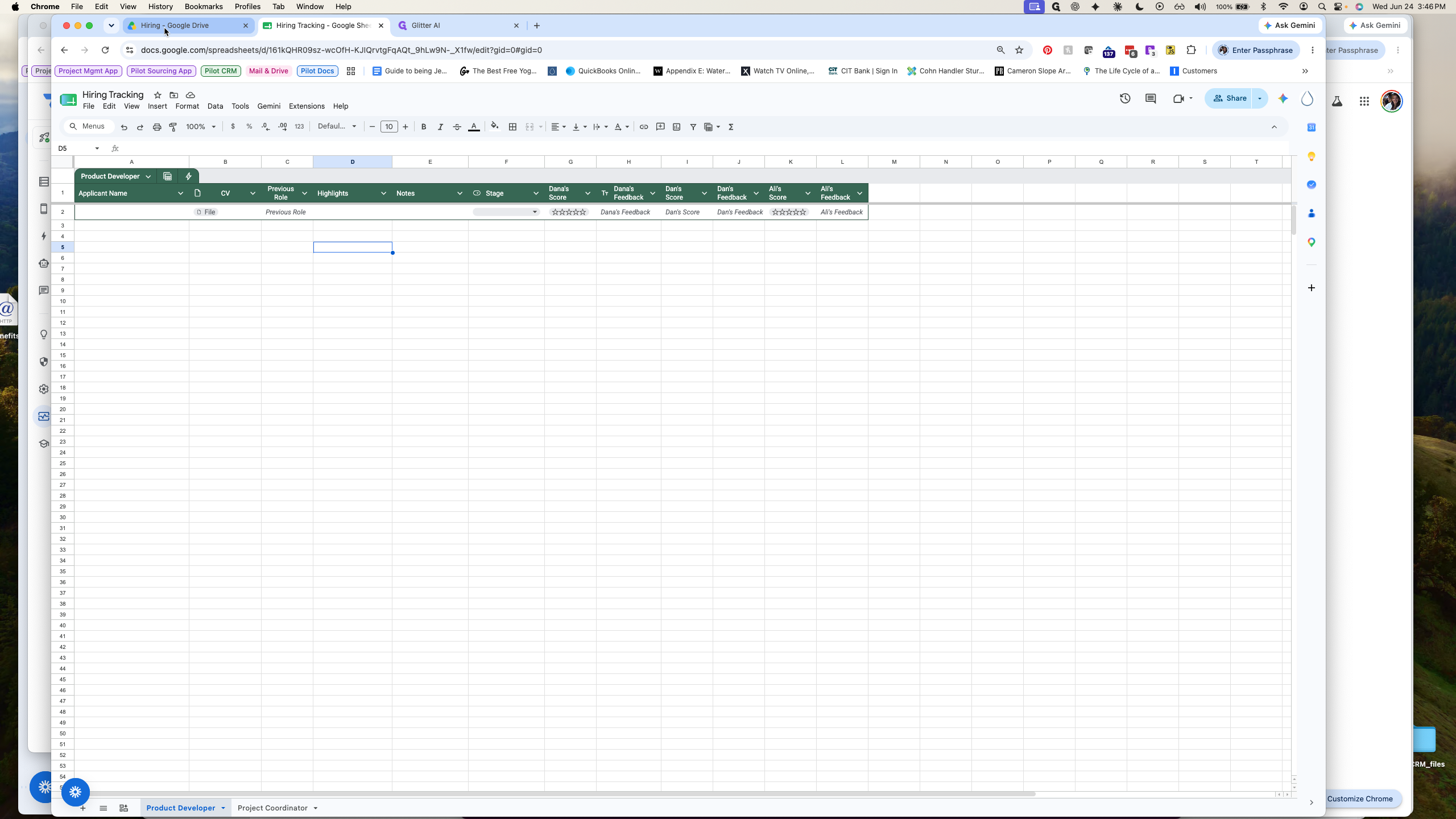
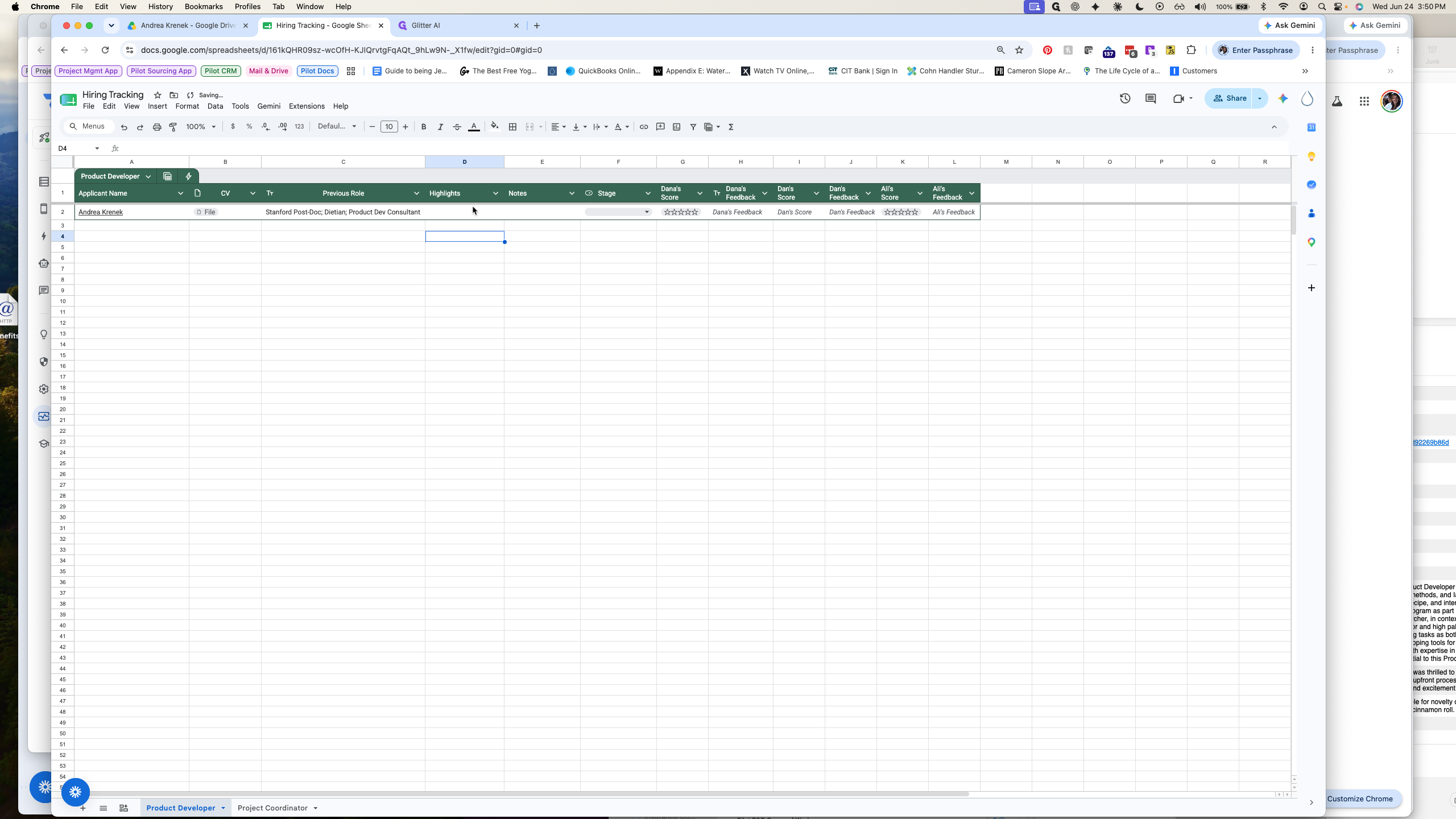
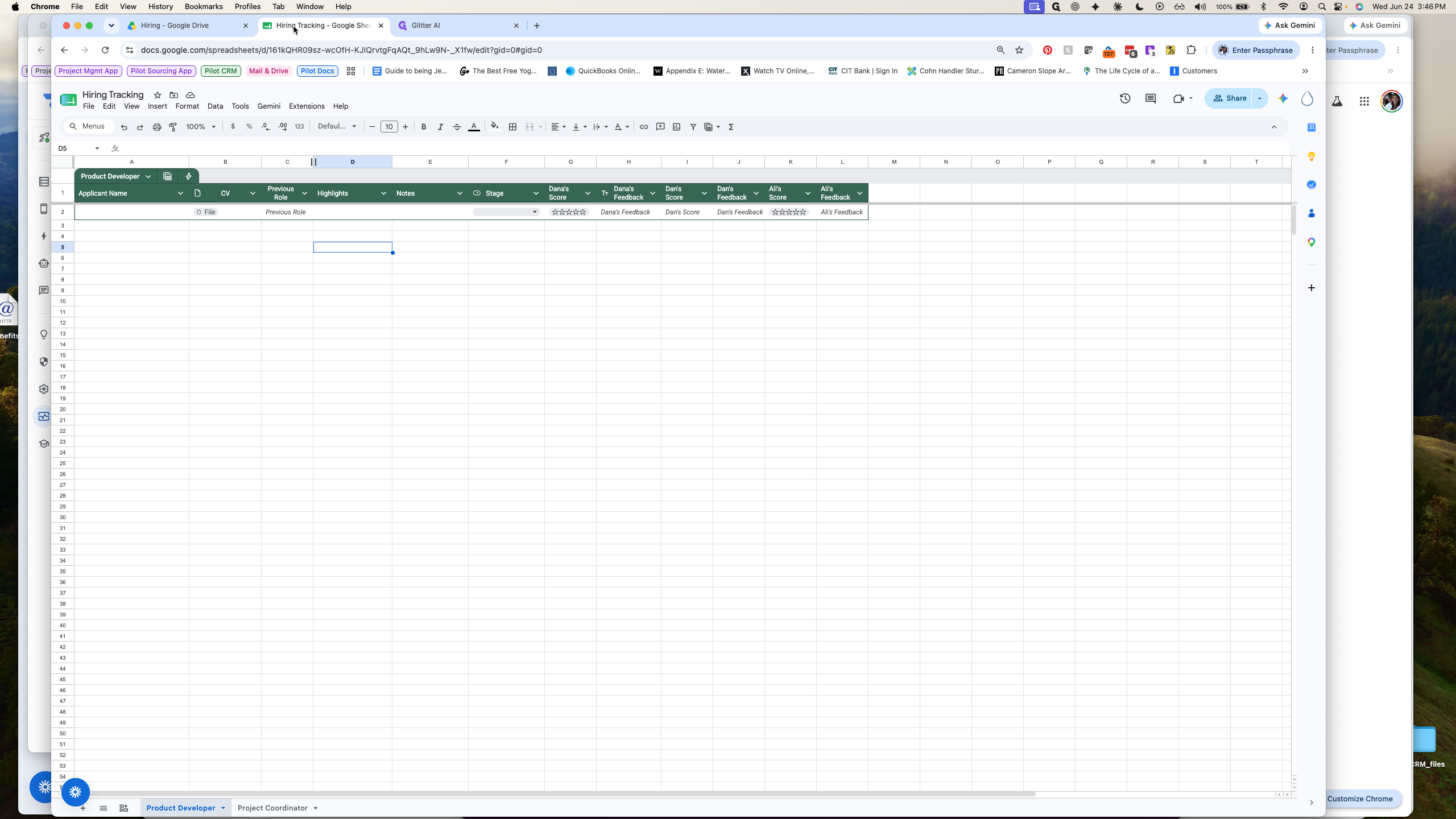
Click the Hiring Tracking Google Sheet tab to open your tracker.
Step #1: Click the Hiring Tracking Google Sheet tab to open your tracker.
2
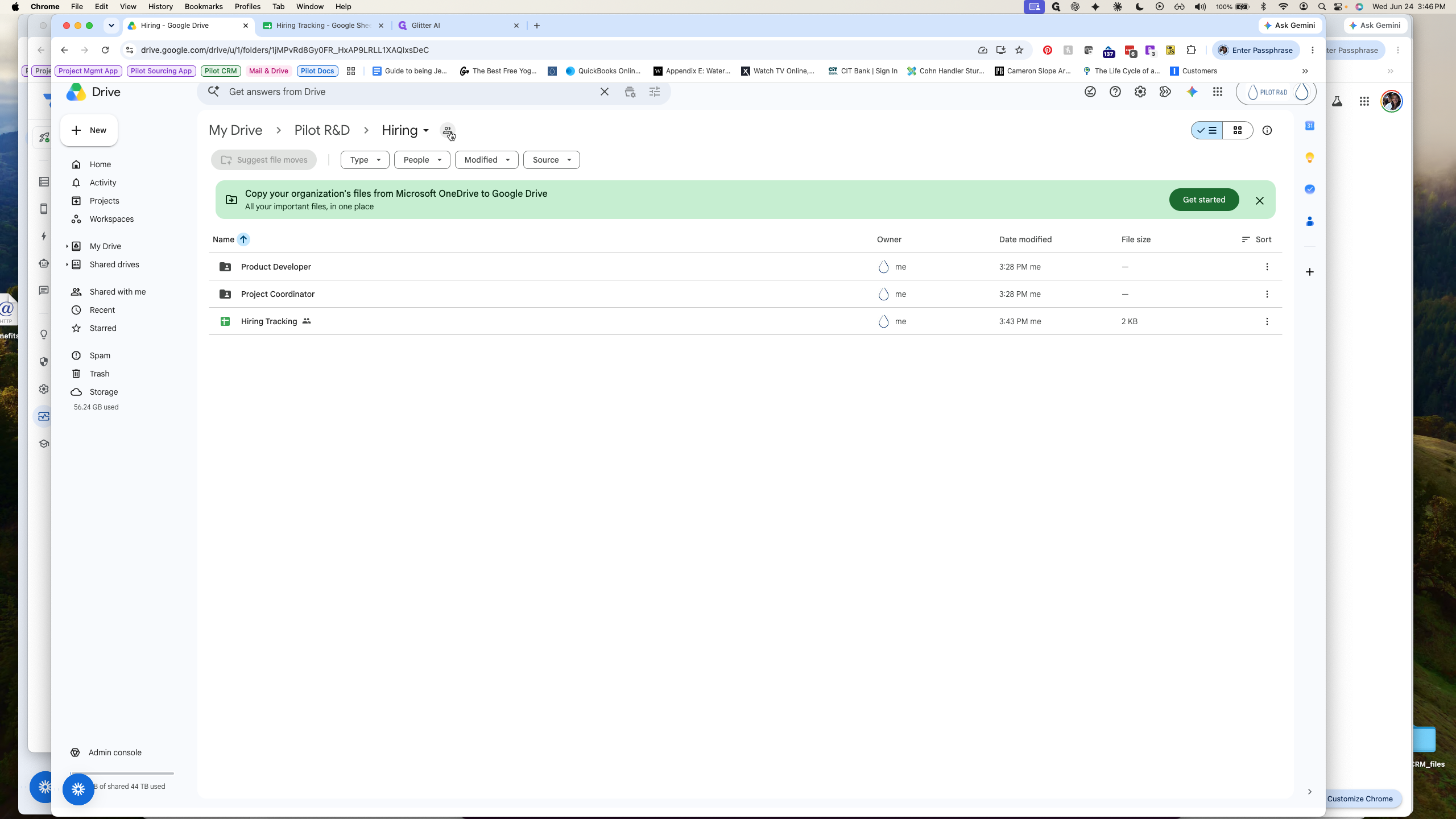
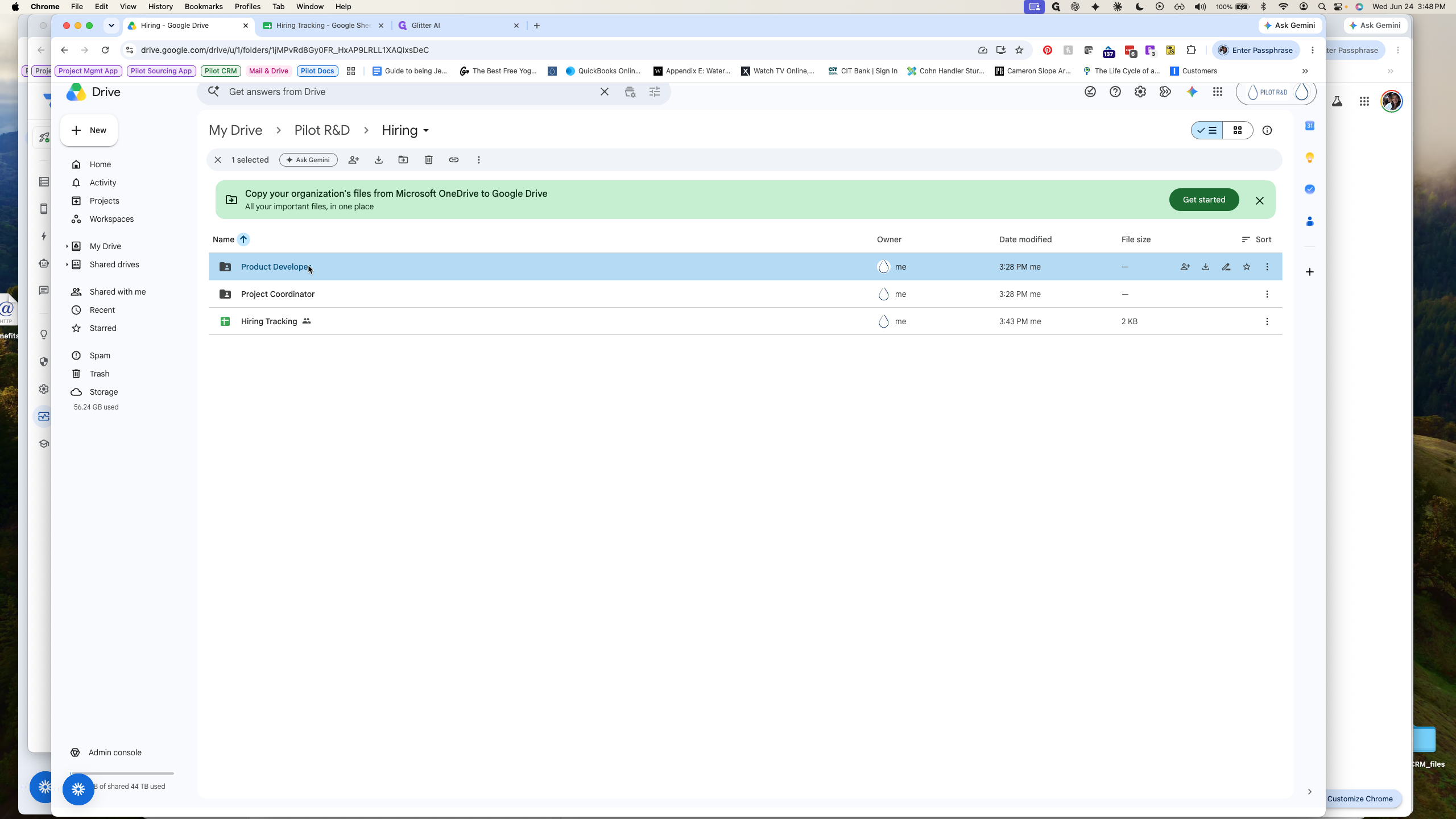
Open the Hiring folder in Google Drive.
Step #2: Open the Hiring folder in Google Drive.
3
Click the folder information icon to check and manage sharing permissions.
Step #3: Click the folder information icon to check and manage sharing permissions.

2. Add the Applicant to the Tracker

Extract the core details from the candidate's application and log them.
4
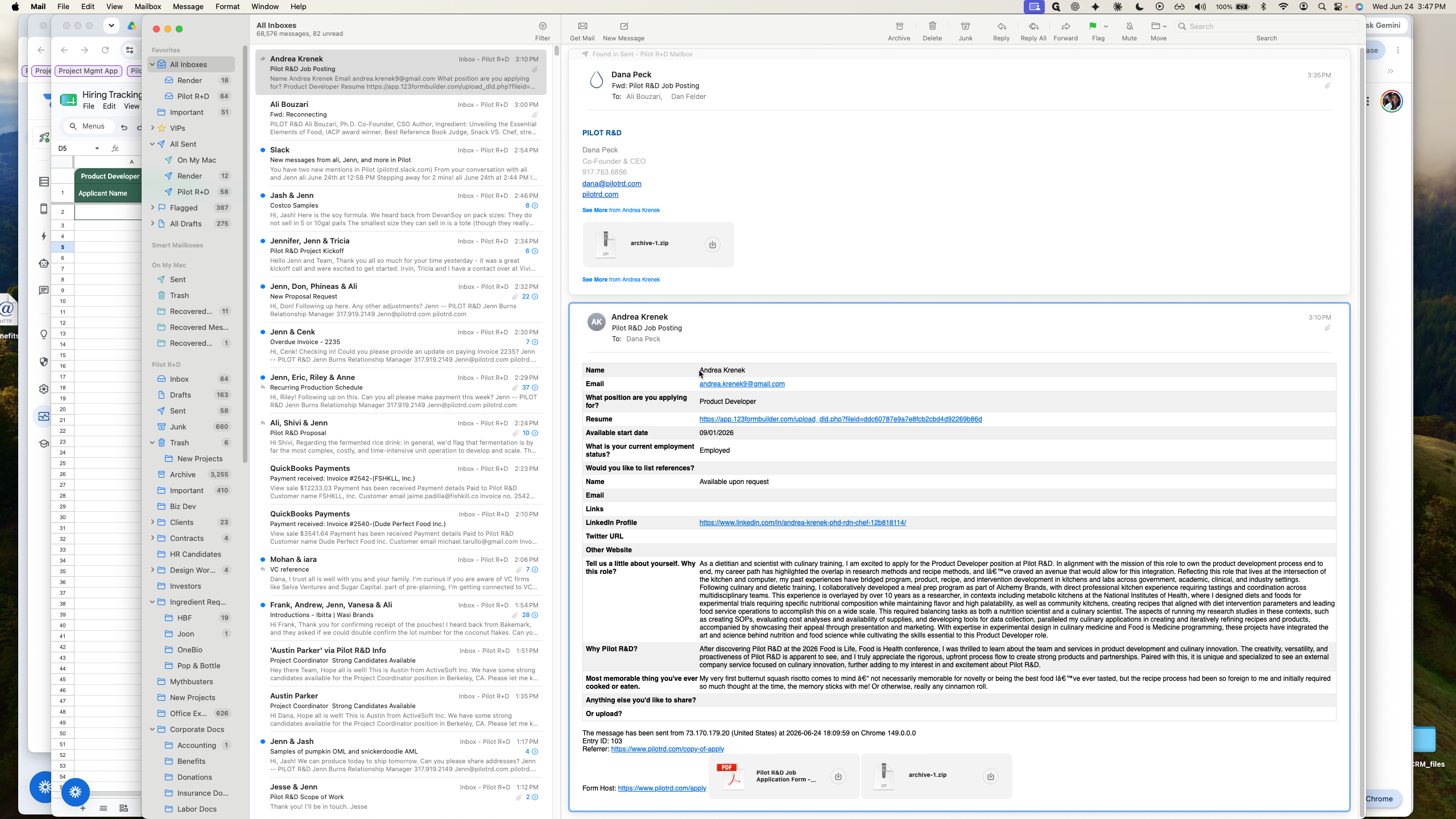
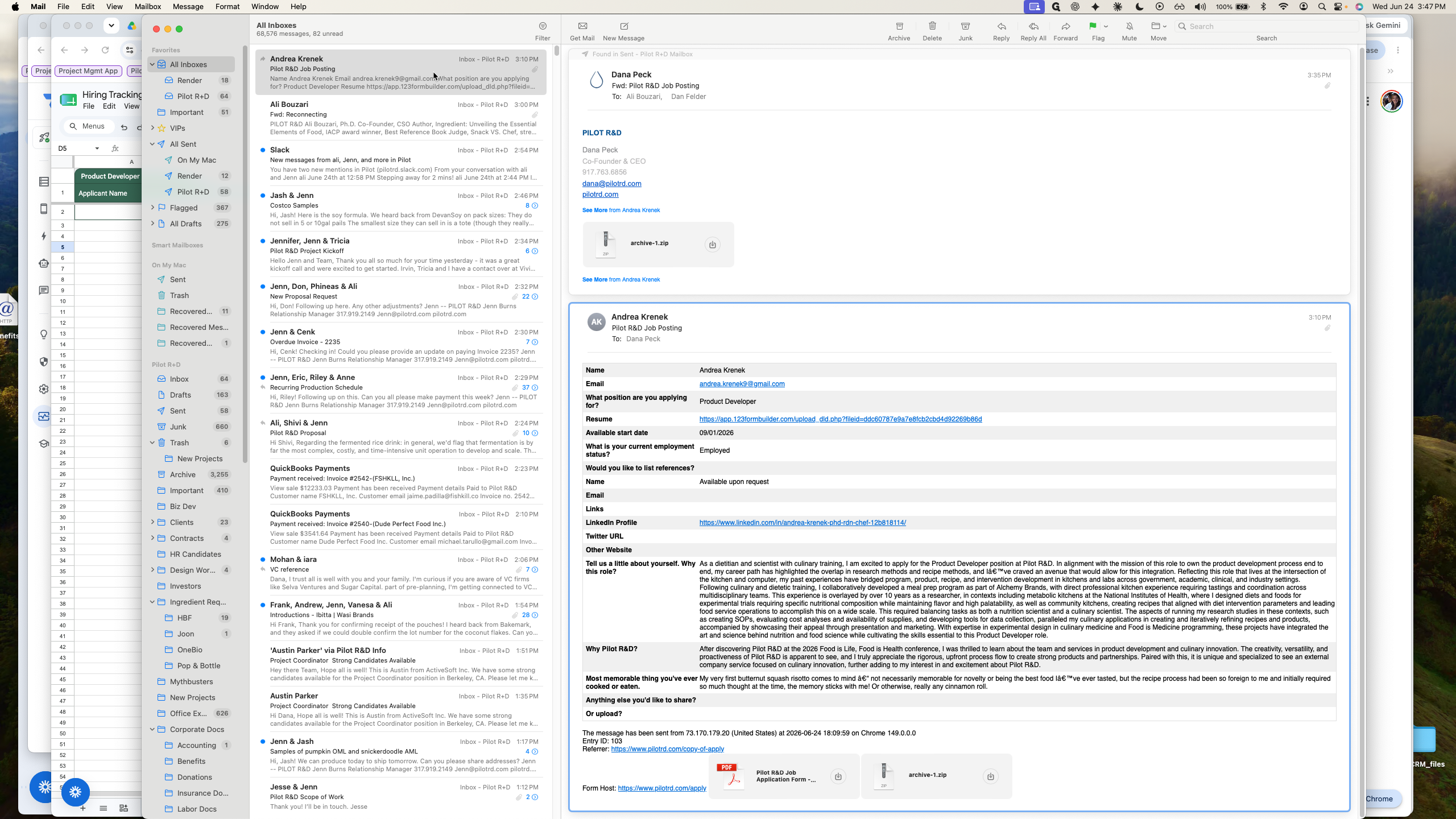
Open the email containing the new job application.
Step #4: Open the email containing the new job application.
5
Highlight the applicant's name in the email body.
Step #5: Highlight the applicant's name in the email body.
6
Copy the applicant's name to your clipboard.
7
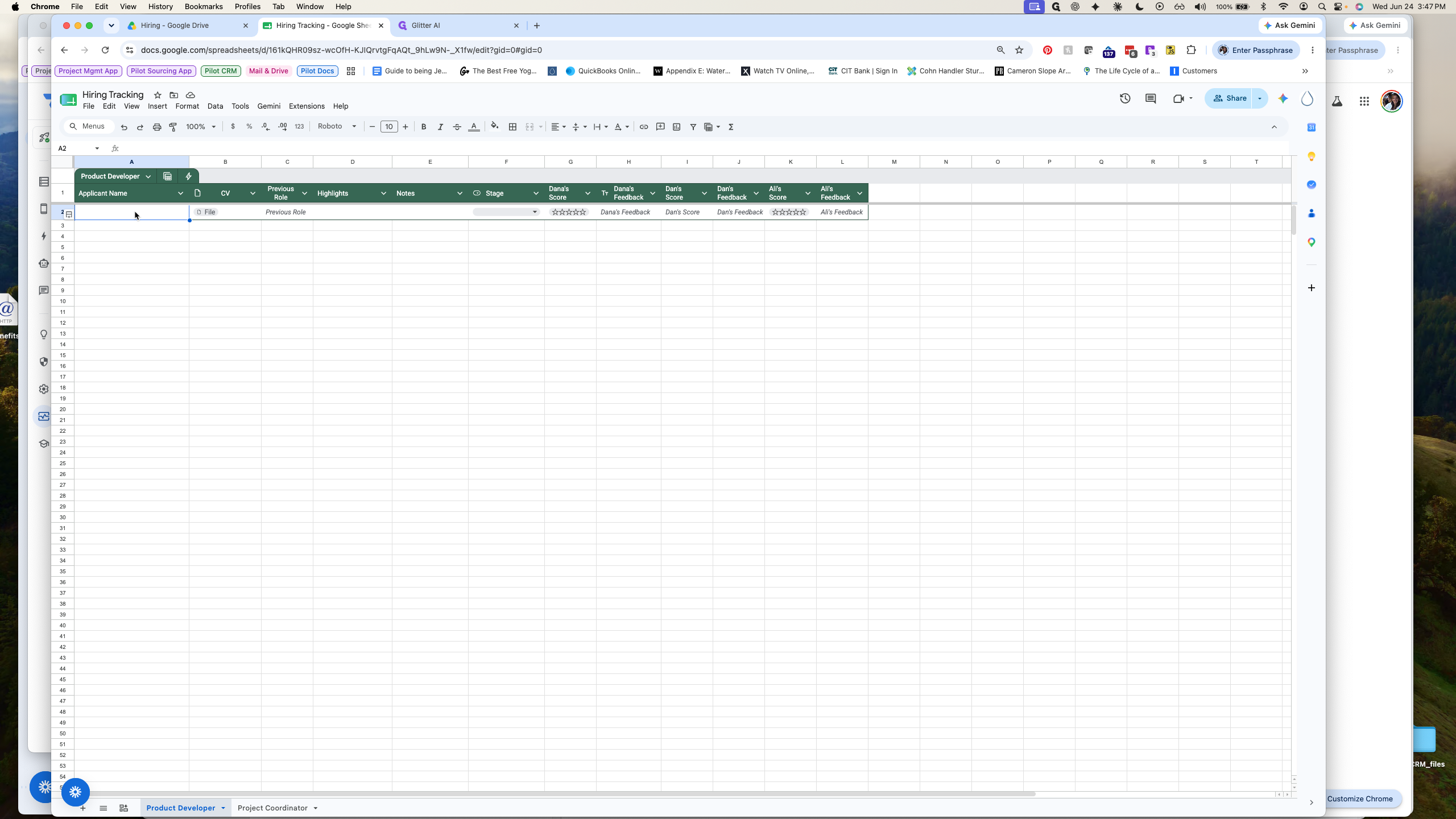
In the Hiring Tracking sheet, double-click an empty cell in the Applicant Name column.
Step #7: In the Hiring Tracking sheet, double-click an empty cell in the Applicant Name column.
8
Paste the applicant's name.
9
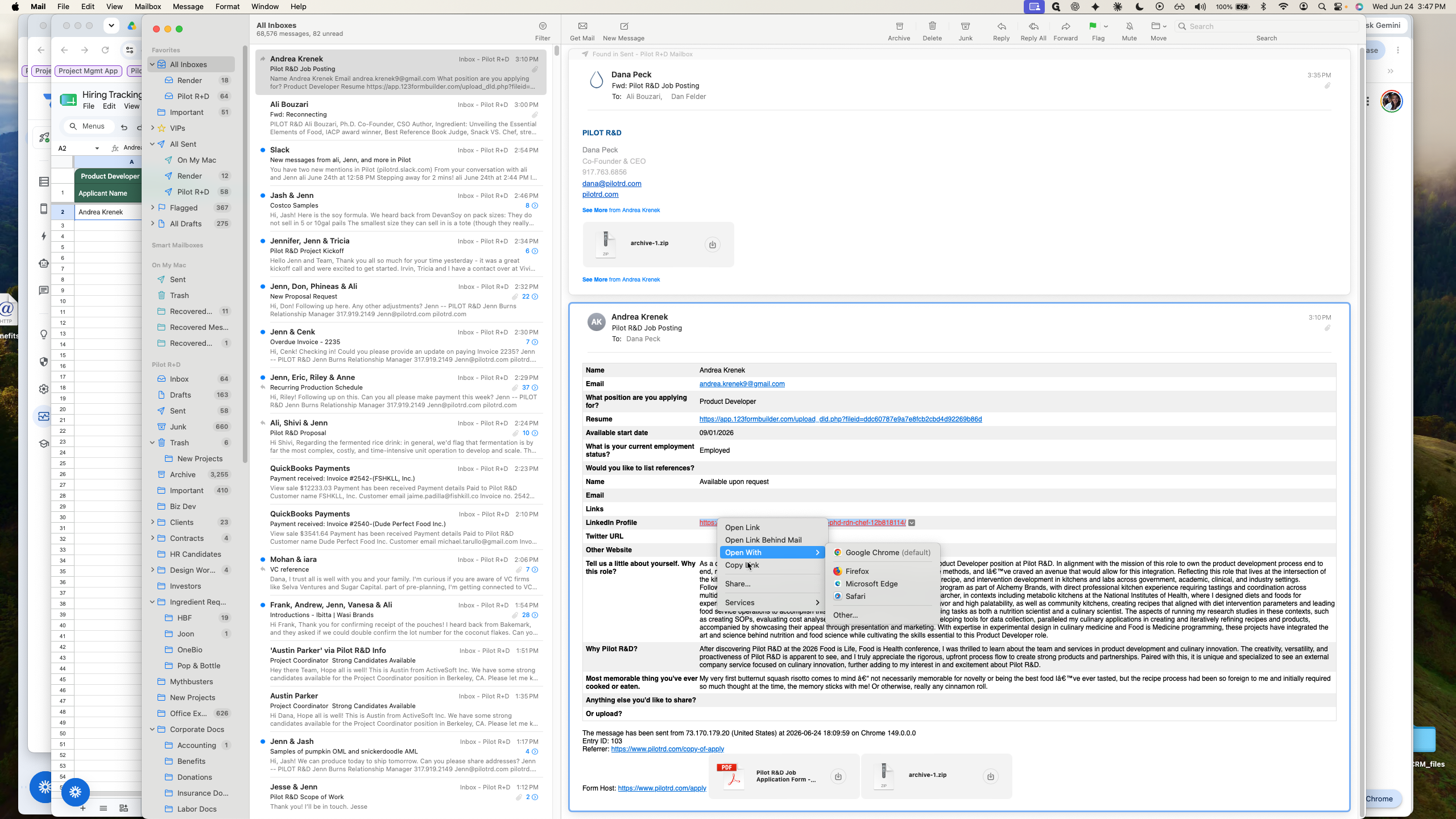
Return to the application email, right-click the applicant's LinkedIn URL, and select Copy link.
Step #9: Return to the application email, right-click the applicant's LinkedIn URL, and select Copy link.
10
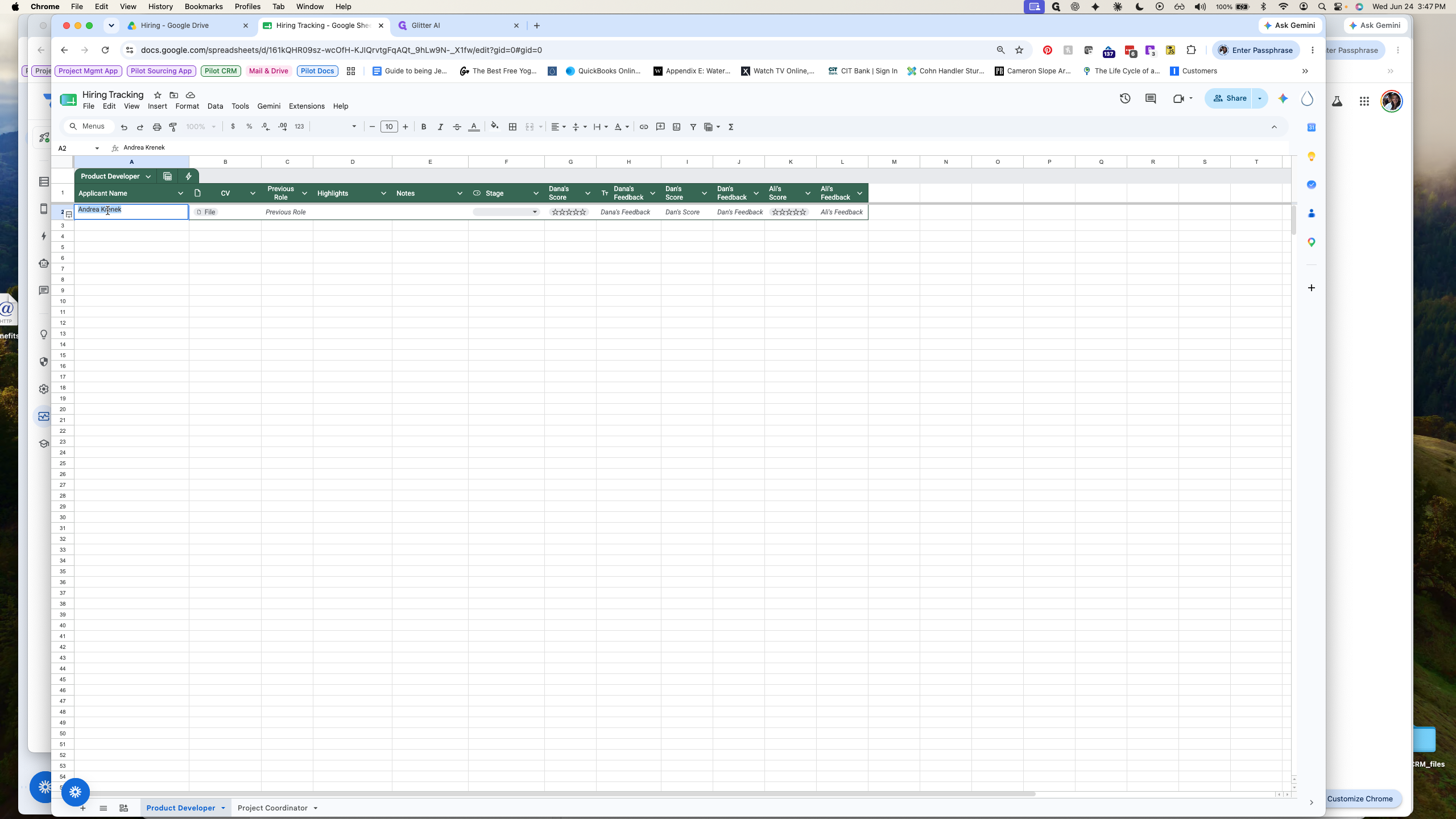
Right-click the cell containing the applicant's name in the spreadsheet.
Step #10: Right-click the cell containing the applicant's name in the spreadsheet.
11
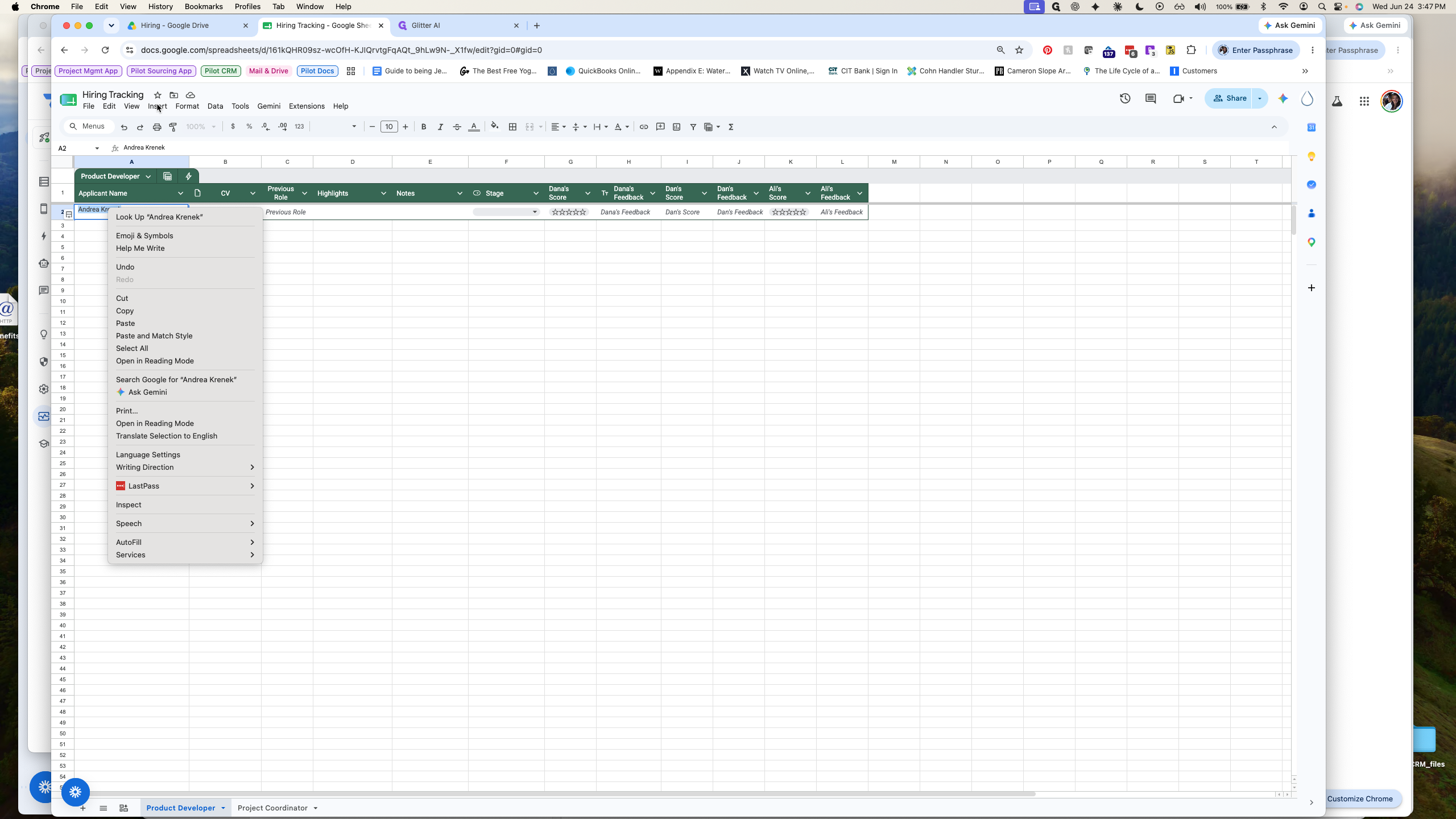
Hover over Insert.
Step #11: Hover over Insert.
12
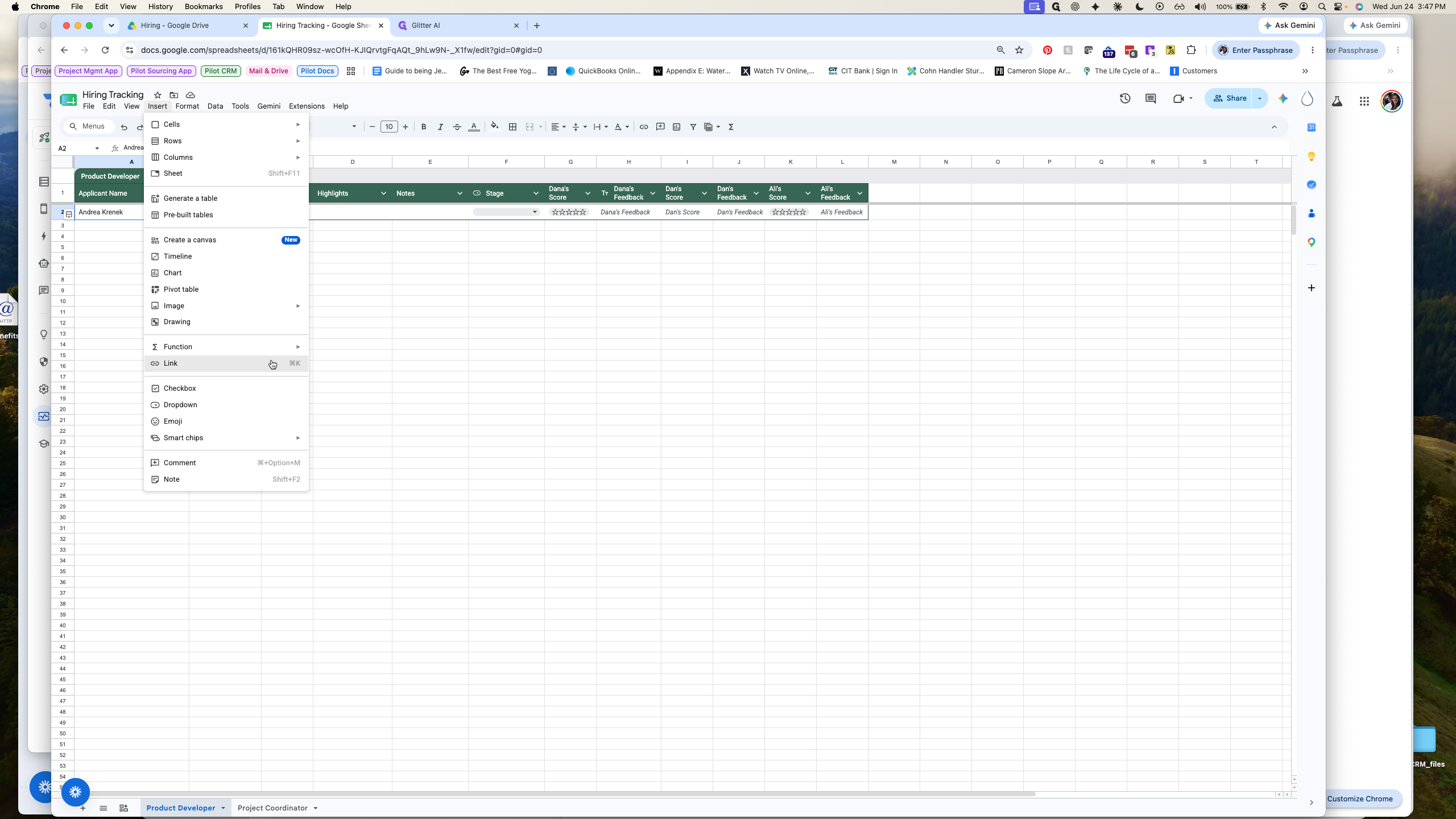
Select Link from the extended menu.
Step #12: Select Link from the extended menu.
13
Paste the LinkedIn profile URL into the link field.
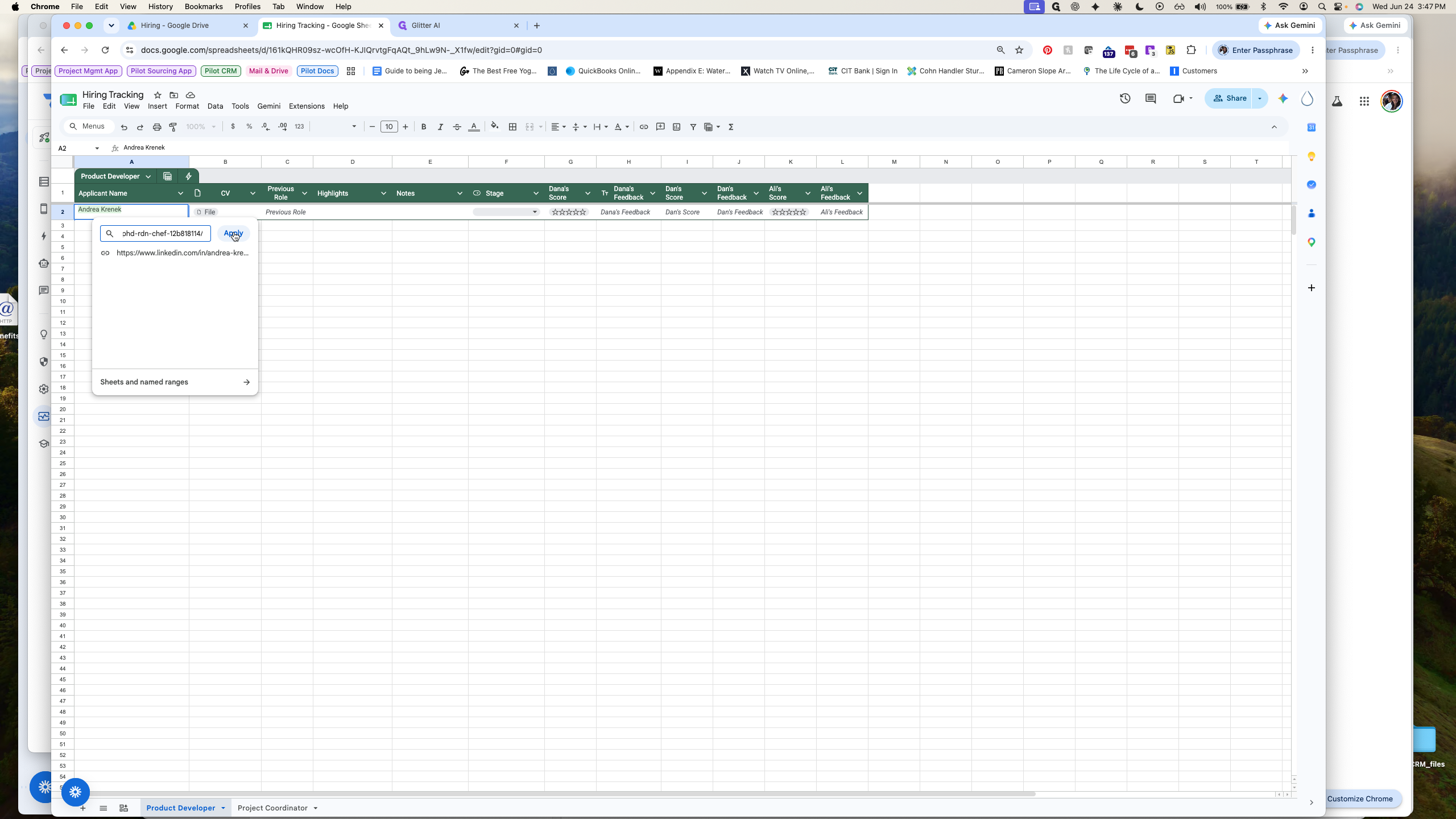
14
Click Apply to hyperlink the name.
Step #14: Click Apply to hyperlink the name.

3. Organize Application Documents

Store the candidate's resume and cover letter in a dedicated subfolder.
15
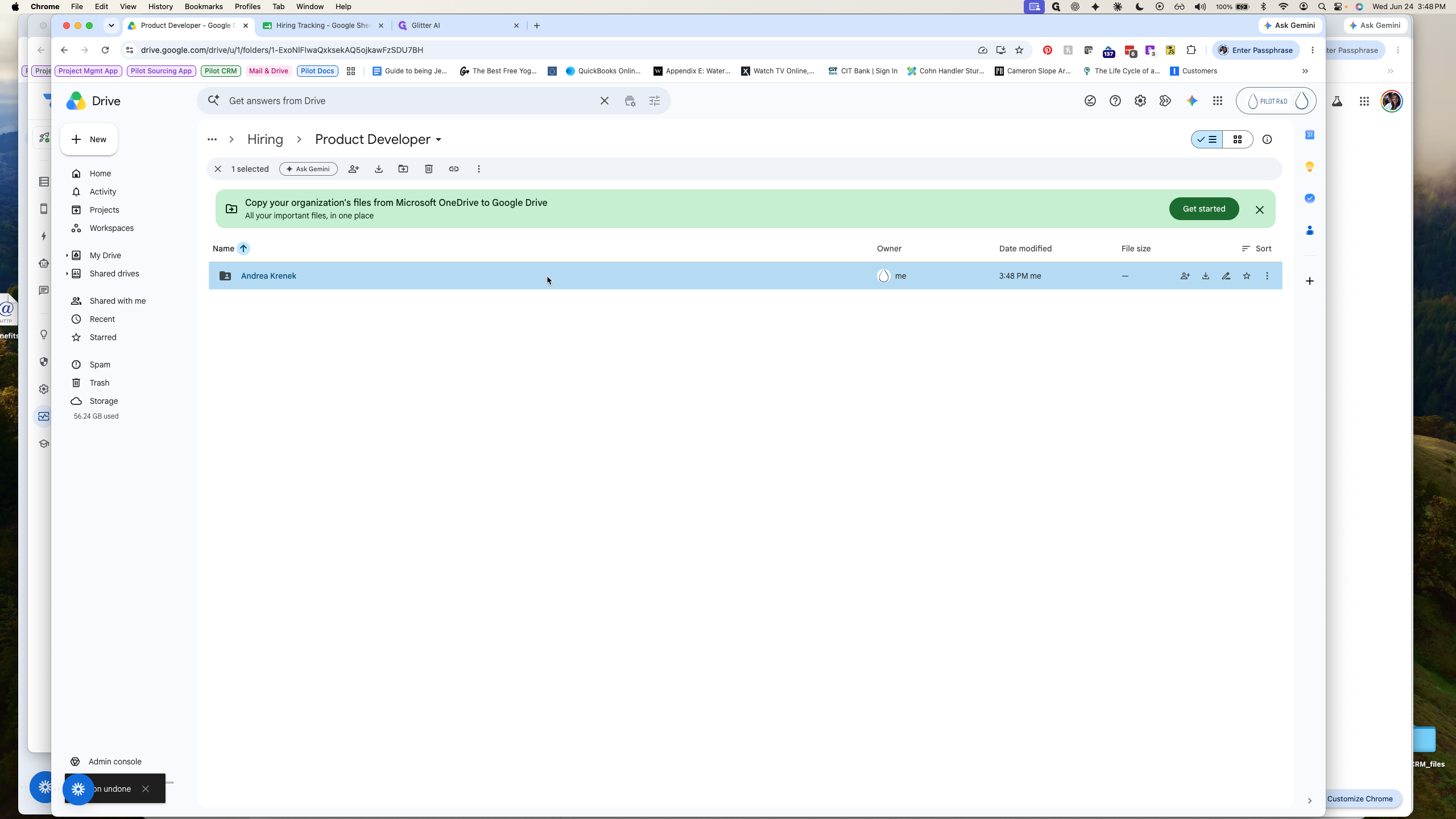
Navigate to the Google Drive folder for the specific role (e.g., Product Developer).
Step #15: Navigate to the Google Drive folder for the specific role (e.g., Product Developer).
16
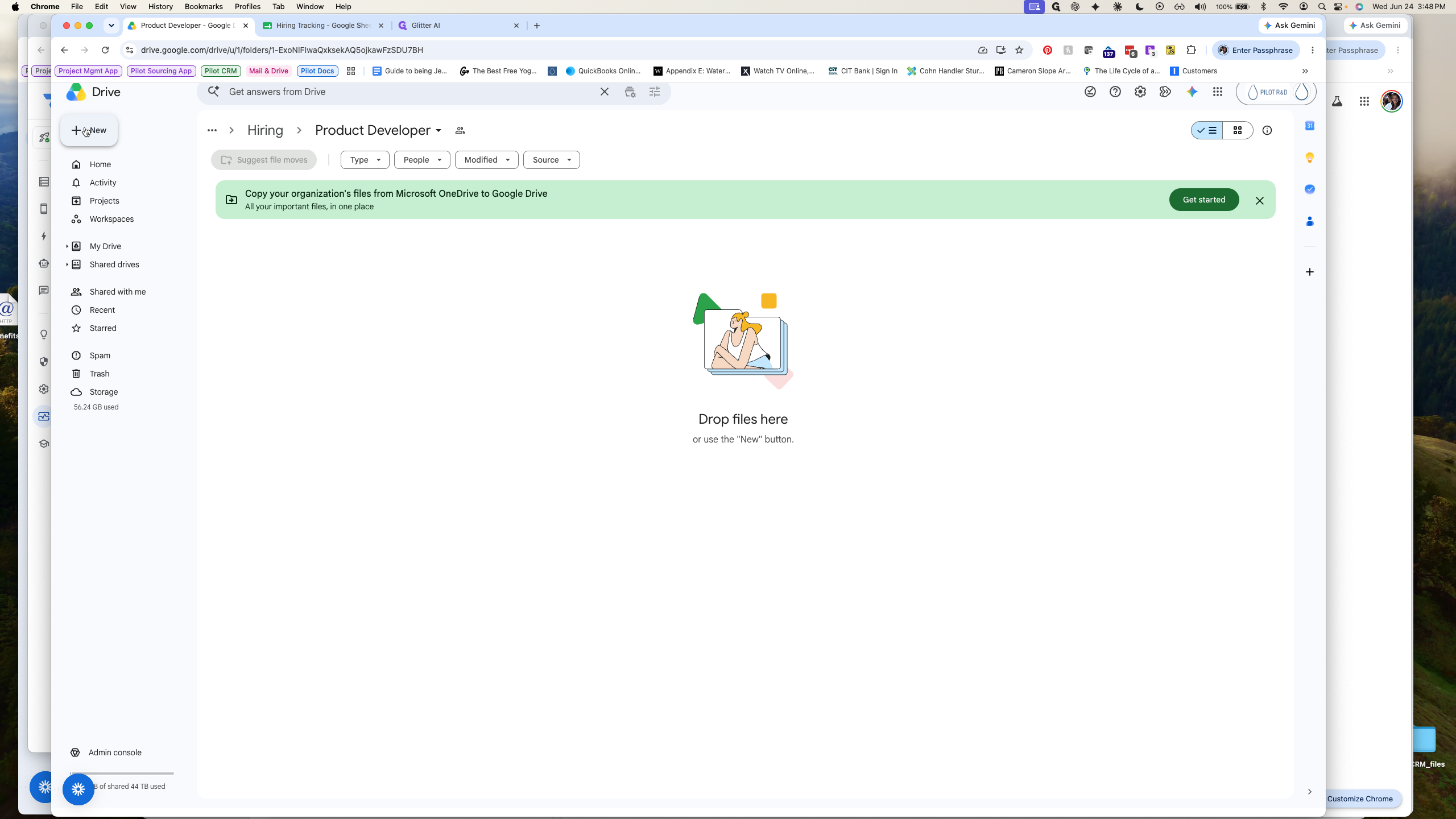
Click the + New button in the left sidebar.
Step #16: Click the + New button in the left sidebar.
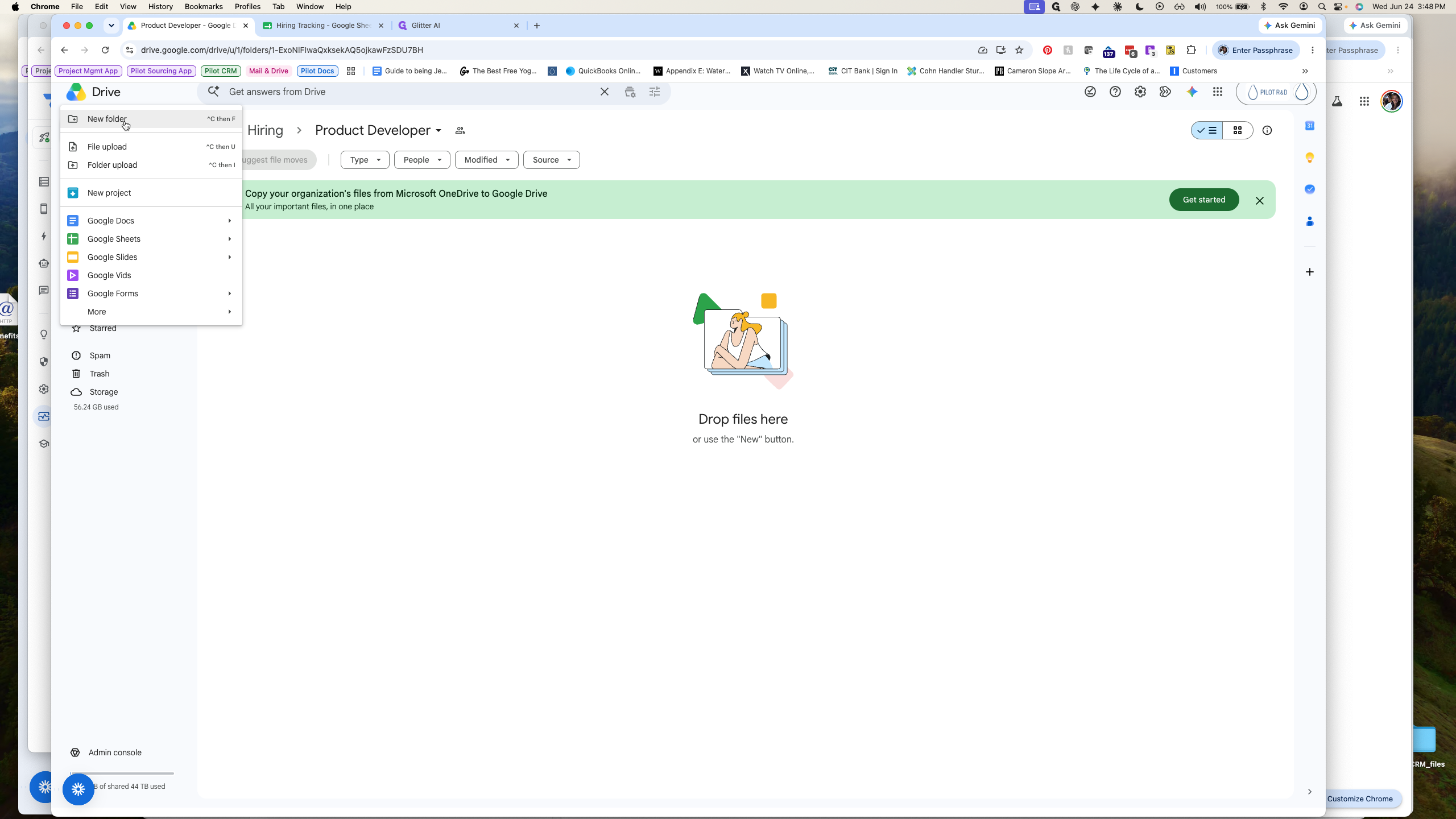
17
Select New folder.
Step #17: Select New folder.
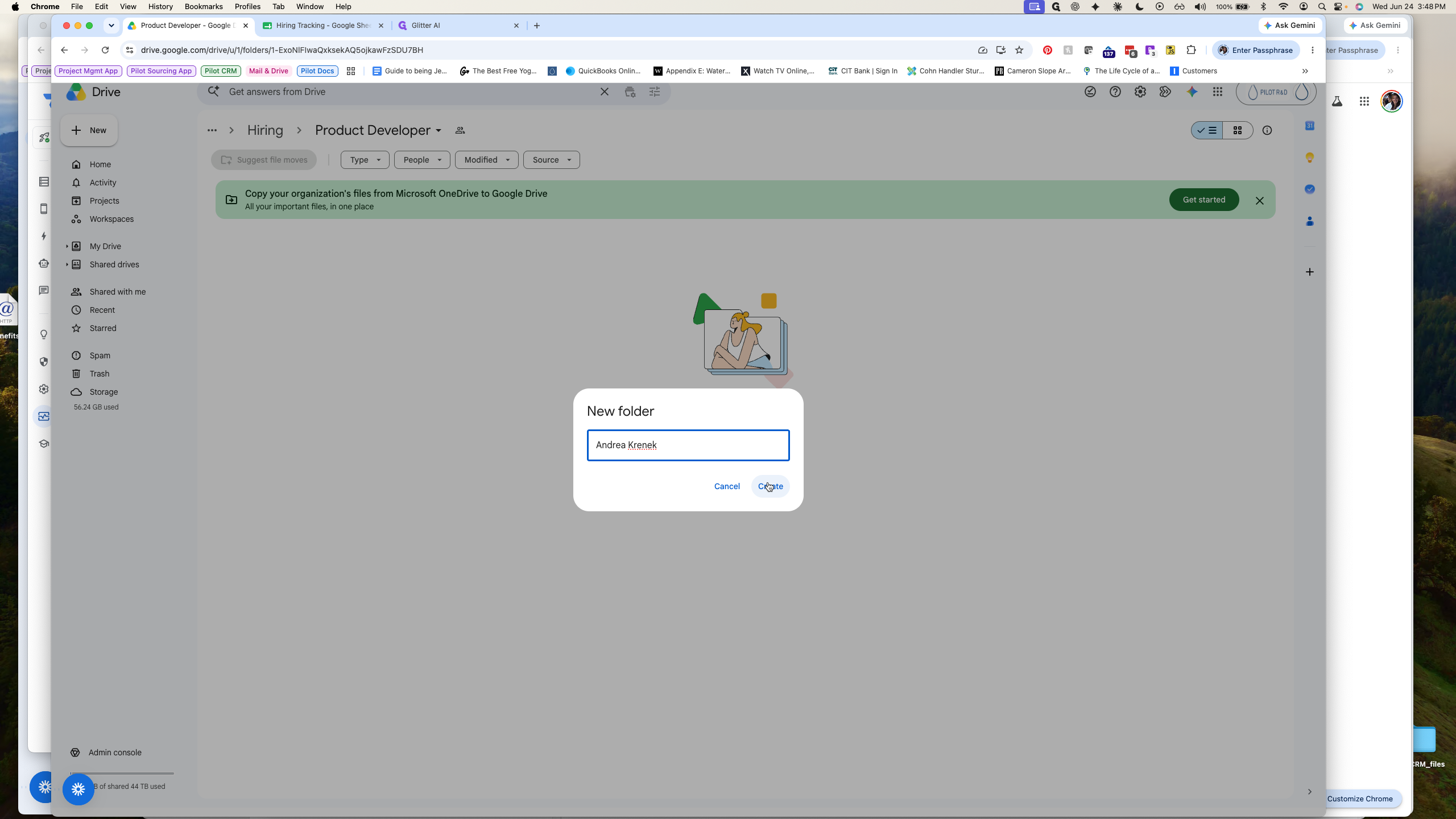
18
Type the applicant's name as the folder title.
19
Click Create to confirm.
Step #19: Click Create to confirm.
20
Double-click the newly created folder to open it.
Step #20: Double-click the newly created folder to open it.
21
Drag and drop the applicant's resume and application files from your computer into the folder.
Step #21: Drag and drop the applicant's resume and application files from your computer into the folder.

4. Log Experience and Highlights

Review the submitted documents and summarize key points for the hiring team.
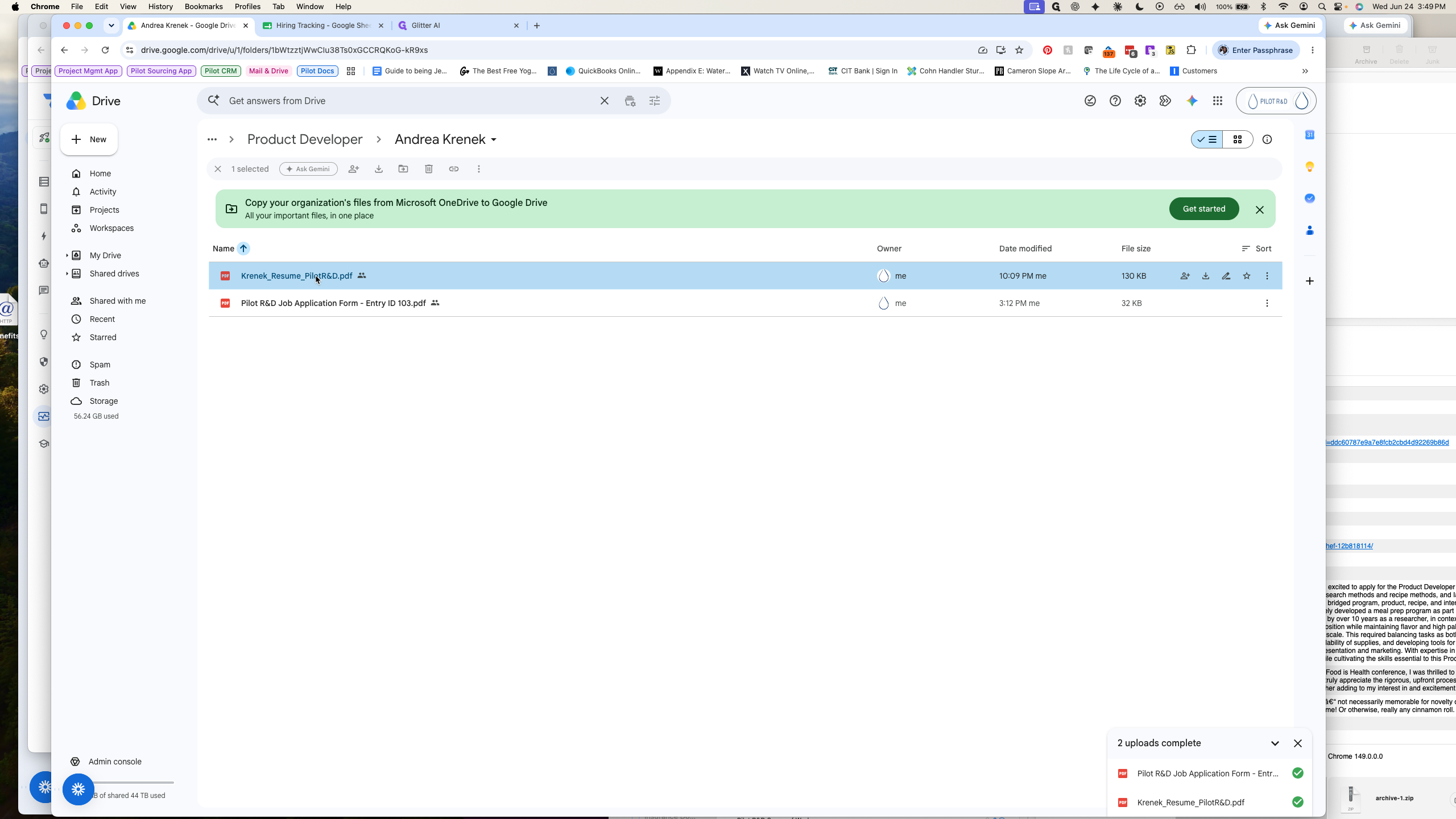
22
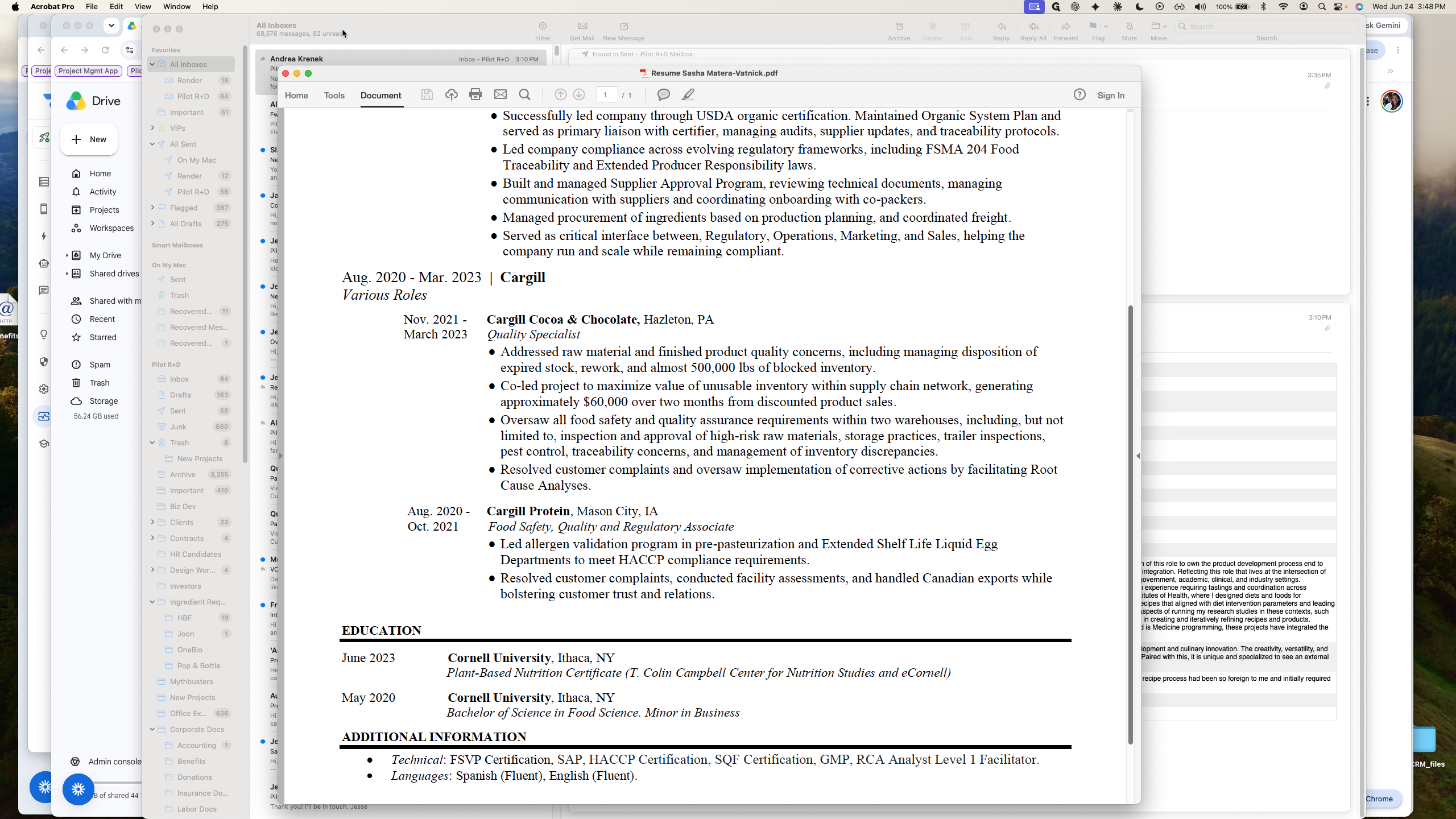
Double-click the uploaded resume to preview it directly in Google Drive.
Step #22: Double-click the uploaded resume to preview it directly in Google Drive.
23
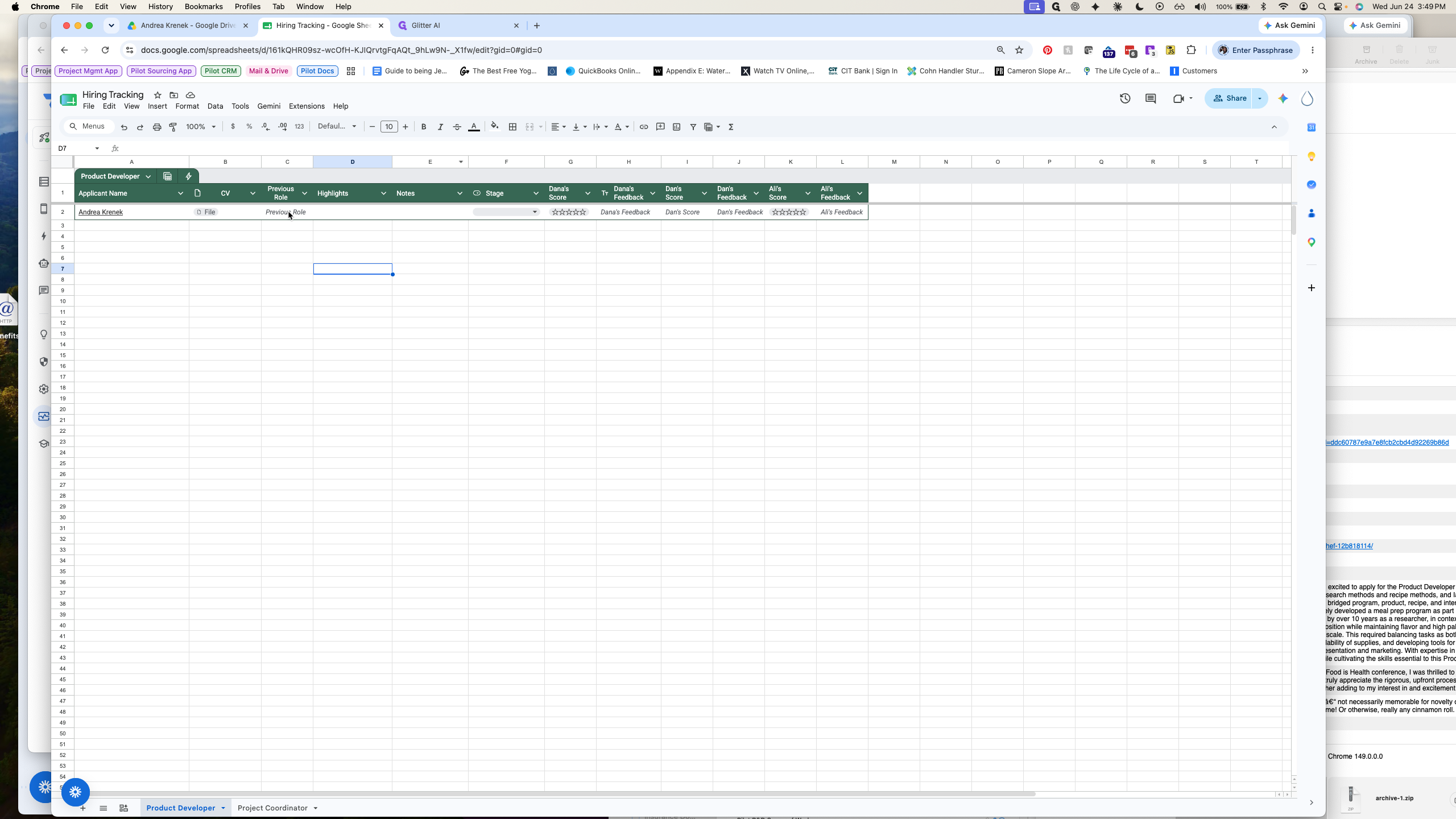
Switch back to your tracking spreadsheet and click the Previous Role cell for the applicant.
Step #23: Switch back to your tracking spreadsheet and click the Previous Role cell for the applicant.
24
Type a summary of their current or most recent positions.
25
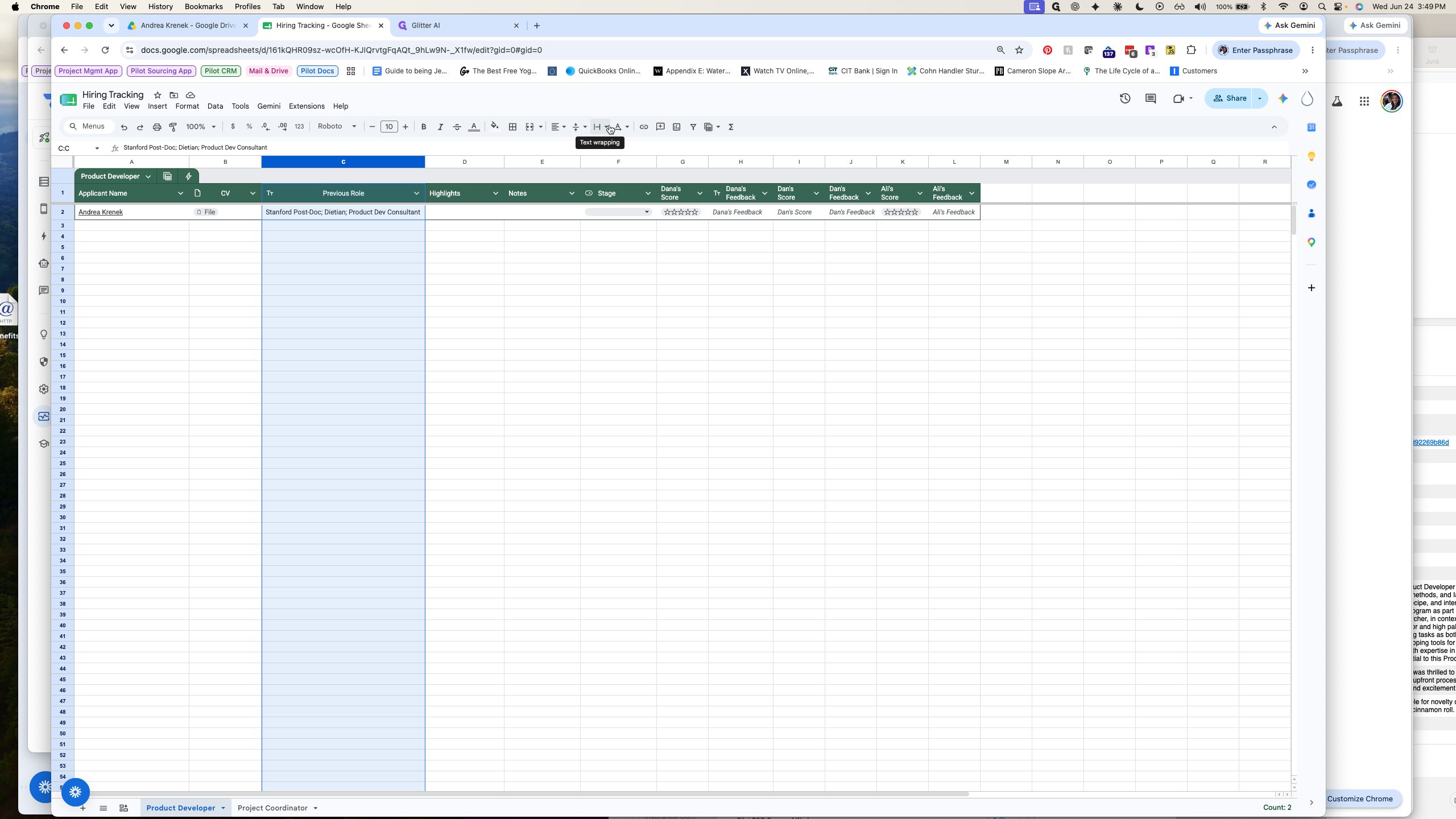
If the text exceeds the cell width, click the text wrapping icon in the toolbar and select Wrap.
Step #25: If the text exceeds the cell width, click the text wrapping icon in the toolbar and select Wrap.
26
Double-click the corresponding cell in the Highlights column.
Step #26: Double-click the corresponding cell in the Highlights column.
27
Enter key takeaways from the resume, such as relevant degrees, specializations, or missing qualifications.
28
Press Alt + Enter (or Option + Return on Mac) to start a new line within the same cell.
29
Press Tab or Enter to save your notes.

Q: How do I add a clickable LinkedIn profile to an applicant's name?

A: Right-click the cell containing their name, select Insert, then choose Link. Paste the URL into the field and click Apply.

Q: How do I create a new line of text within the same cell in Google Sheets?

A: Press Alt + Enter (or Option + Return on Mac) while typing to drop to a new line inside a single cell.

Term

Definition

Text wrapping

A spreadsheet formatting feature that forces long text to display across multiple lines within a single cell, preventing it from overflowing.

Zip file

A compressed archive that bundles multiple files or documents into a single, easily downloadable file.

Postdoc

A postdoctoral researcher; a temporary position for individuals holding a PhD engaged in further academic research.

Tracking Job Applicants