
Use HubSpot automation to open Actionstep matters
Learn how to push a newly signed client from HubSpot into Actionstep by updating the deal stage and configuring matter properties.
By Easy Law
This guide explains how to transfer a newly signed client from HubSpot into Actionstep. By updating the deal stage and filling out the required dependent properties, you can automatically generate the client's case file in Actionstep without manual data entry.
This process applies to intake specialists or legal assistants managing client onboarding workflows between HubSpot and Actionstep.
Trigger the Transfer in HubSpot
1
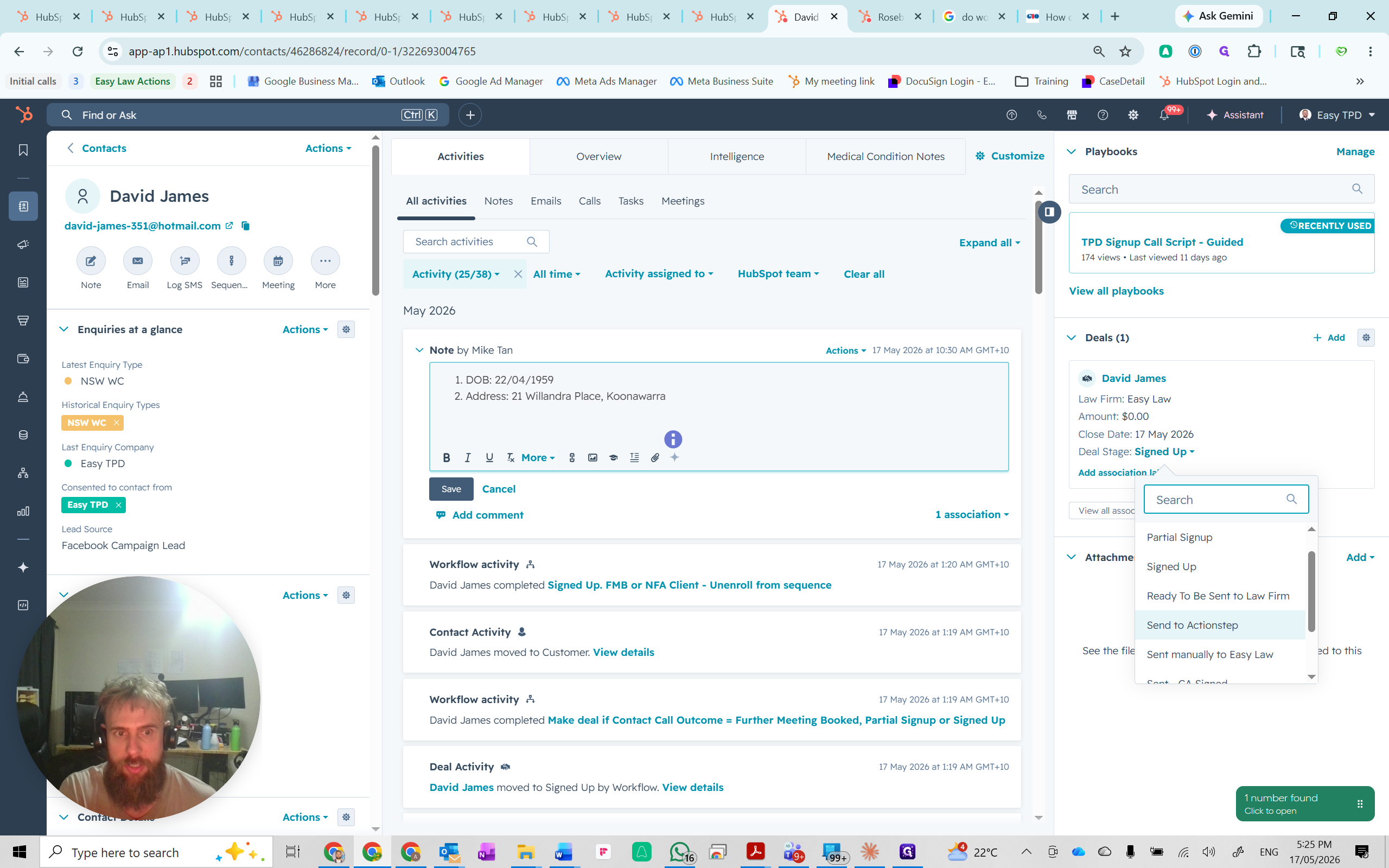
In the client's HubSpot record, click the Deals stage dropdown and select Send to Actionstep.
2
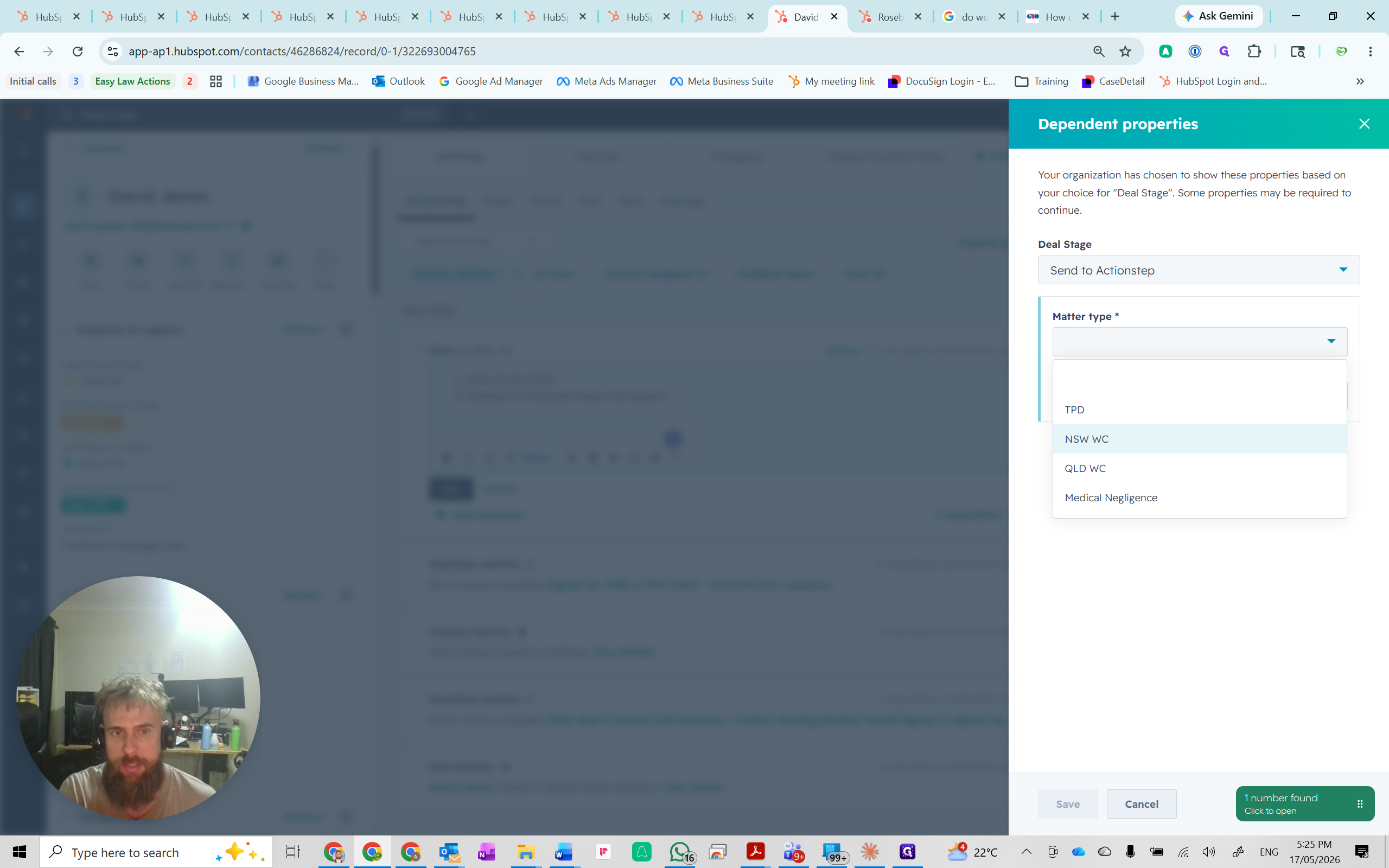
In the Dependent properties side panel, click the Matter type dropdown and select the appropriate matter (e.g., NSW WC).
3
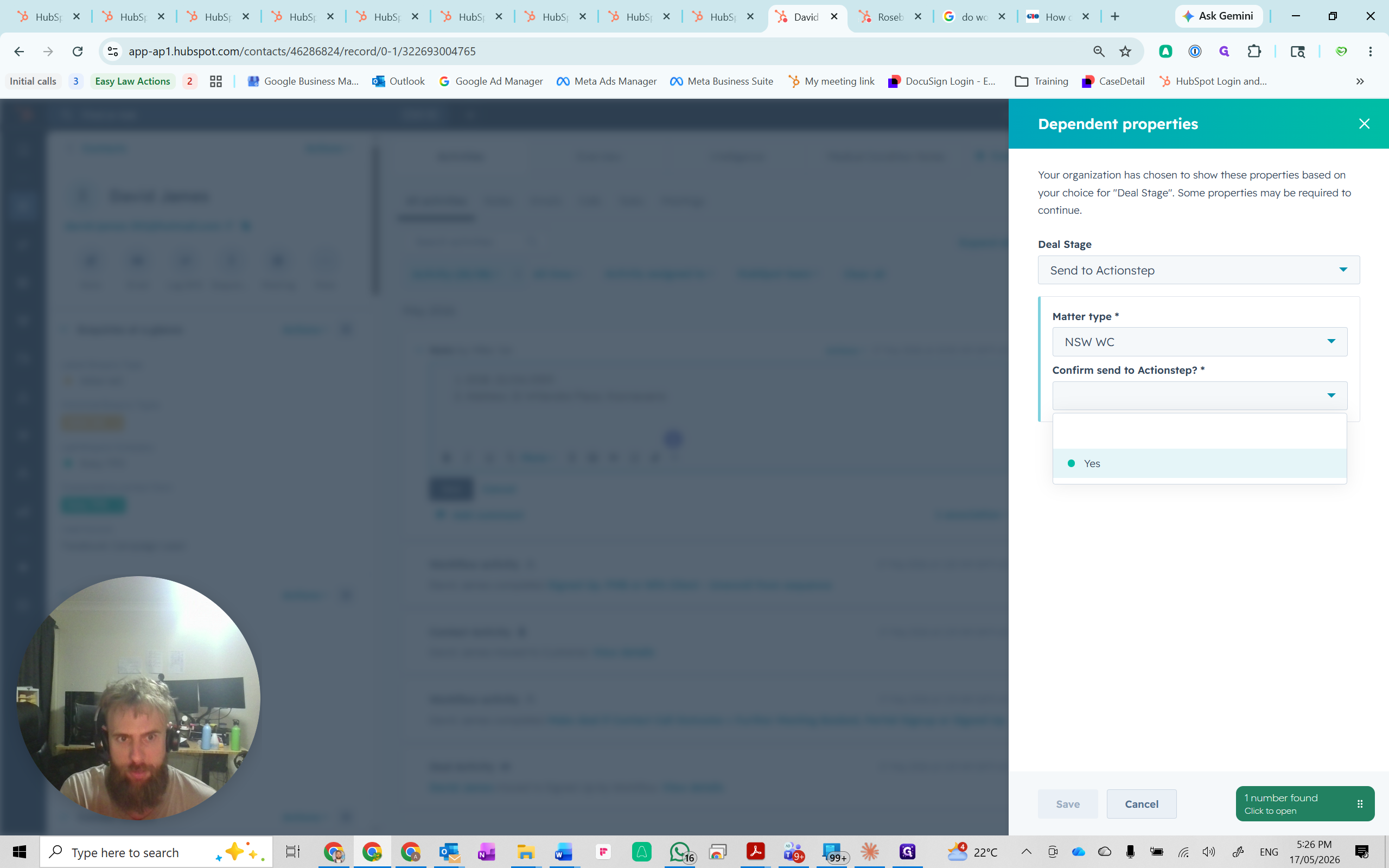
Set the Confirm send to Actionstep? dropdown to Yes.
4
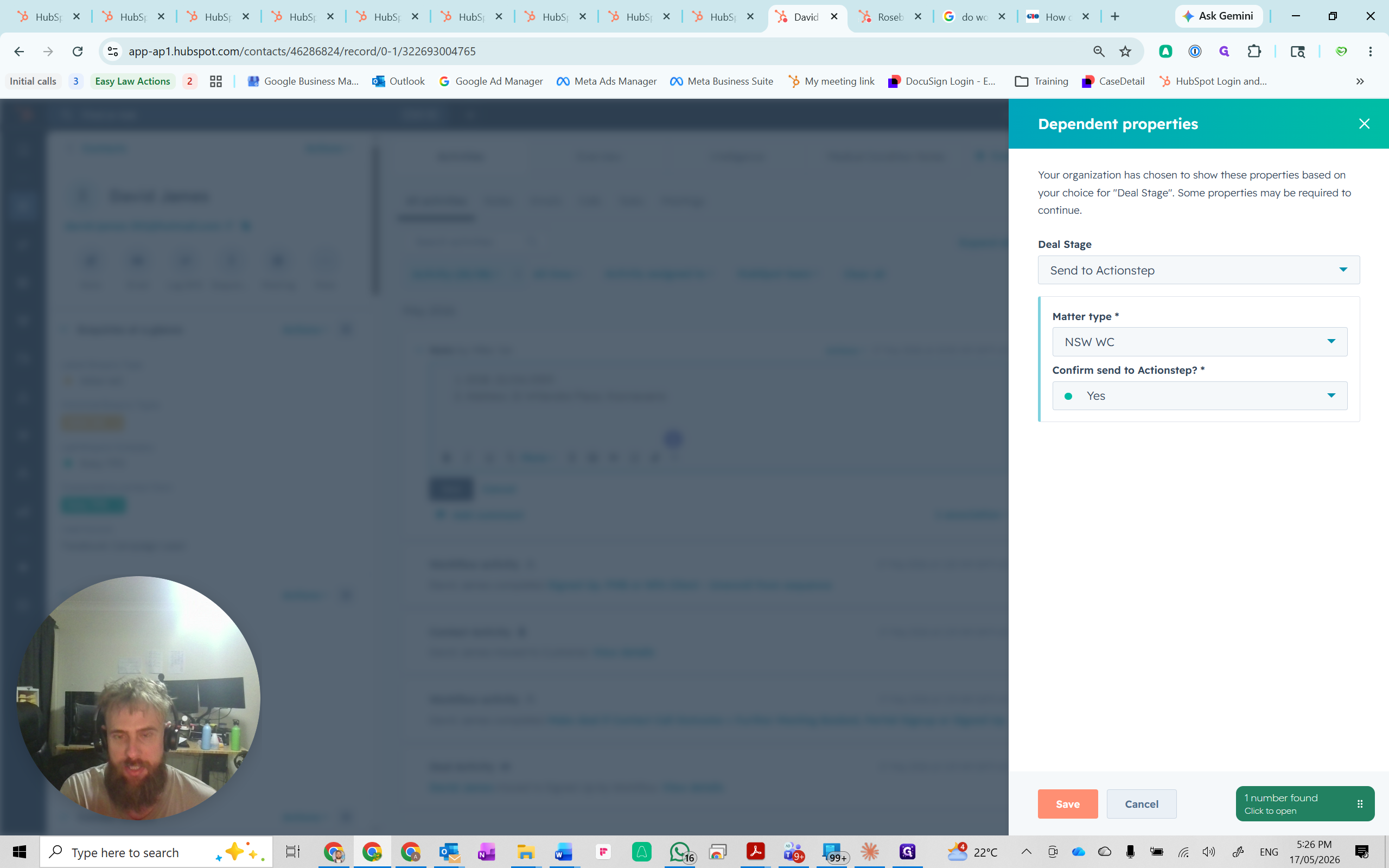
Click Save to apply the properties and trigger the integration.
Verify and Update in Actionstep
5
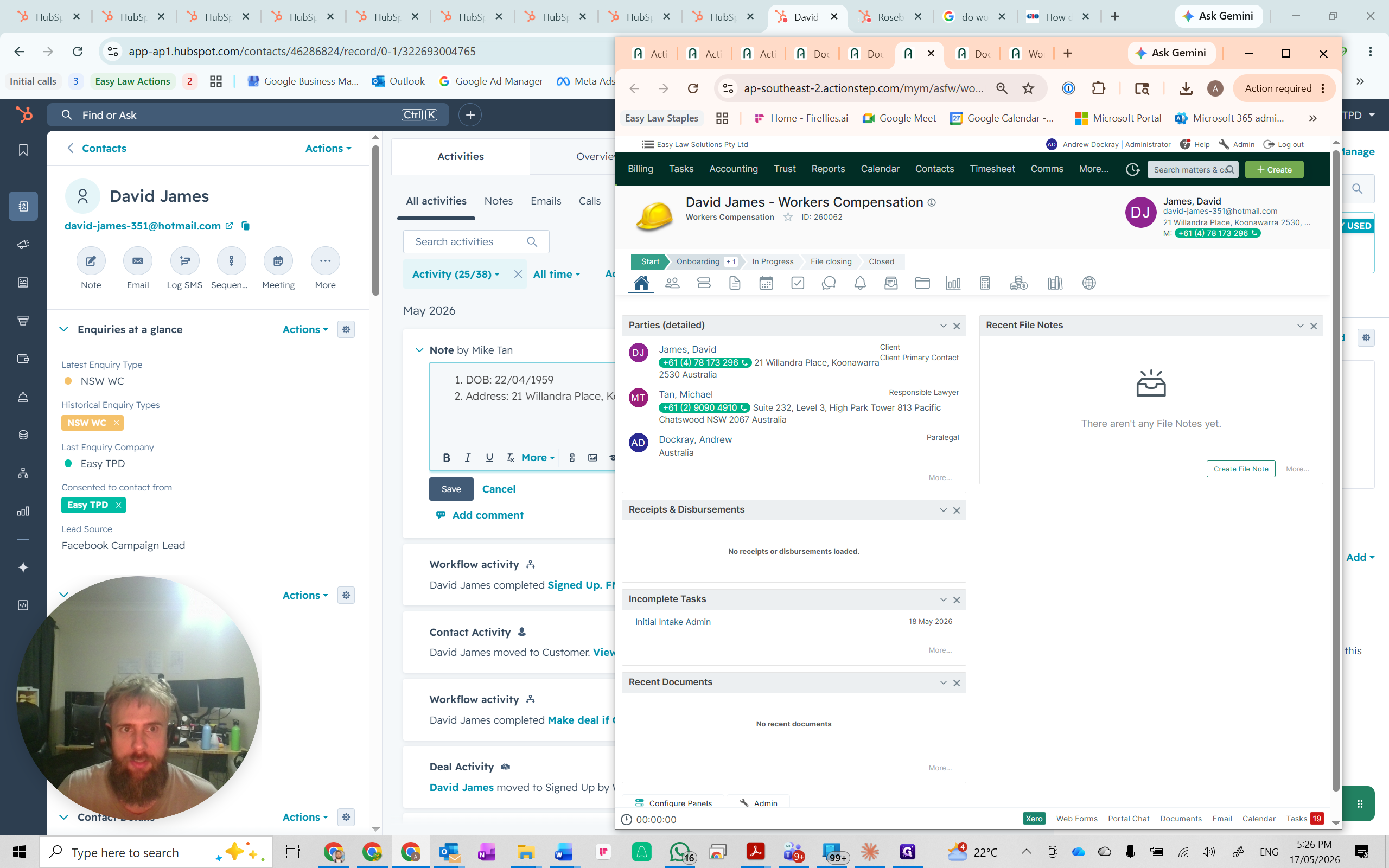
Open Actionstep, click the global search bar, and type the client's name.
6
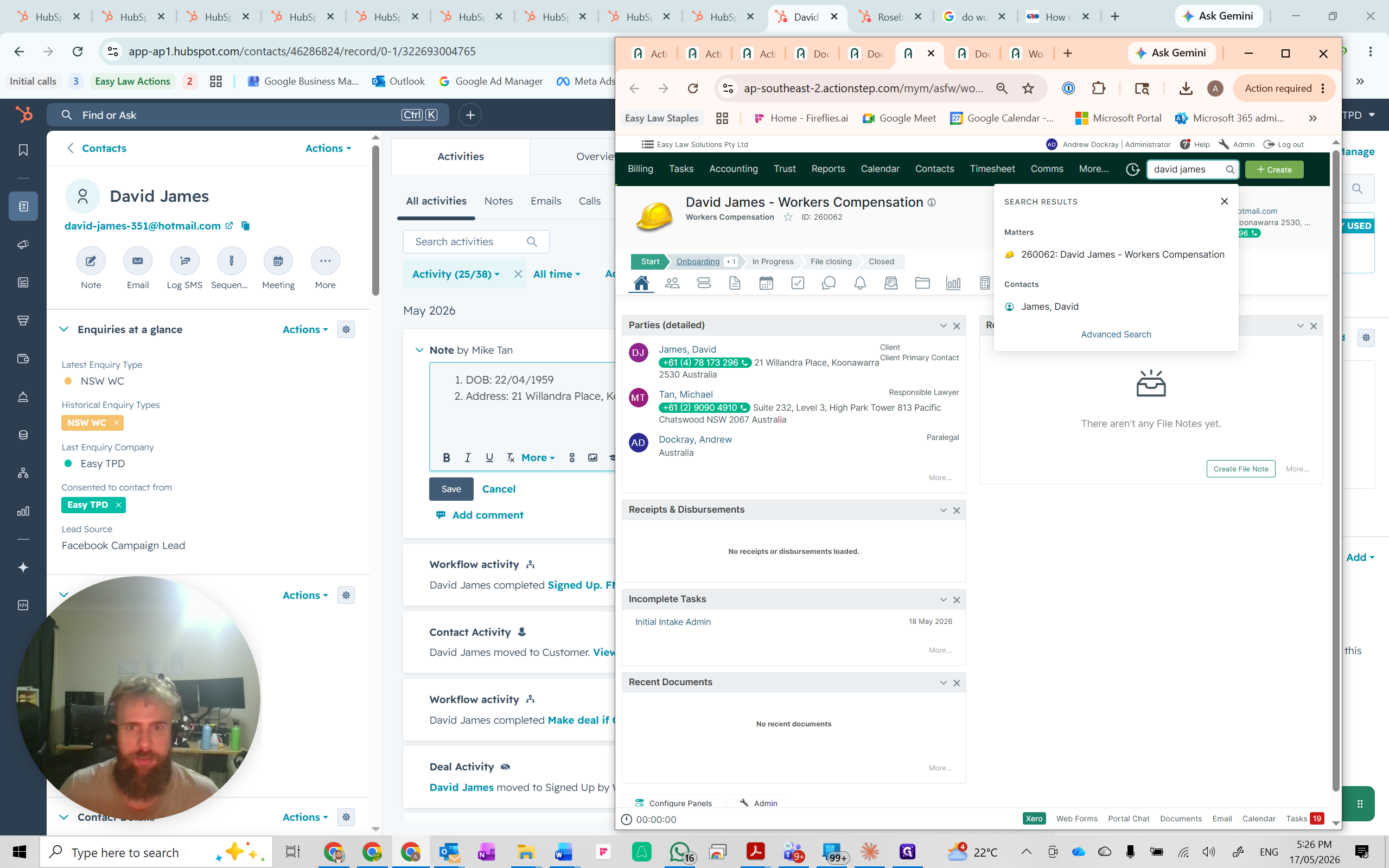
Select the client's newly created legal matter from the search results.
7
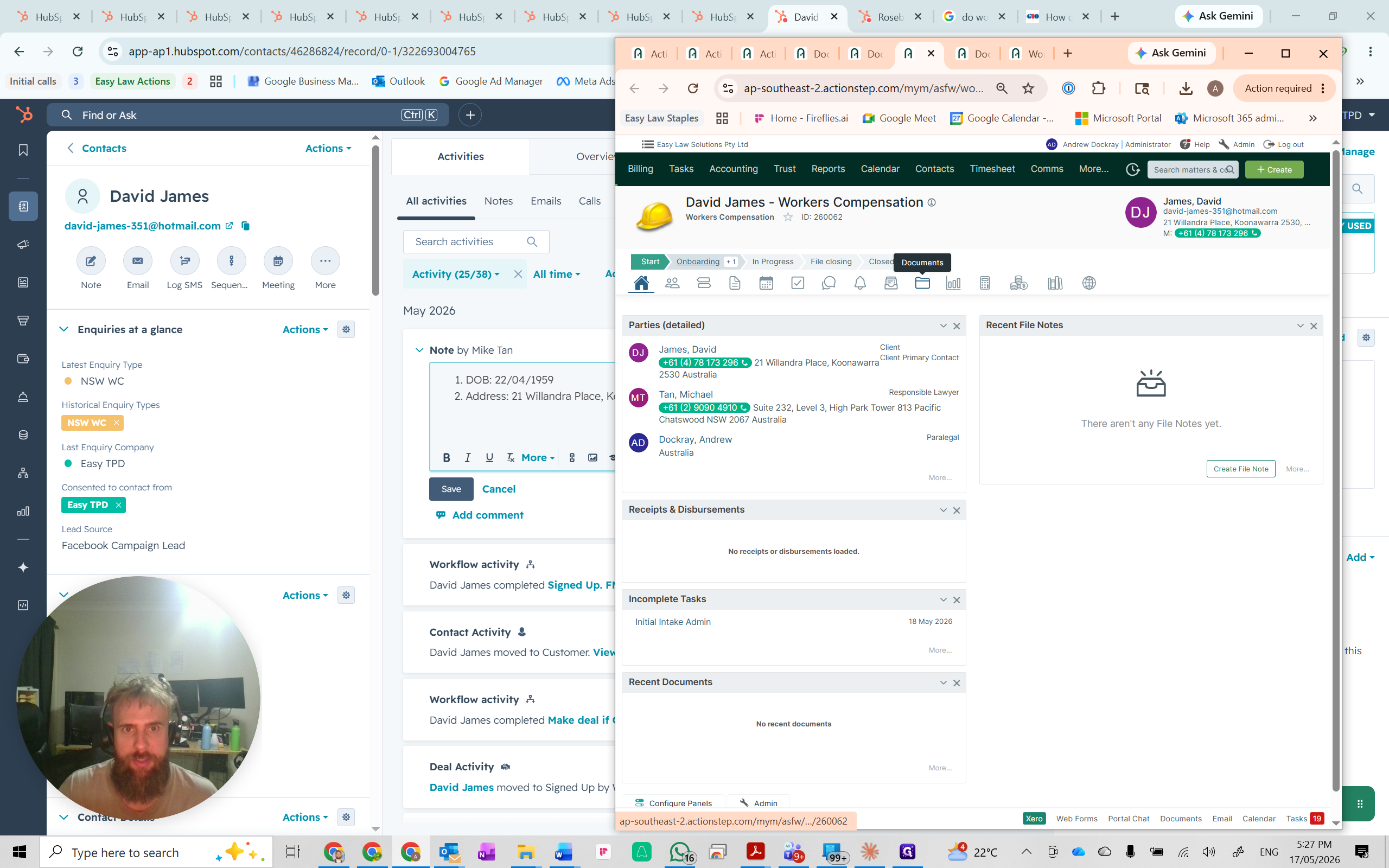
Click the Documents tab in the sub-navigation bar to begin uploading the client's signed authorities and associated files.
FAQ
Q: How long does it take for the client to appear in Actionstep?
A: It typically takes between 15 seconds to a minute for the integration to successfully sync the client data from HubSpot into Actionstep.
Q: What should I do if the client doesn't sync to Actionstep?
A: Ensure all prerequisite fields—such as Date of Birth, Address, and Next of Kin—are correctly populated in HubSpot. Missing mandatory data often prevents the integration from creating the matter.