
Triage and Organize a Service Allocator Inbox
Learn how to manage a service allocator email inbox by categorizing tasks, contractor updates, and low-priority items into custom folders.
This guide explains how to organize and triage a service allocator's email inbox using custom folders. Completing this ensures urgent items are prioritized while low-priority or recurring tasks are neatly batched for later processing.
This process applies to service allocators and administrative coordinators. Use this workflow daily to manage incoming requests, contractor updates, and preventative maintenance efficiently.
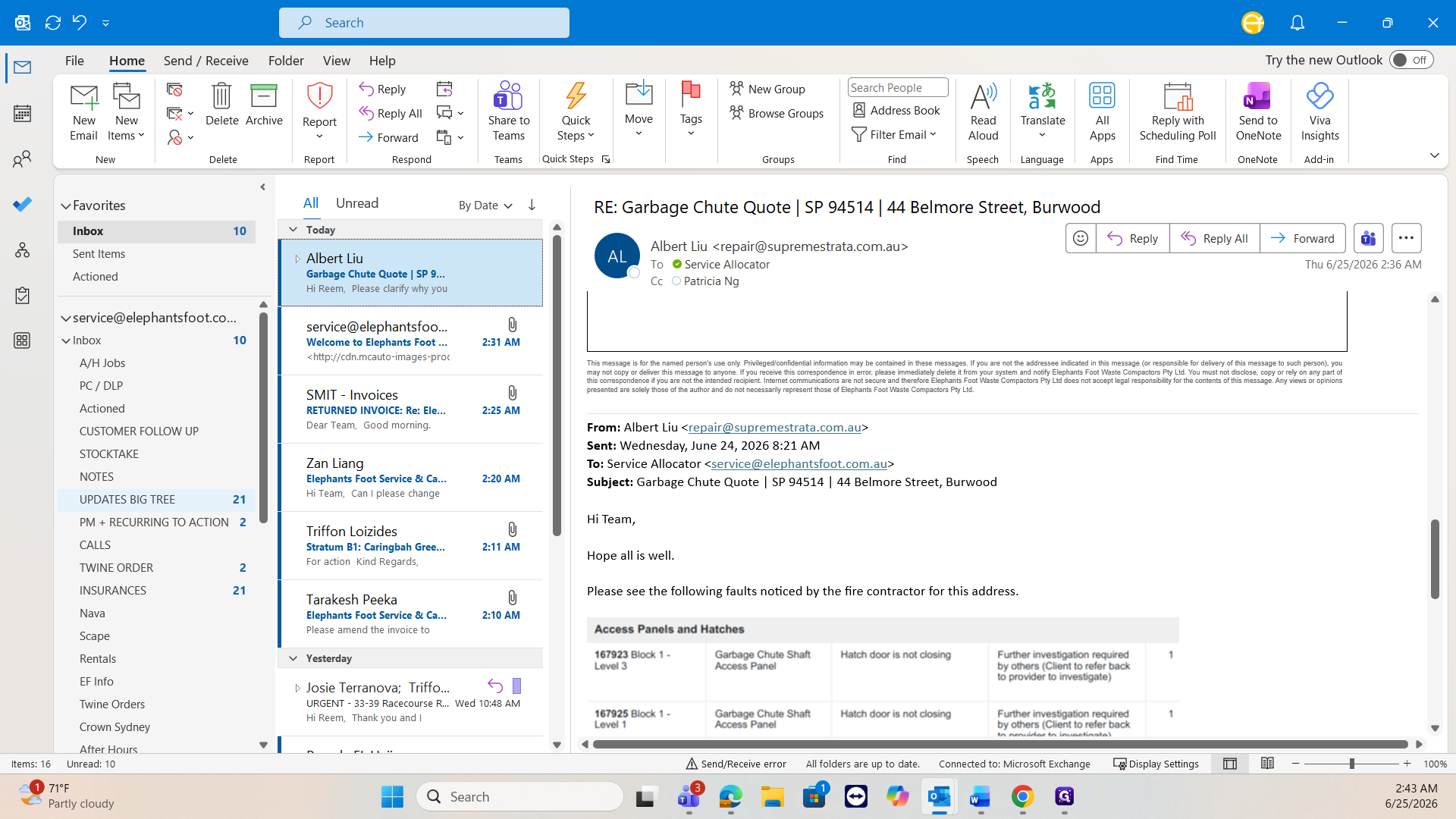
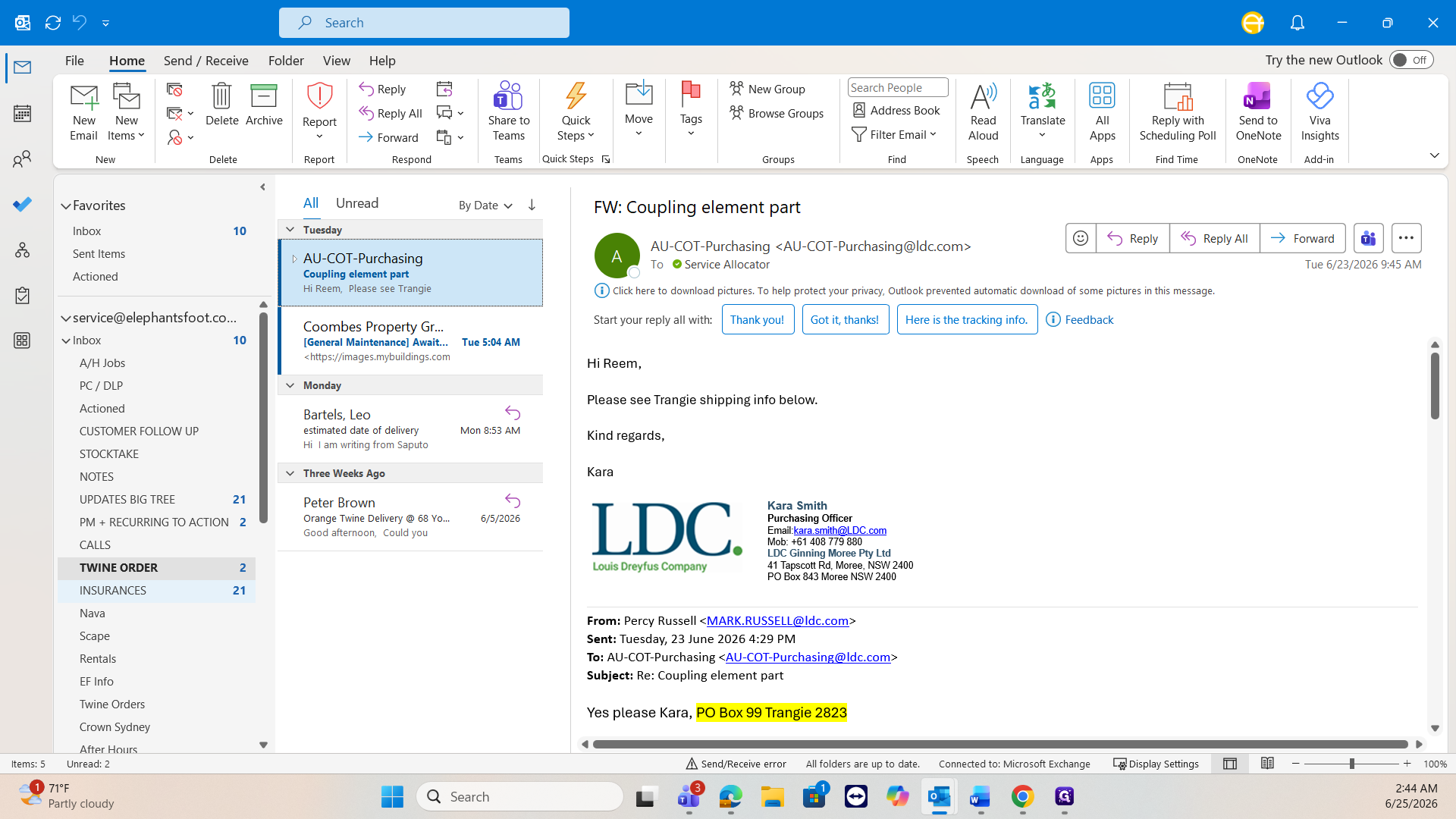
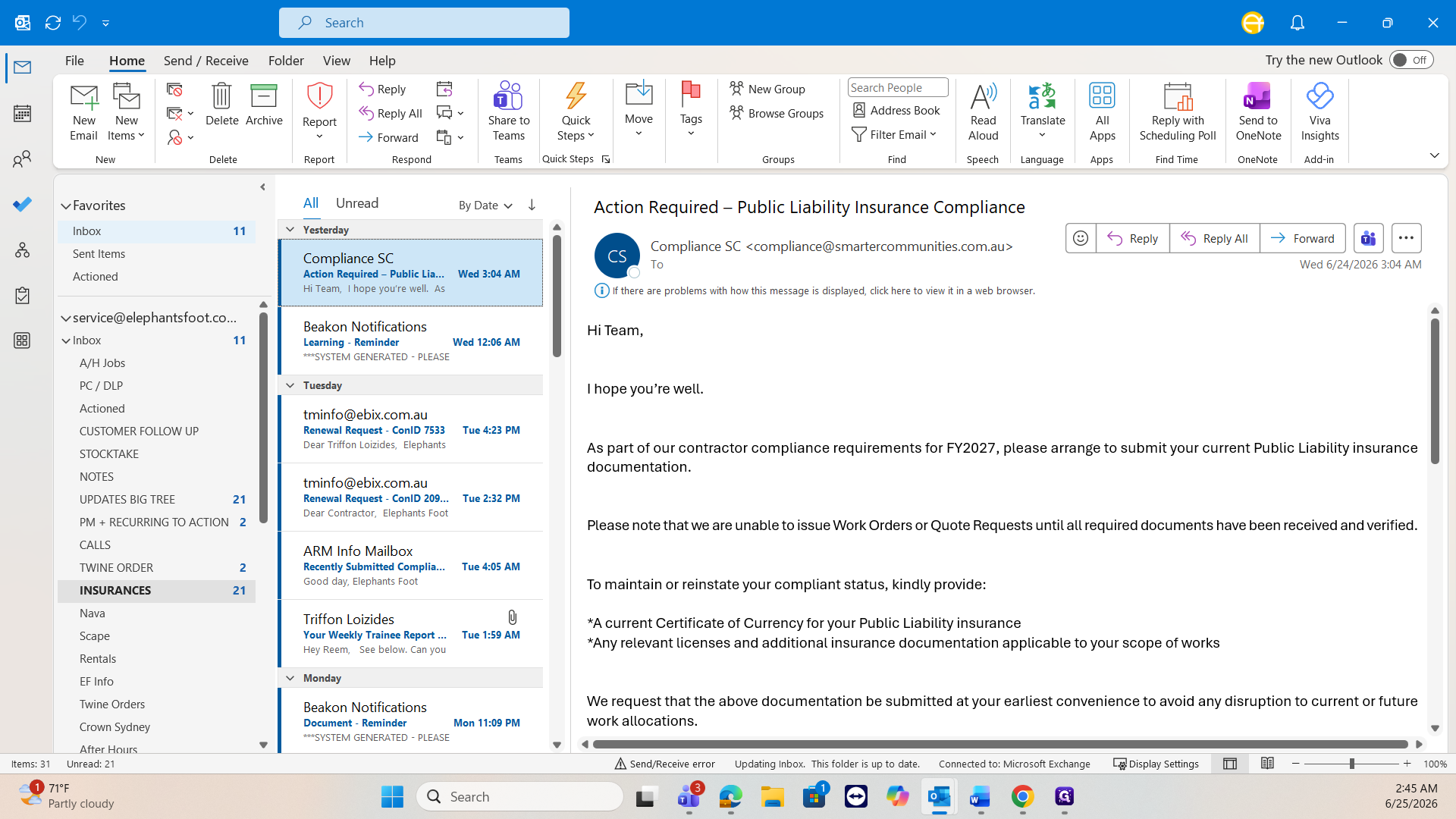
As a service allocator, maintaining a clean inbox is crucial. When you resolve an email, move it to the Actioned folder. For other emails, distribute them into specific categorized folders so you can focus on urgent tasks first.
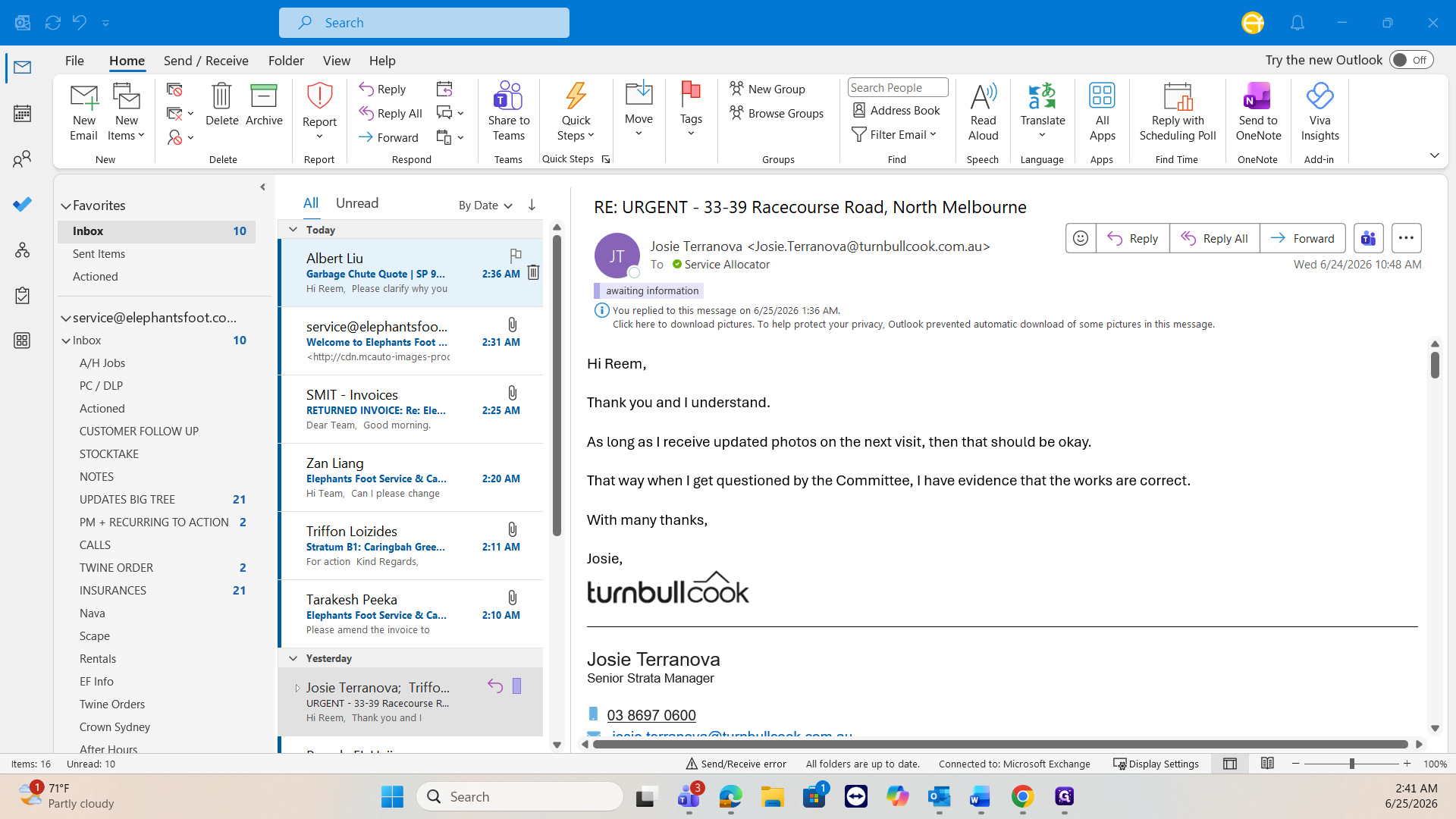
Email Triage Categories
Use the following custom folders to organize incoming emails that do not require immediate attention:
Folder | Purpose |
|---|---|
Actioned | Stores emails that have been fully dealt with and resolved. |
After-hours job | Holds weekend jobs that need official system records created later. |
PC DLP | Contains defect liability period inquiries passed along to other departments. |
Customer follow-up | Tracks customer requests such as invoice issues or system updates. |
Stocktake | Manages technician stock counts (e.g., latches) for system monitoring. |
Notes | Stores process adjustments and ongoing learnings. |
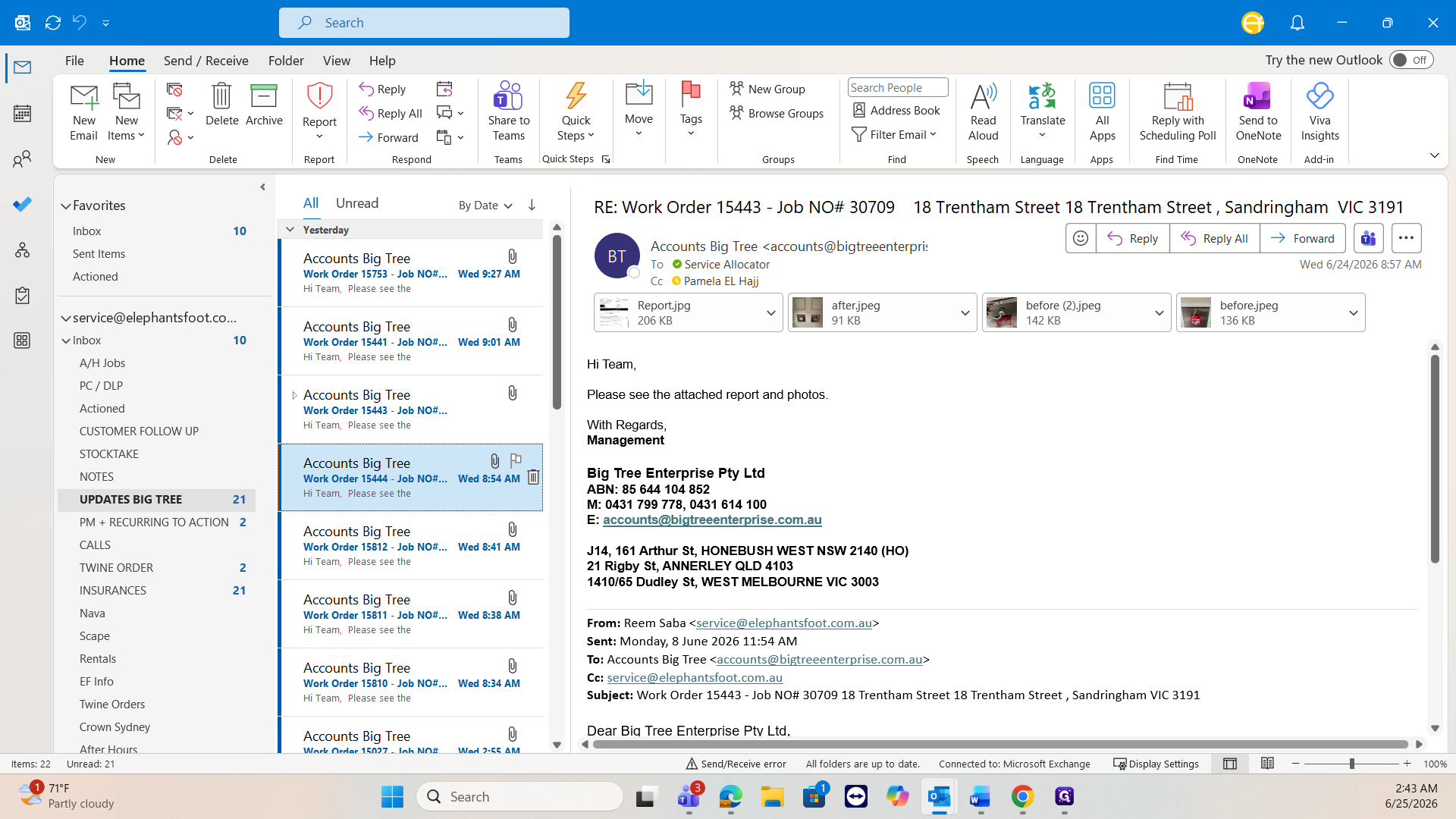
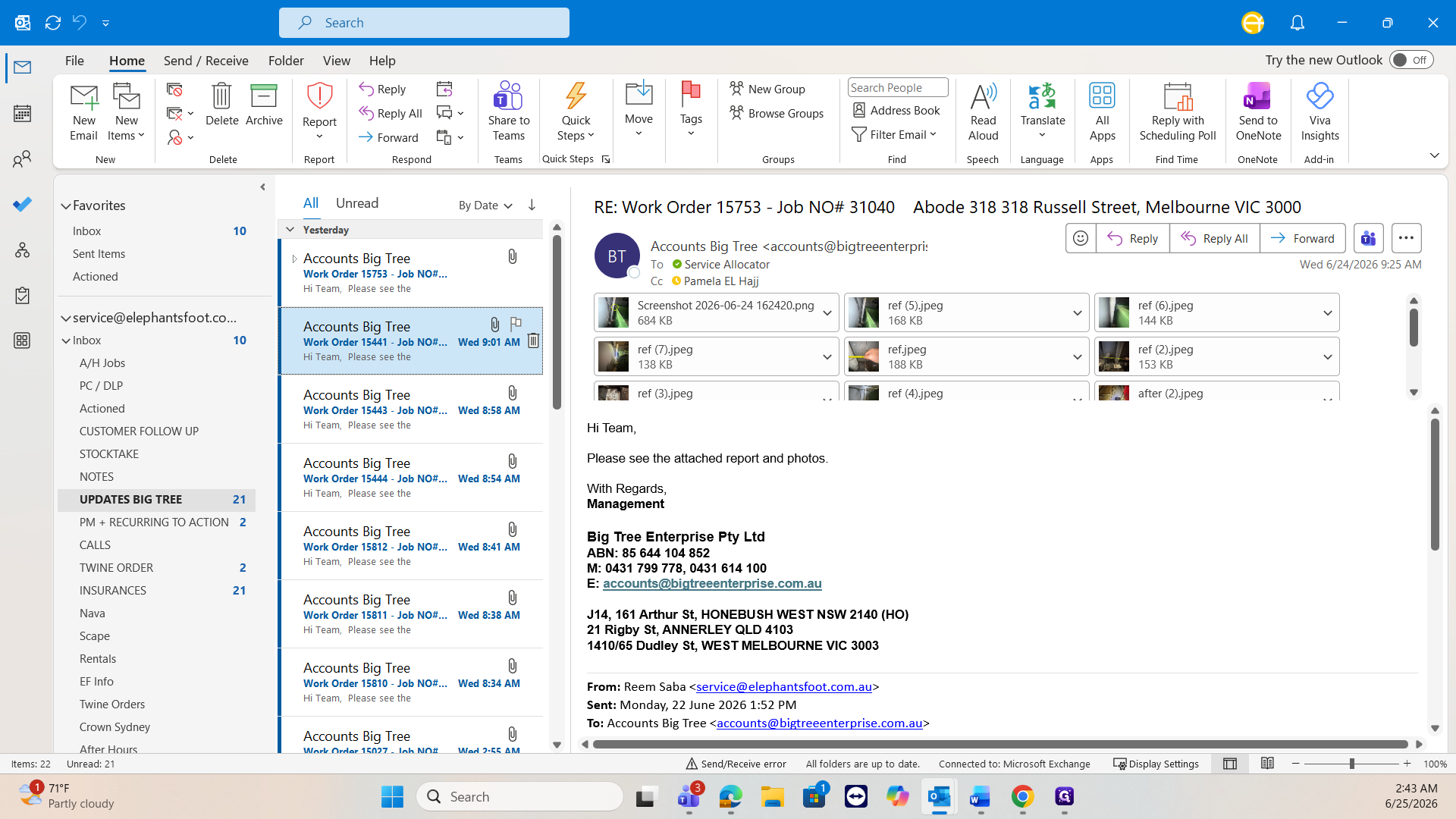
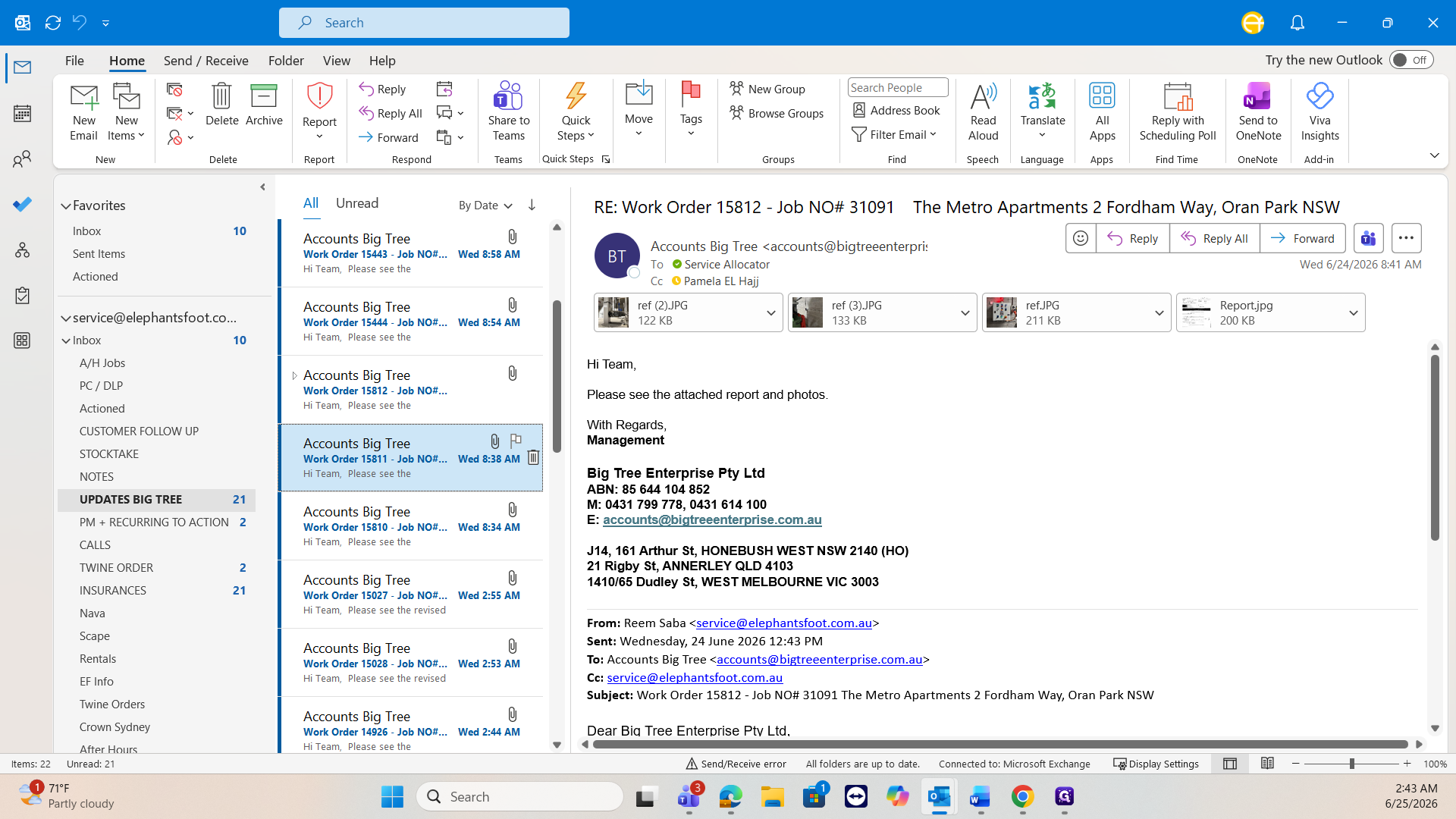
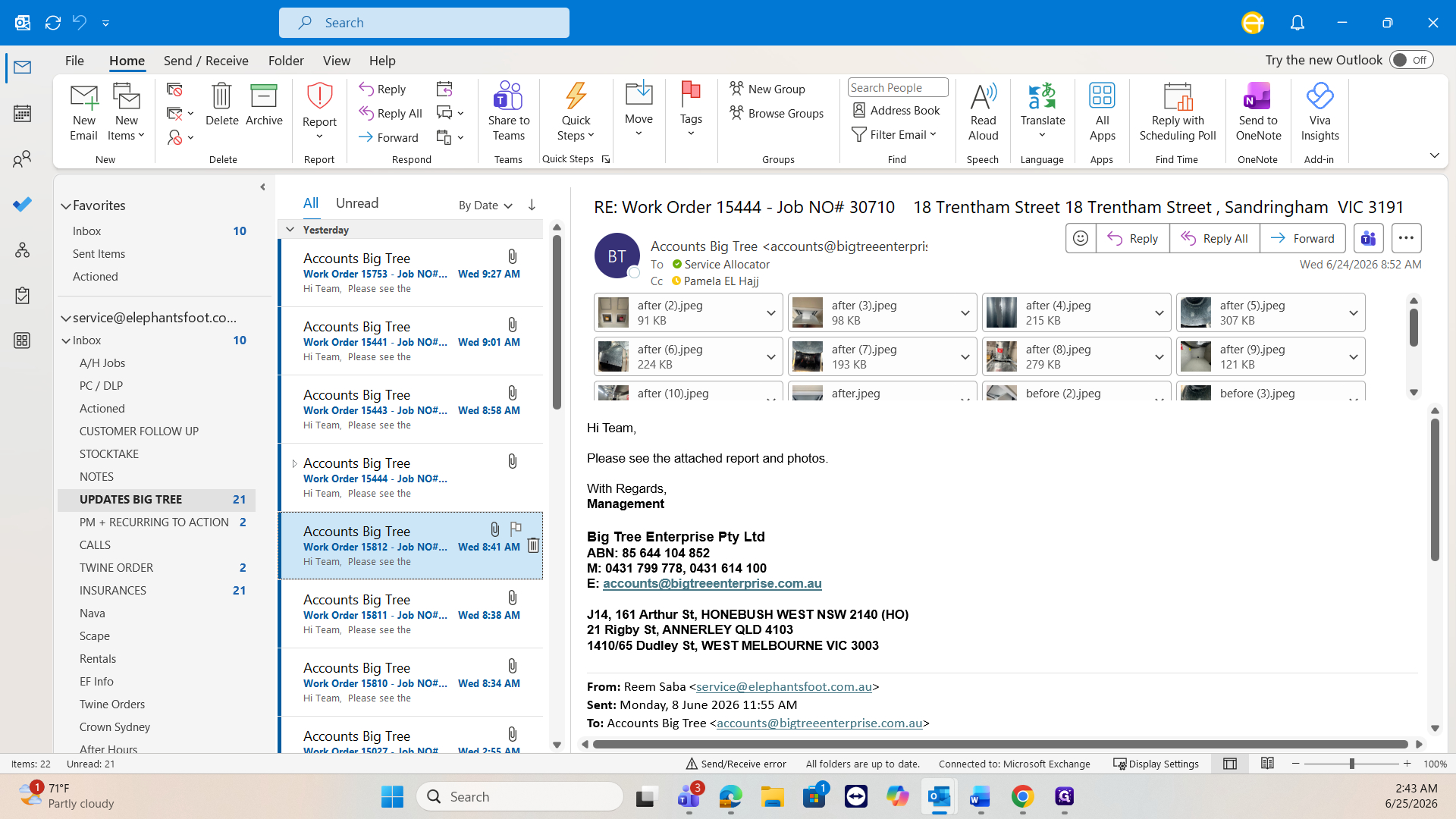
Updates from Big Tree | Consolidates contractor reports and photos to verify completed work. |
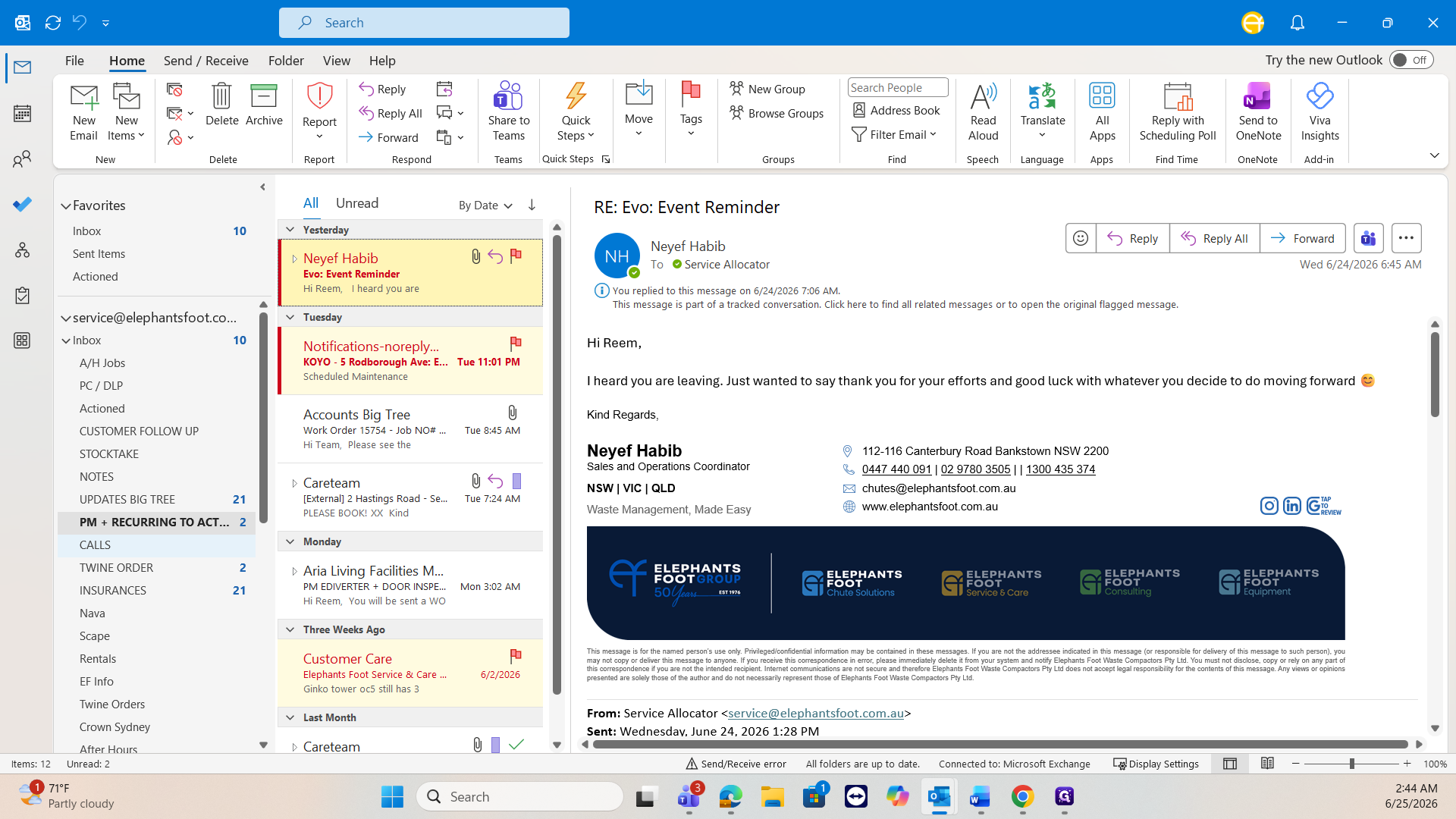
PM + RECURRING TO ACTION | Keeps preventative maintenance tasks out of the main inbox for later processing. |
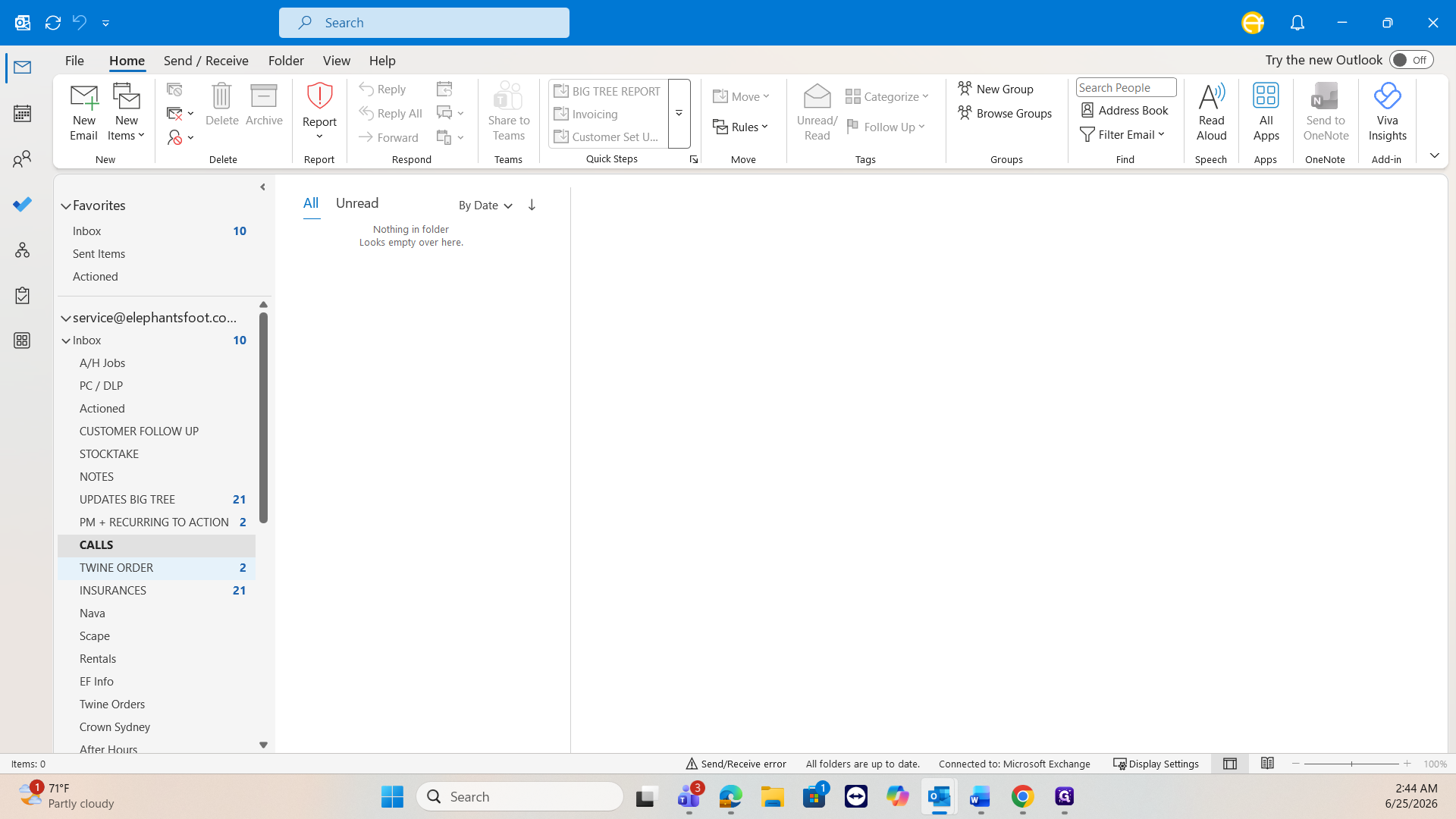
Voicemails | Catches missed calls and voice messages to ensure they aren't lost. |
Twine order | Organizes material requests like orange or bale twine. |
Insurances | Holds public and professional liability documents. |
Processing Contractor Updates
Reviewing Low-Priority Folders
Q: What should I do with emails after I finish processing them?
A: Once an email is actioned and good to go, move it to the Actioned folder to keep your main inbox clear.
Q: Why do after-hours jobs go into a separate folder instead of being processed immediately?
A: Jobs completed over the weekend are typically less urgent. Moving them to an After-hours job folder allows you to create the system jobs later in the day without interrupting immediate morning priorities.
Q: How do I handle Defect Liability Period (DLP) inquiries?
A: Since DLP inquiries aren't primarily the responsibility of service and care, sort them into the PC DLP folder. This allows you to assist other departments when you have time, without losing focus on urgent tasks.
Q: What is the Stocktake folder used for?
A: It stores stock counts sent by technicians (e.g., latches or twine). You can check these counts against the system and update information in batches rather than individually.
Term | Definition |
|---|---|
Service Allocator | A role responsible for assigning tasks, managing schedules, and processing job-related communications. |
Defect Liability Period (DLP) | A set period after project completion during which the contractor is responsible for fixing any defects. |
Stocktake | The process of physically counting and verifying the inventory currently held by technicians. |
Preventative Maintenance (PM) | Regularly scheduled inspections and servicing performed to prevent equipment failures. |