How to Troubleshoot Calendar Availability Issues
Learn how to verify team availability and troubleshoot scheduling discrepancies between your media booking portal and connected external calendars.
By Kyle Lux
If you are experiencing discrepancies with availability not showing up correctly in your booking portal, follow these steps to review team schedules and cross-reference connected calendars.
Check Portal Availability
1
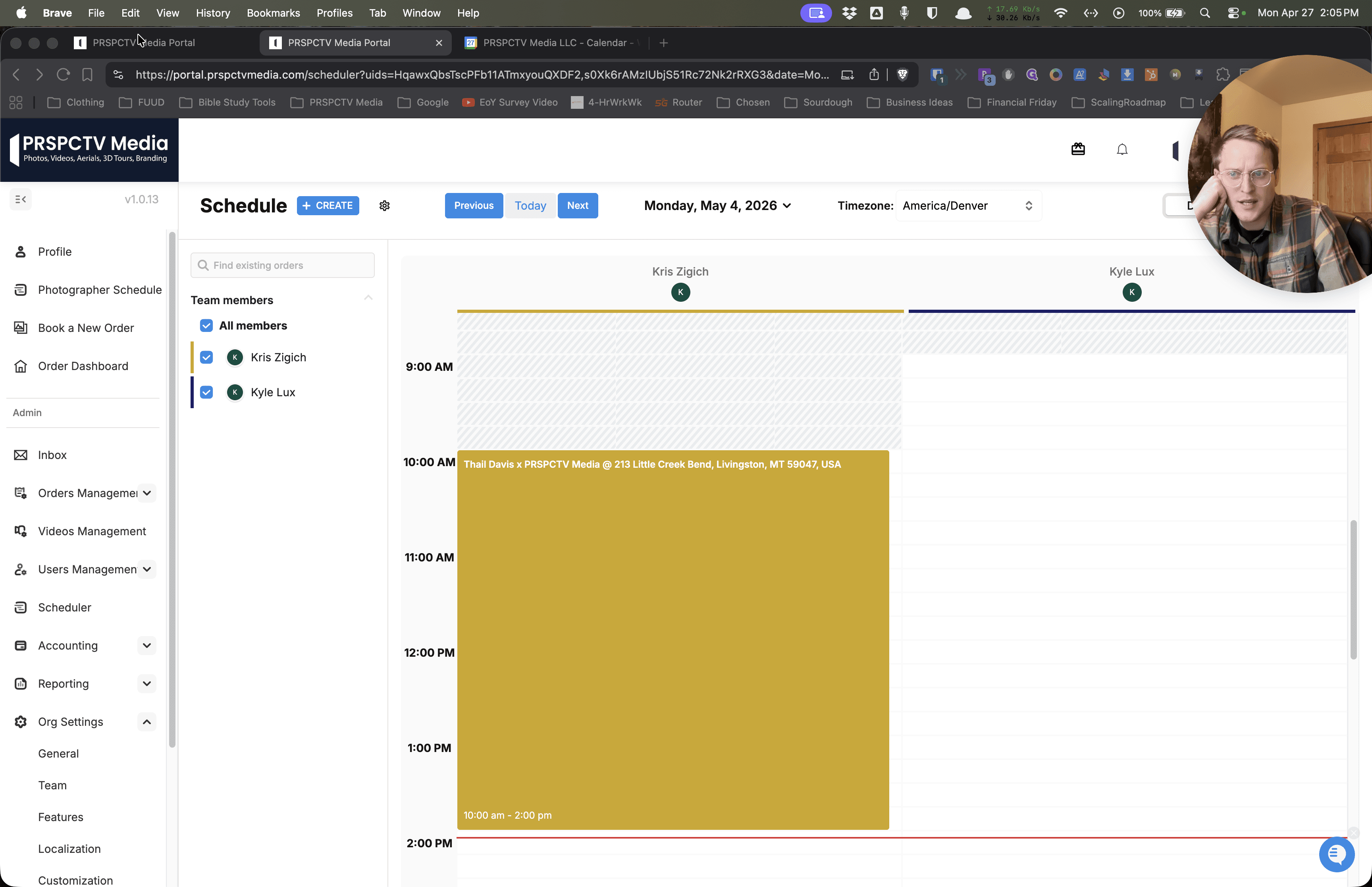
Open the PRSPCTV Media Portal dashboard.
2
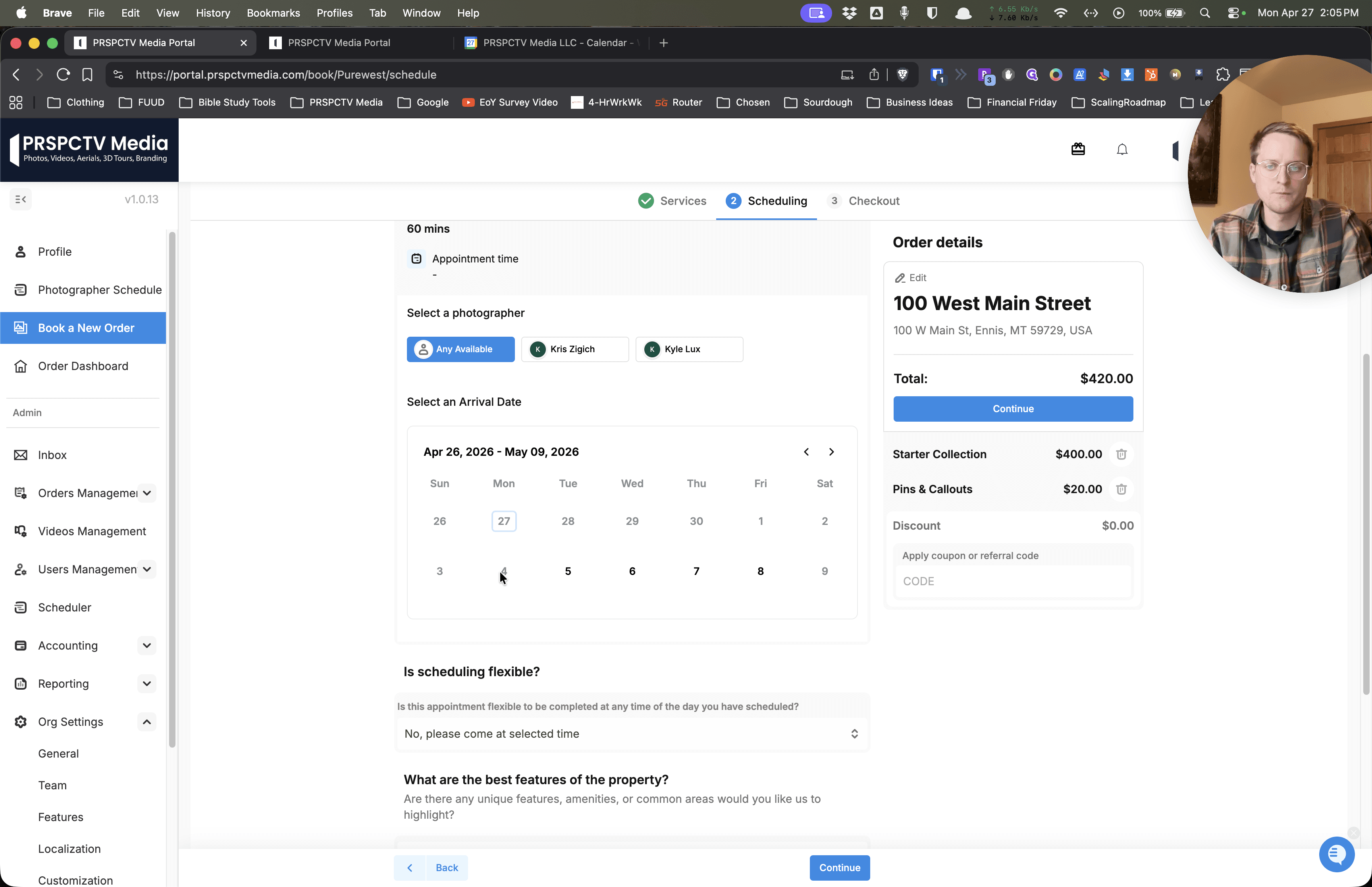
Select a specific date on the calendar date selector to view the available booking times.
Filter by Photographer
You can check individual team member schedules to pinpoint whose availability is missing.
3
Select Any Available to see all open time slots for the team.
4
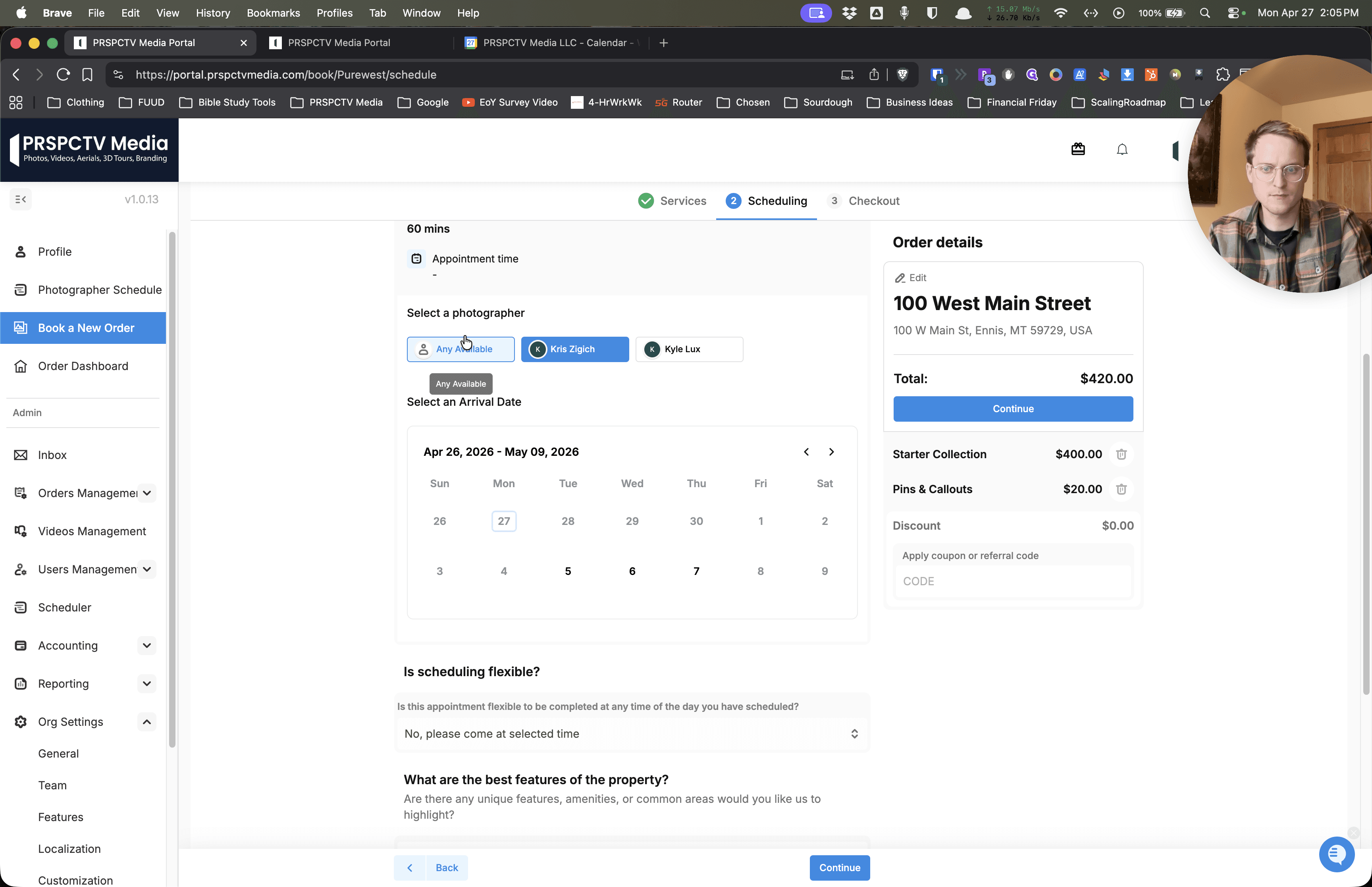
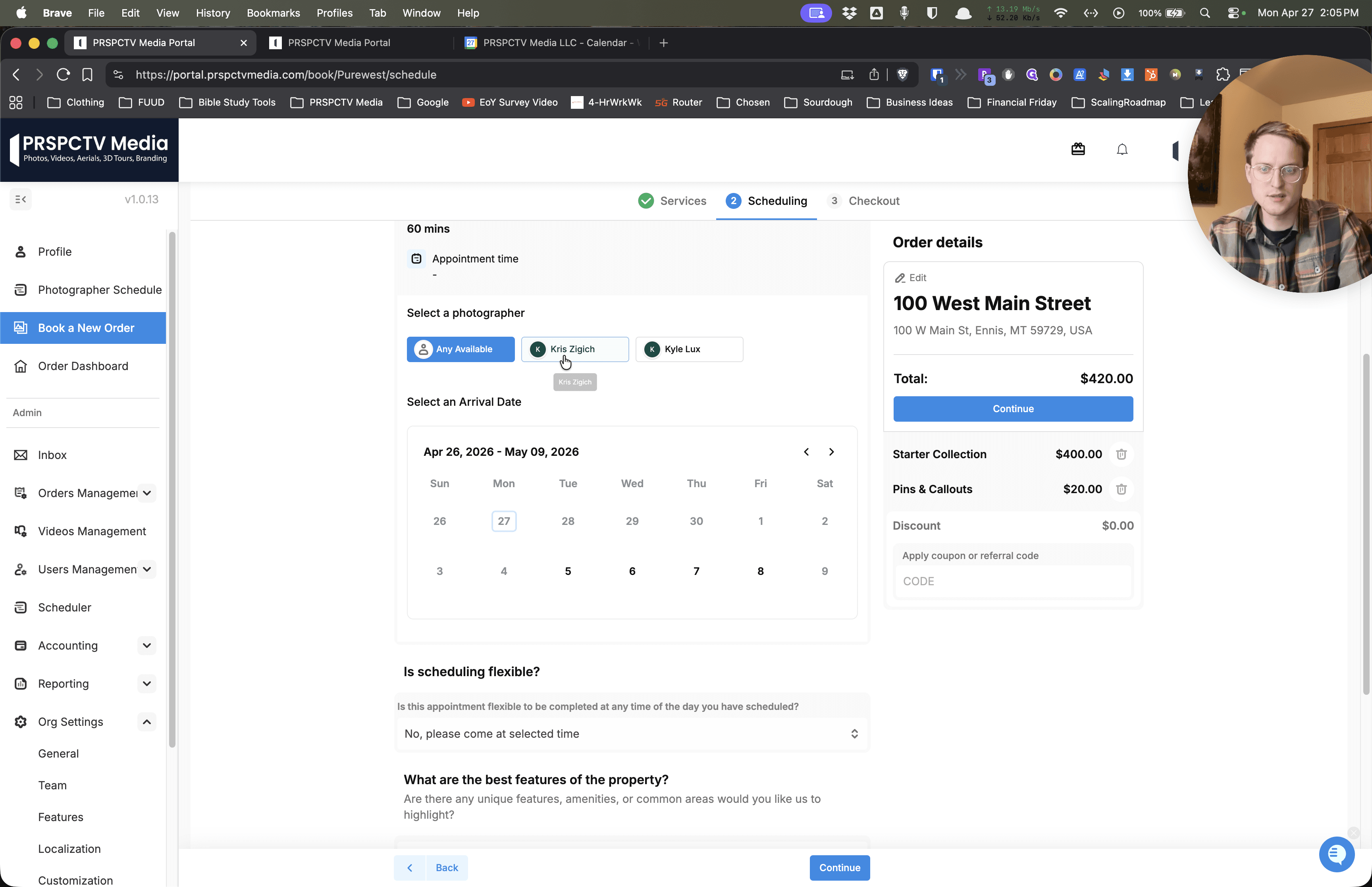
Click on a specific photographer, such as Kris Zigich, to view their individual availability.
5
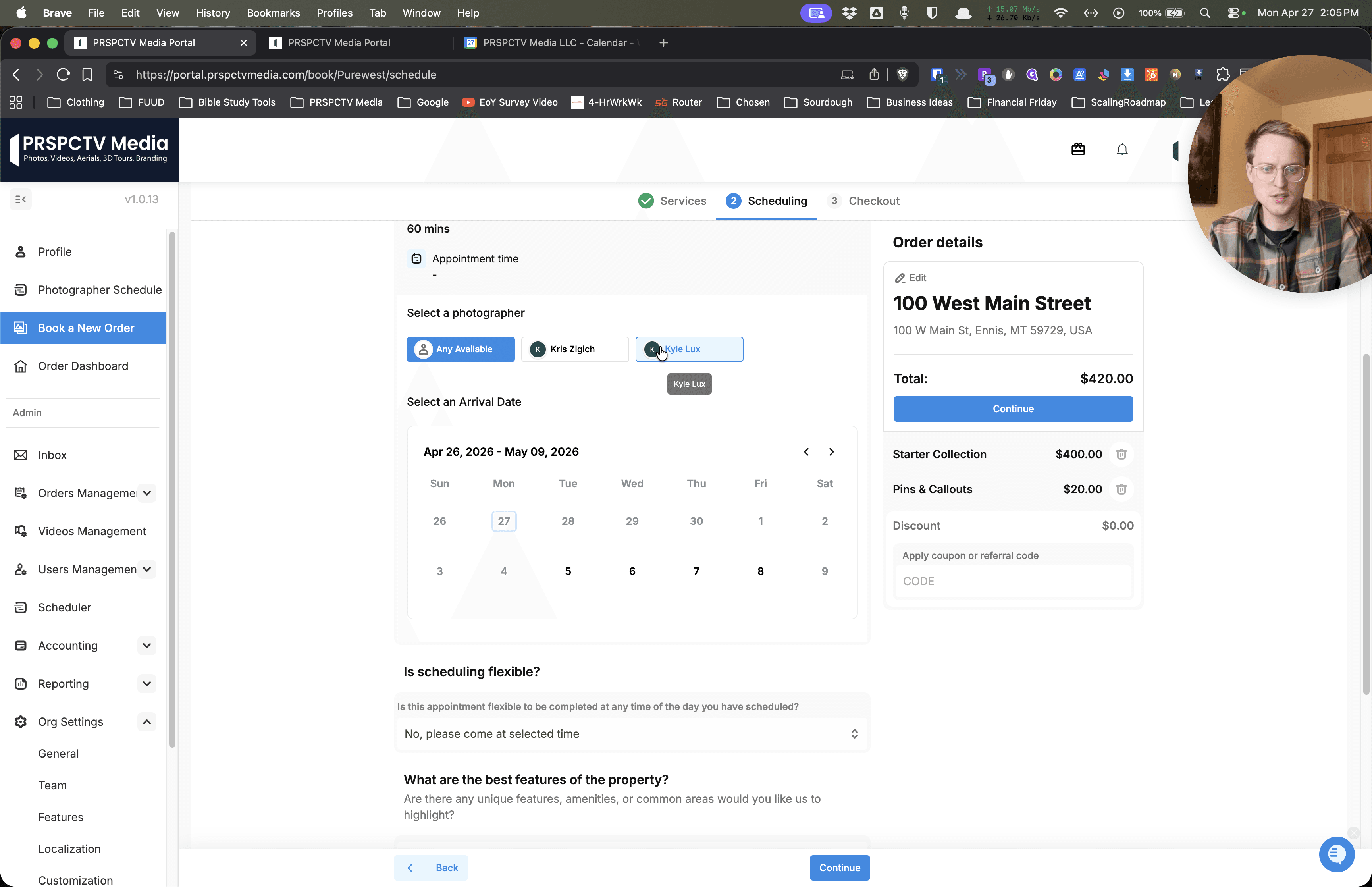
Select another team member, such as Kyle Lux, to compare schedules and verify if the issue affects everyone or just specific members.
Cross-Reference External Calendars
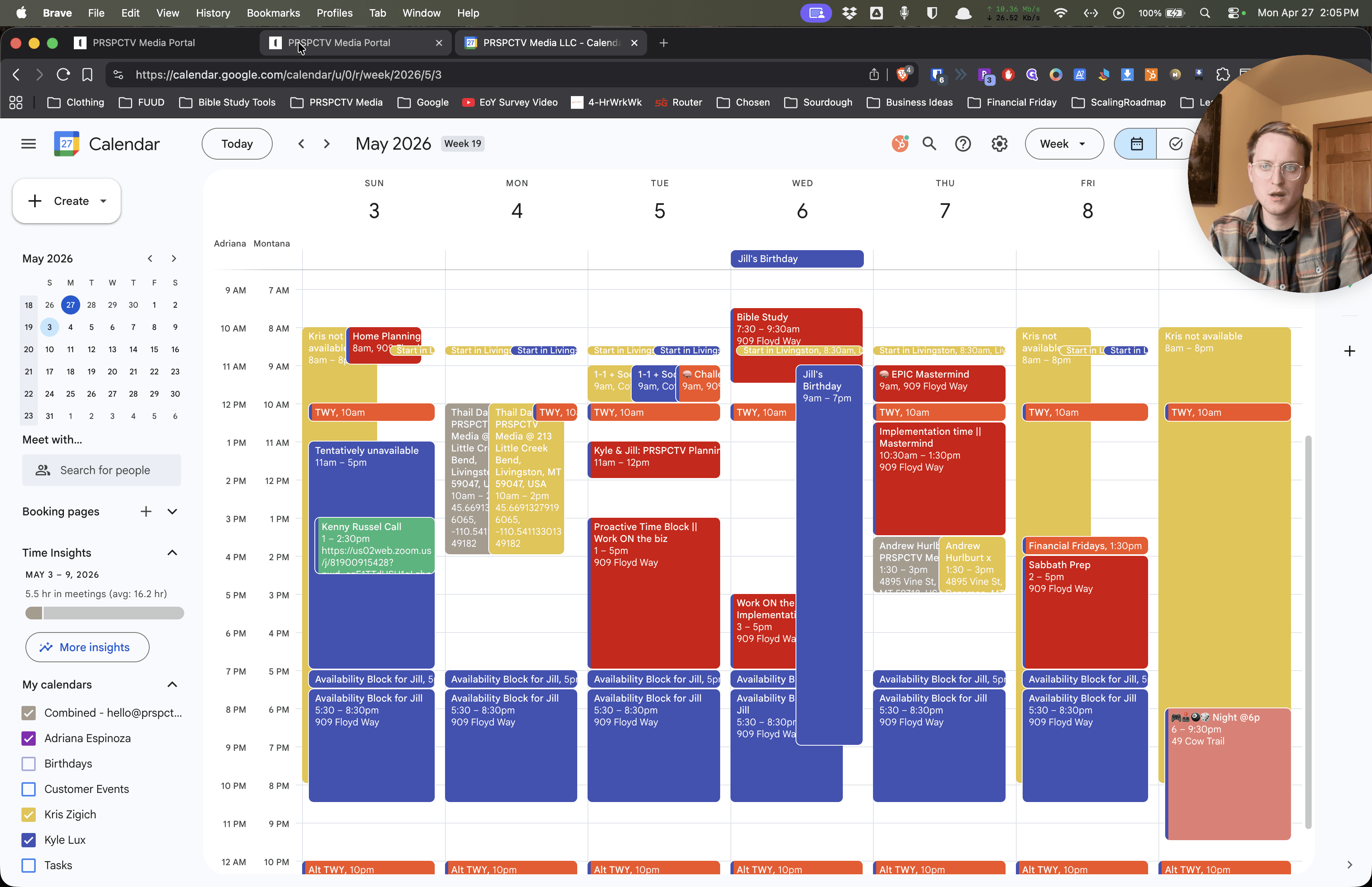
If a team member appears unavailable despite having no scheduled shoots in the portal, their connected external calendar might be blocking out the time.
6
Open your Google Calendar and click on any event blocks (such as "Tentatively unavailable") during the missing time slots.