Icon

How to Troubleshoot Fan Failures on HP ProLiant Servers via iLO

Learn how to investigate and troubleshoot fan failures and cooling redundancy errors on HP ProLiant servers using the HPE iLO 5 web interface.

By Chris

Verify hardware health and resolve reported fan failures or cooling redundancy errors on an HP ProLiant server using the HPE iLO interface. Completing this process allows you to dismiss false alarms caused by self-test glitches and identify real thermal issues that require hardware escalation.

This guide is intended for IT administrators and support technicians handling server hardware alerts. Use this procedure when investigating automated cooling and fan error tickets to determine if physical intervention is required.

Access the iLO Interface
1
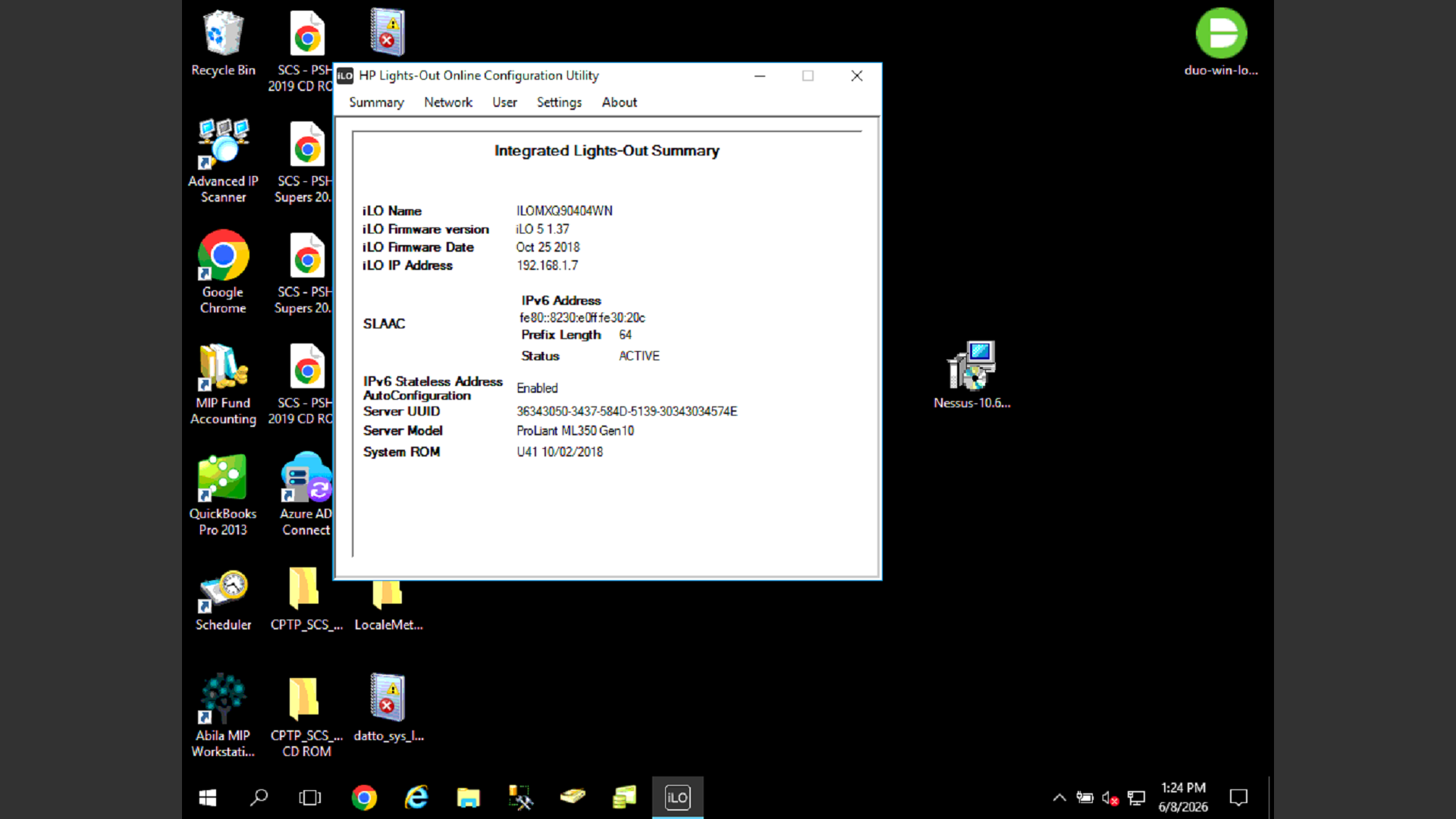
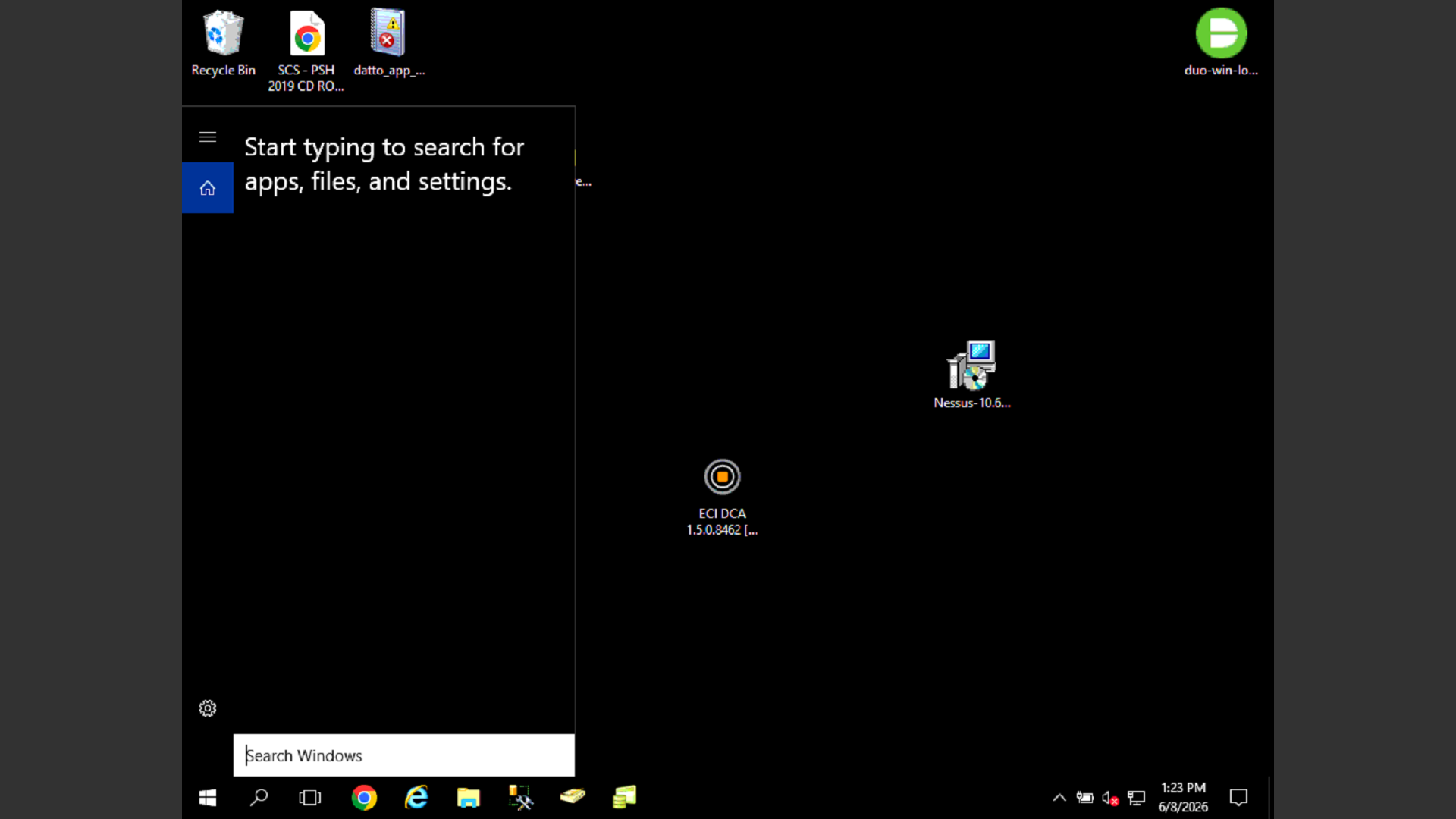
Click the Windows Search bar, type "lights out", and open the HP Lights-Out Online Configuration Utility.
Step #1: Click the Windows Search bar, type "lights out", and open the HP Lights-Out Online Configuration Utility.
2
Locate the iLO IP Address displayed in the summary window.
Step #2: Locate the iLO IP Address displayed in the summary window.
3
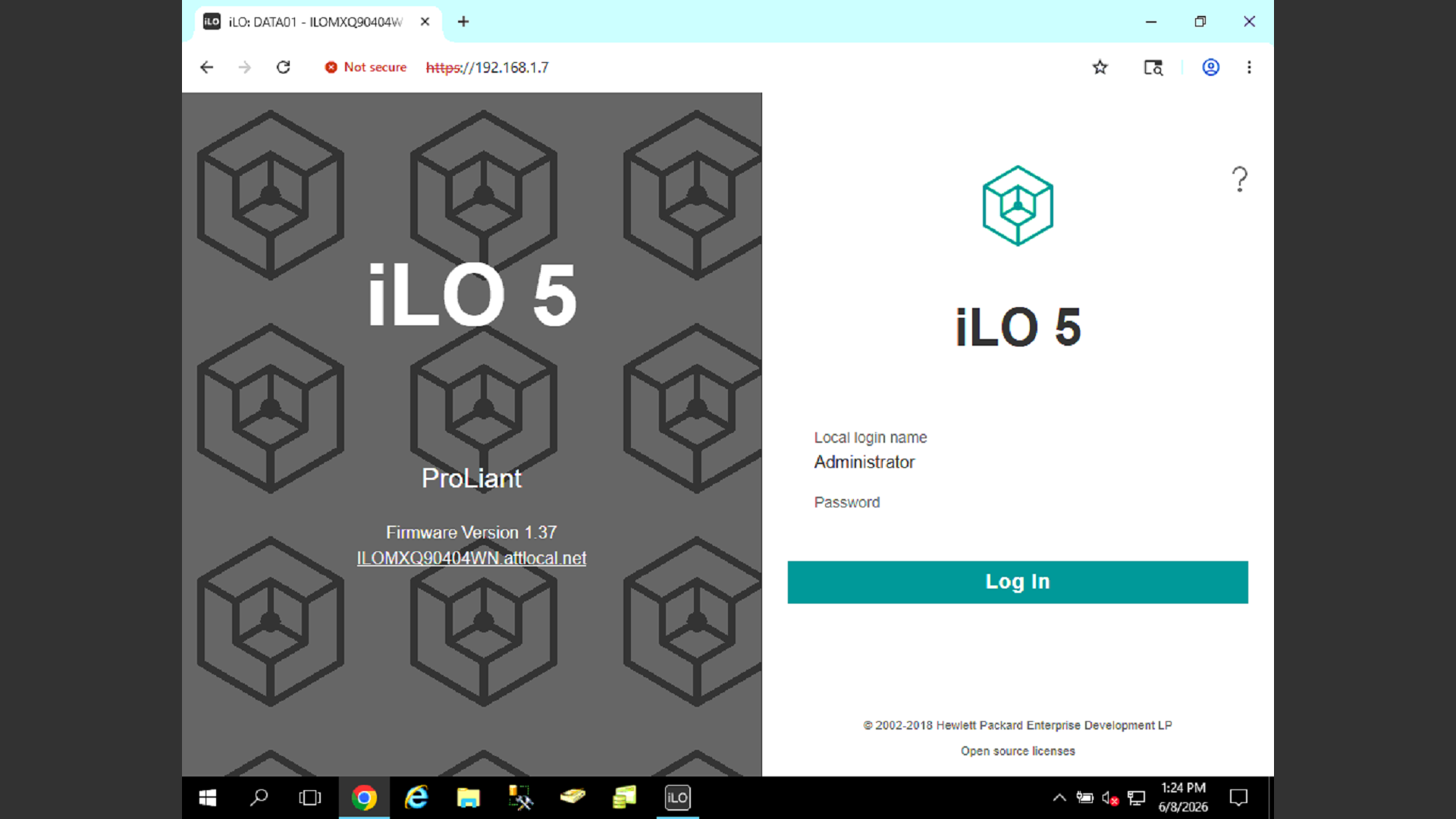
Open a web browser, type the iLO IP address into the address bar, and press Enter.
4
Enter your administrator username and password.
Step #4: Enter your administrator username and password.
5
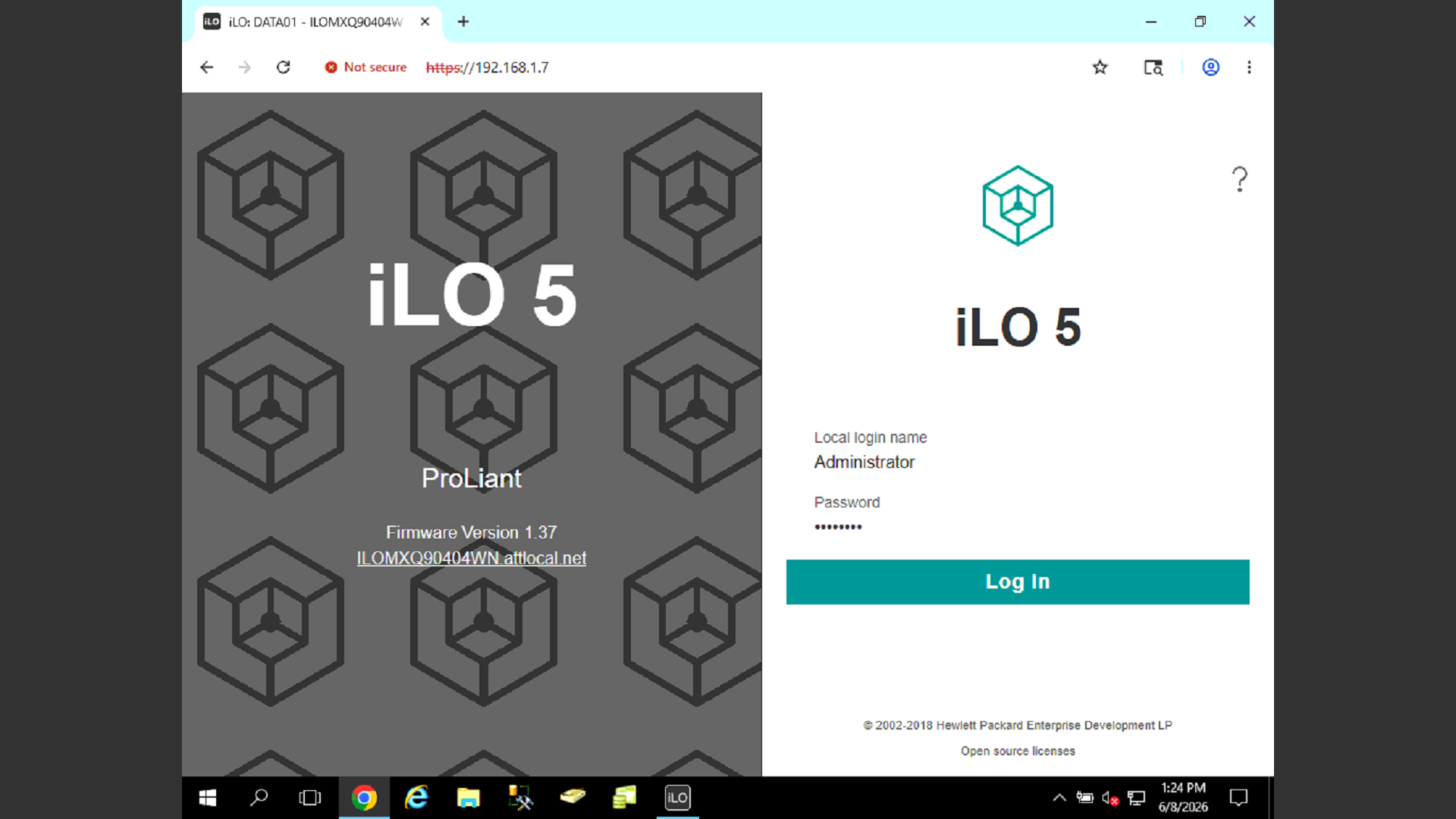
Click Log In.
Step #5: Click Log In.

Review the Event Log and Diagnostics
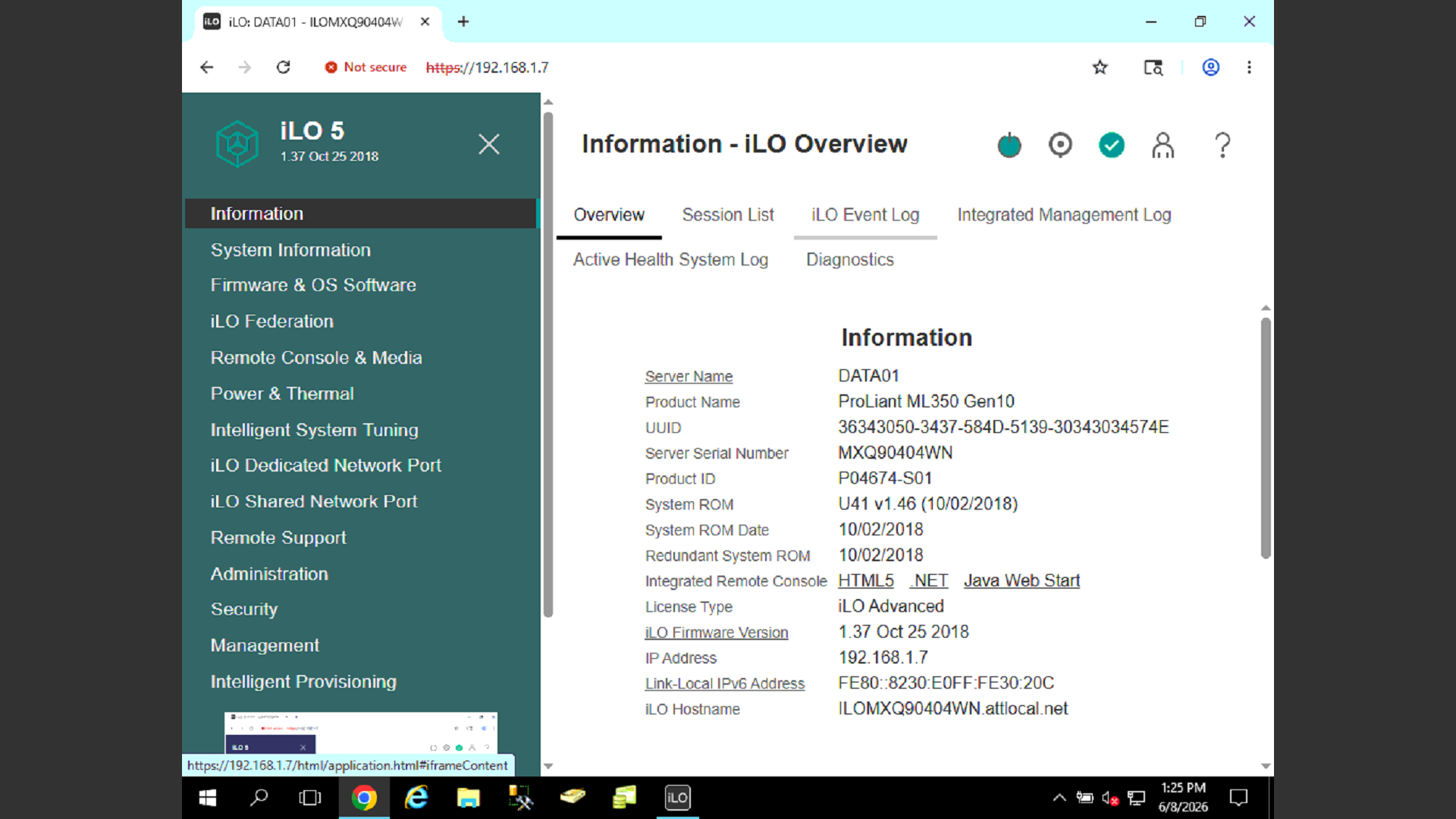
6
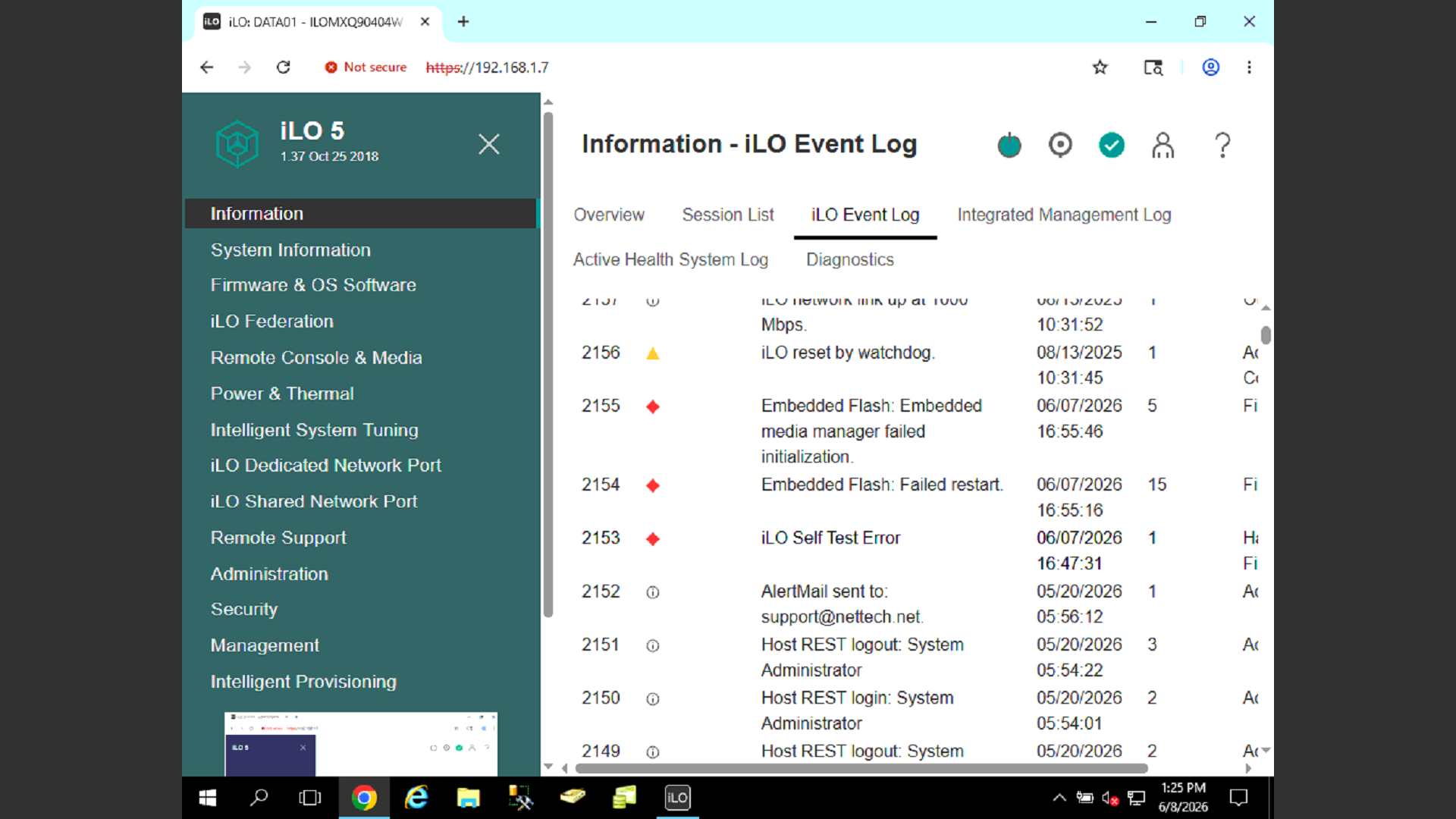
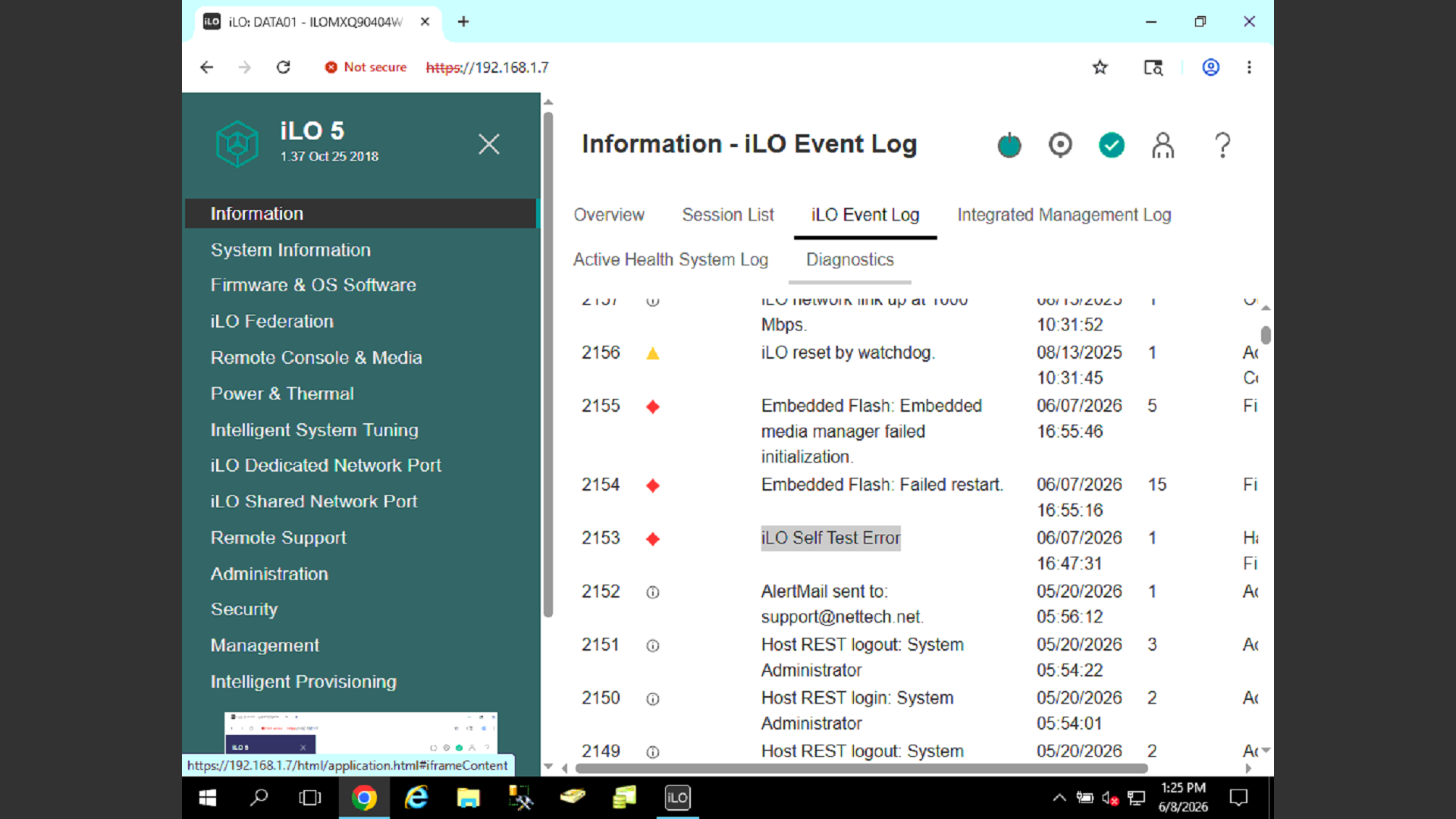
Navigate to Information in the left menu and click iLO Event Log.
Step #6: Navigate to Information in the left menu and click iLO Event Log.
7
Check the log entries around the time the fan issue was observed. Look for a recent iLO Self Test Error, which frequently causes false positive fan alerts.
Step #7: Check the log entries around the time the fan issue was observed. Look for a recent iLO Self Test Error, which frequently causes false positive fan alerts.
8
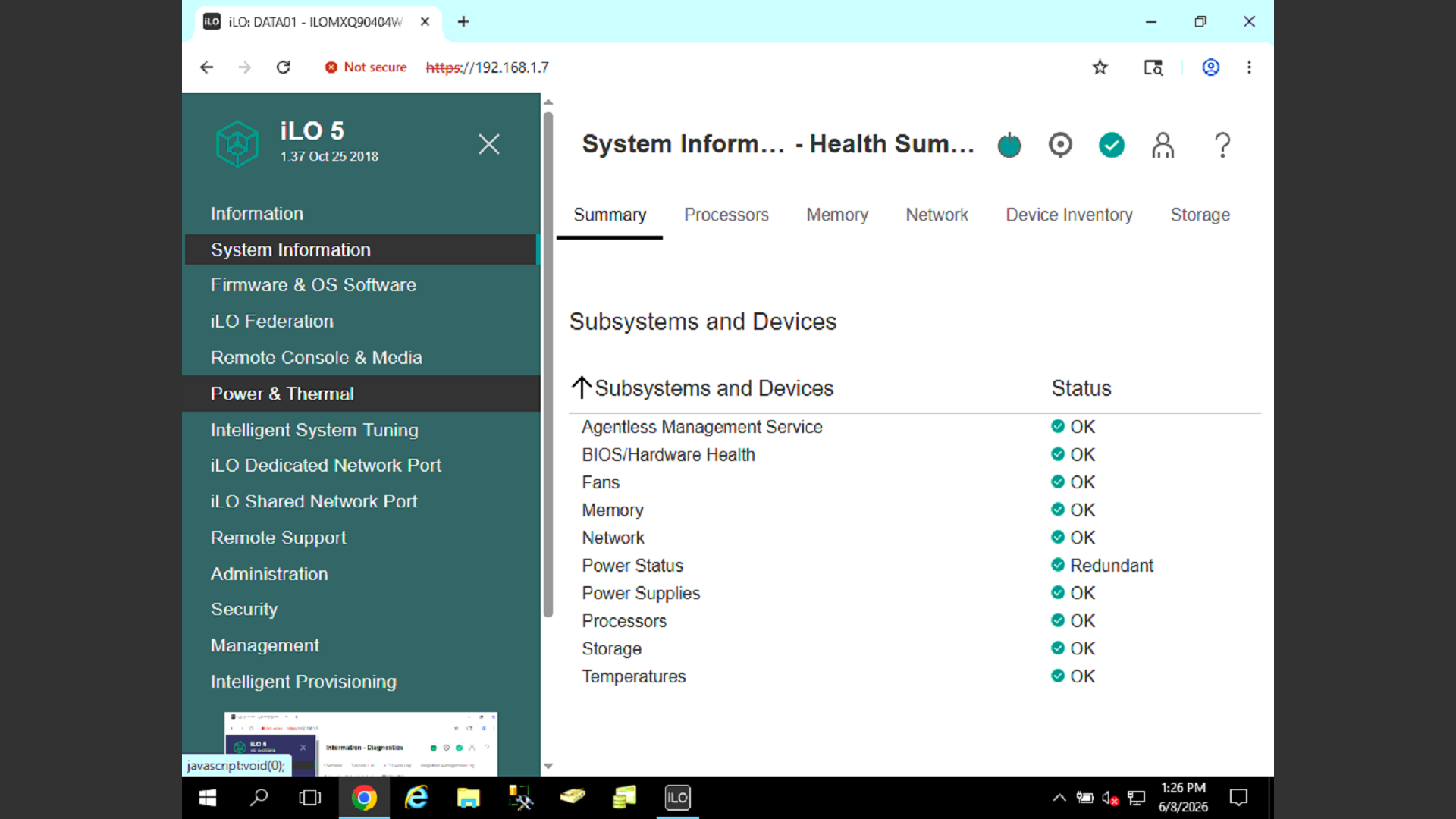
Click Diagnostics to review the iLO Self-Test Results and verify that the overall health is marked as Normal.
Step #8: Click Diagnostics to review the iLO Self-Test Results and verify that the overall health is marked as Normal.

Verify Power & Thermal Status

9
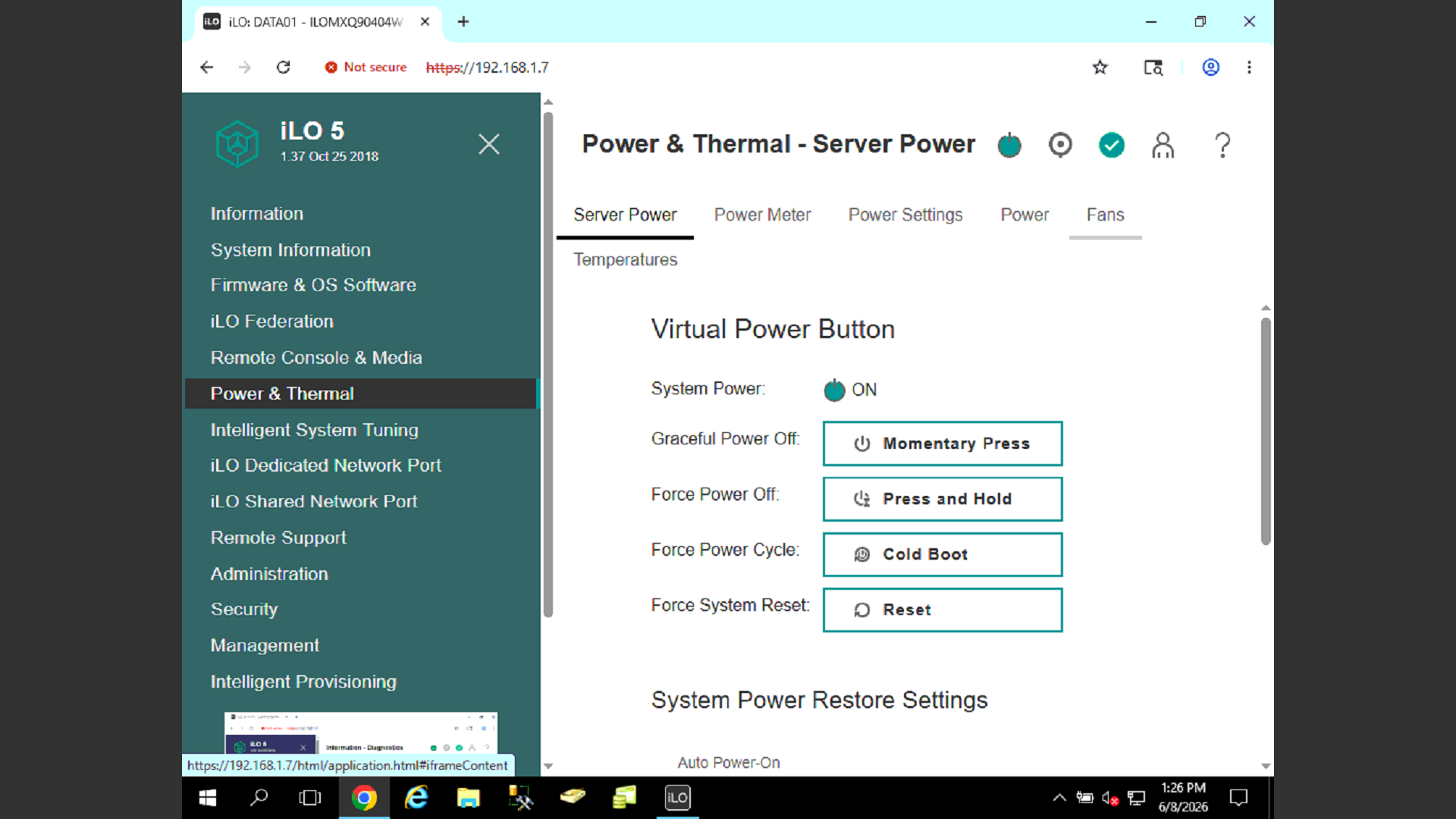
Click Power & Thermal in the left navigation menu.
Step #9: Click Power & Thermal in the left navigation menu.
10
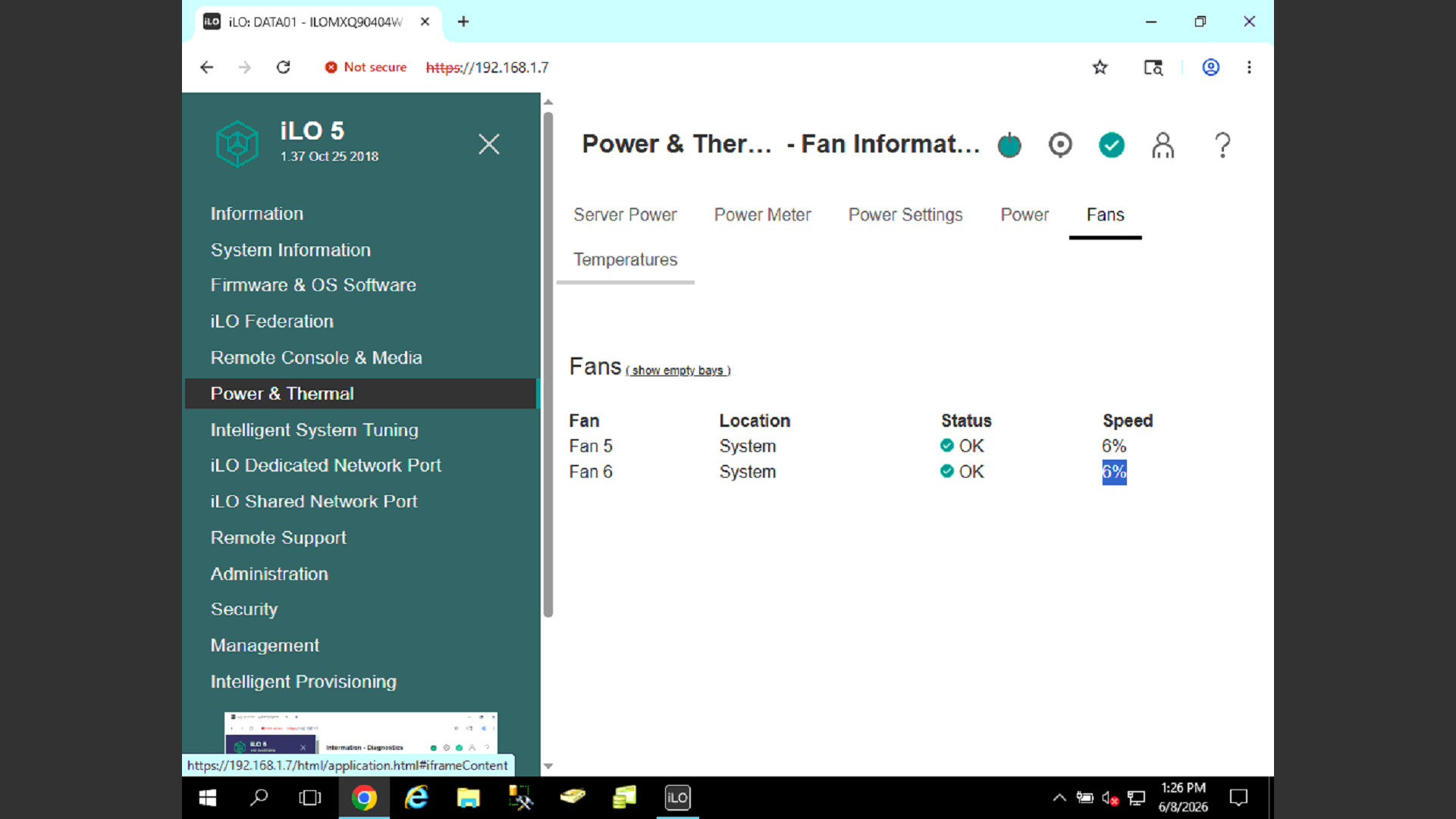
Click the Fans tab.
Step #10: Click the Fans tab.
11
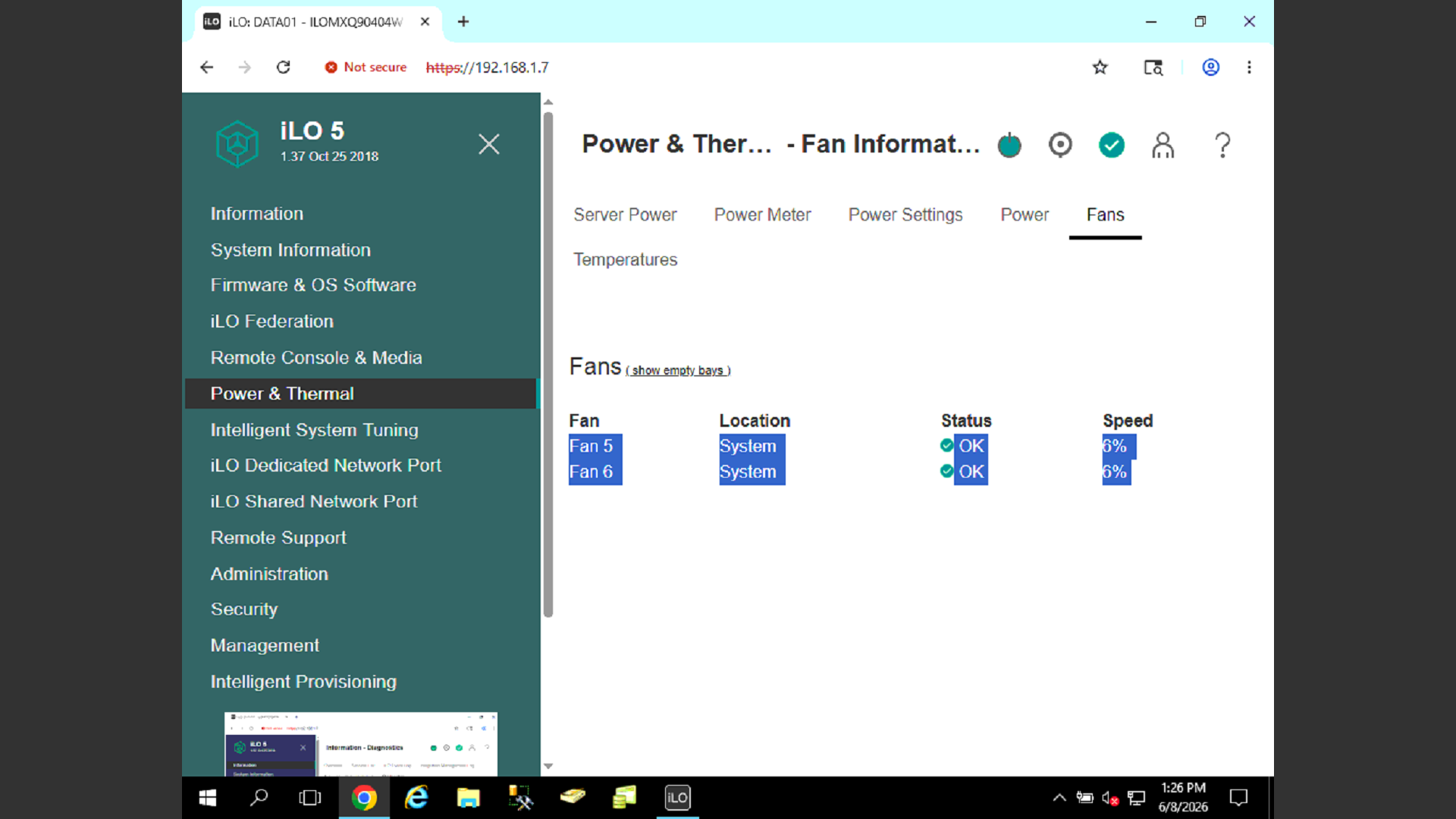
Check the status of the system fans to ensure they display an OK status and are running at an appropriate speed.
Step #11: Check the status of the system fans to ensure they display an OK status and are running at an appropriate speed.
12
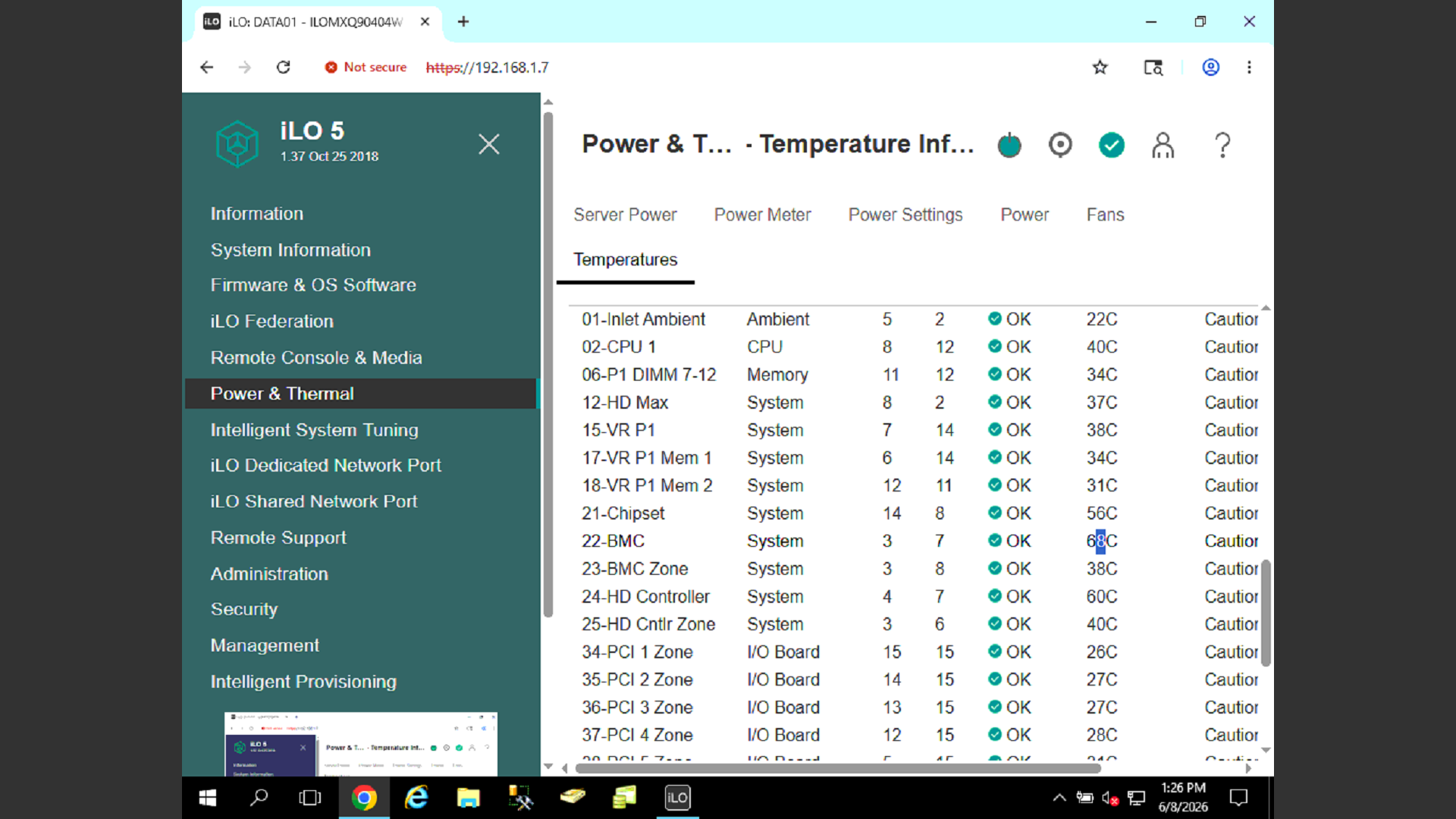
Click the Temperatures tab.
Step #12: Click the Temperatures tab.
13
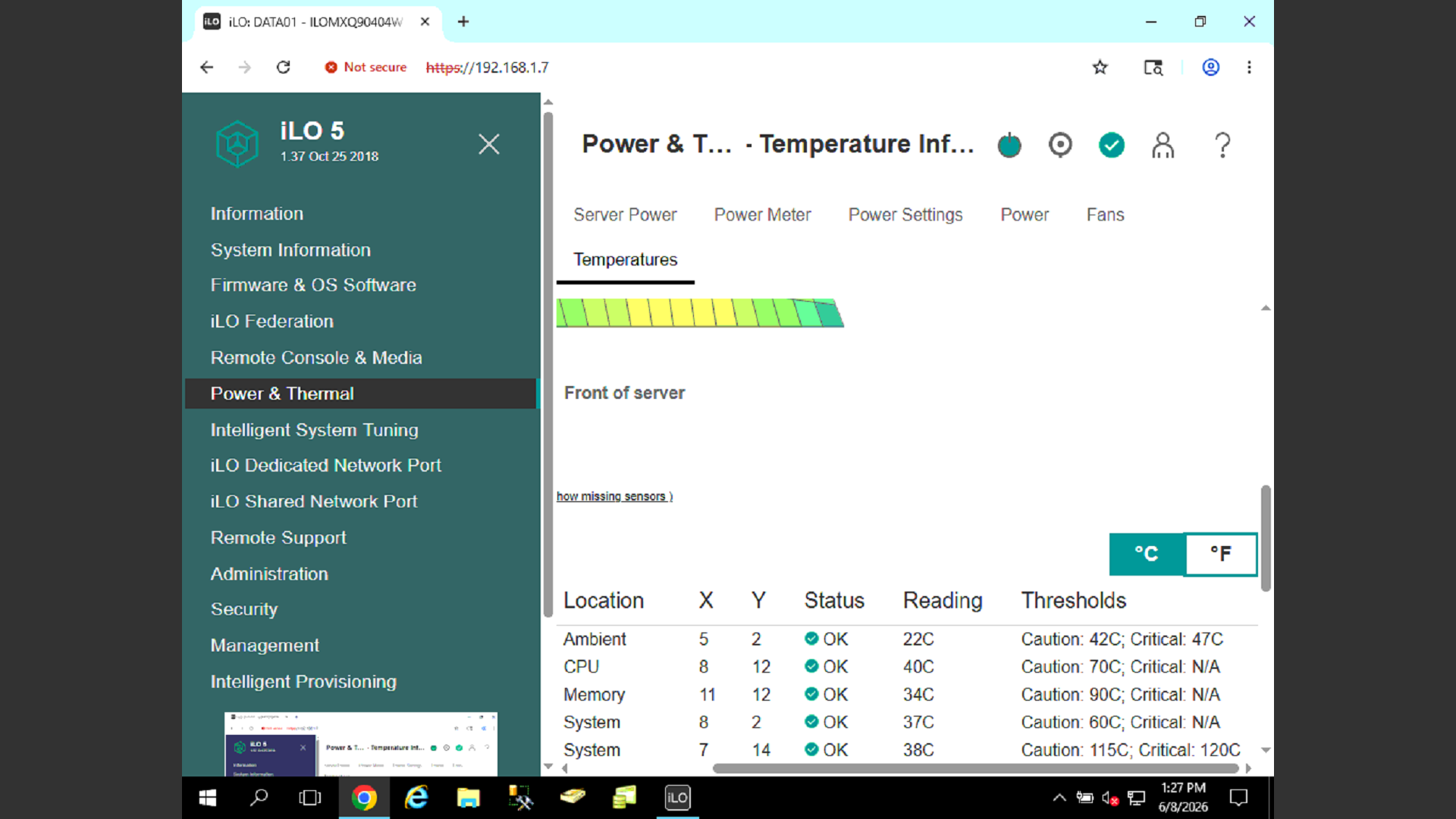
Review the current temperature readings for all system components to confirm they are well below the Caution and Critical thresholds.
Step #13: Review the current temperature readings for all system components to confirm they are well below the Caution and Critical thresholds.
14
Click °F if you prefer to view the temperature readings in Fahrenheit instead of Celsius.
Step #14: Click °F if you prefer to view the temperature readings in Fahrenheit instead of Celsius.

Q: Why did the system report a fan error if the fans are functioning normally?

A: This often happens during an iLO self-test if the fans momentarily do not spin up correctly or fail to register with the sensor. If subsequent checks show a normal status, it was likely a false positive.

Q: How many fans should typically be running on a standard HP ProLiant server?

A: Standard HP ProLiant models usually have two active fans: the intake fan and the CPU fan.

Q: What should I do if a fan shows a degraded status or isn't running?

A: If the fan section shows a degraded state or fewer than the required number of fans are running, escalate the ticket to investigate potential hardware failure.

Term

Definition

iLO

Integrated Lights-Out, an out-of-band management interface embedded on HPE servers used for remote monitoring and administration.

IT Glue

An IT documentation software platform used by support teams to securely store and manage credentials, configurations, and procedures.

How to Troubleshoot Fan Failures on HP ProLiant Servers via iLO