
Troubleshoot and Sync Microsoft Office 365 in SAP C4C
Learn how to verify your email configuration and manually force a calendar synchronization between SAP C4C and Microsoft Office 365.
This guide shows you how to resolve calendar and email synchronization issues in SAP C4C. By verifying your email configuration and forcing a manual sync, you ensure your Outlook calendar stays up-to-date with your CRM data.
This workflow applies to sales representatives and account managers using SAP C4C integrated with Microsoft Office 365. Use this process when items from SAP fail to populate in your Outlook calendar.
Verify Email Configuration
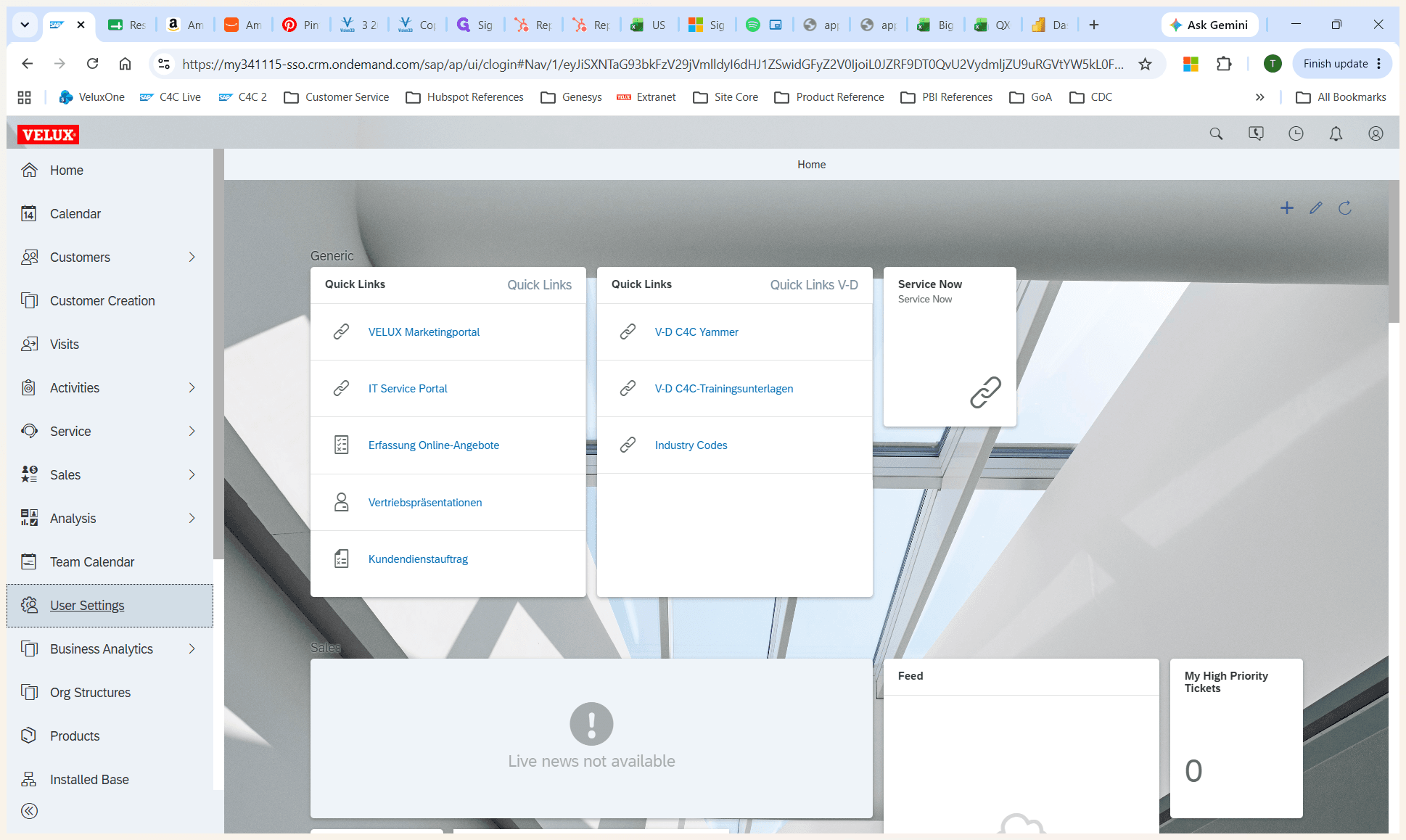
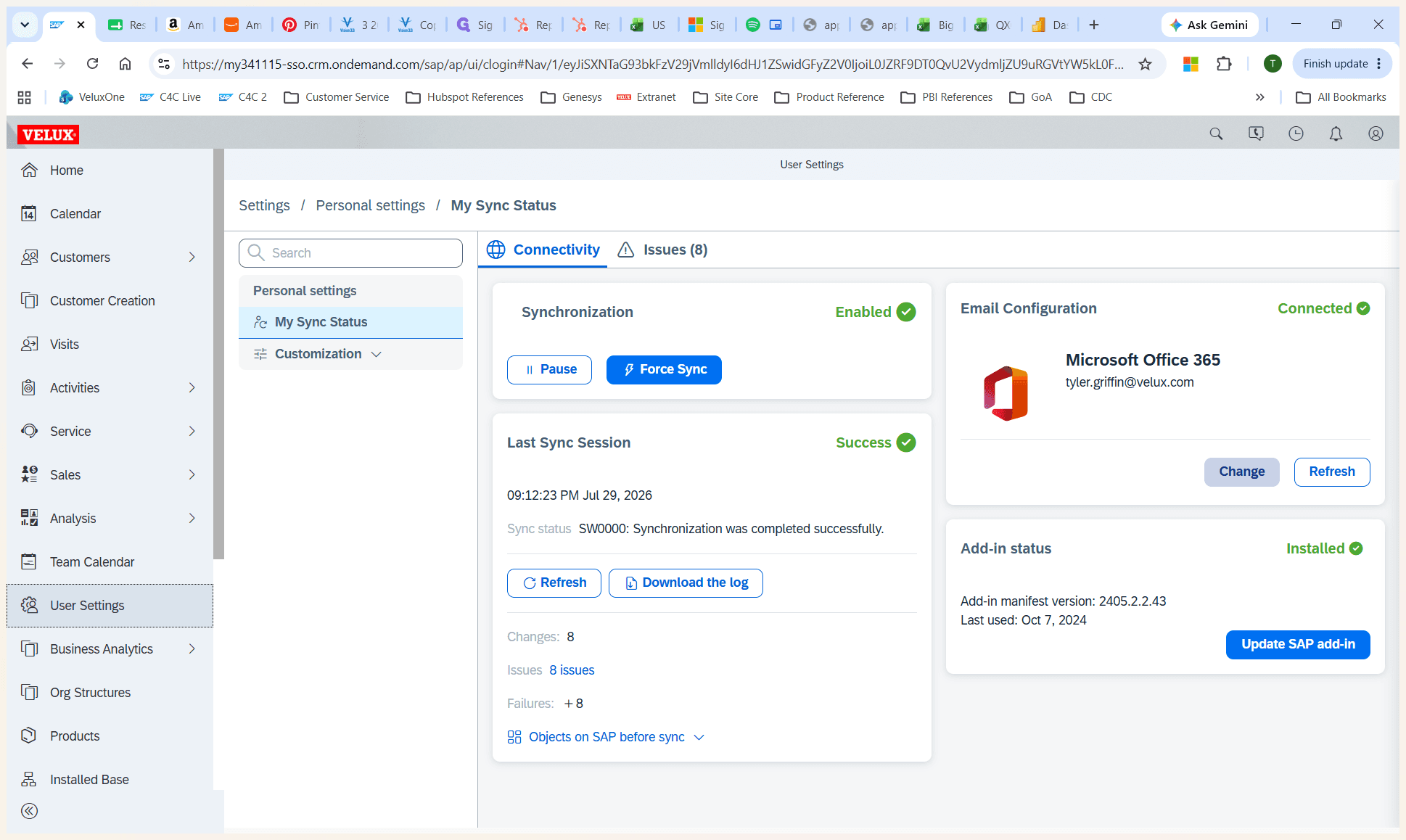
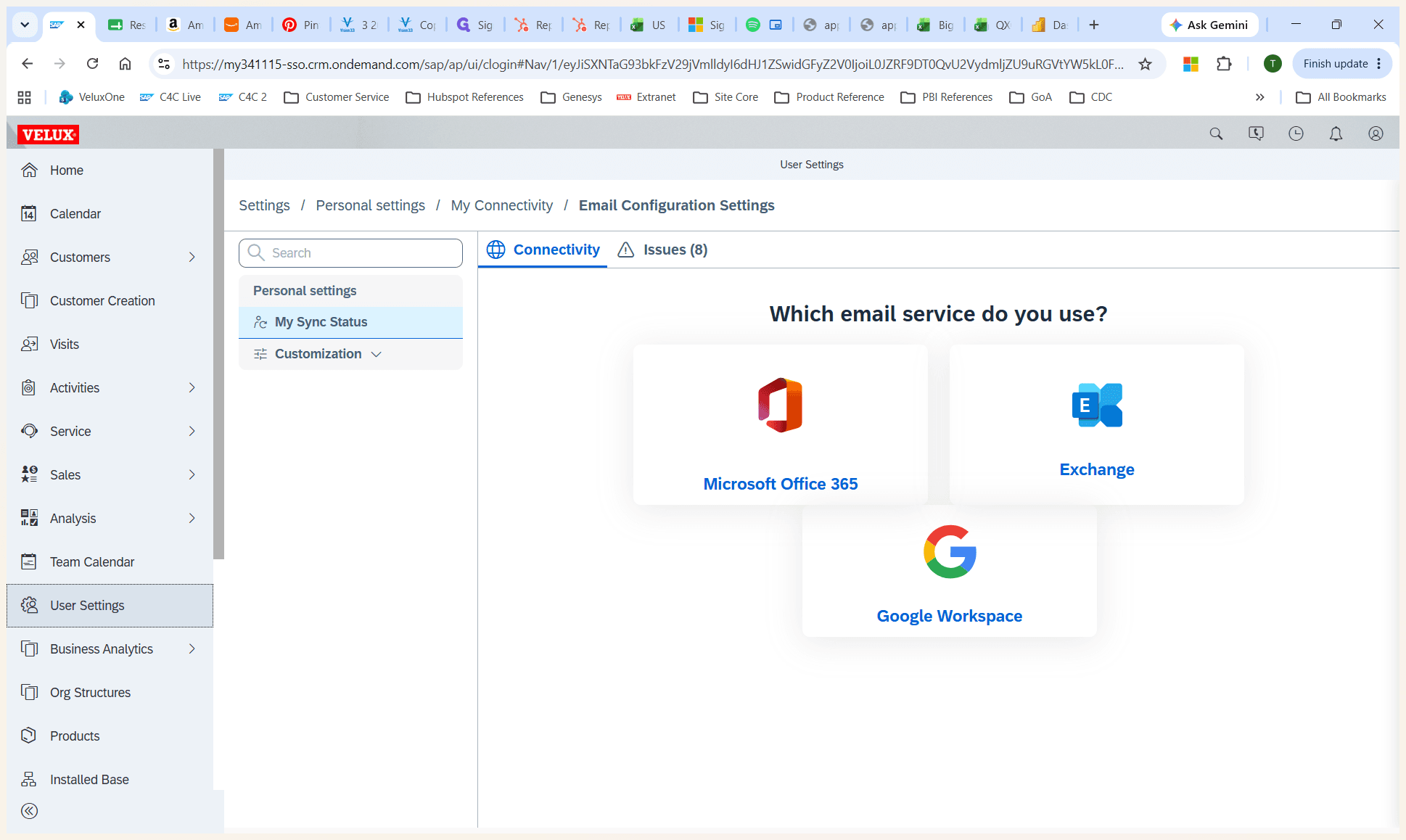
Check Sync Status and Force Sync
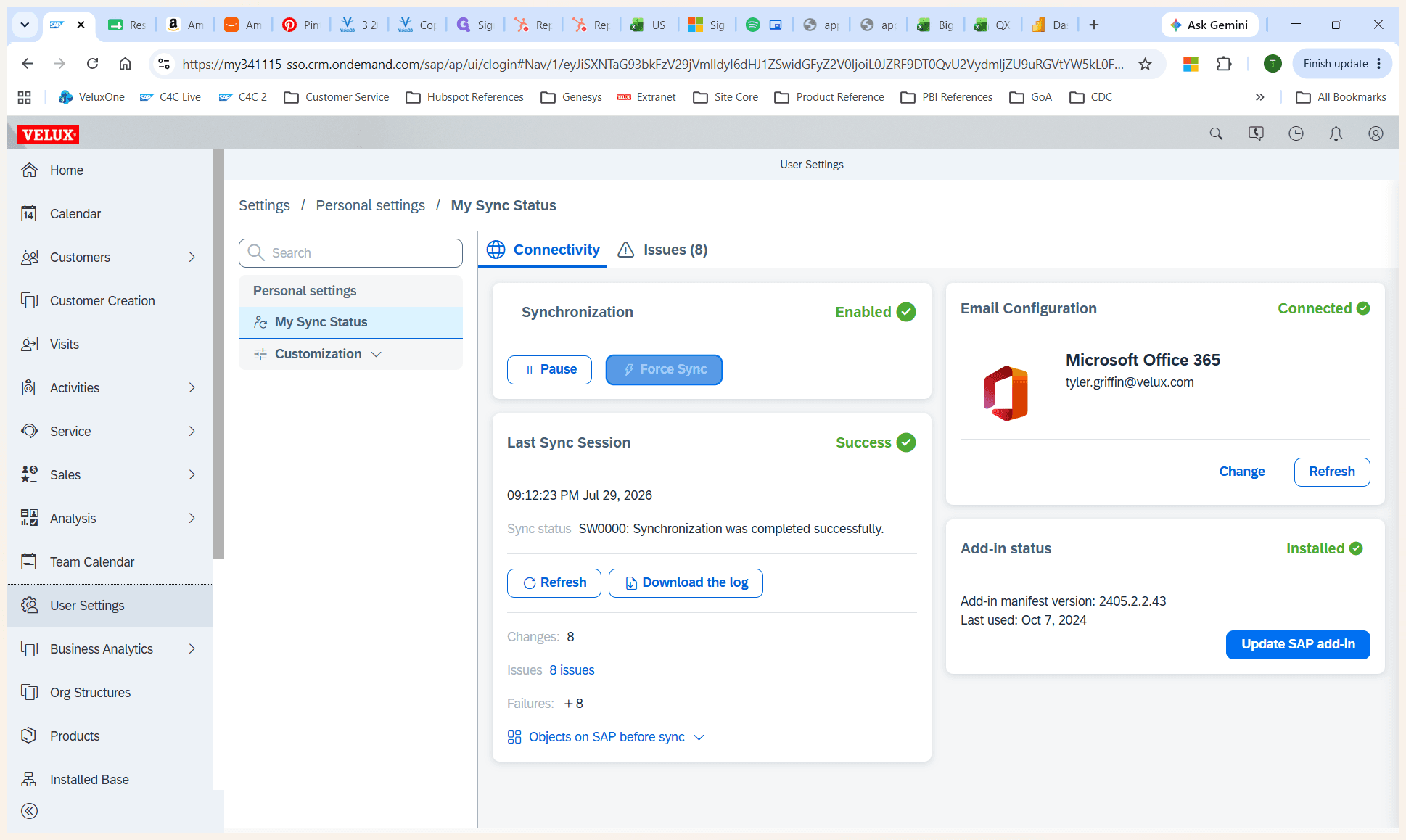
Wait five to ten minutes for the synchronization to finish. You should then start seeing your SAP data accurately populate in your Outlook calendar.
Q: Why are my SAP appointments missing from my Outlook calendar?
A: Your sync status is likely disconnected or paused, indicated by a red status light. Verify in your User Settings that Microsoft Office 365 is the selected provider and force a manual sync.
Q: How long does it take for calendar events to sync after triggering a manual update?
A: It typically takes 5 to 10 minutes for your items to start populating in Outlook after you initiate a Force Sync.
Term | Definition |
|---|---|
SAP C4C | SAP Cloud for Customer, the customer relationship management (CRM) platform being integrated. |
Single Sign-On (SSO) | An authentication method that allows users to securely log in to multiple applications with one set of credentials. |
Force Sync | A manual command that instantly triggers data synchronization between integrated platforms, bypassing standard automated schedules. |