Troubleshooting Light Key Lighting Issues: Step-by-Step Guide
Learn how to troubleshoot common Light Key lighting issues, including scene transitions and control hub resets. Follow these quick steps to resolve lighting problems in your venue.
In this guide, we'll learn how to troubleshoot lighting control issues when using Light Key and Luminaire. Sometimes, lights do not transition as expected, or scenes do not load correctly, even after restarting Light Key. We will cover steps to reset the system from the amp room and check if control is restored.
If these steps do not solve the problem, you may need to contact further support.
Let's get started
Here are some quick troubleshooting steps for the lighting. Sometimes, when you click the lights in Light Key, they don't transition. Or, when you switch from Luminaire to Light Key on a Sunday morning, the scene you want in Light Key does not appear. You've double checked the physical connection, and you have restarted Light Key, but nothing is working.
To restart Light Key, go here and select Light Key.
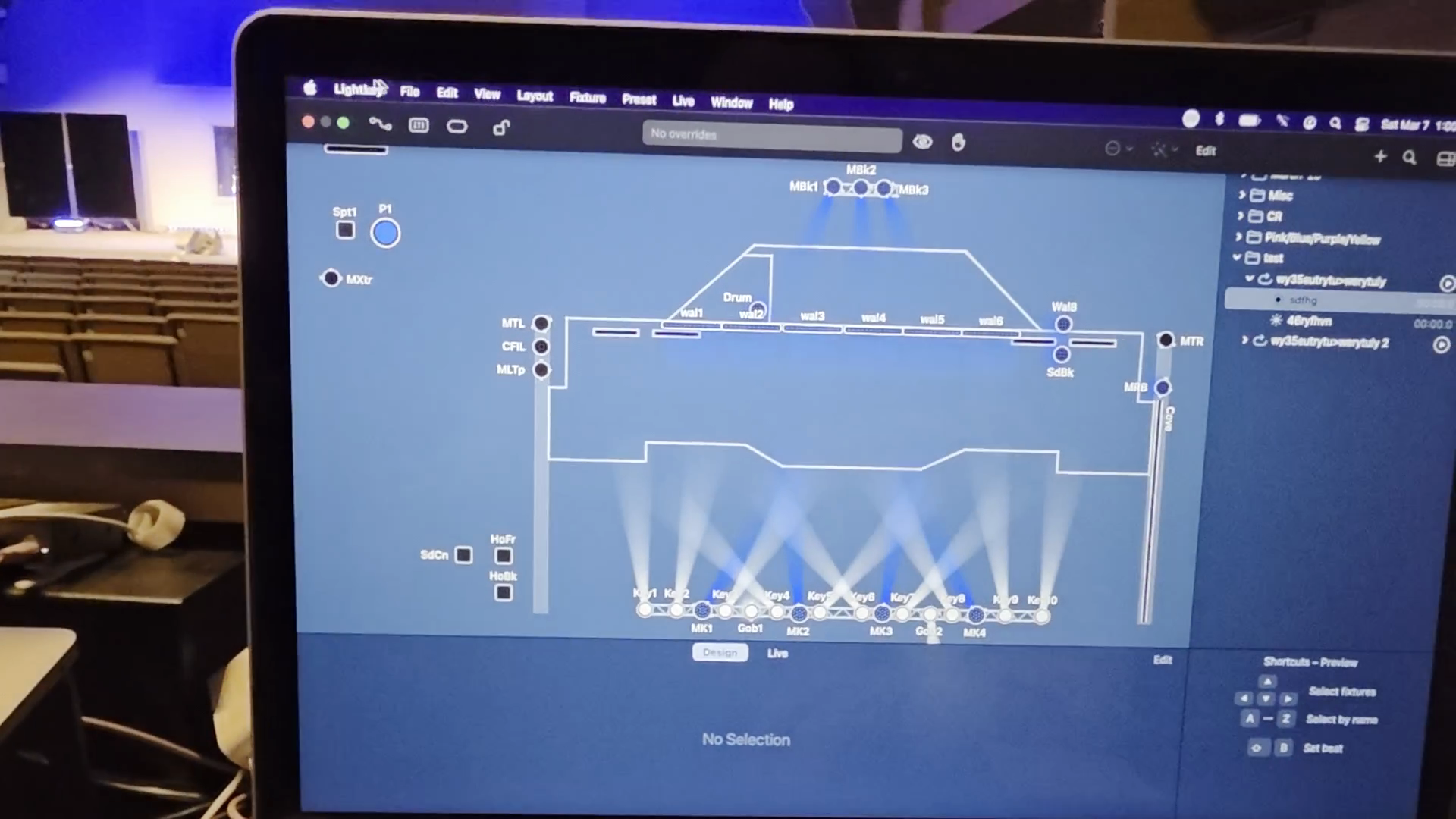
You can quit Light Key.
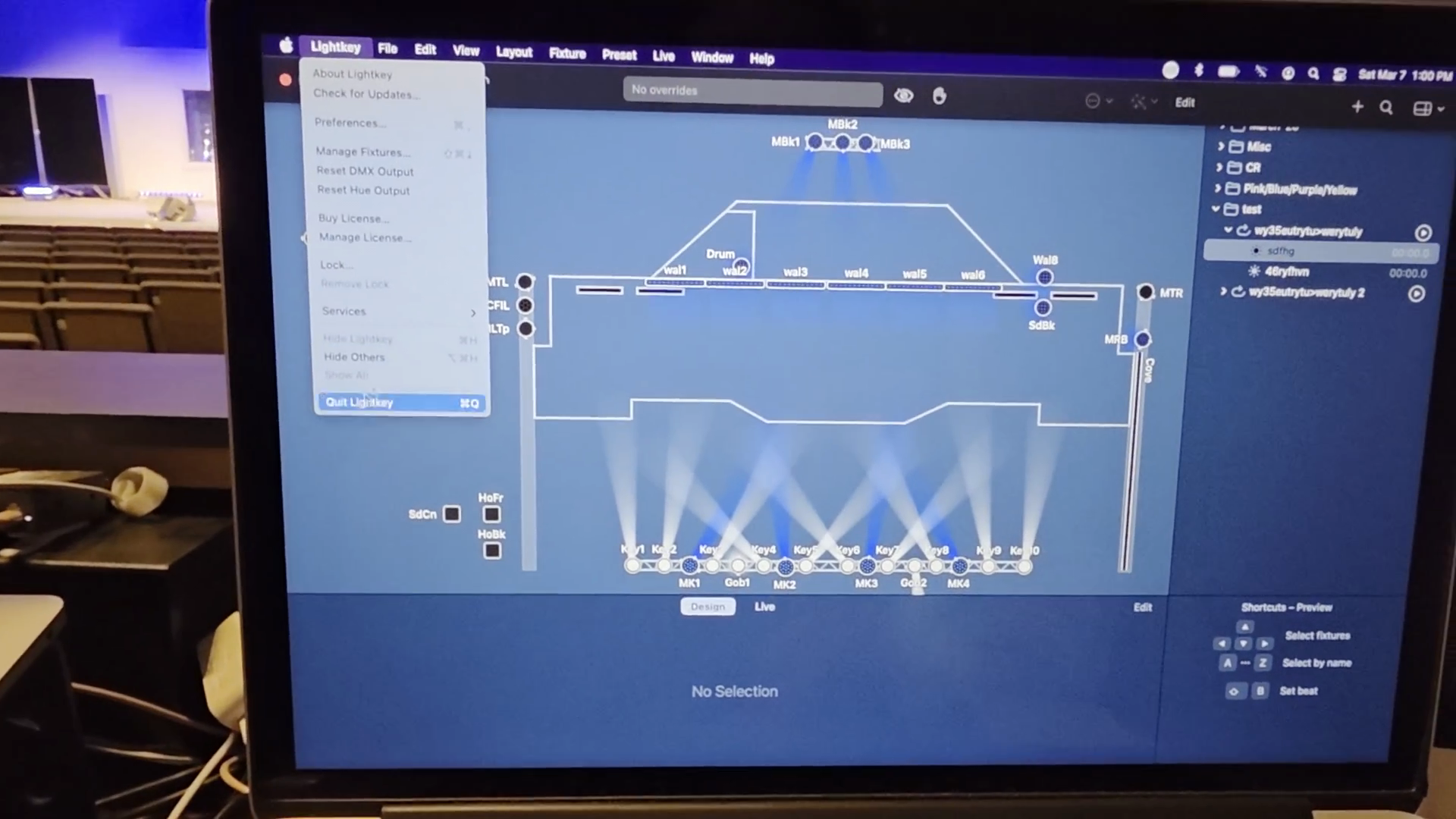
You pulled it back up, but it's still not transitioning. We have this small, annoying box that we occasionally need to restart. We need to go back to the amp room.
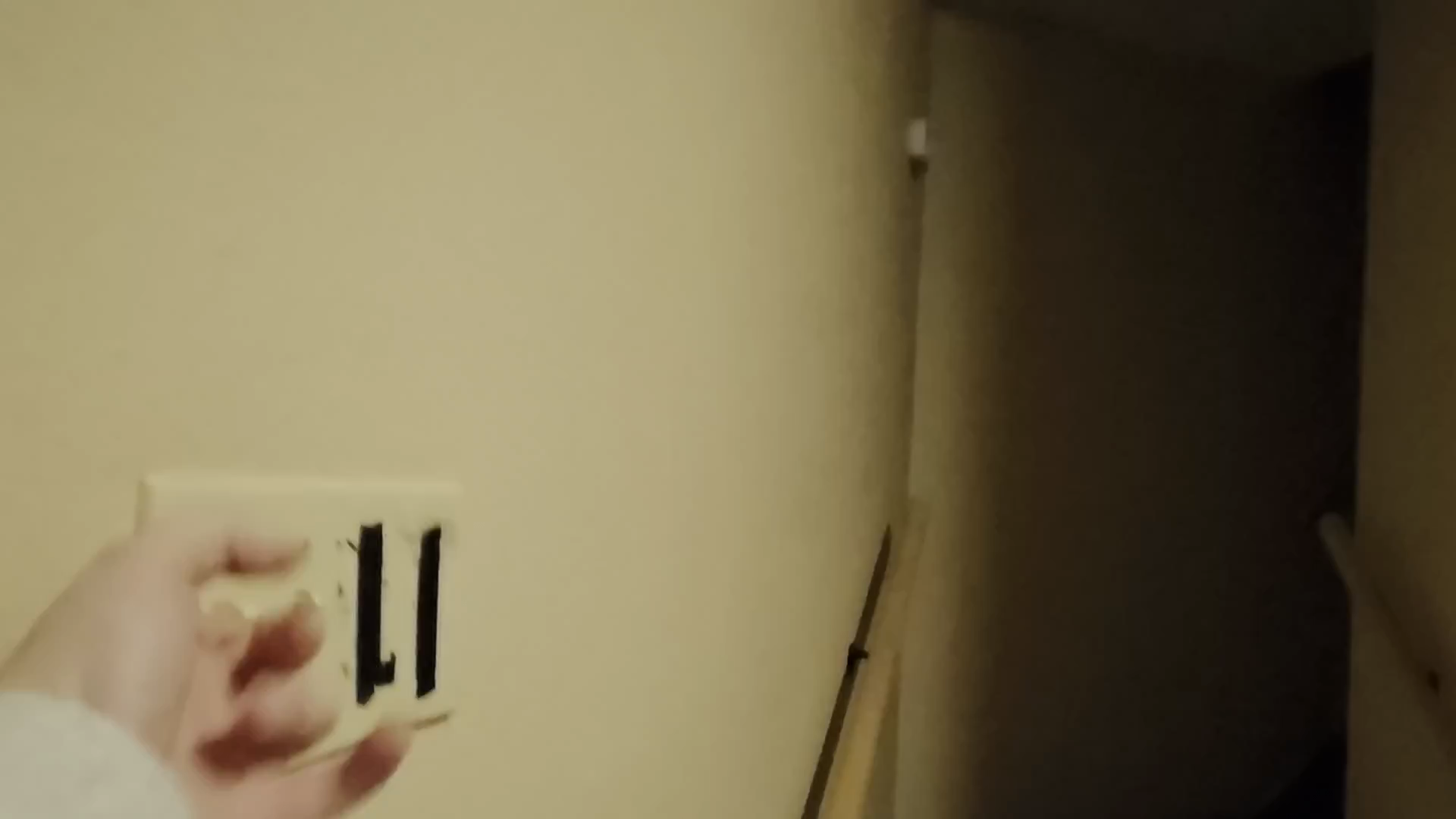
Walk down this hall, staying close to the wall.
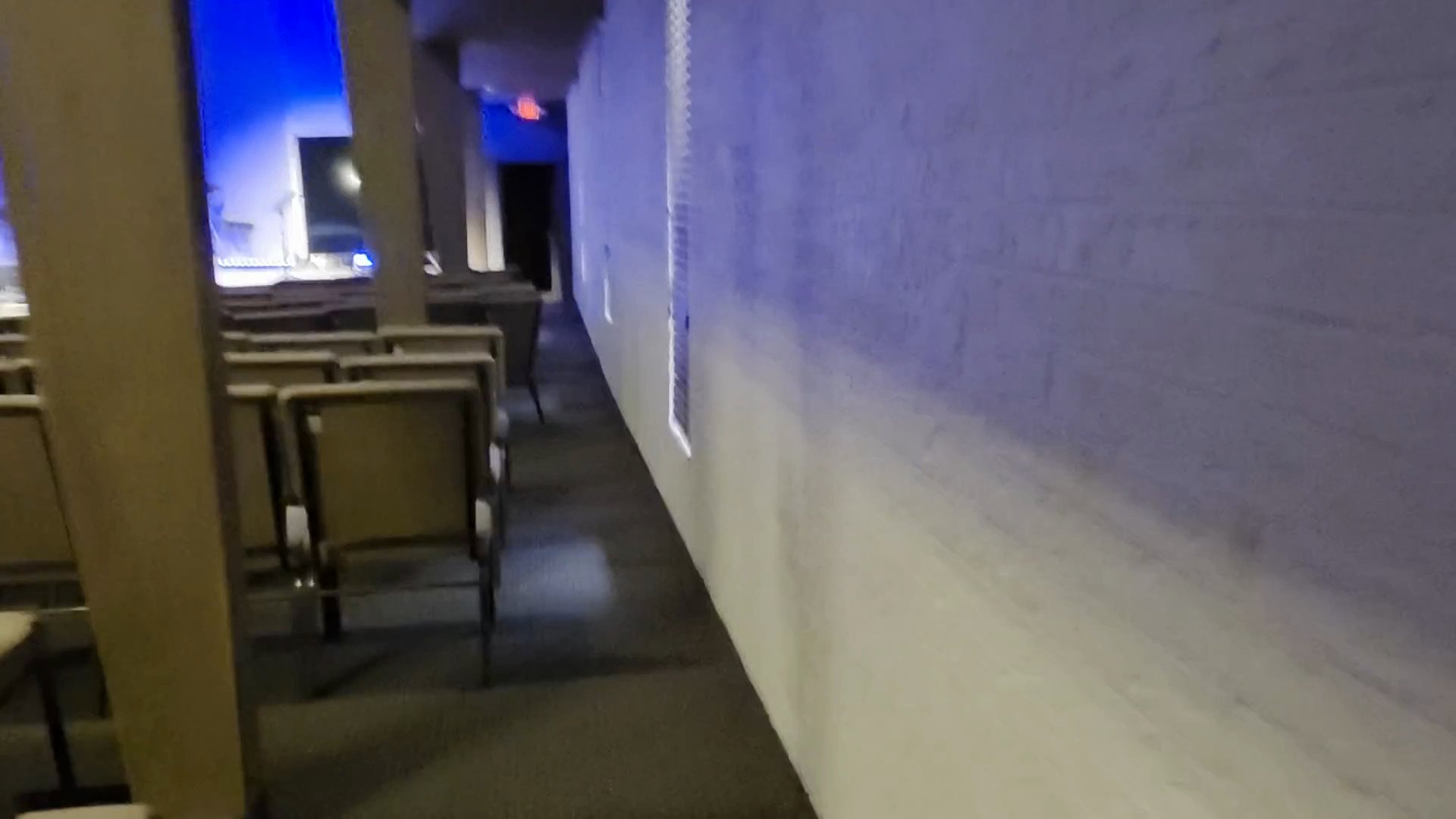
On a Sunday morning, if practice is happening and you're about to flip this with many people around, you should warn them ahead of time.
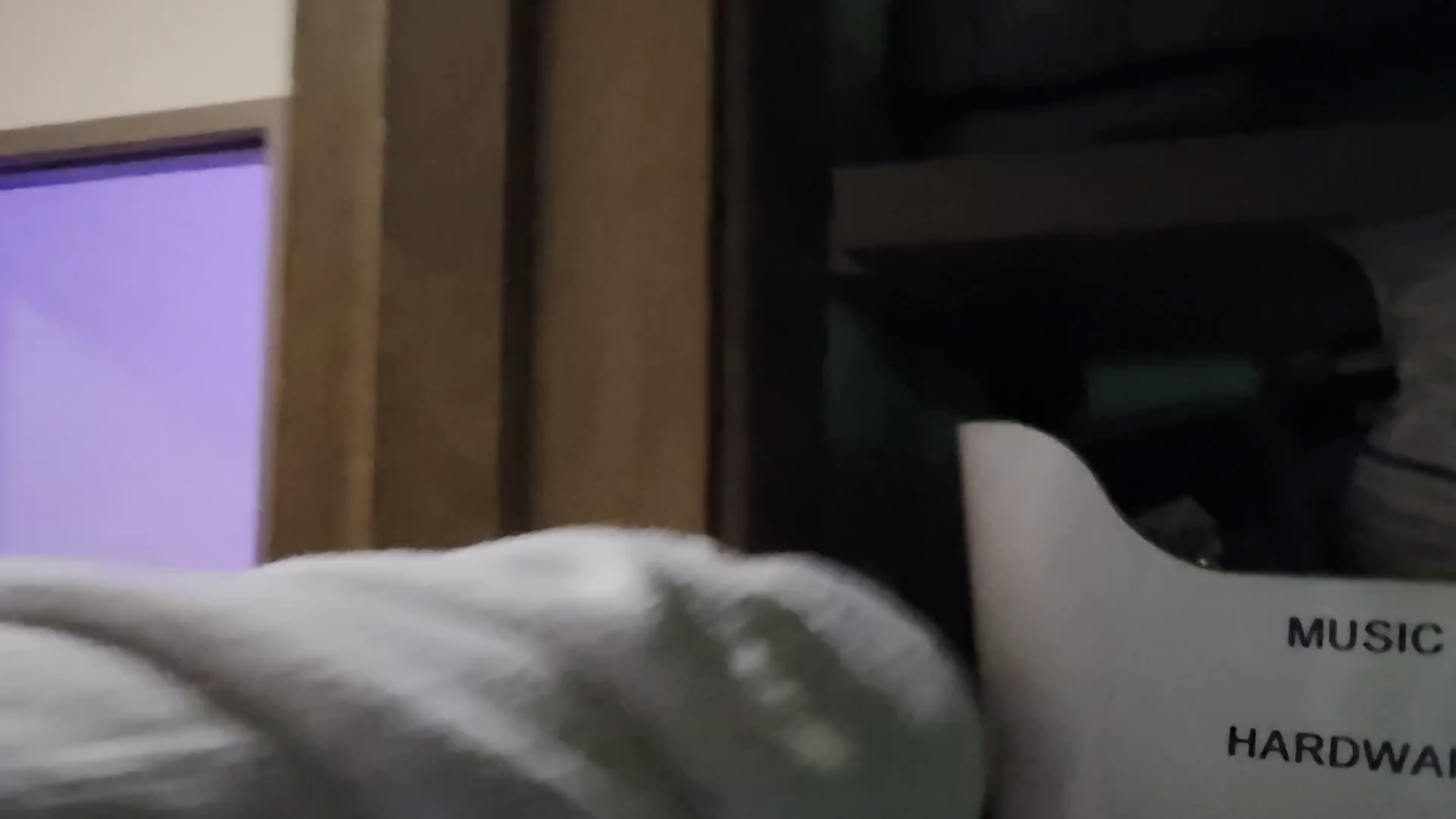
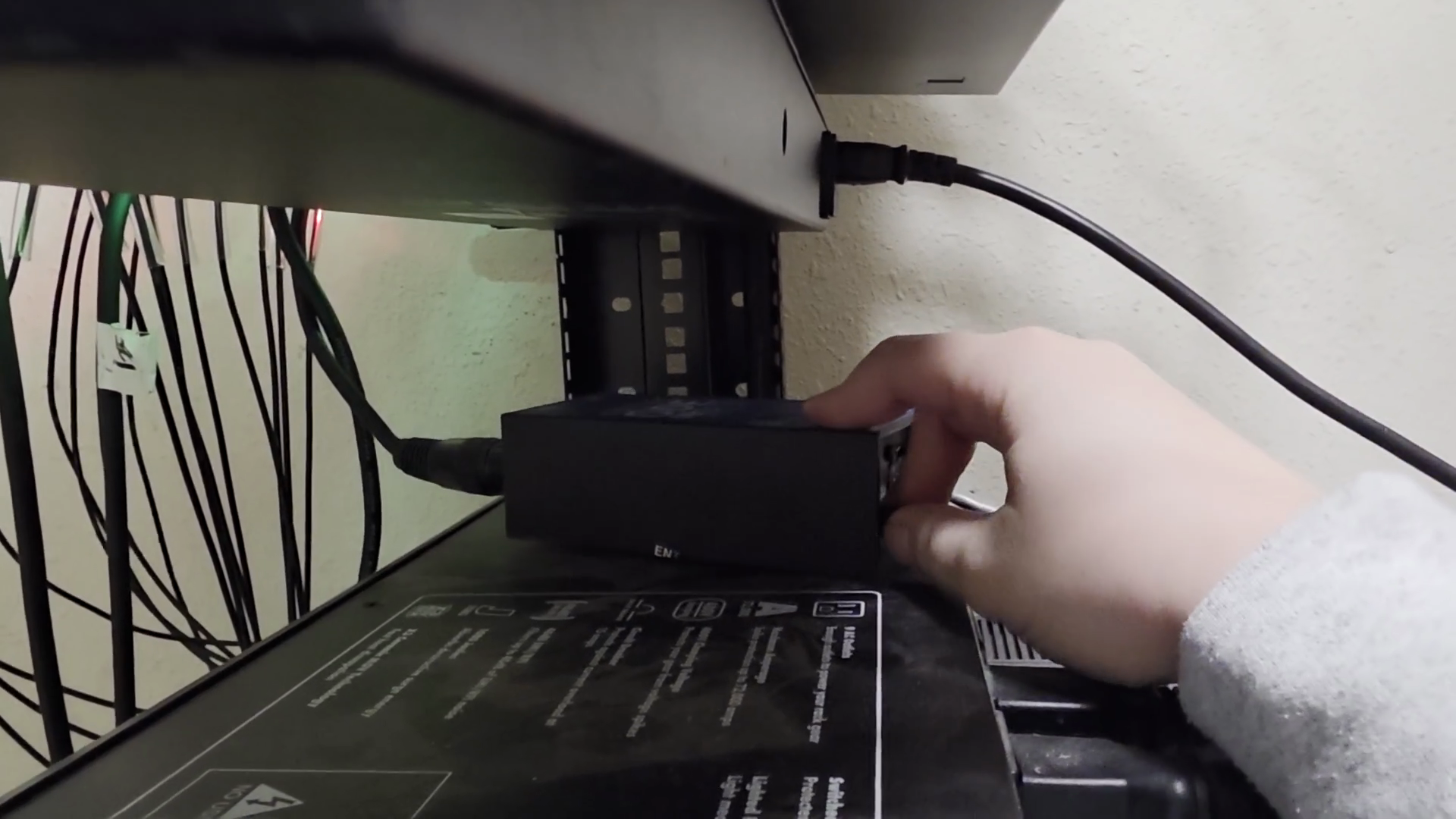
Identify the Enttec ODE MK3 box, which controls the lighting system. Sometimes this little guy doesn't want to work. If the lights aren't switching, unplug it, wait a few seconds, and then plug it back in.
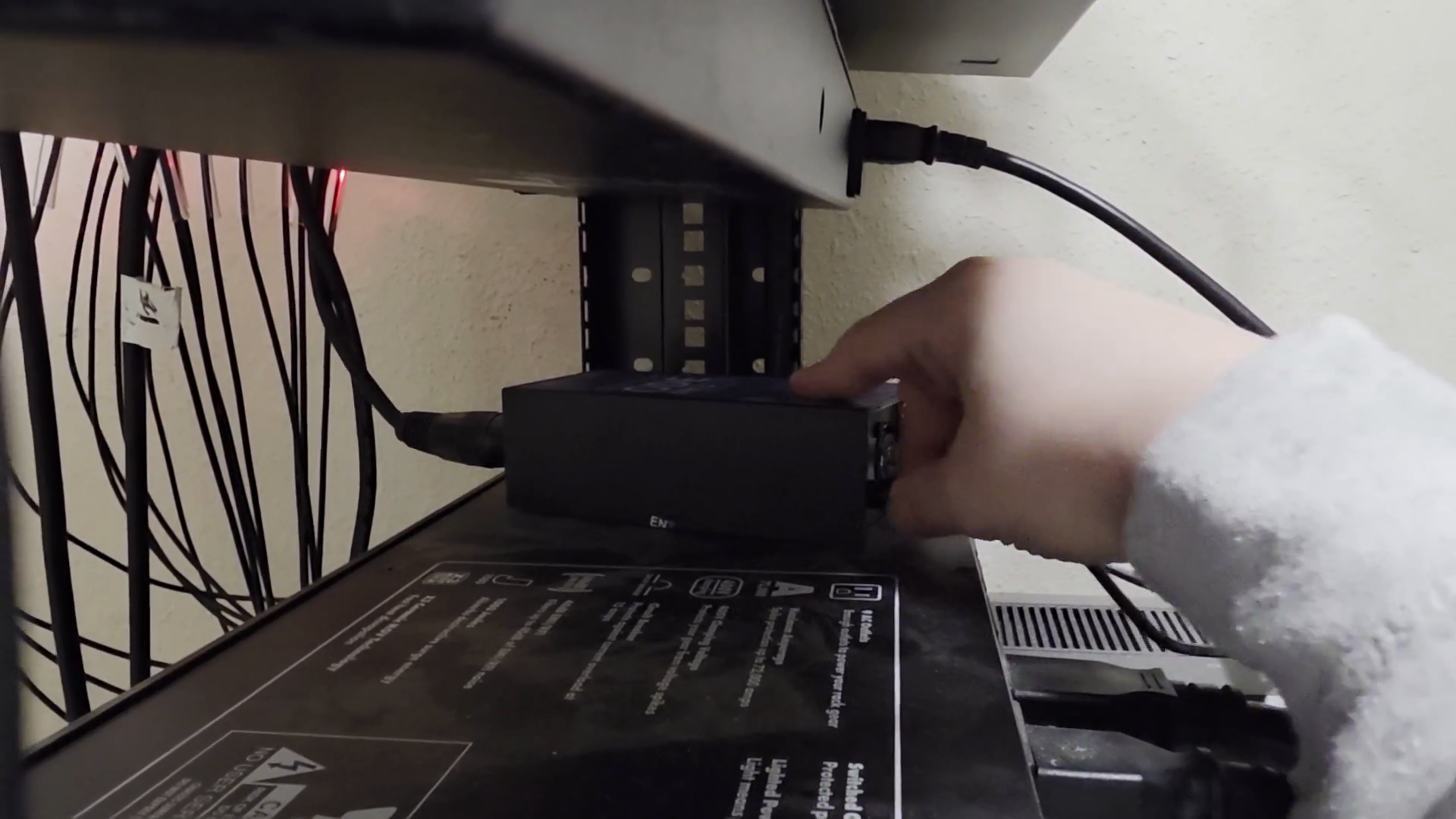
When the lights come back on, go back to the booth and switch your scenes. Click different scenes in Light Key to ensure you have control.
That should work. If not, then something else has happened. That's when you would call me or have Kevin reach out to the pastor or someone else.