Understanding Lead Scoring in HubSpot: Engagement, Fit, and Combined Approaches
Learn how to use HubSpot's lead scoring methods—engagement, fit, and combined—to qualify leads and optimize your Salesforce integration. Discover best practices for scoring contacts based on activity and profile data.
In this guide, we'll learn how to use lead scoring in HubSpot to identify and prioritize contacts for your sales process. We'll explore the different types of lead scoring, including engagement, fit, and combined scores, and see how each method helps you evaluate contact activity and profile information.
By understanding these scoring systems, you can make informed decisions about which leads to send to Salesforce and improve your lead management workflow.
Let's get started
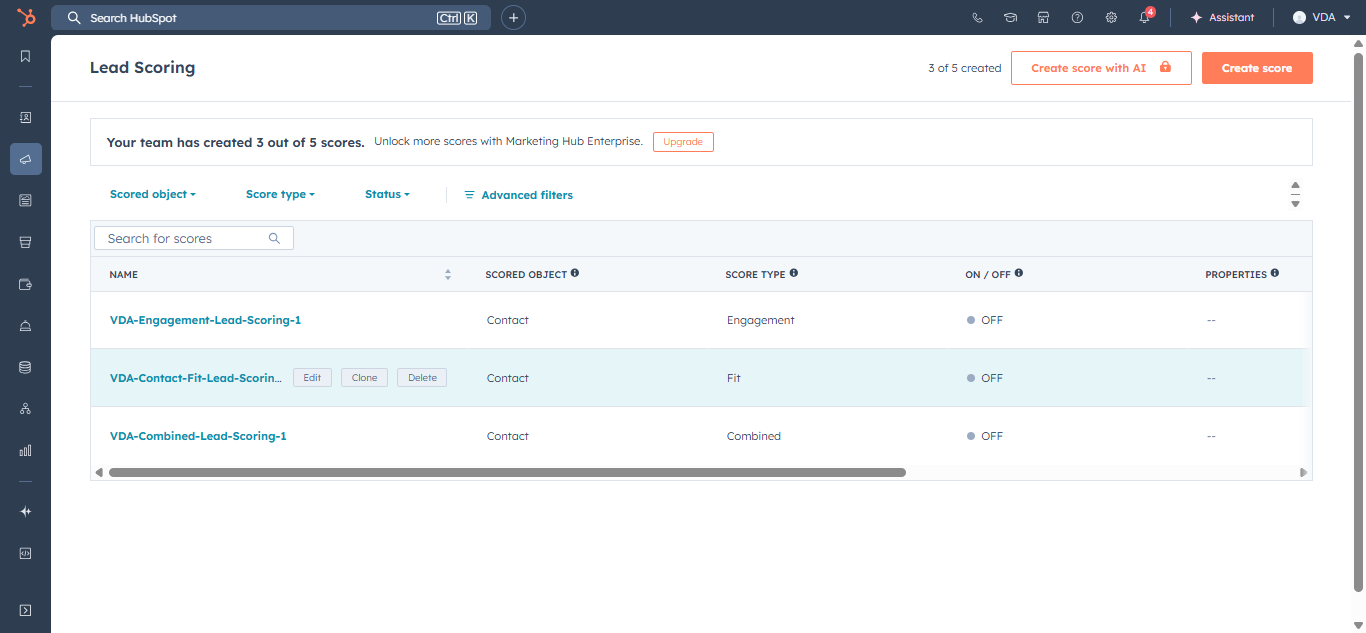
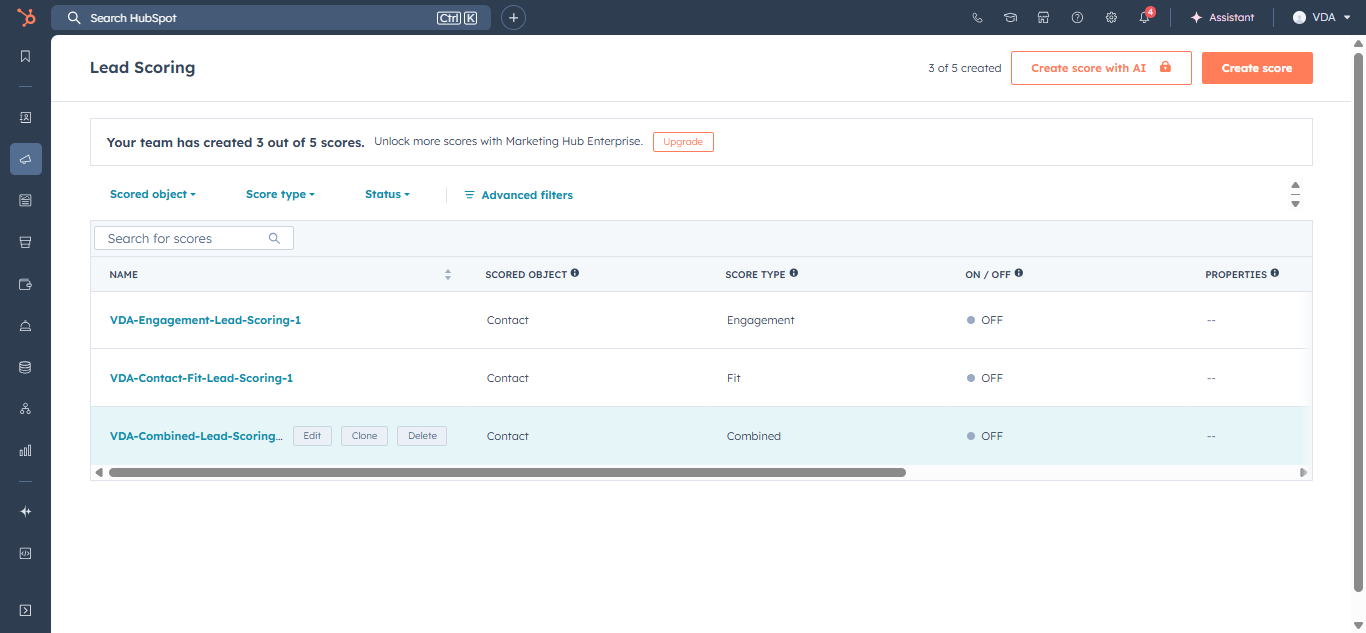
Within HubSpot, we can perform lead scoring. There are different types of lead scoring: engagement, fit, and combined.
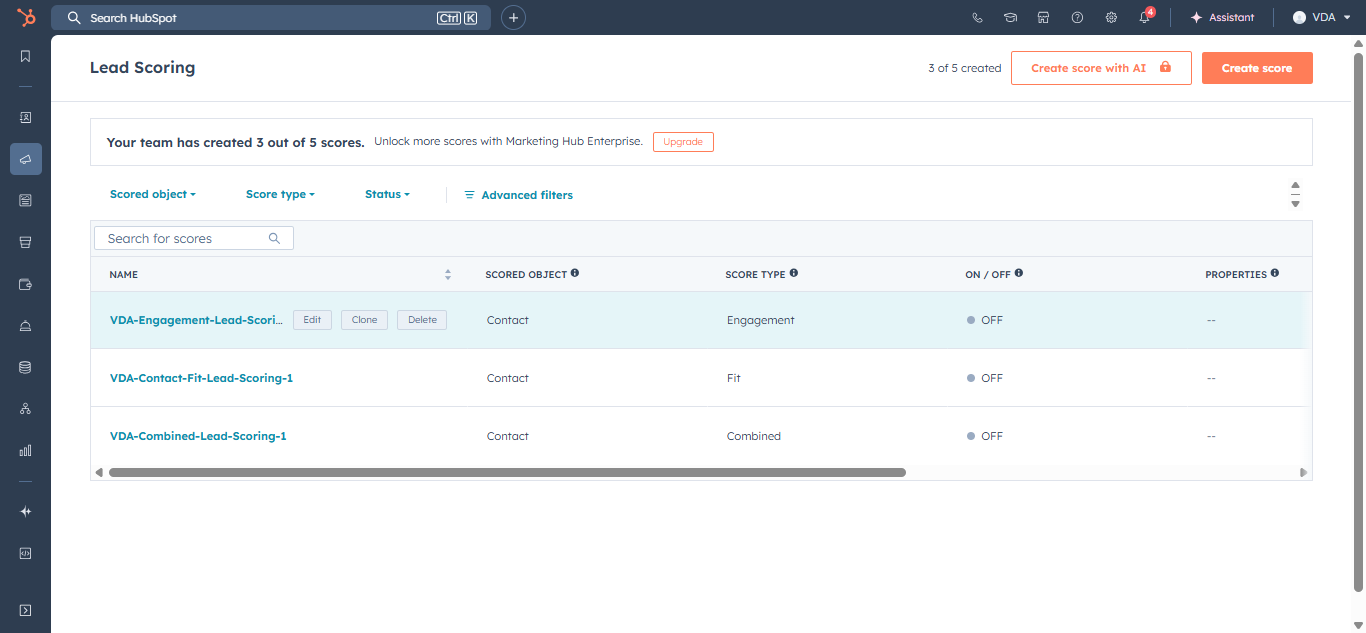
Let's start by looking at engagement scoring.
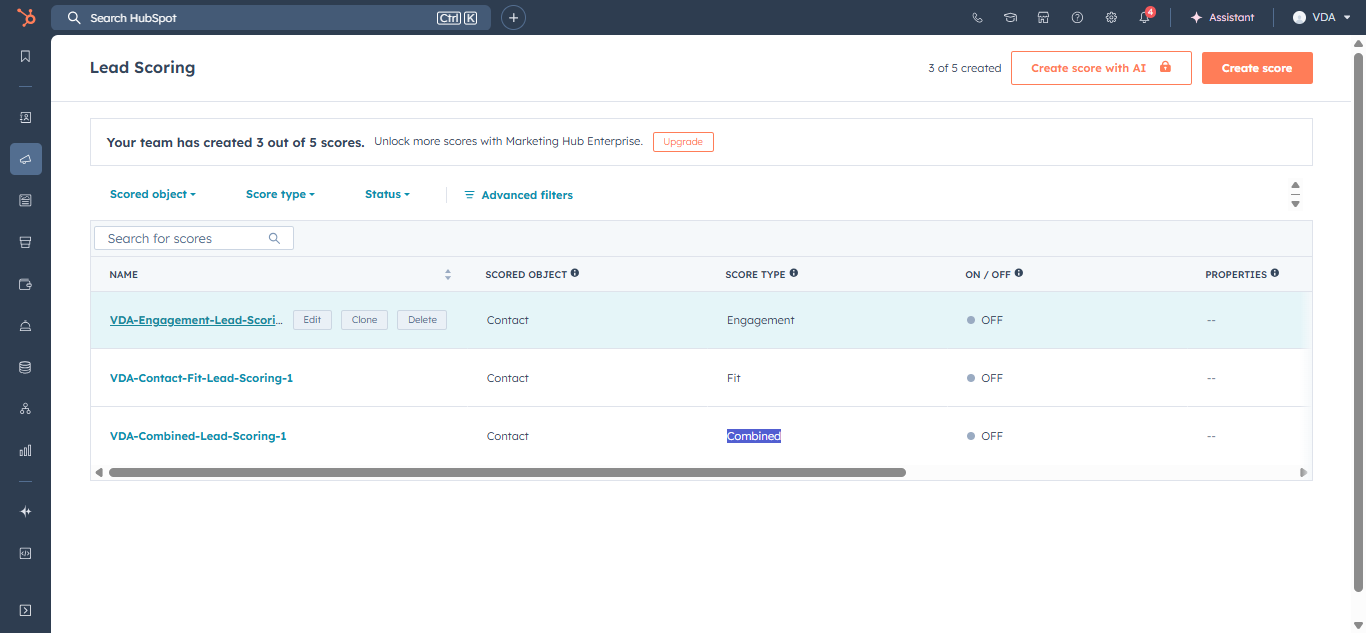
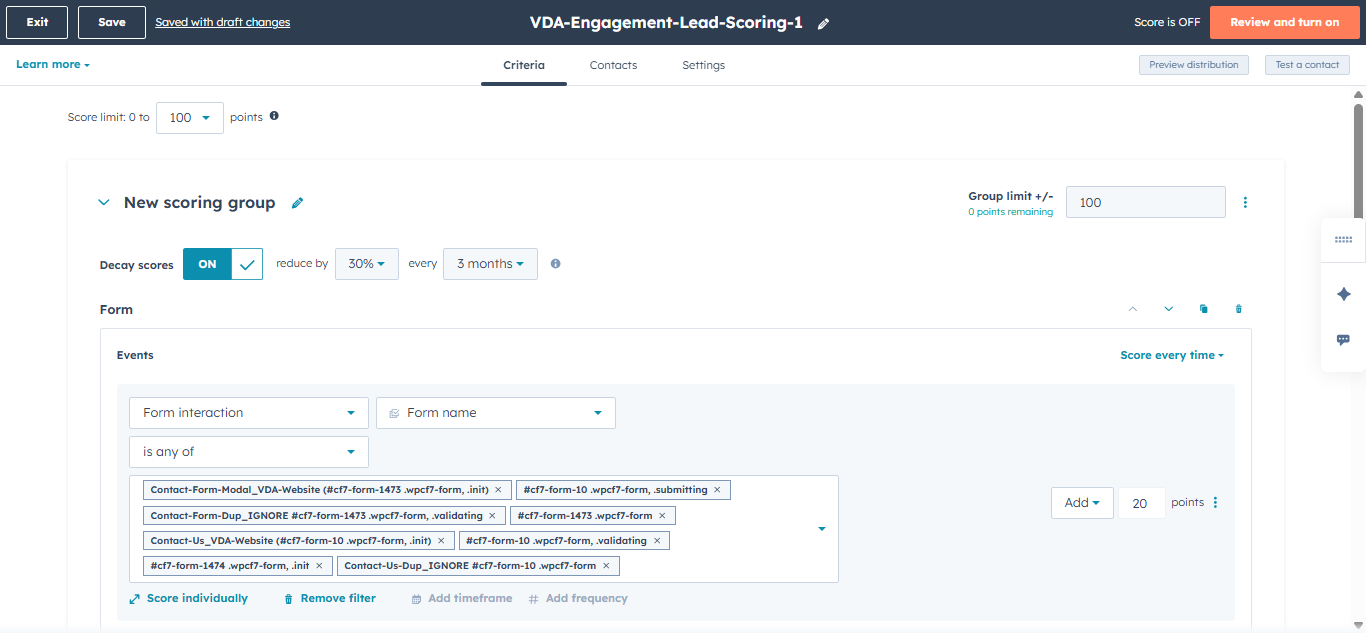
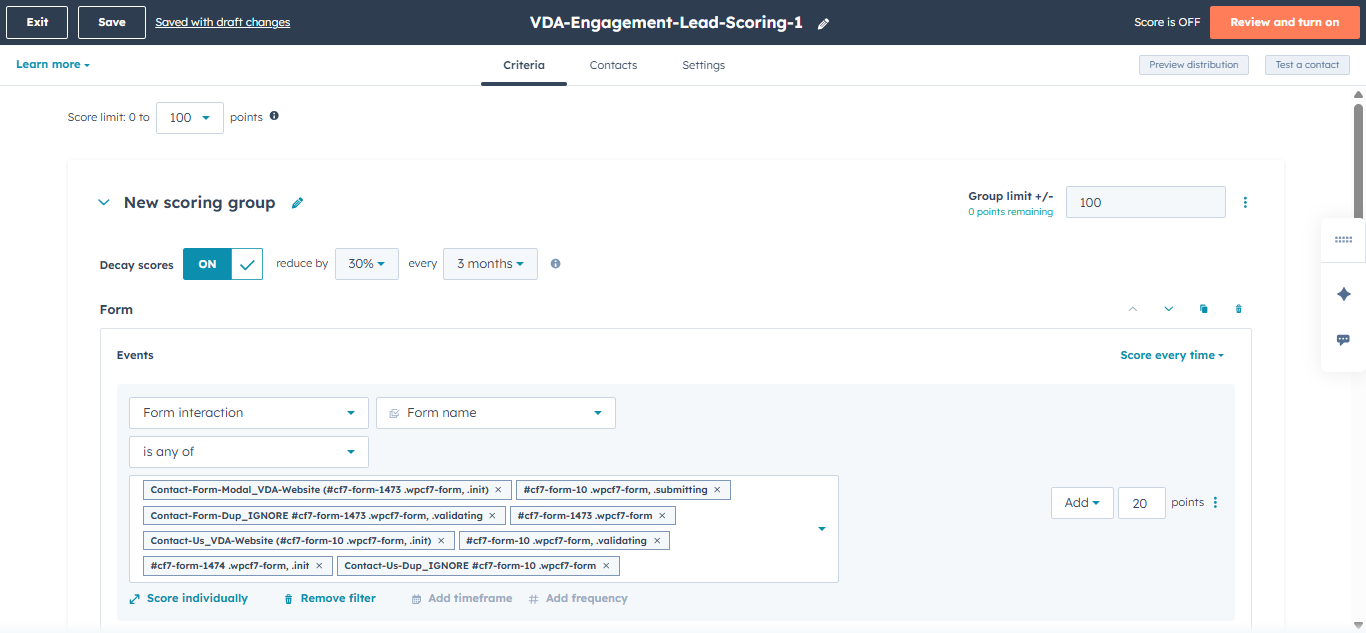
When we click on engagement scoring, it is based on the activities a user performs on the website. For example, there are forms, marketing emails, workflows, and various web events.
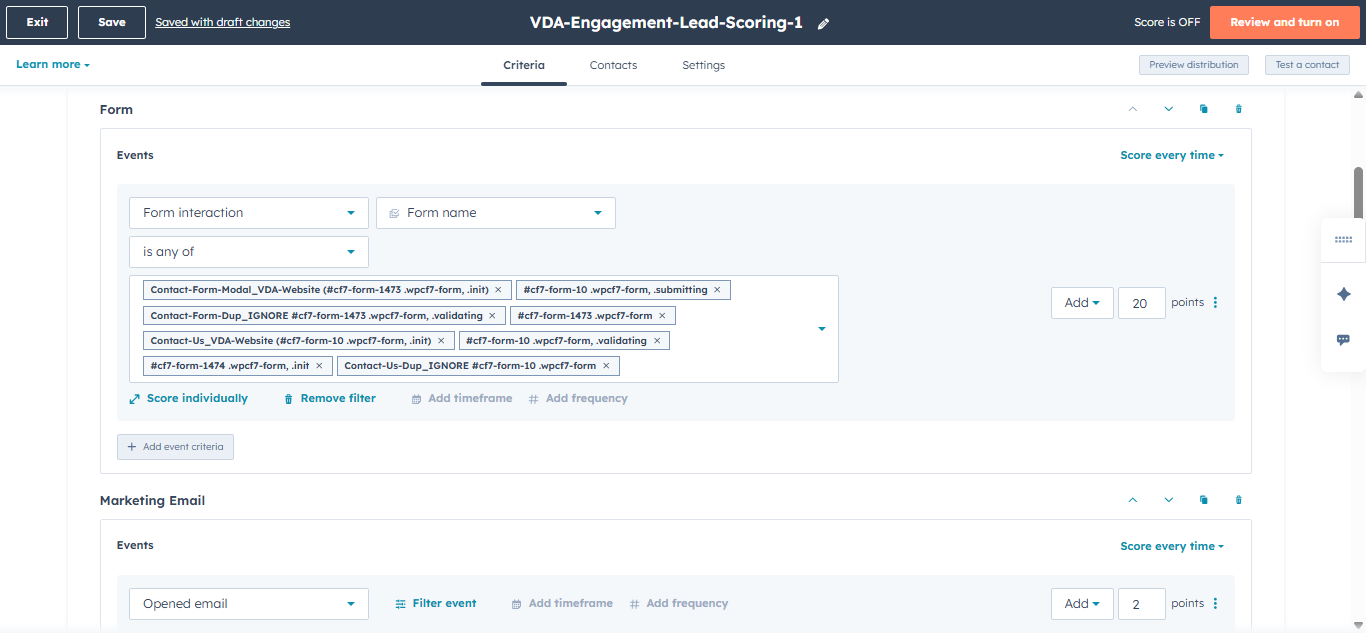
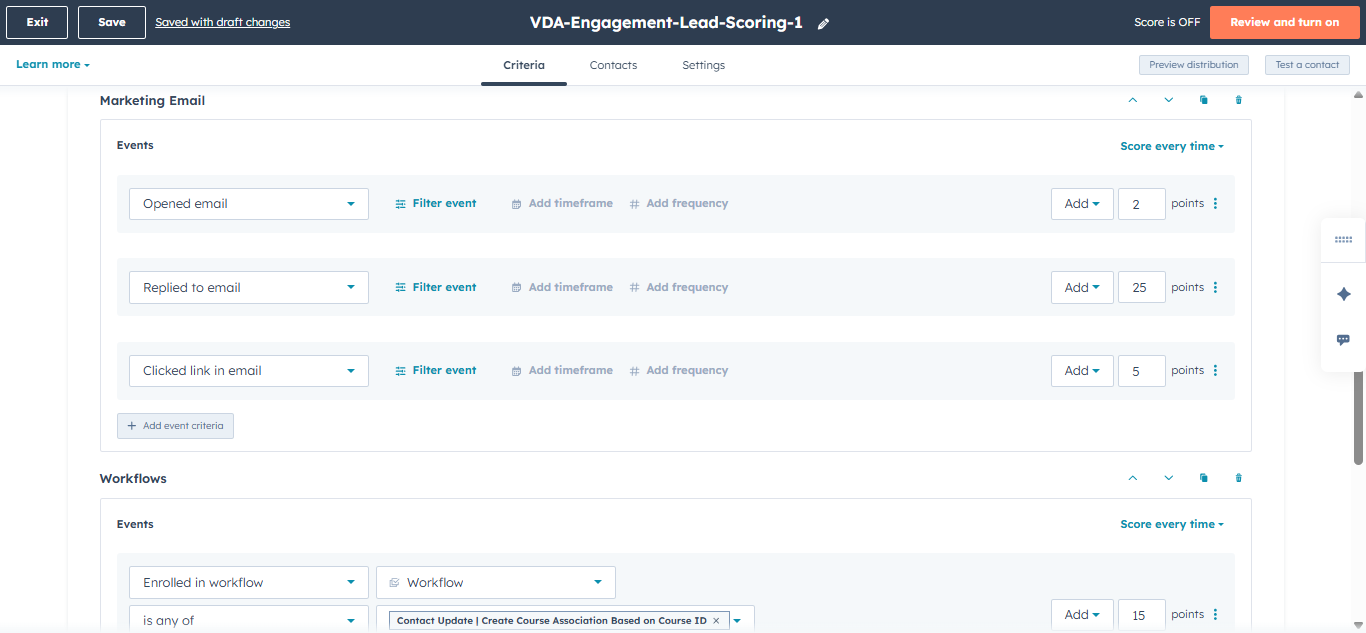
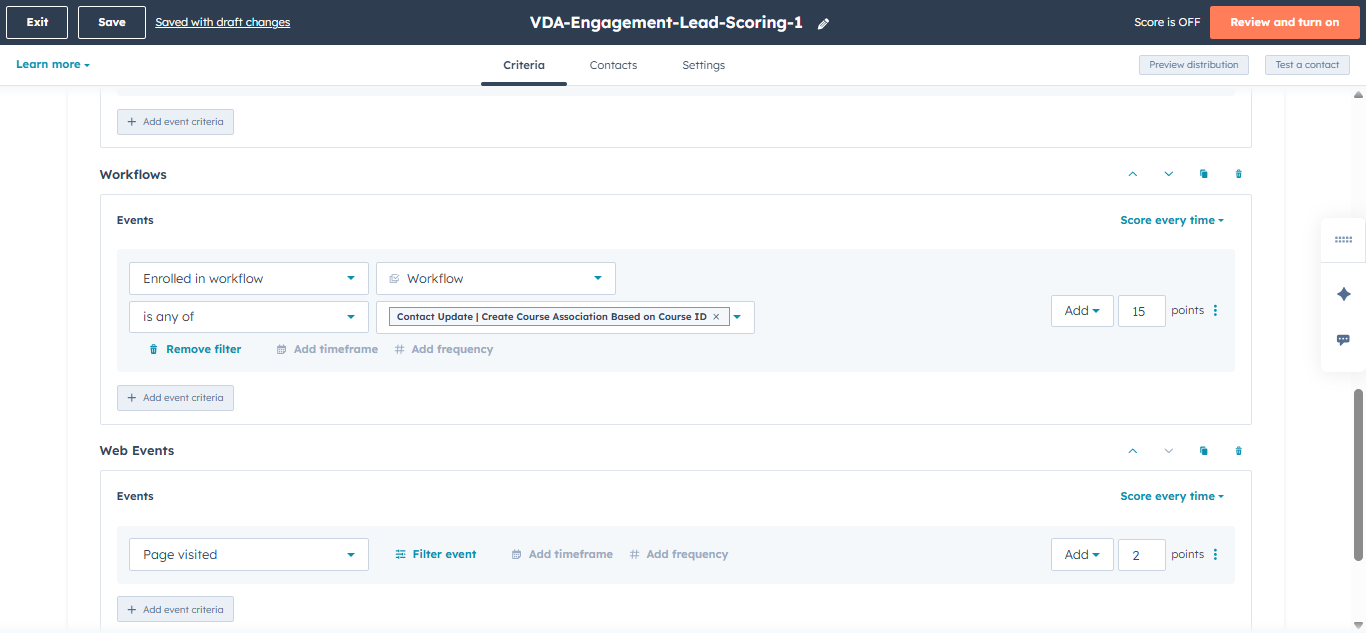
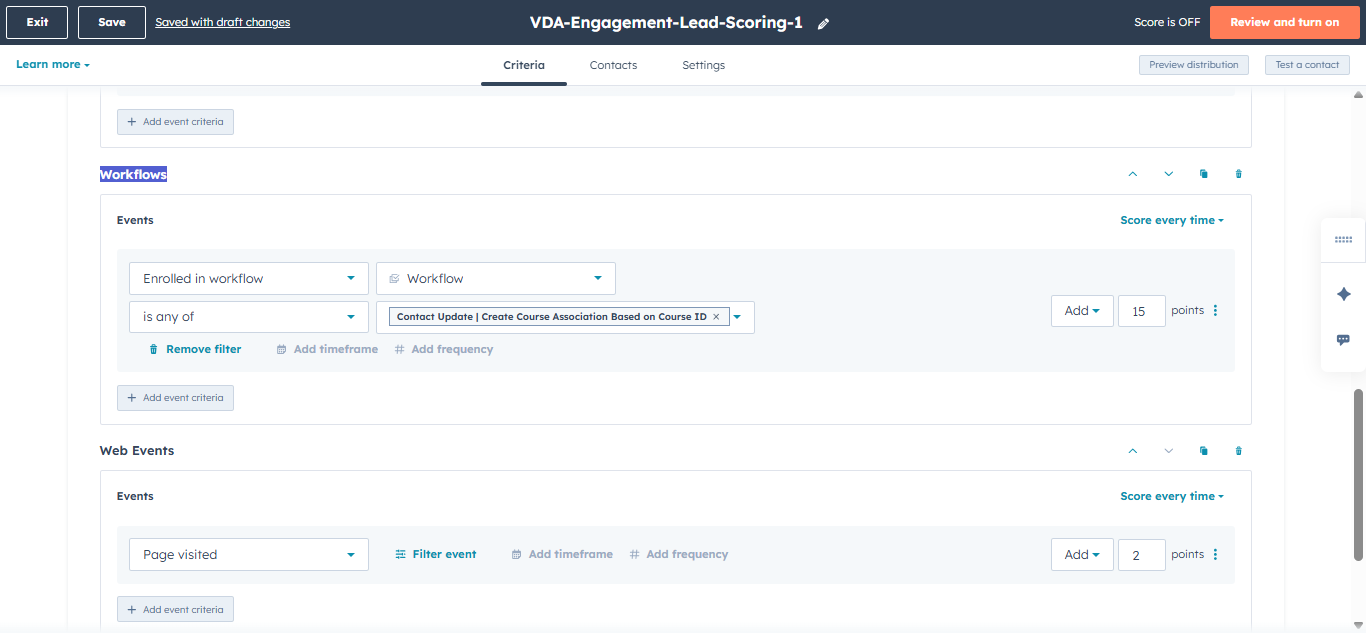
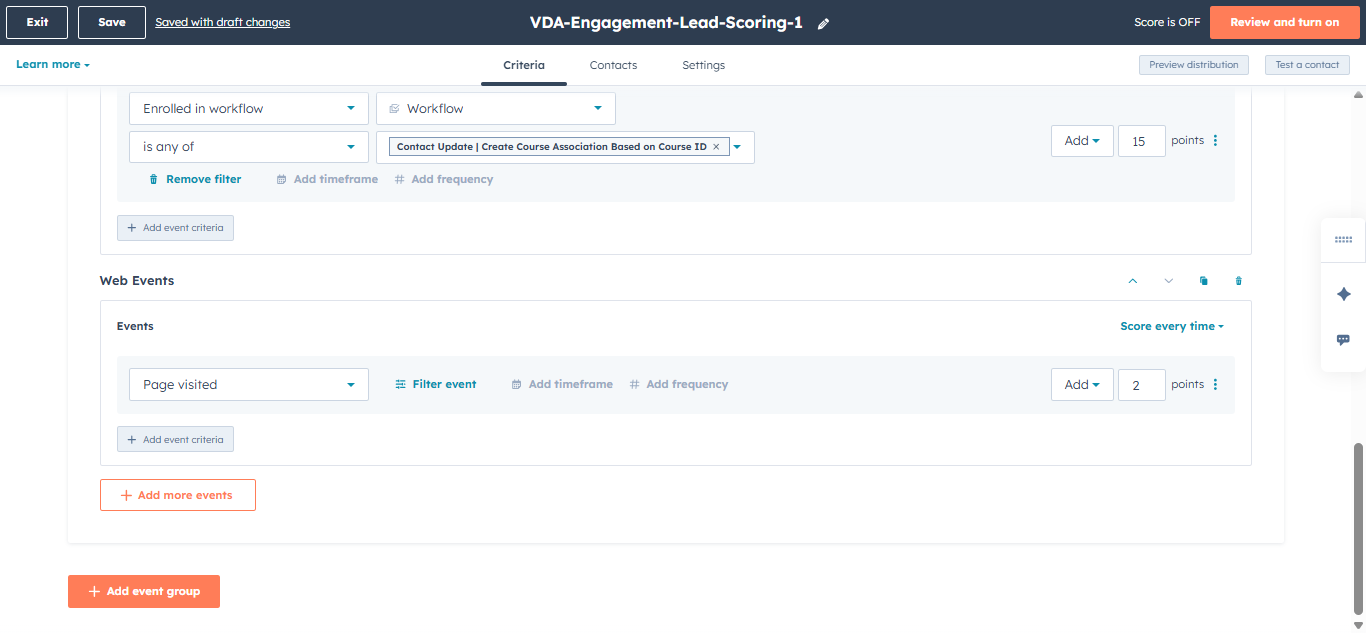
Each of these has a different point value assigned.
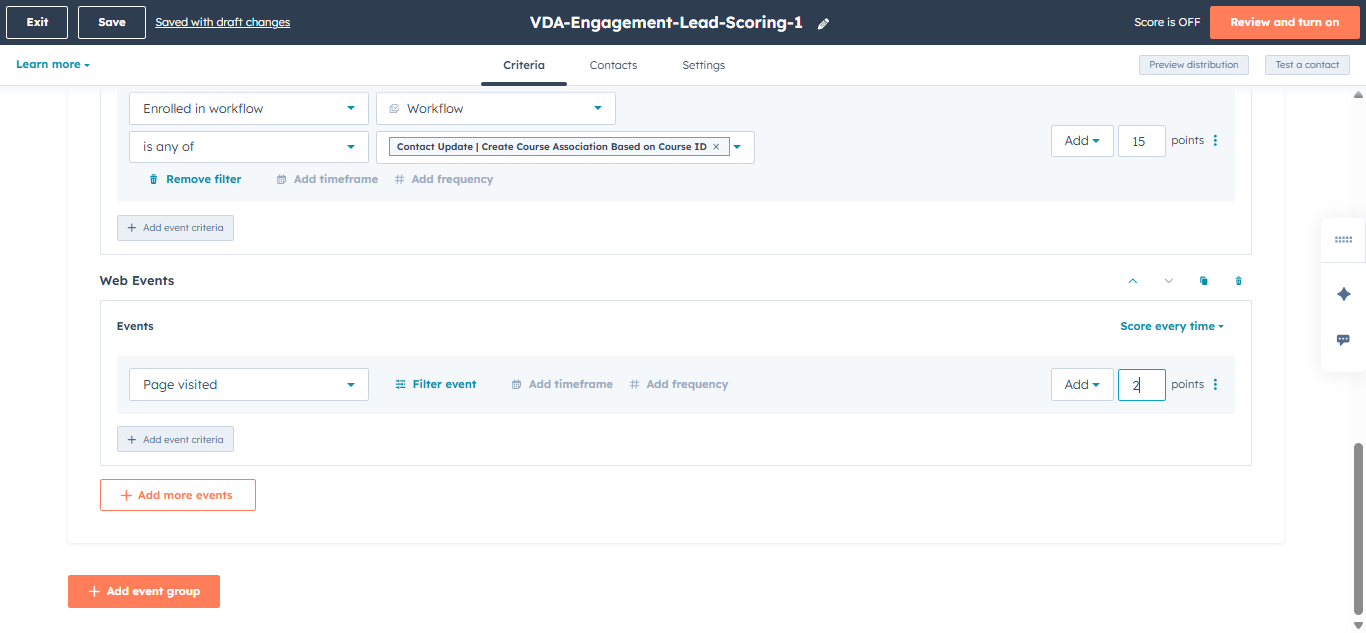
Each time a user interacts with one of these items, that number of points is added to their profile.
Over time, interactions or engagement decrease by a certain amount at regular intervals.
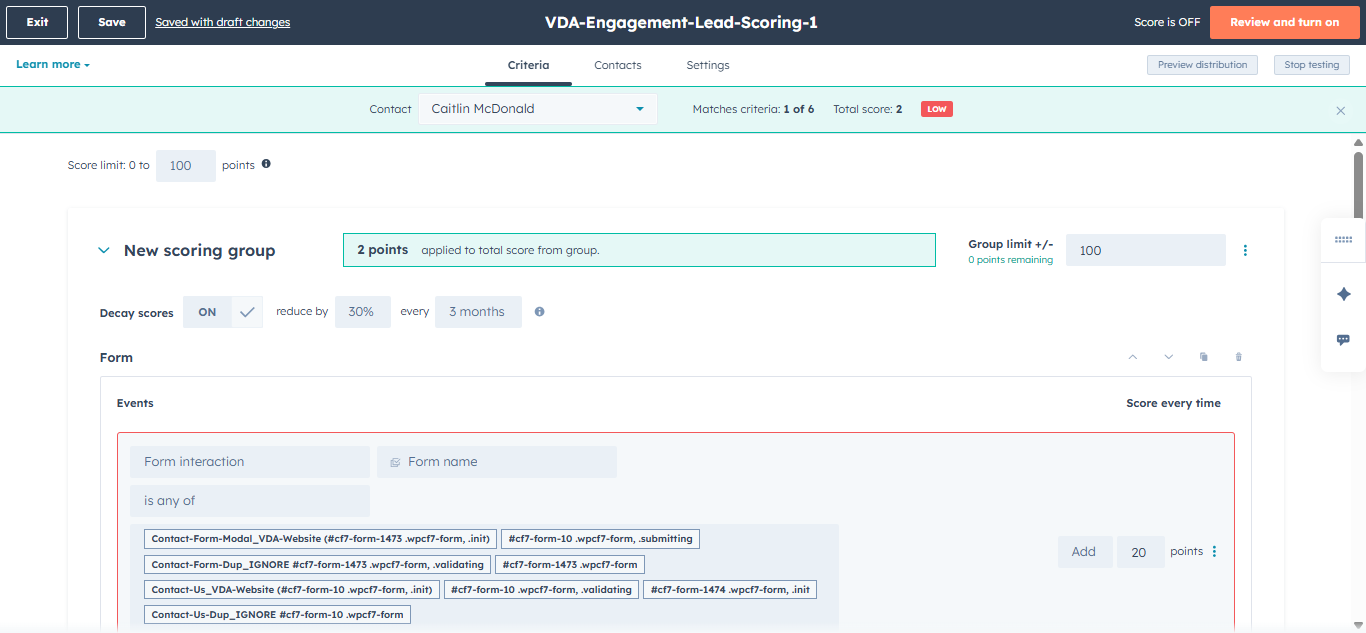
Let's test this for a contact.
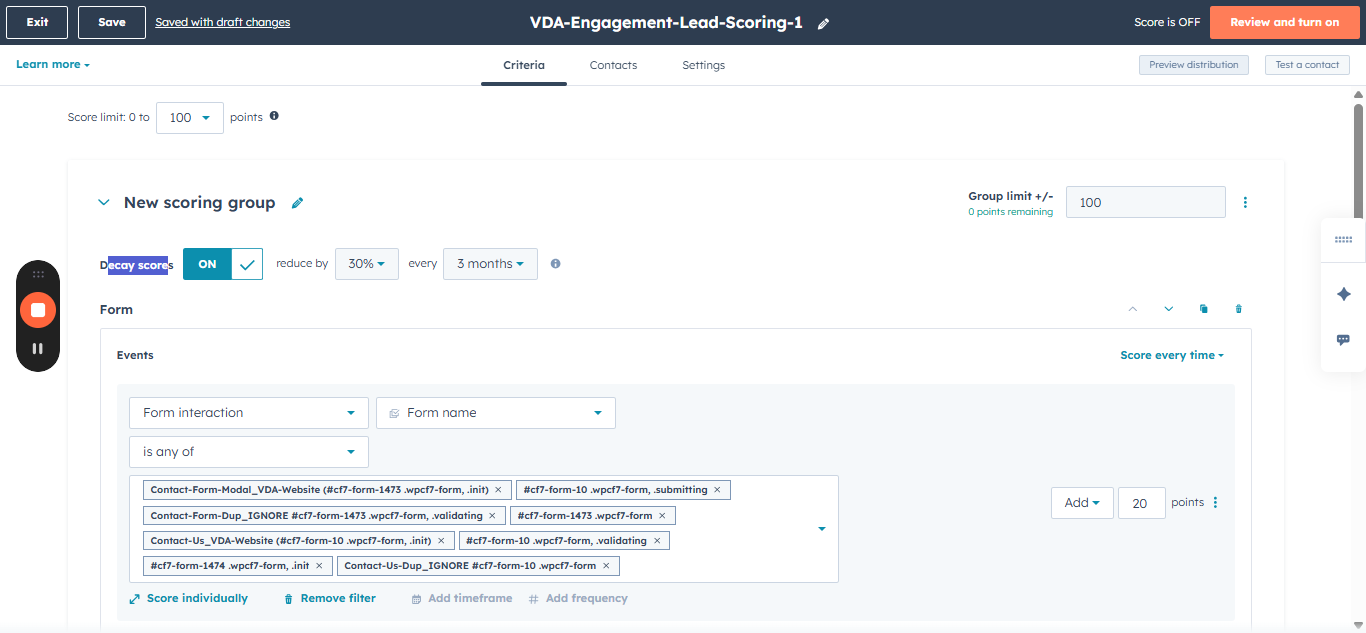
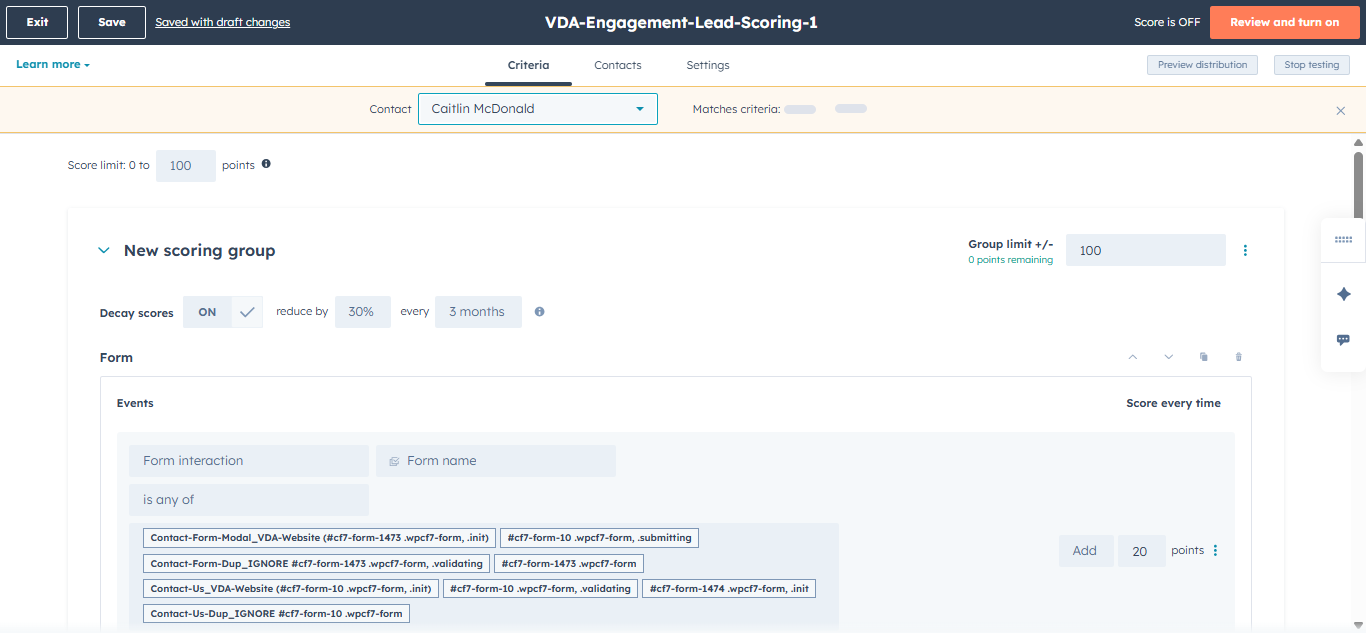
For my profile, I have a total score of two. This is because I viewed one page on the website. If we view someone who has submitted a form, we will see a different engagement score.
We can preview the distribution. Based on engagement, most people in the sample have a low point score.
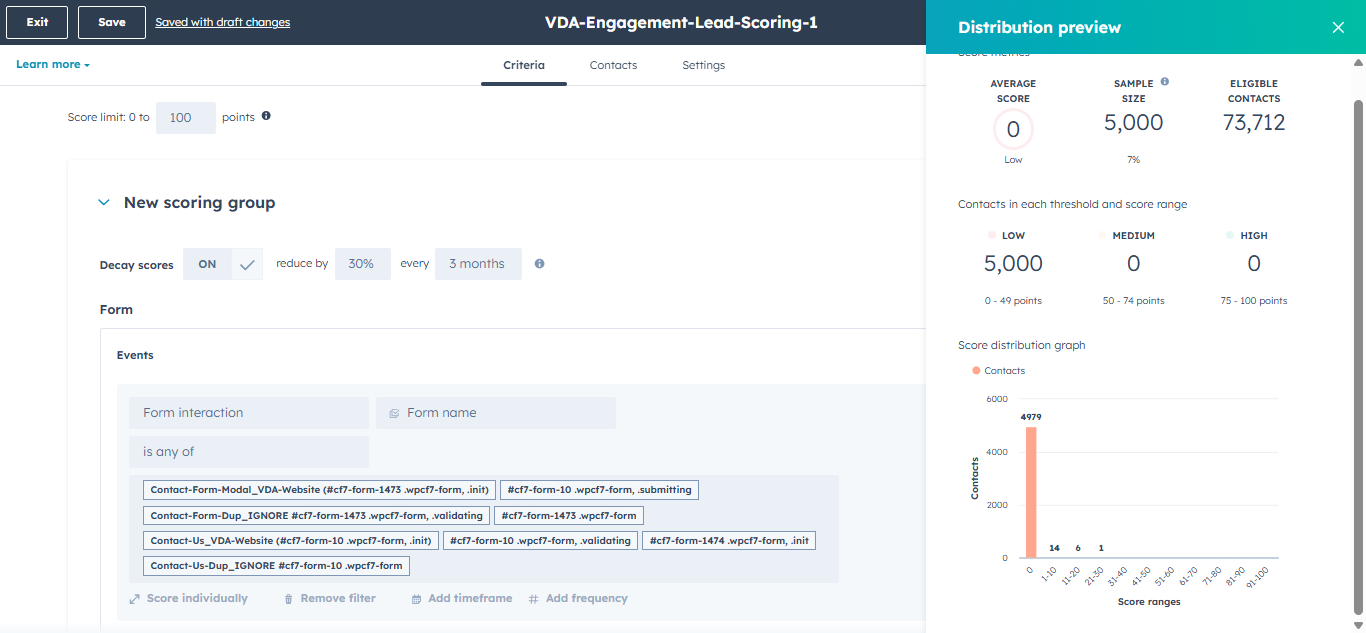
Some people have slightly higher engagement scores and are close to reaching the level where we would send them to Salesforce as a new lead.
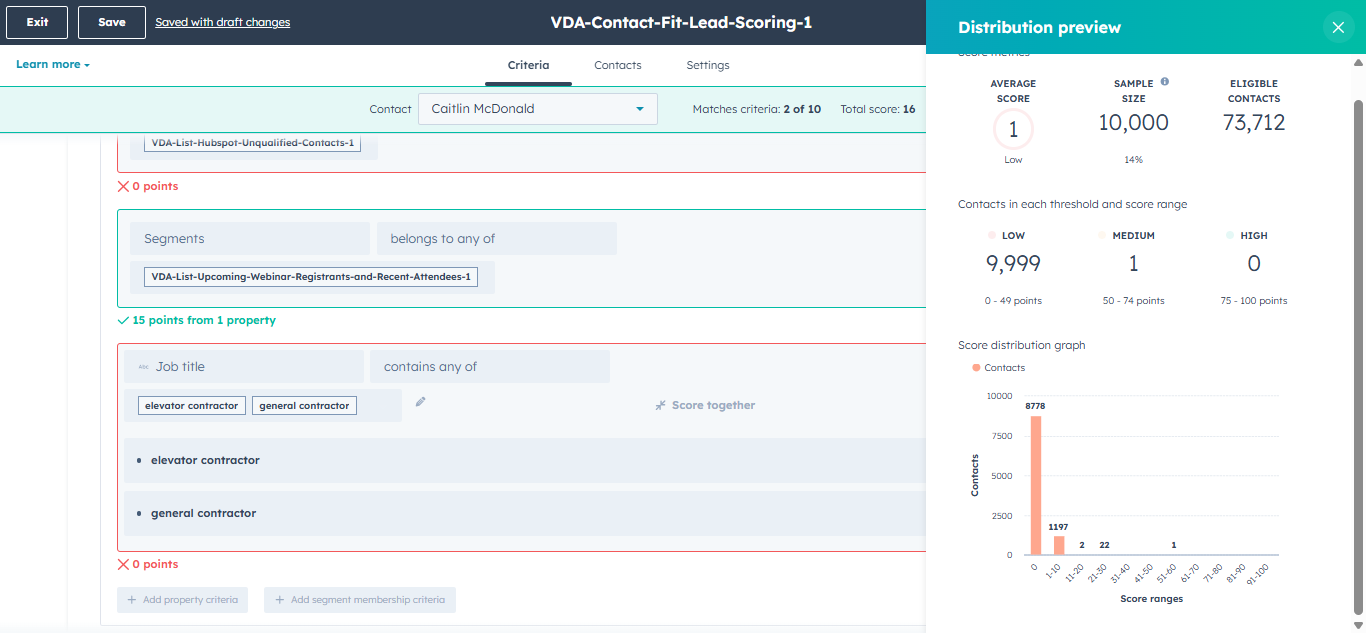
Let's now look at the Contact Fit Lead Scoring. Contact fit lead scoring does not decay over time like engagement scoring does.
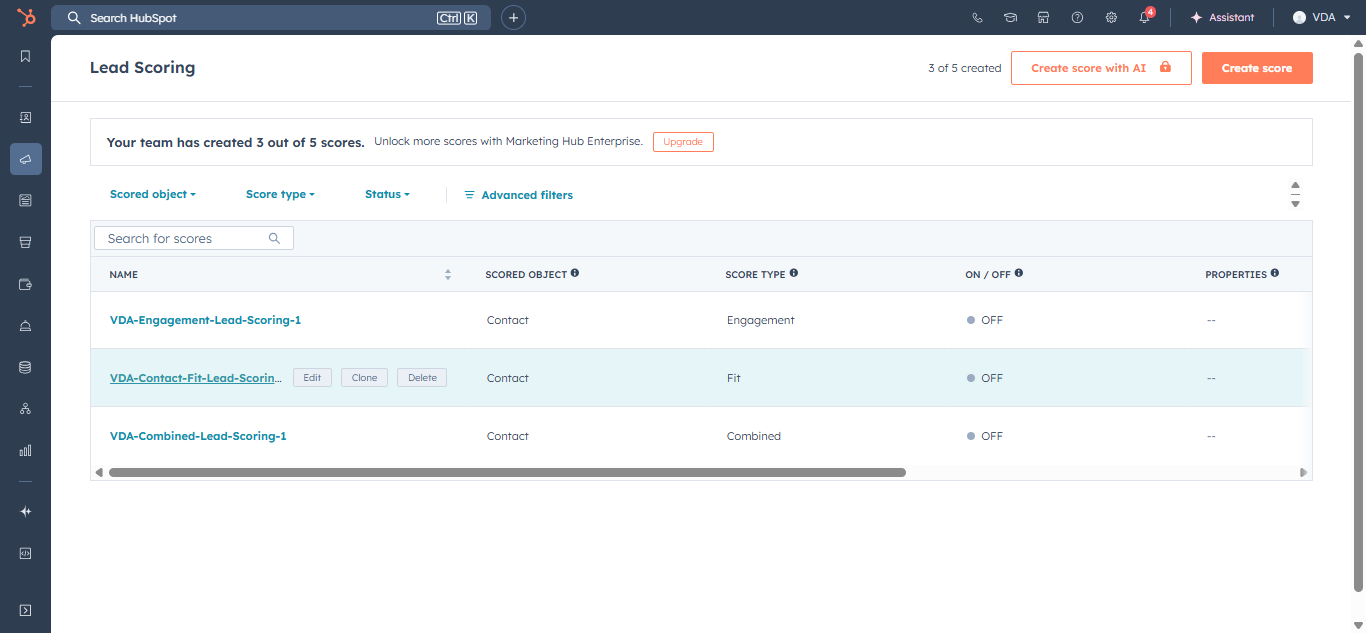
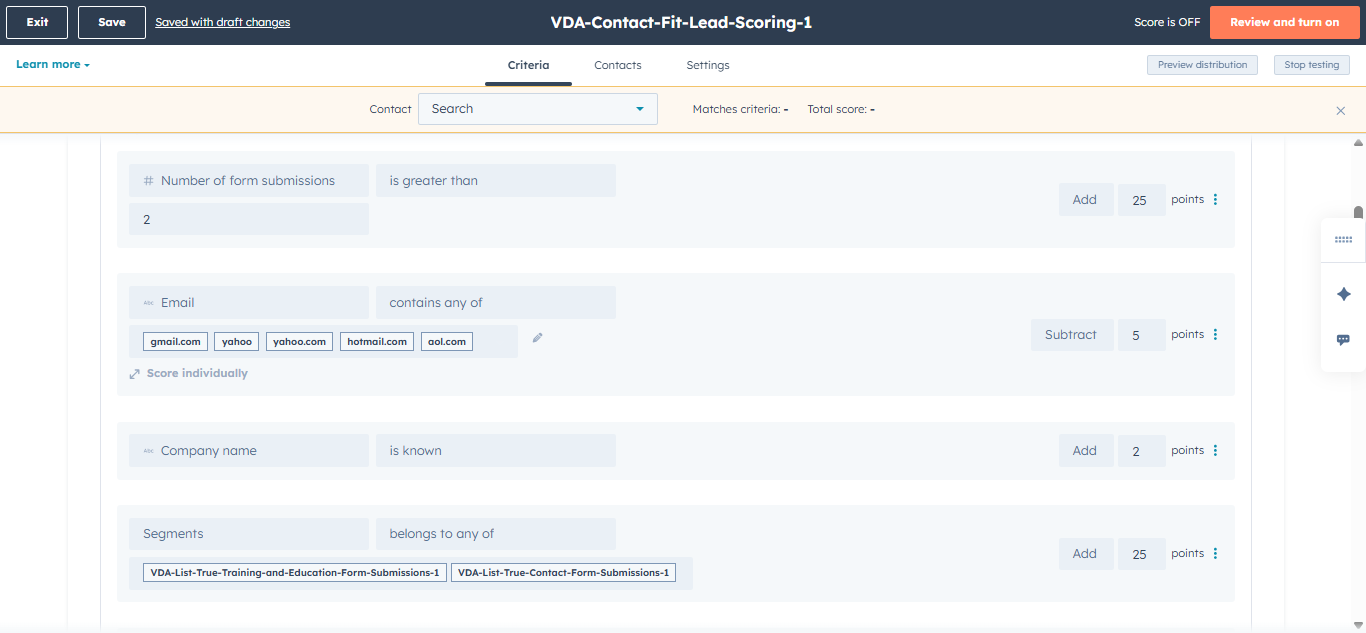
For these properties, we are focusing on more static events within a contact property or contact record. For example, are they part of any lists/segments?
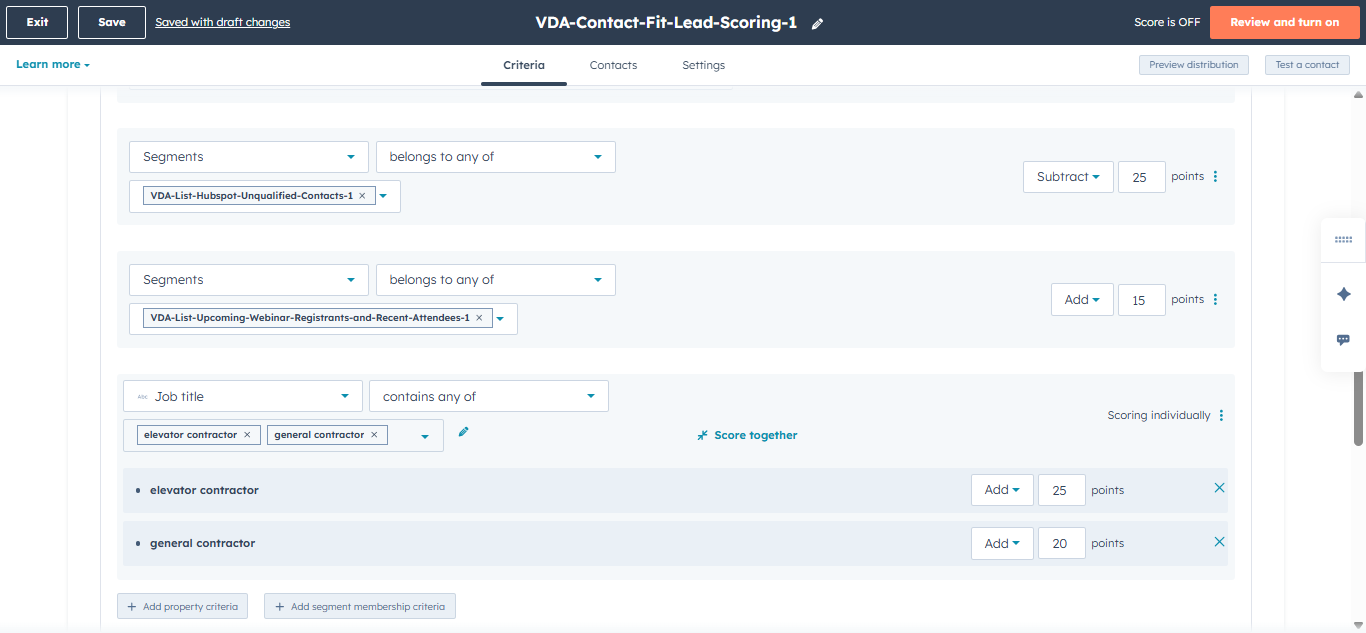
Do they have specific job titles?
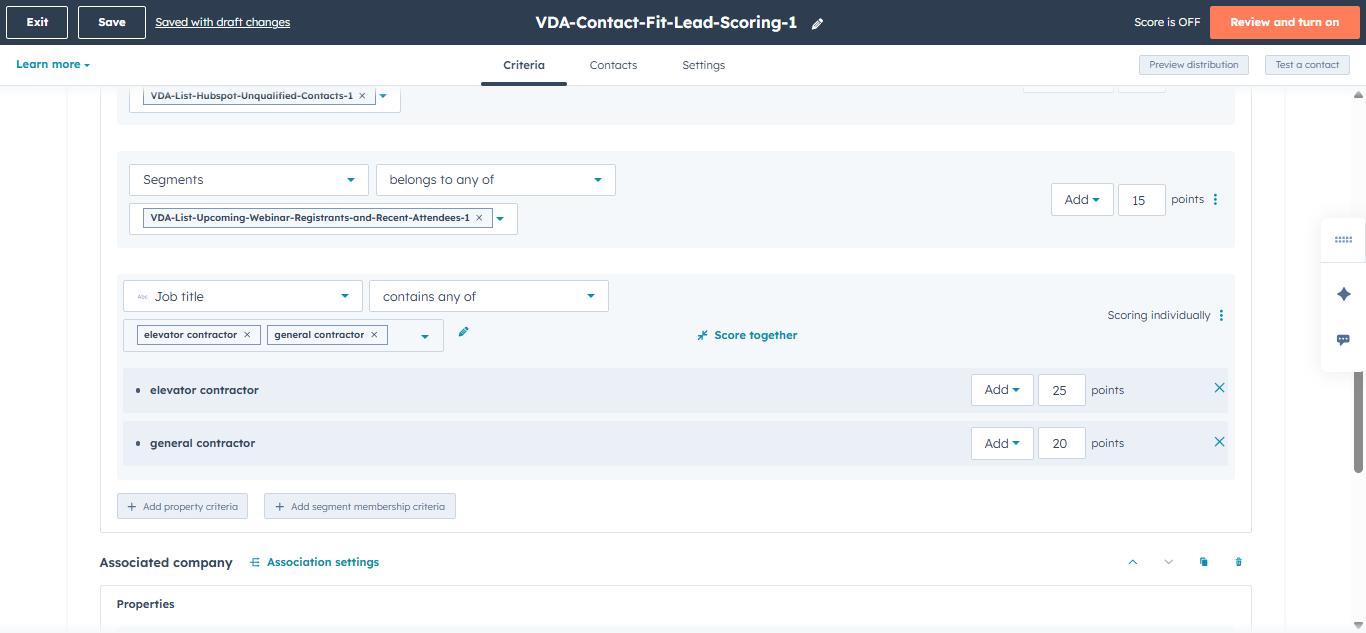
Does their company fit specific profiles, such as a particular industry? Each item in a contact record adds a specific number of points to their profile.
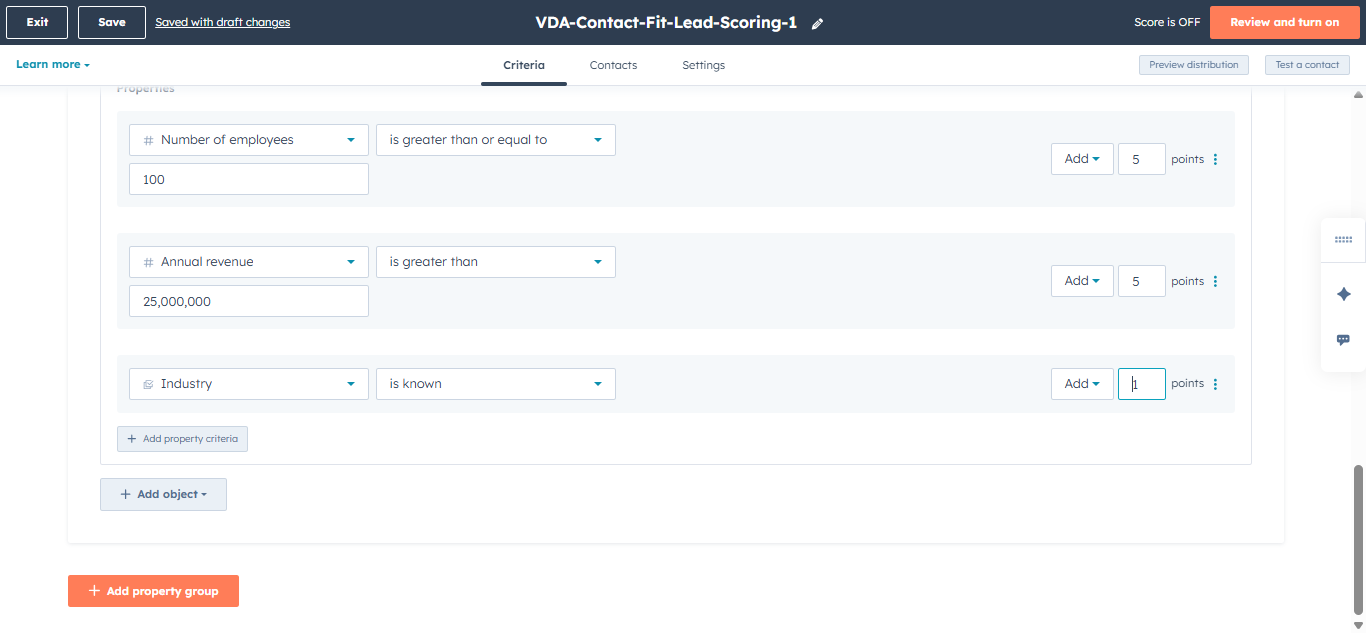
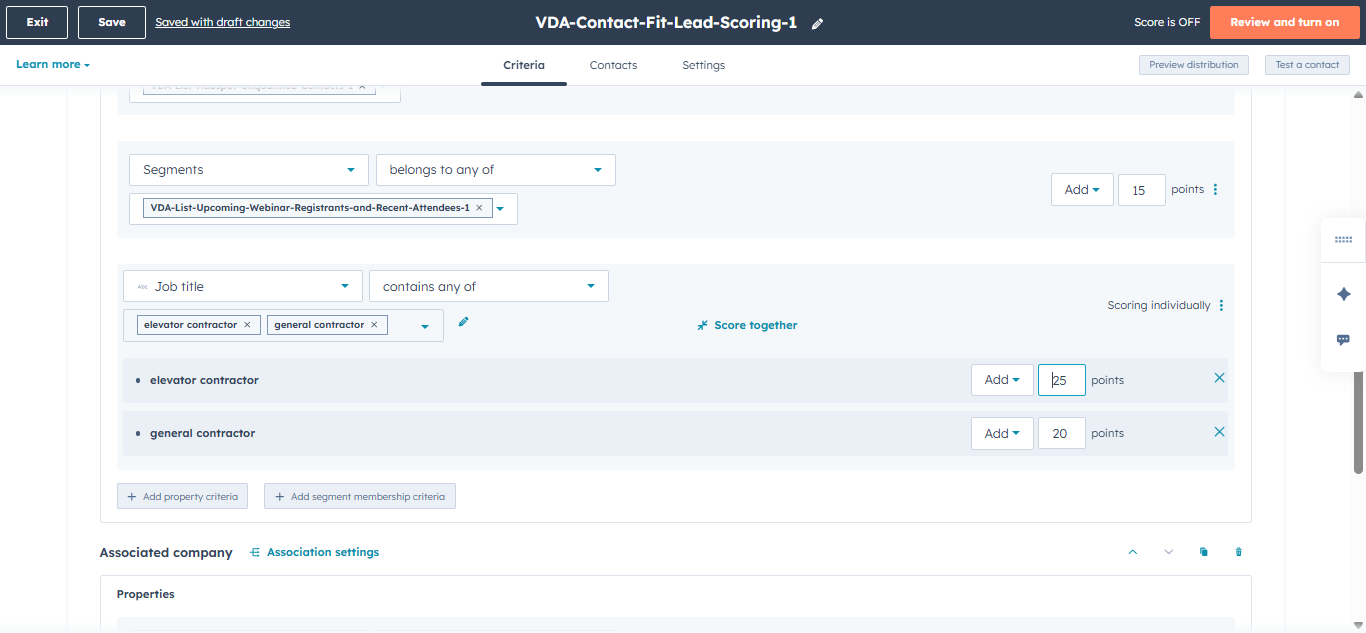
Let's test another contact.
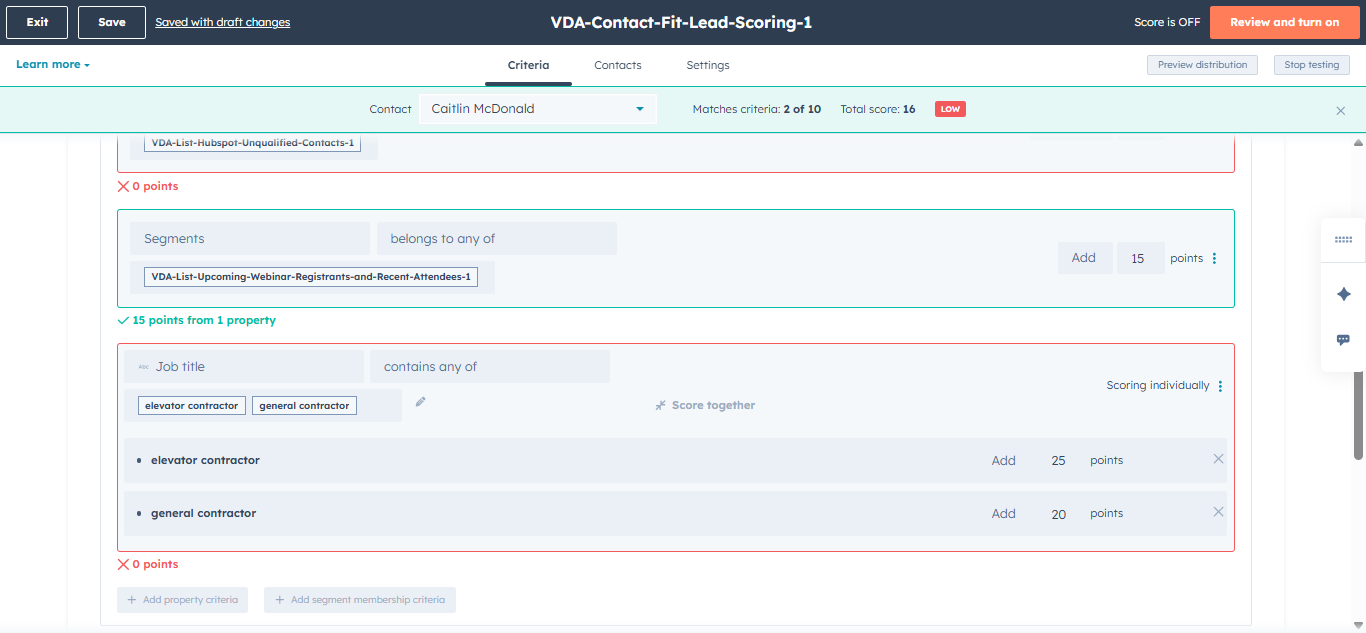
This contact's score is 16. They recently registered for a webinar, and the industry is known.
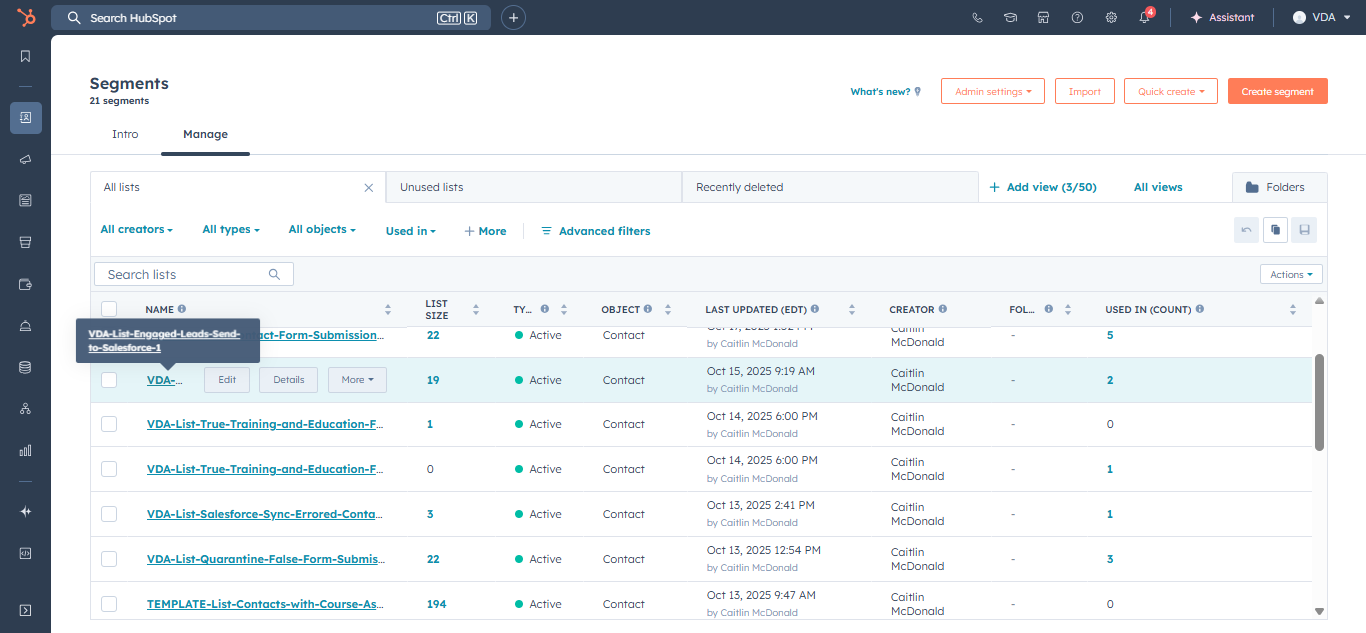
Let's preview the distribution for additional contacts. Here, we see a greater range compared to the engagement. When this is combined with engagement, we may see more contacts to send to Salesforce. This list may already include contacts synced with Salesforce. We need to remove these contacts before adding them to the list.
There is another type of lead scoring to consider: the combined lead score.
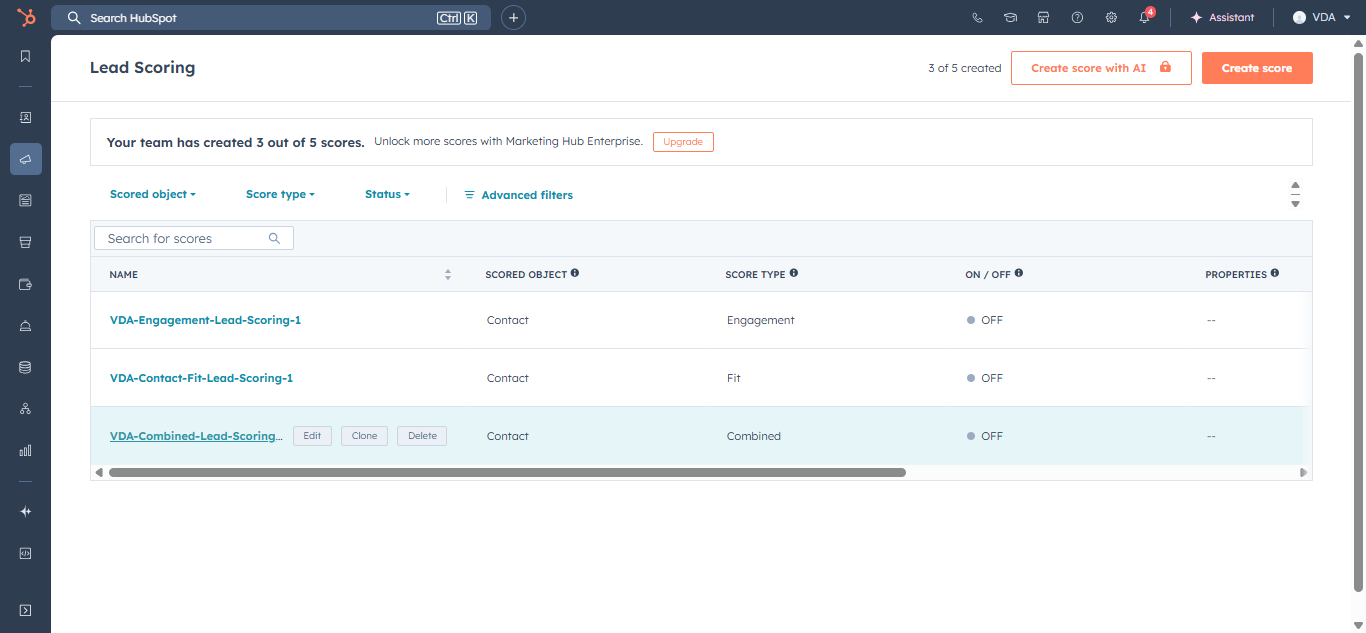
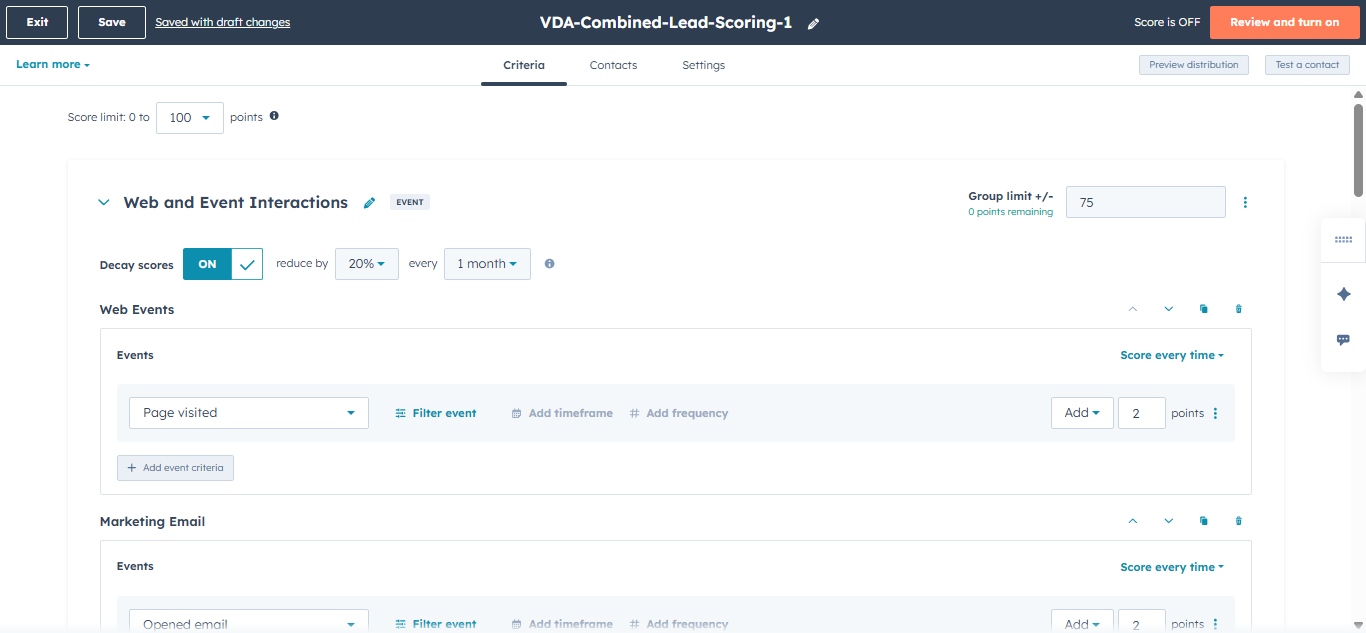
Here, we have a combination of engagement and property or contact fit criteria.
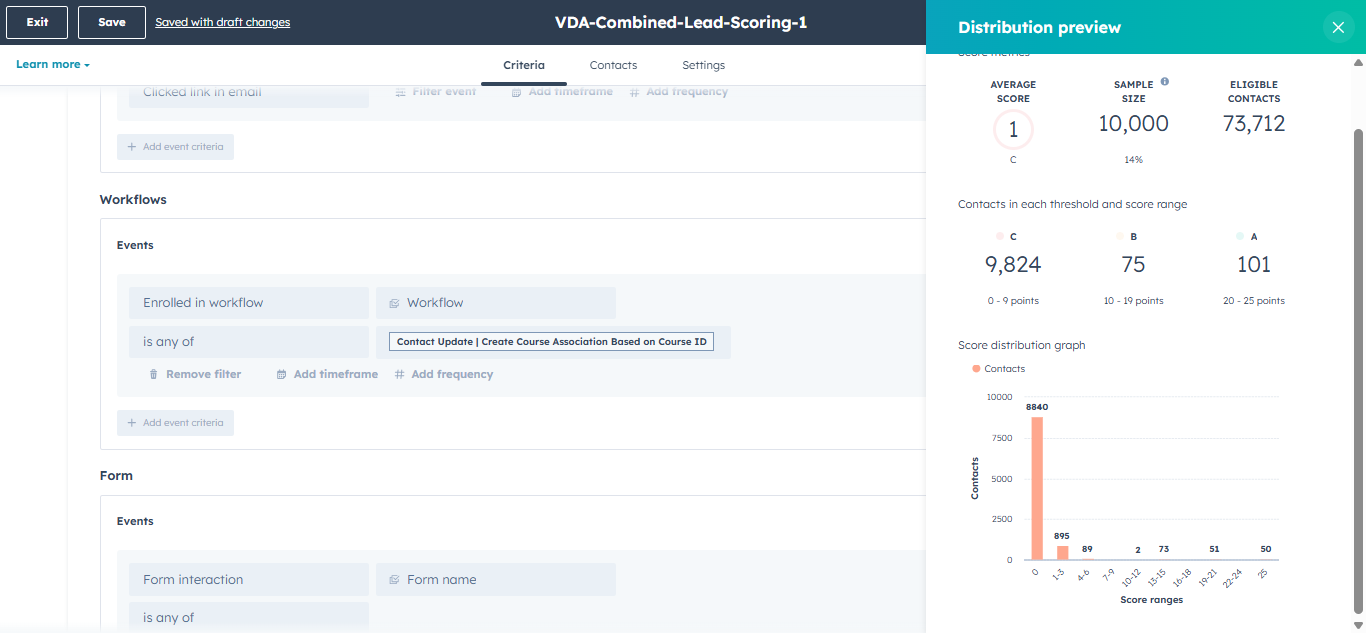
Let's look at the distribution.
Here, we see a much broader distribution than the other two. This potentially provides a more complete picture of an individual contact.
If we check the same profile again, we can see that it has 19 points from the engagement score.
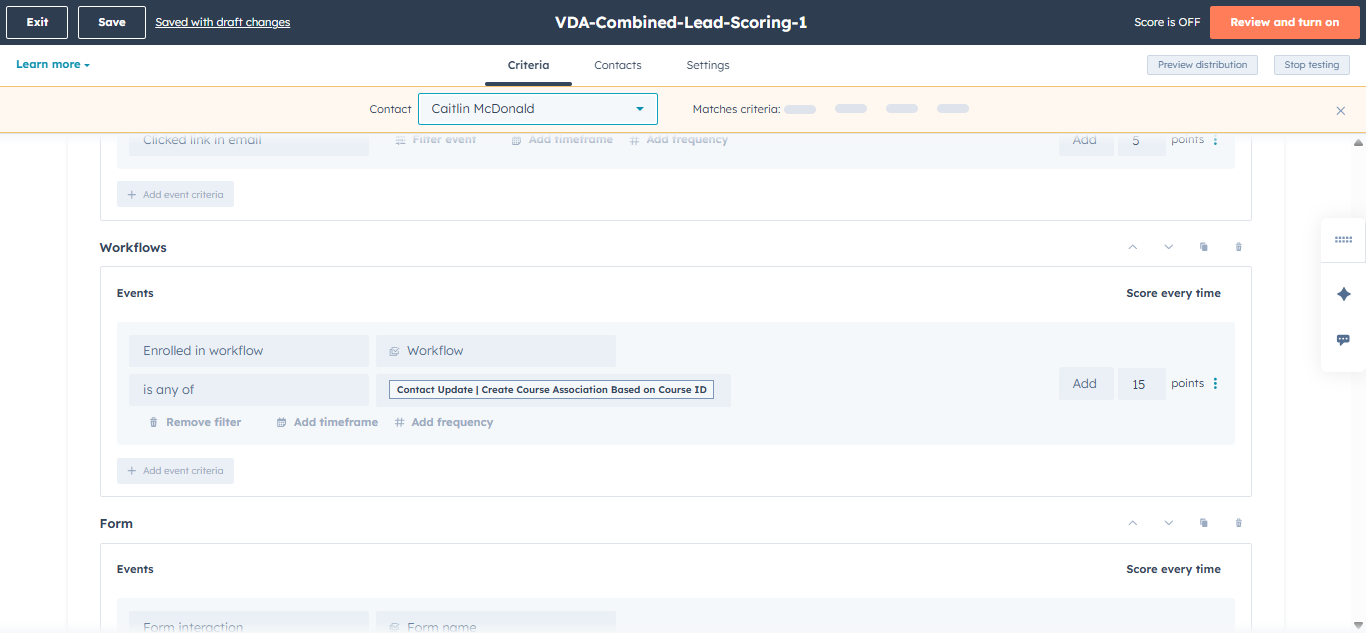
This contact visited a page and opened an email.
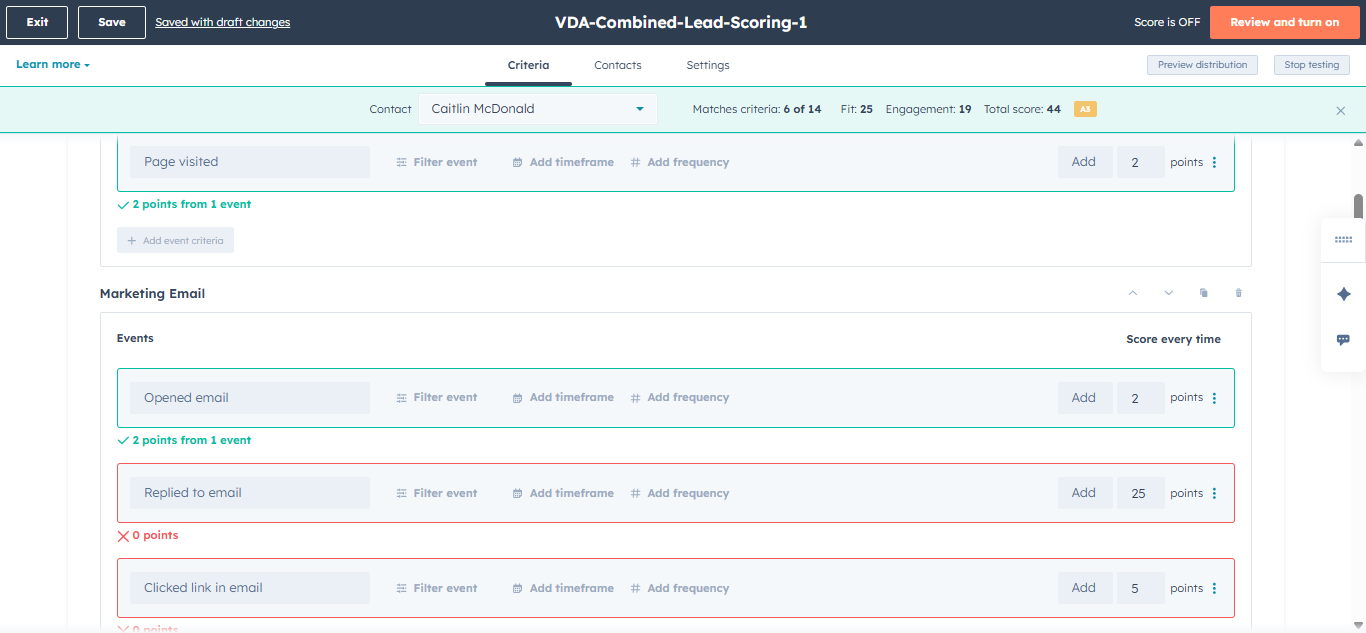
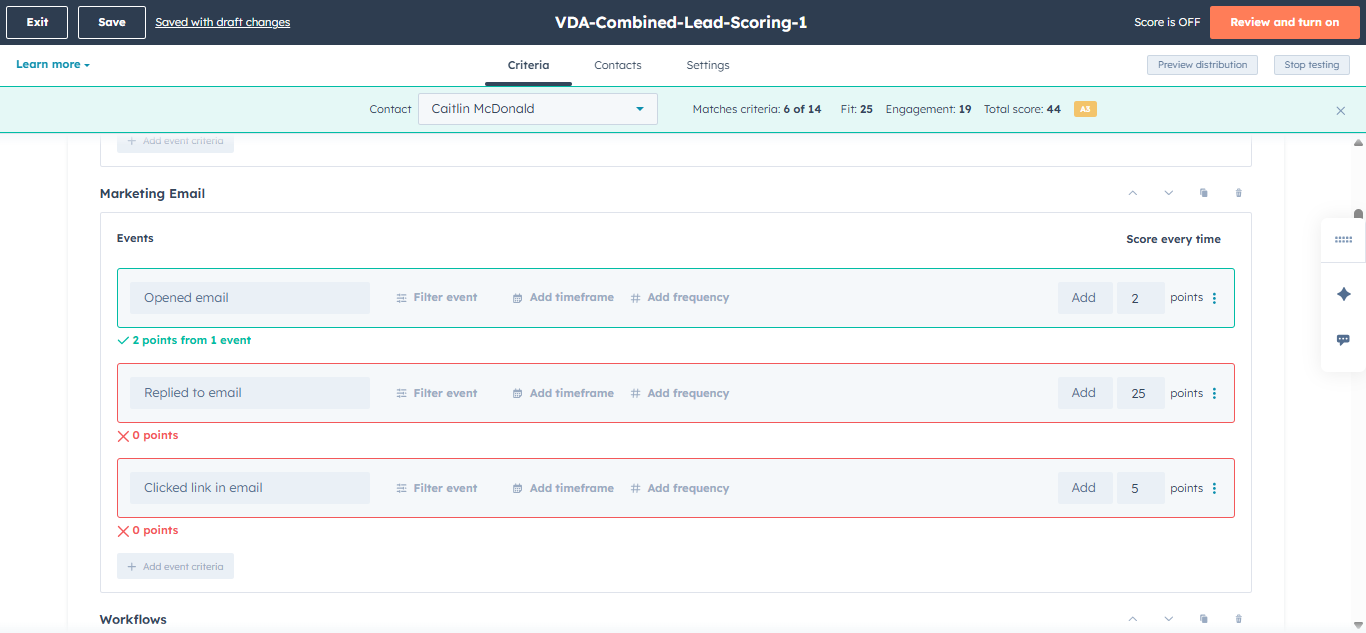
They also enrolled in the course ID workflow, which means they signed up for a webinar.
On the contact property fit, the maximum number of points have been allotted. There is a form and the property for became a new web lead = yes. The status is also either qualified or contacted. We also included in the webinar registrants and recent attendees.
This contact doesn't have any company information that matches our criteria.
Using lead scoring helps ensure we send only marketing or sales qualified people to Salesforce. This lead scoring can apply broadly to all contacts in HubSpot. It can also be more specific to the new contacts we are adding for webinars, for example. I recommend that we apply this to all contacts and use it to add a filter for the engaged list before sending it to Salesforce. This allows us to notify the sales team that they should re-engage a contact who is exhibiting signs of renewed interest.