
Understanding the Others Tab in the Customer Profile
Learn how to use the Others tab in the customer profile to access payment lists, call notes, work orders, form data, histories, action logs, communications, tasks, workflow schedules, and merge client profiles efficiently.
By Dominik Black
In this guide, we'll learn how to navigate and use the Others tab in a customer profile. The Others tab gives you access to important pages like payment lists, call notes, work orders, form data, histories, and more. Understanding how to use these features can help you manage customer information and actions more efficiently.
Let's get started
1
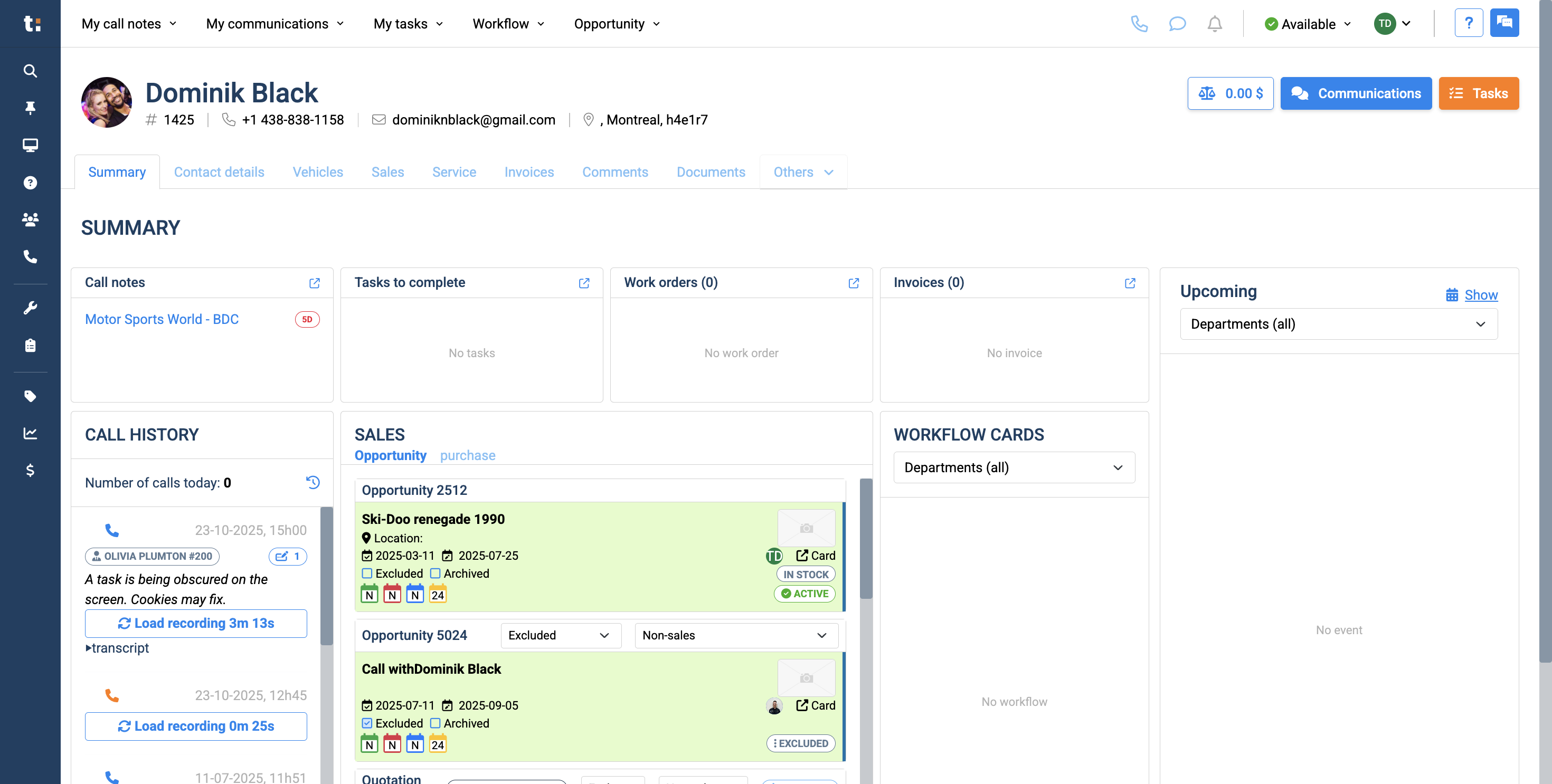
This article explains the Others tab in the customer profile. The Others tab contains various pages you may want to access.
2
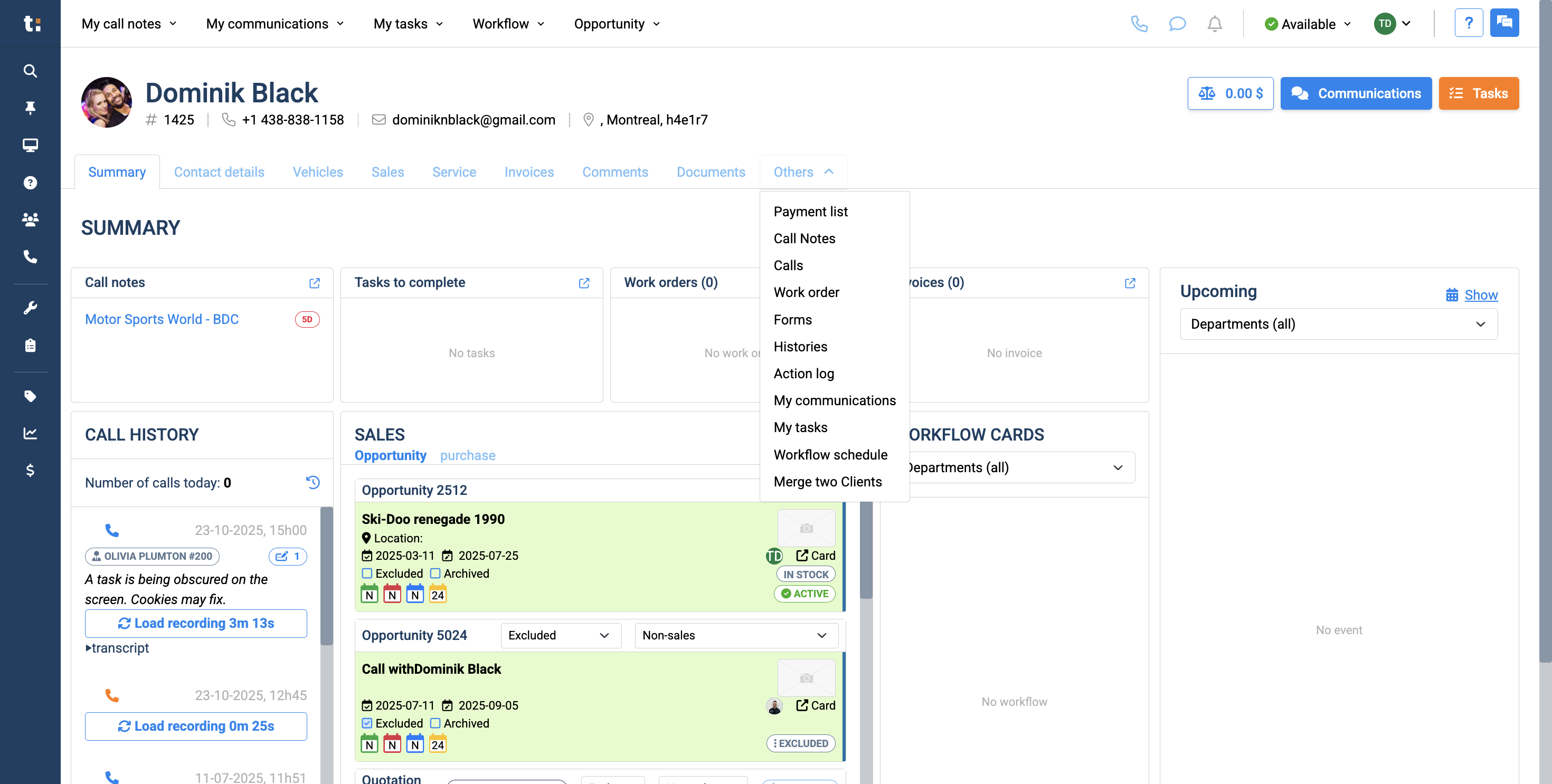
To access any of these tabs, click on "Others" and select the page you want. The first is the payment list.
3
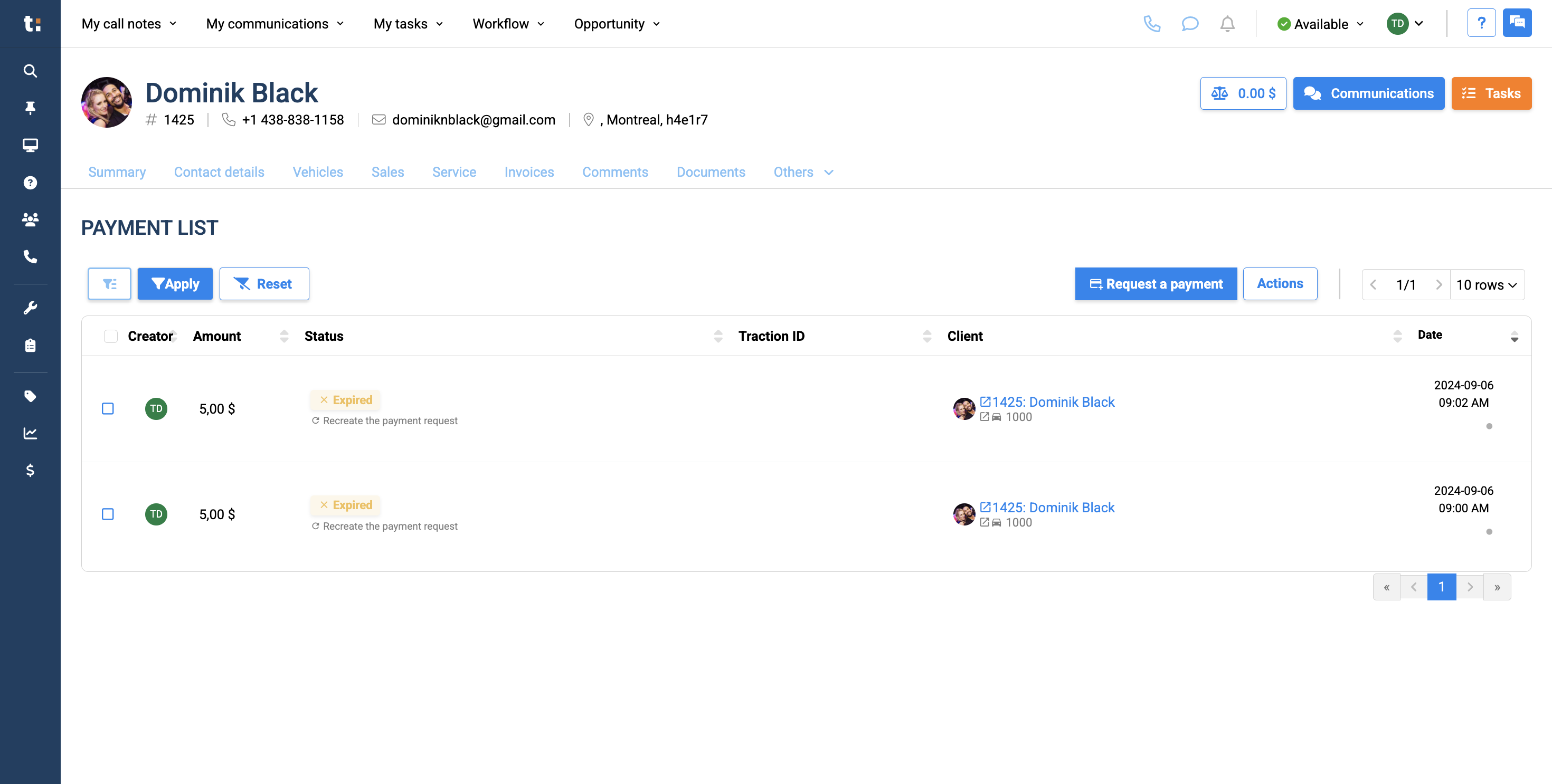
The payment list shows all payments made with the customer. You can also request a payment if you wish.
4
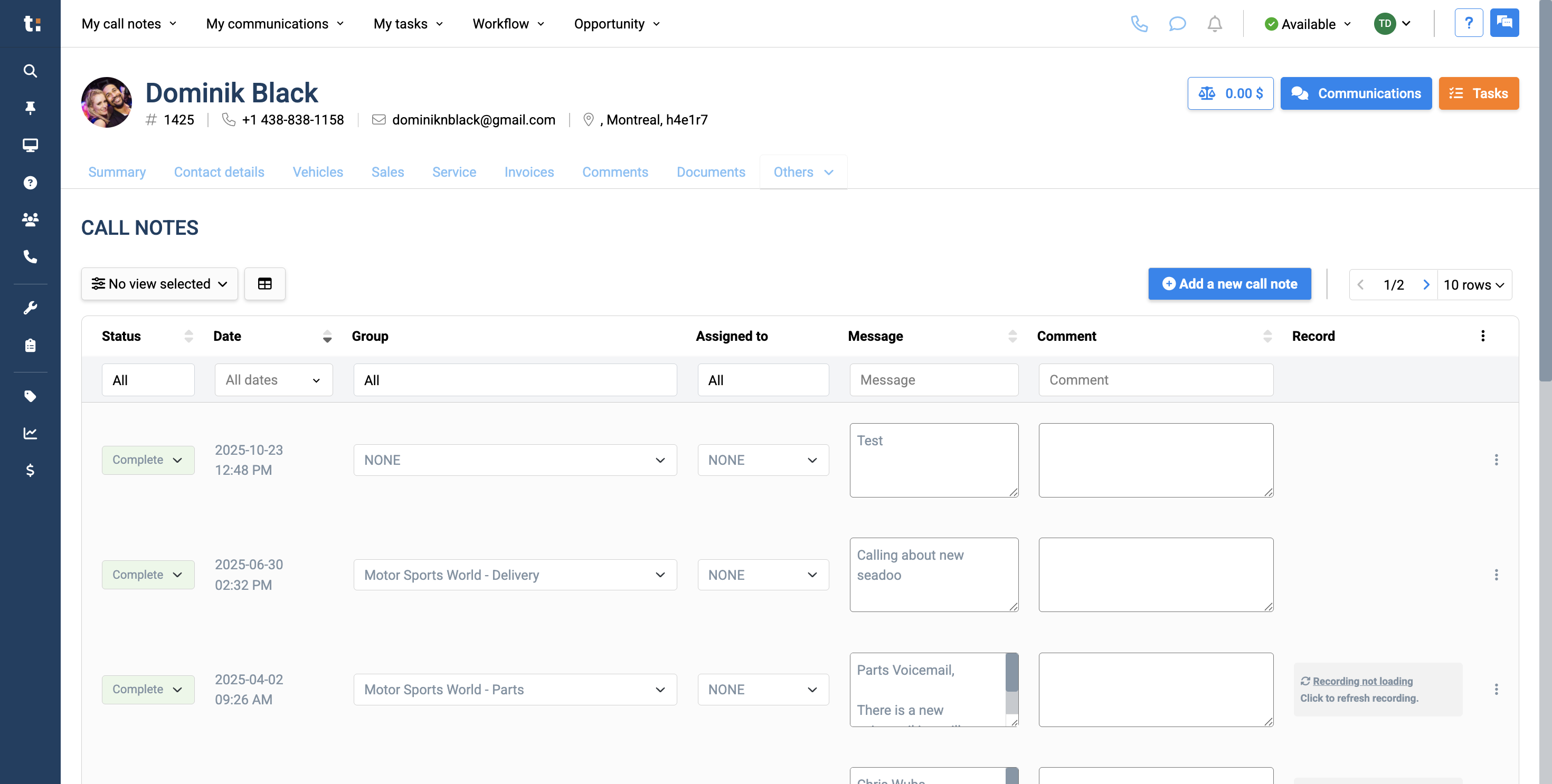
The Call Notes page displays all call notes for this customer. You can add a manual call note by clicking the Add Call Note button.
5
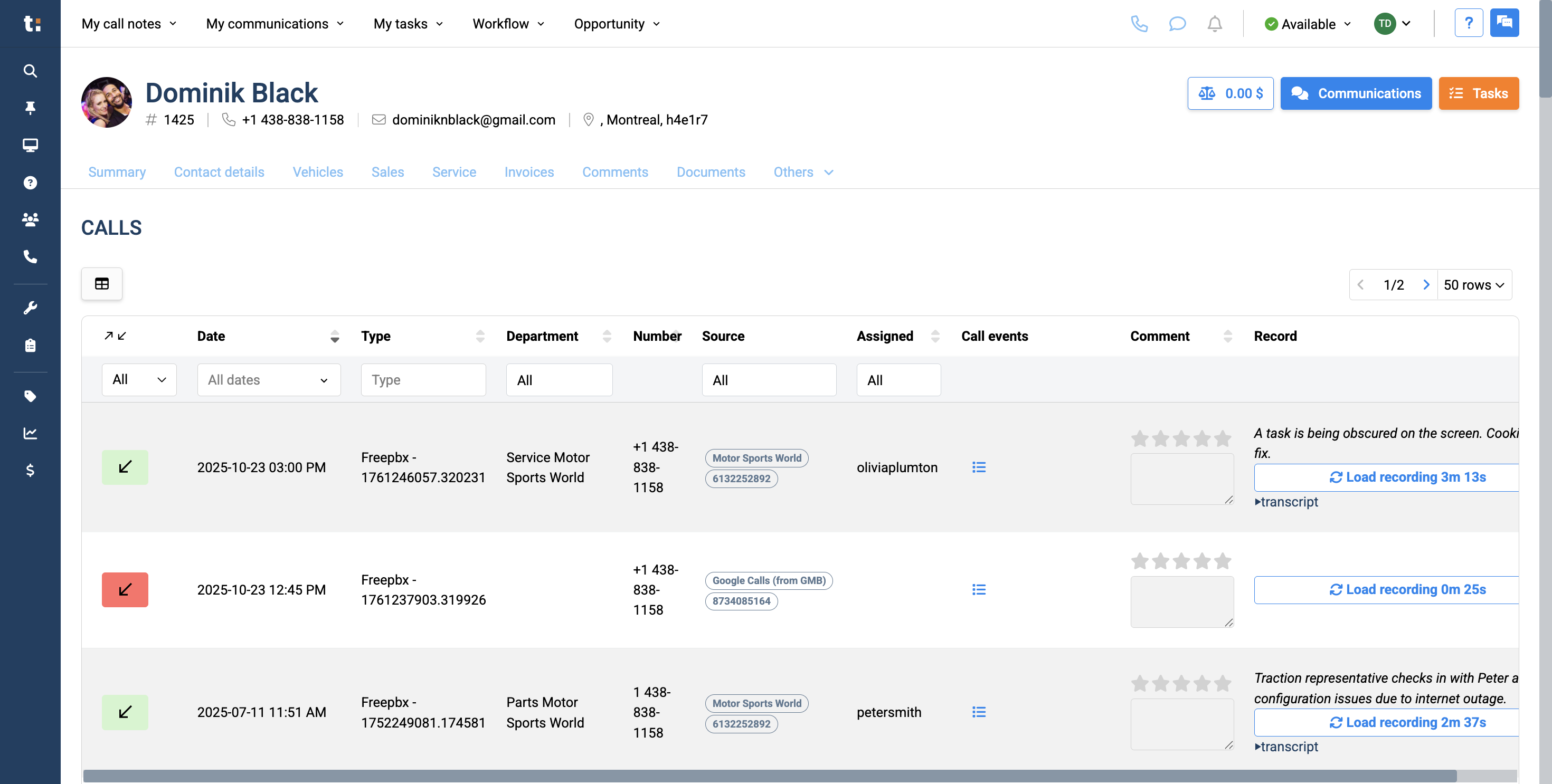
The Calls List shows you all calls from the customer.
6
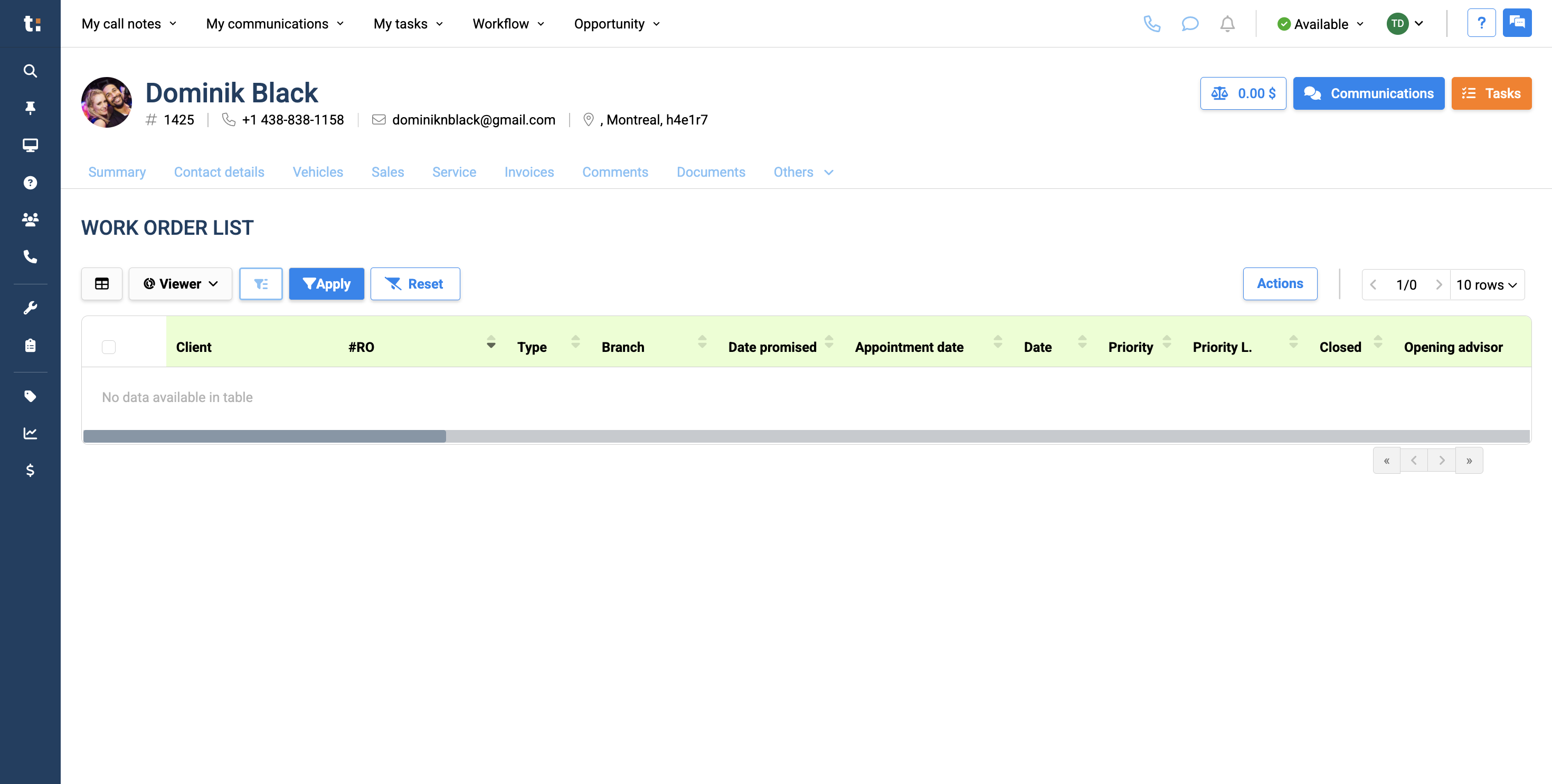
The Work Order List shows all work orders associated with this customer.
7
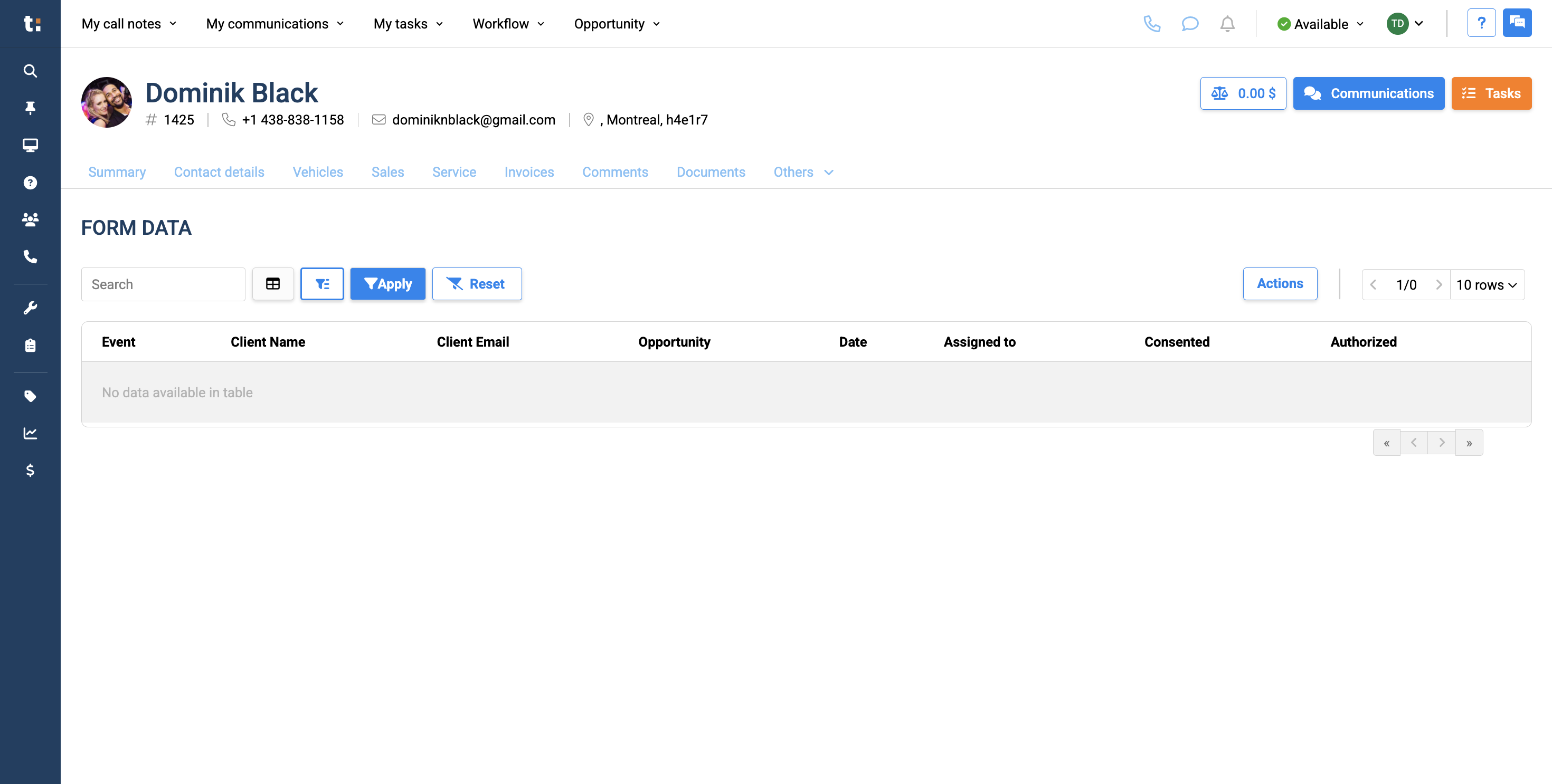
Form Data shows whether the customer has completed any forms you created in Traction.
8
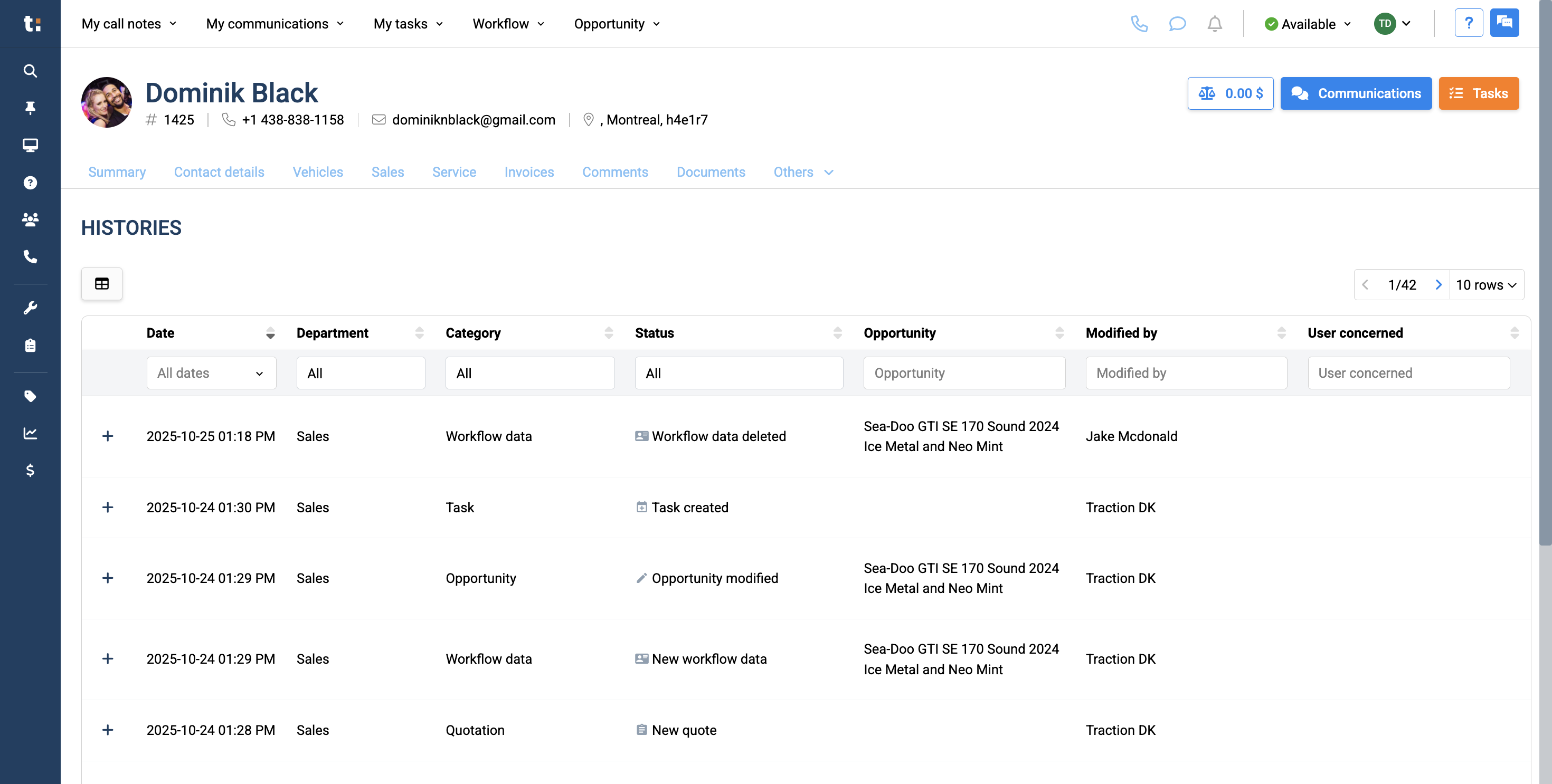
A Histories page shows the complete record of all actions taken in the customer's profile.
9
The Action Log displays all actions taken related to this customer.
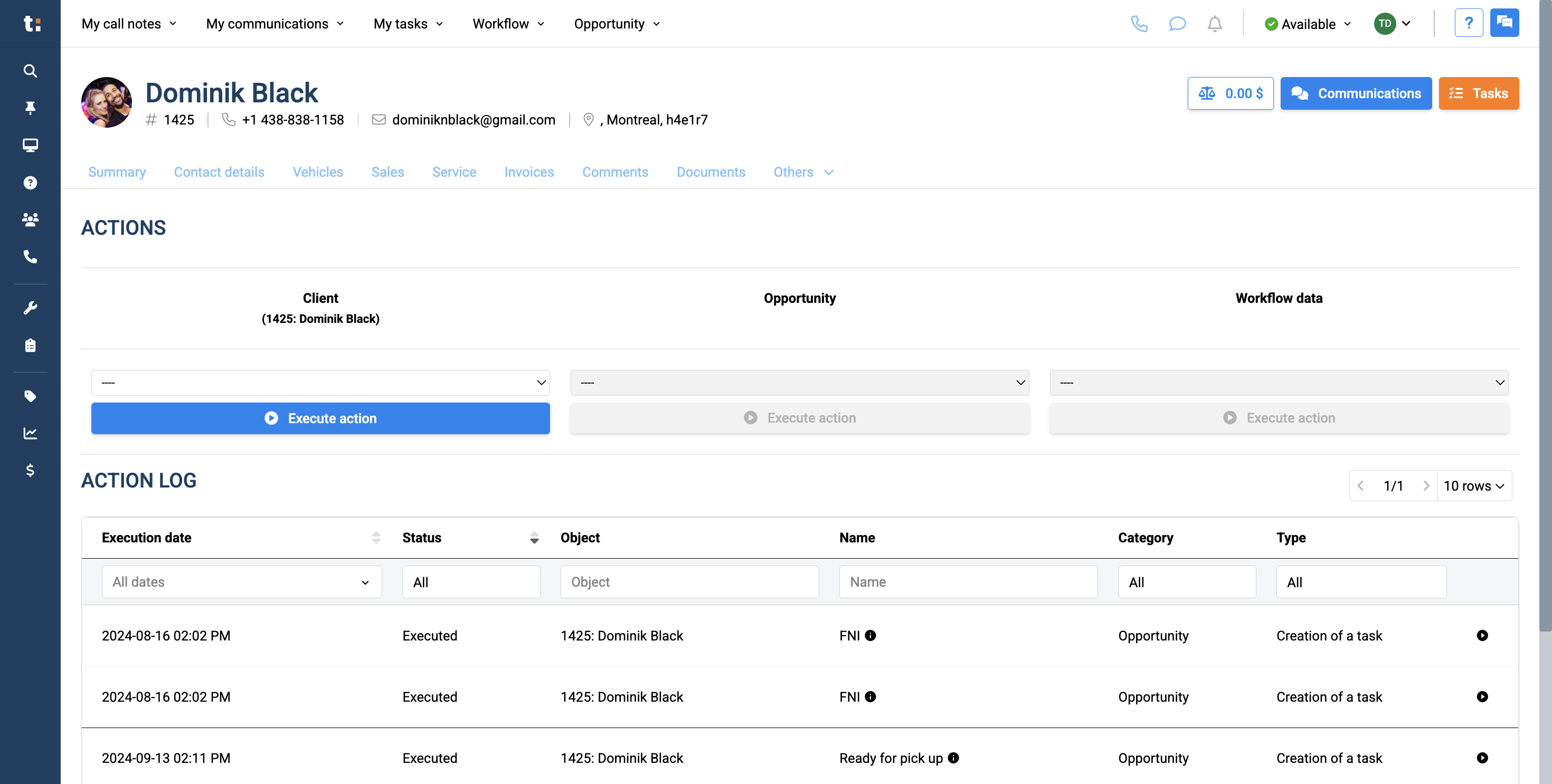
10
My Communications directs you to your customer communications.
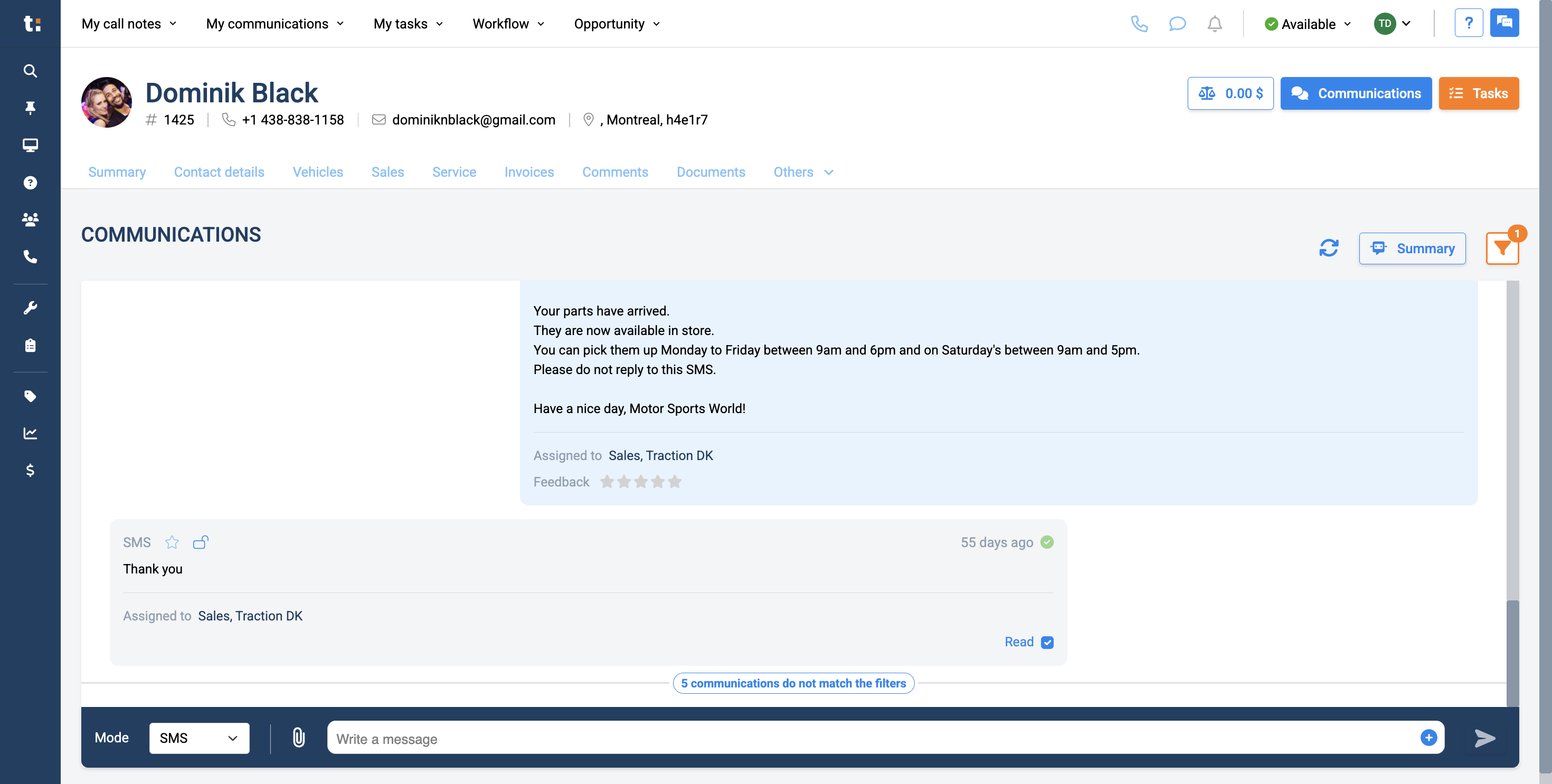
11
My Tasks takes you to the full list of tasks for your customer.
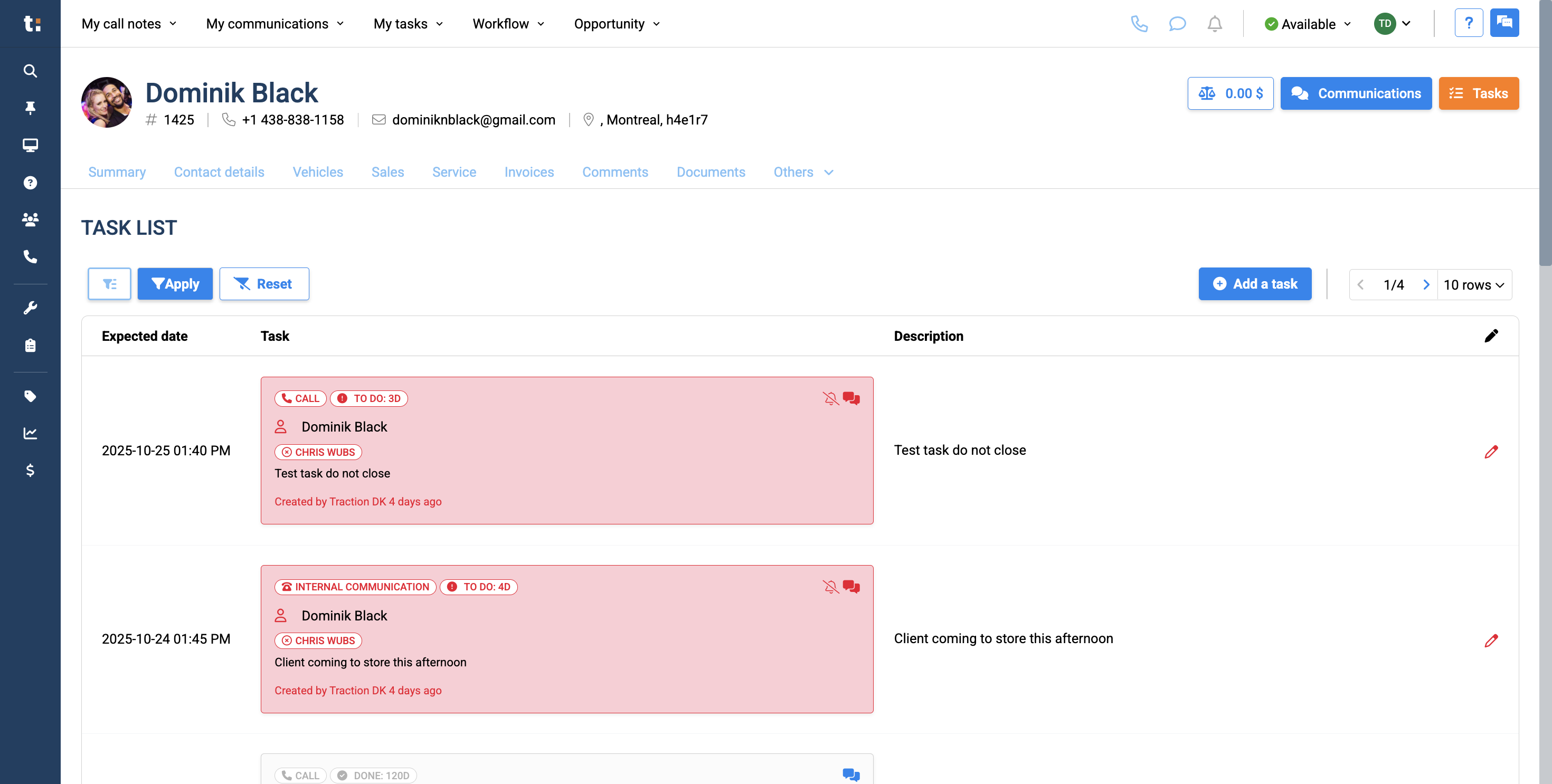
12
Workflow Schedule displays any cards the customer has in a workflow.
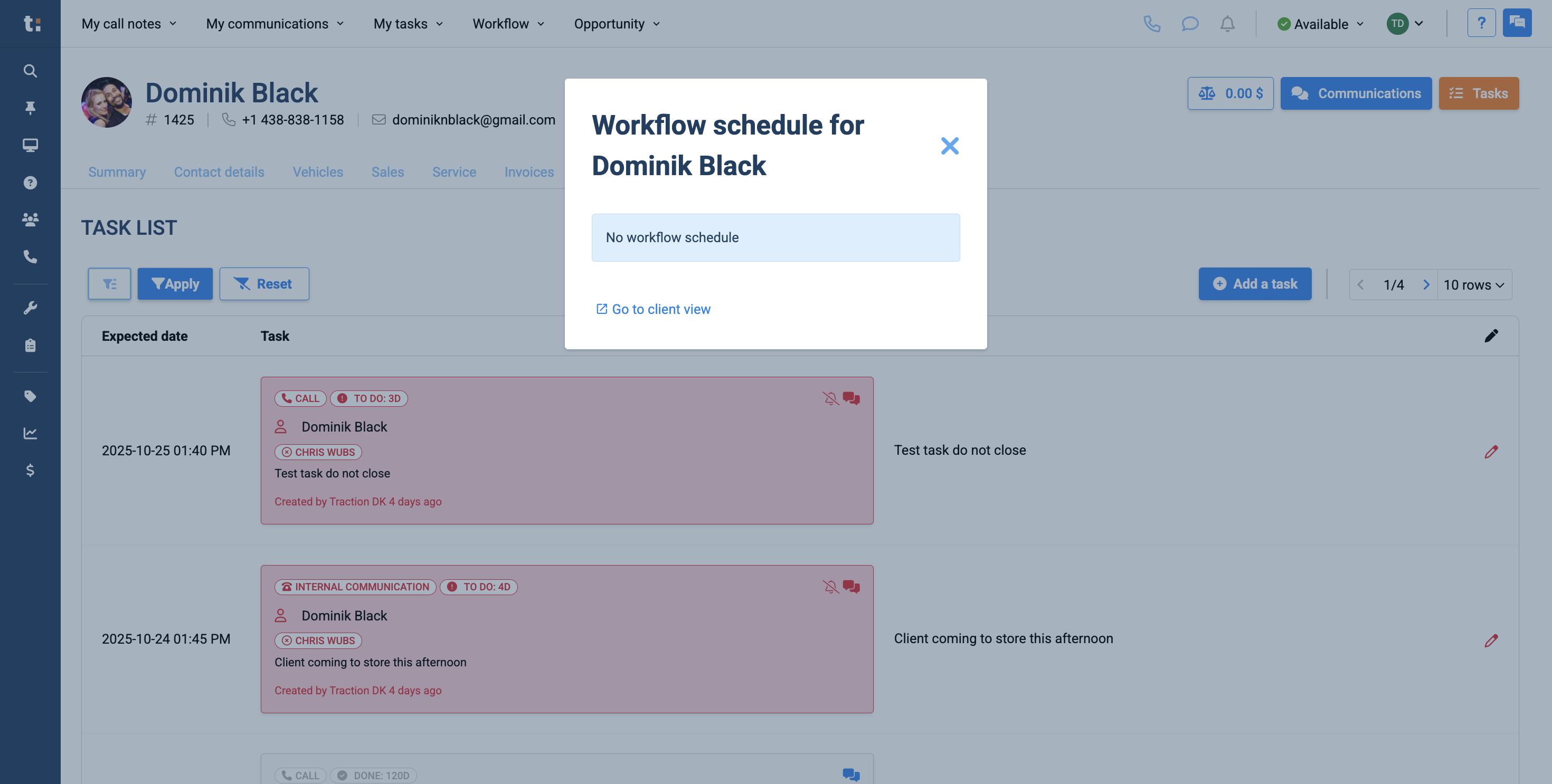
13
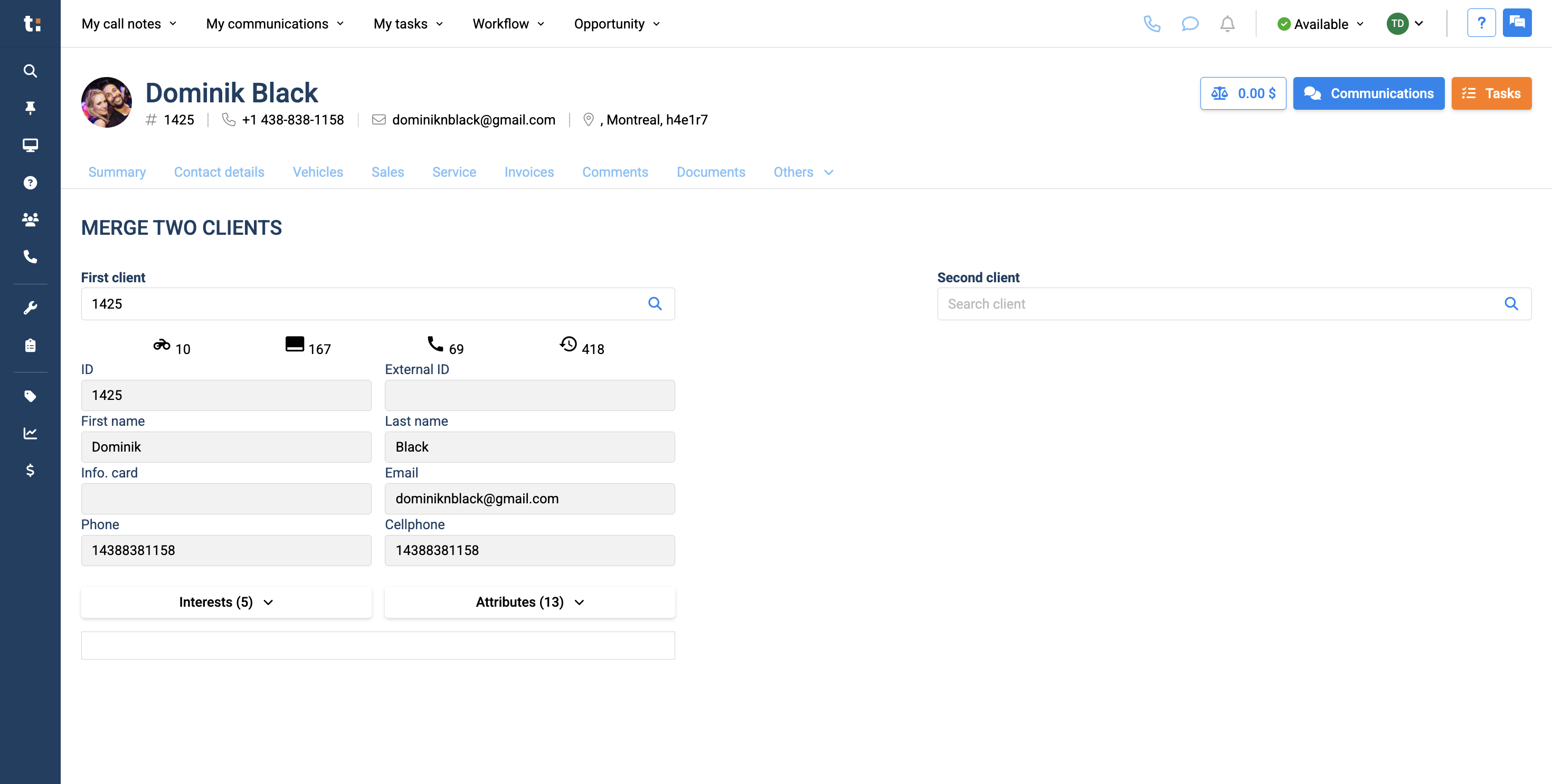
Finally, Merge Two Clients allows you to combine two clients with the same information, such as when there is a second profile with the same phone number.
If you still have questions after consulting this article, please feel free to contact our support team at: support@tractiondk.zohodesk.com