
Understanding the Summary Tab in the Customer Profile
Learn how to use the Summary tab in the customer profile to view client information, call notes, work orders, sales opportunities, invoices, and upcoming tasks for your dealership customers.
By Dominik Black
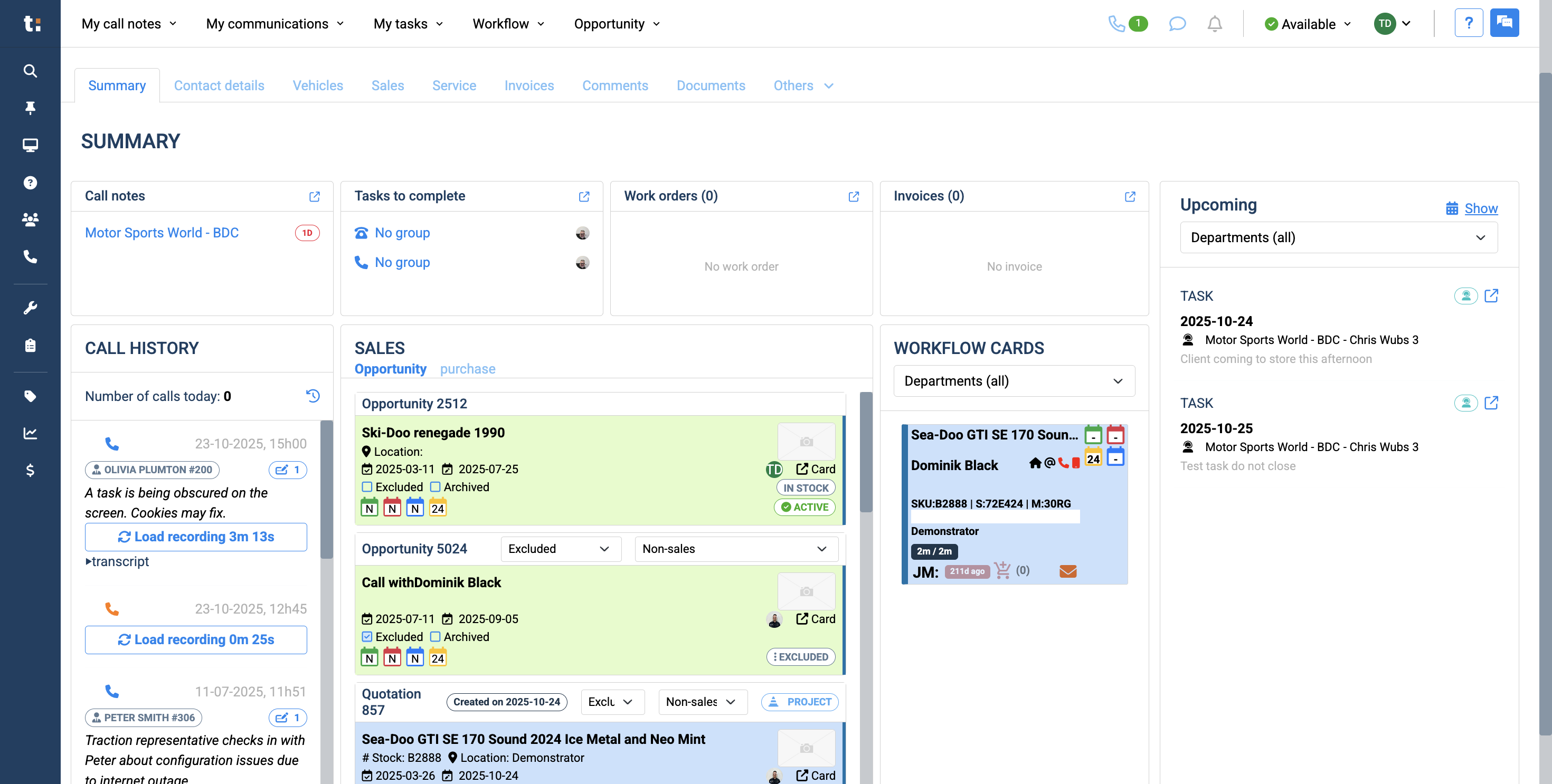
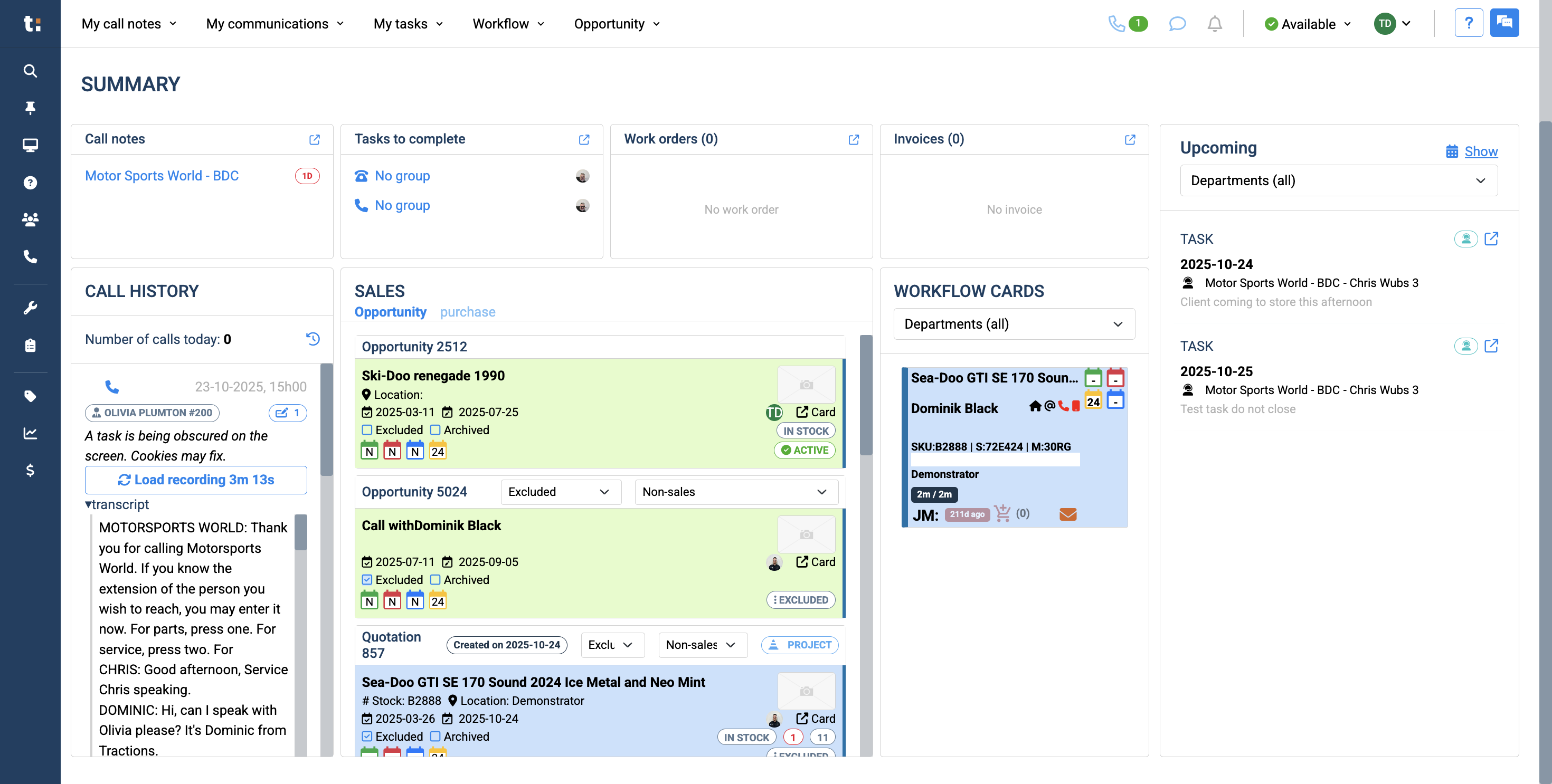
In this guide, we'll learn how to use the summary tab within a customer profile at your dealership. The summary tab provides a quick view of client information, call notes, tasks, work orders, parts invoices, call history, sales opportunities, purchase history, workflow cards, and upcoming tasks.
Understanding how to navigate and use this tab helps you manage customer interactions and track important activities efficiently.
Let's get started
This article covers the summary tab in the customer profile.
1
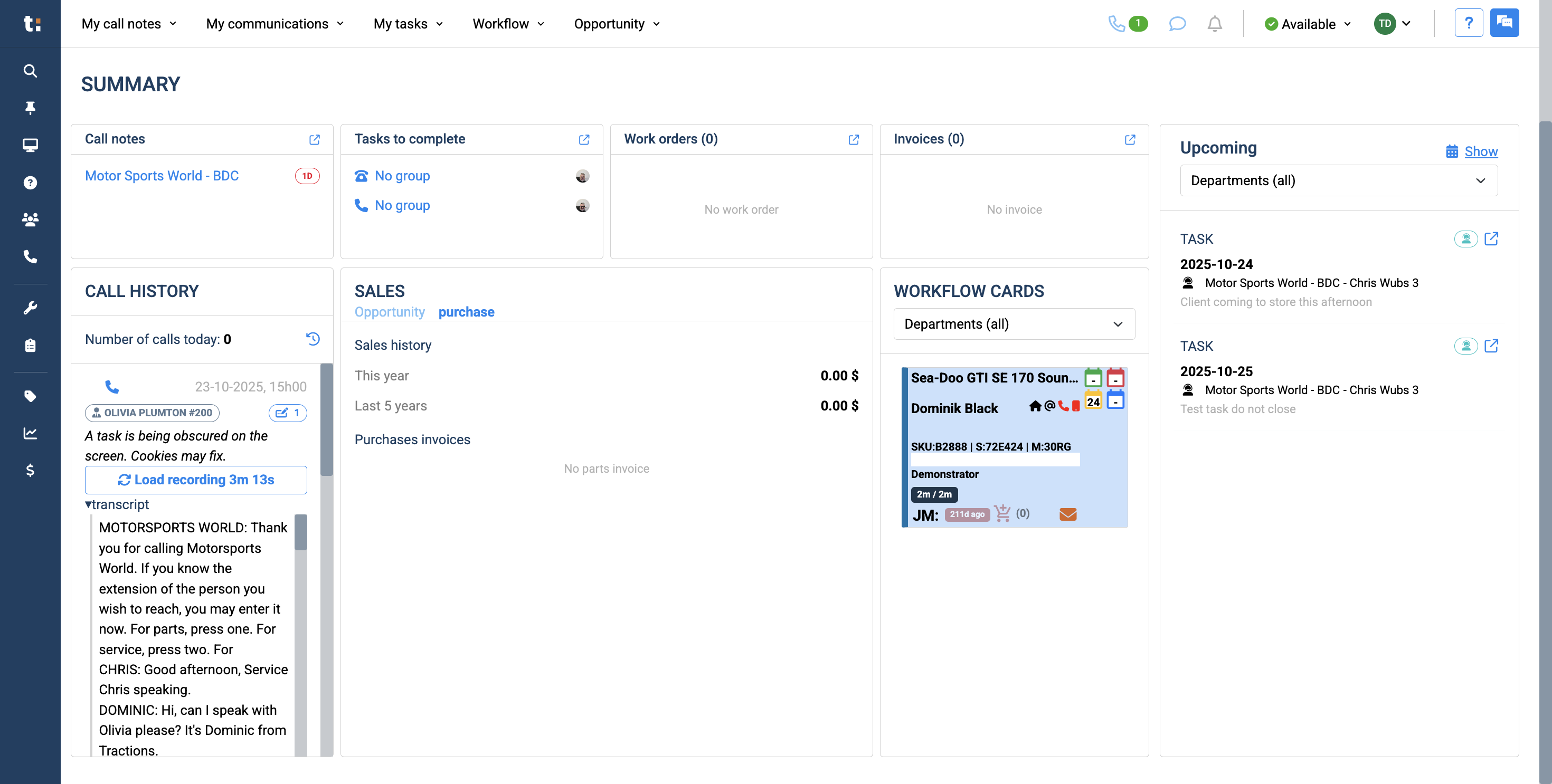
The Summary tab is located in every customer profile, directly below their name under "Summary."
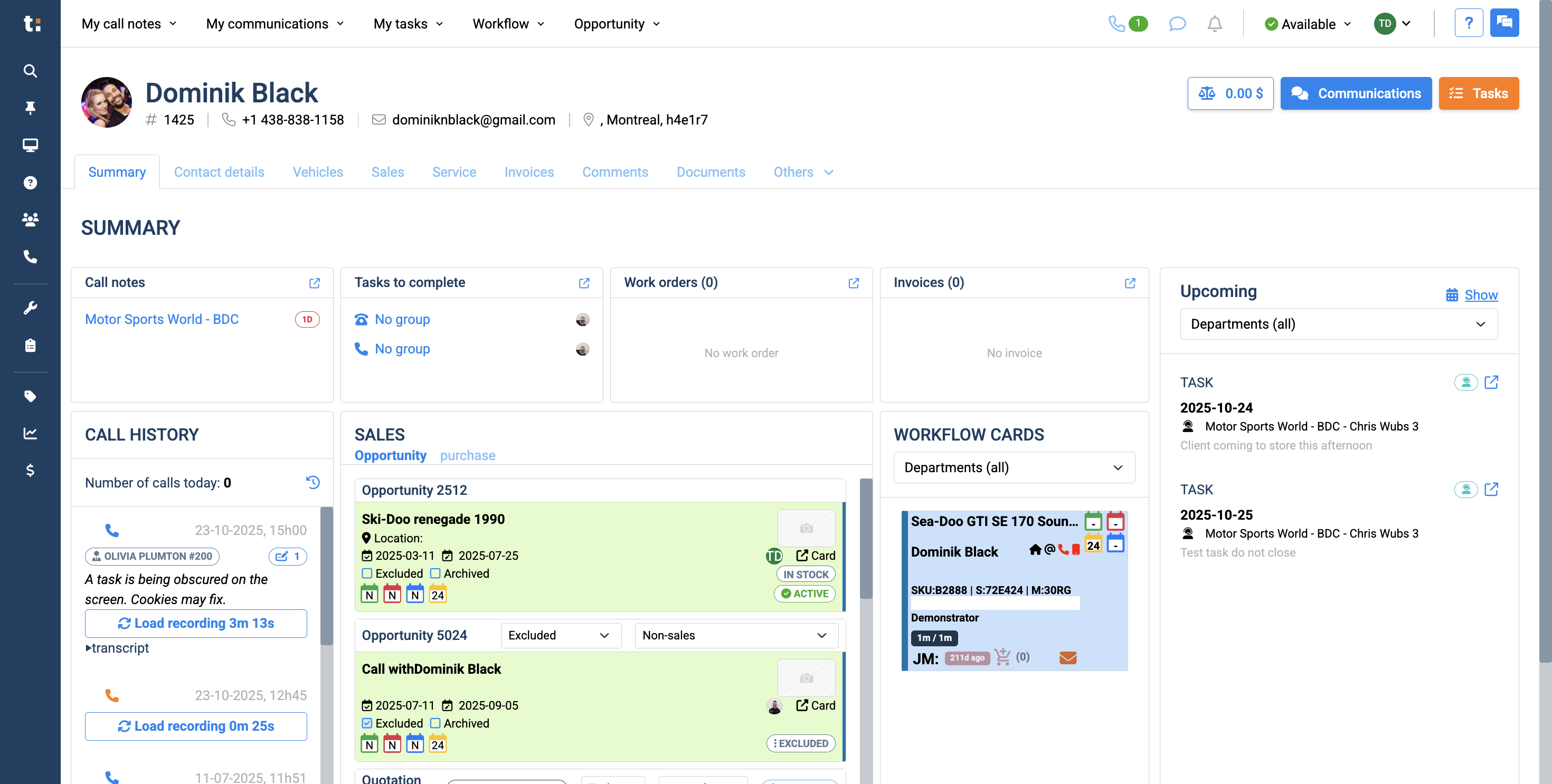
In this tab, you see a general overview of the client’s information and their history with your dealership.
2
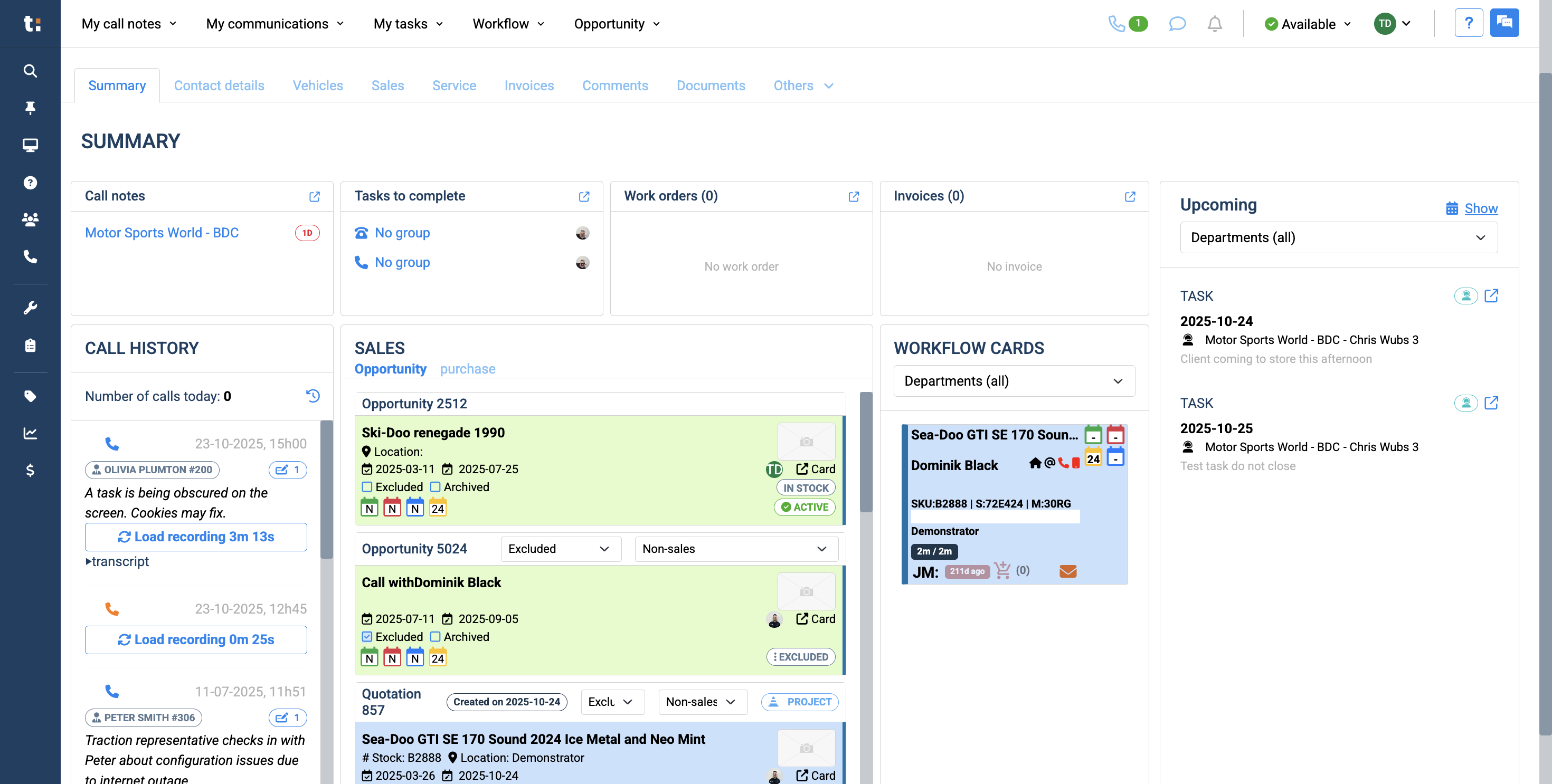
You can view any call notes left by the customer. Clicking on it will take you directly to the call note.
3
You can view any tasks that need to be completed for the customer.
4
You have an area to view all open or closed work orders for this customer.
5
You can view any parts invoices related to the customer in this area.
6
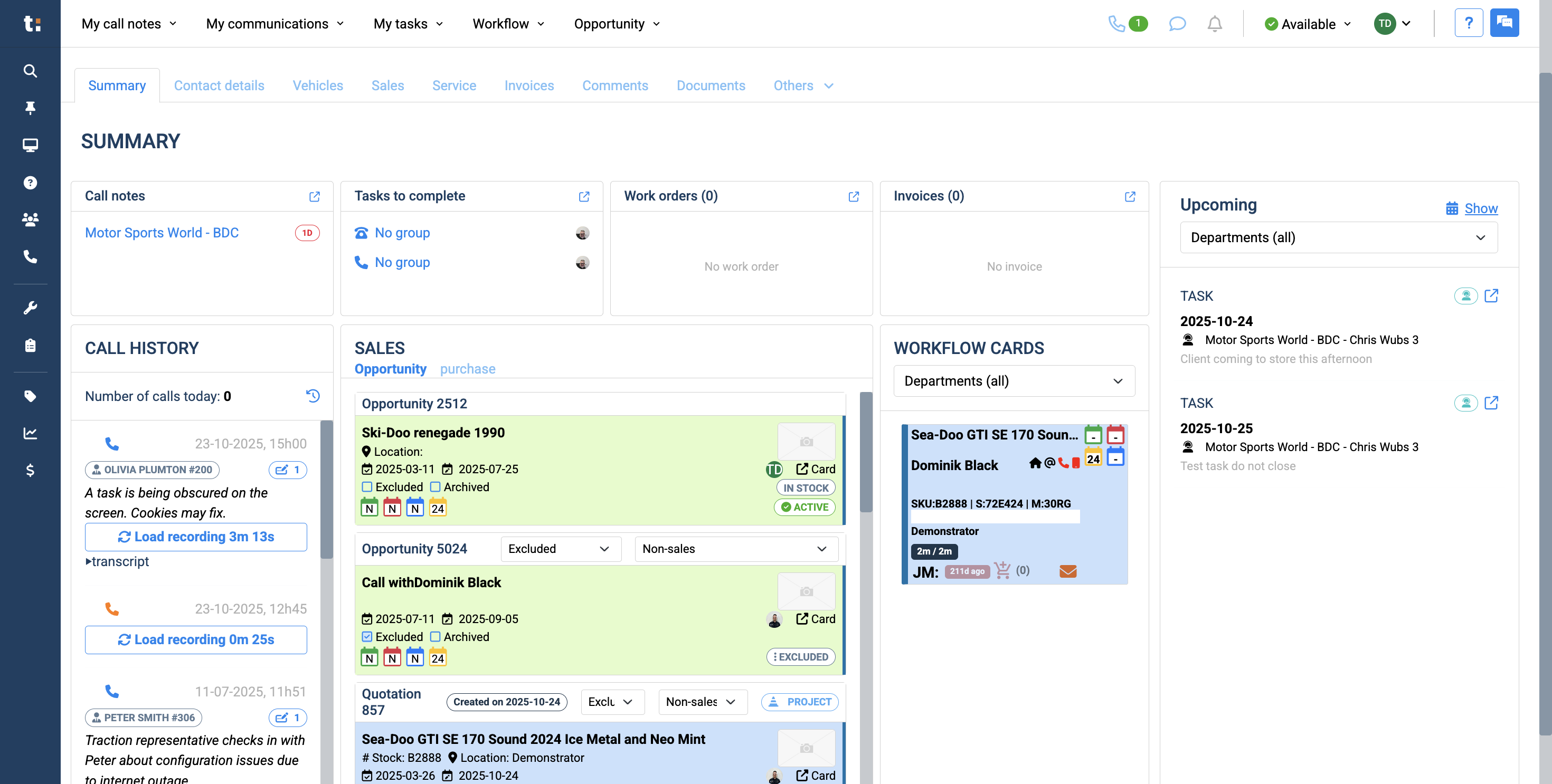
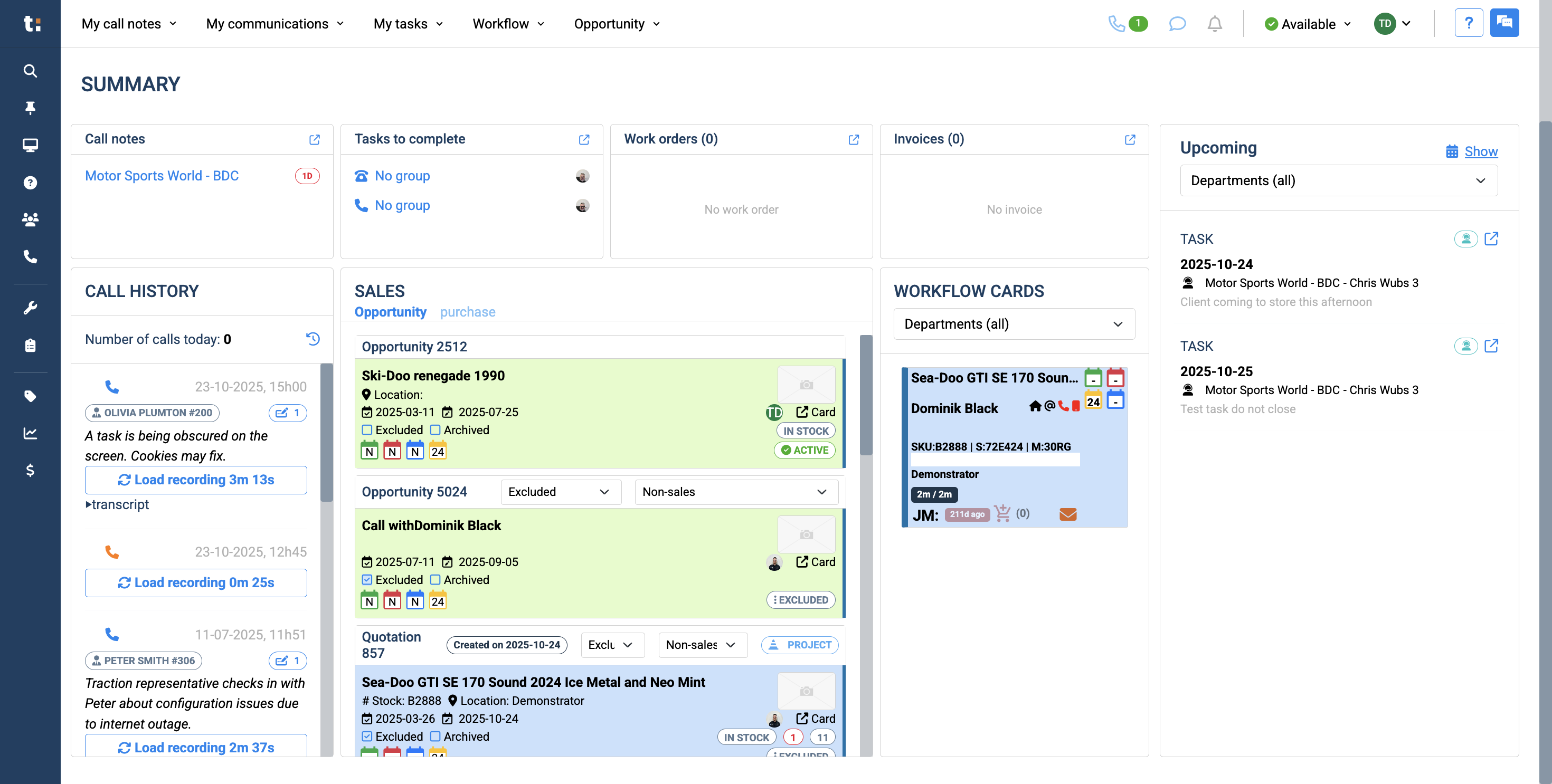
Below, there is a call history section. This will provide the latest call history for your customer.
7
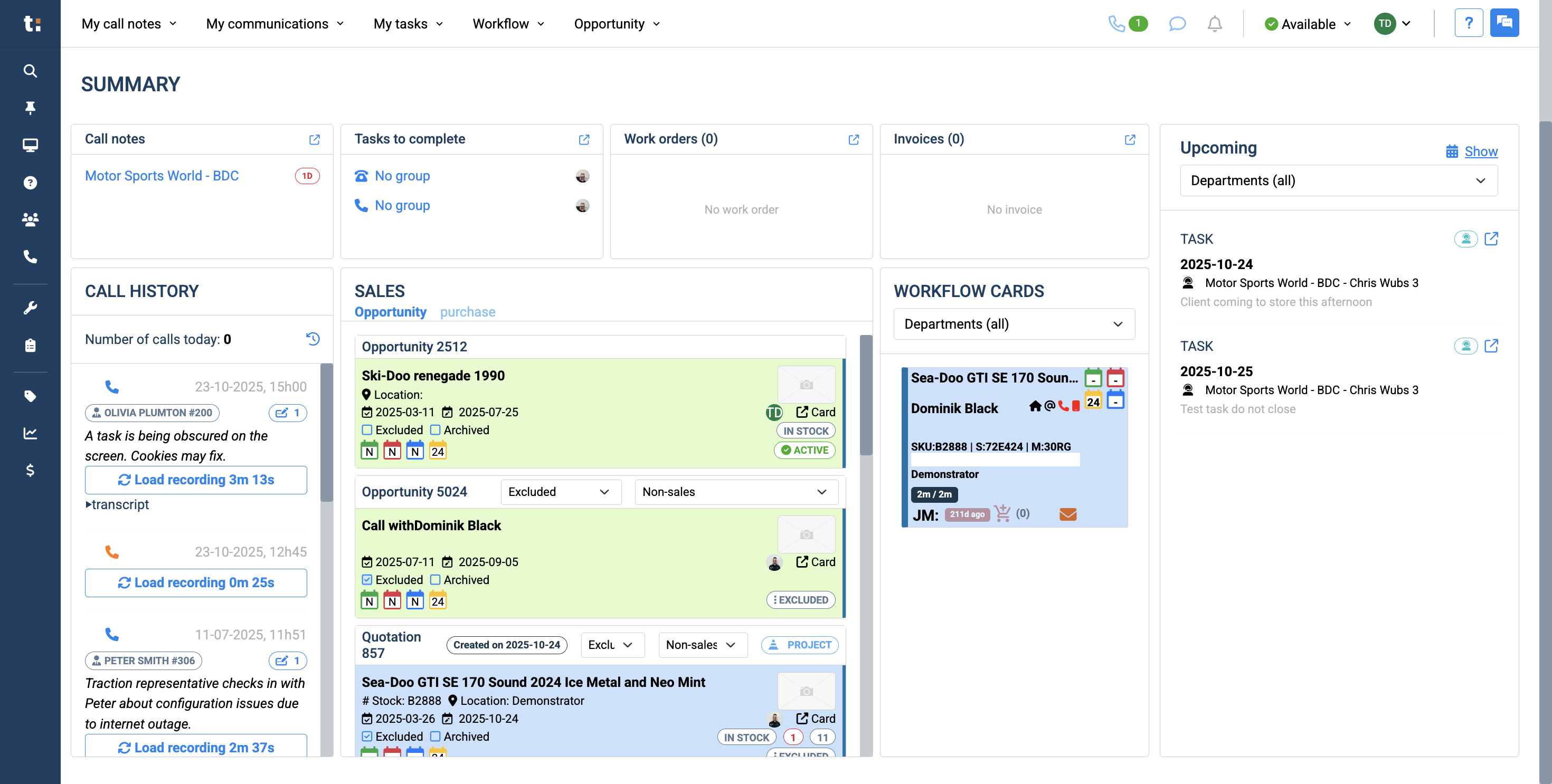
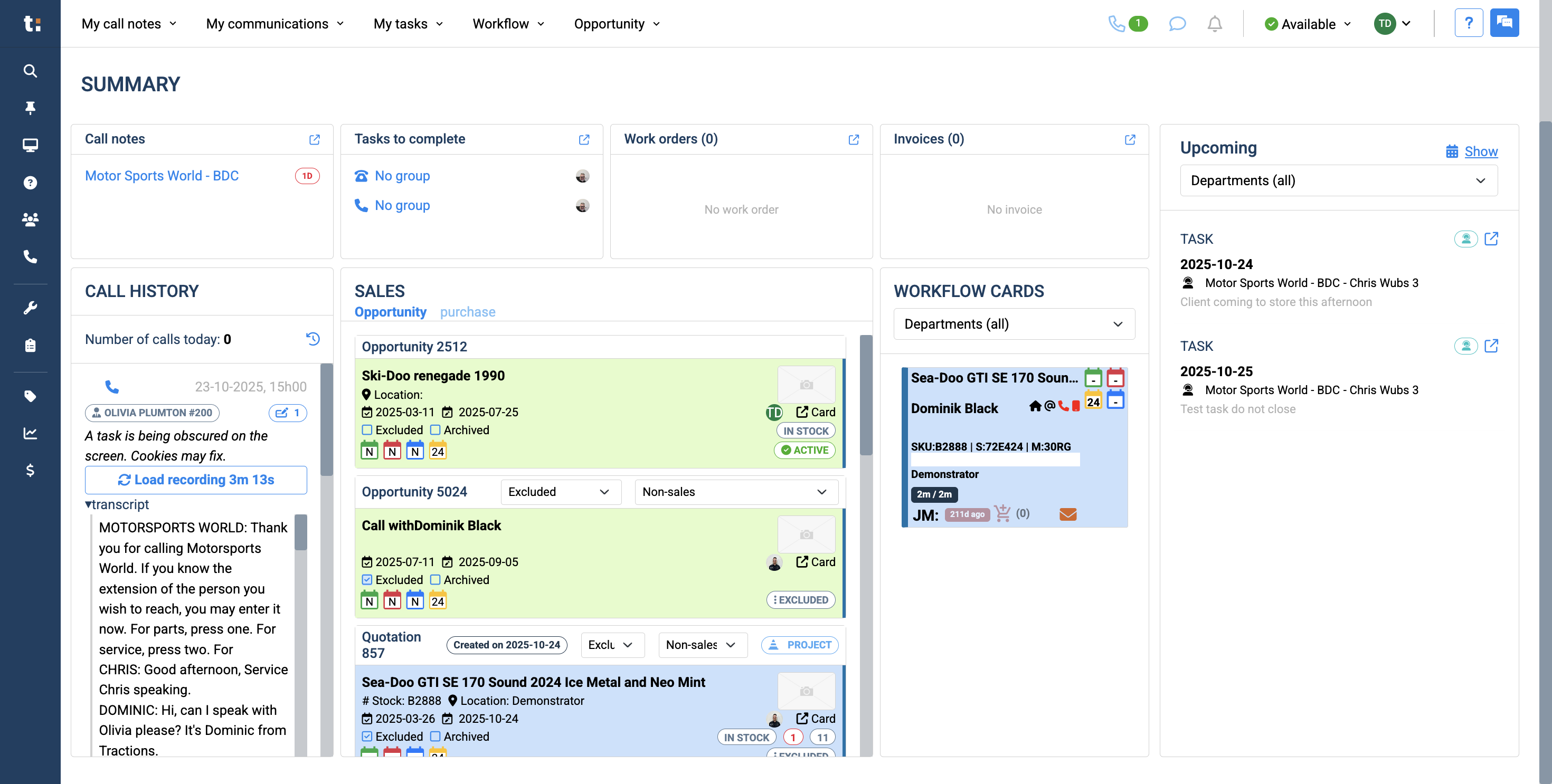
The call history displays who the customer called. It will provide a summary of the call. You can load the actual recording and open a transcript to quickly read what the conversation was about.
8
It will also show how many times the customer called today.
9
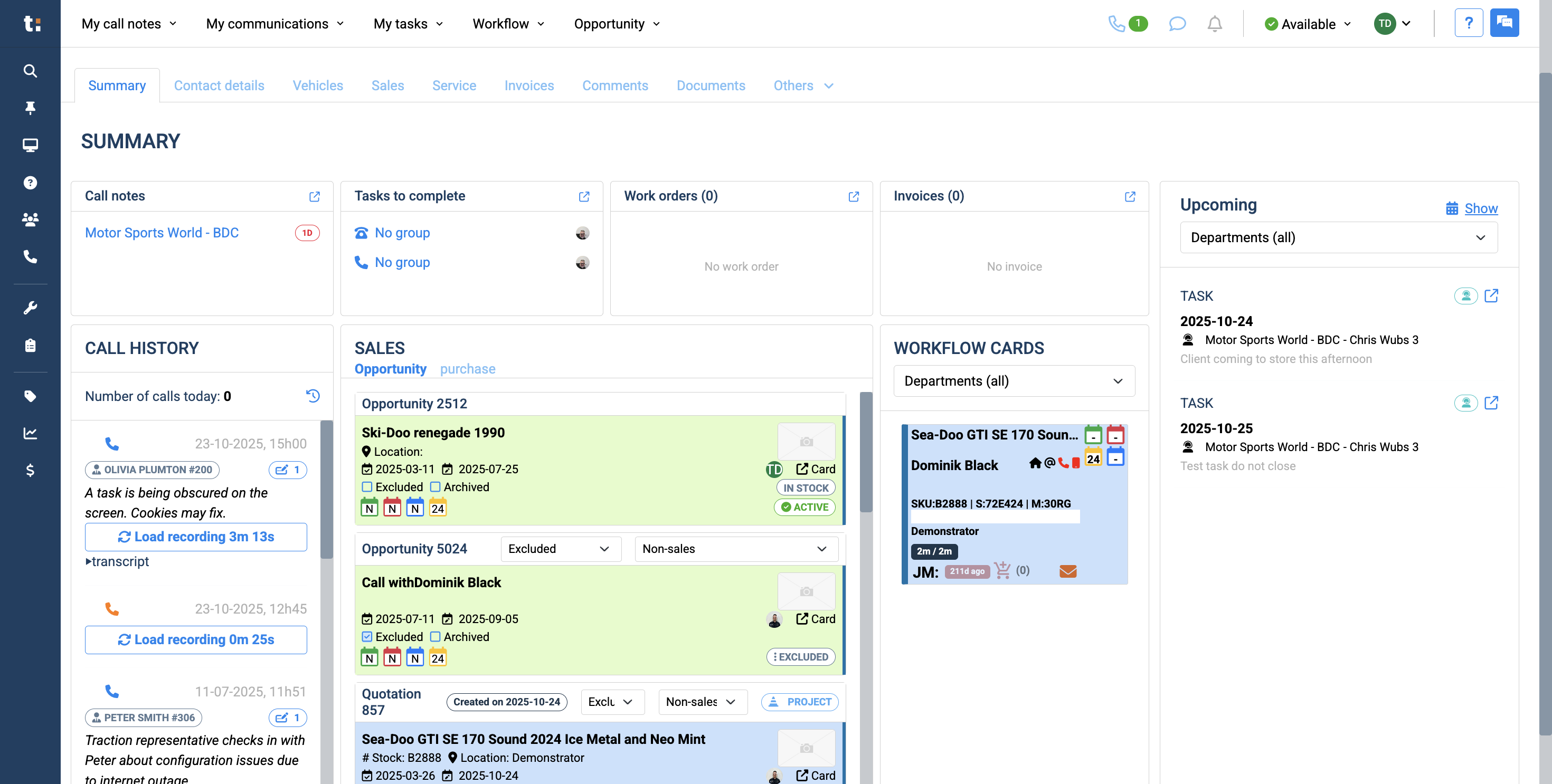
Next, we have a sales section.
10
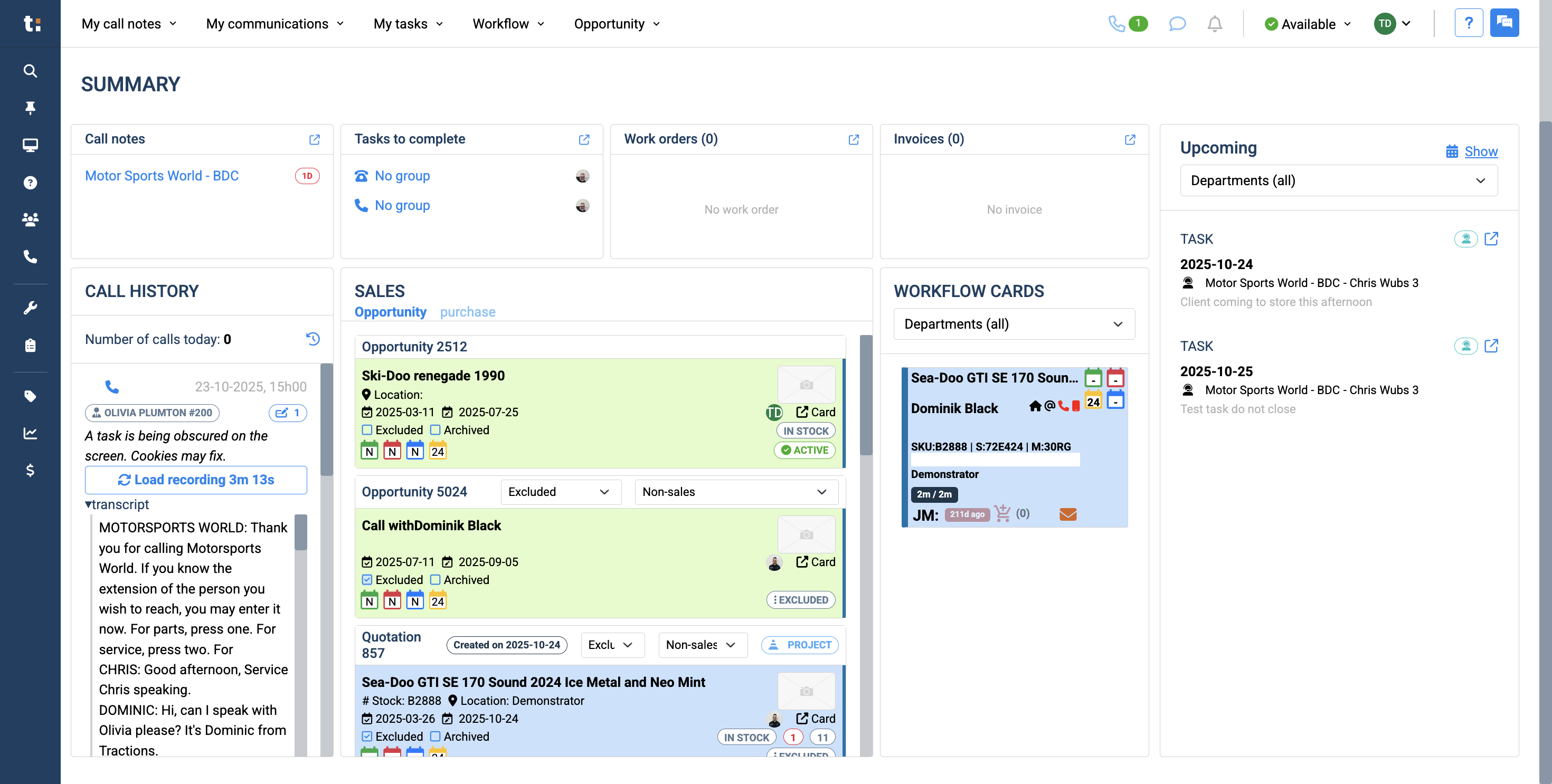
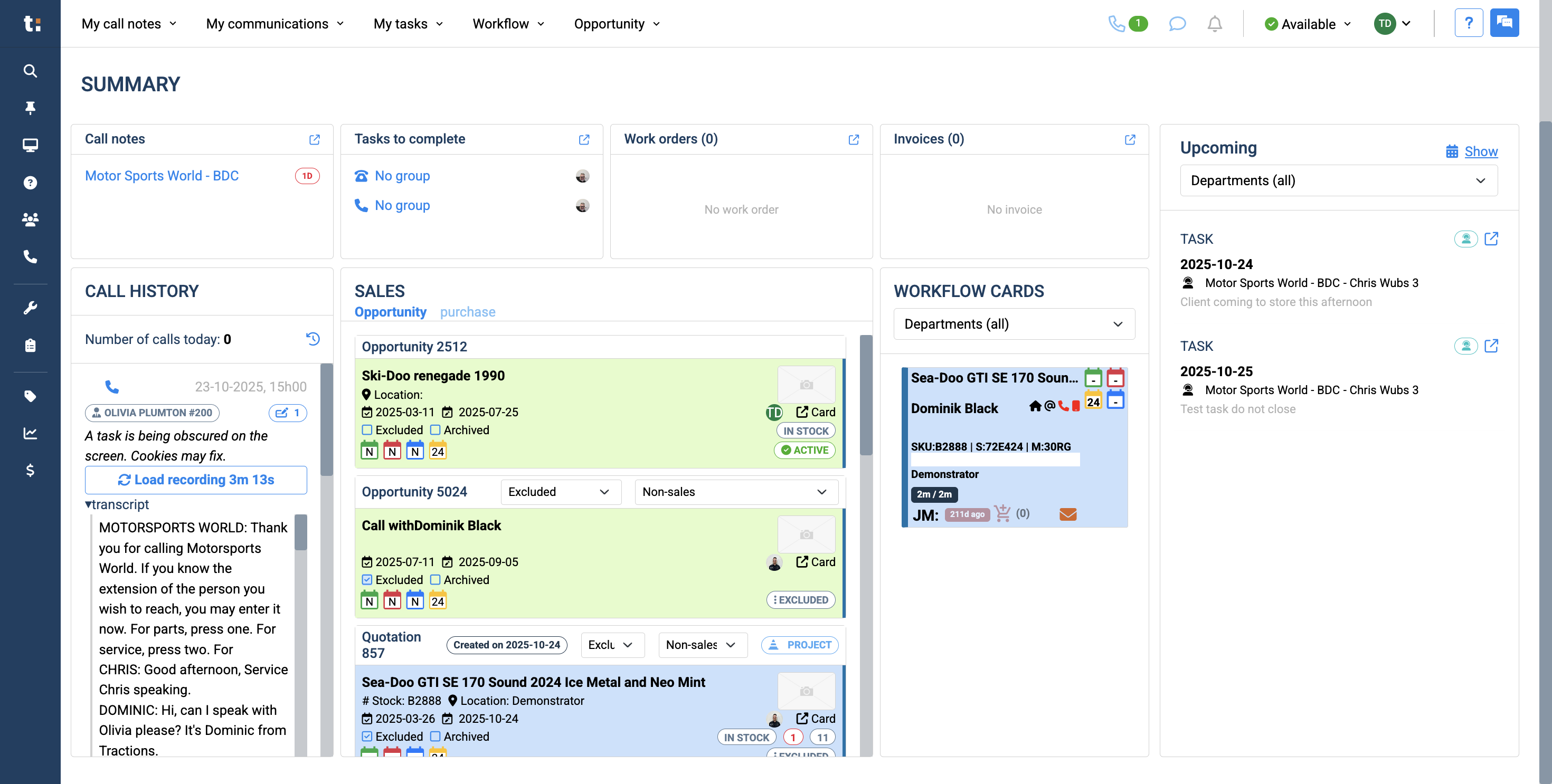
This will show you all the opportunities the customer has shown interest in. You will have an overview if they have been quoted. You will see the status of each opportunity, and more.
11
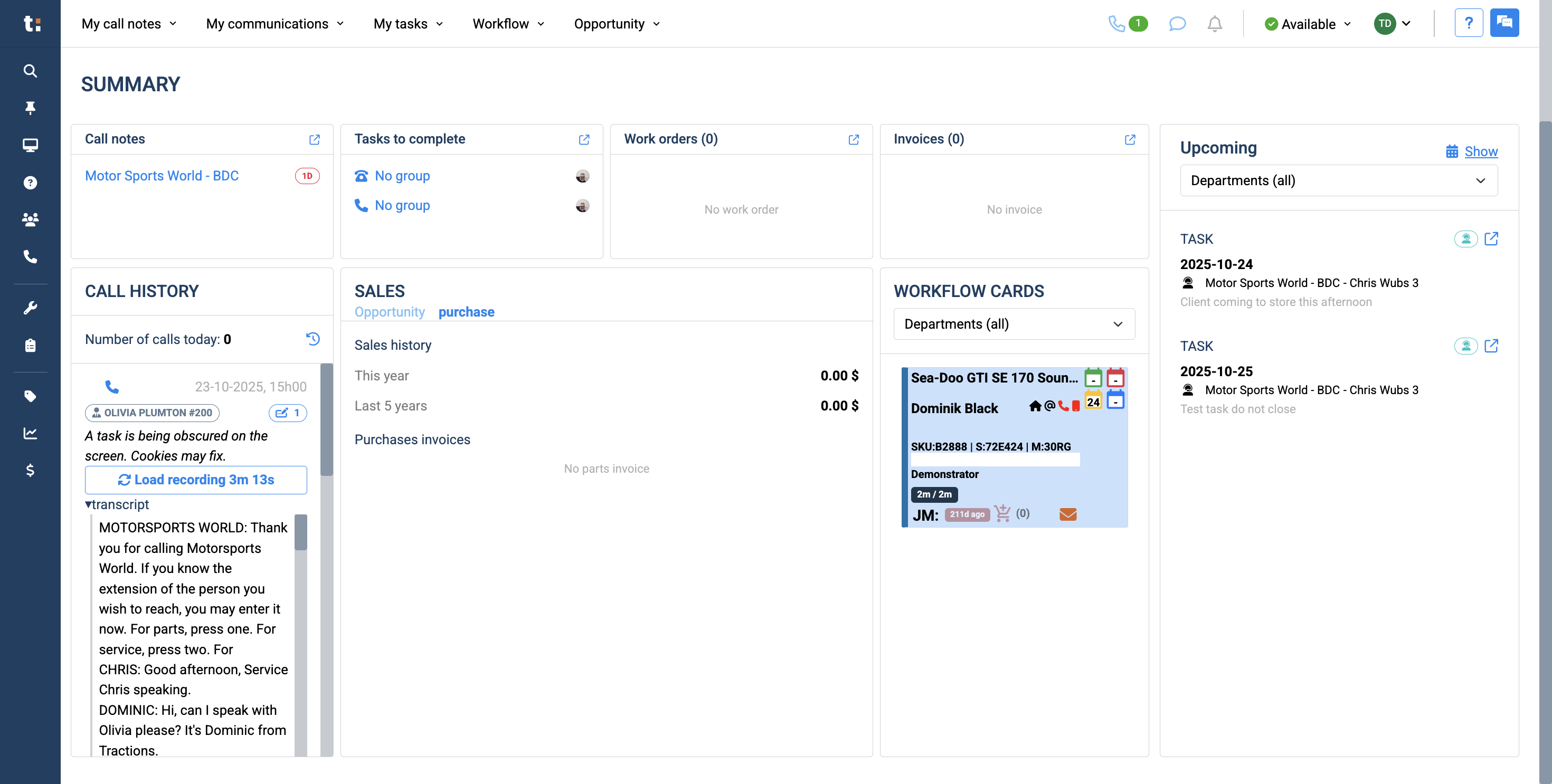
When you click the purchase tab, you will see how much they have purchased from you this year and in the last five years.
12
Their invoices are listed below.
13
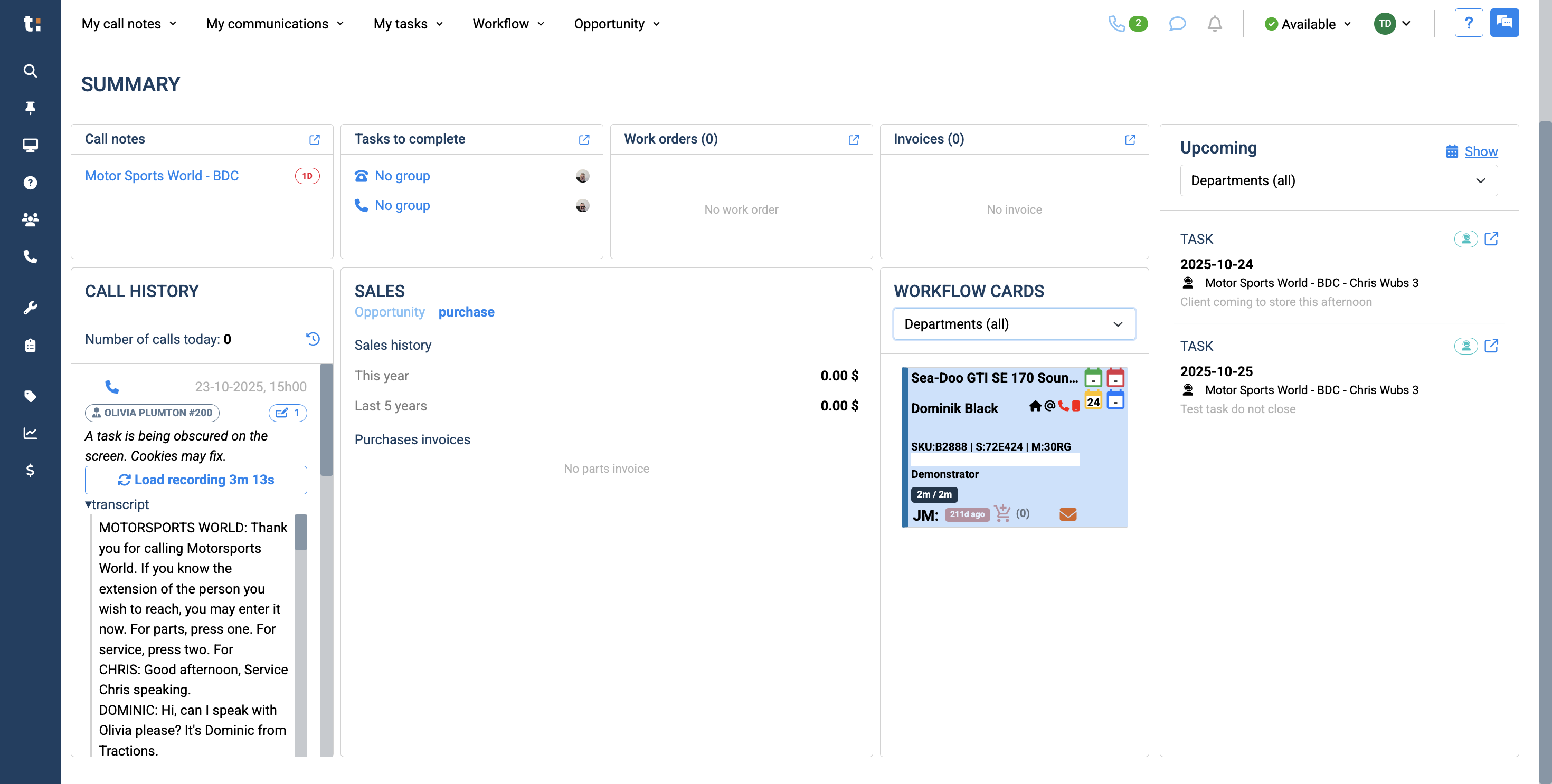
Next to that is a section for their workflow cards. From here, you can view any opportunities currently in a workflow.
14
Lastly, there is an upcoming area where you can view all upcoming tasks for the customer. Clicking on a task will take you directly to it.
If you still have questions after consulting this article, please feel free to contact our support team at: support@tractiondk.zohodesk.com