
Update Bell Schedules and Ring Lists in InformaCast
Learn how to manage bell schedules, configure ring lists, and set up calendar exceptions using the Singlewire InformaCast web interface.
This guide explains how to edit bell schedules and update ring list times in Singlewire InformaCast. Completing this ensures your facility's automated tones and bells trigger at the correct times throughout the year.
This process is intended for IT administrators and facility managers responsible for maintaining accurate school or building schedules. Use it when updating term dates, adjusting daily bell times, or accommodating special events.
Navigate to your InformaCast application server in a web browser.
10.241.0.24 in the address bar and press Enter.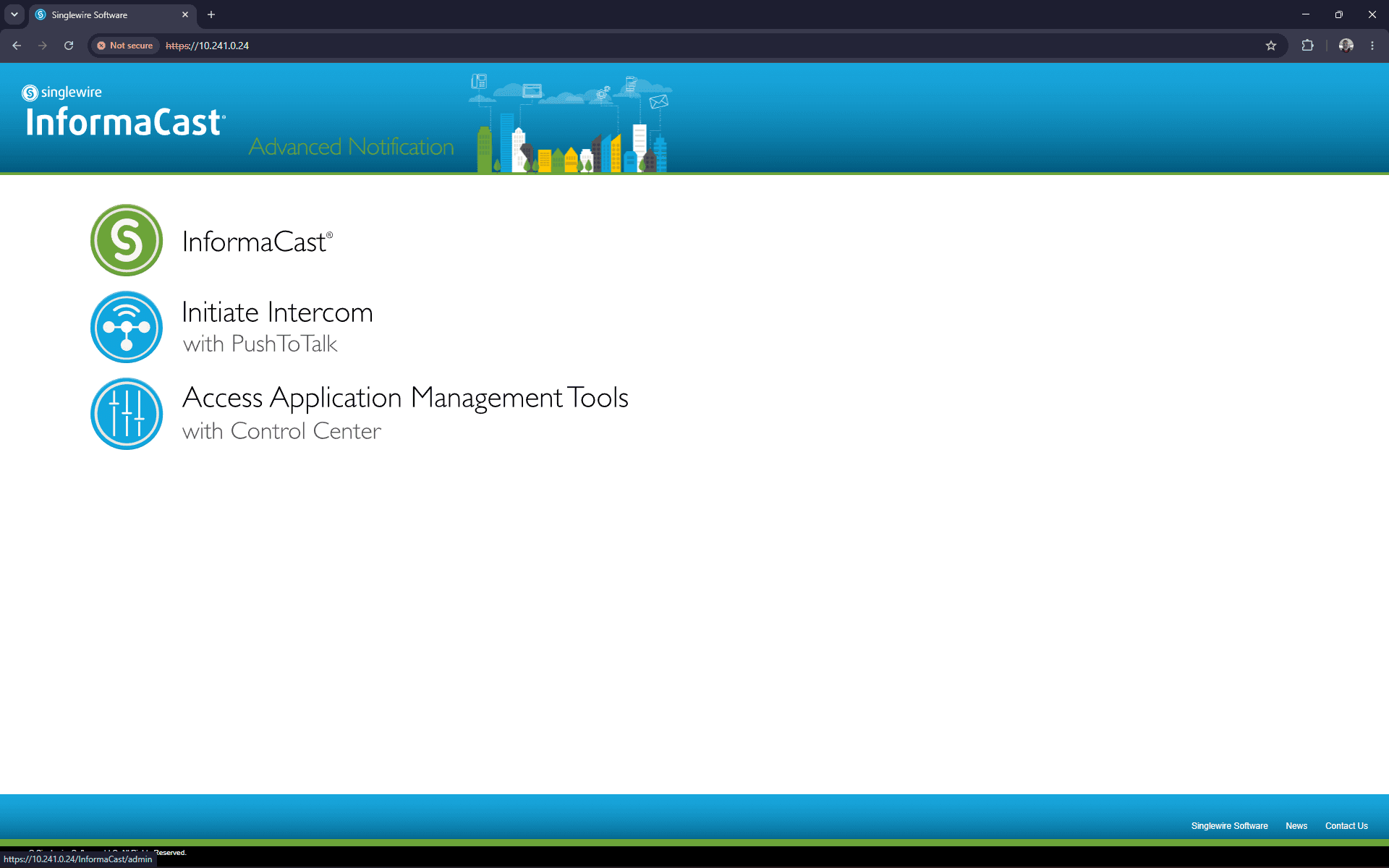
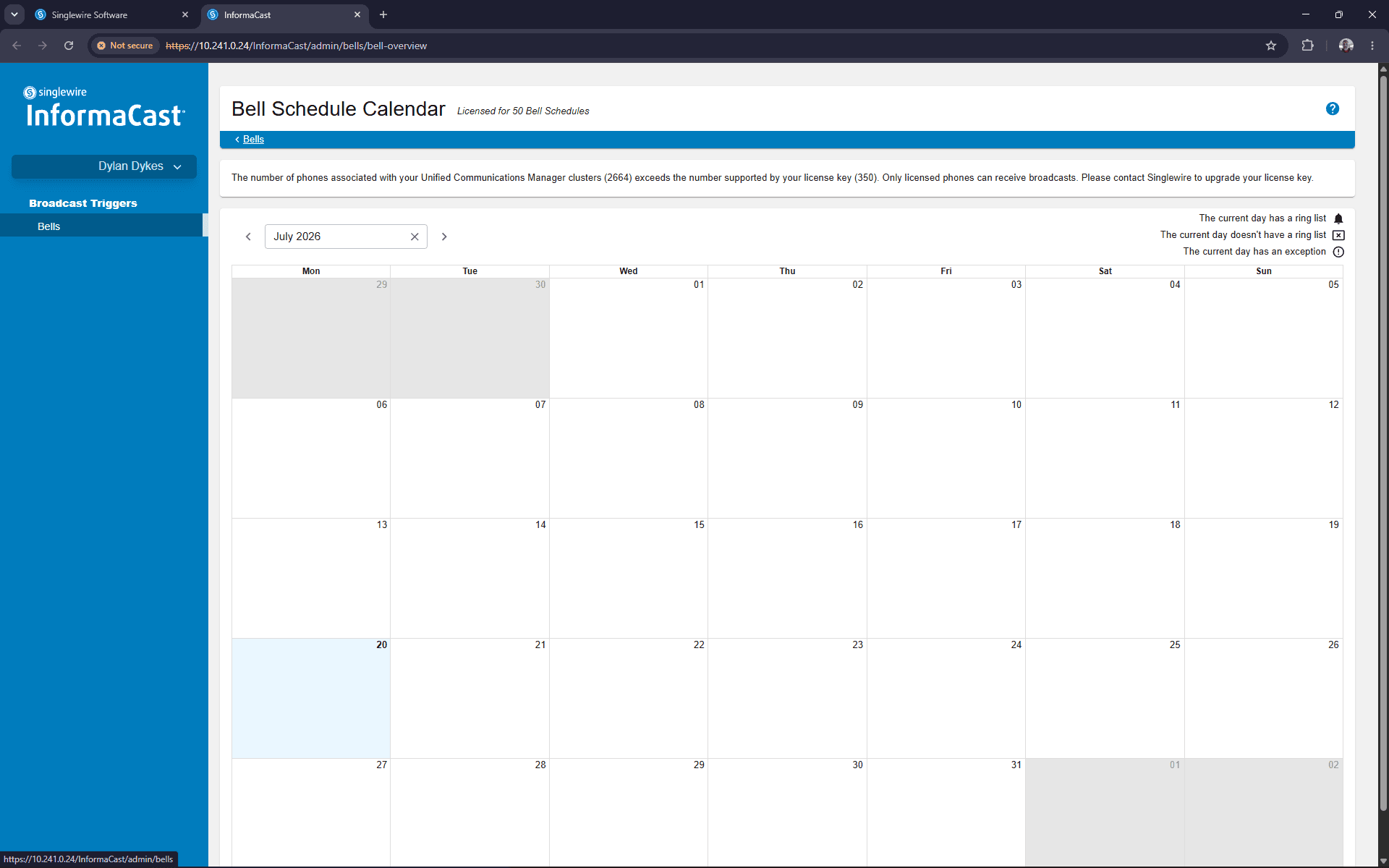
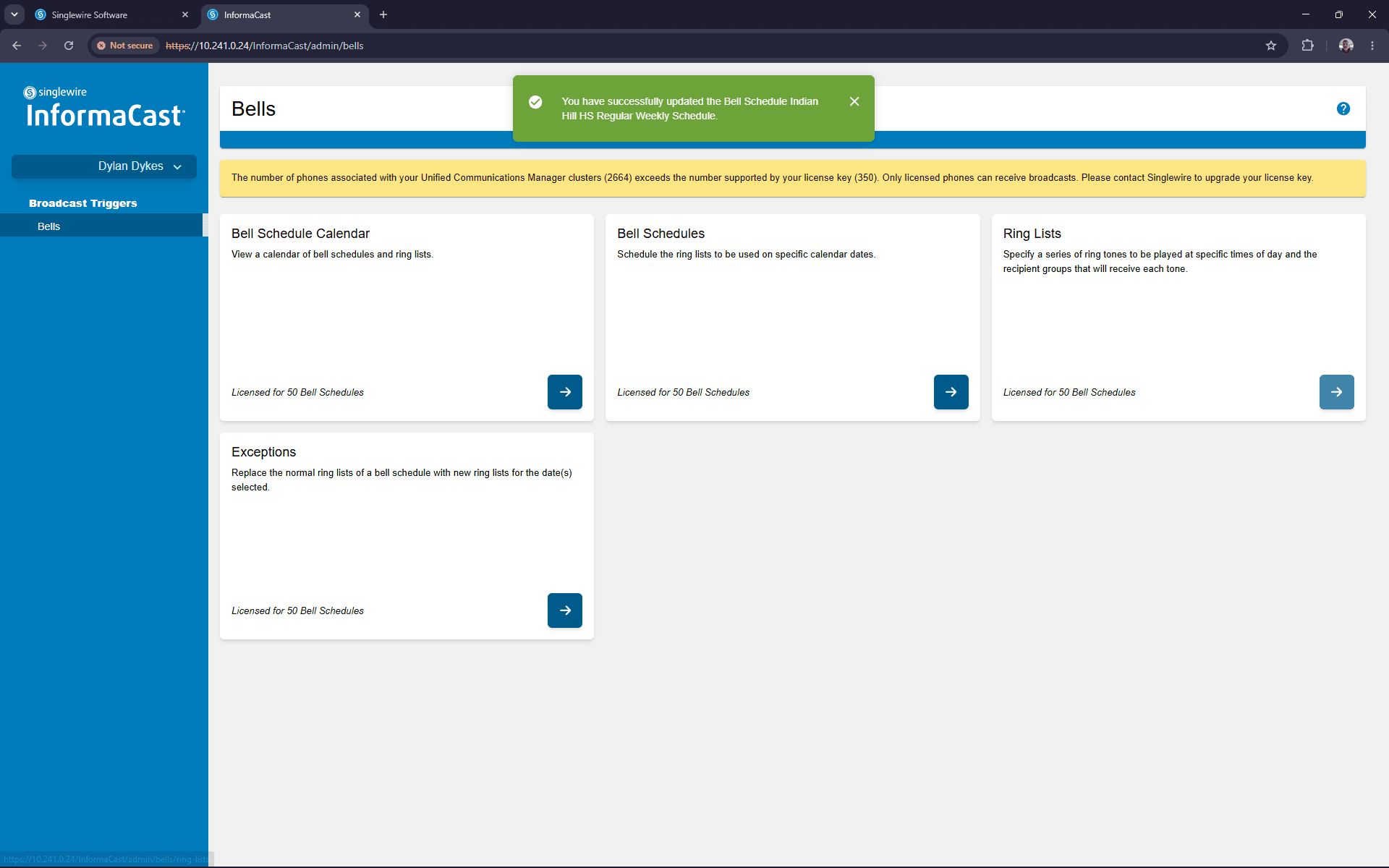
The Bells dashboard offers four primary management options for scheduling:
Option | Description |
|---|---|
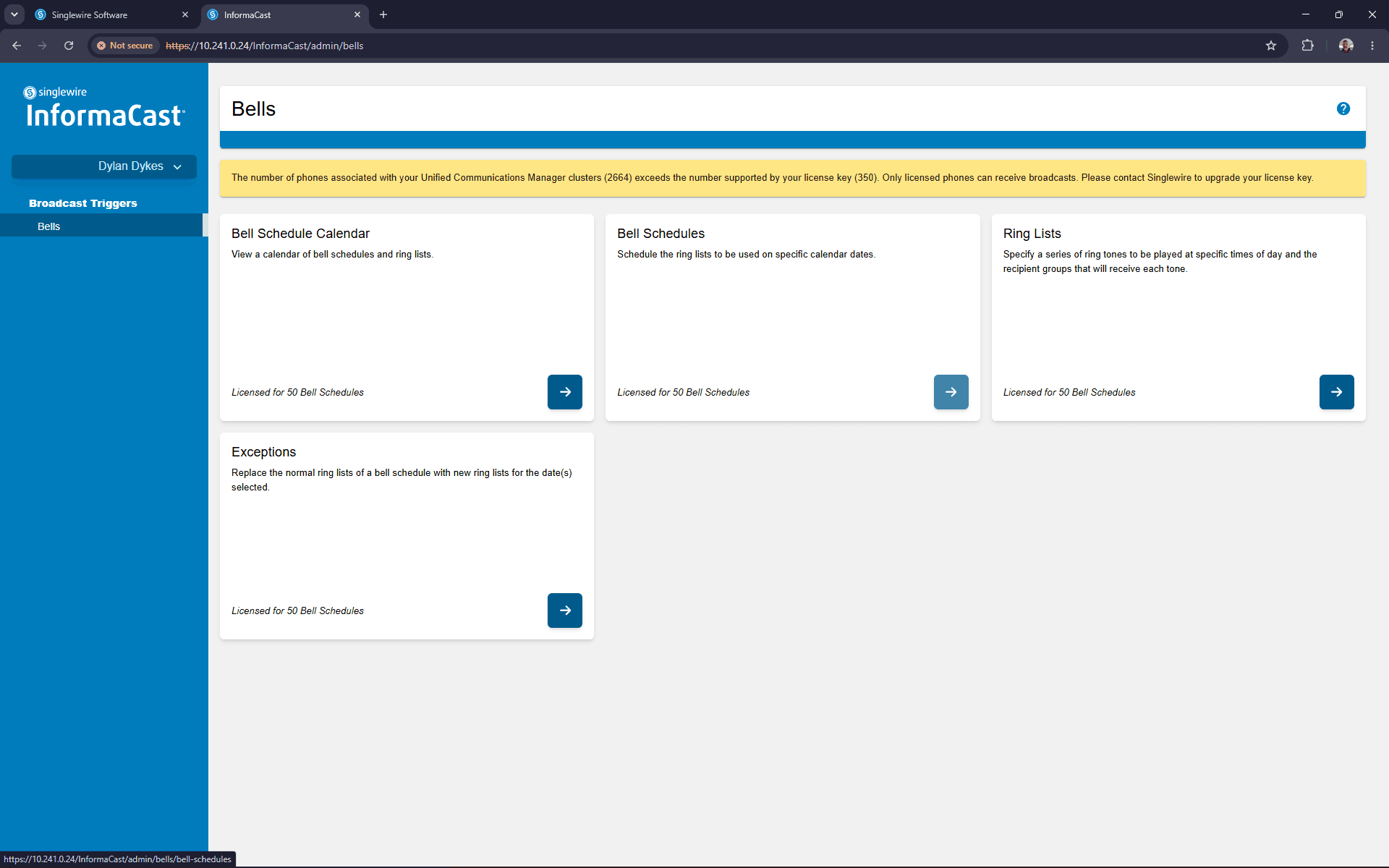
Bell Schedule Calendar | Provides a visual monthly calendar view of your active schedules. |
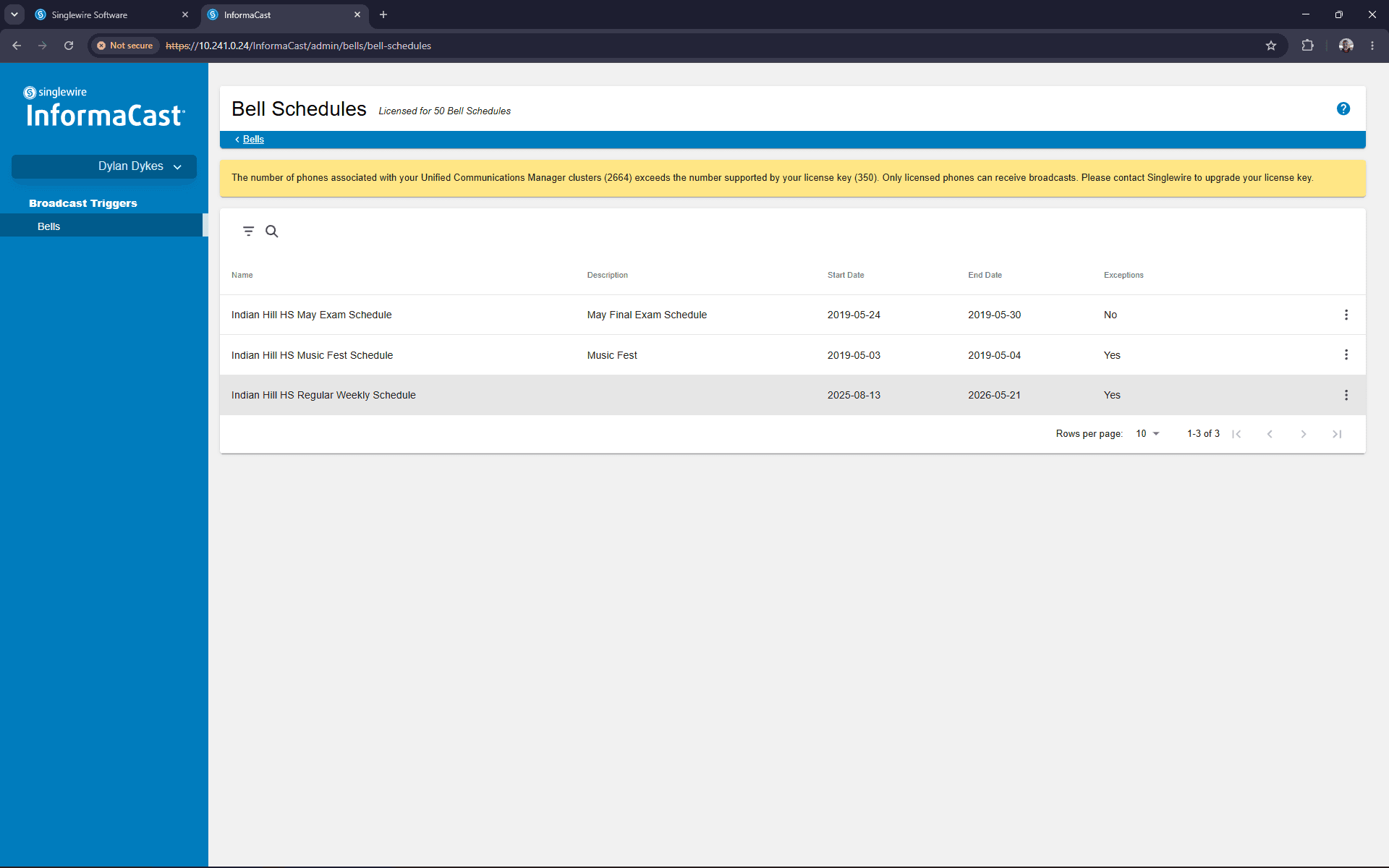
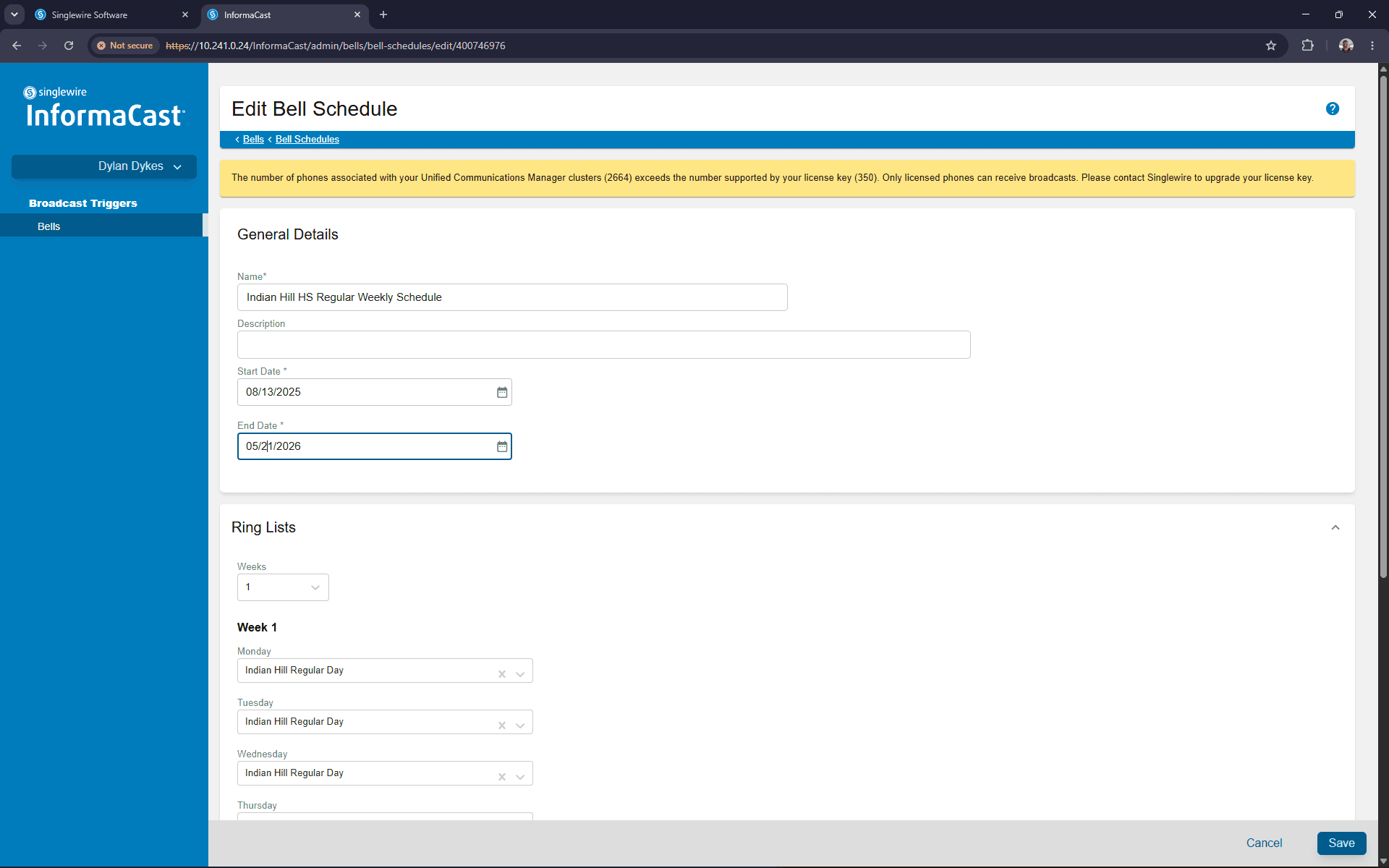
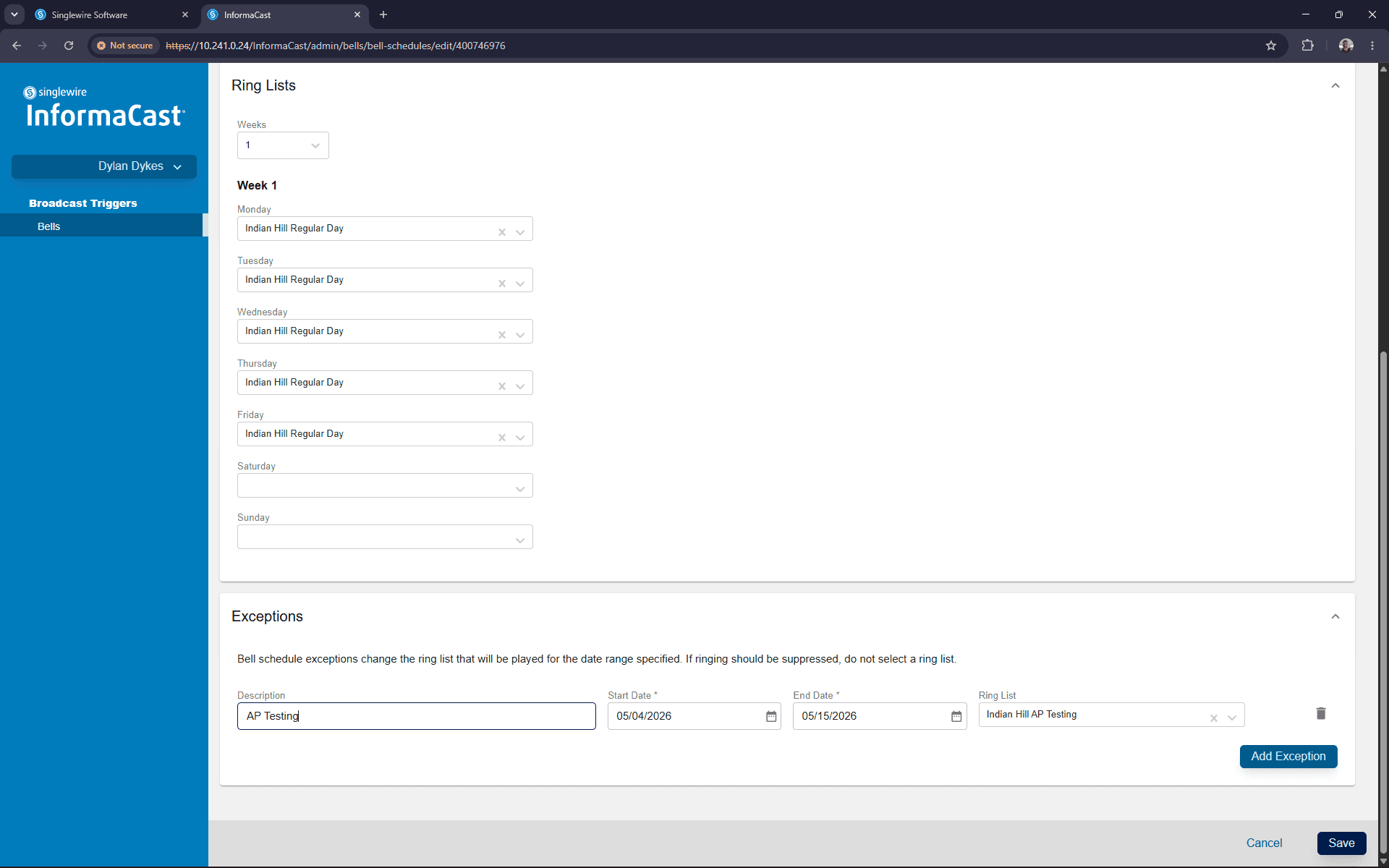
Bell Schedules | Associates ring lists with specific days of the week over a set date range. |
Ring Lists | Contains the actual bells, including the specific times, tones, and recipient groups. |
Exceptions | Overrides the normal bell schedule with an alternative ring list for a specific, one-off date (e.g., AP testing or assemblies). |
Edit a Bell Schedule
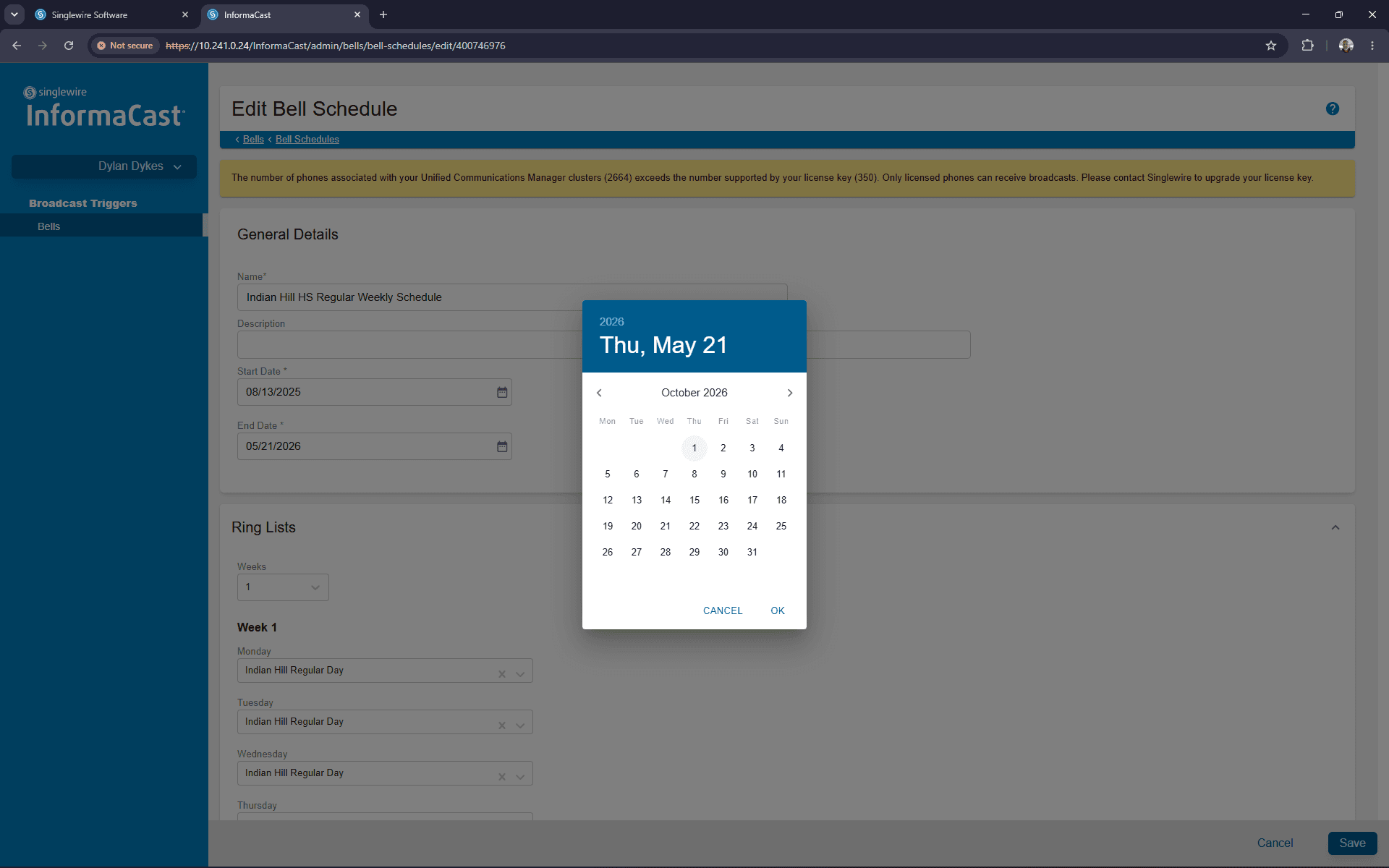
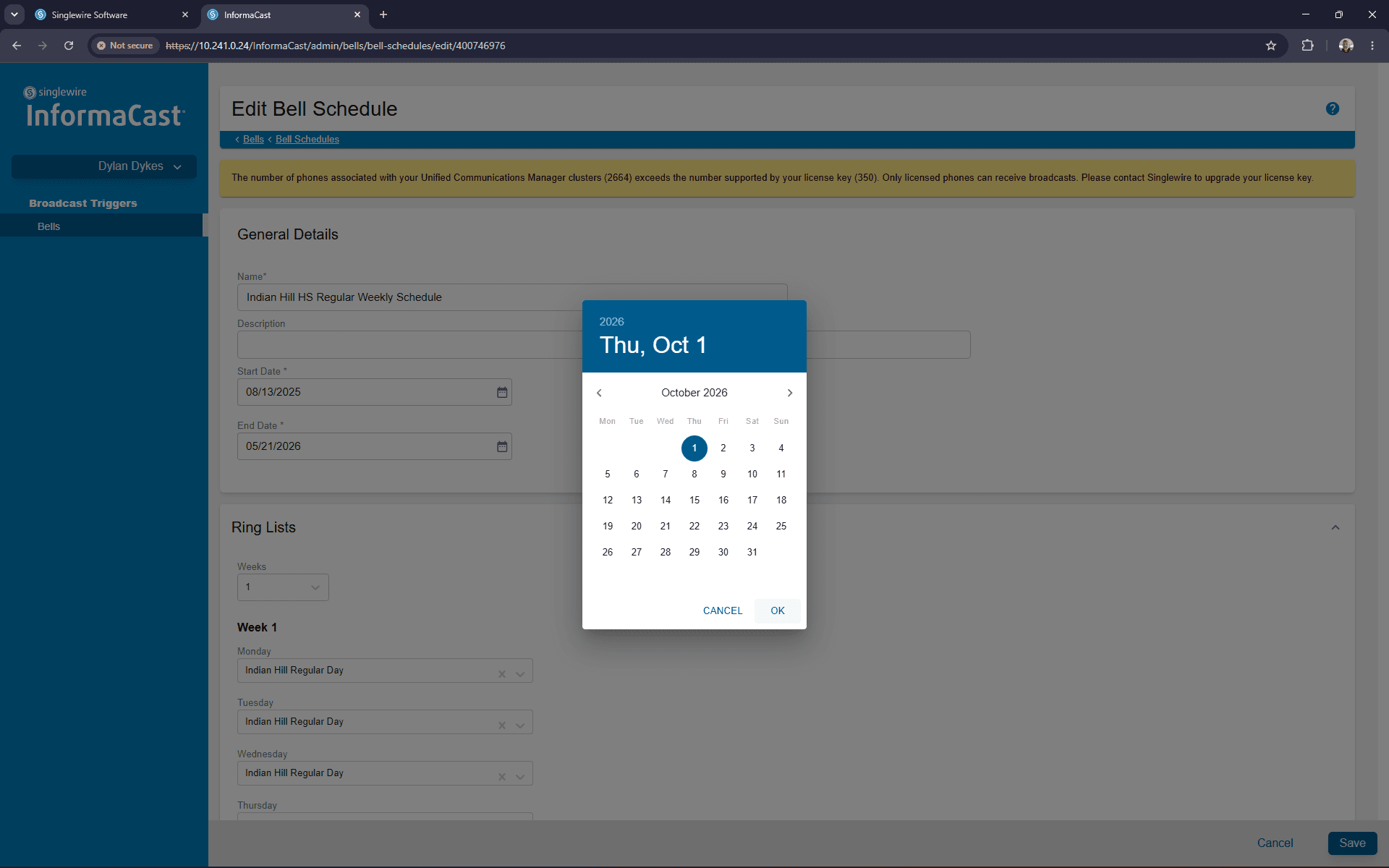
To adjust the active date range of an existing weekly schedule, navigate to the Bell Schedules section.
Update a Ring List
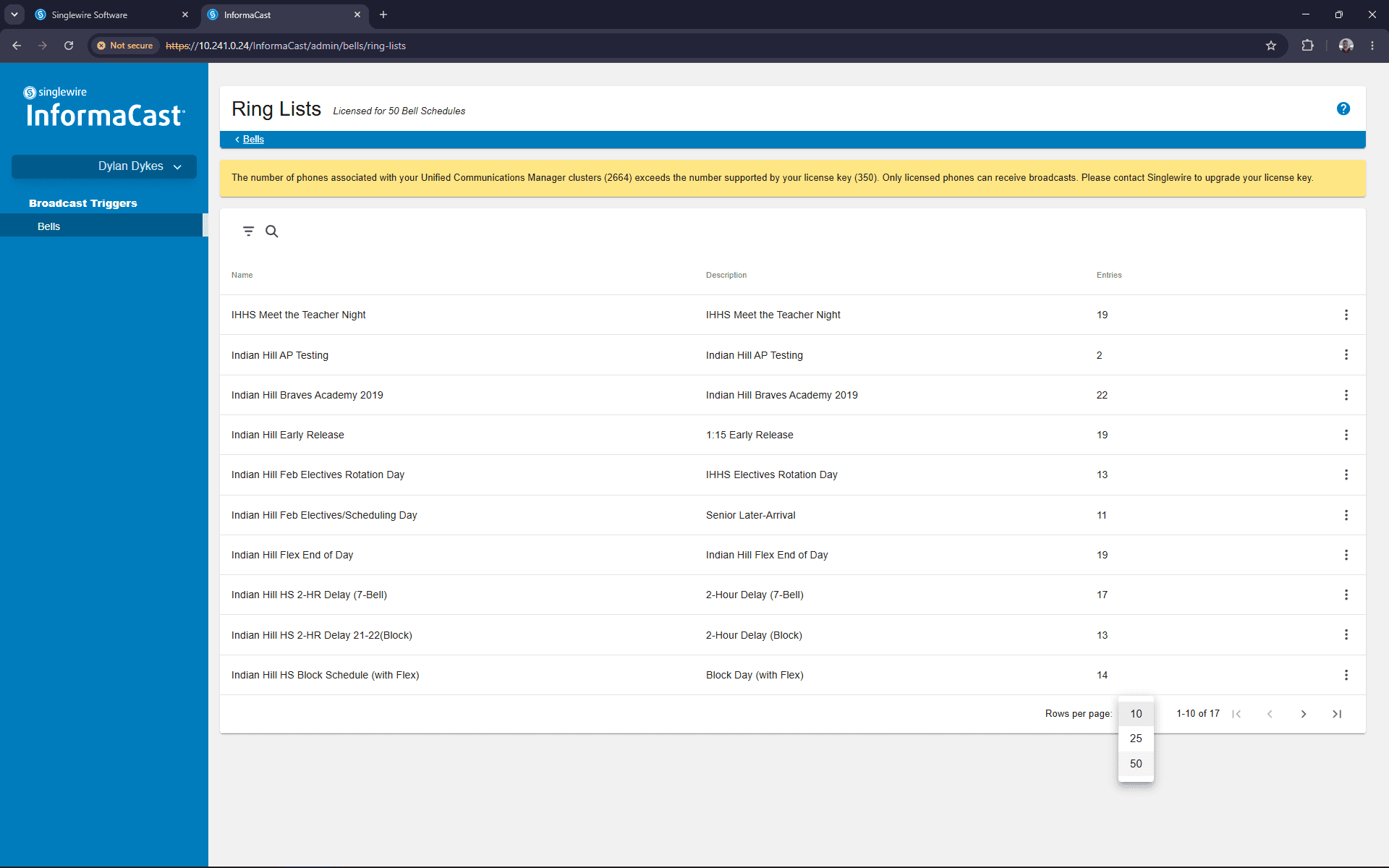
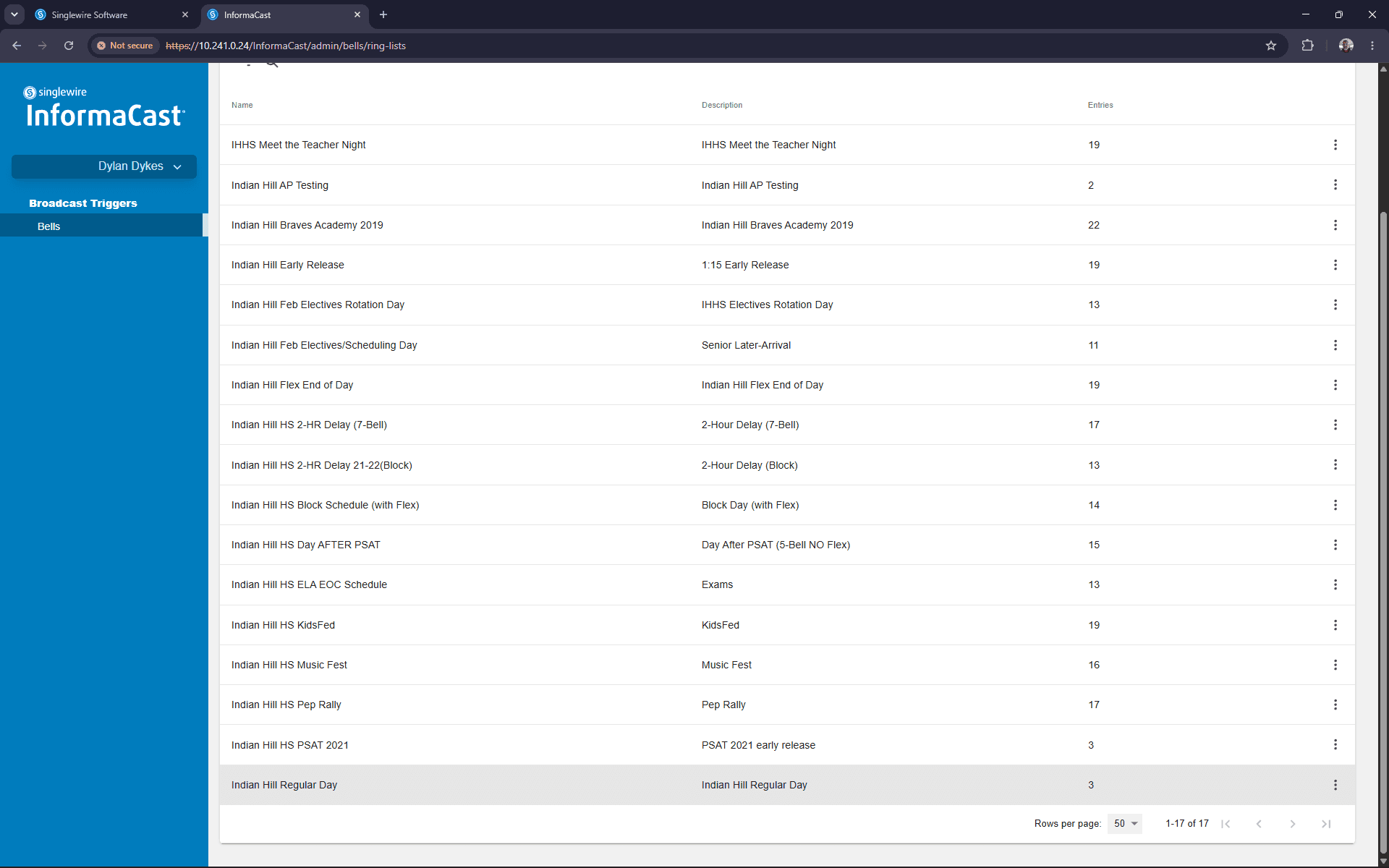
To add a new bell time to a schedule, you must edit the underlying Ring List.
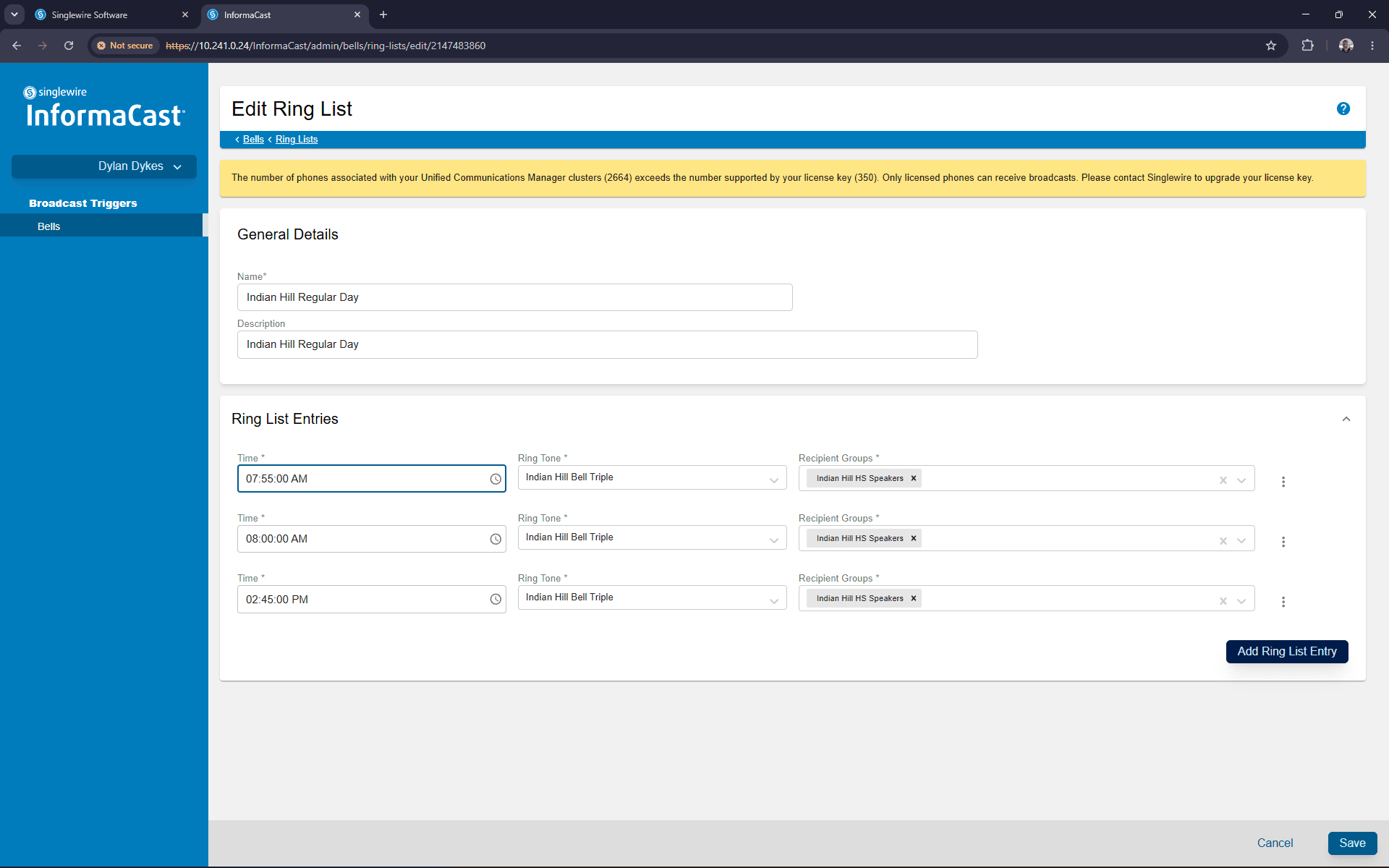
03:06:00 PM) into the time field.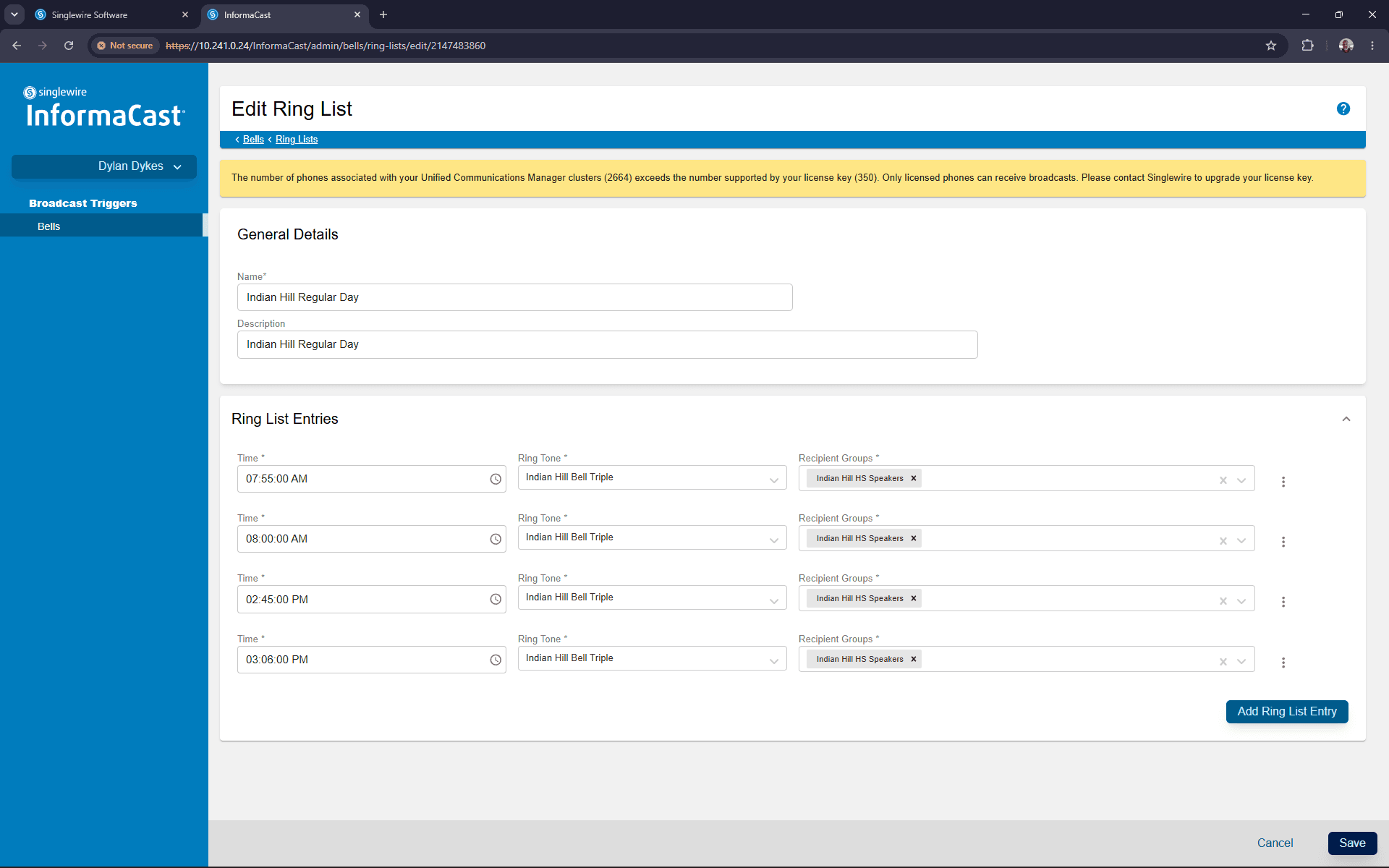
Q: What is the difference between a ring list and a bell schedule?
A: A ring list contains the specific bell times and tones. A bell schedule assigns those ring lists to specific days of the week across a date range.
Q: How do I handle schedule overrides for a single day?
A: You can use the Exceptions feature within a bell schedule to replace the normal daily ring list with a different one (like a testing schedule) for specific dates.
Term | Definition |
|---|---|
Bell Schedule | A configuration that assigns specific ring lists to days of the week over a defined date range. |
Ring List | A collection of specific times, tones, and recipient groups that dictate when and where bells sound. |
Exception | A one-off override applied to a bell schedule that replaces the normal daily routine with a temporary schedule for a specific date. |
Recipient Group | The specific set of speakers or endpoints designated to broadcast the bell tone. |